HP USB-C Dock 5G Drivers: How to Download and Install

If your HP USB-C Dock 5G is not working correctly, it is likely due to missing or outdated drivers. This can lead to issues with connectivity, charging, or external displays. Below, you’ll find clear steps on how to download, install, and update HP USB-C Dock 5G drivers on Windows.

How to install HP USB-C Dock 5G drivers?

1. Download drivers from HP’s official site

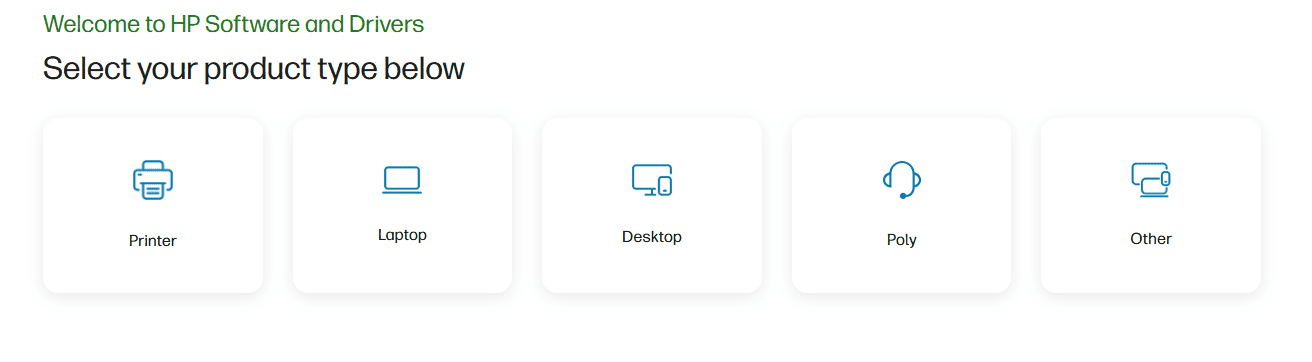
  1. Go to HP’s official support page.
    hp driver download page
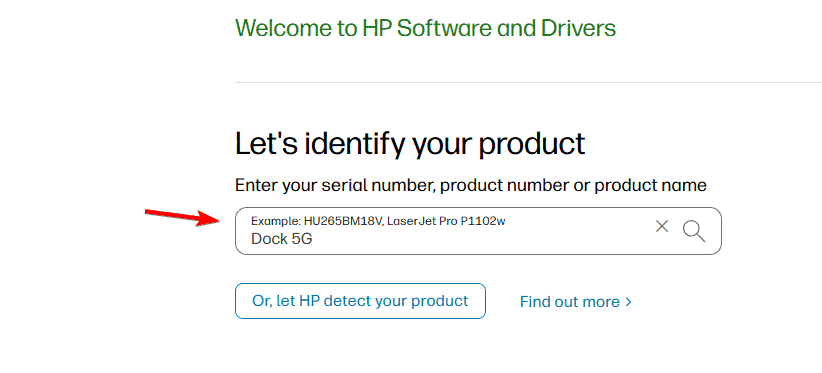
  2. Search for HP USB-C Dock 5G.
    HP 5g dock search input field
  3. Select your Windows version.
  4. Download the driver package.
  5. Run the installer and follow the prompts.

If you also need related printer software, you can check how to download and install HP printer drivers on Windows 11.

2. Use Windows Update to install drivers automatically

  1. Press Windows + I to open Settings.
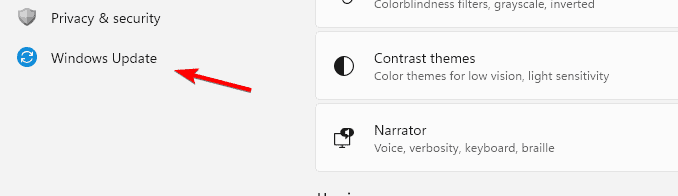
  2. Go to Windows Update.
    windows update section settings app
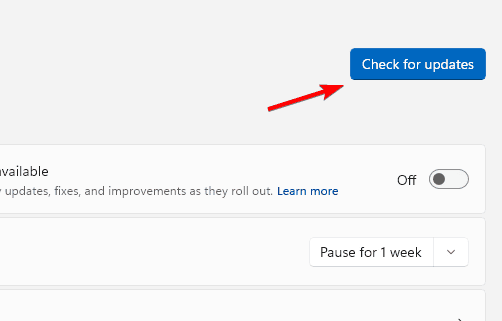
  3. Click Check for updates.
    check for updates button windows 11
  4. Install any driver updates related to HP.

This can also help fix issues such as the HP driver error 9996.

3. Update drivers via Device Manager

  1. Right-click Start and select Device Manager.
     
  2. Expand Universal Serial Bus controllers.
  3. Right-click your HP dock device and choose Update driver.
    update driver device manager
  4. Select Search automatically for drivers.

4. Install HP Smart to manage updates

  1. Download the HP Smart app on Windows 11.
  2. Install it by following the on-screen instructions.
  3. Launch the app and sign in with your HP account.
  4. Add your HP USB-C Dock 5G from the device list.
  5. Use the app’s update section to check and install the latest drivers.

5. Reinstall the dock drivers if issues persist

  1. Open Device Manager.
  2. Locate the HP USB-C Dock 5G under connected devices.
  3. Right-click and choose Uninstall device.
    uninstall device device manager window
  4. Restart your PC and reconnect the dock.
  5. Windows will reinstall the drivers automatically.

Final thoughts on HP USB-C Dock 5G drivers

Installing the correct HP USB-C Dock 5G drivers is essential for stable performance and compatibility. Whether you use HP’s official support page, Windows Update, or HP Smart, keeping your drivers updated ensures your dock runs without issues.

Microsoft Previews SQL Server 2026 with Ubuntu 24.04 and TLS 1.3

Microsoft has announced the SQL Server 2025 preview, and this update is a big one for developers and IT teams. The Release Candidate 0 (RC0) introduces two major upgrades, including support for Ubuntu 24.04 and the adoption of TLS 1.3 by default. Here’s everything you need to know.

Ubuntu 24.04 support in SQL Server 2025 Preview

For the first time, SQL Server 2025 can run on Ubuntu 24.04 in dev and test setups. Microsoft is offering the Enterprise Evaluation Edition, which is valid for 180 days, making it easy to try out the database engine on the latest LTS release.

That said, production environments aren’t ready yet. If you’re running mission-critical workloads, Microsoft still recommends SQL Server 2022 on Ubuntu 22.04 or RHEL 9.

TLS 1.3 is enabled out of the box

The second big change is security. TLS 1.3 is now turned on by default in SQL Server 2025 Preview. This means faster handshakes, stronger encryption, and better compliance, which is a huge win for organizations focused on safeguarding data.

Microsoft has already published updated guides on how to validate secure connections with the new standard.

Simple deployment with containers

Deploying the preview isn’t complicated either. Using just a couple of Docker commands, testers can spin up SQL Server 2025 RC0 on Ubuntu 24.04 inside WSL2.

From there, you can connect through SQL Server Management Studio and confirm the version running inside the container’s ERRORLOG. Microsoft clearly wants to lower the barrier for developers exploring Linux-first environments.

Availability of SQL Server 2025 Preview

The preview release is live now, with Microsoft calling on the community to share feedback ahead of the final launch in 2025. For those eager to try it, quickstart guides are already available on Microsoft Learn.

Until then, production workloads remain safer on SQL Server 2022, at least until Ubuntu 24.04 gains full certification.

NVIDIA GeForce NOW gets RTX 5080 servers and 100GB cloud storage upgrade

NVIDIA just announced its biggest GeForce NOW upgrade yet, confirming that the new Blackwell RTX architecture will power cloud servers starting this September.

This means that members can stream with RTX 5080-class performance, delivering cutting-edge visuals, AI-driven features, and faster frame rates on nearly any device.

At the same time, NVIDIA is introducing a new Install-to-Play feature, expanding GeForce NOW’s catalog to nearly 4,500 titles. Members will also get 100GB of single-session cloud storage as part of their plan, with optional add-ons for persistent storage up to 1TB.

GFN_Blackwell_Product_Matrix-scaled
Image: NVIDIA

What’s new in GeForce NOW

With the RTX 5080 upgrade, NVIDIA says players can expect a huge bump in performance:

  • Up to 5K streaming at 120fps with DLSS 4 and Multi Frame Generation.
  • Competitive gaming boosts with NVIDIA Reflex, offering latency under 30ms.
  • A new Cinematic Quality Streaming mode for sharper text, richer colors, and AV1 encoding.
  • Broader device support, including Steam Decks, Lenovo Legion Go S, LG monitors, and Mac systems.

In addition, new blockbuster titles such as Borderlands 4, Call of Duty: Black Ops 7, The Outer Worlds 2, and Dying Light: The Beast will be optimized for GeForce NOW at launch.

Timeline and availability

The RTX 5080-powered servers will begin rolling out in September for Ultimate members at the same $19.99/month price. NVIDIA also confirmed that GeForce NOW will launch in India this November, expanding its reach after Thailand.

With more games, better visuals, and larger storage, NVIDIA is positioning GeForce NOW as a complete PC gaming experience in the cloud, without the upfront cost of high-end hardware.

Visual Studio Gets Better Controls for Copilot Code Suggestions

After bringing GPT-5 to Visual Studio and full MCP support, Microsoft is now giving developers greater control over Copilot inside Visual Studio 2022 (version 17.14.13).

Starting August 2025, you can fine-tune when and how suggestions appear, helping you code faster without unnecessary distractions. You can now pause Copilot completions while typing, so suggestions won’t pop up too quickly and interrupt your flow.

Worth noting that completions only appear after a short pause, or when you manually request them with a shortcut. If you’d rather decide exactly when to see help, this option puts you in charge.

As you may know, sometimes Copilot predicts your next edit before you’re ready. With the new settings, you can hide these Next Edit Suggestions (NES) by default.

When one is available, you’ll see a small margin indicator next to your code. Click it or press Tab to preview, and decide whether to accept or dismiss the suggestion.

You’re no longer locked into accepting entire code completions. With partial accept, you can bring in suggestions word by word using Ctrl + Right Arrow, or line by line with Ctrl + Down Arrow. This makes it easier to take just the part of a suggestion you need, instead of editing out the rest.

All that said, these features give you more flexibility, whether you prefer a quiet editor with minimal interruptions or want finer control over what Copilot generates. You can now shape your coding experience to match your style, making Copilot feel less intrusive and more like a tool you control.

Xbox Tests New “My Apps” Feature for PC & and Handheld Gamers

Xbox Insiders on Windows 11 PCs and handhelds can now try out a new feature called “My Apps.” You can access your games, browsers, and utilities in one hub, without jumping between desktop shortcuts or multiple storefronts.

It’s part of Microsoft’s effort to make the Xbox PC app the central spot for all your gaming.

Built for handheld and desktop use

If you’re using a handheld like the ROG Xbox Ally, the feature feels even more natural. You can move between apps right from the Xbox full-screen mode, while system tweaks keep more resources focused on gameplay. That means less background noise and more power going into your games.

Expanding selection over time

For now, you’ll see a curated list of apps you can download straight from the tab. Microsoft says more options will arrive over time, so you’ll be able to pull in even more tools and storefronts into the same library.

Together with features like your aggregated library and play history, “My Apps” section makes Xbox on PC feel like a true home base. You get easier navigation, smoother setup, and a single place to launch everything you play.

Microsoft Intune August 2026 Update Brings Smarter Controls

Microsoft has officially rolled out its August 2025 Intune update, bringing a bunch of new features designed to simplify management and boost security. Firstly, the update introduces four major improvements.

These include advanced application control, automatic patching during device setup, real-time Apple update visibility, and multi-admin approval for sensitive actions. Let’s discuss what’s new, one by one.

App Control with enterprise targeting

App Control for Business is now generally available with granular targeting options. Admins can now assign policies to specific groups. Earlier previews only allowed tenant-wide enforcement. That’s not all; a built-in wizard now guides configuration, helping IT teams implement Zero Trust app control without disrupting productivity.

Auto patching during device setup

Windows Autopilot is also getting a new behavior where devices apply critical updates during the initial setup. Employees now receive fully patched PCs on day one, avoiding those early restart interruptions. The feature respects existing update deferral and pause policies, ensuring IT strategies remain in control.

Better visibility for Apple updates

Intune now brings real-time reporting for Apple software updates through declarative device management. Admins can track progress, spot failures, and monitor user interactions without waiting for manual reports. The timing is crucial as Apple is set to retire MDM updates in 2025, making this upgrade a must-have.

Multi-admin approval for safer workflows

To reduce risks from accidental or unauthorized changes, Intune adds multi-admin approval for key actions. Role updates, scope tag changes, and sensitive device actions like wipes or retires can now require a second administrator’s sign-off.

All that said, these updates make Intune more powerful for organizations aiming to deliver secure, seamless, and reliable device management.

Pac-Man Celebrates 45 Years With Xbox Free Play Days This Weekend

Pac-Man is celebrating a huge milestone this year with its 45th anniversary campaign, “Make ImPACt.” To mark the occasion, Bandai Namco and Xbox are offering Free Play Days access to three Pac-Man titles.

From Thursday, August 21, through Sunday, August 24, Xbox Game Pass Ultimate, Standard, and Core members can play Pac-Man World Re-Pac, Pac-Man Museum+, and Pac-Man Mega Tunnel Battle: Chomp Champs.

What’s Included in this Weekend’s Free Play Days Lineup

You can jump into Pac-Man World Re-Pac, a remastered 3D platformer where Pac-Man heads to Ghost Island to rescue his family. The game features improved visuals, smoother controls, and extra modes.

For fans of retro arcade action, Pac-Man Museum+ offers a customizable virtual arcade filled with more than 40 years of Pac-Man history. It spans everything from classic mazes to puzzle spin-offs and even multiplayer experiences.

Meanwhile, Pac-Man Mega Tunnel Battle: Chomp Champs takes the formula online, throwing 64 players into interconnected mazes in a last-Pac-standing competition. With power-ups, cosmetics, and cross-platform play, it brings a modern competitive edge to the franchise.

The Xbox Free Play Days event runs until August 24. If you want to continue beyond the weekend can purchase these titles at limited-time discounts.

For example, Pac-Man World Re-Pac drops from $29.99 to $7.49, while Pac-Man Mega Tunnel Battle: Chomp Champs and PAC-MAN MUSEUM+ are available for $4.99 and $9.99, respectively. Worth noting that discounts and availability vary by region.

Microsoft Seeks Feedback From Users About Windows 11 KB5063878 Update Causing SSD & HDD Failures

After rolling out the August 2025 Patch Tuesday updates, Microsoft saw widespread complaints of SSD and HDD data corruption and failures. The issue is apparently linked to KB5063878 security update released for Windows 11 24H2.

The major complain from users is that drives are vanishing or failing under heavy write loads. The first case of the SSD and HDD data corruption surfaced last week when a Japanese PC builder flagged drives disappearing during large file transfers, particularly when the disk was more than 60% full.

Since then, users with Corsair Force MP600, SanDisk Extreme Pro, Kioxia Exceria Plus G4, Kioxia M.2, and other Phison- or InnoGrit-powered drives have reported similar symptoms. Now, a serivce alert spotted by folks at Bleeping Computer, suggests that Microsoft has failed to reproduce the issue on updated Windows 11 24H2 PCs.

That’s why, the company has urged affected users to give feedback about the issue so that it can work around additional information. If you are facing a similar issue, you can drop your feedback via the Feedback Hub or Microsoft Support for Business.

Worth noting that the matter has also caught the attention of hardware makers. Phison, a leading NAND controller manufacturer, told the news outlet that it is working with Microsoft and “industry stakeholders” to assess the scale of the impact.

For now, it remains unclear whether the fault lies within Windows itself or a deeper hardware-level interaction. Microsoft has promised further updates once investigations progress. If there’s any update in this regard, you’ll find here. Stay tuned!

Microsoft Limits Free “onmicrosoft” Email Domains to Stop Spam

When you set up Microsoft 365, you automatically get a free email domain that looks like yourcompany.onmicrosoft.com. It’s the easiest and quickest way to start testing emails and accounts. However, here’s the catch: many businesses never move away from this “starter” domain.

That has caused problems. Because thousands of companies share the “onmicrosoft” name, spammers often abuse it to send junk mail. Not to mention, this even caused genuine emails to get blocked or flagged.

To fix this issue, Microsoft is putting strict limits in place. Starting October 15, 2025, organizations that still use onmicrosoft.com as their main domain will only be able to send 100 external emails per day. Anything above that gets blocked with an error message. Emails sent inside the same company will still work as normal.

The rollout will happen in stages, depending on company size. For example, trial accounts get hit first, while the biggest organizations won’t see limits until June 2026. Microsoft says these free “onmicrosoft” domains should only be used for testing, not for regular email. Therefore, your business should:

  • Buy their own custom domain (like yourcompany.com).
  • Add that domain to Microsoft 365.
  • Switch user email addresses to the new domain.
  • Update login details and apps that use the old addresses.

In short, Microsoft wants companies to look professional, protect their brand, and keep email delivery reliable. Using a custom domain not only avoids these new limits but also ensures your messages don’t get lost in spam filters.

The company has further noted, “Announcements for each stage of the rollout will be made one month before via Message Center to all customers meeting the seat count criteria. All customers who are using their MOERA domains are encouraged to start planning and migrating today.“

SharePoint Document Libraries Set For a Major Redesign

After months of feedback from frustrated users, Microsoft is finally giving SharePoint’s document libraries a long-overdue redesign. The update comes on the same day Microsoft announced the new SharePoint template gallery.

Speaking of document libraries, folks over at Neowin first spotted the details of an upcoming update in a recent Microsoft 365 Roadmap entry under ID 500870. Microsoft has detailed that the upcoming redesign will start rolling out in November 2025.

The update brings SharePoint’s file experience much closer to OneDrive, Microsoft’s dedicated cloud storage platform. Users will soon see custom views and filters, along with a streamlined command bar for quicker access to actions.

That’s not all; view customization tools are also being consolidated into a single, simplified menu. This will make it easier to organize files and folders.

While the user experience will look more like OneDrive, Microsoft confirmed it isn’t dropping SharePoint’s unique document library capabilities. Features built specifically for SharePoint users will remain intact, meaning this is more of a refresh than a replacement.

In the entry itself, Microsoft has noted that the redesign will reach all SharePoint web customers worldwide. This will include Standard Multi-Tenant, GCC, GCC-High, and DoD environments. At the time of writing this, Microsoft hasn’t shared what the redesign would look like, so we’ll have to wait for the rollout to kick off.

Microsoft to Move Copilot Previews to iOS While Editing Returns to Office Apps

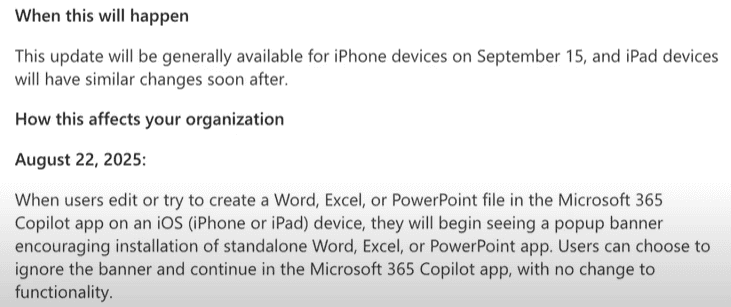
Starting September 15, 2025, Microsoft will change how its Microsoft 365 Copilot app works on iOS. Copilot will only offer a streamlined preview instead of letting you edit Word, Excel, or PowerPoint files inside the app. If you want to edit, you’ll need to jump into the standalone Office apps.

The details were spotted by the 365 Message Center Show, which regularly tracks Microsoft roadmap changes. The update shared under Message ID: MC1136042 suggests adding Copilot Chat right next to file previews.

Once the rollout kicks off, you can ask questions about the document, pull insights, or request rewrites without leaving the app. For example, you’ll be able to summarize an Excel sheet or polish a Word draft directly from the preview.

Starting August 22, Microsoft will reportedly show banners inside Copilot urging iPhone users to download Word, Excel, and PowerPoint separately. The preview-only setup takes effect September 15, with iPad support rolling out soon after.

Copilot iOS upcoming changes
Image: YouTube/365 Message Center Show

Creating new files in the Copilot app is also changing. Instead of opening a blank document, users will now start with a chat-first flow. Once the draft is ready, Copilot will redirect you to the full Office apps for deeper editing.

Microsoft says this shift also applies to Teams, OneDrive, and Outlook, which will send users into Office apps when editing is required. For organizations, this means IT admins may need to push Word, Excel, and PowerPoint via MDM if employees don’t already have them installed.

Microsoft Delays Copilot Screen-Sharing Feature in Teams

If you’ve been waiting for Microsoft Teams Copilot to analyze what’s on-screen during meetings, you’ll need to wait much longer. Microsoft has decided to hold back the feature, pushing its release to August 2026.

The news comes via Neowin, which first spotted the updated Microsoft 365 Roadmap entry (ID 325873). Microsoft quietly admitted it cannot continue the rollout right now and simply apologized for the inconvenience.

The company noted:

After further review, we are not able to continue rolling this out at this time. We apologize for any inconvenience. Now, Copilot in Teams can analyze content shared on-screen during a meeting when recording is enabled. This, along with meeting transcript and meeting chat, enables users to ask Copilot to summarize or find specific information from screen-shared content (e.g., ‘Which products had the highest sales?’), consolidate insights across both the conversation and presentation (e.g., ‘What was the feedback per slide?’), and draft new content based on the entire meeting (e.g., ‘Rewrite the paragraph shared on the screen incorporating the feedback from the chat’). This works for any content shared while sharing your desktop screen (including but not limited to documents, slides, spreadsheets, and websites, irrespective of platform or app). Support for PowerPoint Live and Whiteboard in Teams will be available at a later date.

When enabled, Copilot in Teams would not only work with meeting transcripts and chats, but also process the content you shared while recording a meeting, slides, spreadsheets, documents, or even websites. Users could type in different prompts, and Copilot will do its magic.

Support for PowerPoint Live and Whiteboard was also planned, though at a later stage. The capability was expected to arrive across desktop, web, iOS, Android, and Mac, under both Targeted Release and General Availability phases.

The company hasn’t explained its decision. Still, privacy concerns likely played a part. Screen-sharing often reveals sensitive data, and handing Copilot unrestricted access could create more risks than benefits for enterprise customers.

FT232R USB UART Driver: How to Install And Fix Issues

The FT232R USB UART driver is essential for devices that rely on USB-to-serial communication. Without it, your PC may fail to recognize the connected hardware, leading to errors or non-functional devices. If you are on Windows 10 or 11 and experiencing problems, here’s how to fix them.

How do I install the FT232R USB UART driver?

1. Download the driver

  1. Go to the official FTDI website or a trusted source.
    ftdi website driver search
  2. Make sure to select the version that matches your system (32-bit or 64-bit).
    driver download page ft232r USB
  3. Run the installer.

Some drivers come packaged in executables such as usbdriver.exe. You can check this article on usbdriver.exe

2. Install via Device Manager

  1. Press Win + X and select Device Manager.
     
  2. Locate the Unknown Device or USB Serial Converter.
  3. Right-click and select Update driver.
    update driver device manager
  4. Choose Browse my computer for drivers and point to the folder where you saved the FT232R driver.
    browse my computer for drivers
  5. Confirm and complete the installation.

3. Reinstall USB drivers on Windows

  1. Disconnect all USB devices from your PC.
  2. Press Win + X and open Device Manager.
  3. Expand Universal Serial Bus controllers.
  4. Right-click each USB Root Hub, Generic USB Hub, USB Host Controller, and any USB Serial Converter, then choose Uninstall device. If shown, check Attempt to remove the driver.
    uninstall device device manager window
  5. Restart the PC to auto‑reinstall drivers, then reconnect your FT232R device. If it is still not detected, install the FT232R driver manually via Update driver → Browse my computer.

For more guidance, see this resource on how to install USB drivers on Windows 10, which also applies to Windows 11 in most cases.

Why do you need the FT232R USB UART driver?

This driver enables your computer to communicate with USB-to-serial converter chips from FTDI. These chips are widely used in development boards, 3D printers, and various electronic devices. Without a proper driver, you may see errors such as USB not recognized or Unknown device in Device Manager.

If your Windows 11 is not recognizing USB devices, it could be related to missing or corrupted drivers. In such cases, reinstalling the correct USB driver often solves the issue. You can follow this detailed guide on Windows 11 not recognizing USB devices for more troubleshooting tips.

Common issues and fixes

  • Driver signature error: Disable driver signature enforcement temporarily to install unsigned drivers.
  • Device not detected after installation: Try another USB port or cable.
  • Corrupted driver files: Re-download the driver and reinstall.

If your PC still cannot detect the USB device after these steps, double-check whether the hardware itself is functioning properly.

Canon G3110 Driver Download and Installation Guide

If your Canon G3110 printer is not working properly, updating or reinstalling the driver can fix the issue. Below you will find step-by-step instructions to download and install the Canon G3110 driver on Windows.

How to download and install the Canon G3110 driver?

1. Download the Canon G3110 driver from the official website

  1. Visit the Canon Support page.
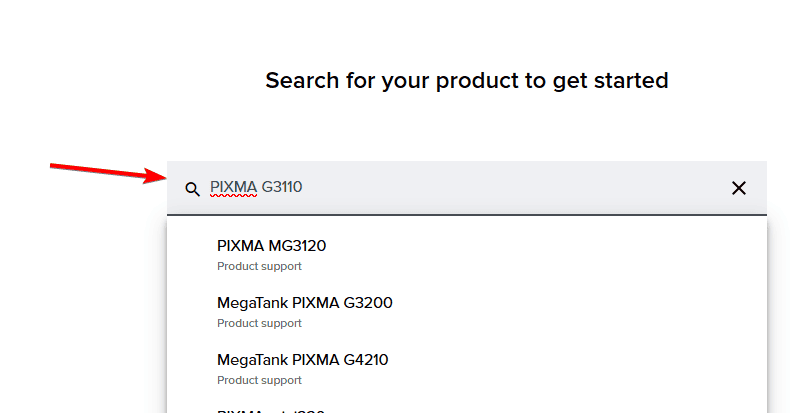
  2. Search for Canon PIXMA G3110.
    pixma search canon download page
  3. Select your Windows version.
  4. Download the recommended driver package.
  5. Save it to your computer for installation.

2. Install the Canon G3110 driver manually

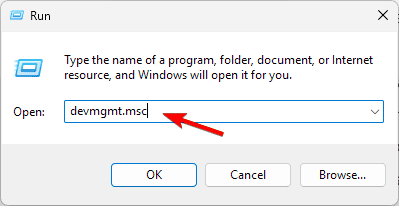
  1. Press Win + R, type devmgmt.msc, and press Enter.
    devmgmt run window
  2. Expand Printers or Other devices.
  3. Right-click your Canon G3110 printer and select Update driver.
    update driver device manager
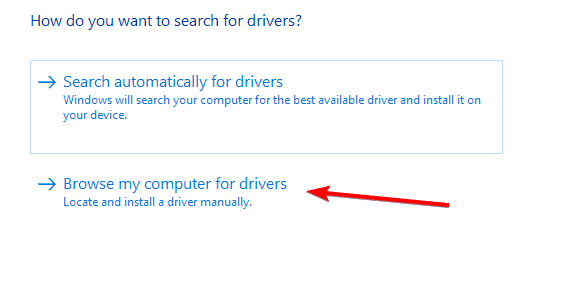
  4. Choose Browse my computer for drivers.
    browse my computer for drivers
  5. Locate the downloaded Canon G3110 driver folder and finish the setup.

3. Use Windows Update to install the driver

  1. Press Win + I to open Settings.
  2. Go to Windows Update.
     windows update section settings app
  3. Click Check for updates.
    check for updates button windows 11
  4. If a Canon G3110 driver is available, Windows will install it.
  5. Restart your PC and test the printer.

Fix Canon driver installation problems

Sometimes the Canon G3110 driver does not install correctly. This can be caused by outdated Windows files, corrupted drivers, or compatibility issues. You can follow troubleshooting steps similar to Canon printer not installing driver to resolve these errors.

Alternative Canon driver sources

If the official page is down, you can also check Microsoft’s driver catalog or resources like Canon printer drivers on Windows 11 which provide updated guides for different models.

You can also check model-specific resources, such as the Canon MG2522 driver guide, since installation steps are almost identical across Canon’s PIXMA series.

FAQs

How do I install the Canon G3110 driver without a CD?

Download the latest driver from Canon’s support page and install it manually through Device Manager.

Why is my Canon G3110 not recognized by Windows?

This usually happens if the driver is missing, outdated, or corrupted. Reinstalling the driver often fixes it.

Can I use the Canon G3110 on Windows 11?

Yes, the G3110 works on Windows 11 with the latest drivers. You can check compatibility in this Windows 11 Canon driver guide.

Is there a universal Canon printer driver?

Yes, Canon provides a universal driver for basic printing. However, for full features like scanning, it is better to use the dedicated G3110 driver.


Epson i5290 Driver Download for Windows

The Epson i5290 is a reliable all-in-one printer, but to keep it running smoothly, you need the right driver. Without the proper Epson i5290 driver, your printer may not function correctly on Windows. Below is a simple guide to download and install it.

How do I download Epson i5290 driver?

1. Get the driver from Epson’s official website

  1. Go to the Epson Support page.
  2. Search for Epson i5290.
    epson driver search field
  3. Select your operating system (Windows 10 or 11).
  4. Download the latest driver package.
    download button epson driver
  5. Save the file to your PC.

2. Install the driver

  1. Locate the downloaded file.
  2. Double-click to start setup.
  3. Follow on-screen instructions.
  4. Restart your PC after installation.

3. Update drivers if needed

  1. Open Device Manager.
  2. Expand Printers.
  3. Right-click Epson i5290 and choose Update driver.
    update driver device manager
  4. Select Search automatically for drivers.
    search automatically for drivers device manager
  5. Restart your PC to apply changes.

Fixing Epson i5290 Issues

If your Epson scanner is not working after installation or if the Epson driver download has failed, see these solutions for Epson scanner problems in Windows 10.

For Windows 11 users, make sure you are using compatible Epson printer drivers to avoid errors.

FAQs

How do I install Epson i5290 without a CD?

Download the driver directly from Epson’s support website and run the installer.

Is Epson i5290 compatible with Windows 11?

Yes, but you must download the latest Windows 11 driver package from Epson’s site.

Why won’t my Epson i5290 connect to my PC?

This often happens due to missing or outdated drivers. Reinstalling the driver usually fixes the problem.

ODBC Driver 17 For SQL Server: How to Install And Fix Issues

The ODBC Driver 17 for SQL Server allows Windows applications to connect seamlessly to SQL Server databases. It is required for many business apps and BI tools. Below, we explain how to install it and what to do if you face errors.

How do I install the ODBC driver 17 for SQL Server?

1. Download the driver

  1. Go to Microsoft’s official download page for ODBC Driver 17.
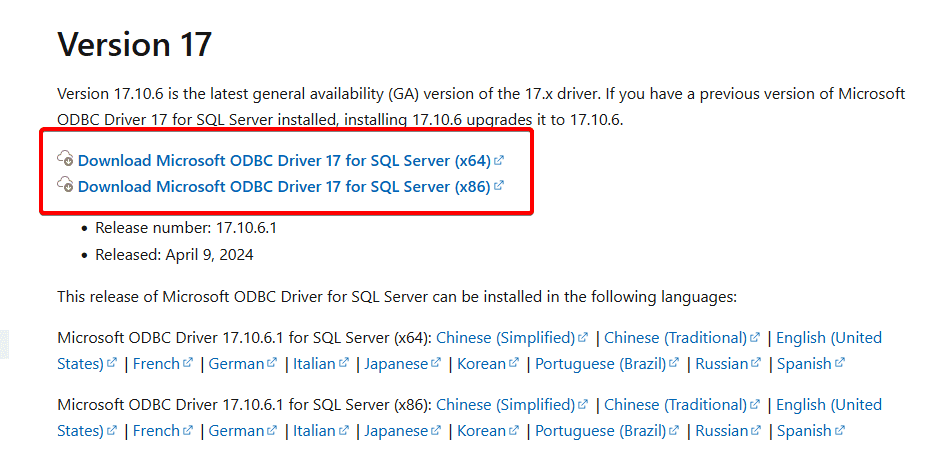
  2. Choose the right installer based on your system: x64 or x86.
    download links for ODBC Driver 17 for SQL server

If you also work with Oracle databases, see this guide on how to install Oracle ODBC driver on Windows 10 for additional reference.

2. Run the Setup

  1. Double-click the .msi package you downloaded.
    msi setup file for ODBC Driver 17
  2. Follow the on-screen installation wizard.
  3. Accept the license terms and select the installation folder.

3. Verify the installation

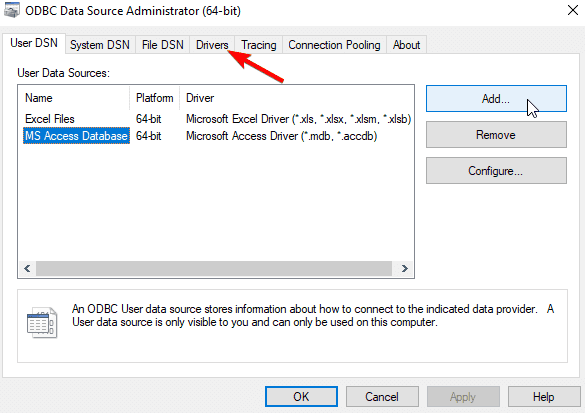
  1. Open the ODBC Data Source Administrator from Windows search.
  2. Under the Drivers tab, confirm that ODBC Driver 17 for SQL Server is listed.
    ODBC data source administrator window

Fixing Common ODBC Driver 17 Errors

Sometimes, after installing the driver, users encounter connection or compatibility problems. These can appear when connecting from older applications or after a Windows update.

If you still face issues, see the troubleshooting tips for Windows 10 ODBC errors that can help resolve driver or registry conflicts.

Why Use ODBC Driver 17 for SQL Server?

  • Broad compatibility with SQL Server 2008 through SQL Server 2022.
  • TLS encryption support for secure data connections.
  • Unicode support for global applications.
  • Works with analytics, reporting, and ETL tools that rely on ODBC connections.

With these steps, you should have the ODBC Driver 17 installed and running properly on your Windows PC. If problems occur, updating your SQL Server and checking ODBC settings usually solves them quickly.

Microsoft Finally Fixes Upgrade Failures with 0x8007007F Error

For over a week, some Windows users struggled with upgrade attempts crashing out with a dreaded 0x8007007F error. The issue affected both Windows 11 and Windows Server platforms, mostly during setup upgrades, and left many stuck midway through.

Now, Microsoft has confirmed that the problem is fully resolved as of August 15, 2025. Systems attempting the upgrade after this date should no longer encounter the error.

Affected Upgrade Paths

Well, the bug didn’t affect every Windows user. Rather, those moving across specific builds were impacted. The upgrade failures were most common when:

  • Moving from Windows 10 1809, 21H2, or 22H2 to Windows 11 22H2 or 23H2
  • Upgrading from Windows Server 2016 to 2019 or 2022
  • Upgrading from Windows Server 2019 to 2022

While Microsoft hasn’t revealed what triggered the bug, the company says retrying the upgrade process now works fine.

Interestingly, the issue never affected upgrades to Windows 11 24H2 or the upcoming Windows Server 2025. Customers moving to those versions were able to complete the process without running into the error. Those still dealing with the issue, check our guide to fix the upgrade failure 0x8007007F error.

To remind you, this isn’t the only patch Microsoft had to rush out. Alongside the 0x8007007F fix, the company also released emergency out-of-band updates to resolve another bug that caused Windows reset and recovery to fail after the August 2025 Patch Tuesday updates.

Microsoft Employee Salaries Leak, Revealing Wide Pay Gaps Across Levels and Teams

Salaries are something very confidential, or at least, you don’t want your colleague to know the exact number. Yet, last month, a leaked document pulled back the curtain on Microsoft’s pay structure, showing how much employees across different levels actually earn.

The spreadsheet, first spotted by Business Insider, contained over 850 self-reported entries from Microsoft workers. While the data is likely anonymous, given how sensitive compensation discussions usually are, it provides a rare look inside one of the world’s largest tech companies.

Earlier guidelines had suggested that entry-level engineers average around $96,000, while distinguished engineers earn closer to $252,000. But this internal document digs deeper, revealing actual base pay, bonuses, and stock awards.

Even with only 350 entries analyzed, the variance in pay is huge. Factors like role, team, and seniority lead to wide differences, with some stock awards alone worth six figures. That said, this dataset represents only a fraction of Microsoft’s 228,000+ global workforce, meaning the full picture is likely much broader.

Salaries by level

Here’s a breakdown of salaries by Microsoft engineering levels:

LevelBase PayCash BonusBonus %Stock Award
59$120.8–124K$3–19.3K8–14%$7–19.3K
60$111–160K$9.3–21.7K8–16%$7.2–20K
61$128–170K$11.3–27K8–20%$10.8–36K
62$139.2–191K$11–30.8K8–20%$8–45K
63$153.5–224.8K$8–50K10–25%$22–64K
64$162.7–230.6K$11–50K10–140%$38–80K
65$188–230K$32.7–61.7K16–28%$39–91K
66$217.6–269K$59–60.7K20–120%$78–140K
67$248–250K$70–82K28–34%$145–252K

Salaries by team

Pay also varies widely across Microsoft teams, sometimes by six figures:

TeamBase PayCash BonusBonus %Stock Award
Azure$122.2–240K$11.4–60K10–27%$12–100K
Cloud + AI$128–340K$4.5–213K10–63%$8–1000K
Commerce + Ecosystems$158.2–248.1K$24.4–68.3K16–28%$35.2–140K
Core AI$126.6–213K$15.3–49K10–25%$10–64K
Experiences + Devices$120–250K$6–82K8–140%$7.2–252K
Microsoft AI$139–207K$13.8–50K10–21%$18–56K
Security$127.5–218K$3.6–48K10–24%$10–66K
Xbox$132–215K$11.2–48K10–24%$12–64K

For a company where pay is usually kept behind closed doors, the leak reveals how uneven compensation can be. And why employees often prefer to keep salary details private.

Microsoft to End Support for Windows 10 OneNote in October

After years of serving as a go-to note-taking app, OneNote for Windows 10 is officially reaching the end of support on October 14. Microsoft has confirmed that the app will become read-only, meaning users can view their notes but will no longer be able to edit, sync, or receive security updates.

The move is part of Microsoft’s plan to streamline OneNote into a single modern app, the new OneNote on Windows, available from the Microsoft Store. This unified direction ensures faster feature rollouts, long-term support, and better security.

What Happens to OneNote After October 14

  • OneNote for Windows 10 will become read-only.
  • No bug fixes, security patches, or updates will be released.
  • Users can still access their old notes, but must migrate to continue editing and syncing.

How to Transition Smoothly to the New OneNote App After Support Ends

Microsoft recommends users switch now to avoid disruptions. Here’s the process:

  1. Sync your notes first: Right-click each notebook in OneNote for Windows 10 and select Sync This Notebook. This ensures everything is backed up in OneDrive or SharePoint.
  2. Use the migration ribbon: The in-app Switch Now button will guide you directly to the new OneNote on Windows app.
  3. Download the new app: It’s free from the Microsoft Store. Simply sign in with your Microsoft account, and your synced notes will appear automatically.
  4. Recover older notes: Use File > Open Backups in the new app if anything is missing.

Microsoft further says this move allows it to focus entirely on one flagship app. Upcoming features include Copilot-powered note generation and other AI-driven tools. The goal is a more intelligent, secure, and connected note-taking experience across devices.

For the uninitiated, the new OneNote on Windows app is already available for all personal, school, and enterprise users, making now the best time to switch.

SharePoint Gets New Template Gallery for Pages and News

Microsoft is rolling out a new way to build professional pages and news posts in SharePoint. The new Template Gallery is now generally available for commercial customers worldwide, designed to take the hassle out of formatting so teams can focus on messaging.

The update introduces a centralized hub where users can browse templates, including Saved on this site, Full-page apps (when available), and From Microsoft collections. Among them is a growing library of modern, polished designs built for quick adoption.

Here’s how it works in real life:

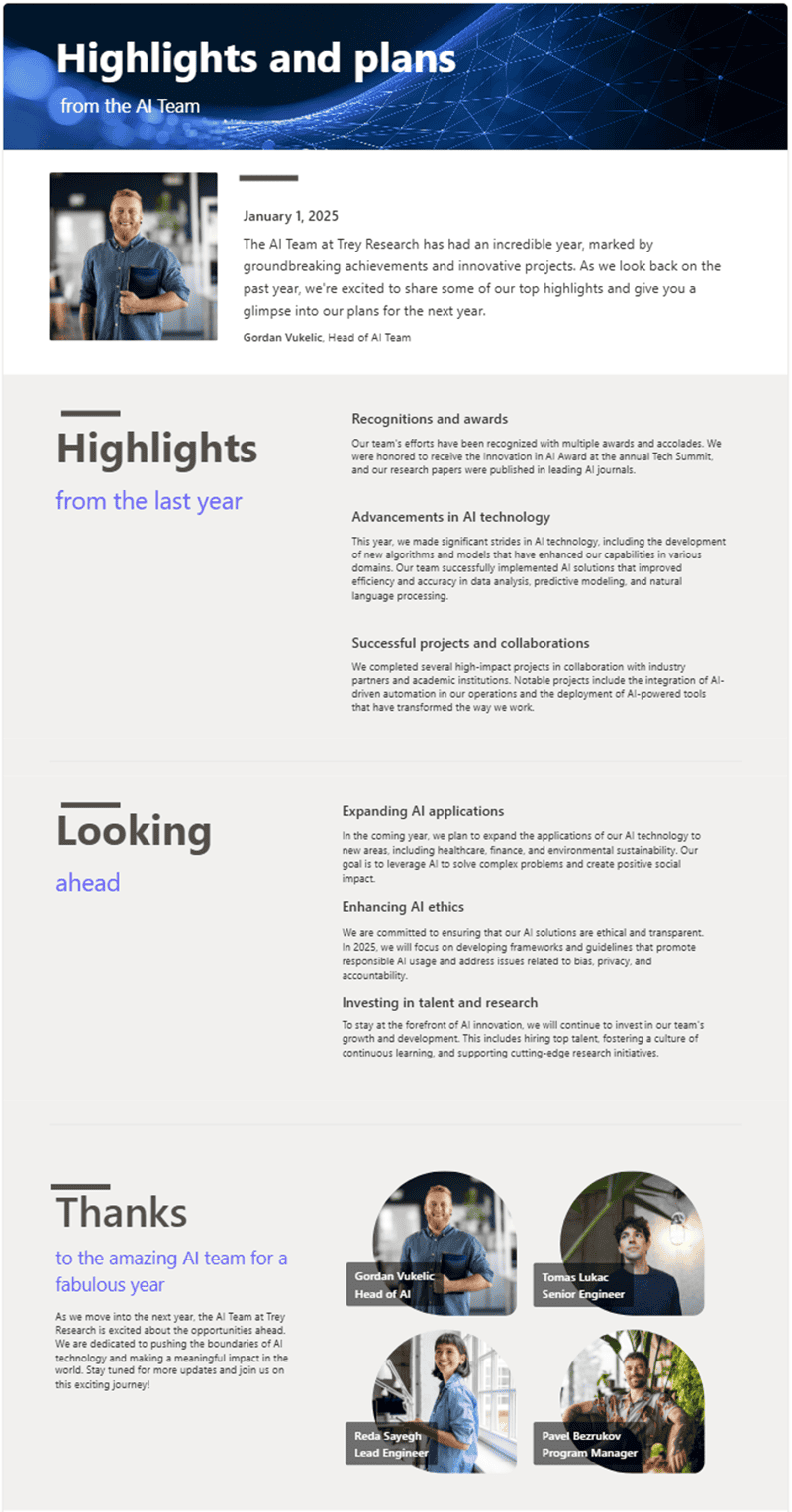
Scenario 1: Build an HR page in minutes

  • Head to your HR site and choose New > Page.
  • The Template Gallery opens, showing Microsoft’s curated options.
  • Select the Visual topic introduction template, which includes sections for overviews, links, and contacts.
  • Update text and visuals to match your program details, then publish.
Scenario one
Image: Microsoft

Within minutes, you have a clean, engaging HR benefits page — no need to start from scratch.

Scenario 2: Share product updates with stakeholders

  • From your project site, select New > News post.
  • Pick from curated News templates inside the gallery.
  • Choose the Product news template, designed with sections for highlights, next steps, and team details.
  • Replace placeholders with your own content and share directly by email or site link.
Scenario 2
Image: Microsoft

The result is a polished announcement without design headaches. Users can find the Template Gallery from multiple entry points:

  • Site Home – when starting fresh pages or news posts.
  • App Bar – the persistent navigation pane.
  • News Web Part – embedded directly on SharePoint pages.

The global rollout begins late August 2025 and should be completed by mid-September 2025. This release is tagged under Microsoft 365 Roadmap ID 490565.

Microsoft also teased future additions, including video templates and Amplify support, aimed at further simplifying content creation. With updated headers and footers as well as the new “Sections with AI,” SharePoint is gradually becoming better day by day.

Microsoft Confirms Office.com and Copilot Outage in North America; Later Mitigates It

Microsoft users in North America faced a rough patch this week as many struggled to access Office.com and the popular Copilot assistant. The outage first surfaced through user reports on DownDetector, with widespread complaints about login failures and server errors.

What Microsoft says about the outage

According to Microsoft’s incident notice, spotted by Bleeping Computer, the disruption mostly hit users in the U.S. and Canada. However, the company admitted the full extent was still being assessed. The issue was tracked internally as MO1138499 and flagged as a critical service incident.

The company explained that only “some users attempting to access Office.com and m365.cloud.microsoft” were affected. While engineers worked on diagnostics, Microsoft encouraged customers to use alternate entry points to Copilot, including copilot.microsoft.com, the Microsoft 365 app, and built-in integrations within Teams and Office apps.

Troubleshooting and rollback

In an update late on August 20, Microsoft linked the disruption to a recent configuration change. The change was rolled out at nearly the same time as the first outage reports. Out of caution, Microsoft immediately started reverting the update.

Earlier today, Microsoft confirmed that the issue had been fully resolved after the rollback. Impacted users were advised to restart their browsers to restore full access.

Microsoft noted, “We’ve completed the reversion throughout the affected infrastructure and confirmed that [the] impact is resolved for all users. Users may need to refresh their browsers to experience relief.”

This isn’t the first time Microsoft 365 customers have run into service outages. Earlier this summer, the company rolled out a workaround for Teams connection errors, and just two months ago, authentication problems rattled users across EMEA and APAC.

Microsoft Edge Experiments With Passkey Roaming and Sync Controls

After Android, Microsoft is testing new passkey-related features in the Canary version of Edge on desktop, introducing options for passkey roaming and clearer management settings.

What Are Passkeys?

Passkeys are a password replacement built on WebAuthn and FIDO2 standards. They allow you to sign in securely using cryptographic keys stored on your device, protected by biometrics such as Windows Hello or a phone’s fingerprint sensor. Unlike passwords, passkeys cannot be phished or reused, offering stronger protection for online accounts.

What Is Passkey Roaming?

Roaming means passkeys aren’t limited to a single device. Instead, they can sync securely through your account, allowing you to sign in from multiple trusted devices without needing to recreate or manually transfer them.

Edge is testing new experimental features for passkey roaming, revealed through two flags in Canary: “Passkey roaming” and “Passkey roaming management and settings.”

Passkey roaming: Positions Edge as a passkey provider, enabling it to sync saved passkeys across devices. The description reads: “Edge is providing passkey functionality as a passkey provider and will sync saved passkeys across devices. – Windows”

Passkey roaming management and settings: Introduces options to give users more control over how synced passkeys are handled. Its description states: “Management and settings related support for passkey roaming. – Windows”

New experimental flags in Edge Canary mention passkey roaming and related management settings. Image Credit: Venkat | WindowsReport.

Enabling these flags adds a new entry under Profiles > Sync in Edge settings, labeled “Passwords and passkeys“, with the description:

“Stored securely and made available on all your devices. Review security settings to help make your Microsoft account even more secure.”

After enabling the flags, Edge shows a new ‘Passwords and passkeys’ option under Profiles > Sync. Image Credit: Venkat | WindowsReport.

This is the first time Edge has explicitly listed passkeys alongside passwords in sync options, showing Microsoft’s intention to integrate them directly into the browser.

Until now, Edge’s passkey support has relied mostly on Windows Hello and platform-level integrations. The addition of roaming and management settings suggests Microsoft is preparing to make Edge a first-class passkey provider, with sync and security controls available directly in the browser.

That’s not all. Microsoft is adding Smart GPT-5 to Edge Copilot and has moved the address bar above the tabs. The company is also testing Copilot in InPrivate browsing.

Copilot on Windows Gets Smarter With Semantic Search and New Home Experience

Microsoft has rolled out a new update to the Copilot app on Windows, introducing new tools that make it easier to locate your files and work more efficiently. First, you’ve the semantic file search, a feature exclusive to Copilot+ PCs.

You can now use natural language to locate what you need. This cuts the hassle of relying on exact file names. In other words, typing “find my CV” or “show me the photo of a bridge at sunset” is enough to surface results, even if you don’t remember the file’s exact title.

You can always adjust the permissions for what Copilot can access under its settings, giving you full control over what the assistant can read or retrieve.

A redesigned home for Copilot

This update also introduces a new home experience inside Copilot. Recent apps, files, and conversations are now front and center, making it easier to pick up where you left off.

Clicking a recent app launches a Vision session for guided help, while selecting a file uploads it directly into the chat window. From there, Copilot can summarize a document, identify objects in an image, or simply provide insights.

Windows-Hub-1024x638-min
Image: Microsoft

Microsoft notes that Copilot relies on the standard Windows “Recent” folder to show your latest files. These are local files, so nothing gets scanned or uploaded automatically. Only compatible files you’ve recently opened will appear, and Copilot only processes a file if you explicitly attach it.

The latest update is rolling out to Insiders

The update, version 1.25082.132.0 and higher, is now rolling out through the Microsoft Store across all Insider Channels. Features are arriving gradually, so not every Insider will see them right away.

Earlier today, Microsoft also released build 27928 to the Windows 11 Canary channel. The update is focused on deeper Settings migration and bug fixes. Moreover, the company has also released emergency OOB update to fix reset and recovery issues in Windows 11 trigged by August Patch Tuesday update.

Windows 11 Canary Build 27928 Is Here With Battery Icon Rollback & Settings Migration

Microsoft has released Windows 11 build 27928 to the Canary Channel, and while the update brings meaningful improvements, it also comes with a small reversal. The redesigned battery icons that debuted in build 27802 have been disabled for now, though Microsoft confirms they’ll return in a future flight.

More Control Panel features move to Settings app

The biggest change this build focuses on is the continued migration of legacy Control Panel items into the modern Settings app. Time and language options have been also moved:

  • Additional clocks can now be added from Settings > Time & language > Date & time, with support for showing them in the taskbar tooltip and Notification Center.
  • Users can now switch time servers directly in Settings.
  • Date and time formatting, including custom AM/PM symbols, has been consolidated under Date & time.
  • Number and currency formats, along with the option to enable Unicode UTF-8, are now part of Language & region.
  • Language and region settings can now be copied to the system account, welcome screen, or new user profiles.

Bug fixes across Windows 11

The latest Build 27928 also addresses a wide set of bugs. Microsoft fixed crashes linked to dao360.dll and textinputframework.dll, squashed File Explorer preview glitches, and resolved issues where taskbar previews would stop responding.

That’s not all; login reliability has been improved as well, reducing instances of white screens or missing UI elements after sleep. Moreover, Live captions, Settings stability when adding security keys, and Group Policy Editor errors have also been corrected.

That said, not everything has been fixed yet, as Microsoft warns that Storage > Temporary files may still hang when scanning. On top of that, past Windows installations might not display. Some users may also notice more frequent DWM crashes causing black flashes.

Microsoft has also squashed incorrect drive colors in File Explorer’s dark mode and cases where opening Command Prompt from the Run dialog defaults to Windows Console Host instead of Windows Terminal. In a related Windows 11 news, Microsoft has released emergency OOB update to fix reset and recovery issues trigged by August Patch Tuesday update.

Sony Increases PS5 Prices in the U.S. Amid Economic Pressures

For the first time in recent memory, consoles are not getting cheaper as their generation ages. One major factor is the lasting effect of Trump-era tariffs, which increased costs for imported electronics. Instead of falling prices, gamers are now facing higher price tags on hardware that has already been on shelves for years.

Sony has confirmed that it will increase the retail price of every PlayStation 5 model in the U.S., with changes taking effect tomorrow, August 21. Each version of the console will see a $50 jump.

That means the PlayStation 5 Digital Edition now starts at $499.99, while the standard model with a disc drive will rise to $549.99. The most expensive option, the PlayStation 5 Pro, moves up to $749.99.

“Similar to many global businesses, we continue to navigate a challenging economic environment. As a result, we’ve made the difficult decision to increase the recommended retail price for PlayStation 5 consoles in the U.S. starting on August 21,” Sony explained in its announcement.

New PlayStation 5 (PS5) pricing

  • PlayStation 5 with disc drive – $549.99 (previously $499.99)
  • PlayStation 5 Digital Edition – $499.99 (previously $449.99)
  • PlayStation 5 Pro – $749.99 (previously $699.99)

Even with the increase, the PS5 Digital Edition remains $50 cheaper than Microsoft’s Xbox Series X Digital Edition, which retails at $549.99. However, the $599.99 Xbox Series X with a disc drive is now slightly pricier than the regular PS5.

Interestingly, Microsoft’s $729.99 Galaxy Black Special Edition Series X with 2TB of storage undercuts the PS5 Pro by $20, although Sony’s console is considered more powerful.

Does ClipChamp Have a Watermark? We answer

Quick answer

  • No watermark on exports when you edit your own media and use free assets, up to 1080p.
  • Watermark appears if your project includes premium stock video/images/audio or paid features not included in your plan.
  • Remove it by replacing paid items with free ones or upgrading to a plan that covers those assets.

When you’ll see a watermark

  • You added Premium stock clips, images, graphics, or audio.
  • You used a paid feature (e.g., certain effects, templates, brand/brand kit items that require a plan).
  • You imported a watermarked file from elsewhere (it exports as-is).

How to remove the Clipchamp watermark (fast)

  1. Identify premium items: In the timeline or media panel, look for Premium badges/icons.
  2. Replace or delete: Swap them with Free assets or your own files.
  3. Upgrade if needed: Choose a plan that includes the specific stock or feature used.
  4. Re-export at 1080p: Export again; the watermark should be gone.

Tips to avoid watermarks

  • Filter for Free assets before inserting stock.
  • Stick to your own media (camera footage, screen recordings, images, voiceovers).
  • Preview before export: If you see a diagonal watermark overlay on a clip in preview, it’s usually a premium item.
  • Keep exports at 1080p for the free tier; higher tiers may unlock extra options.

FAQs

Is Clipchamp completely free?
Core editing and 1080p exports are free. Premium stock and some advanced features require a paid plan.

Why do I see a watermark in the editor but not in the final video?
Previews can display a watermark over premium assets. If you remove or license them, the final export will be clean.

Does the free plan export 4K?
The standard free workflow targets 1080p. For advanced codecs/resolutions, check paid options.

Do templates add watermarks?
Only if the template uses premium assets. Replace those with free media to avoid a watermark.

Will my screen recordings have a watermark?
No, not if you export without any premium items added to the project.

ROG Xbox Ally & Ally X Finally Get Official Release Date

In just a few weeks, ASUS and Xbox will officially launch their handheld gaming lineup. The ROG Xbox Ally and the more powerful Xbox Ally X are set to officially launch on October 16 across major markets. Some regions, including Brazil, India, and China, will see a slightly later rollout.

While the release date is now official, pricing remains a mystery. Both companies confirmed that exact numbers will be shared “in the coming weeks.” Fans, however, are already voicing frustration over the missing detail. But, don’t worry, we have you covered.

Leaked Prices of the ROG Xbox Ally and Xbox Ally X

Now, thanks to well-known deal hunter Wario64, who has spotted (via Wccftech) early listings on Best Buy. The ROG Xbox Ally and Xbox Ally X both appear with official pricing, matching previous reports.

Pre-orders are not open just yet, but they’re expected to drop any moment. Previous reports also hinted that pre-orders would go live today, lining up perfectly with these new retail listings.

Features of the ROG Xbox Ally Handhelds

When the handhelds hit shelves, gamers will gain access to a unified library that blends Xbox titles, Battle.net games, and leading PC storefronts like Steam and GOG. This makes the Ally lineup the closest thing yet to a true Xbox handheld.

Both devices were teased earlier this summer, but this is the first time Microsoft and ASUS have confirmed a global rollout date.

List of countries where the new Xbox handhelds will be first available

RegionCountries
North AmericaCanada, Mexico, United States
EuropeBelgium, Czech Republic, Denmark, Finland, France, Germany, Ireland, Italy, Netherlands, Norway, Poland, Portugal, Romania, Spain, Sweden, Switzerland, United Kingdom
Asia-PacificAustralia, China (Xbox Ally X only), Hong Kong, Japan, Malaysia, New Zealand, Philippines, Singapore, South Korea, Taiwan, Vietnam
Middle EastSaudi Arabia, Turkey, United Arab Emirates

Microsoft Reportedly Investigating Windows 11 KB5063878 SSD Failure Reports

Microsoft has finally acknowledged reports of SSD failures linked to the August update for Windows 11 24H2. The issue, first flagged by @Necoru_cat on X and later picked up by Japanese outlets, appears to surface after installing KB5063878 (Build 26100.4946).

Today, folks over at Windows Latest reported that Microsoft confirmed that it’s working with partners like Phison to investigate the problem. The company hasn’t advised users to uninstall KB5063878 yet, hinting that the problem remains rare and highly workload-specific.

What’s the backstory?

Well, Windows 11 users have been reporting that their SSD suddenly vanishes from Windows, sometimes even the BIOS, with the partition showing as RAW. In other cases, File Explorer crashes, SMART becomes unreadable, or I/O errors appear mid-task.

According to reports, the bug emerges under heavy write loads, like updating massive games such as Cyberpunk 2077 or Honkai: Star Rail. Interestingly, the failures seem isolated. Most cases come from Japan, suggesting a workload pattern specific to local usage.

Early findings suggest that SSDs using Phison controllers are more vulnerable, though isolated reports also mention InnoGrit and Maxio chips. Drives from Samsung and Seagate don’t appear to be affected.

The exact trigger seems to involve SSDs with more than 60% capacity filled and a write workload of 50GB or more in one go. While some users recovered drives with a reboot, others weren’t so lucky, facing corrupted partitions that required deeper recovery tools.

For now, unless you’re running massive game updates on a nearly full SSD, you probably won’t encounter this issue. We are hoping that Microsoft will soon roll out a patch to mitigate the issue.

Microsoft Releases Emergency OOB Updates (KB5066189, KB5066188 & KB5066187) to Fix Reset & Recovery Issues

Microsoft has released emergency out-of-band updates to fix a serious problem caused by the August 2025 Patch Tuesday updates. The bug broke reset and recovery features on systems running Windows 10 and older versions of Windows 11.

The faulty updates included KB5063875 for Windows 11 (versions 23H2 and 22H2), KB5063709 for Windows 10 22H2 and LTSC 2021 editions, and KB5063877 for Windows 10 LTSC 2019 releases.

After installing these, users found that attempts to reset their PCs, keep files, or recover systems through built-in tools would fail. IT professionals also reported problems when using RemoteWipe CSP to reset devices remotely.

To resolve the issue, Microsoft quickly rolled out emergency patches: KB5066189 for Windows 11, KB5066188 for Windows 10 22H2 and LTSC 2021, and KB5066187 for Windows 10 LTSC 2019.

It’s worth noting that these cumulative updates replace the problematic August patches and do not require previous updates to be installed first.

Microsoft advised users who have not yet installed the August security updates to apply the new out-of-band releases instead. Devices unaffected by the issue do not need this patch.

The latest updates are available as optional downloads via Windows Update and Windows Update for Business. Users can also manually install them through the Microsoft Update Catalog.

What was Before Windows 7? Windows Vista explained (version, dates, support)

What was before Windows 7? Windows Vista. Here’s the short timeline and the essentials you need for quick answers.

Quick answer

  • Predecessor to Windows 7: Windows Vista (version 6.0)
  • RTM: November 2006
  • Business availability: November 30, 2006
  • Consumer/general availability: January 30, 2007
  • End of extended support: April 11, 2017

Vista editions

  • Starter (select markets), Home Basic, Home Premium: Consumer tiers with Aero options varying by SKU.
  • Business, Enterprise: Corporate features, domain join, advanced backup.
  • Ultimate: All features combined.

Hallmark features (why Vista mattered)

  • Aero Glass UI & DWM: New desktop compositor and visual effects.
  • UAC: User Account Control to curb silent system changes.
  • DirectX 10 & new driver model: Graphics and stability groundwork for Windows 7.
  • Search & indexing: Start menu search and improved file indexing.
  • BitLocker (Enterprise/Ultimate): Full-disk encryption for supported devices.

How Vista compares to Windows 7 (fast take)

  • Performance & polish: Windows 7 refined Vista’s architecture with better speed and memory handling.
  • Compatibility: Broader driver/app support in Windows 7.
  • UI: Similar look, cleaner taskbar and window management in Windows 7.

FAQs

What’s the version number of Windows 7?
Windows 7 is version 6.1, following Vista’s 6.0.

Can you still use Vista online?
You can, but it’s not safe. Vista has been unsupported since 2017.

What came after Windows 7?
Windows 8 in 2012, then Windows 10 in 2015 and Windows 11 in 2021.

When did Windows 8 Come out? Release timeline

Windows 8 came out in 2012, with Windows 8.1 following in 2013. Below is the concise timeline, plus what’s still supported and how to check your version.

Quick answer

  • Windows 8 RTM: August 1, 2012
  • Windows 8 general release (GA): October 26, 2012
  • Windows 8.1 release: October 17–18, 2013 (Store rollout on Oct 17; retail Oct 18)
  • Support status: Windows 8 support ended January 12, 2016; Windows 8.1 extended support ended January 10, 2023.

What shipped (editions)

  • Windows 8 (Core): Consumer edition for home users.
  • Windows 8 Pro: Adds BitLocker, Hyper-V client, domain join.
  • Windows 8 Enterprise: Volume licensing features for organizations.
  • Windows RT: ARM-based devices (preinstalled only).
  • Windows 8.1/8.1 Pro/Enterprise: Successor refresh with Start button return, better Store/apps, SkyDrive/OneDrive integration.

How to check if you’re on 8 or 8.1 (fast)

  1. Press Win+R, type winver, press Enter.
  2. Look for Version 6.2 (Windows 8) or 6.3 (Windows 8.1).
  3. Or open Control Panel > System to see the edition and activation status.

Upgrade path (high level)

  • To Windows 10: Use the Windows 10 installation media to upgrade in-place or clean-install, then activate with a valid license.
  • To Windows 11: Requires eligible hardware (TPM 2.0, Secure Boot, supported CPU). Most Windows 8 PCs won’t meet specs without workarounds.

FAQs

Was Windows 8 a free upgrade?
No. Windows 8 was a paid upgrade from Windows 7/XP/Vista. Windows 8.1 was a free update for Windows 8 users.

Is Windows 8 still safe to use?
No. It’s out of support. Move to Windows 10 or 11 for security updates.

Can I still activate Windows 8/8.1?
Activation servers typically still respond, but there are no security updates. Upgrading is strongly recommended.

Microsoft Surface Won’t Turn On: 6 Tested Solutions to Fix

When your Microsoft Surface won’t turn on, that is usually because of low battery or it’s not charging. We also have solutions if it’s not waking up from sleep.

What can I do if Microsoft Surface is not turning on?

1. Disconnect accessories and make sure your Surface is charged

  1. Remove all connected accessories like USB drives, SD cards, USB accessories, external monitors, and the Type Cover (for Surface tablets).
  2. If you use a Surface Dock, unplug your Surface from it.
  3. Connect the power supply that was designed for your Surface and plug it into a power outlet.
  4. Charge your Surface for at least 15 minutes.
  5. Press the power button to turn on your Surface.

This solution ensures that any external devices or accessories aren’t interfering with your Surface’s boot process and verifies that your device has enough power to start.

2. Wake it up using keyboard shortcuts

  1. Connect or use an integrated keyboard.
  2. Press and hold the Windows logo key + Ctrl + Shift + B simultaneously.

This method is a quick way to wake up a Surface that might be in a deep sleep state or stuck in hibernation. We also have a dedicated guide on how to wake up Microsoft Surface devices.

3. Force a restart

  1. Press and hold the power button for at least 20 seconds.
  2. Release the power button once the logo appears on the screen.

Forcing a restart can help resolve many startup issues by shutting down and rebooting your Surface completely.

4. Check the Surface charging cable

  1. Ensure the charging cable LED light is on when plugged into the Surface.
  2. If the LED light is not on, disconnect and reconnect the cable.
  3. Try a different power socket.
  4. Reverse the cable and plug it in the other way around.
  5. Bend the cable slightly in different places and see if the LED light flickers.

A faulty charging cable can prevent your Surface from charging properly. Checking the cable ensures that your device is receiving power.

When checking charging problems, also review power settings like smart charging. You can learn more in this guide on how to turn off smart charging on Microsoft Surface.

5. Perform a soft reset

  1. Press and hold the Volume Up button and the Power button simultaneously for 15 seconds.
  2. Release both buttons and wait for the Surface to restart.

A soft reset can fix common issues without affecting your files, settings, or programs.

6. Contact Microsoft technical support

  1. If none of the above solutions work, visit the Microsoft Support website.
  2. Chat with a support agent or visit your nearest Microsoft Store for assistance.
  3. If needed, send in your Surface for professional repair.

Getting professional help ensures that any deeper issues with your Surface are diagnosed and fixed by experts.

If your Surface remains unresponsive after trying these steps, it may need to be sent to Microsoft for repair. We also have a guide on what to do if Surface Go is not turning on. You might also be interested in our dedicated guide on fixing Surface Book 2 if it won’t turn on.

To prevent future issues, make sure to regularly update your Surface and avoid using incompatible accessories.

Microsoft Headquarters Occupied by Protesters Over Israel Contracts

A group of Microsoft employees, former staff, and community members staged a protest at the company’s Redmond, Washington headquarters on Tuesday. The protestors reportedly took over a plaza and declaring it a “Liberated Zone.”

They renamed the area from East Campus Plaza to “The Martyred Palestinian Children’s Plaza.” Besides, the pro-Palestine protestors set up tents, art installations, and a negotiating table calling on Microsoft executives to end the company’s partnership with the Israeli military.

According to multiple news outlets, around 50 people attended the event, which included symbolic displays highlighting civilian losses in Gaza, including shrouds and a large plate reading “Stop Starving Gaza.” The protesters plan to remain at the plaza until authorities remove them, and Microsoft has not yet issued a response.

The demonstration follows a series of protests targeting Microsoft over its work with Israel. Earlier this year, employees interrupted speeches by AI CEO Mustafa Suleyman and CEO Satya Nadella, urging the company to stop providing Israeli military access to its AI tools. Both employees were later terminated. Reports also indicated that Microsoft began blocking emails containing keywords like “Palestine,” “Gaza,” “apartheid,” and “IOF off Azure.”

The protest group, operating under No Azure for Apartheid, released a statement calling the action the “biggest escalation” against Microsoft to date. The statement referenced investigations showing Israel’s alleged collection of Palestinian call data influencing military operations.

The group also circulated a manifesto urging Microsoft and workers at other companies to cut ties with Israel and divest from partnerships tied to human rights abuses. It called for an end to what they described as “genocide and forced starvation,” reparations for Palestinians, and protections for workers supporting Palestinian advocacy. Protesters invited Microsoft executives to negotiate directly at the plaza.

Microsoft Brings Full MCP Support to Visual Studio

Microsoft has rolled out general availability for Model Context Protocol (MCP) in Visual Studio, giving developers a powerful way to connect AI tools to external services.

MCP, a standard introduced by Anthropic in 2024, acts as a bridge between AI agents like large language models and external data sources or tools. Each tool typically has a dedicated MCP server that standardizes communication.

With the new Visual Studio update, developers can easily connect to both local and remote MCP servers using the .mcp.json configuration. The IDE also supports MCP authentication, making secure connections possible regardless of the authentication provider.

Adding servers has never been easier; GitHub Copilot Chat now allows one-click server additions through the green + icon, eliminating manual JSON edits. Outside Visual Studio, Microsoft encourages developers to watch for one-click install options in MCP server repositories.

IT administrators now have extra control with GitHub policy settings, letting them toggle server features at a granular level.

The MCP integration is designed to enhance developer productivity by streamlining AI-assisted workflows. Copilot Chat users can enjoy smarter, more connected conversations while maintaining enterprise-grade connectivity.

This update builds on Microsoft’s recent AI-focused IDE improvements, including the announcement of GPT-5 integration, signaling a major shift toward AI-powered development tools.

Helldivers 2 Arrives Next Week With Halo-Themed Warbond for Xbox, PS5, and PC

The crossover fans have been waiting for is finally arriving. Helldivers 2 is teaming up with Halo: ODST for the new Legendary Warbond, set to drop on August 26 at 5 am PT / 1 pm BST.

This special edition brings iconic ODST-themed weapons, armor, patterns, and more, giving players a chance to gear up like the legendary Helljumpers of Managed Democracy.

The Legendary Warbond features a lineup of familiar Halo weaponry adapted for Helldivers 2. Players can wield the MA5C Assault Rifle, complete with an ammo counter and compass for precise targeting. The M6C/SOCOM Pistol adds a suppressor for quiet, tactical play.

Meanwhile, the M90A Shotgun features a mounted flashlight, and the M7S SMG combines caseless ammo with a built-in suppressor for silent, rapid attacks. Each weapon brings its own flair to combat while staying true to the ODST aesthetic.

Armor sets include the heavy-duty A-9 Helljumper and the sleek A-35 Recon set, both offering the “Feet First” passive, which reduces noise from movement, increases range when finding points of interest by 30%, and grants immunity to leg injuries. Players can also equip ODST-themed capes like the Honored Heirloom and Eye of the Clandestine for added style and in-game benefits.

Beyond gear, the Legendary Warbond includes ODST-inspired player cards, a new player title, and the Mean Green vehicle pattern for your hellpod, shuttle, exosuit, and FRV.

The Helldivers 2 x Halo: ODST Legendary Warbond will be available in the Acquisitions Center for 1,500 Super Credits. Note that this Warbond tier does not support the new Premium Warbond Token launching the same day, so make sure your Super Credits are ready to claim this legendary gear.

Firefox 142 is Here with AI Link Previews and Tab Enhancements

Firefox has rolled out its latest update, version 142, bringing several new features designed to enhance browsing efficiency and personalization.

Among the highlights is a new Link Previews feature, which allows users to long-click or right-click links to view summaries before opening them. This feature uses local AI processing on systems with sufficient memory and supported languages, giving users quick insights without leaving the current page.

Firefox 142 also upgrades tab management with improved tab groups, making it easier to organize and navigate multiple sessions. Meanwhile, the new tab page now offers smarter article recommendations to help users discover content relevant to their interests.

Security remains a priority, with the update including standard fixes for known vulnerabilities. Enterprise users can access detailed release notes for administrative oversight.

Here’s the full changelog:

New

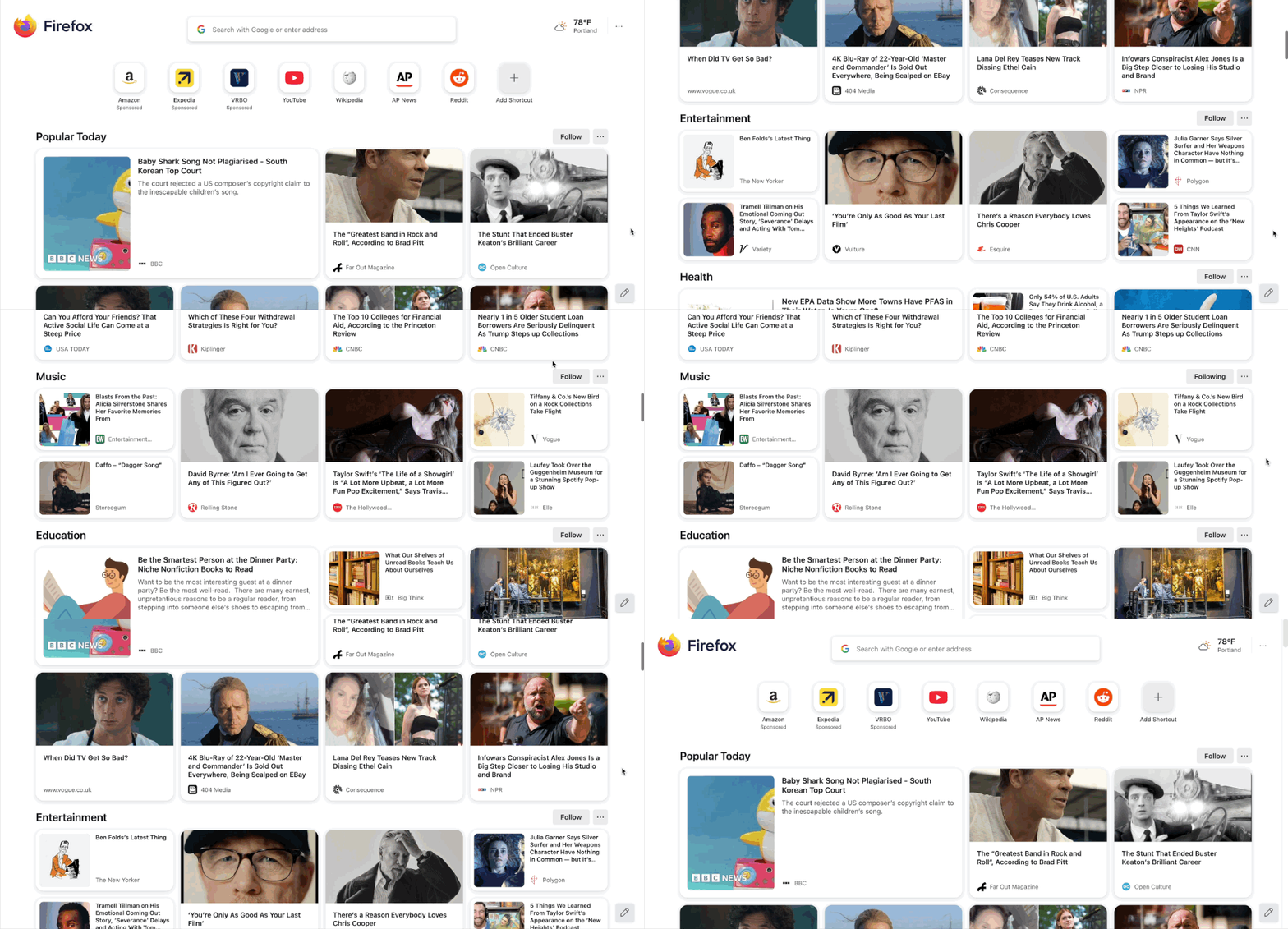
  • For users in the United States, article recommendations on your New Tab page are now grouped into topic sections like Sports, Food, and Entertainment to make stories more organized and easier to scan. You can also follow topics you’re interested in and block ones you’d prefer not to see, giving you more control over what shows up when you open a new tab.gif for newtab
  • You can now see what’s behind a link before visiting it with Link Previews. Long-press a link (or right-click and choose Preview Link). Previews can optionally include AI-generated key points, which are processed on your device to protect your privacy.
  • Link Previews is gradually rolling out to ensure performance and quality and is now available in en-US, en-CA, en-GB, and en-AU for users with more than 3 GB of available RAM. This feature is part of a progressive rollout.
  • On Windows, clicking a persistent notification when Firefox is closed or restarted will now properly open Firefox with the relevant webpage, instead of just opening the main page of the website.
  • ETP Strict mode now supports a flexible exception list to fix broken site features caused by tracker blocking. Exceptions are split into baseline (core functionality) and convenience (extra features), letting users choose improved site compatibility without compromising key privacy protections.
  • Keep an active tab visible in a collapsed tab group.
  • Focus on just one tab in a group without the clutter. Your active tab stays in view, keeping things tidy even with the group collapsed.
  • You can now remove extensions from the sidebar by right-clicking the extension icon and selecting Remove from Sidebar.

Fixed

  • Improved the scroll speed in the bookmarks dialog to not go beyond the component area.
  • Improved drag-and-drop support for blob images.
  • Various security fixes.

Changed

  • Improved search results from browsing history via the address bar, reducing the likelihood of duplicate results being shown.
  • Improved Netmonitor so that Request Headers/Cookies/Params are displayed in the Network panel even if the request isn’t finished yet.

Mozilla has also expanded its built-in translation service, now supporting Chinese, Japanese, and Korean. This update further strengthens Firefox as a versatile browser for global users.

To install Firefox 142, users can navigate to Menu > Help > About Firefox, or download it from the official Firefox website.