4 Best Automated Quilting Software [Most Used]

The automated quilting software are intuitive tools that allow you to design quilt designs by using built-in patterns or by scanning pictures for inspiration. But the primary objective of automated quilting software is to handle the quilting process automatically.

The benefits of using an automated quilting solution are numerous. It allows you to focus more on the design process than the actual quilting which is a time-consuming task and slows you down.

The computerized quilting systems are not cheap. However, if you have decided to use one, it is important that you find the right quilting software for your quilting machine.

Today, in this article, we take a look at the best-automated quilting software that allows you to work on other projects while the computer is handling stitching.

Automated quilting software for endless creativity

Quilter’s Creative Design Software (recommended)

This software is the most intuitive and easy-to-use for all types of users. You can use it to design and print custom quilt layouts on from your personal PC. You will start to work on it with a pattern library.

It is great, especially when you simply want to sketch something that will be developed later or simply if you want to create a look-alike model.

In case you have some skills and you would like to do it by yourself, Quilter’s Creative Design Software lets you design your own patterns by using its powerful pattern maker tool.

You can design entire quilt layouts and print them on your home printer so you can study them and see if everything was done right in terms of concept. A great feature is tracing patterns from photographs and using them for quilting.

In terms of customer service, Quilter’s Creative Design Software team will be in touch with you anytime you will have a question and will be perfectly able to guide you through your quilting process.

The product comes in 2 versions, simple and Pro which gives you a wider range of features but it also comes with a bigger price.

Quilter's Creative Design Software

Quilter’s Creative Design Software

This awesome software is ectremely easy to use but offers unlimited possibilities for your creativity.
Check priceVisit website

Brother THE Dream Motion Software

Brother the sewing and quilting machine manufacturer also offers THE Dream Motion Software. It is a quilting automation software that is compatible with Brother machines including the DreamWeaver, DreamCreator, and Dream Quilter series.

The intuitive layout and simple user interface make it ideal for both professionals and beginners. You can create, design, edit layout and quilt the design with absolute precision.

The software requires you to use a Windows OS running PC or a compatible tablet for automated quilting. The tablet is not included in the software package.

Using THE Dream Motion Software, you can mirror and rotate patterns and place them on your quilt with precision. The automated quilting process handles and stitches your quilt designs accurately on the fabric.

Switching between computerized quilting and free-hand quilting is easy too. The built-in pattern library consists of over 200 designs. If you opt for the Pro version, you can create your own patterns as well.

There are 8 different methods to align patterns in relation to your quilt. The PantoStacker allows you to create and edit pantographs with ease.

The Pro version of the software comes with an extra set of features such as PantoStacker Pro full quilt layouts, PatternCad to create and edit patterns, QuiltCad for advanced pattern layout designs, Trace Image to recreate original photos, and pattern optimizer to fix and clean up the patterns.

THE Dream Motion Software is professional-grade software. That said, even if you are just getting started with quilt automation, getting feature-rich software can help you in the long run.

⇒ Get THE Dream Motion Software 

Grace QuiltMotion Software (Creative Touch 4)

Grace QuiltMotion

Grace QuiltMotion is a quilting system that simplifies the process of pattern sewing with a few easy steps.

It is expensive software, but the cost includes a motor plater that moves your sewing machine for quilting the patterns, a flash drive to store the patterns and a tablet mount if you are using a Windows OS running tablet to control the quilting machine.

Quilting using Grace QuiltMotion software is as easy as select, place and sew. It comes with advanced features required to create design, edit, layout, and quilt accurately.

There are two versions of the software. The beginning version priced slightly lower comes with essential features while the Standard version which is pretty expensive comes with some advanced features for professionals.

The latest version comes with an improved user interface making it easier to use without compromising on features.

To create a design you can pick from over 200 patterns from the library and set a block, corner, or continuous line with ease. You can place the edited patterns precisely on your quilt as per your preference.

Once the patterns are ready, Grace QuiltMotion will use the motor plate and hardware bundle and start stitching your quilt design with accuracy.

The Standard version comes with some additional features such as Panto Stacker to create and edit pantograph, PatternCard to design complex designs, Trace Image to create patterns from photos, and Record to save any free motion quilted patterns and reuse them for the next project.

QuiltMotion is compatible with several quilting machines including Brother 1500S, Janome 1600P, Juki 2000Qi and more.

⇒ Get Grace QuiltMotion

Baby Lock QuiltMotion Software System

Baby Lock QuiltMotion System Software

Baby Lock is known for its sewing and quilting machines. The company also offers an automated quilting system Quilt Motion Software System that works with Baby Lock Jewell and Crow Jewell series machines.

The system automates the stitching process of your quilt blocks to the exact dimension by adapting to the block size and shape for accurate placement.

It comes with over 300 patterns built-in including Traditional, Non-traditional, Geometric, Children’s, and Border Patterns.

It also comes with basic editing options that include mirror, combines, copy, stretches, flips and scale options. The patterns can be saved for later use.

To use the system, you need to install the software on your PC and connect it to the Quilting machine. It is powered by QuiltCAD software which is one of the best stitch pattern software available in the market.

The user interface is easy to use. For easier understanding, the package comes with a DVD for software containing instructional videos.

Other features in the software include the ability to create quilt blocks, pantograph, borders, trace, paper pattern digitizing, and record and ready-made quilt designs.

The QuiltMotion Software System package includes the software, LCD on a swivel mount, a USB cable, and a carriage plate.

This computerized quilting software is an ideal choice for those who have a Baby Lock quilting system.

⇒ Get Baby Lock QuiltMotion System Software 

Using a computerized quilting system doesn’t mean the quilter is not creative or doesn’t know how to quilt professionally. After all, quilters despised quilting machines when it was newly introduced, and the traditionalist thought that quilting manually using hands is the only legitimate way to do it.

The quilt design software is different than automated quilting software. The former allows you to design patterns and blocks while the latter allows you to do both designing and automatic quilting.

Adding an automated quilting solution to your business gives you a new level of flexibility. You can set stitch options, preferences and customize every process of quilting to near perfection.

However, before buying any automated quilting software make sure that it is compatible with your quilting machine.

FIX: Windows Defender causes appleiedav.exe errors

Apple’s iCloud for Windows 10 works rather well for an app designed originally designed for a completely different platform, even though it has its share of issues from time to time.

Nonetheless, one of the issues which emerged lately is a blockage of appleidav.exe, the main process behind iCloud, by Windows Defender’s side.

For that purpose, we made sure to explain the reasoning behind this occurrence and provided a step-by-step solution to your problem. You should find everything below.

What is appleidav.exe?

What’s appleidav.exe? This is the process related to iCloud, Apple’s cloud-based online storage. You will only get this message if you have the iCloud app installed on your PC.

It configures and maintains uploading and backing up files, like so many others, including OneDrive, Google Drive, or Dropbox.

There are a few things we need to mention concerning this desktop extension for iCloud on Windows 10.

Firstly, back in the days, it was known for high bandwidth usage and it plagued hundreds of users. It’s not the case anymore, but you can still disable it for certain syncing operations and reduce consumption.

Apple’s iTunes and the accompanying software for Windows is there for ages. This is one of the rare tools which goes out of the well-established ecosystem. But why would Defender block a process from a trusted source?

Well, it seems that it’s due to unauthorized access. Windows Defender will occasionally block applications that try to change system settings. This can result in false alarms and detections.

Firstly, confirm that the appleidav.exe truly belongs to the aforementioned tool and is part of Apple’s iCloud client. After you confirm that, exclude it from Windows Defender.

How do I fix appleidav.exe blocked by Windows Defender?

1. Add the iCloud app to the Windows Defender’s exclusions list

  1. Open Windows Defender from the notification area.
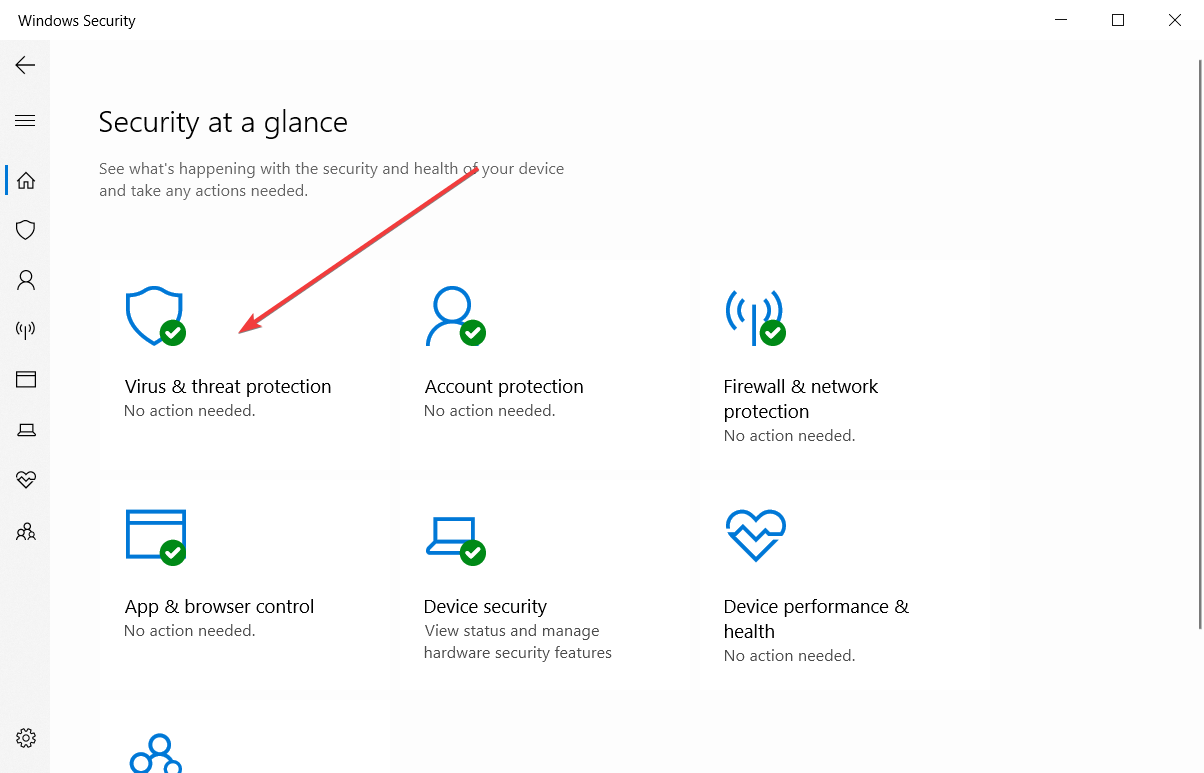
  2. Choose Virus & threat protection.appleiedav.exe error
  3. Select Virus & threat protection settings.appleiedav.exe error
  4. Scroll down and, under Exclusions, click Add or remove exclusions.appleiedav.exe error
  5. Select a folder from the drop-down menu and choose the Apple folder.appleiedav.exe error

2. Switch to a third-party antivirus software

The Windows Defender is a default security measure, which means does a poor job at defending your device. There are many other options out there that are better equipped to deal with harmful software.

Therefore, we recommend switching to a specialized third-party tool that has multiple ways of protecting you, especially one that utilizes advanced AI to detect and remove malware.

Do not worry about your Windows Defender, since it will automatically turn off in the presence of another security app, so you won’t be bothered by its false positives.

Thankfully, we have a recommendation for you. This program will protect you from any data theft, malware, spyware, and intrusion, while also being lightweight and accurate in its scans.

TotalAV

Powerful antivirus software that will provide full protection with no false positives and 100% accuracy.
Check Price Visit Website

After following these solutions, you won’t be having any issues with the Apple iCloud client or appleidav.exe error on your PC anymore, so you can enjoy this awesome storage app.

We recommend checking this helpful list of lifetime license antivirus software to see more awesome products that will keep you and your data safe.

Also, don’t forget to share your experience with this peculiar occurrence, and give us any other tips regarding the situation in the comments section below.

Dyslexia Software: 7 Best to Use in 2026

Dyslexia is a common learning difficulty that makes it difficult for children to read and write. This disorder primarily affects one’s learning ability and not intelligence.

Although children with Dyslexia may find it difficult to remember words or name letters, with little support and care, the children can get through the problem and success in school.

To make life a bit easier, the children can use some apps and software that can help the dyslexic student do homework, study for a test and be more productive in the classroom.

In this article, we take a look at the best software for Dyslexia students and adults to combat learning difficulties.

KAZ-Type

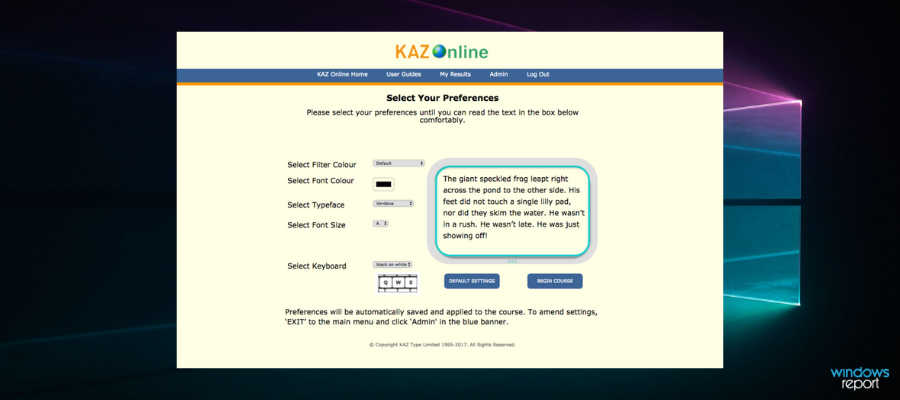
Kaz is a software available for both PC and mobile, that teaches typing abilities while also managing visual stress issues. 

The KAZ course teaches typing skills while minimizing visual disruptions. It incorporates specialized features and a multi-sensory approach throughout.

It incorporates a one-of-a-kind customization panel that personalizes the course for higher visibility and ease.

Touch typing is a unique method of taking thoughts to paper. Additional possibilities, such as dictation (using a scribe) or speech recognition software, are time-consuming and difficult to master, especially for dyslexic individuals who may have difficulty with a short attention span.

Touch typing requires a different type of memory than traditional ways. It utilizes a particularly creative form of spelling training. Pronunciations get imprinted in “muscle memory” as a combination of gestures and sequences on a keyboard as a result of repetition of touch typing words. 

The anxiety that comes with struggling to memorize how to spell a word is gone. Simply think the word, and their(your kid’s) fingers will type it (a phrase known as think type). They (Children) learn to recognize words by sight, eliminating the time-consuming decoding process.

KAZ

KAZ

Kaz fits for kids, parents who want to help their children with homeschooling, and teachers who have dyslexic kids in class.
Check priceVisit website

NaturalReader

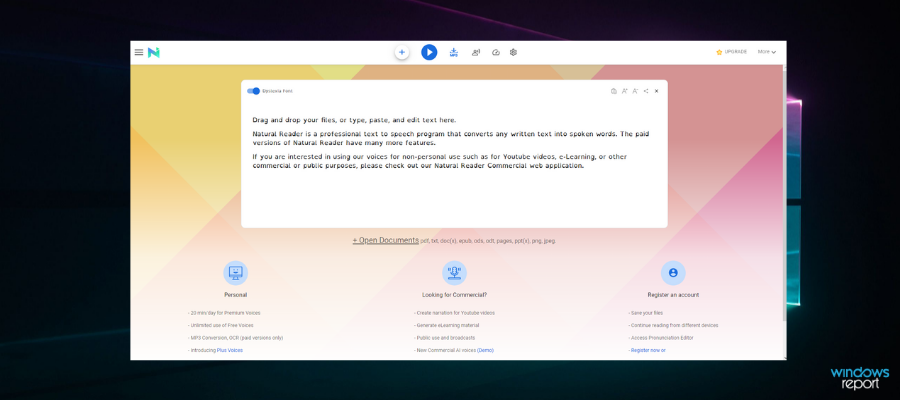
NaturalReader is a powerful text-to-speech software that can help foreign language learners, dyslexic readers, working professionals as well as normal students.

NaturalReader is available in both the free and premium versions. You can either download the software for your Windows and other computer devices or use the web-based version of the same which offers more features and 24×7 access on any device.

The software comes with naturally sounding voices and can read to you text from Word and PDF documents, Emails and webpages.

The free version offers basic features like text to speech (may not be natural-sounding voice), supports PDF, Docx, TXT and ePub file formats and allows you to change speed and speaker.

The ability to change speed and speaker means you can customize the audio to suit the individual’s needs better.

The premium version comes with additional features such as text to audio files – it allows you to convert any text file into an audio file and move it to your children’s portable device for better accessibility.

It also offers 2 natural voices, a pronunciation editor to tweak the delivery as per personal preferences.  These features are exclusive to the Personal version only.

There are two more versions of the tool –  Professional and Ultimate. The professional version offers 4 natural voices, batch file converter, conversation control, OCR support for up to 500 pages with eBooks and scanned pages each.

The Ultimate version offers 6 natural voices and Unlimited OCR support.

NaturalReader is great software with all the features that can help a child with Dyslexia with the studies. You can start with the free version and later upgrade to premium for more features.

⇒ Get NaturalReader

Sonocent Audio Notetaker

Audio NoteTaker is software made for students and working professionals alike. The software can help children with special needs as it turns speech into text.

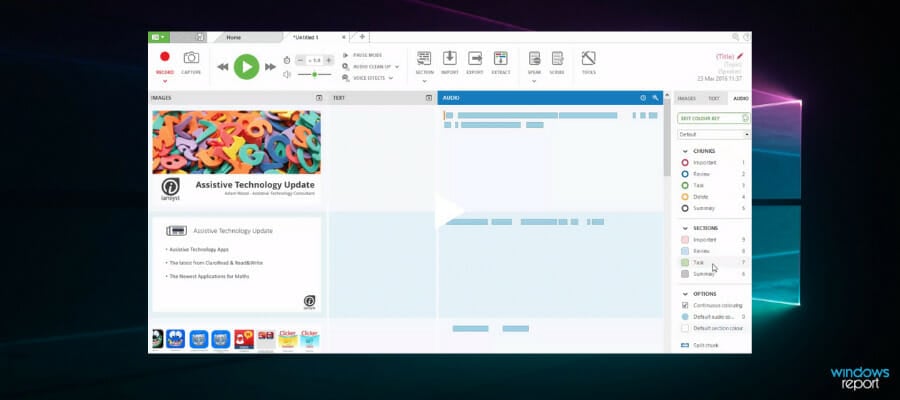
It’s a premium software, but you can try the free trial without any risk. It works on both smartphone and Windows computers. The desktop version offers audio capture, text, and slide in a note-taking workspace.

You can organize, and categorize note sets for easier searchability when you need them. The notes can be turned into notes for a variety of formats to meet your requirement.

Another interesting feature is the ability to extract only what you need from the audio and remove everything else. Students can highlight the audio, enrich note withdrawing and markups, add pictures to create graphs and diagrams and more.

You can also upload notes to the software to review and create new information. In addition, it also comes with voice shift, Dragon NaturallySpeaking integration and the ability to convert the notes into audio files.

Sonocent Audio Notetaker software is a handy software for students. Download the trial and take the software for a spin to see if it meets your requirement.

⇒ Get Sonocent Audio Notetaker  

Talkingfingers.com

Talking Fingers is a web-based learning application and offers multiple fun and interactive lessons to teach the children to link the sounds in words to appropriate letters and keystrokes.

The company also offers a CD version of the software that is compatible with Windows XP, Vista and 7 versions. If you want to run it on a Windows 10 machine, it is only possible via XP compatibility mode.

Talking Fingers offers the following types of software:

Talking Shapes – Consists of online stories and games that teach children how spoken words are made of sounds, which letter to use for sound and how to draw letters to make words.

Read, Write and Type – This software consists of phonics, reading, writing and typing lessons in the form of adventures linking each speech and sound to a letter and finger stroke. Children will learn to pronounce, segment type and spell hundreds of words during the session.

Word Qwerty – This teaches children to recognize repeatedly used patterns in words. It also includes 20 catchy songs to remember spelling rules.

⇒ Get Talkingfingers.com 

WordShark

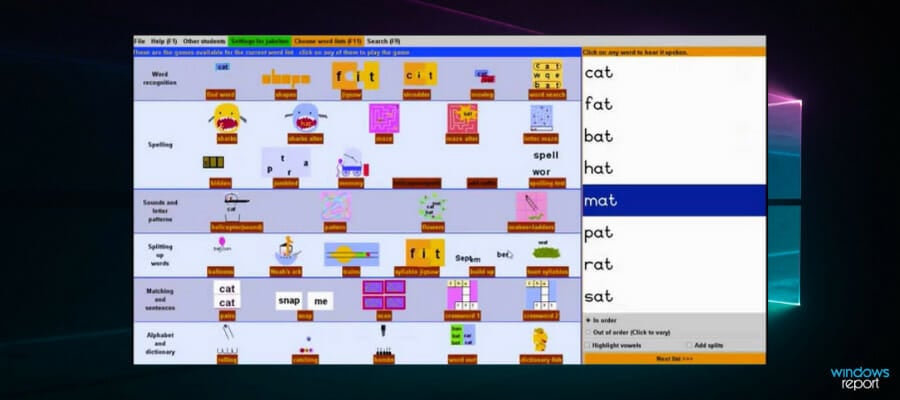
Wordshark is an offline interactive learning program for children who have difficulty reading and remembering spelling. The program offers an effective and motivating program in the form of 50 games and a database of 10000 words.

The games and pre-recorded words are specially structured to assist people with dyslexia. Every game in the program helps the children with a specific part of learning to spell and read. The game includes teaching sound, latter patterns, sentences, phonics and more.

⇒ Get WordShark 

NumberShark

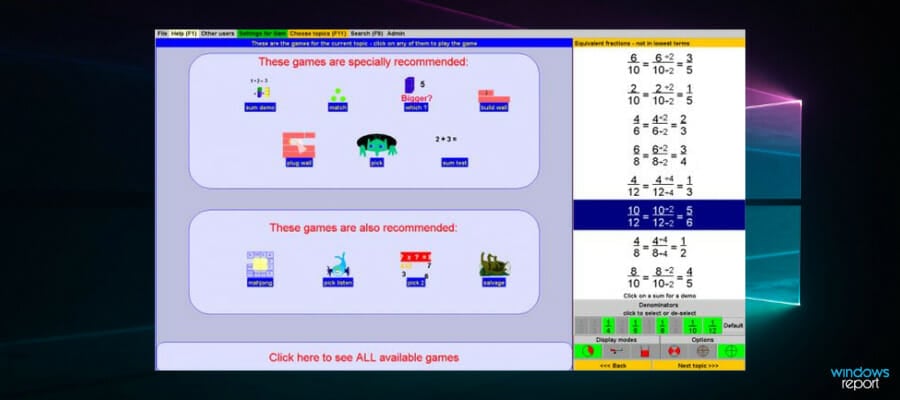
Numbershark is from the same developer as Wordshark. It is a separate program that uses games to teach children the use of numbers and their understanding.

The program consists of over 500 topics addressing almost all the basic number operations including addition, subtraction, multiplication, division, fractions, decimals, simple percentages and more.

Parents can refer to the resource on the website on how to use and set up the game for kids on the computer. This program is recommended for children between the age of 6-15 years.

For better understanding, many of the games in the program offer visual charts or graphs to explain the outcome of each equation.

⇒ Get Numbershark 

ClaroRead

  • Price – Free trial / Standard Edition starts at £59

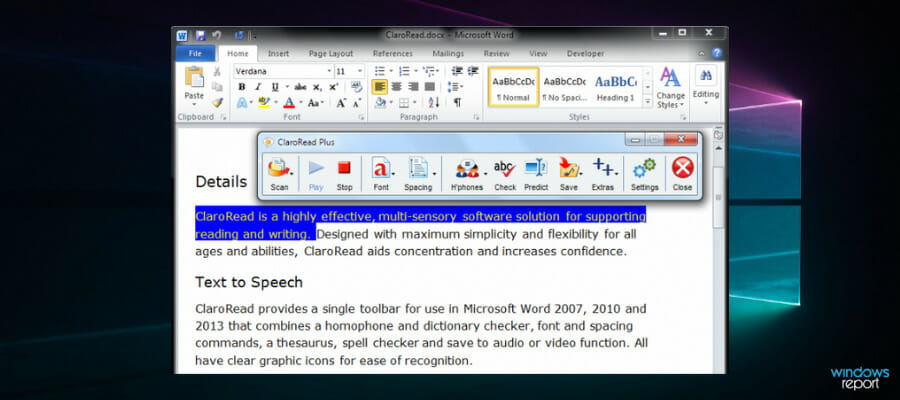
ClaroRead for PC is a simple and easy-to-learn and use software program specially designed for dyslexia students to help with reading, writing, studying, clearing the exam and increasing overall confidence.

The ClaroRead offers a floating bar that can be used to read from Word and PDF documents using Adobe Reader or Microsoft Word editor. It also supports OpenOffice/Libre Office, Google Chrome and other web browsers for web page reading.

Students can read out the text with high-quality natural-sounding voices. The software is also capable of reading paper documents with OCR, but the feature is limited to Plus and Pro users only.

It is a multi-lingual software with support for French, German, English, Spanish and Portuguese and Swedish languages. To help with the writing, it comes with word prediction which suggests words as you type.  After writing the text, you can listen to the text to spot mistakes and learn word pronunciation.

Furthermore, it comes with spellcheck, dictionary, visual customization option and screen capture feature.

ClaroRead is excellent software for both parents who are homeschooling their children and schools helping dyslexic students. There are three versions of the software offering additional features depending on the version.

⇒ Get ClaroRead 

Conclusion

Children with dyslexia may have difficulty reading but are motivated to learn more through creativity. With the help of these apps combined with other activities, you can make the learning process much simpler and faster.

All the software listed in this article can be used by both the parents for homeschooling and schools for special kids.

ReadySHARE Not Working: Access it With These 7 Solutions

NETGEAR’s Readyshare routers enable users to connect drives, both USB and external, to them for network sharing to access data from other devices on the network seamlessly. But, for some, ReadySHARE is not working in Windows.

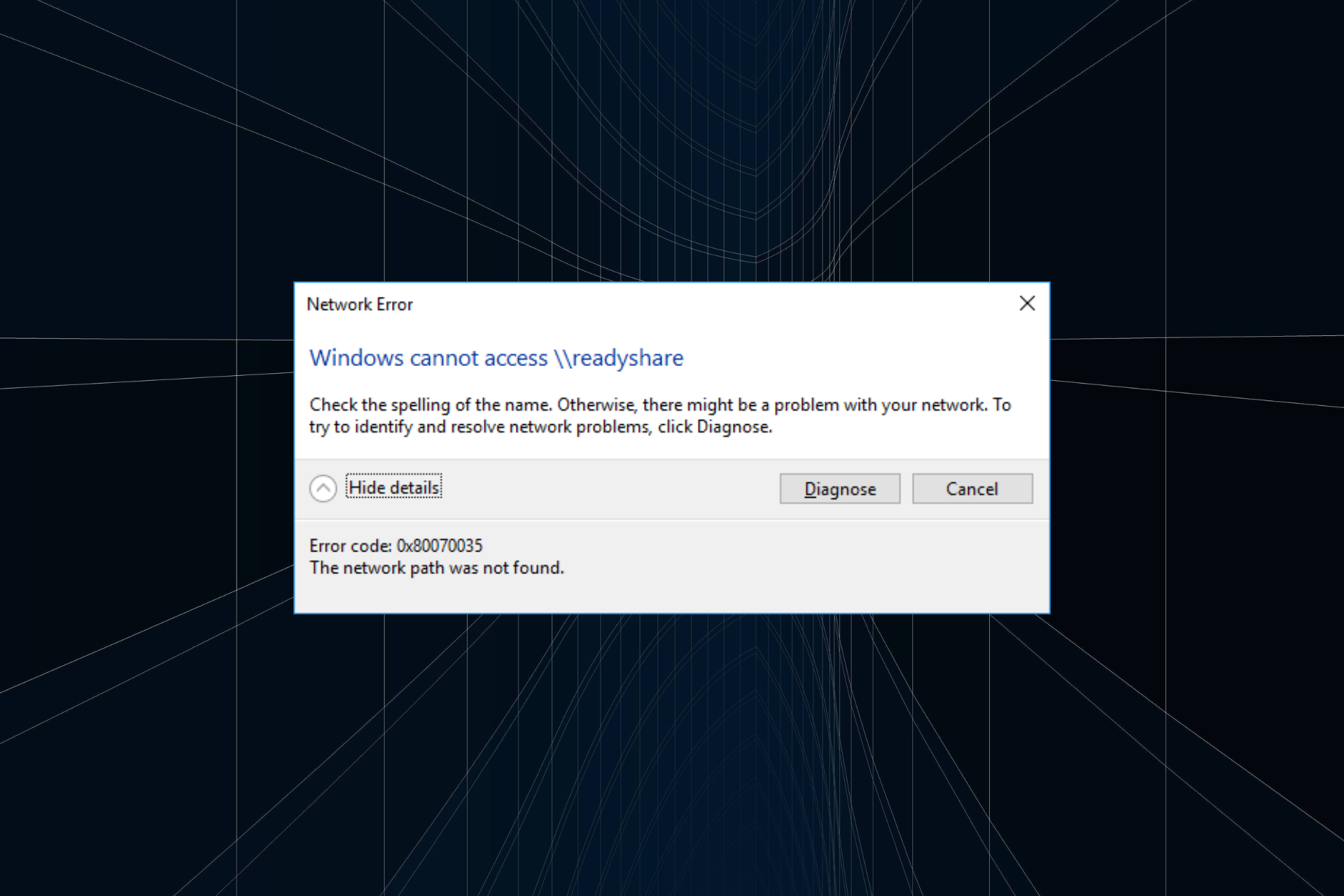
In a few cases, users come across the Windows cannot access \READYSHARE error while sometimes, the ReadySHARE drive is not showing up. There could be several reasons behind the problem and just as many solutions. So let’s go through them all.

Why Windows cannot access ReadySHARE?

Here are a few reasons ReadySHARE is not showing up on the network in Windows 10:

  • Drive is not compatible with ReadyShare: A common reason you are facing the issue is when the drive doesn’t support the ReadySHARE feature. So you will have to verify that.
  • Misconfigured settings: Misconfigured network settings on the PC or a third-party app conflicting with the properties can lead to ReadySHARE not working.
  • Buggy Windows update: A buggy Windows update is just as likely to trigger the issue, and uninstalling Windows updates should do the trick.
  • Improper connections: When the connection between the storage device and the router is not proper, you will find ReadySHARE not recognizing the USB drive.

What can I do if ReadySHARE is not working on Windows 10?

Before we proceed, perform these quick checks:

  • Go to NETGEAR’s official website and verify whether your drive is compatible with the drive-sharing feature. In case yours is not compatible, get one that is.
  • Restart both the computer and the router, and reconnect the storage device.
  • Make sure the cable used for the connection, if any, is not damaged.

If none work, move to the solutions listed next.

1. Adjust IP and DNS settings

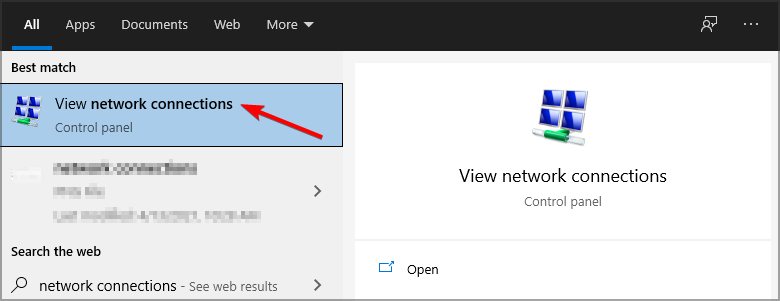
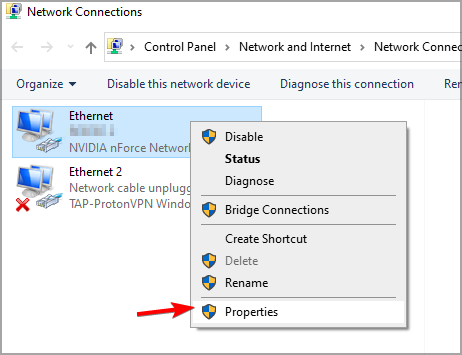
  1. Press Windows + S to open Search, type View network connections, and click the relevant result. 
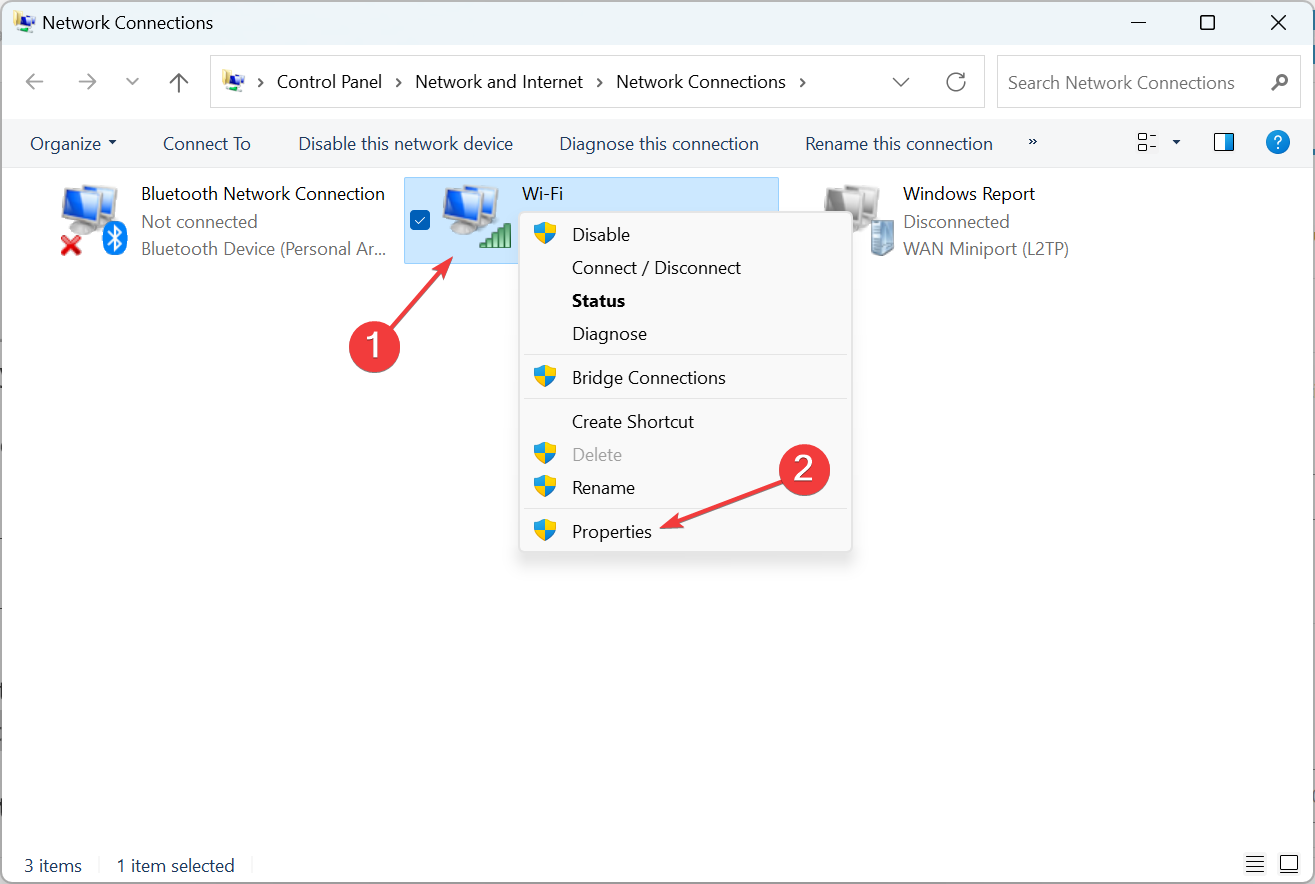
  2. Right-click your net connection and select Properties.
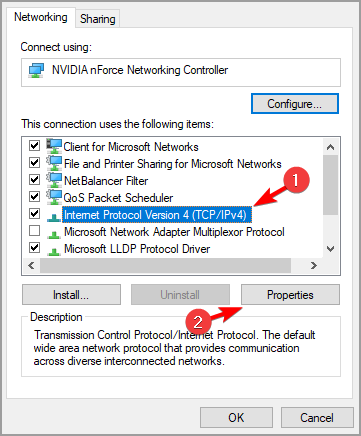
  3. Select Internet Protocol Version 4 and click Properties.
  4. Select the Obtain an IP address automatically option.
  5. Then select the Obtain DNS server address automatically radio button.
  6. Click the OK option.

After changing your network settings, check whether ReadySHARE now starts working.

2. Turn on network discovery

  1. Press Windows + S to open Search, type Control Panel, and click on the relevant result.
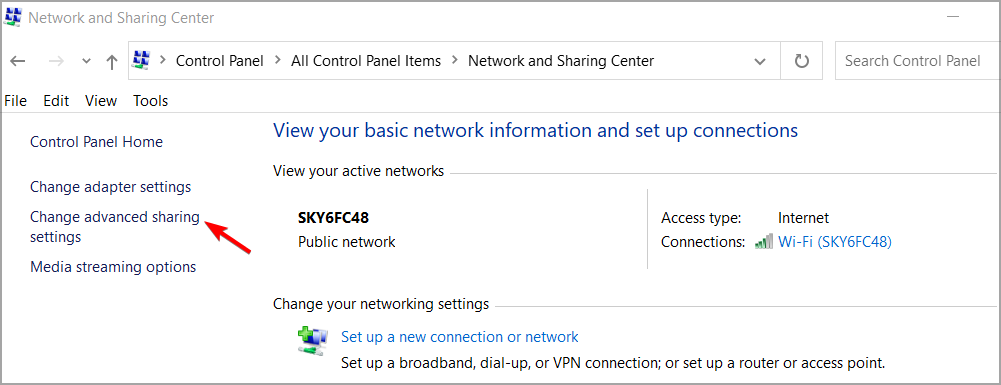
  2. Click the Network and Sharing Center option.
  3. Then click Changed advanced sharing settings on the left of the Network and Sharing applet.
  4. Select the Turn on network discovery radio button.
  5. Don’t forget to press the Save changes button.

According to some users, enabling Network discovery should help if Windows cannot access Readyshare, so be sure to try that.

3. Select the Enable insecure guest logins policy

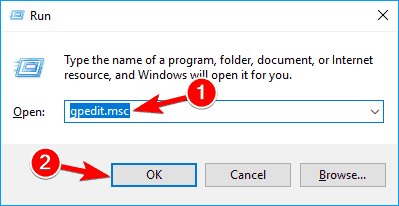
  1. Press Windows + R to open Run, type gpedit.msc in the text field, and click OK.
  2. Click Computer Configuration and go to Administrative Templates on the left of Group Policy Editor.
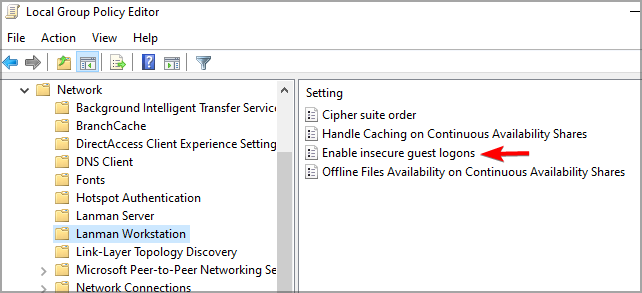
  3. Then select the Network and choose Lanman Workstation to open Lanman Workstation policies.
  4. Double-click Enable insecure guest logons on the right.
  5. Select the Enabled radio button.
  6. Press the Apply button to save the new policy setting and click OK.

After making these changes, check whether the ReadySHARE is still not working or if the problem is resolved.

4. Enable NetBIOS

  1. Press Windows + R to open Run, type ncpa.cpl, and hit Enter.ncpa.cpl
  2. Right-click on the Wi-Fi adapter and select Properties.properties to fix readyshare not working
  3. Select Internet Protocol Version 4 (TCP/IPv4) and then click Properties.properties
  4. Now, click on the Advanced button.advanced
  5. Now, navigate to the WINS tab, select the Enable NetBIOS over TCP/IP option, and click OK.enable netbios to fix readyshare not working

A quick solution shared by some users when ReadySHARE is not working is to enable NetBIOS in the network settings. If things still don’t work, move to the next solution.

5. Edit the registry

  1. Press Windows + R, type regedit in the text field and click OK.registry
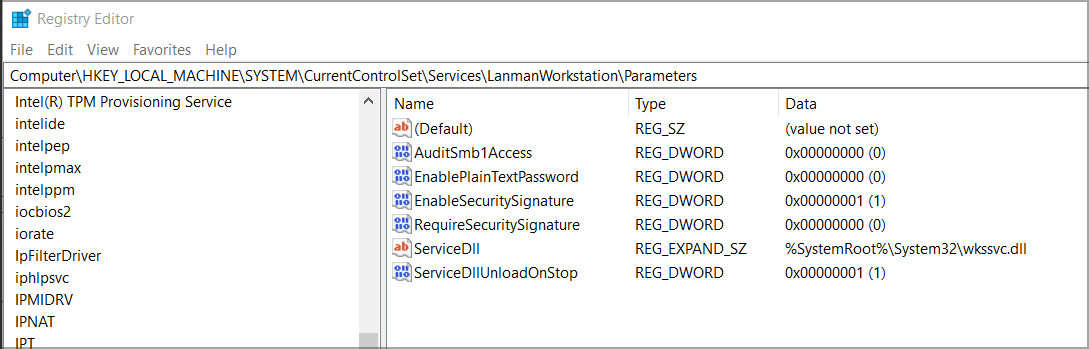
  2. Next, navigate to this registry key path: Computer\HKEY_LOCAL_MACHINE\SYSTEM\CurrentControlSet\Services\LanmanWorkstation\Parameters
  3. If you can’t find an AllowInsecureGuestAuth DWORD there, right-click within the right side of the Registry Editor window, select New, and choose DWORD. Then enter AllowInsecureGuestAuth as the DWORD title.
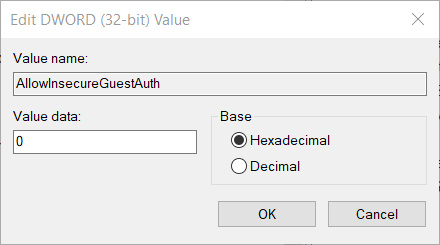
  4. Double-click AllowInsecureGuestAuth to modify its value.
    Edit DWORD window windows cannot access readyshare
  5. Enter 1 under Value data, and click OK to save the changes.

Once you make these changes, check if Windows still cannot access Readyshare.

6. Make sure SMB 1.0 is enabled

  1. Open Windows 10’s search tool.
  2. Enter the keyword Windows features within the search box. Select Turn Windows features on or off.
  3. Click Turn Windows features on or off within the search results to open the window in the snapshot below.
    Windows Features window windows cannot access readyshare
  4. Double-click the SMB 1.0 checkbox to expand it.
  5. Then click SMB 1.0/CIFS File Sharing Support to select all the SMB 1.0 checkboxes.
  6. Select the OK option.
  7. Thereafter, click the Restart now button.

7. Uninstall recent Windows updates

  1. Press Windows + I to open Settings, and select Update & Security.update & security
  2. Now, click on View update history on the right.view update history
  3. Choose Uninstall updates.uninstall updates to fix readyshare not working
  4. Select a recent update after which the problem first appeared, and click Uninstall.uninstall to fix readyshare not working
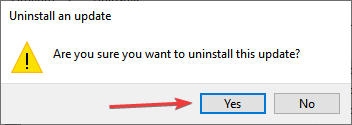
  5. Click Yes in the confirmation prompt.yes

For some users, ReadySHARE was not working after an update, and once the buggy version was uninstalled, things soon got up and running. And by now, the problem should be gone for good with one of our solutions.

Before you leave, check some quick tips to increase the Internet speed in Windows.

Did you find a different solution? If so, feel free to share it with us in the comments section.

GPS Tracking & Fleet Management Software: 7 Best to Use

Fleet Management Software (FMS) is a software solution allowing the firms to control the chaos of fleet maintenance to reduce risk and save time and money.

Fleet management solutions often offer features like GPS tracking, trailer tracking, dashboard camera, reefer tracking and much more in real-time to help small or big businesses to control their fleet operation.

This is also helpful if you want to stay compliant with ELD, FMCSA and any other regulatory authority in your country.

While the fleet management software aims to improve performance and reduce cost, some companies are hesitant of investing in an FMS due to budget constraints and the cost and time involved in training the employees with a new software solution.

This is where the free and open-source software makes it easy to keep your business in touch with modern technology without burning a hole in your pocket.

Fleet Management Software FAQ

-> What are the benefits of fleet management?

Fleet management allows your business to improve vehicle fuel efficiency. Another important benefit of fleet management is the improvement of the delivery time and the satisfaction of your clients. Last but not least, fleet management allows introducing additional jobs without massive additional spendings.

-> What does fleet management software do?

Fleet management software is a tool that allows a company to manage and coordinate its vehicles from a central information system. This type of software allows companies to improve delivery times, reduce fuel costs, optimize the routes, provide compliance with the government regulations and increase the safety of the cargo.

-> Why is fleet management important?

Fleet management is important because it allows you to react immediately in case of a route deviation, avoid potential fees and keep your clients always happy. Besides the minimized financial losses, efficient fleet management will generate longterm benefits like brand awareness and client trust, both of them being very important for a company.

In this article, we take a look at the best free fleet management software to keep your business on track, on time, and compliant with the local and federal regulations.

Track and organize your fleet activity with these 5 tools

GPSWOX (Editor’s choice)

GPSWOX
  • Price – Free / Premium

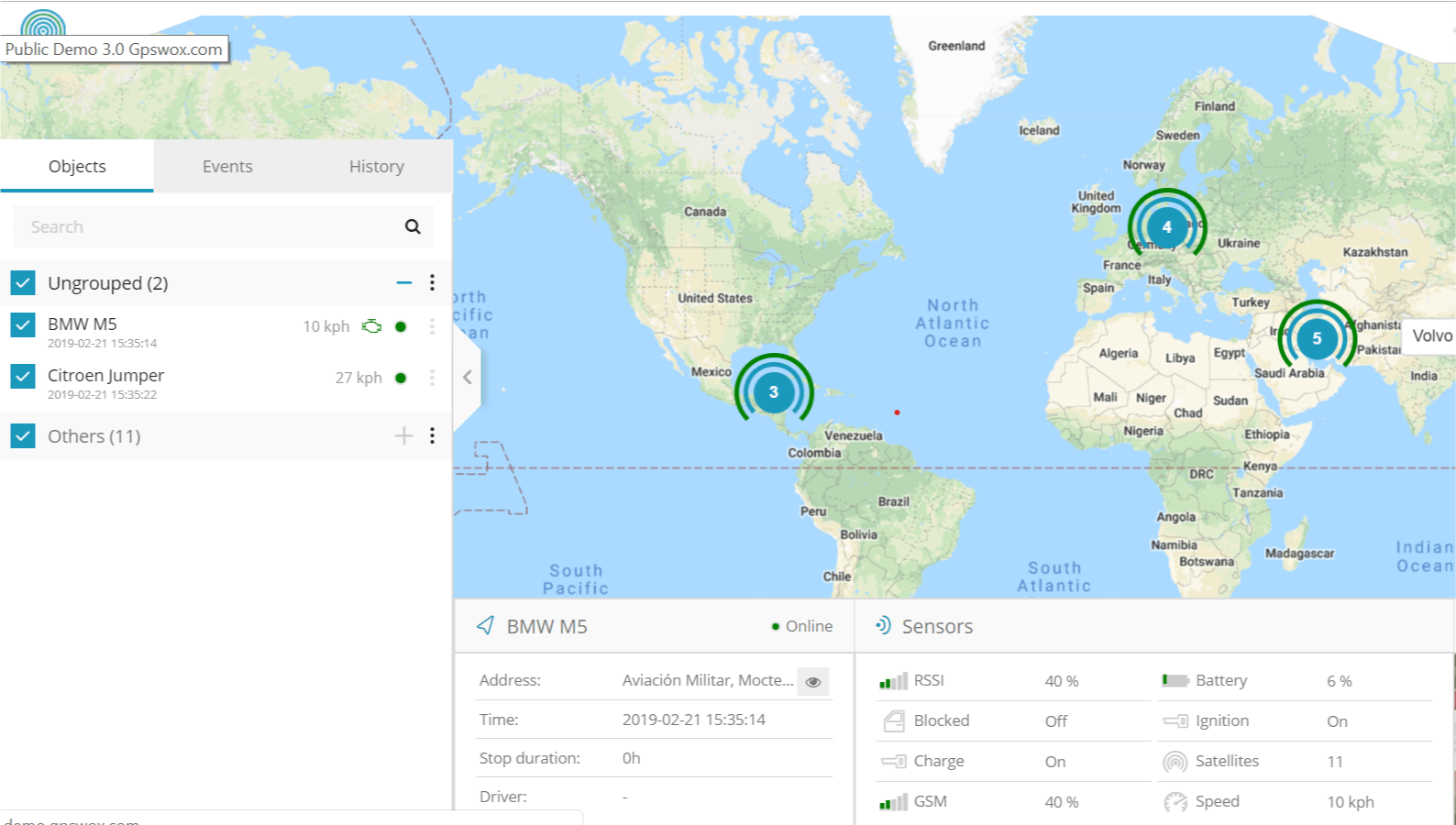
GPSWOX is a GPS location tracking system for small and large business firms. It is a premium cloud-based solution but does offer a free starter plan that you can try before making the purchase.

The main features of GPSWOX Include real-time tracking, notification alter, history and report, geofencing, mobile and SMS gateway.

The free account offer tracking of one object that is one vehicle, real-time tracking, and mobile app feature. Reset of the features are divided across Lite, Basic, Pro and White Label plans.

Using GPSWOX, you can track the location of vehicles, people, etc. online in real-time using Google Maps, Satellite or OSM. In addition, you can also know the speed, exact address, petrol consumption and travel history of your fleet online.

GPSWOX allows you to set geo-zones and sends you instant alerts about your fleet as soon as it enters or exits the zone. In case of theft, the device sends SOS alarm and also lets you kill the engine remotely.

This tool is available in over 120 countries and you can use it in 30 languages. It has a wide range of geographical gfeatures that you could use in order to make your work easier.

Editor's choice
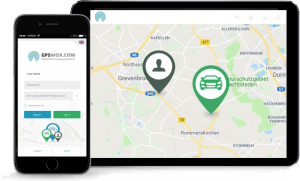
gpswox on devices
  • Easy to set up and start tracking
  • Compatible with over 900 tracking devices
  • Presence in over 123 countries
  • Over 30 languages available

The tracking reports can be exported in multiple formats including XLS, PDF, CSV, TXT and more. The report consists of information like GPS tracker name, driving hours, stopover, distance traveled and much more.


You also need a reliable GPS app to reach your destination on time.


GPSWOX is a feature-rich GPS tracking solution for fleet management. The free account is severely limited by features but if you have only one vehicle to track it can be a good solution.

FleetVIP

FleeVIP
  • Price – Free / Premium

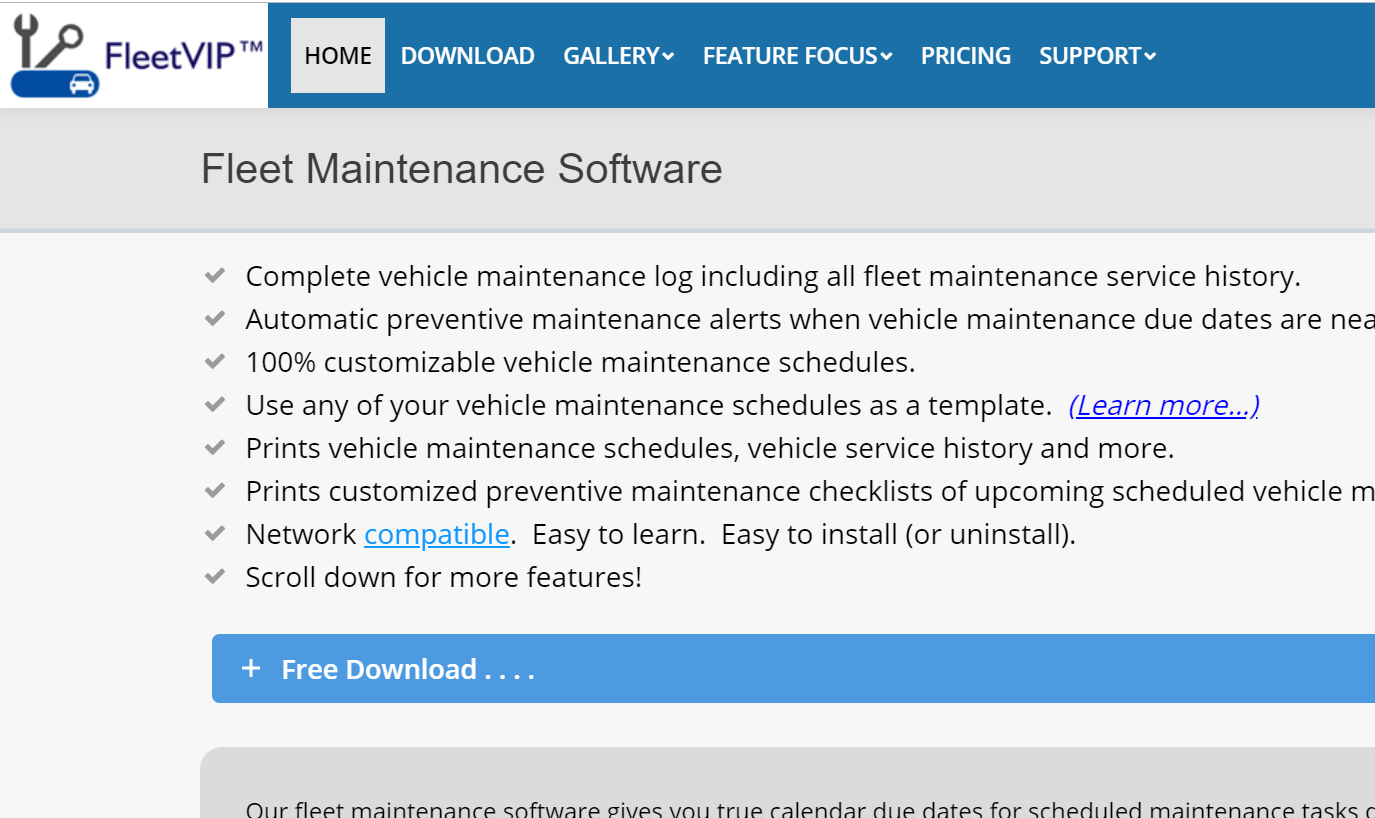
FleetVIP is more of a fleet maintenance solution than fleet management software. The main features of FleetVIP include maintaining complete vehicle maintenance logs, automatic preventive maintenance alerts and calculate calendar due dates.

The free version of the software allows you to keep track of 2 vehicles. If you have more than two vehicles to maintain and need more features, look at the premium version of the tool.

One unique feature in FleetVIP is its true calendar due dates for scheduled maintenance tasks defined in running time of the vehicle in kilometers and miles.

FleetVIP offers timeline consistency checking for all completed maintenance, calculate calendar dues to adjust upcoming maintenance due dates for all scheduled tasks based on usage patterns, track unscheduled and unexpected maintenance.


Use these car diagnostic software for Windows users to pinpoint exactly what’s wrong with your car.


Additional features offered by the software include annual vehicle inspection date tracking, reduce frequent odometer checks, exports reports in spreadsheet format, can print 35 reports and hundreds of Ad Hoc queries, keeps complete vehicle maintenance log and easily tracks multiple vehicles and maintains a separate maintenance log.

FleetVIP is compatible with Windows computers running version 7/8/10 including 32-bit and 64-bit editions.

Download FleetVIP 

Odoo Fleet

Odoo Fleet
  • Price – Free

Odoo offers a suite of open source business app and Odoo Fleet is one of them. Odoo Fleet is a fleet management app that offers a free account with unlimited users forever.

There is an upgradable premium plan in case you want more features like customization and support.

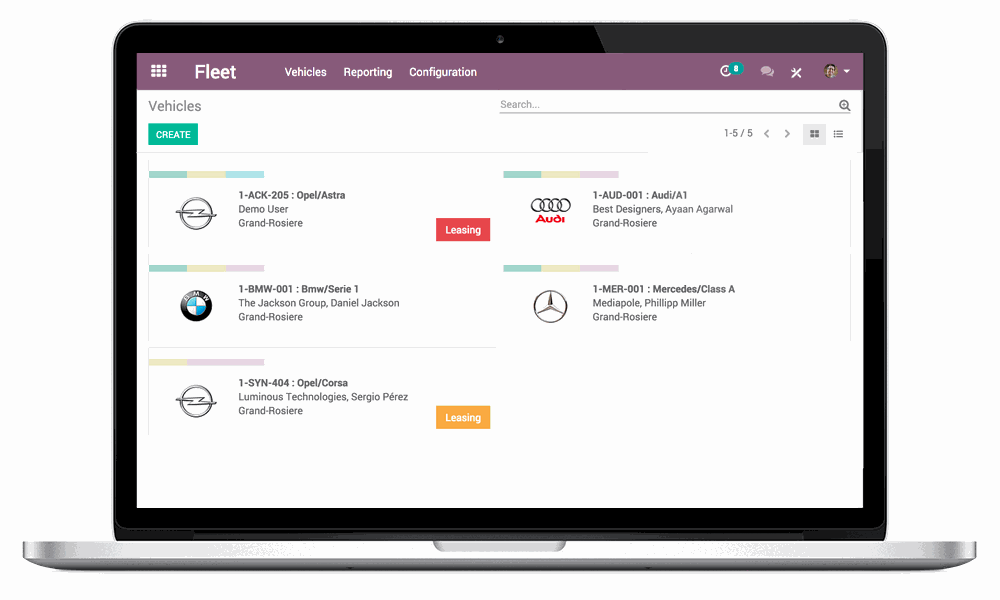
Odoo Fleet allows you to add in-depth descriptions of your vehicles including brand and model, registration number, chassis number, number of doors and seats, color, etc. to quickly identify each vehicle from your fleet.

The software can monitor fuel consumption and keep track of mileage,  by reporting odometer reading and also forecast service and repairs. In addition, it also comes with vehicle maintenance feature offering day-by-day follow up of all vehicle maintenance needs.


If you need a good business planning software, look no further than these 5 solutions


The dashboard shows an overview of all the vehicles. You can create several statuses to keep track of ordered vehicles, standing vehicles, and retired vehicles.

The reporting and analysis include a simple and clear dashboard showing live reports and graphs and recording of all costs linked to your fleet with the option to create a custom report with user-defined parameters.

On the file side, Odoo Fleet misses out on GPS tracking and integration functionalities. Odoo Fleet is a non-nonsense solution with no restrictions on users and objects management.

Try Odoo Fleet 

Traccar

Traccar
  • Price – Free / Premium

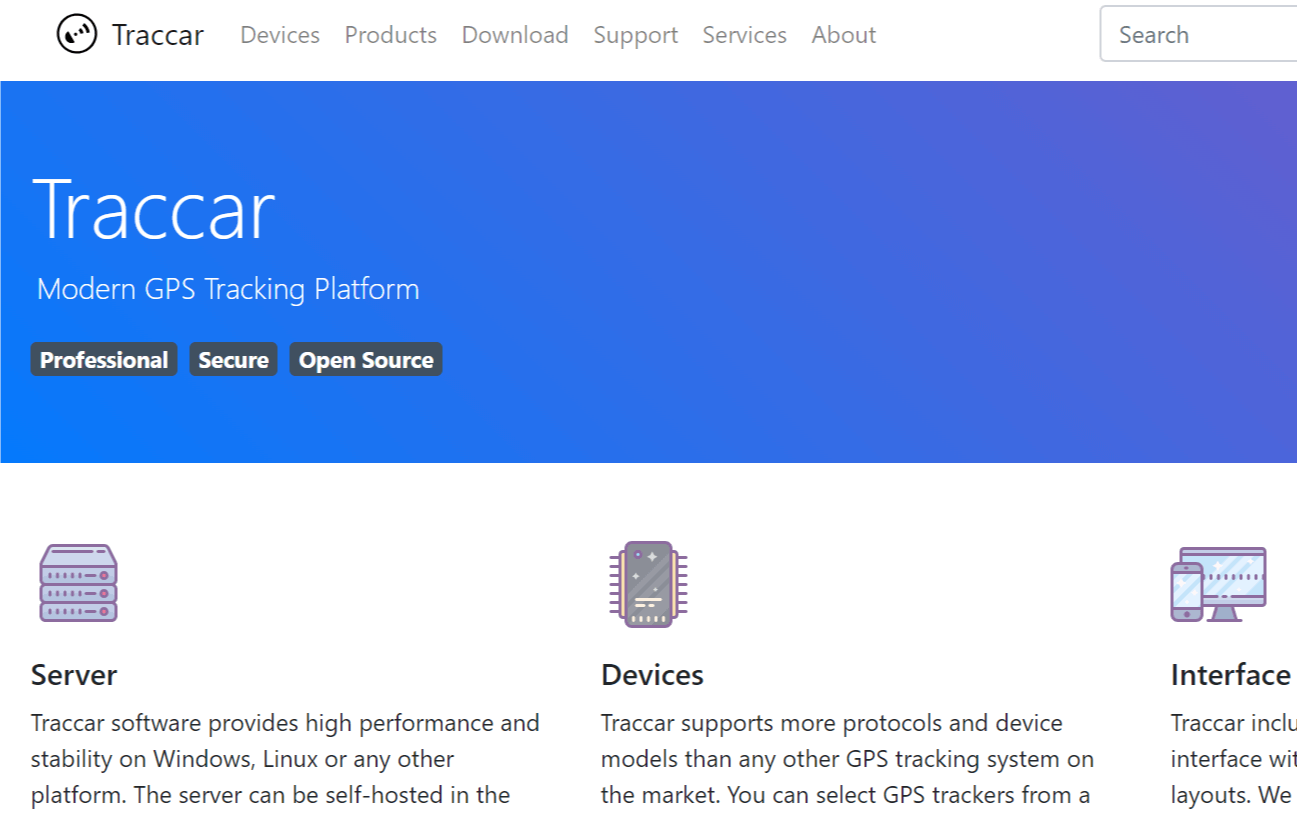
Traccar is a free and open source GPS tracking system. Using the software, you can track your fleet of vehicle live on maps or satellite imagery.

Being an open source solution, Traccar needs to be hosted on the self-managed server. However, if you want the company to do the dirty job for you, Traccar offers premium plans for fully managed hosting with professional support.

Traccar claims to support more than 170 GPS protocols and more than 1500 models of GPS tracking devices. The list of all the supported devices can be found on the official website.

The modern user interface works with both the desktop and mobile devices. You can use the system on Android and iOS devices using the native app.

One interesting feature offered by Traccar is the ability to turn mobile devices to be used as a GPS tracker using a set of apps.

With Traccar you can view all the GPS devices in real time and send alerts through email or SMS in case of rash driving, over speeding, fuel and maintenance events, geo-fencing and many more.

In the report, Traccar includes simple location history, trip, chart and summary reports. The reports can be directly viewed from the mobile or app dashboard or export to an Excel file for detailed analysis.

Download Traccar 

OpenGTS

OpenGTS
  • Price – Free open source

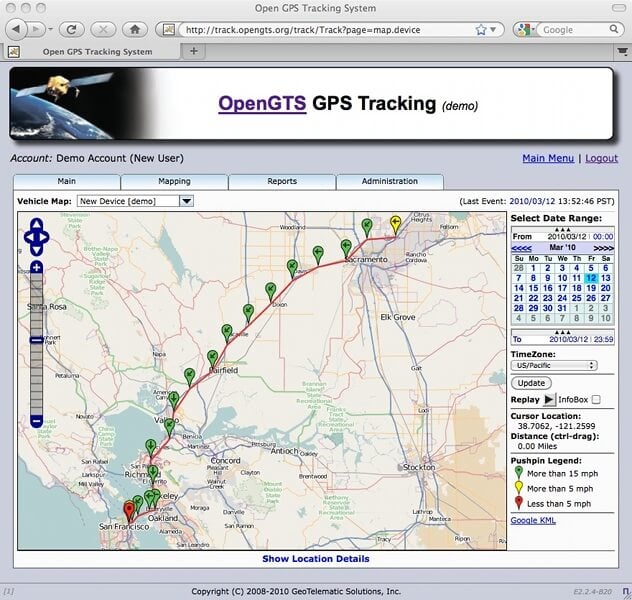
OpenGTS (Open GPS Tracking System) is a first open source project designed to provide web-based GPS tracking service for a fleet of vehicles.

The software is currently being used by 110 countries over the world with thousands of vehicles being tracked every day.

The software was initially designed to handle the needs of an entry-level fleet; however, with time it has developed to be a highly scalable solution that can be used by large enterprises.

Each OpenGTS account supports multiple users along with separate login credentials with control access. You can track GPS devices from multiple vendors simultaneously and also find the list of compatible GPS trackers on the website.

However, organizations can customize the tool to work their own GPS trackers with custom programming.

The users can easily customize both the user interface and mapping service. OpenGTS comes with support for OpenLayers/OpenStreetMap, Google Maps, Microsoft Virtual Earth and Maps traction.

The reports can be generated using an internal XML-based reporting engine. The report can show historical data for a specific vehicle or an entire fleet in detail.

OpenGTS is a powerful fleet management solution with a lot of potential for customization. If you have a programming team and looking for a free fleet management software, OpenGTS can be customized to fit your needs by adding essential features on top.

Download OpenGTS 

Premium Fleet management software

While the free fleet management software is good for any business as they cost nothing to use, more often than not free software compromise on features or lack in features to put it correctly.

If you feel underwhelmed by the features offered by free FMS listed in this article, take a look at these premium fleet management software offering more features for a reasonable price.

Most of the premium fleet management software offers a free trial or demo so you can try the software without any risk.

Samsara

Samsara
  • Price – Free trial / Premium

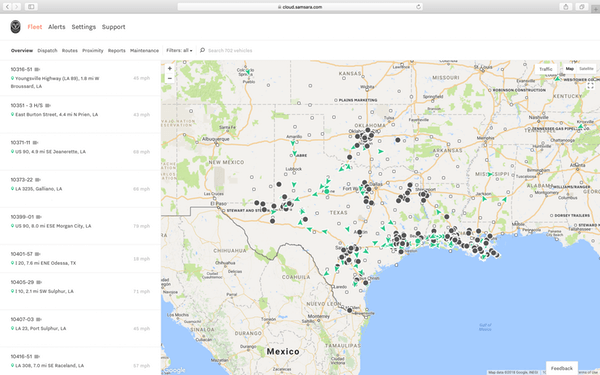
Samsara offers a unified system for fleet management, driver safety, and compliance. It is a cloud-based system hence does not require any installation on your computer.

Notable features offered Samsara include GPS tracking, trailer tracking, routing and dispatch information, reefer monitoring and dashboard camera integration.

It meets regulatory requirements of ELD and FMCSA and also helps in keeping the driver’s behavior in check.

Try Samsara 

MyRouteOnline

MyRouteOnline
  • Price – Free / Premium with Free trial

MyRouteOnline is not a fleet management solution but a route optimization solution. The software converts route addresses from an excel sheet and creates a most optimal route plan that can be shared with a GPS or mobile device.

It is possibly the doctor strange of route mapping as it can create multiple or single routes at once and based on duration and stops parameters. You can further sort the route by shortest, fastest and balanced parameters to find the most cost-effective and safe directing for your fleet.

Try MyRouteOnline 


Whether you own and manage a fleet of 2 or 200 vehicles, fleet management software allows you to do more in less time. It can save time, money and a lot of work hours when done right.

All the software in this article offers a free version of its fleet management solution. The thing with free software is that most of them may not offer the latest in terms of technology and industry standard. However, for anyone new to this system, it offers enough to get you started.

You can always look for premium options as your business grows. Even for testing purposes, these free solutions offer a great learning experience without any risk.

MainWindow appears on Windows 10 [Fixed]

Several Windows 10 users have reported that a strange MainWindow appears on their Desktop. The window appears as a small black dot that can be expanded to a full-sized window.

Pressing the Alt + Tab key shows the empty window as the main window. This issue seems to be occurring due to some third-party startup apps such as MSI Dragon Center.

Locating and uninstalling the third-party start-up can resolve this problem. If not, follow the additional troubleshooting steps to resolve the problem with VoiceControlEngine.exe main window appearing on the Desktop.

How do I stop the MainWindow from appearing?

1. Inspect and disable your startup apps

  1. Make sure the main window is open and running.
  2. Right-click on the Taskbar and choose Task Manager. You can also open Task Manager by pressing the Windows key + X.
    access Task Manager from the taskbar
  3. In the Task Manager, open the Startup tab.
  4. Look for any startup app such as MSI Dragon Center that is enabled and may help you identify the issue.
  5. Click the Disable button to stop the app from auto-starting after the restart. 
  6. If you are unable to identify the app, open the Processes tab in the Task Manager.
  7. Click the Name tab to sort by apps and background processes.
  8. In the Apps section, look for any active program that you may not have launched yourself. 

In most cases, it is the voice control service associated with the MSI Dragon Center utility causing the issue. Try to end the voice control process from the Task Manager and check if the MainWindow is gone.

2. Disable Dragon Center voice control service from System Configuration 

  1. Press the Windows key + R to open Run.
  2. Type msconfig and click OK to open the System Configuration window.
  3. Open the Services tab in the System Configuration window.
  4. Scroll down and locate the VoiceControlService.
  5. Select the service and uncheck the the checkbox next to it.
  6. Click Apply and OK to save the changes.
  7. Once you have disabled the VoiceControlService, reboot the computer and check if the MainWindow window on desktop issue is resolved.

MSI Dragon Center is a proprietary tool that integrates MSI components, desktop systems, and peripherals into one platform. However, the app also starts several services during the startup. 

One such service helps Dragon Center recognize the Hey Lucky command to activate voice control. This can result in MainWindow appearance on the Desktop.

3. Disable VoiceControlEngine from Services

  1. Press the Windows key + R.
  2. Types services.msc and click OK.
  3. In the Service window, locate MSI_Voice_Control_Service.
  4. Right-click on the service and choose Properties.
  5. If the service is running, click the Stop button.
  6. In the General tab, set the Startup type to be Disabled.
  7. Click Apply and OK to save the changes.

You can permanently disable the VoiceControlEngine from appearing on your screen by disabling it from the Services.

If the issue persists and the VoiceControlEngine auto restart after the restart, uninstall it from the MSI Dragon Center installation folder. 

Uninstall MSI voice control program

  1. Open File Explorer and navigate to the following location:

    C:Program Filesmsivoice recorder
  2. Uninstall the voice record program.
  3. Once uninstalled, reboot the computer and check if the MainWindow VoiceControlEngine.exe is triggered again after the restart. 

4. Uninstall MSI Dragon Center 

  1. Press the Windows key + I to open Settings.
  2. Open Apps.
  3. Open the Apps and Features tab.
  4. Search for the MSI Dragon Center app in the search bar.
  5. Click on MSI Dragon Center and click Uninstall.
  6. Choose Uninstall again to confirm the action. Wait for Windows to uninstall the app.
  7. Once uninstalled, restart your computer.
  8. After the restart, download the latest version of MSI Dragon Center from the official site.
  9. Install the app and check if the VoiceControlEngine.exe main window appears on the desktop.

While disabling the voice control service from the services and system configuration is an option, you can resolve the issue without disabling the service with a quick reinstall. 

Just make sure to install the latest version of the MSI Dragon Center on your computer.

To ensure that you’ve completely removed the application, use dedicated uninstaller software. Along with the app, the software will also find and remove any leftover files and registry entries.

If the VoiceControlEngine.exe main window appears on the Desktop, the problem is usually triggered due to a glitch in the voice control service of the MSI Dragon Center app.

To resolve the issue, disable the app from the startup tab and then disable the active voice control service from the Services window. Additionally, try reinstalling the app to remove any issues due to a glitch or file corruption.

Lenovo’s Legion gaming PCs equipped with powerful Intel Core H-series mobile chips

Intel is having a moment today as its PC partners announce a slew of laptops and workstations with its new 11th Gen Intel Core H-series mobile processors.

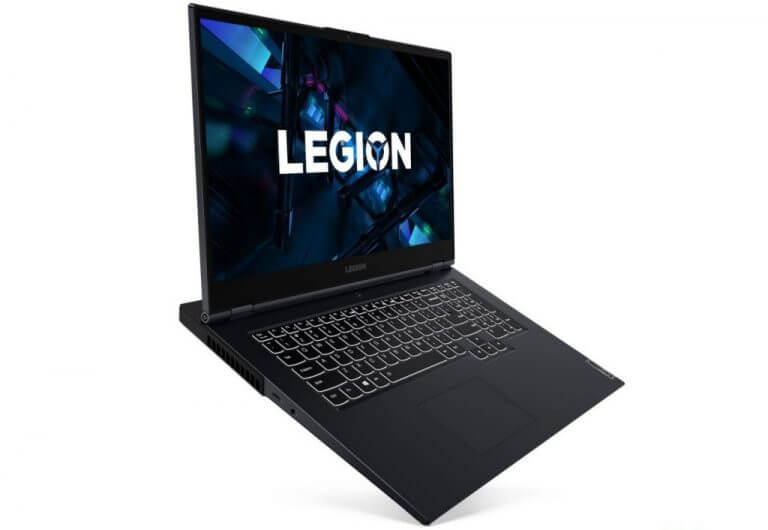
Lenovo has joined the chorus of PC OEMs packing their devices with the latest H-series mobile processors into its Legion lineup including its Y25g-30, 5i Pro and 7i gaming laptops.

Intel’s H-series pack three eight-core or two six-core chips with 35W outputs on average with a the top end i9-11980HK coming in at 65W. Aside from the boost in power, the H-series also marks Intel’s 10nm promise and allows Lenovo to pack a few more inches of thermal configurations into Legion line up this year.

Even though it’s marketed as a gaming rig, thanks in part to NVIDIA which is also present in the Legion lineup as optional GPUs configurations, gamers can push the edges of 3D rendering and Ray Tracing gaming development. Owners can make use of Ray Tracing 2.0, RTX Tensor Cores 3.0 NVIDIA, and NVIDIA DLSS (Deep Learning Super Sampling) to work render repeated scenes in cinematic quality without a hiccup.

Lenovo-Legion-7i-side

Lenovo’s Legion Coldfront 3.0 thermals should increase airflow by an additional 18 percent as well as reduce noise according to Lenovo.

To further dissipate heat, we’ve expanded the copper heat sink system for up to 82 percent more thermal fin area gen-to-gen and drilled copious holes into the laptop’s bottom cover and even under the keyboard to keep things cooler.

Another impressive feature coming to the Legion line is a new 16:10 display aspect ratio. Lenovo is marking its Legion 7 and 5 Pro as the “world’s first 16-inch QHD165Hz gaming laptops.” Lenovo is also porting over its flagship TrueStrike keyboard engineering for an anti-ghosting and increased input speed experiences.

To squeeze the best performance out of the Legion’s Lenovo is building in Intelligent Mode which allows Lenovo’s custom software to automatically tweak performance for a desired gaming experience. In addition to the software Lenovo packed memory clocked in at 3,200MHz paired with NVMe PCIe SSD capacities to blaze through downloads and online multiplayer processing.

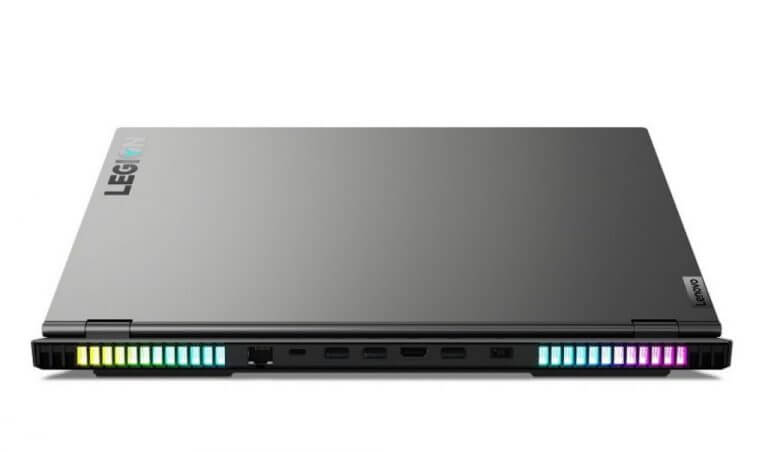
Lenovo-Legion 5i-rear

As for ports, gamers get two Thunderbolt 4 ports, three USB 3.2 ports, HDMI 2.1 support and even an Ethernet jack to keep the broadband connection unadulterated.

According to Lenovo, both the 5i and 7i series should be available for sale in July of this year and start at $969.99.

Badminton Tournament Management System: 4 Best in 2026

Have you ever wondered if there are any free apps that allow you to set up custom tournaments for your badminton matches with friends ?

If your answer is ”yes”, then you’re in luck today. You can forget the papers and blackboards you had to use in the past. In this article we will explore some of the best software options on the market that allow you to easily manage tournaments.

We will present you with free options of tournament management software for badminton matches. Some of them are compatible with a wide range of sports, but have a specific badminton section included, and others will be specifically designed for badminton. Read on to find out more.

What are the best free software for badminton tournaments?

Tournament Planner

Tournament Planner - badminton software

Tournament Planner is a incredibly useful software option that allows you to easily manage tournaments for a wide range of sports.

One of the best features found in this software, is that it supports great number of tournament types. You can set up the tournament as you wish, by modifying the number of knock-out draws, set up custom playoffs, and many other aspects.

This software has a very friendly user interface, and is designed so that you can access all options with just a few clicks of the mouse. You can easily schedule matches, group events by different classes, print a draw, etc.

In order to share the results of your tournaments with your friends and family, Tournament Planner has a built-in sharing option that can be activated easily.

Tournament Planner can be used as a free demo with full capabilities, but has some functions disabled compared to the licensed version. With the free version, you can not publish your tournaments online.

Other than that, it’s fair game.

Here are some of the best features found in Tournament Planner:

  • Keeps you informed about player and court availability, matches, etc.
  • One panel that shows the entire range of player data
  • Quick overview of matches that were scheduled, unschedules and played
  • Can create backups with your data in order to keep it safe in care of system issues
  • Can re-schedule matches without unscheduling it
  • Unlimited numbers of players, events, matches, courts
  • 96 timeslots/day
  • Can create a wide range of reports – matches/day, match cards, players, draw lists, etc.

Download Tournament Planner

What’s Score

What's Score - badminton tournaments software

What’s Score is another great app that allows you to create and manage all of the aspects needed in order to create a professional looking badminton tournament with a great range of features.

Even though this app can be used to create tournaments for a wide range of sports, What’s Score has incredibly useful features that apply to badminton tournament creation as well.

Here are some of its best features:

  • Allows you to manage participants to your tournaments by using customized registration forms
  • Can automatically perform draws with multiple seeding options
  • Winners and losers are automatically moved across the tournament branches according to results
  • Can automate the process of scheduling a match depending on the court chosen
  • Live scorring system that keeps you aware of all scores
  • Can easily share results on social platforms directly from the software
  • Great mobile app that allows you to access the tournaments from anywhere in the world

The Free version of What’s Score, comes with a lifetime guaranteed free software, and this version is capable of creating and managing your badminton tournaments with a variety of cool features.

Some of them are :

  • Participant registration – allows you to keep track of who’s participating in tournaments
  • Can automatically perform random selection of candidates
  • Live results and scores on dashboard
  • Customizable player dashboard

The Premium version of What’s Score is designed for businesses, sports associations, clubs, etc. This option is paid, but offers great additional capabilities. Here are some of them:

  • Customizable software that adapts to your company no matter the size or number of departments
  • Allows you to create tournaments with Members Only policy
  • Custom Mobile App with your company’s branding

Try What’s Score

Score 7

Score7 - badminton tournament software

Score 7 is another great tool that enables you to easily create, manage, and also keep track of all aspects of badminton tournaments from your preferred device.

By using this app you can tailor the tournaments to you specific preferences and needs, can create automatic schedules for any number of participants, and also allows you to communicate easily with them, with the built-in sharing features available.

To build your tournament, you simply need to select the number of participants you want, the specific sport, and then the format in which the tournament should be created.

After you created the tournament, you can customize it even more by enabling you to add or remove members, update their names, add a text description to your tournament, and can even customize the tournament URL, to make it easy to share.

When it comes to the structures available for creating tournaments, with Score 7, you can create round robin tournaments, knockout rounds, and also multistage tournaments.

For the robin style tournaments, you can edit the number of legs and the number of points assigned for each victory, draw, and loss.

In the knockout style tournaments you can edit the seeding and you can also add a third place final, and in multistage mode, you can also change the number of groups and how many people move on the the next stage.

After everything is set up, you just need to share the newly generate URL with the tournament participants, and you can start playing.

Try Score 7

Konkuri

Konkuri - badminton tourmants software

Konkuri is another great free software option that can help you create, manage and sort out any type of tournament you’d like, for a variety of sports. It also includes badminton, the sport we talked about in this article.

This app is entirely web-based and very easy to use, and offers a good option for both personal use – free, and also sport organizations, badminton centers, etc. You can choose from a wide range of tournament setups – round-robin, brackets, groups, and also playoffs.

With Konkuri, you can also keep in contact with the tournament participants with ease, and also allows you to easily keep track of all scores, groupings, and schedules, so you never miss an important game. The results of every game are communicated instantly, and they are backed up on the servers to prevent any data loss.

Some of the best features found in Konkuri include:

  • Incredibly easy league builder – you can create a league/tournament with just a few clicks and have acces to a wide range of presets specific to the game you want to play
  • Great looking dedicated website that also contains options for URL sharing, following the game for competitions, without any ads
  • The dashboard offers you easy to access information that is updated in real time
  • Can sumbit comments on matches
  • Building mode – allows you to set custom permissions for guests and aministrators, and also to communicate with members before the competition
  • Easier than ever to share information – posters, descriptions, contacts, rules, instructions, etc.

Konkuri allows you to set up a wide range of tournament/league formats :

  • Round-robin – each contestant meets every one of the others once. You can set up a single, double, and multiple round-robin, and up to 24 participants/teams
  • Brackets – up to 128 participants/teams, with an option to set a third-fourth place match as well
  • Groups and playoffs – Can set a specific number of qualifiers/group, and allows up to 96 participants/teams

If you want to see a full list of features, you can visit the official Konkuri website.

Try Konkuri

Conclusion

In this article, we explored some of the best free badminton tournament creator apps available on the market in 2019. The features found in these 4 options will surely cover your needs in this domain.

If you feel that the features found in the free versions of the apps presented here are not enough, you can always buy a license and access the entire range of unlimited features in the program of your choosing.

We would love to find out how was your experience when trying these software options out.

Thank you for reading this article, and please feel free to let us know in the comment section found below if you have any other software suggestions.

This is how we fixed corrupted card reader issues

Dealing with a corrupted card reader can be very devastating. Vital information stored on your card readers might get lost once the card is corrupted. Most people spend a lot of time trying to fix a corrupted card reader or get vital information on it yet their efforts are ineffective.

Besides that, here are some symptoms of a corrupted card reader:

  • Card reader is not recognized by the PC or phone
  • Media items open fragmentarily
  • Windows explorer does not respond when you try to open the SD card folder
  • You get a popup message saying “SD card is not formatted, do you want to format it now?’’
  • Read/write failure
  • Unknown files appear in the card reader, etc

On the other hand, the Windows Report team has listed and comprehensively explained the various methods which will enable you to repair your corrupted card reader.

Nevertheless, Windows Report has compiled some of the best applicable workarounds to fix your corrupted card reader.

Here’s how to fix corrupted card readers

Method 1: Connect SD card to a different device

Sometimes, your current device may not read an SD card or might be incompatible to your SD card. Therefore, you should attempt to use the SD card on another device (whether mobile or desktop).

Alternatively, you can try another USB port on your computer. This is because the USB port connecting the card reader might be damaged; hence, trying other available USB ports might be ideal to fix the corrupted card reader.

Method 2: Scan with antivirus

Sometimes, virus attacks might lead to the corruption status of your card reader. By utilizing an antivirus program, you can clean your corrupted card reader and free it from virus corruption. Some notable antivirus programs you can use to fix your corrupted card reader include Avast, Malwarebytes, Panda, Kaspersky, and other solutions.

We strongly recommend you use another effective antivirus software for more powerful security features against all types of malware. Using such protection tools, you stay secured from hacking or phishing attacks, plus earn powerful scanning features to detect every issue from your PC and fix it in a short time.

Method 3: Change drive letter

Another applicable workaround to fix a corrupted card reader is by changing the drive letter of the card reader in windows explorer.

Here’s how to do this:

  • Connect your card reader to your computer.
  • Right-click on My Computer and then click on ‘Manage’ in the drop-down menu
  • Click on Disk Management on the left side in order to load the Virtual disk service.
  • Right-click on the card reader and then click on ‘Change Drive Letter and Paths’
  • Click on the drive letter and then click ‘Change’
  • Select the ‘new’ drive letter from the drop-down list and then click on ‘OK’.

Method 4: Use the CHKDSK command

Here’s how to do this:

  • Press the Windows and R keys at the same time to launch the Run program. Alternatively, type Run in the search box and then click on it
  • Now, type cmd and then hit the Enter key
  • In the Command Prompt windows, type chkdsk [drive letter]: /f /r
  • Press Y to confirm.

Note:

Commands in chkdsk:

Parameter /f – fixes errors on the card reader

Parameter /r – fixes corrupted sectors on the card reader

Parameter /? – for other check parameters

Method 5: Use Disk Cleanup

Disk Cleanup is another effective tool that can fix corrupted card reader.

Here’s how to run Disk Cleanup:

  • Go to Start > This PC/My Computer
  • Right-click on the SD card drive and then click on Properties
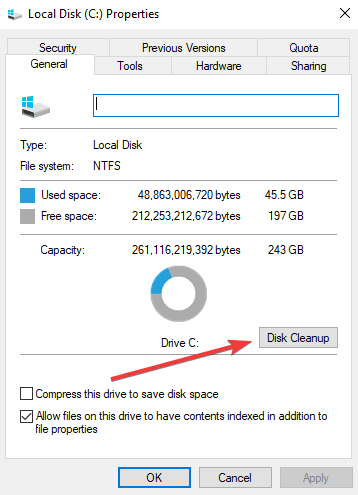
  • In the tools tab, locate the Disk Cleanup menu and then click on itdisk cleanup
  • Follow the prompts to proceed with the cleanup process
  • Reconnect the card reader afterwards and then access the media items on the card reader.

Method 6: Format SD card

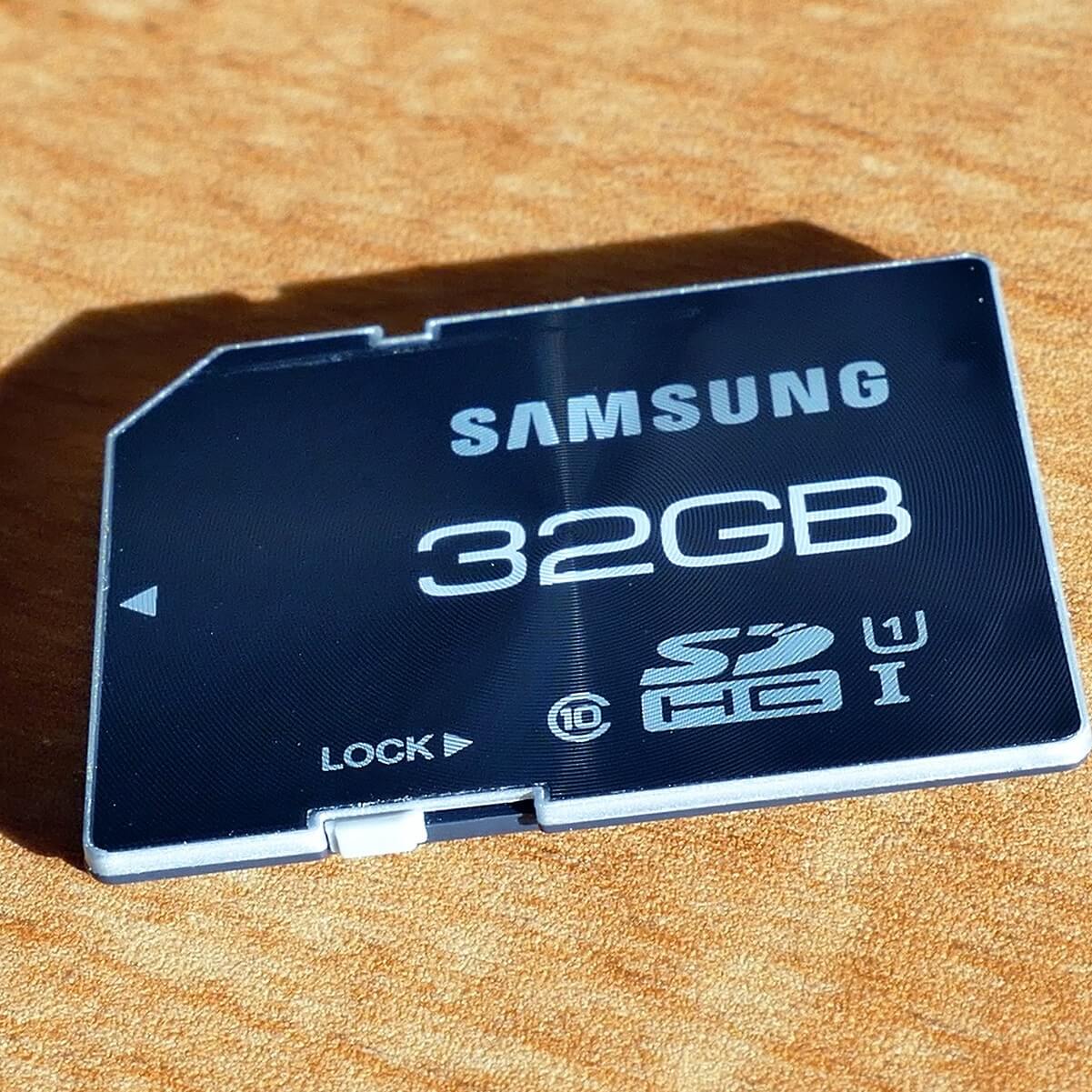
If all the files on the card are readable but cannot be saved, then your card is in a write protected mode. You have to unlock the write-protection switch to save files on the card.

If you are still unable to read or write to the card, then it’s possible that your files have become inaccessible or lost. Therefore, you can use windows explorer or any effective third-party software to format the card reader.

Note: You should ensure that you backup important files on the SD card prior to initiating the format process.

Here’s how to format your card reader by using Windows explorer:

  • Go to Start > This PC/My Computer
  • Right-click on the card reader drive, and then click on the format option.
  • After the format process, you can restore backed up files onto the SD card.

Method 7: Reinstall the driver

Here’s how to reinstall the driver for your card reader:

  • Go to My Computer, right click on it. Click on the ‘’Manage’’ option. Next, click on Device Manager Option which can be seen on the left side.
  • After that, double-click ‘’Disk Drives’’ option from the list. Then Right Click on your removable drive name.
  • Click on Uninstall. Once that is done, click on OK. Disconnect your card reader and restart your PC.
  • Reconnect your card reader again. This time, your system will detect the card reader.

In conclusion, if none of the aforementioned solutions fixed your corrupted card reader, recovery software will be applicable to salvage the issue. Whenever a card becomes inaccessible or formatted, most times the stored data gets lost. However, all files will remain on the SD card and can be recovered by using efficient file recovery software.

Were you able to fix your corrupted card reader by using any of the aforementioned workarounds? Share your familiarity with other Windows users by commenting below.

3 best visual traceroute freeware for Windows 10/11

Would you like to identify the internet path as well as the time of communication between your PC and the remote server? There is a visual traceroute program that can help you do that.

A visual traceroute is a software used to identify the internet route and the time for communication between your computer and the remote server.

Visual traceroute programs have many uses. Computer experts use them to resolve network performance problems while end users sometimes need them to identify the path taken or identify the location of a remote website.

Traceroute programs can also be used to identify internet problems such as response time, data loss among others. We have gathered a list of the top 3 best visual traceroute freeware to keep your internet connection secure and help you resolve network issues.

What are the best free visual traceroute programs for Windows 10?

Path Analyzer Pro

visual traceroute software

Path Analyzer Pro is a high-end traceroute program that delivers advanced network route-tracing, DNS, Whois, and comprehensive network resolution tests to investigate network problems.

By integrating all these robust features into one program, Path Analyzer Pro has become a necessary tool in the technician’s toolkit. This software lets you research the network paths, email addresses, and IP addresses.

In doing so, it visually analyzes the network path characteristics and lets you know whether it’s the router, server, or ISP responsible for network problems.

Path Analyzer Pro utilizes the most powerful path discovery engine available today. In addition to path recovery, it has other unique features such as instant report generation, stunning graphical visualizations, multi-metric hop analysis, firewall detection and traversal among others that give it an edge against the competition.

Experts have seen it perform up to 20 times faster than the traditional traceroute programs.

Get Path Analyzer Pro

Open Visual Traceroute

open_visual_traceroute_software

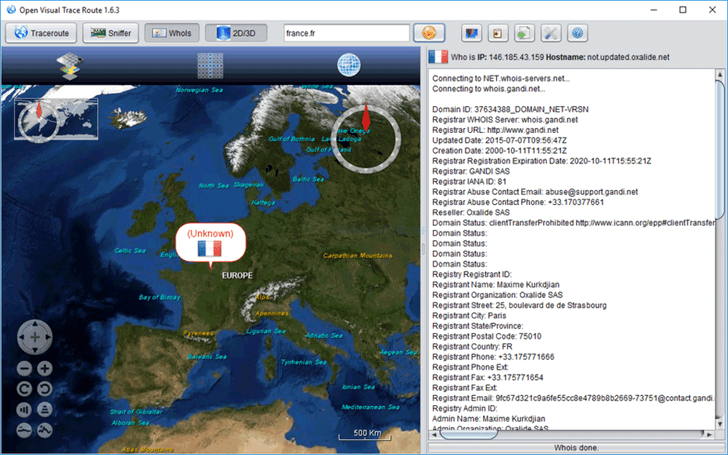
Open Visual Traceroute is one of the best traceroute programs and one of the few tools available for Windows 10 that allows you to get public information about a domain. In addition to working as a perfect network analyzer, it can measure the packet’s transit delays, display network route, and act as a 3D and 2D map visualization tool.

Its most important features are the Network Packet Sniffer and Whois. Network packet sniffer allows you to see what data is being sent back and forth from your system to the internet while Whois allows you to get public information about a certain domain.

Open visual traceroute is a revolutionary application that is fast, convenient, and most importantly; it’s completely free and open-source.

Get Open Visual Traceroute

3D Traceroute

visual_traceroute_software_3d_traceroute

3D Traceroute is a free utility for Windows computers that works great at detecting many aspects of internet connections.

At times, connecting to some sites might take too long or not connect at all. In such cases, 3D traceroute can help you find out what’s happening behind the scenes. Just type in the IP or address of a remote server and it will display the route taken in an easy to understand 3D chart.

You will be able to see all the details such as details of all the servers en-route and the details about the time taken for each link. You can use the information provided to trace spammers, to determine the owner and the location of a website or even to diagnose slow connections.

Get 3D Traceroute 

As the name suggests, traceroute software are tools that help end users and technicians identify the problems associated with network connections.

These programs provide users with information such as the path followed by the host and the network, the time taken by the host to contact the server and other useful information for diagnosing network problems.

All the tools mentioned above are very popular and are available at no cost. If you need more advanced features, you might as well consider some paid traceroute programs such as VisualRoute.

However, the free tools mentioned above should provide enough information to resolve all your network problems and provide additional bonus information that might be of interest to you.

Microsoft’s Edge Add-ons website welcomes writing companion Wordtune

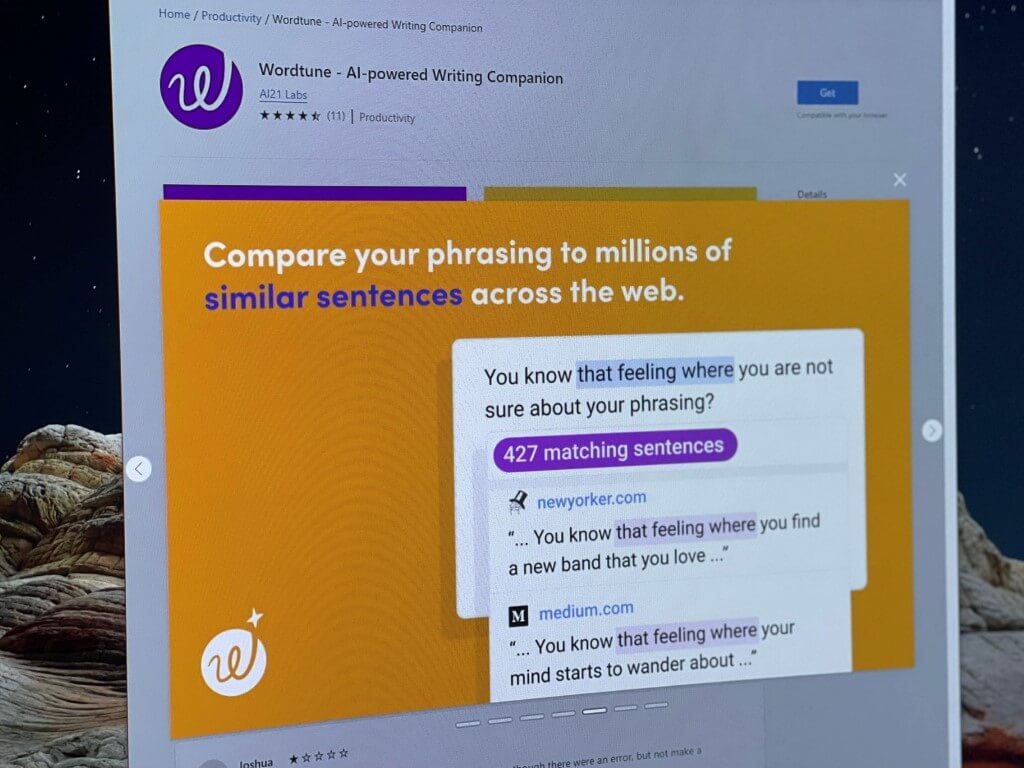
Microsoft’s web browser is getting yet another new useful add-on. Wordtune, an AI-powered writing extension is now available as a download on the Microsoft Edge add-ons website, helping give you more ways than one to rephrase sentences and improve your writing.

A bit like Grammarly and Microsoft Editor, WordTune understands what you’re typing and suggests ways to make your writing clear. It can show you ways to rephrase sentences to be more concise, and also integrates with pasted text so that your words are more authentic. Other features include a word finder which helps you find missing words in sentences, and the ability to show you examples of writing from trusted sources.

WordTune works across various places, most of which are covered by Grammarly and Microsoft Editor. Gmail, Google Docs, Outlook on the web, Facebook, Twitter, LinkedIn, Whatsapp on the web, and Slack are just a few examples. This does appear to be a new service, and it might be worth checking out if English isn’t your native language.

5 Best Kindergarten Management Software [2026 Guide]

School management software is an important tool to have now more than ever for educational institutions at all levels, whether it’s pre-school, kindergarten, primary, secondary or even college and campus.

This software is designed specifically to streamline the paperless administration of educational institutions, with modules that help teachers and staff to maintain student records like academic history and other pertinent information.

A good school management system unifies different departments and/or functions that can also be accessed remotely or via a network, but web-based school management software is today the best way to manage schools productively, systematically and in an organized way.

In order to run a kindergarten school, you need a comprehensive kindergarten management software to help staff keep records, store data and streamline academic processes, so as to automate them efficiently, and teachers or admins can get back to what matters most – the students.

Some of the benefits of having a fully-featured kindergarten management software include efficient information management, easy and faster communication, user-friendly, hassle-free to use, information tracking, access by teachers and parents, transparency, plus management of complaints and queries is enhanced.

Here are 5 of the best kindergarten management software.

Kindergarten management tools that ease your work

Skyward

kindergarten management software

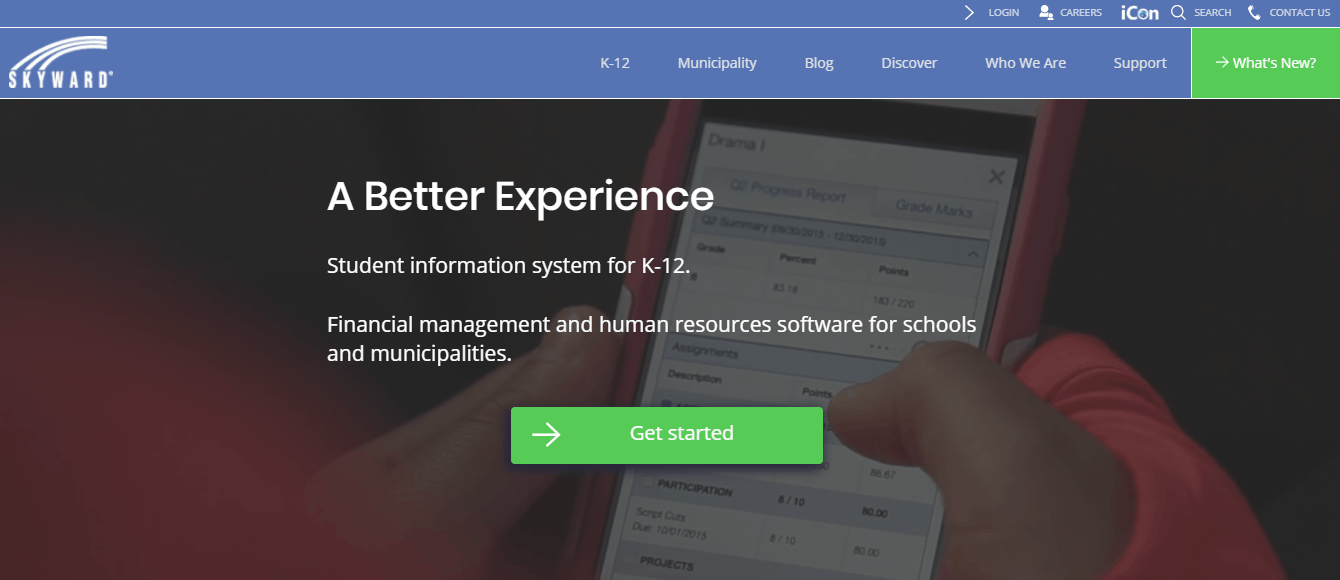
This is a student management suite that lets you effectively perform student data management like accessing student records, including IEPs, goals and learning objectives through a unified system.

Skyward kindergarten management software offers advantages such as file sharing so you can easily share student records and IEPs with stakeholders including parents, teachers or administrators, track meetings and distribute meeting notifications or deadlines to relevant staff, track Medicaid reimbursement and generate proper billing documentation, plus ensure compliance with state and federal regulations using built-in compliance checks.

Other features of this software that make it the best include automated notifications and documentation workflows based on your program’s needs, reporting capabilities to generate comprehensive and customized reports as necessary, plus it integrates with student records and student information systems for a single, unified source for student documentation.

Get Skyward kindergarten management software

Renweb

kindergarten management software

This kindergarten management software touts itself as the leader in school management software, what with its 4000+ schools database and over 15 years in unparalleled school information management system services.

This tool provides anywhere access for students and parents via smart devices, while schools enjoy the turn-key data conversion and system setup, unlimited free training, and unlimited customer support via live phones and online chat.

Together with FACTS, RenWeb offers the first end-to-end financial and school management solution for schools, so your kindergarten can use deeply integrated systems to manage the entire student lifecycle, from application to re-enrollment.

Its features include integrated value-added services such as FACTS payment plans, financial aid assessment, web designs and hosting, online admissions and re-enrollment, emergency alert services, learning management systems, and it is mobile ready for school administrators, teachers, students, and parents, which means you can access RenWeb anytime, anywhere.

Teachers get free apps for performing their classroom duties via iPads, iPhones, and Android phones. The new RenWeb 1 provides any school administrator or teacher complete access to RenWeb across any mobile tablet, including Chromebooks and Kindles, plus new capabilities like Standards Mapping and Standards-Based Grading.

Other features your kindergarten will benefit from include online trainings, turn-key data conversion and system setup, customer support, online application process, donor connect to automate donor management, parent alert, management of payments using Pay Now so parents can pay fees and tuition using credit card or bank details.

It also has a customization kit so you can take your commonly used documents and forms and customize them to your school’s look and feel.

Get RenWeb kindergarten management software

PowerSchool

kindergarten management software

This kindergarten management software helps teachers identify critical times that make a different in children’s future, by breaking down any barriers that affect learning.

It is the number one leading education technology platform for K-12 serving over 24.5 million students, 43 million parents and 68 million users in more than 70 countries globally. It provides the industry’s first Unified Classroom experience with secure, compliant online solutions such as registration, school choice, SIS, LMS, and classroom collaboration, assessment, analytics and special education management.

Features include SIS, which offers a clean and intuitive interface with powerful tools and resources that help teachers and administrators to manage grading, manage students and classrooms. It also manages the daily operations for student data management seamlessly.

It also offers analytics data system to help educators make data-driven decisions on instruction, curriculum and professional development, while providing data insights to inform decisions including visual illustrations, comparative analysis of long-term academic performance, state and attendance data, as well as intervention data.

Educators can also address the areas requiring additional support both for students and teachers, plus identify weak areas at school, district or even classroom level.

The good thing is PowerSchool software is cloud-based so teachers get real-time student interaction inside and outside the classroom, so there’s more social and collaborative learning, and they can create and deliver rich content with lessons, receive digital files from students, and provide comments, feedback and grades electronically.

Get PowerSchool kindergarten management software

Karellen

karellen kindergarten software

If you’re looking for a good kindergarten software, you might be interested in Karellen. This service is completely online, and you can access it from any device. Of course, there’s a dedicated app available for iPhone and iPad.

The application has a student database, allowing you to easily keep track of basic information such as attendance, meals, sleep, food consumption, and health and safety information. Of course, there’s also an employee database that provides you with basic information related to the employees. Thanks to this feature, you can easily check employee background information. As for additional information, you can see each employee arrival and departure as well as interview records.

There’s also a guardian’s database, so you can easily see all the necessary information related to family members. Thanks to this database, the guardians can see information about schools attendance or send messages.

Karellen also has a billing system allowing you to easily see the billing overview for each month as well as detailed information related to each billing item. It’s worth mentioning that the service has a built-in communication system allow you to send messages or emails to parents with ease.

Another great feature of Karellen is its document storage feature that allows you to easily store photos and tag children, events, teachers or classrooms. Overall, Karellen is a great kindergarten service, so you might want to check it out:

Overview:

  • Student, employee and guardian database
  • Built-in billing system that allows you to see detailed billing reports
  • Built-in communications system
  • Ability to store and tag pictures
  • Available on any platform

Get Karellen today

SimTrain

kindergarten management software

This kindergarten management software provides a complete and easy to use platform that lets anyone manage school professionally. It is total web-based, software solution that works with any size of school, large or small, to address unique needs of kindergartens and other educational institutions.

With SimTrain you can keep track of everyone in your school from teachers, staffs, students and parents, while receiving reports on attendance, tutor performance, center performance, tutor commission and student performance with less headache, and it also helps save time and get more work done.

It also lets you manage students’ payment and issues official receipts without hassles including outstanding payment, advanced and partial payments, discounts and add-on items or charges.

Features include a parents’ module which gives them access to their children’s performances, payroll management, teacher/staff and students management, class scheduling and rescheduling (with automatic timetable computing), management of multiple branches, student card generation, audit trails, class and result management, inventory management, reports and much more.

With this software, you can create student profiles for the little ones where you can input everything about them into the system.

You can also add, edit and delete students, complete students’ biodata with photo, register multiple addresses for transportation, register parent’s name and contact, easily register students, make payments, track performance, and print students’ cards with bar codes.

Get SimTrain kindergarten management software

Tip: When looking for the best kindergarten management software, consider its user-friendliness, assistance from the software vendors to manage the data stored, software integration features, backup and security functions (check if cloud backup is enabled), remote access and networking capabilities, plus scalability for student and faculty sizes.

Are you already using any of these kindergarten management software? Let us know your experience, and which one you use by leaving a comment in the section below.

Dell brings 11th Gen H-series to XPS 15 and 17 with RTX GPU options

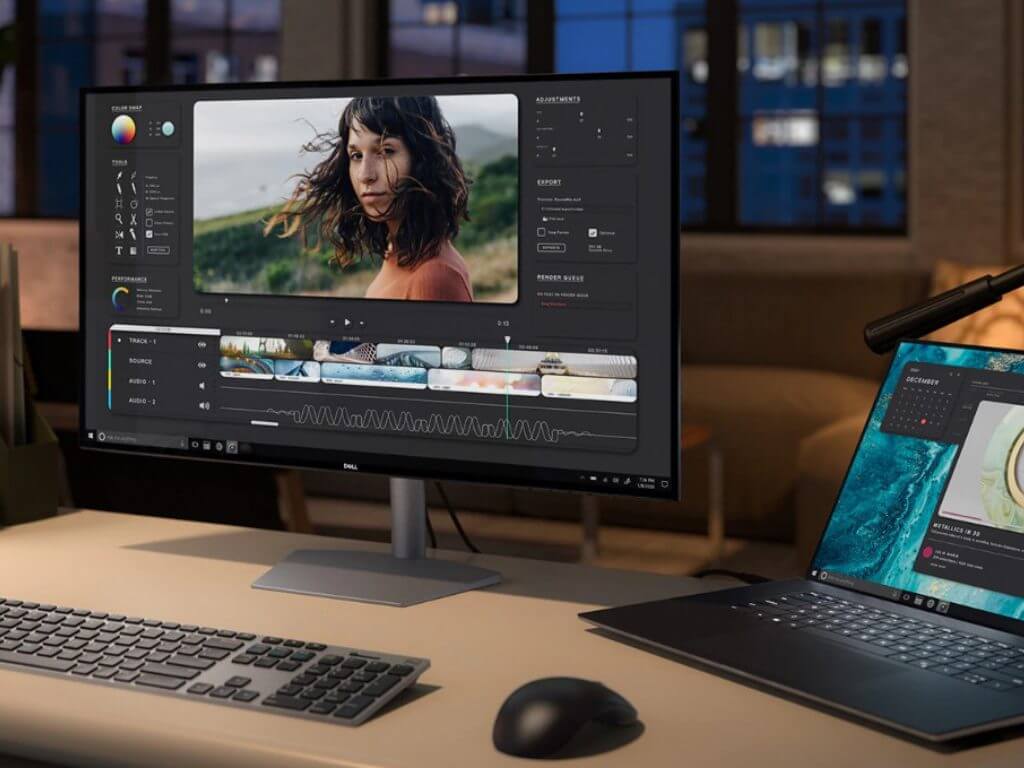
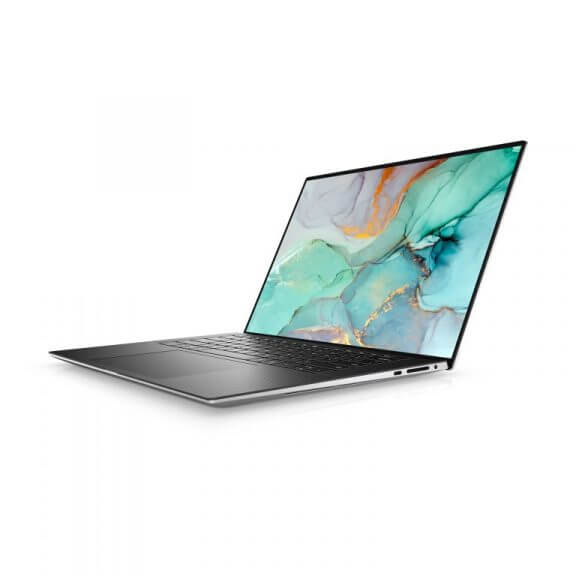
Dell updated its flagship XPS 13 laptop earlier this year and is now getting trickling down those upgrades to its larger 15 and 17-inch models today.

In conjunction with Intel unveiling its improved 11th Gen H-series chips, Dell announced that its XPS 15 and 17-inch models will come equipped with the latest Tiger Lake H-series chips.

Intel’s H-series chips represents the company’s mass production of 10nm processors for grand consumption with boosted six-core performance.

Xps 17 Closing Bottom Up Interior

Other internal upgrades include more powerful GPU options such as NVIDIA’s RTX 3050, 3050 Ti, 60W RTX 3050 and 70W RTX 3060.

As for the physical upgrades to the XPS 15 and 17, there are minimal changes to its historic chassis this year. Thanks to slim bezel profile, Dell continues to sell the smallest 15 and 17-inch laptops in the market, and the 2021 variants retain their legendary 93.7% screen-to-body ratios this year.

Dell is also moving to a 16:10 aspect ratio for its InfinityEdge display for both the 15.6 and 17-inch models as well options for 4K with 100% Adobe RGB color options or 3.5K OLED displays with 400 and 500 nits of brightness.

Xps 15 Front White

Since the chassis has remained relatively untouched, port selection remains intact from last year’s model to include 2 Thunderbolt ports, full sized SD card slot, 1 USB Type-C and 3.5mm headphone/mic jack combo.

Dell is also packing a 90W or 130W AC adapter in the box to power its 56 or 86WHr battery which should get most users through a day, depending on screen tech.

Xps 15 Left Angle Black

Dell’s XPS 15 and 17 are still TBD regarding availability but should start at around $1,249.99 and $1,449.99 respectively when they do hit shelves.

Dell also unveiled some peripherals to boost the productivity of its new XPS 15 and 17 in its Dell 32 4K USB-C Hub Monitor and active noise cancelling Dell Premier Wireless ANC headsets.

4K USB-C Hub Monitor

The new Dell 4K USB-C Hub Monitor pushes a 31.5-inch 4K resolution screen with IPS technology, built-in low blue light screen. The monitor can be tilted, pivoted and swirls for a customized view and added comfortability.

Dell 4K USB-C Hub Monitor + ANC Headset

More specifically, the color gamut is marked at 99% sRGB, support of 1.07 billion colors, up to 8 ms response time, and anti-glare treatment. Regarding port (or ‘Hub’ capabilities) selections, the Dell Hub monitor includes a DisplayPort 1.4, HDMI 2.0 port, USB Type-C Gen 1, 4 USB 6Gbps ports and single HDMI (HDCP 1.4).

Dell Premier Wireless ANC Headset

Starting at $299.99

With practically every OEM releasing their versions of ANC headset, Dell’s $299.99 come at a great time for fans of Dell’s craftsmanship.

Unfortunately, the Dell Premier Wireless ANC headsets are more conference or telemarketing-type headset than they are Sony or Bose competitors.

However, the DPW’s come with smart sensor technology to help resume calls and audio fell more natural with automatically announced connection statuses, talk time, and mute status. There are also easy call controls that include mute controls, volume, and redial functions built into the headset’s buttons.

According to Dell, talk time on the DPW’s is up to 12 hours and 10 hours with ANC and up to 30m (98ft) wireless range.

The Dell Premier Wireless ANC headset should be available starting June 25, 2021.

Microsoft Teams now lets Meeting participants search for attendees in the roster

Microsoft announced its plans to revamp the Microsoft Teams participant roster back in March this year. The company has now started rolling out this update to its Teams apps on the web and desktop, according to the Microsoft 365 roadmap.

The improved search experience in the participant roster replaces the existing dropdown menu with an intelligent search field. Interestingly, the new search field now acts as a filter and allows users to find in-meeting attendees and take action on them directly from the participant roster. The app still provides an option to search for people and request them they join the ongoing meeting.

Controls

Furthermore, Microsoft has also made some changes to the way the list of participants appears during Teams meetings. The meeting roster will now display a maximum of 20 participants for the lobby, attendees participant, in meeting, and presenters sections. However, organizers will be able to check out the full list of participants in the lobby view before admitting them into the meeting.

Participant pane - new

The new features started rolling out last week, and the deployment should be complete in mid-May. It is also worth noting that these changes aren’t available for the Teams mobile apps. Have you spotted the new search experience on your PCs? Let us know in the comments down below.

Lie Detector Software with Voice Stress Analysis

The truth is that people lie and sometimes do it quite efficiently, which is why organizations are keen to identify deception.

Although there are lots of technologies that have been developed to determine if a person is lying, most experts agree: no foolproof method of lie detection exists.

This is saying a lot: since the early 1900s, experts have tried everything from measuring the changes in one’s blood pressure to linguistic and voice analysis, and many other methods.

Voice analysis

Usually, lie detection software uses voice analysis solutions: layered voice analysis able to identify various types of stress levels, emotional reactions and cognitive processes reflected in the subject’s voice.

Researchers found that the frequencies of the human voice are sensitive to honesty. For instance, when someone is being honest, the average sound in that range will generally be below 10Hz and will be above 10Hz only when dishonesty is prevalent.

All the muscles in our body, including our vocal chords, vibrate in the 8 to 12Hz range. This is usually considered a feedback loop and is similar to a thermostat/heater that maintains an average temperature by oscillating between higher and lower temperatures. In that same way, our muscles tighten and loosen to maintain constant tension.

When we are stressed – telling a lie, for instance, and not wanting to get caught – our body prepares for fight or flight by increasing the readiness of its muscles to spring into action. The vibration will increase from the relaxed 8 to 9 Hz to the stressful 11 to 12 Hz range.

Such vibrations are a measure of stress levels that will change from one moment to another. You surely know by now that stress can be brought up by a mere memory.

Some people have average stress levels while other people have low levels. What they all have in common is the fact that their stress levels change all the time within their current range.

Usually, the lie detection software for PCs looks for shifts in the voice and can turn out to be very reliable truth verification tools.

What are the best lie detection tools for Windows 10?

X13-VSA Voice Lie Detector Software

This tool promises to be the world’s number one voice stress analyzer. The software is a fully computerized voice stress analyzer that will enable users to detect the truth. The greatest thing is that it works in any language.

X13-VSA promises to be the only lie detection software you can trust completely while being the most advanced and cheapest VSA system in the world. The software uses state-of-the-art technology along with a high-accuracy, easy-to-use Voice Analysis Technology.

X13-VSA is an innovative, advanced and sophisticated software system that is a fully computerized voice stress analyzer that allows you to detect the truth on the spot. It is based on an intelligent algorithm that detects vocal stress.

The tool is a voice emotion analyzer that is capable of detecting deception and lies using the latest technology. It can also detect lies you hear on Skype.

The X13-VSA technology was initially developed for military use, and now you can use the same technology to detect deception. The software is a bright and elegant one and also easy to use.

Professional studies have shown that the software’s validity, accuracy, and reliability is around 97%.

You can buy the X13-VSA Voice Lie Detector Software for $179.00, down from $299.00

Lie Detector Software eX-Sense – Voice Stress Analysis

Through voice alone, the tool can determine whether your subject has any doubts, what exactly is troubling them in a conversation, and if they are sincere.

With its help, you can turn your computer into a polygraph you can use to analyze live conversations and interviews using your computer microphone.

Phone conversations are straightforward to interpret because of their quality, and recorded phone conversations will offer you the opportunity to take your time for a more sophisticated analysis.

You can also find out who is telling the truth on recorded or on live television. You should know that digital TV offers great quality, perfect for analyzing lies and deception.

The tool uses the Sense Technology, one of the most advanced technologies in the world for voice analysis. It uses Layered Voice Analysis to listen to the minute changes that occur in the human voice.

Sense is able to analyze different layers in the voice while also providing an in-depth view into the subject’s range of emotions.

The tool’s technology is a poly-layer voice analysis that users more parameters gathered from each speech segment.

Its VoiceGraph technology is tuned in a such a way to expose extreme emotional situations that are usually associated with lies and deception.

The VoiceGraph analysis is displayed on a single bar that will change its color from green to red according to the emotional intensity associated with lying. This makes it extremely useful for recorded conversations.

The tool also uses VoiceGraph to judge the likelihood of deception and this feature better makes it helpful for analyzing an ongoing conversation.

The tool also includes something more: a Love Detector mode! The Love Detection voice algorithm is the result of four years of studies and research.  You can finally make sure your new relationships are on the right track. Find out how interested the other party really is!

Love (or lust) changes our voice dramatically. We become more excited and more concentrated when we speak with the one we want. eX-Sense can detect this in no time flat!

You can buy the eX-Sense lie detector software for $129.00, down from $199.99.

These two tools will help you detect if a person is telling the truth or not. If you’ve used other voice polygraph tools that you think we should include on this list, let us know in the comments below.

Dell’s commercial PCs pack 97Whr batteries, Thunderbolt 4 ports, and 128GB of memory

Dell Latitude 5421 & 5521

Starting at $1,449.00

Dell’s commercial offering also got some spec bumps in 2021 starting with the Lattitude 5421 and 5521, support of up to 64GB of DDR4 memory, 2TB and 4TB of storage on a 15-inch FHD panel pushing 400 nits of screen brightness.

As with most devices coming out in 2021, Dell’s tossing in the 11th gen Intel core TigerLake H-series chip into its Latitudes ranging from i5 to i7 vPro 8-core.

According to Dell, the “Latitude 5000 Series laptops were the first PCs to use reclaimed carbon fiber in the design and are the first to use 21% bioplastics from trees in the lid. The manufacturing creates a lower carbon and water footprint, reducing CO2 emissions equal to 24.2 million miles driven, saving energy to power 5,564 homes for 1 yr., and conserving enough water to fill 226 Olympic-size pools.18”

Latitude 5521 Open And Closed

Since it’s a productivity line, Dell is also equipping its Latitude laptops with a 97Whr battery and switching its dual USB Type C port setup to Thunderbolt 4 support.

Other connectivity includes Wi-Fi 6E with support up to 7 channels in 6GHz band as well as 4G LTE and ExpressSign-In through proximity sensors and Windows Hello. Dell also tweaked its audio with its new Intelligent Audio platform to help reduce background noise for video conferencing.

Dell will also include a litany of security features for the Latitude lineup that includes:

  • TPM 2.0 FIPS 140-2 Certified, TCG Certified
    Optional Windows Hello Compliant Fingerprint Reader in power button
  • Optional Security Hardware Authentication Bundles
    1: Touch Fingerprint Reader (in Power Button) with Control Vault 3.0
    Advanced Authentication with FIPS 140-2 Level 3 Certification
  • 2: Contacted Smart Card with Control Vault 3.0 Advanced Authentication
    with FIPS 140-2 Level 3 Certification
  • 3: Touch Fingerprint Reader (in Power Button) and Contacted Smart Card
    with Control Vault 3.0 Advanced Authentication with FIPS 140-2 Level 3
    Certification
  • 4: Contacted Smart Card, Contactless Smart Card NFC and Control Vault
    3.0 Advanced Authentication with FIPS 140-2 Level 3 Certification
  • 5: Touch Fingerprint Reader (in Power Button), Contacted Smart
    Card, Contactless Smart Card NFC and Control Vault 3.0 Advanced
    Authentication with FIPS 140-2 Level 3 Certification
  • Optional ExpressSign-in with Face IR camera (Windows Hello compliant)
    and Proximity Sensor
  • Dell Client Command Suite
  • Dell BIOS Verification
  • Optional Dell Endpoint Security and Management Software
  • VMware Carbon Black Endpoint Standard
  • VMware Carbon Black Endpoint Standard + Secureworks Threat Detection and Response
  • Dell Encryption Enterprise
  • Dell Encryption Personal
    Carbonite
  • VMware Workspace ONE
  • Absolute® Endpoint Visibility and Control
  • Netskope
  • Dell Supply Chain Defense
  • Chassis Intrusion Detection
  • Battery Removal Detection

Dell Precision

  • Precision 3450
  • Precision 3561
  • Precision 3650
  • Precision 5560
  • Precision 5760
  • Precision 7560
  • Precision 7760

Starting at $1,119.00

Dell’s Precision lineup cross both laptop and desktop stations and both are getting some upgrades in 2021.

For Precision laptops Dell is offering variants and configurations with 11th generation Intel Core H-series chips with varying numbers of threads.

The Precision lineup can be packed with an Intel i9 and up to 16 threads with support for 5.00GHz boost. Buyers can also load up the laptop versions of the Precision lineups with NVIDA T600 or T1200 graphics alongside the built-in Xe Intel set.

Precision Mobile Workstations 5560 And 5760

Between seven variants, buyers can also find themselves choosing between 15.6 and 17-inch displays with support up to UHD, 100% sRGB, anti-glare and 500 nits of brightness. The Precision laptops still sport some pretty noticeable bezels but the clarity of the screen, sorta makes up for it

Similar to the Latitude, the Precision also are improving their Thunderbolt game by adding 2 supported slots for it as well as 2 USB 3.2 Gen 1 Type A ports.

Memory and storage options are also bumped to 64GB for memory and 2TB PCIe NVMe Gen 4×4 on the high end.

The Precision lineup will also support optional LTE Cat9 WWAN, Windows Hello boosted by proximity sensor.

Dell’s most touted achievement for the Precision line is its software optimizations.

New Dell Precision workstations feature Dell Optimizer for Precision, which is AI-based software that learns how you work and adapts to your style to create a smarter, more-personal experience.

The result? Improved system responsiveness, better application performance, smarter use of battery power, reliable network connectivity, optimized storage as well as reporting and analytics to help identify bottlenecks and other options to improve system performance. A

ll from a single console that you manage from WorkspaceOne or Dell SCCM—allowing IT staff to deploy, configure, update, and monitor Optimizer remotely.

Lastly, Precision laptops should come with 90W E5 and 130W E5 Type-C Power Adapter.

Precision Towers and OptiPlex

Starting at $759

For those who have the room, Dell is also updating its tower workstations in its Precision 3000-series and OptiPlex 5000 and 7000 lineups.

Dell is loading up its tower workstations in preparation for augmented reality, CAD, and 3D animation workflows with 11th gen Intel Core i9 processors, 125W CPU and up to 128GB of 3200MHz DDR4 RAM.

The new tower is optimized for commercial virtual reality experiences. Designed to support high-end, ready for VR, 220W-class graphics cards, including NVIDIA® GEForce® RTX 3070, the tower can tackle graphic intensive workloads easily.

Dell is also touting the OptiPlex’s new ‘closed loop recycling aluminum construction, which reduces the overall weight profile by 20% and made from post-consumer recyclable (PCR) content. According to Dell the OptiPlex 7090 Tower and 7090 Small Form Factor are made of this new sustainable machining method, in addition to its other sustainability efforts that include its XPS 5 and 17 being EPEAT Gold certified.

Optiplex Home Office Setting Working 4

Due to its form factor, buyers can look forward to a plethora of ports that include a RJ45 Ethernet port, 2 displayPort 1.4 ports, five USB-A ports, two USB Type-C, VGA port and in the tower variant additional 8x DVD-ROM/DVD+/-RW optical drive.

Dell’s also updating its Micro Towers which were made available starting May 7, 2021 and at the super pocket-friendly $480.28.

Dell’s Alienware lineup brings GeForce RTX 30680 and Cherry MX keyboards to m15 R6 and G15

Alienware m15 R6, m17 & G15

Starting at $1,299.99

While PC gaming is still considered a niche platform for now, Dell is definitely not treating this year’s upgrade as one.

Dell is introducing its first AMD powered Alienware laptop in a decade in 2021, and paying homage to its flagship lineup with a new Alienware m15 R6 and m17 that come with 10th gen Intel Core mobile processors, up to NVIDIA GeForce RTX 3080 laptop GPUs and Dell’s HyperEfficient Voltage Regulation technology for better battery performance.

Buyers can load up their mobile rig with up to 4TB of storage, micro-SD card reader, Thunderbolt 3 support and Dell’s patented Cherry MX keyboard.

Upon experimenting with an array of material and mechanical changes across 160+ prototypes, Alienware and Cherry MX co-developed a 3.5mm ultra-low-profile design that incorporates stainless-steel mechanical components for an experience like no other. Inspired by the upward-opening gull-wing doors of the iconic DeLorean sports car, the goal was to engineer the keyboard to be an extension of the gamer’s senses and allow you to press deeper with more emphasis.

Dell Transparent Cherry Mx

In addition to the modernized keyboard input, the m15 will also support RGB lighting and anti-ghosting technology.

Screenshot 2021 05 11 084136

Other notable gaming tech stuffed into the m15 is support for Wi-Fi 6 AX1650, HDMI 2.1 port for native 4K/120Hz on external displays, FHD 360Hz, QHD 240hz, or FHD 165Hz display options.

Dell will also have more information about its Alienware X-series in the coming months, but as a bit of a teaser we know that it will support Element 31 thermal interface material made of Gallium-Silicone matrix to improve heating. Following the thermal overhaul, the X-series will also introduce a quad-fan, patent pending, design that drastically improves airflow, along with NVIDIA GeForce RTX 30-series graphics.

Tune into Dell’s Twitch stream for more information on its Alienware X-Series.

For more traditional gaming fare, Dell is updating its G15 this year with support for Intel’s 6-core 11th gen processors, turbo boost with Game Shift, narrower bezels on its 15.6″ Full HD at 165Hz display panels, immersive nahimic 3D audio and comes in Dark Shadow Grey, Specter Green and Phantom Grey.

Available June 3, 2021.

Wondershare PDFelement Pro: A complete PDF management tool

PDF files (short for Portable Data Format), is a file format created to present documents, including text formatting and images, in a way that makes the information accessible regardless of the software reading it.

Because of the file format’s versatility, it is very popular around the world, becoming a standard when it comes to document sharing, especially if they are rich in other visual elements.

All things considered, having a software tool that can do pretty much anything you need to a PDF can be vital, and that is why we will be briefly looking over Wondershare PDFelement Pro.

PDFelement is a complete PDF solution for Windows, Mac, iOS & Android, with the latest addition to this software line being PDFelement Pro for Windows.

This new tool allows you to Edit PDFs faster and easier, while still retaining the same similar functionality and feeling of the other PDFelement programs.

What are Wondershare PDFelement Pro’s features?

Create PDF files from scratch

The first step in managing PDF files is having one to begin with, and PDFelement Pro gives you the freedom to convert or scan to PDF pretty much any file format imaginable, regardless of whether they are a text format, image, spreadsheet, or a mix of the above.

Since the PDF format is the same at a universal level, this will make the presented data available for view on any PDF reader, regardless of the device.

Convert PDFs

Sometimes your document is all set, like an elaborate Microsoft Word document that has texts, images, tables, charts, etc, and all you need to do is convert it to PDF.

This can be easily done with PDFelement Pro, but keep in mind that it isn’t limited to digital conversions only, as it can also create high-quality PDF files from document scans as well.

Comments and annotations made easy

PDFs are great for when you want to review information, since they allow you to create visible annotations and leave elaborate comments as to how the documents can be improved.

This is yet another feature that PDFelement Pro prides itself with, as it allows you to review and mark up PDFs via a wide variety of commenting tools, while also letting you access markups and view comments from a single menu.

Another neat feature that is somewhat derived from this tool is the ability to sign documents, allowing you to send PDFs to others so that they can give their signature for operations like fulfilling contracts.

Edit documents from the ground up

Despite feeling very lightweight, PDFelement Pro feels like a professional PDF editing tool when it comes to the number of tools alone.

White text, delete existing paragraphs, reposition images, underline sections, add URLs and attachments, all from a single simplified toolbar that feels like your native text editor.

PDF OCR

Sometimes documents need to be transformed into editable text, and this can be especially tricky when you’re dealing with scanned documents that may have had printing issues.

That’s why PDFElement Pro’s OCR feature can be really helpful, since it can efficiently recognize characters and turn them into editable text within a few seconds, even if the font may be uncommon.

This also works with text from scanned images, and as of the writing of this article PDFelement Pro’s OCR supports 23 different languages.

One extra feature that is derived from the OCR is the software’s ability to recognize forms, allowing you to reorganize the data into editable tables and forms.

Lastly, PDFelement Pro’s OCR is so advanced that it doesn’t limit itself to recognizing regular text, as it can easily distinguish handwritten signatures as well.

Note: The OCR component needs to be downloaded separately, although you only need to do this the first time using it.

Optimize PDFs

If storage space is of great importance to you, PDFelement Pro has a tool that can help you compress the file with none or minimal quality loss, and it’s called Optimize PDF.

This feature lets you choose between 3 settings:

  • High compression, low quality
  • Medium compression, medium quality
  • Low compression, high quality

Combine PDFs

Once your PDF files have been created and edited to suit your liking, you can combine them into a singular document easily with just a few clicks.

Just select the Combine PDF tool, browse for the source PDFs, define the page range, and then hit Apply.

All of the above, in batches

While all of the above-mentioned tools are made to be as simple as possible, no process can still be deemed simple if you’re dealing with 100 documents at a time.

Fortunately enough, PDFelement Pro comes with a tool that allows you to apply each of the aforementioned tools on multiple documents simultaneously, sparing you the hassle of processing them one by one.

That being said, if you want to use the OCR on 100 files, simply hit Batch PDF, browse for their location, select the recognized language, and press Apply

Try it before you buy it

With such an impressive array of tools, one would expect that PDFelement Pro comes with a premium-level price tag attached to it, but that is surprisingly not the case at all, as it can be downloaded for free, and some of the features are free as well.

However, keep in mind that all PDFs processed with PDFelement Pro will come with a watermark.

Additionally, only the Pro version has the more  advanced functions (OCR, batch processing, and data extraction).

For those of you that do want to gain the full benefits and capabilities of Wondershare PDFelement Pro, know that it is available in two different price plans;

  • Annual plan: $79/year
  • Lifetime license: $129
PDFelement Pro

PDFelement Pro

Create, edit, optimize, convert, and do pretty much whatever you want with PDF files by using this tool!
Free trialVisit website

This concludes our brief overview of Wondershare PDFelement Pro, and we have to admit that we are impressed with what it can do.

Give the free trial a go and let us know what you think by leaving your feedback in the comments section below.

Best privacy lock software for Windows 7 PCs

Most of us don’t really worry about the data we save on our PCs or laptops and would not even consider protecting it. Not protecting our data can cause serious issues – losing files forever, valuable information stolen, etc.

There is also the possibility that your friends or family accidentally delete files when using your computer. Or there is even the possibility of getting attacked by hackers with the aim of stealing and manipulating your personal data.

Windows 7 doesn’t give you the option to lock individual folders with passwords without installing third party software. Even thought there is an option to hide folders on Windows 7, it has little to no use because of the fact that the folder can easily be un-hidden and accessed.

In this article, we will explore the top five folder locker software available for Windows 7 to hide your files from prying eyes.

5 tools to protect your files and folders on Windows 7

FolderLock

FolderLock - Privacy for Win 7

Folder Lock was designed to offer you the capability to protect your files and folders by encrypting them, using online backup features, etc. Using this software allows you to even shred files and also clear your history.

This app offers two-way encryption allowing you to backup your encrypted files in the cloud. This feature lets you create a password protected backup so that the information is secured and protected at all times. With this feature you can restore your data even if your PC gets stolen or if files get deleted.

One of the best features of FolderLock is that it offers you the possibility to create digital wallets. You can store information such as banking details, credit cards, transactions, ATM pin, etc.

Sometimes we need to get rid of a file for good, and the Shred feature found in FolderLock can do just that. Using this option deletes your files permanently from your hard disk and can’t be recovered even by using specialized recovery software.

AxCrypt

AxCrypt- Privacy Lock win 7

AxCrypt was born in 2001 when the creators wanted to share confidential data online, and couldn’t find a good option of software. They created this tool to be simple and easy to use but also powerful.

Key features include:

  • Strong encryption – 128-bit/256-bit AES encryption
  • Cloud support
  • Secured files can be opened by other AxCrypt users
  • AxCrypt Mobile — you can open encrypted files on your phone.

To set up AxCrypt on your Windows 7 PC, you will need to download and install it, then create an account. To finish the process, you need to choose a password after entering the activation code.

AxCrypt is very easy to use. You need to select one or more files  that you would like to encrypt, and right-click on it.  If you want to open files for viewing you can double click them.

AxCrypt has a built-in Key Sharing feature that allows you to share your secured files with other. In order to do so, you have to follow these simple steps :

  1. Choose the file you want to share.
  2. Add or select a contact.
  3. Click “OK” to give access to your file.
  4. Send the actual file to the recipient

AxCrypt’s also has a password manager that gives you the power to store all your passwords and codes online, without risking losing them forever.

Download AxCrypt

Easy File Locker

Easy File Locker - Privacy lock win 7

Easy File Locker is a light weight file lock software that can protect your files and folder with ease. This software allows you to have peace of mind knowing that nobody can open, read or modify your locked folders in any way.

Easy File Locker can also hide files and folders.The hidden files/folders will be totally invisible to all users and to any program.

This software comes with a password protected GUI and uninstaller so that once you set a password, no one will be able to access it or uninstall the software.

Download Easy File Locker

File Lock PEA

File Lock PEA -Privacy Lock win7

This program is another light-weight tool for password protection and encryption of your files and folders.

File Lock PEA is written in Java which means that you need a Java Runtime Environment — that is already installed on your PC in most cases.

File PEA encrypts files and folders with powerful encryption. This program allows you to protect  you anonymity and private data by using it’s efficient memory-hard key derivations.

This option of software is designed to handle several files or folders – it is not suitable for large amounts of data.

Download File Lock PEA

My Lockbox

my-lockbox - Privacy lock for win7

My Lockbox is another great security software that enables you to password protect any folder on your computer.

The protected folders are automatically hidden from any user and application of your system including Administrator and System itself.

This program is extremely easy to use. After you set the lockbox location on your PC and added a password, Lockbox will be hidden and inaccessible until you’ve entered the valid password.

Key features include:

  • Clear and convenient Ui in 10 languages
  • Hotkeys
  • Data protection without limitations
  • Password protection for locked data
  • Free edition can protect one folder with unlimited number of subfolders, and the professional edition protects unlimited number of folders
  • Safe online password recovery
  • Doesn’t allow you to lock systemfolders (C:Windows)
  • You can easily create backups
  • Works even in Windows safe mode
  • Great lookin UI
  • It’s freeware

Download My Lockbox

Conclusion

In this article, we listed 5 software options that allow you to lock your files and folders away from prying eyes. The tools presented here cover both complex and simple programs that encrypt the data on your Windows 7 PC.

These options can even backup your data online giving you unlimited access to your files.

What software did you choose to use from this list and why? Let us know in the comment section bellow.

Speaking of keeping your computer safe from prying eyes, you can also check out our series of guides on the best privacy software and hardware solutions to use today.

Important note: Microsoft officially ended Windows 7 support. As a result, some of the tools listed above may not run properly on this OS version. If you’re planning to upgrade to Windows 10, make sure to check out our wide collection of guides on how to make the transition as smooth as possible.

7 gaming forum software to create the next-gen online community

Before the invent of social media like Facebook and Twitter, the online community was on forums sharing their favorite bits like a new found software or helping other community members with their problems. Back in the days maintaining an online forum was a challenging task; however, things have changed for better in the last decade.

Today, setting up an online forum be it a gaming forum or a football enthusiast forum only requires a forum software, a hosting plan, and a domain. If you are an avid gamer looking for a gaming forum software, we have got you covered.

We have compared some of the best forum software based on their features and created this list of best gaming forum software so that you can spend most of your time creating an ultimate gaming community.

What features do I need in a gaming forum software?

The gaming forum software is like any other forum software, but some additional features may be required. If you want the users to upload short gameplay, then the ability to upload videos or embedded YouTube videos is needed.

Modern looking themes (templates), intuitive user interface, chat area, and personal message and semi-moderated debate session options are a few things that make the visitors stay for long and time and visit the forum regularly.

Here are a few things that you should consider in the best gaming forum software:

  • Admin / Moderate Control Panel 

Forums usually have a few admins but several moderators. Administrator control the whole operation while the moderators help admin keep the forum clean and running. Having separate control panel for moderators and admin is an essential feature to consider.

  • Rich Text Editor

Online forums are mostly about the text, but gaming forums thrive on the text as well as visual contents. Having a rich text editor with the option to add images and HTML support is one good way to promote the forum among new users.

  • Mobile Optimization

Most of the users on the internet prefer to use their mobile over PC. So, having a mobile-optimized responsive forum is recommended both in SEO and user experience perspective.

  • Spam Filter

Online forums are the most preferred target of spammers, so having a robust spam filter system integration is a must for hassle-free forum management.

  • User Ranking System

One of the best ways to increase user engagement in the forum is to have a ranking system for users. Users should be able to unlock new levels based on their interaction in the forum.

  • Profile Customization

Allowing the users to customize their profile with avatar and signature is an excellent way to create a unique fun-loving community.

Gaming forum software come in both free and paid versions. We have listed the price (where possible) along with features to help you find the best forum software that meets your requirement.

However, you do need to purchase web hosting to install forum scrip on the server.

What are the best gaming forum software to use in 2019?

phpBB

phpBB open source forum softtware

Pros

  • Free forum software
  • Plenty customization options for users and administrators
  • Anti-spam measures
  • private messaging
  • excellent collection of extensions (plugins)

Cons

  • Outdated looking themes
  • Poor SEO features

phpBB is the oldest and one of the most popular PHP based forum software. It is an open source project which means it is free to install and use. It enables the users to create and manage gaming forums with access to extensive administration panel with tons of customization options.

The basic functionalities offered pbpBB includes the ability to allow user registration, board creation, private message and profile customization to a new a few.

The phpBB community has detailed user documentation along with video tutorials to help the new user to get started with the software. There is a demo section on the official website which lets you try the forum and its functions in real time.

It offers two control panels for administrators and moderators. The admin can control all the aspects of the forum while the moderators can be limited to certain rights and access within the forum.

The availability of the vast selection of extensions enhances the usability of the forum by offering an extended set of functionalities.

What we didn’t like?

Themes/templates offered by phpBB seem a little outdated by today’s standard when compared to other bulletin boards like Discourse that has better-looking themes on offer. Other than that, phpBB is the best open-sources forum software that you can use to create a gaming forum with tons of customization options.

Get phpBB

Discourse

discourse forum software

Pros

  • Moder free open-source forum software
  • Built-in translator
  • Good SEO features
  • drag and drop multimedia support
  • Automatic Backups and CDN support
  • Excellent spam management
  • Well-designed admin panel

Cons

  • Poor tag management
  • Mailing List Mode UI needs improvement

Discourse is one of the latest entrants into the community forum software market but has amazed the users with its modern looks and sleek user interface.

Discourse is a free open-source project. So, for self-hosted sites, Discourse is completely free. Discourse does offer monthly plans for managed discourse community sites. And for those who are not good with unmanaged servers, discourse team can install the forum script on a self-hosted Digital Ocean droplet for a one-time fee of $99.

Being a modern community software, discourse does support third-party web-apps integration including Slack, WordPress, Zendesk, Patreon, and Matomo, etc.

Discourse does not break conversation into pages but offers in-time loading feature that expands discussion as the user scroll-dow. It also has dynamic notifications and is optimized for mobiles users.

The administrator panel offers quick insights into current developments in the community along with user statistics and user management options like bulk moderation, sitewide alters, ability to add private spaces and self-managing user groups, etc.

Simple Machine Forum

Simple Machine Forums best forum software

Pros

  • Excellent plugin system
  • Good template selection
  • Functional ACL
  • Security features include Anti-spam, IP address lock, and the CAPTCHA system
  • User statistics
  • Excellent community support

Cons

  • Average SEO features

Simple Machine Forum is php-based forum software with lost of hits and some misses. SMF has a long history, and the developers have been consistently releasing new updates with new features and bug fixes.

The user documentation has improved a lot over the years making it easier for new users to get hold of the program but the community support is where it excels.

SMF is known for its extensive collection of plugins which is second to none and also the package manager that makes it a breeze to update to new modules.

The administrators can manage boards, assign moderators and limit user access to boards or sub-boards. It also comes with built-in support for multiple languages.

What we didn’t like?

SMF does take some time getting used. The user interface is pretty basic, and the themes despite its huge collection are not on par with the modern templates on offer by modern bulletin board software.

MyBB

myBB Forum software

Pros

  • Well-designed administrator interface
  • Excellent collection for themes
  • Huge selection of plugins
  • MyBB Merge System help in easier migration from another forum software
  • Built-in translator
  • Compatible with Nginx and Apache servers

Cons

  • Spam-filtering system needs improvement

MyBB is an open-source community forum script that offers all the essential features you would need in a gaming forum software. MyBB Merge System is a migration feature for the users already running a forum on a different script and helps in easier migration to MyBB.

MyBB has maintained a standard discussion board structure for easy navigation. The users can customize their profile and along with the discussion board based on their personal liking.

In addition, MyBB makes it easy for the admins to allow their users to embed video from YouTube and other streaming sites. Users can also add polls, quote other users in reply and offers administrators a detailed control panel to control all the actions of the forum users.

The administrator panel offers full control over user management, access to user statistics, forum customization and also easy access to new plugins and themes. If you know CSS, you can use the theme editor to change the look and feel of the site as per your need.

vBulletin

vBulletin best paid forum software

Pros

  • Intuitive user interface
  • Built-in vB Messenger chat app
  • Good SEO features
  • Excellent spam prevention with Global mute feature
  • Mobile optimized and responsive design
  • Excellent administrative panel
  • Good collection of add-ons and themes

Cons

  • Expensive
  • Future upgrades are not free
  • expensive add-ons

vBulleting is the most popular paid community forum software. It comes in two version, vBulleting 5.0 Connect – costs $249 and is self-hosted and vBulletin Cloud – is a fully managed service and is charged on a monthly or yearly basis.

Forum features include an unlimited hierarchy of forums, the ability to create forums, admin tools, thread and forum subscription.

For the users, the vBulleting forum offers BB code and HTML support in posts, use emojis, add an avatar, rich text editor, multimedia attachment, poll option and post reporting.

On the editorial front, you have user management options, task scheduler, control panel, moderation option, customisation of the forum using the template with conditional support.

vBulletin is expensive and the fact that the future upgrades on self-hosted vBulletin forum are not free makes it a little difficult choice. But, apart from that, vBulletin is a fully featured community forum software with an excellent set of tools on offer.

Vanilla Forum

vanilla Forums best forum software

Pros

  • Open source free forum script
  • Basic plugin and themes on offer
  • Intuitive user interface
  • A functional administrator control panel
  • Social media integration

Cons

  • Limited themes and plugins
  • No way to know the premium plan pricing without contacting the CC

Vanilla Forum comes in two version, open source and premium fully managed plans. The basics of Vanilla Forums open source forum script is similar to other community board scripts where the users need to install and maintain the software on their own server manually.

The administrators can customize the look and feel of the site by editing the theme or simply installing one provided by Vanilla Forums. The user interface is modern and looks more appealing compared to the UI of phpBB or MyBB.

Vanilla Forums allows you to create a stunning forum using the limited number of themes and plugins. The forum members do get access to rich text editor along with auto-save draft option. There is an option to create private groups for users as well.

Vanilla Forums is a good choice for beginners but the company itself is not very active in promoting the Vanilla Forums open source project, or so as it seems from the official website. As the community grows, you can opt for premium plans if needed.

The company offers three premium plans, Business, Corporate and Enterprise. But the pricing will be decided based on user requirement. Do give it a shot to see if it is something you can work with.

WordPress Based Forum Software (Plugins)

All the forum software listed above are standalone forum scripts, but if you don’t want to manage a standalone forum software or want a forum alongside your already existing website, WordPress can help you.

WordPress is a popular content management system (CMS), and a lot of developers have created community forum plugins for WordPress that lets you create a fully functional forum in few clicks.

Some of the most popular WordPress based community forum plugins are, bbPress, wpForo Forum, and Asgaros Forum to name a few. These plugins act like add-ons and work with your existing WordPress installation.

wpForo Forums

wpForo Forum plugin

wpForo Forum is a WordPress plugin that lets you create a fully functional community forum right on top of your WordPress installation. It has all the features you need and is free to use.

Installation of wpForo Forum is like any other WordPress plugin. It has three types of Forum layouts, to begin with, but the layouts can be changed at any point of time without breaking the forum.

Administrators can customize the look of the forum by changing color, adding menu items along with sidebar widget for proper website look. wpForo also offers excellent user management that lets you set custom login and registration URL, user rating system and profile management.

The premium add-ons to wpForo allow you to embed media content, create polls, user customization, private message features and manage ads.

Asgaros Forum

Asgaros wordpress forum plugin

Asgaros Forum is a simple yet functional WordPress forum plugin for those wanting to extend their website with a lightweight discussion board without compromising on features.

Users can create profiles by registering on the forum, get notifications,  create new threads and reply to other users threads.

Asagros Forum offers a basic structure and content management system for administrators. In addition, it also provides basic user management features including access to the member’s list, permission management, and statistics. You can also add your own theme via FTP client.

Discussion Board

Discussion Board wordpress plugin

Discussion Board is another WordPress plugin that can add community forum functionality to your WordPress website. It comes with a host of features and delivers on its claims.

Users can register on the forum, post new topics and create a new page for separate topics.

On the user management front, the admins can control user action, assign roles to new users, limit spam registration, choose from three layouts and work with shortcodes.

There is a Pro version of Discussion Board as well that allows the users to add categories and tags, set topics as solved or open, customize user profiles, upload images, manual approval by admin and WYSIWYG editor.

bbPress

bbPress plugin

bbPress is an open-source community forum plugin developed by Automatic, the same company that runs WordPress.org and .com. The plugin allows you to create bulletin boards while focusing on ease of integration, latest web standard, and speed.

bbPress is an easy going WordPress extension that lets you create community forums with few clicks, but not a very ideal plugin to manage large communities.

Wrapping Up!

If you want a sophisticated gaming forum software or just a community forum software in general then phpBB, Discourse, and MyBB are some of the best choices.

However, if you simply want to extend your website with community forum functionality, try Discussion Board, wpForo Forums and Asgaros Forum plugin for WordPress as it is less resource hungry and also easier to maintain.

For those using Joomla can try Kunena  or EasyDiscuss while the Drupal users can check out Advanced Forum.

That’s about it. Hope we were able to help you find the best forum software with this guide. Do let us know your pick in the comments.

10 best text-to-speech apps for your Windows 10/11 device

There are many people interested in taking eLearning courses, to help them develop speech and literacy skills which will increase their chances to get a well-paid job. It’s very hard to overcome learning difficulties on your own, because you don’t know where to start, so you need guidance and direction to convert words into speech. Luckily, there are some text to speech software for eLearning you can use to improve and expand your vocabulary.

Why hiring an expensive narration professional to train you to communicate effectively with all levels of people, when you can use eLearning text and narration software to get the same results? The advantage of taking an eLearning course is that you will no longer feel inferior and defied, plus you’ll hear a warmer human voice over that will give you comfort.

It’s important to choose the right Text To Speech software, because if you’re dealing with learning disabilities and you have problems when reading, you’ll need to look for the best eLearning course guide. Today, we will talk about the most popular text to speech software that you can use at home, in your room, when no one’s around.

What are the best text-to-speech apps for Windows 10?

Dragon speech recognition software

Dragon speech recognition software was created by Nuance, and it is capable of accurately translating your voice into text without having to use your keyboard at all.

The tool is perfect for those who want to do stuff quickly, on the go. With over two decades of continuous development and thanks to the advanced AI, Dragon delivers over-the-top speech recognition.

When we talk about advanced AI, we mean really advanced, like Machine Learning. The software will adapt to your words and learn how to better distinguish between them.

This results in a crisp and clear translation, which in turn means that you will speak fluently, casually, and effortlessly.

Let’s have a look at Dragon’s main features:

  • Up to 99% speech recognition out of the box
  • Create, edit, and format documents with your voice
  • Use voice commands to navigate the Web or create Emails
  • Deep learning engine continuously adjusts to your voice
  • Dictate text and listen back to it
  • Touchscreen device optimization
Dragon speech recognition software

Dragon speech recognition software

Increase your productivity and make things faster thanks to this awesome speech recognition software from Nuance.
Check priceVisit website

PistonSoft Text-to-Speech Converter

pistonsoft text-to-speech converter interface

PistonSoft Text-to-Speech Converter is one of the simplest of the market. However, it is equipped with a bunch of useful features. You can covert your favorite books, your courses or other literature. It also ‘teaches’ your computer how to make natural speaking pauses so you won’t be disturbed by the never-ending word flow.


Ivona

Text To Speech Ivona

This multi-lingual speech synthesis system was released 11 years ago and it offers a full text to speech system with various APIs. Its voice portfolio contains 23 languages, with 3 voices and when it comes to compatibility, Ivona supports Windows, Unix, Android, Tizen, iOS based systems. Users are also able to upload to cloud whatever they record.

NaturalReader

Text To Speech NaturalReader

The free version for Windows includes the following features: text to speech; free conversion of PDF, Docx, Richtext & ePub documents into spoken words; Listen to Webpages; Change speaker and speed; Floating Bar; In-software Help and OCR Function (30 images). If you’ll opt for the Personal version ($69.5), Professional version ($129.5) or Ultimate ($199.5), you’ll get extra options such as Pronunciation Editor; Typing echo; Word Prediction; Spelling Check etc.

Zabaware Text To Speech Reader

Zabaware Text To Speech Reader

Its free version provides generic voices, while the paid option offers high quality CereProc and AT&T Natural Voices. After converting text into wav audio files, you can transfer them to portable devices.

iSpeech

iSpeech

You can use its API to create high quality speech audio in the following formats: mp3, wav, wma, mp4 and flac, while the iSpeech Translator feature will translate the speaking text in seven languages, but it also translates text in 18 languages.

Acapela Group Virtual Speaker

Acapela Group Virtual Speaker

It supports 30 languages, it offers voices in different sampling frequencies and qualities and the sound files are very easy to access, no matter what authoring tool you are using.

TextSpeechPro

TextSpeechPro

It will read Microsoft Word, PDF, emails and other types of documents, using AT&T Natural Voices. Also, if you don’t understand what’s written on a web page, TextSpeechPro will read its text straight from the interface. You’ll have the option to adjust the speed, volume and voice quality.

TextAloud 3

TextAloud 3

Its creator is NextUp and this Text to Speech Tool will allow you to create messages for your answering machine, listen to information while you work on something else, listen to an eBook during your commute, create audio files for computer games etc. It supports 29 languages and offers AT&T Natural Voices.

Read The Words

Read The Words

The free version includes three languages, several voice characters and it allows you to create audio files with a length of up to 30 seconds, while the gold upgrade offers unlimited podcasting and the possibility to create unlimited audio files up to 8 hours in length.

Voice Reader

Voice Reader

It was created by Linguatec and it can be used to convert text (PDF, Doc, Docx, HTML, RTF) to voice in different languages. The software offers even individual pronunciation adjustments.

If you’re an educator, there are 14 free text to speech tools that you can use to relax your students’ tired eyes: Announcify, Balabolka, DSpeech, NaturalReaders, PediaPhon, PowerTalk, QR voice, Select and Speak, SpeakIt!, SpokenText, Text2Speech, Voki, VozMe and WordTalk. We hope that you find these recommendations perfect for your needs.

Here’s how to fix error 0x800f080d on Windows 10/11

0x800f080d error usually appears when trying to install Windows Updates. Since this error prevents the installation of updates, it can be problematic, and in today’s article, we’re going to show you how to fix it.

Error 0x800f080d can be quite problematic, and it can prevent you from updating Windows to the latest version. Speaking of this error, here are some similar problems that users reported:

  • DISM error 0x800f080d – Sometimes this error can appear while trying to run DISM scan. To fix it, create a new user account and check if that helps.
  • 0x800f080d Windows 10 – There are many reasons why this error can appear in Windows 10, but if you encounter it, check your antivirus and make sure that it’s not interfering with Windows Update.
  • 0x800f080d Windows Update –Sometimes Windows Update components aren’t working properly, and that can lead to this problem. To fix the problem, you just need to reset them using the Command Prompt.

0x800f080d error, how to fix it?

  1. Check your antivirus
  2. Try performing a Clean Boot
  3. Remove problematic applications
  4. Create a new user account
  5. Reset Windows Update components
  6. Perform a System Restore

Solution 1 – Check your antivirus

If you’re getting error 0x800f080d while trying to install the latest updates, the issue might be your antivirus. Having a good antivirus is important, but third-party antivirus can sometimes interfere with your system and it can cause this problem to appear.

To fix the issue, it’s advised to open your antivirus settings and try disabling certain antivirus features. In case that doesn’t work, it’s suggested to disable your entire antivirus altogether. If the issue is still present, try removing your antivirus completely and check if that helps.

Bear in mind that Windows 10 has its own antivirus, Windows Defender, so even if you choose to remove your antivirus, you will remain protected. If removing the antivirus solves the problem, we suggest that you consider switching to a different antivirus solution.

There are many good options available with plenty of up-to-date security features that protect your system on all fronts. We recommend you get an antivirus with a high detection rate so threats have no time to damage your system.

Solution 2 – Try performing a Clean Boot

Sometimes error 0x800f080d can occur due to third-party applications on your PC. Certain applications can interfere with your system, and that can lead to this and many other problems. Many applications will start automatically with Windows, so the issue will appear as soon as your system starts.

To find out which application is causing the problem, it’s advised to perform a Clean boot. This will basically disable all startup applications and services and allow you to pinpoint the cause. To perform a Clean boot, do the following:

  1. Press Windows Key + R to open the Run dialog. Now enter msconfig, and click OK or press Enter.
    run dialog 0x800f080d
  2. When System Configuration window opens, go to the Services tab and check Hide all Microsoft services check box. After doing that, click Disable all button to disable all services on the list.
    disable services 0x800f080d
  3. Navigate to the Startup tab. Select Open Task Manager.
    open task manager 0x800f080d
  4. Task Manager will appear, and you’ll see a list of startup applications. Right-click the first entry on the list and select Disable from the menu. Repeat this step for all startup applications.
    disable startup applications 0x800f080d
  5. Once you disable all startup applications, head back to the System Configuration window. Click Apply and OK to save changes and restart your PC.
    system configuration window 0x800f080d

Once your PC restarts, check if the issue is still there. If the problem doesn’t appear, it’s rather likely that one of the startup applications was causing it. To pinpoint the cause, you need to enable applications and services one by one or in groups until you manage to recreate the issue and pinpoint the cause of the problem.

Once you find the problematic application, keep it disabled or remove it.

Solution 3 – Remove problematic applications

As we mentioned in the previous solution, sometimes third-party applications can cause error 0x800f080d to appear. If this problem started occurring recently, it’s possible that a third-party application is causing it.

To fix the problem, you need to check the list of all installed applications and look for any application that you don’t remember installing. Once you find such an application, uninstall it and check if that solves the problem.

Almost any application can cause this problem, but usually, the issue is caused by security or system optimization applications, so keep an eye out for those.

As for removing of applications, the best method to remove an application is to use dedicated uninstaller software.

In case you don’t know how uninstallers work, they remove all files and registry entries related to the application you want to uninstall.

By doing so, there won’t be any leftover files that can interfere with your system, and it will be as if the application was never installed.

Solution 4 – Create a new user account

Sometimes 0x800f080d error can appear if your user account is corrupted. This can happen for various reasons, and since there’s no straightforward way to repair a corrupted account, the best solution is to create a new user account. This is quite simple, and you can do it by following these steps:

  1. Open the Settings app and head over to the Accounts section. To open the Settings app quickly, you can use Windows Key + I shortcut.
    account settings app 0x800f080d
  2. Select Family & other people in the left pane. In the right pane, select Add someone else to this PC.
    add new user 0x800f080d
  3. Now choose I don’t have this person’s sign-in information > Add a user without a Microsoft account.
    no sign in information 0x800f080d
  4. Enter the desired username for the new account and click Next.
    account details 0x800f080d

Once you create a new account, you’ll need to upgrade it to the administrative account. To do that, follow these steps:

  1. Open the Settings app and navigate to Accounts > Family & other people.
  2. Select the new user account and choose Change account type.
    change account type 0x800f080d
  3. Now change the Account type to Administrator and click OK.
    change account type administrator 0x800f080d

After creating a new administrative account, switch to it and check if the problem is still there. If the issue doesn’t appear on the new account, move your personal files to it and start using it instead of your old account.

Solution 5 – Reset Windows Update components

If you’re having issues with Windows Update and you’re getting error 0x800f080d, perhaps you can fix the problem by resetting Windows Update components. In order for Windows Update to work properly, certain services need to be running, and if one of these services is having issues, you won’t be able to use Windows Update properly. However, you can fix this issue simply by resetting Windows Update components by doing the following:

  1. Start Command Prompt as administrator. To do that, right-click the Start button and choose Command Prompt (Admin) or Powershell (Admin) from the menu.
    command prompt 0x800f080d
  2. Once you start Command Prompt, run the following commands:
    • net stop wuauserv
    • net stop cryptSvc
    • net stop bits
    • net stop msiserver
    • ren C:WindowsSoftwareDistribution SoftwareDistribution.old
    • ren C:WindowsSystem32catroot2 catroot2.old
    • net start wuauserv
    • net start cryptSvc
    • net start bits
    • net start msiserver
    • pause

Once the commands have been executed, check if the problem is still there. If you don’t want to run all these commands one by one, you can also create a Windows Update reset script and use it to automatically perform all these commands.

If the previous method didn’t work for you, you can also try running these commands in Command Prompt:

  • REGSVR32 WUPS2.DLL /S
  • REGSVR32 WUPS.DLL /S
  • REGSVR32 WUAUENG.DLL /S
  • REGSVR32 WUAPI.DLL /S
  • REGSVR32 WUCLTUX.DLL /S
  • REGSVR32 WUWEBV.DLL /S
  • REGSVR32 JSCRIPT.DLL /S
  • REGSVR32 MSXML3.DLL /S

By running these commands you’ll reregister Windows Update DLLs and that should hopefully fix the problem.

Solution 6 – Perform a System Restore

If you’re still having 0x800f080d error, perhaps the best course of action would be a System Restore. In case you’re not familiar, System Restore is a built-in feature of Windows that will restore Windows to an earlier state and fix many problems along the way. To perform a System Restore, do the following:

  1. Press Windows Key + S and enter system restore. Select Create a restore point from the list of results.
    create a restore point 0x800f080d
  2. Once the System Properties window appears, click the System Restore button.
    system restore button 0x800f080d
  3. System Restore window will appear. Click the Next button to proceed.
    system restore main window 0x800f080d
  4. Check the Show more restore points option, if it’s available. Select the restore point you want to revert back to and click Next.
    choose a restore point 0x800f080d
  5. Follow the instructions on the screen to complete the restoration process.

Once the process is finished, your system will be restored to an earlier state and the problem should be resolved.

Error 0x800f080d can prevent you from updating Windows to the latest version, but we hope that our solutions helped you solve this problem.

Posted in Fix

FIX: Waiting For Game to Exit Message in Battlefield 3

Battlefield is a popular first-person shooter franchise, however, many users reported Waiting for game to exit message in Battlefield. This message will prevent you from joining a game, and in today’s article, we’re going to show you a couple of methods that might help you fix this problem.

Battlefield 3 is probably one of the best installments in the Battlefield series, however, many users reported Waiting for game to exit message while trying to join a server. This isn’t the only problem with Battlefield 3, and speaking of problems, here are some similar issues that users reported:

  • Battlefield 3 waiting for game to exit stuck – This issue can appear due to the Battlefield process that is running in the background. To fix the issue, end all Battlefield 3 processes and try to join the server again.
  • Battlefield 3 coop waiting for game to exit – Sometimes browser glitches can be the cause for this problem. To fix the issue, try switching your browser or clear the browser cache.
  • Battlefield 3 not launching – The most common cause for this problem is your antivirus, so in order to fix the problem, temporarily disable or uninstall your antivirus and check if that solves the issue.

Waiting for game to exit message in Battlefield 3, how to fix it?

  1. End Battlefield 3 process
  2. Check your antivirus
  3. Try using a different browser
  4. Temporarily log out of your Origin account
  5. Close PunkBuster
  6. Launch the game as administrator
  7. Close the browser and try to join the server again
  8. Click the X button next to the waiting bar
  9. Clear cookies and cache in your browser

1. End Battlefield 3 process

As we already mentioned, Waiting for game to exit message usually appears in your browser when you try to pick a game to join in Battlefield 3. According to users, you can fix this problem simply by ending the Battlefield 3 process in Task Manager.

This is actually quite simple, and you can do it by following these steps:

  1. Wait for the Waiting for game to exit message to appear. Don’t close your browser.
  2. Start Task Manager. You can do it by using the Ctrl + Shift + Esc shortcut.
  3. Locate Battlefield process on the list, right-click it and choose End Task from the menu.
    end task battlefield 3 waiting for game to exit
  4. Close Task Manager, go back to your browser and you should be able to pick a server without any problems.

This is just a workaround, but it works according to users, so feel free to try it. Bear in mind that you’ll need to repeat this solution whenever you get Waiting for game to exit message.

2. Check your antivirus

If you’re getting Waiting for game to exit message while trying to start Battlefield 3, the issue might be your antivirus. Sometimes antivirus software can interfere with certain games, and that can lead to this and many other errors. To fix the problem, be sure that Battlefield 3 and its installation directory are added to the list of exclusions in your antivirus. Also, make sure that Battlefield 3 is allowed through your firewall.

If those settings are in order, you can try disabling certain antivirus features and check if that helps. Alternatively, you can completely disable your antivirus and check if that solves the problem. In the worst-case scenario, you might have to remove your antivirus completely. Even if you choose to remove your antivirus, you’ll still be protected by Windows Defender, so there’s no need to worry about your safety.

If removing the antivirus solves the issue, perhaps this is a perfect time to consider switching to a different antivirus. Many antivirus applications have a Gaming Mode feature that will optimize your antivirus settings for gaming and prevent any antivirus interference.

3. Try using a different browser

Battlefield 3 uses a web browser in order to help you find the server to join. This method isn’t perfect, and sometimes you can encounter Waiting for the game to exit a message while trying to start your game. To fix this problem, users are suggesting switching to a different browser.

Many reported this problem in Google Chrome, but after switching to a different browser the issue was resolved.

You can switch to a different browser to avoid downloading and installing a new browser just so you could run Battlefield 3.

Therefore, in case you need the fittest browser for gaming, the Opera GX browser is the gamer’s choice due to its relevant gaming functionalities.

⇒ Get Opera GX

4. Temporarily log out of your Origin account

If you’re getting Waiting for game to exit while trying to find a Battlefield 3 game, the issue might be related to your Origin account. Sometimes there might be some glitches or syncing issues that can lead to this problem.

The fastest way to fix those issues is to temporarily log out of Origin. Once you log out, wait for a few moments and log back in. After doing that, try to start Battlefield 3 again and check if the issue is still there.

5. Close PunkBuster

If you’re having issues with Waiting for game to exit message, the problem might be related to PunkBuster. Battlefield 3 uses PunkBuster anti-cheating service, and sometimes this service can stop you from joining a server.

To fix this problem, users are suggesting to open Task Manager and close PunkBuster.  Simply look for PnkBstrA.exe process and end it. After doing that, you should be able to join any server with ease. Bear in mind that you need to have PunkBuster running in order to play Battlefield 3, so be sure to start it again before you join a server.

This is a simple workaround, and you’ll have to repeat it whenever this issue appears.

6. Launch the game as administrator

Not having administrative privileges can sometimes be an issue, and it can lead to various problems. If you’re getting Waiting for game to exit message, it’s possible that the lack of administrative privileges is causing this issue.

To check if administrative privileges are the problem, you can try running the application as an administrator. This is quite simple, and you can do it by following these steps:

  1. Locate Battlefield 3 shortcut and right-click it.
  2. Choose Run as administrator from the menu.
    waiting for game to exit run as administrator

If this method works, you’ll have to repeat it every time you want to start Battlefield. You can also set Battlefield 3 to always run with administrative privileges. To do that, follow these steps:

  1. Right-click Battlefield 3 shortcut and choose Properties from the menu.
    waiting for game to exit properties
  2. Once the Properties window opens, navigate to the Compatibility tab and check Run this program as an administrator. Now click Apply and OK to save changes.
    run as administrator battlefield 3

After doing that, you can use this shortcut to start Battlefield 3, and the game will always start with administrative privileges.

7. Close the browser and try to join the server again

As we previously mentioned, you use your browser in order to pick a server in Battlefield 3, and sometimes certain glitches can occur that can lead to Waiting for game to exit message. To fix this problem, you need to do the following:

  1. Start the game and try to pick a server.
  2. You should now see Waiting for game to exit Click the server icon a few times as well the Join Server button.
  3. Now close your browser.
  4. Start Battlefield 3 from Origin and select the server.
  5. Click the Join Server button and that’s it.

Several users reported that this method works, but bear in mind that this is just a workaround, so you’ll need to perform it every time you want to start the game.

8. Click the X button next to the waiting bar

According to users, you might be able to fix this problem simply by clicking the X icon next to the waiting bar. When you try to join a server, you might see a waiting bar. As soon as the bar appears, click X next to it. Now click the Rejoin the server button and that’s it.

This is a strange workaround, but several users reported that it works, so feel free to try it out.

9. Clear cookies and cache in your browser

As we previously mentioned, Battlefield 3 relies on your browser to select a server. However, if there are any issues with your browser, such as a problem with cache or cookies, you might experience Waiting for game to exit message.

To fix this problem, users are suggesting to clear your browser cache. This is quite simple to do, and you can do it by following these steps:

  1. Click the Menu icon in the top-right corner and select Settings from the menu.
    waiting for game to exit settings
  2. Settings tab will now open. Scroll to the bottom of the page and click Advanced.
    waiting for game to exit advanced section
  3. Now select Clear browsing data.
    clear cache chrome battlefield 3
  4. Set the Time range to All time. Click the Clear data button to remove the cache.
    clear cache confirm battlefield 3

After a couple of moments, the cache will be cleared. Once the process is finished, try to start the game and check if the problem is still there.

If you don’t want to clear the cache manually, you can always use third-party tools such as CCleaner to clean the cache in all your browsers simultaneously. In addition to clearing the cache, this tool can also remove old and junk files to speed up your PC, so you might want to try it out.

Waiting for the game to exit the message in Battlefield 3 can be a big problem, but we hope that you’ve managed to fix this problem using one of our solutions.

Posted in Fix

Windows 10 v2004 & v20H2 are now available for all users

Many users waited for the Windows 10’s upgrade to versions 2004 and 20H2 to be available for everyone. Due to unexpected errors this was not possible for everyone.

Many users could upgrade to these versions easily and all they had to do is to manually seek to Check for updates via Windows Update.

Thankfully, the issue has been solved for the ones that were getting error messages and everyone can now benefit from these features.

Update 2004 & 20H2 now available

In February Microsoft stated that they have started a new roll out aiming for more devices to be automatically updated to Windows 10, version 20H2:

We have started a new phase in our rollout. Using the machine learning-based (ML-based) training we have done so far, we are increasing the number of devices that are approaching end of service to update automatically to Windows 10, version 20H2. We will continue to train our machine learning through all phases to intelligently rollout new versions of Windows 10 and deliver a smooth update experience.

Unfortunately, not all users were able to upgrade to these versions due to different errors that happened during or after the update.

In the latest Microsoft post regarding the blocks that were holding up users to update to the latest versions, we can see that they were solved on May 7.

Right now, everyone with an eligible Windows 10 PC can upgrade to Windows 10 versions 2004 and 20H2, as Microsoft removed all existing blocks that were standing in the way of doing so.

Don’t hesitate to share your comments with us in the dedicated section below, we would love to read them.

Pet Food Formulation Software: 3 Best in 2026

There is nothing better than the unconditional love we get from our pets. They are there to comfort us in our bad times, and there to experience happy moments in life with us, as well.

When it comes to the pet food industry, the prime materials from which the food is normally created is not up to par for a healthy diet.

As in the case of human beings, what our pets consume in the form of food influences their overall health, quality of life, and also life expectancy.

No matter if you’re a dog or a cat person, choosing the best foods for them is essential for their health.

In the past, the only way to deal with this issue was to feed them home-cooked meals, but even in this case, some elements can prove to be damaging to their health.

For these reasons, in this article, we will explore some of the best software options on the market that allow you to formulate a custom diet plan for your beloved pet, or even start a business in this domain. Read on to find out more.

What’s the best pet food formulation software?

Animal Diet Formulator

Animal Diet Formulator - pet food formulator software

Animal Diet Formulator allows you to create custom meal plans for your pets that covers all their nutritional needs according to the breed and type of pets you own.

This software is designed to give you all the tools you need in order to create healthy diets based on whole foods, with a balanced nutritional plan, customized even for the cases in which your pet needs specific health diets.

Here are some of the best features found in this software:

  • Can create personalized meal plans for your pets by using the data from your veterinarian
  • Always be up to the date with the latest research and guidelines for healthy pet food
  • Offers you access to the best ingredients on the market
  • Can create recipes from scratch or edit already existing ones to fit your pets needs
  • You get up to date food recommendations based on different factors – activity levels, breed, reproductive status, etc.
  • Gives you a comprehensive list of minimum mineral amounts that you can customize

Pros:

  • A great database of customizable recipes
  • Allows you to keep up to date with the latest studies and research in the field

Cons:

  • Quite pricey
  • The subscription is only available for a year after purchase

Try Animal Diet Formulator


These animal shelter software for Windows 10 will help you better manage daily activities.

Animal Feed Formulation Software

Animal Feed Formulation Software - pet food software

Animal Feed Formulation Software, also known as AFOS, is a very useful software option that is structured as a hybrid software with cloud compatibility.

This tool allows you to easily create customized food recipes for your pets, gather important information about each ingredient and its best use, estimate the costs of production, and can even create labels.

Here are some of the best features found in this software:

  • Can be used both as a fully-featured cloud platform for advanced users with teamwork capabilities or as a browser app with the option to save data locally
  • Allows you to choose from multi-plant and multi-animal groups with the corresponding data
  • Can customize every aspect of all recipes and share them with people in the community
  • Great engine that calculates nutrients and gives you a baseline recommendation
  • Advanced search options with smart filters
  • Can test out different formulations to see how efficient they are for a specific breed

Pros:

  • Wide range of formation capabilities
  • Customizable recipes
  • Easily accessible from anywhere in the world

Cons:

  • Using Linear Programming to obtain cost-efficient recipes doesn’t support plant-based feed plans
  • Need to manually change the values of formulas for accurate results in plant feeds

Download Animal Feed Formulation Software


These are the best free recipe apps for Windows 10 to cook like a gourmet chef

Bestmix Feed Formulation

Bestmix Feed Formulations - pet food software

This software is another great option that can help you create custom meal plans for all your pets. You can create recipes and mixes for livestock feed, aqua feed, and also pet food, manage the production costs, and choose the best ingredients for your animals.

Some of the best features found in this software:

  • Saves you time by streamlining the process of researching information
  • Advanced optimization techniques that assure you get the best value for your money
  • Your entire team can collaborate in order to achieve the best results
  • Always stay up to date with the latest advancements and research in the field
  • Helps you comply with the law requirements for pet foods

Pros:

  • Wide range of features that cover all the areas of custom pet food production
  • Can easily create product labels and update them as needed

Cons:

  • User interface can take some getting used to

Try Bestmix Feed Formulation

In this article, we explored some of the best software options that allows you to customize the foods you feed to your furry friends.

Please feel free to let us know your opinion by using the comment section below.

Latex Software for Windows: 4 Best in 2026

LaTeX is a high-quality typesetting system that includes various features that allow you to create both technical and scientific documents and is the standard for the publication of scientific documents.

Even though this type of software was designed to be used in medium to large documents, LaTeX can be used for documents of any size.

This typesetting system allows users to focus on the creation of great content, and not having to worry about the way that information is presented in the text file.

If you would want to create scientific documents by using word processor software, it would mean that the content writer would have to waste time setting up the document to look as it is required. This takes a lot of time and is not an efficient way of dealing with this issue.

LaTeX is not a typesetting program in itself, being considered more of a document preparation software that uses the TeX typesetting system to work more efficiently.

Let’s explore some of the best software options that allow you to create amazing scientific and technical documents by using the TeX typesetting system.

What’s the best LaTeX style editor for Windows 10?

Overleaf

Overleaf - LatEx software

Overleaf is another great typesetting environment which offers you a simple solution to help with the creation of scientific and technical papers.

One of the best features of this software is the fact that it offers you access to a wide range of templates that can shorten the time spent preparing for your project, considerably.

You can see what templates Overleaf has to offer by visiting this webpage.

You can insert images, bibliographies, equations, etc. , and if you want to know more about this software option’s capabilities, you can visit the official OverLeaf guides page.

If you want to see a full list of features, you can also visit the official Overleaf features page.

Try Overleaf

LyX

LyX - LatEx software

Lyx is a very useful document processor that allows you to write content that is automatically projected based on the configuration of your document.

This software offers you all the features found in Tex/LaTeX and offers you access to them by using a good looking interface.

You can create top of the range mathematical documents, academic articles, theses, and also for books and studies in different domains. You can also use Lyx to write letters, novels, theater plays, or even film scripts.

The entire creation process becomes a lot easier than in the case of the other software options we mentioned in this article, by giving you access to a well-rounded built-in document layout options.

Download Lyx 


Want to manage your documents like a pro? Try one of these applications!

MiKTeX

MiKTeX - LaTeX software

This software is an up to date edition of the Tex/LaTeX and other related programs and allows you to create comprehensive and extensive scientific documentation, mathematics books, and others.

This software is extremely easy to install with the help of the built-in Setup Wizard. This wizard takes you through the entire process by taking it one step at a time.

Once you install this software, it automatically installs missing components by downloading them from the Internet, depending on what tools you will need for your projects.

Choosing which modules will be downloaded based on the tools you need allows this software to reduce the size of the installation to the level you require.

Included in this software you will find another tiny addon called TeXworks. This element allows you to edit and preview all the LaTeX documents you need to work on.

Download MiKTeX

Vim Editor

Vim Editor - LaTeX software

This software is a very customizable text editor that was designed to help you in the process of text editing, and can also be used by programmers as an IDE (Integrated Development Environment) software.

In order to access the files you’re created in VIM Editor you will need to use a Cygwin terminal emulator called Mintty, which comes bundled with Cygwin.

Conclusion

In this article, we explored some of the best software options that can help you create incredible scientific, and also technical papers that include a wide range of topics and areas of activity.

Feel free to share your opinion about this software with us by using the comment section below.

Convert files to ISO with these great tools

ISO files are great because they allow you to emulate an optical disc on your PC. In fact, you can download and install Windows 10 and Linux by using and converting to ISO files.

Since ISO files are incredibly useful, it’s no wonder that many companies are using them for software distribution.

If you want to start and convert files to ISO, today we’re going to show you some of the best tools to convert files to ISO.

Editor’s note – initially we wanted to list as many tools as possible. However, Google gave us a warning that some were rogue programs, that’s why we kept the list but are recommending only the first for you to really use. 

What are the best tools to convert files to ISO?

PowerISO (recommended)

PowerISO main screen

If you want to create ISOs from files or CDs, you might be interested in PowerISO. This is a simple application, and it will allow you to create ISO files from files stored on your hard drive.

In addition, this tool also allows you to create ISO files from any optical media. If needed, the application can also create bootable ISO image files.

PowerISO supports ISO editing, and you can add or delete files from ISO images. You can rename files or add boot information to the ISO file. You can also view and run files from ISO files.

We have to mention that this application supports a wide range of image files, and it should work with the most popular file formats without issues.

PowerISO also supports burning, and you can burn ISO files to optical drives with ease. Just like with any other burning software, you can create audio, video, and data discs.

The application also works with rewriteable discs. Speaking of which, PowerISO offers Full Erase and Quick Erase modes for rewritable discs.

The application also allows you to mount ISO and other image files as virtual drives. In fact, the application supports up to 23 virtual drives. It supports CD ripping, and it can rip audio CDs to mp3, WMA, wav, and other popular formats. In addition, you can also convert audio CDs to image files.

Since this application works with such a wide range of formats, it also allows conversion. This means that you can easily convert popular image file formats to ISO or BIN files.

PowerISO also works with virtual disk image files, so it’s compatible with VMWare Virtual Disc Images and VirtualBox Virtual Disc Images. Speaking of which, the application supports disk image files with FAT12, FAT, FAT32, NTFS, and ext2, ext3 partitions.

This is a great tool if you want to create ISO images. Thanks to the simple user interface you’ll be able to create ISO files with ease.

We have to mention that PowerISO isn’t a free application, so it comes with certain limitations.

The free version offers all features, but you can’t make ISO files larger than 300MB. If you want to remove this limitation, you need to purchase the full version of PowerISO.

PowerISO

You can best use this file processing tool for any ISO file tasks, including extracting, burning and converting files in no time.
Check price Visit website

AnyToISO

Another great tool that can work with ISO images is AnyToISO. The application has a simple interface, so it will be perfect for first-time users.

AnyToISO works with more than 20 different file types, so it should work with almost any image file. In fact, you can easily convert any other image file to ISO with a single click. The application also allows you to create an ISO file from an optical disc, which is a welcome feature for file backup.

With AnyToISO you can easily create an ISO file from your files. This application doesn’t work as regular burning software, so you’ll have to store your files in a single folder to create an ISO.

After doing that, select the desired folder, set the name for the ISO file and you’re ready to start.

This application is fully integrated with File Explorer, and you can create and convert an ISO file from the context menu with a single click. Since AnyToISO works on other platforms, it offers full integration with Finder on Mac.

It’s also worth mentioning that this application can work in a portable mode so that you can run it on any PC without installation.

If you’re an advanced user and you want to create batch operations, you can do so thanks to the command line support. The application allows you to perform all actions right from the command line, which is quite useful for all advanced users.

AnyToISO is a great tool, and it offers a simple and user-friendly interface. Although this application doesn’t support disc burning, it’s still great when it comes to making ISO files.

Regarding the flaws, our only complaint is the inability to add individual files when creating ISO from files. Instead, you have to make a folder and add all your files to it before making an ISO.

The Lite version supports all features, however, you can only work with ISO files that are less than 870MB in size. If you want to remove this limitation, you need to purchase the full version.

⇒ Get AnyToISO

Magic ISO Maker

Another tool that can convert files to ISO is Magic ISO Maker. This application allows you to create ISO files from optical media or from your local files. In addition, the tool allows you to open and edit image files.

Another great feature is the ability to convert image files, so you can convert BIN files to ISO and vice versa.

We have to mention that this tool supports wide range of formats, and you can easily convert them all to ISO. The application also supports bootable media, so you can easily create bootable ISO files as well.

As we already mentioned, this application allows you to edit your ISO files. By doing so, you can add, delete or rename the contents of ISO files. Regarding the file size, this application can work with ISO images up to 10GB in size.

Just like many other similar tools, the application allows you to create ISO files from optical discs. Magic ISO Maker also allows you to create bootable ISO files. According to the developer, you can use this tool to combine multiple bootable image files. By doing so, you can install multiple operating systems from a single disc.

Magic ISO Maker is decent software, and it will allow you to create ISO files with ease. We have to admit that this application looks a bit outdated, but that’s because it hasn’t been updated in a while.

Despite this flaw, Magic ISO Maker is still a great tool that can convert files to ISO. The tool is available for download, but if you want to continue using it, you’ll need to purchase a license.

WinCDEmu

If you’re looking for a free application to convert files to ISO, WinCDEmu is just what you need. The application allows you to create virtual drives and mount disc images.

Regarding the supported formats, this application supports ISO, CUE, NRG, MDS/MDF, CCD, and IMG files. It’s worth mentioning that you can create an unlimited number of virtual drives, which can be useful to advanced users.

This is a small application, and it will run on any version of Windows without issues. We also have to mention that there’s a portable version available. As a result, you can run this application on any PC without installation. You can also perform most actions from the context menu.

For example, if you want to create an ISO file from an optical drive, you need to right-click the drive and choose the appropriate option. If you want to convert files to ISO, you need to move all your files to a single folder, right-click the folder and choose the desired option.

WinCDEmu is a simple application, and it will be perfect for basic and first-time users. We have to mention that the portable version doesn’t have a context menu available, so you won’t be able to use it to convert files to ISO.

Overall, this is a great application, and since it’s free it will be perfect for basic users.+ Our only complaint is that you need to use context menu to create ISO files, but this isn’t a major flaw in our opinion.

⇒ Get WinCDEmu

AnyBurn

Another free application that can convert files to ISO is AnyBurn. This application has a simple user interface, so it’s perfect for first-time users. Once you start the application, you can choose between several available tasks.

Using this tool you can burn CD, DVD, and Blu-ray disc image files to optical discs. In addition, this tool allows you to create audio CDs from your music files.

We also have to mention that this application supports audio ripping. Thanks to this feature, you can easily rip any audio CD to MP3, FLAC, APE, or WMA format.

The tool also allows you to browse image files or extract files from ISOs. If you want, you can also edit any compatible image file with ease. The application supports disc copying, and you can also convert any optical media to an image file.

Of course, rewritable discs are also supported. In addition, you can convert image files to ISO or CUE/BIN format right from this application.

The application also allows you to convert files to ISO with ease. Unlike some other tools, AnyBurn doesn’t use the context menu to create ISO files.

This means that you can simply drag and drop the desired files to AnyBurn to create an ISO file. Another feature that we have to mention is the ability to create bootable USB drives.

AnyBurn allows you to convert files to ISO, but it also supports many advanced features. This application offers a user-friendly interface and it’s available for free, so we recommend that you try it out.

It’s also worth mentioning that you can download and use the portable version. By doing so, you can run this tool without installation on any PC.

⇒ Get AnyBurn

Folder2ISO

Another application that can convert files to ISO is Folder2ISO. This is a simple application, so first-time users won’t have any issues with it.

The application is fully compatible with older versions of Windows, and there’s even a Linux version available. According to the developer, this application can create multiple ISO files at once.

In addition, the application has command line support, which is useful if you’re an advanced user.

Regarding the application, it has a simple user interface. To create an ISO from your files you need to move the desired files to a single folder. After that, select that folder from Folder2ISO and enter the disc label and output location.

As you can see, this is a rather simple application, but it gets the job done. Unfortunately, this application doesn’t support any advanced features, so you can’t make ISO files from optical discs or convert ISO files.

Our biggest issue with this application is that you have to move all your files to a single folder in order to create an ISO file. Despite this flaw, Folder2ISO is still a great application.

We also have to mention that this application is free and portable, so you can use it on any PC without installation. If you’re looking for a basic tool to convert files to ISO, be sure to try Folder2ISO.

⇒ Get Folder2ISO

ImgBurn

If you’re looking for free software to convert files to ISO, ImgBurn might be just what you need. This application supports a wide range of formats, so it should be able to work with any image file.

The application supports file burning, but it also allows you to create audio and video discs.

ImgBurn is compatible with all previous versions of Windows, so it should work without issues on any version of Windows. The application also has an image queue system that allows you to burn several images automatically.

The application allows you to burn image files to discs, but it also allows you to create image files from discs. If needed, you can use this tool to verify if the disc is readable.

In order to do so, the application will compare the burned disc and its image file and check if they are identical. There’s also a Discovery feature that allows you to test your optical drive.

The last feature that we need to mention is the ability to convert files to ISO. The application has a simple interface that will allow you to find files and folders and add them to the ISO.

It’s worth mentioning that the application also has Disc Layout Editor that offers a more advanced interface.

ImgBurn is a great tool, and it can burn files and create ISO files from both optical discs and files. The tool has a simple user interface, so it’s perfect for first-time users. We also have to mention that this application is completely free, so there’s no reason not to try it.

⇒ Get ImgBurn

WinISO

Another free software that can convert files to ISO is WinISO. The application allows you to make ISO files from any optical media, which is great for backup. Of course, the application supports file conversion, so you can convert other image files to ISO or BIN easily.

The tool also allows you to open, view, and edit any image file on your PC. You can also run files from an ISO image or extract them to your PC.

It’s worth mentioning that this tool is fully compatible with bootable CDs and it can even make bootable ISOs. Of course, WinISO allows you to convert files to ISO with ease. It’s worth mentioning that there are two versions of the tool available.

The free version doesn’t work with DVD or Blu-ray discs, and it doesn’t support ISO burning. In addition, you can’t mount ISO files using the free version.

Regarding the flaws, we have to say that the user interface looks a bit outdated. If you’re looking for a free tool to make ISO files, you might want to check WinISO.

The application is relatively simple to use, but if you want to get access to all features, you’ll need to purchase a full version.

⇒ Get WinISO

Jihosoft ISO Maker

If you need a free tool to create ISO files, you might want to consider ISO Maker. This tool allows you to convert files to ISO with ease.

To do that, you just need to select the desired files and follow the simple wizard. We also have to mention that this tool can create ISO files from disks and partitions, which is great for backup.

The tool also allows you to view other ISOs and extract files from them. Of course, this software supports burning thus allowing you to easily burn your ISO files to DVD or CD.

It’s worth mentioning that this application has a friendly user interface, so first-time users won’t have any issues with it.

ISO Maker is a solid tool that will convert files to ISO. The tool lacks some advanced features, but that isn’t a major flaw in our opinion.

It’s worth mentioning that this application is free for personal use, so there’s no reason not to try it out.

⇒ Get ISO Maker

Free ISO Create Wizard

This is another simple and free application that will convert files to ISO. The application has a simple interface and it will guide you through the image creation process.

Simply add the desired files and follow the wizard in order to convert them to ISO.

It’s also worth mentioning that you can use this tool to create bootable images, which is perfect for operating systems or recovery discs. This is a simple tool, and it should work without any issues on any version of Windows.

Free ISO Create Wizard is a simple tool, and it doesn’t offer any advanced features. You can’t use this tool to extract files from ISOs or modify them, and there’s no support for burning.

Fortunately, the tool can create bootable ISOs, which is a feature that advanced users will like. Due to its simplicity, this application is perfect for basic users. The application is completely free, so feel free to try it out.

Free ISO Creator

Probably one of the simplest tools on our list is Free ISO Creator. This lightweight application allows you to create ISO files from any DVD or CD easily. In addition, the application can also convert files to ISO.

Free ISO Creator is extremely simple to use. To create an ISO, simply move all files that you want on your ISO to a single folder. After that, select the folder from the application, enter the volume name and choose the output directory.

As you can see, the ISO creation process is rather simple, so this application will be perfect for first-time users.

Free ISO Creator will work on almost any version of Windows without any issues. The application doesn’t offer any advanced features, and our only complaint is the lack of ability to add files and folders individually.

Despite this flaw, Free ISO Creator is still a solid application, and since it’s completely free, we recommend that you give it a try.

⇒ Get Free ISO Creator

ISO Recorder

Another simple and free tool that can convert files to ISO is ISO Recorder. The application can burn CD and DVD images and make copies of existing discs.

The tool is simple to use, and you just need to select the desired directory, destination directory, and enter the volume label and you’re good to go.

The application doesn’t offer any advanced options, and you need to move all files to one specific folder in order to make an ISO file.

ISO Recorder offers integration with Explorer which means that you can create ISO files with a single click.

ISO Recorder is a simple and lightweight tool, so it’s perfect for first-time users. Our only complaint is the lack of ability to add files individually.

This isn’t a major flaw, but it can turn away some users. ISO Recorder is completely free to use, so if you’re looking for the most basic tool to convert files to ISO, you might want to check out this tool.

InfraRecorder

InfraRecorder is a burning software, but at the same time, it can also convert files to ISO. The application allows you to burn data, video, and audio discs.

In addition, InfraRecorder supports disc images, so you can easily create an ISO file from any CD or DVD. It’s worth mentioning that this application also allows you to burn ISO files to discs.

InfraRecorder works with rewritable discs, and it allows you to erase rewritable discs by using one of four methods. In addition, the application can save audio tracks to mp3 and other popular audio formats.

The application has a simple interface, and you can simply drag and drop the desired files into the ISO image. InfraRecorder is a burning software, but it also allows you to convert files to ISO which is a major plus.

InfraRecorder offers a user-friendly interface, which is a major plus for all first-time users. It’s worth mentioning that this application is completely free, so you can use it without limitations.

Lastly, there’s a portable version available, so you can run this application on any PC without installation.

⇒ Get InfraRecorder

BurnAware

If you’re looking for an application with a simple interface that can convert files to ISO, you might want to check out BurnAware.

One of the highlights of this tool is its simple interface, so even first-time users won’t have any issues with it. It’s also worth mentioning that this application is fully compatible with all previous versions of Windows.

Despite its simple interface, the tool offers some advanced options such as BOOT settings, UDF partition, and version, along with ISO levels and restrictions. In addition, there’s session selection, CD-Text for tracks and disc, byte by byte verification, direct copying, etc.

BurnAware is a burning tool, and it allows you to burn your files to any optical media. The tool also allows you to update multisession discs and create bootable CDs and DVDs. If you want, you can also create audio and mp3 discs using this tool.

This tool also allows you to easily create ISO images from any optical media. In addition, BurnAware lets you convert files to ISO. Of course, the application supports disc copying, thus allowing you to quickly copy any optical disc.

There’s support for rewritable discs, and you can easily erase them by using this tool. The application also allows you to burn data to multiple discs simultaneously.

If you have any corrupted or multisession disc, you can extract files from it by using this tool. Lastly, the application also allows you to burn ISO files to multiple recorders simultaneously.

BurnAware offers a visually appealing and friendly user interface, so it’s perfect for all new users. Besides a great user interface, this application offers a wide range of features, so it has a lot to offer to advanced users as well.

We have to mention that there are three different versions available. The free version offers most features, including the ability to create ISOs from files, so it’s perfect for home users.

If you want to use advanced features or use this tool for commercial purposes, you might want to consider purchasing the Premium or Pro version.

⇒ Get BurnAware

CDBurnerXP

This is another free-burning software, but like many other tools on our list, it also allows you to convert files to ISO. This application allows you to burn your data to any type of optical media, and it also supports the creation of bootable discs.

You can also burn data to multiple discs using this tool. The application works with rewritable discs, and it allows you to perform quick or full erase. In addition, there’s support for copying data discs.

It also allows you to create audio discs from a range of audio formats. The tool also lets you add tracks from audio CDs to a new compilation without ripping. In addition, you can play audio CDs right from the application, without using a third-party player.

Regarding ISO files, the application allows you to create ISO files from any optical media. Of course, you can burn ISO files directly to any CD or DVD.

CDBurnerXP also supports file conversion, and you can easily convert BIN and NRG image files to ISO. Just like many other similar tools, this one also allows you to convert files to ISO.

The application has a simple user interface, and you can add individual files or folders to your compilations easily. There’s also a Drop-Box mode that allows you to drag and drop files from your PC in order to add them to your compilation.

We also have to mention that this application has a command-line interface that can be useful to advanced users.

CDBurnerXP is a free application that offers a wide range of features. Thanks to its simple interface, you can convert files to ISO with just a couple of clicks.

It’s also worth mentioning that there’s a portable version available, so you can run CDBurnerXP on any PC without installation.

⇒ Get CDBurnerXP

ISO Workshop

If you’re looking for a free tool to create ISO files, you might want to check out ISO Workshop. This application allows you to convert files to ISO with ease. In addition, you can use this application to make bootable ISO files, which is a useful feature for advanced users.

The application also supports burning, and you can burn ISO files to any optical media. You can also browse ISO files and extract the desired files from them.

If needed, you can easily convert any optical disc to ISO. The application also supports file conversion, and you can convert different image files to ISO or BIN.

ISO Workshop offers a simple and clean user interface, so it’s perfect for first-time users. The application has low resource usage, so it should work on older PCs without issues.

It’s also worth mentioning that this application supports rewritable discs, and you can easily erase them using this application.

ISO Workshop is a simple application with a visually appealing user interface. The application allows you to convert files to ISO, and you can download and use this application for free. If you want to use ISO Workshop for commercial purposes, you’ll need to obtain a license.

⇒ Get ISO Workshop

iTopsoft ISO Burner

Another free application that can convert files to ISO is ISO Burner. This application comes with a simple interface, and it allows you to create ISO images from optical discs and files.

The application also supports image burning as well as the creation of bootable ISOs and discs. There’s support for rewritable discs, and you can perform quick format or full format right from this application.

To create an ISO from your local files, you just need to add them to the application and set the destination file.

We have to admit that we had some issues while adding files, but we were able to circumvent the problem by using the drag and drop method.

iTopsoft ISO Burner is a free application, and it offers decent features. We have to mention that this application has a slightly outdated user interface that might turn away some users.

Despite some flaws, ISO Burner is a decent application, and you can download it and use it for free.

ISO Creator

If you’re looking for a simple application to convert files to ISO, you might want to consider ISO Creator. This is a small and simple application, and it comes with a single feature.

By using this application you can’t make bootable ISOs or burn CDs, but you can easily create ISO files.

The creation process is rather simple, and you just need to move all files that you want in ISO to a single folder. After doing that, select the folder, and enter the save location and volume label.

As you can see, the ISO creation process is rather simple, thus making this application perfect for first-time users.

ISO Creator doesn’t have any advanced features, and our biggest complaint is the lack of ability to add files and folders individually. Despite some minor issues, ISO Creator is a decent application, so be sure to try it out.

AVS Disc Creator

This is a simple but powerful tool that can easily create image files. The application allows you to burn files to any type of optical media including Blu-ray discs.

We also have to mention that this application supports boot discs, which is great for all advanced users.

Regarding ISO files, this tool supports a wide range of disc image formats. This means that you can easily work with any image file created by almost any third-party application. The application supports ISO burning, but it also allows you to create ISO files from optical discs.

Of course, there’s also an ability to convert files to ISO. We also have to mention that you can edit ISO files with this tool.

The application is simple to use, and thanks to the friendly user interface it will be perfect for both basic and advanced users. AVS Disc Creator isn’t a free tool, but you can download and try the evaluation version for free.

⇒ Get AVS Disc Creator

Daemon Tools

Daemon Tools is another application that can help you convert files to ISO. There are three versions available, and the Lite version offers the most basic features such as image mounting.

The Lite version doesn’t allow you to create ISOs from files, therefore we’ll focus on Pro and Ultra versions.

The Pro version is fully compatible with the most popular disc image formats. The application is simple to use, and it allows you to easily mount an ISO file right from the File Explorer. In addition, you can make disc images from almost any optical disc.

The application also supports the creation of dynamic and fixed virtual hard drives. If you’re working with sensitive information, you can easily store them in TrueCrypt containers.

The application also allows you to create new ISO images from files, but it also supports image editing. In addition, you can also protect your images with a password.

Daemon Tools also supports disc copying and the creation of audio discs. The application also has an image file catalog that allows you to easily find the desired image files.

If you’re looking for even more advanced features, the Ultra version might be just what you need. This version supports multitasking thus allowing you to run multiple wizards simultaneously.

Ultra version offers file backup, and you can back up your files to disks, VHD, and TrueCrypt containers. In addition, you can set a backup schedule and set backups to run automatically.

The Ultra version also allows you to write bootable images to USB devices. This feature is great if you want to create bootable drives that you can use to recover your system. In addition, the application supports UEFI and BIOS boot, and it works with GPT and MBR partitions.

Another feature that we didn’t expect to see is the ability to create virtual RAM disks using this tool. The Ultra version also allows you to mount and use virtual hard drives on your PC.

Deamon Tools offers a wide range of features, and if you’re a basic user you probably won’t need any of the advanced features. As we previously mentioned, the free Lite version doesn’t allow you to create ISOs from files, and if you want to use this feature, you’ll need to use the Pro or Ultra version.

⇒ Get Deamon Tools

Image Master

This is another free application that lets you convert files to ISO. Image Master allows you to browse and extract files from ISO images, but it doesn’t support any ISO editing.

In addition, the application can also burn ISO files to optical discs. The application also supports basic file burning, and it even works with rewritable discs.

Just like all other tools on our list, Image Master allows you to convert files to ISO. ISO creation process is simple and you just need to select the desired files and choose the output directory.

Image Master is a simple application, and one flaw of this app might be its user interface.

Although the interface is simple, the file-adding process can require a few extra clicks. This isn’t a major flaw, but we wish that the file adding process was more streamlined. Despite the minor flaws, this is still a solid application, so be sure to try it out.

As you can see, there are many great tools that can convert files to ISO. We mentioned an extensive list of the best tools to create ISO files.

In case you don’t find any of these tools suitable, you can also try to create an ISO file by using your burning software.

Google Drive Can’t Scan this File for Viruses: How to Fix

Today we’ll show you how to make sure the files you download from Google Drive are safe. The cloud service usually scans files on its own, but it only does it for drivers smaller than 100 MB.

However, there are a few ways to still verify files before downloading them on your computer. We listed and explained all of them below.

How to fix Google Drive “Can’t Scan This File for Viruses”

1. Scan for viruses on your computer

1.1 Using Windows Defender

  1. Click on the shield in the notification area to start Windows Security.
  2. Select Virus & threat protection.
  3. Up next, select Scan options under the Quick scan button.
  4. Check the Full scan option and hit the Scan now button below.
  5. Wait for the scan to complete and restart your PC.

If you already have an antivirus software installed on your computer, you can use it to scan Google Drive files. This method only applies if you have the Google Drive client installed on your computer.

As you probably know, all files from your Google Drive storage will also appear in the local folder on your computer.

So, all you need to do is to make your current antivirus program scan the content of your local Google Drive folder. If any security threats are found, you’ll be instantly notified.

1.2. Using a third-party antivirus program

Windows Defender is pretty good, but if you want to make sure that your Google Drive files or all the other files are perfectly protected, you will need a third-party antivirus. We recommend TotalAV for this.

To get the most out of TotalAV for your Google Drive files, make sure real-time protection is turned on—this way, any files you download will be automatically scanned.

TotalAV

Keep your Google Drive files and all your other data clean at all times with this great antivirus.
Free Trial Visit Website

2. Preview files & check extensions

  1. Open Google Drive.
  2. Find the file you want to download.
  3. Right click on it and select Open with > Preview.preview my drive file
  4. Verify that the file extensions are what you expect. For example:
    • A document should end in .pdf, .docx, or .txt, not .exe or .bat.
    • An image should be .jpg or .png, not .scr or .vbs.

Malicious files often use deceptive extensions like .exe (executables), .bat (batch files), .scr (screensaver files), or .vbs (VBScript files). Always ensure the file type matches its intended use to avoid potential threats.

Summary

Those are our methods of scanning Google Drive for viruses. Unfortunately, there’s still no major antivirus service that offers full Google Drive integration.

However, installing a powerful antivirus on your PC will ensure that the uploaded files will always be clean.

Adding full security integration for Google Drive will surely benefit both users and antivirus makers. Do you know about some methods we didn’t list here? Let us know in the comments below.

FIX: Skype virus sending messages automatically

Imagine you open Skype in the morning to check up on your friends or relatives and, suddenly, you see a plethora of strange messages sent left and right from your account.

This isn’t something anyone wants to see. But some users did as they were affected by this Skype virus which is sending messages automatically.

Is Skype a virus? Not even close but it can be affected by this annoying virsu. If you also have this problem, don’t stress out. Just follow the steps we listed below.

What do I do if Skype virus sends messages automatically?

  1. Reset your account password and set up a 2-step verification
  2. Scan PC for malware
  3. Reinstall Skype

1. Reset your account password and set up a 2-step verification

  1. Open your browser and navigate to the Microsoft account for Web.
  2. Sign in with the Microsoft account you’re using for Skype.
  3. Choose Security from the Menu bar.Skype virus sending messages automatically
  4. Click on Change password.Skype virus sending messages automatically
  5. Change your password. We suggest combining uppercase and lowercase letters, signs, and numbers to create a stronger password.
  6. Now, get back and click on Update your security info and add an additional layer of security. You can go for the phone number, but you can choose an alternative email address if that’s your cup of tea. These are the 2-step verification options, and we strongly suggest them.
  7. Confirm the changes but don’t sign in to Skype just yet.

The 2-step verification method will add an extra layer of security to your account, making it virtually impenetrable.

If you get the Specified account already exists error in skype, we have a great guide that will help you fix the problem.

2. Scan PC for malware

  1. Open Windows Security from the taskbar notification area.
  2. Choose Virus & threat protection.Skype virus sending messages automatically
  3. Choose Scan options.Skype virus sending messages automatically
  4. Select Windows Defender Offline Scan.
  5. Click Scan now.
  6. Your PC will restart and the scanning process will commence.

Another option is to get a dedicated antivirus. We strongly recommend the security solution below.

This tool offers excellent protection for all your devices, even your router, and webcam. It also provides perfect protection for any banking or online transactions.

TotalAV

TotalAV will make sure that no such Skype virus ever gets into your system.
Check Price Visit Website

3. Reinstall Skype

  1. Open Start, right-click on Skype and uninstall it.
  2. Press Windows key + R to open the Run elevated prompt.
  3. In the command line, copy-paste %appdata% and press Enter.
  4. Open the Skype folder.
  5. Delete the shared.xml and delete it.
  6. Restart your PC.
  7. Install Skype again.
  8. Sign in with your account and a fresh password and you should be safe.

Finally, we’ve come to the last step which is reinstallation. This applies to both UWP and desktop versions of Skype, and both require a clean installation.

This means that you’ll need to delete a certain XML file that contains malicious files spammers used to get control over your PC.

Also, if you’re using Skype for Android or iOS, make sure to delete the app and all cached data and install it again.

And remember not to click on stranger’s messages. The new version of Skype allows people who’re not on your contact list to send you messages. So please act with caution.

And if you get often into this kind of situations, you should really consider getting one of the best antiviruses with unlimited validity license so that you also forget about rearming it.

With that said, we can conclude this article. Hopefully, after these steps, you won’t have any more issues with the ui.skype.com virus and automatic message-sending gimmicks it brings.

Don’t forget to tell us whether this helped you or not in the comments section below.

What is Iusb3mon.exe? How Can I Remove It From My PC?

The iusb3mon.exe has kept a lot of users wondering whether it’s genuine or a malicious process. A suspicion was triggered after it was noticed that the process was not signed by any publisher.

Also, it was discovered that the resource impact is not shown in the Task Manager.

What exactly is iusb3mon.exe?

The acronym IUSB3MON stands for Intel USB 3.0 Monitor, and the genuine iusb3mon.exe is a software component belonging to Intel USB version 3.0 Host Controller.

The iusb3mon.exe has a feature that can monitor the current status of every USB port. The iusb3mon.exe automatically generates a pop-up event notification when a device is connected or disconnected to a USB 3.0 port.

However, iusb3mon.exe is an optional component that isn’t fundamental to your operating system. So you can choose to uninstall it through Programs and Features or just leave it.

No potential threat has been diagnosed regarding the iusb3mon.exe. Also, it has not been identified as malware.

How to check for the iusb3mon.exe executable?

You can confirm to see if you have an iusb3mon.exe executable at the right location. This is method can be useful if you want to be sure that iusb3mon.exe is genuine and not malware in disguise.

Open File Explorer and navigate to C:> Program Files > Intel > Intel(R) USB 3.0 eXtensible Host Controller Driver > Application. If you can find the iusb3mon.exe executable here, you should know that the file is genuine and not malware in disguise.

Furthermore, if you suspect that the process is malicious for some reason, you can perform a full security scan on your computer. To do this, you would need reliable antivirus software that will detect malicious activities on your PC.

How to uninstall iusb3mon.exe?

It is possible to uninstall the iusb3mon.exe process, which will not affect your system’s functionality. However, removing only the executable is not advisable because it can lead to problems with the USB 3.0 extensible Host Controller software. So, you have to uninstall the lntel(R) USB 3.0 eXtensible Host Controller.
Follow these steps to uninstall the iusb3mon.exe software

These short steps will direct you on how to uninstall the USB 3.0 extensible Host Controller software.

  1. Open up a Run window by pressing the Windows key and R on your keyboard. Type appwiz.cpl in the run window and hit Enter for the Programs and Features to open up.
  2. Right in the Programs and Features, browse through the application list and find Intel(R) USB 3.0 3.1 eXtensible Host or Intel(R) USB 3.0 eXtensible Host Controller. Right-click and select Uninstall.
  3. Follow the on-screen instructions to complete the uninstallation. After that, reboot your computer.

Alternatively, you can remove this application by using uninstaller software. The software will remove all files and registry entries associated with Intel(R) USB 3.0 eXtensible Host Controller.

The most ideal way to thoroughly uninstall any applications or files from the system is to employ efficient uninstaller software.

Many users are concerned whenever they see an unknown exe file and wonder if icmon.exe is a virus. We have answered this question in a separate guide, so don’t miss it.

Here’s everything you need to know about iusb3mon.exe. The file itself isn’t malicious and will not harm your PC, so you can leave it alone.

Microsoft Teams will let you create group chats with external users this month

Microsoft is launching a new feature that will enable users to have a group chat in Teams with external partners. The Microsoft 365 Roadmap listing indicates that the feature is expected to be rolled out to all users later this month.

Microsoft Teams already supports calling or chatting with people in other organizations and inviting them to meetings. With support for group chats, users will be able to create a group chat with up to 250 participants across different organizations. However, this update will require IT Admins to enable the external access policy in their tenant. It’s a long-awaited feature that should eliminate the need to constantly set up formal meetings for collaborating with external users on projects.

The news comes shortly after Microsoft delayed the rollout of Shared Channels in Teams to November this year. The software gaint recently revealed that Microsoft Teams will add support for apps in external meetings and chats in July. It will allow host users to install, update and delete apps while interacting with external partners via chats or meetings.

Mailbird: A Powerful Email Client for Windows PCs [Review]

No matter who you are, if you use the online environment, you must have a working personal email address. In fact, they are mandatory when creating accounts of all kinds.

Besides needing an email account in order to use social media, people around the work use them for work and school-related projects.

They are versatile, which makes them great and useful. Therefore, many companies, such as Yahoo, Google, and Microsoft, created their mail platforms and domains.

One of the most well-known and used email apps is Outlook. We all know about it since it is included in the Microsoft Office suite.

Despite being the most popular email client on the Windows platform, and rightfully so. Despite its popularity, many users have turned to alternatives that bring more features.

This resulted in people using multiple email platforms for different needs, such as gaming, work, casual things, etc. This brought another problem. How can they manage all these accounts easily?

That’s where the following tool comes into play. If you want to connect multiple apps for ease of access, and you’re a business person who manages multiple email addresses, you need Mailbird

What exactly is Mailbird?

Mailbird is a Windows email client that can integrate social media apps, emails, and other productivity apps into one single, compact, and intuitive tool.

Think about having Google Chrome, WhatsApp, Facebook, and many other programs you use daily at your fingertips, in the same place.

More so, you can manage your work emails, communicate with teams, and share projects without switching between programs, removing stress and increasing productivity.

Communicate with other users, customers, employees, friends, family, all in one place. Expressing yourself has never been easier.

The software is great for small and medium-sized businesses since it includes plans that include offers for bulk purchases.

We should also emphasize the fact that Mailbird is a simple, user-friendly software that has the most intuitive user interface, fully customizable to your liking.

It doesn’t require background knowledge or a degree in thermodynamics in order to use it. The software is accessible, made for the everyday person, and it is filled with details and short descriptions for more clarity.

How do I use Mailbird?

  1. Download and install Mailbird.
  2. Start it, and, upon being prompted by the Add account window, insert your credentials, and click Continue.
  3. Next, the software will find the best server settings for your account. After it’s done, click Continue.
  4. After, you will need to allow your Mail to be used by Mailbird.
  5. Once you’ve granted permission to the program, choose your layout and theme color and press Continue.
  6. Next, choose which apps to integrate into the tool and press Continue.
  7. Lastly, press Start using Mailbird if you don’t need to add more accounts.
  8. If you wish to add more accounts, select Add more accounts.
  9. Enter the credentials for the other account you wish to add in the special window that opens.

The app setup is pretty straightforward. You’ll need to enter the account credentials, then you can customize your layout and choose which apps to integrate.

How to access the settings

  1. Click on the icon on the top-left side.
  2. Next, click on Settings.
  3. You will find different helpful tabs there.
  4. Click on the tab you need to access, and do the changes.

The settings tab is where you’ll find changes and customization options for most of the features, as well as details about Mailbird itself.

If you wish to activate your Mailbird license or update the software, you can go to the About Mailbird tab. You will find all the information about the license agreement, version, and licensing, there.

Features and tools

Unified inbox

This awesome tool allows you to manage all of your mail addresses and contacts from one single inbox at will, without having to switch between them.

Add how many accounts you need, give them names, and manage them easily. You can also compose emails and choose whichever mail you wish to send it from.

Enjoy lots of key shortcuts for faster navigation, find even year-old mail attachments, and fly through your emails with the help of special features.

Additionally, snooze messages that you don’t consider important and create scheduled alerts to prioritize messages that are of the utmost importance.

Moreover, you will find all the default categories and tabs you would normally see when you’re using Gmail, Yahoo Mail, and other similar clients.

This includes a favorite tab where you can mark important emails, drafts, where you can see work-in-progress messages that you haven’t sent yet, and a special Folders tab available only to Mailbird.

This special tab contains important and snoozed emails, as well as spam and trash folders. You can also manage, customize, and search for specific items inside it.

Customizable Layout

When it comes to customizable UI, Mailbird does pack a punch. The software has multiple themes and colors, different page layouts, and more.

As for customization, you can choose between many available backgrounds and create your unique layout with ease.

And that’s not all. If you’re one of the people who use dark themes with their Facebook, Windows, and the many other apps with this feature, know that Mailbird also has it.

You can freely enable or disable them at will, using the interface. Additionally, since the list is so large, there is a search box that will help you find them easier.

App integration

Forget constantly switching between your devices to use social media like WhatsApp, Facebook, and other apps such as Calendars, Linkedin, etc.

Mailbird has them all! Its list includes a huge, and we literally mean huge, amount of software that you can integrate into it.

This means that, while you can use the software to communicate with others, you can also send files, store them through cloud apps like DropBox, or search for something online using Google.

Multi-language compatibility

Mailbird was created for people all around the world, therefore it is to be expected that the app supports multiple languages. Currently, it is fully compatible with many languages.

If you cannot find your language in the list below, don’t worry because the developer team is constantly working to include more and more languages. Time is all you need.

Note icon NOTE
The compatible language list includes: English, Spanish, French, German, French (Canada), Italian, Hungarian, Dutch, Dutch (Belgium), Norwegian, Danish, Swedish, Polish, Portuguese, Portuguese (Brazil), Romanian, Turkish, Russian, Chinese (Mandarin), Catalan, Indonesian, Bulgarian, Czech, Greek

24/7 Customer Care

If you encounter a problem at any time of the day, you can freely send a ticket mail to Customer Support and you will be contacted by an expert that will help you and provide answers to your questions.

There are many great email clients, but if you’re looking for a simple and user-friendly application, you should consider Mailbird. As soon as you start the application, you’ll be asked to choose the desired layout.

Technical support is a must while using software and computer-related stuff. Many users do not have the background knowledge to deal with problems, and they can potentially get stuck.

Therefore, having someone to help you constantly is god’s given and should be appreciated, and Mailbird doesn’t hesitate to offer help whenever possible.

Price plan

As you can see, Mailbird has different price plans, depending on your needs. You can opt for a monthly fee or a one-time purchase.

Moreover, if you’re the owner of a business company, you can also there’s a special plan just for you. No matter what you choose, you will benefit from all the features and tools.

We want to mention that you can get Mailbird Business entirely for free if you invite your acquaintances to use the program.

All you need to do is invite people with your primary email address. When 4 or more of your friends install Mailbird through your referral link, you will get a free reward.

That’s not all, though. Each one of them will also receive one free month of Mailbird Business. Remember that these bonuses can only be earned once by both the referral and referred.

Final verdict

Pros
Insane amount apps that can be integrated
Great all-in-one mail
Clean design and appearance
Easy to use
Cons
Cannot sort by subject
Some keyboard shortcuts don't work

We finally reached the point where we give our final thoughts (and prayers, if it’s the case). Thankfully, we were pleased by the software overall.

Mailbird has lots of special features, and it basically serves you quality-of-life changes on a platter, for a really acceptable price. You can also get the software for free through referrals.

The software does everything that it claims it can do. You’ll have many tools that will help you sort and manage your emails and other content for work and outside it.

However, we think that the developers were so enthusiastic about the innovations they forgot to make sure some basic functionality features were completely functional.

These small bugs, glitches, and omissions can be easily fixed with small patches in the future, so we don’t worry about them too much, but they do exist.

Mailbird

Manage your work accounts and use social media on the same app thanks to Mailbird.
Free trial Visit website

The software has a 7-day free trial if you wish to test it out. Keep in mind that has no limitations so that you can enjoy the full experience.

Do we recommend Mailbird? We definitely do, especially if you’re a person who uses multiple accounts and likes to keep everything organized.

How to fix Windows 10/11 upgrade stuck on getting updates

Once upon a time, Microsoft offered users the opportunity to upgrade to Windows 10 for free.

Years have passed since the free upgrade offer expired, but the good news is that you can still install Windows 10 on your computer completely for free.

All you need to do is download the Windows 10 update assistant on your machine, and follow the on-screen instructions – it’s that simple.

Even tough the process is quite straightforward and easy to implement, at least in theory, many of us came across an unpleasant situation.

The upgrade itself froze for hours on end, checking for updates. We figured there might be plenty of users out there facing the same issue, which is why we came up with these simple steps to help you with your stubborn update for Windows 10.

How can I fix a Windows 10 that is stuck on getting updates?

  1. Press Windows + R
  2. This command will automatically launch the dialogue box.
  3. Type services.msc, and look for the Windows Update Service
  4. Double-click it > Go to the General tab
  5. At Startup type, select Disabled
  6. Go to the following file path: C:\Windows\SoftwareDistribution
  7. Delete all the files stored in that location.
  8. Restart your PC
  9. Go back to the Windows Update Service and restart the service.
  10. Go back to the Windows 10 Setup window
  11. The upgrade process will resume and successfully complete

Nobody knows for sure why this upgrade loophole still exists. Microsoft has yet to issue any comments on this situation. Some rumors suggest that Microsoft wants to reward curious users who visit the upgrade page even today.

After all, the company wants to see as many computers as possible on Windows 10, so why remove this opportunity? Either way, it’s highly unlikely that Microsoft simply forgot to shut down the Windows 10 upgrade channel.

Do not hesitate to share your thoughts and experience on this topic by hitting the comments’ box below – we would love to keep in touch.

Fix: Corsair Mouse Side Buttons Not Working [Scimitar]

Corsair makes some of the best gaming peripherals, including gaming mice. Corsair mouse consists of multiple side buttons that allow the gamer to customize the action based on their requirements.

However, recently several users have reported the Corsair mouse side buttons not working issue.

Your Corsair mouse side buttons may stop working due to several reasons. Incorrect button assignment, malfunctioning Corsair software, and hardware failure are some of the reasons.

Today, we take a look at a few working solutions to help you fix the Corsair mouse side buttons not working problem in games and other applications such as GeForce Now.

How do I fix the Corsair mouse side buttons not working?

1. Update device drivers 

Outdated and missing device drivers can cause Corsair mice to malfunction. If you have recently installed a Windows update, some mouse functionalities may stop working due to pending updates.

While you can manually update your mouse driver from the Device Manager, it can be cumbersome to update multiple device drivers manually.

Third-party software updater utilities can automate this process and make installing driver updates easy.

2. Check if iCUE is running

iCUE is a proprietary tool for Corsair that manages the customization of its peripheral devices, including the mouse. If the side button on your Corsair mouse is not working, make sure iCUE runs in the background.

Right-click on the taskbar and open Task Manager. Check if the iCUE process is running. If not, relaunch the tool and let it run in the background. Check if the side buttons work now with iCUE running.

If the issue persists, repair iCUE from the Control Panel. It comes with a built-in repair tool to find and fix issues preventing the software from working.

3. Clear onboard storage 

  1. Launch the iCUE app.
  2. Open the Settings tab.
    Corsair mouse side buttons not working
  3. Under Device Settings, select your Corsair mouse.
  4. Click the Clear onboard storage button for Device Memory.
  5. Click Yes to confirm the action.

Clearing the onboard storage will delete all profiles from the device’s memory. Once cleared, Leave your custom profile as the only option and reboot the computer. Make sure to delete all the default profiles available to resolve the issue.

4. Remap the side button 

  1. Launch iCUE.
  2. Under Device, choose your Mouse.
  3. Click the + icon in Actions to add action.
  4. Click the Macro drop-down menu and choose Remap Mouse Button. 
    Corsair mouse side buttons not working
  5. In the Mouse Button settings, choose the action that you want the side buttons to perform.
  6. Choose the same action from the predefined actions tab.
    Corsair mouse side buttons not working
  7. Open the Advanced tab and check the Retain original key output.
  8. Do this for all the actions that you want to assign to your side buttons. Close iCUE and check if the Corsair mouse side button not working issue is resolved.

5. Repair iCUE

Delete Corsair composite virtual input device 

  1. Open Device Manager. 
  2. In Device Manager, expand the Human Interface Devices.
  3. Right-click on Corsair composite virtual input device and Uninstall device.
  4. Check the Delete the driver software for this device box and click Uninstall.

Once the driver is deleted, you can proceed with the repair process. However, before repairing iCUE, it is important to Corsair composite virtual input device driver.

Repair iCUE

  1. Press the Windows key + R to open Run.
  2. Type control and click OK to open the Control Panel.
  3. Click on Uninstall a Program under the Programs section.
  4. Locate and select the iCUE software from the list of installed apps.
  5. Click the Uninstall button and then click Yes to confirm the action.
  6. In the iCUE software setup screen, click on the Repair option.
  7. Click Next and wait for the tool to scan and repair any issues with the software.

If the Repair option is not available, rerun the installation file for iCUE and choose Repair from the setup screen. Once the repair is complete, reboot your PC and check if the macros and remaps are working.

6. Uninstall your Corsair mouse driver 

  1. Press the Windows key + R to open Run.
  2. Type devmgmt.msc and click OK to open Device Manager.
  3. In the Device Manager, expand the Mice and other pointing devices section.
  4. Right-click on your Corsair mouse device in the list (if you have more than one pointing device connected) and choose Uninstall Device.
  5. When the Uninstall Device prompt appears, click the Uninstall button to confirm the action. This will uninstall the Corsair mouse installed on your PC.
  6. Once uninstalled, restart your computer. Make sure the mouse is connected to your PC during the restart. After the restart, Windows will detect and reinstall the device. 

Reinstalling the Corsair mouse seems to have fixed the Corsair mouse side buttons not working issues for many users. On PCs with new Windows updates, a quick uninstall has resolved the issue for many.

The Corsair mouse side buttons not working issue in Windows can occur due to onboard profile conflict or incorrect button mapping.

Additionally, reinstall the mouse device, and repairing the iCUE software can help you fix the issue quickly. Follow the steps and let us know which method helped you resolve the issue in the comments.

Dymo Printing Blank Labels after Windows Update [Full Fix]

It seems that after installing the Windows 10 March update, the Dymo printers are having some troubles in the form of printing blank labels.

The issue has also been posted on their website:

We are sorry to inform you that at the moment we are experiencing some issues with printing from our latest versions of DYMO Software on Windows 10 computers. We would like to confirm that the team is working on fixing it and as a temporary solution, please download DYMO Label Software v.8.5.4.

The problems caused by the latest update have also been acknowledged by Microsoft on their website, informing them that they are working on a permanent resolution as soon as possible.

It is also possible that after this update when you try to print now using Dymo, you will see a blue screen that will also generate the error APC_INDEX_MISMATCH.

In this article, we will explore the exact steps you need to make to solve the Dymo printing blank labels, so make sure to keep on reading.

What can I do if Dymo is printing blank labels?

1. Remove the update

  1. Open Settings and click on Update & Security.
  2. Go to Windows Update and click the View update history button.
  3. Now click the Uninstall updates option.
  4. Next, select the Security Update for Microsoft Windows (KB5000802) update.
  5. Next, click the Uninstall button.
  6. Click the Yes button and Restart afterward.

Many users reported that update KB5000802 was the main cause behind Dymo printing blank labels after Windows Update, but the issue was resolved after removing the update.

2. Suspend Windows Update

  1. Go to Start and click on Settings. 
  2. Now click on Update & Security and select Windows Update.
  3. In the Pause updates, you can select the 7 days period
  4. You can also go to Advanced options and in the Pause updates section, select the drop-down menu and specify a date for updates to resume.

Keep in mind that this solution should be used after removing the KB5000802 in order to prevent Windows from installing it again.

3. Install the new updates

  1. Open Windows Update and click on Check for updates.
  2. Click on View optional updates.
  3. Pick the following one from the list:
    • KB5000802 for Windows 10 2004/20H2 & Windows Server 2004/20H2 
    • KB5000808 for Windows 10 1909 & Windows Server 1909
    • KB5000822 for Windows 10 1809 & Windows Server 2019
    • KB5000809 for Windows 10 1803 & Windows Server 1803
  4. After installing this update, restart your device and try again the printer.

After installing the required updates, check if the Dymo is still printing blank labels.

Unfortunately, these kinds of problems can happen with some Windows updates, but with the proper guidance, you can find a workaround to help you fix the issue. Also, reinstall the Dymo printer drivers in case a newer version is available.

Please let us know in the comments section below if you have additional recommendations and suggestions and which of the presented solutions worked best for you.

Windows 10 news recap: Adobe Flash to be completely removed, outdated icons to get a refresh, and more

Welcome back to our Windows 10 news recap, where we go over the top stories of the past week in the world of Microsoft’s flagship operating system.

Windows 10X is not coming this year as resources shift to Windows 10

A new report claims that Microsoft is shifting resources away from Windows 10X to focus on Windows 10. Windows 10X was supposed to be Microsoft’s lightweight alternative, able to compete with Chromebooks.

Windows 10x Start Menu

Microsoft is updating more outdated Windows 10 icons with upcoming “Sun Valley” update

The upcoming “Sun Valley” update for Windows 10 is likely to bring some new icons, as Microsoft seeks to refresh icons that haven’t been updated in decades.

Windows Shell32 Icons

Microsoft will completely remove Adobe Flash from Windows 10 this summer

Adobe Flash is set to be completely removed from Windows 10 in the summer. A mandatory update will be released in July that, once installed, will remove the Flash component on all versions of Windows 10, Windows 8.1, and Windows Server 2012. The update is expected in July.

Adobe Flash

Twitter update brings search, threads, and promoted tweet changes to Windows 10 and web

A new update for Twitter has been released that brings a number of changes. The new threaded conversations style that came to Twitter’s mobile apps recently, is now available on Windows 10 and the web. Search and promoted tweets are also getting new experiences, which are currently rolling out.

Twitter
Copyright Marisa Allegra Williams (@marisa) for Twitter, Inc.

That’s it for this week. We’ll be back next week with more Windows 10 news.