Download AVG Antivirus Free for Windows 10/11 [Latest Version]

When it comes to protecting your Windows 10 devices against viruses, threats, and malware you might want to consider AVG Antivirus Free. 

It provides safety and also a Smart prevention technology that would stop you from accessing infected websites and much more.

Check out the newest version of the AVG Antivirus and also let’s have a closer look at the features included in the free AVG for Windows 10.

AVG Antivirus has come a long way and continues to improve by providing one of the most effective assistance against viruses and threats.

They have improved their core engine and its accuracy, detecting and removing viruses, blocking infected links as you browse.

AVG Antivirus Free will provide you with a great deal of protection for free. Has a user-friendly interface and it’s constantly being highly recommended and reviewed by Windows users.

AVG 2018 and 2019

AVG 2018 was a powerful release and had some cool features as ransomware protection which helps you keeping your files safe by encryption.

Another great feature is Webcam Protection which keeps you safe from while browsing. For more information about all the features AVG 2018 includes, we suggest you check the feature list from the official AVG webpage.

AVG 2020 and 2021 [update]

AVG 2020 added a passive mode so that it can run seamlessly in the background even behind another antivirus. That allowed it to act as back-up protection and alert you if it detected a threat that escaped the main solution.

The software also included a file shredder so that you can completely wipe all the files you want to remove forever by using military-grade technology.

Also, the scanning preferences has become more nuanced so that you can set up the right depth of the scan and prevent any potential interference with your system.

The new AVG 2021, the solution became even more advanced as it includes real-time security updates, malware scans and it even detects any performance issues.

But more than that, the new technologies allow it to detect malicious downloads before they get to your system.

The security solution also got a new redesign. The interface is a lot more simple and friendly so that if you download it now, you won’t get caught in its menus.

And probably one of the best news about the latest version is that it continues to support Windows 7 so if you’re still using it, you will be glad to know that you still get protected.

Download AVG Antivirus Free now for Windows 10

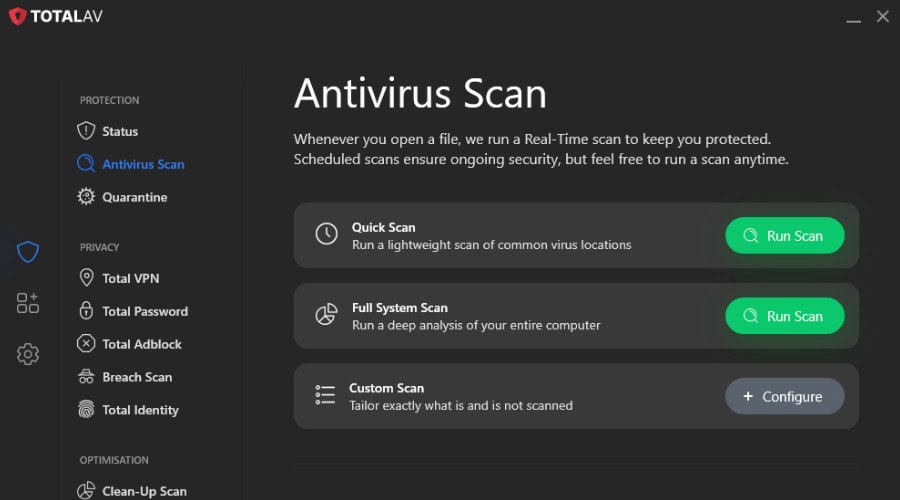
The AVG Antivirus Free 2021 includes the following features:

  1. Protection: this part is about stopping the viruses before getting to your system, checking your files and links before you click on them. Also, in this feature, you have the following options:
    Antivirus: this will protect your operating system from viruses, worms, Trojans, and also it prevents them from accessing system files and folders that might cause your Windows system to malfunction.
    Anti Malware (AVG Resident Shield): provides security against malware attacks.
    AVG Email Scanner: protecting and detecting infected attachments and is also compatible with Microsoft Outlook 2010.
    AVG Anti-Rootkit: this will help detect and also prevent the download of rootkits by following a predefined algorithm.
    AVG Protective Cloud Technology: this feature will identify and prevent threats with automatic updates to your software.
    AVG LinkScanner Surf-Shield: Seeking every web page you access with a smart prevention technology stopping you from clicking on infected sites.
    AVG Social Network Protection: Verifies the links you share on social networks like Facebook, Twitter, and many others thus keeping you protected at all times.
  2. Free Mobile Protection Included: this part will establish essential protection for your Android device.
    AVG Mobilation Antivirus Free for Android: Protection against viruses and malware when you make calls, send and receive SMS, download apps, music, videos, surfing the web always in a secure way. It also helps you keep your Smartphone safe from apps that might slow your device and locate it in case of losing it or if it’s stolen via satellite technology securing your data by locking the device or wiping it completely.
  3. Privacy: Will let you know who is tracking your date or identity by using the following.
    AVG Do Not Track: all the websites that are collecting data are showed to you and also as another good feature is AVG Security Toolbar plug-in that will support Internet Explorer, Mozilla Firefox, and Google Chrome.
    AVG Identity: this is a protection feature that prevents stealing your personal data and securing your personal information.
    Anti-Spyware: keeps your identity safe from Adware and Spyware.
    AVG Wi-Fi Guard: keeps you away from unwanted Wi-Fi networks that might be a potential threat.
  4. Leave no trace of your deleted files: when you delete files it will go directly through a File Shredder that will make them unable to be accessed or recovered.
  5. Performance: we all want an antivirus that will not slow our system down so AVG will offer just that by having implemented a few critical features.
    AVG Turbo Scan: a fast and smart scan by checking first your last saved files on memory.
    Game Mode: preventing lags or freezes while you play and protecting your games awards as well from hackers.
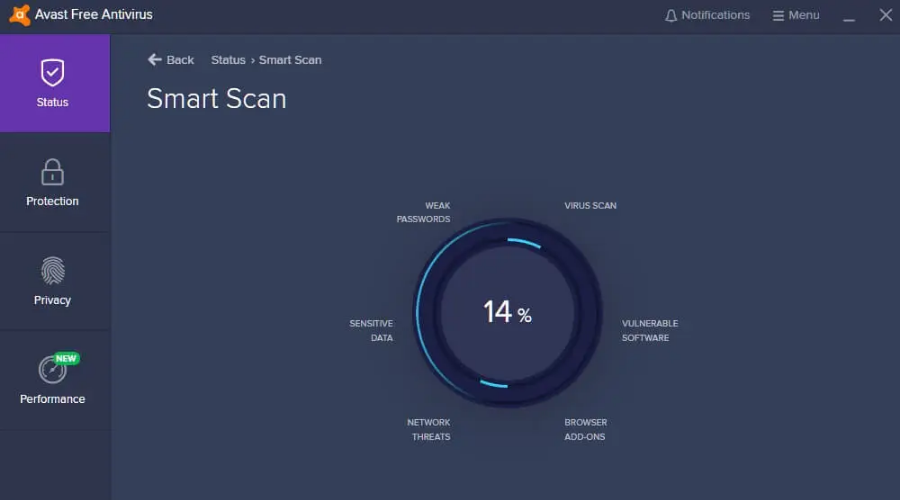
    AVG Smart Scanner: this feature will scan your PC while you idle and immediately goes to low priority when you use your mouse or keyboard.
  6. Support: Offers you AVG Free Support with a team available at any given time with no charge whatsoever.
  7. Intuitive Advice and Alerts: Giving comprehensive support in your future problems and an easy way to deal with them. AVG has Auto-Update so you will always be protected and secured.

AVG Antivirus Free

The free version of AVG is extremely powerful and well-adjusted to all the new trends and threats.

Like any free software, this version has its limitations but it can still provide excellent protection and great features.

AVG also offers a paid version that comes with a 30 day trial period for testing and a lot of extra features that will provide that extra protection you always wanted.

AVG Antivirus Free is a great solution but if you find out that it’s not the ideal solution for your device, you can consult our list including the best antiviruses with unlimited license validity.

Did you use AVG Antivirus Free? What do you think about it? Leave us your feedback in the comments section below.
6 best remote desktop tools for poor connections

These apps are used by companies, especially those that have customer support, to simplify the process of communicating and interacting with users and coworkers, showcasing, and troubleshooting issues.

However, in order for the process to be smooth and everything to work properly, the connection between the two connected devices should be good as well.

How can I use a remote desktop tool if I have a weak connection?

Unfortunately, if one of the linked devices has a poor Internet connection, it will cause latency and other problems that will ruin the session.

Thankfully, companies thought about these possible issues, and they developed software that optimizes its data usage in order for the program to not consume lots of your bandwidth.

That’s why we performed a research and found the best remote desktop tools that can help you in such a situation.

What are the best remote desktop tools for poor connections?

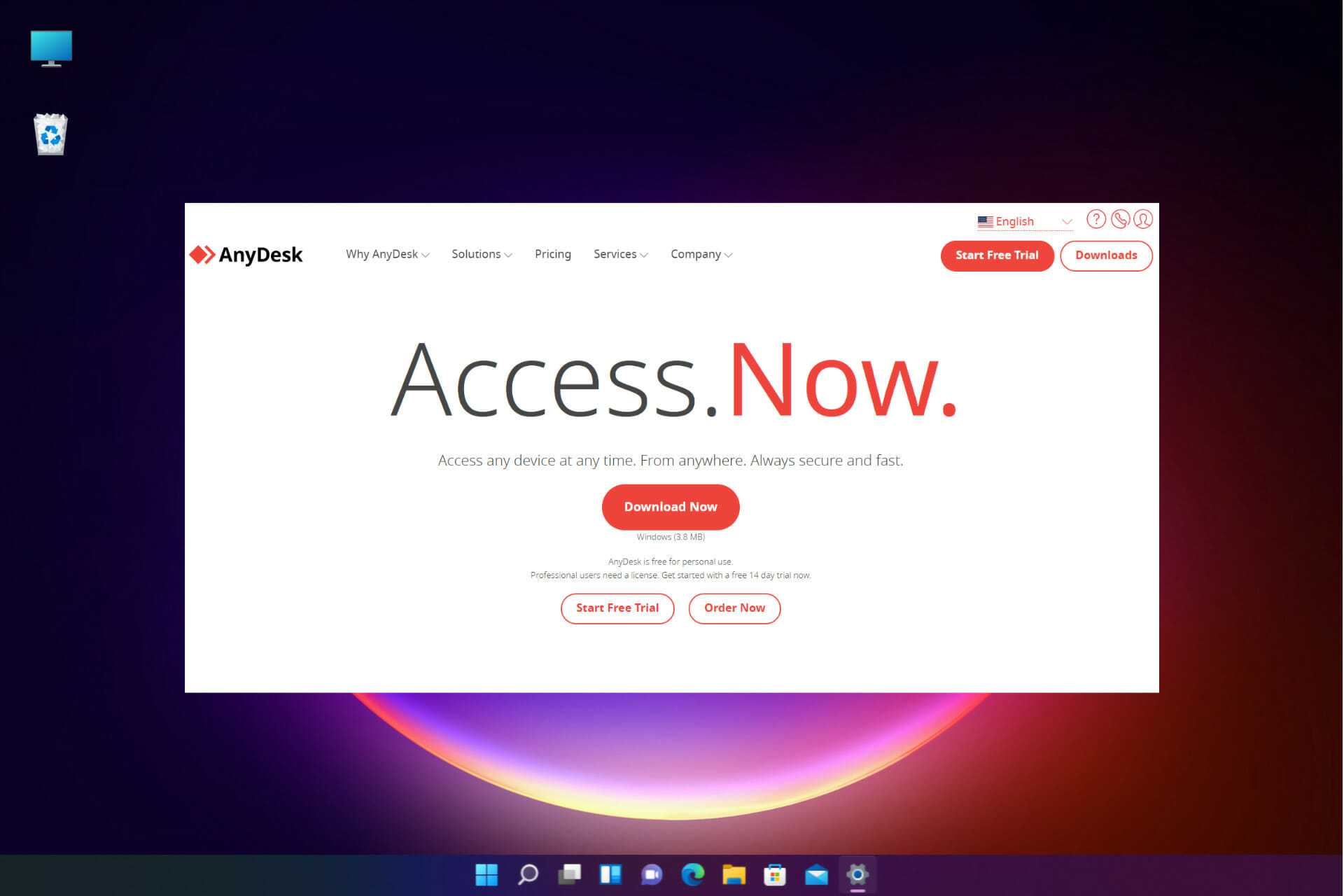
AnyDesk – Fastest connection tool

AnyDesk is a highly optimized and user-friendly remote control software used by millions of people worldwide. The tool lets you use your device from anywhere.

With an exceptional speed and encryption level that matches the bank standards, it’s easily the safest yet a powerful remote desktop tool available.

Compatibility is not an issue when we talk about AnyDesk, since it supports all platforms, all devices, and operating systems.

In terms of performance, AnyDesk offers an innovative DeskRT codec that ensures low latency and high framerates, which are critical for a smooth remote-working experience.

The special algorithm allows the users to operate at up to a max of 100 kb/s even on the highest resolutions.

Let’s have a look at AnyDesk’s other key features:

  • No installation needed
  • Works with all platforms
  • Advanced security with military-grade TLS technology
  • RSA 2048 encryption
  • Low bandwidth
AnyDesk

AnyDesk

This awesome tool lets you remotely control your desktop with the lowest possible bandwidth constumption.
Get AnyDeskVisit website

Mikogo – Best for connecting from mobile devices

Mikogo is a web-based collaboration software that is compatible with all devices, works cross-platform, and doesn’t eat up any of your resources.

It makes screen sharing a breeze during an online meet or training. Keeps your sales presentations secured with no download option for participants.

The software allows you to connect via the major mobile platforms like Android and iOS, or through the web browser on your mobile device.

All you need to do to run Mikogo is to sign-up for free on their site. If you are a phone user, you also have the option of downloading the phone app besides using your browser.

What’s great about this software is that it has low data consumption, which makes it work flawlessly even on low internet connections.

Let’s see some of Mikogo’s other core features:

  • Cross-platform
  • You can switch the presenter
  • Voice and chat conferencing
  • Session scheduler
  • App selection & multi-monitor
  • Session recording
  • File transfer
  • Multi-user whiteboard with annotation tools
Mikogo

Mikogo

Hold meetings and presentations for your work and school with low internet connections.
Check priceVisit website

Parallels Access – Best all-round applications

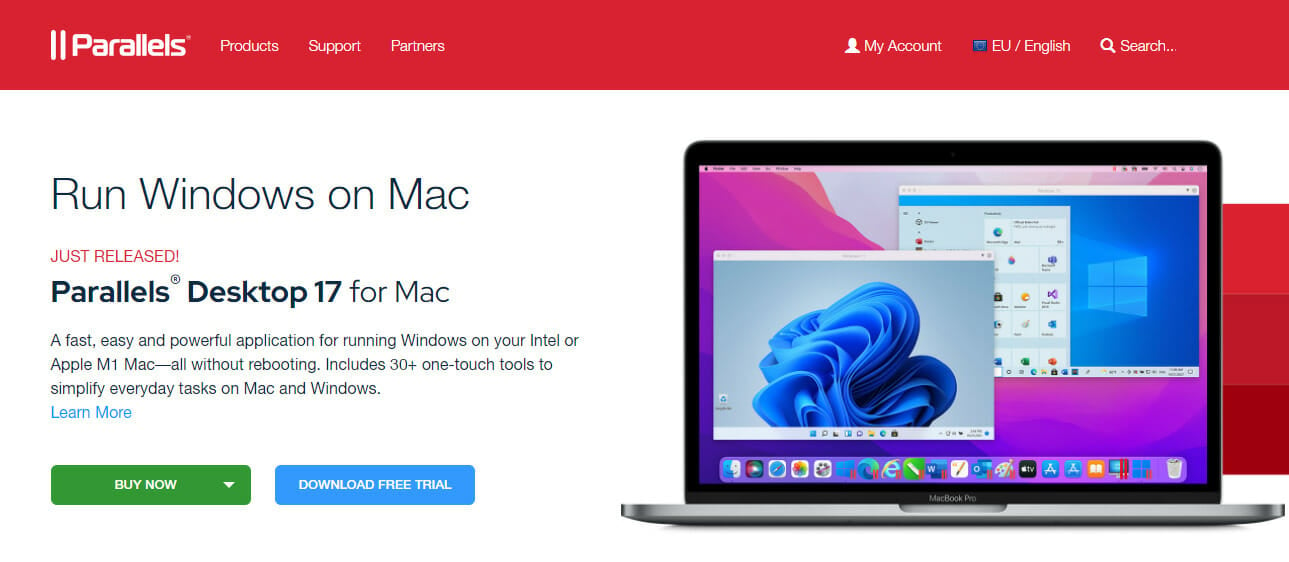
Easily connect to any of your devices from anywhere in the world thanks to Parallels Access. This software allows you to use your desktop on your phone as if it were a mobile app.

This includes all the native desktop applications you have installed. Their unique technology will convert their UI into one compatible with phone and touch use.

Besides providing you with full access to your desktop in one tap, the software is well optimized and will not consume much of your bandwidth, which is great for lower internet connections.

Moreover, it features over 30 one-touch tools to help you perform your everyday tasks, effortlessly on your Mac and Windows systems.

Whether you want to run Windows on a Chrome enterprise device, access data, run applications from any OS and device, or from any location, Parallels supports all your remote desktop needs on Mac.

Let’s take a look at the software’s key features:

  • Seamless navigation and UI control
  • Full-screen applications
  • Magnifying glass
  • Optimized screen resolution
  • iPad multitasking
  • Access and transfer files between cross-platform devices
  • Access microphone
Parallels Access

Parallels Access

Easily connect and manage your devices with one of the most optimized and comprehensive software, Parallels Access.
Free trialVisit website

Radmin VPN – Ideal for privacy protection

Radmin VPN is a free tool that creates a Virtual Private Network, allowing all connected devices to easily access each other through remote control from any distance.

This free and user-friendly software allows you to securely connect computers with a firewall lock and a trusted 256-bit AES end-to-end encryption.

The VPN is easy to install, easy to manage, and also updates automatically whenever there is a new update.

The software benefits from high speed and latency-free bandwidth which allows an unlimited number of users with no effect on its connection.

We have to mention that the software is capable of keeping a steady connection of up to 100 mb/s, during any kind of task you perform on the controlled computer.

Radmin VPN’s key features:

  • Secure VPN tunnel and data encryption
  • Reliable, does not malfunction after continuous operation
  • Simple and intuitive
  • Low-latency and bandwidth consumption
Radmin VPN

Radmin VPN

Radmin VPN will ensure the smoothest experience and remote desktop sessions.
Free downloadVisit website

SupRemo – Best for reliable and secure connections

Nobody likes having connection issues while they are using remote desktop apps. SupRemo is a reliable, affordable, and secure remote access tool that will not give you a stable and smooth connection.

You can use it during traveling, at home, or anywhere else, from your smartphone, tablet, PC, from platforms such as Windows, iOS, macOS, Linux, and Android.

Not only does SupRemo provide a flawless connection, but the program is also completely free for non-professional and/or non-continuous use, so you can benefit from all of its features without paying a dime.

The program can also be purchased by companies for professional use at an extremely low price of $6/month per user in case you need to perform multiple sessions simultaneously.

Additionally, the licenses allow unlimited installations to an endless number of devices, so you can use it on multiple systems. What really matters is the number of simultaneous connections.

There is no actual restriction or limit to the number of endpoints or seats where you install the license.

SupRemo provides flexible plans for the business as well. There’s the possibility of buying quarterly and annual plans that will be modulated according to the number of active sessions at a time.

The free 21 days trial includes the full product with all of its amazing features:

  • Installation as a service means the app doesn’t require attended access from the controlled device
  • Security measures to keep sensitive data private, such as Encrypted connections and Allowed ID
  • File Transfer to distribute data between PCs and Remote Printing to print all of your work
  • Online Address Book for contact distribution between SupRemo users
  • Online Reports for monitoring the connections made throughout the day
  • A Customizable interface that includes the brand name, info, and references
  • Chat functions for more clarity through instant messaging
  • Automatic Update to keep up with the newest versions of the app

⇒ Get SupRemo

ConnectWise Control – Great for automating services

ConnectWise Control is next-generation support and a secures remote access program which allows you to fully control other devices.

Offers a superior experience with its remote control software and fast, secure, and flexible remote access, next-gen IT documentation for the tech support staff of your organization, and more.

The software is protected by multi-factor authentification, SSL encryption, user-management security settings, and role-based security.

Additionally, the program works with other popular software brands, such as Acronis, allowing you to add extensions and integrations of other well-known programs that you love and use already.

You can download the app on your phone, or on your desktop. Your other connected devices will be saved on a special list, which contains lots of other information about them.

ConnectWise Control’s other main features:

  • Optimized connection with no interruptions
  • Secured information
  • Cross-platform compatibility
  • Extensions

⇒ Get ConnectWise Control

These remote control apps should work even with low internet bandwidth, so you don’t need to worry about losing your connection and interruptions while using them.

You might be also interested in our list including the best remote control software for Windows 10/11.

If you have any other software suggestions, or if you wish to give us your experience with one of these apps, please do so in the comment section below.

App to Know Name of Caller: 7 Best to Use in 2026

In today’s modern technology era, everyone uses mobile phones, and we all have tons of contacts on our devices.

However, we can’t always identify the person who is calling us because we might not have them in our contact list. It could be a friend calling, but it could also be an unknown caller.

If you’re tired of trying your best to find out the identity of the person who keeps calling you frequently, your best bet will be a caller ID app.

In case you’ve grown tired of experiencing unexpected calls from unknown numbers and of trying to find their names and details, this article will show you some solutions.

We picked seven of the best caller ID apps for Windows which will solve all of your privacy-related problems.

So, make sure to check them all out together with their features and decide which one is the most appropriate for your needs.

What are the best caller ID apps for Windows PCs & phones?

1. Truecaller

caller ID apps

This app helps you identify unknown incoming calls, and it also warns you against unwanted calls via a community-based spam list.

TrueCaller currently has more than 250 million users all over the world who contribute to the community that we have previously mentioned.

Check out its most significant features below:

  • The Live Caller ID shows you who is calling even in case of numbers that are not stored in your phonebook Live Caller ID requires 3G or Wi-Fi, and you can only install it on your phone’s memory, not on your SD card.
  • Block unwanted calls from spammers and telemarketers.
  • Search for any phone number to see who it belongs to.
  • Get in touch with people through name search which is a Professional feature.
  • Yelp! The integration will make sure to deliver fast search results for local businesses.
  • You can also use Live Tiles to see the notifications and more relevant data on your phone’s home screen.

The latest version of the app brought some improvements, and we’ll also list these new features here:

  • Contact request notifications: using this feature, you can accept/deny contact requests without even opening the application.
  • Tagging: you can see how other Truecaller users have tagged callers.
  • Offline Caller ID: any call will be able to be identified even when you are offline.
  • You can open social profiles in your device browser and this way you will not have to log in to your account inside the application.
  • Universal notifications will make sure that you don’t miss any notifications even when you are away from your phone because it syncs it with the PC.
  • The prefix and suffix feature make sure to allow you to improve your Caller ID by removing any extra numbers that your operator might add to an incoming call number.
  • Suggest Name: with this feature, you can suggest a better name for identified calls.

The app is free one of its downsides is the fact that it doesn’t work every time under lock screen and this means that you won’t always get the info that you need.

The recommended operating systems for this app include Windows 10 Mobile, Windows Phone 8.1, and Windows Phone 8.

Get 60 minutes of free Skype calls on landlines right now! Check this article for more info.

2. NumBuster!

caller ID apps

This is another free app that performs any telephone number search and reverses phone lookup.

Check out its key features below:

  • Find out who is calling from an unknown and unfamiliar phone number.
  • Rate and leave comments about any phone numbers and SMS senders even if they are not in your phone book.
  • Search for information about unknown phone numbers from all over the world.
  • The app lets you create your very own profile in the community, and you can also set up its look and manage your contacts.
  • You will be able to find out who is calling you even if that particular number is not in your phonebook.
  • You can use the Search by number feature inside the app to find out the potential name, rank, and comments for any unknown number.
  • The app doesn’t include ads, and this is a very great thing.
  • Only the people whom you are calling will be able to see your phone number because your data will always be protected and this also includes your contact list and call log.
  • Nobody will be able to get your phone number by using a search by name.
  • For Call ID you will have to be connected to the Internet, and you should know that connection speed is essential for the normal operation of this application.
  • You can also see who is calling you from an unknown number even before you pick up.
  • You can block unwanted SMS and calls.

If you’re looking for free calls, check out the best Windows 10 VoIP apps available right now.

3. CallClerk

caller ID apps

CallClerk app will automatically manage and log all of your calls just the way you want them to.

Here are the app’s most important features:

  • You can see a customizable caller id display window with the name, number, and picture of your caller.
  • It allows you to hear your computer announce the caller’s name.
  • The app offers a distinctive ring for each caller.
  • You will be able to pop up a Microsoft Outlook contact card and/or journal entry for your call.
  • You will get an e-mail, including the voice message or fax the caller has left.
  • Publish your directory and call history to your own password-protected web site.
  • Log your calls to your Windows event log.
  • The applications can automatically post to your Facebook page and it can also send a tweet to your Twitter account.
  • You will get report calls across all the computers on your network.
  • CallClerk offers users automatic caller ID blocking.

The app’s Block caller ID is based on the following:

  • invalid or suspicious caller ID names and numbers
  • your list of specific names and numbers to block
  • your blacklisted name and number patterns
  • free community feedback on thousands of nuisance callers

The app also includes the CallClerk answering machine which will offer you the following functionalities:

  • Plays a default greeting or one specific to the caller.
  • Lets you save your recorded messages to disk.
  • Automatically e-mail messages left on the answering machine.

The app also includes the CallClerk fax machine:

  • You can send, receive store, view, and print faxes.
  • You can automatically e-mail faxes when they are received.
  • The program can also record your phone conversations.

The app’s interface is straightforward, and there are tons of settings that allow you to tailor it to make it the best caller ID program for your particular needs.

The app works with all other PCs, laptops, and servers on your network so no matter which device you’re running, you will always know who is calling you.

4. Ascendis Caller ID 3

caller ID tools

This caller ID app works with your phone’s caller identification service to track down and announce phone calls.

Here are the most important features provided by this app:

  • You will not need to waste any more time talking to telemarketers because the app automatically hangs up on specific or unknown callers.
  • Stop rushing to the phone for unimportant phone calls as the app allows you to hear who is calling you before you answer the phone.
  • Stop worrying about whether you missed an important call because you can see who called while you were away or you can get notified of phone calls by email.
  • Monitor phone calls from work at home and vice-versa as well.
  • Stop wasting money on modems for every computer in your office or at home because you can now see who is calling from any computer or network as long as one computer has a modem.

System requirements for this application include the following:

  • Windows 10, Windows 8 (desktop), Windows 7, Windows Vista, or Windows XP
  • Dial-up telephone modem (not a DSL or cable modem) or a TAPI device with caller ID support or a Whozz Calling? A device or a CTI Comet device or Skype
  • Voice phone line (unless using Skype)
  • Caller ID service from your phone company (unless using Skype)
  • 300 MB disk space

Here are the 5 best call manager software for Windows 10 to manage calls. Check them out and choose yours now.

5. Caller ID Spoofer

caller ID tools

This is a different app compared to the ones that we have presented to you so far.

This is a simple, efficient, and practical app that has the primary purpose of spoofing your caller ID and disguising your phone number very quickly.

Check out the most important of its features and functionalities:

  • This useful utility lets you spoof your caller ID by connecting your device to bluffmycall.com.
  • The main window of the app is pretty easy, and it allows you to specify the phone number that you want to call and also the caller ID that you want to be displayed.
  • You can also delay the current call and set the app to send you a message when the call is queued.
  • The user-friendly interface lets you enter any number you want to be displayed every time you want to call your friends for a prank.
  • You can also change between phone carriers.
  • This app comes in handy when you need to change the phone number that someone sees on their caller ID display when they get a call.

The app is pretty cool, but remember that you should only use it for pranks with your friends or colleagues.

6. Whitepages ID (now Hiya)

Caller ID Spoofer

In case you’ve grown sick and tired of receiving unknown calls from all kinds of spammers, it’s time you do something about it, and that’s why you should give Whitepages ID for Windows 10 Mobile a shot.

The app will help you identify callers who are not saved in your address book, and it will also help you never miss an important call from someone.

The application is powered by a database of hundreds of millions of valid phone numbers.

Take a look at its key features:

  • Caller ID: with this feature, your phone will only take calls from people you want to talk to; you can take calls from friends who are not in your phone book for instance, and with its help, you will never miss an important call.
  • Call Blocker: this feature detects blacklist spam, scams, and annoying telemarketers or political calls and it sends them straight to voicemail; it will stop calls and SMS messages to get your privacy back.
  • Scam and Spam Protection: the app alerts you automatically if an incoming call is from suspected spam; it will report scams, spam callers, and SMS spam and it will stop them from contacting you and other users in the Whitepages community in the future.
  • Phone Book Contact Photos: this feature allows you to see the latest profile photo, job title, and city info for your friends, family, co-workers, and also business associates from Twitter, Facebook, and LinkedIn.
  • True Contacts: you can add names and addresses from the Whitepages directory to your phonebook contacts to keep them up to date and complete.
  • This app allows you to save money by reducing the number of minutes that unknown calls and text messages use up.

You can give this app a try now because this one is also free.

Looking for the best tools for free calls and messages on Windows 10? Check out our top picks in this article.

7. Number Guru

Caller ID Spoofer

This is a reverse phone number search engine targeted at your Windows Phone. The manufacturer describes the app as the biggest, baddest, and most handsome caller ID and reverses phone service you’ve ever seen.

Take a look at the most important features that it sports:

  • It promises to cover about 100% of landlines and 50% of cell phones (excluding Verizon numbers).
  • The app covers a lot of territory by tapping into 334 area codes in the U.S. and U.S. territories.
  • It provides you the opportunity to reverse look up those mysterious numbers that keep calling you.
  • The app searches are also free and unlimited which is great.
  • You get the ability to add comments to the phone numbers and this way you can help other users identify the type of caller.
  • The app keeps a history of numbers that have been searched for, for a quick reference.
  • Its interface is independent of your Windows Phone, so you will have to enter the number manually.

All in all, the app is worth a try, especially since it’s free.

If you’re looking for cheap international phone calls, then you better take a quick look at this article.

This is where our list of caller ID apps for Windows stops. Now that you have got a few options to choose from and you got to know their most important features you can finally pick your favorite.

All these apps are definitely going to help you find out the real identity of the caller.

You can forget about getting irritated by all kinds of unwanted calls and messages because these apps will solve your problem for sure. You can trust every one of these apps to protect your privacy.

Some readers complained about RTT turning on randomly on some calls. Read the highlighted guide for tested fixes.

Which called ID app works for you? Let us know in the comments section below.

AnyDesk vs RDP: Performance and bandwidth compared

For businesses and individuals who need to access their computers on the go, remote desktop software is an essential tool.

For Windows users, Microsoft offers its proprietary RDP (Remote Desktop Protocol) with Remote Desktop Connection software installed out of the box.

However, there are other companies like AnyDesk that also offer remote desktop software. So, should you invest in AnyDesk remote desktop client when Microsoft already offers its RDP client out of the box?

In this detailed, AnyDesk vs RDP comparison, we try to find the remote desktop tool that is fast, secure, reliable, and the most affordable. So, let’s get started.

AnyDesk vs RDP – which one is better?

Features 

Both AnyDesk and RDP offer access to a remote computer irrespective of where you live and the devices you are using.

The utilization of resources offered by the apps including remote audio, keyboard support, remote print, and clipboard support. 

Cross-platform support 

Being a part of Windows, RDP is compatible with Windows XP and later Windows version, OSX, iOS, and Android. It also comes installed out of the box but lacks official Linux support.

The cross-platform support on AnyDesk is second to none as it supports Windows, Mac OSX, Android, iOS, and Linux. AnyDesk covers as many as 32 devices.

Administration 

With AnyDesk, you can keep track of your contacts and connections using the built-in address book. This is helpful if you want to see who’s online without connection.

AnyDesk also offers an option to swap out your default ID for a personalized username along with a logo for brand customization. Furthermore, you can use the MSI package to automatically install AnyDesk on multiple computers.

Remote Desktop Connection is a bit limited in this aspect. While there is no dedicated address book, it saves the recent contacts for quick access.

You can also open any active connection settings to an RDP file or open a saved connection from the interface.

Collaboration Tools 

Built-in collaboration features are essential for any business that needs to operate from different locations.

While both RDP and AnyDesk allow you to collaborate on documents and presentations in real-time, AnyDesk offers some additional features.

With support for text chat, voice and video conferencing, AnyDesk now also offers automatic remote desktop session recording.

Furthermore, the included drawing tool whiteboard allows for drawing on the screen to share ideas.

Security 

AnyDesk banks on the standard TLS 1.2 technology to protect your computer from unauthorized access. It uses RSA 2048 asymmetric key exchange encryption to verify every inbound connection for security risks.

Users can control who has access to their computer by adding the contacts to the trusted list. AnyDesk uses the Salted Password Hashing to protect user passwords which makes decryption impossible.

With Two-Factor Authentication, you can double protect any device you use remotely. AnyDesk sends a one-time password for new sessions adding an extra layer of security over the existing unattended access password.

In Privacy Mode, you can blacken the screen you are working on remotely. This is useful if you don’t want others to peak into your computer screen in public places and protect sensitive documents.

AnyDesk offers the controlled permission feature. The owner can assign and define authorizations to the users that are asking for access before the session begins.

If you want to share a screen, you can disable access to the mouse and keyboard, clipboard, and more to ensure nothing happens without your knowledge.

Remote Desktop Connection also operate over an encrypted channel, preventing unauthorized access to your data and computer.

However, the user needs to be cautious of the man-in-the-middle attack due to a vulnerability in the encryption method.

Remote Desktop Connection does the basics well; however, AnyDesk offers a better set of features, collaboration tools and excellent security features.

Performance 

AnyDesk is built on DeskRT, the company’s innovative codec. It compresses and transfers image data between computers, even on lower bandwidth connections with up to 60FPS on local networks and internet connections.

Ease of use and UI

AnyDesk vs RDP

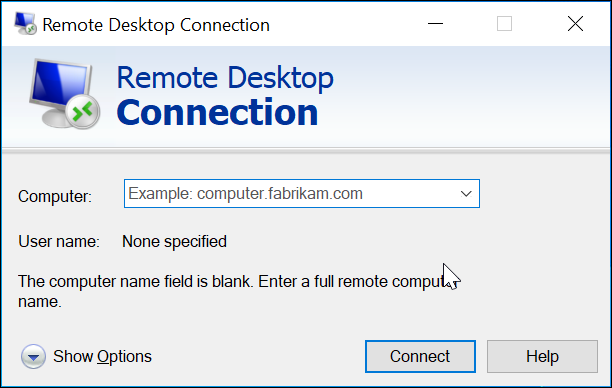
Remote Desktop Connection does not have the most pleasing or modern UI among the remote desktop tools.

The login window requires the user to enter the name of the remote computer and the user name to connect.

Unlike AnyDesk, Remote Desktop Connection requires the user to configure the app using the Microsoft Remote Desktop assistant. So, if you are looking for something plug-and-play, AnyDesk is the better option.

AnyDesk vs RDP

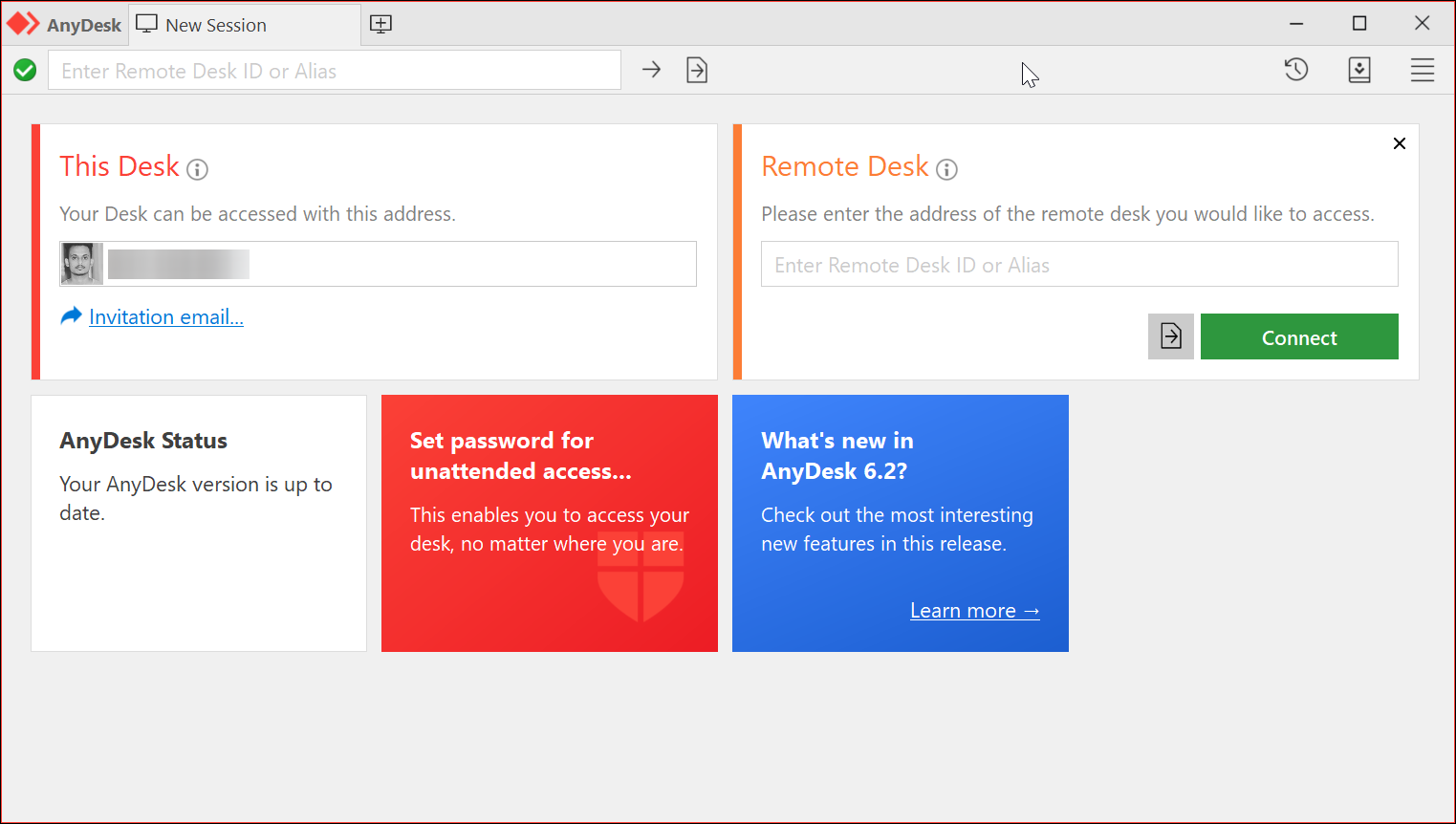
AnyDesk, on the other hand, has a clean user interface with all the additional options hidden under the menu. To connect, use the desk access address or enter the remote desk address and click Connect.

Scaling the screen works well on both the remote desktop tools with media content like images being crisp and clear. The connection to mobile devices works well without any issues due to the varying display size.

AnyDesk vs RDP

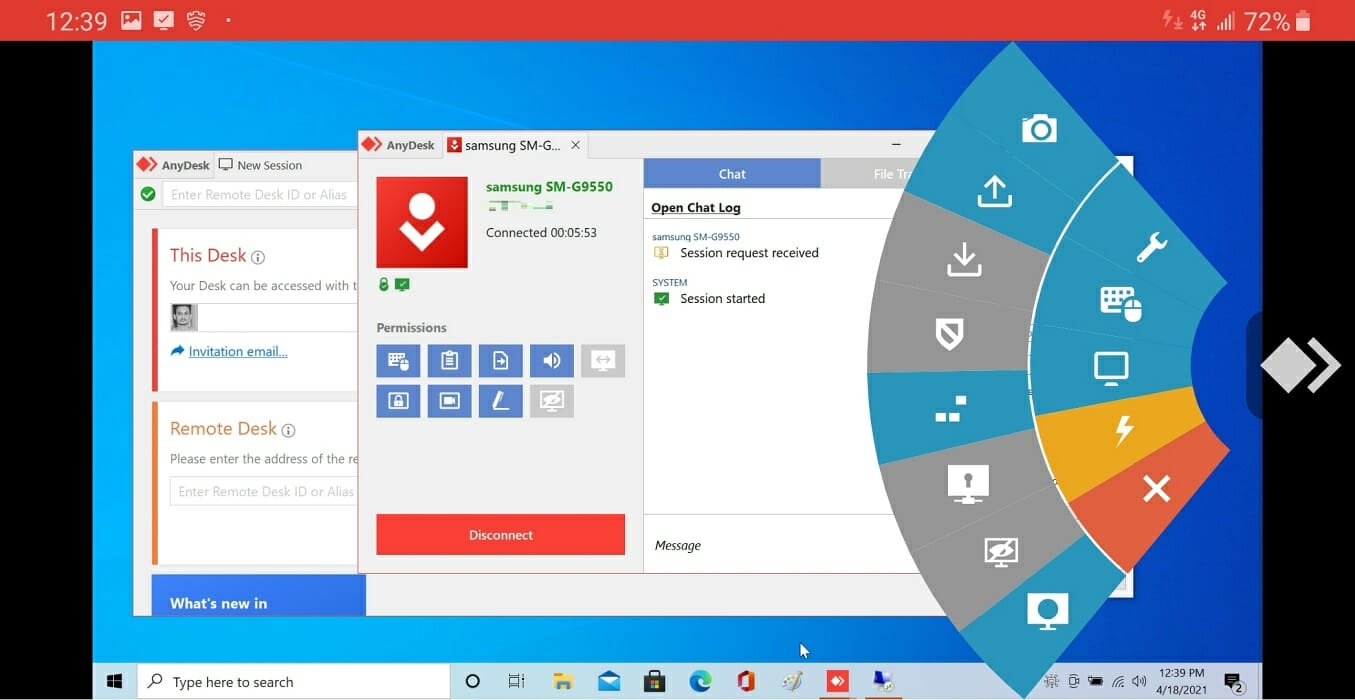
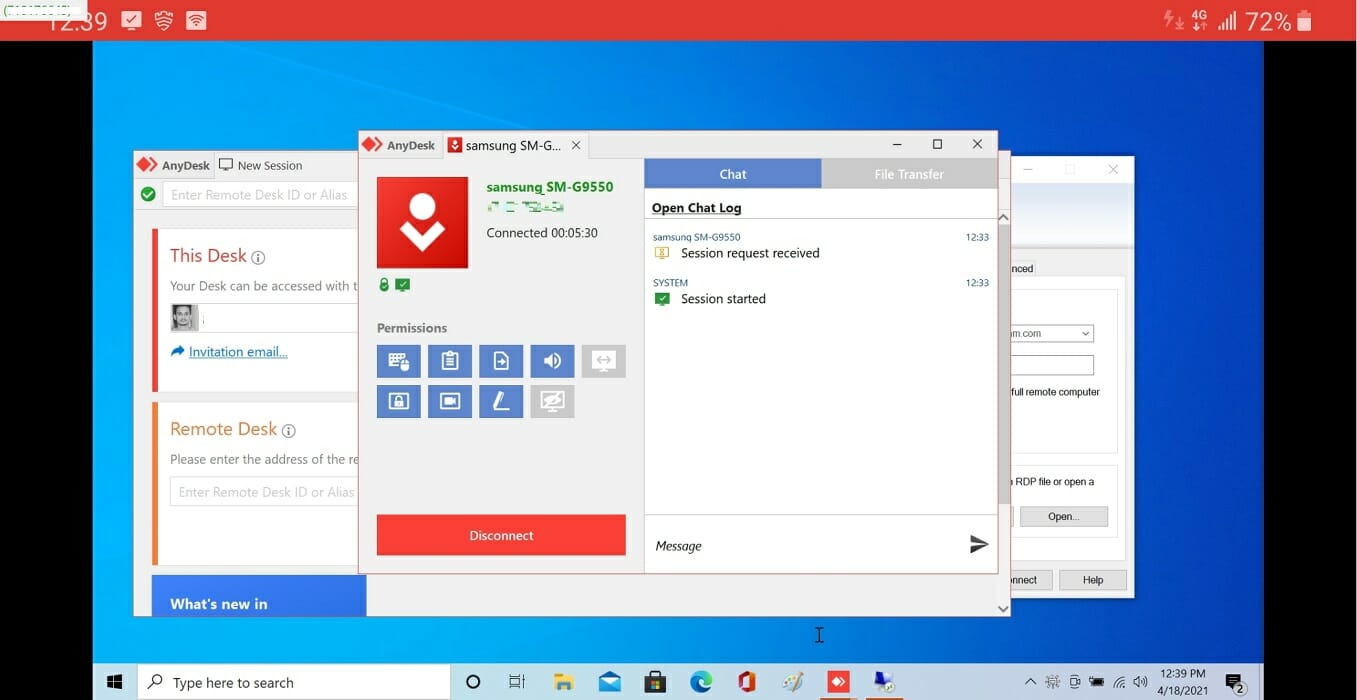
The mobile to desktop connection on AnyDesk is smooth without any noticeable delay. You can use the mobile screen as a touchpad.

Additionally, you can even change the input option and choose the remote screen if you have a multi-monitor setup.

Furthermore, the mobile app allows you to take screenshots, ask for elevated permissions, start session recording, upload and download files and use VPN.

However, with Remote Desktop Connection, the mobile to desktop connection offers the bare minimum.

System resource usage and latency 

AnyDesk vs RDP

In our test, the AnyDesk app from mobile to PC and PC to PC/mobile registered the input almost instantly.

Mouse tracking was smooth, and plenty of input emulation options on offers when connecting to a PC via mobile.

What’s impressive is the system resource usage. These apps manage to use barely 10% of the total CPU power, ensuring you have sufficient resources to work on.

When it comes to system resource usage, both apps are less resource-hungry. The performance is good, but additional features on the AnyDesk desktop and mobile app make it a clear winner, even on the free version.

Support 

Remote Desktop Connection does not have any traditional form of support system. While the users can access the official forum for some support, that is the only means of support available as of now.

For AnyDesk, the company offers online support. Existing customers can contact for technical support via the customer portal for priority requests. 

Another mode of support for AnyDesk is via the message. Users can send the message and expect support via email. AnyDesk also has a phone number, but that’s for sales inquiries only.

Pricing and plans 

Remote Desktop Connection (RDP) is a completely free remote desktop solution. It comes pre-installed out of the box and does not require any subscription to use.

AnyDesk is available in both Pro and free versions. While the free version is available for individuals and non-commercial purposes, the premium version comes in three plans.

Businesses can use the Lite, Professional or Power plan depending on the size of their business. The Lite commercial version misses out on address book, session logging, custom and additional user features. While the Professional plan misses out on unlimited concurrent sessions. 

AnyDesk vs RDP – which should you choose?

Both of these remote desktop solutions perform the basic tasks of accessing devices remotely over the network. While Remote Desktop Connection (RDP) offers only the essential tools, AnyDesk offers extensive features and is easy to use.

While Remote Desktop Connection can be used for personal and commercial use without any fees, it is limited by features.

AnyDesk free version offers most of the features for personal use. For commercial use, the plans are affordable for individual users.

If you are looking for a very basic remote desktop connection, RDP is a good choice. It offers a no-nonsense interface, a decently secure environment, and a few customization features. 

Microsoft’s mobile app for remote connection works similarly. It has an easy-to-use interface and offers basic customization options.

Users can enable privacy mode to blacken the screen, take screenshots, choose from multiple input options, seamlessly switch between windows in a multi-monitor setup, and more.

AnyDesk

AnyDesk

When RDP fails to meet your expectations, don’t hesitate to give a try to the secure and reliable AnyDesk tool.
Get AnyDeskVisit website

As you’ve seen, while both are useful tools for remote sessions, for users who want the best security, session recording, screenshot sharing, file upload, download functionalities, along with other additional features, AnyDesk is the best choice.

AnyDesk vs TeamViewer: Here’s our bandwidth comparison

TeamViewer and AnyDesk are both well-known remote control applications with thousands of users worldwide.

The two applications are very similar, and they both allow you to remotely control various devices over a network.

The question remains, which application uses less bandwidth? In this guide, we’re going to compare both of them and we’re going to find out which one has better features, and which one uses less bandwidth.

AnyDesk vs TeamViewer, which one uses less bandwidth?

What is AnyDesk?

AnyDesk is a remote control software that is available on multiple platforms. The software is available on Windows, Linux, macOS, Android, iOS, Chrome OS, and Raspberry Pi.

The software is simple to use, and it offers a wide array of features, all while providing maximum security to its users, so it’s perfect for both personal and professional users.

AnyDesk

AnyDesk

This feature-full tool may surprise you when it comes to bandwidth usage. Eager to give it a try?
Get AnyDeskVisit website

What is TeamViewer?

TeamViewer is a well-known remote control software that has been present for a while. The software supports all the remote control features that you need, and is available on a wide array of platforms.

You can get TeamViewer on Windows, macOS, Linux, iOS, Android, and Chrome OS, so you should be able to run it on almost any platform.

Now that we’ve familiarized ourselves with both applications, let’s get down to testing, shall we?

⇒ Get TeamViewer

Bandwidth usage

We performed 4 different tests with both AnyDesk and TeamViewer. We connected to a remote host, and we ran a 1-minute video on YouTube while measuring bandwidth usage.

After that, we measured bandwidth usage while performing everyday activities that included a lot of scrolling and multitasking.

Lastly, we connected with a remote computer to a host and measured the bandwidth usage on the host computer while playing 1-minute video and while multitasking.

The results are in, so let’s take a closer look.

Video playback, measured on remote PC

While performing this test on AnyDesk with a 1-minute video, the maximum download bandwidth was around 184KB/s, while the maximum upload was 4.5KB/s.

During the video playback, 20MB were downloaded, while only 506KB was uploaded when using AnyDesk.

We repeated the same test, with the same 1-minute video while using TeamViewer, and on our remote PC, we measured maximum download bandwidth of 96KB/s while the upload speed was 4KB/s.

Although we used the same video, the total downloaded data 5MB while the upload was only 271KB.

AnyDeskTeamViewer
Maximum download184KB/s96KB/s
Maximum upload4.5KB/s4KB/s
Total data downloaded20MB5MB
Total data uploaded506KB271KB

Multitasking, measured on remote PC

During intensive multitasking that included application switching and a lot of scrolling, we reached the maximum of 1MB/s download bandwidth in AnyDesk.

Keep in mind that this is a maximum bandwidth used, and we reached these values when scrolling intensively, moving windows, or switching between applications. In other less intensive activities, the bandwidth usage was much lower.

Regarding the upload bandwidth, the maximum that we got while multitasking was 40KB/s.

On the other hand, TeamViewer offers almost the same results when performing everyday tasks, meaning 96KB/s download and 4KB/s download maximum bandwidth.

AnyDeskTeamViewer
Maximum download1MB/s96KB/s
Maximum upload40KB/s4KB/s

Video playback, measured on host PC

We measured bandwidth on our host PC while playing a 1-minute YouTube video and the maximum upload bandwidth was 1MB/s while the maximum download was 31Kbps.

During this short 1-minute session 45MB were uploaded while 1.1MB were downloaded.

Switching to TeamViewer we got a maximum upload bandwidth of 100KB/s and 4.6KB/s download. During one minute of video playback, 3.4MB were uploaded and 270KB were downloaded.

AnyDeskTeamViewer
Maximum upload1MB/s100KB/s
Maximum download31KB/s4.6KB/s
Total data uploaded45MB3.4MB
Total data downloaded1.1MB270KB

Multitasking, measured on host PC

During our multitasking session, we measured the maximum upload bandwidth of 706KB/s on our host PC during intense multitasking. With less intensive tasks, the bandwidth usage was significantly lower.

Regarding the download bandwidth, we got a maximum of 20KB/s during multitasking on your host.

On TeamViewer, we got almost the same results as with video playback, which means that we got maximum upload bandwidth around 100KB/s and download bandwidth up to 4.6KB/s.

AnyDeskTeamViewer
Maximum upload706KB/s100KB/s
Maximum download20KB/s4.6KB/s

Judging by the results, it seems that AnyDesk reached higher bandwidth usage, especially during intensive multitasking. Keep in mind that those values are just the maximum bandwidth spikes that we measured.

During the less intensive tasks, the bandwidth usage dropped significantly in both AnyDesk, and on average it was closer to TeamViewer’s bandwidth usage.

Performance and image quality

During our testing, we notice a massive difference between image quality and latency between AnyDesk and TeamViewer.

While AnyDesk used a bit more bandwidth, especially during intensive multitasking, the image quality was great, and the remote sessions had no latency issues.

Sessions in AnyDesk ran smoothly even during multimedia playback, so there were zero slowdowns or any problems with image quality or lag.

On the other hand, TeamViewer used less bandwidth, but that has affected overall image quality and performance negatively.

With TeamViewer, we experienced frequent slowdowns and the remote sessions felt sluggish. As for multimedia playback, there was a lot of latency and the image was frequently blurry.

Even though AnyDesk uses more bandwidth, it utilizes that to its advantage by delivering smooth and lag-free remote sessions without any slowdowns or issues.

Features

AnyDesk

AnyDesk offers an intuitive interface that lets you perform remote sessions simply by entering the remote device’s ID and clicking the Connect button.

All your sessions are encrypted using the TLS 1.2 technology, and there’s even RSA 2048 asymmetric key exchange for extra protection and verification.

For more security, you can use two-factor authentication or create a list of whitelisted devices that are allowed to connect to the host.

Permission control is also available and you can limit the remote client’s access to your keyboard and mouse or your clipboard at any time with just a single click.

You can also prevent clients from restarting your device, using the file manager, or requesting system information. These are just some of the available permissions that you can revoke at any time.

The software also offers a file transfer feature, allowing you to easily share your files. If needed, you can also draw on the screen to collaborate better with the host.

TeamViewer

TeamViewer comes with a simple user interface, and to start a remote session, you need to enter the ID of the remote device and the password assigned by the TeamViewer.

After connecting to the device, you can chat with the host, and there’s even an option for audio or video chat. The Whiteboard feature is also available allowing you to draw on the remote desktop.

Just like with other similar tools, TeamViewer support file transfer and you can transfer files quickly and easily between the host and the client device.

Regarding the security, TeamViewer encryption your sessions using AES 256-bit encryption and there’s a 4096 RSA key exchange for additional security.

The software supports two-factor authentication so you can rest assured that only authorized users can access your PC.

For extra security, there’s a whitelist and blacklist feature, so you can allow access only from certain devices.

AnyDesk vs TeamViewer, which should you choose?

Both AnyDesk and TeamViewer offer great features, but when it comes to bandwidth usage, AnyDesk uses a bit more bandwidth, but it delivers unparallel performance and image quality.

Our AnyDesk sessions were smooth and without any slowdowns, and the image was clear at all times. Sadly, we can’t say the same for TeamViewer.

While both are useful tools for remote sessions, if you want fast and secure remote sessions with great image quality, our choice would be AnyDesk.

New Windows 10 Insider build brings Linux GUI apps support and Eco Mode for Task Manager

Microsoft has just released the Windows 10 build 21364 for Insiders in the Dev Channel, and this release is kind of a big deal. The main new feature in this build is the ability to run Linux GUI applications natively thanks to the first preview of GUI app support on the Windows Subsystem for Linux.

WSL had support for Linux apps for quite some time, but until now, Windows 10 users could only use Linux apps via command line operations. Starting with this build, Windows Insiders will be able to test their Linux apps more extensively by running their favorite GUI editors, tools, and applications, and you can learn more in the video below.

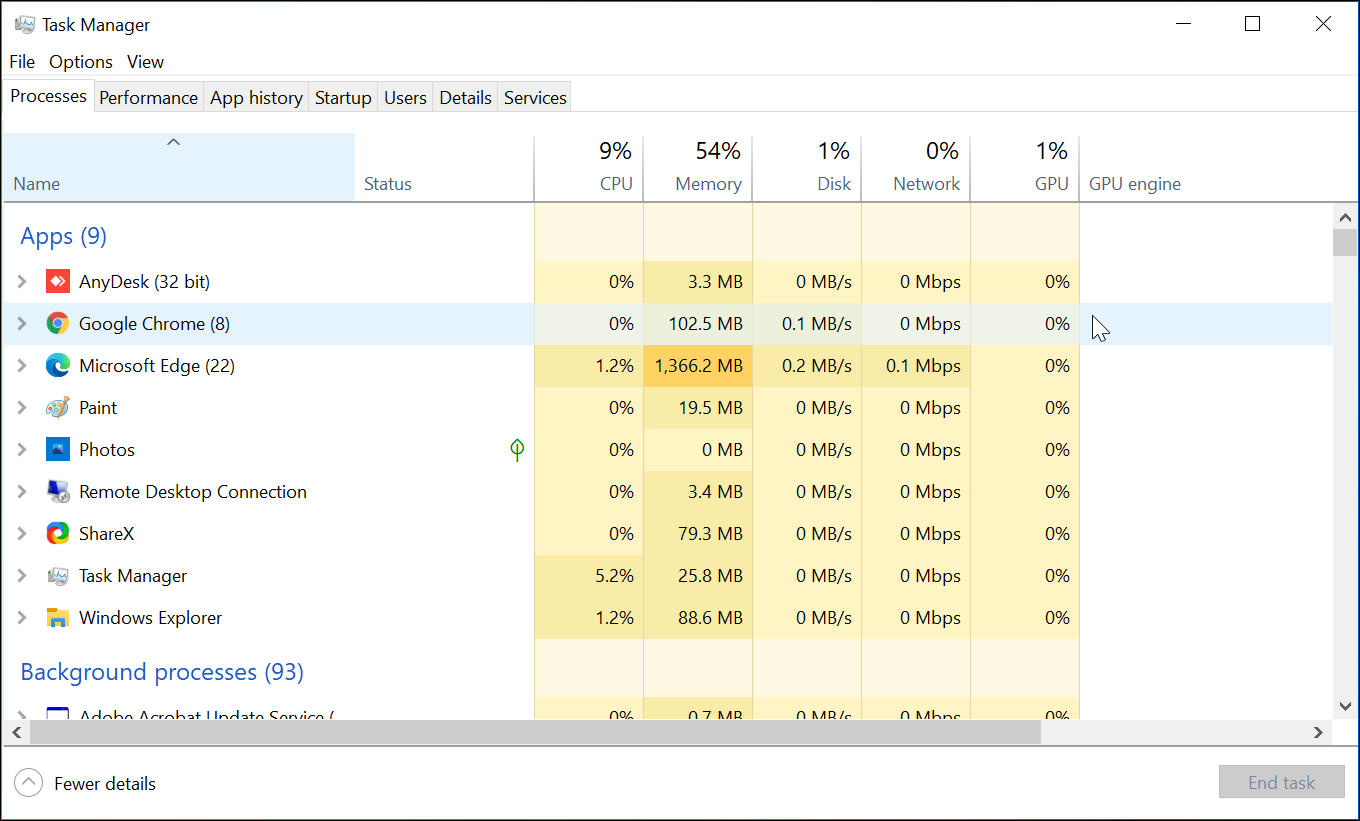
The build 21364 also brings two important changes for Task Manager, though only a subset of Dev Channel Insiders will see them after installing today’s build. The first new change is process clarification for the latest Microsoft Edge Canary or Dev builds, which will display in Task Manager the different Edge components like Tabs, Extensions, Browser processes, Utility plugins, service workers, and more.

Microsoft has created different icons for each process, and fav icon for websites will also appear in Task Manager. This should really help to identify which Edge processes use the most resources on your PC, though Task Manager is getting another new feature to help with resource consumption.

Showing Microsoft Edge process classification support in Task Manager.

Indeed, the other big change for Task Manager is the addition of a new Eco Mode that can throttle process resources for certain apps to give the priority to other activities. In some cases, apps like Microsoft Edge, Google Chrome, or other apps will have Eco Mode as enabled in Task Manager without any user input, but the Windows Insider team explained that this is the result of the apps “experimenting with lowering base priority and applying power efficiency APIs to improve performance.”

Here is how to enable Eco mode for any process in Task Manager:

  • Open Task Manager.
  • Click on Processes tab.
  • Right-click on a child process or an individual process.
  • Click on “Eco mode” in the context menu to apply throttling.
  • The status column in the Processes tab should show Eco mode for the process.

Right-click on child processes in Task Manager to enable “Eco mode”.

Again, these two Task Manager improvements are only rolling out to a subset of Dev Channel Insiders who will install the build 21364, and this gradual rollout should help the Windows Insider team identify issues before expanding the testing pool.

Today’s build also introduces a new 50-on touch keyboard layout for Japanese, as well as a long list of bug fixes. You can learn more about the other changes, fixes, and known issues in the build 21364 below:

Changes and Improvements

  • Based on feedback, we’re updating the notification that used to say “We need to fix your account (most likely your password changed)”, to be more representative of what it’s for, and now say “Select here to sign in to your account to continue using apps between this device and your other devices.”
  • When you turn on or off night light manually, for example via the Action Center, night light will now turn on immediately rather than slowly transition.
  • [ADDED 4/22] You can now turn off Aero Shake via Settings > System > Multitasking and choosing the “off” toggle under “Title bar window shake”. This setting is now off by default so for those who want it back will need to turn this setting on.

Fixes

  • We fixed an issue causing some USB attached printers to no longer work after upgrading to Build 21354 and higher.
  • Theme-aware splash screens are now visible again in this build.
  • We fixed an explorer.exe crash impacting Insiders in the last few builds.
  • We fixed an issue resulting in the About page in Settings appearing blank sometimes.
  • We fixed an issue resulting in some corrupted characters across Settings in the previous build, for example in the “These folders won’t be indexed” text on the Searching Windows page.
  • We fixed an issue that could result in the Windows Update status in the Settings header not being correct.
  • We fixed an issue where the “Manage Disks and Volumes” page in Settings was incorrectly displaying HDDs as SSDs.
  • We fixed an issue where chkdsk was sometimes not calculating elapsed time correctly.
  • We fixed an issue where some of the text in the UAC dialog wasn’t displaying correctly.
  • We fixed an issue with where the recent changes to the default spacing in File Explorer, the icon in the address bar was a little too close to the side.
  • We fixed an issue resulting in the New Text Document button in File Explorer’s ribbon not working.
  • We fixed an issue where File Explorer was unexpectedly not pinned for some Insiders after resetting or clean installing their PC in recent builds.
  • We fixed an issue where the battery icon in the taskbar looked like it was at 90% when it was actually at 100% at some scaling.
  • We fixed an issue impacting Windows Hello reliability in recent flights.
  • We fixed an issue where Windows Firewall was unexpectedly giving an error recently when updating existing rules to Block.
  • We fixed an issue where sihost.exe would crash sometimes when trying to use the Share option when right clicking an app in Start.
  • We fixed an issue impacting Search reliability for some Insiders in the last two builds. Please let us know if you continue experiencing crashes after upgrading, as it may be a different underlying root cause.
  • We fixed an issue resulting in some Insiders seeing a CRITICAL PROCESS DIED bug check in recent builds.
  • We fixed an issue that could result in freezing in certain games recently when bringing up overlays when HDR was enabled.
  • We fixed an issue where certain images expectedly wouldn’t appear in your clipboard history after copying them from a webpage using Microsoft Edge.
  • We fixed an issue where elements of the Japanese IME candidate window may get truncated when using a text scaling of 200%.
  • We fixed an issue where after using the gesture on the touch keyboard’s space bar to move your cursor, the Shift and CTRL key displayed states may become out of sync with the actual state.
  • We fixed an issue that was preventing x64 apps on ARM64 like Cyberlink PhotoDirector from detecting the presence of the C++ redistributables.
  • We fixed and issue preventing split screen mode for Auto HDR from working.
  • We added support for x64 out of process shell extensions on ARM64.
  • 3D Viewer and Print 3D app shortcuts have been moved back into Start.

Known issues

  • We’re looking into reports of the update process hanging for extended periods of time when attempting to install a new build.
  • [News and interests] Pressing ESC key to dismiss an opened context menu in the flyout dismisses the whole flyout instead.
  • [News and interests] Sometimes the news and interests flyout cannot be dismissed with pen.
  • We’re investigating an issue where elements of Search (including the search box in File Explorer) are no longer displaying correctly in dark theme.
  • The Windows Camera App currently does not respect the default brightness setting set via the new Camera Settings page.
  • We’re working on a fix resulting in WSL users finding that File Explorer launch performance regressed after upgrading to Build 21354 and higher.
  • [ADDED] Some Insiders are reporting error 0x80092004 installing KB5001030 – 2021-02 Cumulative Update Preview for .NET Framework 3.5 and 4.8 after updating to this build. We are working on a fix for a future build.

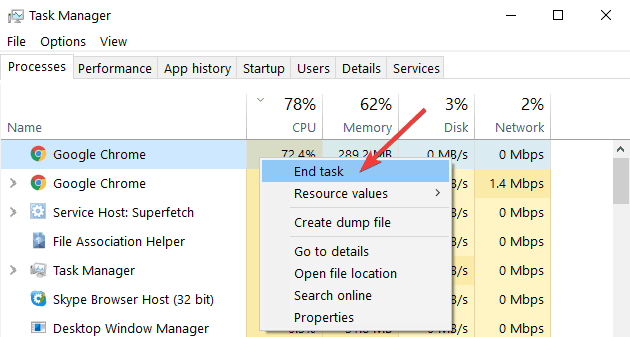
Overall, adding support for GUI apps to WSL should be a very big deal for developers, and the Task Manager improvements in this build are also very welcome. The app currently provides an easy way to shut down apps using too many resources, but this nuclear option is not ideal. Soon, Windows 10 users will have the alternative of right-clicking a process to limit its resource consumption, and we’ll definitely need to test it to see if this is really effective.

Update 8:50 AM ET: Microsoft has updated the known issues list preventing some Insiders to install a cumulative update Preview for .NET Framework 3.5 and 4.8. The company is working on a fix coming in a future build.

Update 1:30 PM ET: Microsoft has once again updated the release notes to mention that “Aero Shake” is now turned off by default in the build 21364. Insiders will now need to visit the Settings app to turn it back on.

AnyDesk vs Parsec: Here’s everything you should know

When it comes to remote control software, AnyDesk currently is one of the most popular solutions on the market.

On the other hand, there are various alternatives such as Parsec, for example, worthy of your attention. This tool easily stands out from similar remote control software.

In this article, we’re going to take an in-depth look and compare AnyDesk and Parsec and find out which one offers better features to its users.

AnyDesk or Parsec, how do they compare?

What is AnyDesk?

AnyDesk is a simple remote control software that prioritizes simplicity and user security. The software offers a wide array of features, and in this guide, we’re going to take a closer look at everything this software has to offer.

Interface

The first thing you’ll notice when you start AnyDesk is its simple to use interface. The interface is tab-oriented, and you can open settings or address book in a different tab without interfering with your current session.

In the main menu, you can find your address that you need to share with others if you want to give them access to your PC. Of course, you can just as easily access another device simply by entering its address.

The software will also list recent remote sessions in the main menu, so you can get back to them with a single click.

Security

AnyDesk encrypts all your connections with military-grade TLS 1.2 technology, so you can rest assured that all your connections are perfectly safe from third parties.

In addition, there’s RSA 2048 asymmetric encryption that verifies every connection, ensuring that you’re always connected to a valid client or remote PC.

The software supports two-factor authentication for an extra layer of security, and it works with most authenticator apps on both iOS and Android.

Access Control List feature is also available and it allows you to create a list of trusted devices, meaning that only approved devices will be able to start remote sessions.

Regarding the remote sessions, you can easily manage the permissions for the remote sessions and choose what type of actions the remote client can perform.

For example, you can limit access to your input devices, clipboard, or file manager. By doing so, you’ll prevent remote clients from accessing files and folders that they aren’t allowed to.

You can also set a password for unattained access thus allowing clients with the correct password to access the host device without any confirmation.

This is perfect if you’re working remotely, and you don’t have to rely on anybody else to confirm each remote session.

For even quicker access, you can configure the devices to remember the password and start remote sessions with just a single click.

Easy of use

AnyDesk is incredibly simple to use and to start a remote session. You just need to enter the address of the remote device that you want to access and click on Connect – it’s that simple.

The remote PC then has to accept your request and that’s it, you’re good to go. During the remote session, you can chat with the remote client, share files, and allow drawing on the screen for better collaboration.

Of course, at any time you can revoke certain permissions, such as mouse and keyboard control, access to the clipboard, or screen recording.

If you just want to transfer files, you can initiate a file transfer session without having to use remote control, which is a major plus if you just want to share files quickly.

Performance

AnyDesk uses a DeskRT codec that reduces latency as well bandwidth usage. In our testing, the application performed without almost any slowdowns when viewing multimedia.

As for non-multimedia purposes, the application performed perfectly during remote control sessions.

AnyDesk final thoughts

AnyDesk offers amazing performance even on low-end devices. The software offers encrypted remote sessions, and with two-factor authentication and device whitelisting, you can be sure that only trusted devices can start remote sessions.

Features such as permission control are welcome since they will help you ensure that remote clients can only perform actions that you allow them to do.

AnyDesk is available on Windows, macOS, Linux, Android, iOS, FreeBSD, Raspberry Pi, and Chrome OS, so it will work without any issues regardless of the platform that you’re using.

Pros
Simple to use
Fast, low latency, no lag
TLS encryption, RSA 2048 support
Two factor authentication, whitelisting
Available on all desktop and mobile platforms
Extensive permissions control
Cons
Minor input issues with Android devices
AnyDesk

AnyDesk

Since you want the very best remote control software, rest assured that AnyDesk is up for the task.
Get AnyDeskVisit website

What is Parsec?

Parsec is a remote control software that is optimized for gamers. The software is based on Parsec SDK and a peer-to-peer networking protocol that ensures low latency.

According to the developers, the software can achieve 60fps in UHD resolution, without lag or latency, which sounds impressive.

Interface

Parsec offers an incredibly simple user interface that lets you start remote sessions in a matter of seconds. On the main screen, you can see all your devices and share your PC ID quickly with others.

Overall, the interface is simple and easy to use, so you won’t have any issues navigating through it.

Arcade

Parsec is optimized for game streaming, and it comes with a unique feature called Arcade. With this feature, you can play games online with your friends or random strangers.

After you select one of the available games, the host will start streaming the game, and you can enjoy it from the comfort of your home.

You can also host your games and let strangers or your friends play with you remotely.

Security

Parsec uses DTLS and SHA-256 encryption for every packet, meaning that your remote sessions are private and completely secure from third parties.

The software allows you to choose the amount of control that you want to give to the clients, and you can choose if you want to give keyboard, mouse, or gamepad control access to the remote clients.

You can also set up a list of approved apps and limit the remote clients only to these apps. If the client tries to switch to a non-approved application, the entire screen will freeze.

Although this feature is incredibly useful, it doesn’t work well with Universal apps at the moment. However, this might change in the near future.

Ease of use

Parsec is incredibly simple to use, and you just need to enter the Peer ID in the bottom right corner to start a remote session.

If you’re not a fan of sharing long IDs, you can also generate a link and share it with others to invite them to remote sessions.

The software allows you to configure various settings, and you can configure the FPS of your stream, resolution, bandwidth, renderer, decoder, and other settings.

Performance

Parsec lives up to its expectations and it delivers almost lag-free game streaming. As for the remote control aspect, we didn’t have any issues, and Parsec handled it with ease.

Keep in mind that Parsec is optimized for newer graphics cards, and if you’re using it with low-end or older graphics cards, you won’t be able to host remote sessions.

This means that remote users won’t be able to control your computer, however, you’ll be able to connect to remote computers, as long as they meet the hardware requirements.

Regarding the supported operating systems, Parsec runs on Windows, macOS, Linux, Raspberry Pi, Android, and Chrome OS.

Parsec final thoughts

Parsec is incredibly simple to use, and as long as you have suitable hardware, you won’t have any issues hosting remote sessions.

It’s worth mentioning that Parsec is optimized for game streaming, and remote control is just one of the useful options that is available as well.

During our testing, we weren’t able to use our Android device as a host and control it remotely from a PC. On the other hand, we didn’t have too many problems controlling PC from an Android device.

In terms of performance, Parsec runs great with almost no slowdowns. The software is free to use, but if you want to get access to advanced features, you’ll have to purchase a subscription.

Pros
Simple and friendly user interface
Optimized for game streaming
Let's you play games remotely with others
Limited access only to the approved applications
Great performance
Cons
Doesn't work with Universal apps
Compatibility issues with low-end and older graphics cards
Remote control lacks certain features

⇒ Get Parsec

AnyDesk vs Parsec, which one should you choose?

Both AnyDesk and Parsec offer great performance and low latency, which makes them perfect for multimedia.

On one side, Parsec is optimized for gaming, so if you want to play games with your friends or strangers remotely, you can do that with Parsec with ease.

However, the remote control feature seems limited, and you won’t get access to the advanced features, without getting a subscription.

On the other hand, AnyDesk is a well-known remote control software, and it’s optimized for both home and professional users.

AnyDesk features a wide array of security features, such as TLS encryption, two-factor authentication, and whitelisting.

In addition, AnyDesk allows you to fine-tune your permissions, so you can choose which permissions the remote clients will have on your PC.

It’s worth mentioning that we had no compatibility issues with AnyDesk even on low-end PCs, which is a major plus in our book.

If you’re looking for reliable, secure, and low-latency remote control software that will work on any PC and any platform, AnyDesk is the best way to go.

How to apply custom themes instantly on Microsoft Edge

What browser you use and how it looks can be a very personal experience. Did you know you can customize Microsoft Edge with custom themes? If you didn’t already know, you can change themes to light, dark, and system default. However, did you know you can use custom themes?

Recently, Microsoft added 24 custom themes to celebrate the first anniversary of the Chromium-based Edge in January 2021. These themes allow you to change your browser profiles with images from some of your favorite Xbox Game Pass titles, including Halo, Sea of Thieves, Microsoft Flight Simulator, and more.

If you have your desktop personalized for your favorite game, why not have it on Microsoft Edge too? Luckily, Microsoft makes it really easy to apply a custom theme.

How to apply custom themes

It’s not complicated, here’s all you need to do to apply a custom theme to Microsoft Edge.

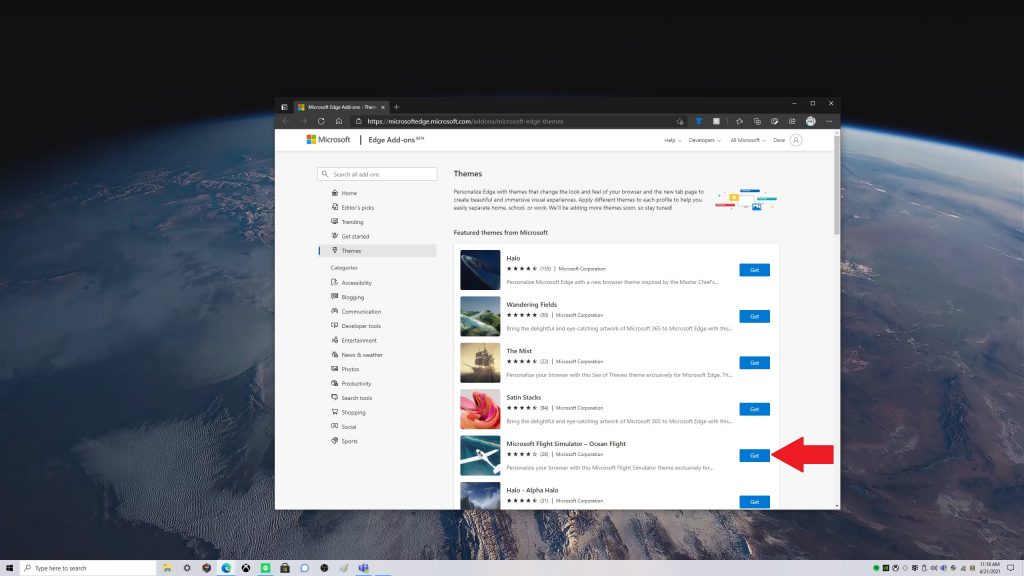
1. Go to the Microsoft Edge Add-on Store
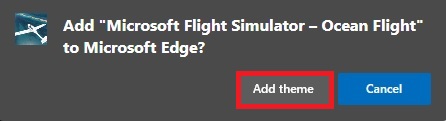
2. Choose Get next to the theme you want to useCustom themes3. You will be prompted by an Edge pop-up window if you want to Add “insert theme name” to Microsoft Edge”Custom themes
4. Choose Add Theme

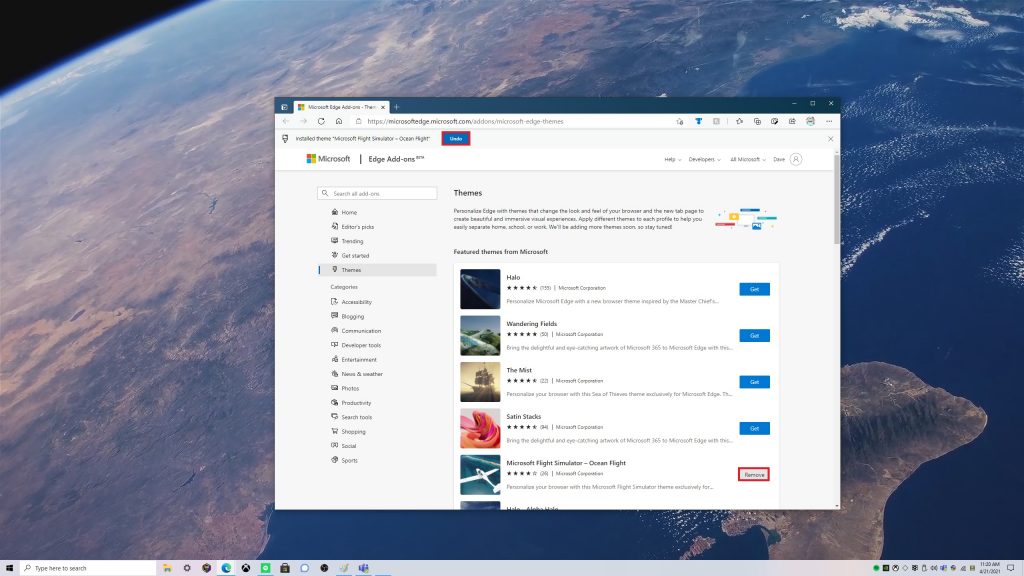
If you want to remove the theme. You have the option to undo it immediately after you apply it, or you can remove by choosing Undo or Remove as shown.
custom themes

From here, Microsoft Edge will adopt the custom theme you chose. In this example, I used the Microsoft Flight Simulator – Ocean Flight custom Microsoft Edge theme.

Remove custom themes

Unhappy with the theme you chose? The process of removing a custom theme is just as simple as adding one. Here’s what you need to do.

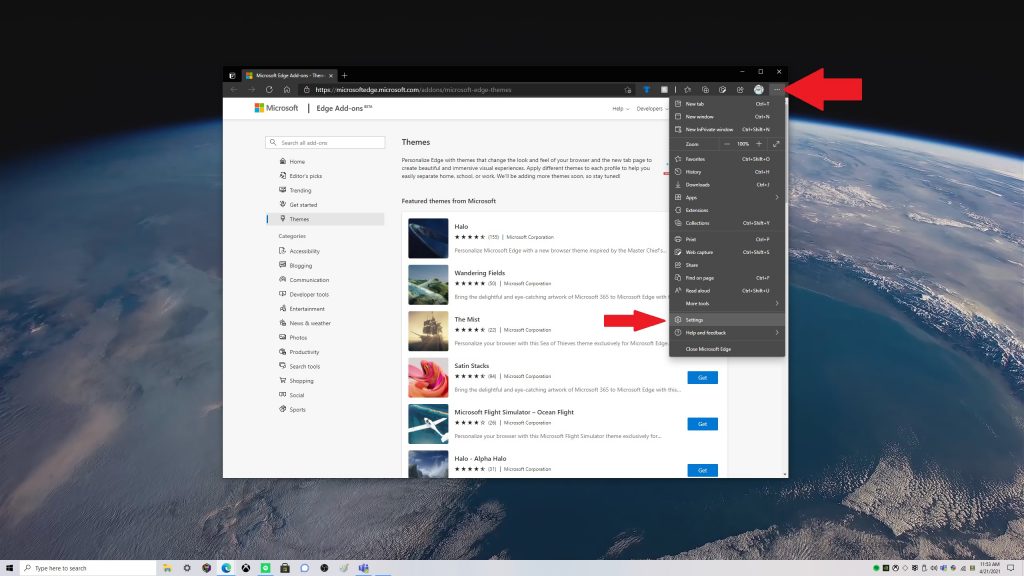
1. Go to Microsoft Edge Settings
custom themes
2. Go to Appearance
3. Choose Remove to remove the custom theme

Other options for custom themes

Of course, you are not limited to the 24 custom themes in the Microsoft Edge Add-on store, you can also use any of these themes in the Chrome Store too. Be on the lookout for other new and upcoming Microsoft Edge personalization options. Recently, Microsoft Edge Insiders on the Canary channel gained the ability to use color-based themes as well as a new “performance mode” and Tab actions menu. Stay up to date on all of our Microsoft Edge news at our dedicated hub!

If you are interested in testing out new Microsoft Edge features, consider becoming an Microsoft Edge Insider. Have an idea for a new feature on Microsoft Edge? Submit a request here.

Slack Crashes When Sharing Screen: 4 Ways to Fix it

If Slack crashes when sharing screen you won’t be able to effectively collaborate with your coworkers, and you’ll have to rely on other methods of screen sharing.

This can be a massive problem in the long run, but there are ways to fix it, and today we’re going to show you how to do it.

Why is screen sharing not working for Slack?

  • Temporary issues with Slack can cause this problem to appear.
  • Missing updates can sometimes cause certain features to stop working.

What can I do if Slack is unable to share screen?

1. Screen sharing on paid plans via BlueJeans

  1. Install the BlueJeans app for Slack.
  2. Start and join BlueJeans calls from Slack.
  3. Feel free to launch BlueJeans to use remote screen control and Slack screen sharing.

2. Zoom app for Slack

  1. Install the Zoom app for Slack.
  2. Start or join a call from Slack.
  3. Once you’re on a call, you can open Zoom.
  4. Easily share control of your screen if you’d like.

Starting a meeting, booking it, and sharing content are all possible with Zoom’s free plan offers. Sharing and remote screen control work flawlessly on both their desktop client and app.

3. Use a third party tool

There is always a better way to handle screen sharing, and we suggest Mikogo in this case.

The benefit of utilizing Mikogo is that you may view your screen on a live chat without interruptions, all while using a browser and without having to download anything.

It is extremely quick, secure, and encrypted, and it enables high-quality file sharing. If you’re ready to broaden your technical knowledge, check out the best telework software and choose one that connects you.

4. Join Slack calls via GoToMeeting

  1. Download the GoToMeeting desktop app.
  2. Install it.
  3. Start or join a call from Slack at your convenience.
  4. Enjoy screen sharing as you normally would.

Another service having a Slack app you can use to start or join calls from Slack is GoToMeeting. Keep in mind that you must subscribe to a paid plan.

What are your thoughts on this whole Slack situation? Slack is very popular, but not having native screen sharing is rough. If you’re unable to fix the issue, consider using remote screen sharing software instead.

This isn’t the only Slack issue you can encounter, and many reported that Slack won’t connect to Internet at all. However, we have a guide that address that issue.

In case of any other reliable alternatives you know of, don’t hesitate to reach for the comments section below.

How to fix Remote Desktop error code 0x204

Remote Desktop is helpful to connect and control your PC from another device, and remotely, as the name suggests.

In this way, you can use another computer to connect to your PC and have access to all of your applications, files, and other network resources as if you were sitting at your desk.

To connect to a remote PC, several conditions should be met:

  • The computer must be turned on
  • It must have a network connection
  • Remote Desktop must be enabled
  • You must have network access to the remote computer and
  • You must have permission to connect to the respective device.

Remote Desktop is a very helpful tool but it has its fair share of problems, for example, the 0x204 error.

Luckily, there are several solutions to trying to fix it and we’ll list them below.

How can I fix Remote Desktop error code 0x204?

  1. Check Remote Desktop Protocol
  2. Check the firewall
  3. Map the port for Remote Desktop connections
  4. Check if new hardware/ drivers have been installed
  5. Reinstall the Remote Desktop app

1. Check Remote Desktop Protocol

  1. Press the Windows key + R (in order to launch the Run application).
  2. Type SystemPropertiesRemote.exe and press OK.run-system-properties-remote
  3. In the System Properties go to the Remote tab.
  4. Under Remote desktop, check Allow remote connections to this computer – Allow remote connections only from computers running Remote Desktop with Network Level Authentication (recommended).system properties remote tab

This option represents a more secure authentication method that can better protect your computer.

2. Check the firewall

  1. Navigate to Control Panel and go to System and Security
  2. Go to Allow an app through Windows Firewall, located under Windows Defender Firewallallow an app through windows firewall
  3. Locate Remote Desktop and tick to allow it for both private and public networksk

Certain connections are not allowed through the Windows Firewall or any other security software you might be using so this step should correct this.

3. Map the port for Remote Desktop connections

  1. Open Command Prompt and type ipconfigcommand-prompt-ip-adress
  2. Log into your router and locate the Port Forwarding section. Into that section you should forward TCP port 3389 to the IP address located previously
Note icon NOTE
Since routers have different interfaces, it is almost impossible to give you specific instructions, so take these steps as a starting point.

Also, please pay attention that exposing the Remote Desktop server directly to the Internet generates risks: malware, automated hacking, etc.

So you should make sure that you use strong passwords and install a VPN.

Another suggestion regarding security could be to change the RDP listening port from the 3389 default to another high port number in the dynamic range.

4. Check if new hardware/ drivers have been installed

Error 0x204 could also occur if you recently added hardware to your computer or you have installed new or updated drivers to your computer. If this happened, you could try to:

  1. Run hardware diagnosis supplied by the system manufacturer to determine which hardware component failed
  2. Remove or replace the newly installed driver.

6. Reinstall the Remote Desktop app

reinstall remote desktop app
  1. Open the Microsoft Remote Desktop app
  2. Click on the overflow menu (…) button next to the name (ex: My Laptop) of the Remote Desktop connection you want to delete, and click on Remove
  3. After you disabled the app, try to install it again.

All in all, managing our computers from afar or troubleshooting a family member’s PC without being in front of it, gives us tremendous comfort.

That is why the applications that give us remote access are very popular among users.

If the above solutions do not fix the fault, we recommend you try Mikogo, one of the most reliable remote control software that helps you share your screen, text, or files. You can also check our detailed guide of remote connecting choices for screen sharing and select the one that is best for your needs.

So, do not let the technical aspects of remote desktop software scare you away and, if you encounter a 0x204 error, we hope that the solutions listed above proved useful.

Fix: Taranis controller not recognized in Windows 10/11

Taranis makes some of the most popular flight simulation controllers. However, at times you may encounter the Taranis controller not recognized in Windows 10 issue. 

This problem can occur due to several reasons. While some users have reported the controller to stop working mid-game, the controller is sometimes not recognized by Windows 10 at all for others.

In this article, we take a look at a few troubleshooting steps to help you resolve the Taranis controller not recognized in Windows 10 issue.

What do I do if the Taranis controller not recognized?

1. Check driver status for the controller 

  1. Press the Windows key + R to open Run.
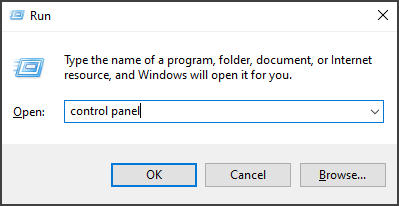
  2. Type control panel and click OK to open the Control Panel.
  3. In the Control Panel, open Hardware and Sound.
  4. Next, open Devices and Printers.
    Taranis controller not recognized
  5. Under Devices and Printers, right-click on your Taranis Controller and choose Game Controller Settings.
  6. Check if the pop-up setting window shows your controller status and lists the device.

The settings window shows the controller and the status as OK. If there’s no controller listed, this is due to a bad driver conflict. To resolve the issue, try to roll back the latest driver for your controller.

2. Manually choose the USB Input Device driver 

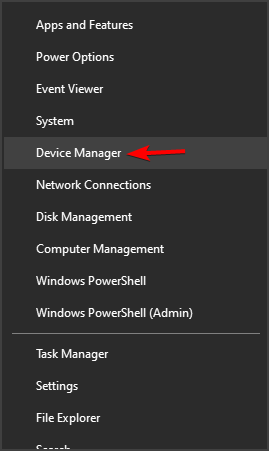
  1. Press Windows Key + X and choose Device Manager.
  2. In Device Manager, expand the libusb-win32 devices section.
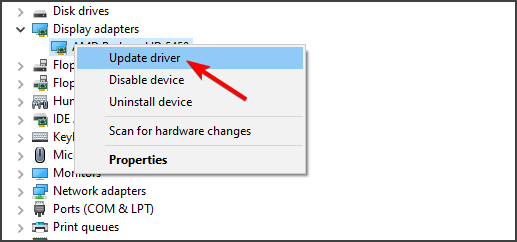
  3. Right-click on BETTER USB HS device and click Update Driver.
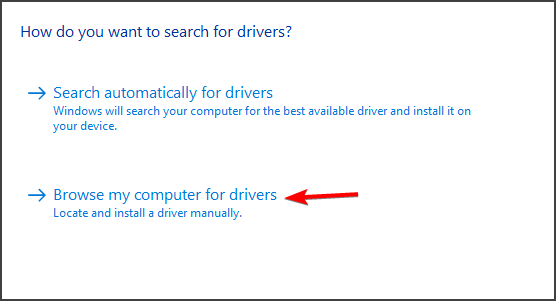
  4. Choose Browser my computer for the drivers option.
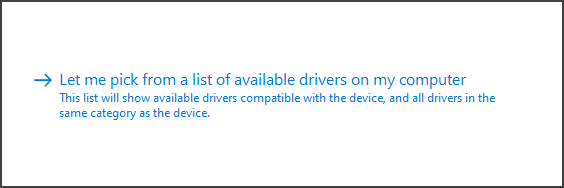
  5. Next, choose Let me pick from the list of available drivers on my computer.
  6. Choose the USB Input Device driver and click Next.
  7. Follow on-screen instructions to install the driver and close the Device Manager.

Once installed, restart your computer to apply the changes. After the restart, test the Taranis controller to see if the Taranis controller is not recognized in Windows 10 issue is resolved.

If this method doesn’t work for you, you can always try updating your drivers with specialized driver updater software.

3. Roll Back the controller driver 

  1. Press the Windows key + R to open Run.
  2. Type devmgmt.msc and click OK to open Device Manager.
  3. In Device Manager, expand the libusb_win32_devices section.
  4. Right-click on the BETTER USB HS and choose Properties.
  5. In the Properties window, open the Driver tab.
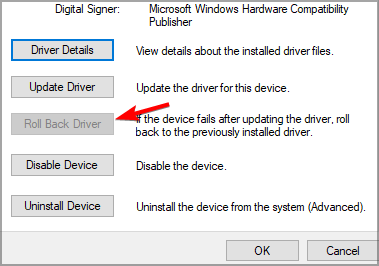
  6. Click the Roll Back Driver button.
     
  7. Next, choose a reason for rolling back the driver and click Yes.
  8. Once done, Windows will uninstall and reinstall the previous version of the driver available.
  9. Close the Device Manager.

To test if the Taranis controller is recognized in Windows 10, head over to the Control Panel and open Devices and Printers. Check the game controller settings for your Taranis controller and make sure the status is set to OK.

If your PC has been updated with the LibUSB update, Windows will use it as the controllers’ default driver. However, this is not the correct driver for the Taranis controller. 

To fix this issue, try to roll back the LibUSB driver from the Device Manager. Make sure to block automatic driver updates to prevent incorrect driver installation.

If the drive rollback did not work, try to manually choose and install the correct driver for your controller from Device Manager. Here’s how to do it.

The Taranis controller not recognized in Windows 10 problem is triggered due to incorrect driver installation. You can fix the issue by rolling back the driver to the previous version. If not, try to install the driver from the Device Manager manually.

Did our solutions work for you? Let us know in the comments section below.

Microsoft Edge Canary adds a Tab actions menu for select Insiders

Microsoft Edge is getting a new Tab actions menu that should make it easier for users to manage their tabs within the browser. The feature is rolling out right now on the Canary update channel, and it appears to be available for some Insiders on version 91.0.863.0.

As noted by Reddit user Leopeva64-2, the Tab actions menu will enable users to manage the Vertical tabs and Collections experience more productively. Clicking on it will open a new flyout menu at the top of the screen, which will help you turn on Vertical tabs, access recently closed tabs, or add opened tabs to a new collection. It’s an optional feature, and users will be able to turn it on/off in Settings.

To enable the Tab actions menu on Microsoft Edge, head to Settings >> Appearance, and turn on the “Show tab actions menu” toggle. Once you turn on this feature, you will see that the Tab actions menu has replaced the Vertical tabs button that allows switching between vertical and horizontal tabs with a single click. Unfortunately, there is no way to get back the Vertical tabs button back for now, but we hope that the company will address this issue in a future update.

Keep in mind that the new Tab actions menu is still a work in progress, and it appears to be in a controlled rollout, which means that not everyone will see it at this time. However, it remains to be seen whether the Tab actions menu will eventually make its way to the general public.

The Tab actions menu is not the only new feature coming soon to Microsoft Edge. The Edge Insider team is currently testing many other updates in the Canary channel, including a new Performance mode, Workspaces experience, Math Solver, and more. The company has recently released a new Canary version of its Edge browser on the Google Play Store.

FIX: Norton Antivirus fails to update on Windows 10/11

We can’t talk about third-party security solutions without including the Norton Antivirus. It’s one of the most reliable and valuable tools to use for malware protection.

However, there seem to be lots of issues when it comes to running Norton on Windows 10 PC. One problem is that Norton Antivirus fails to update on Windows 10 for some users.

We also made sure to try and address this with 4 enlisted solutions. If you’re unable to update Norton, follow the steps provided below.

How do I fix Norton Antivirus update problems?

1. Disable Windows Defender

  1. In the Windows Search bar, type regedit, and open regedit.regedit windows 10
  2. Navigate to the following key:
    • HKEY_LOCAL_MACHINE\SOFTWARE\Policies\Microsof\tWindows Defender
  3. You can copy-paste the path in the Registry Editor’s address bar.
  4. Double-click on the DisableAntiSpyware DWORD and enter 1 as the value.
  5. If there’s no DisableAntiSpyware DWORD, right-click on the empty area and select New DWORD 32 Value.
  6. Name the DWORD DisableAntiSpyware, save it, and set its value to 1.norton antivirus fails to update
  7. Close Registry Editor and restart your PC.

When talked about third-party antivirus solutions causing issues on Windows 10, Norton Antivirus is frequently mentioned.

In this case (and many others), the issues emerge due to the conflict between the built-in Windows Defender and the Norton Antivirus suite.

Windows Defender should be disabled automatically after the installation, but every major update might change the setting. If you need more details about this tool, read our comprehensive guide.

Basically, if both antimalware solutions are working at the same time, one or the other won’t work as intended. Leading to issues like update failures.

2. Run Norton as administrator

  1. Navigate to the folder where Norton is installed.
  2. Right-click on the executable file and open Properties.
  3. Choose the Compatibility tab.
  4. Check the Run this program as an administrator box and confirm changes.norton antivirus fails to update

Furthermore, due to the reports of performance issues on Windows 10, it’s best to run Norton with administrative permissions.

The limitations imposed on the Norton can be avoided afterward. You’ll, of course, need administrative access to your PC in order to grant these permissions.

If you try to open Norton after you activate run as administrator option but nothing happens, use our dedicated guide in order to fix this problem.

3. Reinstall Norton with the Remove and Reinstall Tool

  1. Download Norton Remove and Reinstall Tool, here.
  2. Press and hold Shift and click on Restart to restart your PC in the Advanced menu.
  3. Select Troubleshoot and then Advanced options.
  4. Click on Startup settings and then Restart.
  5. Choose Safe mode or Safe mode on the next screen.
  6. Run the Norton Remove and Reinstall Tool tool.
  7. Navigate to C:Program Files (or Program Files 86x) and delete the Norton folder.
  8. Restart your PC and download the latest Norton iteration, here.
  9. Install it, enter your credentials, and look for improvements with updating.

If the previous steps fell short, we’re inclined to suggest a complete reinstallation of the Norton Antivirus. Especially if the update issues appeared after a major update or system upgrade.

Also, it won’t suffice to remove the program with just a usual approach. You’ll need to use the developer-provided tool called Norton Remove and Reinstall Tool.

You can also use any of these best third-party uninstaller tools to get rid of your antivirus and other stubborn software from your computer.

4. Update Windows

  1. In the Windows Search bar, type Update and open Check for updates.
  2. Click Check for updates and install all available updates.
  3. Restart your PC and run Norton LiveUpdate again.

Finally, you can just wait for the developer to resolve possible server stalls. While waiting, it won’t do you any wrong updating Windows 10.

Some issues were dealt with by applying the cumulative patches Microsoft provided. Other system and security problems are also addressed through Windows updates.

After that, we can hardly suggest anything other but contacting the support and providing them the needed logs so they can deal with your issue internally.

If the Windows update is not working, your computer might have a serious issue. Thus, we recommend you to use our detailed guide in order to fix it.

For additional security measures, consider using the Norton Power Eraser to scan for and remove any deeply embedded threats that might be interfering with your updates.

With that said, we can call it a wrap. If you have an alternative solution you know of, make sure to post it in the comments section below. We would be thankful for your contribution.

Microsoft’s upcoming Cloud PC service could launch in just a few months

According to a report over at ZNET, Microsoft’s new Cloud PC service could be launching around June or July this year, just a few months from now.

The service, which already has a live website, will essentially be a virtual desktop tool that will allow users to run their own virtual computer that’s hosted on Microsoft’s servers and can be accessed by logging in with their account on any computer.

While such a service may not be for everyone, there are two main benefits that make it appealing.

  • A virtual PC can be more powerful than a user’s physical computer and thus can run more programs and process more data.
  • Remote workers can quickly log into a work environment without having to download and install apps and files onto their personal device.

Digital or virtual desktop services aren’t new. In fact, Microsoft already offers a similar service called Windows Virtual Desktop. While this service currently charges users by how much they use Azure and its related tools, Cloud PC is expected to charge users based on how much storage and CPU they want.

Microsoft has yet to make any kind of official announcement regarding Cloud PC though so all of this information that’s been release via leaks could change between now and whenever it launches.

Would you use Cloud PC? Let us know why or why not in the comments below.

How to use Acronis Cyber Protect to improve your security & backup

Acronis is one of the biggest software developers on the market, especially when it comes to data backup, cloud data storage, and antimalware tools, and one of their biggest products yet is Acronis Cyber Protect.

We’ve decided to take a look at this product, and see exactly how it can help improve your security and backup to the point where you no longer have to fear the integrity or safety of your data ever again.

The article will act like a mini-review, as we will be going over most of the program’s features.

Acronis Cyber Protect

Acronis Cyber Protect

If you want to keep your data safe from malware and crashes, then look no further than Acronis Cyber Protect!
Check priceVisit website

How do I improve security & backup with Acronis Cyber Protect

Improve Cybersecurity including endpoint protection

When you purchase Acronis Cyber Protect, you don’t buy just one product that is limited to just one functionality, because this single product offers everything from antimalware to data backup and protection to endpoint protection.

Thanks to the program’s new antimalware product, which includes an extended Acronis Active Protection feature, your data, applications and systems will be protected against the latest the malware world has to offer.

This is all thanks to an advanced AI-based static and behavioral heuristic antivirus, antimalware, anti-ransomware, and anti-cryptojacking technologies.

The program stops malware in its tracks before it even gets the chance to access your PC, all thanks to the URL filtering. This can be further managed via blacklists and whitelists, payload analysis, and more.

  • Global threat monitoring and smart alerts
  • Protection for collaboration tools
  • Vulnerability assessment
  • Exploit prevention

Data backup and protection

Besides having the power to protect your data from external attacks at all times, Acronis Cyber Protect has all the tools that you may ever need in order to keep your data safe from either falling into the wrong hands or succumbing to corruption.

The most basic of tools that you can expect from a data backup tool is a file and disk-image backup feature, and Acronis Cyber Protect has one of the best ones yet.

With this handy tool, your data will be stored in a singular file, and the format even allows you to restore it on entirely new hardware without any issues later on, so no need to worry about compatibility.

Acronis even monitors app activity in real time, allowing it to keep tabs on all the data modifications made by target programs. This provides you with continuous data protection, allowing you to constantly have the latest data version backed up even in case of a sudden system crash.

Of course, that’s not all, since Acronis Cyber Protection also provides you with:

  • App whitelisting based on backups contents
  • Data protection across 20+ platforms
  • Anti-malware scanning of backups
  • Acronis Universal Restore
  • Drive health monitoring
  • Acronis Instant Restore
  • Forensic data collection
  • Any-to-any migration
  • Data Protection Map
  • Tape Multistreaming
  • Tape Multiplexing
  • Flexible storage
  • Safe Recovery

Endpoint protection

Acronis Cyber Protect doesn’t just take care of one PC, it provides visibility into your entire network, allowing you to monitor and protect all devices connected to your business.

One way it does this is via patch management to ensure your updated software is completely protected against malware, not to mention full of features.

That’s why Acronis Cyber Protect supports official Microsoft and third-party patch management support so that you can control which devices get updated, when, and how.

Besides, if the patching process goes bad for whatever reason, you benefit from fail-safe patching procedures, that involve automatic image backups from which you can easily restore and rollback your system in case of errors.

Here’s what else Acronis Cyber Protect provides you with in terms of endpoint protection:

  • Windows Defender Antivirus or Microsoft Security Essentials management
  • Auto-discovery and remote agent installation
  • Flexible monitoring and reporting
  • Remote desktop and assistance
  • Remotely wipe devices

As we said earlier, Acronis Cyber Protect doesn’t just take care of your own PC, since you can use it to keep tabs, monitor, and protect all the devices within a certain network, not just a single PC.

The product is designed to provide a full look into and management of your network through one single pane of glass.


This pretty much wraps up our presentation on how Acronis Cyber Protect can be used to improve your data security and backup capabilities.

We hope we managed to prove a point on why this product is right for you, and that you can make a more informed decision on whether or not to buy it for yourself.

If you found the product to be precisely what you were looking for, don’t hesitate to leave your feedback in the comments section below.

Are Windows 10/11 Activators in Fact Malware?

Windows 10 activators are a double-edged sword for a variety of reasons. If you’re planning on pirating Windows 10, be sure you know what you’re doing. Or the consequences might be significant.

There’s no such thing as a clean KMS activator especially if you decide to run it on an official Windows 10 installation via Media Creation Tool.

There are some other dangers, like malware, so make sure to check our explanation below.

Are Windows 10 cracks/activators malicious software?

A lot, and we mean a LOT of users who avoided upgrading to Windows 10 from Windows 7 back when it was free, eventually decided to upgrade to Windows 10.

In most cases, they purchased a digital license and installed the system, but piracy and Windows OS go hand in hand. There’s no free upgrade option anymore, except on rare occasions.

Since the distribution is mostly done digitally, everyone can get the installation. Licensing and activation are things pirates need to circumvent.

In order to trick the server and activate Windows 10, some piracy-prone users will use KMS activators and loaders. These, of course, usually don’t work well with a factory image of Windows 10.

They are mostly used for cracked versions which are quite rare. Especially in comparison to Windows 7, the most cracked Windows OS ever.

So, how they work? They trick WAT (Windows Activation Technology) protective measures and allow users to crack Windows 10.

That, of course, sounds great on paper. Getting the latest iteration of Windows 10 without spending a dime, but there are a few things to remember.

Stay away from trouble

Is this illegal? Surely! But that’s not even the most significant concern. MSToolkit is known for malware, not just false positives, due to its illegal use.

Your PC will be ridden with malicious software as soon as you install a KMS tool.

And that’s still not your major concern. Using an anti-WAT tool to license your PC will almost certainly break your system with an official installation.

As soon as updates hit the deck, you can expect the crippling instability on Windows 10. This will, eventually, lead to BSODs and a completely unusable system.

With all that in mind, you should be able to make an educated choice. Do by your own volition, but don’t expect too much. We would avoid pirating something which is as detrimental as a pirated OS.

We don’t condone piracy, but if you deem it worth a risk, think about how and what before making a mistake.

It is highly recommended to always protect your PC against cyber threats, so be sure to check out our list of the best lifetime license antivirus tools, and find the proper one for your needs.

What are your thoughts on pirating OS? Tell us in the comments section below.

The Windows 10 Taskbar will come with a brand new Weather app

Although the Sun Valley update will not happen right now until then there are several updates and improvements that can be tested out.

One of the included feature update is the Windows 10 version 21H1 that comes as an improvement for enterprise customers and is concerning the taskbar weather and news feature.

Microsoft started to test a new taskbar feature to which the Insider build 21286 has access. This feature will integrate weather widgets and news functionality as well.

They will both be available directly in Windows 10.

This taskbar feature will be brought to older versions of the OS, such as Windows 10 version 21H1 and version 20H2.

Taskbar weather and news feature 

The widget will be available in the taskbar and you can simply right-click on it and select the news and the weather options displayed in the popup menu.

Clicking on any of them will give you access to the news or weather widgets, with the corresponding headlines, stock market movements, and even sports scores.

Microsoft states that the content is dynamic, it updates through out the day meaning that you’ll constantly stay updated with information for weather and important news.

As already mentioned, this feature is only available if you are using the Windows 10 Insider Preview build 21286. For regular Windows 10 users, the feature will be available once the big Sun Valley update is released.

As always we would love to hear your thoughts on the matter, so don’t hesitate to leave us a message in the comments section below.

FIX: Copy and paste in Remote Desktop is not working

You’re happily connected to the remote PC and you’re transferring some files but suddenly you discover that the copy and paste in Remote Desktop is not functioning anymore.

It can happen pretty often when you’re using the built-in Remote Desktop Connection in Windows 10 and the reason is that the Rdpclip (remote desktop clipboard) app is not working properly.

That software is the one managing the clipboard function that works across the local host and the remote PC. So, in this article, we will explore a few ways to recover this function.

How can I fix the copy and paste function in Remote Desktop?

1. Restart the Rdpclip process

  1. Right-click the Start button and select Task Manager from the list.
  2. Go to the Processes tab and select the Rdpclip.exe.
  3. Click on the End task button.
  4. Now close and restart the Remote Desktop app.

This should solve the copy and paste problem in the Remote Desktop app, at least temporarily. You can do it again if needed.

2. Adjust the client settings

  1. Type remote desktop in Windows search and click on the Remote Desktop Connection app from the results.
  2. Click on Show Options.
  3. Select the Local Resources tab and check the Clipboard option below.
  4. You can also click on the More button and check the Drives options from the menu.

Changing the setting from the Local Resources tab from the Remote Desktop Connection app can fix this problem quickly so make sure you try it.

3. Use a third-party remote desktop app

If you want to avoid all the problems with Remote Desktop you can consider using a third-party remote desktop app like Mikogo that will not have this issue.

This tool recommended by our specialists is focused on unparalleled speed and security. The software makers praise its 60 fps refresh rate and the very low 16 ms latency.

As for the security department, this tool offers TLS technology that makes it almost impossible to intercept or highjack the connection between the computers.

If you were unable to copy and paste to a Remote Desktop session in Windows 10 we hope that our solutions helped you fix the problem.

Should you be looking for other remote desktop applications, we have an excellent list including the best remote control software for Windows 10.

Leave us any possible solutions or suggestions for the Windows Remote Desktop copy paste not working issue by using the comments section below.

How to get rid of a Master Boot Record virus

As you may already know, a master boot record (also known as MBR) is a special type of boot sector. The MBR holds the information on how partitions, containing file systems, are organized on that medium.

In simpler terms, it contains the necessary computer code to start the boot process, making it quite important.

Unfortunately, the MBR isn’t safe from viruses. An MBR virus infects the boot sector of floppy disks or the Master Boot Record (MBR) of hard disks.

What is an MBR virus?

The infected code runs when the system is booted from an infected disk. It also has a tendency to spread very fast since once loaded, it will infect other floppy disks when accessed in the infected computer.

They are a primitive type of coding that is seen rarely nowadays because of the different programming languages. However, they aren’t completely gone and can cause havoc when they manifest.

How does an MBR virus spread?

MBR viruses are most commonly spread using physical media such as an infected floppy disk or USB drive connected. It finds its way into the PC when the drive is accessed, and it will then modify or replace the existing boot code.

Next time you try to open your PC, the virus will be loaded and run immediately as part of the master boot record. Most of the time, this result in you not being able to boot the PC at all.

It can also cause the PC to lose CD-ROM support or cause Microsoft Windows to run in Compatibility Mode.

How do I get rid of an MBR virus?

One thing you must know about MBR viruses is that they can be quite difficult to remove.

They sometimes encrypt the boot sector, and most of the time users may not even be aware they have been infected with a virus until they run an antivirus program.

Because of this, users are advised to have an antivirus program installed that is constantly updated and that has a large virus database.

Unfortunately, if the virus has been active for too long and has already damaged too much of the drive, the only surefire way to remove it is to reformat the existing hard drive.

We strongly recommend using a powerful antivirus solution to fight this difficult virus. This antivirus we suggest is a veteran in the industry and has revolutionized the PC protection market.

This software involves a broad technology that detects and annihilates malware even before it enters your PC.

What’s more, if viruses have already penetrated, as is the case with MBR, then the program detects and removes them effectively.

A great advantage of this antivirus, besides all the anti-malware functions it has, is that you can enjoy it for free for 30 days as a trial period.

TotalAV

TotalAV

To get rid of the vicious MBR virus, use this reliable antivirus software solution and give your PC maximum protection.
Free trialVisit website

As you can probably guess, MBR viruses are quite a threat if left unhandled. More so, the only feasible way of protecting your self against them is to have a very good antivirus program.

As such, it is important to always look on the market for the best ones available, and always remember to keep them updated.

There are viruses that can infect the boot sectors, and to eliminate them you will need an antivirus with boot scanning features. Check out our best antiviruses with boot scan to remove hidden malware.

Do you want to know more about the Master Boot Record? Let us know in the comment section below.

Microsoft announces DirectX 12 Agility SDK and ID @Azure program

Microsoft kicked off its Game Stack Live conference today with some big news for game developers. To speed up adoption of new DirectX12 features, the company is releasing the DirectX12 Agility SDK, which will allow game developers to implement the latest DirectX features to their games and make them available on any PC running the Windows 10 November 2019 Update or newer.

“Historically, the DirectX team used Windows 10 updates to get out our latest features, but game developers told us that they wished that they could add the latest DirectX 12 features to their game without requiring gamers to upgrade their OS,” the DirectX team explained today. Developers including Epic Games, Turn 10 Studios, and 343 Industries are already leveraging the new SDK to update their PC games with the latest DirectX 12 Ultimate feature set.

The new DirectX 12 Agility SDK will also benefit cross-platform games that also ship on Xbox consoles. “We get to ship our features to developers whenever we’re ready to, by issuing a new SDK. This means that for the features that exist on Xbox that we can bring to PC and vice and versa, this can happen at roughly the same time,” the team explained today.

Another big announcement Microsoft made this morning is the upcoming launch of the ID@Azure program in Summer 2021. This new program is targeted at small independent developers interested in taking advantage of the Microsoft cloud to build their games, with free access to developer tools and support from industry experts.

Developers and creators interested in joining the ID@Azure program will need to contact the team to get the chance to become a founding member, and more information is available on this page. Microsoft’s Game Stack Live event is still going on right now, and all the sessions about graphics, audio technologies, and more are open to all game developers around the world.

Discord reportedly to stay independent, ends aquisition talks with Microsoft

The Wall Street Journal is reporting that Discord, the gaming focused chat, audio, and video platform, has ended talks with Microsoft on a reported $10 billion acquisition deal. The talks “have ended without a deal, though it is possible they could be rekindled in the future,” according to the report. The Journal’s sources said that “Discord is performing well and prefers to stay independent at this time.” Microsoft reportedly was in the late stages of “exclusive” talks to acquire the company, but it looks like the deal won’t happen.

Microsoft has apparently been looking for ways to expand its presence in social media, but has yet to pull the trigger on a big acquisition, failing to acquire Pinterest, TikTok, and now Discord. Microsoft’s early foray into gaming related chat and sharing with Beam, which became Mixer, ended the closure of the ill-fated service last year.

Discord has hired a finance chief, Tomasz Marcinowski, coincidentally formerly from Pinterest, in a move that could signal an upcoming IPO.

We’ll continue to keep tabs on the fate of Discord, and any other potential acquisitions Microsoft attempts with its $2 trillion market cap.


The taskbar news & interests rolled out for older Windows OSs

The news and interests taskbar widget that Microsoft has been testing for the past weeks now is available as of yesterday on Windows 10 20H2 and v2004 respectively.

As expected, the widget is only out for those part of the Insider program that are running on the respective system versions.

For now, Microsoft wants to test the feature and encourages feedback to further improve it.

The only notable change in the latest KB5001391

newsfeed widget

The Windows newsfeed is a long-awaited feature that Microsoft has been happily announcing as part of the user customization approach adopted by the Redmond giant recently.

It will allow users to set interests and filter browsing according to a predefined list of categories. Counting on simplicity, the widget is easy to set up. Further on, the displayed content is also conveniently filtered.

The widget has been slowly rolled out with the past preview builds for developers running on newer Windows versions. Along with the latest 20H2 Build Preview Build 19042.962 (KB5001391), those on older systems can also test it. 

News and interests on the taskbar make it easy to stay up to date with information at a glance, and we look forward to hearing what you think.

Actually, this might be the only notable detail in the latest build. Apart from several fixes and improvements brought to the Windows Server Storage Migration Service, the other fixes focus on disparate processes.

The newsfeed widget will not only have a Manage my interests option, but also a Tune your feed one. This way, users can also choose the publishers, subjects and news that they want to read.

So, for now, if you’re excited about this new feature, go on and subscribe to the Insider program to test it out. It seems that news feed is no mote in the latest version of Windows, and to learn more, visit our Windows 11 Widgets: Say goodbye to News Feed annoyance article.

Otherwise, you’ll have to wait for the Sun Valley Windows 10 Update which everybody expects to be launched this spring. It will probably include this taskbar feature as well.

Microsoft announces new wellbeing features for Outlook and Teams

Microsoft has announced some important updates for its Outlook app and Teams collaboration platform. Jared Spataro, CVP of Microsoft 365, detailed that these new features and capabilities are specifically designed to improve the well-being of remote employees.

First off, Microsoft is launching a new Scheduling feature for Outlook that should help to prevent meeting burnout. It will enable employers to make all meetings shorter by default within an organization. The ability to set organization-wide rules will make it easier for them to ensure that people have a bit of breathing room during back-to-back meetings.

“The setting is easily customizable. For example, you can choose if the break is at the beginning or end of meetings. You can also choose the length of the break. For instance, it could be a five-minute break ahead of all 30-minute meetings or a 15-minute break after all hour-long meetings. Once the setting is enabled, when employees schedule meetings, the meeting start- or end-time will automatically be adjusted based on the individual or company-wide setting,” the company explained.

Individuals can change the duration of their events in the Outlook calendar settings.

Microsoft says that these rules can be applied to individual users or across the entire organization, and all future meetings will follow them. IT Admins will be able to deploy the organization-wide setting using PowerShell, and you can find more details in this post.

The company is also adding a couple of new well-being experiences to Viva insights in Microsoft Teams. Microsoft Viva is a new employee experience platform that was introduced in February this year, and it leverages Microsoft Teams and other Microsoft 365 services to help employees learn and grow.

The list of new capabilities includes reflection, send praise, and virtual commute features. These updates will be available starting next week.

  • Reflection: This feature will help you become more aware of how you’re feeling and identify patterns over time. These insights are personal and private to the individual.
  • Send praise: This feature that will enable you to express appreciation for your colleagues and schedule praise reminders to build a habit of sharing gratitude.
  • Virtual commute: This feature will help you wrap up your tasks at the end of the workday, prepare for tomorrow, and transition into your personal time with peace of mind.

Lastly, Microsoft is also integrating new “guided meditations and mindfulness experiences” into the Viva Insights app in Teams later this year. These features will help prevent meeting fatigue by allowing users to relax their minds before starting an important project or jumping into a meeting. If you’re interested to learn more about these wellbeing experiences, you can check out the Microsoft 365 Blog.

Windows Update blocks Remote Desktop [Full Fix]

The Remote Desktop Connection app in Windows enables users to connect to a desktop or laptop with another PC. However, numerous users have stated on forums that Remote Desktop stops working for them after Windows updates.

Consequently, the users can’t connect to a host (or server) with Microsoft Remote Desktop.

The KB4103727 update is one update that stopped Remote Desktop Connection connecting to hosts.

A number of users stated in May 2018 that they couldn’t connect with Remote Desktop after the KB4103727 update for Windows 10 version 1709.

In June and July 2018, some users also stated on forums that RDC stopped working for them after the Windows 10 April 2018 Update (version 1803).

These are a few fixes for Remote Desktop when it stops working after a Windows update.

What can I do if Windows Update blocks Remote Desktop?

  1. Check if both the host and client PCs have been updated
  2. Check for the latest Windows Updates
  3. Roll back updates with System Restore

1. Check if both the host and client PCs have been updated

  1. Press Windows Key + R to open the Run dialog.
  2. Enter appwiz.cpl in Run, and press the OK button.
  3. Then click View installed updates on the left of the Control Panel’s window to open a list of recent updates. There you can check if the host has received the same updates as the client.
  4. If the host is missing one of the client’s updates, press the Check for updates button on this page to manually search for and install missing updates. You can also download updates from the Microsoft Update Catalog.

The Authentication error has occurred error was due to users utilizing Remote Desktop on an updated client to connect to an unpatched host server.

Thus, the KB4103727 or equivalent update wasn’t installed on the host’s platform. So check that both the client and host have been updated with the same monthly updates.

2. Check for the latest Windows Updates

  1. Press Windows Key + I to open the Settings app.
  2. Head over to Update & Security section.
  3. Click the Check for updates button.
  4. If updates are available, Windows will install them automatically.

This might be surprising to see that Windows Update stops Remote Desktop from working properly. However, Microsoft has already fixed this issue in the form of KB4284848 update.

The KB4284848 page states that the update includes this fix, Addresses an issue that causes a connection failure when a Remote Desktop connection doesn’t read the bypass list for a proxy that has multiple entries.

3. Roll back updates with System Restore

  1. Press Windows key + R keyboard shortcut.
  2. Input rstrui in Run’s text box, and press the Enter key.
  3. Click Choose a different restore point on the System Restore window.
  4. Select the Show more restore points check box to fully expand the list of restore points.
  5. Then choose a restore point that will roll Windows back to date when Remote Desktop connected to the required host.
  6. Click the Next button. Click Finish to confirm the selected restore point.

To ensure Windows doesn’t automatically reinstall the update, check out the Show or Hide Updates Tool. Be sure to check our guide on how to block Windows driver updates with wushowhide.diagcab to see how to properly use the software.

You can also remove the update on the client desktop or laptop that stops Remote Desktop from connecting to the host. If you’re not sure what update to uninstall, roll Windows 10 back to a restore point with System Restore.

After restoring your system, check if Windows Update still blocks Remote Desktop on your PC.

Some of those resolutions might fix Remote Desktop when it doesn’t connect to hosts after a Windows update. Remember, however, that Windows updates aren’t always to blame if RDC doesn’t work.

Another option is to try Mikogo. It is a good Remote Desktop alternative that may not cause as many issues. Or you can check out some of the best remote management software and see which one you prefer.

In case the problem is still there, you can check our Remote Desktop connection not working guide for more solutions.

Outlook on the Web will soon let users book travel time and transportation between meetings

Microsoft’s Outlook e-mail service is getting some important updates in the coming months. The news comes from a recent update to the Microsoft 365 roadmap, which lists these new capabilities as in development for Outlook on the web.

First of all, Microsoft is actively working on a feature that will allow business users to book travel time appointments and transportation between meetings. “Now when you need to go to a different building or place between meetings, Outlook will enable you to book travel time and way of transportation between the places you need to go,” the company explained on the Microsoft 365 roadmap. The feature is planned for release in August this year.

The other new feature is emoji reactions, which is also coming to iOS and Android. This update will enable users to messages with love, laughter, celebration, sadness, or surprise emojis when accessing their inbox in Outlook through a web browser. Emoji reactions are expected to roll out to both mobile and web users in June 2021.

Reactions group.png

Next up, Microsoft Outlook is adding an option to start meetings late. The feature will bring the ability for users to opt for appointments and meetings to start 0 -15 mins after the specified time. The Microsoft 365 roadmap listing suggests that the company is planning to roll out this update to the Web and Windows clients later this month.

Apart from the aforementioned features, Outlook on the web is making it easier to add OneDrive and SharePoint files to emails. Lastly, Microsoft also announced some new time management features for Outlook on the web and mobile last month, and you can learn more details in our separate post.

New Xbox Insider update brings much-needed improvements to Quick Resume

Microsoft’s Quick Resume feature on Xbox Series X|S consoles is about to get much better in the coming months. Indeed, the latest Xbox OS update for Insiders in the Alpha and Alpha Skip Ahead rings will automatically create a group for games that are currently in a Quick Resume State.

As of today, gamers on Series X|S consoles have no easy way to see which recently played games can be resumed almost instantly thanks to Quick Resume, but that’s finally changing with this new Quick Resume Group. Games in a Quick Resume State will appear in that group automatically, and the group will be visible in My Games & Apps, the Xbox Guide, and it can also be added to the Home Dashboard for convenience.

Moreover, opening the Xbox Guide will now indicate if the game that’s currently running on Xbox Series X|S consoles supports Quick Resume. A dedicated “Quick Resume” label will appear on the top right corner of the screen to indicate when a game supports Quick Resume. Most Xbox games are currently compatibles with the new features, but there are still some exceptions for multiplayer games.

From the new Quick Resume group, Xbox Insiders will also be able remove games from the Quick Resume pool to leave room for other titles. Overall, these improvements are important new steps in giving Xbox gamers more control over Quick Resume, a feature that’s probably not very easy to understand for newcomers.

Image

In addition to these Quick Resume improvements, the new Insider builds also add a new option to enable audio passthrough for media apps on Xbox consoles. When enabled, audio coming from media apps like Netflix will directly pass onto a receiver, skipping all the audio processing that usually happens on the console. This can help reduce audio delay for users with complex audio systems connected to their Xbox.

TeamViewer clipboard synchronization not working [Fix]

TeamViewer is one of the best remote assistance applications, but many users reported that TeamViewer clipboard synchronization is not working.

This can be a big problem, especially if you’re trying to provide remote assistance to your coworker or a friend remotely.

Here’s how one user described the issue on TeamViewer Community forums:

We just bought enterprise, and it’s a deal breaker if we can’t copy and paste from the Windows 10 host into the TV window.
I’ve tried with Sync clipboards checked, and unchecked. I’ve restarted TV multiple times with both options.
It does not work.
Is there a fix for this or do we need to cancel our account to find something which has this feature?

We managed to come up with a series of simple fixes that should fix this inconvenience.

How can I fix TeamViewer clipboard synchronization issues?

1. Enable Clipboard synchronization

  1. Open TeamViewer.
  2. In the top menu click Extras and select Options.
  3. Click Advanced.
  4. Select Show advanced options.
  5. Find the Advanced settings for connections to other computers option and check the Clipboard synchronization box.
    clipboard synchronization enable teamviewer clipboard synchronization not working
  6. Press OK and restart TeamViewer.

The clipboard synchronization has to be enabled in your TeamViewer options to allow copy-paste. Make sure that this option is activated on both computers.

2. Reboot your PC

  1. Go to the Start Menu.
  2. Click the Power button and choose Restart from the menu.
    restart PC teamviewer clipboard synchronization not working

As simple as it seems, sometimes restarting your computer can resolve numerous issues. Windows 10 still has glitches and can block the functionality of some software.

However, due to certain reasons, the Restart process might encounter some problems. If your computer remains stuck on the restart, use our dedicated guide to fix the issue.

3. Use the Copy – Paste option

  1. Right-click the text you want to copy.
  2. Now select Copy/Paste depending on your needs.

We recommend you try using the Copy-Paste option instead of the keyboard shortcuts Ctrl+C, and Ctrl+C.

Sometimes, the shortcuts are not properly configured, or they are used by other apps, thus, leading to interference when used in other software.

We hope that our guide helped you fix TeamViewer clipboard synchronization when is not working. As you can see, this problem is easy to fix.

If you encounter repeated issues with TeamViewer, there are other tools available that you can try. Take a look at our list including the best remote control software and choose the one you like. Mikogo is a great alternative that’s easy to get used to and it has a set of useful additional features.

Feel free to leave us your opinion in the comment section below, and don’t forget to mention if any of our solutions worked for you.

Wondershare Democreator 2026 Review & Usage Guide

The gain in popularity only encouraged people to follow their artistic dreams and create videos with diverse topics. Therefore, more and more companies developed awesome tools to help these pursuers.

The renowned company, Wondershare, developed software called Wondershare DemoCreator, which combines screen recording and video editing into one product.

Today, we shall take a thorough look at this interesting screen recording software in our Wondershare DemoCreator review and decide whether or not it is worth trying.

What is Wondershare DemoCreator?

For starters, we should talk about Wondershare’s overall reputation as a company. They have been around for a while, more precisely, since 2003, and they own quite a library of products.

When it comes to Wondershare DemoCreator, they claim that the software is perfect for creating video tutorials, recording training courses, holding presentations, and live-streaming games.

Let’s see if the software’s features can back up their claims. Not every screen recording software can do these tasks successfully, especially when we talk about streaming games that require lots of resources.

Here are the program’s system requirements:


OS
: 64-bit Windows 7/Windows 8/Windows 10
CPU: Intel i3 or better multicore processor, 2GHz or above
RAM: At least 3GB physical RAM, and 8GB for HD and 4K videos
Screen Resolution: 1366×768 or higher
Disk: At least 2GB free space for installation, and an SSD is recommended for HD and 4k videos”,”icon”:”/wp-content/themes/windowsreport/assets/images/svg/note-clipboard.svg”} /–>

Wondershare DemoCreator’s features

Record computer screen and audio

Wondershare Democreator allows you to freely record your computer’s screen, system audio, and microphone. You can customize everything before you hit the rec button.

For example, you can change the resolution of your recording and select a certain area to capture or select the entire screen.

Additionally, you will find other customization options such as hotkey, recording region, and framerate selection. You will also find toggles for your camera, microphones, and system sound there.

One other cool tool you can find in this interface is the game mode. Activating it will allow you to select the game you wish to record, and the software will only record that specific game’s window.

Now that we’ve showcased the different things you can do with the screen recorder, let’s show you how to do it:

  1. Open Wondershare DemoCreator.
  2. Select New Recording.
  3. Read through the User’s guide and select Start.
  4. Press the cog icon in the top-right of the program to get more customization settings.
  5. Change your framerate, the audio, and camera settings, according to your needs.
  6. After you’re done setting up, select Capture, then press the Rec button.
    • You can freely pause and unpause the recording after you pressed the button.

Here’s a video made by Wondershare showcasing the process:

After you’re done creating your videos, Wondershare DemoCreator gives you all the necessary tools to edit your records and transform them into quality content for your channel, live stream, or class.

Edit recorded videos and add effects:

Never again will you feel frustrated that you couldn’t properly explain something during your recordings because you can add annotations and freely draw on the videos.

Moreover, make your presentations more interesting with special effects for annotations, cursor, and transitions. You can also import and filter media files for your videos. Another thing you can do is panning and zoom certain parts of your videos.

Here’s a brief tutorial on how to use the video editor:

  1. Open Wondershare DemoCreator and select the Video Editor.
  2. On the top-right side of the newly opened window, you will see all the different customization tabs.
  3. Cut, split, or crop your video
    • To perform the basic editing like cutting, cropping, or splitting, refer to the basic video editor section of the interface as follows:
  4. Add Annotations: 
    • Now to add various screen drawing shapes and annotations to your recorded video, simply refer to the Annotations menu of the DemoCreator video editor as follows:
  5. Add Animated Captions
    • Now, if you want to add an animated intro with texts in your recorded videos, refer to the Captions menu bar and select your favorite one from the list:
  6. Export your video or directly upload it to YouTube 
    • You can also add cursor effects, stickers to your video, adding transition effects between two video clips with DemoCreator. After you’re done editing your video, you can save it in multiple formats or directly upload to YouTube.

Pricing and plans

First and foremost, we have to mention that you can use Wondershare DemoCreator completely free of charge, but with a twist. That twist is actually a watermark.

There is no trial period and no features locked behind a paywall. You can test the product out and use it as much as you’d like, as long as you don’t mind the watermark on the final video.

That being said, let’s focus on the paid versions of the program, which come in different plans for businesses, students, and individuals alike.

The Annual Plan for individuals:

  • $32.99 billed yearly, and you can cancel any time
  • All recording and video features
  • No watermark
  • Free updates
  • Tech support

The Perpetual Plan for individuals:

  • $59.99
  • One time purchase per user
  • All recording and video features
  • No watermark
  • Free updates
  • Tech support

The Team Plan for businesses:

  • Annual or perpetual plan for up to 5 users
  • All recording and video features
  • Free updates and upgrades for the annual plan
  • No watermark
  • Tech support
  • Flexible payment options
  • Volume discount
  • Flexible payment options
Note icon NOTE
All of the products come with a 30-day return policy that will guarantee your money back.

Wondershare DemoCreator

Wondershare DemoCreator allows you to create content by capturing your screen and editing the recordings with awesome effects.
Free trial Visit website

Closing thoughts

Pros
Intuitive interface
A great amount of video editing effects
Record and zoom specific parts of your screen
The trial version has no limits, just the watermark
Can also capture webcam video and microphone sound
Different price plans for different needs
Free updates
Tech support
Cons
There will be a watermark for the trial version.

To give some insight into the pros and cons above, we must admit that we’ve been pleased by the number of features this software brings, especially since the trial version has no limits.

We can definitely see Wondershare DemoCreator being used by both beginner and professional content creators. It is intuitive, has lots of customization options, and it offers all the necessary tools.

Teachers, students, and others who only need to use the screen recorder to share something in a meeting or a presentation will also benefit from this software.

The price includes video editing functions as well; the free version of the program would be more adequate for them. We do encourage everyone to try Wondershare DemoCreator out.

How to access your iPhone from your Windows 10 PC

iPhones are Apple products and were build to work mostly with other products from the company, in order to create exclusivity and brand value.

So, if you need to access your iPhone from a device that wasn’t manufactured by Apple, such as a Windows 10 PC, how will you go about it?

Actually, using your iPhone from a different device is quite simple. You just need to install remote control software on both of the devices and you’re set.

That being said, this article contains a list of the best remote control software to access your iPhone from your Windows 10 PC.

How do I access my iPhone from my computer?

1. Use AnyDesk

AnyDesk is a cross-platform collaborative software that is great for project management, remote control, screen sharing presentations, and many other things.

The software has no limits when it comes to platform compatibility. You can establish a connection between any device brand and with any Operating System.

The software’s UI will optimize itself to your current screen, while converting the controls from touchscreen to cursor, or vice versa, depending on the situation.

AnyDesk offers high-speed, latency-free, and high-FPS sessions that will maintain a stable connection and fluent refresh rates, while not affecting your PC’s performance at all.

Let’s take a look at some of the app’s key features:

  • Military-grade security and encryption
  • Backward compatibility with older AnyDesk versions
  • Screen sharing
  • Voice, video, and chat communication during sessions
  • File transfer
  • Connect remotely from anywhere in the world
  • Cross-platform
  • Lightweight, no installation required
  • Fast and stable connection speeds
AnyDesk

AnyDesk

Connect your iPhone to any device and use it remotely with the AnyDesk remote control software.
Check priceVisit website

2. Use Mikogo

Perhaps one of the most accessible remote control software is Mikogo since it doesn’t require any download, being browser-based.

Since all you need to do is create an account, you can use it from any device, including iPhones and Windows PCs, and you won’t have any compatibility problems.

The app has mobile versions that you can download if you think it is more convenient for you. Customization is key when it comes to Mikogo.

Take a look at Mikogo’s other awesome features:

  • Voice conferencing
  • Session scheduler
  • App selection and monitor
  • Multi-user whiteboard
  • Session recording
  • Profile manager
  • Chat
  • File transfer
Mikogo

Mikogo

Mikogo is a popular browser-based remote control software that works between all platforms and devices.
Check priceVisit website

3. Wondershare MirrorGo

With the increasing number of remote work, we rely more and more on using both our PCs and phones. Therefore, Wondershare created a neat tool to cast the screen of your phone to your PC.

We have to mention that this works only for devices connected to the same Wi-Fi network, but it works flawlessly nonetheless.

Wondershare MirrorGo will optimize your phone screen to work with a mouse and keyboard. The transition is great, and it even allows you to play games on your PC this way.

Some other of the software’s neat features:

  • Record, capture, and share screens
  • Data sync
  • Full UI and software compatibility
  • Hotkeys
  • High resolutions
Wondershare MirrorGo

Wondershare MirrorGo

A great phone emulator for casting you iPhone to your Windows PC
Check priceVisit website

4. Use TeamViewer

TeamViewer is a very popular remote control program that is being used by lots of people worldwide. It features a free license for personal use and paid license for commercial use.

With TeamViewer, you can connect any two separate devices between each other with no compatibility issues. All you have to do is download the software on both of them and create a session.

When it comes to other key features, TeamViewer has plenty of them:

  • Voice and message chat integration
  • Screen sharing
  • File transfer
  • Customizable permissions for extra protection
  • Multi-layered security
  • Lightweight
  • Free unlimited usage for personal projects

⇒ Get TeamViewer

These were the best programs that will let you access your iPhone from your Windows 10 PC. You can use them in your personal, work-related, or school projects.

If you have another similar software that you would recommend, feel free to do so in the comment section below.

7 Best Multi-Engine Antivirus Scanners [Windows 10/11 & Mac]

Are you worried that your personal files are not properly secured on your Windows 10 PC? Do you think the safety of your sensitive data is at risk?

If you think that a single antivirus is not enough to protect your operating system against the daily released malware and malicious/deceptive apps, you should try another solution.

There are hybrid antivirus programs working cross-platform with Linux, Mac OS, and other operating systems, that use multiple scanning engines in order to increase the detection rate on a single scan.

Multiple scanning engines can detect infected files, malicious apps like malware, or security breaches by using two or more third-party antivirus engines simultaneously.

If you are working with important or sensitive files and programs and security is mandatory, a regular antivirus solution might just not be enough.

Therefore, to avoid unpleasant situations you should use a hybrid with multiple scanning engines.

What’s the best antivirus tool with multiple scanning engines?

TotalAV – Local engine plus cloud lookups

TotalAV antivirus scan

TotalAV pairs its on-device antivirus engine with cloud-based threat intelligence: files are checked locally, and unknown ones are confirmed against continuously updated data. That gives you real-time protection, WebShield for dangerous websites and scheduled scans in a package that is easy to set up on Windows and Mac and needs no maintenance.

  • Local engine with cloud lookups
  • Real-time protection
  • WebShield for malicious and phishing sites
  • Scheduled scans, no maintenance needed
  • Windows and Mac
TotalAV

TotalAV

The industry-leading and one of the most trusted antivirus software that you can find on the market.
Check Price Visit Website

Emsisoft Anti-Malware – User-friendly interface

Emsisoft is one of the best security tools and it’s very popular among Windows 10 users. The antivirus offers complete PC protection for both online and offline environments.

Additionally, it currently ranks high in all AV tests in terms of performance, stability, usability, and false-positive results which means that its scanning results are almost 100% accurate.

Let’s quickly look at its key features:

  • Dual-engine scanner
  • Behavior Blocker (offers protection even when not-yet-knows signatures are threatening your system)
  • Combines only two scanning engine platforms (a native one and Bitdefender’s)
  • Can be used for personal or business purposes

Emsisoft Anti-Malware

Launch super-fast scans to find and remove unwanted programs from your device in no time.
Check Price Visit Website

HitmanPro – Easy to use

HitmanPro ensures 3 multiple scanning engines based on Emsisoft, Ikarus, and Bitdefender.

It is a fast platform that can be used effortlessly without an actual installation process. Measuring only 10 MB, it can be run from a desktop, USB Flash Driver, or through a remote storage device.

Let’s quickly look at its key features:

  • Remove infected Windows files
  • Replace infected files with the original and safe packages
  • Requires few resources and will offer accurate results on a single scan
  • Only takes 10MB of space

HitmanPro

An efficacious digital threat removal tool that keeps your device safe and secure.
Free Trial Visit Website

Avast Free Antivirus – DND mode

Avast Free Antivirus also uses multi-layered protection to stop malware, adware, ransomware, and other harmful software from entering your device and stealing your data.

Avast has multiple price plans for its antivirus, but all of them, including the Avast Free Antivirus, use the same level of protection.

The only downside of using this otherwise free tool might be the fact that it runs ads. This will not bother everyone, but it was worth mentioning.

Here are some other of the program’s core features:

  • Do Not Disturb mode that won’t interrupt when you’re gaming or watching movies
  • Designed for effortless security
  • Behavior shield keeps a watch on suspicious files
  • Smart scan
  • Wi-Fi Inspector

Avast Free Antivirus

A powerful antivirus program that eliminates all kinds of malicious files from your PC.

OPSWAT – Light Infrastructure

OPSWAT is a free antivirus program with multiple scanning engines that combines a configurable number of anti-malware engines (from 1 to 30), while in the cloud it’s based on 42 multiple scanning engines.

It has a light infrastructure that can successfully run on older configurations and can detect the latest threats.

Let’s quickly look at its key features:

  • Intuitive UI is with basic features for entry-level users.
  • Detects the latest threats
  • Compatible with major OS platforms

⇒ Get OPSWAT

SecureAPlus – AI-based

secureaplus antivirus with multiple scanning engines

SecureAPlus is an antivirus with multiple scanning engines that combines 10 different algorithms from the most popular and powerful third-party security programs available for Windows 10.

It’s partially free because you can use it for up to 90 days without having to pay anything.

This software scans your computer and will show individual results for each of the scanning engines included in its platform.

Let’s quickly look at its key features:

  • Artificial Intelligence to reliably & speedily identify freshly released threats
  • Light and easy on your PC resources
  • Multiple Cloud Antivirus Engines

⇒ Get SecureAPlus

herdProtect – Low resource usage

herdprotect antivirus with multiple scanning engines

herdProtect is based on 68 scanning engines and it provides an extremely fast and smooth security solution that can work along with any other anti-malware program.

In that respect, it’s recommended to use her protect as a backup antivirus solution – this program will work great with a powerful antivirus platform such as Bitdefender or Bullguard.

Let’s quickly look at its key features:

  • Easy to use and extremely fast
  • It won’t use resources so it can run in the background without problems
  • Detects malicious files, infected packages, or scams in less than 60 seconds
  • Cloud performed scanning

⇒ Get herdProtect

These are the antivirus programs with multiple scanning engines that can be used on Windows 10.

We recommend checking out our detailed list of antivirus software with unlimited validity if you want to get other useful security software.

Feel free to choose the software that you like the most or test all of them before installing the right security solution for your system.

If you know other similar programs that can be trusted, don’t hesitate and share your experience with us via the comments section below.

Is DriverAgent Plus safe? How can I remove it from my PC?

Even though DriverAgent Plus seems like a handy little software that allows you to keep all the drivers on your PC up to date, this app comes bundled with other dangerous and hidden third-party software.

This tool is presented as the free software but doesn’t allow you to fix any drivers on your Windows 10 PC if you don’t pay for the services.

Beyond this, DriverAgent Plus installs some adware on your PC, that can pester you for a long time after you decided to uninstall the base software, and also leaves you open to phishing and other cyber attacks.

As we concluded that DriverAgent Plus is adware, in this article we will explore the best method to solve this issue.

We will first remove every trace of this software from your computer’s hard-drive, and then make sure no adware remains. Read on to find out how to do it.

How to remove Driver Agent Plus on Windows 10?

1. Use anti-malware software to remove any malicious files

The easiest way to remove DriverAgent is using reliable antivirus software that uses advanced AI and multi-layered protection to scan and find even the most hidden malicious content.

Besides, the app comes with other useful features that will keep your identity and data safe from intrusions, while gettind rid of existing threats on your devices.

The program will also protect you while you’re shopping online, keeping your banking information safe. The antivirus also works on multiple devices, so you can keep your phone, tablet, and PC safe.

We suggest installing this antivirus software if you also want to get rid of malware, bloatware, crypto miners, and spyware from your computer.

⇒ Get TotalAV

2. Completely remove DriverAgent Plus from your computer

  1. Press Win + X keys on the keyboard, and select Apps and features from the menu.
  2. Inside the programs list, search for DriverAgent Plus > Select it > click Uninstall.
    uninstall application is driveragent plus safe
  3. Follow the on-screen instructions to finish the removal process.
  4. Once this process is complete, follow the next step.

3. Use a third-party uninstaller

The Windows uninstaller is an easy way to get rid of unwanted programs, but it’s not the best method out there. Sometimes, there will be traces left of the program you wanted to rid of.

Additionally, some malicious software can remain hidden and inaccessible by your Windows uninstaller, so you need something better that can find them all.

Thankfully, there are software solutions that do just that. These apps will scan your computer for software and offer you the option to remove anything, completely wiping out the app from your PC.

Dedicated uninstallers will find all leftover files and registry entries and remove them from your PC so no traces of your old file will clutter your system or prevent it from working at best capacity.

This concludes our article. If you were wondering if Driveragent is safe, it definitely isn’t. We’ve included the best solutions in order to remove all aspects of this software from your PC.

Looking for more antivirus software to protect your data? This awesome list with the best antivirus tool with unlimited validity is what you need.

Please let us know if this article helped you, or give us any suggestion regarding the subject, by using the comment section below.

FIX: Your computer has been blocked [Red screen warning]

If you just received the Your computer has been blocked red screen warning while navigating towards a certain web page, it means that a scammer is displaying fake alerts in order to intimidate you.

The goal, of course, is to make you call the number that’s displayed on the screen or convince you to purchase a dedicated program that can further protect your identity, data, and online profile.

Well, as already outlined, this is a scam, a deceptive alert that’s not related to Microsoft or any other OEM.

The message is usually accompanied by a red screen that disables the web browser UI.

So, you might think that everything was indeed blocked and that your computer and your info are at risk.

When you receive this fake red screen, it’s important to stay calm. Don’t download anything and don’t follow the instructions listed on that page. Most likely, your PC is not infected.

However, depending on what you choose to do next, you might end up experiencing issues. So, here is what you need to do to smartly handle this situation.

How can I fix the Microsoft warning alert red screen?

  1. Close the web browser
  2. Enter Safe Mode and perform a full system scan
  3. Install and run an additional antimalware program

1. Try to close the web browser

Usually, if your Windows 10 system is not infected, you can solve the red screen scam easily. Just click on the X icon to close the browser.

Afterward, restart the web browser app and if everything works normally, you are safe.

Of course, try to avoid the page that showed you the Your computer has been blocked alert as from there you might get malware or other harmful software.

End any processes that might be related to the webpage or the app that initially caused the red screen alert.

Also, take a closer look at our options for the best antivirus tools with boot scan to remove hidden malware, and choose the right one for your needs.

If the browser re-opens the same red screen page, then you have to enter Task Manager and end any related processes from there.

The same must be applied if you cannot close the web page by clicking on the X icon.

So, press Ctrl + Alt + Del keyboard hotkeys and reach Task Manager.

task manager end task

Switch to the Processes tab and end any process that might be related to your browser or with a strange app or program that might represent a risk for your computer.

Hopefully, in the end, you will be able to use your web browsing engine without experiencing further problems.

In case you want to be secure while surfing the internet, you will need to get a full-dedicated tool to secure your network like Private Internet Access.

2. Enter Safe Mode and perform a full system scan

  1. Enter your computer into safe mode – in safe mode, all third-party apps and processes are disabled by default.
  2. For reaching safe mode: press the Win+R keyboard hotkeys and in the Run box enter msconfig; then from System Configuration switch to Boot tab and under Boot options check Safe Boot. When done, save your changes and reboot your computer.boot options bios problems
  3. Now, once Safe mode is reached you can run a dedicated scan by running your favorite antivirus program. We recommend you to use specific software and not the built-in Windows Defender platform.
  4. If the antivirus system finds any infected files, make sure you remove them from your computer.
  5. In the end, reboot your computer into Windows mode.

Even after successfully closing the web browser, you still have to scan your Windows 10 system in order to be 100% sure that you haven’t got any malicious codes from that fake red screen page.

The best way to do this is by running an in-depth antivirus scan.

3. Install and run an additional antimalware program

We also recommend you install and run an antimalware program.

You should do so even after applying the previous section of this guide as sometimes regular antivirus programs cannot detect certain malware packages.

Protect your files, system, and personal data against malware, phishing, and spyware with the supreme security tool.

Once more, choose to perform a full system scan in order to make sure that everything is safe and secured.

⇒ Get TotalAV

The Your computer has been blocked red screen alert isn’t displayed by Microsoft.

This is a scam, a fake notification that tries to trick you into buying certain programs or into downloading malicious files.

Thus, for avoiding such unpleasant situations, you should always use a dedicated security solution.

You can rely on Windows Defender, but if you want a more complex antivirus tool, then we recommend you install a third-party multi-engine antivirus solution that includes online protection features.

Also, navigate only to web pages that you can trust and don’t download any files that look suspicious.

How to remove Win32/Dartsmound from Windows 10

Win32/Dartsmound is a high-risk software bundler that installs unwanted software on your system at the same time as the software you are trying to install.

This Trojan sneaks into your computer, performing unauthorized modifications of system settings. The alerts from your antivirus might be the only symptom you’ll see.

Win32/Dartsmound can install a wide range of unwanted software on your computer: from adware and toolbars that slow down your Internet navigation to malware that allows hackers to remotely access your system.

Once it gets inside your computer, it immediately modifies Windows registry entries and generates lots of hidden files.

Since Win32/Dartsmound is a severe malware, uninstalling it is a priority. Below you’ll find some workarounds to completely remove Win32/Dartsmound from your computer.

How can I remove Win32/Dartsmound on Windows 10?

1. Uninstall all unwanted/suspicious programs

  1. Press the Windows Key + I to open the Settings app.
  2. Go to the Apps section.
  3. Locate the suspicious application and click the Uninstall button to remove it.
    Remove Win32/Dartsmound Windows 10

After the application is removed, check if the problem is still there.

Keep in mind that this malware can disguise itself as an actual application, so if you notice any application that you didn’t install by yourself, remove it and this nasty malware should be gone as well.

To be on the safe side, do quick research for each suspicious application before you remove it.

Although this method is useful when removing applications, sometimes certain leftover files and registry entries can remain, even after you uninstall the application.

To completely remove the suspicious application, along with all its files and registry entries, it’s advised to use uninstaller software.

Uninstaller software is a special application that can remove any software, along with all of its files and registry entries from your PC.

This way, you’ll make sure that the suspicious application is completely removed from your PC, along with all of its malicious files.

If you’re looking for good professional uninstaller software, we recommend browsing our picks to narrow down to the best choices. Our recommendations will not only remove the software you need to get rid of, but also its leftovers.

This is very important as many of these leftovers may be the cause of different errors on your PC.

2. Perform a full system scan

If you’re having problems with the Win32/Dartsmound virus on your PC, you’ll need to perform a full system scan.

In order to do that, you need to have proper antivirus software. There are many antivirus applications that might be able to help you with this problem.

However, if your current antivirus can’t remove this threat, then you should consider switching to different antivirus software.

Our antivirus recommendation offers great protection, so it should be able to remove almost any threat from your PC.

This antivirus software also has a special feature that warns you every time your system is in danger and helps you get rid of the problem.

This is the perfect tool for those of you who are not high-level PC users.

TotalAV

Activate the best protection against Win32/Dartsmound and other malicious infections.
Free trial Visit website

3. Remove suspicious extensions

  1. Open Chrome and open the Menu button. Now select More tools > Extensions.
    Remove Win32/Dartsmound Windows 10
  2. Locate the suspicious extension and click the little switch next to it to disable it.
    Remove Win32/Dartsmound Windows 10

Sometimes Win32/Dartsmound virus can disguise itself as a browser extension. To fix this issue, it’s advised to open your browser and remove any potentially suspicious extensions.

After disabling the suspicious extension, check if the problem is still there.

If the issue doesn’t appear anymore, be sure to remove the suspicious extension and check if that solves the problem.

We showed you how to remove extensions in Google Chrome, but the process should be similar in all other browsers.

4. Manually delete the Registry entries made by Win32/Dartsmound

  1. Press Windows Key + R and enter regedit. Press Enter or click OK.
    Remove Win32/Dartsmound Windows 10
  2. Go to File > Export.
    Remove Win32/Dartsmound Windows 10
  3. Now set the Export range to All. Enter the desired file name and click the Save button to save it. In case anything goes wrong after modifying your registry, simply run the file that you just created and you’ll easily restore the registry to its original state.
    Remove Win32/Dartsmound Windows 10
  4. Now go to Edit > Find or simply press Ctrl + F shortcut.
  5. Enter SoftwareBundler:Win32/Dartsmound and press Find Next button. Once you locate any entries associated with Win32/Dartsmound, remove them. Now repeat the search until you find and remove all problematic entries.
    Remove Win32/Dartsmound Windows 10

Win32/Dartsmound virus can make changes to your registry, and if you want to remove this malware, it’s important that you remove all its entries from the registry.

This is a bit of advanced procedure, so you’ll need to be extra cautious since your registry is quite delicate. After you remove all entries from your registry, check if the problem is still there.

Keep in mind that this solution is for advanced users, so if any new issues appear after modifying the registry, simply run the file you created in Step 3 to restore the registry.

5. Try removing the file from Safe Mode

  1. Open the Settings app. And go to the Update & Security section.
    Remove Win32/Dartsmound Windows 10
  2. Pick Recovery from the left pane. In the right pane, click the Restart now button.
    Remove Win32/Dartsmound Windows 10
  3. You should now see a list of options. Pick Troubleshoot > Advanced options > Startup Settings. Click the Restart button.
  4. Once your PC restarts, you should see a list of options. Select the version of Safe Mode you want to use by pressing the appropriate keyboard key.
  5. After you enter Safe Mode, try to find and remove the problematic file.

If you’re unable to remove the Win32/Dartsmound virus from your PC, perhaps you’ll be able to do so from Safe Mode.

In case you didn’t know, Safe Mode is a special segment of Windows that runs with default settings and by using it you might be able to fix this problem.

6. Perform a Clean boot

  1. Press Windows Key + R. When the Run dialog opens, enter msconfig and click OK.
  2. System Configuration window will appear. Navigate to the Services tab and check Hide all Microsoft services option. Now click the Disable all button.
  3. Go to the Startup tab and click Open Task Manager.
  4. Task Manager will now appear, and you’ll see the list of startup applications. Right-click the first entry on the list and choose Disable from the menu. Repeat this step and disable all startup applications.
  5. After doing that, you need to go back to the System Configuration window. Click Apply and OK to save changes and restart your PC.

Sometimes Win32/Dartsmound virus can be disused as a regular application and start automatically with your PC. However, you can fix that issue simply by performing a Clean boot.

By doing so, you’ll prevent all startup applications and services from starting automatically with Windows 10.

Once your PC restarts, check if the problem is still there. If the issue doesn’t appear anymore, you need to find the suspicious application or service, and remove it from your PC.

Win32/Dartsmound virus can be problematic, especially because it can disguise itself as a regular application.

If you want to get a free antivirus for Windows 10 to safely protect your Windows 10 PC from malware threats, be sure to check out the best antivirus tools with a lifetime license.

However, you should be able to find and remove it using one of our solutions. Let us know which one did the trick for you by reaching for the comments section below.

Fix Windows Defender Hacktool Win32keygen in a few easy steps

​​Windows Defender, which comes automatically installed with each copy of Windows 10, usually does recur scanning in the background.

Sometimes, after a scan, it can detect a threat that is labeled as HackTool: Win32keygen. Naturally, some people are complaining about this:

​​I faced this threat HackTool: Win32keygen in windows defender. What should I do?

We’ve found some quick fixes to help you remove HackTool: Win32keygen. To get rid of this problem, check out our guide below.

How can I remove HackTool: Win32keygen?

1. Quarantine or remove the threat via Windows Defender

  1. Open Windows Defender and check the History tab to see if the threat has been properly dealt with.
  2. ​Go back to the Home tab, and perform a Full scan.
  3. See if there are any other threats discovered after the scan and take notes of where the infected files were found.
  4. Restart Windows 10 to complete the removal of the files that were found during the scan.

​​Alternately, on newer versions of Windows, you can go to Windows Defender Security Center, click on Scan Options and perform the Full Scan from there.

​​2. Detect and remove the software that came with the Win32keygen

  1. Go to Control Panel.
  2. Select Programs, and choose Programs and Features.
  3. Click on the name of the software you identified and then on the top tab click Uninstall.
  4. Complete the steps shown on the screen and repeat for each software, if necessary.

In the previous step where we noted down where the files were found, we can determine what software came with the file.

You can usually determine this by looking at the parent folder that contained the infected file.

Also, if you are having trouble opening the Control Panel in Windows 10, just follow the steps in our simple guide, and solve this issue with ease.

​​3. Use Microsoft Safety Scanner

microsoft safety scanner remove hacktool win32/keygen
  1. ​Go to the official page and download Microsoft Safety Scanner.
  2. Open the executable.
  3. Perform scan and follow instructions to complete this action.

​​4. Install a third-party antivirus and scan

  1. Download and install the latest version of antivirus software.
  2. Perform a scan.
  3. After the scan is complete, the results screen will appear.
  4. To remove the infected applications, check them and click on the Remove Selected button.
  5. If it asks you to reboot your PC, do so as instructed.

⇒ Get TotalAV

If you arrived at this point, it means that you managed to get rid of Hacktool: Win32keygen from your system and you cleaned your computer.

Don’t forget to protect your PC from viruses with one of the best lifetime license antivirus tools from our list.

We hope that our recommendations from were helpful. If you have other questions or suggestions, please access the comments section below.

Microsoft releases first public preview of Visual Studio 2022

Microsoft has just announced that its Visual Studio 2022 preview is up for developer testing ahead of its planned summer release this year.

In a lengthy and feature teasing posted to the Visual Studio blog, developers can read about the new 64-bit nature of VS 2022, updated icons, new personalization options, improvements to .NET cross-platform development UIs, real-time collaboration support, and improved code search, just to list a few.

The next major release of Visual Studio will be faster, more approachable, and more lightweight, designed for both learners and those building industrial-scale solutions. For the first time ever, Visual Studio will be 64-bit. The user experience will feel cleaner, intelligent, and action-oriented.

Today’s release boasts a ton of features developers have been belaboring about for some time.

Regarding some of the specifics, developers can start playing with the scalable memory main devenv.exe process with the new 64-bit support.

Visual Studio 64-bit

There are also some cosmetic changes coming to VS 2022 that should help modernize the overall UI and reduce some redundant visuals as well as making things more accessible for more developers.

  • Updated icons for better clarity, legibility, and contrast.
  • Cascadia Code, a new fixed-width font for better readability and ligature support. (If you like, you can try Cascadia Code today! https://aka.ms/CascadiaCode)
  • Refreshed and improved product themes.
  • Integration with Accessibility Insights to detect accessibility issues early on—before they get to your end-users.

Visual Studio Icon Refresh

To speed up the development process, VS 2022 is also bringing support for .NET6, .NET MAUI, and ASP.NET Blazor, C++20 tooling as well as some pre-built GitHub workflows.

Debugging is also getting some attention with improvements to core debugger with flame charts in the profiler allowing developers to search through code from various places.

Perhaps, the most interesting tools coming with VS 2022 are Live Share and real-time collaboration. Developers can now basically schedule development times to work with others on code and mark them as a reoccurring event with noted instruction sets. However, for the lone coder there are asynchronous collaborative tools baked in as well as improvements to the AI IntelliCode engine to catch potential code issues in real-time so you developers can hand over their portion of code quickly.

Mac developers also get a nod in VS 2022 with a more modern-looking IDE visual update to the platform that Microsoft also claims does a better job of taking advantage of “built-in macOS accessibility features.” Unfortunately, it appears the macOS redesign will be a piecemeal affair as Microsoft plans to roll out visual upgrades gradually for now.

Visit the Visual Studio blog, to read up on the new features coming to the public preview today.

Google Chrome Now Includes a Built-in Antivirus for Windows

Google Chrome is arguably the most widely used web browser. Google has baked in a lot of features for the Chrome browser over the years and a great example is the antivirus tool.

Yes, Google Chrome offers a built-in antivirus for Windows. This cleanup tool will automatically scan the computer for malware and other security threats.

If you’re still confused about it, do note that Google has developed Chrome Cleanup by collaborating with ESET security firm. Even more, using it is extremely intuitive, as described below.

How can I use the built-in Google Chrome antivirus?

1. Discover Chrome Cleanup tool

Interestingly enough, the Chrome Cleanup Engine is completely baked into the Chrome browser and doesn’t require any sort of additional installation.
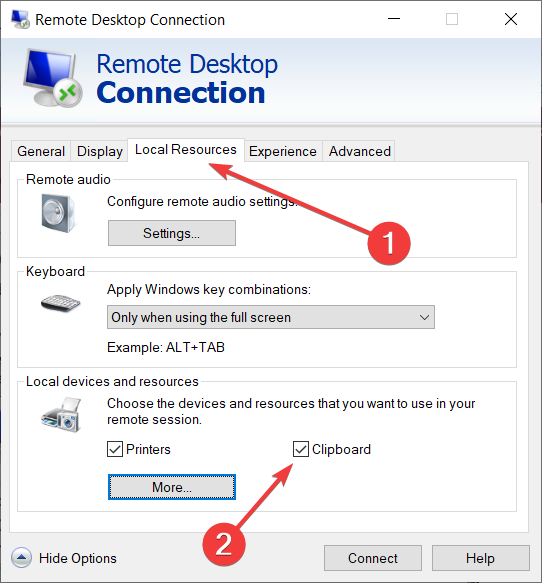
The scan is scheduled to happen daily and once done, the Chrome browser will notify you. The notification is beamed via a dialogue box that asks you to remove the file from the PC.

You can simply click on the Details button in order to find out the type of file that has been considered harmful.

The Chrome Cleanup tool will also contain information on how the file in question might be harmful to your computer.

Even more, it will automatically detect any intrusion and subsequent modification by third-party software.

The feature adds a layer of security and should help in minimizing security threats like browser hijacking, installation of potentially unwanted programs, and phishing attacks.

That being said, some users also complain about how this feature addition affects the browser’s speed and the overall UX.

⇒ Get Chrome Cleanup

2. Try out a professional antivirus solution

Needless to say, the Chrome Cleanup tool is very useful, especially for newbies who are not accustomed to using advanced security tools.

However, the Chrome Cleanup tool often ends up making it the browser more sluggish. Use a professional antivirus and these issues will become a part of the past.

Unlike Chrome Cleanup, rest assured that our recommendation constantly looks out for potential entry points for cyberattacks, including unsecured Wi-Fi networks.

antivirus old pc best antivirus windows vista

It allocates background processes and memory functions off of the processors that are running your games so that you can enjoy high-performance gameplay.

These are just some key features that you should know about:

  • Webcam protection
  • Multi-platform support
  • Low system requirements
  • Top-notch anti-malware protection

ESET NOD32 Antivirus

When Chrome Cleanup fails to meet your expectations, try out ESET NOD32 Antivirus. Get ready for unmatched protection!
Free trial Visit website

If you want to have your PC always protected from cyber viruses, then make sure you choose one of the best lifetime license antivirus tools from our list.

Are you sticking with Chrome’s Cleanup tool or do you find our antivirus software suggestion as a much safer choice? Let us know your opinion via the comments area below.