How to Fix ArcheAge Issues on Windows 10/11

ArcheAge is a popular Korean MMORPG with millions of players around the world. It receives frequent updates and new content every year.

Despite the popularity of this game, Windows 10 users have reported certain issues, such as low performance and graphical glitches or the Archeage Unchained error 1020.

In this article, we’re going to address these issues and provide thorough solutions to fix them and continue your experience in this awesome MMO.

How do I fix Common ArcheAge Issues On Windows 10?

1. Make sure that your computer meets the hardware requirements / lower your graphic settings

  1. While playing ArcheAge, press Esc.
  2. Go to Options, then Screen Settings, and Quality.
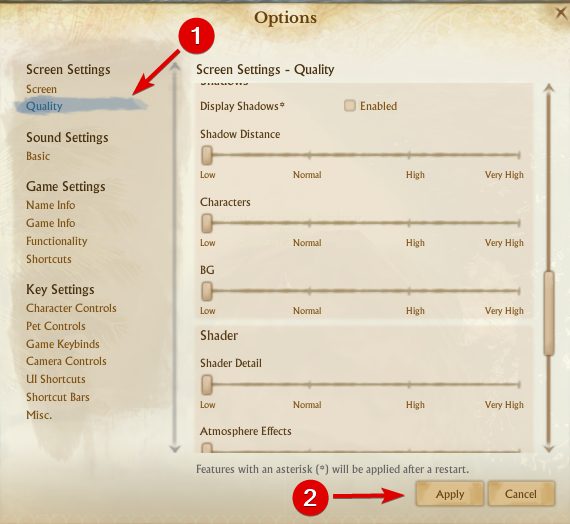
  3. Move the Graphics Quality Settings slider all the way to the left to set your graphic settings to Low.
  4. Click Apply to save the changes.

If you’re having graphic issues with ArcheAge, make sure that your computer meets the minimum hardware requirements.

Note icon NOTE
ArcheAge’s minimum system requirements are:
Processor: Intel Core2 Duo or higher.
Hard Disk: 30 GB (NTFS-formatted disk)
Memory: 2 GB RAM.
Graphics card: Must have at least 1024MB video memory.
Operatingu00a0system: Windows Vista SP1, Win7 SP1, 8, 10.
High-speed internet connection.

If your computer meets the hardware requirements for ArcheAge on windows 10, maybe your graphical settings need to be lowered. If graphic issues are resolved, try increasing the graphic quality.

2. Switch from DirectX 11 to DirectX 9 mode

  1. While playing ArcheAge, press Esc to open the menu.
  2. Go to Options, then Screen Settings, and Screen.
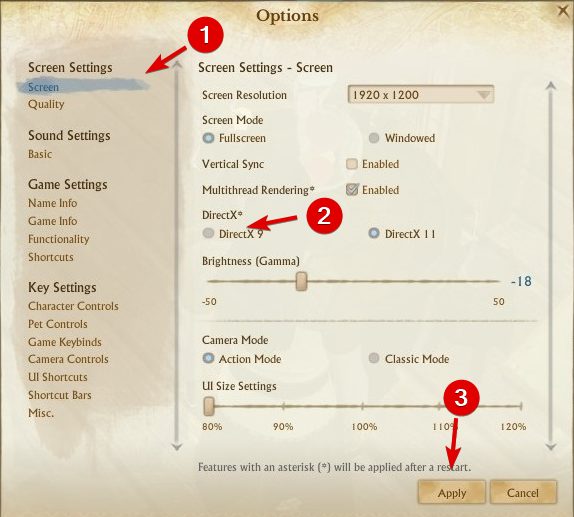
  3. Click DirectX 9 and click Apply.

In certain situations, DirectX can cause graphical issues with ArcheAge, so it’s advised to switch back to DirectX 9. To do that, follow these steps:

If you wish, you can always switch back to DirectX 11 by performing the same steps.

3. Delete shaders cache

  1. Go to the following path: DocumentsArcheAgeUSERshaders
  2. You should see cache folder. Delete it.
  3. Start the game again.

It has been reported that ArcheAge has some graphical glitches such as showing parts of characters completely black without textures. In order to fix this graphical issue, you need to delete the shader cache folder.

4. Update your video drivers

Graphical issues are often caused by video drivers, and if you’re having graphics issues, make sure that you download and install the latest drivers for your graphic card.

All your drivers need to be updated, but doing it manually is very annoying, so we recommend you to do it automatically with the help of a professional driver updater tool.

Updating drivers automatically you avoid the risk of serious malfunctions and save time.

⇒ Get Outbyte Driver Updater

5. Run game client as administrator

  1. Go to the Glyph folder. By default, it should be under the following path: C:Program Files (x86)Glyph
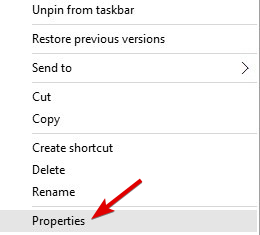
  2. Right-click GlyphClient and choose Properties.
  3. Go to the Compatibility tab and make sure to check Run this program as an administrator.
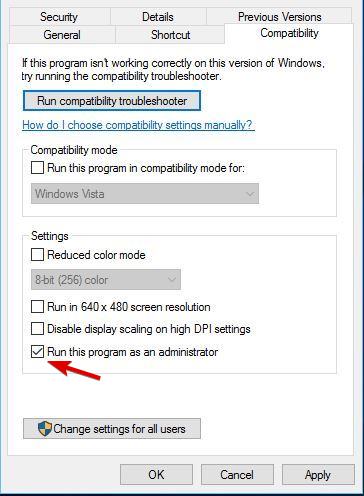
  4. Click Apply and OK and try patching the game again.

Users have reported issues with patches, and according to users, they are unable to install ArcheAge patches. To fix this issue it’s advised to run Glyph as administrator. To do that, follow these steps:

In addition, it’s advised to run GlyphDownloader.exe from Glyph directory in order to check if patcher is up to date.

6. Check your firewall / antivirus

Sometimes your Windows Firewall or antivirus can interfere with the game’s patching system, so it’s advised to add the ArcheAge folder to the exclusion list in your firewall/antivirus.

If that doesn’t work, you might have to disable your antivirus / firewall before launching ArcheAge.

7. Close other applications before starting ArcheAge

Other installed applications can sometimes cause issues with ArcheAge, so it’s advised that you close them before you start ArcheAge.

In addition, you might have to disable some applications from Startup in order to be sure that they aren’t interfering with ArcheAge.

8. Use default administrator account to run the game

  1. Open Command Prompt as administrator.
  2. You can do that by pressing the Windows Key + X and choosing Command Prompt (Admin) from the list.
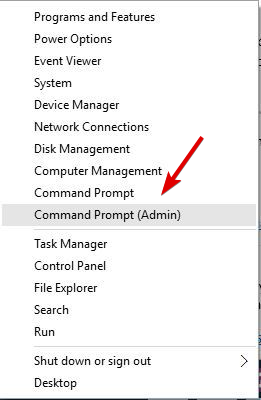
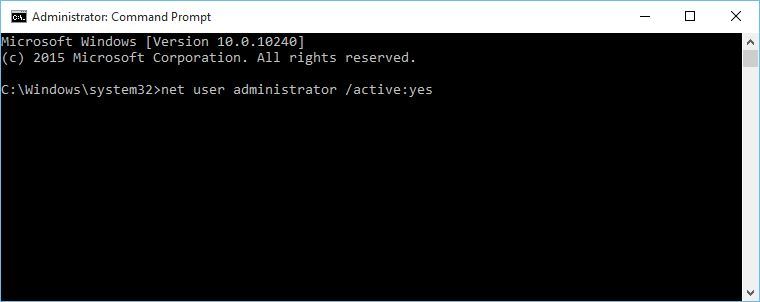
  3. When Command Prompt starts, enter the following line and press Enter to run it: net user administrator /active:yes
    administrator-account-cmd
  4. Log out of your account and switch to the Administrator account.
  5. When you switch to the Administrator account, try patching the game again.
    1. After you’re done, you can switch back to your original account and disable the administrator account by starting Command Prompt as administrator and typing net user administrator /active:no

If you have issues with patching the game, you might want to run patching software from a default administrator account. To enable the default administrator account, follow the steps above.

9. Delete the ArcheAge folder from Documents

  1. While in-game, change a certain setting.
  2. Exit to the character select screen.
  3. Exit the game.
  4. Start the game again. If your settings haven’t been saved, proceed to the next step.
  5. Close the game and go to the path: C:UsersUSERNAMEDocuments
    • We have to point out that the location of this folder might be slightly different on your computer.
  6. Once you open the Documents folder, you should see ArcheAge folder. Delete it.
  7. After you’ve deleted this folder, your settings should be saved.

Some users have reported that their settings aren’t saved after logging out, and that settings revert to default values as soon as the player logs out of ArcheAge. To fix this issue, do the following:

10. Select your region

  1. Run the game.
  2. In the top right corner, select your desired region.

Some users have reported Error 1035 while trying to play ArcheAge. This error appears if you don’t select your region, and in order to fix it, follow these steps:

11. Update DirectX

Users have reported D3dx9_42.Dll Is Missing From Your Computer error while trying to start ArcheAge. If you are getting this error message, it means that you are using an unsupported version of DirectX.

So you’ll need to update it by going to the official website and downloading the latest available versions. After you’ve updated DirectX, restart your computer and try running ArcheAge again.

12. Delete Hackshield files

  1. Close ArcheAge and Glyph completely.
  2. Go to the ArcheAge installation directory.
    • By default, it should be here: C:Program Files (x86)GlyphGamesArcheAgeLive
  3. Open bin32 folder. Next, go to hshield folder.
  4. Find asc and Update folders and delete them both.
  5. Try to launch ArcheAge again.

Some users report that they are getting “Gods Have Disconnected You” message, and in order to fix it, it’s advised to check your antivirus software.

To make sure that other software isn’t interfering with ArcheAge. In addition, it’s also recommended that you delete your Hackshield files by following these steps:

If the issue persists, you might have to reinstall ArcheAge on your computer.

13. Edit system.cfg file

  1. Go to the Documents folder and find ArcheAge folder.
  2. In ArcheAge folder you should see system.cfg file. Open that file with Notepad.
  3. When system.cfg file opens, find the following line: login_first_movie =
  4. Change it to: login_first_movie =1
  5. Save the changes and try running the game again.

Users have reported that Archeage crashes before the intro movie, and if this happens to you, you might need to change ArcheAge system.cfg file. To do that, follow these steps:

If you don’t have system.cfg in ArcheAge folder, you can also skip the intro video by pressing Esc key on your keyboard while the game loads.

14. Disable your antivirus and reinstall ArcheAge

  1. Disable your antivirus.
  2. Open Glyph.
  3. Right-click ArcheAge and select Uninstall. If you get asked to confirm, click Yes.
  4. Press Windows Key + R and in Run window enter %localappdata%. Click OK or press Enter.
  5. Go to Glyph, then Games folder.
  6. Find ArcheAge folder and delete it.
  7. Switch back to Glyph, find ArcheAge, and click Install button to download it again.

If you’re getting error message saying that certain .dll files are missing, you might want to disable your antivirus software and reinstall ArcheAge.

15. Restart the game

Users have reported that they are experiencing screen flickering in ArcheAge when they switch from Windowed to Fullscreen mode.

If this happens to you, you just need to restart the game, and flickering issues will disappear entirely.

16. Check the sound settings

  1. Open Documents, then ArcheAge.
  2. Locate system.cfg and delete it.

Users have reported that they aren’t getting any sound while playing ArcheAge. If you have some sound problems, make sure that you have the latest audio drivers installed.

In addition, make sure that your speakers are working properly and that the volume in-game isn’t lowered. If everything is in order, you might want to delete system.cfg file.

17. Move cryphysics.dll to the game directory

  1. Download this file.
  2. Extract the file to the following path: C:Program Files (x86)GlyphGamesArcheAgeLivebin32
  3. Try running the game again.

Sometimes cryphysics.dll might get deleted by your antivirus software, and if this happens you need to do the following:

To avoid this problem in the future, you might want to disable your antivirus or reinstall ArcheAge with your antivirus software disabled.

18. Flush your DNS cache

  1. Open Command Prompt.
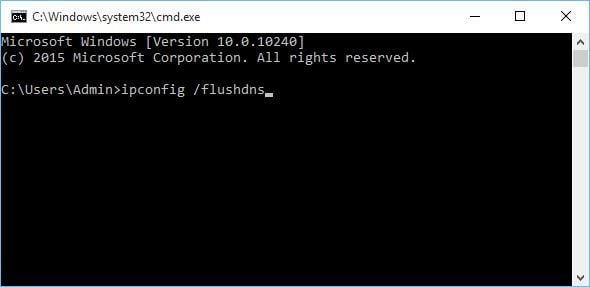
  2. When Command Prompt opens, enter the following and press Enter to run it: ipconfig /flushdns
    flush-dns-cmd

Users have reported Error 1035 while starting ArcheAge, and if you’re having this error, you need to check your firewall settings. In addition, it wouldn’t be a bad idea to flush your DNS cache.

19. Turn off anti-aliasing

  1. Open the Nvidia Control Panel.
  2. Click Manage 3D Settings.
  3. Find Antialiasing – Mode and set it to Off.
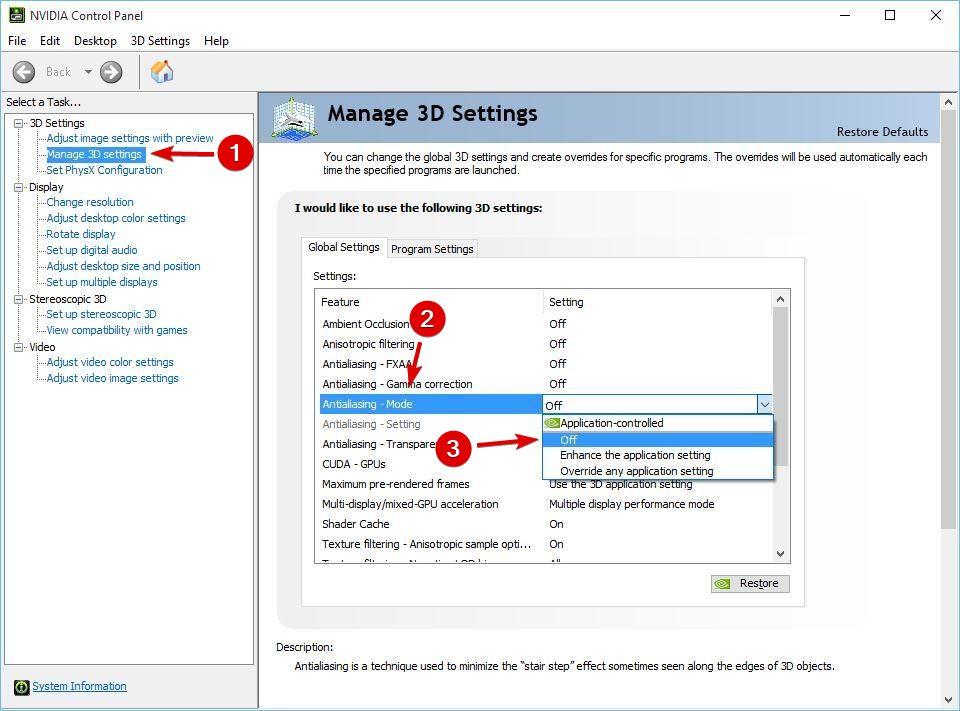
If you have problems with game performance, it’s advised that you turn off anti-aliasing in Nvidia Control Panel and Catalyst Control Center.

In order to turn off anti-aliasing for AMD cards, follow these steps:

  1. Open Catalyst Control Center.
  2. Go to Gaming, then 3D application settings.
  3. Lower your anti-aliasing settings.

After you’ve turned off anti-aliasing in the Catalyst Control Center or Nvidia Control Panel, start the game.

  1. When the game starts, go to the Game setting.
  2. Then, go to Display settings, select DirectX 9, and click Apply.
  3. Restart the game, and everything should be working without problems.

When the game starts, go to Game setting Display settings -> DirectX 9 and click Apply. Restart the game, and everything should be working without problems.

20. Make sure that Glyph isn’t running in background

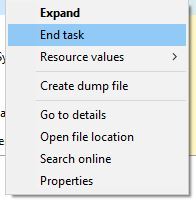
  1. Open Task Manager.
  2. If Glyph is running, right-click and choose End Task.
    end-task
  3. Close Task Manager and try to start the game again.

Users have reported Can’t enter Glyph platform error, and in order to fix it, you need to make sure that Glyph isn’t running in the background.

Although ArcheAge has some issues on Windows 10, most of them can be easily solved, and we hope that our solutions have helped you solve these issues.

FIX: EntryProtect has blocked this screen capture error

EntryProtect is third-party security software, however, many users reported EntryProtect has blocked this screen capture error while using it.

Although this is a great tool, it can create conflict with legitimate screen capture and screen sharing programs as well.

Since errors with EntryProtect are somewhat common, in this article we’ll show you how to fix them.

How to fix EntryProtect has blocked this screen capture error?

  1. Change AOL Desktop Gold settings
  2. Install a less restrictive version of SafeNet Authentication Client
  3. For Sophos User
  4. Whitelist / Allow the app through firewall
  5. Check your antivirus and firewall

1. Change AOL Desktop Gold settings

  1. Launch AOL Desktop Gold and click on Edit (top-left).
  2. Select General Settings.
  3. From the Premium Security tab, uncheck Enable Screen Capture Protection option.
  4. Restart your PC and check for any improvements.

AOL Desktop Gold by default enables the EntryProtect feature for the users in order to prevent information leaks. But you can use disable the feature manually.

If you are not the system administrator, you probably won’t be able to add a screen capture tool to the whitelist.

In that case, be sure to contact your administrator or SafeNet support to allow screen capture in your environment.

2. Install a less restrictive version of the software

  1. First, uninstall the regular version of SafeNet Client.
  2. Insert the disk and check if it contains a less restrictive version of the same tool. Install the software and restart your PC.
  3. Launch the screen share or capture program to see if the issue is resolved.

If you are the system administrator, you can try to install the less restrictive version of this security software in order to fix EntryProtect has blocked this screen capture error.

To install the less restrictive version, you need the original SafeNet Client Authentication software disc. When removing software, it’s important that you remove it completely.

This is relatively hard to do manually, but thanks to the tools such as the recommended tool below, you can easily remove any application along with all of its files with ease.

⇒ Get CClaner

3. For Sophos users

Sophos is another data security third-party software with top-level network protection. If you have it installed on your computer, it may block the screen capture and screen sharing feature as well.

To fix the issue, you may have to whitelist the web traffic by creating a web policy. The process can be a little tedious, but you can check out the step-by-step information on the Sophos official website.

4. Whitelist / Allow the app through firewall

  1. Type firewall in the search bar and select Firewall and Network Protection.
  2. Click on Allow an app through firewall option.
  3. Click on Change Settings button.
  4. Look at all the listed programs under Allowed apps and features.
  5. Find the screen capture program and check both Private and Public boxes to whitelist the program.
  6. Click OK to save the changes.

Start with allowing the program through Firewall. You can easily whitelist any app from your Antivirus program.  You may also need to whitelist programs in Windows Security.

5. Check your Antivirus and Firewall

  1. Type Firewall and open Firewall and Network Protection.
  2. Click on Private Network and turn off Windows Defender Firewall. Do the same with Public Network, if you are connected to one.
  3. Once the Firewall off, launch the screen capture program and check if you can capture the screenshot. If not, disable the antivirus.
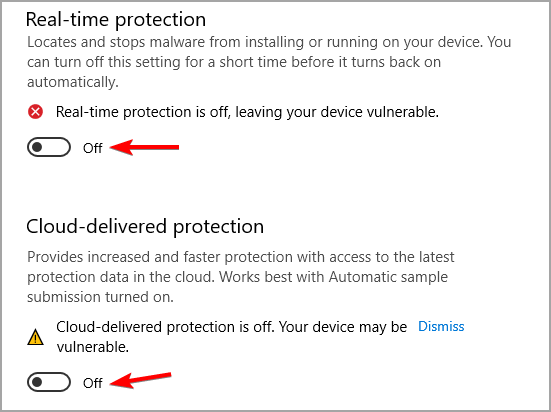
  4. You can easily disable antivirus by quitting from the taskbar. Or launch the malware protection program and turn off real-time protection.

If whitelisting the screen capture program in Windows Defender Firewall didn’t work, turn off the Firewall temporarily to check if has any effects.

Note that even your antivirus may come with a Screen Shot Capture protection feature. Antivirus programs such as Kaspersky have this feature built-in.

Check for any such features in the setting before disabling the Antivirus completely. If no such feature is found, proceed with the below steps.

Make sure to re-enable the software once you are finished taking screenshots so that you stay protected.

EntryProtect has blocked this screen capture error mostly occurs if you are using a work PC where the administrators usually block the user from sharing their screen remotely or capturing it locally.

In such a situation, the best approach is to contact the system administrator and ask them to remove the restriction.

However, you can also try to follow the solutions listed in this article to fix the error on your work or personal computer by yourself.

If the screenshot tool is still not working or it’s producing more problems, you can always try one on the best Windows 10 Screen recorder software.

If you have any other suggestions, don’t hesitate to tell us all about them in a comment from the dedicated section below.

Microsoft confirms Windows 10X isn’t coming this year, but its innovations will live on in Windows 10

Microsoft has confirmed today the previous reports suggesting that Windows 10X wasn’t coming this year, if at all. In the blog post announcing the public rollout of Windows 10 version 21H1, John Cable, Vice President, Program Management, Windows Servicing and Delivery, explained that Microsoft has been listening to customer feedback in recent months and realized that it made more sense to integrate Windows 10X features in the regular Windows 10 OS.

“Following a year-long exploration and engaging in conversations with customers, we realized that the technology of Windows 10X could be useful in more ways and serve more customers than we originally imagined. We concluded that the 10X technology shouldn’t just be confined to a subset of customers,” Cable explained.

Windows 10X was originally designed as a new lightweight version of Windows 10 optimized for dual-screen devices like the Surface Neo prototype Microsoft showed in October 2019. Last year, the company announced a shift in strategy with Windows 10X now targeting single-screen devices for the Enterprise and Education markets, but the company has apparently given up on trying to compete with Chromebooks.

The good news is that all the work that Microsoft did on Windows 10X, including the container technology allowing apps to run more securely will live on in the regular Windows 10 OS. Some of the design ideas we’ve seen in Windows 10X will also be applied to Windows 10, and we’ve already seen glimpses of these visual changes in recent Insider builds. Microsoft has yet to officially confirm it, but the 21H2 update coming later this year is expected to introduce a big design update codenamed “Sun Valley.”

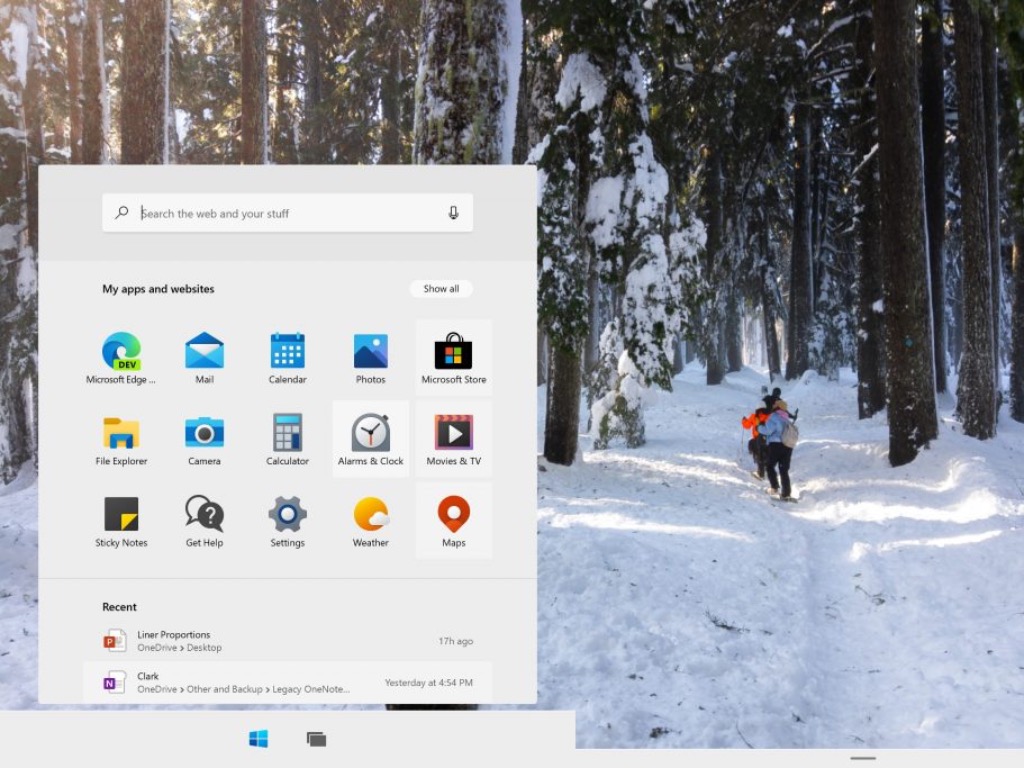
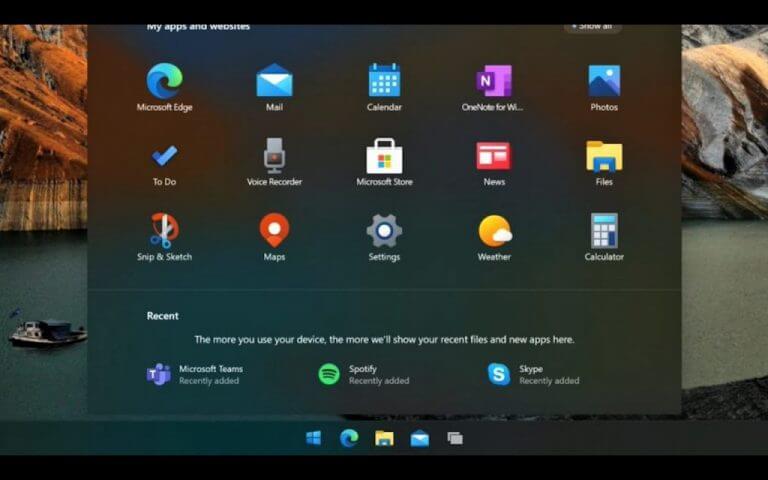
Window 10X Sun Valley UI Design

“Instead of bringing a product called Windows 10X to market in 2021 like we originally intended, we are leveraging learnings from our journey thus far and accelerating the integration of key foundational 10X technology into other parts of Windows and products at the company. In fact, some of this is already reflected in the core of Windows in Windows Insider preview builds, for example the new app container technology we’re integrating into products like Microsoft Defender Application Guard, an enhanced Voice Typing experience, and a modernized touch keyboard with optimized key sizing, sounds, colors and animations. Our teams continue to invest in areas where the 10X technology will help meet our customer needs as well as evaluate technology experiences both in software and hardware that will be useful to our customers in the future”, Cable wrote today.

All in all, Microsoft probably made the right call about not shipping Windows 10X on new devices this year. The company failed to get PC manufacturers on board with Windows RT in the past decade, and recent experiments to lock down Windows 10 such as Windows 10 in S Mode didn’t really have great results. As Cable emphasized today, it’s important for Microsoft to focus on what customers want, which is a better Windows 10 OS with useful features and a more coherent design. Windows 10X may have looked like an unnecessary distraction, but it’s nice to know that all the work Microsoft did on the OS won’t go to waste.

How to enable Exploit Protection on Windows Defender

Most people tend to say that we currently enjoy Microsoft’s most secure OS. The latest Windows 10 version features a series of new security features and improvements that close the door to malware attacks.

Windows 10’s main tool in the fight against malware is its built-in antivirus. Microsoft has added a bevy of new security features to Windows Defender, making it more powerful than ever.

Users can configure and the Windows system and app exploit mitigation settings with ease. It’s all done from the Windows Defender Security Center.

How can I enable Windows 10 Exploit Protection?

1. Enable Windows 10 Exploit Protection

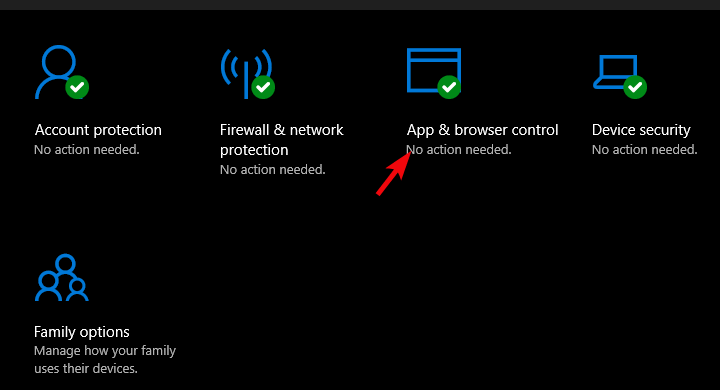
  1. Start Windows Security by clicking on the shield from the notification area.
  2. Click on App & browser control.
  3. Scroll to the bottom of the screen to find Exploit Protection and click the Exploit protection settings.
  4. In the new window, customize the System settings and Program settings.
  5. When you’re done, click Apply and OK.

Perform the steps above steps to enable Exploit Protection for the system and installed programs. As you can see, it’s pretty easy to tweak the settings from Windows Security.

2. Additional actions to make sure that your PC is protected

Apart from customizing the Exploit Protection settings, you need to carry out a series of additional actions to make sure that your computer is fully protected against malware:

  • Install the latest Windows updates
  • Upgrade to the latest OS version available
  • Run a full system scan periodically
  • Install additional anti-malware tools compatible with your main antivirus, etc.

3. Try out a different antivirus solution

Even if it’s incredibly intuitive, Windows Defender has serious cybersecurity and online banking safety issues.

In the meantime, the tool recommended below is popular all over the globe for a good reason. Firstly, this antivirus is surprisingly lightweight and has little to no impact on the system.

Moreover, it’s known for its accurate malware blocking and it’s fully compatible even with earlier Windows versions.

Some valuable bonus features include parental control features, a useful vulnerability scanner, and a VPN.

TotalAV

Get to the next level of protection with a trusted, light but strong security tool for your PC.
Check Price Visit Website

We hope that our guide helped you learn how to turn on the Exploit Protection for your system and apps in Windows 10.

The exploit protection is also very useful with Windows 10 gaming so make sure you activate it for your favorite tiles.

However, you should know that the built-in antivirus is not the most secure way of protecting your PC. Check out our best antiviruses with unlimited licenses to get a third-party security tool.

Have you tested out these security features available on Windows 10? Let us know what you are thinking by using the comments area below. Your thoughts may help other users like yourself.

7 Best Yoga Studio Software to Use in 2026

When you run a yoga studio, it can be quite tedious to try and manage the business manually, without technology or software backing you up.

However, when you actually decide that you’ve had enough of using physical paper cards and ledger books or stressing your customers by making them have to book appointments while at the studio, you’re probably hunting for the best yoga software to run your studio professionally and efficiently.

Today’s consumer expects to conduct most, if not all, transactions online, including managing their schedules whether it’s work meetings, fitness appointments, or any other that can (and should ideally) be managed via digital platforms.

Business owners, too, need tools that can help them thrive and reduce overhead costs such as administrative expenses, while saving time and increasing income, attracting new customers, and seeing their performance from an easy and user-friendly dashboard.

With the best yoga software, you can allow your customers to book yoga classes online, and keep them updated and engaged while keeping up with trends and happenings in your own studio.

Before choosing the best yoga software, some of the considerations you need to keep in mind include whether it is online or desktop-installed software.

Plus, if it meets security standards, whether it can run on your devices, the features that meet your yoga studio’s needs, how long the software company has been in existence, and price of course.

Here are our top picks for the best yoga software you can use in 2022.

Best yoga software for 2023

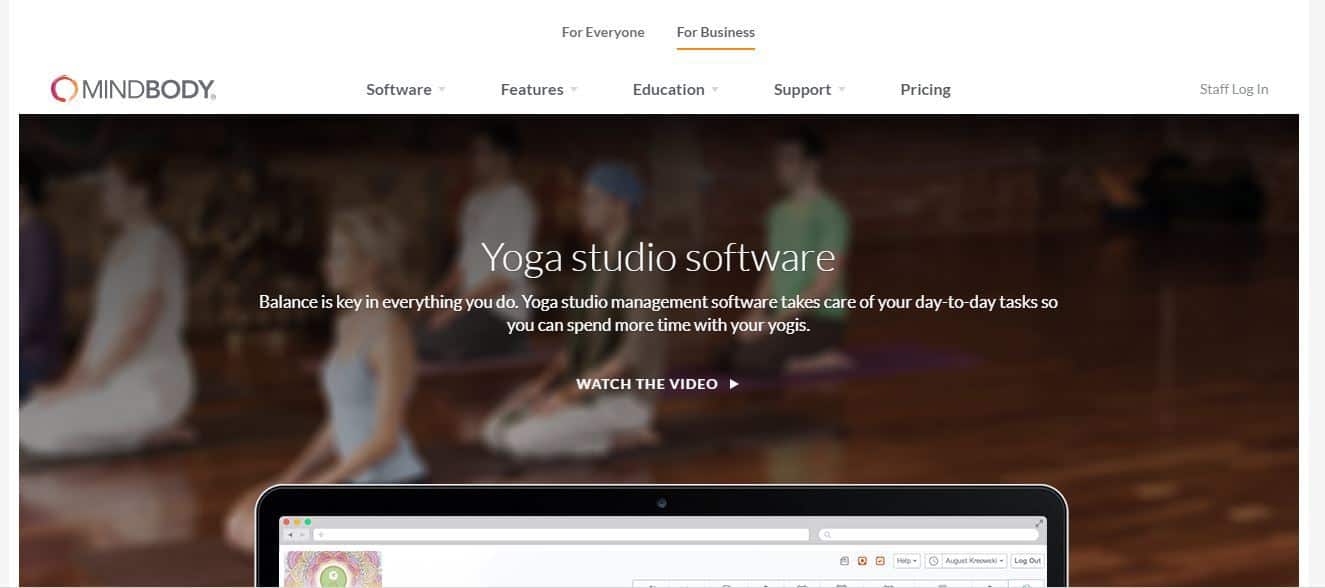
Mindbody – Track attendance and retention levels

best yoga software

This yoga software caters for your daily tasks so you can spend more time with your yogis because balance is key in everything you do.

With MindBody, you get features such as point of sale so you can sell anything quickly including studio memberships, 10-class passes, and other services. The POS is complete across all your devices, and it keeps pace with your busy front desk and beyond.

Other features include automation so you can finish tasks faster from sending client reminders and confirmations to monitoring clients’ account status and calculating sales tax.

Online booking lets your clients view your schedule, book their next class online, and pay even before they arrive.

It also generates reports letting you track sales and revenue, attendance, retention levels, and other tools so you can adjust your business plan.

You can also attract new customers by getting exposure and tracking your results. This best yoga software helps you create a seamless customer experience, and get the most out of it with more products and services.

⇒ Get MindBody

Tula – Handling special events

best yoga software

This is the best yoga software for independent yoga studios, providing a powerful and easy to use tool to help you grow your business.

Some of the advantages Tula offers is accepting payments, managing memberships, sharing your calendar, handling registrations, tracking credits, and recording attendances.

It features a sub, which your instructors can find at the click of a button, easy check-in with a simple search, online payments with a unique payment form, online registrations to sign up students for class right from your own website, electronic waivers to capture electronic signatures and store signed waivers, member management, special events handling, gift certificates, and multiple permission levels for employees to access your data.

For your website, Tula has widgets like calendars and payment forms, that you can add right into your own website. The best part is you don’t need to sign any contract as Tula software is compelling enough on its own so you need not feel locked into it. you can always export your most important studio data.

⇒ Get Tula

Schedulebliss – Powerful website integration

best yoga software

ScheduleBliss is an app that lets your clients make purchases and book appointments, classes, and events with your yoga studio from anywhere and anytime on their devices, especially for growing businesses.

It is simple, fast, and powerful, plus helps streamline your client check-in, as you benefit from its advanced marketing and client retention tools.

Another good thing about this best yoga software is it accepts credit and debit purchases, plus keeps clients engaged through automated emails, online check-in, and waitlisting.

Features include a powerful POS, multiple payment methods, gift cards, promo codes and discounts, client apps for devices, reports and marketing tools, memberships and autopay, powerful widgets, and website integration tools.

Plus, with class/event, and appointment scheduling, you can migrate your data from another business management software vendor easily, and hassle-free.

⇒ Get ScheduleBliss

DaySmart Salon – Access to marketing tools

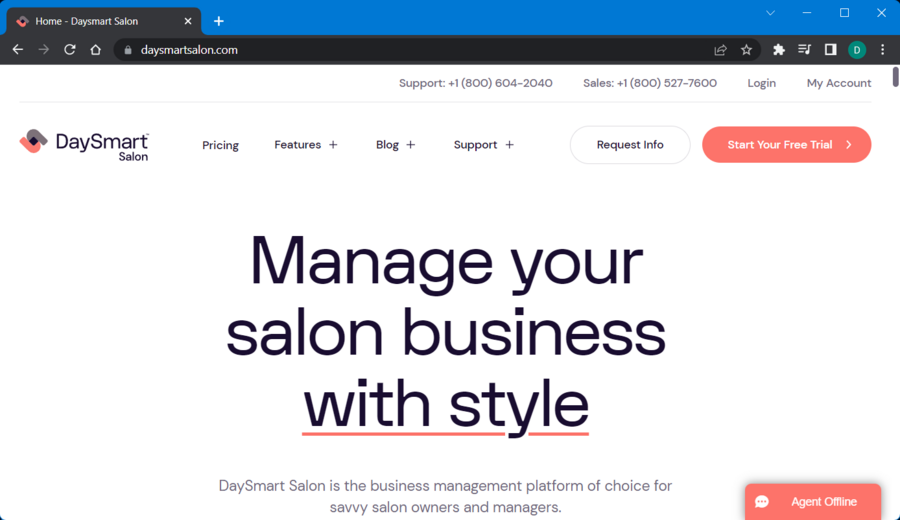
This all-rounded salon management platform is the right place for anybody that runs their own yoga business and needs reliable support.

The software delivers smart functionalities to help you manage any business efficiently. For example, you have online appointment booking, client and salon management tools, financial reports, and more.

You can thus monitor the salon metrics to always keep track of business performance and what can be improved.

With the client management feature, you have digital records for all your clients and essential data presented by them.

Additionally, there are payment processing tools or payroll meant to improve your HR processes, paying your people in time.

You should also know about marketing tools capable of engaging with your audience, using email marketing campaigns or SMS strategies.

⇒ Get DaySmart Salon

Zenplanner – Option to sell merchendise

best yoga software

This is an advanced, all-in-one fitness business software with an arm for Yoga studio management.

Some of the key benefits include ease of use with its intuitive tools, you can grow your yoga studio business (guaranteed), and saving you time, plus it is a smarter suite to help your yoga business thrive by letting you refocus your attention on your true passion.

ZenPlanner is simple, intuitive, easy to use, and has features that include simplified check-ins from any device, and event management including registration, payment, and communication.

Moreover, you have retail management in case you sell merchandise and simplified billing that is also automated through integrated payment processing partners so you get paid on time monthly.

Plus free onboarding sessions so you can know how best to use this tool based on your studio’s needs.

⇒ Get ZenPlanner

Wellness Living Yoga Studio Software – Can setup online store

wellness living yoga studio software

If you’re looking for yoga software, you might be interested in Wellness Living Yoga Studio Software. This tool allows your customers to easily book classes with just a couple of clicks.

One way to book classes is by WellnessLiving website, but you can also add a booking box to your website or the Facebook page as well. Of course, there’s also dedicated iOS and Android apps that you can use for booking.

This service also supports email and SMS notifications, so your staff and customers will be informed regarding their appointments. The service also has a cloud-based scheduling software that allows you to make scheduled appointments easily on the fly. This system is incredibly simple to use thanks to the built-in wizards.

This service allows you to set up an online store in order to sell your products or services online. It’s worth mentioning that this service supports recurring billing, which is great if you need to manage yearly or monthly subscriptions.

Yoga Studio Software service also supports various marketing campaigns, so you can easily set up mobile or email campaigns.

In addition, this tool also allows you to easily manage your staff and manage their invoices. Lastly, there are detailed reports, so you can easily monitor how your studio is performing.

If you’re looking for powerful yoga software, Wellness Living Yoga Studio will be a perfect choice for you, especially if run your own studio, so be sure to check it out.

Overview:

  • Ability to book classes easily
  • Dedicated iOS and Android app
  • Email and SMS notifications
  • Cloud-based scheduling software
  • Ability to set online store for products and services
  • Ability to set up marketing campaigns

⇒ Get Wellness Living Yoga Studio

PerfectMind – Easy staff administration

best yoga software

This yoga software keeps your studio running in harmony with the intuitive cloud-based platform that manages memberships, marketing, billing and point of sale. You can manage all essentials of your yoga studio while minimizing the workload and overhead costs.

PerfectMind is the best yoga software that lets you create an extraordinary guest and member experience, boost new signup and retention rates, streamline business operations, and increase revenue without being bogged down in technology.

Clients can book and pay for classes and memberships online, and from any device, while you can track and increase client retention, and boost sales with the fast and secure, mobile friendly online store, using the intelligent POS app to sell merchandise, track inventory, and manage purchase and reordering.

Other features include integrated marketing, built-in reporting, easy staff administration of the system, alerts, integrated email, a website builder to customize your site, automated billing and collections, plus multiple location management for all your studio’s branches from a single interface.

⇒ Get PerfectMind

Did your best yoga software make the list? If not, which one are you currently using, or which one of these fits your studio’s needs? Let us know in the comments section below.

Best Statistics Software in 2026 [Out of 15 Tested]

Statistics is an important aspect in the business and academic world making data processing an integral aspect. Nowadays, there are many ways to undertake statistical analysis with numerous software which help to organize, analyze, and interpret data.

Moreover, statistical softwares are able to analyze descriptive statistic; this is the statistics that arranges data from samples and inferential statistics which draws the conclusion from data provided. One major advantage of this software is they provide factual data for your project and business.

This article highlights some of the best statistical software you need for your business or project. Windows Report has compiled the list of the best software for learning and for doing statistics.

Best tools for learning and doing statistics

MaxStat

software for learning and for doing statistics

Ranked as the best software for learning statistics, MaxStat is affordable statistical software with many features, which fit your bill. This software enables users to set up statistical analysis with three simple steps. The software is easy to use and is handy for students and business auditors.

In addition, MaxStat enables you to understand the basics of statistics with various tutorials which explain various key statistical functions. You just have to input your data and set necessary requirements, with the software taking care of business. Another key reason to utilize MaxStat is that the result gotten for each analysis is easy to understand and interpret in scientific terms.

Although, MaxStat has a standard plan with additional costs arising from extra services.

⇒ Get MaxStat

AcaStat

software for learning and for doing statistics

Another best software for learning and for doing statistics, AcaStat is an effective statistics software that is available on Windows and other OS. One unique feature is you can easily format variables such as values, labels and configure controls.

Meanwhile, AcaStat also enables you to import data from your spreadsheet files with its copy and paste tool. The software analyzes data quickly which enables you can design frequency tables, OLS, and logistic details using AcaStat.

However, AcaStat pricing starts from $10 with the price increasing as users incorporate more features.

⇒ Get AcaStat

Statwing

software for learning and for doing statistics

If you are in a rush to run statistical analysis, then Statwing is the best tool available for your instant need. This statistical software runs statistical data analysis faster than the majority of the statistical software available on the market.

In addition, this software has a simple interface with easy directions which makes generating data easier. Statwing enables users to easily choose outlines for analysis which gives a large degree of confidence to statistical results. Moreover, users also have access to basic charting such as bar charts and histograms which can be exported into your spreadsheets.

However, Statwing offers users a free trial albeit limited, and then users are charged based on the features required for their statistical analysis.

⇒ Get Statwing

SPSS

software for learning and for doing statistics

SPSS (developed by IBM) is one of the best software for learning and for doing statistics used by millions worldwide. The analytical software provides users with numerous features and gives an accurate analysis of data.

Users can easily analyze data with the simple interface with all tools properly arranged in the Menu. With an intuitive user interface, you can also use cloud features; this enables SPSS to discover new trends for your data.

In addition, IBM SPSS provides numerous statistical analytics such as text and entity analysis automated modeling, and decision management and development. Also, SPSS helps you to manipulate data analysis with its automated modeling and ensures the accurate result is attained within a short period of time.

Moreover, IBM SPSS is quite affordable as they charge $1 for every analysis performed on the software which is fair for the services being rendered.

⇒ Get IBM SPSS

Minitab

software for learning and for doing statistics

Minitab is a popular software for doing statistics used by thousands of companies and institutions around the world. The software has numerous tools and features tailored to meet various statistical patterns and analyses. With Minitab, you can use mathematical methods such as confidence intervals to check for the median or mean of your data.

In addition, Minitab also has a unique model reduction technique that enables the software to find the best regression equation for your sample data. Statistical results gotten from Minitab are accurate and you can import Excel files into your Minitab software.

Furthermore, Minitab has a free trial with the premium version starting out at $29 for six months after which users pay a fixed fee of $49 per year to use the features.

⇒ Get MiniTab

In conclusion, each of the software listed above has their strengths and weakness; hence, you can opt for any of them to meet your statistics needs. Have you used any software from our list of the best software for learning and for doing statistics? Feel free to share your experience with us by commenting below.

Microsoft Lists will let users share entire lists using links in June

Microsoft Lists is getting a new update that will bring the ability to share an entire list using sharing links with other people. The feature was recently added to the Microsoft 365 roadmap, and it could arrive as soon as June 2021.

Currently, the new Lists app only allows users to share an individual list item with the “Copy link” option, and there is no way to share entire lists. With the release, the app will enable users to “create unique sharing links for lists based on who and how you wish to share them” and forward them to others. The new experience will be similar to the existing functionality available for sharing files and folders, and it would comply with organizational policies and settings.

This feature should help enterprise customers to make collaboration on shared content easier for users. The software gaint noted on the Microsoft 365 Admin center that the new setting is expected to be generally available in late June, though the timeline is always subject to change. In addition to this update, Microsoft Lists is also getting support for disabling commenting on individual list items.

Here are 5 best tools to recover deleted photos from your PC

When it comes to choosing the best photo recovery software for recovering deleted or lost photos from your PC, you should be bound and determined to find out which provider is offering the most features for the best value.

We recommend taking into consideration five essential components when choosing the best photo recovery software for your PC: security, ease of use, quality, compatibility and also technical support.

Security

Security is an essential factor when choosing the best photo recovery software for your PC because it’s critical that the program does not contain malware and instead it provides safe operations to recover your lost files and to avoid damaging your computer.

Quality

Quality is another important thing to consider while picking up the best recovery tool because it is essential that the program supports more file types and storage devices. A good quality tool should also be able to provide less time to complete the scan.

File preview and quality checks are essential for making sure that the pics you plan to bring back are in great shape.

Usability

When evaluating whether a recovery software for lost photos from your PC is worth trying, usability is an essential factor. The more straightforward a software interface is designed, the better you will be able to manage it.

Windows compatibility

This factor reflects whether the tool is kept updated. This is important because an outdated tool will have compatibility issues with the latest Windows OS. It will also feature security concerns as well.

Technical support

Even if backup and recovery might sound easy, they involve processes with lots of advanced computer expertise. If you may have any questions or if you encounter any issues while using a tool for photo recovery, it would definitely be helpful to have developers or providers of that specific product offering their support via live chat, phone or e-mail.

That’s why it’s important that the recovery software also provides tech support and/or troubleshooting tips on their official websites.

You don’t have to worry because the roundup of photo recovery software that we are presenting below has all these essential factors taken into consideration, to provide you the best recovery services.

Recover deleted photos with these tools

1. Stellar Photo Recovery (recommended)

stellar photo recovery

Stellar Photo Recovery tool is a highly reliable software, and it’s one of the most recommended photo recovery programs out there. Check out its most essential features:

  • It can recover all lost and deleted photos along with video files and music from corrupt or formatted hard drives or external storage devices.
  • The utility is easy to use, and it can efficiently recover deleted pictures.
  • It will save recovered photos individually with their original file names.
  • The program scans storage devices with more than 2TB storage capacity.
  • Specific media file formats supported include JPEG, PNG, TIF, TIFF, RAW, MP3, MP4, AVI, WMV, FLV, MOV, WAV.
  • The tool’s improved scanning engine makes sure that your files and folders are found out quickly enabling the photo recovery software to restore all your data accurately.
  • The tool also allows you to scan only a desired region of the hard drive and this feature is useful if you know precisely where a lost photo resided before it was lost or deleted.
  • The software is compatible with all versions of Windows.

–  Download now the free version


2. Easy Digital Photo Recovery (suggested)

Recover deleted photos pc

This is a most recommended image recovery tool that works flawlessly to recover your lost or deleted photos from your system. Keeping a simple interface makes it user-friendly and speeds up the process. Take a look at the software’s most impressive features below:

  • It can recover many types of graphic images (JPEG, TIFF and many RAW formats).
  • It scans all your system quickly.
  • The tool allows you to preview all found images and this way you will locate the lost items much faster and with less panic.
  • The tool includes multiple languages on the Interface such as English, French, German, Spanish and more.
  • The software works perfectly on Microsoft Windows 10, XP, Vista, 7 and 8.

–  Buy now Easy Digital Photo Recovery


2. OdBoso PhotoRetrieval (suggested)

Recover deleted photos pc

This is another excellent photo recovery software that will come in handy in case you need to retrieve your lost/deleted pictures from your PC. Take a look at its most important features:

  • It is developed to perfectly recover deleted or lost photos, videos, and audio from both computers hard drives and portable devices.
  • The program has no problem in handling the situation no matter how you lost your photos.
  • The file formats supported by this retrieval program range from photo formats including JPEG, PNG, TIF, TIFF and camera RAW photos, etc., to video and audio formats such as MP3, MP4, AVI, WMV, FLV, MOV, WAV and more.
  • The software comes with robust photo retrieval capabilities, and it can also retrieve RAW photo files.
  • With the help of advanced algorithms, the tool is fast so you won’t have to lose time scanning for photos.
  • Even the trial version of the app allows you to preview the found photos to see whether they are exactly what you need to recover.
  • The tool also evaluates the retrieval quality in advance.
  • It is compatible with all Windows versions starting with Windows 2000.

–  Buy now Odboso PhotoRetrieval


4. PhotoRec

Recover deleted photos pc

PhotoRec is a free photo recovery utility. The tool comes available in two versions. One of them runs in the command prompt, and the other version only runs on 64-bit Windows. Check out its most impressive features:

  • PhotoRec is a recovery utility that supports more than 440 file formats.
  • Users widely prefer the tool due to its secure recovery techniques.
  • It checks your complete partitions in a safe mode without affecting file systems and partitions while searching missing pictures.
  • It is not specific to just recovering photos, and it focuses on all the file formats while it’s searching.
  • The tool is compatible with Windows 10, 8, 8.1, 7, Vista, XP, and older versions of the operating system.

5. Disk Doctors Photo Recovery

Recover deleted photos pc

This is one of the best photo recovery tools because it balances the ease of use with fast scans and strong performance. Check out its essential features that make it a high-quality software for recovering lost photos from your PC:

  • It provides excellent recovery rates, and this gives you the best chance to get back your lost or deleted pictures.
  • It can recover JPGs flawlessly with a 100% success rate and the GIFs TIGs, PNGs and BMPs with a 99% success rate.
  • The software is straightforward to use, and it features only a few steps to the process of picking a drive and initiating a scan.
  • The average scan speed is around 88GB per hour.
  • The Disk Doctors tool also provides exceptional support for the photo recovery software.
  • It is compatible with all Windows versions.

Tips to recover your deleted photos from the PC

Here are more ways to recover your deleted pictures:

  1. Use the Recycle Bin

This is the most obvious advice. Open the Recycle Bin and check for your lost photos there. Select the files or folders that you want to recover. Right-click on them and choose Restore from the menu that appears. This action will result in restoring your files to their original location before the deletion.

  1. Restore previous versions of deleted photos on Your Computer

Pull up the Start Menu and select Computer to locate the folder that used to contain the images that you want to recover. Make sure that it will be the folder where the files were saved and not a library. Right-click on the designated folder. Select Restore previous versions from the pop-up menu. Review the list of previous versions of the files or folder within this drive or folder. Determine the most recent version of the photos and double-click on the folder that includes them.

Finally, move the deleted pics/folder to a new location of your PC by clicking on them and dragging them to that specific location in the access menu located on the left side of the window with the Computer.

  1. Retrieve deleted photos from Backup Files

More cautious users always back up their essential data. Once the data is lost, you will be able to restore anything from the backup files quickly. Recovering lost files from backup is a very efficient and quick way to save your data with less trouble.

  1. Retrieve deleted pictures via Data Recovery Companies

If nothing else works, you also have the opportunity to turn to data recovery companies to get your lost pictures back, this will turn out to be an effective solution, but besides high recovery fees, you will also have to bear the risk of privacy leaks in the whole process of photos recovery.

  1. Recovery Windows deleted pics via third-party software

With the rapid development of software technology there are lots of data recovery tools on the market, and probably these will turn out to be the best solutions in case you need to recover lost photos without leaking your privacy. The five solutions that we detailed above along with their essential features are the best ones on the market. No matter which one you prefer, it will flawlessly recover your lost photos. Good luck!

GTA V remaster to be released on November 11 on Xbox Series X|S and PlayStation 5

The much-anticipated GTA V remaster will be re-released on Xbox Series X|S and PlayStation 5 consoles on November 11, Rockstar Games announced today. The open-world action-adventure game remains incredibly popular to this day thanks to the bundled GTA Online mode, and this new remaster is guaranteed to breathe new life into the franchise until Rockstar Games is ready to share some details about GTA VI.

“The expanded and enhanced versions of Grand Theft Auto V and Grand Theft Auto Online are arriving on PlayStation 5 and Xbox Series X|S with new features and more, on November 11th, 2021. As an added bonus — this summer’s updates to GTA Online will include special benefits for players to take advantage of in these expanded and enhanced versions when they drop,” Rockstar Games said today.

GTA Online fans can also expect “even more fun surprises” in the coming months as Rockstar Games is planning some special celebrations for the 20th anniversary of GTA III. The upcoming standalone version of GTA Online coming to Xbox and PlayStation consoles later this year will also be free to grab for PlayStation 5 players during the first three months, Rockstar announced today.

The GTA V Remaster launching in November is probably getting other game developers nervous. Halo Infinite, Battlefield VI, and a new Call of Duty game are all expected to be released this fall, and they’ll be competing with a remastered version of one of the most popular games of all time. In February, GTA V had sold an impressive 140M copies since its launch in 2013, but Minecraft remains far ahead with 200M copies sold as of May 2020.

If you have yet to play it, GTA V is currently available on Xbox Game Pass for Console and Xbox Cloud Gaming. Unlike Red Dead Redemption 2, GTA V was never optimized for the Xbox One X and Sony’s PlayStation 4 Pro and we can’t wait to learn more details about all the visual upgrades Rockstar Games has been working on for this remaster.

Grand Theft Auto V (Xbox One)

5 best tools to convert DVDs to MP4 files

In the past, if you wanted to watch a movie at home, you had to use a clunky DVD player and the TV you had at home. Those days are long gone, now everybody owns either a PC , tablet, smartphone and laptop, or all of the above.

Playing DVDs on your PC or laptop is easy if you have a physical DVD player incorporated, or a virtual image of the DVD and the appropriate software to mount the image.

If you want to watch DVDs on your favorite mobile device, you won’t be able to play the DVD files. In this case, you need a software that allows you to easily transform any DVD file into MP4 files.

5 tools to transform DVDs into MP4 files

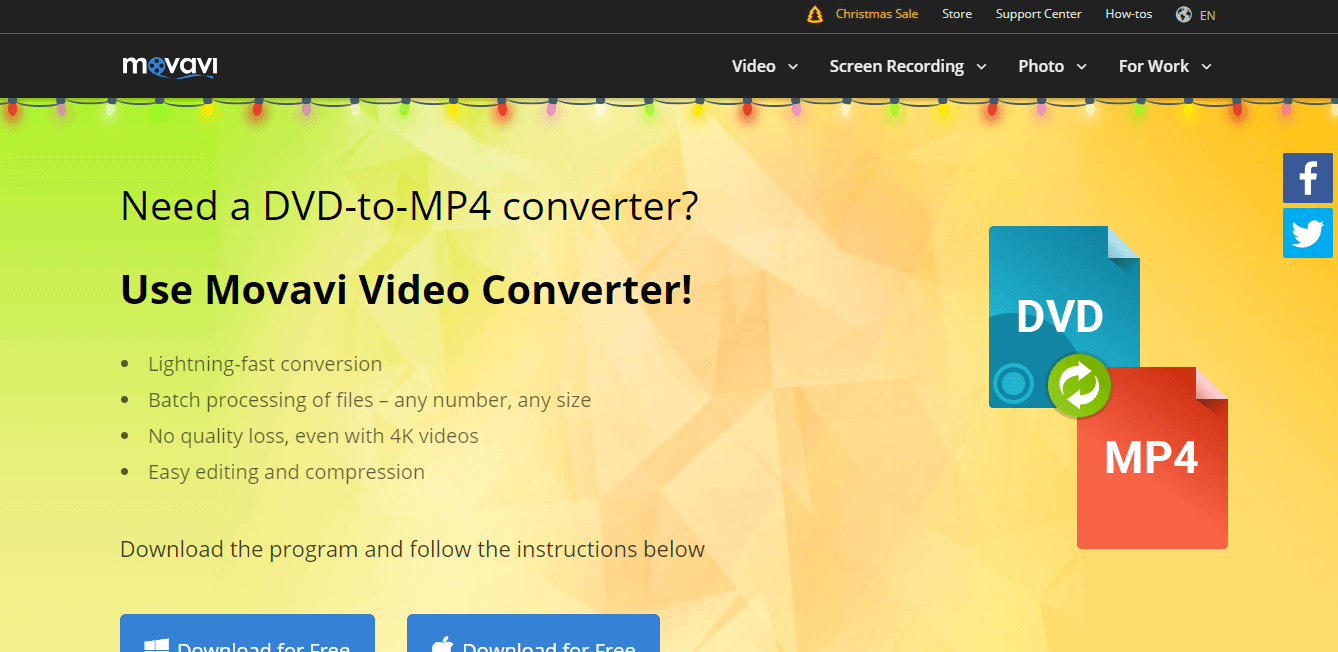
Movavi Video Converter

Movavi Video Converter - DVD to MP4

Movavi Video Converter is a powerful tool that offers a great range of options for converting any DVD to an MP4 file. This software works fast and has batch processing options that come in very handy when you have to process a large number of videos.

This software contains a large number of video resolution templates that allows you to easily choose the one that is perfectly compatible with your mobile device’s screen size. You can choose to export your files to a mobile device directly from this software, as soon as the conversion process is complete.

With this software you can edit, trim, merge, modify the audio settings, and also cut your DVD files in order to create stunning videos that you can proudly present to your family and friends.

⇒ Get Movavi Video Converter

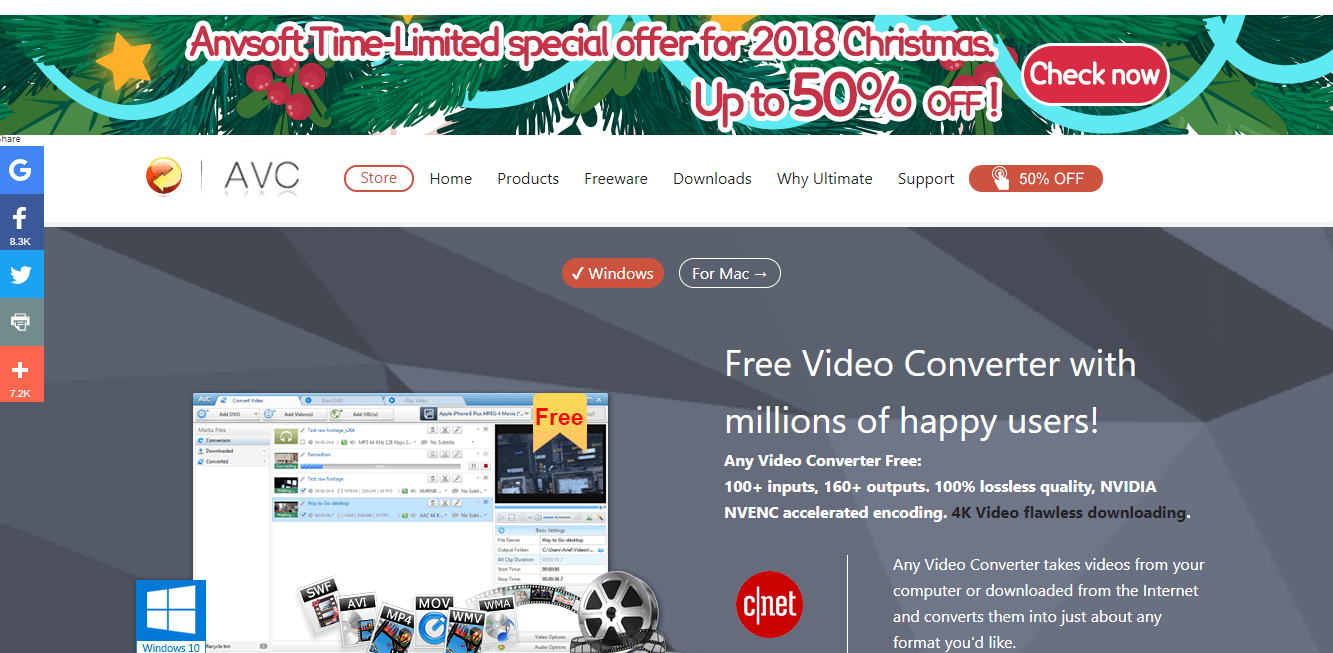
AnyVideo Coverter

AnyVideo Converter - DVD to mp4

AnyVideo Converter is another great software option that gives you the power to change the format of your DVD files into MP4 files, for easy watching on mobile devices or saving space on your hard-drive.

This tool manages to convert the DVD files to MP4 without losing much of the quality, even though the size of the files will be altered.

This software supports may other video inputs – MPEG, VOB, WMV, 3GP, 3G2, MKV, MOD, M2TS, etc. and can also export files to WMV, MPG, AVI, ASF, M2TS, 3GP, 3G2, FLV, etc.

AnyVideo Converter comes in both free and paid versions. Even though the paid version has some additional features, the free version is a very useful and complete tool.

⇒ Get AnyVideo Converter Pro

Even if AnyVideo Converter comes in both a free and paid version, the paid one doesn’t offer many extra features, but it is suitable for businesses.

Key features include:

  • HEVC/H.265 Video Coding
  • Fast conversion speeds with high quality results
  • HEVC –  compressed videos to half the size of source file, without loss of quality
  • Can rip and extract audio from CDs and DVDs
  • Burn video to DVD or AVCHD DVD
  • Editable video codecs, dimension, bitrate, frame rate, sample rate, channel, video/audio quality, etc.

⇒ Get  AnyVideo Converter 

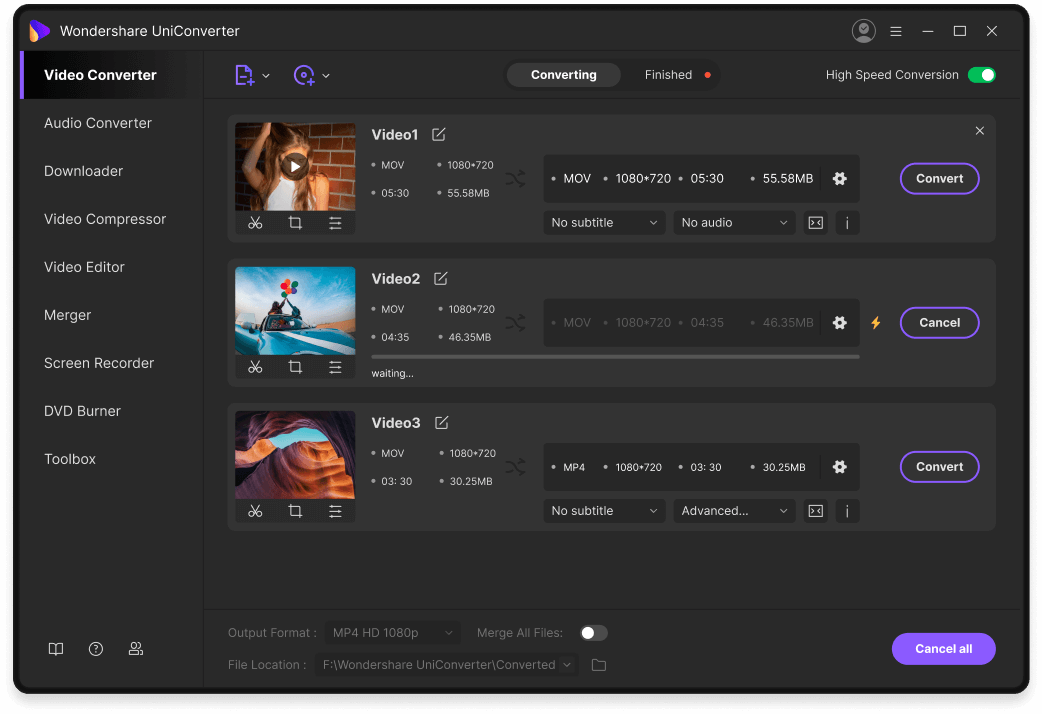
UniConverter by Wondershare

UniConverter is an incredibly powerful tool that allows you to simply transform DVD files into Mp4 format files. This allows you to save space on your hard drive or portable device, and this way you can watch your favorite videos anywhere.

This software can also convert MP4, MKV, WMV, MP3, etc., and can also convert 4K/HD video in 1080p and 720p HD format, without losing any quality.

With UniConverter you can also use the built-in video editor to adjust any parts of the video you want, and also crop, trim and rotate. You can also add watermarks, subtitles, and metadata information with ease.

You can customize your DVD videos with built-in templates with different themes, like – romantic, holiday, ocean, etc. You can burn multiple DVDs at the same time, and convert the DVD into any file format, including Mp4.

This software also allows you to back up your projects, giving you peace of mind regarding losing any important video, and in case of an accidental erase or damage to the hard-drive, the files can be easily retrieved.

⇒ Get Uniconverter

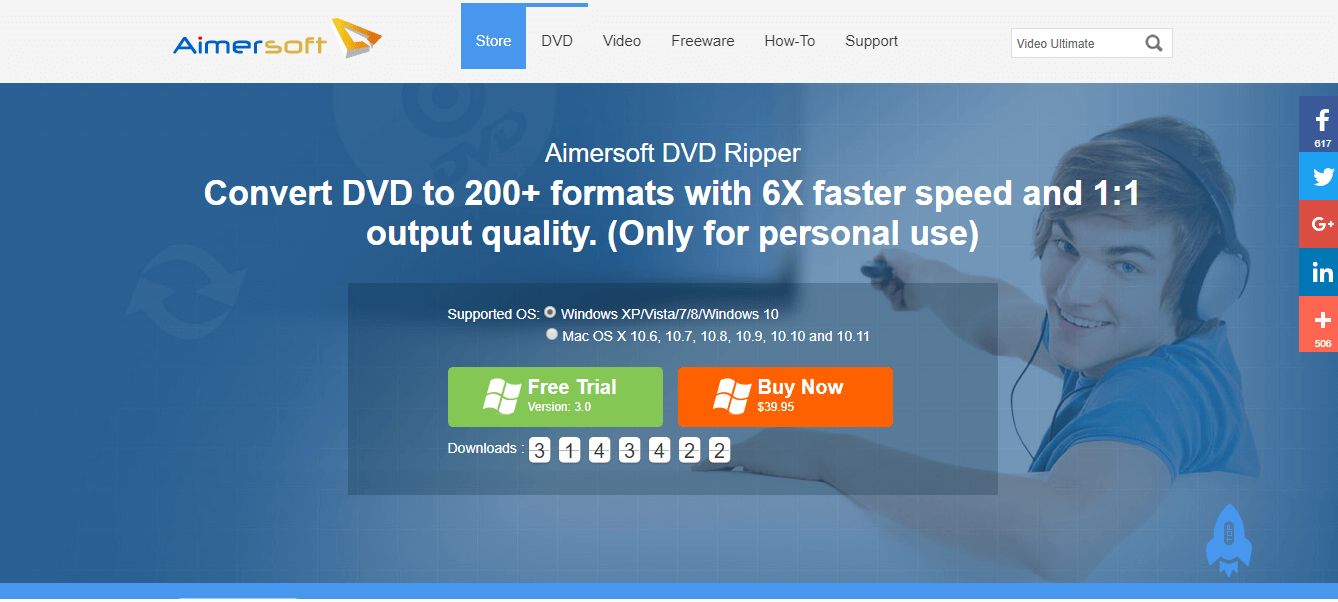
AimerSoft DVD Ripper

AimerSoft DVD Ripper - DVD to MP4

AimerSoft DVD Ripper is another great software option that gives you the power to transform DVD to a large range of formats, with great speed and quality results.

You can use this software to convert your DVD movies to both SD and HD video formats, including – AVI, MP4, WMV, MOV, FLV, MKV, 3GP, MPEG, 3D movies, etc.

One of the best features found in AimerSoft DVD Ripper is the great range of built-in presets for different devices. This option simplifies the process of choosing which format output you want to obtain. This comes in even more handy for people who are not used to dealing with different file formats.

This software brings a very useful built-in video editor that allows you to customize your DVD movies to your desires. You can rotate the videos, trim, crop, add subtitles, watermarks,  and also merge multiple files into one video. The merge option allows you to play your movies seamlessly.

⇒ Get AimerSoft DVD Ripper

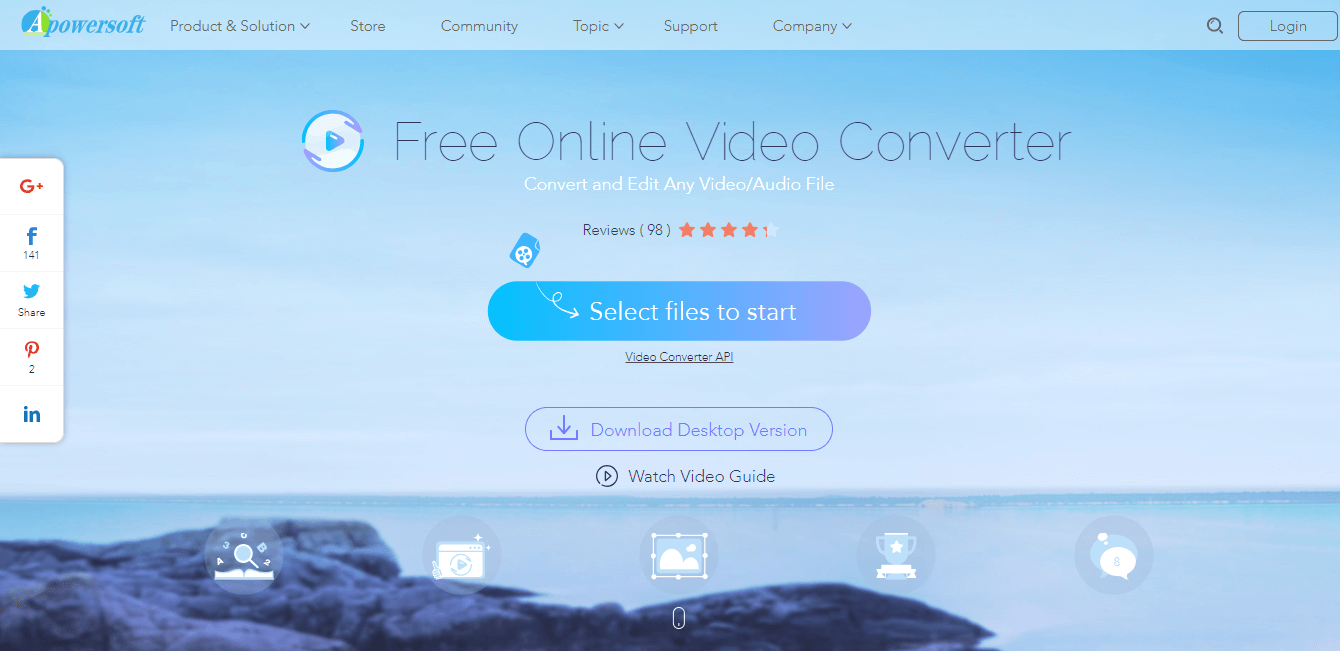
Apowersoft Free Online Video Converter

Apowersoft Video Converter - DVD to MP4

This is a great free online video conversion option that allows you to easily transform your DVD files into MP4s. Apart from this, you can also transform your DVD files into all popular formats – MOV, AVI, WMV, MKV, SWF, ASF, FLV, VOB, RM, 3GP, and can also convert all popular formats to DVD.

Even though this is an online conversion tool, in order to use it, you will need to install the launcher.

This software also has a good range of video editing tools that allow you to obtain professional-looking results. You can merge videos, apply effects and watermarks, trim, resize and preview all the changes before applying them.

You can also download the desktop version for Apowersoft Video Converter Personal or Commercial version.

⇒ Get Apowersoft Video Converter

Conclusion

With the knowledge you obtained by reading this guide, you can now convert your DVDs to MP4s and watch your favorite TV shows, movies, and music videoclips on the go.

Transforming your files into MP4s allows you to save space on your hard-drive, which can be very useful if you’re using a PC with a small storage space.

The features found in the software presented in this article cover other tasks as well, like video editing, merge options, export to mobile devices directly, etc.

We would love to know what software option you chose to convert your DVD files into MP4s. Let us know in the comment section below.

Microsoft Teams will support custom-made Together Mode scenes for more fun meetings

Last year, Microsoft announced a new Together Mode for its Teams collaboration platform. While the feature is great for virtual meetings, it doesn’t allow users to upload custom backgrounds, and they can only choose the pre-set background options available in the Teams library.

In a recent update to the Microsoft 365 roadmap, the software giant indicated that it’s planning to add support for custom Together Mode scenes in June 2021. This update will allow developers to create their own “immersive” scenes for meetings. “Build your own scenes that elevate your meeting experience. We believe that by making Together Mode extensible, creators can create immersive scenes and users can go beyond simple video conferencing. Started building your scenes by going to the Developer Portal for Microsoft Teams,” the company explained on the Microsoft 365 roadmap.

The Together Mode feature aims to make meetings more engaging by allowing people to connect and collaborate in the same virtual meeting space, such as a coffee shop or a meeting room. The firm says that the addition of custom Together Mode scenes for meetings will further improve the user experience by making it more fun and interactive for Teams users. In case you missed it, the app is also adding support for apps in external meetings and chats next month.

Top Windows 10 keyboard shortcuts for Teams meetings and how to use them

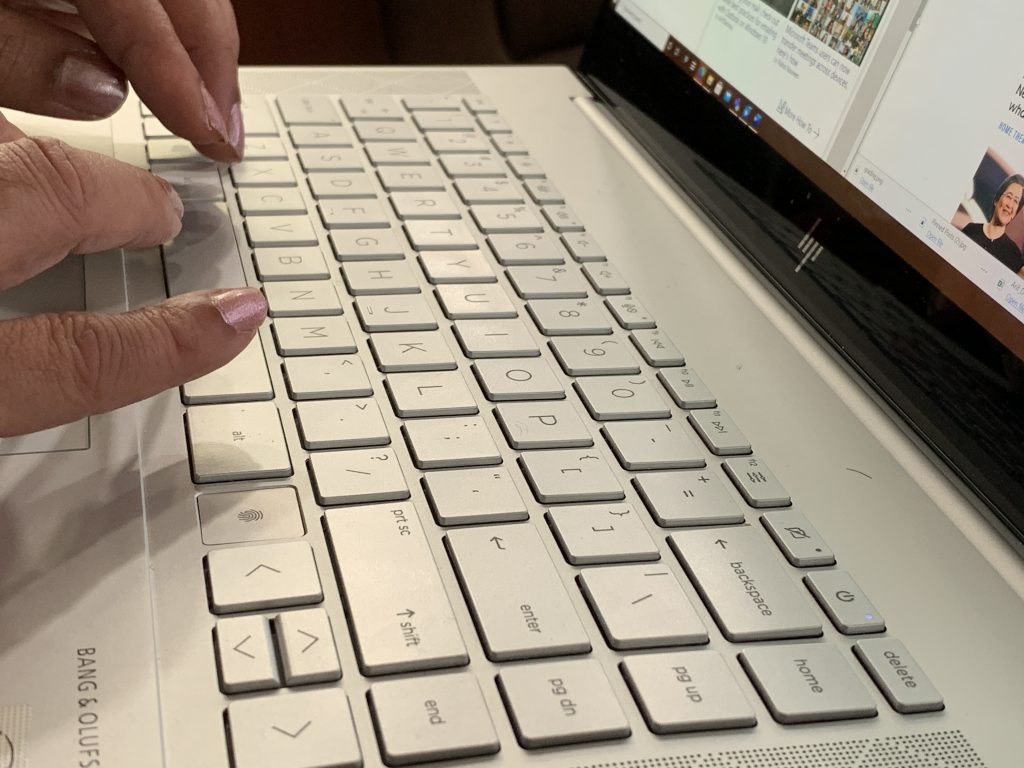
If you’ve ever found yourself in a Microsoft Teams meeting, then you know how busy things can get. Well, one way to stay efficient during meetings is to try to use keyboard shortcuts. These keyboard shortcuts can help you work a lot faster, saving you a few clicks and a drag of your mouse. We’ve collected some of our favorite Windows 10 Microsoft Teams shortcuts for you below.

Getting around Teams

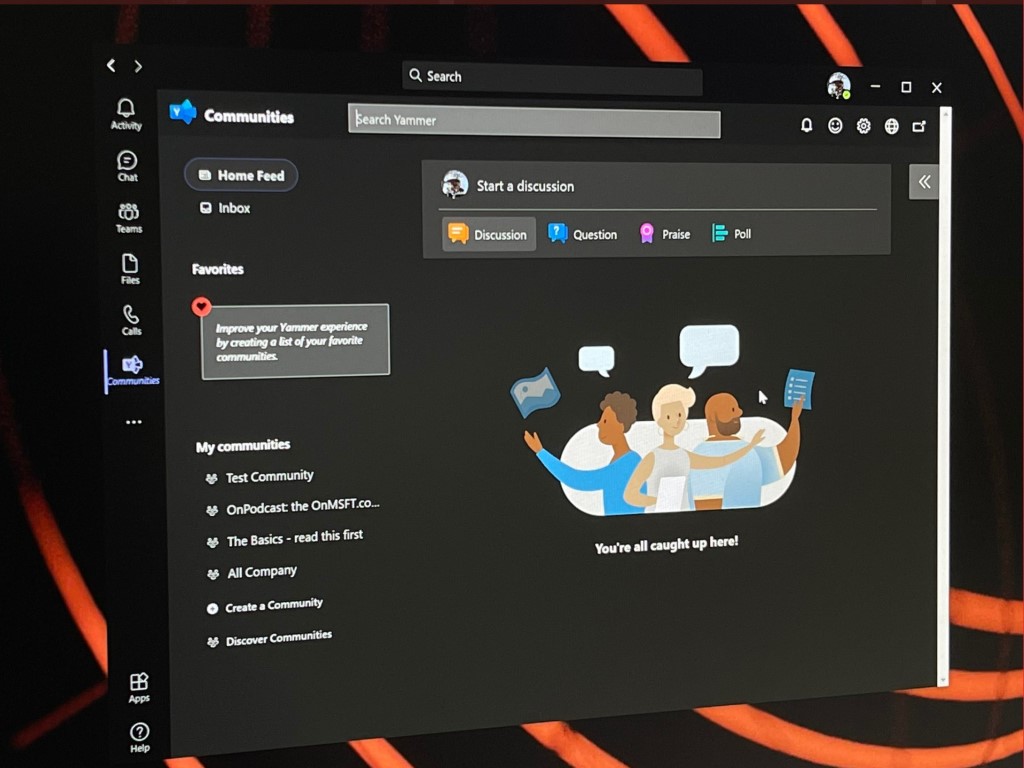
Yammer In Microsoft Teams App

We’ll start first with some of the most common shortcuts for navigation. These shortcuts let you get around Teams more easily, without needing to click things like activity, chat, or calendar while you’re in the middle of a call. After all, those are some of the most common areas you might be going to during a meeting, anyway. Have a look below in the table for more.

Task Shortcut on Desktop Shortcut on Web
Open Activity Ctrl+1 Ctrl+Shift+1
Open Chat Ctrl+2 Ctrl+Shift+2
Open Teams Ctrl+3 Ctrl+Shift+3
Open Calendar Ctrl+4 Ctrl+Shift+4
Open Calls Ctrl+5 Ctrl+Shift+5
Open Files Ctrl+6 Ctrl+Shift+6

Keep in mind that these shortcuts only work if you’re using the default configuration in the Teams desktop app. If you’ve changed the order of things, the order will depend on how it sequentially appears.

Navigating meetings and calls

Teams Video Conference Cropped 1

Next up, we’ll move on to some ways you can navigate meetings and calls with your keyboard. These are the most important keyboard shortcuts which we want to mention. With these, you can accept and decline calls, mute calls, toggle video, control your screen share sessions, and more. Again, we’ve collected some of our favorites into the table below. These work across both the desktop app, as well as the web.

Task Shortcut on Desktop Shortcut on Web
Accept video call Ctrl+Shift+A Ctrl+Shift+A
Accept audio call Ctrl+Shift+S Ctrl+Shift+S
Decline call Ctrl+Shift+D

Ctrl+Shift+D
Start audio call Ctrl+Shift+C Ctrl+Shift+C
Start video call Ctrl+Shift+U Ctrl+Shift+U
Toggle mute Ctrl+Shift+M Ctrl+Shift+M
Toggle video Ctrl+Shift+O N/A
Accept screen share Ctrl+Shift+A N/A
Toggle background blur Ctrl+Shift+P N/A
Admit people from lobby notification Ctrl+Shift+Y N/A
Raise or lower your hand Ctrl+Shift+K Ctrl+Shift+K

While we’ve only focused on a few shortcuts, we’d like to remind you that we have a full collection of Microsoft Teams shortcuts right here. Those shortcuts cover messaging, as well as general navigation. Microsoft even has a full list on its own website, along with steps on how you can leverage the shortcuts to your own advantage.

We’ve got you covered!

This is just one of many guides that we’ve written about Microsoft Teams. You can check out our Microsoft Teams news hub for more. We’ve covered lots of other topics, ranging from scheduling meetings, recording meetings, changing participant settings, and more. As always, we also invite you to use our comment section below if you have your own suggestions and tips and tricks for Teams.

Numerical Analysis Software for Engineering: 3 Best to try

In order to create complex projects that involve large mathematical equations and calculations, it is recommended that you use specialized software to do so. Fortunately for you, there is a wide range of numerical computing software options found on the market, but choosing the best one can be a daunting task.

This type of design, mathematics, rendering and visualization software is also known as CAE (Computer-Aided Engineering).

This software allows you to streamline the entire process of engineering for a specific project, and includes useful tools to help you manage the design process, offers support for the engineering process, performs high-end tests based on the physics and mathematical equations that apply, and also incredibly powerful rendering.

The most commonly used simulation and analysis types that are included in CAE software:

  • Finite Element Analysis
  • Computational Fluid Dynamics
  • Thermal Analysis
  • Multibody Dynamics
  • Optimizations

In this article, we will explore some of the best software options found on the market this year, that can help you streamline the process of engineering, and offer other great features and options. Read on to find out more.

Best numerical computing software for Windows 10 PCs

Fusion 360 by Autodesk

Autodesk Fusion 360 - numerical computing software

Fusion 360 is an incredibly useful software that can be used by product designers, mechanical engineers, and even machinists. This software combines the features that can be found in design, engineering, and manufacturing, into one all-encompassing hub.

This software is a fully featured CAD, CAM, and CAE software that allows you to generate designs, use 2.5 to 5 axis machining, and also offers great processing power when it comes to high quality and real-life renderings.

This program combines the professional capabilities of high-end CAD programs with a user-friendly interface, making it one of the best software options in this domain.

Here are some of the best features found in Fusion 360:

  • CAM – create tool paths to machine your components or create a prototype using the 3D printing workflow
  • Great engineering and simulation features – allows you to test the fit and motion, can create assemblies, and produce extremely good looking rendering and animations
  • Solid modeling – very useful sculpting tools
  • Data translation – transforms mathematical data into visual representations
  • Joints & motion studies – gives you the opportunity to test any renderings in a virtual environment
  • Freeform modeling & sculpting
  • Parametric modeling
  • Mesh modeling

If you are a bit overwhelmed by the large range of features found in Fusion 360, you can find a step by step tutorial on the official Fusion 360 webpage.

Get it now from the official website

Matlab

Matlab - Numerical computing software

Matlab is one of the best numerical computing software option found on the market in this year that can be used for developing algorithms, analysis of data, visualization, and also numerical computations.

This software is incredibly complex, being a CAE (Computer Aided Engineering) system that brings together the desktop environment (with design, iterative, and analysis features), with a programming language that is built specifically to make matrix mathematics understandable and applicable to your project.

Matlab allows you to program, simulate, model different processes for analyzing data, model creation, and algorithm development. The tools included in this software are completely documented.

Because of the fact that this software can be scaled to any sized project, you only need to modify a small part of the code when running it through GPUs, on the cloud, or in clusters.

Here are some of the best features found in Matlab:

  • Great user-friendly debugging tools
  • Wide range of functions found in the built-in library of mathematical and statistical functions
  • A great online community that constantly creates great new tools and resources
  • Comprehensive help tutorials
  • Can design, create, and visualize incredibly complex neural networks
  • Access to the latest deep learning features – VGG-16, VGG-19, GoogleNet, ResNet-50, Inception-v3, and AlexNet
  • Great image processing features

This software can be used in a variety of fields, here are some of the most common ones:

  • Data Analytics
  • Image Processing and Computer Vision
  • Signal Processing and Communications
  • Computational Finance
  • Control Systems
  • Computational Biology

Try MATLAB

GNU Octave

GNU Octave - numerical computing software

GNU Octave is another greatly powerful that uses syntax oriented mathematics to help you in the process of plotting and also visualization. This software is completely free and has a wide range of very useful features.

This software is similar to the Matlab option we explored before, but the main difference between them is the syntax that they use. If the software developer wants to build the project from scratch, then GNU Octave is a lot more useful than Matlab.

In the case that the programming starts at a level that includes pre-built structure, it is recommended that you go with Matlab.

Here are some of the best features found in GNU Octave:

  • A high-level language that was built specifically for numerical computations
  • Can solve both linear and nonlinear problems
  • Incredibly powerful syntax based on mathematics
  • Great built-in plotting and visualization tools
  • Drop-in compatible with Matlab scripts
  • Easily solve linear algebra operations on vectors and matrices
  • Great visualization tools in both 2D and 3D
  • Features can be extended to be used to solve nonlinear equations, integration of ordinary functions, etc.
  • Completely free to redistribute and modify

If you want to know a bit more information about this software, you can visit the official Support page, and if you want to go even in depth, even more, you can visit the official documentation page.

Download GNU Octave

Conclusion

In this article, we explored some of the best software options found on the market in 2019 that allow you to streamline the entire process of engineering.

By using this type of software, you can design, edit, manage, visualize and then transform your projects into real life elements/projects/designs.

Feel free to let us know what your experience was when trying out this software, and also let us know if you have any other software recommendations, by using the comment section below.

19 Amazing Windows 10 Screensavers To Download in 2026

The best screensavers for Windows 10 do more than prevent screen burn-in. They can refresh your desktop, create a calming atmosphere, or add a touch of personality while your PC is idle. Screensavers have evolved into interactive, artistic, and customizable experiences.

From realistic aquariums and retro game loops to stylish clocks and space visuals, the options below work smoothly on Windows 10.

Top Screensavers for Windows 10

1. Dream Aquarium – Stunning virtual fish tank with realistic 3D fish

Dream Aquarium brings an ultra-realistic aquarium to your screen with 100+ lifelike fish from 27 species. Unlike video footage, everything is rendered in real-time 3D. Fish have moving mouths, articulated fins, and even gills. Multi-monitor support and a free trial make it a standout visual experience.
→ Get Dream Aquarium


2. Screensaver Wonder – Create your own screensaver with images, video, and music

Screensaver Wonder allows you to build your own screensavers using multimedia, custom transitions, text, and background music. Whether it’s a personal slideshow or a business product loop, this tool gives you total creative control.
→ Get Screensaver Wonder


3. Stardock DeskScapes – Convert videos and effects into live wallpapers or screensavers

Stardock’s DeskScapes lets you use short video clips and apply stunning effects to create animated screensavers. The result? A fully personalized, animated desktop that feels alive, with transitions and filters layered in.
→ Get Stardock DeskScapes


4. Fliqlo Flip Clock – Minimalist flip clock with classic aesthetic

Fliqlo transforms your screen into a stylish, old-school flip clock. It supports both 12- and 24-hour formats and lets you resize the clock up to 125%. Available for Windows, macOS, and iOS.
→ Get Fliqlo Flip Clock


5. NES Screensaver – Play NES games as your screensaver

This clever screensaver emulates over 150 NES games right on your desktop. You can even resume from checkpoints. It requires a manual install, but once set up, it delivers nostalgic fun straight to your idle screen.
→ Get NES Screensaver


6. 3D Earth Screensaver – Animated Earth view with sun rays and city lights

Render a rotating, real-time view of Earth, complete with sunlight zones, space station flyovers, and city lights at night. Zoom in on geography and learn while enjoying stunning visuals.
→ Get 3D Earth Screensaver


7. Briblo – Interactive Lego-like building blocks screensaver

Briblo is a playful, interactive screensaver where colorful Lego-style bricks drop in 3D. It’s oddly satisfying and fully customizable. Build your own towers or let the pieces fall freely.
→ Get Briblo


8. Screensavers Planet – Largest curated archive of free screensavers

This massive archive offers 1,500+ clean, safe screensavers across every category. All downloads are vetted and come with previews and install instructions. From digital clocks to 3D environments, it’s the most reliable source for free Windows 10 screensavers.
→ Get classic and modern screensavers from Screensavers Planet


9. Windows10Screensavers.net – Windows 10–only screensavers, no junk

Built specifically for Windows 10, this site focuses on 100% compatible screensavers without bloatware. It features abstract visuals, retro styles, nature scenes, and animated clocks with easy, direct downloads.
→ Get curated screensavers built for Windows 10


10. Screensavers.com – Nostalgic designs and classic themes

This long-running site has kept many early 2000s favorites alive. It offers fun, quirky screensavers (sports, animals, seasonal) with a retro vibe. While the site may prompt optional extras, most downloads are safe if you’re careful.
→ Get throwback-style screensavers and old-school favorites


11. ScreenSaverNexus – Minimalist and animated themes in small packages

This compact but well-curated site offers simple and modern animated screensavers. Ideal for low-resource machines or users looking for subtle, stylish motion effects.
→ Get lightweight animated screensavers with clean visuals


12. NewFreeScreensavers – Seasonal and festive screensavers updated regularly

Perfect for holiday moods, this site features hundreds of handmade screensavers themed around Christmas, Halloween, seasons, and minimal clocks. All are freeware, lightweight, and ad-free.
→ Get festive and themed screensavers all year long


13. SaversPlanet – Themed screensavers with relaxing motion effects

Offers traditional and 3D-style screensavers, including galaxies, forests, fantasy scenes, and analog clock animations. Most files are small and install easily.
→ Get relaxing visuals and animated themes for free


14. Electric Sheep – Evolving fractal screensavers driven by community input

This open-source project creates dynamic abstract animations that evolve over time based on user votes. It requires an internet connection and turns your screen into collaborative digital art.
→ Get surreal, evolving fractal visuals in real time


15. Really Slick Screensavers – GPU-powered 3D effects and physics demos

An indie collection of OpenGL-based screensavers featuring vortexes, plasma, and particle systems. These GPU-hungry visuals are perfect for showcasing hardware power even while idle.
→ Get high-performance 3D screensavers with stunning effects


16. 3Planesoft – Beautifully animated 3D screensavers (some free)

While most are paid, a few 3Planesoft screensavers are available for free. These feature stunning 3D renderings like aquariums, lighthouses, and outer space, with high production value.
→ Get cinematic-quality screensavers with smooth 3D animation


17. Webshots – HD photo slideshow screensaver with curated themes

Webshots delivers rotating, high-resolution nature and travel photos as a screensaver. It functions as an app with a free tier and premium upgrade option.
→ Get curated photo slideshows and calm desktop vibes


18. Pixabay – Free video loops perfect for screensaver playback

Use royalty-free HD or 4K video loops as screensavers with tools like VLC or custom wrappers. Nature, abstract visuals, and slow-motion effects are plentiful here.
→ Get video loops and turn them into animated screensavers


19. Pexels – Cinematic HD visuals to turn into screensavers

Another source of free, license-cleared video loops. Download and use them with VLC or Lively Wallpaper to transform your screen into a calm, moving scene.
→ Get cinematic loops and customize your screensaver look

Conclusion

Screensavers are a simple way to personalize your Windows 10 desktop and make it feel more dynamic. Whether you prefer something relaxing, functional, or creative, there are many great options available for free or as premium tools.

Installing a screensaver is quick, and most options require little setup. Once added, they can transform an idle screen into something useful or visually interesting. Explore the options above, pick one that fits your style, and give your desktop a fresh new look.

3D Screensavers for Windows 11 & 10 [2026 List]

Lots of Windows screensavers are flat and two-dimensional. However, there are also plenty of alternative 3D screensavers that can add a visual extravaganza to Windows.

Those screensavers can have fully 3D landscapes, rotating camera angles or include some glossy 3D effects that the 2D alternatives just can’t match. These are ten 3D screensavers that add a little extra sparkle to Windows.

Which are the best 3D screensavers for Windows 10?

Dream Aquarium

You don’t have to be a fish lover to enjoy the most beautiful virtual aquarium and screensaver for PC.

We’re talking about one of the most realistic representation of a fish tank with 100% computer generated fish that move and behave just like their real, natural counterparts.

You will witness all the aspects of their like including eating and chasing each other in the lush vegetation decor that will feast your eyes with colors.

The detail for this video is simply amazing. The fish have articulated fins, moving eyes, gills and mouth so you can be easily tricked that you are watching at the real thing.

The Dream Aquarium features over 100 fish from 27 species and it has a free trial version without any ads so try it out now.

Dream Aquarium

Dream Aquarium

Get the most amazing and realistic aquarium with over 100 colorful naturally moving fish.
Free trialVisit website

Stardock DeskScapes

Rather than being a screensaver itself, DeskScapes is a software tool that gives you access to a multitude of other screensavers by granting you access to a wide library that also includes live wallpapers.

Additionally, you can use DeskScapes to create your own live wallpapers and screensavers from photos and videos that you already own.

These will then be transformed into videos that will run on your desktop continuously on a loop, and you can also add certain special effects to make the end-result all the more appealing.

Turn a family photo or a short video of a lake into a screensaver, and think about the good old times with you own screensavers, all thanks to DeskScapes.

DeskScapes

DeskScapes

Transform your videos into live wallpapers and screensavers and immortalize your special moments with DeskScapes!
Check priceVisit website

Screensaver Wonder

This next tool follows the same principle as the previous ones, allowing you to transform your own home videos and photos into fantastic live wallpapers and screensavers.

Besides, these home-made screensavers and wallpapers can be  made self-extracting so that you can also share them with friends and family.

It boasts 100 transition effects, so screensavers and wallpapers made up of photos won’t just like like a boring PowerPoint presentation, but they will feel as alive as an actual video.

Besides, the screensavers that you create can also be made to have sounds, making it great for the overall atmosphere of the room.

Screensaver Wonder

Screensaver Wonder

Liven your desktop with either a live wallpaper or a screensaver of your own making with Screensaver Wonder!
Check priceVisit website

Earth 3D Live Wallpaper

The Microsoft Store is filled with screensavers and live wallpapers that you can buy, and a lot of them are 3D as well, one great example being Earth 3D Live Wallpaper.

This amazing wallpaper/screensaver will give you a fantastic 3D representation of our planet as it rotates into space.

The model of the globe is very detailed, and you can even use your mouse to zoom in and out of it as well so that you can see things in even greater detail.

All in all, if you’re into geography or stargazing, this is definitely a screensaver that you should try.

⇒ Get Earth 3D Live Wallpaper


Ocean 3D Live Wallpaper

Those of you that are fans of the ocean and sea life will love the Ocean 3D Live Wallpaper, as it will make you feel as if you’re on a yacht traveling the high seas.

Enjoy incredibly realistic water effects as your sail endlessly through your desktop, and the great part is that you can use it both as a live wallpaper and as a screensaver.

The camera angle changes so you can enjoy different views of the water, and the clear blue sky will make you definitely miss the beach.

⇒ Get Ocean 3D Live Wallpaper


Mars 3D Live Wallpaper

If you’re not the kind of person that is down to Earth, and you like the idea of space exploration, then Mars 3D Live Wallpaper is what you need.

It follows the same principle as Earth 3D Live Wallpaper, only this one display the red surface of Mars in all its glory.

It is fully animated and controllable, and you can use it as both a live wallpaper and as a screensaver to liven up your desktop while you’re away.

It is created in great detail, so you can enjoy the plant Mars in all it’s beauty, with surface craters, whirlwinds, and more.

⇒ Get Mars 3D Live Wallpaper


That’s a very small selection of some of the great 3D screensavers for Windows 10. There are, of course, loads more 3D screensavers that you can spruce up Windows with. Which one is your favorite 3D screensaver?

FIX: Windows Defender error code 0x80073afc [Full Guide]

Keeping your PC safe is crucial, and in order to protect it from malicious software Windows 10 relies on the Windows Defender.

This tool works as an antivirus, but users reported certain issues with it. One issue that appears while using Windows Defender is the error 0x80073afc.

If you get this error, it means that your Windows Firewall is malfunctioning. That’s really bad news since it will leave your device vulnerable to viruses, malware, and other dangerous files.

How can I fix the Windows Defender error 0x80073afc?

  1. Uninstall your antivirus software
  2. Change your registry
  3. Remove the malicious software
  4. Check for problematic updates
  5. Use System Restore
  6. Wait for the official fix
  7. Update Windows 
  8. Run the SFC scan
  9. Run DISM
  10. Clean your registry
  11. Check environmental values
  12. Change system permissions
  13. Restart the Security service 
  14. Change the group policy
  15. Reset Windows 10

1. Uninstall your antivirus software

Windows Defender is designed to work as a default antivirus software on Windows 10, however, it can’t work with other security tools.

If the installer encountered the error code 0x80093acf, be sure to uninstall your antivirus and check if that solves the problem.

By default, Windows Defender will turn itself off after you install a third-party antivirus program.

One way to eliminate such issues is to simply replace the in-built Windows solution with a modern antivirus that will not interfere with your system in any way.

Therefore, we suggest a powerful security suite that will protect your PC against all kinds of malicious programs such as spyware, ransomware, viruses, rootkits, exploits, and more.

Emerging threats make no exception as this well-balanced antivirus relies on a smart, cloud-based technology that allows it to update its signatures automatically and never fail to stay on top of the cybersecurity game.

TotalAV

Enjoy seamless protection and flawless security thanks to TotalAV and its wide range of features.
Check Price Visit Website

2. Change your registry

  1. Press Windows Key + R, enter regedit, and press Enter or click OK.

  2. Go to the following path in the left pane: HKEY_LOCAL_MACHINESOFTWAREMicrosoftWindows NTCurrentVersionImage File Execution Options
  3. Try to find MSASCui.exe, MpCmdRun.exe, MpUXSrv.exe, or msconfig.exe keys. If you find any of them, right-click them and choose Delete.
  4. After deleting the problematic keys, check if the problem is resolved.

It’s possible that your registry was altered by a malicious program, thus causing error code 0x80073afc to appear. To fix this problem you’ll need to change your registry.

Before you start altering your registry, keep in mind that changing the registry can be potentially dangerous, therefore be sure to create a backup of your registry just in case.

3. Remove the malicious software

Sometimes malicious software can be located on your PC and cause this error to appear.

You need to look for MpCmdRun.exe, MpUXSrv.exe, MSASCui.exe, and msconfig.exe files or folders in the following directories:

  • %AppData%
  • C:WindowsTemp
  • %temp%
  • C:Program Files.

You can easily access any of these folders simply by pasting the folder’s address into File Explorer and pressing Enter.

If you find any of the aforementioned files or folders, delete them and check if that fixes the problem.

4. Check for problematic updates

  1. Open the Settings app. (If you’re unable to open the Settings, here are some fixes).
  2. Go to the Update & Security section.
  3. In the Windows Update tab click on Advanced options.
  4. Now click on View your update history.
  5. Click Uninstall updates.
  6. Now, the Installed Updates window will appear. Locate the update that you want to remove and double click it to remove it.

Users reported that certain Windows updates caused this error to appear, hence you need to find and remove the problematic ones.

Bear in mind that you need to remove the problematic update, so keep a close eye on all installed updates.

To prevent this issue from appearing again, block the problematic update from installing. If you encounter problems with the process, this great guide about fixing Windows Update problems will help you.

5. Use System Restore

  1. Press Windows Key + S and enter restore. Select Create a restore point option.
  2. When the System Properties window opens, click the System Restore button.
  3. When System Restore starts, click Next.
  4. Select the restore point you want to revert to and click Next.
  5. Follow the instructions to restore your PC.

Few users reported that they fixed this issue simply by restoring their computer with the System Restore feature. Restoring your PC is easy, and can be done using the aforementioned steps.

6. Wait for the official fix

Few users reported that their issue was fixed by installing the latest updates, so you might want to wait for Microsoft to solve the problem themselves.

Usually, Windows updates fix these kinds of issues, so you might have to wait a bit until the official fix is released. This might take a while, unfortunately.

The time it takes for such problems to be solved by Microsoft depends on the number of people that signal the problem to them, so don’t hesitate to make a ticked or a post on the official forums.

7. Update Windows

  1. Go to Settings.
  2. Then, Update & Security.
  3. Select check for updates.
    check for updates
  4. Wait for the Windows to finish updating.

This step is, in a way, tied to the 6th one. You need to keep your Windows updated at all times, so make sure you are using the latest versions.

As Windows Defender is a part of Windows 10, it receives updates through Windows Update. So, maybe the issue you’re facing is acknowledged by Microsoft, and the company is working on a fix.

8. Run the SFC scan

  1. Right-click on the Start Menu button, and open Command Prompt (Admin).
  2. Enter the following line and press Enter: sfc/scannow
  3. Wait until the process is done (it may take a while).
    • If the solution is found, it will automatically be applied.
  4. Now, close the Command Prompt and restart your computer.

If none of the previous solutions worked, let’s try a few troubleshooting tools. The first one is the SFC scan.

This command-line tool scans your computer for potential issues and resolves them if possible. So, it might be helpful in this case, as well.

9. Run DISM

  1. Open the Command Prompt as shown above.
  2. Enter the following command and press Enter: DISM.exe/Online /Cleanup-image /Restorehealth
  3. Wait for the process to finish.
  4. Restart your computer.
  5. In case the DISM can’t obtain files online, try using your installation USB or DVD.
  6. Insert media and type the following command: DISM.exe/Online /Cleanup-Image /RestoreHealth /Source:C:RepairSourceWindows /LimitAccess

DISM is another tool that we’re going to try. It will scan your system’s disks. Make sure to replace the C:RepairSourceWindows path of your DVD or USB and follow further on-screen instructions.

10. Clean your registry

Some users report that Windows Defender won’t work because there are issues with your registry. To eliminate the doubt, go ahead and clean your registry.

The best way to clean the registry in Windows 10 is by using a third-party registry cleaner.

If you don’t have the first choice already, check out our list of the best registry cleaners for Windows 10 to get some ideas.

Additionally, note that you should look for a registry cleaner that scans your PC periodically for corrupted files and other issues. Such an app will make sure that your device is working smoothly.

11. Check environmental values

  1. Press Windows Key + S and enter advanced system settings.
  2. Select View advanced system settings from the menu.
  3. Now click the Environment Variables button.
  4. Locate the %ProgramData% variable and check if it’s set to C:ProgramData
  5. If not, change the variable accordingly.

Environmental values are handy, but a less-known feature that helps your system access certain directories which contain important data and values.

Sometimes third-party apps may change these values, and that could lead to interferences with Windows Defender resulting in potential problems like the error 0x80073afc.

12. Change system permissions

  1. Go to C:ProgramData directory.
  2. Now locate the Microsoft directory and right-click it.
  3. Choose Properties from the menu.
  4. Now go to the Security tab and click Advanced.
  5. Now you should remove all inherited permissions. After doing that, save changes and check if the problem is resolved.

Another reason for Windows Defender issues may be the system permissions. If some permissions are set to block Windows Defender, it obviously won’t work.

13. Restart the Security service

  1. Press the Windows key + R and launch Run.
  2. Type services.msc and hit Enter or click OK.
  3. In Services, search for Security Center.
  4. Right-click Security Center and click Restart.

Everything in Windows 10 has its own service, and Windows Defender is not different. Make sure that the Security service is running in order for Windows Defender to function normally.

14. Change the group policy

  1. Press the Windows Key + R and enter gpedit.msc.
  2. Now press Enter or click OK.
  3. When the Group Policy Editor opens, in the left pane navigate to the following path:  Computer ConfigurationAdministrative TemplateWindows ComponentsWindows Defender Antivirus
  4. In the right pane, double-click Turn off Windows Defender Antivirus.
  5. Select Not Configured and click Apply and OK to save changes.

If you have all the necessary permissions, and the service is running, you might need to make a few changes in the Group Policy editor. Here’s what you need to do:

15. Reset Windows 10

If you still have this issue, you might want to reset Windows 10. You can check this in-depth guide about resetting Windows 10 to factory settings to learn more about the process.

Resetting Windows 10 will delete all installed applications and in some cases, all your files from the primary partition, so use this option as the last resort.

We strongly encourage you to switch to a better security tool. You can choose one from this list of antivirus software with lifetime license.

Windows Defender error code 0x80073afc can cause a lot of problems, so be sure to try some of our solutions and let us know what worked for you in the comments section below.

4k Video Player for Windows 10: We Tested 7 Best

As you all know, 4K is a 3,840 x 2,160 resolution for monitors and TVs. For digital cinema, 4K is a slightly different 4,096 x 2,160 picture resolution.

With these measurements in mind, it’s easy to see why you need an optimized 4K video player for Windows 10 to view crystal clear clips or movies on your device.

However, 4K is more widely recognized as an Ultra HD 3,840 x 2,160 VDU (Visual Display Unit) resolution. It provides a much more detailed and sharper picture than 1,080p on larger monitors and TVs.

The 4K resolution isn’t really something new anymore. 5K and 8K (7,680 x 4,320) resolutions have now eclipsed 4K. As such, there are quite a few media players that support the 4K video resolution. Even so, you can still get a solid 4K player Windows 10.

And in this article, we’ll show you some of the best options out there. So dig in, and get yourself the best 4K media player Windows 10.

What is the best 4K video player for Windows 10?

CyberLink PowerDVD Ultra

top 4k media players

CyberLink’s PowerDVD Ultra is a Windows 10, 8, and 7 media player optimized for Ultra HD Blu-ray Disc playback. There are three alternative versions of the software, depending on the paid plan – Standard, Ultra, and 365.

PowerDVD Ultra is the best version that supports the full range of video disc formats, such as 4K Blu-ray Disc, DVD, 3D, ISO, 21:9 aspect ratio playback, AVCHD, and 3D DVD.

It’s not entirely surprising that PowerDVD has been getting rave reviews as it boasts a great feature set. This 4K video player for Windows 10 provides unique TrueTheater enhancements that boost color, lighting, and sound in videos for better picture and audio quality.

PowerDVD fully supports virtual reality and 360-degree video. What’s more, it even includes a VR Mode. Even if you don’t have a VR-ready headset, you can still watch 360-degree videos from all angles by selecting the software’s Tri-View Mode.

This 4K player Windows 10 tool enables users to cast video, photos, and music from PC to TV via FireTV, Apple TV, Chromecast, and Roku media streamers. If that isn’t enough, this best 4K media player Windows 10 also plays online 4K, HDR, 360, and 3D-360 Youtube and Vimeo videos.

The Media Library is another notable addition to PowerDVD. It automatically imports all your videos, photos, and music files. So you can also utilize the software to play photo slideshows and music as well as video content.

CyberLink PowerDVD

Watch, stream and share 4K video content anytime, and anywhere with this top all-around multimedia player.
Free trial Visit website

GOM Player

best 4k video media player GOM

GOM Player is another top 4K video player for Windows 10 to stream Ultra HD content. Not only it supports tons of popular video formats, but it will also play damaged files or partially downloaded files.

Just as CyberLink, GOM also includes a 360° VR Playback mode, so you can fully immerse yourself in the cinematographic environment.

With over 80k subtitles in the built-in library, this 4K player Windows 10 will automatically look for and load subtitles for the video that’s being played.

Another useful aspect we simply cannot overlook is GOM’s versatility. In fact, it is available for devices running from Windows Vista onwards. Moreover, its user-friendly interface makes it a convenient 4K media player Windows 10 for just about anyone.

GOM Player

Check out this sleek media player that will display 4K videos smoothly and vividly on your Windows 10 PC.
Free trial Visit website

Aiseesoft Blu-ray Player

Blu-ray Disc is one notable input media that VLC doesn’t directly support. If you need a 4K media player Windows 10 that plays Blu-ray content without any hiccups, then this tool from Aiseesoft is a better choice than VLC.

This 4K video player for Windows 10 is optimized for 1080p Blu-ray playback, and it also supports 4K playback for MOV, AVI, MKV, FLV, WebM, and MP4 video formats.

But there’s more to come! Aiseesoft Blu-ray Player boasts smooth audio playback and HD surround sound for crystal-clear video/audio as well as super-fast video loading time, especially when connected to the Internet.

Although less rich in configuration settings and features compared to the previous options, this 4K player Windows 10 can still be customized in terms of playing effects, video playback time, and skins.

Needless to say, Aiseesoft Blu-ray Player is compatible with Windows platforms starting with Windows XP.

⇒ Get Aiseesoft Blu-ray Player

LEAWO Blu-ray Player

Leawo Free Blu-ray Player has all the features you need to use as a Blu-ray player and it’s also one of the best free 4K video players out there.

In fact, it doesn’t play only Blu-ray disks but it can also play BDAV movie folders and ISO image files even if they are home made.

The software is light on your system and it’s perfectly adapted to your Windows 10 and even older versions like Windows 7, 8 and 8.1.

Of course, it can also act like a region-free DVD player, also completely free with crisp image quality and unaltered audio on your PC.

Leawo Free Blu-ray Player can play 4K videos on MKV, MP4 and TS formats but it also supports 1080P videos in most formats, including HD MP4, HD MKV, HD MOV and also 720P videos.

And if you’re creating your own content, it can easily play your footage from your camcorder. It can also handle online or streamed video with ease.

As for the audio, the player supports all advanced audio decoding technologies like DTS, AAC, Dolby, TrueHD, multiple channel DTS-HD and more so you can benefit from ultimate sound quality.

The player comes with a virtual controller panel that allows you to access the settings from the disc menu (if available) during the playback like the Scene Selection or Languages for instance.

The player is completely free, and it has a very friendly interface that can be enjoyed by everyone without the need of any instructions.

Let’s see a recap of some of its best features:

  • 6-in-1 free 4K, Blu-ray, DVD, Video, Audio media player software
  • Supports all major media formats
  • Lossless 4K image quality
  • Incredible sound with support for all advanced audio decoding technologies
  • Advanced disc protection removal technology

LEAWO Blu-ray Player

Bring your cinematic experience to a whole new level with LEAWO’s free media player!

CnX Player

what are the best 4k media players

With an abundance of 10-bit HDR & 4K Ultra HD video content, the world is looking for an authentic and efficient 4K video player for Windows 10 that can give a smooth playback without any blurriness.

So here comes the CnX Media Player, aided by Intel-based hardware acceleration. This tool is an incredible choice even you want to enjoy a phenomenal visual experience.

With high-Performance Playback Core, natural and intuitive gesture controls, and easy video management, this 4K video player for Windows 10 will deliver a breath-taking visual experience.

Versatility is another feature that seriously propels this 4K player Windows 10. It can play 4K, 10-bit, FHD, and HDR videos and it has native support for a plethora of codecs and video formats. What’s more, CnX is a cross-platform media player that works seamlessly on Windows 10, Android, and iOS.

⇒ Get CnX Media Player

VLC Media Player

best media player for 4K videos

If you’re looking for a freeware tool, VLC is certainly one worthy to note. This is an open-source media player that’s compatible with Windows platforms from XP to 10, Mac OS X, iOS, Android, and Linux.

VLC is an excellent 4K video player for Windows 10 as it plays almost all video and music file formats without you needing to install additional codec packs.

You can play a whole host of input media with VLC, such as DVD, CD, SVCD, DVB for digital TV, VCD, and numerous streaming protocols.

The latest VLC comes with hardware acceleration support for 4K videos and support for 8K playback. The tool is undoubtedly one of the most customizable media players as it includes a slew of settings for customizing video playback, audio, subtitles, hotkeys, and the software’s UI.

Furthermore, there is also a wide range of plug-ins and skins that users can add in order to further enhance this 4K player Windows 10.

⇒ Get VLC Media Player

5KPlayer


Just as its name implies, 5KPlayer supports playback up to the 5K (5,120 × 2,880) resolution, 4K included. This 4K media player Windows 10 provides better 4K playback than most video players primarily because it supports Nvidia, DXVA 2.0, and Intel hardware acceleration. This boosts decoding for high-resolution video.

The software also incorporates an HEVC decoder that enables it to play H.265 coded 4K and 5K videos at a high frame rate. Consequently, 5KPlayer plays 4K videos with very little stutter and lag.

Aside from its smooth 4K playback, 5KPlayer includes some great media features. For instance, the software supports Apple Airplay so that users can stream audio and video files between 5KPlayer and iPhone and iPad devices.

Another great thing about this 4K video player for Windows 10 is that it enables users to download videos from more than 300 video websites.

⇒ Get 5KPlayer

So these are some great tools to play your 4K videos on Windows 10 and other platforms. Few other software can match the range of video options and media features that these 4K player Windows 10 tools include.

Your suggestions are welcome, so feel free to use the comments section below to share more awesome software ideas with us.

Microsoft Teams releases new in-meeting UI share feature

Microsoft has finally made it happen after continuous testing and coming up with better ways to improve the in-meeting share experience.

This new feature makes it much more easier to find what you are looking for and share it. Instead of this option being on the bottom left of your screen, it is now located on the top right menu.

This new addition comes shortly after Teams already received the Webinar tool, earlier this moth.

The UI share feature is available for desktops only

You can still share everything you already could with the old version, the major change being, as we mentioned above, that Microsoft made it a lot easier for users to find and share their desired content.

When you click the new share button, located on the top menu, the dropdown will provide easy access to all the different screens that are available for sharing.

Note icon NOTE
This new way of sharing your content is available for Windows and Mac OS desktops, not for mobile devices yet.

As you can observe in the picture above, you have multiple sharing options. By selecting the first one, which is Screen, you allow all participants to the meeting to view your entire screen.

When you click on Window, you will see a list of all the windows you have open, and you can choose which one you want to share with the others.

You can also share PowerPoint files and, thanks to a new option added by Microsoft, you are able to Include computer sound.

Further more, you now have the ability to share InVision’s content with the members of the call.

What Microsoft is, most likely, working on now is an update that will fix the latency issues that some users have confirmed to deal with while in-meeting.

The tech giant also promised new features for the Android and iOS versions of the app as well and we could see them hit live in the upcoming months.

Have you tried the new UI share experience in Microsoft Teams? If so, tell us what you think about it in the comments section below. And if you happen to like the idea of finding Teams Meetings notifications in the Start Menu, take a closer look at our dedicated guide right away.

When will Microsoft launch Windows 10 version 21H1?

As the next major update and revamp of the operating system, Windows 10 version 21H1 is on the minds of everyone, especially since it has been announced to drop soon.

During this month’s Patch Tuesday, some of the important fixes and features that Microsoft issued are precursors for 21H1.

The question on everyone’s lips right now is: When exactly is this going to happen?

Note icon NOTE

Windows 10 21H1 is coming soon to your computer

Even though Windows Insiders had the chance to fiddle with this new version of the OS, an official launch hasn’t yet happened. This left a lot of people wondering about the date that Microsoft had in mind.

More than likely this project has entered the final stage, where engineers are scrambling to rewrite every mistake and smooth out the rough patches encountered in designing it.

If we think about it, it doesn’t seem that discouraging anymore, as the big change is almost upon us.

As we all know, 21H1 was announced for May 2021, but we can remember how these releases happen in reality. What this means is that it could take another few weeks for it to be ready.

So, most likely, the end of May 2021, or the start of June 2021 will mark the beginning for this new chapter. Hopefully, by then, all the major problems that this version might still have will be corrected.

Acting as an enablement package, KB5000736 will activate the new experience once it becomes available to the public. Keep in mind that the update is already available in the form of MSU files.

So, let’s just kick back, relax, and let Microsoft work out the final details before we get to enjoy everything that Windows 10 21H1 has to offer.

What are the best new features in Windows 10 21H1?

And speaking of what does it have to offer, the new spring update should be more consistent in new features than its autumn counterpart.

And there are, indeed, some notable features and improvements, although we will only list a few of them here.

For instance, the Windows Hello multi-camera feature that will prioritize the better webcam if you have more than one.

Again, there’s the new Windows Mixed Reality feature that will let you set the idle time interval before a headset goes to sleep.

Of course, there is also the News and interests widget on the taskbar that can be highly customized to keep you up to date with your desired information.

Microsoft also promises that the startup times for apps that have roaming settings will improve with 21H1.

Also, with the new update, the Chromium version of Microsoft Edge becomes the official default option for all Windows users.

You can get the new Windows 10 20H1 by checking for new updates. You can do that by accessing the Settings menu and then clicking on the Update & Security section.

Tell us in the comments section below if you have already tried version 21H1 and what your thoughts about it are.

Full Fix: Common PlayerUnknown’s Battlegrounds bugs

PlayerUnknown’s Battlegrounds is an Early-Access shooter game that takes players to an isolated island, challenging them to locate weapons and supplies. In this last-man-standing shooter game, mercy is a sign of weakness and may even get you in trouble sooner or later.

PlayerUnknown’s Battlegrounds is still a work in progress. Many players have reported that the game is affected by low FPS issues, sound bugs, graphics issues, and other technical issues.

Fortunately, many of these bugs can be quickly fixed. In this article, we’re going to list a series of workarounds that you can use to fix common PlayerUnknown’s Battlegrounds issues.

How to fix frequent PlayerUnknown’s Battlegrounds bugs

PlayerUnknown’s Battlegrounds is a great game, but many users reported various bugs. Speaking of bugs, here are some common problems that users reported:

  • Player Unknown Battlegrounds won’t start, launch – This problem can occur if you’re trying to run the game without appropriate privileges. Simply start the game as an administrator and check if that solves the problem.
  • Playerunknown’s Battlegrounds failed to initialize Steam – This issue can occur due to lack of privileges. To fix it, simply start the Steam as administrator and check if that solves the problem.
  • Playerunknown’s Battlegrounds crash – Crashes can occur due to third-party applications, most commonly your antivirus. If you’re experiencing crashes, you might want to try switching to a different antivirus software.
  • Playerunknown’s Battlegrounds out of video memory – If this problem occurs, try to lower your graphics settings and start the game again.
  • Playerunknown’s Battlegrounds lag – This issue can occur due to third-party background applications. Be sure to close any applications that might be utilizing your network connection and check if that helps.
  • Playerunknown’s Battlegrounds connection closed – If you’re getting connection closed message, the issue might be your antivirus or firewall. To fix the problem, add Playerunknown’s Battlegrounds to the list of exceptions.
  • Playerunknown’s Battlegrounds buildings not loading – This problem can occur due to your graphics settings, so be sure to change them and check if that solves the problem.

Solution 1 – Restart Steam

If you have issues with PlayerUnknown’s Battlegrounds, you might be able to fix the problem simply by restarting Steam. Sometimes you might encounter certain glitches, and one way to fix them is to restart Steam.

After you restart Steam, try to start the game again and check if the issue is still there.

Solution 2 – Make sure that all of your drivers are updated

Sometimes PlayerUnknown’s Battlegrounds issues can occur due to your drivers. Your graphics card drivers are the common cause for this problem, and if you want to fix them, it’s advised that you update them.

Updating your graphics card drivers is relatively simple, and in order to do it, you just need to find the model of your graphics card and download the latest drivers for it. You can download the drivers from the following websites:

If you don’t want to manually download the necessary drivers, you can always use a dedicated tool that will automatically download and install the missing drivers for you.

Solution 3 – Verify the integrity of the game on Steam

According to users, issues with PlayerUnknown’s Battlegrounds can occur if your installation is damaged. To fix the problem, it’s advised to check the integrity of game files. You can do that by following these steps:

  1. Go to Steam > right click PlayerUnknown’s Battlegrounds and choose Properties.
    Playerunknown's Battlegrounds out of video memory
  2. Click the Local Files tab > select Verify Integrity of Game Files.
    Playerunknown's Battlegrounds lag

After verifying the integrity of the game files, try to start the game again and check if the issue is resolved.

Solution 4 – Make sure your Windows OS is up to date

If you have any issues with PlayerUnknown’s Battlegrounds on your PC, be sure to check if your system is up to date. Sometimes issues can occur due to certain bugs on your system, and in order to ensure that your PC is bug-free, we advise you to keep your system up to date.

For the most part, Windows 10 automatically installs the missing updates, but sometimes you might miss an update or two. However, you can always check for updates manually by doing the following:

  1. Press Windows Key + I to open the Settings app.
  2. Select Update & Security.
    Player Unknown Battlegrounds won't start
  3. Click the Check for Updates button.
    Playerunknown's Battlegrounds out of video memory

If any updates are available, they will be downloaded automatically in the background and installed as soon as you restart your PC. Once your system is up to date, check if the problem is still there.

Solution 5 – Low FPS issues

1. Install the latest Windows OS updates on your computer and update your drivers.
2. Install the game on the same drive as your OS.
3. Install the latest game updates when they are available. Since PlayerUnknown’s Battlegrounds is an Early Access game, much of the devs’ work is focused on optimization right now. The upcoming patches will definitely improve the game’s FPS rate.

In order to boost your game performance and get rid of slowdowns, lags, low FPS and other annoying issues, we recommend a professional game booster.

⇒ Get Kill Ping

Solution 6 – Run Steam or the game as administrator

Sometimes problems with PlayerUnknown’s Battlegrounds can occur if you don’t have the necessary privileges. However, you can fix the problem simply by running Steam as an administrator. This can also help fix the “Steam Initialization Failure” error. To do that, just follow these steps:

Simply go to C:Program Files (x86)Steam > right click on Steam.exe and select Run as Administrator.

If that works, you can set Steam to always run with administrative privileges. To do that, just follow these steps:

  1. Right-click Steam’s .exe file and choose Properties from the menu.
    Playerunknown's Battlegrounds buildings not loading
  2. Navigate to the Compatibility tab and check Run this program as an administrator. Now click Apply and OK to save changes.
    Player Unknown Battlegrounds won't launch

If that doesn’t work, you can also set PlayerUnknown’s Battlegrounds to run with administrative privileges by doing the following:

Go to C:Program Files (x86)SteamsteamappscommonBattlegroundsTslGameBinariesWin64 > select TsLGame.exe > right click it > run as Admin.

Solution 7 – Update/Reinstall Visual C++ Redistributable

According to users, sometimes PlayerUnknown’s Battlegrounds issues can occur due to problems with Visual C++ Redistributables. However, you can fix the problem simply by downloading the Visual Studio 2015 redistributables.

If you don’t feel like downloading the necessary components, you can always check the game’s installation directory and look for vcredist folder. Once you find it, install all files from this directory and you’ll have all the necessary components to run the game.

In addition to Visual C++ Redistributables, users are also suggesting downloading the latest update for Universal C Runtime, so be sure to do that as well.

Solution 8 – Check your antivirus

If you have problems with PlayerUnknown’s Battlegrounds, the issue might be a third-party antivirus. To fix the problem, it’s advised that you check your antivirus settings and make sure that PlayerUnknown’s Battlegrounds is allowed through your firewall. In addition, you can also try disabling certain antivirus features.

If disabling the features doesn’t do anything, your next step would be to completely disable your antivirus. In the worst-case scenario, you might have to completely uninstall your antivirus.

If removing the antivirus solves the problem, you should consider switching to a different antivirus. Some antivirus applications have a Gaming Mode feature, so they won’t interfere with your system in any way.

Solution 9 – Scan your registry

According to users, sometimes problems with PlayerUnknown’s Battlegrounds can occur due to your registry. Your registry can become corrupted, and in order to fix the problem, it’s advised to scan your registry with a registry cleaner software.

Solution 10 – Use the lowest settings

  1. Start the game.
  2. Go to Settings, then Graphics.
  3. Bring all the sliders to the lowest setting then select Apply.
  4. You can also lower your resolution.

Players report that various launch errors also occur because the game opens up on some unusual resolution by default. Try loading the game on the lowest possible settings, running at 1280×600 windowed.

Solution 11 – Missing texture of buildings/players can go through walls

1. Restart the game and this should fix this issue.
2. If you don’t like the first method, you can also use ALT + TAB.
3. Turn off ShadowPlay.

The missing texture glitches are usually tied to some problems with the game instance. All you need to to is quickly restart the game and you should be good to go.

Solution 12 – Infinite loading screen

1. Install the game on SSD.
2. Run a full system scan using your antivirus program, as well as additional tools such as ADWCleaner.
3. Lower your graphics settings.

Solution 13 – Low memory errors

1. Lower your resolution and decrease the graphics settings.
2. Install the latest Windows OS updates on your computer. Update your graphics card drivers.
3. Run tslgame.exe and Steam as an Admin.

Solution 14 – Black boxes/ weird shadows randomly appear in the game

  1. Go to Settings.
  2. Then, go to Graphics.
  3. Set the Shadow slider to the lowest setting.
  4. Hit Apply and restart the game.

Set shadow on the lowest possible setting. Keep in mind that this action will affect the overall graphics quality of the game and won’t completely eliminate the black boxes.

We’ll end our list of workarounds here. If you’ve come across other solutions to fix various PlayerUnknown’s Battlegrounds bugs.

Feel free to describe the respective issues if you have any others to share with us and list the troubleshooting steps in the comment section below.

10+ best screen sharing software and apps

It can be extremely frustrating to solve a significant problem of a technical nature over the phone or using messages.

Therefore for both the user and the tech support provider, this can become a true nightmare with confusion popping up at every step.

Enjoy the main feature of web conferences – sharing your computer’s screen

Even if they’re still very common around the world, telephone conferences lack the advanced collaboration and all the interactive features of web conferencing.

Even f you don’t have access to web conferencing, you are now able to benefit from one of its most essential features, namely the ability to share your computer screen with the teleconference participants if they have Internet access.

Screen sharing software advantages

This is exactly the point in which screen sharing software comes into the picture for solving all communication issues and to make it possible to see any type of process being displayed in real-time.

Desktop sharing/screen sharing apps are targeted at making life easier for both admins and users at the same time.

Their more than just a plain way of supplying tech support for users, they’re really an amazing way of sharing data and of collaborating with others remotely easily and quickly.

With such software, multiple individuals in different locations can work on a presentation or on a project plan simultaneously from their desktop PCs.

Sharing your screen with friends and family is also great, and it comes in handy many times.

The screen sharing apps allow you to share whatever is happening on your display to anyone in real-time and you can share it all with just a single user or like we already said before, with a group of people.

This way, it will all be perfect for virtual meetings, for instance. Here are 15 screen sharing apps and software that will make life much easier and the sharing experience much more pleasant:

Mikogo

This is a great collaboration tool that provides stable screen sharing tools along with a fantastic VoIP service.

The free version is only appropriate for one-on-one screen sharing and for sharing your screen with more people you will have to get the pro version.

Once the app is downloaded, you are able to start a session and share the provided link with more people for sharing your screen with them.

⇒ Get Mikogo

ScreenLeap

This is a newer software which you can use to share your screen for free. The best one of its features is the one-click sharing as long as you have Java installed. After 20 seconds, you’ll be good to go: you get a code, you give that particular code to the person you want to share your screen with, and they’ll be able to view your screen from a tablet, a desktop, and even from a smartphone.

⇒ Get ScreenLeap

Chrome Remote Desktop

This is a Google Chrome app that allows you to access all your computers from another computer or even from your mobile devices.

You can use it for various purposes such as accessing your machine from different locations, for providing remote support and for securely accessing your files and software apps on your computer.

It’s linked to your Google account, and the installation and setup are quite easy. It’s very fast and it works on Windows, Mac and also Linux. The mobile version of the application is available for both iOS and Android.

⇒ Get Chrome Remote Desktop

JoinMe

The site was created by the LogMeIn developers, and this is a very traditional service offering remote access to your machine.

It features instant screen sharing, and it has a lot of features that make it fantastic for online meetings.

With the free version, you will be able to have up to 10 participants who can all view your screen at the same time, and the software also allows you to pass control to others.

It includes multi-monitor support, it lets people see your screen on an iPad, iPhone, or Android device, and it supports chat file transfer.

⇒ Get JoinMe

ScreenStream

This is a basic app that allows others to see your desktop and it doesn’t feature remote control capabilities.

The person that wants to share the screen must download the app, but the viewers don’t need to download anything.

The images are viewed from a web browser, and the app is compatible with PC, Mac, and Linux. There is no limit to the number of users that can see your screen.

⇒ Get ScreenStream

TeamViewer

This is probably the most popular remote desktop software together with Skype. It’s a simple and fast application, and it’s also very intuitive and ideal for network engineers.

It is also available on Windows, Mac, Linux and the mobile app is compatible with iOS, Android, Windows Phone, and BlackBerry.

⇒ Get TeamViewer

FreeScreenSharing

This is another great site which allows you to conduct unlimited online meetings that last up to 6 hours. You first have to create an account to get started, and the required elements include only a name and an email address. The interface is impeccable and organized in the most intuitive way.

⇒ Get FreeScreenSharing

Microsoft Remote Desktop

Microsoft introduced its Remote Desktop apps for Android and iOS a few years ago, but this is perfect for accessing your Windows computers.

It is also free without usage restrictions, and unlike Chrome Remote Desktop, the setup process is a bit more complicated but only when you perform it for the first time.

⇒ Get Microsoft Remote Desktop

MingleView

This is a freeware screen sharing tool that is very simple, and it comes with no upgrades. It doesn’t feature limitations on service, and it doesn’t require any registration.

You only have to start the download on your PC and you have to allow the local peer-assisted network prompts to begin the sessions considering the fact that the session is based on a per network.

⇒ Get MingleView

Skype

Yes, we know, this is one of the most (if not the most) popular programs for screen sharing that is currently used by millions of individuals.

You can share your screen with another Skype user and it’s great because Skype is a trusted and a safe program to use.

Once you install the application, you will be able to add all your PCs by entering all the necessary details. It can only be used for accessing Windows PCs from a remote location.

⇒ Get Skype

BeamYourScreen

After the meeting organizers sign up for the service, they’ll get a nine-digit session ID, and they will be able to share it with the teleconference participants.

The software is browser-based so that no downloads will be necessary. The service allows up to 25 people to share and view their desktops and they can also grant remote control rights to each other.

Using it, you are able to record the desktop sharing session so try it out right now.

⇒ Get BeamYourScreen

Glance

You can share your machine’s screen with up to 100 users at a time. The app works on both PC and Mac letting users pick their own URL.

The software can be fully customized to feature the looks of a company’s website. It allows the users share their mouse and keyboard and it’s cool for online collaboration.

It even works great with video, and there won’t be any delays.

⇒ Get Glance

CrankWheel

Sharing your screen becomes incredibly easy with this app. You can share your screen with anyone without any preparation and even in the middle of a phone call.

Users don’t have to download anything not even when they are on the go with their mobile phones. You can easily see what others are seeing, and you can also check if they’re paying attention or not.

⇒ Get CrankWheel

Depending on your personal desires and needs you can choose which software or app works best in your particular case.

Some of the software above are better geared for actual online presentations, and others are plain simple screen sharing apps.

How to install the Windows 10 v21H1 update

The most expected Windows 10 update is finally here. The Windows 10 May 2021 (21H1) is the first big release of the year and you can now install it on your device.

This update is one of the two major updates Microsoft will launch this year and is expected that the Windows 10 21H2 will be launched by the end of 2021.

Microsoft has not made a public announcement regarding the launch of the Windows 10 May 2021 update but if you don’t want to wait any longer there’s an easy way to install it right away.

How do I install the Windows 10 May 2021 update?

All you need to do in order to get the Windows 10 May 2021 update, even before the public launch, is to get into the Windows Insider Program.

Make sure to follow the steps indicated below:

  1. Open the Settings app and click on Update and Security.
  2. Locate the Windows Program Insider and click on it.
  3. Select the get started option and choose a Microsoft account to link.
  4. Next, select Release Preview Channel and click on Confirm.
  5. Finally, restart your PC.

Once your device restarted you need to return to the Settings app and you should see the Release Preview channel listed.

Once you click on the Windows Update option there will appear a section displaying the Windows 10 version 21H1 update.

You can now install it on your device and allow for the installation process to finish. The process will be completed after you will restart you PC once again.

So, there are the steps you need to make if you want to go ahead and install the Windows 10 May 2021 (21H1) right away.

As we already mentioned the update will be available for everyone and is expected that Microsoft makes a public announcement in the following days.

Don’t hesitate to leave us a comment in the dedicated section below, as always, we would love to hear your thoughts on the subject.

Getting Started with GitHub Sponsors Program to monetize your Windows app

You created an open source Windows program and uploaded it to GitHub. But you were considering making money on what you have created? Some would suggest to publish your Windows app on a storefront like the Microsoft Store or on Epic in order to monetize from it. However, there is a new way to monetize your open source creations and it’s called GitHub Sponsors.

GitHub Sponsors allows independent open source creators to get paid for what they do. This article is about getting started with the GitHub Sponsors Program.

Creating a GitHub Sponsors profile

Access Github Sponsors Dashboard

Sign in to your GitHub account using your GitHub account from your personal email or your organisation email. Once signed in, go to the upper right corner of the page, click on your profile photo, then click GitHub Sponsors.

Dev Sponsors Dashboard Button

When your sponsored and eligible accounts is shown, to the right of the account you want to manage, click on Dashboard.

Profile Tab

On the left sidebar, click on Profile details, and fill out the Short bio, introduction, and Featured work sections:

Featured Work Edit Button

You should have your GitHub repositories listed on the GitHub platform. Optionally, you can choose the repositories that are showcased on your GitHub Sponsors profile. On the right hand side of “Featured work”, click the Edit button.

Featured Work Select

You can select up to 6 repositories maximum, once you have selected your repositories you want to be featured to your sponsors, then click on the Save button.

Optionally, you can select the Opt-in potentially being featured on github.com/sponsors. This would provide another way for potential sponsors to find your GitHub Sponsors page. GitHub will show them your avatar and your short bio on the Sponsors page.

After you’re done adding details to your GitHub Sponsors page, you can click Update profile.

Managing your sponsorship goal

To manage your sponsorship goal. On the left sidebar, click on Your goals. To the right of your goal, click on Edit profile.

Select Goal Type

Under “What is your goal based on?, select Number of sponsors or Sponsorships a month.

Type the number of sponsors you’d like to have, or the monthly amount you’re aiming for. Under “Describe your goal”, type a description for your goal. Then, under “Describe your goal”, type a description for your goal.

If you chose a goal based on sponsorships per month, select “I under stand that this will publicly display how much sponsorship funds I receive each month.

Publish Goal Button

Once you’re done managing your sponsorship goal. You can now click on Publish.

Managing your sponsorship tiers

On the left sidebar, click on Sponsor tiers.

Add A Tier Button

Click Add a monthly tier at the right of the page. Alternatively, to create a tier for one-time payments, you can click on One-time tiers and then click Add a one-time tier.

Tier Price Description

Type a price per month and description for the tier. Then, click Save draft once you have written your Tier description.

Proofread your tier, then click Publish your monthly type tier.

Go back to the Sponsors tiers section. Click on the right of the tier you want to edit, then click Edit.

Edit Tier Button

You can type a price per month and description for the tier. Once you typed your price per month and description for the tier you have created and proofread your tier, then click on Update. If you want to retire tier, click on that, then click OK.

Update Tier Button

When you have at least one tier, you’ll see an option to enable custom amounts above the monthly and one-time tiers. If you want to allow sponsors to set their payment amount, then select Enable custom amounts.

Optionally, you can enable custom amounts you can set to display for the custom tiers by specifying an amount as a default or you can disable tiers  with custom amounts.


Viewing your sponsors and sponsorships

Filter Drop Down

To view and export detailed information and the analytics about your sponsors and sponsorships of your GitHub software project. You can filter your sponsors by tier, using the filter drop down menu, clicking on Active tiers or Retired tiers, and select a tier. To do this, go to Activity.

To export your sponsorship data go under Activity and click on Export. Then, choose a time a frame and format for the data to export and Start export.

Export Your Sponsors

Managing payouts from sponsors

You can view the information from past and future payouts in GitHub Sponsors. Also, you can edit and update your bank information. In order to do this, you go to Payouts on the left sidebar.

You can update, your bank information under “Payouts information” by clicking on Edit your bank information.

Contacting sponsors

Click on Updates on the left sidebar. Then to the right of “Email updates yo your sponsors”, you can click Draft a new update to your sponsors.

New Update Button

You have an option to send email to sponsors on specific tiers, using drop down menu with the “All sponsors” and select one or more tiers.

Select Tiers Email

Type a subject and message your update to sponsors. Then, click Publish.


Tax info for GitHub Sponsors

If you are handling sponsored money, as a sponsored developer or in an organization, you must submit tax information to GitHub and are responsible for evaluating and paying your taxes by submitting the W-9 digital form.

Summary

Using GitHub Sponsors as an open source contributor on GitHub, allows you to access financial support from people and organisations of your sponsors who build, design and maintain open source projects on GitHub. I’d love to hear from you about how GitHub Sponsors has benefitted your open source software development projects financially. If you’re just getting started with GitHub in general, check out our previous posts of our series – Getting Started with GitHub – Hello World, Getting Started with GitHub – The Basics of Source Control, Getting Started with GitHub – Free vs Paid Accounts and Getting Started with GitHub – Tips and Tricks. Learn more about GitHub Sponsors here.

Best Dealer Management Software: Top 5 Ranking

With the constant increase in sales and production orders for the automotive industry, using automobile dealer software is a must. More and more people are interested in highly efficient vehicles, and if you own a car dealership, you know how hard it is to keep track of sales, customers, customer’s preferences, and employees all at once.

The classical way of keeping records and managing sales was done by printing a large number of papers, that are to be stored in files. This is a very inefficient way to manage your business because in some situations storage space can be a problem, people can lose or misplace papers, etc.

The solution to solving all these issues is to used specialized software designed specifically to help you easily manage every aspect of your car dealership. In this article, we will explore some of the best software options on the market that allow you to do just that, and in some cases, even more.

Top 5 auto dealer software to strike more deals

uAutoDealers

uAutoDealers - car dealership software

uAutoDealers is a powerful PHP based script that allows you to easily modify the data your dealership owns about the cars on sale, can create an unlimited number of online listing pages, and can be customized to meet your company’s needs with ease.

General overview of key features:

  • Real-Time information – allows real-time price listing and bidding
  • Multiple sellers – can be used for single and multi-seller sites
  • Fully open-source
  • Responsive design for all devices
  • Multi-language support
  • Modern and clean HTML5/CCS3 template
  • Security

Additional optional modules:

  • Embedded database of auto makes, models etc
  • Multi-database support
  • VAT calculation by company definitions

Because of the wide range of uses that are covered by uAutoDealers, next we will explore some of the features based on feature type.

Seller account features:

  • Statistics on dashboard
  • Company details
  • Company staff management
  • Company locations management
  • Authorized buyers management
  • Customers management
  • Saved listings management (from search results)
  • Seller listings management
  • Muliti-images uploading
  • Listing image gallery
  • Account profile and settings
  • Possibility to define vehicle features

Buyer account features – encompasses dashboard statistics, company details, staff management, image gallery, and adds:

  • Related sellers management
  • Search preferences management
  • Saved listings management (from search results)
  • Bids management
  • Account profile and settings

Administrator features:

  • Administrator control panel
  • Configuration panel
  • Full inventory management
  • Sellers and buyers management
  • Sellers groups/companies
  • Private/company sellers
  • Seller company locations management
  • Seller customers
  • Authorized buyers for seller company
  • Different seller roles: admin, sale person, manager.
  • Private/company buyers
  • Buyer search preferences
  • Listings management
  • Email templates management

Even though these features cover almost all areas of your car dealership, there are even more additional modules available – backup, testimonials, blog, news, etc.

uAutoDealers comes in 3 different versions distinguished by the features they offer:

  • Standard version
  • Premium version
  • Professional version

You can also add additional services to any version of the program you want to buy.

⇒ Get uAutoDealers

DealerTrack DMS

Dealertrack - auto dealer

DealerTrack DMS is another great software option that allows you to easily manage your dealership. This app gives you all the tools you need under one cloud platform. This allows easy access to any stored data, can gather information regarding sales, customers needs, and also keeps all your data safe online.

One of the best features of DealerTrack DMS is that it has full integration with OEM (original equipment manufacturer). You can use OEM to produce efficient results and make more profit by connecting all your company’s departments under one hub.

You can easily automate key processes, obtain real-time information about your business, manage customer’s complaints, increase productivity by reducing costs and using the built-in accounting application that allows you to keep tabs on account balances, transactions, and your dealership performance.

With DealerTrack, you can easily see detailed information about the transactions and that offers you the posibility to notice any issues and solve them in real-time, by using the intuitive user interface. You can also create, customize and produce scheduled reports in any format you want.

With the fixed operations features found in DealerTrack, you can automate your business processes and also review and consolidate any function or system. This is achieved by joining the Parts and Service departments of your company into one.

Using this feature makes it easier than ever to control every aspect of your business from a single screen, and is one of the best strategies that can reduce the number of errors. This in turn makes your dealership run smoothly.

Key features include:

  • DMS advanced reporting – can create your own custom reports
  • Credit card processing – secure credit and debit card transactions
  • Bar code scanning – track and manage your parts inventory
  • Daily rental system – create, track, and manage your vehicle rentals
  • Document management – scan, archive, and file documents
  • Hardware – certified hardware
  • Key tracking system – car key management service
  • Labor time guides – can create accurate service claims for a streamlined payment process
  • Service dispatching – send electronic repair orders
  • Service price guides – accurate service repair quotes for your customers

⇒ Get DealerTrack DMS

DealerCenter

DealerCenter - auto dealer

DealerCenter is another great auto-dealer software designed to simplify your company’s day-to-day operations. Being cloud-based, this software allows you to keep your data stored safely and securely, and you can also access it remotely and see real-time data from anywhere in the world.

Key features include:

  • Inventory management – recording and reviewing of your vehicle stocks
  • Reports
  • Managing costs
  • AutoCheck unlimited – review detailed car histories
  • NMVTIS and Carfax integrations
  • AutoStructure – supports desk actions with automated deal and loan calculations, document management, etc.
  • QuickBooks – RFC management for BHPH (buy-here-pay-here), eliminates file duplicates, centralizes sales paperwork
  • Ability to schedule reports
  • Credit bureau services – you gain access to customer credit checks with built-in protection and authentication measures
  • Website and marketing functions – custom professional-looking websites from templates, ability to post ads online on any third-party channel like AutoTrader or eBay Motors.

DealerCenter also offers a good range of vehicle booking services that will surely help you be more efficient:

  • NADA Rooftop
  • Kelley Blue Book (KBB)
  • Black Book Desktop
  • Black Book Motorcycle
  • Black Book Mobile
  • Manheim Market Report (MMR)

⇒ Get DealerCenter

EverLogic

Everlogic - auto dealer

EverLogic is another great car dealership management software option. It is a cloud-based software that encompasses sales, parts and service departments. This software includes nine modules – customer management, parts inventory, document management, sales and finance, QuickBooks accounting, etc.

You can use EverLogic to easily enter new data and manage the data already on your storage regarding customer demographics, buying preferences, etc, all from one dashboard. Customer’s activity is logged in automatically, and you can easily keep an accurate inventory by using features like – inventory tracking, stock refills, cycle counting.

The point of sale (POS) service provided by EverLogic, is a complete payment system that allows barcode use. This feature can streamline the selling and logistics of parts or cars, keeping you updated on every change or possible issues.

With the sales and finance module, you can calculate APR payments, taxes, and even manage sales quotes and accounts. You can set a sales objective and measure your employee’s performance, and also schedule deliveries using the included delivery calendar.

Everlogic also has a unit inventory module that offer features like dealer hold back, line of credit tracking, features list, etc. , and also allows you to create invoices and track ayments with QuickBooks accounting.

Other notable features include:

  • Item-account mapping
  • Window sticker printing
  • Ageing and itemization
  • Multi-location
  • Document storage and management
  • Back office administration management
  • OPOS compliant peripherals supported
  • Supplier catalog management
  • Lead capture
  • CRM
  • Activity logging

⇒ Get EverLogic

DealersLink

DealersLink - auto dealer

DealersLink is another great software option that allows you to manage all aspects of your car dealership from one dashboard.

You can also use DealersLink to create health reports, automate the bidding process, scan mobile barcodes, sync vehicle data across devices, track your inventory and dealer inventory, make specific vehicle searches, access to dealer rating system, and also is integrated with Carfax and AutoCheck.

AuctionLink is a great module that comes included with DealerLink, that is a free online vehicle auction system, open to all members of DealersLink. You can use this module for live bidding, reserved bidding and vehicle reporting.

The LiquidationLink module allows dealers to post older vehicles for sale bellow their wholesale price, in order to get rid of old inventory and clear up space in your car dealership.

ExportPro allows you to easily manage your inventory. You gain access to vehicle details such as specifications, princing, photos. This module can automatically create descriptions, marketing content – stickers and guides, exports logs of vehicles.

The analytics module of DealersLink provides you with various reports like retail market analytics, inventory health and stocking reports, and velocity reports.

The Dealership Tools module offers a wide range of useful features:

  • Vehicle barcode scanner
  • Inventory booking
  • Inventory management
  • Photo management
  • Vendor consolidation
  • Optimizes inventory by stocking and selling right
  • Buy and pay through the software
  • Allows users to shoot and manage pictures of vehicle
  • Customer Brochures
  • Import / export data
  • Sales reports
  • Stocking Report

⇒ Get DealersLink

In this article, we explored some of the best software options on the market, that allow you to manage every aspect of your car dealership. This list encompasses an incredibly wide range of features that will surely help you and your business achieve better results.

We would love to know what software option you chose from this list and why. Let us know in the comment section below.

5 Best Software for MIDI Keyboard to Master Music Production

A MIDI keyboard is one of the essential pieces of equipment to have in your music studio. These ultra-portable keyboards work with your computer directly via USB connection allowing to increase your workflow as well as get creative with your DAW (Digital Audio Workstation) or notation software.

While having a MIDI keyboard is an excellent addition to your studio, what’s equally important is to find a perfect software to use for MIDI keyboard. Now if you are not sure what music production software to use with your MIDI keyboard, we got you covered.

We have created a comprehensive list of the best software to use for MIDI keyboard to bring your musical fantasies to life. These programs will also help you to optimize workflow and make the composition process easier.

Best software to use with MIDI keyboards

FL Studio – Well-designed interface

FL Studio is a big name in the music composition industry and for all the right reasons. It is one of the oldest in the business and offers a complete music production suite with composing, arranging, recording, editing, and mixing features to master pro-quality music.

On the bright side, FL Studio is beginner friendly. That said, the more advanced version offers more tools and features for professional and seasoned artists.

The user interface is well-designed keeping beginners in mind. For anything else, you can watch YouTube videos or use the community forums to get your doubts cleared.

FL Studio works greatly with MIDI Keyboard, Microphone, and other sets of music equipment. The Mixer allows you to create effects chains, audio sends, advanced automation, and plugin delay right from the software.

Furthermore, it has Piano Roll to send notes and automation data to plugin instructions, a detailed browser and playlist area, 80+ plugins, and more.

FL Studio is an excellent piece of music production software that offers enough features to get new users started with the standard pack and advanced features for professionals to do more.

FL Studio

A complete music production suite to help you achieve the best music experience.
Free Trial Visit Website

Avid Pro Tools – Collaboration feature

Avid Pro is the industry standard in mixing and mastering work. It is also one of the affordable music production software for beginners while offering an advanced version for professionals.

Avid Pro offers multiple versions of its music composition software. Pro Tools First is the free version of the software and provides a limited set of functionalities including the ability to create up to 16 audio tracks.

The premium version offers more features with up 128 and 256 audio track support in Pro Tools and Pro Tools Ultimate version.

From virtual instruments, samples, and sounds to tons of track presets and MIDI enhancements, Avid Pro Tools offers everything to keep you on track.

The collaboration feature allows you to collaborate with other artists in the cloud or studio to maximize your efficiency.

Avid Pro Tools

Maximize your sound efficiency and try the Avid Pro Tools software.
Check price Visit Website

ACID Pro – Advanced technology

Acid Pro from Magix is a professional music production software. The latest version comes with a modern and sleek user interface making it easier for both professionals and beginners to work with it.

It is a premium software and comes in only one version. The company offers a fully functional free trial with 30 days validity, which is good enough to test the software.

The latest version now uses the more powerful 64-bit technology. It also comes with flexible multitrack recording, multiple new plug-in instruments and effects, advanced MIDI and Audi editing features improved loop-based composition, and up to 9 GB of new ACIDzied loops to get you started right off the bat.

Acid Pro is a fully featured professional music production software that works with MIDI keyboard and other instruments and offers professional recording, editing, and mixing features to keep your creativity flowing.

ACID Pro

Enable your creativity and use professional recording, editing, and mixing features.
Free Trial Visit Website

Ableton Live – Various instruments

Abelton Live

Ableton Live has no reason to be second on this list and is as good as FL Studio if not better. It is also one of the most popular DAW ( Digital Audio Workstation) that can please both beginners as well as seasoned professionals alike.

One big advantage of Ableton Live is the inclusion of the sound package that comes bundled with the software. This package consists of 23 sound libraries which are a whopping 50 GB of sound files for you to use.

In addition, it also comes with 13 instruments to try including Wavetable, Operator, Sampler, Analog, and more. You also have 56 effects for audio processing and MIDI. It has an instant mapping feature that allows you to use the software with keyboard and controller.

Ableton Live should be your go-to software if you want to perform live on the stage. Take the trial for a spin to see if it is something that can help you do more with your music.

⇒ Get Ableton Live 

Reason by Propeller Heads – Good edit functionality

Reason Propeller Heads

Last but not least, we have Reason which is a Digital Audio Workstation that is easy to get started with yet can go deeper depending on the producer’s knowledge. 

It is the ultimate tool to create, compose, mix, and produce the next chartbuster for audiophiles and casual alike.

Reason allows you to better organize the work area which is divided into four parts namely Browser, Mixer, Reason Track, and Sequencer enabling you to deal with instruments, sounds, effects, record, and edit functionalities.

It also has other essential features including Mixer, CV & Routing, Rack, and Layout that allows you to create the music from scratch and add a final touch to your music.

⇒ Get Reason 

All the software listed in this article can be used with a MIDI keyboard. However, what software to use strictly depends on your use, requirements, and experience with the music production software.

If you enjoy music so much, why don’t you take a look at this great list of the best music production software. You’ll be pleased with their features and offers.

We have listed one of the most expensive as well as the cheapest music production software that you can use to create the next chartbuster for your studio.

Zoho Loyalty Program Software: 7 Best To Use

Loyalty programs are common with restaurants, hotels, and airlines, but today, they’re even with telcos, supermarkets, and other brands, in a bid to create lifelong customers.

The idea is that customers who frequent a business gain by getting points for all purchased made, or for taking other actions, and then they can redeem these points for rewards like buying more merchandise or getting services from the companies that offer them.

This is why loyalty program software is used, to give users the ability to customize different areas of their loyalty programs, including rules on how to earn and spend points, number of points earned with each purchase, and which customers are VIPs and which ones are not.

When looking for the best customer loyalty program software, you need to check for overall performance, customer support, ease of use, and features such as reporting and analytics that help you identify trends in the program.

Common features include rewards management, customer relationship management (CRM), a member portal, mobile loyalty app, card management, and integrations with content management systems or social media pages, or even with a point of sale system so that they can see how many points they’ve earned or spend directly as they check out.

The benefit of these programs is that customers are incentivized to return and make more purchases by participating in the loyalty program, so they have an impact.

Here are our favorite picks for the best loyalty program software for 2021.

Best loyalty program software for 2021

Marketing 360 software

As its name suggests, this loyalty program software is a cloud-based, all round marketing platform suite for entrepreneurs and small and medium sized businesses, that lets them run social media ad campaigns, conduct SEO programs, and analyze digital marketing activities and performance.

Features like the UXi websites helps business users create branded web pages with calls to action and web templates are customizable and can be edited with the drag and drop functionality. Another feature is the Natural Listing ads feature to help users manage organic search results through tracking keyword volume and rankings.

It also analyzes SEO performance of your competitors with similar keywords and delivers real time reports with organic conversion rates. With the social targeting ads, you can get to your customers and in turn segment and target them personally based on their demographics like age, gender, location and interests.

⇒ Get Marketing 360 loyalty program software

Apptivo software

This is yet another cloud-based suite of apps that help businesses manage their finance, HR and supply chain management functions. Its CRM apps provide modules so that users can do contact management, lead management, opportunity management, and customer service ticket management.

The marketing apps like campaign management, lead segmentation and loyalty program management help businesses with their customer database, but they can select the applications they deem necessary, and what they don’t need, they can omit.

Other features include expense reports, sales planning, cash management, license and insurance tracking, budgeting, and territory management.

You can also access Google app integrations for use with Google Drive, Calendar, and Tasks. It also has mobile apps, and pricing is available per month, but billed annually.

⇒ Get Apptivo loyalty program software

Loyverse POS

This is another cloud-based, and mobile POS solution useful as a loyalty program software that’s aimed at small retail, restaurant and salon businesses, to help them manage inventory, sales analytics, and customer relationships.

Users can set up a loyalty program to award customers with points for recurring purchases, while managing all customer information and preferences on the customer database. It also lets you sell directly from smartphones and tablets, with discounts applied and orders modified directly on the same platform.

Your customers can receive their receipts either in print or electronic form, and you can also issue them refunds when necessary. It also has receipt printers, barcode scanners and cash drawers, plus you can sell in offline mode as the system stores and syncs data upon receiving internet connection.

There’s also a customer and employee communication module, and the best part is this loyalty program software is free to use with multilingual support around the clock, and you can be trained on how to implement it in your business.

⇒ Get Loyverse POS loyalty management software

Yotpo

It lets users gather information and user-generated content of all types and use it to build the brand while managing customer experiences. Its integrated solution helps companies collect, curate and manage, plus respond to the user-generated content from one platform.

The integrations with third-party rating systems like Google Seller and Facebook or Twitter also help users monitor social media channels, SEO rankings, and other important analytics for making better decisions.

Yotpo also provides email and social marketing, marketing automation, analytics, marketing resource management, search and mobile marketing, with options charged on monthly basis including starter, mid-range and enterprise options.

⇒ Get Yotpo loyalty program software

Zoho CRM Software

This offers a cloud-based customer relationship management solution that is meant for small and medium sized businesses. The interface has CRM tools like sales and marketing automation, customer support, plus a help desk, reporting, product configuration and customer analytics.

Its multichannel support lets businesses connect and keep in touch with their customers through email or live chat, phone and social media channels.

Features include gamification, which businesses can use to gamify sales processes and reward employees who hit their targets. It also has a mobile addition so users can access sales activities and customer information via smart devices.

Users can benefit from automated sales processes through defined workflows and macros for regular activities. Zoho loyalty program software also integrates with existing software solutions like Microsoft Office, Google Docs and Sharepoint, plus it gives add-on apps for specialized business collaboration and productivity.

It is available on a monthly subscription basis.

⇒ Get Zoho loyalty program software

SocialSpiral

If you’re looking for a powerful loyalty program service, you might want to consider SocialSpiral. This service is incredibly simple to use, and you can set up everything in 10 minutes. The service is quite straightforward, and new users can join the loyalty program simply by texting “join”.

Using SocialSpiral you can easily keep track of customer points and rewards, and automatically send promotions, deals, and gifts to your customers based on their history. The service also has a powerful analytics tool, so you can easily keep track of campaigns and keywords and monitor customer engagement.

If needed, you can also create various surveys and keep track of user reviews. As for the number of campaigns, this service allows you to set up an unlimited number of campaigns without any hassle. It’s worth mentioning that there’s also marketing integration, so you can easily use this service with various social networks.

As for availability, this service can work on any device regardless of the platform since it’s available in a form of web application. Overall, if you’re looking for a loyalty program software, feel free to try out SocialSpiral.

Overview:

  • Incredibly simple to set-up and use
  • Ability to track points
  • Loyalty triggers
  • Analytics
  • Customer feedback
  • Available on any platform as a web application

⇒ Get SocialSpiral today

Preffered Patron

Preferred Patron is a loyalty program software for any company or business size with incentive promos, visitor loyalty management, multi-channel marketing, and also gift card management functionalities. This suite is available in cloud or on-premise deployment options with a mobile app for iOS and Android devices as well.

Features include an incentive promo module so users can manage cash backs, appreciations, recognitions and referrals, as well as mystery award promotions. They can also roll out a visitor engagement solution via tablet, where customers who visit the store or company can be incentivized.

Its multi-channel marketing feature lets users design and send customized loyalty campaigns via email, text messages on phone, or social media. The RESTful API also integrates it with e-commerce websites and users can roll out loyalty programs therein. It can also be integrated with accounting, POS, and mobile app systems.

⇒ Get Preferred Patron loyalty program software

Have you decided on which loyalty program software to use? Or did your current one make the list? Let us know your thoughts by leaving a comment in the section below.

Microsoft Teams meetings now let organizers disable attendee’s video

Microsoft Teams is getting a new update that will enable meeting hosts to manage the video of participants within a meeting. This feature was added to the Microsoft 365 roadmap back in February, and it just started rolling out gradually to all Teams users.

Previously, meeting hosts could not prevent people from sharing their video feed on a per-meeting basis, and attendees could turn on their cameras at any time. The new controls in the app now include the ability for presenters and organizers to disable the video feed of select or all attendees during a meeting.

It is important to note that all meeting participants will still be able to turn their camera on or off by default, but meeting organizers or presenters can now choose to manage the attendees’ camera in a couple of ways. The organizer can head to the Meeting Options web page before a meeting and enable/disable the “Enable camera for attendees” toggle button. However, turning on this option does not mean that everyone in the meeting will be forced to share videos.

Video settings

The presenter or organizer will be able to reverse this setting during a meeting by clicking the “manage permissions” icon available in the roster. They can also enable or disable the camera of individual attendees by right-clicking on their video or name from the meeting stage or roster.

Changing setting on stage

Overall, these new host controls could be useful for both business and education customers and should help them reduce distractions in a group call or meeting. Keep in mind that this setting does not affect the video streams for the organizer and presenters, and it only applies to meeting participants.

In case you missed it, the company has also announced the general availability of personal features in Teams. Users can now click the profile picture at the top to add a personal account and switch between personal and work profiles as needed.

Windows 10 on ARM users can now use a native version of Adobe Photoshop

Adobe Photoshop is now running natively on Windows 10 on ARM PCs such as Microsoft’s Surface Pro X. Adobe quietly announced the rollout of the ARM64 version of PhotoShop on a support page earlier this month (via Windows Central), where the company detailed some of the features that are not yet available on this new native ARM version.

The list of missing features include Windows Dial support, the Shake Reduction filter, Invite to Edit workflows, and the ability to import, export, and play embedded video layers. Adobe says that these features will be added in future releases, but there’s no ETA yet.

Be aware that the new ARM64 version of Adobe Photoshop requires Windows 10 on ARM version 20H1 or newer, and PC with a minimum of 8GB of RAM. If you decide to update your version of Photoshop to the new ARM64 version, you also won’t be able to continue using the emulated 32-bit version of Photoshop and other 32-bit Creative Cloud applications.

Even though Windows 10 on ARM PCs have been around for quite some time, Adobe released a native version of Photoshop for M1 Macs a bit earlier in March 2021. Adobe Photoshop for Apple Silicon also has some limitations compared to the legacy app running in emulation mode, but Adobe is also working on erasing the feature gap in future updates.

3 Best Anti-Pharming Software To Use Today

Pharming is a type of cyber attack that redirects a website’s traffic to a fake site. There are two main methods to conduct pharming attacks:  by changing the hosts file on victims’ computers or by exploiting  a DNS server software vulnerability.

Just like phishing, pharming is also used to gain information for online identity theft. Therefore, pharming is a major thread to e-commerce and online banking websites.

Here’s what to do to prevent pharming attacks:

  1. Check the website’s URL, make sure you’re using the known authentic address of the site. Abort all operations if you notice any additional characters.
  2. Use a legitimate Internet Service Provider with rigorous security levels.
  3. Check the website’s certificate. For more information, check out the following support pages for Google Chrome, Mozilla Firefox, Opera, and Microsoft Edge.
  4. Use file and folder encryption software to protect your data.

You can also use specialized software to prevent pharming attacks. Using just a firewall and an antivirus program is no longer enough to protect your computer against pharming.

Anti-pharming software

Norton 360 and Norton Internet Security

Norton confirms that its two tools, Norton 360 and Norton Internet Security can protect you against pharming attacks by detecting and blocking fake websites. In this manner, you can be sure that most of the sites you are using are legitimate. Norton 360 and Norton Internet Security are mainly suitable for home users.

The two security tools warn you about social media scams and suspicious content and safeguard your identity and online transactions.

You can purchase Norton Internet Security and Norton 360 for $39.99 and $49.99, respectively.


OpenDNS

OpenDNS is the largest and most reliable recursive DNS service available with over 65 million Internet users worldwide. The tools relies on a unique manner of handling DNS requests and applies multiple levels of validation to all DNS queries.

Using OpenDNS reduces the possibility of pharming and cache poisoning attacks, as well as other Internet attacks. The tool also speeds up your Internet connection.

OpenDNS comes in several variants, suitable for both home users and professional users. OpenDNS Family Shield and OpenDNS Home are free to use, while OpenDNS VIP comes with a one-year subscription of $19.99.

OpenDNS enterprise security products have been rebranded to Cisco Umbrella. You can request a quote on Cisco’s official page.


Detect Safe Browsing

Detect Safe Browsing is an anti-pharming tool that verifies a website’s reliability before users actually connect to it. For example, before users connect to online banking websites, DSB quickly scans the hosts file and processes running on the computer. The tool immediately alerts users and financial institution if the scan detects malicious activity.

DSB is a very reliable tool. You can customize it using only the bank URL to avoid any false positives. For more information about this tool, you can check out the presentation video below and read this FAQ page.

For more information about DSB’s price tag, you can contact Easy Solutions.


These three tools are the most popular anti-pharming software available at the moment. If you’ve got any comments, suggestions or recommendations, use the comment section below to share your thoughts.

Download IObit Advanced SystemCare 11 [Free & Pro]

It’s a well-known secret that despite being updated to the latest build Windows starts slowing down after continuous usage.

This mainly happens due to the waste files, unused temporary files and other junk which clogs the storage and in turn needs additional computing resources.

While clean formatting may seem like one of the solutions its not sustainable. Windows users can resort to hard format only in extreme cases otherwise tools like Advanced SystemCare 11 will help free the Windows from all the unnecessary files.

The best analogy for using a software like Advanced SystemCare 11 is to the regular servicing of your car, however careful you might be when it comes to driving at the end, the car still needs timely servicing.

I have been using Advanced SystemCare from quite some time and I must say the tool has been impressive so far.

Advanced SystemCare is a PC cleanup tool that boosts performance by miles

Well, Advanced SystemCare has been around for quite some time but the 11 Beta brings in some critical changes. The Advanced SystemCare 11 promises to make your PC run up to 200% faster by cleaning up the junk files and privacy traces.


Download now Advanced SystemCare 11


The program apparently employs a deep clean method which is better than the other tools available in the market. The Advanced SystemCare 11 also comes with a FaceID and the optimized algorithm cleans the registry deeper and faster thus resulting in better performance.

The other extremely useful tools include WhatsApp cleaner, Startup Optimisation, Surfing Protection, Resource manager, protection against cyber threats including ransomware and malware, hardware acceleration, surfing protection, large file finder, and an intuitive resource manager.

The Homepage advisor will detect any changes made to your homepage and search engine thus avoiding a potential hijacking attack.

Advanced SystemCare 11 Installation, Features and Performance

Installation is typical all you need to do is head over to this link and download the Advanced SystemCare 11.

The home UI of the program is very neat and the features are segregated into the following tabs, Clean and Optimise, Speed Up, Protect Toolbox and Action Center.

The scan button at the middle will launch an automatic scan of your PC across various sectors. The scan is performed for startup items, privacy traces, junk files, registry entries, internet improvement, spyware threats, registry fragments, security holes, system weaknesses and disk optimizations.

Unlike other cleanup utilities, all of these problems can be fixed without needing to upgrade to the paid version.


Restore your PC’s health in under 2 minutes with these repair toolkits


Speed Up Options

This has to be one of the most important features in Advanced SystemCare 11, Speed Up offers a couple of features that will help boost the system performance and all of this is completely automated.

For instance, the Turbo Boost will kill all the unnecessary programs that are using RAM while the Hardware Accelerate will scan and warn users about outdated device drivers.

Deep Optimisation does a deep scan of the applications and fixes any undesirable behavior.

Protect Features

The FaceID is like a CCTV camera for your Windows machine. What this feature does is that it automatically captures the picture of the intruder who tries to fiddle with your computer and sends you the same.

Browser anti-tracking will ensure that the cookies and ad trackers are not stored in your browser memory. Real-time protector provides online protection while the Surfing Protection safeguards the users from phishing and other cyber threats.

Toolbox

The Advanced SystemCare 11 offers quite a handful of features and to track all of this we have the Toolbox.

Under this section, you will see all the tools that are currently available and also the other quintessential tools that are offered by IObit, the company behind Advanced SystemCare 11.

Advanced SystemCare 11 supports the following Windows operating system versions: all Windows 10 versions, Windows 8, Windows 7, Windows Vista and Windows XP.

Wrapping it up

Well, I have been using the CCleaner from the last couple of years and after switching to Advanced SystemCare 11 I reckon that most of the new features offered by the latter are not available on the CCleaner.

The best part of it all is that the processes are completely automated and doesn’t require any kind of expertise from the user’s end.

In a nutshell, the Advanced SystemCare 11 is a comprehensive cleanup tool that boosts your PC’s performance.

Windows Defender SmartScreen is blocking unrecognized apps

Windows Defender is a very good built-in security tool. However, it can occasionally be quite a bothersome experience due to frequent notifications and actions.

We’re talking especially about the Microsoft Defender SmartScreen prevented an unrecognized app from starting message.

Microsoft can say that’s for your own good, but that’s something a user needs to decide. Let’s take Windows Defender‘s SmartScreen which deals with third-party apps.

Lots of users are not thrilled by the frequent preventive blockage of apps in Windows 10. We gave our best to explain why this is the case and how to disable SmartScreen on your own accord.

What can I do when Windows Defender blocks apps?

1. What does this prompt mean

Windows SmartScreen is part of Windows Defender which deals with unknown (uncertified) apps.

If a third-party application is not certified or it’s known as a malicious piece of software, Windows will prevent it from installing or executing.

When you download a third-party application from an untrusted source, chances are that it will get blocked.

This is the first line of defense against malicious software, and we wouldn’t recommend disabling it.

At least, if you’re not 100% sure that the applications you install are not a threat to your system. Or have an alternative way to locate possible threats.

Allowing the app to run and dismissing the prompt is a rather simple task. Just click More below the warning. Then click on the Run anyway option and you’re good to go.

After that, you should be able to run the application. Now, for some applications, this stands only for the installation part.

If you want to avoid blocking during the usage, right-click on the shortcut and open Properties. Under the General tab, at the bottom, check the Unblock box.

2. How to disable SmartScreen

  1. Open Windows Defender from the notification area.
  2. Select App & browser control.windows defender smartscreen prevented an unrecognized app from starting
  3. Under the Check apps and files section, select Off.windows defender smartscreen prevented an unrecognized app from starting

On the other hand, if you’re tired of SmartScreen’s methods or have a third-party tool that deals with this kind of threat, you can disable it for good.

Since the introduction of Windows Security Center, you can disable this feature with ease. We made sure to provide you with the required steps above.

3. Install a better antivirus

Windows Defender is a first line of defense against any threats and it’s doing a decent job on that. However, as you can see, you can experience such annoyances and errors.

After you finish tweaking it by using our solutions, you should think about getting yourself a better third-party antivirus that will not bother you with these kinds of problems.

The tool recommended below is trusted by over 110 million users who installed it, so you know it’s a reliable solution.

Moreover, this software is focused on securing all your online transactions and will even take care of your privacy by blocking access to your webcam to any wrongdoers.

TotalAV

Forget about Windows Defender’s errors and notifications and get yourself a trusted antivirus now!
Check Price Visit Website

We hope that you managed to deal with the Windows Defender SmartScreen prevented an unrecognized app from starting warning and got rid of the annoying prompts that were distracting you.

If this built-in security solution is still giving you headaches, it’s worth installing one of the best antiviruses with unlimited licenses for higher protection.

Make sure to tell us whether this was a helpful read in the comments section below.

Investigations in personal conduct may have forced Bill Gates to leave board, says WSJ

After Bill Gates and philanthropist wife Melinda recently announced their divorce after 27 years of marriage, new reports are putting the Microsoft co-founder behavior with women into question. Yesterday, the Wall Street Journal revealed that Bill Gates’ departure from the Microsoft board last year followed an investigation over an affair Gates had with a Microsoft employee in the year 2000.

According to the report, the investigation started in 2019 after a Microsoft engineer revealed in a letter that she had an intimate relationship with Bill Gates. This led members of the Microsoft Board to hire a law firm to look into the matter in late 2019.

“Microsoft received a concern in the latter half of 2019 that Bill Gates sought to initiate an intimate relationship with a company employee in the year 2000,” a Microsoft spokesman told the WSJ. “A committee of the Board reviewed the concern, aided by an outside law firm to conduct a thorough investigation. Throughout the investigation, Microsoft provided extensive support to the employee who raised the concern.”

As Microsoft Board members became increasingly concerned about Bill Gates’ inappropriate relationship with this employee, Bill Gates was re-elected to Microsoft’s Board at the company’s annual shareholder meeting in December 2019. However, the Microsoft co-founder announced three months later in March 2020 that he was leaving the board to focus on his foundation, and the surprise announcement came before the law firm tasked with investigating the alleged affair had shared its conclusions with the Board.

A spokeswoman for Bill Gates confirmed the affair in a statement shared with the WSJ, but denied it was related to Gates’ departure from the Microsoft Board. “There was an affair almost 20 years ago which ended amicably,” the spokeswoman said, adding that his “decision to transition off the board was in no way related to this matter. In fact, he had expressed an interest in spending more time on his philanthropy starting several years earlier.”

The revelation of Bill Gates’ affair with a Microsoft employee may eventually impact the ongoing Gates divorce. To add fuel to the fire, a separate report from the New York Times published yesterday also shed the light on Gates’ reputation for questionable conduct in work-related settings, as well as his controversial relationship with Jeffrey Epstein.

Through his philanthropic work with the Bill and Melinda Gates Foundation, Bill Gates cultivated the image of an altruistic man who cared more about solving the world’s problems than enjoying his immense wealth. In their joint note announcing their divorce, Bill and Melinda Gates announced that they would continue working together on philanthropic projects, but that was before these latest revelations surfaced.

How to change meeting participant settings in Microsoft Teams

Whenever you set up a meeting in Microsoft Teams, there might be a set of default settings that are usually pre-selected for you by your IT Admin. However, if it is allowed by your admin, you can actually self-control some of the permissions that the folks in your meeting have and don’t have. You’ll be able to control if/when they bypass the lobby, who can present, and a lot more. Today, we’ll be showing you how you can do this in a variety of ways.

With scheduled meetings from your calendar

Teams Scheduled Meetings Options

To change participant settings for a meeting that has already been set up and is on your calendar, all you’ll need to do is click the meeting on your Microsoft Teams calendar. Then, from there, click the Edit button. At the bottom of your screen, you should see a Meetings Option link. Select this by holding down the control key on your keyboard and then clicking on it, and then head into the link that opens in your web browser.

From that link, you’ll see the full list of controls you can tweak. We’ve highlighted these for you below. There are various options available under these controls, most of which either apply to everyone in your org, guests, people you invite, or only yourself. You can check the full controls in the drop-down menus.

  • Bypass the lobby: Change who can jump straight into the meeting without you having to admit them.
  • Always let callers bypass the lobby: A toggle switch to automatically admit people into meetings, without having to enter a lobby.
  • Announce when callers join or leave: Controls the popup on the screen for when people enter or leave the meeting.
  • Who can present: Changes who can share their screen during the meeting.
  • Allow mic for attendees: Controls if attendees can turn their microphone on during the meeting.
  • Prevent attendees from unmuting themselves: Good to avoid random noise and distractions in large meetings, you  decide when attendees can unmute.
  • Allow meeting chat: Controls the chat function, and if it is on or off.
  • Allow reactions: Controls the reactions feature.

Once you tweak a participant setting option for the meeting, you’ll need to click the Save button to save it and apply it. Of course, you can also change these controls mid-meeting, too, which is what we’ll get into next.

During a meeting or with instant meetings

Meeting Options In Meeting Teams

If you’ve set up an instant meeting, are in mid-meeting, and need to change your participant settings, then do not worry. You can easily tweak things to fit your way. During an active meeting, just select Show participants in the meeting controls. Then, from there, above the list of participants, you’ll want to select Manage Permissions. You can then access the same controls we mentioned above.

As an alternative, you also can get to these controls from More actions at the top of the meeting window. Then from there, you can select Meeting options. A panel will open on the right, and you can change your options right from there.

Just one of many ways to tweak Teams

This is just one of many ways that you can Tweak Microsoft Teams to be your own. We’ve covered other topics such as how you can plug Teams in with Google Calendar, settings to tweak to get the most out of video calling, and how you can engage with your coworkers through Yammer in Teams. We’ve always got your back and have you covered with lots of how-to guides, news, and more.

5+ best online eCard maker sites

Every time we have an important function or event, we think of sending our friends and relatives invitation cards. For so long we’ve been doing it the traditional way—via post or hand-delivery.

Thanks to the advancement in technology that we can now create and send the cards online. You can make electronic invites for wedding, birthdays, graduation party and more.

And since they are very easy to create and send via email or share across social networks, online eCards have become the go-to invitation card solutions for millions of people.

Creating online cards is not only convenient but fun too. Most of the online eCard maker sites provide beautiful and different templates for different occasions.

You will find templates for wedding cards, birthday cards, thanksgiving cards, success cards, mother’s day cards, father’s day cards, etc.

The best sites even give you the option to create a customized card of your own if you don’t like the templates provided.

Even better, some online eCard maker sites let you add background music, animations, and other special effects. We have assembled a list of the best eCard maker sites for you so you can easily create eCards.


What are the best online eCard maker tools?

Adobe Spark (editor’s choice)

Adobe Spark is another great software from Adobe and it is the best eCard maker when it comes to graphics, designs, presentations, and interactive banners.

It is one of the easiest and intuitive apps that come from Adobe with the ability to choose from tons of pre-made layouts.

Besides ready-made designs, it offers plenty of customization options on backgrounds, text, photos, music, and voice content.

Other features included:

  • Easy to understand interface
  • Low impact on PC’s components
  • Thousands of templates
  • Unlimited number of fonts and themes
  • Has a 7-day trial
Adobe Spark

Adobe Spark

Unleash your creativity and create wonderful greeting cards with the help of this professional tool.
Free trialVisit website

Canva Pro

If you want your eCards to have a sense of touch and a professional feel, then you might want to try out Canva. This online eCard maker creates some of the most stunning eCards you see on the internet.

There are a ton of design templates and countless customization options. You can either upload your image or choose from a library of over 1 million photographs.

You can also change the background to reflect the occasion’s tone, choose from over 130 fonts, and even change the color of the text and text boxes to add extra flair.

And if you are not comfortable with the available design templates, you can use the inbuilt design tool to create your own. And the good news—it’s 100% free.

Canva Pro

Canva Pro

Customize your art-work with amazing templates and exciting fonts so you can create beautiful designs.
Free trialVisit website

Flipsnack

If you’re looking for a publishing tool that can do more than cards, Flipsnack is another excellent choice because you will be able to create a lot of types of products.

The editor tool enables you to create even magazines and brochures but also flyers, greeting cards and catalogs. And you can even upload your own PDF file and convert it right there.

After you’re happy with the result, you can download the work as a number of file formats including PNG, JPEG, PDF, GIF, video or HTML5.

Of course, you can make your material as engaging as you want with videos, buy buttons, and links. The result can also be published online.

Flipsnack

Flipsnack

Carry on with all your publishing needs easily with this great free online tool.

Greetings Island

Greetings Island carries the Oscar when it comes to designing online greetings and invitation cards. The website allows you to create free printable eCards easily and fast.

You can easily design invitation cards for any occasion you are planning, be it a birthday, farewell, anniversary, cheer up, wedding, house warming party, and more.

Many users have asked: is Greeting Island safe, and it seems that according to various Greeting Island reviews it is a safe site to use, so you don’t need to worry about bugs or malware.

The website doesn’t require any sort of registration or sign-up. All you have to do is visit the site and start designing your cards.

Greetings Island also allows you to design and share your cards online with whoever you want to invite to the occasion.

⇒ Visit Greetings Island


Smilebox

Smilebox is an easy and impressive way to reach out to your online friends and families with special messages that are beautifully crafted and richly layered.

With Smilebox, you can create beautifully designed eCards for wedding invitations, birthdays, anniversaries, and more. All the templates are beautifully designed, animated, and fully personalized.

You can add custom music, photos, and other special effects and Smilebox will let you preview your draft at any stage of creation.

Once the eCard is ready, you can share it via email or post to Twitter, Facebook, or on any blog free of charge. 

⇒ Visit Smilebox


123Greetings

123Greetings.com lets you create and send free eCards that are highly customizable, thanks to the integrated text editor. The text editor allows you to customize the templates with your own personal messages.

Once you are done designing, you can either send the cards immediately or schedule them up to 60 days in the future.

123Greetings allows you to send each eCard to as many as 100 recipients, making it ideal for those functions like weddings that require many invitations.

You get all these services at no cost. However, you can register for the 123Greetings Connect service that comes with additional new features such as reminders and also gives you an online address book.

⇒ Visit 123Greetings


Fleeting Greetings

Designed by Lucky Stairs Studio, Fleeting Greetings focuses on modern typography and the eCards are brightly colored to reflect the amazing art of electronic card making.

The amazing thing about Fleeting Greetings is that their cards are highly customizable and you can send them from your own email account. It also represents a great Greetings Island alternative.

Here you will find cards for all occasions, be it a birthday, wedding, thanksgiving, holiday cards among others. The entire process is very simple.

All you have to do is click a card of your choice and you will be brought to an editing page where you can customize your card as well as specify where you would like to send it.

⇒ Visit Fleeting Greetings


American Greetings

American Greetings is one of the most popular online eCard maker sites and its popularity is for a good cause.

The site allows you to create free printable eCards for several occasions like birthday, wedding, farewell, fresher, new baby party, Get well soon, anniversary, and more.

In addition to allowing you to easily create amazing designs, American Greetings enables you to post to social media or email those invitation cards to your online friends and relatives.

However, the site does require you to register first before proceeding to the card design page.

⇒ Visit American Greetings


Evite

Evite website offers an easy and reliable way to send eCards to your guests. Here you will find a universe of free invitation templates for weddings, birthdays, baby shower, parties, and all the seasonal events.

There is an integrated filter that lets you choose your preferred design based on different parameters so you won’t spend much time looking for the perfect design template.

Editing the card is simple and fast. The templates allow you to enter the details of your future event such as date, place, time, format, gift options etc.

The most amazing thing about Evite is its sending option. You can customize it to send you a notification when a guest replies.

⇒ Visit Evite


Online invitations have become so popular that physical cards are slowly becoming outdated. For years, the online eCard maker sites only provided services to those who were willing to pay.

But now an influx of online eCard maker sites have changed that stereotype, forcing even the earlier sites to either reduce the fee or go free.

If you haven’t used an online eCard maker site before, now it’s definitely the time to check out these sites. Hope you found this article useful. Feel free to comment and share.


  • Which software is best for brochure design?

Adobe Spark is a perfect app to help you create these materials. Don’t miss out on other amazing apps in our guide on the best brochure design software.

FIX: Razer Firefly not showing up in Synapse 3

Razer Firefly is an illuminated mouse mat that plugs into PCs. It shows up in Synapse 3 when detected. However, Firefly doesn’t show up in Synapse 3 for some users when that software doesn’t detect it.

There could be a software or hardware issue when Synapse doesn’t detect Firefly, and in this guide, we’ll show you how to fix that.

The issue may also happen if you do not have the latest updates of Synapse 3 installed on your machine. This can cause some mismatches and errors.

It is also possible that your antivirus itself detects false positives and causes the Razer Firefly not showing up in Synapse 3 problem.

What to do if Razer Firefly is not showing up in Synapse 3?

1. Update USB port drivers

Synapse might fail to detect Firefly because some of your PC’s USB port drivers are outdated.

To check and remediate the issue, you have two major options: check your drivers with Windows or with the help of an automated utility.

Here’s how to update your drivers with the built-in Device Manager:

  1. Head to the start menu and type Device and open the Device Manager result.
  2. Locate your USB port drivers and select Razer Firefly from the list.
  3. Right-click on it and select Update.
  4. Wait for the process to complete, then reboot your PC and see if you can now use your mouse mat.

As we mentioned in the beginning, there is also an automated option. With the help of a third-party driver manager and updater tool, you will be able to keep all your drivers in check on a regular basis.

In this regard, we recommend you try Outbyte Driver Updater because it is secure, light, and easy to use.

To update your drivers with Outbyte Driver Updater, just select the specific driver, let the app scan it, and install and download the latest version available.

The tool can also update and maintain your drivers in bulk, so you won’t need to take care of them individually.

Due to the fact that it is pretty light, you can let it run in the background and update your drivers whenever necessary with no other effort on your part.

⇒ Get Outbyte Driver Updater

2. Plug Firefly into a different USB port

Try plugging your Razer Firefly into a different USB port. When you plug the mat into a different port, make sure it’s properly plugged in.

Don’t connect Firefly with your PC via a USB hub. If Firefly then shows up in Synapse, there’s most likely an issue with your PC’s other USB port.

These are some simple guidelines, but they can help you if Razer Firefly is not showing up in Synapse, so be sure to try them.

3. Update Synapse 3

  1. Look for the Synapse 3 icon in your system tray. You might need to click a little arrow on your taskbar to view system tray programs.
  2. Right-click the Synapse 3 system tray icon and select the Check for updates option.
  3. Click Check For Updates in the Window that opens.
  4. If an update is available for Synapse, click the Update option.

If Razer Firefly is not showing up in Synapse, be sure to update the software and check if that solves your problem.

4. Repair Synapse 

  1. Press the Type here to search taskbar button to open that tool.
  2. Input apps within the search tool’s text box.
  3. Click Apps & features to open the window in the screenshot directly below.
  4. Select the Razer Synapse 3 software in the app list.
  5. Click the Modify button, and select Yes on the UAC window.
  6. Then press the Repair option, which will reinstall the software.
  7. Restart Windows after repairing Razer Sypanse.
  8. Thereafter, you’ll need to sign in with your Razer ID again.

You can also uninstall Razer Synapse along with its residual files with the help of CCleaner. The tool has a built-in uninstaller to go along with its leftover file cleaning features.

5. Disable antivirus utilities

  1. Click the Windows Defender icon on your system tray.
  2. Then click the shield icon on the left side of Windows Defender.
  3. Next, click Manage settings to open the options shown directly below.
  4. Toggle the Real-time protection option off. Turn off the Cloud-delivered protection setting.

If you’re utilizing third-party antivirus software, right-click the system tray icon for it. Most third-party antivirus software tools include disabling options on their context menus.

So, look for and select your antivirus utility’s disable context menu option to temporarily turn it off. After making these changes, check if Razer Firefly is still not showing up in Synapse.

6. Update the firmware for Razer Firefly

  1. Click the download link for the Razer Firefly Firmware Updater tool on the Software and Firmware Updates page.
  2. Open the folder you downloaded the Razer Firefly Firmware Updater to in File Explorer.
  3. Click the Firefly firmware updater file to launch that utility.
  4. Select the Yes option on UAC prompts.
  5. Press the Next button within the firmware updater tool.
  6. Connect your Firefly device to a PC when prompted.
  7. Press the Update button if a firmware update is required.
  8. Then wait for the update to complete.
  9. Press the Close button, and restart Windows.

If none of the above resolutions fix Firefly not showing up in Razer Synapse 3, you might have a faulty device. In which case, you can get in touch with Razer support via its Contact Us page.

If your Firefly is within its warranty period, you can return it to Razer for a potential replacement. This guide dedicated to Razer Synapse lighting issues is also worthy of your attention if the problems didn’t stop here.

Did you manage to fix the issue on your own, by using one of our previously detailed solutions? Share the one that worked for you in the comments below.

Fixed: Razer Deathadder scroll wheel not scrolling

Razer’s DeathAdder is a popular gaming mouse. However, recently tech forums have been abuzz with the Razer Deathadder scroll wheel not scrolling problem.

The scroll wheel on the DeathAdder can stop working completely or skip some inputs. The reason why the scroll wheel on your mouse is not working can vary, including outdated device drivers, mouse glitches, issues with the Synapse software, and hardware failure.

To help you troubleshoot the Razer Deathadder scroll wheel not scrolling problem, we have tested and listed a few fixes in the article below.

What can I do if the Razer Deathadder scroll wheel is not scrolling?

1. Update the mouse drivers 

If you haven’t updated your system for a long time, check if any device driver update is pending for the mouse. Firmware updates and new drivers usually bring bug fixes and performance improvements.

One way to update your Razer mouse device driver is to use the Device Manager. However, the easiest way to update all of your peripherals and system components is to use driver updater software automatically.

2. Reset Razer DeathAdder mouse 

  1. Make sure your Razer mouse is plugged in and flat on your mouse pad.
  2. Press and hold the Left-click, then the right-click and the mouse scroll wheel button for 7 seconds.
  3. After 7 seconds, release the buttons, and that should reset the surface calibration.

Your mouse pointers, scroll wheels and other functions may stop working if the mouse may have been incorrectly calibrated. A simple 7-second reset can fix this issue. After the reset, check if the Razer Deathadder scroll wheel not scrolling issue is resolved.

3. Repair Razer Synapse 

  1. Press the Windows key + R to open Run.
  2. Type control and click OK to open the Control Panel.
  3. Go to Programs and then click on Programs and features.
    Razer Deathadder scroll wheel not scrolling
  4. Locate and select the Razer Synapse from the list of installed apps.
  5. Click the Change button on top. This will load the Razer Gaming Software setup.
    Razer Deathadder scroll wheel not scrolling
  6. Click on the Repair button under the What Would You like to To Do section.
  7. The repair tool will download the required files to modify and repair issues with the software.

A quick repair should fix any problem with your Razer DeathAdder scroll wheel if it was due to a software glitch. However, if the repair did not help, try cleaning by installing Razer Synapse to fix the problem.

4. Clean install Razer Synapse 

  1. Press the Windows key + R to open Run.
  2. Type appwiz.cpl and click OK to open the Control Panel.
  3. Locate and select Razer Synapse from the list.
    Razer Deathadder scroll wheel not scrolling
  4. Click the Uninstall button. In the setup screen, click the Uninstall button to remove Razer software.
  5. Choose all the tools that you want to remove and then click Uninstall. Click the Yes/Remove button to complete uninstallation.
  6. Once uninstalled, open Registry Editor.
  7. Press the Windows key + R.
  8. Type regedit and click OK.
  9. In Registry Editor, navigate to the following location:
    Computer\HKEY_CURRENT_USER\Software\Razer
  10. Right-click on Razer and choose Delete. Click OK to confirm.
  11. Next, download and install the latest version of Razer Cortex and Synapse software from the official website.
  12. Once installed, restart your PC and check if the Razer Deathadder scroll wheel not scrolling; the issue is resolved.

Repairing and reinstalling the Razer software will fix any issues occurring due to corrupted software or glitches. However, the scroll wheel encoder failure can also stop the wheel from registering any user input.

5. Check for hardware issues 

Razer Deathadder scroll wheel not scrolling
Photo credit – Wiredchild/reddit

Hardware issues are a common cause of why your mouse scroll wheel may stop working. In case of a new mouse under warranty, reach out to the manufacturer to replace or repair the device. Don’t try to repair an under-warranty device, as self-repair will void your existing warranty.

For a DIY, you need to remove the scroll wheel and clean the contacts on both the wheel and the metal disk using isopropyl alcohol. Next, remove all the dirt and debris that is preventing the scroll wheel from contact with the encoder. 

After cleaning the components, put back the scroll wheel and see if the DeathAdder scroll wheel is working again. This can be risky, so do it at your own risk. 

The Razer Deathadder scroll wheel not scrolling problem usually occurs due to outdated drivers, Razer software glitches, or hardware failure. Try updating the driver, repairing Razer Synapse, or fixing the scroll wheel to resolve the issue.