Windows 10 news recap: Alarms & Clock app gets redesigned, Microsoft Store gets design tweaks, and more

Welcome back to our Windows 10 news recap, where we go over the top stories of the past week in the world of Microsoft’s flagship operating system.

Twitter begins adding Fleets and Revue newsletters to its web and Windows 10 apps

Updates are arriving for Twitter’s web and Windows 10 apps, which have started adding Twitter’s Fleets feature and Revue newsletters.

Twitter and Revue logos

Microsoft releases PowerToys 0.33.1 with a new onboarding experience and localization improvements

PowerToys version 0.33.1 has been released which brings a new onboarding experience, as well as localization improvements. The new onboarding experience is designed to make it easier for new users to get started with the suite of tools.

Microsoft’s Windows 10 Alarms & Clock app just updated with a whole new look

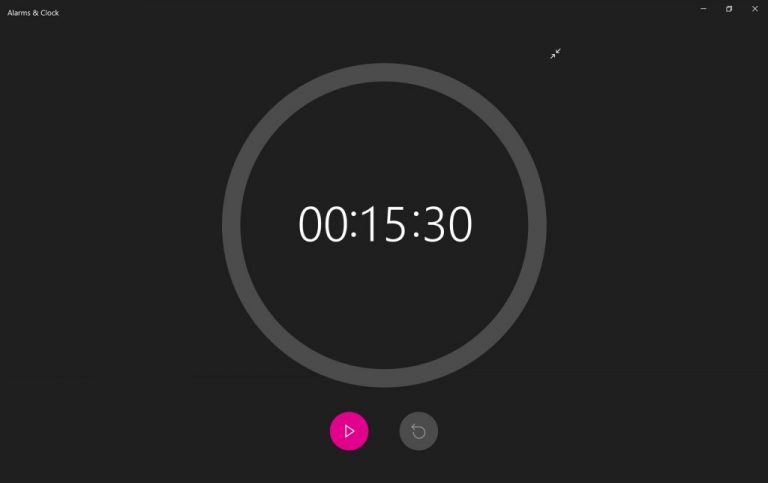
The Alarms & Clock app on Windows 10 has received a design overhaul this week. Of particular note is the larger font, as well as the addition of a fullscreen mode.

Windows 10’s Alarms & Clock app

Latest update to the Microsoft Store brings hints of ‘Sun Valley’ design

Design tweaks have been made to the Microsoft Store on Windows 10, with hints of Microsoft’s “Sun Valley” design being included, though the internet was thinking Microsoft was building a whole new store experience, which doesn’t appear to be the case.

That’s it for this week. We’ll be back next week with more Windows 10 news.

Here’s how to fix IPVanish error 1200 pops-up

A couple of years ago, the choices in the VPN market were scarce, but that changed quickly. In the light of recent events, lots of VPN services managed to get their piece of the pie.

One of those that is well-known is IPVanish VPN, which is a US-based VPN service. This service has a lot of good things going for it and, like so many others, it’ll rarely leave you hanging.

However, there’s no software without issues. A commonly reported error that plagues IPVanish VPN users goes by code 1200.

This error appears in multiple instances, but most of the symptoms point towards a connection problem.

We enlisted some solutions for the error below and for IPVanish install failed error, so if you’re keen on fixing it on your own before reaching to a support team, check them out.

How can I fix error 1200 in IPVanish VPN?

1. Try logging in again

All network-related VPN issues have a large spectrum of possible culprits. The complex resolution isn’t always the one you should follow through with.

At least, not until you’ve tried out the simpler ones. The first solution we can suggest is to just sign in and sign out. Now, in addition to that, we also encourage you to check your status on the official customer site.

If everything is fine and you’re able to access the web-based IPVanish hub without any problems, but the error reappears, continue with the enlisted steps.


2. Try another VPN solution

When time is of the essence, we come with a great alternative. The VPN recommended by us was developed by Kape Technologies and it is a hidden treasure.

Privacy and user-friendliness are booth part of the package. Chances are you’ll appreciate from the very start its dashboard that’s so easy to navigate.

You’ll be able to set up your VPN in no-time and no tricky menus will appear out of the blue to make you question your decision of choosing this VPN over IPVanish.

If you’re still undecided, just take advantage of the 30-day money-back guarantee to test it out for yourself.

Private Internet Access

Private Internet Access

Private Internet Access should be your new VPN choice too. Currently available at a major discount!
Check priceVisit website

3. Repair the driver installation

  1. Open the IPVanish VPN client.
  2. Choose Settings from the left pane.
  3. Select Connection.
  4. Click Install/Repair.

If you’ve made some critical system changes, like Windows 10 upgrade or refresh, there’s the chance that the IPVanish integration is broken. Or, to be exact, the VPN driver is broken.

This can be addressed by simply repairing the installation. Now, instead of relying on the system resources, IPVanish offers the repair function inside the VPN client.

Once run, this dedicated tool should fix the VPN driver. If you’re not sure how to run this integrated tool, follow the instructions above.


4. Change the server

  1. Open the IPVanish VPN client.
  2. Select the Server list from the left pane.
  3. Choose a different fitting server from the list and connect.

If the client fails to connect and the error appears, we suggest switching the server. There’s always the chance that a certain server is down and thus the connection cracks.

IPVanish offers lots of servers based all around the world, so if one won’t work (overcrowded or temporarily out of reach), you can always try an alternative.

Follow the steps above to change the server on IPVanish to a different one.


5. Select a different VPN protocol

  1. Open the IPVanish VPN client.
  2. Choose Settings from the left pane.
  3. Select the Connection tab.
  4. Under the Active protocol section, expand the drop-down menu and choose a different protocol from the list.
  5. Restart the client and look for improvements.

Besides the server selection, there’s also the option of choosing what VPN security protocol you want to use. Some offer faster traffic while others offer better encryption and are more secure.

Either way, due to various reasons (your IPS blocking certain protocols is the most common), the more secure protocols might stop working.

The OpenVPN protocol is the middle ground, but we suggest trying out various protocols until you find the functional one. That will, at least, give you a better insight into the problem.


6. Check the firewall and antivirus

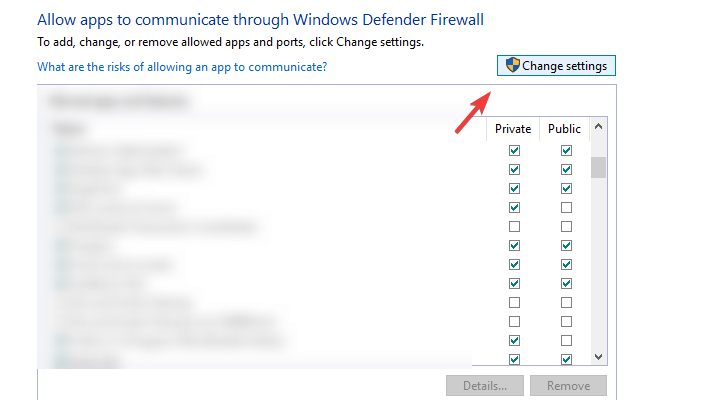
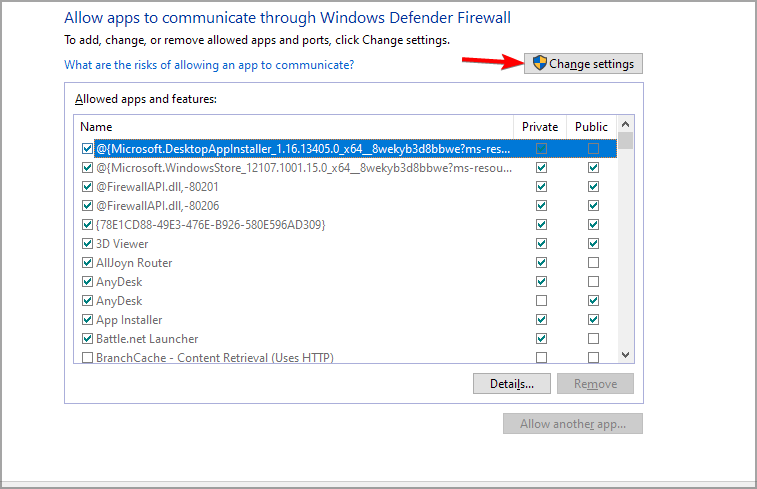
  1. In the Windows Search bar, type Allow and open Allow an app through Windows Firewall.
  2. Click Change settings.ipvanish error 1200
  3. Locate IPVanish and check both Private and Public boxes.
  4. Confirm changes.

Another possible reason for an IPVanish failure lies in the Windows Firewall or a third-party antivirus with a dedicated firewall.

Those tend to block VPNs on a regular basis. Some antivirus solutions do so more than others. Thus, what you need to do is make sure IPVanish is allowed free access without limitations.

In order to do address the antivirus problem, you can either disable the firewall temporary or whitelist IPVanish. On the other hand, to tweak the Windows Firewall, follow the steps detailed above.

There’s also a remote chance that your router has an active built-in firewall. Make sure to disable it and look for changes, as well.


7. Reinstall IPVanish

Finally, if none of the steps proved useful, we can only suggest reinstallation as the last resort. Of course, this is what we can advise as a third-party side to an end-user.

The best way to deal with any issue related to VPN lies in customer support. This is a specific niche and has a fair share of issues.

But, if you choose a premium service with great customer support, they can make it work and enrich the experience. IPVanish, based on reviews, has mixed ratings. But, it should be good enough either way.


With that said, we can conclude this article. In case you have any additional questions or suggestions, feel free to tell us in the comments section below.

Orbi router won’t turn on: No light / power LED flashing red

Orbi is known for being a great solution for fast and reliable WiFi Internet connection, but some users are complaining that Orbi router won’t turn on.

This can be a big issue and prevent you from accessing the Web, but there’s a way to fix it, and today we’ll show you how to do it.

What do I do if Ethernet light on router won’t turn on?

1. Try using a different power outlet

  1. Disconnect the router from the power outlet.
  2. Connect it to a different power outlet.
  3. Start the router and check if the issue is still there.

This is a simple solution, but it might help you if Orbi satellite is not working for you.

2. Check cable connectivity

  1. Check the cable connectivity between the router and the modem.
  2. Insert one of the cables from your device into one of the modem ports labeled Ethernet or Data.
  3. Make sure the Ethernet cable you’re using is not damaged.

3. Reset your router

  1. Locate the reset button on your router.
  2. Press and hold it for 15 seconds.
  3. After doing that, check if the problem is gone.

This method can help if power LED is flashing red on your router, so try to reset it properly and check if that helps.

4. Change the router’s configuration

  1. On the router configuration page, enable the AP mode.
  2. Disable Wi-Fi radios on your modem.
  3. After doing that, check if the issue is still there.

This issue occurs if you have another router or modem in front of your Orbi router. You can also fix this issue by enabling the Bridge mode on that modem/router.

5. Update firmware via TFTP Client

  1. Start the TFTP Client. It’s advised to use the Windows built-in TFTP Client.
  2. Use the software to update your router’s firmware via LAN.

For detailed instructions, be sure to check your router’s manual.

6. Contact Netgear support

If you’re still having issues with the router, it’s possible that it’s damaged, so it would be best to contact Netgear support.

If the router won’t turn on after power outage, it’s rather likely that it’s damaged, so you might have to replace it.

As you can see there are various issues that can disrupt your Orbi router from functioning properly.

If your Orbi router won’t turn on, be sure to follow the instructions from this guide carefully, and hopefully you’ll be able to fix the problem.

We’d like to hear about your experience so let us know if you managed to fix this issue on your own.

How to Fix VPN Error 812 in Windows 10/11

The VPN Error 812, unlike many other issues,  is not a very common VPN error code. Very few users will actually encounter it as it mainly affects server connections.

However, it does not necessarily mean that it cannot be resolved. This error may be encountered after the April Windows upgrade or as a result of an issue between clients and the Network Policy Server (NPS).

Here’s the complete VPN error 812 message: 

The connection was prevented because of a policy configured on your RAS/VPN server. Specifically, the authentication method used by the server to verify your username and password may not match the authentication method configured in your connection profile. Please contact the Administrator of the RAS server and notify them of this error.

The problem effectively prohibits you from reconnecting to the VPN once it has been disconnected in Windows 10.

The problem is definitely tied to the RAS/VPN server’s policy setup, as indicated by the message, and a Windows remote access service error may also be present here.

Why does VPN error 812 appear?

The VPN Error 812 seems to appear for several reasons:

❌When the Server Network Policy and Client Connection Profile don’t match the Authentication Protocol.

❌When NPS does not update the value added to Tunnel Type Condition in Network Policy. This is a more complex situation.

❌A new Network Policy is set with Day and time restrictions, Operating system, Windows group, and Tunnel type Conditions

❌Tunnel Type is valued with PPTP only and when you are trying to connect to their VPN client, error 812 appears.

✅Preliminary checks

Before you attempt anything else, make sure you do some basic troubleshooting:

→ Rebooting the RRAS server may solve the problem. The kb5014746 VPN issue usually occurs after a Windows update.

  1. From the command prompt, you may stop and restart RRAS. cmd administrator black screen after sleep windows 11
  2. The sc start rasman & sc config rasman start= auto command will take action after you restart your PC.

→ After that, wait an hour and then reconnect your VPN.

→ Finally, double-check that your connection profile matches the authentication, which means that your username and password are accurate.

How do I fix VPN error 812 on Windows 10/11?

1. Change DNS settings

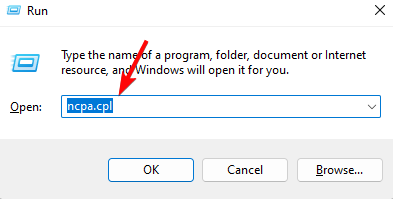
  1. In the Windows search box, type ncpa.cpl and press Enter. run ncpa.cpl command
  2. The network connections will be visible. Right-click the VPN connection you’re using and select Properties. Right-click on VPN in Network Connections and select Properties
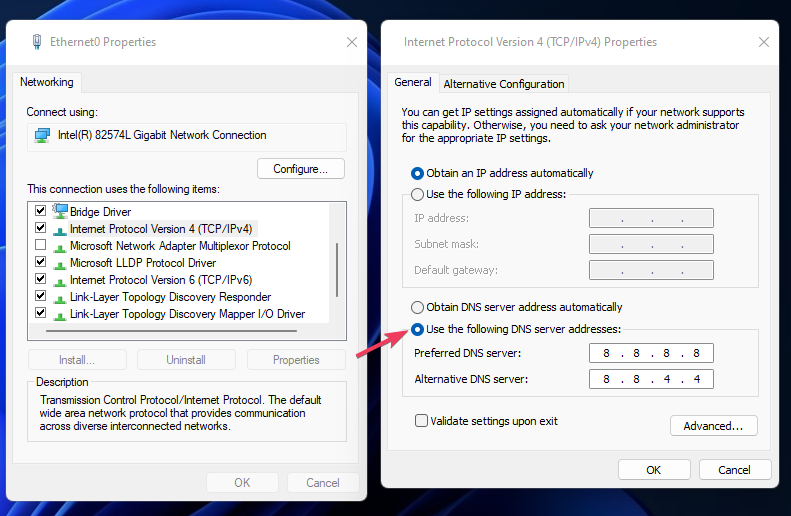
  3. Access the Secondary DNS to configure the External DNS.
  4. Change the Primary DNS range to 8.8.8.8.
  5. Save your changes, then restart your VPN.

2. Check Tunnel type settings

  1. Select the additional value to Tunnel type Condition, like L2TP to obtain value L2TP or PPTP;
  2. Apply and close the Network Policy.
  3. Connect VPN client.
  4. Revert the Network Policy to the good value for Tunnel type Condition, here it is PPTP only;
  5. Apply and close the Network Policy;
  6. Connect VPN client, it works and your Network Policy is now well set.

3. Create a different authentication protocol

Some users suggested that error 812 occurs when using an Authentication protocol set via NPS (Network Policy and Access Services).

The solution suggested involves configuring a different authentication protocol (more secure), such as  MS-CHAPv2 or EAP in order to match the settings on the client side.

4. Choose a VPN with a wide server array

If you use a free VPN, it is possible that you will encounter VPN error 812 on a regular basis.

To maximize the VPN connection and eliminate these errors, we recommend that you switch to a VPN client with a better server response.

During peak times, VPN servers can become overloaded with users, resulting in a slowdown that makes a connection impossible if the VPN is low in numbers for servers.

A top-tier service, such as ExpressVPN, has over 3000 servers in its global network, allowing you to quickly switch connections.

Remember that the closer you are to the server, the faster the connection will most likely be. It will not only reduce the likelihood of these errors occurring, but it will also provide access to a more stable and secure VPN connection.

ExpressVPN

More servers result in a better routing of the network traffic thus avoiding error 812 while connected to VPN.
Check price Visit website

4. Contact your network administrator

Error 812 may also occur due to insufficient access rights. In this case, the safest approach is to simply contact your network administrator in order to update your permissions and make sure that all the protocol and network authentication permissions are correct.

5. Contact your VPN provider

If Error 812 still appears, you should contact your VPN service provider. Every VPN developer has a list of the most common issues affecting their products as well as the corresponding solutions.

If you come across other workarounds to solve VPN error 812, do let us know in the comments below.

FIX: PIA no Internet access in Windows 10/11

A VPN connection is meant to help the user protect his or her privacy while using the web or other services online, as well as providing security for sensitive data.

Connectivity issues thus can be brought about by a myriad of issues like the port being used by the application being restricted or blocked on your network.

PIA or Private Internet Access VPN is one of the most popular applications that provide security with its generous features list.

We are referring to P2P support, ad-blocking, malware blocking, multiple gateways, unlimited bandwidth, no traffic logging, and over 3200 servers in 46 countries across the world.

The VPN is easy to use and even set up, but sometimes with VPNs, you may have issues connecting to the Internet even when the VPN shows that it is connected.

When you get no Internet access while using the PIA VPN, try the solutions below to fix it.

How can I fix no Internet access while using PIA?

1. Reinstall Private Internet Access

get Private Internet Access

  1. In the search box on the taskbar, type Control Panel and select it from the results.
  2. Go to Programs and Features.
  3. Search for PIA inside the programs list and select it.
  4. Press Uninstall.
  5. A pop-up window asking if you’re sure you want to uninstall this program should appear next. Click Yes.
  6. Follow the on-screen instructions to finish the removal process.

You’re most likely used to this Kape Technologies VPN service. So, take action by reinstalling PIA from the official site instead of imaging the worst scenario.

Then, reactivate it with your original license code. Once you’re successfully logged in, it should immediately connect to the VPN server closest to your current location.

Private Internet Access

Private Internet Access

No Internet access errors should prevent you from using Private Internet Access!
$2.69/mo. Buy it now

2. Check your connection

To do this, disconnect from PIA VPN and try accessing without the application. If you manage to access it, connect the VPN again, and try the next solution.

If you can’t access the Internet with the VPN disconnected, then the problem is with your Internet connection. Restart your device and check your network settings.

3. Connect to a different server location

Since PIA has so many server locations, you can pick a different one and connect to it. Are you able to access the Internet with the new server location?

If so, this means there may be a temporary issue with the server location you were using before.

4. Flush your DNS

  1. Click Start and select All Apps.
  2. Select Accessories.
  3. Type CMD in the search box and then right-click Command Prompt and select Run as Administrator.
  4. Type ipconfig /flushdns and press enter. A confirmation saying Windows IP configuration successfully flushed the DNS Resolver Cache will display.

5. Change your VPN protocol

The VPN uses protocols so as to connect to a server, and some of the protocols include L2TP, PPTOP, OpenVPN TCP, and UDP.

Sometimes, the protocol may be blocked in some countries, so to resolve the internet access issue, select the protocols in order from OpenVPN TCP, L2TP, and then PPTP.

6. Change proxy settings

  1. Click Tools and select Internet Options.Windows Defender is not removing Trojan
  2. In the Connections tab, click LAN settings.
  3. Uncheck all options except the automatically detect settings.
  4. Click OK and close your browser.
  5. Open your browser again and try connecting to the Internet.

7. Change the port being used by the VPN

  1. Right-click on the PIA VPN icon in the menu bar or system tray.
  2. Disconnect from the VPN.
  3. Right-click on the icon again and click Settings.
  4. Click Advanced.
  5. Set the connection type to UDP.
  6. Change remote port to 1194.
  7. Click Save and reconnect.
  8. If the issue persists, disconnect from the VPN and change the remote port to 8080 and reconnect. If it still doesn’t help, change to 9201, or 53 and Save then reconnect and try again.
  9. If you still don’t manage, go back to Advanced settings.
  10. Disconnect the VPN and change the connection type to TCP.
  11. Change remote port to Auto then click Save and reconnect.
  12. If the issue persists, change remote port to 443, then Save and reconnect.
  13. If you still cannot access the Internet, change the remote port to 110, or 80, or enter 53 in the local port box and try the settings again.

8. Check DNS settings

  1. Click Start.
  2. Search for View network connections.
  3. Right-click your WiFi adapter.
  4. Select Properties.
  5. Select Internet Protocol Version 4.
  6. Select Properties.
  7. Change the preferred DNS address to 8.8.8.8 and the alternate to 8.8.4.4.change DNS settings
  8. Reboot your computer and try accessing the Internet again.

If you’re using a VPN like Private Internet Access, you can easily change PIA SOCKS5 proxy settings.

Let us know if you found a working solution from this list by leaving a comment in the section below.

How to use Google translate offline [PC Guide]

Google Translate is a popular online service that can translate any text or web page to any language. The service is more than useful and many are wondering if Google Translate can be used offline.

This is a complex issue, and sadly, Google Translate isn’t available as a desktop application, so you can’t download it and run it offline on your PC. However, there’s still a way to install it on your PC, and in this guide, we’ll show you how to do that.

How can I use Google Translate offline?

1. Use an Android emulator

LDPlayer is a powerful Android emulator that is intended for gaming, but it can also work with a wide array of Android apps, including Google Translate.

Once you install this software, you just need to visit the Play Store and download Google Translate just like any other Android app.

Google Translate isn’t natively available for desktop computers, so the only way to run it is to use a reliable Android emulator. Choosing the finest one, then, is dependent on what you want to use it for.

The market is overflowing with Android emulators that will meet your basic translation needs, to go for a complete, well-rounded experience.

Aside from being superior for customization and efficiency, those emulators are sometimes more intense to games because they run on a newer form of Android.

2. Download language files

  1. Access the Google Translate on Android emulator.
  2. Select the languages: Translate from and Translate to.
  3. Pick the language you want to use offline.
  4. Tap on the Download button that appears right next to the language.
  5. Click Download from the pop-up window.

What to do if the translate package download failed?

1. Clear the data from the download manager

  1. Access Settings.
  2. Tap Applications.
  3. Go to Download manager.
  4. Select Clear data.

2. Reinstall Google Translate app

  1. Uninstall Google Translate app.
  2. Close the Android emulator and start it again.
  3. Visit the Play Store and download Google Translate again.

As you can see, Google Translate isn’t available for desktop computers, and the only way to use it offline on your PC is via Android emulator.

We hope that our guide helped you and if you found an alternative way to run Google Translate on your PC, let us know in the comments section below.

How to disable auto-login Windows 7 [Temporarily / Bypass]

Having to enter a user password on each log in can be tedious, and many users choose to disable this feature. This isn’t advised from a security standpoint, and in this guide, we’ll show you how to disable auto login on Windows 7.

Although this guide focuses on Windows 7, these solutions are universal, and they should work in newer versions of Windows as well.

How do I disable automatic login/logoff in Windows 7?

1.Enable or disable manually

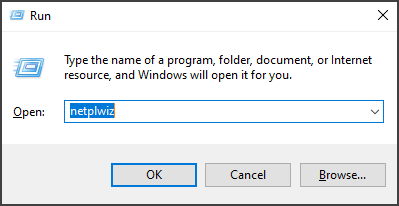
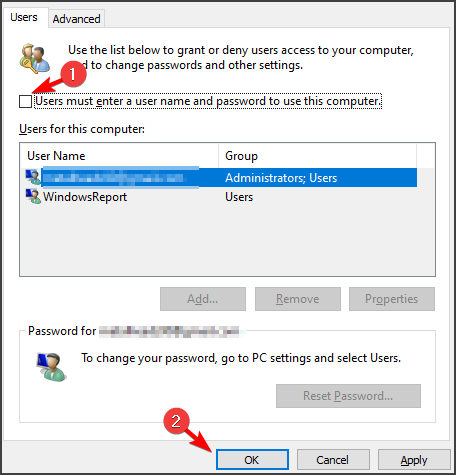
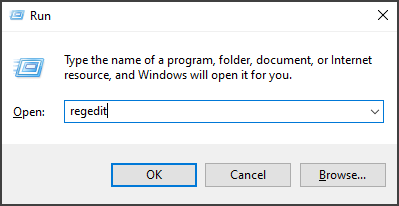
  1. Press Windows Key + R and enter netplwiz. Press Enter or click OK.
  2. Check the Users must enter username and password to use this computer.
  3. Click on Apply and OK to save changes.
  4. If asked to enter the user password, be sure to do so.

By doing so, you’ll disable auto login on Windows 7. After changing these settings, users will be required to enter their passwords to log in to Windows.


2. Use Microsoft Autologon

  1. Download Autologon.
  2. Click on the file you downloaded, since it doesn’t require installation.
  3. Fill in the password in the empty box.
  4. Click on Enable or Disable.
  5. Hit Enter, then click Ok.

Microsoft Autologon is a software developed by Sysinternals, specially made for those who want to customize their login parameters.

The software allows you to easily configure the built-in login settings and disable auto login on Windows 7.


3. Disable logon from Redgedit

  1. Press Windows Key + R, enter regedit and press Enter.
     
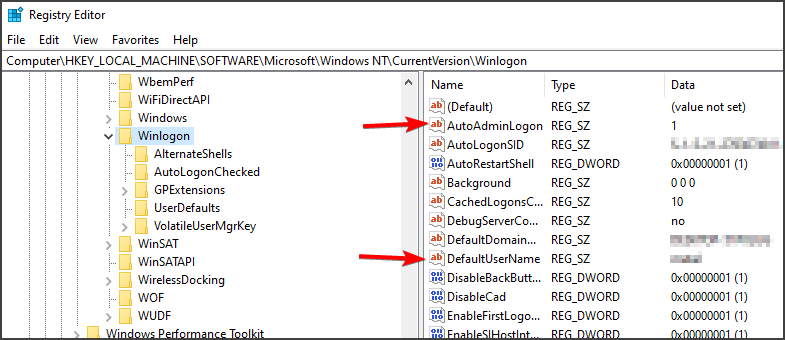
  2. After the Registry Editor opens, navigate to the code path HKEY_LOCAL_MACHINE\SOFTWARE\Microsoft\Windows NT\CurrentVersion\winlogon
  3. Find AutoAdminLogon and change its value to 0.

Note: This solution only works for those who already used Regedit to enable automatic Windows logon.

You should find the newly created AutoAdminLogon string, and change the value from 1 to 0 to disable auto login on Windows 7.

Keep in mind that working with Regedit is not recommended since it contains crucial strings and commands that will change the way your system works.


Auto login feature can be useful, and we have an in-depth guide on how to enable auto login on Windows 7, if you want to try it out.

This article showed you different ways in which you can disable auto login on Windows 7. Keep in mind that this solutions work on newer versions of Windows as well.

Feel free to give us any feedback regarding the subject in the comment section below.

How to enable Windows 7 auto login [Full Guide]

Having a Windows password is one way to protect your PC, but some users don’t want to enter their password every time they boot their PC. Luckily for them, Windows 7 auto login is a useful feature that can help you with that.

In this guide, we’ll show you how to enable auto login so you won’t have to enter your password every time you start your PC. Although this solution covers Windows 7, these solutions can also work in newer versions of Windows.

How do I enable Windows 7 auto login?

1. Use netplwiz

  1. Press Windows Key + R and enter netplwiz. Press Enter or click OK.
  2. Uncheck the box next to Users must enter a username and password to use this computer and click OK. 

  3. Enter the username and the password for the account, then click OK.
  4. Reboot the computer and it will boot into the Windows desktop automatically.

After doing that Windows 7 auto login should be enabled and working.


2. Set Windows 7 auto login in registry

  1. Press Windows Key + R and enter regedit. Press Enter or click OK.
     
  2. Locate this subkey in the registry window: HKEY_LOCAL_MACHINE\SOFTWARE\Microsoft\Windows NT\CurrentVersion\Winlogon
  3. Double-click the DefaultUserName entry, type your user name, and then click OK.
  4. Open the DefaultPassword entry with a double-click, type your password, and then click OK.
  5. Double-click AutoAdminLogon, and in the Edit String dialog box, type 1 and then click OK.

  6. Reboot the computer.  

Note: Users reported that DefaultPassword value is missing so you must create the entry manually.  Open the the Edit menu click New and choose New String.


3. How to set Windows 7 auto login domain

  1. Follow steps 1-5 provided in the previous solution.
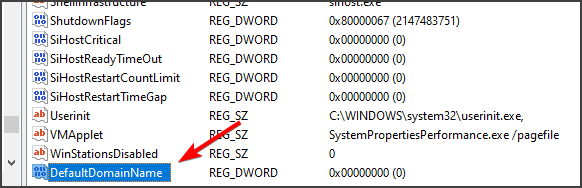
  2. Double-click the DefaultDomainName and type the domain name of the user account.
  3. Reboot the computer.

Note: If the DefaultDomain value isn’t available, you should create it manually.


This guide will help you to enable the auto-login option for your personal computer or for a company computer.

However, the autologon feature is provided as a convenience and may be a security risk. If you want to disable this feature, we have a detailed guide on how to disable auto login on Windows 7 that should check out.

We hope that you found this guide helpful, and that know you know how to properly enable the Windows 7 auto login feature.

Fix: Windows 10 PPTP VPN not Working

Are you looking for the right solution for your Windows 10 PPTP VPN not connecting problem? You are in the right spot.

PPTP stands for Point-to-Point Tunneling Protocol. PPTP VPN on the other hand is one of the oldest protocols used on LAN networks. It utilizes 128-bit encryption and it is compatible with Windows OS.

Meanwhile, some Windows 10 users reported the PPTP VPN not connecting problem. Also, this problem is common on computer networks, such as LAN or even WAN.

We have enlisted some solutions for you, so ensure you go through them below. Moreover, any of our compiled solutions can fix the VPN connection problem.

Fix: Windows 10 PPTP VPN won’t connect

1. Check your internet connection

Firstly, to check your internet connection. This will enable you to determine if you have an active internet connection. For instance, your broadband data subscription might be exhausted resulting in a problem. Hence, you can try other modes of internet connection to see if it works.

Alternatively, you can reset your router or restart your internet connection, and then connect to VPN on your Windows 10 machine.

Meanwhile, if you still get the error after trying out this fix, you may proceed to the next solution.


2. Use an alternative VPN solution

Some VPNs don’t utilize PPTP any longer; this is because PPTP is less secure compared to the latest connection protocols such as SSTP, IKEv2, L2TP, OpenVPN, and many more.

However, some VPN service providers still utilize PPTP connection protocols. Therefore, you may want to try them out so as to bypass the ‘Windows 10 PPTP VPN not connecting’ problem.

One very good example is Private Internet Access, a VPN service owned and continuously developed and supported by Kape Technologies, the same company that created CyberGhost.

PIA features WireGuard®, PPTP, OpenVPN, and L2TP/IPSec technologies, along with SOCKS5 Proxy, and the ability to choose from Different VPN gateways.

Private Internet Access

Get this VPN that features WireGuard®, PPTP, OpenVPN, and L2TP/IPSec technologies.
Free Trial Visit Website

3. Change time and location

Windows 10 PPTP VPN , not connecting problem might also be caused by incorrect date and time. Also, if your VPN server location ‘date and time’ is different from your Windows 10 date and time, the VPN connection problem might occur.

Here’s how to set time automatically:

  • Press Windows key > Select Settings > Select Time and Languagewindows 10 pptp vpn not connecting
  • Toggle the option Set Time Automatically to ensure it is turned on.
  • Close the window and restart your PC.
  • After booting up your PC, launch the web browser, and then attempt to launch the website again.

If the Windows 10 PPTP VPN not connecting error prompt persists, proceed to the next solution.


4. Repair your PC Registry

Invalid Windows registry keys, missing DLLs, and even obsolete software leftovers can also cause Windows 10 PPTP VPN not connecting. Hence, you need clean up your Windows registry.

SFC Scan , on the other hand, is a Windows built-in tool that verifies all system files and fixes files with issues. Here’s how to run an SFC scan on all Windows’ versions:

  • Go to Start > type cmd > right-click Command Prompt > select Run as Administrator.windows 10 pptp vpn not connecting
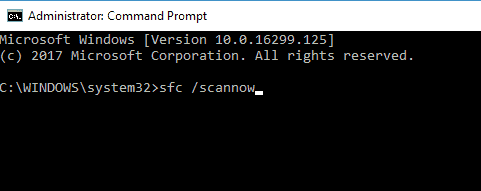
  • Now, type the sfc /scannow command.Windows Defender quick scan not working
  • Wait for the scanning process to complete and then restart your computer. All corrupted files will be replaced on reboot.

5. Reinstall network drivers

Sometimes, the network drivers might be outdated, corrupted, or even inactive. Hence, you may consider reinstalling the network drivers on your Windows 10 PC. Here’s how to reinstall network drivers:

  • Go to Start > Type Device Manager, and then hit Enter key.
  • Locate Network Adapters
  • Uninstall available network drivers.windows 10 pptp vpn not connecting
  • Click Action > Scan for hardware changes
  • Wait for the process to be completed. (This will reinstall the drivers)
  • Connect to the VPN afterward

In addition, you can also update your network drivers automatically by using automated software.

⇒ Get Outbyte Driver Updater

If you are still getting Windows 10 PPTP VPN not connecting prompt, then you might want to reinstall your VPN client software in the next solution below.


6. Reinstall your VPN

Here’s how to reinstall VPN client on your Windows 10 PC:

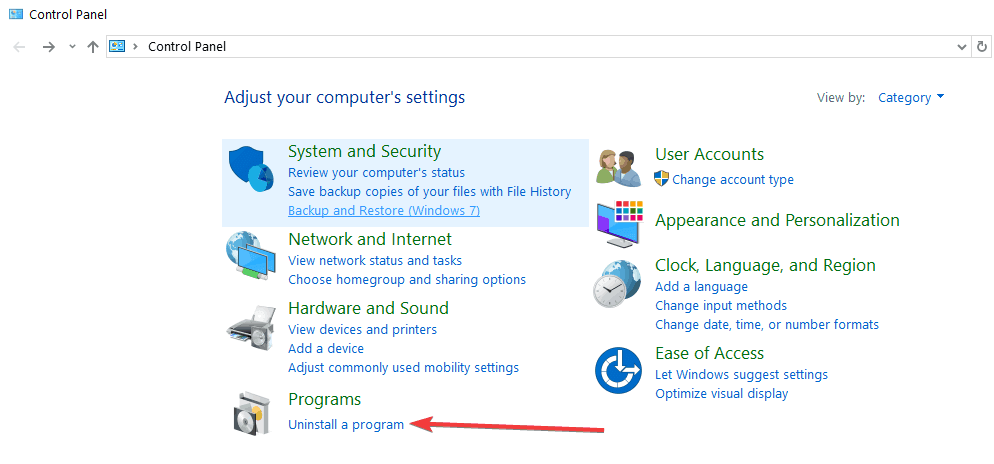
  • Go to Start > Control Panel
  • Select Uninstall a program under Programs menuwindows 10 pptp vpn not connecting
  • Find your VPN from the list of programs and select Uninstall
  • In the Setup Wizard, click you’ll get a notification after a successful uninstall, so click Close to exit the wizard.
  • If the VPN is still listed as available after uninstalling it, go to Start > Run
  • Type ncpa.cpl and press Enter to open the Network Connections window
  • Under Network Connections, right-click on the WAN Miniport labeled your VPN
  • Select Delete
  • Go to Start > Type Network Connections, and press Enter. Right-click a VPN connection and use the Delete option.
  • Select VPN.
    • If you see your VPN as available, delete it.

After the complete uninstall, you can then install the VPN client on your Windows 10 PC afterward. Meanwhile, we do recommend that you install the latest VPN client version on your PC.


7. Install the latest Windows Updates

Some VPN client software requires the latest Windows .NET Framework and several Windows components. Failure to have some of these components can result in the Windows 10 PPTP VPN not connecting error issue.

Moreover, the latest Windows updates improve your PC’s security, performance, and operations. Hence, we recommend that you install the latest Windows updates.

Here’s how to do this:

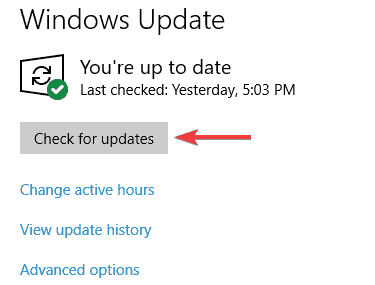
  1. Go to Start>type “update” in the search box and then click on Windows Update to proceed.Start Menu button frozen
  2. In the Windows Update window, check for updates and install the available updates.

8. Temporarily disable security programs

Some antivirus programs can block VPN software on Windows 10. Hence, you need to exclude your VPN from your antivirus protection settings.

Here’s how to do this in Windows Defender:

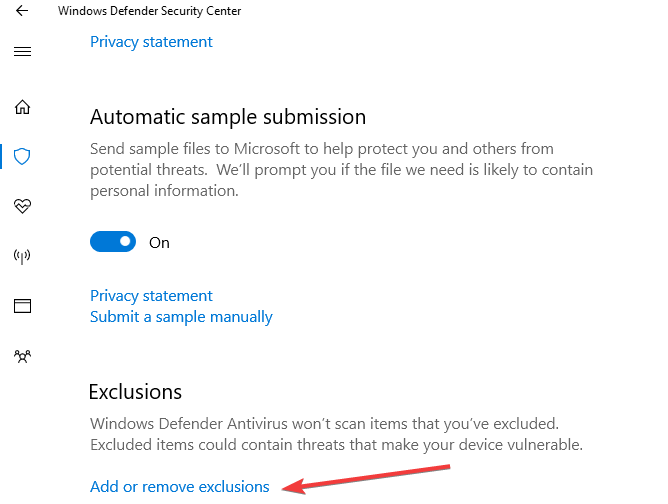
  • Launch Windows Defender Security Center
  • Now, go to Virus & Threat protection settingswindows 10 pptp vpn not connecting
  • Select Exclusions
  • Select Add or remove exclusions
  • Select Add an exclusion and add your VPN client software

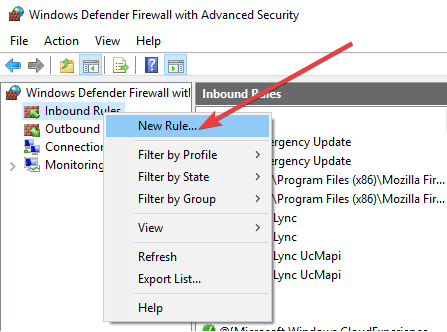
In addition, Windows Firewall as well can also prevent PPTP VPN from connecting; therefore, you need to enable your VPN in Windows Firewall Advanced settings.

Here’s how to do this:

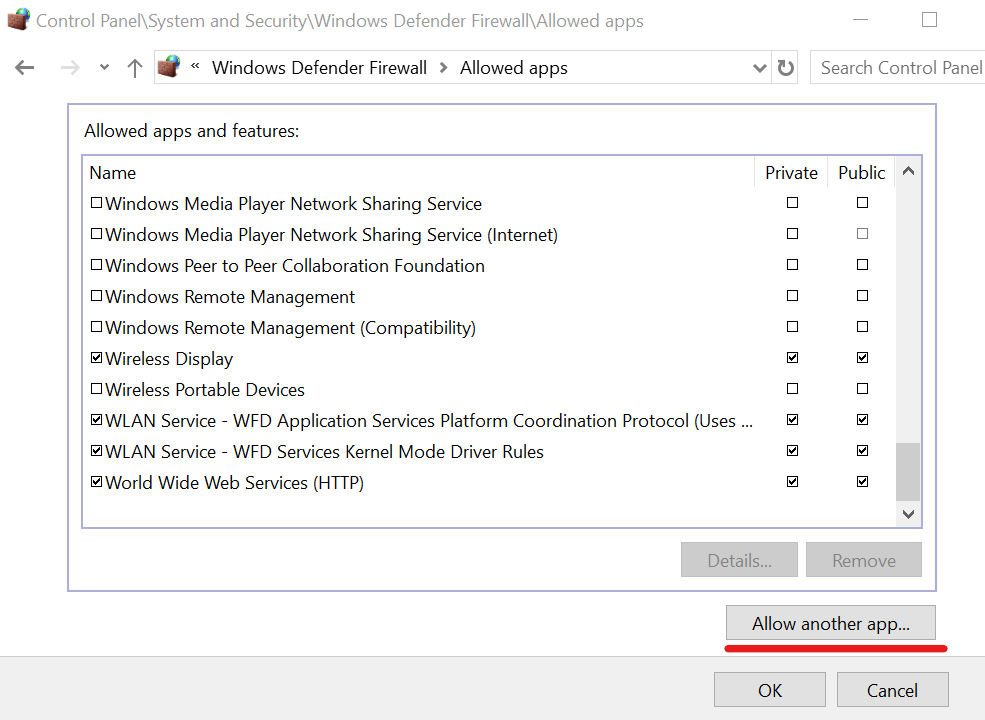
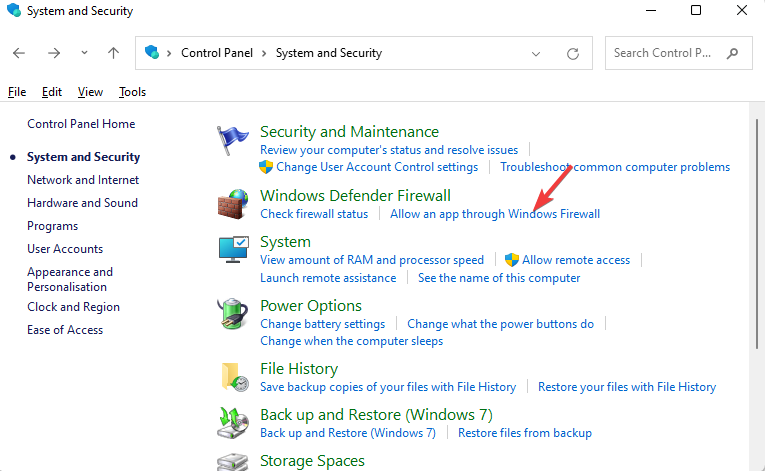
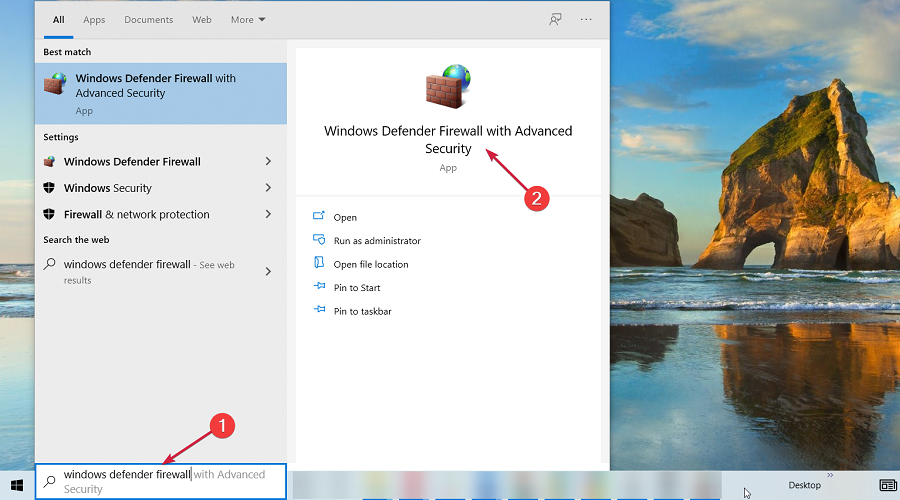
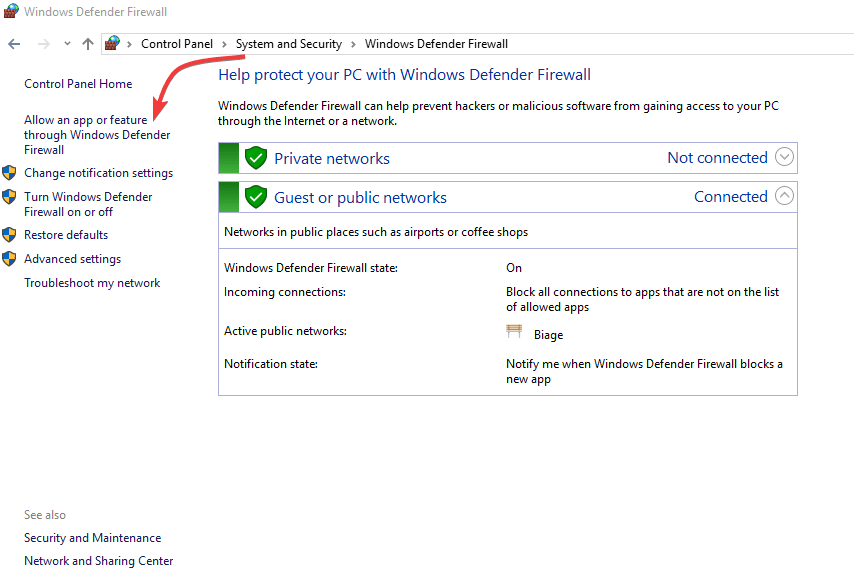
  • Go to Start > Type Allow a program through Windows firewall and then hit Enter key
  • Click on Change Settings optionswindows 10 pptp vpn not connecting
  • Now, click on Allow another program
  • Select the VPN software you want to add, or click Browse to find the VPN software, and then click OK.
  • Check if you can connect to your VPN.

9. Enable rule for PPTP

Here’s how to enable rule for PPTP on Windows 10:

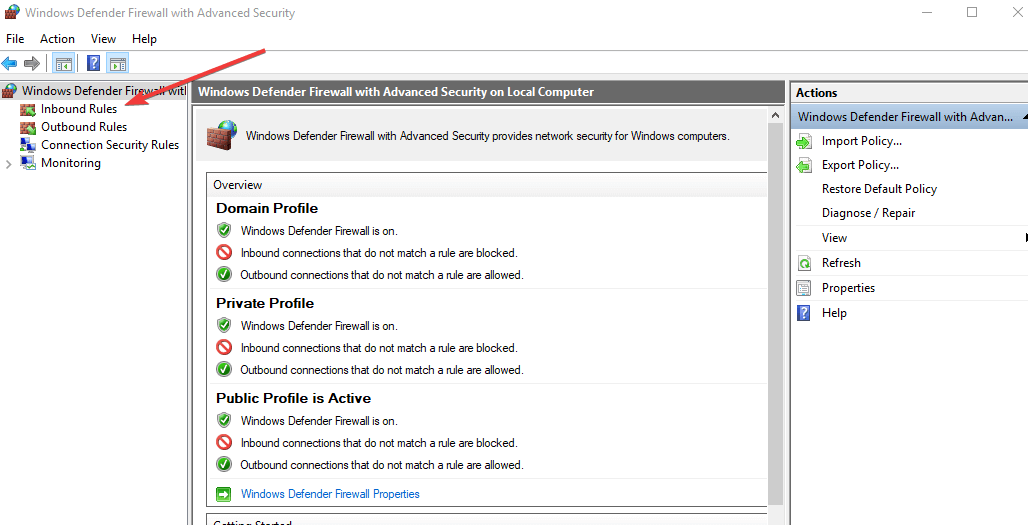
  • Go to Start > Control Panel
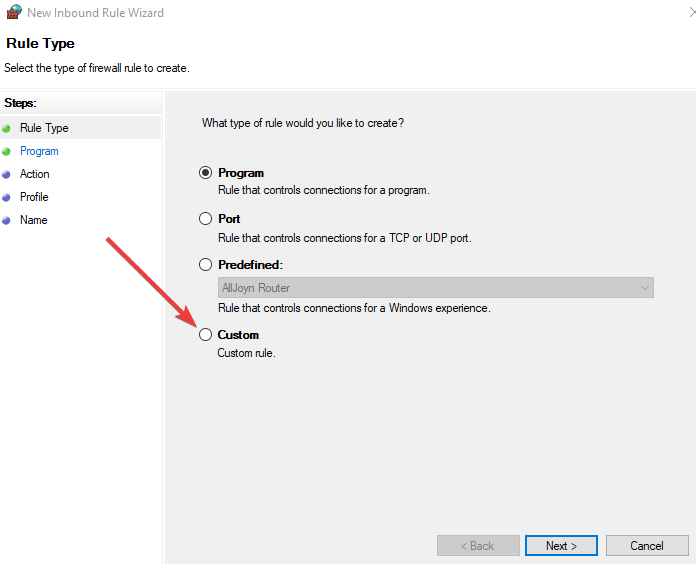
  • Now, go to Windows Firewall > Select Advanced Settingswindows 10 pptp vpn not connecting
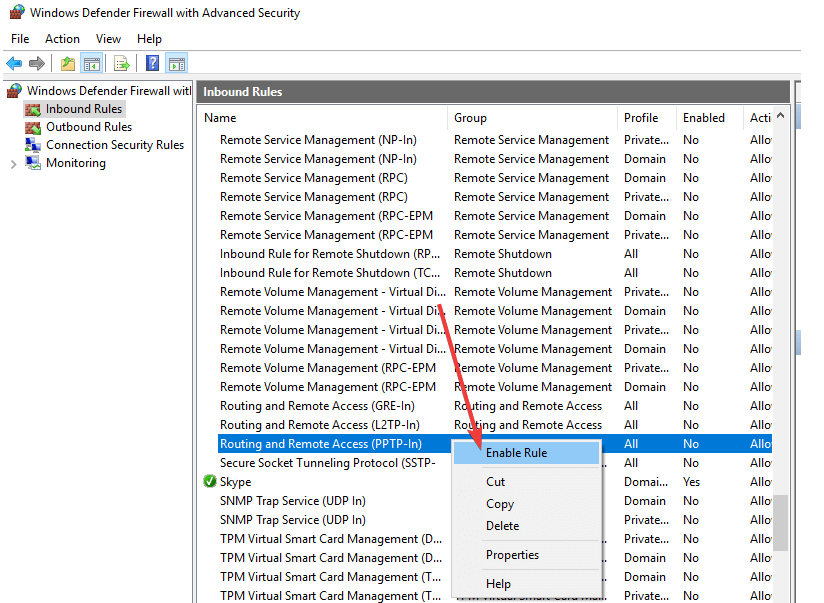
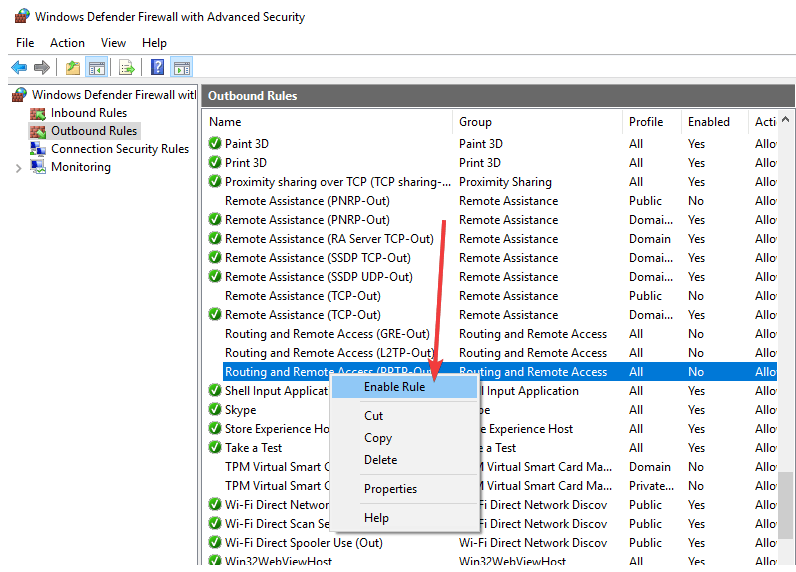
  • Search for the Routing and Remote Access under Inbound Rules and Outbound Rules.
    • For Inbound Rules: right-click Routing and Remote Access (PPTP-In), select Enable Rule.
    • For Outbound Rules: right-click Routing and Remote Access (PPTP-Out), select Enable Rule.

10. Manually setup PPTP VPN connection

You can also request for PPTP account setup instructions from your VPN service provider and follow the instructions. Alternatively, you can setup PPTP VPN manually on your Windows 10 computer.

However, you need a VPN account and a working internet connection.

Follow these steps to manually set up PPTP VPN:

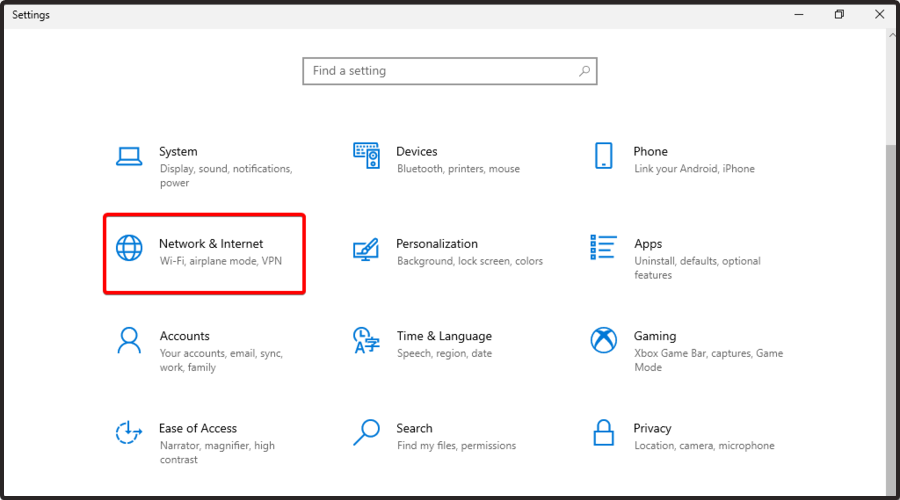
  1. Right-click Start > Settings> Click Network and internet > Click VPN.
  2. Now, Click Add a VPN connection and then click the dropdown menu.
  3. Check Windows (built-in), and then click the Connection name field.
  4. Type a name for the VPN connection.
  5. Click the Server name or address field and enter the server’s address.
  6. Click the dropdown menu below VPN type and select the PPTP connection protocol.
  7. Now, click the dropdown menu below Type of sign-in info, tick a sign-in method, and click on Save.
  8. To connect, click on the VPN you just set up., and click Connect

Also, your VPN service provider will provide you with VPN client software as well. You can install the VPN client software, and then follow the prompts to set up PPTP VPN on your Windows 10 machine.

Have you tried any other solution? Let us know by commenting below or you can ask questions if any. We would gladly respond.

The new Microsoft Edge feature lets you flip tabs vertically

Microsoft announced the new vertical tabs for the Edge browser almost a year ago and now it’s here. That means, of course, that now you can have all your tabs on the left side, one on top of each other.

And now that it also implemented the sleeping tab feature, created to save the resources spent on the inactive tabs, Edge is becoming more appealing and fast.

That’s on top of another great start-up boost that will make Edge open 41% faster according to the Microsoft blog post that was also used to announce the vertical tabs implementation.

Here’s how the Microsoft official describe the new feature:

Now everyone can view and manage their tabs from a pane on the side with a single click. This allows you to clearly see the tab titles and controls, making it easier to find and switch between the tabs you need, regardless of how many you have open. Pair this with sleeping tabs and you get a browser built for more performance at lower power! 

How can I use the new vertical tabs in Microsoft Edge?

With the newest version of your Edge, you should see a dedicated button in the top-left corner of the browser. Clicking that button will automatically flip your tabs vertically.

However, if you decide that that’s not for you, clicking the same button will flip back the tabs horizontally, exactly like you used to know them before.

If you don’t see the vertical tab flip button, you probably didn’t install the new Edge update. To check that, press the three vertical dots on the top-right corner in Edge and select About Microsoft Edge.

The latest update will download and install automatically. You will have to restart the browser but when it opens again, you will also see the new tab flipping button.


Check out the new history viewer in Edge

As a sidenote, Microsoft improved the way you view your history in the browser. When you access the history, that will drop down just like a menu, making it easier to manage the search history.

You can pin the history tab on the right side of your window so you can access it conveniently. The list also includes the icons for the websites so that you can identify them easier.

If you’re using Edge we hope that we’ve brought your good news. Tell us how you feel about this new feature in the comments section below.

Microsoft Edge Canary adds Collections sorting options and new Math Solver feature

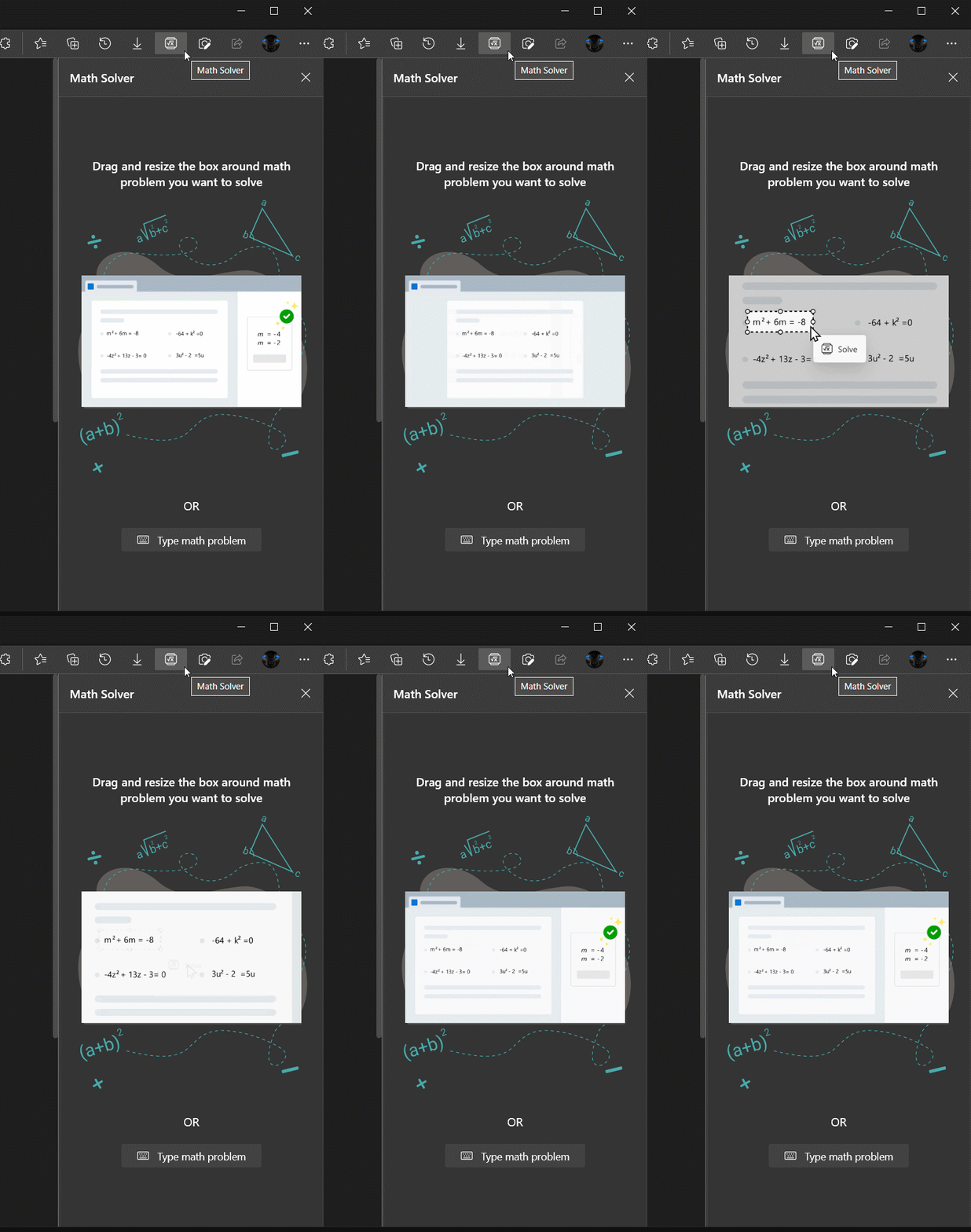
Microsoft Edge is getting a new built-in tool that will help users in solving complex maths problems on a web page. As highlighted by Reddit user Leopeva64-2, the “Maths Solver” feature is now rolling out to select Insiders running Canary channel builds, and it is part of a Controlled Feature Roll-out (CFR).

This powerful tool is apparently powered by the Microsoft Maths solver app and Bing search, which help users with various mathematical problems, including trigonometry, algebra, arithmetic, statistics, calculus, and more.

Currently, there are two ways to use this feature in the browser. Firstly, users can manually type out an equation with the keyboard in the textbox. Alternatively, they can also use the selection tool to select a formula or equation available on a web page. Regardless of the method, Math Solver will use OCR to read the problem and then provide an appropriate solution to users.

If you’re a Microsoft Edge Canary Insider, you should be able to access the new Maths Solver tool by heading to Settings >> Appearance and then clicking the “Show Math Solver” option. If you choose to enable it, the browser will add a dedicated button on the toolbar.

The new Edge already allows users to sort items within Collections, but the company is now testing another update to make it easier for users to organize their Collections. Indeed, the latest Canary build 90.0.815.0 has added a new option to sort them by name, date created, and recently used.

r/edge - Edge now allows you to sort the Collections by Name, Date created and Recently used (previously only items within Collections could be sorted).

Of course, both these features are still being worked on, and this could be a very early implementation. There is a chance that the Edge Insider team may improve the functionality before making them available to the general public. Have you spotted these changes on your PC? Let us know in the comments down below.

How to remove tracking cookies in Internet Explorer

Web cookies are small text files that save user-specific data. Tracking cookies are those that track user browsing activity pertaining to websites’ ads.

Those types of cookies are primarily for retargeting advertising on pages, and in time can prove to be a security liability.

Internet Explorer users can, like other browser users, clear and block tracking cookies.

Although IE is getting a tad dated, this old warhorse of a browser still includes sufficient tools to purge cookies with.

This is how you can remove tracking cookies for Internet Explorer 11.

Quick Tip:

To ensure that your identity online is protected at all times, and that no third-parties are tracking your activity, you should consider using a browser with great security features like Opera.

Opera not only protects you online, but offers you amazing loading speeds, and an extremely useful sidebar with customizable shortcuts to all your social media accounts and messengers.

Opera

Opera

Ensure that your privacy is protected at all times by using the built-in features in this software, including a VPN service.

How can I delete Internet Explorer’s tracking cookies?

1. Clear all Internet Explorer’s cookies

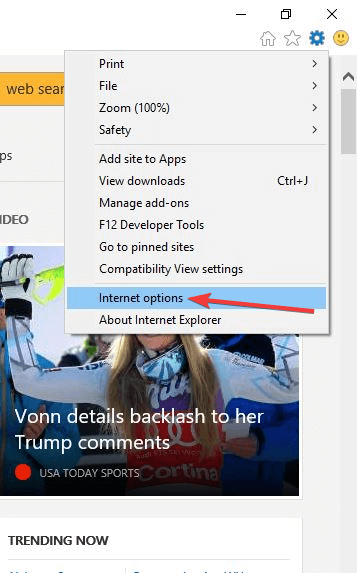
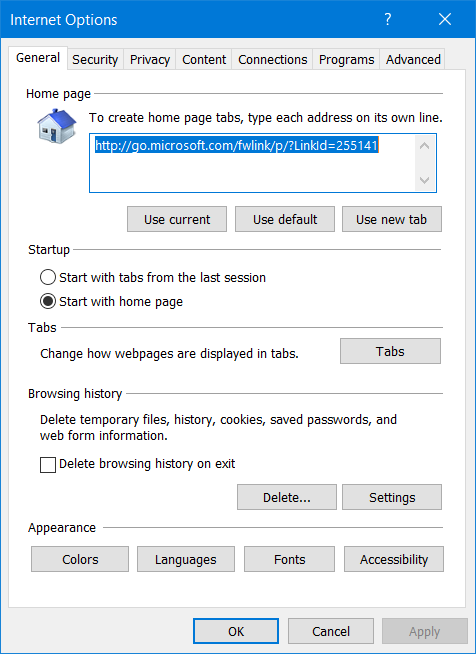
  1. Click the Tools button near the top right corner of Internet Explorer’s window.
  2. Select Internet options to open the window in screenshot directly below.
    Internet Options window remove tracking cookies internet explorer
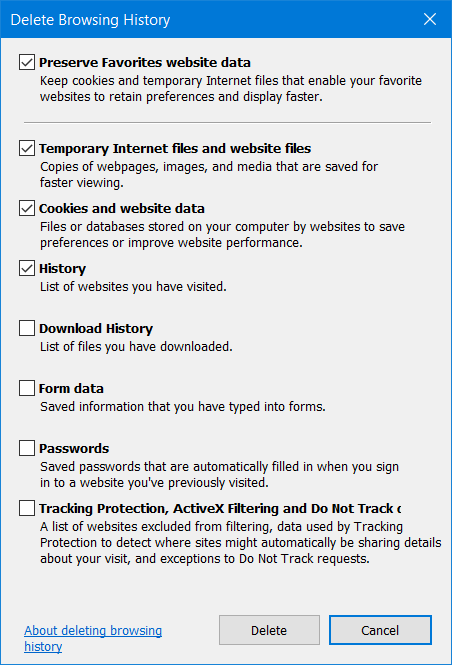
  3. Press the Delete button to open a Delete Browsing History window.
  4. Select the Cookies and website data checkbox.
    Delete Browsing History tool remove tracking cookies internet explorer
  5. Click the Delete option to clear Internet Explorer’s cookies.

You can also clear cookies with some third-party disk clean-up utilities that include cookie data options for Internet Explorer and other browsers.

⇒ Get CCleaner


2. Block tracking cookies

  1. To block IE’s tracking cookies, press the Alt + X hotkey in Internet Explorer.
  2. Select Internet options to open that window.
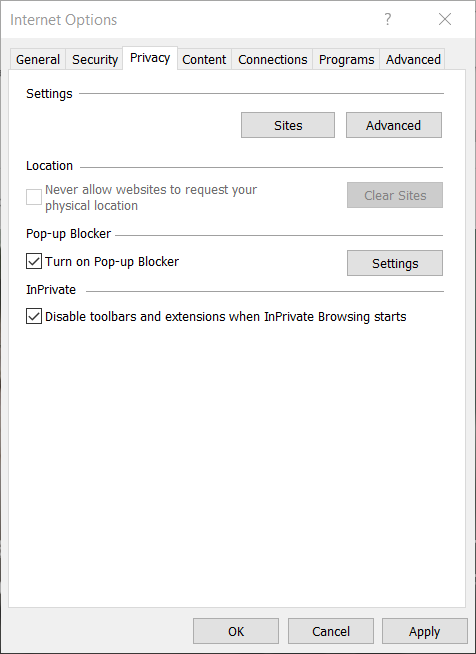
  3. Select the Privacy tab shown directly below.
    Privacy tab remove tracking cookies internet explorer
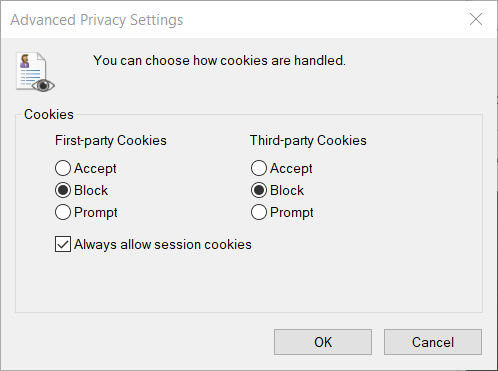
  4. Then click the Advanced button to open the window in the snapshot directly below.
    Advanced Privacy Settings window remove tracking cookies internet explorer
  5. Select the Block radio buttons for third and first-party cookies.
  6. Click the OK button to confirm your new settings.
  7. Then press the OK button in Internet Options to exit that window.

3. Remove tracking cookies with a cookie manager utility

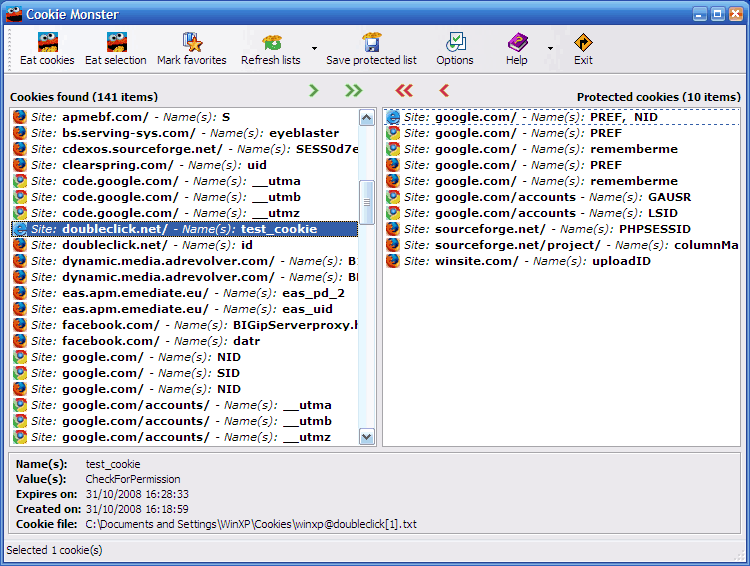
Cookie Monster remove tracking cookies internet explorer

You can also erase Internet Explorer, and other browser cookies, with a handy cookie management utility from developer Matinez Perez.

That utility is a freeware program that lists all your Internet Explorer cookies within a single window. It also works with most other popular browsers.

Mr. Perez’s cookie management utility provides folder path and expiration date details for all listed IE cookies. Its users can delete all or selected cookies by selecting its Eat Cookies button.

This program also enables users to preserve some cookies within a protected panel. That’s what makes Cookies Monster worthy of your attention.


So, you can clear Internet Explorer’s tracking cookies with that browser’s Delete Browsing History tool or cookie management software.

To ensure you don’t have to keep on deleting tracking cookies, you’ll need to block them as outlined within the third resolution.

How to Reinstall DirectX 12 on Windows: Easy Steps

Reinstalling DirectX on your Windows 11 will solve issues such as missing DLL errors, graphical glitches, and game crashes, so you can get back to gaming without interruption.

Did you know that over 90% of Steam’s active gamers run DirectX 12–capable GPUs, making it the de facto standard for modern PC gaming?

So let’s see how to reinstall it.

How do I reinstall DirectX 12?

1. Check for updates

    DIFFICULTY

    Easy

    DURATION

    5 minutes

    WHAT YOU NEED

    Windows 10

    If you need to properly reinstall DirectX 12, you can check for Windows updates with the simple steps presented below.

  1. 1. Open the Start menu and select Settings.

    reinstall-directx-12
  2. 2. Select Update & Security.

    reinstall-directx-12
  3. 3. Click Check for updates.

    reinstall-directx-12

Usually, Windows is updated automatically. But if any updates are missing, this action should solve the problem. Wait for the process to finish and make another attempt to see the DirectX version.

2. Run the DirectX End-User Runtime Installer

Reinstall DirectX using the DirectX End-User Runtime Web Installer available in the Microsoft Download Center to try and restore missing files, if any.

Check once again for updates and see if the problem is fixed. If you’re still having trouble with a proper installation for the graphics component, take a look at this dedicated article that lists a few alternative options.

3. Use the SFC tool for missing files

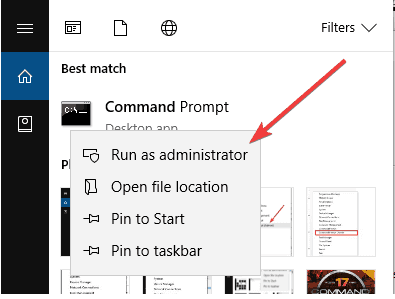
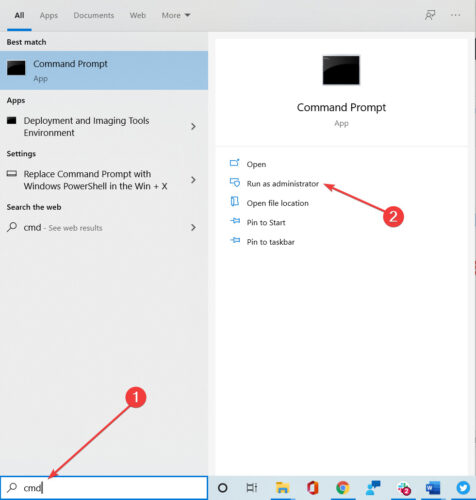
  1. Type Command Prompt in the taskbar and click on Run as administrator.
  2. Type sfc /scannow and hit Enter.
  3. Wait for the results.

This scan might take some minutes. SFC is a built-in tool that should repair any corrupted files in the system or install missing ones, after faulty OS installation. 

4. Perform a clean boot

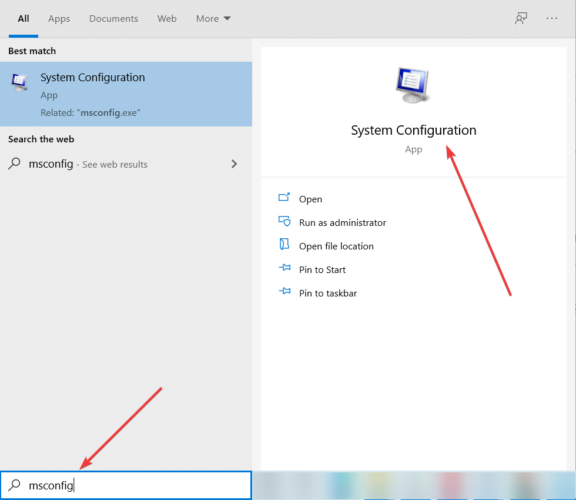
  1. Type System Configuration in the taskbar and select Run as administrator.
  2. On the Services tab, select Hide all Microsoft services, and then select Disable for all.fix directx installation
  3. On the Startup tab, open Task Manager, and Disable all items.
  4. Close the Task Manager and click OK in the System Configuration window.
  5. Restart your device and reinstall DirectX using the DirectX End-User Runtime Web Installer download link as mentioned before and see if it helps.

To completely uninstall a program, you can use a third-party uninstaller solution to make sure no leftovers remain in your system.

The above solutions will help you for use to install the latest DirectX on your computer. To learn more about DirectX, we have a great guide on how to enable DirectX 12 Ultimate, so don’t miss it. And if DirectX 12 throws a black screen when launching games, we have the answers.

If you have any suggestions or questions, please write us a comment below.

If you followed all the steps above but still can’t get DirectX working properly, you might want to check out how to download DirectX 12 on Windows 11 safely and manually. It can sometimes offer better results than relying solely on updates or runtime installers. A

lso, if you’re seeing any installation or runtime issues, our guide on fixing DirectX errors in Windows 11 covers specific error messages and what they really mean—plus how to get around them.

Google to release Chrome updates every four weeks starting in Q3 2021

Google Chrome users will soon receive new major updates every month, the company announced yesterday. Starting with Chrome version 94 to be released in Q3 2021, Chrome updates will be released every four weeks instead of the six-week release cycle that’s been the norm for more than a decade.

“As we have improved our testing and release processes for Chrome, and deployed bi-weekly security updates to improve our patch gap, it became clear that we could shorten our release cycle and deliver new features more quickly,” the Chrome team explained yesterday. Last year, Mozilla Firefox also adopted a faster four-week release cycle to bring new features to users more quickly.

Google is likely aware that enterprise customers generally don’t want a fast update cadence, and that’s why the company announced that will introduce an Extended Stable option that will receive milestone updates every eight weeks instead of four. “Security updates on Extended Stable will be released every two weeks to fix important issues, but those updates won’t contain new features or all security fixes that the 4 week option will receive,” the company explained.

As Chrome releases follow the update cycle of the Chromium open source project, it remains to be seen if other Chromium-based browsers such as Microsoft Edge will also switch to a faster release cycle. As of today, Edge receives major updates every six weeks just like Google Chrome, and Microsoft Edge 89 was released just yesterday with support for Vertical Tabs, with a new Startup Boost feature to roll out very soon.

10 most useful notebook browser extensions [Productivity Guide]

There are multiple desktop note-taking applications for Windows and other platforms. However, having to open a desktop app every time you want to take a quick note is not ideal.

Notebook browser extensions can make the task easier as they are available just a click away and sit on the bookmark toolbar.

When looking for a notebook browser extension, it is important to look for apps that can help you take creative notes and are supported by a reputable company, thus improving its sustainability. 

In this article, we have compiled the list of best browser notepad extensions Chrome, Firefox, and popular browsers. These add-ons should be available irrespective of the platform you are using.

Quick Tip

If organizing tab groups in a separate customizable workspace, taking snapshots, editing and sharing your screenshot from webpages and sending files, links and notes between your devices is something you are looking for in a notebook browser extension, try Opera One browser.

Opera One browser comes with some must-have features built into the browser for faster, smoother and distraction-free browsing. Additionally, it comes with a built-in Ad blocker, free VPN and native AI.

Opera One

Take advantage of a browser that contains most of the elements that you would only get as extensions in any other software option.
Free Download Visit Website

What are the best notebook browser extensions?

Evernote Web Clipper

Save Notes Extension

Evernote is a popular productivity app and the king of note-taking extension available for all major browsers.

It can take full-screen capture or just the parts you want to remover without cluttering the pages with ads or headlines.

All the clipped contents will be available in your Evernote account, which can be accessed from anywhere on any device.

Other features offered by the extension include screenshot annotation, add tags and remarks, edit tile and save content.

⇒ Get Evernote Web Clipper


Zoho Notebook Web Clipper

Notes and Screenshots save

Zoho Notebook Web Clipper may not be as feature-loaded as the Evernote alternative, but if you don’t need too many features, it is a good extension to consider.

Clipping content from the web to your Notebook, saving as Note Cards, and immediate synchronization across your devices are some of the handy features offered by the extension.

Using the Meeting Notes feature, you can take quick notes on an online meeting using Zoom and other apps.

You can also convert any links to Smart Card, add tags, reminders to note cards and even annotate images and screenshots before adding them to your Notebook.

⇒ Get Zoho Notebook Web Clipper


Google Keep Extension

Save Notes Extension

Google Keep Extension for Chrome and other supported browsers is a browser notepad extension that offers similar functionalities as its Android app and web app.

It is a basic note-taking app with a simple user interface that can help a lot. 

Users can add a web page, image or quote and sync across the devices of all the platforms that you use.

You can also add additional details and labels to categorize your note for later retrieval.

⇒ Get Google Keep Extension


Scrible Toolbar Extension

browser notepad extension

Scrible Toolbar Extension is another lightweight browser notebook extension that offers the best way to annotate, tag or share online articles and webpages.

You can save the content to your Scrible account as well, which makes it extremely portable. 

Furthermore, you can add sticky notes that anchor to particular parts of the article, categorize your annotations with a dynamic legend or share your saved articles on social media and via email.

⇒ Get Scrible Toolbar Extension


Citable 

browser notepad extension

Having to track sources manually when collecting for research can be a tedious tak.

With Citable, you can save quotes and notes from the web into Google spreadsheets.

All the notes saved in a spreadsheet in your Google Docs account to enable collaboration with colleagues and friends. It also includes a printing template to simplify printing notes directly onto sticky notes.

⇒ Get Citable


Dashnotes

browser notepad extension

Most of the notebook extension opens in the same tab, which can feel a little cluttered.

Dashnotes effortlessly takes quick notes on your new tab. It can also save HTML videos directly from Youtube and other sources.

Furthermore, you can also add your own notes and customize them with new themes.

⇒ Get Dashnotes


Beanote

notebook browser extensions

Instead of capturing screenshots, you want to save text from a web page, use Beanote.

It allows you to highlight any text and then save it in multiple formats. You can also color-code notes for better organization, write comments, and create sticky notes anywhere on the web page. 

⇒ Get Beanote


Remindoro

notebook browser extensions

Remindoro is a Chrome productivity extension. You can set one-time/repeatable reminders to receive notifications for links to read, notes and activities.

Alternatively, you can also use this extension as just a note-taking app. Use the save pages to read later feature to save the current web page to the Remindoro.

⇒ Get Remindoro


Harvest 

notebook browser extensions

Harvest is not a note-taking app but a productivity extension for Chrome to track time from your browser.

Using the app, you can track time from the desktop app, web, Basecamp, Trello, GitHub, and mobile devices to keep track of projects.

Each task page consists of project details and a start/stop button. 

⇒ Get Harvest


Sticky Notes

notebook browser extensions

If you want to spice up your in-browser note-taking app, check out Sticky Notes.

A browser notebook extension with animated themes, fonts, and backup features.

While the basic features are free to use, access to additional features requires a premium subscription.

⇒ Get Sticky Notes


The browser notebook extensions are an excellent alternative to full-fledged document apps like Google Docs.

These extensions are simple to use and offer only the handful of features you need from a note-taking app, including sync support.

Explore the list and let us know your favourite app in the comments below.

Microsoft releases PowerToys 0.33.1 with a new onboarding experience and localization improvements

Microsoft has released a new update for PowerToys, bringing version 0.33.1 for all Windows 10 users. This release packs plenty of notable features and changes, such as a new “onboarding experience” to help new users get started with the PowerToys suite of tools.

In addition, there are some bug fixes, localization improvements, and a new plugin manager for the PowerToys Run utility. The File Explorer is also getting some enhancements for SVG previews.

Here’s the full list of improvements and fixes in PowerToys version 0.33.1:

General

  • Updated overview links to be language agnostic to the docs site.
  • ‘First time load’ experience. The hope is a quick, light way to learn about basic functionality. We have some more work to do and want to also use the same framework for teaching about updates as well.
  • Localization corrections

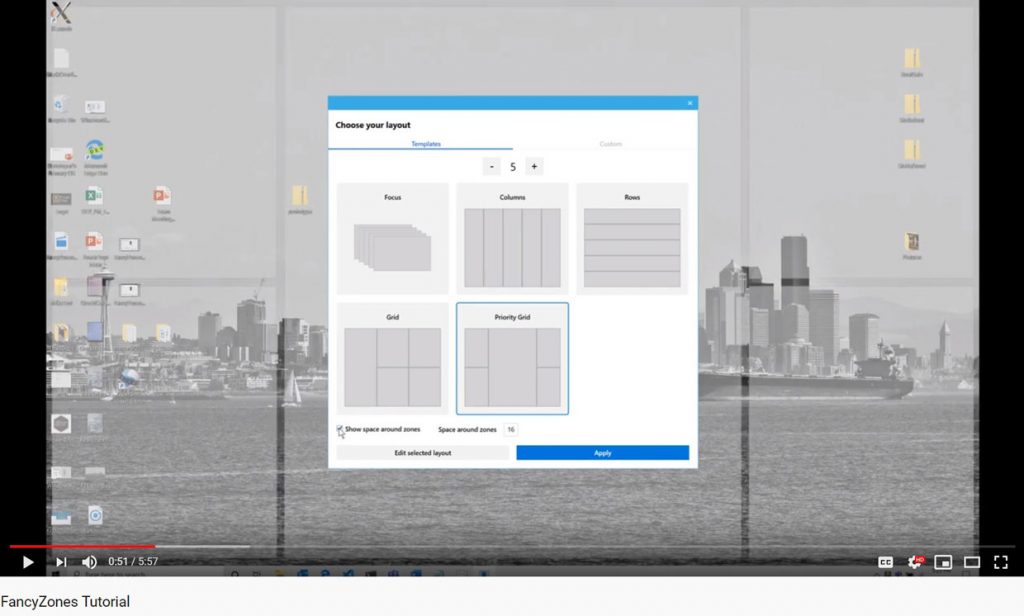
FancyZones

  • Adjusted editor UX based on feedback. Thanks @niels9001!
  • New options to change zone activation algorithm.

File Explorer

  • Improved how SVG images are previewed in the preview pane, thanks@Drakula44!
  • @Aaron-Junker has created a proof of concept for using Monaco editor for previewing dev files. This will enable over 125+ file types.

PowerToys Run

  • Plugin Manager now is in settings. You can directly turn on / off, include items in general search, and change the action key! Thanks @htcfreek for the great feedback!
  • Improved support for additional window managers by abstracting out shell process calls. Thanks @davidegiacometti!
  • Fix for PT Run registering the hotkey on non-supported OS versions.
  • ~ will now act as the user home directory in Folder plugin. Thanks @davidegiacometti
  • Service plugin has adjusted status messages

Video Conference Mute (Experimental)

  • Adjust video muting to leverage DirectShow.
  • Goal is to have 0.34 experimental release week of March 8th.

Settings

ARM64 Progress

  • Investigation on how we’ll accomplish Settings with the XAML Island and WPF app.

For those who are waiting for the Video Conference Mute tool, which is currently in preview, the wait will be slightly longer. The firm noted that it is expected to launch in the upcoming experimental release at some point next week.

“We’ll be doing a 0.34 experimental release week of March 8th. We feel we are near ready to add in Video Conference mute into the stable release pending feedback from the pending 0.34 experimental release,” said Clint Rutkas, Program manager lead on PowerToys.

As usual, the latest version of PowerToys should automatically be downloaded, or you can also download this update from GitHub if you prefer to download the tool manually.

Fix: Canon B200 error on all printer models

Printing documents is simple on Windows 10, but sometimes printer problems can occur.

Many users reported getting the Canon B200 error on their printers, so let’s see how we can fix it. Below you’ll find the step-by-step guide.

How can I fix Canon error B200?

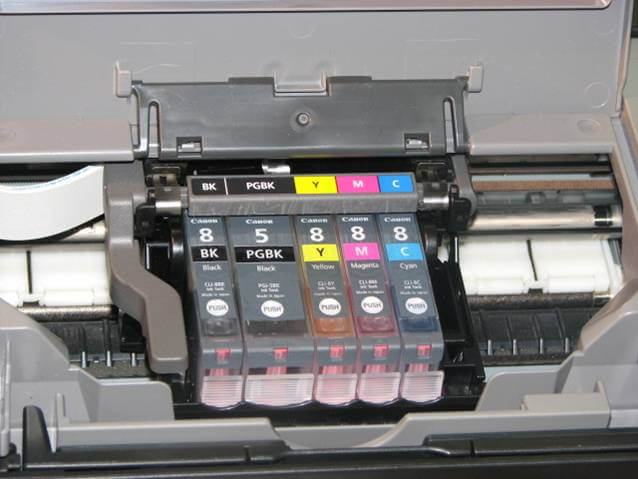
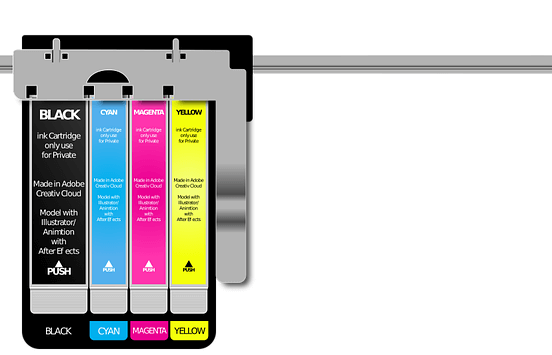
  1. Replace the problematic cartridges
  2. Remove and clean your printhead
  3. Reseat your printhead
  4. Check for obstructions
  5. Turn off the printer and open the print cover
  6. Replace the tank holder
  7. Press the Power and Copy buttons
  8. Steps to fix error B200 on Canon MX850 [Particular cases]

1. Replace the problematic cartridges

Error B200 usually occurs due to problematic cartridges and one of the simplest ways to fix this problem is to replace them with adequate ones.

For detailed instructions on how to change the cartridge, be sure to check your printer manual and pay attention to select a compatible one.

⇒ Get amazing Canon ink supplies here

After replacing the problematic cartridge, check if the problem is resolved.


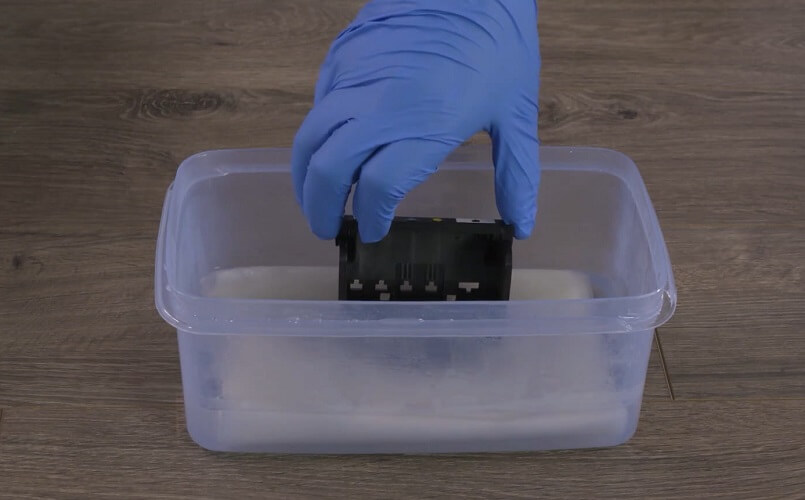
2. Remove and clean your printhead

According to users, error B200 can occur due to problems with your printhead, and one thing that you can try is to remove your printhead and clean it.

For detailed instructions on how to remove your printhead, we strongly suggest that you check your printer manual.

After you clean your printhead, make sure that it’s completely dry before you put it back in your printer.

Some users are also suggesting to clean printhead connectors with cue tips and alcohol, so you might want to try that.

Before powering on your printer, be sure that the connectors are completely dry.

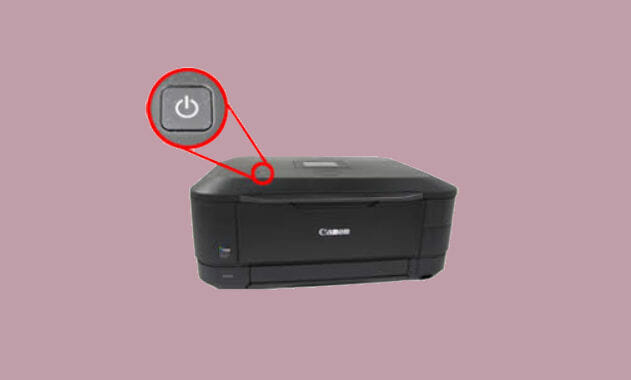
Users are also suggesting to press the power button rapidly to start the reboot mode on the printer, so you might want to try doing that.


3. Reseat your printhead

One way to fix B200 error is to reseat your printhead. After reseating the printhead, turn off your printer and leave it turned off for a couple of minutes.

After that, turn your printer back on and check if the problem is resolved.


4. Check for obstructions

Sometimes there could be obstructions in your printer that cause this problem to occur.

To fix this problem, you need to power down your printer, remove the paper, and check for any obstructions.

If any obstructions are found, remove them and turn the printer back on.


Check out these best printer management software to optimize performance.


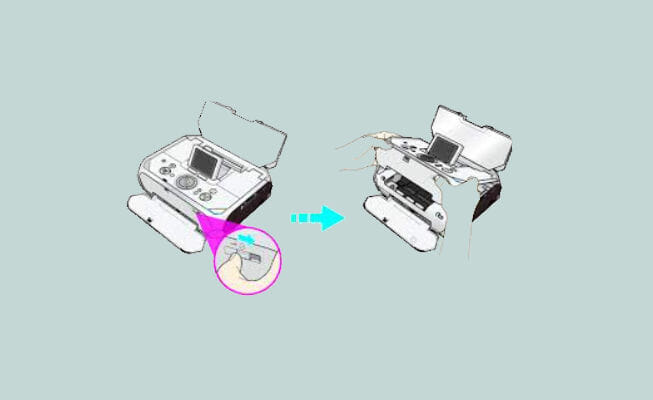
5. Turn off the printer and open the print cover

This is an unusual solution, but it works according to some users. First, you need to turn off your printer.

After that, open the print cover and turn the printer back on. Cartridges will start moving to the left.

print-head-canon-printer

Before the cartridges reach the left side, close down the printer cover and leave the printer turned on.

Be sure to close the print cover after the cartridges pass the half way to the left side.

After doing that, the printer will start working normally. This solution might be a bit tricky to perform, but you should be able to do it after a few tries.


6. Replace the tank holder

Sometimes you can fix the problem simply by replacing the tank holder. Just purchase a new one and replace your current tank holder.

Before replacing the tank holder, check the instruction manual for detailed instructions.


7. Press the Power and Copy buttons

Few users reported that you can fix this problem simply by pressing the Power and Copy buttons simultaneously a couple of times.

After doing that, the printer should start and you just need to perform a nozzle check, deep cleaning and printer alignment.

It’s not necessary to perform these steps, but you can do them if you want to.


8. Unplug your printer

Several users reported that they fixed this problem simply by unplugging their printer.

Now this might not work for everyone, but it does not hurt to try it out.


Steps to fix error B200 on Canon MX850

If you’re experiencing this error code on this particular printer model, here’s how you can fix it.

1. Move the printhead to the left

According to users, you can fix this problem simply by moving the printhead to the left.

Users reported that they moved the printhead to the left manually and then they pressed the power button several times until the printer started working.

We don’t know if this solution works, but you could try it, just be careful while doing it.


2. Keep pressing On and Home buttons

Users reported that they fixed the B200 error on the MX850 printer simply by pressing the ON and Home buttons.

After pressing the buttons about 10 times, the printer started working again.


3. Turn off your printer and try to print

Few users reported that they fixed this problem simply by turning off the printer and trying to print again.

After trying to print, you’ll get a message that your printer is offline and asked if you want to resume.

Press Resume, turn on your printer and it will start printing. We don’t know if this is a permanent solution, but you can at least give it a try.


Cannon error B200 can prevent you from printing, but you should be able to fix it by using one of our solutions.

Which one worked for you? Feel free to share your experience with us via the comments section below.

5 Best JPG Repair Software For Corrupted & Damaged Files

Have accidentally deleted or lost your most precious photos from your memory card or hard drive? Luckily there is enough data recovery software on the market to make things right.

On the other hand, when you recover your lost or deleted JPG pics, there’s a slight chance that they are damaged or corrupted.

This usually happens if new data has been overwritten or if that particular area of the card or drive has bad sectors. Fortunately, this issue has a fix as well.

As a matter of fact, specialized software can help you fix corrupt JPG images. There are a few JPG repair tools available out there that can successfully fix corrupted photos.

We gathered five of the best software to fix corrupt JPG files. So make sure you take a close look at their sets of features and choose the best one for you.

What is the best photo repair software?

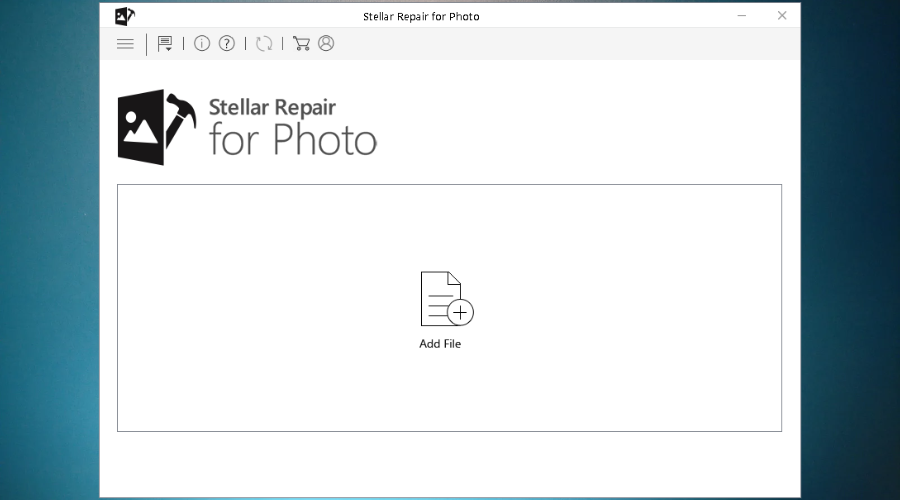
Stellar Repair for Photo

Stellar Repair for Photo is a DIY tool that is able to repair corrupt or damaged JPG and jpeg photos.

If your images appear distorted, blurred, spit, pixelated, or with other problems, this handy software will help you resurrect your precious memories by fixing your photos.

More than that, this tool also supports extracting and repairing the selected JPG files.

Let’s quickly look at its key features:

  • Preview the repaired photos before you decide whether you want to take them back
  • Fix entirely unreadable JPG files and open them using any popular image viewers
  • Fix corrupt files that have been recovered from corrupted storage media
  • Repair multiple files in a batch at the same time
  • Optimized scanning built-in engine to improve the repair performance process
  • Precise results really fast, much faster than expected
  • Flexible saving options (save the photos at any location, and the thumbnails of the repaired pics will be saved to a separate folder)

Stellar Repair for Photo

Fix all the photos and images on your PC, regardless of the format, without any effort.
Free Trial Visit Website

Adobe Photoshop

Photoshop is synonymous with photo editing for a good reason – it’s simply the best imagery software to deal with if you’re after results that never fail to impress.

But its amazing functionalities go beyond cosmetic adjustments, you can also use the almighty Photoshop to repair severely damaged photos and to reduce digital noise.

Many more details and benefits come packed into this software allowing you to fix distorted photos and make them look better despite any flaws in the technicalities of the craft.

Let’s quickly look at its key features:

  • Fix grainy, blurry, or dark images in just a few clicks
  • Adjust color, brightness, and other noise in your damaged pictures
  • Specialized photo retouching & repair tools that can fix severely corrupted and distorted images (including RAW files)
  • Raster graphics editor to correct flaws such as red-eye, blemishes, spots, and more
  • Noise reduction filters and Lab Color Mode
  • Clone Stamp tool to select the area of the photo you want to repair
  • Healing Brush tool to fix imperfections (it matches the texture, lighting, transparency, and shading of the sampled pixels)
  • Spot Healing Brush tool to remove spots, blemishes, circles, and anomalies in your photos

Adobe Photoshop

Repair and retouch even severely distorted images with the world’s best imaging and graphic design software.
Free Trial Visit Website

Kernel Photo Repair – Straightforward program

Kernel Photo Repair is a tool that will help users repair their broken images in a JPG/JPEG format. This software is straightforward to install and simple to use as well.

It works with files that cannot be opened, corrupted heads, corrupted data, and all kinds of invalid structures.

You will get a free service to verify if the affected files can be restored or not. After the software checks out if the data can be restored, the files’ restoration will have to be paid.

This is a great piece of software that is only supported in Windows, unlike the tool below.

Kernel Photo Repair

A lightweight image and photo repair tool that users of all experience levels can master.
Try it now Visit website

Wondershare Recoverit – Deep scan

Wondershare is one software developer that never ceases to amaze its users. Delivering products to cover each and every one of your needs, it’s now time to tend to your JPG file repair necessities.

Since it’s common to get corrupt or damaged files, the need for photo repair software has become more stringent than ever.

Recoverit is just what you need for that. Obviously, its repair capacities extend to more than just JPEg files. As a matter of fact, you can pretty much fix any corrupted Office files with this tool and more.

Let’s quickly look at its key features:

  • Restores 1000+ file formats including JPG/JPEG
  • Recovers data from various devices
  • Deep scan & file preview
  • Free tech support available by chat and email
  • Secure (advanced encryption and fraud protection)

⇒ Get Wondershare Recoverit

File Repair – User-friendly interface

File Repair is another great solution for fixing your corrupted photos.

The software is fast and reliable, and it’s not going to bother you with various beg screens compared to other similar tools that you can currently find on the market.

This piece of software is ideal for repairing your damaged or corrupted JPG files.

It is able to scan the corrupted file and fix an impressive number of flaws.

Let’s quickly look at its key features:

  • Repair a variety of different types of files that cannot be opened/are not in a recognizable format
  • It scans the corrupted files and extracts the recovered data into a new file
  • A straightforward interface that even beginners will be able to use effortlessly
  • Repair a variety of different types of files that are not in a recognizable format

⇒ Get File Repair

These are five of the best tools that can fix your damaged or corrupted JPG photos and they all come with complex and unique sets of features that include lots of handy functionalities.

That’s why we recommend that you analyze their advantages cautiously before deciding which one is the best for your needs. Good luck!

Fix: Bluestacks Snapchat not working

Bluestacks is a popular Android emulator, used by millions to access Android games like PUBG and social media apps such as Snapchat on their PC.

However, some users have reported Bluestacks Snapchat not working and similar issues when trying to access Snapchat via Bluestacks.

More specifically, the app displays a Something went wrong error. It usually occurs due to connectivity or server issues.

In this article, we explore the best solutions to help you resolve the Snapchat not working on Bluestacks error.

Why won’t Snapchat work on Bluestacks and how to fix it?

1. Change the Bluestacks or the Snapchat version

Install an older version of Bluestacks

Bluestacks Snapchat not working
  1. Press Windows Key + R to open Run.
  2. Type appwiz.cpl and click OK to open Control Panel
  3. From the list of installed apps, select Bluestacks.
  4. Click on Uninstall. Confirm the action by clicking on Yes.
  5. Download the older version of Bluestacks.
  6. Run the installer and follow on-screen instructions to complete the installation.

The oops something went wrong Snapchat Bluestacks error might be due to Snapchat blocking the access of its app on anything other than smartphones.

This error seems to occur only on the newer Bluestacks 3 version. The simple workaround for this issue is to use the older version of Bluestacks.

Once installed, launch Bluestacks player and try reinstalling Snapchat. The app should work fine as it was working earlier.

Use an older version of Snapchat

If the issue persists, and the workaround doesn’t work, try using the older version of Snapchat. You can download the older version of Snapchat from APK Pure website.

This trick, in theory, should work if Snapchat does not force the users to update their app before using it when new updates are available.

If you also face issues where the app launches but the camera fails, see our full guide on fixing the back camera not working on Snapchat.

2. Try a different emulator

If you don’t want to waste any time troubleshooting the existing emulator, the quickest way is to change it.

Our recommendation is to go for a free and popular alternative instead. How about an Android emulator with over 100 million installs and 2 million daily active users?

Perhaps these numbers say enough, however, you should know that LDPlayer allows for easy and even multi-instance gameplay, using either the mouse, the keyboard, or the gamepad.

Some of the key features of this emulator are game optimization options, high FPS, multi-instance sync, and script addition to automatize game management.

Alternatively, if you need to test different emulators to run Android apps, we suggest that you employ the most efficient free Android emulators out there.

3. Use Snapchat Beta version

  1. Open the Snapchat app on your Android phone.
  2. Tap the Settings icon ( Gear).
  3. Scroll down and select the Join Snapchat Beta option.
  4. Scroll down to the Advanced section.
  5. Tap on Join Snapchat Beta.
  6. Tap on Count me in! 
  7. Close the Snapchat app on your phone.

Launch Bluestacks on your PC. Download and install the Snapchat app. Bluestacks will install the Beta version of the app by default as you have opted to try Snapchat Beta.

4. Use an alternative Android client for Snapchat

  1. Download the Casper apk from APK Mirror.
  2. Launch Bluestacks.
  3. Click on the three dots beside the Installed Apps tag.
  4. Select Install apk.
  5. Select the Casper apk file from the download folder.
  6. Click on Open and Bluestacks will install Casper.

Casper is an alternative Android client for the popular messaging app Snapchat. With Casper, you can save snaps, send snaps from your gallery and do almost everything the app does.

Since Snapchat developers are blocking Snapchat on Android emulators, using Snapchat via Casper is a clever workaround if you are okay with the extra effort that you may have to put into getting the app working.

The Oops something went wrong error on Bluestacks Snapchat is most likely to occur due to the incompatibility of the app with Android emulators.

However, if you really need to use Snapchat with Bluestacks, check the workarounds listed in the article.

Offline Coding Apps for PC: We’ve Ranked 7 Best

Are you a novice at computer programming? Do you want to learn programming? Today, Windows Report will be showing you some of the best software for learning programming.

The world has changed since the turn of the century with more emphasis on information technology.

However, over the past few years, the process of learning programming has been made easier with the advent of software learning programs or online web applications.

Which coding language should a beginner learn first?

You may begin with any language you choose as long as you’re prepared to learn and study the documentation. Having said that, Python is a fairly easy language and is where many coders begin.

There are certain practical difficulties, such as the fact that the language whitespace has some reading issues, but it is simple to discover a dozen quite different languages that are adequate for use as a first language.

Languages that are understandable, have nice tools, an accessible collection of libraries, a read-eval-print loop, and a pleasant, vibrant user community are all things we would recommend.

What is just as important as the first language that you learn is the second, third, and more languages you learn.

Each language teaches you to think differently, and to approach problems differently. The more you learn, the better a programmer you will get to be.

This enables beginners or novice programmers to grasp the fundamentals of coding.

This post gives you some of the best software for learning programming.

Meanwhile, all the software listed below has a user-friendly interface and integrated curriculum; this guides you through levels of programming with various supports for several computer languages.

What is the best software for learning programming?

DataCamp – Interactive approach

DataCamp focuses on delivering fully distinct programming courses authored by various people, with a primary focus on novices.

DataCamp is intended for those who do not utilize any other learning resources, which we feel is their target demographic.

This online programming course includes an interactive approach to test the concepts provided, as well as certain subjects offered by the developers of the package used in the lectures.

You may view over 120 courses that have already been prepared but bear in mind that there is no workout schedule so you can pick up where you left off, for example.

It’s a great place to start studying Python, R, and other programming languages. It is more likely that you will test such tools to determine whether you wish to move into the domain of programming.

The interactive training and guided activities make the study materials extremely useful. As new courses are added on a regular basis, this takes into account every minute element of your learning experience.

When you subscribe, you will have access to the whole website for the duration of your subscription which is free at the start. You will also be able to download all of the content, including videos and slides.

Rather than offering classes in all aspects of computer science, the website focuses on Data Science.

Overall, we recommend DataCamp if you want to change jobs in computer science but don’t have a formal degree in the field. It’s excellent and highly informative for beginners and those searching for somewhat intermediate-level Data Science information.

DataCamp

Performs an excellent job at teaching you a class about Python and SQL.

Programming! – Easy to use

As the name implies, Programming! is an ideal software for learning programming. This software provides code snippets and important algorithms most especially the commonly utilized ones.

Also, this software enables users to learn in over 15 computer languages namely Java, SQL, C, C++, C#, JavaScript, PHP, & MATLAB in a comprehensive way.

In addition, the curriculum used by the program has been prepared by experts as you start from the basics to the complex aspects of a particular programming language.

Hence, Programming! is an excellent software for learning programming, especially for beginners. Also, it serves as an excellent reference for professional programmers as well.

Programming!

A great entry tool created by experts for those who want to learn coding.
Check price Visit Website

Educative – Hands-on tutorials

When it comes to learning programming, you are limited by two things:

  • How inclined you are towards learning it
  • The quality of the material you’re learning from.

Well, with Educative, this will no longer be the case, since it brandishes itself as being a service that caters to beginners, medium, and advanced users as well.

In fact, they provide you with hands-on tutorials where you can create some basic features, such as Discord chatbots, or learn basic Scala, Dart, or Rust.

Not only that, Educative offers materials that can prepare its graduates for future job interviews as well, thus giving you a complete crash course, from a fledgling developer to a full-time paid developer.

The service is available as a web service, and it works from any browser, allowing you to access it from anywhere, as long as you have Internet connectivity.

Educative

Learn coding faster and more efficiently by using this amazing educational tool.
Check price Visit Website

SitePoint – Huge library of materials

software for learning programming

Looking for a dedicated website for learning programming? SitePoint is a website that offers books, courses, and articles for web developers.

Membership access may seem like a waste of money. However, the contents you gain access to are worth more than the money spent.

You get a huge library of materials and video tutorials on various topics concerning programming.

Also, you get a well-detailed curriculum for each course offered by the program. There are over 14 languages available to learn including HTML, CSS, Python, and JavaScript.

There is also a nice forum where you can get and share information with other participants.

SitePoint

Learn over 14 different programming languages with the help of SitePoint.
Check price Visit Website

This is the most popular of all the programs on this list. The award-winning program has gained popularity with its simplicity and free services.

Khan Academy also has a wider spectrum; apart from coding, you can access several IT resources.

In addition, this best software for learning programming has a free library that contains over 4000 tutorial videos on various computer subjects.

Khan Academy also provides a well-detailed curriculum, featuring exercises, tutorials, and tests for users.

Also, the major courses offered by this program pertain to HTML, CSS, and other web development programming languages.

Moreover, you can learn programming on the go with their mobile app versions on your mobile devices. Meanwhile, Khan Academy is an excellent software to use, after all, you have nothing to lose as it is free to use.

⇒ Get Khan Academy

Treehouse – Intuitive interface

software for learning programming

Ranked as one of the best software for learning programming, this award-winning programming learning software is one of the best premium software available on the market.

Treehouse offers the highest number of coding classes in this list with users able to pick from the vast database of information.

The program has an easy-to-use interface and you can easily find your personal information on the dashboard.

The forum also has large membership where various topics are discussed; also, you would find many solutions to your programming questions there.

However, the cost of paying $25 monthly for this program may seem expensive. However, Treehouse is an ideal web application for learning programming.

⇒ Get Treehouse

Udacity – Free courses

This web application is known for its comprehensive features in programming. Udacity helps you to grasp several facets of programming with its detailed courses.

Moreover, you can easily identify any programming language you want to learn. Some of the languages supported include HTML, JavaScript, Python, and CSS.

Another unique feature of Udacity is the app offers courses that have been detailed into bits by programming experts from reputable software organizations.

You can also take advantage of some of their free courses; however, you would need to go premium for some courses.

Also, the premium course enables you to get feedback from professionals and exchange information with other students around the world.

Lastly, Udacity is a web application; hence, you need access to the internet in order to use it for learning programming easily.

⇒ Get Udacity

Free Code Camp – Variety of topics

software for learning programming

This web application is extensive in what it offers to beginners for free. Free Code Camp has many tutorial videos for novice programmers to learn from.

These tutorials are divided into different timeframes from 5 minutes videos to 3 hours of advanced tutorial videos.

Also, the major programming languages such as HTML and CSS are properly detailed and include lecture material to give more information.

The topics are divided into individual lessons which enable you to grasp the main points of each tutorial.

The depth and variety of topics provided by Free Code Camp make it a valuable program for learning programming. You can check out their services as it is free to use.

⇒ Get Free Code Camp

These are the best software for learning programming. However, this list is exhaustive; hence, we only shared a few that we highly recommend.

The programming language and tools you will use will be limited by the project you choose. If you want to create an iOS app, for example, you’ll need to learn Objective-C and Xcode. You’ll need to learn Java and Eclipse if you want to create an Android app.

You’ll need to master HTML, CSS, and JavaScript if you want to create web apps. Study the tutorials and introductory books for that language/tool. You only need to learn enough to write a basic program that works. Learn what you need to know as you go along; this is how professional programmers develop.

You can also use these apps to cover the basics so you can apply for Microsoft Leap.

Best of luck, and leave us a comment telling us about your programming experience. Have you used any of the software for learning programming which we mentioned above?

How to use Microsoft Office Picture Manager on Windows 10

MS Office 2013 and 2016 users might have been surprised to find that those suites don’t include Microsoft Office Picture Manager.

Picture Manager was an application that was previously a part of MS Office that included photo management and image editing functionalities.

Back in the days, this was quite a well-rounded tool for simple picture tweaking and we’ll explain how to still use it now, on Windows 10.

How can I run Office Picture Manager on Windows 10?

  1. First, open the MS Office suite setup wizard.
  2. Get the product key for the Office suite ready.
  3. Enter the product key to launch the setup wizard.
    • If you encounter a regional error while using your product key, don’t worry, you can solve it easily.
    • Those who don’t have a previous MS Office setup wizard can use the Microsoft SharePoint Designer (SPD) 2010 installer instead.
    • You can save the 32-bit version or the 64-bit version.
  4. Then open the SharePoint Designer 2010 setup wizard.
  5. Press the Customize button on that window to open the setup options below.
  6. Click each program listed on the Installation Options tab and select Not Available from the menus.
  7. Then click the + beside Office Tools and select Not Available for all Office Tools listed except MS Office Picture Manager.
  8. You should then select the drop-down menu for Microsoft Office Picture Manager.
  9. Now select the Run from My Computer option on the Picture Manager menu.
  10. Press the Install Now button on the setup wizard.
  11. Once the setup has finished, press the Close button and restart Windows.
  12. Now you should be able to open the Picture Manager.

Microsoft Picture Manager for Windows 10 will let you edit your pictures once more. It’s certainly a handy application for organizing photos and basic image editing.

This tool didn’t have lots of editing tools, but its Resize, Crop, Rotate, Red Eye Removal, AutoCorrect, and Color options still came in handy. Even if Microsoft discontinued it, you can still use the software.

We also have a guide on how to download Microsoft Picture Manager, so don’t miss it.

As always, if you have any other suggestions or questions, don’t hesitate to leave them in the comments section below and we’ll be sure to check them out.

Going Under and Descenders are free to play on Xbox One and Xbox Series X this weekend

The Descenders and Going Under video games are currently free to play for all Xbox One and Xbox Series X (and S) console owners with an active Xbox Live Gold subscription as part of this week’s Free Play Days campaign.

As is usual with Free Play Days, gamers will be able to play both titles in full as if they owned them outright until 11:59 p.m. PST Sunday night. Any progress made will be saved to the cloud for continuing at a later time and Xbox Achievements can be unlocked.

Both games have also been discounted with Going Under getting a 33% discount and Descenders having its price cut by 40%.

Here’s the official launch trailer for Descenders:

And here’s the launch trailer for Going Under:

Are you going to play either of these titles this weekend? Let us know which ones in the comments below.

Descenders
Descenders
Developer:
No More Robots
Price:
Free


Going Under
Going Under
Developer:
Team17 Digital Ltd.
Price:
$19.99

VPN blocked by Java security on PC [Easy Fix]

Java is always working to improve security and protect the systems on which it is installed. While its use on computers is decreasing, some programs still require Java to run.

As a result, when you run such a program, you may receive a Java security warning. Because it isn’t a typical security warning, you might be unsure what to do if you see it, which is why we created this post.

Many users reported that after the installation of their VPN client as well as the required components, their VPN software got blocked by Java security.

Moreover, you may encounter JAR files not opening in Windows 10 but if you follow our guide it’s easily solvable.

Most browsers now block Java by default, and it is gradually disappearing from the web. Despite this, the programming language is still available in browsers that support Java and it remains functional.

Why is my VPN application blocked by Java Security?

Java’s main vulnerability is that, unlike most other programs, it does not automatically update itself.

It is up to you to update it, which could result in a vulnerable program going unpatched for weeks or months at a time. This is the reason why the VPN app is blocked by Java security.

It will notify you when an updated version is available, but it will then leave you alone. It will then be entirely your responsibility to update and manage it.

However, it is not without its own safeguards, which is why you may encounter Java security warnings.

If the windows control panel with the Java application is not found then you will constantly get the update notification but you can’t do the proper update.

Meanwhile, when you attempt to connect the VPN, you get the Application blocked by Java Security prompt.

Therefore, we have enlisted the best workarounds to solve the VPN blocked by Java security problem.

How do I fix Java Security blocked VPN?

1. Add an exception in Java

Sometimes, VPN users get blocked within web browsers such as IE, Mozilla Firefox, and Google Chrome most especially when they want to access Java web content.

Therefore, it is necessary to add such websites to the exception list in Java.

Here’s how to do this in Java’s Control Panel:

  1. Go to Start> type Java control panel and hit Enter key.
    • Alternatively, double-click on the Java icon at the taskbar to get the Java control panel dialog box. click on Java in programs to open Java settings
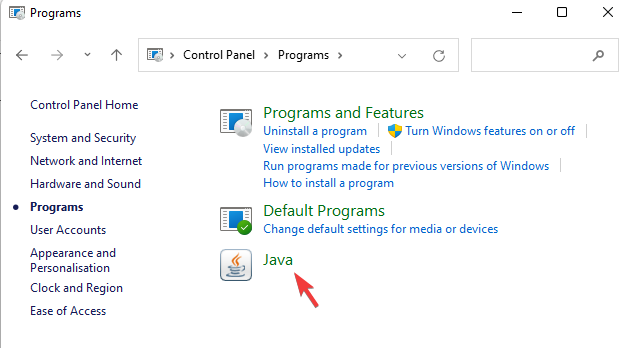
  2. Now, go to the Security tab.
    • If the Security Level is set to Very High, reduce it to High.
  3. Click on the Edit Site List button.
  4. Click Add to type in the site URL.
  5. In the highlighted line, type the URL, and then click the OK button. exception list java
  6. After launching your web browser and attempting the URL, the Do you trust prompt will come up, tick the Always trust boxes, and then click OK.

Note: If the Java control panel dashboard did not come up, that means Java is incorrectly set up on your Windows PC, thus you may receive a Java runtime error if you have older JRE software.

2. Clear Java cache

Another way of fixing VPN blocked by Java security problems is by clearing the Java cache.

  1. Go to Start> type Java control panel and hit Enter key.
  2. Navigate to the General tab, and click Settings under the temporary internet files section.
  3. Click Delete Files on the temporary files settings dialog box.
  4. Click OK on the Delete Files and Applications prompt and follow the prompts.
  5. Afterward, launch your VPN.

3. Reinstall your VPN

Sometimes, your VPN client software may be installed incorrectly; therefore, you may have to reinstall it.

  1. Go to Start > Control Panel. vpn blocked by java security
  2. Select Uninstall a program under the Programs menu.vpn blocked by java security
  3. Find your VPN from the list of programs and select Uninstallvpn blocked by java security
  4. In the Setup Wizard, you’ll get a notification after a successful uninstall.
  5. Click Close to exit the wizard.
  6. Restart your PC.
  7. Download the latest version of the VPN you have and reinstall it.

When uninstalling apps like a security tool VPN some of the directory files and local files may remain and can cause some conflicts with other fresh installs.

To make sure this does not happen, we recommend using a third-party uninstaller. You can use IObit Uninstaller or any other third-party uninstaller to clean all software leftovers and registry entries the VPN has made.

4. Try a VPN that prevents WebRTC leaks

A WebRTC leak is a significant security risk because it can reveal your true IP address when you’re connected to a poor VPN that doesn’t protect you from WebRTC leaks. This results in Java blocking your VPN.

ExpressVPN includes a feature that protects you from WebRTC leaks. Your public IP addresses will not be leaked if you open new web pages while connected to ExpressVPN.

If you have a tab open from before you connected to the VPN, the browser may have cached your real IP address in memory.

These IPs can remain even after you refresh the tab, putting your privacy at risk, thus triggering a security risk in Java Security.

The ExpressVPN browser extension addresses this issue by allowing you to completely disable WebRTC from the settings menu, ensuring that you are not vulnerable to caching issues.

ExpressVPN

No more false positives with WebRTC leak protection from a VPN that stands out in the crowd.
Check price Visit website

5. Clear web browser cache/Flush DNS

Some VPN users reported success in fixing the VPN blocked by Java security simply by clearing their web browser cache.

Meanwhile, DNS entries from your Internet Service Provider may be wrong. So, you need to flush the DNS and clear your web browser’s cache subsequently.

Here’s how to do this:

5.1. Flush the DNS

  1. Right-click Start and select Command Prompt (Admin)
  2. Type ipconfig /flushdns and press Enter.
    • You should get a confirmation that says: Windows IP Configuration Successfully flushed the DNS Resolver Cachevpn blocked by java security

5.2. Clear Web Browser Cache

  1. Launch your web browser.
  2. Press Ctrl + Shift + Delete to access the Clear recent history dialog box.
  3. Under the Time range to clear drop-down menu, select Everything.
  4. Make sure to check the Cache box.
    • Click on Clear Now

Note: Ctrl + Shift + Delete can also be used to clear the cache on all web browsers such as Internet Explorer, Opera, Google Chrome, Microsoft Edge, and Mozilla Firefox.

6. Install Windows updates

Latest Windows updates improve the system’s stability and fix various issues you may encounter, and especially the situation where your VPN got blocked by Java security.

Nevertheless, you can follow these steps to update your Windows OS:

  1. Go to Start>type windows update in the search box and then click on Windows Update to proceed.
  2. In the Windows Update window, check for updates and install the available updates.vpn blocked by java security
  3. After the update is complete, restart your Windows PC.

7. Reinstall Java

Meanwhile, Java may have been installed incorrectly on your Windows PC. Therefore, in order to bypass the VPN blocked by Java security problems, you may have to uninstall Java from your Windows PC.

Here’s how to uninstall Java from the control panel:

  1. Go to Start > Control Panel > Uninstall a programvpn blocked by java security
  2. In the list of installed programs, select all Java-related programs, and then click the uninstall menu.
  3. Follow the prompts to complete uninstall process.

However, because Java is required by some applications, then you have to reinstall Java on your Windows machine.

For this purpose, you can install Java on Windows 11 or if you are running an older OS you may want to check how to download the latest version of Java.

Hope this would help solve VPN blocked by Java security issue. If you are facing other difficulties with java language don’t hesitate to leave us a comment so we can help you with that matter.

What to do when Hide.Me VPN won’t connect

Hide.me is a well-designed VPN client that offers good privacy security and performance, with a 2GB/month free plan and great speeds.

The VPN is owned by a Malaysia-based company that claims a strict no-logging policy, no data sharing with third parties, and allows you to connect with one click to its servers.

Its design is compact and has a Limit Connectivity feature that disables local network connectivity, albeit optionally, while the VPN is connected. Overall, its service stands out as a solid and reliable VPN.

But what do you do when you install Hide.me VPN, and it won’t connect? Here are some causes and solutions to remedy the Hide.me VPN won’t connect problem.


What do I do if Hide.me VPN won’t connect?

1. Check that you entered the correct user name

A wrong user name can mean that Hide.me VPN won’t connect. Instead of entering your user information by copy and pasting it, key in each character so that you’re sure of the spacing as well.

Check date and time settings on Windows

  • Click the status area of the taskbar
  • Click Settings.
  • Scroll to the bottom of the Settings page and click Show advanced settings
  • Use the Date and time section of the Settings page to change the settings
  • Check if you can connect Hide.me VPN again

2. Disable firewall

If Hide.me VPN won’t connect, the issue could be with your firewall, like the port filter rules and other underlying causes. To resolve this, disable the software firewall and try connecting again with the VPN’s server.

Once you establish a connection, then that means the firewall may be blocking the network traffic from the VPN tunnel.

To fix the firewall issue, do this:

  • Allow PPTP and L2TP connections if the computer is behind a router
  • Allow IPsec IKEv1/IKEv2 connections if the computer is not behind a router
  • Create a firewall rule that allows traffic to the Hide.me site

Note: We recommend Private Internet Access as a VPN tool that is highly compatible with Windows systems and has great functionalities.

PIA is developed by Kape Technologies and has 3300 servers around the world in over 46 countries, allowing you the best conditions to secure yourself.

It protects your PC from attacks while browsing, masks your IP address, and blocks all unwanted access.

More so, you won’t have to worry about breaking the bank with buying it, since we offer a special discount that will make it more worthwhile than buying any other VPN service.

Private Internet Access

Private Internet Access

$2.69/mo. Buy it now

3. Check if you can reach the server

To check if the servers are accessible, do this:

  • Click Start and type CMD
  • Right click Command Prompt from the search results and select Run as administrator

  • Type the command: ping nl.hide.me (this is an example if using Netherlands server)

Note: This will help you check if you can reach the server through ping.


4. Check router settings

Some routers can deliberately block VPN connections or by default. To resolve this, open the web interface or your router’s control panel and check whether it allows VPN connections.

Some of the commonly used formulations for configuring these settings include PPTP/IPsec/L2TP passthrough.


5. Check that Hide.me is correctly set up

Sometimes the Hide.me VPN won’t connect due to an error in some individual steps when installing the VPN on your device. Check whether you followed each step properly, and if not, do it again exactly as the instructions are given.

If you still have an issue with installation, contact their support team.


6. Incorrect VPN logoff

When Hide.me VPN won’t connect, it could be because your previous connection wasn’t logged off or closed properly. Usually, only one established conn ection can be used on Hide.me servers per account simultaneously.

Check the members area for an overview of the active connections and any existing ones and log off properly then try connecting again.


7. ISP blocks

Sometimes your internet service provider (ISP) can block some Internet protocols making it hard for VPN connections to be established. If this is your case, test all the possible protocols and check with your ISP for further troubleshooting.


8. Geo-restrictions and blocks

Certain countries like China, and others, are known for filtering internet traffic and specific protocols, thereby causing VPN connections not to be established.

This happens mostly where there are geo-restrictions (location-based), but Hide.me usually provides most protocols to counter these barriers.


9. Uninstall and reinstall the application

If all else fails and you’re still unable to connect Hide.me VPN, do a reinstall of the application. You can go to the download section and click install on the set up file instead of having to download it all over again. Or get a fresh download and install it.

Were you able to fix the Hide.me VPN won’t connect issues using these troubleshooting points? Let us know in the comments section below.

VPN Application Blocked by Security Settings [Solved]

VPN connections can be blocked for several reasons, such as geo-restrictions, network administrator settings, or even your security settings, such as firewalls, antivirus, and/or anti-spyware programs.

Usually, VPN clients require specific ports and protocols in order to function as they should, and these should be allowed for this to happen successfully. Otherwise, you may encounter VPN blocked connection errors.

You may contact your VPN vendor for a complete list of ports necessary for your VPN client, or you could create relevant exceptions in your security settings.

At the same time, different users reported such issues with the VPN that caused this error message:

This failure is likely the result of a firewall, extension, or VPN setting blocking the request. please check your settings for more help with the resolution.

If none of this helps, try some of the solutions below and see what works.

What is blocking my VPN connection?

There are various elements that can block your VPN connection, including your firewall blocking the VPN or antivirus program. However, other factors that generate VPN blocking are:

  • License and copyright rules for restricted content
  • Official government block
  • Employers or school VPN restrictions
  • VPN blocked by the administrator
  • Fraud and crimes VPN traffic limitations

So before going to our descriptive solutions, be sure you fully understand the reasons for blocking VPN usage.

What to do if security or firewall settings blocked VPN connection

1. Disable your security software

  1. Configure your firewall settings to allow your VPN.
  2. Change the security level depending on the program, and you can choose from High to Medium and grant an exception to your VPN. (Set it to Trust your VPN. Check with the instructions for your own security software).
  3. If you can reinstall the program blocking your VPN, install it after your VPN is already installed as this will let it allow your VPN to connect.

This is how to allow VPN through Firewall on Windows 10. Try and disable your firewall, antivirus, or anti-spyware program and see if your VPN connection unblocks.

Do this by uninstalling your VPN and the security software that is blocking your VPN. Then install the VPN and the security program again.

2. Add an exclusion

  1. Go to Windows System and Security.
    Allow an app through Windows Firewall
  2. Under Virus & Threat protection settings, select Exclusions.
  3. Click Add or remove exclusions.
    add windows defender exclusion
  4. Click Add an exclusion.
  5. Add your VPN client.

Note: Usually, ports 500 and 4500 UDP are used by VPNs, while port 1723 is used for TCP. If you find these not working, add a new rule or exception to allow them in Windows Firewall Advanced Settings.

3. Change your VPN software

If you find that your Security or Firewall settings might be blocking your VPN connection, the first thing that you should try is an effective VPN called ExpressVPN.

Unlike other VPNs, the auto-configuration feature makes it easier than ever to avoid conflict between software, thus eliminating the possibility of encountering this same issue.

This VPN was created by Kape Technologies with speed and efficiency in mind, and the result speaks for itself.

What makes ExpressVPN stand out, even more, is the fact that the company doesn’t keep any logs of your app usage, and offers private DNS for each server from 94 different regions.

ExpressVPN

Use this compatible VPN to navigate privately without any security settings blocking.
Check price Visit website

4. Open ports

To allow your VPN to pass through your security settings, open the following ports: IP Protocol=TCP, TCP Port number=1723, and IP Protocol=GRE (value 47).

Ensure that these ports are allowed on Windows Firewall with the corresponding network profile.

Note: if you are running on the same server RRAS-based NAT router functionality, Do Not configure RRAS static filters, because they are stateless and NAT translation requires a stateful edge firewall like ISA firewall.

5. Create a new inbound rule

  1. Open Windows firewall and click inbound rules.
    vpn-blocked-security
  2. Right-click and select New rule.
    vpn-blocked-security
  3. Click Custom rule.
    vpn-blocked-security-settings
  4. Specify the programs then specify ports (you can leave them as all programs or all ports).
  5. Click These IP addresses under the remote IP.
  6. Click This IP address range.
  7. Type From 10.8.0.1 to 10.8.0.254.
  8. Close and click Next, then leave as Allow the connection.
  9. Apply to all profiles, then give your profile a name and click Finish.

6. Change Allow app settings

  1. In the search bar, type Windows Defender Firewall, and select it from the search results.
  2. Click Allow an app or feature through Windows Firewall.
  3. Click Change Settings.
  4. Find your VPN from the list of programs/apps.
  5. Check Public or Private to select the network type to run your VPN on.
  6. Click Allow another app if your VPN isn’t on the list.
  7. Select your VPN.
  8. Click Add and then click OK.

7. Turn off SSL monitoring

The instructions to do this depend on which VPN you are using. However, here are the steps you can take if you’re using NOD32 or Kaspersky:

NOD32:

  1. Click on Setup.
  2. Select Advanced Setup.
  3. Click Antivirus and antispyware.
  4. Choose Web access protection.
  5. Click HTTP, HTTPS > HTTP scanner setup, and set HTTPS filtering mode to Do not use HTTPS protocol checking.

Note: If HTTPS filtering mode is greyed out, set Antivirus and antispyware > Protocol filtering > SSL to Always scan SSL protocol. Restore the previous setting after changing the HTTPS filtering mode.

Kaspersky

  1. Click Settings.
  2. Click the Traffic Monitoring panel.
  3. Go to Port Settings or settings.
  4. Choose Network.
  5. Click on the Port Settings and uncheck the box for port 443/SSL

8. Change Adapter Settings

  1. Go to Start and select Control Panel.
  2. Click Network & Internet.
  3. Click Network and Sharing center.
    vpn-blocked-security-settings
  4. Click Change adapter settings.
    vpn-blocked-security-settings
  5. Click on File.
  6. Select New incoming connection and click on the users you want to access your VPN.
  7. Check the Through the Internet box and click Next.
  8. Mark the Internet Protocols you want your VPN to connect to.
  9. Double-click on Internet Protocol Version 4 (TCP/IPv4).
  10. Open Control Panel again.
  11. Select Windows Firewall.
  12. Click Advanced Settings.
  13. Right-click Inbound Rules and click New Rule.
    vpn-blocked-security-settings
  14. Choose Port and click Next. Click Next again after selecting the ports.
    vpn-blocked-security-settings
  15. Select Allow the connection and click Next.
  16. When asked ‘When does this rule apply?’ select all options (Domain, Private, Public) and apply the rule to all.
  17. Choose a name and description to fill in the Name Description and click Finish.

9. Enable rule for PPTP

If your VPN requires PPTP, you can perform this process:

  1. Click Start and select Control Panel.
  2. Select Windows Firewall.
    vpn-blocked-security-settings
  3. Click Advanced Settings.
    vpn-blocked-security-settings
  4. Find ‘Routing and Remote Access‘under Inbound Rules and Outbound Rules.
    vpn-blocked-security-settings
  5. For Inbound Rules, Right-click ‘Routing and Remote Access (PPTP-In)’, select Enable Rule.
    vpn-blocked-security-settings
  6. For Outbound Rules, Right-click ‘Routing and Remote Access (PPTP-Out)’, and select Enable Rule.

10. Reset your firewall or reinstall your VPN

If security settings block the VPN application, you may need to reset your firewall, and if that doesn’t help, reinstall your VPN.

If you’re using Norton firewall, reset it by clicking Settings > Firewall > General tab > Reset beside Firewall Reset, then restart your computer, and the firewall rules will be created again as you use your VPN or programs that access your network/internet.

Even more, what happens when your VPN is blocked at school, hotel, college, or university? Rest assured that our guide can help.

Were you able to resolve the problem? Let us know in the comments section below.

Are there any advantages of a VPN without encryption?

A virtual private network is specifically designed to keep your network safe and protected, hence the private part.

Yet, some VPN users look for services that provide VPN servers that are not protected.

Either that or they look for ways to disable the encryption on protected VPN servers. These people usually think that a VPN without encryption will run faster.

Can a VPN without encryption really run faster?

The truth is, while encryption is a vital part of a great VPN service, it barely affects the speed of your VPN.

In other words, if you are trying to download or upload something at a faster rate through a VPN service, disabling its encryption will not affect the rate your data is transferring.

Therefore, it is only logical to not look for a VPN without encryption, but instead look for a VPN provider that offers fast servers.

What are the VPNs with the fastest servers?

There are quite a few providers out there that offer fast servers. Mudfish, WTFast, and OutFox – are all designed specifically to reduce ping and lag in online games.

Naturally, they will need to offer fast and reliable servers. However, most of these gaming dedicated VPN providers only work with online games.

In other words, you cannot use them to download, upload, browse the Internet, etc.

Therefore, if you are looking for a fast VPN that is also easy to use and versatile, then you should check out both PIA and CyberGhost.

1. Private Internet Access

grab Private Internet Access

Private Internet Access (PIA) offers most of the attributes found in what we’d call a powerful and fast VPN these days.

Firstly, it has a platform based on the open-source OpenVPN protocol. That’s a promising start, yet not the only proof of a strong VPN solution.

Besides the fact that it adheres to a transparent no-logs policy, the incredibly high number of servers – which is over 3200 and still growing – is another major bonus.

This reveals how reliable the service and how easy is for you to pick any server in the world for your next quick connection.

No less important, the Kape Technologies VPN solution here in the spotlight offers custom clients for Windows, Mac, iOS, Android, and even Linux.

Keep in mind that the Linux app actually is one of the few GUI-based apps available for the Linux platform.

Here’s a quick list of key features you’re about to enjoy:

  • Fast connection speeds
  • Uses the highest grade encryptions available
  • Protects up to 10 devices at the same time, including routers
  • Kill switch protection
  • Anonymous payment options (gift cards, Bitcoin, and more)
  • Great 30-day refund policy

Private Internet Access

Private Internet Access is your top VPN choice when speed is of the essence. Currently available at a major discount!
Check price Visit website

2. CyberGhost

grab CyberGhost

When using this VPN solution, you can fully encrypt your Internet activity with AES 256 bit technology. After all, it is serious about your protection.

It can also hide your IP, which will make it next to impossible for other people to track your online activity or find your location.

Without an encrypted VPN, it is far too easy for third parties to discover your IP.

Taking extra steps to ensure you have a safe and protected journey while surfing the Internet, CyberGhost also screens the websites you visit.

This helps you significantly reduce the chance of downloading a virus, spyware, or other malicious content from the internet.

All of this protection also means that your next Bitcoin, PayPal, or other online transactions will have another layer of security.

To top it off, if you get the premium plus subscription, then you can share your account with seven other devices.

So, theoretically, you can have seven people using the same account simultaneously. Finally, you get lightning-fast connections with CyberGhost and unlimited bandwidth.

The premium versions offer both top-of-the-line encryptions as well as some of the fastest servers found on a VPN service.

CyberGhost VPN

Looking for a fast VPN that will protect your privacy like a pro? Check out CyberGhost VPN.
Check price Visit website

If you are looking for a VPN without encryption because you need a fast VPN, then use one of the above suggestions instead.

Basically, PIA and CyberGhost seriously outperform most of their competitors. Why not have both a fast and a secure VPN?

How to activate Facebook dark mode in your browser

Many users have expressed their wish of being able to see Facebook in the dark mode in their Windows 10 browser.

Spending hours on Facebook, at night, with a bright white display can definitely be a nightmare for anyone.

Thankfully, all this has changed and now there are several options on how you can active the Facebook dark mode into your browser.

We’ve put together a list of the steps you need to make in order to activate it, so keep on reading.


How can I use Facebook Dark Mode on my browser?

1. Use a different browser

Let us start by telling you the easiest way to use Facebook’s dark mode. It’s all related to the browser you’re using, so maybe it’s time to make some changes.

When it comes to Opera One, you should know that it brings you advanced tab management, ad blocker, free VPN, and a native AI.

Additionally, it’s quite intuitive to achieve your goal with Opera One. All you have to do is access the easy setup button, next to your address bar, and choose dark mode.

Opera One

Take advantage of the unique Opera One extension and display Facebook in dark mode anytime you want, with this fantastic browser.
Free Download Visit website

2. Change Facebook settings

  1. Log in to your Facebook account.
  2. Go to the arrow icon from the right corner of the menu bar.
  3. Next, click on Display & Accessibility.
  4. In the Dark Mode section, click the On option.

After following these steps, Facebook dark mode will be activated in your browser.


3. Force the Dark Mode

  1. In the Google Chrome address bar type the following: chrome://flags/#enable-force-dark
  2. Go to the Force Dark Mode for Web Contents drop-down menu and select the Enable option.

Note: In case you want to return to the previous settings, all you need to do is to retype the same as above, in the address bar and select the Disable option.


4. Use the extensions

For Chrome

If Chrome is the browser you are using, then we have great news for you.

You can download the Dark Theme for Facebook from the Chrome web store and activate the dark mode for your account.

Moreover, the extension is highly customizable and you can also set a schedule for when to have it active (for example only at night time).


For Edge

edge for secure transactions

If you are using Edge, then you can also download similar extension called Dark & Night Theme for Facebook.

With this extension you will have the possibility to instantly change your Facebook to the dark mode.

Moreover, you have 5 built-in dark modes to choose from and if you want, and there is also the option to build your own dark theme.


For Mozilla

A highly rated dark-mode theme for Facebook, if you are using Mozilla is the Dusky Gray Facebook [Dark Theme].

This theme has an impressive design but most of all, it will allow you to easily activate the dark mode for when you are on your Facebook account.


The dark mode feature for Facebook has been a bliss for many users and its something everyone has been waiting for.

As seen in this article, there are several ways on how you can activate the Facebook dark mode in your browser .

If you decide to pick Chrome, we also have a guide on how to turn off dark mode in Chrome, so don’t miss it.

If you have additional recommendations and suggestions, we would love to hear them in the comments section below.

How to run Deus Ex: Invisible War on Windows 10

Dues Ex: Invisible War is an older game, and as such, it has some issues running on Windows 10. However, you can easily fix that.

In this guide we’ll show you how to play Deus Ex: Invisible War on Windows 10, and how to run the game without any issues.

How can I run Deus Ex Invisible War on Windows 10?

 1. Run the game in Compatibility Mode

  1. Right-click the game’s exe file and choose Properties.
  2. Go to Compatibility tab.
  3. Enable Run this program in compatibility mode for and select older version of Windows.

You might want to experiment with different settings, but many reported that using Windows XP compatibility mode let them run Deus Ex Invisible War on Windows 10.

2. Adjust your resolution

  1. Adjust the game’s resolution and try to start it again.
  2. Switch to the windowed mode and try to run the game again.

These are a couple of useful tricks that have worked for some users, so we suggest that you try them out.

3. Run the game with a single core

  1. As soon as you start the game, minimize it and open Task Manager. You can do that with Ctrl + Shift + Esc shortcut.
  2. Go to the Details tab, right-click the Deus Ex process and choose Set affinity.
  3. Make sure that only CPU 0 is checked and click OK.

Keep in mind that this is just a workaround, so you’ll need to repeat it every time you want to play Deus Ex Invisible War on Windows 10.

4. Download the game from GOG or Steam

Good Old Games is an online community that created a digital distribution platform for older PC games. They adapt older games such as those from the 90’s to and let them work on modern operating systems.

Deus Ex: Invisible War won’t run properly on Windows 10 in native version, and if you have any issues with it, we suggest getting the gaem from GOG Games.

⇒ Buy Deus Ex: Invisible War from GOG

Deus Ex: Invisible War console commands

  1. Press Y to open the console.
  2. Clear everything in the input field. Usually, only say will be displayed.
  3. Enter one of these commands:
    "Set Human bCheatsEnabled True"
    "Set DeusEx.JCDentonMale bCheatsEnabled True"

Now the cheats will be enabled. You can use the following cheats:

Command:Effect:
allcreditsGet 10,000 credits
iamwarrenActivate EMP field
augadd Installs a specific augmentation
set CurrentLevel Set specific skill to a certain level
allaugsGet all basic augmentations
allskillpointsGet all skillpoints
allskillsMaster every skill
allweaponsGet all weapons
legendOpens a secret menu
playersonlyFreezes everything expect player
allenergyFull energy
allhealthFull HP
allammoFull ammo for all weapons
tantalusKill current target
killall [name] Kills specific NPC
open Open specific level
summon Create specific object
spawnmass [amount] Spawns multiple objects
godGod mode
invisible Invisibility
behindview Toggles between first and third person view
flyFlying mode
ghostNo-clip mode
walkDisable fly and no-clip
setjumpz Set jump height
amphibiousBreather under water
opensesameUnlock door or panel
setfriction Sets friction
slomo Slow motion

Deus Ex: Invisible War is a great game that many users wish to play on Windows 10. Since it’s an older game, it suffers from certain issues, but hopefully this guide helped you fix those issues.

If we missed any solution that worked for you, share it with us in the comments section.

Lenovo ThinkPad C13 Yoga Chromebook first impressions: An interesting alternative

Lenovo sent me a ThinkPad C13 Yoga Chromebook last week and after 7 days of playing with it, I can immediately see the appeal of the operating system for the average computer user and, I have already found some problematic threads that I’ve already started to pull at in ChromeOS.

Out of the box, Lenovo delivers a solid piece of computer hardware that feels like a mesh of its other Yoga lines. Where the consumer version of Lenovo’s Yoga line makes use of aluminum chassis and reduced I/o support while ThinkPads opt for their flagship carbon fiber casings and robust connectivity, the C13 actually uses an aluminum build but with the design prowess and port support of a ThinkPad. The C13 comes with the ThinkPad Kensington Lock, two USB-C 3.2, two USB-A 3.2, and a mini-SD card slot.

Pxl 20210304 144821087.portrait


Due to its aluminum construction, it’s got relative weight to it at around 3 pounds, which makes it as heavy as any other Yoga or ThinkPad offerings from 2020. The other things that were immediately notable were the speaker placement which led to poor sound experience during my initial testing.

The particular model I received is sporting 8GB of RAM, an AMD Ryzen 5 Pro 3500C chipset, and 256GB of SSD storage, so it’s meeting my standard Windows 10 usage on paper. The screen is a bit muddled and doesn’t get as bright as I would like, but it gets the job done, especially when the scaling out the box is a bit over the ‘larger’ setting which takes up unnecessary screen real estate.

Pxl 20210304 142922673.portrait

Aside from familiar hardware, the Lenovo C13 Yoga is also being marketed as a lightweight enterprise tool powered by ChromeOS. When going through the signup process for ChromeOS for the first time, I was met with several more windows than the last time I checked out ChromeOS, but it was a pleasant walkthrough of some new features in Chrome.

Perhaps, it’s just the system getting used to downloading and processing a bunch of new caches, but the fan on this thing kicks in pretty quickly and loudly for a lot of things I’ve been doing. As a Chromebook novice, I’ve noticed the fans kicking in on this Chromebook fairly early into my review seems a bit troubling, but we’ll see.

As a Pixel user, the C13 feels like an extension of my phone in both good and bad ways right now. I love that most of my apps were automatically loaded on the device but it’s very apparent that the app experience on ChromeOS needs a lot of tweaking. Some apps can’t be reshaped – looking at you Instagram, and I’m without some of my often used .exe apps such as Gimp, Google, and Microsoft Ads editors that I need for bulk edits to marketing efforts. I’m sure I’ll find some workaround through extensions or PWA’s but right now, it’s been a hassle as I’ve started to move my workflow over to this new device.

Pxl 20210304 141655633.portrait

As of right now, I’m enjoying getting used to the Chrome operating system more so than the hardware it’s on, and that’s in large part because Lenovo is providing a solid mid-range enterprise experience, I believe a large portion of office workers have experienced at some time in the last seven years.

Microsoft hopes to help shape antitrust legislature during subcommittee hearings

Despite the spotlight being on Google regarding anticompetitive business practices here in the US and abroad, Microsoft felt it was time to step back in the antitrust arena to offer its two cents on the matter. According to Axios reporting, Microsoft president Brad Smith will be appearing before a House antitrust subcommittee next week to answers questions about tech and the evolution of antitrust legislation.

The House Judiciary antitrust subcommittee has been holding hearings for over a year on how to best address the blending of direct and indirect monopolies and their inherent anticompetitive effects on markets. Inviting Smith, who has been a vocal advocate of more stringent legislature to address antitrust behavior, is another step by the House subcommittee to draft relevant laws going forward.

Axios reporting also points out something we’ve been reporting on for years: Smith’s appearance next week may not be a straightforward advocacy project but also serves as a lobbying effort to subtly undermine its search engine rival’s current market dominance. Microsoft and its Bing search engine have the luxury of being in the minority position in search, and legislature guided by Microsoft would seemingly help benefit the company as it continues to compete against Google.

Interestingly enough, committee members are also keeping an eye on how Google, Facebook, and Australia sort out their revenue sharing efforts for news, search, and social media sites as a possible tent pole for future legislation in the US.

How to activate the dark mode inside the Maxthon browser?

Maxthon is a customizable Chromium browser with some novel features.

The latest Max 6 version, released near the end of 2020, is one you can utilize Chrome’s dark mode extensions and themes on.

However, you can also turn Maxthon darker with some of its built-in settings.

Quick tip:

Opera One is undoubtedly one of the most customizable browsers, which is jammed packed with handy browsing features and allows you to easily switch to the dark mode.

You can discover more of Opera One’s features on its sidebar. There you can access built-in WhatsApp and Facebook messengers, and other incredible features, such as the built-in AI.

Opera One

Easily transform this browser to dark mode while also keeping your privacy intact while exploring the web at great speeds!
Free Download Visit website

How can I activate Maxthon’s dark mode?

1. Use Maxthon’s Dark theme

  1. First, click the Customize and control Marathon button near the top right corner of that browser’s window.
  2. Click the Settings options to open that tab.
  3. Select Appearance to open the options in the snapshot directly below.
    The Dark theme option maxthon browser dark mode
  4. Then click the Dark theme option to add black color to Maxthon’s tab bar.
  5. To add a dark color to Maxthon’s New Tab page, click the + button on its tab bar.
  6. Click the cog button to open wallpaper options in the shot directly below.
    The dark wallpaper option maxthon browser dark mode
  7. Then select the black color to apply a dark background to the New Tab page.

2. Add the Just Black theme to Maxthon

Alternatively, you can add the Just Black theme to Maxthon, which will also apply a black color to the browser’s bookmarks and URL address toolbar.

Open the Just Black theme page on the Chrome Web Store in Maxthon. Then press the Add to Chrome button there to apply the theme shown directly below.


3. Activate dark webpages with Super Dark Mode

  1. To apply a dark mode to webpages in Maxthon, open the Super Dark Mode extension page.
  2. Click the Add to Chrome button to add the Super Dark Mode extension to Maxthon.
  3. Open the Google search engine in a browser.
  4. Then click the Super Dark Mode extension button on Maxthon’s URL toolbar to turn on its website dark mode, which will add a black background to Google as shown in the screenshot directly below.
    dark Google search engine maxthon browser dark mode
  5. Right-click the Super Dark Mode button and select Options to open the tab shown directly below.
    The Super Dark Mode tab maxthon browser dark mode
  6. You can change the dark brightness for pages by dragging the Adjust contrast bar to the left and right.
  7. To schedule the dark webpage mode, click the Auto ON/OFF checkbox.
  8. Then click the clock icon on the right side of the From box to select a start time.
    Auto ON/OFF checkbox bomaxthon browser dark mode
  9. Click the click button for the To box to choose an end time for the dark webpage mode.
  10. To exclude a website from the dark mode, right-click a page on the site and select the Disable Super Dark Mode on this site option.
    Disable Super Dark Mode setting maxthon browser dark mode
  11. You can re-enable the dark mode for an excluded website by right-clicking a page on it and selecting Enable Super Dark Mode.

So, that’s how you can apply a dark theme to the Maxthon browser and websites open in it. Doing so will give you an extra dark browsing experience that can save battery on laptops.

Microsoft is “evolving” the Bing search experience so that it is more “intuitive and engaging”

Microsoft is tweaking the Bing search experience in a lot of big ways. In a March 4 blog post, the company detailed some steps and new changes for how it is “evolving” its Bing search experience so that it is much more “intuitive and engaging.”

As seen in the video below, a lot of the changes are centered around making Bing more visually rich, so that you can find information quicker, without sorting through a lot of text. Indeed, that means the biggest change would be making search pages less static and more adaptable.

Microsoft says you can see these improvements when looking for recipes, as Bing now aggregates the content of the most relevant recipes and presents it in a single view on the search results page. You’ll see recipe pictures as well as calories per serving and user review, or even a how-to video on a hover of your mouse.

An expanded view will also show more information like ingredient lists or nutritional information. A similar experience will also pop up for DIY projects, and creative projects, with the addition of visual search, to search an image for certain things.

Bing-recipes-answer-new-design.gif

In addition, Microsoft is also tweaking Bing so that the carousel experience now has a “hover over” feature. The company says this should help you see more high-level information to avoid crowded results. Hovering over carrousel results will expand it out for more detailed information, especially when searching for books or documentaries.

Capping out the changes is what Microsoft is calling “infographic-inspired experiences.” This means that Bing will now provide both style and information when you search for broad topics or local experiences and answers. You won’t see text results and blue links, but rather a more detailed view and infographic of broader topics like “Kenya” or “Giraffe.”

Bing Giraffe

All these features are now available on Bing here in the United States, and there could be more on the way soon. Microsoft is promising that you should “stay tuned in the coming months for more visually immersive experiences across the web.” Check these features out now and let us know what you think in the comments below.

Hands on with Microsoft Teams for Consumers on the desktop, rolling out now

It’s been almost a year since Microsoft unveiled a new consumer experience in Microsoft Teams during a Microsoft 365 digital event on March 30, 2020. Teams is still one of the fastest-growing Microsoft apps in recent years, and its growth has been accelerating since the beginning of the COVID-19 pandemic which led to the rise of remote work.

Microsoft first started rolling out personal features in Microsoft Teams on iOS and Android last year, but the consumer experience is now available on the web and it’s currently rolling out in the Windows and macOS desktop apps. I noticed the option to log in with my personal account in the Microsoft Teams app this week, though my colleagues at OnMSFT have yet to see this option.

Microsoft Teams Account Switcher

Microsoft Teams for Consumers should not be confused with Microsoft Teams free, which Microsoft launched a couple of years ago to compete with Slack. Both experiences require a personal Microsoft account, though, and I think there will definitely be some confusion.

With Microsoft Teams free, you get the same Teams experience as Microsoft 365 commercial customers, with your own organization that can welcome up to 500,000 members. Microsoft Teams for Consumers has a very similar UI, but the experience focuses on chats, video meetings, and shared calendars, leaving the channel system out of the picture.

I already tried Microsoft Teams for Consumers on mobile and the web, the desktop experience is pretty much identical. The left panel has shortcuts for notifications, chats, and apps, though Calendar is the only app that is showing for me. I’ve been able to chat with friends that also logged in in Teams with their personal Microsoft account, and video meetings are also available.

Microsoft Teams Separate Sessions
You can see separate taskbar shortcuts for Microsoft Teams Personal and the “regular” Teams app.

Microsoft Teams for Consumers is a pretty solid messaging app, with support for group messages, message reactions, GIFs, and you can also start a group chat with friends who haven’t downloaded the app yet. But it can also do much more than that, with the possibility to edit shared calendars, assign tasks to people, access cloud storage right from your group chats, and more. Every group comes with a dashboard where you can see everything shared within a group.

On mobile, Microsoft Teams for consumers lets you find your friends on Teams by syncing your phone contacts, and people will be able to find you on Teams by using your phone number or email address associated to your personal Microsoft account. However, using the same app Teams with both your Office 365 account and your personal Microsoft account is a hassle. Switching accounts is done by clicking your profile picture on the top left corner of the app, and this nowhere near as seamless as having different email inboxes in Outlook.

Microsoft Teams For Consumers On Mobile
On mobile, you need to switch between your Office 365 and your personal Microsoft account.

Using Microsoft Teams personal features on the desktop is much more convenient as the app will actually open a separate window for your personal Microsoft account. On Windows, you can pin Microsoft Teams Personal on your taskbar, so you can use the app with your personal Microsoft account without opening the regular app with your Office 365 account. It’s similar to how you can pin shortcuts to your different Edge profiles, but macOS currently doesn’t support this.

Overall, Microsoft Teams for Consumers is pretty solid, and I find it currently easier to use on the desktop or the web than on mobile devices. I understand why Microsoft would like Teams to become that’s not just for work, and I’m sure some users will be happy to have a single app to interact with colleagues, friends, and family, but that’s not me. Apps like WhatsApp, Facebook Messenger, or Instagram already have over 1 billion users, and teenagers and young adults certainly won’t replace them with Microsoft Teams.

Microsoft Teams Personal And Microsoft Teams Free
Make sure not to confuse Microsoft Teams for Consumers (left) and Microsoft Teams “free” (right).

In some way, I wish Skype evolved into a consumer version of Microsoft Teams. This could have prevented the confusion I mentioned before between Microsoft Teams free and Microsoft Teams for consumers (pictured above), which both work with a personal Microsoft account. Anyway, that won’t be happening.

Skype went through several redesigns in recent years, and it’s no longer the juggernaut it once was when Microsoft acquired it. The software giant seems to believe that Skype and Microsoft Teams for consumers can coexist, and it will be interesting to see if personal features in Teams will take off. For now, though, I think Teams will remain an enterprise-focused platform that is getting more and more complex as times goes on.

Have you already tried Microsoft Teams for consumers? If so, let us know in the comments if you’re excited to be able to use Teams to chat and collaborate with friends and family.

Microsoft Ignite 2021 recap: Teams gets new features, Outlook board, “next generation Windows” tease, Microsoft Mesh & more

Microsoft’s annual IT and developer conference officially ended today on March 4, and it was a busy couple of days. Microsoft used the all-digital event as the stage to announce several updates for Teams, Outlook, and other Microsoft 365 apps and services. They even announced Mesh, a brand new social mixed reality platform. We’ve been keeping up with the news all week long, and here’s a look at what you might have missed.

New Teams features

Dynamic View.gif

We’ll begin our recap by starting with Microsoft Teams. Since Teams has been on the boom due to the pandemic, Microsoft is bolstering up the collaboration service with lots of new features. The first of those are improvements for Live Events in Teams, where Teams can now be used to create interactive webinars for up to 1,000 attendees. Teams Live Events will also support webinars with up to 20,000 attendees later this month. You can have a look below for the other new features coming to Teams, as announced at Ignite 2021.

  • PowerPoint Live is now generally available in Teams. The feature combines slides, notes, and meeting chat in a single view to help make presentations easier for speakers and presenters.
  • Dynamic View for Teams meetings is coming next month. The feature makes meetings more engaing and adjusts elements of meetings, such as the ability to display different modes such as charts, chats, etc next to video feeds.
  • Teams is getting improved security thanks to invite-only meeting controls. Also coming is end to end encrupion in one to one calls.
  • It is becoming possible to share channels outside of an organization, through a feature known as Microsoft Teams connect.
  • Microsoft Lists is getting custom list templates in Teams, as well as rich-test editor, the ability to add comments or @mentions and create rules, and other new features.
  • Microsoft Dynamics is getting a seamless integration with Teams.
  • New polling experiences in Teams meetings on Mobile

The final of the new Teams feature is the ability to export webinar contacts, useful for Dynamics 365 marketing. Also coming to Teams are some of the new Microsoft Viva modules, such as Viva Connections, which should be rolling out more broadly now.

Windows 10

Panos Windows 10

Windows 10 usually gets a backseat at Microsoft Ignite, but this year, there was a bit of news about the operating system which we want to recap. First off, there’s the big news about Power Automate becoming free for Windows 10 users. This tool comes with 370 prebuilt actions that help you build flows across different applications. As our own Benjamin Akhigbe explained, it “enables you to build your own scripts to automate time-consuming repetitive tasks.”

In addition to the Power Automate news, Microsoft also announced that Windows 10 in cloud configuration has been integrated into Microsoft Endpoint Manager, which will make it even easier to provide a secure device configuration tailored for worker needs. The news comes after Windows 10 in cloud configuration overview and setup guide was made available for download on Feb 2. That allows administrators to apply a uniform, secure and easy-to-manage cloud-based configuration of Windows
10 Pro or Enterprise devices.

We’ll end the Windows 10 section with a look a what’s ahead for the operating system. Indeed, Surface and Windows Chief Panos Panay appeared to “tease” the upcoming versions of Windows. In a fireside chat session at Ignite, he hinted that he has not “talked about the next generation of Windows” and that he is “so pumped” for it. He even mentioned that “it’s going to be a massive year for Windows.”

To be fair, though, his session was mainly about current Windows features, but the exec did appear to slip his tongue about the future a bit, though not confirming any rumors we’ve heard so far about Sun Valley or Windows 10X.

Outlook

Next up are the changes for Outlook as announced at Ignite 2021. The first is the introduction of Outlook Board view in Outlook Calendar. This is designed to help make your calendar easier to manage. The feature is now available for everyone, and has a free-form view, combining calendars, files, reminders, and to-do lists in one place. Microsoft also rolled out what it is calling “suggested times” in Outlook for iOS and Android, too. The feature is all about AI and finding times for meetings. Finally, Outlook on Mac is getting support for more email account types and shared calendars.

 Microsoft Mesh


For most people, Microsoft Mesh was the biggest news out of Microsoft Ignite 2021. This was one of the more unique parts of Ignite, as this portion of the keynote could have been viewed in AltSpace VR in Mixed and Virtual Reality. Indeed, featuring Alex Kipman, Microsoft used Ignite 2021 as the stage to unveil Mesh. It is Microsoft’s new Mixed Reality Platform designed to allow people in different physical locations to join collaborative and shared holographic experiences across many kinds of devices.

Mesh is designed for companies and businesses to let their teams joined shared virtual spaces for collaborative meetings, where everyone will appear as virtual avatars. The target audience is enterprise and commercial users, too. Mesh is coming as a HoloLens app, but it can also be accessed through a new version of AltSpace VR, which is Microsoft’s VR platform. Alex Kipman detailed that solutions built through Mesh by developers could come to Windows Mixed Reality, PCs, Macs, Smart Phones, and Oculus, too.

Azure Power Platform, and more

Of course, Ignite is all about the Cloud and Azure, so there were several other news stories around these Microsoft products, too. With Power Platform, Microsoft announced Power Fx, which is their new first low-code programming language. They also announced new AI capabilities for Power Virtual Agents, updates for Power BI Premium, Power Automate Desktop. With Azure, Microsoft announced a new hardware and software platform called Azure Percept, which should make it easier for Microsoft’s customers to develop AI solutions.

Of course, we covered Ignite 2021 in-depth, so check out our hub for all the other stories you might have missed! And be sure to watch the OnPodcast this Sunday, as we’ll be recapping Ignite once more!

Getting Started with Power Automate Desktop for your Windows 10 machine

You are a small business owner or an employee of an organisation just getting started with Power Automate Desktop on Windows 10? Microsoft announced on Tuesday at it’s Ignite 2021 summit that it is making it’s Power Automate Desktop free for all Windows 10 users.

This article focuses on getting started with Microsoft Power Automate Desktop for your Windows 10 machine, that enables you to be a console and flow designer for those first time users. The console enables you to create and handle flows, while you are in the development environment of the platform as a flow designer. Let’s learn how user friendly, low code application empowers coders and non-coders alike to optimize their workflows by automating repetitive and time consuming manual tasks in Power Automate Desktop.

Power Automate Desktop Ui
Interacted interface of Power Automate Desktop on Windows 10 – Courtesy of Microsoft.

Automate everyday tasks and free up time for more important efficient work

Power Automate Desktop using low code RPA (Robotic Process Automation) with no coding required that gives users their time back for more important efficient work by automating “busy work “of repetitive manual, time consuming tasks that typically consumes the finite hours in each workday.

RPA makes it possible to automate workflows across modern and legacy applications on your desktop by recording the actions such as the mouse and keyboard clicks on the desktop environment. It works like Macros work on Microsoft Office, recording the repetitive actions on desktop across multiple apps such as SharePoint, Excel, Outlook, and many third party apps as well as websites that enables users to replay the automation whenever is needed.

In a common scenario we see the need to scale and automate large scale creations of weekly, monthly, quarterly, and annual reporting in business operations. With Power Automate Desktop, you can automate the consolidation of data across multiple sources such as database, webpages, Excel files, PDFs, and more to auto generate a report based on requirements.

Start automating everyday tasks with no coding required

It’s easy to get started and around with Power Automate Desktop and build first desktop flow the series of steps that automate a specific action or task using either prebuilt drag and drop actions or recording desktop flows to run later. An intuitive drag and drop visual designer provides more than 400 actions that runs on your desktop environment, a recorder that capture the clicks and mouse actions, as well as robust authoring experience to edit and modify recordings.

Extend automation further with Power Automate

In addition to capabilities with what users get with the free Power Automate Desktop for Windows 10, Microsoft enables to extend it one step further with even more capabilities in the Power Automate per user with the Attended RPA plan. With this, enables automation across an organisation, which suits medium to large businesses that share and collaborate across flows. That even has access to even more than 400 built in connectors through cloud flows, that can identify bottlenecks in the business processes with process advisor which is in preview. That extract data from documents in AI Builder, and manage and control flows with a centralized governance concept.

In order to take advantage, with the RPA adoption, Microsoft has introduced a limited time offer. Starting on April the 1st 2021 and available till September 30th 2021, Power Automate per user plan with attended RPA will be available for $15 per user per month. Limited time offer would be only available to eligible customers in commercial large businesses, US government and governments across the globe through volume licensing (VL), cloud solution provider (CSP) and web direct channels etc.

Large and established companies like Coca-Cola Bottling Company United (Coca-Cola United) are taking advantage of additional RPA capabilities in Power Automate today to reduce the errors and streamline their order management.

Summary

The Power Automate Desktop platform consists of the two core components, the console and the flow designer. These core functions provide all the essential tools to manage and develop flows. It enables users to pass data to and from the Power Automate platform, creating unlimited automation potentialities by using the input and output variables feature.

Download Power Automate Desktop for Windows here and Learn more about using Power Automate Desktop for Windows 10 here and let us know how you use Power Automate Desktop tool for your organisation or business as first time users with desktop flow and automating tasks.

Photoshop Express: free photo editing software for Windows

Although there are a few pretty good photo editing apps for Windows 10, the undisputed photo editor king is Abode Photoshop.

If you want to get the job done properly, then this program will help you. However, as many of you know, Photoshop is not the easiest program to use, and even experts have not discovered all its secrets yet.

But, if you want to benefit from some of the features that Adobe Photoshop offers, and at the same time have an easier time using the program, then you should use the Adobe Photoshop Express app for Windows 10.

If you are looking for a free photo editing software for Windows 10, know that this awesome app brings the best of Photoshop in an easy to use and free package.


Adobe Photoshop Express app for Windows 10

What is Adobe Photoshop Express?

Adobe Photoshop Express is the best free photo editor for Windows 10. Although it does lack features compared to its older brother, Adobe Photoshop, it still packs a punch when it comes to photo editing.

First off, you might want to know how much you have to pay for this app. After all, Adobe’s products are at the top end of the price spectrum.

Well, you’ll be delighted to know that the Adobe Photoshop Express app for Windows 10, is free to download from the Windows Store, and it comes with most of the features.

Users who want to edit their photos more thoroughly and add some premium effects will have to buy the premium features such as the Reduce Noise feature or the Looks gallery.

Nevertheless, even with the free tools at your disposal, you will be able to do some editing, although not even close to the extent that the desktop version of Photoshop offers.

This Windows 10 app is more suited for simple color adjustments, contrast, or adding certain effects to the picture.

We highly suggest checking out Adobe Photoshop, the industry-leading photo editor on the market. If you love the Express version of this app, you’ll adore the other one.

Moreover, you don’t even need to pay a dime for it. The software has a free trial period, so you can actually test it and decide for yourself if it’s worth your money. So give it a go and dive into its plethora of features.

Adobe Photoshop

Adobe Photoshop

Create the most astonishing photos and edit images in every way you can think of with Adobe Photoshop!
Free trialVisit website

What does Adobe Photoshop Express offer?

The app is pretty simple and straightforward to use. In its main menu, users will see three main options:

  • They can open images from their local folders and edit them.
  • They can open their Adobe Reveal account, where they can upload photos and share them via Facebook or Google+.
  • They can take a picture with their in-built camera device and edit it.

In terms of editing tools, Photoshop Express for Windows 10, has quite a few for its users to work with.

The first tools you see are:

  • Crop pictures
  • Correct colors,
  • White balance
  • Change exposure
  • Image autocorrect.

More awesome features

The editor has another feature called Looks, which consists of different filters that give images a certain effect.

Another feature of the app is to remove Red Eye from pictures, which is a great tool for those who take lots of pictures with their phones or tablets, as they can remove those imperfections directly on their device.

Last but not least, there is an Auto-Fix option that calculates all the parameters of the image and applies all the features to make the image look more presentable.

After the editing process is complete, users will have the option to save their work either to a local folder or share it on social networks.

The app allows saving to a device in jpeg format, but there is no option to save files as PSD, so they can later be edited in the desktop version of Photoshop.

We hope that future versions of Photoshop Express will have this option so that further editing can be carried out on a full version of the program.

Note: You can click on the View Original button at any point during editing to see how your image has evolved and to compare them in case you want to see the improvements.


Overall, the Adobe Photoshop Express provides users with some much-needed photo editing options that will allow everyone to correct photos and add effects.

The best part of the Windows 10 Photoshop app is that it is very easy to use and with only 1 or 2 taps, your photos will look better than ever.