Microsoft‘s recent Windows 10 20H2 update, also known as the October Update, has only been made available for a select few users. To be more specific, users who check for updates manually in Windows’ System settings section.
However, recent developments have made Microsof to rethink its rolling out tactics and take a more reserved stance. As a result, the delivery window of the much-awaited Windows 10 20H2 update has become even narrower.
Windows 10 20H2 unavailable even for seekers
It’s a well-known fact that regular Windows users aren’t crazy about updates. Thus, it makes sense that Microsoft has decided to prioritize pushing the Windows 10 20H2 update to those who check for updates manually.
We will refer to this type of users as seekers. The other, non-manual checkers will be regular users.
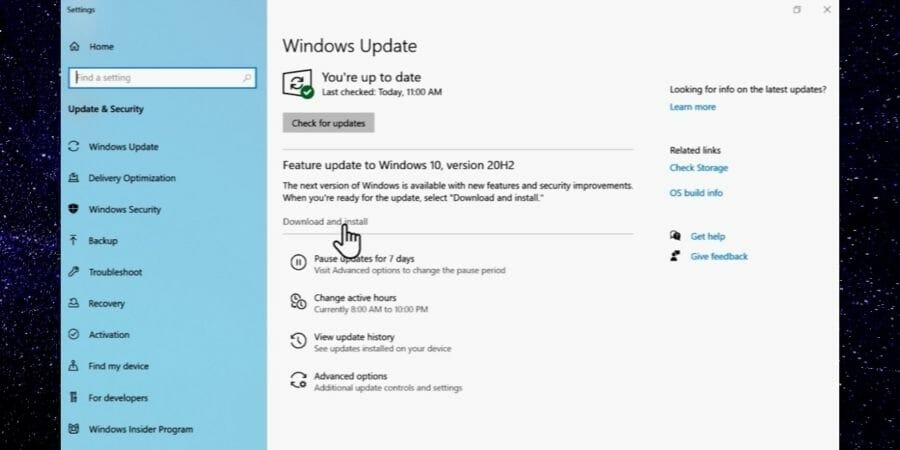
At the beginning of the Windows 10 20H2 rollout process, only users who were curious enough to hit that Check for updates button were eligible to receive the new Windows 10 version.
Now it seems that not even performing the check manually will bring you the goods, and Microsoft explains why.
Current status as of October 20, 2020 Windows 10, version 20H2 is available for users with devices running Windows 10, versions 1903 and higher who manually seek to “Check for updates” via Windows Update. The recommended servicing status is Semi-Annual Channel.
Note We are slowly throttling up availability over the coming weeks to ensure a reliable download experience. As a result, the update may not be offered to you right away. For more details, see How to get the Windows 10 October 2020 Update.
Microsoft has published a list of safeguard holds that they enforce to prevent any compatibility issues. Certain users have already complained about compatibility issues with the new October update, so Microsoft started to investigate.
Apparently, the issues are so severe that users may experience errors or even sudden system crashes (BSOD).
You can check the list of safeguard holds and see if your device is at least compatible with Windows 10 20H2.
Tired of paying the hefty cable or satellite TV fees? Perhaps it’s time to cut the cord and enjoy free services with a 360-degree outdoor TV antenna. Some of these modern 360-degree TV antennae have the capability to receive digital signals within a range of up to 150 miles.
So, don’t let your choice of TV antenna limit your reception. In this article, we’ll introduce you to the best 360 degrees outdoor TV antenna, so you can watch HDTV channels free of charge. Be sure to check out our article on the best 360 degree USB cameras that won’t break the bank.
This amazingly powerful Five Star outdoor digital amplified antenna can achieve crystal-clear signal from up to 200 miles away.
This ensures that you will never be too far away from any TV post that you want to check out and that the quality of the transmission will be amazing as well.
Besides its incredibly powerful signal-gathering abilities, this antenna is fully compatible with 4K HD quality FM radio, and also allows for easy setup with 5 TVs.
The package also includes the mounting pole and the full installation kit, so you don’t have to prepare anything beforehand.
The LAVA Outdoor TV Antenna is another great system that offers 360 degrees rotation capabilities, offering you access to TV channels in the HD TV 4K quality.
This great device uses an Omni-Directional Amplified TV Antenna, and because of this, you will not need to rotate it at all, as it captures signals from every area by default.
It has the ability to receive a signal from 45 HD TV channels at the same time, and it is incredibly easy to set up.
The McDuory Outdoor Digital Antenna is another very good device that has the capability to rotate 360 degrees, to ensure that you will have access to any TV channel of your choosing.
This great antenna supports up to two TVs at the same time, allowing the use of UHF, VHF, 1080p, and 4K quality video streaming.
This device comes bundled with a 40ft RG6-type cable and with a mounting pole, thus enabling you to mount it at your preferred location without needing to worry about the distance from your TV.
Designed and engineered in the US by Antop, the antenna specialists, the AT-416B receives free over the air HD TV signals such as Fox, NBC, CBS, among others. With the AT-416B, you don’t have to pay the outrageous satellite or cable TV fees anymore.
The antenna has a modern design that looks like a miniature rocket. It is compatible with the conventional TV converter boxes and is 4K UHD ready.
The antenna’s omnidirectional technological enhancement allows it to receive digital signals from 30 to 40 miles from the point of signal origination.
The built-in 4G filter blocks 4G and 3G wireless signals so you can get noise-free non-adjustable reception from various locations. Furthermore, the compact design and weather-resistant properties make the AT-416B the perfect 360-degree antenna for home use.
The 1byone antenna is capable of picking up signals from any direction within 60 miles radius. You can get all local channels in full HD and absolutely free.
Optimized for 1080 digital reception, the 1byone antenna comes with a built-in 3600 motor rotor for optimal reception. The included remote allows you to position the antenna in any direction at the comfort of your home.
It is constructed with superior material to withstand harsh weather conditions. It can also serve as a backup when your satellite or cable goes out.
To ensure superior built-in quality, 1byone gives you a 12 months warranty.
The antenna has garnered some of the highest positive customer reviews on Amazon, making it one of the top-rated 360 degrees antennae today.
The Winegard MS-3005 MetroStar is a great choice for those who want free digital broadcast and full HDTV support.
With a wide coverage range, the Winegard antenna works great in both rural and suburbs. The built-in motor turns the antenna through 360 degrees for better reception.
In addition to the 360 degrees coverage of TV signals, the antenna has a built-in high gain amplifier to further enhance the image quality.
The BoostWaves WA2608 is a top tier 360 degree outdoor TV antenna that offers full 3600 rotation using the included infrared remote controller.
The antenna comes with a full installation kit that includes 25 cable clips, 20 cable safety ties, and a 50ft coaxial cable. Therefore, the installation does not require additional tools.
It comes with a signal reception range of up to 125 miles, so you don’t have to worry about the distance from the signal’s origination point.
The construction materials are sturdy and waterproof too, hence able to withstand harsh weather conditions. Installing the WA2608 antenna is a piece of cake, and the looks are modern and stylish.
Since the rise of streaming services such as Netflix, the cable and satellite TV services have seen a massive decline in subscriptions.
Consumers have been opting out of the paid subscriptions for free over the air TV services. And since 360 degree TV antenna has advantages over the conventional TV antenna due to the better reception and wide coverage, your best chances of enjoying high definition free TV channels rest with the 360 degree outdoor TV antenna.
We hope that this article will help you in making a more informed buying decision.
You’re probably aware of the issue of replacing or keeping the headphone jack we’ve known for ages with the type C USB connector.
Well, it is actually happening, at least not as aggressively as to almost phase out the jack completely, but it’s still disappointing. However, there’s good news if you still need to charge your phone while listening to your favorite music, but you’ll have to carry around a dongle with your device thanks to the USBheadphone adapter.
A quick glance at Amazon reveals that the USB-C headphone adapter is not quite common yet, nor is there much in terms of user reviews, or bestsellers for that matter.
We’ll look at the best USB-C headphone adapters you can find on the market right now because most devices are coming with the type C port.
If you’re not ready to wait, don’t want to buy USBheadphones, and you must have your music right now, here are the best USB-C headphone adapters you can buy today.
Our next choice is the USB C to 3.5mm Dongle Adapter from Stouchi, which is delivered in packs of 2 pieces, compatible with iPad Pro, OnePlus 6T, Essential Ph 1, HTC U 11/U12/U Ultra and many more.
It should be considered as one of the top solutions for most USB-C devices which have no 3.5mm audio/headphone jack.
The design is a plus, given thefact that the device is small and lightweight and simple to carry around.
Following thousands of tests, one can definitely say this adapter is strong, durable and extremely flexible.
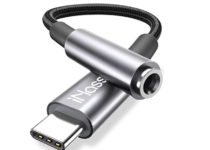
Next on our list is the USB C to 3.5mm headphone jack adapter for which iNassen partnered with REALTEK.
This collaboration resulted in an improved sound quality rendition compared to similar devices. Namely, while other dongles deliver 16bit/48Khz, iNassen’s devices delivers 32bit/384khz.
The device is widely compatible with Google Pixel 2/2XL/ Pixel 3/3XL/ Pixel 4/4XL, Samsung Galaxy Note 10/ Note 10 plus, HTC U11/U12/Ultra, Essential Phone/PH-1, iPad pro 2018, Moto Z/Z2, Huawei Mate 10 Pro/Mate Rs/P20/P20Pro, Xiaomi 6/note 3/MIX 2S/MIX2/8SE/8/9 and more.
As a side note, the tool doesn’t support volume control on Mac, and it can’t take calling one certain Samsung devices.
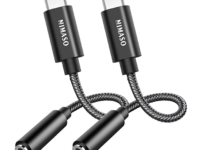
Similarly to the previous dongles, the NIMASO USB-C to 3.5mm jack adapter is compatible with most Samsung, Huawei, HTC or OnePlus smartphones using this type of jack.
The devices is made from Kevlar braided material which offers ultra durablity, without compromising on flexibility.
Users have highly appreciated the sound quality and the customer service support.
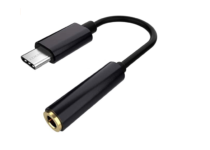
This USB C DAC adapter from WKWZY is yet another small, flexible, easy-to-carry dongle.
The 384Khz/32bit audio output will definitely offer an excellent sound quality, even for high pitch, mid-range bass tones.
The devices supports OMTP/CTIA two earphone system automatic identification. In terms of device compatibilty, you can use this adapter with most of type C mobile phones/ tablets and other terminal devices above ANDROID 5.1.
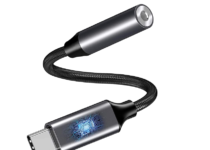
We’re recommending NIUTA’s USB C to 3.5mm headphone jack mainly for the price.
While it doesn’t bring too many notable features compared to other premium similar dongles, you will get a surprisingly reliable adapter that might exceed your expectations.
The value for money is the main thing users appreciate in this device.
Microsoft’s fiscal year earnings are out and it seems thanks in large part to the pandemic, the company floats another impressive revenue-generating quarter.
In a turn of events from its last earnings report where the company noted that COVID-19 had a “minimal” negative impact on its bottom line, it now seems that three months later that COVID-19 has had a substantial impact on Microsoft’s bottom line for a net positive.
The end result for investors was an earnings gain of $1.82 per share versus the street prediction of $1.55 and much of that growth was on the back of the company’s Intelligent Cloud which saw 48% revenue growth from this time last year.
Microsoft executive vice president and CFO Amy Hood highlighted the extraordinary circumstances of the pandemic and how the company is uniquely positioned to capitalize on its tangential effects.
“Demand for our cloud offerings drove a strong start to the fiscal year with our commercial cloud revenue generating $15.2 billion, up 31% year over year. We continue to invest against the significant opportunity ahead of us to drive long-term growth.”
Revenue in Productivity and Business Processes was $12.3 billion and increased 11%, with the following business highlights:
Office Commercial products and cloud services revenue increased 9% driven by Office 365 Commercial revenue growth of 21% (up 20% in constant currency)
Office Consumer products and cloud services revenue increased by 13% and Microsoft 365 Consumer subscribers increased to 45.3 million
LinkedIn revenue increased by 16%
Dynamics products and cloud services revenue increased 19% (up 18% in constant currency) driven by Dynamics 365 revenue growth of 38% (up 37% in constant currency)
Revenue in Intelligent Cloud was $13.0 billion and increased 20% (up 19% in constant currency), with the following business highlights:
Server products and cloud services revenue increased 22% (up 21% in constant currency) driven by Azure revenue growth of 48% (up 47% in constant currency)
Revenue in More Personal Computing was $11.8 billion and increased 6%, with the following business highlights:
Windows OEM revenue declined 5%
Windows Commercial products and cloud services revenue increased 13% (up 12% in constant currency)
Xbox content and services revenue increased by 30%
Search advertising revenue excluding traffic acquisition costs decreased by 10% (down 11% in constant currency)
At the end of the day, investors walked away happy with Microsoft returning $9.5 billion to shareholders through repurchases and dividends, which translated to a 21% increase in stock value year-over-year comparatively.
Interestingly enough, despite more people working from home and PC manufacturers in the US seeing their first increase in shipments in close to a decade, Microsoft’s More Personal Computing business seemed to be the albatross on the company’s back this quarter. Surface sales were down, Windows OEM Pro revenue was down 22% and Search is still trending downward.
Nadella will be giving guidance on the next quarter later today and we’ll have to see how Microsoft plans to address its MPC sector as businesses go into extended work-from-home situations, so that the MPC sector doesn’t start offset gains from the cloud.
Microsoft developers are currently testing a startup boost feature in Edge, that should improve the browser‘s launch time.
For now, the feature is only available in Edge Canary and it might be released for general availability with Edge Built 88, according to the FAQ notes posted by Microsoft.
How will I boost Edge speed on startup?
Presently, the Startup boost option is disabled by default in Edge Canary.
Insiders who want to test the feature should find it in the browser‘s Settings page: edge://settings/system.
Here, they should see the Startup boost option and a toggle button that they can use. Edge needs restarting for the feature to be activated.
Companies running on Edge Canary will also be able to activate the option and evaluate the impact.
As the name says, the feature will improve Edge startup time since the browser will silently run a set of processes in the background to allow it to launch quicker in Windows 10.
The main benefit of the tested feature, according to Microsoft, is that:
When you log on after device start-up or restart or when your browser is closed, Microsoft Edge will start more quickly when it is launched from the taskbar, desktop, and hyperlinks embedded in other applications.
What will be the impact of Startup boost?
The mentioned processes shouldn’t impact your device’s resource use, the notes mention. Even so, one user pointed out that the developers should also take into consideration making this feature available for testing on heavy loaded RDSH, Citrix XenApp, Windows 10 Multi-User, WVD servers as well.
On the other hand, the notes mention that they are evaluating data, and devices that do not see expected positive impact might be removed from the final stage.
The impact of the Startup boost feature will not overlap with the benefits that the recently launched Sleeping Tabs bring.
Edge insiders can send feedback regarding this new feature so that the developers can further analyze and implement it.
Do you think you could benefit from this feature?
If you’ve tested the Startup boost option and want to share your experience with us, feel free to use the comments section below.
A gaming mouse has additional features that make it suitable for playing games on your computer, such as buttons, sensitivity, adjustable weight, replaceable parts and response times are faster than the regular or normal mouse.
With the coming of the USB type C connector, most people are still struggling to find gaming mice with this USB type. This can be a daunting task.
If you’ve been searching for the best USB–gamingmouse and can’t seem to find them, here are some top picks you can check out.
This mouse is specially designed to work for a direct USB-C connection without any converters needed.
Its naturally curved grip and shape give your hand comfortably for long hours, with a whisper-quiet click to let you focus on your gaming experience.
There are click buttons on the left and right plus a scroll wheel for quick navigation and scrolling. It also enters sleep mode to save you power, and you can click any button to awake it.
If you’re looking for high quality and value in one package, then this 2.4Ghz Wireless Gaming Mouse is what you are looking for.
This gaming mouse delivers fast data transmission from the type C connector, and its pocket design lets you carry it conveniently when traveling or working.
Thanks to its advanced features, comfortable design, and simplicity, this mouse will be appreciated by all gamers.
This is the best USB-C gaming mouse for excellent stable performance.
Features include 6 key buttons, a breathing light with four colors for charging, which also change when DPI is set.
The light is soft and doesn’t hurt your eyes, and is particularly beautiful when using at night as your fingers reveal the light.
It conforms to human engineering design, letting your hand hold it easily with comfort, thus reducing palm muscle soreness. It is also plug and play thus cuts out the need for USB-C hubs or adapters to switch on other devices.
Unlike the usual wireless or Bluetooth mouse, this one provides a stable and good user experience with drag and drop commands to the buttons used to set up the mouse just the way you want it.
Other features include the design shaped with soft rubber grips that conform to your hand and are designed for holding comfort. The curved design lets you use the mouse for long hours without getting tired.
Macally is one of the best USB-C gaming mouse brands in the market, designed for precision and smooth control, with a hand-friendly, ambidextrous design that conforms to your hands for comfort whether you’re right or left-handed.
This optical USB-C wired mouse has a compact size meaning it is portable so you can move around with it, plus it’s easy to install as it doesn’t need any drivers or programs.
Features include three buttons, a scroll wheel, and a 5-foot long cable so you don’t need to worry about recharging it or changing batteries, plus it is compatible with Windows PCs or computers that have type-C USB ports.
This USB-C gaming mouse comes with Blue trace sensor technology for accurate mouse control on any surface, with 4 DPI levels, and it is compatible with computers that have the type C port.
It delivers excellent, stable performance, and imitates the human palm design structure of holding a mouse so you can hold it easily with comfort thus reducing palm muscle soreness.
You can also use it to control your phone or tablet, and its speed is quite smooth.
So, which mouse are you planning to buy to play your favorite games?
Finding the cheapest monitors with HDMI ports shouldn’t be too much of a hassle when you’ve got friends like us who have your back.
The thing about having a monitor with an HDMI port is that these ports are increasing in both popularity and prevalence. This means you can find them on newer computers as well as media players.
What counts at the end of the day is the benefits users will accrue from the HDMI interface.
One of the advantages is that it lets you send both video and audio over the same cable especially if your monitor comes with built-in speakers.
Without the HDMI port, you’d have to reach into your wallet again and spend extra cash to get a cable or connector, so your best bet is to get a monitor that already has HDMI ports.
Getting outstanding visuals on a low budget isn’t impossible. You just need to give a try to this impressive HP E24u G4 FHD PC monitor with a crisp 23.8-inch IPS display.
You need to know from the very start that this HP product comes with a maximum resolution of 1920 x 1080 @ 60 Hz, so rest assured that image accuracy is guaranteed.
Moreover, the Low Blue Light mode shifts colors to a warmer spectrum in order to prevent eye fatigue and let you enjoy your favorite shows and movies at any hour.
You need to know from the start that this monitor’s resolution is at 1600×1900, with a high contrast 5000000:1 ratio so you get sharper contrasts of both lights and darks.
SCEPTRE’s E205W-1600 display is LED, meaning you get a variety of rich color display, impressive picture quality with vivid colors, and crisp clear images.
No less important, it is totally compatible with Windows and is mount ready, so you can mount the monitor however you want on your wall and position it for your viewing pleasure.
It can tilt backward 15 degrees and forward 5 degrees, so it’s really your choice how you want it to sit on the wall.
As a trusted, top-three brand in making the best monitors, HP also has some of the cheapest monitors with HDMI, and the HP Pavilion 22cwa is just one of the best you can get value for money.
The monitor is 21.5”, with a 1920×1080 resolution, 2 million pixels which translates to crystal clear, vibrant image quality, plus it has HDMI and VGA ports.
It is also eco-friendly with its mercury-free LED backlighting feature, as well as the low halogen design and arsenic-free glass thus it just doesn’t deliver quality display, but also energy efficiency.
The ASUS brand is known for its innovativeness and aesthetics. With monitors, this brand offers prices in different ranges from mid to high-end, so there’s definitely something for everyone.
This particular VS228H-P monitor is among the cheapest monitors with HDMI in the ASUS family. It has a slim design, with a 21.5 inch wide LED display, and an HDMI interface optimized to deliver the finest in image and color quality owing to its Smart View Technology.
You get full 1080p HD support with this monitor, plus you can preset video modes to 6 different displays, as you enjoy the viewing from this clean-look monitor.
And because it is an ASUS monitor, you get to enjoy the 3-year warranty and Rapid Replacement service that comes with this award-winning monitor.
Like the ASUS VS228H-P monitor, this ASUS VE228H 21.5″ Full HD monitor also doesn’t disappoint. It has a slim design and it comes with a built-in speaker and HDMI ports so you can move video and audio using the same cable.
Its contrast ratio is 10000000:1, unlike other monitors, meaning you get to see a natural quality display as if you’re wearing the best 3D goggles.
It is also eco-friendly as its LED-backlit panel is mercury-free. And don’t leave aside that you also get to enjoy the 3-year warranty and Rapid Replacement service that comes with this award-winning monitor.
We’d like to continue with another great monitor. This 21.5-inch Full HD (1920 x 1080) IPS ultra-thin monitor offers you impressive graphics without forcing you to break the bank.
It’s perfect for both entertainment purposes and the needs of gamers. The monitor is also very fast thanks to the AMD Radeon FreeSync technology which delivers a rapid 4ms response time.
The best part about this monitor is that it looks and behaves like an expensive one. So, this is an excellent deal: you get a high-quality device for a very friendly price tag.
What to look for in a good monitor?
Getting a monitor is not just about having something to view all your digital stuff, but there are some other factors you need to consider before making that purchase.
Some of the factors include the following:
Connectivity: Check the peripherals on the monitor for multiple ports.
Viewing angles: If you share your monitor with many people, then the viewing angle matters so find one that doesn’t degrade the image when you view it at different angles. The higher the viewing angle, the better for you.
Adjustments: If you cannot easily tilt your monitor up or down randomly, then you need to check on others. Monitors need to be flexible, not just for tilting, but also adjusting contrast and brightness should be easily accessible and doable.
Glossy or Matte finish: The monitor’s screen is a big deal, especially if it has anti-reflective properties, which has to do with the type of finish you choose. A glossy one is better than a matte one, so before you buy, check out the screen under a very bright light.
Warranty: This is a top priority for most, if not all consumers. Check for monitors that offer a long warranty, and on parts and labor at that. Also, check for defective-pixel policy while you’re at it.
Did you find your favorite pick among these cheapest monitors with HDMI? If there is another particular monitor that you have in mind, you’ll most likely find it in our generous monitor selection.
Don’t hesitate to let us know your final choice by using the comments section below.
Microsoft has teamed up with Adobe and AI software provider C3.ai to release a new CRM product named C3 AI CRM powered by Microsoft Dynamics 365. This new customer relationship management solution will combine Microsoft’s existing Dynamics 365 CRM product, Adobe Experience Cloud, and C3.ai’s enterprise AI capabilities to reinvent a segment still dominated by Salesforce.
“This year has made clear that businesses fortified by digital technology are more resilient and more capable of transforming when faced with sweeping changes like those we are experiencing,” said Microsoft CEO Satya Nadella. “Together with C3.ai and Adobe, we are bringing to market a new class of industry-specific AI solutions, powered by Dynamics 365, to help organizations digitize their operations and unlock real-time insights across their business.”
C3 AI CRM powered by Dynamics 365 will be available from C3.ai, Adobe, Microsoft and through the Microsoft Dynamics 365 Marketplace. All three companies have agreed to market this new CRM platform globally, and target various industries including financial services, oil and gas, manufacturing, healthcare, and more.
Did you know that laptops expose you to electromagnetic radiation?
Did you know that EMF radiation can affect your health in the long term, causing a wide variety of conditions, such as headaches, DNA damage, both male and female infertility, or even cancer?
We don’t want to scare you or determine you to spend less time using your laptop, we simply want you to become aware of this risk and present to you the laptop radiation shields that are available on the market.
After all, most of us work with computers at our offices, and we simply can’t avoid laptop EMF radiation exposure.
Without any further ado, we’ll list the best laptop EMF radiation and heat shields currently available on the market, as well as their main characteristics. You can then purchase the shield that meets your needs.
The DefenderPad Laptop Radiation & Heat Shield is a revolutionary laptop radiation shield, able to provide total protection from laptop radiation and heat.
Tests have revealed that this shield blocks the whole harmful EMF radiation spectrum, including Extremely Low-Frequency Radiation, Wi-Fi Radiation, Bluetooth, and heat radiation.
This shield is ultraportable, light, and slim, and you can easily slip it into your laptop bag. It has a very appealing design, that comes in four colors, allowing you to match it with your laptop.
Also, this shield is ergonomic, and won’t force you to place your hand in unusual positions while working on your laptop.
The HARApad is a very lightweight laptop pad designed to protect you against EMF radiation and overheating. Thanks to this shield you can relax on the couch, knowing that you’re safe from EMF radiation.
The HARApad has a flat surface, allowing air to flow through your laptop’s heat dissipation channels. This pad is made of the best material currently available, providing military-grade radiation shielding.
It is available in 4 sizes and multiple colors. You can personalize your HARApad by adding additional
The price tag for the HARApad ranges from $59.99 to $119.99. You can buy the shield from the manufacturer or from Amazon.
This pad is more than a simple anti-radiation shield, it’s the world’s first anti-radiation, EMR blocking laptop case and workstation.
SafeSleeve is built using impact-resistant, durable materials that protect your laptop against shocks. It also has a built-in mouse pad and breathable surfaces which makes it a convenient workstation.
Two sizes are available: the 13″ SafeSleeve suitable for 13-14″ laptops and the 15″ model that fits a wide range of 15-16″ laptops. You can buy the SafeSleeve pad on Amazon.
This laptop radiation shield can deflect up to 92% of RF, microwave, Wi-Fi, and electric fields radiation away from your body. At the same time, it reduces laptop heat.
The SYB laptop pad is slim, portable, lightweight and thanks to the anti-slip grip you’ll never have unpleasant surprises.
The top of the pad is reflective, while the bottom is blue. This anti-radiation pad works with all laptop models of up to 14-inch.
This comfortable pillow not only gives you an instant laptop lap desk, but it also provides you with extended protection for both EMF radiation and heat.
It features elastic corners that allow your laptop to be kept in place without any issues, so you won’t need to be worried about your device slipping off.
Thanks to its memory foam technology, the shape of this amazing pillow will modify to fit your lap/upper feet without any issues.
It works perfectly in any environment, no matter if you’re relaxing at home with a nice cup of tea, working at the office, or enjoying a day out at the park, you know you’ll always be protected and comfortable.
It is worth noting that this pillow is fully compatible with the DefenderShield EMF & 5G Radiation Blocker & Protection Laptop Sleeve we presented in the first position of this guide.
The laptop EMF radiation protection pad is a very useful device that enables you to always stay protected from harmful radiation while using your laptop.
This pad doesn’t only protect you from EMF radiation, but also offers isolation for heat, thus ensuring that you are not affected in any way by using your device.
This slim pad offers layered protection, being able to stop up to 100% of any harmful radiation.
We hope this list helps you to decide which laptop EMF radiation shield to choose. We strongly advise you to purchase one such shield because prolonged exposure to laptop radiation can have unwanted consequences for your health. If you did not find what you need in this list, do not bother as there are more shields out there.
This specific deal is part of our bigger selection of thebest laptop deals you can find. You might also want to check out our dedicated Black Friday hub for tech deals.
In the event that a careless driver backs into your car, they are not at fault—you are. Or put clearly, that’s typically the opinion most police officers will give.
But if you had a 360-degree camera installed in your car, it would provide incontrovertible proof of what actually transpired.
360-degree dash cameras are gaining popularity as a way to provide rock-solid evidence of what actually happened during a collision with another driver.
Such cameras not only accelerate the reporting and processing of an accident but also provide proof that is more reliable than eyewitnesses.
By virtual of their ability to capture events from all angles, 360-degree dash cameras have become the go-to choice for many drivers.
In this roundup, we will discuss the best 360-degree dash cameras that are worth buying.
This is a great 360 degree dash camera that comes with an automatic screen switch reversing the image when the reverse gear is engaged.
Parking your car will be safer since the 3” IPS touch screen will show you the rear environment and trigger the guide-line to help you.
The front camera captures a 1440×1440 video @ 30 fps while the dynamic range of the camera will allow it to perform optimally regardless of the lighting situation.
If you’re looking for a compact 360-degree dash camera, then this model might be perfect for you.
The camera comes with a 140-degree field of view allowing it to record 1080p footage
Another great selling point is that the Dash Cam Auto Sync feature will allow you to control and play footage from up to four cameras using the dedicated app.
The WISEUP dashcam is one of the high-end 360-degree dash cameras and comes with 4 cameras to cover all angles.
As for how useful the camera know that it supports a maximum of 4ch video outputs and 4ch real-time video recording and display.
Moreover, each of the four cameras has a 1200 field of view with IR night vision (rearview camera) for enhanced visibility at night.
360-degree dash cameras have begun to gain popularity due to the exclusive features they offer, and soon we will be seeing more and more hit the market.
They come in many shapes and sizes, and each model incorporates its own unique features. Some come with powerful CMOS sensors, some have inbuilt GPS and Wi-Fi, while others take a form factor.
When buying a 360-degree dash camera, it’s important to consider the features you want in place.
You can use this article to guide you in buying the best 360-degree dash camera in the market today.
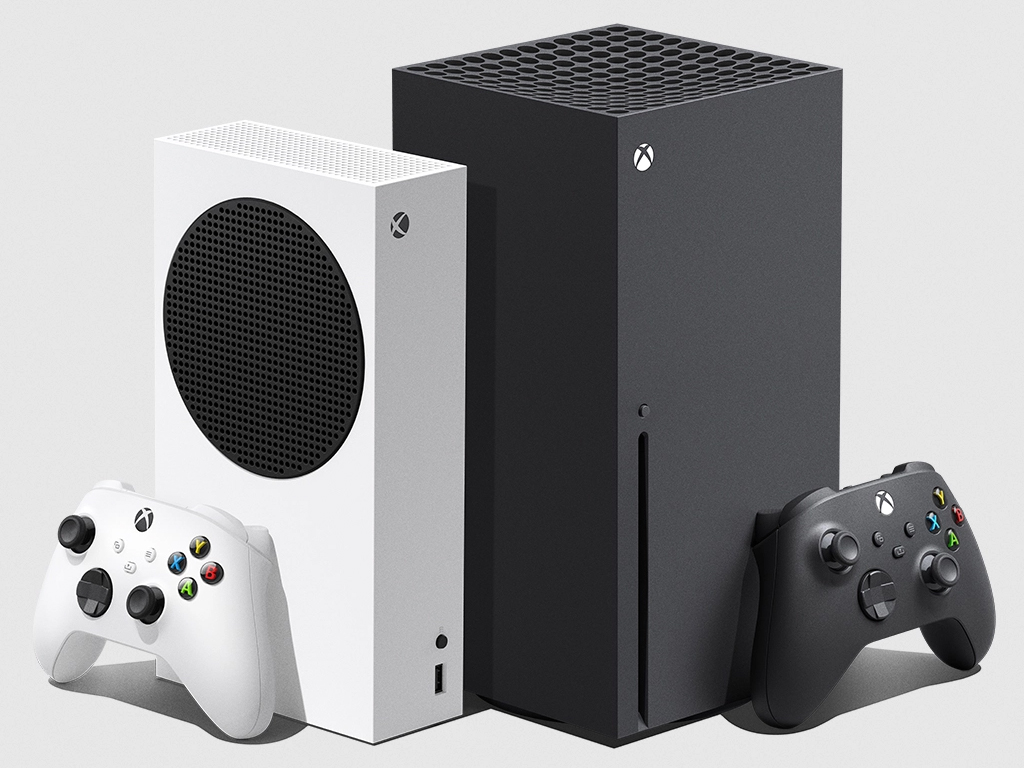
More and more game developers are sharing details about next-gen upgrades this week, and this new console generation should be a bit more complex than usual as the Xbox Series X, Series S, and PlayStation 5 won’t support the exact same next-gen features. We’re now starting to see this with recent announcements regarding PUBG and Devil May Cry 5, two current-gen games that will get upgrades for next-gen consoles.
Capcom’s Devil May Cry 5 will get a re-release on next-gen Xbox consoles with the new Devil May Cry 5 Special Edition. This upgraded version of the game will support up to 120FPS gameplay, reduced loading times, and enhanced 3D audio on both the Series X and Series S. However, ray tracing will only be supported on the Xbox Series X.
This is a bit surprising, considering the Series S also supports ray tracing and all the other next-gen features that the Series X also introduces. However, the Devil May Cry team emphasized that “Both consoles deliver amazing next generation speed and performance, and while we are just now scratching the surface of what they can do our teams are eager to continue exploring the full capabilities of Xbox Series X/S in the future.”
PlayerUnknown’s Battlegrounds (PUBG) is another existing game that will provide a different experience between the Series X and the Series S, for now at least. The game isn’t being re-released on next-gen consoles, it will instead run on next-gen consoles via backwards compatibility with better performance and faster loading times.
On the Series X, the battle royale game will be able to run at 60FPS on the with the new Framerate priority option that made its debut on the Xbox One X with the October 9.1 Update. However, the Series S will be limited at 30FPS, as the console will use the Xbox One S version of the game which is currently capped at 30FPS.” We are working to provide an option to raise the framerate cap on Xbox One S and Xbox Series S consoles in the future, the PUBG Console team said yesterday.
With every new console generation, it takes some time for developers to get familiar with the new hardware and truly optimize their games for these new platforms. It has to be expected that not all game developers will take the time to truly optimize their games for the Series S, though there should be some exceptions. As an example, Ubisoft’s Watch Dogs Legion, a cross-gen title to be released on November 10 on the Xbox Series X/S will support ray tracing on both next-gen consoles. The game will be released on Thursday, October 29 on Xbox One, and with Smart Delivery you’ll be able to purchase it on and get the Xbox Series X/S version for free.
These days, you might be spending a lot of time in your email inbox to catch up with school and work, and even all those online shopping orders. That could mean your inbox is a mess, which means that managing your emails is something that’s even more important.
Well, if you’re not already using it, the Microsoft Outlook app, as included as part of Microsoft 365, is a great way to manage your emails on Windows 10. With it, you can organize emails into folders, create Teams meetings, and so much more. That’s why in our latest Microsoft 365 piece, we will be explaining some of our best practices for Outlook on Windows.
Use folders
First things first, you’ll want to organize your emails into folders in Outlook. This might seem like one of the more obvious things to do, but it really will help clean up your inbox and organize yourself. Doing this is quite easy. First, you’ll want to open Outlook and visit your inbox and list of messages. Then, from there, right-click on Inbox and choose New Folder.
Once you do that, you can go back to your inbox, right-click a message, and then choose the folder you created. You can create folders in most places in Outlook, including the Deleted Items folder, where deleted items go. Doing this makes it easy to find messages you might eventually forget about. And, any folders you create in the Outlook Desktop app will also sync up with Outlook on the web, and Outlook on your phone, giving you a great way to organize emails, no matter where you are.
Use filters and categories
If folders aren’t working out for you and your inbox is still a mess, then there are some additional controls in the Outlook app for Windows 10 that you can use to your advantage. These include categories and filters.
Categories are a lot like folders, but instead of moving emails into their own space, each email you categorize will get a color code as it stays in your inbox. By default, there are a few categories. The list includes Blue, Green, Red, Yellow, and Purple. When you right-click an email to categorize it for the first time, you’ll get the option to name the category, and even assign a shortcut. Once you categorize your emails, you can visit the Home tab and choose the four-colored square icon to show the category icon on an email. You’ll see the specific color category appear above the date.
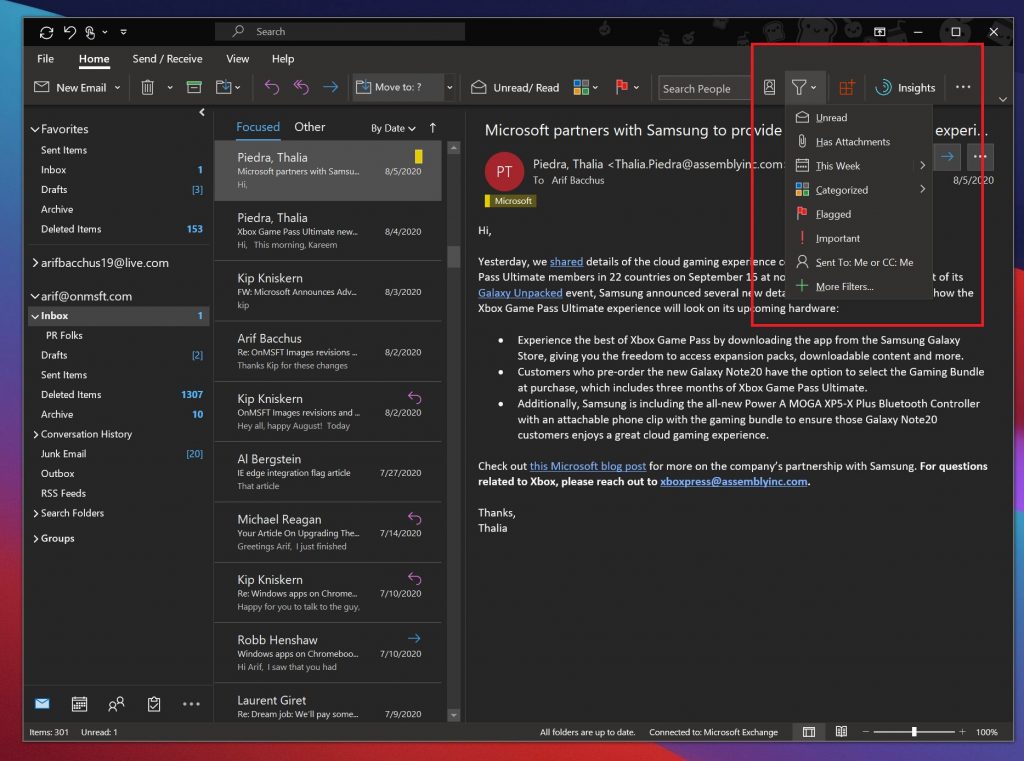
In addition to categories, there’s also the filter option in Outlook, too. With this option, which shows in the Home tab as a triangle towards the right of the screen, you can filter your messages by unread, messages with attachments, by the week, the category, and even who has been CC’ed on it. This makes finding your emails so much easier!
Use Teams with Outlook
Microsoft Teams goes together with Outlook, and Outlook goes together with Teams. But, did you know that you can create Teams meetings directly from Outlook? Instead of manually creating a meeting in the Microsoft Teams app, you also can make one through Outlook itself, which is where you’ll usually have to go to email a link, anyway.
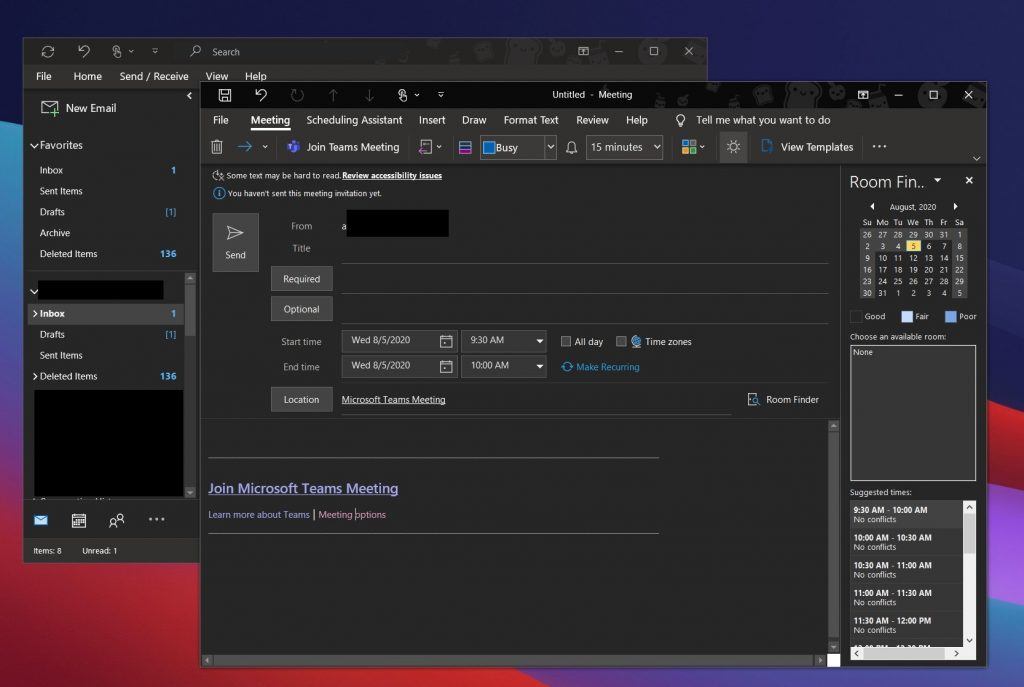
We previously explained how you could do this, but we’ll recap. Again, it’s quite easy. First, open Outlook and switch to the account you’ll want this meeting to be with. After that, fo to the top tab, and select Home. There should be a drop-down arrow next to New Email. Once you click this, they’ll be an option for Teams Meeting. A new meeting window will appear, and then you can fill out the information fields as needed. When finished, you can click Send. Just like that, creating a Teams meeting in Outlook is that easy!
Block out the spam and junk
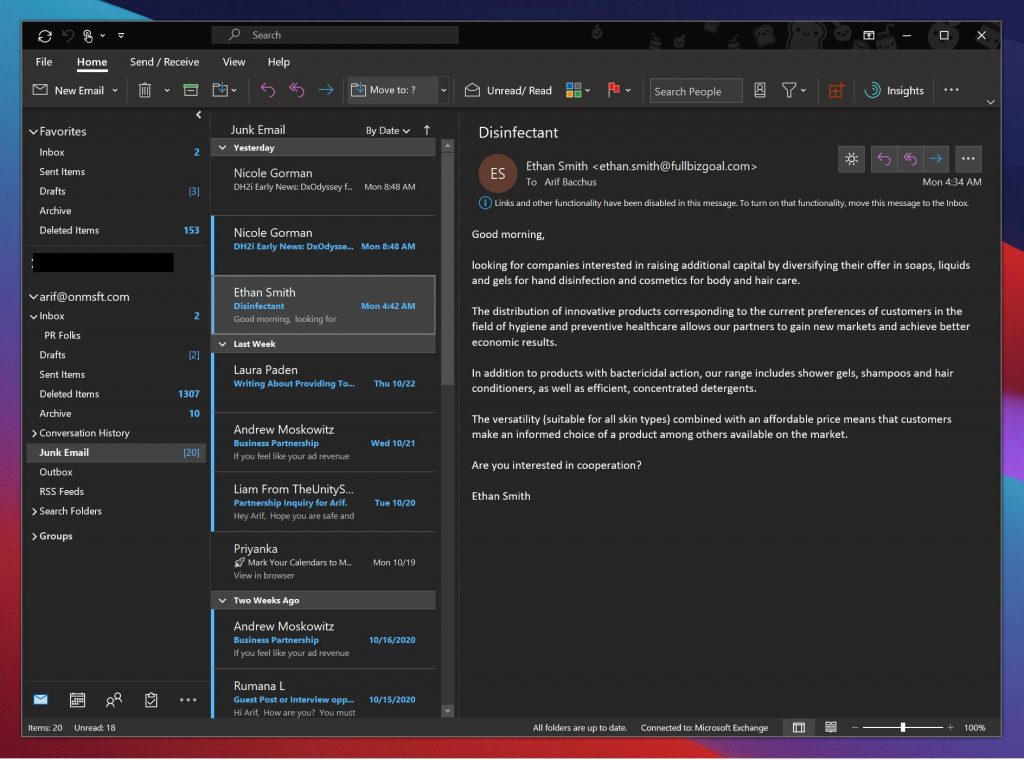
Junk email is dangerous. Not only does it pollute your inbox, but sometimes the links in them can harm your PC if you end up clicking by accident. That’s why you can block out the junk in Outlook by clicking specific senders. Usually, Outlook’s own spam and junk filters will do the job, but if you’re constantly getting unwanted messages, you can use the Outlook app in Windows 10 to block messages from a specific sender.
To block messages, you can go to the Home tab, followed by Junk email options. You should then get a new window, which allows you to pick which senders, and emails from which country you want to identify as spam. From here, you also can change your level of protection, too.
There are various levels, from low, high, and safe lists only. Low is usually best if you don’t get many junk messages. High is for if you receive a lot of junk. And safe lists is the most restrictive. Microsoft explains each of these in-depth on this support page.
We have more guides!
Our best practices for emailing with Outlook is just the start. We’ve also explained some of our favorite tricks for the Outlook app, which includes keyboard shortcuts and backing up emails. And, we’ve shared some tips and tricks for getting the most out of Outlook on the web, too. It’s all part of our Microsoft 365 coverage, which you can explore here to find more guides, how-tos, news articles, and a lot more.
Want to enjoy some quality audio while you work away on your computer? Get a USB sound card.
What you need is a USB sound card – a perfect, a tiny, yet powerful gadget that brings life to your audio quality and tone, letting you have the pleasures of a full home theater in your comfort zone.
A USB sound card is, as described, a little gadget, which you connect to your computer or laptop, to increase your audio ports.
It is used in the same way you would use a USB hub to get more ports on your computer.
The beauty about a USB sound card – depending on the type you choose to buy – is that it comes with multiple audio ports such as 3.5mm output and input jacks, and both coaxial and optical S/PDIF jacks.
These are the most commonly used type of jack pins, so having audio ports that can accommodate all four-in-one gadgets is everything.
If you want some extra oomph on your audio as you watch a movie, follow a podcast, or listen to your favorite tunes, here are some of the best USB sound cards with 7.1 channel audio.
What is the best USB sound card with 7.1 channel audio?
The HyperX Amp USB Sound Card is your best choice if you aim to upgrade your audio.
With a custom-tuned virtual 7.1 surround sound that allows for advanced digital signal processing, a convenient plug-and-play setup, and precise controls to quickly adjust volume, you can expect nothing less than perfect results.
What’s more, you will enjoy excellent mic noise-cancellation features that will undoubtedly shape your audio crystal-clear.
The USB Sound Card Adapter BENGOO is a truly versatile gadget that supports all major operating systems as well as countless devices including laptops, headsets, headphones, gaming consoles, and more.
Speaking about consoles, you will be pleased to know that BENGOO is specifically designed to boost your gameplay simply by improving your audio.
A perfect sound makes it easier for you to immerse into the storyline and live an authentic gaming experience.
Designed for a 3.5mm jack and virtual 7.1 channel devices like headphones, the adapter will really transform your audio.
KEKU was designed to meet and even exceed your audio expectations. Boasting a 7.1 HD positional surround sound, this gadget is all about optimizing the audio performance, especially when it comes to gaming.
Delivering perfect accuracy to emulate gaming effects you can get the most out of your gameplay.
What’s more, you get to experiment with precise controls, functional keys, and overall, an unprecedented listening experience.
If you’re looking for a quick solution to enhance your audio that does not imply breaking the bank, then this is the adapter you have been searching for. Simply plug it in your USB port, then plug your headphones in the adapter and you’re all set.
Its highly flexible audio interface can be used with desktop and notebook systems as well and it comes with 3D sound simulation software, connectors, LED indicators, and more.
What’s more, you won’t need external power or additional drivers to run it.
This sound card delivers superb audio quality what with its external stereo sound adapter housed in a durable ABS casing with an ultra-compact design.
This device doesn’t require driver installations or set up before using it, unlike other sound cards – it’s simply plugged and play.
It is also compatible with a wide range of operating systems including Windows 10 but doesn’t work with a headset whose headphones and microphone are separated.
Some of its main features include a 3.5mm auxiliary TRRS port, an additional USB stereo audio adapter that allows you to bypass faulty internal sound cards or audio ports.
If you’ve ever watched a movie at an IMAX cinema, with the thunderous sound and audio effects, then you can understand what this sound card will deliver.
It may look little and thin, but when this gadget comes to life, the experience is magical.
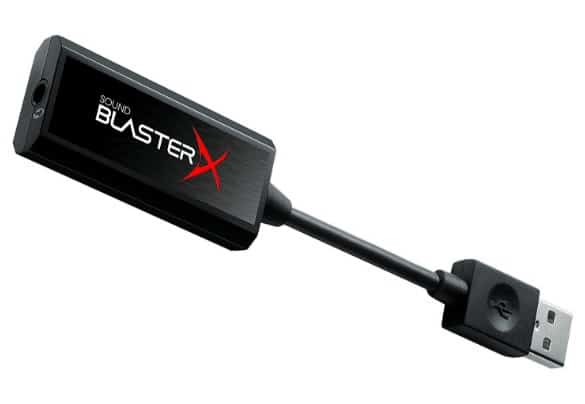
It comes with a headphone amplifier, powering headphones of up to 300Ω, which ensures your audio experience is top-notch, with perfect accuracy while you play.
One of its salient features is the Scout Mode, which lets you hear much clearer than the ordinary headphones, but this is only available for Windows users.
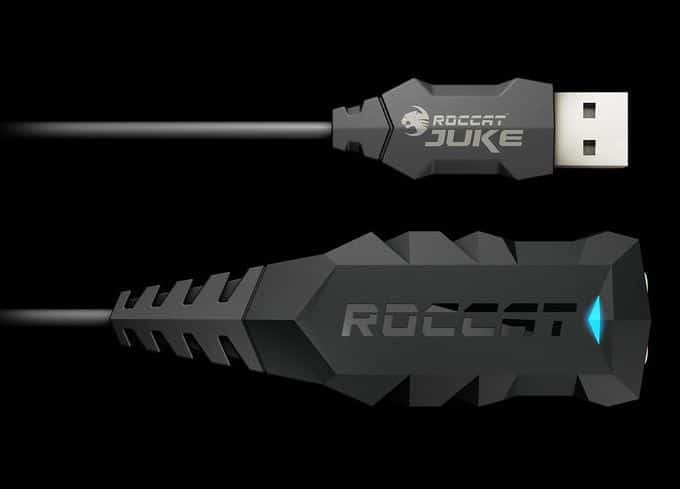
This USB stereo sound card comes with a headset adapter and is designed to take your audio listening to a whole new level.
Its premium quality, immersive 7.1 experience sound, makes the Roccat Juke one of the best gaming sound cards in the market.
This sound card is compatible with a variety of stereo gaming headsets, and its 7.1 technology carries you away into a world of surround sound where you can hear everything including a pin drop – perfect for gaming.
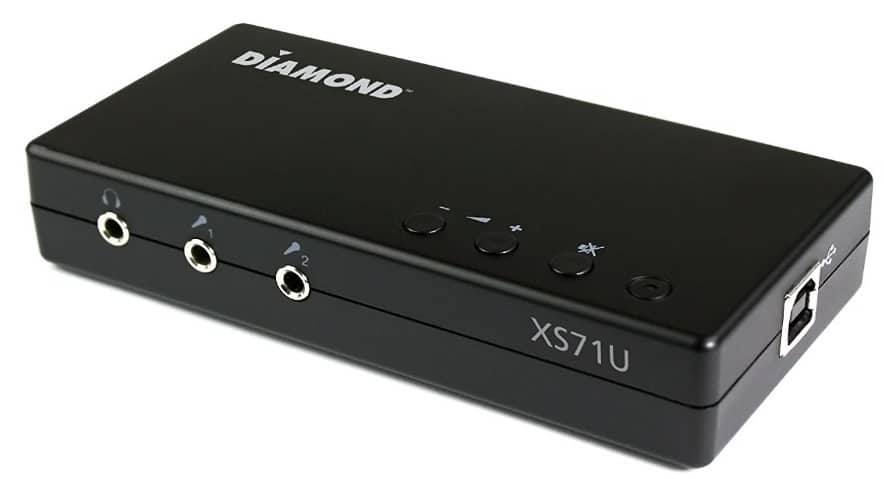
This gadget is true to its name: diamond. It’s a little gem that gives great quality output on audio and works well with any computer, device, and operating system.
This sound card’s features support a wide variety of media and include 4 analog outputs (3.5mm), 2 mic inputs (3.5mm), 1 headphone jack (3.5mm), and an optical S/P-DIF digital input.
What better way to enjoy your movie, game, music, or other sound experience.
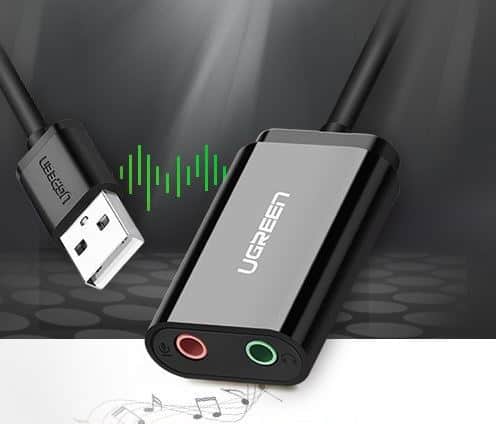
This little device is hailed for its amazing sound quality, and its ability to connect to headphones, headset, speakers and microphone with a 3.5mm jack to your computer, using a USB interface.
It includes a stereo headphone output jack and mono microphone input jack that bypasses any defective sound cards or faulty audio ports thus helping you regain audio functions on your computer or laptop.
This makes it pretty cost-effective compared to other devices in its league.
It comes with a USB 2.0 (male) connector, a C-Media chipset, and a cable of 15cm. If you’re using Windows OS, here’s how to use it:
Go to the sound icon on your taskbar (found at the bottom right part of your screen)
Right-click on the sound icon
Choose Playback devices or Recording devices
Adjust the volume on your machine, and the application
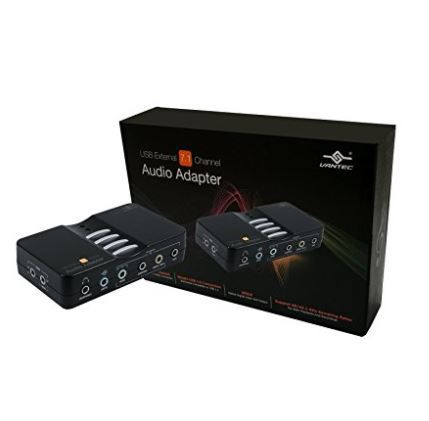
This is more than just a sound card because it offers dual gigabit Ethernet ports in addition to the usual input and output jack plug-in ports.
For IT administrators, this is good news because they can manage networks thanks to the Vantec sound card while using it for other purposes.
Unlike other sound cards, this one comes with separate right and left mic inputs that enable true stereo recording, delivering a clean sound experience to the user.
If you have a spare hard drive, you might be able to use it as an external hard drive.
To do so, you’ll need a hard drive enclosure, and today we’re going to show you the best USB 3.0 external hard drive enclosures for your Windows 10 PC.
What are the best USB 3.0 external hard drive enclosures?
RSHTECH Hard Drive Enclosure USB 3.0 to SATA External Hard Drive Docking Station for 3.5 inch SATA is the perfect tool to retrieve data from old computers or to reformat SATA hard drives for extra backup.
With the most advanced chipset on the market, a sturdy plastic enclosure, and a switch design, you can start using this nifty gadget in a heartbeat. Just plug it and enjoy the benefits, no additional drivers are required.
It supports SATA HDD/SDD and UASP accelerated transmission protocol.
The package includes a screwdriver and screws included for quick assembly, a portable hard drive case, and a 12V 2A power supply to streamline the transmission.
This hard drive enclosure comes with an aluminum case and sleek design. The device uses USB 3.0 for file transfer, but USB 2.0 and USB 1.1 standards are also supported.
Regarding the hard drives, this enclosure works with SATA I and SATA II 2.5-inch hard drives. It can also work with Solid State Drives up to 9.5mm height.
Patriot Gauntlet 2 is compact and it weighs about 92g. This enclosure doesn’t require any additional cables and it uses USB 3.0 cable for power and file transfer.
Since this is a USB 3.0 enclosure, it supports speeds up to 5Gbps. The device also comes with an LED activity light.
Patriot Gauntlet 2 is a simple hard drive enclosure, and it will allow you to easily turn any compatible hard drive into an external hard drive.
The only flaw of this model is the lack of support for SATA III hard drives, but Patriot Gauntlet 3 fixes that problem.
There’s also Patriot Gauntlet 4 model available that uses USB 3.1 standard and Type-C connection. If you want the best performance, you might want to consider Patriot Gauntlet 4.
If you have a large hard drive that you want to connect with your PC, then it might be just what you need.
The drive supports 3.5-inch SATA I and SATA II drives and it uses USB 3.0 or eSATA to connect to your PC. Thanks to USB 3.0, the device can achieve 5Gbps transfer speed.
The enclosure supports drives up to 4TB and it uses 12V 2A power adapter. Rosewill RX-358 U3C comes with a built-in fan that will ensure that your drive is cool and working properly.
The device also has a power switch on the back, so you can easily turn the device on or off.
This hard drive is a bulky device, but it should keep your hard drive cool thanks to the built-in fan.
The enclosure looks solid and durable, so your hard drive will remain protected. Regarding the flaws, the only flaw might be the lack of support for SATA III drives.
Vantec NexStar TX is a slim aluminum hard drive enclosure, and this enclosure uses USB 3.0 for file transfer.
Thanks to the USB 3.0 you can achieve up to 5 Gbps transfer speed. Of course, Vantec NexStar TX is compatible with USB 2.0 but if you decide to use USB 2.0 your performance will suffer.
This enclosure supports 2.5-inch SATA I, II, and III hard drives and Solid State Drives. As for maximum height, Vantec NexStar TX can work with 7mm, 9.5mm, and 12.5mm drives.
The device is hot-swappable, so it doesn’t require rebooting in order to use it. In addition, no extra drivers are required, so this enclosure will work with both Mac and Windows computers.
The enclosure also comes with an LED indicator for power and HDD activity.
Vantec NexStar TX is a decent hard drive enclosure. The aluminum case looks great, but at the same time, it also cools your drive.
Just as its name hints, WAVLINK USB 3.0 to SATA External Hard Drive Enclosure for 2.5 inch 5mm/7mm/9.5mm SATA I/II/III is compatible with 2.5’’ 5mm/ 7mm/9.5mm SATA I/II/III interface HDD and SSD.
The best part is that you can quickly and easily assemble it and then take it anywhere with you without having to plan your space a great deal thanks to its minimalistic and portable design. Besides, its case is highly resistant to impact and sturdy.
Plus, you get lifelong technical support with it.
Speaking about support, the gadget is compatible with the UASP Transfer Protocol for ultra-fast data transfer rates, plus it’s hot-swapped and plug-and-play configured.
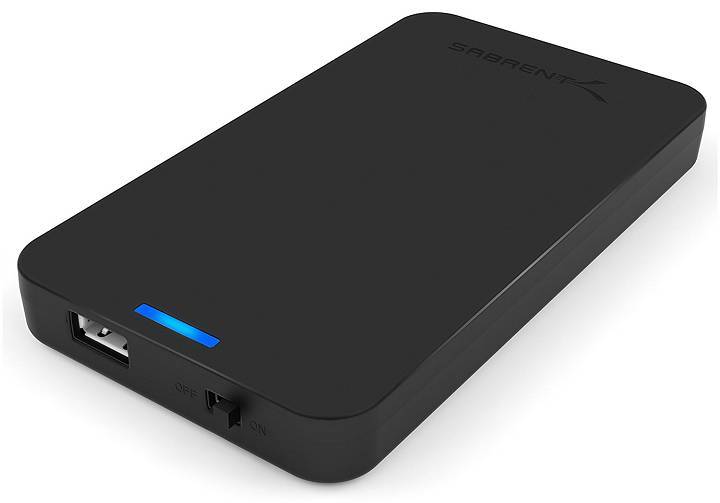
Sabrent enclosure comes with clean and simple design, so it will keep a low-profile on your desk. The device uses USB 3.0 port for file transfer and supports transfer speeds up to 5Gbps.
The device is compatible with USB 2.0 and USB 1.1, but keep in mind that you’re limited to 480Mbps while using USB 2.0.
The enclosure supports 2.5-inch drives and it works with SATA I and SATA II hard drives.
Sabrent enclosure is hot-swappable and it requires no drivers in order to work. You just need to insert your hard drive, connect the enclosure to your PC, turn it on and you’re good to go.
Sabrent enclosure supports 7mm and 9.5mm hard drives, and it’s also compatible with SSDs. We also have to mention that enclosure has a tool-free design, so you won’t need any tools to install your hard drive.
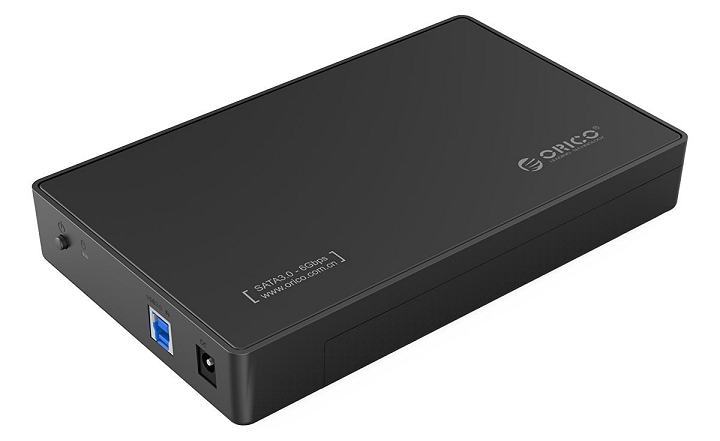
ORICO Toolfree is another USB 3.0 hard drive enclosure. This device works with 3.5-inch SATA I, II, and III hard drives and SSDs.
Regarding the maximum capacity, this enclosure can support drives up to 8TB. If you don’t have a USB 3.0 port on your PC, you should know that this device is fully compatible with USB 2.0 and USB 1.1 standards.
However, by using USB 2.0 and older your transfer speed will drop.
This is a Plug and Play device, so it doesn’t require any drivers. Simply connect the device with your PC and it will start working automatically.
Regarding the supported operating systems, this device works with Windows, Mac, and Linux systems.
The device is made from ABS plastic and metal so it looks solid. ORICO Toolfree comes with a shock-proof sponge on the bottom that will provide some protection to your hard drive.
The device comes with one USB 3.0 cable and 12V 2A power adapter. ORICO Toolfree offers a simple design, and it requires no tools in order to install your hard drive.
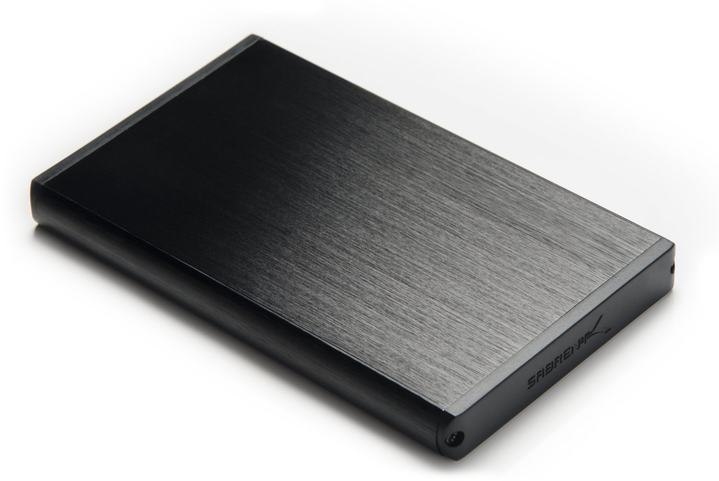
This hard drive enclosure comes with ultra light aluminum case that will protect your hard drive and keep it cool at the same time.
The drive supports 2.5-inch SATA I and SATA II hard drives. The device uses USB 3.0 for file transfer and it supports speeds up to 5Gbps.
Of course, this enclosure is compatible with USB 2.0 and USB 1.1. Keep in mind that by using USB 2.0 you’ll be limited to 480Mbps transfer speed.
The enclosure is hot-swappable and Plug and Play, so it doesn’t require any drivers in order to work.
Simply insert the drive, connect the enclosure and you’ll be able to access your files without any problems.
The enclosure is fully compatible with Windows and Mac systems. Sabrent Ultra Slim comes with a USB 3.0 cable, carrying case, and a screw set with a screwdriver.
This enclosure offers simple and lightweight design. The enclosure is made from ABS plastic material and it uses USB 3.0 for file transfer.
This enclosure supports speeds up to 5Gbps, but it’s also compatible with USB 2.0 and USB 1.1.
Regarding the supported operating systems, this enclosure works with Mac and Windows systems.
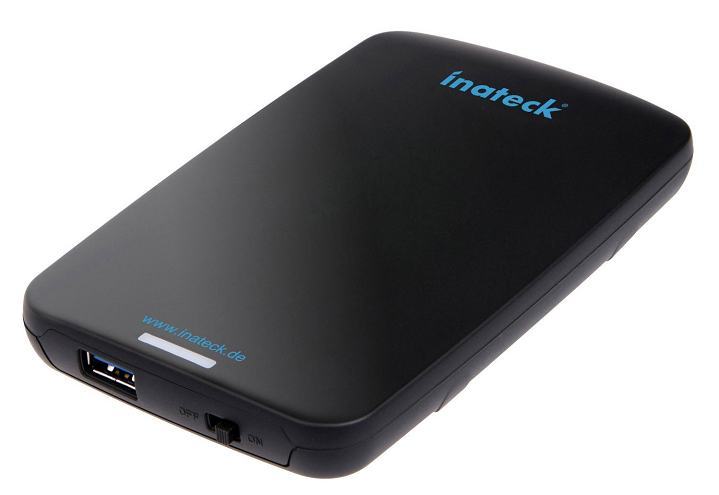
Inateck enclosure works with 2.5-inch SATA III hard drives and SSDs up to 9.5mm thickness.
The enclosure has a built-in foam pad that should provide some protection to your hard drive. This is a Plug and Play device, so you can just connect it to your PC and start using it immediately.
The device has a power switch that will protect your hard drive, and there’s also an LED activity indicator.
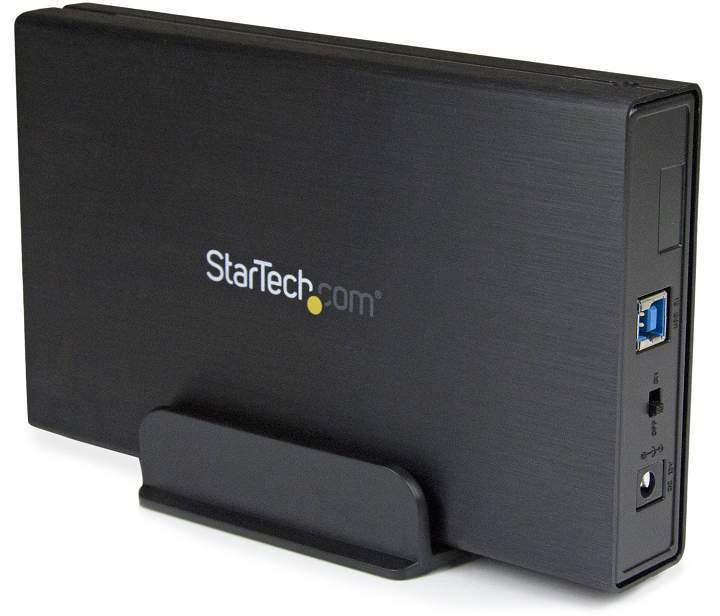
This enclosure uses USB 3.1 Gen 2 standard and it can support speeds up to 10Gbps. The device supports 3.5-inch SATA I, II and III drives, so you’re limited to 6Gbps speed.
The enclosure is made from a durable aluminum housing, and it comes with a vertical stand.
The aluminum case is brushed, so it will look attractive and at the same time protect your drive from any potential damage.
The enclosure can support drives up to 6TB capacity, which is more than enough for basic users.
StarTech enclosure comes with USB Type-A to Type-B cable and it’s fully compatible with older USB standards.
The enclosure comes with a USB cable, HDD stand, universal power adapter, and a screw kit. StarTech USB 3.1 Enclosure is a great device, and it’s available in black, silver, and white colors.
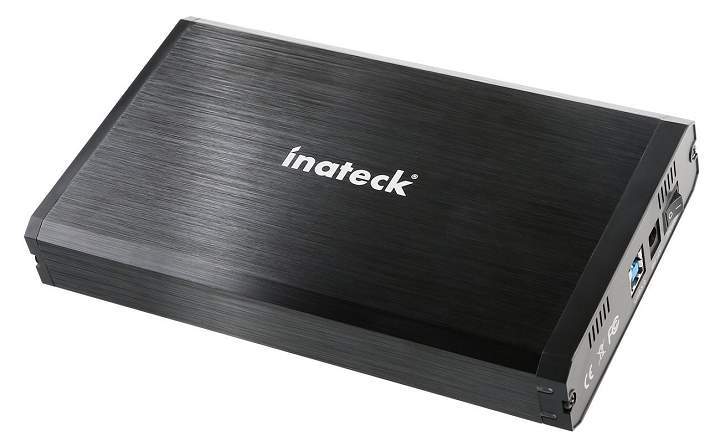
This aluminum enclosure uses USB 3.0 for file transfer and it can achieve speeds up to 5Gbps. The enclosure can work with SATA I, II and III drives and it supports both 2.5-inch and 3.5-inch devices.
Regarding the storage, the device supports up to 10TB storage drives. Backward compatibility with USB 2.0 and USB 1.1 is also supported.
Inateck Aluminum Enclosure is fully compatible with Windows, Mac, and Linux operating systems.
The enclosure comes with four non-slipping rubber pads that will prevent your enclosure from moving.
The interior of the device is covered with smooth and slip-resistant PU leather that provides protection against scratches.
The device requires no drivers in order to work and it comes with 12V/2A power adapter and USB 3.0 cable.
USB 3.0 external hard drive enclosures offer great speed, and if you have a spare hard drive, you might want to consider getting one of these enclosures for your PC.
What’s your favorite gadget from this list? Do share your choice with us via the comments section below.
Water cooledPCs were once considered only for the elite gamers who were spending tons of hours fine-tuning every system specification, but now they have been gaining more popularity lately among ordinary users.
The main benefits of using a PC case for water cooling include that the fact that there’s better thermal transfer of heat between the components and the cooling system and also fewer fans means less noise.
Cooler temperatures are sustained over time and today’s water cooling systems are really efficient and reliable.
Which are the best PC cases with built-in water cooling?
Gaming along with other resource-intensive tasks can be quite tasking on your PC in a physical way as well since heat is not something you should joke about.
However, a monster PC case like this NZXT ode will surely compensate for any of that, allowing you to stay cool even in the most heated of moments.
More so, gamers have a knack for sleek designs, and the v scores many points in that department as well, especially with the side glass panel that allows you to see the innards of your PC as they work.
Extreme gaming sessions demand extreme colling systems, and you need a case that can support that unless you want to end up modifying it via YouTube tutorials.
Well, the Thermaltake Tower 900 is a PC case that you can definitely rely on, since it supports all current cooling systems, including water-based ones.
The frame is incredibly solid and resistant, and the design is made to look good and be modular when dismantling as well, allowing easy setups.
The Thermaltake Core X9 Snow Edition is an E-ATX cube case that provides endless stackable capacity and also expandability for users to create massive liquid cooling systems.
You can utilize this as a file server and also accommodate dual systems.
Check out the best features that you’ll get to enjoy if you purchase the Thermaltake Core X9 Snow Edition:
You can customize the chassis for the best viewing presentation with an I/O panel design and an interchangeable window.
The Core X9 Snow offers a fantastic cooling performance, and the air-cooling units are sturdy as well.
This offers users an expandable system allowing them to incorporate externally-modular upgrades.
The chassis opens up space in order to expand the liquid cooling system.
When it’s stacked, the maximum radiator length supported is 600mm on the front side.
The chassis comes with a Tt LCS certification meaning that it was tested to be compatible with extreme liquid cooling configurations in order to ensure that you get the best performance.
You can get the Thermaltake Core X9 Snow Edition from the official site and check out more of its impressive features.
Conquer is based on COUGAR’s fantastic design DNA with aluminum framing and military-style.
By using the innovative aluminum alloy frame to forge an all-new masterpiece, this is one of the dream masterpieces regarding the cooling systems.
Check out the best features that are included in the Cougar CONQUER ATX Gaming Case:
It comes with a unique aluminum framing and amazing tempered glass.
The open-frame concept is composed of an aluminum alloy frame with 5mm tempered glass side panels.
You will be able to showcase your high-end and powerful gaming system with fantastic vision.
Considering that cooling is a crucial element for gamers, Conquer offers all that you could ask for.
It supports a 360mm water cooling radiator at the top and a 240mm water cooling radiator at the front for enhanced air-flow and the best cooling performance.
This cooling case is designed for modders, and it breaks away from traditional cases, providing an effortless way to build and modify the case.
It offers superior expandability, and modders will be able to enjoy unprecedented levels of creativity and freedom to create their dream case.
These are the best PC cases for water cooling that you can currently find on the market and no matter which one you decide to go with, it will definitely overcome your expectations.
If you have any more questions, don’t hesitate to reach for the comments section below.
The special next gen version of the popular Devil May Cry V video game, Devil May Cry 5 Special Edition, is now available to pre-order for Microsoft’s Xbox Series X and Xbox Series S consoles. This new version of the game will not be playable on any Xbox One console.
Devil May Cry 5 Special Edition features a variety of technical improvements over its current gen version with support for 4K Ultra HD, raytracing, 60 to 120 fps, and special sound. It also boasts quite a bit of added game content with a new playable character in the form of Vergil, two new game modes for increased difficulty, and a third new mode designed to prefer framerate over graphics.
Here’s the game description:
DEVIL MAY CRY IS BACK, BABY!! The legendary stylish action game is better than ever in the ultimate version of this multi-award winning hit.
New features:
New playable character – Dante’s brother and arch-rival, Vergil
Legendary Dark Knight mode – an extremely challenging horde mode featuring huge numbers of enemies
Turbo Mode – make the game even more intense by playing at 1.2x speed
Ray-tracing support* – this next-generation graphics technology brings the already near-photorealistic world of DMC5 to a new level of unparalleled visual splendour
High Frame-Rate Mode – experience super-smooth action
These new features and modes utilise the power of Xbox Series X to bring you the craziest, sexiest, most stylish Devil May Cry experience ever!!
*To be added via a downloadable update.
*Ray tracing is not supported on Xbox Series S.
Devil May Cry 5 Special Edition is due for release on November 10th. All pre-orders will receive 100,000 Red Orbs as an added in-game bonus.
Are you a Devil May Cry fan and are you thinking of picking this up? Will this be your first time playing Devil May Cry 5? Share your thoughts with the community in the comments below and then follow us on Pinterest and Facebook for more Xbox gaming content.
With a resolution of 3840 x 2160, 4K monitors offer 4 times as many pixels, which results in very detailed pictures. If you thought your 1080p screen delivers ultra-clear images, then you haven’t seen anything yet, until you try 4K.
And once you’ve used it, you will find it hard to turn back. But in today’s world, a 4K monitor is not complete without HDMI 2.0 inputs.
If you had bought any gadget with an HDMI connector in the past few years, then it’s probably version 1.4. This version administers 4K resolution at 24 or 30 frames per second.
With the TV industry inexorably moving toward 4K ultra HD, there was a need for more bandwidth to handle the future higher frame rates and resolutions. And that’s how the idea of HDMI 2.0 was born. HDMI 2.0 can easily dole out 4K ultra HD videos at 50 or 60 frames per second.
What more, they can transfer data at up to 18Gps unlike HDMI 1.4 than can go up to 10.2Gps. However, to enjoy these features, you will need a serious PC that has support for HDMI 2.0.
In this article, we will introduce you to the best 4K monitors with HDMI 2.0 support. Be sure to check out our article on the best 4K PC monitors for Windows 10 users.
What are the best 4K monitors with HDMI 2.0 support?
If slim and simplistic are what you are looking for, then the Dell S2721QS is the right 4K monitor for you.
This monitor is both elegant and practical, with ultra-thin bezels that allow true immersion into the image, and make it optimal for multi-monitor setups.
Additionally, you can also use it to multitask from two different PCs thanks to the Picture-in-Picture feature that comes built into it.
Office work or home entertainment seem like two very different things, but you can all agree that a good monitor can make all the difference in the world in terms of work efficiency and entertainment level.
Well, the ViewSonic VX2776 delivers on both ends, providing you with crystal-clear 4K video quality in an otherwise seemingly unimpressive package.
The images it provides aren’t just clear, they are also fluid in motion, and not bad for your eyes thanks to the adaptive blue light filter.
This next monitor is all about immersion, so if you’re into gaming or watching movies the way they are supposed to be watched, then the VIOTEK NV32Q is the right monitor for you.
Featuring a 1500R curvature, this 3840 x 2160p monitor will show you what it truly means to be enveloped by what you are doing.
The image quality is very good, and the monitor can support refresh rates of up to 144p, so fast-paced scenes and games will not be a problem, and neither will screen tearings.
Not all 4K monitors need to have incredible stats or curvature or anything else, especially if all you are interested in is the image quality.
That being said, those of you that like to keep things simple can always opt for the LG 27UD68-P, a reliable 4K monitor that will fit any budget, and any need.
More so, if you plan on using it for office work, multi-tasking will be easy thanks to the LG Screen Split feature, allowing you better management over your current tasks.
If you do a lot of gaming, then the Samsung UE590 is for you. This 4K monitor comes in two flavors; a 28-inch version and the more expensive 28-inch version.
Both versions come with 2 HDMI 2.0 ports that support UHD resolution at a 60Hz refresh rate. The UE590 boasts of over 1 billion colors reproduction. As a result, games, movies, and other content look incredibly detailed and ultra-realistic.
In addition, the monitor features a lightning-fast response time of 1-4ms, making images appear smooth even in fast-moving scenes. This is a dream come true feature for gaming enthusiasts and movie lovers.
In addition, the monitor features PIP 2.0 technology, which lets you simultaneously watch videos in one window while still working on a spreadsheet.
Asus is renowned for the manufacture of high-end gaming laptops, and their MG28UQ monitor further perpetuates that legacy. T
he company packs all the specs to satisfy gaming enthusiasts as well as casual and office users in this ultra-high-definition 4K monitor. The monitor features Advanced Sync technology and a lightning-fast 1ms response time for smooth visuals and responsive controls.
These features make it the go-to choice for gaming enthusiasts. The connectivity department is not left behind.
The monitor offers a wealth of connectivity options including HDMI 2.0, HDMI 1.4, DisplayPort, and 2 USB 3.0 ports. Moreover, the monitor is VESA mountable and comes with fully adjustable support.
Asus offers two lines of high-end displays. The ROG Swift 4K displays which are optimized for gaming and the ProArt line which are versatile and competes well with other professional monitors.
The ProArt PA329Q monitor is perfect for content professionals, delivering 4K resolution with 99.5% of the Adobe RGB color spectrum. This makes it the perfect choice for those color-critical projects where color accuracy matters.
The Asus PA329Q monitor comes with features you might not find elsewhere. It’s compatible with the popular color calibrators such as Display Pro among others, and it can save color parameters directly to the monitor.
It’s also equipped with ASUS Eye care flicker-free and low light technologies to prevent your eyes from computer-related eyestrain.
Connectivity ports include 4 HDMI 2.0 inputs, DisplayPort 1.2, and mini-DisplayPort 1.2.
4K monitors are not new, and they have been in the market for a while. However, not all of them are equal in features.
Some come equipped with HDMI 2.0 inputs, some come equipped with advanced software for gaming, while others are designed primarily for professional use.
So before buying a 4K monitor, it’s important that you first define the use, so you can get a monitor that suits your needs. We have listed the best 4K monitors with HDMI 2.0 inputs.
We hope that this article will help you make a more informed buying decision. Feel free to comment and share.
USB Type-Cport is slowly but surely becoming a standard. We are already seeing laptops and smartphones that are using this type of port instead of the old one.
If you want to use USB-C on your PC, today we’re going to show you some of the best USB-C PCI cards for your Windows 10 computer.
Before we start we need to quickly explain what is USB-Cport and how does it work.
Most computers use a regular USB-A port while devices such as smartphones or tablets use the USB mini connector for charging and data transfer.
The new USB-Cport has a similar size to USB mini, and in the future, we’ll see the same port on PCs and mobile devices.
It’s also worth mentioning that USB-Cport allows you to connect your device or USB cable in any position, which is not the case with current USB-A devices.
Although USB-Cport sounds great, it has few limitations. Due to its small size, you won’t be able to connect your old USB devices that have Type-A connector directly to your PC.
Fortunately, this limitation can be fixed by using the appropriate adapter.
The USB-Cport usually comes with USB 3.1 standard, and thanks to corresponding adapters you can get an extra Ethernet port or connect your device to the external display by using the USB-Cport.
USB-Cport has great potential, and if you don’t have a PC or a laptop with a built-in USB-Cport, you might be interested in these USB-C PCI cards.
What are the best USB-C PCI cards for your Windows 10 PC?
As we already mentioned, USB-C connectors usually use the latest USB 3.1 standard that is two times faster than USB 3.0.
In theory, USB 3.1 provides up to 10 Gbps transfer speed, but this depends on the computer it’s installed on.
In order to install this device, you need to use any PCIe slot. The device works with PCIe x4, x8, and x16 slots. This device is simple to install, and it comes with a single USB-Cport.
Although this card offers amazing speed, you’ll need to purchase an adapter if you want to connect standard USB-A devices to the USB-Cport.
This is a simple USB-C PCI card, but before you purchase it, be sure to check if it’s compatible with your PC. Regarding the price, this card is available for a price that goes around the $30 price tag.
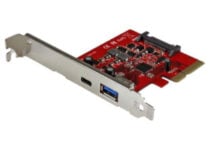
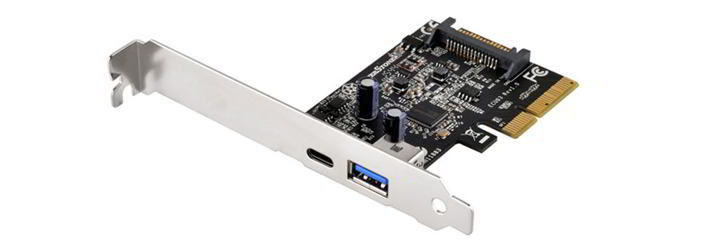
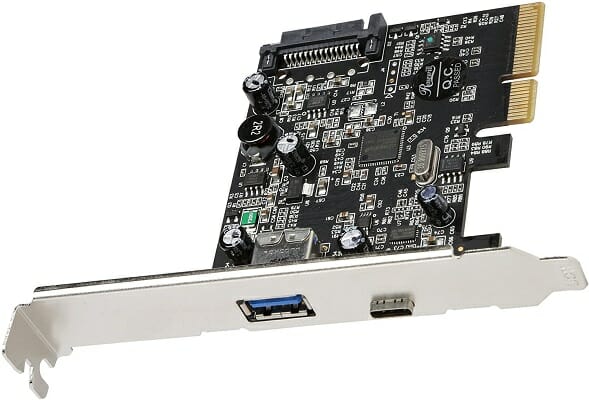
USB-Cports are great, but if you’re going to use a USB-Cport with a device that has a USB-A connector, you’ll need to purchase an adapter. StarTech 2-Port USB 3.1 Card fixes this limitation and it comes with USB-C and USB-A ports.
Regarding the speed, this device offers up to 10Gbps transfer speed which should be enough for most users. We have to mention that USB-Cport works with Thunderbolt 3 devices, but you’ll be limited to 10Gbps transfer speed.
In addition to USB-C and USB-A connectors, there’s also a SATA Power 15pin plug for high-consumption devices.
This card is simple to set up and it works with Windows, Linux, and Mac computers. The device comes with PCIe x4 interface with PCI Express Base Specification Revision 3.0.
The biggest problem with USB-C ports is that you can’t use them with regular USB-A devices unless you purchase an adapter, but since this card has a USB-A port available you won’t have any compatibility issues.
Regarding the compatibility, this device is fully compatible with older USB standards and all USB devices.
StarTech 2-Port USB 3.1 Card is an amazing device and with USB-A and USB-C ports available you won’t have any compatibility issues.
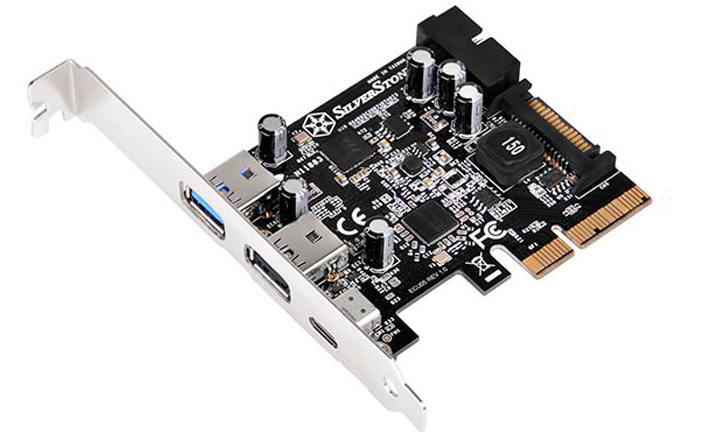
We also have to mention that there are several models available, and you can get a model with only two USB Type-C ports if you like. There’s also a model that has two A-Type ports, one C-Type port, and two internal ports.
If you decide to purchase this device, be sure that your motherboard has Generation 3 PCIe slots. This card will work with older generation slots, but you won’t achieve 10Gbps transfer speed.
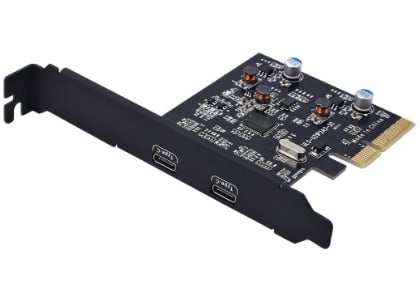
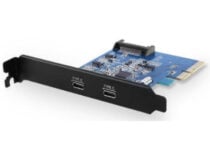
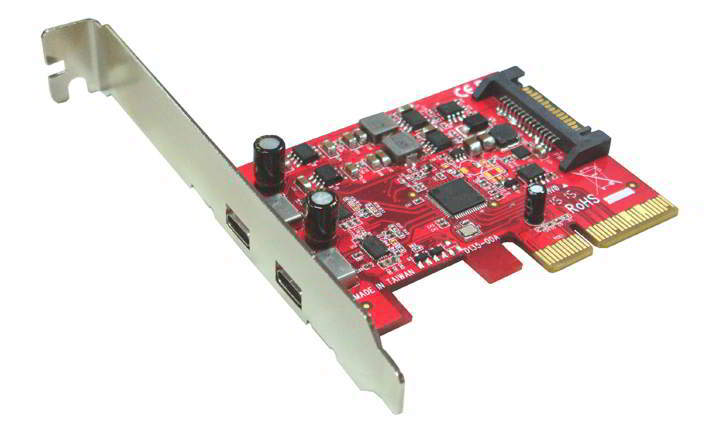
Unlike the previous entry on our list, this card has two USB Type-C ports available. Although these ports use USB 3.1 standard, they are fully compatible with USB 3.0 and older stands. Regarding the speed, this card offers up to 10Gbps transfer speed.
The card works with PCI-E x4, x8 and x16 slots, so you can easily install it on your PC. Regarding compatibility, the device works on Windows and Linux devices.
Few users reported some minor issues with Windows 10, but that can be fixed by downloading the latest driver.
We also have to mention that this card has 15-pin SATA power connector available that you can use for high-consumption peripherals such as 3.5-inch hard drives.
AUKEYUSB-C PCI Express Card sounds like an amazing device. It offers great transfer speed, and it has two USB-Cports. The device offers full compatibility with all your USB devices, as long as you have an appropriate adapter.
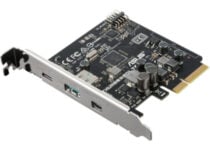
Although most USB Type-Cports work with USB 3.1 standard, some work with Thunderbolt 3. USB 3.1 standard offers 10Gbps transfer speed while Thunderbolt 3 offers amazing 40Gbps transfer speed. This card has a Thunderbolt 3 USB Type-C port, a single USB 3.1 Type-A port and a Mini Displayport In.
The card can work with external displays, and it supports 4K resolution. In addition, there’s support for USB Power Delivery that provides charging power up to 36W. This means that you can connect six devices in a daisy-chain and charge them simultaneously from a single port.
To use this card you simply need to connect it to PCI-E 3.0 x4 slot on your motherboard. After that, you need to connect the card to the Thunderbolt header on your motherboard. Lastly, you need to connect the DisplayPort cable to your card and to the onboard DisplayPort port.
This is an amazing device since it allows you to use a single USB-C port to connect Thunderbolt 3 devices, USB 3.1 devices, and DisplayPort 1.2 devices. Of course, there’s a USB-A port available for all standard USB devices.
ASUS ThunderboltEX 3 Card is probably one of the best USB-C PCI cards, and you can get it on Amazon. Before purchasing this card be sure to check if it’s fully compatible with your motherboard.
If you’re looking for a simple PCI card for your desktop PC, MZHOU PCI-E to USB 3.0 PCI Express Card might be perfect for you. This card uses a PCI Express slot and it offers two USB 3.0 Type-A ports and one USB-C port.
The card supports SuperSpeed USB 3.0 transfer rates of up to 5 Gbit/s and it comes with over-current protection for each port.
It’s worth mentioning that this device works with older USB standards, so it will work with USB 2.0 and USB 1.1 devices without any problems.
The Supports SATA III SSDs and the cable included in the box comes as an excellent bonus.
Regarding the compatibility, this PCI card should work without any problems with any Windows PC. This is a decent USB-C card for your PC.
This is a USB-C PCI card that comes from Ableconn. Unlike the previous entry on our list, this one comes with USB 3.1 Type-C. This card is compatible with USB 3.1 Gen2 standard and it offers up to 10Gbps transfer speed.
Regarding the compatibility, the device is fully compatible with older USB standards.
We have to mention that this card has 15-pin SATA power connector for power but it’s optional to connect it. It works with any version of Windows, but it should also work on Linux and Mac OS.
Ableconn PU31-2C-2 is a decent USB-C card, but if you want to connect any USB Type-A devices you will have to buy adapters for them.
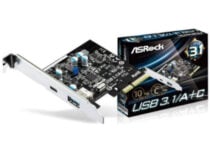
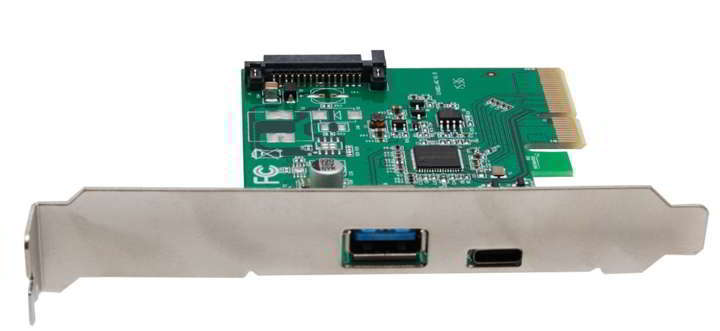
This is another USB-C PCI card, and it comes with USB-C and USB-A ports. This device works the PCI-E x4, x8, and x16 slots, and it’s compatible with PCI-e 1.1, 2.0, and 3.0 standards.
This card can provide up to 10Gbps transfer speed, but in order to achieve the maximum performance, you need to have PCI-E 3.0 slot available. The device will work with older standards, but you won’t achieve the maximum transfer speed.
Since this card comes with USB-A port, you can easily use it without any adapters and connect any USB device to it. Regarding the compatibility, older USB standards are fully supported.
Of course, you can still connect devices to USB-Cport, but you’ll need USB-A to USB-C adapter.
ASRock Model USB 3.1/A+C Card is a solid device, and with USB-C and USB-A port you’ll ensure that your PC is compatible with both old and new USB devices.
This card comes only with USB-Cports, so if you don’t have other USB-A port, you will need adapters. The card uses any PCIe x4, PCIe x8 or PCIe x16 slot, and comes with a 15-pin SATA power supply.
This device is compatible with Universal Serial Bus 3.1 specification Gen 2. Regarding the speed, you can achieve transfer speed up to 10 Gbps.
The USB-C port offers 5V and 2A power output.
BEYIMEI PCI-Express 4X to USB 3.1 Gen 2 is a simple PCI-E card, but it’s not fully compatible with older USB standards.
If you want to try USB-C technology on your PC, you might want to consider this card. The card comes with two USB 3.1 USB-Cports and it offers 10Gbps transfer speed.
Each port provides 5V and 3A which should be enough for most USB devices. The card requires PCIe Gen2 x2 or PCIe Gen3 x1 port in order to work.
Regarding the compatibility, this card is compatible with USB 3.1 Rev 1.0, Intel eXtensible Host Controller Interface (xHCI) Specification 1.0 and USB Attached SCSI Protocol Specification 1.0.
Of course, the device fully supports older USB standards and devices. It’s also worth mentioning that this card has a 15-pin SATA power connector.
Lycom USB 3.1 Type C 2 Port PCIe Card is a decent USB-C PCI card, but if you want to use it with standard USB-A devices, you’ll need to purchase a special adapter.
This PCI card has both USB-C and USB-A ports, so you can easily connect any USB device to it. The card offers up to 10Gbps transfer speed which should be enough for most users. Of course, this device fully supports older USB standards and devices.
It’s worth mentioning that this device supports eXtensible Host Controller Interface (XHCI) specification Revision 1.1 and USB Attached SCSI Protocol Revision 1.0 (UASP) protocols. This card connects to your PC using PCI-E Gen2.0 x2 port and it uses 15-pin SATA power connector.
Silverstone USB 3.1 Type C Card is a simple device, and you can use both USB-A and USB-C devices without any problems.
Most USB-C PCI cards offer one or two USB ports, but this model comes with three external USB ports. This card uses PCI-E 2.0 x2 slot on your PC and it offers up to 10Gbps transfer speed.
The device has a single USB 3.1 Type-C port, but it also has one USB 3.1 Type-A and one USB 3.0 Type-A port. In addition, the device has a USB 3.0 header on the inside.
It’s also worth mentioning that this card has 19-pin SATA power connector. This card also supports USB Battery Charging 1.2 standard with USB 3.0 port.
Of course, the card is fully compatible with eXtensible Host Controller Interface (XHCI) Rev.1.1 and USB Attached SCSI Protocol (UASP) Revision 1.0 protocols.
Silverstone USB 3.0 Type-C PCIe Expansion Card is a great USB-C PCI card, and with additional Type-A slots, it will be compatible with older USB devices.
ULANSON PCI-E to USB 3.0 Type C +3 Type-A Expansion Card comes with no less than 3 USB-3.0 Type-A ports and one USB-C port.
The USB 3.0 ports support SuperSpeed USB 3.0 transfer rates of up to 5 Gbps and is fully compatible with almost any version of Windows. Speaking of compatibility, the card fully supports older USB standards.
Since it has 4 USB ports, it also comes with a 15-pin port and cable to connect the card to the power supply of the PC.
There are all sorts of USB-C PCI cards on the market, and if you’re looking for something that doesn’t take too much space in your PC, you might want to consider FebSmart 2X 10Gbps USB-C Ports PCI-E USB 3.1 Gen2 Expansion Card.
This card comes with 2 USB 3.1 Gen2 Type C ports to mount on the PCI Express X4 slot on your desktop computer.
The USB 3.1 Gen2 type C ports can go up to 10 Gbps max speed (16 Gbps in total) for data transfer for compatible peripherals like SSDs, external HDDs, flash drives, USB hubs and more.
This is a decent USB-C card, and it’s available for $32.99.
Another simple USB-C PCI card is IOCrest USB 3.1 Type-C Card. This card has can provide up to 10Gbps transfer speed and it offers one USB-C and one USB-A port. Both ports use USB 3.1 standards, but they are also compatible with older USB standards and devices.
Regarding the compatibility, this device works with Windows and Linux PC and it supports xHCI Specification 1.1. The device connects to your PC using x4 PCI-E slot and it offers 5V 3A charging through Type-C port. Regarding the power, this device uses 15-pin SATA connector for power.
This is a simple USB-C PCI card, and thanks to USB-A port, you can use this device with any older USB device without an adapter.
If you’re looking for a USB-C card that has both USB-C and USB-A ports, you might want to consider Rosewill RC-509. This card connects to your PC using PCI Express 2.0 / 3.0 / 4x / 8x / 16x interfaces and it delivers transfer speed up to 10Gbps.
Regarding compatibility, the card is compatible with Intel Extensible Host Controller Interface (xHCI) Specification 1.1.
This card comes with 15-pin SATA to 4-pin Molex power cable and it can deliver 5V USB power. Of course, all older USB standards are fully supported.
This is a solid device, and it will work with any USB Type-A device without an adapter. If you want to use the USB-Cport with your other USB devices, you’ll need to purchase an adapter.
USB-Cport will become a standard in the future, and we’re already seeing USB-C devices such as smartphones, tablets and laptops. If you have a USB-C device, you might want to consider buying one of these USB-C PCI cards.
For any other ideas or suggestions, feel free to use our comments section below.
Cortana is very popular among Windows 10 users. Microsoft’s personal assistant can help users in many ways and is now more reliable than ever thanks to the latest improvements it received.
Cortana can search for specific content in Office 365, remind you of important events, and even manage your to-do list. You name it, and this virtual assistant can deliver.
Of course, this doesn’t mean that she is perfect. Users report that this tool sometimes drains laptop battery, won’t send emails and the list of issues could go on.
If you want Cortana to hear you loud and clear and avoid any misunderstandings, you should use a reliable microphone.
Microsoft says that any microphone will work well on Cortana, but users’ experience reveals that it’s better to use particular microphones when talking to her. Microphone quality is crucial for speech recognition performance.
Yes, Samson knows how to build microphones. Samson Go Mic is another good choice for Cortana usage and will help your personal assistant to hear you loud and clear.
No drivers are required to use this microphone, simply plug it into your computer’s USB port and you’re ready to go.
Thanks to its custom compact design, you can clip it to a laptop or put in on the desk. It is perfect for recording music and podcasting, and is ideal for voice recognition software, VoIP and webcasting.
High-quality components and meticulous engineering ensure the Go Mic offers clear audio reproduction.
There are two patterns you can choose from: the tightly focused cardioid pickup pattern, which is perfect for recording podcasts, or vocals, or the omnidirectional pattern, which captures the entire room.
Many Windows 10 users agree that the Samson Meteorite microphone is one of the best microphones to use on Cortana.
The device captures high-quality recordings on your computer and is ideal for podcasting, creating audio for YouTube videos, and recording music.
Samson Meteorite is ultra-portable, and you can take it anywhere with you. It has a stylish chrome case that will definitely make your computer setup more modern.
The Samson Meteorite mic is an immediate improvement over your computer or tablet’s internal microphone thanks to its studio-quality 14mm capsule, cardioid pickup pattern, and dedicated audio conversion path.
It successfully captures the natural warmth and dynamics of your voice, and its 16-bit, 44.1/48kHz resolution ensures the best possible audio quality.
The CMTECK USB Computer Microphone uses a special high sensitivity and noise-canceling technology for clear and natural sounds. All you need to do is plug the microphone into any USB equipped Windows 10 laptop/PC and you are ready to talk to Cortana.
Its flexible and bendable gooseneck can be adjusted according to your specific needs. Thanks to its practical design and semicircle base, it won’t fall or slip off your desk. Also, the mute button allows you to shut the mic down for private conversations.
Thanks to its -58±3dB sensitivity level, the CMTECH microphone can capture even the faintest sounds.
If you’re looking for another gooseneck design microphone, then the Jounigo USB Computer Microphone is the right choice for you. It works without drivers. All you need to do is plug it in into your Windows PC and you can use it right away.
The mic captures all the nuances of your voice and is perfect for voice dictation software or Skype. It also has all the perks of a desktop microphone including a mute button and a volume knob.
The mute button also has a bright LED that will let you know whether you are broadcasting or muted so that you don’t run into any awkward situations.
Plug the Fifine USB Condenser microphone into your computer’s USB port and start talking to Cortana. It is fully compatible with Windows 10 and you don’t need to install any third-party software to use it.
Thanks to its distinctive Cardioid pick-up pattern, it can isolate the main sound source and ignore the background noise. The Fifine mic is perfect for home studio, chatting, Skype, YouTube recording, Google Voice Search, and, of course, talking to Cortana.
Don’t hesitate to use it for a wide variety of activities, such as vocals, speech, instrument, or podcast recording. This microphone has a wide frequency response for brilliant and transparent sound. The high signal output lets your voice cut through.
Compared to the microphones listed above, the only disadvantage is that this mic requires more space on your desk.
We’re sure that the microphones listed in this article will help Cortana hear you better. If you’ve used one of the microphones listed above, you can tell us more about your experience in the comment section below.
This specific list is part of our bigger selection of the best microphone deals you can find. You might also want to check out our dedicated Black Friday hub for tech deals.
If you want to run Android on your Windows PC, there’s no shortage of emulators to choose from. Whether you’re a developer testing apps in a sandbox environment, a gamer, or just want access to Play Store apps on your PC — there’s something for everyone.
Many Android emulators offer great features and customization, but most are packed with pop-up ads. That’s why we’ve rounded up the best ad-free options that still deliver strong performance and flexibility.
If you’re looking to game without interruptions or distractions, then LDPlayer is what you need.
Not only is the software completely free of price, but no ads will be shown to you while using it, which is quite rare for a free product.
More so, LDPlayer is among the best Android Emulators in the world in terms of sheer performance, allowing you to play any mobile game on your PC, and control it as if it were native to your OS.
This includes controlling the game with a mouse, keyboard, or gaming controller, sparing your touchscreen from the otherwise constant strain of tapping.
All in all, if performance and having a good time are what you are after, LDPlayer is the emulator for you.
LD Player
LDPlayer is a testimony to the fact that free software can indeed be used without bothering you with useless ads later on.
BlueStacks is well-known on the market for its incredibly intuitive UI, powerful performance, and the wide range of features and customization option it contains.
You can use this software to customize the way you can play your games, by using key mapping features. This option allows you to set custom controls for shooters, car games, RPG, etc. , giving you the choice of using your keyboard, or even game controllers.
If your computer’s hardware can ‘take a beating’, you can even run multiple instances of BlueStacks, to compare apps side by side, or run multiple apps and/or games at once.
In order to get rid of all ads and suggested apps in BlueStacks 4, you will need to purchase the Premium subscription plan. To do so, you will need to follow these simple steps :
Click on the ”My Account” button that can be found in the top right corner of the screen
Then, click on the ”Upgrade to Premium” button
The new screen that will pop up will show you two pricing options – a one month plan, and an annual plan
After choosing the right option for your needs, you can click on ”Buy This” and fill your credit or debit card details
If you find this process a bit challenging, you can visit the official BlueStacks website for an article related to buying the right subscription plan.
There is a good range of premium features available to you in the paid subscription plan. Here are some of the best :
Support channel with premium quality services – ask questions, report problems, receive solutions, etc.
No advertisements or sponsored apps – also reduces bandwidth usage, CPU, memory, and space consumption
One subscription can be used on multiple PCs – up to 5 systems
Can apply wallpapers – click here for more details about this feature
Bluestacks
Playing mobile games on your PC doesn't mean that you have to bear wth the ads as well, at least not with BlueStacks.
GenyMotion is another great Android emulator software for your Windows PC that packs an incredible amount of power and features under an easily understandable interface.
This app was designed to be simple to install and use, and its performance is very close to that of BlueStacks. The main difference between the two, is the fact that GenyMotion is mainly created with app developers in mind, while BlueStacks targets app users and gamers.
After you’ve installed GenyMotion, you need to create a free account in order to use it. After you’ve done that, and you can see the launch screen, you can download specific configurations with different Android devices. You can choose from a wide range of tablet models and phones with different builds of Android Jellybean.
GenyMotion also offers a good set of useful tools in a toolbar on the right side of your screen that allows you to control battery levels, use GPS, and even connect your webcam to the emulator.
Some of the best features include:
Android Debug Bridge (ADB) support with Eclipse and IntelliJ plug-ins
Can simulate touch interactions with multi-touch capabilities
GPS tool – allows you to check GPS information and modify it in real time
OpenGL compatible graphics
Multiple ways of installing apps – drag and drop, adb installation of .apk file, or by using a link
Large number of emulated devices – Google, HTC, Motorola, Samsung, etc.
Can create custom devices with specific settings for RAM, screen size, etc.
Perfect integration with Eclipse and Android Studio
GenyMotion comes in 3 different paid versions, each with different capabilities :
Genymotion Indie – designed for individuals and independent contractors
Can set custom device IDs – ID/IMEI/MEID
Each pixel found on your virtual device is transformed into one pixel on your big screen
Remote control tool – you can use your phone as a controller
Multiple network profiles – Wifi, edge, 3G, 4G
No advertisements
Can take screenshots and video
Clone devices with ease and reset them to factory settings
Genymotion Business – for a company with over 2 employees
Contains all features of the Indie version
Standard support
Disk I/O capabilities
Genymotion Enterprise – a full platform designed for enterprise level companies
All features from Business edition
Premium support – dedicated support, short response times, etc.
YouWave is another great android emulator for Windows PCs that has a good range of features and offers a powerful emulation features.You can use this software to download thousands of apps and games online via the YouWave Store, and is also compatible with apps coming from the Google Play Store.
The free version works on Ice Cream Sandwich, and the Premium version supports Android 5.1 Lollipop.
YouWave Premium comes only with 64 bit compatibility, and can be downloaded as a 10 day free trial before buying. Once you clicked on one of the the payment options available, you will receive your activation key automatically through email.
This key can be used only for one software activation for an unlimited amount of time, and with no need to renew the subscription.
Other notable features include:
Can run non-ARM apps
Allows multiple screen sizes
International keyboard language support
No ads
VT-X check
SD card functionality – enables you to save your games
Compatible with multi-player online games
Dynamic rotating – phone-like and instant response
If you want to have a head-on full Android experience on your Windows PC without being bothered constantly by ads and recommended apps, it is best that you choose one of the paid software options we presented in this article.
We would love to know which app from this Top 3 is your favorite. Feel free to let us know what you think in the comment section below.
Squad is a teamwork-based tactical FPS that aims to provide players with an accurate combat experience. The game is set in a present-day warfare setting, so you won’t catch a glimpse of plasma guns or Gatling laser weapons.
What Squad manages to pull off is embossing a sense of virtual camaraderie between same-team players. If you’re expecting something along the lines of Call of Duty, Battlefield, Counter-Strike, or other FPS titles, you’re in for a disappointment.
The bottom line is that you won’t be able to achieve victory on your own. Using a broad range of communication-centered mechanics including planning, coordination, building, tactics, and neatly-integrated VoIP, on the other hand, might give you a fighting chance.
But, here’s the thing. Squad is a multiplayer game, so it requires an Internet connection. And like any other online game, it may be subject to a series of connectivity issues, such as high latency and packet loss.
What is packet loss in Squad
Packet loss behaves almost the same regardless of where you may spot it. It’s described by the inability of data packets to reach their intended destination, which is why packet loss is different than high ping.
High ping/latency – data packets need more time to reach their destination (they’re delayed)
Packet loss – data packets never make it to their destination (they’re usually dropped)
Therefore, it’s somewhat obvious that packet loss is also more severe than high latency. Here is a list of potential symptoms of high packet loss in Squad:
Rubberbanding (freezing and suddenly teleporting someplace else on the map)
Unresponsive menus
Sluggish character movement (often accompanied by rubberbanding)
Delayed text chat (or messages that never make it in the text chat)
Sudden game crashes or server disconnections (by far the most severe symptom)
What causes Squad packet loss
Many are curious as to why packet loss happens, especially in video games. If you were to leak packets while reading a news article, for instance, a simple refresh in your web browser would fix the issue and make you forget it even existed.
However, in certain computer programs and processes, things are somewhat different. And for good reason, too.
Let’s take video games, such as Squad, for example. During a gaming session, your PC establishes a connection to the game server, which also hosts the other players.
Considering that a Squad match supports up to 100 players, it’s safe to assume that playing Squad can put a lot of strain on your connection.
In order for you to enjoy Squad, the connection must be kept alive, so it’s inevitable to encounter certain hiccups such as jitter, high latency, and packet loss (you should notice a packet loss symbol).
Having an outdated firmware version on your router
Insufficient bandwidth due to Internet subscription plan
Using high quality settings that the connection can’t accommodate
Server-side issues
And that’s barely scratching the surface. There are a lot of reasons why you might encounter packet loss in Squad. Furthermore, the issue can be on your side, on your ISP’s side, or on the game server host’s side.
Knowing the cause of experiencing packet loss can greatly help you in finding an efficient fix for it.
How to detect packet loss in Squad
Locate the IP address or host address of the Squad server where you suspect leaking packets
Note it down someplace (unless you have an incredible memory)
Type pathping x.x.x.x in the CMD (replace x.x.x.x with the IP you previously noted down)
Wait for the test results
Check each hop’s packet loss values
If you drew the short straw and are leaking packets, you might want to run some tests just to make sure you’re not confusing it with something else.
Each node you see belongs to a part of your connection (i.e. the connection between your PC and the game server).
Rule of thumb: the first hop (zero) always belongs to your PC, and the last one corresponds to the server you run the text against (i.e. x.x.x.x, the IP you used earlier). If you’re confused, just use the screenshot above for clarification.
That’s it. If you see a high packet loss percentage on any node, it means your connection is experiencing this issue.
Optionally: run the pathping test once more to make sure
Private Internet Access (PIA) is an excellent VPN service from Kape Technologies and one of the few providers who offer 24/7 live chat support to its customers.
Aside from its privacy and security features, PIA can also fix certain connectivity issues and bypass geoblocking.
Private Internet Access
Getting packet loss in Squad? Private Internet Access could be of help.
Using a VPN can improve packet loss by routing your traffic away from your ISP’s limited connection. However, as you may have figured out, it will only work if your ISP is to blame for your packet loss situations.
Therefore, using a VPN won’t improve packet loss if the issue is on your side, or the game server’s side. Therefore, make sure to rule out your PC/the server host as causes for your packet leak situation before investing in a VPN.
2. Flush your DNS
On your Windows 10 PC, launch an elevated CMD instance
In the CMD window, run the following commands, one by one:
Restart your PC immediately after running the last command. Once the boot sequence is finished, try launching Squad once more and check if you’re still experiencing packet loss.
More often than not, clearing up cached data build-ups can have a great effect on your connection’s well-being. As it turns out, flushing your DNS can help you achieve just that.
3. Troubleshoot your connection manually
Restart your PC, router, and/or modem, as necessary
Make sure your system drivers, especially network ones, are up-to-date
Restart the game and check if there’s any improvement
Use a wired connection instead of Wi-Fi (Wi-Fi packet loss happens more often)
Upgrade your Internet subscription plan, if possible
Inspect your home network thoroughly for any malfunctioning component
Fix, replace, or upgrade worn-out Ethernet cables
Close any bandwidth-heavy apps or services running on your PC (torrenting, VoIP clients)
Lower Squad’s video/audio quality settings
Call your ISP and ask them if they can take a look and/or fix your issue
Avoid peak hours to eliminate network congestion issues (or use a VPN)
Switch the channel your wireless router broadcasts on
Note that these suggestions won’t necessarily eliminate (or even reduce, for that matter) packet loss, especially if the issue is not on your side.
However, performing maintenance on your connection every once in a while can keep many connectivity issues at bay.
Final thoughts on Squad packet loss
To sum it up, Squad is an awesome game, there’s no way around it. However, occasional packet loss issues might turn Squad into an unpleasant experience for you, especially if you notice a pattern starting to form.
If you want to patch it up quickly, a VPN can come in really handy. On the other hand, this quick fix only works if the packet loss is caused by your ISP (i.e. occurs somewhere between you and the game server, excluding the endpoints).
Last, but not least, you may want to perform a bit of manual troubleshooting. It may not eliminate packet loss like a charm, but at least you’ll have a healthier connection, and you can rule your system out as a potential cause for packet loss.
WinRAR is a great file archiver software, but many users reported WinRAR expired notification while using it. This notification is there to remind you that your trial period has expired and that you need to purchase a license.
Many users find this notification annoying since it will appear every time you start the software, but there’s a way to get rid of this notification, and today we’re going to show you how to do it.
How do I get rid of WinRAR expired notification?
1. Use the context menu to extract the files
Locate the archive that you want to extract.
Right-click it and choose Extract files.
Enter the destination path or select it from the folder tree. After doing that, click on OK to extract the files.
Alternatively, you can use one of the following options instead:
Extract Here – to extract the files in the current folder
Extract to Archive_name – to create a new folder inside of the current directory and extract the files there
To compress files, you just need to do the following:
Select the files that you want to add to the archive and right-click them.
Choose Add to archive.
Enter the archive name and change the settings if needed. Click OK once you’re finished.
Alternatively, you can use the Add to Folder name.rar option to instantly create an archive without adjusting the settings.
This method is just a workaround, but as long as you don’t start the application, you won’t even have to see the WinRAR expired notification.
2. Use an alternative file archive software
If you’re fed up with constant WinRAR expired notification, perhaps you should consider switching to WinZip. The software is well-known, and it’s one of the best file archiver applications on the market.
Regarding compatibility, the software supports more than 24 most popular formats, including ZIP, RAR, ISO, GZ, 7Z, TAR GZ, TAR, and many others.
WinZip can compress any file type including folders, images, PDFs, and videos. It’s worth mentioning that the application can extract multiple archives simultaneously, which is a major plus.
Archive repair is also available, allowing you to repair damaged archives with ease. Of course, file encryption is available, allowing you to password-protect your files.
WinZip is a great alternative to WinRAR, and if you’re having any issues with it, we suggest trying WinZip out.
The message won’t appear until you start WinRAR again. While this method won’t permanently remove this notification, it’s a method that most WinRAR users are currently using.
There are other highly functional archive software you can use instead of WinRAR, thus you should benefit from the best file compression tools out there.
WinRAR expired notification is a part of the application, and if you don’t want to deal with it anymore, you should switch to WinZip or use our other solutions.
Mini laptops are great for staying connected while on the go. These small devices pack a tremendous processing power allowing you to browse the Internet, check your emails, watch movies, and more.
But what are the best Windows 10 mini laptops to buy?
Well, you’ve come to the right place. In this article, we’re going to list the best smallest laptops currently available on the market. We’ve selected them using clear criteria, such as user reviews, reliability, or battery life.
ASUS L203MA-DS04 VivoBook tops our list since this is an extremely light, thin, and convenient device for just anybody these days.
What we really appreciate, apart from the pros mentioned above is also the fast Wi-Fi speed, facilitated by the compatibility with the Wi-Fi 5 (802.11ac) standard.
The device runs on Windows 10 S – a 100% app-based version of Windows. Other perks are the SD card slot, that conveniently allows you to expand the storage space, and the handy keyboard design.
Next in line is the Fusion5 A90B+ PRO equipped with a 5 GHz WIFI increasing the download and upload speeds by 2 times compared to traditional laptops.
It runs on Windows 10 Pro ensuring access to the top-notch features Microsoft’s operating system has to offer.
Not to mention that the 14.1-inch 1920 x 1080 Full HD IPS display will render the best image quality you can expect of a portable notebook.
Similar to the previous laptop options, Fursion5 also comes with 4GB of RAM and 64GB of on-board eMMC storage. However, it also offers the option to expand the memory up to 256GB with a micro SD card or up to 1TB with an external HDD.
This mini-laptop is perfect if you need to use the device as a laptop or a tablet during the day. It is also foldable as perfectly fits your jacket or bag pocket for easy carrying.
The HDMI technology integrates your other devices as well, so you can easily switch from your Tablet PC to your smart TV or smartphone while working and playing.
The device is equipped with an Intel HD Graphics 200GHz GPU processor, with shared video memory that provides high image quality for Internet use, basic photo editing and casual gaming.
All in all, the One Netbook One Mix 1S Yoga mini-laptop will perfectly serve multitasking purposes.
Goodlife623’s 7-inch GPD Pocket 2 mini-laptop is a portable device that just about any business professional can use.
If you’re worried about the fragility of such a small device, the metal casing should be reassuring. It will fit your pocket and you can also carry it around with you anywhere you’d go.
Battery life lasts 6 to 8 hours, depending on usage, however, users have been extremely pleased with the amount of work they can accomplish.
The all-fit FHD screen makes this device a pretty decent choice for Netflix or YouTube streaming.
With this mini-laptop, Goldengulf promises to offer access to the latest technologies for your business and personal needs in a much compact way than classic devices do.
On this note, the device is 285 x 190 x 18.5mm in size, weighing 1.1kg, which makes it a good option for traveling purposes.
The USB 3.0, 2.0 and micro HDMI integrations ensure you can expand your experience on external monitors, or smart TVs, as well as to add more storage capacity.
The devices also comes in vivid colors such as blue or pink, which makes it a delight for kids that use it at school.
If you’re looking for a new mini laptop, you should consider Surface Go as well. This tiny 10-inch laptop weighs only 1.15lbs, and it can easily fit in any bag.
As for the hardware specifications, this device has a 10-inch PixelSense display that supports 1800×1200 (217 PPI) resolution.
Just like other members of the Surface family, this model also supports 10-point multi-touch, so you can use it as a tablet.
The Wi-Fi model can provide you with up to 9 hours of video playback. The device runs on Intel Pentium Gold 4415Y processor.
In terms of storage, this device has 128GB SSD and 8GB of RAM which should be enough for most of your needs.
Regarding the graphics, this device uses Intel HD Graphics 615. Additional features include one USB-C port, 3.5mm headphone jack, microSDXC card reader, 5MP 1080p front and 8.0 1080p rear camera.
It’s worth mentioning that this device has various sensors including a light sensor, accelerometer, gyroscope, and magnetometer.
Overall, Surface Go is an incredibly small and light laptop, and it’s a perfect work or travel companion, so if you’re looking for a new laptop, you might want to consider this model.
Mini-laptops are extremely useful when you’re always on the go. They are small and ultraportable, and you can take them with you everywhere.
If you haven’t decided which laptop to buy yet, write down your requirements and go through this list once again. Then buy the mini laptop that best suits your needs.
If you have additional questions, feel free to reach for the comments section below.
This specific deal is part of our bigger selection of thebest laptop deals you can find.
At the end of last week, Microsoft released the 20H2 Build 19042.608 (KB4580364) to the Insiders and the Beta channel. Among others, it fixes a bug in the CPU values reported by many users on dedicated forums.
More specifically, users noted that with certain processors, the CPU frequency remained stuck at .79 GHZ or lower, although it was designed to go above that.
[…] My CPU is designed to go up to 4ghz with turbo and 2.4 GHz base. For some reason when I do a forced shutdown it seems to fix the problem of the CPU not being able to reach its designed speeds. However, when I put the computer to sleep, shut it down normally, or restart the computer all via the start menu (the values are OK, e.n.). It brings up the problem of the CPU not being able to go to designed speeds.
The above-quoted user mentioned that he is using an FX505GT-US52 Asus laptop; another user with the same device model confirmed the issue.
A known bug that Windows 10 20H2 ignored
While most Windows updates cause high CPU usage, over the past months, incorrect CPU frequencies have been oftentimes reported and the much-awaited October 2020 update hasn’t brought a solution.
With this new build, Microsoft acknowledged that certain processors display the incorrect CPU frequency and that this release should fix them.
It’s unclear how widespread the issue is. And nevertheless, the fix is not yet available for the general public.
Unfortunately, there are no workarounds to this issue. One thing you might try, in case your CPU gets stuck or runs slow, is to do the following:
Open Control Panel.
Go to Edit power plan under Power options.
Select Change advanced power settings.
Make sure that both values under Maximum processor state are set at 100%.
Make sure that both options under System cooling policy are set as Active.
One thing you should keep in mind, though: the slow CPU issue isn’t caused by the recent update. On the other hand, if you’ve already installed it, here’s the most common problems you might encounter and possible solutions.
If you already installed the mentioned build version on your computer, tell us more about your experience in the comments below.
The Android Emulator is a vital part of the Android Studio suite. The mass of final testing is done here, and for the majority of projects, it requires an Internet connection.
If you want to test your app fully, at least. However, there seems to be a problem where users have had a hard time connecting to the internet from within the emulator.
How can I fix Android Emulator Internet issues on Windows 10?
Let’s start with the obvious: Android Emulator Internet issues are often determined by the emulator that you use.
Therefore, take it as a sign that your initial choice may no longer be the most inspired one, or at least take a look at what LDPlayer has to offer.
Unlike similar simulators, this one isn’t too skinned and works extremely smoothly. Moreover, there are high chances of never facing an LDPlayer Internet problem unless your Internet connection itself is really slow.
On top of all these, do note that the default shortcuts are customizable. Feel free to make your own shortcuts for different commands and choose to play with keyboard and mouse.
Let’s start with some general troubleshooting steps. Before we start dealing with the internal issues in Android Studio, you should check whether the connection is working all-around on your PC.
If the problem is solely existent in Android Emulator, we suggest moving to the third tip below.
On the other hand, if you’re experiencing general network issues, we suggest following the enlisted steps:
In the Search bar, type Allow app and open Allow an app through Windows Firewall.
Click Change settings.
Allow Android Studio for Private network and confirm the changes.
Another viable solution is to check the configuration file and confirm that the internet permission is granted to Android Emulator.
In addition, you should check the Windows Firewall and confirm that the Android Emulator is able to communicate freely. After that, you should be able to resolve the issue at hand.
Use the above steps in order to allow Android Studio to freely communicate through the Firewall.
4. Disable the unused Network adapter
Open Network settings.
Choose right-click on the Adapter you want to disable and disable it.
Check whether the problem is resolved.
The most prominent solution we were able to find concerns disabling a Network adapter. Namely, it seems that Android Emulator tries to connect via a not-established, inactive adapter.
This, of course, leads to an internal network error and users are unable to access the online content. Use the above steps in order to avoid this.
And, finally, if none of the previous steps proved resolutive, the only thing we can suggest is a complete reinstallation of the Android Studio. This might help, but we can’t claim that with certainty.
This is the last resort, so if there’s a way to find an alternate solution without resorting to reinstallation, go with that. You can also try an alternative emulator.
Countless users complain about:
Android emulator Wi-Fi connected no Internet – If that’s the issue that bothers you, don’t postpone the inevitable. You need to check the firewall and make sure it has nothing to do with this problem.
Emulator not connecting to the Internet – When your good old emulator cannot connect to the Internet, it’s time to think of an alternative. Find all about LDPlayer by taking a look at our above tips.
This should do it. In case you have any additional questions or suggestions, make sure to post them in the comments section below. We look forward to hearing from you.
This should do it. In case you have any additional questions or suggestions, make sure to post them in the comments section below. We look forward to hearing from you.
The new Chromium-based Microsoft Edge browser is more and more prepared to take Internet Explorer’s place.
Starting from the latest Microsoft Edge versions, whenever you use Explorer to visit an incompatible site, the browsing session will automatically be launched in Microsoft Edge.
The list of incompatible sites currently includes 1,156 sites and it’s growing. For example, this happens when using Yahoo Mail, Google Drive, Facebook, Instagram, Microsoft Teams, Twitter, and more.
On redirection to Microsoft Edge, you’ll see a one-time dialog. There will also be a few prompts for consent to copy your browsing data and preferences to Edge.
The following browsing data will be imported: Favorites, Passwords, Search engines, open tabs, history, settings, cookies, and the Home Page.
How can I disable Internet Explorer redirection to Edge?
Firstly, set the RedirectSitesFromInternetExplorerRedirectMode policy to Disabled to stop redirecting as soon as the policy takes effect.
Then, also set the RedirectSitesFromInternetExplorerPreventBHOInstall policy to Enabled to uninstall the BHO after the next Edge update.
If you want to disable the redirection after updating to Microsoft Edge Stable version 87, take a closer look and apply the above steps.
As you can see, the actual redirection from Internet Explorer to Microsoft Edge requires an Internet Explorer Browser Helper Object (BHO) known as IEtoEdge BHO.
The RedirectSitesFromInternetExplorerPreventBHOInstall policy is the one that establishes if this BHO is installed or not.
In order to disable the redirection procedure before updating to Microsoft Edge Stable version 87, you simply need to set the RedirectSitesFromInternetExplorerRedirectMode policy to Enabled.
Wait for the policy to take effect and you’ll be good to go. What do you think of these latest changes regarding the browser that you’ve used for years? Let us know in the comments area below.
We’re now just two weeks away from the launch of Microsoft’s Xbox Series X and Series S consoles, and today the company published a new video showing what to expect when you’re going to boot up the new consoles on November 10. For people who already own an Xbox One console, the experience should be very familiar as the Xbox Series X & S consoles will run the same OS, with a couple of differences.
First of all, Microsoft is introducing dynamic background on the Xbox Series X & S, which look pretty cool and help the home dashboard look a bit more alive. The other big new feature on the next-gen Xbox consoles is Quick Resume, which will allow gamers to quickly switch between recently launched titles and pick up right where they left off. Even though Quick Resume will only be able to keep a limited number of games in a suspended state, we’re really approaching a Netflix-like experience where you can move between different titles really fast.
The 15 minutes video also goes over the redesigned Xbox Store, the new Xbox Controller with its redesigned D-pad and Share button, the Seagate 1TB expansion cards, the new Xbox mobile app, and more. There’s really a lot of useful information for gamers interested in Microsoft’s next-gen Xbox consoles
Microsoft has shown its new Xbox Series X quite extensively in the past couple of weeks, but the cheaper Xbox Series S has yet to receive the same level of attention. At just $299, the Series S will be the most affordable next-gen console on the market next month, and the main differences with the Series X are the absence of a disc drive, a smaller 512GB SSD, and a less powerful GPU targeting 1440p at 60FPS instead of 4K. Still, all games optimized for the Series X should also be optimized for the Series S, and we hope Microsoft will soon share more about the Series S and explain what’s it’s still a good upgrade for gamers tempted to keep their Xbox One S or Xbox One X.
The best Pokémon Go emulator lets you play Pokémon Go on your PC without carrying your phone everywhere. In this guide, you’ll find the top emulators to download, how to download Pokémon Go to a computer, and what you need to know about Pokémon Go emulator spoofing.
What are the best emulators to play Pokemon on PC?
LDPlayer is an amazing Android emulator that is explicitly developed to offer an unforgettable Android gaming experience to PC users.
From Pokemon to PUBG Mobile, LDPlayer is capable of handling most of the Android games you could think of and run them on your computer.
To install games on PC, LDPlayer has three options. You can either use the built-in Google Play Store to search for apps or download the app for the app and install it manually.
LD Player also offers its own LD Store which includes a good number of apps and games in an app format that you can download and install on PC.
Moreover, it supports both the keyboard + mouse combo and GamePad controls for game progress. You can customize the keyboard controls in the keyboard mapping panel.
As for the multi-instance mode, it allows you to play multiple games using different accounts simultaneously on your computer.
Key features you’re about to enjoy from LDPlayer:
Lightweight emulator to run the latest Android games
Great keyboard mapping controls
Multi-instance sync
New updates are pushed regularly to fix potential issues
BlueStacks is the oldest Android emulator that is still actively in development and has considerably improved in the last few years.
BlueStacks is compatible with Intel and AMD processors. It comes with Hyper-G graphics and promises low-latency gaming.
The intuitive keymapping feature makes it easy for gamers to adjust the keyboard controls as per their preferences. You can also use the gamepad to control the game movements.
Then there is Multi-Windows and Multi-Accounts support with Multi-instance feature.
Which as we already discussed enables the users to play multiple games or use multiple accounts to run multiple instances of a single game simultaneously on the PC.
Installing Android apps on your BlueStacks is a straight forward affair. The emulators come with Google Play Store installed out of the box, but you can also install apps using APKs.
For customization, you can tweak the game as well as the emulator settings for frame rate, display resolution, gaming engine, and of course the UI skin.
On the flip side, you may have to deal with the annoying sponsored ads thing. Which although doesn’t interfere with your gaming session, but it can still be annoying at times.
BlueStacks is a known memory hog despite the company’s claims to have optimized it for lesser memory usage. Make sure you keep a tab on the resource management to better under the performance.
Bluestacks
That’s a great Pokemon PC emulator. It is fully compatible with Windows OS, so do give it a try right away!
From fast-paced racing games to the slow-paced Pokemon game, NoxPlayer can run any Android game and app on Windows PC with ease.
It is a free Android emulator that is explicitly developed keeping Android gamers in mind for PC users.
To install Pokemon games from the Play Store on Nox Player, you can use the built-in Google Play Store app. NoxPlayer is compatible with AMD and Intel processors.
While you don’t need a dedicated graphics processor to play games on PC, having a dedicated GPU can make all the difference if you want to heavy games like PUBG Mobile on PC.
The Multi-instance feature enables users to run multiple games simultaneously on a single computer. You can use multiple accounts to run multiple instances of the same game simultaneously as well.
To control the game, you can use the keyboard and mouse combo or gamepad/controller. You can customize the game as well as emulator settings to better suit your needs.
Memu Play is a relatively new emulator, but it offers enough to make your mobile gaming experience on PC a pleasant one.
Just like Nox Player, Memu Play is also an Android emulator focused on Android gamers.
Memu Play is made to play Android games on PC, but that won’t stop you from using it to run Android exclusive apps that are not available for Windows, such as a sports streaming app that is not available in the Google Play Store, etc.
The Multiple Instances feature is again the same. It allows you to run multiple games (up to 4) depending on your PC’s hardware capabilities simultaneously.
Google Play Store and services come pre-installed. To install a game, search the Play Store, and install the app. If not, download the app for the app and move it to Memu Play to proceed with the installation.
To control the game, Memu Play supports both keyboard and mouse combo as well as Gamepad controls.
The Keymapping feature allows you to customize the controls as per your preference. Memu Play is free, fast, stable, and comes with a simple and intuitive user interface.
AMIDuOS is a free Android emulator that can run nearly any android app and game on your Windows running computer.
Unlike the earlier mentioned emulators, AMIDuOS is Windows exclusive. It started as a premium emulator; however, the company has now made it free for all kinds of use.
It is compatible with Intel and AMD processors. the AMIDuOS package installer allows you to add your favorite Android app markets to your PC.
On the performance front, games and apps run in the native x86-mode allowing you to make the most out of your PC’s hardware. That said, it can also perform ARM emulation, to run apps in compatibility mode.
AMIDuOS is a decent free alternative to emulators like Genymotion to run and test apps for Android developers.
It is also mouse and keyboard compatible and offers SD card emulation to configure the SD card using a configuration tool.
The installation of AMIDuOS is something we find a little time-consuming task and not as straight forward as other emulators in this list.
Apart from that, it is a decent emulator to run Android games and apps on your Windows PC.
Install an emulator Pick one from the list above (like BlueStacks or LDPlayer) and install it on your PC.
Open the emulator and sign in Use your Google account to access the Play Store.
Download Pokémon Go Search for it in the Play Store and click Install.
Launch the game Open Pokémon Go from within the emulator and start playing.
List of Pokemon games you can play on PC using emulators
Now that you know some interesting facts about Pokemon, let’s have a look at the best Pokemon games you can play using an Android emulator on PC:
Pokémon GO
Pokémon Duel
Camp Pokémon
Magikarp Jump
Pokémon Playhouse
Pokémon Quest
Pokémon Shuffle Mobile
So these are some of the best emulators to play Pokemon on PC. We have also shared some new and popular Pokemon games to give you a head start along with some interesting Pokemon facts that you probably didn’t know.
So, what’s your favorite Pokemon game? Given a choice which Pokemon character will you have your side all the time? Do let us know in the comments area below.
When trying to run mobile apps on your PC, the Android emulator error installing APK on Windows can be frustrating. This issue often occurs due to mismatched APK versions, corrupted files, or improper emulator configurations. The good news is that you can quickly resolve it by following the steps below.
Why the Android Emulator Fails to Install APK Files
The error typically appears when there’s a compatibility conflict between your APK and the emulator. Other common reasons include:
Using an APK built for a different CPU architecture than the emulator.
Outdated or unstable Android emulator version.
Corrupted APK file or incomplete download.
Insufficient storage or system resources.
ADB (Android Debug Bridge) misconfigurations.
How can I fix APK installation error for Android Emulator?
Getting an Android Emulator error while installing APK on Windows is unpleasant. Instead of feeling sorry for yourself and wasting valuable time, you should better think of an alternative from the start.
We are talking about LDPlayer. There are quite a few Android emulators that are too heavy or require extra tweaking.
That’s not the case with LDPlayer – installing it is an error-free process and it works great out of the box. Some of the included gamer-oriented features are multi-instance sync and high FPS/graphics.
You can even download the app or game you have min by using individual APK files. Even if an app isn’t available on LD Store, you can easily download and install its APK file into the emulator.
Just drag-drop the APK files on the LDPlayer window and it will start installing the app automatically. That’s how easy it really is.
LDPlayer
Tired of getting Android Emulator errors while installing the APK? Transform your PC into an Android gaming platform with LDPlayer!
Tap 7 times on the Build number to enable Developer options.
Get back and open Developer options.
Enable USB debugging.
Enabling this option is done on your handset and found in the Developer Options section. If it’s off, you won’t be able to install any APK project on your device.
Afterward, once you connect your handset with the PC, you should see the prompt. Make sure to allow USB debugging for that individual PC.
All you need to do is to follow the above steps to enable USB debugging on an Android device.
4. Update drivers
Verifying that your drivers are properly installed and up to date is an important step when trying to complete the APK installation procedure.
Therefore, make sure to install ADB and handset drivers. They’re, like all other drivers, found in Device Manager. After that, the problem should be gone.
Doing this manually, however, can become quite time-consuming. Let’s automate this job and use a specialized driver updater tool.
You simply need to download this tool, install it, and perform a scan, then update all the drivers in just one click.
Rebuilding the project might help, as well. Some users suggested that the Clean and then Rebuild commands provided them with the resolution.
When the project was successfully rebuilt, users were able to install the APK to their handsets without any issues.
Use the above procedure in order to clean and rebuild a project in Android Emulator.
6. Sync with Gradle
Open the File option.
Choose Syncproject with Gradle files.
Wait it out and try installing the APK again.
If you use the Gradle automation system when developing (and chances are you do), the problem might lie in a sync failure.
In order to address this possible culprit, we suggest syncing it with the project. That should allow you to install APK without the error. Therefore, don’t hesitate to refer to the above procedure.
7. Run Invalidate caches/restart
Choose the File option.
Select Invalidate caches/restart.
Click Invalidate and restart.
As with any other application, Android Studio stores all kinds of cached data. This speeds up the in-app processes but tends to create issues when creating new inputs and projects.
Therefore, there’s the command which resets cache completely and it’s found under the File option in the Main bar.
8. Reinstall Android Studio
Finally, if none of the previous solutions worked this out, we suggest reinstalling the Android Studio client. This is the last resort, judging on the reports of affected developers.
With that said, we can conclude this article. In case you have any alternative questions or suggestions, feel free to post them in the comments section below.
Google updates Chrome with some regularity. However, some users have encountered a Google Chrome update failed error 12 issue when they try to update that browser. The error message for error 12 states, An error occurred while checking for updates: Download failed.
As a consequence, users can’t update Chrome to its latest version (with the About Google Chrome option) when error 12 arises. If you need to fix that error, check out these potential resolutions for it.
How can I fix the update failed (error: 12) in Google Chrome?
1. Run the Internet Connections and Network Adapter troubleshooters
Click the Type here to search taskbar button to open Windows 10’s search utility.
Enter troubleshoot in the search text box.
Select Troubleshoot settings to open the Settings window as in the screenshot below.
Click Additional troubleshooters to open a list of troubleshooters.
Select Internet Connections and click Run the troubleshooter to launch it.
Select the Troubleshoot my connection to the Internet option.
If the Internet Connections troubleshooter doesn’t fix the issue, click the Run the troubleshooter option for Network Adapter.
Then select the All network adapters option and click Next to go through that troubleshooter.
2. Temporarily turn off firewalls
Open Windows 10’s search box.
Input the keyword firewall into the Type here to search box.
Click Turn Windows Defender Firewall on or off on the left side of the WDF applet.
Select the Turn off Windows Defender Firewall radio buttons, and click OK to confirm.
If you’ve installed third-party antivirus software that incorporates a firewall, right-click the system tray icon for it. Then select a disable option on the antivirus utility’s context menu to temporarily deactivate it.
3. Reset the DNS and Winsock
Press the Windows and the R keys at the same time to launch Run.
Input cmd in Run’s Open box.
Press the Ctrl + Shift + Enter hotkey to open the Command Prompt as an administrator.
Type in this flush DNS command and press Return: ipconfig /flushdns
To reset Winsock, input this command and press Enter: netsh winsock reset
Type appwiz.cpl in the Open box, and click the OK option.
Click Download Chrome on the browser’s webpage to save the setup for the latest version.
Then open Chrome’s installer to reinstall the software.
8. Enable Google update services
Press the Windows key + X hotkey, and select Run on the menu.
Type services.msc in the Open box and click the OK option.
Double-click Google Update Service (gupdate) in the Services window.
If the service is disabled, select Automatic on the Startup type drop-down menu.
Click the Start option.
Select the Apply option, and click OK to close the properties window.
Double-click Google Update Service (gupdate) to open its properties window, and repeat steps three to six for that service.
Those are the various potential fixes that can feasibly resolve Chrome’s error 12. That error is often a connection issue, but it can also be due to corrupted Chrome installations or extensions, which reinstalling or resetting the browser will resolve.
[wl_navigator]
7. Reinstall Google Chrome
To open Run, press the Windows key + R keyboard shortcut.
Type appwiz.cpl in the Open box, and click the OK option.
Click Download Chrome on the browser’s webpage to save the setup for the latest version.
Then open Chrome’s installer to reinstall the software.
8. Enable Google update services
Press the Windows key + X hotkey, and select Run on the menu.
Type services.msc in the Open box and click the OK option.
Double-click Google Update Service (gupdate) in the Services window.
If the service is disabled, select Automatic on the Startup type drop-down menu.
Click the Start option.
Select the Apply option, and click OK to close the properties window.
Double-click Google Update Service (gupdate) to open its properties window, and repeat steps three to six for that service.
Those are the various potential fixes that can feasibly resolve Chrome’s error 12. That error is often a connection issue, but it can also be due to corrupted Chrome installations or extensions, which reinstalling or resetting the browser will resolve.
[wl_navigator]
6. Reset Chrome to disable browser extensions
Type chrome://settings/ in Chrome’s URL bar, and press the Enter key.
Click Restore settingsto their original defaults at the bottom of the Settings tab.
Then select the Reset settings option to confirm.
7. Reinstall Google Chrome
To open Run, press the Windows key + R keyboard shortcut.
Type appwiz.cpl in the Open box, and click the OK option.
Click Download Chrome on the browser’s webpage to save the setup for the latest version.
Then open Chrome’s installer to reinstall the software.
8. Enable Google update services
Press the Windows key + X hotkey, and select Run on the menu.
Type services.msc in the Open box and click the OK option.
Double-click Google Update Service (gupdate) in the Services window.
If the service is disabled, select Automatic on the Startup type drop-down menu.
Click the Start option.
Select the Apply option, and click OK to close the properties window.
Double-click Google Update Service (gupdate) to open its properties window, and repeat steps three to six for that service.
Those are the various potential fixes that can feasibly resolve Chrome’s error 12. That error is often a connection issue, but it can also be due to corrupted Chrome installations or extensions, which reinstalling or resetting the browser will resolve.
[wl_navigator]
4. Disable the Proxy Server
Press the Windows and X keys simultaneously to open a Win + X menu.
Select Run to launch that accessory.
Input inetcpl.cpl into Run and click OK to open Internet Properties.
Select the Connections tab shown in the screenshot directly below.
Press the LAN settings button to open the Local Area Network (LAN) Settings window.
Deselect the Use a proxy server for your LAN checkbox.
Select the Automatically detect settings option.
Click OK to exit the Local Area Network Settings window.
5. Run Chrome’s clean-up tool
Click the Customize Google Chrome button on the far right of the browser’s URL toolbar.
Select Settings to open that tab.
Click the Advanced button at the bottom of the Settings tab.
Then scroll down to and click the Clean up computer option shown directly below.
Press the Find button.
Select the Remove option if that tool detected unwanted programs.
6. Reset Chrome to disable browser extensions
Type chrome://settings/ in Chrome’s URL bar, and press the Enter key.
Click Restore settingsto their original defaults at the bottom of the Settings tab.
Then select the Reset settings option to confirm.
7. Reinstall Google Chrome
To open Run, press the Windows key + R keyboard shortcut.
Type appwiz.cpl in the Open box, and click the OK option.
Click Download Chrome on the browser’s webpage to save the setup for the latest version.
Then open Chrome’s installer to reinstall the software.
8. Enable Google update services
Press the Windows key + X hotkey, and select Run on the menu.
Type services.msc in the Open box and click the OK option.
Double-click Google Update Service (gupdate) in the Services window.
If the service is disabled, select Automatic on the Startup type drop-down menu.
Click the Start option.
Select the Apply option, and click OK to close the properties window.
Double-click Google Update Service (gupdate) to open its properties window, and repeat steps three to six for that service.
Those are the various potential fixes that can feasibly resolve Chrome’s error 12. That error is often a connection issue, but it can also be due to corrupted Chrome installations or extensions, which reinstalling or resetting the browser will resolve.
Most modern-day laptop computers come with backlit keyboards. Apart from their stunning looks, backlit keyboards play an important role as well.
They make it easier for you to work uninterruptedly regardless of the level of light in the room.
The lights are unobtrusive in well-lit rooms, but at night or in a dim setting, they illuminate the keys making it possible for you to work well.
Due to their overriding role at illuminating the keys, backlit keyboards have become an important part of desktop computers too.
Today, backlit keyboards serve as peripherals for desktops and their preeminent role has caused them to acquire a significant market share.
So if you are planning on burning the midnight oil to complete a project, one of these backlit keyboards might be your lifebuoy. Check out our list of top-rated backlit keyboards in the market today.
Designed by Razer, the top-selling gaming peripherals manufacturer, the Chroma keyboard is an excellent keyboard all by itself.
Cleverly crafted to anticipate all your gaming needs, this amazing tool will compliment your gaming experience and really boost your gameplay and overall gaming performance.
With native support for 16.8 million colors on individually backlit keys, a spill-proof design, and a 2-year warranty (courtesy of the manufacturer), you can immerse in another dimension with just a few clicks.
The Redragon wireless keyboard delivers nothing less than expert-grade gaming and typing performance with endless backlighting and multiple function keys.
Speaking about performance, you will get to enjoy it at its finest thanks to features such as portable layout, minimalistic TKL design, 5.0 Bluetooth connection, and a generous battery capacity.
What’s more, the customization options the Redragon brings are practically endless and it all starts with the native RGB support that relies on 13 dynamic presets allowing you to combine millions of colors and effects.
There is also a dual-mode switch that makes it easy for you to switch between connection types as you seem fit for an ever faster and more optimized gaming experience.
This PICTEK-powered keyboard is designed for gaming from one end to another.
With native RGB support, you can choose from 7 backlighting modes including single color, gradient, and more. And this is merely the tip of the iceberg as far as customization options go.
The keyboard is meant to last for a long time which is why you benefit from a protective water-proof membrane, detachable keycaps for easy cleaning, and laser carved characters that will never fade.
The plug-and-play feature is also worth mentioning since it will allow you to start enjoying your brand new keyboard right away without any complicated installation steps.
Rii RK100 is a good option if you’re looking for a backlit keyboard.
Suitable for both gaming and office, this tool incorporated rainbow backlighting and even has breathing light functions.
The keyboard features standard size, but its design is far from average thanks to its 11 multimedia keys combinations, automatic sleep mode activation after 10 minutes of inactivity, and much more.
If you’re looking for a reliable keyboard to improve your typing experience without dealing with excessively elaborated technology, then PERIBOARD-317 is the backlit partner you were searching for all this time.
Understanding the growing demand for easy to install and easy to use tools, Perixx introduces a simplistic white LED backlight keyboard that can easily improve typing in lower-light environments.
It’s all about simplicity and easiness of use thanks to features such as plug-and-play, sleek chiclet design, large printed letters, and a larger key surface for accurate and responsive typing.
This gaming set made of keyboard and mouse is the perfect toolkit to meet all your gaming needs and more.
The multimedia and anti-ghosting keyboard has 104 keys in total designed for precise and responsive typing and a corrosion-free USB connector to streamline your connection.
The Rainbow backlit feature adds a nice touch and helps with the overall gameplay atmosphere. What’s more, you can adjust the brightness and breathing speed.
The set is also meant to help you enjoy a comfortable gaming experience through its ergonomic design that helps to prevent fatigue.
Designed to provide fluid, quiet, and flawless typing, the Logitech K800 wireless illuminated keyboard delivers a brilliant typing experience irrespective of the room lightings.
The K800 doesn’t have distracting light around the keys. Instead, the characters are laser-etched and only the letters are backlit to provide precise illumination in dark and dimly lit rooms.
The K800 features a powerful 2.4 GHz wireless connection, eliminating the need for wires.
It also pairs easily with other Logitech devices via a single Unifying USB receiver.
No disposable batteries are needed to power the keyboard. The included micro-USB delivers quick charging and a single charge can keep it running for up to 10 days.
The Azio KB505U backlit keyboard provides an easy solution for those who seek extra help seeing keyboard keys in low light.
Unlike in other backlit keyboards, the KB505U comes with large print keys that help to reduce eyestrain and promote productivity.
It gives the user full control over the lightings and the backlight can be cycled through three different colors (Red, Blue, or Purple) to suit your style or preference.
It also has an inbuilt multimedia and quick-access hotkeys. The Azio KB505U has garnered more than 3000 positive customer reviews on Amazon, making it one of the top-rated backlit keyboards.
The Azio L70 gaming keyboard comes with all the features you would want to transform your gaming experience.
The Blue LED illumination increases visibility in dark rooms and the Multi-key Roll-Over feature ensures that al keys register correctly when gaming.
It’s one of the few backlit keyboards that come with a volume adjustment knob for quick volume adjustment.
The knob is strategically placed so you can adjust the volume even without pausing the game.
Each key has a life cycle of 10 million clicks which is more than you’d need. Other features include Windows start key lock and a detachable palm rest.
The Logitech K740 comes with bright, laser-etched, backlit keys that provide character illumination needed to give you flawless typing.
You can manually adjust the brightness with three illumination levels to match your lighting needs.
Only the characters are illuminated so there won’t be any lighting around the keys that might disrupt you.
Its sleek design gives it a sense of appeal and the transparent frame makes it look futuristic.
The keyboard also features Logitech’s exclusive PerfectStroke Key System and a soft-touch palm rest which together makes typing comfortable, fluid, and quiet.
Also designed for gaming, the Genius E-sport keyboard combines an ergonomic design with spectacular features for gaming enthusiasts.
It comes with 10 multimedia keys, up to 12 shortcuts key setting, 113 standard keys, and key lock for a seamless gaming experience.
You can press up to 26 keys without causing the game to crash. The illumination is highly adjustable with 7 colors to choose from and you can also turn the backlit off to look like a normal keyboard.
Each key has a lifespan of 10 million clicks so it’s designed to serve you for a lifetime.
There are two varieties of backlit keyboards that you should know before buying: those that are designed to help you easily see the keys and those designed to have an aesthetic appeal.
The former category feature keys that illuminate in white light and often the keycaps grow when illumination is activated.
These are the kinds that are suited for office productivity and you can find them on Amazon.
The later group of backlit keyboards illuminates with multiple colors and the entire keyboard tends to glow rather than the characters.
This is a feature you will find in most, if not in all gaming keyboards. Therefore, it is important to define the purpose of the keyboard before buying so that you don’t compromise productivity at the expense of great looks.
What is your favorite on this list? Do share your choice with us via the comments section below.
Microsoft is improving the Microsoft Lists experience on the web by introducing new commenting capabilities. The new commenting functionality is now rolling out in Office 365 tenants using targeted release, according to the Microsoft 365 Admin Center.
Microsoft Lists is one of the newest apps for the Microsoft 365 subscription service that allows users to create, track, and share lists. Now, the company wants to improve its collaboration capabilities by adding the option to add and delete comments on list items. Microsoft says that users will be able to view all comments on a list item or filter between comments or item activity views.
When users access a custom list, they should see a new comments pane alongside the list item form by default. More specifically, they will be able to access the new comments pane by clicking the comments icon, as shown above. However, the pane will not be available for Power Apps enabled lists.
It is important to note that users with list edit permission can only add/delete comments, and editing isn’t supported yet with this release. Furthermore, if the new experience gradually rolling out first on the web, the company has promised to bring this option to Microsoft Teams soon.
Are you looking for the largest SSDs to boost your computer’s storage space? These would be a great addition to the PC.
An SSD performs significantly faster when compared to an HDD, and with storage being the only limitation, getting one of the bigger SSD will help eliminate that! Keep reading to find out the best options!
What is an SSD?
Solid State Drives, commonly known as SSDs, are a form of computer storage used today as an alternative to traditional and hybrid hard drives.
An SSD uses semiconductors in its construction, instead of magnetic media like other hard drives, and has memory chips that enable it to retain volumes of information, with or without power.
What is the difference between SSD and HDD?
What differentiates SSD from traditional hard drives (HDD) and USB flash drives, however, is their form and capacity.
USB flash drives are designed for external use, while SSDs are designed to sit internally within the computer instead of using an external hard drive.
Today, PC users prefer to use SSDs owing to the immense benefits they derive from them. Some of the benefits of SSDs include:
High-performance storage.
Higher data transfer rates because the SSD reads data instantly without spinning up the drive platter or moving drive heads.
Consume less energy/power.
A computer with an SSD is much snappier in launching apps and programs, and it also ensures faster boot times.
High levels of reliability, because it has no moving parts and most of the storage is in memory chips.
The downside with SSDsis that they have a limited life span due to the limited number of write cycles available before its cells become redundant, and they’re also costly.
Users, however, believe this still gives the SSDs a longer span than the normal PC systems.
What SSD capacity should I get?
Before we let you in on the largest SSDs you can buy, it’s important to understand the capacity issue to make an informed decision over which one to buy, vis-à-vis your PC or laptop.
A typical SSD capacity ranges between 64 GB and 4 TB, which, in turn, impacts the drive’s performance, such that two different drives with different capacities will not have the same performance levels.
As you look through our top picks for the largest SSDs, be sure to check the speed specifications and capacity level so that you can gauge the impact on overall performance.
What are the best SSDs with high storage capacity?
This internal SSD has a digital storage capacity of 1 TB with a sequential read speed of up to 2000MB/s. It is shock and vibration resistant and comes with a 3-year manufacturer warranty for peace of mind, making it one of the top-rated largest SSDs.
There are six versions of this SDD, each with a different storage capacity, from 500GB to 2TB.
Crucial’s BX500 is a budget option if you wish to incorporate a 1TB SSD without going much higher over your budget.
It can hold 4 TB of data and uses the innovative V-Nand Technology. The device boasts a sequential read speed of up to 550 MB/s and a 520 MB/s write speed performance.
This makes it ideal for gaming passionates and even for professional computing. The SSD 860 EVO will securely store all your large-sized 4K videos and 3D data used by the latest applications
This portable external SSD supports lightning-fast data transfer speeds of up to 450Mb/s. If you need a strong SSD, VectoTech SSD is one of the best products on the market.
It is shock and vibration resistant and comes with a 3-year manufacturer warranty for peace of mind.
There are six versions of this SDD, each with a different storage capacity, from 128GB to 4TB.
This SATA Internal SSD supports reading and writing speeds of up to 560/510 MB/s.
As far as the random reads and writes are concerned, the specs support up to 95k/90k on all file types.
Another useful feature is that this SSD packs the Integrated Power Loss Immunity, which successfully preserves your files and folders’ work should the power get cut off. AES 256-bit encryption is also supported.
With the coming if the USB type C connector, most users are really struggling these days to find wireless mice with this USB type and unfortunately this can turn into a challenging task.
There aren’t so many wirelessUSBType-C mice on the market, but we gathered the available ones, and we’re presenting you their key features in order to make your choice much easier.
This wireless mouse can be used on all USB devices but also with USB-C devices because it has both receivers ready so you won’t need any converters.
The only things you need to do is to power the mouse with an AA battery, then get the wireless receiver from inside the mouse and plug it into the device you want to use it with.
After that, turn on the mouse, and you’ll find the switch at its bottom. You will have to wait just a few seconds for installing, and you’re ready to use your mouse.
Check out the best functionalities and features that are included in Jelly Comb Type C and 2.4G Wireless Mouse:
This 2.4 wireless mouse offers a powerful and reliable connection of up to 15 m.
The USB-C receiver is stored just underneath the mouse.
This is not a rechargeable mouse so you will only need a 1 AA battery for the mouse to work.
This is a silent mouse, and it has precision clicks.
It comes in an ergonomic shape, and it’s comfortable to use wherever you want to.
This is a 4 DPI adjustable device with 1000/1500/2000/2400 DPI settings.
The use of a battery is not a very eco-friendly approach but it will spare you the hassle to recharge it when it goes dead.
This mouse has a really interesting design and it’s very versatile. You can connect both to a standard USB port, as well as a Type-C port.
This peripheral comes with a useful USB-C adapter that allows you to connect it all all USB-C compatible devices. It is compatible with all the Windows OS versions, including Windows XP.
The built-in 450mAh rechargeable battery can last up to 500of usage. You can recharge the battery through the USB cable that comes with the mouse. This means that you don’t need to buy a new battery to change the depleted one.
Check out some of the mouse’s features:
The ergonomic design has an anti-fingerprint finish and offers excellent hand support and comfort.
Completely silent, there is no sound when pressing the buttons or when using the wheel.
Dual-mode with USB-A and USB-C supplied wireless receivers.
The Jelly Comb Type C 2.4G Wireless Computer Mouse is just a regular wireless mouse but it still has a dedicated button for switching between the three possible DPI levels: 1000/ 1600/ 2400 DPI.
In addition to the regular left and right buttons on the front of the mouse, there are also left and right buttons on the side for easy foreword and backward page navigation for instance.
Check out the key features that are included in this wireless mouse from Jelly Comb:
It comes with five buttons and a scroll button as well.
This mouse is made from silky soft material, and this will make it really easy and comfortable to maneuver.
This mouse is ergonomically shaped to provide users excellent comfort no matter how long they are using the device.
Most users find it effortless to use, and it’s a really appreciated wireless device.
The LogiLink ID0160 Wireless USB C Wireless Mouse is another excellent option that you have available these days if you want to purchase a wireless mouse that comes with a USB type C port.
The LogiLink ID0160 Wireless USB C Wireless Mouse comes with three buttons and a three-position Selector for power saving.
A possible downside of this mouse is the fact that you can’t select other resolutions than the preset 1200 DPI.
Check out its best features and functionalities:
The range that you’ll be able to use it is about 10 meters.
There’s also a USB receiver and an automatic power save.
The mouse supports systems running Windows and more.
It comes with 2.4GHz FSK Auto Link technology implemented and it has 34 RF channels.
LogiLink ID0160 Wireless USB C Wireless Mouse weighs 150 g, and the product’s dimensions are 10.5 x 6 x 3.8 cm.
It also comes with 1 AA battery included in the package, and it’s black.
This USB-C wireless mouse is fully compatible with all the devices equipped with a USB Type-C port. There are three DPI values that you can choose from 800/1200/1600.
The high precision optical sensor supports almost surgical-like movements.
You can use this mouse from a distance of up to 33ft. This means that you can comfortably sit on the couch and still be able to control your computer from quite a distance.
This AURTEC mouse doesn’t require any additional drivers, all you need to do is simply plug the receiver in your computer’s USB-C port and that’s it.
Let’s look at some of its characteristics:
Quiet click sounds so you can use it at night without bothering anyone in the house.
Comfortable and ergonomic design for extended usage.
Extremely light – only 2.3 ounces.
Very strong signal; can be used from 33 feet away from the device.
Compatible with any PC via the USB-C port receiver.
These are the three available options for wireless mice that come with USB-C, and after checking out their sets of features and prices, you can make an informed decision that’s best for your needs.
This specific deal is part of our bigger selection of the best mouse deals you can find. You might also want to check out our dedicated Black Friday hub for tech deals.
External hard drives are portable alternatives to hard disks that you can connect via a USB port or wirelessly (as is the case with network-attached storage devices).
Cloud (otherwise web) storage has become a notable alternative to external hard drives as it’s more flexible. However, now there are some external HDDs that provide extra cloud storage and backup options.
These are some of the external hard drives that will give you cloud access and storage.
What are the best external hard drives with free cloud storage?
The My Cloud is a hybrid NAS drive with five models that provide 2 TB, 3 TB, 4 TB, 6 TB and 8 TB of hard drive storage. As a NAS drive My Cloud provides DLNA support and incorporates a browser dashboard.
It’s compatible with both the Windows and Mac OS platforms and has a GigabyteEthernet interface.
What sets the My Cloud apart from many alternative external hard drives is its cloud storage apps. My Cloud provides remote file access across a range of devices with its iOS, Android, PC, and Mac apps.
These mobile apps support established web storage services such as Dropbox, Google Drive, and OneDrive, so that you can transfer content between them.
The My Cloud app also automatically backs up photos and videos to personal cloud storage.
Seagate Backup Plus is a series of external hard drives that have 200 GB of extraOneDrive cloud storage. The Backup Plus Portable has the most storage with its 4 GB and 5 GB models.
The 4 TB Portable model for Windows and Mac OS X is currently available online.
All the Seagate Backup Plus HDDs have the free 200 GB OneDrive storage for a couple of years, but that needs to be activated by June 2017.
You can back up data to cloud storage providers with the Dashboard software for the Backup Plus. With the Mobile Backup app users can also back up content from Android and iOS devices to both the storage drive and cloud service.
If you’re on a tighter budget but don’t want to miss out on the opportunities presented by technology, then you should go for the BUFFALO LinkStation 220 as your main external hard drive.
It comes in a small size, and it does a great job at backing up data and syncing it between devices in your house, even if some are Mac and some are PCs.
Additionally, you no longer have to connect your phones to your PCs to transfer data, since the device also supports both Android and iOS.
TheToshibaCanvio Connect II is a series of external hard drives that enable you to turn a Windows or Mac OX desktop into acloud server.
The Connect II HDD storage ranges from 500 GB up to 3TB. You can choose from blue, black, white, satin gold or red Connect II hard drive models.
The PogoPlus software bundled with the Canvio Connect II enables users to set up a cloud server with the desktop orlaptopin standby mode.
With that program, you can access your files on the hard drive via the web. As a bonus, the hard drive also gives you a free 10 GB of backup cloud storage.
If your only current limitation is not your budget but your present hardware, then the QNAP N3060 is precisely what you need for your older PC.
This storage device packs a total of 6 TB of storage but does provide lightning-fast transfer speeds that allow backups and syncs to be performed in no time.
Lastly, the product is also quite affordable, so if you don’t have the budget for an entirely new PC, you can still use the little you have for this great backup solution!
WD’s My Book Duo external hard drives for Windows 10, 8 and 7 provide substantial 4 TB, 6TB, 8 TB, 12 TB, and 16 TB storages. These are drives that incorporate RAID data management.
For example, with RAID 1 mirror mode configuration one drive automatically duplicates (backs up) all the data on the other. These hard drives are retailing from $260 up to $600 depending on the size model.
Jim Welsh, a Content Solutions executive vice president, stated, “My Book Duo offers super-fast transfer speeds, massive capacity, and integrated WD Red drives to provide the ultimate desktop storage solution for all your digital libraries.”
One of the best things about the My Book Duo HDDs is that they have Dropbox cloud integration. As such, users can back up their Dropbox storage to the Duo hard disk.
With the hard drive’s WD SmartWare Pro software you can also back up files to Dropbox.
My Cloud Mirror is another of WD’s personal cloud external hard drives compatible with Windows 10, 8, 7, and Mac OS X. So its cloud options are fairly similar to My Cloud.
The big difference is that MC Mirror is a duel drive with aRAID1 configuration. It has 4 TB, 6 TB, 8 TB, and 16 TB models, but remember that the HDD‘s mirroring effectively cuts those storage figures by half with one of the disks backing up content on the other.
My Cloud Mirror provides remote access to files, and you can access the hard drive content with your phone or tablet. You can use the same My Cloud app as with other WD NAS drives to open files on MC Mirror with a tablet or phone.
Then users can also transfer files between other cloud services such as Google Drive, Dropbox, and OneDrive. In addition, the HDD also includes Amazon s3 and ElephantDrive cloud backup options.
Those are a few of the external hard drives that include extra cloud features and storage. The hard drives give you remote file access, extra cloud storage and have handy web backup options.
So they offer the convenience and flexibility of cloud storage.
External hard drive potential problems
More external hard drives appearing, more issues are reported by users.
In case you have some important data that has been affected by infected files, viruses or malware, you surely will need a good protection. We suggest you check our guide with best antiviruses for external hard drives.
That’s it, folks, now you have all the information you might need about external hard drives with cloud storage, their protection, and potential fixes in case you will encounter some issues while using them.
Lets us know in the comment section which one you have chosen.
Mini-PCs are small, capable devices that can deliver enough computing power for on-the-go jobs.
Most users do not need the latest i7 processor teamed-up with 16 GB of RAM, they only need a computer capable of performing basic to medium tasks.
Compared to regular desktop PCs, mini-PCs are cheaper, they run on less power, have eye-catching design, and don’t take as much space on your desk.
Mini-PCs can also be customized for specific performance.
The main downside is represented by the task limitation they impose, with very few exceptions. You cannot use a mini-PC to edit videos of photos because the results will not be satisfying.
Also, don’t buy a mini-PC to use it to play games, it simply does not have the computing and the graphics power to run games smoothly.
This is definitely not your standard definition of a mini-PC. It is small but is very powerful.
Powered by an Intel Quad-Core i5-6500T (up to 3.1GHz) processor with 16 GB of DDR4 RAM, HP EliteDesk 800 is a perfect business mini-PC but it can also tackle more demanding apps.
It doesn’t have a discrete graphics card but it compensates with high storage from a 512 GB SSD.
This device is powered by an Intel Core i5-5257U Processor (up to 3.1 GHz). You can also rely on 8 GB of RAM and a 256 GB SSD for storage. And if that’s not enough, you can easily extend it with another 2.5 inch HDD or SSD.
For fast data transfer capabilities, it supports dual Wi-Fi and Bluetooth 4.0. It doesn’t have a discrete graphics card but the Intel Graphics 6100 does a pretty good job with most casual purposes.
Beelink 157 has average dimensions for a mini-PC (8.54 x 5.35 x 2.44 inches) and it weighs only 1.81 pounds / 821 g.
Chuwi CoreBox looks like a fancy desktop PC that was shrunk by some kind of spell. Even so, its dimensions (6.81 x 6.22 x 2.87 inches) can be considered a little too big for a mini PC.
This pretend-desktop PC is powered by an Intel Core i5 processor and 8GB of DDR3 RAM. Its included 256GB SSD can be expanded with a 2TB 2.5 Inch HDD.
As for the connections, you’ve got a 2.4GHz/5GHz dual WiFi/Gigabit Ethernet and Bluetooth 4.2.
Thinkcenter M700 is one of the few mini-PCs equipped with 6th Gen Intel processors for blazing-fast responsiveness.
Unlike other devices, it has been tested to military specifications against high temperatures, vibrations and shocks.
This mini-PC will be just fine even if your three-year old drops it to the ground. Lenovo’s dust shield reduces dust intake by nearly 40%.
M700 is packed with plenty of ports: 6 USB 3.0 ports, DP + DP, LAN, audio ports, and an optional VGA, HDMI. With all these features, you may be wondering how big it is: 1.36″ x 7.20″ x 7.05″ / 34.5 x 182.9 x 179 cm, weighing only 1.3 lbs /0.6 kg.
This mini-PC is indeed a monster. It is powered by a Quad-Core Intel Celeron J3455 processor (up to 2.3 GHz) with 6 GB of RAM.
This tiny box supports 4K resolution output from 2 HDMI ports, has a 120 GB SSD, and supports Gigabit Ethernet and dual-band Wi-Fi.
The Guzila Mini PC has average dimensions measuring 8.86 x 6.06 x 2.68 inches and it weighs only 1.72 pounds (780 g) which makes this mini-PC extremely portable.
This mini-PC comes with audacious specs for its size. It is powered by an Intel 1.6 Ghz dual-core i5-5250U processor with Intel Turbo Boost Technology 2.0 which gives you extra GHz on demand and packs 16 GB of RAM – sold separately.
Images are stunningly clear thanks to its HD Graphics 6000 card. It weighs only 2.2 lbs/1 kilo. The high-speed USB 3.0 charging port allows you to connect and charge your tablet or smartphone.
This mini-PC can become an excellent Hoe Theatre PC because it can support 4K output at 30 Hz, more than sufficient for a nice movie experience.
However, with its Intel Celeron N3450 processor and 8GB of RAM it can also go on any desk for office jobs. It connects seamlessly to any wireless or wired network with its dual-band Wi-Fi and Gigabit Ethernet port.
You can also connect lots of peripherals using the 4 USB ports but also the Bluetooth 4.2 connection.
If we were to choose three words to describe this mini-PC, they would be: small, inexpensive, fast.
The device is powered by an Intel x5-Z8350 processor, and it has 2GB of RAM and only 32 GB. The storage can be upgraded with a Micro SD card up to 128GB, a USB stick, or a USB external drive.
It’s not the highest configuration in this top but still, this small gadget can throw a 4K image through its HDMI connector. The 3 USB 3.0 ports are also ready to connect your peripherals.
Azulle Access3 Mini PC Stick Fanless Windows 10 Pro 4GB RAM + 64GB eMMC Apollo Lake N3450
If you’re looking for an extra small and fanless mini PC, look no further than Azulle Access3. It’s actually a PC stick and connecting it to the HDMI port of any screen will transform it into a Windows 10 ready PC.
This small gadget is powered by a quad-core Intel Apollo Lake N34 Series processor that combined with 4 GB of RAM (up to 64 GB!) can get you a great computer in seconds.
Its eMMC 64 GB included storage is not much but you can add a Micro SDXC card anytime. The fact that you can carry this PC in a pocket can be a great advantage.
The only reason we left this awesome mini PC is because it’s pretty expensive and big for a mini PC. This little monster comes with an Intel Core i7-8705G processor and Radeon RX Vega Graphics.
As for the memory and storage, the mini PC is pretty flexible. You can settle for 8GB of RAM and a 256 GB SSD or you can go up to 32 GB of RAM an a 2 TB SSD.
This rig doesn’t come with a Windows 10 OS but you can install it and it will run just great. The mini PC’s weight is no less than 7 pounds (3.1 kg).
This mini PC was designed by HP, especially for CAD users so they packed the performance of a business-class desktop PC in a size that’s 90% smaller. To be more precise, it has an Intel Core i5 8th generation processor (i5-8500) that is helped by 8 GB of RAM (up to 32 GB).
For storage, the HP mini PC has prepared a 265 GB but the nice surprise comes from the dedicated NVIDIA Quadro P600 graphics. It’s not gaming-grade, but it can do charms for CAD.
Other great additions are the Intel Wireless-AC 9560 (2×2) Gigabit Wi-Fi and the Bluetooth 5 connectivities.
This mini-PC was announced at IFA 2016 and has a 14 x 14cm/ 5.1 x 5.1 inch footprint and 5cm/ 2 inches in height.
Revo Base Mini has a flexible configuration, and can also be powered by Intel Core i7 processors, becoming a genuine powerhouse.
If you need a powerful PC for home entertainment, this is the right choice for you.
The Intel HD graphics on board deliver crystal-clear images for the best movie experience in the comfort of your home.
Windows 10 is pre-installed on the Revo Base Mini, and the 2TB HDD offers you enough storage capacity for you to download as many movies as you wish. A 256GB SSD version is also available.
In terms of connectivity, this mini-PC has a display port, an HDMI port that can support two screens at once, four USB 3.1 ports, and a LAN cable.
While all these mini-PCs that we mentioned above are indeed the best, at least in our opinion, there are many others that are being released.
Have you already tested out one of these mini-PCs? Do share with us your experience.