Top five tips for getting the most out of Your Phone in Windows 10

If you have an Android phone, did you know that your phone can pair up nicely with your Windows 10 PC in the same way that iPhones pair up with Apple products? Thanks to the Your Phone app, first introduced back in 2018, you can get your Android phone’s texts, photos, notifications, and a lot more right on your Windows 10 PC. While we’ve already spent a lot of time talking about individual Your Phone features as Microsoft adds them, today, we’ll gather up a look at some of our favorite tips and tricks for the Your Phone app on Windows.

Tip 1: Have a newer Android phone? You might not need to download the Your Phone app on Android

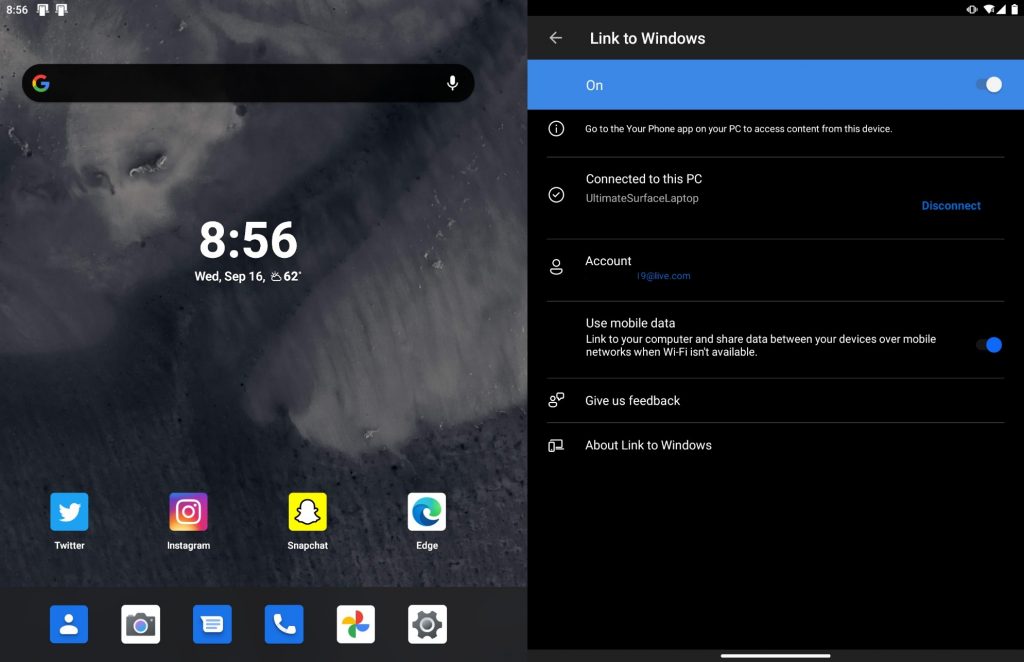
Link To Windows Settings

To use Your Phone with any Android device running Android 7 or higher, it is required to download the Your Phone app in the Google Play Store. Then, from there, follow the on-screen setup instructions to pair your Android device with your Windows 10 PC. However, if you have a newer Android phone from Samsung, (which is any device on this list,) or the Surface Duo, this step isn’t actually required. Instead, you need to use Link to Windows.

If your Android device supports Link to Windows, Your Phone integration is actually built right into it. You just need to pull down from the notification shade, click Link to Windows, and then sign in with a Microsoft Account, then open Your Phone on Windows 10 to finish the setup. This integration is seamless, allowing you to skip out on downloading an extra app. And, each time you want to connect to your PC, you have manual control from the notification shade. You also can allow Your Phone to sync over your mobile data, too, when you’re away from WiFi.

Tip 2: Own multiple phones? Choose a default device

Link To Windows Default Your Phone

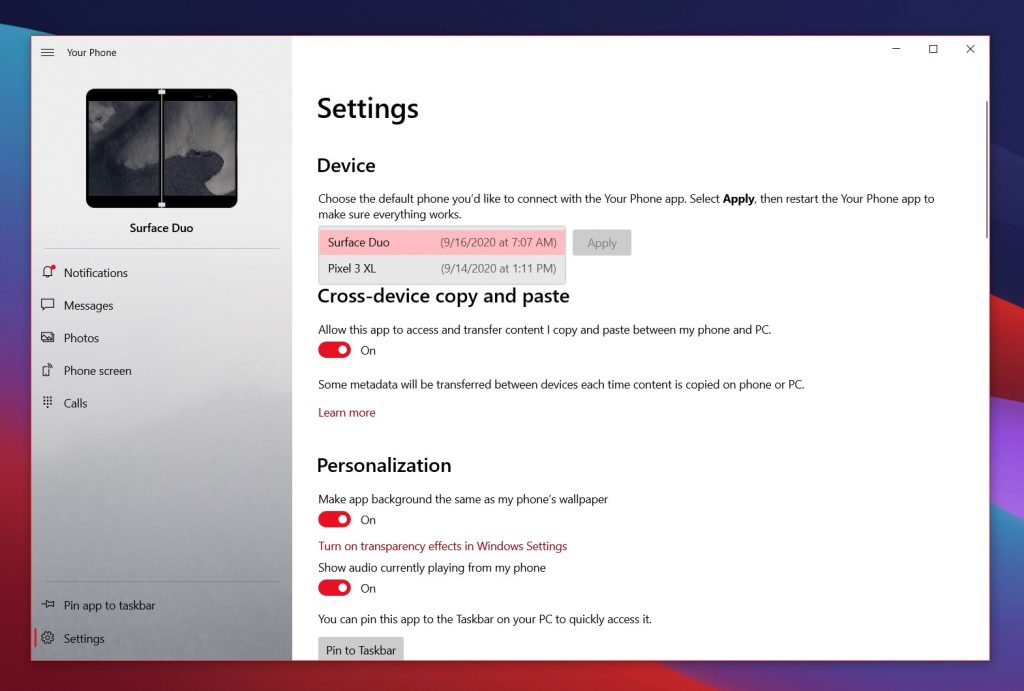
If you own multiple Android phones, you can technically connect them all to Your Phone in Windows 10, as long as you’re using the same Microsoft Account. Currently, you only can use one device with Your Phone at a time, but you’ll actually be able to see all your Android phones in the app if you swap out to a different default phone in Your Phone settings. Just click the Settings icon, and then under Device choose one from the list and then click Apply. When finished, you can restart the app.

Your Phone will start using the phone you choose as the default phone. This is quite useful if you’ve got multiple phone numbers or multiple devices. You only can use one at a time with Your Phone, but the choice of a default phone means you can switch between them if you want to.

Tip 3: Turn on cross-device copy and paste

Clipboard History

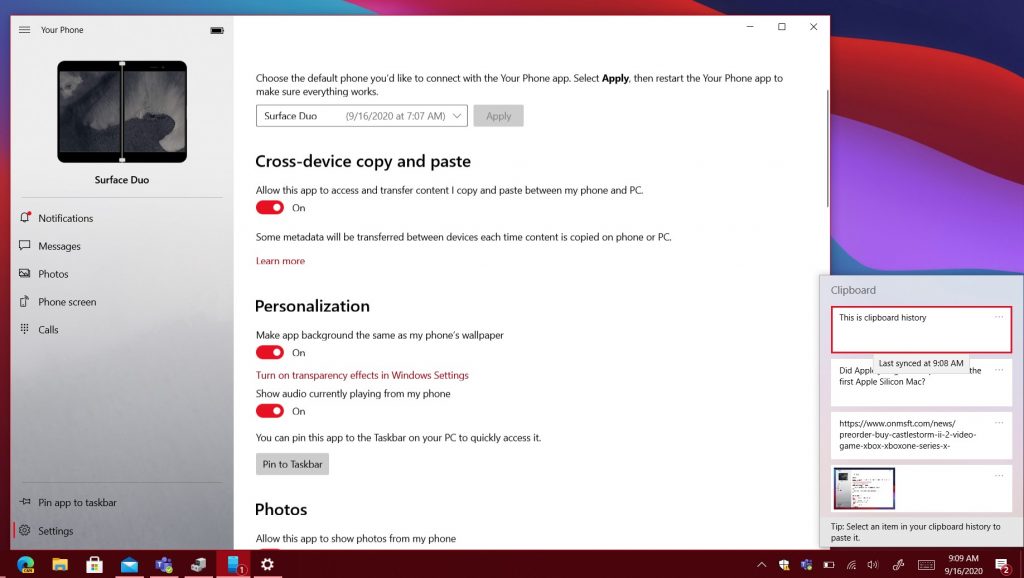
Third on our list is a cool feature known as cross-device copy and paste. Again, not all Android phones will support this (only the newer ones from Samsung, and the Surface Duo) but it’s still a pretty cool feature. With it, you can share the clipboard from your Android phone with your Windows 10 PC. This allows you to share URLs images, and more between devices.

To set this up, there’s a couple of things you need to do. First off, visit the Your Phone app. Click Settings and then Cross-device copy and paste and then toggle the switch to On. You’ll also have to make sure you can share your clipboard on your PC, too. To do this, head into Windows 10 Settings and search for Clipboard. Toggle the switches for Clipboard history and Sync across devices to On, and you’ll be able to see your clipboard history from your phone. Just hit the Windows Key and V.

Tip 4: Personalize the Your Phone app to your liking, and Pin the app for quick access

Link To Windows Your Phone Music.

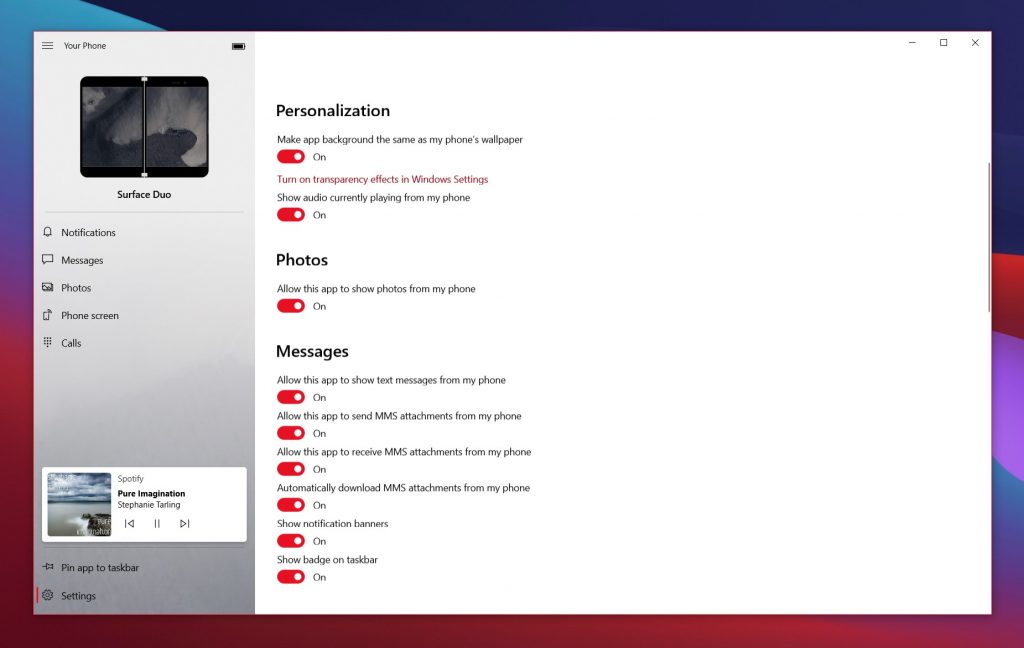
Next up are some personalization settings. There are more than a couple of settings available which can change the way that your Your Phone experience feels. We suggest turning on the option to make the app background the same as the one on your Phone. We also suggest turning on the toggle switch for showing audio on your phone, too. This allows you to control your phone’s audio right from your PC (Say, if you’re listening to a song on Spotify).

Some of the other toggle switches in the personalization section of the Windows 10 Your Phone app are critical to its functions. You’ll be able to control toggles for text messages, MMS messages, notification banners, and more. As another suggestion, it’s best to pin Your Phone to the Taskbar. This gives you quick access to it and will let you see a peek at how many notifications you have, too.

Tip 5: Try Calls, Your Phone Apps, or your Phone screen

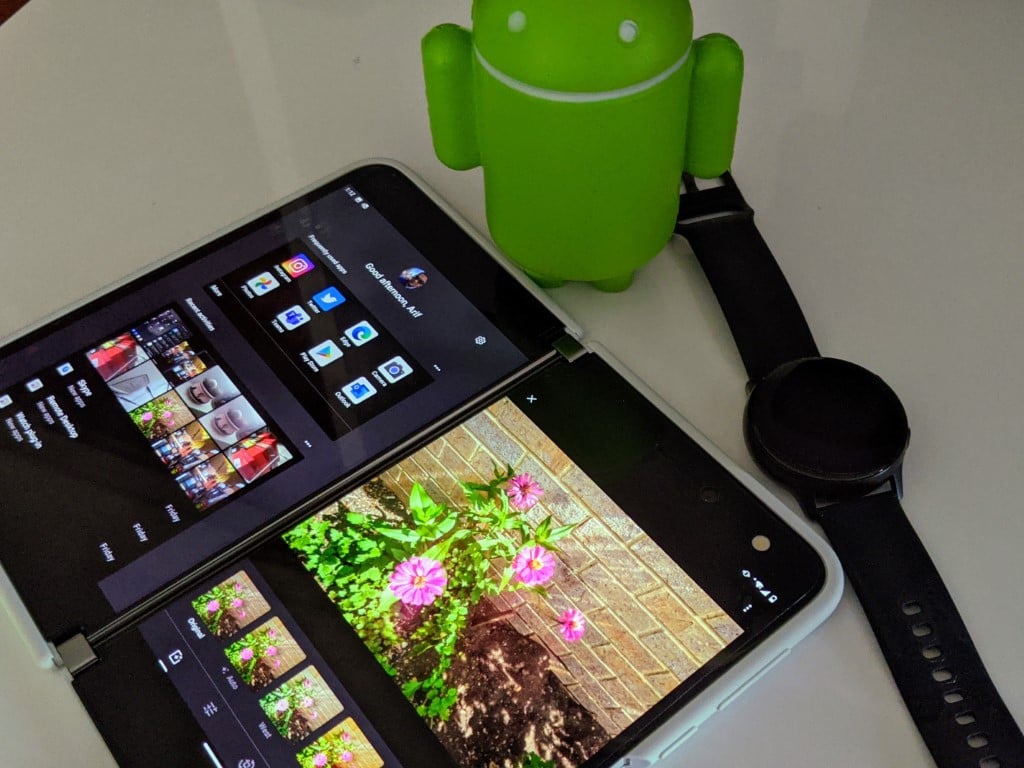
Windows 10 Your Phone Phone Screen Surface Duo

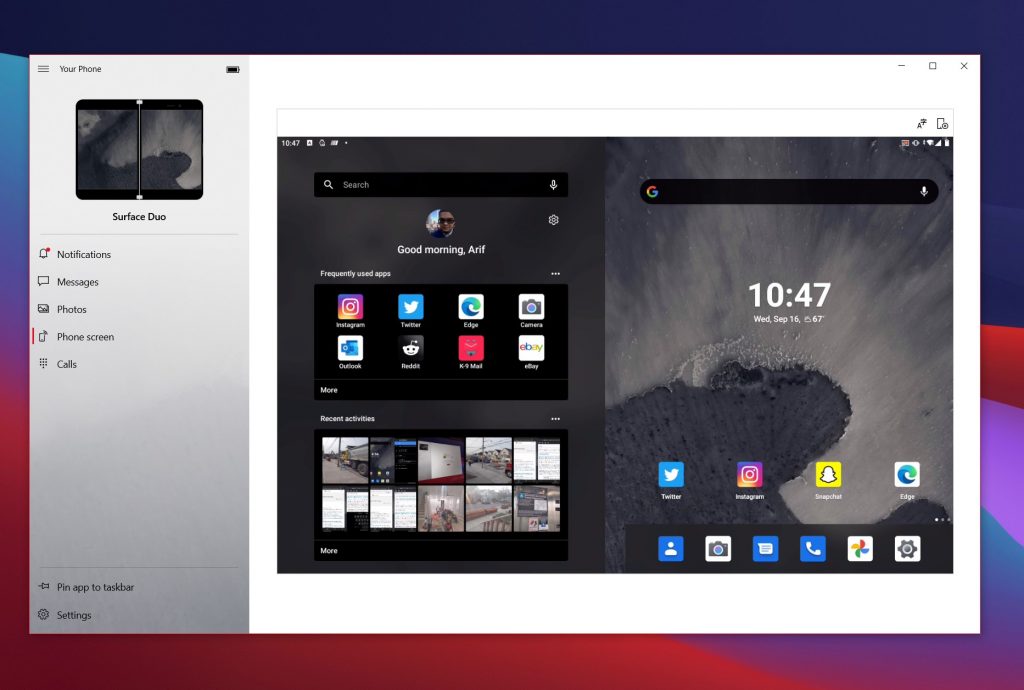
Final on our list are some suggestions related to the other core functions of Your Phone. While it is true that you can send and receive texts and also see your photos and notifications on your PC, the app goes well beyond that. You also can use it to stream your phone’s screen to your PC (if it’s supported) as well as place phone calls (if paired to your PC via Bluetooth.) You can set this up easily, by clicking that section of the Your Phone app. It’ll guide you through the process.

The Phone Screen and the Calling features are one of the best things about Your Phone. You’re able to keep your phone in your pocket and control it from your PC. Very handy if your phone is charging and you’re unable to touch it. But, if you own a newer Samsung Phone, then the Phone Screen feature goes one step further for you. You’ll be able to stream your apps over to your PC and run them in Windows 10 as if they were native.

Do you like Your Phone? Let us know

We’ve just given you a quick look at some of our tips and tricks for Your Phone in Windows 10. A little while ago, we compared Your Phone to Dell Mobile Connect, and the two are very similar. Do you like Your Phone? Or, do you have tips of your own? Let us know in the comments below.

FIX: No Sound from Cortana in Windows 10/11

Cortana is definitely one of the most useful features of Windows 10, but various problems with this handy virtual assistant could occasionally occur.

This time, we’re going to show you what to do if you can’t hear any sound from Cortana in Windows 10.

How can I fix the No Sound Cortana problem in Windows 10?

1. Update your drivers

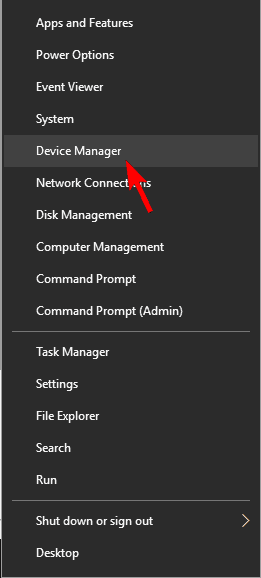
  1. Press Windows Key + X to open Win + X menu. Now select Device Manager from the list.
    Cortana doesn't speak
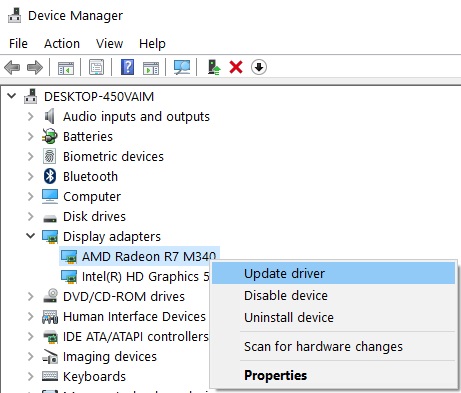
  2. When Device Manager opens, locate your audio driver, right-click it, and choose Update driver from the menu.
    Cortana doesn’t have sound
  3. Choose Search automatically for updated driver software and wait while Windows updates the driver.
    Cortana voice not working Windows 10

If there’s no sound from Cortana on your Windows 10 PC, the problem might be your drivers. Outdated drivers can cause this problem to appear, but you can easily update them right from Device Manager.

In that regard, you can choose to follow the steps detailed above. After updating your driver, check if the problem is resolved.

We also recommend updating your speaker drivers, so if you’re using USB speakers you might want to try that.

If Device Manager can’t update your drivers, you might want to try downloading them manually from your sound card’s manufacturer.

Do keep in mind that all drivers must be updated for your system to work properly.

1.1 Update drivers automatically

Therefore, in order to prevent PC damage by installing the wrong driver versions,  we suggest doing it automatically by using the Fortect Driver Updater tool.

That’s a solution that requires minimum effort on your part. Long story short, you just need to install Outbyte Driver Updater and complete this quick procedure:

  1. Download Fortect Driver Updater and install it into your PC.
  2. Once installed, Fortect Driver Updater will start scanning your computer for outdated and faulty drivers. Just wait for the scan to complete.
  3. Upon scan completion, you can see a detailed list of all driver-related problems found on your PC. Select which of these issues you want to solve – a single one or all at once. Outbyte Driver Updater will download and install them.
  4. Finally, restart your PC for the changes to take place.

⇒ Get Fortect Driver Updater

2. Disable Digital Output

  1. Right-click on the sound icon on the right side of your taskbar and go to Playback devices.
    Cortana makes no sound
  2. Disable the Digital output that you’re not using.
    Cortana speaker not working
  3. Restart your computer.

Another simple solution for sound problems with Cortana is disabling the digital output in your sound settings.

This is a problem that usually occurs when you have two playback devices enabled on your computer, and one conflicts with Cortana.

This doesn’t have to be the case, but sometimes the second output device just blocks Cortana.

Most people reported that this workaround actually solved their sound problems with Cortana, but if you still can’t hear anything from your virtual assistant, maybe you can try one of the solutions below.

3. Remove IDT High Definition audio

As we previously mentioned, third-party audio managers can interfere with your system and cause problems with Cortana. Users reported that IDT High Definition Audio is often responsible for this problem.

In order to fix the issue, you just need to remove it. There are several ways to remove an application, but the best way to do it is to use a dedicated PC cleaning utility.

More specifically, we talk about CCleaner. This software has an easy-to-use uninstaller feature where you can find and remove your apps in just one click. When you are done with that, head to the registry cleaner and remove any trace of the app.

4. Reset Cortana

  1. Open Cortana and go to Settings.
  2. The first button allows you to disable Cortana, so just disable Cortana with that button. It says: Turning off Cortana clears what Cortana knows on this device, but won’t delete anything from the Notebook. After Cortana is off, you can decide what you’d like to do with anything still stored in the cloud. Cortana speaker not working
  3. Restart your computer and enable Cortana again.

Maybe resetting Cortana to its default settings can solve the problem. Use the above steps to completely reset Cortana in Windows 10.

This will make Cortana completely forget about all your settings, so it would act like you just installed Windows, so maybe the solution for the sound problem with Cortana lies in this method.

If you also use Google Assistant on your phone and run into similar issues, follow our Hey Google not working guide for quick fixes.

5. Make sure that you don’t have Quiet hours turned on

  1. Open Action Center. You can do that quickly by pressing Windows Key + A shortcut.
  2. Look for the Quiet hours option. If it’s not available, click Expand.
    Cortana speaker not working
  3. Now click on Quiet hours to disable it.
    Cortana makes no sound

Windows 10 comes with a useful feature that will prevent notifications from appearing.

The feature is called Quiet hours and if you turn it on, you might not be able to hear Cortana. However, you can easily disable this feature by doing as described above.

After doing that, your notifications will start appearing and you’ll be able to hear Cortana again.

If the Action Center fails to open in Windows 10, use the steps in this quick guide to easily solve the issue.

6. Uninstall all hidden sound drivers

  1. Start Command Prompt as administrator. To do that, press Windows Key + X and choose Command Prompt (Admin) from the menu. If Command Prompt isn’t available, you can use PowerShell (Admin) instead.
    Cortana has no voice
  2. When Command Prompt starts, run the following commands:
    • set devmgr_show_nonpresent_devices=1
    • cd %SystemRoot% System32
    • start devmgmt.msc
  3. When Device Manager opens, go to the View tab and click on Show hidden devices.
    Cortana doesn't speak
  4. Expand Sound, video, and game controllers, right-click the grayed out driver , and choose Uninstall device from the menu.
    Cortana doesn’t have sound
  5. The confirmation menu will now appear. Click Uninstall to confirm that you want to remove the driver.
    Cortana voice not working Windows 10
  6. Repeat the last two steps for all hidden sound devices.

If you can’t hear Cortana, the issue might be related to hidden sound drivers. This isn’t a big problem, and you can fix it simply by removing the hidden sound drivers.

This is relatively simple, and you can do it by following the above steps. After doing that, restart your PC and check if the problem is resolved.

If you’re having trouble accessing Command Prompt as an admin, then you better take a closer look at this handy guide.

7. Disable HD Audio Background Process and Realtek HD Audio Manager

  1. Start Task Manager. You can do that by using Ctrl + Shift + Esc shortcut.
  2. When Task Manager starts, go to the Startup tab. Now look for HD Audio Background Process and Realtek HD Audio Manager. Right-click these applications and choose Disable from the menu.
    Cortana has no voice

Your Windows starts with many third-party applications, and sometimes these applications can interfere with Windows and cause issues with Cortana.

If you’re getting no sound from Cortana, the problem might be your startup applications. However, you can easily fix this problem by disabling these applications. To do that, just follow the above procedure.

After disabling these applications, restart your PC and check if the problem still appears.

Several users reported that these two applications caused the problem, so if you have either of them, be sure to disable them.

8. Configure audio in your audio manager

According to users, you might be able to fix this problem simply by configuring audio properly in your audio manager.

If you’ve downloaded and installed audio drivers from your sound card manufacturer, it’s possible that you installed a new audio manager.

If that’s so, the default audio manager and third-party manager can come into conflict. To fix the issue, you need to configure your audio properly in the third-party audio manager.

After doing that, the problems with Cortana should be resolved.

Since this is a sound problem, maybe something else from your system prevents Cortana from playing sound.

Therefore, you should check our article about other sound problems in Windows 10, and maybe you’ll find the solution (if none of the above worked, of course).

Many users use Cortana on daily basis, however, some users reported sound issues with Cortana.

Speaking of sound issues, these are some of the most common problems that users reported:

  • Cortana has no voice – This is a relatively common problem with Cortana. This issue occurs if you have Quiet hours turned on, so be sure to disable this feature.
  • Cortana doesn’t speak – Many users reported that Cortana doesn’t speak on their PC. It’s worth mentioning that Cortana will only speak to you if you use your microphone to send voice commands.
  • Cortana doesn’t have sound – This issue can occur due to problems with your drivers. If your audio drivers are outdated, you might experience this problem, so be sure to update them.
  • Cortana voice not working Windows 10 – Several users reported that Cortana’s voice isn’t working in Windows 10. This problem can be caused by the third-party application, so remove them from startup or uninstall them.
  • Cortana speaker not working – Several users claim that the Cortana speaker isn’t working. This can be a problem, but you should be able to fix it using one of our solutions.
  • Cortana makes no sound – According to users, sometimes you might encounter sound issues with Cortana. However, you should be able to fix that problem by removing hidden audio devices.

Let us know which Cortana tip worked in your case. Feel free to use the comments area below in that regard.

Microsoft Teams will soon let users pin posts and replies in channels

Microsoft Teams is about to get a new feature, which will give users the ability to pin chat messages and replies to the top of a channel. According to a Microsoft representative on the Teams UserVoice forum, the company is actively working to bring pinning support to Teams channels.

Right now, there is no option for Team owners to highlight important announcements that are usually pushed out of view by newer messages. With this new pinning experience, Microsoft aims to keep vital information easy to access, even weeks after a message has been sent. Team owners will be able to pin a message on top of the channel window when there’s an important message in a conversation that Team members have to lookup. Clicking the pinned message should point users to the specific message in the channel.

For now, we don’t have an ETA as to when the new option is supposed to go live, but we should expect Microsoft to roll out an official announcement in the coming weeks. In the meantime, if you are looking for something specific, Teams has a powerful search function. We invite you to check out our explainer post for more information.

Digital pre-orders open on Xbox One for the first proper sequel to the hit CastleStorm video game

Digital pre-orders are now live for CastleStorm II on Microsoft’s family of Xbox One consoles ahead of its September 23rd release later this month.

CastleStorm II is the first proper sequel to the original CastleStorm video game which first launched way back in 2013 on the Xbox 360. Like the first game, CastleStorm II is kind of a blend of classic platforming and tower defense video games wrapped up in a cartoony medieval setting.

Here’s the official game description:

Aim your catapults! Command your troops! Bloody the battlefield! CastleStorm II levels up gaming’s greatest genre mishmash with ruthless destruction powered by Unreal 4, plus a whole new metagame of strategic, tactical conquest. The heroes of the Kingdom confront the vile forces of the Undead, and you’ll plot your path to triumph for both sides in two epic story-driven campaigns. But not without some hands-on chaotic carnage and delightful devastation!

CastleStorm II returns to a classic fantasy land of medieval madness, rife with heroic knights, enchanting sorceresses, glorious griffins…and sheep. But a new threat rises – literally…as in, from the grave. Walking corpses. Headless horsemen. ZOMBIE sheep. All-around nasty necromancy. You get the picture. Build an entire empire through gameplay that engages your inner hardcore strategist…then command – even CONTROL – your soldiers en route to triumph!

Are you a fan of the original CastleStorm title and will you be picking up its sequel? Share your thoughts with the community in the comments below and then follow us on Pinterest and Twitter for more Xbox gaming news.

CastleStorm II
CastleStorm II
Developer:
Zen Studios
Price:
$19.99

FIX: The directory name is invalid in Windows 10

System errors such as ERROR_DIRECTORY can occur on any PC and they can prevent you from opening certain directories or files.

This error usually comes with The directory name is invalid message and today we’re going to show you how to fix it on Windows 10.

How do I fix the ERROR_DIRECTORY issue?

Fix – ERROR_DIRECTORY

1. Reinstall the audio driver

  1. Open Device Manager.
  2. Locate your DVD drive on the list, right click it and choose Uninstall device.
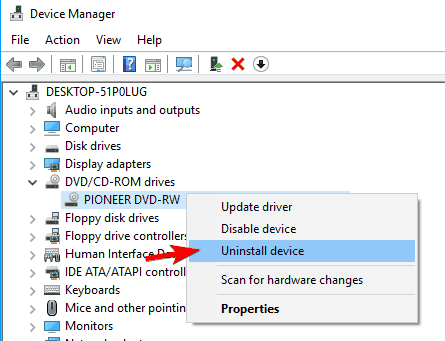
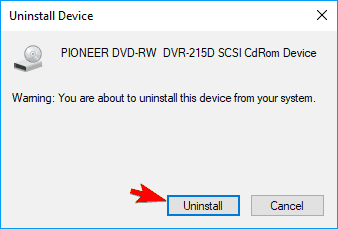
  3. Confirmation dialog will now appear.
  4. Click on Uninstall to remove the driver.
  5. After removing the driver, click on Scan for hardware changes icon.
  6. Windows will now scan your system and install the missing drivers.

If you’re having this problem while trying to play optical discs you might be able to fix it by reinstalling your DVD drive drivers. Once the default drivers are installed, check if the issue still persists.

Update drivers automatically (suggested)

Downloading and installing drivers manually is a process that carries the risk of getting the wrong driver installed, which may lead to serious malfunctions of your system. We strongly recommend Fortect Driver Updater.

It automatically identifies each device on your computer and matches it with the latest driver versions from an extensive online database.

The program is almost fully automated to do the entire job for you, and with a stable Internet connection you know you’ll always have the latest drivers as soon as they appear.

More so, the UI is made to be extremely easy to understand by users of all levels, making it very accessible.

⇒ Get Fortect Driver Updater

2. Check your antivirus

An antivirus tool is a necessity, but certain antivirus applications can cause this error to appear and prevent you from running certain apps. If you’re having this problem, we advise you to check your antivirus settings.

Sometimes certain settings can interfere with your apps and cause this and other errors to appear. To fix the problem, you need to check your antivirus settings and try disabling certain features.

If you’re not familiar with PC security, you might have some issues finding the problematic setting.

On the other hand, you might be able to solve the problem by disabling your antivirus entirely. After you disable your antivirus, check if the issue still appears. If disabling the antivirus fixes the problem, you might want to use that as a temporary workaround.

If the problem still appears, you should try uninstalling your antivirus software.

On the other hand, this would leave you exposed to malware threats, so you should try installing a better antivirus tool.

You can find very powerful antivirus software with low resource/CPU usage that will certainly not interfere with other processes or apps on your system.

3. Disable your DVD drive

  1. Press Windows Key + X to open Win + X menu.
  2. Choose Device Manager from the list.
  3. Once Device Manager opens, locate your DVD drive, right click it and choose Disable device from the menu.
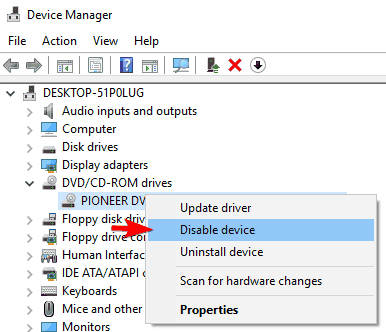
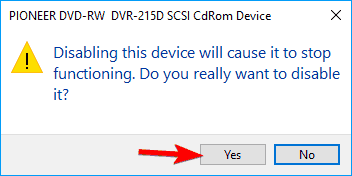
  4. A warning dialog will appear.
  5. Click on Yes to confirm.
  6. Locate your DVD drive once again, right click it and choose Enable device.
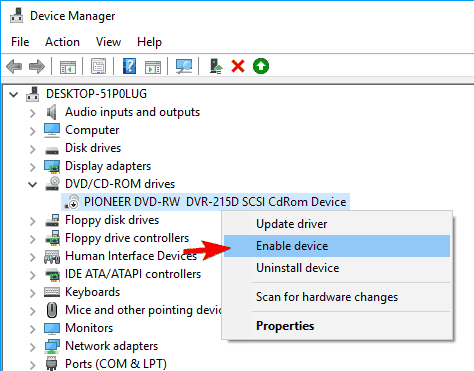
Alternatively, you can re-enable your DVD drive by doing the following:

  1. Locate your DVD drive in the Device Manager and double click it.
  2. Go to Driver tab and click on Disable Device.
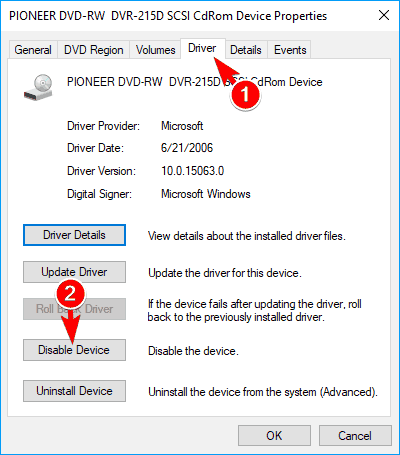
  3. When the warning message appears, click on Yes.
  4. Now click on Enable Device to enable your DVD drive again.
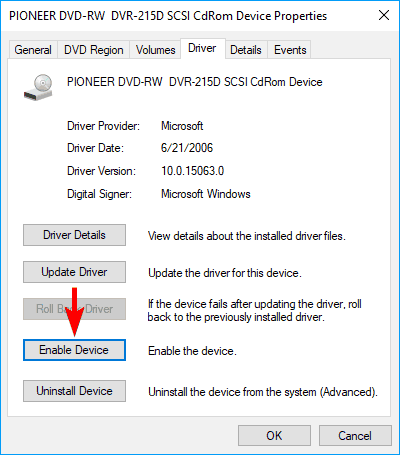
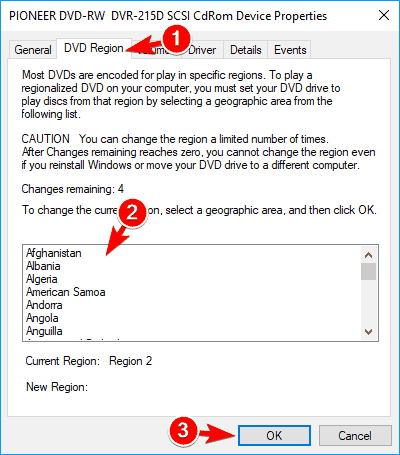
  5. Optional: Navigate to DVD Region tab and select your region from the list on the bottom.
  6. Now click on OK to save changes.

According to users, this problem usually appears when trying to play a DVD disc on your PC. To fix the problem, you need to disable your DVD drive from Device Manager and enable it again.

After enabling your device again check if the issue still persists. According to users, this is a useful solution, but unfortunately, it’s just a temporary workaround so you’ll have to repeat it every time this error occurs.

4. Connect your DVD drive to a different port

If you’re getting The directory name is invalid message while trying to play a DVD disc, you might be able to fix the problem by connecting your DVD drive to a different port. To do that you need to open your computer case and connect the DVD drive to a different SATA port on your motherboard.

After doing that, the problem should be completely resolved. Keep in mind that this solution requires you to open your computer case, so if your PC is still under warranty you might want to skip this solution.

5. Repair / remove Windows Essentials

  1. Press Windows Key + I to open the Settings app.
  2. Once the Settings app opens, go to Apps section. List of installed applications will appear.
  3. Select Windows Essentials on the list and click the Repair or Uninstall button.
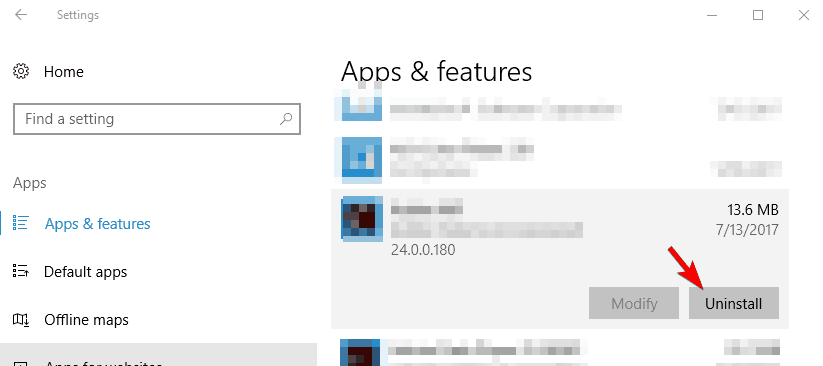
  4. Follow the instructions on the screen to repair or uninstall the application.

According to users, this error can be caused by Windows Essentials. This is a useful set of tools but it has compatibility issues with Windows 10 that can cause this problem to appear.

To fix it, users are suggesting to remove or to repair Windows Essentials.  Alternatively, you can remove or repair Windows Essentials installation by doing the following:

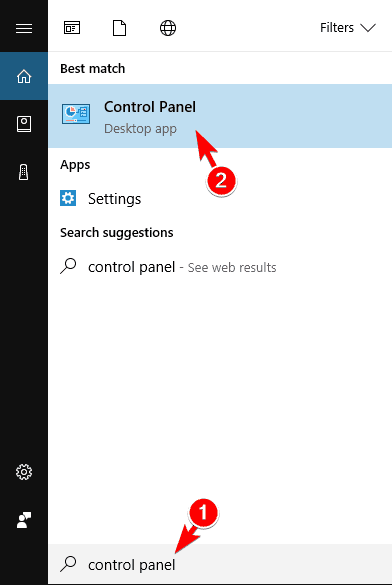
  1. Press Windows Key + S and enter control panel.
  2. Select Control Panel from the list.
  3. When Control Panel opens, click on Programs and Features.
  4. List of installed applications will now appear.
  5. Select Windows Essentials from the list and choose the desired option from the menu on the top.
  6. Follow instructions on the screen to remove or repair the application.

Even though Windows Essentials can cause this problem to appear, you should know that other apps can cause it as well.

If you still have this problem on your PC, try removing any recently installed or updated applications and check if that solves the issue.

6. Copy the problematic file to the root directory

If you can’t run a certain application due to The directory name is invalid message, you might be able to fix the problem simply by copying the problematic file.

To do that, move the file to the root directory such as C: and try to run it from there. In some cases you might not have the necessary privileges to run files from specific locations causing this error to appear.

To fix the issue, simply move the problematic file to any root directory and the error should be fixed.

Several users also reported this problem while installing software from DVD discs.

According to them, they were unable to install the software and copying the installation files to the hard drive didn’t solve the problem.

However, after moving all files to the Program Files directory they were able to start the setup without any problems.

7. Install the latest updates

  1. Press Windows Key + I to open the Settings app.
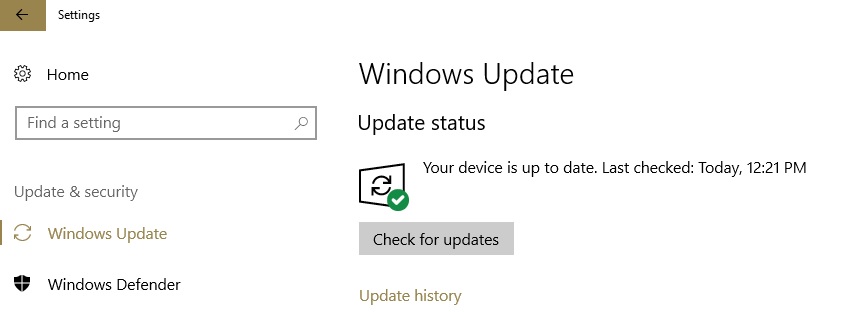
  2. Go to Update & security section and click on Check for updates button.
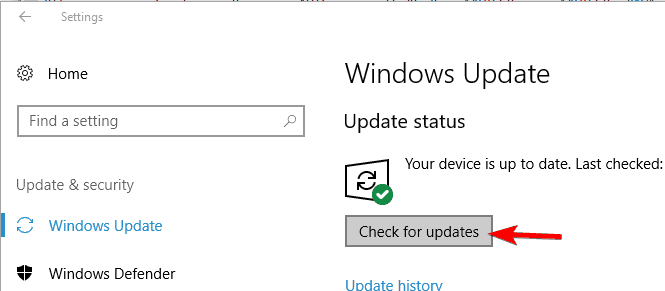
Windows 10 is a great operating system, but certain bugs can cause this and other errors to occur. To fix the error, it’s advised to download the latest Windows updates.

By default, Windows 10 automatically downloads the necessary updates in the background. However, sometimes you might miss an important update by accident.

Windows will now check for any new updates. If updates are available they will be installed automatically in the background. After installing the necessary updates check if the problem still appears.

8. Remove Adobe Reader

Sometimes this problem can occur with Adobe Reader. According to users, if you have two different versions of Adobe Reader installed that can lead to certain problems including this one.

Users reported The directory name is invalid message, and according to them, you can fix the problem by removing all versions of Adobe Reader from your PC.

After doing that, you need to reinstall Adobe Reader once again and check if that solves the issue.

9. Change the drive letter

  1. Open Disk Management tool.
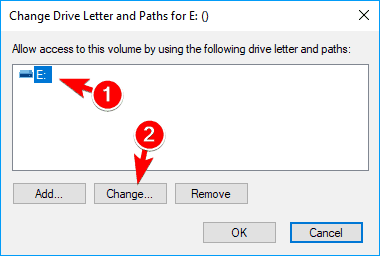
  2. Locate your DVD drive, right-click it, and choose Change Drive Letter and Paths.
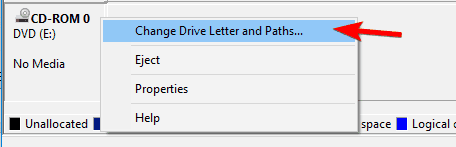
  3. Select the drive letter and click on Change.
  4. Select the desired drive letter and click OK.
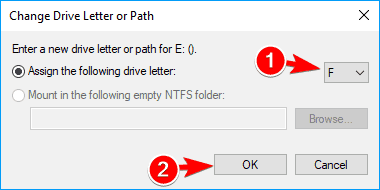
According to users, sometimes this problem can occur with your DVD drive. This error message will prevent you from burning discs, but you can fix it by changing the drive letter.

Save changes and check if the problem still persists.

10. Disable User Account Control

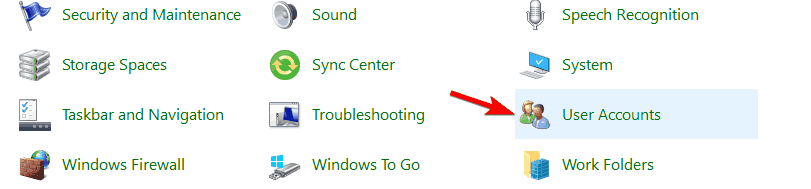
  1. Open Control Panel and select User Accounts.
  2. Click on Change User Account Control settings.
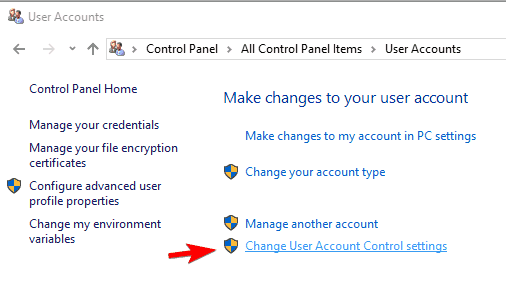
  3. When the User Account Control Settings window opens, move the slider all the way down.
  4. Now click the OK button to save changes.
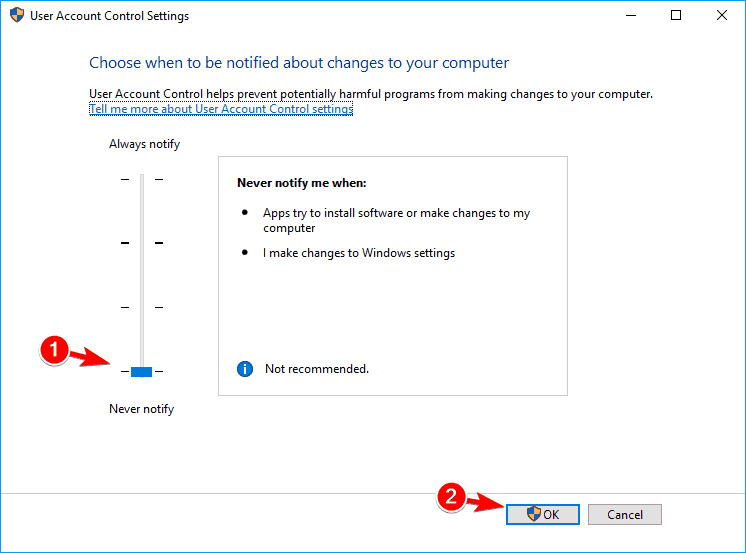
  5. Restart your PC to apply the changes.

User Account Control is a useful security feature of Windows, but sometimes it can prevent you from installing certain applications.

This feature will prevent users and apps from making changes to the system that require administrator privileges. Thanks to it, you’ll be sure that all your applications aren’t using administrative privileges to make any system-wide changes.

Even though this feature is rather useful, in many cases User Account Control can interfere with Windows and cause The directory name is invalid message to appear while installing certain applications.

To fix the problem, it’s advised to completely disable User Account Control. After doing that, User Account Control will be disabled and you should be able to install the desired application without any problems.

Keep in mind that disabling this feature will slightly reduce your security. If you’re worried about your security, go back to User Account Control Settings and move the slider to the default position to turn this feature back on.

11. Create a Temp folder

Many applications move the necessary files during the installation to the Temp folder. This folder stores the temporary files and deletes them once you install the application.

Temp folder is necessary when installing certain apps, and if this folder is missing you might encounter this error.

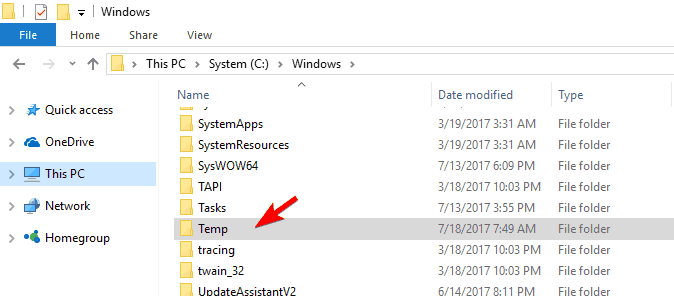
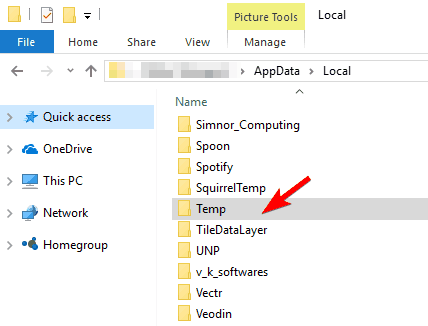
According to users, they are experiencing this problem because Temp folders are missing from their PC. By default, there are two Temp folders on every computer.

The first one is located in this directory:

C:Windows

The second one is located in this directory:

C:Usersyour_usernameAppDataLocal

If any of these Temp folders are missing, you need to recreate them and check if that solves the problem. If that doesn’t help, you can try creating new Temp folders in different locations.

Before you start you need to create two folders that will work as Temp folders. After doing that you need to set environment variables by doing the following:

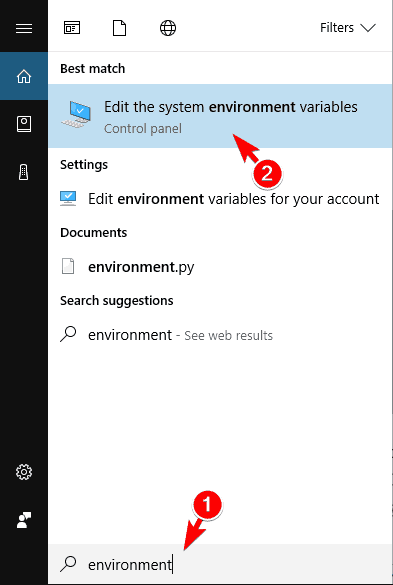
  1. Press Windows Key + S and enter environment.
  2. Select Edit the system environment variables.
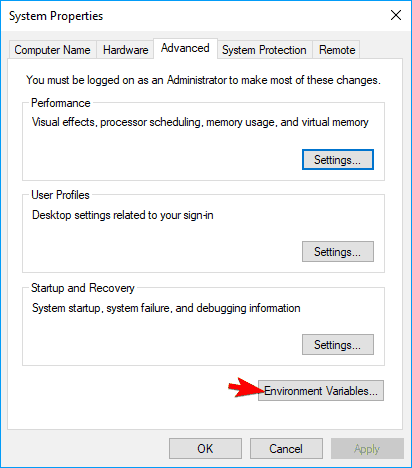
  3. System Properties window will appear.
  4. Click on the Environment Variables button.
  5. Environment Variables window will now appear.
  6. In the User variables section select the TEMP variable and double click it to edit it.
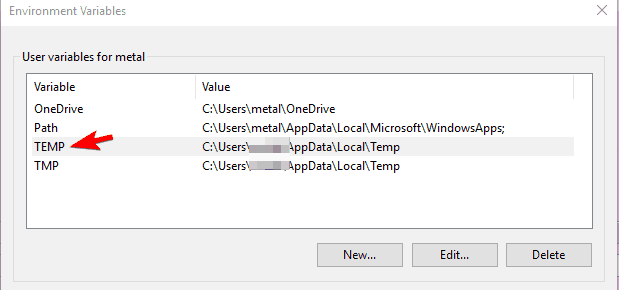
  7. Set Variable value to the desired folder that you want to use as a Temp folder.
  8. Once you’re done, click OK to save changes.
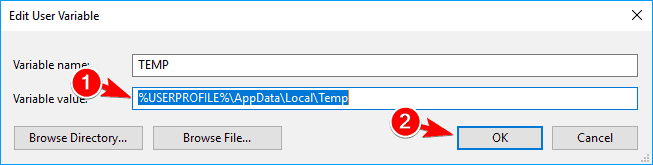
  9. Repeat the same steps for the TMP variable and be sure to use the same folder as in the previous step.
  10. In the System variables section select the TEMP variable and double click it.
  11. Choose the desired folder that you want to use for storing temporary files.
  12. Repeat the same steps for the TMP variable and be sure to choose the same folder.
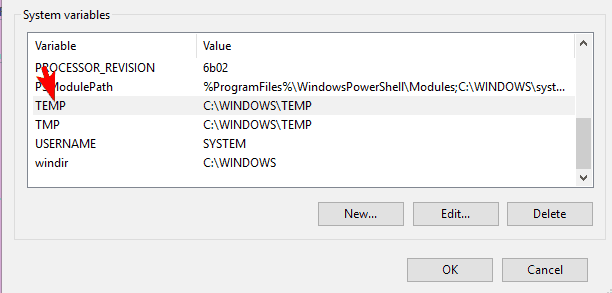
  13. Once you’re done, click OK to save changes. Restart your PC and check if the problem is resolved.

Setting up new temporary folders is an advanced procedure, so use extra caution while doing that.

12. Enter Safe Mode

  1. Open the Start Menu and click on Power button.
  2. Press and hold the Shift key and choose Restart from the menu.
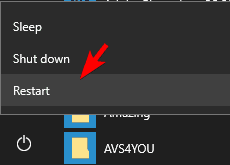
  3. Choose Troubleshoot > Advanced options > Startup Settings. Click the Restart button.
  4. After your PC restarts, you’ll see a list of options.
  5. Select any version of Safe Mode by pressing the appropriate keyboard key.

This problem can sometimes be caused by your drivers or third-party applications, and the best way to fix it is to enter Safe Mode.

Safe Mode is a segment of Windows that runs with default drivers and applications, so it’s perfect for troubleshooting. To enter Safe Mode, do the following:

Once you enter Safe Mode, check if the problem still appears. If the problem doesn’t appear in Safe Mode, it’s possible that a third-party application or a bad driver is causing this error.

To fix the problem, you need to find and remove the problematic software or driver.

13. Use System Restore

  1. Press Windows Key + S and enter system restore.
  2. Choose to Create a restore point from the menu.
  3. System Properties window will now appear.
  4. Click on System Restore button.
  5. When the System Restore window opens, click on Next. A list of all restore points will appear.
  6. Check Show more restore points option if available. Select the desired restore point and click on Next.
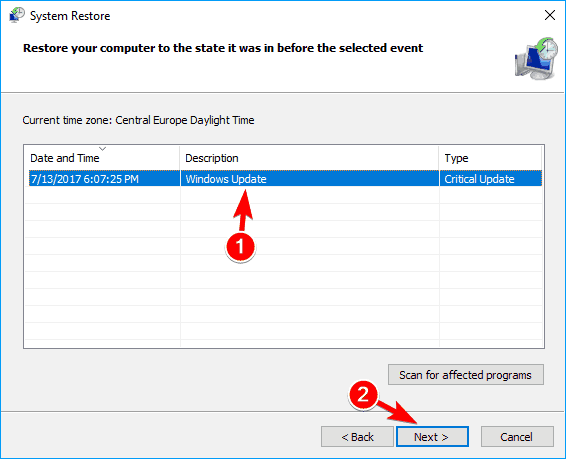
  7. Follow the instructions on the screen to restore your PC.

If this error started appearing recently, you might be able to fix it by performing System Restore. This is a useful feature that allows you to restore your PC and fix any problems.

After restoring your PC, check if the problem still persists.

Fix – The directory name is invalid USB

1. Create a new simple drive

  1. Press Windows Key + X and click on Disk Management.
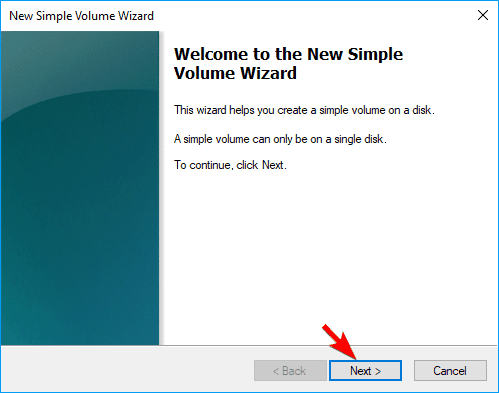
  2. Locate Unallocated space, right-click it, and choose New Simple Volume.
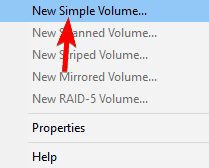
  3. A new window will now appear.
  4. Click on Next.
  5. Select the desired size of the volume. In most cases, it’s best to use the maximum size.
  6. After setting the volume size, click on Next.
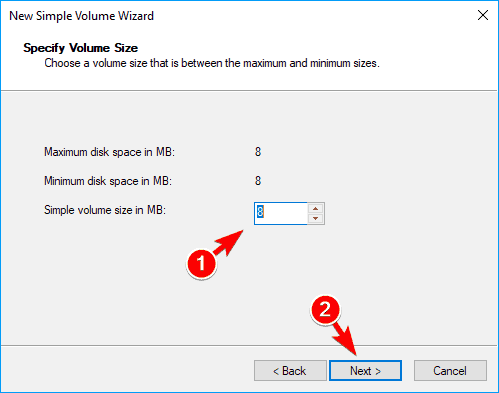
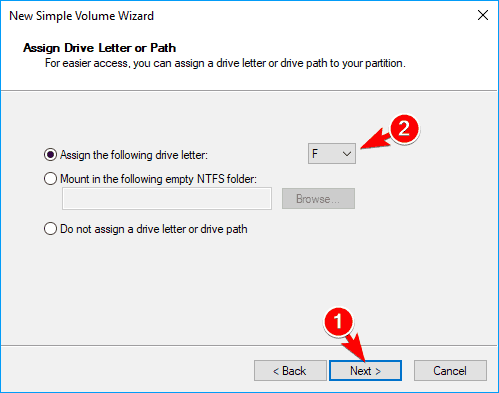
  7. Set the desired letter for the new drive and click on Next.
  8. Choose the desired formatting options and click on Next.
  9. If you have important files on your flash drive, you might want to choose Do not format this volume option.
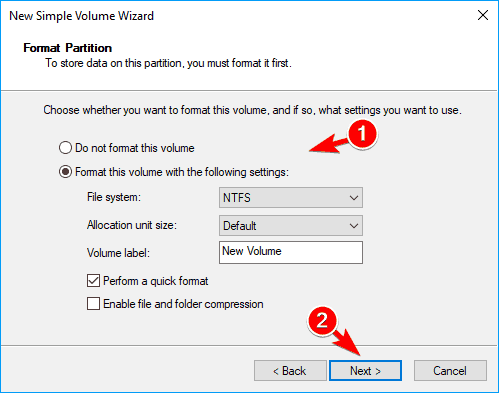
Sometimes this type of error can occur while trying to access a USB flash drive. According to users, you can fix this problem simply by creating a new simple drive.

After doing that, you should be able to access your flash drive without any issues.

2. Use a third party software

Several users reported this problem while trying to remove directories from their USB flash drives. According to them, it seems that directories on your USB flash drive can get corrupted and that will cause The directory name is invalid message to appear.

To fix the issue, users are recommending using IObit Unlocker application to unlock the folder and delete it, so be sure to try it out.

⇒ Get IObit Unlocker

3. Modify your registry

  1. Open Device Manager.
  2. Locate the problematic device and double click it to open its properties.
  3. Navigate to Details tab, set Property to Class Guid.
  4. Write down the value for this device because you’ll need it for future steps.
    • In our example, the value was {4d36e965-e325-11ce-bfc1-08002be10318}, but it can differ depending on the problematic device.
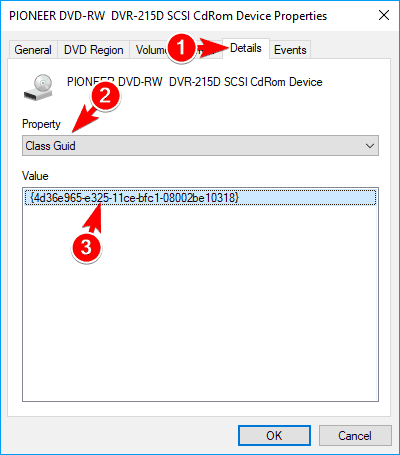
According to users, you might be able to fix this issue simply by changing a few values in your registry. Before you can use this solution, you need to find the ID of the problematic device.

After you find out your device’s ID, you need to find it in Registry Editor. To do that, you need to do the following:

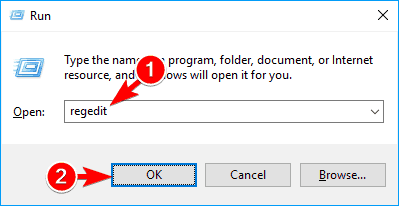
  1. Press Windows Key + R and enter regedit.
  2. Press Enter or click OK.
  3. Optional: Before making any changes to your registry it’s advised to create a backup.
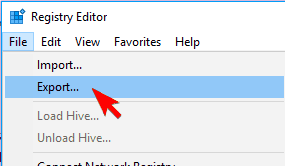
  4. To do that, simply click on File > Export. Select All as Export range, enter the desired name, and choose a safe location for the file.
  5. Now click the Save button to save it.
  6. Once Registry Editor opens, in the left pane navigate to this key and expand it:
    • HKEY_LOCAL_MACHINESYSTEMCurrentControlSetControlClass
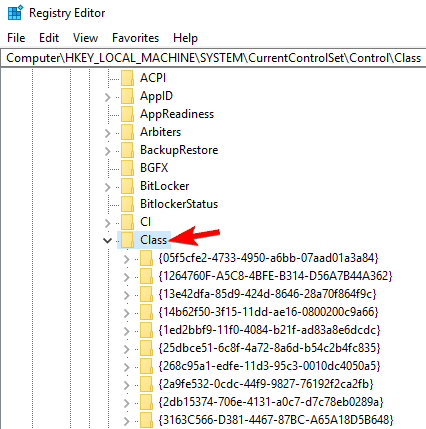
  7. You’ll see a list of subkeys. Navigate to the key that represents the problematic device.
    • In our example it’s {4d36e965-e325-11ce-bfc1-08002be10318}, but it should be different on your PC.
  8. In the left pane, locate and delete UpperFilters and LowerFilters values.
    • To do that, simply select the problematic value, right-click it and choose Delete from the menu.
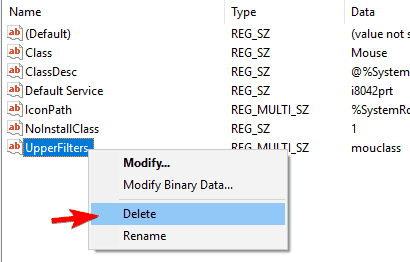
After removing the problematic values, restart your PC and check if the problem still persists. If UpperFilters or LowerFilters aren’t available, you can skip this solution since it doesn’t apply to your PC.

Fix – The directory name is invalid SD card

1. Remove your SD card

If this error message appears while using an SD card, you might want to try removing it. This is a temporary workaround, but few users reported that removing and reinserting the SD card fixed the problem for them, so be sure to try that.

2. Reinstall your drivers

According to users, this issue appears due to problems with your drivers. Sometimes issues with SD card reader drivers can occur and to fix the problem you need to reinstall the drivers.

To do that, simply navigate to Device Manager and remove your drivers. After doing that, scan for hardware changes and Windows 10 should automatically install the missing drivers.

We already showed you how to do this in one of our previous solutions, so be sure to check it out for detailed instructions.

Fix – The directory name is invalid Task Scheduler

Remove the quotes from the folder path

If you’re having this problem with Task Scheduler, it might be due to your file path. According to users, Start in (optional) field doesn’t support quotes, so if you have quotes in your file path be sure to remove them and save changes.

After doing that, the problem should be resolved and everything will start working properly.

ERROR_DIRECTORY and The directory name is invalid message usually appear while trying to install certain applications or while trying to play optical media.

This error can cause some problems on your PC, but you should be able to solve it by using one of our solutions.

Windows 10 Twitter app gets new Quote Tweet labelling and improved emoji picking

The official list of changes that have been made to the Twitter web app, and thus the official Windows 10 Twitter app, over the past month or so has been published.

Many would have noticed by now the long overdue rebranding of “Retweets with comments” as “Quote Tweets” that’s happened during the past few weeks on all platforms. “Quote Tweets” has been a phrase used by Twitter users for many years now to refer to a retweet that has a comment above it.

For some reason, Twitter has been resistant to using the phrase in an official capacity but, after the social network recently started displaying “Retweets with comments” as a separate retweet stat on tweets and the majority of users having no idea what that meant, the company finally began using “Quote Tweets” and the service is all the better for it.

Other changes mentioned include improvements to the media upload button on the DM screen, conversation card previews, and improvements to the native emoji picker box.

Here’s the full notes:

New

  • DMs: The media upload buttons in the DM composer will now dynamically show and hide on smaller screens to give you more space for composing messages.
  • Quote Tweets: “Retweets with comments” are now known as Quote Tweets! This change has been rolled out globally for Web. Look for Quote Tweets between Retweets and Likes on the Tweet detail screen, and the Quote Tweet option in the Retweet dropdown menu.

Updated

  • Composer: Clicking a conversation card will now show a preview of the card within the composer after opening.
  • DM Drawer: Opening a link for a Tweet or Event from a DM on the Messages screen will now navigate you to the correct page, and open the DM Drawer to the conversation you opened the link from.
  • Emoji Picker: The Emoji Picker’s performance should now be a lot smoother and snappier when opening and scrolling through categories.
  • Tweet Detail: All timestamps on the Tweet Detail screen will now link to the Tweet’s URL location.

Fixed

  • Accessibility: Improved carousel accessibility. Tab focus and keyboard shortcuts should no longer cause the carousel layout to break on Safari. Voiceover will now properly announce the current carousel position.
  • Accessibility: The Tweet Detail should now be properly accessible via keyboard shortcuts on Safari.
  • Composer: The Tweet composer should now properly focus when opened from menus such as the Retweet dropdown.
  • Conversations: Muting a user on the conversation screen will now hide their Tweets.
  • DMs: When blocking a user in the message requests inbox, you will now still have access to the conversation for historical purposes.
  • DMs: When blocked by another user through DMs, navigating to the user’s profile page will no longer display an error state.
  • Events: When sharing an Event, the title will now properly populate in the Tweet composer.
  • Notifications Screen: Navigating to twitter.com/mentions will now take you to your Mentions tab on the Notifications Screen instead of displaying an empty profile page.
  • User Picker: Selecting a user with a long display name should no longer cause the selection pill to extend beyond the picker container when tagging users in media, or adding them to DMs.
  • Video: The docked video player will now accurately show elapsed time.
  • Video: The video preview image will no longer display under the “Watch again” overlay.
  • Who to Follow: Fixed an issue where the Who to follow module on the sidebar wouldn’t display.

Being a web app, changes are made to Twitter on a continuous basis rather than with a single app update that must be pushed out to devices. Many changes, such as the new use of “Quote Tweets,” are quickly spotted by users while others remain unnoticed until they’re announced via release notes like the ones above.

Are you happy with the recent changes to the Twitter app? Let us know in the comments below and then follow us on Twitter for more Windows app news.

Twitter
Twitter
Developer:
Twitter Inc.
Price:
Free

5 best FTP backup server software

Backing up your files is important, and many users choose to back up their files online. There are many tools that can do that, but the most convenient ones are the ones with FTP support.

FTP protocol is widely used, and this is why today we’re going to cover the best FTP server backup software, so let’s get started.

What is the best FTP server backup software?

Handy Backup

handy backup backup for FTP

If you’re looking for a simple FTP server backup software, then you should consider Handy Backup. The software can back up all sorts of files, and it even has support for e-mail backup.

Using this software you can back up files to a local hard drive, external hard drives, and cloud storage. There’s even support for FTP backup, backup to NAS, and support for WebDAV protocol.

Handy Backup allows scheduling, and it can create full, incremental, or differential backups. Of course, you can compress data in ZIP archives and there’s also support for strong encryption.

It’s worth mentioning that the software has an activity log, so you can monitor your backups, and there’s also support for email notifications.

Handy Backup offers great features, and it’s a perfect tool if you need to back up your computer over FTP, so be sure to consider it.

Handy Backup features:

  • Support for FTP and cloud backups
  • Support for local, external, and NAS backups
  • WebDAV protocol support
  • Full, incremental, and differential backups
  • Backup compression and encryption
Handy Backup

Handy Backup

Handy Backup is a versatile backup software that offers full support for cloud and FTP backups.
Check priceVisit website

Iperius Backup

iperius backup backup for FTP

Iperius Backup is a could backup software, and it also allows you to perform backups to SFTP servers, Amazon S3, Microsoft Azure Storage, Google Drive, Dropbox, and OneDrive.

The software supports Incremental FTP backup and synchronization, and it offers full compatibility with any FTP/FTPS/SFTP server.

Iperius Backup offers great protection, and thanks to the SSL and AES 256-bit client-side encryption you can rest assured that your files are safe at all times.

The software also allows you to copy files that are in use or locked, and there’s even an FTP backup to NAS available.

Overall, Iperius Backup offers great features, and it will be perfect if you’re looking for FTP server backup software.

Iperius Backup features:

  • Support for FTP backup and synchronization
  • Compatible with any FTP/FTPS/SFTP server
  • Support for Amazon S3, Microsoft Azure Storage, Google Drive, DropBox, and OneDrive backup
  • SSL and AES 256-bit encryption
  • FTP to NAS

⇒ Get Iperius Backup

AceBackup

AceBackup backup for FTP

Another great backup software with FTP support is AceBackup. The software offers backup to FTP servers, which can be extremely useful.

It’s worth mentioning that the application supports encryption, so all your data will remain safe. As for supported standards, it supports Rijndael 128/192/256, Blowfish 128, and Triple-DES 128.

The software supports scheduling, and you can back up your data in specific intervals in order to ensure that all your files are safely backed up.

It’s important to mention that the software supports ZIP compression, and by using it you’ll ensure that you save precious storage space.

AceBackup is a simple to use backup software, and if you need a simple software with FTP support, this might be the right tool for you.

AceBackup features:

  • Completely free
  • FTP backup
  • Rijndael 128/192/256, Blowfish 128, and Triple-DES 128 encryption
  • Support for backup scheduling
  • Built-in ZIP compression

⇒ Get AceBackup

Leo Backup

Leo Backup backup for FTP

If you need backup software with FTP backup support, then Leo Backup might be just what you need. The software supports backup to local drives, local networks, and via FTP.

Regarding backup, there’s support for Amazon S3, Google Drive, and One Drive. It’s worth mentioning that your files will remain safe at all times thanks to the AES-256 encryption.

There’s also built-in support for Zip64 compression, so your backups won’t take too much space. To ensure that your data is safely backed up, there’s full support for backup scheduling.

As for advanced features, there’s SQL database backup, as well as registry backup, but keep in mind that some of these features are available only in Pro and Enterprise versions.

Leo Backup features:

  • FTP backup
  • E-mail notifications
  • Backup scheduling
  • 256-bit encryption and compression
  • Cloud storage backup
  • Database backup (in Enterprise version)

⇒ Get Leo Backup

Duplicati 2.0

Duplicati 2.0 backup for FTP

Another great FTP backup software for your PC is Duplicati 2.0. The software has AES-256 encryption, so your files and folders will be protected at all times. If you don’t prefer AES, you can also use GPG encryption.

The software is designed to save space, so it fully supports incremental backups and data deduplication. Duplicati 2.0 has a web interface, so it can run in any web browser, and you can access it from anywhere.

The application supports FTP, SSH, and WebDAV, and it can work with popular services such as Backblaze B2, Tardigrade, Microsoft OneDrive, Amazon S3, Google Drive, BOC, Mega, and others.

The software is optimized for online backups, and even if the backup process is interrupted, it can be resumed easily at any time.

Duplicati 2.0 is completely optimized for online backup, and with FTP, SSH, and WebDAV support, it will be a perfect tool for professionals.

Duplicati 2.0 features:

  • Completely free and open source
  • Supports FTP, SSH, and WebDAV protocols
  • Compatible with Microsoft OneDrive, Amazon S3, Google Drive, and many other services
  • AES-256 and GPG encryption
  • Web interface

⇒ Get Duplicati 2.0

There are many great FTP backup server applications, and we hope that you found what you’re looking for on our list.

Sea of Thieves packet loss explained: How to fix it?

Sea of Thieves is an awesome game where you can live your childhood fantasies of becoming a pirate without actually harming anyone. Unless you’re that type of gamer.

If you’re a sociable gamer, you’ll love to hear that Sea of Thieves is online-exclusive. Even if you don’t enjoy teaming up and shipping around the world in a crew, you’ll still encounter other players along the way.

However unlikely, there’s a downside to this whole multiplayer-only situation. Like any other online service, Sea of Thieves can experience connectivity issues from time to time.

Among the most severe ones, we remind of high ping, jitter, and the dreaded packet loss.

What is packet loss in Sea of Thieves?

Let’s put it this way: you’d rather have another player loot your ship than face heavy packet loss. Just kidding, getting looted is not fun. But neither is packet loss, and you’ll soon understand why.

This phenomenon occurs whenever packets that are transmitted through your connection never reach their targets. As a result, the server might panic and throw a delay your way, or a desync, which is way worse.

If you ever experienced lag so bad that you started teleporting randomly across the map (rubberbanding), the culprit might’ve actually been packet loss. And if you’re unfortunate enough to get it during an encounter, well…

Other symptoms include:

  • Sea of Thieves constant connection loss
  • Frame rate loss on Sea of Thieves
  • Sluggish menus
  • Inability to communicate with your crew in real-time
  • Sudden random disconnections

What can cause packet loss in Sea of Thieves?

Anything awry with your connection can be a potential trigger for packet loss. For instance, if you use Wi-Fi instead of Ethernet, you might as well point signs your way reading Packet loss welcome.

The same goes for not using high-quality Ethernet cables or logging into the game during peak hours when the network is close to being overloaded. Therefore, it’s not exactly easy to identify a surefire cause.

Here’s a list of potential reasons for experiencing packet loss in Sea of Thieves:

  • Network congestion (without a doubt the most common one)
  • Improper network routing (your ISP’s fault, you have nothing to be blamed for)
  • Bandwidth throttling (still your ISP’s fault)
  • Subpar Ethernet cables (using CAT 5 instead of CAT 6, for instance)
  • Using Wi-Fi instead of Ethernet (Wi-Fi packet loss happens more frequently)
  • Outdated network adapter drivers
  • Using high-quality game settings that your connection can’t back
  • Running other bandwidth-heavy programs such as VoIP (TeamSpeak, Skype)
  • Poor Internet subscription plan (capped at low bandwidth usage or speed)
  • Problems with the game server (which again, you can’t be blamed for)

As you can see, the list is quite varied. We can safely conclude that packet loss can occur anywhere on the connection: on your side, on your ISP’s side, or even on the game server host’s side.

This is why it’s so difficult to troubleshoot leaking packets most of the time.

How to fix packet loss in Sea of Thieves?

1. Try using a reliable VPN service

  1. Buy a Private Internet Access subscription plan
  2. Download the VPN client and install it on your PC
  3. Launch PIA and log into your account
  4. Connect to a suitable, fast server (closer ones are faster)
  5. Launch Sea of Thieves
  6. Check if you still experience packet loss

More often than not, a VPN such as Kape Technologies’ Private Internet Access will fix your packet loss problem. However, in order for this fix to work, the issue should be caused by your ISP (bandwidth throttling, improper routing).

Private Internet Access

Experiencing packet loss in Sea of Thieves? PIA can fix it for you.
Free Trial Visit Website

Therefore, if you or the game server host are what’s causing the packet loss, this method won’t work.

2. Flush your DNS

  1. Open an elevated CMD instance on your PC
  2. Type the following commands:

ipconfig /flushdns
ipconfig /registerdns
ipconfig /release
ipconfig /renew
netsh winsock reset
exit

Now all you have to do is restart your PC, launch Sea of Thieves and see if there’s any improvement. Alternatively, you could switch your ISP-assigned DNS addresses to free, public ones.

  • Google Public DNS: 8.8.8.8 and 8.8.4.4
  • Cloudflare Public DNS: 1.1.1.1 and 1.0.0.1
  • OpenDNS: 208.67.222.222 and 208.67.220.220

Just look up alternative public free DNS and you’ll probably find one that suits you better. Just make sure to back up the ISP-assigned DNS in case they’re not set to be obtained automatically.

3. Manually troubleshoot your connection

  • Check and replace any outdated/broken component on your network (such as cables)
  • Update your router’s firmware to the latest version
  • Make sure your drivers are up-to-date (especially network drivers)
  • Always use Ethernet instead of Wi-Fi when possible
  • Call your ISP and ask them if they can look into it
  • Run a pathping test and check where the packet loss occurs (if it’s your, your ISP’s or the game server’s fault)
  • Contact Sea of Thieves’ customer support if there’s something wrong on their side
  • Close any bandwidth-heavy apps on your computer
  • Try lowering the quality settings and see if there’s any improvement
  • Avoid peak hours whenever possible if your network faces network congestion on the regular

Final thoughts on Sea of Thieves packet loss

All things considered, fixing packet loss in Sea of Thieves can be a hassle. However, most of the time this issue is kind enough to fix itself without us even noticing.

In the unfortunate event that you experience packet loss regularly, then you must dig deeper and isolate the cause of this event.

If your ISP is what’s causing it, then the fix is quite straightforward: either talk to your ISP or use a VPN to circumvent their limited connection.

On the other hand, if the underlying issue is on your side, you might want to buckle up and start troubleshooting, because it’s not likely to go away by itself.

Dying Light packet loss: what is it and how to fix it?

If you’re not new to the gaming scene, you might’ve heard about Dying Light at least once before. It’s your classic FPS survival game where you have to avoid dying at all costs by defending against flesh-eating zombies.

Yes, you’ve heard it all before, but the game is quite awesome, to be honest. Especially if you choose to play it in LAN or online co-op mode. You’ll have to synchronize and work as a team if you want to stand a chance against the mindless hordes.

However, Dying Light can quickly take a turn to the bad at times. As if running from horrific creatures who want to devour you wasn’t bad enough, playing with others also means you’ll experience connectivity issues, such as packet loss or jitter.

What is packet loss in Dying Light?

Sometimes, data packets that are transmitted through the connection can’t reach their destination. In turn, the remote server might artificially delay the connection, waiting for packets that will never arrive.

Most modern servers are configured in such a way that they won’t delay the connection indefinitely, which almost always ends in the server crashing. Instead, they skip the lost packets and receive the next incoming ones.

In more than just one way, packet loss resembles in-game lag, as the symptoms are quite similar. However, there’s a huge difference between the two.

High latency means that the packets need more time to reach their destination. Packet loss means that some packets simply don’t make it.

What can cause packet loss?

Truth be told, anything from an old Ethernet cable to server-side problems could cause packet loss. That’s why this issue is so hard to deal with because it has a lot of possible causes.

This, in turn, means that there’s more than one possible fix, which is also hard to pinpoint since it depends on what caused packet loss in the first place.

We’ve collected a few possible causes for packet loss:

  • Network congestion (most common cause)
  • Poor-quality Ethernet cable
  • Using Wi-Fi instead of Ethernet
  • ISP bandwidth throttling
  • Improper ISP network routing
  • Game server difficulties
  • Outdated drivers on your system
  • Not using the latest firmware version for your router
  • Subpar Internet subscription plan
  • Outdated cached data on your PC

And trust us, these ones are the most obvious ones that we could think of. In reality, the list of potential causes is far greater.

How to fix packet loss in Dying Light?

1. Use a VPN

  1. Buy a Private Internet Access subscription plan
  2. Download the VPN client on your PC
  3. Install PIA and launch it
  4. Use your credentials to log into your account
  5. Connect to a fast server (the closer it is to you, the better)
  6. Launch Dying Light
  7. Check if you’re still experiencing packet loss

Kape Technologies’ Private Internet Access is one of the best VPNs that can help you reduce packet loss in Dying Light. It also offers 24/7 customer chat support in case you experience any difficulties while using it.

However, note that using a VPN won’t improve your packet loss if the issue lies on your side, or if it’s the server host’s fault. VPN can only decrease packet loss if it’s caused by your ISP (e.g. bandwidth throttling, or improper routing).

Private Internet Access

Experiencing packet loss in Dying Light? PIA can help you fix this issue.
Free Trial Visit Website

2. Flush your DNS

  1. Hit the Win key on your keyboard
  2. Type CMD
  3. Right-click the Command Prompt
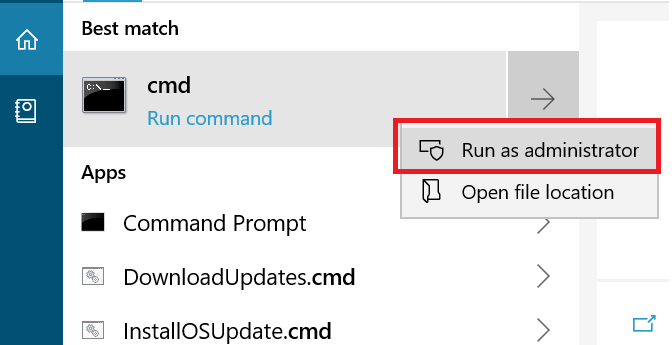
  4. Select Run as Administrator
  5. In the CMD window, type the following commands:
    1. ipconfig /flushdns
    2. ipconfig /registerdns
    3. ipconfig /release
    4. ipconfig /renew
    5. netsh winsock reset
    6. exit
  6. Restart your PC
  7. Relaunch Dying Light
  8. Check if you’re still leaking packets

3. Troubleshoot your connection

  • Check and replace broken/worn off network components (cables, for instance)
  • Use wired connections instead of Wi-Fi whenever possible (Wi-Fi packet loss happens more often)
  • Update drivers on your system
  • Restart your PC/router/modem
  • Avoid peak hours if your network is prone to congestion (or use a VPN)
  • Contact your ISP and ask them if they can fix the situation
  • Close any background apps or services that are heavy on bandwidth usage
  • Try lowering the quality settings in the game
  • Make sure your router’s firmware is up-to-date

Final thoughts on fixing Dying Light packet loss

All things considered, like any online service out there, Dying Light can also be affected by packet loss. Fortunately, this situation often fixes itself without any assistance on your side whatsoever.

However, at times you might notice a pattern when it comes to packet loss occurrence. This means that the problem has an underlying cause and until that cause gets dealt with, you’ll keep experiencing packet loss.

Using a VPN proves to be quite an efficient solution, but unfortunately, it only works if your ISP triggers the packet loss events by limiting your bandwidth or managing the network poorly.

Does Windscribe work with Netflix? [Streaming Guide]

Windscribe is a VPN service created by Windscribe Limited, a Canadian company. It provides both a free and premium VPN service so that you can fully take advantage of Internet freedom.

However, many VPN users are only interested in unblocking Netflix. If you’re one of them, you probably want to know if Windscribe works with Netflix.

Can I use Windscribe VPN with Netflix?

Yes, you can definitely use Windscribe VPN with Netflix if you’re living or traveling to a foreign country and can’t watch your favorite movies and TV series. The VPN service supports Netflix US, UK, Canada, and Japan. However, there’s a catch.

Although you can use Windscribe for free, it comes with some limitations. And some of them are that you can’t use the VPN servers dedicated to unblocking Netflix, called Windflix US, UK, CA, and JP.

How can I watch Netflix with Windscribe VPN

use Windscribe

  • Get a premium Windscribe subscription plan.
  • Download and set up the VPN client on your device.
  • Open Windscribe and log in with your credentials.
  • Connect to a Windflix VPN server*.
  • Start watching Netflix.

*Make sure to connect to a Windflix VPN server in the same location as the Netflix library you’re trying to unblock. For instance, if you want to watch Netflix US, connect to Windflix US.

Windscribe has servers in more than 63 countries and 110 cities, giving you unrestricted access to the best Netflix catalogs. It uses OpenVPN with up to 256-bit AES military-grade encryption to keep you safe on the Internet.

You can even change your GPS location with this VPN. Furthermore, Windscribe comes with split tunneling, port forwarding, a kill switch, double-hop VPN connections, and obfuscation mode.

It also protects your browsing sessions from ads and malware using R.O.B.E.R.T. And, if you need to turn your PC into a secure Wi-Fi hotspot, you can use a built-in feature.

More about Windscribe:

  • No identifying logs
  • ScribeForce for team accounts
  • Works with Mac, Windows, Chrome, Firefox, iPhone, Linux
  • 3-day money-back guarantee

Windscribe

Windscribe

Unblock Netflix US, UK, Canada, and Japan and watch unrestricted streaming with this VPN.
$4.08/mo. Buy now

Windscribe not working with Netflix

  • Update the Windscribe app to the latest version, but don’t use beta editions.
  • Connect to a different Windflix server.
  • Use the Stealth protocol with port 443 to hide VPN traffic.
  • Make sure your system’s date and time settings are correct.
  • Add an exception for Windscribe in the Windows firewall.
  • Get the newest Windows updates and security patches.
  • Reset Internet settings by flushing DNS and resetting Winsock.
  • Clear browser cache if you’re not using a Netflix app.
  • Use Windscribe’s customer support to ask for help.

Switch to a better VPN for Netflix

use CyberGhost VPN to unblock Netflix

If you can’t get Windscribe to work with Netflix or if it often fails to unblock it, consider dropping this VPN service and switching to a more suitable tool for Netflix, such as CyberGhost VPN.

Made by Kape Technologies, CyberGhost VPN can unblock more Netflix catalogs than Windscribe, including Netflix US, UK, Canada, India, France, and Germany. It has a special category of VPN servers dedicated to streaming, which you can quickly access.

The app supports exclusive DNS servers and DNS leak protection, OpenVPN with 256-bit encryption, split tunneling, a kill switch, along with an ad and malware blocker. It has an impressive network of over 6,500 servers spread across 89 countries.

More about CyberGhost VPN:

  • No traffic logs
  • Works with Windows, Mac, Linux, Android, iOS, Chrome, Firefox
  • Up to 45-day money-back guarantee
  • 1-day free trial for Windows and Mac
  • 7-day free trial for iOS and Android

CyberGhost VPN

CyberGhost VPN

Use a more reliable VPN to unblock the best Netflix catalogs and enjoy unlimited streaming.
$2.75/mo. Buy it now

To summarize, you can use Windscribe to unblock Netflix but only if you get the premium version of the VPN app. If you encounter connection issues with Netflix, there are ways to troubleshoot them.

However, if you don’t feel that Windscribe is good enough for the popular streaming service, consider using a better VPN for Netflix, such as CyberGhost VPN.

[wl_navigator]

Catalyst Control Center Won’t Open: 6 Ways to Force It

A few users have complained that the AMD Catalyst Control Center is not opening. We focus on it in this guide and give you some quick resolutions.

Advanced users mainly use this app for all sorts of things, such as color adjustment or display management, but when this great program bugs in Windows 10, it becomes frustrating.

Before we talk about fixes, let us explore some common triggers.

Why is my Catalyst Control Centre not opening?

When the control center is no longer opening, our interactions with users show that it could be because of any of the following:

  • Driver-related issues – These could be corrupt or outdated, especially your graphics card driver.
  • Software conflicts – Conflicts with third-party tools or drivers on your PC is a huge factor that triggers this problem among users.
  • Bad system files – Users have encountered problems when system files are missing or damaged.
  • Compatibility issues – While third-party apps may be an issue with some users, the main problem is often compatibility with the operating system.
  • Virus – Malware or virus infections on your device also trigger a few programs not to launch, which often affects the AMD Catalyst Control Center.

So, if the Catalyst Control Center won’t open, we recommend you take the steps we list in the section below.

What can I do if AMD Catalyst Control Center is not opening?

1. Start Catalyst Control Center from the installation directory

  1. Navigate to the path below:
    C:\Program Files (x86)
    amd catalyst control center not opening
  2. Open the ATI Technologies folder, select ATI.ACE, then Core-Static and choose amd64.
  3. Double-click on CLIStart.exe to run.

In addition, you can create a shortcut on your desktop so you won’t have to navigate through folders each time you want to run CCC.

2. Close all Catalyst tasks

  1. Press Ctrl + Shift + Esc to open the Task Manager.
  2. Go to the Processes tab.
    amd catalyst control center not opening
  3. Search for any task related to Catalyst, and click End task.
    amd catalyst control center not opening
  4. Return to your desktop and launch AMD Catalyst Control Center.

3. Update your display drivers

Specialized driver updating software will show precisely what drivers need updating. You can update several drivers at once or select just the one you need.

Plus, these tools are designed to do the whole driver downloading and installing job instead of you. The best way to avoid permanent damage to your PC is by getting the right driver versions.

4. Run an SFC scan

  1. Press Windows + R, type cmd, and hit Ctrl + Shift + Enter.
    amd catalyst control center not opening
  2. Input the command below and hit Enter.
    sfc /scannow
    amd catalyst control center not opening
  3. Wait until the scanning process finishes and restart your computer.
  4. Launch AMD Catalyst Control Center again.

5. Update your computer

  1. Press Windows + I to go to Settings.
  2. Open Update & Security.
    amd catalyst control center not opening
  3. Click on Windows Update and check for updates.
    amd catalyst control center not opening

Ensure you’re running the latest Windows 10 updates on your machine. This means installing all the available critical, recommended, and optional patches.

6. Run a scan

  1. Type Windows Security in the Search bar, and click on the relevant search result.
    amd catalyst control center not opening
  2. Now, click on Virus & threat protection.
    amd catalyst control center not opening
  3. Click on Scan options.
    amd catalyst control center not opening
  4. Now, select Full scan and click on the Scan now button at the bottom.

That’s it; if the AMD Catalyst Control Center is not opening, you should find success using any of the solutions in this guide.

Let us know what worked for you using the comments section below.

Rocket League is becoming free to play on Xbox One and other platforms on September 23

Starting September 23, 2020, Rocket League will be free-to-play on Xbox One, Windows 10 PC, Nintendo Switch, and PS4. As noted on Xbox Wire, Rocket League will also receive a new update to get the game ready for its free-to-play debut.

In Rocket League, you play a fast-paced game of soccer with a super-sized ball and rocket-powered cars. Rocket League supports cross-platform play, so Xbox One, PS4, Nintendo Switch, and PC players can play in matches head-to-head. Starting tomorrow, Rocket League will also enable cross-platform progression and provide Legacy Status items for current game owners, and also introduce revamped Tournaments, game-wide Challenges, as well as streamlined Seasons and new Ranks.

Rocket League will also be available for free in the Epic Games Store for PC starting on September 23, 2020. If you add Rocket League using your Epic Games Store library between September 23, 2020, and October 23, 2020, you will get an Epic Games Store coupon for $10 off any game or add-on $14.99 or higher.

Rocket League®
Rocket League®
Developer:
PSYONIX LLC
Price:
Free

[Solved] Fortinet VPN Locks Out User After 1 Failed Attempt

Fortinet offers a VPN called FortiClient, which companies can set up to provide remote access to their work-from-home and traveling employees. This way, they can access office network shares just as if they were physically at work.

Unfortunately, many system admins receive complaints from users that the Fortinet VPN locks them out after 1 failed attempt. If you’re looking for a quick fix to this problem, we’re here to help.

How do I fix Fortinet VPN user lockout after 1 failed attempt?

Enter the next command lines:

config user setting
set auth-lockout-duration <seconds>
set auth-lockout-threshold <failed_attempts>
end

For example, if you want to allow 5 login attempts and keep users locked out for 10 minutes, use:

config user setting
set auth-lockout-duration 600
set auth-lockout-threshold 5
end

However, you should keep in mind that too many failed login could indicate that someone with unauthorized access is trying to access your company’s network through the Fortinet VPN, like a former employee whose credentials you didn’t revoke.

To prevent this security breach, make sure to set a low number of login attempts and a lengthier lockout duration. Also, you should have email notifications enabled so that you get alerted as soon as a user account gets locked out.

Choose a more reliable VPN solution for your business

use Perimeter 81

If you regularly have to fix Fortinet VPN issues like user lockout after 1 failed attempt, consider switching to a better VPN service for your organization, like Perimeter 81. It offers cloud management, easy network deployment, and user-friendly tools for your employees.

Perimeter 81 supports dedicated global gateways, two-factor authentication, and always-on VPN. It also comes with shared gateways in 35 locations, site-to-site interconnectivity, policy-based segmentation, and activity audits and reports.

What else you must know about Perimeter 81:

  • 3 subscription plans for all-sized businesses
  • Integrates with AWS, Azure, Google Cloud, Salesforce, and others
  • 24/7 chat support
  • 30-day money-back guarantee (no free trial)

Perimeter 81

Don’t let errors affect your business with this robust VPN solution.
Free Trial Visit Website

To sum up, you can easily fix the Fortinet VPN locks out user after 1 failed attempt issue. You just have to enter a few lines of code in the command-line panel for FortiClient VPN. Similarly, with the CLI, you can fix the all FortiGuard servers failed to respond error.

However, if you’re looking for an alternative VPN solution for your company, keep Perimeter 81 in mind since it’s superior in every way.

Your account privacy settings are being applied [Excel Help]

Microsoft has promised to give users more control over the data that is processed when they are using Microsoft Office.

Therefore, they already adjusted the privacy settings around Microsoft Office apps several times and made them more transparent.

But still, many users have complained that when are trying to open a Microsoft Excel document, a yellow bar occurs stating the following error message:

Privacy settings applied. Your account privacy settings are being applied to this device.

Down below, you will find quick solutions to solve this annoying Microsoft Excel problem.

How can I fix Your account privacy settings are being applied?

1. Turn off some Privacy Options

How to fix Your account privacy settings are being applied

  1. Open the Microsoft Excel app, and click on the File tab.
  2. Select Options, and click on Trust Center.
  3. Go to Trust Center Settings, and scroll to the bottom to Privacy Options.
  4. Uncheck the Get designs, information, recommendations, and services by allowing Office to access and make product improvements based on Office content on my device box.
  5. Click OK and exit the Microsoft Excel document.
  6. Restart the app.

Microsoft analyses user behavior within the Office applications and displays tips, advertisements or product recommendations based on this user behavior.

If you don’t want to receive any other error messages because of this option, then you can always turn it off.


2. Repair Microsoft Excel

Hot to Repair Excel your account privacy settings are being applied to this device excel

  1. Open Control Panel, and click Uninstall Program.
  2. Select Microsoft Office Suite and double-click it.
  3. Choose Change from the pop-up menu, and click Repair.

Can’t open Control Panel on your Windows 10 PC? Follow the steps in this guide to fix the issue quickly


3. Update Microsoft Excel

How to update Excel your account privacy settings are being applied to this device excel

  1. Open Microsoft Excel, and click on the File tab.
  2. Go to Product Information, and select Update Options.
  3. Click the Update Now button.

Microsoft Office is normally updated automatically. However, if this doesn’t work, you can also update it manually. Otherwise, errors may occur when you are opening Excel documents, for instance.


You can always use the built-in Repair tool, by opening Control Panel to repair Microsoft Excel if any other error messages are encountered.

Microsoft Excel is probably the most widely used spreadsheet application on Windows computers and is part of Microsoft Office.

Excel‘s extensive calculations with formulas and functions, including commercial, statistical and date functions make the program irreplaceable in today’s office.

If you have any more questions or suggestions, be sure to let us know by using the comments section below.

[wl_navigator]

Unlicensed Product & activation errors [Outlook, Office 365]

You want to start your Outlook or Office as usual, but as soon as you open the software the error message Unlicensed product appears at the top of the screen.

This message in Outlook or Office 365 usually indicates a problem with the activation of the software. To restore all Office features, you must solve the issue that caused the activation to fail.

Usually, Outlook and Office activation errors are pretty common. Users have encountered these problems even if they had their product activated for a long time.

The most likely reason for this error may be due to new regulations and security measures that are constantly being implemented.

These can cause the servers that deal with subscriptions to be reset, thus creating a chain reaction when it comes to the activation of your product.

Following the solutions below will enable you to solve the Unlicensed product error quickly, so make sure to follow the steps described here closely, and test your product after each of them.

How can I fix Unlicensed Product activation errors?

1. Sign in with the correct account

Try signing in with all your private email addresses, in case you purchased Office under a different email address.

If you’re at work or school, you might need to sign in with your business, school, or college account instead of your private email account.

To verify that your Microsoft account is associated with Office, sign in the services and subscriptions.

Your Office product or Office 365 subscription should be listed there. If it’s not, your email address will not work for Office sign in.


2. Check if multiple copies of Office are installedHow to uninstall Office unlicensed product error

  1. Open Control Panel, and then select Programs and Features.
  2. Search for Office, select it, and click Uninstall.
  3. Restart your PC.
  4. Open Outlook and log in when prompted.

Can’t open Control Panel in Windows 10? Follow the steps from this handy guide to resolve it


3. Check the status of your subscription

services and subscription office unlicensed product error

  1. Close all the Office apps.
  2. Go to your Services and Subscriptions page.
  3. Select Sign in, and enter the email address and password of the Microsoft account.
  4. Check the details under the Subscriptions or Cancelled subscriptions heading. If your subscription has expired, you can renew it, and restart Outlook if necessary.

As you can see, dealing with activation errors in Outlook and Office 365 is not that hard. Keep in mind that using the correct account and making sure that you have a valid subscription can easily solve your problem.

To ensure a speedy and effective recovery from the issue described in this guide, please make sure to follow the steps presented here exactly.

If you have more questions or suggestions, leave them in the comments section below, and we’ll be sure to check them out.

[wl_navigator]

There is no email program associated to perform the action

When you open Outlook, sometimes you receive the following error message:

No email program is assigned to perform the desired action. Install an appropriate e-mail program, or create an assignment in the Control Panel under Default Programs if a program is already installed.

When this error occurs, it is also no longer possible to transfer files to the Outlook system. And that can be pretty annoying especially if you have something urgent to send.

If you’re also having this problem with Outlook on your Windows 10 PC, you can try the steps mentioned below and resolve it by yourself.

How do I fix no email program associated to perform the action?

1. Set an email program as default

set default email there is no email program associated to perform the requested action

  1. Press the Windows key + I, and select Apps.
  2. Choose the Default Apps, and select the application under the Email section.
  3. Select Mail (Or an application of your choice) from the newly appeared list.
  4. Restart your PC.

If you don’t have an email program, then you can download any email program of your choice and then follow the above steps to set it as default.

By default, Windows 10 comes with a simple Mail client. Keep in mind that this application is a very down basic version compared to Outlook, and the automatic insertion of BCC email addresses can not possible with it.


2. Delete the Outlook registry keys

Delete registry keys there is no email program associated to perform the requested action

  1. Press the Windows key + R.
  2. Type regedit to open Registry Editor.
  3. In the left pane navigate to: HKEY_LOCAL_MACHINESoftwareClientsMailMicrosoft Outlook
  4. Right-click over Microsoft Outlook.
  5. Select Delete and confirm any additional prompts.
  6. Close Registry Editor.
  7. Press the Windows key + I.
  8. Open the Settings app, go to System, and select Default apps.
  9. Choose the application under the Email section.
  10. Select Mail as the default email client.

One of the possible reasons for the already mentioned Outlook error message is the corrupted registry keys. This can lead to several problems whenever a program tries to connect to the Outlook Simple MAPI interface.

Therefore, you will have to first delete the corrupted Outlook registry keys and then you can repair the Outlook.


If you bump into any errors while trying to access Registry Editor, fix them quickly with this guide


3. Repair the Outlook system

Windows settings apps button - Sedlauncher.exe fix high cpu usage

  1. Right-click on the Windows symbol.
  2. Select Settings, and go to Apps.
  3. Choose Office, and press on Change.
  4. Select the Repair function.

The longer you use Outlook, the more emails, and appointments you manage with it, and so increases the possibility that problems like the error message No email program is assigned to perform the desired action will occur.

Under certain circumstances, Outlook may even crash regularly while you are working, or your profile may no longer open at all. In such cases, you have to repair the Outlook system with the solutions above.

[wl_navigator]

Microsoft releases new firmware updates for Surface Go and Surface Go LTE

Microsoft has just released new firmware updates for the Surface Go and its LTE variant. In addition to the stability enhancements, the new bits should improve the Smart Charging reliability, a feature that helps reduce battery deterioration.

Moreover, there are several refinements for the camera experience, as Microsoft has included new updates in this batch to resolve various issues. If you are using a Surface Go/LTE device with Windows 10 version 1903 or newer, you will see the following updates:

  • Surface UEFI – Firmware: 1.1.18.0 *Improves battery Smart Charging reliability, and addresses security updates.
  • Intel AVStream Camera 2500 – System devices: 30.18305.6.12414 Improves camera experience and resolves associated system bugcheck.
  • Intel Microsoft Camera Front -System devices: 30.18305.6.12414 Improves camera experience and resolves associated system bugcheck.
  • Intel Microsoft Camera IR – System devices: 30.18305.6.12414 Improves camera experience and resolves associated system bugcheck.
  • Intel Microsoft Camera Rear – System devices: 30.18305.6.12414 Improves camera experience and resolves associated system bugcheck.
  • Intel Camera – Control Logic -System devices: 30.18305.6.12414 Improves camera experience and resolves associated system bugcheck.
  • Intel Camera – CSI2 Host Controller Driver – System devices: 30.18305.6.12414 Improves camera experience and resolves associated system bugcheck.
  • Intel Camera – Imaging Signal Processor 2500 -System devices: 30.18305.6.12414 Improves camera experience and resolves associated system bugcheck.
  • Intel® iCLS Client – Software components: 1.60.155.0 Addresses security updates and improves system stability.
  • Intel® Management Engine Interface -System devices: 1952.14.0.1470 Addresses security updates and improves system stability.
  • (Firmware update extension) – no Device Manager notes: 5.5.0.0 Improves Surface Dock 2 reliability and addresses system bugcheck.
  • Surface System Telemetry Driver -System devices: 1.29.137.0 Facilitates power and thermal related data analysis.
  • Surface Dock Firmware Update – Firmware: 2.49.139.0 Improves Surface Dock 2 reliability and addresses system bugcheck.
  • Surface ME – Firmware: 11.8.77.3664 Addresses security updates and improves system stability.

Just as a reminder, firmware updates for Surface devices are released in stages, which means that not everyone gets them on day one. It could take a while until it shows up on your PC, so don’t worry if you’re not getting these updates on your Surface Go yet.

Microsoft Teams will let users turn off message previews in desktop notifications next month

In July, we first heard that Microsoft is working on a new privacy feature that will allow users to turn off message previews in toast notifications in Microsoft Teams. Now, the company has announced via the Microsoft 365 Admin Center that the change will begin rolling out in early October. 

With this new functionality, users will get better control over privacy by changing their settings to disable chat notification previews during Teams meetings. When the feature rolls out, users will be able to access the new setting “Show message preview” under the Notifications section. Keep in mind that it will be an optional feature, and the users’ setting will be respected across all notifications on Teams clients.

Teams notification settings

Moreover, Microsoft Teams users will be able to configure native OS notifications on Windows and macOS next month. According to a new message in the Microsoft 365 Admin Center, the company has postponed the release date for the new notification experience from the end of September to mid-October 2020. Microsoft has quietly updated the Microsoft 365 Roadmap item earlier this month to reflect the updated timeline. In case you missed, it the feature is currently in preview, and you can check out our separate post for more details. 

FIX: Showbox server connection error [Explained & Fixed]

Showbox was initially created exclusively for Android and is a beloved online streaming application by users. The interface is user-friendly and it does not require a login account.

But, as expected, this application has endured various errors over time. Thereby, many people have encountered this server connection error while trying to watch a movie.

If you want to watch your favorite shows and movies on PC with Showbox, then you should know that you need an Android emulator for Windows 10.
In the following lines, you will find an explanation and sure ways to solve this annoying server connection problem for Android devices.

How can I fix the Showbox connection error while connecting to the server?

1. Check if your Showbox application is outdated

outdated version on Showbox server connection error

  1. Go to Google Play.
  2. Search for Showbox App.
  3. Click on Install.

If you have an old version of the application, then you will definitely run into this connection error.

You need to make sure that you download the latest Showbox version, and thus you can have access to the latest movies.


2. Clear the App Data and Cache

  1. Go to Settings on your PC, and open the Apps.Showbox server connection error clear data and caches
  2. Find Showbox App and open it.
  3. Under Storage, you will find the space you used. Now you can Clear Data and Cache.clear app data and cache on Showbox server connection error

By deleting App Data and Cache all previously downloaded series or movies won’t be automatically deleted.

The advantage is that the application will work as if it had been installed again. However, the movies remain on your device’s internal Storage.


3. Make sure that your Internet connection is stable

stable Internet connection on Showbox server connection error

If the application fails to establish an Internet connection, you will not be able to stream your favorite movie or series. Therefore, the application becomes useless for you.

You can try to use a Virtual Private Network to protect your Internet connection. In this way, you will be able to use Showbox despite any problems that you may encounter with your ISP.

The server issue while trying to connect on Showbox is a common matter for most users. With an upgraded version of the application and a stable Internet connection, you will be able to enjoy your favorite movies and shows anytime.

If you have more questions or suggestions, leave them in the comments section below, and we’ll be sure to check them out.

Fix HP driver error 9996 on Windows PCs

If an update from HP cannot be installed on your Windows 10 computer, you are most likely receiving the system error 9996.

This alert is displayed by default and indicates a general problem that occurred during the update process.

So, based only on this error code is quite complicated to isolate the actual problem and find the right troubleshooting solutions.

That’s why we are here to assist you. In this article, we will try to find the best methods that you can use to address the HP driver error 9996 issue.

How can I fix the HP Driver error 9996 on Windows 10?

  1. Make sure you have the right software installed on your computer
  2. Your computer might not meet certain system requirements
  3. Update drivers on your computer
  4. Uninstall and reinstall outdated drivers
  5. Apply Windows 10 system updates that might be waiting for your approval
  6. Remove a recently installed Windows 10 system update

1. Make sure you have the right software installed on your computer

You can receive the HP Driver error 9996 while an update is being installed if certain hardware or software is not set up on your Windows 10 machine.

For example, if Microsoft .NET is missing, you will get the 9996 error code.

The same will happen if an update for an HP keyboard will be initiated on a system that uses a non-HP keyboard (you replaced the original HP keyboard – or any other HP manufactured hardware component – with a new one).

Thus, you should first verify if the required programs for the actual HP update are installed on your computer.

Also, if a hardware component is missing, then most likely you won’t have to install the particular update package.

That’s a situation during which the HP Driver error 9996 problem is not really an actual problem at all – the update is not needed on your computer.

2. Your computer might not meet certain system requirements

The same error code can occur if your computer is running low on memory – for example, if the update has 2 GB in size but on your computer, you have only 1 GB free disk space.

That’s why, at this point, you need to make sure that these system requirements are not the reason why you experience the HTC Driver error 9996.

Do note that system requirements might include software aspects such as the latest version of a certain program.

For example, if Microsoft .Net v2.0 is required but your PC is running on Microsoft .Net v1.0.

3. Update drivers on your computer

  1. On your computer right-click on the Start icon.
  2. From the list that shows up, click on the Device Manager entry.update graphic drivers from device manager
  3. In the Device Manager window find the driver that must be updated.
  4. Right-click on this driver and select Update.
  5. Wait while the flashing process is automatically completed and when done reboot your PC.

If your issue is tied to HP accessories, such as docking stations, you may also need to manually install specific drivers. For example, check out this HP USB-C Dock 5G drivers guide to download and install the correct package for stable performance.

If you are getting the HP error code 9996 while trying to install an update, that’s most likely related to a certain HP driver.

Therefore, you should update all drivers that run on your computer. This process can be completed with the help of the above steps, yet it isn’t the only way.

If it sounds a bit too tricky for you, don’t hesitate to install a dedicated driver updater tool and let it handle this job. The tool is best known for keeping your drivers updated automatically.

There’s a huge database updated daily, not to mention that it will prevent file loss and avoid permanent damage to your PC.

More than that, you can repair corrupted drivers that may become dangerous for the system due to malfunctions like BSoD errors.

This tool can actually cover everything related to driver functionality, installing up-to-date drivers, or finding missing drivers from Windows PCs.

⇒ Get Fortect Driver Updater

4. Uninstall and reinstall outdated drivers

  1. Access Device Manager as explained above.
  2. Then, find the driver that must be updated.
  3. Right-click on this driver and instead of Update choose Uninstall.
  4. Then, access your manufacturer website and download the driver package.
  5. Install this software by running the executable file and by following on-screen prompts.
  6. That should be all.

Sometimes it is better to reinstall the drivers that are not running properly. So, you need to follow the above steps or simply use Outbyte Driver Updater, the tool detailed in the first solution.

5. Install pending Windows 10 system updates.

  1. Press the Win+I keyboard hotkeys.
  2. From System Settings click on Update & Security.
  3. Switch to the Update tab.access windows update options
  4. If a firmware patch is available, install it – just follow on-screen prompts as the update will be then automatically flashed.
  5. In the end, reboot your computer.

In some situations, if your Windows 10 system is not properly updated you might receive different system errors, including the HP error code 9996 issue.

That’s why you need to make sure that there isn’t any system update that’s waiting for your approval

6. Remove a recently installed Windows 10 system update

  1. Press Win+I keyboard keys and select Update & Security.
  2. Switch to Windows Update Tab.
  3. From there click on the View installed update history link.
  4. A list of recently installed patches will be now displayed.remove windows updates
  5. Click on Uninstall updates and choose the firmware package you want to remove from your PC.
  6. Reboot your computer in the end.

If you received the HP Driver error 9996 after installing a new Windows 10 update, a good idea might be to revert the update process.

You can uninstall certain Windows patches by following the above procedure.

The methods explained above should help you fix the HP Driver error 9996. When this error pops on the screen, you shouldn’t panic.

Probably the actual HP update is not really needed on your computer, so you can just ignore the error code.

If you have questions or if you want to learn other related stuff, contact our team. You can do it without hassle through the comments field from below.

Microsoft Edge Canary lets select Insiders easily translate text on a web page

Microsoft Edge is getting a new feature that should make it possible for users to translate selected parts of the text on a webpage (via Deskmodder). The feature is currently under a controlled rollout, and it’s available for select Insiders in the Canary channel.

By default, Microsoft Edge comes with a built-in translation capability that lets users automatically translate web pages in a language that is different than the default language of the browser. The enhancements to the translation feature will bring the ability to translate certain sections of the page and then display the content in English while browsing a website.

If you’re running the latest Canary version of Edge on your PC, you can find this new option in the context menu. Simply open a webpage in the browser, and select a section of its text you want to translate. Then right-click on the selection and select the “Translate selection to English” option. Once done, the selected text should be translated into the default language configured by the user. If you want to revert this change, click on the translation symbol in the address bar and select “show original” to see the original text.

The updated functionality has been borrowed from legacy Edge, and it’s not available in Chrome natively yet. Considering that it’s a minor feature, the change could be made available to the Dev channel, and eventually, the stable version, sooner rather than later.

How to make transparent background in Paint.NET [Full Guide]

Paint.NET is a free image editing program, much better suited for image processing than the other free programs on the market.

Of course, this simple tool does not have the same variety of functions as Photoshop. But the free image editor also offers numerous editing options and is therefore a real hit: it has already been downloaded millions of times.

When editing, you can divide different layers, have freely positionable tool palettes and a multitude of different filters at your disposal.

Paint.NET also offers you the much-loved transparency function which leads you to add transparent background to your images or make individual areas transparent.

In the following lines, you will find a complete guide on how you can use this beloved transparency function.

How can I add transparency to an image?

1. Make the background of an image transparent

Add transparency to an image How to make transparent background in Paint.NET

  1. Start Paint.NET, and select File.
  2. Click Open to open the image in which you want to insert a transparent area or a transparent background.
  3. Select the Magic Wand icon from the Toolbox.
  4. Click in the background.
  5. If parts of the background have not been selected, adjust this under Tolerance.
  6. To make the area transparent, press the Delete key on your PC keyboard.
  7. Save the image as a PNG file.

2. Tips for transparency in Paint.NET

Add tips for transparency to an image How to make transparent background in Paint.NET

  1. When you click on the Magic Wand, an additional settings bar appears.
  2. Under Tolerance, you can set how strictly the wand should differentiate the colors. This will help you definitely if the wand removes more than just the background.
  3. The background and the foreground should be in different colors.
  4. If there are gaps in the image so that the background shines through (like the angled arms), make these gaps transparent.
  5. Select Global from the menu, and everything with the same color will be removed.
  6. Be sure to save the image as a PNG file in order to save it as an image with a transparent background.
  7. Please do not use any other image format (such as JPEG) as the transparent area will not be saved as such.

3. Change Background in Paint.NET

Add lasso background how to make transparent background in Paint.NET

  1. Start Paint.NET, and select File.
  2. Click Open to open the image in which you want to give a new background.
  3. Select the Eraser icon from the Toolbox, and erase the background.
  4. Leave only the object you want to put in front of the new background.
  5. Click on the Color Pot from the Toolbox, and select a color for the new background.
  6. To recolor the background, simply click in the erased area of the image.
  7. If you want the area to remain transparent, save the file in PNG format.

Note: If small areas have not taken on the new color, zoom into the image a little, and fill the background with color again.


Paint.NET can make images transparent and thus hide backgrounds, for example. This works particularly easily with the free Paint.NET, as it does not have any complicated functions.

The best way to make the background of an image transparent is to give it a uniform color and to make it stand out clearly from the object in the foreground.

If you have any more questions or suggestions, feel free to let them in the comments section below, and we will check them out.

[wl_navigator]

Atibtmon.exe Runtime Error: 6 Methods you can use to Fix it

A runtime error on Windows 10 can be frustrating, and Atibtmon.exe is one of the more common ones.

Atibtmon.exe is designed to switch to a power-saving mode when you unplug your laptop and to work with ATI graphic cards. As for its power-saving features, this application does it by dimming the brightness of your laptop display.

Many users have reported getting a runtime error that says that atibtmon.exe has requested Runtime to terminate it unusually. According to users, this issue happens when they disconnect their AC power cord.

Why does the Runtime error atibtmon.exe appear?

We have investigated this error and have concluded that the following are the primary triggers.

  • Outdated drivers – If you run on outdated drivers, especially the graphics card, you may run into this runtime error.
  • Malware – Malware is a common trigger for many computer issues, including the atibtmon.exe runtime error.
  • Conflicting software – Some users have observed that a particular set of third-party applications may result in this error.

Atibtmon.exe Runtime Error can be an annoying problem, and many users reported it on their PC. Speaking of Atibtmon.exe, users said the following issues:

  • Atibtmon.exe runtime error Toshiba – This error can appear on almost any device, and many Toshiba owners reported it. We advise you to try some of our solutions to see how to fix this problem.
  • Vari Bright Windows 10 – Many users claim that this problem is related to Vari Bright feature in Catalyst Control Center. However, you can fix the problem simply by disabling this feature.
  • Runtime error atibtmon.exe AMD – This error is related to your AMD graphics card, and to fix it, it’s advised to install an older graphics card driver.
  • Atibtmon.exe runtime error on startup – This error can sometimes appear as soon as Windows 10 starts. However, you can fix the problem by disabling startup applications and services.
  • Atibtmon.exe application error – This is just a variation of the original error, and you should be able to fix it using the same solutions.

  • Atibtmon.exe stopped working – If you get a message saying that Atibtmon.exe stopped working, the problem might be your power settings. To fix the problem, change your power settings and check if that helps.

Let’s explore the best resolutions to this error on a Windows 10 device without much ado.

How can I fix the atibtmon.exe runtime error?

1. Get the older version of the display driver

  1. Press Windows Key + X and choose Device Manager from the list.
    atibtmon.exe runtime error
  2. Locate your display adapter on the list, right-click it, and choose Uninstall device from the menu.
    atibtmon.exe runtime error
  3. Check Attempt to remove the driver for this device and click on Uninstall.
    atibtmon.exe runtime error

Atibtmon.exe Runtime Error can appear due to problems with your display driver; however, you can fix the problem simply by installing an older AMD driver.

Before installing the older driver, you need to remove the current one. Once you remove the driver, restart your PC, and the default version should be installed automatically.

It’s worth mentioning that you can altogether remove your display driver using a Display Driver Uninstaller. This is a freeware tool that will remove your display driver along with all files associated with it.

To learn more about this tool, we advise you to check our article on how to use Display Driver Uninstaller.

Once the default driver is installed, check if the problem still appears. If not, you might want to consider updating the driver to a newer version, but be sure not to install the same version that gave you this problem in the first place.

If you choose not to update your driver manually, you might want to prevent Windows from updating the driver.

Windows 10 updates outdated drivers automatically, which can sometimes cause various issues, so you need to prevent Windows 10 from updating specific drivers. Follow this handy guide to learn how to do that.

2. Automatically update drivers

While installing the drivers manually is a reliable option, specialized software can save you time and effort and get the latest updates.

This kind of tool can automatically update your drivers safely and preferentially by scanning your PC and giving you a list of outdated drivers.

3. Disable Vari-Bright in Catalyst Control Center

  1. Launch the AMD Radeon Software.
  2. Click the Settings icon, and select the Display tab.
  3. Under Display Options, toggle off the switch for Vari-Bright.

4. Disable Powerplay in Catalyst Control Center

  1. Press Windows Key + S and enter power settings. Now select Power & sleep settings from the list of results.
    Atibtmon.exe application error
  2. Select Additional power settings in the left pane.
    Atibtmon.exe stopped working
  3. Locate your currently selected power plan and click Change plan settings next to it.
    Atibtmon.exe runtime error Toshiba
  4. Now click on Change advanced power settings.
    Atibtmon.exe runtime error Toshiba
  5. Locate ATI Graphics Power Settings on the list and expand it.
  6. Now set both ATI Powerplay Settings to Maximum Performance and save changes.

According to users, Atibtmon.exe Runtime Error can sometimes appear due to the Catalyst Control Center Powerplay feature. This feature can conflict with your power settings, causing this error.

However, you can fix the problem by disabling Powerplay in Catalyst Control Center. After disabling this feature, you also have to change your power settings.

After doing that, the conflict with the Powerplay feature should be entirely resolved, and you won’t see this error message anymore.

5. Disable AMD External Events service

  1. Press Windows Key + R and enter services.msc. Press Enter or click OK.
    Vari Bright Windows 10
  2. A list of services will now appear. Double-click the AMD External Events service to open its properties.
  3. Set the Startup type to Disabled and click the Stop button to stop the service. Now click on Apply and OK to save changes.
    Vari Bright Windows 10

To work correctly, Windows and other applications require specific services. However, sometimes services can cause Atibtmon.exe Runtime Error to appear on your PC.

Several users reported that AMD External Events service caused this problem; you must disable it to fix it.

After disabling this service, check if the problem persists.

6. Perform a Clean boot

  1. Press Windows Key + R and enter msconfig. Now press Enter or click OK.
    Runtime error atibtmon.exe AMD
  2. Navigate to the Services tab and check Hide all Microsoft services; click the Disable all button to disable the services.
    Atibtmon.exe runtime error on startup
  3. Navigate to the Startup tab and click on Open Task Manager.
    Atibtmon.exe application error
  4. A list of startup applications will now appear. Locate the first item on the list, right-click it, and choose Disable from the menu.
    • Repeat this step for all startup applications on the list.
      Atibtmon.exe stopped working
  5. Now go back to the System Configuration window and click on Apply and OK.
    Atibtmon.exe runtime error Toshiba
  6. Restart your PC.

As mentioned, third-party applications can interfere with Windows and cause Atibtmon.exe Runtime Error to appear. In addition, sometimes, these applications can automatically start with Windows and cause this error on startup.

Once your PC restarts, check if the problem still appears. If not, it means that one of the disabled applications or services is causing the issue.

We hope these solutions helped you with solving this runtime error. If you have any comments or questions, or you maybe know some other solutions for this problem, reach for our comment section below.

Also, if you have any other problem related to Windows 10, you can search for the solution in our Windows 10 Fix section. We also have a guide on atiumdag.dll errors, so don’t miss it.

If you’re having runtime issues with Microsoft Visual C in Windows 10, here’s how to fix that, or in case your issues are related to RuntimeBroker.exe Error in Windows 10, we have a fix for that, as well.

FIX: The VPN client failed to establish a connection

If you’re using Cisco AnyConnect, you may have encountered the infamous VPN client failed to establish a connection error. More often than not, this issue solves itself, but sometimes it may take a bit of elbow grease to put the wheels in motion.

Although a VPN client, Cisco AnyConnect isn’t your regular privacy-protection security tool. In fact, this service was developed to help remote workers access the enterprise network and share company resources in a safe, secure manner.

How to fix Cisco AnyConnect’s connection error?

1. Restart your PC

Restarting not only your PC, but also the app itself, your router, and possibly your modem too can have quite the effect in this situation. It’s well-known that your PC builds upon on cached data, but so does your router.

Thus, giving them a chance to refresh their internal configuration, discard old, outdated data, and acquire new one might work wonders. There’s a good reason why restarting is the first suggestion of most customer support agents.

Furthermore, you could try uninstalling the AnyConnect VPN client and perform a fresh install. It’s not exactly uncommon for updates to render perfectly functional features unusable.

2. Flush your DNS

    1. Press the Win key on your keyboard
    2. Type CMD
    3. Right-click the Command Prompt icon
    4. Select Run as administratorflush DNS servers in Windows 10
    5. Type the following commands, in this precise order, one by one:
      • ipconfig /flushdns
        ipconfig /registerdns
        ipconfig /release
        ipconfig /renew
        netsh winsock reset
        exit
    6. Restart your computer
    7. Launch Cisco AnyConnect
    8. Check if the connection problem still persists


If restarting your PC and router didn’t do the trick, manually forcing your PC to discard old cached DNS and acquire a new set of DNS servers might just be enough to put things back in order.

3. Disable Wi-Fi hotspot

If you have a Wi-Fi hotspot up and running on your PC, it would be wise to turn it off and checking if the problem still persists.

Reportedly, this issue occurs more frequently for Windows 7 PC users, but it might’ve slipped on later versions of this operating system, as well.

4. Disable ICS

  1. Hit the Win key
  2. Type Services
  3. Select the Services app from the resultsServices Start menu
  4. Scroll down to Internet Connection Sharing (ICS)
  5. Right-click it and select Properties
  6. Click the Startup type combo menu
  7. Select Disabled from the menuDisable ICS
  8. Click Apply and OK
  9. Restart your PC
  10. Check if the issue still persists

5. Change adapter settings

  1. Press the Win key on your keyboard
  2. Type Ethernet settingsEthernet settings in start menu
  3. Access the Ethernet settings section
  4. Click the Change adapter options buttonThe change adapter options button
  5. Right-click your active connection and select Properties
  6. Go to the Sharing tab
  7. Make sure the sharing option is not checked (uncheck it if necessary)Disable Internet Sharing
  8. Restart your PC
  9. Check if the VPN client failed to establish a connection error still persists

6. Check your firewall/antivirus settings

  1. Press the Win key
  2. Type Firewall
  3. Select the Firewall & Network protection option
  4. Click the Allow an app through firewall button
  5. Press the Change settings button
  6. Look for Cisco AnyConnect in the list
  7. If you can’t find it, use the Allow another app button
  8. Make sure the Private and Public boxes are both checked
  9. Click OK
  10. Check your antivirus for any signs of blocking Cisco AnyConnect
  11. Add Cisco AnyConnect to your antivirus’ exception list
  12. Restart your computer
  13. Check if the VPN connection error is still there

Some users reported that certain antivirus software solutions block some programs by default. Therefore, it’s not enough to leave the program (Cisco AnyConnect) as it is.

What you’ll need to do is open the antivirus program and add the VPN to a trusted list.

Final thoughts on fixing VPNs failing to establish connections

All things considered, if you’re having a difficult time getting your VPN to establish a connection, you might want to try troubleshooting the issue manually.

More often than not, the situation fixes itself. However, sometimes you might need to step into action and perform certain steps such as restarting your PC, clearing your cache, flushing your DNS, or even disabling Windows services temporarily.

[wl_navigator]

How to fix SonicWall SSL VPN failed to login [Easy Guide]

SonicWall Global VPN Client is a business VPN solution you can set up on your organization to provide remote access for work-at-home or traveling employees. It’s an excellent alternative to Cisco VPN.

Unfortunately, many system admins have trouble with the user configuration and can’t find a way to fix the SonicWall SSL VPN failed to login error.

It occurs when attempting to use NetExtender to create a user login sequence over SSL-VPN, resulting in the E-mail address may be configured wrong error message.

The problem is that the administrator activated a one-time password on the group associated with the user but didn’t also enable the user’s email address. Our guide below shows you how to quickly fix it in just a few steps.

How do I fix SonicWall SSL VPN failed to login?

require one-time password in SonicWall

  1. Using the SonicWall Global VPN Client, go to Users > Local Groups.
  2. Locate the group associated with the user and click the Edit button.
  3. Make sure to enable Require one-time passwords.
  4. Head over to Users > Local Users.
  5. Find the user’s group and click Edit.
  6. Switch to the Setting tab and specify the user’s email address.
  7. Click OK.
  8. To test the fix, reconnect to the SSL-VPN.
  9. Check the email account for a temporary password.
  10. You should now be able to enter the password and log in successfully.

If SonicWall SSL VPN failed to login and displayed the User is not authorized to use NetExtender error message, make sure to upgrade SMB SSL-VPN 2000/4000 and SRA 4200 appliance’s firmware version to 3.5.0.11 or newer.

Once you successfully log in, you should gain access to the company’s shared resources in the intranet. However, if SonicWall VPN stops working or doesn’t connect, you have to determine and solve the problem.

Switch to a better VPN solution for your business

use Perimeter 81

If you got tired of fixing SonicWall VPN errors, consider dropping it and replacing it with a more powerful VPN solution, such as Perimeter 81. It’s an elaborate business VPN with a cloud management platform, seamless network deployment, and user-friendly client tools.

When using Perimeter 81, you can take advantage of automatic Wi-Fi security, single sign-on, activity audits and reports, custom DNS and DNS filtering, SIEM integration, and other awesome features.

What else you should know about Perimeter 81:

  • Made for 5 or more team members
  • Integrates with AWS, Azure, Google Cloud, Salesforce, and others
  • 24/7 chat support
  • 30-day money-back guarantee (no free trial)

Perimeter 81

Perimeter 81

Drop SonicWall VPN and replace it with a more powerful VPN solution for your company.
$12/mo. Buy now

In conclusion, you should be able to quickly fix the SonicWall SSL VPN failed to login issue by following the simple workaround we provided above. But if you’re interested in a better corporate VPN solution, pick Perimeter 81 instead.

[wl_navigator]

AT&T Fixed Wireless running with VPN [Easy Guide]

AT&T Fixed Wireless Internet has the potential to connect numerous remote households to the Internet, but can it support VPN usage?

A lot of Internet users have relocated and are pursuing a work-from-home lifestyle. This highly depends on two things: Internet availability and connection speed.

When VPNs are involved, speed can take a serious hit. And it’s not exactly a secret that a wireless connection is not as capable as its wired counterpart.

What is Fixed Wireless Internet?

Fixed Wireless Internet (FWI) is a nifty service that’s mainly designed for rural households or regions where wired Internet is unfortunately not an option.

It comprises an exterior antenna, which picks up radio signals from nearby cell towers. The signal is then carried to your a router in your home, which you connect to for Internet access.

As its name suggests, Fixed Wireless Internet is not dependant on wires. Except for the wire that’s between the antenna and your router, of course

How fast is AT&T Fixed Wireless Internet?

Currently, AT&T has a single offer of FWI for personal use, and another one for business. Both are capped at 10 Mbps, although the consumer-grade one boasts download speeds of even 25 Mbps (under certain circumstances).

In a world where Gigabit Ethernet is no longer a myth, having a 10 Mbps connection is like still using floppy disks to move data around. To put it shortly, having a 10 Mbps connection is 100 times slower than a Gigabit connection.

Not to mention that AT&T Fixed Wireless Internet has upload speeds capped at 1 Mbps, which is extremely low. Furthermore, data is capped at 250 GBs per month, which is a whole nother story, but relevant to our situation.

Can AT&T Fixed Wireless Internet support VPN?

1. Consumer-grade VPN

  1. Purchase a Private Internet Access subscription
  2. Download Private Internet Access to your PC
  3. Install the VPN client
  4. Launch PIA and connect to your account
  5. Select a fast server (the closer it is to you, the better)

Although AT&T Fixed Wireless Internet’s speed is nothing to write home about, using it with a fast VPN service such as Kape Technologies’ PIA shouldn’t increase latency too much.

The fact that Private Internet Access has an impressive network of servers makes it even more suitable for home use with AT&T’s FWI. If a server seems to be kind of slow, just switch to another one and you should be set.

However, you shouldn’t expect to be able to stream HD Netflix content, for instance. If things were slow by default on FWI, using a VPN will definitely make them even slower.

Note: To make the most out of your AT&T Fixed Wireless Internet + VPN combo, make sure you’re using Ethernet instead of Wi-Fi.

2. Business VPN

If you have other needs from your VPN aside from privacy, such as accessing company resources remotely, you’ll most likely use a business VPN.

Several companies set their own VPN server, which their employees connect to using Windows’ built-in VPN feature. Some of them, anyway.

Well, things are quite the same as with consumer-grade VPNs. You’ll definitely notice some slowdowns, depending on the capacity of the VPN server and its current load (e.g. how many users are currently connected to it).

The only drawback is that such a VPN doesn’t allow you to switch servers. This means that if the speed is extremely low, you’ll have to soldier on, as there’s nothing you can do about it.

Final thoughts on using a VPN with AT&T FWI

If you’re considering signing up for AT&T Fixed Wireless Internet and plan on using a VPN with it, you may want to reconsider. This connection type’s speed is capped at 10-25 Mbps, which is not entirely awful considering the lack of wires.

Although it’s obvious that adding a VPN to your FWI connection will slow it down, using a service such as Private Internet Access (fast and has a lot of servers) might just do the trick.

Microsoft adds more AI security protection for Azure clients

Azure is the top cloud platform for businesses right now so keeping it secure to protect its clients is a priority for Microsoft.

To top that up, the Redmont giant will test a satellite base connection to download satellite data to the Azure Cloud for immediate processing.

Now, Microsoft is trying a different approach to improve on Azure client’s data security: a partnership with a security company.

The partnership with Abnormal Security brings AI security to Azure

Microsoft signed a partnership with Abnormal Security to deliver a security solution for enterprises that can be purchased directly from Microsoft’s Azure Marketplace.

Microsoft for Startups is committed to helping B2B startups use the Microsoft platform to scale their business quickly and deliver innovative AI-powered solutions to enterprise customers.

Abnormal has hit the ground running, seeing success with Fortune 1000 companies in a short time, and we’re looking forward to joining forces to further accelerate their security solution to our global customers

, said Jeffrey Ma, VP Microsoft for Startups.

The great advantage of the Abnormal Security platform is that it integrates directly into the enterprise’s environment immediately and doesn’t require configuration or setup.

The solution also offers a 90 days overview with the detection activity of the attacks just to have a report about it’s effectiveness.

If you have any thoughts about Microsoft’s new deal, please leave your insights in the Comments section below.

[wl_navigator]

FIX: Lenovo N700 driver error on Windows 10/11

When you are having difficulty connecting your Lenovo N700 to a PC, it usually has to do with its Bluetooth drivers.

So naturally, solving Lenovo Bluetooth driver issues will help you get your Lenovo N700 working again.

Below are 3 methods that you can use to get things working again. It is important to note that these instructions are designed for Windows 10 users.

How can I fix Lenovo N700 driver issues on Windows 10?

1. Update drivers

  1. Press the Windows Key + S and type in Check for updates into the search bar.
  2. This should lead you to a window that will allow you to manually check for updates again.

Manually search for an updated driver on the Lenovo official website. You might have to do a little digging, but it is usually not very difficult to find the latest updates for your mouse.

Keep in mind that updating your drivers is an advanced procedure. If you’re not careful you can cause permanent damage to your system by downloading the wrong driver versions.

We strongly recommend a dedicated driver updater program to automatically download all the outdated drivers on your PC.

2. Ensure Bluetooth hardware is enabled

  1. Press the Windows key + X key and select Device Manager.
  2. Locate the Bluetooth or Bluetooth Radio section.
  3. Expand that section and find your N700 Bluetooth driver.
  4. Right-click on it and press Enable. 

3. Enable Discovery Mode

  1. First make sure your N700 mouse Bluetooth is on and in range of your PC.
  2. Open Start, type Settings and double-click on the first result.
  3. Go to Devices section.
  4. Select the Add Bluetooth or other device option.
  5. It should help you find your Lenovo N700 mouse.

Typically, a Lenovo N700 driver error has to do with an out of date computer. Your discovery settings on your PC might not be properly set either.

Therefore, the solutions above should help you connect your mouse to the computer again without any trouble.

For any more questions or suggestions, don’t hesitate to reach for the comments section below.

Microsoft will end support for many products in October

When Microsoft ended the support for Windows 7 the moment marked the entering into a new era. At least that’s what we thought because many users remained very attached to the old OS.

But Windows 7 is still in the extended support period and the software company released security updates for Windows 7 and 8.1.

In October, Microsoft will make a new step in sending some of the old apps and even a Windows version to the unsupported list.

What is the Windows end-support list?

According to Microsoft’s end-support document, the most important software that will go on the unsupported list will be Windows 10, version 1709 (Enterprise, Education, IoT Enterprise).

But if you also have Windows 10 versions 1803 (Enterprise, Education, IoT Enterprise), 1809 (Home, Pro, Pro Education, Pro for Workstation, IoT Core) or Windows Server version 1809 (Datacenter Core, Standard Core), they will expire on November 10th.

You should also start preparing to upgrade if you have Windows 10, version 1903 (Enterprise, Home, Pro, Pro Education, Pro for Workstations, IoT Enterprise) or Windows Server, version 1903 (Datacenter, Standard) because they will be retired on December 8th.

What is the software end-support list for October 13th?

Regarding Microsoft software, the list is a lot longer, and all the tools listed below will be retired on October 13th.

Access 2010
Dynamics GP 2010
Excel 2010
Excel Mobile 2010
Exchange Server 2010 (all editions)
FAST Search Server 2010 (all editions)
Groove Server 2010
Office 2010 (all editions)
OneNote 2010
PowerPoint 2010
Project 2010
Publisher 2010
Search Server 2010
System Center Data Protection Manager 2010
System Center Essentials 2010
Visio 2010 (all editions)
Word 2010
Windows Embedded Standard 7
Office 2016 for Mac (all editions)
Excel 2016 for Mac
Outlook 2016 for Mac
PowerPoint 2016 for Mac
Word 2016 for Mac

We also have to mention that most of these products will switch to an extended support regime but to stay safe you will need to purchase Extended Security for them.

If you are using any of these OS versions or software, you should consider alternatives or upgrades. Also, make sure you have the latest security updates installed.

Are you prepared to upgrade to the next versions? Please tell us your opinion in the Comments section below. And don’t forget that Incase just announced that we’ll be offering Incase Designed by Microsoft starting in 2024, so all those accessory projects we thought were abandoned have a chance.

Google Earth cannot connect to server? Here’s how to fix it

Google Earth is an amazing tool that helps you explore the globe from the comfort of your home, but sometimes using this program might end in a proxy server error.

Surely enough, you can use Google Earth even if you’re behind a proxy. However, like any other online utilities, Google Earth can also experience connectivity issues.

The server error usually means that the desktop version of this app (called Google Earth Pro) can’t communicate with Google’s servers. As a result, you might not be able to use the program as intended, or at all.

How to fix Google Earth server error?

1. Use the Repair Tool

  1. Launch Google Earth Pro
  2. Click the Help button
  3. Select Launch Repair Tool from the Help menu
    The Help button on Google Earth
  4. Click the Clear disk cache button
  5. Wait for the operation to come to an end, if necessary
  6. Click the Restore default settings button
    Google Earth's Repair Tool
  7. Check if the problem still persists

If this fix doesn’t seem to be working, try closing Google Earth Pro after launching the Repair Tool. Make sure that the tool is still running, even with Google Earth Pro being closed.

Another possible workaround is backing up the entire My Places folder somewhere on your PC, repeating the steps above, and also selecting the Delete My Places option.

Note that it’s not mandatory to back up the content of the folder. You should only perform the backup if the content of the folder is important and you don’t want to lose your saved data.

2. Wait it out

Sometimes, due to various server-side reasons that have nothing to do with you, Google Earth might not be able to communicate with Google’s servers.

Thus, in this situation, the best approach would be waiting for the issue to fix itself. More often than not it’s related to maintenance work.

3. Use a VPN

  1. Purchase a Private Internet Access subscription
    PIA Google Earth
  2. Download PIA and install it on your PC
  3. Launch the VPN client and log into your account
  4. Connect to an optimal, fast server (nearby servers are usually the fastest)
  5. Launch Google Earth Pro
  6. Check if the problem still persists

If your network is poorly configured in terms of routing and resource allocation, you may experience the occasional connection error, even with Google Earth.

Private Internet Access

Private Internet Access

Experiencing connectivity issues in Google Earth? PIA might help you bypass them without great effort.
$2.85/mo. Buy it now

VPNs such as Kape Technologies’ PIA are designed to go around your default ISP connection, thus circumventing any badly-configured connection segments.

In turn, you may also notice speed improvements, not to mention privacy and security perks that are associated with VPN usage.

4. Flush your DNS

  1. Close the Google Earth Pro app
  2. Hit the Win key on your PC
  3. Type CMD
  4. Right-click Command Prompt
  5. Select Run as administrator
    Cmd as admin
  6. Type the following commands, in order, one by one:
    • ipconfig /flushdns

      ipconfig /registerdns

      ipconfig /release

      ipconfig /renew

      netsh winsock reset
  7. Close the CMD window
  8. Restart your computer
  9. Check if the error still persists

Flushing your DNS is a healthy practice, as it makes sure your system doesn’t cache old, outdated, or inaccurate information.

In our case, having an old cache can prevent you from accessing Google Earth servers properly, and might even trigger the infamous proxy error.

5. Check your firewall

Firewall settings Google Earth

This should be quite obvious. If you’re using a firewall (you should) to manage incoming and outgoing connections to and from your PC, make sure Google Earth connections aren’t blacklisted.

Furthermore, you also need to check if the Google Earth app isn’t blocked in any way by your firewall. The same rule applies to your antivirus software, as this type of utility can also restrict certain apps from functioning properly on your PC.

6. Disable proxy usage

disable proxy in Windows 10

While using a proxy server, Google Earth might not be able to access its servers properly. First of all, check that your PC doesn’t rely on a proxy connection.

Try disabling the proxy connection temporarily, just enough to test if Google Earth works without proxy. If it does, it means that the issue is likely to have been triggered by the proxy.

In this case, you can either check the proxy‘s configuration or switch it off whenever you plan on using Google Earth.

Final thoughts on Google Earth proxy server error

All things considered, Google Earth can sometimes have issues connecting to Google’s servers. Although most of the time this issue is only temporary and fixes itself rather quickly, sometimes it can also be triggered by certain factors.

For instance, poorly-applied firewall filters and rules can tamper with Google Earth’s ability to connect to its servers. The same goes for outdated cached content on your PC, which can be easily solved by flushing your DNS.

Google Earth offers many features, but if you’re looking for a new way to explore the world, you might want to try the free Google Flight Simulator.

Last, but not least, a VPN can save you from all the headaches of having a poorly-configured connection. However, it’s not guaranteed to work all the time, especially if the underlying issue has nothing to do with improper routing.

[wl_navigator]

FIX: Star Wars Battlefront 2 doesn’t work in Windows 10

Star Wars fever is still present! And while some people have yet to see the movie, many of them enjoy the Star Wars phenomenon by using branded merchandise, or even by playing one of the most popular same-name games ever – Star Wars Battlefront 2.

Battlefront 2 was released in 2005, and Microsoft released a couple of Windows OS versions since then. As a result, some compatibility issues might arise.

So in this article, we’re going to talk about getting Star Wars Battlefront 2 to work in Windows 10.

How can I launch Star Wars Battlefront 2 in Windows 10?

  1. Update Windows and install the latest drivers
  2. Enable Stereo Mix
  3. Run the game in the compatibility mode
  4. Delete vidmode
  5. Turn off firewall
  6. Run the game as Admin

1. Update Windows and install the latest drivers

First, make sure that you’re running the latest Windows version. Running outdated OS versions may trigger various issues, including game launch issues or crashes.

Go to Settings / Update & Security and open Windows Update. Click on the Check for updates button, if available.

windows 10 update

Windows Update automatically installs the latest driver updates when you check for updates.

However, make sure that you’ve indeed installed the latest driver versions by launching Device Manager.

If there is an exclamation mark next to particular drivers, right-click on the respective drivers and select Update.

update windows 10 drivers

We also strongly recommend dedicated third-party driver update tools, such as Fortect Driver Updater, to automatically download all the outdated drivers on your PC.

This is optimal since it will periodically scan for updates and will keep your system healthy and safe, as you can manually download and install the wrong driver version.

Once you install the tool, you only have to hit the Scan button and allow it to go through the entire system. By the end of the process, you’ll know exactly what drivers need updating, as well as available options.

⇒ Get Fortect Driver Updater

2. Enable Stereo Mix

  1. Right-click on the Speaker icon in the taskbar.
  2. Open Recording Devices (or Sounds).open sound control in windows 10
  3. Right-click on the empty space, and choose Show Disabled Devices.

  4. Stereo Mix will show up, so just right-click on it, and choose Enable.
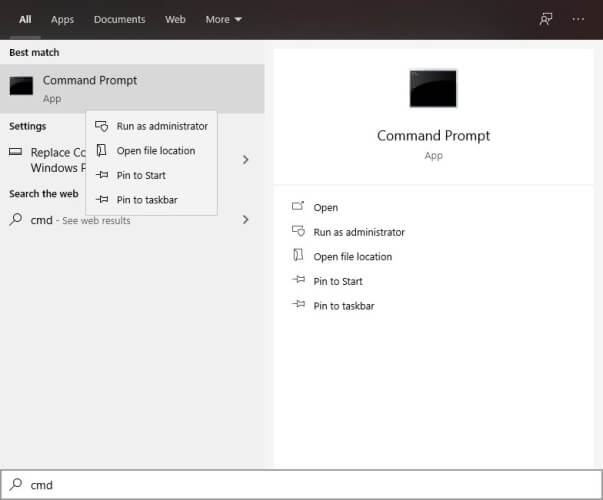
  5. If you’re not able to turn on the Stereo Mix, you’re probably missing a driver, so head to Device Manager, and see if your audio drivers are missing

Note: Some of the latest sound drivers don’t support Stereo Mix anymore. So you might need to install an older sound driver if you can’t see or enable Stereo Mix.

After enabling Stereo Mix, go and try to open Star Wars Battlefront 2, it should work fine now. But if it doesn’t, try running the game in compatibility mode, as shown below.

3. Run the game in the compatibility mode

  1. Open Star Wars Battlefront 2 folder (if you’re using it through Steam, access it in the following location:  C:SteamsteamappscommonStar Wars Battlefront 2
  2. Right-click on the Start Wars Battlefront 2 icon, and choose Properties.
  3. Head to the Compatibility tab, under Compatibility mode, check Run this program in compatibility mode for: and choose Windows 7 from the dropdown menu.
  4. Click OK.

4. Delete vidmode

Some users confirmed that deleting vidmode fixed the problem. Navigate to this location:

C:Program Files (x86)SteamsteamappscommonStar Wars Battlefront IIGameDataDATA_LVL_PC

Simply delete vidmode, then check if you can launch Start Wars Battlefront 2 in Windows 10.

5. Turn off firewall

  1. Go to Start  and open Control Panel
  2. Select System and Security / Firewall and go to Turn Windows Firewall on or off.turn off windows firewall
  3. Check the check boxes that allow you to turn off the firewall.
turn off windows firewall pc

6. Run the game as admin

  1. Go to: C:Program FilesOriginOrigin.exe
  2. Right-click the executable file and select Properties
  3. Next, go to the Compatibility tab and select Run as administrator.run start wars as administrator
  4. Then, go to C:Program FilesOrigin GamesSTAR WARS Battlefront IIstarwarsbattlefrontii.exe
  5. Right-click on the executable, select Properties, go to the Compatibility tab and check the Run as administrator.

Here are the steps to follow on Steam:

  1. Go to your Steam Library, right-click the game, go to Properties / Local Files tab.
  2. Navigate to Browse Local Files, right-click the game executable and select Properties.
  3. Select the Compatibility tab, then select Run this program as an administrator / Apply
  4. Restart Steam and launch Star Wars Battlefront 2 again.

As a last resort, try uninstalling and reinstalling the game.

That’s about it. We hope this article helped you to solve the problem, and that you’re now able to play your favorite Star Wars game on your Windows 10 computer.

If you have any comments, questions, or maybe some solution for this problem that we didn’t touch upon, feel free to leave it in the comments below.

We’ve extensively covered a lot of topics related to Microsoft’s OS, so check out the Windows 10 Hub.

When you’re looking for particular guides, our Troubleshooting section will surely help.

Microsoft Azure will use satellites to improve cloud data

Microsoft invested heavily in its business cloud platform, Azure. The last thing we reported about it, the software giant was building on its security features.

The platform’s evolution was extremely fast culminating with getting two new big customers and a huge agreement with the U.S. Government.

Nevertheless, Microsoft still aims even higher by trying to implement Azure on a Spanish satellite system.

What does the cloud has to do with satellites?

For starters, Amazon has a similar service with their AWS Ground Station system. With this technology, Amazon gives their clients control over their satellite data by downlinking them straight to an AWS data center.

Microsoft filed an FCC request to test the connection between a Spanish imaging satellite named DEIMOS-2 to two ground stations at its data center from Quincy in Washington.

The software giant aims to demonstrate that they can download satellite data to the Azure Cloud for immediate processing.

The request was approved by FCC and now, Microsoft has a six-month license for communications and imagery data downloads through the satellite system.

If the demonstrations result in significant market interest, Microsoft will file an application for regular earth station authority with the International Bureau (IB) to support future commercial operations, and that application will include a request for U.S. market access for DEIMOS-2
, specifies Microsoft in its FCC application.

The demonstration is expected to run around the days preceding and during the Ignite conference starting on September 22.

This system reduces the time it takes to analyze satellite data from hours to minutes or even just seconds also saving customers a big percentage of the costs implied for the process.

If Microsoft‘s test will succeed, we will enter a new era of big data communication.

What do you think about the new Microsoft Azure move? Leave your thoughts in the Comments section below.

Source: CNBC

[wl_navigator]

How to Recover Deleted Games in Windows 10

Windows games always save files to keep in-game progress and configuration settings. However, players might sometimes accidentally erase these files.

Usually, some useful game files are mistaken for unnecessary records and are deleted.

There is still some chance players can restore deleted games, and that’s especially the case if they’ve taken precautions to back up game data.

How can I restore deleted games from my PC?

1. Check the Recycle Bin

  1. Open the Recycle Bin. The Recycle Bin how to recover deleted games in windows 10
  2. Have a look through the deleted files and select a game file to restore.
  3. Then press the Restore the selected items button.

2. Use File History

  1. 1. Type File Explorer in the home screen’s search bar and click on the first result to open the app.

  2. 2. Right-click the folder that includes the game that’s missing some files and select Properties (It’s possible that the game includes subfolders with the saving files).

    properties window game
  3. 3. Select the Previous Versions tab.

    previous versions tab folder
  4. 4. Choose the version that should include copies of the deleted saved games.

  5. 5. Then press the Apply button, and select the OK option to exit.

  6. If you’re looking to recover permanently deleted games on your PC, you can try out resetting the game’s folder to a previous version. This is likely to restore the previous data that was contained within, including the game itself.

3. Check out GameSave Manager

GameSave Manager is a freeware game backup software used to store current versions of a particular game. By using this tool, you can recover deleted files in the future.

In this particular case, the tool is useful only if you’re already familiar with it. Namely, if you do have a previously archived version of the game.

You can download the tool from the GameSave Manager website at any time and make sure you have handy backups of all your favorite games.

4. Use a recovery tool

Using a dedicated recovery tool such as Recoverit Data Recovery is the safest method because it will restore exactly the necessary files.

Besides, you can use the tool not just for a simple recovery, but also for more complex operations that involve database recovery in case of lost partitions, system crashes, or virus infection.

Recoverit is compatible with hundreds of document, audio, and video formats and can recover data from both internal and external sources.

Recovering your games files with Recoverit is a four-step process, installation included:

  1. Download the tool.
  2. Scan your system to find the missing files.
  3. Preview the files
  4. Recover the files in the desired location.

So, that’s how you can recover deleted game saves in Windows 10. If you have other ideas on this topic, share them with us in the comments below.

High Definition Audio Device has a driver problem

The high definition audio has a driver error occurs when Windows fails to detect necessary audio drivers for the audio device. As the error indicates, it is triggered by a missing audio driver.

In some cases, the error can also occur if the audio driver is corrupt. It can be resolved by updating the required audio driver.

In this article, we explore a few troubleshooting steps to help you resolve the High Definition Audio Device has a driver error in Windows 10.

How do I fix the High Definition Audio Device has a driver problem?

1. Run Windows audio troubleshooter

high definition audio has a driver problem
  1. Press the Windows key + I.
  2. Click on Update & Security.
  3. Open the Troubleshoot tab from the left panel.
  4. Click on Additional Troubleshooters
  5. Select Playing Audio.
  6. Click on Run the Troubleshooter.
  7. The troubleshooter will scan the system for audio issues and recommend fixes accordingly.
  8. Follow the on-screen instructions to apply the fixes.

If the issue persists, run the Hardware and Devices troubleshooter. Here’s how to do it.

  1. Open Settings and go Update & Security, and click on Troubleshoot.
  2. Click on Additional Troubleshooter.
  3. Select Hardware & device troubleshooter and run the troubleshooter.
  4. Skip these steps if you can’t find hardware and devices troubleshooter.

2. Update your drivers

  • Go to Settings
  • Select Update & Security
  • Click on Windows Update
  • Select the Check for updates option
  • Reboot your PC after Windows installs the audio drivers

Follow these steps to install the latest audio drivers using Windows Update. If you want to opt for a less time-consuming solution, we recommend using third-party driver updating software for Windows that scans your computer and automatically installs the drivers for you.

3. Uninstall and reinstall the audio drivers

high definition audio has a driver problem
  1. Press the Windows key, type device manager.
  2. Click on Device Manager to open it.
  3. Expand the Sound, video, and game controllers
  4. Right-click on your Audio Device and select Uninstall Device. Confirm the action if you see a prompt.
  5. Follow the on-screen instructions to uninstall the driver. Reboot the computer after the driver is uninstalled.
  6. After the restart, open Device Manager.
    audio driver issue
  7. Click on Action > Scan for hardware changes.

Windows will download and install the required drivers for your audio device. You can also manually update the driver by right-clicking on the audio device in Device Manager and selecting Update driver.

The high definition audio device has a driver problem issue can be resolved by updating the audio drivers or reinstalling the same if required. You can also try updating Windows to get new driver updates.

[wl_navigator]

Are the pictures taken with the Surface Duo camera looking a little dull and wrong? Here’s how to use Google Photos to fix them

The single 11-megapixel camera on the Surface Duo doesn’t exactly produce some of the best quality images in all situations, but if you’re sporting a Duo and hope to get better image quality, there’s a quick fix for it. All it takes is to use the in-built Google Photos app, then edit your photos with the “Auto” function. This will change your boring looking photos to the shaper, colorful, and crisper images they deserve to look like. Here’s a few sample images, and a look at how to fix your images on your own.

Sample 1: Garage

This low-light image was taken inside my garage, with the sun facing away from me, so that the garage is dimly lit. You can see that because of this situation, the overall color in the photo isn’t great. The wood in the roof appears a bit washed out, as do the colors in the power cord and the shop vacuum. Changing that in Google Photos with the “Auto” edit option, though, switches things up a bit. The wood ends up looking a bit more natural, as do the boxes and tools sitting on the shelf.

Sample 2: Flowers

Now, for another image taken in bright sunlight. Here, you can see that the pink flowers aren’t exactly vibrant. The greens in the leaves also look a bit washed out, as does the dirt. Switching over to Google Photos and editing it with “Auto” meanwhile, makes the photo seem a bit more natural. You can see the bricks in the background change to their true to real-life color as will the and the brown in the dirt.

Sample 3: Indoors, inside a house

Finally, there’s another indoor situation. Here you can see some construction going on inside my home. In the Duo’s original photo, everything looks washed out and dark. When going to Google Photos, though. the wood floor suddenly becomes more vibrant, and the yellow in the walls pop out a bit more. The difference is bright as day with this one (pun intended.)

How to fix your images in Google Photos

Duo Edit Photos

Now that you can see the difference, you can try it for yourself. Since Google Photos is the default app for viewing images on the Surface Duo, you can correct the image in just a few steps. First, click the icon which looks like three switches. It’s the one that’s the second from the left in the bottom of the screen. Once you click that, you can choose “Auto.” You’ll then be able to see the difference.

You also can tweak the image manually, too. Just click the three switches again, and drag the light, color, and pop sliders around. When finished, click “Save a Copy” on top.

Could the camera be improved with software updates?

Since Google Photos is able to enhance the Duo’s photos with its software. we’re wondering if Microsoft’s stock Android camera app on the Duo could see an update in the future to improve overall image quality. Of course, we also hope that Google will port its GCam app to the Duo too (which is unlikely since it’s only designed for Pixel photos) to help make a difference. Until then, this is one way to improve image quality on the Duo. Or, you can also try checking out a third-party camera app (many of which aren’t yet optimized for the Duo and will just crash.)

Microsoft Teams gets its own 30 second commercial, shown on NFL games this weekend

Microsoft Teams saw an unprecedented growth this year when the covid-19 pandemic forced many employees to start working from home. The app now has over 75 million monthly active users and more than 13 million daily active users, and Microsoft recently launched a free consumer version of Teams that anyone can use to stay in touch with family and close friends.

As the fastest growing app in the Microsoft 365 ecosystem, Teams now gets its own TV ads during big events, such as the NFL games that aired in the US this weekend. In case you missed it, here’s the 30-second ad for Microsoft Teams that was shown (at least) on the Seahawks-Falcons game, and again on Sunday Night Football.

Interestingly, Teams has now become so big that these ads are apparently causing some people to freak out, especially due to the use of the Teams meeting sound. “Can we go ahead and not have Microsoft Teams commercials on Sunday Night Football? If Sunday Scaries aren’t bad enough, every commercial break I’m hearing the noise I hear whenever I join a meeting,” wrote Twitter user @ryanhelm75.

Another funny tweet from @tayahmarie__ echoed this sentiment. “Microsoft made a Teams commercial and anytime i see it/hear that ding sound, specifically on the weekends, i get triggered,” the tweet reads.

It’s good to see that Microsoft Teams is getting some screen time, and so did the company’s brand new Surface Duo dual-screen phone during the NFL games this weekend. Have you ever seen ads for Microsoft Teams on TV in your country? If so, let us know in the comments if they caught your attention in a positive or negative way.