Windows 8, 10 App Check: Comics by ComiXology

Comics will never die and with the appearance of tablets and smartphones, they have simply evolved from physical paper to mobile apps. And if you have a Windows 8 tablet, you will be glad to hear that there are plenty of comics apps available for download. Today we look at ComiXology for Windows 8.
windows 8 comics app
From all the available comics apps in the Windows 8 Store, ComiXology stands out as the best, having plenty of features and useful options for aficionados. As a matter of fact, there has been recent talks of ComiXology going into the stock market, which shows just big it is. Its presence is especially strong in the iOS ecosystem, where it has registered an impressive 6 billion+ pages download.

Read Also: Listen to Internet Radio in Windows 8 With Apps & Windows Media Player

ComiXology is the best comics app for Windows 8

Comics by comiXology offers over 30,000 comics and graphic novels from over 75 of today’s top publishers, including Marvel, DC, Image, IDW, Dynamite, and BOOM! Studios. Get access to the greatest library of new releases, best sellers, and noteworthy backlist issues of series like The Walking Dead, Batman, The Amazing Spider-Man, Avengers all on the same app! New to comiXology? Try it FREE with hundreds of free comics to choose from!

By using Comixology on your Windows 8 tablet, laptop or any other device, you will be able to enjoy a ton of popular comics, no matter whether you’re a kid, teenager or a grown-up. Here are some of the most popular comics to be enjoyed

windows 8 comixology

  • Marvel Comics: The Avengers, Iron Man, Spider-Man, Deadpool, Daredevil, Captain America, The Hulk, The Fantastic Four, Thor, Wolverine
  • DC Comics: Batman, Justice League, Superman, Man of Steel, Green Lantern, Smallville, The Dark Knight, Watchmen, V for Vendetta, Sandman
  • Image Comics: The Walking Dead, Saga, The Adventures of Spawn
  • IDW: Star Trek, Doctor Who, Judge Dredd, G.I. Joe, Angel, Transformers, Bloom County, My Little Pony, Teenage Mutant Ninja Turtles
  • Disney: Mickey Mouse, Cars, Toy Story, Donald Duck, Finding Nemo, The Lion King, Monsters, Inc., Tron, Epic Mickey

The app will let you read comics panel-by-panel with cinematic Guided View technology or in the classic full-page view. There’s also the option of syncing your comiXology account across multiple devices. There’s also a section with free comics, so you can try it out to see how they look on your Windows 8 tablet. The app has recently been updated, as well, and it is now faster and more stable than it was when it first launched. Go ahead and get it by following the link from below.

Download Comixology app for Windows 8

What to do if ComiXology does not in Windows?

Well, in this case, you have few solutions. One of the would be a clean reinstall of the app. In case there’s an error that occurred because of your system, a clean reinstall should solve it. If this doesn’t work, don’t worry, there are plenty of other great readers that can do the same thing, even better. Icecream Epub Reader is one of the best at the moment, so be sure to check it in this list and download it for free.

READ ALSO: Cover is a New Windows 8 App to Read and Manage your Comic Books

Best 5 Air Hockey Games for Fun Play in Windows 10/11, 8.1

Air hockey games are a lot of fun especially when you play them physically, on the traditional arcade box. But if you have at your disposal a Windows 8 or Windows 10 tablet, you need to know that there are some fun Windows 10, 8.1 air hockey games to play.

There are plenty of interesting air hockey games in Microsoft Store to download and play on your tablet and we have handpicked five of the best to share with you. If you happen to know another reliable Windows 10, 8.1 air hockey app or game, then let us know by leaving your comment in the comments box after the article. For now, without further ado, let’s see what we have managed to find.

AirHockey

Air Hockey windows 8This is an addictive multiplayer Air Hockey simulator to be enjoyed on your Windows 10, 8 tablet which I like a lot. You can choose to play with your friends on the same screen, or battle against the computer. There are 2 game modes: classic and survival. There’s also an online ranking system that you can use to see how you compete against your friends.

The latest version has improved on bugfixes. Few users had some lagging problems while playing this game. If you encounter any issues, we recommend checking this article on Lagging Issues.


Extreme Air Hockey Free

Extreme Air Hockey Free windows 8Still searching for a Windows air hockey game? Well, we have some more for you, then. Extreme Air Hockey Free doesn’t have the same graphics as the above mentioned games, but it’s another interesting game you shouldn’t neglect. What’s good to know about it is that it receives frequent updates from the developer which gradually adds new features.

Latest version updated had added several new options in the settings menu. The board color, the puck speed, the paddle and puck size can be customized now. Developers have also fixed physics and performance issues.


Air Hockey Gold

Air Hockey Gold windows 8Another fun Windows 9 air hockey game to be enjoyed on your Windows 8 device is Air Hockey Gold. Play against a computer opponent, with difficulty levels ranging from Kiddie to INSANE! The game ends when one of the players reaches 7 points, just like in the real air hockey game. The game has advanced physics and great graphics and sounds.

[UPDATE] This game has no longer received support in Microsoft Store. Hence, we suggest a new game from the Microsoft Store below.

Air Hockey – Ice to Glow Age

air hockey game for Windows 10, Windows 8.1This game has an awesome range of fields to play on you will love. I especially like to play this one with my friends, it’s really fun for kids too. The physics are good and although the paddle may seem too big at first, once you get playing it’s just right. Feel free to download it and give it a try.

  • Read also: 6 best antivirus with gaming mode to stay protected while gaming

iNUI Air Hockey

iNUI Air Hockey windows 8iNUI Air Hockey is another interesting Windows 8 air hockey game that you can play completely free. Since the game is optimized for touch Windows 8 device, you can move the air hockey mallet with your finger, and with your mouse, as well. There are 3 levels of difficulty and the ability to play against your computer or against a friend of yours.

[UPDATE] This game has no longer received support in Microsoft Store.

  • Read also: Best 9 Windows 10, 8.1 Gamepads for Playing Games

AirHockey’Touch

AirHockey'Touch windows 8The single paid air hockey game for your Windows 8 device is AirHockey’Touch and you need to invest $1.49 to get it, but there’s also the free trial option available. There’s nothing particularly special to be mentioned about this game, but I observed that it moves really fast and you need to be skillful to make sure the mallet goes where you want it to go.

[Update] This game has no longer received support in Microsoft Store.

If you are interested in other fun games to play on your Windows devices, check these articles now:


SMITE: Gold Bundle and LEGO Indiana Jones 2 are now free with Xbox Live Gold

SMITE: Gold Bundle and LEGO Indiana Jones 2, the last Games with Gold titles for the month of June are now free to download with Xbox Live Gold. For those unfamiliar, SMITE is a free to play MOBA game that launched back in 2015 on the Xbox One, and this Gold bundle comes over $100 of in-game content including new characters, skins, voice packs and more.

As for LEGO Indiana Jones 2, this is one of the many LEGO games based on licensed properties, and this one is a family-friendly recreation of the four Indiana Jones movies. This one also supports local co-op with 2 players, as well as online co-op via Xbox Live.

If you haven’t done it yet, we remind that you have until the end of the month to grab the Xbox One game Assassin’s Creed Chronicles: Russia, and until tonight to get the Mario Kart-like Sonic & All-Stars Racing Transformed.

Awesome Quotes App for Windows 8, 10: Your Daily Dose of Inspiration


There are plenty of quotes app to choose from in the Windows 8 Store, but we have been approached to review this simple new one, called “Awesome Quotes!”. It only has a size of 0.3 MB and is filed in the Lifestyle category.
windows 8 quotes app
There’s not too much to be said about this quotes app for Windows 8 users besides the fact that it contains plenty of quotes that you can learn or use them to inspire you in your daily actions. After using the app for a few minutes, I’ve discovered various quotes from such personalities as Voltaire, Benjamin Franklin, William Shakespeare and many, many others.

Read Also: Follow 2014 Brazil Fifa World Cup on Windows 8 with This App

Discover daily quotes on your Windows 8 tablet

A small collection of “awesome” quotes to give you a little inspiration for the day, or just something to think about…

quotes app windows 8The app is nicely designed and comes with a refresh button that you can hit after you have understood and analyzed the previous quote. There’s plenty of room for innovating this app, such as adding categories. People would want to discover quotes by different categories, such as love, family, intelligence and many others. But if you need to learn quickly a new quote, you can install it on your Windows 8 tablet and use it whenever you feel like you need some advice.

Download Awesome Quotes! app for Windows 8

Important update: the app cannot be found anymore on the Store or Google Play. IN case you are addicted to this app, try to search it on other online services.

Quotes software for Windows users in 2018

Other great apps that you could use to create quotes can be found as online services. For example, Quotient App is a great choice for personal use as well as for businesses. You can find more details about its features and pricing on the official website. Another great site for creating quotes directly on beautiful images is Recite. All you have to do on this site is to write your quote and to choose the main design details.

Windows 8, 10 App Check: Field & Stream Fishing

Fishing is a fine sport and one that I admire and even practice, albeit not as much as I’d like to. So, if you want to do some fishing straight on your Windows 8 tablet, you need the right app or game to do it. We have a look at Microsoft’s Field & Stream Fishing game.
windows 8 fishing appFrom all the available Windows 8 fishing apps and games in the Windows Store, Field & Stream Fishing stands out as the best of them, obviously because it’s made by the Microsoft Studios. The full version of the game is available for $4.99 but you can use the free trial, as well, to see whether this fishing game is of real interest to you or not (link at the end). Field & Stream Fishing can be played on your Windows 8 tablet or other Windows 8 desktop device, as it supports both touch screen controls, as well as keyboard and mouse input.

Read Also: The Huffington Post Releases Official Windows 8 App

Some serious fishing on Windows 8

Angling for the best fishing game on Windows 8? Then set your hook in Field & Stream’s Fishing! New high-resolution graphics showcases the gorgeous fish and majestic scenery at 15 fishing locations with unique underwater environments, and addictive swipe gameplay makes catching fish more fun than ever before! Use 5 different lures with special bonuses to land 18 fish species, with an additional 10 lures and 20 fishing spots available. The sounds of native wildlife at each shoreline enhance the immersive fishing experience. Hook, fight, and catch legendary fish, unlock achievements, and beat your friends’ high scores when you sign in to Xbox!

windows 8 fishing gameThe game comes with some high-resolution graphics and an addictive swipe gameplay. Five bucks might seem like a little too much, but for the true fishing afficionado, it’s not that much, after all, considering that the game is of high-quality. You will be able to catch some gorgeous fish, like the Peacock Bass, Kokanee, Tarpon, and many more. Explore stunning lakes and fishing spots, straight from your Windows 8 tablet.

There are even “fish legends” that you can catch, such as Big McLargeHuge, The Swimminator, and Old Salt Hershal. Besides all this, there are some soothing birdsongs and sounds of wildlife in the background that will give the game a real feeling. If you want, you can also try and challenge your friends to see who’s the better fisher. There are 20 unlockable achievements in the game, so download it and start catching those elusive fishes!

Download Field & Stream Fishing game for Windows 8
Update: we have observed on forums that many fishing games amateurs are searching for something similar to that. The truth is, at a certain moment you are getting bored as you don’t catch any real fish. In order to change the game, you can switch to a hunting simulator. It is more intense as an experience, especially if you do not really want to kill an animal. Here are two articles where you will find some of the best hunting games for Windows PC:

Download the Windows 8, 10 Racing Game Asphalt 8: Airborne for Free

The popular racing game Asphalt 8: Airborne has been launched by Gameloft in the Windows Store back in the middle of November, 2013. Back then, it had a price of $1.29, but now it is available for free.
asphalt airborne 8 windows 8.1If you want to play a serious racing game on your Windows 8 tablet with some stunning graphics, then you need to download and install the Asphalt 8: Airborne game. You now have the biggest reason to do it – the game has been made available for free, two months after Gameloft had launched it in the Windows Store for $1.29. Now, Gameloft has decided that it can offer the game absolutely free and we applaud their decision.

Read Also: Best Windows 8.1 Antivirus Software According to Lab Tests

Get some serious racing on your Windows 8 tablet for free

The best arcade racing game series reaches a new turning point! Perform dynamic, high-speed aerial stunts in an intense driving experience powered by a brand-new physics engine! 47 high-performance cars (80% of them NEW!), Top licensed manufacturers and models like Lamborghini Veneno, Bugatti Veyron, Ferrari FXX and Pagani Zonda R, Newly recorded high-fidelity car motor sounds for realistic audio immersion

Just like Disney, Gameloft is one of the big presences in the Windows Store, with important games launched, such as Total Conquest, Despicable Me: Minion Rush, Dungeon Hunter 4, UNO card game and some others. Asphalt 8: Airborne is an amazing game with impressive visuals and in-game experience and proof to that is the huge size of more than 1.3 GB that it comes with. So, before downloading it, make sure you’ve got enough place on your Windows 8 tablet or desktop device, as it will work with both of them.

Download Asphalt 8: Airborne game for Windows 8

Asphalt 8: Airborne for Windows 10 [2018 update]

The game has known lots of updates and improvements, but the most important of them were made to level up the gameplay. The game has been updated with new content: new decals, new elite cars, and other interesting features. You can see all of them in this article. After this upgrade, there have been several cars and races added as well. If you have encountered some problems while playing the game, here is a fix-guide that will help you to get rid of various Asphalt 8: Airborne errors and problems in Windows 10.

Best Disney games to play on your Windows 10/11, 8 computer

There are plenty of Disney games available in the Windows Store and we have decided to round them all up and put them all in a single place so it would be easier for you to discover them.

Disney is releasing plenty of new games in the Windows Store and we have decided to put them all in a single place to keep up. I love the quality in Disney’s games, so that’s why I’ve reviewed in the past such titles as Wreck-it Ralph, Seven Dwarfs: The Queen’s Return, Disney Infinity: Toy Box, Where’s My Water, The Little Mermaid Undersea Treasures, and Star Wars Tiny Death Star. And here’s the full rundown of the available games with the links to their download location in the Windows Store.

All the Disney games from the Microsoft Store

disney games windows store

where is my mickey disney game windows 10

RELATED STORIES TO CHECK OUT:


Compass+ lets you check cardinal directions in Windows 10/11

Technology is making huge progresses with every year and Window 10, 8 tablets are right in the middle. Your Windows 10, 8 slate can do so many things, and yes, if you were wondering, there are even Windows 10, 8 compass apps that you can use to see cardinal directions.

Compass+ isn’t the single compass app available for Windows 10, 8 users, but it’s the one that I like the most and have tested it both on my Windows 10, 8.1 tablet and my desktop laptop and can vouch for its usability. Of course, if you will use it on a Windows 10, 8 laptop or any device that doesn’t have the magnetic sensor built-in, it will only tell you the location. If you’re interested, you can also check out some GPS apps to be used on your Windows 10, 8 tablet, as well.

Compass+ for Windows 10, 8 is a great navigation tool

Turn your Windows 8 device into a compass. Great for outdoor navigation and geocaching. Hardware compass only!

The app is really, really easy to use and there aren’t too many features, just as you would expect from a basic utensil like the compass. By using the Compass+ app on your Windows 10, 8 tablet, you will be able to enjoy outdoor navigation and geocaching activities. We will soon a review a geocaching app for Windows 10, 8, so stay tuned.

Compass+ has a reference angle and it shows your position from satellite, and also comes with the option of sharing your location. As you will change your location and you will keep your Windows 10, 8 tablet, the compass will change and will indicate the cardinal directions – North, South, East and West.

Download Compass+ app for Windows 10, 8

If you don’t really like the UI of this app, here are other compass apps that you can download from the Microsoft Store:

  • Swift Compass: This app has mostly positive reviews and users appreciate its accuracy. It works with both GPS or your built-in digital compass and it’s very useful if you often go hiking as it shows altitude and speed when moving.
  • Compass App: As its name suggests, this app helps you to quickly get your bearings. In terms of features, you can snap view, pinch and zoom, swipe to rotate, and more.

RELATED STORIES TO CHECK OUT:


Survey confirms Windows updates trigger bugs for 50% of users

The latest survey performed by advocacy site Which reveals that 50% of consumers are faced with problems after major Windows updates, and some of them have increased severity. In the past years, more and more users have been complaining that the Windows Insider program is not strong enough to detect and fix bugs and this last research only comes to highlight this issue even more.

Which’s survey in numbers

The study included 1,000 Which members and it showed that 21% of these users were faced with software compatibility issues and these included apps which would not launch anymore after the updates. Moreover, 16% of the users were affected by hardware issues such as broken peripherals after a significant update, and some systems even stopped booting right, while other PCs’ performance decreased.

Broken PCs/systems had to be fixed by technicians and users had to pay about $90.

Microsoft should cover the costs

repair windows 10 update issues

The company noted that users should not be the ones supporting these costs and Microsoft should send them a compensation since it’s their fault such things can happen.

According to Which’s data, over the past three years, users have been complaining more about Windows 10 than any other OS, both mobile and desktop. The expert noted that Redmond should be upfront about the risks posed by a specific update so that users could opt out of it if they choose so.

Security updates should be offered separately

Which also said that this might cause security issues, so they propose that Microsoft offers these separately and not optional as the others.

They also said that all they want is to make sure that their customers get the best support and the best Windows update experience and that’s why they’ll continue to review customer inquiries and issues to make sure that customers receive the best resolutions.

RELATED STORIES TO CHECK OUT:

Looking for a Feedly app for Windows 10/11? Download Readiy

After Google has announced that they will shutdown the Google Reader service, many Windows 10, 8 users have started to look for alternatives both on their Windows 10, 8 tablets and Windows 10, 8 desktop devices. Today we are writing about Readiy, which seems to be one of the best Windows 10, 8 Feedly apps to try out.

In the past, we have shared with you plenty of Windows 10, 8 news apps to try out, as well as five of the best Windows 10, 8 RSS feed reader apps. But if that’s not enough and you are looking for a specific Windows 10, 8 Feedly client, then Readiy is the one you should download (link at the end of the article). Readiy will be a beautiful replacement of Feedly or Google Reader on your Windows 10, 8 tablet or even on your Windows 10, 8 desktop device.

Best Windows 10, 8 Feedly app: Readiy

download Readiy Feedly app windows 10

Redesigned for 8.1. Readiy is a Feedly client/RSS reader. Simple, no frill, fast (no really, it’s fast), intuitive and beautiful. Give it a shot and you’ll know why tens of thousands of users love Readiy. Note: Feedly requires a Google account to sign in. Create a free Feedly account at feedly.com to be able to use Readiy.

Readiy has also been redesigned for Windows 10, 8.1 and it looks even better than before. The free version of Readiy is really gorgeous and proof to that is the good number of ratings but you can also choose the Pro version which comes with more features. Also, thanks to full Windows 10, 8.1 support, you can pin it to the Start Screen and choose whatever size you wish to.

Among the most important features of this great Windows 10, 8 Feedly app we find the fast synchronization speed, the image rich layout, multiple reading modes, sharing options, multiple themes, the ability to control tile sizes on items view, multiple live tiles, sorting and filtering, quick access to main functions, keyboard fully supported, safe authentication and background notifications. Follow the link from below to get it from the Windows Store.

Download Feedly app Readiy for Windows 10, 8

Here are some of Readiy’s key features:

  • Fast Feedly sync.
  • Multiple reading modes (Instapaper, readability, inline browser).
  • Sharing options that allow you to share full articles to OneNote, EverNote, and more.
  • Multiple themes are supported, including  light, dark, gray, sepia.
  • You can mark previous articles as read as you scroll and use various criteria to do this ( all/week old/day old)
  • Full keyboard support.
  • Safe oAuth2.0 authentication which means that the app does not have access to your ID and password.

RELATED STORIES TO CHECK OUT:


Dell Venue 11 Pro vs Asus Transformer Book T100

Going through the recently released Windows 8 tablets, you surely heard these two tablet monsters. If you are looking to get your money’s worth out of the gadgets you purchase, definitely take a closer look at this head to head between Dell Venue 11 Pro and Asus T100.
wind8apps-dell-venue10-vs-asus-t100
Getting a new Windows 8 tablet can be really difficult especially because we are all looking for the best one we can get within a certain budget. When it comes to tablets, there is more than one way to look at performance and seeing the specs is not always everything that matters. In the past, we have compared the Asus T100 with the Toshiba Encore.

Read Also: Lenovo Miix 2 vs Acer W4: The 8-inch Windows 8.1 Battle

Dell Venue 11 Pro VS Asus T100

  • Price – the Dell Venue 11 Pro has a starting price of $499 and the Asus T100 is going for $399 on the Microsoft Store. The cost of the tablets is somewhat different, and the difference is in $60, at least on Amazon.
  • Display – looking at the screen, there is a noticeable difference between the two and it seems like the Asus T100 has smaller size, with a 10.1″ display compared to Dell‘s 10.8″. Normally I wouldn’t get worked up about that, however, T100’s 768p is no match for the 1080p display present on the Venue 11 Pro.
  • Processor – both tablets are running on Intel Atom processors, but there is a substantial difference between them. Asus decided to go with the Z3740 at 1.33 GHz and the Venue 11 Pro is equipped with the superior Z3770 that runs at 1.46 GHz. The difference is close to minimal, both CPU’s being quad core and on 22 nm lithography.
  • Dell Venue 11 ProMemory – both tablets are equipped with 2 GB of memory to run as smooth as possible and I believe that is the optimal amount needed on any tablet.
  • Storage – there are multiple storage options available with both gadgets, however, comparing the basic versions, there are two main differences. The Asus T100 has a 32 GB storage unit and the Dell Venue 11 Pro has 64 GB storage, but the story doesn’t end here, because Asus‘s storage is a SSD drive. This is a judgement call, so choose between size and speed. It’s pretty unusual for a tablet not to come with the 32 built-in storage, but probably Dell wanted consumers to have another reason to buy.
  • Multimedia – the choice is in both cases Intel HD Graphics to minimise the cost of the tablets, but there is a noticeable difference between a 1080p display and a 768p one so due to the superior display I believe Dell wins this one too.
  • Ports – the good news is that both the tablets have USB 3.0 and mini HDMI ports so transferring data is a lot faster. The HDMI ports are extremely useful when connecting the devices to a larger screen.
  • Battery – one of the most important things required on gadgets we get for the mobility, is the battery life. Both tablets have a battery life around the 10 hours mark which is enough for a full workday. Asus has the battery integrated in the T100 and once again Dell comes on top having made the battery replaceable.asus transformer book t100 windows 8 tablet
  • Camera – Dell’s Venue 11 Pro has two built in cameras, an 8 MP camera that takes gorgeous pictures and a 2 MP front camera for video calls. Unfortunately, Asus only equipped the T100 with a 1.2 MP front camera, so if you want to be able to take some photos with your tablet, once again, Dell is the way to go.
  • Dimensions – as expected, due to the larger display, the Dell is somewhat bigger than the Asus, being 297.7 x 176.8 x 10.2 compared to the 264.6 x 170.1 x 10.4 dimensions of the T100. There is a slight difference in the weigh of the Windows 8 tablets, Asus Transformer Book T100 having 1.2 lbs and the Dell Venue 11 Pro weighing 1.57 lbs.

Going through the features and specs of both Windows 8 tablets, I have to say that the Dell Venue 11 Pro is the clear winner but it is also more expensive. Asus seems like playing from behind when it comes to the features and performance of the tablet and didn’t come on top in any category. If you are looking for a powerful and cheap Windows 8 tablet, don’t hesitate to get the new Dell Venue 11 Pro tablet.

update –  thanks to our reader MicroByte for making clear some things: The $399 price is for the Asus T100 with 64GB model, the 32GB model is $349 MSRP. But I didn’t manage to found the 32 GB version. Also, the Asus T100 is $349/$399 but also comes with a keyboard out of the box, which is a big differentiators. With the Dell Venue 11 Pro, you either pay $129 (thin keyboard) or $159 (battery keyboard).

Other useful laptop comparisons

If you want to see what other laptops may be good for you and your budget, we have some great reviews. You will be able to compare specs, prices and other features, just be sure to check the right review. Here’s the list:

Read Also: Dell Venue 8 Pro VS Lenovo Miix 2: Who Wins?

Play Hangman on Windows 10, 8 with Hangman Pro

Hangman is a classic game and with the appearance of the Windows 10, 8 touch operating system, the interest for Hangman apps to be played on Windows 10, 8 tablets has appeared. We found the Hangman Pro app to be one of the best Windows 10, 8 hangman apps from the Windows Store.
windows 8 hangman
Hangman is one of my favorite games and I remember playing it while I was kid in kindergarten, in school and even in the university. And I am sure many of you share the same passion for this game just like I do. So, if you have a Windows 10, 8 tablet and you want to play the Hangman game on it or on a Windows 10, 8 desktop device, then you need to have a look at Hangman Pro.

Play Hangman on your Windows 10, 8 PC

Play the best FREE hangman game for Windows 8! Relax with a few rounds of this classic word game. This version of Hangman has everything you need, with lots of word categories, one and two player modes, and global leaderboards. Guess both single words and phrases before the hangman drawing is complete! If you like word search, crosswords, sudoku, word twist, or any variation of the classic hang man game, you will love this game!

The Windows 10, 8 app Hangman Pro is completely free and there’s only a square banner that you will get used to. You can play in single or two player words and use also phrases, not only words. There are lots of categories of words to choose from and even global leaderboards to compare your performance against other Hangman players from all over the world.

You will discover other Hangman Windows 10, 8 games in the Windows Store, with more or less functions available, but Hangman Pro is one that I really recommend downloading and playing.

Download Hangman Pro for Windows 10, 8

Hangman Pro has overwhelming positive reviews that confirm this is one of the best Hangman apps to download on your computer. Some phrases are British English, others are American English but they’re all easy to figure out.

Awesome hangman game. Very easy to operate, straightforward, no frills, obviously a huge database;I haven’t seen a word repeated yet. It works and it works well.

If you really like word games, here are few more similar games that you can play on your computer:


Best Windows 8, 10 Pool Game to Play: Cue Breakers

If you are looking for a really good Windows 8 pool game or billiards, as it is also known, then you have arrived in the right place. By far, Cue Breaker seems to be the best choice currently available in the Windows Store. The best thing is that it can be downloaded for free on your Windows 8 tablet.
windows 8 pool game
If you’ve bought yourself a brand new Windows 8, Windows 8.1 or Windows RT tablet, or even a new Windows 8 desktop device, and you also happen to have a passion for billiards, then you’re probably searching a pool game with great graphics and features. I myself have been in the same situation and after scouting the Windows Store for quite a while, I’ve found the Cue Breakers game which seems to be the best Windows 8 billiards app yet.

Read Also: Windows 8 Cricket Apps & Games: Four Best to Download

Cue Breakers is billiard simulator with four games: 8 ball, 9 ball, One Pocket and Straight Pool. 8 ball is avaiable from the start, other games you have to unlock by winning ranked games. You can play either with your friend on the same device or with computer. Game has various difficulty levels so it’s suitable for wide range of players from less experienced ones to billiard “sharks”. Controls are easy to adapt but if you want to do some magic you can take advantage of realistic physics system, precise aiming, squirt and swerve.

Awesome Windows 8 pool game for fun play

Try and input “pool”, “snooker” or “billiards” while searching in the Windows Store and you will see so many apps that are not worth downloading. Many are only about news, rules and so forth. Only a few represent real Windows 8 pool games and Cue Breakers is the one you need to download (link at the end) if you want to enjoy a game of billiards on your Windows 8 tablet.

windows 8 billiardsThe start menu of the game is depicted in the above screenshot and as you can see, you can choose to continue the last game, single player training, single player ranked, multiplayer, score or see the rules in the “how to play” section. This excellent Windows 8 billiards simulator game comes with four different game modes and various difficulty levels. There’s also a progress mode available, so that you can see your evolution.

While you’re inside a pool game, by right-clicking you have the following options: back to main menu, restart game, settings, up camera, precise aiming and ball numbers. I’ve been playing the game for a few hours on my Windows 8 tablet and can tell you that the physics and graphics of the game are realistic and impressive for a game that has a size of only 26.8 megabytes. Follow the link from below to get it from the Windows Store and become the ultimate

Download Cue Breakers for Windows 8

Cue Breakers for Windows in 2018

The app has received a great update after its launch. What’s new in the game: after purchasing extra packs you don’t have to restart the game, full ARM supported (for all Windows 8 devices) and now you don’t have any crashes as they have been fixed. There are no more news from the developers. In case you want to change to another game, we strongly recommend you Snook! which is a great snooker game for Windows 8 and Windows 10 devices. You can find more details about it in this review.

[Updated] Latest Xbox Insider update replaces Entertainment tab with new Games Pass tab on the home screen

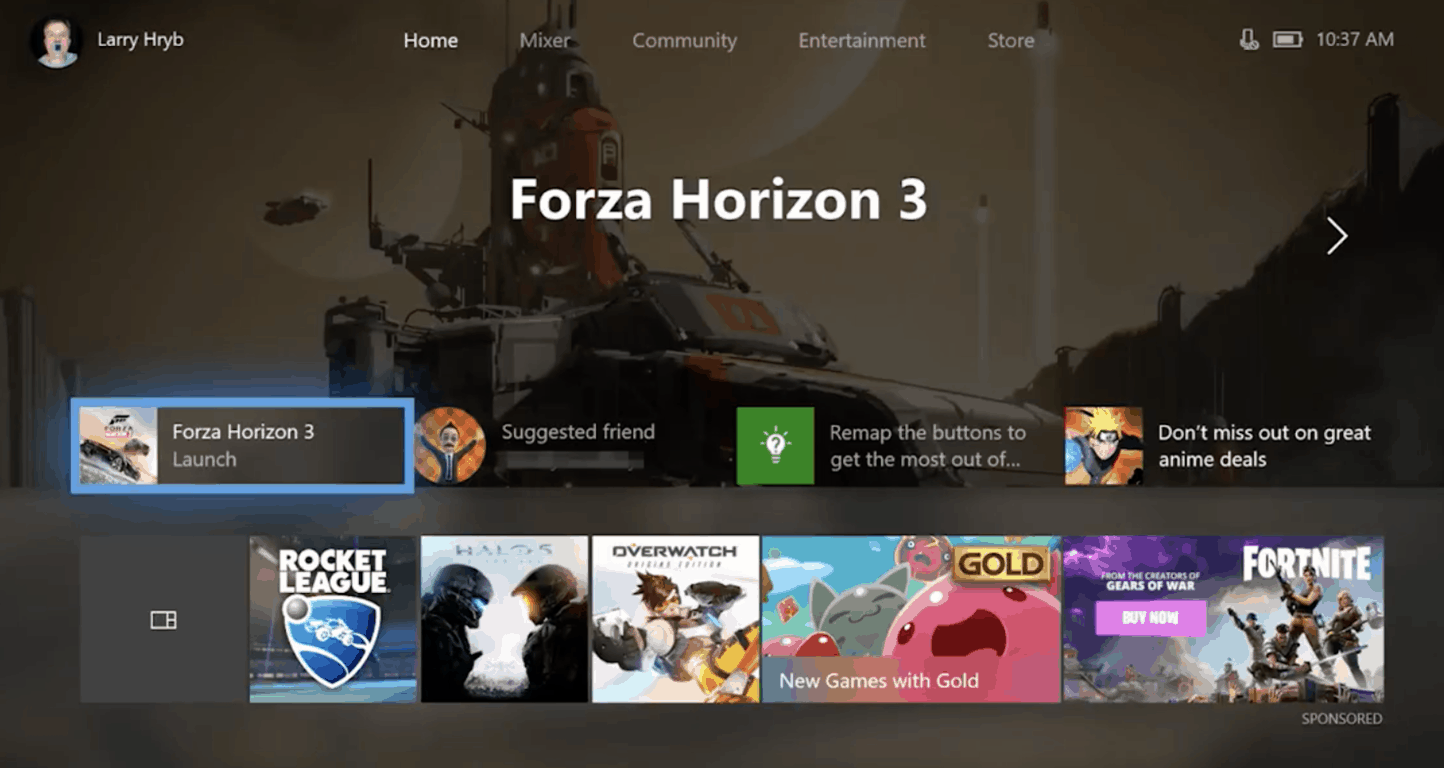
Late this afternoon, Microsoft released a new Xbox preview build to Preview Alpha and Skip Ahead Insiders. This new 1806 build comes with the usual fixes and bugs, but it also introduces a new Xbox Games Pass tab on the Xbox home screen in place of the Entertainment tab, which currently shows content from Microsoft Movies & TV, Netflix and other media apps.

It’s interesting to see Microsoft put Xbox Games Pass content front and center on the Xbox dashboard, right between the Community and Microsoft Store tabs. The experience is also subject to change, and Microsoft is calling on feedback from Insiders to “help evaluate and refine the experience” over time.

Today’s build also introduces fixes for apps failing to launch when the console is rebooted, and fixes for the Groups feature, localization, Store, Netflix, and video broadcasting. There are also some known issues with the online status of friends not updating correctly, the YouTube app signing users out on launch, and WiFi connectivity issues. You can check here for the full changelog and details on the changes.

Update: It looks as though that only US users will be seeing the tab for Game Pass. This is because of localization not being present for other countries.

Following the discontinuation of the Xbox Live Rewards program, Microsoft is also pushing their Microsoft Rewards program on Xbox too, and starting today the dedicated app should now be available for all Xbox Insiders in additional countries.

Windows 8, 10 App Check: Western Digital

Western Digital is one of the biggest names in the storage industry and no wonder many Windows 8 users were looking for a dedicated touch app to download from the Windows Store. The official Western Digital app has been available for quite a while in the Windows Store but only now do we give it a thorough look.
windows 8 western digital
Connecting an external hard drive to your Windows 8 device, be it a Windows 8 laptop or even a Windows 8 or Windows 8.1 tablet is really useful as you get to transfer all your files easily. At the moment, the official Western Digital app for Windows 8 users, dubbed simply “WD”, will work if you have one of the following hard drives – My Passport, My Passport Edge, WD Elements, My Book, My Book Live, My Book Live Duo, My Cloud or My Cloud EX4.

Read Also: Windows 8 App Craigslist Classifieds Launched

Accessing the digital media stored on your WD external hard drives directly from your Windows 8 Start screen is now easier than ever. With just one click of our new WD app, all your content is instantly displayed and organized so you can easily browse your photos, watch your videos, play your music and share it all with friends and family. It’s just one more way WD brings your media to your fingertips.

Official Western Digital app for Windows 8 looks after your digital files

The official Windows 8 Western Digital app comes with plenty of features that will let you, first of all, have an one-touch access to your media from the Start screen. You will be able to instantly discover your media files on the connected Western Digital external drives. When you will first start up the application, you will be asked to connect any external WD drives. The app will work with your desktop and touch Windows 8 device and even with Windows RT.

The files are neatly organized and there’s also the option of sharing your files via email or social media accounts. The app is completely optimized for Windows 8.1, so you can pin it to the start screen and choose to use whatever pin tile size you want. The app has also received frequent updates, which have added a good number of important features – support for My Cloud and My Cloud EX4, enhanced Windows 8 search integration and app rotation support. Also, you can use the app in snap mode and the flat view feature will let you browse photos, videos or music much easier. Follow the link from below to get the official WD app from the Windows 8 Store.

Download Western Digital for Windows 8

Western Digital in Windows 10: what you need to know

Wester Digital Cloud has encountered some issues on Windows 10 PCs. Many users have encountered problems while accessing their WD Cloud service after upgrading to Windows 10 Anniversary update. In case you have such problems, you will find a fix guide in this article.

In case you are interested in purchasing an external drive, here are 2 lists (including WD external HDDs) which will help you choose one:

The Spotlite App lets you install Spotify on Windows 10, 8

Everybody needs a little relaxation from time to time and music is one of the best ways to blow some steam off. You can play your favorite tracks on your Windows 10, 8 tablet or PC by using Spotify. This is by far the easiest way to get access to all the music you want wherever you are.
wind8apps-spotlite


UPDATE: Spotlite is no longer available in the Microsoft Store. Since the writing of this article, Microsoft added Spotify to the list of supported apps in the Store. Yes, this means that you can download and install the full fledged Spotify app on your Windows 10, 8.1 computer.

You can read the original report below.


Spotify is not officially supported on Windows 10, 8 and many people encountered issues when it comes to compatibility or playback. If you are looking for a different way to listen to music that allows you to skip the software troubleshooting, getting an app for your Windows 10, 8 tablet is surely the way to go. Unfortunately, an official app isn’t available in the Windows Store, so we had to resort to a third-party app called Spotlite.

Let Spotify bring you the right music for every mood and moment. The perfect songs for your workout, your night in, or your journey to work. Get Spotlite for free! Spotlite allows Spotify Premium and Unlimited users to listen to Spotify Music Service. Spotlite is not the official offering from Spotify but a third party client created by a Spotify fan for Spotify users using Windows 8 or 8.1

Access Spotify on Windows 10, 8 through Spotlite

If you don’t want to wait around for an official Spotify app for Windows 10, 8, you can go ahead and get Spotlite. The app itself looks and it feels just like the Spotify player and it has all the features you need for the ultimate playback experience. The interface looks almost identical to the Spotify client so you don’t need extra time to find what you are looking for or to shuffle the songs you want to listen to. Here are just some of the things you can do while using Spotlite:

  • Listen to any song on Spotify
  • Search the database for songs, playlists, artists or albums
  • Access your Spotify playlists
  • Modify your previously created playlists
  • Access Spotify radio stations
  • Customize the user interface

This is the easiest way to get access to music, without having to download a single track or album you can have all the music you want on all your Windows 8 devices by just logging into your account. All of your Spotify saved content is accessed through this app and you can just pick up where you left off. With Spotlite it is even possible to change the background picture of the app, making it exactly the way you want it.

The bad news about Spotlite for Windows 10, 8

Spotlite runs without any bugs or other issues and you can enjoy it on your Windows 10, 8 tablet or personal computer alike. That being said, not everything is great about this app and as soon as you run it you will get a warning that may be quite disturbing for many people. Although the app itself is free, it is recommended only for Premium or Unlimited Spotify accounts and using a free account could result in a suspension, this being really confusing for most people that use a standard Spotify account.

Download Spotlite for Windows 10, 8

RELATED STORIES TO CHECK OUT:


Microsoft Edge’s autoplay media setting is missing in Insider build 17692, team says it’s on the way

Microsoft today pushed out Windows 10 Build 17692 and a highlight feature in the release was the ability to control whether sites in Edge can autoplay media. We were actually excited to test this out, but quickly discovered that it was missing from this build. Well, it turns out that Microsoft apparently was a “tad early” and “jumped the gun” with announcing this autoplay control, and the feature is not yet officially present in the build.

Kyle Pflug from the Microsoft Edge team tells me that the feature is on the way but didn’t make it into this flight just yet. He further detailed to consider it a spoiler for an upcoming new build. In fact, Pflug even says that there’s a newer version of the feature on the way which will include broader work on settings.

In related Windows Insider news, Microsoft also says it is working on a fix for the issue where select Windows Insiders would hit error 0xD0000106. The company has narrowed down the root cause of the error and says that the fix will be tracked in a build soon.  Definitely a lot of action on the Windows Insider front today.

The Best Windows 8, 10 Craigslist App: Qwilo

In the past, we have shared with you what seemed to be the best Windows 8 third-party Craigslist app at the time – Craigslist+. Now, we have discovered a fresh one in the Windows Store that seems to come with even more features – Qwilo.
windows 8 craigslist app
In the absence of an official Craigslist app for Windows 8 users, Qwilo is being dubbed as an officially licensed Craigslist app for your Windows 8 tablets. And after using it for a couple of days, I can definitely confirm that this is the best Craigslist client to be installed on your Windows 8 tablet. It has a very impressive design and, what’s really cool is that, despite of the fact that it is free, there are no ads whatsoever!

Read Also: Windows 8 App Check: ProSnap, the Snapchat Client

Qwilo is the first and only Officially Licensed Craigslist App for Windows 8.1. Qwilo for Windows 8.1 is a whole new way to experience Craigslist. Completely redesigned and customized experience for Windows 8 to make it easy and simple for users to search, save and post (*coming soon*) on Craiglist.

Craigslist at its best on Windows 8

By using the Windows 8 app Qwilo, you will be able to easily search and browse 8 main categories and 122 subcategories from the Craigslist.org database. It will enlist over 715 Cities and countries, so there are plenty of classified ads to choose from. The app comes with the option of letting you quickly reply to postings with one click which will open your preferred mail client.

The fully rendered listings photos are beautifully coded and arranged and they look as if this was the official Windows 8 Craigslist app. The advanced search filters will let you sort by price, property type or job type. Also, there’s the option of saving your favorite listings and keeping track of recently viewed items. If you are a Craigslist user and also an owner of a Windows 8 tablet, go ahead and download it from the Windows Store.

Download Qwilo: An Officially Licensed Craigslist App for Windows 8

Craigslist apps for Windows 10

For Windows 10 users out there, we have great news: in case Qwilo doesn’t work after upgrading to Anniversary update from Windows 8, 8.1, there are other great Craigslist apps for your PC. One of them is Craigslist+. It is an amazing app with many features that will simplify your search process. You can find a great review here. Another app that you can use can be found in this article.

Windows 8, 10 App Check: Flight Simulator Game ‘F18 Carrier Landing’

When it comes to Windows 8 simulator games, there’s no shortage in the Windows Store. In the past, we have reviewed the Farming Simulator game and the fresh city building Windows 8 game, 2020: My Country. Now, we’re going shortly through a Windows 8 flight simular game app that we have discovered – F18 Carrier Landing.
windows 8 flight simulator appF18 Carrier Landing Lite is flight simulator app for Windows 8 tablets that is available for a free download in the Windows Store. The “lite” part in the title means that you won’t have access to all of its features, which makes sense, given the quality of the game and the effort that the developer has put into it. The pro version of F18 Carrier Landing is available for $3.49. At least, here you have the option of a free trial, unlike Microsoft’s recently released air combat Windows 8 game Cold Alley.

Read Also: Windows 8 World of Tanks: All You Need to Know

Landing on an air carrier is one of the toughest tasks that a fighter pilot has to undertake. The flight deck is only 150 meters long, just enough to stop your F/A-18 Hornet. Become a Top Gun pilot and have fun doing stunts and the toughest maneuvers.The F/A-18 SuperHornet is available as of today with a 3D virtual cockpit and mega-detailed graphics, too. You can control all the mobile surfaces, landing gears, flaps, slats, spoilers and you will also have the opportunity to review your actions through a fantastic multi-camera REPLAY and then instantly share the best images.

Windows 8 flight simulator game to learn to land

The description of the game says that it is aimed for “mobile phones”, which probably means that the game was previously available for Windows Phone users, as well, and now was ported to Windows 8 and made available for tablet users, also. Just like the name suggests, all you will do inside the game will be to “land” your carrier on a flight deck that is only 150 meters long. So, if you were hoping for a full flight simulator, this is not it, but if you are training your landing, go ahead and download it.

The game has nice graphics and music and many interesting fetures, such as the virtual 3D cockpit, in flight refuel, multi-camera replay with dynamic pan, flight school and free flight mode. There are two complete scenarios that you will play in the game and you will be able to land air carriers and land bases with weather and time conditions synchronized. There’s also the I.F.L.O.L.S. approach system, simulator mode and even radio communications.

Download F18 Carrier Landing Lite for Windows 8
Download F18 Carrier Landing for Windows 8

Other flight simulation games

Even if the game is working well on your PC, it may be very limited in terms of objectives. In this case, you might consider switching to another flight simulator, maybe some air combat games. We have prepared a list of articles about flight simulators which you can enjoy on your Windows 8 or Windows 10 PC. Here comes the list:

Windows 8, 10 Air Combat Game ‘Cold Alley’ Launched by Microsoft

There are plenty of air combat games available for the desktop version of Windows 8, and only a few reliable ones when it comes to the touch interface. Microsoft has just released the Cold Alley game for Windows 8 tablets, which promises to be an interesting air combat game to play
windows 8 air combat gameWho else if not Microsoft to publish and release as many games as possible in the Windows Store. Now, Microsoft Studios has released yet another game, after we have seen the Windows 8 Bingo game and the Little Mermaid game getting launched the previous week. Cold Alley is an air combat game that Microsoft promises to come with console gaming quality.

Read Also: 10 Best Windows 8 Apps and Games for Kids

THE NEXT GENERATION OF AIR COMBAT GAMING IS HERE! With an extensive single player campaign and a huge set of skirmish modes, the non-stop action will keep you on the edge of your seat! Travel back in time to experience the unwritten history of covert operations. Master over a dozen models of aircraft as you take part in the race for jet fighter domination.

Microsoft launches air combat game for Windows 8 tablets

The single player campaign is quite long but you don’t get bored playing the game. You can also choose to take part in the skirmish mode to play shorter and faster air combat games. Select from plenty of different aircraft units that will take you back in time to experience important air battles. As for the visuals of the game, Microsoft says it is near the quality you’d experience on the Xbox One, probably.

The audio is also described as being masterfully done and there are other special effects such as bump mapping, realistic atmospheric effects, volumetric clouds, sun glare, day & night transitions and other that you will discover by playing. Besides skirmish and single player mode, there are also Dogfight Missions, Survival, Free for All, Team Deathmatch, Capture the Flag, and Defend the Base game modes. Microsoft also said that future updates will bring even more game modes.

The biggest drawback of this air combat game for Windows 8, however, is the fact that it is not that cheap, at $6.99 and, what’s even worse, is that there’s no trial version available. But, if you are passionate about this type of games, then go ahead and download it.

Download Cold Alley for Windows 8

Cold Alley alternatives for Windows 10

In case you have some problems while playing this game or you have passed it, then we have a great list of other flight simulators and air combat games. You can try them and tell us in the comment section what have you chosen so we can make a review about it. Here’s the list with the links to the articles:

Silverlight in Windows 8, 10: All You Need to Know

A lot of people are talking about Silverlight’s compatibility with Windows 8 and are asking for feedback regarding that. Since both Windows 8 and Silverlight are being sold by Microsoft, there shouldn’t be much to discuss on this topic, however there are some issues present here.

Silverlight is an free application framework used for rich Internet applications that are somewhat similar to Adobe’s Flash. It is mostly used for programming and online streaming of web applications.

Silverlight is a powerful development tool for creating engaging, interactive user experiences for Web and mobile applications. Silverlight is a free plug-in, powered by the .NET framework and compatible with multiple browsers, devices and operating systems, bringing a new level of interactivity wherever the Web works.

Read Also: Top Five Windows 8 Game for Cats to Play

The vast majority of users are .NET developers or aspiring programmers, so clearly they are able to resolve any software issues that may arise when installing any programs. Going past some of the obvious ones, there are a few that aren’t easily solvable, or they just don’t have a standing out solution, so although simple, many people just don’t see it right away. First of all you need to know that Silverlight cannot run as within an Windows Store application, so you can only use it in Windows 8 Desktop, where it runs with no compatibility issues. If you are having problems installing Silverlight on your Windows 8 machine I would recommend going through the following steps:

  • Press Windows Key + W
  • Type “Troubleshooting” in the search box
  • Select Troubleshooting from the list
  • Select View all from the top left corner of the window
  • Go to Windows update troubleshooter
  • Install Silverlight manually from the Microsoft site

There are also some problems when installing Silverlight caused by your antivirus, so make sure you allow Silverlight access and if it still does not run, try to deactivate the antivirus temporarily until the installation is complete. While we are on this subject, make sure you set your antivirus to allow Silverlight to access the Internet and download future updates.

The bad part of Silverlight and Windows 8

Silverlight has been used less and less in the past few years and Netflix was the last major site to use it. Silverlight will still be supported on Windows until 2020, but it will get close to no attention in the upcoming years. Microsoft is clearly putting all their eggs in the HTML5 basket and they are hoping for the best. There are of course some Rich Internet Applications that use Silverlight, but they will soon disappear one by one, letting new development tools pass by. Microsoft are stating that they will not remove Silverlight, however, there are not going to be many changes in the following years.

Read Also: 3 Useful Windows 8 Spell Check Apps

Silverlight and Windows 10

In case you have upgraded to Windows Anniversary Update, Silverlight can be installed and used. You can find a step-by-step guide on how to install it in this article plus the download link. In 2017, Microsoft dropped a massive update for Silverlight in order to support it on Windows mobile. Be sure you have the necessary updates for Silverlight in Windows 10 installed as the old versions of Java and Silverlight were blocked for Internet Explorer.

Windows 8, 10 App Check: mFTP, a Full FTP Client

If you own a website and also a Windows 8 tablet, you might be looking to install a reliable FTP client app. There aren’t too many such apps in the Windows Store, but mFTP is one of them, so read below for more details.
windows 8 ftp app
Uploading or downloading
files to a server is being done with such tools as FileZilla, but when it comes to touch devices, there isn’t an official FileZilla app in the Windows 8 Store. We checked for a reliable FTP client app and found mFTP, which seems to be the best one to use at the moment. Described as a complete and full Windows 8 FTP client app, mFTP comes in handy when you have a website to manage or for exchanging data from your Windows 8 desktop to your Windows 8 tablet.

Read Also: Fix: DNS Server Issue With Windows 8.1 Update

mFTP offers you a full FTP client, with all the familiar features and allows the exchange of data from your desktop and Tablet PC with your FTP server. Therefore the download and upload of files is as well possible as creating, renaming, and moving folders. You can also modify their access permissions. Because of the modern design and intuitive operation, the use of mFTP is easy and pleasant.

A reliable FTP client app for Windows 8

So, if you are looking for a complete FTP client app with intuitive, modern design, then your pick should be mFTP which you can download by following the link at the end of the article. The app comes with essential file download and upload function, as well as with rights management. Albeit it was created with Windows 8 touch devices in mind, you can use it on a desktop system, as well.

The latest update of the app has improved and cleaned up the user interface, as well as adding new optical functions. Having using the app for a few hours, I can say that it is pretty snappy and the download/upload speeds are according to the Internet connection that you posses. Go ahead and grab it if you are in need of such an application.

Download mFTP for Windows 8

FTP clients alternatives for Windows 10 users

mFTP may be a great FTP client, but many users that upgraded to Windows 10 from Windows 8 may have some issues while using it. IN this case, we recommend you WS_FTP, a FTP client that works perfectly on Windows 10. FlashFXP is another great FTP client that will work on your PC without any problems. For more information and FTP clients to use, check our dedicated list.

READ ALSO: Windows 10 FTP client not working [FIX]

Windows 10 April 2018 Update now fully available, already running on over 250 million PCs

It’s been almost two months since Microsoft started rolling out the Windows 10 April 2018 update, and the company has just announced that it’s now fully available for all compatible devices. According to Redmond, over 250 million PCs are already running the April 2018 update, which represents the fastest rollout in the history of Windows 10.

In case you forgot, 250 millions PCs represents roughly 35% of the 700 million active Windows 10 devices out there. As expected, this number is much lower than AdDuplex’s recent 50% number, and that’s because the cross-promotion network for Microsoft Store apps only takes into account PCs where apps using the company’s SDK are being used. Still, 35% of the user base is pretty good after less than two months, and this number should grow pretty quickly now that the major update is generally available.

“Artificial Intelligence continues to be a key area of investment for Microsoft, and we’re pleased to announce that for the first time we’ve leveraged AI at scale to greatly improve the quality and reliability of the Windows 10 April 2018 Update rollout,” explained John Cable, Director of Program Management, Windows Servicing and Delivery. The exec also says the company is seeing “higher satisfaction numbers, fewer known issues, and lower support call volumes compared to previous Windows 10 releases,” which is honestly a bit surprising.

Microsoft says it’s seeing lower support call volumes compared to previous Windows 10 releases.

Indeed, you may remember that the road towards the release of the April 2018 update was quite a bumpy one, with the major release starting to roll out on the last day of April. After its release, several issues surfaced including File Explorer crashes, BSOD when updating as well as installation problems with Intel SSDs. Microsoft has since released several patches to fix these bugs, and this month’s Patch Tuesday also addressed brightness controls issues on select laptops.

“Early data shows the quality of the April 2018 Update exceeding earlier versions of Windows 10 in both reliability and performance,” said Cable. “Of course, this work is never done, and we continue to partner to with our hardware and software partners to drive additional performance and reliability improvements in Windows 10,” he continued. Do you agree with Microsoft’s telemetry data, and do you think the April 2018 update has been less problematic than previous major releases? Sound off in the comments below.

Insiders testing Windows 10 Preview 17692 can look forward to a steady explorer.exe experience among other fixes

For some, it definitely feels like we’re in the early stages of Windows Insider testing round. The number of known issues and fixes have seemingly outweighed the features list and todays preview of build 17692 is no different.

Here are list of fixes, general changes and improvements for Fast Ring and Skip Ahead testers downloading preview 17692.

  • We fixed an issue resulting in audio glitching on systems with lots of firewall rules.
  • We fixed an issue from the last few flights where Eye Control would fail fast and not start.
  • We fixed an issue resulting in certain games, such as Counter Strike: Global Offensive, to crash on launch in the last two builds.
  • We fixed an issue resulting in Settings crashing when attempting to open Data Usage Settings in the last few flights.
  • We fixed an issue resulting in an unexpected “codecpacks.vp9” entry in the Start menu.
  • We fixed a recent issue for some Insiders resulting in an explorer.exe crash with AppXDeploymentClient.dll.
  • We fixed an issue resulting in some Insiders recently experiencing a bug check (green screen) with the error SYSTEM_SERVICE_EXCEPTION in afd.sys.
  • With Build 17672 we made a fix for an explorer.exe crash in structuredquery.dll – that fix stopped anyone new from encountering the crash, however we heard your reports that anyone already impacted was still impacted. Today’s build has a fix for this issue that should resolve it for anyone who was already impacted.
  • To improve discoverability, we’ve moved Delivery Optimization Settings to now be directly listed as a category under Settings > Update & Security.
  • We fixed an issue in Microsoft Edge impacting websites like Facebook.com, where when starting a message only the first contact name entered was automatically resolved while typing.
  • We fixed an issue in Microsoft Edge where if both images and text were selected, right-clicking on the image and selecting copy wouldn’t work.
  • We fixed an issue resulting in the Windows Security app crashing recently when adding a process to the exclusion list.

There is a lot of spot fixing that needs to occur with this particualr Windows 10 update and it looks as though the Windows 10 is slowly starting to plug the holes.

Microsoft’s SwiftKey keyboard comes to Windows 10 PCs with latest Insider build 17692

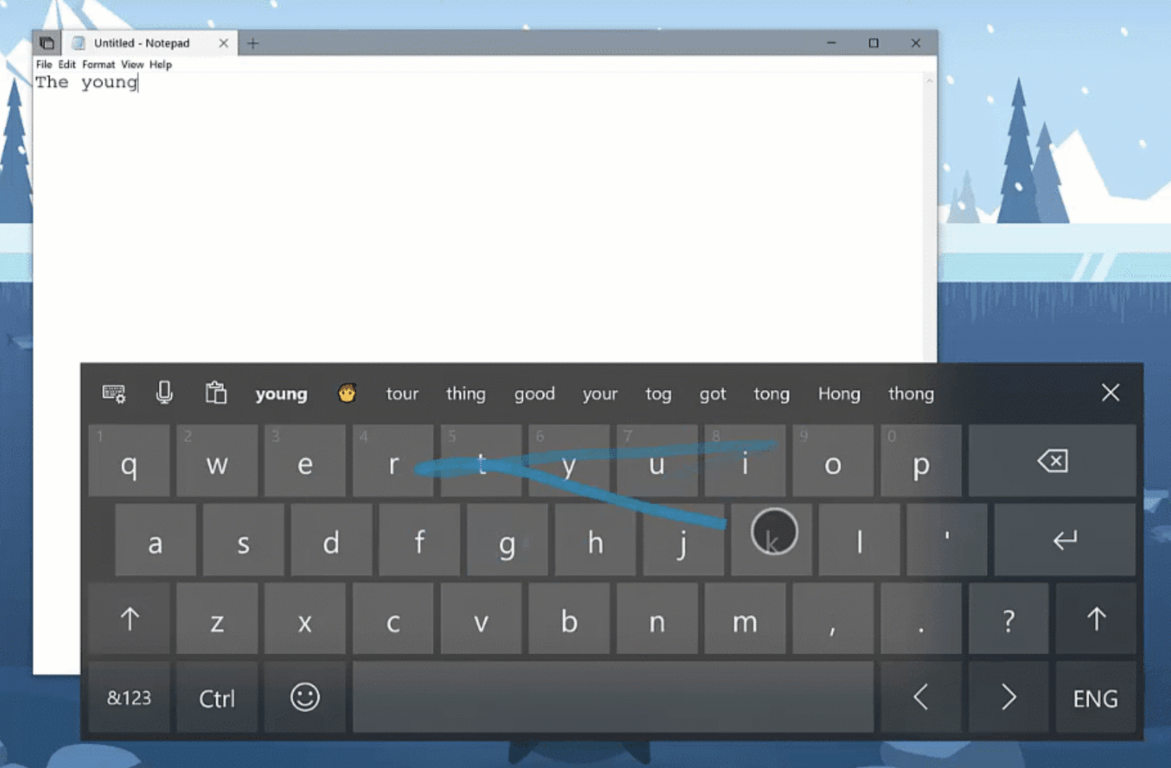
Microsoft has just released the Windows 10 Insider build 17692 for Fast and Skip Ahead Insiders, and it’s a pretty big release compared to the previous flight. One the most interesting additions is that Microsoft’s Swiftkey keyboard, which was previously an iOS and Android exclusive is now available on Windows 10 PCs with shape writing support.

“SwiftKey gives you more accurate autocorrections and predictions by learning your writing style – including the words, phrases and emoji that matter to you,” the blog post reads. Going forward, the intelligent keyboard will be the default when using the touch keyboard to write in English (US and UK), French (France), German (Germany), Italian (Italy), Spanish (Spain), Portuguese (Brazil), or Russian.

Microsoft acquired SwiftKey back in 2016, so it took two years for the company to bring the intelligent keyboard to Windows 10. Well, better late than never, and SwiftKey should be a nice improvement over the pre-existing Windows 10 touch keyboard. It’s also safe to expect some synergies with iOS and Android, as Microsoft previously said that its upcoming Cloud Clipboard feature with leverage SwiftKey on these mobile platforms.

New in Windows 10 Insider Preview Build 17692— Swiftkey intelligence, Edge and Game bar improvements, and much more

Microsoft just pushed out Windows 10 Insider Preview Build 17692 and it’s jam-packed with a lot of new features. This build introduces Swiftkey intelligence in Windows 10, improvements for Microsoft Edge and the Gamebar, and much more. As always, you can have a look below at all the new features while you wait for this build on your Skip Ahead or Fast Ring PC.

New in Build 17692:

  • SwiftKey gives you more accurate autocorrections and predictions by learning your writing style – including the words, phrases and emoji that matter to you. It’s available for Android and iOS, and starting with today’s build SwiftKey will now power the typing experience on Windows when using the touch keyboard to write in
  • Microsoft Edge: One common piece of Insider feedback for Microsoft Edge is that you want more control over autoplay videos. In this build, we’ve added a new setting in Microsoft Edge to allow you to control whether sites can autoplay media. You can find an early preview of this setting under “Advanced Settings,” “Allow sites to automatically play media.” We’ll be improving these options and adding additional controls in upcoming flights and in response to your feedback, so stay tuned!
  • Microsoft Edge: Beginning with this build, we’re making it easier than ever to automate testing in Microsoft Edge using WebDriver. First, we’ve made WebDriver a Windows Feature on Demand, so you no longer need to match the build/branch/flavor manually when installing WebDriver. When you take new Windows 10 updates, your WebDriver binary will be automatically updated to match.
Swiftkey
  • Accesiblity: We’ve heard your feedback and are excited to announce that the ability to increase text size across the system is back and better than ever! When you go to Settings > Ease of Access > Display in today’s build, you’ll find a new setting called “Make everything bigger” – this slider will adjust text across the system, win32 apps, and UWP apps.
  • Game bar: We’re now rolling out more functionality to the RS5 Game bar. In this flight are the following new features: Audio controls. Change your default audio output device and mute or adjust the volume of games and apps running. Performance visualizations. See your game’s framerate (FPS), CPU usage, GPU VRAM usage, and system RAM usage.
  • Gamemode: New options are now available for Game Mode that are expected to improve the gaming experience on desktop PCs. Gamers on PCs with many background processes may also see performance improvements when they toggle “Dedicate resources” in Game bar.
GameBar
  • Search: Continuing our theme of improving the search preview experience, we’re rolling out an update to make it easier to find official download pages for Windows software you want to install. The team is continuing to develop this experience and more is coming. Check out the example below, and let us know what you think!
  • Windows Mixed Reality: Starting with this build you can stream audio to both the headset and the PC speakers simultaneously. To try it out make sure that you can hear sound from your normal PC speakers when not running the Mixed Reality Portal (MRP) and from the headset’s audio jack or built-in headphones when mixed reality is running. Then close all apps, including MRP, and go to Settings > Mixed reality > Audio and speech to turn on “When Mixed Reality Portal is running, mirror headset audio to desktop.” You should now hear audio from both the headset and PC speakers when running mixed reality.
  • Narrator: Narrator now ships with a new keyboard layout that is designed to be more familiar to screen reader users. Narrator will now automatically read the contents of a dialog box when brought to the foreground. You now have the ability to search for text using Narrator’s new Find feature. If the text is found Narrator will move to the found item. Narrator now has the ability to present a list of links, headings or landmarks present in the application or content. Along with being able to select content in Narrator’s scan mode using Shift-selection commands, you can now also select a block of data by first moving to one end of the block and pressing F9, moving to the other end of the block and pressing F10
Search

As you can tell, there is a lot to look forward to in this new build. The Swifkey integration is definitely most interesting and was a long time coming. All the other improvements are definitely appreciated too. Get downloading now, and feel free to let us know how this new build is running for you by dropping us a comment in the section below.

New free tier for Microsoft Teams briefly appears in official documentation

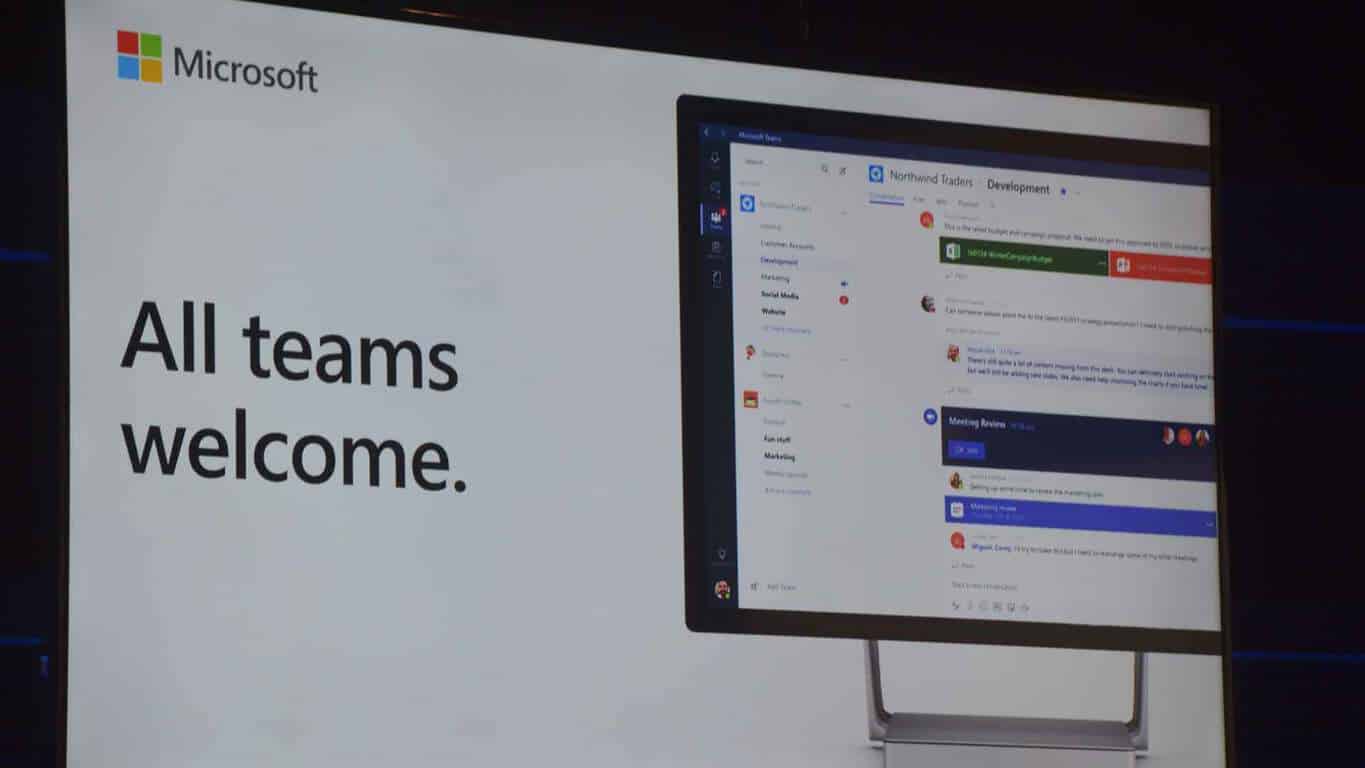
A couple of months ago, traces of a “freemium” features for Microsoft Teams were discovered in a developer preview of the team collaboration app, suggesting that a free version of Teams for MSA accounts could be near. Yesterday, Microsoft detective WalkingCat discovered new mentions of this free tier in official documentation.

Microsoft has since taken down the links describing this “free” version of Microsoft Teams, but the official description provided by Thurrott.com clearly explains that this new tier will be for small businesses:

Microsoft Teams (free) is intended for use by organizations, such as small businesses or groups of coworkers. If you were invited to join a group in Microsoft Teams (free), the group you are joining in the Microsoft Teams (free) instance will be considered your organization for the purposes of this notice, and the person administering the group will be considered the administrator of your account in Microsoft Teams (free).

Offering a free tier for Microsoft Teams makes sense as this strategy worked really well for competitor Slack. Since its launch last year, Teams has already become a core app in Office 365 that gets iterative updates every month, and making it a freemium product could help convince more SMBs to jump on the Office 365 bandwagon. We don’t know yet when Microsoft will officially announce this new free tier, but the fact that it briefly appeared in official documentation suggests that it’s a little bit closer to reality.

Report: Google looks to a Windows 10 Certification for its Pixelbook

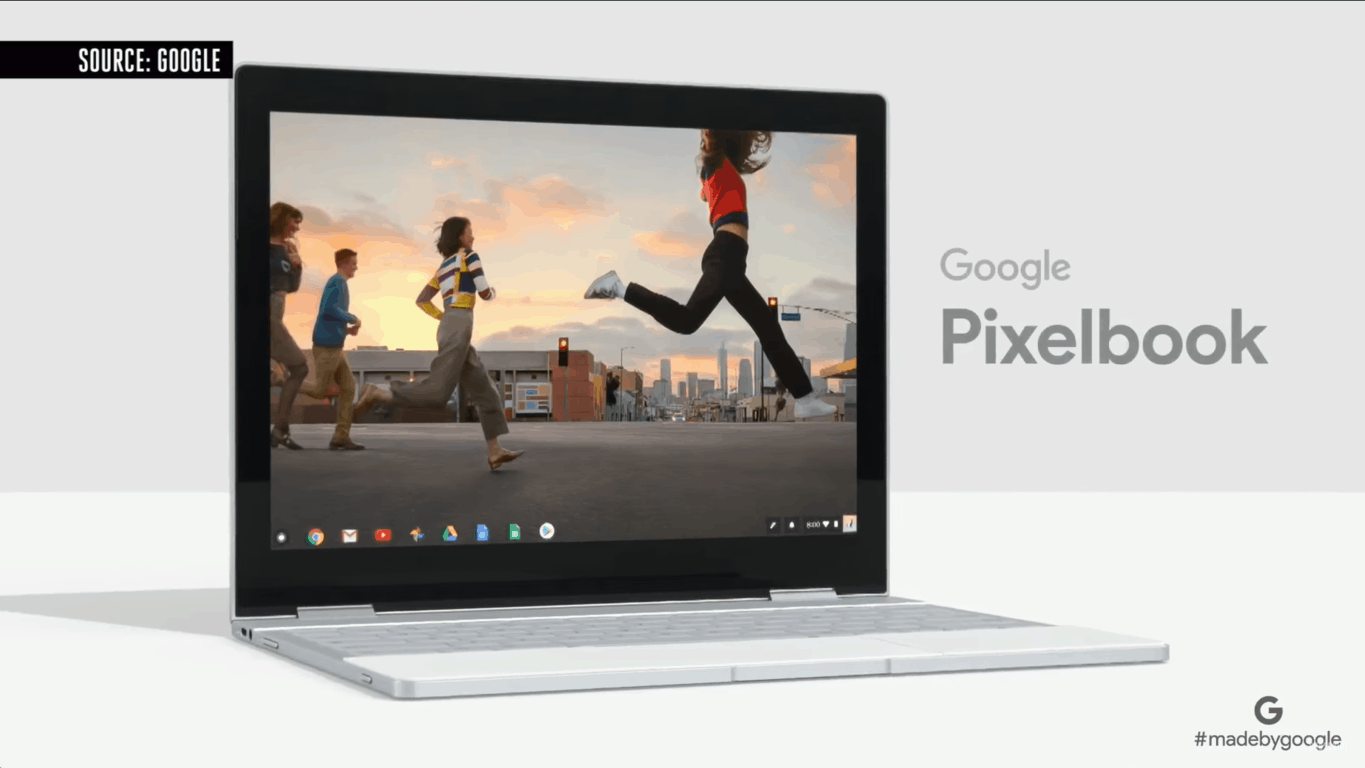
There’s no shortage of premium flagship Windows 10 2-in-1 devices these days, and consumers can easily go out and buy one from many different manufacturers. Google, though, recently tried to take a bite out of Microsoft’s market by introducing the Pixelbook, a premium 2-in-1 device running Chrome OS. Well, it now looks as though the search engine giant might be now trying to play nice with Microsoft by getting the Pixelbook certified for Windows 10 (via 9to5Google.)

The news is fueled by a report from XDA-Developers, which discovered coding mentions of Microsoft’s tools which are traditionally used to try and get Windows 10 to run on any given device. These include both the WHCK (Windows Hardware Certification Kit) and HLK (Windows Hardware Lab Kit) which are for ensuring driver and other device compatibility with Windows.

The HLK code line also specifically mentions “Eve” which is the codename for the Pixeblook. Google was already said to be rumored to be working on an “AltOS” for the Pixelbook, and this all but hints that said OS might end up being Windows 10.

Nothing is official as of yet though, and there’s no telling if the Windows compatibility or certification will be for developers or just the average consumer. At any rate, this definitely is an interesting situation, so feel free to let us know your thoughts in the comments below.

Xbox One’s Plex app gets loads of fixes in latest update

The official Plex app for Xbox One consoles updated today with a variety of fixes and changes. Among the most noteworthy is the return of the ability to delete recommended items and the fixing of a bug that was preventing the correct audio and subtitle selections from activating as fast as they should have.

Here’s the full release notes.

  • Restored ability to delete Watch Later/Recommended items
  • Fixed Browse by Folder showing unwatched flags on folders
  • Fixed cursor getting lost when navigating up to menu on Live TV Watch Now
  • Fixed metadata being displayed behind episode thumbnail in some cases
  • Fixed audio & subtitle preference changes not being reflected immediately on the preplay page
  • Removed Discover and Watch Now buttons from Live TV Browse All

Plex is a powerful media consumption app that allows users to watch their own library of digital content and record live TV. Do you use Plex on your Xbox One? Let us know in the comments below and then like us on Facebook for more Xbox One news.

Plex
Plex
Developer:
Plex
Price:
Free

KB4284835 install fails for many Windows 10 v1803 users

The Windows 10 April Update recently received a new patch. Update KB4284835 fixes many bugs that affected the OS ever since Microsoft rolled it out a few months ago, including the annoying issue that prevented users from changing brightness settings.

At the same time, KB4284835 also brings some issues of its own. For example, many users reported that the update often fails to install. There are many error codes that appear on the screen when the process fails, and it seems that error 0x800f0900 is the most frequent one.

Here’s how one user describes the problem on Microsoft’s forum:

Hello. I tried updating to the June update for the 1803 build, but I keep getting this error message:
“There were problems installing some updates, but we’ll try again later. If you keep seeing this and want to search the web or contact support for information, this may help: 2018-06 Cumulative Update for Windows 10 Version 1803 for x64-based Systems (KB4284835) – Error 0x800f0900″
I tried the troubleshooter found in the setting menu, it did not work.

If you can’t install KB4284835 on your computer, here are a few quick suggestions on how to fix the problem:

  • Update your drivers — running outdated drivers may prevent you from installing the latest OS updates.
  • Disable your antivirus software — security software may sometimes block Windows 10 updates. Turn off your antivirus, download and install the updates and then turn it on again.
  • Reset Windows Update — launch Command Prompt as administrator, enter the following commands and hit Enter after each one:
    • net stop wuauserv
    • net stop cryptSvc
    • net stop bits
    • net stop msiserver
    • Ren C:\WindowsSoftwareDistribution SoftwareDistribution.old
    • Ren C:\WindowsSystem32catroot2 Catroot2.old
    • net start wuauserv
    • net start cryptSvc
    • net start bits
    • net start msiserver

If the problem persist, here are a few additional troubleshooting guides that you can use to solve it:

Play World Cricket Championship Pro game on Windows 10/11, 8

At the moment, Windows 10, 8 World Cricket Championship Pro (available in the Windows Store) is one of the cricket games to play. We go through its main features and explain why it is perhaps the best cricket game to be played on your Windows 10, 8 tablet.
windows 8 cricket game
We have just published the list with the best Windows 10, 8 cricket apps and games to download and play on your Windows 10, 8 device, and now we’ve decided to highlight what we think to be perhaps the best cricket game at the moment.

Like I was saying in the roundup with the best cricket apps and games, you can play in three different cricket championships – World Cricket Championship, World Premier League and Fantasy Cricket League. You will be asked to choose one right when opening the game for the first time. For those who don’t know, here are the basic rules of cricket:

Cricket is a bat-and-ball game played between two teams of 11 players on a field at the centre of which is a rectangular 22-yard long pitch. Each team takes it in turn to bat, attempting to score runs, while the other team fields. Each turn is known as an innings. The bowler delivers the ball to the batsman who attempts to hit the ball with his bat far enough for him to run to the other end of the pitch and score a run. Each batsman continues batting until he is out. The batting team continues batting until ten batsmen are out, at which point the teams switch roles and the fielding team comes in to bat.

The best cricket game for your Windows 10, 8 device

There are two modes of cricket play: ‘Tournament‘ for what is referred to as “unlimited hours of fun” and ‘Quick Play‘ for a quick cricket game. What’s really cool is that you can even challenge your friend to play a cricket game together in the asynchronous Multiplayer mode . Despite the fact that the game has only a little over 40 megabytes, it does come with satisfying graphics and animations.

best windows 8 cricket game
World Cricket Championship Pro for Windows 10, 8 also comes with the option of letting you create your very own team and with the ultra slow motion shots for massive sixes, it will feel like you’re on a real cricket stadium. To see some hot action from the game, you can see action replay on or off and even enjoy professional commentary.

When it was launched, the game wasn’t that entertaining but the developer has updated it gradually with more and more features. Available for $2.99 in the Windows Store, World Cricket Championship Pro can also be tried out for a few days, if you’re not sure if it’s worth the money or not. Follow the link from below to download it.

Download World Cricket Championship Pro for Windows 10, 8

If you want to power up your game, you can use app purchases and get a series of rare skills that will definitely improve your game.

World Cricket Championship Pro received mostly positive reviews from players. This confirms that the game is very entertaining and challenging to play, so it’s worth every penny.

If you’re interested in playing other sports-themed games, you should also try the titles below:


Windows 8, 10 Cricket Apps & Games: Four Best to Download

Cricket has millions of fans all over the world, being especially popular in such countries as India, United Kingdom, and others. And, it goes without saying that many of them are also looking to play cricket games on their Windows 8 tablet and use apps to follow live cricket games. We found 4 of the best such apps to use.

If you will go right now in the Windows Store and will start looking for “cricket” related apps and games, a plethora of Windows 8, 10 apps will appear in front of your eyes. The big problem is that so many of them are useless and not worth downloading on your Windows 8, Windows 10 tablet. We hand-picked 4 of the best Windows 8 cricket apps and games for you to use. If you happen to know another reliable one, leave your comment at the end and we will consider including it on the list.


ESPN Cricinfo

espn cricket info windows 8This is the best Windows 8 live cricket app that you need to download on your Windows 8 tablet. By using the app, you will get full cricket coverage from around the world and get real-time cricket results on your Windows 8 tablet. Besides this, you will get the most important cricket news, features and editorial content from the ESPN Cricinfo team. All wrapped under a great looking app.

The latest update also brought push notifications for wickets and results, and updates match details page. Since many users have reported the crash of the app after installing, we recommend checking this article on UWP app crashes.


World Cricket Championship Pro

windows 8 cricket gameThe World Cricket Championship Pro is the best Windows 8 cricket game for touchscreen devices. We will review it shortly in a separate article, but there’s a trial option available, so before paying the full price, you can see if this cricket game is for you or not. The game is a mix of World Cricket Championship, World Premier League, and Fantasy Cricket League and is a must-download for cricket lovers all over the world.

The latest version has some new features like ultra slow motion shots for massive sixes and action reply on/off in settings.


Cricbuzz

cricbuzz cricket app windows 8Just like ESPN Cricinfo, Cricbuzz is a Windows 8 cricket app that you need to download if you want to stay updated with the latest news from the world of cricket. Get quick score updates and ball by ball text commentary, match alerts, latest cricket news and editorials, results of recent cricket matches, photos, audio commentary, player profiles and points tables for all major tournaments by installing Cricbuzz on your Windows 8.1 and Windows 10 tablet.


Street Cricket

street cricket windows 8
Published by the same company that has made the World Cricket Championship Pro Windows 8 game, the Street Cricket game comes with similar graphics in a game of only five.

The rough play, the dust, the nostalgia of cricket in your own gully; that is what Street Cricket is all about! In this version the rules are modified to suit the ground situation while the usual excitement of the game remains intact.

The game has received support in Microsoft Store and you can enjoy this great street Cricket on your Windows 10 tablet.

RELATED ARTICLES TO CHECK OUT NOW:


Windows Template Studio 2.2 is now out, with new 3D Launcher feature and other enhancements

Two months ago Microsoft pushed out Windows Template Studio 2.0 to developers. Today the company has followed up with a version 2.2 release which adds in a brand-new 3D Launcher feature, wizard enhancements, and much more to the experience.

This version 2.2 update is a small step in the development patch, and Microsoft says the next few releases will bring smaller updates and new pages and fixes. Anyway, have a peek below for what’s new with version 2.2, and check here for the full changelog.

Included in this version:

  • 3D Launcher feature
  • Wizard enhancements
  • Improved documentation
  • Improved testing
  • Bug fixes

Dev platform updates:

  • Updated Microsoft.NETCore.UniversalWindowsPlatform to 6.15
  • Updated Newtonsoft.Json to 11.0.2
  • Updated Microsoft.Toolkit.Uwp,
  • Microsoft.Toolkit.Uwp.Notifications and
  • Microsoft.Toolkit.Uwp.UI.Controls to 3.0.0
  • Update Telerik.UI.for.UniversalWindowsPlatform to 1.0.1

To get this release, you can try two update paths. If you already have Windows Template Studio installed, Visual Studio will auto update the extension, but you can also force an update by going to Tools>Extensions and Updates. And if not installed, you can head here and click download, and then double-click the VSIX installer.

Clint Rutkas, Senior Technical Product Manager, Windows Developer Team said in today’s blog post that Microsoft is working towards a “multi-project solution” for Windows Template Studio 3.0. He teased that there are new things being built out for future releases, so be sure to keep your feedback coming to Microsoft and make your requests heard.

Windows 8, 10 App Check: Farming Simulator

There are many players looking for entertaining Windows 8 farm games to play. One of the best such titles is, without a doubt, Farming Simulator. Those passionate about growing a farm in the countryside have definitely heard about it before. Now, it is available for Windows 8 tablet users
windows 8 farming simulatorAvailable for download in the Windows Store, the reputed Farming Simulator can be enjoyed in your Windows 8 tablet after you pay five dollars to get the game. There’s also the free trial option available, but I think it lasts only for one day, alas. Cultivate a good diversity of trees by using original machines and vehicles from prestigious manufacturers.

Discover a wide, agricultural scenery with fields, roads, your farm as well as a small village. Cultivate your fields with various three dimensional vehicles found in your generous fleet- modeled after original machines and vehicles by prestigious manufacturers. Take a seat at the wheel of authentic farm machines by DEUTZ-FAHR, KRONE, KRAMPE, AMAZONE, LEMKEN and KOTTE and start your own agricultural enterprise: plow and cultivate your fields, choose the seeds of your field crops out of three plants (corn, canola and wheat) and fertilize them to accelerate their growth. Sell the harvest and invest it into new equipment.

Pursue your farming dream with Farming Simulator for Windows 8

Read Also: Grand Theft Auto Windows 8 App: I Want it on my Tablet!

Those who have played the Farming Simulator series before know that there are digital assistants who will take over the work that you assign them to. Farming with this app is really exciting as you get to explore an open world with a dynamic day-night-cycle. Many are playing the game as a way to mentally train themselves and prepare for the moment when they will become a successful farmer in reality.

There’s the free-play mode or the career mode where you play the role of a farmer and get to live the varied farming life. The latest version of the Farming Simulator for Windows 8 comes with improvements, such as the new economy system. This allows you to play with variable corn prices and earn extra money that you can then choose to invest in new buildings, vehicles and tools.

There are over 100 authentic tractors, harvesters and tools of renowned manufacturers like DEUTZ-FAHR, KRONE, KRAMPE, AMAZONE, LEMKEN and KOTTE. The game has impressive graphics and on a Windows 8 tablet, it looks and feels even better, having a great touchscreen responsiveness.

Farming Simulator in 2018 – things a player should know

Farming Simulator is a great game with a relatively simple engine, but there are always various problems. If you are playing this game and encounter various problems like crashes, game not starting and lags, try out the steps from this guide. We also have a fix article which will help you get rid of problems likes FPS rate drops, in-game tractor stutter, and other gameplay issues we have a list of solutions right here.

However, Farming simulator remains a great Windows game that has left far behind even Facebooks’s FarmVille.

READ ALSO: Farming Simulator 17’s Big Bud Pack features the biggest tractor in the world

Fun Windows 8, 10 Zombie Games to Play

When it comes to zombie games to be played on your Windows 8 tablet or even Windows 8 desktop system, there’s plenty to choose from. However, there are also quite a plethora of spam and “ugly” apps and games you need to avoid. Below we feature 5 of the best zombie games to be played on Windows 8.

into the dead zombie game windows 8

Into the Dead

Into the dead is one of the latest zombie games to have hit the Windows Store for Windows 8 users, but it is definitely one of the best to download and install on your Windows 8 tablet. As you can see in the above screenshot, it comes with amazing graphics and intense gameplay.

In a world overrun with the Dead, you have survived… but for how long? Into the Dead throws you into the gruesome world of the zombie apocalypse where there are no second chances. Do what you have to in order to stay alive, keep moving as fast as you can, and protect yourself by any means necessary. When the Dead are rising, run!

Read Also: Killing Zombies at its best: Judge Dredd vs. Zombies

Zombie HQ

zombie hq windows 8We have featured the Zombie HQ game in the past, as well, as part of our collection with the Best 20+ Windows 8 games to play. The game is filled with hours of endless fun as you use shotguns, assault rifles, sniper rifles, machine guns, flamethrowers, chainsaws, broadswords and even more to kill those evil zombies.

The city seems strange these days. All the bars shut down, nowhere to get a drink and relax…And these damn zombies everywhere you turn! Already killed so many of ‘em but they just keep on coming. Only good zombie is a dead zombie. Good thing there’s plenty of guns around. Still, wish there was some place to take it easy for a while. Some place up high where a fella could catch a break from bashing zombie skulls. You know, a “Zombie HQ” of sorts…

Awesome Zombie Sniper

awesome zombie sniper windows 8Another Windows 8 game with great graphics, Awesome Zombie Sniper is a must-download if you love zombie games. You get to choose between three different sniper rifles to kill zombies and what’s fun, the Gangnam Pack will actually make zombies dance!

Zombies everywhere! Survive against increasingly large waves of zombies using an arsenal of weapons in this beautiful first person shooter. Collect credits and achievements and scavenge the levels for ammunition and medipacks. Zombies can be fought in three amazingly detailed levels – a beautiful autumn field, a busy downtown city area and a lonely forest.

Zombie Driver HD

zombie driver hd windows 8Definitely not a cheap game, but it looks to be the best and most advanced one to choose from this list, of course, if you want to pay 10 bucks for it. In the story mode there are 31 missions to play, along with Epic Boss fights. There are also 13 different vehicles to drive including a firetruck, bulldozer or even a tank.

Insane mix of cars, speed, explosions, blood and zombies! Fight through an epic narrative campaign or test yourself in the Slaughter and Blood Race modes. Engage huge bosses, save survivors, drive crazy vehicles such as a bulldozer, fire truck or even a tank and smash everything in your way. Take part in the Blood Race tournament – chase other cars and take them down without mercy on brutal racing tracks. Jump into the Slaughter mode and survive as long as possible on specially crafted arenas.

Read Also: Practice your Ninja skills with Shuriken Ninja

Zombies!!!

zombies windows 8 gameReleased by Microsoft Studios, Zombies!!! is about surviving a Zombie-infested town. This is also not a cheap game, but, at least there is the trial version available so you can try out the game before buying it to see if this is the best zombie game for your Windows 8 tablet.

Zombies!!! puts you in the middle of the action in this video game adaptation of the hit board game. In order to escape the ever advancing zombie horde, players must use a combination of wits and brawn to be the first to the heliport and certain escape. The only problem is, the zombies are everywhere, they appear to be very hungry and your opponents would really prefer if you didn’t escape. However, there’s no need to take this horde on your own. The Windows 8 game allows up to 4 other human or AI players to join in on the fun. AI players can be chosen from 10 different characters, each with a unique play style.

 Read Also:  Fun Windows 8 Christmas Game: North Pole Invasion

Zombie games for Windows 10 users [2018 update]

Many users already upgraded to Windows 10 Anniversary Update and lots of Windows 8, 8.1 games are not compatible with it. In case you are one of the gamers who encountered this issue, we have several ‘zombie games’-related articles. Here is a quick list with games that might replace the games for Windows 8:

Let us know what zombie game are you enjoying right now in the comments section so we can write a review about it.

Windows 8, 10 App Check: Kindle, the eBook Reader

When it comes to reading eBooks on your Windows 8 tablet or desktop device, one of the best apps to use is without a doubt, Amazon‘s Kindle app. Below we go through its main features and we share our impressions of it as well as providing the direct download link to the Windows Store.
windows 8 kindle app
Amazon has its very own official Windows 8 app in the Windows Store, but if you are looking for the official Kindle app for Windows 8, as well, you should know that it is available for download (link at the end). If you have a Windows 8 tablet and a Kindle device, then you need to download the app to sync all your Kindle books across devices.

Read Also: The Best Cheap Windows 8 Wireless Keyboard and Mouse to Use

Read Kindle books on a beautiful, easy-to-use Windows 8 application. You’ll have access to over 1 million* books in the Kindle Store, including best sellers and new releases. Amazon’s Whispersync technology automatically syncs your furthest page read, bookmarks, notes, and highlights across all your devices that have the Kindle app installed and across any Kindle device. That means you can start reading on one device and pick up where you left off on another device.

All your Kindle eBooks in a single Windows 8 app

Having used the app for a few weeks, I can assert to its snappiness, security and stability, so recommend it to everybody that can use it to download it. There are over 1 million books in the Kindle Store, so there’s plenty to choose from. And by using the Whispersync technology,  your furthest page read, bookmarks, notes, and highlights are automatically synchronized.

kindle windows 8The official Windows 8 Kindle app will let you search inside the book to find a topic, character, or section and you will also be able to pin Kindle books from your Kindle library to the Windows 8 start screen, which is really cool. You can also choose the background color, font size, and the number of reading columns inside the Kindle app, as well as highlight, take notes and add bookmarks in any book. Even more, you can look up word definitions and listen to their pronunciation.

If you are used to reading eBooks, you will find many advantages in doing it over physical books, such as the ability that we have mentioned above. With a physical book, it’s not that easy to look up words, highlight or change the colors. So, hit the download link from below and get the official Kindle app on your Windows 8 tablets.

Download Kindle for Windows 8

Kindle App in Windows 10

Many of you already upgraded to Windows 10 Anniversary Update and they cannot find Kindle in the Store anymore. Well, this is not a problem as Amazon informed Kindle App users on Windows that they can download the version they need on their official website. In case Kindle or Kindle Fire is still not recognized by your Windows PC, you can easily Fix this issue by following the steps from this dedicated guide.

READ ALSO: 10 Best Windows 10 ePub Readers