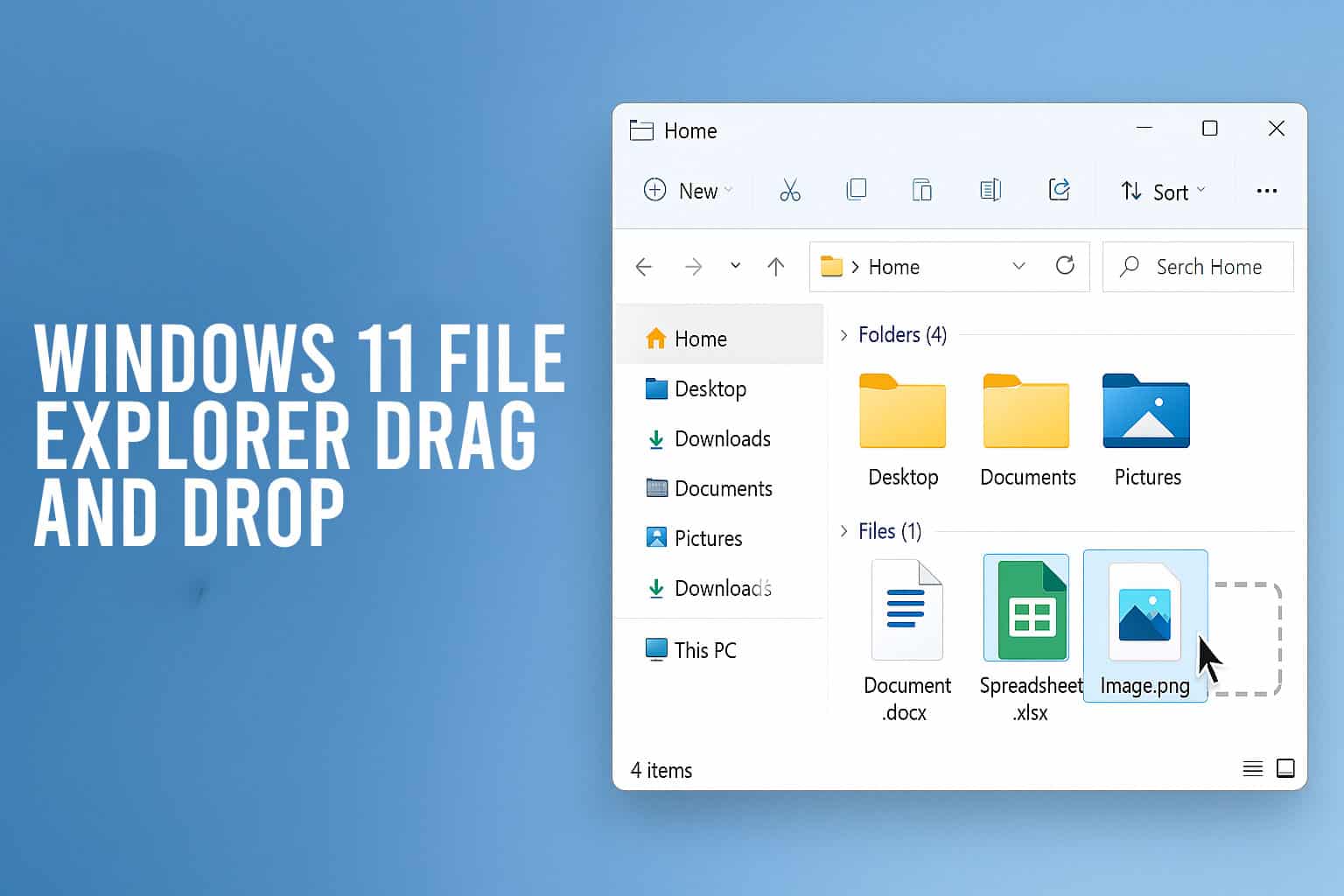
How To Use Drag And Drop In File Explorer To Move Files

Windows 11 File Explorer drag and drop gives you a simple way to organize files without extra menus. You can move items, copy them, or create shortcuts with these steps.

How To Use Drag And Drop In Windows 11 File Explorer?

Use the left mouse key

You can move or copy items with a click and hold action.

  1. Open File Explorer from the taskbar or with Windows key plus E.
  2. Browse to the folder that contains your file.
  3. Press and hold the left mouse button on the item you want to move.
  4. Drag the item to the destination folder in the left sidebar.
  5. Release the mouse button to finish the action.

For more file movement options, see how to move files in Windows 11.

Extra Ways To Control File Movement

Windows lets you control actions during drag and drop with extra keys and menu choices.

  1. Hold Ctrl to copy files even when Windows would normally move them.
  2. Hold Shift to force a move when Windows defaults to copying.
  3. Hold Alt to create a shortcut in the destination folder.
  4. Use right click to Cut, Copy, or Paste files if you prefer menu based actions instead of dragging.

If drag and drop stops responding or behaves unpredictably, you can follow the steps in this guide on fixing Windows 11 drag and drop issues.

You can unlock more control over file behavior by learning how to enable access to File Explorer Options, which lets you adjust deeper folder and view settings in Windows 11.

How To Drag And Drop Between Virtual Desktops

You can reorganize windows or files across desktops to keep your workspace tidy.

  1. Press Windows key plus Tab to open Task View.
  2. Select New desktop if you need another workspace.
  3. Drag a window or file thumbnail to the target desktop preview.
  4. Drop it to move it.

FAQs

How do I copy files with drag and drop

Hold Ctrl while dragging to duplicate the item in the target folder.

Can I drag files from File Explorer into apps

Yes. Browsers, editors, and many other apps accept direct file input.

Why does my file snap back when I try to move it

The file may be locked or the destination folder may require higher permissions.

Is there another way to move files without dragging

Yes. Right click a file to Cut or Copy it, then right click the destination folder to Paste.

Conclusion

Windows 11 drag and drop makes file management fast and flexible. Modifier keys like Ctrl, Shift, and Alt give you more control over move, copy, and shortcut actions, while right click menus offer a guided alternative. If you ever run into problems with file movement, the detailed guide on Windows drag and drop problems can help you troubleshoot quickly.
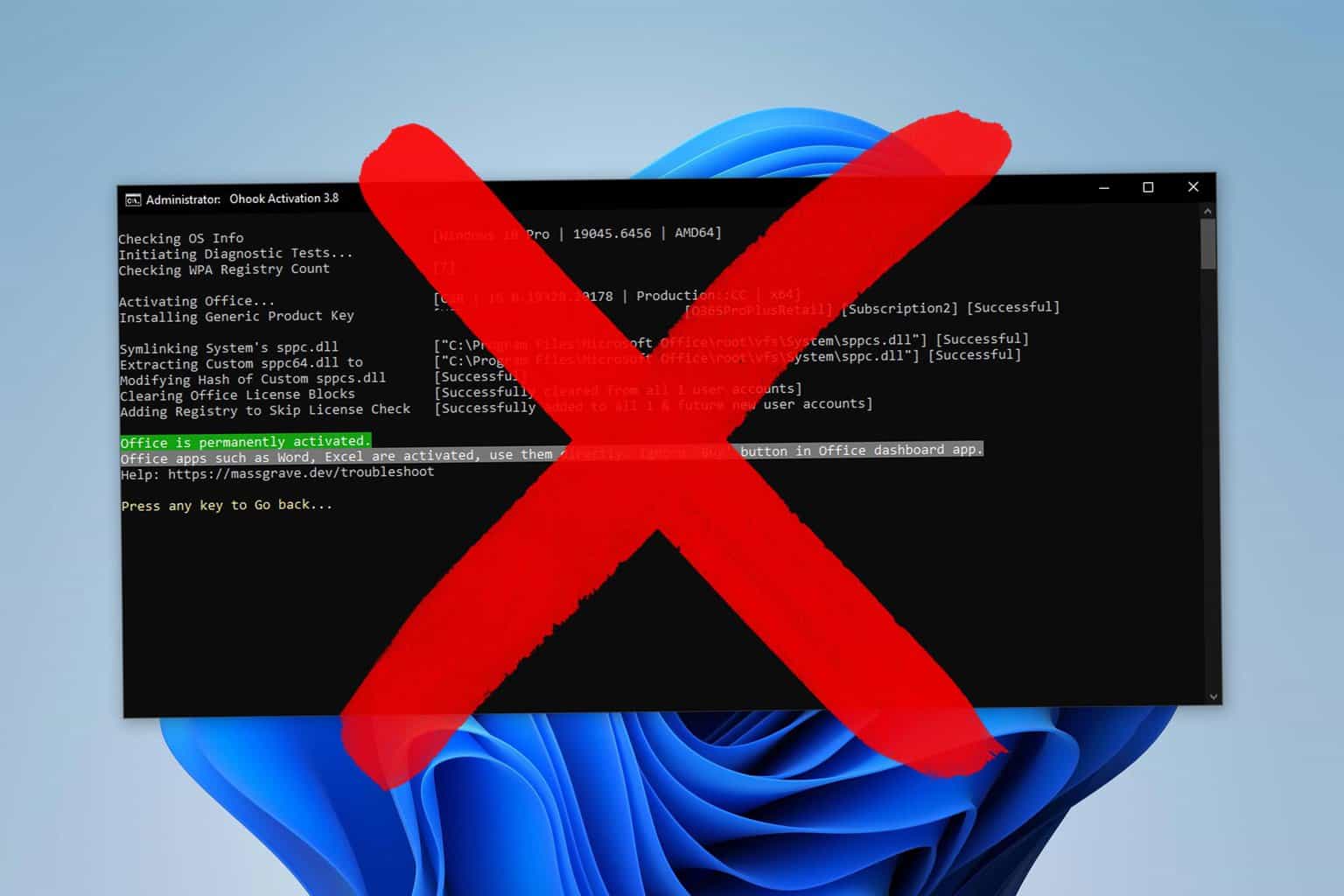

Massgrave Blocked: Microsoft Closes Major Windows Activation Loophole

Microsoft has blocked the popular Massgrave KMS38 activation method with the November 2025 Patch Tuesday update. For those unaware, Massgrave became a familiar tool for users who wanted quick activation. But it also raised concerns because third parties could modify the files and distribute harmful versions.

The creator of Massgrave confirmed the shutdown and explained that the KMS38 technique no longer activates any supported Windows version after the new update.

By blocking this method, Microsoft is reducing security risks tied to scripts that anyone can repackage, since modified copies can include hidden malware or spyware. Users now see activation failures immediately after installing the November patches.

Developers behind Massgrave believe this block might not last forever. They often adapt quickly, and new methods tend to appear when older ones stop working. Still, the latest patch shows that Microsoft moves fast when these tools grow too popular or create security exposure.

Anyone who tries to avoid updates to keep using Massgrave will face increased security risks, since the November rollout includes important system fixes. To catch you up, Microsoft recently blocked a setup workaround that let users install Windows 11 without signing in with a Microsoft account.

Via Windows Central

Samsung’s New Galaxy Book 5 Edge 5G Copilot+ PC Available to Buy Online in the UK

Samsung’s new Galaxy Book 5 Edge 5G Copilot+ PC up for sale on Samsung UK website. The listing has spilled all the details about its specifications and pricing. What’s surprising is that the company hasn’t officially announced it yet.

Samsung Galaxy Book 5 Edge 5G features & specs

The Galaxy Book 5 Edge 5G flaunts a 15.6-inch Full HD IPS display. It comes with an anti-glare finish for comfortable viewing indoors and outdoors. The company is pairing the Copilot+ PC with 16GB LPDDR5X RAM and 512GB eUFS storage. Speaking of audio, it comes with Stereo Speakers with Dolby Atmos support.

For performance, the Galaxy Book 5 Edge 5G features an Adreno GPU and a Snapdragon X processor (X1-26-100) under the hood. That’s an octa-core SoC clocking up to 3.0GHz. By the name, you can tell it’s a 5G device. Plus, it also uses a SIM card slot so that you can browse at Sub-6 5G speed. If you are a working professional who lives on the web, the Galaxy Book 5 Edge 5G  is a great choice for you.

Not to forget, Samsung is also offering multiple connectivity options with this Arm-based Copilot+ PC. You get Wi-Fi 7 support, Bluetooth 5.4, 2 x USB 4.0 ports, USB 3.2, HDMI 2.1 with 4K@60Hz output, a microSD slot, and a headphone/mic jack.

Moving on, the Galaxy Book 5 Edge 5G packs a 61.2Wh battery and comes with a 65W USB-C charger with superfast charging. Thankfully, you get the charging brick with the laptop. The latest laptop weighs nearly 1.66kg and is 15.5mm thick, making it an ideal option for anyone who is always on the go.

Image: Samsung
Image: Samsung
Image: Samsung

Available in the UK; might come to other regions

Samsung has listed the Galaxy Book 5 Edge 5G 16GB/512GB at a price tag of £949 (~ $1248). You can grab this laptop only in Sapphire Blue color. At this point, there’s no information on when this laptop will launch in other regions. If there’s any update, we’ll post it here only. 

via: XpertPick

ASUS Projects Huge Revenue for Xbox Ally X After Record Sales

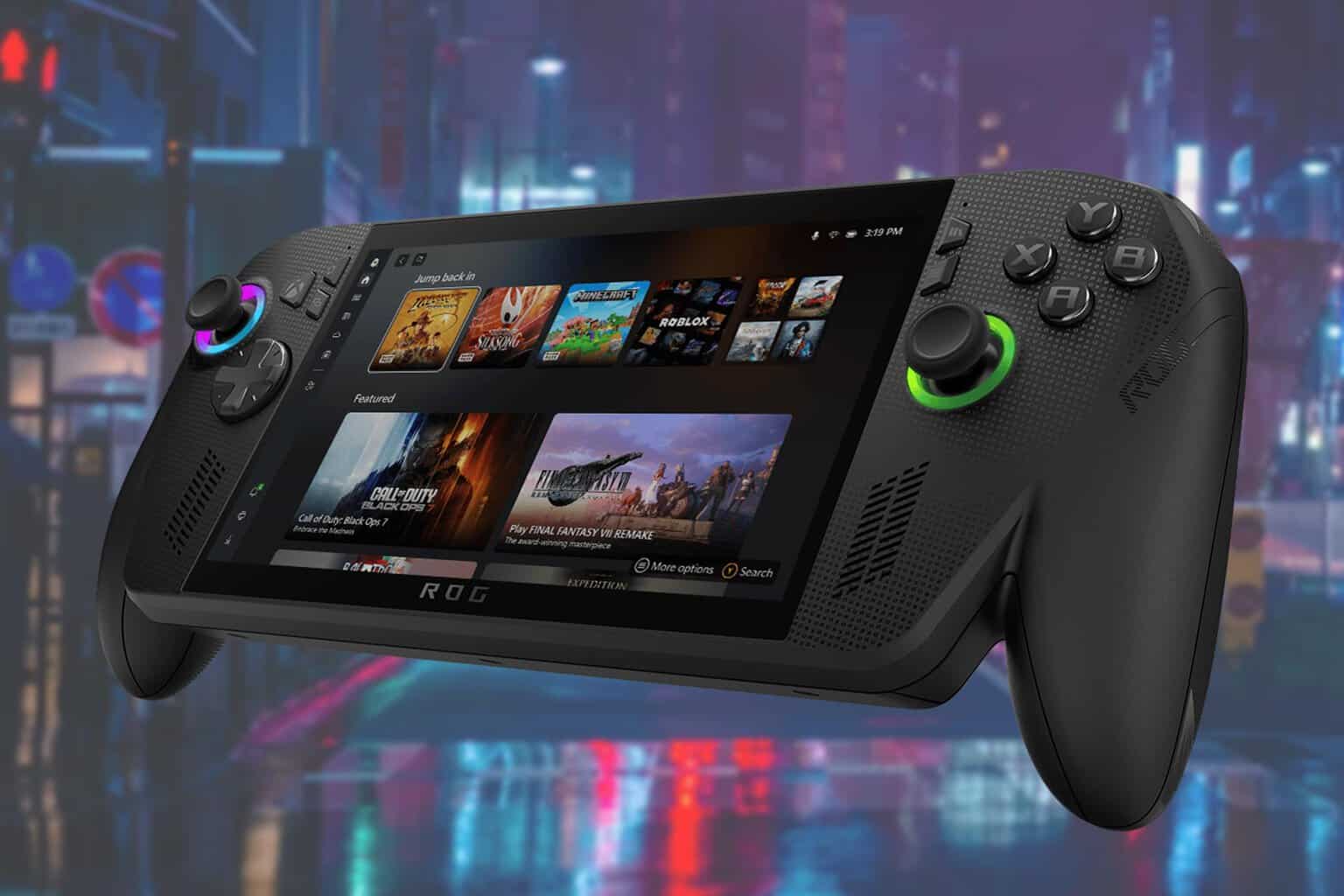
Xbox Ally was recently launched and quickly became one of the most popular handhelds on the market. Gamers embraced it as the most powerful handheld available today, judging by the Xbox Ally X benchmark tests, but many wondered how well the new Xbox Ally X performs financially. ASUS answered that question during its latest investor meeting.

The company confirmed that Xbox Ally X devices are expected to generate between 96 million and 160 million USD this quarter. For upcoming quarters, ASUS projects a steady 130 million to 160 million USD in revenue, which signals strong ongoing demand.

Internal ASUS documents highlight the momentum behind the device. The company noted that the first-generation ROG Ally helped establish Windows-based handhelds as a successful new category. With Xbox Ally X, ASUS sees even stronger market response, especially for higher-end models that remain in short supply. The company plans to work closely with suppliers to increase production and close the demand gap.

For Microsoft, Xbox Ally X is only the first step. The company intends to open the Xbox ecosystem to additional manufacturers that want to build their own Xbox-compatible handhelds. This shift could expand the entire category and introduce more Xbox-certified devices over time.

Xbox Ally X still faces some technical issues. Users have reported Windows Firewall conflicts, game pop-ups, and focus loss during full-screen gameplay. These problems appear to be software-related, and Microsoft and partners can address them with updates.

Despite these issues, sales momentum remains strong. ASUS is extremely pleased with its financial results, and the success of Xbox Ally X raises an important question. How soon will other manufacturers join the Xbox hardware ecosystem and release their own devices?

Via Windows Central

Microsoft Starts Forced Upgrade to Windows 11 25H2 on Older Versions

Windows 11 25H2 rollout has expanded to everyone, and Microsoft now pushes the update to all consumer devices running versions that reached or are nearing end-of-life. This applies to Windows 11 23H2, 22H2, and 21H1, which no longer receive security fixes.

Microsoft started auto-installing Windows 11 25H2 on Home and Pro editions that still run outdated builds. Devices on 23H2 are first in line since the 2023 Update went out of support on November 11. You can delay the upgrade for a few weeks in Windows Update, but you cannot stay indefinitely on a build that no longer receives patches.

Many users wanted to remain on 23H2 because Windows 11 24H2 had several issues, and there are still concerns around 25H2. Reports mention black screens and system glitches after installing KB5068861, along with installation errors such as 0x800f0983. These problems made some users hesitant to move forward even after support for older versions ended.

Microsoft also confirmed that Windows 11 25H2 is now available as an optional upgrade for Windows 10 devices. This applies whether the device uses Extended Security Updates or not. Unlike previous years, when users could choose between 23H2 or 24H2, but now 25H2 is the only upgrade option offered to Windows 10 users.

Some users see the forced rollout as harsh, but running a build that is two years old creates unnecessary security risks for users. Microsoft considers mandatory upgrades controversial but justified since keeping devices on supported versions improves security, stability, and compatibility.

Have you upgraded to 25H2? Let us know in the comments.

via WindowsLatest

OpenAI Launches ChatGPT Group Chats for Real Time Collaboration

OpenAI has recently announced GPT 5.1 Instant and GPT 5.1 Thinking models, but that’s not all from OpenAI.

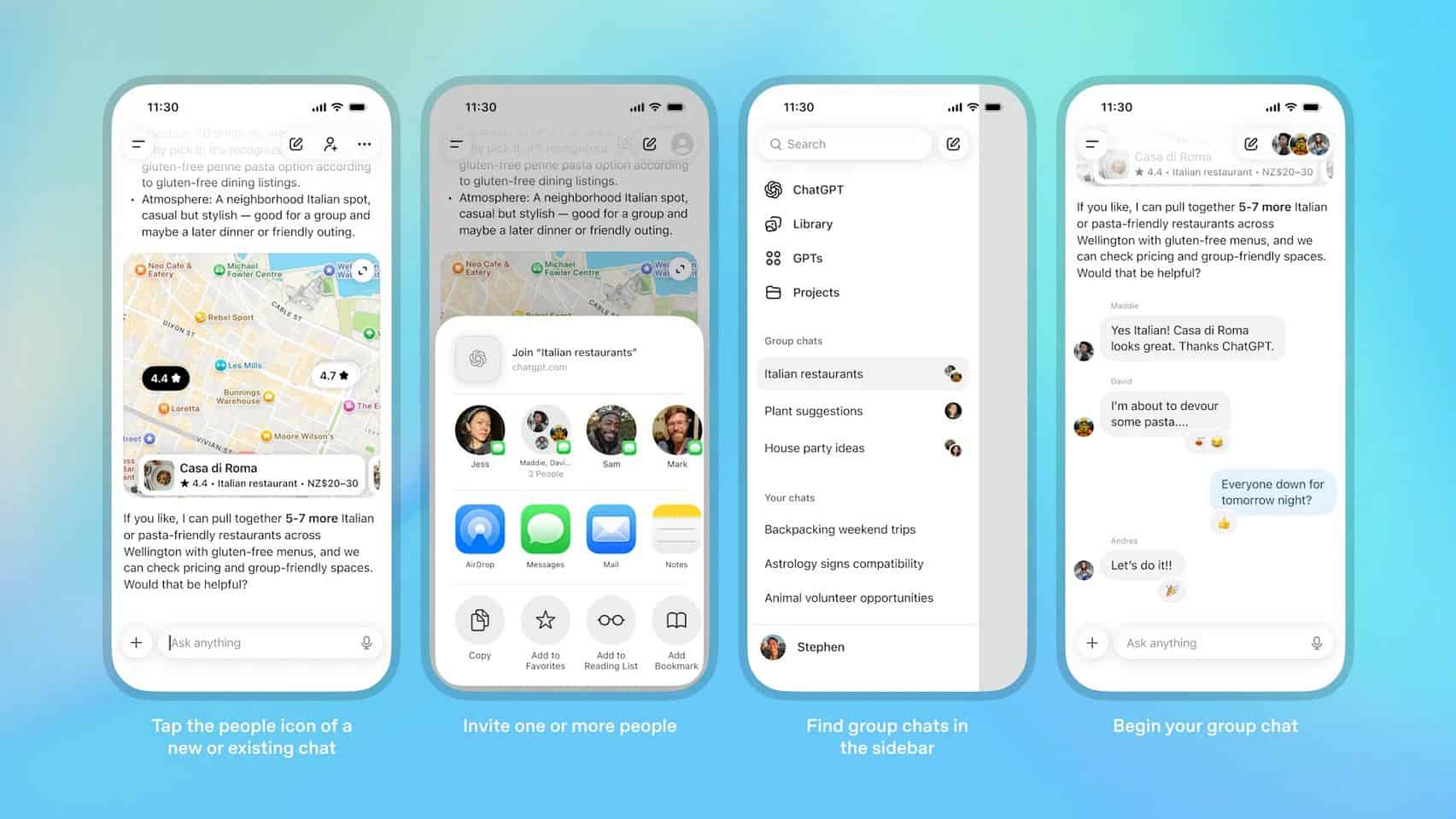
The company has introduced group chats, a new feature that turns ChatGPT into a shared space for live collaboration. You can bring friends, family, or coworkers into one conversation and work through ideas together with AI guidance.

Everyone in the group chat can see the same messages, share ideas, and ask ChatGPT for help as the discussion develops. The feature works well for planning trips, organizing events, exploring home design ideas, or handling everyday decisions. Work and school groups can also share notes, exchange links, and rely on ChatGPT to summarize information or build outlines.

The pilot starts for logged-in users on Free, Go, Plus, and Pro plans in Japan, New Zealand, South Korea, and Taiwan. OpenAI will expand availability after learning from early usage and feedback.

Starting a group stays simple. You tap the people icon in any conversation, send an invite link, and bring others in quickly. New participants will need to create a short profile, and ChatGPT will place all group chats in the sidebar for easy access.

Inside the conversation, ChatGPT follows the flow and responds only when needed or when someone calls its name. GPT 5.1 Auto selects the best model based on each user’s plan. Search, file uploads, images, image generation, and voice input all work inside groups. Users can rename the group, mute notifications, remove participants, or set custom instructions for ChatGPT.

Privacy stays central. Personal memory never appears in group chats, and users must accept invites before joining. It’s worth mentioning that extra safeguards are available, and underage users will be protected from sensitive content. There’s also an ability for parents to disable the group chat feature entirely, if needed.

Group chats introduce a new social layer inside ChatGPT and will continue to improve as OpenAI refines the experience. Are you excited about this feature? Let us know in the comments.

How to Roll Back a Windows Feature Update in Windows 11

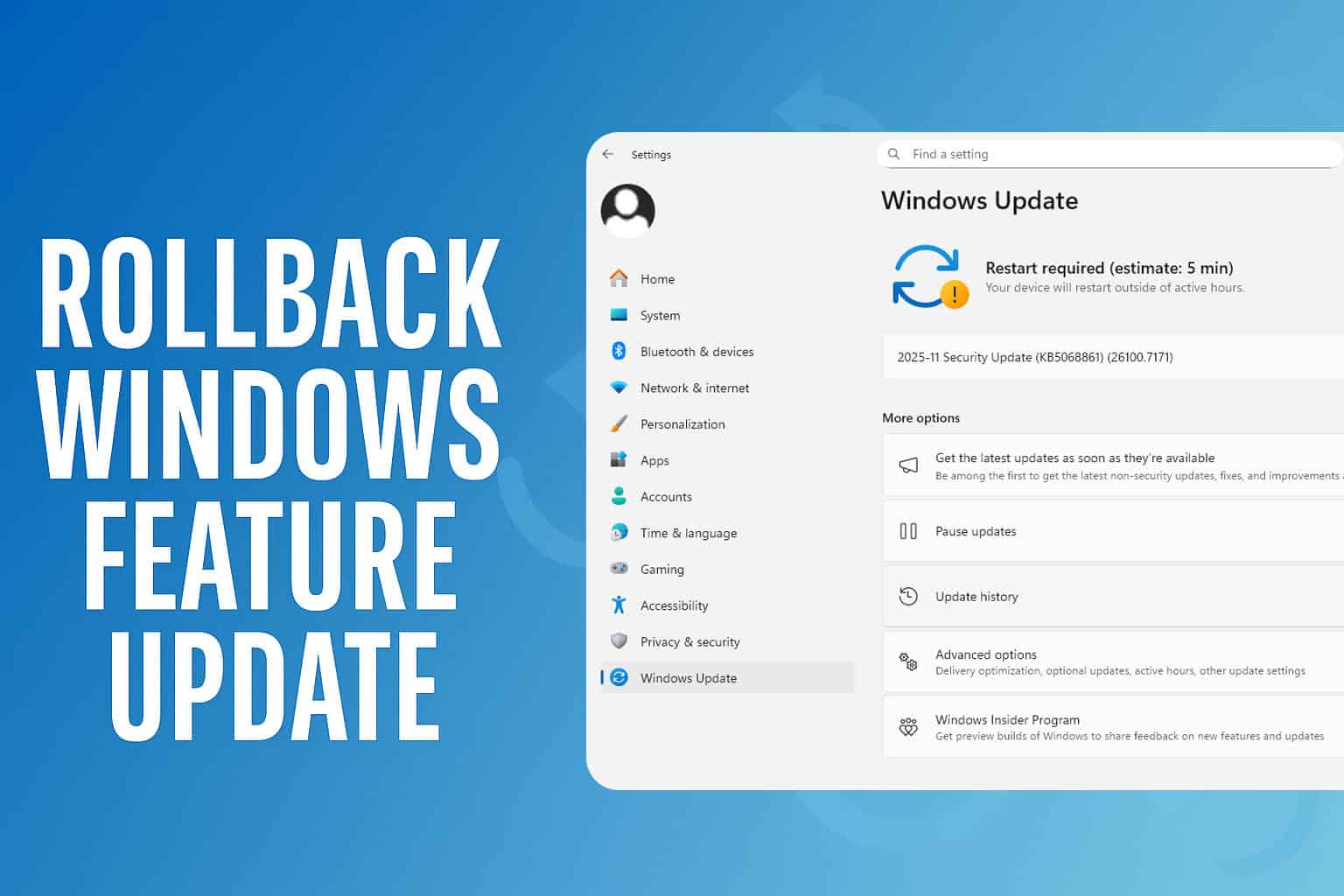
Rollback Windows feature update steps are useful when a new release causes errors, slowdowns, or compatibility issues. This guide will show you how to safely return to your previous Windows version using several reliable methods.

How to Rollback Windows Feature Update?

1. Use Windows Settings

Use this when Windows still boots normally.

  1. Open Settings with Windows + I.
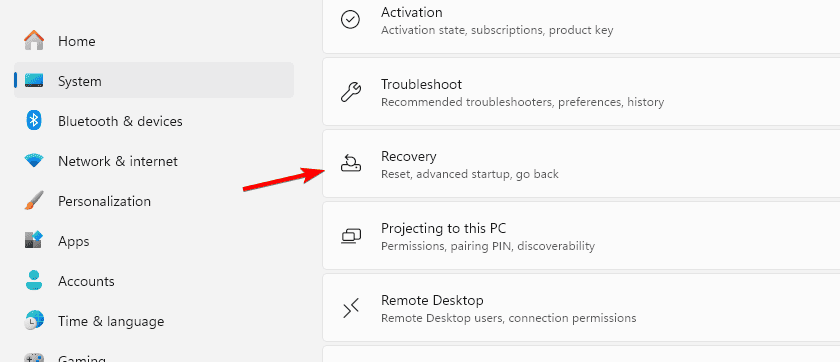
  2. Go to System then Recovery.
    recovery option in windows 11
  3. Click Go back.
    Go back -windows 11 can't find printer
  4. Choose a reason and select Next.
  5. Follow the prompts to finish.

If you need help navigating update controls, see the detailed Windows Update settings guide.

2. Roll Back from Advanced Startup

Use this when Windows does not start correctly.

  1. Interrupt boot three times to enter Automatic Repair.
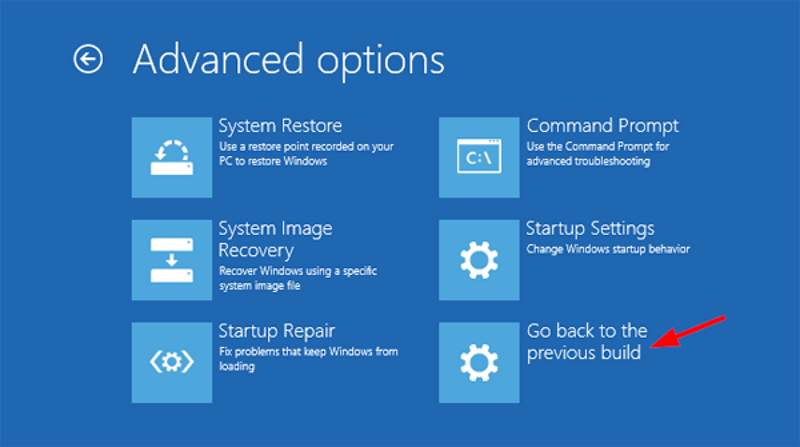
  2. Select Advanced options.
  3. Choose Troubleshoot then Advanced options.
  4. Click Go back to the previous version.
  5. Complete the rollback.

You can also compare your steps with the instructions in the Windows 11 rollback guide.

3. Uninstall Feature Update via Command Prompt

Use this when you need to target a specific update package.

  1. Boot into Advanced Startup.
  2. Open Command Prompt.
  3. Run: wusa /uninstall /kb:xxxxxxx
  4. Restart your PC.

A more in depth explanation of removing updates is available in the Windows 11 update uninstall guide.

4. Restore from a System Image

Use this option only if you previously created a full system image.

  1. Boot into Advanced Startup.
  2. Select Troubleshoot.
  3. Choose Advanced options then System Image Recovery.
  4. Select your image backup.
  5. Finish the recovery wizard.

5. Reinstall Windows

Use this when no rollback files or backups are available.

  1. Download the Media Creation Tool on another PC.
  2. Create a bootable USB.
  3. Boot from it and click Install now.
  4. Select Keep personal files if needed.
  5. Complete the installation.

FAQs

Why is the Go back option missing?

The rollback window expired or Windows removed the previous version files.

Can I revert the update after 10 days?

Only with a system image or external backup created before updating.

Will I lose personal files during rollback?

No. Only apps installed after the update may be removed.

Is rollback the same as System Restore?

No. Rollback restores the full OS version while System Restore affects only system files.

Conclusion

Rolling back a Windows feature update is the fastest way to fix system instability after installing a problematic release. Whether you use Windows Settings, Advanced Startup, or a system image, each method helps return your PC to a stable state. If none of these options work, reinstalling Windows remains the final and most reliable solution.

Microsoft Edge will let you add trusted sites to skip typo warnings

Microsoft is testing a new option in Edge Canary that allows users to add trusted sites or domains to the website typo protection allowlist. Edge will not block the sites added to this list by default.

Microsoft Edge has a typo protection feature that warns users when they enter a wrong or misleading domain name. This safety feature steers users away from harmful websites that look similar to real ones. It has been part of Edge for a long time, but users never had a way to control which sites the browser blocks or ignores

The page for this new option appears under
Settings > Privacy, search, and services > Site permissions > All permissions > Website typo protection.

The new section reads “Add sites to the never block website typo protection list.” Users can type any domain name and place it on the list. Edge will then skip typo protection checks for those sites.

How to add sites that Edge will never block under typo protection

  1. Open Microsoft Edge
  2. Click the Menu and select Settings
  3. Open Privacy, search, and services
  4. Select “Site permissions”
  5. Select All permissions
  6. Open “Website typo protection”
  7. Click “Add site” under “Add sites to the never block website typo protection list.”
The new “never block” typo protection list appears in Edge Canary’s settings.

This option gives users an easy way to avoid warnings on lesser-known sites that Edge flags by mistake. It also offers more control over how strict the protection is.

Edge Canary shows an “Add site” prompt for trusted domains under typo protection.

Most users do not open the settings for typo protection. A custom allowlist offers more choice without turning the safety feature off.

That’s not all. Microsoft is retiring the Edge Sidebar App list in favor of Copilot. The company has also fixed Edge’s long context menus in recent release versions.

Microsoft Teams Now Blocks Screenshots During Meetings for Premium Users

Microsoft has been rolling out a bunch of new features to Teams lately. With the latest one, the company is focusing on protecting sensitive meeting content. Teams Premium is getting a Prevent screen capture feature that blocks screenshots and screen recordings during meetings.

Microsoft first announced this update in May 2025, with rollout planned for July. But, the company pushed it to early November. Now, the feature is finally live for Teams Premium customers.

Image: Microsoft

On Windows desktops, any screenshot attempt shows a black rectangle around the meeting window. On Android phones and tablets, users see a message warning that screen capture is restricted. If you join from a device that doesn’t support the feature, Teams will push you into audio-only mode to maintain protection.

However, Microsoft does acknowledge a simple limitation. Even if Teams blocks screenshots and recordings, someone can still take a photo of their screen with another device. So the feature raises the security bar, but it doesn’t eliminate every risk. For companies handling sensitive conversations, Prevent screen capture offers an extra layer of peace of mind.

Di note that this feature is off by default. Meeting organizers and co-organizers must enable it manually from the Meeting Options menu each time. Microsoft 365 admins can manage device enrollment and licensing through Entra ID.

Microsoft says the new control will help organizations limit accidental or intentional sharing of confidential information. It also confirmed that the feature will reach all Teams Premium customers by late November 2025.

via Bleeping Computer

Call of Duty: Black Ops 7 Release Date, Time, Platform & How to Play Early

The wait is almost over, Call of Duty: Black Ops 7 officially launches today, November 14. Not to mention, it would be Activision’s next big chapter in its long-running FPS franchise. Players from some regions, however, have already started playing the game, thanks to regional time differences.

COD: Black Ops 7 is a direct sequel to Black Ops 2, which promises mind-bending campaign, brutal gameplay and supports up to four-player co-op. Not to mention, it is one of the biggest shooter games of 2025.

Black Ops 7 release time and availability

Based on where you live, the launch timing varies slightly. If you live in the US West Coast, you can start playing as early as 9PM PT on November 13 via Steam or Battle.net. Whereas, in the UK players can jump in from 5AM GMT on November 14. Xbox and PlayStation releases will follow similar staggered schedules worldwide. Also, check the table below for timings of more regions:

DateTimeRegion
November 1321:00 PSTLos Angeles
November 1323:00 CSTMexico City
November 1400:00 ESTNew York
November 1402:00 BRTSao Paulo
November 1405:00 GMTLondon
November 1406:00 CETStockholm
November 1406:00 CETParis
November 1407:00 SASTJohannesburg
November 1409:00 GSTDubai
November 1414:00 JSTTokyo
November 1414:00 KSTSeoul
November 1416:00 AEDTSydney

Is COD: Black Ops 7 on Xbox Game Pass?

Yes, Black Ops 7 is available on Xbox Game Pass, including Xbox consoles, PC via the Xbox app, and Cloud Gaming. However, only Game Pass Ultimate and PC Game Pass subscribers will get full access.

Zombies mode returns bigger than ever

Zombies fans have reason to celebrate. The game brings back the Dark Aether storyline, featuring the new Ashes of Damned map, the largest round-based Zombies experience in the series so far. Besides that, there’s Survival mode, a Cursed challenge mode, and the fan-favorite Dead Ops Arcade 4. Season One is expected to expand the undead action with more maps and content.

How to play COD: Black Ops 7 early

Players around the globe are already using the infamous “New Zealand trick” to access the game ahead of schedule. By setting your Activision account region and console location to New Zealand, you can manage to unlock early access. However, this method isn’t officially supported, so proceed at your own risks. We don’t endorse this trick.

KB5070312 Fixes Unresponsive File Explorer in Windows 11 23H2

Microsoft has rolled out Build 22631.6269 under KB5070312 for Insiders in the Release Preview Channel of Windows 11 23H2. This non-security update focuses on stability, reliability, and several long-standing quality issues.

One of the major highlights of this update is that it fixes two issues within File Explorer. Some users reported that File Explorer was unresponsive to mouse clicks until it was restarted. Well, this behavior has been fixed.

The update also addresses another issue affecting .tar file extraction, where archives containing more than 34 Chinese characters in file or folder names could fail to unpack correctly.

Moving on, administrators managing Windows 11 Enterprise multi-session environments, such as Azure Virtual Desktop (AVD), will welcome a major policy fix.

The HideRecommendedSection Group Policy, meant to remove Start menu recommendations, wasn’t functioning correctly in multi-session setups. Even with policies applied through Group Policy Editor or Configuration Service Provider (CSP), recommendations continued to appear. Microsoft has also fixed that behavior in Build 22631.6269.

Moreover, the update also updates Country and Operator Settings Asset (COSA) profiles for select mobile operators. This ensures better compatibility and performance for users who rely on connected mobile networks.

OpenAI Loses Copyright Lawsuit in Germany Over Music Training Data

OpenAI has been amongst all sorts of controversy lately and facing a lot of lawsuits, some for ChatGPT and some for training its AI model on publicly available content.

Speaking of the latter, a Munich court has ruled that ChatGPT creator OpenAI violated Germany’s national copyright laws by training its AI models on copyrighted music without proper authorization.

The case was filed last November by GEMA, a German music rights group, which accused OpenAI of illegally using protected song lyrics during model training. Earlier this week, the court ruled the case in favor of GEMA and ordered OpenAI to pay an undisclosed amount in damages.

OpenAI responded to the ruling, saying it “disagrees with the decision” and is considering its next steps, hinting at a possible appeal. The company also clarified that the ruling covers only a “limited set of lyrics” and won’t affect German users or businesses currently using ChatGPT.

GEMA reportedly called the ruling a “landmark victory” for creators across Europe, with its CEO stating, “The internet is not a self-service store. Even AI tools like ChatGPT must follow copyright law.”

If we have to look at a bigger picture, this is a huge legal blow to OpenAI in Europe, which only intensifies the ongoing debate around AI training data and copyright laws.

via: Reuters

Spotify Launches AI Audiobook Recaps in Beta for Quick Story Catch-Ups

It seems Spotify is embracing AI lately, as it announced a new AI-powered feature called Audiobook Recaps. The company says it’ll help listeners easily jump back into their favorite stories. Do note that the feature is currently in beta, though.

The new Audiobook Recaps feature offers short audio summaries based on the portion of an audiobook you’ve already listened to. Think of it as a “previously on” segment from a TV show. It gives you a quick catch-up before you dive back in.

Image: Spotify

The feature has been developed in collaboration with Spotify’s publishing partners. Author J.H. Markert, known for Spider to the Fly, described Recaps as “an audio bookmark that speaks,” calling it “a must for any audiobook lover.” So, how does the feature work?

Well, when you return to an audiobook, a “Recap” button appears at the top of the title’s page. Tapping it plays a short, tailored summary of what has happened so far. The first Recap becomes available after 15–20 minutes of listening, and subsequent ones automatically update as you progress through the book.

Spotify confirmed that Audiobook Recaps uses AI to generate summaries. However, the music streaming giant claims that it doesn’t use audiobook content for training large language models or voice replication. The summaries do not replace narration or mimic the original voice.

As mentioned earlier, Audiobook Recaps are in beta, available on iOS for select English-language titles. Spotify says it plans to expand the feature gradually while gathering user feedback to further improve it.

Xbox Free Play Days Returns; Try GTA Online, Train Sim & More This Weekend (Nov 13–16)

Xbox Free Play Days is back with yet another packed lineup for this weekend. One of the main highlights of this batch is that you don’t need a subscription to play Grand Theft Auto Online.

It is free for all Xbox members from November 11 through November 17. With GTA 6 pushed a year back, Rockstar Games appears to be compensating fans with this freebie.

Starting today, Xbox Game Pass Ultimate, Premium, and Essential members can try Train Sim World 6: Standard Edition on console and PC with Xbox Play Anywhere until Sunday, November 16. It’s also up for grabs with a 30% discount until November 23.

Moving on, you also have other games like Rubber Bandits, Soccer Story, and Wreckfest to try this weekend. Rubber Bandits is available for $1.99 during this weekend’s Free Play Days. It usually costs $9.99, by the way. Meanwhile, Soccer Story is available for $19.99, and it is optimized for Xbox Series X|S, Smart Delivery, and Xbox Play Anywhere.

If you want to grab Wreckfest, it’s up for grabs for just $11.99 (usually costs $29.99), with a free trial. The description of the game reads:

Break the rules and take full-contact racing to the limit with Wreckfest! Expect epic crashes, neck-to-neck fights over the finish line and brand-new ways for metal to bend – These are the once-in-a-lifetime moments that can only be achieved in Wreckfest, with its true-to-life physics simulation crafted by legendary developer Bugbear, who also brought you FlatOut 1 & 2! Burn rubber and shred metal in the ultimate driving playground!

Not to forget that you can purchase all the discounted titles to continue playing while keeping achievements and Gamerscore earned during the event. Happy gaming and happy weekend!

Microsoft Plans New Features for Excel, Outlook, Edge, and More

Microsoft appears to have a bunch of new features coming for you across Excel, Outlook, and Copilot. There are a few new features listed in the Official 365 Roadmap. Let’s start with Microsoft Edge first.

According to the roadmap entry, the browser’s business edition is finally getting a “What’s New” page. You can expect to see all the improvements and changes listed on it after every update. Microsoft notes that the feature will drop in February 2026.

Additionally, the company will add new extensions for enterprises, allowing them to safely execute AI-generated code without exposing sensitive data. This feature will be released in December 2025, according to the roadmap entry.

If you are a user of Outlook Mobile, there are some new features coming for you, too, on Android and iOS. Microsoft Outlook will soon get customizable toolbars for composing emails. The new intuitive toolbars will also appear when you select multiple messages.

For those on Android, the Outlook app will also get a redesigned Copilot Chat interface. Once that rolls out, you’ll see the AI button placed separately from email and event actions.

Over on Excel, Agent Mode will be generally available for everyone starting December 2025. For the uninitiated, this Copilot-powered feature can create new sheets, analyze data, and even visualize results.

Last but not least, Microsoft 365 Copilot itself is getting several improved features, like OAuth-based authentication for connectors, ServiceNow Knowledge templates, and the ability to generate Office documents directly from Copilot Studio Lite agents.

via: Neowin

Microsoft Reportedly Turns to OpenAI to Fix Its Chip Problem

Microsoft is reportedly seeking help from OpenAI to make competitive chips. The news comes via Bloomberg, which, in its report, suggests that the plan is to adopt and expand on OpenAI’s custom silicon designs to bolster its semiconductor lineup.

In a recent conversation with podcaster Dwarkesh Patel, CEO Satya Nadella confirmed that Microsoft will have full access to OpenAI’s chip innovations. “As they innovate even at the system level, we get access to all of it,” Nadella said. This hints that Microsoft’s hardware goals are now closely tied to its AI partner’s progress.

Under a revised partnership agreement, Microsoft secured intellectual property (IP) rights to OpenAI’s chip designs and extended access to its AI models through 2032. However, OpenAI’s upcoming consumer hardware remains off-limits, suggesting the ChatGPT maker plans to develop and market those independently.

The move highlights Microsoft’s shift in strategy, which appears to be building everything in-house, to partnering where it counts most right now. Designing next-gen AI chips requires billions in investment and years of expertise, areas where OpenAI’s engineering advantage could fast-track results.

As rivals like Google ramp up their Tensor chips and Amazon doubles down on Trainium, Microsoft is choosing a practical route. By partnering with OpenAI, Microsoft isn’t only looking to position itself as a leader in the AI race, but also revamp how future Windows and Azure systems handle AI workloads.

What’s left to see is whether this partnership helps Microsoft catch up or makes it even more reliant on OpenAI. Do you think this is a smart long-term play, or is Microsoft giving too much control to its AI partner?

via TechCrunch

Microsoft & Backbone Unveil $179.99 Backbone Pro Xbox Edition Controller

Microsoft and Backbone have come together once again to bump portal gaming one notch up. Months after the Backbone One – Xbox Edition was launched, the companies have now launched a redesigned, cross-device controller, which is the Backbone Pro – Xbox Edition.

The new controller has been designed under the Xbox program and aims to unify your gaming setup. Speaking of its design, the Backbone Pro – Xbox Edition comes with full-size ALPS thumbsticks, laser-etched grips, and Hall Effect triggers. These combined will make it feel like a true console-grade accessory.

The controller also has two rear buttons and a built-in battery that offers USB-C wired and Bluetooth Low Energy wireless modes for more flexibility. Microsoft and Backbone are promoting it as your go-to controller for gaming at home or on the go.

Thanks to FlowState, switching between devices is just a tap. While the controller proudly carries the Xbox branding, it works seamlessly with more than just Microsoft’s ecosystem.

The Backbone App supports Apple Arcade, Steam Link, and other mobile-friendly games, too. You can also remap buttons, create custom profiles, and fine-tune your setup directly in the app.

Microsoft is offering one month of Xbox Game Pass Ultimate as a freebie if you buy this controller. The Backbone Pro – Xbox Edition is available now for $179.99 via Backbone.com, Xbox.com, and Amazon. It will hit Best Buy stores in the U.S. by November 30, with global shipping also supported.

This New Windows Concept Teases What the OS Could Look Like in 2026

A few days back, Windows President Pavan Davuluri shared a tweet hinting that Windows is evolving into an “agentic OS.” That tweet wasn’t received well by users already frustrated with Microsoft’s move to push AI into almost every feature and product these days.

Now, if you’re left wondering what the future of Windows might look like, one Windows fan may have just visualized it. Following Pavan’s recent statement, a prolific concept designer who goes by the name AR4789 on YouTube has unveiled Windows 26.

The video shows how Microsoft’s operating system could evolve in 2026 and beyond. The Windows 26 concept skips the traditional setup screen and goes straight to an active desktop experience. As seen in the video below, you can spot features like floating widgets, an AI-powered search bar, and smarter Copilot integration.

There’s also auto dark mode and expanded customization options that make the OS look more fluid and adaptive — something Microsoft is clearly aiming for in the AI era.

Many users said this kind of AI-assisted yet distraction-free experience is something they would actually welcome, rather than what Microsoft has been doing with its AI-heavy updates.

While Microsoft hasn’t announced Windows 12 or any successor to Windows 11, the concept video of Windows 26 has fans imagining what might come next.

via: Beta News

Windows 11 Users Push Back as Microsoft Exec Says It’s “Evolving into an Agentic OS”

If you thought Microsoft’s AI focus had reached its peak, think again. In a post shared on X, Windows president Pavan Davuluri says that the operating system is “evolving into an agentic OS.” The post was supposed to highlight Windows’ role in powering AI workloads, but unfortunately, it triggered a backlash from users.

Many took Davuluri’s comment as another sign that Microsoft is steering the OS too far toward automation and away from user control. The replies on X were overwhelmingly negative.

From the looks of it, Windows users seem quite exhausted by Copilot pop-ups, forced Microsoft account logins, and recurring update issues that already make the OS feel intrusive.

While Davuluri’s post focused on the future of Windows as an AI platform, the audience reaction suggests a widening gap between Microsoft’s ambitions and what its users actually want. Many are calling for the company to fix stability and performance issues before layering on more AI features.

Microsoft has been pushing hard on AI, be it Copilot or Windows 11 as a whole. But the fact that users are frustrated with the ongoing development, the company may need to prove that its so-called “agentic OS” won’t replace user choice with algorithmic control.

Speaking of AI, Microsoft has also announced Fairwater, which it calls an AI superfactory. The facility is located in Atlanta, Georgia, and has been built to power the next era of hyperscale AI computing. What are your thoughts about the AI push? We’d love to hear your thoughts in the comments below.

First Look: We Tried Chrome’s Hidden “Vertical Tabs” Feature

Google Chrome’s long-awaited Vertical Tabs feature now appears in the latest Canary version for desktop. We first reported this in July based on a Chromium Gerrit change. The feature now works in an early form and gives a clear view of how Chrome plans to add sidebar-style tab management.

A new “Show tabs on side” option appears when you right-click the tab bar. This option moves the tab strip to the left sidebar and replaces the top tab layout.

Chrome shows a hidden “Show tabs to the side” option inside the window control menu. Image Credit: Venkat | WindowsReport.

Inside the vertical layout, the Tab Search button sits at the top. Tab groups and the plus button for new tabs are at the bottom. A collapse and expand control is available at the top of the sidebar. The Tab Search button, tab groups, and the new tab button all work in this early view.

Chrome’s early Vertical Tabs layout in Canary with the sidebar visible on the left. Image Credit: Venkat | WindowsReport.

When you right-click inside the vertical tab area, Chrome shows another option: “Show tabs at the top.” This option switches the browser to the horizontal tab layout. The same menu includes actions such as Close tab and Close other tabs, which confirms that Chrome gives full tab control inside the sidebar.

The vertical layout includes a “Show tabs at the top” option to return to the horizontal tab strip. Image credit: Venkat | WindowsReport.

In our tests, we could switch between horizontal and vertical layouts without issues. The layout still feels rough for daily use, but the main structure exists.

Browsers with Vertical Tabs usually give users a simple toggle inside the right-click menu, clear tab titles in the sidebar, access to Tab Search, and the ability to open or close tabs inside the same area. Chrome now follows this approach.

Chrome already includes Tab Search, Tab Groups, and the collapse or expand control inside Vertical Tabs. These tools give users a clearer way to handle many tabs on large screens.

This is an early version of Chrome’s Vertical Tabs. The layout, options, and placement may change before Google makes the feature available for public testing.

Microsoft Edge added Vertical Tabs in 2021. Vivaldi had sidebar tabs from the start, and Brave, Firefox, and Arc now include their own versions of Vertical Tabs. Chrome users often use extensions for this layout, so a built-in version could give them a simpler way to manage many tabs.

Correction: An earlier version of this article stated that Firefox, Brave, Vivaldi, and Arc added Vertical Tabs after Microsoft Edge introduced the feature in 2021. Vivaldi, though, supported sidebar tabs before Edge. The line has been updated for accuracy.

All Steal a Brainrot Coin Shop Items

Steal a Brainrot features a Coin Shop where players spend their earned cash on various items that boost the gameplay. The shop sits in the center of the map and functions as a marketplace for purchasing gear that assists with stealing, defending, and general movement around the game world.

The Coin Shop stocks a wide selection of tools and equipment, each serving different purposes. Some items unlock immediately while others require you to reach specific milestones before they become available for purchase. In this article, we’ll explore all purchasable items from the Coin Shop, breaking down their prices, unlock requirements, and what they do.

All Coin Shop Items

The game currently features 40 total items, with 38 of them available for purchase at the Coin Shop. The remaining two items are obtained through different methods outside the shop.

The Coin Shop differs from the Robux Shop, where you can buy brainrots. The Coin Shop exclusively sells in-game gear using the cash you earn during gameplay, while the Robux Shop handles premium currency transactions. Here’s a complete list of all purchasable items:

ItemPriceUseRebirths Required
Slap$500Slaps stealers0
Speed Coil$750Fast running0
Trap$1KTraps stealers0
Iron Slap$2.5KSlaps stealers1
Gravity Coil$3KHigher jump1
Bee Launcher$10KReverse stealers’ controls, change their FoV, and add visual effects to their screen.1
Gold Slap$15KSlaps stealers2
Coil Combo$20KFast running and higher jump2
Rage Table$25KThrow at stealers and release a scream2
Diamond Slap$50KSlaps stealers3
Grapple Hook$75KCling and pull to solid things3
Taser Gun$100KShocks stealers3
Emerald Slap$200KSlaps stealers4
Invisibility Cloak$300KTurns you invisible 4
Boogie Bomb$500KMakes stealers dance4
Ruby Slap$1MSlaps stealers5
Medusa’s Head$5MStones stealers5
Dark Matter Slap$1.5MSlaps stealers6
Web Slinger$2MConnects stealers in a lone and pushes them6
Flame Slap$2.5MSlaps stealers7
Quantum Cloner$3.5MClone yourself and use this tool as a decoy7
All-Seeing Sentry$5MShoots stealers7
Nuclear Slap$6MSlaps stealers8
Rainbowrath Sword$10MSlaps stealers with a rainbow glitter8
Galaxy Slap$15MSlaps stealers9
Laser Cape$20MShoot a laser from your eye9
Glitched Slap$25MSlaps stealers10
Body Swap Potion$50MSwap positions with players10
Splatter Slap$75MSlaps stealers11
Paintball Gun$100MShoot paintball balls11
Heart Balloon$150MFly in slow motion12
Magnet$200MYou can pull friends to help them steal by moving faster.12
Megaphone$250Mactivate a jumpscare sound that can scare away stealers13
BeeHive––13
Gummy Bear$400MSlap stealers and transform them into a gummy bear14
Subspace Mine$500MExplodes whoever steps on them14
Heatseeker$700MShoots a missile15
Attack Doge$1BDefend yourself from enemies15

Most items unlock progressively as you accumulate rebirths, with prices ranging from $500 for basic tools to $1 billion for the Attack Doge. Focus on earning cash and completing rebirths to access the higher-tier items that offer more powerful abilities for both offensive and defensive gameplay.

Final Words

The Coin Shop offers 38 purchasable items that cater to different playstyles and strategies. Start with the affordable basic items and work your way up through rebirths to unlock more powerful gear. Planning your purchases based on your preferred gameplay approach will help you progress efficiently and dominate matches.

Chrome Tries a New Way to Make Pages Easier to Read

Google is testing a new way to help you “read comfortably” in Chrome. The browser now shows a simple button labelled “Reading mode” in the address bar when it detects that the current page supports a clean view with “minimal distractions.”

Reading Mode cuts out visual clutter on the page and leaves the article text without its images. It gives a simple, calm view that keeps distractions away.

Chrome tests a Reading mode button in the address bar

Reading Mode has been in Chrome for a while, but this new address bar placement puts the option in a clearer spot. You no longer need to open menus or right-click a page to find it.

To make users aware of the new control, Chrome shows a small message when the button appears for the first time. The message says: “Read comfortably with minimal distractions.” This helps users notice the option quickly.

Chrome shows a Reading mode button in the address bar with a tooltip. Image Credit: Venkat | WindowsReport.

For a long time, Google kept Reading Mode inside menus, so most people never found it. The new location in the address bar solves that problem. It puts the button where everyone naturally looks when they open a page. It also lets Chrome offer a cleaner view without altering the page for every user.

Chrome now detects pages that work well with this reading view and may place the button in the address bar with a short tooltip when it becomes available. The feature is under testing in Chrome Canary and may reach more users after Google completes the experiment.

Google is also testing immersive mode for the feature in Chrome, and it also tests Mozilla’s Readability system, which Firefox uses for its Reader View.

OpenAI Announces GPT-5.1 Instant & GPT-5.1 Thinking

OpenAI has announced GPT-5.1, a major upgrade to its flagship model that debuted in August. The company describes this as an “upgrade” to GPT-5 that makes ChatGPT smarter, faster, and more fun to talk to.

The release introduces two versions: GPT-5.1 Instant and GPT-5.1 Thinking. According to OpenAI, the Instant model feels warmer, more responsive, and better at following instructions, while the Thinking model is designed to handle complex reasoning with more consistency. ChatGPT will automatically route user queries to the model best suited for the task.

Both versions will begin rolling out this week, replacing the current GPT-5 lineup, though older models will remain available for three months under ChatGPT’s “legacy” dropdown.

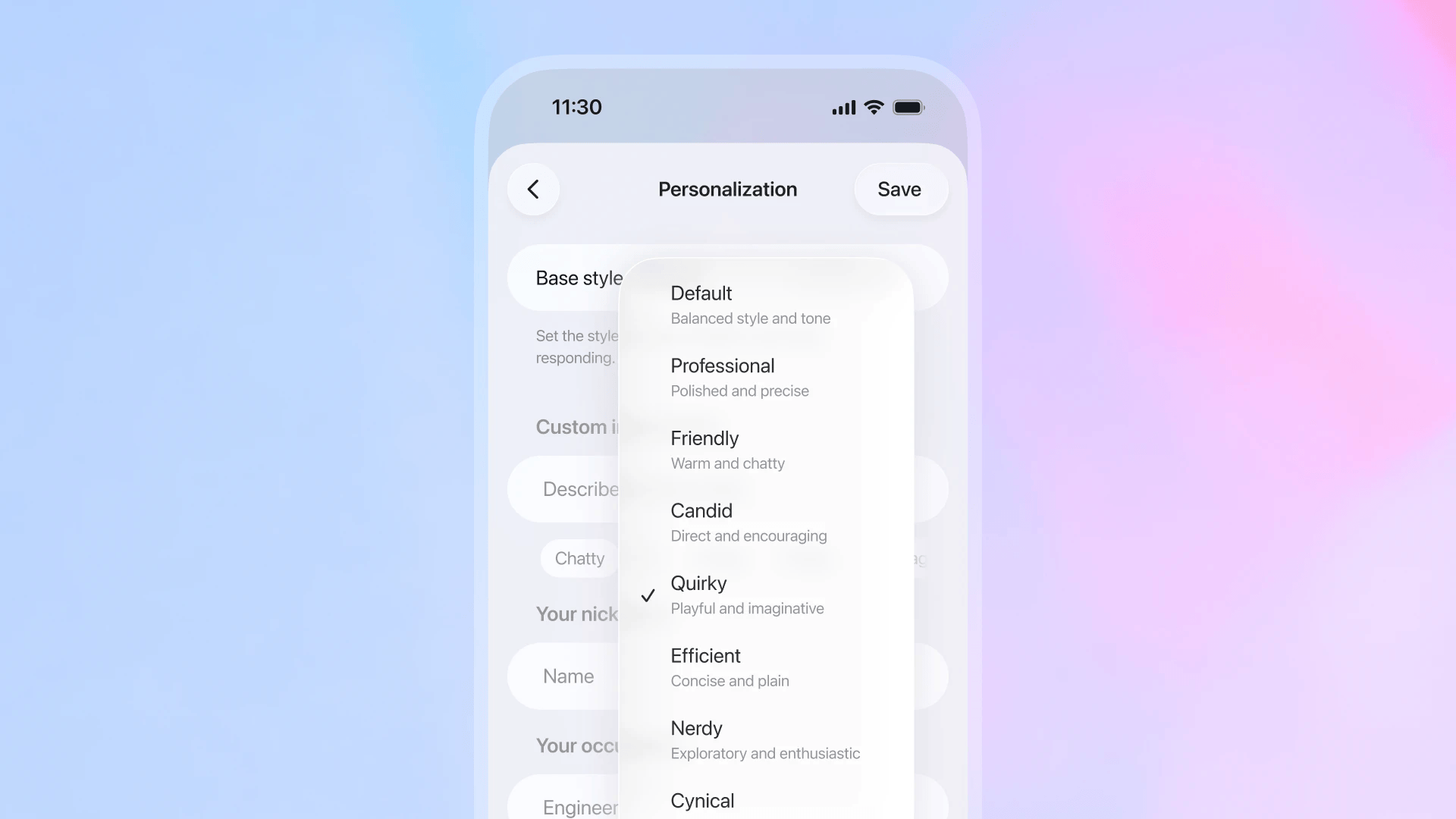
Alongside the model update, OpenAI is expanding its personality presets, offering users more control over ChatGPT’s conversational tone. You can now pick from eight distinct styles: Default, Professional, Friendly, Candid, Quirky, Efficient, Nerdy, and Cynical.

The company also teased an experimental tool that will allow users to change ChatGPT’s tone directly from settings.

All that said, the latest release follows the lukewarm reception of GPT-5, which many users criticized for underwhelming improvements. OpenAI hopes GPT-5.1, alongside its recently announced ChatGPT Atlas AI browser, will restore some of that lost faith in users as competition from Anthropic and others intensifies.

Everything to Know About Valve’s Next-Gen Steam Controller

Valve’s 2026 product lineup not just include Steam Machine and Steam Frame. A next-gen Steam Controller is also coming next year. The upcoming controller aims to bring every game in your Steam Library right to your fingertips. Valve describes it as “all the inputs to play all the games on Steam, wherever Steam is.”

One of the standout features is the new Steam Controller Puck. It’s a small magnetic hub that doubles as both a charging dock and a low-latency wireless transmitter. The Puck offers a lightning-fast 8ms end-to-end connection and supports up to four controllers simultaneously. You can also connect via Bluetooth or USB-C if you want.
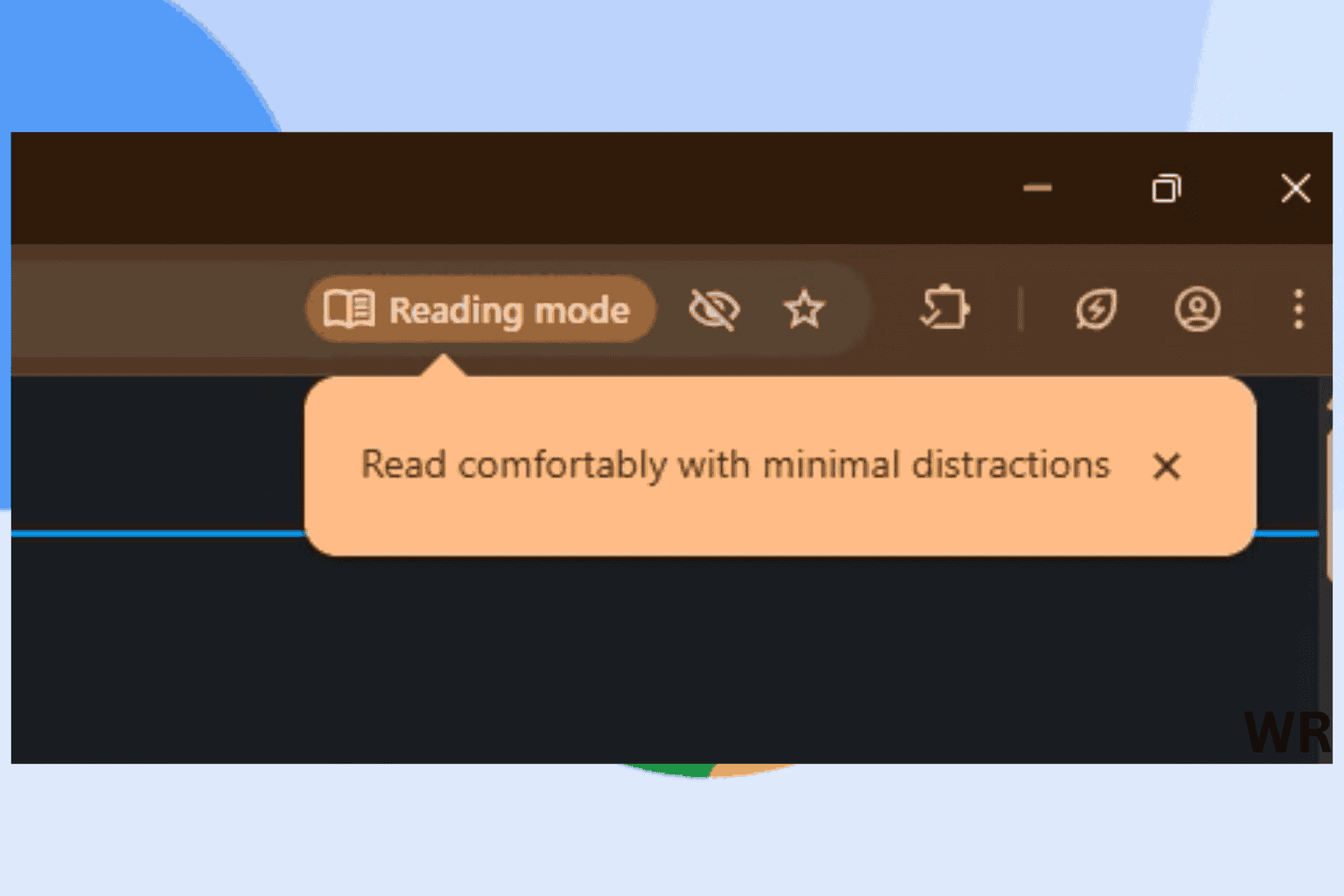
Image: Valve

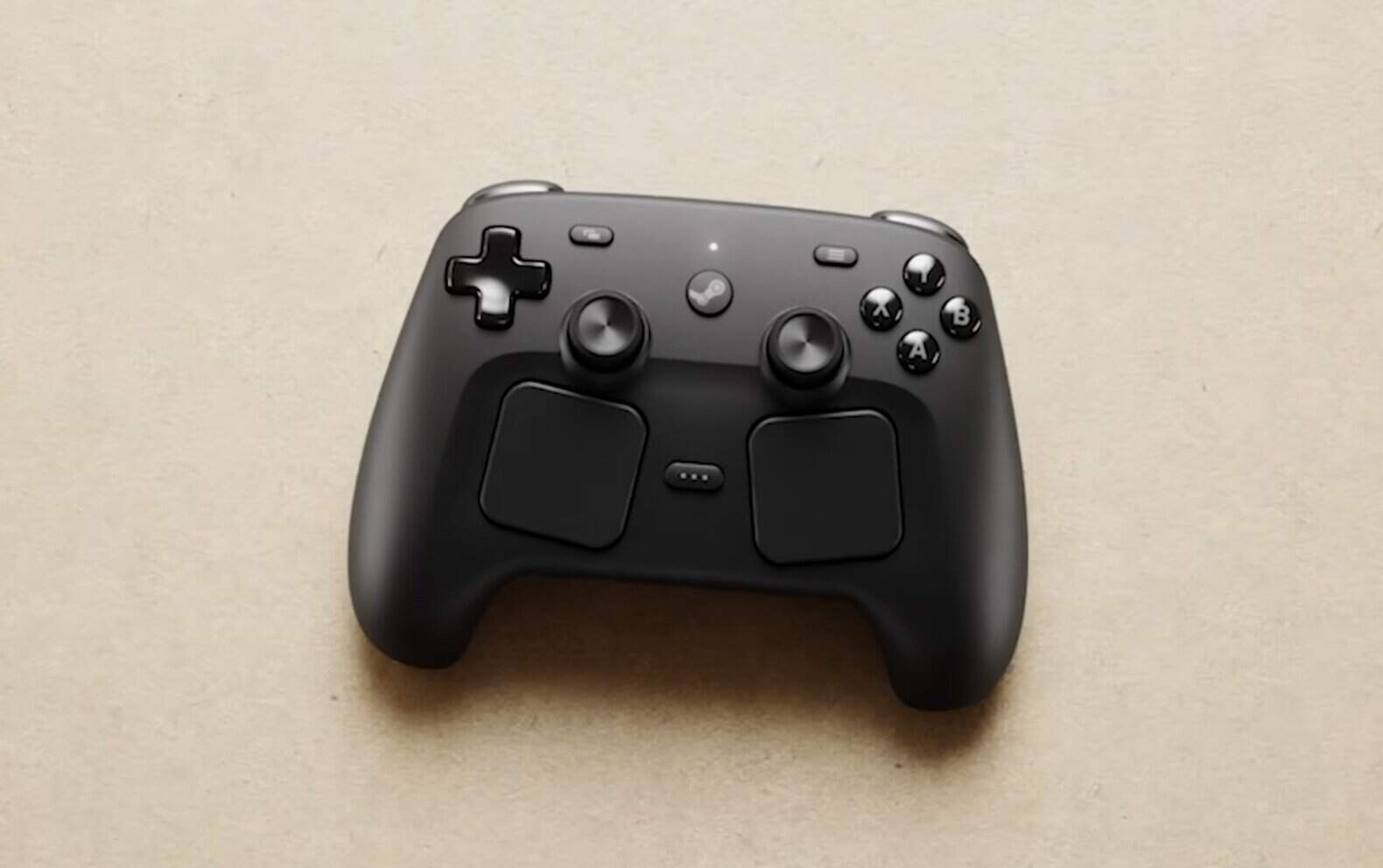
The controller itself features next-generation magnetic thumbsticks using TMR technology for smoother movement, enhanced responsiveness, and long-term durability. They include capacitive touch support, which enables motion controls and Valve’s new Grip Sense feature. It’s a capacitive touch system along the handles that activates gyro aiming when you hold the controller naturally.
There’s also high-definition haptic feedback with four motors. There are two motors inside the trackpads and two in the grips. Both combined allow precise tactile responses and realistic rumble. The dual trackpads provide another layer of control, offering pressure-sensitive clicks and customizable feedback that make even mouse-heavy games playable on a controller.

Image: Valve
Image: Valve
Image: Valve

Valve is also making sure to keep comfort a key aspect. The Steam Controller’s redesigned layout features ergonomic triggers, bumpers, and a familiar ABXY button setup optimized for long play sessions. It includes four rear grip buttons, all remappable via Steam Input, giving players a level of personalization similar to the Steam Deck.

With an 8.39Wh battery providing over 35 hours of gameplay, USB-C charging, and full Steam Input integration, Valve’s new controller is built to be the ultimate all-in-one gamepad for the entire Steam ecosystem.

Valve’s New Steam Machine is “6x Powerful” Than Steam Deck

Valve surprised everyone today by announcing three new products it’ll launch in 2026. Earlier, we detailed the Steam Frame, Valve’s standalone VR headset designed to bring the entire Steam library to portable VR.

Image: Valve

Alongside the headset, the company has also revealed the Steam Machine. It’s a compact yet powerful console that can deliver the full Steam experience on any screen. Think of it as more powerful console-version of steam deck.

As Valve notes, Steam Machine is designed for players who want high-end PC gaming performance without the bulk of a desktop rig. The company describes it as “powerful PC gaming made easy, in a small and mighty package.”

Image: Valve

The device itself is roughly the size of a 6-inch cube, which promises to run the latest AAA titles at 4K resolution and 60 FPS. It comes with AMD’s semi-custom desktop-class CPU and GPU, paired with FSR support for enhanced upscaling performance.

Steam Machine runs on the latest version of SteamOS and comes with features like fast suspend and resume, cloud saves, and seamless integration with the broader Steam ecosystem. Meanwhile, you can access you entire Steam library by simply logging into their account.

Image: Valve

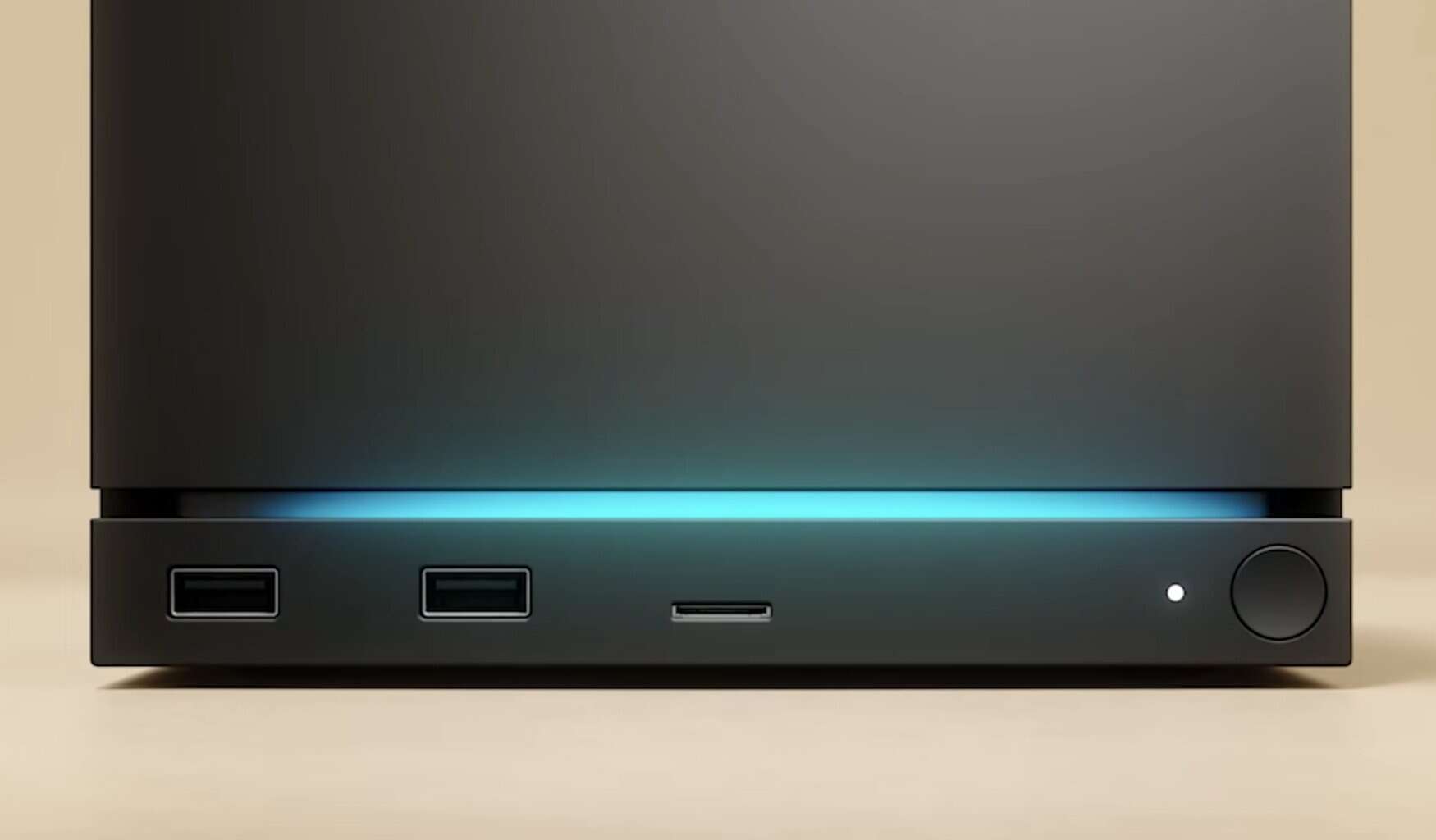
In terms of design and functionality, the Steam Machine balances performance with practicality. It’s described as “cool and whisper-quiet,” even during demanding sessions. Speaking of ports, Steam Machine comes with DisplayPort 1.4, HDMI 2.0, Gigabit Ethernet, one USB-C port, and four USB-A ports. When available, you can choose from 512GB and 2TB configurations, both expandable via microSD.

Valve further says that Steam Machine comes with Wi-Fi 6E, Bluetooth 5.3, and built-in support for the Steam Controller’s wireless adapter. Unlike many compact PCs, the Steam Machine has a built-in power supply.

Valve says the Steam Machine will make PC gaming more accessible while maintaining the flexibility and performance that PC players expect.

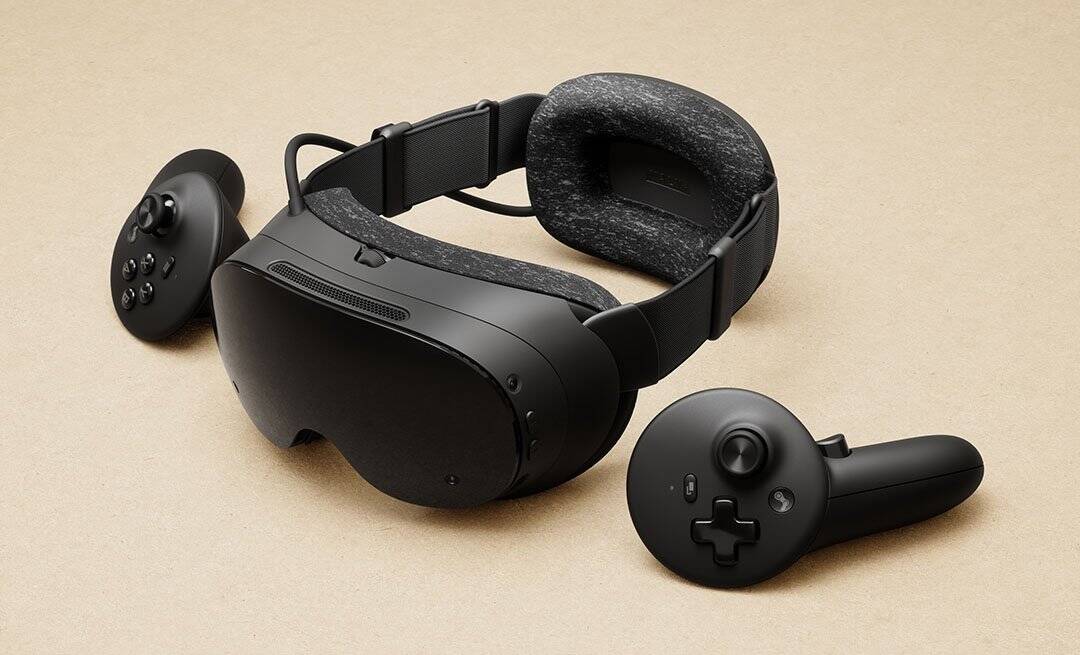
Valve Unveils Steam Frame VR Headset to Make Steam Library Truly Portable

Valve has officially announced its long-awaited standalone VR headset, the Steam Frame. While pricing and release details are yet to be announced, Valve says more information will be shared “in early 2026” after developer kits ship.

The upcoming headset is powered by Qualcomm’s Snapdragon 8 Gen 3 ARM processor and runs a custom ARM-based version of SteamOS, similar to the one powering the Steam Deck. This setup allows users to play a wide range of titles directly from their Steam library, including both traditional PC games and select VR titles.

The Steam Frame features dual 2,160×2,160 LCD panels with refresh rates ranging from 72Hz to 120Hz, an experimental 144Hz mode, and a 110° field of view. It also comes equipped with eye-tracking and pancake optics.

The lightweight modular build, weighing just 435 grams, includes the strap, battery, and integrated speakers. The core display and compute unit weighs only 190 grams, keeping comfort in focus for longer sessions.

Valve says the headset is primarily designed for low-latency PC streaming, using a Wi-Fi 6E dongle for a direct, high-speed connection between the headset and the host computer.

To enhance streaming performance, Valve has developed a foveated streaming system which uses eye-tracking to prioritize resolution in the center of a user’s view. Apparently, that stystem reduces bandwidth use without compromising image clarity.

The company’s new controllers also feature 6-DOF tracking, haptic feedback, capacitive finger sensing, and magnetic thumbsticks. Their button layout mirrors traditional gamepads, making them ideal for both VR and flat-screen games.

Although Valve confirmed it currently has no first-party VR titles in development, the Steam Frame looks to offer unified hardware-software ecosystem for VR under SteamOS. Developer kits are expected soon, as Valve wants to give studios time to optimize their games ahead of the official launch.

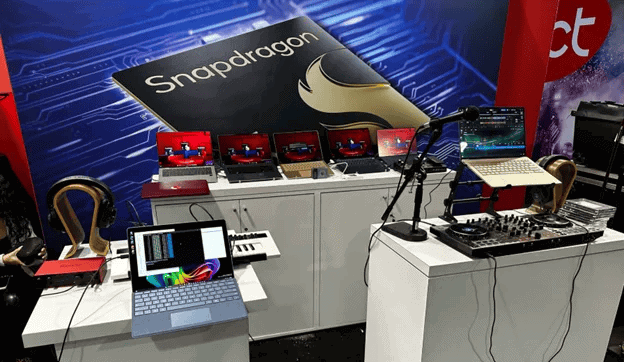
Windows on Arm to Get Microsoft’s New Low-Latency Audio Driver in 2026

Microsoft is expanding the horizons of music production on Windows on Arm64. And it’s visible in the latest updates and partnerships, which highlights, how Arm-based PCs powered by Snapdragon X Elite chips, are improving things for musicians and audio professionals.

The lightweight, quiet, and power-efficient laptops, like the Surface Laptop 7, offer exceptional performance for digital audio workstations (DAWs) without overheating or draining batteries.

Over the past year, most major DAWs have gone native on Arm64. This inckes some popular names like Steinberg Cubase, Nuendo, REAPER, Bitwig Studio, and Cakewalk Sonar. Notably, Ableton Live is set to launch its Arm64 version in 2026.

If we talk about hardware, it’s getting equal support. Leading audio interface makers such as Yamaha/Steinberg, RME, Focusrite, and Audient have released native Arm64 drivers. It enables musicians to enjoy low-latency, high-quality sound on Windows without third-party add-ons.

Microsoft’s upcoming in-box low-latency USB Audio Class 2 and ASIO driver, built in parternship with Qualcomm and Yamaha, will further simplify setup and ensure consistent, studio-grade performance across devices. Meanwhile, frameworks like JUCE and security tools like iLok are expanding Arm64 compatibility. It’ll ensure that music creators have all the professional tools they rely on.

With this ecosystem maturing rapidly, Windows on Arm64 is emerging as a serious platform for music production. If you’d like to read the full, comprehensive post with all details, demos, and developer updates, check it out here.

Microsoft Announces Fairwater, Its AI Superfactory Located in Atlanta

Microsoft has announced Fairwater, which the company calls as AI superfactory, located in Atlanta, Georgia. The company says that it has been built to power the next era of hyperscale AI computing. The facility combines NVIDIA Blackwell GPUs, custom networking, and advanced power management.

Fairwater achieves 4×9 availability at 3×9 cost, thanks to highly available grid power and next-gen efficiency systems. Instead of relying on costly backup generators, Microsoft developed software and GPU-based energy controls that stabilize power use without waste.

These systems dynamically manage load, introduce supplementary workloads, and integrate on-site storage to maintain grid balance as AI workloads surge.

It’s worth noting that Fairwater data center runs a unified GPU cluster powered by NVIDIA Blackwell accelerators. Each rack packs up to 72 GPUs connected via NVLink, providing 1.8 TB of bandwidth and 14 TB of pooled memory per GPU. Interestingly, that’s among the highest compute densities ever achieved.

Microsoft has also redefined AI networking with a two-tier, 800 Gbps Ethernet-based system and its SONiC switch OS. Partnering with NVIDIA and OpenAI, the company introduced a Multi-Path Reliable Connected (MRC) protocol to improve data flow, telemetry, and congestion control for ultra-reliable AI performance.

Fairwater is part of Microsoft’s broader AI WAN optical network. For the uninitiated, it connects Azure AI data centers nationwide. With 120,000 new fiber miles added last year, this network allows seamless interconnection between supercomputers across the U.S., giving developers access to a unified AI infrastructure optimized for scale, flexibility, and cost-efficiency.

If you’d like to deep dive into everything, feel free to check this blogpost.

Sony Unveils 27” PS5 Desktop Gaming Monitor With DualSense Charging Hook

Sony has teased its upcoming PlayStation 27” Gaming Monitor, designed specifically for desktop gaming with the PS5. One of the standout features of the new monitor includes a built-in DualSense charging hook. Sony says that it will help players to keep their DualSense or DualSense Edge controllers charged and ready.

According to Shuzo Kikuchi, VP of Product Management at Sony Interactive Entertainment, the new 27″ desktop is for players who want the flexibility to enjoy PS5 games outside of the living room, whether at their desk, in personal spaces, or even remotely via PlayStation Portal.

The monitor features a Quad High Definition (2560×1440) IPS display and supports Auto HDR Tone Mapping, which automatically adjusts HDR settings when used with a PS5 or PS5 Pro console.

It also supports VRR (Variable Refresh Rate) and refresh rates up to 120 Hz on PS5 and 240 Hz on compatible PC and Mac devices, ensuring smooth and seamless gameplay.

Image: Sony
Image: Sony

For connectivity, the monitor offers two HDMI 2.1 ports and one DisplayPort 1.4 port, supporting 2560×1440 at up to 240Hz, VRR, and FRL. It also includes two USB-A and one USB-C port, which can be used with PlayStation Link adapters or other devices. Audio is handled via built-in stereo speakers or a 3.5mm audio output, and the monitor is compatible with select VESA mounting systems for flexible desk setups.

The 27” Gaming Monitor pairs well with PlayStation’s recently announced Pulse Elevate wireless speakers, which provide lifelike audio and seamless voice chat, creating a complete desktop gaming experience.

PlayStation plans to launch the monitor in 2026 in the U.S. and Japan. Pricing and availability details will be shared closer to the release.

Windows 11 KB5068861 Not Installing For Many; Throws 0x800f0983 Error Code

Microsoft’s latest Windows 11 update (KB5068861), released on November 11, 2025, is reportedly failing to install for many users.

The update, supposed to bump 25H2 and 24H2 systems to respective Build 26200.7171 and 26100.7171, is throwing the error code 0x800f0983, leaving users frustrated across Reddit and other forums.

Image credit: Reddit/u/Admirable-Detail-681

A quick search across the comment on this Reddit post, first seen by Windows Report, hints that issue isn’t limited to one or two users, but has affected multiple users. No wonder, users are quite frustrated about the issue. To be honest, it has been a pattern since last few months. Every new update comes with some kind of error or bug.

Some users claiming their PCs became unbootable after repeated installation attempts. We can confirm that common troubleshooting steps like SFC /scannow and DISM /RestoreHealth haven’t work to fix KB5068861 not installing error.

One user specifically noted that after multiple failures, Windows got stuck in a recovery loop, even disabling USB input devices in the recovery environment. The issue isn’t limited to desktops by the way. We earlier reported on similar installation errors on devices like the ROG Ally X running Windows 11.

Microsoft has not yet issued an official acknowledgment or fix for the KB5068861 installation issue. But, affected users are advised to pause updates temporarily until a stable patch is released.

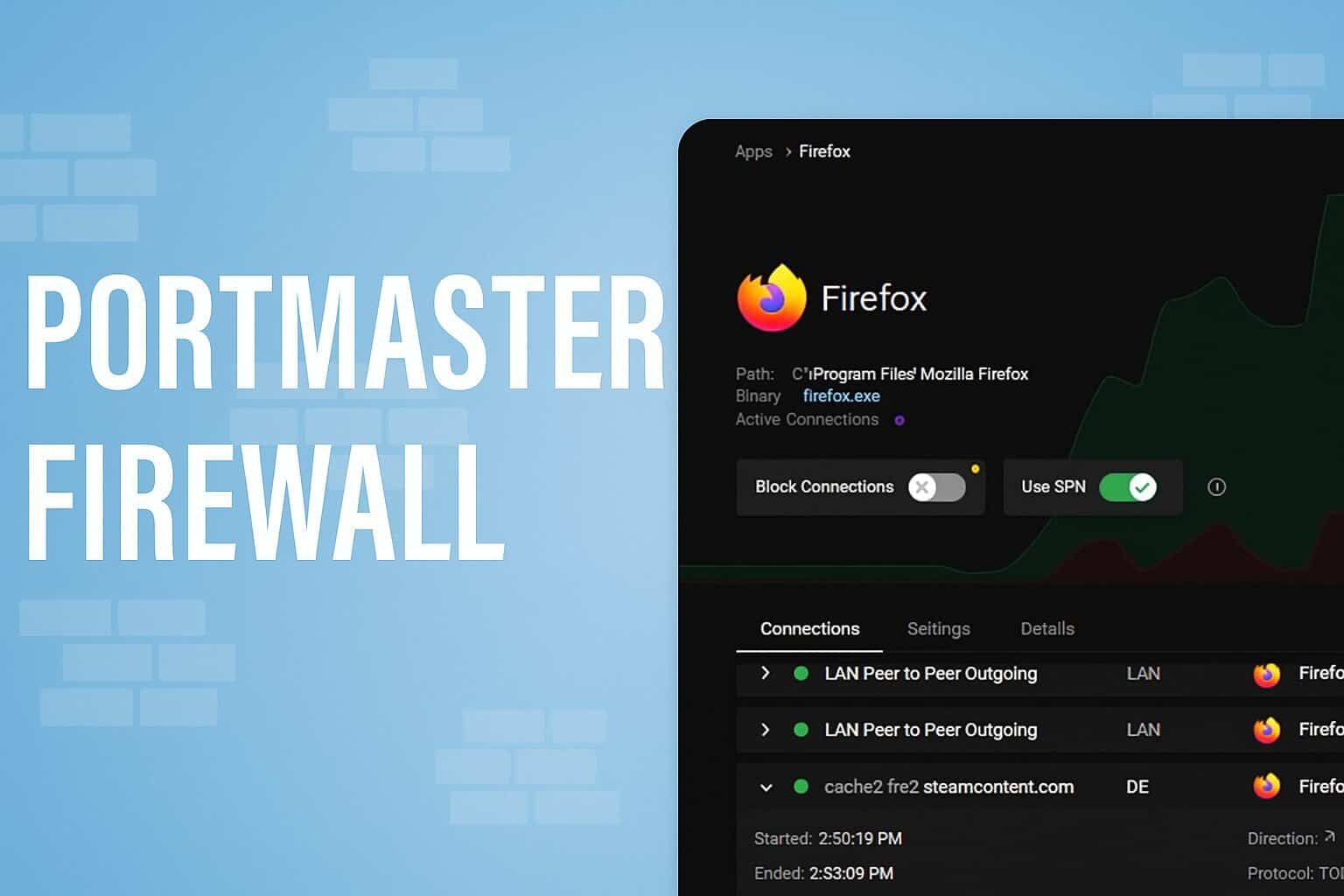
What Is Portmaster Firewall? Complete Windows Setup Guide

If you want more control over your network connections and online privacy, Portmaster Firewall is one of the best free tools you can install on Windows. It helps you block unwanted tracking, monitor all internet connections, and encrypt your DNS traffic automatically.

This guide explains what Portmaster does and walks you through the setup and configuration process step by step.

What Is Portmaster Firewall and How to Use It on Windows?

How to Install Portmaster Firewall on Windows

  1. Go to the official Portmaster website: https://safing.io.
  2. Click Download for Windows and save the installer file.
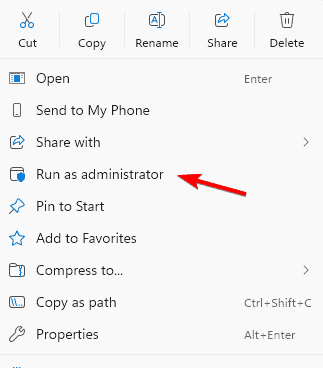
  3. Open your Downloads folder and right click the installer.
  4. Select Run as administrator to launch the setup.
  5. Accept the license agreement when prompted.
  6. Choose an installation location or use the default path.
  7. Click Install and wait for the setup to finish.
  8. When complete, Portmaster starts in the background automatically.

If Windows Firewall interferes during setup, see how to check if Windows Firewall is blocking a port or program.

How to Configure Portmaster Firewall

  1. Click the Portmaster icon in the Windows system tray.
  2. Select Open Dashboard to launch the control panel.
  3. Open Settings > Network to review your current network setup.
  4. Enable DNS over HTTPS (DoH) to encrypt DNS traffic.
  5. Choose your preferred secure DNS provider from the list.
  6. Go to Privacy Filter and toggle Block Trackers to prevent tracking.
  7. Open Apps to view programs connected to the internet.
  8. For each app, set Allow or Block to control network access.

Understanding how ports work can improve your setup. Learn more about SMB ports 139 and 445.

Why Use Portmaster Firewall?

  • It is free and open source.
  • Visualizes and controls every connection on your PC.
  • Encrypts DNS requests for added security.
  • Blocks trackers and unwanted background activity.
  • Works alongside Windows Firewall without conflicts.

What Is Portmaster Firewall?

Portmaster Firewall is a free, open source privacy firewall that lets you monitor and manage every connection your computer makes to the internet. Unlike traditional firewalls that only block ports or programs, Portmaster also offers privacy filters, DNS encryption, and advanced connection visualization. It is designed for users who want an easy to use but powerful way to safeguard their online activity without manually editing complex firewall rules.

For comparison, review this overview of Windows 10 firewalls to understand how Portmaster differs from built in options.

FAQs

Is Portmaster Firewall safe to use?

What Is Portmaster Firewall? Complete Windows Setup Guide

Does Portmaster replace Windows Firewall?

No. It complements Windows Firewall by focusing on privacy while Windows Firewall handles system level protection.

Can I use Portmaster with a VPN?

Yes. Portmaster works with VPNs and can route apps through them for stronger privacy.

Does Portmaster slow down the internet?

In most cases, no. DNS encryption may add a slight delay that is usually unnoticeable.

Conclusion

Portmaster Firewall is a powerful and user friendly tool that gives you visibility and control over your online activity. By following the steps in this guide, you can install, configure, and start protecting your network connections within minutes. If you value transparency, privacy, and open source software, Portmaster is an excellent addition to your Windows security toolkit.

Windows 11 Now Natively Supports Third-Party Passkey Managers Like 1Password & Bitwarden

Microsoft has rolled out native support for passkey managers with the Windows 11 November 2025 security update. The feature, now generally available, allows you to sign in faster and more securely. In other words, you have all the freedom to choose your preferred passkey manager.

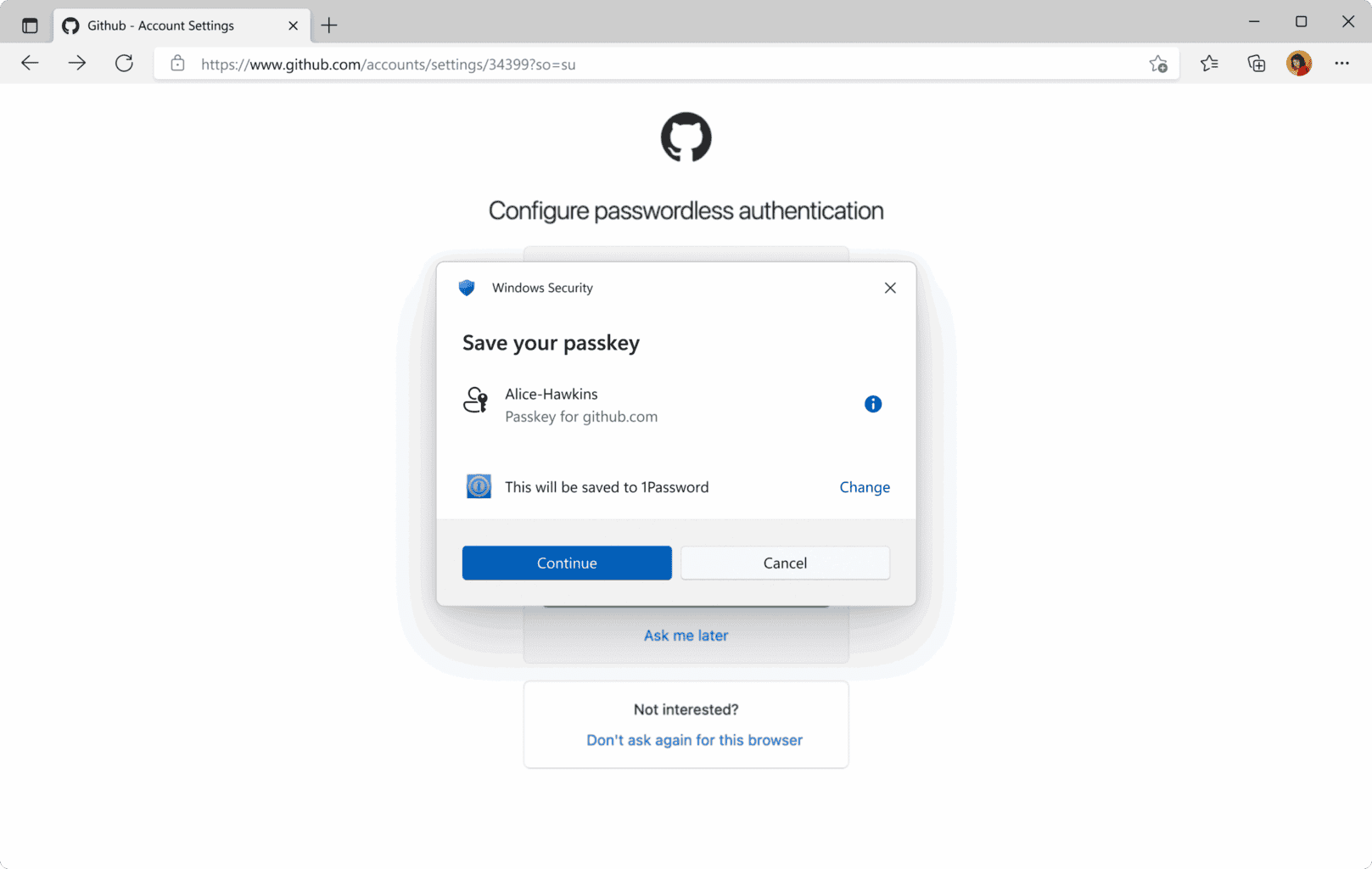
According to Microsoft, the new plugin passkey manager support lets users manage their credentials directly within Windows 11. That means you can now use Microsoft Password Manager, or trusted third-party providers like 1Password and Bitwarden, to create and authenticate passkeys across browsers and native apps.

Travis Hogan, Product Manager at 1Password, said collaborating with Microsoft’s Windows Security team was a “rewarding partnership.” He added that 1Password is proud to be the first password manager offering native passkey support in Windows 11. “We’re proud to give customers a seamless passwordless experience inside and outside the browser,” he added.

Bitwarden had similar thoughts about this collaboration. A statement from the company reads:

Bitwarden is delighted to collaborate with Microsoft on bringing native passkeys to Windows 11. This partnership enables more organizations and users to embrace passkeys confidently, knowing they can manage their credentials securely on Windows and across all their devices and platforms.

Image: Microsoft

As for Microsoft’s own solution, Microsoft Password Manager from Edge is now fully integrated into Windows as a plugin. Passkey operations, including creation, authentication, and syncing, are protected by Windows Hello and hardware-based encryption through Azure Confidential Compute.

Image: Microsoft

For users, this means your passkeys are securely stored, synced, and ready to use across devices.

Manage Privacy Settings in Microsoft Edge: Step by Step

If you want to keep your browsing data private, Microsoft Edge includes built-in privacy tools that let you control tracking, cookies, and data sharing. Follow this guide to manage privacy settings step by step.

How to Manage Privacy Settings in Microsoft Edge?

How to Open Privacy Settings in Microsoft Edge

Start by accessing the main privacy menu where all key options are located.

  1. Launch Microsoft Edge by clicking the Start button and selecting it from your list of apps.
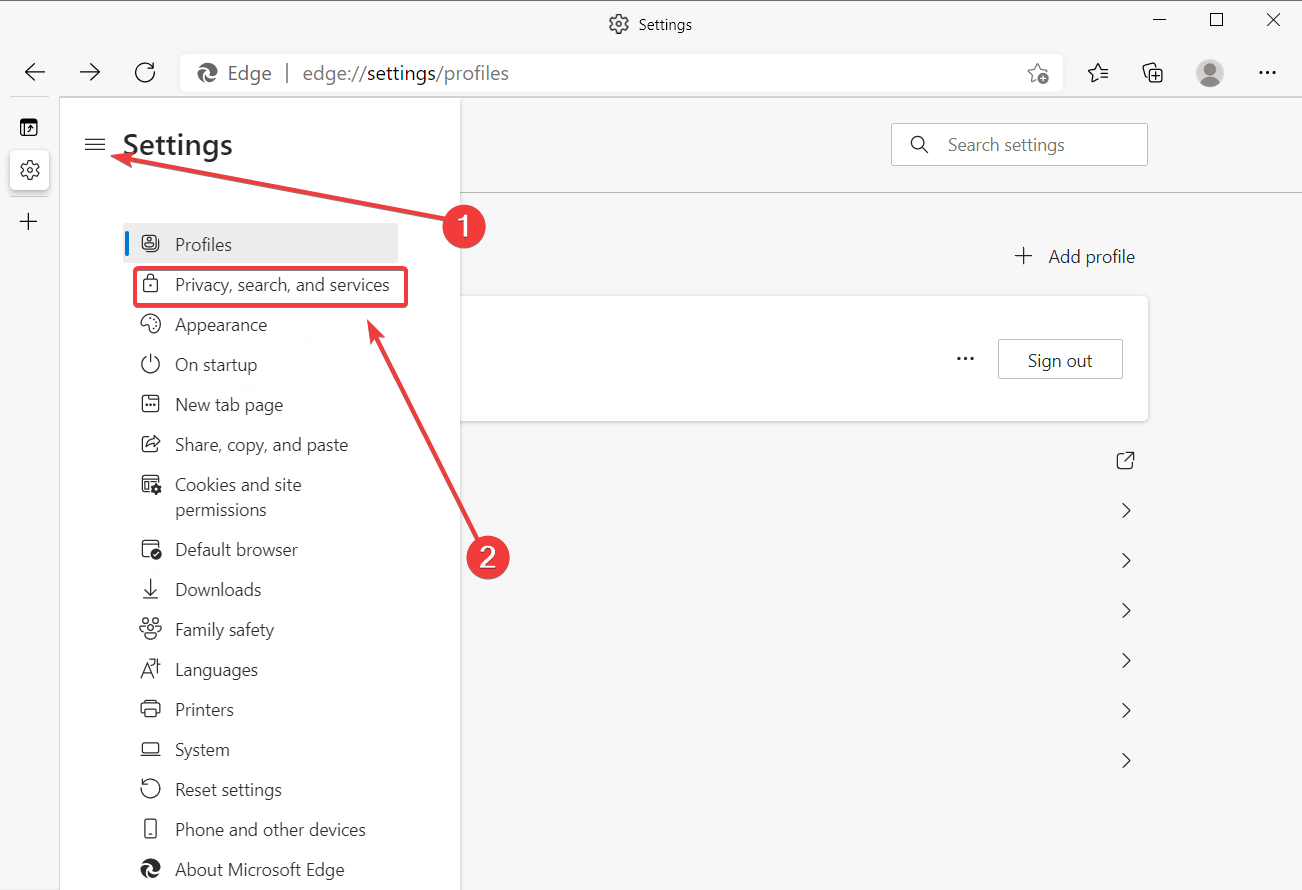
  2. Click the three dots (⋯) in the upper-right corner, then select Settings from the dropdown menu.
  3. In the left sidebar, click Privacy, search, and services to view all privacy and security options.

For a full walkthrough on private browsing, see how to make Microsoft Edge private.

How to Adjust Tracking Prevention in Edge

Modify your tracking level to decide how much data websites can collect while you browse.

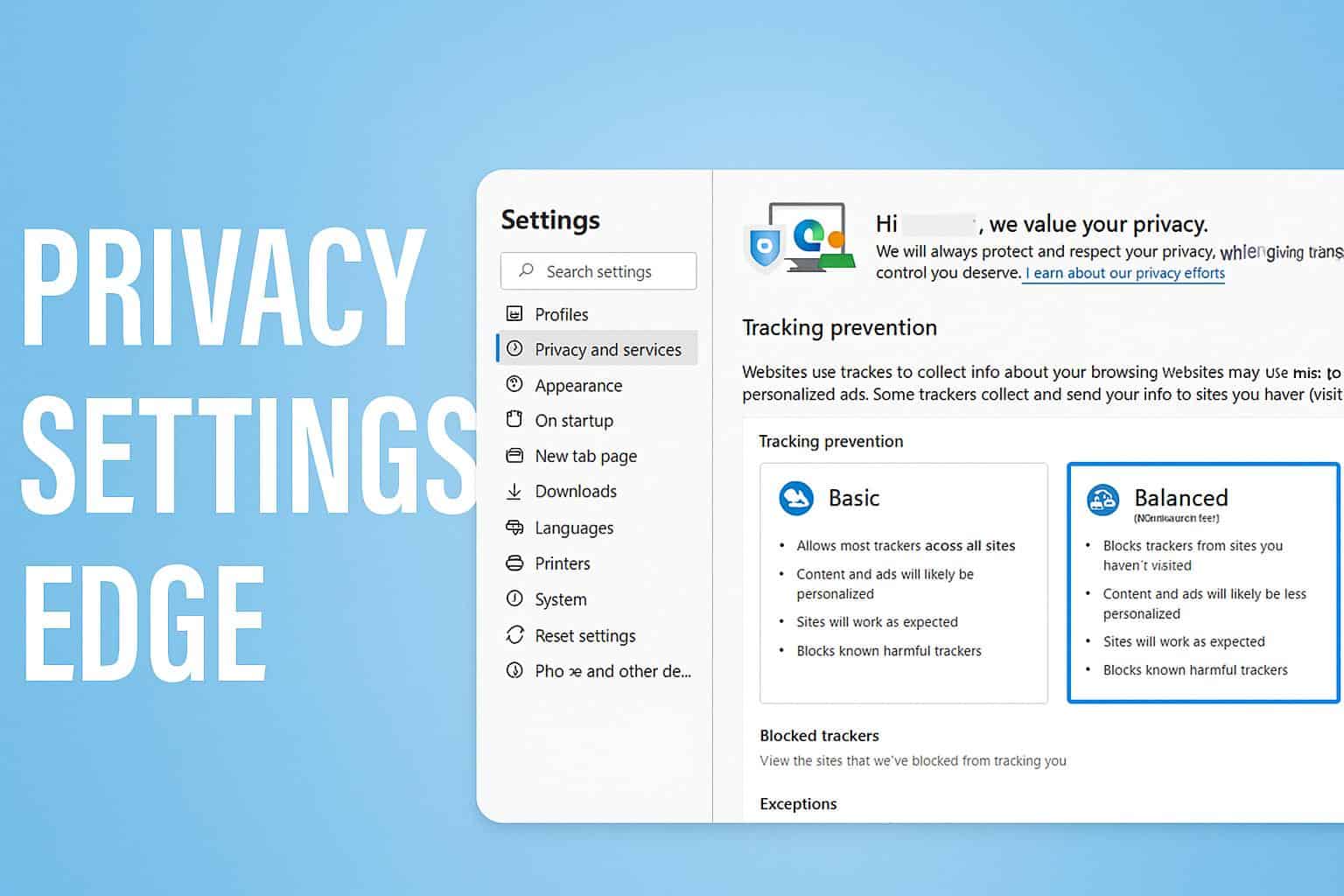
  1. Under Tracking prevention, choose your preferred level:
    • Basic allows most trackers and personalization.
    • Balanced blocks harmful and cross-site trackers (default).
    • Strict blocks most trackers for maximum privacy.
  2. Click Exceptions to allow certain trusted sites to bypass your tracking settings.

Learn more about optimizing privacy and search settings in how to set up Microsoft Edge for privacy.

How to Clear Browsing Data in Edge

Use this feature to delete your history, cookies, and cache for better privacy and performance.

  1. In Settings, go to Privacy, search, and services and scroll down to Clear browsing data.
  2. Click Choose what to clear.
  3. Check the boxes for Browsing history, Cookies, or Cached images.
  4. Select a time range, then click Clear now.

How to Manage Cookies and Site Permissions

Control which sites can store data or track your online activity.

  1. Open Cookies and site permissions in the left sidebar.
  2. Click Manage and delete cookies and site data.
  3. Toggle Block third-party cookies for better privacy.
  4. Optionally, allow specific sites if you trust them.

How to Use Secure Browsing Features

Enhance your security by turning on built-in protection and encryption tools.

  1. Turn on Microsoft Defender SmartScreen:
    • Open the Security section in Settings.
    • Enable Microsoft Defender SmartScreen to block phishing and malicious sites.
  2. Enable HTTPS Mode:
    • In the Security section, toggle Automatically switch to HTTPS for all websites.
  3. Check Password Security:
    • Go to Settings > Profiles > Passwords.
    • Use Password Monitor to get alerts if your credentials are leaked.

If you want more control over your browsing experience, check out how to change the default search engine in Microsoft Edge.

FAQs

Quick answers to common privacy questions in Edge.

Does Edge have a private browsing mode?

Yes. Open a new InPrivate window with Ctrl + Shift + N or select it from the menu.

Can I stop Edge from saving passwords?

Yes. Go to Settings > Profiles > Passwords and turn off Offer to save passwords.

How often should I clear browsing data?

Clear it weekly or enable the option to delete data automatically when you close Edge.

Can I sync my privacy settings across devices?

Yes. Sign in with your Microsoft account and enable Sync to apply privacy preferences across all your devices.

Conclusion

Managing privacy settings in Microsoft Edge helps you stay secure and in control of your data. By adjusting tracking levels, clearing browsing data, and enabling built-in protection, you can enjoy a safer, faster, and more private experience online.

KB5068861 Allegedly Fails to Install on ROG Ally X; Throws 0x80071ab0 & 0x800f0991 Error

Microsoft’s recent Windows 11 security update, KB5068861, has started to trouble some users. A new Reddit post by user u/claireus, spotted first by Windows Report, claims that the November 2025 Patch Tuesday update released yesterday consistently fails to install on their ASUS ROG Ally X.

Per the user, it shows only a “Retry” message each time they attempt the update. It seems the issue hasn’t just affected one user. At the time of writing this, we come across a comment from another user, u/hosseinfarnia, who reports a similar issue. Per the user, KB5068861 installation failed on their ASUS ROG Ally X, with error code 0x80071ab0.

On the second attempt, the user came across error code 0x800f0991. Fortunately, the installation completed on the third attempt. For reference, 0x80071ab0 is related to corrupted system files or an issue with the Windows Update component store.

The error code 0x800f0991 also points to similar reasons. But it can also be related to problems with the Windows Update service not being able to download or install the necessary files properly.

Whatever may be the case, if you own ROG Ally X and face a similar issue, try installing the update a few times. If that doesn’t make things better, you can also follow the steps mentioned here.

Earlier today, we also reported that KB5068861 allegedly broke one user’s PC running Windows 11 25H2. That said, some users point to an issue related to the graphics card. If you haven’t gone through that story, read it here.

How to Find Your Steam ID on PC and Web (Step-by-Step Guide)

Your Steam ID is a unique number assigned to your Steam account. You may need it for linking accounts, joining servers, or verifying your profile. Here’s how to easily find your Steam ID using different methods.

How to Find Your Steam ID?

1. Find Steam ID via Steam Client

If you have the Steam app installed, this is the quickest way to locate your ID.

  1. Open the Steam app on your PC.
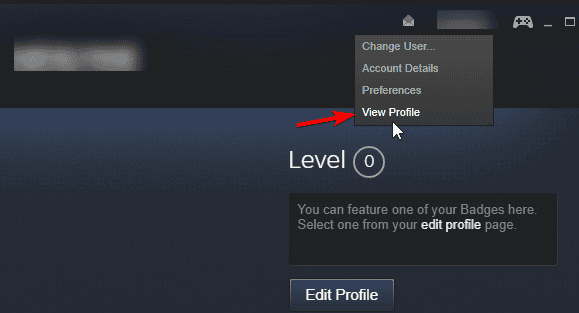
  2. Click your username at the top and select View my profile.
  3. Right-click on your profile page and choose Copy Page URL.
  4. Your Steam ID is the number at the end of that URL. Example: https://steamcommunity.com/profiles/76561198000000000

For more ways to connect with other users, check out this guide on Steam user search.

2. Find Steam ID Using the Website

You can also find your Steam ID through Steam’s web version.

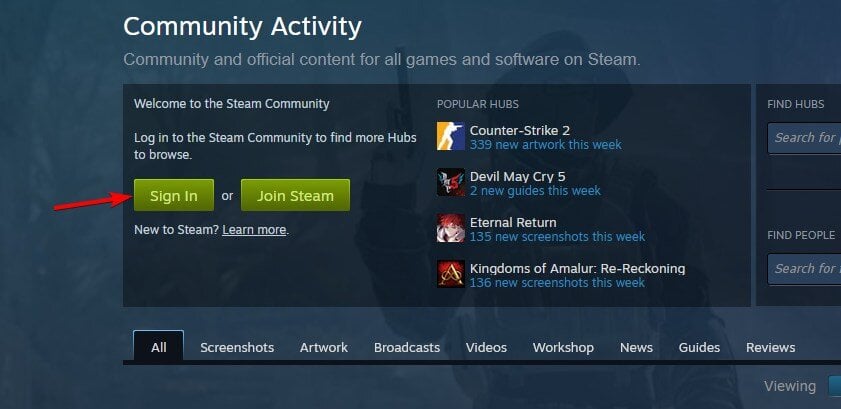
  1. Visit Steam Community and sign in.
  2. Click your profile name at the top right.
  3. Look at the URL in the address bar.
  4. The number after /profiles/ is your Steam ID.

If you’re managing multiple Steam accounts, you might also find it useful to learn how to redeem Steam codes.

3. Find Steam ID Using Third-Party Tools

If you use a custom URL instead of a numeric one, tools can help you retrieve it.

  1. Go to SteamID.io in your browser.
  2. Enter your Steam profile link or custom URL.
  3. Click Lookup.
  4. The site will show your SteamID, SteamID3, and SteamID64 information.

4. Enable URL Display in Steam Settings

Your profile URL may be hidden by default. Here’s how to make it visible.

  1. Open Steam and click Steam in the top-left corner.
  2. Select Settings, then go to Interface.
  3. Check Display web address bars when available.
  4. Click OK, then revisit your profile page to see your ID.

If you’ve recently moved or changed locations, you may also want to read about how to change your Steam region.

FAQs

What is my Steam ID used for?

It identifies your account in games, mods, and online communities.

Can I change my Steam ID number?

No, the numeric ID is permanent, but you can change your custom profile URL anytime.

Is it safe to share my Steam ID?

Yes, sharing it is safe since it doesn’t expose personal information.

What’s the difference between Steam ID and Steam username?

Your Steam ID is a permanent numeric identifier, while your username is a display name you can change anytime.

Conclusion

Finding your Steam ID is simple through the Steam client, website, or online lookup tools. Whether you need it for mods, multiplayer servers, or account verification, these steps make it easy to access your unique identifier.

Major Nelson Reflects on Xbox 360’s 20th Anniversary with a Priceless Custom Console

Larry Hryb, who is better known as Major Nelson, recently reminded everyone about the 20th anniversary of the Xbox 360 (falling on November 22nd) with a heartfelt post on X (formerly Twitter).

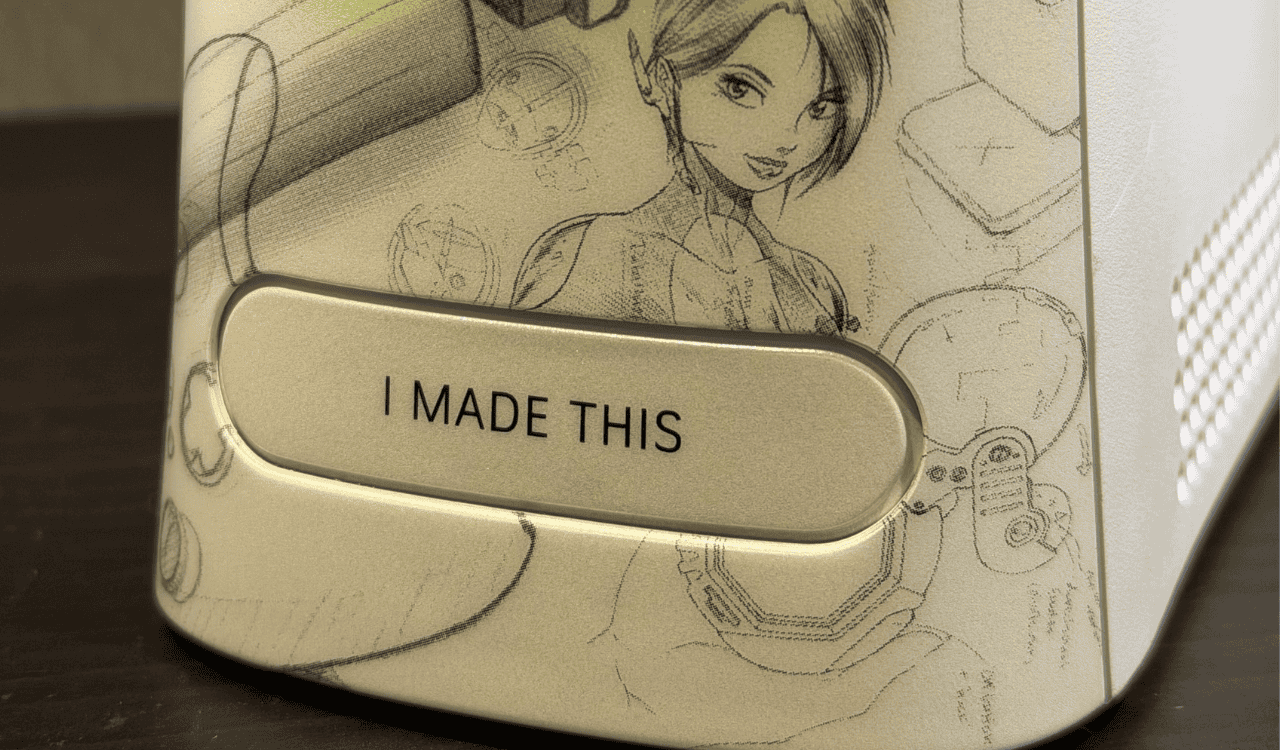
The longtime Xbox community figure shared photos of his original launch console, which he says was gifted to every team member who helped bring the Xbox 360 to life back in 2005.

“Later this month marks the 20th anniversary of kicking off the HD era with the launch of Xbox 360,” Hryb wrote in a post on X. “Helping build, ship and launch this console was one of the most magical professional moments of my career. Here, for the first time…are photos of my launch console that each team member receiived as a thank you. Fun fact: I have NEVER turned this console on,” he added.

Check out the images below:

Image credit: Mark Nelson on X

When asked which game, Hryb replied that he would pick Hexic. Foe those unaware, it’s the classic puzzle game that came preinstalled on launch consoles.

Image credit: Mark Nelson on X

In the replies, fans were quick to joke that powering it on now might trigger the infamous Red Ring of Death. For those unaware, it was a hardware issue that plagued many early units of Xbox 360. Others noted that it could still boot into the iconic “Blades” dashboard, which would make it a rare and nostalgic find if it still works.

To catch you up, Hryb left Xbox in 2023 after two decades but remains one of the brand’s most beloved ambassadors. His latest post is a warm reminder of an era that helped define modern gaming.

Speaking of consoles, The PlayStation 5 has now officially outsold every Xbox console ever released. According to Sony’s latest financial report, the PS5 has sold 84.2 million units worldwide since its 2020 debut. If we have to compare, the Xbox 360 took an entire decade to reach similar figures.

via Pure Xbox