Microsoft has announced a fresh lineup of games joining Xbox this week, from October 13 to 17. From high-speed racing to heartwarming adventures and creative indie hits, there’s something for everyone to look forward to. Let’s take a quick look at the highlights and release dates.
First, NASCAR 25 races onto Xbox on October 14, bringing the most realistic racing experience yet. Tuned by real NASCAR drivers and teams, the game features detailed tracks, lifelike visuals, and modes ranging from Quick Race to full Championship and Career options. You can climb from ARCA Menards to the NASCAR Cup Series, earning your way to the top.
Next up, you’ve Keeper, which is launching on October 17. Double Fine Productions offers a surreal, wordless journey through a mysterious world in this game. You play as a lighthouse keeper brought to life, joined by a spirited seabird as you explore an island full of secrets and visual storytelling that speaks volumes without dialogue.
On October 16, Ember Knights: Heroes of the Nexus Edition lands on Xbox with its fast-paced rogue-lite gameplay. Play solo or with up to four players as you hack and slash through corrupted worlds, battling powerful bosses and restoring energy to the Ember Tree.
Fans of darker storytelling can dive into Decision: Red Daze on October 14, a survival action game set in a devastated world plagued by infection. If you’re looking for something festive, The Elf on the Shelf: Christmas Heroes launches on October 16, bringing cheerful platforming and a dose of holiday spirit.
Rounding out the week are titles like Ball x Pit, a fast-paced roguelite dropping on October 15, and Kaku – Ancient Seal, an open-world action adventure launching on October 16. Microsoft has added even more games, you can always chek the official announced we linked at the top of this news article.
Several users have also reported similar problems on Microsoft’s Q&A forums, noting that the MCT closes right after launch. The issue, affecting version 26100.6584 released on September 29, 2025, causes the tool to close unexpectedly without showing an error message.
As spotted by Windows Latest, the issue surfaced shortly after the September update rolled out. According to Microsoft’s official documentation, the bug impacts Windows 10 version 22H2 devices when attempting to create Windows 11 installation media. The MCT is typically used to create bootable USB or DVD drives for reinstalling or clean installing Windows 11.
However, users running Arm64-based PCs are particularly affected, as the tool is currently unsupported on that architecture. For now, Microsoft recommends downloading Windows 11 installation media directly from its official site.
Moreover, the company says it is already working on a fix, which will be included in a future version of the Media Creation Tool. Until then, users will need to rely on direct ISO downloads to perform reinstalls or upgrades.
Windows Security is your built-in antivirus and protection center in Windows 11. It helps safeguard your PC from viruses, ransomware, and other threats. Here’s how to open, use, and configure Windows Security effectively.
Scanning your PC regularly helps detect and remove malware before it causes damage.
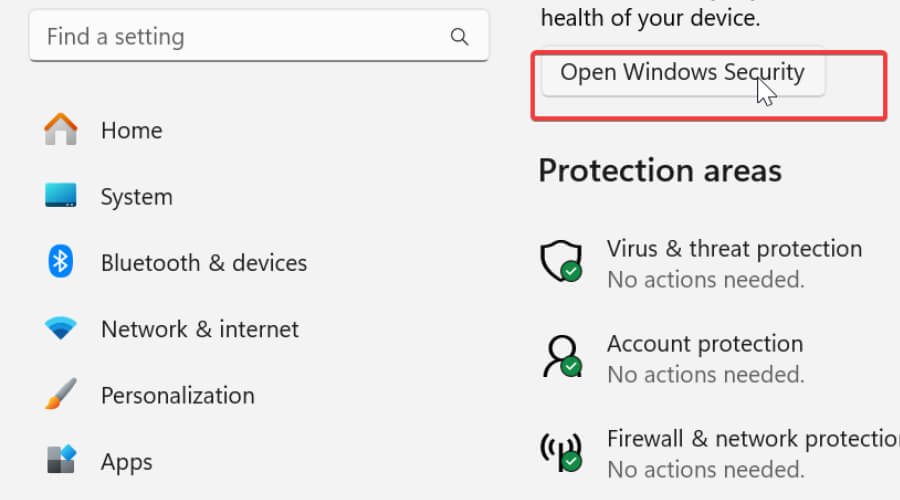
Open Windows Security.
Select Virus & threat protection.
Click Quick scan to check for immediate threats.
For a deeper scan, select Scan options then choose Full scan or Microsoft Defender Offline scan.
Wait for the scan to finish and follow any recommendations displayed.
Run a full scan weekly to catch hidden threats.
How to Enable Real-Time Protection
Real-time protection continuously monitors your system for threats and prevents infections.
Go to Virus & threat protection settings.
Click Manage settings.
Turn Real-time protection to On.
Ensure Cloud-delivered protection and Automatic sample submission are also on.
These settings help Windows automatically detect and block new threats as they appear.
How to Use Firewall & Network Protection
The built-in firewall guards your network connections and blocks unauthorized access.
In Windows Security, select Firewall & network protection.
Check the status of Domain, Private, and Public networks.
Verify each shows “Firewall is on”.
Click Allow an app through firewall to give trusted apps network access.
A firewall reduces risk from unauthorized connections and network attacks.
How to Manage App & Browser Control
App & Browser Control protects you from unsafe websites, downloads, and suspicious files.
Open Windows Security and select App & browser control.
Under Reputation-based protection, click Turn on if it is disabled.
Enable SmartScreen for Microsoft Edge and Check apps and files.
Set Potentially unwanted app blocking to On.
This layer helps block malicious sites and unwanted downloads.
How to Protect Your Device from Ransomware
Turning on ransomware protection helps secure important files from encryption attacks.
In Windows Security, click Virus & threat protection.
Scroll to Ransomware protection and click Manage ransomware protection.
Turn on Controlled folder access.
Add folders you want to protect from unauthorized changes.
This feature keeps your personal files safe from encryption by ransomware. If the Windows Security app is not working correctly, learn how to reinstall Windows Security in Windows 11.
Why Use Windows Security?
It is free and automatically updated.
Provides real-time protection against malware.
Includes firewall and SmartScreen integration.
Requires no third-party installation or subscription.
To learn how Microsoft security agents operate behind the scenes, try visiting our Microsoft security agents guide.
FAQs
Is Windows Security enough protection?
Yes. For most users, it offers complete protection when kept updated and combined with safe browsing habits.
How often should I run scans?
A quick scan runs automatically, but you should do a full scan at least once a week.
Can I use another antivirus with Windows Security?
You can, but doing so may disable real-time protection in Windows Security to avoid conflicts.
How do I check if Windows Security is running?
Open the taskbar search, type Windows Security, and launch it. If all sections show green checkmarks, your PC is protected.
Conclusion
Keep Windows Security updated and active for continuous protection. Regular scans, firewall checks, SmartScreen protections, and ransomware controls work together to keep your PC secure.
Microsoft’s new research warns about the growing use of Shadow AI across UK workplaces. Per the research, around 71% of employees admit to using unapproved AI tools, with over half doing so weekly.
The company says this trend risks serious data privacy and cybersecurity threats for businesses. According to Microsoft’s UK report, many workers use public AI chatbots and text generators for daily tasks. Nearly 49% rely on them to draft emails, 40% for reports or presentations, and 22% for finance-related work.
That said, only one-third worry about exposing company or customer data to such tools. Even fewer, about 29%, are concerned about their organisation’s system security.
Speaking about the AI usage in the country, Darren Hardman, CEO of Microsoft UK and Ireland, says, “UK workers are embracing AI like never before, unlocking new levels of creativity.”He further added, “But enthusiasm alone isn’t enough. Businesses must ensure workplace AI tools are secure and reliable.”
Microsoft warns that Shadow AI leaves organizations open to data leaks, regulatory issues, and cyberattacks. Most public AI assistants lack enterprise-level protection, increasing the risk of misuse.
While Shadow AI tools pose a risk, the productivity boost reported in the research is quite remarkable. Employees report saving up to 7.75 hours a week using AI tools. That equals 12.1 billion hours annually, valued at around £208 billion in time.
With optimism growing, 57% of UK workers feel confident or excited about AI’s potential. Moreover, Microsoft urges companies to balance productivity with protection by adopting secure, enterprise-approved AI systems.
Learn how to block or allow pop-ups in any browser with simple steps. Whether you want to stop annoying ads or enable pop-ups for trusted sites, this guide covers everything you need.
Firefox gives you control over pop-ups through the Permissions section in its settings.
Click the Menu button in the top-right corner.
Select Settings.
Choose Privacy & Security from the sidebar.
Scroll to the Permissions section.
Check Block pop-up windows to stop pop-ups.
To allow pop-ups on specific sites, click Exceptions and add the site URL.
Block or Allow Pop-Ups in Safari (Mac)
Safari’s website settings let you manage pop-ups for individual sites or all pages.
Open Safari.
Click Safari in the top-left menu and select Settings or Preferences.
Go to the Websites tab.
Select Pop-up Windows from the sidebar.
Next to each website, choose Block, Block and Notify, or Allow from the dropdown menu.
Why You May Need to Allow Pop-Ups
Some secure websites use pop-ups for login, verification, or payments, so allow them only on trusted sites for a smooth and safe experience.
FAQs
Why are pop-ups blocked by default?
Browsers block pop-ups to protect users from unwanted ads, redirects, and malicious scripts.
Can pop-ups contain viruses?
Yes. Some pop-ups lead to unsafe websites or downloads, so allow them only from trusted sources.
How do I allow pop-ups temporarily?
When a browser blocks a pop-up, an icon appears near the address bar. Click it and choose to allow once or always for that site.
Do I need to enable pop-ups for banking or government sites?
Yes. Many secure sites rely on pop-ups for login forms, statements, or payment verification.
Conclusion
Blocking pop-ups improves security and focus, but some sites need them to work correctly. Use each browser’s controls to allow only what you trust. If you keep getting persistent alerts or suspicious messages, follow this guide to fix browser alert pop-ups.
For smoother keyboard navigation and easier text selection while browsing, try enabling Caret Browsing. It works in Chrome, Edge, and Firefox, and you can learn more in our Caret Browsing guide.
Learn how to change location in Windows 11 easily using built-in settings and privacy options. This guide covers every method to adjust your default location or set it manually when GPS data is unavailable.
4. Change Location Using Registry Editor (Advanced)
If Settings is not working, you can adjust location manually via the registry.
Press Windows + R, type regedit, and press Enter.
Navigate to: HKEY_LOCAL_MACHINE\SYSTEM\CurrentControlSet\Services\lfsvc\Service\Configuration
Double-click Status and set the value to 1 to enable location.
Restart your PC to apply the changes.
Tip: Always back up your registry before editing.
Why Change Location in Windows 11?
Fix region-specific errors in apps or Microsoft Store.
Access local weather and news accurately.
Enable correct regional settings for language and currency.
Improve navigation accuracy for maps and other location-based tools.
FAQs
How do I fake my location on Windows 11?
You can use a VPN or a location spoofing app to simulate being in another region.
Why is my location wrong in Windows 11?
Incorrect time zone or disabled location services can cause wrong readings. Ensure GPS or Wi-Fi detection is enabled.
Can I change my Microsoft Store country?
Yes, go to Settings > Time & language > Language & region, then select your new country.
How do I reset my default location in Windows 11?
Open the Maps app, go to Settings > Default location, and click Change default location to pick a new one.
Conclusion
Changing your location in Windows 11 helps tailor apps, services, and system settings to your region. Whether you want accurate weather updates, localized store content, or better map accuracy, following the steps above ensures your device reflects your real or preferred location quickly and safely. If you also want to adjust your system language after changing regions, learn how to change language in Windows 11.
After boosting security in Chrome, Google is testing a new safety feature in the browser to protect users from online threats on unfamiliar websites. The feature, called Automatic JavaScript Optimizer Control, is now available for those testing Chrome Canary.
This option appears in Chrome’s Privacy and Security settings as “Automatically disable JavaScript optimizers on unfamiliar sites.”
When you turn on this setting, Chrome blocks certain speed features the first time you visit any webpage. This makes it harder for harmful scripts to do any damage. Trusted sites you use regularly aren’t affected and will keep working as usual.
Chrome’s New Security Setting Helps Keep You Safe on Unfamiliar Sites
Chrome’s V8 engine helps websites work by making pages load fast and keeping features like buttons and videos running without interruption. Part of this engine, the JavaScript optimizer, helps code run fast. Unfortunately, attackers sometimes use it to sneak in harmful scripts.
In Privacy and Security → JavaScript optimization & security, Chrome gives users two main options:
Sites can use JavaScript optimization: Chrome runs faster, and websites work as designed. This keeps things speedy and fully functional.
Don’t allow sites to use JavaScript optimization: Chrome becomes more secure, but websites may slow down, and some features may not work as well.
Up until now, users had to choose between speed and safety.
Now, Google is testing a third choice:
Automatically disable JavaScript optimizers on unfamiliar sites: Block access to the JavaScript optimizer on newly visited sites.
Chrome’s new security setting for unfamiliar sites. Image Credit: Venkat | WindowsReport.
With this new setting, Chrome can add extra protection when you visit a website for the first time. It helps to stop dangerous scripts on new or unknown websites. Familiar sites stay quick and work normally.
Turning off JavaScript optimization everywhere makes many sites slower. Leaving it on all the time can limit protection. This option helps Chrome act with care on new pages while keeping your favorite sites working normally.
This control is optional. It gives users more say in how Chrome handles newly visited sites.
Automatic JavaScript Optimizer Control brings extra protection to Chrome. It blocks harmful scripts on sites you haven’t visited before.
Despite testing Infinite Tabs Freezing, Google is making a quiet but meaningful change to how Chrome handles tabs on desktop. Chrome will turn off something called “Memory Purge on Freeze” by default. This change affects how your computer manages memory when you have lots of tabs open.
Usually, when you leave a tab, Chrome freezes it so it stops using resources. Until now, Chrome has also cleared some of that tab’s memory to save space. But Google’s recent tests found that this extra cleanup didn’t make things faster and could actually make reopening tabs slower.
Chrome Updates Frozen Tab Handling for Faster Switching
Now, Chrome will keep frozen tabs in memory instead of clearing them out. If you come back to a tab you left earlier, it loads quickly as opposed to refreshing or starting over.
Google tested this on Windows, Mac, and Chromebook devices. They found there’s no drop in performance when memory purging is turned off. This adjustment lets Chrome freeze more tabs without slowing down or overloading the computer.
For anyone who likes to keep many tabs open, this means switching back and forth should feel easier. The update will roll out on Chrome for Windows, Mac, and Chromebooks. Tab switching should feel quicker, with frozen pages ready as soon as you need them.
This small change could make Chrome a bit faster when moving between tabs. Instead of reloading frozen pages, Chrome now keeps them ready in memory so they reopen instantly.
That’s not all. Chrome is preparing a new Next New Tab with Action Chips and a redesigned search box. Google is also using Gemini AI for Chrome code reviews, and testing a CPU Performance API that helps websites see how powerful your device is.
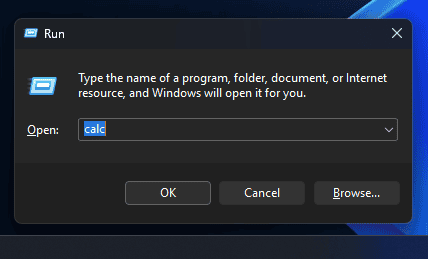
The update aligns the classic Run window with modern Fluent Design principles, bringing a consistent look to one of Windows’ most familiar utilities. When the system is in dark mode, the Run dialog now matches it perfectly, removing the bright clash that existed before.
It’s a small visual tweak, but it reflects Microsoft’s ongoing effort to unify legacy and modern elements across Windows 11. The change is rolling out gradually for Insiders who have enabled “Get the latest updates as soon as they’re available” under Settings > Windows Update.
As Microsoft continues updating the OS, these visual and workflow updates are shaping a Windows 11 experience that feels polished, intelligent, and seamless across every corner.
Windows 11 Insider Dev Preview Build 26220.6780 (KB5067103) brings a major quality-of-life improvement to Click to Do (Preview) on Copilot+ PCs. If you are on Beta channel the same feature will roll out undsr the same KB but with Build 26120.6780.
Click to Do now uses visual highlights to mark actionable items, like tables, emails, or documents, right on your display. You can simply click on them to perform contextual actions such as replying, summarizing, or editing without leaving the screen.
Microsoft says these smart cues help users “act on what matters,” bridging the gap between detection and execution. The update also fixes a display alignment issue that misplaced swipe animations when launching Click to Do from the right edge.
For a full feature overview, check out related KB5067103 updates including the Drag Tray redesign and Dark Mode for Run dialog, both aimed at creating a smoother experience on Windows 11.
Microsoft has released Windows 11 Insider Preview Build 26220.6780 (KB5067103) in the Dev Channel, introducing a revamped Settings Agent designed for Copilot+ PCs.
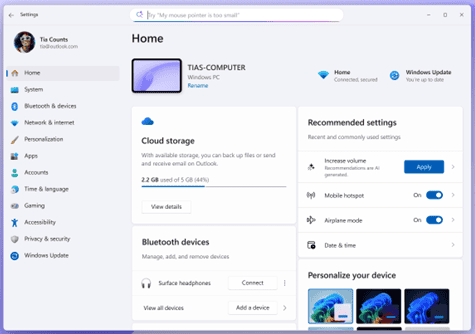
The new Settings Agent adds AI-powered convenience, showing inline recommendations and faster search results.
Users can now tweak or reverse recently modified options directly under Recommended Settings, saving time and clicks. The improved Search section displays more results with quick actions. For example, searching “increase volume” opens a handy slider instead of digging into menus.
Image: Microsoft
If an option can’t be changed further, the agent explains why, giving users clarity and control. This step-by-step guidance feels like a smart extension of Copilot’s system awareness, aiming to make Windows settings feel conversational and proactive.
The rollout is gradual, so not all Insiders may see it yet. You can also check other changes coming with KB5067103, such a Drag Tray upgrade and Dark Mode for Run, all part of Microsoft’s push to modernize system utilities for Copilot+ PCs.
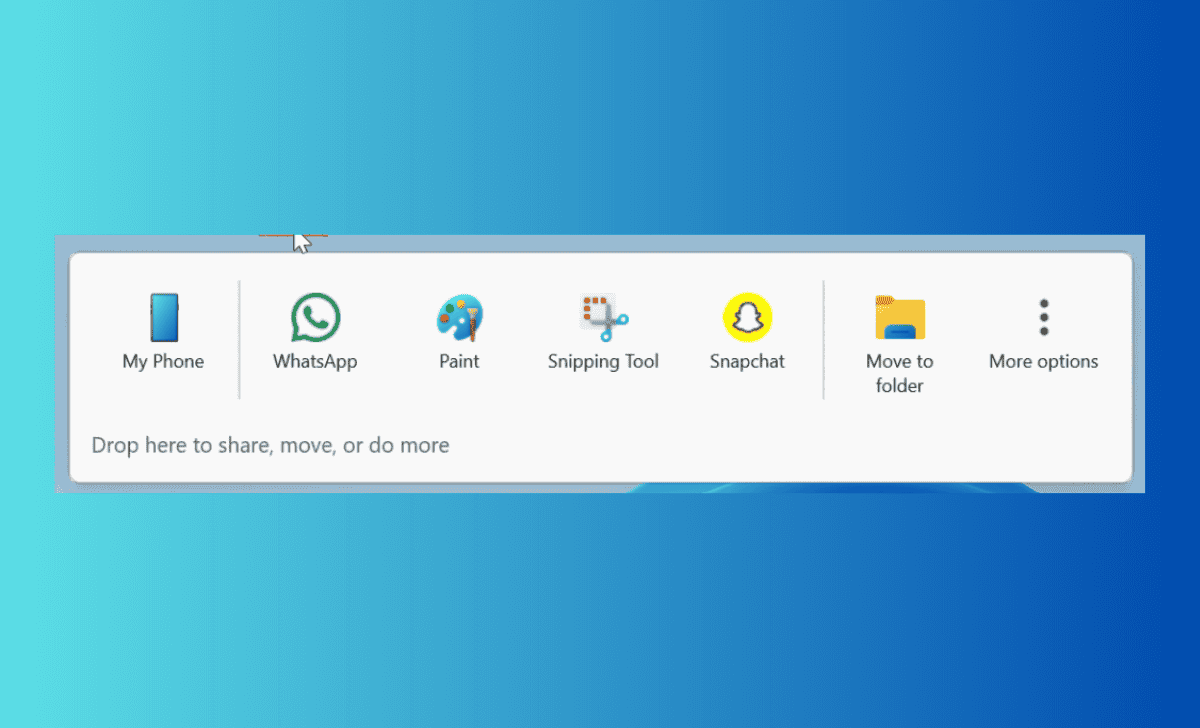
The new Drag Tray supports multi-file sharing and can intelligently suggest relevant apps such as WhatsApp, Paint, or Snapchat when you move files. It also allows users to drag items directly into folders, speeding up everyday organization.
Image: Microsoft
The redesigned interface is aimed at making file sharing and movement more fluid, reducing friction for multitaskers juggling between communication and creative tools.
This update continues Microsoft’s trend of polishing the visual workflow across Windows 11, especially for Copilot+ PCs where seamless integration is key.
If you’re testing this update, you may also notice other features included in KB5067103, like the new Settings Agent and Click to Do visual upgrade. Together, they build toward a more connected and context-aware Windows experience.
Microsoft is bringing back nostalgia in style with the Windows XP-themed Crocs. As reported by The Verge, the cool Crocs are now available for $79.95 through the company’s official online store.
The Crocs perfectly capture the look of Windows XP’s iconic “Bliss” wallpaper, a bright blue sky with white clouds above a rolling green hill. The Crocs mimic that aesthetic, pairing a soft sky-blue upper with a grassy green sole for a playful, retro vibe that screams early-2000s tech nostalgia.
Image: Microsoft
Each pair comes with a six-pack of exclusive Microsoft Jibbitz charms, including Clippy, Internet Explorer, the MSN butterfly, a mouse pointer, and the original Windows logo. Buyers also get a Windows XP-themed drawstring backpack, rounding out the collector’s set.
Microsoft first teased the shoes in August, initially offering them to employees. While these Crocs aren’t part of an official Crocs partnership, Microsoft says the collection is a “fun, limited-run celebration” to mark its five decades of innovation and cultural influence.
If you’ve encountered error code CE-117773-6 on PlayStation 5 (PS5), you must be aware that this error usually appears while downloading or updating games, often linked to unstable network connections, temporary cache issues, or PlayStation Network (PSN) outages.
It can also occur when the console struggles to verify licenses during a download. The good news is that most users can fix it without sending their console for repair. Here’s a complete, step-by-step guide to resolving the issue and getting your PlayStation 5 back on track.
Fix PS5 Error Code CE-117773-6 With These 6 Methods
Follow these fixes in order, starting from the easiest to the more advanced ones.
1. Restart Your PS5 and Network Devices
A simple restart often clears temporary issues that trigger the error code CE-117773-6.
Unplug your router/modem for 60 seconds.
Turn your router back on, wait until it reconnects, then power on your PS5.
Retry the download or update.
2. Check PlayStation Network (PSN) Status
Sometimes, the problem isn’t on your end. If PSN servers are down, the error can appear during downloads or updates.
Check if Game and Network Services show any outages.
If PSN is down, wait until it’s restored, then try again.
3. Rebuild Database in Safe Mode
A corrupted cache or database can prevent downloads from completing. Rebuilding the database can fix this without deleting data.
Turn off your PS5 completely.
Hold the power button until you hear the second beep (about 7 seconds).
Connect your controller via USB and press the PS button.
Select Option 5: Rebuild Database.
Wait for the process to complete, then restart and test the download.
4. Change DNS Settings
Switching to a reliable DNS can stabilize connections and reduce download errors.
Select your active connection and choose Advanced Settings.
Under DNS Settings, choose Manual.
Set Primary DNS to 8.8.8.8 and Secondary DNS to 8.8.4.4 (Google DNS).
Save and restart your console.
5. Update PS5 System Software Manually
Outdated firmware can trigger error CE-117773-6 during downloads. If automatic updates fail, install them manually via USB.
Visit PlayStation’s update page.
Download the latest update onto a USB drive in a folder named PS5 > UPDATE.
Boot your console in Safe Mode and select Update System Software > Update from USB Drive.
Follow the on-screen steps to complete the process.
6. Factory Reset (Last Resort)
If nothing else works, performing a factory reset can clear deep system issues causing the error. Back up your data first.
Go to Settings > System > System Software > Reset Options.
Choose Reset Your Console.
After the reset, set up your PS5 and test downloads again.
What Causes PS5 Error CE-117773-6?
This error generally appears due to one or more of the following:
Poor or unstable internet connection
Temporary PSN service issues
Corrupted game or system data
Outdated system software
DNS or cache conflicts
Summing Up
The PS5 error CE-117773-6 can be frustrating, but it’s rarely a hardware issue. Most players resolve it through simple steps like restarting, checking PSN, rebuilding the database, or updating system software. If the issue persists, contact PlayStation Support for assistance or schedule a repair through the official site. In case you run into the WS-117178-5 error code in PS5, make sure to check this guide. For error code CE-33743-0, you can check this guide.
FAQs
How do I fix the CE error on my PS5?
Start by restarting your console and router, checking PSN status, and rebuilding your database. If that doesn’t help, update the system software manually or reset the console.
What does error code CE-120706-6 mean on PS5?
This error usually indicates a download or update failure caused by unstable internet or corrupted data. Try restarting your router, clearing cache, or updating your system.
What does error CE-117773-6 mean on PS5?
It signals a problem connecting to PSN servers or downloading data, often due to temporary connection issues, cache problems, or outdated firmware.
Microsoft has issued a warning about a large-scale phishing campaign dubbed “Payroll Pirate.” According to the published advisory, the phising attack is actively targeting universities and educational institutions across the United States. The attackers aim to compromise Workday accounts used for managing payroll and HR systems.
Microsoft says the attackers use spoofed .edu email domains to impersonate trusted university accounts and send phishing messages to staff.
Image: Microsoft
Once users click on the embedded links, they are redirected to fake Workday login portals, where credentials are harvested. The stolen information is then used to divert payroll deposits or access sensitive HR data.
Image: Microsoft
As hinted by Microsoft’s internal telemetry and Microsoft Defender XDR findings, these campaigns have been active for weeks, primarily impacting institutions that rely heavily on Microsoft 365 and Workday integration. Microsoft says the group uses automation to scale their phishing operations, sending hundreds of emails per day from compromised .edu addresses.
To help security teams investigate, Microsoft shared Kusto Query Language (KQL) scripts for Microsoft Sentinel and Defender for Endpoint. These allow admins to detect suspicious .edu senders, inbox rule manipulations, and risky sign-ins associated with new MFA methods.
Microsoft recommends immediate tenant-wide phishing audits, enforcing MFA, and deploying the Workday connector for Microsoft Sentinel for enhanced visibility. It also advises checking for malicious inbox rules and URL click events linked to compromised accounts.
Moreover, the company credits Workday’s collaboration in mitigating this threat and urges affected organizations to follow its official security guidance published on the Workday Community portal.
Microsoft is investigating and deploying a fix for a Defender for Endpoint issue that mistakenly identifies SQL Server 2017 and 2019 as end-of-life software.
The false alerts appeared across enterprise environments earlier this week, triggering confusion for IT admins who rely on Microsoft Defender XDR for threat and vulnerability management.
Folks at Bleeping Computer spotted the error advisory in a Microsoft 365 service alert. Per the report, the bug has been active since Wednesday, incorrectly tagging SQL Server builds still under full support.
To clarify, SQL Server 2019 remains supported until January 2030, while SQL Server 2017 doesn’t reach end of extended support until October 2027.
Microsoft confirmed that the problem stems from a code issue introduced by a recent change affecting end-of-support detection. The company said it has already started deploying a fix to correct the mislabeling.
The inaccurate tagging mainly affects users viewing SQL Server assets through Threat and Vulnerability Management dashboards within Microsoft Defender for Endpoint. Although the issue may impact all systems running the affected versions, Microsoft categorized the incident as an advisory, suggesting limited operational impact. Microsoft says:
We’re continuing to deploy a fix that’s designed to reverse the offending change that introduced the code issue and will provide a timeline for its completion as one becomes available.
For now, admins can safely ignore the false end-of-life alerts while the fix rolls out globally. Microsoft is expected to share completion details soon once full remediation is confirmed.
If you want to manage user accounts or adjust permissions on your PC, learning how to open Local Users and Groups in Windows 11 is essential. This feature lets you create, edit, and manage user and group accounts efficiently.
How do I Open Local Users and Groups in Windows 11?
1. Open Local Users and Groups via Run Command
The quickest way to open the tool is through the Run dialog box.
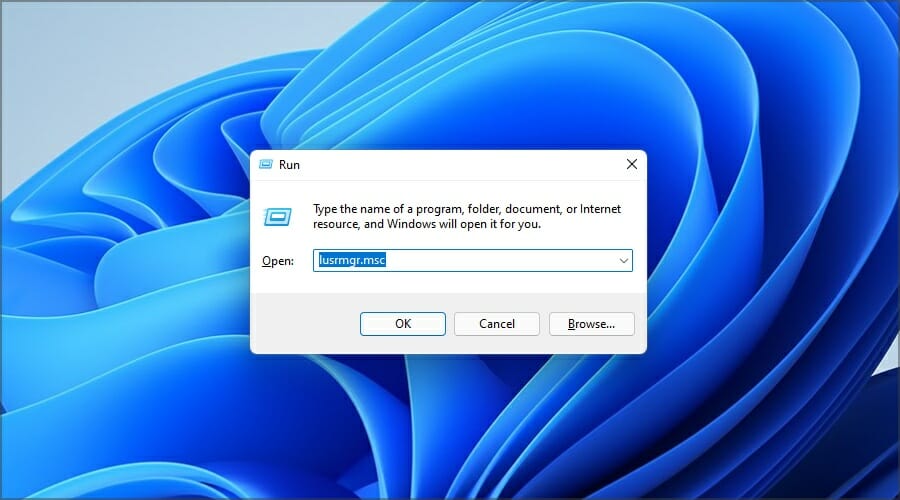
Press Windows + R on your keyboard to open the Run dialog box.
Type lusrmgr.msc in the box.
Press Enter or click OK.
The Local Users and Groups window will open instantly.
Note: If you are using Windows 11 Home, this feature is not available by default. You will need to upgrade to Windows 11 Pro or use a workaround tool such as lusrmgr.exe from GitHub.
Managing user accounts and security settings efficiently is vital for maintaining control over your system. For more detailed information, check out this guide on how to open Local Security Policy to enhance your account management and security settings.
2. Open Local Users and Groups via Computer Management
This method gives you access to other administrative tools at the same time.
Press Windows + X and select Computer Management.
In the left sidebar, expand System Tools.
Click on Local Users and Groups.
Choose Users or Groups to manage individual settings.
This method is ideal for administrators who want quick access to advanced account controls.
3. Open Local Users and Groups Using Command Prompt
You can also launch the management console directly from the Command Prompt.
Press Windows + S and search for cmd.
Right-click Command Prompt and select Run as administrator.
Type lusrmgr.msc and press Enter.
The management console will open automatically.
4. Open Local Users and Groups via PowerShell
If you prefer PowerShell commands, this approach works just as well.
Press Windows + X and select Windows PowerShell (Admin).
Type lusrmgr.msc and hit Enter.
The Local Users and Groups interface will appear.
This method is particularly helpful if you prefer using command line tools.
5. Open Local Users and Groups Through Control Panel
You can still access the feature from Control Panel for a more traditional route.
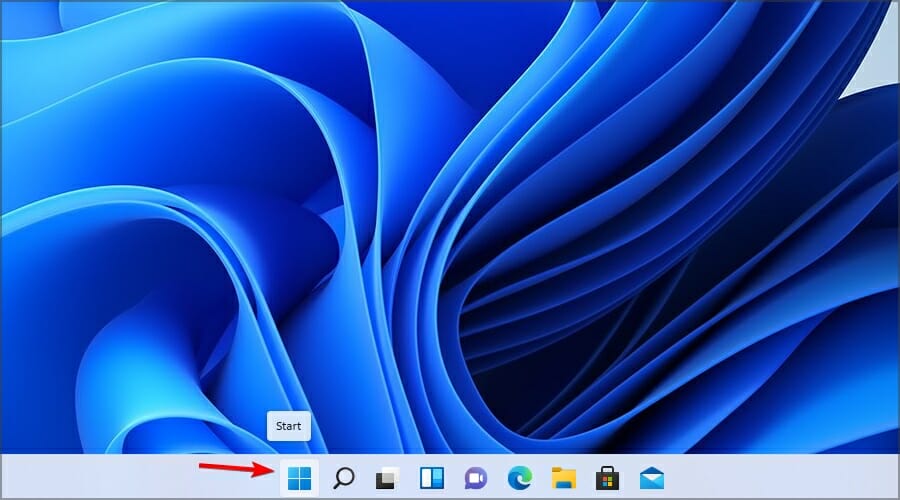
Open Control Panel from the Start menu.
Go to Administrative Tools.
Double click Computer Management.
Expand System Tools and choose Local Users and Groups.
Local Users and Groups is a built in Windows tool that allows you to manage all user accounts and groups on your system. It is especially useful for administrators who want to assign privileges, change passwords, or restrict access.
Why Use Local Users and Groups?
Improve system security by controlling access.
Reset or change user passwords.
Add or remove users from specific groups.
Assign administrative privileges safely.
FAQs
Why can’t I find Local Users and Groups on my PC?
The tool is not available on Windows 11 Home edition. You can use a third party tool or upgrade to Windows 11 Pro.
Can I manage local users without opening this tool?
Yes. You can go to Settings > Accounts > Other users to perform basic account management.
Can I use Local Users and Groups to disable user accounts?
Yes. Right click the user account you want to disable, select Properties, and check Account is disabled.
Is it safe to remove a user group?
You should avoid deleting built in groups like Administrators or Users, as it may cause system instability.
Conclusion
Learning how to open and use Local Users and Groups in Windows 11 gives you full control over account management. Whether you are adjusting permissions, disabling accounts, or organizing user groups, this tool helps you keep a secure and organized Windows environment. If you need to perform advanced account changes, read this guide on how to enable the Super Administrator account in Windows 11.
If you’re new to Windows or just upgraded to Windows 11, learning how to use Microsoft Store can help you get the most out of your PC. Follow the steps below to start exploring and installing content safely.
Easy access to both free and premium apps in one place.
FAQs
Can I install apps without signing in?
You can browse without signing in, but you must log in to download or install apps.
Are all apps free on Microsoft Store?
No, some are paid, while others are free or offer in-app purchases.
Can I uninstall Store apps later?
Yes, right-click any installed app and select Uninstall.
Does Microsoft Store work offline?
You can open the app and view your library, but downloading or updating apps requires an internet connection.
Conclusion
Using Microsoft Store is the easiest and safest way to discover, download, and manage your Windows apps. Whether you’re installing productivity tools, games, or movies, everything you need is just a few clicks away.
Google Maps Street View lets you explore streets, landmarks, and businesses as if you’re standing there in person. Whether you’re checking out a travel destination or finding a new route, here’s how to use Street View easily.
Google updates images periodically depending on region and traffic. Major cities are updated more often.
Can I use Street View offline?
No. Street View requires an internet connection to load images.
Why can’t I access Street View in some locations?
Certain areas may be restricted due to privacy laws or lack of Street View coverage.
Conclusion
Google Maps Street View helps you visualize addresses, preview routes, and explore neighborhoods in detail. Use it on desktop or mobile to see real-world surroundings and plan confidently before you go.
Microsoft has announced that Surface is joining the Open Device Partnership (ODP). For the uninitiated, it’s an open-source initiative focused on creating a safer and more standardized foundation for modern devices.
The ODP aims to address long-standing firmware and system design issues by utilizing memory-safe programming languages, such as Rust, and incorporating hardware-rooted security features. For Surface, this move represents a major investment in the future of secure and reliable PC firmware.
As part of the collaboration, Surface is helping develop Patina, a Rust-based, UEFI-compatible firmware, alongside a new Secure Embedded Controller (EC) and a unified OS-EC interface to streamline communication between software and hardware.
For users, this means stronger protection, better consistency, and faster innovation across future Surface products. The approach also enhances supply chain transparency and ensures Surface devices are ready for upcoming hardware standards.
By joining ODP, Microsoft is not only improving Surface devices but also contributing to a broader open ecosystem that benefits hardware makers, software engineers, and consumers alike.
Microsoft has released Edge version 141.0.3537.71 on the Stable Channel, dated October 9, 2025, bringing feature enhancements, performance fixes, and important security updates.
The highlight of this release is a refreshed profile flyout experience, designed for better clarity and actionability. The new design simplifies profile switching, credential management, and access to key settings.
Users can now easily distinguish between work and personal profiles, with organization branding preserved. The streamlined layout supports quick sign-ins and promotes a more reliable browsing experience.
This feature is being rolled out gradually. If you don’t see it yet, it should appear in the coming days. It’s worth noting that the stable update also includes fixes for two vulnerabilities listed below:
System Settings in Windows 11 is the main control center where you manage every aspect of your computer. From performance and personalization to privacy and updates, it brings all essential tools together in a simple, modern interface.
System Settings is the place where you adjust how your computer looks, behaves, and connects. It organizes all key options into categories like System, Bluetooth & Devices, Network & Internet, and Privacy & Security.
You can open it by pressing Windows + I or by selecting Start > Settings.
To better control how your data is collected and shared across apps and services, review this step by step guide to Windows 11 privacy settings and adjust every option for maximum protection.
Windows Update
Stay current with the latest improvements.
Check for updates regularly
Pause or schedule installations
Review update history and optional driver updates
Learn more about configuring update checks, pauses, and optional drivers in Windows Update settings.
Why Use System Settings?
System Settings in Windows 11 offers a unified and intuitive way to manage your PC. It replaces most Control Panel features and adds cloud sync, device management, and accessibility tools that make configuration easier than ever.
Yes, but most functions have moved to the Settings app.
Is there a search bar in Settings?
Yes, you can type any keyword in the search bar at the top to find options quickly.
Can I customize which settings appear first?
No, but you can pin commonly used sections to the Start menu for faster access.
Conclusion
System Settings in Windows 11 is the core tool for customizing and maintaining your PC. It simplifies everything from system updates to personalization, giving users full control in one place. If your Settings app ever disappears, check this guide on the Windows 11 Settings app missing to get it back quickly.
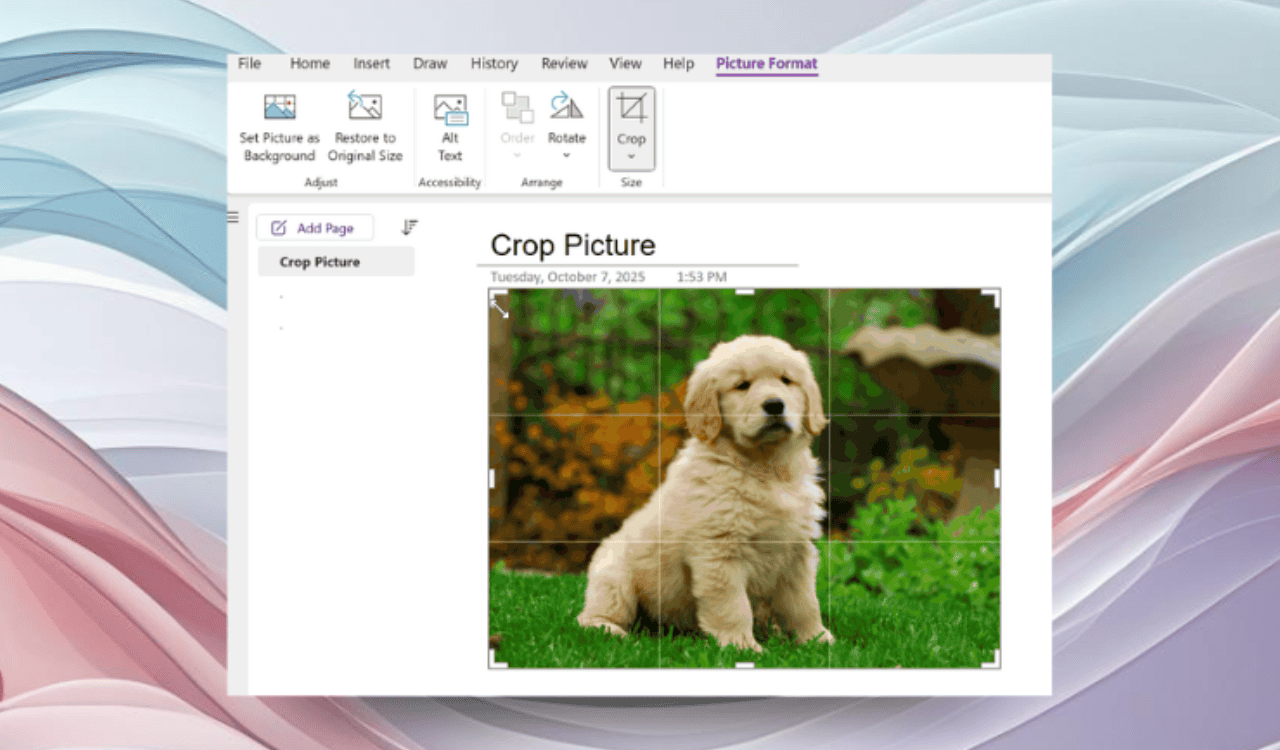
Microsoft is rolling out a new OneNote feature that lets users crop images directly within the app. You won’t need any third-party editors to crop the images. The long-requested tool is now available to Microsoft 365 Insiders on OneNote for Windows Version 2509 (Build 19323.10000) or later.
Previously, users had to open separate apps to trim screenshots or remove unwanted areas before pasting them back into notes. With this update, you can stay in OneNote and keep your workspace focused and organized.
How to crop pictures in OneNote
Here’s how the new cropping tool works:
Open OneNote on Windows and select any image or insert a new one.
Go to Picture Format > Crop to drag and trim the image with your mouse.
For more control, choose Picture Format > Crop with Keyboard and adjust using arrow keys.
Press Enter or click outside the image to save changes instantly.
Image: Microsoft
Cropped images are viewable on Mac, Android, iOS, and web, though cropping itself currently works only on Windows. According to the OneNote team, this feature was built directly from user feedback.
Microsoft encourages more suggestions through the Help > Feedback menu inside OneNote. If you’re part of the Microsoft 365 Insider program, make sure your OneNote app is up to date to try it now.
If an app or game is not running correctly on your PC, changing its compatibility mode can fix crashes, display issues, or missing features. This guide shows you how to turn compatibility mode on or off in Windows 11.
In the Properties window, open the Compatibility tab.
Check Run this program in compatibility mode for.
Choose an older Windows version from the list.
Click Apply, then OK.
4. Run as Administrator (Optional)
Stay on the Compatibility tab.
Under Settings, check Run this program as an administrator.
Click Apply, then OK.
How to Turn Off Compatibility Mode
Right-click the app and select Properties.
Open the Compatibility tab.
Uncheck Run this program in compatibility mode for.
Click Apply and OK.
FAQs
How do I decide which Windows version to pick?
Start with the version the program was built for. You can usually find this in the app documentation or on the developer’s site.
Does compatibility mode slow down the system?
No, but it may limit newer Windows 11 features to keep older apps stable.
Can I use compatibility mode for older games?
Yes. Many classic games run better when set to Windows 7 or XP compatibility.
What if compatibility mode does not fix the issue?
Run the Program Compatibility Troubleshooter from Windows Settings. It can detect and apply optimal settings automatically.
Conclusion
Changing compatibility mode in Windows 11 is a quick way to help older apps and games run smoothly on modern systems. If a program still refuses to open, follow these steps to fix programs that do not run on Windows for additional solutions.
Marvel Rivals Season 4.5 goes live globally on Friday, October 10. Servers enter scheduled maintenance at 09:00 UTC, and the window is expected to last about two hours. Playable servers and the new season should be available shortly after maintenance completes, roughly 11:00 UTC. You can check the global release times below.
Marvel Rivals Season 4.5 Global Release Time
US [West (PT)]: 4:00 AM, Oct 10
US [Mountain (MT)]: 5:00 AM, Oct 10
US [Central (CT)]: 6:00 AM, Oct 10
US [East / Canada (ET)]: 7:00 AM, Oct 10
Brazil (BRT): 8:00 AM, Oct 10
UK / Portugal (BST / WEST): 12:00 PM, Oct 10
Central Europe (CEST): 01:00 PM, Oct 10
Australia [East (AEST)]: 09:00 PM, Oct 10
The update is distributed simultaneously across regions; once maintenance ends, you should be able to play regardless of time zone.
Platforms and Preload Notes
Season 4.5 will be available on PlayStation 5, Xbox Series X|S, and PC (Windows). If your platform supports preloading, make sure you have the latest game client downloaded ahead of the maintenance window so you can jump in as soon as servers reopen.
Marvel Rivals Season 4.5 Overview
Marvel Rivals Season 4.5 is live, taking players back to the mystical lands of K’un-Lun with new content, balance updates, and the arrival of Daredevil. The new season runs until November 14, 2025, and brings a fresh event, store bundles, rank rewards, and performance fixes across all platforms.
Last season introduced Angela, who redefined the meta with her aerial combat skills. This time, Daredevil steps in as her rival, adding a grounded, melee-heavy combat style that rewards precision and agility.
Daredevil and New Event Content
Image: NetEase
New Hero – Daredevil: Joins as a Duelist, offering fast melee combos and heightened sense-based abilities.
Lore Story – “The Long Road Back” expands Daredevil’s narrative arc.
Limited-Time Event – Jade Scrolls of K’un-Lun: Complete missions to earn the Storm – Judicator XieZhi costume for free, plus themed rewards for Spider-Man and Psylocke.
Event Duration: October 10 to November 7, 2025.
Marvel Rivals Season 4.5 Patch Notes Summary
Here’s a rundown of everything included in Marvel Rivals Season 4.5:
New systems and content
Home Background Switch: Customize your in-game background.
You can share Netflix with someone outside your household using the extra member feature. It adds a separate login and profile for a small fee while keeping your own settings intact.
Each person gets a separate login, profile, and history.
Stop sharing anytime without affecting your settings.
FAQs
How much does an extra member cost on Netflix?
Pricing varies by region and is often around $7.99 per month per extra member.
Can extra members watch on multiple devices?
An extra member can stream on one device at a time.
Can I add more than one extra member?
Standard allows one extra member. Premium allows two.
Can extra members download shows?
Yes. They can download for offline viewing on one device linked to their login.
Conclusion
Adding an extra member is a quick way to share Netflix securely. Confirm your plan supports it, send an invitation, then manage or remove access as needed. If you are updating account details, see how to change your Netflix email address.
Downloading Netflix shows lets you watch your favorite content offline, whether you are on a plane or have limited data. Here is how to download from Netflix on any device quickly and safely.
No. Netflix does not support offline downloads on macOS browsers. Use an iPhone, iPad, or Windows app instead.
How long do Netflix downloads last?
Most downloads expire after seven days or 48 hours once playback starts.
Can I transfer Netflix downloads to another device?
No. Downloads are tied to your device and account.
Why can I not download a specific Netflix title?
Some titles are not available for download due to licensing or regional limits.
Conclusion
Downloading from Netflix is simple once you know where to look. Whether you are on Windows, Android, or iPhone, open the app, find the download icon, and save your favorite shows for offline viewing.
Sucker Punch Productions has rolled out Ghost of Yotei update 1.009 for PS5, marking the second post-launch patch released within a week. The update weighs around 1.16 GB and mainly focuses on addressing community-reported bugs and stability issues.
While the developer hasn’t published official patch notes yet, players are already noticing several improvements after installing the update.
What’s Fixed in Update 1.009
The invisible coin bug at gambling tables has reportedly been fixed.
Gift altars are now appearing for players who previously couldn’t access them.
Multiple reports confirm that random crashing issues have been resolved.
Issues Possibly Addressed
Although Sucker Punch hasn’t confirmed the full changelog, the latest patch might target several known problems, including:
Bear cubs not following even after players play the song.
Game freezing during the Kitsune quest.
Map inconsistencies and pathfinding issues.
Horse AI glitch, where the horse runs away instead of toward the player.
Patch Overview
Version: 1.009
Size: 1.164 GB
Platform: PS5 exclusive
Players can install the update now by checking for updates under their Ghost of Yotei library entry.
Ghost of Yotei continues to maintain strong reviews, holding an 86 Metacritic and 87 OpenCritic average since its October 2, 2025 launch.
Sucker Punch has yet to release detailed patch notes, but the studio is expected to share them early next week as the community confirms more fixes.
Yes, you can cancel whenever you want without extra fees.
What if I don’t see the Cancel option?
If you don’t see it, your plan might be billed through Apple, Google Play, or your internet provider.
How do I restart my Netflix membership?
Sign in and click Restart Membership on your account page.
Will I get a refund after cancellation?
No, Netflix does not issue refunds for partial billing periods. You can continue watching until your next renewal date.
Conclusion
Cancelling your Netflix subscription is simple and can be done in minutes from any device. Whether you use a browser, mobile app, or smart TV, follow the steps above to stop billing and enjoy the remaining days of your current plan without interruptions.
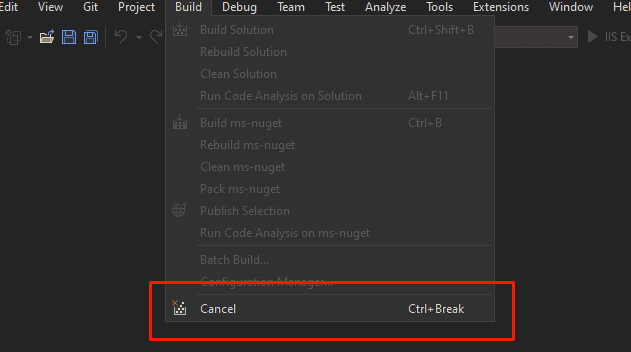
If your project build is taking too long or got stuck, you can stop it easily in Visual Studio. Follow the steps below to cancel the process safely without closing the entire IDE.
Knowing how to stop a build in Visual Studio saves time and prevents unnecessary delays. Use the toolbar button, menu option, or keyboard shortcut to cancel builds quickly and keep coding efficiently.
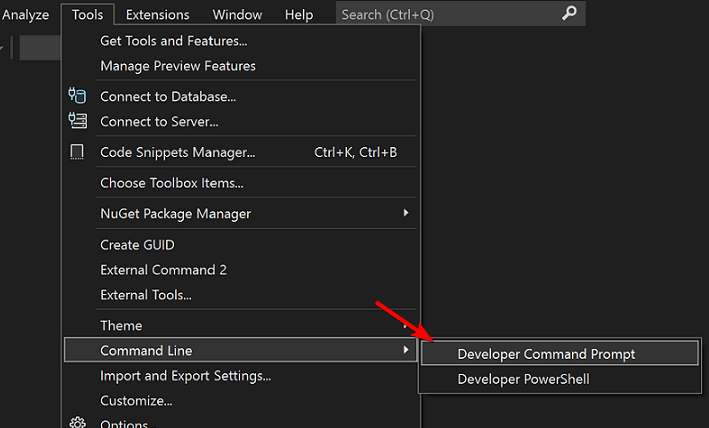
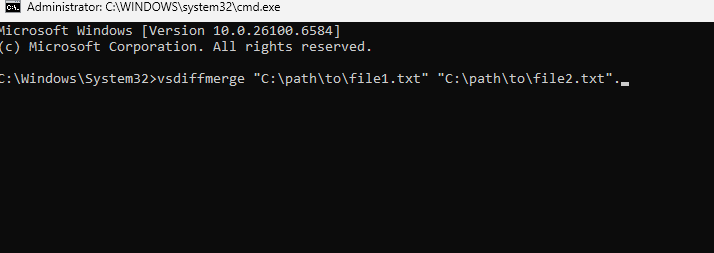
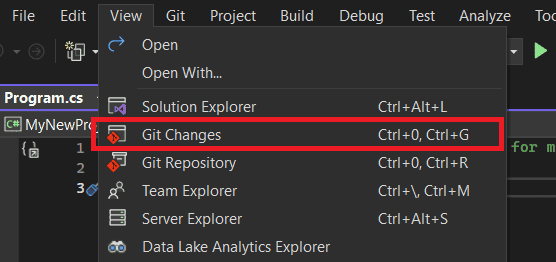
Visual Studio how to compare two files fast using the built-in diff viewer or Git tools. Follow the steps below to open side-by-side differences and review edits efficiently.
Install an extension such as Visual Studio Compare Files or use external tools like Beyond Compare.
Does Visual Studio Code support file comparison?
Yes. Select two files in Explorer, right click, then choose Compare Selected.
Can I compare different versions of the same file?
Yes. With Git enabled, right click the file and choose Compare with Previous Version.
How do I merge changes after comparing files?
Copy edits from one pane to the other or use Visual Studio merge tools during conflict resolution.
Conclusion
Now you can compare files in Visual Studio using command line, project context menus, and Git tools. The side by side viewer highlights changes clearly for faster reviews and fixes.
Microsoft Azure has unveiled the world’s first NVIDIA GB300 NVL72 supercomputing cluster, a major step in building next-generation AI infrastructure. The system is part of Azure’s new NDv6 GB300 VM series, designed specifically for OpenAI’s large-scale inference and training needs.
The cluster houses more than 4,600 NVIDIA Blackwell Ultra GPUs, all linked through NVIDIA’s high-speed Quantum-X800 InfiniBand network. This setup delivers unprecedented computing power to handle advanced reasoning models, agentic AI systems, and multimodal generative AI workloads.
According to Microsoft, the achievement stems from years of collaboration with NVIDIA to create infrastructure that supports massive AI scale. Nidhi Chappell, Microsoft’s VP of Azure AI Infrastructure, said the milestone shows both companies’ commitment to optimizing every layer of the modern AI data center.
What makes GB300 NVL72 unique
Each liquid-cooled GB300 NVL72 rack combines 72 Blackwell Ultra GPUs and 36 NVIDIA Grace CPUs. It delivers 37 terabytes of fast memory and up to 1.44 exaflops of FP4 Tensor Core performance per VM, which is ideal for training trillion-parameter models.
The system also benefits from NVIDIA’s NVLink Switch fabric for ultra-fast GPU communication and Quantum-X800 InfiniBand for large-scale performance. Together, they transform the entire setup into a unified, high-speed AI engine.
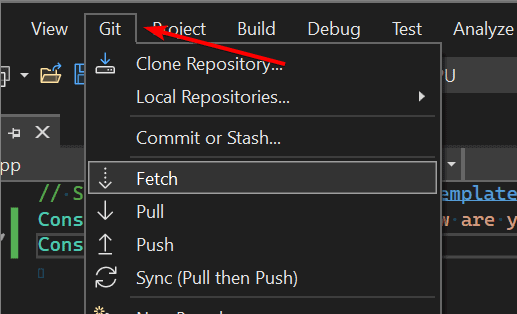
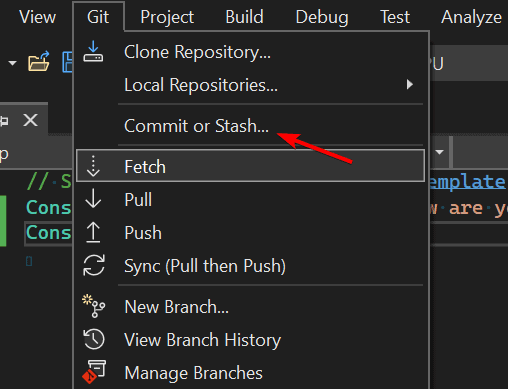
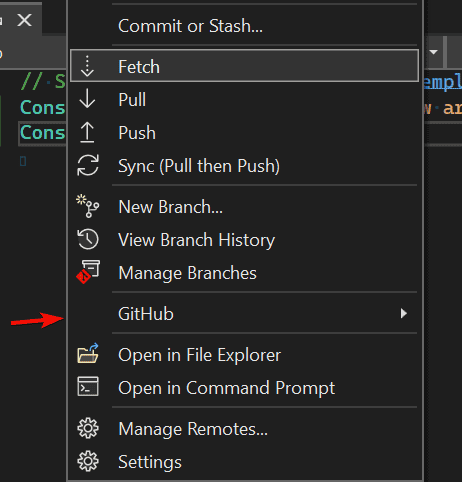
If you need to switch branches without losing your progress, use Git stash in Visual Studio. It temporarily stores your uncommitted work so you can restore it later.
To better review differences between your stashed files, you can compare two files in Visual Studio and see changes side by side before applying them.
Why Use Git Stash in Visual Studio
Keeps unfinished work safe when switching branches
Reduces merge conflicts while testing quick fixes
Makes it easy to pause and resume progress
FAQs
Can I stash untracked files in Visual Studio?
Yes. Check the Include untracked option when creating a stash.
Where are stashed changes stored?
They are stored locally in your Git repository and do not affect remote branches.
Can I name my stash for easier tracking?
Yes. Add a clear message when you stash to identify the saved work.
Can I view stash details without applying them?
Yes. Open View > Git Repository, expand Stashes, then double-click a stash to preview its changes.
Conclusion
Stashing changes in Visual Studio is a quick way to save work without committing. Use the built-in Git tools to stash, apply, and manage entries so you can switch branches with confidence.
If you can’t find the Solution Explorer in Visual Studio, don’t worry. This guide shows you how to open it, pin it, and make sure it stays visible every time you launch the IDE.
To quickly review code differences while working on projects, learn how to compare two files in Visual Studio and keep both views open for easier editing.
Why Use Solution Explorer?
Solution Explorer helps you:
View all files, folders, and references in your solution.
Add or remove files directly.
Manage build configurations and project properties.
Navigate between multiple projects in one solution.
When working with multiple branches or experimenting with code updates, you can stash changes in Visual Studio to save your progress safely before switching tasks or testing new features.
Before making new project changes or running builds from Solution Explorer, learn how to stop a build in Visual Studio to avoid unnecessary delays and resource usage.
FAQs
Why is Solution Explorer missing in Visual Studio?
You might have closed it accidentally. Go to View > Solution Explorer or press Ctrl + Alt + L to reopen it.
Can I have multiple Solution Explorer windows?
Yes. Right-click the Solution Explorer tab and select New Solution Explorer View to open a separate one.
Does Solution Explorer work in Visual Studio Code?
No. Visual Studio Code uses a File Explorer instead of Solution Explorer, though both serve similar purposes.
How do I compile my project from Solution Explorer?
Right-click your project in Solution Explorer and choose Build or Rebuild to compile it. You can also read how to compile in Visual Studio for a detailed guide.
Conclusion
Opening Solution Explorer in Visual Studio takes just a few clicks or a quick shortcut. Whether you’re editing files or managing dependencies, keeping this panel open ensures a smoother development workflow.
Microsoft has started rolling out a major Copilot app update for Windows Insiders that makes the AI assistant much more connected to thurd-party apps. The update adds support for third-party connectors and introduces a new document creation and export feature.
With version 1.25095.161.0 and higher, Copilot app on Windows can now link directly to OneDrive, Outlook, Google Drive, Gmail, Google Calendar, and Google Contacts.
Image: Microsoft
Once connected, you can search across all these accounts using natural language. For example, you can ask “Find my school notes from last week” or “What’s the email address for Sarah?” and Copilot will do its magic.
Do note that the new Connectors feature is opt-in. Insiders can enable it by heading to the Copilot app’s Settings > Connectors section and toggling on the desired accounts. Not to mention, it’s an important update that helps positioning Copilot a central hub for both Microsoft and Google ecosystems.
Next Copilot app’s feature in question is Document Creation and Export. It lets Insiders turn prompts or responses into editable files. You can now ask Copilot to create Word documents, Excel sheets, PowerPoint slides, or PDFs directly from within the app. Longer responses also feature an “Export” button for quick saving.
Image: Microsoft
The update is currently rolling out via the Microsoft Store across all Windows Insider channels and will reach all users gradually.
It’s becoming increasingly common for political leaders to find a second act in Silicon Valley. The latest to make that move is former UK Prime Minister Rishi Sunak, who has joined both Microsoft and AI startup Anthropic as a senior advisor.
Sunak, who stepped down after the July general election, said proceeds from the roles will go to The Richmond Project, a charity he co-founded with his wife Akshata Murty.
His positions will focus on global strategy, macroeconomic trends, and AI governance, areas that align closely with his policy work while in office.
According to the UK’s Advisory Committee on Business Appointments (ACOBA), both roles comply with post-ministerial rules. Sunak is barred from lobbying the government or sharing privileged information for two years.
He now joins a growing list of prominent figures entering the tech sphere. Former U.S. President Barack Obama has advised Netflix on programming strategy, while French ex-minister Cédric O became a key figure in AI governance circles.
Microsoft confirmed Sunak will speak at its upcoming Microsoft Summit. Meanwhile, Anthropic, backed by Amazon and Google, said his guidance will help shape its global AI strategy.