How to Check GPU Temp on Windows 11

It’s possible that you’ll sense something or, more likely, hear something when you’re playing games on your computer or running a resource-intensive application like a virtual machine or a video editor. You may notice that the fans on your computer are spinning wildly, and this is very normal.

This is simply the way in which PCs respond to fluctuations in temperature. The fans assist in controlling the flow of air through the computer, which helps to prevent the graphics card and processor from overheating, which in turn aids to prevent performance throttling.

When you play games or watch videos, the GPU’s temperature will rise. It’s nothing to be concerned about because that’s exactly what the system is intended to do. If you notice that the temperature levels are higher than they generally are in other games, check your computer’s vents and fans.

Reduced graphical settings in games can also help to keep the thermal conditions under control, and may even result in a slight increase in frame rate. Follow along to learn how to check your GPU’s temperature and monitor it more closely, but first let’s see what the perfect temperature should be.

What is the optimal temperature for GPU?

We sometimes lose sight of how critical it is to keep our core hardware operating at optimal temperatures from time to time. It has the potential to assist your system in a variety of ways, ranging from improved performance to a longer operating life span.

Having said that, keeping your gear cool isn’t always straightforward – especially when you add in scenarios such as gaming and rising ambient temperatures, among other things.

As most people are well aware, gaming places a significant amount of additional strain on your computer’s components, particularly the CPU and graphics card. The majority of the time, this stress is converted directly into heat.

gpu choice windows 11 gpu temperature

When gaming, your hardware must run at a faster rate in order to maintain the required performance levels for the game. As a result, your components naturally become significantly hotter.

It makes no difference whether you’re using an AMD or an Intel processor; the temperature threshold for each processor is significantly different. For gaming purposes nowadays, the recommended CPU temperature is 176°F (80°C), with an average temperature of 167°-176°F (75°-80°C).

CPUs, on the other hand, have the potential to become a little hotter in certain circumstances. Long gaming sessions, as well as overclocking, will result in somewhat higher average temperatures on average.

The normal GPU temperature range is between 65 and 85 degrees Celsius (149 and 185 degrees Fahrenheit). If its temperature exceeds the maximum value, for example, if it is around 100°C, you can attempt lowering the sustainable heat levels in accordance with the current temperature.

However, this will only work if you know what the current GPU temperature is. Overheating of the card can result in major hardware damage, so it is always advisable to keep an eye on the temperature when using it.

How can I check GPU’s temperature in Windows 11?

Use Task Manager

  1. Press the CTRL + ALT + DELETE buttons on your keyboard simultaneously, then click on Task Manager to open it.task-manager-home edge collections not syncing
  2. Now, navigate to the Performance tab and scroll down until you see the GPU panel in the left side. Under it you will be able to see its current temperature, also if you click on it, more details will be shown on the right.gpu-temperature-shown windows 11 gpu temperature

For a full description of your system’s information including the temperatures of both your CPU and GPU, we recommend that you use a specialized tool such as Aida64’s products.

Which type of air-cooling should I use?

When it comes to gaming, it is nearly always preferable to purchase an aftermarket GPU with an open-air cooling architecture. In addition to ensuring lower temperatures throughout the board, this will physically boost the performance and lifespan of your gear.

Not to mention that they have a more attractive aesthetic appearance. If your case does not have the best airflow, we still prefer this design over a blower-style fan design because it is quieter.

A GPU with a completely new cooling architecture, on the other hand, is a significantly more expensive approach to accomplishing the same goal. In addition to providing cooler temperatures, open-air cooling will also provide a more peaceful overall experience.

Alternatively, if you want to perform a large number of CPU-intensive tasks (which will generate excessive heat), you can always get a blower fan GPU to exhaust some of the surplus heat out the back of your PC. With this type of cooling, you will notice a minor reduction in interior temperatures.

It’s also possible that a blower-style fan would be more appropriate for a smaller form factor PC construction. They are significantly smaller than open-air systems and will not smother the rest of your equipment. All contemporary graphics cards are equipped with intelligent fans.

These fans are typically turned off until the temperature reaches 86°F to 104°F (30°C to 40°C) or higher. This is the moment at which they will begin to operate at a predetermined speed (found in the preset profile). When the system is cool, this has a significant impact on noise output and power consumption.

For more information on your system’s information and temperatures, you can take a look at our list with six of the best CPU monitoring software.

Alternatively, if overheating is causing you troubles in Windows 11, we have already prepared a guideline for you to follow and fix the issue in no time.

And lastly, since you got the hang of checking your GPU’s temperature, you will definitely want to learn how to check your CPU’s temperature next. Don’t miss it out!

Let us know in the comments section below whether the article was helpful for you. Thanks for reading!

The Front Row feature set to provide a better meeting experience on Microsoft Teams

For a while now, Microsoft has been trying to create an enabling environment that complements the hybrid workplace. They had earlier shared their vision and highlighted the direction they wanted Teams to take, in an attempt to help clients transition to a new normal.

It now seems that they may be on the verge of achieving their goals, as one of the key updates, Front Row, is starting to roll out. It provides both single and dual display modes. The announcement was made on February 1. but the feature is rolling out now. They further highlighted that the feature will seamlessly enhance the meeting experience between in-the-room meeting users with those joining it virtually. (Via ZDNet)

The video gallery has been moved to the bottom of the screen, the change is set to enhance the meeting experience for attendees joining virtually, ultimately providing a more life-like experience.

According to a post on LinkedIn, the feature is a brainchild to both the Microsoft Global Workplace Service IT team and the Microsoft Teams product team. The post goes further to indicate that users do not need to have access to special peripherals to use the feature.

Moreover, Microsoft is still working on more features such as the segmented video layout. Front row is already available on Microsoft Teams, therefore, users are encouraged to download the app to fully explore the Front Row feature during work meetings.

How To Buy Twitch Gift Cards To Support Your Favorite Streamers

Twitch is probably the world’s most popular video live streaming service. Used mostly for gamers, this platform has been a popular place for gamers to gather around and post tutorials, walkthroughs, and various gameplay videos.

Those of you familiar with Twitch is probably also aware of the platform’s way of handling donations.

Well, Twitch introduced a new element called gift cards that are designed to make great gifts for moderators, emote artists, and friends in chat.

What are Twitch gift cards and why would I use them?

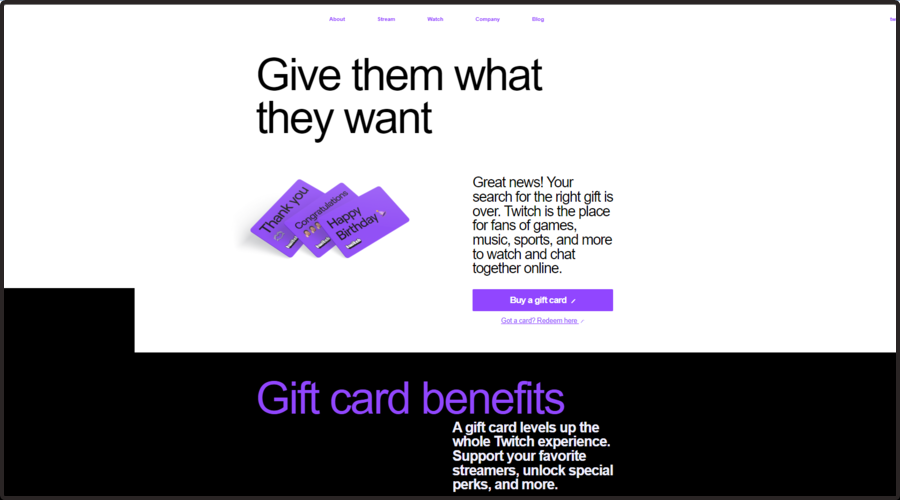
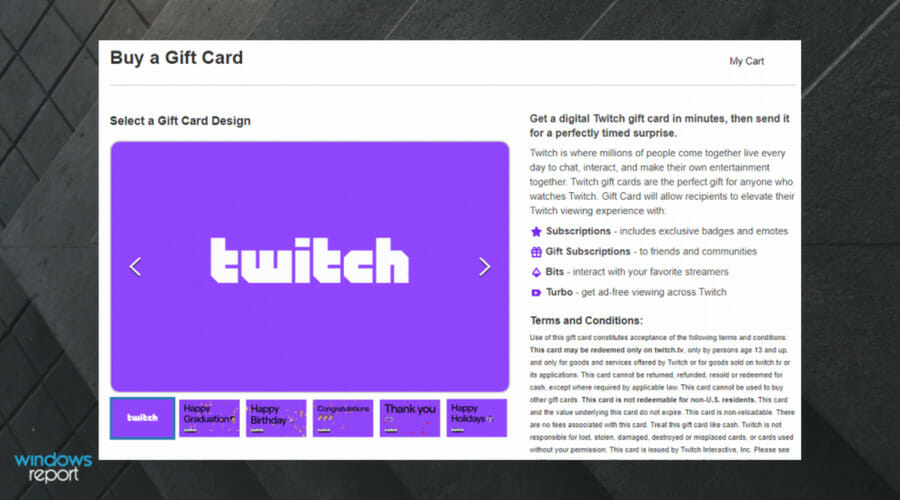
Digital gift cards are available online from the Twitch official website and are come in a range of different designs. They can be themed around events like birthdays, graduations, and more.

The guide below will show you exactly how you can buy and use one, and it is structured to be as easy to understand as possible.

Gift cards can be convenient and useful when you need to make purchases or want to give a gift to someone else.

How do I buy and use a Twitch gift cards?

  1. First of all, make sure you already have an active Twitch account
    • If you don’t, create one before proceeding (if you don’t know how to do it, take a look at the end of this article).
  2. Go to the Twitch gift card page to start browsing for the gift card you are interested in.
  3. Select the card design.
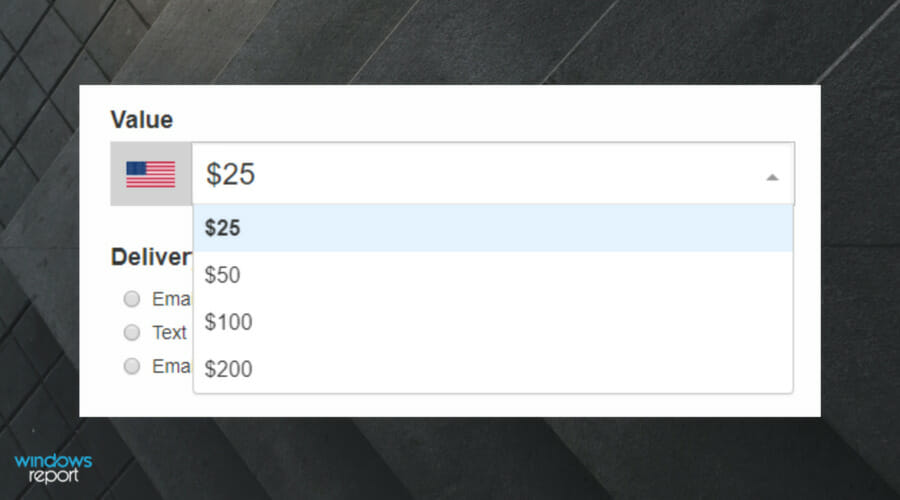
  4. Select the value of the card:
    • Currently, the digital cards can be bought in $25, $50, $100, and $200 values
    • They can be redeemed and used for Bits, subs, and gift subs
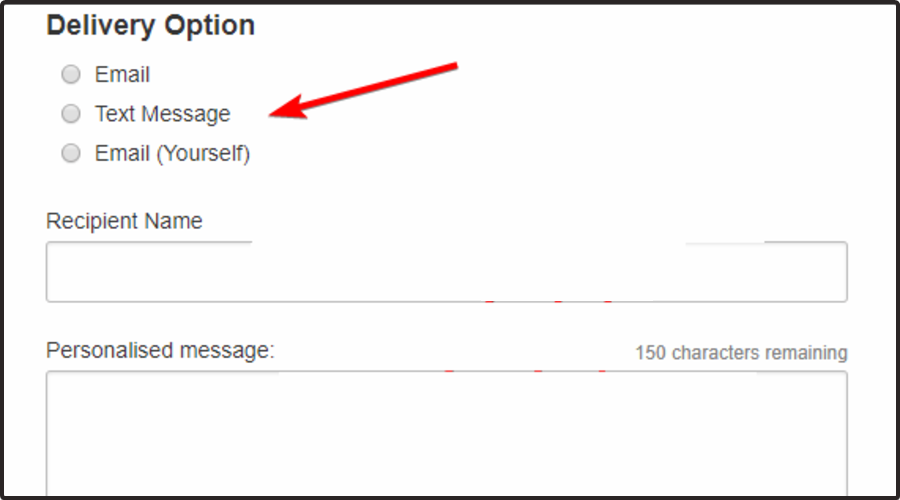
  5. Choose a Delivery Option.
  6. Next, you will need to input the following information:
    • The recipient’s name
    • A personalized message
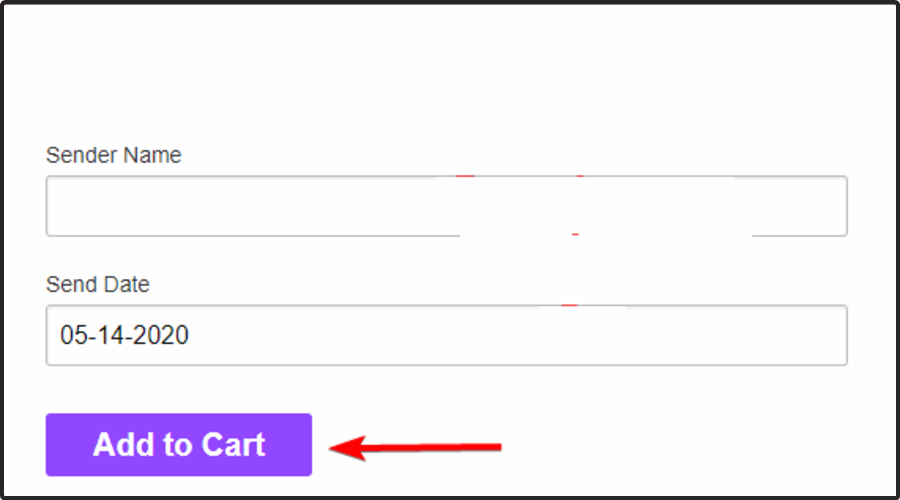
    • A sender name
    • The send date
  7. Click Add to Cart. Presuming that you have enough money on your Twitch account, the transaction should now be finished.

By following these steps you should now be able to acquire a Twitch gift card and send it to someone.

How do I redeem Twitch gift cards?

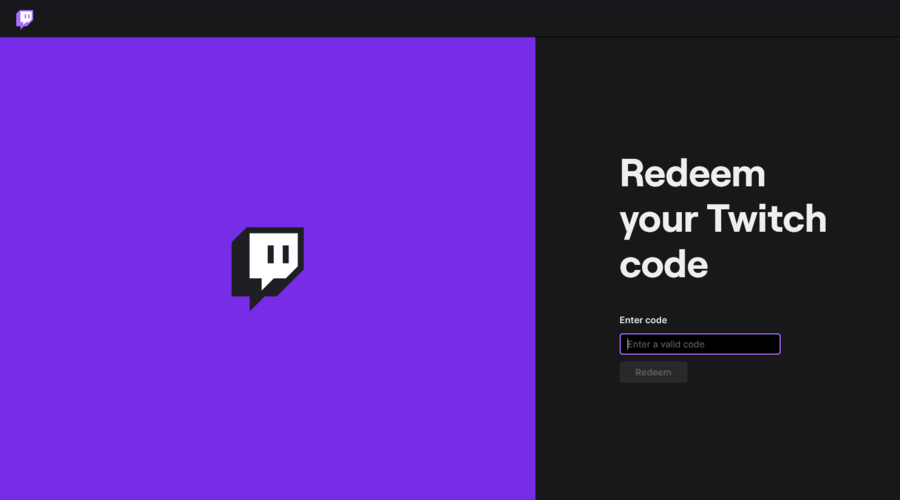
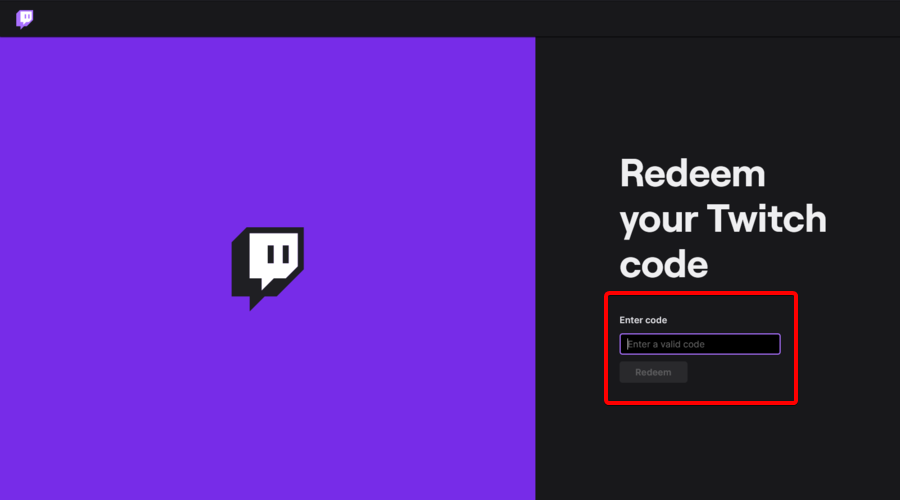
  1. Go to the Redeem gift card page.
  2. Type the code of your gift card right under Enter code.
  3. Click on Redeem.
Note icon NOTE
To redeem a Twitch gift card, the recipient will need to be living in the US and will need to have a Twitch account.

Remember that once you redeem a card, you cannot use it anymore, and the full amount on the card is transferred to the recipient’s gift card balance in their Twitch Wallet.

How can I create a Twitch account?

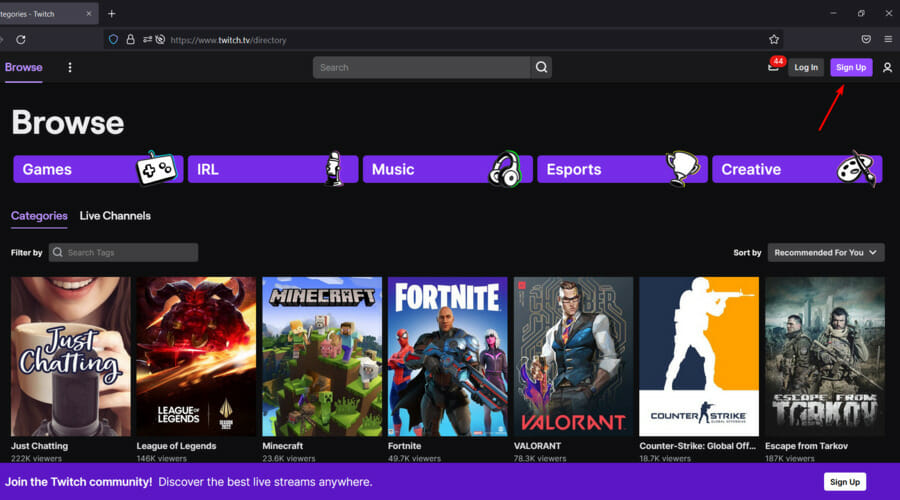
  1. Navigate to the Twitch official page.
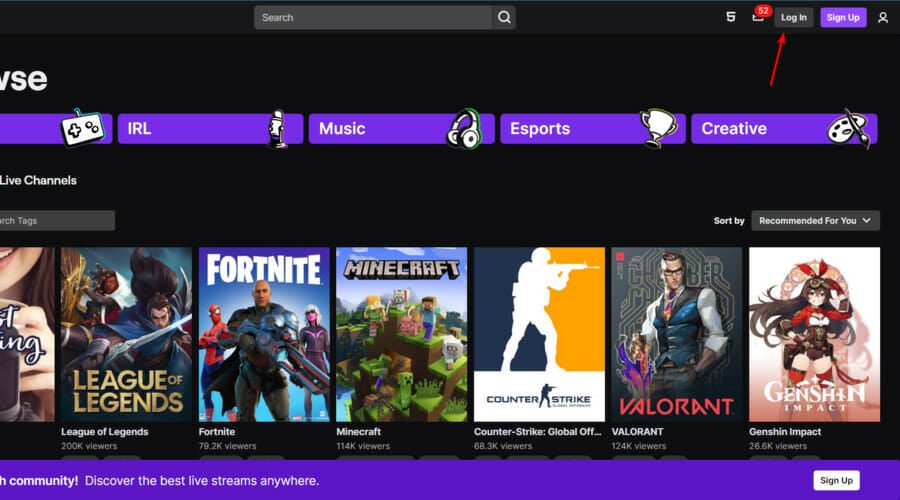
  2. In the upper-right corner of the page, choose to Sign Up.
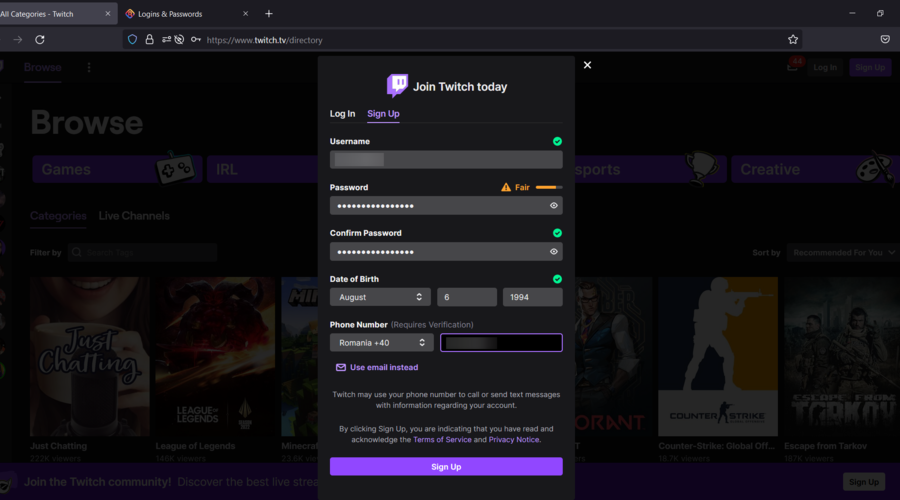
  3. Now, enter the needed information, then click on Sign Up.
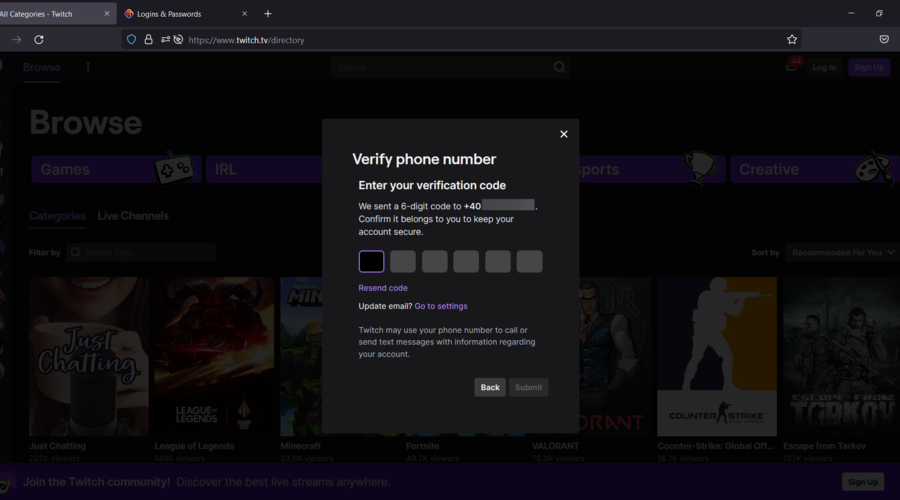
  4. You’ll receive a code on your phone. Enter it in the gaps shown below.
  5. Once it’s all set, click on Done.
  6. Now, you have a Twitch account!

As mentioned before, to be able to buy a Twitch gift card, it is necessary to have already created an account. If you don’t know how to do it, make sure you follow the steps below.

By following the steps above, you should be able to now redeem any Twitch gift card that you receive.

Have you tried sending a Twitch gift card so far? Let us know what you think about this new feature by leaving us a message in the comments section below.

Twitch error code 5000: Fix it in Chrome

Twitch is one of the most popular video streaming platforms and the main tool for video game streamers.

While it works fine most of the time, you might sometimes encounter the Twitch error code 5000. As many users claimed this issue, it isn’t uncommon.

This error appears as a message notification while streaming, and it says the following:

5000: Content not available

If you are also troubled by this annoying problem, here are a couple of troubleshooting tips to help you resolve the issue.

Why does the Twitch error code 5000 appear in Chrome?

Before finding what are the best options to fix it, let’s see why the Twitch error code 500 can occur on your Chrome screen.

  • Cookies and Cache – For those of you who didn’t know, browsers like Chrome save some information from websites in its cache and cookies. In order to prevent any troubles, it is recommended to constantly clear them.
  • Extensions compatibility – Because the Twitch error code 5000 might occur due to a third-party extension conflict in Chrome, we suggest checking the compatibility.
  • DNS servers – It is important to flush a DNS cache for several reasons. The most common ones it that the cache may contain outdated information. So, even if you clear your browser history, the DNS cache will still have the old information.

What can I do to fix the Twitch error code 5000?

1. Clear Cookies and Cache

  1. Press on the Windows key, type Chrome, then open the first result.
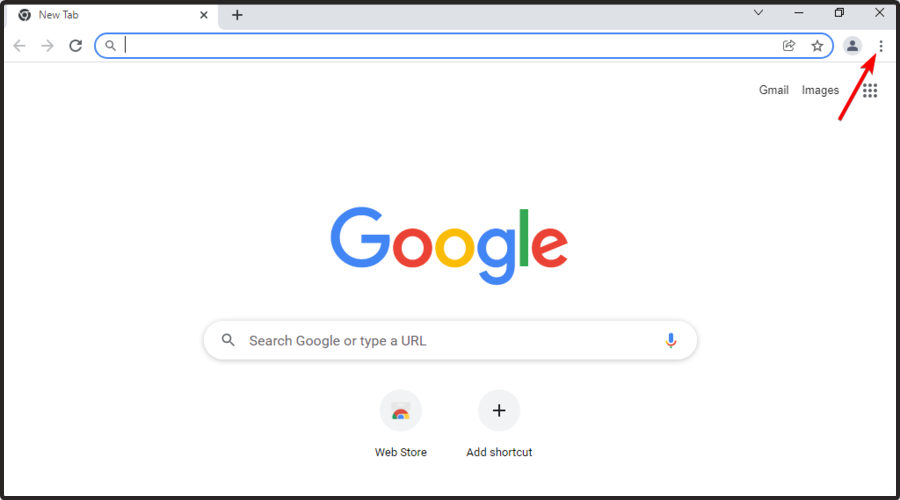
  2. From the upper-right corner of the window, click on the 3-dots menu.
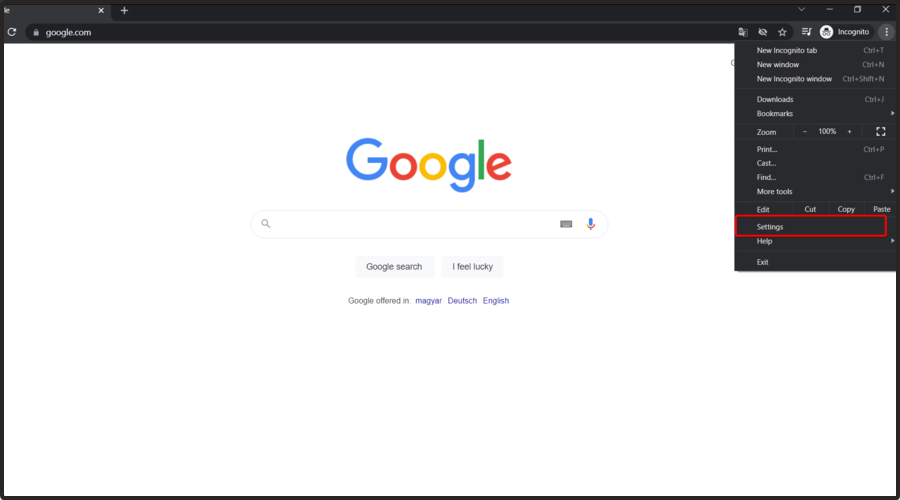
  3. Navigate to Settings.
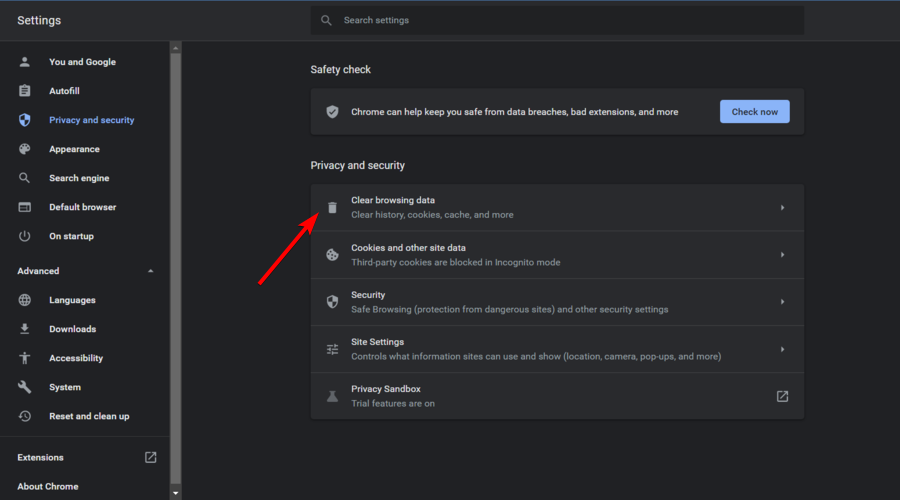
  4. From the left window pane, select the Privacy and security section.
  5. Click on the Clear browsing data option.
  6. Select the time range, check the Cookies and other site data and Cached images and files options, then click on the Clear data button.
  7. Close and relaunch Chrome browser. Try to stream the twitch video with 5000 error and check for any improvements.

Old and corrupted cached browser data can create issues with Twitch streaming resulting in Twitch error code 5000. However, users have reported that clearing the browser cache has helped them resolve the error. Follow the steps to clear the browser cache for Chrome.

2. Check Extension Compatibility

  1. Press on the Windows key, type Chrome, then open the first result.
  2. From the upper-right corner of the window, click on the 3-dots menu.
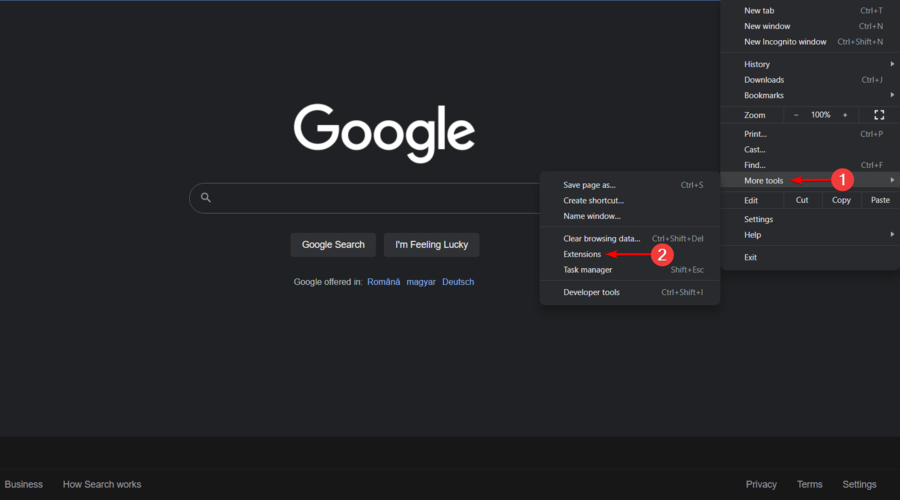
  3. Now, hover, the mouse over More Tools, then click on Extensions.
  4. From the list of extensions, disable all the extensions one by one, by turning Off the toggle button.
  5. If you have the Ghostery extension installed, disable it as well. It is a known culprit behind the Twitch error content not available issue.
  6. Now open Twitch again and try to play the video. If the video plays without any error, start enabling all the extensions one by one until you find the problematic extension.

The Twitch Error code 5000 can also occur due to a third-party extension conflict in Chrome. In this matter, you should check your Chrome browser for any plugin that may not be compatible with the Twitch service.

3. Flush the DNS

  1. Use the following keyboard shortcut, then type cmd: Windows + S.
  2. Right-click on the Command Prompt and select Run as Administrator.
  3. In the Command Prompt, type the following command and press on the Enter key: ipconfig/flushdns
  4. Close Command prompt.
  5. Relaunch the Chrome browser.
  6. Try to stream the Twitch video again and check for any improvements.

What are the most common Twitch error codes?

The Twitch error code 5000 is not the only one that might appear while running this streaming app. Unfortunately, there are many other related problems, but we’ve ensured to compile a list with the most popular ones.

  • Twitch error code 2000 – This issue is directly related to network problems, but it can be easily solved by following our dedicated solutions.
  • Twitch error 1000 – If you’ll ever face this error, keep in mind that you won’t be able to download videos from Twitch or play streams.
  • The Twitch error 4000 – This one might also be triggered by incompatible browser extensions or third-party cookies.

This is how you can fix the Twitch error code 5000 in the Chrome browser. If you encounter any additional questions, the comment list below would help you to share them with us.

PS5 Controller on Windows 11: Fix it if its Not Detected

Many may argue that the best way to play video games on your Windows 11 computer is using the classic mouse and keyboard due to how accurate you can get with the controls. But that requires learning a whole new setup and configuration.

Most people are used to playing their favorite games with a controller, and thanks to the flexibility of PCs nowadays, you use one on your computer. The PS5 DualSense is great because of its ergonomic design. It fits comfortably in your hands which is perfect for long gaming sessions.

The DualSense also has a lot of hidden features that everyone should know about, like checking your battery level. This is something the previous PS4 didn’t have and you’d have to wait until the battery was almost dead to know.

What should I know about connecting my PS5 controller?

As good as the DualSense controller is, there have been reports of the controller not connecting or being detected. The easiest way to solve this issue is by connecting the controller to your PC with a proper USB cable.

Some games have DualSense support natively. In those cases, all you have to do is plug in your controller and you’re good to go. But this raises other questions like what if you don’t own a USB cable or don’t want to use one? What about the games that don’t have native DualSense support?

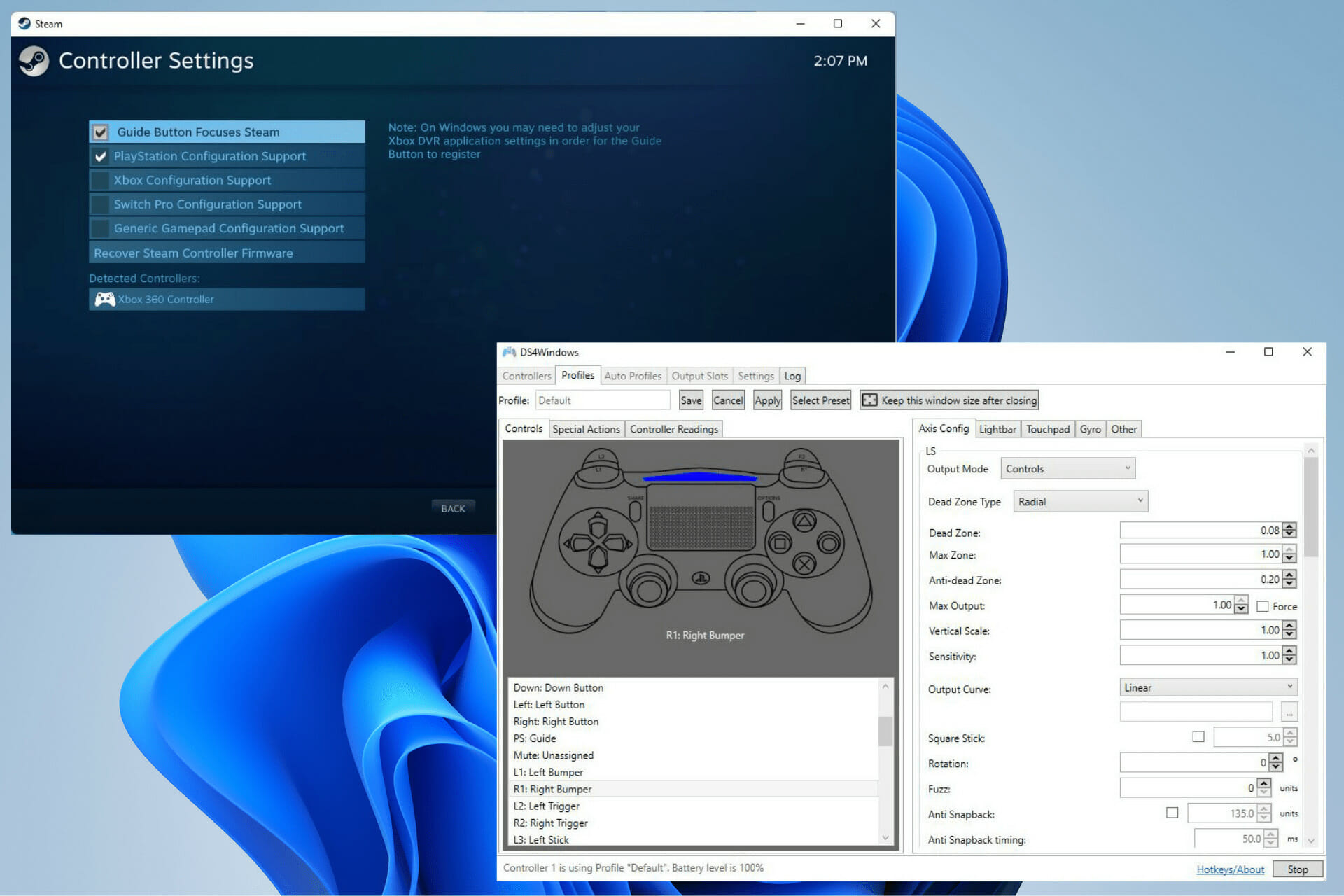
Well, this guide will show you three different ways to solve any detection problems with your PS5 controller. This includes connecting via Bluetooth and downloading DS4Windows. The latter is an app that allows you to use DualSense controllers on games that don’t support it.

It does this by emulating an Xbox controller (which has wider support) and tricking the game into thinking your DualSense is an Xbox device.

How can I solve detection problems for my PS5 controller?

1. Solving via Settings menu

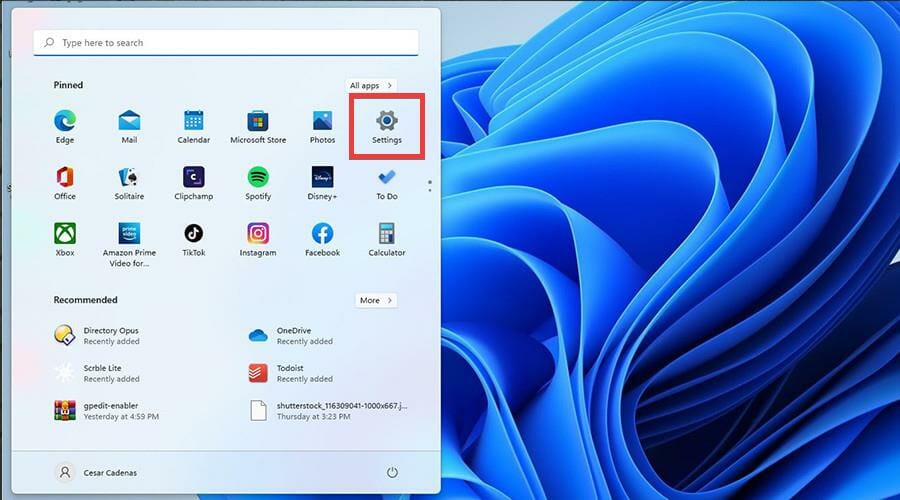
  1. Click on the Start icon.
  2. Click on Settings.
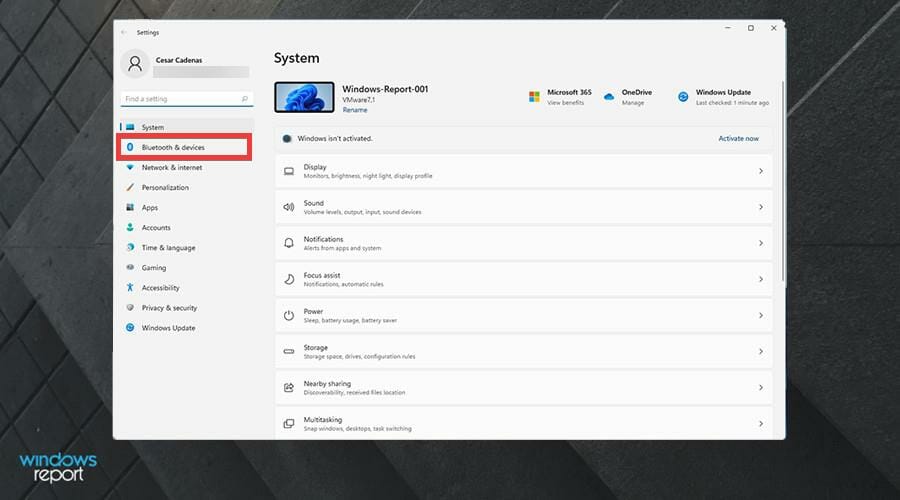
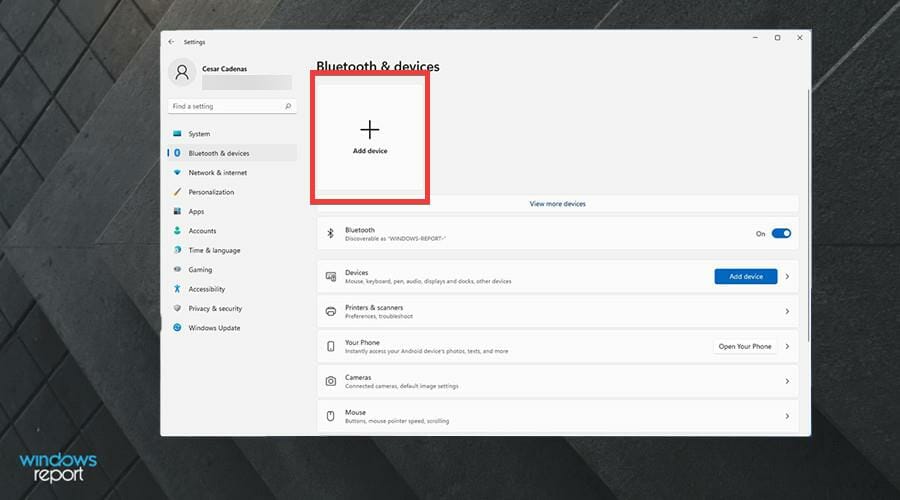
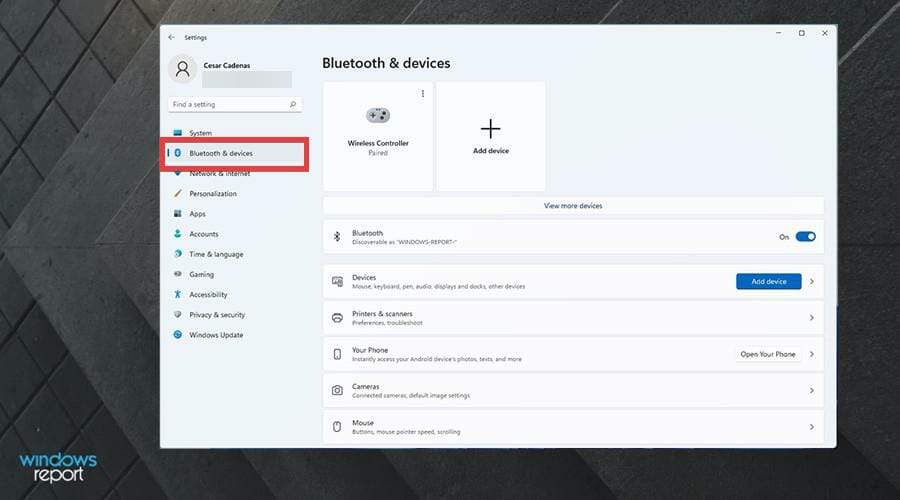
  3. Click on Bluetooth & devices in the Settings menu.
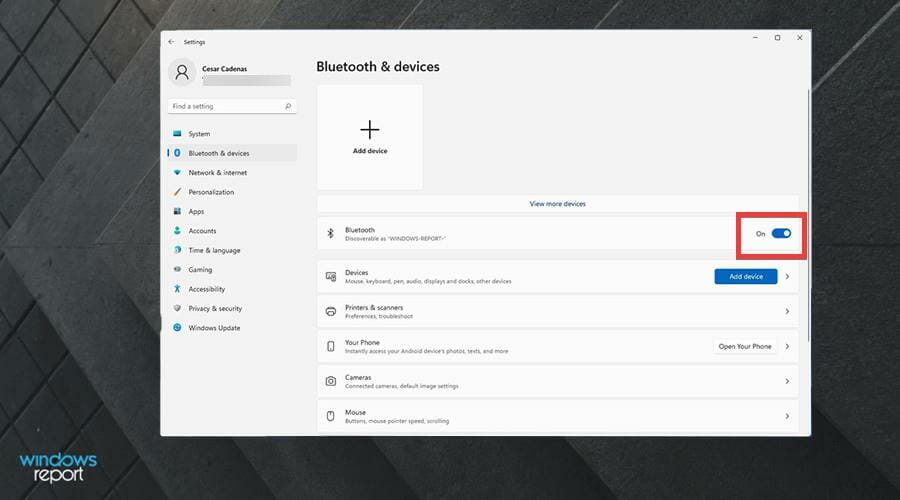
  4. Check if Bluetooth is turned On. If not, click on the switch to turn it on.
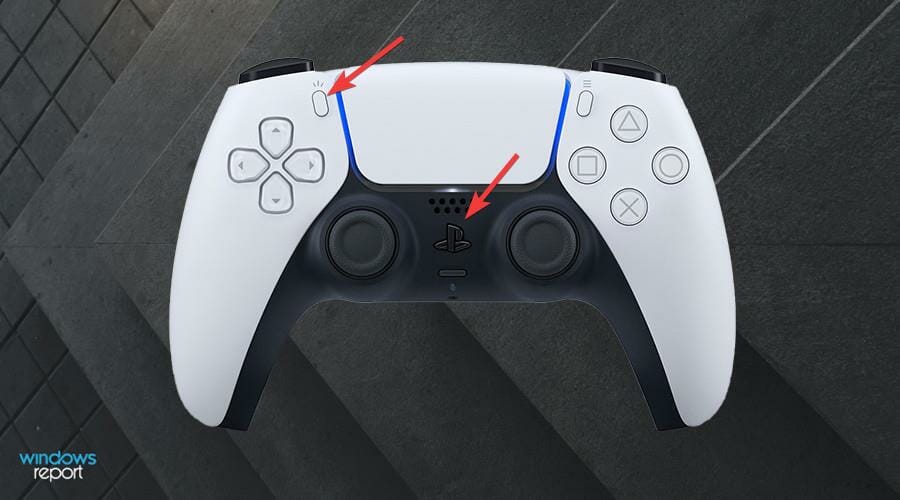
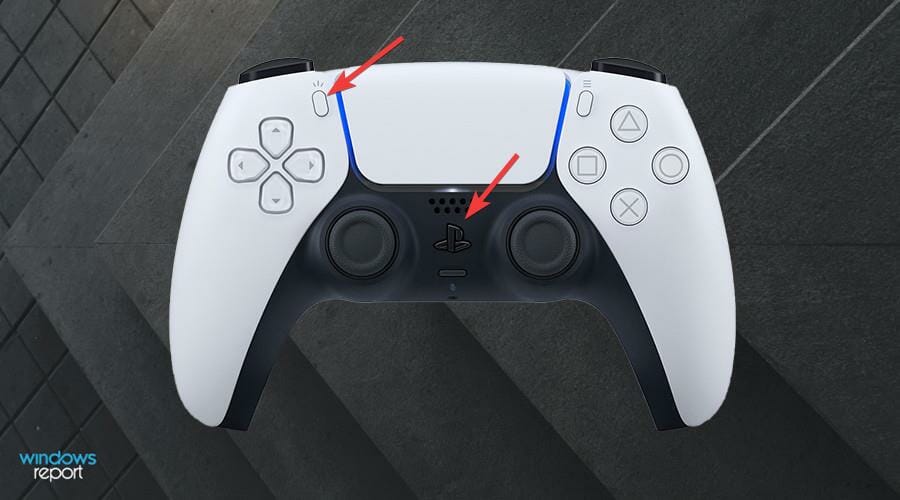
  5. On your PS5 controller, press and hold the Share and PlayStation button until the light begins to flash to put it into pairing mode.
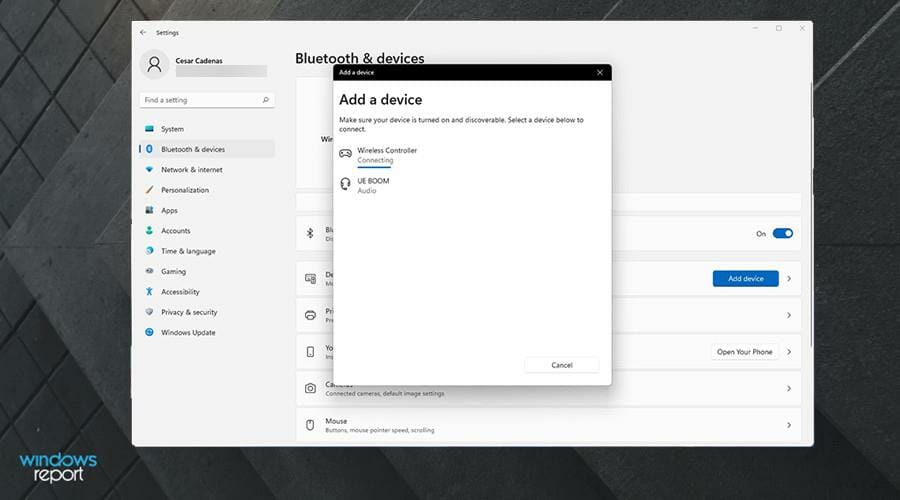
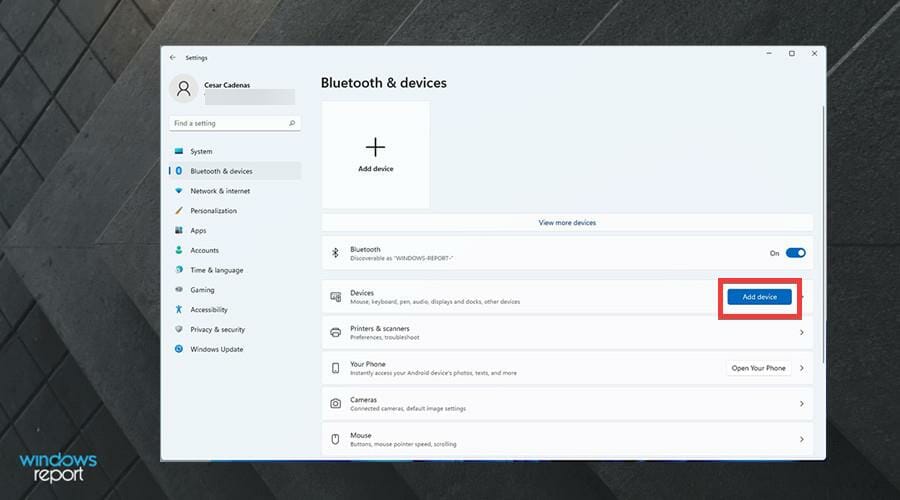
  6. On your PC, click on the Add device button or the Add device window at the top.
  7. Select Bluetooth to pair your PS5 controller.
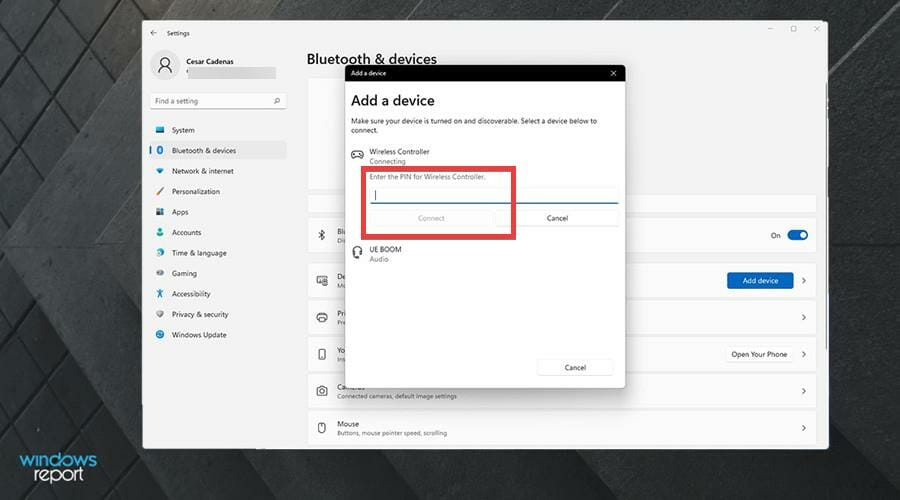
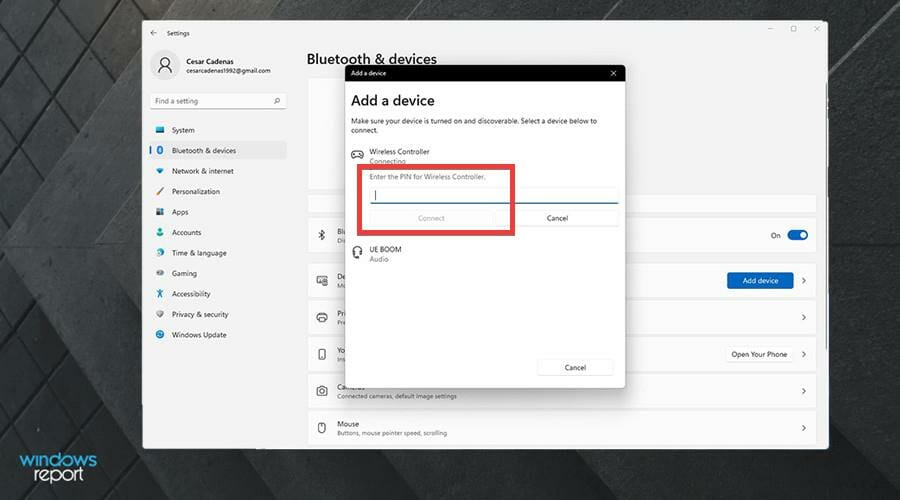
  8. The DualSense will appear as Wireless Controller. Select the first option.
  9. It may ask you to enter your computer’s PIN to connect.
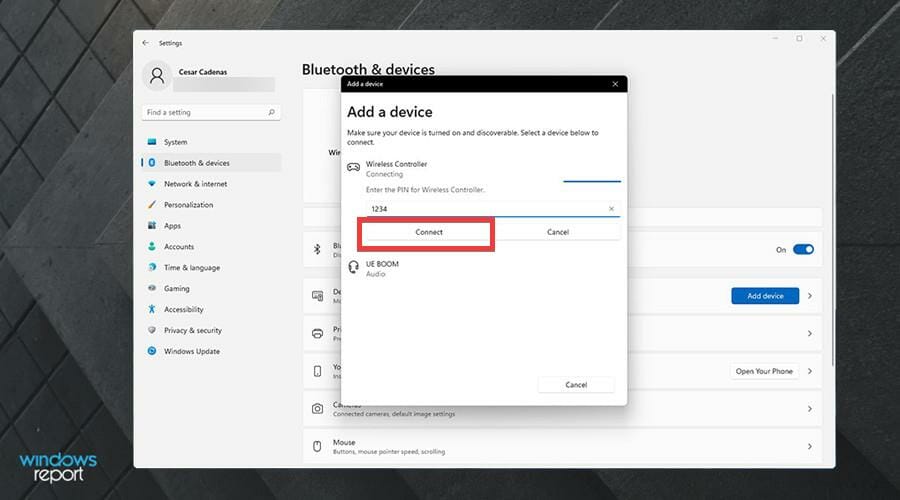
  10. Enter your PIN and click Connect.
  11. Wait for the pairing to complete.
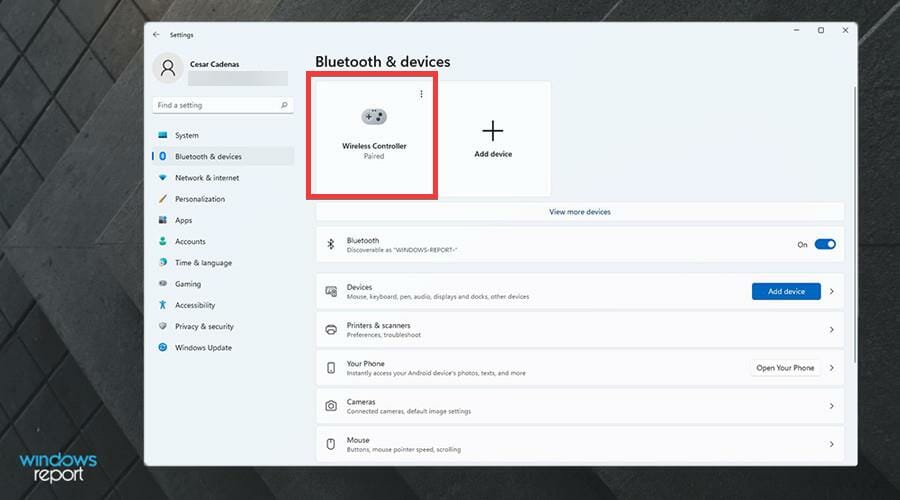
  12. Check your Settings menu to see if the controller has been paired.

2. Solving via DS4Windows

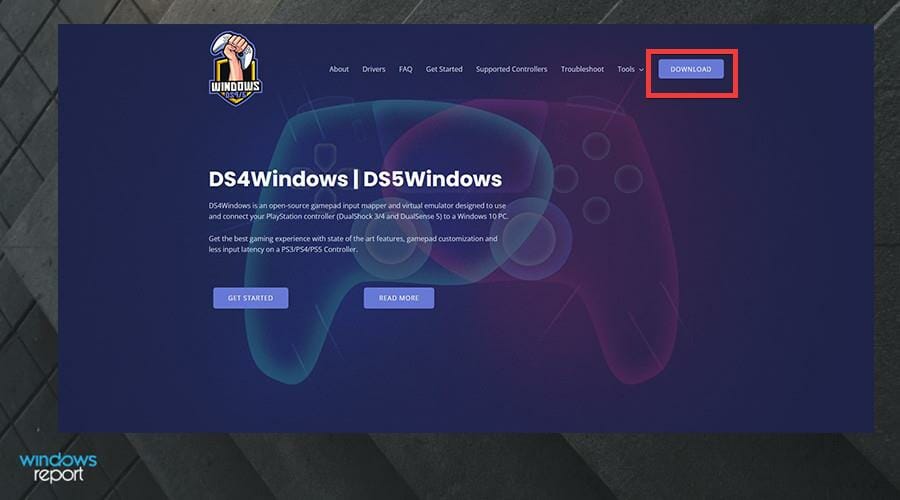
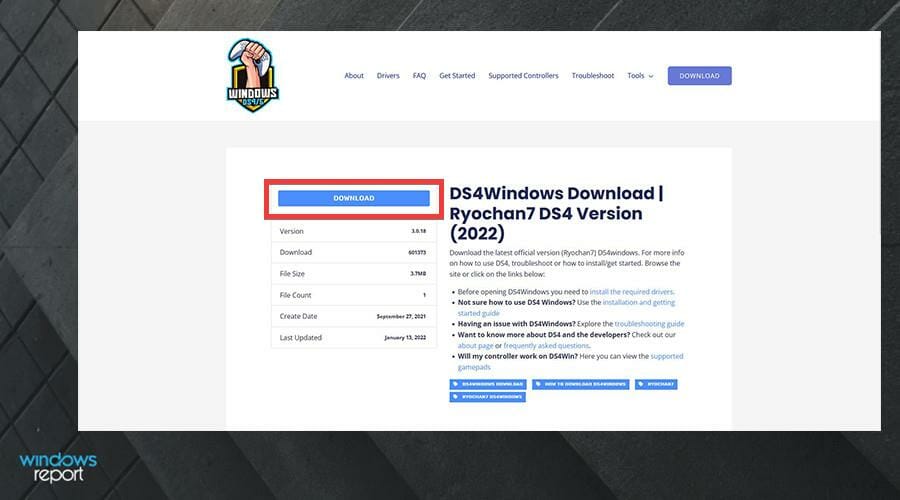
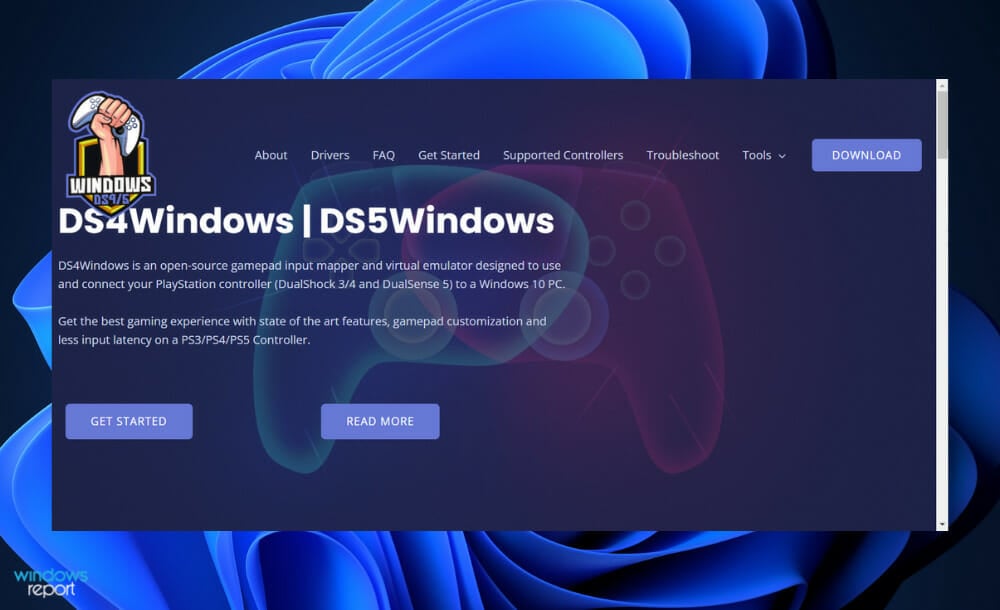
  1. Download DS4Windows.
  2. Click the Download button in the corner to download DS4Windows.
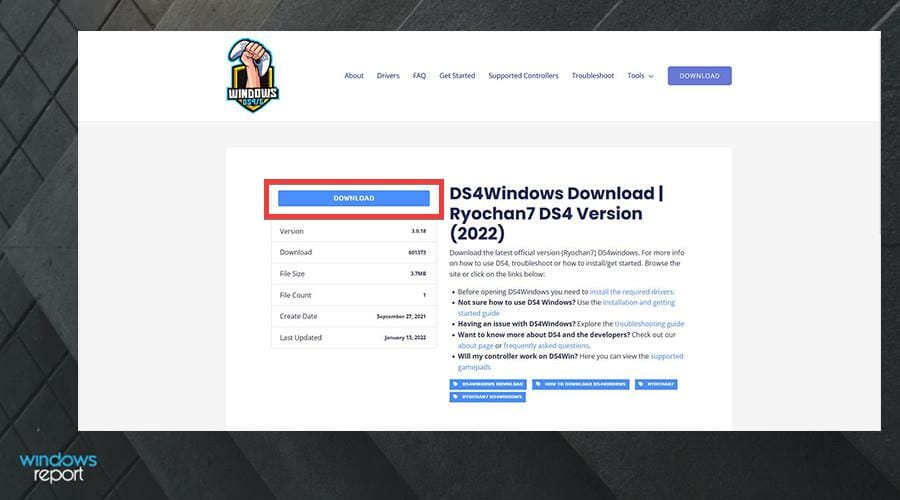
  3. In the next window, click the blue Download button.
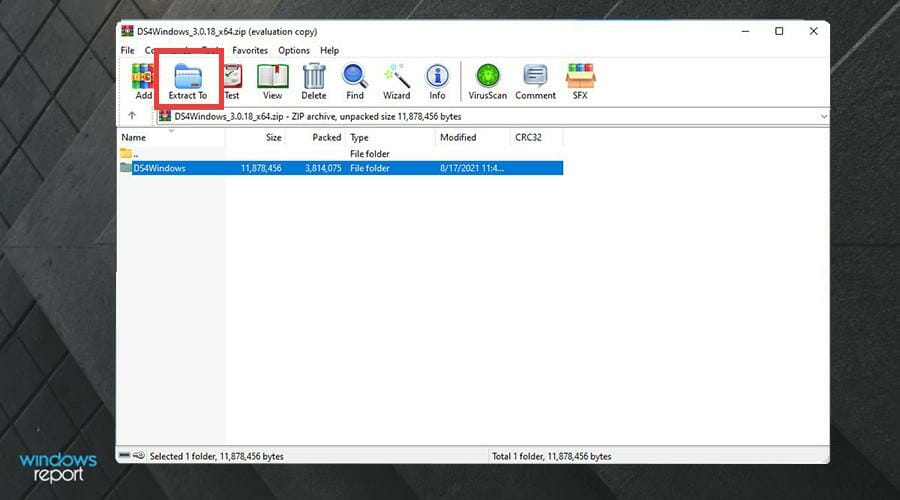
  4. Click the Zip file that downloads.
  5. Highlight the file and click Extract.
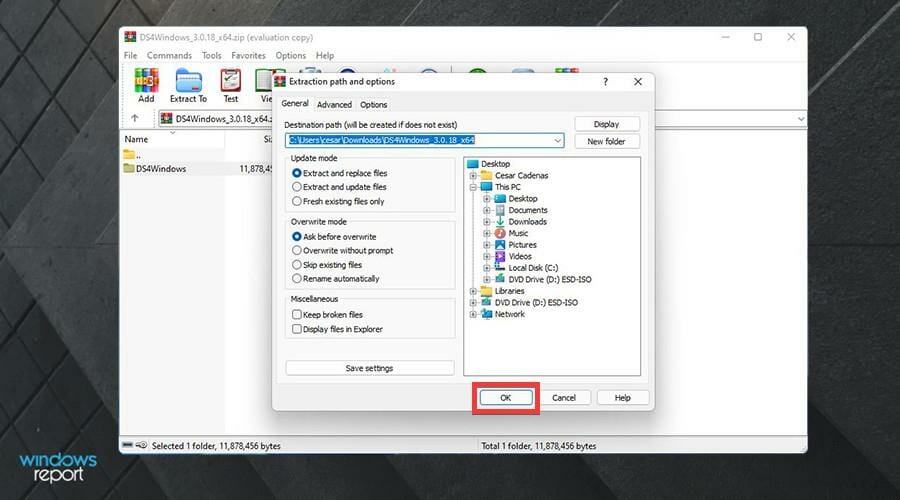
  6. Choose a location to extract the file to. Then click OK.
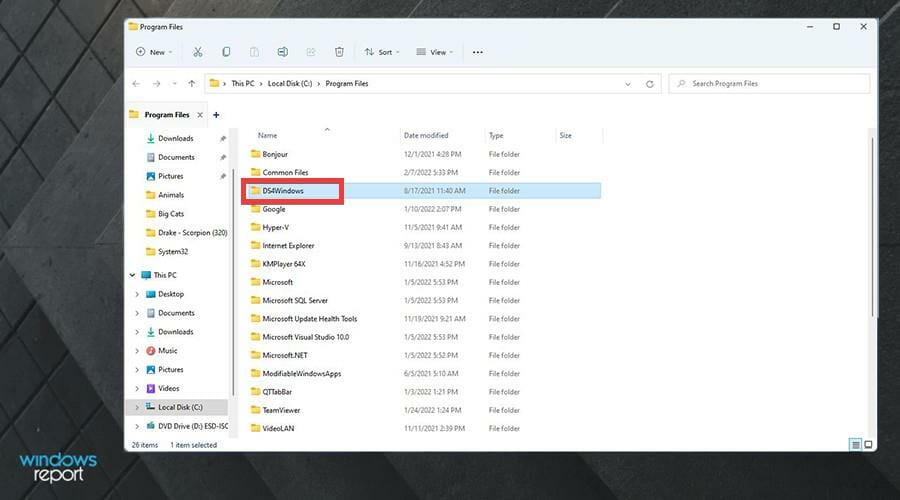
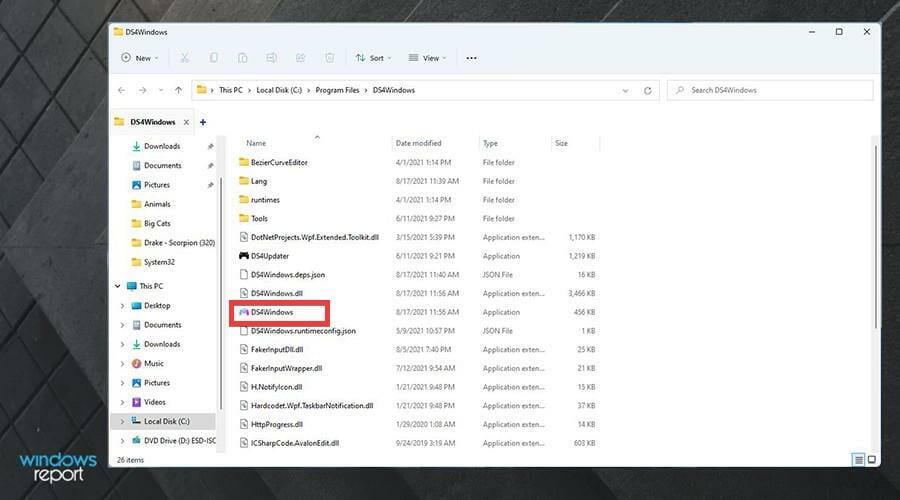
  7. Go to where the file is located.
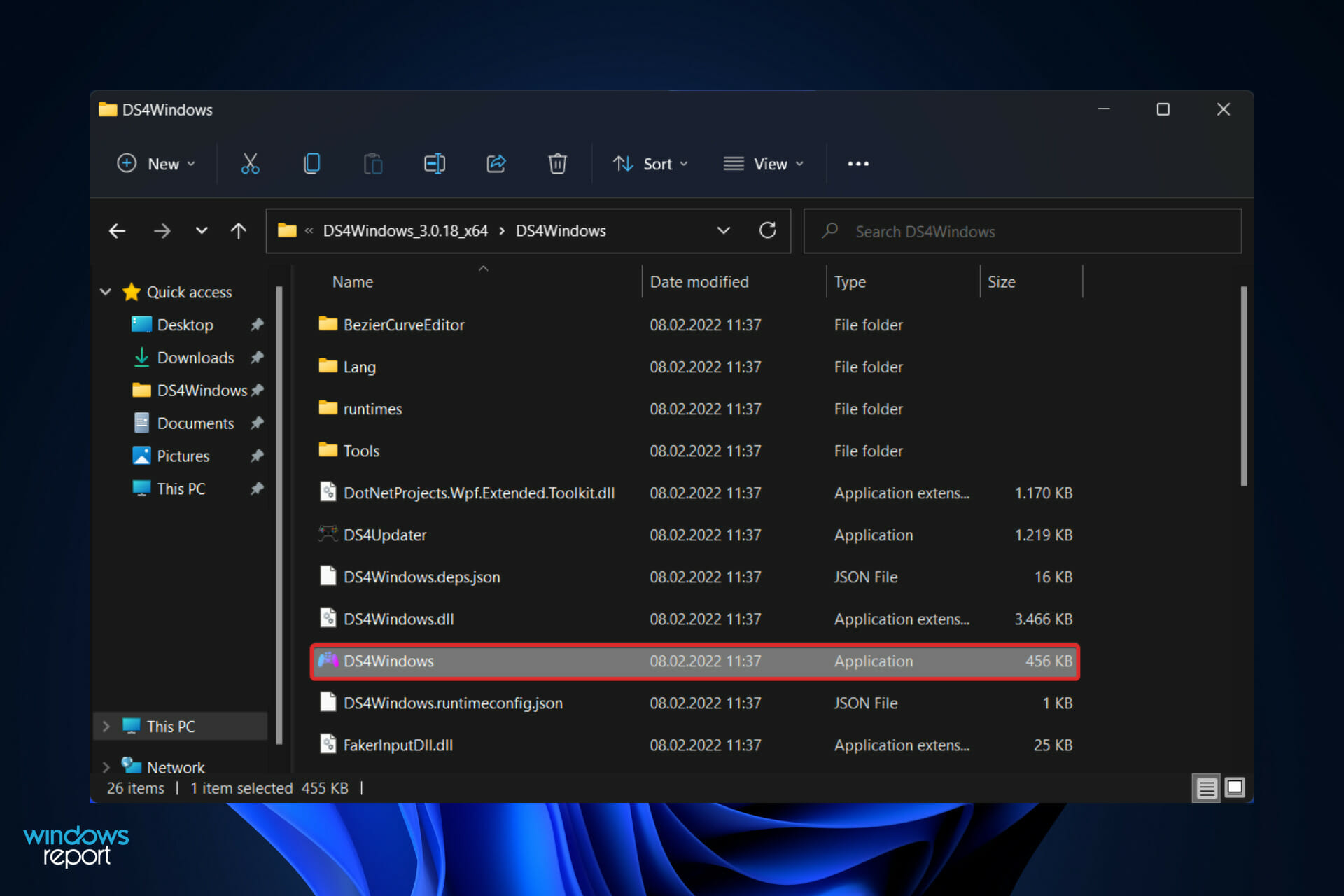
  8. Double click DS4Windows to open the app.
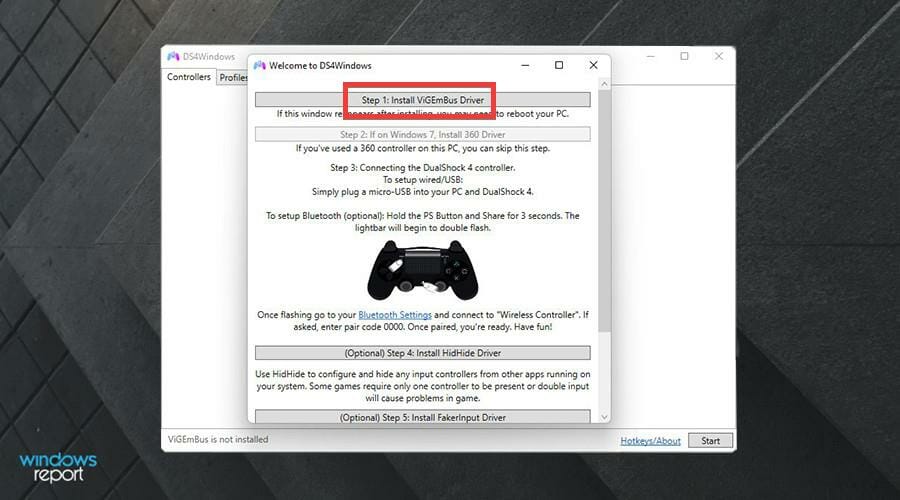
  9. Click Install ViGEmBus Driver.
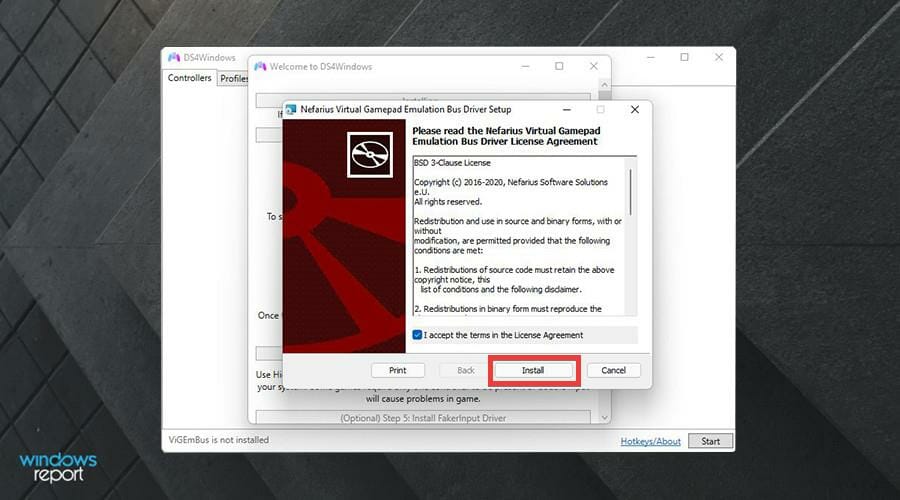
  10. An installation wizard will appear. Accept the terms and then press Install.
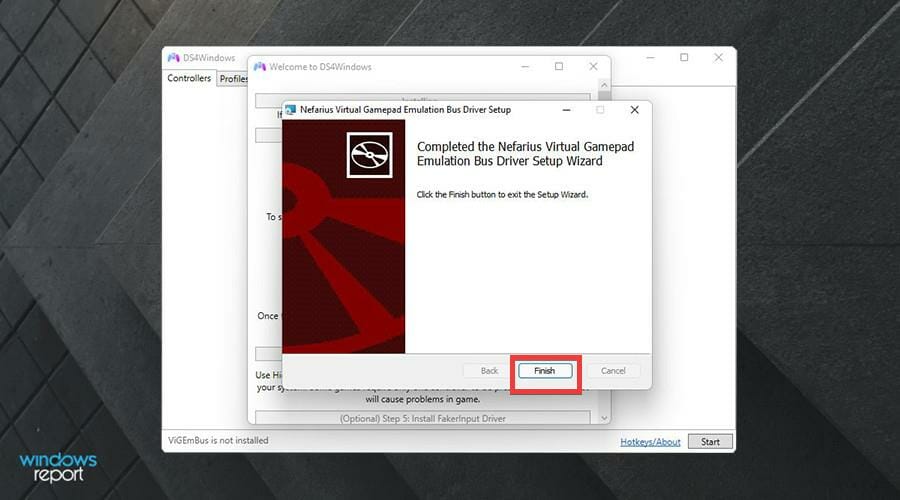
  11. Click Finish.
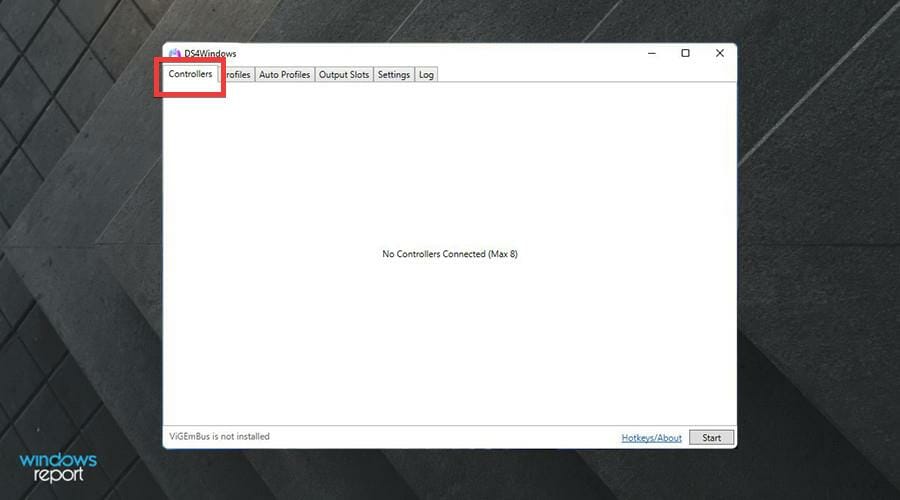
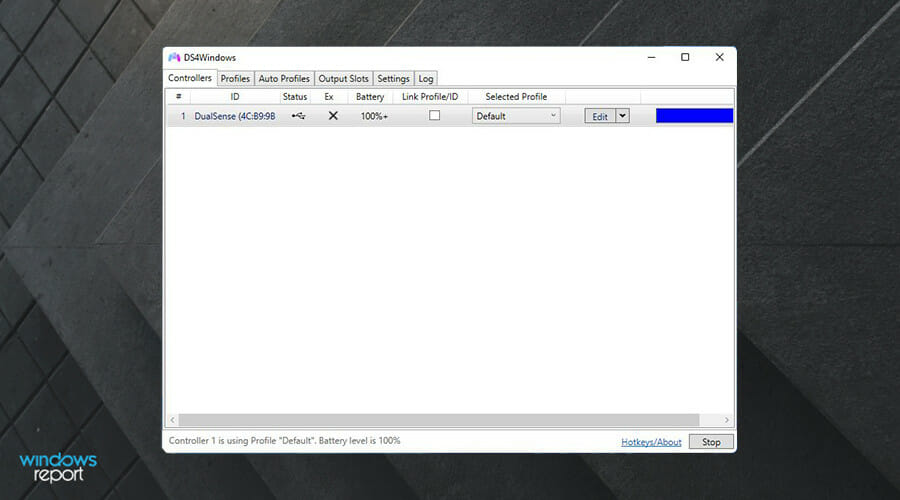
  12. In DS4Windows, click on the Controllers tab. The controller should appear here, but as seen in this example, it doesn’t.
  13. Ensure that your controller is on and connected to the PC. Start by going to the Bluetooth & devices section in the Settings menu.
  14. As seen in this example, the DualSense is connected.
  15. If it isn’t connected, click on Add device.
  16. Press and hold the Share and PlayStation button on your controller. The light will start blinking indicating that its looking for a computer to pair up with.
  17. On your PC, select Bluetooth and then Wireless Controller.
  18. You may have to add your computer’s PIN to move forward.
  19. After connecting, go back to DS4Windows.
  20. You should be able to see your DualSense controller connected to DS4Windows.
  21. If it doesn’t appear if you’re connected via Bluetooth, try using a USB cable and connect the controller to the PC.
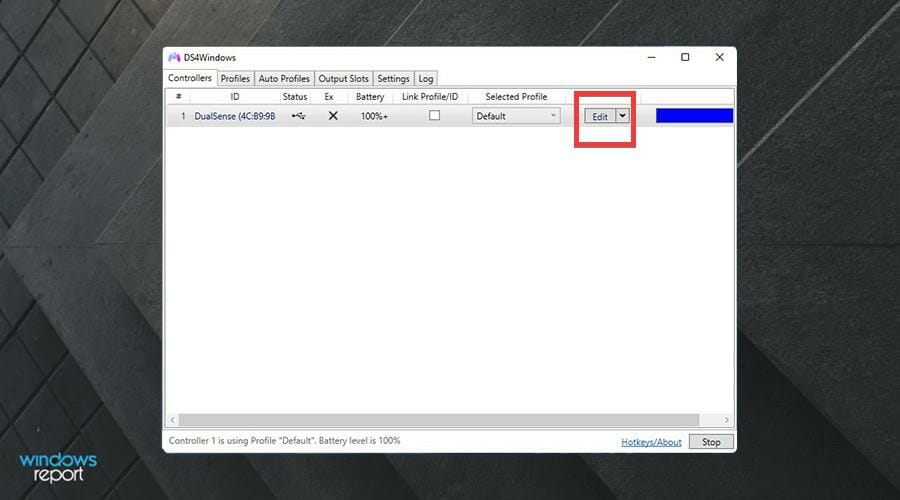
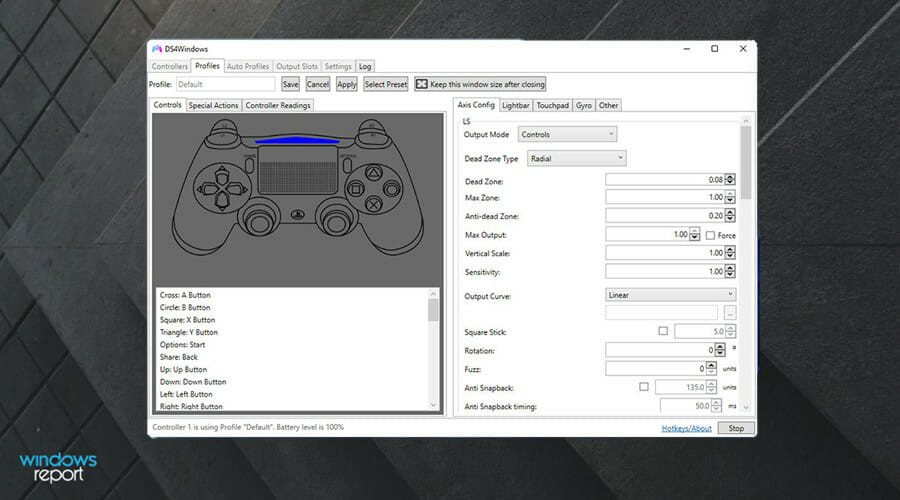
  22. If you want to reconfigure the controller, click on Edit.
  23. Here you can change things like the analog stick sensitivity, touchpad, internal gyroscope, and more.

3. Solving on Steam

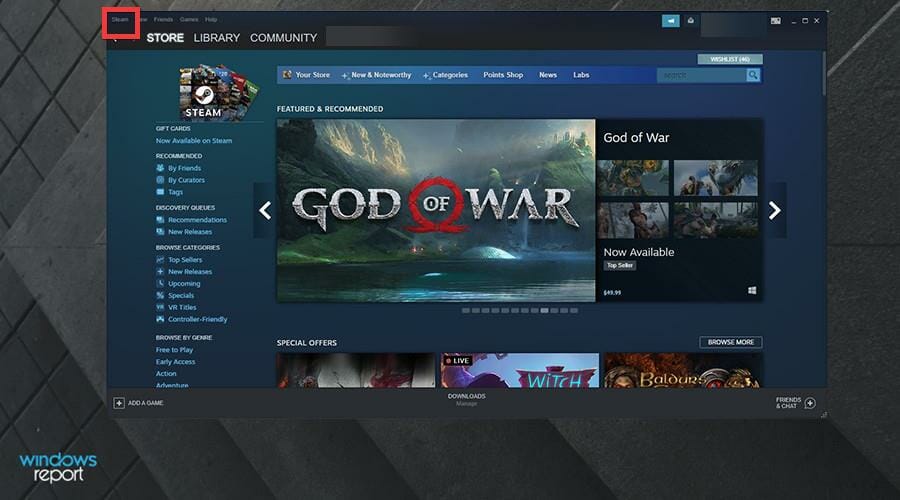
  1. On Steam, click on the Steam entry in the upper left hand corner.
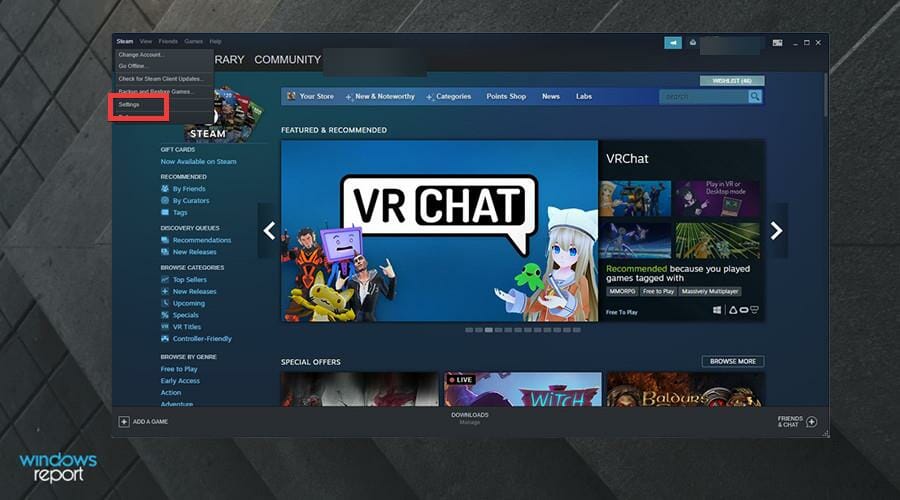
  2. In the drop down menu, click Settings.
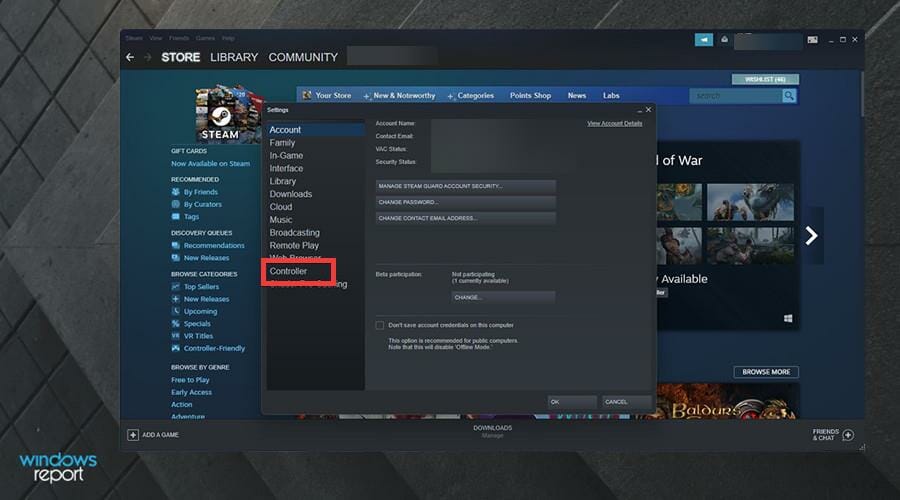
  3. Click Controller in the sidebar.
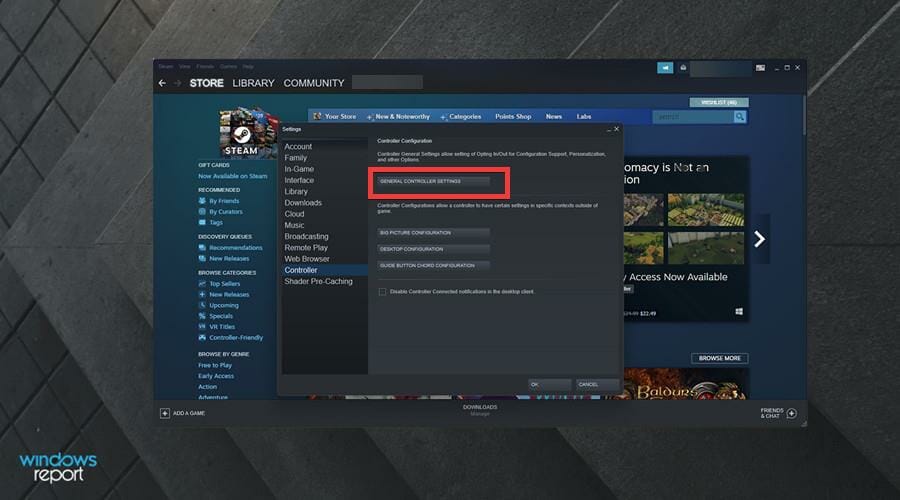
  4. Click the GENERAL CONTROLLER SETTINGS button.
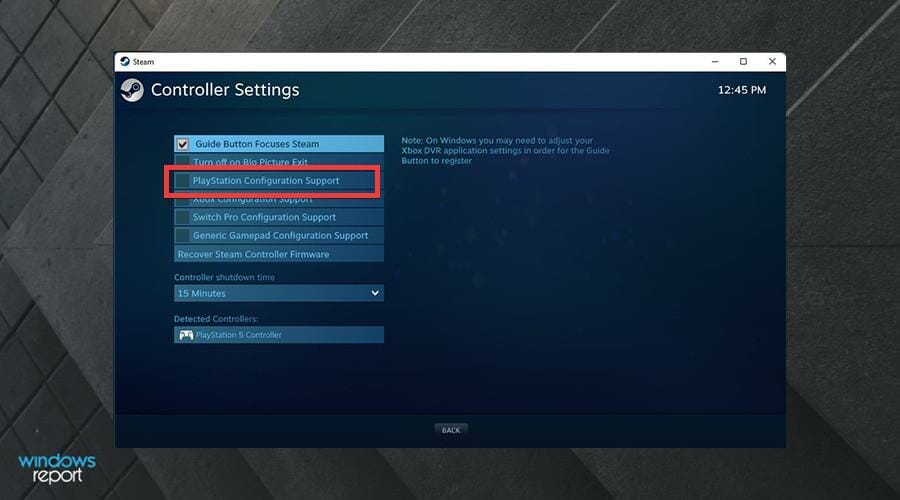
  5. Check the box next to PlayStation Configuration Support in this new window.
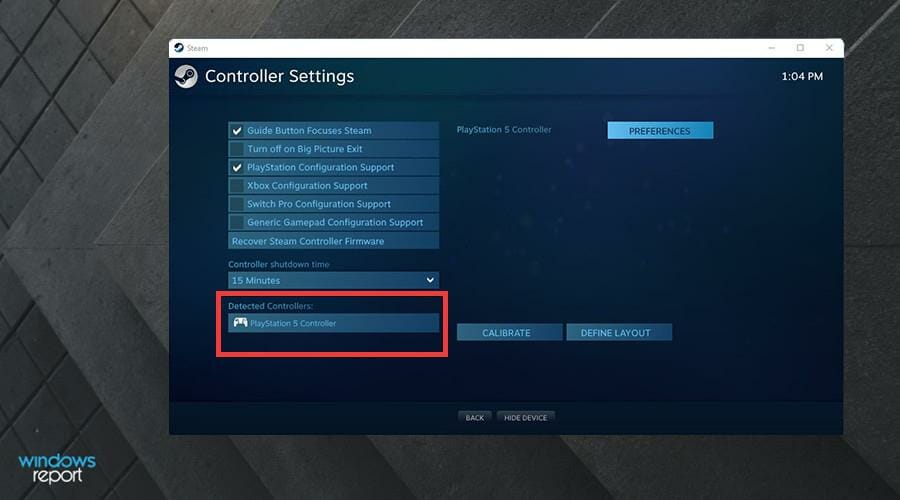
  6. If a DualSense is connected, you will see PlayStation 5 Controller at the bottom of the window.
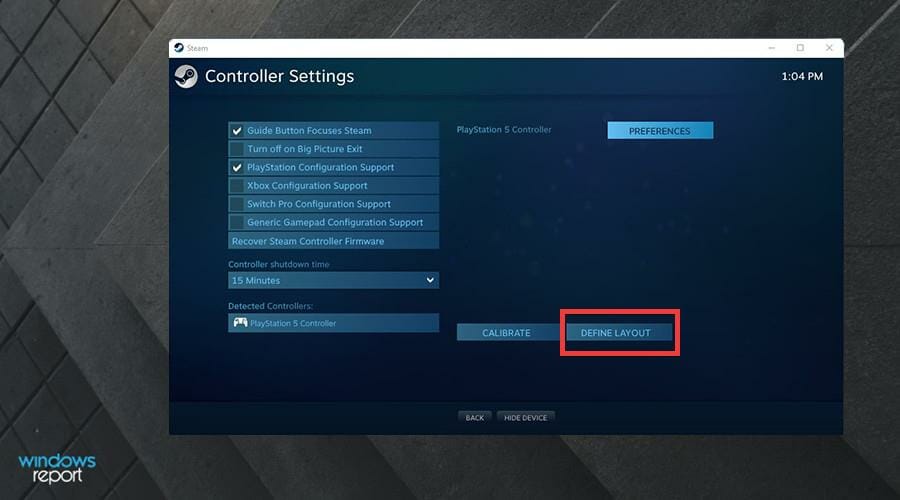
  7. If you click on PlayStation 5 Controller, you will given option to change preferences, calibrate the controller, and change the button layout.
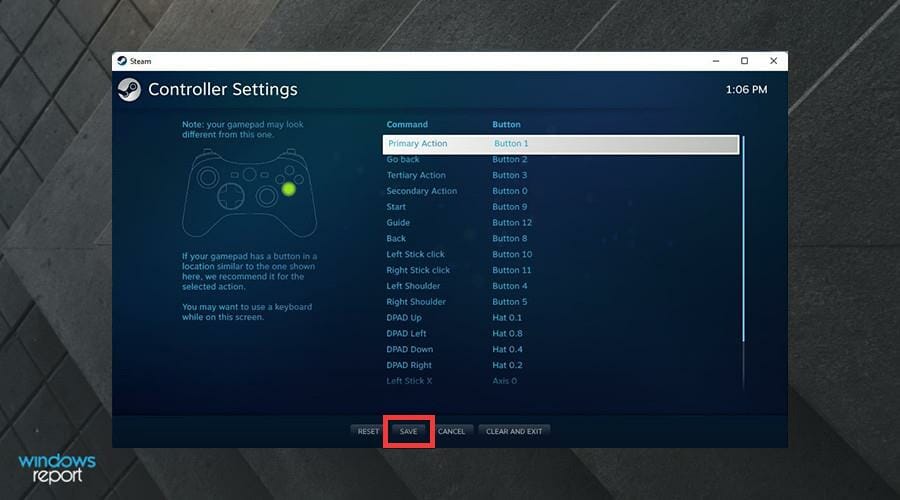
  8. Clicking on Define Layout takes you to a new page where you can change the buttons.
  9. Click Save at the bottom to keep the configuration.

Is there anything else I should know about Windows 11 and video games?

For Windows 11, Microsoft took a different approach towards video games. The company was much more heavy-handed and strict on developers during the Windows 10 era, but this time around, Microsoft is being much more hands-off. It wants developers to naturally come to the platform without coercion.

This can be seen when Microsoft announced that the new OS will support Android apps, including the mass of games available. This feature still hasn’t seen an official release, although it is available to people who signed up for Windows Insider. It’s unknown if and when Android apps will see wide release.

And if you’re a big gamer, you’ve no doubt have heard of Twitch. It’s the leading online platform for video game streams and set the foundation that other sites are trying to emulate. You may be interested in knowing which internet browser is the best one for Twitch.

All browsers have access to Twitch, but the website does require a fairly high amount of resources to stream without issue. And because of that, certain browsers are better than others.

Feel free to leave a comment below if you have any questions on other Windows 11 apps. Also, leave comments about guides that you’d like to see or information on other Windows 11 features or list guides like this.

Windows 11 Insider Dev Channel reportedly to soon get busy reintroducing missing features and adding new ones

The Windows Insider Dev Channel could soon get busy. According to Windows Central’s Zac Bowden, Microsoft is readying some big builds, which might bring back some of the missing features people have been complaining about, and even add new ones.

The news comes after a two-week pause in Windows Insider builds, and per Bowden’s sources, this pause was because Microsoft was busy adding new features and changes. You can expect a big jump in build numbers as a result, too, from the current 225xx to 250xx.

This means the return of Windows features like the ability to create app folders in the Start Menu, support for file dragging and dropping on the Taskbar. In addition, new blur effects could be on the way soon

Other new features coming to Windows Insiders include a “Snap Bar” feature and touch features for Start Menu and Quick Settings. Notable of that is the ability to drag up on from the bottom of the screen to get to Quick Settings or the Start Menu. Snap Bar, meanwhile, could “be another way of snapping multiple app windows to the built-in snapping grid system on Windows 11,” according to Bowden.

In other areas of visuals, Bowden believes Microsoft is even working to bring acrylic/blur effects in legacy title bars. This will best be seen in Win32 apps. This should help with the design consistency in Windows 11, which has been said is a goal for Microsoft this year.

So, when will everyone else expect these features? Well, look out for it in the next major Windows 11 release, for the second half of this year in “Sun Valley 2.” It definitely seems like it’ll be an exciting time to be a Windows Insider soon.

Twitch app is not detecting WoW: Fix it with ease

If you found that your Twitch app is not detecting your World of Warcraft addons after an upgrade or install, you came to the right place. A large number of users have dealt with the same situation recently.

The problem seems to vary, with some users saying that the issue doesn’t stop at the WoW addons and that it also includes the WoW game not being detected.

Here is what one user had to say about this issue:

Is there anyway I can get some help for this? My Twitch doesn’t find my WoW on my computer, and doesn’t recognize the file when I select it. I can’t update my addons and everything has gone very buggy since 8.1.5

This issue seems to affect users with different system configurations, and even though it allows you to run WoW, the addons are nowhere to be seen.

This has caused users a lot of frustration, but in today’s article, we will explore some of the best methods to deal with it.

What can I do if the Twitch app is not detecting WoW?

1. Make sure you selected the right profile

If addons are showing inside World of Warcraft but not inside your Twitch app, you will need to make sure that the right profile is selected inside the app.

To do so, you will need to check the addon section from the upper right side of your screen and choose the right profile from the drop-down menu.

2. Log out and log back in the Twitch app

  1. Press on the Windows key, type Twitch, then open the first result, or you can simply navigate to the Twitch official page.
  2. Look at the top-left corner of the window, then click on your profile image.
  3. Choose to Log Out.
  4. Wait a few minutes.
  5. Now, open again the Twitch desktop client or go again to the Twitch official page.
  6. From the upper-left corner of the window, click on the Log In button.
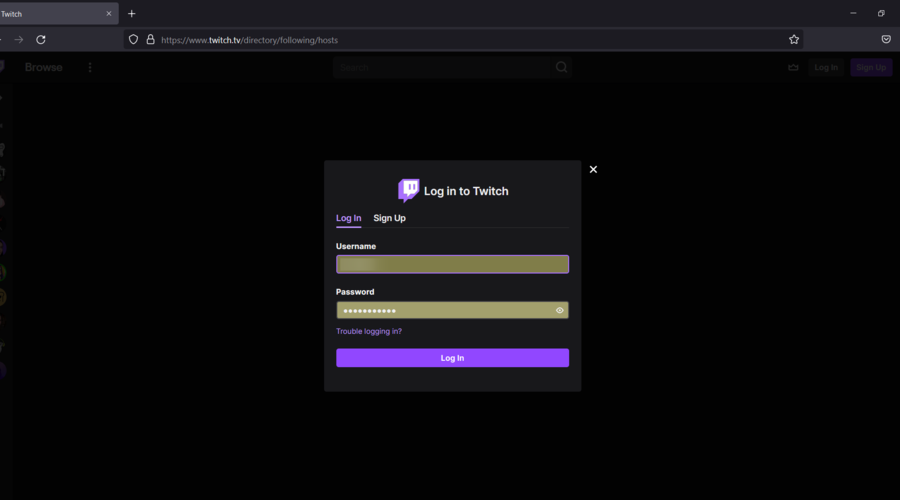
  7. Enter your Twitch credentials, then click on Log In.

3. Delete the AddonGameInstance.json file

  1. Hit the Windows key, type Twitch, then open the first result, or simply navigate to the Twitch web version.
  2. Click on the 3 dots menu icon at the top of your screen.
  3. Select Help.
  4. In the opened page, scroll down, then click on About.
  5. Inside the newly opened window -> click on the Client Folder button.
  6. Search for the folder GameInstances and open it.
  7. Delete the AddonGameInstance.json file.
  8. Close the Twitch app and relaunch it.

4. Use Blizzard

  1. Open the Blizzard app, then log into your account.
  2. Click on the Blizzard icon at the top-left of your screen.
  3. Select Settings from the drop-down menu.
  4. Click on the Game Install/Update option -> scroll down to find the World of Warcraft.
  5. Note the location of your WoW installation (ex. G:World of Warcraft).
  6. Now, hit the Window key, type Twitch, then open the first result. Or simply navigate to the Twitch web version.
  7. Click on Mods.
  8. Select Word of Warcraft.
  9. Click on the cogwheel found in the upper-right side of your screen.
  10. Select Settings.
  11. Click on the Game Specific tab -> in the Your Games section -> select WoW from the list.
  12. Compare the path found earlier and make sure they are the same.

In this article, we explored the best fixes in the case your Twitch app is not detecting World of Warcraft add-ons, or the game itself.

We hope this guide helped you solve your issue and get back to gaming normally.

Please feel free to let us know if you found this guide helpful, by using the comment section below.

Twitch error code 61d3870c in Xbox [Fast Solutions]

Twitch is a popular streaming platform for Xbox users as it allows you to stream live gameplay directly from the console. However, some users have reported a glitch with their Xbox Twitch app.

When you try to open the Twitch app and try to sign in you get twitch error code 61d3870c in Xbox. You can find similar issues reported by other users.

Is anyone else experiencing an error when trying to sign in to the Xbox One Twitch App? I keep getting an error: SOMETHING WENT WRONG. We’re so sorry; something unexpected happened. 61D3870C

Follow this troubleshooting guide to fix Twitch error code 61d3870c in Xbox.

Why does the Twitch error code 61d3870c appear on Xbox?

You should know that the Twitch error code 61d3870c appears due to several reasons that you can find in the list below:

  • Twitch server-related issues – Like any other platform or app, Twitch can run into different troubles and it’s not only about what you might do. In these terms, we strongly recommend checking the Twitch status, then other forums to establish whether or not the problem has a general impact.
  • Temporary bugs – These can occur randomly and without knowing it. The best thing to do is try to disconnect and then reconnect Xbox from your Twitch account.
  • VPN-related problems – Twitch doesn’t like VPN accounts that are suspicious and may terminate or suspend any account that uses those IP addresses. In this matter, you should check your VPN first.
  • DNS issues – DNS can affect gaming or streaming activities by blocking malicious websites. However, it seems like the wrong related settings can lead to the Twitch error code 61d3870c, so you might need to change them.

How can I fix the Twitch error code 61d3870c in Xbox?

1. Check for the issues at the Twitch End

At times, the error can occur if there are issues with the Twitch server. It might be down and/or the app can be down for maintenance or due to any other unforeseen reason. To easily check it, make sure you navigate to the Twitch status official page.

You can also check if any other users have reported similar problems. We strongly recommend accessing the Reddit Community or Twitch Forum.

In addition, you can verify other console forums and if the users of other consoles (like PlayStation) are also witnessing similar issues.

If the issue happens to be on a larger level, it could be a Twitch end-related problem, and you only can wait for it to be automatically solved.

Wait for a day or two before you take try any other troubleshooting guide in case the issue is at the developer’s end.

If everything seems to work in Twitch servers, make sure you keep on reading to discover other options to fix the Twitch error code 61d3870c in Xbox.

2. Disconnect Xbox from Twitch Account

  1. If the issue persists, try to disconnect and reconnect your Xbox console from the Twitch account. Many users have reported that disconnecting their Console from the Twitch account has resolved the issue.
  2. From the web browser, go to Twitch.tv/settings page.
  3. Now, disconnect your Xbox console from the connections page.
  4. After disconnecting the console, reboot the Xbox console (optional).
  5. Now try to connect your Xbox console to the Twitch account again and check if you get 6 digit code instead of the error code 61d3870c.

3. Check your VPN

Twitch platform doesn’t approve VPN accounts that are suspicious and may terminate or suspend any account that uses those IP addresses. If you are connected to Twitch using a VPN client on your Xbox console, turn off the VPN client and then try to connect to the Twitch app again.

If the issue persists, contact twitch’s support. Twitch support may ask for your provided identification proof to verify the account to see any suspicious activity, for security reasons.

The good news is that you may actually use a VPN with Twitch without any connection or security issues. Private Internet Access (PIA) is a VPN company in the United States that has the biggest server network, connecting 78 countries.

A big part of these modern servers is hosted in the United States. As a result, you’ll always be able to connect to and stream your favorite content on Twitch with a low ping server, with no suspicious activity detected.

4. Change DNS Settings

  1. Another simple solution that has worked for other Xbox users with twitch error code 61d3870c is changing the DNS settings on their console. Here is how to do it.
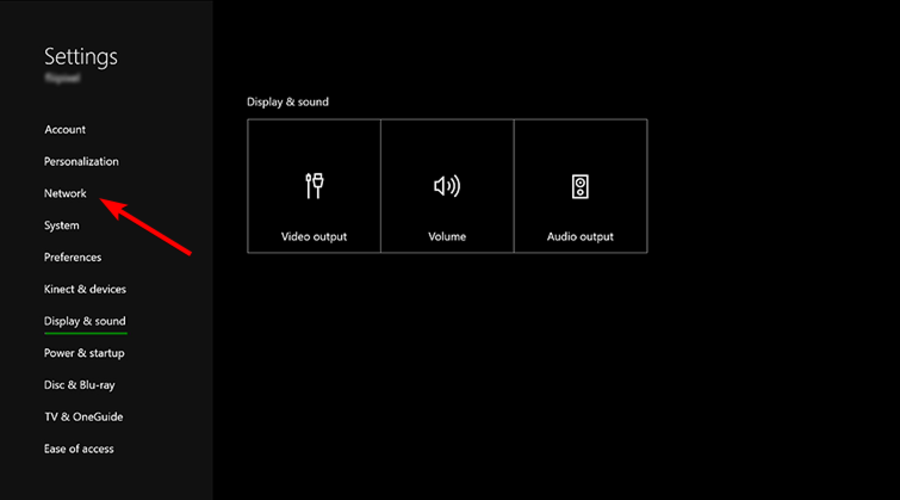
  2. From the Xbox One home screen, go to Settings.
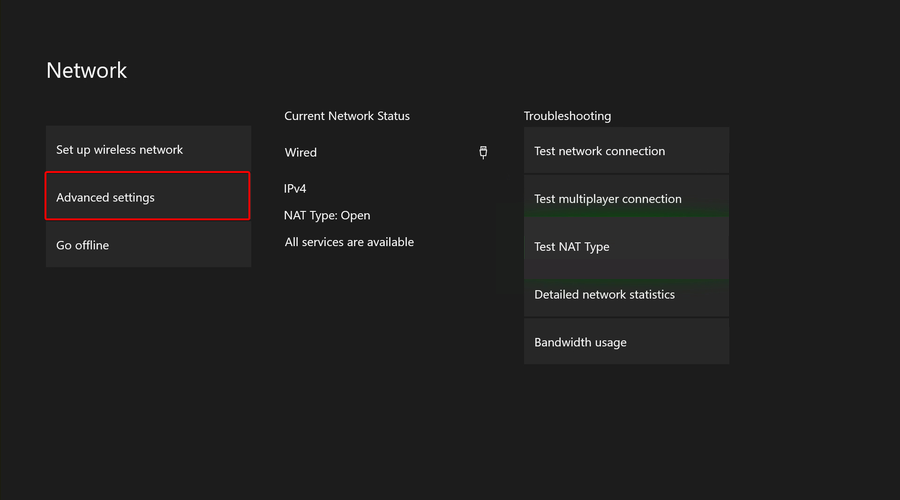
  3. Select Network.
  4. Click on Advanced Settings.
  5. Now select DNS Settings.
  6. Click on Manual.
  7. Change the Primary and Secondary DNS values with the following values: Primary DNS: 8.8.8.8 and Secondary DNS: 8.8.4.4
  8. Save the changes.
  9. Reboot the console and try to sign in to the Twitch account.

If nothing seems working try to reset the Xbox console to the factory default by keeping all the games and personal files.

What other Twitch error codes can I encounter in Xbox?

Of course, the Twitch error code 61d3870c in Xbox is not the only one that might occur. There are several other problems and to prevent them, make sure you check the following list:

  • Twitch error 0x20b31181 on Xbox – This one talks about restricting account from broadcasting. You’ll be notified that you must be an adult to broadcast using Xbox One, so checking your account settings for any content restrictions might solve it.
  • Twitch error code 995f9a12 on Xbox One – If it will ever happen to face this error code, keep in mind that something unexpected went wrong. To fix this annoying issue in a few minutes, take a look at some dedicated solutions.

These are the best options you can try to get rid of the Twitch error code 61d3870c in Xbox. As you can see, they are not complicated, so you can perform each step below without experience.

If you encounter any additional questions or curiosities, do not forget that you can leave a comment in the section below.

FIX: Decentraland not working on Safari

Are you facing Decentraland not working on Safari issue? This article will tell you why it happens and how to get rid of it.

The Virtual World game, Decentraland, runs only on the browser right now. It is also free to start. As a result, many users from many devices have begun exploring this metaverse platform.

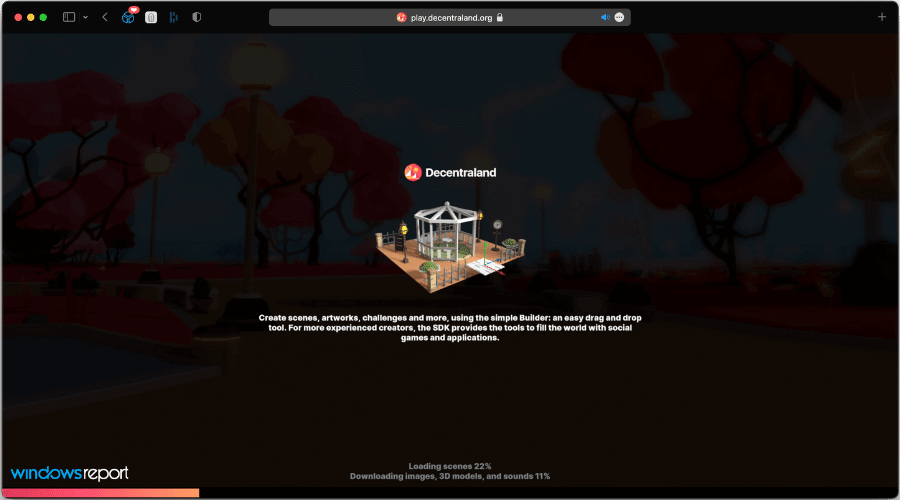
However, Mac users who use Safari may find that this browser is not running the Decentraland well. Mainly, they notice that this browser takes a lot of time to load the game or Decentraland is not working on Safari at all.

Both of these problems are related. So, These have the same solutions. However, before taking steps to fix this problem, you also should know the things that act behind the scene.

Why may Decentraland not work with Safari?

Decentraland not working or stuck at loading in Safari

Safari is getting better with each new macOS update Apple has been releasing. Notably, this browser gained new features, looks, and performance improvements with the macOS Monterey.

Still, many platforms or browser-based games like Decentraland don’t work well with it because of having a different rendering engine with less user base. But, the followings are the main reasons behind Decentraland not working on the Safari problem.

  • Safari is not a recommended browser by this virtual world game publisher.
  • Third-party extensions are causing problems loading essential resources.
  • Misconfiguration in Safari preferences.

Whatever causes the problem with Decentraland, you can always solve it if you follow the proper steps.

How can I fix Decentraland not working on Safari?

1. Disable the Adblocker

  1. Click on Safari in the macOS menu bar and go to Preferences.Going preferences of Safari
  2. Click on the Extensions tab.going extension tab safari
  3. Uncheck the Adblocking extensions.disabling extension safari

This type of extension scans all requests and may block essential elements required to run Decentraland on Safari. So, you should disable any active Adblockers in Safari as the first step to fix this problem. 

2. Disable All extensions

Not only the Adblocking extensions or addons, any other items that can use a lot of resources should be disabled. Because, In many cases, We found Decentraland doesn’t load because of having less available CPU and memory power.

3 Make sure third-party cookies are enabled

  1. Go to Safari preferences like before.
  2. Go to the Privacy tab.going privacy tab safari
  3. Make sure Block all cookies is unchecked.

4. Close all other apps

If extreme memory usage occurs in Mac, you may not be able to run Decentraland on Safari due to lack of available memory.

Note that this virtual world game requires 8 GB RAM, 2 GB available graphics memory, and Core i3 2nd gen+ or latest Apple Silicon processors to run smoothly.

So, close all the apps except Safari when you want to play it.

5. Try it on a different computer

One of the downsides of the latest Apple Silicon-based Macs, notably the M1 Macbook Air or Pro, is these are not upgradable.

If you have the base model with having just 8 GB of Ram, Decentraland not working issue may occur along with various performance problems.

Though it should not happen as Mac handles RAM very decently and the built-in GPU performs well, the situation still may come for some reasons. In this case, there is no alternative to using the Metaverse on another computer with better specs.

6. Change the browser

If Decentraland doesn’t work on Safari at all, you should use an alternative browser. It will be a wise idea if you download Edge or Chrome, or Firefox.

Then, try to run Decentraland on that browser.

Why should you use Chromium or Firefox browsers for Decentraland?

For Mac or Windows, Decentraland officially recommends users try the game in Chromium or Firefox-based browsers. The reason is apparent. The game has not been coded by targeting Safari users.

Though you can continue using Safari for it, you have to expect any errors or optimization issues.

Not only this, the most recommended way to play Decentraland is with the MetaMask wallet. This crypto-wallet has extensions for Chrome, Edge, Firefox, brave, opera, etc. Unfortunately, there is no Safari extension.

Else, In our test, Safari uses a significant amount of RAM when users run browser-based games, especially in the M1 or other Apple Silicon Macs.

So, for a safe and best experience, we recommend avoiding Safari to explore this virtual world.

By the way, the methods mentioned above are the best ones to fix Decentraland not working on Safari problem. You can share in the comment box if you know any other working way.

Digital pre-orders open for Chrono Cross: The Radical Dreamers Edition on Xbox

Digital pre-orders are now open for Chrono Cross: The Radical Dreamers Edition on Microsoft’s Xbox One and Xbox Series X console families ahead of its April 4th release.

Chrono Cross: The Radical Dreamers Edition is a modern remaster of the classic 1999 PlayStation roleplaying game which was praised for its gameplay, score, and plot.

This new version of Chrono Cross boasts new HD models, higher quality music, improvements to combat, and various visual options that can be enabled or disabled on the fly.

Here’s the official list of improvements made in Chrono Cross: The Radical Dreamers Edition:

  • 3D models converted to HD
  • Refined character illustrations
  • Higher-quality background music
  • Switch enemy encounters on or off
  • Background filter feature
  • Battle enhancement features to make combat easier
  • Auto-battle function
  • Switch between imitation pixel font and HD font
  • Change screen resolution

Are you a fan of the original Chrono Cross video game or will this be your first time playing it? Let us know in the comments below and then follow us on Twitter and Facebook for more Xbox news.

Chrome’s downloads bar gets a makeover

Those of you who use Google Chrome to browse the web probably aren’t surprised to find downloads in the bottom bar of your browser window. 

However, as more and more users complained about the lack of transparency in this feature, Google decided to make a few changes.

If you’re using Google’s browser to download files, you’re probably aware that the downloads bar can get pretty annoying. The bar appears at the bottom of your screen whenever you start downloading something and stays there until the download is complete.

Google’s latest test release for Chrome Canary comes with a new feature that hides the downloads bar as soon as it becomes inactive. 

In other words, once you start downloading something from the web and see a new item appear in the downloads bar, it will prompt you with two options: either keep it visible or hide it until your download is complete.

New feature

The improvement is simple, yet will likely improve the overall workflow of many users. When you download a file, the downloads icon will appear next to any other extension icons in your toolbar at the top-right side of the browser.

If you click on that icon, a menu will pop up with your most recent downloads. You can then click on an individual download for additional actions like opening the file, copying it to your clipboard, or opening the download folder.

The change in Chrome will replace the toolbar with a bubble that appears directly next to the downloaded file in the browser’s download shelf.

The bubble will expand when clicked to display your most recently downloaded files, enabling the same quick access that the current toolbar provides, as well as displaying the progression on any active downloads.

Downloads button

In an upcoming update, the button will change color and size to reflect the stage of download progress.

From the recent patch, the downloads button will change color and size in reflection of your download progress, with the icon changing from gray to blue while active. 

Rather than changing color based on whether or not the download finished successfully, it now reflects the status of your download.

Google has also been working on moving alerts to the top right of your screen instead of the bottom right. This should help reduce distractions when downloading files, as well as make it easier for users with touchscreen devices to interact with these prompts.

The removal of what is known as the download shelf from the bottom of the Chrome browser seems to confirm Google’s plans both to remove the downloads bar from Chrome entirely and replace it with a more discreet bubble model that does not hog a section of your display.

To be clear, this feature has not been fully implemented and rolled out yet. However, it’s currently accessible via Chrome Canary, a beta version of Google’s popular web browser if you go into settings and toggle a specific flag for it. 

Chrome’s popularity

While Microsoft Edge has many useful features and does not require a disproportionate amount of memory to function well, it is still lagging behind Chrome as the most widely used web browser.

Google’s Chrome browser has been taking inspiration from Edge lately, but Microsoft’s browser still has a small share of the overall market. It appears that Google is paying attention to this recent growth in Edge’s market share.

Microsoft Edge is currently having some growth, the reason could be the design of the downloads bar on Google Chrome takes up an unnecessary amount of screen space, with the entire bar appearing and condensing your browser window even if you’re only downloading a single image.

Google hasn’t shared much on when exactly this new interface is going to be rolled out to users, so we’ll just have to keep a lookout for it and hope that it comes sooner rather than later.

What is your experience with Chrome’s downloads? How would you like it to appear after upgrading? Please share your opinion in the comments section.

What’s new in Microsoft’s Your Phone App

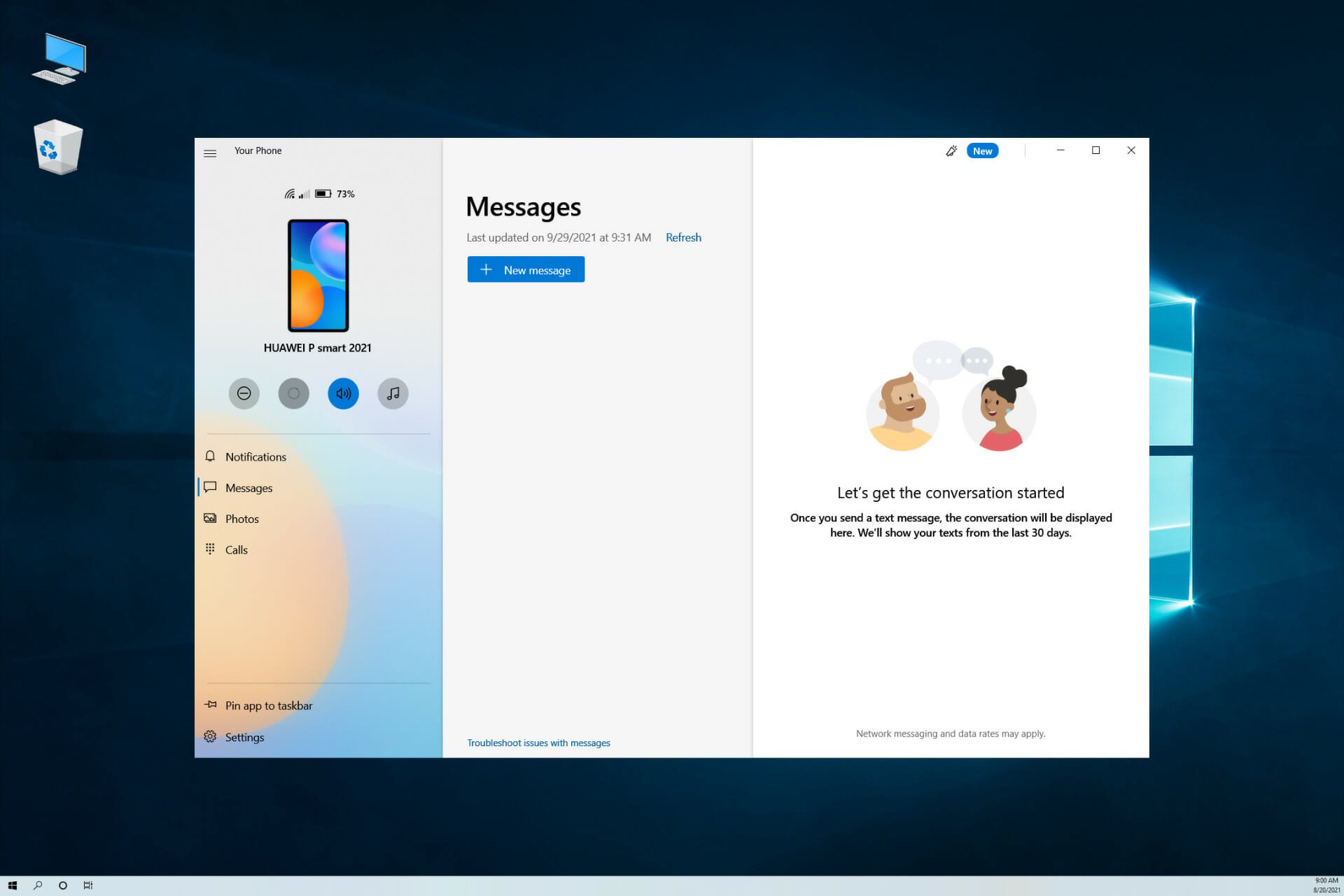
Microsoft is rolling out a new feature in its Your Phone app that lets Windows 11 users launch their most recently used applications on their Android devices. 

The company is testing the new functionality, which doesn’t require any additional effort on the part of the user to set up, with Windows Insiders and it leverages the existing Apps capability already built into several select smartphones. 

Your Phone allows users to mirror their Android phones directly to their PCs to respond to texts, notifications, and photos from their mobile devices. The app already lets users mirror multiple apps to a PC while they work on other tasks.

How it works

In Windows 11, the mouse cursor can be placed over the Your Phone icon in the notifications area of the taskbar to access the recent Apps feature. 

The Android apps that users had most recently opened will also appear at the top of your Apps page inside Your Phone app. Clicking on an app will open it just as if it had been opened from the Apps feature within the Your Phone app.

With the new Recent Apps feature, your recently used Android apps will appear on the Your Apps page of the Your Phone app.

This change makes it easy to quickly access an app, making it possible for you to switch from your desktop to your mobile device

Microsoft plans to roll out this new Continuity feature to everyone over time and expects that everyone will have access within weeks.

Devices used

To take advantage of Microsoft’s new recent Apps feature, users must have a flagship Samsung Galaxy device that supports the exclusive link to Windows feature. 

The new feature is currently only supported by select Samsung Galaxy devices that support the exclusive link to the Windows feature that can be accessed from the quick panel menu. 

Link to Windows was developed by Microsoft and Samsung, and it allows users to sync their phone with their Windows 11 PC without using a USB cable.

Using the new Recent Apps feature, you can simply click on any of your recently used apps and it will open immediately within Your Phone. 

If you don’t want to open an app, you can also just drag and drop files between your phone and PC by simply tapping and holding on to a file you want to transfer.

Apple’s handoff feature

Microsoft’s implementation is more sophisticated than Apple’s Handoff feature. It works with any app on all three platforms.  Microsoft’s solution will open the native app that supports Handoff when it transitions from an iOS device to a Mac or vice versa.

This isn’t quite as handy as Apple’s solution since it doesn’t work with native iOS apps. You can only access apps on your Mac or Windows computer or through Chrome browsers on a Mac and Windows PC. 

One nice thing about this new Continuity feature is that it works across multiple devices. If you pick up where you left off on one device, you can continue using that app on another device.

The big caveat here is that this new recent app feature only works with specific phones right now. Microsoft says support for more Android phones running will be added soon.

The Your Phone app will require an active internet connection and Bluetooth connection between your phone and PC to make this work. 

The experience isn’t as seamless as Apple’s handoff feature where you could easily switch from one device to another without launching individual apps.

How do you feel about the recent apps on your phone app, will it be of help to you? Share your thoughts in the comment section.

“File in use” error on Windows 10 [Fix]

The File in use error message usually appears when you try to delete a certain file while it’s being used by a different application or a user. This can be an annoying error, so today we’re going to show you how to fix it on Windows 10.

How do I fix the file in use error?

1. File in use error

1.1. Uninstall the problematic applications

Third-party applications can sometimes cause the File in use error to appear. Users reported that this problem occurred while working with ISO files. According to them, the cause of the problem was an application called Virtual Clone Drive.

After removing the Virtual Clone Drive, the error was resolved completely.

One way to instantly get rid of any kind of software from your PC is to go for a professional uninstaller.

While you have the option to remove anything from the Add or remove programs in Windows, we suggest you to use dedicated uninstaller software.

Removing from Windows will leave behind some files associated with the problematic application. This will prevent a future reinstallation and cause all sorts of issues.

Dedicated software can find and successfully remove all files related to the app you want to delete. They can also completely uninstall stubborn apps that can’t be removed using the Add or remove panel.

1.2. Close all running applications

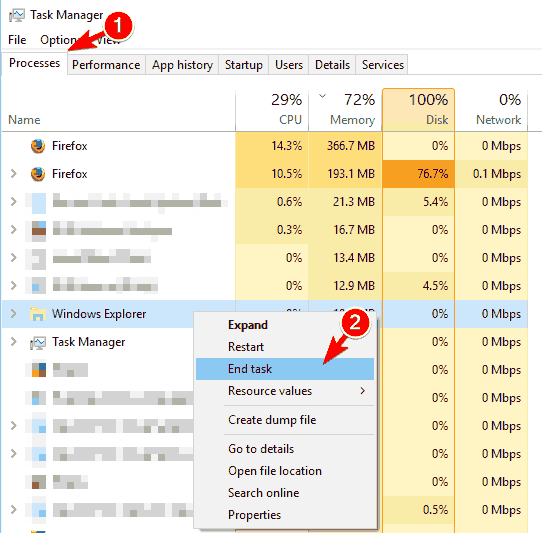
  1. Press Ctrl + Shift + Esc to open Task Manager.
  2. When Task Manager opens, navigate to Processes tab.
  3. Locate Windows Explorer on the list, right click it and choose End Task.
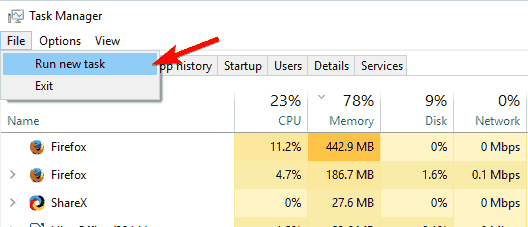
  4. Once Windows Explorer closes, select File > Run a new task.
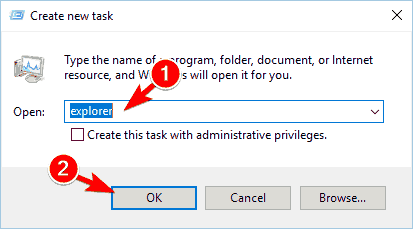
  5. The Create new task window will now appear. Enter explorer and click OK to start Windows Explorer again.

If you’re getting the File in use error, it’s most likely that the file is being used by a different application. Sometimes, certain apps can use files in the background and cause this error to appear.

To fix the issue, be sure to close all running applications and try to delete the file. In addition, restart your PC and try to delete the file again.

If that doesn’t work, you might want to try moving all other files to a different folder. After doing that, try to delete the folder that has the problematic file in it. Lastly, you can try restarting File Explorer.

Once Windows Explorer starts, try to delete the file again. If that doesn’t work, you can try to terminate the process that’s related to the problematic file. For example, if you can’t delete a PDF file, try terminating your PDF application from Task Manager.


1.3. Try to delete the file from Safe Mode

  1. Click the Start button.
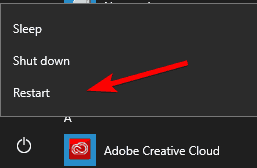
  2. Now click on Power button. Hold the Shift key on your keyboard and choose the Restart option from the menu.
  3. Once your PC restarts, you’ll see a list of options. Select Troubleshoot from the menu.
  4. Select Advanced options > Startup Settings and click the Restart button.
  5. A list of options will appear. Choose any version of Safe Mode by pressing the appropriate key.

If you can’t delete a file due to the File in use error, you might want to try removing it from Safe Mode. Once the Safe Mode starts, try to delete the file again.


1.4. Use Command Prompt

  1. Open Command Prompt as administrator. To do that, press Windows Key + X to open Win + X menu and choose Command Prompt (Admin).
  2. Once the Command Prompt opens, find the problematic file, hold the Shift key, and right-click it. Now choose Copy as path from the menu.
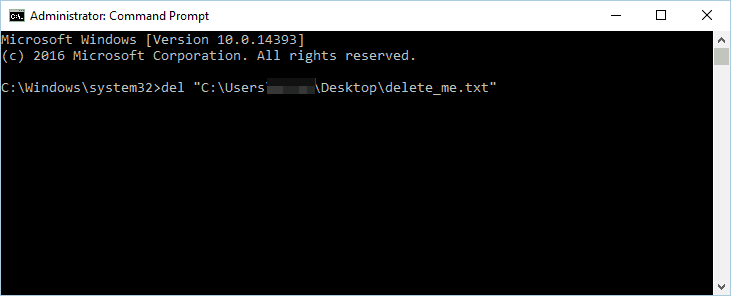
  3. In Command Prompt, enter del and press Ctrl + V to paste the file path. Don’t run the command yet.
  4. Use Task Manager to close Windows Explorer. We explained how to do that in Solution 1, so be sure to check it out. In order to successfully remove the file, it’s important not to restart Windows Explorer.
  5. Switch back to Command Prompt and press Enter to run the command that you entered in Step 2.
  6. After the command is executed, you can close Command Prompt and restart Windows Explorer

If you don’t want to rely on third-party solutions to fix this problem, you can use Command Prompt instead.


1.5. Change the file extension of the problematic file

According to users, you might be able to fix this problem simply by changing the file extension of the problematic file. In order to do that, first you need to turn on the option to show file extensions. To do that, follow these steps:

  1. Open File Explorer.
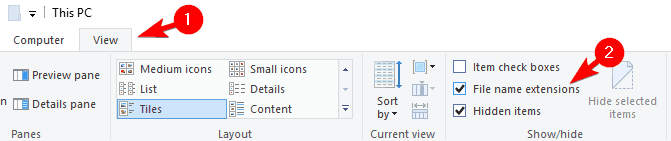
  2. Click the View tab and check File name extensions option.
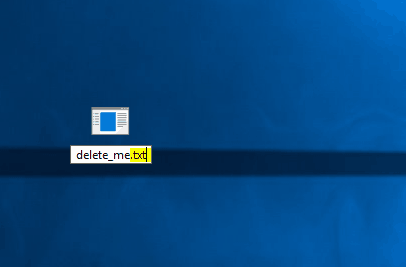
  3. After doing that, you need to find the problematic file, select it and press F2 on your keyboard.
  4. Change the file extension to .txt or any other extension.
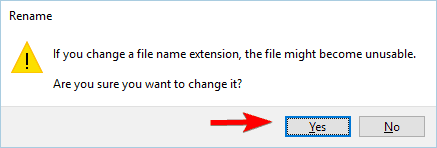
  5. A warning message will appear. Click Yes.

After you change the file extension, try to delete the file again.


1.6. Switch to Details view

  1. Open File Explorer and locate the problematic file.
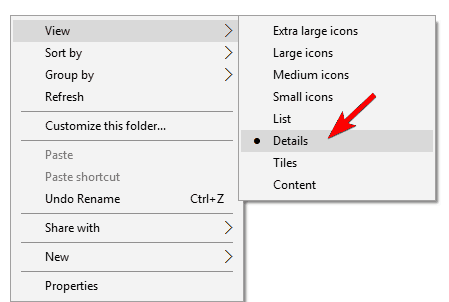
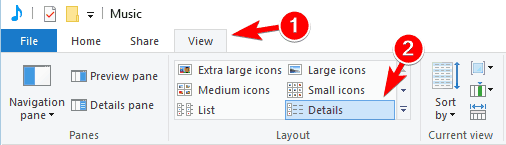
  2. Right-click the empty space and choose View > Details.
  3. Optional: You can do the same thing by navigating to the View tab and clicking on Details.

According to users, the File in use error can appear due to your thumbnails. Sometimes, Windows has issues unloading thumbnails, preventing you from deleting your files.

To fix the problem, you just have to switch to Details view in File Explorer and you should be able to delete the file.

After switching to Details view, all thumbnails will be disabled and you should be able to delete the file. Users suggest moving the file to Desktop and closing the File Explorer window.

By doing so, the preview pane won’t be available and you should be able to delete the problematic file with ease.


1.7. Disable thumbnail generation

  1. Press Windows Key + R and enter gpedit.msc. Click OK or press Enter.
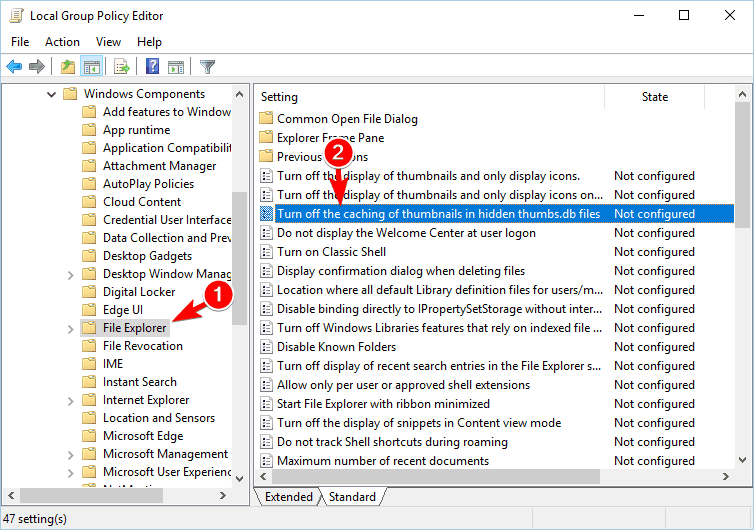
  2. When the Group Policy Editor opens, navigate to User Configuration > Administrative Templates > Windows Components > File Explorer in the left pane.
  3. In the right pane double click on Turn off caching of thumbnails in hidden thumbs.db files.
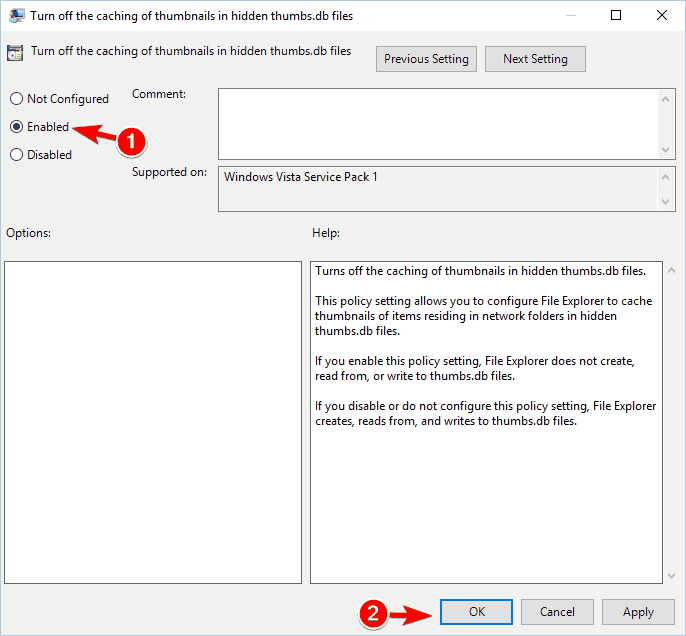
  4. Select the Enabled option and clickApply and OK to save changes.

If you can’t access Group Policy Editor, you can disable thumbnail generation using Registry Editor. To do that, follow these steps:

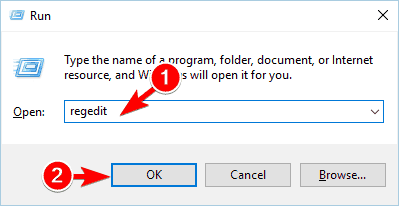
  1. Press Windows Key + R and enter regedit. Press Enter or click OK.
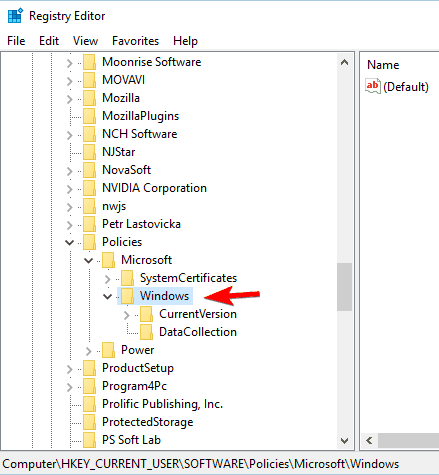
  2. When the Registry Editor opens, navigate to HKEY_CURRENT_USERSOFTWAREPoliciesMicrosoftWindows key in the left pane.
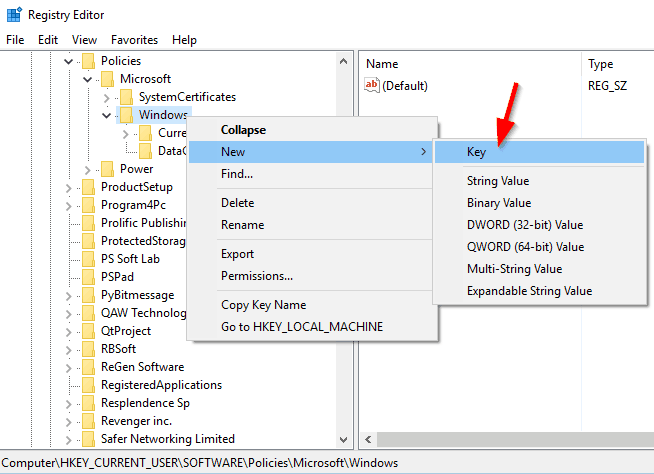
  3. Right-click the Windows key and choose New > Key. Enter Explorer as the name of the new key.
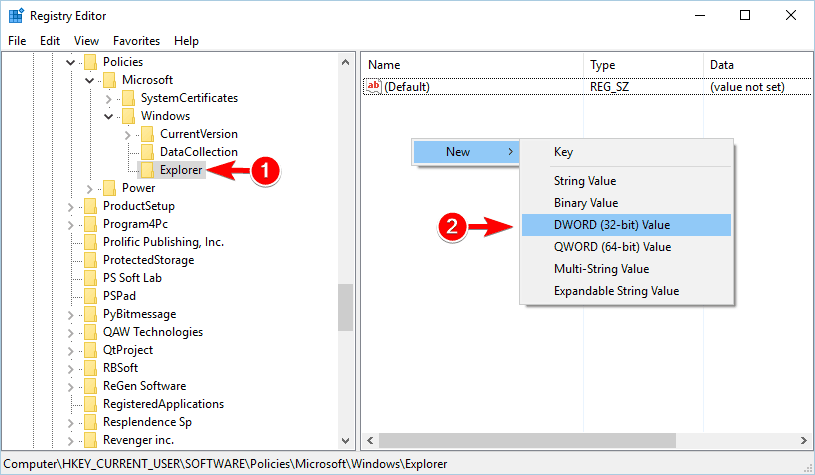
  4. Navigate to the Explorer key and right-click the empty space in the right pane.
  5. Choose New > DWORD (32-bit) Value. Enter DisableThumbsDBOnNetworkFolders as the name of the new DWORD.
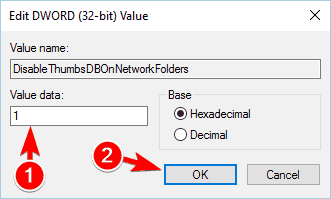
  6. Double-click newly created DisableThumbsDBOnNetworkFolders DWORD to open its properties.
  7. Set Value data to 1 and click OK to save changes.
  8. After you’re done, close Registry Editor and check if the problem is resolved.

If you’re having problems with this error, you might be able to fix it by disabling thumbnail generation. You can do that by using the Group Policy Editor. This solution applies to network drives, but it might work for your local drive as well.


1.8. Use OpenFilesView tool

  1. Download OpenFilesView tool.
  2. Start the application. A list of active files will now appear.
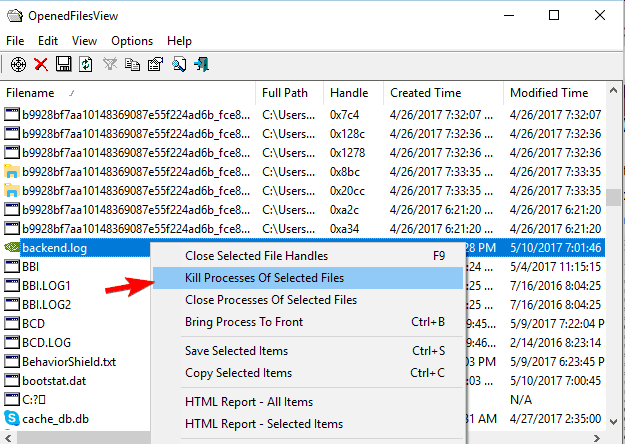
  3. Locate the problematic file on the list, right-click it and choose Kill Processes of Selected Files. By doing so, you’ll terminate processes that are associated with that file.
  4. After doing that, try to delete the file again.

Another third-party application that can help you with this problem is OpenFilesView tools. The application is simple to use.

This is a simple application that allows you to close all processes related to a specific file. If the problematic file isn’t available on the list, you might have to try a different solution.


1.9. Use Process Explorer

  1. Download Process Explorer.
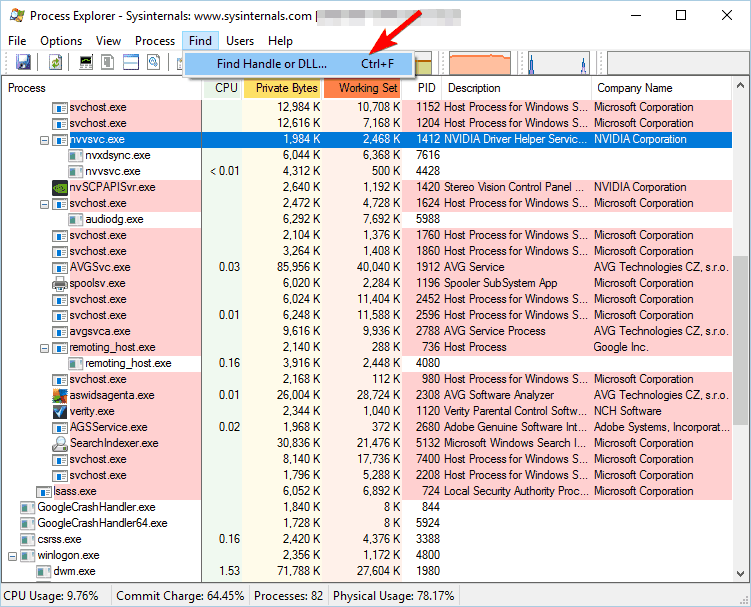
  2. When the application opens, go to Find > Find Handle or DLL.
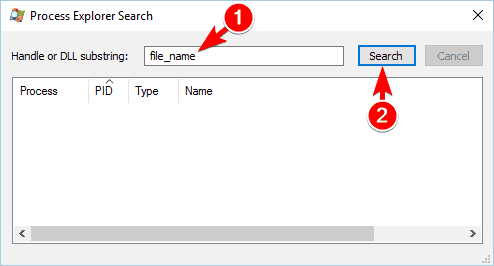
  3. In the Handle or DLL substring field, enter the name of the problematic file and click the Search button.
  4. A list of associated applications and DLLs should appear. Locate the application associated with the file, right-click it and choose the Close Handle option.

Several users reported that you might be able to fix the problem by using Process Explorer.

Keep in mind that you might have to repeat this process few times in order to close all related applications. We have to mention that Process Explorer is an advanced tool, so you might find it hard to use if you’re a novice user.


1.10. Make sure that file isn’t blocked

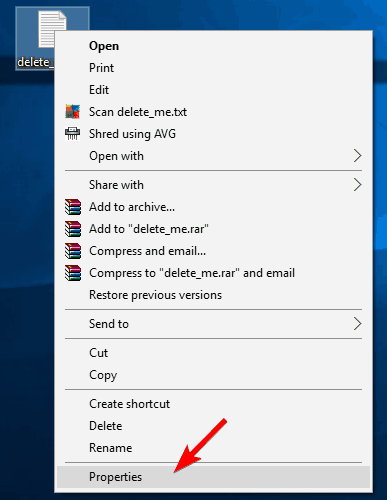
  1. Right-click the problematic file and choose Properties from the menu.
  2. Go to the General tab and click the Unblock button in Security section. Click OK and Apply to save changes.

Sometimes, the File in use error can appear if the file you’re trying to delete is blocked. Windows sometimes blocks downloaded files in order to protect you from malware. Although this feature can be useful, it can also prevent you from removing certain files.

After unblocking the file, try to delete it again. If you can’t find the Unblock button in the Properties window, it means that the file is already unblocked, so you should try a different solution.


1.11. Remove the virtual hard drive

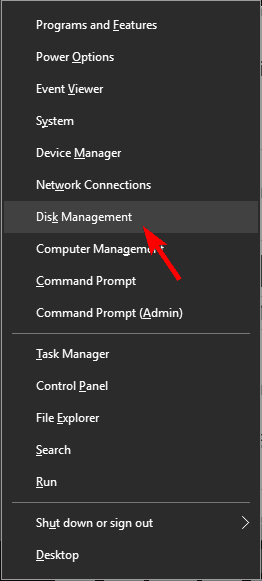
  1. Press Windows Key + X and choose Disk Management from the list.
  2. The Disk Management tool will now appear. Locate your virtual hard drive, right-click it and choose Detach VHD.
  3. A confirmation message will now appear. Click OK. After you detach the drive, it will disappear from Disk Management tool.
  4. After doing that, close Disk Management and try to delete the .vhdx file again.

A few users reported that the File in use error appears while trying to remove a virtual hard drive .vhdx file. To fix this problem, you need to remove the virtual hard drive from your PC.

Keep in mind that this solution only applies when deleting virtual hard drive files. If you have this problem with any other type of file, you should try a different solution.


1.12. Use Resource Monitor

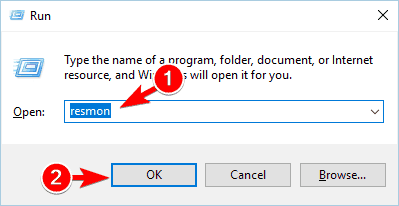
  1. Press Windows Key + R and enter resmon. Press Enter or click OK.
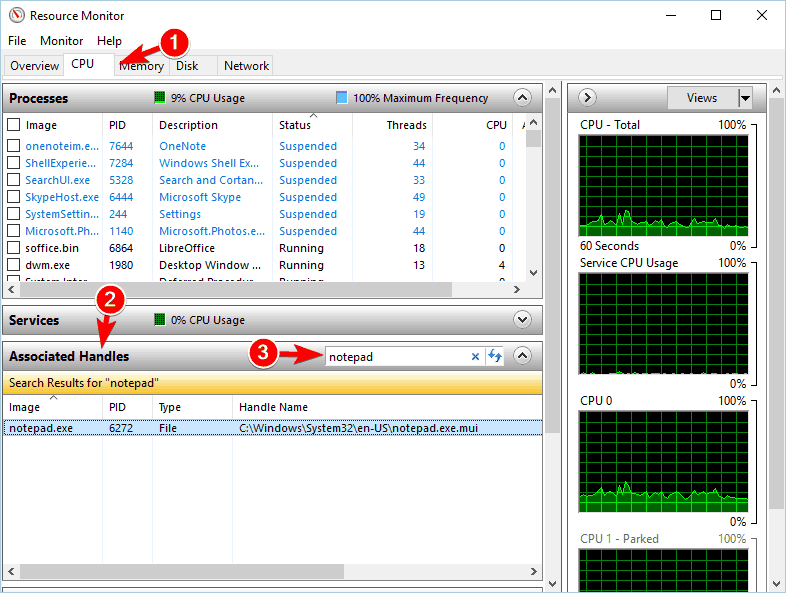
  2. When Resource Monitor starts, go to the CPU tab. Now, expand the Associated Handles section and in the Search Handles field, enter the name of the problematic file. A list of associated applications will now appear.
  3. Right-click the associated application and choose End Process from the menu.

If you can’t delete a specific file, you might be able to solve the problem by using Resource Monitor, a Windows application that can give you a lot of information about open applications and files.

Keep in mind that sometimes you won’t be able to find the problematic file using Resource Monitor. If that happens, you might have to check each process one by one and check the list of all associated handles.

If you manage to find the folder that has the problematic file, you’ll be able to determine which application is using it. Resource Monitor is an advanced tool, so it might take you a while to get used to it especially if you’re a first time user.


2. How do I fix the File in use error in Excel?

2.1. Create a registry file and add it to your registry

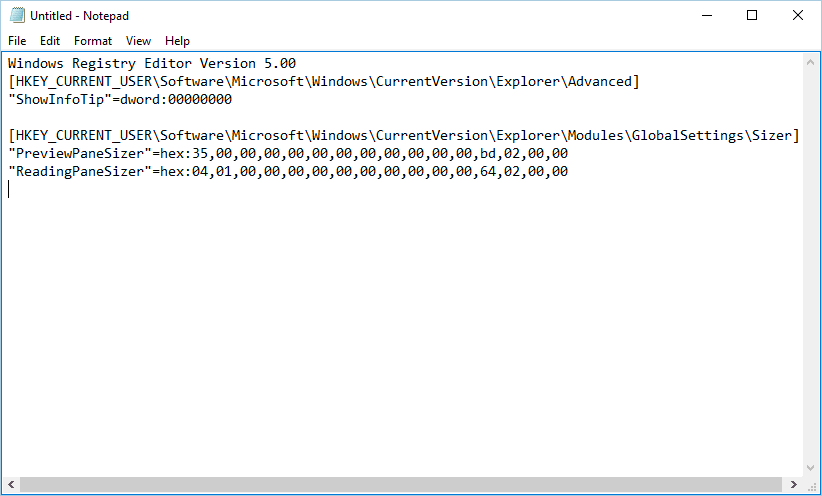
  1. Open Notepad.
  2. Paste the following text:
    Windows Registry Editor Version 5.00
    [HKEY_CURRENT_USERSoftwareMicrosoftWindowsCurrentVersionExplorerAdvanced]
    "ShowInfoTip"=dword:00000000[HKEY_CURRENT_USERSoftwareMicrosoftWindowsCurrentVersionExplorerModulesGlobalSettingsSizer]"PreviewPaneSizer"=hex:35,00,00,00,00,00,00,00,00,00,00,00,bd,02,00,00"ReadingPaneSizer"=hex:04,01,00,00,00,00,00,00,00,00,00,00,64,02,00,00
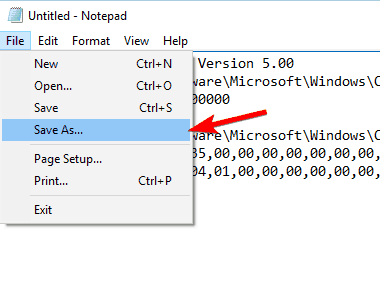
  3. Go to File and click Save as.
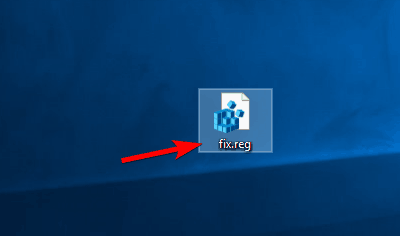
  4. Set Save as type to All Files. Enter fix.reg as the File name and click the Save button.
  5. Close Notepad and locate the fix.reg file. Double-click it and choose Yes when the warning message appears.

According to users, you might be able to fix the File in use error while opening Excel files by creating a .reg file and adding it to your registry.

Keep in mind that this solution will modify your registry, therefore it’s advised to create a backup or System Restore point.


2.2. Disable the preview pane

Users claim you can fix this problem simply by disabling the preview pane in File Explorer. We already explained how to do that in one of our previous solutions, so be sure to check it out.


2.3. Check the file name

The File in use error can appear if the file name of your Excel document is too long. If the file name is too long, Excel can’t create the lock file.

To fix the issue, you need to locate your Excel file and shorten its name. After renaming the file, you should be able to access it without issues.


2.4. Delete the hidden lock file

  1. Navigate to the folder where problematic Excel file is saved.
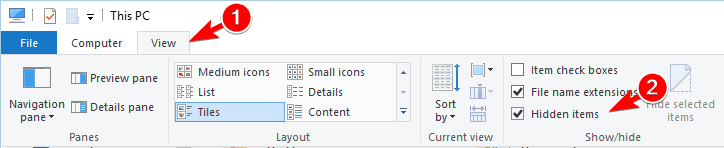
  2. Click View and check the Hidden items option.
  3. Locate the lock file. (It should have the same name as your Excel document.)
  4. Delete the lock file.

Excel usually creates a temporary lock file alongside your Excel document. According to users, you simply have to locate and remove the lock file in order to fix this error.

After removing the lock file, you should be able to access your Excel document without any issues.


2.5. Check the personal.xlsb file

  1. Navigate to C:Usersyour_usernameAppDataRoamingMicrosoftExcelXLSTART folder.
    • If this folder isn’t available, navigate to C:Usersyour_usernameAppDataLocalMicrosoftExcelXLSTART folder instead.
    • If you can’t find any of these folders, you’ll need to reveal hidden files. We already showed you how to do that in our previous solution, so be sure to check it out.
  2. Keep in mind that personal.xlsb is a hidden file, so you’ll need to reveal hidden files in order to see it.
  3. Once you locate personal.xlsb file, delete it if you don’t plan to use it.
  4. Optional: If you need the personal.xlsb file, right-click it and choose Properties from the menu.
  5. Navigate to General tab and check the Read-only option. Click Apply and OK to save changes.

According to users, the File in use error in Excel appears after adding macros to the personal.xlsb file. To fix the problem, you need to find and delete that file.

After doing that, you should be able to start Excel without any problems.

The File in use error is an annoying problem that will prevent you from accessing your files. If you have this error on your PC, be sure to try some of our solutions and let us know how it works out for you!


[wl_navigator]

What does “Enter current volume label for drive C” mean?

On every version of Windows you can assign a specific label to your hard drive partition so you can easily distinguish it from other hard drive partitions. However, Windows 10 users reported that they are getting Enter current volume label for drive C message, so let’s see what does this message means.

What does Enter current volume label for drive C mean?

As we previously mentioned, every storage device, such as your hard drive or USB flash drive, can have one label assigned to it. By default, every storage device has a drive letter, but you can also assign a label to a hard drive partition or to a USB flash drive.

This is extremely useful if you have several hard drive partitions available and you need to distinguish them easily. For example, you can name one of your partitions Backup or Work and use it to only store your backup or work related files.

In addition to better organization of your files, using labels can also be helpful while making changes to your hard drive. For example, if you’re formatting your hard drive or making any major change to it, it will be a lot simpler to find the drive that you want to modify by using its label.

These are just a few examples of how to use labels, and if you didn’t use them before, you might want to start now.

While making certain changes to your hard drive you might get Enter current volume label for drive C message, and this means that you need to enter the correct label for the drive that you’re trying to modify.

There are several ways to find your label, and today we’re going to show you how to do it properly.

1. Use a third-party partition manager

If you need to better manage your partitions in order to increase work efficiency, or simply to avoid the issues then you will need a third-party partition manager.

While generally, you could do that with Windows’ built-in tools, they can only be done when resetting the PC, and they always involve formatting the driver completely.

We recommend you use dedicated partition manager software because they are more intuitive than the manual process and oftentimes safer.

Dedicated tools let you change the name of your partitions, convert them, add or remove storage space, and more. Most of these processes can be done without losing any data.

2. Check it from This PC

  1. Open This PC.
  2. List of all available drives will now appear. If you have a label assigned to your storage device, you should easily see it. In our case, SanDisk was the label assigned to our storage device.
    enter-current-volume-label-drive-c-this-pc-1

If you want to modify your volume label, simply do the following:

  1. Right click the drive that you want and choose Properties from the menu.
  2. Go to General tab. First field should represent your label. If you want, you can easily change it and click Apply and OK to save changes.
    enter-current-volume-label-drive-c-this-pc-2

You can easily assign any label to your storage device simply from This PC.

3. Use CommandPrompt

  1. Press Windows Key + X to open Win + X menu and choose Command Prompt (Admin).
    enter-current-volume-label-drive-c-cmd-1
  2. When Command Prompt opens enter F: and press Enter.
    • We used F: because that’s the letter of our storage device, but you’ll have to use the letter that represents your storage device.
  3. After your current directory changes to F: drive, simply enter dir and press Enter to list the contents of that directory.
    • At the top you should see Volume in drive F is message that tells you the volume label of your storage device.
      enter-current-volume-label-drive-c-cmd-2
  4. Optional: You can make this process even more simpler by entering the vol F: command as soon as the Command Prompt opens.
    1. Be sure to replace F with the letter that matches your storage device.
      enter-current-volume-label-drive-c-cmd-3

If you need to find your volume label, you can use Command Prompt. Finding your volume label with Command Prompt might be a bit more complex, but in some cases, you might have to completely rely on Command Prompt and use it to make changes to your hard drive.

Now that you know how to find your disklabel, you should be able to fix the Enter current volume label for drive C message. According to users, you just need to enter your volume label when this problem occurs and press Enter.

If you don’t have a volume label assigned, you can simply leave it blank and press Enter. According to users, this error mostly occurs when you’re trying to convert FAT32 drive to NTFS drive using convert command in Command Prompt.

In some rare cases this message can appear if your volume label is corrupt, and if that’s the case, you might have to reformat that partition in order to fix this error.

Keep in mind that formatting your partition will delete all files from it, therefore be sure to create a backup. To format your partition using Command Prompt, do the following:

  1. Open Command Prompt as administrator.
  2. When Command Prompt opens, enter diskpart and press Enter.
  3. Now you need to select your hard drive.
    • To do that, enter list disk and list of all available hard drives and storage devices will appear.
  4. Judging by the size, locate the hard drive that you want to use and enter select disk x.
    • Replace x with the appropriate number.
  5. Enter list partition to list all available partitions on that hard drive.
  6. Enter select partition x to select an appropriate partition.
  7. After that, enter format fs=ntfs quick label=your_label.
    • You can replace your_label with any label that you want to use for that partition.
    • Press Enter and the formatting process will now start.

We have to warn you that diskpart is an extremely powerful tool and almost all changes performed with this tool are irreversible, therefore use extra caution and make sure to double check everything before proceeding.

Another way of formatting your partition is to open This PC and use the format option. To do that, follow these steps:

  1. Open This PC, locate the partition you want to format, right click it and choose Format from the menu.
    enter-current-volume-label-drive-c-format-1
  2. Select the File system that you want to use, enter Volume label and press Start.
    enter-current-volume-label-drive-c-format-2

Once again, formatting will remove all files from a certain partition, so be sure to back them up before you proceed.

Enter current volume label for drive is usually not an error, and in most cases, you just need to find your volume label and enter it in order to proceed. If your volume label is corrupted for some reason, you might have to format your partition in order to fix this problem.

February 2022 Xbox Update arrives, lets you use Microsoft Edge to set custom backgrounds

Xbox One, Xbox Series X, and Xbox Series S consoles are now getting the February 2022 software update. This update is fairly small, but it does introduce a new ability to use Microsoft Edge to set custom backgrounds (via Thurrott.com.)

With the update bumping the latest Xbox OS version to 10.0.22000.3542, you can try out this new option to set custom backgrounds in a few simple steps after it is installed. First off, you can find any image you like in Microsoft Edge, move the browser pointer over that image, then press the Menu button, and choose Set as background.

This is the only notable new feature that Microsoft mentions in the changelogs, but a Twitter user also mentions that it tweaks the way Gamerscore might appear. Now, you might see a comma between the digits in your Gamerscore, making it easy to read.

After installing this update, you might have some issues with Xbox’s Quick Resume feature. Microsoft mentions this in the changelog, saying that when returning to a Quick Resume title, your controller might not respond. You can fix it by quitting and coming back to the game. Other known issues covering Controllers, Games, Guide, Home, and TV displays can be seen in Microsoft’s documentation.

This update should install automatically on most consoles. If you’re still having issues, though. you can force the upgrade by going to the Xbox Settings App, clicking System, and then Updates.

The Windows 11 Store got new icon animations

What is one of the most known places where people go to find their favorite software? If you guessed the Microsoft Store, then you are one hundred percent right.

However, lately, people haven’t really been that happy with the way it works, due to some bugs that were mostly fixed, and because of the lack of some of the popular apps.

Microsoft, on the other hand, is doing everything in its power, apparently, to make this a much more stable and useful experience for everyone involved.

New animated icons for the Microsoft Store

Recently, the Redmond tech company added another small yet effective touch to the Microsoft Store for Windows 11.

It animated, sort of, the icons on the left side of the Store window, so they react when you click on them. It’s not a big change, but it gives it more of a Windows 11 vibe.

This has been spotted by Windows Insiders that are currently testing the new OS on the Dev Channel, version Version 22202.1402.0.0.

Respondents to the Reddit post were both pleased with the new addition and displeased with the fact that Microsoft ignores obvious areas where the software actually needs serious work.

The new store is very cool but they should or actually MUST remove all the useless and fake apps from it if they want to be a quality store. I’d rather prefer to have 500000 real and good apps than 25000000 garbage.

Another complaint users have about the Windows 11 Store is the fact that it’s still sluggish and can’t compete with the old version.

Spanish users are also unhappy with some of the choices that the tech giant made for the application, specifically the name of one of the categories.

Even though this doesn’t seem like such a big deal to the naked eye, some people actually feel like the translation is not at all accurate and could use some work, considering that it’s an official Microsoft product.

All is not lost, however, as we are pretty sure that Microsoft will take the necessary steps to improve this experience as well.

These changes will soon roll out to the general public, once Insiders deem them bug-free and ready for worldwide usage.

They will most likely make their way into our PCs via a Windows Update, so look for them after you have downloaded and installed a brand new one.

Don’t forget that you can now find Adobe’s Creative Cloud Express on the new Store, on the off chance you were looking for it.

Also, if you have an issue where the Store doesn’t work for you whatsoever, on both Windows 10 or 11, we can help you fix it, so make sure you check out our dedicated article.

We also got you covered if you want to learn how to download universal apps without using the Microsoft Store.

What’s your opinion on the new Microsoft Store? Share your thoughts with us in the comments section below.

Xbox’s Free Play Days includes Valkyria Revolution, PGA Tour 2K21, and Riders Republic

This weekend’s Xbox Free Play Days event, running from midnight Thursday, February 10th through Sunday, the 13th, features quite a nice lineup. Microsoft has announced that the games will include Valkyria Revolution, PGA Tour 2K21, and Riders Republic.

If you’re curious, about these titles, we have your back. Valkyria Revolution is a 2017 action RPG with strategy elements and anime-inspired visuals. While it is technically part of the Valkyria Chronicles series, it has no narrative connection to it and is a standalone entry. PGA Tour 2K21 is, as you may be able to guess, a golf game. It is developed by 2K Sports and is essentially a continuation of The Golf Club franchise with the PGA license attached.

And last but certainly not least is Riders Republic. This is an adrenaline-charged action sports title with skiing, snowboarding, mountain biking, and wingsuit flying. It is billed as a massively multiplayer sports game, in which up to 64 players can compete against each other at a time.

If you didn’t already know, Xbox Free Play days is what it sounds like — a nice perk for Xbox Live Gold and Xbox Game Pass subscribers. During these events, players can try out great games for a few days at no cost, maybe even finding a new favorite in the process. The games can be downloaded on a console or PC via the Microsoft Store. Players can go on to purchase the game at discounted prices, too, which we’ve noted below.

This week’s impressive lineup further demonstrates the incredible value offered by Xbox Game Pass (and Xbox Live). The free Play Days are a wonderful way for gamers to try out games they otherwise would never give a second glance, but also it is a great way to try out popular games before making the purchase commitment.

4 Best Broadcasting Software For Twitch

Our today’s article will show you the best broadcasting software for Twitch, so make sure you read it completely!

Live streaming is the hottest trend and powerful streaming software makes the entire process a lot easier. A streaming software primarily helps you with mobility on a live streaming video platform.

It eliminates the need for hardware (like several monitors, wiring, or a huge encoding unit) and rather simplifies the process of just opening and shutting your laptop.

While there are umpteen live streaming platforms online, Twitch is leading the way. It’s known for its live or video-on-demand services.

Therefore, there’s an increasing demand for efficient streaming software that can record, encode, and publish content on Facebook or YouTube within Twitch.

Keep in mind that Twitch broadcasts are sometimes not saving. If you encounter this annoying issue, take a look at our dedicated guide.

How can I know which is the best broadcasting software for Twitch?

Before you start looking for the best streaming software for Twitch, here are a few features you must look out for:

  • If it records and streams concurrently.
  • Whether it can change between video sources.
  • If it can transfer to different destinations.
  • Does it come with an integrated graphics system?
  • Is there an integrated audio mixer included?
  • Is there integration with social media?
  • Can your replay in real-time?
  • Can you color correct video sources?

So, let’s take a quick look at some of the best streaming software for Twitch for an enhanced experience.

What is the best broadcasting software for Twitch?

Telestream

Telestream is a champion streaming software that helps you to create, absorb, transcode, caption, analyze, convey, play and stream any video format, conveniently.

It offers a simple yet compelling interface that’s easy to use and manage. In this matter, do not worry if you’re a beginner.

At the same time, it ensures maximum and uninterrupted quality. The software offers different video solutions, one of which is for Live Streaming.

It allows you to stream from anywhere in the world. Whether you are a professional or a prosumer, Telestream offers a solution for live streaming with recording, encoding, and furnishing live video.

While there is quite a few live streaming software available in their product catalog, one of them is the Lightspeed Live Stream.

Among its major and common features are:

  • Business level streaming on multi-screens
  • Ensures that ad insertion is smooth and neat without the need for re-encoding
  • Wide choices in the way you encode your streams
  • HTTP Live Streaming (HLS), MPEG DASH, MP4, and CMAF packaging
  • Offers the facility of integrated scheduling, branding, or event triggering that help in supple broadcasting and channel distribution

From mobile phones or tablets to desktops, it has got all devices covered by creating and delivering live video content with ease, and at a reduced price.

Telestream

Try this complete solution to record, encode and live-stream your favorite Twitch content.
Check price Visit website

Wirecast

Wirecast is another great broadcasting software for Twitch and it is owned by Telestream. It is widely used, especially in educational establishments (schools, colleges, universities) across the globe.

It is also used by administrators and technology controllers to stream graduations, training, seminars, events, etc. If you’re a student, you can use this tool to learn broadcasting methods.

Houses of worship, live event production, sports streaming, television, radio, and news broadcasts, and digital marketing and social media are some of the other fields where Wirecast is used extensively.

Not only that with Wirecast you’ll stream and record at the same time, but you’ll be able to stream to social media channels like Facebook, Twitter, YouTube, Vimeo, etc.

In addition, it enables users to capture multiple IP sources or anything that’s on the PC screen.

Affordable and easy to use, Wirecast lets you start streaming in minutes on Twitch.

Some of its major features include:

  • Allows you to mix and switch video and audio shots in a single click easily
  • Lets you move, drag and resize sources and arrange them in any order to get the desired look
  • Endless resources like cameras, webcams, mic, and more
  • More than 100 integrated graphics and captions
  • Integrated curation and display for Twitter comments
  • Allows sports producers to replay, create scoreboards, and use clocks & timers
  • Offers support for ASIO, WASAPI, and CoreAudio based devices

Wirecast

Stream all the high-quality Twitch content you want from the comfort of your home or office.
Free trial Visit website

1AVCenter

1AVCenter from PCWinSoft Software lets users stream their desktop or webcam with a single click. It helps broadcast their videos with high-definition audio over the internet on a configured web page within your website.

Apart from being a live video streaming server, it’s also an RTMP stream broadcasting software. Users can stream from literally any video source available on their computer, for example, mic, webcam, or desktop to WMP or to other media servers like Wowza, Flash Media Server, etc.

The best part is, the app eliminates all concerns related to video and audio broadcasting. Moreover, users can schedule tasks, or even set the app to start with Windows.

Users can send files and links through email, upload files using FTP, file sharing module with the pro version, and do a lot more with 1avstreamer.

Check out these other amazing features:

  • Uses A.I. to examine hardware and create over 14 ready-to-be-executed jobs right out of the box
  • Ability to send files via e-mail or upload them through FTP
  • Sleeky user interface with capture window detach for better desktop management
  • Complete live video & audio streaming server

1 AVCenter

All-in-one tool for live video streaming, screen recording, audio capture & more.
Check price Visit website

Restream

Restream is an easy-to-use multistreaming server that allows users to stream from more platforms at once, including Twitch, Facebook, Twitter, LinkedIn, VK, Mixer & more.

The service is popular with both amateurs and professionals in domains like gaming, media, or politics. As such, it boasts 600 million users engaged daily or 8+ million monthly broadcasts.

Restream offers not just the streaming service, that allows you to reach a wider audience, but also analytics tools, chat options for all streaming platforms in the same console, or a streaming scheduler to keep your audience engaged at any hour.

These features are also worth to be mentioned:

  • Easy to stream to Twitch, Facebook, and YouTube
  • Track detailed analytics for multiple platforms on a single screen
  • You can upload your videos to our secured cloud, then schedule them to go live

Restream

Seamless multistreaming platform & audience engagement tool for 30+ social networks, Twitch included.
Check price Visit website

Why should I use broadcasting software for Twitch?

Video streaming software allows you to mix multiple camera sources and create a professional-looking HD broadcast.

In addition, you have to consider encoding, which is another major function of streaming software. What is great about most streaming software is that they help you produce those professional-grade live streams without much broadcasting experience.

If you’re an Xbox fan, keep in mind that Twitch might sometimes not be able to broadcast on Xbox One. If you ever face this problem, make sure you check some useful solutions to fix it.

Streaming your favorite shows and games is fun, but broadcasting the shows on Twitch using live streaming software is simply an out-of-the-world experience.

So, pick one from the above list, and get going with live streaming.

Download Twitch Desktop App for Windows

Amazon’s Twitch continues its expansion, competing with Google’s YouTube. Google’s service is top-rated, but now more and more users are looking somewhere else to switch camps.

In this guide, we’ll explore some useful information that will help you understand what it is all about with this Twitch Desktop app and how great it can be to use it.

Why should I download Twitch desktop app?

1. Twitch gains more ground

A while ago, Twitch was nothing more than a platform used by gamers to stream videos while playing their favorite games.

Players still use it for this purpose, but many people now use the platform for general interactions and vlogging. Twitch entered the desktop market thanks to a dedicated app.

2. Twitch Desktop App features

The desktop app provides access to all the features that Twitch users have known and loved so far, as well as many new exclusive tools. It includes memes, streams, and you can watch all your favorite VODs, clips, and live streams.

You also get the Twitch chat and the opportunity to support your favorite streamers with Bits and Subscriptions.

The app includes many features such as the Dark Mode, servers, voice and video calls, friend sync, and lots of mods for games. Also, the latest update even got extensions working.

Some users also seemed to be interested in how to activate Twitch dark mode in the browser. If you’re in the same boat, make sure you check our dedicated guide.

How can I download and use Twitch desktop app?

  1. Navigate to the Twitch download page.
  2. Look at the Twitch App for Windows option, then click on Download for Windows.
  3. Choose where to save it.
  4. Once it is downloaded, open the file and follow the on-screen instructions to install it.
  5. Now, double-click on the desktop shortcut and access the app.
  6. Enter your Twitch credentials to log in.

What are the best Twitch app features?

  • Dark Mode: now, everything you do on Twitch becomes more friendly with your eyes and you can late-night stream without any problems.
  • Friends: using the Twitch Desktop App’s Friend Sync, you can now find all your friends from across the creator-verse.
  • Twitch Desktop Apps’ servers: with these servers, communities have a place where they can hang out non-stop with text and voice rooms.
  • Mods and Addons: the app includes CurseForge which is a game mod community where thousands of mods and add-ons are shared for lots of games.
  • Voice and Video Calls: on Twitch web you can send private messages to your friends with Whispers, but in the desktop app, you can get more personal with voice and video calls.

This is how you can download and use the Twitch desktop app. We hope that our guide helped you with a better understanding of how this amazing platform works.

If you have any additional questions or curiosities, do not hesitate to use the comment section listed below.

Twitch bits not showing up: Here’s how you can fix it

Bits are virtual goods you can use on Twitch. With this currency, you can do various things on the streaming platform, such as sending Cheers.

While this is a great feature, quite a few users encountered a specific problem: Twitch bits are not showing up. Being unable to see (and use) Bits could be a major issue for some people. One user reported the following:

Hey guys – I recently got a 1000 bit donation last night on my stream. The weird thing is, the donation hasn’t appeared on my Twitch account yet. […]  I actually have known the guy who donated all of that for a while now and consider him a friend. So it isn’t a fake donation, I just don’t know what to do or if my next step should be contacting Twitch Support.

So, the OP received Bits from a trustworthy user. Therefore, this can’t be a fake donation. Still, the 1.000 Bits don’t appear on Twitch.

Luckily, there are some explanations and solutions to this problem. Today we will show you what to do if the Twitch bits are not showing up.

What are Twitch bits?

By Twitch Bits we are referring to a currency donated to streamers by viewers. Usually, these are rewards to thank them for their work.

Basically, Bits are animated cheering emotes that you send in the chat. These are some of the most valuable ways to support your favorite streamers and broadcasters.

Accumulating over time (through purchasing or watching free online adverts), users are able to donate their Cheer Bits whilst watching live streams.

Now, let’s see what you can do if the Twitch bits are not showing up?

What can I do if Twitch bits are not showing up?

1. Wait a little bit longer

Bits may not appear immediately after a donation. So, you have to wait at least 24 hours for the transaction to take effect.

2. Check your revenues

  1. Press on the Windows key, type Twitch, and open the app, or simply go to the Twitch official page.
  2. First, make sure that you are logged in with your Twitch credentials. If not, enter them, then click on Log In.
  3. Open the Twitch payout dashboard.
  4. Check out Revenues.

To make sure you received the Bits, check out the Revenues tab.

How can I buy Twitch bits?

You can easily get bits from the Twitch app, by clicking on the Get Bits button.

Users usually buy Bits using Amazon Payments or PayPal. After registration with Twitch, you can add either option as a payment method and then purchase your Bits.

Keep in mind that they are available in 100, 500, 1000, 1500, 5000, 10000, and 25000 amounts. Each bit package corresponds to a cash amount that varies slightly, depending on exchange rates.

Bits are crucial for every serious Twitch user. Therefore, any issue affecting them is quite significant.

Still, things may not be as scary as they seem. Wait for a little longer and make sure you use the best browser (UR Browser, that is) for Twitch!

Did you find our article helpful? Let us know in the comments section below!

Windows 11 Voice Typing Not Working? Fix it in 6 Steps

The voice typing feature is one of the most talked about in the latest iteration. Who wouldn’t want to use the voice input text rather than typing the same thing? But several users have reported that Windows 11 voice typing is not working.

The feature is not new, it was there in Windows 10 as well, though with a different name. But on Windows 11, it’s certainly a lot more advanced and offers high accuracy when translating from speech to text.

Apart from that, it will work anywhere on the system, whether you are performing a Google search, drafting a document, and we can use it even while writing this article.

So, read the following sections to find out all about the feature and the most relevant fixes in case Windows 11’s voice typing is not working.

How do I enable and use voice typing in Windows 11?

The process to enable voice typing in Windows 11 is simple, you just have to place the cursor in a text field, and hit Windows + H to launch the tool. But, that isn’t certainly all!

Using voice typing for performing a Google search

There are a lot of other things about the voice typing tool that a user must know in order to make the most of it. Also, you may need to reconfigure the default settings for the best experience, or set the tool to launch automatically whenever required.

To find it all out, check our dedicated guide that will talk you through using the voice typing tool in Windows 11.

What do I do if voice typing is not working in Windows 11?

1. Check the connections (for external microphones)

If you are using an external microphone, it’s likely that the connections are not in order. To fix that, remove the jack or USB, whichever your microphone uses, clean it and the port, and then reconnect it.

Once that’s done, check if the Windows 11 voice typing not working problem is eliminated.

In case it isn’t, connect the same microphone to another system, and verify if it works there. If it does, the problem lies with your computer, and executing the fixes below should fix it.

While if it doesn’t, you may have to replace the microphone. Check our curated guide that lists the best microphones for Windows 11.

2. Verify that the microphone is enabled

  1. Press Windows + I to launch the Settings app, and select Privacy & security from the tabs listed in the navigation pane on the left.Privacy & Security to fix windows 11 voice typing not working
  2. Scroll down and select Microphone under App permissions.Microphone
  3. Make sure the Microphone access toggle is enabled.Microphone access to fix windows 11 voice typing not working

If the microphone doesn’t have the required permissions, you will encounter problems with voice typing. Simply making the required changes can get things working.

After providing the permission, check if the voice typing not working problem in Windows 11 is fixed

3. Choose the correct language for speech

  1. Press Windows + I to launch the Settings app, and select Time & language tab from the ones listed in the navigation pane on the left.Time & language
  2. Next, click on Speech on the right.Speech
  3. Now, select the desired option from the Choose the language you speak with your device dropdown menu, and tick the checkbox for Recognize non-native accents for this language option.Choose language to fix windows 11 voice typing not working
  4. Click on the Get started button under Microphone, and follow the on-screen instructions to fix things.Get started

4. Update Windows 11

  1. Press Windows + I to launch the Settings app, and select the Windows Update tab from the navigation pane.Windows Update
  2. Click on the Check for updates button on the right to scan for a newer version of the OS.Check for updates to fix windows 11 voice typing not working
  3. If an update is listed after the scan, click on Download & install.Download & install

If you are facing the Windows 11 voice typing not working error due to a bug in the current version of the OS, installing an update would be the best fix. Whenever Microsoft identifies a bug in Windows, a patch for it is released in the subsequent versions.

5. Run the troubleshooter

  1. Press Windows + I to launch the Settings app, and click on Troubleshoot on the right in the System tab.Troubleshoot to fix windows 11 voice typing not working
  2. Next, click on Other troubleshooters.Other troubleshooters
  3. Locate the Recording Audio troubleshooter, and click on the Run button next to it.Run recording audio troubleshooter to fix windows 11 voice typing not working
  4. Follow the on-screen instructions and choose the relevant option when prompted.

It’s always recommended to run a dedicated troubleshooter whenever you encounter an issue in Windows. Microsoft offers several of these to automatically diagnose and eliminate problems causing the system or connected devices to malfunction.

Once the troubleshooter is done running, check if the Windows 11 voice typing not working problem is eliminated. In case it persists, head to the next method.

6. Update the microphone driver

  1. Press Windows + S to launch the Search menu, enter Device Manager in the text field at the top, and click on the relevant search result that appears.Launch Device Manager to fix windows 11 voice typing not working
  2. Now, double-click on the Audio inputs and outputs entry to view the various devices under it.Audio inputs and outputs
  3. Right-click on the malfunctioning microphone, and select Update driver from the context menu.Update driver to fix windows 11 voice typing not working
  4. Finally, select Search automatically for drivers from the two options listed in the Update Drivers window.Search automatically for drivers
  5. The system will now scan for the best available drivers and install it for the the microphone.

If none of the fixes listed above have worked, it’s most likely the outdated microphone driver to blame. Outdated drivers are known to cause various problems, and after installing the update, you will notice considerably better performance.

But, the Device Manager method listed above only scans for the updates on the system. So, if you haven’t downloaded the latest version previously, the update wouldn’t go through, and it would tell you that the best available driver is already installed.

In this case, you can check for the latest driver version in Windows Update, or manually download the setup from the manufacturer’s website and install it.

If that sounds like too much trouble, you can always rely on a third-party app. We recommend using a dedicated driver updating tool that will scan every source for the latest version, and keep all the installed drivers up-to-date.

What are the best speech to text software tools for Windows 11?

If the voice typing tool in Windows 11 doesn’t meet your requirements, though that’s rarely the case, there are a bunch of similar apps available. Check our curated guide including the best speech to text software for Windows 11 in that regard.

These tools offer a lot more features, and in some cases a higher accuracy and precision as well. When selecting any of the ones listed in our guide or even another, it’s imperative that you verify if the software is effective.

Accuracy is of prime importance here, because you certainly wouldn’t want to keep editing the text over and over again. It should be able to accurately transcribe what’s being spoken with no, or minimum, errors.

By now, you know all about voice typing tools, and the most effective methods to fix it, in case it is not working in Windows 11.

Also, find out how to use Cortana, a quick way to command your computer using voice, in Windows 11, if you are facing issues with it.

Tell us which fix worked and your experience with voice typing in Windows 11, in the comments section below.

How to Download and Install TikTok App on Windows 10/11

TikTok started as a mobile app available for Android and iOS, but nowadays it gained so much popularity that it has its own app on Windows PCs. To get TikTok, just open Microsoft Store or access if from the Microsoft Store website and download it. Find the complete instructions below.

How can I download and install the TikTok app on Windows?

  1. Type Store in the taskbar and open the Microsoft Store.
  2. In the top search bar, type TikTok and click on the App result.
  3. Click on the Install button.
  4. Wait for the download and install to complete.
  5. From the same panel, select the Open button to launch the app.
  6. Now you can start using Tiktok. You can watch videos right away, or setup an account/log-in.how to install tiktok on windows 11 pc

If you’ve successfully installed TikTok but notice the camera doesn’t open or record properly, check this guide on fixing TikTok camera not working to troubleshoot recording issues on Windows devices.

That’s it. You now have one of the coolest social media video apps on your Windows 10 or Windows 11 PC. And you can also see the TikTok content in your browser following some simple steps or even broadcast a live stream on your desktop.

If you have any more questions regarding the installation process or suggestions, don’t hesitate to leave them in the comments section below.

The Surface Hub is getting Microsoft’s Whiteboard app this month

This one is for all the Whiteboard and Surface users out there, directly from the Redmond-based tech giant itself.

Microsoft recently announced that it has revamped its Whiteboard collaboration application and that it will be coming to Surface Hub devices this month.

This new experience is designed to cater to hybrid workplace environments and will be rolling out to organizations over the next couple of weeks.

The revamped Whiteboard experience rolls out to Surface Hub

As we previously mentioned, companies with Surface Hub and Surface Hub 2S are about to receive this brand new experience through a Windows Update, as a part of phased rollout between February 14 and February 28.

And yes, this will directly integrate Whiteboard with your Teams app so that you can click on share your content to all the other participants in the call.

As far as layouts go, they will be optimized so that you can still see all participants. Another factor worth noting is that they will also have the ability to make changes to the Whiteboard.

Of course, this new feature will be compatible with PC, mobile, and web versions of Whiteboard, so you don’t have to worry about that either.

According to Microsoft, the standalone Whiteboard app will be automatically updated between February 28 and March 15.

Currently, it doesn’t have feature parity with other variants of the app, but you can have a look at the missing capabilities on the official page.

Between March 15 and April 15, the Whiteboard app will migrate from Azure to OneDrive for Business in terms of storage needs. This will enable some additional features, such as:

  • See who’s actively collaborating in real-time or who made the last edit.
  • See other people on the board and what they’re working on (using collaborative cursors).
  • Use familiar sharing features found in other Office products.
  • Point a laser to draw attention to something on the whiteboard.
  • Find your whiteboards on Office.com.
  • View and restore previous versions of a whiteboard.
  • Recover deleted whiteboards from the Recycle Bin.

Although the updated Whiteboard app will use OneDrive for Business in most new whiteboards, if a whiteboard is shared through the Surface Hub instead of another participant in a call, it will temporarily use Azure for storage.

However, if this proves to be a problem for you, you can simply contact Microsoft Support to block this.

Excited about the changes coming to Whiteboard? Share your thoughts with us in the comments section below.

Microsoft holding “What’s Next in Security” digital event on February 24

Microsoft has announced a digital event for February 24. The event, titled “What’s Next in Security from Microsoft,” is focused on cyber security and the latest security innovations across Microsoft and other platforms and clouds.

Confirmed for the event are Vasu Jakkal, Microsoft Corporate Vice President of Security, Compliance, and Identity, and other security experts. These folks will talk about the latest innovations that can reduce risks from cybersecurity issues. Jeff Pollard, Vice President, and Principal Analyst at Forrester, is also scheduled to speak at the event.

He will talk about the intelligence of the cloud and how it can be used to create innovative security solutions. For IT Admins, and anyone else attending the following topics will be discussed.

  • Update your security strategy with the latest market trends.
  • Protect your identities, apps, clouds, and endpoints with comprehensive solutions.
  • Eliminate blind spots with proactive threat hunting and extended detection and response (XDR).
  • Enforce least privilege access across your clouds.
  • Identify security gaps and protect your multicloud environments against threats.

Other than these speakers, Microsoft will also have a Q&A session in the chat, so your security questions can be answered. If you’re interested in attending, you can register now for free using a Microsoft Account.

5 best Twitch browser extensions anybody should use

Twitch browser extensions offer streamers the possibility to create live apps and most importantly, to interact with the stream.

The interaction can happen as a panel via a channel or on a chat, depending on your preferences.

The greater the extensions the more interactive will be the experiences you’ll be able to create. In these terms, you have to consider mini-games, leaderboards, live gear information, and more.

In this article, we’ve put together a list of the most impressive Twitch extensions, so read it completely. Before anything else, let’s see why it is important to use this kind of feature.

Why should I use the best Twitch browser extensions?

If you’re still not sure about why you should use Twitch browser extensions, verify the following information.

These features allow you to interact in a better way with audiences or other streamers. Extensions create a full experience, offering a way to give feedback to broadcasters.

In these terms, it is no longer a surprise that Twitch extensions provide extra functionality while streaming.

They are extremely easy to get. You can install them from a streamer’s Extension dashboard, configured as needed, and activated on the channel.

Now, let’s discover what are the best extensions you should try on Twitch.

What browser should I use for the best Twitch extensions?

Opera GX is a game-dedicated browser meaning that this browser comes with gaming services integrated already.

When using Opera GX you will see in the sidebar the Twitch integration, allowing you to see all the channels you follow and receive notifications instantly.

Whether you are an advanced Twitch user or just beginning, using an extension that will enhance your experience is important.

Do not forget to take a look at the most amazing features of Opera GX:

  • Built-in AdBlocker
  • Free VPN
  • Easy to use and user-friendly interface

What are the best browser extensions I can use with Twitch?

RedDead-Series

RedDead Series comes with more than just an amazing design but a complete package from where you can choose one of the three available packages.

You can select what you need in terms of available features, allowing you to create a channel that looks professional.

Moreover, if you are just a beginner in the Twitch streaming world, on the own3d.tv website you’ll find available more tutorials to help you get started.

With this extension, you’ll get animated stream overlays, stream alerts, stream intermission banners, and more.

⇒ Get RedDead-Series

AlertBox

Streamlabs puts at your disposal a system of extensions, such as Alert Box that makes monetization quite simple and helps you enhance your channel.

Once you enable alerts in Streamlabs, you’ll get animated clips while streaming, every time viewers engage with your channel.

With this one in all tool, you can earn loyalty points, request songs, enter giveaways, and play mini-games.

It allows your audience to open up a dialogue with you. Thus, if you’re a streamer, you can consider Alert Box as an opportunity to interact with your community and personally thank them anytime they support you.

All these are creative options that will make users come back again and again on your channel.

⇒ Get AlertBox

StreamLegends

With StreamLegends channel communities can build guilds and participate in quests, which makes it one of the best extensions out there.

It allows steamers to have fun, play during steam creating an overall more interactive environment for all the users involved.

Thanks to Stream Legends the streamer’s audience can interact and participate in a unique way, participating all together in the adventure.

⇒ Get StreamLegends

Washington Post News Ticker

The Washington Post News Ticker is, as the name indicates, a Twitch extension that allows a channel’s followers to stay updated with the news.

Since being involved in a game or following a channel can be time-consuming, having the news right there in the feed is perfect.

You can simply scroll through the headlines, and click on any if you want to actually read the entire story.

⇒ Get Washington Post News Ticker

MasterOverwatch

As the name suggests, MasterOverwatch has been created for streamers that play the team-based multiplayer Overwatch.

This fantastic extension displays all the on-screen stats that are needed while playing Overwatch games.

It’s an extension that has gathered a lot of fans since its first appearance and we also think it’s worth giving it a try.

⇒ Get MasterOverwatch

We hope that you will explore the list presented in this article and let us know in the comments section below which extension worked best for you.

If you’re a viewer, then BetterTTV for Firefox is a must-have extension for you, so don’t miss it. We also have a great guide on stream cleaner for Firefox, and Twitch Adblock so don’t miss it for more information.

2 Ways to Undo System Restore on Windows 11

System restore is probably one of the quickest and simplest troubleshooting techniques employed by users facing an error. But oftentimes, things may not turn out as expected and the need to undo a system restore arises in Windows 11.

Whenever you are troubleshooting a BSOD error, driver crashes, problems with the Wi-Fi, or other issues, performing a system restore generally finds itself placed somewhere in the list of fixes.

But, what if you lose critical applications after the restore, and it doesn’t even help eliminate the issue. Or say, you restore your computer to a point created a week ago in the hope that it would fix the problem, while it actually started a couple of weeks ago.

There are various such instances when you will need to undo system restore in Windows 11, and we have listed the ways to do it in the following sections.

How does a system restore work?

A system restore is a feature in Windows 11 that basically takes your computer back in time. This means that the configured settings and installed applications after the restore will be according to the state when the restore point was created.

The restore process wouldn’t affect the files stored on your computer. But, it might repair or replace some of the system files, but that’s nothing for you to worry about.

Here’s how it’s beneficial. Say you update a couple of applications, the OS and install a few driver updates, and the computer starts to throw errors soon after. Now, instead of uninstalling each of these updates manually, you can quickly perform a system restore.

The restore point plays a critical role here and it has to be created before the changes that lead to the error were first made. If that isn’t the case, the process wouldn’t be fruitful.

Now, you might be wondering if you can actually use the feature, in case you haven’t created a restore point manually. Yes, you can! With the right settings in place, Windows automatically creates a restore point before undergoing any major change.

If you go through the list of restore points on your system, you will find several of these that you never created.

Undoing a system restore in Windows 11 is as simple, and anyone who has ever performed a restore must know how to undo it as well. In the following section, we have listed both the ways you can do it.

How do I undo a system restore in Windows 11?

1. Via the System Properties

  1. Press Windows + S to launch the Search menu, enter Create a restore point in the text field at the top, and click on the relevant search result that appears.Create a restore point to undo system restore windows 11
  2. Next, click on the System Restore button.System Restore
  3. Select the Undo System Restore option and click on Next at the bottom.Undo system restore
  4. Verify the restore details and click on Finish.Finish
  5. Click Yes on the confirmation prompt that appears.Yes

The restore process would restart right away, and the time taken depends on the changes to be made to the system. To undo the system restore in Windows 11, your computer will restart as was the case while restoring it earlier.

2. Via the Recovery Environment

  1. Press Windows + I to launch the Settings app, and click on Recovery on the right in the System tab.Recovery to undo system restore windows 11
  2. Click on the Restart now button next to Advanced startup.Restart now
  3. When the system restarts and enters the Recovery Environment, choose Troubleshoot from the options.Troubleshoot
  4. Next, click on Advanced options.Advanced options to undo system restore windows 11
  5. Click on System Restore from the six options listed in the Advanced options screen.System restore
  6. Now, select your user account.User account
  7. Enter the password for it and click on Continue.Enter password to undo system restore windows 11
  8. Click on Next at the bottom.Next
  9. Choose a restore point that says Undo under the Type column, and click Next.Select Undo point to undo system restore windows 11
  10. Verify the restore details and click on Finish.Finish
  11. Click Yes in the confirmation prompt that pops up.Yes to undo system restore windows 11
  12. Wait for the restore process to complete.undo system restore windows 11 in progress

This method to undo system restore in Windows 11 will certainly take more time, but in case you are unable to boot Windows after the previous restore, only this would work. Also, there are several ways you can access the recovery environment.

One of the simplest methods is to deliberately crash the Windows thrice during startup by pressing the power button as soon as the OS is about to boot. On the fourth attempt, your system will automatically enter the recovery environment.

Why can’t I undo the system restore in Windows 11?

There are cases when you wouldn’t be able to undo system restore in Windows 11, and we have listed them below:

  • You can’t undo the restore if the system restore was performed in the Safe Mode.
  • Also, this happens if the system restore was performed from the Recovery Environment.

So, if you are unable to undo the system restore, it could be either of these situations. In case it’s not, check out why restore points are not working in Windows 11.

By now, you know both the ways you can undo a system restore in Windows 11, and the reason if you are not able to. This would certainly make things a lot simpler. But, do make sure to not unnecessarily perform a restore with the idea that it can be undone later.

Besides, check out how to create a restore point in Windows 11. Also, if the OS is unable to find a restore point, learn how to fix the problem.

Tell us why the need to undo system restore in Windows 11 arose and the method you choose in the comments section below.

Twitch could not verify the Minecraft version [Quick Guide]

Many users that have tried to pair these two, noticed that Twitch could not verify the Minecraft version. It seems to be a pretty common error, so if you face it too, make sure you try out today’s listed solutions.

Even though the Minecraft or Twitch developers haven’t released any fixes for this specific error, users across the web have worked together to fix the issue.

If you are also troubled by this issue, here are a couple of troubleshooting tips to help you resolve this annoying error.

Why couldn’t Twitch verify the Minecraft version?

  • Wrong privileges – If Twitch couldn’t verify the Minecraft version, it is probably that you tried running the processes without the administrator privileges.
  • Software is blocking the access – In this case, you have to consider that your antivirus might limit certain action. we recommend temporary disable it, and try verifying again the Microsoft version.

What can I do if Twitch could not verify the Minecraft version?

  1. Run software with admin privileges
  2. Disable antivirus software
  3. Use Jar Launcher instead

1. Run software with admin privileges

1.1 Minecraft

  1. Navigate to the installation folder of Minecraft on your PC.
  2. Find the Minecraft.exe (or any other variations of this name), and right click on it.
  3. Select Run as administrator.
Note icon NOTE
If you want to avoid doing this every time you want to run Minecraft as an administrator, you can follow the next steps:
  1. Right-click on the Minecraft.exe, then select Properties.
  2. Choose the Compatibility tab, then tick the box next to Run this program as an administrator, and click OK.

1.2 Twitch

  1. Hit the Windows key, type Twitch, then right-click on the first result, and choose to Run as administrator.
  2. Confirm the action by clicking on Yes.

2. Disable antivirus software

Some issues with Twitch have been reportedly caused by a conflict between different antivirus software and firewalls with the software.

If the first method didn’t solve the error, then try disabling both firewall and antivirus services for a limited amount of time, and then, try to open Twitch with Minecraft again.

Quickly after that, you may consider another antivirus to replace with and secure your PC accordingly. And if you are streaming online the most appropriate antivirus should support your system while gaming.

Hence, it’s advised to find one of the best antivirus software for streamers and resolve any Twitch concerns that may appear.

3. Use Jar Launcher instead

  1. Hit the Windows key, type Twitch, then open the app.
  2. From the upper-left corner of the window, click on your avatar.
  3. Navigate to Settings.
  4. Click on the Minecraft tab, scroll down to the option Launch Method.
  5. Change the launcher from Native Launcher to Jar Launcher.
  6. Try out whichever Java version you are using.
  7. In case this doesn’t work, try updating your Java app.
  8. Also try with a 64-bit version.

In this article, we explored some of the best methods to fix the error Twitch could not verify the Minecraft version. Please make sure to follow the steps carefully.

We hope this guide helped you fix your issue, and that you started live-streaming Minecraft gameplay again. If you found this guide helpful, please feel free to let us know in the comments section below.

DS4 Not Working on Windows 11? Fix it in 4 Simple Steps

The use of a DualShock 4 or DualSense 5 controller with a Windows PC appears to be problematic in some situations, with the controller not connecting properly or possibly failing to connect at all.

Both the PS4 and PS5, on the other hand, are specifically developed and optimized for their respective consoles. Now, if you’re one of the unfortunate individuals who has encountered the DS4Windows not working issue on Windows 11, you may use this guide to fix the error.

Among PC gamers who use controllers, the DS4Windows application is one of the most popular options when it comes to getting them to function on Microsoft Windows.

If you attach your PlayStation controller to a Windows computer through USB or Bluetooth, there is a good risk that it will either not be identified or will not function properly. Follow along as we will show you how to troubleshoot the problem right after we see whether DS4Windows is safe or not.

Is DS4Windows safe?

DS4Windows is an open-source gamepad input mapper and virtual emulation program for the Windows operating system that is specifically designed to utilize and connect your PlayStation controller to your PC. It is free and open-source software.

website ds4 windows 11 not working

It is completely safe to download and install the official program. However, it can be infected with adware or malware, and in rare cases, it might be infected with a virus, but there is a means to determine whether or not an application is an official one.

If you have downloaded the DS4Windows file from an unauthorized website or if you have installed it via a thumb drive or a pen drive, you should be cautious. Hackers can modify any application software from these sources to suit their needs and intentions.

Games and a variety of other applications can be run without the dswindows.exe file, but they will perform less smoothly. However, it is not recommended to include it in order to save space and avoid excessive memory utilization.

It is more necessary to have a well-performing system than it is to prioritize better gaming controls and movements. This application, in addition to providing a stronger gaming edge, consumes resources such as memory and hard drive space.

What can I do if DS4Windows is not working in Windows 11?

1. Update DS4Windows

  1. Once you have installed the DS4 Windows on your computer, you would have a DS4Updater executable file in the installation folder. Locate this file and double click on it to execute it. It will automatically search for the updated version of the DS4 app and install it on your PC.executable ds4 windows 11 not working
  2. Otherwise you can visit the official website and re-download the software. It will install the latest version.download-ds4 ds4 windows 11 not working

2. Check controller status

  1. Right-click on the Start icon then click on Device Manager to open it.device-manager google meet getting ready loop
  2. Now expand the Human Interface Devices section and right-click on the HID-compliant game controller option then choose Enable device. In our case, we get the Disable device alternative since the card is already enabled.hid-compliant game ds4 windows 11 not working

3. Update Windows

  1. Press the Windows key + I to open the Settings app, then click on Windows Update in the left panel.update-windows windows live photo gallery encountered an error loading wix photoviewer.dll
  2. If you have any new updates to download, click on the Install now button and wait for the process to finish, otherwise click on the Check for updates button.check-updates windows live photo gallery encountered an error loading wix photoviewer.dll

It is possible that you are running an earlier version of Windows, and that this is causing the difficulty, which can be resolved by updating to the most recent version. The error will almost certainly be corrected in a subsequent upgrade to the software package.

4. Update drivers

  1. Press the Windows key + I to open the Settings app, and click on Windows Update from the left panel followed by Advanced options on the right side.update-advanced subnautica not saving settings
  2. Scroll down until you find the Additional options section then click on Optional updates.optional-update subnautica not saving settings
  3. Now click on the Driver Updates option then select all the driver updates you are presented and lastly click on the Download & install button.install-update subnautica not saving settings

Although Windows is normally responsible for driver updates, you can manually check for updates if you experience a problem. For automatic scans of outdated drivers, we strongly recommend a dedicated tool such as Outbyte Driver Updater.

Should I use DS4Windows with Steam?

controller ds4 windows 11 not working

Using the DualShock 4 PlayStation 4 controller on a PC isn’t for everyone, and we understand why. In contrast to keyboard gamers, you have chosen to live the analog life rather than submitting to the complicated hand positioning required by a mouse.

Although there are a variety of options available, the PlayStation 4 controller has quickly become one of the team’s favorite PC gaming accessories, not least because it feels amazing in your hands.

Despite keeping the classic shape of the DualShock controller, the new one features more modern joysticks and triggers that are better suited to modern shooters and action games than its predecessor – though it is not as exciting as the DualSense found on the PS 5.

With the official Steam support, getting your PS4 controller to function in Steam is a cinch thanks to the little amount of setup required. Just make sure to pair or connect in your controller before launching Steam or any in-games, or your controller may not be detected by the software.

If you experience any connection problems, simply shutting and reopening Steam should resolve the problem. Otherwise, try connecting your computer to a USB 2.0 port rather than a USB 3.0 one. DualShock 4s have a strange way of acting.

As soon as you have connected, navigate to the Steam settings menu (located in the top-left dropdown menu) to ensure that everything is running smoothly.

For further information and possible solutions to your issue, visit our article on how to fix the DS4Windows controller connection in Windows 10/11.

Alternatively, you can take a look at our guide on what to do if the PS4 controller not connecting to the PC. Don’t miss it out!

And lastly, one more guideline you will need for when PS4 Remote Play won’t work on Windows 10/11 due to various reasons known and unknown.

Was this guide helpful for you? Do not hesitate to tell us in the comments section below. Thanks for reading!

5+ best Valentine’s Day wallpapers to install on your PC

Valentine’s Day is just around the corner. If you need a pleasant reminder of how important it is to love and be loved, you can install one of the Valentine’s Day wallpapers.

There are many great resources for wallpapers but today we’re are going to show you our favorites.

So join us while we take a closer look at the best HD Valentine wallpapers that you can get for the upcoming holiday.

Does Windows have any Valentine’s Day wallpapers?

Windows comes with a very limited number of wallpapers, and by default, it doesn’t offer any Valentine’s Day wallpapers. However, you can always get your own from the web.

There are several great sources for these types of pictures, so keep reading to find out where and how to get them.

What are the best Valentine’s Day wallpaper resources?

DeskScapes

DeskScapes is a great wallpaper software that allows you to browse through thousands of wallpapers online, and the app has a wide array of Valentine-themed wallpapers available.

Besides downloading, it lets you customize your wallpapers with various effects, and there are over 60 available to choose from.

You can also spice up your desktop by making it animated using both pictures and videos, allowing you to unleash your creativity and achieve some amazing results for this Valentine, so why not give it a try?

DeskScapes

Download hundreds of Valentine’s Day wallpapers and make them animated easily with DeskScapes software.
Check price Visit website

Backgrounds Wallpapers HD+

If you’re looking for Valentine’s Day wallpapers, you can easily get them using the Backgrounds Wallpapers HD+ app. The app is available on the Microsoft Store, and it can be downloaded easily.

Once you start an app, you’ll get access to thousands of available wallpapers, and to make the navigation easier, all of them are sorted into 12 different categories.

Of course, there’s a special Love category for Valentine, so you’ll surely find an HD Valentine wallpaper that meets your needs. Besides having a great choice of wallpapers, the software also will automatically change your wallpaper, so you’ll get a fresh one every day.

Backgrounds Wallpapers HD+

Get access to thousands of wallpapers, including special ones for Valentine with the Backgrounds Wallpapers HD+ app.
Get it free Visit website

WebNeel

WebNeel offers you 30 beautiful Valentine’s Day wallpapers to download and set your desktop for this romantic day.

The wallpapers feature classic Valentine’s Day images, such as hearts and roses, as well as some funny cartoon-like images, blending love and childhood.

One such example is the wallpaper above: stylish, yet not too syrupy. You will find a lot of surprises there so you should definitely check it out.

If you need Cute Valentine’s Day wallpaper, then be sure to check WebNeel.

⇒ Visit WebNeel

The Holiday Spot

The Holiday Spot offers you over 70 Valentine’s Day wallpapers that will definitely embellish your desktop.

There are five formats you can choose from, and the wallpapers can adapt to widescreen, PC, laptop, iPad, and tablet sizes.

If you prefer wallpapers that depict couples, then this is the perfect resource for you. The best part is that you’ll find a link on top of the new wallpapers window for the wallpaper you choose.

You can click on that link, write your message, and send it to your loved ones. It will be a nice surprise that won’t be forgotten.

⇒ Visit The Holiday Spot

WallpaperAccess

WallpaperAccess offers no less than high-resolution 80 wallpapers for Valentine’s Day that you can download in just a few seconds and set on your Windows 10 desktop.

All the wallpapers also have buttons for Facebook, Pinterest, and Twitter integration so you can share them right away with your special half attached with a set of meaningful words from the heart.

The website is a great choice if you need a Free Valentine’s Day wallpaper, so be sure to check it out.

⇒ Visit Wallpaper Access

WallpapersWide

WallpapersWide offers you a plethora of Valentine’s Day-themed wallpapers. There are over 300 wallpapers that you can choose from.

They show images of romantic sunsets, couples walking in the park, love messages as well as abstract art. We’re sure you’ll find plenty of wallpapers you’ll like.

There are tens of images formats that you can choose from, including desktop and mobile formats.

⇒ Visit WallpapersWide

Is it better to use wallpaper apps or download the wallpapers manually?

Downloading wallpapers manually can be a bit tedious, especially if you don’t know where to look for them, so finding the perfect free Valentine’s Day wallpaper might be harder than you think.

On the other hand, dedicated apps, allow you to quickly find the wallpaper that you need, plus they often offer some advanced features, so they are usually a better choice.

So that was our selection with the best sources for Valentine’s Day wallpapers. Be sure to take your time and check each of our entries to find the best wallpaper for you.

If you want to take this romantic day to the next level, check the best Valentine’s Day apps to install on Windows 10.

Which one did you like best? Tell us about your preferences or write your opinion in a comment below.

Watch out for fake Windows 11 downloads

An attack, which was spotted recently and reported to Microsoft, began with a series of phishing emails that impersonated Microsoft. 

The emails were cleverly crafted to convince recipients that they were part of the Windows 11 upgrade program, and instructed them to click a link in the email to start their upgrade.

The link led to a fake Microsoft website that asked users for their email addresses. Once entered, it then proceeded to ask for a phone number and the model of their PCs.

The goal of this step is to allow the attackers to create an account on the fake website using the email address provided by the user.

Attack discovery

HP detected a fake Microsoft website that was distributing malware to those who visited and has outlined this discovery on its threat research blog.

The site had a number of features that appeared legitimate, including social media links, a countdown clock for the upcoming announcement date, and even an embedded video featuring a fake Microsoft report about the operating system.

Microsoft cybersecurity team details the malware campaign that surfaced recently, pointing to the underlying motives behind it. 

The group was capitalizing on massive anticipation surrounding Microsoft’s rumored Windows 11 launch particularly among everyday computer users, who were looking for ways to update their machines before the final release.

The thing to note is that these malicious actors take advantage of trending topics to get people to open email attachments and download malware onto their PCs.

Fake website

The fake website mimicked Microsoft’s layout and design. It is likely the creators of the site using Microsoft’s own iconography and images.

It also uses fake news reports from major media outlets with quotes about the new operating system to fool victims into believing this is real.

Anyone who clicks the “download” button is taken to another site that prompts them to fill out a survey before downloading the so-called Windows 11 update.

Unfortunately, it’s not a new version of Microsoft’s OS that people are getting; it’s malware.

If you want to buy Windows 11 outright, you can head over to Microsoft’s site and purchase a copy there. You’ll end up with a digital license that will get you access to the OS.

It’s important to remember that Microsoft isn’t pushing out Windows 11 today, so if you’re not seeing any updates in the Settings app, it means that the new OS just isn’t ready for your PC yet.

Similar attacks

Microsoft also outlines that In December 2021, a similar campaign to the one described above was discovered.

A redline stealer campaign was discovered that used fake versions of discord’s website and other messaging services in order to distribute malicious software.

Have you been tricked in downloading malware in the hope of upgrading your PC to Windows 11? Please share your experience in the comments section.

Here’s another reminder that your PC doesn’t qualify for Windows 11

Microsoft is using a new feature in the latest Windows 11 builds to let users know when their PCs don’t meet a specific requirement for the latest version of Windows.

You might recall that Windows 11 doesn’t support a bunch of processors, which means that many older PCs don’t qualify for the new OS.

But as we’ve seen over the past few months since the OS’s release, users have been able to run the OS optimally with no hiccups despite several warnings to withhold security updates.

The first is that Windows 11 was never meant to run on your PC. As such, you should really not expect it to work well at all, even if your computer does meet the minimum system requirements for Windows 11.

Updates won’t be forever

Whereas unsupported PCs have still been getting updates just like other official supported PCs, Microsoft wants you to remember that this will not be forever.

That is why you will be constantly reminded that your PC does not meet the minimum system requirements.

The old PCs have pitifully low RAM and ROM that cannot be expected to run modern apps and services. You may be able to install the OS but you will be limited in the number of operations you can perform.

You are likely to experience a slowed-down performance which can be frustrating.

Reminder on settings

Now, the reminder is about to be more prominent. Previously, such messages would only make an appearance before or during the installation of the OS.

Microsoft appears to be experimenting with a new message in Windows 11 that reminds customers that their PC doesn’t qualify for the latest version of Windows

It now seems that the message has been brought closer and will appear on top of the Settings app. You surely visit the Settings app at least once or twice a day so you will be constantly reminded that your PC does not meet minimum requirements.

This is a feature that Microsoft is testing with a small group of Insiders — as one of several “experiments” built into the operating system. 

Remember, you can download PC Health Check App to see if your device meets the requirements.

Apart from the reminder, there are also a bunch of new features rumored to be on the way.

Does your PC meet the system requirements? Are you still getting important updates? Let us know in the comment section below.

5 beautiful Valentine’s Day themes to install on your PC

Your Windows computer should celebrate Valentine’s Day as well. For this reason, we suggest you install a special theme and decorate your app icons and desktop with love symbols.

There are all sorts of themes that you can use on your PC, but today we’re going to show you a couple of ones that are perfect for the upcoming holiday.

All of these beautiful themes look great, and they will help you set the right mood for Valentine’s Day. So without further ado, let’s get started.

How does a Windows theme work?

Windows themes will change the desktop wallpaper as well as the current color scheme so it can match your wallpaper better.

Many themes come with a set of wallpapers that will be changed automatically every day or so. Of course, you can still customize the theme any way you want.

What are the best Valentine’s Day desktop themes?

Object Desktop

Valentine’s Day is indeed a special day but you can personalize your system’s appearance for every event or just for a different mood.

You can do that easily by using Object Desktop, a huge collection of apps that will help you customize your virtual space in a myriad of ways.

Stardock’s Object Desktop includes a lot of visual customization apps including DeskScapes, Fences, Groupy, Start10, Multiplicity KM, WindowBlinds, SpaceMonger, Start8, and many more.

With this great solution, you will not only tune your system to Valentine’s Day, but you will always have all the tools to personalize your desk space to any occasion.

Object Desktop

This Windows 10 visual tune-up tool will definitely help you personalize your virtual space.
Check price Visit website

Windows Valentine

Microsoft offers you a dedicated Valentine’s Day theme that you can download and enjoy on your Windows 10 computer. Install it and every app and icon will turn pink.

The theme also adds 4 beautiful wallpapers on your desktop, depicting beautifully decorated hearts, such as the one below.

This is probably one of the best-known Windows Valentine’s themes, so it’s worth checking out.

⇒ Download Microsoft’s Valentine

Baby Animals

What can be more romantic than installing a cute animal theme on your computer? Microsoft offers you a wonderful theme depicting baby animals that you can use on Valentine’s Day.

The wallpapers with cute fluffy kittens could melt any heart and bring a moment of soft embrace with your loved one.

⇒ Download Baby Animals

Try a Little Tenderness

Excessive hugging alert! There is no such thing, right? Whatever your mood, this Try a Little Tenderness collection of desktop wallpapers for Windows 10 will bring you 14 images with beautiful animals showing their affection.

Every single image is a perfect Awwwww moment for you and your loved one.

⇒ Download Try a Little Tenderness

Pretty in Pink

Pink is the color of love, right? So, make this your color for Valentine’s Day with this Windows 10 desktop wallpapers pack with 18 images where pink is the queen color.

Flamingos, cookies, flowers, and other wonderful pink things will provide you with a nice frame for expressing your feelings for your partner.

⇒ Download Pretty in Pink

How can I switch my Windows theme?

  1. Press Windows key + I to open the Settings app.
  2. Navigate to the Personalization section.
  3. Select Themes in the left pane and pick the desired theme.

We hope you’ll be able to download and install these Valentine’s Day themes for Windows 10 after reading this guide.

In case you’re looking for something more simplistic, we suggest reading our article on the best Valentine’s Day wallpapers for Windows.

And don’t forget, when you love, every day is Valentine’s Day, so you may keep them on your computer all year round.

5 best Valentine’s Day smartwatch gifts [Wereable gadgets]

Timepieces have always served as nice gift ideas ever since those evolved. No wonder these make for an excellent choice when it comes to expressing your love for your partner.

After all, a finely crafted watch has that timeless appeal to it and hence is just right to convey the deep liking you have for your partner.

That said, times have changed so that it is smartwatches that are more in vogue these days. Chances are, your partner would also rather like to have a smartwatch as a gift than watches of yore.

Mentioned here are a few such watches that can be the perfect Valentine’s Day gift for him or her.

What are smartwatches used for?

Smartwatches connect with your phone and they are used to keep a close eye on all your phone notifications. They also provide you with various health information which makes them perfect if you want to stay in shape.

Another use for a smartwatch is playback control, so you can pause the music while working out. Lastly, it’s possible to use your watch for contactless payment, so you won’t ever have to carry your card with you again.

To learn more about different models and their functionalities, keep reading our Valentine’s Day gift watch guide below.

What are the best Valentine’s Day smartwatches?

Amazfit GTS 2

  • 1.65 inch AMOLED display
  • Built-In GPS
  • 7-day battery life
  • 90 sports modes
  • Health tracking
  • No ECG measurements

Amazfit GTS 2 is an amazing watch that can be used for both sport and daily wear and it has a unisex design that can make it appealing for him but also for her.

It comes with a 1.65 inch AMOLED display, built-in GPS, Bluetooth phone calls feature, and no less than 90 sports modes. It also offers health tracking, and it’s water-resistant.

However, one of its greatest features is the 7-day battery autonomy that can make you forget about the charger. And if you’re wearing it while jogging, you also have 3 GB of space for some awesome playlists.

TicWatch Pro 3

  • Layered display
  • NFC Payment
  • Google Assistant
  • Wear OS by Google
  • Battery life is not so great as advertised

Apart from the usual goodies usually associated with smartwatches, one of the biggest positives with the TiCWatch Pro 3 smartwatch is its excellent battery life, which can reach 3 days on a single charge.

This is possible thanks to the two Smart and Essential Modes it comes with. With the Smart Mode, you get two days of battery life while Essential Mode will allow for up to a month of usage.

The watch is powered by Google’s Wear OS and offers functionalities such as a heart rate monitor, steps counter, calorie burned counter. Plus, the watch can also be used to make NFC payments as well.

SAMSUNG Galaxy Watch 4 R860

  • 40mm diameter
  • LTE, Bluetooth, Wi-Fi, NFC, GPS support
  • 247mAh battery
  • 1.5GB RAM + 16GB storage
  • 8 different sensors
  • Battery life could be better

Galaxy Watch series is well-known among smartwatch fans for its quality, and the latest model doesn’t disappoint.

Just like its predecessor, this model allows you to take calls, stream, and send texts without having to reach for your phone.

Google’s services are available as well, allowing you to easily access Google Pay, Assistant, and YouTube Music.

The design of this smartwatch is luxurious, so it will look rather stylish on your wrist. As for available colors, you can get them in three different colors.

With its design, it’s one of the better Valentine’s Day watches for her, so be sure to consider it.

Fitbit Versa 3

  • GPS tracking
  • 24/7 heart rate monitoring
  • Alexa built-in
  • 6+ days of battery life
  • Slight problems with charging

Everybody knows about Amazon’s Fitbit brand because it has a lot of good fitness products like the Pebble, the bands, and, right here, the Versa.

It would be a great gift for Valentine’s Day for him, but also for her as it has a unisex, sporty design. This watch excels with 6+ days of battery autonomy and comes with a built-in Alexa for private Q&A sessions.

Like you would expect from a good smartwatch, Versa 3 tracks you with the GPS feature and your heart rate with the built-in sensor.

If you need Valentine’s Day gift smartwatches for Android phones, we encourage you to consider this model.

Garmin Venu Sq

  • Bright 1.3-inch LCD display
  • Battery life up to 6 days
  • 5 ATM swim rating
  • Corning Gorilla Glass 3
  • Weighs only 37.6g
  • Sleep tracking needs improvement

This smartwatch comes with a simplistic but elegant design and it can fit on wrists that are up to 190mm in circumference.

Monitor your health with ease and enjoy 20 different sports activities presets. In addition to health monitoring, it also lets you see all your texts and social media notifications without having to reach for your phone.

Wireless payment is an option too with Garmin Venu Sq, and the built-in battery will last up to 6 days on a single charge.

Are Android smartwatches affordable?

This depends on the model, but there are many smartwatches that won’t break the bank. However, you need to keep in mind that cheaper models might not have certain features.

Also, the build quality can differ depending on your budget, so if you want a smartwatch that looks luxurious with advanced features, you’ll have to save up a bit.

These are some of the best smartwatches that you can get this season, so be sure to closely consider all the models listed in this guide.

If you need more suggestions, we suggest reading our guide about best Valentine’s Day gifts for geeky guys.

Did you enjoy our Valentine’s Day smartwatch suggestions? Tell us which one you preferred in the comments section below.

Best Antivirus for TV Boxes to Stream Like Nobody’s Watching

A TV box or more specifically an Android-based TV box is pretty much an entertainment wizard. Your very own prestidigitator gives you direct access to all the content you can gulp down and that is simply awesome.

You can use it by itself or pair it with the highly popular media center software to unblock an entirely new universe of multimedia possibilities.

Take it online or go through a dedicated device such as Roku or the wonderfully friendly Kodi boxes – whatever you fancy, there are endless opportunities and the world is your oyster.

It’s a bummer…

As always, good things don’t last forever or if they do, there has to be a catch somewhere, in the small fonts of the infamous Terms & Conditions or even between the lines.

Security and privacy seem to be on the line here and it turns out all that media indulgence comes at the expense of your personal data.

Is your Smart TV spying on you?

research trust icon
Microphones
research trust icon
Targeted ads
research trust icon
Cameras
research trust icon
ACR

From targeted ads to the overcollection of your details, ACR is the omnipresent big brother that makes privacy redundant. Speaking of which, you might want to block ads on your Smart TV, so don’t be shy to help yourself to this step-by-step guide.

To put it short, if it can go online, it can go down, which is what drives us to remain adamant advocates of security measures, including the usage of antivirus for TV boxes. Let’s take a closer look to see what is that all about, shall we?

Can an Android TV Box get a virus?

TV boxes running on Android present two major loopholes that act as genuine portals for both malware propagation and exploits: a web browser and an app store.

What we’re saying is that every single device with Internet connectivity capabilities is exposed, vulnerable, and susceptible to infections and hacking attacks.

Here are the most common scenarios:

  • Streaming and gaming increase the risk of widespread virus infections across all your Android gadgets not just your TV box or even worse, across all the devices (IoT included) hosted under your home network.
  • Torrenting and downloading content files from suspicious websites (An interesting case here is the Kodi box. Can I use a TV box without Internet? You can, but… (and bear with us here). Many voices claim that taking your TV box offline and running through a different device such as Kodi or Roku eliminates the risks altogether. Well, there are at least two sides to any story and the ugly face of this one is that Kodi boxes can be hacked through compromised subtitle text files.
  • Crooked by default (Built-in features are not exempt from violations. From manipulated chips to compromised microphones that pry on your conversations and spying webcams, nothing is intangible).
  • Removable media and peripherals such as USB flash drives compromised by man-in-the-middle attacks (They can contain installation packages replaced by ransomware).
  • Google Play Store apps are also not immune to ill-intended tampering and they can just as well be injected with hidden malware or hide bloatware and PUPs.
  • Jailbreaking or sideloading APKs (external apps or extensions that are not vetted as legitimate software and did not pass Google’s certification audit).
Note icon NOTE
The road to hell is always paved with good intentions…

Jailbreaking or rooting generates from users’ need to attain a certain degree of customization for their TV boxes and other Android-based gadgets.

The process essentially gives you full access to root system files, thus allowing you to tweak settings and install software outside the dedicated app store.

While the intent itself is not condemnable, there is a thin line between wanting to introduce a bit of diversity on the menu and opening the door to mayhem, once the Google Play software legitimacy filter comes off.

Whether you’re already sideloading APKs other than the manufacturer made available or you’re merely considering this prospect, we advise you to act with caution in order to avoid the potential backlashes that come with circumventing locked environment infringements.

How do you know if you have a virus on your TV box?

Smart TVs run on OSs that cannot decypher contaminated EXE files. But does that mean they cannot get viruses or that you do not need an antivirus for the Android TV Box?

Are Android boxes secure? They are, but they are not infallible and there are numerous ways in which you, as a TV box user, can fall victim to exploits or otherwise suffer from ill intentions.

It’s not always easy or straightforward to detect a virus comfortably nestled in your TV box. Even if your smart TV was hacked, how would you know?

As always, there are a few red flags that can give away a virus or malware attack. Here are the most common symptoms:

  • Extreme drowsiness at the network level or abnormal slowness in your TV box’ reactivity
  • Random, intrusive pop-ups, warnings, or adware that you cannot control (including screen messages accompanied by the Android robot icon for increased plausibility)
  • Impossibility to upgrade the firmware or install updates once they become available
  • Website and webpage redirections
  • Unsolicited or unauthorized actions (volume adjustment, playing content, switching channels, and so on)
  • Device lock-up (usually associated with ransomware attacks)
  • Private or sensitive data theft or leaks
Tip icon Tip
Can my Android box be hacked?

Out of all the symptoms mentioned above, data theft is potentially the most dangerous one since it often does not present any visible signs of intrusion.

Your Android TV Box can be dead silent while hackers pump out the information they need.

What would that be, you ask? Contrary to mainstream belief, your TV box stores a lot of confidential and high-profile data including account passwords for your streaming apps, financial or banking credentials registered upon activating a subscription, and even network access.

Deploying the best antivirus for Android TV boxes is slowly becoming a mandatory step if you wish to preserve your data intact and prevent its tampering or theft.

Is an antivirus necessary on Android TV boxes?

Android devices are as prone to virus infections and hacking techniques as any other device. Thus, installing an antivirus for TV boxes simply makes sense for better malware protection.

Here’s the million-dollar question: Can I install antivirus on my Android TV Box?

Every software security developer that counts includes specific apps and programs designed to work with Android-based systems. Whether you download it from the Google Play Store or transfer it from a USB stick, it’s simply a matter of preference.

Now, that does not mean that all solutions are equally effective. As always, our objective is to provide top-notch recommendations that have what it takes to make for the best antivirus for Android TV.

Here are some of the criteria that motivated our selection process:

  • Multi-layered protection (this includes vermin as well as sophisticated fraud attempts such as ransomware, Man-in-the-Middle attacks, network-targeted exploits, and so on)
  • Advanced anti-hacking tools to secure your device, your data, your privacy as well as your connection
  • Affordability (why spend more when you can get the same or even better protection for a smaller fee?)
  • Web protection (spoofed sites filtering, boosted defense for browsing, downloading content, streaming)
  • Regular and automatic updates
  • Advanced recovery and remediation modules

Which antivirus is best for Android TV boxes?

Users, beware! Not all antiviruses that boast cross-platform compatibility make a good match for your TV box. Don’t worry, we’ll explain everything.

Let’s take Android TV boxes as an example since they are so widely adopted. Now, we already mentioned that most major antivirus providers also have editions suitable for Android.

But here’s the catch! Even though they advertise their products as suitable for Android devices (which is a deliberately vague term implying a variety of gadgets), in reality, they only cater to smartphones and tablets running on Android.

The Android TV platform is a tweaked version of the Android OS specifically designed for set-top boxes, digital media players and so on that operators can customize with their specific launchers (including home screen and services).

Here’s where the plot thickens. There are AOSP-based TV boxes that basically run on the same OS version as mobile Android gadgets and there are boxes running on the forked Android version specifically intended for TV usage.

Both can technically connect to the Google Play Store, and run software from there. However, not all Google Play apps are compatible with Android TV boxes and antivirus apps make no exception.

Here are some awesome options for antivirus software for Android TV boxes that will not fail you.

TotalAV

  • Android app covers Android TV boxes
  • Real-time malware protection
  • WebShield blocks malicious and phishing sites
  • Simple, light interface
  • One licence for Windows, Mac, Android and iOS
  • The Android app is built for phones, so the TV box experience is basic.

TotalAV is a simple, lightweight antivirus with real-time protection, WebShield browsing protection and built-in clean-up tools. One licence covers Windows, Mac, Android and iOS.


Bitdefender Smart Home

  • High-performance hardware for streamlined connectivity
  • VPN included for extra privacy
  • Protects all IoT devices connected to your home network
  • Phishing, fraud, and vulnerability detector
  • Network intrusion and exploit prevention system
  • Not quite easy to install.

Do you need antivirus on the Android TV box? You do if you run it online, for sure. Pretty much anything that can connect to the Internet can also get hacked.

Introducing the one and only Bitdefender Smart Home that delivers complete and easy-to-use protection for your network and all your devices. And we do mean every single one of the gadgets nestled under your home network, IoT included.

Of course, you can use it as standalone equipment to secure your WiFi network, but you can also make the most of the Bitdefender Smart Home and deploy an iron-cast environment at your router or gateway level.

This particular method offers you unprecedented security leverage since you will be able to also protect devices that do not come with native antivirus support.

And the best part is yet to come. This unique security ecosystem encapsulates an equally unique combo made of the Bitdefender Total Security antivirus and Bitdefender VPN for extra privacy to cover all your needs.

Advanced protection against viruses, malware, phishing, and other fraudulent techniques are guaranteed together with sensitive data protection and safe browsing.

But instant reaction capacities are just one side of the multi-faceted security incorporated by the Bitdefender Smart Home.

We particularly enjoyed its proactive defense that can anticipate and prevent vulnerability exploits, brute force attacks, network intrusions, and other anomalies with the utmost accuracy.

As you already know, Bitdefender is a resourceful and considerate manufacturer that cares deeply about users’ needs.

Worried that the Bitdefender Smart Home might not be the right solution for you at this point? You can also try an antivirus for Android TV box APK and see if your TV box can run it.

If so, even better, the product is entirely free and it does justice to the developer’s name and reputation. Feel free to check out more information about the Antivirus Free for Android straight from the source.


Avast Antivirus

  • Block unauthorized connections to your network
  • Unified overview with granular controls over your smart home
  • Extensive protection for all your IoT devices
  • Real-time threat detection and instant alerts
  • Only works with compatible routers (Make sure you research your model first).

Is Avast antivirus good for Android TV boxes? You wanted to know and we’re here to help out.

It is. But more often than not, compatibility proves to be a somewhat volatile concept depending on the version of Android OS your TV box encompasses.

So, we figured you might want to try something completely different and we are thrilled to present you with an entirely new proposition.

Avast Antivirus is like a breath of fresh air and we guarantee it works with your Android TV box 100%.

This piece of equipment brings a completely new approach to security and it covers your connected life end to end while granting you full visibility of your smart home.

Similar to the Bitdefender Smart Home, you can connect Avast Antivirus to your router and protect your home and your entire network from both online and offline threats.

The set-up process takes no more than a couple of minutes and it provides a lifetime of rewards in return such as a centralized security overview of all your devices at home or on the go with easy-to-use protection controls.

Avast looks beyond our PCs and smartphones to detect vulnerabilities in every smart device and thus prevents potential exploits and security breaches that can have a tremendously negative and irreversible impact on our lives.

Smart TVs are particularly prone to exploits in regards to their ACR (automatic content recognition) capabilities and they can be easily used to spy on you, Avast study reals.

Avast Antivirus will instantly block intruders, indicate the gadgets currently using your network, and block any unrecognized device by immediately shutting down your home network.

This best free antivirus for Android TV boxes will secure your Smart TV and all the IoT devices hosted under your network.


We hope you enjoyed exploring these apps just as much as we did testing them. Still in doubt?

Say no more! If the perfect antivirus for a TV box has not popped out yet, you might want to take a look at these excellent IoT antivirus and anti-malware software options. Who knows, your match can be no further than a click away.

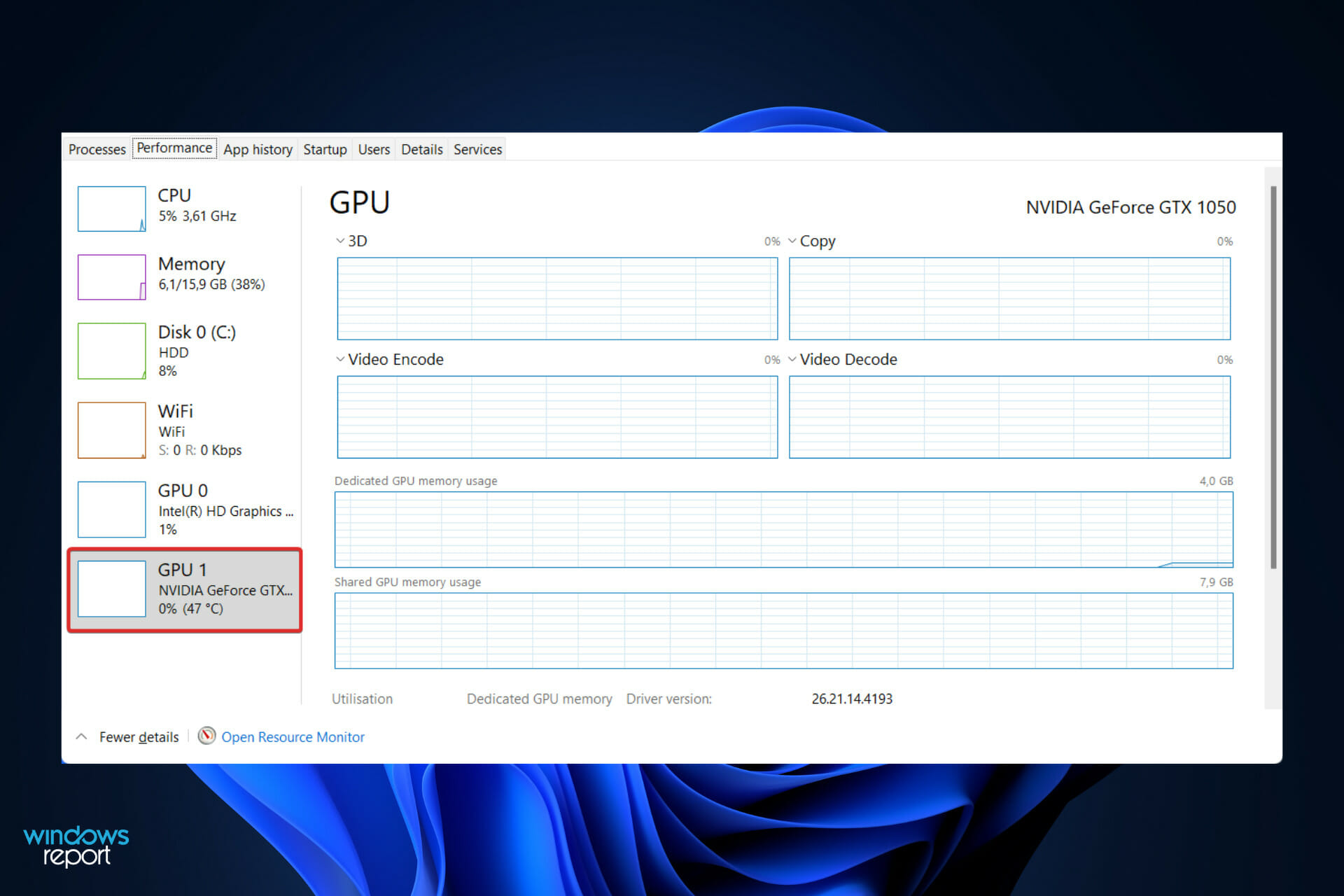
4 best mirrorless cameras for streaming [YouTube / Twitch]

If streaming is your full-time job, you must invest in a good camera. While DSLRs are also a great option for streaming, mirrorless cameras with their advantages are an obvious choice. This stands up, especially if you are going for an all-new streaming setup.

There are plenty of mirrorless cameras to choose from. However, finding the best mirrorless camera for streaming can be tricky.
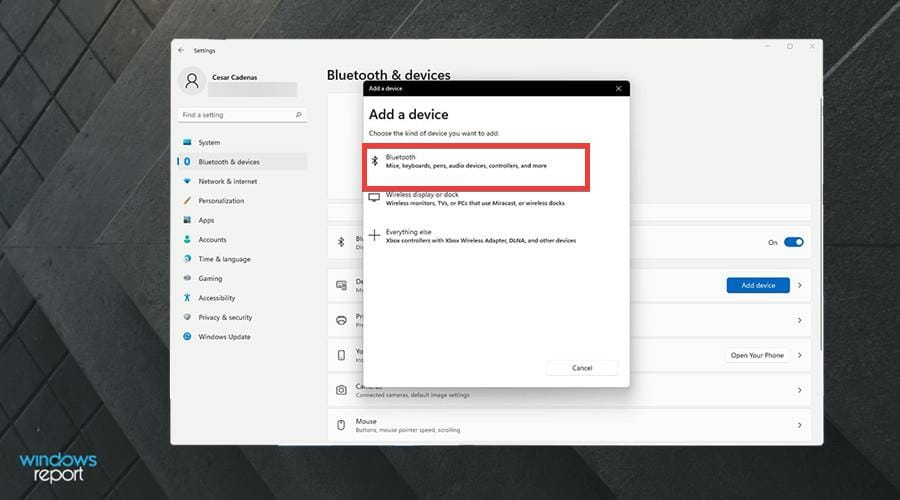
As you will be using it for an extended period, consider the price, features, and overall durability.
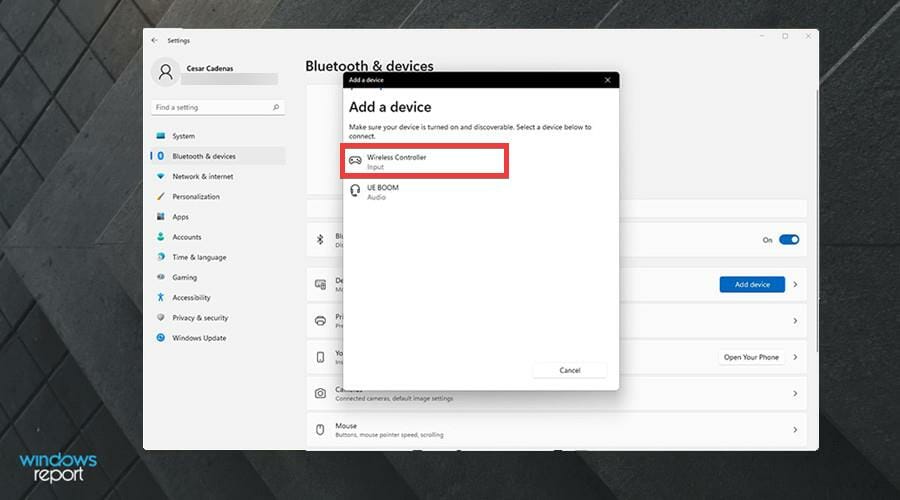
In this article, we have listed the best mirrorless camera for streaming on YouTube, Twitch, and Facebook.

Why should I use a mirrorless camera for YouTube/Twitch streaming?

If you aspire to the same image quality as a DSLR, consider using a mirrorless camera. It will be great for your live stream on platforms like Twitch or YouTube.

Being lighter, compact, faster, and better for videos, a mirrorless camera becomes a perfect device to complete your streaming experience.

Your camera should also be connected to a video encoder, so it can send the HDMI output to online platforms.

What is the best mirrorless camera for YouTube/Twitch livestreaming?

Fujifilm X-T30 

  • Excellent 4K video quality
  • Great touchscreen with tilt functionality
  • Super slow motion 120FPS at 1080
  • USB Type-C port
  • 10 minute limit for 4K capture

Fujifilm X-T30 brings the identical 26MP sensor, processor, and features to its high-end sibling X-T3 at a more affordable price. This mirrorless camera can be used for streaming via its USB-C port and Fujifilm’s X Webcam app.

With the Fujifilm X-T30, you get the company’s latest AF system, 3″ tilting touchscreen, and plenty of direct controls all in a smaller body, making it ideal for streaming and video logging.

The X-T30 can record 4K video at 30 frames per second and 1080p videos in 120FPS, offering the flexibility of slow-motion effects when required.

For connectivity, it comes packed with Wi-Fi and Bluetooth 4.2. You can remotely access the camera using the Fujifilm Remote app.


Sony a7 III ILCE7M3/B 

  • Advanced 24 megapixel BSI sensor
  • Great low ISO dynamic range
  • Excellent autofocus performance
  • 4K video recording support
  • No external battery charger

Sony’s a7 III ILCE7M3/B is the most accessible full-frame system camera on the market.

Apart from its incredible shooting performances, you can also use it to stream online with Sony’s official Imaging Edge Webcam software.

While it is not the most affordable mirrorless camera on this list, it is a competent full-frame camera in the segment that offers a well-judged mix of resolution, speed, and features.

Talking about the camera’s technical specifications, it features a 24.2MP BSI full-frame image sensor, can connect to a smartphone over Bluetooth, 4K video recording, in-body image stabilization, dual SD card slot, touchscreen, and USB 3.1 Type-C port.


Nikon Z 5 

  • Build quality feels solid and durable
  • Good EVF and tilting screen
  • Dual memory card slots
  • 4K video recording
  • Only 4.5fps continuous shooting

For an entry-level full-frame mirrorless camera, Nikon Z 5 is surprisingly well specced. With its superior video recording capability and Nikon’s in-house Webcam Utility, it is one of the best mirrorless cameras for YouTube streaming.

It’s built around a 24MP CMOS sensor, which is not the latest BSI sensor. However, it shares the 273-point hybrid AF system, Expeed 6 processor, and 3.69M-dot OLED viewfinder.

Although cropped, Nikon Z 5 can record 4K video at 30fps, which is more than enough to generate an awesome streaming experience.

It comes with dual SD card slots, USB powering while the camera is in use, VR image stabilization, and some creative features like time-lapse, multiple exposures, creative picture controls, etc.


Canon EOS RP

  • Very good image quality
  • Great high ISO performance
  • Fast Dual PIXEL CMOS AF system
  • 4K video recording
  • Poor battery life

The Canon EOS RP mirrorless camera is among the smallest and lightest full-frame device on the market.

It is one of the best cameras for Twitch streaming and can be used with Canon’s EPS Webcam Utility software to turn your camera into a high-quality webcam.

Featuring a 26MP sensor, Dual Pixel CMOS AF, and 4K video recording, the Canon EOS RP offers an excellent value for money product. The camera’s image quality is excellent for casual users or those already in the Canon ecosystem.


Canon EOS M6 Mark II 

  • Excellent image quality in RAW and JPEG
  • Good level of direct control
  • Good user interface
  • 4K video recording
  • Eye detection works in only close range

Resembling the original M6, Canon EOS M6 Mark II brings a host of speed and feature upgrades. This mirrorless camera features 32.5MP APS-C built around the company’s EF-M mount system.

For live streaming, you have to consider the compatibility with Canon’s EOS Utility Webcam software. It can record 4K videos at 30 FPS and Full HD videos at 129FPS.

Other features offered by Canon EOS M6 Mark II include the high-speed continuous shooting of up to 14 fps with AF/AE tracking, good low-light performance, and selectable AF positions.

What other support should I use for YouTube/Twitch streaming?

To get the best out of the live streaming experience, we also recommend using additional hardware and software support, as in the following list:

  • Game capture cards – These can transform your old sources of movies like DVDs into HD format. Thus, do not hesitate to check the best game capture cards for Twitch.
  • Extensions – Keep in mind that the greater the extensions the more interactive will be the streaming experiences you’ll be able to create. Thus, we strongly recommend discovering the best Twitch extensions anybody should use.
  • Browsers – To prevent any related problems, you should definitely try a streaming dedicated browser, so make sure you take a look at the best browsers for Twitch.
  • Emote makers – For a cool, funny, and interesting live streaming experience, feel free to verify what are the best Twitch emote makers.

Mirrorless cameras provide the very best in the image capturing technology and are usually a very good option for vloggers and streamers due to being ultraportable and compact in size.

With the camera OEM’s also releasing their official streaming and webcam software, all the cameras listed in this article can be used for Twitch and YouTube streaming without requiring an additional adapter.

Twitch addon install error: Try out these simple methods

Minecraft and Twitch are among the most popular sandbox video game and streaming platforms, respectively. However, while using these two, you may encounter the Twitch addon install error.

Some users have reported similar issues on several community pages as well.

I  was fine all the way through about noon yesterday and now I can’t update any mod packs that I was playing hours before and I am also unable to download any new ones.

This error can occur due to a glitch in the client or incorrect Twitch configuration for addons and Minecraft.

In this article, we have listed a couple of troubleshooting tips to help you if you encounter the Twitch addon install error.

How can I fix the Twitch addon install error?

1. Increase memory allocation

  1. Hit the Windows key, type Twitch, then open the app.
  2. Click on your avatar, from the upper-right corner of the window.
  3. Navigate to Settings.
  4. Open the Minecraft tab.
  5. Go to Java Settings > Max Memory Allocation.
  6. Set it to 7500MB and click OK to save the changes.
  7. Next, go to File >  Settings again and open Addons.
  8. For Backup Space, set it to 10MB.
  9. Save the changes and restart the Twitch client.

The addon install error can occur if the Twitch client is incorrectly configured. Several users have reported that changing the memory allocation size and Addon backup settings have helped them resolve the issue.

If the issue persists, try changing the launcher method in Twitch.

  1. Hit the Windows key, type Twitch, then open the app.
  2. Click on your avatar, from the upper-right corner of the window.
  3. Navigate to Settings.
  4. Open the Minecraft tab.
  5. Change launcher method from JAR to Native.

2. Uninstall and change Twitch file path

  1. Use the following keyboard shortcut: Windows + R.
  2. Type appwiz.cpl, then click on OK to open Control Panel.
  3. From the installed apps, click on Twitch, then choose to Uninstall it.
  4. Confirm by clicking on Yes.

2.1 Reinstall the Twitch client

  1. Navigate to the Twitch download page.
  2. Click on Download for Windows.
  3. Right-click on the Twitch installer and select Run as administrator.
  4. Follow the on-screen instructions to install the software.
  5. Once installed, we need to change the file path.

2.2 Change Twitch file path

  1. Press on the Windows key, type Twitch, then open the app.
  2. From the top-left corner of the window, click on your avatar.
  3. Navigate to Settings.
  4. Open the Minecraft tab, then click on the Change button.
  5. Navigate to the Twitch installation path and select the Twitch folder.
  6. Click on Select Folder.
  7. Now open the Mods tab and install Minecraft.

The Twitch addon error and Minecraft installation error can be resolved by increasing the memory allocation for Minecraft and Addon. However, if the issue persists, try reinstalling the Twitch client and changing the file path.