Chrome Unable to Load elf.dll [Fix]

Sometimes Google Chrome might not start due to DLL (Dynamic Link Library) errors. One of Chrome’s most common DLL error messages states:

The program can’t start because chrome_elf.dll is missing from your computer. Try reinstalling the program to fix this problem.

That’s an error message numerous users have posted about on support forums. If the elf.dll error arises when you try to launch Chrome, check out some of the potential resolutions below.

How do I fix Chrome’s elf.dll error?

1. Use a third-party dll fixer

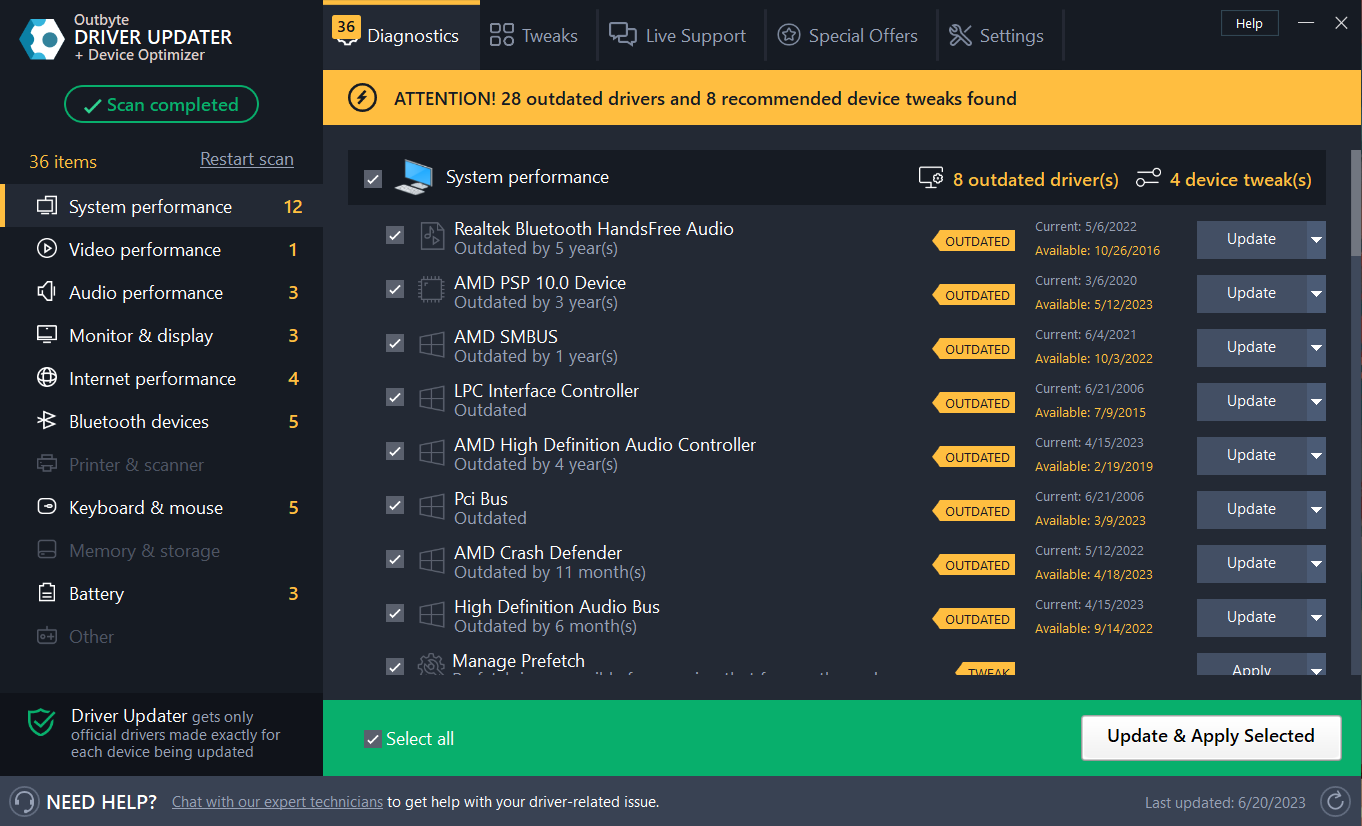
A dedicated tool can repair and replace corrupted files on your PC, including those from other software or crucial OS files, thus keeping your system up and running.

You can quickly fix any .dll error by allowing a professional app to search, scan, and if the case, repair the malfunctioning file. Moreover, the program will also download those missing files for you.

2. Run a System File Checker scan

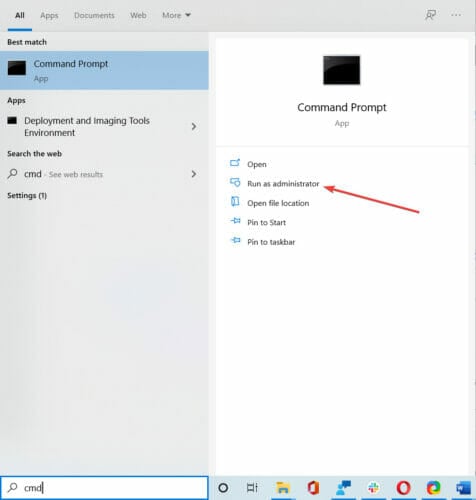
  1. Open Run with the Windows key + R hotkey.
  2. Enter cmd in the Open box, and click the OK button.
  3. In the Prompt’s windows, input: DISM.exe /Online /Cleanup-image /Restorehealth
  4. Then, press the Return key.
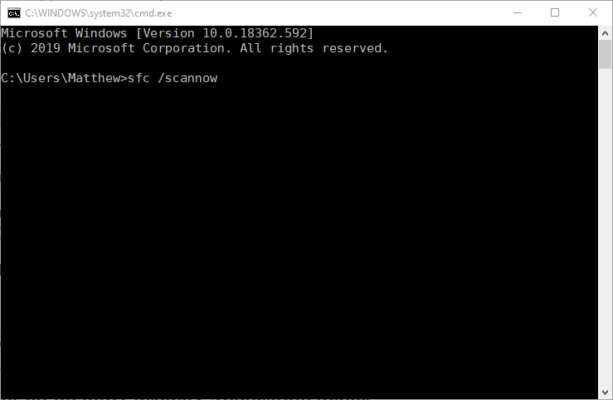
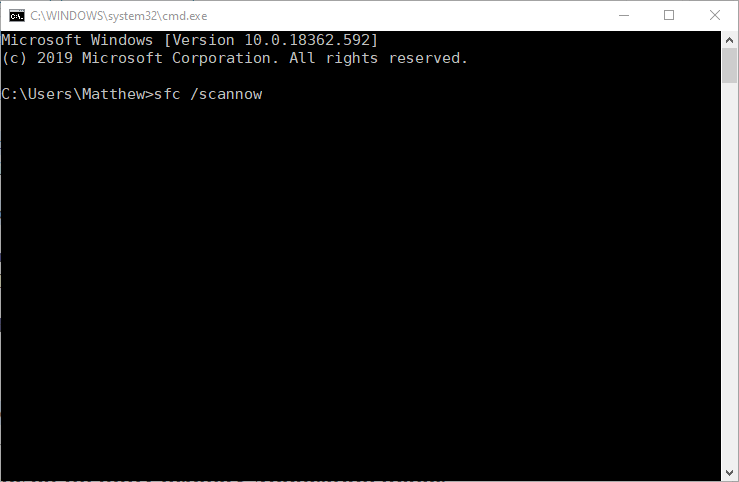
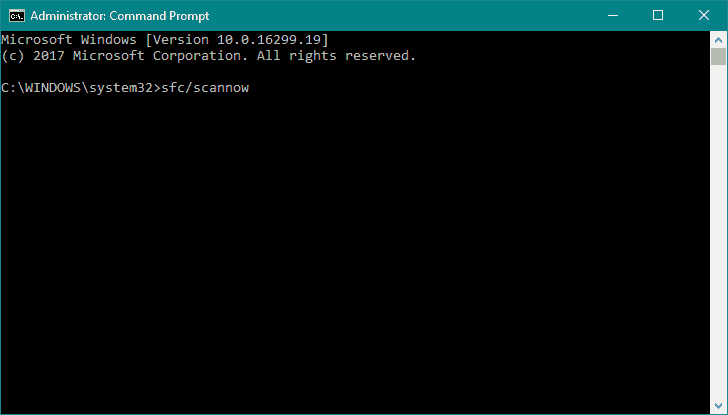
  5. In the Command Prompt, input: sfc /scannow
  6. Then press the Enter key.
    The sfc /scannow command google chrome unable to load dll
  7. If Windows Resource Protection repairs something, restart the desktop or laptop.

System File Checker is among the most reliable tools for DLL errors as it can repair corrupted DLL files, and comes with your Windows OS, which is great.

3. Copy elf.dll into Chrome’s Application folder

  1. Click the File Explorer taskbar button.
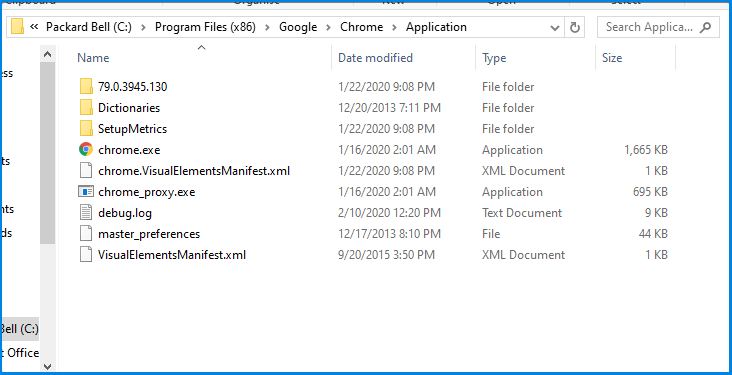
  2. Open Chrome’s Application folder in File Explorer.
    • The default path for that will be something like this:
    • C:/Program Files(x86)/Google/Chrome/Application.
  3. Then click the folder with the version number title, which will be something like 79.0.3945.130.
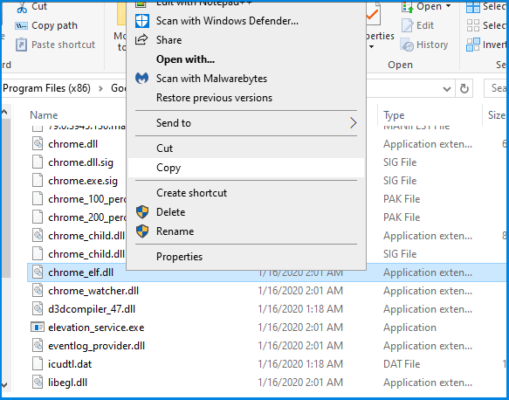
  4. Right-click chrome_elf.dll and select Copy. If you can’t find an elf.dll there, you can get a replacement from DLL-Files.com as outlined in the next resolution.
  5. Return to Chrome’s Application folder.
  6. Right-click an empty space within the Application folder and select Paste.
  7. Open Chrome from its Applications folder.

4. Get a new elf.dll from DLL-Files.com

  1. Open the elf.dll page on DLL-Files.com.
  2. Click download for the elf.dll file that matches your Chrome version.
    • Also note that you must download a 32 or 64-bit file that matches your 32 or 64-bit Chrome browser.
  3. Double-click the downloaded ZIP for the DLL file.
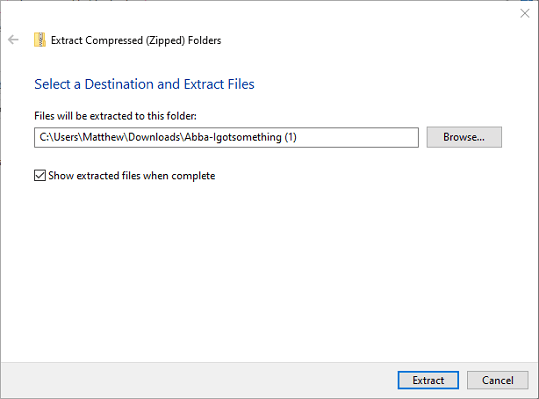
  4. Click the Extract all button.
    Extract Compressed window google chrome unable to load dll
  5. Click Browse to select a path for the extracted file.
  6. Click the Extract button.
  7. Move the elf.dll from the extracted folder into Chrome’s directory.
    • If that doesn’t fix the issue, move the elf.dll file into either one of these: C:/Windows/SysWOW64 (32-bit DLLs) C:/Windows/System32 (64-bit DLLs)
  8. Restart Windows after moving the DLL.

It is generally discouraged to download DLL files from websites, but DLL-Files.com is one source user reviews confirm helps fix missing DLL errors.

5. Roll back Windows with System Restore

  1. System Restore might also come in handy for fixing the elf.dll error.
  2. Right-click Windows 10’s Start button and select Run.
  3. Input rstrui in Run’s Open box, and click the OK option.
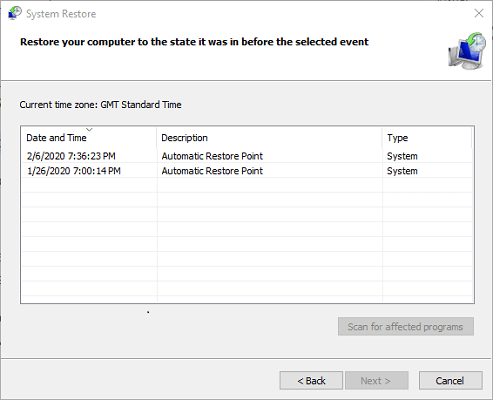
  4. Click the Next button to open the restore points list below.System Restore google chrome unable to load dll
  5. Select a restore point that predates the elf.dll error on your desktop or laptop.
    • If you’re not sure, select the earliest restore point.
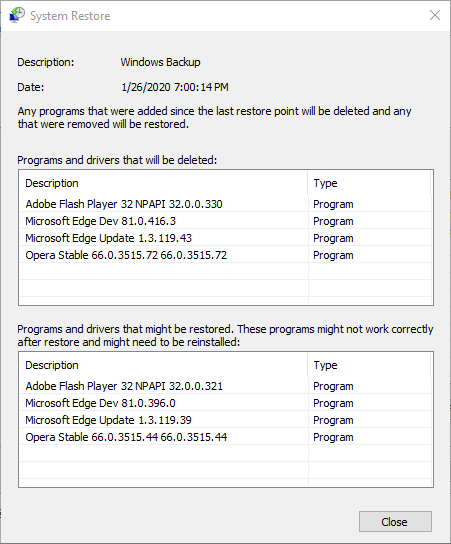
  6. Click the Scan for affected programs button, which opens the window shown directly below.
    • That window tells you what software will be removed by a selected restore point.The removed programs list google chrome unable to load dll
  7. Click the Next and Finish buttons on the System Restore window.

6. Reinstall Google Chrome

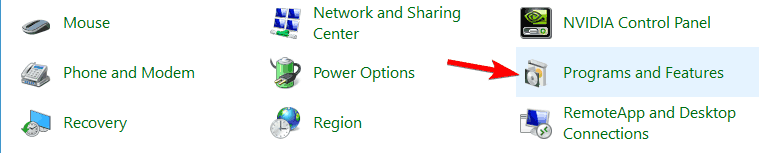
  1. Open Run.
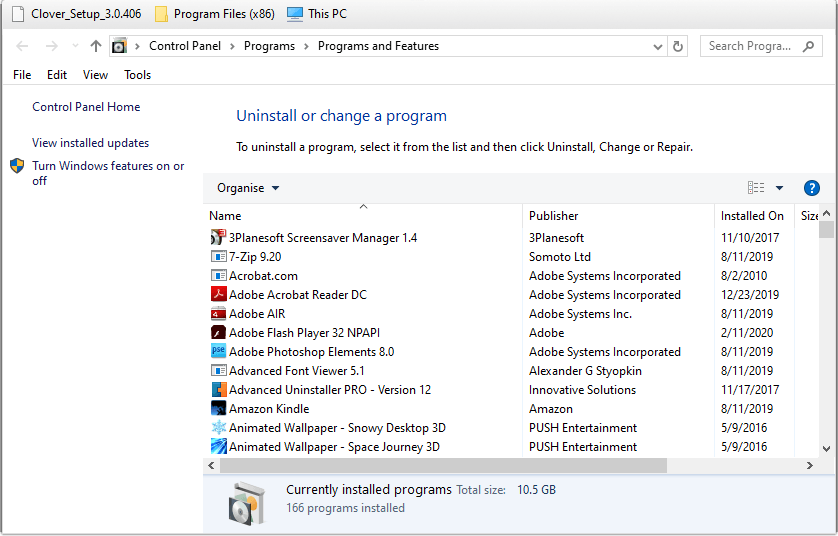
  2. Enter appwiz.cpl in Run, and click the OK option.
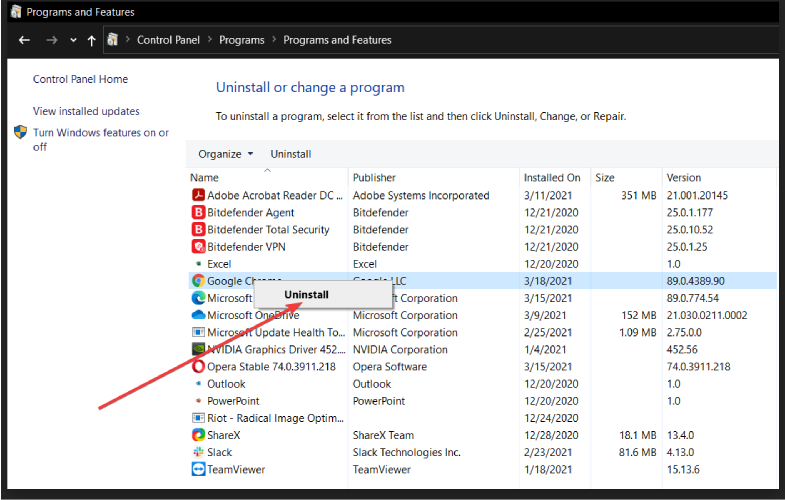
    The uninstaller google chrome unable to load dll
  3. Select Chrome in the Programs and Features applet.
  4. Click Uninstall.
  5. Press the Uninstall button on the dialog box.
  6. Restart Windows after uninstalling Google Chrome.
  7. Click Download Chrome on the browser’s page to get the installer for the latest version. Then reinstall the browser.

Those resolutions will probably be enough to fix the elf.dll error for a lot of users. Which of the above procedures worked for you? Leave your answer and any other questions or suggestions in the comments area below.

Timer_or_dpc_invalid BSOD in Windows 10/11 [Complete Fix]

Here at WindowsReport, we have shared several guides on dealing with different types of Blue Screen of Death errors.

The timer or dpc invalid is another BSOD error is another annoying problem that results in forceful reboots of the system.

The bugcheck value of 0x000000C7 indicates that a kernel timer or delayed procedure call is found somewhere where it is now allowed in the memory.

It can be triggered due to a problematic driver, outdated system file, or even disk issues.

In this article, we have compiled a list of possible solutions to help you effectively resolve the timer or dpc invalid error in Windows 10.

How do I fix the timer or dpc invalid BSOD error in Windows 10?

1. Update drivers with specialized driver updater

The timer or dpc invalid mmcss.sys blue screen of death error can occur due to a broken or faulty driver. Try updating the concerned driver manually or using a specialized driver updating utility.

The powerful and comprehensive tools are created specifically for updating drivers and so they are equipped with features that allow them to identify the driver needed by your computer, download it and install it in just a few moments.

2. Perform a full scan for virus threats 

Timer_or_dpc_invalid
  1. Click Start and select Settings.
  2. Choose Update & Security.
  3. Open the Windows security tab from the left pane.
  4. Under the Protection areas section, click on Virus & threat protection.
  5. A new window will open. Scroll down and click on Scan Options.
  6. In the Scan Options window, choose Full Scan.
  7. Scroll down and click the Scan Now button. The full scanning process usually takes more time than the Quick Scan option. Wait till the scan is complete and then proceed to take the necessary action.

Windows Defender will scan the system for adware and malware infection. When the scan completes, remove any threat by clicking on Clean threats.  

Malware or virus attacks are one of the common reasons for the timer or dpc invalid BSOD error in Windows 10 computers. Make sure to run a full scan frequently to keep your system clean.

If you’re running a third-party antivirus, check the steps below.

2.1 Close third-party antivirus 

If you are running a third-party antivirus program, temporarily disable the app. The timer or DPC invalid error can be triggered if the third-party antivirus is creating conflict with the functioning of the system files.

To disable the app temporarily, expand the System Tray icon. Right-click on your antivirus program and select the option to disable it temporarily. 

Open the Task Manager. Go to the Startup tab, right-click the third-party antivirus program and select Disable. Reboot the computer and check if the BSOD error occurs again.

If you deduce the issue to be triggered due to your antivirus program, consider uninstalling the app. We recommend you switch to another antivirus solution that will not interfere with your system

You will be happy to know that the antivirus market doesn’t lack good options for all types of users. Just make sure to get an antivirus that is up to date so it works well with your OS and is able to detect and block all emerging threats.

It is also recommended to use a security tool that uses several types of shields to protect your device. This is why we recommend multi-layered protection tools that are able to detect malware, ransomware, phishing attacks, and all sorts of new and old security threats.

Also, make sure that the system requirements of your AV of choice match your device. This shouldn’t be an issue for most users because modern-day antiviruses are designed to offer full protection while being very light on the system.

3. Install pending Windows updates 

timer or dpc invalid
  1. Click Start and select Settings.
  2. Go to Update & Security and choose Windows Updates.
  3. Click on Check for updates. Windows will scan for pending updates.
  4. Click the Download button to download pending updates. Some updates may require you to restart your computer to install the updates.

Keeping your Windows up to date is an excellent way to prevent the blue screen of death error due to hardware incompatibility and file corruption.

Windows updates usually offer minor glitch and bug fixes that may trigger BSOD errors. 

4. Run a SFC scan 

timer or dpc invalid
  1. Click Start, type cmd and right-click on Command Prompt.
  2. Select Run as Administrator to open Command Prompt as admin.
  3. In the Command Prompt window, type the following command and hit enter:
    Sfc /scannow 
  4. The System File Checker tool will scan all protected system files. This process may take some time, so wait till it is 100% complete.

The SFC command will scan the protected system files and replace corrupted files with a cached copy located in a compressed folder.

As discussed earlier, do not close the command prompt window till the process is complete. Once done, reboot the computer and check if the timer or DPC invalid error is resolved.

5. Repair bad disk sectors 

timer or dpc invalid
  1. Open the Command Prompt as Administrator. Type cmd in the search, right-click on Command Prompt and select Run as Administrator.
  2. In the Command Prompt window, type the following command and hit enter:
    Chkdsk C: /f /r /x 
  3. The check disk tool may take hours to complete. So, feel free to leave the PC idle for the process to complete. 
  4. Once the process is complete, reboot the computer and check for any improvements.

If you have a PC with traditional hard drives, the disk may create bad areas over a longer period of usage. Disk errors are among the common reasons for the blue screen of death error. 

There are many reasons why you would encounter the timer or DPC invalid BSOD error in Windows 10.

To help you diagnose and fix the problem, we have listed all the practical solutions to help you make the diagnosis easy.

FIX: Kernel security check failure in Photoshop

Photoshop is without a doubt one of the best photo editing software, but it seems that Windows 10 users are having problems with Photoshop.

According to users, they are getting Kernel security check failure error screen in Photoshop, so let’s see how to fix this problem.

Kernel security check failure error can prevent you from running Photoshop, and speaking of this error, here are some similar issues that users reported.

  • Photoshop CC Kernel security check failure
    • According to users, this problem can affect Photoshop CC, but you might be able to fix it by finding and moving sniffer.exe file.
  • Kernel security check failure when opening Photoshop
    • Several users reported that they are unable to open Photoshop due to this error.
    • However, rolling back your drivers might fix the problem.
  • Kernel security check failure Photoshop Windows 10, BSOD
    • This error is usually followed by a blue screen, and if you encounter it, be sure to uninstall your graphic card driver and check if that helps.
  • Kernel security check failure Windows 8.1 Photoshop
    • This issue can appear on any version of Windows, but if you encounter this error on Windows 8.1, you should be able to fix it with some of our solutions.
  • Kernel security check failure Photoshop AMD driver, Nvidia
    • Sometimes your graphics card drivers can be the problem, and to fix the issue, simply update them and check if that solves the problem.

How do I fix the Kernel security check failure in Photoshop?

1. Get the latest version of Adobe Photoshop

Before going ahead with any troubleshooting steps, make sure that the problem isn’t just the fact that your current Photoshop installation is old.

Thus, before proceeding with the steps below, simply get the latest version of Adobe Photoshop and see if that doesn’t solve your problem all by itself.

You should be aware that if you wish to benefit from the latest security patches, bug fixes, and latest features, you have to update Photoshop regularly.

2. Start Photoshop in Safe Mode

  1. Press the Windows Key + I to open the Settings app.
  2. When Settings app opens, navigate to the Update & Security section.
  3. Go to the Recovery tab, and click the Restart now button.
  4. Choose Troubleshoot, go to Advanced options, select Startup Settings, and click the Restart button.
  5. After your computer restarts, you’ll see a list of options.
    • Press the appropriate key to choose Safe Mode.
    • You can use any version of Safe Mode for this process.
  6. After you enter Safe Mode, try running Photoshop.

Safe Mode is designed to run with only default services and drivers enabled, so you might to try starting Photoshop in Safe Mode.

If the error doesn’t appear in Safe Mode, it means that is caused by your drivers or some other third-party software.

3. Rollback your Nvidia drivers

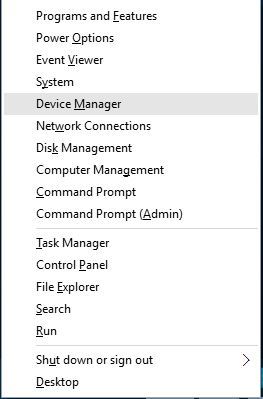
  1. Press the Windows Key + X to open Power User Menu.
  2. Select Device Manager.
    Photoshop CC Kernel security check failure
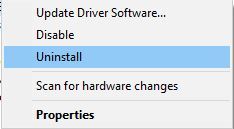
  3. When Device Manager opens locate your display adapter and double click it to see its properties.
  4. Go to the Driver tab and click the Roll Back Driver button.
    Kernel security check failure Photoshop Windows 10
  5. After the rollback procedure is completed, restart your PC and check if the problem is resolved.

Photoshop utilizes your graphic card for processing, and it seems that there’s an issue with the latest Nvidia drivers and Photoshop.

According to users, you can fix this problem by rolling back to the previous version of Nvidia drivers. So far, only Nvidia users reported this issue, and AMD users shouldn’t be affected by this problem.

If you have an AMD graphic card, and you’re having this problem, you might want to try this solution. You can also try to uninstall your Nvidia drivers completely and install the older version of the drivers.

After removing the driver, simply download the older version and install it, and Photoshop should start working without any problems.

4. Update your graphic card driver

If the Kernel security check failure error keeps appearing whenever you try to run Photoshop, the issue might be your graphics card. Several users claim that their graphics card wasn’t detected by Photoshop at all.

Although many users reported that installing the older version of Nvidia drivers fixed the problem for them, few are claiming that installing the latest drivers fixes the problem on their PC.

To update your drivers simply visit Nvidia’s website and download the latest drivers for your graphic card. After installing the latest drivers, check if the problem was resolved.

Updating drivers manually is very annoying, so we recommend you use a third-party tool (100% safe and tested by us) to do it automatically.

The tool in question will scan your whole device and detect all driver-related issues, be it outdated, corrupt or missing drivers. Using its own database, it will find the best version for your graphic card hardware and install it within minutes.

⇒ Get Outbyte Driver Updater

If you still have this problem, even after trying all of our solutions, it’s possible that your graphics card just isn’t compatible with Photoshop, so you might have to replace it.

This usually happens with older or low-end graphics cards, but if you’re using mid-range or high-end graphics, the issue is probably something else.

5. Move or delete sniffer.exe

  1. Go to Photoshop installation directory.
    1. This directory is usually C:Program > Files> Adobe> Adobe Photoshop CC
    2. It can be different depending on the version of Photoshop that you’re using.
  2. In the Photoshop directory locate sniffer.exe or sniffer_gpu.exe and move it to your Desktop or any other folder.
    • You can also delete this application, but we suggest that you keep it in case you need it.

Sniffer.exe is a small application in the Photoshop folder that is designed to use your graphic card.

Apparently, there’s a problem with this application that is causing Kernel security check failure error to appear, and the only solution is to move or delete this application.

After moving the sniffer.exe file, Photoshop should start working without any problems.

Keep in mind that moving this file will disable GPU processing in Photoshop, so if you use this feature heavily you might want to try something else.

6. Use your dedicated Nvidia card with Photoshop

  1. Start Nvidia Control Panel and go to Manage 3D settings.
  2. Select the Program Settings tab and choose Photoshop from the list of applications.
  3. Set High-performance Nvidia processor as the preferred graphics processor for this program.
  4. Click Apply to save changes, and check if the issue is resolved.

If you have both integrated and dedicated graphics cards, you need to use your dedicated Nvidia card with Photoshop in order to avoid this error.

Some users are also recommending enabling Triple Buffering feature for Photoshop in Nvidia Control Panel, so be sure to try that as well. After doing that, try to start Photoshop again.

7. Disable your graphic card

  1. Open the Device Manager.
  2. When Device Manager opens, locate your dedicated graphics card, right-click it and choose Disable from the menu.
    Kernel security check failure Windows 8.1 Photoshop

This solution applies if you have both a dedicated and integrated graphic card. According to users, after disabling the dedicated graphic card the issue with Photoshop was fixed.

After disabling the dedicated graphic card there shouldn’t be any more issues with Photoshop. Keep in mind that you’ll have to repeat these steps every time you want to start Photoshop.

Another way to disable your graphics card is to use the graphics card driver software. Sometimes these applications allow you to pick which graphics card you want to use as your graphics processor.

Alternatively, you can enter BIOS and disable your dedicated graphics from there.

8. Switch to 32-bit version

According to users, Kernel security check failure error affects only 64-bit versions of Photoshop, while 32-bit versions remain unaffected.

If you’re having this problem, perhaps you should temporarily switch to the 32-bit version until the issue is resolved.

Bear in mind that you might experience reduced performance with the 32-bit version, but if you can deal with slightly reduced performance, be sure to try this workaround.

Before you install the 32-bit version, perhaps it would be best to remove the 64-bit version from your PC. There are several ways to do that, but the best is to use uninstaller software.

By using uninstaller software, you’ll completely remove the desired application, including its files and registry entries. After the 64-bit version is removed, install the 32-bit version and use it instead.

Kernel security check failure error screen can be a big problem, but you can fix this problem in Photoshop by downgrading your drivers or by moving the sniffer.exe file to a different location.

We hope these solutions were helpful for you to fix this issue. For more suggestions, please access the comments section below.

Movavi Video Editor Plus Review – Is it Good in 2026?

Editing videos isn’t as hard if you have the right tool for the job. There is a wide array of video editors on the market.

So, if you’re looking for a powerful but simple video editor, you should consider Movavi Video Editor.

Movavi Video Editor for Windows PCs

Make amazing videos within minutes with Quick Video Editor

The first experience with Movavi Video Editor is exactly how one would expect a professional-grade video editor to look, feel, and perform.

But don’t be fooled, thinking that just because you can get it for free, it won’t have the necessary tools you need to finish your task.

Au contraire, you will be surprised in finding out the actual possibilities that the Movavi Video Editor has in store for you.

⇒ Get now Movavi Video Editor

The process is incredibly simple, and you have to select the videos that you want to use and choose the desired background music.

Music is sorted into several categories, so you should be able to find the right music for your videos with ease.

You can also choose between several available transition effects and add opening and ending titles to your video.

The whole product’s interface has been completely revamped, and designers also brought a few new and important features to the table.

Besides its fresh new look, Movavi now offers high resolution in the preview mode, intro templates, a new filmstrip view, and a revamped audio effects panel, among others.

The Movavi crew also added a Media Bin, which is technically a folder in the program where you can store all project files.

So, the ones you’ve already used will be ticked in the Media Bin, and you will know exactly where to find them.

What does Movavi Video Editor offer?

Friendly and sleek user interface

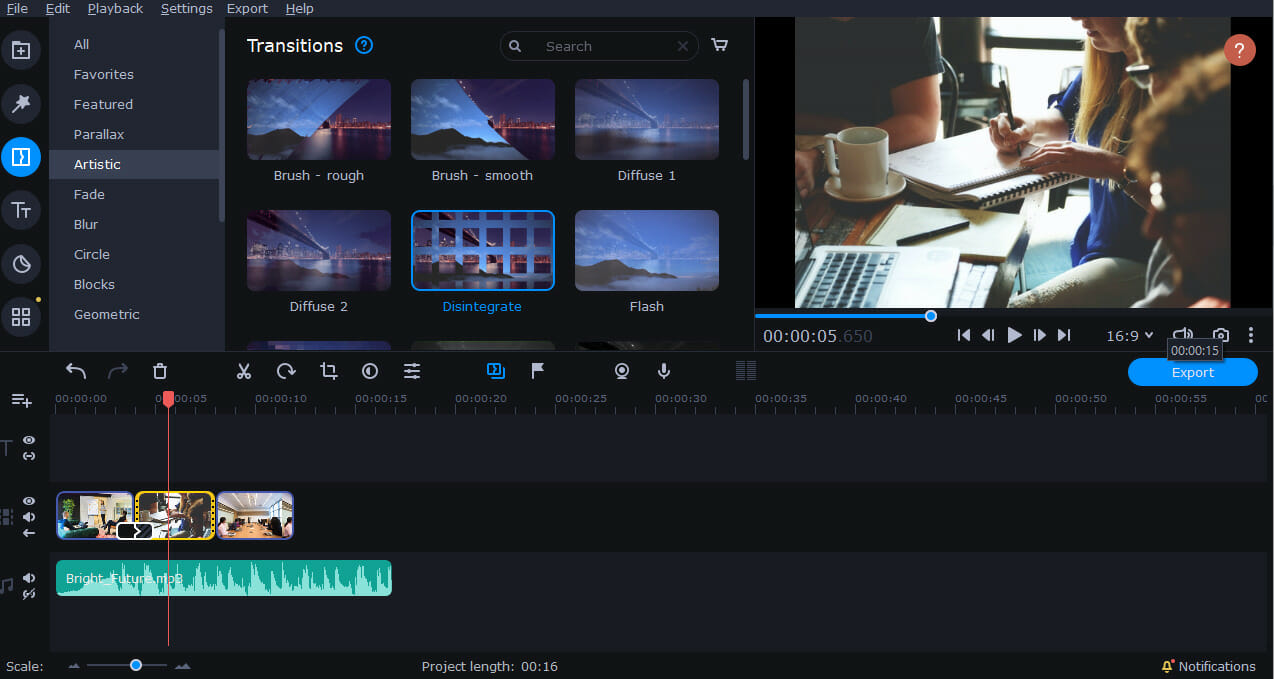
The first thing you’ll notice about Movavi Video Editor is its sleek and friendly user interface. The bottom of the application is reserved for the Timeline, and you’ll use it to add clips, music, and effects.

It’s worth mentioning that the Timeline can support up to 99 different video/audio tracks, so you should be able to create complex videos.

Movavi 4

The Timeline supports multitrack editing, allowing you to change the order of tracks easily. You can also unlink overlay tracks and add clips anywhere you want.

Each clip on your Timeline can be edited manually, and you can easily crop, split or rotate clips, each option more accessible now after the revamp.

Less is more

Movavi Video Editor has a very simple and intuitive UI. All the options and tools are right at your fingertips. Don’t you hate it when you waste precious minutes looking for editing options hidden beneath infinite layers of tabs and menus?

Well, Movavi doesn’t follow this approach which eliminates steep learning curves. And this exact characteristic makes Movavi Video Editor one of the best video editors for beginners.

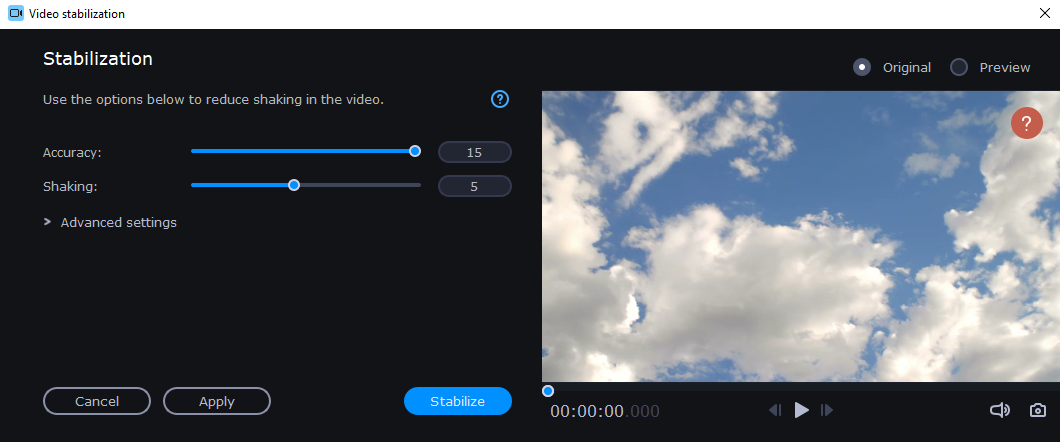
The application allows you to perform various color adjustments, add animations, use Pan and Zoom effects, or use a video stabilization feature to optimize shaky videos.

There’s also a Highlight and Conceal feature allowing you to focus on certain segments or to censor certain parts of the video.

Chroma key is also available, allowing you to use Movavi Video Editor with a green screen. As for audio editing, you can easily adjust the volume and speed of audio, but you can also fine-tune it thanks to the built-in equalizer.

Furthermore, audio synchronization will make the process so much easier with just one-click synchronizing audio streams from multiple sources.

How, you ask? Well, that’s simple to explain. It’s an algorithm that finds the same waveforms and merges them.

Let’s not forget about the automatic audio enhancement that fixes the volume and removes noise, the new manual adjustment tools, and new audio effects, such as overload, oscillation, and vibrato.
Sound level visualization:

As for additional features, there’s Noise Removal, Beat Detection, sound level visualization, and several audio effects that you can add.

The right pane holds the preview player allowing you to preview your project in real time. You can also change the aspect ratio or view the preview player in a separate window if you want.

As for the left pane, it works as your library, and you can use it to add various effects, transitions, videos, and sounds.

Wide array of transitions, filters, and effects

As previously mentioned, the right pane works as a library, and here you can add the desired files you want to use in your project.

Movavi Video Editor comes with sample sounds, music, backgrounds, and videos, but you can download additional videos and music from Movavi Store.

Regarding the available filters, there are about 160+ different filters that you can add to your clips. All filters are neatly organized so you can easily find the ones you need.

Of course, you can also download additional filters from the Effects Store. The Movavi Video Editor also offers features such as:

  • Glitch and Retro filters
  • Parallax transitions
  • LUTs – Use ready-made color-schemes
  • Overlay presets: logos, triple split-screen
  • Text adjustment tools: add shadows and backgrounds
  • Transitions are available for secondary video tracks too
  • Motion tracking – Place a mask on the object to highlight or conceal it in motion (works with stickers and titles too)

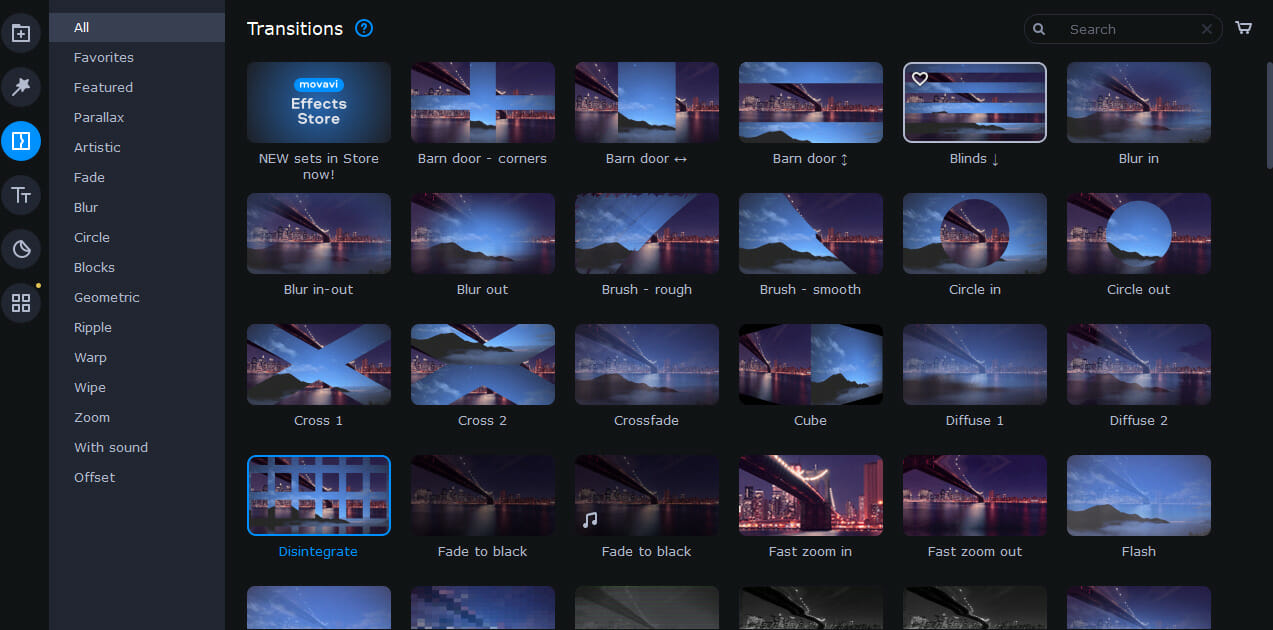
The application also supports various transitions, and there are about 100+ transitions available to choose from. Each transition can be customized individually, allowing you to achieve the perfect results.

In addition, there are various titles you can add; the Movavi Video Editor comes with 40+ titles to choose from. If you need more titles, you can easily download them from the Effects Store.

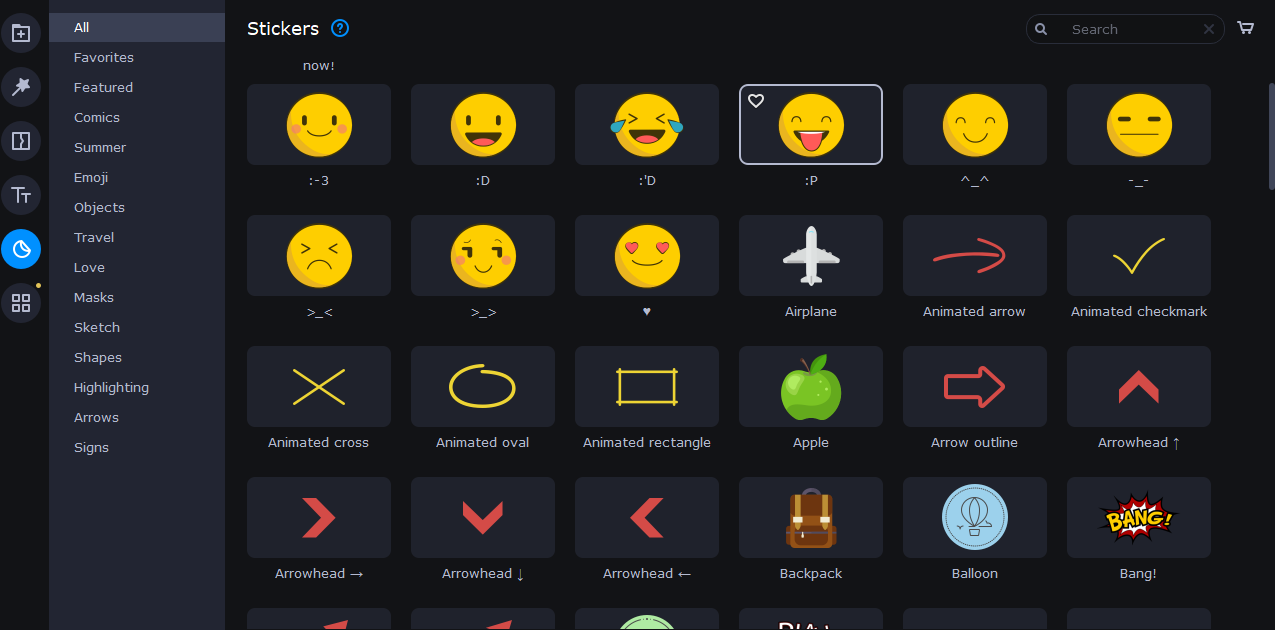
It’s worth mentioning that titles support a solid amount of customization, so you can easily rearrange text, change its font or color. The application also has about 70+ stickers to add to your videos.

Support for animation is also available, and you can choose between several presets or create your unique animations using keyframes. In addition, there’s a Pan and Zoom feature that allows you to add various effects.

Another feature that might come in handy, especially if you don’t use tripods for recording, is video stabilization. Thanks to this feature, you can easily adjust shaky videos and try to improve their quality.

File Export and supported formats

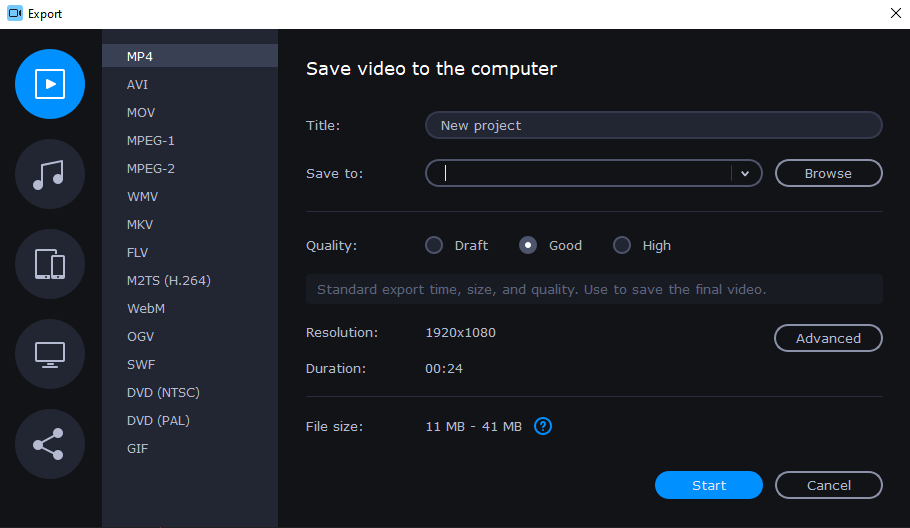
After you’re done with video editing, it’s time to export your video. The export feature is quite simple to use, and there’s support for 15 different video formats.

You can customize the video quality by using one of the three available presets, but you can also change the video codec, resolution, framerate, bitrate, sample rate, and a number of audio channels.

It’s easy to save your videos with no watermark right after you activate the program, with no restart required.

If we are talking about only partial project export, now you can edit and save different project parts separately.
Lastly, you can also directly upload files to YouTube, Google Drive, or Vimeo.

Conclusion

You can also optimize your videos for iOS and Android devices, PlayStation, Xbox, or various HDTVs.

Movavi Video Editor offers a straightforward user interface and a wide array of transitions, effects, and titles.

The application is quite fast, and thanks to the hardware acceleration support, you won’t encounter any performance issues while editing videos.

Overall, Movavi Video Editor is a simple-to-use video editor that allows you to create professional videos in a matter of minutes, and it’s one of the best video editors on the market.

5 Best Antivirus for Xbox One to Enjoy Risk-Free Gameplay

First things first: Is there such a thing as a dedicated antivirus for Xbox One? You guessed it, there isn’t. But that does not mean you should not deploy airtight protection while gaming and this includes console gameplay.

Here comes the million-dollar question. Do you need antivirus for Xbox One? A unanimous opinion is no more than a utopian concept, so we figured the best way to help you make an informed decision is by presenting both sides of the story. After all, information is power and we are here to place control back into your hands.

Consoles have come a long way since their early days and they are much like standalone computers now. A rather widespread misconception is that Microsoft’s popular gaming concoction, aka the Xbox One runs on Windows.

Thus, it’s only normal to imagine it is prone to viruses and malware commonly found on Windows-based devices.

In reality, consoles run on their specific OSs and the famous Xbox One is no different. While it’s no secret that the Xbox OS incorporates core Windows functionalities, Xbox One does not run on Windows.

Does Xbox have virus protection?

Ignorance is bliss more often than not. While Xbox One incorporates security features, we dare say it’s the penury of Xbox-specific viruses that makes it so safe. Don’t worry, further clarification is on its way.

Here’s what makes an Xbox One less susceptible to attacks:

1. Consoles (including Xbox One) run on different operating systems than conventional PCs. Hence, a console-targeted attack would require specific coding.

Since viruses tend to exploit very specific system-based vulnerabilities, it is less likely to encounter cross-platform bugs. It will take a great amount of technical prowess to develop an Xbox-specific virus and any other kind of nuisance will simply not affect your console.

2. Money makes the world spin, hence profitability is a major hacking criterion. Is going after Xbox One users profitable enough?

It turns out, Xbox does not represent such an enticing target for hackers as there is simply not that much to gain except for maybe payment details and game-based rewards. Instead, targeting PCs makes much more sense in regard to their popularity and larger audiences.

In addition to extensive client databases, PC-associated habits such as storing sensitive data, shopping, banking, and so on are more lucrative and thus, more appealing to hackers searching to enhance their profits.

3. Last, but certainly not least, Xbox One is packed with Microsoft-owned security technologies. To begin with, it is impossible to access system files, by yourself or by anyone or anything else, including viruses.

Here’s one thing that seems to plague users’ thoughts often: Microsoft Edge virus on Xbox One. While you can browse the Web via the Internet Explorer app, it is impossible to use it to download or run files on your Xbox.

You cannot download custom programs at all. Your console is designed to run only executable files from the Microsoft Store to make sure software is not counterfeited.

In other words, you will only be able to install digitally signed Microsoft-approved programs and the OS on your Xbox will always verify that a specific cryptographic signature is associated with a legitimate retail certificate before allowing it to successfully download.

At least, that’s how the legend goes. How does all of that apply in the real world?

Can you get viruses on an Xbox One?

All this considered, one must ask: does Xbox need virus protection? We’re here to tell you that you will need a good antivirus for Xbox One, yes. But before we help you pick one out, we should also explain why you need it in the first place.

Despite all the security measures, all it takes is the right combination between time, skills, and incentive to burst the Xbox’s closed environment bubble.

Even if Xbox One runs programs in a locked environment and can technically detect code tempering which ultimately leads to signature invalidation, we must not forget that just as much as any other device going online, consoles can get infected.

Can an Xbox get malware? Can Xbox be hacked? Yes and yes. The infiltration method may not be conventional just as the viruses can be different from threats usually found on Windows. But that does not mean Xbox One is not vulnerable to hacking attempts.

A common tactic implies disguising malicious code into apparently harmless files or links so that it can bypass your console’s security protocols and run undetected.

Here are the most frequent methods hackers use in order to infect your Xbox One:

  • Deceitful or malicious links in forums and other gaming platforms containing viruses that will access your traffic upon clicking
  • Devices linked to your Xbox accounts such as PC or smartphone, infected removable media such as USB sticks, or other corrupted storage media, pirated discs with counterfeited games, and even connecting cables
  • Speaking of piracy, discounted games, free prizes, and giveaways are common phishing-based methods designed to lure you on malicious websites and steal your credit card details
  • Man-in-the-middle attacks disguised as game updates
  • DDoS attacks plaguing the gaming servers with ill-intended network traffic
  • Catfishing schemes, phishing, and social engineering techniques (infected messages on forums or via the in-game chat, requests disguised as genuine notifications from the manufacturer, and so on)
  • Further fraud attempts based on behavior observation including sniffing communications via the service provider’s network
  • Any malicious code tailored to match your Xbox’s OS that can infiltrate undetected

Do I need antivirus for Xbox One?

As you can see, your Xbox is just as vulnerable to infections and attacks as any other device intended to connect to the Internet and it can be hacked via both software and hardware components.

With this in mind, our experienced QA team here at Windows Report worked long and hard to come up with an antivirus selection that will not only keep you safe during gameplay but will also enhance your overall experience.

As always, high virus detection rates are quintessential, but the device itself called for an entirely different testing methodology. The famous Xbox One is once again a game-changer, in more than one way.

While decent antivirus programs suitable for gaming PCs are not so hard to find, protection options for gaming consoles are an entirely different breed.

Conventional protection was downgraded in regards to the device’s particular operating system which implies that your Xbox is immune to Windows-based viruses.

The fact that the console is overall less prone to catching viruses since downloading is strictly controlled also influenced our selection a lot. So, how did we choose the best antivirus for Xbox One?

First of all, we granted a particularly high ranking to antiviruses with dedicated Gaming modes that can facilitate your gaming experience. We chose to focus on this type of software since security tools such as VPN and antiviruses are often believed to hinder gameplay and cap your in-game performance.

So does antivirus slow down gaming? Not if you pick the right one and that is precisely what we intend to do.

Tip icon Tip
How did we pick the best antivirus for your Microsoft-powered gaming console?

Here are our major selection criteria:

➡ Dedicated Gaming mode or Gaming Booster
➡ Discreet notifications and permission requests
➡ Minimal impact on performance/connection/download speed, low CPU and GPU consumption rates
➡ Specialized anti-hacking suite (device control, apps management, vulnerabilities scanner)
➡ Safe browsing mode, malicious link detector, downloads verification
➡ Network security module (network threats detection and prevention, traffic protection, firewall)
➡ Multi-layered security (anti-ransomware, anti-spyware, anti-adware, anti-phishing, anti-keyloggers)
➡ Additional privacy tools (VPN, webcam protection, and more)

What are the best antivirus software options for Xbox One?

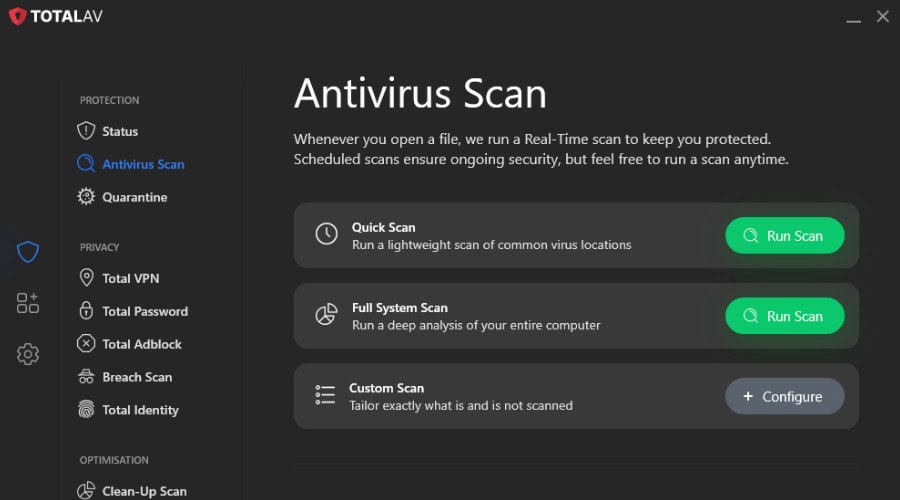
TotalAV – Protection for the PC you game on

TotalAV antivirus scan
TotalAV smart scan
TotalAV smart scan results

An Xbox itself does not run antivirus, so the protection that matters is on the Windows PC that shares your network, your account and your downloads. TotalAV covers that PC with real-time protection, WebShield for phishing links that turn up in chat, and automatic scans of downloads.

Its tune-up tools help before a session: the startup manager and junk cleaner free up resources, and the browser cleanup clears clutter. The higher plans add a Safe Browsing VPN, useful on shared networks, and one subscription covers the phone you use for the Xbox app.

  • Real-time protection on the gaming PC
  • WebShield blocks phishing links from chat and forums
  • Startup manager and junk cleaner to free resources
  • Safe Browsing VPN in the higher plans
  • Covers PC, Mac and phone under one subscription

⇒ Get TotalAV

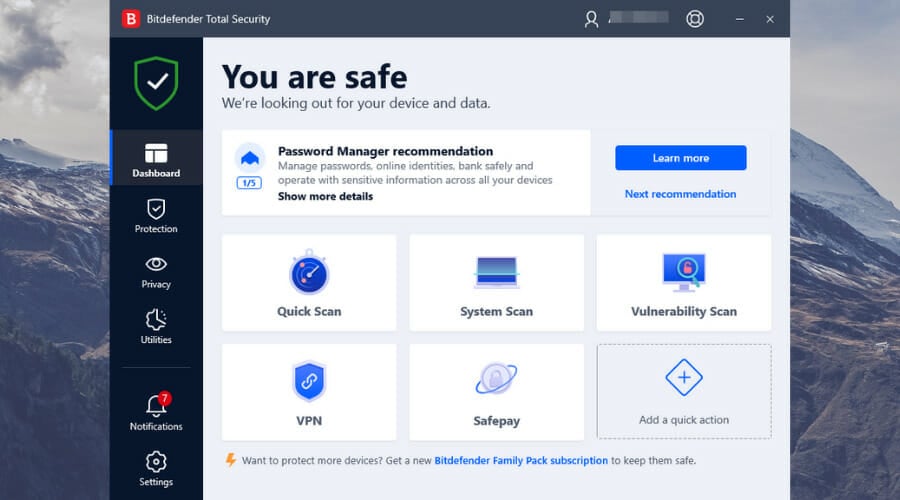
Bitdefender Total Security – OneClick Optimizer

Bitdefender has it right – the combination between the best virus detection rates and a lightweight, feather-easy infrastructure is the key to unlocking gamers’ hearts.

You probably don’t need us to tell you how effective Bitdefender is. After all, its reputation as a worldwide trusted and security experts’ endorsed solution speaks for itself. So we will focus on its gaming-oriented features instead.

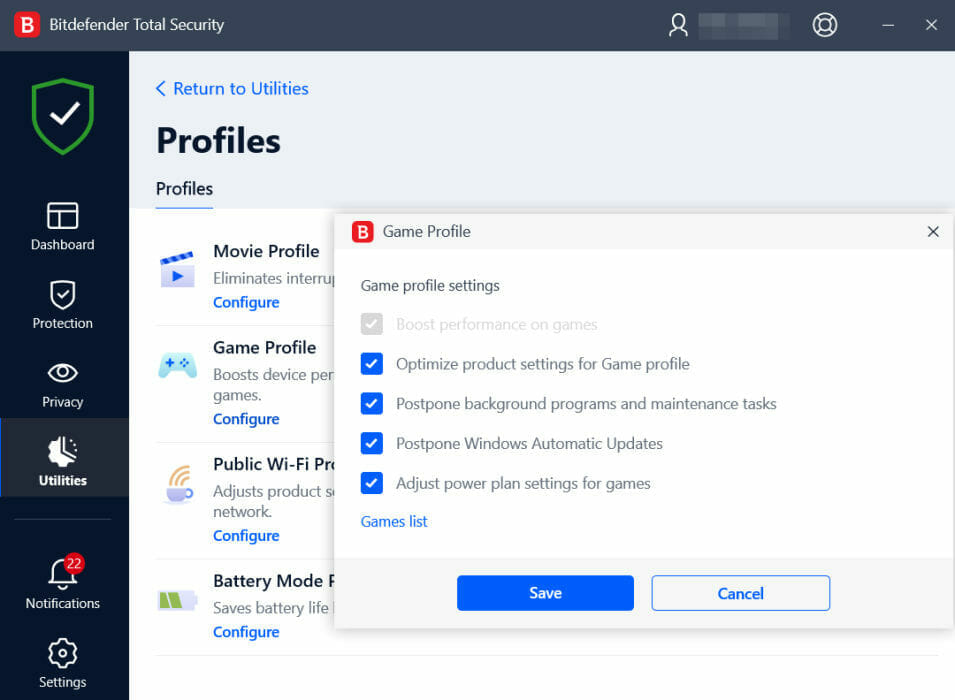
You guessed it, the Gaming Mode tops our list. Under the Utilities screen, you will find dedicated profiles. Once you activate the Game Profile, you can sit back and relax. We’re just kidding.

It’s the precise moment you will go all-in, sweat, blood, and tears included, and enjoy uninterrupted, fully immersive, intense gameplay.

Everything else from notifications to background activities will be suspended to remove all distractions and any other resource-hogging processes and apps.

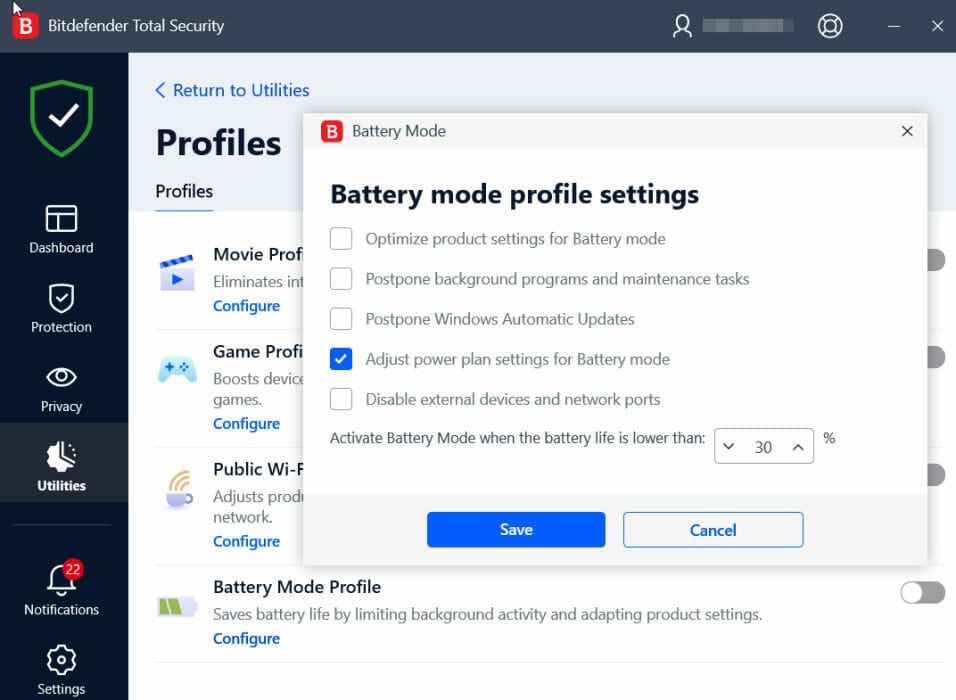
The Battery Mode completes this gaming-friendly environment by further adjusting display settings, system updates, and cooling, as well as Bluetooth connectivity to concentrate your entire processing power into your gaming session and allow you to enjoy your rig to the maximum.

Now, this best antivirus for Xbox One is designed to be as lightweight as possible by default. It takes no more than 2 KB on our drive.

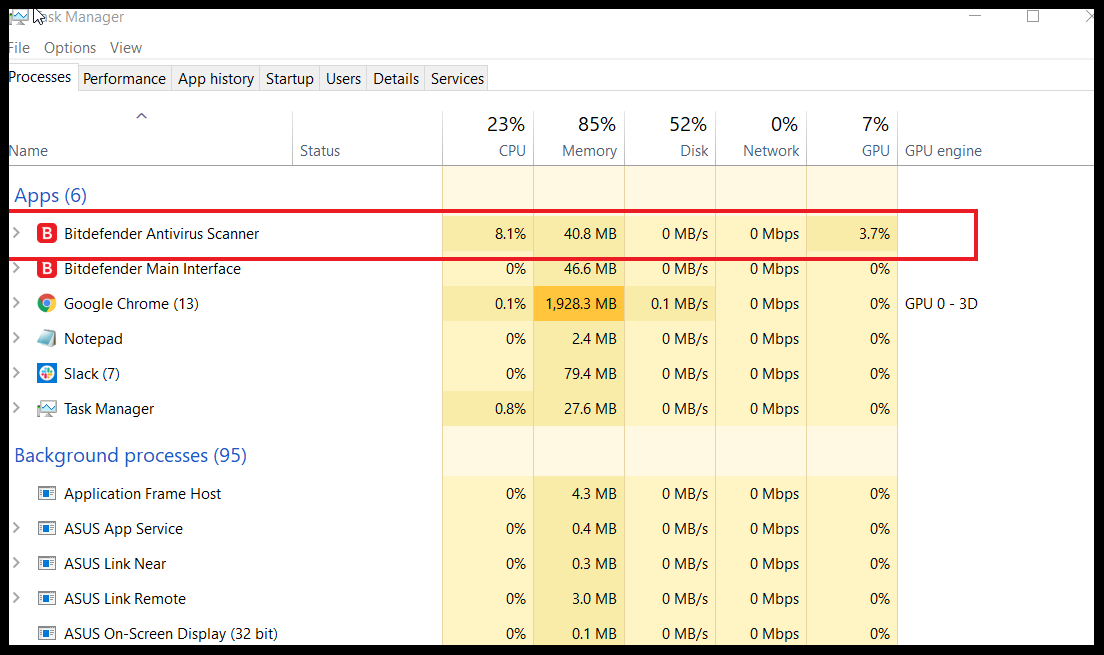
We run a complete scan on our breezy ASUS SonicMaster notebook with i7-8565U CPU, 8.00 GB of RAM, and 500 GB HDD (out of which 118 GB worth of files already occupied).

A full system scan will take a little over 20 minutes (depending on your specs and storage occupancy rates, of course) with no drag whatsoever.

Resource consumption numbers during a full scan with Bitdefender Total Security

Heavy scans run directly in the cloud to maintain your system resources unspoiled. This uncompromised performance is possible thanks to the Global Protective Network feature.

As if it weren’t enough, you can further improve your performance with a series of optimization tools that are both highly effective and easy to use.

The OneClick Optimizer, just as its name implies, only requires one single click to speed up your device and enhance its bootup time as well as its overall performance.

The patented Bitdefender Photon technology then takes over to make sure your system’s configuration is fine-tuned for a minimal impact on computing resources.

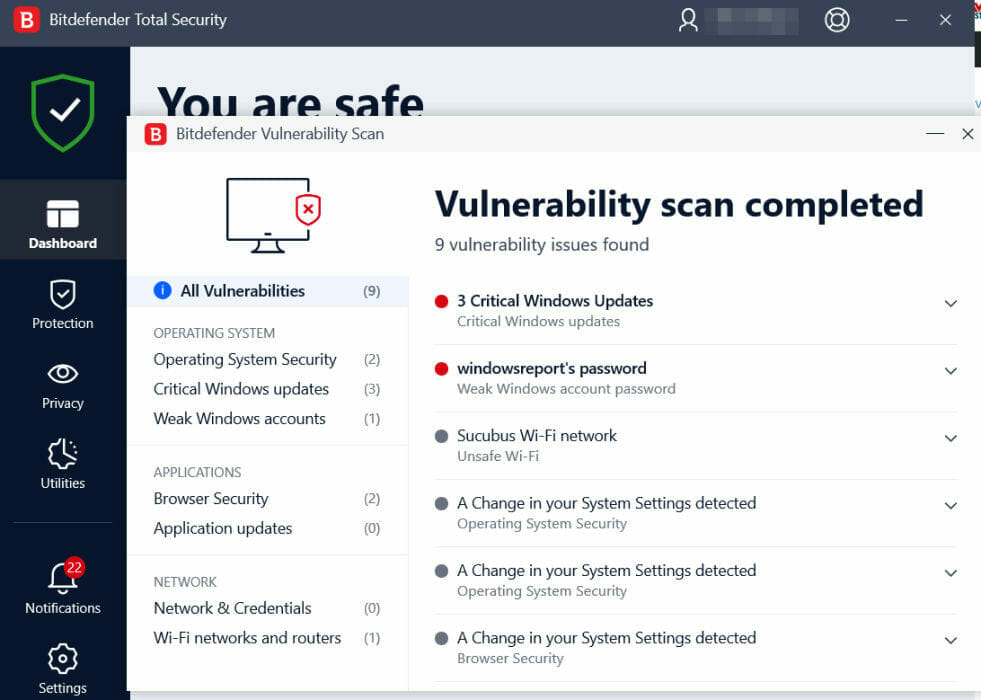
With the built-in Vulnerability scanner, you are bound to unleash your device’s full potential and never miss a beat during gameplay.

To make sure you will never fall victim to phishing attacks, this best antivirus for Xbox One delivers top-rated anti-fraud tools such as web filters to block harmful websites, and advanced anti-phishing protection when you shop, bank, or browse.

Speaking about banking and browsing, there is even a dedicated secure browser called Safepay that you can use in conjunction with the built-in Bitdefender VPN to encrypt traffic and secure your most sensitive credentials against hacking.

The anti-tracker tool is a nice addon to make sure your data is beyond interception or collection, be it for marketing purposes or more ill intentions.

Advanced audio-video protection for your mic and webcam completes this impressive privacy suite and allows you to regain control over your devices.

Finally, your network will also benefit from a well-deserved protection shield in the form of a privacy firewall designed to block intrusions. Last, but certainly not least, the Network Threat Prevention feature will block network-level exploits, brute force attacks, and more.

⇒ Get Bitdefender Total Security

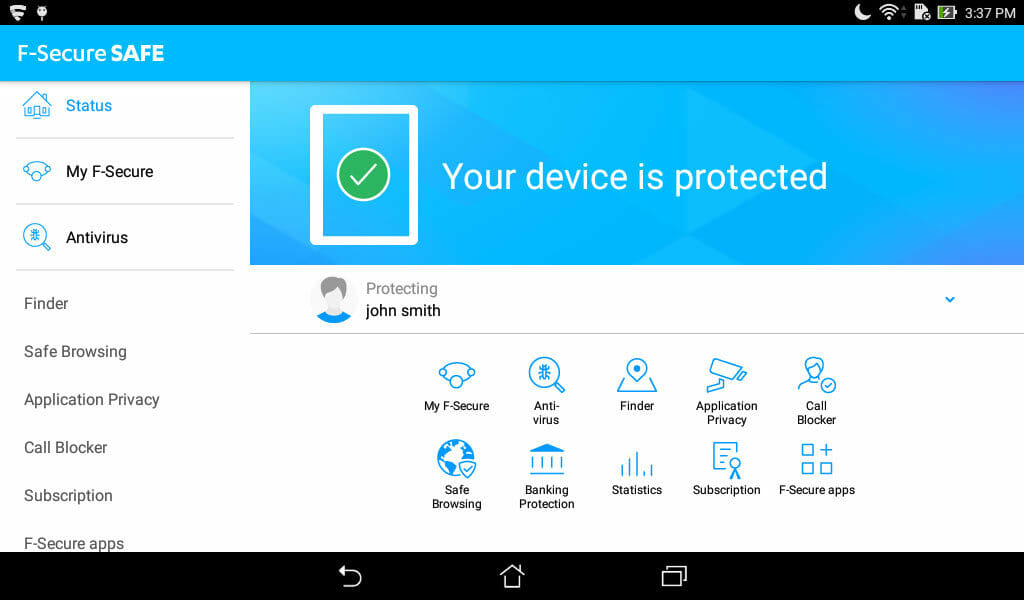
F-Secure SAFE – Outstanding performance

Many gamers are vulnerable to vicious online attacks because they would rather sacrifice security to boost up performance. So, does antivirus affect gaming? It used to be like that.

Let’s face it, where there’s smoke, there’s fire, or at least it has been at some point in time. But technology evolved and antiviruses have come a long way.

Thus, the two are no longer exclusive and you can enjoy the outstanding performance together with airtight defense without compromise. To help you make the most of both worlds, F-Secure delivers an antivirus solution that is fully optimized for gaming.

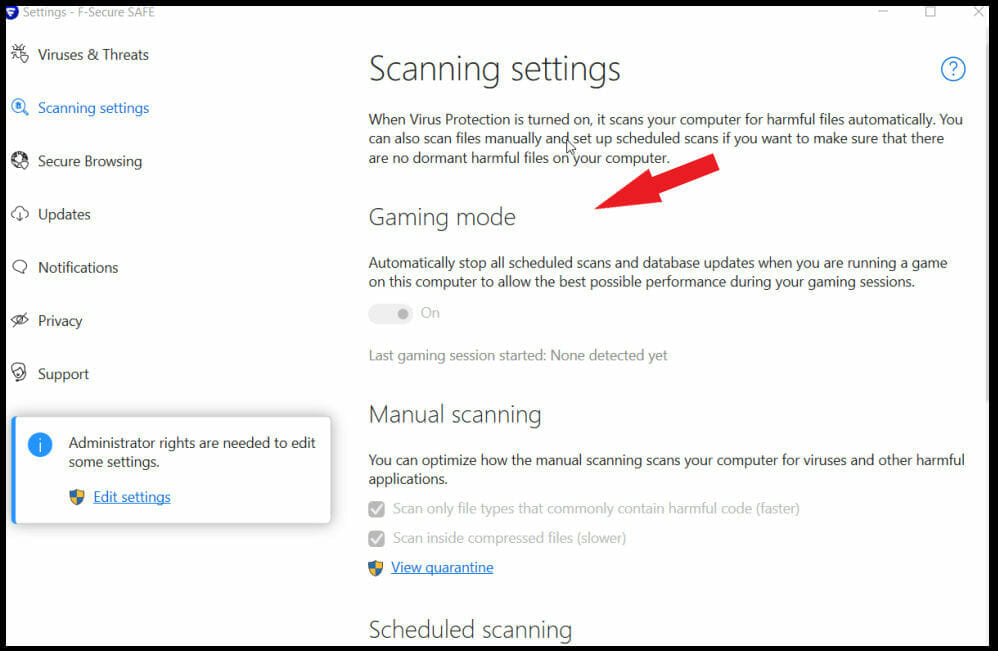
Its impressive Gaming mode will make sure your PC is sealed against digital threats without slowing you down. If smooth gameplay is what you’re after, you can set your mind at ease.

Does antivirus affect FPS? Not if it’s F-Secure Safe.

When you activate the Gaming mode, all notifications, as well as updates and other settings and functionalities, are automatically pushed back to create the perfect premises for uninterrupted and unhindered gaming sessions.

With distractions out of the way, you can now fully immerse into combat and give 100% to vanquishing your enemies, knowing that your computing resources will do the same.

Thanks to SAFE’s Gaming mode, you will be able to free up bandwidth, CPU, and memory and pump them into your gameplay to boost performance and enjoy the uncompromised speed with no lag.

Smooth gameplay is crucial, but an overall satisfying gaming experience requires multi-faceted protection.

Since gaming-targeted threats are intensifying, this best antivirus for Xbox One steps up its own game with suitable, multi-layered defense.

Gaming-specific ransomware, in particular, is on the rise, and phishing and social engineering-based attacks increase their presence across all gaming devices, Xbox included.

As shown above, hackers will even infiltrate in-game chats to distribute infected messages or trick you into clicking malicious links or downloading harmful content disguised as discounted games, service updates, mods, and so on.

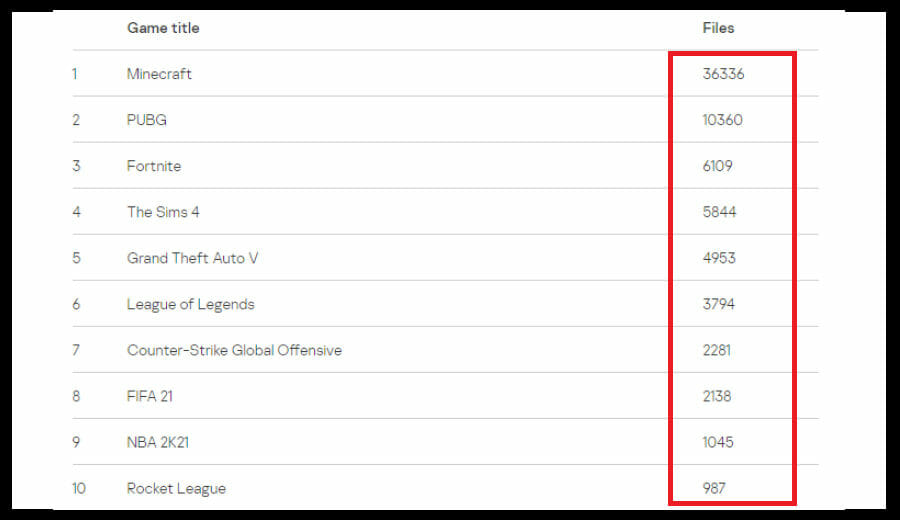
And the numbers are staggering! Just a have look at these statistics from Securelist that indicate the number of files corresponding to the top 10 games used as bait to pave the way for malware distribution.

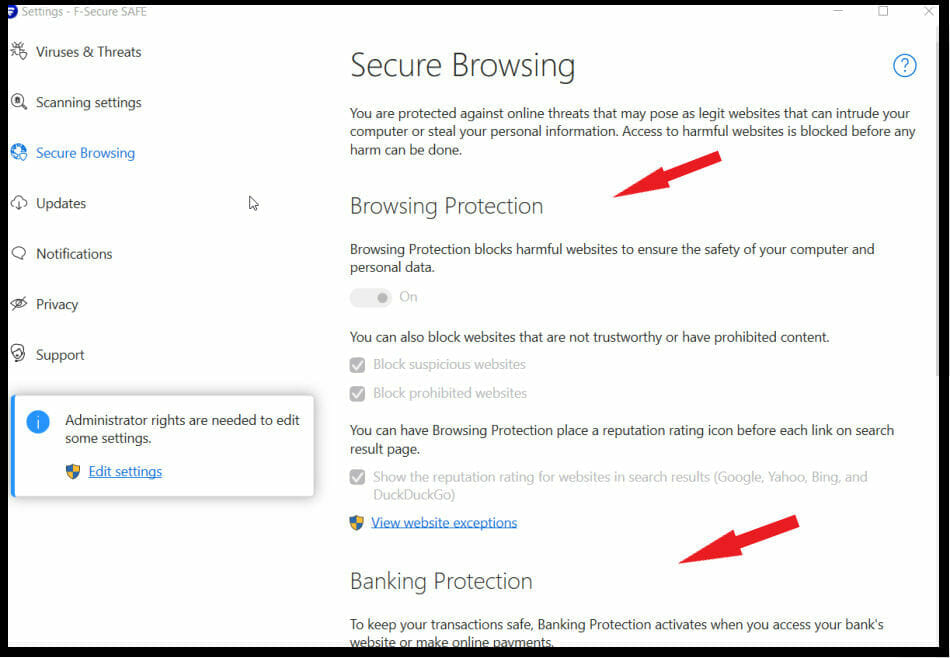
F-Secure SAFE stays one step ahead of threats with a powerful browsing protection module that will block harmful websites and prevent you from walking into phishing traps.

Similar to TotalAV’s Safe Browsing mode, this feature will secure the communication between your keyboard and the sites to which you connect to prevent keystrokes registration.

Should you feel the need to reinforce your defense against this very particular type of spyware, you can always add an extra layer of protection with dedicated anti-keylogger software.

Banking credentials represent a particularly appealing prize for keyloggers that will try to exploit anything from gaming purchase history to Xbox account information to steal valuable content both in-game and out of it.

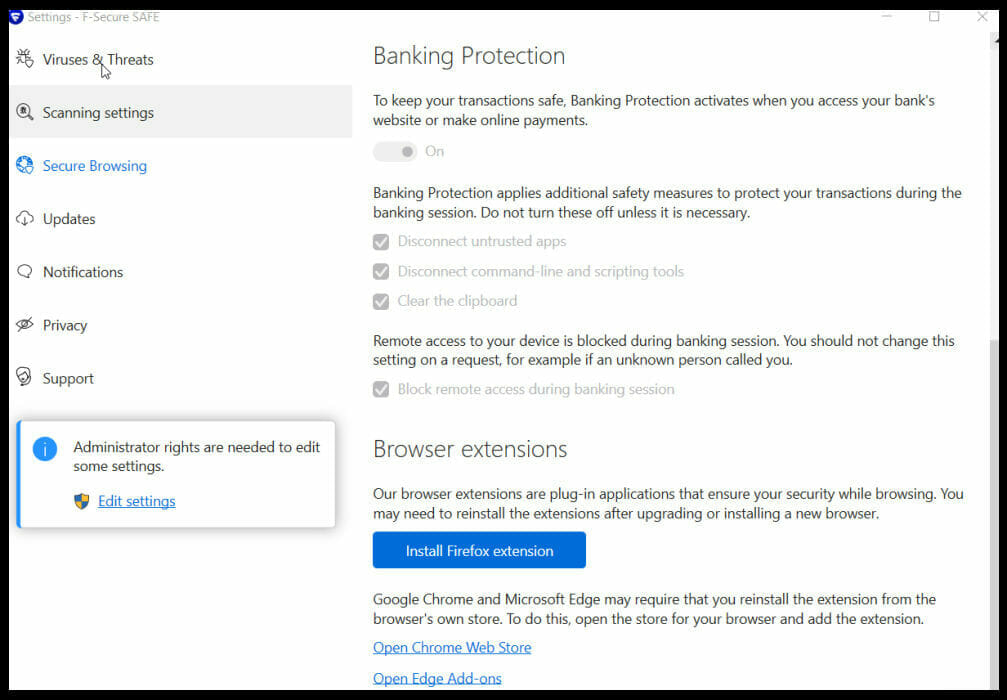
However, F-Secure SAFE’s banking protection module should be able to provide the right amount of security for shopping, banking, and payments.

⇒ Get F-Secure SAFE

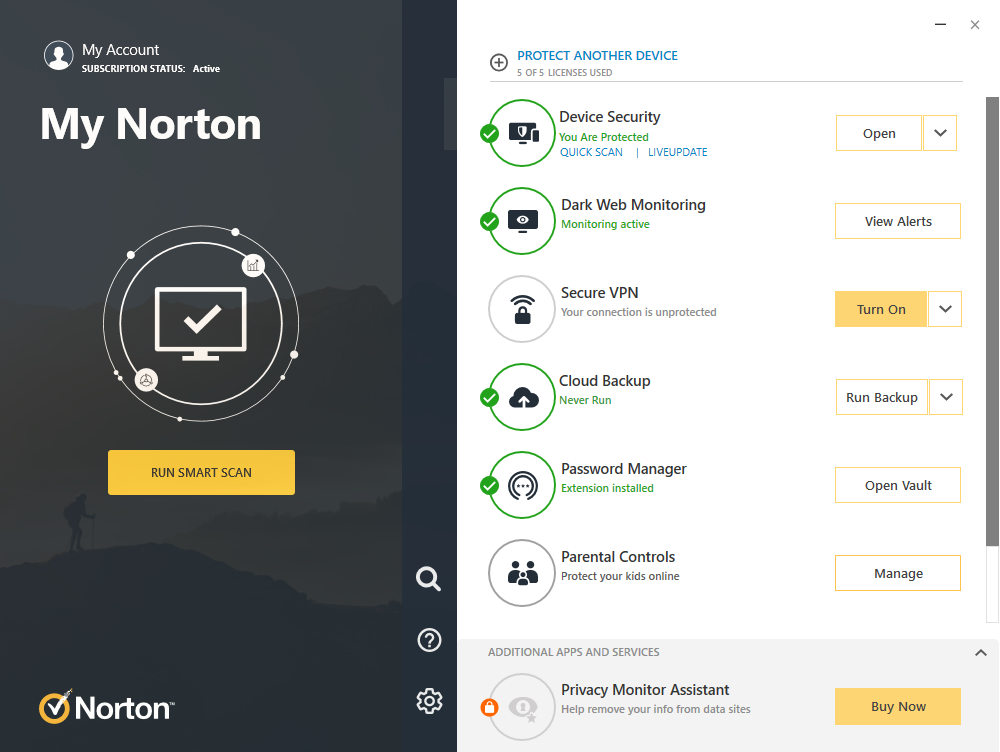
Norton 360 for Gamers – Minimize distractions

Common sense leaves us no choice but to admit when we simply cannot say it better. Norton nailed it with its special antivirus edition designed for PC gamers, by PC gamers.

Multi-layered defense is becoming more and more of a trend in cybersecurity, but as we already mentioned, gamers are a different breed of users.

They require protection against common cyber threats along with specific mechanisms tailored to secure gaming information, accounts, devices, tags, and assets.

What makes this antivirus for Xbox One stand out from the crowd is more than a Gaming Mode. It’s an end-to-end security suite that covers real-time virus protection, network, privacy, and more while focusing entirely on gaming-specific needs.

Let the first power combo come into play: Full-screen detection Mode and PC Notification optimization. Norton will automatically detect when you are using full-screen mode and silence all notifications (except for critical alerts) to remove all interruptions.

You can minimize distractions while you’re gaming and even customize the notifications you want to permanently silence for better control.

But notifications are far from being the only thing that is optimized here. Just as it automatically engages silence mode when you activate the full-screen layout, Nortin 360 for Gamers will automatically detect games and adjust its entire configuration to pump power into your gameplay.

The Game Optimizer feature will quickly identify resource-intensive processes and gaming-related programs and optimize them to free your system’s capacity.

Just as it enhances the capacity for gaming-focused apps, Norton will be quick to pinpoint and isolate non-essential system functions to a single core, thus optimizing your CPU as it goes.

Faster, boosted gaming performance with smooth graphics, no lag, and no slowdown is guaranteed. Nevertheless, performance is merely the tip of the iceberg.

Gaming assets are particularly vulnerable to hacking and Norton knows it very well. Its interruptions-free gamer booster accommodates a suite of features specifically designed to protect gamers.

Here’s what is included in Norton 360 for Gamers at a glance. First of all, the Dark Web Monitoring feature will keep an eye on your personal information as well as gamer tags, usernames, and email addresses associated with your gaming accounts.

More privacy-focused tools come to the rescue including a secure no-log VPN to repel DDoS attacks, webcam protection for safe streaming, anti-phishing, and proactive exploit protection to block fraudulent websites and zero-day attacks.

From OS or apps-based vulnerabilities, in-game security flaws, phishing attacks via email, fraudulent websites, and malicious links to prying eyes, no threat can defeat Norton’s unrivaled security.

⇒ Get Norton 360 for Gamers

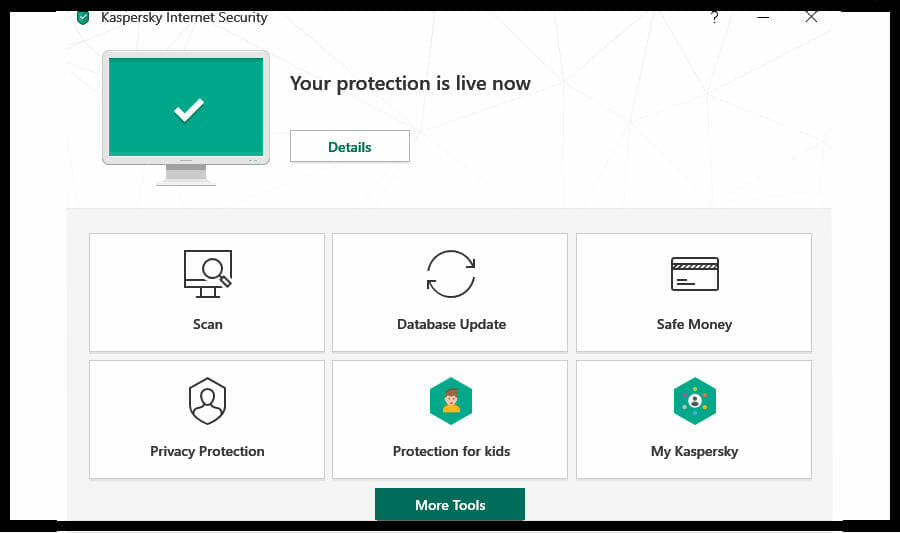
Kaspersky Standard – Comprehensive anti-hacking suite

Kaspersky’s Gaming Mode is all about full immersion and performance optimization. Thus, it takes all distractions out of your way to help you achieve it.

This great antivirus for Xbox One does not run scans or display notifications and most importantly it’s not resource-intensive, so it will not slow you down.

It also boasts a comprehensive anti-hacking suite that will prevent cybercriminals from breaching your network and stealing your data.

This includes powerful protection modules against spear phishing, man-in-the-middle attacks commonly targeting gaming consoles, anti-keylogger, anti-adware, and anti-ransomware defense.

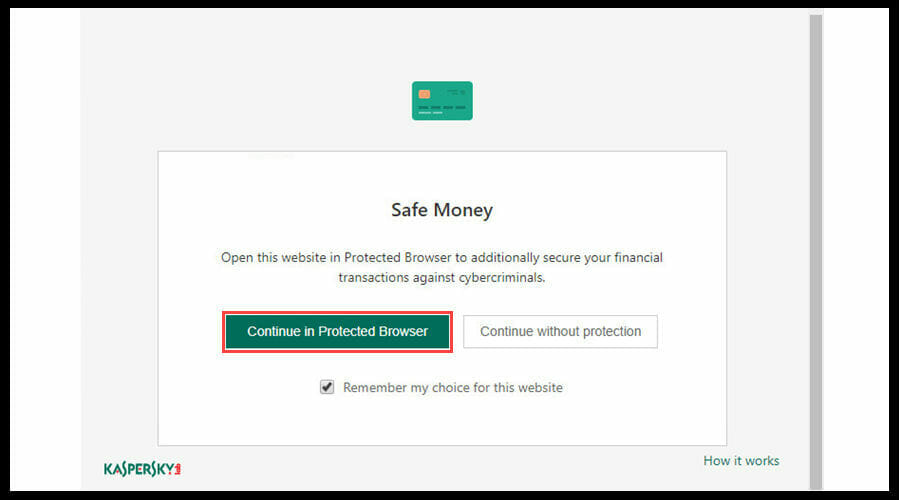
To top it all, you also get webcam protection, a built-in VPN, and a safe browser for payments to make sure your Xbox transactions history is beyond grasp.

⇒ Get Kaspersky Standard

Bottom runners

Besides the products that made the list after our rigorous testing process, there have been other antiviruses that proved their capabilities.

Even though they will most likely not with an award for the best antivirus for Xbox One anytime soon, they could still make good options to consider.

➡ Avira Prime

Backed up by state-of-the-art real-time virus detection technologies and PC-optimization tools, Avira Prima is gamers’ best friend.

To begin with, it includes an unlimited VPN that will encrypt your traffic, unblock streaming and anonymize your web browsing to make tracking obsolete.

It also boasts a PC cleaner, software updater, and privacy settings optimizer that combines their skills to reduce lag, speed up your boot time, and free up space and memory on your device for more games to comfortably settle in.

Along with your drivers, it also improves system processes to allow you to make the most of your CPU and enjoy smooth, fast, and dynamic gameplay.

How to tell if your Xbox has a virus

If anything, hackers are highly resourceful specimens that always come up with new ways to exploit whatever vulnerabilities they can spot. And they are relentless.

While your Xbox One is less an attractive target for cybercriminals, there is still good profit to be made out of gaming and console hacking, including user account credentials or game purchase transactions that further open the door to credit card details theft or in-game inventory theft.

Look out for these signs if you suspect your console has been hacked:

  • Unusually slow performance, unresponsiveness, drag
  • Ads and pop-ups taking over your screen or frequently interrupting your gameplay
  • Sudden and unprovoked shutdowns
  • Frequent crashes and system glitches
  • Unauthorized changes noticed at settings, homepage or account levels
  • Unknown applications launching at startup
  • Device memory erased

If you notice any of these signs or more of them in conjunction, your console has likely been compromised. Of course, there can be other manifestations depending on the code of the virus, so make sure you do not disregard any suspicious activity or odd behavior.

The oppositive is also available. While slowness is generally a red flag for virus infection, culprits can just as well not be bugs. Don’t be shy to inspect your storage space and explore more useful tips to speed up slow Xbox One game downloads.

How to get rid of a virus on Xbox One?

To regain control of your Xbox, the first thing you need to do is to perform a factory reset. It will delete all the information associated with your Xbox, but that’s a small price to pay considering.

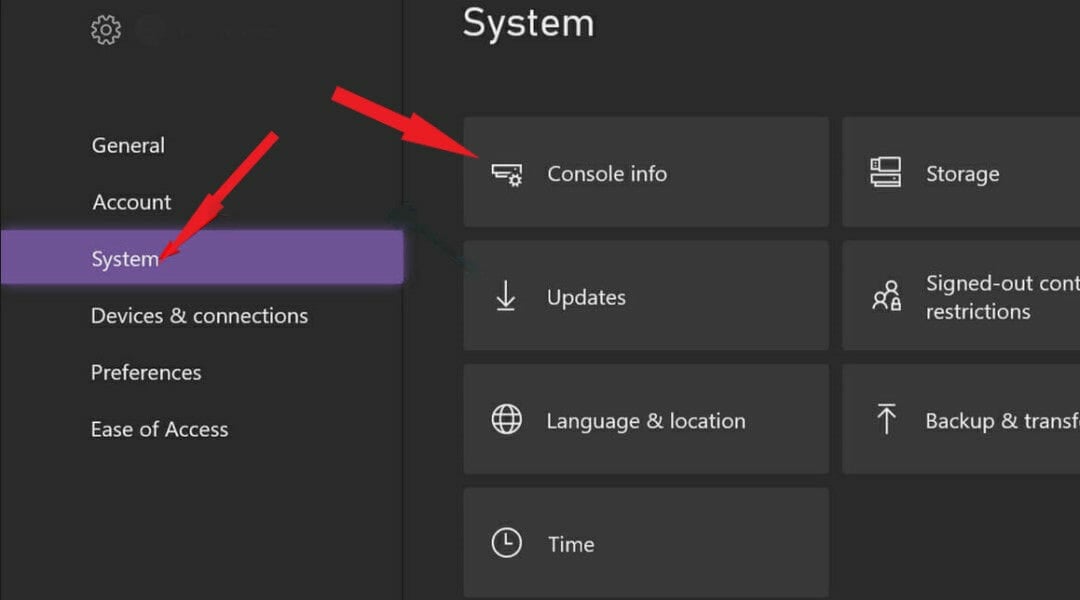
Here’s how to reset your Xbox to its defaults settings:

  1. Press the Xbox button to open the main menu.
  2. From the Settings menu, select System and then Console info.
  3. Now, press Reset console and go for the Reset and remove everything option.

Finally, make sure you deploy a good antivirus for Xbox One from our list above to secure your device against further attacks. Precaution is key and sticking to basic internet security awareness guidelines will most likely keep you out of trouble.

You can now block invitation phishing attempts using Google Calendar

Are you tired of all the invitations you are receiving via your Calendar and would like to also impede malicious third parties from setting you up for failure?

Well, Google now makes it easy to block unwanted calendar invitations, commonly used by threat actors in phishing and malicious campaigns, from being added to your Google Calendar.

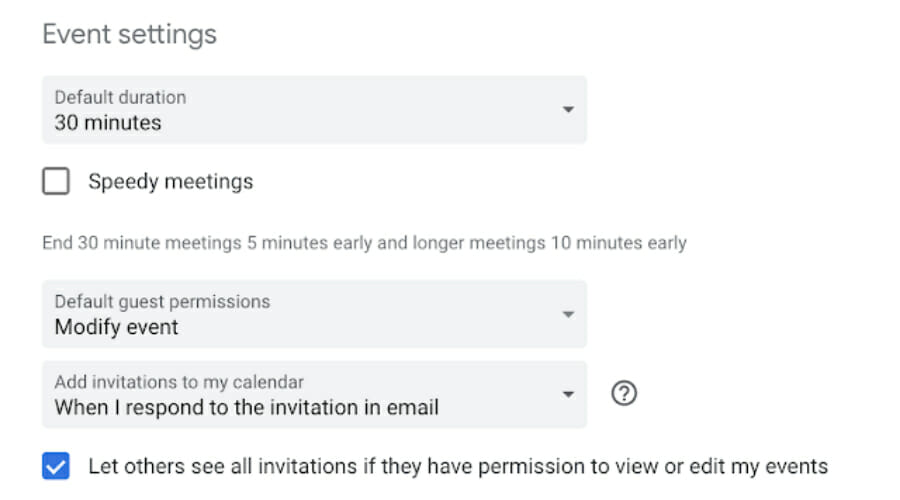
In order for this to be achieved, the company improved the Automatically add invitations setting in the Calendar options.

Now, you can choose between having invitations automatically added to your calendar or only having them added if you have responded to the email event invitation.

Google modifies Calendar settings to prevent phishing

Google explained that these additional controls can help you manage your calendar with less manual work by ensuring unwanted events don’t appear, and you see only the events that are important to you.

The new feature started gradually rolling out at a Rapid Release pace to Google Workspace customers, G Suite Basic and Business customers, and users with personal Google Accounts.

About time, considering that Google has been working on a solution to block spammers from automatically spamming Google Calendar users with malicious invitations for some time now.

Many didn’t even notice this issue at first, while at the same time, some of these spam events were redirecting potential victims to phishing landing pages via malicious URLs.

The end goal of these attacks is to harvest the targets’ credentials or infect them with malware via malicious sites.

Such actions can actually reach millions of people, given the fact that Google Calendar is available on all desktop platforms as a web app and for mobile platforms via Android and iOS mobile apps.

To have an idea of the scale, the Google Calendar Android app alone has been downloaded 1,000,000,000 times, according to its Play Store entry.

So, imagining the magnitude of such an internet catastrophe isn’t really that hard. So make sure you are taking all security measures and keeping your sensitive information protected.

Have you ever received some sketchy Google Calendar invitations? Share your experience with us in the comments section below.

Zorin OS Antivirus: 4 Best to Enjoy Linux Machines

Released back in 2009, Zorin OS is no longer the new kid on the block. While steadily improving with each version launched, Zorin has remained faithful to its goal which is to simplify the transition process toward Linux.

To put it bluntly, it aims to provide a friendly alternative to Windows and Mac, without the hassle usually associated with switching operating systems. How come, you may ask.

It all boils down to the graphical interface. It’s similar enough to the Windows GUI so that it does not overwhelm or intimidate newcomers.

While fingers have been pointed (implying the OS is little more than a Windows wannabe), we believe Zorin has stumbled upon the magic formula, perfectly balanced to allow anyone to enjoy Linux features even if they never used it before.

Purists and Linux veterans alike can rejoice. With every iteration, Zorin is more and more an authentic Ubuntu-based Linux distribution without sacrificing the ease of use that appeals to the majority familiar with Windows.

Can Zorin OS run Windows programs?

Compatibility is a big deal. Just as Microsoft supports native Linux apps in Windows 10 or even dual-booting Windows 11 and Linux, Zorin allows you to run both Linux and Windows GUI.

The Wine compatibility layer together with PlayOnLinux allow you to run Windows apps and compatible Windows software seamlessly.

This is possible thanks to the Zorin Software Center that allows installing .exe files and even NVIDIA drivers in order for users to enjoy familiar functionalities and layouts.

In fact, the Windows GUI is preserved as the default layout upon deploying Zorin OS, which makes the transition smoother while the intuitive graphical installer makes sure everything falls in place. Pretty cunning, right?

Nevertheless, if preserving the Windows format unspoiled is such a big deal, we cannot help wondering what makes users switch to other platforms in the first place.

Is Zorin better than Windows 10?

Since it’s really not a popularity contest, we will refrain from making assumptions and affirmations that are hard to take back. Is Zorin better than Windows?

There is no universally miraculous formula that caters equally to all needs since users are (thankfully) different and thus, what suits one like a glove will not necessarily present much interest for the other. It ultimately depends on your personal taste, preferences, and expectations.

Is Zorin OS any good? That’s what it all comes down to. As far as ongoing product support, processing speed, and stability are concerned, it delivers and there’s no denying it.

Is Zorin OS stable? Is Zorin OS fast? If you find yourself wondering about any of these topics, then you’ll be pleased to know it provides uncompromised functionality and is overall snappy to retrieve information.

Generally speaking, Linux caters to more advanced users. While it does not necessarily imply technical prowess, it tends to house more niched users. However, the one thing that consistently stands out when it comes to picking one OS over another is security.

Is Zorin OS secure? Linux implemented a privileges-based access control multi-user environment on all its iterations and Zorin makes no exception. The big idea behind this infrastructure is to prevent malware from infiltrating into the system without root access.

Therefore, infection is contained at the binary level and the extent to which it can harm the system depends on the type of privileges associated with the user that runs a particular binary.

The open-source code on which Zorin is based is another security plus. This basically means that any qualified third party can snoop around, audit, review, and pinpoint vulnerabilities, which leads to a quicker resolution.

Security patches are regularly delivered and Zorin OS relies on both long-term Ubuntu releases as well as its own software repositories.

All these advanced security-focused features strengthen Zorin OS’s resistance to malware. But is it malware-proof from end to end?

Does Zorin OS need antivirus?

Linux has the reputation of being more secure and more reliable than other operating systems such as Windows or Mac. Some believe that it’s the root access-based infrastructure that keeps malware at bay, while others tend to give more credit to the boosted security Linux patches.

Then, there are those who believe that the minimal risk can be solely attributed to the fact that Linux claims a smaller market share compared to its main rivals, which makes it an uninteresting target for exploits, with less profit to gain.

While it’s true that some devices need protection more than others and that Linux is less prone to widespread virus attacks, you probably still need a good antivirus.

In fact, no operating system is entirely secure against viruses and malware. However well-protected, Zorin is not immune to viruses. Hence, you will benefit from deploying the best antivirus for Zorin.

Can you get viruses on Linux? Rare as they are, the Linux viruses still exist and Linux servers are just as appealing a prey as any other.

The best way to maximize your defense is to add an additional layer of protection. As always, it is tricky to find the right tool for the right job.

Here’s where our team of expert testers comes in to dissect features and come up with real and reliable information that will help you pick the best antivirus for Zorin.

Tip icon Tip
Editor’s tip:

In order to ensure that you choose the best antivirus for Zorin, these are some elements you need to take into consideration:

➡ GUI versus CLI interface
➡ Malware-removal capabilities and real-time protection
➡ On-access and on-demand scans
➡ Virus signature updates
➡ Easy deployment and straightforward configuration
➡ Lightweight infrastructure with low CPU consumption
➡ Affordable prices and best value ratio

How to pick the best antivirus for Zorin?

Since Linux and Windows are utterly different, our Quality Assurance team developed an entirely different methodology for the sole purpose of ranking the best antivirus for Zorin.

Needless to say, Linux is not our standard cup of tea, thus we privileged a particular set of qualities that antivirus software must possess in order to stand out. Given the context, we attributed particularly high importance to the usability and to those antiviruses that excel in this department.

If you’re anything like us and just beginning to scratch the surface when it comes to the mysteries of Linux, you will probably appreciate most the ease of use. So here goes!

Ease of use

Having established that Linux caters mostly to advanced users, it is fair to assume that the installation and configuration of a Zorin antivirus is not a breeze.

As it turns out, most Linux antiviruses run on command lines via a terminal. However, there are options that come equipped with graphical user interfaces to make things easier.

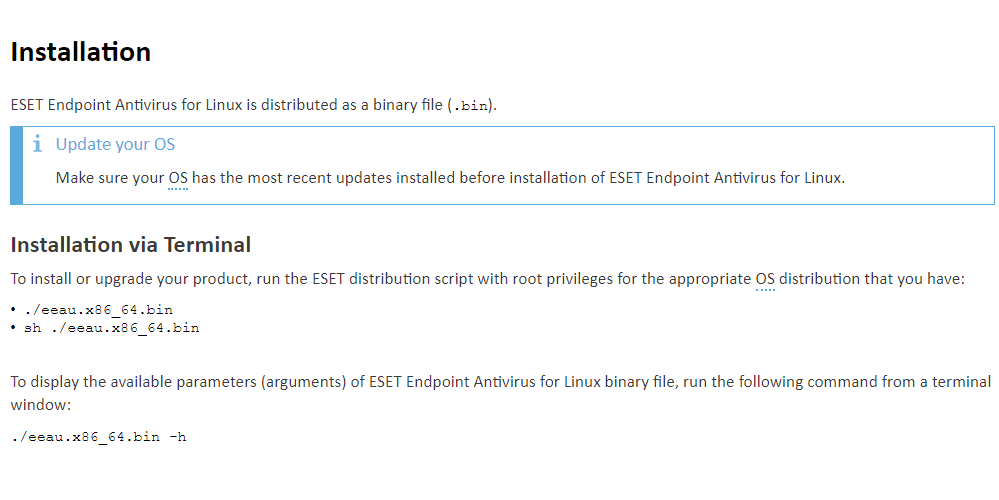
While both CLI and GUI are acceptable, we suggest you pick the latter if you’re a beginner. ESET is one strong contender for the title of the best antivirus for Zorin as it provides an installation wizard that is similar enough to the good old Windows interface that we all know and love.

Note icon NOTE
Support for ESET NOD32 Antivirus for Linux Desktop will be terminated by August 2022. Instead, you will be able to download and enjoy ESET Endpoint Antivirus for Linux as a standalone product or as part of ESET Protect Entry.

If you would rather not tackle long lines of commands and prefer a more straightforward approach that does not require typing, a GUI-based Zorin antivirus is probably a better choice for you.

On the other hand, CLI antiviruses offer a plethora of advantages as well. If you’re brave enough to take on uncharted territories, make sure you pick software that provides a streamlined installation process as well as Linux repositories that allow downloading software packages directly from the Linux Terminal.

Since you will be required to type your commands in the Terminal in order to execute scans or updates, make sure your CLI-based antivirus is easy enough to deploy, friendly enough to properly use, and that it does not demand huge amounts of navigation.

Affordability

The budget is somewhat relative, nevertheless, we can all align behind some general numbers. The environment and range also influence the price and the type of plan.

As expected, enterprise software will often cost more than products designed for home usage. Nevertheless, business antiviruses often come with bonus features and cover multiple devices.

Speaking about bonus features, it may be healthy to look for an antivirus with integrated additional security options to avoid further investments.

As it turns out, you are more likely to get more bang for your buck by spending a bit more on a singular, comprehensive security suite rather than making more individual purchases as you go.

Security Features

Cross-platform viruses and social engineering-based malware are a Linux user’s worst nightmare. And both are on the rise and determined to trick the most knowledgeable of users into opening the gate to infection through advanced and sophisticated threats, cleverly disguised as harmless services.

The cross-platform trend is also not something you would want to ignore security-wise since it can enable uncontrolled virus propagation through mailboxes and vulnerable file formats.

Your best bet is to choose an antivirus with scan capabilities that apply to all known viruses for all computer platforms.

The best antivirus for Zorin should be able to run both on-access and on-demand scans and provide real-time protection to prevent viruses from penetrating your system in the first place.

If despite all odds, your Linux machine still gets infected, you will benefit from an antivirus that not only boasts high detection rates but scores nicely in the malware-removal section as well.

In other words, the best antivirus for Zorin should be able to promptly neutralize any threats. In addition to strong anti-malware capabilities, your antivirus must deliver the highest possible value.

Bonus features boost the price/quality ratio, therefore you should keep an eye on options such as automatic virus signature and malware database updates, adaptive AI-based detection, firewalls, email scanners, and so on.

Resource consumption rates

Owning a state-of-the-art security product does not mean much if you have to sacrifice performance. The best antivirus for Zorin should not interfere with other processes, nor cause CPU spikes, which will, in turn, cause freezes and unbearable slowness.

We recommend you look for alternatives that are both efficient as well lightweight. Bear in mind that some popular Linux antiviruses are quite resource-hogging and they might hinder your productivity in the long run.

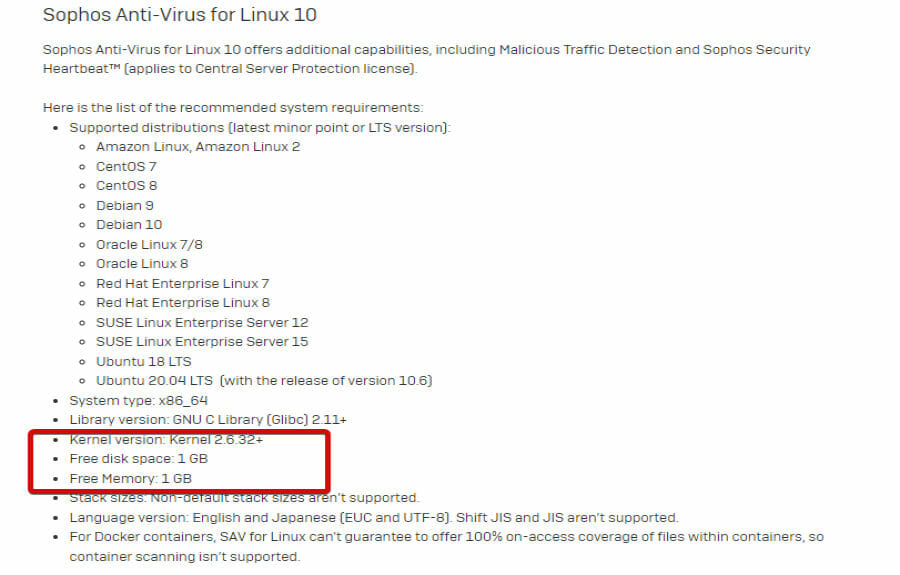
Our tests show that Sophos provides one of the most interesting options on the market when it comes to low consumption rates, so make sure you find out more about this product.

What is the best antivirus for Zorin?

Bitdefender GravityZone Business Security

  • Multi-layered protection and risk management for endpoints
  • Protects both Linux desktop and Linux servers
  • Machine learning and behavioral based surveillance
  • Can defend up to 100 hybrid workstations
  • Comprehensive archive scanning capabilities
  • Firewall is not included for Linux machines

If you mean business, you will definitely need a security solution to not only talk the talk but deliver impenetrable protection for all your assets.

Bitdefender GravityZone Business Security is as good an antivirus as they get. What’s more, you don’t have to take our word for granted!

You can see for yourself and not spend a single dime while doing so thanks to the free trial version graciously provided by the developer.

Sector-leading and award-winning Gravity Zone will take care of your entire infrastructure, covering workstations running on Windows, Mac, and Linux alike.

Unlike ESET, it does not focus on desktop alone but also covers Linux servers, both virtual and physical. In fact, it can protect up to 100 devices, which makes it the perfect choice for small to medium-sized businesses.

If your needs exceed the 100 licenses included, you can always go for a more tailored formula, by unlocking the Enterprise Security version.

Perfectly adapted to house the most popular Linux distributions including Ubuntu, Debian, Fedora, Suse, and more, Gravity Zone is also the best antivirus for Zorin.

Propelled by a unique blend of heuristics, virus signatures, and machine learning, Gravity Zone takes protection one step further.

It incorporates a Process Inspector, Vulnerabilities scanner, advanced network monitoring tools, and sophisticated detection algorithms to identify and promptly neutralize any suspicious activity. Comprehensive reports and prompt notifications are implicit.


F-Secure

  • Supports both graphic user interface and command-line
  • Intrusion detection and malware-blocking capabilities
  • Suitable for both Linux desktop and servers
  • Network firewall included
  • The CLI edition does not provide real-time protection

F-Secure Linux Security promises solid malware defense across numerous Linux distributions from 32-bit to 64-bit iterations such as Debian, Ubuntu, Suse, and more.

Needless to say, it manages to climb to the success ladder, qualifying as the best antivirus for Zorin.

F-Secure made sure every single aspect of your defense is tackled appropriately, client and server-wise. In fact, you can configure this antivirus as Client or Server Edition and even pick the type of interface that best suits your need, GUI or CLI.

Let’s take a closer look at what each edition has to offer. If you prefer using a graphical interface, then the Full Edition is probably best for you.

Besides the straightforward configuration, you will also enjoy robust real-time protection against malware and unified management over the entire lot of terminals having the F-Secure security agent deployed.

Furthermore, this best antivirus for Zorin incorporates cutting-edge intrusion-detection technology to identify any file or kernel modifications. As a result, it will send alerts and also provide full reports on all system activities.

The Integrity Checking function is paired with an intelligent firewall that will keep your entire network safe from intruders and prevent hackers from gaining access to sensitive information on your corporate servers.

On the other hand, the CLI Edition runs on command lines only, which makes it a less appealing choice for Linux newcomers, not to mention that there is no real-time protection.

If this best antivirus for Zorin runs discreetly in the background with the Full Edition, you will not enjoy the same uninterrupted protection in the CLI version. The latter only provides on-demand scans.


Sophos Home

  • Terminal coding available
  • Cross-platform malware detection
  • Highly customizable scanning options
  • Lightweight and not resource-demanding
  • Ideal for Linux running file servers
  • Doesn’t come with a graphical user interface

When it comes to popular choices for Linux antiviruses, Sophos is a strong contender. And we dare say, it’s for the right reasons.

To begin with, it provides unrivaled protection against Linux-specific malware as well as threats commonly associated with other OSs such as Windows, Mac, or Android.

Its cross-platform functionality is only matched by its comprehensive defensive mechanisms, which will successfully eradicate any nuisance (trojans, viruses, all types of malware, worms, etc.) from both Linux desktop and servers.

This best antivirus for Zorin relies heavily on heuristics to prevent malware from infiltrating your Linux machine. Thus, it executes potentially dangerous programs in an isolated environment, which brings Sophos a bit closer to sandbox software rather than to traditional antiviruses.

Sophos Anti-Virus for Linux boats both on-access and on-demand scans. This means that you basically have real-time protection and can only access a repository as long as it is safe.

Looking to step up your game? On-demand scans – the ones that you initiate – are also available and the configuration choices here are endless.

Highly customizable, Sophos allows you to choose the file types you want to scan, exclude specific items from the scanning process, scan the entire machine, a boot sector, remote computers, archives, and more.

One particular aspect that we enjoyed is its lightweight infrastructure that has little to no impact on your resources. Execution-wise, the process is also very discrete and the software updates claim no more than 50 KB.

With this kind of stealth going on, Sophos is not only the best antivirus for Zorin, but also an excellent protection choice to deploy on lower specs machines since it will run quietly in the background without slowing you down.


Endpoint Security for Business

  • Sandbox and endpoint hardening features
  • Flawless defense for hybrid IT environments
  • Real-time, multilayered, behavior-based protection
  • Simplified cybersecurity management via a central console
  • Email servers defense available only in the Total Endpoint Security Edition

The last but certainly not the least software to make it at our top is Kaspersky Endpoint Security for Business Advanced.

If you’re looking for a hybrid solution that can easily adapt to all major platforms, this best antivirus for Zorin will not fail to deliver.

It provides centralized, yet flexible management in the most heterogenous of environments that house Linux, Windows, and macOS running workstations alike.

Its high efficiency against ransomware attacks will allow you to manage cybersecurity at a wide scale and the best part is that it covers all your assets: applications, Web and device, terminal servers, mobile, and cloud, on Windows, Mac, Linux, iOS and Android.

Kaspersky boasts multi-layered protection propelled by a unique combination of behavior detection, remediation engine, and machine learning.

This impressive suite is completed by exploit prevention and deep vulnerability assessment, making it the best antivirus for Zorin money can buy.

Additional features such as defense for servers and cloud-enabled controls will protect your data on every endpoint without straining performance.


Bottom runners

Besides the products that made the list after our rigorous testing process, there have been other antiviruses that proved their capabilities.

Even though they will most likely not with an award for the best antivirus for Zorin anytime soon, they could still make good options to consider.

➡ McAfee

Designed for Linux systems, this solution provides the much-needed on-access and real-time scans to keep your enterprise assets secure at all times.

It runs quietly but effectively in the background and makes use of behavioral detection to swiftly pick up on both Linux-specific threats as well as Mac or Windows viruses.

➡ ClamAV

Highly praised throughout the Linux community, ClamAV identifies as free and open-source software, just like Zorin itself.

Since cross-platform compatibility is going strong, this antivirus supports Linux as well as Windows and macOS infrastructures, and its versatility appeals to an increasing number of enthusiasts.

Finally, you will not operate a graphical interface in ClamAV anytime soon, which is a major plus for those who prefer running directly on the terminal. However, if you’re not a CLI aficionado, this may not be the best option out there.

➡ Comodo Antivirus for Linux

A fairly decent option to consider in order to strengthen your defense, Comodo will work just as well on numerous other Linux distributions from Ubuntu, Fedora, Mint, Debian, or Suse in both 32-bit and 64-bit infrastructures, clients, and servers.

Its scanning offer is particularly appealing and it includes a real-time on-access scanner tool, convenient scan scheduler options, and customizable scans of files, folders, drivers, and even removable devices.

Still not convinced? There is no pressure whatsoever. The best part of this best AV is that it is available for free and up for grabs as long as you own a compatible Linux distribution. 

With its practical Windows and Mac preset layouts and overall strong security, Linux is steadily attracting more and more newcomers.

If its rather tiny market share used to act as a protective shield in itself, the popularity boost now makes Linux distributions increasingly attractive targets for cyberattacks. And Zorin OS makes no exception.

It’s still up to individual users like you or us to protect our assets as best as we can. What better way to immunize your machine against malware or Linux-specific viruses than by using the best antivirus for Zorin?

Do check our options above to make sure you choose wisely.

Xbox Countdown Sale offers big saving on over 900 digital games

Microsoft has kicked off its massive Xbox Countdown Sale today, with up to 50% discounts on over 900 Xbox digital games. The sale will last through January 3, 2022, and Xbox gamers can save big on various triple A games including Battlefield 2042, Far Cry 6, or Resident Evil Village.

You can check out the full list of discounted games on xbox.com, but you can find a couple of highlights below:

If you’re looking to purchase an Xbox console during the holidays, the Xbox Series X still remains very hard to find, but Amazon recently announced that it would give Prime members in the US priority access to upcoming stock. The Xbox Series S, however, is currently available on the Microsoft Store and other retailers, and it’s a nice little machine that can play all the latest games with decent performance and graphics.

Peer Networking Grouping Service Isn’t Running [Fix]

Sharing files is rather simple in a local network, but sometimes all sorts of issues can occur. For example, users reported that Peer Networking Grouping Service isn’t running.

If that’s also the problem you’re experiencing, fear not. Today we’re going to show you how to fix this Windows 10 problem with ease.

What can I do if Peer Networking Grouping Service isn’t running?

Before trying to fix this issue:

  • Ensure that you have the latest updates installed. If you’re using a third-party antivirus, temporarily disable it.

1. Check if Peer networking services are running

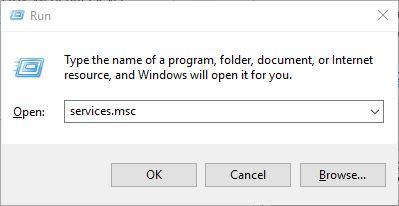
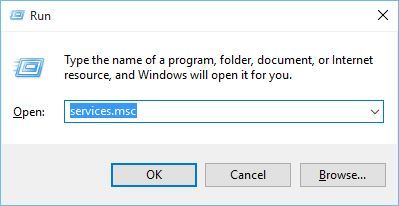
  1. Press Windows key + R and enter services.msc. Press Enter or click OK.
    Peer networking grouping service not running Windows 10
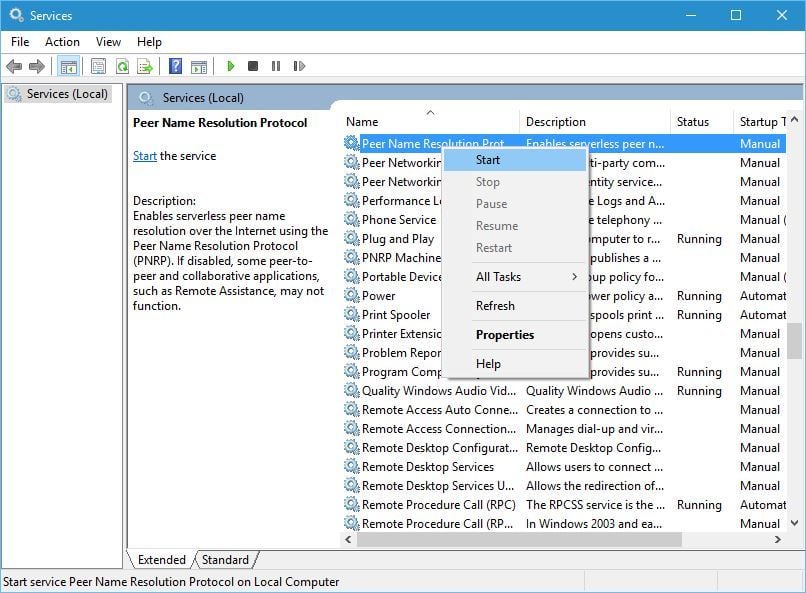
  2. When the Services window opens locate Peer Name Resolution Protocol, Peer Networking Identity Manager, Peer Networking Grouping, and PNRP Machine Name Publication services and enable them. To do that, simply right-click a service and choose Enable from the menu.
    Peer networking grouping service isn't running error 1068
  3. A few users suggested enabling Windows Search service as well since these ones depend on it, so be sure to do that as well.

Moreover, don’t forget about the importance of also updating your drivers. Outbyte Driver Updater is a tool that will easily keep all your computer’s drivers up to date.

Install it right away and there’s literally one click that stands between your current situation and the one of downloading the latest versions of all your out-of-date device drivers.

⇒ Get Outbyte Driver Updater

2. Delete the idstore.sst file

  1. Go to this folder: C:\Windows\ServiceProfiles\LocalService
  2. Go to the AppData folder. If that folder is missing, you need to show hidden files. To do that go to the View tab and check Hidden items.
    Peer networking grouping error 1079
  3. Now go to the following folder: Roaming\PeerNetworking
  4. Once you enter PeerNetworking folder locate and remove idstore.sst file.
  5. Some users are suggesting to delete all files from PeerNetworking folder, so you might want to try that as well.

3. Edit the registry

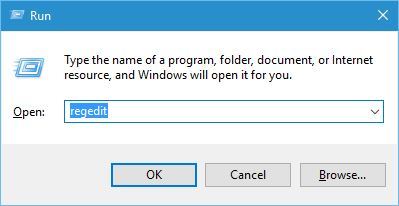
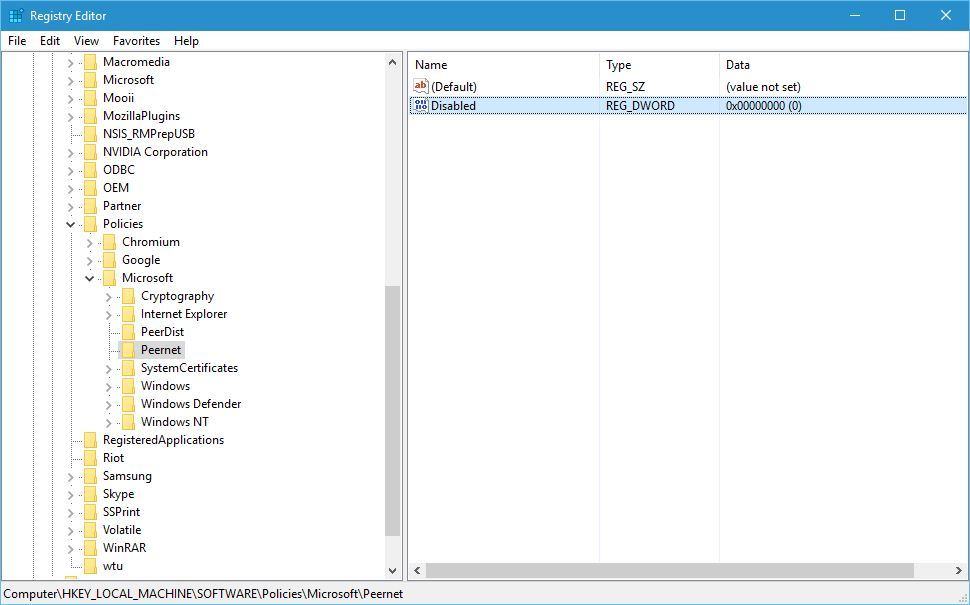
  1. Press the Windows key + R shortcut and enter regedit.
    Peer networking grouping won't start
  2. Go to the following key in the left pane:  HKEY_LOCAL_MACHINE\SOFTWARE\Policies\Microsoft\Peernet
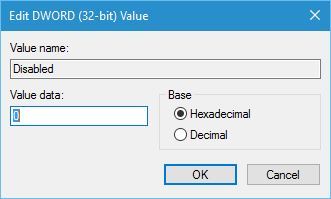
  3. Locate Disabled DWORD in the right pane and double-click it.
    Peer networking grouping service not running Windows 7
  4. Make sure the Value data is set to 0. Click OK to save changes.
    Peer networking grouping service isn't running error 1068

In addition to editing the registry, users are also suggesting using Local Group Policy. To do that, follow these steps:

  1. Press Windows key + R and enter gpedit.msc. Press Enter or click OK to run it.
    Peer networking grouping error 1079
  2. In the left pane go to Computer Configuration and expand Administrative Templates. Next, go to Network and choose Microsoft Peer-to-Peer Networking Services.
  3. In the right pane, double-click Turn off Microsoft Peer-to-Peer Networking Services.
    Peer networking grouping won't start
  4. When the properties window opens make sure that Not Configured option is selected.
    Peer networking grouping service not running Windows 10
  5. Click Apply and OK to save changes.

4. Delete all files from the MachineKeys directory

  1. Go to C:\ProgramData\Microsoft\Crypto\RSA\MachineKeys
  2. Delete all files from it. If you want, you can copy them to a safe location in case you need them for backup.
  3. After deleting the files restart your computer.

5. Change the security permissions for the MachineKeys folder

  1. Go to this folder: C:\ProgramData\Microsoft\Crypto\RSA
  2. Right-click the MachineKeys folder and choose Properties.
  3. Go to the Security tab and click Edit.
    Peer networking grouping won't start
  4. Select Everyone and check the Full control option.
    Peer networking grouping service not running Windows 7
  5. Click Apply and OK to save changes.

6. Use PowerShell

  1. Press Windows key + S and enter Powershell. Right-click Windows Powershell from the list of results and choose Run as administrator from the menu.
    Peer networking grouping service not running Windows 10
  2. Now enter the following command: PowerShell  Get-NetConnectionProfile.
    Peer networking grouping service isn't running error 1068
  3. Close PowerShell.

7.  Change Peer Name Resolution Protocol settings

  1. Open Services window.
  2. When the Services window opens, double-click Peer Name Resolution Protocol to open its properties.
    Peer networking grouping error 1079
  3. Navigate to Log On tab and select Local System account. Now click Apply and OK to save changes.
    Peer networking grouping won't start

After doing that, the problem should be resolved. Alternatively, you can use the Local Service. To do that, follow these steps:

  1. Repeat the previous steps, but instead of selecting the Local System Account, enter Local Services as the account name and clear the password fields. Click Apply and OK to save changes.
    Peer networking grouping service isn't running error 1068
  2. After doing that, restart Peer Name Resolution Protocol service.
  3. After the service restarts, check if the problem is resolved.

8. Make sure that all required services are running properly

Peer networking error 1068 can appear if the required services aren’t running, so be sure to enable the following services:

  • Application Layer Gateway Service
  • Network Connections
  • Network Location Awareness (NLA)
  • Plug and Play
  • Remote Access Auto Connection Manager
  • Remote Access Connection Manager
  • Remote Procedure Call (RPC)
  • Telephony

Keep in mind that you might not be able to enable all services that are on the list such as Remote Access Connection Manager.

This service is dependent on Windows Event Log service, and if Windows Even Log service won’t start, you’ll need to change certain permissions by doing the following:

  1. Navigate to this directory: C:\Windows\System32\winevt
  2. Locate the Logs directory, right-click it, and choose Properties from the menu.
    Peer networking grouping won't start
  3. Navigate to the Security tab and click the Edit button.
    Peer networking grouping service not running Windows 10
  4. Now click the Add button.
    Peer networking grouping service isn't running error 1068
  5. In the Enter the object names to select, enter Local Service. Now click Check Names and OK.
    Peer networking grouping error 1079
  6. Now repeat steps 4-5 but instead of Local Service enter Network Service.
  7. Now Select Local Service, and check Full Control in the Allow column. Do the same for Network Service. Now click Apply and OK to save changes.
    Peer networking grouping won't start

After doing that, restart your PC. Once your PC restarts, go back to the Services window and start Windows Event Log along with other services that weren’t able to start before.

Once you enable all the required services, the issue should be resolved, and everything will start working again.

If the Peer Networking Grouping Service isn’t running, be sure to try removing idstore.sst file or our other solutions.

In case you’re having additional problems, you can check our Homegroup cannot be set up or Homegroup encountered an error guides.

Have you managed to solve your issue? In the comments area below, let us know which solution worked in your case.

INVALID FLOATING POINT STATE error in Windows 10/11 [Fixed]

Blue Screen of Death errors are one of the most serious errors that you can encounter on Windows 10. These errors cause many problems.

Therefore, today we’re going to show you how to fix INVALID FLOATING POINT STATE errors.

Steps to fix INVALID FLOATING POINT STATE BSoD error

  1. Update Windows 10
  2. Download the latest drivers
  3. Run the Hardware Troubleshooter
  4. Run the SFC scan
  5. Run DISM
  6. Reinstall your audio drivers
  7. Remove problematic applications
  8. Reset Windows 10
  9. Check your hardware

How can I fix the INVALID FLOATING POINT STATE error?

1. Update Windows 10

Windows updates are important for your system stability and safety. Therefore, we strongly advise you to download the latest patches by using Windows Update.

New patches are released frequently. Many of them offer security improvements, new features, and various bug fixes related to both hardware and software. Therefore, be sure that you download them.

2. Download the latest drivers

  1. Press Windows Key + X to open Power User Menu, and Select Device Manager from the list.
    invalid-floating-point-state-manager
  2. When Device Manager opens, locate the driver that you wish to update, right-click it and select Update Driver Software.
    invalid-floating-point-state-update-driver-software
  3. Select Search automatically for updated driver software and let Windows 10 download and install the new driver.
    invalid-floating-point-state-driver-software
  4. Repeat these steps for all drivers that you want to update.

Windows 10 requires drivers in order to work with your hardware. If your drivers are outdated or not compatible with Windows 10, you’ll encounter a Blue Screen of Death error such as INVALID FLOATING POINT STATE.

To fix this any many other BSoD errors, it’s important that you update your drivers.

You can do that simply by visiting your hardware manufacturer’s website and downloading the latest drivers for your device. Bear in mind that you might have to update all drivers on your PC to fix this problem.

You can also use Device Manager to update your drivers, but we have to mention that Device Manager doesn’t always download the latest drivers.

So, it’s usually better to search and download the necessary drivers manually. This solution shows you how to download drivers by using Device Manager.

2.1 Update drivers automatically

Searching for drivers on your own can be time-consuming. So, we advise you to use a tool that will do this for you automatically.

Choose a professional driver solution so you won’t have to manually search for your drivers. This software will always keep your operating system updated with the newest drivers available. It does an excellent job when it comes to missing, outdated, and corrupted drivers.

It uses a large driver database and is able to find the exact driver version you need. This will remove the risk of major issues that may occur when you install faulty drivers.

Outbyte Driver Updater is easy to use. Just let it scan your drivers and repair/update them as you take care of other tasks. You can leave it running in the background as it has a very small footprint.

⇒ Get Outbyte Driver Updater

3. Run the Hardware Troubleshooter 

  1. Open the Settings app and go to the Update & Security section.
  2. Select Troubleshoot from the menu on the left.
  3. Select BSOD from the right pane and click Run the troubleshooter.error invalid floating point operation in Windows 10
  4. Follow the instructions on the screen to complete the troubleshooter.

Another thing we can try is running Windows 10’s built-in troubleshooting tool. This is designed to deal with various system issues, including BSODs.

So, it might be helpful in this case, as well.

4. Run the SFC scan

  1. Right-click on the Start Menu button, and open Command Prompt (Admin).
  2. Enter the following line and press Enter: sfc/scannow
  3. Wait until the process is done (it may take a while).
  4. If the solution is found, it will automatically be applied.
  5. Now, close the Command Prompt and restart your computer.

The next troubleshooter we’re going to try is the SFC scan. This is a command-line tool that goes through your system searching for potential issues.

Of course, if resolving these issues is possible, the SFC scan will do it automatically.

5. Run DISM

  1. Right-click Start and open Command Prompt (Admin).
  2. Paste the following command and press Enter:
    • DISM /Online /Cleanup-Image /RestoreHealth
  3. Wait until the scan is finished.
  4. Restart your computer and try updating again.

And the third troubleshooter we’re going to try is DISM. DISM stands for Deployment Image Servicing and Management.

As its name says, it reloads the system image, which can lead to solving potential BSOD issues.  The first part was the standard procedure.

As an alternative, we will also show you the procedure that utilizes the installation media below.

  1. Insert your Windows installation media.
  2. Right-click the Start menu and, from the menu, choose the Command Prompt (Admin).
  3. In the command line, type the following commands and press Enter after each:
    • dism /online /cleanup-image /scanhealth
    • dism /online /cleanup-image /restorehealth
  4. Now, type the following command and press Enter:
    • DISM /Online /Cleanup-Image /RestoreHealth /source:WIM:X:SourcesInstall.wim:1 /LimitAccess
  5. Make sure to change an X value with the letter of the mounted drive with Windows 10 installation.
  6. After the procedure is finished, restart your computer.

6. Reinstall your audio drivers

  1. Open Device Manager.
  2. Locate the driver that you want to remove, right-click it, and choose Uninstall from the menu.
    invalid-floating-point-state-uninstall-driver
  3. If available, check Remove driver software for this device and click OK.

After uninstalling the driver, Windows 10 will install the default driver instead. If the default driver works well and your PC is stable, you can continue using it, or you can update the driver with the newer version.

Drivers can often cause these types of errors, and sometimes updating the drivers doesn’t help, so you’ll have to find and reinstall the problematic driver.

Few users reported that their audio drivers were causing the INVALID FLOATING POINT STATE error, but the problem was fixed after reinstalling those drivers.

7. Remove problematic applications

Third-party applications can often cause this error to appear, and in order to fix this problem, you need to find and remove the problematic applications.

Your antivirus or firewall can cause this problem, therefore we recommend that you temporarily remove your antivirus program. Uninstalling the antivirus might not fix the problem.

So, it’s recommended you download and use a dedicated removal tool to remove all files associated with your antivirus. Many antivirus companies offer these tools for download, so be sure to use them.

8. Reset Windows 10

  1. Restart your PC few times during the boot sequence to start Automatic Repair.
  2. Select Troubleshoot > Reset this PC > Remove everything. Be sure to have Windows 10 installation media ready, because you might need it for this step.
  3. Select Only the drive where Windows is installed > Just remove my files and click the Reset button.
  4. Follow the instructions to complete the reset.

After Windows 10 reset is completed, you’ll have a fresh installation of Windows 10 without any third-party applications.

If the INVALID_FLOATING_POINT_STATE error is caused by software, you can fix it easily by performing a Windows 10 reset.

Resetting Windows 10 is fairly simple, and in order to complete it you might need a bootable USB flash drive.

We also have to mention that Windows 10 reset will remove all files from your C partition, so be sure to back up your important files.

If the error appears again, it means that it is caused by your hardware.

9. Check your hardware

Blue Screen of Death errors are often caused by hardware, and if you installed any new hardware recently we suggest that you remove it or replace it.

If new hardware is not the problem, we advise you to check your RAM and all other major hardware components.

INVALID FLOATING POINT STATE BSoD error can be a big problem, but we hope that you managed to fix this error by using our solutions.

FIX: HTTP error 400 on Windows 10/11 computers

Also known as Bad Request error, the 400 error is an HTTP response status code that just means you made an incorrect request, or it was corrupted and the server was unable to find the requested URL.

The error is usually caused when you enter the wrong URL in the address bar, which is known as invalid syntax. This can be frustrating and a challenge when it comes to fixing the problem, as the codes represent complex relationships between the client and web app, web server, and multiple third-party web services.

Usually, status codes in the 4xx category are client-based error responses, and when you get one, it doesn’t necessarily mean it’s a client-related issue i.e. your web browser or device you’re using to access the web.

However, because the 400 Bad Request error usually stems from the client-side, the issue has to be resolved from therein.

Before trying the solutions below, make a thorough backup especially if you were making modifications to your site or app so that you have a clean ground from which to test if the solutions below helped resolve the 400 Bad Request error.

How do I fix the Error 400 URL was not found error?

  1. Switch browsers
  2. Clear cookies
  3. Check your URL
  4. Upload smaller files
  5. Sign out and sign in again
  6. Check common software packages on the server
  7. Troubleshoot your server
  8. Reset your browser (Chrome)

1. Switch browsers

Sometimes, the quickest way to fix some errors is by switching browsers. It will not guarantee a fix for HTTP error 400, but it’s still a smart choice.

Our recommendation is the Opera One browser. A top choice that offers more benefits than Chrome, Firefox, or others.

For example, you get crypto mining protection, which is not available in Chrome. If the website you want to visit has been highjacked with a hidden crypto-miner, it might prevent you from being able to run the page. Opera One stops that hidden process.

You also get a good ad-blocker and an unlimited VPN. The VPN is also free. It might be useful if the page is geo-restricted. For your personal IP, it might return an HTTP error 400, while for other users in a different country it might show the content.

Of course, you can easily import your bookmarks from the current browser and make the switch permanently. You will also get access to some interesting features like sidebar integration with Facebook Messenger or WhatsApp, Workspaces, Tab Islands and AI.

Opera One

Try Opera One as an alternative and convince yourself it’s the better choice.
Free Download Visit website

2. Clear cookies

An invalid or duplicate local cookie can cause 400 Bad Request Error to display when it is conflicting with another session token for a different user, so one of you gets the error. In this case, check for cookies relevant to the site or app that is bringing up the issue.

We will show you how to clear cache and cookies if you’re using Google Chrome, Microsoft Edge (IE), or Firefox browsers. If you don’t want to follow this tedious process, you can also choose to clear the cookies, cache, and more with one click using third-party software.

Google Chrome

  • Open Chrome and click More 
  • Click More tools
  • Select Clear browsing data
  • Choose a time range
  • Select All time to delete everything
  • Go to Cookies and other site data and Cached images and files, then check both boxes
  • Click Clear data

Microsoft Edge

  • Open Microsoft Edge
  • Click Hub>History
  • Select Clear all history
  • Choose what you want to remove then select Clear
  • To clear cloud browsing history if you use Cortana, select Change what Microsoft Edge knows about me in the cloud, and click Clear browsing history.

Firefox

You can delete cookies for one website or delete all cookies altogether. For one website, do this:

  • Click Menu and select Options
  • Click Privacy & Security
  • Go to Cookies and Site Data
  • Click Manage Data button
  • In the Search websites field, type the name of the site you want to remove cookies for
  • Click Remove all shown to remove all cookies and storage data. Click Remove selected to remove selected items
  • Click Save changes
  • In Removing cookies and site data confirmation box, click Remove

To remove all cookies, do this:

  • Click Menu and select Library
  • Click History
  • Click Clear Recent History
  • Set Time range to clear to Everything
  • Click the arrow next to Details to expand the list
  • Select Cookies
  • Click Clear Now and exit

So these are the complete steps for the most common browsers.

Alternatively, you have the option of using practical tools that can wipe out browser cookies completely, freeing up your memory in a few moments.

If you need to erase potential harmful cookies from your browser easily, this tool helps you to refresh your system by getting rid of unnecessary files.

Plus, delete your browsing history regardless of what browser you’re using. Such a method can as well help you repair registry issues that may cause system errors.

Therefore, you should consider using the most efficient cookie cleaner software you can find right now.

3. Check your URL

The 400 Bad Request error usually happens when you type a wrong or incorrect URL, so the first step would be to check if the URL is correct. Check for spellings, cases, path, query, or fragment portions after the domain name, and ensure they’re correct. Also, check for improper special characters.

4. Upload smaller files

The 400 Bad Request error could also be caused when you try to upload large files. Try and upload a smaller file and see if it helps.

This includes uploads that aren’t from your computer or files sent to other computers that are deemed uploads from the server in your web app.

5. Sign out and sign in again

If the web app has user authentication, try signing out and then signing in again. If you cleared cookies, you should be automatically logged out when you try loading the page again.

The 400 Bad Request error could be coming up due to a string from the previous session sent from the server to the client to identify it for future requests.

6. Check common software packages on the server

You could be running some software or content management systems that once modified could result in 400 bad error requests. To resolve this, do the following:

  • Rollback recent upgrades of the software to a time before the error appeared and things worked fine
  • Revert also to previous versions of extensions or modules you recently upgraded
  • Uninstall new extensions, modules or plugins
  • Check for database and manually look through records modified by extensions or plugins.

7. Troubleshoot your server

  • Check for invalid HTTP headers
  • Look through server-side logs of what the app did like requested pages, servers the app connected to and database results it provides.
  • Debug application code or script. Do this manually and make a copy of the app to a local development machine before performing a debug process so you can recreate the exact scenario before the 400 Bad Request error happened

8. Reset your browser (Chrome)

  • Open Chrome
  • Click More
  • Click Settings
  • Click Advanced
  • Under the Reset section, click Reset
  • Confirm by clicking Reset
reset chrome
Note icon NOTE
This process resets the default search engine back to Google, the homepage and tabs, new tab page, pinned tabs, content settings, cookies and site data, extensions, and themes.

The new settings will also apply across all devices you’re signed into.

Let us know if the solutions above helped resolve 400 – that’s an error – the requested URL was not found on this server, by leaving a comment below.

FIX: BAD POOL HEADER error in Windows 10/11

One of the most frustrating errors on any computer must be Blue Screen of Death error.

These errors will constantly restart your PC in order to prevent potential damage, and in some cases, you won’t be able to enter Windows 10 at all.

Since BSoD errors can be such a major problem, today we’re going to show you how to fix BAD_POOL_HEADER BSOD error on Windows 10.

How do I fix BAD_POOL_HEADER error in Windows 10?

  1. Use software to fix your BSoD
  2. Uninstall Dell Sonic Global VPN
  3. Remove your antivirus software
  4. Reinstall your wireless card drivers
  5. Run the BSOD Troubleshooter 
  6. Run the SFC scan
  7. Run DISM
  8. Disable Nvidia Streamer Service
  9. Remove overclock settings
  10. Uninstall your audio driver
  11. Check your network adapter driver
  12. Disable Fast Startup
  13. Check for faulty hardware
  14. Reset Windows 10

1. Use Software to fix your BSoD

As you can see from the number of solutions, it’s hard to pinpoint exactly what causes this particular BSoD error, and trying them all is time-consuming.

However, with third-party PC cleaners, most of these solutions are performed all at once, saving you time, headaches, and the possibility of making things worse because of a lack of experience

2. Uninstall Dell Sonic Global VPN

VPN software is useful, but certain VPN software, such as Dell Sonic Global VPN, has issues with Windows 10.

It was confirmed by the users that this software can cause BAD_POOL_HEADER BSoD error to appear.

If you have this VPN tool installed, we urge you to remove it in order to fix this error.

3. Remove your antivirus software

In some cases, BSoD errors, such as BAD_POOL_HEADER can be caused by your antivirus software. Users reported that Malwarebytes, as well as other security software, can cause this error.

In order to fix it, it’s advised that your remove your antivirus software and reinstall it. Bear in mind that certain antivirus software needs to be removed completely before this error can be fixed.

To do that, you can download specific uninstallers designed to completely remove certain antivirus software. If you’re using McAfee, you can use the MCPR tool to remove it.

AVG also has its own tool, and you can download it from here. Many antivirus companies provide you with special uninstallers, and you can download them directly from the company’s website.

Alternatively, you can switch to different antivirus software, and if you’re looking for new security software, we did a list of the best antivirus programs for Windows 10, so make sure to check it out.

4. Reinstall your wireless card drivers

  1. Press Windows Key + X and choose Device Manager from the menu.
    device-manager
  2. Once the Device Manager opens, locate your wireless network adapter, right-click it and choose Uninstall.
    uninstall-driver
  3. After you’ve uninstalled the driver, restart your computer.

BAD_POOL_HEADER is often caused by outdated or incompatible drivers, and users reported that the issue was fixed after uninstalling and reinstalling their wireless network card.

It’s always a good idea to update your network adapter driver, and in order to do that, make sure you visit your network adapter manufacturer’s website and download the latest drivers.

Update drivers automatically

Searching for drivers on your own can be time-consuming. So, we advise you to use a tool that will do this for you automatically.

Using an automatic driver updater will certainly save you from the hassle of searching for drivers manually, and it will always keep your system up to date with the latest drivers. 

5. Run the BSOD Troubleshooter 

  1. Open the Settings app and go to Update & Security section.
  2. Select Troubleshoot from the menu on the left.
  3. Select BSOD from the right pane and click Run the troubleshooter.Troubleshooting
  4. Follow the instructions on the screen to complete the troubleshooter.

If none of the previous solutions managed to resolve the BAD_POOL_HEADER BSOD issue, let’s try with the troubleshooting tools.

The first one we’re going to try is Windows 10’s built-in troubleshooter. This troubleshooting tool can resolve all kinds of system issues, including BSOD errors. So, it might be helpful in this case.

6. Run the SFC scan

The SFC scan is a command-line tool that scans your system for potential issues and resolves them on the way (if the solutions are possible, of course).

So, it might be helpful when dealing with the BAD_POOL_HEADER BSOD error, as well.

Here’s how to run the SFC scan in Windows 10:

  1. Right-click on the Start Menu button, and open Command Prompt (Admin).
  2. Enter the following line and press Enter: sfc/scannow
  3. Wait until the process is done (it may take a while).
  4. If the solution is found, it will automatically be applied.
  5. Now, close the Command Prompt and restart your computer.

7. Run DISM

7.1. Standard way

  1. Right-click Start and open Command Prompt (Admin).
  2. Paste the following command and press Enter: DISM /Online /Cleanup-Image /RestoreHealth
  3. Wait until the scan is finished.
  4. Restart your computer and try updating again.

7.2. With the Windows installation media

  1. Insert your Windows installation media.
  2. Right-click the Start menu and, from the menu, choose the Command Prompt (Admin).
  3. In the command line, type the following commands and press Enter after each:
    • dism /online /cleanup-image /scanhealth
    • dism /online /cleanup-image /restorehealth
  4. Now, type the following command and press Enter:
    • DISM /Online /Cleanup-Image /RestoreHealth/source:WIM:X:SourcesInstall.wim:1 /LimitAccess
  5. Make sure to change an X value with the letter of the mounted drive with Windows 10 installation.
  6. After the procedure is finished, restart your computer.

The final troubleshooting tool we’re going to try here is DISM. Deployment Image and Servicing Management freshly deploys the system image, so it’s possible it will wipe away the potential BSOD issues.

8. Disable Nvidia Streamer Service

  1. Press Windows Key + R and enter services.msc. Press Enter or click OK.
    run-services
  2. Once the Services window opens, locate Nvidia Streamer Service and double click it.
  3. Set the Startup type to Disabled and click the Stop button. This should stop the service from automatically starting.
    nvidia-streamer-disable
  4. Click Apply and OK to save changes.

A number of users reported BAD_POOL_HEADER error while using Nvidia graphic card.

According to them, the error was caused by an Nvidia Streamer Service, and in order to fix this error, you’ll have to disable this service.

9. Remove overclock settings

Overclocking is an advanced procedure that allows you to change the settings of your hardware in order to achieve the best performance.

In our list of 10 best overclocking software for Windows 10, we briefly mentioned that overclocking can lead to system instability and cause BAD_POOL_HEADER BSoD error to appear.

If your hardware is overclocked and you’re getting this error, be sure to remove any overclocking settings that you have and the error should be resolved.

10. Uninstall your audio driver

Few users reported that the issue with BAD_POOL_HEADER was caused by their audio driver, and in order to fix this issue, it was required to uninstall the problematic driver.

Uninstalling a driver is rather simple and you can easily uninstall it from Device Manager. For detailed instructions on how to uninstall your driver, check Solution 4

11. Check your network adapter driver

According to users, BAD_POOL_HEADER can occur due to a network adapter driver conflict.

Few Netgear users reported that Realtek PCIe GBE Family Controller driver was installed on their system, and that driver caused a conflict with a Netgear driver.

According to users, removing the Realtek PCIe GBE Family Controller driver fixed the BSoD error.

12. Disable Fast Startup

  1. Press Windows Key + S and enter Power Options. Choose Power Options from the menu.
    power-options
  2. Once the Power Options opens, click the Choose what power button does.
    power-options
  3. Click Change settings that are currently unavailable and scroll down to the Shutdown settings section.
    power-options-2
  4. Uncheck Turn on fast startup (recommended) and click on Save changes.
    power-options-3

If you have a problem with BAD_POOL_HEADER BSoD error, you can fix it by disabling Fast Startup. 

After disabling Fast startup, your computer might start a bit slower, but the issues with BAD_POOL_HEADER should be resolved.

13. Check for faulty hardware

BSoD errors are commonly caused by faulty hardware, most notably RAM memory, and many users reported that replacing their RAM memory fixed the BAD_POOL_HEADER error.

Other components can also cause this error, and users reported that sometimes the problem can be fixed by replacing your wireless card or your motherboard.

14. Reset Windows 10

If BAD_POOL_HEADER error still persists, you can fix it by resetting Windows 10.

Bear in mind that resetting Windows 10 will delete all your installed applications and you’ll have to download and install them again. To reset your PC, do the following:

  1. Restart your computer a few times while it boots. After you do that your PC should enter Automatic Repair mode.
  2. Click Repair your computer and choose Troubleshoot.
  3. Select Reset this PC.
  4. Select Keep my files option and follow the instructions.
    • Optional: If the problem still persists, repeat the entire step and choose Remove everything > Only the drive where Windows is installed > Just remove my files.
    • By performing this step all files file be deleted from your C partition so keep that in mind.

BAD_POOL_HEADER BSoD error can create all sorts of problems on Windows 10, but you can easily fix this issue by using one of our solutions.

Windows 10 Dropping Wi-Fi: 7 Ways to Stop Disconnecting

If your Wi-Fi connection is dropping constantly without any particular reason, we’re going to show you a few workarounds in order to solve this connection problem. We hope that at least one of the following solutions will be helpful.

Why is Windows 10 dropping Wi-Fi?

There are a lot of reasons why Windows 10 is dropping Wi-Fi connection, but we will highlight the most important:

  • Router issues – If Wi-Fi keeps disconnecting and reconnecting, that’s a sign that your router has hardware problems or it’s not configured properly. Try to restart your router and reconfigure it with the instructions from your ISP.
  • The adapter is malfunctioning – Like any hardware component on your PC, the wireless adapter may be damaged or malfunctioning. Some of the solutions below will help you with this problem.
  • The adapter is disconnected to conserve power – If you have this issue on a laptop running out of battery, the system may be disconnecting the Wi-Fi to save power.

Now that we know why Windows 10 is dropping the Wi-Fi connection, let’s try to fix this issue.

What can I do if Windows 10 is dropping Wi-Fi?

Before getting into more complicated tweaks, let’s perform a few basic steps to fix or circumvent the problem:

  • Restart your PC and see if that changes the situation.
  • Make sure you are close to the Wi-Fi hotspot and that there are no major obstructions in the way.
  • Try to install the latest firmware for your router. The highlighted link will bring you to our complete guide on how to perform that action.
  • If possible, switch to a wired connection until you fix the Wi-Fi issue using the solutions below.

If the problem persists, let’s perform the solutions below, one by one.

1. Run the Windows Network troubleshooter

  1. Click the Start button and choose Settings.
  2. Now, pick Update & Security.
  3. Click on Troubleshoot from the left pane and select Additional troubleshooters from the right.
  4. Select the Internet Connections options to expand it and click on Run the troubleshooter.
  5. Follow the on-screen instructions to debug Internet connection problems.
  6. Check for any changes. If there aren’t any, scroll down in the Additional troubleshooters list, click on Network adapter, and hit the Run the troubleshooter button.

The troubleshooters will scan your computer and will provide you with fixes if it finds anything wrong.

2. Update, uninstall, or roll back the network adapter driver

2.1 Update or uninstall the driver

  1. Right-click the Start button and select Device Manager from the list.
  2. Select the Network adapters section to expand it, right-click the Wi-Fi adapter, and select Update driver from the list of options.
  3. Choose the Search automatically for drivers option.
  4. If the system finds any new drivers for your adapter, it will install it.
  5. Also, if you find more Wi-Fi adapters in the section, right-click the ones you don’t recognize and select Uninstall device.
  6. If you’re not sure which one is the right one, you may uninstall all of them and restart your PC because the system will automatically install a default driver for your adapter.

Updating your drivers is one of the most common solutions for almost any Windows-related problem, especially if you’re using Windows 10, because it’s still not compatible with a lot of drivers and other software.

You might also receive an update for your wireless drivers through Windows Update, because Microsoft is releasing new updates to its users every day, so just in case, check for Windows Updates once again.

2.2 Roll back the network driver

  1. Right-click the Start button and pick Device Manager from the list.
  2. Click on the Network adapters section to expand it, right-click on the Wi-Fi network adapter, and select Properties.
  3. Click on the Driver tab and hit the Roll Back Driver button from the options below.
  4. Restart your PC after the process is finished.

If Windows 10 starts dropping the Wi-Fi connection after an update, you may also roll back the previous driver as shown in the solution above.

We also recommend a third-party tool to automatically and safely download all the up-to-date drivers for your PC.

Not only will it save you a lot of time, but it will find the perfect driver version for your hardware. This eliminates the risk of permanent damage caused by a faulty driver.

The tool we suggest you try can also fix any damaged or missing drivers on your device. You can set it up to run in the background and regularly update your drivers whenever necessary.

⇒ Get Outbyte Driver Updater

3. Set your router to a specific channel

3.1 Find your Wi-Fi network channel

  1. Click on the Network icon on your taskbar, select your Wi-Fi connection, and click on Properties.
  2. Now, scroll down and you should see the Network channel for your Wi-Fi connection.

3.2 Change the channel in the router settings

  1. Launch the browser of your choice and log into your router with the correct credentials. You can find that info on the router itself or on the manual of the router.
  2. Go to the Wireless settings of your router and change the channel to a different one from the default. If you’re using a dual-bound router, make this setting for both of your bands (2.4GHz and 5GHz).

4. Reset the DHCP server settings

  1. Click the Start button, type cmd, and select Run as administrator to open Command Prompt with full privileges.
  2. Enter the following command and press Enter: ipconfig.exe/release
  3. After that, enter this command line and press Enter: ipconfig.exe/renew

If your wireless connection connects, then disconnects, and connects again only for a few seconds, maybe your PC is trying to find an IP address, and DHCP server is not cooperating properly. The solution above helps you reset the network settings and fixes this problem.

5. Reset your router to factory defaults

If none of the previous solutions worked for you, try to reset your router to factory defaults. You can reset your router by pressing a miniature button on the back. But since this button is placed in the little hole, you’ll have to use some pin (like a toothpick or the end of a paper clip) to press the button.

Hold it down for 10 seconds, and your router will reset. After you reset your router, you’ll have to re-configure its settings and set a new password.

6. Change your Power Management settings

  1. Click the Start button, type control panel, and select Control Panel from the results.
  2. Navigate to the Network and Sharing Center
  3. Select Change adapter settings.
  4. Right-click your Wi-Fi adapter and go to Properties
  5. Select Configure.
  6. Go to the Power Management tab, and uncheck the box Allow the computer to turn off this device to save power and click OK.

If you allowed your computer to turn off your Wi-Fi device in order to save power, this may explain why you’re having intermittent Wi-Fi connection issues.

7. Reset WLAN AutoConfig

  1. Press the Windows key + R to start the Run console, type services.msc, and hit Enter or click OK.
  2. Locate the WLAN AutoConfig feature, right-click on it select Properties.wlan autoconfig windows 10
  3. Go to Startup type and change it to Automatic, then hit Apply and OK to make the changes.wlan autoconfig automatic
  4. Restart your computer and check if your Wi-Fi connection is still dropping out.

There you go! We hope that at least one of these solutions solved your problem and that now, the Wi-Fi connection doesn’t drop on your Windows 10 device.

We also recommend consulting our complete guide on what to do if your PC can’t find a Wi-Fi hotspot.

Let us know if you’re still experiencing Wi-Fi issues or have any other suggestions on how to fix the issue.

How to avoid Genshin Impact’s email not yet registered error

Genshin Impact is a great RPG for Windows and mobile devices. However, there have been plenty of complaints issued against that game regarding account security.

Numerous players have posted on forums about Genshin Impact’s email not yet registered error.

How come the email not yet registered error arises?

The email not yet registered error arises for some players when they try to log in to their Genshin Impact accounts.

Players can’t log in to their accounts when that issue occurs. The error message means that the email address entered for the account is not recognized (registered).

In some cases, that error arises simply because the user hasn’t entered an email address correctly or because Mihoyo has terminated the account for some reason. However, it often means an account has been compromised (hacked) by somebody who has unlinked its email address.

Reports about compromised accounts users can’t log in to because of Genshin Impact’s email not yet registered error have not been uncommon. Players have been critical of the game’s account security shortcomings.

That was especially the case before Mihoyo added 2FA to the game in spring 2021.

What is 2FA?

2FA is the Two-Factor Authentication security method for accounts. It enables users to better secure their Genshin Impact accounts by establishing verification code login methods for other devices. Therefore, 2FA gives users a secondary way to verify themselves with codes.

Mihoyo has received some slack about delaying 2FA implementation for Genshin Impact until 2021. Although the game now has 2FA, players still need to enable that feature. Players can activate 2FA by linking mobile phone numbers and email addresses with Genshin Impact accounts.

There are a few things you can do to better secure your Genshin Impact account and avoid the dreaded email not yet registered error. These are the best ways to avoid Genshin Impact’s email not yet registered error.

How can I avoid Genshin Impact’s email not yet registered error?

1. Change your Genshin Impact account’s password

  1. Open the Genshin Impact webpage in a browser.
  2. Log in to your Genshin Impact account if needed.
  3. Hover the cursor over the account user name near the top right of the Genshin Impact page.
    Account option genshin impact email not yet registered
  4. Click Account to bring up Account Management.
  5. Then click Account Security Settings to open the options shown directly below.
    Account Security Settings genshin impact email not yet registered
  6. Press the Switch button for change password.
    Security Verification genshin impact email not yet registered
  7. Then select Email Verification on the first drop-down menu.
  8. Click the Send code button.
  9. Next, open your email software or page to check messages.
  10. Then open the verification code email you should have received.
  11. Copy the verification code in the message with the Ctrl + C hotkey.
  12. Paste the copied code, and click the Next button.
    Set New Password genshin impact email not yet registered
  13. Thereafter, enter a new password for your Genshin Impact account.
  14. Press the Confirm button.
Note icon NOTE
Make sure you set up a stronger password than the one you’re replacing. Consider utilizing a web app like Strong Password Generator to create the new password. Or you can use password generator software instead.

2. Don’t purchase cheap Primogems from unofficial sites

Cheap Primogems genshin impact email not yet registered

There are numerous shady website sources where you can purchase cheap Primogems from. It might be tempting to snap up Primogems from such websites.

However, doing so can compromise your account when you have to share account info with sellers. So, don’t purchase Primogems from unofficial sites.

Also, be wary of websites that claim to provide free Primogems for players. There aren’t many websites that organize legitimate giveaways for Primogems.

Do not log in to any unofficial site offering free Primogems with your Genshin Impact account details.

3. Link your mobile and email with account

  1. First, start the Genshin Impact game.
  2. Press the Settings (cog) button on the game’s main menu.
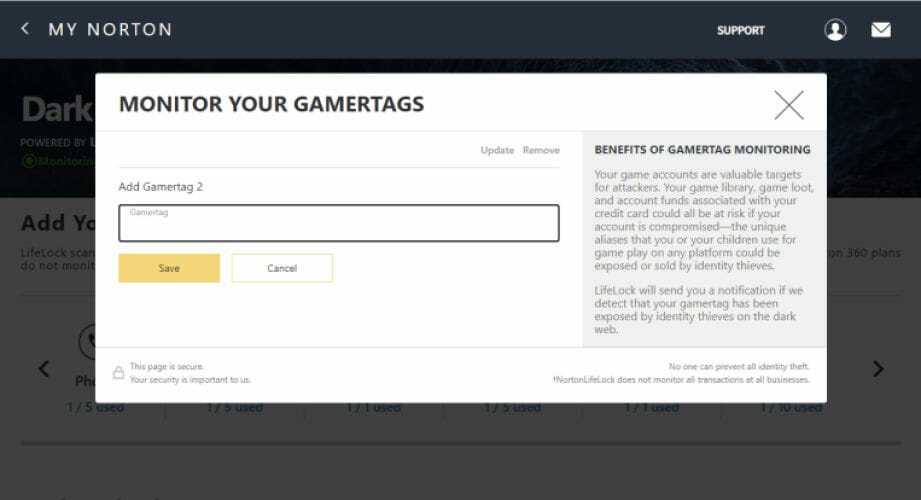
    The Settings button genshin impact email not yet registered
  3. Next, select Account on the Settings menu.
  4. Then click User Center on the Accounts submenu.
  5. Click the mobile Link button to link your account with a mobile number.
  6. Then click the Link option for email.

What to do if your Genshin Impact account has been compromised

If you’ve already encountered an email yet registered error, there might not be that much more you can do other than contacting Mihoyo support about the issue. You can contact that service at this email address: [email protected]

Be prepared to provide these Genhsin Impact account details:

  • The email address you registered for the account
  • The UID for the accounts
  • Last time you logged into your account
  • Approximate account registration date
  • Devices you logged in to the account with

Try to gather as much information for your Genshin Impact account as you can before contacting Mihoyo’s customer support service.

Mihoyo will no doubt investigate the issue further after you contact them. If your account has been deleted for some reason, Mihoyo will explain why also.

However, you probably won’t encounter Genshin Impact’s email not yet registered error if you take the precautions above to better secure your account.

Also, be careful not to fall foul of any potential scams that might compromise your account.

Best Antivirus to Use with NordVPN: 4 Popular Picks

NordVPN is a well-trusted and globally cherished VPN solution that needs little (if any) introduction. Meanwhile, antivirus software is essential in order to keep your PC safe, clean, and well-behaved no matter what the mean web throws at you in terms of cyber threats.
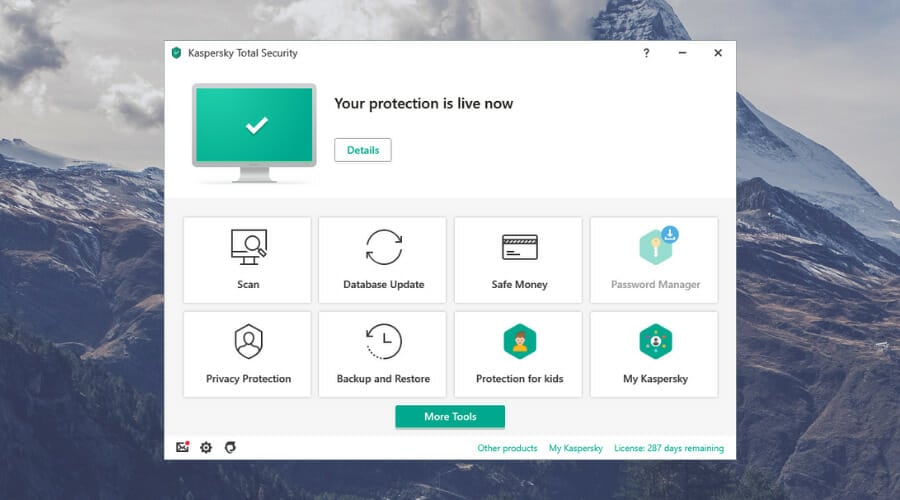
The thing is, security solutions are known for their feisty temper and overzealous protection. Thus, more often than not they do not get along. With interference being hardly scarce, it’s only natural to want nothing more and nothing less than the best antivirus to use with NordVPN.

And this brings us to the million-dollar question.

Can VPN and antivirus work together?

They can and they should. Since they are both ineluctable components of cybersecurity, it is important you deploy both.

Here’s another question that seems to pop out often: Do I need antivirus with NordVPN? Indeed you do since they actually do not serve the same functions.

It is nevertheless true that the galloping proliferation rates of malware have pushed vendors to adapt and design ever more complex defense solutions that aim to stop infections as well as protect your privacy.

While antivirus and VPN features may overlap, they are essentially different solutions for different problems. So let’s take a closer look!

What is the difference between VPN and antivirus?

A VPN is meant to keep you safe from online threats, but it focuses primarily on privacy matters. So, is a VPN also an antivirus? No, it relies on encryption to shield your information against indiscretions, but it cannot neutralize viruses.

Basically, it reroutes your data through a secure tunnel and directs it to remote servers in order to conceal your internet traffic, your IP address and location as well as your online activity such as browsing history, and personal information against cybercriminals, hackers, your ISP, unwanted advertising, governmental agencies and so on.

It’s the perfect tool to fight online tracking, spyware, and even MIM attacks. What doesn’t a VPN protect you from?

While VPNs boast a plethora of appealing benefits, they do not (generally speaking) protect you from widespread viruses, malware infections, ransomware, and exploits. This is where the antivirus shines.

Note icon NOTE
Does NordVPN help with virus protection?

While functionalities
differ from one provider to another, there are VPN clients that also include virus defense-oriented features.

NordVPN is one of them. It relies on an integrated malware-blocking technology called CyberSec to help you manage your security beyond basic IP masking.

Meanwhile, an antivirus is more concerned with device security. While virus detection techniques are different according to the technologies used by each vendor, the process is reasonably similar across software tools.

Thus, antiviruses provide real-time protection with proactive detection of potential threats as well as scanning options to identify any malware that somehow managed to infiltrate your system, quarantine it, and neutralize it before it spreads and takes over your PC.

They target primarily viruses and malware, but the trend is to cater to more elaborate needs and thus, they also eradicate suspicious files, attachments, and links, block keyloggers, adware, PUPs, bloatware, trojans, prevent phishing attacks, ransomware attempts, and more.

Obviously, the extent to which they are effective as well the particular defense mechanisms they rely on are not universally available and each vendor has its own portfolio specifically designed to impress and attract more users.

How to choose the best antivirus to use with NordVPN?

As you probably know, there are numerous antiviruses with VPN solutions embedded and our guess is that you may be tempted to kill two birds with one stone.

Our QA went for these all-in-one security suites first, driven by relentless curiosity as well as by our need to provide you with relevant information.

While antiviruses with VPN are not a bad deal overall, you can expect a few hiccups along the way. Most integrate slow and average-quality VPNs with fewer server options and limited traffic usage. (Of course, there are exceptions, though).

We do not particularly appreciate data caps, this is why we much rather use a top-rated antivirus simultaneously with a premium standalone VPN solution such as NordVPN.

Tip icon Tip
Quick Tip: Here’s what to consider when picking the best antivirus to use with NordVPN :

➡ Virus detection rates as close to 100% as possible with low false positives ratio
➡ Strong malware-removal capabilities (including prevention, detection, quarantine, and neutralization)
➡ Customizable options to setup exclusions and an overall interference-free configuration that will not hinder parallel VPN usage
➡ Real-time protection as well as on-demand scans
➡ Additional defense shields (anti-ransomware, anti-phishing, network vulnerabilities inspection, and so on)

➡ Pricepoint and multiple device coverage
➡ Software conflict-reconciliation features to ensure globally seamless cooperation between the security tools deployed on your system

Which antivirus works with NordVPN?

TotalAV

  • Real-time antivirus that runs alongside NordVPN without conflicts
  • WebShield blocks phishing and malicious sites
  • Ransomware and spyware protection
  • Small system footprint
  • One licence for Windows, Mac, Android and iOS
  • Data breach monitoring and password vault only in the higher plans.

TotalAV is a simple, lightweight antivirus with real-time protection, WebShield browsing protection and built-in clean-up tools. One licence covers Windows, Mac, Android and iOS.


Bitdefender Internet Security

  • Non-intrusive defense with zero interference
  • Low impact on performance and system ressources
  • Award-winning virus protection
  • Privacy-oriented tools embedded
  • Intuitive interface with centralized management
  • If you run older generation CPU, performance is likely to be affected.

With a longstanding experience and virus-neutralization prowess backed up by countless awards, Bitdefender does not fall short on recognition.

Hard to match to this day, Bitdefender Internet Security excels both at threat detection and low impact on performance scores.

The protection tab of Bitdefender Internet Security 2020

In fact, the numerous distinctions it proudly houses can be equally attributed to its unbeatable protection against infections as well as to its small system footprint that does not strain your resources or hinder your speed and workflows.

In fact, this is one of the main reasons – together with its privacy-oriented tools, of course – for which we consider it the best antivirus to use with NordVPN.

But let’s not get ahead of ourselves as overpraising is not something we typically engage in. Blind faith is not required here, so here are some hard facts to indulge in.

Bitdefender’s multi-layered protection is deployed in real-time and it covers anything and everything potentially harmful, with an unmatched focus on privacy.

Just as our previous recommendation, it incorporates a secure online banking layer, an intrusion-blocking firewall, and network traffic filter as well as webcam and additional microphone protection to eradicate spyware.

Bitdefender Internet Security 2019 firewall

It even has its own VPN solution for enhanced confidentiality. So why bother using a separate VPN solution in the first place and how will 2 programs serving the same purpose get along? If this question is on your mind, here’s what you need to know!

With the integrated Bitdefender VPN, your encrypted traffic is capped at 200 MB per day. While this is not something to easily set aside, you can do better.

In fact, you will have no problem at all running NordVPN and Bitdefender Internet Security simultaneously since your AV takes pride in the fact that it does not bloat and it does not interfere with your other applications.

This is our favorite combo for end-to-end security plus privacy and we have been using the two of them together for a little over one year without any complaints.

Bitdefender’s unintrusive nature is one of the reasons for which we recommend it as the best antivirus to use with NordVPN. But the perks that come with this go beyond the non-interference with other security tools or system components.

Running quietly in the background, this excellent AV software will not get in your way with pestering permission requests, painfully long scans, and system-freezing resource consumption.

Instead, it will react instantly to all threats with zero compromise on speed, responsiveness, or performance.

With centralized management, comprehensive log reports, and overall one-click functionalities, you fill this best antivirus to use with NordVPN easy to install, run and check on a daily basis.


Norton Antivirus Plus

  • Advanced online threat protection
  • Integrated password manager
  • Effective defense against malware, spyware, viruses and ransomware
  • AI + machine learning-driven virus detection
  • There are no webcam protection or parental controls included.

As you probably imagine, Norton has its own up-scale products that offer a plethora of extra functionalities, including a built-in VPN.

But using NordVPN alongside your package privacy tool more often than not generates conflicts and errors, which is why we preferred Norton Antivirus Plus over 360 plans.

The basic version offers the right amount of protection that you can easily pair with NordVPN to obtain an all-round, well-balanced security duo that will take care of both malware and snoopers.

This best antivirus to use with NordVPN will constantly monitor your device to make sure it’s safe and its multi-layered protection will stop any nuisance from spyware to viruses, malware, and ransomware.

The incorporated technology combines state-of-the-art machine learning algorithms and artificial intelligence to detect both known and emergent threats in real-time before they even get the chance to infiltrate your system.

While it lacks a full-scale privacy monitor or webcam protection, it compensates with a:

  • built-in password manager that stores your confidential credentials in a secure online vault
  • a smart firewall that blocks suspicious network traffic to protect your financial data and other sensitive information against prying eyes,
  • and 2GB of automatic cloud backup to secure your confidential files against ransomware and extortion attempts.

It’s safe to say that this best antivirus to use with NordVPN does not fall short of privacy tools and it can effortlessly provide the defense required to keep both your personal and financial data as they should be – private.


Avira Free Security for Windows

  • Dedicated performance-focused suite
  • Seamless compatibility with NordVPN
  • Protection against malware, viruses, spyware and ransomware
  • Automatically detect outdated drivers
  • Duplicate finder and file shredder
  • Detection rates could be improved.

Just like us, Avira Free Security’s creators believe that privacy is a right and we should all be able to enjoy it freely.

Driven by this motto, Avira boasts not only top-notch antivirus technology that has proven its efficiency over and over again, but also privacy and performance-focused tools designed to provide that globally enjoyable, speedy, and safe experience that modern users seek.

Let’s dig in, one step at a time! Privacy-wise, you are in for a big treat and we’re not talking about the integrated VPN that offers up to 500 MB of encrypted traffic per month for free.

Even though this is a big plus, you can easily stick with your premium VPN and run Avira simultaneously by simply not activating its VPN feature.

We promise you will not be disappointed by what this best antivirus to use with NordVPN has to offer.

Ransomware and spyware protection will stop scammers on their track on social networks and inbox levels. Meanwhile, the Browser Safety feature blocks intrusive adware and prevents tracking.

This already impressive suite is completed by an in-built password manager, file shredder, and System privacy tool that erase your digital traces from the browser and apps alike.

Its powerful privacy-focused tools and top-rated antivirus engine already do a pretty good job of working seamlessly without any interruptions or slowdowns.

Avira takes it to the next level with its dedicated performance-boosting suite that includes premium features usually reserved for upscale products such as a startup optimizer, battery saver tool, driver updater, and memory optimizer, PC cleaner, and duplicated finder.

All of these addons are specifically designed to improve performance and speed up your system without sacrificing security or privacy, or spending a lot of money on extras.

In fact, everything is up for grabs and we recommend you take full advantage of it!


Bottom runners

Besides the products that made the list after our rigorous testing process, there have been other antiviruses that proved their capabilities.

Even though they will most likely not with an award for the best antivirus to use with NordVPN anytime soon, they could still make good options to consider.

➡ Kaspersky Anti-Virus

If essential protection is on your mind, then Kaspersky’s entry-level product should do trick. With many years of experience in protecting users worldwide against both viruses and malware, this best antivirus to use with NordVPN will deliver proactive detection, real-time protection as well as instantaneous virus removal.

➡ TotalAV

TotalAV boats a comprehensive cybersecurity suite to keep you safe from all nastiness out there. Their Antivirus Pro goes far beyond the basic protection delivered by other counterparties, incorporating tune-up, clean-up, and optimizations tools.

It not only tackles trojans, viruses, and malware but also phishing attempts, PUA, and browser-targeted attacks.

➡ Vipre Antivirus Plus

With US-based support on your side at all times, you are guaranteed to have a trouble-free experience with Vipre’s Antivirus Plus.

Certified award-winning protection cleverly wrapped in an easy-to-use interface is one of the things you can expect from the best antivirus to use with NordVPN.

VPNs and antiviruses are important actors in the cybersecurity scene. Since they play different roles with the AV focusing more on your device and the VPN taking care of your privacy, you will only get the very best security by pairing them.

If you’re using NordVPN, you’re already on the right track. Is NordVPN also an antivirus? Does NordVPN protect against malware? While it’s not an antivirus per se, its malware-blocking technology (CyberSec) can and will add an extra layer of protection. However, NordVPN alone will not contain sophisticated viruses.
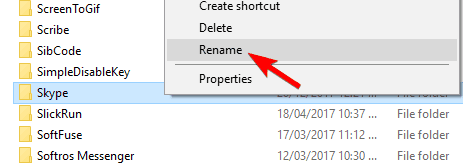
The two of them complement each other without compromising the other’s mission as long as you find the right balance. So why not go for the very best antivirus to use with NordVPN?

Windows 11 Compatible Graphics Cards: Best Picks for 2026

Owning a PC with a good graphics card can make a huge difference when it comes to everyday usage, online video experience, and gaming as well.

As graphics cards have evolved consistently over time, our experience with the Windows interface has been improving as well, peaking with the release of Windows 11, which has great capabilities to be one of the best OSs from Microsoft.

From beautifully designed applications to wonderful effects and other immersive PC experiences, all have to thank the evolution of the GPU. Even this is not the only important component of a PC, it is a good idea to also check out the Windows 11 system requirements, to ensure that the system is fully compatible.

In the latest years, another function has been attributed to GPUs, some users even opting to use an eGPU (external GPU) for their systems.

The aforementioned function is crypto-mining, which has taken the world by storm as soon as this type of currency has been released on the market.

When mining for cryptocurrency, the GPU is the one taking all the weight, and people have been known to invest in custom mining rigs that are built out of an array of GPUs connected in a series, or invest in a powerful crypto-mining capable PC, which is a far more affordable option.

To round the setup up, users will also need secure crypto-trading software to protect their hard-earned caches.

Another very popular section of the market is the gaming industry, which has seen amazing new game releases which would astonish even the pickiest with their immersive graphics and stories.

Of course, to be able to experience the full-fledged experience of the latest games, you will need to invest in a powerful gaming laptop if you’re keen on portability.

If that is not an important element for you, then a powerful desktop PC is also an amazing option that will allow you even more space for system customization.

As you can see from the options chosen for the guides mentioned above, a good GPU is important, but not on its own. In case you invest all your hard-earned money in the GPU and don’t have a powerful enough CPU, then the graphics processing unit will not be able to work at full speed.

How we chose the best Windows 11 graphics cards

As you might already know, not all GPUs are built the same, nor do they have the same capabilities. For this reason, choosing a good piece of hardware can be tricky, especially if you’re not very tech-inclined.

That’s where our team of expert testers comes into play. Their cumulated 15 years of experience testing the latest gadgets, devices, and hardware helps us provide you with an easy overview of some of the best GPU options on the market at this point.

We made sure to also explain the factors that our tester team considered while choosing these devices, and if you’re interested, we also explain how each of them applies to the hardware.

Tip icon Tip
Editorial tip:

To make an informed decision when choosing the best Windows 11 GPUs, these are the elements that need to be considered:

➡ Graphics card memory
➡ Ports type and number
➡ Form factor
➡ Power Connectors
➡ Thermal Design Power (TDP)
➡ Memory speed/bandwidth
➡ VR capability

Now that we listed all the elements both you and our team of expert testers needed to consider, let’s dive a bit deeper into each of them, and see what impact they each have.

What to consider when choosing the best Windows 11 GPU?

GPU memory

The memory of your GPU is one of the most important aspects when it comes to the specifications of this hardware. The amount of memory installed will dictate how your PC will perform both in everyday tasks, and especially when it comes to gaming.

It would be recommended that the minimum amount of memory on a GPU is 6GB, but 8GB would be a minimum if you’re planning on playing games.

As you can imagine, the more memory, the better overall performance while gaming, and systems with GPUs that use 12, 14, or even 32GB will be able to run some of the latest games at full graphics settings (if accompanied by a capable CPU).

Ports types and number

As owning the best GPU on the market doesn’t mean anything as long as you can’t install it on your system, the type of the connective ports and their number will prove to be a critical element when making a choice.

Not all ports have the same task on your GPU though, so let’s explore some of the most common types, and what they do.

➡ GPU outputs

One important aspect of the GPU is its output capability, and thus, the ports which allow this action to be performed on your PC.

Below, you can see some of the most common output types found on GPUs, and a short description of their capabilities.

Most GPUs will have an HDMI port available, as this is one of the most-used output types, but DisplayPort (DP), and Mini-DisplayPort (MiniDP) offer even more versatility.

➡ GPU bus types

There are three main graphics interfaces available, each of them allowing different amounts of bandwidth to be processed, and thus, making some of them better than others.

A GPU bus is a connector between the card and your computer’s motherboard, and they vary considerably, depending on a multitude of factors that also include how old the GPU is.

Further, let’s explore what bus types most GPUs have, including older models, and finish with the latest and greatest.

  • PCI (Peripheral Component Interconnect)

Being the slowest bus for GPUs, the Peripheral Component Interconnect doesn’t offer good processing speeds, so it was used mostly in older PCs that didn’t face the requirements of today’s software and games.

That being said, the PCI bus remains relatively common with GPU producers, probably because of how many people have hardware that supports this type of connection.


  • AGP (Accelerated Graphics Port)

The Accelerated Graphics Port bus allows far better connection and processing speeds, but not all AGP buses are the same, having a few standards themselves.

The AGP 1.0, and AGP 2x don’t provide much power, even though better than the PCI bus. The AGP 4x starts reaching the acceptable bandwidth necessary for GPUs in this day and age, but the AGP 8x can reach speeds of up to 2.16 GB/s (twice as much as the previous model), which can offer great overall performance.


  • PCIe (Peripheral Component Interconnect Express)

The PCI Express bus is the latest bus developed and used on GPUs, offering better bandwidth than the previously mentioned iterations.

There are two main PCIe bus models:

– PCIe 1x

– PCIe 16x

The PCIe format has been improved considerably, providing better performance-scaling, a more detailed reporting mechanism, a lower I/O pin count, and native hotplug functionality.

Most new GPUs will use a PCIe 16x bus, which means that the card uses 16 lanes (links) when connected to the motherboard, thus providing up to 4GB/s bandwidth. In the case of PCIe 1x, the bus uses only a single lane, and thus the bandwidth is limited to one path.

The best thing about having a PCIe bus on your GPU is that the bandwidth is used both for uploading data to the PC and downloading data to the card.

That being said, when comparing an AGP 8x bus with a PCIe, there are not many differences in bandwidths if the systems are identical in their architecture besides this element.

Users prefer having a PCIe bus overall, as the latest GPU models don’t come in an AGP version anymore, and the latter is more expensive as well.

Form factor

Even though this element applies without saying to any hardware you want to mount in your PC, it is still a critical element to consider when choosing a GPU.

Here are some factors that need to be considered:

  • Board size – the design of the GPU, including length, height, and thickness (some GPUs have slim versions, others do not)
  • Number of slots – graphics cards can have a single, dual, and even triple-slit configurations, with the latest gaming GPUs taking up two or more expansion slots
  • Heatsink size – even though the card itself might only occupy 2 slots, the size of the heatsink could block access to other extra slots

Getting even one of the above-mentioned elements wrong will imply either that your GPU will not be compatible with your motherboard, or that you won’t have space to install it even though the bus port matches perfectly.

In some cases, you might find that for dual-GPU setups, even though you might have another available port, the board size or heatsink size will prevent you from installing the extension.

Power connectors

Even though the power consumption for most common GPUs is the 75W maximum which the PCIe slot provides when we’re talking about performance-inclined graphic cards the situation changes dramatically.

Depending on the configuration of the powerful gaming GPU, the power requirements increase exponentially in reports with high-level processing speeds and other capabilities.

Some GPUs have a set of 6 or 8 pin connectors, while other options can have 2, or even 3 sets of 6 or 8-pin connectors.

As you can see from the image presented above, the Nvidia GeForce RTX 3090 GPU produced by EVGA uses 3 sets of 8-pin connectors.

Choosing the right setup is extremely important because having a powerful GPU that can’t be powered properly is not going to be a great choice.

Thermal Design Power (TDP)

The TDP values of your GPU is another very important aspect you need to consider when making a choice, and it involves the measuring of your hardware’s heat dissipation capability.

Even more, the TDP will give you a useful estimate as to how many watts of power your GPU requires to run the card optimally.

As an example, if your PC uses a 500-watt PSU (power supply unit), and the CPU takes up 100 watts, then installing a GPU that needs 250-watt TDP will only work if the power supply unit is upgraded.

As you might expect, the type and power of your GPU plays a critical role, but simply adding up the total wattage requirements for the system you’re trying to build, and then deducting that value from the total power of the PSU will give you the answer to the question: Could I install a 250-watt GPU on my device?

Memory bandwidth

Even though not as important as the previously-mentioned elements, the bandwidth of some cards can make a card faster than another.

This is measured by the type of memory used in the card, and it is marked with GDDR4, GDDR5, GGDR6, etc.

For example, if one card from the same brand and same model using GDDR5 memory will perform slower than one which uses GDDR6 memory, with the actual impact on usage being reported to the difference in bandwidth.

VR support

Even though VR support is not a critical element in any way, investing in a GPU that has this feature is a good idea, especially as the market is evolving towards the VR world more and more.

Being able to run VR games on your PC can make a huge difference, allowing you to use a VR headset to explore fantastical worlds, and interact with them seamlessly.

Tip icon Tip
Buyer’s tips:

➡ If you want to experience the state-of-the-art processing power the market has to offer while enjoying some of the latest game titles released, then going with the GeForce RTX 3090 is the best choice.

That being said, performance costs, so choosing this option won’t be very affordable, but worth every penny if you choose to take this route.

➡ To save some money while also being capable of running the latest game releases without issues, the GeForce RTX 3080 Ti GPU is another very powerful device.

Even though the capabilities of this GPU are below the average FPS ratings offered by the first choice, you can’t go wrong with this device either.

➡ In case you want to spend a smaller amount of your hard-earned cash on a GPU, but still want to get some great and immersive experiences from your PC setup, then both the GeForce RTX 3070 and Radeon RX 6900 XT GPUs are great choices.

The latter will be less capable than the RTX 3070, but will also affect your bank account less, so it all comes down to your preference and financial circumstances.

As we already discussed the features you need to look out for when searching for a good Windows 11 GPU, let’s dive into the actual product options.

GeForce RTX 3090

  • Memory: 24GB 384-bit DDR6X
  • Output: 3 x DP; 3 x HDMI
  • Interface: PCI-Express X16
  • Size: 9.92 x 5.31 x 1.57 inches
  • Power: 350W
  • Suitable for 8k-quality gaming, but not recommended

The RTX 3090 model from Nvidia was released towards the end of 2020 and has since become recognized as the fastest GPU on the market.

Built with Nidia’s latest architecture called Ampere, it brings more efficiency and overall performance than the previous Turing models.

The RTX 3090 uses 10.496 CUDA cores, combined with a set of 328 Tensor cores, and during our tests, it scored a base clock value of 1.4 GHz, with the capability to be boosted to 1.7 GHz.

This powerful piece of hardware has a 24GB GDDR6X 384-bit memory interface, which is more than enough for high-end 8k-quality gaming, game developers, 3D rendering, and everything in between.

As you might expect, a top-of-the-range GPU like this one will require considerable power, and this model uses 350W.

When it comes to benchmark scores, the RTX 3090 has blown us away, both for DirectX 9 3D and DirectX 10 3D graphics scores. In our DirectX 9 3D tests, this device has had an average of 309 fps, and in 3D DX10, an average of 262 fps, making it one of the most powerful GPU options we’ve ever tested.

This device also comes equipped with a Waterforce all-in-one cooling system which has a 240mm radiator with two 120mm ARGB Fusion 2.0 fans, which not only look amazing but will keep your system cool even when running intensive applications and games.

The RTX 3090 doesn’t disappoint when it comes to connectivity either, offering you access to three DisplayPorts, and three HDMI slots, ensuring that you will be able to connect it to any kind of display, or multiple-display setup. This GPU is connected to the motherboard by the use of a high-speed PCI-Express X16 interface.

To also ensure the safety of the entire system, this GPU is protected by a metal black plate and offers its users a 4-year warranty if the card is registered online.


GeForce RTX 3080 Ti

  • Memory: 12GB 384-bit GDDR6X
  • Output: 3 x DP; 1 x HDMI
  • Interface: PCI Express x16
  • Size: 9.1 x 5.6 x 1.6 inches
  • Power: 350W
  • Lower memory than previous model

The RTX 3080 Ti is another incredible GPU to invest in this year, offering you the capability to run the latest games, and also far more affordable than the previous mention.

This powerful GPU uses the world-renowned Nvidia Ampere architecture, with 2nd generation RT cores with 2x throughput, and 3rd generation Tensor cores with the same throughput value.

The 12GB 384-bit GDDR6X memory ensures that all games will run at optimal FPS rates and that you will be able to run any 3D rendering applications or game-developing software without any issues.

As in the case of the model presented previously in this list, to power, this amazing set of capabilities, the RTX 3080 Ti uses a 350W power source.

In our benchmark tests, both while testing using DirectX 9 and DirectX 10 3D has yielded amazing results. The DX9 tests have concluded an average FPS rate of 305, while in the DX10, a steady 261 rate.

This piece of hardware comes with powerful IceStorm 2.0 Advanced cooling that uses a Freeze Fan Stop and allows you full active fan control.

In the connectivity department, the RTX 3080 Ti is 8K ready, offering 3 DP 1.4A ports, and an HDMI 2.1 port, thus enabling you to use up to 4 displays.

Being equipped with a PCI Express x16 interface ensures that all its capabilities are capable of being used without any loss in performance.

To ensure stability and sturdiness, this GPU includes both a front and back metal plate, rounding this device up perfectly.


GeForce RTX 3070

  • Memory: 8GB DDR 6
  • Output: 3 x DisplayPort 1.4a + HDMI 2.1
  • Interface: PCI Express x16
  • Size: ‎14.96 x 8.82 x 3.86 inches
  • Performance consistency varies

The RTX 3070 has scored very well when compared to the top contenders in this department, having a bit of an issue when it comes to performance consistency.

This has ensured that the RTX 3070 didn’t reach the top of our list, but it is still a very dependable and powerful GPU that offers you more than enough power to run the latest games, use 3D rendering software, and even create digital art.

The 8GB GDDR6 memory is capable of running high-speed and high-graphics applications without causing any sort of lagging and provides great results both in 3D DX9 and 3D DX10 benchmark results.

When trying it out with DX9, this powerful GPU has scored an average of 206 FPS, while in the DX10 tests it has maintained a constant value of 158 FPS, making it an incredible choice, especially for users who don’t want to spend so much money.

With a Boost Clock value of 1770 MHz, this Real-time Ray Tracing device provides you with a cutting-edge experience, and the sturdy metal backplate and adjustable ARGB provide stability and a great look for those with see-through computer cases especially.


Radeon RX 6900 XT

  • Memory: 16GB GDDR6
  • Output: HDMI 2.1 port
  • Interface: PCIe 4.0
  • Size: 4.72 x 15.75 x 9.06 inches
  • Design might not be for everyone

The AMD Radeon RX 6900 XT is another very powerful device that has scored some amazing results when it comes to average benchmarks, making it our top 4 picks for this type of product.

Both the DX9 and DX10 benchmark scores were very good, with the first section getting a constant 353 FPS, while the latter a constant 298 FPS. The results were averaged based on a few important elements, including lighting, reflection, and parallax parameters.

With a performance clocking up to 2105Mhz, this device will provide you with an amazing experience no matter if you’re playing the latest games, running graphics-intensive software like 3D rendering apps and video editing tools, or simply browsing the web and using it for work.

As opposed to the previously-discussed model in this list, the RX 6900 XT has proven to be very consistent in its performance, being very capable of handling tasks without any lagging and dips in processing power, making it a great option when applied to real-world conditions.

This device uses a 5120 stream processor setup, and reaches 2105Mhz at full speed, but is also capable of 2015 Mhz in Silent mode, thus improving its utilizability when no high-demand applications are being used.

It has 16GB GDDR6 memory and is powered by an AMD RDNA 2 architecture, which also features Raytracing, making it one of the best options on the market at this point.

The PCIe 4.0 connectivity ensures fast data transfer speeds, and compatibility with most systems on the market, while when it comes to output, it features an HDMI 2.1 port.

The AMD Infinity Cache ensures that no tasks will affect this device excessively, and the design also looks amazing, rounding it up to be a very good choice for the price.


Bottom runners

As our main list only contains 4 GPUs, we decided to supplement it with some other great options. The following section will include some more affordable GPU options, but they can also be considered good for the average user:

➡ EVGA GeForce RTX 2080 Ti

➡ MSI NVIDIA GeForce RTX 2060

As you can see, there are plenty of GPU options available at this point on the market, and you can choose a device that fits your needs both in terms of performance and price range.

Don’t hesitate to share the choice you make with us, by using the comment section found below this guide.

Amazon now gives US Prime members “priority access” to Xbox Series X and PS5 consoles

If you’ve been struggling to get your hands on an Xbox Series X or PlayStation 5 console in the US, Amazon is now giving Prime members priority access to both consoles through December 31. Twitter user (and Amazon Associate) Wario64 shared the information on Twitter earlier today, though both consoles are currently out of stock on Amazon.

The Xbox Series X and PS5 should fly off shelves very quickly during the holiday season, but if you subscribe to Amazon Prime, you may increase your chances to get one of these consoles under your Christmas tree. You can try the service for free for one month and enjoy access to free Two Day shipping, Prime Video, Prime Music, as well as bonus PC games and exclusive in-game content with Prime Gaming.

Amazon’s priority access to next-gen consoles for Prime members doesn’t include the Xbox Series S, which has reportedly outsold the Xbox Series X in several key markets. Still, the best-selling console in the US remains the Nintendo Switch, which continues to perform incredibly well across the world despite its power disadvantage against the latest Xbox and PlayStation consoles.

Antivirus Without Auto Renewal: Best 5 to Use in 2026

An antivirus without auto-renewal is a rare commodity these days, which is in part understandable, but also unacceptable for those of us who don’t really get along with direct debit. A too difficult task for some is no more than a well-deserved challenge for us. So don’t miss out on the best antivirus without automatic renewal!

But first, let’s take a moment to think things over. What is it that makes auto-renewal so disturbing in the first place? After all, security solutions developers advertise it as a facility meant to simplify things for you so that you don’t have to manually prolong your license validity.

It turns out it’s the approach. Pretty much all AV suppliers have adopted the subscription-based model that requires regular license renewals, which are of course paying services.

While this makes sense to us since malware is constantly evolving and staying one step ahead protection-wise is an elaborate, time-consuming, and funds-hogging process, the manner of doing things could benefit from a transparency boost.

As long you are presented with the option to enroll or not for automatic renewal upon subscription, we say there is no foul play. But here comes the surprise! Quite a few major AV producers embed the automatic renewal clause in their Terms and Conditions that you accept by default upon subscription and purchase.

While the constant need for virus definition updates justifies the renewals, the manner in which vendors choose to deliver them can be fully disclosed and transparent or hidden on purpose to ensure an undisrupted revenue stream by charging credit cards without the specific consent of their users.

Do you have to renew antivirus every year?

It really depends on the type of offer you subscribed to. While lifetime license deals are no longer a thing, there are plenty of vendors that provide multiple-year plans.

This basically takes renewal off your plate for the number of years you engaged (generally up to 3).

What happens if I don’t renew my antivirus?

Loopholes are prevalent and the malware landscape updates itself at shockingly high rates. Respectable AV vendors invest heavily in research and testing in order to develop new ways of blocking sophisticated threats.

If you choose not to renew your subscription, you will not benefit from security enhancements and updates that are crucial for the welfare of your system.

Fortunately, you can have both. Free AV editions usually have unlimited validity, plus they cost nothing at all.

Which is the best antivirus without auto renewal?

Bitdefender Antivirus

  • Multi-Layer ransomware protection
  • Convenient and customizable subscription plans with multidevice coverage
  • Lightweight infrastructure with a small system footprint
  • Cross-platform compatibility
  • High detection rates for malware, adware, and spyware
  • There are no extras included in the basic version such as firewall or parental control, only essential protection against cyberthreats.

If you’re after the best antivirus without automatic renewal, Bitdefender will make your wish come true. It might not offer a lifetime edition anymore, but you can still get a sweet deal with lightweight essential real-time protection for up to 3 years.

Flexibility is a highly valued asset these days and award-winning Bitdefender Antivirus Plus does not fall short in this department.

If you don’t want to worry about yearly renewals but also don’t care much about automatic renewals, you can go straight for a 3-year plan with devices coverage ranging from 1 to 10, according to your specific needs.

This best antivirus without auto renewal cleverly combines next-generation cybersecurity technologies with a super small system footprint, as revealed by the most prestigious independent virus testing laboratories such as AV-Test and AV-Comparatives.

Our in-house performance tests conducted on a breezy ASUS SonicMaster notebook with an Intel Core i7 generation processor, 8.00 GB of RAM, and 500 GB storage also confirm these results.

We initiated a full system scan (834168 scanned items) that took no more than 23 minutes and we did not notice any significant slowness or resources monopolization, with memory, CPU, and GPU values well in parameters.

Now, Antivirus Plus delivers essential protection against malware, adware, spyware, and ransomware, which is great. But what about renewal terms?

Does Bitdefender subscription automatically renew? Indeed, upon purchase, you enroll for a subscription that will automatically renew.

While the recurring subscription has its perks such as uninterrupted protection without manual interventions, saving time and effort, and also free upgrades, some of us are not particularly keen on direct debit.

Brace yourselves, we have good news! You can regain control of your funds and get that tailored protection you always wanted on your own terms.

You can simply cancel the automatic renewal option and perform these operations manually when the time is right for you. Bitdefender will notify you by email 30 days prior to the expiration date so that you can choose the course of action.

How can I cancel my automatic renewal from the central account?

  1. Log into Bitdefender Central or create an account if you haven’t registered yet.
  2. On the left menu, you will notice a section called my Subscriptions.
  3. Once you opened this window, click on the My Payments tab.
  4. Locate the subscription and choose to View Details.
  5. Your purchase history will then display, where you can click the link Manage your subscription renewal options.
  6. Press the corresponding button to Stop auto-renewal and you’re all set!

And this is why we believe Bitdefender Antivirus Plus is simply the best antivirus software without automatic renewal.

One more thing, if free protection is also an option you’d like to consider, feel free to explore another great antivirus without auto renewal, Bitdefender Free Edition.


Dome Free Antivirus for Windows

  • Flawless virus detection ratio
  • Cloud-based hassle-free updates
  • Simple installation process
  • Intuitive, user-focused interface with organized menus
  • Rescue Kit and USB protection included
  • Firewall and WiFi protection are not included in the free version.

Is Panda Dome antivirus free? You wanted to know and we’re here to serve.

While different Dome editions are available upon subscription – with plans ranging from Panda Essential, Advanced, Complete, and all the way up to Premium, you will be pleased to know that this highly cherished and high-ranking provider also offers a free Panda Dome edition.

That’s right! Up for grabs, uncompromised security is no longer a myth and we dare say this solution makes a great candidate for the best antivirus without automatic renewal.

In fact, free versions usually have unlimited validity, which makes them particularly appealing for those in search of antivirus with lifetime licenses.

No leap of faith is required here, you can go straight for the download button and see for yourself. We rushed into testing this best antivirus software without automatic renewal and we can honestly say, we were not disappointed.

Packed with unparalleled real-time protection against malware and spyware, this excellent AV is not only efficient but also highly customizable.

You can perform on-demand scans – on the spot or scheduled, as per your needs – and you get to choose the exact items that are to be verified from a full system scan to specific folders, processes, cookies, memory, and more.

Not impressed so far? We particularly appreciated the granular control Panda offers with features such as PUP detection, scan for compressed files, exclusions setup, behavioral analysis, blocking, and more.

The USB protection and Rescue Kit are nice add-ons that you will not normally find in free editions of cybersecurity dedicated software.

Finally, the Dark Web scanner and integrated free VPN should be enough to make you want to seal the deal and turn this antivirus without auto renewal into a truster partner in defense.


Avira Security for Windows

  • Comprehensive privacy-focused suite
  • Password manager included
  • Top-rated antivirus protection
  • Performance enhancers integrated
  • VPN traffic is capped at 500 MB per month in the free version.

Avira is more than just an antivirus, or so the story goes. We had to find out for ourselves and we don’t regret it one bit.

Avira Free Security for Windows has more bonuses under its bonnet than you can imagine. We were pleased to find premium-scale functionalities that are otherwise budget-breaking.

Free but powerful, this best antivirus without automatic renewal relies on a real-time scanner to provide top-rated protection against viruses, old and new threats, zero-day exploits, spyware, ransomware, and malicious code.

The best part is that you won’t have to sacrifice performance to keep hackers at bay as its antivirus engine will not slow you down.

In fact, Avira Free Security is highly focused on increasing performance and it incorporates a series of neat functionalities to ensure you will get the most of your specs while staying protected.

These features include a Speed Booster tool, PC cleaning tools as well as a driver updater and memory optimizer.

Privacy-oriented tools further enhance this product’s value with functions such as free VPN, social network protection, anti-tracking features for your browser, and an integrated password manager.

It turns out you wanted to know: Is Avira password manager free? It sure is, we checked and we encourage you to do the same especially since there is no commitment whatsoever involved.

Here’s one more thing we wanted to tackle to make sure we leave no questions unanswered. You asked: Can I cancel Avira subscription?

Should you decide to choose a paying plan such as Avira Prime, you will be able to manage your protection as you like. And we mean it!

While Avira does use an automatic renewal-based subscription model, it provides you with the liberty to manage your subscriptions freely.

Thus, you can deactivate the automatic renewal feature directly from your account and even cancel your subscription simply by hitting the Off button next to it.

There is no need for a contract termination request or any further steps. Your protection, your terms, your rules.


Avast Free Antivirus

  • User-friendly interface with easy installation and setup
  • Multi-layered protection against the newest threats
  • Smart antivirus scanner
  • Do Not Disturb Mode for uninterrupted gaming or any other activity
  • Anti-phishing and unsafe websites protection is not included in the free version.

As always, we like to cut straight to the chase and provide you with insightful information on the matters that interest you the most.

You asked: Is Avast free really free? We say: It is and proud to be so.

Boasting multiple security layers – 6 to be more precise – and a powerful and smart virus scanner, this best antivirus software without automatic renewal will keep you safe not only from common viruses but also conflictual settings, outdated programs, and even the meanest of malware.

In order to deliver its award-winning security, Avast cleverly combines behavioral-based analysis, machine learning, and an extended threat-detection network that will stop any nuisance right on its track, before it gets the chance to infiltrate your system.

What’s even cooler is that you will benefit from real-time protection against malware, spyware, and viruses with uncompromised system speed or resource consumption.

Avast Free Antivirus is light – cloud-light actually – and it will not slow you down.

Designed for effortless usage, this antivirus without auto renewal boasts an intuitive interface that you will learn to navigate in no time at all.

It took no more than a couple of minutes to install on our ASUS SonicMaster notebook and it felt like it was always meant to be there.


AVG Antivirus Free

  • Impressive ransomware protection
  • Scans all files opened or added to your PC
  • Network Inspector to diagnose network issues
  • Smart Scan with numerous customization options
  • Privacy-focused tools such as webcam or password protection are only available in the flagship version.

How Long Does AVG Free antivirus last? As long as you need it. This best antivirus without auto renewal is all about essential real-world protection that will not fail you.

In other words, you will get exactly what you bargained for with maybe a little extra on top. We, for instance, were impressed to discover the Network Inspector feature that not only snoops vulnerabilities but also performance issues.

AVG’s basic protection turned out to be efficient not just against viruses, but also spyware, malware, ransomware, suspicious links, and even email threats.

Another thing that caught our eye is the Smart Scan feature which delivers countless customization options for scanning. You can choose to activate real-time protection, of course, but also launch on-demand scans on the spot or schedule them as you see fit.

Whether you prefer running full system scans or only verifying specific files and folders, removable media, and boot sectors, it’s up to you entirely.

Finally, real-time security updates and new feature releases are automatically pumped into this antivirus without auto renewal so that you can get on with your activity and never have to worry about breaches, vulnerabilities, and so on.


Bottom runners

Besides the products that made the list after our rigorous testing process, there have been other antiviruses that proved their capabilities.

Even though they will most likely not with an award for the best antivirus without automatic renewal anytime soon, they could still make good options to consider.

➡ Kaspersky Security Cloud

Is Kaspersky free for lifetime? The Free version of Kaspersky Security Cloud is and it has the right amount of adaptive technologies wrapped around its top-rated antivirus engine to keep all hidden threats at bay.

While the protection is basic, there is enough there to keep you going without risking security breaching, which makes it one of the best antiviruses without auto-renewal on the market.

➡ McAfee

Legendary McAfee has a lot going on and its protection pledge is solid enough to make you want to give it a go. Nevertheless, they do practice automatic billing, so you might wonder why did it make it on our list in the first place?

Do I need to buy McAfee every year? Yes, if you chose a 1-year plan. However, you can set your mind at ease knowing that turning off the auto-renewal feature is easy. You can do so at any time from your McAfee account.

You’ll still be notified 30 days prior to the expiration date, so that you can perform the renewal manually, on your own terms and schedule, should you choose to continue with this service.

How to choose the best antivirus software without automatic renewal?

While there is no universal recipe, our experienced QA team focused on a few criteria that we consider of utmost importance. Take a look at our methodology and pick what’s right for you!

Transparency

We cannot stress enough the importance of transparency when it comes to long-term commitment. Full disclosure is a privilege these days, however, there are still vendors that remain true to their mission and need not prevaricate in order to scheme their clientele into accepting mischievous billing.

Transparency applies not only to Terms and Conditions – even though that is a good start – but also to instructions, easy-to-find materials, user-focused interfaces with clearly organized menus, and easy-to-navigate options.

Free versions vs. multiple-year plans

Lifetime licenses have gradually fallen from grace. The subscription-based model requiring yearly renewals has taken its place. Nevertheless, you can still avoid this by going for a multiple-year plan or a free version antivirus, which usually has unlimited validity.

While flagship versions provide more tools and benefits, free editions offer basic protection. The way we see it, there is no right or wrong way to do this as long as you stay protected.

Virus neutralization and impact on performance

Finally, these are the criteria that apply to all antiviruses. Regardless of the auto-renewal policy, you still expect a strong protection pledge from your cybersecurity solution and a small system footprint.

In order to pick the best antivirus without automatic renewal, we also considered detection rates, virus neutralization efficiency, and low resource consumption, lightweight infrastructures (many of which are cloud-based), and easy installation processes.

Did you manage to find the best antivirus software without automatic renewal in here? Feel free to share your experience with us via the comments section below!

TikTok starts testing new desktop streaming app on Windows PCs

TikTok has started testing a new desktop streaming app named TikTok Live Studio with a small number of users, TechCrunch reported yesterday. The Windows app will allow users to stream to TikTok Live from their PC, interact with viewers in the chat, and add different items to a scene including mobile and game captures.

The China-based social network said to TechCrunch that TikTok Live is only available in select Western markets for a few thousand users, and there’s no public download link. TikTok already has a presence on the web and the Microsoft Store for Windows PCs, but the app has pretty much remained mobile-focused since launch. Moreover, TikTok’s live streaming feature is currently restricted to users with at least 1,000 followers.

The independent journalist Zach Bussey shared a couple more screenshots of TikTok Live on Twitter (via The Verge), adding that the app is “super basic in its current state.” Still, TikTok has become increasingly popular with teenagers and young adults, and TikTok Live shows that the platform is getting ready to claim a bigger share of the live streaming pie.

It remains to be seen if TikTok can be taken seriously as a competitor to Twitch and other live streaming platforms, but this new desktop app is a good first step. Twitch also released its own Twitch Studio desktop streaming app a couple of months ago, which provides a good alternative to power user solutions like OBS or XSplit.

Microsoft infamously tried to acquire TikTok last year after the Trump administration raised some security concerns regarding TikTok’s use in the US. The deal eventually fell through, and Microsoft CEO Satya Nadella recently admitted that these acquisitions talks were “the strangest thing I’ve ever worked on.”

GOM Mix Max review: Video editing for everyone

Video creation can be a complicated task, depending on your needs and it’s pretty hard to find a good video editing software with all the necessary features.

Moreover, the programs that meet all the complex requirements are expensive and have complicated menus and options that require training.

Well, it seems that GOM&Company has released a new editor called GOM Mix Max that comes with all the features of a professional tool but has a friendly interface and a competitive price.

About GOM&Company

You may think you didn’t hear about this company but it’s very likely you already used their products.

GOM&Company has 23 years of experience in IT, and it’s worldwide known for the development of high-quality media software and applications like GOM Player, GOM Cam, or GOM Mix Pro.

GOM Player is one of the most popular media players out there, with millions of downloads all over the world and that provides a clear idea about the quality of the products.

What is GOM Mix Max and how can it help you?

As we’ve mentioned above, GOM Mix Max is a new video editor from GOM&Company that includes an excellent set of features that rivals professional products but it’s a lot easier to use.

That’s because it comes with a human-centered UI/UX that is highly customizable and provides a stylish new design.

For instance, you can change the location of the preview and menu area, set hotkeys, search and add effects easily, and more.

And although it has an intuitive interface, you will find lots of tutorial guides to help you with any actions you need to perform.

GOM Mix Max has a lot of advanced timeline features, and you can apply the template in detail. You even have the option to insert an element in the middle or back of the video.

In addition, you will benefit from an unlimited number of tracks and audio/ video separation as well as embedding a video track with text, image, and video sources.

What are the new features of GOM Mix Max?

1. Chroma Key

You’ve probably heard of the term Chroma when speaking with a video editor specialist. It’s all about changing the background in a video without affecting the other elements in the picture.

Well, with the new GOM Mix Max, you can use the Chroma Key feature to insert an effect to remove the background and enhance your video.

2. Automatic audio extraction

If you need to change the audio from a video, it’s a lot easier to do that with GOM Mix Max by just opening the video in the timeline.

You will immediately see the audio track separately so you can change it or edit it so you can insert an audio commentary for instance.

3. High-speed encoding

For starters, the new editor is 3 times lighter than GOM Mix Pro (127MB versus 697MB) and the encoding is 3 times faster now.

That is also because the video editing program was optimized for working with the new Intel Core i5 and higher CPUs. Thus, in such systems, it will run a lot faster.

And now, if you want to adapt your video for YouTube, the encoding size will be optimized so that you can post it without any issues.

4. Colorful video editing

GOM Mix Max comes with a rich set of tools that include over 130 effects including filters, templates, sound sources, etc., and more than 130 kinds of overlay and transition effects.

They are included in all versions, even in the Free trial so you can test and use them without any limitations to see if they meet your needs before committing to buy a license.

How to use GOM Mix Max video editor?

  1. Let’s start a new project by clicking on the button with the same name.
  2. In the new window, select the aspect ratio of the video you’re creating or select the Custom option if you want to enter a particular resolution. Then select the needed Frame Rate (up to 60 FPS) and don’t forget to name the project and assign a working folder on your PC.
  3. The first thing to do is to add your media files by clicking on the Add Media button.
  4. If you want to add more, you can always use the Import Media button.
  5. Next, you just have to drag and drop your media on the timeline tracks. As you can see, we also added a sound track for a nice touch.
  6. The timeline is extremely precise and you can use the slider from the bottom left corner of the interface to get to miliseconds to time your elements precisely.
  7. After you have included your media and synced, it time to hit the Effects tab to embellish our video with awesomeness. There are practically hundreds to choose from and they are grouped in neat categories so you can find quickly what you’re looking for.
  8. Once you select one, you set the level of intensity and it will be added to the selected clip. Next, we hit the Transition tab to find another bevy of effects to link our clips.
  9. After you select the effect and the style, it will be added to the timeline on the transitions track. You can move it around to start exactly when you need.
  10. Once you finished setting all the elements and effect in place, you can click the File button and select the Export option.
  11. You need to know that in order to export a video, you need to sign up to a GOM account. Also, if you’re using the trial version, a watermark will be added to your video and after 15 days of usage, you will also be limited to a 10 min encoding time.
  12. In the Export menu, you will be able to choose a preset, a file format, and to select a folder where to save a file. After that, click Start to encode the video.
  13. Also, from the Advanced menu, you can choose a codec for your video.

In this review, we only covered the basics but there’s a lot more you can do with GOM Mix Max video editor.

For instance, there’s a pool of overlay effects to choose from in the Overlay tab. Also, the app comes with a generous selection of objects, images to use as background and sounds.

Editing your clips is a breeze with the tools menu that sits conveniently right above the Timeline and all that is displayed in a very modern but friendly interface that is extremely easy to use.

It’s also possible to change the location of the preview and menu area and set hotkeys to make things even easier for you.

The limit is only your imagination because the templates are fully adjustable, and the unlimited multi-track feature offers a ton of possibilities.

How to get and run the GOM Mix Max video editor?

  1. Head over to the GOM Mix Max video editor dedicated webpage and hit the GOM Mix Max Download button.
  2. You will get an executable file so after it downloads, click on it to start the setup. Just select Next at the first step.
  3. After you accept the license agreement, select the type of install and hit the Next button.
  4. Indicate the folder where you want to install the app (we recommend leaving the Program Files default location) and click the Install button.
  5. Click the Finish button after it finishes installing.
  6. To launch GOM Mix Max, select the Start button and click on the app from the recently installed apps list.

As you can see, it’s very easy to get the GOM Mix Max video editor and install it in just a few steps.

We opted for the Free trial version but it’s a good way to start because you can use all the features from the Full version.

The only possible setback is that it includes a watermark on your finished video. After 15 days, you will be limited to 10 minutes of video encoding but that’s plenty of time to make up your mind about the product.

GOM&Company has a great offer right now: after entering your card information, you can have 2 months of free trial without any function restrictions.

And after 2 months, you have the chance to get it at a staggering 60% discount from $100 to $39.99. Even without the discount, GOM Mix Max is available at a very decent price compared to other video editors.

Also, we have tested another great product from GOM&Company. Read our full review of GOM Mix Pro video editor.

GOM Mix Max

Create the ultimate video with a video editor that offers a huge selection of built-in content!
Free trial Visit Website
Pros
Friendly and modern user interface
Huge collection of built-in effects, backgrounds, sounds and other elements
Compatible with Windows 11 and older
Precise timeline syncronization
Chroma-key for studio effect
Low price compared to other editors
2 months free trial
Cons
It doesn't support 4K

Final notes

GOM Mix Max video editor is perfect for beginners and professionals alike because it has all the features you need for video creation right at your fingertips.

Even if you’ve never worked with such an app before, the intuitive interface will drive you right to the menus you need.

And the fact that it’s full of built-in content that you can add to your videos will make your creation process even easier.

This video editor has a pretty small footprint on your PC resources and it runs perfectly even if you don’t have a fancy discrete graphics card.

We hope that you’ve found our review of GOM Mix Max helpful and that you will try to use it for your creations.

If you’ve already tried it, you can leave your own notes in the comments section below. They might be useful to other readers.

Windows 11 support has arrived in new Windows 365 Business Update

The pandemic has revolutionized how people work and Microsoft has been one of the tech companies that has provided support to employers and employees.

Windows 365 allows remote access to Windows from any device and Microsoft has been working hard to ensure they provide users with features that will make work easier.

In the Ignite conference held about a month ago, Microsoft announced that Windows 11 was now accessible on Windows 365.

The new Microsoft Windows 365 lets you work on any device from anywhere, including your Mac, iPad, or Android or Linux devices.

Windows 11 Support

Business users on Windows 365 now have something to smile about as Windows 11 support is now available.

The Microsoft TechCommunity acknowledges the role that Windows 11 plays

“Windows 11 is the operating system for hybrid work, delivering new experiences that work how you do. By default, new Cloud PCs will come with Windows 11 installed, so users can take advantage of the latest features and security improvements in the OS.”

More capabilities

With the latest update, Microsoft is now giving more control to Windows 365 Business users. It has made it possible for the new Windows Cloud PCs to have Windows 11 by default, but admins can change it to Windows 10.

“These settings and actions will be configurable both in the Microsoft 365 Admin Center and on windows365.microsoft.com. Admins who are already comfortable managing in the Microsoft 365 Admin Center can continue to manage there.”

Microsoft Graph APIs Integration

Graph API, a RESTful web API, grants access to Microsoft Cloud service. Windows 365 users can now do more by such as custom building solutions tailored for their organizations.

Although Microsoft 365 Lighthouse integration was also on the horizon, the rollout is yet to begin.

Will the Windows 11 support for Windows 365 make things easier for you as an individual or at a business level? Let us know in the comment section below.

How to Enable End-to-End encryption for One-on-One calls in Teams

What is the one thing we value above all others when we talk about online communication? Some of you may have guessed sound quality, internet speed, or superior image quality.

You are not wrong at all, but security should be the most important for everyone, especially since we all saw what an unsafe environment the internet can be.

If you want to make sure that no one is snooping on your Teams calls, you should know that Microsoft allows you to encrypt your one-to-one Team calls. This will prevent interested third parties or unwanted guests from listening in on your sensitive topics. Now that you know, we will show you how to enable this feature.

E2E is now available for Microsoft Teams

Microsoft has announced that the E2EE for Teams calls feature is now generally available. Once the update shows up as it rolls out, IT admins will be able to enable and control E2EE.

However, end-to-end encryption will not be available to all users within the tenant by default.

Once IT has configured the policy and enabled it for selected users, those selected users will still need to turn on end-to-end encryption in their Teams settings. It retains the ability to disable E2EE for one-to-one Teams calls as necessary.

When using E2EE for Teams one-to-one calls, features such as recording, live caption, and transcription, call transfer, call park, or call merge will be unavailable

This being said, if these features are needed for a call, the user can go into their settings and turn end-to-end encryption off the same way it was turned on

E2EE calls for Teams are generally available on the latest version of the Teams desktop client for Windows or Mac.

How can I set up Microsoft Teams end-to-end encryption?

It’s a fairly simple process, and this quick guide will show you how to secure your Microsoft Teams calls by enabling end-to-end encryption via the Teams admin center.

  1. Login to your Teams admin center using your secure credentials.
  2. Navigate to the section called Other settings, and then click on Enhanced encryption policies.teams e2e encryption
  3. Name the new policy, then for End-to-end call encryption, choose users that can turn it on.
  4. Save your newly created policy.
  5. Assign your new policy to users, groups, or your entire tenant group.

Keep in mind that even if your company IT administrator has set up the enhanced encryption policy it will not automatically roll out to Microsoft Team users to get E2EE in one-to-one calls.

After the policy has been created users will need to manually enable end-to-end encryption for their one-to-one calls.

  1. On the top right of the Teams window, click on the three dots and select Settings.teams step 1
  2. Select Privacy.teams step 2
  3. Turn on end-to-end encrypted calls by toggling the switch.e2e encryption

This can be done simply by clicking in the top right-hand corner of the Teams window, selecting the profile picture or the ellipses next to it, and then choosing Settings and then Privacy.

You will then be revised did with a toggle allowing you to switch on and off end-to-end encrypted for Microsoft Teams calls. The good thing is that Microsoft Teams is HIPAA compliant so this and other security features protect the integrity of patients’ data.

Was this article helpful to you? Let us know in the comments section below.

Solar Ash game review: Hyper Light’s Sister

If you played Heart Machine’s Hyper Light Drifter, you’ll already know that this is a developer with that almost ethereal combination of ambition and raw talent. It’s a superlative 16-bit action-adventure that mixes incredible challenge with compelling combat to create something truly memorable.

Solar Ash takes several leaves from the same book, but aside from the glorious color palette, makes sweeping changes to the design that provide thrills when they nail the landing. It may not always be as exciting or as challenging as their previous game, but Solar Ash is a solid adventure in its own right.

At face value, it takes obvious cues from last year’s The Pathless. Not only in the aesthetic, but in the sense of speed and freedom. The way the main character skates gracefully across the landscape, hoovering up resources, is incredibly reminiscent of Giant Squid’s adventure – which was coincidentally also published by Annapurna Interactive.

Cloud-surfing

The big difference here is that Solar Ash eschews The Pathless’s avian companion and bow-based combat for something that feels more immediate and physical. The main character Rei can fight, although she can’t weather many good hits, and you will die an awful lot. You won’t lose currency or progress on death, but enemies will respawn and you’ll be sent back to the last checkpoint you crossed.

Rei is quick, though. She can run, skate, glide and boost herself across the land, double-jumping to reach higher ledges and using her unique gear to grapple onto distant purchase points, or propel herself towards enemies. Combat is slick and fast, but you’ll need to have lightning reflexes at times as enemies hit very hard (especially in the early game).

Your mission in each of the biomes is to clear our the resident Anomalies, which removes their corruption and allows you to progress. As with The Pathless, these Anomalies take the form of gargantuan bestial constructs that must often be tackled directly. Rei can use her grapple to climb onto them, and then use a mix of speed and time manipulation to take them down.

Until the sun dies

The story is compelling enough to keep you moving, as Rei battles to save her dying world and contends with ancient celestial beings who have their own agendas. There’s a great sense of scale and gravitas to it all, although it can feel like it’s taking itself way too seriously at times. Solar Ash is at its best when the story falls away and you’re off exploring, gliding across clouds and zipping up towering structures in pursuit of new routes, power-ups, and secrets.

Such a vast world takes time to explore, but it’s worth it. Combat is never quite hard enough to put you off tackling the next enemy, and spending a little time off the beaten path to seek out abandoned caches can reward you with shield upgrades, new suits, and currency to spend on permanent buffs when you visit CYD, your guide through this strange landscape.

It can be difficult to know exactly where to go or what to do though. While you’ll unlock Dark Souls-style shortcuts that make returning to where you died each time a little easier, the objective marker isn’t always very helpful. Sometimes you’ll need to solve an environmental puzzle to move on, or make your way up something that you may be assumed wasn’t climbable.

Beauty in destruction

There’s a darkness to the world that comes from the near-apocalyptic setting, a grim atmosphere juxtaposed with the bright, relentlessly stunning visuals. It’s a landscape built from swathes of black shot through with explosions of light and color, with a churning sea of cloud beneath you and ancient ruins that stretch into the distant sky.

But there are issues here, too. For example, missing a jump because of the camera or taking a hit from an enemy because you weren’t split-second fast enough is frustrating enough. But often the punishment for these failures is falling to the bottom of a long, long climb, or being sent back a considerable distance to the last checkpoint. Also, much of the gameplay loop remains unchanged from the first hour to the last, with few big additions to your arsenal or the mechanics.

It’s never boring, exactly, but there were definitely moments in Solar Ash’s run time that needed to move faster. A more concise sense of direction may have helped, as Solar Ash’s world is so open, its palette so prevalent, that the way forward isn’t always intuitively clear.

Achievements & Completion

Solar Ash will take most around 15 hours to complete. The story is a decent size, but there’s definitely a reason to spend time exploring. Collectibles and upgrades are sparse but certainly worth finding.

As with most games released on both PC and console, Solar Ash features trophies and achievements to unlock as you play. Most are related to story and exploration, and you shouldn’t need more than one playthrough to find them all.

That being said, there’s little reason to play through the story again once you’re done unless you really, really enjoyed the world. There’s no multiplayer element and no additional modes besides the campaign.

Final Thoughts on Solar Ash

Pros
Looks gorgeous
Movement is smooth and satisfying
Decent story
Cons
A little too serious at times
Not always clear where to go next
Failure can be frustrating

Final Score: 3.5/5

For its sheer sense of grace and scale, Solar Ash is mostly a triumph. It lacks the strong combat of Hyper Light Drifter, but the movement and exploration make up for it. With so many different gameplay elements, Solar Ash can sometimes feel a little disjointed though. And while the story is compelling enough to see you through to the end, it does tend to take itself a little too seriously at times.

It’s stunning to look at, though. Rei is an interesting protagonist, while the supporting cast creates intrigue that adds to the central mystery. It’s not always the most thrilling experience, but its fluid movement and solid premise make it an easy one to recommend.

Solar Ash is available on PS4, PS5, and PC for around $29.99.

*Disclaimer: This is a review of the PC version of Solar Ash. Review access was provided by the publisher.

Chorus game review: Gorgeous fast-paced space combat

Chorus is a brand new open-world space adventure by Deep Silver Fishlabs, in which you play as Nara and her sentient starfighter Forsa. You were once the deadliest warrior for an evil space cult but now you’re their most-wanted fugitive. Take part in zero-G dogfights while wielding various weapons and abilities and explore fantastic-looking environments.

I’m normally not the biggest fan of aerial combat, mostly because it’s very easy to lose your bearings and it can become nauseating simply trying to get behind your enemies to attack them from behind. But somehow, Chorus managed to avoid that issue altogether and I found it hard to put the game down even after hours of playing. Let’s dig into the review and find out why.

A sci-fi story with space magic

Not unlike the Star Wars universe, Chorus also has certain people who have special abilities, and obviously, you play as one of them. Nara has undergone rites that grant her special powers like sensing your environment for things to interact with, but also less peaceful skills like teleporting behind enemies, blasting them with force lighting (yes, really), and launching yourself through hostile starfighters like a human laserbeam.

Because she’s so adept at using her abilities and also because of well-synchronized she is to Forsaken, her AI companion that lives in her starfighter, she’s become the weapon of choice for the Circle, a space cult that wants to indoctrinate everyone to follow their beliefs.

When they asked her to destroy an entire planet and kill billions of people, something snapped in her and she became a fugitive who’s been hiding among a small resistance force. After a few years of rest, the cult comes chasing after you and this drives Nara and Forsa to take the fight to them instead. It’s a classic redemption arc.

Oops.

There are a lot of similarities between Chorus and the Star Wars saga, with Nara and her fellow Elders basically replacing the Sith and their planet-destroying tech being a magical alternative to the Death Star. And it seems like certain elements were also borrowed from other popular titles as well, but I don’t blame them for any of those influences because they are all implemented too well.

Nara’s sacrifice

One thing that also struck me as familiar, was Nara’s internal whispering voice. While she has regular talks with other people and even her ship, you also get some insights into what she’s really thinking through her whispers.

It reminded me a lot of Hellblade: Senua’s Sacrifice where you also get (multiple) voices betraying your inner thoughts and fears. It helps you understand the character and her motivations and as the game progresses, she becomes more and more likable, despite basically starting the game as a mass murderer.

Be in Hell…blade

While the voice acting is great, it is extremely difficult to feel empathy for most of the characters. The large majority of them are represented by a helmet-wearing avatar, so they don’t even express emotions, and the ones whose face you do get to see don’t stick around long enough to build a bond with them. It’s just a bit difficult to truly connect to holograms and spaceships instead of actual humans.

Ironically, you do build a strong bond with your starfighter Forsa, however, and after leaving him behind for years, you’ll have to win back his trust and the abilities that you’ve cast aside. The story will take turns between helping people with their personal issues, fighting the war against the cult, and reclaiming your Rites through various challenges.

Your relation-ship (pun intended) starts off shaky but you gradually learn to work together and by the end of the game you even finish each other’s sentences.

We finish each other’s… sandwiches.

Reclaim what was lost

Every game where your character starts off strong but has to go through a process of reclaiming their powers needs some kind of crutch and while the go-to solution is usually amnesia, Nara has intentionally cast aside her offensive powers because she feared them.

Throughout the game, you’ll need to go through the Rites again as you need to bring your full potential if you hope to face the Circle. The most useful power allows you to sense your environments, highlighting objects that are hard to spot in the vastness of space.

An important note here is that you can probe far off into the distance when holding down Y, but you’ll more often need to tap the button to scan your immediate surroundings. This is a review and not a tutorial, but I bring this up because I found myself lost at the start of the game as the latter wasn’t explained in detail and I found it impossible to find a few items during a side-quest.

Can you give me a sense of direction?

It also doesn’t help that everything gets the exact same exact icon on your UI. Enemies, allies, and items that you can collect are all indicated on the screen with a downwards triangle.

And while combat can get hectic and takes place at 1080°, it’s kind of impressive how easy I was able to let go of terms like UP or DOWN because, without gravity, it doesn’t really matter.

Forsa controls like a dream and what has been vital to my enjoyment is that you can come to a full stop or even drift in space, giving you unprecedented control over your position and making it easier than ever to chase enemies in aerial dogfights.

Combat feels like a dream

It takes a while to get the hang of all the mobility options you have at your disposal, but once you master your rites it’s one of the most satisfying games to play. There’s nothing quite like drifting through laserbeams, making a quick turn, teleporting behind the enemy, and then blasting them with all your firepower.

Nara is feared and respected for her abilities all throughout this universe, and it’s with good reason. And while facing so many smaller enemies may eventually become repetitive, Chorus also spices things up by having you face giant spaceships that need to be dismantled bit by bit, taking down their shields and then destroying them from within, and it’s honestly a truly empowering feeling.

Upgrade your ship

Facing so much opposition, it’s only natural that you take Forsa into the shop every now and then for upgrades, right? You can upgrade the Hull (HP) and Shield at several hangars, but you can also find upgrades hidden throughout the game world.

Chorus is full of side activities, from unique ones that give you a bit of extra lore on certain characters as well as your own past, to repeatable ones like random skirmishes or salvage quests, each rewarding you with money or modifications.

how much for a wax job?

Luckily you don’t even need to navigate to a hangar to select a different load-out, you can do so at any point in the game. You’re also motivated to pay attention to the set that certain items belong to, as they can provide important benefits if you install multiple of the same type.

The sidequests may just end up in another space-combat encounter, but the base gameplay is so much fun that I didn’t really mind the repetitive gameplay loop.

It’s gorgeous beyond belief

Much like the vacuum of space, Chorus has sights that will take your breath away. I’ve played Chorus on the Xbox Series X and it’s hands down one of the best-looking games I’ve laid my eyes on. You can see far into the distance, there’s always a giant set-piece visual in the backdrop like a ringed planet and the dozens of particle effects all really help to sell the package.

To make matters worse for someone like me, they added a photo mode. I’ve been spending just as much time snapping awesome intergalactic pics as I have blasting away cultists and space monsters. The sights here are a marvel to behold, from black holes slowly sucking in debris in a spiral pattern…

Black holes suck…

To sprawling space stations with multiple traffic lanes towards warp gates and giant billboards. You can even find some cash in between the buildings if you use your Sense powers. It’s always worth exploring!

Should I stop and ask for directions?

A treat for the ears as well

Chorus doesn’t just look great, but you can clearly tell a lot of effort went into the sound design as well. It has a SUPERB main theme that I’ve added to my personal Spotify playlist almost instantly. Seriously: open the Youtube video in a different tab and keep it on loop as you continue reading this review, you won’t regret it.

The voice acting also delivers, but Nara may feel a bit distant at times. She sounds cold and calculated, but that’s kind of what the game expects of her and you can feel her warm up to others near the end through her voice acting. Forsa is the runner-up for the most amount of voice lines but I instantly liked his performance, it’s an AI in a ship, yet he almost comes across as the most human character in the entire game.

In the final arc of the game, you’ll constantly hear Nara and Forsa banter and finish each other’s sentences and it’s honestly amazing that you care about how they get along.

Forsa Horizon

Some minor issues

After a rather slow start and some troubles getting the hang of the drifting, I did start falling in love with Chorus. There are a few minor issues however that still stand in the way of fully enjoying the title.

I already mentioned how the Sense ability could have been explained better and it’s absolutely vital to the progression. A lot of segments will have you experiencing a memory and following a trail to the next one, through visible lines in space. The problem comes when you follow these into a hollowed-out structure and there isn’t a trail leading back out.

Trail the line

I’m usually not the best at orientation in an open world and live by the markers on the minimap telling me where to go, so when you take that crutch away from me, I get lost and it becomes frustrating.

I’m not the only one suffering this issue it seems, as sometimes even the enemies get lost in the tiny spaces and that can become troublesome if your current mission is to kill all the hostiles. They can even get stuck in some of the walls and then you need to either rely on explosive damage with enough splash damage or restart the last checkpoint.

Lastly, I’m the type of player that prefers to clean up all the side quests before flying to the next main objective, but Chorus will set your current quest to the main one if you dare to fly too close to it.

How long to beat and complete

Speaking of quests, how long does it take to beat Chorus? If you’re the type of player that can ignore all the side activities and the amazing photo mode, then you can probably beat the main game in about 15-16 hours.

If you’re going for the full completion and 1000G however, you can easily spend upwards of 24 hours in Chorus. Especially considering the skill-related achievements require you to perform a number of kills using drift, boost, or with a specific weapon.

Fiery explosion are impossible in space, but it does look awesome…

Final thoughts on Chorus

Pros
Amazing graphics and an equally high-quality soundtrack
The starship controls like a dream and has a ton of cool abilities
Plenty of content to keep you busy
Cons
Easy to get lost at first
Some issues with enemy AI

Final Score: 4/5

Chorus is an audiovisual feast that plays like a dream. It’s hands down the best space combat I’ve ever had the joy to experience and I’m usually not a fan of the genre. The controls are damn near perfect and I’ve never felt like the game was fighting against me, unlike a lot of other flight-based games.

While the main narrative didn’t really manage to deliver anything truly original, I did end up liking the bond that is formed between Nara and Forsa. And if you truly need a reason beyond what’s mentioned above to play this game, I can’t quite overstate just how stunningly beautiful it is to look at.

Chorus costs around $39.99 and is available on Windows PC, Xbox Consoles, Playstation Consoles, Google Stadia, and Amazon Luna.

*Disclaimer: Reviewed on Xbox Series X. Review copy provided by Koch Media Benelux.

Xbox Remote Install Not Working? Here’s How to Enable it

The Xbox Game Pass is a treat for game lovers. It offers a variety of plans to cater to everyone’s needs. But, several users have reported that the remote install feature on the Xbox Game Pass app is not working in Windows 11.

This presents a major hurdle to people on the go who prefer to remote install the games from their mobile phones while they are away.

Many faced the issue after updating the Xbox Game Pass app. While for some, reverting to the previous version fixed the problem, Microsoft after a while forces you to update the app, thus making you look for other troubleshooting methods.

And, to help you resolve the Xbox Game Pass remote install not working problem in Windows 11, we have listed various fixes and other relevant information.

How can I join the Xbox Game Pass?

Xbox Game Pass includes three plans, with each offering access to hundred-plus games. New games are regularly added to the platform, both solo and multiplayer.

To join, simply go to the official Xbox website and click on Join under the plan that you want to subscribe to. Enter your Microsoft account details to log in, and proceed to the payment.Xbox Game Pass plans

Once done, you will be able to access a wide collection of games on one of the best networks available out there.

What can I do if Xbox Game Pass remote install is not working in Windows 11?

1. Make sure the PC is awake and connected to the Internet

The very thing to check if you are unable to remote install games via the Xbox Game pass is that the linked Windows 11 computer is not turned off or in sleep mode.

As per the official website, the games you install while the computer is in sleep mode would be put in the queue and downloaded after the PC is turned on. And if the computer is shut down, the games will be downloaded after the next installation request.

We still recommend keeping the system turned on to install the game right away and eliminating the chances of encountering an error.

Also, make sure that the Windows 11 device where you are remotely installing the game using the Xbox Game Pass is connected to the Internet.

2. Verify that you are logged in with the same account

Another common issue reported by many is that they have different accounts linked to the mobile and computer app. Therefore, before you proceed to the intricate methods, verify that you are signed in with the same Microsoft account on both devices.Xbox Game Pass app remote install not working

Once done, check if you are able to remotely install games via the Xbox Game Pass app in Windows 11.

3. Update the Xbox app

  1. Press Windows + S to launch the Search menu.
  2. Enter Microsoft Store in the text field at the top, and click on the relevant search result that appears.Launch Microsoft Store in Windows 11
  3. Click on the Library icon near the left.Launch Library
  4. Click on Get updates.Check for updates to fix remote install feature not working in Xbox issue
  5. Verify if there is an update available for the Xbox app, and download it.

Running an outdated version of the Xbox app in Windows 11 is known to cause compatibility issues. Also, make sure that you update the app on both devices, the one from where you are remotely installing the game, and the one to which it’s to be installed.

After updating the app, check if the remote install feature in the Xbox Game Pass starts working in Windows 11. In case the error persists after the update, head to the next method.

4. Clear Microsoft Store cache

  1. Press Windows + R to launch the Run command.
  2. Type wsreset in the text field, and click on OK or hit Enter to run the reset command.Reset the Microsoft Store app
  3. Wait for the reset process to complete, and then restart the computer.

The Xbox and the Microsoft Store app are linked to one another, and any issues with the latter can result in the former throwing errors every now and then.

Therefore, it’s recommended that you reset the Microsoft Store app and check if the remote install in Xbox Game Pass starts working.

5. Re-register the Xbox app

  1. Press Windows + S to launch the Search menu.
  2. Enter Windows Terminal in the text field at the top, right-click on the relevant search result, and select Run as administrator from the context menu.Launch Windows Terminal in Windows 11 to fix remote install not working in Xbox Game Pass issue
  3. Click Yes on the UAC (User Account Control) prompt that appears.
  4. You now have to type/paste the following three commands in Windows PowerShell. Paste one at a time, hit Enter to run it and then move to the next one, untill all three are executed:Get-AppXPackage -AllUsers |Where-Object {$_.InstallLocation -like "SystemApps"} | Foreach {Add-AppxPackage -DisableDevelopmentMode -Register "$($_.InstallLocation)\AppXManifest.xml"} Get-AppXPackage | % {Add-AppxPackage -DisableDevelopmentMode -Register "$($_.InstallLocation)\AppXManifest.xml" -verbose} Get-AppXPackage -AllUsers | Foreach {Add-AppxPackage -DisableDevelopmentMode -Register "$($_.InstallLocation)\AppXManifest.xml"}
  5. Now, restart the computer.

If you notice irregularities with the app interface, icons being randomly placed, amongst other similar problems, re-registering the Xbox app could help. This method has fixed the remote install Xbox Game Pass issue for many users and is worth a shot.

6. Run the Microsoft Store Apps troubleshooter

  1. Press Windows + I to launch the Settings app.
  2. Click on Troubleshoot on the right in the System tab that launches by default.Click Troubleshoot in the System tab in Windows 11
  3. Next, click on Other troubleshooters to view the list.Other troubleshooters
  4. Locate the Windows Store Apps troubelshooter and click on the Run button next to it.Run the Windows Store Apps troubleshooter to fix remote install not working in Xbox Game Pass
  5. Wait for the troubleshooter to run and choose the necessary option when prompted to complete the process.

Microsoft offers built-in troubleshooters to diagnose and resolve most of the problems with your Windows device. It’s recommended that you first look for a relevant troubleshooter and run it, in case an error is encountered.

Choose the appropriate response, if prompted, during the troubleshooting process to effectively fix the problem. After that, check if the remote install feature in Xbox Game Pass starts working in Windows 11.

In case the Settings app keeps crashing, execute a few quick methods to solve the issue right away.

7. Repair the Xbox app

  1. Press Windows + I to launch the Settings app.
  2. Select Apps from the tabs listed in the navigation pane on the left.Apps tab
  3. Next, click on Apps & features on the right.Apps & features
  4. Locate the Xbox app, click on the ellipsis next to it, and select Advanced options from the menu that appears.Xbox Advanced options
  5. Click on the Repair button under Reset.Repair app in Windows 11 to fix the remote install not working issue Xbox Game Pass

Windows offer the option to repair an app, in case it’s not working right and this wouldn’t affect the app data or configured settings.

So, if you are unable to remote install games via the Game Pass in Windows 11, try repairing the Xbox app. The process shouldn’t take more than a few minutes.

8. Reinstall the Xbox app

  1. Press Windows + I to launch the Settings.
  2. Navigate to the Advanced options for the Xbox app, by following the steps listed in the last method.
  3. Scroll down to the bottom and click on the Uninstall button.
  4. Again, click on Uninstall in the confirmation prompt that appears.Uninstall
  5. After you have uninstalled the app, press Windows + S to launch the Search menu.
  6. Enter Microsoft Store in the text field at the top, and click on the relevant search result that appears.Launch Microsoft Store
  7. Search for the Xbox app.
  8. Click on Install button to get the app.Install Xbox app
  9. Click Yes on the UAC (User Account Control) prompt that appears.
  10. Now, launch the app, and sign in with the same Microsoft account that you use on the mobile.

After reinstalling the Xbox app, check if the remote install feature in Game Pass starts working. In case the issue persists, reinstall the mobile app as well. Uninstall it from the device settings, and then install from the Play/App Store.

If there is an issue with the app itself that repairing could not fix, uninstalling the app and reinstalling it would certainly do the job. Once you reinstall the app on both devices, the remote install feature in Xbox Game Pass would start working in Windows 11.

What do I do if it shows that Xbox Game Pass is not available in my country?

First, we recommend you check the list of countries where the Game Pass is available. In case your country is listed here, check region settings and make sure that it’s properly configured. Or, you can also use a VPN service.

These are all the ways you can fix if the remote install is not working in Xbox Game Pass in Windows 11. Execute the methods in the same sequence as they are listed for quick troubleshooting experience.

Also, do not forget to check our guide on Xbox Game Pass in Windows 11.

Tell us which fix worked for you and your favorite game on Xbox Game Pass in the comments section below.

Latest Windows 11 update blocks Edge Deflector, but there’s an open-source workaround

Microsoft had previously warned that it would no longer allow app developers to invoke microsoft-edge protocol links, and now the company has acted. The latest cumulative update for Windows 11 now blocks apps like Edge Deflector, essentially making it very hard to avoid using Edge in Windows 11 for core system features.

Delivered in KB5008215, the patch removes the Edge Deflector choice in Windows 11 and also appears to hide it at the system level when trying to run a website via the Run prompt. However, there’s a new workaround that’s yet to be removed by Microsoft. MSEdgeRedirect, a new open-source tool, uses the command line to redirect Edge processes into a default web browser.

Yet, the catch is that the app has to always be in the background to work. Neowin also reports that the app is blocked by Microsoft SmartScreen, but you can still choose to run it anyway if you want.

It’s been a bit of a tough road for Microsoft these past few weeks with the Edge browser. Even though Edge is gaining in popularity, and is built on the same engine as Google Chrome, there’s quite a bit of controversy around it. Microsoft blocking Edge Deflector and making it hard to choose another default browser are two sides of the story. Then, the “buy now pay later” integration with Zip is another. The company, though, is testing a change in Windows 11 Insider build 22509. This release added a new option for setting a browser as the default browser in the Default apps section of the Settings app, although apps like the News or Weather widgets will still open links in Edge.

Among Us is now live on Xbox Series X and Xbox One consoles

Innersloth’s Among Us has finally made its way to Microsoft’s Xbox consoles and is now live on both Xbox One and Xbox Series X console families. The game is now also available to download and play via the Microsoft Store app store on Windows PCs.

This release of Among Us supports crossplay between the Xbox console and Windows versions, will play in 4K Ultra HD on supported hardware, supports online matches with up to 15 players, and comes with a number of Xbox Achievements for players to unlock.

Among Us only costs $4.99 on Xbox consoles and Windows PC (with crossbuy unlocking it for free on the other platform after buying it on the first) but it’s also available to play for free for Xbox Game Pass and PC Game Pass subscribers.

Xbox Cloud Gaming is also fully supported.

Among Us originally launched on iOS and Android back in June 2018 before arriving on Windows in November of the same year. The game became somewhat of a viral hit after streamers on Twitch, YouTube, and Mixer (RIP) began streaming it and was one of the most-talked about video games of 2020.

Here’s the official game description and trailer:

Play with 4-15 players online or via local WiFi as you attempt to prepare your spaceship for departure, but beware as one or more random players among the Crew are Impostors bent on killing everyone!

Originally created as a party game, we recommend playing with friends at a LAN party or online using voice chat. Enjoy cross-platform play between mobile and PC.

Among Us was first confirmed for Xbox console in December 2020 but it wasn’t given a concrete release date until October 2021.

Want more Xbox gaming news? Give us a quick follow on Twitter, Facebook, and Pinterest.

Sorry, we’re having trouble loading content right now on Hulu [FIX]

Do you also see the Sorry we’re having trouble loading content right now error whenever you try watching one of your favorite TV shows on Hulu?

Many users have reported the same issue, and Hulu hasn’t released a specific fix for this issue yet.

Users voiced their concerns on a variety of forums.

All other streaming apps working fine, Hulu will load menus but when trying to watch anything I get this error message. Now on day 3. I have done a manual reboot on the Roku stick & my router, deleted & re-entered my network info, etc…all the normal steps. Convinced its a Hulu issue as, again, everything else streams without issue.

Learn how to fix the error with the steps below.

Why is Hulu not loading on my PC?

1. Clear cache and data from your system with dedicated software

Dedicated browser cleaner software are recommended because they can save you a lot of time and hassle by scanning your browser and detecting what type of data can be removed.

Browser cleaners can easily delete your cached files as well as cookies and allow your browser to run smoother.

They can also help you uninstaller intrusive toolbars and browser extensions.

On top of that, most browser cleaners also include at least some minimal PC cleaner feature that will detect and delete unnecessary files on your PC.

2. Close and restart Hulu

  1. Right-click on your taskbar, and choose Task Manager.task manager sorry we're having trouble loading content right now hulu
  2. Inside the task manager, search for any Hulu-related services, select them one by one and hit the End Task button.
  3. Restart the Hulu application and check to see if the problem persists.

2. Power-cycle your devices

  1. Turn off your PC and modem/router or Roku.
  2. Wait for 3-5 minutes.
  3. Turn them back on.

4. Uninstall and reinstall Hulu

  1. In the Windows Search bar, type Hulu.
  2. Right-click on the app and uninstall it.
  3. Navigate to Microsoft Store and install the Hulu app again.hulu app windows 10 sorry we're having trouble loading content right now hulu

5. BONUS SOLUTION

Alternatively, to avoid the Sorry we’re having trouble loading content right now you might want to use the web-based client which is much better than the half-baked lackluster Windows 10 app.

And what’s a better browser to use for that than Opera One. Give it a try and see for yourself why this browser is our choice for the last couple of months.

Opera One has a minimalistic user interface that is very easy to use and you can customize it to your own liking and needs. It has a built-in VPN feature that will allow you to surpass geo-restrictions.

It is amongst the most stable and secure browsers out there with a transparent privacy policy that will protect your browsing data and identity.

The browser has a comprehensive add-on library with plenty of useful tools that can help you boost your productivity. It also includes fun mini-games and other interesting apps.

⇒ Get Opera One

In some cases, this solved the issue with the error message, but if the problem still persists, you can contact the Hulu team for and ask for help.

To learn more about this amazing service, check out our dedicated Hulu Hub.

For more similar troubleshooting guides, visit out Web Apps Fix page as well.

How to Fix Surface Pro 4 Black Screen of Death Errors

In recent years, Microsoft had a lot of issues with its hardware. The Surface Pro series was advertised as the main competitor to MacBooks and Chromebooks, but they fell short in the hardware department at least.

One of the most common debilitating errors on Surface Pro 4 is the Black Screen of Death after users put the device in Sleep or Hibernation mode.

Even though lots of tech-savvy users pointed out a software problem, we never found a software-related resolution for this unwelcome occurrence.

At least if you want to keep the Sleep mode as an option, you can always navigate to Power Options and, under the Advanced menu, enable Hibernation and stick with it instead.

Two solutions (which work for most users) concern hardware workarounds.

The bad thing about this is – besides the apparent extra effort a user of a premium device needs to put into resolving this – it won’t solve it for good. It might not solve it, and the warranty service will be necessary.

How can I fix the Surface Pro 4 Black Screen of Death errors?

1. Reset the device

  1. Removing the AC adapter and deplete the battery completely.
  2. Then, hold the Power button for a minute or so.
  3. After that, plug in the adapter and try putting your Surface Pro 4 in Sleep mode.

After that, your device should spring back into action. Even though it’s an unusual solution, it worked for many users, so make sure you try it out. Remember, it even fixed the black screen on Surface Go 3.

After that, your device should spring back into action. Even though it’s an unusual solution, it worked for many users, so make sure you try it out. Remember, it even fixed the black screen on Surface Go 3. If the problem persists, a full factory reset of Surface Pro may also resolve the issue.

2. Use dedicated software

This Black Screen of Death error is not so standard and is not as alarming as the infamous Blue Screen of Death error.

However, they are disturbing as you can’t use your device correctly. Another solution besides tweaking your hardware is to use a dedicated repair solution to fix all Windows errors.

These tools can provide helpful support for Windows errors, BSoD issues, or other virus damages that can harm your PC.

There is another solution found online that involves heating the Surface Pro 4. Still, we don’t recommend such a procedure as it can lead to severe issues, and your warranty might be affected.

With the exception of those two, we couldn’t find a solution or workaround to address the issue definitively.

If you know an alternative solution applicable to this scenario, please tell us in the comments section below.

Posted in Fix

Adobe Creative Cloud is draining the battery too fast

Those of you that are fans of Adobe products, such as Adobe Photoshop or Adobe Illustrator probably know what Adobe’s Creative Cloud is.

For those of you that don’t, Adobe Creative Cloud is a set of applications and services that gives you access to all of Adobe’s programs, some mobile apps, and even some cloud services.

It also acts as the basic launch platform for Adobe products. You can install, update, manage and uninstall programs from here.

However, Adobe Creative Cloud isn’t without its own fair share of issues. Users have been complaining about how Adobe Creative Cloud has a tendency to drain their battery very fast.

I just discovered today that my creative cloud is significantly draining my battery life.  Can someone please help me with tips to combat this problem?  I have a MacBook Pro 2014 13 inch.  Apple told me that the best they thought I could do was ‘pause file syncing’ unless I completely uninstall the application.  Can I download Photoshop, Lightroom, Premiere, and InDesign without the cloud?

Judging by how the issue is described, it could be linked to another problem that some users have encountered. This involves Creative Cloud taking up the majority of a CPU’s resources, even when idle.

If you want to fix Creative Cloud’s high CPU usage, we have some great solutions for you, so check them out.

What to do if Adobe Creative Cloud is draining the battery?

1. Get the latest version of your Adobe products

Make sure you download and install the latest version of Adobe products. Improvements in battery life are constantly added, and the apps are optimized to use up fewer resources.

Updated software are also more secure and have fewer chances of crashes and errors, plus they may also come with new or improved features.

Just update your applications and check the battery status. You will definitely notice an improvement.

2. Disable font syncing and file syncing

CC preferences
  1. Start Adobe Creative Cloud. (Launch it from the taskbar if it is already open)
  2. Go to the Preferences Panel.
  3. Open the Creative Cloud tab.
  4. Navigate to Fonts.
  5. Right under TYPEKIT ON/OFF, select Off.
  6. Open the Files tab.
  7. Right under SYNCKIT ON/OFF, select Off.
  8. Confirm the changes.
  9. Restart your PC for the changes to take effect.

3. Uninstall and reinstall Adobe Creative Cloud

  1. Download the official Creative Cloud Uninstaller.
  2. Unzip the archive.
  3. Run the uninstaller.
  4. Follow the on-screen instructions.
cc cleaner

Creative Cloud tends to leave a lot of leftover data, so it would be advised to use the Adobe Cleaner before trying a new install.

  1. Click to download the Adobe Creative Cloud Cleaner Tool for Windows.
  2. Right-click it when it is finished downloading.
  3. Select Run as Administrator.
  4. Follow the on-screen instructions.
  5. Restart your PC.
  6. Reinstall the Creative Cloud.

By following these steps you should be able to stop Creative Cloud from using too much battery.

4. Disable any antivirus programs when running Creative Cloud

Creative Cloud is known to raise suspicions in a lot of antivirus programs. Given the program’s already high battery usage, having an antivirus constantly monitoring it may not be a good idea.

As such, whenever you have Creative Cloud open, try to disable or turn off your antivirus completely.

If you follow these steps, you should be able to stop Adobe’s Creative Cloud from draining too much of your device’s battery.

Do you have issues with Adobe’s Creative Cloud as well? Let us know in the comment section below, and we will try to find a solution.

How to uninstall GTArcade / delete account / remove app

GTArcade is a popular global online publishing platform that offers free arcade games. It also has a desktop client for Windows PCs that allows you to play games directly from your system.

When installed the app will take up to 2GB of Space. If you are running out of storage and want to uninstall GTacrade, then the process can be a bit tedious.

Unlike other apps, GTArcade’s uninstall option does not work always. Fortunately, there are a few workarounds that you use to delete GTArcade account and app.

This article is a step by step guide to uninstall GTArcade from your PC and delete the account.

How do I uninstall the GTArcade app from Windows 10 PC?

1. Use uninstaller software

The quickest and safest method is to use dedicated uninstaller tools. These are specifically made to remove stubborn apps that are difficult to uninstall.

They are also able to detect and remove all leftover files and registries entries related to the app you want to uninstall so you won’t have any issues if you want to reinstall it in the future.

The process is pretty straightforward. They generally display a list of all your apps, you select what you want to remove and let the operation complete.

2. Remove the app from the installation folder 

uninstall GTArcade
  1.  Open File Explorer on your PC and navigate to the following location C:UsersusernameAppDataLocalgtarcadeapp
  2. If you don’t find the app installation folder, right-click on the desktop shortcut of GTArcade and select Open File Location.
  3. In the App folder, scroll down and locate Uninstall.
  4. Double-click on the Uninstall file.
  5. Click OK to confirm the action.
  6. Wait for the uninstallation to complete. 
  7. Once the app is uninstalled, reboot the computer and check if the app is uninstalled.

Getting you do not have sufficient access to remove GTArcade error?

This error occurs due to permission issues. Check out what to do if you don’t have sufficient access to remove GTArcade error to see more details about this subject.

How to delete GTArcade account?

Unfortunately, there is a no straightforward way to delete the GTArcade account. While there is a Truce option that removes the castle from your account if you don’t log in for 14 days straight.

That said, the account is still not completely deleted. However, if you have logged in using your Facebook and Gmail account, you can delink the account from your Google or Facebook account settings to delete your GTArcade account.

Windows 10 offers multiple ways to uninstall third-party apps. You can remove them from Settings as well as Control Panel.

However, apps like GTArcade may require extra effort to remove them completely. Go through all the solutions and apply them to remove the app permanently.

Worker Thread Returned at Bad IRQL: X Solutions for BSOD

Blue Screen of Death errors will often crash your Windows 10 system and restart your personal computer in order to prevent any software or hardware damage. The worker thread returned at bad IRQL is one such example.

In this guide, we walk you through all the important elements of this BSoD, including the most practical solutions.

Why does Worker Thread Returned at Bad IRQL error occur?

The Inappropriate Interrupt Request Level (IRQL) is the priority level for different system resources including devices, processes, and interrupts. When you experience a worker thread returned at bad IRQL it could be for any of the following:

  • Hardware failure – Users
  • Bugs in the driver code
  • Faulty or outdated drivers
  • Incompatible driver with the operating system or other system components

How do I fix the WORKER_THREAD_RETURNED BSoD error?

1. Use a dedicated tool for BSoD

Finding the cause and moreover, the solutions to fix computer errors such as BSoD can be a complicated task. Luckily, tools specialized in system repair can easily help you scan your system, identify the broken or corrupted file, and replace it with a fresh one from their own databases.

2. Keep Windows 10 up to date

BSoD errors are often caused by hardware and software issues, and in order to fix these issues, you need to update Windows 10.

New patches are released frequently, and many fix both hardware and software issues. You can download the latest patches easily through Windows Update.

Microsoft is constantly working on Windows 10, therefore if you wish to keep your PC stable and error-free, we strongly advise that you download the latest patches.

3. Remove problematic applications

Third-party applications can often cause these types of errors, therefore it’s important that you find and remove any application that might be causing this error.

According to the users, applications such as ASUS AI Suite can cause these errors, so if you’re using this or any other similar application, be sure that you remove it.

Another common cause can be your antivirus software or firewall, therefore you’ll have to remove all third-party antivirus programs from your PC in order to fix this error.

Even if you remove your currently installed antivirus, your computer will still be protected by Windows Defender, so you don’t have to worry about online safety.

We have to mention that uninstalling the antivirus software might not fix the problem since many antivirus programs tend to leave certain files and registry entries behind once you uninstall them.

To completely remove all files associated with your antivirus program, we strongly advise using a dedicated removal tool. Many antivirus companies have these tools for their software.

According to users, McAfee antivirus was the cause for this error, but bear in mind that almost any antivirus program can cause this error to appear.

We have to mention that sometimes drivers can cause these types of errors, therefore you might have to uninstall a certain driver from your PC.

Users reported issues with the Broadcom CrystalHD Video Decoder driver, and according to them, the only way to fix the error was to remove that driver. 

4. Update your drivers

Rather often Blue Screen of Death errors are caused by outdated or buggy drivers and the only solution is to update the problematic drivers.

 Updating drivers isn’t that hard, and you can do that simply by visiting your hardware manufacturer’s website and downloading the necessary drivers for your device.

Bear in mind that you might need to update drivers for all major components in order to fix this error. Searching for drivers on your own can be time-consuming.

So, we advise you to use a tool that will do this for you automatically. Using an automatic driver updater will certainly save you from the hassle of searching for drivers manually.

This tool will help you update drivers automatically and prevent PC damage caused by installing the wrong driver versions. 

⇒ Get Outbyte Driver Updater

5. Run the Hardware Troubleshooter 

  1. Open the Settings app and go to Update & Security section.
  2. Select Troubleshoot from the menu on the left.
  3. Select BSOD from the right pane and click Run the troubleshooter.
  4. Follow the instructions on the screen to complete the troubleshooting.

Now, we’re going to seek help from Windows 10’s troubleshooting tools. The first tool is the built-in troubleshooter. This tool can help you resolve various issues, including the BSOD problems.

6. Run the SFC scan

  1. Open the Windows search bar and type cmd and open Command Prompt as administrator.
  2. Enter the following line and press Enter: sfc/scannow
  3. Wait until the process is done (it may take a while).
  4. If the solution is found, it will automatically be applied.
  5. Now, close the Command Prompt and restart your computer.

The next tool we’re going to use is the SFC scan. This is a command-line tool that will scan your system for potential issues and resolve them on the way, of course, if possible. 

If you encounter problems while running SFC, it stops or does not work at all on Windows 10, use our dedicated guide in order to fix the issue.

7. Run the DISM tool

  1. Follow the first two steps from the above solution to open Command Prompt as admin.
  2. Paste the following command and press Enter:
    • DISM /Online /Cleanup-Image /RestoreHealth
  3. Wait until the scan is finished.
  4. Restart your computer and try updating again.

And the last troubleshooting tool we’re going to use is DISM. This tool is more powerful than the previous two, as it deploys the system image all over again.

8. Reset your Windows 10

  1. Restart your computer a few times during the boot sequence to start Automatic Repair.
    Yellow Screen of Death in Windows 10
  2. . You can also do that by holding the Shift key and clicking the Restart button.
    bugcode-id-driver-restart
  3. Select Troubleshoot > Reset this PC > Remove everything. You might be asked to insert Windows 10 installation media, so be ready to do that.
  4. Select Only the drive where Windows is installed > Just remove my files.
  5. Click Reset to start the Windows 10 reset and follow the instructions on the screen in order to complete it.

If the WORKER_THREAD_RETURNED_AT_BAD_IRQL error is caused by certain software, you might be able to fix it by performing a Windows 10 reset.

To perform Windows 10 reset, you’ll need to back up all important files from your C partition and to create a bootable USB flash drive by using Media Creation Tool. 

If Automatic Repair couldn’t repair your Windows 10 PC, you can check the steps from our dedicated guide and easily fix the issue.

9. Check your PC for faulty hardware

Blue Screen of Death errors are often caused by your hardware, therefore we urge you to remove any recently installed hardware since it might not be fully compatible with your PC.

If the recently installed hardware isn’t the problem, then one of your components is probably faulty and you need to replace it.

A common cause for these errors is your RAM, but we also advise you to check all other major hardware components, since many of them can cause this error.

WORKER_THREAD_RETURNED_AT_BAD_IRQL BSoD error can be problematic, but you can easily fix this error if you follow the steps from this guide. Our latest guide covers a similar issue, Worker Thread Returned With Non Default Workload Class error, so don’t miss it.

If you solved the issue with any of these solutions or you have a suggestion, please leave us a comment below.

How do I upgrade to Windows 10/11 with low disk space

Upgrading to a new operating system isn’t always easy. For example, you might encounter some issues with hardware requirements.

One common question that many users have is how to install Windows 10 on devices with low free disk storage space or a small hard drive. Worry not, we’re going to explain to you how to do it.

How do I install Windows 10 on low disk space computers?

1. Free up disk space before installing Windows 10

When you start upgrading to Windows 10 setup will perform a compatibility check to see if you have enough hard drive space. The setup will inform you of how much space is required.

In most cases, Windows 10 takes about 10 GB of your hard drive, but it’s recommended to have some more for additional files and software.

If this is a problem, the easiest way to free up some space is to perform an in-depth cleaning for your hard drive and free up valuable memory space instantly.

To perform that without erasing essential system files, it’s recommended to use reliable memory cleaner software to free up disk space.

Just make sure that you leave some extra space available because you’ll need it for updates and additional software.

2. Use an SD card

Another option is to use an SD card as well but be careful because SD cards drivers are not migrated if the device doesn’t support Connected Standby.

You don’t have to use an external hard drive or USB for installation. But if you don’t use it, you’ll see that on your hard drive there’s a previous version of Windows available.

Don’t worry, this version will be automatically deleted after 30 days, or you can delete it manually right now if you want.

If you decide to use a USB stick or external hard drive during Windows 10 installation, your previous version of Windows will be moved to that external device.

As you can see you don’t need that much space in order to install Windows 10, but if you want to save maximum space, you might want to use external storage to store your previous version of Windows.

Alright, so now that you have all the information you need to upgrade your low disk space device to Windows 10, let’s quickly sum up the steps to follow.

3. Install Windows 10 on a low disk space computer

  1. Check your hard disk space. Make sure you have at least 10 GB of free space.
  2. If you don’t have enough disk space, use Ashampoo WinOptimizer to free up some space.
  3. Once you’ve got at least 10 GB of free space, your Windows 10 install will begin.
  4. Wait patiently and follow the on-screen instructions.

Have you completed the above procedure? Let us know how it went for you in the comments area below.

How to fix XPS printer error 1168: Element not found

Several users have been reporting on the official Microsoft forums that they are having issues with the XPS printer:

I was unable to print from software using the XPS writer.  I attempted to reinstall the printer but the installation fails reporting “printer driver not installed.  Element not found”

Apparently, they are getting an error 1168: Element not found can have a wide variety of causes.

This article will guide you step-by-step on how to fix this error with the XPS printer.

How do you fix a generic error 1168?

1. Update your drivers

  1. Click on the Start button, then go to Settings
  2. Select Update & Security
  3. Click on Check for updates
  4. Allow Windows Update to download and install the updated driver

Follow these steps to install the latest printer drivers using Windows Update.

Alternatively, you can use a professional third-party tool that performs this process automatically and aims to keep your printer drivers updated and healthy.

More so, by choosing this automated method of managing drivers you also stay secure from potential damages caused by devices incompatibility.

Thus if you need reliable support to install or update any driver, the following software will accomplish this mission with no exception.

⇒ Get Outbyte Driver Updater

2. Try reinstalling the Windows XPS feature

  1. Press Windows
  2. Click on Settings (the cogwheel-shaped button)
  3. Select Apps
  4. Go to Apps & features
  5. Click Optional features
  6. Look for XPS feature if it is present
  7. If it is, right-click it and select uninstall
  8. Restart your PC
  9. After the restart or if your PC didn’t have the feature, go to the Manage optional features screen, and select Add a new feature
  10. When on the Add a new feature screen, select the XPS Viewer
  11. Restart your PC
Add a new feature XPS

3. Manually search for the location of your XPS Writer

Depending on which version of Windows 10 you have installed, the location of the XPS Writer may vary.

As such, if the solution listed above didn’t work, try this:

  1. Press Windows + R
  2. Type in control.exe
  3. Click Programs
  4. Select Programs and Features
  5. Click Turn Windows features on or off
  6. See if XPS Services and XPS Viewer are listed
    • If the services are marked in their checkbox, unmark them and restart the PC
    • If the services are unmarked in their checkbox, mark them and restart the PC
  7. Press Windows + R
  8. Type in control.exe
  9. Go to Hardware and Sound 
  10. Click Devices and Printers
  11. See if Microsoft XPS Document Writer is installed as a printer.
  12. If it is, right-click it and choose Remove device
  13. Restart your PC
  14. Go back to Devices and Printers and select Add a printer
  15. Select The printer that I want isn’t listed
  16. Click Add a local printer or network printer with manual setting
  17. In the Choose a printer port screen, select Use an existing port and PORTPROMPT: (Local Port)
  18. In the Install a printer driver screen, select Microsoft on the left pane and Microsoft XPS Document Writer on the right
  19. When asked Which version of the driver do you want to use? select Use the driver that is currently installed (recommended)
XPS printer remove device

If these particular steps didn’t help, you could also try to:

FIX: Dropbox date and time error

A great number of users have reported that Dropbox shows them a date and time error on Windows 10.

This issue seems to appear on different system setups and is spread across a variety of Dropbox versions as well.

Because Dropbox uses SSL (Secure Sockets Layer) connections to verify any certificates, not having a matching date and time on your machine and online servers will cause a variety of issues.

In today’s fix article we will explore some of the best troubleshooting options for this error.

Please try the methods in the order that they were presented, and after completing each one, verify if the issue persists.

How do I fix the Dropbox date and time error?

1. Whitelist Dropbox in your antivirus or firewall softwarelaptop with mug on desk - Dropbox error date and time

  1. Click the Cortana near your Start button on the taskbar and type Windows Defender.
  2. Select the first result from the top.
  3. Click Firewall & network protection.
  4. Select Allow an app through the firewall then Change settings.
  5. Scroll through the list and select Dropbox.
  6. Tick the respective boxes to allow incoming and outgoing connections.

Using antivirus or firewall software is recommended in order to maintain your online security, but in some cases, it may cause conflicts.

In order to make sure that your antivirus or firewall software is not stopping your Dropbox from connecting without errors, it is recommended that you temporarily disable them, or whitelist the app.

Note icon NOTE
It is worth noting that the steps required for you to take in this method will vary depending on the security setup of your PC.

2. Change Windows time and date settings

  1. Right-click your clock inside the Windows taskbar.
  2. Select the option Adjust date/time.Date and time - Dropbox error date and time
  3. Toggle On the buttons next to Set time automatically and Set time zone automatically.automatically - Dropbox error date and time
  4. If the issue is still not solved, please try the next method.

3. Modify Dropbox settings

  1. Open Dropbox.
  2. Click Preferences.
  3. Under the Proxy settings option, choose No proxy then Save the settings.
  4. Restart your PC and check to see if the issue still exists.

While Dropbox is a useful tool mostly because it’s been on the market for long and it also offers free cloud storage space, there are alternatives to try if you don’t want to spend time troubleshooting this app.

In case you strongly need another method to backup your essential data locally or on the cloud, the answer is to use effective backup software on Windows 10.

You will find robust solutions that can assist you with managing all your information and saving the most essential data in a safe location to always have quick access to it.

In this article, we explored the best troubleshooting methods to apply when your Dropbox won’t connect and shows you an error relating to time and date.

This issue is a common occurrence, so making sure that your date and time settings are correct is crucial. Please let us know if you found this guide helpful by using the comment section below.

FIX: A problem caused the program to stop working correctly

On Windows 10 you can sometimes get A problem caused the program to stop working correctly error in any of your programs, so today we’ll try to cover this issue and show you how to fix this error on Windows 10.

We have to point out that this error can happen in any application, and we have already mentioned some cases where A problem caused the program to stop working correctly error occurs, and today we have more fixes for this issue.

What programs are affected by this error?

A problem caused the program to stop working correctly error message can crash your favorite applications and games. This is an annoying problem, and speaking of problems, users reported the following issues as well:

  • A problem caused the program to stop working correctly GTA V, The Sims 3, The Sims 4, Watch Dogs, Call of Duty, Need for Speed, GTA San Andras, League of Legends, Far Cry, Battlefield 4 – This error message can appear while trying to run many other games.
  • A problem caused the program to stop working correctly Internet Explorer, Outlook, OneDrive, Visual Studio, Excel, iTunes, Word, Adobe Reader, Remote desktop, Photoshop, Powerpoint, Autocad, Steam, Skype, Firefox, Google Chrome – This error can also appear in various applications listed above.
  • A problem caused the program to stop working please close the program – This error forces the application to crash, can be fixed using one of our solutions.

What can I do if a program to stop working in Windows 10?

  1. Uninstall the KB3132372 update
  2. Remove the Norton Antivirus software
  3. Change the Comodo firewall settings
  4. Make sure that the Windows Image Acquisition (WIA) service is running
  5. Update your graphics card drivers
  6. Create a new Neat database
  7. Rename the Skype folder
  8. Turn off EVGA Precision
  9. Update DirectX
  10. Disable Origin in-game for Battlefield 4

1. Uninstall the KB3132372 update

  1. Open Windows Key + S combination to search for it.
    A problem caused the program to stop working please close the program
  2. Click on Programs and Features.
    A problem caused the program to stop working correctly Battlefield 4
  3. Click on View installed updates.
    A problem caused the program to stop working correctly GTA V
  4. Find the Security Update for Internet Explorer Flash Player for Windows 10 Version 1511 for x64-based Systems (KB3132372).
  5. Some users report that this update is called Security Update for Windows, but to be sure, just look for update KB3132372.
  6. Uninstall it and restart your computer.
Note icon NOTE
This solution might fix any other application that suffers from A problem caused the program to stop working correctly error.

2. Remove the Norton Antivirus software

According to the reports, it seems that Norton Antivirus can sometimes cause this issue, so it’s advised that you disable it, but if disabling Norton Antivirus doesn’t help, you might have to uninstall it.

You can remove Norton Antivirus just like any other software, but it would be a better idea to use the help of a third-party tool that will help you remove any trace of the app.

A regular uninstall doesn’t guarantee the removal of all the files of the program but this clever tool will wipe out any traces of Norton Antivirus for sure.

Note icon NOTE
For the Norton users, we’ve also got a dedicated guide on how to completely remove it from your PC.

If you’re using any antivirus solution and you want to completely remove it from your PC we strongly recommend CCleaner.

The app has a built-in uninstaller as well as a junk file cleaner and registry cleaner, so you will be sure that everything related to your antivirus will be completely removed,

If your antivirus is interfering with your software, then it would be a good idea to switch to a different one. Plenty of Windows 10 compatible antivirus software are proven to ensure 100% real-time protection without having an impact on any other app on your PC.

We recommend looking for an antivirus that has a large threat database, as well as a great privacy policy. Many antivirus software nowadays provides integrated VPNs that protect you against identity theft and any other data breach attack.

Along with the no-interfering, many antivirus software integrates a don’t disturb type of feature for when you are gaming or watching a movie.

When you turn it on, the antivirus will still run in the background as usual, but it won’t pop up any intrusive alert until you turn it back on.

3. Change the Comodo firewall settings / Uninstall Comodo firewall

  1. Open Comodo firewall.
  2. When Comodo firewall opens, click on Tasks in the top right corner.
  3. Navigate to Advanced tasks, and click on Open Advanced Settings.
  4. Click on Security Settings.
  5. Go to Defense+, then HIPS, and select HIPS Settings.
  6. Find Detect shellcode injections and click on Exclusions.
  7. Click the little arrow at the bottom of the Manage Exclusions window and choose Add, then select Files.
  8. Locate chrome.exe in the following folder (default location) and double click it:
    • C:Program Files (x86)GoogleChromeApplication
  9. Click OK (Chrome should now be added to the exclusions list).
  10. Click OK in Advanced Settings window to save the changes.
Note icon NOTE
If for some reason the problem persists, you might want to uninstall the Comodo firewall. This solution can be applied to any network application, so make sure that you try it.

4. Make sure that the Windows Image Acquisition (WIA) service is running

  1. Press Windows Key + R, type services.msc, and press Enter or click OK.
    A problem caused the program to stop working correctly Outlook
  2. Locate the Windows Image Acquisition (WIA) service and double click it.
    A problem caused the program to stop working please close the program
  3. Locate the Startup Type section and check if it’s set to Automatic. If not, use the dropdown menu and set the Startup Type to Automatic.
    A problem caused the program to stop working correctly Call of Duty
  4. Click on the Recovery tab. Find the First Failure section and choose Restart the Service from the menu.
  5. Click Apply and OK to save the changes.problem caused the program to stop working correctly iTunes
  6. Find the Neat shortcut, right-click it, and choose Run as administrator.

5. Update your graphics card drivers

Sometimes this error can be caused by an incompatible driver, so in order to avoid such issues, it’s advised that you update your graphics card drivers.

If you don’t know how to update your graphics card driver, we’ve prepared a step-by-step guide that will help you do it with ease.

However, it’s a lot easier to update your drivers automatically by using Outbyte Driver Updater. It’s extremely easy to use and it will finish the job in a fraction of the time used for the manual procedure.

There are just two steps to perform. The first is to download and install Outbyte Driver Updater. As soon as you run the program, this awesome tool will immediately start scanning your system for driver problems.

After just a few minutes you will receive a report with suggested driver fixes.

The second step is to click on the Select All checkbox from the top to install all the drivers in one go. Of course, you also have the option of installing just one or several by checking just their corresponding boxes.

6. Create a new Neat database

  1. Go to the Documents folder, or to the folder where your Cabinet is saved (by default, it should be Documents).
  2. Find your Cabinet and move it to your Desktop.
  3. Start the Neat Support Center.
  4. Click on the Advanced tab.
  5. Click on the Create Database button.
  6. Start Neat again, and it should create a new database.

7. Rename the Skype folder

  1. Close Skype completely.
  2. Press Windows Key + R and type %appdata%. Press Enter or click OK.
    A problem caused the program to stop working correctly Internet Explorer
  3. Locate the Skype folder and rename it to Skype_old.
    A problem caused the program to stop working correctly GTA V
  4. Press Windows Key + R, type %temp%skype and press Enter or click OK.
  5. Locate the DbTemp folder and delete it.
  6. Restart Skype.
Note icon NOTE
If you need your chat history, you can still access it from the Skype_old folder.

8. Turn off EVGA Precision

We know that many gamers use EVGA Precision tool in order to get maximum performance from their graphic card.

However, sometimes EVGA Precision can cause A problem caused the program to stop working correctly error while running certain games.

To fix this, you just need to turn of EVGA Precision and your favorite games should run without any problems.

9. Update DirectX

If any game is crashing for you, you might want to update DirectX to the latest version.

Most games have DirectX setup tool in their installation directory, so make sure that you run DirectX setup from the game’s directory.

10. Disable Origin in-game for Battlefield 4

  1. In Origin, right-click Battlefield 4 and choose Properties.
  2. Now check Disable Origin in-game for this game.
Note icon NOTE
This solution might also work for other Origin games. We have also covered how to fix Battlefield 4 issues on Windows 10, so if you have any other issues with Battlefield 4, make sure that you check that article.

A problem caused the program to stop working correctly error can prevent you from running your favorite applications, but you should be able to fix this error by using one of our solutions.

News, updates, guides, you can find all in our huge Windows 10 section.

Our Tech Troubleshooting Hub is the place to start if you have problems with your PC.

If you have any other suggestions or questions, feel free to leave them in the comments section below.