FIX: PAGE NOT ZERO error in Windows 10/11 [Full Guide]

Blue Screen of Death errors is one of the most serious errors that you can encounter on your Windows 10 PC. They shut down your device and all of the unsaved progress of your projects or work will possibly be lost.

These errors can be sometimes hard to fix, since it is hard to pin-point exactly the root of the problem. Therefore, today we’re going to show you how to fix PAGE_NOT_ZERO error.

How do I fix the PAGE NOT ZERO BSoD error?

Table of contents:

  1. Use a third-party BSoD fixer
  2. Download the latest Windows 10 updates
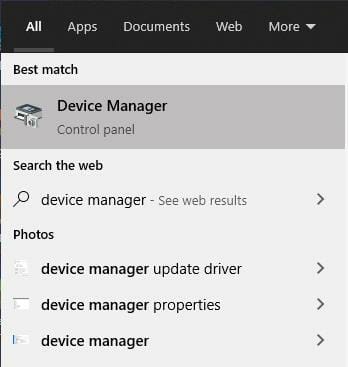
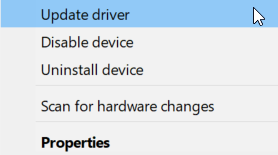
  3. Install the latest drivers
  4. Run the BSOD Troubleshooter
  5. Run the SFC scan
  6. Run DISM
  7. Check the hard drive
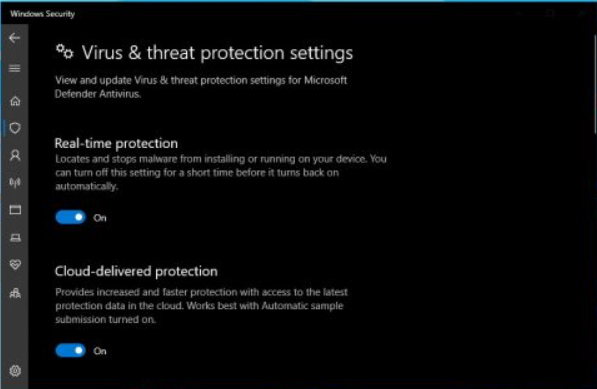
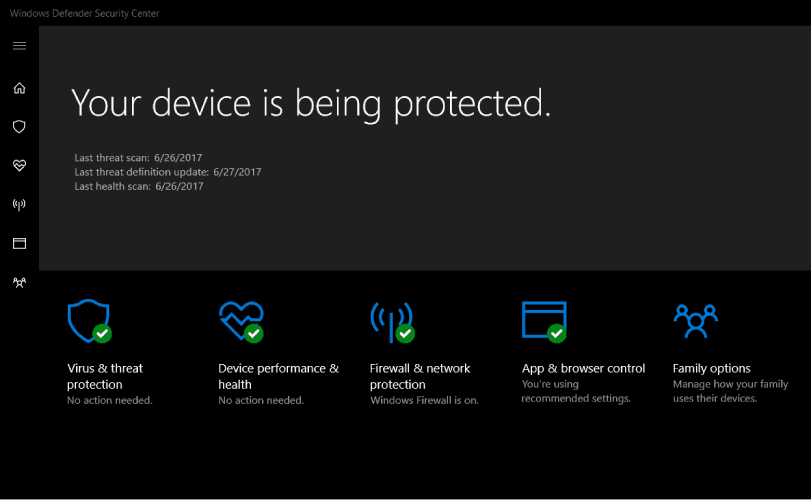
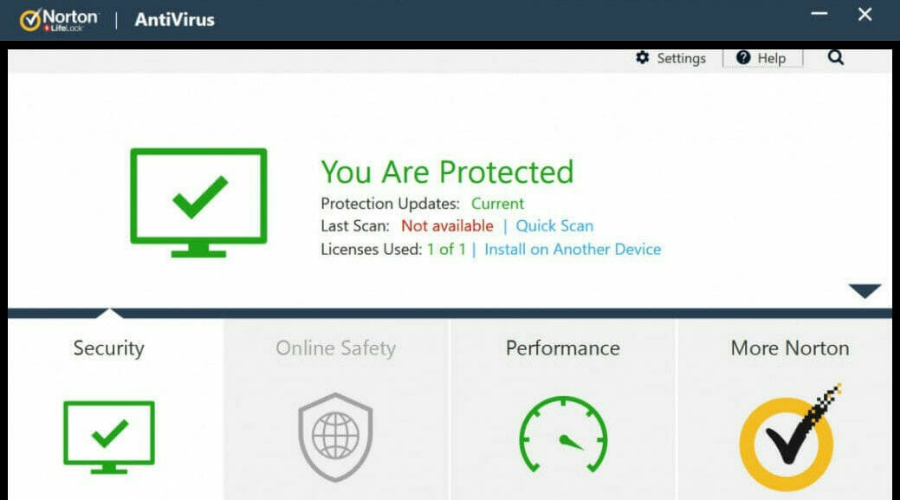
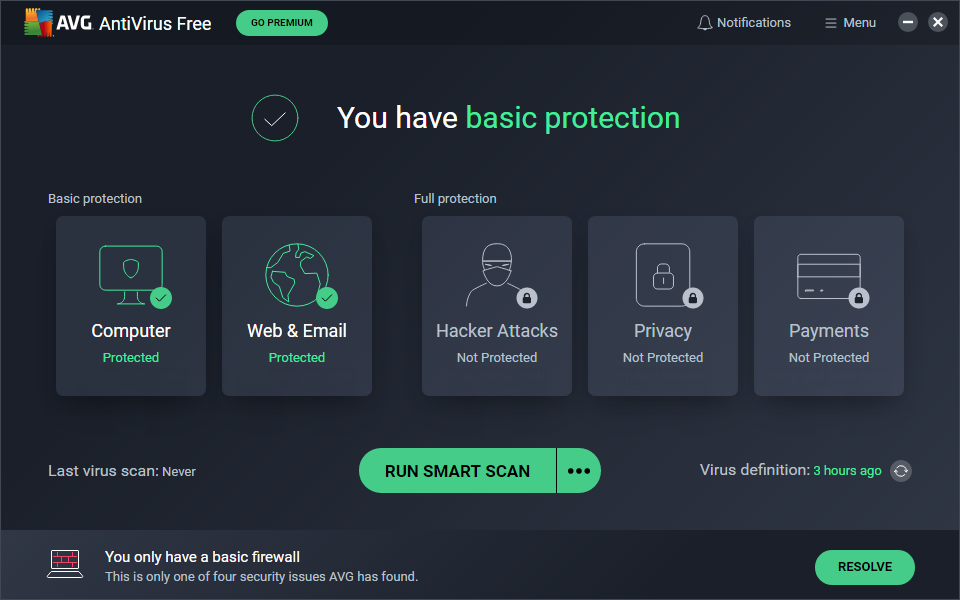
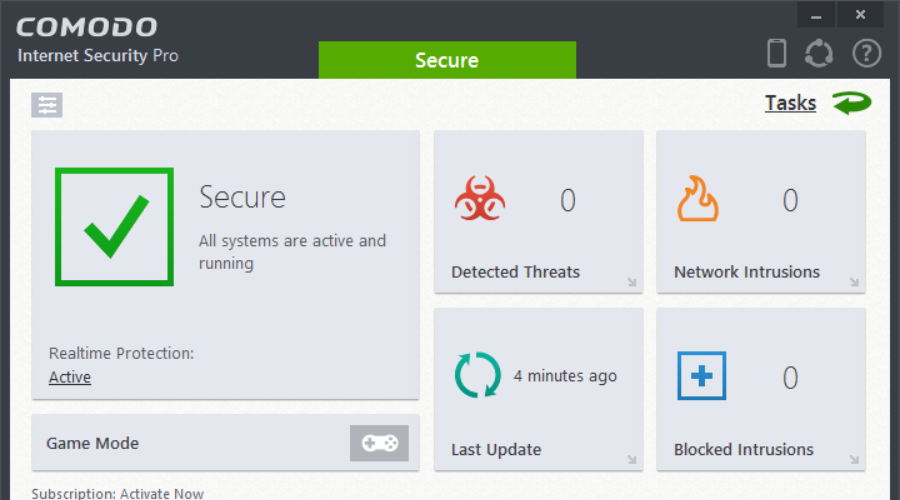
  8. Temporarily remove your antivirus program
  9. Update BIOS
  10. Reset Windows 10
  11. Check for faulty hardware

1. Use a third-party BSoD fixer

Since fixing a Blue Screen of Death manually is pretty hard to do on your own, especially when you don’t have a lot of background knowledge, you should look for something else to help you with the problem.

Downloading a third-party system restoration tool will be really helpful because the software will automatically scan your system for any possible data corruption and fix it on its own.

PC repair tools are able to accurately detect the underlying issue that causes the BSoD in the first place. They use their own system file database to replace or repair any damaged system files.

Moreover, you can use them as optimization tools for all sorts of PC issues. They can help you clean your PC, fix high CPU usage, repair virus damage, and more.

2. Download the latest Windows 10 updates

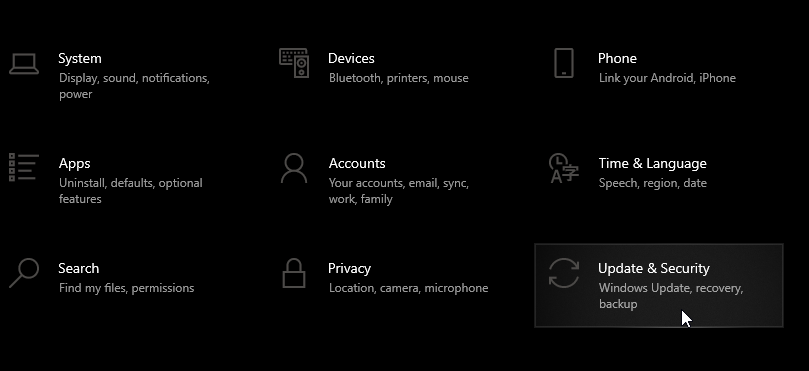
  1. Press Windows Key + S then type in Settings.
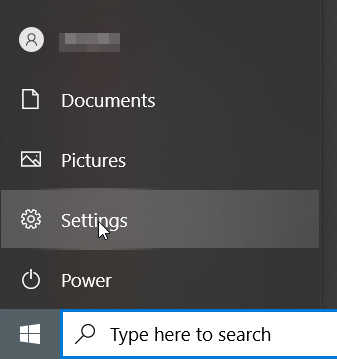
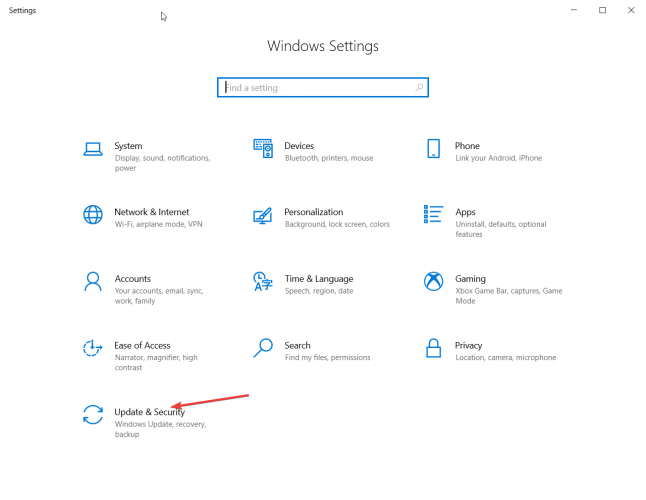
  2. Go to Update & Security.

  3. Select Windows Update, then Check for updates.
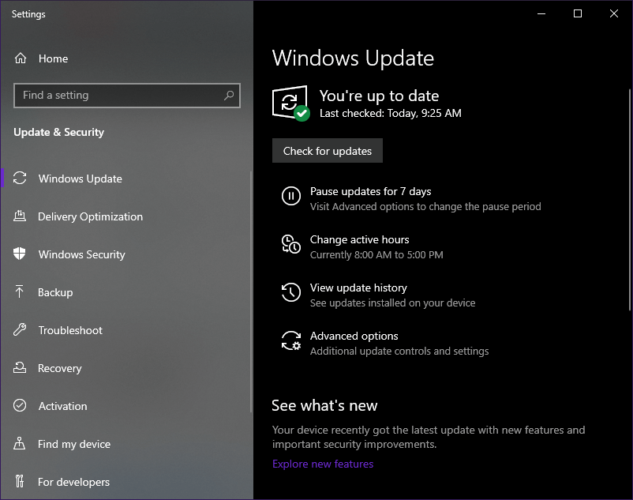
  4. Allow Windows scan for newer versions and install all of them.

Blue Screen of Death errors can be caused by both hardware and software issues, and if your operating system has problems with certain hardware or software, you can fix those problems by downloading the latest patches.

Microsoft is constantly working on Windows 10, and new patches are released frequently. Many of these patches bring improved security, new features, and various bug fixes related to both hardware and software.

If you’re experiencing any Blue Screen of Death errors on your Windows 10 PC, we strongly advise that you use Windows Update and download the latest patches.

3. Run the BSOD Troubleshooter 

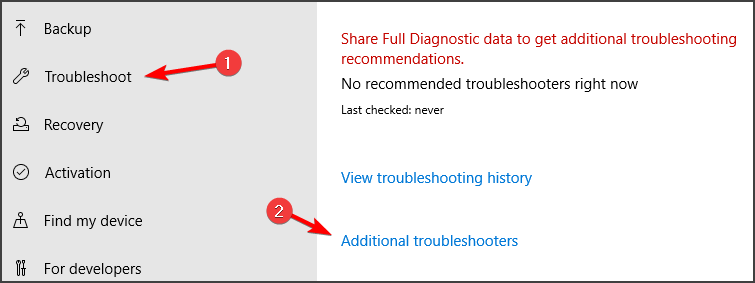
  1. Open the Settings app and go to Update & Security section.
  2. Select Troubleshoot from the menu on the left.
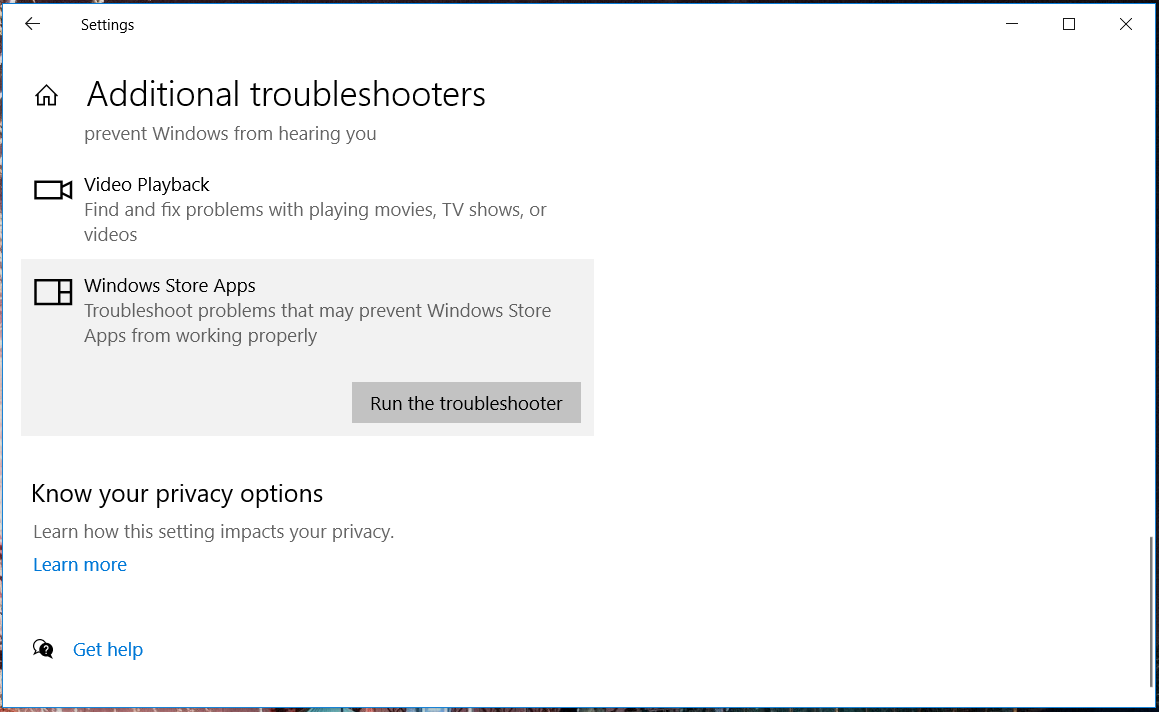
  3. Select BSOD from the right pane and click Run the troubleshooter.
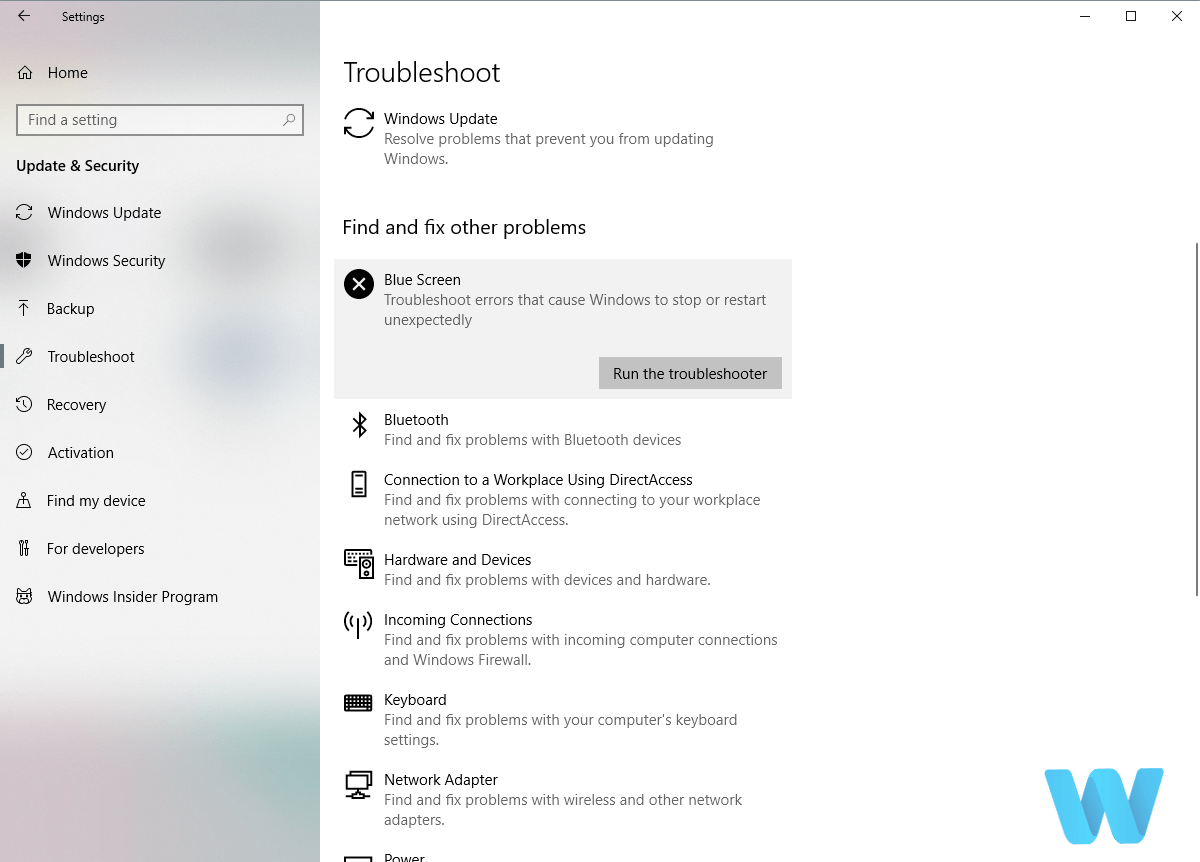
  4. Follow the instructions on the screen to complete the troubleshooter.

In case updating your drivers didn’t get the job done, let’s try Windows 10’s built-in troubleshooting tool.

This tool is designed to deal with various system issues, including the BSOD problems. So, it might be helpful when resolving the PAGE_NOT_ZERO error, as well.

4. Install the latest drivers

Blue Screen of Death errors, such as PAGE_NOT_ZERO, can be caused by outdated or buggy drivers. Drivers are especially important because they allow your operating system to work with your hardware.

If a certain driver is outdated or not compatible with Windows 10, you might experience a BSoD error. To fix BSoD errors, it’s important that your drivers are up to date.

You can update the necessary drivers simply by visiting your hardware manufacturer’s website and downloading the latest drivers for your device.

Bear in mind that you might have to update all drivers on your PC in order to fix this error.

4.1 Update drivers automatically

Searching for drivers on your own can be time-consuming. So, we advise you to use a tool that will do this for you automatically. Using an automatic driver updater will certainly save you from the hassle of searching.

The program will always keep your system up to date with the latest drivers, so you won’t have to worry about updating them or any compatibility issues.

⇒ Get Outbyte Driver Updater

5. Run the SFC scan

  1. Go to Search, type cmd, and open the Command Prompt (Admin).
  2. Enter the following line and press Enter: sfc/scannow
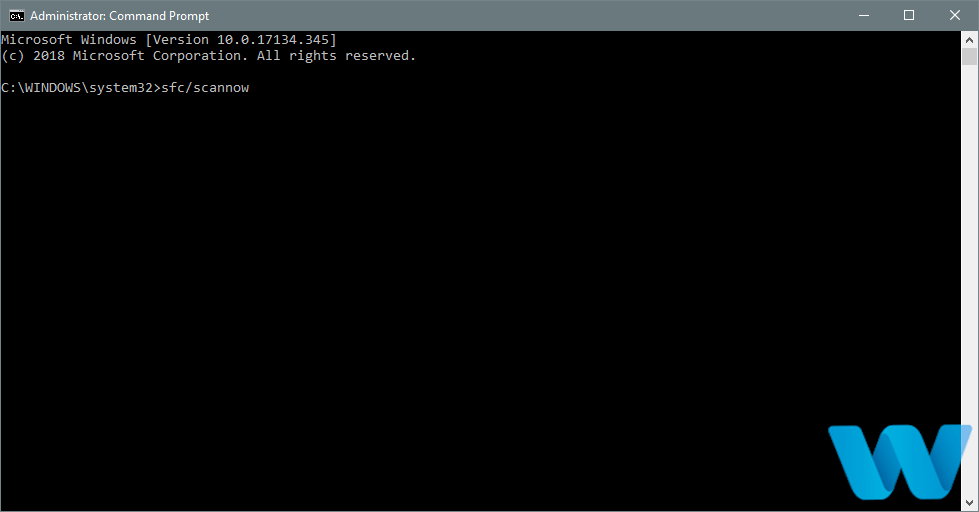
  3. Wait for the scan to complete (it will take a while)
  4. The tool will automatically resolve the problem, if possible.
  5. Now, close the Command Prompt and restart your computer.

Another troubleshooter that could be helpful here is the SFC scan. This is a command-line tool that scans your system for potential flaws, and resolves them, if possible. So, it could also resolve the PAGE_NOT_ZERO error.

6. Run DISM

  1. Right-click Start and open Command Prompt (Admin).
  2. Paste the following command and press Enter: DISM/Online/Cleanup-Image/RestoreHealth
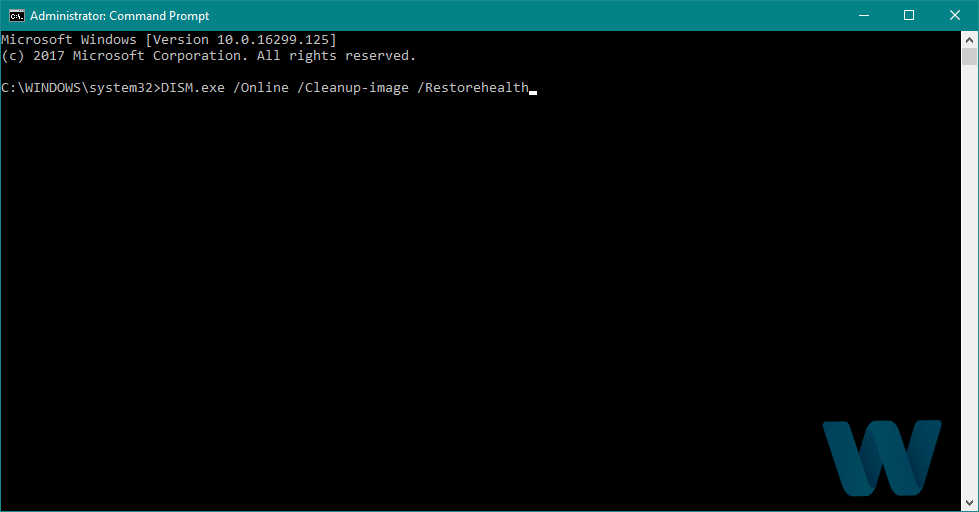
  3. Wait until the scan is finished.
  4. Restart your computer and try updating again.

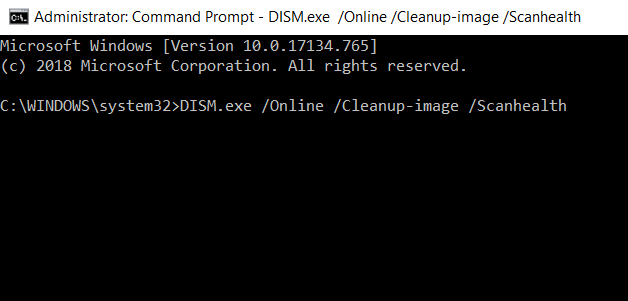
And the final troubleshooting tool we’re going to try is DISM. This is perhaps the most powerful troubleshooter, as it deploys the system image all over again.

We’ll walk you through both standard that utilizes the procedure above and the procedure that utilizes the installation media below:

With the Windows installation media

  1. Insert your Windows installation media.
  2. Right-click the Start menu and, from the menu, choose the Command Prompt (Admin).
  3. In the command line, type the following commands and press Enter after each: dism/online/cleanup-image/scanhealth dism/online/cleanup-image/restorehealth
  4. Now, type the following command and press Enter: DISM/Online/Cleanup-Image/RestoreHealth/source:WIM:X:SourcesInstall.wim:1/LimitAccess
  5. Make sure to change an X value with the letter of the mounted drive with Windows 10 installation.
  6. After the procedure is finished, restart your computer.

7. Check the hard drive

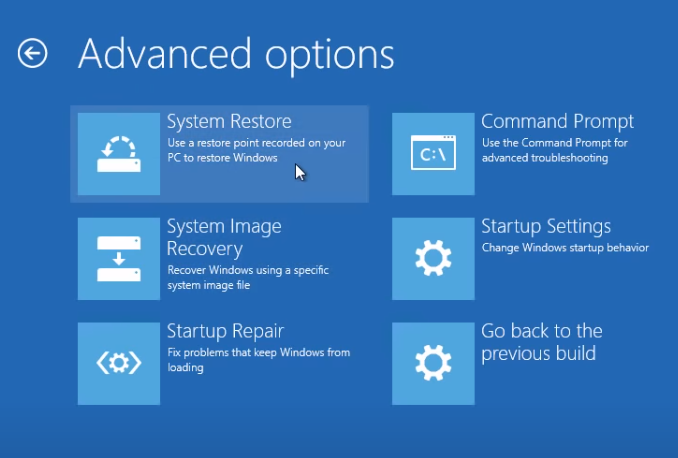
  1. Enter the Advanced Startup (Restart your computer while holding the Shift key).
  2. Choose Troubleshoot > Advanced Options.
  3. Select Command Prompt from the list of options.
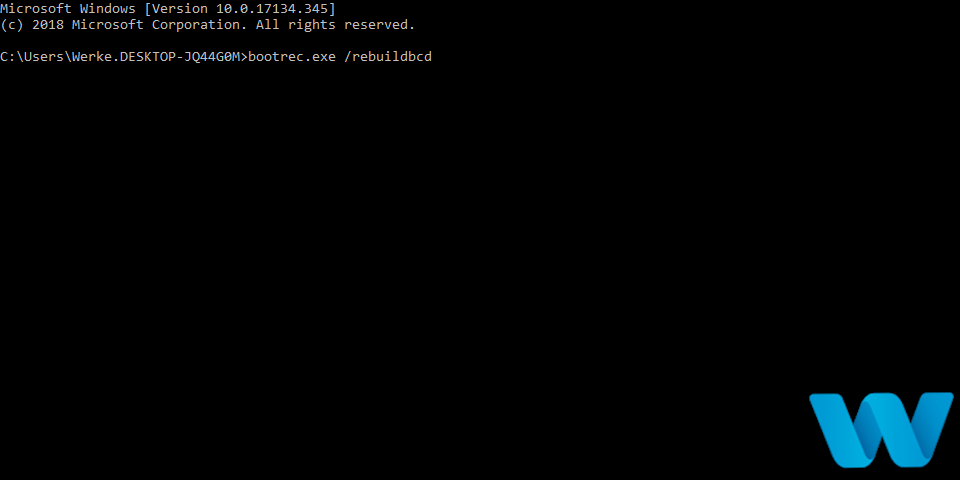
  4. When Command Prompt appears, enter the following lines and press Enter after each line in order to run it: bootrec.exe/rebuildbcd bootrec.exe /fixmbr bootrec.exe /fixboot
  5. Some users are also suggesting that you need to run additional chkdsk commands as well.
    • To perform these commands, you need to know drive letters for all your hard drive partitions.
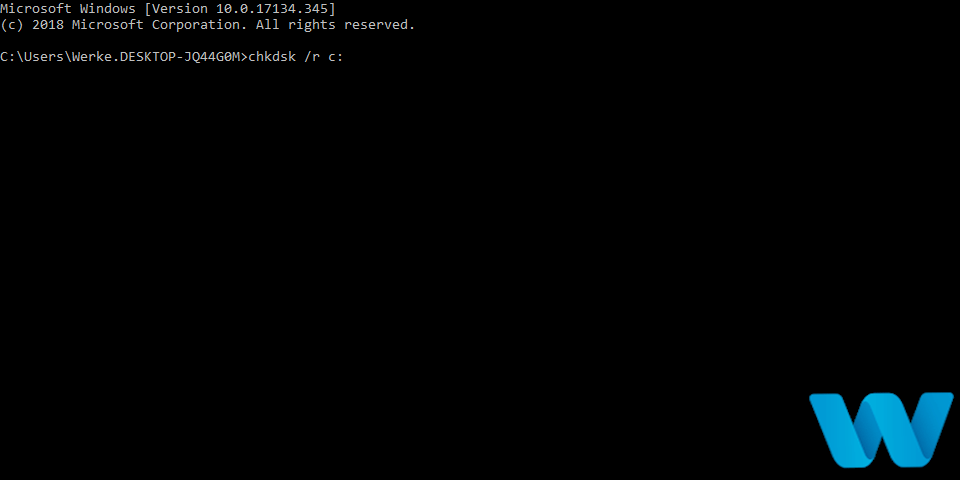
    • In Command Prompt you should enter the following (but remember to use the letters that match your hard drive partitions on your PC): chkdsk/r C: chkdsk/r D:
  6. Restart your computer and check if the issue is solved.

This is just our example, so keep in mind that you have to perform chkdsk command for every hard drive partition that you have.

If there’s a problem with your hard drive, BSOD issues are quite possible. To check if that’s the case, run the chkdsk command.

This command will scan all your partitions for potential problems. If the solution is available, this tool will also apply it.

8. Temporarily remove your antivirus program

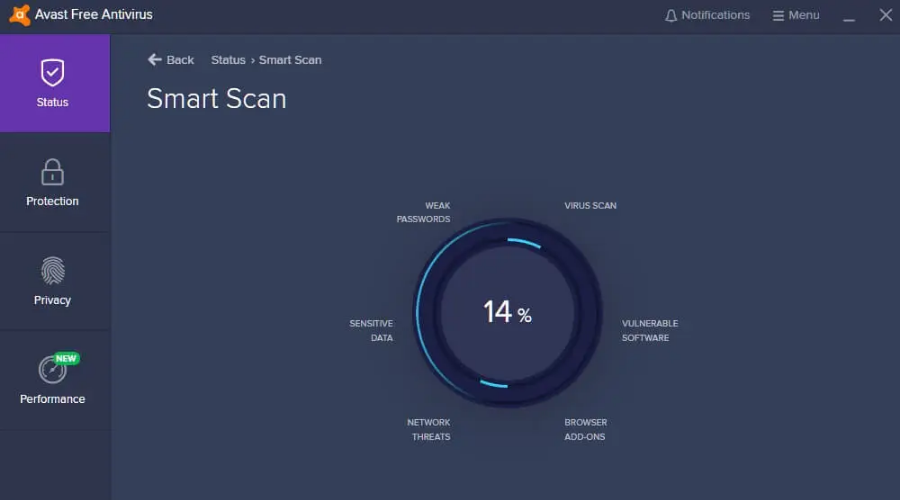
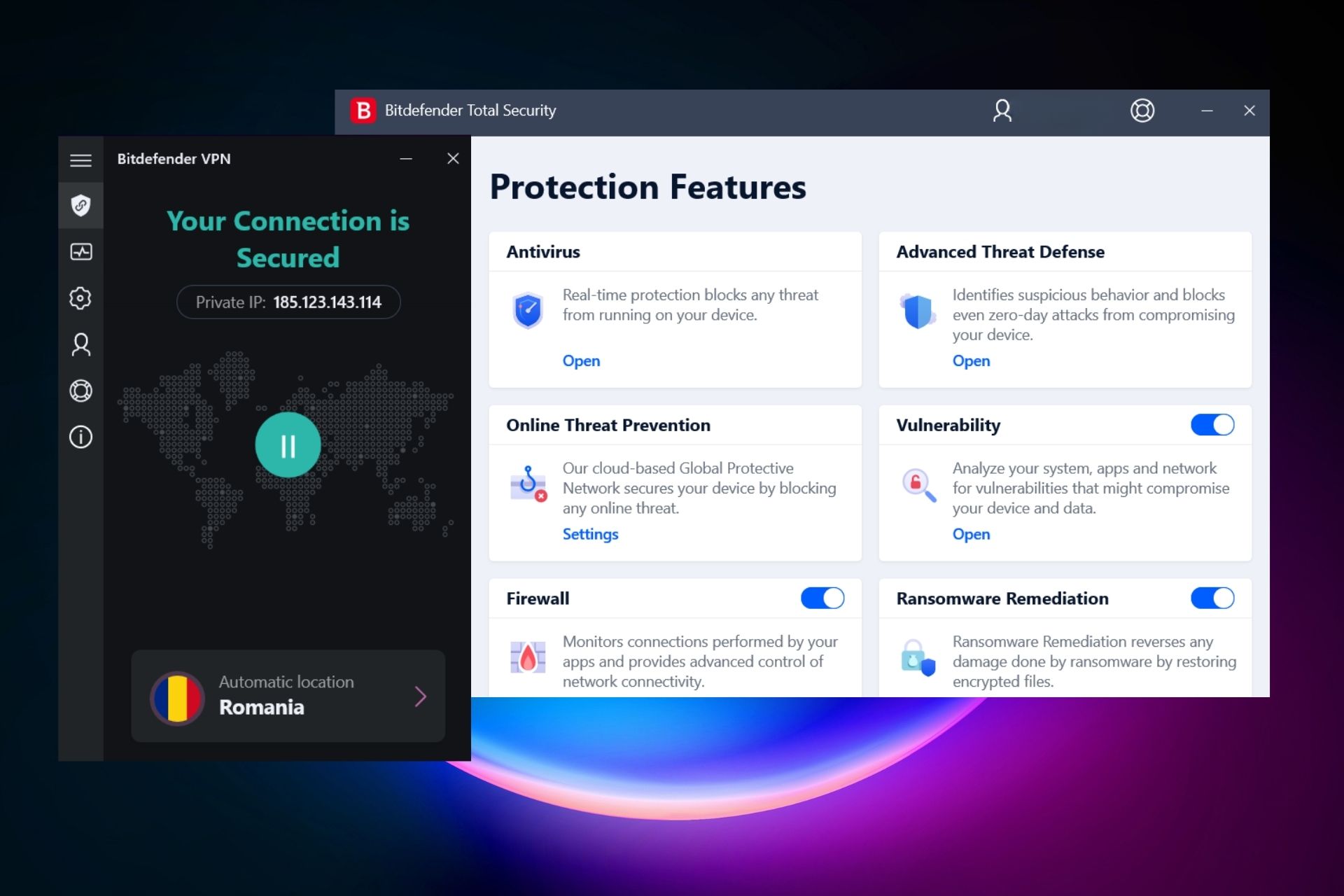
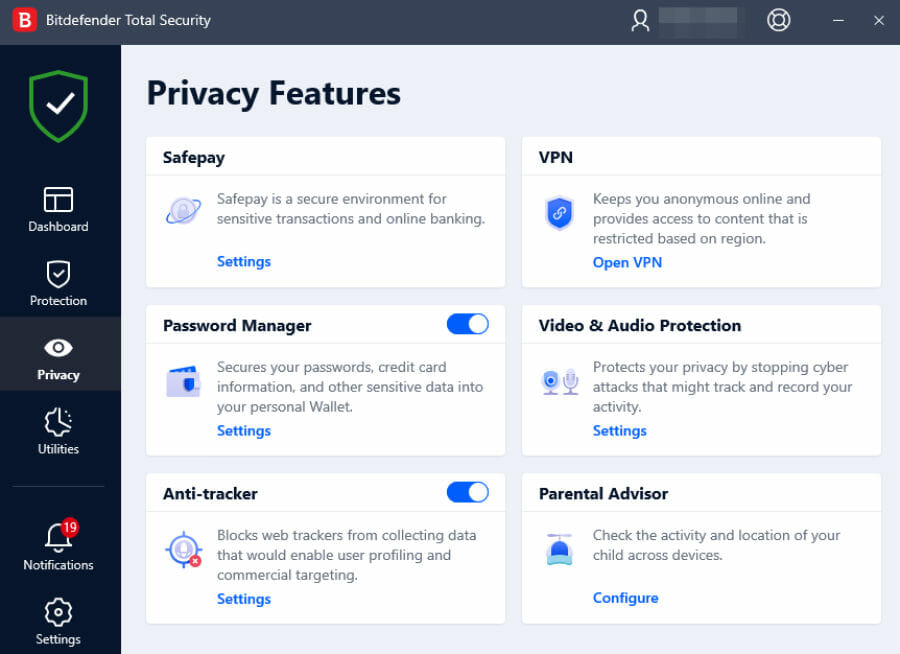
It’s not uncommon for Blue Screen of Death errors to be caused by third-party software such as your antivirus. According to users, Both Avast and Bitdefender can cause these types of errors to appear.

Therefore be sure to remove that software from your PC. Uninstalling the software might not be enough since antivirus programs are prone to leaving certain files and registry entries behind after you uninstall them.

To completely remove an antivirus program from your PC, we strongly suggest that you use a dedicated removal tool.

Almost all antivirus companies have a dedicated removal tool for their software available for download, so be sure that you download it and use it.

Even though users reported Avast and Bitdefender as the main causes for PAGE_NOT_ZERO Blue Screen of Death error, you should know that almost any antivirus program can cause this error to appear.

It’s advised to remove all third-party antivirus programs from your PC. If removing the antivirus fixes the error, you can now reinstall it, or you can switch to different antivirus software.

Make sure that all files related to your antivirus software are completely removed from your system before you try to install a new one.

In this case, your best bet is to use a dedicated uninstaller tool that will leave no trace of your old software.

We encourage you to check our detailed list of the best antivirus software on the market and choose one of the products that fit your needs.

9. Update BIOS

Few users reported that they fixed PAGE_NOT_ZERO Blue Screen of Death error by performing BIOS update. By updating BIOS you’ll unlock new features of your motherboard thus allowing it to work with new hardware.

Bear in mind that updating BIOS is a potentially dangerous procedure, so be extra careful if you don’t want to cause any damage to your motherboard.

To make sure that you update your BIOS properly, we strongly advise you to check your motherboard manual for instructions.

10. Reset Windows 10

  1. Restart your computer a few times during the boot sequence to start Automatic Repair.
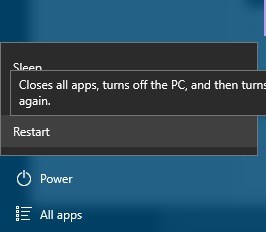
  2. Choose Troubleshoot > Reset this PC > Remove everything.
    • You might get asked to insert Windows 10 installation media, so be prepared to do so.
  3. Select Only the drive where Windows is installed > Just remove my files and click the Reset button.
  4. Follow the instructions to complete the reset.

If this error is caused by certain software, you can easily fix it by resetting Windows 10. This procedure is similar to clean install, so we advise you to back up all your important files before you start it. In addition, you might also need a bootable USB flash drive with Windows 10 on it, so be sure to create one. To reset Windows 10, do the following:

After you complete the reset don’t install any software. Instead, test your PC for a while and check if the error appears again. If the error appears again, it’s probably caused by your hardware.

11. Check for faulty hardware

If you’re having PAGE_NOT_ZERO Blue Screen of Death error, we strongly advise that you check your RAM first. Several users reported that faulty RAM can cause this error to appear.

We strongly advise you to test if your RAM is working properly. Sometimes you just have to place your RAM into a different slot in order to fix this error.

If your RAM is working properly, check other hardware components. Users reported that a faulty CPU caused this error, so be sure to check your processor first, and then move on to other components.

PAGE_NOT_ZERO Blue Screen of Death error is usually caused by software or faulty RAM, but you can easily fix it by using one of our solutions.

It would really help us if you left any feedback or suggestions regarding the subject in the comment section below, so don’t hesitate to do it.
How to easily resize images using PowerToys on Windows 10 to save time

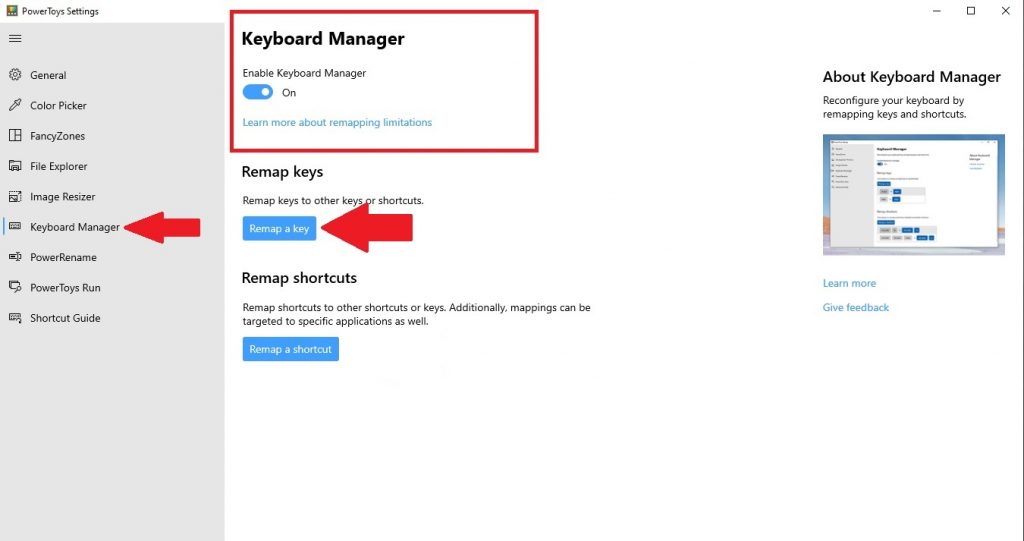
If you are already using PowerToys, you may already know of all of the helpful utilities available to make your life easier, including Keyboard Manager. Another bonus of PowerToys is the Image Resizer utility, which allows you to ability to resize images in bulk without the need to open an image editor.

Once the Image Resizer utility is set up, you can resize images directly from File Explorer or the desktop on Windows 10. In just a few short steps you will have Image Resizer set up and running. Here’s what you need to do.

You can also follow a step by step tutorial that shows more ways to resize pictures by reading this Photos app image resize guide.

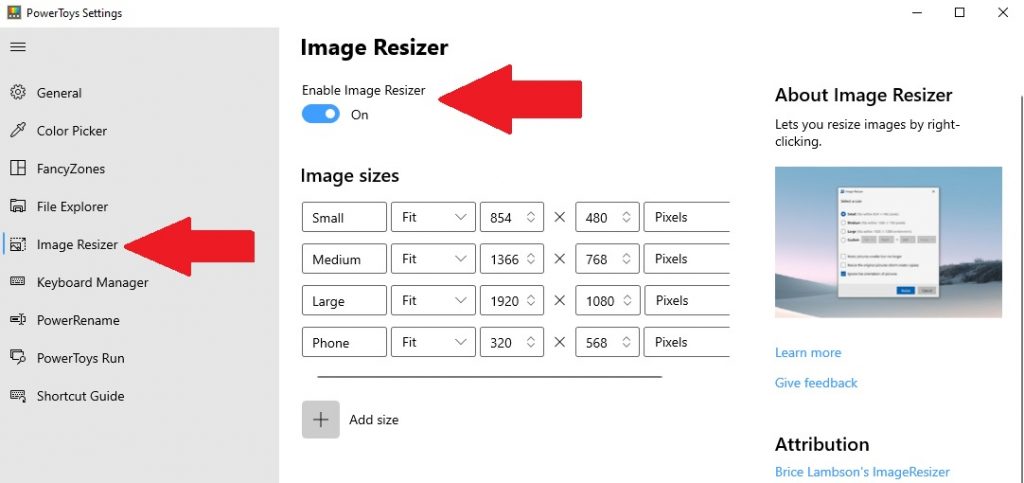
Install Power Toys and turn on Image Resizer

If you don’t already have it installed, you need to download and install PowerToys from GitHub. After the installation process is complete, launch PowerToys from your desktop or Start menu and toggle on “Enable Image Resizer.”
Imageresizeron
Close the PowerToys window and try resizing images in File Explorer or desktop on Windows 10 using right-click.

Resize images in File Explorer or desktop

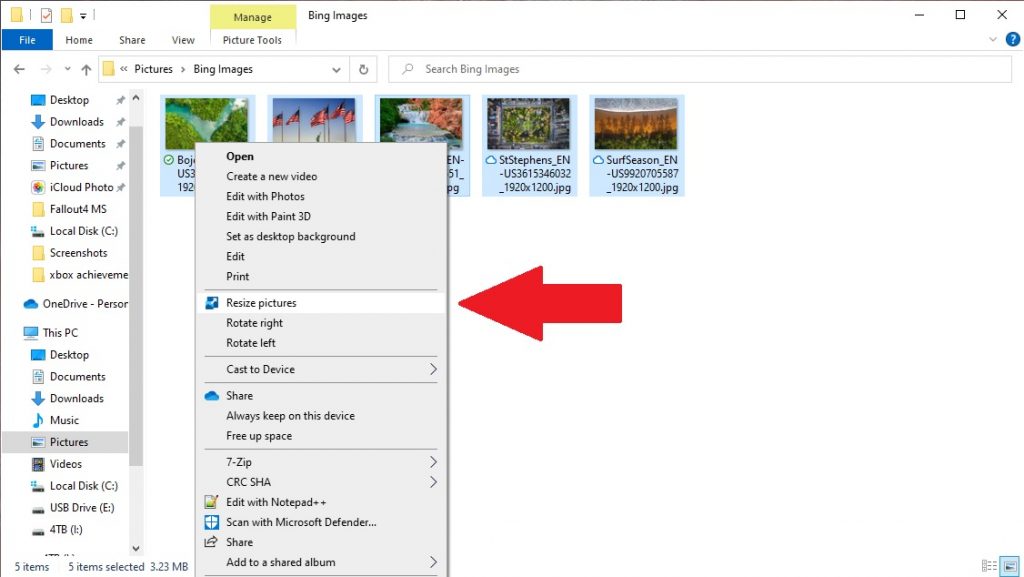
Once Image Resizer is enabled, locate the images you want to resize in File Explorer or on your desktop. Select the images individually or in bulk (as shown) with your mouse and right-click them. In the menu that pops up, select Resize pictures.Resizepicturesmenu
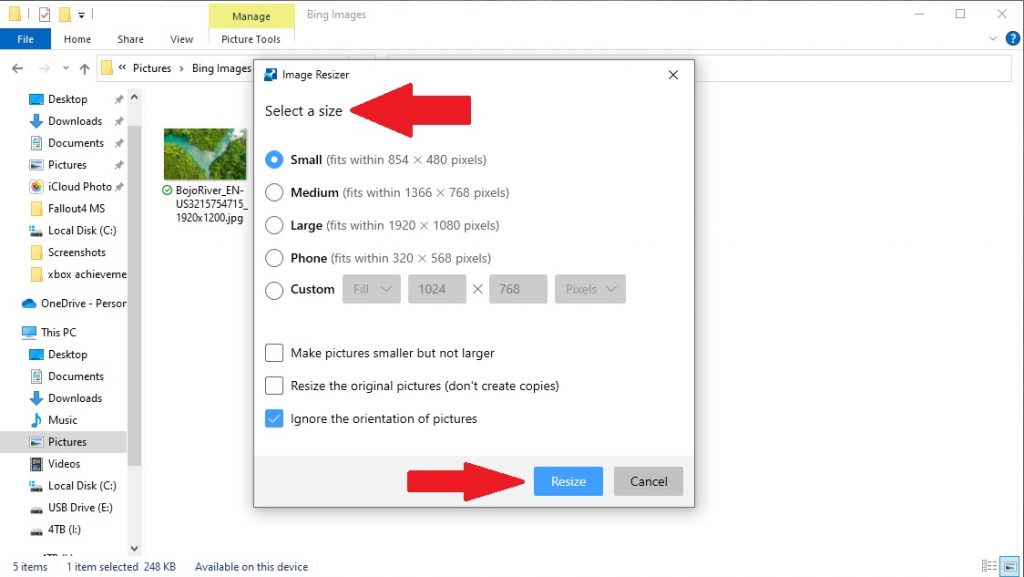
The Image Resizer menu will appear, requiring you to choose a size from the list (or enter a custom size), select the options you want and then click Resize to resize your pictures.
Selectasize
Once completed, your resized images will save in the same folder as the source images. Image Resizer will definitely save you a lot of time if you need to resize images in bulk.
Resizecompletion

Additional Image Resizer Settings in PowerToys

If you want to change the default small, medium, and large sizes, you can adjust the dimensions of the default sizes in the Image Resizer settings in PowerToys. Here’s what you need to do.

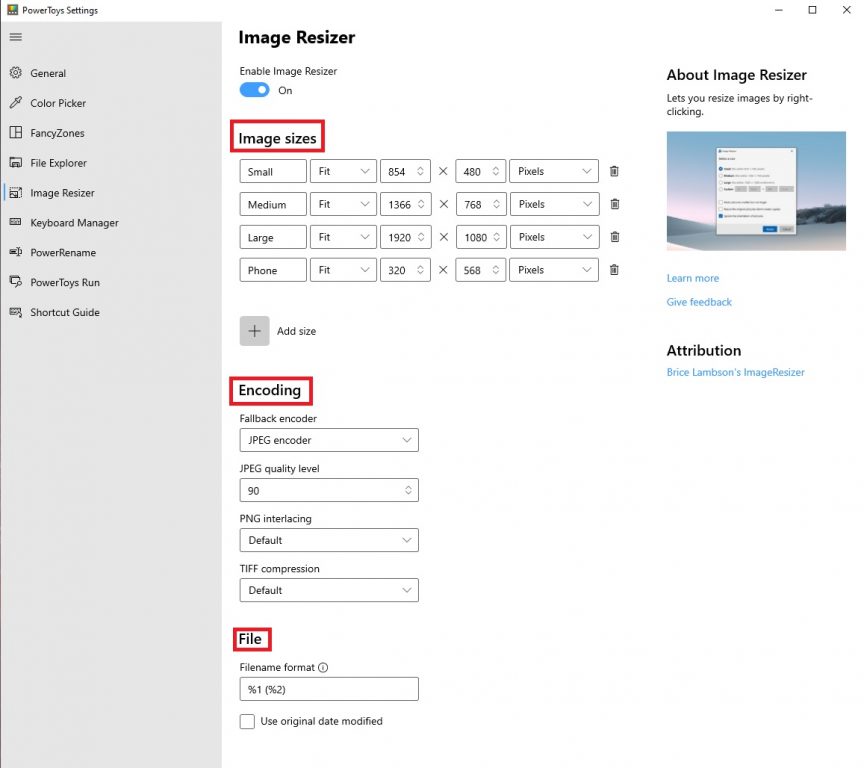
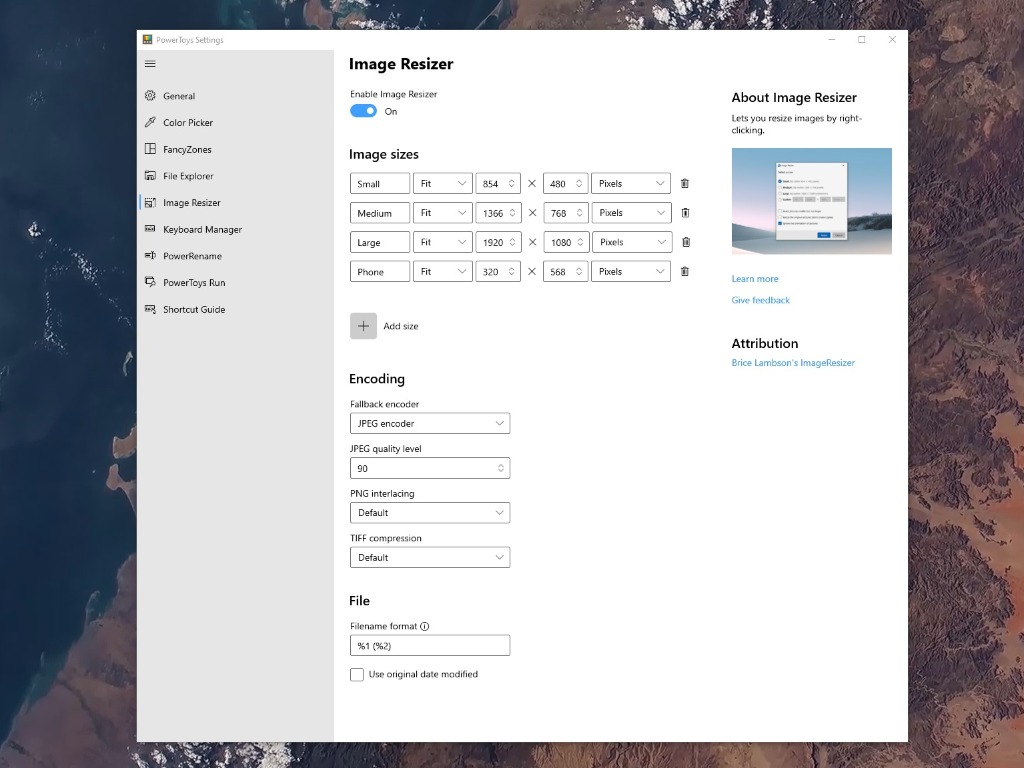
Open PowerToys and on the Image Resizer options page, there are three sections available; Images sizes, Encoding, and File.
PowerToys

Image sizes

In Image Resizer options, Image sizes defines the small, medium, large, and Phone (as seen on mobile devices) default sizes available. You can rename and change any of the sizes to your own preferences and add an infinite or finite number of custom sizes. Each image size can also be configured as Fill, Fit or Stretch. The dimensions that you use for resizing can also be changed as Centimeters, Inches, Percent and Pixels. Keep in mind, the width and height of the specified size may be swapped to match the portrait or landscape orientation of the resized image. In order to always use the width and height as specified, be sure to un-check Ignore the orientation of pictures.

PowerToys

Encoding

There is also an Encoding section to provide even more customization settings for your images. By default, Image Resizer will save the resized image in the source image file format. However, in the instances that Image Resizer is unable to resize the image in the source image format, Image Resizer will use the Fallback encoder option available here. You can also configure the JPEG percentage quality level, PNG interfacing, or TIFF compression.

PowerToys

File

The File section is allows you to indicate the resized images’ file name format. The default file format includes the original file name with the size you select. You also have several other options that you can add to the File section to change how your resized images are saved. Here are the file parameters available as provided by Microsoft.

%1: Original filename
%2: Size name (as configured in the PowerToys Image Resizer settings)
%3: Selected width
%4: Selected height
%5: Actual height
%6: Actual width

PowerToys

Bear in mind, you don’t need to use any of these additional Image Resizer Settings in PowerToys, but it is helpful to know what these settings do just in case you find a need to use them later.

What program do you use to resize your images in Windows 10? Let us know in the comments!

Movo UM700 Desktop Studio Microphone Review: Taking on Blue Yeti & great for podcasting or Microsoft Teams calls

For podcasting and video conferences on Microsoft Teams or Slack, it’s often great to use an external desktop microphone. Using one in favor of the built-in microphone from your PC, headset, or webcam helps boost your voice, and makes you sound a little bit more professional — and less like you’re sitting inside of a tin can.

That’s where the Movo UM700 USB Desktop Studio Microphone steps into the picture for me and OnPodcast, which is the OnMSFT.com podcast that I run with my coworker Kareem Anderson.

Movo, a company which is known for its audio, video, photography, and smartphone equipment, recently reached out via email and sent over one of their best-selling microphones for me to sample. Here’s a look at how I used the Movo UM700 Desktop Studio Microphone in my life and why it’s great for podcasting, and Microsoft Teams calls.

Premium design for a desktop studio microphone

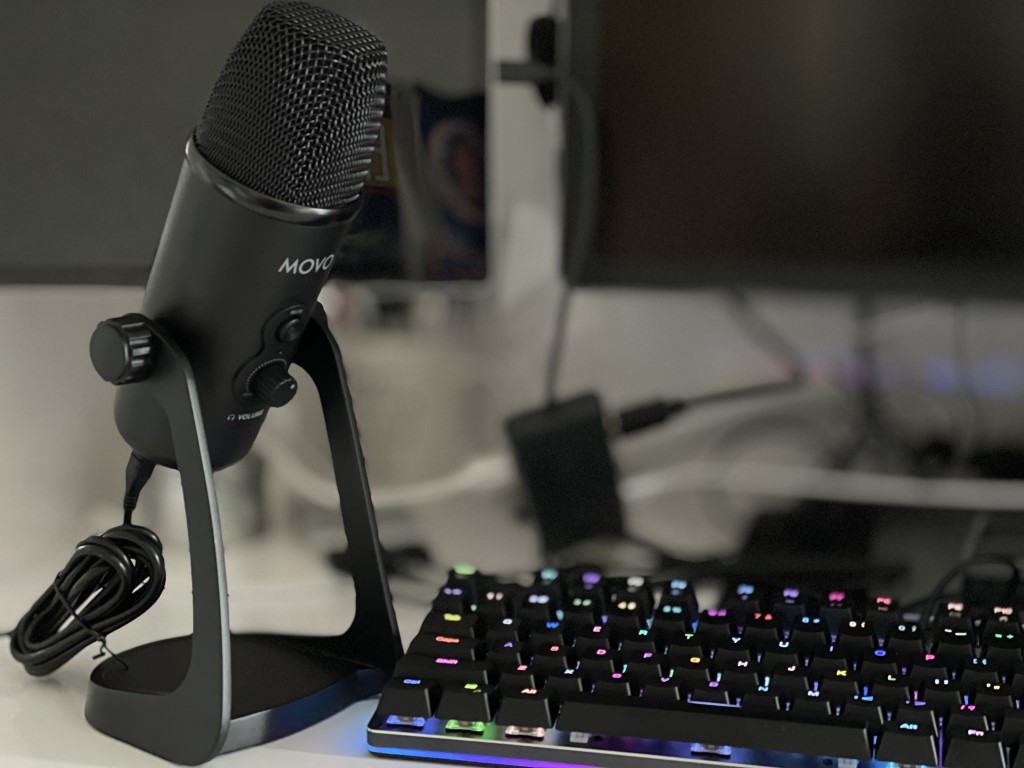
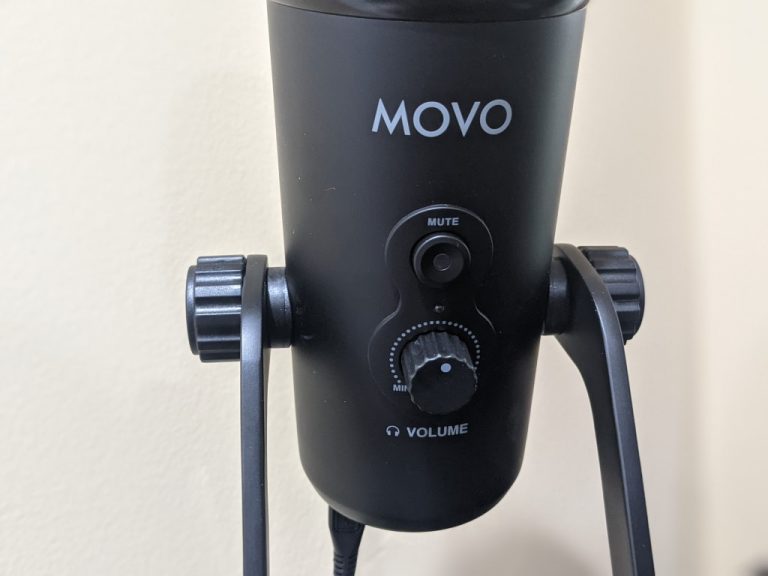
First off, I want to get into the design of the microphone. Naturally, the Movo UM700 desktop microphone looks a lot like a Blue Yeti. It features a solid metal base, and design, which is important for the $125 price point on Movo.com. The only bit of plastic on the mic comes on the swivel stand. This is on the sides where you can adjust the tightness of the screws on the mount. The mic is also cool to the touch and feels premium no matter where you touch it.

Yet despite being made of metal, the UM700 is quite compact. I was able to move it between my podcasting setup and my work from home desk without worrying about the weight. Movo says it weighs around 2.3 pounds, which is quite manageable.

Thanks to the included base (there’s a felt material on the bottom which grips your desk) you can point the microphone in any direction you want. However, it is best practice to keep the mic facing upwards to get the best audio quality. The base helps you adjust the mic to your own settings.

I felt that having the UM700 in the camera frame during OnPodcast made me feel quite professional. The design is quite simplistic, and it looks great in the camera frame. It isn’t bulky, it doesn’t require screws or mounts to set up, and it sits cozily on a desk to fit with any aesthetics.

Features that you want in a desktop studio microphone

In terms of features, the UM700 doesn’t disappoint. The most important one is the plug-and-play compatibility. You just need to plug your microphone into your PC or Mac to get started. The connection happens via Micro USB, with the cable being included in the box.

The cable is quite long, too, which means the mic can be far away from your PC if need be. I liked this because the USB port on my laptop is on the left side, and I keep the mic on the right. The extra cable length gives me room to play.

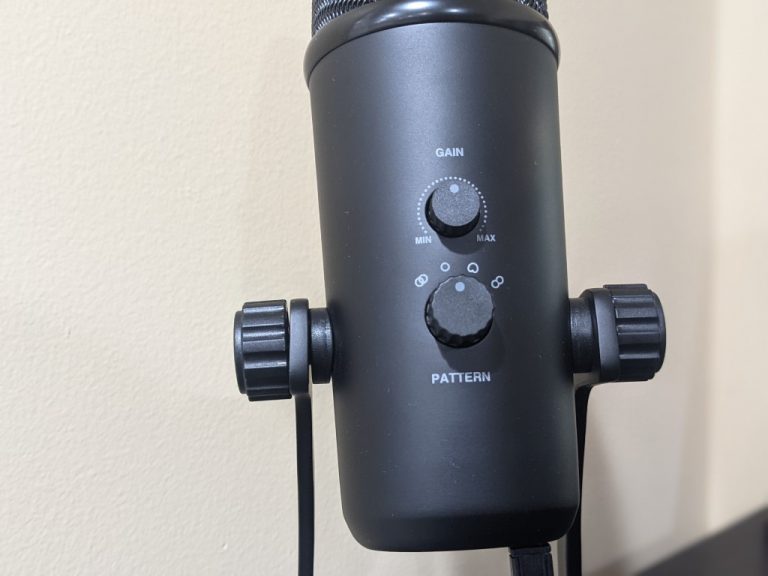
Other big features onboard the UM700 include its adjustable polar patterns, headphone jack, dial controls, and a mute switch. There’s even room for a 5/8″ thread for mounting, too.

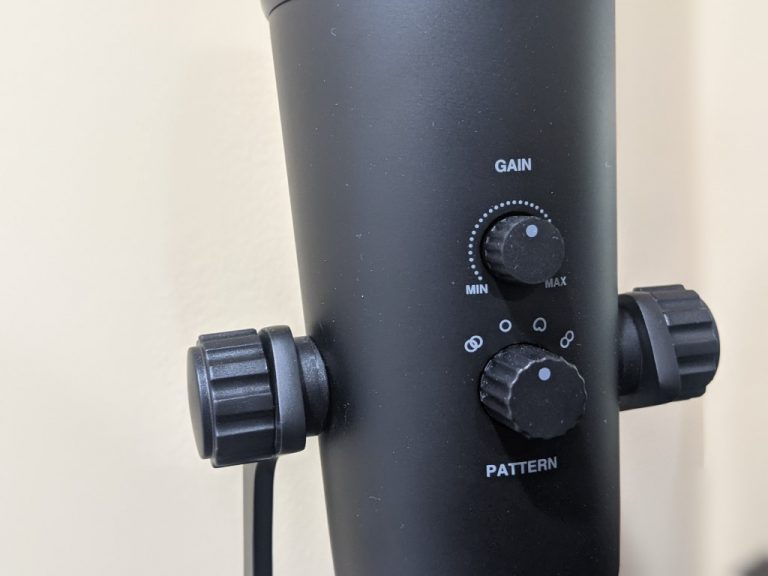
All of these are features you want on a premium microphone. But interestingly, the dials on the UM700 are bigger than what you’d find on a Blue Yeti. I liked this, as it makes it easier to grab onto the dial and change settings on the fly.

1

On the polar patterns, there are four to choose from. These patterns help adjust the microphone to different scenarios. It’s great to see these different patterns as it gives you more bang for your buck. You won’t be stuck to using the microphone for just one thing. It can be your do-it-all microphone should you decide to move on from podcasting to something else later on.

Anyway, the stereo pattern uses the left and right channels on the mic for a wider sound image, say for playing guitar, or acoustics. The Omnidirectional pattern picks up sound equally from all sides of the microphone, for natural voice and for conference calls. The Cardioid pattern is recommended for podcasting gaming, or Twitch, as it records sound directly in front, and rejects sounds from the sides and the rear of the microphone. And finally, there’s the Bi-directional pattern. This one records from the front and rear and is suggested for interviews.

As I used my UM700 for podcasting, I depended a lot on the Cardioid pattern. I’ll talk about that more in the next section, but this mode definitely helped elevate and clear up my voice. When I hopped on Skype or Teams calls, meanwhile, I switched over to the Omnidirectional pattern.

Movo-Desktop-Studio-Microphone Patterns

The final thing of note is the headphone jack, gain control, and mic gain switch. With these, you’re in total control of your sound and experiences. I plugged my headphones into the UM700, and I was able to control the volume coming out of Teams independently from my PC.

It’s great to be able to do this, as when you’re podcasting, you don’t want to awkwardly put your hands on your PC while on camera to get to a volume slider. I was able to make slight hand movements and adjust the gain and the volume quite subtly. The mute mic button is nice, too. I use this when Kareem is speaking on OnPodcast, to avoid the feed picking up noises in the room around me and give Kareem the spotlight.

I do have a note on the patterns. It’s best to pick a pattern and stick with it before you record. Switching pattern mid-recording doesn’t always switch over while you record, so be a bit careful here.

The audio quality is great

Design and features are one thing for a mic, but the audio quality is the most important. I’ll say that in my use, here is where the Movo UM700 really does exceed expectations. It captures 48kHz/16-bit broadcast quality sound and runs on the frequency response of 20Hz to 20kHz.

Now, I’m not an audiophile, and I’m not the technical type when it comes to audio. However, you can see a sample above in OnPodcast Episode 27 where I switched to the Movo UM700 microphone and judge for yourself by watching and listening.

Movo Desktop Microphone With Onpodcast

Previously, I was using a generic microphone, and you could tell so by going back to previous podcast episodes. That mic picked up the echo in the room, as well as ambient noises around me. The UM700 does a better job of canceling out those ambient noises, as well as echoes, too. It puts emphasis on my voice, and my voice only, largely thanks to the Cardioid pattern.

Other than the Cardioid pattern, I also used the Omnidirectional pattern. I set up the microphone to pair up with a Dell monitor that I am reviewing and gave my family a voice call using the UM700.

Set in the Omnidirectional mode, the mic picked up both my voice, as well as my father’s voice, who happened to be sitting quite a ways away. I already podcast through Teams, but for this reason, I can see the mic being useful for personal Teams calls, or Skype calls, too.

An all-around excellent desktop microphone

After using the Movo UM700 for two weeks, I think it’s a great microphone. The design is quite premium, and fits well with my podcasting needs. Granted, I am not an audiophile, I also think the audio quality shapes up well, too. The Movo UM700 is definitely a microphone to consider if you’re new to podcasting, or just looking to boost your set up at home.

Robinhood Not Available in Your Country? [Full Guide]

Robinhood is among the leading trading apps for stock, options, and exchange-traded funds (ETFs).

This app is appealing to investors as it offers commission-free investing with no account minimums.

Robinhood is also an intuitive app that’s straightforward to utilize, so this gives it even more of an edge when it comes to competing applications.

What countries is Robinhood available in?

Lots of investors might be interested in adding Robinhood to their Android or iOS mobiles. However, the app is restricted to a small number of countries.

Robinhood is not currently available in all but two countries. You can only register a Robinhood account and download the app in the USA and Britain.

There are also a few more requirements for users in those countries to set up a Robinhood account.

Users in the United States must be 18 years or over, be U.S. nationals, and have valid social security numbers. If you don’t meet those requirements, you can’t register a Robinhood account in the USA.

Alas, there aren’t really any tricks that will enable users outside Britain and the U.S. to utilize Robinhood.

To download the app, users can change their Apple App Store and Google Play account settings to the USA. However, users still won’t be able to register a Robinhood account to utilize the app.

Can I utilize Robinhood in Windows 10?

The app itself is not available for Windows 10. However, users can utilize Robinhood’s browser web app.

Alternatively, you can install an Android emulator to utilize the Robinhood mobile app within Windows.

Can I utilize Robinhood on vacation?

Some registered Robinhood users might wonder if they can still utilize the mobile app outside of their countries when on vacation.

Yes, you can still utilize your Robinhood account and app in the vast majority of countries when on holiday.

However, the U.S. Office of Foreign Assets Control restricts U.S. financial services in a few (currently five) sanctioned countries. So, you won’t be able to access your Robinhood account within a sanctioned country.

What can I use instead of Robinhood?

There are plenty of trading apps, but we stick with eToro, which is available in 140 countries all over the world. eToro brings an easy-to-use, intuitive interface, plus innovative trading features.

The tool includes 2000+ financial instruments such as stock, crypto suited for novices and experienced Forex and CFD traders alike, and ready-made copy portfolios and strong data protection policies. The platform is considered a safe, low-risk broker to trade Forex and CFDs.

Beginners, but not exclusively, will find the CopyTrader technology a gold gem since they can borrow the same trading techniques used by more successful traders to learn from.

eToro USA LLC does not offer CFDs, only real Crypto assets are available for US users.

eToro

Dive into the secrets of cryptocurrency trading with this app which is available in over 140 countries all over the world.
Free trial Visit Website

74% of retail investor accounts lose money when trading CFDs with this provider. You should consider whether you can afford to take the high risk of losing your money.

Disclaimer: This ad promotes virtual cryptocurrency investing within the EU (by eToro Europe Ltd. and eToro UK Ltd.) & USA (by eToro USA LLC); which is highly volatile, unregulated in most EU countries, with no EU protections & not supervised by the EU regulatory framework. Investments are subject to market risk, including the loss of principal.

That being said, some might be surprised Robinhood is restricted to two countries after about five years since its launch. However, financial markets in countries are closely regulated.

Robinhood Markets Inc. needs to gain the required permissions to expand its trading service to other nations.

So, for now, most of the world must wait for Robinhood to expand more. Australia and Canada are two countries that Robinhood Markets Inc. has hinted it might extend its trading app to in the future.

We hope that the information from this article managed to answer your questions. If you have any other curiosities, don’t hesitate to leave a comment.

How to remove Yahoo! Powered tool on Windows 10 [Quick Fix]

If you’re a casual consumer of third-party applications (especially free ones), you’ve probably seen various offers during the installation, with a variety of different applications.

When it comes to Yahoo! Powered program, things are not as transparent. This tool installs in the background and then completely overtakes your browsers.

And, seemingly, it’s rather hard to remove once it’s installed in your Windows 10 OS.

We decided to shed some light on this and provide you with the recommended solutions on how to uninstall Search Powered by Yahoo.

How can I remove Yahoo! Powered from Windows 10?

1. What’s Yahoo! Powered and what does it do?

Yahoo! Powered is the PUP (Potentially Unwanted Program) which tends to install in the background while you’re installing some other third-party application.

We already wrote about the adware search bars and browser hijackers and their tendency to hide in plain sight.

Say, if you choose the Standard installation (which most users do) instead of the Custom, chances are that the Yahoo PUP will install without you even knowing.

So, be careful with freeware applications – they can infect your PC with something you obviously don’t want. And you won’t be aware until it’s too late.

Once you accidentally get this tool on your PC, it’ll disrupt your browsing experience by changing the home address and default search engine on one or multiple browsers and plague you with ads.

However, in comparison to some other similar malicious tools, this application is quite resilient when it comes to uninstalling.

And due to its non-virus nature, there’s a chance that antivirus solutions won’t recognize it as a threat.

Some users reported that it, even after they remove it from the Control Panel, it was still present in their respective browsers. Luckily, there are a few ways to remove it for good.

2. Use a malware removal tool

  1. Download the antivirus using the link below.
  2. Run the tool and click Scan.
  3. Wait until the tool scans your system and then select what to do with the detected programs.
  4. Restart your PC.

One way to do so is to use a dedicated malware and adware remover like the one recommended below.

Not only does it function like a standard antivirus tool that removes all unwanted malware from your PC and prevents them from getting there in the first place, but it can also handle programs that are installed, but are PUPs.

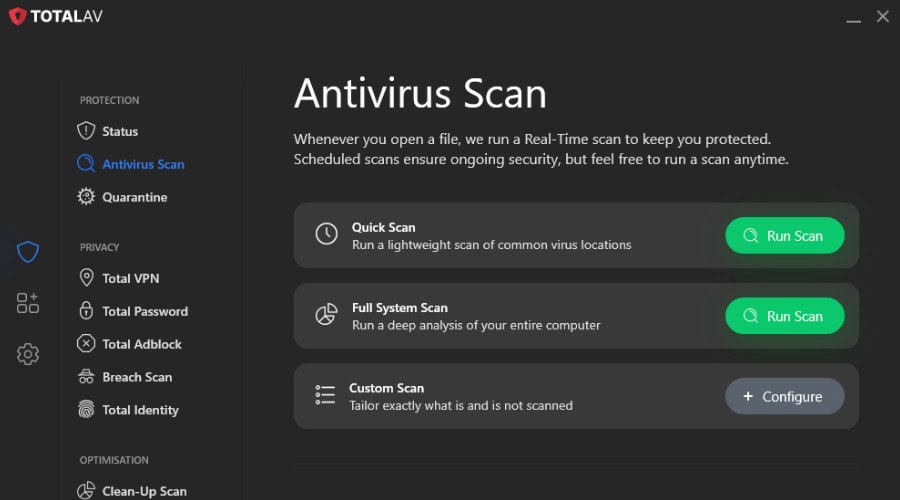
TotalAV

Any time you have a PUP in your PC that needs removing, TotalAV will get rid of it quickly.
Free Trial Visit Website

3. Uninstall the carrier program

Removing this application from your system requires a 3-stage procedure. Firstly, you’ll need to uninstall the carrying program from your PC.

One efficient way to remove programs and all associated sub-programs from your PC is by using a dedicated uninstaller.

We recommend picking one of the best uninstaller software on the market, that will wipe your PC clean of any program that you deem unnecessary.

They are generally very straightforward. Simply open the software, select the program that needs removal, and then select to delete all leftover files as well.

This will ensure that no PUPS will be left behind, that your storage has been freed up, and that you can perform a clean reinstall as if for the first time.

4. Remove the traces from the browsers

  1. Google Chrome
    1. Click on the 3-dot menu and open Settings.
    2. Expand the Advanced settings.
    3. Scroll to the bottom and click Reset settings.
    4. Click Reset.yahoo powered uninstall windows 10
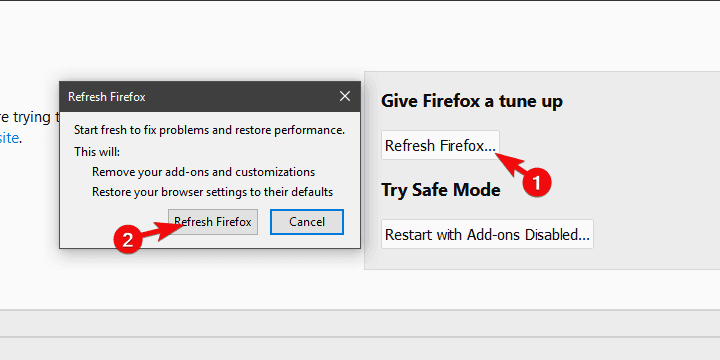
  2. Mozilla Firefox
    1. Open the hamburger menu and click Help.
    2. Choose Troubleshooting Information.
    3. Click on the Refresh Firefox button.
    4. Click Refresh.yahoo powered uninstall windows 10
  3. Microsoft Edge
    1. Open Edge.
    2. Press Ctrl + Shift + Delete.
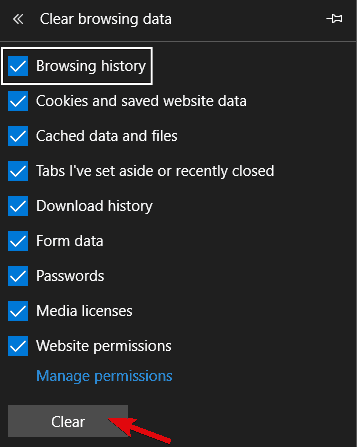
    3. Check all the boxes and click Clear.yahoo powered uninstall windows 10
    4. Restart Edge.

That’s it. After these steps, you will completely remove Search Powered by Yahoo from Windows 10.

If you still have problems with the Yahoo! Powered uninstall, check our list with the best PUP removal tools. For any other questions or suggestions, feel free to leave them in the comments section below.

Antivirus Blocking EXE File: How to Fix It

If your antivirus is blocking EXE files in Windows, it can prevent you from installing, running, or even accessing certain apps. This can happen with third-party antivirus tools or Windows Defender blocking EXE files by mistake. Here’s how to fix it.

How can I unblock the EXE files blocked by my antivirus?

  1. How to stop Avast from blocking a file
  2. Hou to stop ESET from blocking a file
  3. How to stop Avira from blocking a file
  4. How to stop Bitdefender from blocking a file
  5. How to stop Malwarebytes from blocking a file
  6. How to stop Windows Defender from blocking a file

1. How to stop Avast from blocking a file

  1. Disable real-time protection and install the program.
  2. Open Avast user interface from the notification area.
  3. Open Settings.
  4. Choose General.
  5. Open Exclusions.antivirus blocking exe files
  6. Click on the File Paths and then on Browse.
  7. Navigate to the folder where the EXE file is stored.
  8. Here you can choose to exclude the entirety of the folder or just an individual EXE file.
  9. Confirm changes and enable real-time protection.

Avast is a great antivirus software with one of the highest detection rates for malware or other computer viruses. However, sometimes it can block harmless files.

If you want to learn more about Avast antivirus, its requirements, and its benefits, don’t hesitate to visit our dedicated guide.

2. How to stop ESET from blocking a file

  1. Kill the real-time protection and install the program.
  2. Open ESET from the notification area and press F5 to open the Advanced Setup.
  3. Open Web Access Protection.
  4. Select Exclusions.
  5. Click on Add… in the right pane.
  6. Follow the path to the EXE file and exclude it. You can exclude the containing folder, as well.
  7. Confirm changes and turn on real-time protection again.

ESET is a modern security solution, suitable for all your devices, that is AI-powered in order to keep you protected from old and new threats. But, false positives can still appear.

If you are also using a VPN client and find that is blocked by ESET antivirus, we recommend you take a look at our step-by-step guide to fix the problem.

3. How to stop Avira from blocking a file

  1. Right-click on the Avira icon in the notification area and disable the real-time protection.
  2. Install the program.
  3. Now, expend the Avira from the notification area.
  4. Click on Extras.
  5. Select Configuration from the contextual menu.
  6. Open PC protection and then Scan.
  7. Select Exceptions and then Add.antivirus blocking exe files
  8. Exclude an individual file or the whole folder.
  9. Now, get back to PC protection and expand Real-time protection.
  10. Click Exceptions and then Add.
  11. Exclude the same file/folder as above.
  12. Confirm changes and enable Real-time protection.

Avira has won multiple awards over time, due to its high detection rate and very few false positives during testing. Use the above steps if an EXE is detected as malware.

Keep in mind that your antivirus can affect system files as well, and that can cause uihost.exe error and many other issues.

4. How to stop Bitdefender from blocking a file

  1. Disable the real-time protection and install the troubling program.
  2. Click on Protection.
  3. Choose View features.
  4. Select Settings.
  5. Open the Exclusions tab.antivirus blocking exe files
  6. Click on the List of files and folders excluded from scanning and then Add.
  7. Add the file or folder you want to exclude.
  8. Confirm the selection and re-establish Real-time protection.

Bitdefender is another well-known antivirus with high detection rates. It can protect your computer from almost any cyber threat.

If you want to know more details about this great antivirus software, don’t hesitate to check our dedicated guide.

5. How to stop Malwarebytes from blocking a file

  1. Open Malwarebytes.
  2. Select Settings.
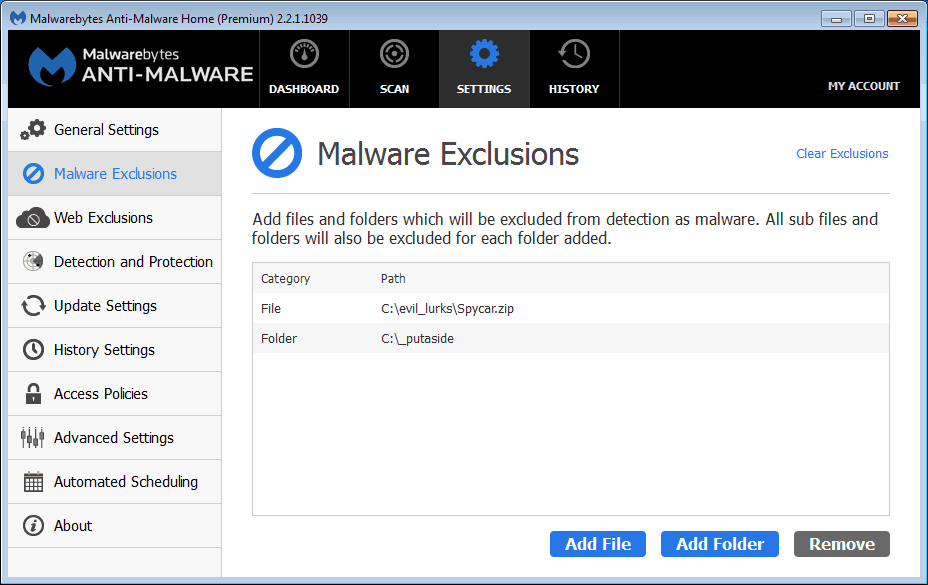
  3. Choose Malware Exclusions.antivirus blocking exe files
  4. Click Add file if you want to exclude the EXE file or Add folder if you want to exclude the whole folder.
  5. Follow the path and select the file/folder you want to make invincible for further scans.
  6. Confirm the selection and run the program.

Malwarebytes protects you against malware, ransomware, malicious websites, and other advanced online threats. But, if he detects your EXE files as malware, just follow the above steps. 

6. How to stop Windows Defender from blocking a file

  1. Open Windows Defender from the notification area.
  2. Select Virus & threat protection.
  3. Open Virus & threat protection settings.
  4. Scroll down and select Add or remove exclusions under the Exclusions section.antivirus blocking exe files
  5. Click on Add an exclusion and select file or folder you want to exclude.
  6. Confirm selection.

Windows Defender is a great built-in security tool that is integrated into your OS. However, this is basic protection and sometimes harmless files can be detected as viruses.

That should do it. Again, we must stress your computer is at risk if you decide to whitelist an EXE file that’s actually malware.

You can also try to use another antivirus with no false positives or almost none. If you don’t know exactly what to choose, spare your search time and head to our dedicated guide.

Steps from this guide can also be used if you ever encounter the Couldn’t download virus detected error, so don’t hesitate to try them.

So, do act with caution. Feel free to share your thoughts on the subject in the comments section below.

How to check for drivers by viewing optional updates

Drivers, or better said, problematic drivers are one of the top reasons for issues with updates and even BSoDs.

Microsoft changed the way how they validate drivers and with Windows 10 version 2004, they made it easier and safer to download and install new drivers.

All driver updates are now listed under the View optional updates option. That means that you don’t need to check for drivers in the Device Manager anymore.

According to a recent document issued by Microsoft, they will evaluate better the quality and reliability of a Windows 10 driver update by analyzing the data coming from cohorts.

The cohorts refer to a set of systems and devices that share the same targeting attributes including HWID, CHID, and OS version.

Another idea behind this move was that hardware manufacturers would able to block updates when you try to install incompatible drivers.

How can I check for drivers using View optional updates?

  1. Click on the Windows button and hit the Settings button (the cogwheel above the Power button).
  2. Next, click on Updates & Security.updates and security
  3. In the Windows Update window, click on the View optional updates option.View optional updates
  4. In the next window, you will see the Driver updates category but no updates.
  5. Click on Driver updates in order to expand with possible updates.Click on driver updates
  6. Check the boxes of the drivers you want to install and click on the Download and install button.

How can I find out which drivers I installed?

If you installed the drivers and have some issues with it, you can always go to the manufacturer’s website and download a previous version. But how do you know which one had a problem?

It’s simple, you just need to check the history of updates:

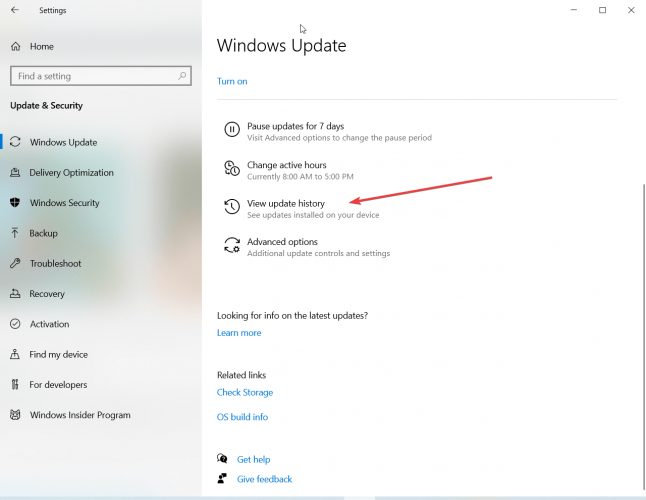
  1. In the Windows Update window, click on the View update history option.
  2. Click on the Driver updates option and you will see the list with all the previous drivers you installed complete with their versions.

Use a driver updater

Dedicated driver updater software pulls off several driver-related tasks with just a couple of clicks.

Once installed, if you run the tool it will scan your device and return a full list with all the installed drivers, their status and recommended actions.

This would be the easiest way to find out the latest drivers you installed, or if any driver is missing or needs updating, plus get recommendations of matching software.

⇒ Get Outbyte Driver Updater

So, do you like the new way of updating the drivers introduce by Microsoft? Tell us all about it in the comments section.

Fix: The brightness option is unavailable in Windows 10

For many Windows 10 and 8 users, the brightness option is no longer available in Windows 10, Windows 8, or Windows 8.1 and this is causing a lot of frustration among users. Read below how you could fix this.

If you are a new Windows 10, 8, or Windows 8.1 user, then everything probably seems totally different and new for you. But everything is just as simple as before, so don’t fret.

The brightness option, of course, is available in Windows 10, 8, or Windows 8.1 and is actually very simple to find.

To find the brightness option, just press windows logo+w to open the Search Charm and just type brightness and select the settings.

But if your problem is related to pressing a key on your keyboard or laptop, like the user below suggests on the Microsoft forums, then you need to try some other fixes.

for some time the brightness button after you press settings in the sidebar is unavailable before I installed windows 8.1, with the shortcut keys on the wireless keyboard accompanying my all-in-one Toshiba not working. the brightness work first when I originally got the computer but does not now. is it because of an update?

How do I enable the brightness option in Windows 10?

1. Change your power plan settings

  1. From the Start Screen, type Control Panel and select it.
  2. Set the View by: dropdown to Category.
  3. Select Hardware and Sound.
  4. Select Power Options.
  5. Select the Change plan settings link on your current power plan.
  6. Select Change advanced power settings.
  7. Expand Display.
  8. Expand Enable adaptive brightness.
  9. Change the setting to On and select OK.

If your Windows Defender is giving you warnings about setting the brightness to maximum, you can disable it by following this quick guide.

2. Update your display drivers

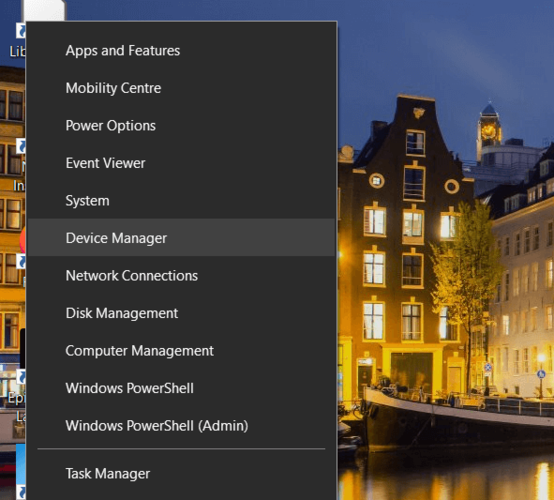
  1. Press the Win Key + S and type Device Manager.
  2. Open Device Manager.
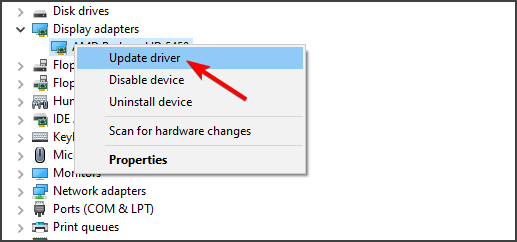
  3. Expand the Display adapter section and select your GPU.
  4. Right-click on your GPU and select Update driver.

Users should also try updating their display drivers to fix the brightness unavailable Windows 8.1 error. They can do that by using the Device Manager method which we explained in detail above.

If you are using an Nvidia or AMD GPU you might try to download the latest drivers from your manufacturer’s website, which could solve your problem.

2.1 Update drivers automatically

Updating your drivers manually requires you to check your hardware model and search for the latest compatible driver version available.

Such a process is tedious, requires a lot of time, and is not safe if you have no background knowledge. Thankfully, there are other ways to automatically download and update your drivers.

You can get the latest driver versions for your PC hardware components using automated support from specialized software such as Outbyte Driver Updater.

This resourceful tool will help you manage every aspect of your drivers, starting from installing missing drivers or fixing damaged ones that might lead to risky BSoD issues.

⇒ Get Outbyte Driver Updater

The main problem that a Windows user can have is upgrading to the latest version and not finding the brightness option.

For those of you who struggle with that, here’s the right fix for you. You will find all the possible solutions in order to fix this issue.

If you have a Windows 10 OS, you may have the brightness set to maximum. Many users reported this malfunction from different laptop models and PC configurations.

Thankfully, there’s always a fix and it’s all ready to be used by those of you who have the brightness to the maximum without being set by you.

Do you need an antivirus for Windows 10/11? [We Answer]

The term antivirus has become so ingrained in tech culture, that almost everyone is familiar with its meaning. Chances are you have a PC running Windows 10, and you’re wondering if you still need one.

After all, Windows 10 is the most advanced and secure desktop operating system to date. The short and simple answer is yes, and we’re going to explore five reasons why an antivirus is still a necessity.


Do you need antivirus for Windows 10?

1. Microsoft itself ships Windows 10 with a built-in antivirus

The most obvious reason why antivirus software is still a necessity for most users is Windows Defender.

Yes, even Microsoft – the company behind the Windows operating system that currently runs on over 1.5 billion PC – began integrating a basic antivirus solution with the release of Windows Vista in 2006.

Years later, things haven’t changed all that much, except for the explosion of security threats.

Today we have hundreds of millions of new PCs shipping every year with Windows Defender as an integral part of Windows 10, which comes pre-installed on many of these devices.

It provides a basic layer of security until you install your own choice of antivirus.

However, this isn’t ideal for everyone since the built-in security Windows security tool actually performs basic tasks when compared to other premium antiviruses.

For this reason, you should choose a professional antivirus that will keep your operating system virus-free.

Use a third-party antivirus

To be sure your computer’s operating system is free of errors, viruses and that your sensitive data will not be obtained by unauthorized sources, you must take a little bit further. Windows Defender cannot handle all of these issues alone,, which means you have to use a professional software.

If you need a fast and light software to keep your computer healthy, safe and optimized, then TotalAV is just what you need.

This performant antivirus is the perfect tool for gamers as well as average users wishing to have uninterrupted sessions of work or gaming at their computers. It is compatible with Windows, Mac, and Linux operating systems.

TotalAV has created TotalAV to run without requiring a lot from your computer resources. This means you can play, watch movies or work at your computer while this antivirus is active without experiencing any slowdowns.

Once TotalAV has been downloaded and installed, let it scan and he will do what he knows best: to clean your computer of viruses, worms, ransomware, spyware, and all types of malware.

TotalAV

TotalAV

TotalAV is your computer’s best ally as it will detect and remove any virus, malware, worms, ransomware and spyware.
Check priceVisit website

 2. An antivirus can be used for easy setup of security rules

If you’re running the latest version of Windows 10, you can use the new Windows Defender Security Center to do more than just scanning for viruses.

Additional features include Device performance & health, Firewall and network protection, App and browser control, and Family options.

The Windows Defender Security Center can provide you with additional tools, which is pretty good for a free tool, but still not enough when it comes to traditional, paid third-party solutions.

There are free versions available from third parties, but they’re just as limited, and some will even nag you with pop-up ads.

There’s a good reason why some antivirus vendors have changed the branding of their products to reflect how paid tiers of their products provide you with more than a simple virus scanner tool.

Some even offer mail spam protection, web browsing privacy protection, or use your mobile device as a strengthening tool for your PC’s security.


 3. Antiviruses have evolved to match new security threats

Most of you have probably heard or read news about classic types of malware, such as Trojans, worms, keyloggers, and backdoors. These would typically infect users through things like email attachments or downloads from suspicious websites.

After that, they would spread to all devices in a local network, causing even more damage. All of them are different methods used to take advantage of your sensitive information.

Microsoft has been improving the security of Windows with each new release, rendering many of the classic viruses obsolete. In turn, the bad guys have devised new ways to attack and take over control of your PC.

One notable example is ransomware, which steals your data and makes it technically impossible to access unless you pay the thieves in a way that makes it very unlikely to ever identify them.

In the meantime, antivirus software has evolved to deal with such threats. It can now provide special protection for your important folders, prevent malware from starting with Windows, and set up a trusted application whitelist.

Some antiviruses even prevent an attacker from modifying their settings or uninstalling by locking things under a user password.


4. Your web browser is not as secure as you think

Chances are you spend the most time using a web browser, and this is also one of the main targets for the bad guys. As much as Google, Microsoft, and others like to tout how safe their browser is, the reality is that all of them have flaws.

That leaves you vulnerable until you get an update, which can take some time depending on the complexity of fixing the flaw.

On top of these, the classic phishing attacks still work. Attackers can hide malicious code in ads, auto-playing video, or social media campaigns masquerading as legitimate competitions or giveaways.

Once you click on these, you’re infected. And since there’s no visual clue of what has happened, you may not even know it.

Some attacks involve redirects that take you from a legitimate service to an infected or masquerading web page.

As you’re trying to log in, you basically give away your credentials to the bad guys. Good antiviruses typically analyze the web page code and will warn you if it’s malicious.


5. The antivirus as an additional layer of security

But I’m careful what I do with my PC and on the web is what some users may say. But you can never be too careful about security, and good practices are not enough to keep your PC safe. Thinking proactively about security will lower the risk of data and financial theft, or identity fraud.

As medics say: prevention is better than the cure. Here are some of the situations where an antivirus can provide some precious additional security:

  • online shopping, banking, and trading;
  • using public Wi-Fi;
  • sharing links, files, or even your PC with others;
  • clicking on ads, giveaway links;
  • watching adult content;
  • when using social media or exploring the web;
  • when downloading files, media, and software from the web

Some of you may even think that antiviruses can catch malware only after the fact. In reality, the best security solutions today analyze the behavior of any app you run.

This increases the chances of discovering a security threat before it even has a chance to do any harm.


What about Windows 10 S? 

Microsoft says that Windows 10 S is more secure because it only runs sandboxed apps from the Microsoft Store. That’s true to some extent, but it’s not the whole story.

You’re only less likely to get spyware and adware from the Store – which is curated by Microsoft.

You’ll only be able to use Microsoft’s Edge browser in Windows 10 S, which is still vulnerable to attacks. Your important files still need protection from ransomware.

Even sandboxed apps from the Store are not the holy grail of security. On top of that, the default account on Windows 10 S is still is vulnerable to attacks.


The takeaway is this: an antivirus is still as important as being careful and keeping your software up to date. Also, there’s no need to spend a fortune on an antivirus.

Companies like Bullguard or Bitdefender offer more affordable tiers that fit your specific needs. What do you use as a security solution?

Feel free to share your experience with us via the comments section below.

[wl_navigator]

Twitter gains new Topics menu and support for Fleets on Windows 10 and web in latest update

Twitter released their latest set of release notes earlier today detailing all of the major and minor changes that have been made to the Twitter web app that powers the official Windows 10 Twitter app and, naturally, the web app that’s accessible via web browsers on PCs, tablets, and Xbox One and Xbox Series X consoles.

The two biggest changes made include the addition of a new Topics menu option for users to follow, unfollow, and manage topics from and the first sign of support for Fleets, Twitter’s Instagram Story-like feature.

While the Windows/web version of Twitter doesn’t have full support for Fleets just yet, such as a full menu along the top of the screen that displays new Fleets to view, users are now able to watch Fleets in full from within a Message (DM) once someone replies or reacts to one they’ve made.

For example, if you make a Fleet on the iOS or Android Twitter app and someone responds to it, you’ll be able to read their response and watch the Fleet in question via the Messages tab.

Here’s the full list of changes made to Twitter over the past month or so.

New

  • Fleets: We’ve enabled DM Fleet previews and the Fleet viewer screen for all.
  • Nudges: When Retweeting a Tweet that contains a link to an article, you’ll now be shown a nudge prompting you to think about reading the article before you share.
  • Topics: There’s a new page for browsing and picking Topics. You can find it by going to the Topics screen via the More menu, and clicking “More Topics”. You can also navigate there directly via twitter.com/i/topics/picker.
  • Topics: We’re experimenting with showing Topics to follow in the sidebar on widescreen views to give you more examples of Topics you may be interested in.

Updated

  • Accessibility: Voiceover will now read out labels for government and state-affiliated media when focusing a Tweet that includes these labels.
  • Accessibility: Improved focus navigation and voiceover when navigating into a Tweet within a conversation.
  • Accessibility: Corrected accessibility markup on Buttons that act as links to other pages, or reposition you on the current page.
  • Account: Improved readability of error messages on the account login page.
  • DM: Improved dynamic display for larger numbers of avatars in the DM conversation information section for group conversations.
  • Emoji: Updated emoji to Twemoji 13.0.2. Visual coverage of the changes can be found at Emojipedia, and more specific information can be found at GitHub.
  • Lists: Added screen name to the add/remove from Lists menu action for additional context.
  • Notifications: Increased the number of avatars that are shown for condensed notifications on the notification screen.
  • Nudges: Improved the look and feel of article nudges shown at various screen sizes when Retweeting a Tweet with a link to an article.

Fixed

  • Bookmarks: The floating compose button will now show properly on the Bookmarks screen on mobile clients.
  • Composer: The cursor will now start at the beginning when auto populating the composer with a hashtag from an Event or other source.
  • Composer: Opening scheduled or drafted Tweets from the inline composer will no longer display an empty composer modal.
  • DM Drawer: The popover menus that are displayed for DM messages will no longer scroll with the body of the page when using the DM Drawer.
  • DMs: Fixed an issue where the DM muted accounts timeline would show as empty after navigating away and back.
  • DMs: When sending media through DMs, the composer will no longer incorrectly clear, and will become disabled until the media has actually sent.
  • Events: Fixed issues with cropping on Event header images.
  • Lists: The Lists menu item will no longer disappear at smaller screen heights.
  • Lists: Corrected an issue where clicking on Followers on the List screen was showing an error screen.
  • Lists: Fixed an issue where rapid presses of the next button when creating a List would create duplicates.
  • Profile: We will no longer show the location icon if the location is empty.
  • Scrollbars: Updated a number of places where scrollbars were being shown when they shouldn’t have been.
  • Topics: Fixed an issue where clicking on Topics in the carousel was not requesting new items as needed.
  • Topics: Unfollowing a Topic from within the home timeline will now correctly show a confirmation prompt.
  • Tweets: You will no longer be able to trigger the modal for blocking via keyboard shortcut on your own Tweets.
  • Tweets: We will now show the properly localized timezone on the Schedule Tweet page.

Do you use Twitter? Make sure to follow our Twitter account for all of the latest Microsoft, Windows, and Xbox news.

Twitter
Twitter
Developer:
Twitter Inc.
Price:
Free

Best Free Antivirus Tools for Windows XP: Top 5 Options

Looking for the best antivirus software for Windows XP SP2? Even though XP is old, many still use it, and since Microsoft stopped support, having a reliable antivirus is a must.

We picked the top free options that protect your PC without slowing it down. Let’s find the right one for you.

Best antivirus software to use on Windows XP SP2

Malwarebytes – Best antimalware protection

macrium reflect clone failed error 9 bad file decriptor

Another great antivirus for Windows XP SP2 is Malwarebytes. Keep in mind that newer versions of Malwarebytes aren’t supported by Windows XP, however, the company is still releasing security updates for older versions.

Regarding the software, it will remove all types of malware and viruses with ease, and thanks to real-time protection, it will stop any infection before it causes any damage.

Malwarebytes is light on your resources, so you won’t even notice that it’s running, which makes it perfect for older computers.

It comes with advanced shields that will keep all vulnerable software and system safe from any type of exploits.

Malwarebytes also creates the first line of defense in real-time by blocking malicious website before you can access them, keeping you protected in advance.

Malwarebytes

Protect yourself from attacks that threaten your personal information, files and financial well-being.
Check Price Visit Website

AVG Internet Security – Best antispyware and webcam protection

windows vista antivirus

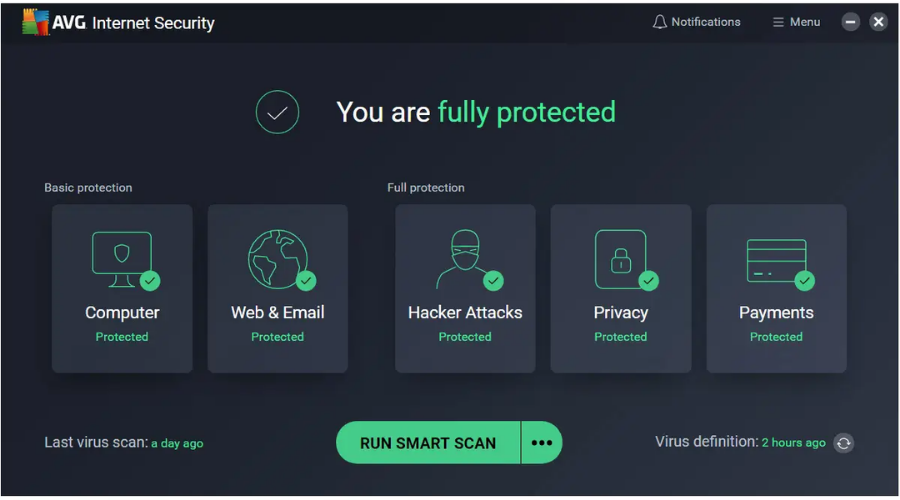
AVG is a trusted solution that combines artificial intelligence with crowdsourced data from millions of users to stay ahead of hackers.

The tool tells you about unsafe web pages and links, blocks dangerous attachments and possible malware, and updates its definitions in real-time to keep your PC safe.

Also, note that AVG is very quiet and runs in the background without slowing down your Windows XP computer.

AVG continues to protect Windows XP customers by releasing updated virus definitions and software updates for AVG Internet Security.

Windows XP users continue to benefit from up-to-date protection against viruses, malware, and other threats, but they should be aware that the risks of using an unsupported operating system increase over time.

AVG Internet Security

Windows XP is no longer supported, so you need to consider enjoying third-party protection.
Check Price Visit Website

Avast Free Antivirus – Powerful ransomware shield

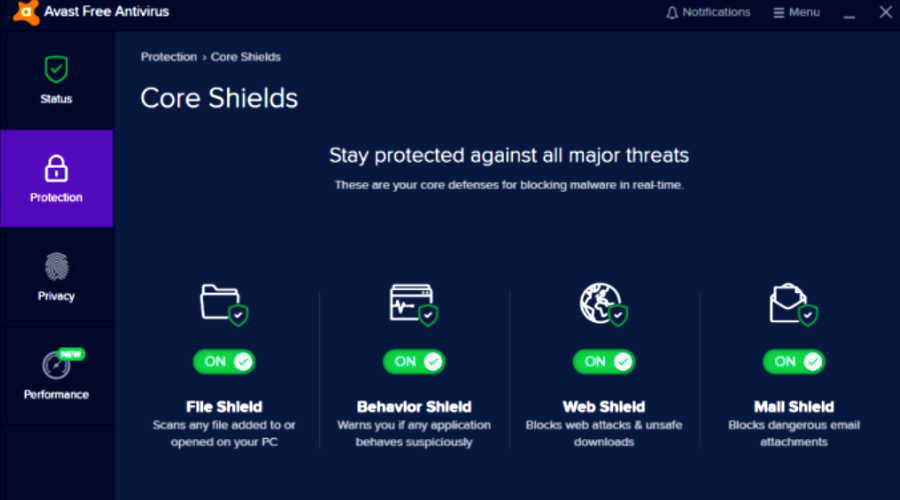
Avast Free Antivirus’s exclusive virus protection fully protects your Windows XP computer and has little impact on your PC’s performance.

Antivirus provides comprehensive protection with advanced features that detect and block malware as soon as it tries to enter your computer.

Avast Free Antivirus has a very clean and user-friendly interface. Even if you’ve never used this tool before, you’ll quickly get used to it.

All-around security tools help you block advanced cyber threats and dangerous ransomware attacks that can seriously damage your PC.

You can also stay away from malicious websites and protect your personal information on various websites from phishing attacks.

The company offers several antivirus solutions for Windows XP, including a free version.

Avast Free Antivirus

Protecting Windows XP is not easy anymore, so a competent and trusted antivirus is all you need.
Free Download Visit Website

Webroot Internet Security – Best for online browsing

Webroot Antivirus

Just like Malwarebytes, Webroot also has a legacy version that is still compatible with Windows XP SP2. The software is incredibly fast, and up to 60 times faster than other antivirus software, according to the developers.

The software is lightweight, and it doesn’t store antivirus definitions on your PC, instead, it will store them in the cloud, so they won’t take any of your storage space.

The software offers real-time protection against all types of malware, but it will block phishing websites, malicious websites, and all types of ransomware with ease.

Webroot Internet Security Plus provides cloud-based online threat protection for all your devices, protecting you no matter how you connect or where you are.

It scans faster, uses less system resources, and protects you in real time by identifying and blocking new threats as soon as they emerge.

Webroot Internet Security

All the protection you need for safely browsing the web.
Check price Visit Website

360 Total Security – Most compatible with most features

This security software is designed to work on all versions of Windows, and according to the developers, Windows XP is still supported. In terms of security, this antivirus will protect you from all types of malware and ransomware.

360 Total Security uses 360 Cloud Scan Engine, 360 QVMII AI Engine, QEX, and Kunpeng engine to protect you from all types of malware.

360 Total Security also has privacy protection in terms of webcam protection and keylogger blocking, as well as online shopping protection that will keep your online transactions secure.

With multiple engine protection, you are sure that no threat will touch any of your sensitive and private data.

You are safe all around, from internet and privacy protection to WiFi checkups and additional security to even tune-up tools to speed up your computer.

⇒ Get 360 Total Security

Although Windows XP SP2 isn’t officially supported by Microsoft, there are still a handful of antivirus applications that work with it.

Are you still using Windows XP? Let us know in the comments section what is your antivirus software of choice.

Wrapping up

While Windows XP SP2 is no longer supported by Microsoft, protecting your PC remains crucial. The antivirus tools listed here offer reliable security without slowing down your system, making them ideal for older machines.

For a complete setup, consider pairing your antivirus with the best browser for Windows XP, essential Windows XP software, and a reliable VPN client to enhance your privacy.

Don’t forget to keep your PC running smoothly with trusted optimization tools and additional antimalware software for layered protection. Stay safe and share your favorite antivirus in the comments below!

Bitdefender Box 2: Secured Wi-Fi connectivity

Bitdefender recently launched a Bitdefender BOX version, upgrading the previous release.

This new cybersecurity hub for the smart home brings more power, more storage as well as a bevy of new features and options.

Bitdefender BOX 2 adds support for dual gigabit Ethernet, enhances Wi-Fi power, and uses advanced machine learning algorithms combined with intrusion and prevention systems to quickly detect threats and nip attacks in the bud.

This Wi-Fi security solution combines hardware, cloud, and software to protect all IoT devices, including those that have absolutely no built-in security features.

Bitdefender BOX 2 – secure all your IoT devices

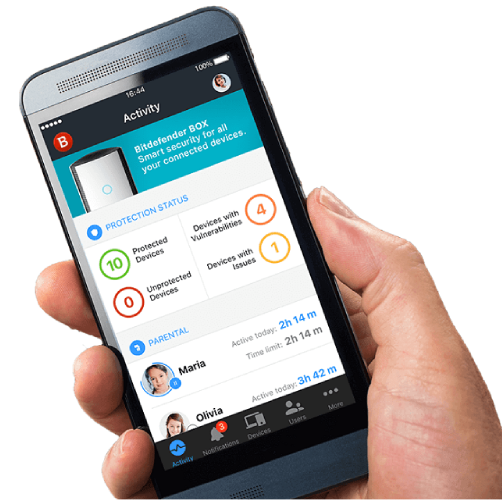
This tool monitors and secures all the devices connected to your Wi-Fi network. There is no need to use multiple Wi-Fi protection tools on each and every device – Bitdefender BOX 2 has got your back.

Moreover, Bitdefender confirmed that BOX 2 protects your mobile devices even when you are away from home.

Smart devices and intelligent gadgets are becoming more and more popular, and hackers are aware of that. IoT security is a very hot topic, as many reports already confirmed that smart devices are extremely vulnerable to threats.

Therefore, purchasing the Bitdefender BOX 2 is a must if you want to stay one step ahead of cyber attackers. In our opinion, along with the Cujo, it is one of the best IoT home firewall devices to have.

Bitdefender BOX 2 key features include:

  • Management for all the devices in your Home Network from a single mobile app.
  • Parental controls to monitor your kids’ online activities and manage screen time.
  • Fully compatible with your Home Network
  • Maximum Internet Speed – rest assured, this tool won’t affect your Internet speed in any way.
  • Includes a 1-year subscription to Bitdefender Total Security. For more information, this antivirus solution, check out our review.

⇒ Get Bitdefender BOX 2 now

Installing Bitdefender BOX 2 is very easy. Bitdefender already prepared a step-by-step tutorial for you. Check it out below:

Destiny 2 VPN ban: What is it and how to avoid it

Destiny 2 is an awesome free-to-play online game enjoyed by millions of players in the whole world.

If you’ve played any online game before, you probably know already about lagging, packet loss, and geo-restrictions and how using a VPN can help you overcome them.

On the other hand, a worrying amount of users talk about how using a VPN can get you banned from Destiny 2.

In our guide we’ll help you learn more about this topic and how to avoid getting banned in Destiny 2.

Does using a VPN get you banned in Destiny 2?

Long story short, using a VPN doesn’t and shouldn’t get you banned if you’re using it to play Destiny 2.

Bungie’s Terms of Service forbid you from using any third-party tool that may help you get the upper edge in a game.

These tools include, but are not limited to trainers, mods, autofire, aimbots, and anything else that modifies the game to give you an unfair advantage.

Therefore, if you’re not doing anything shady with your VPN, there’s no reason for you to receive a Destiny 2 ban.

However, it’s worth mentioning that a lot of players complain about VPN users in-game.

Apparently, during PVP, where latency is best kept at a minimum, VPN players can inadvertently make other players lag.

This, in turn, could give them an advantage as well as an opportunity to increase their frags at the expense of other players’ loss.

A VPN could increase the latency of other players, but not without also making the game unplayable for the VPN user itself.

We suppose it could be possible to connect to a far-away VPN server that has huge ping to troll other Destiny 2 players.

However, that’s a far stretch and it’s not likely that you’ll get banned from simply using a VPN to play Destiny 2.

Can I use a VPN with Destiny 2?

Yes, Bungie doesn’t forbid Destiny 2 players from using VPNs to enjoy the game.

In fact, there are regions or networks where Destiny 2 may be restricted, so using a VPN would be the only way for some to enjoy it.

Additionally, using a VPN on throttled networks has been proven to improve in-game ping and curb packet loss.

However, there are a few things you should take into consideration if you plan on using a VPN with Destiny 2.

First of all, make sure that you choose a VPN that’s fit for Destiny 2.

Free VPNs are out of the question since they’re not only insecure, but also have the bad habit of slowing down your connection greatly.

Once you’ve got a sturdy VPN locked in, make sure to choose a fast server.

A rule of thumb is that the closer a server is to you (physically), the faster your VPN connection will be.

Last, but not least, make sure to always use the fastest VPN protocol available (WireGuard, if the VPN supports it).

Conclusion

All things considered, using a VPN with Destiny 2 won’t get you banned.

Other players may frown upon this, as they believe VPN players increase their in-game latency, and you could expect to get reported.

We suggest you play Destiny 2 without a VPN if possible.

However, if your situation impedes you from enjoying Destiny 2 without a VPN, at least choose a fast, reliable one.

8 Best Antiviruses with the Highest Detection Rate

The detection rate of an antivirus product is only one aspect of its entire security suite offering.

An antivirus detection rate helps you block, delete, and/or warn you about the possibility of malware and other suspicious activity in your computer.

There are security software tools that deliver various scans to successfully find and eliminate threats that can damage your device, including viruses, malware, ransomware, and other types of cyber threats.

Thus, most of these best antivirus with the highest detection rates listed here have passed the test with amazing results.

What’s the best antivirus software with a high detection rate?

TotalAV – Smart scans scheduling

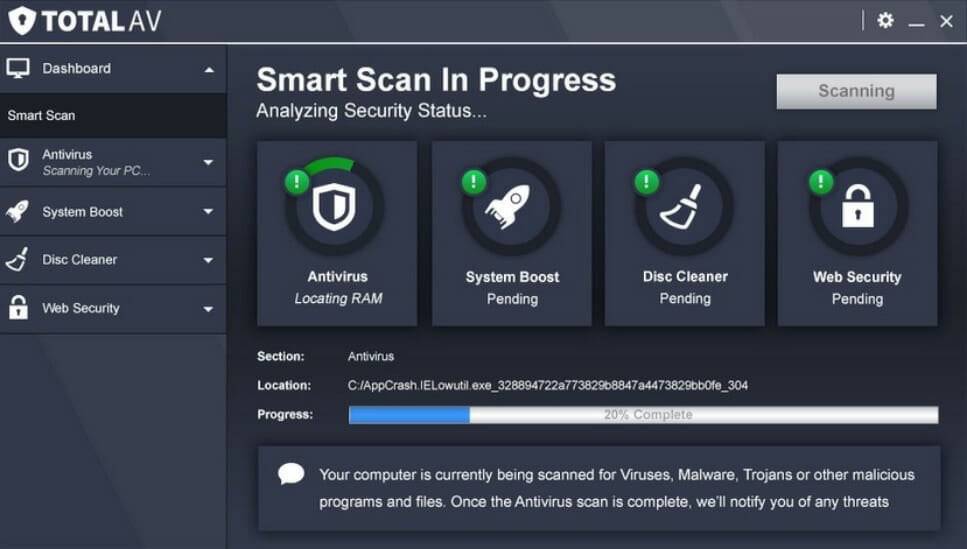
TotalAV is an antivirus software with a top-notch detection rate that successfully protects your device against damaging threats and viruses.

It has a WebShield feature that defends your PC against phishing and scam websites that are created to harm your device, compromise security, and steal your personal data.

TotalAV helps you block annoying ads, pop-ups, and notifications that fill up the screen when you’re browsing your favorite sites.

You can schedule smart scans to run at your preferred time and guarantee that your system remains safe all the time.

TotalAV

TotalAV

Monitor your device with TotalAV and eliminate any harmful threats that can compromise your security.
Check Price Visit Website

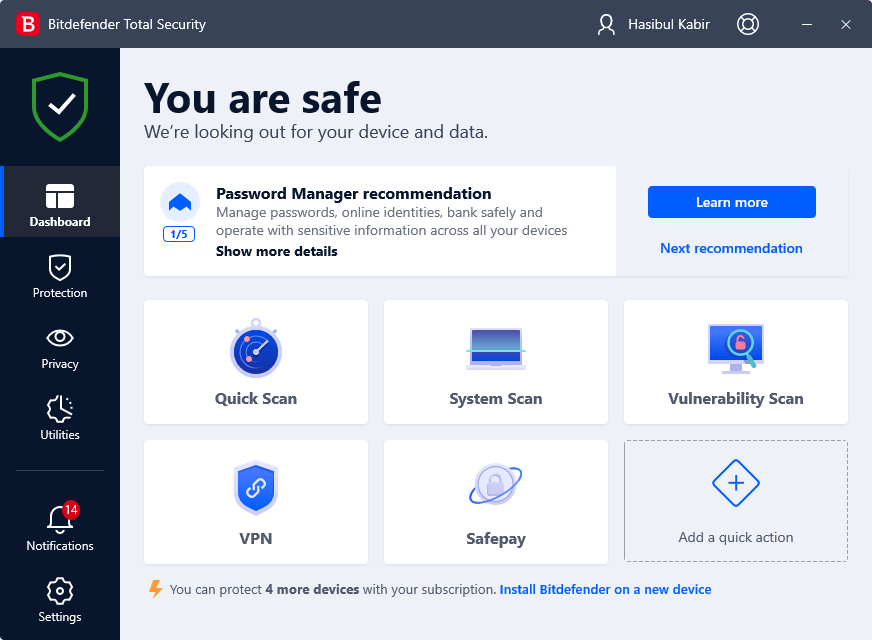
Bitdefender Total Security – Performance optimization

This antivirus has scored one award after another earning top marks when it comes to tests on antivirus with the highest detection rate in comparison to the industry average, which is about 99.7 percent.

While some independent tests may reveal different scores, the Bitdefender detection rate offers 100 percent accuracy.

A spot check across some of the top independent antivirus software reviews shows that Bitdefender scores anywhere between 98 percent to a near-perfect 99.9 percent.

Bitdefender’s Antivirus is one of the best antimalware for Windows 10, with unbeatable cyber-threat detection, optimized performance for speed, and battery life preservation.

Its GravityZone feature – adaptive, layered endpoint security designed for cloud and virtualization – protects from advanced attacks, through its monitoring and hypervisor introspection architecture.

It effectively blocks attacks that most traditional endpoint and next-gen antivirus defenses don’t.

Bitdefender Total Security

Bitdefender Total Security

Bitdefender remains a big name in the antivirus business, so claim the best deal with no hesitation!
Check price Visit Website

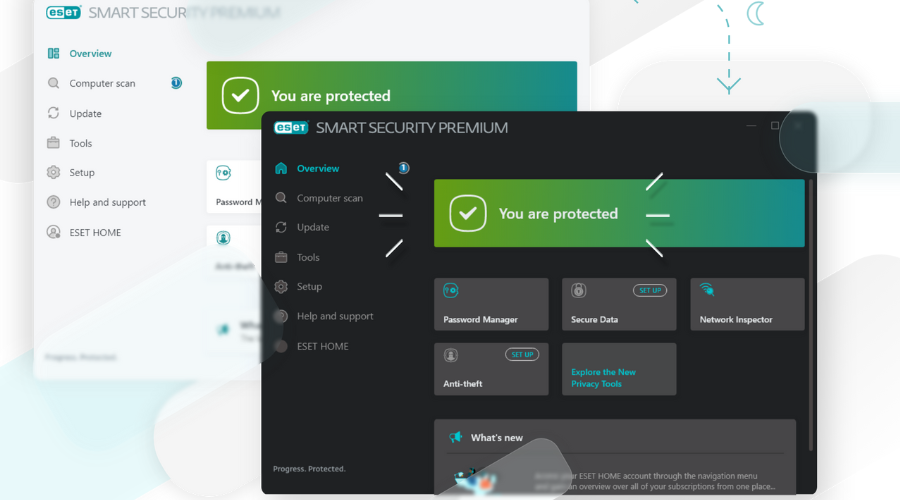
ESET HOME Security Essential – Minimal system footprint

ESET HOME Security Essential is indeed an integrated computer security. It uses AI and in-house developed new technologies to protect you from old and new threats.

We can definitely say about ESET HOME Security Essential that it is an intelligent system, constantly on alert for attacks and malicious software that might endanger your computer.

ESET HOME Security Essential is a complete security solution that combines maximum protection and a minimal system footprint.

Use this antivirus to prevent any infiltration of viruses, spyware, trojan horses, worms, adware, rootkits, and other online threats that can seriously affect your computer safety.

ESET HOME Security Essential

ESET HOME Security Essential

Use one of the best and most modern antivirus solutions from ESET and be sure your PC is well-protected
Free Trial Visit Website

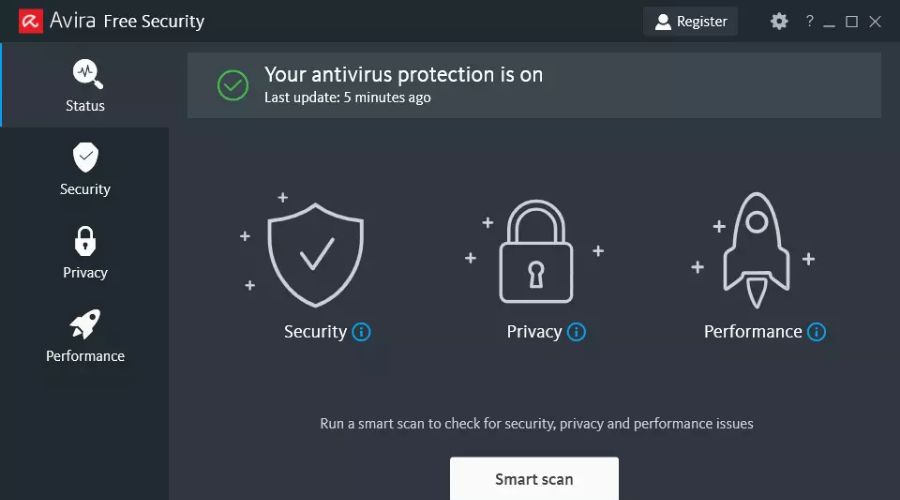
Avira – Network analyzer

Avira is another great free security solution that won multiple awards over time, due to its high detection rate and very few false positives during testing.

Avira Antivirus will make your browsing experience faster because it will block annoying ads. It can also analyze your privacy status and inform you of any privacy threats.

In addition, the software will analyze your home network and let you know if there are any security vulnerabilities that you need to address.

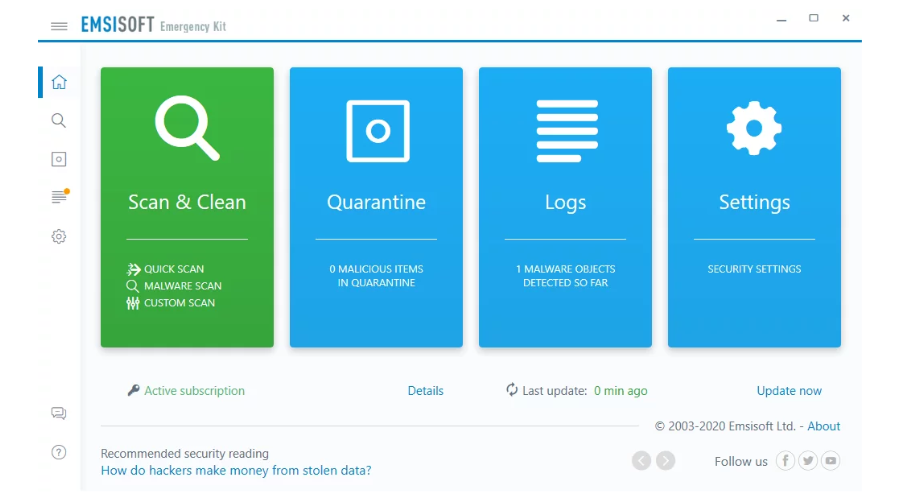
Emsisoft Anti-Malware – Good quality-price ratio

Emsisoft Anti-Malware does not only recognize all possible threats, but it is also highly rated by almost all test institutes.

Its awesome features and technologies allow detecting even the unknown yet threats. Its price keeps it at the top, so you have the best quality-price ratio.

In the ratings, Emsisoft Anti-Malware is always below Bitdefender which we have written about above. That means that this tool is not behind the biggest security providers.

Even if some giants like Kaspersky and Avast keep users’ opinions focused on them, this tool is constantly improving.

Permanent 4-layer security and Behaviour Blocking allow it to counter basically everything that can attack your system from outside, but also from the inside.

We also have to mention that this tool runs on almost every PC hardware configuration as it is well-optimized, and its price right now is great.

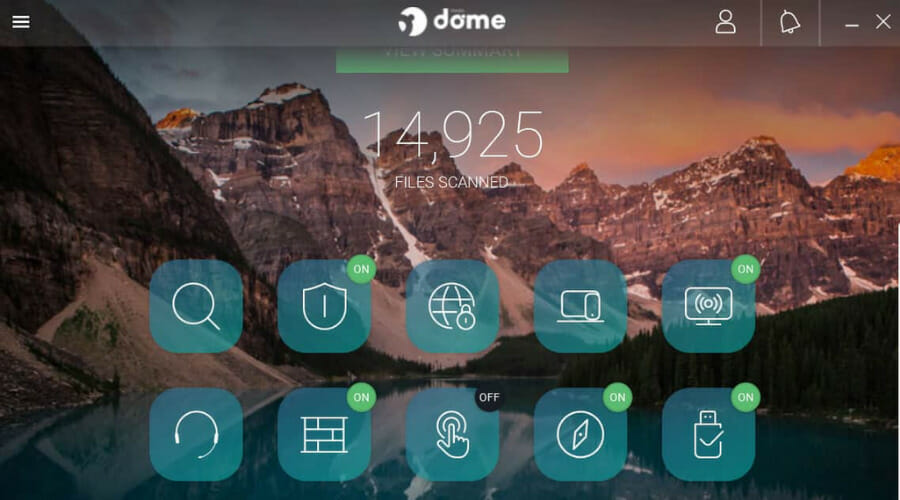
router antivirus

Panda has been recognized by independent reviewing labs, recently by Virus Bulletin, a global leader in testing security for the prevention, detection, and elimination of malware and spam.

To this end, it is one of the best antiviruses with the highest detection rate, as ranked at 100 percent, earning a VB100 certificate in their most comparative test.

It is the first and only antivirus for enterprises that combines advanced protection technologies, and detection and remediation features, to classify 100 percent of running processes on all endpoints.

A unique feature is its contextual intelligence, which the platform uses to reveal patterns of malicious behavior and generate defensive strategies to counter both known and unknown threats.

Panda has been receiving high grades, not just from such a demanding approving agency as VB, but it has also been recognized in the Real World Protection Test for proper functioning and efficiency.

F-Secure – Innovative program

If you as much as getting a 3 percent difference in your antivirus detection rate, it may open doors to possible security breaches of about more than 10,000 infections on a monthly basis.

This is why F-Secure, the best antivirus with the highest detection rate that currently stands at 99.9 percent, gives you the best possible protection against threats.

F-Secure continually builds up the best protection, daily, weekly, monthly, and annually, to offer the best endpoint protection in the world.

It has been proven unarguably, by AV-Test, a leading international and independent service provider in IT security and AV research, who gave F-Secure the Best Protection award for four years in a row.

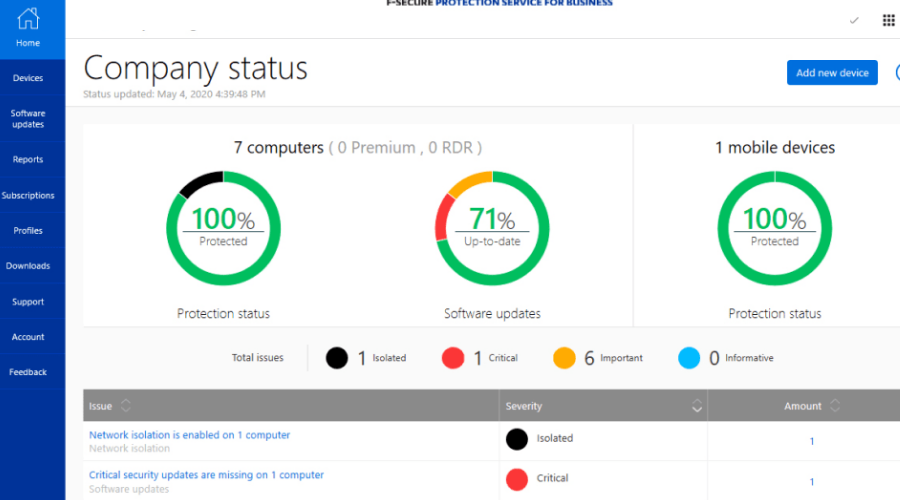
Features include Protection Service for Business that delivers comprehensive endpoint security for all your devices.

Cloud Protection and Rapid Detection Service monitor your security status 24/7, alerting you of breaches within minutes with a clear action plan.

It is secure, innovative, and straightforward, with seamless cooperation, even as the online threat landscape continuously evolves and changes with threats getting more complex by the day.

Avast Free Antivirus – Award-winning security tool

Avast Free Antivirus is one of the world’s leading antivirus with the highest detection rate. It has also scored between 99.9 and 100 percent in independent real-world tests.

Avast Free Antivirus has even received top marks in detecting all threats with a 100 percent detection rate.

It is powered by Artificial Intelligence (AI), with more than 400 million sensors feeding it with big data, and machine learning technology to stay on top of the most evolved malware.

The results of these independent tests show that Avast delivers top security with its free products, so you can enjoy peace of mind and rest assured you will have minimal interference on your PC activities.

It is tested and approved by the most prestigious anti-malware institute and is an award-winning antivirus security tool, with 100 percent certified protection against zero-day threats.

It is the ultimate security for your business as it protects your IP, customer data, business strategy, and everything else including your server, email, and VPN.

Most paid solutions cannot currently provide the protection you need, so this powerful cybersecurity, yet free, antivirus is just what you need for your system.

If you want to find more options to protect your computer, don’t hesitate to check our guide including best lifetime license antivirus tools.

Which of these antivirus solutions with the highest detection rates are you eager to get – BullGuard, Bitdefender, or others?

Don’t hesitate to let us know which one is your favorite antivirus solution in the comments section below.

FIX: Intel Graphics Control Panel not opening [Full Guide]

The Intel Graphics Control Panel enables users to change graphics settings for Intel GPUs. However, some users have reported that Intel Graphics Control Panel is not opening.

This issue can lead to other problems, such as Intel display audio not working therefore it’s crucial that you fix this problem as soon as possible.

Luckily for you, there’s a way to fix this problem, and in this article, we’re going to show you a couple of simple methods that you can use.

How can I fix the Intel Graphics Control Panel not opening?

1. Update your Intel GPU’s driver

First, try updating your Intel GPU’s driver after uninstalling the Intel Graphics Driver package and Graphics Control Panel app via Apps & features.

You can update your Intel driver with driver updater software, which will include options for downloading and automatically installing the latest drivers.

Plus, the whole process works smoothly while updating any driver with almost no input from the user. Hence, manage GPU drivers effortlessly or any other driver on your PC using this software.

2. Manually install the Intel(R) Graphics Control Panel driver on your PC

  1. First, open the Win + X menu in Windows 10 with the Windows key + X hotkey.
  2. Click Device Manager to open that window.
  3. Double-click Software components to open that category.
  4. Next, right-click Intel(R) Graphics Control Panel (or Intel Graphics Command Center) and select Update driver to open the window shown directly below.
  5. Then click the Browse my computer for drivers option.
  6. Click the Let me pick from a list of available drivers on my computer option.
  7. Select the Intel(R) Graphics Control Panel, and click the Next button.
  8. Thereafter, restart Windows after reinstalling the driver.
Note icon NOTE
The above fix is for users who still can’t open the Intel Graphics app after they’ve installed the required DCH drivers on their PC. First, make sure your PC has a suitable Intel DCH driver installed on it.

Some users might only see Generic software listed in Software Components. If so, try right-clicking Generic software and installing the Intel(R) Graphics Control Panel driver as outlined above.

3. Try opening the Intel Graphics Control Panel with alternative methods

  1. Click the Type here to search taskbar button, and then enter Intel in the search box.
  2. Click the Intel Graphics Command Center (Control Panel) search result to launch that app.
Intel Graphics search result intel graphics control panel not opening

If you can’t open the Intel Graphics Control Panel one way, try an alternative method. For example, you can open the Intel Graphics Control Panel with the Ctrl + Alt + F12 hotkey for it.

These are simple workarounds, but they might work if Intel Graphics Control Panel is not opening.

4. Repair and reset the UWP Intel Graphics app

  1. First, press the Windows and I keys at the same time to launch Settings.
  2. Click Apps to open that Settings tab.
  3. Then scroll down to and select your Intel Graphics app.
  4. Click Advanced options to open the buttons in the shot directly below.
    The Repair option intel graphics control panel not opening
  5. Then click the Repair option.
  6. If the Repair option doesn’t do the trick, try pressing the Reset button as well to clear the app’s data.

5. Reinstall your Intel Graphics app

  1. To reinstall an Intel Graphics app, open Apps & features in Settings as outlined for steps one and two of the previous resolution.
  2. Then select your Intel Graphics app in Apps & features.
  3. Click the Uninstall button to remove it.
    Uninstall button intel graphics control panel not opening
  4. Open the Intel Graphics Command Center page in a browser.
  5. Press the Get button on that page.
  6. If a dialog box window pops up asking to open the MS Store, select the Open option.
  7. Then click the Get button within the MS Store app to reinstall Intel Graphics Command Center.
Note icon NOTE
The Intel® Graphics Control Panel is no longer available for download at MS Store. Users who need to reinstall the GCP app will have to replace it with the Intel Graphics Command Center.

If Intel Graphics Control panel is not opening, you can also remove it completely using specialized software with a built-in uninstaller. We recommend CCleaner because it will also clean junk files and registry entries.

⇒ Get CCleaner

6. Run the Windows Store Apps troubleshooter

  1. First, open the Settings window.
  2. Click Update & Security in Settings.
  3. Select the Troubleshoot on the left of Settings.
  4. Then click Additional troubleshooters to open the list shown directly below.
  5. Select Windows Store Apps to click its Run the troubleshooter button.Windows Store Apps troubleshooter intel graphics control panel not opening
  6. Thereafter, go through the instructions provided by the troubleshooter to fix detected issues.

Those are some of the potential resolutions for fixing an Intel Graphics Control Panel (Command Center) app that doesn’t open. If the fixes above aren’t enough, however, you can contact support via Intel’s Customer Support page.

Did you manage to find the solution to this issue on your own? If you did, feel free to share it with us in the comments section.

83% of businesses have experienced firmware attacks recently

Cyberattacks on corporate firmware have intensified over the past two years, according to a study commissioned by Microsoft.

More than 80% of enterprises have experienced at least one firmware attack in the past two years, but only 29% of security budgets are allocated to protect firmware.

Firms do invest in monitoring network vulnerabilities and scanning techniques; but one of the reasons for the alarming mentioned numbers would be that firmware is more difficult to monitor, Microsoft says.


Why are firmware attacks more appealing for hackers?

why are attacks on firmware successful

In terms of effort, attacks on software are easier to finalize. However, hackers prefer targeting firmware because, if successful, they guarantee access to a company’s credentials and encryption keys. And the damage is considerably more substantial.

Given the increased security measures taken by companies recently, attackers have also invested more time in perfecting their strategies.

As a result, many companies don’t even know they have been exposed to such a security breach so they don’t particularly take appropriate measures.

How to prevent attacks on firmware?

prevent firmware attacks

To prevent these types of attacks, enterprises should focus on using Kernel data protection (KDP) and memory encryption solutions. These techniques work by blocking malware from accessing kernel memory.

However, only 36% of businesses invest in hardware-based memory encryption and less than half (46%) are investing in hardware-based kernel protections, the study says.

So companies spend more time and resources on post-attack measures than on designing prevention strategies, which the source rates as outdated methods

The main reason for these trends would be the lack of automation. Consequently, Microsoft proposes a new class of devices called Secured-core PCs, with a zero-trust build core that prevents attacks on firmware from the very beginning.

Secured-core PCs have already been delivered to some companies with positive results. Microsoft has partnered with AMD and Intel to include this technology on their devices.

As a result, more than 100 secured-core devices from brands such as Acer, Dell, HP, Lenovo, or Panasonic are available on the market today. The number will surely go higher in the near future.

White Taskbar on Windows 10: Get Rid of it in 4 Ways

A number of Windows 10 users have reported that their Taskbar has turned white all of a sudden. This isn’t a major issue unless your taskbar icons are gone as well.

There are many issues you can encounter, such as Taskbar not working, but today we’re going to focus on the Taskbar and its color change.

Why is my taskbar suddenly white?

  • Temporary system glitches can cause this issue to occur.
  • Your color configuration isn’t correct, so it’s making the taskbar white.
  • In some rare cases, your regional settings can cause this issue.
  • Problems in the registry can also affect Taskbar and make it change color.

How do I get rid of the white taskbar?

1. Tweak modes in Personalization settings

  1. Open the Windows settings.
  2. Choose Personalization, then open Colors.
  3. Under Choose your colors, pick Custom.
    custom colors
  4. Toggle both the default Windows mode and default app mode color options until you get the desired result.

2. Check Taskbar color settings

  1. Right-click an empty space on your desktop and select Personalize.Personalize option on Desktop - Taskbar turned white Windows 10
  2. Select the Colors tab in the right-side list.
  3. Toggle On the option Show color on Start, taskbar, and action center.
  4. If you want to choose a specific color, disable the option Automatically pick an accent color from my background. (Having this option disabled will allow Windows to choose a color for your taskbar based on your desktop background)
  5. From the Choose your accent color section, select your preferred color option.

After doing that, check if the problem is gone.

3. Change Windows 10 region settings

  1. Open the Settings app.
  2. Inside the Settings window, select the Time & Language option.Time and language settings win10 - Taskbar turned white windows 10
  3. Click on Region and  select a location in which Cortana is not available (examples include Gabon, Senegal, Samoa, Taiwan, etc.)Selecting other Region win 10 settings - Taskbar turned white windows 10
  4. Click the Start button, next click on your profile picture and select Sign out.Sign out Win10 - Taskbar turned white windows 10
  5. Log back into your account.
  6. Follow steps 1,2, and 3 of this method to re-set your Region settings to the default setting.

4. Registry tweak

  1. Press Windows + R keys on your keyboard, type regedit in the Run box and press Enter.Regedit command Run window - Taskbar turned white win 10
  2. Inside the Registry Editor, open this path:
    HKEY_CURRENT_USER\Software\Microsoft\Windows\CurrentVersion\Search\Flighting\0\WhiteSearchBox
  3. Double-click on the Value key inside the right panel and set the value to 0.
  4. Press Ok.
  5. Restart your PC.

Note: Please make sure that you create a restore point before changing any values inside the Registry Editor. Changing the values in the Registry without proper guidance can render your system unusable.

In this article, we explored a quick fix for issues caused by your taskbar turning white in Windows 10. Please make sure to follow the steps in the order that they were written to avoid causing any issues.

This isn’t the only issue you can encounter, and many reported that Windows 10 Taskbar icons are missing, however, we covered that in a separate guide.

We would love to know if this guide helped you. Please let us know by using the comment section below.

How to quickly remap any key on Windows 10 using PowerToys to make your life easier

Have you ever wanted to change keyboard shortcuts on Windows 10 to something else? In the past the process of remapping keys or keyboard shortcuts usually involved downloading a difficult-to-use third-party application. Now, the process is a a whole lot easier with PowerToys, a Microsoft application that you can use to make any key on your keyboard act like any other key—and even remap keyboard shortcuts.

Remap any key

With PowerToys, it’s easy to remap any key to another key or even change a keyboard shortcut combination. If you don’t already have PowerToys installed, you can download it for free directly from its GitHub page. Once installed, follow these steps.

1. Open PowerToys
2. Toggle on the Keyboard Manager
3. Choose Remap a key
Keyboard Manager
4. Choose the plus button (+) as shown to add a new key mapping
Remapakey

At this point, you will need to choose a key that you want to remap in the “Key” field and what you want the key remapped to in the “Mapped To” field. For this example, I am going to use Scroll Lock as a replacement for Paste on Windows 10. Keep in mind you can choose the key that you want to remap by choosing it from the drop down menu or by choosing Type and simply typing out the key you want to use.
Scroll lock remap

In the “Mapped To” field, I will enter the Paste keyboard shortcut (Ctrl + V) as I want to remap Scroll Lock to act as the Paste command any time I press the key.
Paste

Once you are finished making your selections for the key remapping, Choose OK to confirm. At this point you will see a pop-up message confirming your key remapping selection. Choose Continue Anyway to confirm the key remapping.

Confirm Key Remapping

That’s it! You’re finished. Now as long as PowerToys is running, any time I press Scroll Lock, the key will act as the Paste shortcut on my Windows 10 PC. Now in Keyboard Manager in PowerToys, you will see the key remap that you created.

Remap Display

Delete a key remap

Deleting a key remap is easy. All you need to do is go to Keyboard Manager in PowerToys and click the “Remap a key” button to take you to the list key remaps.
Delete A Key Remap

Once there, click the trash icon and press OK to confirm.

Delete Keyremap

The key you remapped will be removed. Now, you can create a new key remap using the guide above or exit PowerToys completely.

Do you use any other PowerToys utilities on Windows 10? Let us know in the comments!

Xbox Cloud Gaming (Project xCloud) adds support for 16 OG Xbox and Xbox 360 games

Microsoft’s Xbox Cloud Gaming (Project xCloud) technology has reached an important new milestone with the new support for original Xbox and Xbox 360 games. Until now, only select Xbox One games were playable on Android devices via Microsoft’s cloud gaming technology, but that’s changing starting today with a selection of 16 original Xbox and Xbox 360 games.

“We’ve listened to the feedback, going all the way back to our earliest cloud gaming preview, and making games from previous generations available on mobile devices has been one of the most requested features by the community,” the Xbox team explained. Fable II, Fallout: New Vegas, and The Elder Scrolls IV: Oblivion are among the new Backward Compatible games playable with Xbox Cloud Gaming starting today, and you can find the full list below:

  • Banjo-Kazooie
  • Banjo-Tooie
  • Double Dragon Neon
  • Fable II
  • Fallout: New Vegas
  • Gears of War 2
  • Gears of War 3
  • Gears of War: Judgment
  • Jetpac Refuelled (touch controls enabled)
  • Kameo
  • Perfect Dark
  • Perfect Dark Zero
  • The Elder Scrolls III: Morrowind
  • The Elder Scrolls IV: Oblivion
  • Viva Piñata (touch controls enabled)
  • Viva Piñata: TIP (touch controls enabled)

The Xbox team said today that more OG Xbox and Xbox 360 games will be cloud-enabled soon. Xbox Cloud Gaming is currently only available with an Xbox Game Pass Ultimate subscription, which also includes Xbox Game Pass for Console, Xbox Game Pass for PC, and Xbox Live Gold. Over 100 Xbox games are currently cloud-enabled, with many of them supporting touch controls on Android phones and tablets.

FIX: SYSTEM LICENSE VIOLATION error in Windows 10

Computer errors are relatively common and easy to fix, but sometimes you would get a Blue Screen of Death error, such as SYSTEM_LICENSE_VIOLATION.

These types of errors are rather serious since they will crash Windows 10 and restart your PC in order to prevent damage.

BSoDs can be scary, but there are ways to tackle them, and today we’re going to show you how to fix the SYSTEM LICENSE VIOLATION error.

How can I fix SYSTEM_LICENSE_VIOLATION BSoD error?

1. Check the hard drive

  1. Enter the Advanced Startup (Restart your computer while holding the Shift key).
  2. Choose Troubleshoot > Advanced Options.
  3. Select Command Prompt from the list of options.
  4. When Command Prompt appears, enter the following lines and press Enter after each line in order to run it: bootrec.exe/rebuildbcd bootrec.exe/fixmbr bootrec.exe/fixboot
  5. Some users are also suggesting that you need to run additional chkdsk commands as well.
    • To perform these commands, you need to know drive letters for all your hard drive partitions.
    • In Command Prompt you should enter the following (but remember to use the letters that match your hard drive partitions on your PC): chkdsk /r c: chkdsk/r d:
    • This is just our example, so keep in mind that you have to perform chkdsk command for every hard drive partition that you have.

  6. Restart your computer and check if the issue is resolved.

Corrupt disk sectors or some other hard drive-related problems can easily cause various BSOD issues. Including the  SYSTEM_LICENSE_VIOLATION error for Windows 10 and Windows 8.

While the steps described above are perfectly capable of solving the issue under discussion, you might find the elevated Command Prompt a bit daunting.

2. Use a third-party BSoD fixer

BSoD errors aren’t that easy to solve manually. You need to find the cause of the problem and then find ways to solve it. There is another way to fix these errors faster and more effectively.

Namely, using a full system repair tool that will resolve Blue Screen issues as we speak. Not only will the software pinpoint exactly what’s wrong with your PC, but it will also fix it for you.

3. Run the BSOD Troubleshooter

  1. Open the Settings app and go to the Update & Security section.
  2. Select Troubleshoot from the menu on the left.
  3. Pick BSOD from the right pane and click Run the troubleshooter.
  4. Follow the instructions on the screen to complete the troubleshooter.

If updating your drivers didn’t get the job done, we can try Microsoft’s built-in troubleshooter for BSOD errors. This is probably the easiest solution for almost any BSOD issue because it basically solves the problem for you.

4. Update Windows 10 and all your drivers

Blue Screen of Death errors are often caused by hardware and software issues, and in order to avoid them, it’s highly recommended that you update Windows 10 as often as you can.

Microsoft is constantly releasing updates for Windows 10 via Windows Update, so be sure to download them.

Many of these updates fix certain hardware and software glitches, therefore if you wish to avoid BSoDs, we strongly suggest that you keep Windows 10 up to date.

In addition to downloading Windows 10 updates, it’s just as important to update your drivers. Windows 10 utilizes your drivers in order to communicate with your hardware.

If a certain driver is out of date, or just not compatible with Windows 10, you’ll probably get a BSoD error such as SYSTEM_LICENSE_VIOLATION. To fix these types of errors you have to update all your drivers.

Updating drivers is relatively simple, and you can do it simply by visiting your hardware manufacturer’s website and downloading the latest drivers for your device.

While downloading drivers, be sure to download drivers for all major hardware components.

4.1 Update drivers automatically

Searching for drivers on your own can be time-consuming. So, we advise you to use a tool that will do this for you automatically.

Using an automatic driver updater will certainly save you from the hassle of searching for drivers manually, and it will always keep your system up to date with the latest drivers.

5. Run the SFC scan

  1. Right-click on the Start Menu button, and open Command Prompt (Admin).
  2. Enter the following line and press Enter: sfc/scannow
  3. Wait until the process is done (it may take a while).
  4. If the solution is found, it will automatically be applied.
  5. Now, close the Command Prompt and restart your computer.

The next thing we’re going to try is the SFC scan. This is a command-line tool that scans your computer for potential issues and resolves them.

So, it might be helpful when dealing with the SYSTEM_LICENSE_VIOLATION error, as well.

6. Run DISM

  1. Right-click Start and open Command Prompt (Admin).
  2. Paste the following command and press Enter: DISM/Online/Cleanup-Image/RestoreHealth
  3. Wait until the scan is finished.
  4. Restart your computer and try updating again.

Standard way

The third troubleshooting tool we’re going to try is DISM. As its name says, Deployment Image Servicing and Management (DISM) reloads the system image, resolving some potential problems on the way.

We’ll walk you through both standard and the procedure that utilizes the installation media below:

  • With the Windows installation media
  1. Insert your Windows installation media.
  2. Right-click the Start menu and, from the menu, choose the Command Prompt (Admin).
  3. In the command line, type the following commands and press Enter after each: dism/online/cleanup-image/scanhealth dism/online/cleanup-image/restorehealth
  4. Now, type the following command and press Enter: DISM/Online/Cleanup-Image/RestoreHealth/source:WIM:X:SourcesInstall.wim:1/LimitAccess
  5. Make sure to change an X value with the letter of the mounted drive with the Windows 10 installation.
  6. After the procedure is finished, restart your computer.

7. Install a Windows optimizer

You could simply use a third-party tool to check your hard drives and detect and repair any issues on the spot without the hassle.

Windows optimizer software will free up precious space thus provide with more available memory and allowing you to enjoy faster startup and loading times.

These tools are generally complete tuneups, cleaning, repair, and optimization suites. They can also detect and replace corrupted Windows files, create backups, and more.

Remove junk data, useless temp files, web browsing traces, fix superfluous Registry entries, broken shortcuts, and disable unnecessary services to boost jour PC’s performances.

8. Find and uninstall problematic applications

Sometimes certain applications can cause this error to appear, therefore it’s crucial to find and remove those applications.

It’s worth mentioning that almost any application can cause the Windows 10 system license violation error, so you might have to do some research before you find the problematic one.

You should also know that recently installed or recently updated applications can cause this error too, therefore if you updated or installed any new app before the BSoD error started appearing, uninstall it.

One common cause for Blue Screen of Death errors is your antivirus software. Almost any antivirus software can cause a BSoD error, so be sure to remove any third-party antivirus programs that you have installed.

To completely remove an antivirus program you should use a dedicated removal tool. Many security companies offer these tools for their software, so be sure to download one for your antivirus program.

9. Enter Safe Mode

  1. Start Automatic Repair while restarting your computer during the boot.
    • Alternatively, you can hold the Shift key and click the Restart button.
      restart
  2. Choose Troubleshoot > Advanced options > Startup Settings.
  3. Click the Restart button.
  4. When your computer boots, select Safe Mode with Networking or any other version of Safe Mode.

If the problem is caused by certain software, you’ll be able to tell that by entering Safe Mode.

Safe Mode starts only with basic drivers and software, therefore, if your issue is caused by a certain application or a problematic driver, your system should work without any problems in Safe Mode.

10. Perform System Restore / Windows 10 reset

  1. Start Automatic Repair by restarting your computer a few times during the boot.
  2. Choose Troubleshoot > Advanced options > System Restore.
  3. Select your username and enter your password and click Continue.
  4. Pick Choose a different restore point, and select a restore point you wish to return to.
  5. Click Next and wait for the process to finish.

According to the users, they managed to fix SYSTEM_LICENSE_VIOLATION error by performing System Restore.

If System Restore didn’t fix the issue, you should try performing a Windows 10 reset. This procedure is similar to clean install, therefore be sure to back up all important files from your C partition.

Note: It’s also worth mentioning that you might need a Windows 10 installation media to complete this step, therefore you should use the Media Creation Tool to create a bootable USB flash drive.

To perform Windows 10 reset, do the following:

  1. Start Automatic Repair.
  2. Choose Troubleshoot > Reset this PC > Remove everything.
    • If you are asked to insert Windows 10 installation media, be sure to do so.
  3. Select Only the drive where Windows is installed > Just remove my files and click Reset.
  4. Follow the instructions and wait for the reset process to complete.

After the reset, all your installed applications and files will be removed, including any software cause for the BSoD. If the error appears again, it’s most likely that you have faulty hardware.

11. Check for faulty hardware

Your RAM can be the common cause for BSoD errors such as SYSTEM_LICENSE_VIOLATION, therefore be sure to test your RAM first.

There are plenty of specialized tools you can use to perform detailed tests of your RAM, so make sure that you download one. If RAM is not the problem, check if other major hardware components are working properly.

Any recently installed hardware can cause these types of issues, especially if it’s not fully compatible with your PC. If you installed any new hardware recently, be sure to remove it or replace it and check if that fixes the error.

SYSTEM_LICENSE_VIOLATION BSoD error can be troublesome, but we hope that you managed to fix it by using one of our solutions.

Do share your troubleshooting experience with us via the comments section below.

5 best antivirus software with remote control management

As more people across the world hurtle towards mobile computing, it is becoming increasingly important for most software products to be loaded with remote control features.

The remote control features enable team collaboration anywhere, and at any time, therefore they are being sought by an increasing number of companies all around the world.

The same goes for security software where antivirus with remote control management exists to troubleshoot workplace and client issues quickly and securely without moving from your desk.

Remote control also allows for quick and safe connections to machines so as to resolve issues in real-time, which in turn saves you time, money, and stress.

IT admins are able to receive real-time alerts and report on threats, while taking control of their networks’ security from any location, at any time, especially with the many remote workforces across the globe.

Here are our top picks for the best antivirus with remote control management.

What is the best antivirus with remote control management?

Bitdefender Total Security

With Bitdefender’s tools, you get full visibility into your overall security posture, security threats on a global scale, and control over security services that protect virtual or physical desktops, servers, and mobile devices.

All these are managed through a single console, Control Center, for control, reporting, and alerting services (in companies this is for various roles in the organization).

Through the Device Control module, you can perform remote or manual installs by going to My Bitdefender window, where you can update, start a scan, and register the product, all from the cloud.

Once you open My Bitdefender page, you can find all devices installed with Bitdefender and control it from there.

Notable Bitdefender features:

  • Great price plan
  • VPN included
  • Best Windows compatibility
  • Awesome customer support
Bitdefender Total Security

Bitdefender Total Security

Now you can have the remote control management, and you can provide total protection for your PC against malware threats only with Bitdefender!
Check priceVisit website

Panda Dome Essential

Panda Remote Control is a tool developed by Panda Security to let you access your computer(s) on your network remotely from a web console.

With this tool, you can troubleshoot issues without being physically present, or, if you’re an agency, you can resolve your clients’ security problems without them having to intervene, and with little if any impact on their activity.

It is available in Panda’s Endpoint Protection, Endpoint Protection Plus, and Adaptive Defense 360 consoles when you buy it, then automatically installs the first time you enable Remote Control option in the settings of the configuration profile for the group that hosts remote computers.

Only users with Total Control or Security Administrator permissions can use it – not users with Monitoring Administrator’s Guide 7 permissions.

You get three options when defining the privacy level to apply when accessing remote computers: Always ask for permission, Just notify, and Allow access without notification.

Notable Panda Dome features:

  • Real-time monitoring
  • Personal firewall
  • Device management
  • USB Protection
Panda Dome Essential

Panda Dome Essential

You can have full protection for your PC against viruses and remote control management with Panda Dome.
Check priceVisit website

AVG Ultimate

AVG’s Managed Workplace 10 comes with integrated advanced security features including expanded remote control functions.

The Premium Remote Control has been enhanced to include ad hoc and on-demand sessions to offer remote support to anyone on the internet without deploying Managed Workplace.

It also has end-user consent feature that respects the privacy of your clients by requesting access to initiate remote control to their devices.

This remote control feature saves clients the cost of purchasing and maintaining a separate remote control solution.

Notable AVG features:

  • Computer Protection
  • Web & Email protection
  • Hacker attacks protection
  • Privacy protection
AVG Ultimate

AVG Ultimate

Take advantage of remote control feature and secure your PC against all malware threats.
Check priceVisit website

Avast Premium Security

Avast is a leading antivirus with remote control management for smooth running and troubleshooting issues without leaving the comfort of your desk.

The software will keep your PC safe, using a combination of self-improving AI and advanced system protocols to stop any new threats from entering your system and possibly stealing data.

The remote control feature allows the Avast customer support team to access your PC, troubleshoot, and potentially fix problems that proved too difficult for you.

The Premium remote control features include:

  • Remote administration to remotely connect to any computer and install new software, troubleshoot, switch users, among other tasks
  • System information to see vital info about the hardware and software
  • File transfer to send log files and receive software updates to troubleshoot and resolve issues fast and effectively
  • Session recording, a one-click recording to capture sessions for follow-up and/or training
  • Maximum security for complete end-to-end encryption to keep your connection safe
  • Full-featured chat client to stay in touch with customers as you troubleshoot their problems
Avast Premium Security

Avast Premium Security

Get Avast with remote control management for pleasant running and great PC protection from spyware.
Check priceVisit website

BullGuard Antivirus

All BullGuard products in its comprehensive security suite are designed with your business in mind.

One of the most striking things is its effective and pleasing design, with a simple to navigate and use dashboard interface, and clearly marked features and actions.

It comes with a remote control so you can manage your personal or business information, whether your device is not close by, or even if it gets lost or stolen.

You can choose from BullGuard Premium Protection, BullGuard Internet Security or BullGuard antivirus.

Notable Bullguard features:

  • The best malware protection
  • Simple and intuitive UI
  • Browsing security

⇒ Get Bullguard

Have you used any of these antivirus with remote control management? Or do you have one that you currently use that’s not listed here? Share with us your experience in the comments section below.

Fix: UC Browser Adblock Not Working in Windows 10/11/Android

While most modern web browsers require you to install a third-party extension to block ads, the UC Browser comes with a built-in ad blocker. However, several users have reported the UC Browser adblock is not working.

To fix the problem, we have listed a few workarounds to help you resolve this issue once and for all.

How do I fix UC Browser adblock if it’s not working?

1. Use an alternate browser with a built-in adblocker 

UC Browser is blocked in a few countries to comply with the region’s local laws. Fortunately, there are alternative browsers like Opera One browser that offer built-in adblocker. 

Similar to the UC browser, Opera One blocks all kinds of intrusive ads, loads pages faster, and comes with a filter option to unblock ads from any site you want.

Additionally, Opera One browser offers a free VPN for enhanced privacy and security, built-in messenger apps and snapshot features, video pop-out, battery saver, and even an AI.

⇒ Get Opera One

2. Enable ad-block on UC Browser 

  1. Launch UC Browser browser and click the Menu icon from the top menu.
  2. Choose Settings from the options.
  3. From the left pane, click on the Ad Block tab.
  4. Under Block settings, check the Block pop-up window box. You can also change your filter page ads preference.
  5. Close the settings page and relaunch the browser app.

Once the app restarts, check if the ad-block issue is resolved. If the ad-block setting is enabled and UC Browser adblock still is not working, try clearing the browser cache to see if that helps resolve the issue. 

Clear browser cache 

  1. Click the menu icon and choose Clear browsing data. You can also access it by pressing the Ctrl + Shift + Del key on your keyboard.
  2. Choose the data you want to clear and click the Clear data button. 
  3. Don’t clear the saved password and other data, as you will have to enter these details when accessing the website again.

For Android:

  1. Tap the Menu icon represented by three horizontal lines.
  2. Now tap on the Ad Block feature to turn it on.
  3. Optional: Tap on Powerful Ad Blocker for even better ad protection.

Clearing the browser cache will help you resolve any issues that occur due to corrupted data.

3. Reinstall UC Browser

On Android:

  1. Open the Settings menu on your Android device.
  2. Navigate to Apps or Application Manager.
  3. Now select UC Browser and choose Uninstall.
  4. Download the application again.

On Windows:

  1. Open the Settings app. You can do that with Windows Key + I shortcut.
  2. Navigate to the Apps section.
  3. Select UC Browser from the list of installed apps and click on Uninstall.
  4. Once uninstalled, reboot the computer.
  5. After the restart, go to the UC browser download page and download the browser’s latest version.
  6. Install the browser and check if the UC Browser adblock not working issue is resolved.

To completely remove certain applications, it’s better to use a dedicated uninstaller software.

The UC Browser Adblock not working issue may occur due to file corruption. If enabling the adblock option in the setting does not help, consider using an alternative web browser like Opera.

Sadly, this isn’t the only issue you can encounter and we have a Fixing the UC Browser Not Allowed error: step-by-step guide that can help you with other problems.

We also have a guide on how to download any video in a UC Browser, so don’t hesitate to visit it for more information.

What method worked for you? Let us know in the comments.

Watch Dogs 2 PC issues: low FPS rate, game crashes, and more

Watch Dogs 2 was long awaited but it was finally launched for PC. Windows PC finally got their hands on the game and play as Marcus, a brilliant young hacker.

Gamers can join the most notorious hacker group, DedSec, and do their best to execute the biggest hack of history.

Watch Dogs 2 fans initially complained about Ubisoft’s decision to delay the PC release of the game.

However, delaying the Watch Dogs 2 PC release was actually a wise decision, taking into account all the issues reported by Xbox One players.

In this manner, Ubisoft bought more time to optimize the game and add some cool new features. However, judging by gamers’ reports, Watch Dogs 2 still needs more optimization on PC.

As always, before purchasing Watch Dogs 2, make sure your computer meets the system requirements for this game.

Unfortunately, even after you check them, you may still encounter some game bugs, as players report. For instance, more users say that Watch Dogs 2 freezes every few seconds.

Users are also complaining about low FPS problems, camera shaking, launch problems, and more so here’s what you can do to fix most of these problems.

How can I fix Watch Dogs 2 PC bugs?

1. Update all drivers

First, don’t forget to update your computer’s drivers as they can be the cause of this problem, especially the graphics card drivers. 

For that, you will need to go to the manufacturer’s website and download the corresponding driver for your device.

However, this can be a daunting task for most so we recommend using a dedicated tool to automatically download all the outdated drivers on your PC.

The recommended solution below does the job quickly and safely but the cherry on top is that it can update all your drivers in one go.

2. Terminate background processes

  1. Open Task Manager by right clicking the Start button and choosing it from the menu.
  2. Now examine any process is using an excessive amount of CPU but make sure not to kill any Windows processes as this may turn into a mess.

Unfortunately, the game is not very good in using your CPU properly so even with a good CPU you may have problems.

So however simple it may seem, this solution makes a lot of sense so try it.

Note icon NOTE

2. Edit the GameProfile.xlm file

  1. Press Windows key + E to start File Manager.
  2. Locate the Watch Dogs 2 game profile. You will usually find it in the following location: C:\Users\[user]\Documents\My Games\Watch_Dogs 2
  3. Find the WD2_GamerProfile.xml file, right-click on it and open it with Notepad.
  4. Search for DeferredFxQuality using Ctrl+F. You should see it highlighted in its complete form: DeferredFxQuality=console
  5. Change console with pc.
  6. Save the document and exit.
  7. Right click the file again and select Properties.
  8. Check the read only box from the bottom and exit.

This procedure may also help you in fixing any problems in running Watch Dogs 2 so make sure you try it.

3. Run the game in Compatibility mode

  1. Open File Explorer as shown in the previous solution.
  2. Locate the Watchdogs2.exe file. Usually, you can find it in the following location: C:\Steam\steamapps\common\Watch_Dogs2\bin
  3. Right-click the exe file and select Properties.
  4. Click the Compatibility tab and select Windows 7 from the drop-down menu.
  5. Click Apply and OK to save the changes.

This procedure will help you fix the lag and stuttering problems you may have in the game so make sure to try it out.

Running the program as administrator may also help fix any problems is starting the game.


4. Disable the page file check

  1. Start File Manager by pressing Windows key + E.
  2. Go to the Watch Dogs 2 folder and look for the exe file. Again, you should find it at the following path: C:\Steam\steamapps\common\Watch_Dogs2\bin
  3. Right-click the executable file and select Properties.
  4. Click on Set launch options and enter the following text: -disablepagefilecheck

Some users say that they fixed Watch Dogs 2 issues by doing this procedure so make sure you try it out.


5. Change graphics settings

Disable your graphics/network card

Lowering or simply turning off some of the graphics settings of the game can improve the performance of the game. Some of them mai increase the FPS dramatically.

To play with the graphics settings go into the game’s Settings, then select Video and Quality, them tweak the various options.

Changing the Ambient Occlusion, Geometry, Shadows and Extra Details will influence the game’s performance so play with the settings until you find the correct ballance.


As you can see, despite Ubisoft’s best efforts, Watch Dogs 2 is still affected by many issues on PC. However, the general solutions provided here will fix most of the issues.

Have you installed Watch Dogs 2 on your PC? Use the comment section below to tell us more about your experience.

8 Best Antivirus Software with Free VPN Included

Are you interested in antiviruses with free VPN? Or maybe you prefer security combined with anonymity while surfing the web? Look no further, this post is meant just for you.

Meanwhile, an active VPN protects you from hackers and masks your activities from the prying eyes of ISPs’.

It also enables your device to appear as if you are physically located with the VPN server. Hence, your true location becomes hidden.

We are going to pass through some of the best Antiviruses that offer a VPN service included in their plan.

Can I use an antivirus with VPN?

Antivirus and VPN can definitely work together and it is a great idea to use them both because they protect different things in different ways.

The main difference is that antivirus programs safeguard your devices from all types of online – and offline – threats including viruses and malware, while VPN services protect your online privacy by masking your IP address and encrypting your online activity information.

These two services are the ideal combination to maintain your security level high while protecting your device with a single provider.

AntivirusWell-known forBest Features
Total AVMalware & adware block– Strong VPN encryption
– No DNS leaks
– Secure public WiFi use
Panda Security EssentialReliable Free VPN– Guarded Internet browsing
– Digital identity shield
Bitdefender Total Security
Access to geo-restricted content
– Fast VPN privacy
– Network threat prevention
– Anti-tracker extension
Avira Phantom Free VPN usage across-devices– Powerful web encryption
– No logging policy
Norton 360360 All-rounded protection– Anti-spyware tools
– Firewall layer included
– Cloud backup
AVG AntivirusVPN and tune-up functionalities– 265-bit encryption
– 1 license for 10 devices
– Improved system speed
Avast Premium Security Multi-layered security– Core shields for privacy
– Blocks spoofed web pages
– Remote attacks security
Comodo AntivirusGreatest VPN privacy for Windows– Firewall security
– TrustConnect WiFi connection

What is the best antivirus with free VPN for Windows PCs?

TotalAV – Block unlimited ads

TotalAV is an antivirus with a free VPN included that protects your online activity, whether you’re shopping, paying bills, or accessing emails.

It helps you leave no digital footprints, making your activities anonymous and impossible to track by encrypting your connection.

It has two strong protocols available, OpenVPN and IKEv2, that allow you to customize for enhanced privacy or better speed scores.

TotalAV can check your downloads and installs for viruses and threats every time your PC accesses them. It can protect your device against fake, scam, and phishing websites that are created to harm your PC, compromise security and steal your personal data.

Take a look at other key features of TotalAV:

  • Block unlimited ads
  • Schedule smart scans
  • Data breach monitoring
  • Block tracking cookies
  • Multi-device compatibility
TotalAV

TotalAV

Excellent antivirus and VPN solution to keep your device secure and protected all the time.
Check Price Visit Website

Panda Security Essential – DNS leak protection

router antivirus

Panda Security Essential software is compatible with Windows OS and it is a low-resource antivirus solution.

It makes use of cloud processing to protect your PC thereby removing the need for heavy software updates and demanding scans.

Panda Security Essential on the AV-Test records a 98% mark for zero-day attacks and 100% for established threats.

Take a look at this tool’s best features:

  • It has a great process monitor which enables you to see active processes and lets you know if they are using a secure connection
  • It has a simple presentation and it is quite easy to use
  • DNS leak protection
  • It also contains a handy vaccination tool that checks attached USB drives for malicious software
<img class="rmudcb__image" src="https://windowsreport.com/wp-content/uploads/2021/12/Panda-Logo-210×160.png" alt="<a href="https://out.reflectormedia.com/c?o=20566383&m=17686&a=758367&aff_sub1=https://windowsreport.com/page/927/?post_type=post&sid2=Native_CTAu0022u0022u0022&aff_sub2=Native_H3" target="_blank" rel="noreferrer noopener nofollow">Panda Security Essential

Panda Security Essential

Choose Panda Security Essential today and enjoy peace of mind knowing your PC is protected!
Check Price Visit Website

Bitdefender Total Security – Greatest in-built VPN privacy

This new-age antivirus is the most suitable choice in terms of VPN online security and antivirus capabilities at the moment.

You can rest assured regarding the reliability of Bitdefender, as it offers accountable virus-free technology that can stop any advanced malware or data breach attack.

Some users may wonder about the functionality of the software. Well, this leading antivirus passed multiple independent tests analyzing its malware detection and removal, or impact on the PC.

Regarding the VPN, you have daily traffic you can use to secure your online confidential data and browse on any search engine with no worry.

Lastly, we encourage you to give it a try and enjoy complete freedom from spyware or hackers, or any kind of virus threats.

<img class="rmudcb__image" src="https://windowsreport.com/wp-content/uploads/2022/09/Bitdefender-Antivirus-Plus-CTA-210×160.png" alt="<a href="https://out.reflectormedia.com/c?o=20566369&m=17686&a=758367&aff_sub1=https://windowsreport.com/page/927/?post_type=post&sid2=Native_CTAu0022u0022u0022&aff_sub2=Native_H3" target="_blank" rel="noreferrer noopener nofollow">Bitdefender Total Security

Bitdefender Total Security

Stop worrying about online threats. Try Bitdefender today and experience unparalleled security and peace of mind.
Check Price Visit Website

Avira Phantom – Unique data logging policy

avira phantom microsoft best store vpn

Avira Phantom VPN secures the web browsing of so many devices. The subscription for Avira software starts at a decent price so you may consider this option.

The free version of Avira does not include the Kill Switch feature, which obstructs your apps from communicating with the internet in case your VPN gets disconnected.

Technical support is also not available for the free version. Avira Phantom VPN keeps your devices protected against several network threats.

If you’re looking to unlock Netflix content from other countries, you definitely need to know that you can do that with this tool.

Let’s look at this solution’s best features:

  • Avira subscription allows you to protect many devices at the same time
  • Users of Windows OS make use of the VPN protocol (OpenVPN) – it is fast, new, secure, and open-source
  • Avira contains the Kill Switch with DNS protections
  • Avira ensures that no one monitors your DNS requests
  • This subscription service is easy to use
  • It enables BitTorrent and P2P
  • The data logging policy is unique
Avira Phantom

Avira Phantom

Ready to enhance your online security? Try Avira Phantom VPN today and unlock a world of possibilities!
Check Price Visit Website

Norton 360 – Password manager

Norton has been in the antivirus industry for a very long time.

It had its up and downs and users from several years ago can easily remember how difficult it was to use it. It had a bad interface; it was very annoying with a lot of notifications and so on.

All of that is in the past now and only the name remains: Norton 360 – it is the same as an older product but other than that, they have nothing else in common.

It looks very good, it provides top-notch protection from viruses, malware, and spyware and it doesn’t impact the performance of your computer.

The VPN that is included, comes with unlimited bandwidth and a no-log policy that we found to be very useful.

All of these features are included in any plan you choose. However, we must point out two things. If you have kids, getting the Deluxe version will also provide you with Parental Control functionality which is very useful.

Also, if you plan on using a VPN all the time, like you should, getting Norton 360 Deluxe makes more sense because you can install it on 5 different devices.

A Norton360 license comes with multiple benefits that we like include:

  • A really good antivirus
  • VPN
  • Password Manager
  • PC SafeCam
  • Cloud Backup storage
Norton 360

Norton 360

Experience top-notch protection against viruses, malware, and spyware. Enjoy peace of mind with advanced security features.
Check Price Visit Website

AVG – Great storage zones

AVG software is an all-in-one package. It is very compatible with Windows OS. It effectively protects devices against online threats.

This is not only an antivirus that offers a VPN, but you will also find that it will boost the system performance of your PC.

It’s true that it doesn’t offer the best malware protection and the VPN has only limited features but the prices are reflecting that so you might consider it.

Look at some of the best features of this solution:

  • It optimizes the speed of your system
  • Great storage zones for sensitive files
  • Great price
  • It has a well-integrated interface
AVG

AVG

Protect your devices against online threats while boosting your system performance.
Check Price Visit Website

Avast Premium Security – Affordable solution

Avast Premium Security offers VPN security to your device. It ensures supreme privacy, secure connection, and speed for your device.

This tool comes with DNS leak protection, peer-to-peer support, and always a secure connection.

By using this VPN, your online activity will be always hidden from everybody, even from your ISP so you will have the perfect privacy protection wherever you are.

Of course, the VPN provided with the antivirus doesn’t offer as many servers as a dedicated one, but it will still provide you with the technology to conceal and protect your identity.

Let’s see some of its key features:

  • Affordable pricing
  • DNS leak protection
  • Open-source technology for the Windows operating system
  • Unsecured networks and public Wi-Fi are protected
  • Peer-to-peer support
  • A secure connection is guaranteed
  • Choice can be made from several speedy servers around the world
  • Your online activities can be hidden from advertisers, employers, and governments
Avast Premium Security

Avast Premium Security

Enjoy supreme privacy, a secure connection, and fast speeds while browsing.
Check Price Visit Website

Comodo Antivirus – Neat interface

This is certainly one of the best free antivirus programs available. It has a proprietary Defense+ technology that usually assumes an unknown file is a potential threat which makes it almost 100% effective.

It is compatible with Windows 7, 8, and 10 Vista. A lot of antivirus programs assume unknown files are safe and only get concerned about files that have proven to be a problem.

Comodo definitions complete database is updated almost every day. Always, check the Summary date for the last update. It can be updated offline.

Let’s see what are Comodo’s key features:

  • Contains a full range of detection engines for spyware, viruses, rootkits, and other malware
  • Offers protection from all sources of infection like games, email, IM, etc
  • Can block malicious websites by scanning URLs
  • Optionally provides added security by using Comodo’s free DNS servers on your computer
  • Minimal usage of system resources
  • Multi-layered protection (HIPS, Sandbox, AV, and Firewall)
  • It has a neat user interface and attractive GUI skins

⇒ Get Comodo Antivirus

Ready to try one of the best free antiviruses with VPNs? If you want a dedicated VPN instead, we have an excellent list of the best Windows 10 VPNs to check out.

Share your favorite pick in the comments section below and tell us about your experience.

Microsoft’s LinkedIn is the latest service to experiment with a Clubhouse-like audio broadcast feature

Just when you thought that every major social media platform under the sun had finished announcing some kind of Clubhouse-esque audio broadcast feature, Microsoft steps in and confirms that they’re also testing such functionality with LinkedIn.

“We’re doing some early tests to create a unique audio experience connected to your professional identity,” LinkedIn’s Suzi Owens told TechCrunch earlier today. “And, we’re looking at how we can bring audio to other parts of LinkedIn such as events and groups, to give our members even more ways to connect to their community.”

A mockup of what the audio room experience could look like was provided to TC from LinkedIn and, as expected, it looks remarkably similar to the UI used on Clubhouse with active speakers displayed at the top of the screen and listeners shown underneath.

LinkedIn Voice Rooms mockup provided by LinkedIn via TechCrunch

Of course, this image is just a mockup and the final release will likely look different as the functionality and UI is refined and tested.

Clubhouse became incredibly popular a few months ago as it opened up its platform to more users and began hosting live audio discussions by celebrities and popular media personalities. It began to experience stiff competition from more established networks almost immediately, however, with Twitter already testing its own communal audio broadcast feature, Twitter Spaces, at the time of Clubhouse’s launch and Facebook, Instagram, Discord, and even Spotify announcing similar plans for audio broadcasting soon after.

Telegram, the mega-popular privacy-focuses messaging app with over 500 million users, stepped up its group audio feature earlier this month with an update across all of its supported platforms that enabled audio chats with literally millions of potential listeners.

While Clubhouse has been getting a lot of buzz, it’s still restricting itself to an invite-only form of user signups and is limited to an app that’s available only on iOS devices such as the iPhone and iPad. Telegram, meanwhile, already has hundreds of millions of active users and offers apps on all of the main platforms.

Microsoft’s LinkedIn social network is in a similarly strong position to dominate Clubhouse with over 750 million users as of February this year and apps on iOS, Android, and Windows. LinkedIn also has a userbase that’s remarkably similar to that now on Clubhouse which has attracted entrepreneurs, business owners, recruiters, and marketers. It’ll be interesting to see how many make the jump back to LinkedIn whenever it activates this new feature in the months ahead.

What do you think? Are you curious to see what LinkedIn’s voice feature looks like? Do you think it’ll dominate Clubhouse? Share your thoughts with the community in the comments below and then follow us on Twitter and Facebook for more Microsoft news.

Gamers can now pre-order an official Halo Moa Burger T-shirt from the Xbox Gear Shop

Microsoft is really doubling down with the Halo video game Moa Burger merchandising with some official Pringles inspired by the fictitious burger released earlier this month and now a new T-shirt from the Xbox Gear Shop featuring the Moa Burger logo with the slogan, “Have S’Moa Burger” written on it.

The new Halo Moa Burger T-shirt was added to the official Xbox merch storefront very recently and pre-orders are now open with an expected ship time of three to four weeks from now.

In addition to the Moa Burger T-shirt, the Xbox Gear Shop has also recently added a new Gears of War standee, new Halo socks, and a variety of new Xbox merch such as an Xbox Achievement light, Xbox socks, and some Xbox playing cards.

Have you bought anything from the Xbox Gear Shop recently? Share your latest purchases with the community in the comments below and then follow us on Twitter and Pinterest for more Xbox content.

HP Solution Center not Working [Flash Error]

In January 2021 Adobe has permanently disabled the Flash Player which has had a lot of impact on many other services.

Since the HP Solution center is based on Flash, it’s not uncommon for it to stop functioning, and not be able to continue printing your documents, as many users reported it happened.

We will explore in this article the exact steps you need to make in order to fix the Hp flash error and ensure full functionality once again, so make sure to keep on reading.

How can I fix the HP Solution Center Flash error?

1. Use a specialized software

Before proceeding with any other step, we would recommend that you first ensure the drivers are not outdated or faulty, using specialized software.

2. Install Print Management console

  1. Go to the Search box and type in Features.
  2. Next, open Manage Optional Features and click on Add a Feature.

  3. Type Print Management and next, open and install Print Management.

After doing that, check if the HP Solution Center Flash error is still there.

3. Reinstall HP printer software

  1. Disconnect the cable from the printer.
  2. Open the Settings app and navigate to the Apps section.
     
  3. In this opened list, locate the HP Printer and click on Uninstall.
  4. Follow the on screen instructions to complete the process.
  5. After the process is complete, restart your device.
  6. Finally reinstall the HP printer.

After doing that, the HP Solution Center Flash error will be gone. Keep in mind that this process might leave certain files behind, so to completely remove the software it’s advised to use a specialized tool.

Windows apps are notorious for being difficult to uninstall completely. Those ugly residues consuming disk space and the registry may be rather difficult, thus expert removal software is strongly suggested.

It’s a safe and easy approach to maintain your system clean and running. So why not spare yourself the hassle and use an automated option that applies a clean code to make room for a fresh installation?

4. Open the HP Solution Center

There is no direct downloadable link for the HP Solution Center since it’s built-in software that will be downloaded on your device when you install the HP driver.

To locate the HP Solution Center on your device, go to the search bar and type in HP. Click on the displayed result, and once you’ve done that, the Solution Center will automatically open.

This is about all. As you can see the HP solution center flash error can be a frustrating issue but it can also be solved quickly, in just a few easy steps.

We hope that one of the steps presented above has helped you fix the HP Solution Center. Please let us know in the comments section below which solution worked best for you, we would love to know.

FIX: Snap VPN not working (6 tested solutions)

Snap VPN is a free VPN you can download and use on your Android phone.

It’s currently on Google’s Play Store and can be downloaded quite easily on your device.

You may expect that free VPNs are quite popular, since they offer you privacy protection for free, and you wouldn’t be far from the truth.

However, a part of Snap VPN’s popularity also stems from the fact that it stops working from time to time.

While some may shrug this off, a malfunctioning VPN can be catastrophic for your online privacy.

Check out our guide below and see what you can do if Snap VPN stops working.

How can I fix Snap VPN?

1. Restart your phone

Restarting any malfunctioning device has been proven to fix some of the issues it may experience quite effectively.

You probably encountered tech support agents who asked you if you turned your device off and on again.

That’s precisely why they keep asking you that, because it works like a charm.

With that in mind, restart your Android phone and keep your fingers crossed.

When the device reboots, try running Snap VPN and check if it works.

2. Update/reinstall the app

You should always make sure you’re running the latest version of any app you’re using on your phone.

In this case, the spotlight shines bright on Snap VPN, so check if you have the latest version.

If you do, then you may want to try uninstalling the app and re-installing it on your phone.

Try to use official, trusted sources, such as Google’s Play Store, instead of shady APK websites to get Snap VPN.

Running a modified version of this VPN can put you against numerous security and privacy risks.

3. Switch to another server

Although Snap VPN shouldn’t have any servers that suddenly drop your connection, it sometimes happens.

That’s mostly because free VPN servers are usually overcrowded with users who enthuse over free stuff.

That being said, just try disconnecting from the server you’re currently on and pick a different one.

Still doesn’t work? Try changing your location and narrow your selection to low-ping servers.

4. Grant Snap VPN appropriate permissions

A common reason why Android VPNs such as Snap VPN stop working is due to lack of permissions.

If you’re trigger-happy about rejecting app permissions on your phone, you might notice your apps not working as they should, if at all.

Therefore, it goes without saying that you’ll need to grant Snap VPN with the permission it asks for if you want it to work properly.

The easiest way to do that is to uninstall/reinstall the app and hit that Allow button as soon as you see it.

One more thing: on Android phones, VPNs also need a special kind of permission to manage your connection.

Just make sure you grant Snap VPN the permission to manage your connection and check if it works after doing so.

5. Switch to mobile data

We always say that a good VPN should be able to withstand various stressful situations.

For instance, if your Wi-Fi connection drops and your phone switches to mobile data, a VPN should not drop its connection and expose your identity.

However, sometimes Android VPNs can malfunction because of sudden changes in Wi-Fi (e.g. changing from a 2.4 Ghz network to a 5 GHz one).

To make sure that this is not the reason why Snap VPN bails on you, switch to mobile data and check if Snap VPN works.

6. Use a different VPN

Private Internet Access Android

First of all, Snap VPN is a free service, which are not exactly trustworthy, to begin with.

Second of all, if you tried everything in our guide and nothing seems to work, it’s probably time to move on.

Look, we know that you’ve probably picked Snap VPN because it’s free, but trust us, if you’re worried about your privacy, it’s just not worth it.

Free VPNs aren’t exactly free, you just don’t pay with money.

They either get to display ads on your device to generate revenue, or they collect and sell your data to whoever bids more for it.

Thus, it goes without saying that switching to a premium VPN will, without a doubt, be better for you in the long run.

Private Internet Access is a trustworthy VPN that will keep your identity private and boost your connection security in no time.

It supports up to 10 connections on the same account and has a great Android app that won’t let you down like Snap VPN.

Private Internet Access

Private Internet Access

Snap VPN suddenly stopped working on your device? Private Internet Access would never let you down.
Check priceBuy it now

Conclusion

All things considered, if Snap VPN stopped working on your device, there are a few methods you could try to fix it.

However, in the end you may want to reconsider and switch to a premium VPN that is less likely to malfunction.

Movavi Fastreel for Windows 10/11 & Mac [Review]

When looking for new software, the average user will always go for whatever is faster, more lightweight, affordable, and feature-rich, so software developers are in a constant arms race to enhance their products.

The same can be said about the video editor market, as they are evolving to have friendlier UIs, an easier learning curve, and, if possible, not require a next-gen PC to run, which isn’t easy given the nature of such software.

Well, today we will be looking over a video editor slightly different from all the others, called Fastreel by Movavi.

What makes this video editor particularly intriguing is that it is 100% a web app, meaning there is nothing to download on your PC.

If we’ve managed to catch your attention, continue reading below about all the features, pros, and cons of Fastreel, and decide for yourself whether it is your next investment in multimedia editing.

Is Fastreel worth it?

Fastreel’s features

A 100% online tool

First and foremost, Fastreel’s best feature is the fact that all of its resources are online, which means that users have nothing to install on their PCs, and access can be done from any updated web browser.

This in itself also eliminates the need for anything resembling system resources, since as long as your PC can run the browser you are accessing Fastreel from, it will run Fastreel smoothly as well.

This feature makes the service accessible to anyone with a stable Internet connection, even if their PCs are considered average or even below.

All the tools that you’d expect from a video editor

Because of the online nature of the service, you’d believe that the video editor is not all that feature-rich since that is the nature of web apps in general.

However, when it comes to sheer editing, Fastreel was a surprise since it had all the tools needed to create online videos, regardless of whether it was something complex like making a slideshow with added audio or simply cropping a video.

The service will not grant you access to a single UI where the tools are accessible. Each feature can be accessed separately, having its UI and workflow.

Here are all the online tools currently available on Fastreel:

  • Create a slideshow
  • Make a video from clips and photos
  • Compress a video
  • Cut a video
  • Crop a video
  • Change video speed
  • Merge videos
  • Mute a video
  • Reverse a video
  • Add music to a video
  • Rotate a video by 180 degrees
  • Resize a video
  • Flip a video vertically or horizontally
  • Loop a video
  • Add text to a video
  • Make a stop-motion clip
  • Add a watermark to protect your videos
  • Make a video collage
  • Make a split-screen video
  • Add filters to change the color palette of your clips
  • Add subtitles

Each tool is accessed separately, and the interface is similar across them all for familiarity when using multiple tools.

If you’re interested in performing multiple tasks on a single video, there’s no need to upload the video, edit it, download it, and then upload it again to use the other tools.

This is all thanks to a feature that saves your work in the cloud, and transitioning from one online tool to another is simply a matter of pushing a button.

Online templates make everything easier

Besides the fact that the service is completely online, another thing that would normally limit the number of customers for a video editor is having a UI that is too cluttered with features and options.

Fastreel eliminates that issue by giving you access to entire libraries of templates to choose from, basically doing half of the job for you, whichever project you are on.

These templates come in the form of built-in transitions, music, and fonts; all you need to do is add your files and change the text.

These templates come in handy when you create job-related projects, vlogs, YouTube tutorials, and even serious content like business videos, and this is all thanks to the wide palette of available templates.

The templates are further organized into categories, so whatever your needs, there is already something there done for you:

  • Marketing and Business
  • Social Media
  • Education
  • Festive
  • Love
  • Family
  • Hobby

Is Fastreel affordable?

Not only is Fastreel affordable, they also have a 100% free subscription plan, with the only limitation being that any videos edited and exported will have a watermark on them.

Other than that, any free user can test out all the online tools, templates, and other features that Fastreel as offers without any other kind of limitations, so the free plan is a great stepping stone towards the paid one.

Speaking of paid plans. Movavi’s Fastreel is quite accessible in terms offering:

  • Single Premium – $5.95/Video
  • Unlimited Premium – 19.95/Month or $9.95/Month if you choose to be billed annually.
Movavi Fastreel

Movavi Fastreel

Video editors that are lightweight and accessible to beginners exist, and Fastreel from Movavi is one of them!
Get it freeVisit website

Closing thoughts on Fastreel by Movavi

Pros
Very beginner-friendly
A large number of templates
Comes with a free subscription plan
Each online tool has a clean Interface
You can upload photos, videos, and audio to create your movies
Cons
The video duration is up to 30 minutes
Your videos are only available for 24 hours

As far as ease of access agoes, Fastreel from Movavi scored the highest marks since it’s rare to be able to use a fully-equipped video editor without actually having to install a fully-equipped video editor.

That being said, if you are looking for a service that will allow you to create fantastic home content for both business and pleasure, Fastreel has everything you need, and it’s only one web browser away.

Have you tried Movavi’s Fastreel yet? Let us know your thoughts about the service by leaving your feedback in the comments section below.

8 Best Free Antiviruses For One Year: Top Rated Picks

Knowing which antivirus to invest in to protect your personal or office data and devices from potential threats can be tricky if you don’t get to test drive it first.

While there are free download versions for most, if not all, antivirus software, getting antivirus for one year free is a steal.  

What’s even better is getting the best antivirus for one year free, so you can run it on your devices and see its features at work before updating to a paid version.

We checked out the top for up to 1-year free antivirus software solutions and here are our favorite picks.

Is there a 100% free antivirus?

Yes, there are plenty of 100% free antiviruses, some of which we will talk about in the list below. Most of them have subscription plans but they also offer a free alternative with fewer features.

A free antivirus will provide you with basic security and threat protection, so for a simple home PC. If you want an antivirus for work or business, we recommend you choose a subscription plan.

A premium antivirus comes with additional layers of security. From included VPN or ad blocker to different types of browsing protection features.

What is the best free antivirus for up to one year?

TotalAV – Free scanner, easy upgrade

TotalAV antivirus scan

TotalAV’s free version gives you on-demand scanning to find and remove malware, with no time limit, which is more than most trials offer. It does not include real-time protection, so it suits a check-up rather than full-time defence.

Upgrading adds real-time protection, WebShield for phishing and malicious sites, the tune-up tools, and in the higher plans a VPN, an ad blocker and a password vault. One subscription covers Windows, Mac, Android and iOS.

  • Free on-demand scanner with no time limit
  • Real-time protection and WebShield in the paid plans
  • Tune-up tools included
  • VPN, ad blocker and password vault in the higher plans
  • One subscription for several devices
TotalAV

TotalAV

Get the best modern antivirus, a complete security solution that you can test before buying.
Free Trial Visit Website

Bitdefender Total Security – Best virus protection and threat prevention

Bitdefender is hailed for its all-around, continuous, and powerful protection against sophisticated threats whether for home or business use.

While using this antivirus you get to enjoy on-demand and on-access virus scanning and removal, and advanced threat detection using its behavioral detection that monitors your active apps.

Bitdefender offers unbeatable real-time protection by using innovative technologies that predict, prevent, and detect most cyber threats before they can harm your computer.

Moreover, the unlimited and secure VPN keeps your privacy and all you do online private. Hide your IP within seconds and you will be untraceable for the time being.

Let’s quickly look at its key features:

  • It also comes with an anti-phishing feature that sniffs and blocks websites that pose as trustworthy to steal your data
  • Anti-fraud advanced filtering system that warns when you visit scam websites
  • Multi-layer ransomware protection
  • Advanced webcam protection extended to all your devices

If system resources aren’t an issue, running the system scan in high priority mode can be a useful option for scanning your PC.

By complying with this requirement, Bitdefender allocates comparable system resources to other programs instead of directly competing with them.

Bitdefender Total Security

Want the best security against all Internet threats? Bitdefender is your best bet.
Check price Visit Website

Avira Free Antivirus – Great anti-malware features

Another great antivirus that you can get for free is Avira Antivirus. The Free version of this tool can detect and remove both malware and ransomware from your PC.

In addition, Avira Antivirus will also block ads and make your browsing experience faster. Avira Antivirus can also analyze your privacy status and let you know if there are any privacy threats.

The software will analyze your home network and let you know if there are any security vulnerabilities that you need to address.

In addition to these features, the free version of Avira can also update your software and work as a basic password manager.

Let’s quickly look at its key features:

  • Protection against malware and ransomware
  • Phishing protection
  • Password manager
  • Identify theft protection

Besides being a reliable and comprehensive cybersecurity app, our free VPN also protects your privacy. In addition, it has tools that can clean your PC.

Moreover, it will block all ads while you are online, so you won’t see those pesky ads anymore.

Avira Free Antivirus

Use a comprehensive cybersecurity solution to protect your computer that is also free.

Panda Dome – Intuitive interface and ease to use

router antivirus

This antivirus pools advanced protection technologies, detection, and remediation features, to classify all your running processes on all endpoints from a centralized platform.

You can control and manage your systems from your home, office, or remote locations, plus protect all your devices against all forms of malware and spam.

Wherever you are, you are protected with WiFi security options to keep you safe from hackers. Stay safe when connecting to any public WiFi.

Additionally, use the free VPN to keep you anonymous online, keep your children safe with advanced parental controls and manage all your passwords from one software.

Let’s quickly look at its key features:

  • Antispam protection modules
  • Contextual intelligence is used to reveal patterns of malicious behavior and generate defensive strategies to counter any threats
  • Easy to use and maintain and minimizes resource usage
  • Gives guaranteed service availability, and constant system monitoring

Panda Dome will protect your PC even when not connected to the internet by proactively scanning any USB or external device plugged into it.

Parental control solutions allow you to block, limit the time or limit the use of apps and mobile devices. Receive notifications when your child leaves or arrives at preset zones.

Panda Dome

Combine cloud scanning with advanced disinfector capacities to shield your PC.
Free trial Visit Website

Kaspersky Internet Security – Best cloud-based security

Kaspersky has evolved over the years and now offers easy management from a cloud-based console.

With this antivirus, you get endpoint security, strong protection, easy management, and multi-layered protection with enhanced mobile security and device management.

Protect your browsing, shopping, chats, and all sensitive data across all your platforms with award-winning software that also provides tools to guard your privacy.

Stay safe wherever you are with anti-hacking, real-time protection and prevention of any attempts to steal your data.

Let’s quickly look at its key features:

  • Security center that detects and remediates threats
  • Fraud Prevention tool for proactive detection of cross-channel fraud in real-time
  • APT Intelligence features to deliver comprehensive practical reporting so you are always in the know, and/or aware of high-profile, targeted attacks
  • Browsing security to enhance your privacy by scrambling your history and online data while blocking webcam spies

For laptops, Security Tools includes options to disable scheduled processes on battery power and enable balance protection at boot.

In addition, deferring scanning activity during times of high CPU and disk system usage allows you to get the best performance while avoiding shutdowns and draining your battery.

Kaspersky Internet Security

Try out one of the best complete security solutions that come with a top-notch security feature.
Free trial Visit Website

AVG Antivirus – Great tune-up tools

avg free pc optimization software

AVG’s Internet Security is an efficient program that keeps malware away from your system and devices. It takes up less storage space, runs faster, and you can also use it on old or slow devices.

With this antivirus for one year free, you can enjoy antispam, firewall and email protection, web browsing protection, and protection for your data and identity against theft online.

As an advanced antivirus, it scans your PC for viruses as well as your email and link and website you access using its AI detection

Also, with a smart behavior shield you get alerted if any suspicious behavior is detected on your PC.

Let’s quickly look at its key features:

  • AVG also comes with PC tune-up and drive encryption
  • Delivers the latest cloud-based protection feature
  • Fully compatible with Windows 10
  • Real-time, on-demand, and on-access scheduled protection to safeguard your system and devices against threats such as rootkits or any malicious links

AVG offers a safe way to browse the Internet. It offers a link scanner that prevents you from visiting malicious websites, checks files before and after downloads, and protects your emails to prevent you from sending anything malicious.

AVG Antivirus

An amazing aid in protecting your computer when browsing online.
Free trial Visit Website

McAfee Total Protection – Good free option

McAfee offers advanced security that protects all your devices against threats, compatibility with every operating system, and ease of use with its robust user-friendly software that is both easy to install and manage.

It comes with a secure VPN with high connection speed that is meant to hode your identity while browsing online. Using a VPN has its perks, so you gain access to watch geo-restricted content.

With multi-platform compatibility, you can protect every device in your household against online threats. Keep you family safe from phishing, scams and others risks.

Let’s quickly look at its key features:

  • It provides protection such as data encryption security for online use
  • 24-hour data theft protection.
  • It is so easy to use, plus you can monitor the security status of your devices
  • Provides automatic updates on the latest threat definitions

McAfee is popular for providing protection for a variety of online threats by using complex technology. In addition, it also comes with a secure Wi-Fi connection and a guard for any incoming attacks.

Moreover, on top of the basic antivirus protection, you gain lost wallet protection, indentity theft coverage and personal data cleanup.

McAfee Total Protection

Get the protection you need for your computer and don’t risk losing any of your sensitive data.
Check Price Visit Website

Avast Free Antivirus – Great free features

This powerful antivirus delivers 100 percent uninterrupted and certified protection, for data and identity.

You can enjoy features such as File/Web/Email shield that monitor malware hiding in your programs for suspicious activity.

This antivirus removes all types of viruses and other malware. For maximum security, Avast Free Antivirus also analyzes unknown files to prevent malware infections.

Avast Free Antivirus automatically detects wireless network weaknesses and unwanted connections within the network.

Let’s quickly look at its key features:

  • Protection for your inbox and share points, URLs, and email attachments
  • Detects unrecognized file downloads
  • Updates software automatically
  • Browser add-ons for easy and secure auto-filling in online login forums

Additionally, you can use a free VPN to hide yourself while surfing the web. No one can track you. Watch geo-restricted content from multiple streaming platforms while using a VPN.

Avast

Get all the features and security of a premium antivirus for free.
Free Download Visit Website

If you want to discover more solutions to protect your computer, check our guide including the best lifetime license antivirus tools.

These are the best up to one-year free antivirus that you can install and try out before buying. Tell us your favorite antivirus for one year free by dropping your comment in the section below.

Does Antivirus Slow Down Gaming? Top 5 That Don’t

There are many great antivirus applications on the market, and many users are wondering does an antivirus slow down gaming.

This depends largely on the antivirus itself because some antivirus tools are better optimized than others so they use fewer resources.

For best performance, we recommend using antivirus with Gaming Mode, and speaking of performance, in today’s guide, we’ll show you the best antivirus applications that don’t slow down gaming.

What are the best antivirus options that don’t slow down gaming?

TotalAV – Daily virus-defending updates

Total AV is famous antivirus software that covers all the security needs against malware without slowing down your PC or games.

It’s common sense that you need an antivirus for improved system protection. Thus, you can take advantage of clever tune-up options or hacking and ransomware blocking with this solution.

Besides the powerful scanning engine, you can monitor or remove all types of viruses without affecting other resources on your PC.

For instance, you benefit from anti-spyware and adware protection tools that keep you away from spamming ads or malicious files that track your crucial information.

If this isn’t enough, there is also a remote firewall that blocks all the corrupted downloads and files to get into your system.

TotalAV

Change your antivirus with this light usage tool that stops all the complex malware instantly.
Check price Visit Website

ESET HOME Security Essential – Most ideal lightweight smart antivirus

This antivirus software offers great protection against all types of malware including phishing attacks and ransomware.

Thanks to Advanced Machine Learning, it can detect any suspicious activities and new types of malware with ease.

As for the performance, it has a Gamer Mode feature, so you can enjoy gaming without interruptions. To make less impact on your performance, the software supports cloud-powered scanning, so you won’t even notice that it’s running.

ESET HOME Security Essential is incredibly simple to use, and thanks to the privacy protection features, you can rest assured that your personal information is completely safe at all times.

ESET HOME Security Essential

Ensure maximum protection and a stutter-free gaming experience with ESET HOME Security Essential.
Check Price Visit Website

Avira – Efficient speed optimization

Another amazing antivirus that won’t interfere with your gaming sessions is Avira. The application offers advanced protection and it will block all types of malware, ransomware, spyware, and other threats.

Thanks to the Identity Protection feature, all your accounts will be protected with a strong and unique password thus greatly improving your online security.

Avira also has a Speed Booster feature that will optimize your system while the PC Cleaner feature will delete all unnecessary data that might be slowing down your PC or tracking you online.

Avira

Avira Antivirus offers great protection against all types of malware while being incredibly light on your resources.
Free trial Visit website

Avast Free Antivirus – Background malware scanning

antivirus old pc

If you need an antivirus that does not slow down gaming, then Avast is the perfect choice for you.

This antivirus is light on your resources, and thanks to machine-learning protection, it will detect all types of malware.

The software has a friendly user interface, and even first-time users will be able to use it. It’s worth mentioning that the software has a passive mode that lets you run multiple security products simultaneously.

To make sure that your system is safe, there’s a Behavior Shield that blocks applications that perform suspicious activities.

Last but not least, there’s a Game Mode feature that lets you enjoy multimedia without distractions.

Avast Free Antivirus

Browse the web safely and enjoy multimedia without slowdowns with Avast Antivirus.
Free download Visit website

Bitdefender – Online threat security

antivirus web filtering

Bitdefender is an antivirus that won’t slow down your gaming sessions thanks to the built-in Gaming Mode.

The software also offers advanced threat detection as well as multi-layer ransomware protection.

Bitdefender is well-optimized, and it has minimal impact on your performance, so you won’t notice that it’s running during your gaming sessions.

It’s worth mentioning that there’s an advanced detection feature that will protect you against zero-day attacks.

Lastly, the software has a secure online banking feature so you can make purchases or manage finances safely online.

Bitdefender

This software keeps your PC safe from all online threats without any impact on your performance.
Free trial Visit website

Having a good antivirus is important and we hope that this article helped you find the antivirus that does not slow down gaming on your PC.

What is your antivirus of choice? Let us know in the comments section below.

Microsoft Security Report Says Firmware Exploits Are On The Rise

Microsoft has released a security report indicating an increase in firmware attacks. It also highlights the complexities of fighting back against these types of exploits. Their insusceptibility to automated removal processes is chief among the reasons why they are so formidable.

Microsoft cites a recently commissioned study on firmware security investments compiled by Security Signals. It shows that over 80 percent of businesses have experienced a firmware attack within the past two years. The survey also found that across the board, only 29 percent of enterprise security budgets were allocated to tackling firmware exploits. The Security Signals study involved interviews with 1,000 enterprise security decision-makers (SDMs) from the United States, Germany, UK, Japan and China.

How Firmware Attacks Work

Firmware hacks are effective because they compromise a device before it boots. They attack the deep-level code that controls hardware and software when the system is starting and during runtime. The two primary avenues for Windows systems are usually Basic Input Output System (BIOS) and Unified Extensible Firmware Interface (UEFI) protocols.

Tackling the Menace

According to data obtained from the National Institute of Science and Technology (NIST), firmware attacks have increased by more than five times over the past four years. Current remedies against these types of attacks include the use of Kernel data protection (KDP) and memory encryption solutions. They work by blocking malware from accessing kernel memory.

According to the Microsoft – Security Signals report, 36 percent of enterprises are proactive in this area and fortify their systems using hardware-based memory encryption mechanisms. This is still less than half of all businesses involved in the research study.

That said, a series of recent firmware attacks have led to more vigilance. The recently-discovered ThunderSpy bug targeting Thunderbolt ports revealed the level of damage that firmware vulnerabilities can cause. ThunderSpy works on devices utilizing Thunderbolt ports and allows a hacker who has physical access to the device to read the drive’s contents and copy data. Among the more scary aspects about it is that it allows a malicious penetrator to bypasses drive encryption, Secure Boot, antivirus, and other related security measures.

The level of data access through ThunderSpy is immense because it leverages direct memory access (DMA). Other related firmware exploits that are still being found in the wild include the RobbinHood, Derusbi, Uburos, Sauron, and GrayFish vulnerabilities. To tackle this problem, Microsoft has come up with a new category of devices designed to thwart such security threats called Secured-core PCs.

They feature revolutionary security features such as Credential Guard, Virtualization-Based Security, and Kernel DMA protection.

How to pick up where you left off in apps instantly on Windows 10

Are you ever in the middle of something on your Windows 10 PC and you are interrupted and have to log out or turn off your PC? Do you wish there was a way to pick up where you left off? Thankfully, there are settings available on Windows 10 that allow you to pick up where you left off instantly in apps on Windows 10. Here’s what you need to do.

1. Open Settings (Windows key + I keyboard shortcut)
2. Open Accounts.
Accounts
3. Open Sign-in options from the left pane.
4. Go to Restart apps and turn on toggle for “Automatically save my restartable apps when I sign out and restart them after I sign in.”
Restart Apps
You’re done! If you want to turn off the ability to restart your apps where you left off, all you need to do is turn the toggle off in the last step of the guide.

Keep in mind that the ability to start where you left off in apps on Windows 10 typically applies only to Microsoft apps and not third-party apps. Another important thing to keep in mind is that whatever settings you have in Microsoft Edge are superseded by this setting.

So it doesn’t matter if you have pick up where you left off disabled in On Startup settings of Microsoft Edge, your Edge browser is going to restart right here it left off regardless of any Edge-specific privacy settings you have. It’s an important thing to note if you are looking to keep your privacy.

Do you like to pick up where you left off on Windows 10 or start fresh every time you log in to Windows 10. Let us know in the comments.

Hackers Target WordPress PHP

Hackers are becoming more audacious with attacks being launched daily across the globe. In the case of WordPress, tens of thousands of organizations, including OnMSFT.com utilize the platform to provide daily updates to millions of users. With hackers constantly changing tactics, the platform is slowly becoming a new cybersecurity frontier that will in the future impact Microsoft and non-Microsoft users alike.

And now, according to the latest related news report, a new WordPress PHP exploit attempt has been reported by Nikita Popov, a contributor to the WP project. According to his statement, he found two malicious commits that had been pushed to the php-src git repository. The changes were designed to create backdoors on websites using the updated library.

The scheme would essentially give the perpetrators access to WordPress websites by leveraging remote code execution via PHP and a HTTP header. They would also be able to take over the server hosting the PHP site and modify files on the system.

PHP is a scripting language used to create dynamic and responsive websites. WordPress is coded using PHP, which is Open Source. Subsequently, WP files typically have a .php extension.

As It Happened

The malicious repository changes which happened on Saturday were made to look as if they were made by two renowned WP contributors Rasmus Lerdorf and Nikita Popov. This was in an attempt to make them look authentic. While it might appear that authors’ accounts were compromised, the ploy is believed to have worked by exploiting the git infrastructure and not by targeting specific accounts.

As such, the PHP Group has announced that it will be shifting from the git infrastructure to GitHub. This will provide greater security and allow all future changes to be tracked.

The devious attackers also tried to create confusion by attaching a comment on the changes implying that the exploits had been sold to Zerodium, a firm that specializes in the purchase of premium zero-day vulnerabilities. The comment read “REMOVETHIS: sold to zerodium, mid 2017”.

That said, Zerodium CEO, Chaouki Bekrar, has denied any dealings involving the WordPress PHP exploit. “Cheers to the troll who put “Zerodium” in today’s PHP git compromised commits. Obviously, we have nothing to do with this. Likely, the researcher(s) who found this bug/exploit tried to sell it to many entities but none wanted to buy this cr**, so they burned it for fun,” he said via Twitter.

Had the changes made by the hackers gone unnoticed, thousands of websites would have been compromised, allowing hackers to carry out a range of attacks on different types of devices including those running Windows. Hackers usually undertake this via XSS, traffic redirection, autofilled data, and more.

To prevent related compromises, Microsoft user are advised to use a reliable firewall, and set Windows Defender updates to automatic.

5+ best corporate antivirus to protect your business data

Businesses today are facing numerous challenges from the digital space such as cyber-attacks from hackers, and threats that come with viruses, spyware, and malware.

These threats have taken various forms which if undetected, can destroy your corporate image, data, and information while messing up your systems and network.

This is why antivirus for corporate use was designed – to detect, deal with and destroy threats that are lurking or imminent threats that may bring disastrous outcomes to your company.

An antivirus for corporate use helps protect your systems, your data as well as those of your clients while giving you centralized control and scalability for advanced protection.  

Ideally, a good antivirus for corporate use should protect your devices and hardware, emails, cloud environment, IP information, and data (both yours and your clients’), among other areas.

If you’re looking for an antivirus that will match the needs of your business while delivering total security and enhanced performance, here are the top picks you can choose from.

What is the best antivirus for corporate use?

ESET PROTECT Complete

eset corporate

ESET offers extremely reliable business software, besides their home user solutions. ESET PROTECTION Complete is an all-inclusive tool, that covers all the security needs of your business, whether small, medium, or large.

With ESET’s complete business antivirus, you’ll secure your network against zero-day threats, malware, phishing, and spam managed from an easy‑to‑use cloud-based console.

This solution offers file and mail server protection; additionally, you get cloud app protection, full disk encryption options, and cloud sandbox.

ESET PROTECT Complete

ESET PROTECT Complete

Looking to give a try to a complete corporate antivirus that’s easy to deploy? ESET is the answer.
Free trialVisit website

Avast Enterprise Protection Advanced

avast for enterprise

This antivirus for corporate use leaves nothing to chance. With its powerful antivirus, data, and identity protection against zero-day threats, this is the ultimate security for your company.

It protects your IP, customer data, business strategy, and everything else including your server, email, and VPN, with superfast analyses of unknown files in your system, without slowing down your business, or employees as they work.

Notable features of Avast Enterprise Protection Advanced:

  • Complete data protection
  • Safe deletion of confidential documents so they cannot be recovered
  • Inbox protection, protection for share points from infection
  • Active scanning of files, URLs, and email attachments using the Field Shield
  • Web Shield, and Email Shield tools
  • Full identity protection, and an easy-to-use VPN

The Behavior Shield tool monitors deeply rooted malware hiding inside your running programs for any suspicious activity to shut down attacks.

Other tools include the CyberCapture feature that detects unrecognized file downloads, Software Defender to update software automatically, a browser add-on for easy and secure auto-filling of passwords in online login forums, and a SecureLine VPN to make every connection private no matter the network or Wi-Fi used so as to prevent identity and/or data theft.

Avast Endpoint Protection Advanced

Avast Endpoint Protection Advanced

Efficient security shield against ransomware, data breaches and email scammer for your entire business network.
Check priceVisit website

Avira Prime

avira corporate antivirus

For small and medium businesses, German antivirus developer Avira has a convenient product called Prime. It covers up to 25 devices and offers the classic, but reliable and powerful security featured the home-user products offer as well.

Notable features of the tool that your business will benefit from are the unlimited VPN and the password manager, to help with both securing and generating strong passwords.

Also, Avira Prime also supervises all system drivers and important software in terms of updates, making sure that they work in optimal parameters.

Avira Prime

Avira Prime

Scalable and reliable security for your business, made in Germany.
Check priceVisit website

BullGuard Premium Protection

get bullguard antivirus

This antivirus has been ranked highly in independent tests and incorporates innovative multi-layered defenses that block all forms of malicious threats, ensuring your organization operates at optimal performance.

Its multi-layered protection combines traditional signature-based protection with behavioral-based protection to guard against known and new malware outbreaks, with industry-leading detection rates.

Features include a vulnerability scanner to detect outdated software that is easily exploited by hackers, free and powerful backup to keep your files safe in case of a system crash or computer loss, behavioral-based detection, anti-spam filters, a feature that stops unwanted apps from hijacking your browser, and automatic PC tune-up.

It is simple to navigate with an effective, user-friendly design and easy to use dashboard interface with clearly marked features and actions.

⇒ Get BullGuard Premium Protection


Bitdefender GravityZone

This antivirus for corporate use delivers continuous, powerful protection against any sophisticated threats.

Features include the GravityZone feature – adaptive, layered endpoint security designed for cloud and virtualization – protects your enterprise from advanced targeted attacks through its monitoring and revolutionary hypervisor introspection architecture, layered next-generation endpoint protection against cyber threats to detect advanced persistent threats, and protection for your organization from ransomware and defeats exploits, and zero-day attacks.

It also has the GravityZone Endpoint Security HD with HyperDetect with specialized local machine models and behavior analysis techniques trained to spot and detect hacking tools, malware obfuscation, and exploits.

For your infrastructure, this antivirus effectively blocks attacks that most traditional endpoint and next-gen antivirus defenses don’t.

⇒ Get Bitdefender Gravity Zone


Panda Endpoint Protection

Panda is the first and only antivirus for corporate that pools advanced protection technologies, detection and remediation features, to classify 100 percent of running processes on all endpoints.

It is easy to use and maintain, minimizes resource usage, gives guaranteed service availability, and constant system monitoring.

Features include endpoint protection from a centralized platform, systems control, and management whether in the office or remote locations, fusion to protect all IT infrastructure devices including smartphones and tablets, and email security to protect against all forms of malware and spam.

It also has contextual intelligence used to reveal patterns of malicious behavior and generate defensive strategies to counter any known or unknown threats.

Its anti-spam protection modules adapt to the user for maximum efficiency thus preventing false positives and guaranteeing 100 percent spam blockage.

⇒ Get Panda Endpoint Protection


Kaspersky Small Office Security

This antivirus is designed for businesses running multiple computers with servers and other devices.  It has easy management from a cloud-based console for corporates in the financial, healthcare, data center, industrial, government or telecoms industry.

Features include cloud endpoint security with strong protection and easy management, advanced world-class cybersecurity for business, and ready-to-scale protection against every type of threat your company faces, on-premise or cloud.

Its multi-layered protection is powered by machine learning and human expertise and offers granular security management, secure communication and collaboration, and enhanced mobile security and device management.

Other key features include a security operations center to detect and remediate threats and Fraud Prevention for proactive detection of cross-channel fraud in real-time.

The comprehensive practical reporting (APT Intelligence) feature lets you increase your awareness and knowledge of high-profile, targeted attacks.

⇒ Get Kaspersky Small Office Security


Webroot Endpoint Protection

This antivirus for corporate takes only 20 seconds to check your computer – that’s 60 times faster than the average scan time of other antivirus software.

Features include identity theft protection for your usernames, account numbers, and other personal information, secure browsing with real-time anti-phishing to block fake sites, lightning-fast scans with no interruptions, webcam protection from spying threats, and guaranteed satisfaction.

⇒Get Webroot Endpoint Protection

What is your favorite tool from this list? Let us know in the comments section below.

Windows Photo Viewer not printing? Try these easy solutions

Windows Photo Viewer allows the users to print directly from the app with a few clicks. Sometimes, after giving the print job, you may notice that Windows Photo Viewer won’t print or prints only partially, leaving most of the page blank.

Several users have reported similar issues on the Microsoft community forums. So in this article, we have listed a couple of troubleshooting tips to help you resolve Windows Photo Viewer printing issues in Windows.

Note: In case you’ve only started getting the error after updating Windows 10 with one of the recent cumulative updates (KB5000802, more specifically), the issue lies with Microsoft. They are working on a solution and the problem should be fixed in the next batch of updates.

What can I do if Windows Photo Viewer isn’t printing?

1. Uninstall the latest updates

photo viewer not printing
  1. Open the Windows Settings.
  2. Select Update and Security, then View update history.
  3. Click on Uninstall Updates.
  4. As mentioned, KB5000802 might be the problem so find this update, right-click on it and uninstall. If you believe the reason is another update, uninstall that.
  5. Wait for the updates to uninstall.
  6. Restart your PC.

2. Extract the zip file before printing

Photo Viewer Printing issue
  1. In case you are trying to print from a zip file without exacting the file, you may not able to print.
  2. Right-click on the Zip file and select Extract.
  3. Open the extracted folder.
  4. Open the picture in Windows Photo Viewer.
  5. Try printing the photo and check for any improvements.
WinZip

WinZip

The world leading file opener, file compression and file archiving tool that never lets you down.
Free downloadVisit website

3. Set the default printer

Photo Viewer Printing issue
  1. Press Windows Key + R to open Run.
  2. Type control and click OK to open Control Panel.
  3. Go to Hardware and Sound > Devices and Printers.
  4. From the list of installed printers, right-click on your preferred printer.
  5. Select Set it as a default printer option.
  6. Close the Control Panel window.
  7. Launch the Photo Viewer app and check if you can print now.

4. Run printer troubleshooter

Windows Photo Viewer not printing
  1. Click on Start and select Settings.
  2. Go to Updates and Security.
  3. Scroll down and click on Printer.
  4. Click the Run the Troubleshooter button.
  5. Follow on-screen instructions and apply the recommended fixes.
  6. Close the troubleshooter and check for any improvements.

5. Re-add the printer

Remove the printer

Windows Photo Viewer not printing
  1. Click Start and select Settings.
  2. Go to Devices.
  3. From the left pane select Printers and Scanners.
  4. Scroll down and select your printer.
  5. Click the Remove Device button.
  6. Click Yes to confirm the action.

Re-add the printer

Windows Photo Viewer not printing
  1. Click Start and select Settings.
  2. Open Devices.
  3. Select Printers and Scanners. 
  4. Click the Add a printer or scanner button.
  5. Make sure your printer is connected to the computer.
  6. Select your printer from the list when detected and follow on-screen instructions to complete the setup.
  7. Open the Windows Photo Viewer app and check for any improvements.

6. Set Windows Photo Viewer as default

Photo Viewer Printing issue
  1. Click Start > Settings.
  2. Go to Apps.
  3. Select the Default apps tab.
  4. Scroll down to the Photo viewer.
  5. Click on Choose a default option.
  6. Scroll through the apps and select Windows Photo Viewer from the list.
  7. Close the Settings window and check for any improvements.

7. Run System File Checker

Photo Viewer Printing issue
  1. Press the Windows key and type cmd.
  2. Right-click on Command Prompt and select Run as Administrator.
  3. In the Command Prompt enter the following command:
    SFC /scannow
  4. System File Checker will now scan the system files and replace corrupt files with newer files.
  5. Close the Command Prompt once the scanning is done.
  6. Open Windows Photo Viewer and check for any improvements.

Windows Photos Viewer may fail to print the document for various reasons including printer issues as well as app-related problems.

Follow all the steps in this article one by one and let us know which method helped you resolve the issue in the comments.