AMD Radeon Graphics Problem Fix Guide For Windows PCs

Learn how to fix an AMD Radeon graphics problem on Windows using quick checks and driver repair steps. These methods help you stop crashes, black screens, and driver errors fast.

How Can I Fix AMD Radeon Graphics Problems?

Check for basic issues

Start with simple checks because loose connections or temporary glitches often cause display failures.

  1. Restart your PC.
  2. Reseat the video cable.
  3. Try a different GPU output.
  4. Test another monitor.
  5. Remove any GPU overclock settings.

Update AMD Radeon drivers

Many Radeon issues appear when the driver becomes outdated or corrupted, so update your GPU driver first to restore stable performance.

  1. Open Device Manager.
  2. Expand Display adapters.
  3. Select your AMD Radeon GPU.
  4. Click Update driver.
    update driver device manager
  5. Choose Search automatically for drivers.
    driver update

If Windows cannot install a working version, AMD Software lets you grab the newest package and fix the please update your AMD Radeon driver error. You can follow a detailed guide on how to resolve the please update your AMD Radeon driver problem for more step by step help.

Reinstall the AMD driver with a clean install

A clean install replaces damaged components and restores missing AMD Software features when simple updates do not help.

  1. Press Windows + R and type appwiz.cpl.
  2. Uninstall all AMD graphics components.
  3. Restart your PC.
  4. Download the latest driver from the official AMD site.
  5. Choose Factory Reset or Clean Install in the setup.
  6. Restart your PC again after the install finishes.

Roll back a faulty update

If your AMD Radeon graphics problem started right after a new driver release, roll back to the previous version and restore stability.

  1. Open Device Manager.
  2. Expand Display adapters.
  3. Right click your AMD Radeon GPU.
  4. Select Properties.
  5. Open the Driver tab.
  6. Click Roll Back Driver.
    roll back to fix DAM_WATCHDOG_TIMEOUT
  7. Restart your PC.

When you need more detailed instructions, you can use a walkthrough that explains how to roll back an AMD Radeon driver safely and avoid new bugs.

Reset AMD Software settings

Incorrect tuning presets and aggressive performance profiles often cause stutters or crashes, so reset everything to the default configuration.

  1. Open AMD Software.
  2. Go to Settings.
  3. Select Preferences.
  4. Click Restore Factory Defaults.
  5. Restart your PC.

Check Windows updates

Windows updates frequently include graphics fixes and driver improvements, so you should keep the system fully updated.

  1. Press Windows + I to open Settings.
  2. Go to Windows Update.
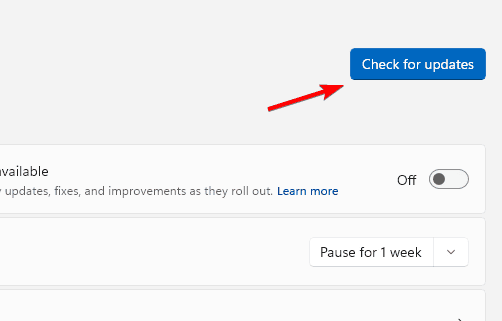
  3. Click Check for updates.
    check for updates button windows 11
  4. Install all available patches.
  5. Restart your device.

If you notice display issues after a big system upgrade, you can review how AMD graphics drivers work in Windows 11 and affect performance so you can pick the best version.

Fix overheating or power issues

Heat and unstable power often trigger black screens, hard freezes, or sudden FPS drops during gaming.

  1. Clean dust from the GPU cooler and case fans.
  2. Improve airflow with better cable management.
  3. Reseat all PCIe power connectors.
  4. Test another PSU if you suspect low power delivery.
  5. Monitor GPU temperature in AMD Software while gaming.

Disable integrated GPU conflicts

If Windows uses the integrated GPU instead of the AMD Radeon card, your games and apps will run with much lower performance.

  1. Open the Start menu and search for Graphics settings.
  2. Open Graphics settings from the results.
  3. Add the affected game or app to the list.
  4. Set Graphics preference to High performance.
  5. Restart the app and test it again.

Run System File Checker

Corrupted system files can break communication between Windows and the AMD driver, so repair them with a quick scan.

  1. Open the Start menu and search for Command Prompt.
  2. Choose Run as administrator.
  3. Type sfc /scannow and press Enter.
  4. Wait for the verification to finish.
  5. Restart your PC after the scan completes.

FAQs

Why does my AMD Radeon GPU keep crashing

Driver corruption, high temperatures, and unstable tuning settings usually cause repeated crashes during games or heavy workloads.

Why does my screen go black after updating the driver

A faulty release, rapid temperature spikes, or poor power delivery can trigger a black screen while the AMD Radeon graphics problem appears under load.

How can I improve AMD Radeon performance

Update the driver regularly, reset AMD Software, enable High performance mode, and keep GPU temperatures under control with proper cooling.

When should I use a clean install

Use a clean install when updates fail, when AMD Software does not open, or when you see recurring driver errors after every reboot.

Conclusion

An AMD Radeon graphics problem usually comes from bad drivers, Windows compatibility issues, or overheating. You can solve most cases by updating, rolling back, or reinstalling the driver, and by keeping the system patched and cool. If these steps do not fix crashes or black screens, test the GPU in another PC to confirm whether the hardware still works correctly.

Create a Self Extracting Archive with IExpress on Windows

Learn how to create a self extracting archive with IExpress on Windows. This tool lets you bundle files into one executable for easy extraction and distribution, so let’s see how to use it.

How to Create a Self Extracting Archive with IExpress?

How to Start an IExpress Project

This section helps you launch IExpress and set up the basic package structure.

  1. Press Windows + R, type iexpress, and press Enter.
  2. Select Create new Self Extraction Directive file and click Next.
      
  3. Choose Extract files only.
  4. Enter a package title and continue.
  5. Select No prompt or add a custom prompt if needed.

If you also work with standard ZIP files, see how to unzip files in Windows 11.

How to Add Files and Build the Executable

This section guides you through adding your files and generating the final self extracting EXE.

  1. Click Add and choose every file you plan to include.
     
  2. Select your desired extraction behavior and click Next.
  3. Set the destination folder or allow the user to choose.
  4. Choose No restart.
  5. Click Next until you reach the final page.
  6. Select Do not save unless you want a reusable directive file.
  7. Click Finish to generate the EXE package.

If you manage large archives regularly, see how to extract multiple ZIP files at once.

What is a Self Extracting Archive

A self extracting archive stores multiple files inside one EXE that unpacks them when opened. Windows includes IExpress, a built in wizard that helps you package files quickly.

If you need to prepare your folders before creating the EXE, check out this guide on how to zip multiple folders into separate files.

FAQs

How do I rebuild an IExpress package

Rebuild it by starting a new IExpress project and adding all original files again.

Can IExpress compress files

Yes. It uses CAB compression to reduce the size of the EXE.

Can I auto launch a program after extraction

Yes. Choose Extract and run an installed program and enter the executable you want to run.

Where does IExpress place temporary files

It uses a temporary folder that Windows removes automatically after extraction.

Conclusion

IExpress gives you an easy way to build a self extracting archive without installing extra tools. You can package files, add prompts, choose extraction behavior, and deliver one executable that works on any Windows PC. The links above support you when preparing files for the packaging workflow.

NoMachine Windows: How To Set Up And Use Remote Desktop

NoMachine Windows gives you fast remote access with smooth video performance and secure connections. This guide explains what it offers, how to set it up, and how to use its core features.

What Is NoMachine on Windows?

NoMachine is a remote desktop app that lets you access your Windows PC from another device. It streams your desktop in real time, supports full control, and includes audio and file transfer tools.

This is a good alternative if you need remote desktop capabilities similar to other tools. For more options, see how to enable multiple remote desktop sessions in Windows 11.

Key Features of NoMachine on Windows

NoMachine includes tools that help you work, share content, or control your PC from any location.

  • High quality desktop streaming with low latency.
  • Built in audio forwarding for videos, calls, and system sounds.
  • File transfer panel for sending files between devices.
  • Multi monitor support for switching or viewing displays.
  • Recording tools for capturing your remote session.
  • Clipboard sharing for copying text between devices.
  • Secure connections with encrypted protocols.
  • Mobile and cross platform compatibility.

If you want another remote tool for comparison, check out how to download Chrome Remote Desktop on Windows 11.

How to Install NoMachine on Windows

Follow these steps to install NoMachine correctly on your Windows PC.

  1. Visit the official NoMachine download page.
  2. Download the Windows installer.
  3. Run the installer and click Next.
  4. Accept the license agreement.
  5. Keep the default installation options.
  6. Click Install and wait for the setup to finish.
  7. Restart your PC.

How to Connect to Your Windows PC with NoMachine

Use these steps to start your first remote connection.

  1. Open NoMachine on your Windows PC.
  2. Find the IP address shown on the welcome screen.
  3. Open NoMachine on your client device.
  4. Click New to create a connection profile.
  5. Enter the Windows PC IP address.
  6. Select NX as the protocol.
  7. Enter your Windows username and password.
  8. Confirm the connection to start the remote session.

How to Use NoMachine Features

NoMachine includes several tools inside the session menu. Here is how you access and use them.

Using file transfer

You can send files between your devices directly inside the NoMachine session window. Use the menu on the right side to open the transfer panel and manage uploads or downloads with a few clicks.

  1. Move your mouse to the right edge of the screen to open the menu.
  2. Select Transfer files.
  3. Choose files you want to upload or download.
  4. Confirm and wait for the transfer to finish.

Switching monitors

NoMachine allows you to switch between connected displays easily. Use the display controls to view a single monitor or swap between them during your remote session.

  1. Open the session menu.
  2. Select Display.
  3. Choose the monitor you want to view or switch between.

Enabling audio

You can forward sound from your Windows PC to your remote device. Enable audio inside the session menu to hear system sounds, media, and application audio.

  1. Open the session menu.
  2. Select Audio.
  3. Make sure audio forwarding is enabled.

Recording your session

NoMachine includes a built in recorder that lets you capture your remote desktop. Use this feature when you want to save your workflow or document an issue.

  1. Open the session menu.
  2. Select Record session.
  3. Choose the recording location.
  4. Start and stop recording as needed.

If you prefer a more simplified share session approach for guests, see how Chrome Remote Desktop Guest Mode works.

FAQs

Why is NoMachine not connecting on Windows

The most common causes include blocked firewall rules, disabled services, or sleep mode triggering on your network adapter.

Does NoMachine work on Windows 11

Yes. NoMachine fully supports Windows 11 and works with both local and remote sessions.

Why is NoMachine lagging

Slow connections usually happen due to low bandwidth or background apps using too much CPU.

Can I transfer files through NoMachine

Yes. Use the file transfer panel during a session to upload or download files quickly.

Conclusion

NoMachine Windows gives you fast remote access with features that help you work or collaborate from anywhere. You now know how to install the app, connect to your PC, manage screens, transfer files, and record sessions. Each of the links above gives you additional options if you want to explore other remote access methods or compare tools.

What Is Firmware? Simple Guide for PCs, Routers, and Phones

Firmware powers the basic functions of your hardware and keeps devices running correctly from the moment you turn them on. Phones, routers, PCs, SSDs, and smart home gadgets rely on firmware to operate safely and consistently.

What Is Firmware? All You Need to Know

What Is Firmware in Tech?

Firmware controls how hardware behaves and enables the operating system to communicate with physical components. This includes low-level systems like SSD controllers as well as startup tools such as BIOS and UEFI.

When you learn how BIOS and UEFI work together in a computer, guides like What Is UEFI and What Is BIOS? help you understand how firmware fits into the boot process.

Why Firmware Matters

Firmware updates improve security, stability, and compatibility. Manufacturers fix bugs, patch vulnerabilities, and enhance performance by releasing new versions, so every device benefits from timely updates.

Types of Firmware

Firmware comes in several forms, and each one serves a specific role.

  • Low-level firmware: Controls essential hardware functions and starts the device.
  • High-level firmware: Handles advanced features such as menus, device settings, or smart functions.
  • BIOS or UEFI firmware: Runs during startup to initialize hardware and load the operating system.

How Firmware Works

Firmware stores in ROM, flash, or EEPROM memory. It loads instantly when the device powers on and guides hardware behavior before the operating system takes over. Every device uses this layer to manage low-level operations.

How to Check Firmware Version

Smartphones

Check the version inside your system settings.

  1. Open Settings.
     
  2. Tap About phone or About device.
  3. Open Software information or Firmware version.

Windows PCs

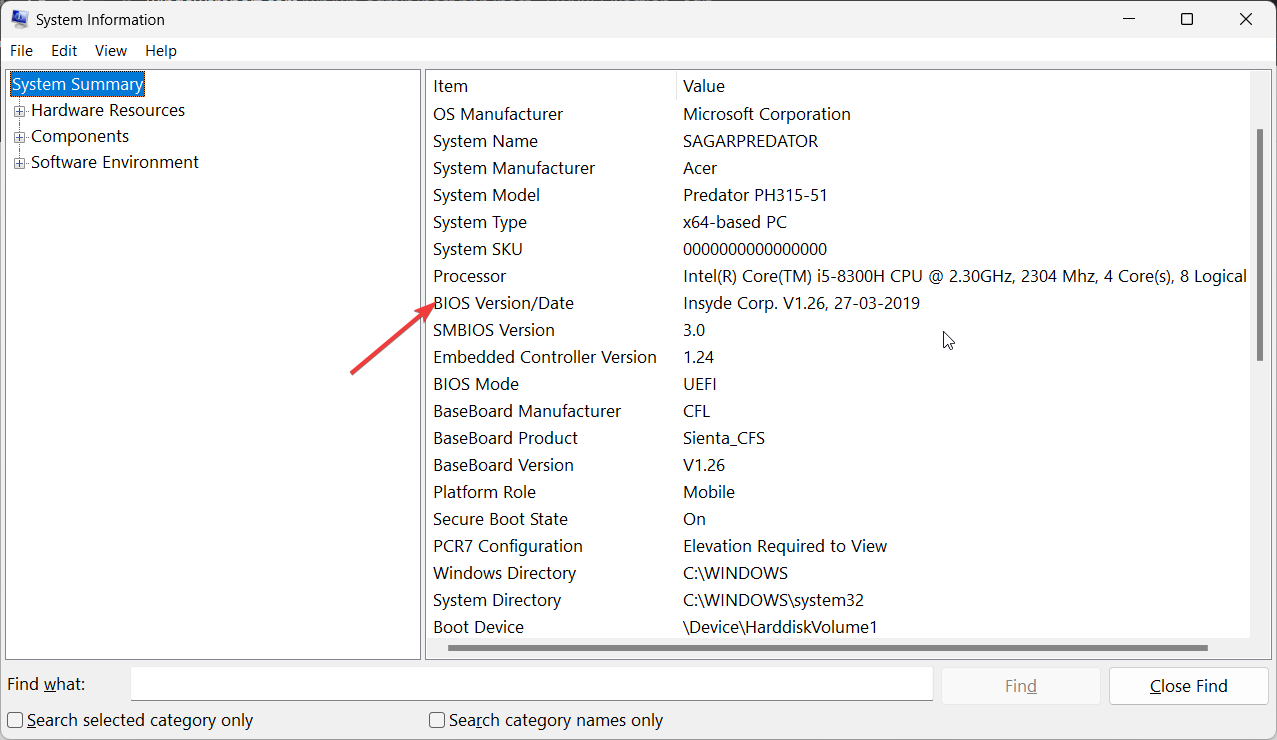
System Information shows BIOS or UEFI versions.

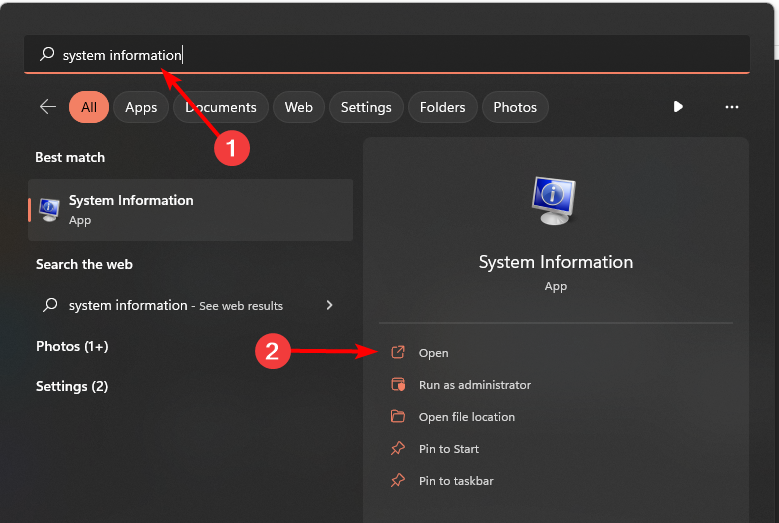
  1. Press the Windows key and open System Information.
  2. Look for the BIOS Version or UEFI Version entry.
  3. Write down the version so you can compare it with available updates.

You can also review safe update methods in guides like How To Update BIOS in Windows 11.

Routers

Router dashboards show the current firmware version by default.

  1. Open a browser and enter your router’s login address.
  2. Sign in with admin credentials.
  3. Check the Status or System page to view firmware information.

If you want to update your router afterward, guides such as How To Update Router Firmware explain the process clearly.

How to Update Firmware Safely

General Steps for Any Device

Follow these steps when you install a new firmware version on most devices.

  1. Visit the support page for your device model.
  2. Download the exact firmware release for your hardware.
  3. Charge your device or plug it into stable power.
  4. Launch the update file or upload it through the device interface.
  5. Restart the device to complete the process.

What to Avoid

These simple rules protect your device during updates.

  1. Do not install firmware made for a different model.
  2. Do not stop the update once it starts.
  3. Do not run updates during power fluctuations.

Why Firmware Updates Help

Regular updates fix errors, improve system performance, and strengthen security. Updated firmware keeps hardware stable and reduces compatibility issues.

FAQs

Is firmware the same as software?

No. Firmware manages hardware behavior while software runs on top of the system.

Can a device operate without firmware?

No. Firmware provides the essential startup instructions.

How often should I update firmware?

Check for updates every few months or when the device shows performance issues.

What happens if a firmware update fails?

Some devices switch to a recovery mode, while others require a manual repair tool from the manufacturer.

Conclusion

Firmware controls hardware behavior, shapes the startup process, and supports communication between devices and their operating systems. When you update it regularly, you improve performance and enhance security across your entire setup. The guides mentioned in this article help you understand what firmware is, how BIOS and UEFI work, and how to manage router and PC firmware without risking your device.

Windows 11 KB5070312 Fixes File Explorer Bugs & More

Microsoft has released a new Build 22631.6269 (under KB5070312) for the Education and Enterprise edition of Windows 11 version 23H2. And, it fixes some annoying bugs related to File Explorer and more. Here’s the full changelong as mentioned by Microsoft:

  • [Country and Operator Settings Asset (COSA)] Fixed: This update brings profiles up to date for certain mobile operators.
  • [File Explorer] Fixed: This update addresses an issue where File Explorer sometimes didn’t respond to mouse clicks until you closed and reopened it.
  • [File Management] Fixed: This update addresses an issue with extracting .tar files when file or folder names contain more than 34 commonly used Chinese characters.
  • [Group Policy and Configuration] Fixed: This update addresses an issue where the HideRecommendedSection policy didn’t work in Windows 11 Enterprise multi-session environments, such as Azure Virtual Desktop (AVD). Even when configured using Group Policy or Configuration Service Provider (CSP), recommendations still appeared in AVD sessions.

If you installed earlier updates, your device downloads and installs only the new updates contained in this package. Mocrosoft furthet notes that it is not aware of any issue with this update.

Check Every Trailers & Announcements From Xbox’s 2025 Partner Preview Showcase

Xbox Partner Preview returned with a stacked 30-minute showcase loaded with new reveals, day-one Game Pass drops, and surprise game launches. As Xbox put it, the broadcast was “shining a light on our third-party partners with world premieres, new announcements, DLC reveals, and much more.”

According to Xbox, the show “revealed five brand new games, released three that you can play today, and announced nine new titles that will be playable day one on Game Pass Ultimate.” The team also highlighted that “all of the games featured in today’s show are Xbox Play Anywhere,” ensuring players can jump between consoles, PC, and handhelds seamlessly.

Here is your full recap, with every trailer, tidbits about the games, and surprise drops from the Xbox Partner Preview November 2025 showcase.

007 First Light

The showcase featured a first look at the Aston Martin Valhalla, described as “a state-of-the-art sports coupé with a few ‘special’ modifications (guns) built in especially for on-duty 00 Agents.” The supercar plays a major role in Bond’s missions when the game launches on March 27, 2026.

Armatus

Xbox premiered the first trailer for this third-person action-roguelite, introducing “a mysterious event known as The Vanishing, which has ended the world.” Armatus arrives in 2026, launching day one on Game Pass.

CloverPit

Described as the roguelite where “every spin contributes to your survival,” CloverPit is out today, playable across Xbox Series X|S, PC, Cloud, and Game Pass Ultimate.

Crowsworn

A stylish action platformer set in the cursed land of Fearanndal, featuring “tight traversal mechanics with fluid combat manoeuvres.” The game will launch day one on Game Pass.

Dave the Diver + In The Jungle DLC

Dave the Diver is out today for Xbox, with its new expansion, In The Jungle, is arriving in early 2026.

Echo Generation 2

The sequel returns with “spooky, supernatural” vibes and turn-based battles inspired by classic ’80s and ’90s adventures. Coming soon to Xbox and Game Pass.

Erosion

A world premiere for this western-themed isometric action game with a unique mechanic: “when you die, you respawn 10 years later.” Launching in spring 2026 via Game Preview.

Hitman World of Assassination

A standout reveal: Agent 47’s next Elusive Target sees him hunting “the alter ego Slim Shady, at the request of… yes, rapper, Eminem himself.”

The Mound: Omen of Cthulhu

A co-op Lovecraftian horror experience where players face “supernatural forces beyond comprehension.” Arriving summer 2026.

Raji: Kaliyuga

A surprise sequel set six years after the original game, shifting to “a full third-person action-adventure.” Launching day one on Game Pass.

Reanimal

From the creators of Little Nightmares, this co-op horror adventure sees siblings escaping a world “brimming with monsters and secrets.” The game launches in February 2026, with a demo available as of now.

Roadside Research

A comedic co-op sim where you’re an alien undercover at a gas station, tasked with “gathering intelligence on humans.” The game will launch in Q1 2026, day one on Game Pass.

Tides of Annihilation

A fantasy action-adventure inspired by Arthurian Legend, showcasing reality-shifting combat in a full boss fight reveal. Release date TBA.

Total Chaos

From the creator of Turbo Overkill, this first-person survival horror is available today on Xbox and Game Pass.

Vampire Crawlers

Poncle’s new first-person dungeon-crawling roguelike introduces familiar upgrades like “the bible, the whip, and of course, the garlic.” Coming soon to Game Pass.

Zoopunk

A sci-fi action game starring “sky-faring, traditional-weapon-wielding anthropomorphic animals,” landing in 2027.

With so many premieres, surprise launches, and Game Pass drops, the November Xbox Partner Preview had something for every kind of player. Tell us which game you’re most excited to try, and which reveal completely stole the show for you.

Xbox Partner Preview Highlights the Aston Martin Valhalla Coming to 007 First Light

Xbox’s latest Partner Preview has announced a major addition to 007 First Light: the Aston Martin Valhalla, the brand’s first mid-engine PHEV hypercar. The sleek supercar will make its in-game debut when the title launches on Xbox Series X|S on March 27, 2026.

The Aston Martin Valhalla brings a mix of cutting-edge engineering and signature Bond style, drawing inspiration from the Valkyrie and Formula 1 tech to offer aerodynamic precision and serious speed. In the real world, only 999 units of these exist, and IO Interactive is capturing the full experience for players stepping behind the wheel.

As you may know, cars hold an important part in the James Bond universe, and 007 First Light continues that tradition with a lineup of iconic cars. The September gameplay reveal already showcased the Aston Martin DBS in a high-stakes chase sequence set in Slovakia.

For longtime fans, the inclusion of the Valhalla and other classic Bond vehicles reinforces the series’ legacy of style, tech, and high-speed drama. Whether you’re in for the spy missions, the cars, or both, 007 First Light tries to deliver a modern take on Bond’s most legendary rides. So, with the Valhalla officially joining the garage, are you excited to take the wheel? Wait for March 27!

Save Big on Copilot+ PCs with Latest Black Friday Deals – Live Now

The holiday season is here, and there’s no better time to upgrade to a Windows 11 PC. The company has lately been focusing on making Windows AI-heavy, and we see Copilot these days here and there. If you are looking to upgrade your PC this holiday season, Microsoft has announced discounts on some of the latest and best Copilot+ PCs.

Those unaware, Copilot can complete tasks faster, plan holiday trips, edit cards, draft messages, and brainstorm gift ideas, all with simple voice commands or written prompts. The AI features are available across every Windows 11 PC.

If you’re into gaming and looking for a gaming laptop deal, grab the Lenovo Legion 5 15” laptop. It comes with AMD Ryzen 7 2600 processors and NVIDIA GeForce RTX 5060 graphics for superb performance. The best news? It’s currently discounted from $1,249.99 MSRP to $1,169.99 at Walmart.

Students and creators can take a look at the Dell 16 Plus, which comes with Intel Core Ultra processors, a vibrant 16-inch display, and up to 20 hours of battery life. You can grab it for $649.99, a massive $400 off from the original price of $1,049.

Meanwhile, the Samsung Galaxy Book5 360 combines 2-in-1 versatility with a Full HD AMOLED display for $899.99, a massive $450 off from the original price of $1,349.99.

For multitaskers and parents, the Acer Aspire 14 AI offers multi-day battery life, Intel Core Ultra power, and sleek portability. You can grab it at Costco wholesale for just $449.99 (original price 699.99). Meanwhile, the lightweight ASUS Zenbook 14 is available at $698.80, after a $201.19 off from the regular $899.99 price. Lenovo Yoga 7 2-in-1 Copilot+ is available with $200 discount for $899.99.

With holiday deals live at major retailers, now is the perfect moment to gift a Windows 11 PC that combines AI, performance, and style for everyone on your list.

Xbox Free Play Days is Back; Try Wildgate, Expeditions & More This Weekend (Nov 20-23)

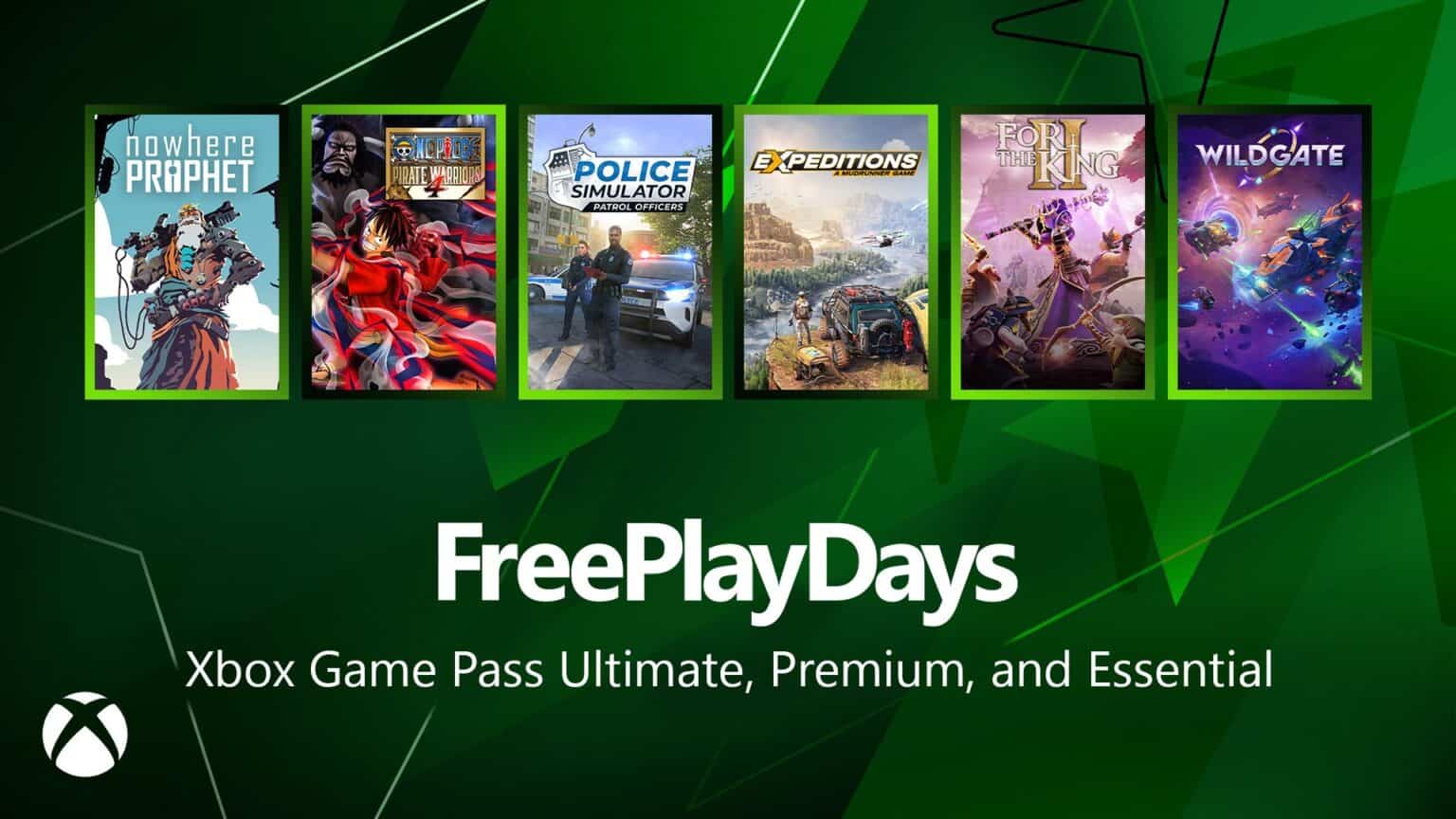
Xbox Free Play Days is back with another loaded weekend lineup. From November 20 through November 23, Police Simulator: Patrol Officers, Expeditions: A MudRunner Game, and Wildgate are free to play for Xbox Game Pass Ultimate, Premium, and Essential members.

Wildgate’s latest update, Emergence, brings new modes like Treasure Hunt and Fleet Battle, alongside new ships and custom lobby support. Meanwhile, a few other games are open to all Xbox players, with no Game Pass membership required.

Nowhere Prophet, One Piece: Pirate Warriors 4, and For the King II are free to try this weekend. Nowhere Prophet is even 70% off, at just $7.49, while For the King II is discounted to $9.99.

Expeditions: A MudRunner Game is also priced at half to celebrate the launch of its new Season 4: Amber Dusk update. Police Simulator: Patrol Officers is discounted from $29.99 to $23.99 during the event.

You can install any game directly from its store page on Xbox.com or head to the Free Play Days collection under the Subscriptions tab on your Xbox Series X|S or Xbox One. If you enjoy what you’re playing, you can purchase each title at a limited-time discount and keep all your progress, Gamerscore, and achievements.

As always, don’t forget that discounts and availability may vary by region, so it’s worth checking the store early.

Google Unveils Nano Banana Pro for Sharper, Smarter, Search-Aware AI Images

Google is taking high-fidelity image generation one notch up with the launch of Nano Banana Pro, a new native model powered by Gemini 3 Pro. The company has already tasted success with the original Nano Banana model earlier this year, and the Pro version feels like a confident next step. It delivers sharper output, better accuracy, and a surprising level of creative control.

Nano Banana Pro focuses on producing images that aren’t only visually detailed but also contextually correct. The model can even pull in real-time Search data to generate hyper-realistic visuals, from educational diagrams to recipe-based flashcards, using information scraped from the open web. This real-time awareness is one of its biggest upgrades, helping the model stay grounded and useful across different contexts.

Nano Banana Pro Sample
Image: Google

Google says Nano Banana Pro also gives professionals the tools they’ve been asking for. You can fine-tune lighting, camera angle, depth of field, color grading, and more. The model also handles up to fourteen objects in a scene and maintains the likeness of up to five people. These capabilities make it more competitive in a field where precision matters, especially as Meta pushes forward with its own 3D-focused SAM models.

The new model supports image generation up to 4K, though the higher tiers come at a cost. A standard 1024px image from the original model costs $0.039, while Nano Banana Pro charges $0.139 for 1080p or 2K, and $0.24 for 4K generations.

Google is rolling Nano Banana Pro across its ecosystem starting today. Gemini app users will get the upgraded model by default, though free users face a limited cap before falling back to the standard Nano Banana. Paid tiers like Google AI Plus, Pro, and Ultra get expanded limits, along with access in NotebookLM, Search (US only), Flow, and the Gemini API.

Xbox Black Friday Deals Are Live Now; Grab Massive Discounts on Your Favorite Games

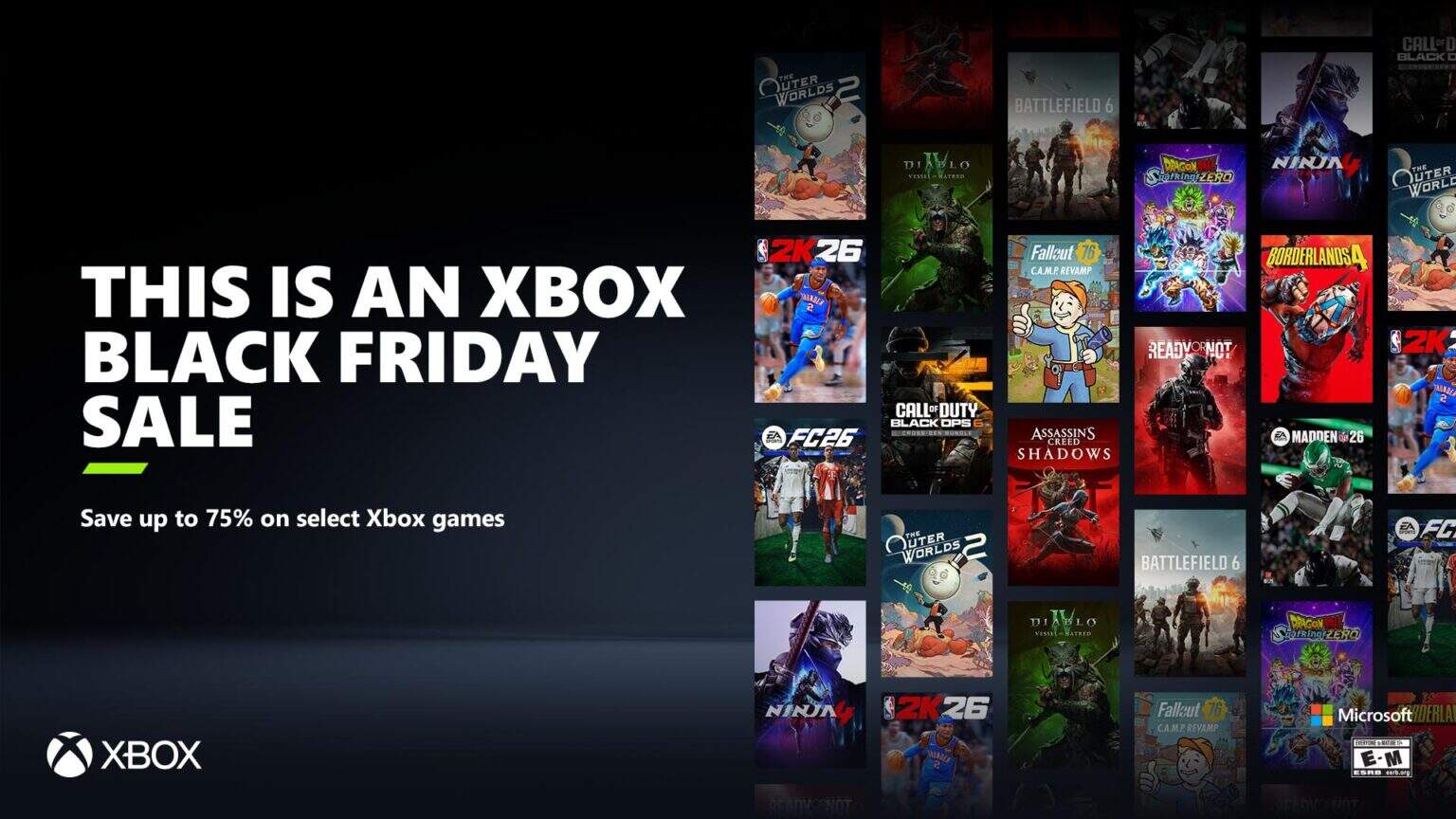
Are you planning to gift your gaming buddy something good or level up your own gaming setup? Well, Xbox’s biggest Black Friday Sale is live now, and every other deal feels like a steal. You can save up to 75% on select Xbox games, score up to 85% off popular PC titles, and grab discounts on Xbox wireless accessories that make every gaming session feel smoother.

Do note that discounts are US-only. For local pricing and availability, check your region’s Xbox.com or Microsoft Store. Offers may vary depending on your market and retailer, but the holiday spirit is global. Happy Shopping!

Xbox Black Friday Game Deals

You can save on standout titles like EA Sports FC 26 Standard Edition, Ninja Gaiden 4, The Outer Worlds 2, and more than 2,000 additional games. The following offers start today and run through December 3, giving you plenty of time to explore, compare, and lock in your next great adventure.

Xbox Black Friday Deals on Game Awards Nominee Titles

It’s worth noting that starting today through December 11, you can grab a promotional $5 Xbox gift card and Helix Credits Base Pack (500) – Assassin’s Creed Shadows when you buy Assassin’s Creed Shadows Standard Edition, Assassin’s Creed Shadows Digital Deluxe Edition, or Assassin’s Creed Shadows Premium Edition.

Xbox Black Friday Deals on Fan Favorite Games

Xbox Black Friday Deals on Games on Sale Right Now

Xbox Black Friday Game Pass Deals

If you haven’t joined Game Pass yet, this might be the easiest time to jump in. Xbox is offering 14 days of Game Pass for just $1. The offer is for new members only, and after your 14-day trial ends, the plan renews at $14.99 per month unless canceled.

Xbox Black Friday Deals on Controllers & Headsets

If you are eyeing discounts on accessories, wireless controllers, and headsets are up for sale. Add bold colors, sleek style, and immersive gameplay to any setup across console, PC, and cloud gaming. Check out Black Friday Deals on Xbox wireless accessories. That’s not all, you can also get free engraving on all controller purchases with Xbox Design Lab from November 27th.

Xbox Game Pass subscribers can also grab a limited-time Meta Quest 3S deal this holiday. From Nov. 20 to Dec. 31, you can grab the headset bundled with Batman: Arkham Shadow, Beat Saber, and a three-month Meta Horizon+ trial for just $249.99 in select regions.

So, what are you planning to grab? Do let us know in the comments below. Also, don’t forget to check our Windows Black Friday sale-focused article, where we’ll list deals that are live now. Happy Shopping!

Redeem Code In Microsoft Store: Simple Step By Step Guide

A Microsoft Store code unlocks apps, games, subscriptions, or account balance. You can redeem it in the Store app or through a browser.

How To Redeem Code Microsoft Store?

How to redeem a code in the Microsoft Store app

Follow these steps to claim your code in the Store.

  1. Open the Microsoft Store from the Start menu.
    store to get caps lock emoji
  2. Select your profile icon in the top right corner.
  3. Choose Redeem code.
  4. Type your 25 character code.
  5. Select Next to finish the process.

Anyone who switches between ecosystems may find it useful to know how to redeem an Xbox code for digital games and add ons.

How to redeem a code in your browser

Use this method if the Microsoft Store app does not open.

  1. Open any browser and go to the official Microsoft redemption page.
  2. Sign in with your Microsoft account.
  3. Type your 25 character code.
  4. Select Next to confirm.

If you earn points through rewards, you may benefit from learning how to redeem a custom Xbox gift card amount through Microsoft Rewards to top up your balance.

Why your Microsoft Store code may not work

A code may fail if it was already used, if it belongs to another region, or if you typed one character incorrectly. Check the region, confirm every character, and try again.

FAQs

Why does Microsoft Store say my code is incorrect?

A wrong character or extra space usually causes this problem. Reenter the code slowly and check each block.

Can I redeem a Microsoft Store code from another region?

No. Region locked codes only work in the region where you bought them.

Do Microsoft Store gift card codes expire?

Most gift cards never expire, but some promotional codes include expiration dates in the terms.

Can I redeem a Microsoft Store code without the Store app?

Yes. You can use the browser method and redeem the code on the redemption page.

You now know the fastest ways to redeem a Microsoft Store code. Try the Store method for a direct experience or switch to the browser method when the app does not open or crashes during use.

If you also play on other platforms, understanding how to redeem a Steam code helps you manage digital purchases across devices.

Amazon Exclusive Surface Pro 2-in-1 (2024) Drops to $899 in Big Black Friday Deal

Microsoft’s last year’s Surface Pro just hit one of its lowest prices yet for Black Friday. The 2024 Copilot+ model with a Snapdragon X Elite chip, 16GB RAM, and a 13-inch OLED touchscreen is now up for sale at just $899.99, down from its $1,399.99 list price. That’s a steep 36% discount.

This Surface Pro stands out as one of the first Copilot+ PCs in the market. The Snapdragon X Elite delivers fast performance, strong AI features, and much better efficiency than the company’s older Intel-based designs. Buyers are already echoing the upgrade, noting that battery life finally feels “incredible.”

One reviewer even highlighted that the device “just keeps going for hours” while working in the field without a charger. Others praised the chip’s fast response in daily work, apps, and multitasking.

The OLED screen is bright, sharp, and finally brings deeper contrast to the Surface line. The 13-inch panel offers punchy colors with a 1M:1 contrast ratio, making it far more cinematic than previous LCD models. The 2-in-1 design remains flexible. You can pair it with the detachable Surface Pro Flex Keyboard, switch between tablet and laptop modes, or flatten it out for sketching with the kickstand.

At $899, this is one of the strongest Surface Pro deals available right now. If you want a lightweight OLED 2-in-1 with long battery life and modern AI features, this discount lands at the right moment before the holiday rush kicks in.

Black Friday Deal: Xbox’s Pulse Cipher Controller Drops to $32.99 on Amazon

Microsoft may still be selling the Pulse Cipher Special Edition Xbox controller at $59.22, but Amazon clearly isn’t playing along. The stylish red-transparent controller has dropped to $32.99 on Amazon. That’s a massive 59% discount from its original $79.99 tag.

Image: Microsoft

It’s one of the steepest discounts we’ve seen on any Xbox accessory this year, and Amazon even labels it as an “Amazon’s Choice” pick. If you have been eyeing the Pulse Cipher edition, this deal hits at the right moment.

The controller stands out with its transparent red shell, metallic silver interior, and red-grip back case. Microsoft has opted for rubberized grips, metallic triggers, a matching D-pad, and two-tone thumbsticks in this controller.

Image: Microsoft

It also supports Xbox Wireless and Bluetooth, so you can pair it with Xbox consoles, PCs, phones, or tablets without any hassle. Amazon reports over 4,000 units sold in the past month. That alone tells you where gamers are shopping, and it’s clearly not on the Xbox Store.

If you want a premium-looking controller without paying premium money, this is the time to grab it before the price jumps back up. Buy the Pulse Cipher Special Edition Xbox controller for $32.99 now.

Microsoft Confirms Windows 11 Agentic Features Comes With Security Risks

Microsoft isn’t shying away from adding AI to each and every part of Windows 11, despite getting backlash from users. To make things look even worse from the Windows users’ POV, Microsoft AI CEO took a jab at critics saying, “It cracks me up when I hear people call AI underwhelming…. The fact that people are unimpressed….is mindblowing to me.”

Although it seems Microsoft is pushing forward with its vision of making Windows an agentic OS, a new feature introduced in the recent Build 26220.7262 has sparked privacy woes among users (via Windows Latest).

Apparently, when you enable the new feature, Experimental agentic features, from under AI Components in the Settings, you’ll see a confirmation pop-up. While the pop-up itself isn’t the problem, the real concern is the note within it, which reads, “These features are still being tested and may impact the performance or security of your device.”

Microsoft claims that these AI agents work inside their own “Agentic Workspace. Adding more to it, Microsoft explains, “The creation of the agent workspace, where agents can work in parallel with a human user, enabling runtime isolation and scoped authorization. This provides the agent with capabilities like its own desktop while limiting the visibility and access the agent has to the user’s desktop activity.”

Yes, Microsoft says that each agents are rolled out with permitted actions. But Microsoft also admits security risks related to it. In a support document linked above, the company also mentions, “agentic AI applications introduce novel security risks, such as cross-prompt injection (XPIA), where malicious content embedded in UI elements or documents can override agent instructions, leading to unintended actions like data exfiltration or malware installation.”

From what’s mentioned, it’s understandable that users can later review what actions were taken by these agents. Although Microsoft compares it to Windows Sandbox, these AI agents might still run even after you shut them down, opposite to how Sandbox works. What’s more concerning is that when you enable these agents, by default, they have read and write access to files and folders in your PC.

Simple Steps To Create An Email Message Template In Outlook

Many Outlook users write the same messages every day and want a faster way to respond. A reusable email template helps you keep consistency and shorten your workflow. This guide shows you how to create, edit, and manage templates in Outlook.

How do I Create Email Message Template in Outlook?

1. Prepare Your Template Message

Here you prepare the message before saving it as a template.

  1. Open Outlook.
  2. Select New Email.
    outlook create new email
  3. Type the subject and body.
  4. Add placeholders you want to edit later.

2. Save the Email as a Template

This step saves the message as a reusable file.

  1. Click File in the message window.
    file outlook
  2. Select Save As.
  3. Choose Outlook Template (*.oft).
  4. Enter a clear file name.
  5. Click Save.

3. Access Your Template

You need to know where Outlook stores saved templates.

  1. Select New Items in the Home tab.
  2. Choose More Items.
  3. Click Choose Form.
     
  4. Select User Templates in File System.
  5. Pick your template and click Open.

You can manage your contacts more efficiently by using the address book, and this guide explains how to access it clearly: how to find the address book in Outlook.

4. Edit and Send Your Template

You can adjust each template before sending it.

  1. Replace placeholders with real details.
  2. Check for spelling or tone issues.
  3. Click Send.

You can learn more about saving and reusing email layouts in this guide on creating an Outlook email template which expands on template options in the new Outlook interface.

How to Update an Outlook Email Template

1. Open Your Existing Template

You must load the template before you update it.

  1. Select New Items > More Items > Choose Form.
  2. Pick your saved template.
  3. Click Open.

2. Edit the Message

You can update any part of the template.

  1. Add or remove details in the subject or body.
  2. Change formatting or placeholders.

3. Save the Updated Version

Saving your changes ensures the latest version stays ready to use.

  1. Click File.
  2. Select Save As.
  3. Choose Outlook Template (*.oft).
  4. Replace the file or save a new one.

What Is an Email Message Template in Outlook?

An Outlook email message template saves a pre written message you can reuse anytime. It keeps your communication consistent and reduces repetitive typing.

Best Practices for Outlook Templates

Use these tips to organize templates and edit them efficiently.

  • Keep messages short and easy to update.
  • Add clear placeholders.
  • Create folders for different categories.
  • Store templates in a shared location for team use.
  • Review templates often and refresh outdated details.

You can improve the structure of your reusable messages by studying well organized formats like the ones in this Outlook signature template guide which uses similar formatting principles.

FAQs

How do I find my Outlook templates?

Open New Items > More Items > Choose Form and select User Templates in File System.

Can Outlook use templates automatically?

Yes. Outlook rules can send auto replies using a saved template.

Does Outlook web support templates?

Yes. Outlook web includes quick message templates under My Templates.

Can I share templates with my team?

Yes. Save templates in a cloud or shared network folder so everyone can access them.

Email templates improve your Outlook workflow and help you handle repetitive communication faster. When you save, update, and organize them well, you stay consistent across messages and reduce typing time.

You can return to the classic Outlook desktop interface anytime by following this step by step guide on switching new Outlook to classic, then set up your email templates there.

If you want to automate responses even further, you can set rules and send auto replies using the steps explained in this guide on automatic replies in Outlook.

Qualcomm’s New Snapdragon Control Panel is Here for Windows on Arm Gamers

After months of testing, Qualcomm has officially unveiled its Adreno Control Panel out of beta and launched with a new name: Snapdragon Control Panel. The rebrand comes with the same core features as before, but with a cleaner, more streamlined hub that caters to gamers, creators, and power users on Snapdragon X Elite PCs.

Snapdragon-Control-Panel_Library
Image: Qualcomm

The new app acts as a central dashboard for managing everything related to the Adreno GPU. Once installed, the new control panel scans the system for supported games, including titles from your Steam library. Next, you’ll see a list that lets users tweak settings on a per-game basis.

You can make changes related to super resolution, frame-rate limits, anti-aliasing, anisotropic filtering, detail levels, and other graphics options that usually require you to land inside in-game menus. Now, you can update everything in one place before launching a game.

Snapdragon-Control-Panel_Add-New-Dialog
Image: Qualcomm

What’s intersting is that the Snapdragon Control Panel can check for GPU driver updates in the background and notify users when new versions are available. If you want, it can even install them automatically. Qualcomm says the goal is to remove guesswork and keep gameplay smooth without users having to hunt for downloads manually.

Not to fortget, this update comes alongside a new Adreno GPU driver release. Qualcomm says it includes fixes for over 100 games since launch, stability improvements, and early support for upgradable graphics drivers for the upcoming Snapdragon X2 Elite, which is expected in the first half of 2026.

Moreover, the company also confirmed that AVX2 emulation is coming soon to both existing Snapdragon X-series and the next-gen X2 Elite devices.

How To Convert PowerShell To EXE On Windows Using PS2EXE

Convert PowerShell to EXE with a single tool. PS2EXE gives you a simple way to package a .ps1 script into a file you can launch like any other Windows program.

How to Convert PowerShell To EXE?

Install PS2EXE

PS2EXE installs through the PowerShell Gallery, so you can set it up quickly.

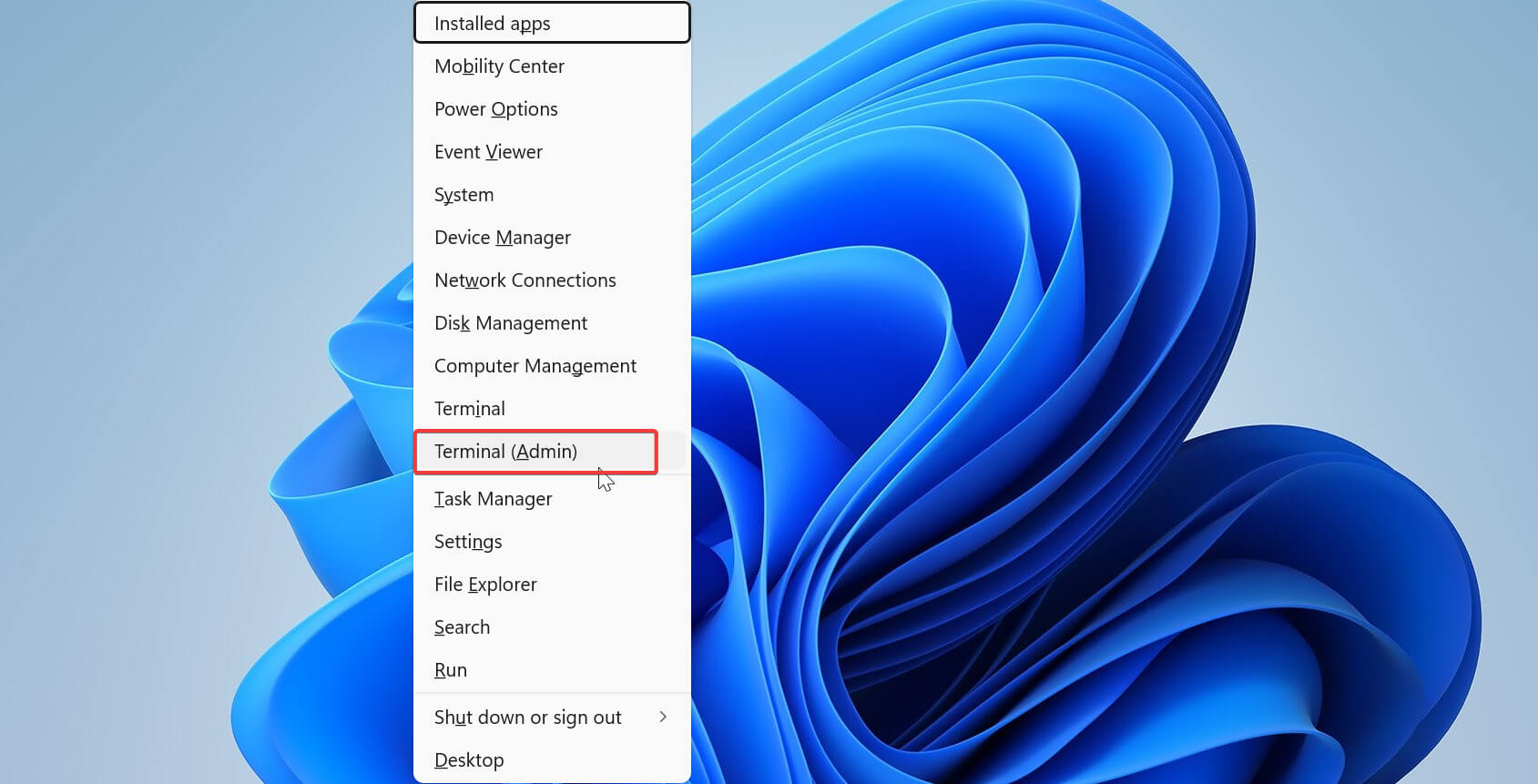
  1. Open Windows Terminal or PowerShell as administrator.
    terminal admin option windows 11
  2. Run the module installation command:  Install-Module -Name PS2EXE -Scope CurrentUser
  3. Approve the prompt that appears.
  4. Wait for the installation to complete.
  5. Confirm that PS2EXE commands load correctly.

If you want to prepare your script before conversion, this PowerShell scripting guide helps you understand core concepts: PowerShell scripting tutorial.

Convert a PowerShell script to EXE

You can convert your script with a single command once the module is ready.

  1. Move your .ps1 file into a clean folder.
  2. Open PowerShell inside that folder.
  3. Run the PS2EXE command to build the EXE: Invoke-PS2EXE .\script.ps1 .\script.exe
  4. Wait for the file to generate.
  5. Open the EXE to confirm it behaves as expected.

If you want more examples of how PS1 to EXE conversions work in practice, you can review this breakdown of PS1 to EXE conversion tools.

Add a custom icon

A custom icon helps users recognize your tool and gives the executable a more professional feel.

  1. Save a clear .ico file in the same folder as your script.
  2. Rebuild the EXE with the icon parameter: Invoke-PS2EXE .\script.ps1 .\script.exe -iconFile .\icon.ico
  3. Refresh your folder to load the new icon.
  4. Test the executable again.
  5. Update the icon whenever you adjust the tool branding.

If you want to understand how Windows handles script execution when working with converted tools, this overview explains the behavior of PowerShell scripts inside Windows environments: PowerShell scripts on Windows.

Why you should use PS2EXE

PS2EXE turns your script into an executable that you can share easily, schedule more reliably, and run without opening a console window.

FAQs

Does PS2EXE fully compile the script

No. The tool wraps your script inside an executable that still uses PowerShell in the background.

Can I run the EXE on a PC without PowerShell

No. The system must include PowerShell, which modern Windows versions already provide.

Can I hide the console window

Yes. PS2EXE includes an option that creates a silent executable.

Conclusion

PS2EXE gives you a straightforward way to convert PowerShell scripts into ready to launch EXE files. Install the module, run the conversion command, add an icon if you want a polished look, and test the result on any Windows PC. This simple workflow helps you package tools for teammates, automate tasks, and keep scripts easy to run.

Microsoft Quietly Refreshes the Windows Insider Website Amid Ongoing Uncertainty

I’ve been a Windows Insider for a long time now, and it’s the 11th anniversary of the Windows Insider Program (WIP). However, I must say that this milestone comes with mixed feelings. From the outside, it seems a lot is going on behind the scenes, but we as Insiders are not quite aware of it.

That’s because many Windows Insiders veterans like Brandon LeBlanc, Amanda Langowski, and Jason Howard have moved on. The exit staff from the WIP, who used to be the go-to people for anything related to Windows Insider, has left many wondering where the program is headed.

As of now, Microsoft hasn’t offered clarity on leadership or direction; however, it has surely overhauled the Windows Insider Program’s website. What’s surprising is that there was no announcement or a blog post, which almost feels like Microsoft hoped users would discover it on their own.

The designed site now flaunts Microsoft’s latest design language, with bright gradients, soft edges, and a layout that feels more modern. It highlights every branch of the program, explains what each channel is meant for, and offers direct links to documentation and downloads. There’s no denying that it finally feels easier for new testers to understand how Canary, Dev, and Beta differ without guessing or relying on old blog posts.

The redesign also introduces, predictably, which is an AI chatbot that waits at the bottom of the page, ready to answer questions about builds, enrollments, and features. It is handy, no doubt, still feels half-baked when it comes to answering the latest developments within the program.

WIP AI assistant

What do you think about the new Windows Insider Program website? Where do you think the program is heading? We’d love to hear your thoughts; make sure to comment down below.

Roblox to Require Facial Age Checks for Chat Access in Major Online Safety Push

As regulators around the globe introduce new laws to ensure the safety of teens in the online space, many companies, including OpenAI, Meta, and others, have recently implemented different age verification methods. Now, Roblox is rolling out one of its biggest age verification checks, which requires a facial age check before users can access chat.

Roblox has begun with a voluntary age check period starting on November 18, 2025. In early December, the facial age verification requirement will go live in select countries, including Australia, New Zealand, and the Netherlands. Meanwhile, a wider, global rollout is planned for early January wherever chat features are available.

As Roblox notes in its announcement, the age check verification uses Facial Age Estimation or ID verification. Roblox says the images and videos processed for verification are deleted immediately. Once a user is verified, they will be placed into specific age groups, eventually helping to determine who they can chat with.

For instance, younger users will only be able to chat with users of similar age groups. While older teens and adults will have access to wider age groups, excluding minors. The company further mentions that the new system will reduce contact between minors and adults while still keeping family communication intact through the Trusted Connections feature.

The latest safety update also introduces stringent chat controls. For example, children under nine will have chat turned off by default unless a parent provides consent. Meanwhile, those under thirteen will continue to face higher content filtering. Moreover, Roblox is also extending age checks to areas like social media links and creator collaboration tools early next year.

What Is the Pause Key on a Keyboard and How It Works

Pause key helps you stop or freeze system output on Windows devices. It often pairs with the Break key and appears on full sized desktop keyboards. In this guide we’re going to show you all you need to know about it, so let’s get started.

What Is the Pause Key?

The Pause key tells Windows to stop updating the current screen. It helps users freeze text, check device information, or trigger shortcuts like Pause Break. On some laptops, the key works differently because manufacturers often use function layers, similar to how function key lock behaves in Windows 11. Learn more here: Windows 11 function key lock guide.

Where You Find It

Most external keyboards place the Pause key near Print Screen or above the arrow cluster. Many laptops hide it behind a function shortcut.

What It Does

The Pause key stops scrolling content on command line tools. It also triggers the System Properties window when used with other keys.

Common Uses of the Pause Key

Open System Properties

Follow these steps to open your device information quickly.

  1. Hold the Windows key.
  2. Press Pause.
  3. Check the System window that appears.

Freeze Terminal Output

Use these steps to stop scrolling text during long commands.

  1. Run a long command in Command Prompt.
  2. Press Pause to freeze output.
  3. Press any key to resume scrolling.

Trigger Pause Break Functions

Try these steps to use Pause Break features in legacy apps.

  1. Check the settings of the app or game.
  2. Look for Pause or Break bindings.
  3. Press the assigned key to activate the action.

Pause Key on Laptops

Laptop makers remove the dedicated Pause key on many modern models. They rely on dual function keys instead, which can lead to shortcut issues when the Windows key stops responding. You can fix that here: unlock the Windows key.

Typical Shortcuts

Use these common laptop combos to access Pause functions.

  1. Press Fn plus P on some Lenovo laptops.
  2. Press Fn plus B on some HP models.
  3. Check your keyboard row for secondary labels.

Alternatives When You Do Not Have a Pause Key

You can still pause output or reach system details even without a dedicated Pause key. Some users disable the Windows key by mistake which affects Pause Break shortcuts. You can manage this properly here: disable the Windows key.

Use On Screen Keyboard

Use these steps to access a virtual Pause key.

  1. Press Windows plus R.
  2. Type osk and press Enter.
  3. Click Pause on the on screen layout.

Use PowerShell or CMD Controls

Use this method to pause output directly from the command line.

  1. Open PowerShell.
  2. Type pause and press Enter.
  3. Press any key to continue.

Use App Shortcuts

Try these steps to assign custom pause actions inside apps.

  1. Open the settings menu.
  2. Look for keyboard shortcuts.
  3. Assign a new binding that performs the same task.

FAQs

What is the Pause key used for

It freezes screen output and opens the System Properties shortcut when used with Windows.

Why do laptops not include a Pause key

Manufacturers remove rarely used keys to save space and rely on function combos.

What replaces Pause in modern apps

Most apps expose custom pause or break shortcuts inside settings.

Conclusion

The Pause key still offers quick ways to view system details or stop console output. Even when your keyboard lacks a physical key, Windows provides strong alternatives through software tools, function shortcuts, and on screen keyboards.

NVIDIA Confirms Windows 11 KB5066835 Update Behind Lower Gaming Performance; Releases Hotfix Driver

In the past few days, if you figured out that some of your games suddenly feel sluggish, NVIDIA has an answer for it. The company says a recent Windows 11 Patch Tuesday update, KB5066835, released for version 24H2 and 25H2 on October 14, 2025, is behind performance dips reported across multiple titles.

NVIDIA has responded to the issue by rolling out a new hotfix driver, version 581.94. It builds on the earlier 581.80 release but includes a workaround for systems affected after installing KB5066835.

While the company didn’t specify the names of the affected games, user reports point to Black Ops 7 and Battlefield 6 showing the most obvious improvements after the driver update.

Folks over at Neowin came across a comment on NVIDIA’s forum where one user found performance to be a lot smoother in titles like Black Ops 7, Battlefield 6, and Arc Raiders post hotfix driver update.

Although the issue has been confirmed to have been triggered by the Windows 11 update, there’s no word on the matter from Microsoft. We’ll update this article if Microsoft adds something about it in the Windows Release Health Dashboard.

If you have been experiencing similar issues after installing the aforementioned update, don’t forget to install the hotfix driver update, which you can find here.

How to Check Print History on Windows 11 Step by Step

You can check print history on Windows 11 by turning on print logging and reviewing the Print Queue and Event Viewer. This guide gives you fast steps to follow.

How to Check Print History on Windows 11?

Turn on print logging in Windows 11

Turning on print logging creates a record for every printed document.

  1. Open Start and type Print Management.
  2. Select Print Management.
  3. Expand Custom Filters and select All Printers.
  4. Right click your printer and select Properties.
  5. Open the Advanced tab.
  6. Turn on Keep printed documents.
  7. Select OK.

After you enable print logging, you can manage the device more easily when you install a new printer, and guides such as how to install a local printer in Windows 11 can help when you need to set up new hardware.

Check your print queue for recent jobs

Your print queue helps you confirm the latest printed items.

  1. Press Win + R and type control printers.
  2. Press Enter to open Devices and Printers.
  3. Right click your printer and select See what is printing.
  4. Review your printed and pending jobs.

You can access this view through the system device panel, and learning how to open Devices and Printers settings in Windows 11 gives you faster access to queue management.

View detailed print history in Event Viewer

Event Viewer shows a complete log of print activity.

  1. Open Start and type Event Viewer.
  2. Select Event Viewer.
    Event Viewer - ERROR_DEVICE_ALREADY_ATTACHED
  3. Expand Applications and Services Logs.
  4. Expand Microsoft, then Windows, then PrintService.
  5. Select Operational.
  6. Review your print events with timestamps and status details.

Event Viewer gives you finer control over troubleshooting, especially when you need to confirm whether a document reached the printer successfully.

Use Print Management for long term tracking

Print Management helps you filter and sort large logs.

  1. Open Start and type Print Management.
  2. Select Custom Filters.
  3. Right click All Printers and select Filter Current Log.
  4. Filter by date, user, or status to locate specific print events.

Sorting older events helps you track usage trends and verify document flow on shared printers.

Use third party tracking tools

Some users want deeper control over who prints and when.

  1. Install a trusted print tracking app.
  2. Add your printer inside the app.
  3. Set rules for tracking pages or users.
  4. Review usage reports when needed.

When you set up tracking, you may also want to confirm that your printer functions correctly by using a quick test from the print a test page in Windows guide.

FAQs

How do I see older print jobs on Windows 11

Turn on print logging in Print Management and check logs in Event Viewer.

Why does my print history show nothing

Windows records no print logs until you enable Keep printed documents.

Can I recover deleted print logs

You cannot restore removed logs unless a third party tool saved them earlier.

Does clearing the queue reset my history

Clearing the queue removes active jobs but does not delete Event Viewer logs.

You can check print history on Windows 11 by enabling logging, reviewing the queue, using Event Viewer, and filtering events in Print Management. These tools help you confirm document activity, troubleshoot printing issues, and keep better control over how your printer handles each job.

How To Download Old Version Software on Windows Safely

Old version software helps you keep older PCs stable and avoid compatibility problems that appear after large updates. This guide shows you trusted sources for legacy Windows apps and the safest way to install them.

Best sites to download old Windows software

1. OldVersion.com – Windows legacy apps

OldVersion.com offers one of the largest archives of Windows programs, including browsers, utilities, media players, and productivity apps. Many users rely on it when setting up older systems, especially when preparing a device for tasks like reinstalling classic operating systems. If you plan to bring an older PC back to life, you can review steps for installing Windows 7 before downloading compatible software.

The archive lists release dates and version numbers for every build. These details help you pick a version that fits older hardware and avoids bugs that appeared in newer releases.

2. FileHippo – Version history

FileHippo includes full version histories for many Windows apps across categories like antivirus tools, browsers, office suites, and developer utilities. You can open the product page and choose past builds directly from the sidebar.

The platform scans files with antivirus engines and provides release notes. This makes it easy to compare changes between versions and choose a stable build for long term use.

3. MajorGeeks – Utilities and tools

MajorGeeks focuses on system utilities, diagnostics tools, and troubleshooting software. Many of these programs run well on aging hardware, which makes the site useful when you work with older desktops or laptops. If you want to optimize performance on legacy hardware, you can check guidance on running Windows 7 or Windows 10 on an old PC while selecting compatible tools from the archive.

Every file includes a short technical description, and the team manually tests the software before publishing it. This gives the site strong credibility among Windows enthusiasts.

4. Softpedia – Clean verified installers

Softpedia keeps extensive version histories for many Windows programs. You can open the download section of any app and scroll through older releases to pick the version that suits your system best.

The platform verifies files and lists them as clean when they pass checks. This makes Softpedia a dependable source for downloading older Windows applications.

5. WinWorld – Vintage Windows software

WinWorld specializes in classic and discontinued Windows tools, including productivity software, early utilities, and operating system installers. This archive helps you re create older environments or maintain compatibility in legacy workflows. When you build or restore a vintage setup, you may need an authentic system image, such as the official Windows 7 ISO available from Microsoft sources.

The site provides screenshots, release notes, and technical details for each entry, which helps you select the right version for your project.

How to download old software safely on Windows

When you work with older installers, you need a clear process that reduces security risk while keeping your setup stable.

  1. Check whether the developer still offers official legacy installers.
  2. Select a trusted download site and choose a specific version number.
  3. Download the installer and confirm its signature when available.
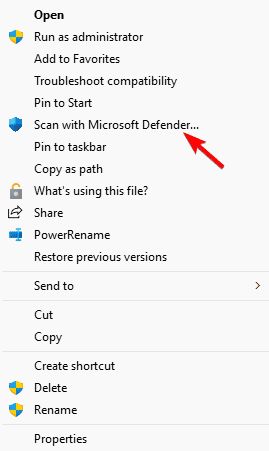
  4. Scan the file with Windows Security or your antivirus solution.
  5. Install the program and turn off automatic updates if the app reverts to a newer version.

FAQs

Why should I use old software?

Older versions support legacy hardware, plugins, and features that newer releases remove.

Is downloading old Windows software safe?

It becomes safe when you rely on verified archives and scan each installer before running it.

Is it legal to install older versions?

Yes, as long as the software is freeware or you already hold a valid license.

Will old Windows apps run on Windows 11?

Most run with compatibility mode, though some require older frameworks or dependencies.

Downloading old version software helps you maintain stability, improve performance on older hardware, and preserve discontinued features. Use trusted archives, scan installers, and pick versions that match the age and capability of your Windows device.

HAR File Explained: How to Open and Generate One

Ever wondered what a HAR file is or why some websites ask for one during troubleshooting? This guide shows you what it does and how you can use it to diagnose problems in your browser.

What Is A HAR File And How To Open It

HAR file overview

A HAR file stores HTTP session data that helps you examine how a webpage loads. Browsers create it when you record network activity, and developers rely on it to debug slow or failing pages.

What a HAR file contains

  • Request and response headers
  • Resource load times
  • Cookies
  • Redirect chains
  • Errors captured during the session

Why you may need a HAR file

  • Troubleshoot slow pages
  • Share debugging data with support teams
  • Inspect failing requests
  • Analyze caching or CDN behavior

How to open a HAR file

1. Open HAR file in Chrome or Edge

Follow these steps for Chromium:

  1. Open Chrome or Edge.
  2. Press Ctrl + Shift + I.
  3. Select Network.
  4. Drag your HAR file into the Network panel.
  5. Review requests, timings, and errors.

When you work with HAR data, you often compare it with other diagnostic outputs such as a Windows debug log. You can learn more about it in this Debug Log File Guide.

2. Open HAR file in Firefox

Firefox users need to do the following:

  1. Open Firefox.
  2. Press Ctrl + Shift + I.
  3. Select Network.
  4. Drag the HAR file into the panel.
  5. Inspect each request.

If your Firefox console stops showing diagnostic information, fix that issue before generating a HAR. In case you’re having issues with it, check our guide on how to Fix Firefox Console Log.

3. Use an online HAR viewer

Some users prefer using online tools and you can use them like this:

  1. Go to an online HAR analyzer site.
  2. Upload your HAR file.
  3. Inspect headers, cookies, and timings.

4. Use a desktop HAR viewer

  1. Install an advanced HAR viewer or debugging tool.
  2. Launch the app.
  3. Load your HAR file.
  4. Sort requests by type, method, or duration.

How to generate a HAR file

1. Generate HAR file in Chrome or Edge

Steps for Chromium browsers are pretty simple:

  1. Open Chrome or Edge.
  2. Press Ctrl + Shift + I.
  3. Select Network.
  4. Enable Preserve log.
  5. Reload the page you want to capture.
  6. Select Export HAR.

2. Generate HAR file in Firefox

For Firefox, do the following:

  1. Open Firefox.
  2. Press Ctrl + Shift + I.
  3. Select Network.
  4. Reload the website.
  5. Click the cog icon.
  6. Select Save all as HAR.

3. Generate HAR file in Safari

  1. Open Safari.
  2. Go to Settings > Advanced.
  3. Enable Show Develop menu in menu bar.
  4. Open Develop > Show Web Inspector.
  5. Select Network and reload the page.
  6. Export the log as a HAR file.

What problems a HAR file can help you solve

  • Slow loading pages
  • Repeated request failures
  • Redirect loops
  • Cache issues
  • CDN delays
  • Authentication or cookie problems
  • Blocked or mixed content

FAQs

What program opens HAR files?

Any modern browser with DevTools opens HAR files.

Are HAR files safe?

HAR files contain cookies and request data, so share them only with trusted support teams.

What format is a HAR file?

HAR uses JSON formatting, which makes it readable by browsers and debugging tools.

Can I edit a HAR file?

You can edit HAR files in any text editor because they use JSON format.

A HAR file captures the complete loading process of a webpage and helps you diagnose performance problems or failed requests. You can generate one in any major browser.

If you also test pages stored on your computer, learning how to open local files in your browser makes HAR generation easier during development.

Step by Step Guide to Check Driver Version in Windows 11

Check driver version Windows 11 when your apps misbehave, hardware stops responding, or you want to confirm compatibility before updating. The steps below show the fastest ways to verify your current drivers.

How to Check Driver Version in Windows 11?

1. Check driver version with Device Manager

Device Manager displays the current version and release date for every installed driver.

  1. Press Windows + X and select Device Manager.
  2. Expand the category of the hardware you want to inspect.
  3. Double-click the device to open Properties.
  4. Select the Driver tab.
  5. Review the Driver Version and Driver Date.
    driver version

If you want to update drivers after checking the version, you can use this step-by-step guide to update drivers in Windows 11.

2. Check driver version with Windows Update

Windows Update can show optional driver updates that you can compare with your installed versions.

  1. Open Settings.
  2. Select Windows Update.
  3. Choose Advanced options.
  4. Open Optional updates.
  5. Compare the listed versions with the versions inside Device Manager.

3. Check driver version with Command Prompt

Command Prompt gives you a complete list of all installed drivers in one place.

  1. Press Windows + S and type cmd.
  2. Run Command Prompt as administrator.
  3. Enter:
driverquery /v /fo table
  1. Check the Version column.
  2. Use Ctrl + F to search for a specific device.

You can also get a clearer overview of every driver on your system by reading this complete guide on how to view installed drivers in Windows 11, which helps you understand all versions currently installed.

4. Check driver version with PowerShell

PowerShell helps you see device name, version, and release date for each installed driver.

  1. Open PowerShell as administrator.
    run as administrator powershell
  2. Enter:
Get-WmiObject Win32_PnPSignedDriver | select DeviceName, DriverVersion, DriverDate
  1. Scroll through the output to locate your device.
  2. Compare the version with the current release from your hardware manufacturer.

5. Check GPU driver version

NVIDIA

  1. Right-click your desktop and open NVIDIA Control Panel.
  2. Select System Information.
  3. Read the Driver Version at the top.

AMD

  1. Open AMD Software: Adrenalin Edition.
  2. Navigate to the Home or System tab.
  3. Check the Driver Version displayed.

If you also need to verify chipset updates for AMD systems, this guide to checking AMD chipset driver versions helps you confirm the full platform.

FAQs

Why should I check driver versions?

You confirm compatibility, fix performance issues, and diagnose hardware errors faster.

How often should I check drivers?

Check them when troubleshooting, after major updates, or when adding new hardware.

Which drivers affect performance the most?

Graphics, chipset, audio, network, Bluetooth, and storage drivers influence stability and speed.

What if a new driver causes problems?

You can revert to a previous version using the built-in rollback feature in Windows.

Conclusion

You can check driver version Windows 11 using Device Manager, Windows Update, Command Prompt, PowerShell, or GPU utilities. These methods help you confirm system stability, decide when to update, and troubleshoot performance issues. If a recent update breaks something, you can roll back the driver using this guide to rolling back a driver in Windows 11.

Microsoft tests Edge browser emulation on Windows devices such as Xbox and HoloLens

Microsoft is testing the Edge browser for different Windows device types inside Edge Canary. A new experiment shows how the browser simulates how it would run on Windows SKUs such as Xbox, HoloLens, Team (Surface Hub), and Server. Each option applies a different interface layout.

In this context, SKU refers to the Windows device variant used for each hardware type. In Edge Canary, when the “Emulate Windows SKU” experiment is set to Xbox, Edge switches to a limited menu. It shows only basic options such as New tab, InPrivate window, Zoom, Favorites, History, Tab groups, Delete browsing data, Find on page, Settings and Help. Other controls do not appear.

Edge Canary with the “Xbox” Windows SKU selected. The browser menu shows only basic options such as New tab, InPrivate window, Favorites, and Settings. Image Credit: Venkat | WindowsReport.

In the “Team (Surface Hub)” mode, the new tab page changes to a centred screen with a welcome message and a floating search box with a “Smart” dropdown. This layout is suited for shared or meeting environments. In HoloLens mode, Edge present a cleaner layout with a simple search bar and a Copilot Discover toggle.

Edge Canary with the “Team (Surface Hub)” Windows SKU selected. Image Credit: Venkat | WindowsReport.

There is no evidence that Microsoft plans to change the Xbox or HoloLens version of Edge at this time. The experiment is available in Edge Canary and requires manual activation from the edge://flags page. It shows that Edge adapts its interface based on device type rather than only the operating system version.

Emulate Windows SKU” experiment shown in Edge Canary. Image Credit: Venkat| WindowsReport.

This experiment confirms that Microsoft is checking how Edge works across different Windows form factors. It is too early to know if any of these layouts will reach end users. It may instead help developers and Edge engineers validate how the browser reacts on non-desktop Windows devices

Available SKU options include Xbox, Holographic (HoloLens), Team (Surface Hub), and Server. Image Credit: Venkat | WindowsReport.

Apart from Xbox, HoloLens, and other Windows SKU emulation in Edge, the browser now syncs Tab Groups and Workspaces across devices in Canary.

Microsoft is also testing how it hides the “Allow extensions from other stores” toggle. It now lets you add trusted sites to an allowlist for website typo protection.

OpenAI launches GPT-5.1-Codex-Max with performance gains

OpenAI has launched GPT-5.1-Codex-Max, which is a new coding model and an upgrade to the predecessor. The company says the new model is built for long, complex engineering tasks, where an AI needs to plan, reason, and revise code across extended sessions without losing track of earlier steps.

One of the standout features of the GPT-5.1-Codex-Max is the new compaction system, which allows the model to keep massive tasks coherent, even when they run into the millions of tokens. This means developers can hand off bigger refactors, multi-file changes, and long debugging cycles without forcing a reset.

OpenAI further notes that the new model model is designed to stay on task for much longer, providing cleaner transitions between steps and better continuity.

OpenAI trained Codex-Max using real software engineering workflows, including pull requests, code reviews, and full-stack development. This makes it more effective in practical scenarios, not just benchmark tests. It also uses around 30% fewer thinking tokens than the previous GPT-5.1 Codex while still performing better.

Speaking of performance, the new model scores 77.9% compared to 73.7% with its predecessor on the SWE-Bench Verified benchmark. Not to forget, the model also supports multi-hour agent loops, which help AI agents maintain context and progress through extended work sessions.

OpenAI hasn’t compromised with safety either, as Codex-Max operates inside a restricted sandbox that limits file activity and blocks network access unless a user explicitly approves it.

Codex-Max is available today through the Codex app, CLI tools, cloud dashboard, code review system, and IDE extensions. OpenAI says API access will release soon, with Codex-Max will become the new default model across all Codex surfaces.

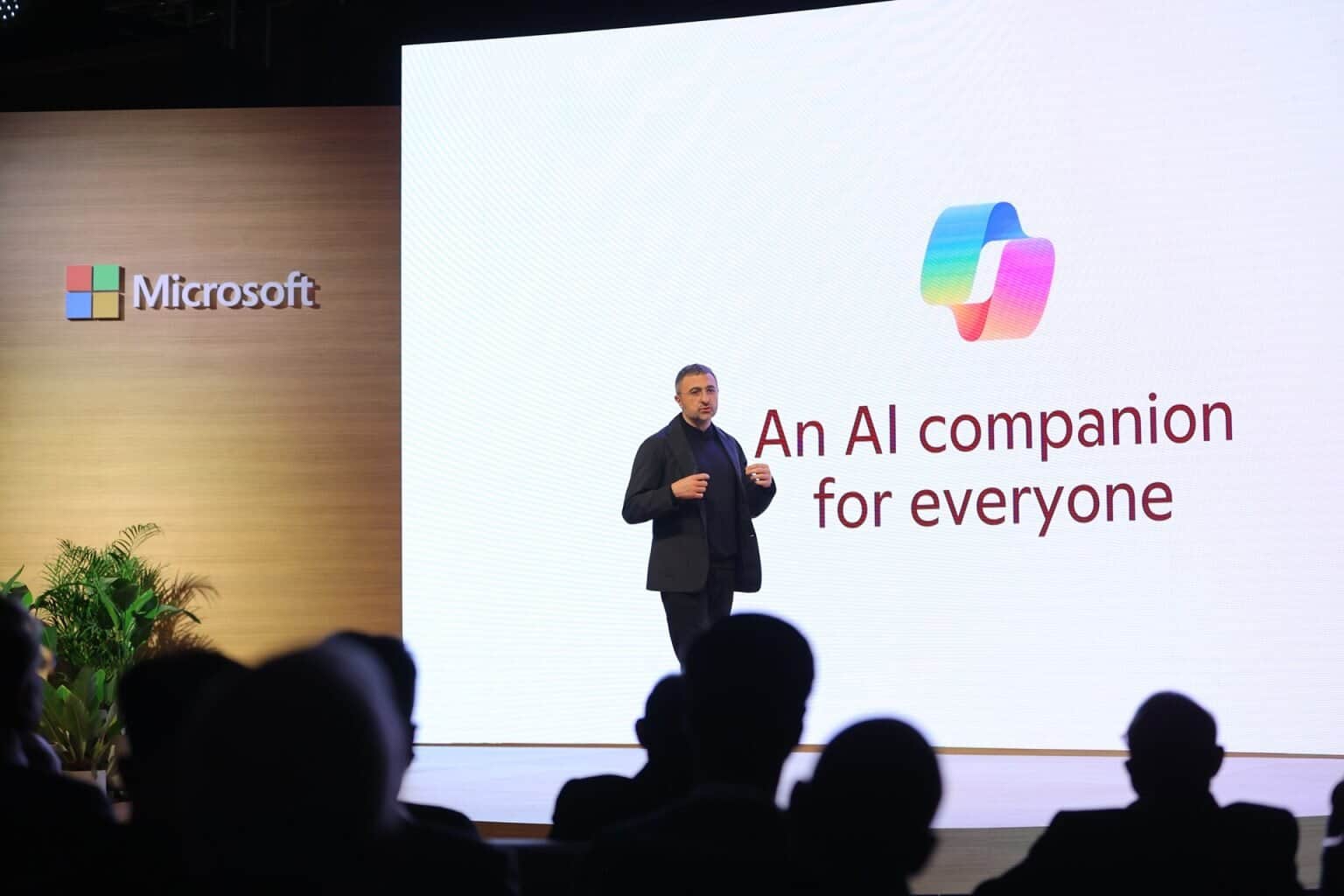
Microsoft AI CEO Takes Jab at Critics, Says “It Cracks Me Up When People Call AI Underwhelming”

The growing frustration around Big Tech’s aggressive AI push has been building for months now, and Microsoft has somehow found itself at the center of it. Windows users have occasionally pushed back against what they see as AI overload, criticizing the company for stuffing AI into every single part of the operating system.

It hasn’t been long since Windows chief Pavan Davuluri was heavily criticized for his post on X, where he mentioned “Windows is evolving an agentic OS.” Well, it didn’t end there, a new Copilot ad had all the critics come together once again and blast Microsoft.

That growing skepticism has spilled over again this week. At Ignite 2025, Microsoft announced a bunch of new AI features coming to Windows 11. While many developers and users feel these AI features are unnecessary in daily use, some are still supporting them. It seems Microsoft AI CEO Mustafa Suleyman is on the supporters’ side. In what appears to be a reaction to the frustration, in a post on X, Suleyman wrote:

Jeez there so many cynics! It cracks me up when I hear people call AI underwhelming. I grew up playing Snake on a Nokia phone! The fact that people are unimpressed that we can have a fluent conversation with a super smart AI that can generate any image/video is mindblowing to me.

His words clearly highlight a big difference between users’ frustration and what the industry is looking forward to. Users feel that Microsoft’s rapid expansion of AI features into Windows will distract the OS from having the stability it needs. Besides that, there are many who fear privacy concerns.

While Suleyman hasn’t directly replied to anyone, the X’s post can be taken as an interpretation that Microsoft is moving ahead with AI and everyone is expected to adapt accordingly. It’ll to interesting to see how Windows community responds to Suleyman’s indirect jab.

[UPDATE: FIXED] Microsoft Investigating Issue Blocking File Actions in Copilot for 365 Users

[UPDATE: 20 Nov 2025, 04:36 EEST] Microsoft has finally fixed the issue. In an update to the existing post from earlier this morning, Microsoft noted, “We’ve successfully resolved the issue following our actions to restart the dependent VMs.”

[UPDATE: 19 Nov 2025, 16:40 EEST] In yet another update on X, Microsoft has noted, “We’ve identified errors within backend processing infrastructure and are investigating these further.”

[UPDATE: 19 Nov 2025, 16:33 EEST] In an update on X, Microsoft has noted, “We’ve reproduced the issue internally and are gathering additional diagnostic logs for error analysis.”

[ORIGINAL STORY] It has been barely 24 hours since Cloudflare fixed a widespread issue that took down a part of internet. The CEO of the company later also apologized, while confirming it wasn’t a cyberattack. Now, it seems Microsoft 365 services are now down.

Microsoft confirmed the issue via its official Microsoft 365 Status account on X, noting that some users may be unable to perform any action on files with Microsoft Copilot. The company says it’s actively investigating and has opened a new internal tracking entry under issue ID CP1188020.

What’s surprising is that Microsoft’s Service Health Status page still shows all services as operational, suggesting that the incident may not yet be reflected on the dashboard.

If you are among the ones affected, you can follow progress directly in the Microsoft 365 Admin Center under ID CP1188020, which will receive updates as Microsoft work through the fault. Or, you can come back to this article, we’ll be updating it live.

Best MAC Address Changer Tools For Your Windows PC

A MAC address changer helps you update or spoof your device’s hardware address to improve privacy, troubleshoot network issues, or bypass restrictions. This guide lists the top tools that deliver reliable results and simple workflows.

Best MAC Address Changer Tools For Windows

1. Technitium MAC Address Changer – Fast Network Spoofing

Technitium MAC Address Changer provides an easy interface and reliable MAC shifting on Windows devices. Its layout helps you quickly modify your adapter identity, which pairs well with features like random hardware addresses in Windows 11 seen in guides such as how random hardware addresses work in Windows 11.

The tool includes detailed adapter information, reset controls, and simple troubleshooting utilities. Users appreciate its instant apply function and clean workflow.

Other great features:

  • Supports all major Windows adapters
  • Shows real time adapter details
  • Lets you reset to original MAC instantly
  • Works offline
  • Includes detailed logging

2. SMAC MAC Address Changer – Pro Grade Controls

SMAC suits users who need full control. You can generate random, custom, or vendor specific addresses and apply them across multiple adapters. It remains a popular pick for technicians who already work with tools commonly recommended in Windows 10 MAC change guides like MAC address changer Windows 10.

Its advanced templates speed up repetitive tasks, and the export options help with documentation during network tests.

Other great features:

  • Multiple MAC templates
  • Random MAC generator
  • Multi adapter support
  • Command line execution
  • Config export option

3. NoVirusThanks MAC Address Changer – Simple One Click Utility

This lightweight tool provides a direct solution for quick MAC changes. You can view your adapter, type a new value, and switch instantly without a long configuration process.

Its small window and portability make it a go to option for users who want something simple that still delivers consistent results. It runs smoothly on older systems and stays stable during frequent changes.

Other great features:

  • Very lightweight
  • Works without installation
  • Auto formatting for MAC values
  • Clean interface
  • Fast revert option

4. Change MAC Address by LizardSystems – Clean GUI And Logging

LizardSystems offers a polished design with full adapter insights, including vendor lookup and current MAC details. Users often choose it alongside step by step tutorials such as how to change a MAC address in Windows 11 because the interface mirrors many of the recommended best practices.

Its scheduling and logging capabilities help IT staff automate MAC changes and keep track of network testing activities.

Other great features:

  • Shows vendor lookup
  • Scheduled MAC switching
  • Full activity logs
  • System tray controls
  • Supports Windows Server

5. SpoofMAC – MacOS Focused Solution

SpoofMAC gives Mac users a clean command based method for switching addresses. You can target specific interfaces and apply changes with one line, which makes it ideal for Mac laptops and workstations.

Its lightweight footprint and stable execution make it a reliable choice for users who prefer fast terminal commands and minimal setup.

Other great features:

  • Works on MacOS
  • Lightweight utility
  • Easy command syntax
  • Supports all interfaces
  • Quick restore option

Conclusion

A good MAC address changer helps you adjust your network identity with confidence. The tools above cover every level, from simple click based utilities to advanced professional workflows. Each option improves privacy, supports troubleshooting, and gives you full control over how your device appears on a network. Choose the tool that matches your platform and feature needs to streamline your MAC changing routine.

FAQs

How does a MAC address changer work

It updates the network adapter’s hardware address at the software level, so your device uses a new identity until you revert to the original one.

Is changing a MAC address safe

Yes. It is safe when done with reliable tools. You can always restore the factory MAC if something causes network issues.

Why would someone change a MAC address

Users change it to improve privacy, troubleshoot blocked adapters, bypass network filters, or test multiple devices on a network.

Does changing a MAC address hide my identity completely

It improves privacy but does not provide full anonymity. It should be combined with a VPN for stronger protection.

Cloudflare CEO Apologises After Major Outage; Says It Wasn’t a Cyberattack

On 18 November 2025 at 11:20 UTC, Cloudflare’s global network began experiencing serious failures, preventing core traffic from being delivered. Many Internet users trying to reach Cloudflare-powered sites, including ChatGPT, Perplexity, Gemini, Canva, and many others, encountered error pages that indicated the problem within Cloudflare’s own infrastructure.

Image: Cloudflare

Cloudflare has now confirmed that the outage was not caused by a cyberattack or malicious activity, but by an internal systems error. According to a blog post from Matthew Prince, co-founder and CEO of Cloudflare, the outage was triggered by a change in database permissions. This change caused the database to write multiple redundant entries into a “feature file” used by Cloudflare’s Bot Management system, effectively doubling its size.

The enlarged feature file was then propagated across Cloudflare’s network. However, the traffic-routing software on their machines was not designed to handle a file of that size, as it had a lower size limit. Well, when the file became large in sizs, the system broke. The failure led to widespread routing problems.

In his apology, Prince acknowledged the severity of the failure. He added:

Given Cloudflare’s importance in the Internet ecosystem, any outage of any of our systems is unacceptable … There was a period of time where our network was not able to route traffic … We know we let you down.

Initially, Cloudflare suspected the issue might be a massive DDoS attack. But after investigation, the team identified the real root cause, halted propagation, and restored a previous, smaller version of the feature file.

By 14:30 UTC, core traffic was mostly back to normal. From that point until 17:06 UTC, the team focused on handling the surge in network load as traffic returned, and by then, all systems were fully operational again.

KB5072653 Fixes Windows 10’s KB5068781 (ESU) Install Error 0x800f0922

Microsoft has released a new Extended Security Updates (ESU) Licensing Preparation Package, KB5072653, to fix a Windows 10 installation error that prevented users from installing KB5068781 (ESU) with 0x800f0922 error code.

Microsoft, in an update, says the issue wasn’t caused due to the update’s contents but to an ESU-related licensing component. The newly released KB5072653 package addresses this issue directly, and ensures that ESU-enabled Windows 10 systems can install security updates without running into the installation failure again.

The company further notes that this preparation package is important for systems enrolled in the Extended Security Updates program. It must be installed after the October 2025 security update (KB5066791). You’ll have to perform a system reboot to complete the installation.

Speaking of updates, Windows 10 recieved several dynamic updates, KB5069340, KB5068795, KB5068790, KB5068794, and KB5068789.

All that said, the frequency of Windows 10 users coming across different kind of errors have become a routine since Microsoft ended support for one if the most popular operating systems of all time. However, Microsoft is doing its part to resolve them as soon as possible.

Are you also experiencing any additional issues than the one mentioned above? If yes, don’t forget to comment down below.

Find BSOD in Event Viewer and Read Crash Logs on Windows 11

This guide shows you how to find BSOD logs in Event Viewer, identify the bug check code, and understand why your system crashed. You will learn where Windows stores these logs and how to analyze the event details that point to the exact cause.

How to Find BSOD in Event Viewer

1. Open Event Viewer

Event Viewer stores every BSOD entry in the System log, which gives you the fastest way to check what caused the stop error.

  1. Press Windows key and type Event Viewer.
  2. Select Event Viewer from the search results.
    Event Viewer - ERROR_DEVICE_ALREADY_ATTACHED
  3. Expand Windows Logs on the left panel.
  4. Click System.

When you review the System log, keep in mind that many crashes come from driver failures, hardware problems, or system errors. You can explore these common BSOD causes in more detail in this guide to common BSOD causes.

2. Filter the BSOD Events

Filtering the System log helps you narrow down only the critical events linked to crashes.

  1. Right-click System.
  2. Select Filter Current Log.
  3. Check Critical and Error under Event level.
  4. Enter event IDs 41, 1001, 6008 in the Includes/Excludes box.
  5. Select OK.

These event IDs match the same BSOD entries that Windows saves in its crash log files. If you want to see where these logs exist on disk, you can check the file locations in this BSOD log file location guide.

3. Open the Crash Entry

Each BSOD entry contains the error code and technical data that identify the root cause.

  1. Double-click a crash entry.
  2. Check the General tab for the main description.
  3. Open the Details tab to find the bug check code and crash parameters.
  4. Note the BugCheckCode so you can look up your exact stop error.

4. Use Reliability Monitor for Additional Clues

Reliability Monitor gives you a timeline view of system failures and app crashes, which helps you see patterns.

  1. Press Windows key, search for Reliability Monitor, and open View reliability history.
  2. Look for red circles that represent system errors.
  3. Select any event to open its technical info and linked Event Viewer entry.

Why These Steps Work

Event Viewer records all system-level events, so filtering by severity and event ID lets you focus only on BSOD entries. Reliability Monitor then provides context by showing what happened before and after the crash, which helps you isolate the cause faster.

FAQs

Why does Windows show a BSOD?

Driver issues, overheating, memory faults, corrupt files, and hardware problems often trigger BSOD errors.

Where does Windows store BSOD logs?

You can find them in Event Viewer under Windows Logs > System, usually under event IDs like 41 or 1001.

What is the easiest way to find the bug check code?

Open the event and check the Details tab for the BugCheckCode field.

Do Minidump files help diagnose BSODs?

Yes. Windows saves them in C:\Windows\Minidump, and you can analyze these dumps with advanced tools.

You can locate BSOD logs in Event Viewer in seconds and review the bug check code to understand the exact cause. After you identify the issue, you can follow a full repair guide to fix the crash on Windows 11 by using this step by step repair guide for Windows 11 BSOD errors.

Picasa Download For PC: Safe Install Guide For Windows

Picasa download for PC remains a common search even though Google discontinued the software in 2016. You can still install it on Windows through third-party mirrors, but you must follow safe steps to avoid malware. This guide shows you how to get it, install it, and use modern alternatives.

How Do I Download Picasa On Windows?

1. What You Need To Know First

Picasa no longer appears on any official Google page. You must rely on trusted third-party file repositories that keep archives of old software. No new updates or patches exist. Any download comes from unofficial mirrors.

After you finish this guide, you can also check a related resource on Picasa on Windows 10 for additional compatibility notes.

2. Steps To Download Picasa Safely

Follow these actions to minimize risks when downloading archived software.

  1. Search for well-known software-archiving sites that host the last Picasa installer.
  2. Check user comments and file hashes if provided.
  3. Save the installer to your Downloads folder.
  4. Scan the file with Windows Security or another antivirus tool.
    scan with Microsoft Defender context menu
  5. Run the installer only after you confirm it is clean.

3. Install Picasa On Windows

Once you locate a safe installer, set up the app.

  1. Double-click the Picasa installer.
  2. Click Next and accept the license terms.
  3. Choose the installation folder.
  4. Select whether you want Picasa to scan your entire computer or specific folders.
  5. Click Finish to launch the app.

4. Why This Works

These steps add a safety layer because you use antivirus checks, community reputation, and controlled installation settings. This reduces the chance of downloading modified or infected installers.


Picasa Features That Still Work

Even though development stopped, the core tools continue to run on Windows.

  • Basic photo editing like cropping and color adjustment
  • Face recognition
  • Photo organization by albums and tags
  • Slideshow and collage creator

If you want to organize your images better, you can read how to sort photos by favorites in Windows.


Best Alternatives To Picasa

If you want a supported and secure photo manager, consider switching to newer tools.

  • Google Photos
    It offers cloud storage, smart search, and automatic backups across devices.
  • Microsoft Photos
    Windows 11 includes an improved Photos app with editing and video creation tools.
  • Adobe Lightroom
    A professional option with powerful editing and catalog management.
  • FastStone Image Viewer
    A lightweight, free viewer with reliable organization features.

FAQs

Is Picasa still available?

No. Google discontinued it in 2016. You can only find archived installers on third-party sites.

Is it safe to download Picasa?

It can be safe if you use reputable software archives and scan the installer with antivirus tools.

Does Picasa work on Windows 11?

Yes. Most users report that it runs without issues, although it may show occasional bugs due to its age.

Can Picasa connect to Google Photos?

No. Cloud sync features stopped working after Google retired the software.

Picasa remains a nostalgic photo organizer, and you can still install it if you follow the right safety steps. Third-party downloads always carry some risk, so treat archived installers carefully and consider a modern alternative for everyday use. For additional organization tips, you can read how to sort photos by date on Windows.

If you want, I can also convert this into Gutenberg-ready HTML blocks or generate a 16:9 featured image with alt text.

PowerToys Latest Update Out With Improvements to Command Palette, Light Switch & Advanced Paste

After announcing version 0.95 last month, Microsoft has now released PowerToys version 0.96. The latest PowerToys version updates Advanced Paste to support multiple online and on-device AI model providers: Azure OpenAI, OpenAI, Google Gemini, Mistral, Foundry Local, and Ollama.

Another highlight of this update is the improvements made to Command Palette, such as file search filters, better clipboard history metadata, context-menu styling, and dozens of bug fixes and enhancements. Meanwhile, PowerRename has been updated to extract and use photo metadata (EXIF, XMP) in renaming patterns like %Camera, %Lens, and %ExposureTime.

If you are interested in checking the full changelog of PowerToys 0.96, we have added it for you below:

Advanced Paste

  • Advanced Paste now lets you connect to multiple AI providers instead of being limited to a single OpenAI provider. See Advanced Paste documentation for usage.

Awake

  • The Awake countdown timer now stays accurate over long periods.
  • Fixed Awake context menu positioning. The fix removed the conversion of the mouse cursor from screen to client-window coordinates, instead using the raw screen coordinates returned by GetCursorPos; the context menu now appears at the correct screen position.

Command Palette

  • The search field in context menus now matches the look of the Command Palette, with a smoke backdrop and improved padding.
  • Fallback items such as math calculations or the Run command now appear in results more quickly.
  • Ensured the command bar updates correctly after navigating to another page and commands are displayed correctly.
  • The Command Palette settings page has been reorganized. Activation-key options are grouped under an expander and extension settings are framed for improved readability.
  • When you modify a command, its alias, hotkey, and tags now update in the top-level list, keeping the displayed information in sync.
  • Press Ctrl + , to open Command Palette settings from anywhere.
  • You can use Page Up and Page Down to navigate the list while focus is in the search box.
  • Fixed an issue where the search box could disappear when navigating pages.
  • Ensured search text is selected when Go home when activated and Highlight search on activate are both enabled.
  • Fixed an issue where Command Palette window occasionally appeared on the taskbar under certain Windows settings.
  • Ensured that labels and icons of list items and menu items update when they change.
  • Fixed visibility of list filters when navigating to a content page.
  • Added search to the extension list and a link to extensions on the Microsoft Store.
  • Added options to open the Command Palette window at its last position or re-center it.
  • The Command Palette now remembers its window size after restarting.
  • Added a global error handler that logs fatal errors and provides feedback when unexpected failures force Command Palette to close.
  • Fixed forms and extension settings not showing on some machines due to a missing VC++ runtime.
  • Restored ranking of fallback commands for built-in extensions (Sleep, Shutdown, Windows settings, Web search, etc.).
  • Improved and unified labels and texts across the application!
  • Maintenance: Resolved numerous build warnings in Command Palette projects; no user-visible impact.
  • Maintenance: Fixed a logging issue so exception messages are properly recorded instead of placeholder text, improving troubleshooting.

Command Palette Extensions

  • Bookmarks: Added hints about bookmark placeholders to the Add/Edit Bookmark form.
  • Bookmarks: Improved migration of bookmarks from older versions and fixed an issue where aliases or keyboard shortcuts could be lost after restart.
  • Clipboard history: Items shown in Command Palette’s clipboard history now include helpful metadata. For example, image items show dimensions, text files show names and sizes, web links include page titles, and text entries display word counts.
  • File search: Added filter buttons to show all items, files only, or folders only. Selecting a filter adds kind:folders or kind:not folders to narrow results.
  • System commands: Replaced the :red_circle: placeholder with an actual red-circle emoji so the correct icon appears in the UI.
  • WinGet: Search performance feels more responsive because typed input is now processed via a task queue rather than complex cancellation tokens!
  • Window Walker: UWP apps no longer show a “not responding” label when suspended.
  • Window Walker: Now displays the actual icon of each window rather than using the process icon, improving recognition of PWAs and Python GUIs.
  • Windows Terminal profiles: Fixed a rare crash in the Windows Terminal extension when the LOCALAPPDATA environment variable was missing. The path is now retrieved via a reliable API.

Find My Mouse

  • Activating Find My Mouse no longer makes the cursor change to the busy (hourglass) icon or steals focus from your active application.

Hosts File Editor

  • Added customizable backup settings allowing users to configure backup frequency, location, and auto-deletion policies.

Image Resizer

  • Fixed settings consistency during batch resize operations by capturing settings once before processing.

Light Switch

  • Introduced new UI to allow users to manually enter their latitude and longitude in Sunrise to Sunset mode.
  • Refactored service with cleaner state management for stability.
  • Removed logs from every tick, only logging key events to largely reduce log size.
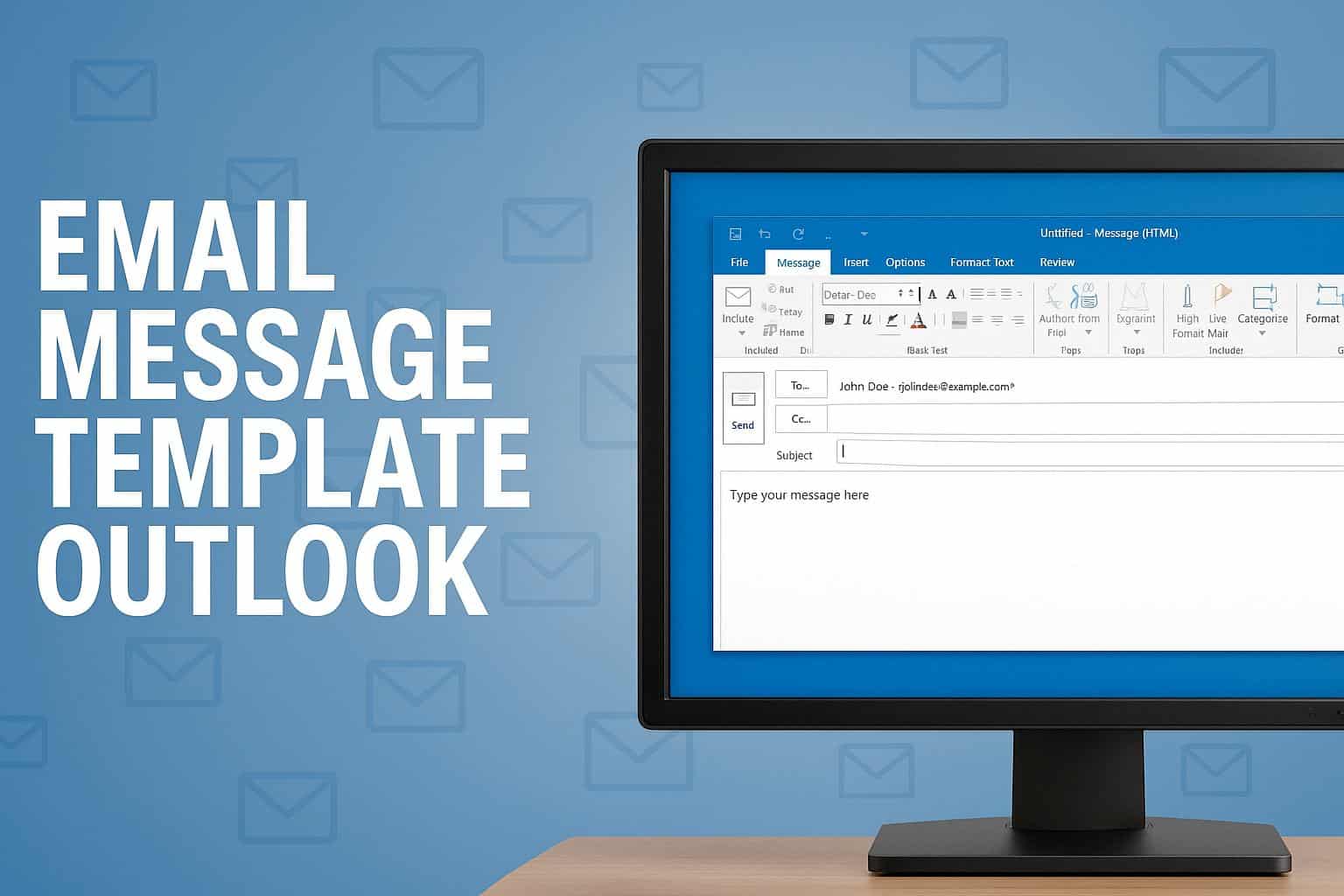
  • Mouse Pointer Crosshairs
  • Enabled switching between Mouse Pointer Crosshairs and Gliding Cursor modes.

Mouse Without Borders

  • Added horizontal scrolling support.

Peek

  • Fixed media files remaining locked after preview window closes.
  • Added a command-line interface for file previewing. See the Peek documentation for usage.

PowerRename

  • PowerRename no longer crashes due to a missing resources file.
  • Added photo metadata extraction support using EXIF and XMP for pattern-based renaming with camera info, GPS coordinates, and date taken. See PowerRename Documentation.

PowerToys Run

  • Added retry logic with exponential backoff to handle DWM composition errors during theme changes.
  • Updated OneNote icons to reflect new Microsoft 365 design.

Quick Accent

  • Added diameter symbol (⌀) for Shift+O in Special Characters mode

Zoomit

  • Smoothed out zoom-animation in ZoomIt by coalescing mouse-move and timer events
  • Enabled GIF support for ZoomIt,
  • Fixed spelling mistakes, and refactored some literal strings to string constants
  • Fixed inaccurate “actual size” screenshots in ZoomIt and resolves a GDI handle leak, improving capture fidelity and long-session stability.

Settings

  • Fixed title bar overlapping issue at smaller window sizes.
  • Refined shortcut control visual design with improved consistency and spacing.
  • Added dashboard utilities sorting by name or status.
  • Made update notification InfoBar in flyout clickable for direct navigation to update page.
  • Expanded installation instructions by default in README.
  • Improved accessibility for shortcut conflict button with static resource-based automation properties.
  • Added ScrollViewer to Command Palette page in PowerToys Settings.
  • Fixed module list glitches and Sort Status checkmark issue.

If you have PowerToys already installed, wait for the update to pop up. If not, you can also head to PowerToys settings > General > Update to download and install the update. Those who are hopping onto PowerToys for the first time can download version 0.96 from GitHub and the Microsoft Store.