Microsoft Announces Some Upcoming AI features for Copilot+ PCs

When Windows chief, Pavan Davuluri, recently said that Windows is evolving into an agentic OS, he actually meant it. Yes, he got a heavy backlash for that, but the announcements made today at Ignite 2025 suggest that Microsoft is indeed going down that path.

Well, Microsoft has announced a bunch of new AI features across its apps, which might debut early next year. Microsoft says that these updates are designed to make using Windows faster and more efficient, while you stay productive without any hassle.

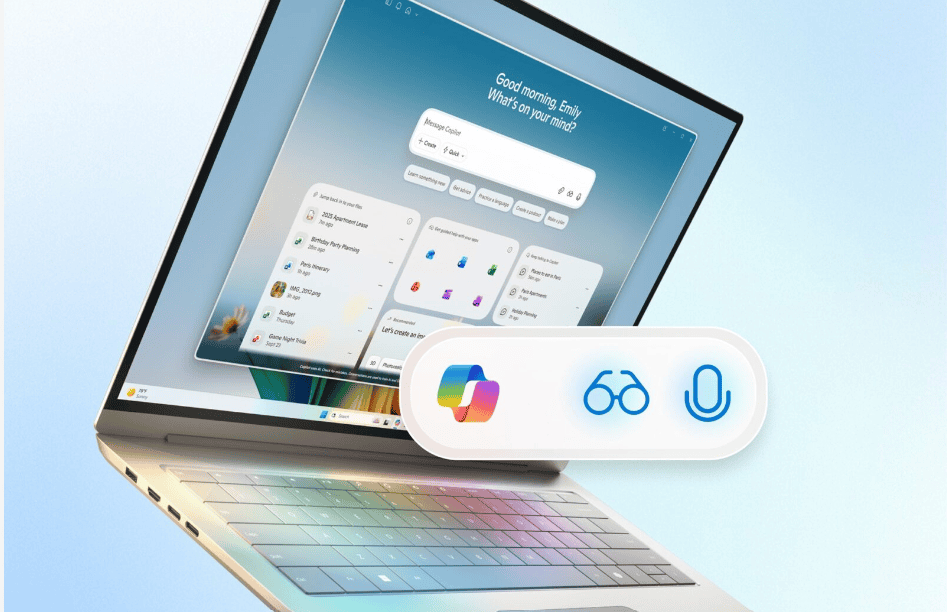
First of all, Windows 11 will soon allow users to generate or rewrite text across the entire OS. This capability works in any text box, in any app, giving users a consistent way to create or improve content. On Copilot+ PCs, this feature uses the onboard NPU, allowing text generation to work even without an internet connection.

If you use the Outlook app, AI-generated summaries are coming for you very soon. As the name suggests, these summaries provide a quick overview of your inbox, helping you prioritize messages and focus on what matters most. Meanwhile, Word and PowerPoint will be able to automatically generate alt-text for images, making documents more accessible without extra effort.

Last but not least, Windows 11 will also introduce “fluid dictation,” an AI-driven voice feature that converts speech into text. It automatically corrects grammar, punctuation and removes filler words or sounds, making it easier to create clean, professional text from spoken input.

All in all, the upcoming updates aim to make AI a seamless part of daily work, helping you save time and stay productive across devices and apps.

Microsoft Overhauls Windows Driver Building and Signing Process

Microsoft is changing how Windows drivers are built and signed. And, it’s doing that by extending its driver resiliency playbook beyond antivirus makers to make drivers safer, more secure, and more reliable.

As part of this effort, signed drivers will now have to meet a higher security and resiliency bar, passing multiple new certification tests. Microsoft, in the announcement post, mentions that it expects a significant reduction in kernel-mode code over the coming years that covers drivers for networking, cameras, USB, printers, storage, and more.

To support this, Windows will get an expanded set of in-box drivers and APIs, allowing OEM partners to replace custom kernel-level drivers with standardized Windows drivers. This should not only stabilize the OS but also reduce overall system bloat.

Here’s what’s changing according to Microsoft:

What’s changing:

  • Driver signing will require a higher security and resiliency bar with many new certification tests.
  • We are expanding Microsoft-provided Windows in-box drivers and APIs so partners can replace many custom kernel drivers with standardized Windows drivers or move logic to user mode.
  • Over the coming years, we expect a significant reduction in code that runs in kernel mode across driver classes such as networking, cameras, USB, printers, batteries, storage, and audio.

At the same time, third-party kernel-mode drivers will continue to be supported. Microsoft says that partners can innovate where Windows does not provide in-box drivers. For instance, graphics drivers will remain in kernel mode to preserve performance.

To further improve reliability, Microsoft is adding safeguards for kernel-mode drivers to contain faults before they cause outages. These include mandatory compiler checks, driver isolation to limit the blast radius, and DMA-remapping to prevent accidental access to kernel memory.

Microsoft Rolls Out Chat-first Word, Excel, and PowerPoint Agents in Microsoft 365 Copilot

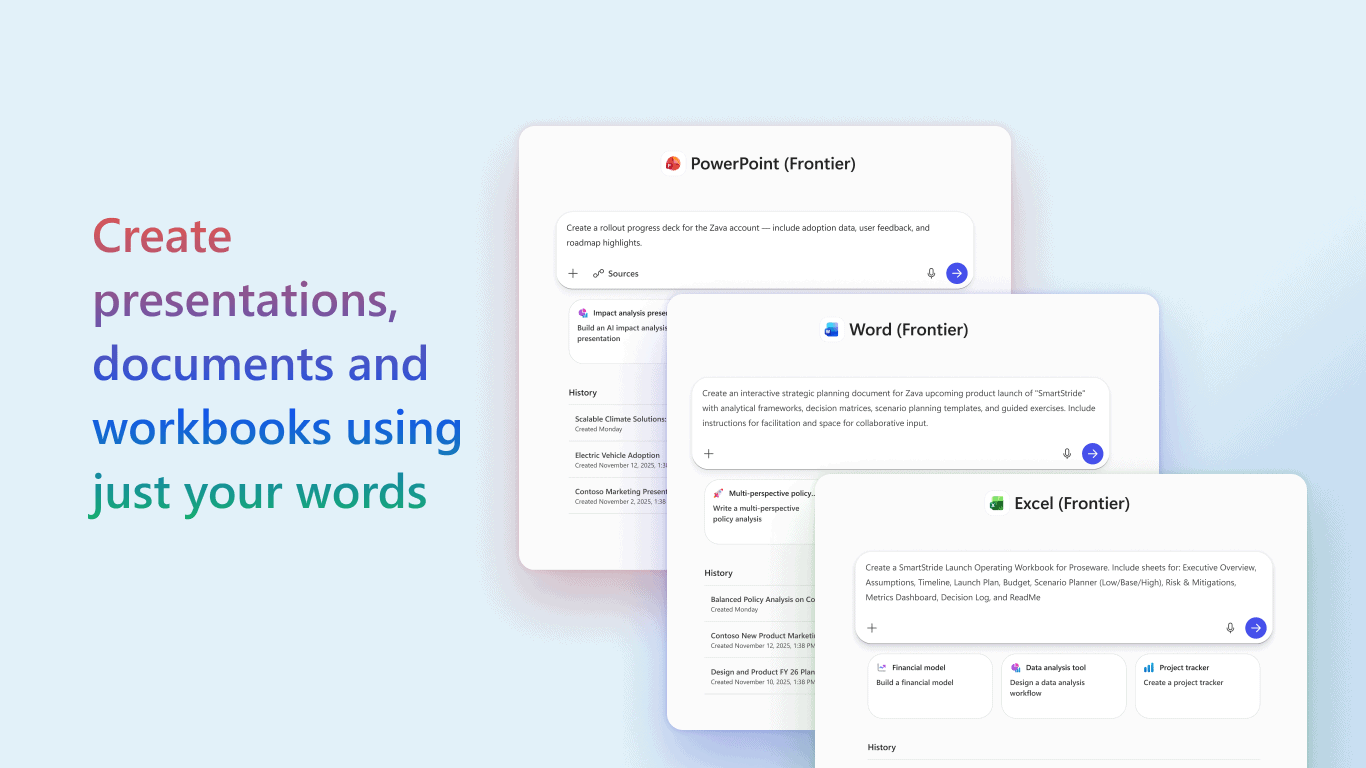
Microsoft is rolling out new chat-first Word, Excel, and PowerPoint Agents in Microsoft 365 Copilot. The dedicated agents can generate documents, spreadsheets, and presentations directly from natural-language prompts, making it easier for anyone to create content.

Microsoft, in the announcement blog post, mentions that users can kick off a project in Copilot Chat with prompts like “Draft a strategy document,” “Analyze this table,” or “Build a three-slide pitch.” Once you drop such prompts, agents will guide the process with clarifying questions.

Once the draft is ready, users can open it in Word, Excel, or PowerPoint. Copilot then stays active in each app through Agent Mode. It can edit content, apply formatting, refine structure, or help with data modeling. PowerPoint’s Agent Mode is the newest addition, offering deeper creation and editing tools than before.

Microsoft says it built these agents using an “agentic harness,” which is a modular system that lets them orchestrate complex tasks at scale. They rely on AI-driven reasoning to plan, validate, and refine outputs in multiple stages. The architecture uses the same skills powering Agent Mode inside the Office apps, ensuring consistent quality across chat and in-app creation.

The company also says that the agent runs in a locked-down, isolated environment with no internet access. Sensitive actions, including Microsoft Graph permissions, remain outside the agent and follow standard authentication rules. Instead of generating Office files directly, agents create an intermediate representation, which Microsoft then converts into high-fidelity Word, Excel, or PowerPoint documents.

Microsoft Adds AI-Powered Alt Text to Word and PowerPoint

Microsoft today announced a handy update for Word and PowerPoint users on Windows. Both apps can now use generative AI to create richer, more detailed, and context-aware alt text descriptions. As you may know, alt text is essential for readers who rely on screen readers.

Until now, Word and PowerPoint generated alt text automatically using the Azure Vision model, but the results often felt generic or missed important context. Microsoft is changing that, as the alt text now appears only when users choose to generate it.

Image: Microsoft

The company says that the new system uses advanced AI models for higher-quality results. The new AI-powered alt text offers clearer structure, better detail, and descriptions grounded in the actual image.

Microsoft has also added safeguards to avoid over-interpretation or inappropriate content, ensuring the feature remains both helpful and reliable. So, how to use it, right? Well, first, insert an image, open the Alt Text panel, and select Generate alt text for me.

Next thing you’ll see is that Word or PowerPoint will produce a contextual description that users can keep or edit. The feature is live for Microsoft 365 subscribers running Version 2510 (Build 19328.20000) or later.

Users on older versions will no longer receive automatic alt text, but they can re-enable the classic option through the Accessibility settings.

Microsoft Launches SQL Server 2026, Fabric Databases, and Rebranded Azure DocumentDB

At today’s Ignite 2025 event, Microsoft announced one of the biggest Azure data updates in years. The company has announced the general availability of SQL Server 2025. That has come after a long preview period through 2024 and early 2025; the release is now production-ready. Microsoft, as expected, is relying heavily on AI-powered improvements within that cycle.

SQL Server 2025 adds native vector data types, approximate vector indexing for fast similarity search, and expanded JSON support. Copilot is also built directly into SQL Server Management Studio, which offers natural-language query help for developers working inside familiar tools.

It’s also worth noting that Azure Cosmos DB for MongoDB in vCore has also been rebranded as Azure DocumentDB, and it’s now generally available. The service includes AI-ready vector and hybrid search, autoscale capabilities, and independent compute-storage scaling. Microsoft continues to boast about its 99.995% SLA, paired with free 35-day backups for extra resilience.

Last but not least, Fabric databases are also generally available. SQL Database and Cosmos DB can now run inside Microsoft Fabric as a unified SaaS experience, combining real-time analytics, transactional workloads, and AI tasks in one governed environment.

Moreover, teams can keep their databases on existing systems can use Fabric’s database mirroring, which is also generally available, and supports SQL Server, Azure Cosmos DB, and Azure Database for PostgreSQL.

Xbox Expands Design Lab to 27 Countries with New ESW Partnership

Microsoft’s Xbox Design Lab has now to 27 countries, thanks to a new global ecommerce partnership with ESW. For the uninitiated, the Design Lab allows players to customize their own Xbox Wireless Controllers and Xbox Elite Series 2 controllers.

In the press release, Tejaswi Kotekar, Product Manager for Xbox Design Lab, explained that Xbox needed a partner who could handle global payments, support, and long-term plans. According to Kotekar, ESW’s flexibility and fast support helped Xbox meet its relaunch schedule.

ESW is now working as the Merchant of Record for Xbox Design Lab in international markets. The company developed a custom checkout experience that fits directly into the Design Lab website, making it easier for players around the world to buy personalized controllers. ESW and Xbox are also working on a product roadmap that includes future features such as more payment options.

Tonia Luykx, Chief Revenue Officer at ESW, said:

Xbox Design Lab is one of the most innovative and immersive online shopping experiences available today, giving gamers the power to personalize their controllers at scale. ESW brought the same high degree of customization to Xbox in order to meet the needs of its consumers in 27 different international markets. We are proud to partner with Microsoft to increase the brand authority of Xbox Design Lab and to deliver this highly personalized experience to its legions of fans everywhere.

With this expansion, Xbox Design Lab is now available across North America, Europe, and APAC. Supported countries include the U.S., Canada, U.K., Germany, Italy, Australia, Japan, South Korea, Singapore, and Denmark, among others.

Article feature image source: Xbox Design Labs

Anthropic partners with Microsoft & NVIDIA to scale Claude & optimize future AI systems

Microsoft, NVIDIA, and Anthropic have announced some major partnerships that will expand Claude across Azure, expand hardware–model integration, and boost the development of future AI systems. The agreement places all three companies at the center of the next phase of large-scale AI deployment.

First of all, Anthropic says it’ll scale its fast-growing Claude models on Microsoft Azure, powered by NVIDIA’s newest systems. The company has committed to purchase $30 billion in Azure compute capacity and may contract up to one gigawatt of additional resources.

NVIDIA and Anthropic are also coming together, as part of a major engineering partnership for the first time. Both companies will collaborate on chip design, workload optimization, and new hardware improvements that can boost Anthropic’s performance, efficiency, and long-term costs. Anthropic’s compute commitment includes up to one gigawatt of compute built on NVIDIA Grace Blackwell and Vera Rubin systems.

Microsoft is expanding its existing partnership with Anthropic as well. Customers using Microsoft Foundry will have access to Anthropic’s frontier lineup, including Claude Sonnet 4.5, Opus 4.1, and Haiku 4.5. Meanwhile, Claude will continue powering features inside GitHub Copilot, Microsoft 365 Copilot, and Copilot Studio. With this expansion, Claude becomes the only frontier model available across all three major cloud providers.

NVIDIA and Microsoft are also backing Anthropic financially. NVIDIA plans to invest up to $10 billion, while Microsoft will contribute up to $5 billion to support Anthropic’s long-term roadmap. Despite the expanded Azure partnership, Anthropic notes that Amazon remains Anthropic’s primary cloud provider and core training partner.

[UPDATE] Global Cloudflare Outage Fixed; ChatGPT, Gemini, X & More Back Online

[UPDATE: Nov 18, 2025 – 14:42 UTC] Cloudflare has confirmed that “A fix has been implemented and we believe the incident is now resolved. We are continuing to monitor for errors to ensure all services are back to normal.” All the affected services should be up and running as of now.

[UPDATE: Nov 18, 2025 – 14:42 UTC] ChatGPT is now fully back online. You might still notice slow loading when pulling up older conversations, but a quick refresh and re-login should fix things for most users.

[UPDATE: Nov 18, 2025 – 14:34 UTC] Cloudflare says it has pushed out a change that brought the dashboard back. However, the company is “still working to remediate broad application services impact.” For now, X, Gemini, and Perplexity appear stable. ChatGPT and Microsoft Copilot, however, continue to show the same errors many users reported earlier.

[ORIGINAL STORY] If you tried opening ChatGPT, Gemini, Copilot, or even X earlier this morning and kept running into weird errors, you should know that a massive Cloudflare outage has knocked several major services either partially or completely offline, affecting millions around the world. The issue isn’t limited to AI tools; platforms from social media to payments and even gaming servers are struggling.

Cloudflare’s status page confirmed widespread internal server errors (500s), along with failures on the Cloudflare Dashboard and API. ChatGPT users are spotting messages like “Please unblock challenges.cloudflare.com to proceed” or simply being blocked from loading conversations. Copilot wasn’t responding either during testing — although it briefly flickered back to life before going down again.

Gemini is also throwing a generic “Something went wrong” message with no additional info. And over on X (formerly Twitter), timelines, trends, and other sections are either refusing to load or timing out completely.

What’s down right now?

So far, these platforms have been hit by Cloudflare’s global outage:

  • X (Twitter)
  • Spotify
  • OpenAI (ChatGPT)
  • Perplexity
  • Letterboxd
  • Sage
  • PayPal
  • League of Legends
  • Archive of Our Own
  • Genshin Impact
  • Honkai: Star Rail
  • Amazon Web Services
  • Canva

Cloudflare shares more details

In its 13:04 UTC update, Cloudflare revealed it had temporarily disabled WARP access in London while working on fixes. The company says WARP and Cloudflare Access have now recovered and should be operating normally again.

At 13:58 UTC, Cloudflare confirmed ongoing work to restore services for customers still affected. And at 14:22 UTC, the company noted it continues to roll out fixes to stabilize application services across regions.

If any of these services have come back online on your end, let us know. As of now, recovery is still in progress, and platforms may come online at different times depending on the region.

How To Make a Blast Furnace In Minecraft For Quick Smelting

You create a blast furnace to smelt ores twice as fast as a normal furnace. This guide shows the materials you need and the exact crafting steps.

How To Make a Blast Furnace in Minecraft?

1. What You Need

Gather these materials before crafting:

  • Five iron ingots
  • Three smooth stone blocks
  • One furnace
  • Access to a crafting table

If you also want to expand your crafting setup, see this guide on making a brewing stand in Minecraft.

2. Crafting Steps

Follow these steps in your crafting table:

  1. Open the crafting table.
  2. Place one furnace in the center slot.
  3. Place three smooth stone blocks in the bottom row.
  4. Add five iron ingots across the top and side slots.
  5. Move the blast furnace into your inventory.

For gathering extra resources in survival, you might need make a honeycomb in Minecraft for future recipes.

3. Why This Works

The recipe uses iron for heat resistance and smooth stone for stability. The furnace sits in the center to act as the core component.

How To Use a Blast Furnace

Use the blast furnace like this:

  1. Place the blast furnace on the ground.
  2. Right-click to open its interface.
  3. Add fuel in the lower slot.
  4. Place ore or metal gear in the top slot.
  5. Wait for the process to finish.

Why It Works Faster

The blast furnace handles only ores and metal gear, so it processes them more efficiently.

FAQs

How do I get smooth stone?

Smelt regular stone in a furnace to turn it into smooth stone.

Where can I find iron ingots?

Mine iron ore and smelt it in a furnace to produce iron ingots.

Does a blast furnace work with food?

No, it works only with ores and metal gear.

How long does smelting take in a blast furnace?

It smelts items twice as fast as a standard furnace.

Conclusion

Creating a blast furnace speeds up your smelting workflow and helps you upgrade your tools quickly. You gather materials faster, refine metals efficiently, and progress through your world with stronger equipment.

If you want another useful building block, try crafting mud in Minecraft for decorative builds and base designs.

EU Probes Microsoft Azure and Amazon Web Services for Potential Gatekeeping

Microsoft and Amazon have found themselves in hot water once again in the European Union. A new report by Reuters suggests that The European Commission has launched three market investigations under the Digital Markets Act (DMA) that focuses on cloud computing services.

Per the official press release, two of the probes will evaluate whether Amazon Web Services (AWS) and Microsoft Azure should be classified as DMA gatekeepers, despite not meeting current thresholds for size, user numbers, or market position. This would determine if the platforms act as key gateways between businesses and consumers.

A third investigation will investigate whether the DMA effectively addresses practices that may limit competition or fairness in the EU cloud market. Areas under review include obstacles to interoperability, restricted access to business data, bundling or tying services, and potentially unbalanced contractual terms.

It’s worth noting that cloud computing is one of the most important part of digital services and AI development. The Commission highlighted the need for a fair, open, and competitive environment to foster innovation, trust, and Europe’s strategic autonomy.The investigations on AWS and Azure are expected to conclude within 12 months.

If the Commission finds any of them at fault, the companies will have six months to make their cloud services inline with DMA rules. Moreover, Microsoft is ready to cooperate in the inquiry. No official words from Amazon has been reported at the time of writing this.

To catch you up, Microsoft recently also agreed to unbunble Teams after the EC’s intervention, which led the company to escape from a hefty fine. It’ll be interesting to see how this investigation pans out down the line. If there’ll be any update on this matter, we’ll update it here.

[UPDATE: New Build] KB5070311 Adds Virtual Workspaces to Advanced Settings & Consistent Dark Mode in File Explorer

[UPDATE 11/26] Microsoft has released Builds 26100.7309 and 26200.7309 under the same KB5070311 for Windows 11 version 24H2 and 25H2, with “some minor changes.”

[ORIGINAL] Microsoft is rolling out KB5070311 as part of its latest Windows 11 update. After updating your Windows 11 systems on version 24H2 and 25H2, you’ll see a new, dedicated Virtual Workspaces section under Settings > System > Advanced. This page lets you enable or disable virtual environments such as Hyper-V, Windows Sandbox, and other isolated workspaces.

Microsoft says the feature is rolling out gradually, and availability will vary by device and market. Some users may not see the option immediately, especially on hardware that does not support virtualization.

Moving on, the update also fixes an issue where users could see STATUS_NOT_SUPPORTED (0xc00000bb) errors during login when using ECC Smart Card Logon Credential. The bug caused authentication failures on some systems.

Besides this, Microsoft also confirmed that KB5070311 fixes a stability issue that affects the Local Security Authority Subsystem Service (LSASS). An access violation could make LSASS unstable, potentially leading to reliability problems.

Last but not least, File Explorer in Windows 11 now offers a more consistent dark mode experience. Key dialogs for copy, move, and delete actions have been updated, and progress bars and charts match the dark theme. Confirmation dialogs and error messages have been updated to match the dark theme, alongside consolidated share options. Thumbnails for certain videos are also fixed.

Microsoft has also fixed a few known issues in File Explorer. Thumbnails for video files with certain EXIF metadata now appear correctly. An old white toolbar that sometimes appeared randomly has been fixed. Moreover, right-click file icons now correctly match the default app instead of showing generic icons.

mGBA Emulator PC Setup: How to Play GBA Games on Windows

mGBA emulator PC users want a fast and simple way to play Game Boy titles with reliable performance. This guide shows you how to download, install, and configure mGBA on Windows in a few quick steps.

How to Use mGBA Emulator on PC?

1. Get the Official Installer

Follow these steps to download the emulator safely:

  1. Visit the official mGBA website.
  2. Select the Windows version from the downloads section.
  3. Click the installer or portable ZIP link.
  4. Save the file to your PC.

2. Install or Extract mGBA

You can install the program or run it as portable software:

  1. Open the downloaded installer or ZIP file.
  2. Run the installer and choose a folder, or extract the ZIP to a new folder.
  3. Launch the mGBA executable.

After installation, you can check this comparison of the best GBA emulators for PC to see how mGBA stacks up against alternatives.

3. Add Your Game Files

You can open GBA or GB ROMs in seconds:

  1. Click File on the top menu.
  2. Select Load ROM.
  3. Choose your .gba or .gb ROM file.
  4. Start playing immediately.

4. Configure Keyboard or Controller Input

You can customize controls for comfort:

  1. Select Tools from the menu bar.
  2. Click Settings.
  3. Choose Controllers.
  4. Assign keys or gamepad buttons.
  5. Save your layout.

If you plan to expand your setup with other systems, you can learn more about full system support through this guide to Windows console emulators.

5. Adjust Video Settings

You can enhance visuals with filters:

  1. Click Tools.
  2. Select Settings.
  3. Open the Video tab.
  4. Pick a filter like xBRZ or HQ2x.
  5. Enable VSync for smoother gameplay.

6. Use Save States

You can save anytime:

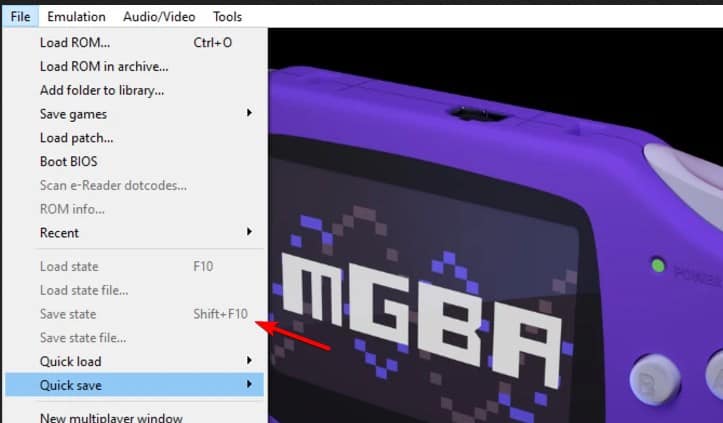
  1. Click File.
  2. Select Save State.
  3. Choose a slot.
  4. Load it later with Load State.

What is mGBA?

mGBA works as a lightweight Game Boy Advance and Game Boy emulator that offers smooth performance on Windows. It supports ROM loading, visual enhancements, controller mapping, and quick save features. If you want to compare mGBA with other options, you can explore the full list of Game Boy emulators for PC.

FAQs

Is mGBA safe to use on Windows?

Yes, mGBA stays safe as long as you download it from the official website.

Does mGBA support controllers?

Yes, the emulator supports Xbox, PlayStation, and most third party gamepads.

Can I play Game Boy and Game Boy Color games in mGBA?

Yes, mGBA supports GBA, GB, and GBC titles.

Why does mGBA run slow?

Your PC may run background apps or use outdated drivers. Close unnecessary programs and update your graphics drivers to improve speed.

Conclusion

mGBA offers a clean interface, fast performance, and broad compatibility, which makes it one of the easiest emulators to set up on Windows. You can load ROMs quickly, map controls to match your style, enhance graphics, and save progress whenever you need. Use the linked guides in this article to explore more emulator options and build a complete retro gaming setup around your mGBA emulator PC.

[UPDATE: New Build] Microsoft Rolls Out New Keyboard Controls and Device Card in Windows 11 Settings with KB5070311

[UPDATE 11/26] Microsoft has released Builds 26100.7309 and 26200.7309 under the same KB5070311 for Windows 11 version 24H2 and 25H2, with “some minor changes.”

[ORIGINAL] With the latest Release Preview build for Windows 11 24H2 and 25H2 under KB5070311, Microsoft is rolling out bunch of new features. In our previous articles, we talked about some new features being rolled out to Copilot+ PCs. As far as Windows experience is concerned, the update not only brings upgrades to Drag Tray and Keyboard Backlight, but also improves Settings app by adding a redesigned About page, and a useful device card on its home screen.

Keyboard controls in the Settings app and the new Device Card

With this update, Microsoft is moving another feature out of legacy Control Panel to the Settings app. Here, we’re talking about keyboard controls. Character repeat delay, repeat rate, and cursor blink rate now live fully inside the Settings app.

You can find repeat delay and rate under Settings > Accessibility > Keyboard. Cursor blink rate has moved to Settings > Accessibility > Text cursor. Apart from this, Windows 11 now shows a Device Card on the Settings home page. It highlights key hardware details and PC usage information at a glance.

From the card, you can jump directly to Settings > About for deeper system insights. For now, the Device Card appears only for users signed in with a Microsoft account and only in the United States, but Microsoft plans to expand availability.

About page layout gets a cleaner design

The About section has been reorganized with a simpler layout. Device details and related options now sit together, making it easier to access storage settings and system information.

Moving on, Microsoft also addressed an issue where Settings could become unresponsive when navigating to the Network & Internet section.

[UPDATE: New Build] KB5070311 Upgrades Drag Tray, Desktop Spotlight Menu, and Keyboard Backlight in Windows 11 24H2 & 25H2

[UPDATE 11/26] Microsoft has released Builds 26100.7309 and 26200.7309 under the same KB5070311 for Windows 11 version 24H2 and 25H2, with “some minor changes.”

[ORIGINAL] Microsoft has dropped a mojor update, KB5070311, for Windows 11 24H2 and 25H2 that bumps respective systems to Build 26100.7296 and 26200.7296 in the Release Preview channel. Alongside the Copilot+ PC improvements, this update brings bunch of new features for Windows Spotlight, Drag Tray, and more. Keep reading!

If you use Windows Spotlight as your desktop background, you will now see two new options in the right-click menu. The first, Learn more about this background, opens details about the current image.

The second, Next desktop background, switches to a new one instantly. These small additions make Spotlight feel more interactive and reduce the need to dig into Settings for basic actions.

Moving on, the Drag Tray feature is getting its biggest upgrade yet. It now supports multi-file sharing, shows more relevant app suggestions, and makes it easier to move files directly into a chosen folder. Microsoft also added a dedicated toggle under Settings > System > Nearby sharing, to allow users turn Drag Tray on or off without workarounds or registry tweaks.

Last but not least, the update also improves keyboard backlight performance for HID-compliant accessories. Keys now appear clearer in low-light conditions, and the backlight adjusts more intelligently to preserve battery. On supported hardware, the experience feels smoother and more consistent, especially on laptops that depend on ambient lighting.

How to Use DBAN on Windows to Wipe a Hard Drive Safely

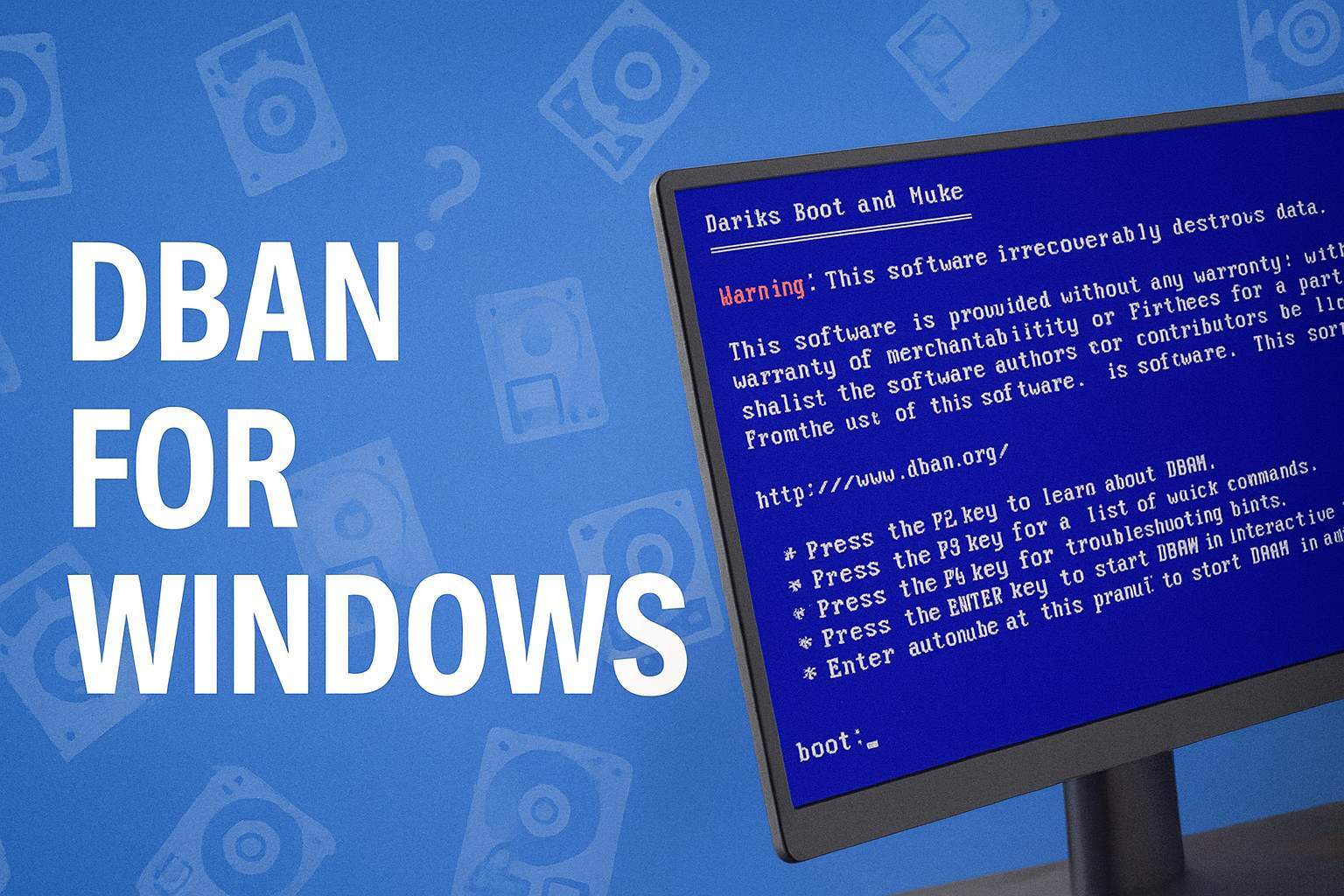
DBAN Windows users often need a reliable way to erase a hard drive before selling or reusing a computer. This guide shows you how to download DBAN, create a bootable USB, and run a full wipe safely.

How to Use DBAN on Windows?

1. Download DBAN

DBAN does not run inside Windows, so you must download the ISO file first.

  1. Visit the official DBAN website.
  2. Download the DBAN ISO file.
  3. Save it to your computer.

2. Create a Bootable DBAN USB

Use a USB imaging tool to write the ISO to a flash drive.

  1. Download a tool such as Rufus.
  2. Open Rufus and select your USB drive.
    rufus iso select
  3. Choose the DBAN ISO file.
  4. Click Start.
  5. Remove the USB when the process completes.

3. Boot From the USB

Your PC must boot from the DBAN USB instead of Windows.

  1. Insert the USB drive into the PC you want to erase.
  2. Restart the computer.
  3. Enter the boot menu by pressing F2, F12, ESC, or DEL.
  4. Select the USB drive.
    boot menu
  5. Wait for DBAN to load.

4. Start the DBAN Wipe

DBAN includes several wipe methods depending on your security needs.

  1. Press Enter at the DBAN welcome screen.
  2. Select the hard drive you want to erase.
  3. Choose a wipe method such as Quick Erase or DoD Short.
  4. Press F10 to begin the wipe.
  5. Wait for DBAN to finish.

5. Reinstall Windows After the Wipe

Once DBAN removes all data, you must reinstall Windows.

  1. Insert a Windows installation USB.
  2. Boot from the USB.
  3. Follow the on screen setup steps.
  4. Install drivers and finish configuration.

What Is DBAN

DBAN is a free data wipe utility that erases hard drives permanently. It removes all files with no recovery option, which helps you prepare a computer for resale or disposal. For a basic Windows method, see this guide on how to wipe a hard drive in Windows 7.

When You Should Use DBAN

  • Preparing a PC for Sale
    You erase personal files so the next owner cannot recover anything.
  • Wiping Drives With Errors
    You remove corrupted data when a drive behaves unpredictably.
  • Destroying Old Data Safely
    You ensure deleted files cannot be restored with software tools. You can also explore these hard drive eraser tools for additional options.

DBAN Limitations

  • No SSD Support
    DBAN works on HDDs only. Use Secure Erase tools for SSDs.
  • Total Drive Removal
    DBAN wipes entire disks and cannot erase specific folders.
  • No Updates
    The project no longer receives official updates.

FAQs

Does DBAN work on Windows 10 or Windows 11?

Yes. It runs outside Windows and works on any PC that supports USB booting.

Can DBAN wipe an SSD?

No. Use the manufacturer secure erase tool.

Can I cancel a DBAN wipe?

You can stop it, but the drive may already hold partial damage.

Is DBAN safe to use?

Yes, as long as you select the correct drive before wiping.

Conclusion

DBAN gives you a dependable way to erase hard drives on Windows systems. You can create a bootable USB, start the wipe, and remove your data permanently. It works well for HDDs and helps you prepare a computer for resale, recycling, or secure disposal without leaving recoverable traces. For wiping portable storage, see these external drive cleaner tools.

[UPDATE: New Build] KB5070311 Preview Rolls Out New Camera & Click to Do Upgrades to Copilot+ PCs

[UPDATE 11/26] Microsoft has released Builds 26100.7309 and 26200.7309 under the same KB5070311 for Windows 11 version 24H2 and 25H2, with “some minor changes.”

[ORIGINAL] Microsoft has released KB5070311 in the Release Preview channel that bumps systems on Windows 11 version 24H2 to Build 26100.7296 and version 25H2 to 26200.7296. This update rolls out several improvements for Copilot+ PCs.

AI-powered camera effects now work on more cameras

The update adds support for Windows Studio Effects on additional cameras, including USB webcams and laptops’ built-in rear camera. You can now enable additional enhancements from Settings > Bluetooth & devices > Cameras. For quick set up, these controls are also available in Quick Settings.

Besides that, Microsoft is also rolling out an updated Click to Do experience for Copilot+ PCs. The context menu now has a cleaner layout that puts actions like Copy, Save, Share, and Open for quick actions. The menu also opens automatically when large images or tables appear, speeding up common tasks without searching through UI layers. This update has also been rolled out separately to Insiders on Beta and Dev channels of Windows 11 version 25H2. You can read more about it here.

Image: Microsoft

Agent improvements make settings easier to manage

The Agent in Settings feature has been upgraded with deeper visibility and quicker adjustments. Search results now show more items at once and include a scroll bar. Recently modified settings surface inline agent recommendations, reducing the number of steps needed to make changes. If a setting can’t be adjusted further, a new dialog explains why and offers alternatives.

As part of the updated Copilot+ PC experience, File Explorer now includes updated placeholder text in the search box, drawing attention to the enhanced Windows Search capabilities powered by Microsoft’s ongoing AI work.

Do note that these Copilot+ PC improvements will roll out gradually, so availability may vary by device and market.

Virus and Threat Protection Guide for Windows Users

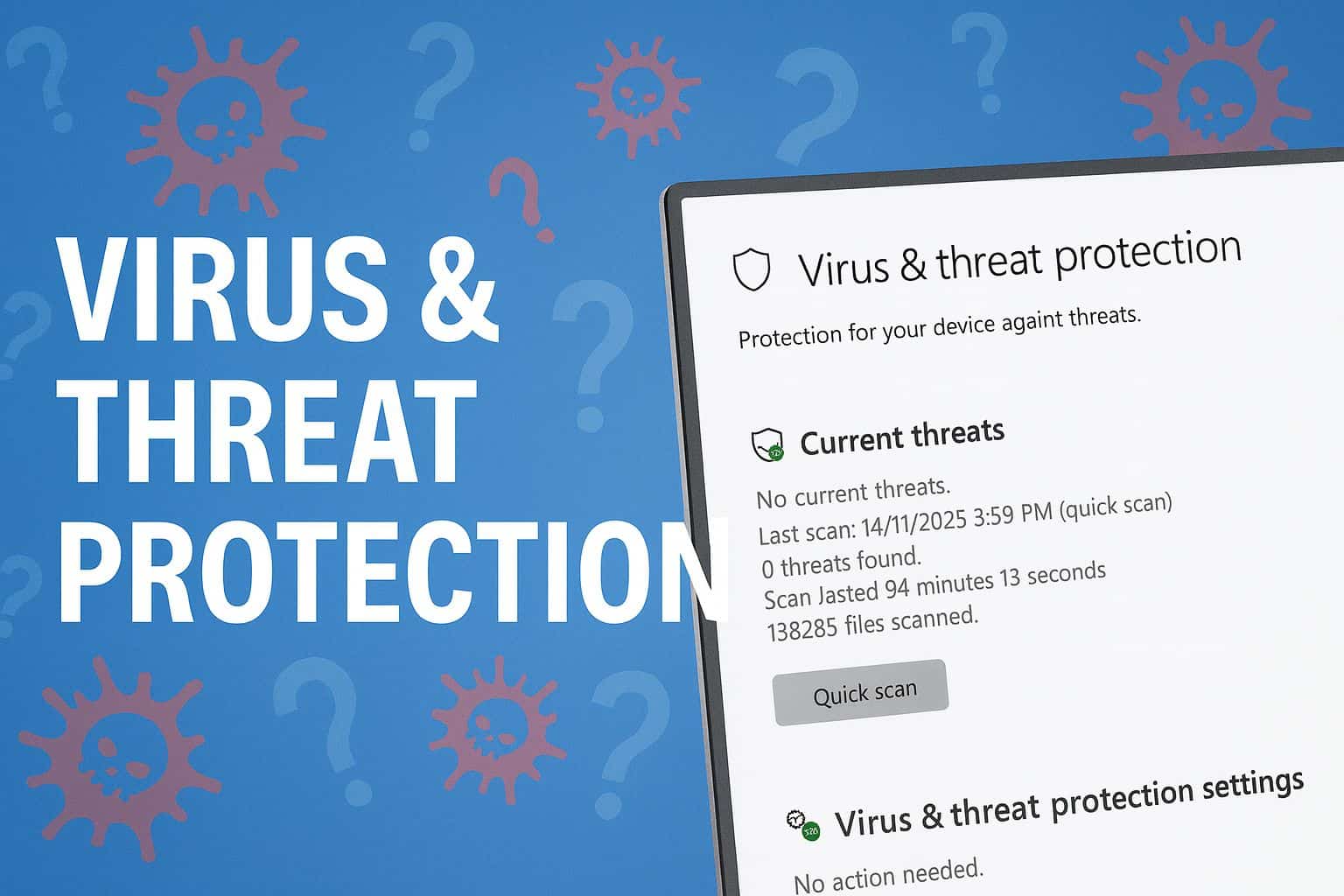
Virus and threat protection keeps your Windows PC safe from malware, risky downloads, and suspicious apps. You strengthen your system when you update settings, run scans, and use the right Windows Security tools.

What is Virus And Threat Protection And How to Use it?

What Is Virus and Threat Protection

Virus and threat protection acts as the main security module in Windows Security and monitors threats in real time.

Why Virus and Threat Protection Matters

Cyber threats target sensitive data and system files, so strong protection helps you avoid infections and performance issues.

How to Set Up Virus and Threat Protection

Start by opening Windows Security and turning on key protections.

Open Windows Security

Use these steps to reach the main dashboard.

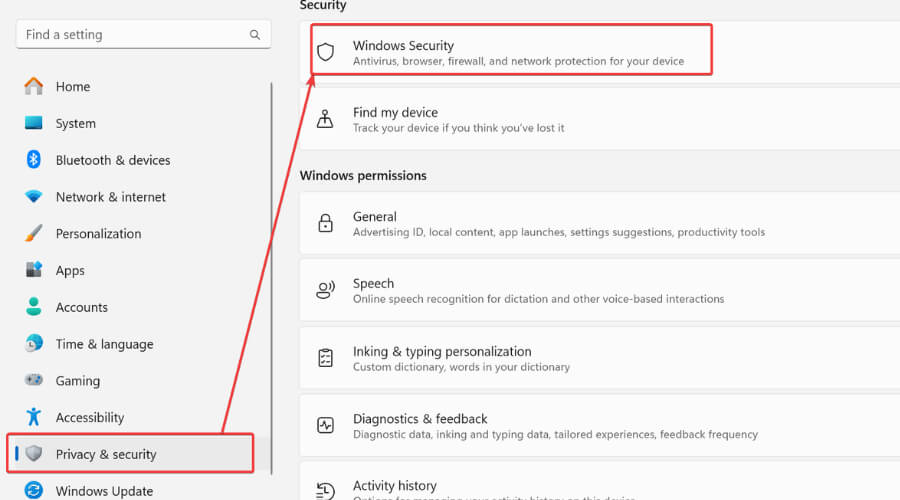
  1. Press Windows + I
  2. Select Privacy and Security
  3. Click Windows Security
    windows security
  4. Choose Virus and Threat Protection

Update Protection Settings

Update definitions to improve threat detection.

  1. Click Protection Updates
  2. Select Check for Updates
  3. Install the newest security intelligence files

Configure Real Time Protection

Turn on real time checks to block threats instantly.

  1. Return to the Virus and Threat Protection menu
  2. Select Manage Settings
    Manage settings
  3. Turn on Real Time Protection
    disable virus & threat protection settings
  4. Turn on Cloud Delivered Protection

You can confirm your configuration by reviewing how to turn on Windows Defender in Windows 11.

How to Run a Scan in Virus and Threat Protection

Run scans often to find harmful files before they spread.

Quick Scan

Use these steps to check common threat locations fast.

  1. Open Virus and Threat Protection
  2. Click Quick Scan
  3. Wait for the scan to finish

Full Scan

Follow these steps to scan the entire system.

  1. Select Scan Options
  2. Choose Full Scan
  3. Click Scan Now
  4. Wait for the scan to finish

Custom Scan

Use this option when you suspect a specific folder.

  1. Go to Scan Options
  2. Select Custom Scan
  3. Choose the folder
  4. Click Scan Now

You can better understand each option by checking this explanation of Windows Defender settings.

How to Improve Virus and Threat Protection

Use additional layers like ransomware control and firewall filtering to strengthen security.

Enable Controlled Folder Access

Turn on this feature to protect sensitive folders.

  1. Open Ransomware Protection
  2. Click Manage Controlled Folder Access
  3. Turn on the setting
  4. Add trusted apps if needed

Remove Harmful Apps

Clean up your system to reduce risk.

  1. Open Settings
  2. Click Apps
  3. Select Installed Apps
  4. Remove apps you do not trust

Turn On Firewall

Enable the firewall to block unwanted network traffic.

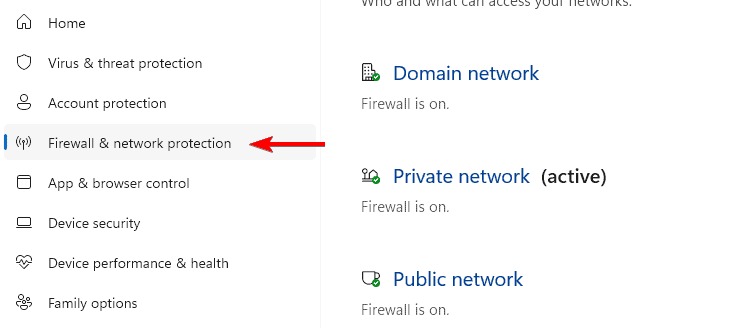
  1. Open Windows Security
  2. Select Firewall and Network Protection
  3. Enable the firewall for each network type

Why These Steps Work

Each feature works together to detect threats, block risky files, and remove harmful activity before it spreads.

You strengthen Windows Security by understanding how each protection layer works, and you can also learn how Data Execution Prevention helps stop unsafe memory actions by reading more at this DEP guide.

FAQs

Why does my PC show a virus and threat protection warning

Windows shows this message when settings turn off or definitions expire. Turn the settings back on and update files.

Do I need another antivirus if I use Windows Security

Most users stay protected with built in features. You only need extra software for advanced privacy tools.

How often should I scan my PC

Run a quick scan daily and run a full scan once each week.

What if Windows Security does not open

Restart the Security Center service or install the newest system updates.

Conclusion

Virus and threat protection helps you block malware, prevent risky activity, and keep your PC stable. You improve security when you update definitions, turn on real time protection, and scan your system often. If you need to pause protection during troubleshooting, you can follow steps that show how to disable Windows Defender in Windows 11.

Copilot Actions Starts Rolling Out to Windows Insiders

Microsoft is rolling out a new update to the Copilot app on Windows that brings Copilot Actions to Windows Insiders across all channels. The feature is available in version 1.25112.74 and higher and rolling out in every regions except in the EEA.

Copilot can now work directly with your files

With Copilot Actions, you can assign everyday tasks to an AI agent inside a secure, policy-controlled workspace. Microsoft describes this environment as a separate desktop instance created specifically for Copilot. It works independently from the user session but remains fully auditable.

You can describe tasks in natural language, and the AI agent attempts to handle them automatically. It can sort images, organize messy folders, convert files, extract details from PDFs, and complete other contextual actions based on content stored on your PC.

This Agent Workspace concept is designed to keep tasks contained and safe while giving Copilot more freedom to interact with apps and files. Users can monitor progress at any time or take control if needed.

An experimental Copilot Labs feature

Microsoft labels Copilot Actions as experimental, noting it may struggle with complex interfaces for now. The company encourages Insiders to monitor the agent’s activity closely and report any issues through feedback channels. Microsoft says it will expand use cases over time as performance improves.

How to get started

Inside the Copilot composer, you can select Take Action from the dropdown menu. You also have the option to attach files or folders via the + button. Copilot then builds a temporary desktop environment and begins executing the task.

Microsoft Temporarily Halts Roll Out of Tabbed Folders in File Explorer With KB5070303

With Windows 11 version 25H2 Preview Build 26220.7262 (KB5070303), Microsoft has rolled out a bunch of new features for Insiders in Dev and Beta Channels.

For example, Narrator and Magnifier have got HD voice support, with the former also getting math reading ability in Microsoft Word. But, that’s not all. Microsoft has also added a dedicated toggle for enabling AI components and gave the context menu for Click to Do a redesign. Well, File Explorer is also getting some handy upgrades with this update.

Microsoft has reconfiguried the system that powers AI Actions in File Explorer. During this transition, Insiders may temporarily lose image actions and Copilot summary actions. The company says the features will return in a phased rollout. Not to forget, the tabbed-folder experiment is also paused. Newly opened folders will return to windowed mode until the feature is fixed.

Additionally, Microsoft is temporarily turning off Image Object Selection in Dev and Beta channels. The company plans to refine the feature before relaunching it.

Moving on, Tutorial mode now includes a new Launch Tutorial button and updated instructions. Teaching Tips have smoother transitions and clearer guidance for first-time users.

For input devices, haptic pens get new tactile feedback. Users will feel subtle vibrations when hovering over close buttons or snapping windows. Last but not least, Microsoft has also paused the rollout of Administrator Protection. Insiders will not see the feature until adjustments are completed.

KB5070303 Adds New AI Components Toggle and Redesigns Click to Do’s Context Menu

Microsoft has released KB5070303 for Windows 11 version 25H2 and it has added some useful features for Insiders in the Dev and Beta channels. First, Narrator and Magnifier have received HD voice support, with former also getting the ability to read match in Microsoft Word.

Well, the new Build 26220.7262 also includes a dedicated toggle for “Experimental agentic features.” It appears under System > AI Components. With it, agents can use new Windows-level capabilities as Microsoft tests deeper automation. The feature is optional, and documentation is available through Microsoft Support.

Image: Microsoft

This update suggests that Microsoft is quite serious about making Windows an agentic OS, for which it has been getting a lot of backlash lately. The new toggle lets Insiders safely test new automation tools before they roll out more broadly.

The update also redesigns the Click to Do context menu. It now features a simpler layout that highlights the most common actions. Items like Copy, Save, Share, and Open appear more prominently.

Image: Microsoft

When a large image or a table appears on screen, the menu can pop up automatically. This reduces extra steps and speeds up workflows.

What Is OpenSSH On Windows and How Do You Use It?

Windows includes OpenSSH to help you manage remote systems securely. It lets you connect to servers, automate scripts, and transfer files through encrypted channels. Many users prefer it because it works directly from PowerShell or Command Prompt and fits well in mixed Windows and Linux environments.

What Is OpenSSH On Windows And How to Install it?

What Is OpenSSH On Windows?

OpenSSH on Windows provides secure remote access and encrypted file transfers. Windows 10 and Windows 11 include an OpenSSH Client and an optional OpenSSH Server, which lets you connect to other devices or accept SSH connections on your PC.

If you ever run into login errors, you can follow this guide on Windows SSH permission issues.

How OpenSSH Works On Windows

Core Purpose

OpenSSH encrypts the connection between your Windows computer and a remote machine, which protects your credentials and session data.

Key Components

  • OpenSSH Client for connecting to servers
  • OpenSSH Server for accepting incoming SSH sessions
  • SCP and SFTP for encrypted file transfers
  • SSH keys for stronger authentication

Why People Use It

OpenSSH improves security, supports automation, and works with both Windows and Linux workflows.

If you face configuration or permission errors, see the guide on SSH config file permission problems.

How To Install OpenSSH On Windows

Install OpenSSH Client

You can install it via Optional features:

  1. Open Settings, select Apps, then open Optional features.
    Optional features
  2. Select Add a feature, choose OpenSSH Client, and install it.

Install OpenSSH Server

Steps for OpenSSH Sever are almost the same:

  1. Go back to Optional features and install OpenSSH Server.
  2. Open Services, start OpenSSH SSH Server, and set the startup type to Automatic.
    startup type automatic armoury crate

If you cannot find the menu, check the guide on Windows Optional Features.

How To Use OpenSSH On Windows

Connect To A Remote System

To connect, just follow these steps:

  1. Open your terminal.
  2. Enter the SSH command with your username and host.
  3. Confirm the fingerprint and log in with your password or key.

Transfer Files With SCP

  1. Open PowerShell.
  2. Enter the SCP command to upload or download a file.
  3. Authenticate when prompted.

How To Generate SSH Keys On Windows

SSH keys help you sign in more securely.

  1. Open PowerShell and run the SSH key generation command.
  2. Choose the save location and create a passphrase.
  3. Upload the public key to the remote computer using SCP or another transfer method.

How To Enable Firewall Rules For OpenSSH Server

You must allow SSH through the Windows firewall.

  1. Open Windows Security.
  2. Select Firewall and network protection.
  3. Open Allow an app through firewall and enable OpenSSH Server.

FAQs

Does Windows include OpenSSH by default?

Yes. Windows 10 and Windows 11 include the OpenSSH Client automatically.

Do I need the OpenSSH Server?

You only need it if you want other devices to connect to your computer through SSH.

Where does Windows store SSH keys?

Windows stores SSH keys inside your user profile’s SSH folder.

Can I use PowerShell with SSH?

Yes. PowerShell supports SSH for automations and remote management tasks.

Conclusion

OpenSSH gives Windows users a secure and convenient way to manage remote systems, transfer files, and automate workflows. You can install it from Optional Features, create SSH keys, and enable the server service quickly. The guides on SSH permission issues, SSH config file problems, and Optional Features help you troubleshoot any setup problems and keep everything running smoothly.

KB5070303 Preview Upgrades Narrator With Ability to Read Math in Microsoft Word

Microsoft has rolled out Insider Preview Build 26220.7262 for Beta and Dev channel of Windows 11 version 25H2 under KB5070303. And, it introduces the furst phase of math reading support in Word.

According to Microsoft, the feature helps users who are blind or have low vision do equations more confidently. Narrator can now read math expressions in Microsoft Word in a structured, meaningful order.

The update aims to make STEM learning more accessible. Instead of reading symbols in a flat line, Narrator now communicates hierarchy. This improves clarity for formulas, fractions, exponents, and scientific notation.

Insiders can enable Narrator using Win + Ctrl + Enter. Opening a Word document with equations triggers the updated reading model. Standard reading commands work as usual. Narrator will read each equation with better structure and tone.

Besides this update, Microsoft has also added HD voice support for Narrator and Magnifier. Insiders in the Beta and Dev channel can try the feature after installing KB5070303 on their Windows 11 25H2 systems.

KB5070303 Adds HD Voices to Narrator and Magnifier in Windows 11 25H2

Microsoft has released KB5070303 for Windows 11 version 25H2, with Insider Preview Build 26220.7262 to both the Dev and Beta Channels.

With this update, Microsoft is upgrading Narrator and Magnifier with high-definition natural voices. These voices use Azure’s latest on-device text-to-speech models. The update brings clearer audio and smoother pacing during reading sessions. It also reduces fatigue for users who rely on speech output throughout the day.

The first release supports English (United States). Insiders get one male voice, Andrew, and one female voice, Ava. Both options offer more expressive tone control and better rhythm when reading long passages.

Users can enable HD voices in Settings. Go to Accessibility, open Narrator, and pick “add a natural voice.” After downloading, you can switch voices and adjust speaking speed instantly. The changes apply system-wide.

With this update, Magnifier also supports HD natural voices. Like Narrator, it offers direct controls for voice switching and speed adjustments. This helps users who prefer listening to highlighted text rather than reading it. You can enable it by following the steps below:

  1. Open Settings > Accessibility > Magnifier.
  2. Navigate to “add a natural voice” button
  3. Download your preferred voice.
  4. Change voices or adjust speed anytime in Magnifier settings.
Image: Microsoft

The company further says more languages will come later, after improving performance and quality.

How to Clear Outlook Cache on Windows and Mac (Fast Steps)

Clearing the Outlook cache fixes loading issues, search problems, and outdated autocomplete entries. This guide shows quick methods for Windows and Mac.

How to Clear Outlook Cache on Windows and Mac?

1. Clear Autocomplete Cache

Use these steps to remove outdated autocomplete entries.

  1. Open Outlook.
  2. Select File.
  3. Click Options.
  4. Select Mail.
  5. Scroll down to Send messages.
  6. Click Empty Auto Complete List.
  7. Press OK.

2. Clear Offline Outlook Data (OST File)

Follow these steps to refresh your local mailbox data.

  1. Close Outlook completely.
  2. Press Windows + R.
  3. Type %localappdata%\Microsoft\Outlook
  4. Right click the OST file for your account.
  5. Delete the file.
  6. Relaunch Outlook and let it rebuild the cache.

3. Clear Outlook Cache Folder

Use these steps to delete cached temporary files.

  1. Close Outlook.
  2. Press Windows + R.
  3. Type %localappdata%\Microsoft\Outlook\RoamCache
  4. Select all cache files.
  5. Delete them.
  6. Restart Outlook.

Clear Outlook Cache on Mac

1. Reset the Outlook Search Index

Follow these steps to rebuild Outlook search indexing.

  1. Open Outlook.
  2. Select Outlook in the top menu.
  3. Click Preferences.
  4. Select Search.
  5. Choose Rebuild.
  6. Wait for indexing to complete.

2. Clear Offline Cache for an Email Account

Use these steps to refresh mailbox sync on Mac.

  1. Open Outlook.
  2. Hold Option and right click the Outlook icon in the Dock.
  3. Select Outlook Profile Manager.
  4. Choose your profile.
  5. Click Reset.
  6. Restart Outlook.

Clear Microsoft 365 Outlook Cache Online

Clear Web App Cache

Follow these steps to remove cached files in your browser.

  1. Open your browser.
  2. Press Ctrl + Shift + Delete.
  3. Select Cached images and files.
    clearing cache and cookies in google chrome
  4. Click Clear.
  5. Reload Outlook Web App.

If you want to set up templates for faster replies after clearing cache, check How To Create An Email Template In The New Outlook.

Why Clearing Outlook Cache Works

Deleting cached files forces Outlook to download fresh mailbox data and rebuild search indexes. This improves loading speed, fixes search errors, and removes outdated autocomplete entries.

Why You May Need to Clear Outlook Cache

  • Outlook loads outdated mailbox data
  • Search results feel incomplete or slow
  • Autocomplete suggestions fail
  • Add-ins cause sync delays

If you need help signing back in after clearing data, see How To Log In To Outlook Email. You can manage your contacts more easily by using the address book, and this guide explains how to access it clearly: how to find the address book in Outlook.

FAQs

Does clearing Outlook cache delete emails?

No. Emails stay stored on the server. Outlook only rebuilds the local copy.

How often should I clear the Outlook cache?

Clear it when search slows, autocomplete breaks, or Outlook freezes.

Will clearing the OST file break my account?

No. Outlook rebuilds the OST file after you sign in.

Should I clear cache if Outlook crashes?

Yes. Cache corruption causes many performance issues.

Conclusion

Clearing your Outlook cache improves performance and fixes common sync and search issues on Windows, Mac, and Outlook Web. If you are setting up Outlook on a fresh device, see How To Create An Outlook Account for a complete setup walkthrough.

Microsoft Edge now syncs Tab Groups and Workspaces across devices

Microsoft Edge is adding Tab Groups and Workspaces to its sync options so users can access their organised browsing setup across signed-in devices. The feature is available in Edge Canary and worked across devices during our testing.

Tab Groups organise browsing sessions by grouping tabs under labels and colours. They help reduce clutter and keep similar tasks together.

Edge Workspaces let users open a dedicated browser window containing a saved set of tabs and files for a project or topic. They let users return to this workspace window later and invite others to join the same set of tabs.

Until now, the Edge browser has supported syncing history, open tabs, favourites, passwords, extensions, collections, and site settings. Tab Groups and Workspaces did not have a dedicated sync toggle. They often stayed tied to the device where they were created.

Tab Groups and Workspaces Sync in Microsoft Edge Canary

Microsoft has added a new sync option in Edge Canary settings that lists “Workspaces and Tab Groups”. The description says users can “easily access, organise and manage your Workspaces and saved Tab Groups across signed-in devices”.

The option appears in the Profiles > Sync page and looks like a recent addition.

The new “Workspaces and Tab Groups” sync option appears in Edge Canary under Profiles > Sync. Image Credit: Venkat | WindowsReport.

Adding Tab Groups and Workspaces to the sync list shows Microsoft tests support across more devices, such as Android, iOS, and desktop versions. It lets users return to the same browsing setup when switching devices.

In our testing, we created a new Tab Group and a workspace in Edge Canary. Both synchronised and appeared in Beta, Dev, and Release versions. Since Workspaces remain limited to desktop unless enabled through a flag on Android, we only noticed Tab Groups syncing on Edge mobile (Android and iOS), not Workspaces.

Microsoft has not announced cross-device syncing of Tab Groups and Workspaces yet. If you use Edge Canary, it is worth checking whether the sync option is enabled and working for you. This addition could help more users once it becomes available beyond Canary.

That’s not all. In addition to Tab Group and Workspace syncing support, Edge is adding Passkey sync and testing the removal of the “Allow extensions from other stores” toggle. Microsoft is also testing the option to allowlist trusted sites for typo protection in Edge Canary.

40 New Games Are Landing on Xbox This Week (Nov 17 to 21)

Microsoft is back again with this week’s Xbox lineup, and it’s one of the pack weeks of the month. The standout addition in this week’s lineup is the SpongeBob SquarePants: Titans of the Tide. It’ll land on Xbox on November 18 with a ghost-themed new adventure featuring the Flying Dutchman, King Neptune and more.

If you’re looking for something fresh in the roguelike category, you’ve the Moonlighter 2: The Endless Vault, which enters Game Preview on November 19 and also joins Game Pass. Fans of fast action can jump into Monsters are Coming! Rock & Road on November 20.

Meanwhile, strategy fans can return to the Wild West in Outlaws + Handful of Missions: Remaster, launching November 20 with enhanced visuals and modern upgrades. If you prefer something calmer, The Berlin Apartment arrives November 17.

Xbox Releases: November 17–21

DateGame Title
Nov 17The Berlin Apartment
Nov 18SpongeBob SquarePants: Titans of the Tide
Remnants of the Rift
RoboHero
Sektori
Spikeball Smash
The Cute Whale
Nov 19Moonlighter 2: The Endless Vault (Game Preview, Game Pass)
Demonschool
Secrets of Blackrock Manor – Escape Room
Slide Stories: Neko and Friends
StarLight Riders: HyperJump
The Last Shot Arcades
Wiz Quest: Crystal Power
Nov 20Monsters are Coming! Rock & Road (Game Pass)
Outlaws + Handful of Missions: Remaster
Bus World
Cat God Ranch
Football, Tactics & Glory – Treble Deluxe Edition
Kiosk
Neon Inferno
Pad Quad
Saborus
Samurai Academy: Paws of Fury
Solid Void – Art Nonograms
Nov 21Terrifier: The Artcade Game
Aery – Peace of Mind 4
A Maze Against Time
Burger Master
Castle Heroes
Chompy Chomp Chomp Party
Croc’s Dynamite Blast
Diamond Painting ASMR
Drizzlepath: Picturae
Empire Invasion
Fantasy Aquarium
JDM: Japanese Drift Master
NeonBlast
Sailing the Winds
Save Room – The Merchant

So, for which game are you most excited for? Is it SpongeBob’s new ghost hunt? Or The Outlaws remaster? Please let us know in the comments below.

Check Full List of Game Awards 2026 Nominee List Acoss Different Categories

If you’re excited for The Game Awards this year, Geoff Keighley has just unveiled the full list of nominees. For the uninitiated, the live ceremony will be held on December 11 at the Peacock Theatre, Los Angeles. Not to forget, a leak from earlier today spilled the list of nominees for the Game of the Year category.

Well, voting is officially open. So, if you already have a favorite, you can head to the TGA website right now and make it count. This year’s lineup leans heavily on cinematic storytelling, ambitious sequels, and a surprising number of indie standouts.

While some categories list nominees as expected, a few nominations might baffle some gamers, especially with Clair Obscur: Expedition 33 showing up across multiple major categories. You can check out the complete list below.

All Game Awards 2025 Nominees

Game of the Year

  • Clair Obscur Expedition 33: Gustave & Maelle
  • Clair Obscur: Expedition 33
  • Death Stranding 2: On the Beach
  • Donkey Kong Bananza
  • Hades 2
  • Hollow Knight: Silksong
  • Kingdom Come: Deliverance 2

Best Independent Game

  • Absolum
  • BallxPit
  • Blue Prince
  • Clair Obscur: Expedition 33
  • Hades 2
  • Hollow Knight: Silksong

Best Mobile Game

  • Destiny Rising
  • Persona 5: The Phantom X
  • Sonic Rumble
  • Umamusume: Pretty Derby
  • Wuthering Waves

Best Narrative

Best Score and Music

  • Christopher Larkin – Hollow Knight: Silksong
  • Darren Korb – Hades 2
  • Lorien Testard – Clair Obscur: Expedition 33
  • Toma Otowa – Ghost of Yotei
  • Woodkid & Ludvig Forssell – Death Stranding 2: On the Beach

Best Performance

  • Ben Star – Clair Obscur: Expedition 33
  • Charlie Cox – Clair Obscur: Expedition 33
  • Erika Ishii – Ghost of Yotei
  • Jennifer English – Clair Obscur: Expedition 33
  • Konatsu Kato – Silent Hill f
  • Troy Baker – Indiana Jones and the Great Circle

Games for Impact

  • Consume Me
  • Despelote
  • Lost Records: Bloom and Rage
  • South of Midnight
  • Wanderstop

Best Action/Adventure Game

  • Death Stranding 2: On the Beach
  • Ghost of Yotei
  • Hollow Knight: Silksong
  • Indiana Jones and the Great Circle
  • Split Fiction

Best Role-Playing Game

  • Avowed
  • Clair Obscur: Expedition 33
  • Kingdom Come: Deliverance 2
  • Monster Hunter Wilds
  • The Outer Worlds 2

Best Fighting Game

  • 2XKO
  • Capcom Fighting Collection 2
  • Fatal Fury: City of the Wolves
  • Mortal Kombat Legacy Collection
  • Virtua Fighter 5 R.E.V.O. World Stage

Best Family Game

  • Donkey Kong Bananza
  • LEGO Party
  • LEGO Voyagers
  • Mario Kart World
  • Sonic Racing: Crossworlds
  • Split Fiction

Best Sports/Racing Game

  • EA Sports FC 26
  • F1 25
  • Mario Kart World
  • Rematch
  • Sonic Racing: Crossworlds

Best Multiplayer

  • Arc Raiders
  • Battlefield 6
  • Elden Ring: Nightreign
  • Peak
  • Split Fiction

Most Anticipated Game

  • 007: First Light
  • Grand Theft Auto 6
  • Marvel’s Wolverine
  • Resident Evil Requiem
  • The Witcher 4

Best Art Direction

  • Clair Obscur: Expedition 33
  • Death Stranding 2: On the Beach
  • Ghost of Yotei
  • Hades 2
  • Hollow Knight: Silksong

Best Game Direction

  • Clair Obscur: Expedition 33
  • Death Stranding 2: On the Beach
  • Ghost of Yotei
  • Hades 2
  • Split Fiction

Best VR/AR Game

  • Alien: Rogue Incursion
  • Arken Age
  • Ghost Town
  • Marvel’s Deadpool VR
  • The Midnight Walk

Best Action Game

  • Battlefield 6
  • Doom: The Dark Ages
  • Hades 2
  • Ninja Gaiden 4
  • Shinobi: Art of Vengeance

Best Esports Team

  • Gen.G – League of Legends
  • NRG – Valorant
  • Team Falcons – DOTA 2
  • Team Liquid PH – Mobile Legends: Bang Bang
  • Team Vitality – Counter-Strike 2

Best Esports Game

  • Counter-Strike 2
  • DOTA 2
  • League of Legends
  • Mobile Legends: Bang Bang
  • Valorant

Content Creator of the Year

  • Caedril
  • Kai Cenat
  • MoistCr1tikal
  • Sakura Miko
  • The Burnt Peanut

Best Sim/Strategy Game

  • The Alters
  • Final Fantasy Tactics: The Ivalice Chronicles
  • Jurassic World Evolution 3
  • Civilization 7
  • Tempest Rising
  • Two Point Museum

Best Audio Design

  • Battlefield 6
  • Clair Obscur: Expedition 33
  • Death Stranding 2: On the Beach
  • Ghost of Yotei
  • Silent Hill f

Best Ongoing Game

  • Final Fantasy XIV: Dawntrail
  • Fortnite
  • Helldivers 2
  • Marvel Rivals
  • No Man’s Sky

Best Debut Indie Game

  • Blue Prince
  • Clair Obscur: Expedition 33
  • Despelote
  • Dispatch
  • Megabonk

Best Community Support

  • Baldur’s Gate 3
  • Final Fantasy XIV
  • Fortnite
  • Helldivers 2
  • No Man’s Sky

Innovation in Accessibility

  • Assassin’s Creed Shadows
  • Atomfall
  • Doom: The Dark Ages
  • EA Sports FC 26
  • South of Midnight

Best Adaptation

  • A Minecraft Movie
  • Devil May Cry
  • Splinter Cell: Deathwatch
  • The Last of Us Season 2
  • Until Dawn

Best Esports Athlete

  • Brawk
  • Chovy
  • Forsaken
  • Kakeru
  • Menard
  • Zywoo

So, which games are getting your vote this year, and why? We’d love to hear your picks, so share your thoughts in the comments below.

Game of the Year (GOTY) Nominees Officially Announced, But Not Before a Leak

The Game Awards season has finally begun, but with a big leak. And it comes from a reliable tipster, Evan Blass (@evleaks on X). Check out the list of nominees for the Game of the Year (GOTY) category:

  • Clair Obscur: Expedition 33
  • Death Stranding 2: On the Beach
  • Donkey Kong Bananza
  • Hades II
  • Hollow Knight: Silksong
  • Kingdom Come: Deliverance II
Game of the Year Nominees
Image: X/@evleaks

For those unaware, Geoff Keighley has just revealed the full list of nominees just moments ago, setting the stage for the live ceremony on December 11. However, today’s reveal has filled in the rest of the award slate across dozens of categories, from Best Indie to Best Performance. We have covered a separate story on all categories’ nominees, check it here.

You can replay the announcement YouTube video below:

Boeing partners with Microsoft to turn 3D-Style Game Simulation into Pilot Training System

If you ever thought video games were just for fun, history keeps proving otherwise. We’ve come across reports about surgeons practicing with VR rigs, soldiers training with hardware first designed for FPS titles, and a racing simulation tool is becoming a staple for racing OEMs. But, it’s surprising to even think that the aviation industry to follow the same path.

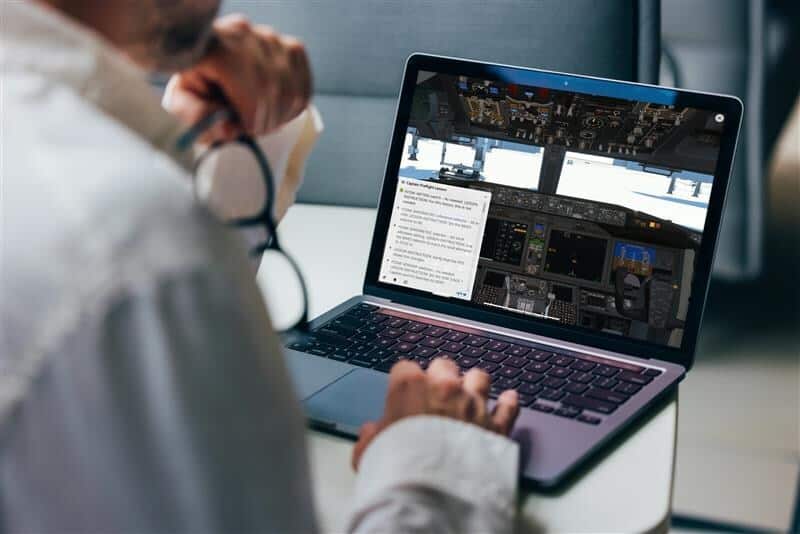
This week, Boeing unveiled the Virtual Airplane Procedures Trainer (VAPT), which is a lightweight training platform built with Microsoft’s simulation technology. It’s designed to help pilots rehearse cockpit procedures on laptops and tablets instead of full-scale simulators.

Chris Raymond, Chief Executive Officer of Boeing Global Services, said:

We’re very excited about the launch of Virtual Airplane. This new software will significantly impact how and when pilots and operators train and will provide them with much-needed flexibility. This new platform reflects Boeing’s commitment to digital innovation as we seek to leverage the latest technologies to improve our offerings and outcomes for our customers.

Well, Boeing calls it an “immersive, accessible, and customizable” tool for real flight-deck practice, powered by Microsoft’s 3D simulation stack. As you may know, Microsoft Flight Simulator has long recreated real cockpits and the entire planet with near-photographic fidelity.

The new “Virtual Airplane” trainer doesn’t appear to be a direct copy of the game, but rather a focused slice of the 737 MAX cockpit adapted for consistent, low-cost rehearsal. The idea is to help pilots build familiarity with panels, switches, and workflows in a realistic environment that doesn’t require a full simulator bay.

Microsoft says the goal is to “accelerate learning while optimizing confidence for pilots with safety at the core.” It’s another reminder that the line between play and professional training is thinner than ever.

Article feature image source: Boeing

Xbox’s 2026 Partner Preview Event Announced for November 20

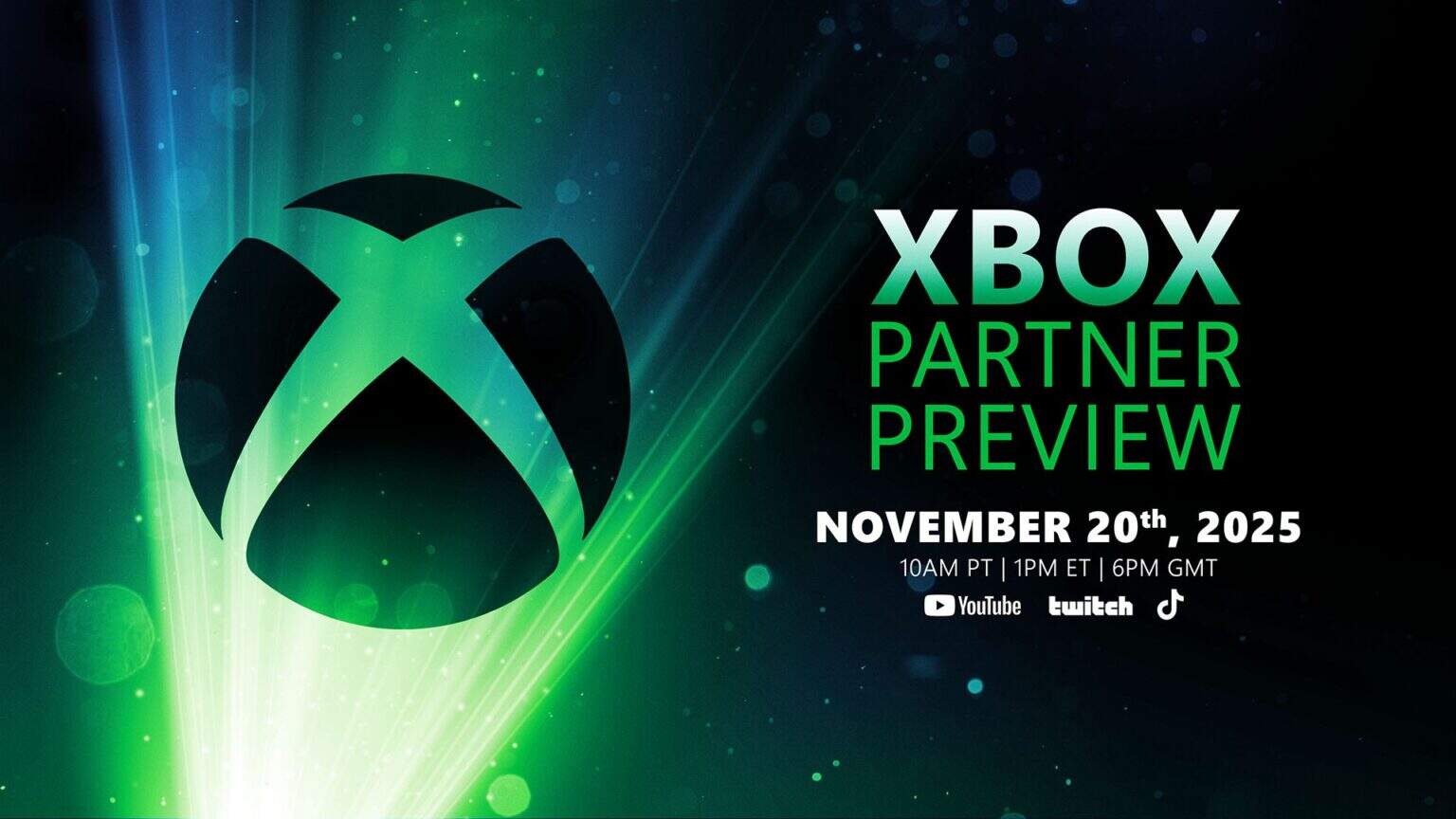
As previously reported, Microsoft has finally confirmed that its next Partner Preview showcase will go live this Thursday, November 20. The broadcast, according to an Xbox Wire post, will highlight upcoming games from major third-party studios, including IO Interactive, Tencent, and THQ Nordic.

Microsoft also says that everyone can expect several new reveals and fresh Game Pass updates. The event will feature a first look at new content for 007 First Light, an extended gameplay trailer for the dark fantasy title Tides of Annihilation, and an updated look at Reanimal.

According to the announcement post, all titles from the Xbox Partner Program will be Xbox Play Anywhere. In other words, players can use the same purchase across consoles, PC, and supported handhelds.

Microsoft additionally says that the Partner Program showcase will focus mainly on global partner updates. That includes release date news, new gameplay drops, and world premieres of unannounced projects. Jennifer English, who voices Gwendolyn in Tides of Annihilation, will narrate the event.

You can tune in to Xbox’s YouTube channel, Twitch, TikTok, or regional Xbox channels to stream the Partner Preview event on November 20 at 10 am PT / 1 pm ET / 6 pm UK. Worth noting that YouTube will offer the show in 4K/60fps, while other platforms stream in 1080p.

What’s interesting is that the Xbox Partner Program will include live subtitles in 10+ languages, with more options added on YouTube after the event. An audio-described version and ASL-supported stream will also be available.

For anyone unable to watch live, a full recap will be published immediately after the broadcast, along with deep dives on select titles via Xbox Wire. Xbox encourages co-streamers; however, it warns that automated copyright systems may affect content that includes licensed music.

How to Open Facebook Desktop Version on Mobile in Seconds

Mobile browsers load the simplified Facebook site by default, but you can switch to the full desktop layout with quick browser options.

How to Open Facebook desktop version?

Open Facebook desktop version on Android

You can load the full site in Chrome by enabling its desktop mode.

  1. Open Chrome on your phone
  2. Go to facebook.com and log in
  3. Tap the three dots in the top right
     
  4. Turn on Desktop site
  5. Wait for the page to reload with the full layout

If you need help signing out afterward, check the guide on how to sign out from Facebook.

Open Facebook desktop version on iPhone

Safari lets you request the desktop version directly from the address bar.

  1. Open Safari
  2. Visit facebook.com and sign in
  3. Tap the AA icon in the address bar
  4. Select Request Desktop Website
  5. Let the desktop layout load

If the page fails to log you in, this article on Facebook login issues offers useful troubleshooting steps.

Use the URL trick to force the desktop view

This direct link forces Facebook to load the full interface even when the menu option fails.

  1. Open your browser
  2. Type www.facebook.com/home.php
  3. Sign in to trigger the desktop version
  4. Zoom in if the interface looks too small

Use desktop mode in other browsers

Most alternative browsers include a desktop toggle in their menus.

  1. Open Firefox, Opera, Brave or a similar browser
  2. Visit facebook.com
  3. Open the browser menu
  4. Select Desktop site
  5. Reload the page if the layout does not switch

If your browser has trouble rendering the site, see the overview of the best browsers for Facebook.

Fix desktop view not loading

A few quick resets usually correct display issues that keep the mobile version in place.

  • Clear the browser cache
  • Disable Lite or data saving modes
  • Turn off any ad blockers that alter page rendering
  • Try another browser if the page keeps switching back to mobile

FAQs

Why does Facebook keep switching back to the mobile view

The browser may override the desktop request due to cache, data saving features, or site detection. Clearing cached data usually fixes the issue.

Is it safe to use the Facebook desktop view on mobile

Yes. All major browsers support the desktop layout and load the same secure version used on a PC.

Why does the desktop version look tiny on my phone

The layout was designed for wide screens. Pinch to zoom until the interface fits comfortably.

Can I switch back to the mobile version easily

Yes. Turn off the Desktop site or Request Desktop Website option in your browser menu to return to the mobile layout.

Conclusion

Android and iPhone devices can load the Facebook desktop version through browser settings or a direct URL. If the site keeps reverting to mobile view, clearing cache or switching browsers usually restores the full layout.

Copilot fails badly in a new Windows ad, and users are understandably fuming

It’s been just a few days since Windows chief mentioned “Windows is evolving into an Agentic OS” in a post on X. The post received a massive backlash, which even led the Windows chief, Pavan Davuluri, to disable replies on that post.

Well, this time Microsoft is getting criticized for a Copilot ad posted on X (formerly Twitter featuring @uravgconsumer.

The ad, featuring a popular YouTuber, shows Copilot guiding a user to change text size. In the video, the user asks, “Hey Copilot, I want to make the text on my screen bigger.” Copilot initially points to the “Display settings,” but doesn’t complete the steps.

When the user requested Copilot again, Copilot showed the scaling option, which was already set to 150%, and explained that it affects text, apps, and UI elements. However, the user then ignores the suggestion and chooses 200% to get the desired result.

Many users pointed out that the ad fails to show the built-in accessibility option for changing text size without adjusting UI scaling. No wonder many users were quick to blast Microsoft for Copilot’s mistake. You can check out some of the reactions here:

The backlash comes amid growing concerns over Microsoft’s push to make Windows 11 an “agentic OS,” which we mentioned at the start of the article. Windows users have long been the platform for unnecessary bloat, mandatory accounts, and constant updates that disrupt workflows. Many feel Microsoft needs to focus on improving usability rather than showcasing AI features in a way that confuses users.

via: Windows Central

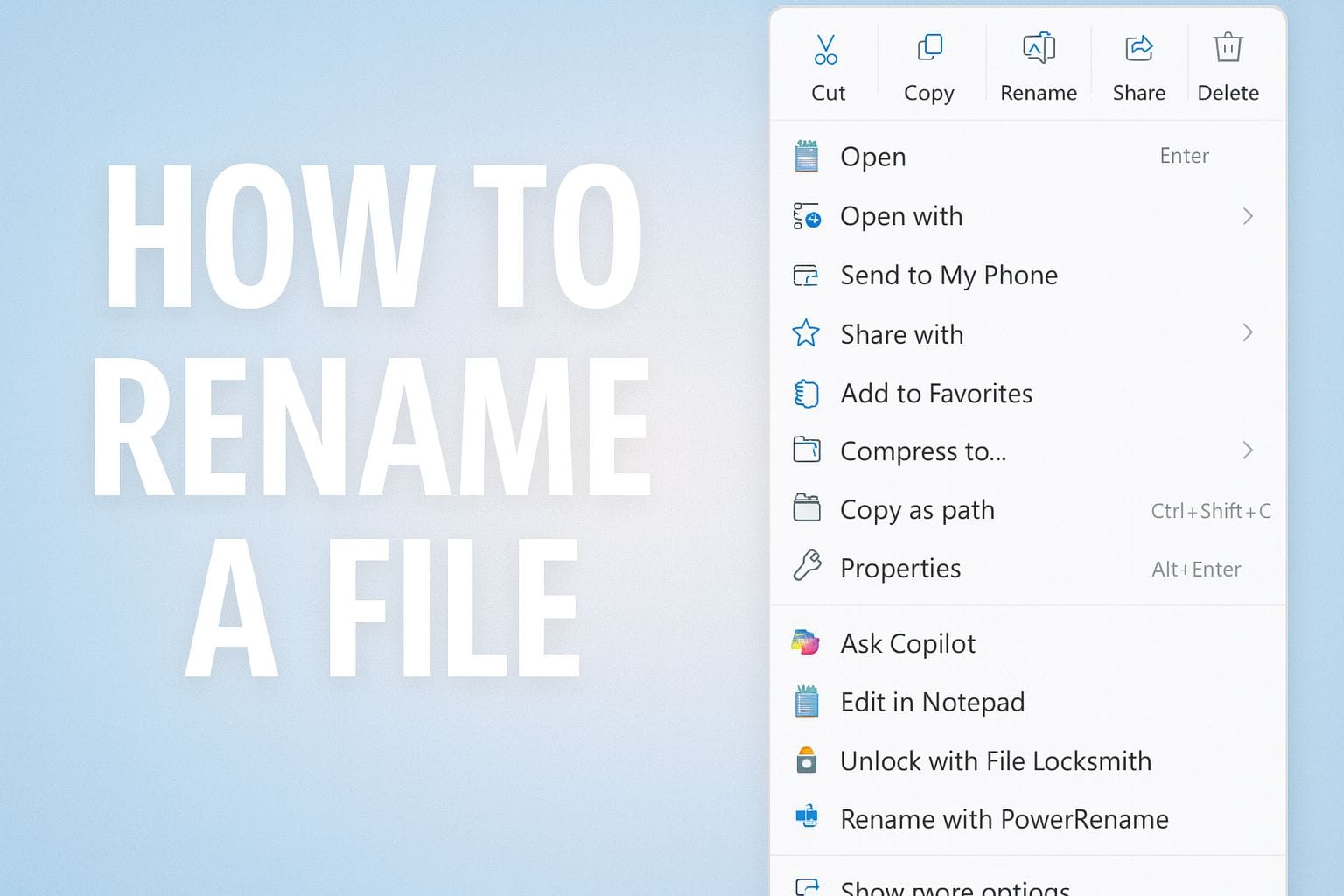
How To Rename A File In Windows 11 Step By Step

You can learn how to rename a file in Windows 11 with quick shortcuts and simple menu actions. These methods help you fix naming mistakes and keep folders organized.

How To Rename A File In Windows 11?

1. Rename With F2

You get the fastest rename option with a keyboard shortcut.

  1. Press Windows + E to open File Explorer.
  2. Go to the folder that contains your file.
  3. Click the file once.
  4. Press F2.
  5. Type the new name.
  6. Press Enter.

For a broader look at file renaming methods on older systems, check this tutorial on how to rename files in Windows 10.

2. Rename With Right Click

You can rename files with the context menu when you prefer mouse actions.

  1. Open File Explorer.
  2. Right-click the file.
  3. Select Rename.
  4. Type the updated name.
  5. Press Enter.

3. Rename From the Command Bar

Windows 11 includes a rename button in the File Explorer toolbar for quick access.

  1. Select the file you want to rename.
  2. Click the Rename button in the command bar.
  3. Type the new name.
  4. Press Enter.

If you also want to adjust device identity while you organize files, you can follow this guide on how to rename your PC in Windows 11.

4. Use The File Properties Window

This method helps when you want to review file details before you rename the item.

  1. Right click the file.
  2. Click Properties.
  3. Open the General tab.
  4. Edit the text in the Name field.
  5. Click OK.

For users who also handle system folders and update them safely, this step by step tutorial on how to rename the SoftwareDistribution folder explains careful maintenance.

FAQs

Why can I not rename a file in Windows 11?

Another program might use the file. Close any app that opens the file, then try again.

Can I rename system files?

You should avoid system files. Windows relies on those items, so focus on personal data instead.

Does renaming a file break shortcuts?

Yes. Shortcuts point to a specific path and name, so a new name stops that shortcut from working.

Why does Windows show a permission prompt?

Your account might not own the file. Sign in with an admin account or take ownership before you rename it.

Conclusion

Windows 11 gives you simple ways to rename files through File Explorer shortcuts, right click actions, and the Properties window. These tools help you correct labels, clean up messy folders, and keep your workspace easy to navigate. Once you practice each method a few times, you can rename any file in seconds without breaking your workflow.

NYT: Jeff Bezos to Take Up Co-Chief Executive Role in AI Start-Up Project Prometheus

Jeff Bezos has been the leader and face of Amazon for a long time. However, in July 2021, Bezos stepped down from the company’s CEO role. Now, according to a New York Times report, Bezos is stepping into the role of co-CEO of Project Prometheus.

For those uninitiated, the company has already raised $6.2 billion, including contributions from Bezos himself. At this point, it is one of the most funded AI startups in the early stages in the whole world.

Per the NYT report, Bezos will take up the role of co-chief executive, marking his first formal operational role since stepping down from Amazon. He’ll share leadership with Vik Bajaj, a physicist and chemist with a track record at Google X and Verily. Bajaj also co-founded Foresite Labs, a data science and AI incubator, before joining Project Prometheus.

The venture in question plans to develop AI systems for engineering, manufacturing, aerospace, automobiles, and other physical sciences. According to reports, Project Prometheus has already hired nearly 100 employees, including researchers from OpenAI, DeepMind, and Meta.

Unlike typical large language models, which learn from digital text, Project Prometheus intends to create AI that learns from the physical world, potentially running experiments and improving scientific processes autonomously.

With its massive initial funding, Project Prometheus joins a growing number of AI start-ups focusing on machine learning for robotics, scientific discovery, and real-world problem-solving.

OpenAI finally fixes ChatGPT’s ’em dash’ problem

OpenAI has finally fixed ChatGPT’s em dash problem, according to the company’s CEO, Sam Altman. Over the weekend, Altman revealed the update in a post on X, calling it a “small-but-happy win.”

He wrote:

If you tell ChatGPT not to use em-dashes in your custom instructions, it finally does what it’s supposed to do.

For those unaware, the punctuation mark has become infamous as a sign of AI-generated text. Its frequent use led some to criticize writers for relying on AI rather than their own words.

However, there’s a section that defends the use of the em dash as a normal part of writing. Until now, users couldn’t get ChatGPT to stop using it, even when explicitly asked.

According to OpenAI, the change works through the custom instructions in the personalization settings. Users can now tell ChatGPT to avoid the em dash, giving them more control over its appearance.

Do note that the update doesn’t remove em dashes by default, but it ensures the AI respects user preferences when instructed.

As far as the company news is concerned, OpenAI also introduced GPT-5.1, the new and upgraded model, comprising GPT-5.1 Instant and GPT-5.1 Thinking. The company describes the new model as an “upgrade” to GPT-5 that makes ChatGPT smarter, faster, and more fun to talk to.