Patents reveal that Microsoft is working on a Surface Trio device

It’s true that public reaction to Microsoft’s Surface Duo series of devices hasn’t exactly been what the company was expecting.

Now, however, it seems that the Redmond tech giant may be considering a new form factor, one that actually has three displays instead of two.

The patent for this futuristic design was discovered in U.S. Patent and Trademark Office (USPTO) documentation, which means that we get an early look at the above-mentioned hardware.

A Surface device with three displays in in the works

The patent that Microsoft filed actually dates back to June 23, 2020, and was originally discovered by Patently Apple.

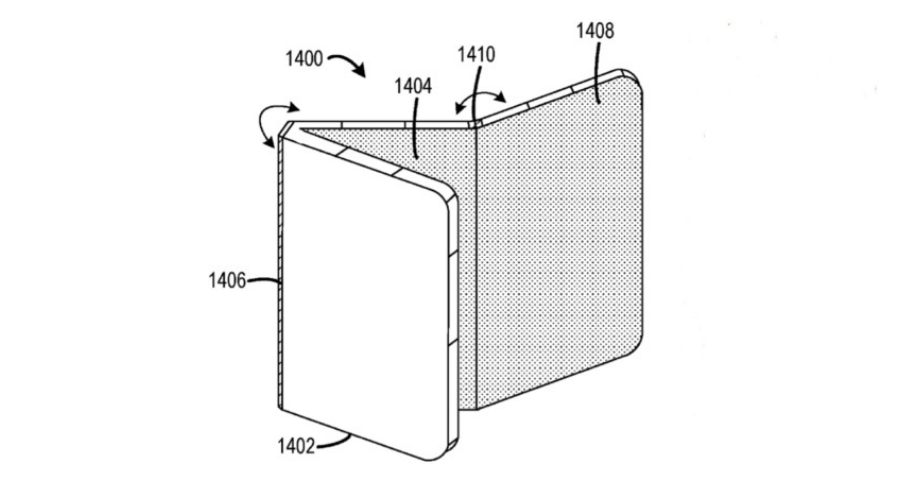
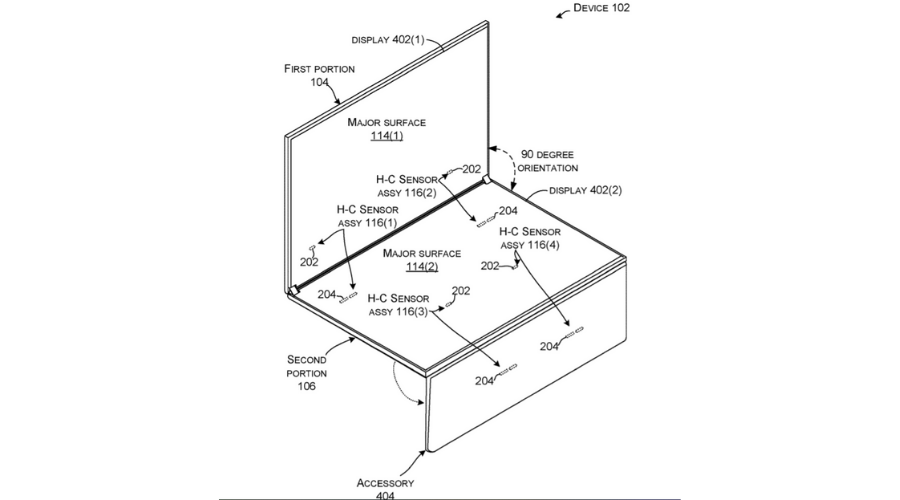
And even though the document is a heavy read, too technical for some the image included in it is worth more than a thousand words.

Basically, this upcoming device is essentially very similar to the Surface Duo, the only difference being that it will come with three displays, instead of the traditional two.

Looking at these plans, you might notice that the hinges are designed and positioned for one purpose. When the gadget is folded, it will only expose a single display at all times.

If you ever owned a Duo or seen one, you know that the Duo is reverse-folded, which means that it exposes both displays, or fold it towards yourself, hiding both displays.

But the words Surface Trio aren’t even mentioned in this patent, creators choosing to refer to it as a multi-panel display device.

By reading the patent, you can also find out that multi-panel display devices may be useful in a variety of different scenarios, as the creators so eloquently put it:

For example, multiple software application windows may be visually presented on separate display panels at the same time. Multi-panel display devices may use a hinge to allow for the display panels to fold in different directions (e.g., inward/outwards). Such foldability allows multi-panel display devices to have a larger total display area relative to a similarly-portable single display device, while also allowing for smaller folded dimensions relative to a non-folding display device offering the same display area.

Before you already make plans and add this future product to your wishlist, you have to remember that this is still just a patent for the time being.

As you can imagine, very few details about these new gadgets are currently available. We know little about tech specs or what software it’s going to run on.

All that’s left to do now is to wait for Microsoft to finish this product and make it generally available for the public. But considering that we’re talking about the Redmond company, who knows how long that will take?

We’ll definitely keep an eye open for any development in this story and report back as soon as we have some new details.

What’s your take on this new device patented by Microsoft? Share your thoughts with us in the comments section below.

Microsoft allegedly working on more Mica-style visual alternatives for Windows 11

It’s already a well-known fact that Microsoft sort of previously hinted at some future design changes for Windows 11, and the world might have just gotten the first glimpse at it, without actually realizing it.

In the SDK in Windows 11 Build 22523, there’s apparently is a new tabbed design public API. The first shred of information about this matter first surfaced on Twitter. 

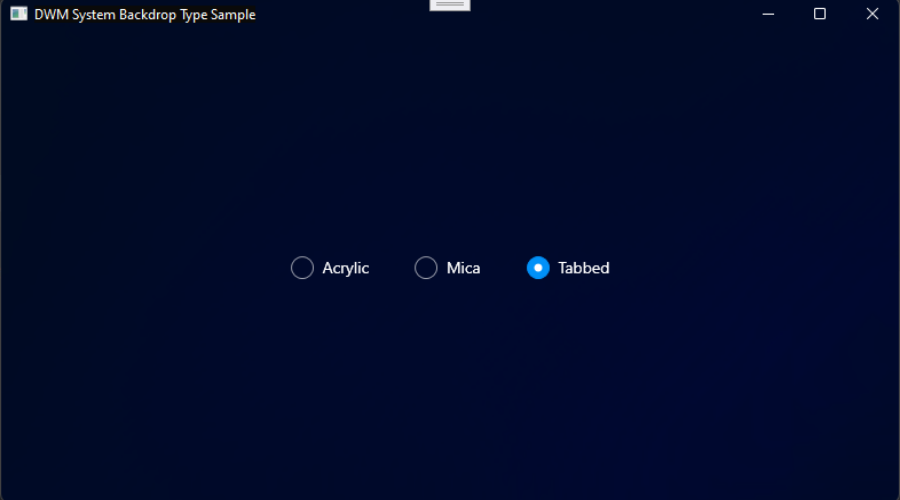
We’re about to take a look at the different style choices, and you can judge for yourself and pick your favorite.

Windows 11 might have more style choices in the near future

If the pictures shared in the Tweet did not really seem that different to you require some more visual aid to determine which one is the best looking, we got you covered.

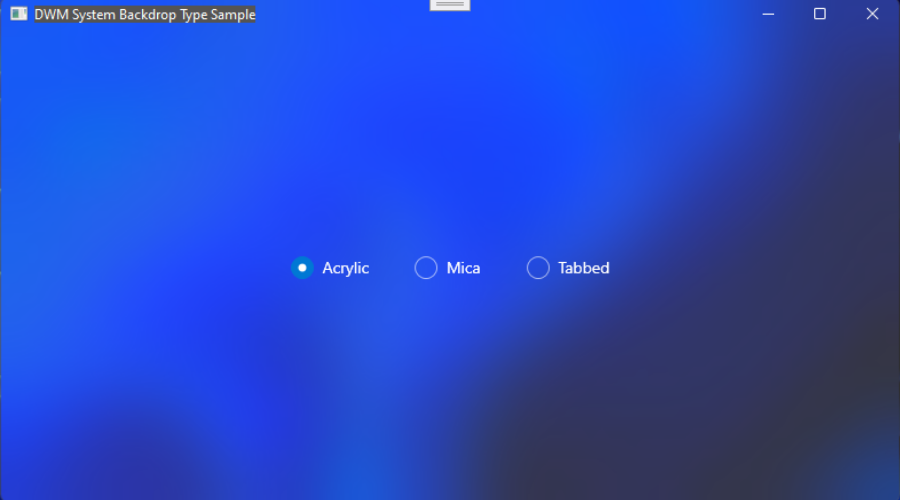
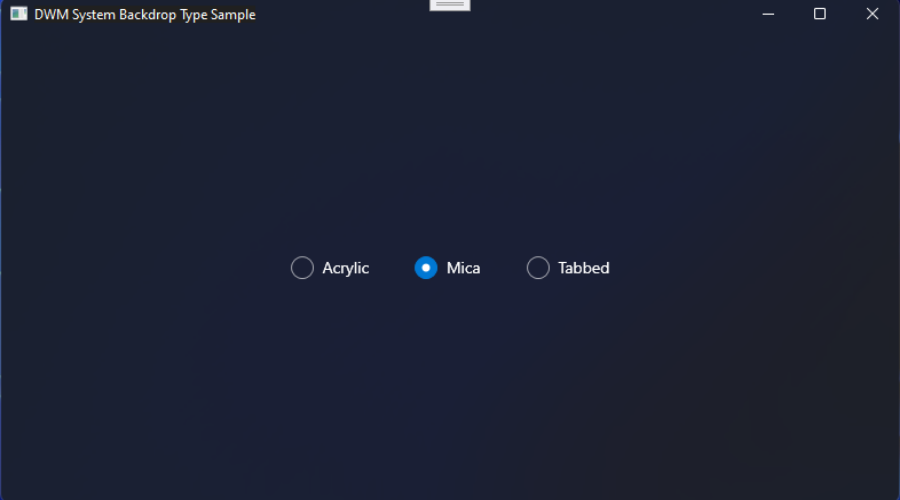
There is a way in which you can get a more in-depth view, showing how these APIs might impact a real app. To make it easier for you, we’ll also display these screenshots throughout the article.

This first one is the acrylic version, which we all have to admit looks pretty darn good. The second choice is the popular Mica, followed by the Tabbed version.

As you can see, the differences are pretty notable, which means that choices will impact the way your OS looks and feels even more.

This is excellent for the users that always look for a way to stand out or break the routine, giving their setup a much more personal feel.

Microsoft might be willing to bring Mica effects to modern and legacy apps as well. This apparently can be seen with a MicaBackdropInApplicationFrameHostTitlebar flag in the latest Windows Insider builds.

And since the Redmond-based tech company Microsoft committed to once-a-year updates for Windows 11, you can expect any design changes to launch next year.

Out of the three visual styles presented in this article, which one is your favorite? Share your opinion with us in the comments section below.

Tenorshare 4DDiG Review: Pricing & Features Breakdown

Whether you just upgraded to Windows 11, or you’ve already had it installed for months, problems can always occur that might cause data loss or corruption.

Either way, it’s important to know that you can retrieve your files by using data recovery software that can get them back and repair them very fast.

That’s why in this article, we will talk about Tenorshare 4DDiG Data Recovery software, a great tool that can help you retrieve your content extremely fast with no effort.

What is Tenorshare 4DDiG and how can it help you?

As its name clearly points out, Tenorshare 4DDiG Data Recovery is a software that offers one-click recovery for lost or deleted data from Windows, Mac, USB, SD cards, external devices, digital cameras, and more.

To be more precise, it can recover over 1000 file types including photos, videos, documents, and audio so it will get you back all your precious data.

Even if you’re the victim of accidental deletion, formatting, lost partition, corruption, crashed system, virus attack, and so on, Tenorshare 4DDiG Data Recovery will get back your files.

Of course, there are some other such tools out there but this software is extremely easy to use so its friendly menus are accessible even if you have absolutely no knowledge about data recovery.

It’s also important to know that the software was optimized perfectly for Windows 11 and as you will see from our tests, it performs flawlessly on the new OS.

What are the best Tenorshare 4DDiG Data Recovery features?

1. Deleted files recovery

We’ve all been there! Deleting some files accidentally is a common mistake and usually, but retrieving the files from the Recycle Bin should be a piece of cake, right?

Well, not if you set the bin to empty itself automatically or if you did that yourself in a zealous effort to get more space on your drive.

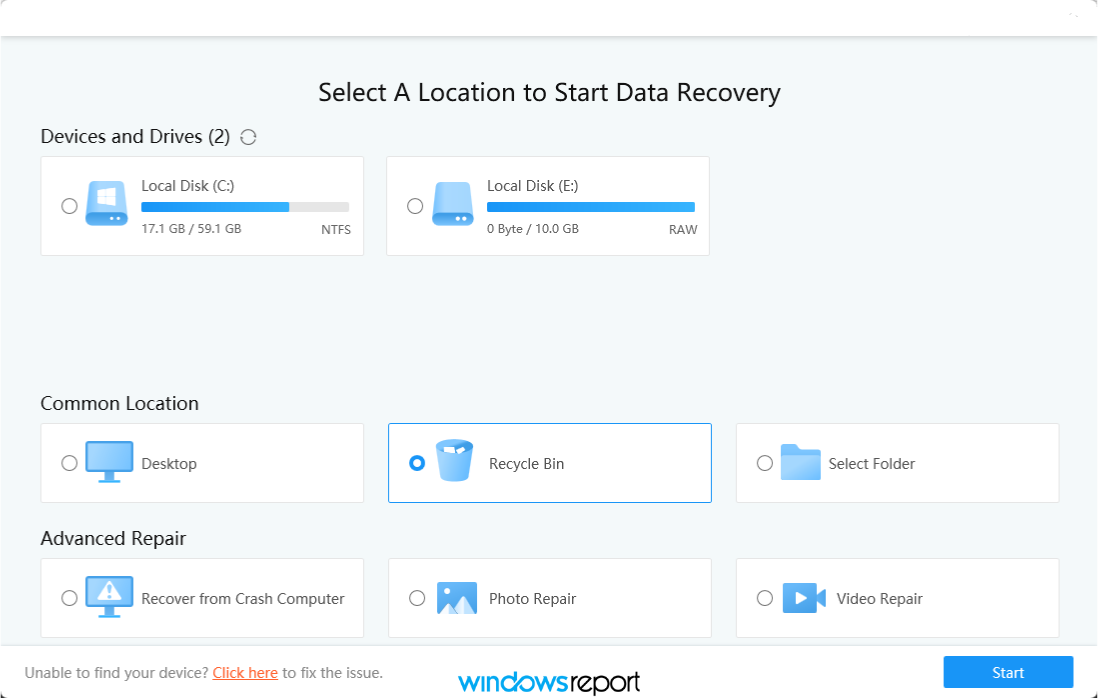
No need to panic because you can still get them back with Tenorshare 4DDiG with just a few clicks by using the Recycle Bin data recovery feature even if you’ve emptied the bin.

And the best part is that you will be able to preview the files before recovery so you retrieve only the useful data and not all the other junk you really want to part with.

2. Formatted drive and lost partition recovery

You need to know that Tenorshare 4DDiG can retrieve all the data from a drive even if it was formatted. The only condition here is that you didn’t overwrite a lot of data on the drive.

Formatting a drive doesn’t really delete all the data on it, but it marks the space as free to use so the system can fill it with data.

However, you can’t recover the data unless you have a specialized tool like 4DDiG Data Recovery from Tenorshare.

This dedicated software doesn’t care if you formatted the drive or if it has some bad blocks, it will pull out the data regardless.

Moreover, it can even detect and recover data from lost or deleted partitions in case you’ve performed some experiments that went wrong at some point.

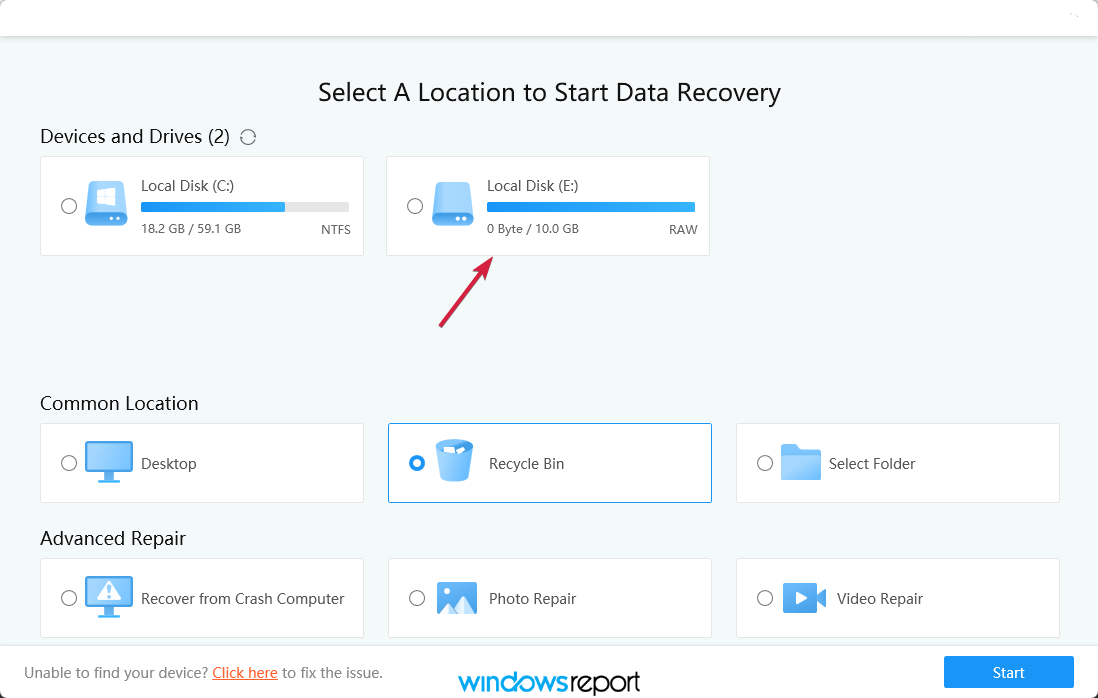
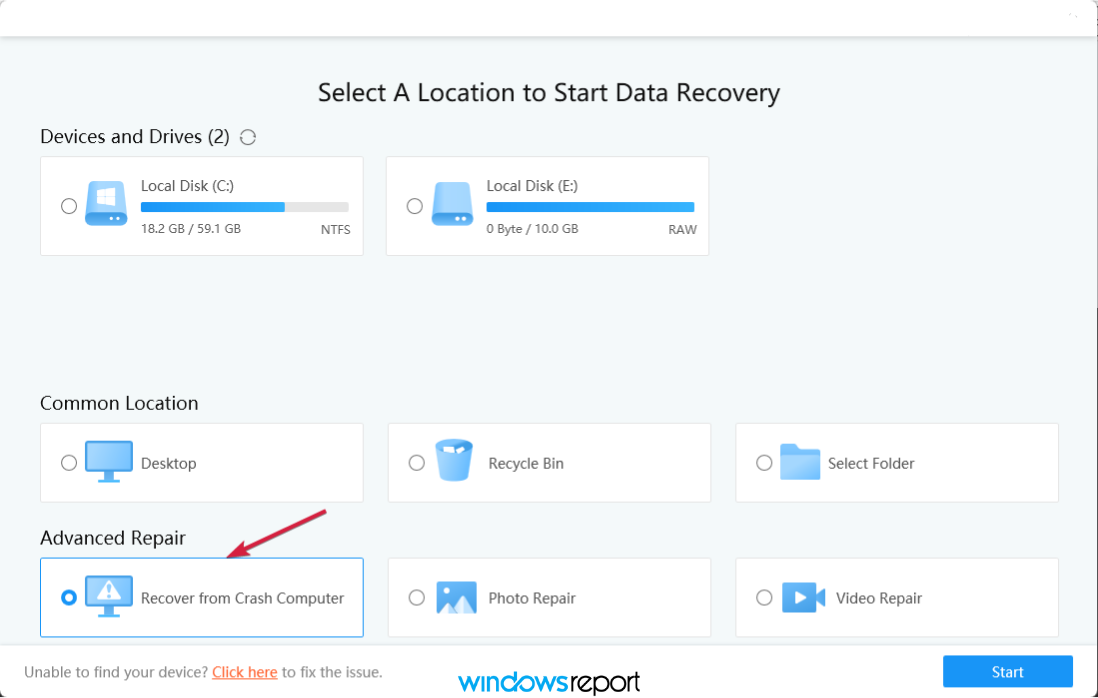
It also does a great job on RAW drives like the one in our screenshot above. This drive has a RAW file system and the data on it is accessible only with the help of data recovery software like 4DDiG.

3. Crashed computer recovery

After a computer crash, all data can be compromised and you can sum up the situation as catastrophic, right?

Not if you use the Recover from Crash Computer feature from Tenorshare 4DDiG Data Recovery that will help you create a bootable USB or DVD to restore your PC.

After this problem is dealt with, you may still easily recover all your data if some were lost when the crash occurred.

4. External device recovery

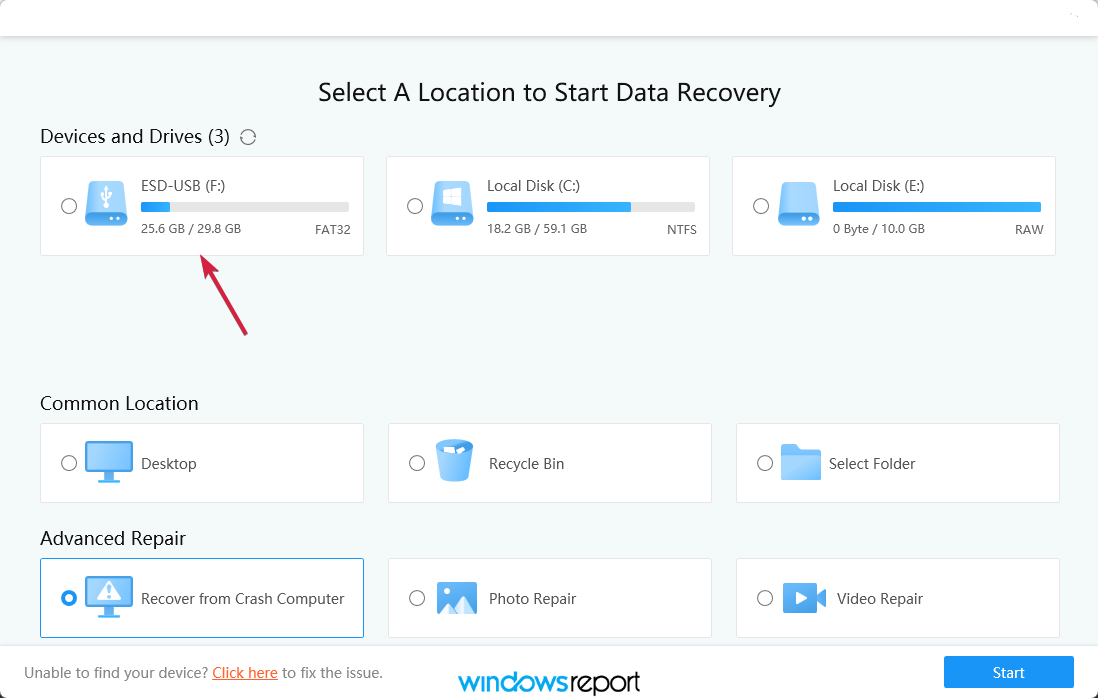
Unfortunately, we all have that external drive, USB stick, or SD card that we relied on to back up our files only to discover that the data from it disappeared mysteriously.

Well, it’s not that much of a mystery that external storage devices can be fragile and are easily damaged, becoming inaccessible or unusable.

No matter what kind of device you have, 4DDiG makes it possible to get back the lost data with the highest recovery rate.

Retrieving the data is as easy as selecting the drive from the menu in the main window and hitting the Start button.

The software will scan the device and will show you a list of all the files that are available for a restore so you can choose only the ones you really need.

However, you should know that 4DDiG doesn’t perform miracles. It cannot help if your drive is physically damaged and cannot be accessed at all.

5. Photo and video repair

Sometimes, you can retrieve the photos and videos from a crash, a formatted drive, or who knows what calamity only to find out that they are not displayed properly.

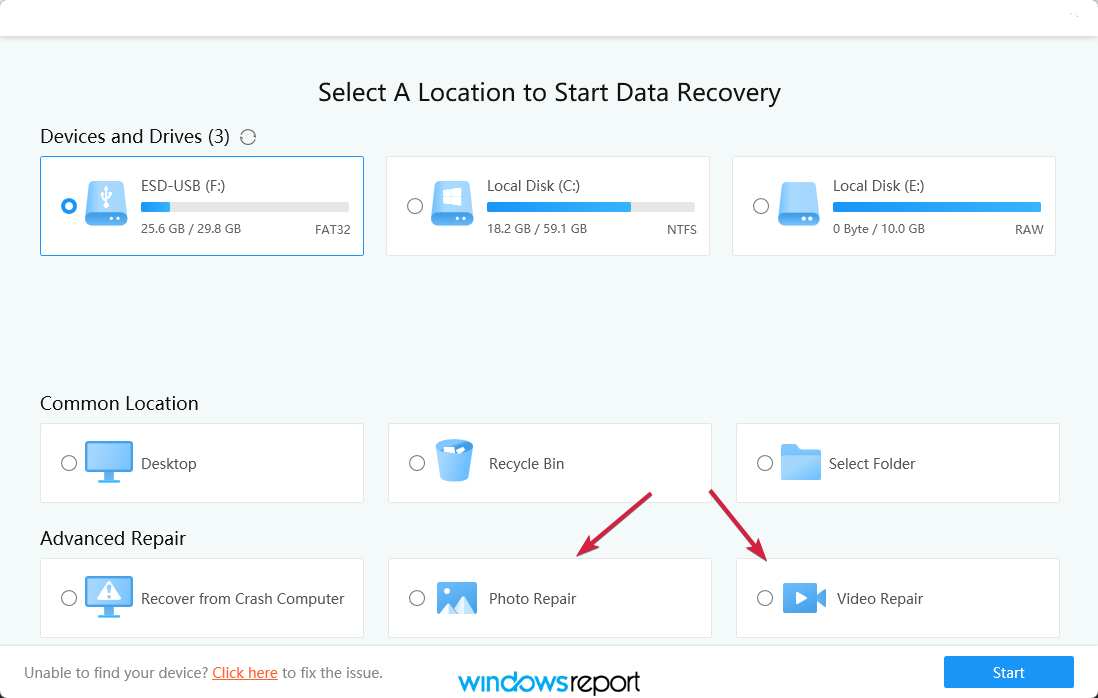
Tenorshare 4DDiG Data Recovery comes again to the rescue with the Photo Repair and Video Repair features.

Just select the one you need to use, drag-and-drop the files in the program’s window, and hit the Repair button. It’s that easy and your media files will be restored to the original.

This will also fix them if you can’t open them in the first place and that’s the most frustrating case when handling your photos or videos.

How to use 4DDiG to recover lost files after updating Windows 11?

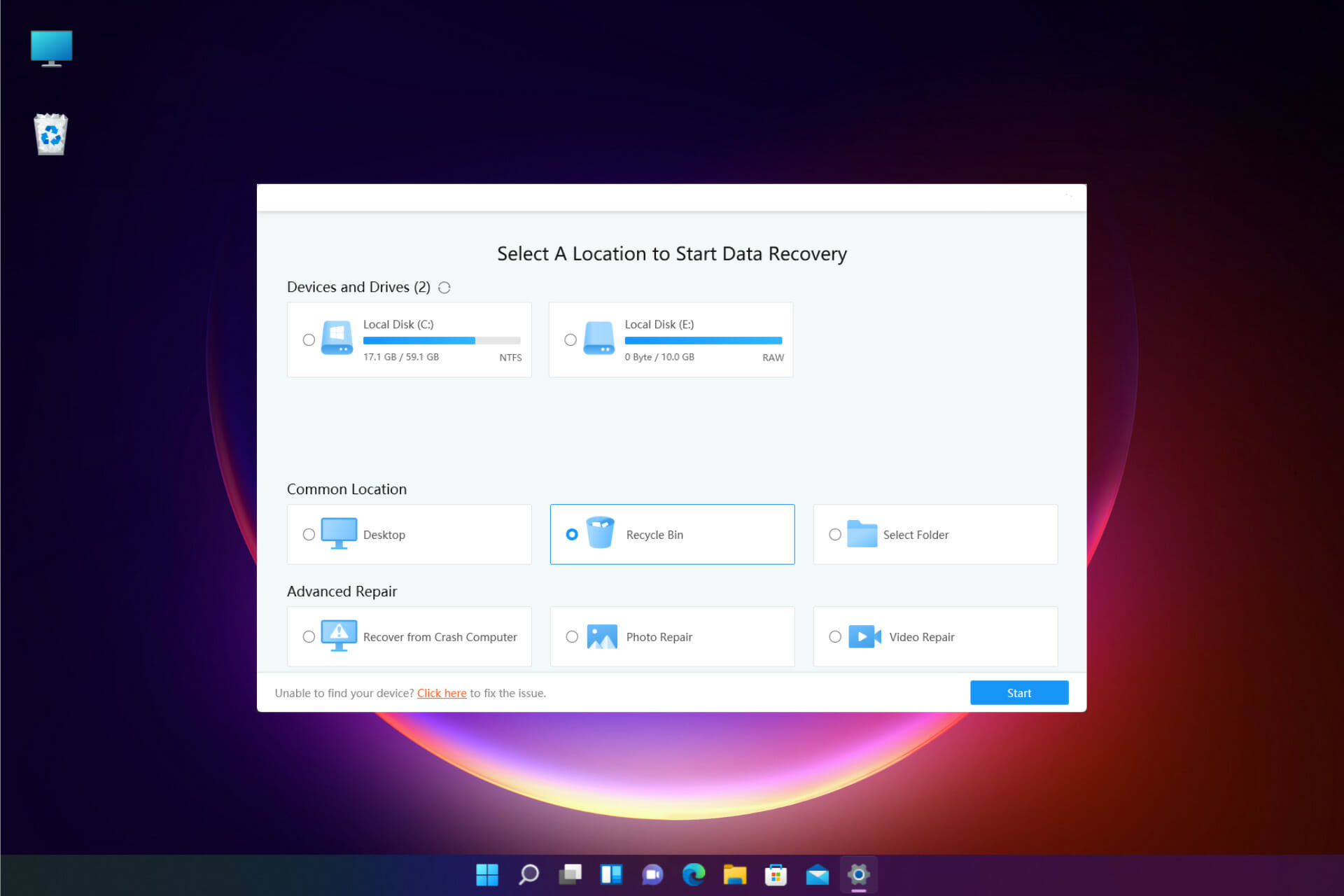
  1. Starting 4DDiG will get to the main window which actually invites you to choose a recovery option. If you lost files after a Windows 11 update, you should choose the system drive, in our case the C: drive and hit the Start button.
  2. Next, you will be prompted to select the file types the software to look for or just click on the Scan All File Types button to look for all of them. If you select only one or two categories, the scan process will be faster, of course.
  3. In the upper part of the window, the software will display the time needed for scanning and there you also have the controls to pause or stop the scanning. You will also notice that this is a Fast Scan. In the full version you will also have the Deep Scan option to retrieve even more files.
  4. On the left pane you will find the tree of folders that you can recover and on the right window, you will see their contents.
  5. When the scanning process ends, you can check the boses for the files or folders to retrieve and hit the Recover button from the bottom right corner of the window.
  6. With this version, you can’t retrieve the files so you will either click on the Buy Now button to make the purchase, or if you allready did that, select the Register button to enter your e-mail address and registration code.
  7. After you register, by clicking on the Recover button will open a dialog box to choose the location where you wish to restore the lost files, then click on the OK option.

That’s it! Now you will find the files you thought you lost forever in the folder you indicated at the end of the process.

How to get 4DDiG Data Recovery?

  1. Go to the Tenorshare dedicated website and hit the button corresponding your OS, in our case, For Windows.
  2. Now, click on the Free Download button to get the free trial version or go for Buy Now if you’re ready to make the purchase. We chose the first option to test it for you.
  3. You will get an installer file and if you run it after it finishes downloading, you will need to click on the Install button to move on.
  4. The installation will last a couple of seconds. Select Start after it is finished.

We have to specify that with the free version, you will only be able to use some of the features of the product and scan for lost files but to recover them, you will have to buy and register the product.

However, the prices are decent compared to other similar solutions. You will only have to pay $45.95 for a one-month license.

You will get a better deal for a one-year license which will cost only $55.95 and if you want to opt for a lifetime license, that will be $59.95.

⇒ Get Tenorshare 4DDiG Data Recovery

Pros
Simple and comprehensive user interface
Quick data recovery from any internal or external drive
Compatible with Windows and Mac OS
Retrieves your data even from a formatted drive
Highest data recovery success rates in the industry
Cons
You need to buy a license to retrieve your files

Final notes

First of all, we were impressed by the simple and comprehensive interface. Anybody can use this tool although you can also find some great tutorials on the developer’s website if you still need them.

Another important aspect was the high-speed detection of the lost files and also the fact that it found files that we even forgot we deleted.

We also enjoyed the availability of the photo and video repair features that are missing in other similar products.

It’s also a great thing that you are able to preview all the files before restoring them so you can pick only the ones that you really need.

Have you already tried this software? If so, share your experience in the comments section below.

Microsoft Edge’s newest feature in testing is a Games Panel with quick access to Solitaire, more

Bored at work or school and really itching to play Solitaire or another game to pass your time? Microsoft might have the solution for you. The company is now beta testing a new panel in the Canary version of Microsoft Edge with quick access to a variety of MSN games titles (via Neowin.)

Available for some people in version Edge Canary 99.0.1117.0, the new Games panel can be accessed by a toggle switch in Edge://settings/appearance. From there, users can toggle a new Games button (off by default) to add a new controller icon in the area of the address bar box. Clicking the icon then summons the pop-up panel which links out to various games on MSN.

Redditor u/Leopeva64-2 reveals that in this panel, the games can be sorted by categories. These include Microsoft Classics, Arcade, Board & Card, Puzzle, Sports, and more. Clicking a game will open it up in a new tab, or window, depending on your setting, right in Microsoft Edge itself.

At the moment, we’re not seeing this Games panel on our end, so Microsoft might be A/B testing it to get some feedback. That’s nothing new, as this type of testing has been done in the past, but it’s an interesting move, to say the least. It seems as though Microsoft really wants to make Edge the browser that can do it all, as the company has been working on tons of features since the browser launched. Price trackers, an grammar and spelling editor, and math solvers are just a few examples of things Microsoft has added to Edge.

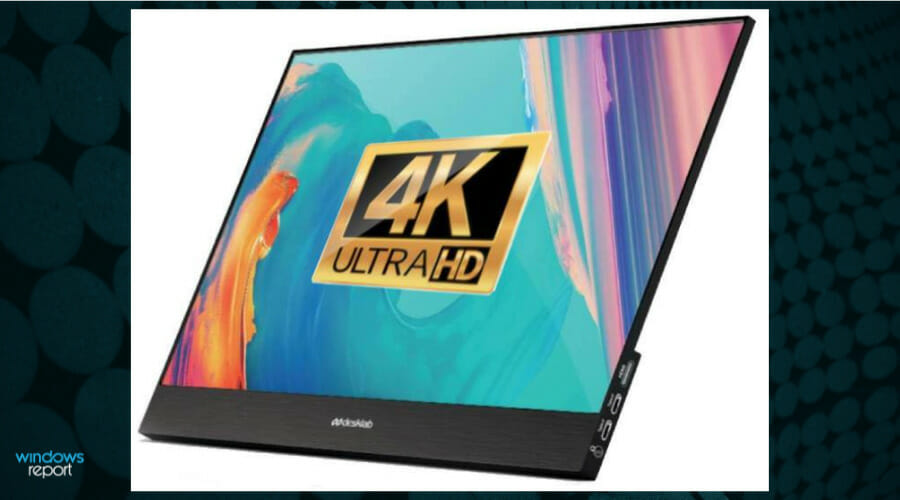
4K Resolution Not Showing on Windows 10: 3 Ways to Enable It

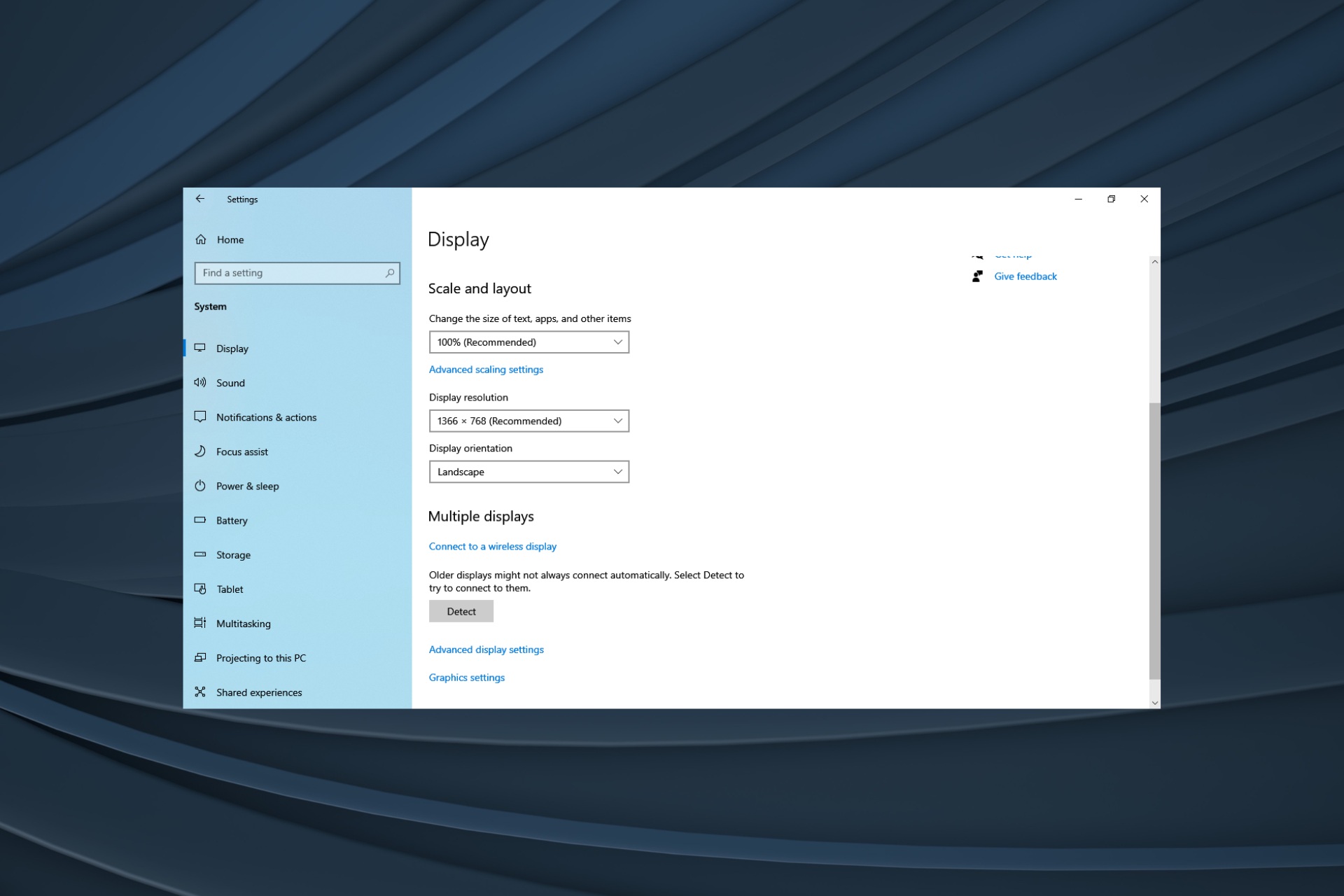
Adding external displays has long been a common practice amongst users, and it does help to a great extent. But for some users, 4k resolution is not showing in Windows 10.

Using your 4K TV as a monitor for your Windows 10 PC allows you to view more items simultaneously if you’re working or to watch your favorite TV shows and movies online.

Getting this setup to work shouldn’t be too hard, but sometimes, a small glitch can make it seem like a never-ending problem. So, let’s find out why Windows 10 will not recognize 4k screen resolution.

Why is my monitor not displaying 4K?

Here are a few reasons your PC is not showing 4k resolution:

  • Improper connection: An improper connection is the most common reason the 4K monitor is not showing 4K on your PC, be it a loose connection or using an improper port.
  • Damaged HDMI cable: When it comes to connections, the cable plays a vital role, and a damaged one can trigger several problems.
  • Misconfigured settings: Several settings must be for the 4K resolution to appear on the Windows 10 PC.
  • Issues with the driver: An incompatible or outdated driver has often been found to be the underlying cause when 4K resolution is not showing in Windows 10.

What can I do if 4K resolution is not showing on Windows 10?

Before we head to the slightly complex solutions, try these quick ones first:

  • Ensure your graphics card and the monitor/TV support 4K resolution.
  • Use a different port on the PC to connect the HDMI cable.
  • Check for any cable damage and replace it with a compatible HDMI cable.
  • If you use an HDMI to DP connector, make sure it works fine. Some users reported that replacing it with a DP-to-DP connector got things working.
  • Disconnect the other displays and only use the one that supports 4K resolution and that you want to project to.
  • Make sure any in-app settings are not changing or conflicting with the resolution.
  • Check for any pending Windows updates and install them.

If none work, move to the fixes listed next.

1. Use the dedicated utility to set the resolution

Note icon NOTE
The steps listed here are Intel Graphics. If you have Nvidia or AMD, there is a dedicated control panel for both, with an option to set the display resolution.
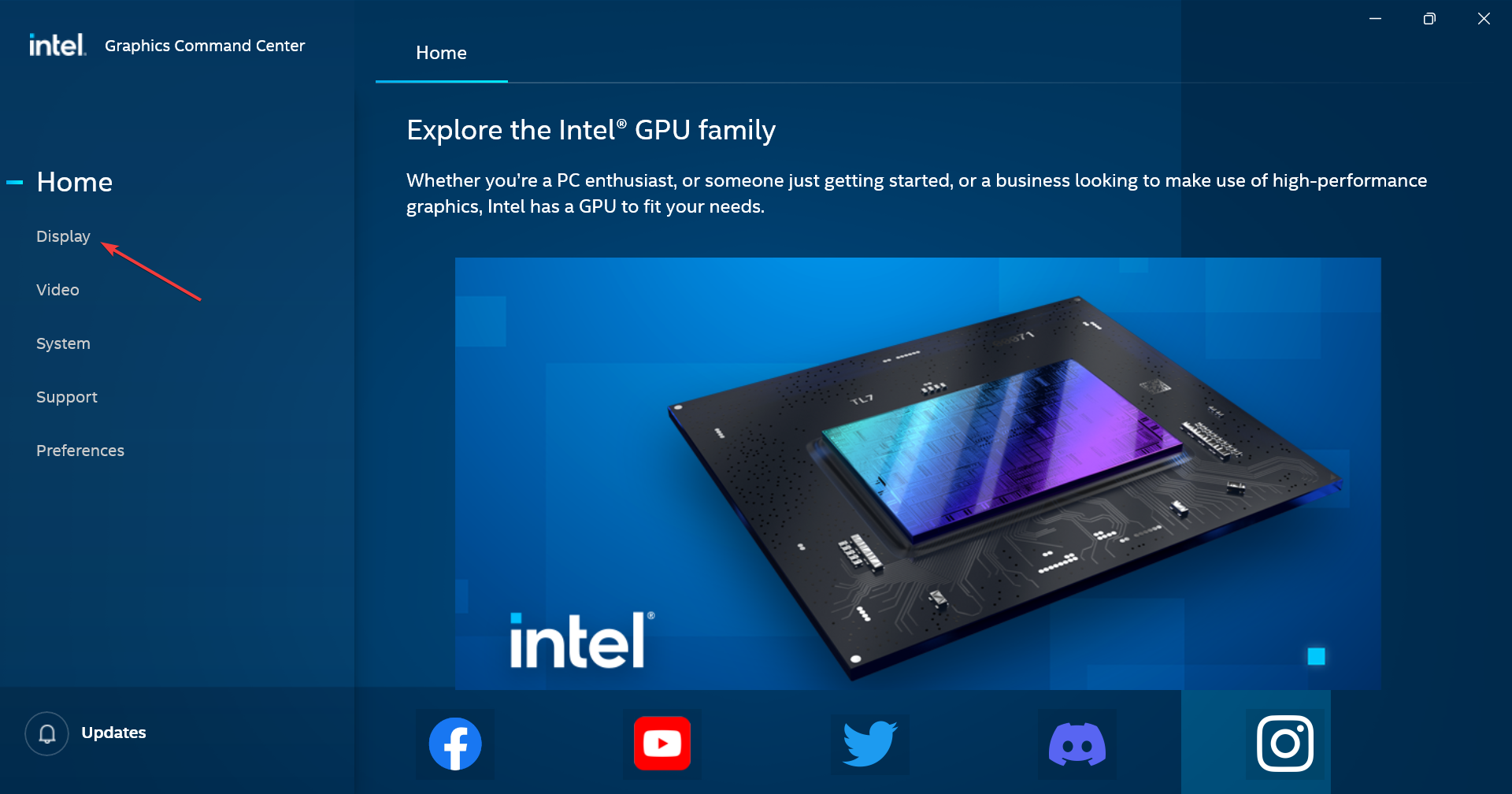
  1. Launch the dedicated utility the graphics card manufacturer provides and head to the Display tab.display
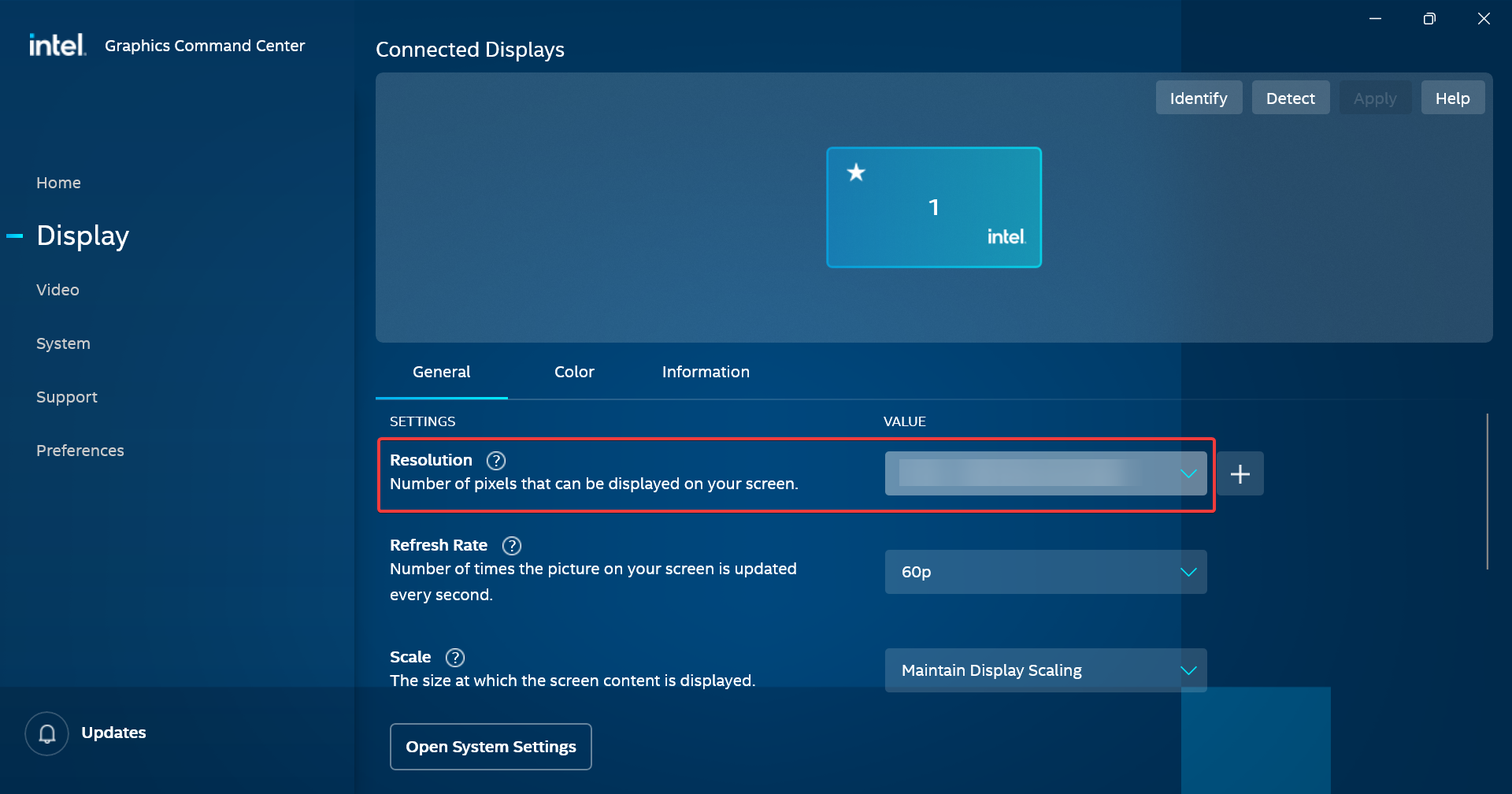
  2. Now, choose the desired setting from the Resolution dropdown menu.set manually to fix 4k resolution not showing windows 10

If 4K resolution is not showing in Windows 10, your primary approach should be to use the dedicated utility provided by the GPU manufacturer to set the desired resolution. If the option is also missing here, head to the next method.

2. Update the graphics driver

  1. Press Windows + X to open the Power User menu, and select Device Manager.device manager
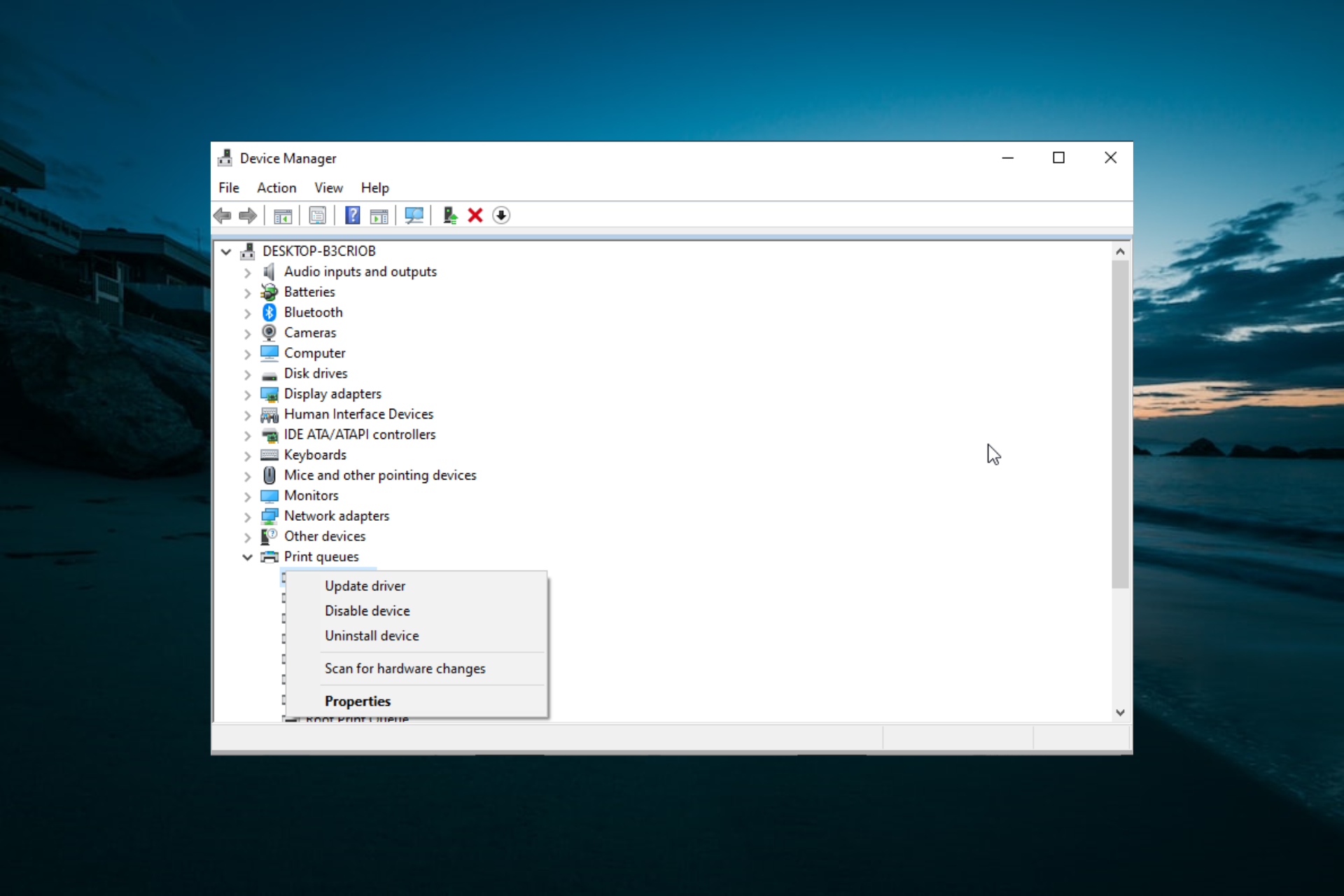
  2. Expand the Display adapters entry, right-click on the graphics card, and choose Update driver.update driver to fix 4k resolution not showing windows 10
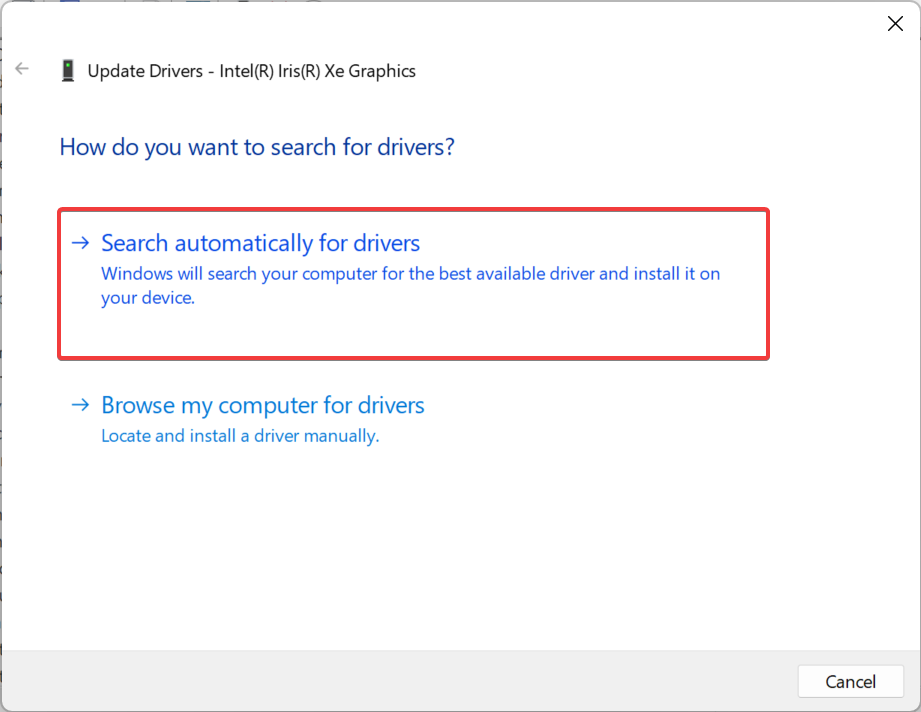
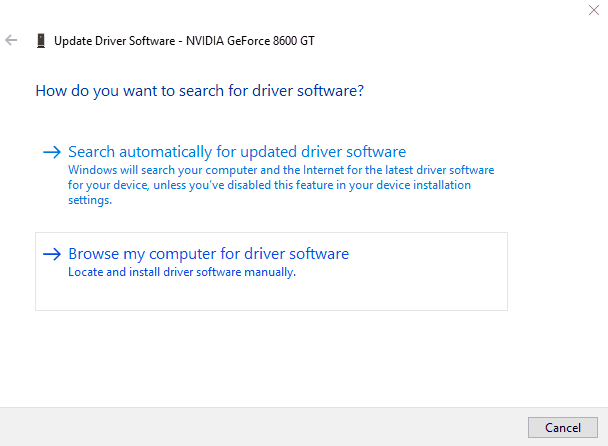
  3. Now, select Search automatically for drivers from the context menu.search automatically for drivers

Updating the graphics card helps a lot of users get things running when 4K resolution is not showing in Windows 10. Also, if Windows is unable to find a better version, you can always manually install the latest driver.

3. Roll back the graphics driver

  1. Press Windows + R to open Run, type devmgmt.msc, and hit Enter.device manager
  2. Double-click on Display adapters, right-click on the graphics card, and select Properties.properties
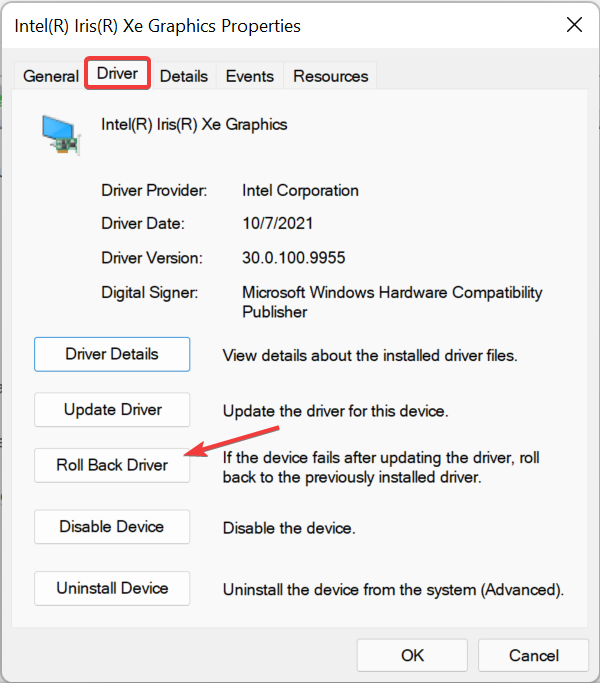
  3. Navigate to the Driver tab, and then click on Roll Back Driver.roll back driver to fix 4k resolution not showing windows 10
  4. Choose a reason for the roll back, and click Yes to confirm.revert driver update to fix 4k resolution not showing windows 10
  5. Once done, restart the computer for the changes to come into effect.

That’s it! If updating the driver didn’t work and everything else, ranging from connections to cable and compatibility, seems to be in order, rolling back the driver should do the trick when 4K resolution is not showing in Windows 10.

Once you have fixed the problem, check some quick tips to enhance the display in Windows.

It seems that there is confusion between HD+ and Full HD. Read the highlighted article to clear this issue out.

For any queries or to share what worked for you in this case, drop a comment below.

Maximized window leaves blank space on top of screen [FULL FIX]

A big number of Windows 10 users have reported that maximized windows leave a blank space on top of the screen. This error causes the top of the screen to be unusable, and if you right-click on it, it reacts the same way it would if you would right-click on the desktop. This can be a big problem, so let’s see how to fix it.

How can I fix Windows 10 maximize window bug?

1. Update your Windows 10 operating system

  1. Click on Start button -> Settings (cog wheel).
  2. Inside the Settings window, scroll down and select Update and Security.Update and security button in Windows settings - Maximized windows shows blank space
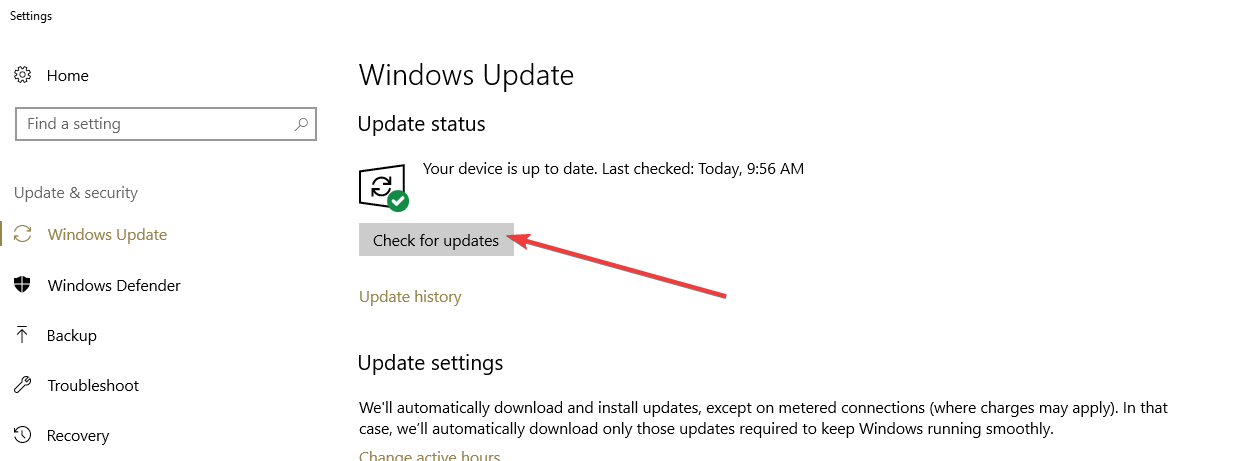
  3. Click the Check for updates button and wait for the process to complete.

2. Update video card drivers using Device Manager

  1. Press Win + X keys on your keyboard -> select Device Manager.
  2. Inside the Device Manager -> select Display Adapters -> select your video card.Device manager display adapters - Maximized window blank space on top
  3. Right-click on your video card, and select Update Driver.
  4. In the newly opened window, select ‘Search automatically for updated driver software’.

You can also use automated utilities such as Outbyte Driver Updater that will scan your PC for missing or damaged drivers and then download and install the corresponding versions. This can save you some time and you can also set up the app to do regular scans and updates.

3. Activate ‘Scale full screen’ option inside Intel HD Graphics

  1. Right-click on your Desktop -> Graphics Properties.
  2. Inside the Intel application, click on ‘Display’.Intel Graphics settings display option - maximized windows show blank space
  3. Select the option ‘Scale full screen’, and tick the box next to ‘Override Applications Settings.Intel Graphics settings scale full screen option - maximized window shows blank space
  4. Select Apply.

4. Reload Graphics driver with this keyboard shortcut

computer processor - maximized windows shows blank space
  1. Press ‘Ctrl + Shift + Win Key + B’ on your keyboard to reload graphics driver.
  2. The screen will flicker, and you will hear a sound that confirms the reload is completed. After this process is done, please try and see if the issue persists.

In this article, we explored some of the best proven troubleshooting methods for having an issue with a blank area at the top of your screen. This issue is caused by an incompatibility between the display settings found in your Windows 10 device, and the way your dual-display reacts.

Please make sure to follow the steps we provided in this guide in the order that they were written, to avoid any other issues. Also, don’t forget to let us know if this guide helped you solve your issue, by using the comment section below.

What is AdobeGC Invoker Utility? Should I disable it?

The AdobeGCClient.exe (Genuine Copy) is a process that runs as part of the Adobe Software Integrity Service validation testing, which checks for any tampering with Adobe Software program files, or improper or invalid license.

The AdobeGCClient comes with several Adobe programs. But then, the Adobe GC Invoker Utility will run in the background as one of the programs that automatically start when you boot your computer.

Does AdobeGC invoker utility need to run at startup?

Presumably yes, the Adobe GC Invoker Utility needs to run at startup to perform the functions it’s designed for.

However, users have reported many instances of the AdobeGCClient.exe process that eat up a lot of CPU memory even when not running any Adobe program.

The entire process causes massive computer slowdown, sometimes also when the device is not connected to the Internet.

Moreover, the process appears to behave like spyware, causing the installed antivirus program to keep warning about suspicious activity and blocking the launch of other safe programs.

Given these circumstances, is it safe to disable the process from startup or from the running programs?

Although not recommended, you can disable the process by opening the Task Manager and right-clicking on each process to end it. Alternatively, you can also go to the Startup tab and disable the Adobe GC Invoker Utility.

Note that by doing this, some Adobe programs might fail to launch or run properly.

Can I remove Adobe GC Invoker Utility?

Yes, you can, but it will keep reappearing since it’s a process inherent to almost any Adobe program. And if you remove it, whatever Adobe program you have might become unusable.

You can find the file in C:/Program Files (x86)/Common Files/Adobe AdobeGCClient. Many users simply deleted the file, but it reappeared.

Also, uninstalling and reinstalling an Adobe program will lead to the same result. What’s more, sometimes when removing an Adobe program, the Adobe GC Invoker Utility will still run at startup.

In this case, if you want the process completely out of your computer, use dedicated software because they are proven to completely remove any leftover files related to the app you want to uninstall.

Dedicated uninstaller software are completely safe and can find all lingering files that only take up space and cause errors.

Once again, if you use Adobe software on a daily basis or if you want to keep using it, it’s inevitable to stumble upon this issue as the Invoker Utility will cause you trouble.

In case you want to contact Adobe for support, you won’t get much help since they do have an interest in protecting their software.

[wl_navigator]

Posted in Fix

Canon Camera Not Recognized by Windows 10: 3 Easy Fixes

Canon cameras are great, but many users reported that their Canon camera is not recognized by Windows 10.

It’s not uncommon for USB device to not be recognized in Windows 10, but if your camera is affected, you won’t be able to transfer photos or videos.

Luckily for you, today we have a special guide that will help you fix that, so let’s get started.

Why is my computer not detecting my Canon camera?

There are several reasons for this problem, and we’re going to show you the most common ones:

  • USB cable – For your camera to be recognized, you need to use a compatible USB cable.
  • USB port issues – Sometimes, your USB port can cause this issue. Try changing the port or using a USB hub. This is also sometimes the reason Canon EOS Utility is not working.
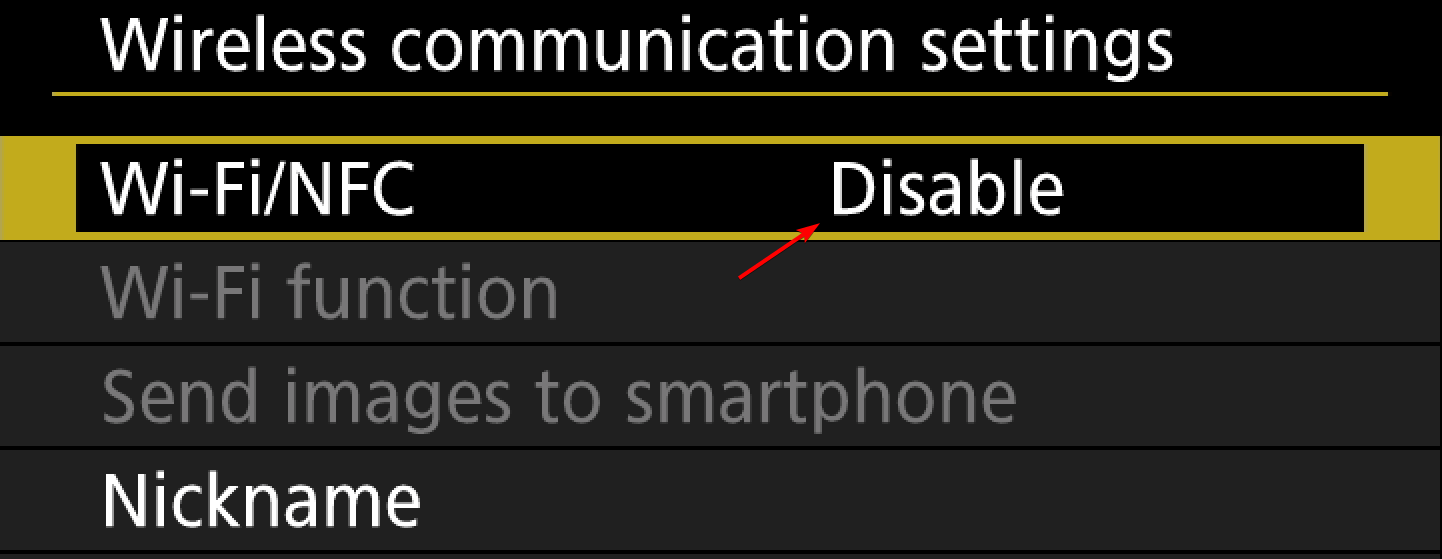
  • Camera settings – In some instances, power saving or Wi-Fi settings on your camera can prevent it from being recognized. Disabling these features usually fixes the issue.
  • Drivers – Camera or USB drivers can cause this issue. To fix it, you need to reinstall and update your drivers.

What can I do if the Canon camera is not recognized by Windows 10?

Before we start fixing this issue, there are a couple of general solutions that you should try:

  • Restart or turn off your PC – Fixing this issue is simple, and sometimes all that you have to do is to turn your PC off and then turn it back on again.
  • Try a different USB cable – Canon cameras usually use IFC-400PCU or IFC-600PCU cables for Mini-B and Micro-B terminals. If you’re using a non-default cable, ensure it’s fully compatible with your camera.
  • Connect a camera to a different USB port – Sometimes, it might be possible that your USB port isn’t working properly, so connecting the camera to a different port can solve the problem.
  • Use a USB hub – A few users reported that connecting the camera to the USB hub and then connecting the hub to the PC worked for them, so be sure to try that.
  • Use a card reader – With it, you can remove the card from your camera and connect it directly to the PC to transfer the photos.

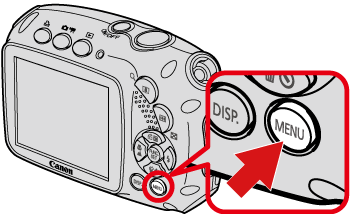
1. Switch Off the Canon Camera’s Auto Power Off and Wi-Fi/NFC Settings

  1. Press the Menu button.
     
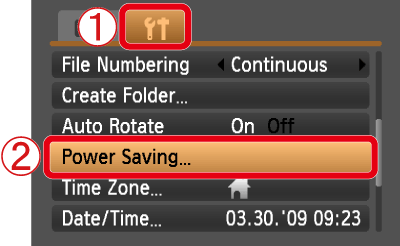
  2. Go to the Settings tab and select Power saving.
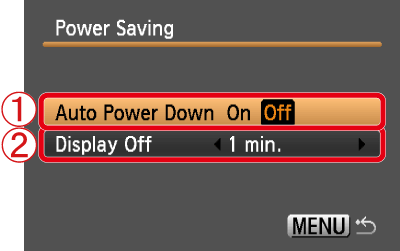
  3. Now set the Auto Power Down to Off.

To disable Wi-Fi/NFC, do the following:

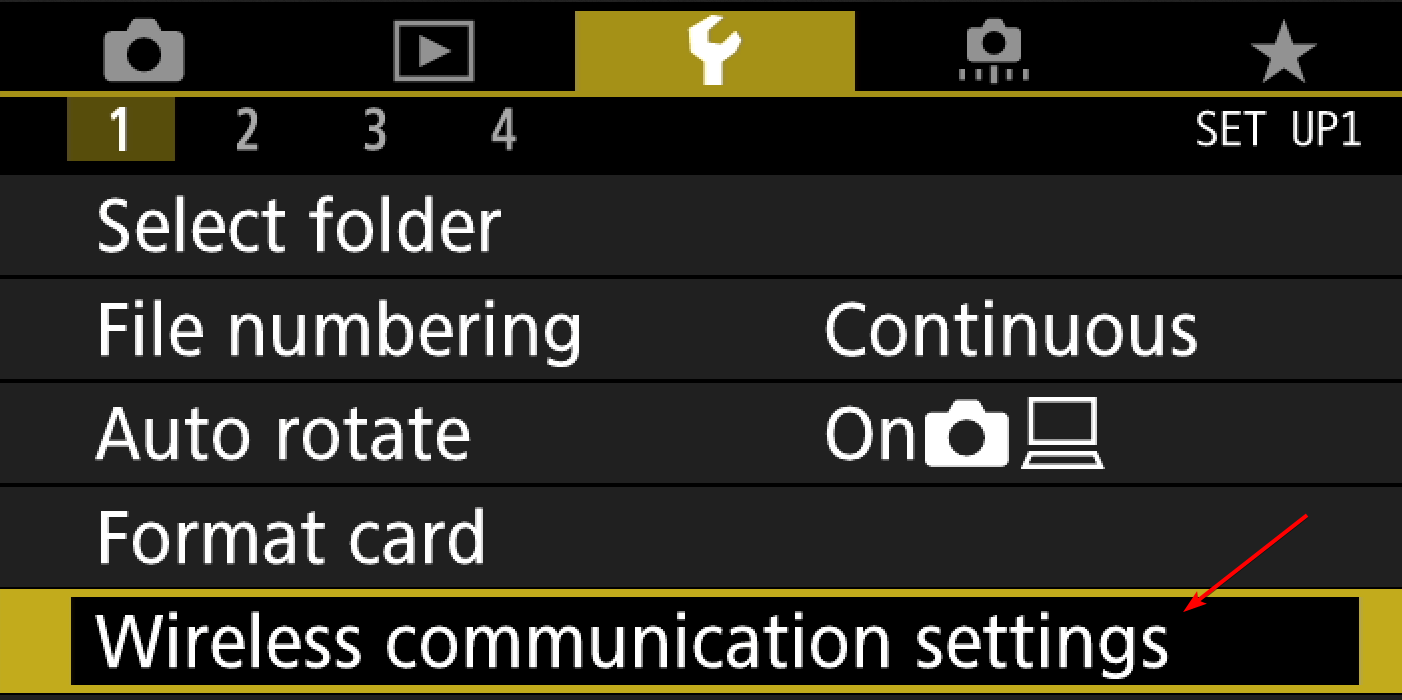
  1. Press the Menu button and navigate to the Setup menu.
  2. Next, go to the Wireless communication settings.
     
  3. Locate Wi-Fi/NFC and set it to Disable.

For instance, the EOS Rebel T65 camera can’t be connected if its Wi-Fi/NFC setting is enabled. So switch those settings off via your camera’s menu if they are currently enabled.

2. Update the Generic USB Hub Driver

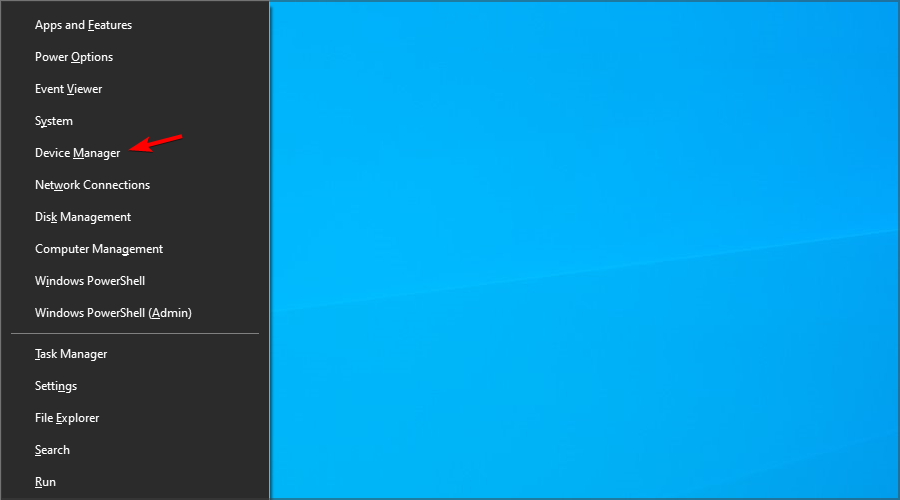
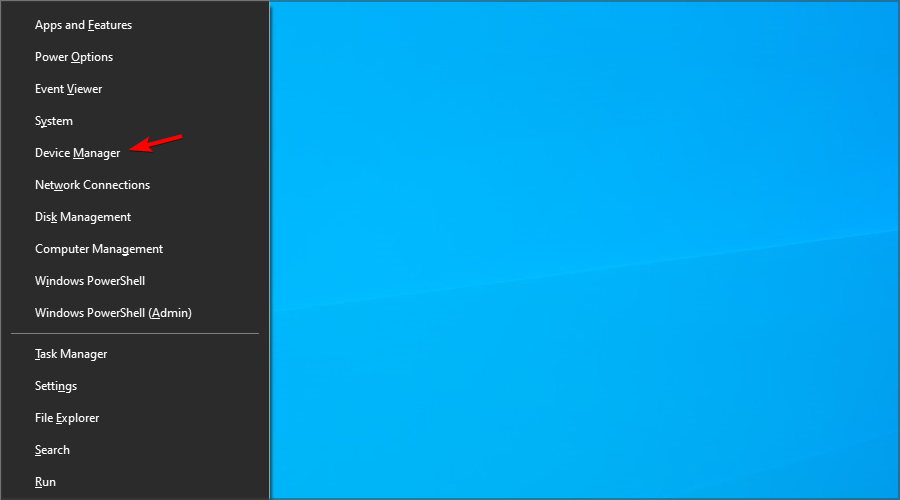
  1. Right-click the Start menu and choose Device Manager.
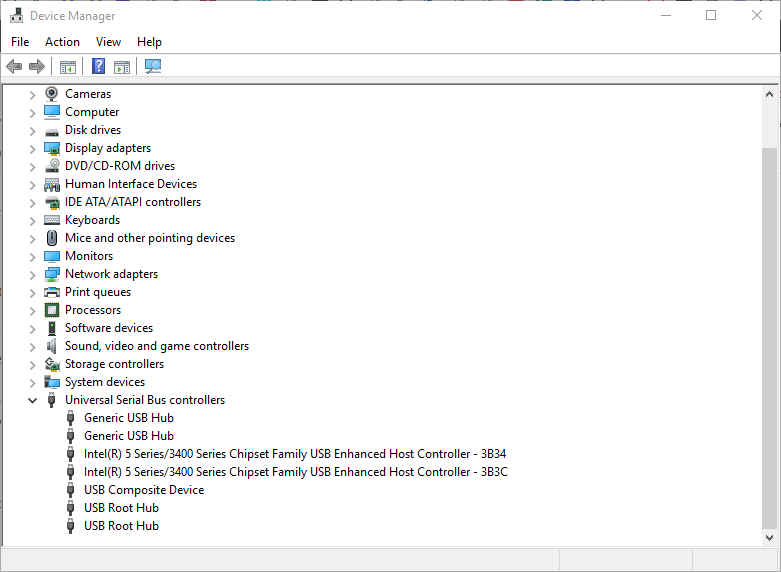
  2. Double-click Universal Serial Bus controllers to expand a list of USB controllers as below.
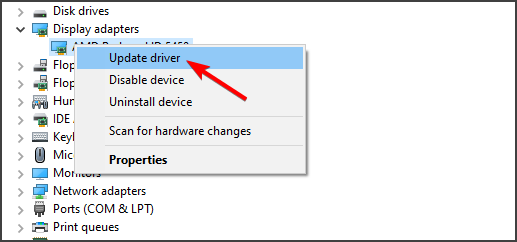
  3. Right-click Generic USB Hub and select Update driver from the context menu to open the window in the shot directly below.
  4. Select the Browse my computer for driver software option on that window.
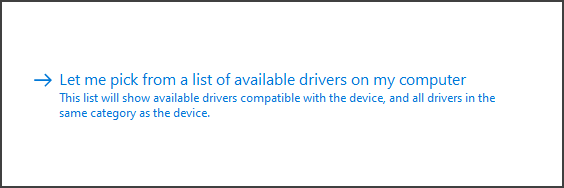
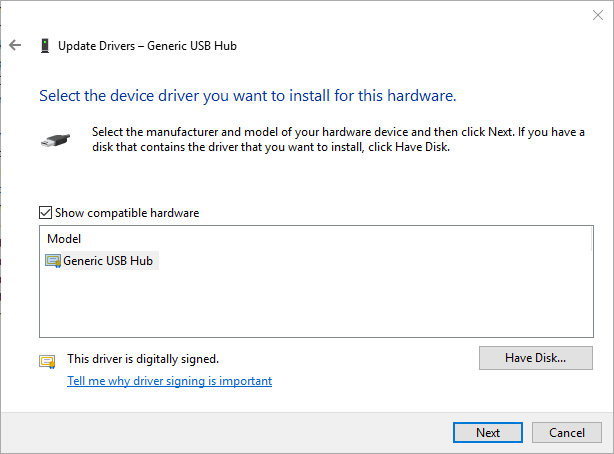
  5. Next, select the Let me pick from a list of device drivers on my computer option to open a list of compatible drivers as below.
  6. Select the Generic USB Hub listed, and click Next to install it.

You can also update your drivers automatically with utilities like Outbyte Driver Updater. These scan your PC, find the outdated and damaged drivers, and download and install the latest versions.

It is the easiest solution to opt for because the process is automatic and you don’t have to worry about finding the correct driver versions.

⇒ Get Outbyte Driver Updater

After updating your drivers, check if the Canon camera is still not recognized by Windows 10.

3. Uninstall the camera via Device Manager

  1. Plug your Canon camera into a USB port of a laptop or desktop.
  2. Right-click the Start button and choose Device Manager from the list.
  3. Double-click Portable Devices to expand a list of connected devices, including your camera.
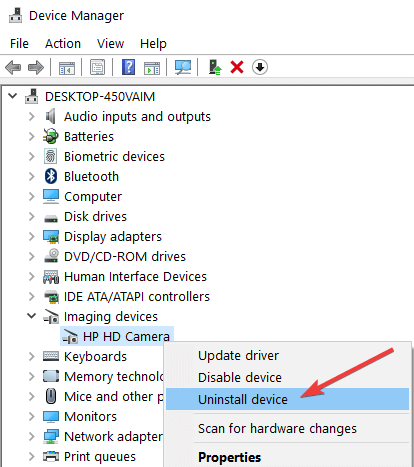
  4. Right-click the Canon camera and select Uninstall device.
  5. A dialog box opens requesting further confirmation. Press the Uninstall button on that window to confirm.
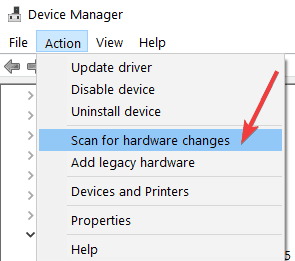
  6. Then press the Scan for hardware changes button at the top of the Device Manager window.

After doing that, you should be able to connect the Canon camera to Windows 10 without any issues.

As you can see, this can be an annoying issue, but hopefully, you managed to fix it with one of our solutions.


This isn’t the only issue with a camera you’ve encountered, and many reported that camera is not recognized in Device Manager, but we covered that in one of our other guides.

Did you find a different solution? If so, let us know in the comments below.

For instant camera users, here’s a helpful guide on how to fix Instax Mini 9 not working with step by step instructions.

FIX: Printer not activated, error code -30 on Windows 10/11

Printer not activated, error code -30 message can sometimes appear and prevent you from printing documents. This can be a big problem, and in today’s article we’ll show you how to fix this issue.

This error message can prevent you from printing, and speaking of this error, here are some similar issues that users reported:

  • Printer not activated error code -30 PDF, 20 PDF – This error message can sometimes appear while trying to print PDF files. If this happens, perhaps you can fix the issue by using Print to PDF feature.
  • Printer not activated error code 41 –This is another common problem that can occur, and it can occur if you don’t have the necessary security permissions.
  • Printer not activated error code 30 HP, Epson – This error can affect any printer brand, and if the issue appears, the cause is most likely an outdated printer driver.
  • Printer not activated error code 30 Windows 10, 8.1, 7 – This error message can appear on almost any version of Windows, but you should be able to fix it by using one of our solutions.

How can I fix the Printer not activated, error code -30 message?

1. Make sure that your printer drivers are up to date

Sometimes Printer not activated, error code -30 can appear if your printer drivers are out of date.

Outdated drivers will prevent you from printing documents, but you can fix this problem simply by updating your drivers.

There are several ways to do that, but the best method would be to visit your printer’s manufacturer’s website and download the latest drivers for your model.

Although updating drivers is usually simple, some users might have issues downloading the appropriate driver for their printer manually.

If you don’t want to search for drivers on your own, you might want to try using Outbyte Driver Updater software.

This application is designed to automatically search and download the necessary drivers for you, so you might want to try it out.

It scans your system and lists all existing and possibly missing drivers. The tool also detects if there is already a new version for current records. If necessary, these can be updated directly via Outbyte Driver Updater.

To do this, load the corresponding file on your PC and copy the new version to your computer with one click. A wide range of hardware is supported, including drives, printers, and scanners.

⇒ Get Outbyte Driver Updater

2. Select your printer manually

According to users, Printer not activated, error code -30 appears when trying to use a quick print option to print documents.

Sometimes your applications might try to use Print to PDF feature automatically, and that can cause the error message to appear.

To fix this problem, it’s advised to always manually select the printer that you want to use when printing.

This is just a workaround, but it should help you out with this problem until you find a permanent solution.

3. Use Print to PDF feature

  1. Open the document you want to print to a PDF file.
  2. Find and open the Print dialog box in the application (may vary depending on the app used).
  3. Usually go to File and select Print.
  4. Choose Microsoft Print to PDF in the Select Printer section.
  5. Click Print or OK.

If this problem occurs when trying to use Print to PDF, the issue might be a third-party solution.

Previous versions of Windows didn’t have native Print to PDF support, and this is the main reason why users had to use all sorts of third-party solutions.

With Windows 10, there’s finally a built-in Print to PDF feature, so there’s no need to use third-party applications.

If you’re having Printer not activated, error code -30 error, try using the built-in Print to PDF feature and check if that solves your problem.

4. Reinstall printer drivers and modify your registry

Printer not activated error code 30 HP
  1. Press Windows Key + R and enter regedit.
  2. Now navigate to HKEY_LOCAL_MACHINESYSTEMCurrentControlSetHardware ProfilesCurrentSoftwareTS PDF Generator
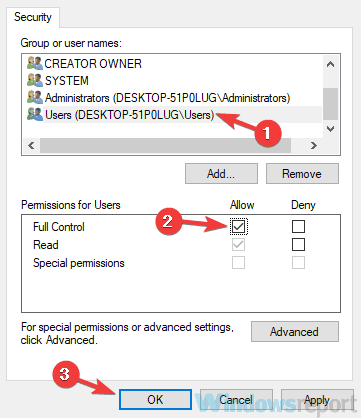
  3. Right-click the TS PDF Generator key and select Permissions.
  4. Choose Users group and check Full Control option.
  5. Click Apply and OK.

To fix the Printer not activated, error code -30 error on your PC, sometimes you might have to reinstall your printer drivers.

In addition to doing that, you might also have to make a couple of changes in your registry.

According to users, the lack of certain privileges in your registry can cause this issue to occur, but you can fix the problem by reinstalling the printer driver and modifying your registry.

5. Remove printer software

If you’re getting Printer not activated, error code -30 message, the problem might be your printer software.

Sometimes this software can interfere with your system and cause this and other errors to appear.

However, you can fix the problem simply by removing or reinstalling your printer software. To do that, you can just use the Settings app and remove the printer software from the Apps section.

This isn’t the most effective solution usually, and sometimes it can leave certain files or registry entries in the background that can cause this issue to reappear.

To be certain that the printer software is completely removed, we recommend you use CCleaner to get rid of any leftover files.

Many use CCleaner to take care of cookies, cached files, and problems with their registry. It’s a great PC optimization tool that analyzes your whole system and lets you know what you can do to improve it.

Not only that, the tool also has a built-in uninstaller utility so you will not have to go through the hassle of reinstalling the app from Windows Settings. You can remove the app and its corresponding files from one central UI.

If uninstalling the printer software solves the problem, you might want to try using your printer without it. Alternatively, you can also download the latest printer software and check if it solves your problem.

6. Change the application’s security permissions

  1. Locate the application that is giving you this error message. Right-click it and choose Properties.
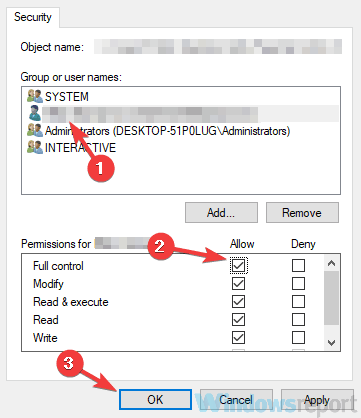
  2. Go to the Security tab. Select your user account from the list and click Edit.
    Printer not activated error code 20 PDF
  3. Select your user account and check the Full control option in the Allow column. Click Apply and OK.
    Printer not activated error code 41

After doing that, you’ll have full control over the application and the problem with your printer should be resolved.

7. Install the latest updates

  1. Press  Windows Key + I to open the Settings app.
  2. Go to the Update & Security section.
  3. Click the Check for updates button.

If any updates are available, they will be downloaded automatically in the background. Once the updates are installed, check if the problem is still there.

8. Run the printer troubleshooter

Printer not activated error code -30 PDF
  1. Press  Windows Key + I to open the Settings app.
  2. Go to the Update & Security section.
  3. Select Troubleshoot from the left pane.
  4. Choose Printer and click the Run the troubleshooter button.
  5. Follow the on-screen instructions to complete the troubleshooting process.

According to users, Printer not activated, error code -30 can appear due to various bugs on your system, and if you’re having this error, you might be able to fix it simply by running the printer troubleshooter.

Windows has a number of troubleshooters available, and you can use these troubleshooters to fix common printer problems.

9. Make sure that your printer is set as default

Printer not activated error code 30 HP
  1. Press  Windows Key + I to open the Settings app.
  2. Go to the Devices section.
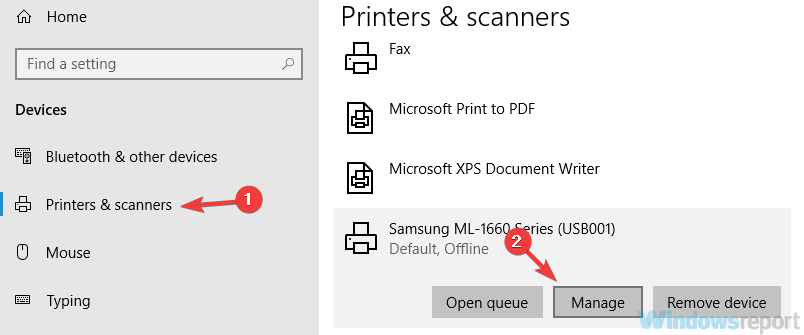
  3. Select Printers & scanners.
  4. Choose your printer and click the Manage button.
  5. Click Set as default button.

Hopefully, all these solutions managed to help you with your Printer not activated, error code -30 troubles.

In case you have subject-related questions or suggestions, we’ll be glad to be hearing from you. You can post them in the comments section below.

Take a look at our Windows 10 section for news, updates, and other helpful guides.

Be sure to bookmark our Fix Hub and find great solutions to other similar issues.

Fix: Printer Connected but Not Printing on Windows 10

Whether you’re working from home or the office, a printer is a must-have, especially if paperwork is involved. But what happens if your printer is connected but not printing in Windows 10?

It must be a frustrating experience. Fortunately, it is an issue that has numerous working solutions, and we will show you how to fix it in this guide.

What is the possible cause when your printer is on but not responding?

Listed below are some of the potential causes of this issue, as reported by users:

  • Faulty app or process: If Windows 10 can’t print after installing an app on your PC. You need to perform a clean boot and probably remove the faulty app.
  • Printer incompatibility: In some cases, this issue might occur if your printer is incompatible with Windows 10. You can check this in the Control Panel to be sure.
  • Outdated driver: Sometimes, Windows 10 will not print to the network printer because of an outdated driver. The solution to this is to update your drivers.

What can I do if the printer is connected but not printing on Windows 10?

Below are some basic troubleshooting steps to try before proceeding to the more detailed solutions in this section:

  • Restart your PC.
  • Check printer power and connection.
  • Check if the printer is compatible with Windows 10.

If you still can’t solve the problem, you can now explore the solutions below:

1. Reinstall your printer

  1. Press the Windows key, type control, and click OK.
    control printer connected but not printing windows 10
  2. Select View devices and printers under Hardware and Sound.
    view devices
  3. Now, right-click your printer, select Remove device and follow the onscreen instructions to complete the process.
    remove device
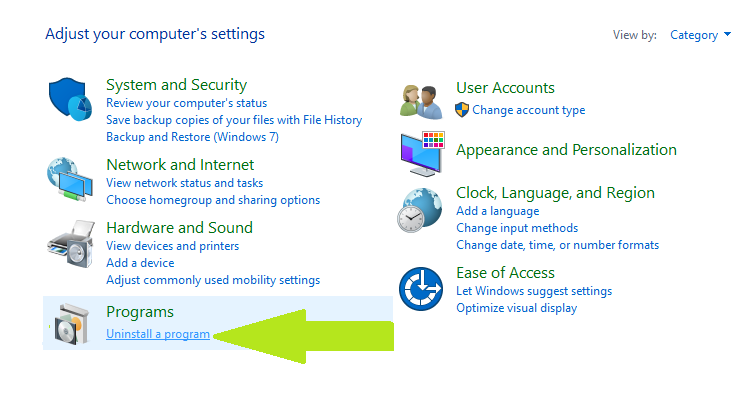
  4. Next, go back to the Control Panel page and click Uninstall a program under Programs.
    uninstall a  printer connected but not printing windows 10
  5. Right-click your printer software and select Uninstall.
    uninstall
  6. Finally, follow the onscreen instructions to complete the process and reinstall your printer from scratch.

If your printer is connected but not printing on Windows 10, you can fix it by reinstalling it. This should clear any glitch that might be causing the problem.

2. Update drivers

  1. Press the Windows key + X and select Device Manager.
    device manager
  2. Double-click the Print queues option to expand it, and right-click your device.
  3. Now, select Update driver.
    update driver printer connected but not printing windows 10
  4. Finally, select Search automatically for drivers and install all available updates.
    search auto

An outdated driver is one of the major causes of the printer being connected but not printing issues on Windows 10. The solution to this is to update your driver to the latest version.

While you can use the Windows driver updater above, you can also go to the manufacturer’s to download the driver.

Alternatively, you can repair and update your drivers using dedicated software. Once you have the app, open the main window and press the scan button.

3. Run the printing troubleshooter

  1. Press the Windows key + I and select Update & Security.
    update and
  2. Select Troubleshoot in the left pane and click Additional troubleshooters.
    troubleshoot printer connected but not printing windows 10
  3. Finally, select Printers and click Run the troubleshooter.
    run printer

In some cases, this issue might be due to minor glitches. The easiest way to clear this is to run the printer troubleshooter.

4. Clear spooler files and restart the spooler service

  1. Press the Windows key + R, type services.msc, and click OK.
    services printer connected but not printing windows 10
  2. Double-click the Print Spooler option to open its properties.
    print spooler
  3. Now, click the Stop button.
  4. Click the OK button.
    stop printer connected but not printing windows 10
  5. Next, press the Windows key + R, type %WINDIR%\system32\spool\printers, and click OK.
  6. Now, delete the contents of the Printers folder.
  7. Repeat steps 1 and 2 and click the Start button.
  8. Finally, click the Apply button, followed by OK.
    start printer connected but not printing windows 10

In some cases, the printer connected but not printing issue on Windows 10 can be due to corrupt printing files. You can fix this by clearing the Spool files and restarting the Print Spooler service.

5. Disable Print in the background

  1. Open a Word document.
  2. Click on the File menu and select Options.
  3. Now, click Advanced and uncheck the Print in background option to disable it.
    print in background
  4. Finally, try printing again.

Sometimes, the printer is connected, but not printing issue on Windows 10 might be due to your in-app settings. So, if you are facing this issue on any Microsoft app, try to disable background printing, as shown above.

6. Print in clean boot mode

  1. Press the Windows key + R, type msconfig, and click OK.
    msconfig
  2. Select the Services tab at the top, check the Hide all Microsoft services box, and click Disable all.
    services hide
  3. Now, go to the Startup tab and click Open Task Manager.
    open startup
  4. Next, right-click each of the apps there and select Disable.
    disable
  5. Finally, go back to the System Configuration window and click Apply, followed by OK.
    apply ok printer connected but not printing windows 10

You will have a clean boot environment after all these steps are carefully followed, after which you can try and check if the printer won’t print in Windows 10 problem is gone.

7. Boot in Safe Mode, then test printing

  1. Press the Windows key + I and select Update & Security.
    update and
  2. Select Recovery in the left pane and click Restart now under Advanced startup.
    restart now
  3. After your PC restarts, choose Troubleshoot > Advanced options.
    advanced options printer connected but not printing windows 10
  4. Now, select Startup Settings.
    startup settings
  5. Click the Restart button.
    restart
  6. When your PC restarts, press the corresponding key to Enable Safe Mode or Safe Mode with Networking.
    enable safe mode
  7. Finally, try printing again after your PC boots up.

The printer is connected, but not printing issue on Windows 10 can sometimes be due to a problematic driver or process. Booting your PC in Safe Mode should do the trick here.

With this, we can conclude this guide on the printer is connected but not printing on Windows 10 issue. Hopefully, you solved the problem before exhausting the solutions therein.

Similarly, if your printer is not printing full page, check our detailed guide to solve this problem.

Feel free to let us know the solution that helped you solve this problem in the comments below.

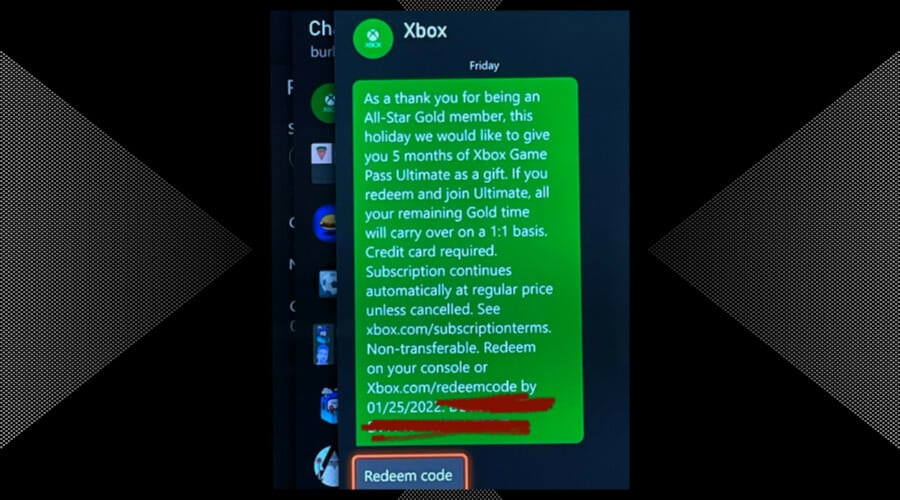
Microsoft Revealed The Games With Gold January 2022 List

You were probably expecting the new year to start off with a bang when it comes to the games that Xbox adds each month to the Gold subscription.

You might be a bit disappointed if you were expecting some of the newer titles, but the ones that are coming are still fun and worth taking for a spin.

Microsoft has just announced the Xbox Games with Gold lineup for January 2022, which contains 4 new free games worth $54 in value for Xbox Live Gold and Xbox Game Pass Ultimate subscribers.

Neurovoider and Aground are coming to Games with Gold

We know you’re excited so we’re going to start with the first two games that will be free to claim starting the 1st of January, 2022.

So, on the first day of the new year, you can enjoy the twin-stick shooter RPG Neurovoider, as well as the Xbox 360 vertical shooter Radiant Silvergun.

The two other games added to the service starting January 16 are the mining RPG Aground, and the classic Xbox 360 title Space Invaders Infinity Gene.

It seems that Microsoft decided to start the new year with more of a throwback atmosphere, reminding gamers that its not all Cyberpunk 2077 and Battlefield 2042.

You might like to know that overall, these four free games actually represent 2400 in Gamerscore, which is right in line with the Games with Gold for December.

If you haven’t gotten around to grabbing last month’s titles yet, we remind you that you have until the end of December to claim The Escapists 2 and Insanely Twisted Shadow Planet.

Out of the four coming in January, which is your favorite title? Share your opinion with us in the comments section below.

How to make Microsoft Edge as private and secure as possible

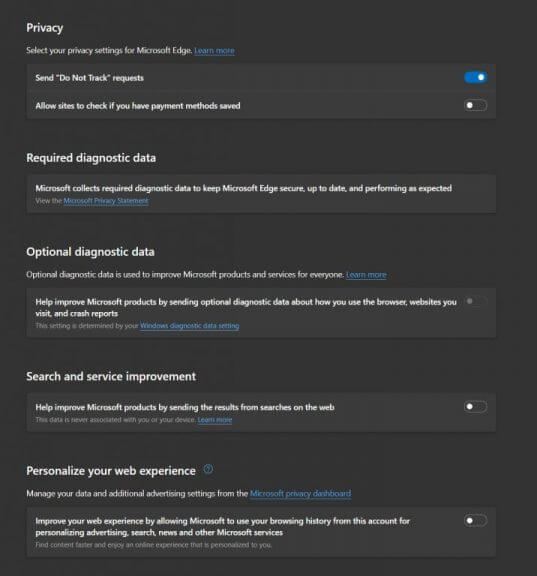
Privacy and security are two important things when it comes to web browsing these days. While having your browser remember settings and sessions can be convenient, you obviously don’t want to be overly tracked online, you might not want your data to be associated with your online accounts, nor do you want intrusive ads or your data to be leaked online.

Luckily, Microsoft Edge is a browser that can help with that. The latest versions of the Microsoft web browser have built-in controls that help you take control of your privacy. Plus, there are also additional steps you can take to put you in control of your data.  Here’s how to make Microsoft Edge as private as possible.

Turn off Edge’s shopping features

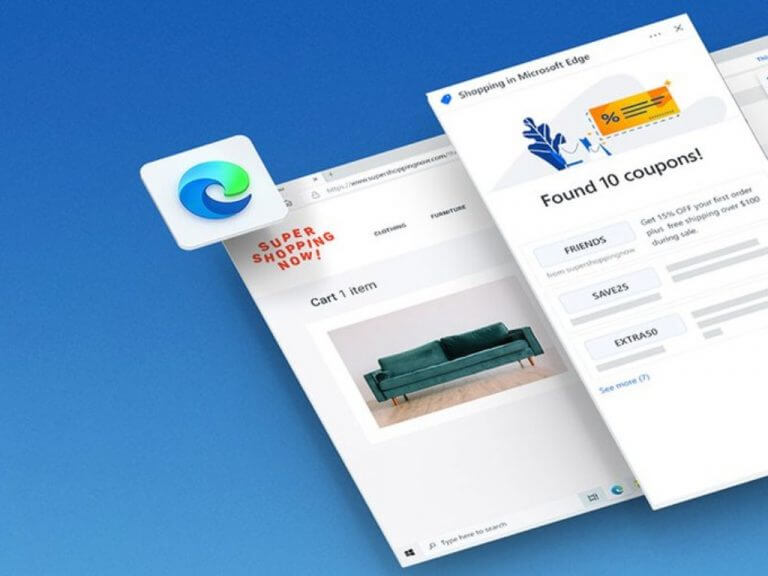
Microsoft Edge has some features that might help you when shopping. The browser is designed to track the prices items you’ve been looking at and eventually help you save money, This, though. might come off as intrusive to your privacy. So, while in Edge’s Privacy, Search, and Services settings (edge://settings/privacy), scroll all the way down to the Services section. From there, toggle all the switches to the Off position. This includes things like suggestions from Pinterest in Collections, too.

Oh, and remember the controversial Buy Now Pay later option in Microsoft Edge? Along with other factors, it had a lot of people upset, as they felt it was an invasion of privacy, so you might want to turn it off. You can do this by typing edge://settings/payments into the Microsoft Edge address bar. You can then select to turn off the Shop Buy now, pay later option on sites when you shop.

Learn more with this complete guide to Edge privacy settings Privacy settings in Microsoft Edge.

Change your tracking prevention

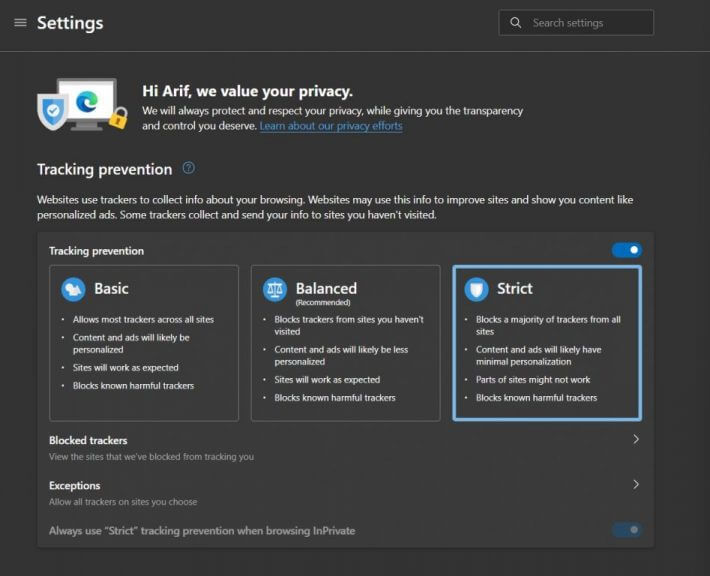
Second up is a setting that’s most obvious: changing Edge’s tracking prevention. Once you visit Edge’s settings menu, click to Privacy, Search, and Services in the right-hand bar. Then, from there, look for Tracking Prevention. It’s one of the most up-front options up top.

You’ll want to turn the switch for Tracking Prevention to On if it’s not already turned on, and then change it to Strict. This Edge setting will block trackers on all websites, reduce personalization, and block other harmful trackers. It’s a good first step to making Edge as private as possible. And, you can always check to see which trackers Edge has blocked under Blocked trackers. You might end up surprised as to how many Facebook trackers Edge blocked!

Note: Though Edge has a Do Not Track setting, it’s a voluntary signal. Just because you have it enabled, it doesn’t mean that sites will respect your choice. The folks at Spread Privacy have a more in-depth explanation as to why Do Not Track doesn’t always work.

Send Do Not Track Requests

Next up, you’ll want to scroll down in Edge’s Privacy, Search, and Services settings to the Privacy section. From there, look for Do Not Track requests and turn the switch to On. While you’re at it, also turn off the switch for Allow sites to check if you have payment methods saved. This means the browser and websites won’t store your sensitive credit card information.

As another part of Privacy, we also suggest turning off the toggles for sending results from searches on the web. Microsoft says this data from Edge is not associated with you, but if you really want to be secure, disable the feature. Of course, it’s also best to toggle the switch for personalization to off, too. This ensures that if you’ve signed in with a Microsoft account, your data won’t be sent to Microsoft to personalize other Microsoft services.

We also want to end this section with some tips on Microsoft Edge’s newest features. Edge now has built-in malware protection. You can look for it under the Enhance your security on the web section of Privacy. From there, choose Balanced or Strict. A balanced option will not break websites, and only add security mitigations for sites you don’t visit often. Strict, meanwhile, adds security mitigations for all sites but could break certain parts of websites. This feature is known as Super Duper Secure Mode.

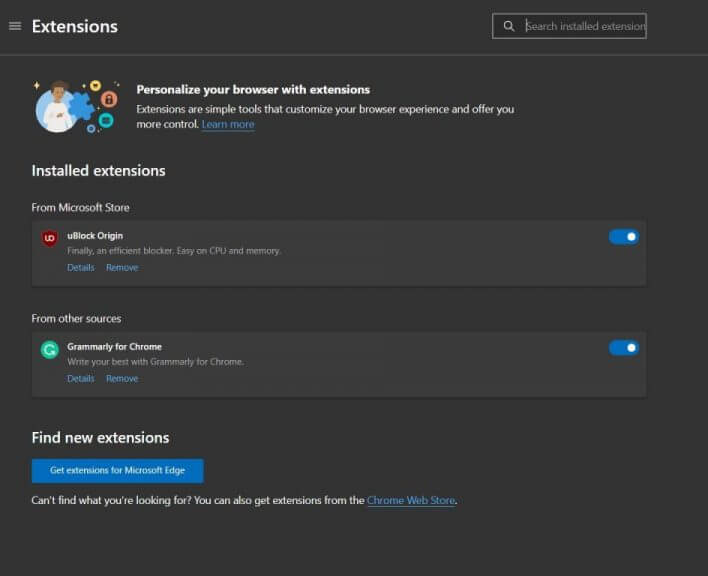
Be careful with your extensions

Extensions are meant as a way to boost your experience in Microsoft Edge, but they also could collect data about you, too. Usually, this isn’t the case, and most extensions do no harm to your data. However, it’s always best to check the company, group, or developer that’s making the extension you’re downloading.

In the Chrome Web Store, you can do so by looking for Offered by at the top of the page. And in the Microsoft Edge Add-ons website, look for the developer name under the name of the extension. Don’t pick or download extensions from unknown sources. Microsoft actually removed 18 malicious extensions for Edge back in 2020.

Also of note are ad-blocking extensions. Edge has ad-blocking built-in, but it might be best practice to use one, so more harmful ads don’t intrude on your web browsing experience. We suggest using uBlock Origin. It’s one of our favorites as it’s light on CPU usage and memory. There are many other alternatives, though, including Adblock Plus.

Other tips & the caveats

Signing in with a Microsoft Account on Edge results in the best possible experience for most people. However, if you’re truly concerned about privacy, it might be best to not use a Microsoft Account when browsing in Microsoft Edge. This, though, comes with an important caveat. You’ll end up losing out on the convenience of the web browser, especially when tweaking the settings we mentioned above. Without a Microsoft Account, you’ll end up not being able to sync your password, settings, and more across different devices. You’ll have to do a lot of “hard work” when it comes to remembering passwords, managing bookmarks, etc.

But if that’s something you’re willing to give up, you might want to skip the sign-in process when you boot up Edge for the first time and create a profile without a Microsoft Account.

Though extreme, we also suggest clearing your cookies and history every so often. Cookies are sometimes abused by websites to track you. For the utmost privacy, you should set up Edge to clear your history and cookies each time you close the browser. Of course, this impacts the end experience, as you’ll lose track of websites you visit, but it is a good step for privacy. Just go to edge://settings/privacy, and then look for Clear browsing data. Under Choose what to clear every time you close the browser pick the browsing history, cookies, and other site data options. Now, each time you close Edge, you’ll have a clean slate!

Windows 11’s latest issue is with HDR displays not rendering proper colors

The Windows 11 bugs keep on coming. Over on the Windows 11 known issues page, Microsoft now mentions that HDR displays might not render some content properly.

The issue was first confirmed by Microsoft on December 24, and has since been marked as “investigating.” It apparently happens after updating to Windows 11 and impacts some image editing programs. Microsoft says the issue is observed with white colors, which could display in bright yellow or other colors. Officially, the issue appears to be linked to color-rendering Win32 APIs. According to Microsoft:

This issue occurs when certain color-rendering Win32 APIs return unexpected information or errors under specific conditions. Not all color profile management programs are affected, and color profile options available in the Windows 11 Settings page, including Microsoft Color Control Panel, are expected to function correctly.

Microsoft has yet to issue a fix and says that it is working on a resolution for late January. The issue only impacts Windows 11, version 21H2 at the moment. Seeing as though Microsoft is on vacation for the holidays like the rest of us, it could be well until the first Patch Tuesday on January 11 at the earliest that a potential fix could be released.

Depending on how you look at it, it has been a bit of a rough patch for Windows 11. Even though the operating system is now rolling out to more devices, there have been several notable bugs. Recently, these include issues with MSI apps, Intel SST drivers. Usually, Microsoft is quick to release fixes, first through the Windows Insider program, and then for everyone else on the public and retail versions of the operating system.

Fix HP Accelerometer errors in Windows 10/11

Do you receive the Accelerometer error on start-up on your HP device? If you are, don’t worry as this is a minor problem related to some drivers and which can be easily addressed.

There are a few ways in which you can try to fix the Accelerometer error in Windows 10 and everything is being detailed and discussed in the following guidelines and steps.

Usually, this warning message is displayed after your Windows received a new update, especially if that was a Windows 10 update. As already outlined, the error is talking about a driver who is not running properly.

It can be a file corruption or an outdated driver, thus the troubleshooting solutions will focus on resolving these particular aspects, as described below:

Fix HP accelerometer errors in Windows 10

  1. Check for Windows updates.
  2. Update existing drivers.
  3. Remove corrupted drivers and reinstall them manually.

1. Check for Windows updates

  1. On your computer press the Win+I hotkeys.
  2. From System Settings choose Update & Security.Fix HP accelerometer errors
  3. Under Windows Update (from the left panel) you can verify if there is any update waiting for your approval.
  4. Apply all available patches and restart your Windows 10 device in the end.

2. Update existing drivers

  1. Right-click on the Windows start icon.
  2. From the list that’s displayed click on the Device Manager entry.
  3. In Device Manager find the HP 3D DriveGuard driver.Fix HP accelerometer errors
  4. Right-click on it and choose Update.
  5. Restart your Windows 10 system in the end.

Nonetheless, there is third-party software that can do the job on your behalf. We also recommend using a specialized tool that can automatically download all out-of-date drivers to your PC in a few clicks.

With a dedicated driver update, you will efficiently manage all your drivers from your PC and resolve this type of trouble.

Therefore, using this software means you can benefit from up-to-date drivers for each one and optimize your driver devices at peak capacity.

3. Remove corrupted drivers and reinstall them manually

If updating the driver isn’t fixing the Accelerometer error, try to uninstall and reinstall it manually afterward:

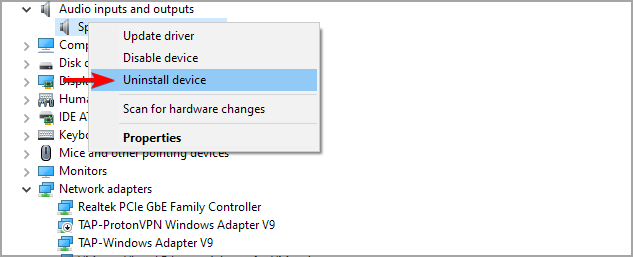
  1. You can remove the driver from Device Manager – access Device Manager as already explained, then right-click on the HP 3D DriveGuard driver and choose ‘uninstall’.
  2. Alternatively: go to Control Panel, switch to Category and under Programs click on Uninstall. Find the HP 3D DriveGuard software and remove it from your Windows 10 device.Fix HP accelerometer errors
  3. Hint: for accessing Control Panel just right-click on the Windows start icon and select ‘Control Panel’.
  4. Restart your device and then access this link. From there you can download the latest HP 3D DriveGuard driver.
  5. Afterwards, install the driver by running the executable file that was just downloaded and follow on-screen prompts.

The methods explained above should help you fix the HP Accelerometer error in Windows 10.

You can share your own experience with us and with the other users who are planning to use this step-by-step guide. The easiest way in which you can get in touch with us will be through the comments area that’s available below.

FIX: Adobe Premiere Pro could not find valid editing modes

Adobe Premiere Pro is one of the best video editing tools on the market, but some users reported Adobe Premiere Pro couldn’t find any valid editing modes message on their PC.

According to users, this message prevents them from running Adobe Premiere Pro, and in today’s article, we’re going to show you how to fix this error.

There are many error messages that can occur while using Adobe Premiere Pro, and here are some common problems that users reported:

  • Adobe Premiere Pro could not load any audio drivers, find any video modules Windows 10 – These are some common problems that can appear with Adobe Premiere Pro, but you should be able to fix them using our solutions.
  • Adobe Premiere Pro CC not responding, startup error – Sometimes Adobe Premiere Pro won’t start at all. This can be due to your antivirus or due to the lack of administrative privileges. To fix the issue, try running the application as an administrator and check if that helps.
  • Adobe Premiere Pro won’t open – If this problem occurs, the issue might be related to your graphics card drivers. If your drivers are up to date, make sure that Adobe Premiere Pro is using dedicated graphics as the default graphics processor.

How do I fix the Premiere Pro editing modes error?

1. Make sure that the application is completely installed

According to users, if you’re getting Adobe Premiere Pro couldn’t find any valid editing modes message, the problem might be related to the incomplete installation.

Several users reported that this error occurred because the Settings directory was missing from the installation directory.

If that’s the case, try installing Premiere Pro on a different PC and check if it works. If it does, locate the Settings directory and copy it to the first PC. After that, Premiere Pro will start working on your PC.

This is a bit crude solution, but it works according to users, so feel free to try it out.

2. Make sure that Adobe Premiere Pro is using your dedicated graphics

Premiere Pro is a hardware-intensive application, and in order to use it, you need to have a powerful graphics card. Many laptops and some PCs come with both dedicated and integrated graphics.

According to users, Adobe Premiere Pro couldn’t find any valid editing modes message appeared because Adobe Premiere Pro was set to use integrated graphics.

Integrated graphics usually don’t have enough hardware power to smoothly run Adobe Premiere Pro, and that can lead to this error.

To fix the problem, you’ll need to set your dedicated graphics as the default processor.

To do that, open your graphics card control panel such as the Nvidia Control Panel or Catalyst Control Center and set your dedicated GPU as the default graphics processor for Adobe Premiere Pro.

3. Update your graphics card drivers

According to users, this issue can sometimes occur if your graphics card drivers are out of date. To fix the problem, it’s advised to update your drivers to the latest version and check if that helps.

To do that, you should visit your graphics card manufacturer’s website and locate the latest drivers for your model. Once you download and install the latest drivers, check if the problem is still there.

You can also update all your drivers automatically with just a few clicks using third-party tools as recommended below.

With such a specialized tool, the process of managing drivers will run easily to find the latest driver versions for the needed devices.

In addition, you can rely on this automated support due to its smart technology, and rich database that contains millions of drivers from the official manufacturers.

⇒ Get Outbyte Driver Updater

4. Run the application as administrator

  1. Right-click the Adobe Premiere Pro shortcut and choose Properties from the menu.
    properties menu adobe premier pro not starting
  2. When the Properties window opens, navigate to the Compatibility
  3. Now check Run this program as administrator option and click Apply and OK.
    compatibility tab adobe premier pro not working

After doing that, the application will always start with administrative privileges whenever you use this shortcut, and the problem will be permanently resolved.

According to users, Adobe Premiere Pro couldn’t find any valid editing modes message can appear if you don’t have the necessary privileges to run Adobe Premiere Pro.

5. Install the latest Premiere Pro updates

You’d be surprised to learn just how many problems outdated software can trigger. From compatibility issues with files created in a newer version to not working at all.

Before diving into complex and time-consuming troubleshooting steps, let us start with the basics. Make sure you’re running the latest Adobe Premiere Pro version.

Adobe regularly rolls out updates to all of its programs, adding new features and fixing existing bugs. Maybe the latest update patches a known issue preventing users from using the tool.

6. Check your antivirus

Having a good antivirus is important if you want to keep your PC protected from online threats. However, sometimes your antivirus can interfere with your system and cause issues with certain apps.

If you’re getting Adobe Premiere Pro couldn’t find any valid editing modes message on your PC, that’s because your antivirus is interfering with it.

To check if your antivirus is the problem, open it and try disabling certain features. After that, check if the problem persists. If that doesn’t help, your next step would be to completely disable your antivirus.

This may leave your PC vulnerable, but if you’re using Windows 10, you’ll remain protected by Windows Defender, so there’s no need to worry.

If disabling the antivirus doesn’t help, you might want to try removing your third-party antivirus. Many users reported this issue while using AVG Antivirus or Constant Guard.

If removing your antivirus solves the problem, this might be a perfect time to consider switching to a different antivirus solution.

7. Change Switchable Graphics in BIOS

This is fairly simple to do, and you can do it by following these steps:

  1. Restart your PC and boot to BIOS.
  2. Once you enter BIOS, locate the Switchable Graphics option and change it from Dynamic to Fixed.
  3. Now save changes and restart.

According to users, sometimes Adobe Premiere Pro couldn’t find any valid editing modes message can appear due to your BIOS settings.

As we already mentioned in one of our previous solutions, this issue can be caused by your integrated graphics, and in order to permanently fix the problem, you need to disable it from BIOS.

Once your PC restarts, the problem should be permanently resolved and Adobe Premiere Pro will start working again.

To see how to properly disable the graphics card in BIOS, we suggest that you check your laptop’s manual for detailed instructions.

8. Reinstall Adobe Premiere Pro

If you are keep getting Adobe Premiere Pro couldn’t find any valid editing modes message while trying to run Adobe Premiere Pro, the issue is most likely related to a corrupted installation.

To fix the problem, it’s advised that you completely remove Adobe Premiere Pro from your PC and then install it again.

There are several ways to do that, but the most effective one is to use professional uninstaller software.

By using such software you’ll completely remove the selected application along with all of its files and registry entries. Once the application is removed, install it and check if the problem is still there.

Adobe Premiere Pro couldn’t find any valid editing modes message can be problematic, and in most cases, this issue is caused by your drivers or by your graphics card.

However, you should be able to fix the problem using one of our solutions. Feel free to write us a comment if you have any suggestions.

How to fix Sorry we’re having trouble updating Oculus error

We’re familiar with Oculus, the head-mounted-display tech company that produces the newest virtual reality headsets. It redefines digital entertainment, bringing better immersion, whether you’re watching a movie or playing games, the future never felt so close to our fingertips, or eyes.

However, issues with Oculus can occur, and one of the common problems reported by users is Sorry we’re having trouble updating Oculus error. Numerous users reported this issue on Reddit threads.

I’ve been having this message show up once in a while over the past week.

There’s plenty of free space on all library disks, disks where %TEMP% is, as well as the disk where the Oculus software is installed.

The reasons behind this issue may vary, and sometimes you might encounter this error due to improper antivirus of firewall configuration. We’ve created a list of fixes that can solve this issue. So let’s get started, shall we?

How can I fix Oculus Rift update problem?

  1. Log-out from your software
  2. Perform a firmware update
  3. Move your large files
  4. Repair your software
  5. Check your antivirus and firewall

1. Log-out from your software

Sometimes the simplest of things bare the best results. If you’re getting Sorry we’re having trouble updating Oculus error, you might be able to fix it simply by logging out. Log out from your Oculus home software, wait a few moments, and log back in.

To do that, navigate to the Friends section, click the three dots, then select Sign Out.

2. Perform a firmware update

Maybe the problem could be related to firmware. Firmware is the software that provides low-level control for the device’s specific hardware. So maybe this could be causing issues with your Oculus software updates attempts.

  1. Firstly, connect your headset device, and ensure that it shows up as connected in the Oculus Configuration Utility.
  2. Select Tools, click on Advanced, and select Update Firmware.
  3. When prompted to select a file, select the one you have prepared for your headset.
  4. The firmware will begin updating.
  5. After the update finishes, shut down your machine and restart the Oculus Configuration Utility.

3. Move your large files

This isn’t the ideal scenario, but the minimum required space is to update Oculus Rift is 9 GB. If you don’t have enough storage space, you might encounter Sorry we’re having trouble updating Oculus error.

In order to free up some space, just delete any large files you don’t want anymore, or move them to a different partition.  You can also try to uninstall any programs or content you don’t have a use for anymore. Try moving your large files to an external or alternate hard drive. Lastly, you can use Disk Cleanup to free up extra space.

4. Repair your software

In order to fix this problem, follow these steps:

  1. Go to Oculus setup official page.
  2. Click on the Download Oculus Rift Software button, and then run the downloaded file with Administrator rights.
  3. Click on Repair.

After the process is finished, check if the issue is still there.

5. Check your antivirus and firewall

Try whitelisting your Oculus software on both your firewall and antivirus of choice. Sometimes your antivirus or firewall can block your connection causing the Sorry we’re having trouble updating Oculus error to appear. If your antivirus is preventing you from updating Oculus software, perhaps you should disable it temporarily or switch to a different antivirus.

TotalAV is the right choice to make for lightweight antivirus services, plus robust anti-malware or protection against phishing or ransomware attacks.

⇒ Get TotalAV

There you go, these are some solutions that might help you fix the Sorry we’re having trouble updating Oculus error, so be sure to try them all.

Fix chakracore.dll is missing error in a few easy steps

This error message can pop up for some users: The program can’t start because chakra.dll is missing from your computer. That error arises when the chakracore.dll becomes unavailable for programs that need it.

If chakracore.dll is missing from your computer, you should know that you can fix it much the same as other DLL errors.

How do I fix the chakracore.dll is missing error in Windows 10?

1. Use a dedicated third-party repair tool

The chakracore.dll file is used by several programs and if it’s missing, you will not be able to run that software. However, searching for the file online and downloading it from a random website is not a good idea.

Dedicated repair software is able to scan, identify, and replace the DLLs with fresh and genuine copies from their own databases.

2. Run a System File scan

  1. The System File Checker, which restores corrupted or missing DLL files, is a probable fix for the chakracore.dll is missing error.
  2. To run an SFC scan, open the search utility with the Windows key + S hotkey.
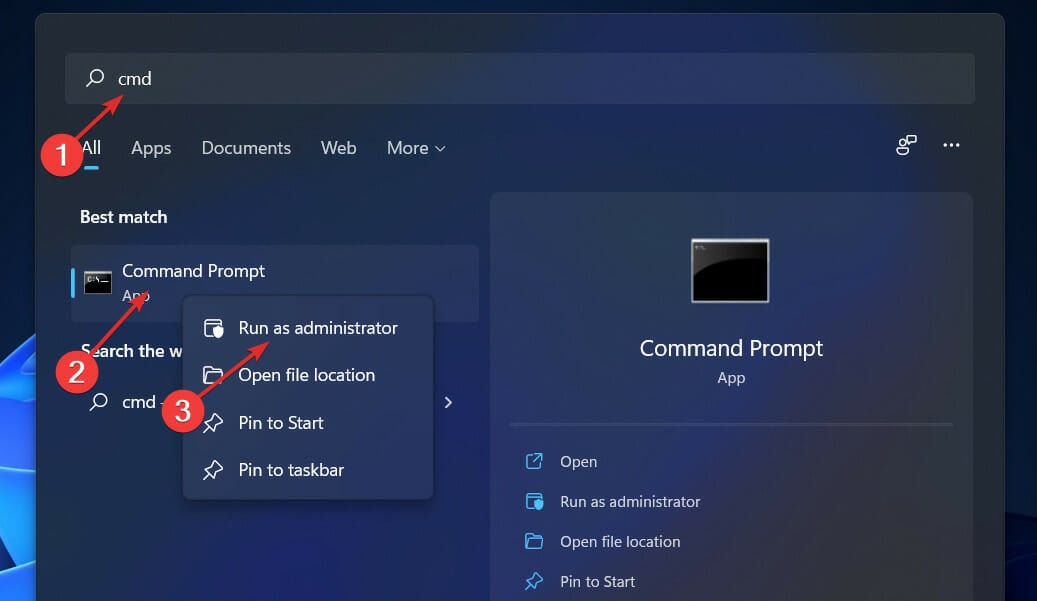
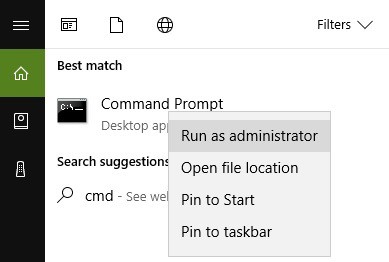
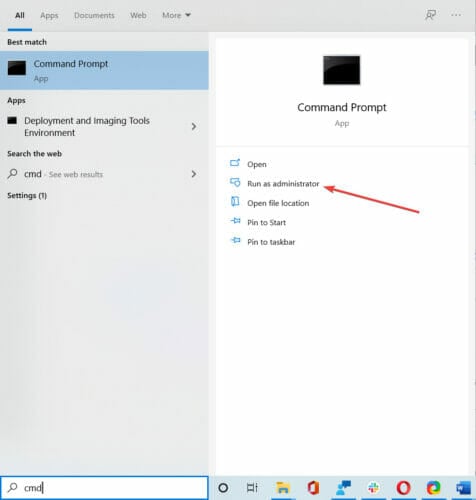
  3. Input cmd in the search box and click on the Run as administrator option under Command Prompt.
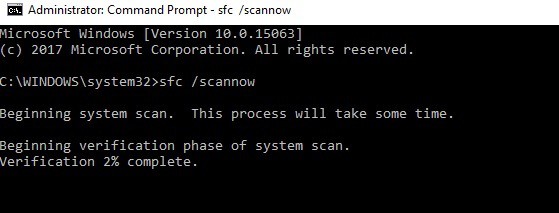
  4. Before initiating a system file scan, enter the following command in the Prompts window and press Return: DISM.exe /Online /Cleanup-image /Restorehealth
  5. Then enter SFC /scannow in the Prompt and press the Return button. Wait for the scan to complete, which might take more than 30 minutes.The sfc /scannow command chakracore.dll is missing from your computer
  6. Thereafter, restart Windows if the scan fixes some files.

If you’re having trouble accessing Command Prompt as an admin, then you better take a closer look at this guide to fix the Command Prompt issue.

3. Register the chakracore.dll

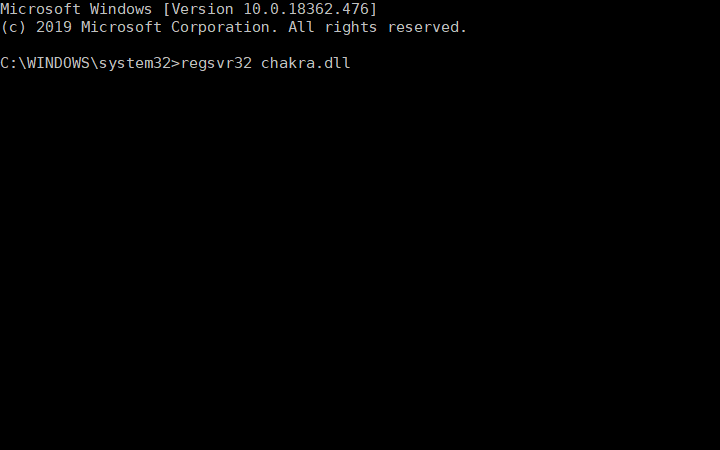
Some users might need to register the chakracore.dll file. To do that, open an elevated Command Prompt. Then input regsvr32 chakra.dll in the Prompt, as below, and press the Enter key.

regsvr32 command chakracore.dll is missing from your computer

4. Reinstall the specific software

  1. If the chakracore.dll error arises for a specific program, try reinstalling that software.
  2. To do so, launch run by pressing the Windows key + R hotkey.
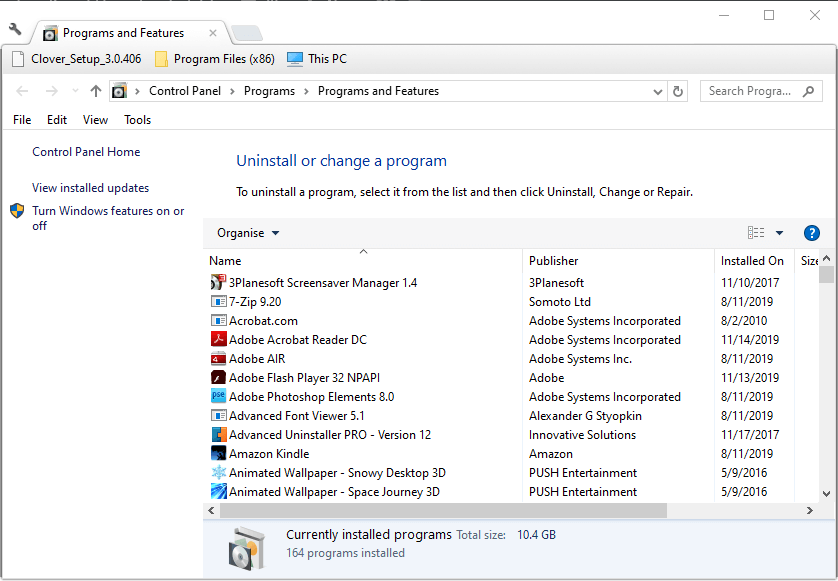
  3. Input appwiz.cpl in Run, and click the OK button.The uninstaller window chakracore.dll is missing from your computer
  4. Select the program the chkracore.dll error arises for within the Programs and Features Control applet.
  5. Click the Uninstall button.
  6. Then click Yes to provide further confirmation to remove the software.
  7. Restart Windows after uninstalling software.
  8. Thereafter, reinstall the latest version of the uninstalled software.

5. Scan for malware

Chakracore.dll errors might be due to malware, which targets DLL system files. So, run a malware scan with TotalAV.

You can select the Download Free button from the official website and benefit from the qualitative scanning utility, plus high detection and removal of malware.

Then, after installing TotalAV, open it and click the Scan your computer button. This clever software will get rid of malware in no time.

⇒ Get TotalAV

6. Restore Windows 10 to an earlier date

  1. Restoring Windows 10 to time when there wasn’t a chakracore.dll issue on the user’s PC might also fix the issue.
  2. To do that, open Run with the Windows key + R hotkey.
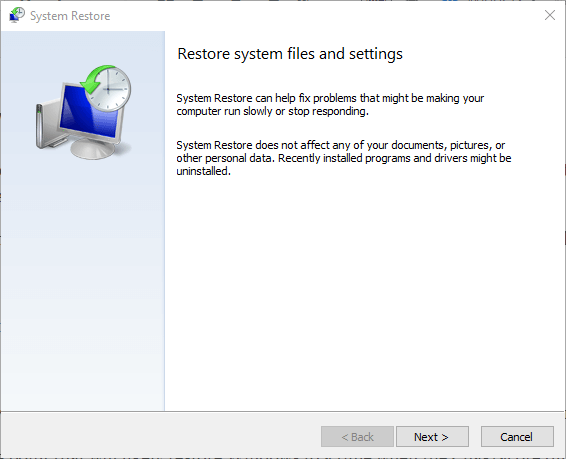
  3. Input rstrui in the Open text box and click OK, which will open the System Restore utility.System Restore chakracore.dll is missing from your computer
  4. Click the Next button to proceed.
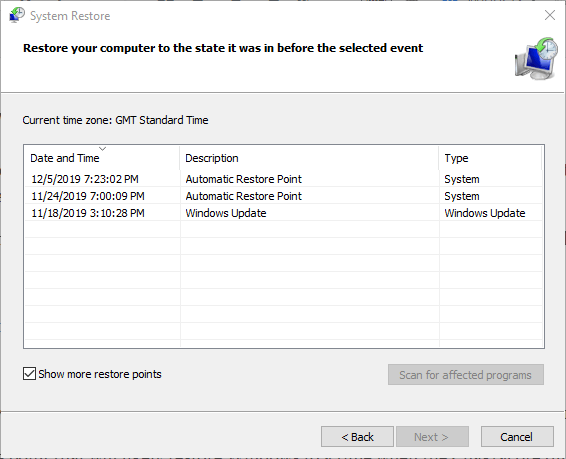
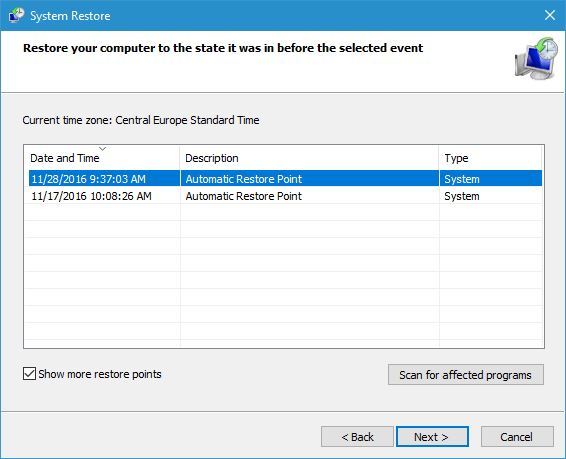
  5. Click the Show more restore points checkbox to expand the selection of restore points.
  6. Select a restore point that will likely restore Windows to a time when the Chakracore.dll error message didn’t pop up.System restore points chakracore.dll is missing from your computer
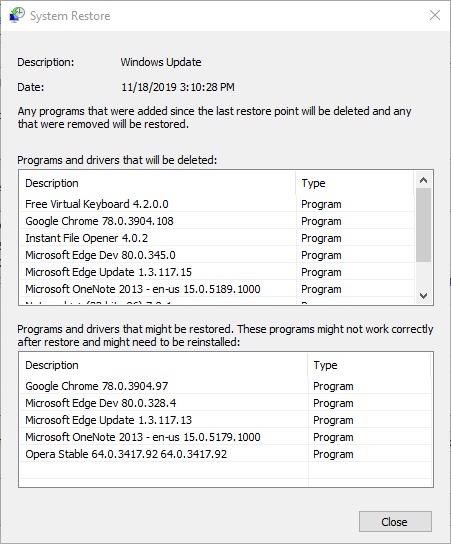
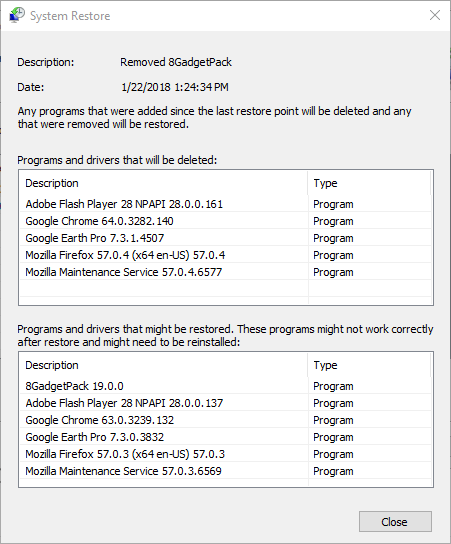
  7. Users will lose software and updates installed after a selected restore point. Click Scan for affected programs for further details.System Restore window that lists software changes chakracore.dll is missing from your computer
  8. Click the Next and Finish buttons to initiate the system restore.

If System Restore is not working, check this useful guide to fix the System Restore problem.

7. Reset Windows 10

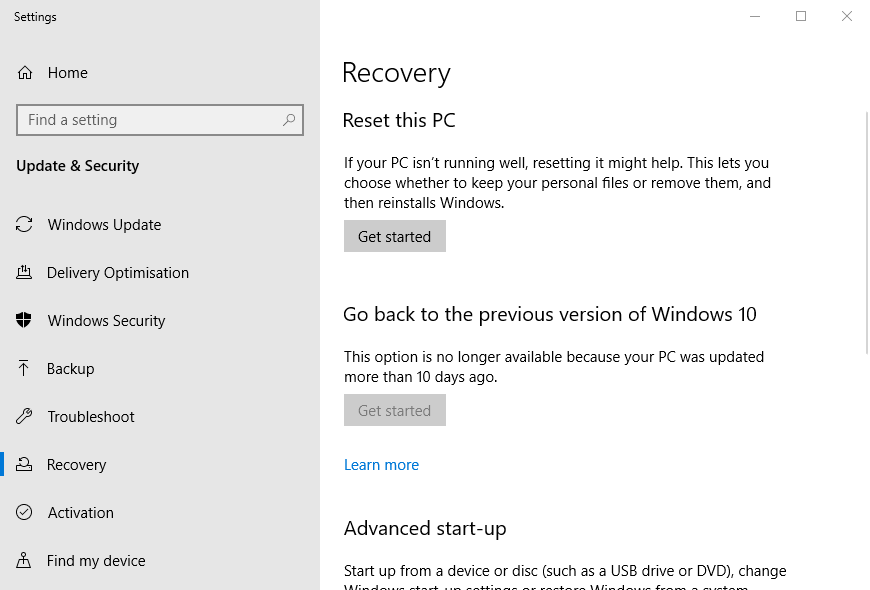
  1. Users can reset Windows 10 to its factory settings, which will reinstall the OS and restore missing system files.
  2. To reset the platform, enter reset in Windows 10’s search box.
  3. Click Reset this PC to open the window shown directly below.The Get started button chakracore.dll is missing from your computer
  4. Click the Get started button.
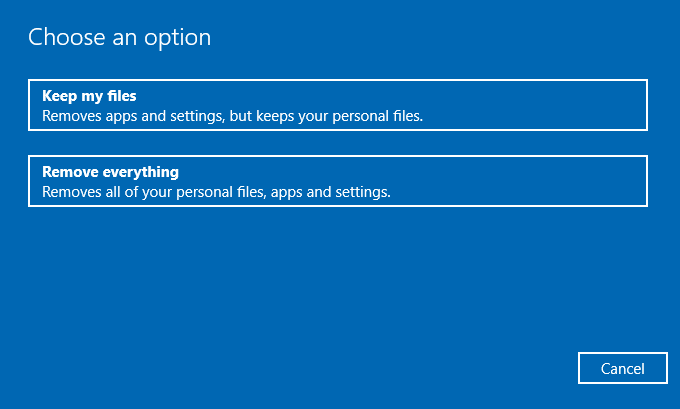
  5. Select the Keep my files option.The Keep my files button chakracore.dll is missing from your computer
  6. Click the Next and Reset buttons to proceed.

Need more info on how to factory reset your PC? We’ve got a very comprehensive article that will help you step by step.

The above resolutions will probably fix chakracore.dll errors for most users. Besides, users can try fixing chakracore.dll errors by scanning the registry and updating system drivers with system maintenance software.

If you have any other questions or suggestions, leave them in the comments section below and we’ll be sure to check them out.

Fix System Restore error 0xc0000020 on Windows 10/11

Multiple Windows users have been reaching us with questions after being unable to use the System Restore function on their PC.

They also describe losing connection to their router and eventually getting the error status 0xc0000020.

The issue is related to pretty much any type of system file corruption.

Starting from this point, these are some of the methods you may try to fix the System Restore error 0xc0000020 on Windows 10.

What can I do when getting System Restore error 0xc0000020 on Windows 10?

1. Bring your Windows 10 build to the latest version

latest Windows 10 build
  1. Open the Run dialog box by entering the WIN+R keyboard shortcut.
  2. Then, type ms-settings:windowsupdate and press Enter to open up the Windows update tab.
  3. Click on Check for updates.
  4. Simply follow the on-screen instructions to install every pending update.
  5. Lastly, restart your computer once again and see if the 0xc0000020 error is gone at the next computer startup.

2. Use a third-party software

There is another way to fix the System Restore error, and that implies dedicated software for repairing Windows services.

With such proactive repair tools, you will fix various Windows errors and replace corrupted files that may cause functionality issues.

You should patch your computer in a few steps, running deep scans on your system and repairing existing errors automatically with these tools.

3. Run DISM and SFC Scans

time to run DISM
  1. To begin, type cmd in the search bar and right-click Command Prompt.
  2. Up next, if prompted, hit Yes to open it with administrator privileges.
  3. Type the following commands and press Enter to initiate the DISM scans:
    Dism.exe /online /cleanup-image /scanhealth
    Dism.exe /online /cleanup-image /restorehealth
  4. Do not close the command line window until you see the message verification 100% complete, then restart your PC.
  5. Open Command Prompt as an administrator again. Type sfc /scannow in the window and then press Enter to initiate the SFC scan.
  6. Restart your computer and confirm getting rid of the System Restore error 0xc0000020.

4. Run Windows Update troubleshooter

Advanced link
  1. At first, press Windows key + S key and type troubleshooting.
  2. In the Control Panel list of troubleshooters, access System and Security > Fix problems with Windows Update.
  3. Click on the Advanced link given at the bottom.
  4. Up next, click on the Run as administrator link.
  5. Click on the Next button and the tool will start troubleshooting all issues related to Windows Update present in your system.
  6. Once an issue is detected, it’ll show you two options: Apply this fix and Skip this fix. You can click on the Apply this fix button to solve the issue immediately.

Windows Update usually does its job silently in the background.

You might not even know that it’s there, but it downloads updates automatically and it saves the ones you need to install by restarting Windows.

Like any tool, it sometimes stops working. The instructions above explain how to run the Windows update troubleshooter.

If you are still experiencing the issue and don’t care about data loss, you may also perform a clean install.

Have these procedures been successful? Let us know via the comments section below.

Microsoft still hasn’t fixed four Teams vulnerabilities exploited since March

We were just talking about Teams the other day, reporting on how you might not be able to create new free organization accounts, and Microsoft’s top conferencing app is already back in the spotlight.

And although we feel better when we have to report fixes and improvements, or new features coming to Teams, we have to also let you know about this security risk.

Apparently, security researchers have discovered four separate vulnerabilities within Teams, that could be exploited in order to spoof link previews, leak IP addresses, and even access Microsoft’s internal services.

Four major vulnerabilities are still being exploited in the wild

Experts from Positive Security stumbled upon these vulnerabilities while looking for a way to bypass the Same-Origin Policy (SOP) in Teams and Electron, according to a blog post.

Just in case you aren’t familiar with the term, SOP is a security mechanism found in browsers that helps stop websites from attacking one another.

While investigating this sensitive matter, the researchers found that they could bypass the SOP in Teams by abusing the app’s link preview feature.

This was actually achieved by allowing the client to generate a link preview for the target page and then using either summary text or optical character recognition (OCR) on the preview image to extract information. 

Also, while doing this, Positive Security co-founder Fabian Bräunlein discovered other unrelated vulnerabilities in the feature’s implementation as well.

Source: Positive Security

Two of the four nasty bugs found in Microsoft Teams can be used on any device and allow for server-side request forgery (SSRF) and spoofing.

The other two only affect Android smartphones and can be exploited to leak IP addresses and achieve Denial of Service (DOS).

It goes without saying that, by exploiting the SSRF vulnerability, researchers were able to leak information from Microsoft’s local network.

At the same time, the spoofing bug can be used to improve the effectiveness of phishing attacks or to hide malicious links.

The most worrying of them all should definitely be the DOS bug, as an attacker can send a user a message that includes a link preview with an invalid preview link target to crash the Teams app for Android.

Unfortunately, the app will continue to crash when trying to open the chat or channel with the malicious message.

Positive Security did in fact inform Microsoft of its findings on March 10 through its bug bounty program. Since then, the tech giant has only patched the IP address leak vulnerability in Teams for Android.

But now that this disconcerting information is public and the consequences of these vulnerabilities pretty clear, Microsoft will have to step its game up and come up with some quick, effective fixes.

Have you experienced any security issues while using Teams? Share your experience with us in the comments section below.

How to fix common .NET Framework 3.5 errors in Windows 10/11

Many application requires certain components to work properly, and if there’s an issue with it, the entire software is affected.

One of the most used tools is .NET Framework since it offers great features, and many developers use it while creating their apps.

Unfortunately, if there’s an issue with the framework, your application might not be able to run at all, and in some instances, you won’t even be able to install it.

In this article, we will concentrate on many of the common .NET Framework 3.5 errors and how to fix them, so let’s get started.

How does .NET Framework work?

.NET Framework is an execution environment that offers a wide array of services to apps. Developers use it to create apps for the Windows platform.

If the application is created with a certain version of the framework, you need to have it installed to run and install that software. For more information, visit our guide on how to install .NET Framework.

Why do .NET Framework errors occur?

In most cases, these types of errors are caused by file corruption. There are numerous reasons for this and they can vary from system damage to malware infections.

Luckily, you can fix these issues with ease by reading our .NET Framework 3.5 is missing guide.

How can I fix common .NET Framework 3.5 errors on Windows 10 & 11?

➡ Fix .NET Framework error 0x800F0906, 0x800F081F, and 0x800F0907

  1. Download the Windows Media Creation Tool.
  2. One the tool is downloaded, run it.
  3. Select Create installation media and click Next.
  4. Choose ISO file and click Next.
  5. Select the download location and wait for the process to finish. This could take a while depending on your Internet speed.
  6. When the download is complete, mount the ISO by double-clicking on it.
  7. Press Windows key + R and type gpedit.msc. Press Enter.
  8. When opens, expand the Administrative Template folder on the right, and click on System. Now double-click Specify settings for optional component installation and component repair.

  9. A properties window will open. Change it to Enabled. Set Alternative source file path to E:/sources/sxs
  10. Save changes.
  11. Press Windows key + X and choose Windows PowerShell (Admin) from the menu.
  12. Run the following command: gpupdate /force

  13. The issue should be fixed, and you should be able to install .NET Framework 3.5 again without issues.
Note icon NOTE
In step 9, make sure to use the path that matches the path of the mounted ISO file.

➡ Fix .NET Framework error code 0x800F0922

  1. Have a Windows 10 ISO downloaded and mounted before proceeding.
  2. Open the mounted ISO, and go into the sources folder.
  3. There should be a folder named sxs. Copy the folder to another location on your computer. For example, in this tutorial, we’ll copy it to the root directory of our D drive.
  4. Right click on the copied folder, and choose Properties from the drop-down menu.
  5. Click on the Security tab. Select your user name from the Group or user names box; check if there is a check mark next to Read and Write in the Permissions box.
  6. If you don’t find the check marks, you should click on the Edit button, select your username, and check both the Read and the Write box in the Allow column. Save changes.
  7. Press Windows key + X and choose Windows PowerShell (Admin).
  8. Run the following commands:
    dism /online /enable-feature /featurename:netfx3 /all /source:D:\sxs /limitaccess
    dism /online /Cleanup-Image /RestoreHealth
Note icon NOTE
Be sure to replace D:\sxs in step 8 with the path that matches the one from your computer. We just used this as an example on our PC.

➡ Fix .NET error code 0x80071A91

  1. Press Windows key + S and enter turn features. Select Turn Windows features on or off.
  2. You should find an item named .NET Framework 3.5 (includes .NET 2.0 and 3.0), deselect it, and wait for the operation to finish. After that, restart your computer.
  3. After restarting, follow the same steps to install it again, and you shouldn’t have any problems.

How can I can I fix .NET Framework 3.5 errors on Windows 11?

➡ Use the DISM scan

  1. Press Windows key + X and select Windows Terminal (Admin).
  2. Now run the following commands:
    Dism /Online /Cleanup-Image /CheckHealth
    Dism /Online /Cleanup-Image /ScanHealth
    Dism /Online /Cleanup-Image /RestoreHealth

Although this solution is for Windows 11, you can also use it in older versions of Windows as well. It is a great resolve especially when DLL files like mscorlib.dll related to the .NET Framework are missing.

Does .NET Framework come with Windows?

Yes, .NET Framework comes preinstalled with Windows. You can find version 3.5 up to 4.8 installed on Windows 10 PCs. Do keep in mind that the former has to be enabled manually in some cases.

.NET Framework availability (Source: Microsoft)

As for Windows 11, it comes with the latest version available out of the box.

Is .NET Framework backward compatible?

Starting from version 4.5, .NET Framework is compatible with the previous versions. So even if the application is built using version 3.5, it will work without issues in most cases.

If you’re an app developer, you might have to make a few changes to your configuration to ensure that everything is working properly.

This was a list of the most common .NET Framework 3.5 errors you’ll face on the Windows platform, and as you can see, they are relatively simple to fix.

In case you’re having more problems with this component, we suggest that you visit our guide on how to fix the corrupted .NET Framework.

Another common .Net Framework error is 0x800736b3, for which we have a dedicated guide.

We hope it had the error you were looking for. Tell us in the comments section if it worked for you, or if there is another error you’d like us to cover.

5 Best Antivirus for Debian to Secure Linux to the Core

As one of the very first OSs to adopt the Linux Kernel, Debian has found its way into our homes and consolidated its supremacy as the most popular edition for home users, thus paving the way for numerous other distributions (Ubuntu included).

Debian is constantly updating and new packages are uploaded regularly. The latest version, Debian 11, was released in 2021. After almost 3 decades of existence, it’s still going strong and we’re fascinated.

What’s more captivating is that Microsoft has spotted the enormous potential of this powerful platform and started publicly endorsing the Debian distribution and Linux as early as 2015.

Tip icon Tip
Microsoft loves Linux – a motto for posterity

➡ A full Linux Kernel with native support for Linux GUI apps is integrated into the Windows 10 and Windows 11 environments, along with updates, Microsoft Store presence, and all.
➡ Unsurprisingly, the Windows Subsystem for Linux (also called WSL) runs on a Debian subset. If you’re intrigued about it, don’t be shy to explore this feature and install the Linux Bash on your Windows 10 PC.
➡ Or maybe you’re more of a Windows 11 enthusiast? Don’t worry, we also got your back with some useful tips on how to dual boot Windows 11 and Linux.

Since protecting the things we value most comes naturally, it makes perfect sense to search for a good antivirus for Debian. But here’s where the plot unfolds: wasn’t Linux supposed to be virus-free?

Many still think so. Some praise its root access-based infrastructure that separates root processes from user-associated processes in order to prevent harmful executables activated at the user level to infiltrate and further contaminate privileged (or root) components.

Others are more inclined to praise enhanced Linux security patches that are publicly disclosed, generally the same day a vulnerability is revealed.

Finally, there are those who believe that Linux distros, Debian included, are simply not plagued by viruses because they are not that profitable as other more mainstream OSs, and thus less attractive for hackers.

While it does have the reputation of a reliable and secure operating system, the truth is Linux along with its various distributions requires virus protection as much as any other platform.

Can Debian be hacked?

Debian steadily becomes an increasingly attractive target for hackers

Up until this point, there has been no widespread virus infection across any Debian instances. This, combined with enhanced security measures and the fact that it claims a smaller market share compared to its counterparts makes Linux-based OSs less prone to viruses.

However, the status quo is shifting. Debian’s virus-free reputation is precisely what attracts more newcomers. And popularity boosts rarely pass unnoticed.

Wherever people are flocking, there is potential to make a profit, and hackers know it very well. This kind of unwanted attention implies that Debian is steadily turning into an increasingly attractive target for cybercriminals.

With more enticing and lucrative perspectives on the rise, hackers are more motivated to develop Linux and Debian-specific viruses, coded to exploit Debian vulnerabilities.

Hybrid malware is also a reason for concern. Windows and Linux codes are intertwined and cross-platform malware can also exploit Windows code embedded in Debian’s infrastructure.

Debian users can be tricked into downloading harmful content

Downloading files from unreliable sources can open the door to mayhem and havoc. Impossible, you say? Unfortunately not.

Officially, both Debian and the Linux kernel contain only free software with verified sources. However, paying software can still be downloaded from online repositories that are not hosted in-house.

Third-party repositories provide external software including codecs, programs, and more. Not all proprietary packages that you find in these repositories comply with regulations.

Even though they are not included in the official installation media, the fact that they are easily accessible makes it just as easy to install unverified software.

Does Debian need antivirus?

Debian GNU/Linux requires virus protection and it even incorporates virus scanning packages into its official distribution in order to allow you to build gateways with antivirus properties across various protocols.

Needless to say, Debian endorses open-source, distributable antivirus environments such as ClamAV. But that does not mean you cannot properly install and deploy proprietary antivirus software in the Debian system.

In fact, we are quite proud to present you with our selection, where you will most likely find the best antivirus for Linux Debian. As one would expect, we mostly deal with Windows-based test cases here, at Windows Report.

The novelty of Linux was even more enticing for our expert QA team and they enjoyed crafting an entirely new methodology that allowed us to test each antivirus to its limits and in some cases even beyond.

In fact, stress-testing is one of our favorite methods to determine which software has what it takes to make the cut and which ones don’t. Naturally, you’ll have to throw your own criteria into the mix to find that fine-tuned, perfectly tailored program that best suits your needs.

But we are convinced this review has a bit of something for every Linux aficionado out there. Without further ado, here’s how our selection process went.

Tip icon Tip
Check out the criteria that guided us in order to choose the best antivirus for Debian:

➡ Streamlined installation process and high usability (If you’re not at ease with long strings of command, go for a GUI-based antivirus for Debian and leave CLI antiviruses to more seasoned Linux users.)
➡ Intent for deployment (Personal desktop, file servers, enterprise, small or medium-sized business? According to the size of your rig, you will also be able to harmonize your antivirus for Debian with your budget expectations, device coverage requirements, and so on. Affordability and price/value ratio are also covered here).
➡ Automatic malware and virus database updates (Essential to keep you safe against known and emergent threats alike.)
➡ Security features (Multi-layered protection, on-access, and on-demand scans as well as cross-platform compatibility in order to detect the entire spectrum of malware, Linux or Debian-specific viruses, and Windows-based malicious code.)
➡ Straightforward configuration and customizable scans
➡ Lightweight infrastructure with low CPU consumption rates that do not strain your system’s resources and are fast to complete the scans.
➡ Advanced network exploit prevention and traffic monitoring tools with firewall capabilities
➡ Efficiency (high virus detection rates and powerful malware removal capabilities)
➡ Sandboxing features to allow safe testing of new software and isolating potentially harmful programs

Bitdefender GravityZone Business Security

  • Flexible deployment solutions (On-premise or on Cloud)
  • Suitable for both desktop and Linux servers
  • Hybrid protection for up to 100 workstations
  • Instant neutralization of malicious changes
  • Multi-layered protection and risk management for endpoints
  • Firewall feature is not available for Linux-running machines.

Whether your organization is built exclusively on Linux infrastructure or made of hybrid workstations, Bitdefender has the perfect combination to secure your assets, your data, and overall, your business.

Debian machines get a well-deserved protection boost thanks to advanced machine learning-powered modules that constantly gather file samples from endpoints across the entire globe to ensure effective malware detection closely followed by instant isolation and neutralization of any malicious changes.

Risk mitigation is another major component of the surveillance process and roll-back mechanisms are included in this best antivirus for Debian.

GravityZone Business Security boasts a perfectly-balanced blend that aims to harden your endpoints and network against external exploits while reducing vulnerabilities from the inside as well.

By continuously monitoring running processes, this best antivirus for Debian will mitigate conflictual settings, unoptimized security options and software misconfigurations.

Unlike other solutions available on the market, Bitdefender will deliver the same impeccable protection across your entire infrastructure, including your network, workstations as well as servers (both physical and virtual).

You can protect up to 100 hybrid machines running on the most popular Linux distros such as Ubuntu, Debian, or Fedora, as well as PCs, laptops, and Macs.

Its comprehensive coverage recommends it as the ideal choice for securing small to medium-sized businesses.


F-Secure Linux Security

  • Graphic user interface and command line-based edition available
  • Advanced intrusion detection mechanisms
  • Smart firewall included
  • Solid malware removal capabilities
  • Centralized endpoint management
  • The CLI edition does not provide real-time protection.

F-Secure Linux Security is a top-rated antivirus for Linux and we simply love the fact that it does not cater exclusively to a particular type of user.

Generally speaking, Linux antiviruses have the tendency to privilege more knowledgeable users that are at ease with running long strings of commands via the terminal.

It’s safe to say that F-Secure delivers solid malware defense for everyone involved with this OS, from seasoned users to newcomers without being detrimental towards one or the other.

And it does so by providing both CLI and GUI editions across numerous Linux distributions ranging from 32-bit to 64-bit iterations such as Ubuntu, Debian, Suse, and more.

Similar to Bitdefender’s solution, this antivirus for Debian covers both desktop clients and servers, thus tackling every single aspect of your digital defense.

But that is pretty much where similarities end. Now, unlike our previous entry, F-Secure Linux Security includes a smart firewall and sophisticated intrusion detection algorithms to seal your network against exploits of all kinds.

In fact, it’s best known and most cherished for its cutting-edge Intrusion Detection system along with robust real-time protection against malware and simplified controls reunited in a comprehensive dashboard that includes all terminals where the F-Secure security agent is deployed.

Highly versatile, this antivirus for Debian Linux allows you to configure a GUI or CLI-based interface and pick out whatever suits your needs best.

The only downside for us is that you cannot enable real-time protection in the command line-based edition. However, it’s a pardonable hiccup and if you prefer a more graphical approach, it will not hinder you in any way.


Business Antivirus for Linux

  • Comprehensive output format for virus scan results
  • Streamlined installation via dedicated repositories
  • Automatic script-based updates + streaming Cloud-powered updates
  • Multicore support for a minimal impact on performance
  • It's slightly pricier than other Linux antivirus solutions and it does not include a free trial.

Does Avast work on Linux? It not only works, it rocks Linux and all its major distributions.

Avast throws itself into battle, fully prepared to demolish the competition. We must admit we were quite impressed with its advanced endpoint protection algorithms and its multi-faceted support for both 32-bit and 64-bit Linux systems including Debian, Ubuntu, and Suse.

Linux file servers are privileged, that’s true, but this antivirus for Debian has a lot more going on for it than monitoring files at mount points.

From deployment to scanning results, everything is straightforward and simple to manage. Speaking about the magic of simplicity, Avast will only work with comprehensive output formats for virus scans where results for each file are presented in a separate line for increased visibility.

Fully optimized for Debian, Avast provides DEB distribution packages as well as software repositories for a streamlined installation process.

All you need to do is to add the Avast repository to the Debian repositories and extract the packages from there.

Here’s what you’ll need to run via the terminal if you’re running Debian 10 or later versions:

# echo "deb https://deb.avast.com/lin/repo debian-buster release" \
>> /etc/apt/sources.list

Then, install the Avast public key, update the package manager state and you’re all set.

Speaking about updates, this best antivirus for Debian runs a cron every hour and relies on a shell script to check, download and install the latest virus definitions.

To make sure you are protected round the clock against the newest threats, you can also enable a permanent connection to the Avast cloud and pump streaming updates into your system as soon as they are released.


Endpoint Security for Business ADVANCED

  • In-depth vulnerabilities assessment and patching
  • Centralized management console
  • Behavioral analysis and ransomware remediation
  • Adaptive endpoint security features
  • It focuses on enterprise-scale organizations mostly (unfit for personal use).

Running a business is no easy task and Kaspersky understands it better than anyone. Tailored to support large-scale organizations housing heterogeneous digital fleets, Kaspersky thrives in hybrid IT environments and it easily outshines its rivals in this department.

Endpoint Security for Business ADVANCED is versatile enough to adapt to all major platforms and evolved enough to provide centralized controls across workstations running on Linux, Windows, iOS, and macOS.

Hybrid to its core, this best antivirus for Debian will cover anything and everything that needs protection within your organization from servers, terminals, endpoints, to fix and mobile workstations.

The best part is that it does so without compromising detection efficiency or hindering productivity with performance befalls.

Endorsed by an innovative combination of advanced machine learning, behavior-based exploit prevention, vulnerability assessment, and remediation engine, Kaspersky delivers multi-layered protection and granular controls to help you manage cybersecurity at a wide scale.


Sophos Anti-Virus for Linux

  • Sandbox environment for safe testing
  • Flexible scanning options + real-time protection
  • Low impact on CPU and overall not resource-intensive
  • Efficient protection against hybrid viruses
  • There is no GUI edition available, it only runs on command lines.

Is there Sophos for Linux? You asked, we’re here to answer. Last on our list, but certainly not least, Sophos Anti-Virus for Linux is a bit of a breath of fresh air. Not that there’s anything wrong with corporate security solutions crafted for complex IT environments, but Linux is more than that.

It’s also about community, personal users, and the joy of collaboration. And Sophos manages to capture its essence with its best Linux antivirus for home users.

Sophos antivirus for Linux Debian combines heuristics with comprehensive defensive mechanisms to deliver airtight protection against both Linux-specific viruses and cross-platform malware. Its multiple layers of protection are conceived to fit all major platforms from Linux to Windows, Android, and Mac.

This refreshing program caters to popular Linux distros including Debian without forsaking newer, beginner-friendly ones.

It’s this type of versatility along with the fact that it’s easy to deploy and provides enough customization options for scanning that also makes it a great antivirus option for Zorin OS, for instance.

Another feature we particularly enjoyed is the sandbox environment that allows for safe testing. Thus, you can isolate new packages or potentially harmful software and execute them securely without risking a widespread infection across your Debian system.

Alongside its real-time protection that only allows you to access safe repositories, you can perform punctual on-demand scans that you can tweak to your liking. Configuration options are endless when it comes to scanning.

However, one thing remains constant and that is its low CPU impact. Its overall lightweight infrastructure, small-sized update files, and discreet scans set this antivirus for Debian apart from its rivals, making it the perfect choice for those who are unwilling to sacrifice performance and computing power on security’s shrine.


Linux is by default a secure operating system and so are its distributions, Debian included. But there is no such thing as a malware-immune, 100% virus-free environment. Why take unnecessary risks when you can boost your cyber defense with the best antivirus for Debian?

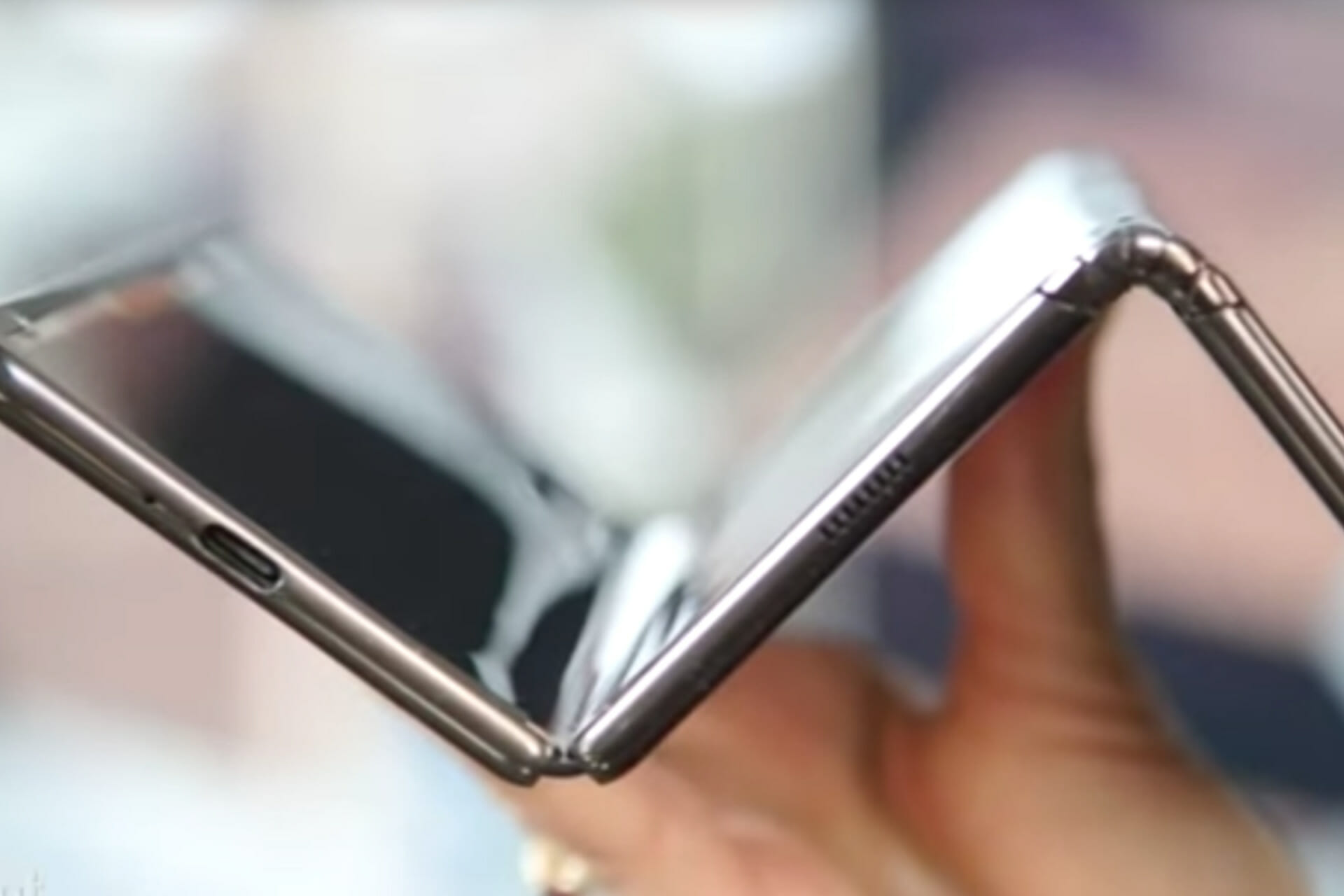
Xbox Gold All-Star members get 5 months of Game Pass

Christmas is almost upon us and, this time of year, it’s all about being surrounded by loved ones, sharing laughter, joy, and gifts meant to rejuvenate the soul.

And since we were talking about gifts, wait until you find out what Microsoft is surprising its most loyal customers with.

Xbox owners that have a long history with the company, more exactly, long-time subscribers to the premium services, are about to a pretty nice present.

Some Xbox Gold members are being rewarded by Microsoft

It appears that the Redmond-based tech giant is already in holiday mood and has entered the holiday gift-giving vibes.

A select group of Xbox Live Gold members is reporting that they have received messages from Xbox congratulating them on being All-Star Gold members.

But that’s not all, because paired with this message is a code to redeem 5 free months of Xbox Game Pass. This is quite a substantial gift, considering we’re talking about almost half of year of subscription.

Those that do receive the message from Microsoft will be notified that their remaining Gold time will carry over on a 1:1 basis.

To clarify, if you have 12 months left on their Gold subscription, they will have a total of 17 months of Game Pass Ultimate after redeeming the code.

Everyone was shocked by the message and really cautious at first, as there has been speculation that this message could be an ingenious scam.

Some of the users that received this present and claimed it say that everything seems to be working just fine, so there’s no need to actually worry.

However, it seems that this is a legit message, sent directly from Microsoft, so anyone can calm down and enjoy their presents.

Have you also been chosen by Xbox for this Christmas present? Let us know in the comments section below.
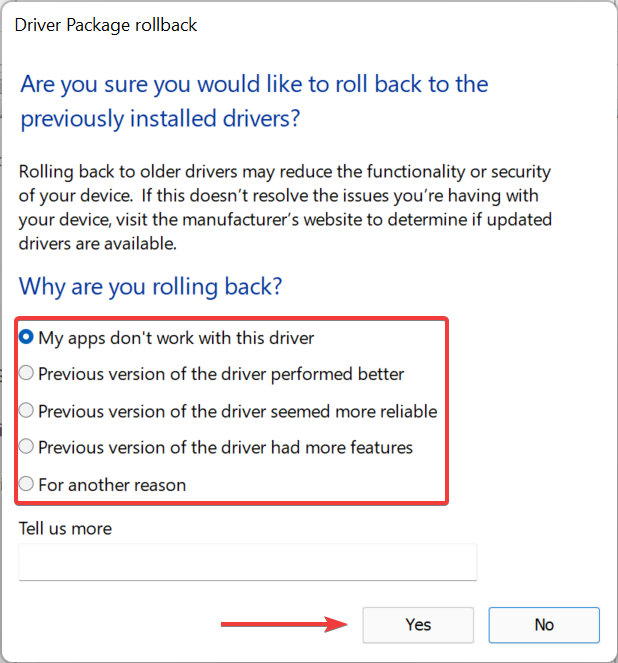
The new Dell BIOS update causes BSOD and other boot errors

You might want to know that some Dell desktops and notebooks recently received a firmware update that, according to user reports, is breaking the firmware causing black and blue screens of death.

Along with these critical errors come major booting failures, and boot loops, and we could maybe looking at other symptoms that haven’t been reported yet.

From what we understand, so far, some of the affected models include the Latitude 5320 business laptop, Alienware Aurora R8 gaming PC, and the Inspiron 5680 desktop.

Dell faces major backlash after latest firmware update

The internet has been literally buzzing these last few days following this dreaded Dell firmware update, and people aren’t shying away from expressing their concern or frustration with the company.

Affected users stated that the BIOS version 1.14.3 was causing blue screen and booting issues on their system.

Dell has since pulled this software from their website and is probably working on a new, improved version, that won’t fry our PCs when we download and install it.

As workarounds, you can use the support articles that you find on the Dell official site, which includes downgrading the BIOS version, and a BIOS recovery guide.

Even though the affected systems will still power up, users say peripheral lights and displays will not turn on, and that they will go straight to a blue screen and shut down again.

Keep in mind that some laptops impacted by this issue might still have boot problems until you disconnect the battery, push the power button for 15 seconds, and plug back in the battery and charger before powering up again.

So, it’s better to steer clear of Dell firmware updates for a while, at least until the company announces that they’ve put all these ugly issues behind them and we can move on.

Have you also encountered such issues after your last firmware patch? Let us know in the comments section below.

Grand Theft Auto Trilogy physical edition only allows upgrades on Xbox

Were you excited to take out the vintage GTA games and take them for a spin, just to get a taste of the old days?

Well, if that’s so, then you might want to hear this, especially if you are a PlayStation player. Grand Theft Auto: The Trilogy is mostly available as a physical edition, but PS5 gamers won’t be happy with this.

If you too were hoping to experience these remasters on your brand new PS5, upgrading the PS4 will prove to be impossible, as there is currently no upgrade.

https://twitter.com/videotech_/status/1471813921334083584?ref_src=twsrc%5Etfw%7Ctwcamp%5Etweetembed%7Ctwterm%5E1471813921334083584%7Ctwgr%5E%7Ctwcon%5Es1_&ref_url=https%3A%2F%2Fscreenrant.com%2Fgta-trilogy-physical-upgrade-xbox-playstation-rockstar%2F

No GTA Trilogy free upgrade for PlayStation 5 gamers

The long-anticipated GTA Trilogy remaster was released last month for consoles and PC, allowing us to relieve some of the classics that we’ve played years ago.

All of the three games have been revamped with visual enhancements and gameplay improvements for current-generation platforms. 

Each of these popular titles actually features higher-resolution textures, greater draw distances, revamped lighting, weather effects, and modernized controls.

However now, disappointed fans took to social media to express their thoughts about all the bugs, glitches, and the fact that PlayStation players were left behind.

This controversial Definitive Edition is mainly considered a new low for Rockstar Games, as recent decisions made players believe that developers don’t really care that much about these games.

When this project got announced some time back, everyone was actually really excited at the chance to cruise through Vice City, or Liberty city, in a modern, high-definition environment.

All that turned into a nightmare for many, after discovering that these remasters are sometimes even worse than the original games from back in the day.

It remains to be seen how Rockstar is planning to sweeten the pot because as of right now, fans are enraged and many are demanding their money back.

Have you also purchased the Grand Theft Auto: Trilogy? Share your experience with us in the comments section below.

Fix: Avast Behavior Shield Causing High CPU usage

Avast Behavior Shield is one of the built-in protection features on your computer that monitors real-time processes on your PC and notifies you when you download a potentially harmful file.

Every time an infected or malicious file is downloaded to your computer, Behavior Shield analyzes it against the Avast database, and if the file is found to be similar to previously known threats, it blocks or deletes it from your computer.

Since the procedures require computer resources, they can quickly use up a big chunk of your CPU power, thus slowing down your computer.

In Task Manager, you can see the Behavior Shield running as aswidsagenta.exe. Even if this does not necessarily have an influence on the performance of your computer, you may still turn it off by following the procedures outlined below.

For the time being, let us try to understand why this functionality is causing such high CPU usage. Follow along!

Why does Avast Behavior Shield cause high CPU usage?

It takes the majority of your CPU resources because Avast is always performing operations such as background scanning for viruses and malware, virus eradication, real-time scanning, and cleaning.avast-task-manager avast behavior shield high cpu

This activity is unquestionably necessary to keep your system safe from threats, but when these activities consume 100 percent of the CPU, the situation becomes annoyance-producing.

Both manually and automatically, it is possible to resolve the problem of excessive CPU utilization. If, on the other hand, you are seeking for a solution to save time, we recommend that you utilize the Advanced System Optimizer instead.

It is possible to cure the most frequent Windows problem with this one-click PC cleaning and optimization solution. Additionally, it repairs a faulty Windows registry, which is the most typical cause of 100 percent CPU consumption.

Apart from that, you may recover storage space, optimize disk space, manage system resources, improve game performance, and do a variety of other tasks.

Because Avast’s Behavior Shield is a useful tool, especially after the release of its 2017 version, it is suggested that it should be left turned on.

However, because of the bugs and flaws that generate faults in the antivirus, customers can easily switch it off without any difficulty.

How can I fix Avast’s Behavior Shield high CPU usage in Windows 11?

1. Update the antivirus

  1. Go to the Avast. If it is already launched, it should be in the taskbar. Double click and go to the Avast Menu button.avast-menu avast behavior shield high cpu
  2. From the drop-down menu, simply choose the Settings option.settings-avast avast behavior shield high cpu
  3. Then, go to the General tab and find the Update button. The latest version comes with two buttons to update. One of these buttons is to help you update the virus database. Another is to update the program.general-update-avast avast behavior shield high cpu
  4. First, update the program and then go back to the options and update the database.update-avast avast behavior shield high cpu

2. Use the built-in troubleshooter

  1. Go to the Avast. If it is launched, you can find it in the taskbar. Double click and go to the Avast Menu button.avast-menu avast behavior shield high cpu
  2. From the drop-down menu, choose the Settings option.settings-avast avast behavior shield high cpu
  3. Then, go to the General tab and find the Troubleshooting button. general-troubleshooting-avast avast behavior shield high cpu
  4. Scroll down until you meet the green Repair app button and click on it.repair-app-avast avast behavior shield high cpu

3. Use Command Prompt

  1. Press the Windows + S key to open the Search bar, then type cmd, and right-click on the most relevant result to run it as an administrator.cmd-run-as-admin avast high cpu windows 11
  2. Now type or paste in the following command and press Enter:C:/ProgramData/AvastSoftware/Avastavast-cmd avast behavior shield high cpu
  3. Now, you will have to open the avast5.ini file. Once you open it, you will have to click on Insert or type the following command in the line: [GrimeFighter]: ScanFrequency=999

4. Disable Mail Shield

  1. Go to the Avast. If it is already launched, it should be in the taskbar. Double click and go to the Avast Menu button.avast-menu avast behavior shield high cpu
  2. Choose the Settings option from the drop-down menu.settings-avast avast behavior shield high cpu
  3. Now go to the Protection tab, then choose Core Shields and scroll down until you meet the Mail Shield option.mail-shielding avast behavior shield high cpu
  4. Once you do so, uncheck on every option. While disabling, it might ask for the time you wish to deactivate it. Click on Indefinitely. This will permanently disable the mail shield.disable-mail-shield avast behavior shield high cpu

Now restart your computer to ensure that the modifications have taken effect, and then check the Avast app to see if the CPU is still being overloaded.

What are the pros and cons of Avast?

Avast is one of the most widely used free antivirus products available today, as proven by its millions of users and widespread presence throughout the world. Windows, Windows Server, Mac OS X, and Android devices are all supported by the application.avast-upgrade avast behavior shield high cpu

AV-Test trials conducted recently found that Avast Antivirus scored 5.5 points in the Performance section four times out of five. With a single perfect 6.0 score, it is one of the lightest antivirus programs for the PC.

In 2020, however, Avast was embroiled in a scandal after it was discovered that the business had sold personally identifiable information about millions of its users to tech and advertising companies such as Google.

For more information and other antivirus recommendations, we suggest you take a look at our post on five of the best antiviruses compatible with Windows 11.

Alternatively, you can take a look at our article on ten of the best antivirus software with low CPU usage to avoid future computer lagging.

And lastly, users benefitted from reading our guide on how to fix high CPU usage in Windows 11. Make sure to take a peek at it as well!

Let us know in the comments section below which solution worked best for you as well as what antivirus you will continue on using.

Skype improves screen sharing with new Zoom-In feature

Skype screen sharing is getting better with a new Zoom-In feature, which now makes it easier for all participants in a video call to read tiny text on the shared screen. The Skype team implemented different ways to zoom in at any time during meetings, and using Zoom-in won’t interrupt the call or notify other participants that the feature is being used.

To use the new Zoom-in feature when someone in a meeting shares his screen, Skype users on the desktop have the following options:

  • Pressing CTRL (on Windows) or Command (on Mac) and scrolling with their mouse
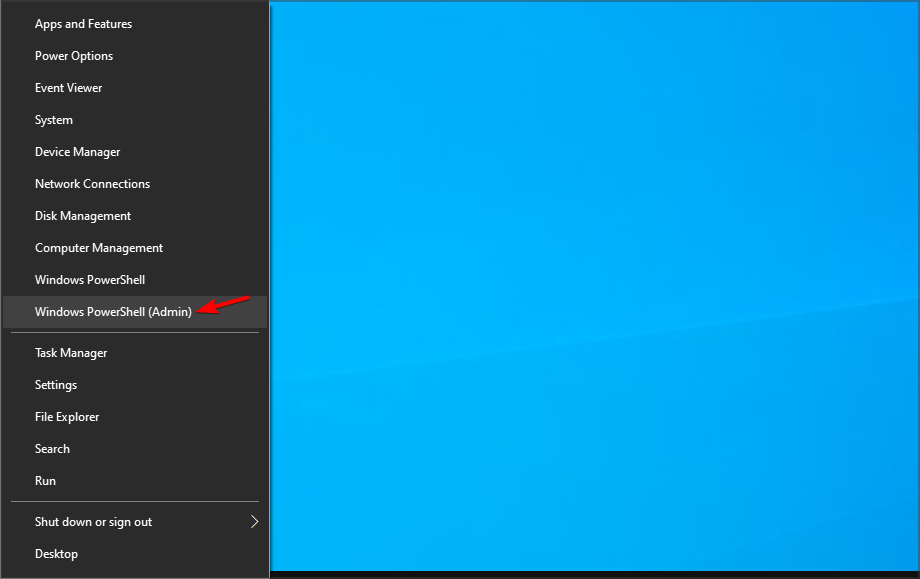
  • Using the touchpad to zoom in, no keyboard needed
  • Using the on-screen controls at the bottom right corner of the screen

Zooming in on shared screen with Keyboard and mouse scroll

Skype has slowly but surely taken the back seat as Microsoft has been focusing on improving Microsoft Teams for enterprise users and consumers. Even though there’s a lot of overlap between Teams and Skype with features like custom backgrounds and Together Mode being available on both platforms, the latter isn’t going away and recently received a small design update on all platforms.

If you have a Windows 11 PC, be aware that Skype is no longer pre-installed and needs to be downloaded manually from the Microsoft Store or skype.com. Do you still use Skype to share your screen with others, or do you use other apps like Zoom or Google Meet for that? Let us know in the comments below.

Desklab Ultimate Monitor: Ultralight portable 4K touchscreen monitor

Ready to double your productivity by turning your laptop or smartphone with a touchscreen 4K monitor? Meet the Desklab monitor, an ultralight portable 15.6 inch 4K touchscreen monitor that will blow your mind.

Desklab connects with all your devices, letting you not only maximize your productivity but also letting you upgrade your entertainment and gaming setup to the next level.

How can the Desklab Ultimate Monitor help you?

Desklab is a huge upgrade for anybody – whether you’re a designer, business traveler, developer, student, or photographer.

Here are the qualities that provide improvements to all the usage categories:

➡ Designers – Precise color accuracy and ultra-vivid picture quality for pinpoint precise editing.

➡ Business travelers – Desklab lets you double your screen size without having access to a wall plug. At only 1 lb and 1/4 inch thickness, you can bring it around in your backpack or briefcase and set it up in seconds.

➡ Developers – No more cramped coding limited to just your laptop screen! Desklab lets you expand your digital workspace to keep you productive – no more alt-tabbing every 30 seconds.

➡ Gamers – Imagine a bright, 4K, lag-free monitor that you can take with you anywhere and use with your console or smartphone – Desklab is your answer.

➡ Students – Don’t be trapped by your small laptop screen when studying in the library or in lecture halls! Desklab fits into your bag and doesn’t need to be plugged in to run, and all it needs is a USB C port.

➡ Photographers – You can finally view all your photos in their full glory at 4K resolution in any lighting conditions.

What are Desklab’s Ultimate Monitor’s best features?

1. 4K resolution

Not only is Desklab a handy extra monitor that’ll fit right into your backpack, but it’s also 4K UHD with LED backlighting.

With this kind of resolution on a 15.6 diagonal and a 1200:1 contrast, all your photos, videos, and games will look awesome whether they come from your laptop, smartphone, camera, or any other source.

Moreover, Ultimate Monitor features a True LED backlight that offers deep blacks and colors you’ve never seen on a portable monitor.

2. Touchscreen

Desklab’s display is actually an ultra-responsive touchscreen that can transform your smartphone and even non-touch compatible computers into a real powerhouse.

Desklab is compatible with built-in smartphone external monitor display tools like Samsung DeX to transform your smartphone (or even tablet) into a 15.6″ 4K tablet.

Connect a keyboard and mouse and you can ditch the laptop!

3. Universal compatibility and connectivity

One of the most important features of a portable monitor is connectivity because you don’t need to carry additional adapters or convertors that are also costly.

This monitor is universally compatible with all devices and its seamless plug-and-play connectivity makes it even more accessible to everyone anywhere.

You don’t have to worry about operating systems because Ultimate Monitor will connect to any device whether it has a Windows, iOS, Android, or Google OS.

4. Portability

Desklab is the most portable external monitor ever! It’s a 15.6″ 4K monitor that’s less than 1/4 inches in width and only 1 lb in weight, which is less than an iPad!

Thanks to the many connectivity options and ports available you also don’t need to worry about carrying around hubs, adapters, or converters all the time either.

Other great features of Desklab’s Ultimate Monitor

For gaming, Desklab is also on par with top-of-the-line monitors with a 20 ms response time. Since it can pair with Xbox, Playstation, and Switch systems and can output in full 4K resolution, it’s an absolute MUST for any gamer.

It’s also important to mention that Desklab can come with a versatile attached folding stand that doubles as a durable screen protector.

The stand also has multiple screen angle adjustments so whether you’re sitting, standing, or lying in bed, you can see the screen comfortably.

Although it comes with a jack for your headphones, you won’t necessarily need it because the built-in dual Hi-Fi speakers will bask you in immersive stereo sound.

Desklab also comes with a suite of controls for adjusting the volume, brightness, and other settings to calibrate it to your exact needs.

And we have also good news for those of you who need it for work: it comes with low flicker, low blue light, and anti-glare technologies that will protect your eyes and prevent screen fatigue.

Tech Specs

Screen Type:IPS
Weight:725 grams
Width:3.5 mm (0.14 inch)
Resolution:1080p (FHD) / 4K (UHD)
Panel Size:15.6”
Response Time:20 ms
Luminance:400 cd/m2
Ports:Type-C / mini HDMI / Micro-USB
Color Range:16.7 M
Viewing Angle:178°
Contrast Ratio:1200:1

Now that we’ve cleared out what it is and what it does best, let’s get over to the budget. We’re clearly talking about a $1,000 product, right?

Wrong! Although its regular price is $700, you can now buy it for only $399 by using the code GIFTME2021 during their holiday sale on their website.

It’s an amazing offer, but act quick, as supplies are very limited and they keep running out of stock!

Matrix’s bullet time comes to Fortnite video game on Xbox and PC

To coincide with the release of The Matrix Resurrections in cinemas and on HBO Max, three special Matrix items have been added to the Fortnite video game on Xbox consoles, Windows PC, and all other supported platform.

The first item is an emote based on Neo’s famous bullet time manoeuvre in the first Matrix movie (see top image). It actually looks pretty cool and also offers a sneak peek at the upcoming winter Midas skin.

The second Matrix item added to Fortnite is an emote inspired by Trinity’s kick, also from the first movie.

The third and final Matrix item, for now, is a wrap for the various weapons and vehicles in Fortnite that will cover them in the green computer code seen in the Matrix films.

Matrix code wrap in Fortnite

Surprisingly, no Matrix character outfits or skins were added or have been announced which is odd given the popularity of Neo, Trinity, and all of the other characters from the Matrix film series and their suitability for a video game like Fortnite which involves guns. Lots of guns.

It’s possible that characters inspired by The Matrix Resurrections and the other films will be added after Resurrections has opened in all major markets around the world. If this is the case, fans should expect some more Matrix content around Boxing Day or December 26th. Nothing has been announced though.

It’s also worth mentioning that a glider based on the Sentinel robots from The Matrix is available for free for all players right now within the special Christmas/Winterfest tab in the game’s menu. To claim the glider, all you need to do is open the present with the Matrix code wrapping.

In other Fortnite news, some Boba Fett content will be added on Christmas Eve, some Cobra Kai content is coming to Fortnite sometime soon, a variety of Spider-Man No Way Home items are now live in the game, additional Spider-Man skins have been unlocked, items inspired by the Gears of War video game series were added earlier this month and will be leaving soon, and Fortnite development has now switched over to the latest version of Unreal Engine.

Want more video game news? Follow us on Pinterest, Twitter, and Facebook.

FIX: Lightroom file appears to be unsupported or damaged

Adobe Lightroom is part of the Adobe Creative Cloud and it comes with some pretty amazing features, such as creating, editing, and sharing photos from anywhere.

Unfortunately, users report that when trying to import different files format (.CR2 – Canon RAW, TIF, .JPG or .PSD files) in Adobe Lightroom, or when synchronizing LR files with the Hard Drive files they are getting an error message:

The file appears to be unsupported or damaged

Previously, this kind of operation was performed successfully and the issue occurred without warning on their device, leaving hundreds of photos that cannot be read.

Moreover, the files can be successfully read and seen in Windows 10, or other apps, which seems to indicate that the problem is not related to the file being damaged.

We will explore in this article how you can easily fix the error message stating that the Lightroom file appears to be unsupported or damaged, so make sure to keep on reading.

What to do if the Lightroom file is unsupported?

1. Make sure you have the latest version installed

If you’re getting File appears to be unsupported or damaged error in Lightroom, the issue may be caused due to an outdated version of the software.

The new version of Lightroom brings support for Apple ProRaw images as well as new cameras and lenses. You can also see which images are edited thanks to the Edited filter.

Even more, it brings various bug fixes, so if you want to make sure that Lightroom is working without issues on your PC, download the latest version from below.

⇒ Get Adobe Lightroom

2. Move the file to a different location

  1. Locate the file that is giving you this error message.
  2. Try to move it to a different directory.
  3. Optional: Move the file to the root directory such as C: or D: and try to open it from there.

Many users reported that moving the file fixed the File appears to be unsupported or damaged error in Lightroom, so be sure to try that as well.

3. Check the file name

  1. Check the name of the file that is giving you this error.
  2. If the name contains any special characters, right-click the file and choose Rename.
  3. Remove the special characters from the name and check if that helps.

Users reported that special characters such as forward slashes and other symbols can cause File appears to be unsupported or damaged error in Lightroom, but after renaming the file, the issue should be resolved.

4. Open the file in a different application and save it

  1. Open the file in any other photo editor. Users suggested using Photoshop Elements, but any other editor should work.
  2. If the file is opened successfully, save it under a different name.
  3. Now try to open it with Lightroom.

This is a quick and simple workaround. Several users reported that this method worked for them and helped with unsupported and damaged files in Lightroom, so you might want to try it.

5. Reinstall Adobe Lightroom

  1. Press Windows Key + I shortcut to open the Settings app.
  2. Go to the Apps section.
  3. Select Lightroom and click on Uninstall.
  4. Once the application is removed, download and install the latest version of Lightroom.

For this solution to be successful, it’s advised that you remove all files associated with Lightroom, and the best way to do that is by using reliable uninstaller software.

These useful tools are created for one important purpose, and namely to entirely delete problematic or unused files from the PC. It uses smart technology and an intuitive interface for making it accessible for every user.

This being said, you should proceed to remove any program using a trusted uninstaller and fix your Lightroom issue efficiently.

If reinstalling does not fix the issue, you can follow this Lightroom not working guide for more troubleshooting solutions.

6. Scan your hard drive

  1. Go to this PC and locate the drive where you saved your images.
  2. Right-click on it and tap on Properties.
  3. Next, go to the Tools tab, and in the Error-checking section click on Check.
  4. Wait for the process to finish and restart your device.

With this last recommendation, we will conclude on how you can solve the Adobe Lightroom file that appears to be unsupported or damaged.

If you want to stay away from such issues and find more options to pick from when it comes to organizing your camera photos on PC, check out the best photo tethering software right away.

If these fixes don’t resolve the issue, you might consider trying a different editor. See our full Lightroom alternatives guide for reliable options that can replace Lightroom on your PC.

Which one of the presented solutions worked best for you? Please share with us in the comments section below if you have additional recommendations or suggestions.

Kyocera Printer Not Recognized [Easy Fix]

Nowadays printers are essential not only for business purposes but for other occasions as well and ensuring that the printer is working as it should is essential.

Unfortunately, many users report that when trying to use the printer, is not recognized or is not showing on the network as available or connected, which is of course creating a lot of frustrations.

The reason why this is happening can be related to drivers, and to fix this problem, you need to download the Kyocera printer drivers.

In this article, we will show you the steps that should be able to help you if the Kyocera printer is not recognized on your PC.

What do I do if my Kyocera printer is not recognized?

1. Check USB cable

It is not uncommon that the Kyocera printer is not being recognized due to a low-speed USB cable.

In order to solve this, we would recommend that you use another cable that is USB High-speed. Once you have made the change, make sure to try again and see if now the Kyocera printer is recognized.

If your printer isn’t recognized after replacing the USB cable, be sure to check our dedicated guide on what to do if your USB device is not recognized in Windows 10.

2. Use the Troubleshoot option

  1. Open the Settings app. You can do that with Windows Key + I shortcut.
  2. Next, write Printer in the search box and click on Printers & scanners.
  3. In Related settings field select Run the troubleshooter.
  4. Wait for the scanning to finish and follow the steps suggested in the result.

After the process is finished, check if your Kyocera printer is still not showing on network.

3. Update the printer driver

The safest and most reliable way of ensuring that your device’s drivers are updated at all times, and in the correct way, is by using specialized software.

Since Kyocera printer not being recognized can be related to faulty or outdated drivers, we recommend, first of all, using such a tool that will update all drivers in minutes.

4. Suspend Windows Updates

  1. Go to Start and click on Settings. 
  2. Next click on Update & Security and go to Windows Update.
  3. In the Pause updates, you can select the 7 days period.
  4. Or, go to Advanced options and in the Pause updates section, select the drop-down menu and specify a date for updates to resume.

After pausing the updates, you might have to remove certain updates to fix the Kyocera printer not recognized error.

5. Remove the update KB5000802 from Windows 10

  1. Open Settings and click on Update & Security.
  2. Go to Windows Update and click the View update history button and click the Uninstall updates option.
  3. Next, select the Security Update for Microsoft Windows (KB5000802) update. Next, click the Uninstall button.
  4. Click the Yes button and Restart afterward.

This is all. We definitely hope that one of the solutions presented in this article has helped you to successfully solve the Kyocera printer not being recognized.

We would love to know which one of the above presented solutions helped you solve the issue, so please leave us a comment in the section below.

FIX: Automatic Maintenance is unavailable

Automatic Maintenance is a series of system maintenance tasks that Windows schedules for 2 A.M. by default. You can also select to manually run Automatic Maintenance any time by clicking a Run maintenance option within the Control Panel.

However, some users have stated that an error message pops up when they select the Run maintenance option. That error message states: “Windows is unable to run automatic maintenance. The maintenance scheduler is unavailable.”

The above error message is usually due to a corrupted Task Scheduler. When users check if Automatic Maintenance is enabled in the Task Scheduler, they discover that their TS folders are empty.

Thus, users usually need to repair the Task Scheduler to fix Automatic Maintenance. These are a few resolutions that might fix the Automatic Maintenance error.

SOLVED: Windows is unable to run automatic maintenance

  1. Open the System Maintenance Troubleshooter
  2. Use a third-party tool
  3. Roll Windows Back to a Restore Point
  4. Fix Task Scheduler with Repair Tasks
  5. Check for Windows Updates
  6. [Video Tutorial] Fix: Automatic Maintenance is unavailable

1. Open the System Maintenance Troubleshooter

Automatic Maintenance error messages can be due to system time zone settings that aren’t correctly configured. As the System Maintenance troubleshooter fixes system time settings, it might also come in handy for fixing Automatic Maintenance. At any rate, the troubleshooter is also a notable alternative for Automatic Maintenance as it frees up disk space and erases invalid shortcuts. You can open the System Maintenance troubleshooter via the Control Panel as follows.

  • Open Run with its Windows key + R hotkey.
  • Enter ‘Control Panel’ in Run, and click the OK button.
  • Select Troubleshooting to open the Control Panel applet shown directly below.
  • Click View All on the left of the Control Panel window.
  • Right-click System Maintenance and select Run as administrator.
  • Then click the Next button to initiate the troubleshooter.

2. Use a third-party tool

There are dedicated repair tools that can help you fix Automatic Maintenance errors with the powerful technology of detecting injured operations from your PC.

With this automated repair software, you can repair multiple Windows issues discovered with a deep scan, and therefore fix the corrupted software files.

Hence, this method is highly reliable and will provide useful repairing features capable of restoring your Windows services.

3. Roll Windows Back to a Restore Point

System Restore captures snapshots of your system that users can roll Windows back to if required. So System Restore could provide a resolution for the Automatic Maintenance error if you can select a restore point that will restore Windows to a time when Task Scheduler worked fine. You can restore Windows to a previous date as follows.

  • Enter ‘rstrui’ in Run and click OK to open the window in the image directly below.
  • Select the Choose a different restore point option, and press the Next button.
  • Click the Show more restore points option to fully expand the list of restore points.
  • If you’re not sure what restore point to select, your best bet is to choose the one that goes furthest back.
  • You will lose programs installed after a selected restore point. Click the Scan for affected programs button to see what software gets removed for a restore point.
  • Press the Next and Finish buttons to restore the platform to the selected date.

4. Fix Task Scheduler with Repair Tasks

Repair Tasks is a freeware utility specifically designed to fix corrupted Task Scheduler. Some users have confirmed that they’ve fixed Task Scheduler with that software. So it might fix the Automatic Maintenance error.

You can add Repair Tasks to Windows 10, 8, or 7 by clicking Download on this webpage. When you’ve got the program up and running, press the Scan button. Thereafter, the software might find and repair corrupted tasks.

5. Check for Windows Updates

Microsoft usually releases updates on Patch Tuesdays that fix numerous things in Windows. You’ll usually get updated automatically so long as you haven’t adjusted Windows Update settings. However, there’s a small chance your laptop or desktop might have missed some updates that could provide fixes for the Automatic Maintenance error.

  • To check for updates, open the Cortana app.
  • Enter the keyword ‘update’ in the search box.
  • Then select to open Check for updates to open the window shown below.
  • Press the Check for updates button.
  • Windows will list any detected updates, which you can then select to download.

The above resolutions might fix the Run maintenance option and Task Scheduler. In addition, resetting Windows 10, 8.1, or 8 could also fix the Automatic Maintenance error. You can reset Windows as covered in this article.

[Video Tutorial] FIX: Automatic Maintenance is unavailable

This video will guide you through the solutions described above.

Fix common issues In Mordhau [High Ping, Texture Bug, Lag]

The hack and slash genre gets a new facelift with Mordhau, brought to us by Triternion. The game is a medieval-styled multiplayer based on hand-to-hand combat, mounted warfare, and siegecraft.

Problems with the game have been reported on various Steam threads, and in today’s article, we’re going to tackle some of the most common Mordhau issues.

Also, we’ll keep the article updated with the latest bugs as soon as they appear.

What are some of the most common Mordhau bugs?

1. Connection problems

Some users have reported connection problems, in spite of having a good Internet connection.

2. Experience and gold not being added

Rewards are what drive a multiplayer game, but when those things fail to happen, it’s not the best of the situation.

3. Graphics issues

There are instances when the user’s machine is meeting minimum requirements, but the game’s textures downgrade randomly.

How do I fix Mordhau bugs on my PC?

1. Connection fix

  1. Right-click your Start menu and select Device Manager.
  2. Select a category to see the names of devices, then right-click on the one you’d like to update.
    update driver device manager Mordhau bug fixes
  3. Select Update Driver, and click on Search automatically for updated driver software.

Few people know that you can update all your outdated drivers with just a few clicks using Outbyte Driver Updater.

You can’t imagine how simple it is because this awesome solution is fully automatic. You don’t have to do any complicated procedures and you don’t risk installing the wrong driver.

Commence by downloading and installing Outbyte Driver Updater. That’s the only hard part because once you start the app, it will begin scanning your PC for problematic drivers.

It’s compatible with all versions of Windows and makes updating and installing drivers really easy. Outbyte Driver Updater can be scheduled to automatically find outdated drivers.

You only need to wait for a few minutes for the complete report of drivers to install.

Look at the list and if you want to install all the drivers displayed, just click on the Select All box from the top. If you want to update them individually, you have to check their corresponding boxes.

To install them, you have a special button for each of them at their right, after the Info column.

⇒ Get Outbyte Driver Updater

2. Experience and gold fix

  1. Go to your Steam client.
  2. In the Library section, right-click on Mordhau and click on Properties from the menu.
  3. Select the Local Files tab and click on the Verify integrity of game files.
    verify integrity of game files steam Mordhau bug fixes
  4. Try running the game again.

3. Graphics fix

  1. Open your Nvidia Control Panel.
  2. Select Manage 3D Settings and select Mordhau from the Program Settings and set the Power Management to Prefer Maximum Power.
    power management mode nvidia control panel Mordhau bug fixes
  3. Save your changes and exit.

These are several quick fixes for the most common Mordhau bugs. Feel free to try them all, and let us know in the Comments section which solution worked for you.

If you are up for more, go ahead and explore our Gaming Hub and find the latest news, tips, and guides from this digital world.

FIX: Can’t Take Photos With Camera App in Windows 10/11

A couple of our readers have sent in lots of emails complaining about the fact that their built-in camera app doesn’t allow them to take photos on Windows 10, Windows 8 and Windows 8.1.

A good number of Windows 8 and Windows 8.1, as well as Windows RT users, seem to be affected by the fact that their built-in camera app is not working. The issues reported by affected users range from crashes and hanging reports to the simple occurrence that the app simply doesn’t open or they can’t take photos, which is the most annoying aspect. Below we will include what somebody has been saying about this problem and some potential fixes to solve this problem.

Here’s how one of the most recent complaints with regards to the Camera app functionality in Windows 8 sounds like:

The camera app on Windows 8 is not allowing me to take photos. It will let me get onto the app and try to take a photo, but once I have click my screen to let me take the picture it says “Something went wrong while taking this photo.” This has been going on for about 2 months or so. If someone could help me with my camera problems that would be great!

What to do if Windows 10 camera app won’t take photos

  1. Update your drivers
  2. Update your computer
  3. Delete the Picture folder from Libraries
  4. Scan your system for malware
  5. Run the built-in troubleshooter
  6. Change camera privacy settings

1. Update your drivers

So, if you have been getting the “Something went wrong while taking this photo” issue, then this means that there might be an issue with your webcam, as well. Therefore, make sure that you have installed the latest drivers and that everything runs smoothly.

Go ahead and open ‘Device Manager’ and if need be, then uninstall and download fresh drivers from your brand maker. Outdated drivers are usually marked with a yellow exclamation mark. Here are the steps to follow to uninstall Windows 10 Camera app drivers:

  1. Go to Start > type ‘device manager’ > double-click on the first result to launch Device Manager
  2. Go to Imaging devices and expand the list
  3. Right-click on the camera drivers that appear and select Uninstall device.uninstall camera app drivers windows 10
  4. Now, go to the Action tab and select the option ‘Check for hardware changes’ to install the latest drivers.
device manager scan for hardware changes

Alternatively, if you are looking for an easier solution rather than updating your drivers manually, we recommend using reliable third-party software that downloads and installs Windows drivers automatically.

With dedicated tools, the process of updating camera drivers will go as easy as possible. The first step is to select the drivers that need to update, and the right drivers will be found in minutes.

Thus, it’s possible to optimize hardware components using reliable automated software that can install or update any drivers from your PC.

⇒ Get Outbyte Driver Updater

2. Update your computer

Also, make sure that you are running the latest updates, for that, access the ‘Windows Update’ option. Click on the ‘Check for updates’ button and install the available updates.

check for updates

3. Delete the Picture folder from Libraries

If you’re still having troubles, then try the following:

1. Go to Libraries in Windows Explorer. If it doesn’t appear, then you will find it in Favorites > Desktop > Libraries.

camera app not working windows 8

2. Open the Libraries location and the right-click on the Picture folder. Then delete the folder.

camera app not working windows 8.1

3. Go back and now right-click on the “Libraries” folder. From there, choose the “Restore Default Libraries” command.

camera app issues windows 8

4. Scan your system for malware

If you still can’t use your camera, run an in-depth antivirus scan. If a virus or a piece of malware got control over your camera, this may explain why you can’t take any photos. Use a reliable antivirus solution to scan your system. Also, download and install a dedicated anti-malware program to make sure that nothing could escape your scan.

After you’ve scanned your system, you can also turn off your antivirus. Sometimes, your security software may block your camera.

5. Run the built-in troubleshooter

There is one built-in troubleshooter that could help you to fix this issue: the Windows Store Apps troubleshooter. To launch it, go to Settings > Update & Security > Troubleshoot > select and run the troubleshooter as shown in the screenshot below.

windows store apps troubleshooter

6. Change camera privacy settings

Windows lets you control which apps and programs can access your camera. If you can’t use your Windows 10 camera app while using other apps and programs, make sure the respective apps have access to your camera.

  1. Go to  Settings > Privacy
  2. Go to Camera > enable Let apps use my camera and select which apps can access it.
Camera Being Used by Another App error fix

If you happen to know of any other fixes that you could think are useful to solving this problem, then do leave us a comment, informing the whole community.

FIX: The system cannot move the file to a different disk

If you’re getting the ERROR_NOT_SAME_DEVICE error code with The system cannot move the file to a different disk drive description, follow the troubleshooting steps listed in this article to fix it.

Bear in mind that the error is also known as ERROR_NOT_SAME_DEVICE 17 (0x11), so the next solutions and recommendations will apply to this as well.

The system cannot move the file: Error background

The system cannot move the file to a different disk drive error, also known as error 0x80070011 or 17 (0x11), occurs when users try to install updates on their computers. There are various elements triggering this issue:

  • Damaged or corrupted files and folders.
  • Missing EXE, DLL, or SYS files.
  • Deleted registry values.
  • Malware infection.
  • Outdated software versions, etc.

Before you proceed with the troubleshooting methods listed below, make sure that the updates are installing to the same drive where you installed your operating system.

How can I fix The system cannot move the file to a different disk drive error?

1. Run a full system scan

Malware may cause various issues on your computer, including errors. Perform a full system scan in order to detect any malware running on your computer.

You can use Windows’ built-in antivirus, Windows Defender, or third-party antivirus solutions.

In choosing from the above options, we would recommend that you try a dedicated too for this task.

Not only it will save you a lot of time, but you will avoid doing any mistakes whatsoever.

TotalAV is one of the best tools that will scan your system completely and detect potential issues that are responsible for this issue.

By choosing this reliable antivirus, you benefit from thorough security against different forms of malware, plus avoid ransomware attacks and other online threats.

Hence, you should get high detection services to entirely protect your PC and repair such issues within your system.

2. Repair your registry

The simplest way to repair your registry is to use a dedicated tool. Don’t forget to first backup your registry in case anything goes wrong. 

Plus, it’s more beneficial to repair your PC using registry cleaner tools that can also optimize the system and improve startup speeds.

You can also use Microsoft’s System File Checker to check for system file corruption. However, this utility is only available on Windows 10. Here’s how to run an SFC scan:

  1. Go to Start, type cmd and right-click Command Prompt.
  2. Next, select Run as Administrator.
  3. Now type the sfc /scannow command.
  4. Wait for the scanning process to complete and then restart your computer. All corrupted files will be replaced on reboot.

3. Update your OS

Make sure that you’re running the latest Windows OS updates on your machine. As a quick reminder, Microsoft constantly rolls out Windows updates in order to improve the system’s stability and fix various issues.

Go to Windows Update, check for updates and install the available updates. To access the Windows Update section, you can simply type “update” in the search box. This method works on all Windows versions.

If you’re looking for a particular update, go to Microsoft’s Update Catalog website. Simply type the KB number of the respective update, hit Enter, and then click on the download button.

4. Remove recently installed software

If you recently installed new software on your computer, try uninstalling it. Go to Start, type Control Panel and select the program(s) recently added. Then click Uninstall.

Then restart your computer, and try to install the updates again.

5. Check your disk for errors

On Windows 10, you can run a disk check using Command Prompt.

Start Command Prompt as administrator and type the chkdsk C: /f command followed by Enter. Replace C with the letter of your hard drive partition.

6. Format your drive

If none of the solutions listed above worked, try formatting the problematic drive. Formatting and restoring the default drive settings should fix this problem.

Keep in mind that formatting your drive means deleting all the files and folders stored on the respective drive.

Before exploring how you can do this manually, we would recommend that you use a dedicated tool that will safely format your drive without affecting other PC services.

Using these practical tools, you can format overused drives and wipe out unused software accumulated in your hard drive over time.

In this way, you can repair disk troubles like this with reliable drive formatting tools, and clear your storage without any difficulties.

Here are the steps you can do to manually format your drive

  1. Go to Start and type disk management.
  2. Next, select the Disk Management utility.
  3. Right-click the drive that you want to format and select the Format option.
  4. Follow the on-screen instructions to further customize the format process and click OK on the warning window.
  5. Once the format process finishes, you can use your drive.
  6. Try to install the updates again to see if this action fixed the problem.

7. Clean your temporary files and folders

The simplest and quickest manner to delete your temporary files and folders is to use Disk Cleanup. As you use your computer or browse the Internet, your PC accumulates various unnecessary files.

These so-called junk files may affect your computer’s processing speed, causing apps to respond slowly and may also trigger various error codes, including the ‘ERROR_NOT_SAME_DEVICE’ error code.

Here’s how to use Disk Cleanup on Windows 10:

  1. Go to Start and type Disk Cleanup.
  2. Select the disk that you want to clean, the tool will tell you how much space you can free up.
  3. Select Clean up system files.

8. Temporarily change registry keys

  1. Save your original registry key values. In case anything goes wrong, you will be able to restore your previous functional Windows version.
  2. Change the following registry key values from C: or %SystemDrive% to D (or another drive):
    • HKEY_LOCAL_MACHINESOFTWAREMicrosoftWindowsCurrentVersion
    • HKEY_LOCAL_MACHINESOFTWAREMicrosoftWindows NTCurrentVersionProfileList
  3. Install the updates
  4. Restore the registry key values to back to the original drive.

9. Use system recovery options

The System Restore option allows you to restore the previous well-performing system configuration without losing any files, except for a few customizable features and settings.

If System Restore is enabled, follow the instructions listed below:

  1. Go to Search, type system properties, and open System Properties.
  2. Go to System Protection and click on System Restore.
  3. Click Next and choose the preferred restore point in the new window.
  4. Once you’ve selected your preferred restore point, click Next and select Finish.
  5. Your PC will restart and the restoring process will start.

After the procedure has been completed, try to update your computer to see if the problem still persists.

Windows 10 offers a series of advanced recovery option that allows users to clean install the OS. If you’re a Windows 10 user, you can also use the Reset this P’ recovery option.

  1. Go to Settings and select Update & Security.
  2. Next, click on Recovery under the left pane.
  3. Click on Get Started under Reset this PC and choose the Keep your files option.
  4. Follow the on-screen instructions to complete the reset.

We hope that the solutions listed above helped you fix The system cannot move the file to a different disk drive error. 

If you’ve come across other workarounds to fix this problem, you can help the Windows community by listing the troubleshooting steps in the comments below.

FIX: The Windows Live ID or password you entered is not valid

Games for Windows Marketplace was a popular gaming service, and some older games still use this service. Windows 10 users reported Can’t sign in or The Windows Live ID or The Password you entered is not valid error while trying to use Games for Windows Marketplace.

These errors can be problematic and prevent you from playing certain games, so let’s see how you can fix them.

How to fix invalid Windows Live ID or password?

1. Create a new password

  1. Sign in to your Live account.
  2. Go to Security Info, then click App passwords.
  3. Click Create a new app password and add a new password for this account.
  4. Use the new password to login to Games for Windows Marketplace app.

Certain games use Games for Windows Marketplace app in order to run, however, many users reported Can’t sign in or The Windows Live ID or password you entered is not valid error messages so in order to fix this problem it’s advised that you create a new app password.

2. Turn off two-step verification

In order to achieve maximum protection, Games for Windows Marketplaceservice uses two-step verification. Unfortunately, some games don’t work well with two-step verification, so you’ll have to disable it.

To disable two-step verification, you need to log in to your Live account, go to the Security Info section and turn off two-step verification. After turning off two-step verification, everything should be working normally.

Users reported that enabling and disabling two-step verification, even if you don’t have it turned on, fixes the issue, so you might want to try that.

3. Make sure Games for Windows Marketplace isn’t blocked by your firewall

According to users, sometimes you can get Can’t sign in. The Windows Live ID or password you entered is not valid message because your antivirus or firewall are blocking Games for Windows Marketplace.

To fix this issue, it’s advised to check your antivirus and make sure that Games for Windows aren’t blocked by your antivirus. If the application isn’t blocked by your antivirus or firewall, the issue might be the firewall itself. If that’s the case, disable the antivirus completely and check if that solves your problem.

If the problem is still there, your last option would be to completely remove your antivirus. Once you remove the antivirus, you need to check if the issue is still there. If not, maybe it’s time to consider a different antivirus solution.

Many antivirus tools have Gaming Mode features that will prevent intrusive notifications from interrupting your game. On top of that, some antiviruses with game boosting features will temporarily pause unnecessary apps or processes to allocate more resources to your game.

4. Reinstall Games for Windows Marketplace software

There are several ways to reinstall an application, but the most effective method is to use uninstaller software. In case you don’t know, uninstaller software is a special application that can easily remove any application along with all files and registry entries associated with it.f

By using uninstaller software you’ll ensure that the selected application is completely removed, and prevent any leftover files from interfering with your system.

Leftover files can also trick an installer wizard into wrongfully detecting that you already have the app on your PC and fail to complete the installation.

After you remove Games for Windows Marketplace software, install it again and the problem should be completely resolved.

5. Reinstall Microsoft Silverlight and Games for Windows Live

  1. Uninstall these applications in the following order:
  2. Microsoft Games for Windows Live and Games for Windows Marketplace
    Bing Bar
    Windows Live Essentials
    Microsoft Silverlight
    Windows Live ID Sign-in Assistant
    Any installed .NET frameworks
  3. Restart your computer
  4. When the computer restarts, install these components in the following order:
  5. .NET framework
    Windows Live ID Sign-in Assistant
    Microsoft Silverlight
    Games for Windows Marketplace
    Microsoft Games for Windows Live
  6. Sign in and your issue should be resolved.

6. Install Games for Windows Live separately

Games that require Games for Windows Live usually install it by default, but in some rare cases files can get corrupt and you won’t be able to sign in to Games For Windows Live.

In order to fix this problem, it’s advised to install Games for Windows Live separately from the game you want to run.

7. Disable the proxy

  1. Open the Settings app. You can do that quickly by using Windows Key + I shortcut.
  2. Once the Settings app opens, go to the Network & Internet section.
    Cannot sign in to Games for Windows Live
  3. Select Proxy from the menu on the left. In the right pane, disable all options.
    Games for Windows Live connection error

After disabling your proxy, check if the problem is still there. If you still want to protect your privacy online, a better choice would be a VPN.

8. Rename the Content directory

  1. Press Windows Key + R and enter %localappdata%. Now press Enter or click OK.
    Games for Windows marketplace sign in error 80154002
  2. Now navigate to the MicrosoftXlive directory.
  3. Locate the Content directory and rename it to Content_bak.

After doing that, try to launch the game again. If everything is in order, you should be able to start your game without any issues.

9. Use System Restore

  1. Press Windows Key + S and enter system restore. Select Create a restore point from the list of results.
    Games for Windows marketplace sign in error 80154002
  2. Now click the System Restore button when System Properties window appears.
    Cannot sign in to Games for Windows Live
  3. System Restore window should now open. Click Next to proceed.
    Games for Windows marketplace sign in error 80154002
  4. Now check Show more restore points option, if it’s available. Choose the desired restore point and click Next.
    Cannot sign in to Games for Windows Live
  5. Follow the instructions on the screen to restore your PC.

Once the restoration process is finished, check if the problem is still there. Keep in mind that this isn’t the most reliable solution, but if you didn’t have any issues with Games for Windows Marketplace until recently, then this solution might be helpful.

10. Use Stellar Password Recovery

If you’re looking for advanced password reset software then Stellar Pass Recovery is the technology you need. With this amazing tool, you can reset Windows Admin and User account passwords.

You won’t be having any problem recovering Windows 10 username and passwords for web browsers, FTP client apps, or network applications.

Use the Admin/User Password feature that enables you to login without the Windows password and it can be used with the boot disc version of the software.

Another perk that you’ll most definitely find useful is that thanks to this smart tool you can recover lost license keys of Microsoft applications as well as WinZip and other programs on your PC.

⇒ Get Stellar Password Recovery

Can’t sign in. The Windows Live ID or password you entered is not valid error message that can create all sorts of problems with older games, but we hope that our solutions helped you fix this problem.

Get all the information you need about Windows 10 tips and tricks with our Windows 10 Section. 

Check the software you need for a great PC experience by visiting our Software Hub.

We’d like to hear your opinions on this matter so please leave us your comment in the section below.

FIX: 0x00000004 error code for good

If you have a clean installed Windows OS and are experiencing the IRQ_NOT_LESS_OR_EQUAL blue screen of death error with the stop code 0x00000004, a repair using a bootable drive can fix the issue.

However, several users have reported this error in different situations as well.

I just restored my entire system about 2 months ago and have been getting the BSOD for almost the entire time since. I have a lot of software on this system and have not been able to determine the culprit.

You should be aware that you can experience this kind of error for multiple reasons including hardware failure, outdated or incompatible drivers, and antivirus interferences.

Besides that, this BSOD error will be resolved with specialized tools that can assist you with hardware malfunctions or other system concerns.

If you are also troubled by this error, here are a couple of troubleshooting tips to help you resolve the 0x00000004 – IRQ_NOT_LESS_OR_EQUAL error in Windows.

How do I fix the 0x00000004 error code?

1. Use the Automatic Repair option

  1. Click on Start and select Settings.
  2. Go to Update & Security.
  3. Open the Recovery tab from the left pane.
  4. Scroll down to the Advanced Startup section and click the Restart now button.
  5. Choose an Option, click on Troubleshoot.
  6. Select Advanced Options under Troubleshoot.
  7. Click on Startup Repair.
  8. Windows will now scan your PC for any startup issues and fix the problem.
  9. If you get the Startup repair failed messages, click on Shut down and then restart your PC.

What if you are unable to boot into Windows?

  1. Shut down your computer.
  2. Press the power button and press F8 / F11 / F12 or Shift + F8 as soon as the black screen appears to access the Advanced Boot option.
  3. If that did not work, try accessing the Advanced Boot option using Windows media.

Access Advanced Boot Options using Windows media

0x00000004 - IRQ_NOT_LESS_OR_EQUAL
  1. First, you need to create a bootable Windows 10 installation media. If you don’t have one, follow these steps to create a bootable Windows 10 USB flash drive.
  2. Once the drive is ready, insert the flash drive to your computer.
  3. Restart your system and press any key to boot from the installation media.
  4. If the Press any key to boot now from CD or DVD message is not displayed, then you may have to change the boot priority in BIOS.
  5. Once you are in the Windows Setup screen, click Next.
  6. Click on the Repair your computer link.
  7. Under Choose an option, click on Troubleshoot.
  8. Click on Advanced options > Startup Repair.

Windows will now scan the system for any issues that are preventing the system from booting normally.

2. Run the System File Checker tool

  1. Click on Start and type cmd.
  2. Click on Run as Administrator for the Command Prompt option.
  3. In the Command Prompt, type the following command and hit Enter:
    sfc /scannow 0x00000004 - IRQ_NOT_LESS_OR_EQUAL
  4. The System File Checker tool will scan the system for missing or corrupted files and replace them with new files.
  5. Close the Command Prompt once the verification is 100% complete.

The System file checker is a command-line tool that will scan your system for potential issues and resolve them on the way, of course, if possible.

If you encounter errors while running SFC, it stops or does not work at all on Windows 10, you can use our dedicated guide in order to fix this problem.

3. Check for driver issues

The error can occur due to incompatible hardware drivers for recently installed devices. If you know which device is causing the issue, you can update it from Device Manager.

However, searching drivers yourself or updating manually from Device Manager can be time-consuming. Instead, you can use an automatic tool to keep your drivers up to date.

With this automated assistance, you can cover multiple drivers’ problems and fix the corrupted ones, plus replace them with the right versions.

In this way, you fix screen errors and avoid other system malfunctions that may occur from incompatible drivers. With this tool, the process goes smoothly due to the automatic detection and installation of up-to-date drivers.

⇒ Get Outbyte Driver Updater

4. Reset/Reinstall Windows

  1. Click Start and select Settings.
  2. Go to Update & Security.
  3. Click the Recovery tab.
  4. Click the Get started button under Reset this PC section.
  5. Windows offers two options to Reset your PC.
    Keep my files – Select this option first. It will remove apps and settings, but keep your files.
    Remove everything – Removes all of your personal files, apps, and settings.
  6. Once the PC is set to factory default, check if the error is resolved.

If the issue persists, you may try cleaning and installing Windows. Clean installing Windows will erase the installation drive. So, make sure to create a backup before performing a clean install.

Sometimes, you can see the message There was a problem resetting your PC. If this is the case, use our dedicated guide to solve the error.

You can fix the 0x00000004 error code in Windows 10 by repairing the corrupt installation files. However, if that does not work, try other steps listed in the article above.

If you have any other suggestions for us that we should include in our guide, please write us a comment below.