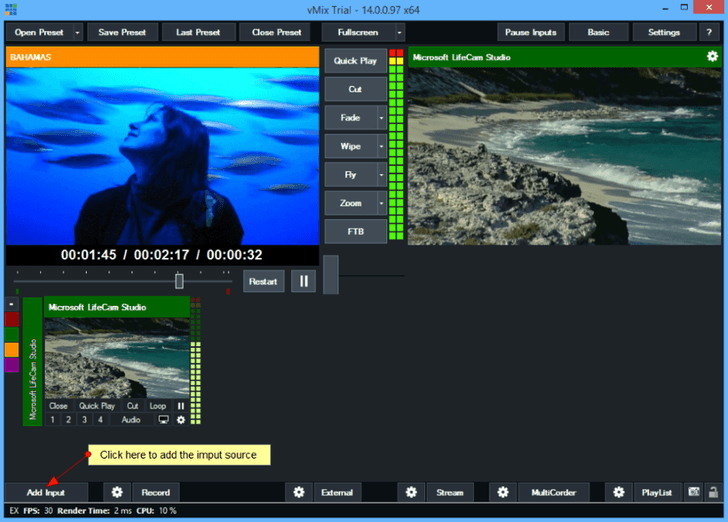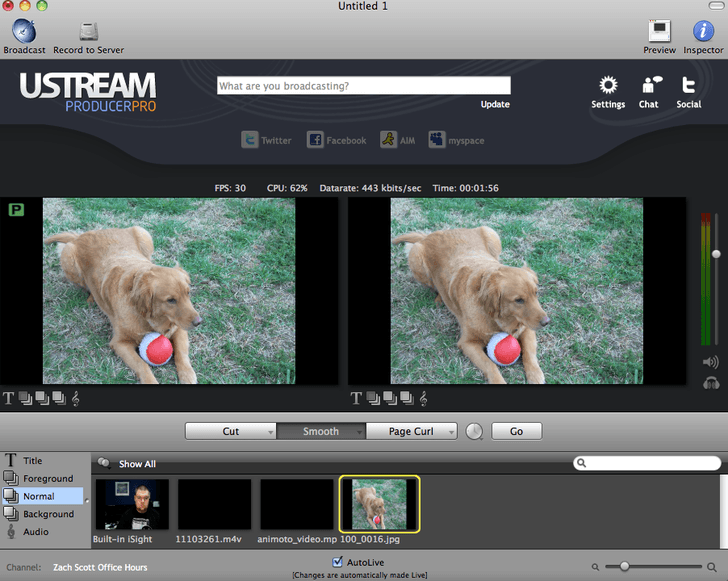
Download Manager for Windows 10: Best to use in 2026

Download managers are essential computer applications, which are specially designed for speeding up and making file download easier. In this article, we’ll be looking at some of the best download manager software solutions for Windows 10 computers.

Every browser comes with a built-in downloader. However, most times, these downloaders are not ideal for downloading huge files. To improve download speed and download huge files with ease, download managers are the ultimate solutions. Hence, today, download managers now serve as the perfect alternatives to conventional browser downloaders.

So, if you are the type who regularly download files (videos, music, apps, and the likes), a download manager is essential for you. And for your convenience, we’ll be outlining some of the best download managers for Windows 10 PC in this article.

There are quite a number of download manager Windows 10 programs in the market. However, many (if not majority) of these programs are no different from the conventional “browser downloaders”. In light of this, we have curated a list of the 5 best download managers for Windows 10. Read on!

5 best download managers for Windows 10/11

Internet Download Manager

download manager windows 10

Internet Download Manager is arguably the most popular download manager out there, and it has been heralded by its users as the most durable download manager of Windows 10 software. Aside from Windows 10, Internet Download Manager is also compatible with other notable Windows OS (Windows Vista and later).

Also, Internet Download Manager, conveniently tagged IDM, integrates conveniently with virtually all known internet browsers, including Google Chrome, Mozilla Firefox, Microsoft Edge, Internet Explorer, MSN, Opera, and more. It also supports proxy servers, FTP/HTTP protocols, and more.

Internet Download Manager is optimized to download at a 500% rate, compared to the normal browser downloaders. Also, it performs a set of unique functions like download resume and schedule, error recovery & resume, and others.

These functions are there to ensure your downloads are not terminated by unexpected interruptions like power outages, system shutdown, disrupted internet connection, and the likes.

Some of the key features of IDM include scheduler pro, download accelerator, download categories, zip preview, multilingual support, multiplatform support, enhanced security (against the virus), download panel (for web-players), multiple simultaneous downloads, user-friendly GUI, MMS protocol support, reliable customer support and many more.

Internet Download Manager offers an initial 30-day free trial, after which users are to subscribe to the paid plan, which is offered at a starting price of $29.95.

⇒ Get Internet Download Manager

Free Download Manager

download manager windows 10

Free Download Manager, conveniently tagged FDM, is one of the most widely used download managers across the globe. It is supported on both Windows (10/8.1/8/7/Vista/XP) and macOS desktops/laptops.

In addition, it is able to integrate seamlessly with prominent web browsers, including Microsoft Edge, Google Chrome, Internet Explorer and others.

FDM offers a variety of downloading modes, depending on the type and size of the file you want to download. It can also schedule and run multiple simultaneous downloads. And in case of internet or power disruption, FDM automatically resumes download(s) upon internet/power restoration.

Key features of Free Download Manager include:

  • Accelerated downloads
  • File preview
  • BitTorrent supportPowerful download scheduler
  • Adjustable trafficMultilingual support (30+)
  • Spyware & Adware protection, Download resumption (on disrupted downloads)
  • Cross-platform compatibility and more.

Free Download Manager, as the name implies, is free software. It is licensed under GNU’s General Public License; hence, it can easily be downloaded for free.

⇒ Get Free Download Manager

JDownloader

JDownloader software

JDownloader is one of the leading download manager of Windows 10 applications in the market. It is an open-source program, which is a product of many developers from far and wide. The program is not exclusive to only Windows OS computers; it is also compatible with macOS and Linux systems.

The most striking feature of JDownloader, surprisingly, is not its speed. Although it typically runs faster than all conventional browser downloaders, its “scheduler” is what actually catches the eye.

This “download scheduler” (a plugin function) allows you to preset when to download (or terminate) a particular file(s). This enables you to automate your download process while focusing on other important things.

Other noteworthy features of JDownloader include multiple simultaneous downloads, integrated package manager, multilingual support, multiple connections support, cross-platform support, pause and resume, video-hosting sites support (YouTube, Vimeo and the likes), and many more.

JDownloader, as stated earlier, is an open-source application licensed under the General Public License (GPL). Hence, it is offered to the general public free of charge.

⇒ Get JDownloader

Ninja Download Manager

download manager windows 10

Ninja Download Manager is one of the best download manager Windows 10 software, which is renowned for its creative GUI design. It is compatible with both Windows OS and macOS.

This download manager runs multiple simultaneous connections, dividing large files into smaller parts during the download process. As such, a 500 MB could take as low as 10 seconds to download. In simpler terms, you can increase your download speed by up to 2000% (compared to standard browsers) with Ninja Download Manager.

Ninja hosts some of the best obtainable features in the industry, in terms of speed and other management features (scheduling, organizer, and the likes). It is arguably the fastest download manager out there.

Some of its key features include Download scheduler (auto-download/terminate at a later time), drag & drop download, multiple file download, multiple simultaneous connections, password manager, download queues, clipboard monitor, proxy support, pause & Resume and many more.

Ninja Download Manager is available in three pricing models, with respect to the number of users. The lowest plan is available at the rate of $19/year (for one user), while the two remaining plans are offered at $29/year (for 3 users) and $49/year (for 6 users) respectively.

⇒ Get Ninja Download Manager

EagleGet

download manager windows 10

EagleGet download manager is one of the leading Windows-compatible download managers out there. It is basically designed to speed up the file download process and ensure every downloaded file is free from any form of malware or virus.

This program is supported on every modern Windows OS (Windows 10/8.1/8/7/Vista/XP). And it is equipped to work perfectly with all standard web browsers like Mozilla Firefox, Chrome, Opera, Internet Explorer, and more.

EagleGet is especially suitable for downloading videos from notable streaming sites like YouTube and Vimeo. It houses a feature known as “Video Sniffer”, which can be used to download videos from sites lacking direct download links. Another noteworthy feature is the “Media Grabber”, which is designed to download videos directly from streaming sites.

Other key features of EagleGet include optimized download speed (with multi-threaded technology), multiple language support (30+ languages), customizable UI (with themes), auto-malware checker (with system Antivirus), smart scheduler, automatic virus scan,  proxy server and HTTP/HTTPS/FTP support, task monitor and many more.

EagleGet stands out as one of the most reliable download managers of Windows 10 programs, with respect to its relative speed and convenience of use.

⇒ Get EagleGet

Conclusion

We have looked at five of the best download manager Windows 10 apps in this article. These apps were selected and ranked on the basis of their relative download speed, download management features, compatibility, and of course, affordability.

Hence, if you are looking for a durable download manager for your Windows 10 PC, this article has recommended five of the most reliable ones.


Microsoft makes further investments to store and protect EU data

Microsoft’s wish of Congress enacting a bi-partisan CLOUD Act got a booster shot as the company announces new EU data security measures.

Earlier this week Microsoft announced a pledge to European Union that see the company expand its commitments to both commercial and public EU customers storing and processing data on its cloud.

Today we are announcing a new pledge for the European Union. If you are a commercial or public sector customer in the EU, we will go beyond our existing data storage commitments and enable you to process and store all your data in the EU.

In other words, we will not need to move your data outside the EU. This commitment will apply across all of Microsoft’s core cloud services – Azure, Microsoft 365, and Dynamics 365. We are beginning work immediately on this added step, and we will complete by the end of next year the implementation of all engineering work needed to execute on it. We’re calling this plan the EU Data Boundary for the Microsoft Cloud.

In a blog post penned by Microsoft president and chief legal officer, Brad Smith, he continued to extol the virtues of the company’s exceeding measures to meet EU guidelines as well as give a nod to the EU’s “Europe Fit for the Digital Age” vision.

Eu Data 06 05 21

There weren’t any other meaningful technical details about Microsoft’s push to protect EU data in the region aside from mention about engineering new tools into their core cloud services such as “Lockbox and customer-managed encryption.”

This week’s EU cloud news is yet another step that feels related to Microsoft’s recent Supreme Court visit.

Backing up just bit to 2014, Microsoft, the US government and the Republic of Ireland got into a bit of a tiff over cloud data and the privacy privileges granted to individuals who store data across borders.

In the 2018 court case that reached the US Supreme court, the US government leveraged the 1986 Communications Privacy Act as a precedent to issue a warrant for Microsoft to turn over emails from one Gary Davis who was allegedly tied to Silk Road case.

Gary Davis Silk Road Admin Eu

Microsoft won an appeal to prevent the US government from attempting to seize Mr. Davis’ data which is store on the company’s serves in Ireland, despite Davis being held in the US. During its appeal, Smith mentioned the CLOUD Act as a possible solution to dealing with international data being held by a US-based company.

The CLOUD Act is controversial for many reasons, but would at least set the stage for creating laws more empathetic towards international procedures regarding data procurement.

Well, Microsoft’s continued investment in physical data centers and solutions specific to the EU further inoculates the company from US-based law enforcement hassles.

Smith addresses the issue of lawful procurement in the post as well, “we will challenge every government request for an EU public sector or commercial customer’s personal data—from any government—where there is a lawful basis for doing so.”

Sun Valley update for Windows 10 will give the system a makeover

It seems like the long expected change is finally about to happen and users are at the edge of their seats in anticipation of what is to come.

This visual revamp is said to bring Windows operating system into a whole new era, look-wise.

Sun Valley changes the way we see Windows 10

The long sought-after visual overhaul that Windows 10 is about to go through will bring more fluidity and futuristic designs to the way that the OS currently looks.

We’re not only talking about more rounded edges for the windows, but also a floating design for the taskbar jump list menu. There’s further talk about a completely new look for the Start menu.

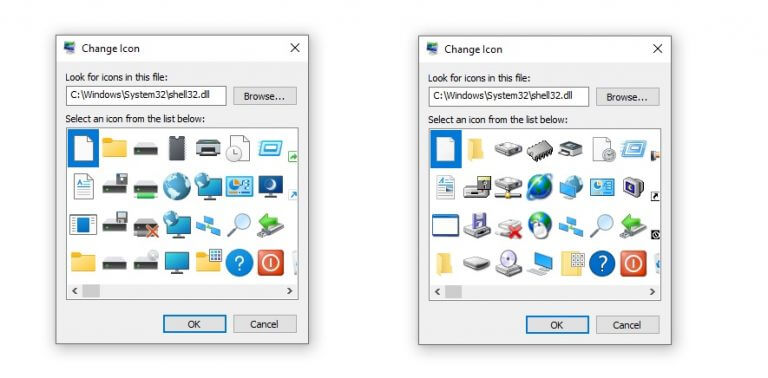
More changes will apply to the icons we got so used to seeing in SHELL32.dll, many of them unchanged since Windows 95 was released.

The new dark mode that is also set to be released with the Sun Valley update is a big improvement and will surely be well-received by everyone.

The release date for this product hasn’t yet been specified, but we can expect it to drop later this year or early next year.

Here is a more in depth look on the new visual experience prepared by Windows.


All in all, it seems like Windows 10 is going to look very different in the near future. The new fluent and interactive designs planned by Microsoft will surely make the operating system more popular and loved by its users.

Tell us what you think about this new visual experience in the comments section below.

Here’s what the new Windows Defender bug could do to your PC

Users are now dealing with a problem which puts so much pressure on they’re PCs that it could even lead to the operating system having a slow response time.

The bad news is that the actual issue we are talking about is caused by one of Windows’ built-in security features.

Windows Defender bug fills up Hard Disk Drive

Even though Microsoft Defender wasn’t the public’s number one choice when it came to protection software, in recent years it started to slowly make a comeback into users’ preferences.

According to user reports on Reddit, this new bug affects PC performance by creating hundreds of thousands of duplicate files, taking up most of the disk space available.

To be more specific, when the real-time protection feature is turned on, in a short time span, the Windows Defender scan folder will fill up with thousands of files no larger than 1kb or 2kb.

To make you understand the scale of this system clog, a folder that usually takes up almost 1Gb, is now as big as 30Gb. This can, in some cases, cause the UI or even the entire system to freeze.

This cluster of files appear under:

C:\ProgramData\Microsoft\Windows Defender\Scans\History\Store

How can I fix this?

In order to restore your system to its former glory and get rid of all these unwanted and, let’s face it, useless files, all you have to do is update Windows Defender.

From the Settings menu, visit the Windows Update options and simply check if there is an update for Defender. Once the software has finished patching to version 1.1.18100.6, this issue will be taken care of.

However, you are now left with the tens of gigabytes of surplus files. To delete them simply go to the location we mentioned above, enable the view of hidden items, and delete all of them.


There are alternatives to using Windows Defender as the main antivirus software on your PCs. However, if you still trust it and want to continue using it, you can do so knowing that this issue has been fixed.

Tell us if this article was helpful towards solving this issue for you in the comments section below.

FIX: Windows Defender error 0x800b0100

Windows 10 is an extremely versatile and self-sufficient OS. One of the biggest testimonies to that fact is that it comes with a very efficient built-in protection system called Windows Defender.

0x800b0100

However, things don’t always go smoothly for Windows Defender. For example, some users have reported receiving a Windows Defender error code 0x800b0100 when trying to launch the program.

This error will prevent you from turning on Windows Defender, rendering you defenseless. Since this is a very problematic issue that completely blocks the functionality of a vital Windows component.

That is why we’ve created this step-by-step guide that will show you exactly what you need to do.

How do I fix Windows Defender Error 0x800b0100?

1. Perform a Clean Boot

  1. Press Windows + R.
  2. Type in msconfig and press Enter.
  3. Go to the Services tab.
  4. Check the option that says Hide All Microsoft Services.
  5. Click Disable All.
  6. Go to the Startup tab.
  7. Select the Task Manager.
  8. Right-click and select Disable for all processes found in the Startup tab.
  9. Press OK to confirm the changes.
  10. Reboot your PC for the changes to take effect.

By following these steps, you should be able to see whether a third-party application was blocking Windows Defender. If this is indeed the cause, reverse the changes you’ve made for each program.

It is best if you reverse the process one at a time to determine which program exactly is causing the issue.

2. Check your Windows Defender Service

  1. Press Windows + R, type msconfig and press Enter.
  2. Locate Windows Defender.
  3. Double-click the following items:
    • Windows Defender Service
    • Windows Defender Advanced Threat Protection Service
    • Windows Defender Network Inspection Service (if available)
  4. Make sure the Startup Type is set to Automatic and that the service is Started.

You need to check whether or not the Windows Defender processes are working by performing the steps above.

4. Check your PC for malware

Quite ironically, this Windows Defender error can be caused by an already-present infection of your Windows 10 PC.

As such, simply install a very good third-party antivirus to perform a complete scan and cleanup of your Windows system.

The tool recommended below is the best you can get on the market within a reasonable budget. Its multi-layered security technology ensures perfect protection.

So not only that you will eliminate any possible malware infection but you will also fix the Windows Defender error in no time.

TotalAV

This excellent tool not only will eliminate any malware from your PC, but you will also get rid of any errors.
Check Price Visit Website

5. Perform an SFC scan

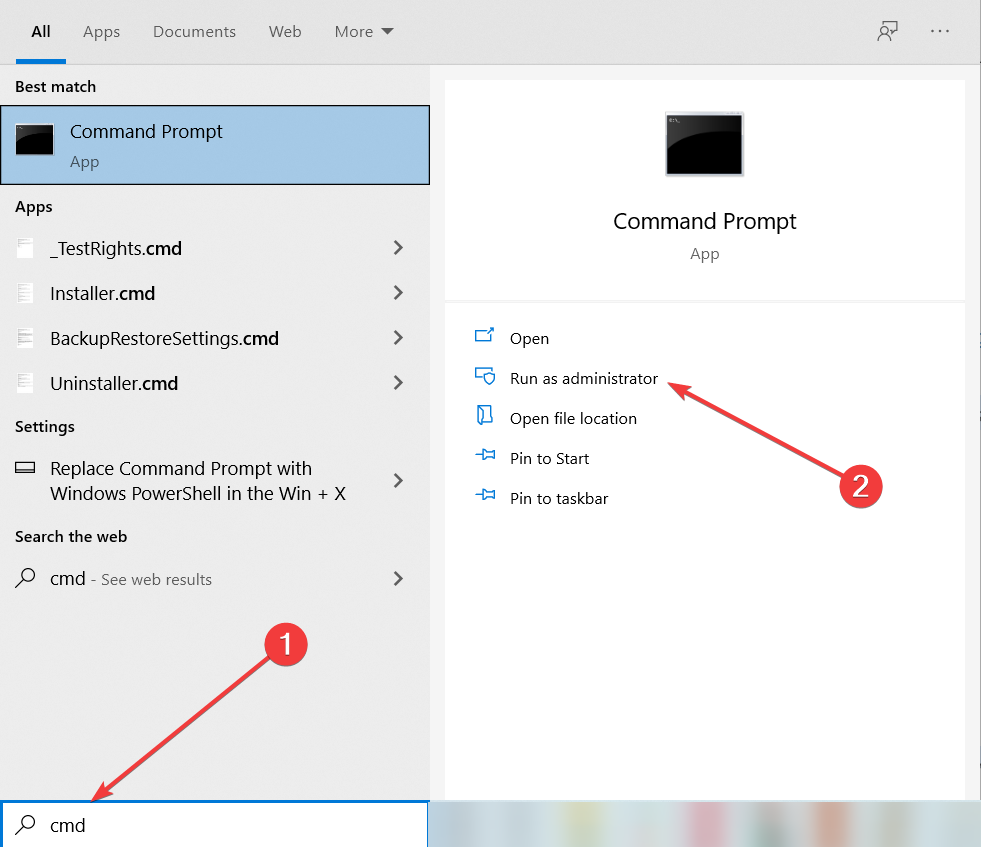
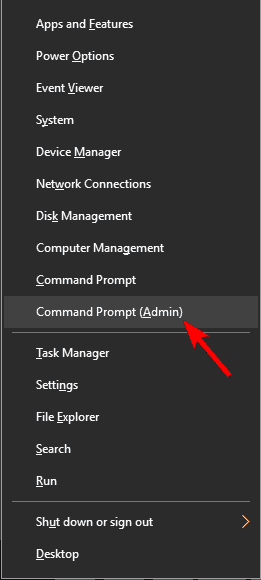
  1. Press Windows key + S, then type cmd and click on Run as administrator to start Command Prompt with full privileges.
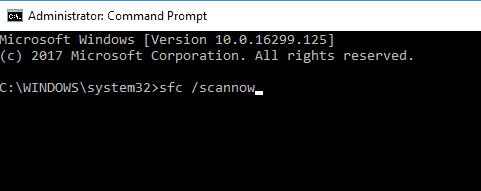
  2. Type the following command and press Enter: sfc /scannow
  3. Let System File Checker run.
  4. Restart your PC.

The System File Checker scan will detect any possible corrupted system files and will repair them, setting things right again.

6. Perform a DISM

  1. Start Command prompt as administrator, as indicated in the previous step.
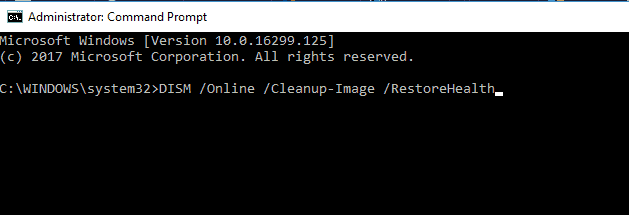
  2. Type in the following command and press Enter: DISM.exe /Online /Cleanup-Image /RestoreHealthdism
  3. Wait for it to perform the scan, it can take about five to ten minutes, sometimes more.
    • If the progress bar gets stuck on 20 percent, don’t worry, that’s perfectly normal, you just need to be patient.
  4. After DISM has finished its scan, restart your computer.

By following these steps, you should be able to fix the Windows Defender error 0x800b0100 and enjoy a malware-free PC experience.

If you still can’t get it to work or if you’re tired of such errors, consider switching to another antivirus. Take a look at our great selection of the best unlimited licence antiviruses that we prepared for you.

Which of the methods listed above worked for you? Let us know in the comments section below.

Map Software for PC: 5 Best to Use in 2026

Maps are essential tools for planning and making decisions for businesses in various industries. A while ago, companies were constrained to rely on skilled cartographers for making the maps that they required for different tasks. All this changed with the development of the Global Information System aka GIS.

This is basically a computer-based system that analyzes and presents various geographical data into readable maps. Nowadays, GIS-based software makes it possible for use for even the most inexperienced people. You may never attended a cartography class in their lives, but with this software, you can create useful maps.

And every business these days starting from telecoms, retail, mining, transport or construction companies to local authorities, governments and non-governmental organizations usually will use some kind of mapping.

Here are five of the best such software that you can currently find on the market. Make sure to check out their best features and functionalities.

In this manner, you can eventually make the best-informed decision. 

The best map design tools for PC

ArcGIS

best map design software

ArcGIS online mapping tools are some robust but straightforward ways so that any user regardless of their experience is able to make and share complex maps without effort.

This software is able to provide complete and comprehensive support for maps, applications and much more.

The sophisticated features and functionalities that are packed in this software include maps, analytics, apps, collaborations, administration and more.

Take a look at the key features that you will be able to enjoy while you are using ArcGIS:

  • The service is cloud-based, and it was designed from scratch to automatically scale to meet peak periods of demand.
  • Regardless of the number of the viewers that you may have, the program will scale everything for you without having to install and manage anything.
  • ArcGIS provides mapping applications and tools that will make it much easier to work and share your work with others as well.
  • The tool comes packed with a massive suite of base maps, high-res imagery, and also with the highest rated demographic information.
  • You will be able to make 2D and 3D maps using the built-in map viewer and scene viewer.
  • You can also access maps and various layers on hundreds of topics in the Living Atlas of the World which is a vast collection of the Esri community that is continuously growing.
  • With this software, you will be able to offer your coworkers the ability of self-service mapping as well.

All the mapping tools that are included in this program are sophisticated but easy to use by everyone in your organization regardless of their skills.

You can learn more about this software and start using ArcGIS on the official website of the tool.

CARTO

best map design software

CARTO is another excellent and useful mapping software. It’s basically a platform for turning location data into a fantastic business outcome.

This program is a self-service business user app targeted at spatial analysis and visualization.

Check out the main features and functionalities that are included into this handy tool:

  • The CARTO builder allows analytics to be performed via the drag-and-drop feature.
  • This is a tool that will definitely empower business analysts to optimize operations and also quickly deploy location apps.
  • You will not have to be chained anymore to the legacy GIS products or processes, and instead, you will be the one who controls the power of location intelligence.
  • The customer support provided by this software is beyond excellent, and the team continually provides and required help as quickly and efficiently as possible.
  • The software lets users display massive datasets that have been created and this way you will get the chance to convey an enormous amount of data.
  • The latest version of this software is genuinely improved compared to the previous ones, and you will get the ability to move data points with the click of a mouse without having to manually change all the long and lat numbers.
  • The CARTO Engine delivers rapid application deployments with software development libraries, cloud-managed databases, APIs and more.
  • Using this tool, you will be able to enjoy one of the fastest ways for increased impact on your organization or business.
  • You can also augment your data and broaden your analysis with thousands of economic, demographics and real estate data sets.

You can check out a lot more features and functionalities that are included in this software, and you can start using CARTO right now by heading to its official website.

Maptitude Mapping Software

The Maptitude Geographic Information System is a software that offers users the ability to use maps and the necessary demographic data that you need to analyze and understand the complex ways in which geography can help your business.

Just take a look at the best features that are included in this software:

  • The program helps you analyze and visualize information in innovatory ways, and it can quickly convey that data.
  • Maptitude Mapping Software gives users everything they need in order to achieve the benefits of desktop mapping and spatial analysis.
  • You will be able to see where the sales are highest and know precisely where the customers are located.
  • You will also be able to find hidden opportunities and spot geographic trends and patterns that cannot be seen in database tables and spreadsheets as well.
  • Using Maptitude Mapping Software, you can finally answer all the geographic questions that have an increased impact on your business.
  • Maptitude 2019 includes also one of the best features of Microsoft MapPoint. This is the ability to share and save your work using a single document.

This software packs a wealthy set of features and functionalities, and it will offer you the option to use its enhanced features to make it much easier for you to create and edit maps even if you are not an advanced map enthusiast.

You can find out even more features that are included in this software by visiting Maptitude Mapping Software’s official website where you can also buy this handy tool. All the necessary information about pricing and more will be on the website as well.

Map Business Online

Map Business Online is another great tool that lets users create complex maps regardless of their experience in mapping. This is an affordable, accessible and fast software that has been used by tons of businesses for quite a while and it’s still a favorite option.

Companies have been using this software in order to better organize and analyze their organizations from a geographical point of view.

Check out more functionalities and benefits of using this piece of software:

  • With the help of this mapping software, small and large businesses can create custom maps of their sales territories, expansion and workflows as well.
  • All you have to do is to import an Excel spreadsheet of the business information and then you will get the chance to analyze your customers, business resources, and prospects.
  • Using Map Business Online, you will be able to make the most informed decision for your organization’s success.
  • This tool can be seen as a replacement for Microsoft MapPoint for your business.
  • After visualizing your customers and competition, you will be able to expand the business intelligence and plan the future more strategically.
  • You will be able to drive the sales accountability and the growth of your business.
  • You will also get the chance to communicate with maps and leverage the power of your colleagues and teams by setting up map editing features.
  • Also, it has a free trial version which you can use for a limited period of time.

Check out more benefits that you can enjoy if you do decide to try Map Business Online and head over to its official website to find out more information related to the software.

eSpatial

This mapping software will help you transform your business information into maps in just a few seconds. eSpatial is an easy-to-use cloud based mapping software that provides users with sophisticated mapping services. With the help of this tool, you can understand data and the connection to geography.

Just take a look at the best features that are packed in this software:

  • This complete mapping solution lets you dive deep into the data of your organization with advanced analysis features.
  • You will get the chance to share your findings precisely with others with various styling options.
  • Using the fantastic Territory Builder, you can design and assign territories effortlessly even if you don’t have tons of experience.
  • You will be able to help your team work better and more productively.
  • Using this tool, you will feel supported at all times with a superior customer support service.

This great product is used by lots of non-profit organizations and commercial enterprises throughout the world. To see if it’s suitable for your needs as well, check out more of its features on the official website of eSpatial.

No matter which of this mapping software you will decide to use, you’ll be able to increase your organization’s productivity in the long term. Just make sure to check these tools’ complete sets of features before making your final decision.

FIX: Windows Defender error code 0x800704ec

One of the best features of Windows 10 as an OS is just how self-dependent it is when it comes to pre-installed features.

For example, with the clever use of the Windows Defender, you might never need to use a third-party antivirus tool or a firewall.

However, Windows Defender is not without flaws, one good example being error code 0x800704ec that many users have reported encountering.

Fortunately enough, there are plenty of solutions one could try in order to get rid of this issue, and we will be going through them in the article below.

How do I fix Windows Defender error 0x800704ec?

1. Enable the Windows Defender Services

  1. Press Windows key + R keyboard shortcut.
  2. Type in services.msc and press Enter.
  3. Search for the services for Windows Defender in the Services list to check if they are running.
  4. Choose the services that have a blank slate in the Status column.
  5. Right-click them and select Start.
  6. Reboot the PC.

This error can signal the fact that Windows Defender is not working so you have to start its services manually performing the steps above.

2. Disable and uninstall all third-party antiviruses

It is not uncommon for third-party antivirus tools to interfere with Windows Defender, most of the time even preventing it from launching.

As such, simply open your list of installed programs and uninstall it like any other software, while following the on-screen instructions of the uninstall setup.

3. Modify the Group Policy

  1. Press Windows key + R.
  2. Type in gpedit.msc and press Enter (This will open the Group Policy Editor).
  3. Double click the Administrative Templates folder under the Computer Configuration.
  4. Choose Windows Components.
  5. Select Windows Defender Antivirus and find Turn off Windows Defender Antivirus on the right.
  6. Double click Turn off Windows Defender Antivirus.
  7. Select Not Configured and then click Apply and OK.

As you can tell from the error message itself, the problem with Windows Defender is caused by an ill-conceived Group Policy. As such, the best course of action is to modify it.

4. Modify certain registries

  1. Press Windows + R.
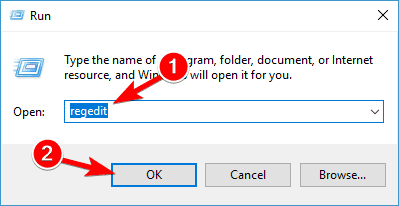
  2. Type in regedit and press Enter (This will open the Registry Editor).
  3. Go to the following address and delete the msseces.exe entry from both of them: HKEY_LOCAL_MACHINE/SOFTWARE/Policies/Microsoft/Windows Defender
  4. Find REG–SZ on the right and double click it to set its value to 0.
  5. Reboot the PC.

Can’t access the Registry Editor? Things aren’t as scary as they seem. Check out this helpful guide and solve the issue quickly.

5. Install a better antivirus

Microsoft’s Windows Defender is a great defense tool to protect your PC after installing the OS, but it’s not as close to as effective as a third-party security solution.

If you want to avoid any such errors and tweaking sessions, we strongly recommend employing a full-fledged antivirus like the one below.

This tool is trusted by over 110 million users all over the world so it’s an excellent and safe choice.

If you want to carry on with all your banking and online payments in complete confidence, this is, without a doubt, the right solution for you.

TotalAV

Get rid of any errors and headaches and go for a trusted and effective defense against all threats.
Free Trial Visit Website

By following these steps you should be able to launch and use Windows Defender again without any further issues.

But if you’re tired of fixing errors, consider picking a dedicated antivirus from our selection of the best antiviruses with unlimited license.

Which of the solutions mentioned above helped you bypass this issue? Let us know by leaving a message in the comments section below.

PowerPoint for Windows will soon let users lock select objects on slides

Microsoft has announced a new feature for PowerPoint for Windows that allows users to lock select objects on their slides. This update is currently rolling out in preview to Office Insiders, and it will soon be available for all users.

The new feature will provide an option to lock any object like shapes and pictures on a slide to prevent others from accidentally moving or editing them. “Have you modified objects without meaning to while working on a presentation? By locking objects such as shapes, icons, pictures, 3D models, connectors, ink, you can now ensure that there won’t be any mishaps. In order to modify an object, you will have to unlock it first.” the company explained in the blog post.

Lock objects in PowerPoint for Windows demo

To lock an object in PowerPoint for Windows, users will need to right-click the shape and then select the “Lock” option available in the context menu. Finally, users will be able to unlock any object by heading to the Selection pane and clicking the “Unlock” icon available next to the object name.

Microsoft noted that the shape attributes are kept locked even when the presentation file is opened on another PC. Moreover, the object will retain its locked state in all the older Office versions that support this option.

Overall, the ability to lock objects should help business and education customers create PowerPoint templates that follow specific guidelines and rules. However, the feature is only available for Office Insiders on Windows, and it’s not clear if it is also coming to the web and Mac client.

Linear Programming Software: 5 Best to Use in 2026

Today we will try to answer the question ‘What is the best software for linear programming?‘ Well, Linear Programming (LP) is, in general, demanding and time-consuming. This is perhaps the reason why it has taken developers an eternity to create linear programming software.

But things seem to have at last turned the corner if the continued emergence of some super powerful linear programming software is anything to go by.

By running robust modeling bases, these software are able to minimize or maximize linear constraints given some linear equalities and/or inequalities to obtain optimized solutions.

And their amazing abilities are making them a darling for operations research professionals.

How Linear Programming Software Work

LP software incorporates frameworks that are dependent on conventional linear programming algorithms such as simplex and support architecture.

These, plus variations of other mathematical methods combine to quickly and efficiently solve optimization problems.

Some adopt the traditional excel solver approach while some use modeling tactics to unravel complex linear programming problems.

So, What Is The Best Software For Linear Programming?

We’ll try to answer this question in this guide. Scroll down to learn what are some of the most recommended linear programming software today.

Linear Programming software for Windows 10

Visual Math

visual math

A recognizable application in tons of companies and industries, Visual Math’s engine turns data into smart decisions in no time.

Users are allowed to first state their hardest business conundrums as mathematical models. The software then automatically sifts through billions or sometimes trillions of suggested solutions to pick the best one.

The revolutionary linear programming software also comes with all the essentials to help conduct a thorough sensitivity analysis as the solution unfolds.

Visual Math’s hefty library is conveniently backed by a collection of intuitive interfaces making it easy for beginners to be up and running soon after download.

The smooth implementations of some latest algorithms mean it keeps up with industry trends and can handle multiple problems.

The vendor also provides awesome technical support during deployment and eventual uses.

Student licenses are, as expected, subsidized at $30 while business users can pay up to $90 to access the outstanding program.

Gurobi

gurobi

Gurobi Optimizer is, in short, one of the most versatile optimization LP problems solvers.

Part of the reason is that the code is built to exploit parallelism so users can fundamentally run different sets of parallel code during solution tests.

In addition, their MIP (mixed-integer programming) cutting plane routines outshine those from competing products and help capture the key discrete nature of various decisions.
The developers have also gone beyond the ordinary and have exclusively included superb classes of cuts to help simplify modeling.

This program’s sleek MIP heuristics often produce best quality solutions even with problems involving tens of decision variables.

Furthermore, its barrier algorithms utilize the trending computer architecture technology enabling it to sustain a first-class performance functioning.

Lastly, its well-rounded APIs are lightweight, modern, and intuitive, and shorten a new users’ learning curve in addition to boosting productivity.

GAMS (General Algebraic Modeling System)

gams

GAMS is a high-level linear programming modeling software for mathematical optimization and is designed to quickly crack maximization/minimization problems.

Through its interactive platform, GAMS allows users to easily formulate mathematical models almost similar to their mathematical descriptions.

The programs adaptive structure and comprehensive features make data feeding and subsequent problem formulation a breeze.

Users can, therefore, concentrate on modeling which is itself fairly straightforward. Indeed, GAMS gets down to work as soon as it learns the exact specifications of entities and existing relationships so operators have it very easy.

As a result, modelers can do various things themselves making GAMS a favorite of actual domain experts.

The software also has a perfectly balanced mix of procedural and declarative elements so users can implement complex decomposition methods. This makes it very relevant for models tackling unusual problems that could cause performance issues.

GAMS has two price lists: one for academic and commercial users.

CPLEX

cplex

ILOG CPLEX linear programming studio (From IBM) provides one of the fastest ways to build businesslike optimization models and supports solutions to a whole range of common planning and scheduling headaches.

It features a descriptive modeling language, fully integrated development environment, and host of built-in tools so it’s a master of the whole model development process.

Constructed models are usually independent of the applied data meaning that users don’t need to modify the model code when working on different instances of a problem.

One can also combine decision variables and various data items to define advanced expressions, objective functions, or constraints

CPLEX also stands tall with its state of the art functionality and robust optimization engine that very helpful in the analysis of the indicated results.

It’s even accessible to those who have difficulties using pointing devices such as a mouse by providing keyboard shortcuts for various processes and tasks.

The commercial pricing seems a bit high but there’s a free trial.

Lingo

lingo

LINGO is another comprehensive tool engineered to make building and solving optimization models quick.

Just like CPLEX, LINGO is a wholesome package including a solid language for expressing practical optimization models, a full-featured environment for feeding and editing problems, plus fast built-in solvers.

The latest versions include some prominent enhancements such as improved simplex solvers to speed up the transformation of linear models.

This program is also quite fast even where it’s difficult to predict which of the dual, primal, or barrier solver would give the quickest solution.

The improved multi-core additionally allows users to assign a separate core to each solver and run them simultaneously.

There’s also the multi-start solver which allows users to quote target values for the current objective function.

Also noteworthy are new chart functions for better results presentation including stacked vertical/ horizontal bars and Grantt charts.

Overall, the application is a sure bet if you’re looking for a software that can provide answers within the shortest time.

Our Final Word On What is The Best Software For Linear Programming

The question of what is the best software for linear programming doesn’t have an easy answer. You’ll need to look at ease of deployment, other desired abilities like compatibility with various add-ons, vendor support, and such.

All in all, we feel that Visual Math is certainly in a league of its own as far as the essential features are concerned.

The other options (Gurobi, cplex, GAMS, and Lingo) are also quite popular in their own ways and brilliant alternatives.

Ultimately, it may boil down to your own preferences and experience.

Eye Mouse Control Software: 3 Best in 2026

Eye control software allow users to interact with computers using only their eyes. These tools are extremely helpful for persons with disabilities, allowing them to use technology and live more independent lives.

In this article, we’ll list the best eye tracking software for Windows PCs available on the market, highlighting their key features.

Best eye control software for Windows PCs

Tobii Windows Control

Tobii Windows Control is an assistive technology software that already helps thousands of users with disabilities to live fuller, richer lives. With the help of this tool, you can easily control your computer with your eyes’ movements, replacing the standard keyboard and mouse.

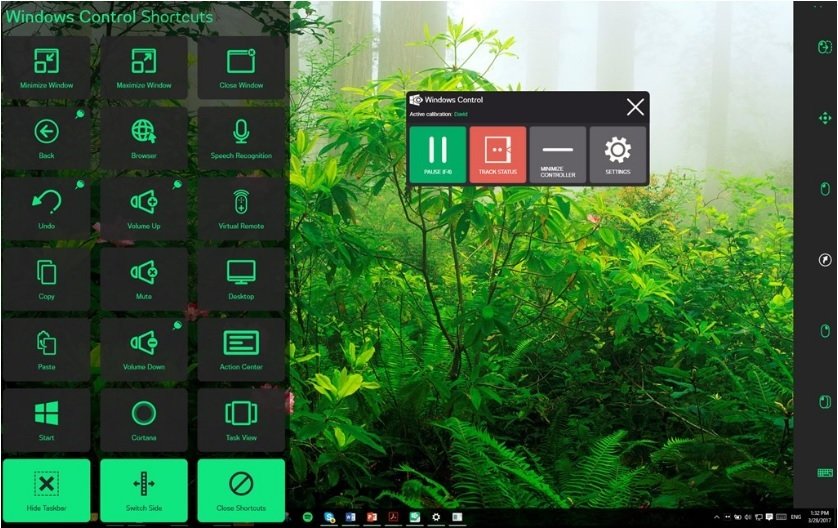
Using this tool is very easy: simply look at your PC’s screen and move your eyes to control the mouse. Windows Control also allows you to change your PC’s settings, including time, language and user accounts using your gaze. It also features a series of shortcuts for quick and full Windows control.

There is also a controller window placed directly on the PC screen that you can use to access the eye tracking settings, and start or pause eye tracking.

You can also use Tobii’s Windows Control software to control IR devices remotely. For example, you can control your music player and adjust the volume, play with your remotely controlled cars, and more.

This tool also allows you to engage in various social interactions, write emails to your friends, connect to Facebook, write on your personal blog, and more. Moreover, with the help of this tool, you can also play games on your computer.

For more information on how to use Tobii on Windows 10, check out the video below:


The good news is that Microsoft will soon integrate the Tobii Dynavox eye tracking technology into Windows 10. This means that Windows 10 will have its own built-in eye control software and every Windows 10 device will be pre-configured to use a Tobii Dynavox eye tracker.

You can buy Tobii Windows Control for $650.00 from the tool’s official website.


Camera Mouse


Camera Mouse is a software that allows you to simply control the mouse pointer by moving your head. As its name suggest, to use this feature, you also need a webcam. If you want to click on a particular area of the screen, all you need to do is keep the mouse pointed on the respective area for a few seconds.

The tool was developed at Boston College in order to help people with disabilities to use computers. It works as a mouse replacement for Windows computers and tablets, as well as other programs. This means that you can also use this software to play games, watch movies, listen to your favorite tracks, browse the Internet, and more.

Camera Mouse is updated regularly, meaning that it will always be compatible with the latest hardware.

You can download Camera Mouse for free. Don’t worry, the download process is a clean one and there are no ads involved.


IntelliGaze

IntelliGaze is a versatile tool that allows physically challenged users to control their computers using their eyes. With the help of this tool, users with disabilities gain full access to their computers. They can play games, browse the Internet, watch movies, and more.

Users can move their heads freely, without affecting the software’s accuracy. This tool’s detection capabilities are truly impressive: you can use it while wearing glasses, using only one eye, outdoors and indoors. Moreover, IntelliGaze’s built-in assistant constantly analyzes users’ vision capabilities to detect the optimal screen position and calibration parameters.

The tool is very versatile, as it supports various inputs such as blink, gaze, or head switches to speed up the app interaction.

If you want to see IntelliGaze in action, check out the video below:


You can download IntelliGaze from Alea Technologies.

We’ll end our list here. The three tools listed above allow physically challenged users to control their computers with ease, access the Internet and take advantage of the latest entertainment apps and programs.

12 Best Flash Drive File Recovery Software [2026 Guide]

Many users use flash drives as a safe way of storing and transferring their data offline. It’s one of the most convenient ways of transferring files between devices that are not connected to the internet.

The main disadvantage is that the external drive can get corrupted for many reasons. Whether it’s because it contains files that are corrupted or some virus got through your antivirus, you need a method to recover everything on that drive.

If your flash drive is corrupted or you accidentally deleted your files, you might want to consider methods on how to recover those files.

Recovering files isn’t a simple task, and if you are not very experienced with computers, this job can be very tricky, and trying to manually recover all that data might seem impossible.

A fast and simple solution is to use a tool to recover the lost data for you. You will find up next some of the best flash drive recovery tools for Windows 10.

What is the best tool for flash drive file recovery?

Stellar Data Recovery – Cross-platform compatibility

This powerful recovery tool works like a charm on your flash drive. But that’s just the tip of the iceberg – Stellar Data Recovery can find and recover lost data from any external storage media and Windows-running device.

Not even encrypted drives, corruption-affected or formatted partitions are a match for this ultra-powerful app that can retrieve data in pretty much any file format you can think of with accuracy, by preserving the original features.

This tool has native support for all file formats including photos, videos, email files, and more with a reliable and accurate restoration of retrieved files.

You have the option to save the current scan and resume recovery another time which helps save time and effort in the rescanning process of the disk.

Stellar Data Recovery offers dual monitor support with which you can work on two screens at the same time without needing to minimize or toggle.

Stellar Data Recovery

Back up your flash drive and easily recover any missing files with the best tool on the market!
Free Trial Visit Website

Wondershare Recoverit – Four recovery modes

If you need to recover files from your flash drive, you might want to consider Wondershare Data Recovery. The tool allows you to recover different types of files including documents, archives, images, and multimedia files.

As for the supported devices, this tool supports memory cards, pen drives, digital cameras, music players, and USB flash drives.

You can also recover files from digital cameras and cell phones. Regarding file systems, you can recover files from FAT16, FAT32, exFAT, and NTFS file systems.

To restore your files simply select one of the available recovery modes, select your drive and wait while the app scans the drive.

After that, select the files that you want to recover. The tool offers four main recovery modes: Wizard Mode Recovery, Lost File Recovery, Partition Recovery, and Raw Recovery.

One additional feature is the Resume Recovery option that allows you to resume the previous recovery session. This is especially useful since file recovery can sometimes take a while, so it’s always good to have this feature available.

Wondershare Recoverit

Rescue and restore your files to flash drives, memory cards, or any other Windows and Mac device.
Free Trial Visit Website

MiniTool Power Data Recovery – Load previous recovery results

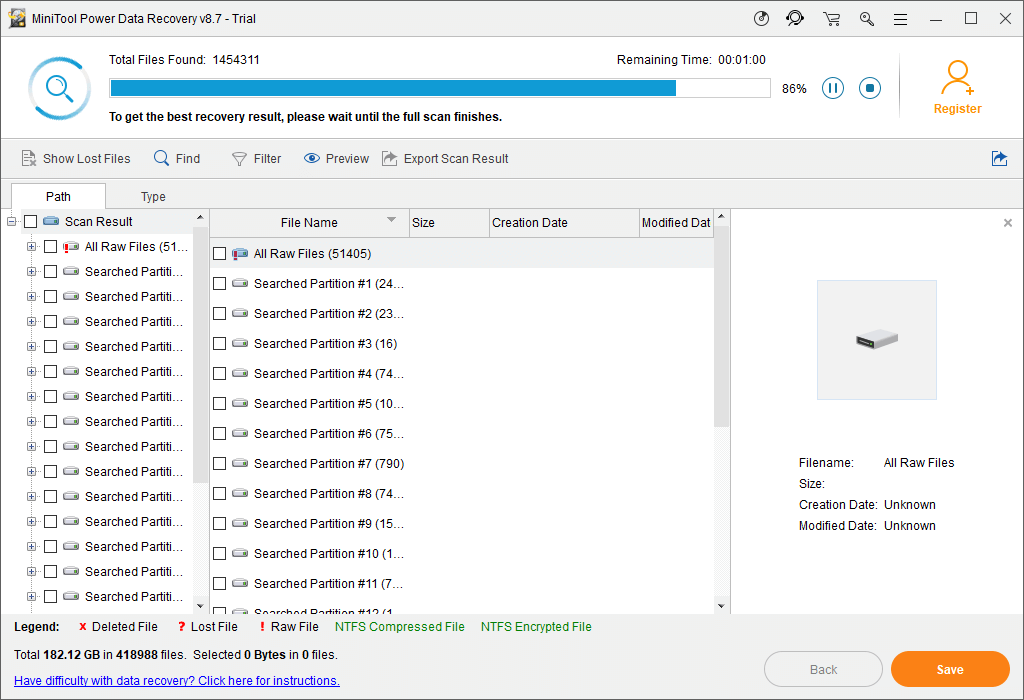
MiniTool Power Data Recovery scan

Recovering data from a USB flash drive isn’t always easy, but if your files are corrupted or deleted, you might want to use the MiniTool Power Data Recovery tool.

This tool works with USB flash drives, memory cards, music players, digital camcorders, hard drives, and other storage devices.

It also supports a wide range of formats and it can restore documents, images, video, and audio files.

To recover your files, you just need to select the desired recovery program, select the desired drive and wait while the application scans the drive.

After that, you can preview and recover the deleted files. We have to mention that the free version can recover only 1GB of data, so if you need to recover more you’ll have to purchase a license.

The tool supports several recovery options: Undelete Recovery, Damaged Partition Recovery, and Lost Partition Recovery. There’s also a Digital Media Recovery and CD/DVD Recovery option.

Another useful option is the ability to load previous recovery results, so you can easily continue with the recovery process at any time.

MiniTool Power Data Recovery

A great tool with multiple recovery options, support for all formats, and cross-platform compatibility.
Check Price Visit Website

SysTools Pen Drive Recovery – Simple tool

USB flash drives are great for storing files, but if the files on your drive are deleted or damaged you might be able to recover them with SysTools Pen Drive Recovery.

This is a simple tool and it supports three different recovery options. The supported options are Normal Data Recovery, Deleted Files & Folders Only, and Formatted Partition Recovery.

The first option will help you extract the data from the USB flash drive, but you won’t be able to recover deleted files by using this option.

Deleted Files or Folder Recovery option will thoroughly scan the drive and allow you to restore the deleted files from it.

Formatted Partition Recovery option will help you restore the files from your USB flash drive even after formatting it.

In order to find your files faster, the tool offers a powerful search option which means that you can easily search through the recovered files.

Regarding recovery, the app supports both FAT and NTFS file systems. After you find the deleted files or folders, you can preview them before recovering them.

SysTools Pen Drive Recovery

Recover all deleted data from any flash drives you accidentally erased.
Check Price Visit Website

Wise Data Recovery – Portable version

flash-drive-recovery-Wise-Data-Recovery-1

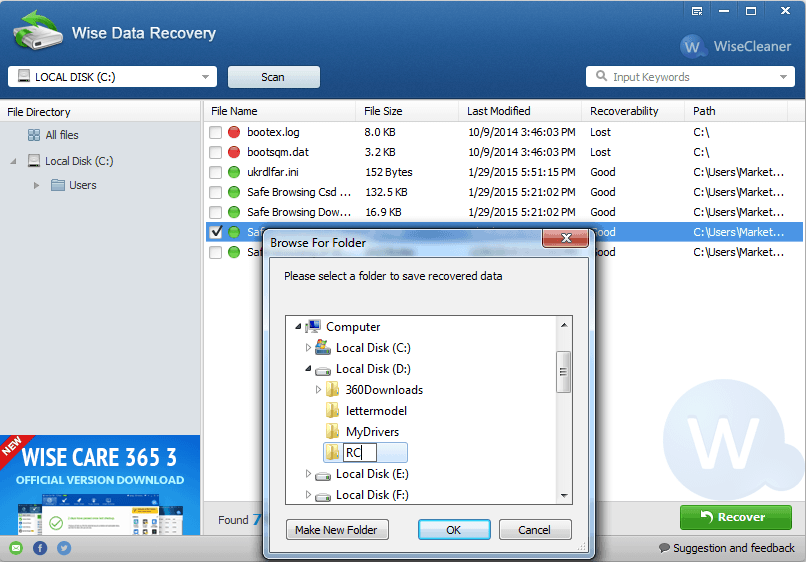
Wise Data Recovery is a free data recovery tool that will allow you to restore files from your local drive, external drive, and flash drives.

This tool is compatible with almost any device that can hold information. According to its developer, the tool can also work with mobile phones, MP3 players, digital cameras, and other devices.

This tool uses an advanced algorithm so it can quickly locate the deleted files and recover them in a matter of minutes.

If you want, you can also choose the file type that you want to recover and enter keywords in order to speed up the scanning process.

It doesn’t matter what the cause of the file loss is, this tool will help you recover your files from permanent deletion, disk formation, and even virus attacks.

Wise Data Recovery is compatible with over 1000 types of files. It can recover anything on demand, even specific files.

This tool also has a portable version, so you can recover files from your PC or USB flash drive without installing this tool on your hard drive.

Wise Data Recovery

Recover 100+ types of files from almost any device that can hold information.
Free Download Visit Website

Disk Drill – Makes invisible copies

disk drill file recovery

Disk Drill is another tool that can recover files such as images, videos, music, or documents. The application comes with several options including Undelete Protected Data, Quick Scan, and Deep Scan.

There’s also a Universal partition search option, but if you want you can also run all recovery methods.

Disk scanning can take a while, especially on larger drives, and this is why Disk Drill allows you to pause the scanning and continue it later.

According to the developers, Disk Drill can restore your files if you delete them from Recycle Bin, but you can also restore them if they are deleted by power failure or partition damage.

The application offers a friendly user interface, so it will be perfect for basic users.

Disk Drill offers a smart detection feature that detects bad sectors on a drive surface thus increasing the chances for file recovery.

Thanks to the Deep Scan feature you can restore lost files based on their binary structure. The signature base has more than 200 signatures, so you can restore most files with this tool.

Another interesting feature of this tool is Recovery Vault. This feature allows you to make invisible copies of deleted files, thus making your files protected from accidental deletion.

In addition, this feature will make the recovery process faster and more efficient. By using this feature your metadata will remain intact in its original state.

Disk Drill

Make the recovery process faster and more efficient by using this great tool.
Free Download Visit Website

Recover My Files – Create disk images

The first time you start Recover My Files you’ll be greeted with a welcome wizard. The wizard allows you to choose between the option to recover your files or to recover your drive.

The recovery process is rather simple, and you just need to select the desired drive and let the computer scan it.

We have to mention that this isn’t free software, but you can try it out for free. The free trial version offers almost all the features and it allows you to recover both files and drives.

This application supports most file systems such as FAT (Ex,12,16,32,64), NTFS (3,4,5), and HFS, HFS+ (MAC).

This tool offers more than file recovery, you can also use it to create disk images or scan them, and there’s also support for RAID recovery.

⇒ Get Recover My Files software

Remo Recover – Save scan information

Remo Recover is another tool that lets you recover files from a USB flash drive. The tool allows you to quickly scan entire drives and find all your deleted files, even after removing them from Recycle Bin.

The application can also restore files that exceed the Recycle Bin size, so you can use this tool to restore large files as well.

Remo Recover doesn’t only recover deleted files, you can use this tool to recover files even after formatting your hard drive partition and performing a clean install of Windows 10.

If you accidentally forget to back up important files before installing a fresh copy of Windows, this tool might be able to recover those files.

The tool also allows you to create disk images with ease in order to bypass bad sectors.

Regarding the supported file systems, this application supports FAT16, FAT32, NTFS, NTFS5, and ExFAT.

The application comes with an advanced built-in algorithm that recognizes and recovers more than 300 file types. If you want, you can sort the files by their name, date, size, and file extension.

Remo Recover can recover files from both hard drives and USB flash drives, but you can also recover files from SD, SDHC, MMC, XD, and Memory stick cards.

The tool also works with USB hard drives and FireWire devices. Regarding the supported hard drives, Remo Recover works with SATA, SCSI, IDE, ATA, SAS, and SSD. Of course, all major manufacturers are supported.

The tool allows you to preview your files before you restore them, and you can compress your recovered files in a Zip archive in order to save space.

Another extremely useful option is Save Scan Information. This feature will allow you to continue the scan of your drive even if you cancel it.

⇒ Get Remo Recover

Undelete 360 – Fast algorithm

This is a small but powerful application that will recover your files from a USB flash drive.

Undelete 360 uses a fast and efficient algorithm in order to search and recover deleted files.

This application supports both file and folder recovery. Undelete 360 can recover files from hard drives, digital cameras, USB flash drives, memory sticks, memory cards, and smartphones.

The tool lets you recover files that are accidentally deleted from your PC or from any other media. You can even restore files even after you remove them from Recycle Bin.

The tool also supports the restoration of files that are deleted by the command line or any other application.

The application allows you to preview your files before you recover them, in addition to the standard preview.

There’s also a hex preview available. Undelete 360 also supports the recovery of compressed and encrypted files on NTFS drives.

⇒ Get Undelete 360

Data Doctor Recovery – Simple interface

flash-drive-recovery-data-doctor-recovery-1

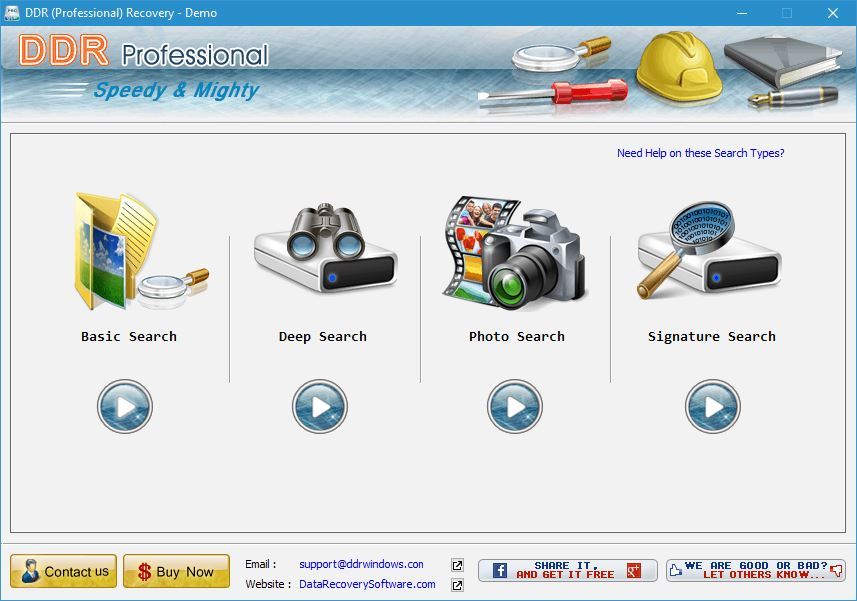
Data Doctor Recovery comes with a simple and slightly outdated user interface. As soon as you start this application you’ll be able to choose between several options.

You can choose between Basic Search, Deep Search, Photo Search, and Signature Search.

After choosing the desired option, you need to select your drive from the list of available drives. In addition to the list of drives, there’s also a small chart showing you the size of available partitions.

All that you need to do is to select a drive and click the next button and the drive will be scanned.

Data Doctor Recovery allows you to recover files from hard disks, USB flash drives, pen drives, removable media, storage cards, etc.

⇒ Get Data Doctor Recovery

IUWEshare USB Flash Drive Data Recovery – Appealing UI

This is another tool that you can use to recover lost files from a USB flash drive.

Regarding the supported files, this tool allows you to recover deleted videos, photos, documents, and audio files.

When you start the application you need to select what type of files you wish to recover. You can sort your files and show only specific types by using the file tree on the left.

If you want, you can also preview your files before you recover them. Additional information such as file size, name, and modification date is also available.

IUWEshare USB Flash Drive Data Recovery comes with a simple and visually appealing user interface.

⇒ Get IUWEshare Data Recovery

Puran File Recovery – 50+ data patterns

Puran File Recovery is a free application that you can use to recover files from your USB flash drive.

According to its developers, Puran File Recovery allows you to recover files from hard drives, memory cards, flash drives, and almost any other storage device. You can also recover files from formatted disks as well.

The tool comes with a simplistic interface and a powerful recovery engine. If you need to quickly restore deleted files, simply use the Quick Scan option and the list of deleted files will appear in a few seconds.

If you need to perform a detailed scan, there’s also a Deep Scan feature that scans your drive byte.

There’s also a Full Scan option that can detect deleted and lost partitions and recover files from formatted drives. This feature also supports RAW and Physical drives as well.

Puran File Recovery has more than 50 data patterns and supports hundreds of formats. After you find the deleted files, you can recover them with their original path structure.

As for your files, they are listed in tree and list views and they can be previewed before recovery. There’s also a search box that lets you locate the desired file quickly.

Puran File Recovery is a great tool and it’s available for free for personal use, so be sure to try it out.

⇒ Get Puran File Recovery

Recovering files from a USB flash drive isn’t a simple task, but you might be able to recover your files by using one of the tools from our list.

Report: Windows 10X is not coming this year as resources shift to Windows 10

Windows 10X, the lightweight version of Windows 10 that was expected to launch later this year on Chromebook-like devices is reportedly no longer coming this year, or perhaps ever. According to a new report from Petri’s Brad Sams, Microsoft is no longer actively working on Windows 10X to focus on the regular Windows 10 OS, which is expected to receive a big design update codenamed “Sun Valley” later this year.

Microsoft officially unveiled Windows 10X in a Fall 2019 event where the company revealed its dual-screen Surface Neo and Surface Duo devices. If the Surface Duo shipped last year with Android, the Surface Neo has been delayed indefinitely after Microsoft announced last year that Windows 10X would ship first on single-screen devices.

Since then, the way forward for Windows 10X was to become Microsoft’s Chrome OS alternative for low-cost PCs. Chromebooks have become quite popular in the US education market in recent years, as they’re often cheaper and easier to manage than Windows 10 PCs. With Windows 10X, Microsoft aimed to create a lightweight OS that would drop legacy Windows components including Win32 apps, but educating customers about this new version of Windows 10 could have taken a while.

“When talking with people familiar with Microsoft’s plans, customers were not looking for a solution that Windows 10X would solve, what they want are Windows 10X features brought to Windows 10. The benefit of Windows 10 is the flexibility that it provides, 10X worked against that narrative and the decision was made to put the OS on the backburner,” Sams explained today.

A separate report from Windows Central’s Zac Bowden has seemingly confirms Brad Sams’ information about Microsoft no longer actively working on Windows 10X. “Microsoft halted Windows 10X internal selfhost testing in February, and hasn’t restarted it since. Microsoft used to offer 10X selfhost builds for a number of Surface devices, but all of those selfhost images have been removed from the internal portal, and movement on 10X as a whole has grinded to a halt,” Bowden wrote.

Both reporters believe that some of the work Microsoft did on Windows 10X may eventually end up in the regular Windows 10 OS, including the new design ideas that we’ve seen in the Windows 10X emulator. Anyway, the Windows team is apparently fully focused on the big “Sun Valley” update for Windows 10, and that’s probably good news.

It took Google many years to have some success with Chromebooks, which have become much more versatile in recent years thanks to Android, Linux, and even virtualized Windows apps. As Windows 10 is now running on 1.3 billion devices, it’s hard to see how Microsoft could have avoided another Windows RT situation with a new Windows 10-based OS that can run fewer apps than a regular Windows 10 PC, or a Chromebook.

Microsoft probably can’t escape the fact that Windows 10’s huge app ecosystem remains its biggest strength, and that consumers and business users generally hate change. It will likely take years for Microsoft to modernize Windows 10 and makes its UI and UX more coherent, but this probably should be the Windows team’s main priority in addition to improving app compatibility on ARM devices.

Conan Exiles video game is coming to Xbox Game Pass on console and Windows PC

The Conan Exiles video game will be added to the Xbox Game Pass subscription service for both Windows PC and Xbox consoles sometime in the future.

The announcement was made earlier today during a Twitch stream where the game’s developers announced that the Isle of Siptah content would be rolling out to all versions of Conan Exiles on May 27th along with support for Twitch drops, the ability to earn in-game content by watching Twitch streams.

No date was specified for the addition of Conan Exiles to Xbox Game Pass though players are encouraged to keep their “eyes peeled for more info on that.”

Conan Exiles launched on Xbox One back in 2018 after several months in Game Preview and, like most Xbox One games, is also playable on the newer Xbox Series S and X consoles. It’s also currently available to download and play on Windows PC via Steam.

Conan Exiles is an online multiplayer exploration and action title that supports online games with up to 40 players. Here’s the trailer for the game’s latest content update showcasing all of the various ways to play Conan Exiles.

Are you excited to play Conan Exiles via Xbox Game Pass or do you already own it? Share your thoughts with the community in the comments below and then follow us on Twitter for more Xbox gaming news.

Conan Exiles
Conan Exiles
Developer:
Funcom
Price:
Free


Conan Exiles
Conan Exiles
Developer:
Funcom
Price:
$ 39.99

This program’s service has stopped Windows Defender error

The This program’s service has stopped error on Windows Defender is an occasional nuisance for every Windows 10 user.

Users are complaining that the Windows Defender Advanced Threat Protection Service on their local computer started and then stopped without any explanation.

If you’re getting this error, it means that Windows Defender is not running smoothly, or isn’t running at all.

If the Windows Defender Antivirus service keeps stopping, this leaves your computer vulnerable to malware, which is why you need to fix it immediately.

Before we dive into the solutions, let’s take a look at the full error message. Depending on the version of your Windows, you should be getting either one of these two errors:

  • Windows Defender: This program’s service has stopped. You can start the service manually or restart your computer, which will start the service. (Error Code: 0x800106ba)
  • This program is turned off. If you are using another program that checks for harmful or unwanted software, use the Action Center to check that program’s status.

As the error suggests, the quickest and easiest way to resolve the problem could be restarting your computer.

However, if the problem persists even after you restart your PC, you can try one of the following solutions.

How do I fix This program’s service has stopped error?

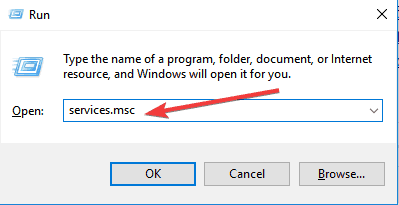
1. Turn on Windows Defender Service

  1. Press Windows + R to open the Run dialogue.
  2. Type in services.msc and press Enter.services.msc
  3. Find the following services in the list of services:
    • Windows Defender Advanced Threat Protection Service
    • Windows Defender Antivirus Network Inspection Service
    • Windows Defender Antivirus Service
    • Windows Defender Security Center Service
  4. For each of these services the status should be Running (check the status column) and their Startup type should be set to Automatic.
  5. If this isn’t true for any of the services, double click on it to view its Properties. Change the Startup type to Automatic.
  6. Now, click on the Start button and click Apply.
  7. Check if Windows Defender is up and running again. If the problem persists, try the next step.

The error message reads that Windows Defender has stopped. So, the first thing you should try is to manually turn it back on. You will need to do this via the Windows Services Manager.

2. Disable all third-party antimalware software

One of the most common reasons for getting the This program’s service has stopped error is due to third-party antimalware software.

Windows Defender tends to stop itself every time it receives a signal from these third-party programs. So, the reason you’re getting this error could either be that or some internal error.

To verify, try disabling all third-party antimalware applications and see if this resolves the problem.

If doing this solves your problem, you may have to re-install the third-party application. If not, move on to the next step.

3. Verify the Group Policy Editor settings

  1. Go to Start, type gpedit.msc, and press Enter.
  2. This should open the Local Group Policy Editor; navigate to this path: Computer Configuration/ Administrative Templates/ Windows Components/ Microsoft Defender Antivirus
  3. If you see an option called Turn off Microsoft Defender Antivirus on the right-hand side, go ahead and double-click on it.
  4. If this is set to Enabled, change it to Not Configured.

You could have accidentally turned off Windows Defender when using the Group Policy Editor. Also, malware could have accessed the Group Policy Editor and done so. To verify this, try the steps above.

Now, check if Windows Defender is up and running again. If not, proceed to the next step.

4. Use third-party software for Windows errors

Several issues can lead to Windows errors, including damaged registry files and incorrect settings values. We recommend using third-party repair tools that have multiple capabilities and can automatically address the issues that cause this error message.

With a prior deep scan of your operating system, the software will detect potential errors and replace affected files with new functional files.

In addition, you can fix stop error screen issues with automated support.

5. Verify Registry Editor settings

  1. Press the Windows + R keys to open the Run dialogue.
  2. Type in Regedit and press Enter.
  3. Navigate to this path: HKEY_LOCAL_MACHINE/SOFTWARE/Policies/Microsoft/Windows Defender
  4. If you see a key called DisableAntiSpyware on the right-hand side, either delete it or set its value to 0.

Sometimes, malware can change a Register key belonging to the Windows Defender service.

This could be one of the reasons you’re getting the This program’s service has stopped error. To verify this, try the steps above.

6. Re-register Windows Defender related DLL files

  1. Go to Start, and type Command Prompt.
  2. Click on Run as administrator to start the command-line tool with administrative privileges.
  3. Run these commands and press Enter after each one:
    • regsvr32  atl.dll
      regsvr32  wuapi.dll
      regsvr32  softpub.dll
      regsvr32  mssip32.dll
  4. Check if Windows Defender is up and running again.

Occasionally, re-registering the Windows Defender related DLL files can also resolve the issues. To do this, follow the steps above.

7. Install a third-party antivirus

If you’re tired of Windows Defender problems, you’re not alone. Although it’s a pretty good solution, it has its share of issues and errors.

And that’s the moment when you should ask yourself if you want to continue tweaking it or getting a full-featured, powerful antivirus instead.

The tool recommended below is a trusted solution that is installed on over 110 million people’s systems all over the world and that’s for a good reason.

It is a top choice when it comes to privacy and security so you can take your banking online without fearing any attacks or ransomware that are so widespread right now.

TotalAV

Forget about errors and compromises and go for a full-feature security solution.
Check Price Visit Website

We are confident that these solutions can have a positive outcome when it comes to resuscitating Windows Defender.

If not, there is always the choice of installing one of the best antiviruses with unlimited license. It will save you some money and will free you from headaches.

Have you ever faced this error? If such is the case, don’t be shy to share your experience and any other possible solutions by hitting the comments section below.

7 Best Free Streaming Software for PC Users in 2026

Live streaming of videos and games has become the latest craze in today’s world.

If you were to go back to the days of our founding fathers to tell people that one day they would flock in the internet watching people play games, you would be dismissed as one of the most nonsensical time travelers in history.

Today, a lot of people are making a fortune from game streaming sites like Twitch.

So let’s say you want to join the streaming bandwagon whether for fun or to earn some cash. Do you need a degree in IT? A super-complex software? A 4K monitor or a computer with an incredibly powerful graphic card?

Thankfully, No. All you need is a decent computer, a good internet connection, and the right streaming software.

In this article, we will introduce you to the best streaming software so you too can broadcast live feeds to Twitch, YouTube, and other social sites.

What are the best free and paid streaming software for PC?

How to choose a good streaming tool? As a beginner, you will need some information about the basic features that  streaming software has. Thus, we will help you to answer a series of questions  :

  • Can you find a free streaming software?
  • Is it easy to use for a beginner?
  • Does it support 3rd party music players?
  • Will you need to install any 3rd part plug-ins?
  • Can you use this streaming software on Twitch?
  • Does it let you change the image options while streaming?
  • Has-it a green screen (chroma key) support?

You will find the answers to these questions below.

 Rating (1 to 5)Free/PaidUser friendlyPlug-ins includedImage options changing on-airGreen screen supported(chroma key)
Telestream Wirecast4.5Paid(has trial)YesNoYesYes
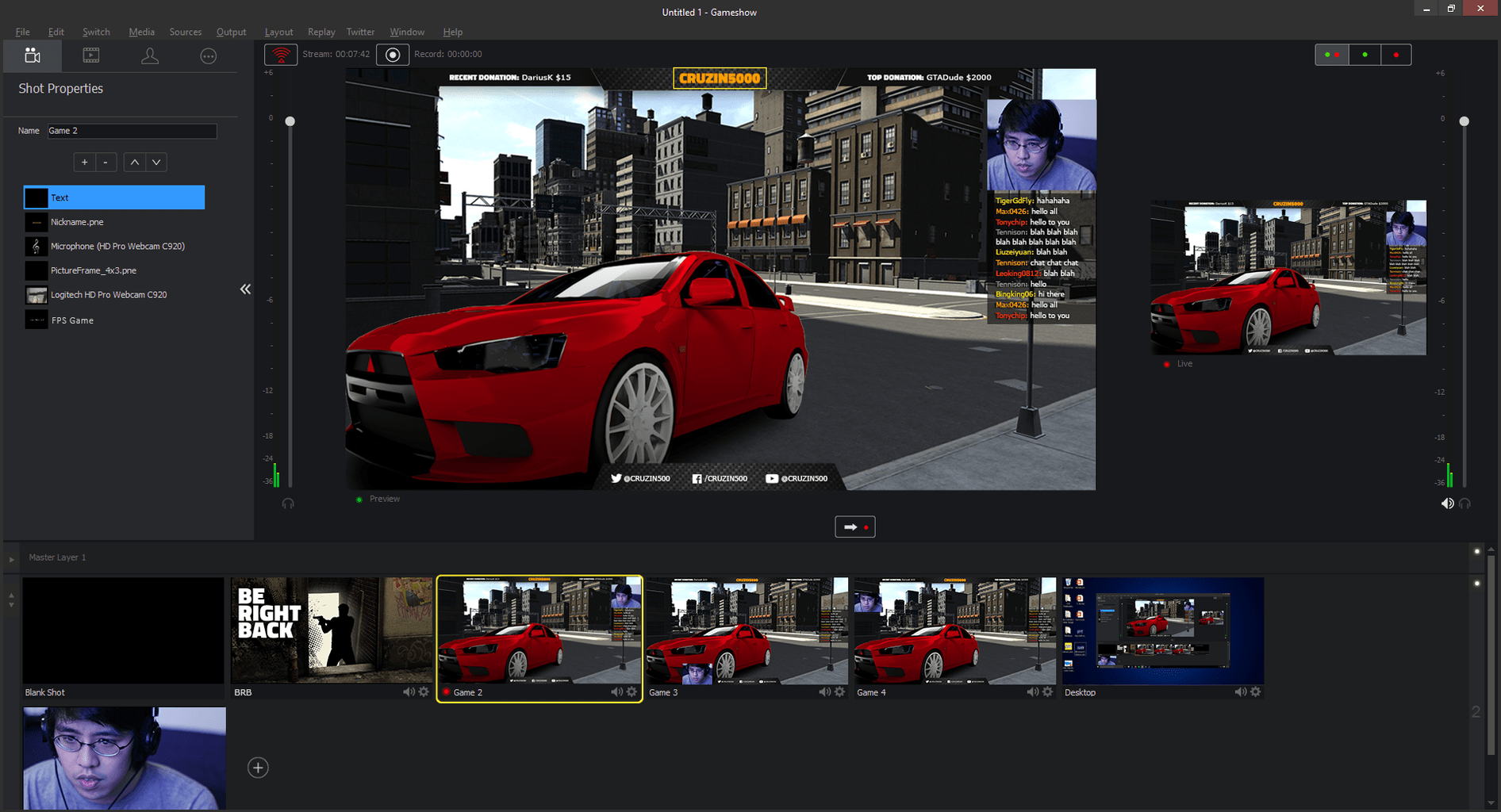
Gameshow4FreeYesNoYesYes
1AV Streamer4.5FreeYesYesYesN/A
OBS (Open Broadcaste Software)4.5FreeYesYesYesYes
Xsplit4FreeYesNoNoYes
vMix4.5Paid(has trial)YesNoYesYes
Ustream Producer4Paid(has trial)YesNoYesYes

Telestream Wirecast (recommended)

Telestream_wirecast_7_streaming_software

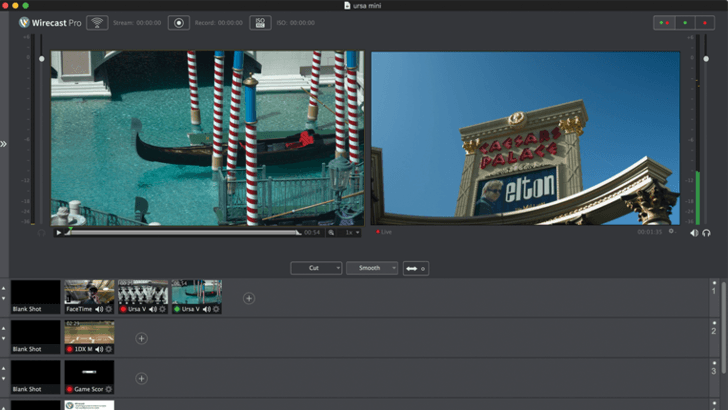
Wirecast is a video streaming software and a switcher from Telestream. With this software, you can record videos, set up scenes, or stream to your favorite platform.

The latest version, Wirecast 7, comes with redesigned features and improvements to the software to work better on PC. It also comes with advanced gaming functionalities.

Gamers will be happy to know that you can now stream games up to 1440p at 60fps, perfect for Twitch or any other site that can stream their gameplay.

The software also allows you to capture from webcam, camera, microphone, your computer screen, pre-made videos and more.

Wirecast 7 is not the cheapest streaming software out there, but it comes with robust features that justify the price. Telestream Wirecast starts at $599 and you can choose the version that meets your needs and budget.

Telestream Wirecast

Capture, edit, and stream your favorite moments using a high-quality streaming tool.
Check price Visit website

Game Show

With a large panel of functions, Game Show has the reputation of a non-expensive and friendly-user streaming software.

Besides the prepared templates which can be easily used for streaming, this software allows you to create your own design and logo, thus helping you to become a brand. It also has a multi-scale layout system for building your spectator screen.

This is also software that is offering you some of the features used by pro-streamers and it is not a payable feature, because it comes with the program itself.

Another helpful feature is playlist automation, a thing that will keep you away from 3rd party music sites&software to listen to your favorite music along with your chat.

This is one of the features that makes Game Show unique in its daily usage and makes it a powerful streaming tool.

⇒ Get Game Show

1AVStreamer

1AVstreamer_streaming_software

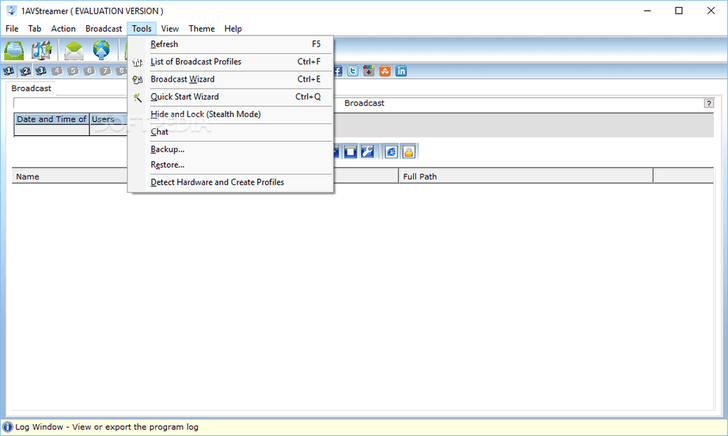
1AVStreamer enables you to broadcast live video and audio content over the internet.

Designed for live media streaming, 1AVStreamer captures streams from various sources and also comes with additional functions to help you take screenshots, record audio, and capture the screen.

The inbuilt broadcast wizard helps you broadcast from multiple sources be it from webcams, cameras, TV tuners or from your desktop. IAVStreamer allows live broadcasting with or without sound and saves recorded copies of the content you broadcast.

⇒ Get 1AVStreamer

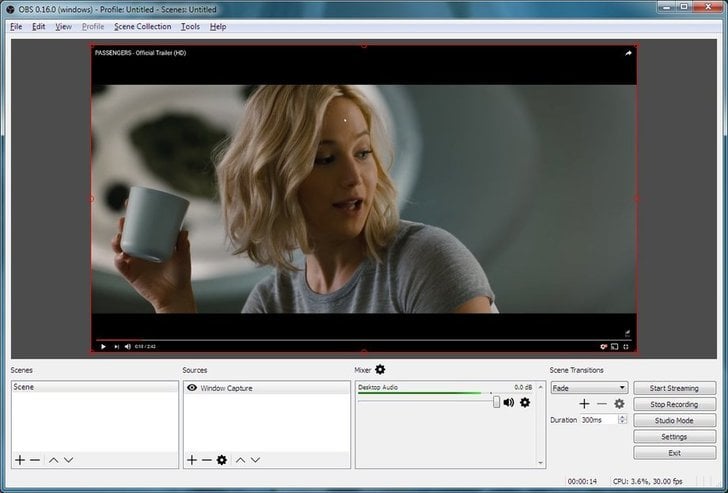
OBS (Open Broadcaster Software)

streaming software for PC

OBS is a free, reliable, and open-source software for streaming games and live video content to the internet or to video files.

The software allows you to record video from the webcam, the current game that is playing, a section from the desktop, or the entire screen.

OBS is also capable of live streaming so you can share your video to different online services such as Twitch, YouTube, or even to a custom server address.

It comes with a simple and intuitive interface that allows you to add multiple sources as well as create your own profile. You can add your own hotkeys to start and stop recording with a single key.

There is also an option to customize the video resolution as well as frames per second. After all settings and configurations are complete, OBS will record a lag-free video with quality sound.

⇒ Get OBS

XSplit

Xsplit_live_streaming _software

XSplit broadcaster is a desktop application specifically designed to make broadcasting easy and fun.

It has an inbuilt live output that makes it possible to broadcast through the internet, be it video game streaming, tournament broadcasting, conferences and more.

Unlike OBS, XSplit is a paid program and is available in three licenses each with different features. These features include Skype video capture, LAN broadcasting, No stream watermark, the number of scenes among others.

By adding a webcam, you can broadcast yourself dancing or hosting your own talk show. XSplit also allows you to send an update across social networks right within the app with the URL and full details of where you are broadcasting live from.

And with an inbuilt video projector feature, you can connect your computer to a projector and use it to make presentations at work.

⇒ Get XSplit 

vMix

vmix_streaming_software

vMix is a live streaming software that allows you to broadcast your live productions directly to the internet. The product is not just an ordinary streaming software.

It’s also a video mixer software and a Switcher that utilizes the latest technology in computer hardware to provide live HD mixing.

In a nutshell, vMix has the right hardware and software solutions you need to compete with your local TV networks in real-time from your living room.

Whether you want to broadcast big budget live concerts, church proceedings, sporting activities, or small webcasts, vMix can handle them all.

It’s a complete video production software capable of recording and live streaming of SD, full HD (1080p), as well as 4K videos. vMix is not freeware.

However, it offers a generous 60 days trial period after which you will have to pay to continue enjoying the service.

⇒ Get vMix

Ustream Producer

ustream_streaming_software

Ustream is one of the largest streaming service providers and offers free ad-supported live streaming service as well as premium versions starting at $99 per month.

Its desktop application, Ustream Producer allows broadcasters to stream in full HD just as they would from Ustream’s website. Its features include:

  • Ability to manage video and audio sources
  • Drag and drop video and audio files
  • Pop out a chat room or a social stream
  • Start and stop recordings
  • Record your desktop via screencasting
  • Update your status and syndicate to social media accounts

You can also use the Ustream Producer to broadcast using Picture in Picture (PIP) and create multiple transitions.

It also allows you to add background music, create opening slates, and incorporate pre-recorded video clips with your live camera shots.

⇒ Get Ustream Producer for Windows 

Conclusion

Advancement in technology has made live broadcasting popular and straightforward. Not long ago, live broadcasting was only limited to local and national TV stations.

You may also want to read about safe MyFlixer replacements if you’re done taking chances with sketchy sites.

Thanks to the proliferation of streaming software for PC that broadcasting is now easier and affordable.

For newbies in the broadcasting space, you can start with a free, yet powerful streaming software like OBS.

But if you want more functionalities and advanced features like 4K video broadcasting, we have also included the streaming software that can do precisely that. We hope that you will find this article useful.

If you have any other suggestions or questions, feel free to leave them in the comments section below.

FIX: Windows Defender won’t update error 0x80240016

Windows Defender is a very handy feature of Windows 10 which helps you to get rid of unwanted spyware and malware programs.

However, users found a problem when trying to update this feature, namely, an update error 0x80240016 showed up, and the update process stopped.

There are a couple of causes of this problem, one of them is the installation of another program.

If you’re running an installation of another program while you try to update Windows Defender, it just won’t work.

So, if you’re installing another program, finish the installation and then try to update Windows Defender. This problem also shows up when Windows Update client can’t access the user token.

To solve this, you’ll have to restart your update services, and the Windows Defender update error 0x80240016 should go away.

If you want to be your own tech support, follow this guide to see how you can restart the Windows Update service and its components.

How do I fix Windows Defender update error 0x80240016?

1. Restart the Windows Update service

  1. Press Start.
  2. Go to Search and type cmd.
  3. Click on Run as administrator to start Command Prompt with full privileges.
  4. Type the following commands and press Enter:
    • net stop wuauserv
      net start wuauserv
  5. Close the Command Prompt windows and try to apply updates again.
Note icon NOTE

2. Manually reset Windows Update components

  1. Start Command Prompt as administrator, as indicated in the step above.
  2. Disable the BITS service, the Windows Update service, and the Cryptographic service.
    • To do that enter the following commands and hit Enter:
      • net stop bits
        net stop wuauserv
        net stop appidsvc
        net stop cryptsvc
  3. Delete the qmgr*.dat files.
    • To do this, at a command prompt, type the following command, and then press Enter: Del "%ALLUSERSPROFILE%/Application Data/Microsoft/NetworkDownloaderqmgr*.dat"
    • After that, type the following line in the command prompt, and hit Enter: cd /d %windir%system32
  4. Re-register the BITS files and the Windows Update files.
    • To do this, at a command prompt, type the following commands, and press Enter after typing each command:
      • regsvr32.exe atl.dll
        regsvr32.exe urlmon.dll
        regsvr32.exe mshtml.dll
        regsvr32.exe shdocvw.dll
        regsvr32.exe browseui.dll
        regsvr32.exe jscript.dll
        regsvr32.exe vbscript.dll
        regsvr32.exe scrrun.dll
        regsvr32.exe msxml.dll
        regsvr32.exe msxml3.dll
        regsvr32.exe msxml6.dll
        regsvr32.exe actxprxy.dll
        regsvr32.exe softpub.dll
        regsvr32.exe wintrust.dll
        regsvr32.exe dssenh.dll
        regsvr32.exe rsaenh.dll
        regsvr32.exe gpkcsp.dll
        regsvr32.exe sccbase.dll
        regsvr32.exe slbcsp.dll
        regsvr32.exe cryptdlg.dll
        regsvr32.exe oleaut32.dll
        regsvr32.exe ole32.dll
        regsvr32.exe shell32.dll
        regsvr32.exe initpki.dll
        regsvr32.exe wuapi.dll
        regsvr32.exe wuaueng.dll
        regsvr32.exe wuaueng1.dll
        regsvr32.exe wucltui.dll
        regsvr32.exe wups.dll
        regsvr32.exe wups2.dll
        regsvr32.exe wuweb.dll
        regsvr32.exe qmgr.dll
        regsvr32.exe qmgrprxy.dll
        regsvr32.exe wucltux.dll
        regsvr32.exe muweb.dll
        regsvr32.exe wuwebv.dll
  5. Reset Winstock by typing the following command: netsh winsock reset
  6. Now, you’ll have to reset your proxy settings, by adding this line: netsh winhttp reset proxy
  7. Reset the BITS service, the Windows Update service, and the Cryptographic service by adding these commands:
    • net start bits
      net start wuauserv
      net start appidsvc
      net start cryptsvc
  8. Install the latest Windows Update Agent from Microsoft’s support page.
  9. Restart your PC.

Sometimes, resetting just the Windows Update service doesn’t help, but you’ll have to reset all its components.

This solution requires a lot of registry editing and some errors could cause serious problems. So, before you perform these steps, make sure that you made a backup of your registry.

3. Install a third-party antivirus

Windows Defender may be a decent security solution and it’s free, but, as you can see, it can produce a lot of problems and headaches.

An if you still can’t get it to update, it’s imperative not leave your PC unprotected so you should seriously think about getting yourself a third-party antivirus.

The tool recommended below is trusted by over 110 millions of users around the world so it’s perfectly safe.

This solution comes with a multi-layered security solution that will not only protect your PC, but also your webcam and your router.

TotalAV

Pair your PC with a trusted and secure solution that will protect your data from all possible threats.
Check Price Visit Website

That’s it! By following our methods, you should be able to now update Windows Defender without seeing the 0x80240016 error anymore.

If you’re still looking for a Windows Defender alternative, you should also consult our list including the best antiviruses with unlimited license, and pick one from there.

Let us know which of the methods listed above worked best for you by leaving your feedback in the comments section below.

What software does Blizzard use for cinematics? [WE ANSWER]

Blizzard is well known because of its early releases of Warcraft: Orcs & Humans in 1994, the Diablo series, the StarCraft series, and in 2004 the company released one of the most played multiplayer game ever released – World of Warcraft.

The company is one of the most well known and most loved computer game creators, updating their game releases list in 2018, by releasing teasers and short presentation videos for games like Heroes of the Storm, and Overwatch.

If you’ve ever wondered how Blizzard creates those amazing videos, you are in luck, because in this article we will explore exactly that idea.

Our team did its research and found some software that Blizzard uses in order to create the fascinating cinematics we’ve all become accustomed to. Here is what we found.

What are the tools used by Blizzard?

Autodesk Maya

Autodesk Maya - Blizzard software for cinematics

Maya is a powerful rendering tool that is used by the team at Blizzard to help them create incredibly vivid animation videos and game cinematics.

You can create a 3D model from scratch, animate it, apply different simulations, and then render it at high quality.

What makes Maya stand out from the crowd of 3D animations besides its incredible power, is the built-in programming language called MEL (Maya Embedded Language).

This feature offers you unprecedented customization power, allowing you to either import already created scripts, or create your own from scratch.

Here are some of the best features found in Maya:

  • Polygon modeling – greater speeds of processing for Boolean operations when dealing with polygon geometry
  • Can easily simulate and render real-like liquids
  • Can create realistic soft or rigid body simulations depending on the 3D model or cinematic need
  • Quickly render incredibly complex scenes
  • Can generate templates for easy reuse of renders, settings, etc.
  • Ability to integrate with other software options allowing you to create and customize all elements of the project
  • Can create custom scripts, and apply external scripts by using either the MEL, or Python programming languages
  • A powerful engine that allows you to manage large data sets and apply them easily to complex scenery
Autodesk Maya LT

Autodesk Maya LT

A powerful rendering tool used by Blizzard to create incredibly animation videos and game cinematics.
Check priceVisit website

Source Filmmaker

Source Filmmaker - software used by Blizzard for cinematics

Source Filmmaker (SFM) is a very powerful movie-making tool that is used by the Blizzard team to create immersive and beautifully textured videos for their games and cut-scenes.

This software uses the same assets like the ones found in the games, allowing you to use any of them in your project. Any item or scene that can be found in the game, can also be used to create amazing cinematics.

SFM is a very flexible engine, allowing you to create 3D recordings that can be edited later and exported either as a movie or as a still image.

The number of elements that can be contained in the movie are unlimited and include items such as – lights, cameras, objects, animations, effects, etc.

SFM offers you access to an incredibly wide range of usable elements (more than 6000 items) – maps, models, objects, sounds, effects, animations, etc., but you can also import your own.

Because of the way this software is built, and because everything you create is stored in a 3D motion database, you can edit any element freely, at any point in the process of creating the cinematic.

In case you are not a professional, and can’t create 3D models from the bottom up, you can always create animated short movies by using the graph and motion editor, or you can download assets from the library.

Even though Source Filmmaker might seem easy to use at first because of its friendly and easy to understand user interface, it is an incredibly complex and powerful tool, so feel free to try it out.

⇒ Get Source Filmmaker

RedShift

RedShift - Blizzard software for cinematics

RedShift is another powerful tool that is used by the Blizzard team to create incredibly vivid and detailed cinematics for their games.

This software is designed to work fast, being fully GPU-accelerated, and offers you access to a wide range of features fully integratable with standard computer graphics applications.

Here are some of the key features found in RedShift:

  • Efficient memory management – great rendering power that is able to animate hundreds of millions of polygons or textures
  • Ability to create incredibly realistic lighting effects
  • Full support for OpenVDB rendering in almost all 3D apps – Houdini, Maya, 3DS Max, Cinema4D, etc.
  • Powerful tessellation with support for both edge and vertex creasing
  • Multi-lobe anisotropic specular by using the built-in Marschener BRDF

⇒ Get RedShift

In this article, we explored some of the software used by Blizzard to create the incredibly realistic and complex cinematic clips we’ve all been used to for a long time.

Can you create cinematics like that? This article offers you all the tools you need to do so, so feel free to try any of the applications mentioned in this article.

Feel free to let us know what your opinion is about these software options and how Blizzard used them in the comment section below.

Windows 10 Insider build 21376 introduces new Segoe UI font that will roll out gradually across the OS

Microsoft has just released the Windows 10 Insider build 21376 for Insiders in the Dev channel. This is a minor update that brings a new updated Segoe UI Variable font and other small updates, but no real new features.

“Segoe UI Variable is a refreshed take on the classic Segoe, now with improved legibility at small sizes, and much improved outlines at display sizes,” the Windows Insider team said about the new font. This new Segoe UI Variable is included as part of the OS, but it will roll out gradually across Windows 10.

Today’s build 21376 also brings some fixes for news and interests in the taskbar, the Windows Subsystem for Linux, the Settings apps, and more. You can learn more about the other changes, fixes, and known issues in the latest flight below:

Changes and Improvements

  • To continue enjoying Auto HDR, visit Settings > Display > HDR Settings and make sure Auto HDR is set to On.
  • We’ve made some small updates to improve the drag-and-drop default cursor design in scenarios like dragging and dropping into Outlook.
  • We’re updating the Connect app icon to align with our other recent iconography improvements.
  • Based on feedback we’ve made some small tweaks to how the symbols in the symbols section of the emoji panel are sorted.
  • We’re updating the Segoe UI Historic font to add Bamum Unicode range support.

Fixes

  • [News and interests] We fixed an issue where news and interests would open on hover while the mouse was in motion over the button instead of only when the mouse is stationary.
  • [News and interests] We fixed an issue so that the taskbar button will no longer be stuck in a reduced size when the taskbar height is increased from its default.
  • [News and interests] We made some explorer.exe reliability and performance improvements, especially when using a Remote Desktop Connection.
  • We fixed an issue resulting in WSL users finding that File Explorer launch performance and other file related activities regressed after upgrading to Build 21354 and higher.
  • We fixed an issue resulting in Pinyin IME users not being able to select items from the candidate window using their keyboard.
  • We fixed an issue where Windows Spotlight related text unexpectedly stopped showing on the lock screen in the last few builds.
  • We fixed an issue impacting the responsiveness when switching from Start to Search in recent flights (aka when pressing the Windows key and typing).
  • We fixed an issue where the “Search with Screenshot” button in Search wasn’t working.
  • We fixed an issue resulting in Insiders seeing pseudoloc text on the Windows Update page in Settings.
  • We fixed an issue where the Startup Apps page in Settings was showing the wrong icon for Edge Canary.
  • We fixed an issue resulting in the Storage Sense page in Settings crashing for some people.
  • We fixed an issue where Manage Disks and Volumes in Settings was still incorrectly displaying some HDDs as SSD.
  • We fixed an issue that could result in explorer.exe locking up after signing into your PC if you had a large number of browser tabs displaying in ALT + Tab.
  • We fixed a rendering issue when viewing acrylic surfaces under Magnifier.
  • We fixed an issue impacting night light reliability in recent flights.
  • We fixed an issue where the dual boot delay timer was being reset to 0 after upgrading.
  • We fixed the issue where some Windows Subsystem for Linux instances can fail to launch with a ‘The parameter is incorrect’ message.
  • We’ve worked with our partners to resolve and distribute a fix for an issue causing updates to hang due to a driver compatibility issue. If you are experiencing an issue, please ensure you are running the latest drivers from your manufacturer.
  • We fixed an issue that could result in the Windows Update icon unexpectedly not displaying in the notification area when an update was pending reboot.
  • We fixed an issue that could result in apps hanging after pressing ALT + Shift.
  • We fixed an issue that could result in certain apps crashing if you set focus to the search box in the Open or Save dialog.
  • We fixed an issue that could result in Windows Terminal unexpectedly displaying an error saying “Unable to find the selected font” on launch.
  • We fixed an issue that could result in audio playback failing when using the new unified audio endpoint.
  • We fixed an issue when using a precision touchpad that could result in issues controlling the cursor if your palm was slightly touching the other side of the touchpad.
  • We fixed an issue that could result in a precision touchpad unexpectedly scrolling in the wrong direction sometimes.
  • We fixed an issue where the black cat emoji wasn’t rendering correctly in DirectWrite controls.
  • We fixed an issue where when typing with an IME while Task Manager or certain other apps were in focus, the unfinalized text could appear very tiny on a high DPI screen.
  • We fixed an issue where some elements of the Japanese IME candidate window could be unexpectedly cut off after increasing the text scaling.
  • We fixed an issue resulting in the F10 function not working if you switched to using the previous version of the Japanese IME.
  • We fixed an issue where the touch keyboard unexpectedly had some blank keys when using the Bopomofo IME with the full keyboard layout.

Known issues

  • The Windows Camera App currently does not respect the default brightness setting set via the new Camera Settings page.
  • We’re investigating an issue where elements of Search (including the search box in File Explorer) are no longer displaying correctly in dark theme.
  • We’re working on a fix for an issue where after updating to this build, some devices may show a warning in the tray indicating your version of Windows 10 has reached end of service.
  • [News and interests] We’re investigating an issue where the flyout may occasionally flash in the top left corner of your screen after clicking the button on your taskbar.

It will be interesting to see how this new Segoe UI Variable font will roll out across Windows 10 in the coming months, and it’s another small sign of the “sweeping visual rejuvenation of Windows experiences” that the company teased earlier this year. As we reported earlier today, Microsoft is updating more old Windows icons in the upcoming “Sun Valley” design update for Windows 10.

FIX: Working on updates stuck on Windows 10/11, 7

Microsoft regularly rolls out patches to address various issues affecting its products.

These updates are very important because they allow users to enhance Windows 10’s security, and address annoying bugs that may limit the overall user experience.

In a world where cybercriminals are constantly lurking in the dark, prevention is better than cure. Installing the latest Windows 10 updates helps you to mitigate the risk of becoming the victim of hacking attacks.

Let us not forget that the minute you connect to the internet, you become vulnerable.

There are many users who are often reluctant to install the latest updates, fearing they will break the OS. While updates may occasionally cause minor issues, the benefits they bring outweigh the risk.

Also, running antivirus is not enough to secure your system. There are zero-day vulnerabilities that only Microsoft can patch.

Going back to update-related issues, many Windows 10 users report that their computers often get stuck on working on updates.

In some cases, patience alone is not a solution as the update process remains stuck even after two hours. Here’s how one user describes this issue:

I restarted my lappy when it prompted to restart to complete update.But now it’s stuck on 32% working on updates from about an hour or so.what should I do now ? Will showing patience eventually end up in successful update??.I even disabled the antivirus before upgrade.

How to fix Working on updates message on Windows 10?

This can be a big problem, and speaking of issues, users reported the following problems:

  • Windows 10 working on updates slow – Many users reported that this process is rather slow on their PC. That might be true, but depending on the update it might take an hour or more for the installation to finish, so be patient.
  • Working on updates frozen – Sometimes your PC might get frozen on this screen. If that’s the case, turn off your PC and try again.
  • Working on updates reboot loop, keeps restarting – Sometimes you might get stuck in reboot loop after an update. This can be a big problem, but we already covered this issue in our PC stuck in boot loop article, so check it out for more information.
  • Laptop stuck on working on updates – This issue can affect both desktop and laptop computers, and if you encounter this problem on your laptop, feel free to try any of our solutions.
  • Working on updates don’t turn off your computer stuck – This is just a variation of the original message, and if you encounter it, you should know that all our solutions can be used to fix it.

1. Disconnect USB peripherals

According to users, sometimes USB devices can cause this issue to appear.

If you have any storage devices, such as an external hard drive or USB flash drive connected, be sure to disconnect them and check if that solves the problem.

Other devices such as a printer, or even your USB mouse and keyboard can cause this problem to appear.

Users confirm that disconnecting USB peripherals successfully fixes update issues. Try removing your USB peripherals and wait for a few minutes for the update process to complete.

2. Repair corrupted system files

According to users, sometimes corrupted system files can interfere with your system and cause your PC to get stuck during the update process.

However, you might be able to fix this problem by running SFC or DISM scans. To do that, enter Safe Mode and follow these steps:

  1. Press Windows Key + X to open Win + X menu. Now choose Command Prompt (Admin) or PowerShell (Admin).
    Working on updates reboot loop
  2. Enter sfc /scannow and press Enter to run it.
    Working on updates frozen
  3. The SFC scan will now start. This process can take up to 15 minutes or more, so don’t interrupt it.
Laptop stuck on working on updates

If SFC didn’t fix the problem, you might want to try using a DISM scan instead. To do that, start Command Prompt and run DISM /Online /Cleanup-Image /RestoreHealth command. DISM scan will now start. Keep in mind that this scan can take more than 20 minutes, so don’t interfere with it.

Once the DISM scan is finished, check if the problem is resolved.

If the issue is still present, or if you were unable to run the SFC scan before, try running the SFC scan again. Once the SFC scan is finished, check if the problem still persists.

This solution might be a bit complicated, but a few users reported that it worked for them, so you might want to try it out.

However, if the issue persists, we recommend using professional third-party software that will repair and resolve the issue on your behalf.

It’s also worth mentioning that PC health software can help you resolve corrupted files in an effective way, and restore your system accordingly.

3. Turn off your computer

In some cases, the simplest solution is usually the best, and several users reported that turning off their PC fixed the issue for them.

By turning off your PC, you’ll force Windows Update to restart the update installation process, and hopefully, the update won’t get stuck while installing this time.

4. Run the Windows Update Troubleshooter

Sometimes there might be a bug with your system that causes your PC to get stuck on the Working on updates screen.

According to users, sometimes you might be able to fix this problem by running Windows Update Troubleshooter.

In case you’re not familiar, this is a simple tool made by Microsoft that will fix common Windows Update problems. To fix the problem, simply download Windows Update Troubleshooter and run it on your PC.

If you can’t boot to Windows due to this message, run this tool in Safe Mode or on a different user profile.

5. Reset Windows Update Components

In some cases, Working on an update screen can appear if you have problems with Windows Update components.

To fix the issue, you’ll have to reset the components manually. For a step-by-step guide, check out Microsoft’s Support page.

6. Launch a full system scan

Malware can often modify your system files and prevent your PC from installing updates. This can sometimes cause your PC to get stuck on Working on updates message.

To fix the problem, it’s advised to perform a full system scan before trying to install an update. If you’re already stuck with this error message, you might want to try scanning your system from Safe Mode.

Although Windows Defender offers great protection, sometimes it might miss certain malware.

If you want to ensure that your system is properly protected, you might be interested in one of many third-party antivirus tools.

There is a variety of tools available, and if you want the best protection for your PC, it’s advised to have a comprehensive antivirus, so you might want to use the best antivirus for Windows 10.

After scanning your PC with one of these tools, all malware will be removed and you should be able to install updates without any issues.

7. Use System Restore

If your PC is stuck Working on the updates screen, you might be able to solve the problem simply by performing a System Restore.

In case you’re not familiar, System Restore is a useful feature that allows you to revert recent changes and restore your PC to a working state. To use System Restore, you need to do the following:

  1. Keep restarting your PC during the boot until the Automatic Repair starts.
  2. Now you’ll be presented with three options. Select Troubleshoot from the menu.
  3. Select Advanced options > System Restore.
  4. Select your account and enter its password.
  5. When System Restore starts, click on Next.
    Working on updates don't turn off your computer stuck
  6. If available, check Show more restore points option. Select the desired restore point and click Next.
    Windows 10 working on updates slow
  7. Follow the instructions on the screen to complete the restoration process.

After your PC is restored, the update will be removed, and you can try to install it again.

8. Reinstall Windows

If the problem still persists, your only option might be to reinstall Windows. Before you do that, try to access your files and back them up. To reinstall Windows 10, you’ll need Windows installation media.

To create one, you’ll need to use Media Creation Tool on a working PC.

After creating an installation media, follow these steps:

  1. Restart your PC several times during the boot. Now you’ll see a list of options. Select Troubleshoot > Reset this PC.
  2. Now you’ll be asked to choose between two options. Both options will remove all your installed applications, but the former will preserve your personal files. In some cases, it’s better to use Remove everything option to remove all files.
  3. If you’re asked to insert Windows 10 installation media, be sure to do so.
  4. Select the installed version of Windows and choose Only the drive where Windows is installed > Just remove my files.
  5. Now you’ll see a list of changes that the reset will do. Once you’re ready, click the Reset button.
  6. Follow the instructions on the screen to complete the reset.

After everything is done, you’ll have a fresh installation of Windows 10 and everything should work without problems.

If you’ve come across other workarounds to fix this issue, you can list the troubleshooting steps in the comment section below.

Microsoft Edge Insiders get more control over Pane Persistence with new flag

Microsoft has recently announced that it’s testing new controls that will allow its Edge browser to remember the last pin state for flyout menus. This feature is currently hidden under an experimental flag in the Edge Canary and Dev channels and must be enabled in order to show up in the pane settings.

Microsoft Edge introduced a new toolbar experience last year, which lets users access their history, favorites, downloads, and Collections instantly while browsing the web. However, it’s an optional feature, and users need to pin these flyout menus manually. Currently, the browser unpins the menus automatically when the pane is closed, and it’s a bit frustrating experience for users.

Fortunately, the company has finally decided to incorporate their feedback and added an experimental flag to address this issue. “We’ve heard feedback from some of you that you’d prefer to have the new Favorites, History, Downloads, and/or Collections panes remain pinned until you decide you’re done, rather than unpinning automatically when the pane is closed. There’s a few possible ways we could address this depending on your use case, and we’d love your input on which option works best for you,” the Edge Insider Team explained.

persist pin state Flyout Menus Edge (2)

Microsoft Edge Insiders that want to try out the feature can head to the edge://flags and enable the “Persist pin state for menus” flag (which comes with three different options). The first one replaces the close button in the flyout with an unpin button and the second option adds an unpin button next to the close button. However, the last one introduces an option in the More menu to always open that menu in the pinned state until the user chooses to unpin it manually.

The ability to persist pin state feature should make it easier for users to manage the flyout menus and Microsoft says that it will be listening to feedback to improve the experience. The Edge Insider team noted that this new capability is only available for Collection and Favourites, though the company is planning to expand it to other menus as well.

Best Playout Software for Cable TV [2026 Guide]

For those in broadcasting operations for televisions, a playout software plays a major role. Playout automation software programs are gaining more relevance in the television industry due to increased storage space for hard drives.

These programs play the source media that further distribute it in a manner where it is delivered to the audience. A playout software can be just a CD/DVD player, or expensive software used for broadcasting on television.

It can involve either the usual broadcasting process for TV or radio or for personal use. But these playout systems are far different from traditional media players. These are automated and also include extensive scheduling of the content waiting to be run.

In fact, they have many more advantages over the traditional players. Here we have come up with a list of some of the best playout automation software programs.

Automated playout software for broadcasting success

Amagi CLOUDPORT

Best Playout Automation Software

Amagi CLOUDPORT offers a champion playout software at a significantly lower cost that automates all the critical processes. It, therefore, helps lower the schedule for launch while making the SLAs better. Besides, the company also provides a TV playout software (broadcast-level) at an extremely competitive price compared to the traditional broadcast systems.

Moreover, it provides support for a wide range of audio, video, and graphics formats to deliver SD/HD or UHD playout.

It works with an extensive range of content formats and transport options. It can also be conveniently configured to work with any of your current playout systems. Best of all, being a cloud-based software, it is one of the most suitable automated playout software programs for TV channels.

What’s more? Users can even spin the channels up and down right away using this software as it lets them delve into new markets and manage the working costs.

⇒ Get Amagi Cloudpori

Easy Media Suite

Best Playout Automation Software

For those looking for something simpler and easy to use, Easy Media Suite is easily the best option. The Easy OnAir playout system allows users to drag and drop files straight from file explorer of the OS to any spot on the playlist.

The best part is, there is no limit on the number of media files that can be added to this playlist. Apart from HD, SD output, it can also provide IP output while providing conventional output. In addition, it can also provide UHD 12G or Quad 3G SDI output.

Given that it has a CG render server within, it provides animation, crawl, roll, video, picture sequences, etc., that can be added in the playout automation. Moreover, this automated software allows users to operate up to 16 SD channels with graphics in one box.

It also runs as a stand-alone program that allows control of different channels on single PC over a network. From automatic detection of cue tone and generation to the ability to have different audio levels, there are plenty of features on offer.

⇒ Get Easy Media Suit

UniPlayOne

Best Playout Automation Software

UniplayOne comes with a fresh new design and features that are easy to use. It’s one of the most advanced and powerful automated playout software suited for satellite television channels or Cable TV services.

The software offers support for SD and HD output with Blackmagic’s Decklink boards. It also features Graphics Overlay with excellent Flash and Targa (*.tga) sequences, JPEG, Bitmaps and PNG. Moreover, it features additional template packs of superior quality graphics for ticker backgrounds.

It’s known to offer 24/7 crash-free performance and smooth switching between media files and live video. Besides, it provides smooth and consistent playback of media content in the playlist in all major formats.

Mixed playout for files of different resolution, frame rate, or audio-video Compression is one of its other major features. Furthermore, it offers scheduling of playlist items in real time, playlist loop, and Import & Export of Playlist, 24×7.

Text and graphics overlay, option to change item properties while OnAir, or instant live video ingest, low latency live and ingest are among the many other features that make it a leading playout software.

⇒ Get Unimedia

ChannelMaker

Best Playout Automation Software

ChannelMaker is among the leading playout automation software programs known for its flexibility and control on the scheduling of media content of any TV channel. It offers easy scheduling, offers support for SDI SD/HD and IP output and multi-channel control from one workstation.

Playlists and schedule import from traffic systems, as-run log generation, automatic media validation, or alarms for rundown deviations are among its other significant features.

What’s more? It also provides support for wTVision Media Playout Server, doing away with the need to transcode. Besides, it syncs with an extensive range of third-party technologies that includes video servers, graphics platforms, MAM systems, and more.

Other features like live feed control, automatic EPG and Now/Next graphics content make it the leading software it is.

⇒ Get ChanelMaker

The world works on automation these days, and so using an automated playout software for your broadcasting requirements is the need of the hour. So, schedule your content before you deliver it to the audience using automation and save time.

FIX: Windows 10/11 not responding when laptop is switched on

How do I solve Windows 10, 8.1 not responding after laptop starts?

  1. Troubleshoot as administrator
  2. Disable unnecessary apps
  3. Disable drivers in Safe Mode
  4. Run an antivirus scan
  5. Check if the hard drive is installed properly
  6. Reinstall Windows
  7. Check your PC/laptop heat level
Windows 8.1 not responding every time laptop is switched on fix

Did you ever had the misfortune to power up your laptop in Windows 8.1 and it stopped responding to your commands? There are many issues that can cause this while using your operating system but don’t worry because we will discuss them a little bit below and you will find out why this is happening and how to fix your Windows 8.1 operating system if it is not responding when your laptop is switched on.

In many of the cases when the Windows 8.1 operating system is not responding when you switch on your device, if you leave it in this state for a couple of minutes or restart the laptop it will start working normally. A hardware failure in your laptop or a driver that is outdated can be the most common issues that can affect your system in such a way.

Steps on how to solve Windows  if it doesn’t respond when the laptop is switched on:

1. Troubleshoot as administrator

  1. If the Windows 8.1 operating system resumes from the freezing state you will need to access the control panel by following the steps below:
  2. Press and hold the “Windows” button and the “X” button.
  3. Left click or tap on the “Control Panel” feature that shows in the menu you have in front of you.
  4. You will have a feature named “Action Center” and you will need to left click or tap on the “Troubleshoot common computer problems” link under it.
  5. Left click or tap on the “System and Security” feature present in the “Troubleshooting” window.
  6. Left click or tap on the “System Maintenance” feature you have in the next window.
  7. You will now have in front of you a “System Maintenance” window in which you will need to left click or tap on the “Run as administrator” link situated under the “Troubleshooting with administrator permissions might find more issues” topic.
  8. Follow the instructions on the screen to finish the troubleshooting process and reboot your Windows 8.1 laptop to see if it freezes again.

2. Disable unnecessary apps

  1. Access the “Task Manager” in your Windows 8.1 operating system.
  2. Go to the “Startup” tab situated on the upper side of the “Task manager” window.
  3. There you will have a list of apps that run at the start of Windows 8.1 and you will need to right click on the ones you don’t need and left click on the “Disable” option.
    Note: you can left click on it also and left click on the “Disable” button situated in the lower side of the window.
  4. Reboot your Windows 8.1 operating system and see if it is working.
    Note: If it is working then one of your apps that you run at the start of Windows 8.1 is preventing the operating system from functioning properly and you will probably have to uninstall it and install the latest version of it available for Windows 8.1

3. Disable drivers in Safe Mode

  1. Press and hold the “Windows” button and the “R” button.
  2. Write in the “Run” box that appears the following: “msconfig” without the quotes.
  3. Press the “Enter” button on the keyboard.
  4. You will have a “System Configuration” window in front of you.
  5. Left click or tap on the “Boot” tab situated in the upper side of this window.
  6. Check the box next to “Safe boot”.
  7. Be sure that under the “Safe boot” feature you have selected “Minimal” option.
  8. Left click on the “Apply” button.
  9. Left click or tap on the “OK” button to close the “System Configuration” window.
  10. Restart your Windows 8.1 system.
  11. After the Windows 8.1 laptop powers on you will need to open a “Command Prompt” window with administrative privileges.
  12. Write in the Command Prompt window the following: “mmc.exe C:Windowssystem32devmgmt.msc” without the quotes.
  13. Press the “Enter” button on the keyboard.
  14. You now have in front of you the “Device Manager” window.
  15. On the left side panel you will need to left click on the “Sound, video and game controllers” to open it.
  16. You should find there your audio card driver and you will need to right click on it.
  17. Left click on the “Properties” option.
  18. Left click in the “Properties” window on the “Driver” tab.
  19. Left click on the “Disable” button in that window.
  20. Reboot your Windows 8.1 device and see if it is responding right away to your commands.
  21. If it is then you will need to go again to the Audio card driver and “Enable” it following the steps above but this time left click on “Enable” button instead of “Disable”
    Note: Do the same for your Video card driver, Wifi adapter driver as well as the card reader driver.
  22. If one of the above drivers are causing your system to malfunction then I suggest you uninstall it and reinstall the latest version of the driver available for the Windows 8.1 operating system.

4. Run an antivirus scan

If the Windows 8.1 laptop is still not responding when switched on you will have to do a full system check with the antivirus you are using and see if it finds any particular malware or viruses on the drive.

By using a professional antivirus you can scan the whole system in an instant and repair the damage your device might have.

⇒ Get Bitdefender

5.  Check if the hard drive is installed properly

If you have made any recent hardware modifications to the laptop especially a hard drive change please make sure you installed it properly. If the hard drive is not installed properly in the laptop then your operating system is most certainly reacting like this because of it.

6. Reinstall Windows

Do a clean reinstall of your Windows 10, 8.1 operating system.
Note: before you reinstall the operating system make sure to backup all your files from the hard drive.

7. Check your PC/laptop heat level

Freezes can also be a cause of overheating. This thing occurs especially to laptop users as a laptop ventilation is not so effective, especially for ultrabooks or old notebooks. Check if the fan is doing a squealing noise. If it does, then your CPU is not receiving its necessary cooling and you need to go to a specialist in order to fix that.

For checking other laptop components, we recommend you to use a dedicated tool which will show you in real-time the estate of your PC hardware. You can find more system monitors in our dedicated article.

⇒ Get AIDA64

These are the steps you need to take in order to fix your Windows 8.1 laptop if it is not responding when you switch it on. Please write us below for any additional questions on this article and we will help you further with this situation.

How to fix Ultimate Marvel vs. Capcom 3 controller issues

Ultimate Marvel vs. Capcom 3 is an interesting game that allows players to select some of the most iconic Marvel and Capcom characters and confront players from around the world to see who’s the strongest of them all.

At the same time, the game is affected by a series of issues, as players report. One of the most frequent issues involves Xbox 360 fight sticks, which don’t seem to work for all players.

Here’s how one player describes this issue:

Xbox 360 Controller Not Working At All
I’m attempting to use an Xbox 360 MadCatz Fightpad and none of the functions work in the game. Dpad, buttons, nothing.

If you’re experiencing various Xbox 360 fight sticks issues, follow the troubleshooting steps listed below.

Fix: Ultimate Marvel vs. Capcom 3 PC controller not working

Ultimate Marvel vs. Capcom 3 is a great fighting game, but many users reported various controller issues with it. Speaking of issues, here are some common problems reported by users:

  • Ultimate Marvel vs. Capcom 3 fightstick not working – According to users, sometimes the fight stick won’t work in Ultimate Marvel vs. Capcom 3. However, you might be able to fix the problem by properly configuring your controller.
  • Ultimate Marvel vs Capcom 3 PC controller not working – Sometimes your PC controller might not work properly with the game. If that happens, be sure to try some of our solutions and check if that solves the issue.

1. Try switching between D-Pad and Analog Stick

Some fight sticks have a special switch that allows you to choose between D-Pad and Analog Stick. If you have any controller issues in Ultimate Marvel vs Capcom 3, try pressing the switch and toggling between D-Pad and Analog switch.

By toggling the switch a couple of times you might be able to fix the glitch that is causing this problem.

2. Make sure that your Xbox 360 controller is properly set

Many users tend to use their Xbox 360 controller with their PC since it’s usually fully compatible. However, despite the compatibility, some issues can emerge when playing Ultimate Marvel vs. Capcom 3.

These issues can occur if your controller is set as a generic controller. To fix the problem, switch to Steam Big Picture mode and locate your controller settings. Make sure that the controller isn’t set as a Generic controller and save changes.

After doing that, the issue should be completely resolved and the controller will start working again.

3. Disable remapper programs

According to users, sometimes remapper software such as Joy2Key, X360CE, XPadder, and DS4WINDOWS can cause interference with the game and prevent your controller from working properly in Ultimate Marvel vs Capcom 3.

To eliminate any potential problems, be sure to disable or remove these applications before launching the game. If you have any of these applications installed, you should completely remove them from your PC and check if that solves your problem.

There are several ways to do that, but the best one is to use dedicated software. PC cleaning software can remove any application from your PC, but it will also remove all files and registry entries associated with that application.

Once you remove these applications and all files and registry entries corresponding to them, the issue should be solved.

⇒ Get CCleaner

4. Map your inputs

Some controllers won’t work with Ultimate Marvel vs Capcom 3 out of the box, and usually, they’ll require some configuration. In most cases, you just need to map your inputs and the controller will start working.

To do that, just follow these steps:

  1. Go to Big Picture Mode on Steam.
  2. Navigate to Settings and then go to the Controllers section.
  3. Click on your controller and now map your inputs.

After mapping all inputs, your controller should be properly configured and the controller should start working again.

5. Use X360CE

According to users, sometimes configuring your controller to work with Ultimate Marvel vs Capcom 3 isn’t as smooth as you think. To fix the problem, you might have to use a third-party tool such as X360CE. To fix the controller issues, you just need to do the following:

  1. Download the 64-bit version of X360CE.
  2. Now copy the .exe file to the Ultimate Marvel vs. Capcom 3 installation directory. By default, the installation directory should be C:Program Files (x86)SteamSteamAppscommonULTIMATE MARVEL VS. CAPCOM 3.
  3. After copying the file to the installation directory, run it and follow the instructions on the screen to configure your controller.

Once your controller is configured, the issue should be resolved and you’ll be able to use it in-game.

6. Enable Generic Controller Support

According to users, sometimes issues with Ultimate Marvel vs Capcom 3 can occur if your controller isn’t properly configured. However, you might be able to fix this issue simply by making a few changes in Steam Big Picture mode.

To fix the problem, disable Xbox 360 Controller Support and enable Generic Controller Support. After doing that, the controller issues should be resolved and the game will start working without issues.

7. Change your config.ini file

According to users, if you’re having issues with PlayStation 4 controller and Ultimate Marvel vs Capcom 3, you might be able to fix the problem simply by making a couple of changes in config.ini file.

This is rather simple, and in order to fix the D-pad problems on the PS4 controller, you just need to do the following:

  1. Press Windows Key + R and enter %localappdata%. Now press Enter or click OK.
    Ultimate Marvel vs. Capcom 3 fightstick not working
  2. Navigate to CAPCOMULTIMATE MARVEL VS. CAPCOM 3 directory.
  3. Locate the config.ini file and open it with Notepad.
  4. Paste the following lines and save changes:

[JOYPAD]

ProductName=Wireless Controller

A=1

B=2

X=0

Y=3

LEFT=POV

RIGHT=POV

UP=POV

DOWN=POV

START=9

BACK=8

LT=6

LB=4

RT=7

RB=5

LSTICK_PUSH=10

LSTICK_VERT=Y

LSTICK_HORZ=X

RSTICK_PUSH=11

RSTICK_VERT=Z

RSTICK_HORZ=RZ

After making these changes to the config.ini file, you should be able to use your PS4 controller without any issues.

8. Reinstall Steam

This is a drastic solution, and you should only use it if other solutions can’t fix the problem with Ultimate Marvel vs Capcom 3. According to a couple of users, the only solution that solved the controller issues in Ultimate Marvel vs Capcom 3 was to reinstall Steam.

We have to mention that if you choose to reinstall Steam you don’t have to remove all your installed games. This is a major plus since you won’t have to download the games again. To reinstall Steam, you just need to do the following:

  1. Go to Steam’s installation directory.
  2. Delete all files except Steam.exe and steamapps folder.
  3. After doing that, run Steam.exe and the missing files will be restored.

Once Steam starts, try to run the game again and check if the issue with the controller is resolved.

If you’ve come across other workarounds to fix the annoying controller/ fight stick issues in Ultimate Marvel vs Capcom 3, list the troubleshooting steps in the comment section below.

Posted in Fix

Microsoft is updating more outdated Windows 10 icons with upcoming “Sun Valley” update

Microsoft is planning to update more old Windows icons in the upcoming “Sun Valley” design update for Windows 10 expected for later this year. The latest version of Windows 10 still ships with icons that haven’t been touched for decades, and Microsoft has already started to address this with redesigned by introducing redesigned File Explorer icons in the Windows 10 Insider build 21343 back in March.

There’s still a lot of work to be done across the OS, and the company quietly introduced newly redesigned icons in recent Insider builds. As spotted by Windows Latest, refreshed icons for the hibernation monitor and floppy drives, printers, memory, and more can be seen in the Shell32.dll file that ships with the latest Insider builds.

Windows Shell32 Icons
New icons (left) vs. old icons (right). (Source: Windows Latest).

Many of the updated icons have been around since Windows 95, and it’s still too easy to encounter them in the various dialog boxes that pop up when using a Windows 10 PC. Users have been complaining about the OS’ lack of design consistency for years, but it certainly takes some time to update all the legacy components that still ship with Windows 10.

If Microsoft has yet to officially discuss the big “Sun Valley” design update that’s expected for later this year, traces of the new floating taskbar redesign have also been found in recent Insider builds. Earlier this year, a Microsoft job listing suggested that “a sweeping visual rejuvenation of Windows experiences” was in the pipeline, and we hope to learn more details at Microsoft’s
upcoming Build 2021 developer conference on May 25-27.

In addition to the “Sun Valley” design update for Windows 10, Microsoft is also working on Windows 10X, a new version of the OS that will ship on Chromebook-like devices targeting the education market. Windows 10X won’t ship legacy Windows components such as File Explorer and legacy Win32 apps support, and we expect a lot of the design work that went into Windows 10X to eventually influence the soon-to-be six years old Windows 10.

Skype Voice Changer: Male to Female. 5 Best Tools to try

Skype is instant messaging software that enables you to chat with text or microphone.

If you’re a regular Skype user who uses the microphone, there are a few tools available that enable you to customize your voice.

These are some of the Windows software packages compatible with Skype that you can change voices with.

These tools will help you change your voice on Skype.

These tools will help you change your voice on Skype

AthTek Skype Voice Changer (recommended)

skype5

AthTek Skype Voice Changer is a Windows tool for Skype retailing at $29.95, but there is also a trial version available at the software’s website.

With this software you can switch to male or female voices or customize pitch. Then you can sync the fake voice in Skype calls without any imported recordings needed.

A novelty of this tool is that you can send sound emotions, which are cute audio file and images. In addition, you can also record Skype calls with this software.

With AthTek Skype Voice Changer, you can optimize your voice if you’re not satisfied with it, or in some situations such as job interviews where you tend to have cracks and shakes.

Therefore, this tool will help you regain your confidence.

AthTek Skype Voice Changer

AthTek Skype Voice Changer

The software supports different languages and allows you to play it with a variety of accents!
Check priceVisit website

MorphVOX Pro Voice Changer (suggested)

skype MorphVOX

MorphVOX is voice changer software compatible with Skype and Windows that’s retailing at $9.95. As such, it isn’t freeware; but it has a good variety of voice presets to choose from.

The Tweak Voice control panel provides extra audio customization options.

Plus you can also apply extra background audio effects. The MorphVOX website has extra plug-ins, voice and sound packs for the software.

The publisher, Screaming Bee, has also optimized the program for online gaming so you can set up voices for RPG games.

The new features for the MorphVOX Pro 4.0 include a new professional interface with standard Windows controls, a backup for all your settings in a single file, an expanded file format support which includes MP3 reading.

Also, the tool has plug-in support, allowing for the developing of new features in the future.

MorphVOX Pro

MorphVOX Pro

Change your voice online and in-games with the new feature and the high quality algorithm.
Check priceGet it now

VoiceMaster

voice master skype

VoiceMaster is a slightly more basic Skype tool than some of the others covered here. This a freeware program that enables users to customize their voice pitch for Skype.

Aside from that, its options are fairly limited. However, it has minimal system requirements, has a decent response time and doesn’t hang or crash Skype.

⇒ Get VoiceMaster

AV Voice Changer Software

skype4

All the versions include pitch-timbre controls for voice customization and male/female voice preset settings.

The software includes 30 voice effects and up to 70 background effects.

The software customizes voices in real-time, and it also comes with a player and recorder that you can playback various audio formats and capture audio from VOIP programs with.

Those are a few of the tools that you can set up alternative Skype voices with.

The software packages might not seem much use, but you can still have lots of fun setting up voices for Skype chat sessions.

AV Voice Changer has more extensive options for customizing voices for Skype. You can configure the software to be the main Skype audio driver.

The software has Basic, Gold and Diamond editions. The Basic edition is retailing at $29.95, the Gold edition is $39.95 and the Diamond edition is $99.95. Also, it has a version that you can download for free.

⇒ Get AV Voice Changer Software

Skype Voice Changer

skype voice changer

Skype Voice Changer is one tool that enables you to apply numerous voice effects. This software has a trial and Pro version you can unlock with a £19.95 ($24.72) license.

With this tool you can customize voice settings with pitch adjust, wobble, echo, distortion, chipmunk, wet and dry mix sliders. Or you can select from a variety of alternative computer voices instead for real-time chat.

The Pro version also enables users to record calls and gives you some extra recording formats.

⇒ Get Skype Voice Changer

UPDATE: Recent changes to Skype have made Skype Voice Changer unfunctional for many users.

Dell XPS 13 2-in-1 (9310) review: One of the best Windows 10 convertibles, ever

Windows 10 convertibles come in all shapes and sizes these days but they’re not created equal. Each new device looks to bring something special to the table to entice potential buyers.

That’s where the Dell XPS 13 2-in-1 9310 comes into play. This Windows 10 convertible is one of the most unique on the market. With a unique design, an excellent slim-bezel display, as well as plenty of power under the hood with Intel’s 11th generation CPUs, there is a lot to like for the starting price of $1,000.

But is it enough to make it the best Windows 10 convertible, ever? Why don’t we try to find out!

Specs & ports

The unit we’re reviewing is one of Dell’s mid-range models. Priced at $1,250, it comes configured with the 11th Generation Intel Core i5-1135G7 processor. Also under the hood is 8GB 4267MHz LPDDR4x memory, as well as a 256GB PCIe NVMe x4 solid-state drive.

Our unit also comes configured with the standard 13.4 inches 16:10 aspect ratio FHD+ WLED Touch Display (but you can buy a 4K option, too.) And, for those curious, it is outfitted in the platinum silver exterior and black interior. Ports and connectivity include 2 Thunderbolt 4 ports with Power Delivery (one port on each side!) This means you can plug in an eGPU to boost your gaming and video editing performance. That is unlike on Surface devices which do not feature Thunderbolt technology.

The rest of the mix of ports includes 1 headset port and a microSD-card slot. Dell also includes a USB-C to USB-A dongle in the box, too. This makes up for the lack of USB-A, which I don’t think would be possible in such a thin design anyway.

Xps 13 Side Profile

Since it’s becoming more important these days, the webcam onboard is a Widescreen HD 720p webcam. Dell says this cam has a 4-element lens for sharper images in low light and temporal noise reduction, but I did not see any difference in quality. It is still not 1080p, which produces more clean images. There’s Windows Hello support in this webcam, as well as a fingerprint reader in the power button, too. You can pick which one you want to use within Windows 10.

Note that Dell is using Killer AX1650 Wi-Fi this year on the XPS for Wi-Fi 6. I’ve never been a fan of Killer cards as the range isn’t as strong as Intel’s, but I never had an issue with dropped connections. Some Redditors might disagree, though. Everything here is soldered down, though, so upgrades aren’t possible. It’s the same as a Surface Pro or Surface Book. Make sure you have the configuration you want at checkout.

Design

Xps 13 9310 Design 2

One of the first things to like about the Dell XPS 13 2-in-1 9310 is the design. While other tablets have magnesium, aluminum, or even titanium, Dell opts for an interesting hybrid that you do not get anywhere else. On the lid, you will find a brushed aluminum exterior with fantastic diamond-cut edges. Then, on the inside, the device has the same carbon fiber material you will find in racecars or spaceships (but coated in a silicone finish.) There is even a neat super-sized power LED on the bottom lid of the laptop, too, which glows when charging, to let you know your battery status.

This design adds up to be quite unique. It helps keep the 2-in-1 quite thin at around a quarter of an inch, and 2.9 pounds. This is not as thin as a Surface Pro or a Surface Go, or even a MacBook Air, but the design alone makes this XPS quite a good buy. When you are out with this XPS, people will know you have a cool machine. Just keep in mind that the finish on the interior is quick to pick up fingerprint oils, but is plenty sturdy and won’t bend or creak.

As a convertible, this XPS also has a unique hinge. It contrasts out against the carbon fiber interior and holds up strong. The screen does not wobble or move much when in a lap thanks to this hinge (which Dell says is variable torque.) I was able to open the XPS with one hand thanks to this hinge, which Dell highlights on its product page.

I will not get into the details of how you can use this XPS in the various modes, but it basically works in laptop mode, tent mode (folded over,) showcase mode (keyboard down to desk, screen facing you), or as a tablet (folded flat.) If you are hoping to fold the screen back and hold the XPS as a tablet, then magnets will hold it shut so it does not wobble around. Surprisingly, in tablet mode, the XPS is quite comfy for drawing, especially for reading books and scrolling webpages, too.

It is tablet mode where that 16:10 screen comes into play, as well as the optional Dell Active Pen, which houses to the side of the chassis. The pen is comfy and compact and feels just like a Surface Pen, it even has up to 4096 levels of pressure, and support for tilt functionality for detail shading while drawing. I enjoyed inking in OneNote, as well as drawing in Fresh Paint with my XPS in tablet mode. It felt natural, like holding a standard college looseleaf notebook in my hand.

Display and speakers

Xps 13 Tent

Though the design is one thing that makes the XPS 13 2-in-1 unique, the display is the other. This is another thing you won’t find on other 2-in-1s of this class. While most laptop makers have long gone with 16:9 aspect ratio displays, and Microsoft 3:2, Dell goes for the newer 16:10 ratio which my colleague Kareem Anderson previously touched on in his review of the ThinkPad X1 Nano.

This ratio is catered more for productivity, with wider and longer space for stacking windows side by side. Combined with the slim bezel 85% screen-to-body ratio, it is something I thoroughly enjoyed as a writer.

I was able to fit more on my screen when away from my desk and my monitor and multitask efficiently. While Microsoft has been slow to slim down bezels on its products, Dell has not. You will not find any ugly bottom chin or black bars on this XPS, and it just feels so pleasurable to open up and look at knowing the device is almost all screen.

Xps 13 9310 Movie Display

This display is also plenty bright. It can get up to 500 nits, which is higher than a Surface Pro (400 nits,) and in the same class as the MacBook Pro. I didn’t have to put my brightness past 20% on most days because the screen felt so vibrant and crisp. Dell says the display covers 90% DCI P3 color gamut and has a 1500:1 contrast ratio.

Text, images, and anything that was in my view all looked vibrant and color accurate, too. Take the wallpaper I am using, as an example. The waves of reds, blacks, and blues just flow naturally on the screen. This all even when watching movies like Disney Pixar’s Soul, too. The blue colors in 22, Jerry, and Terry’s character skins popped right out. Not to mention the greens in the chalkboard in Soul’s opening scene with Joe Gardner.

When it comes to the speakers, these are located at the sides of the laptop. They’re quite clear, enough for me to feel the rumble of engines from a NASCAR race in my desk. Dell offers up custom software that can help tweak your audio and video experiences. The list includes CinemaSound, as well as CinemaStream and CinemaColor, which tweaks the color profiles of the display.

Performance & Battery Life

Xps 13 9310 Performance

Powered by Intel’s 11th generation processors, the XPS 13 9310 2-in-1 packs a lot of punch for the price. This is a 10nm processor, and on my Core i5 model, there are a total of 4 cores on board, with the processor running at the max frequency of 2.40 GHz. There’s also Intel’s new Iris Xe graphics on board here, too, which offers some advancements in the integrated GPU front. Just keep in mind the budget model has UHD graphics instead, so you will have to pay the $200 price to get Xe.

Anyway, I primarily use my laptop for work and light gaming. For this, the XPS does not disappoint. It was able to juggle 13 or so Edge tabs without issue, while also having Office open in the background. I also played some light games like CS: GO and Fortnite. Frames were limited in Fortnite to a playable 25 frames, but in older games like CS:GO, I definitely felt some good performance. Xe graphics make good gains for light gaming and older titles, but it isn’t for playing AAA games like Cyberpunk 2077. For that, you’ll need an eGPU.

Xe graphics also offer a boost for video editing, too. In Filmora Wondershare, the XPS punched out a 45 minute long 1080p, 30 frames per second podcast in about 23 minutes. That’s longer than my dedicated HP Envy 15 video editing machine (12 minutes,) but it’s still surprising for such a laptop of this class. See below for some sample results that are a testament to this.

One annoying thing with the XPS 13 is the fan and coil noise. If you end up taxing the processor too much, the fans will kick in to cool down the CPU. You can hear the fans while sitting about 2 feet away from the screen. I guess it is a good thing, though, as Dell has put thought into keeping the device cool. They have separated dual fans to cover more area, internal vapor chamber, and hidden exhaust venting. I never felt the XPS heat up except when I’m doing demanding tasks like video editing.

For battery life, I got to roughly 10-11 hours of mixed usage on a single charge. One charge was enough to get me through my entire day of work, with some juice leftover. I definitely feel confident enough to leave my charger at home if I were to travel with my XPS on the road.

Keyboard & Trackpad

Xps 13 9310 Keyboard

As I continue a long list of what makes the XPS 13 2-in-1 unique, I now land on the keyboard. This edge-to-edge keyboard is quite different, to say the least. It has been the source of controversy in most reviews, but I do think it comes as a sacrifice with such a slim design. Dell could not fit in the squishy keys from a Surface Laptop or ThinkPad and instead goes with the second-gen MagLev keyboard. It claims that the keyboard is 24% thinner than a standard keyboard.

This keyboard feels a lot like the one on a MacBook Pro 2019, pre-dating Apple’s new “Magic Keyboard” on new Mac models. This means that it’s quite clicky, especially when speed typing (as I did when writing this review.) There’s not a lot of travel, though, which might be hard for people who are in for long-for typing sessions. I got to my usual 80-something words per minute result in Bing’s typing test when using this keyboard. I also appreciate the brightness on the backlights, especially since the keys are black. I had no issues typing my way through a storm in the dark.

I am, though. a bit disappointed that the keyboard does not retract into the chassis when switching the tablet into tablet mode. This is what Lenovo has done on its Yoga laptops, and it means that you could end up risking getting stuck in the switches if you’re not careful when moving between tablet modes.

As for the trackpad, it is super large. It sits smack in the middle of the XPS and is smooth and easy to click. It is not too shallow or too deep, either. Of course, it is Windows Precision, so it supports the usual gestures.

The best Windows 10 convertible, ever

Img 6129

If you’re considering the XPS 13 2-in-1, I have one word of advice for you — buy it now. Although the keyboard on this XPS might not be for everyone, the fantastic display, as well as the overall system performance make it a great buy. It’s rare to see a Windows 10 convertible with such a bright 16:10 aspect ratio display panel, not to mention slim bezels and a nearly all-screen design. For that, the XPS lineup is untouchable. You can buy the Dell XPS 13 2-in-1 (9310) directly from Dell today here.

Microsoft Teams to add support for apps in external meetings and chats next month

Microsoft is working on a new feature for its Teams collaboration platform that will let users add apps in external meetings and chats. The company has confirmed in a message on the Microsoft 365 Admin Center that this feature will roll out to Microsoft Teams users in June.

For those unfamiliar, the external access feature allows Teams users to collaborate with people from another organization. It enables them to find, chat, call, and set up meetings with anyone external to the organization. Previously, app integrations were limited to internal meetings and chats, but the company is now bringing support for apps to external scenarios.

Once rolled out, users from the host organization will get the ability to install, update and delete apps while interacting with external partners via meetings or chats in Teams. This means that external users will be able to interact with all the apps installed by host users. The ability to use apps in external meetings and chats should help remote workers to enhance productivity and communication by eliminating the need to jump back and forth between windows during virtual meetings.

That’s not all the news coming to Teams, though. The popular collaboration service is also adding several other features, such as an automatic recording option and Live Transcription support for unscheduled and channel meetings. Additionally, a new Calling experience is also coming to Teams later this month.

Xbox exec confirms Microsoft isn’t making money from console sales

The ongoing Epic vs. Apple trial saw an Xbox exec discuss Microsoft’s console business yesterday, and made it clear that the company isn’t making money from console sales. According to a report from Protocol, Head of business development at Xbox Lori Wright, who was one of the third-party witnesses offering a testimony yesterday, gave a straight answer to Epic lawyer Wes Earnhardt when asked her “how much margin does Microsoft earn on the sale on the Xbox consoles?”

“We don’t. We sell the consoles at a loss,” Wright answered. When asked if Microsoft had ever made a profit on the sale of an Xbox device, Wright also said no. To our knowledge, this is the first time that a Microsoft exec has ever confirmed this fact. Presumably, this also means that even when Xbox consoles are discounted at the end of a console generation, Microsoft still isn’t making money from them. Teardowns of Xbox consoles over the years have revealed slim, if any margins.

The console business is quite particular as console makers subsidize the hardware and make a profit on game sales and subscription services. That’s why Microsoft and other console makers take a 30% cut on game purchases on their digital stores and also require gamers to pay a subscription for playing online multiplayer games.

This business model has been working very well for Microsoft, and the company confirmed in an official statement shared with The Verge that the Xbox division does bring Microsoft a lot of money. “With more than 23 studios creating games, more than 100 million monthly active Xbox players, and more than 18 million Xbox Game Pass subscribers across console, mobile, and PC, the Gaming business is a profitable and high-growth business for Microsoft,” a company’s spokesperson said.

6 Best Life Planner Software For Your Success [Most-Used]

Staying organized and focused on a list of activities can be strenuous and frustrating. It could feel like the workload is becoming heavier which can become a daily struggle.

Productivity and planner software has gained importance as it helps streamline activities making milestones achievable. Furthermore, life planner software is available on both PC and mobile devices. According to a survey carried out, many believe in utilizing mobile planners since the mobile phone is portable to carry around than a computer.

Nevertheless, there are hundreds of productivity applications that can remedy this situation by making corroboration easier and more organized. It has become essential to plan daily, weekly, or monthly depending on how disciplined you can be.

The right life planner software can be confusing to choose from as there are many options available online. You can find here the best life planner software for Windows PCs.

What is the best life planner software for Windows PCs?

Goalscape

There are plenty of us out there that love to plan things out in a more visual manner. If that is the case, then setting your goals has never been easier than if you get Goalscape.

This amazing tool lets you plan out all of your short-term and long-term goals in a neat and efficient manner, using great-looking graphs and colors.

Bringing order and clarity into your life has never been this enjoyable, as the graphs somewhat resemble those in mind-mapping tools.

Set individual goals and link them together to get a better understanding of what you need to focus on, and what aspect to improve first and foremost with this amazing tool.

It allows you to break down big challenges into manageable slices, without losing the big picture overview. Goalscape also makes sharing goals really easy and supports goal-focused communication with anyone who helps you to achieve your plans.

Goalscape

Goalscape

Note down, filter, and track the progress of your life goals and achievements with just a couple of clicks, in a simple and clean interface.
Free trialVisit website

AnyTime Organizer Deluxe

AnyTime Organizer Deluxe rounds up our top five life planner software and is included due to its ease of use and features. This life planner software is relatively cheaper than Efficcess is but contains extensive features and options.

Setting up events is easy with its calendar whereby you can drop events into appropriate dates and times. Reminders can also be created to give prompts on events while the program can also send a reminder mail to your inbox. Recurring events such as anniversaries, weekly meetings, and birthdays can be set using the recurring events tool.

In addition, the address book helps store contact information and provides maps such as Google Maps which can help identify contact locations. The organizer also has a budget template that keeps track of expenses which is a cool feature.

The word processor comes in handy for taking notes or as a diary. You can sync your information to Google services and import data from different apps such as Outlook and Lotus Organizer.

Anytime Organizer Deluxe’s major limitation is the lack of cloud services integration, nevertheless, it is a cool planning software. 

AnyTime Organizer Deluxe

All the powerful tools you need to organize your personal and professional life are at the tip of your fingers.
Check price Visit website

C-Organizer Pro

C-Organizer integrates different features making it a multipurpose life planner software. This life planner software is relatively small in size and easy to scale through with its smooth user interface, which makes it easy for a beginner to locate various features and tools.

Looking at its options which include an address book, password manager, task lists, and an embedded word processor, C-Organizer takes a different route from Organizer Pro.

To set up a schedule is relatively easy and events such as meetings, birthdays, and appointments can be planned using the planner. In addition, the organizer has a notification mechanism that sends a mail to your inbox reminding you of opening events. The reminder settings can also be configured to display onscreen alerts reminding you of events.

You can access a to-do list that can be used to highlight tasks and can be broken down into subtasks. Priority can be given to each task which helps you ascertain which task needs urgent attention. Furthermore, an address book helps you store contact information with advanced features added such as a profile picture for contacts as well as a description of contacts.

The word processor on C-Organizer is pleasantly surprising as you can use it to take notes or convert to a diary. Security is also taken seriously with the personal information manager feature that helps keep passwords safe. You can store your passwords and login details of your favorite websites and applications securely.

C-Organiser offers synchronization options, as you can sync to different cloud services such as Dropbox. It also integrates well with Google services and can sync to Mobile devices running the Windows O.S.

The major limitation of C-Organiser is the lack of phone support service as only email support is available. Despite this C-Organiser Pro is a comprehensive life organizer software with its sync options making it more than just the basic planner software.

C-Organizer Pro

Daily planner, events calendar, contacts list, password manager and notes – all in one single, easy-to-use activity manager program.
Check price Visit website

Efficcess

Efficcess is one of our favorite life planner software as it contains extensive features and is compatible with multiple platforms. It comes with a similar interface such as the popular MS Outlook which enables users to familiarize themselves when navigating through the software. Furthermore, you can change the interface color and theme from the organizing tools menu.

In addition, you can set up appointments, events, and schedules quickly with a single click. Also, custom reminders can be set in advance for events, while the popular drag and drop mechanism is also used to schedule events on the calendar.

The to-do list feature enables you to assign tasks according to o priority level which moves the most important task to the top. A word processor and journal are available for keeping notes.

Efficcess is mobile compatible and comes with both Android and iOS applications. This makes collaboration easy as you can sync between PC and Smartphone keeping you updated on both fronts.

Its major limitation is the lack of a budget template which is a feature in most life planner software. Despite this, Efficcess is a software that we recommend due to its simplicity and cross-compatibility features and costs.

⇒ Get Efficcess

Todoist

life organizing software

This online platform called Todoist is basically a life planner and its main purpose is to help people achieve their biggest projects. You can thus organize all day within this software and always know your tasks and future events.

Firstly, it’s worth mentioning that people around the world finished 1.5 billion tasks with this tool, and accomplished important life goals using this solution. Then you can better manage your projects and fulfill any objective you want.

Furthermore, this tool offers intuitive services that are incredibly useful to organize your day. For example, setting up today’s current tasks, adding subtasks, prioritizing activities with labels, upcoming events, and so on.

It practically offers all the needed features you should use in order to achieve many tasks or keep track of bigger projects you have.

More so, you can stay rested due to the daily activities overview, plus the quick add task option and recurring due dates. Then again, you stay focused because of priority levels that will indicate the most important tasks.

It is possible to also delegate a large workload to your colleagues and enhance productivity to see the results faster. Even if you need to use sharing tasks for business needs or personal life, you are covered for collaboration calls. Plus, you can use boards to create and assign tasks to see the big picture.

With that being said, such a strong life planner solution gives you the chance to manage all the duties efficiently and personalize your to-do list like no other.

⇒ Get Todoist

MSD Organizer

MSD Organizer is one of the top life planner software with its comprehensive features and synchronization capabilities among the best in the market. planning is made easy and the option to sync with Google Calendar is a nice one.

MSD Organizer is designed to make scaling easy as you can access its menu within the interactive interface. Events such as appointments, anniversaries, and birthdays can be set with the calendar feature. The drag and drop feature makes this easy as you simply drag the event to the appropriate date and time. Custom reminders can also be created to prompt at intervals close to the event.

An address book is provided with extensive functionality letting users save the contact information. What makes it stand out is the ability to attack histories, spreadsheets, and multimedia files.   Furthermore, the planner offers extra tools to take care of your professional life.

This includes health records, music organizers, budget templates, and property organizers giving you more control over a more aspects of your affairs

The personal information manager is also more advanced and users can access the to-do list whereby tasks can be assigned. The progress of tasks is provided by the task manager which reveals additional information inputted on the task. MSD Organizer initiates backups for your data. The synchronization option is a key feature for any planner software and C-Organizer has extensive sync options.

This life planner software supports synchronization to cloud services such as Google services and files can be imported to DropBox and Google Drive.

⇒ Get MSD Organizer

If you haven’t used a life planner tool before, it’s time to use one. You know what they say: Not planning is planning to fail. It’s easy to lose track of time and important tasks in today’s world which is drowning in information.

A good life planning software helps you to identify the important things in your life and find the time and energy to focus on them.

Have you made use of any of the life planner software we mentioned above? Feel free to let us know by commenting below.

FIX: Accidentally emptied Recycle Bin in Windows 10/11, 8, 7

Although emptying the Recycle Bin may seem irreversible, it’s possible to restore deleted files using a file recovery program. When the Recycle Bin deletes a file, the file remains “hidden” on your computer’s hard drive until new data takes its place. Because of this, you can still recover lost files, but you will need to be careful not to overwrite them in the process.

To avoid overwriting lost files, we recommend using your computer as little as possible during the recovery process. You should especially avoid doing anything that could write new data to your hard drive, such as saving files, installing new software, and so on—except for following the steps below, of course.

NOTE: Windows System Restore does not restore deleted files. Although System Restore is usually effective for most forms of recovery, it only restores computer settings and configurations, not files. In fact, running System Restore overwrites space on the hard drive, potentially deleting your files forever!

How to recover lost Recycle Bin files in Windows 10

Selecting and installing a file recovery program

Since Windows 10 doesn’t include a file recovery program, you will need to download one from a third-party. Thankfully, there are many excellent options available online, many of which are free. We’ll be using Recuva for this tutorial, but the procedure will be the same for almost any other file recovery program.

When installing a file recovery program, you may need to choose between “portable” and “installable.” Selecting the “portable” option will install and run the program in a single folder, while the “installable” option will install the program in numerous files throughout your computer.

Since we don’t want to create too many new files, it’s usually best to choose the “portable” option. Selecting this option will also allow you to download your software to an external storage device, reducing the potential of overwriting valuable data.

Read Also: Top 11 file recovery software for PC

Scanning for lost files

Let’s assume that we’ve accidentally deleted “important_file.txt” — a text file containing some not-so-important data — from the Recycle Bin. We can easily recover this file with the file recovery software from the previous section.

Although this tutorial will feature Recuva, the steps should be similar for whichever file recovery program you’ve chosen.

  1. Open Recuva and select “Next.”
  2. Select the type of file you want to scan for. Since our file is a text (.txt) document, we could select either “All Files” or “Documents,” but we’ll choose “All Files” to be safe.
  3. Click “Next.”
  4. Select “In the Recycle Bin” from the list of file locations. This option should be available for every type of document listed in the previous step.
  5. Click “Next.”
  6. Click “Start” and wait for the scan to complete. Selecting the “Deep Scan” option will increase the chances of finding the file, although it may take quite some extra time.
  7. Select your file from the list of recovered files and click “Recover.”

At this point, Recuva should completely restore your file to a location of your choosing. If the scan failed to locate your file, however, try searching with more general parameters, or run a “Deep Scan” to ensure a thorough search. If these steps fail, you may also want to try using a different file recovery program.

Do you have a favorite file recovery program or a story about locating a missing file? Leave a comment and join the discussion!

Full Fix: Skype video lags behind audio on Windows 10/11, 7

Many people use Skype for video calls, but a number of users reported that Skype video lags behind audio. This can be an annoying issue, but in today’s article we’re going to show you how to fix this problem.

If your Skype video is lagging behind audio, that can be an annoying issue. Speaking of Skype issues, here are some common problems that users reported:

  • Skype video not showing other person – This problem can occur if your camera isn’t properly configured. To fix it, check your webcam configuration in Skype.
  • Skype lagging but Internet is fine –This can sometimes happen due to your antivirus software. Simply disable your antivirus and check if the problem is still there.
  • Skype video audio out of sync – Sometimes this issue can occur due to ports on your PC. Make sure to change ports in Skype settings and check if that helps.
  • Skype audio and video not in sync –This problem can occur due to your drivers, and in order to fix the issue, be sure to update your drivers to the latest version.

Skype video lags behind audio, how to fix it?

  1. Check your ports
  2. Make sure that you have enough bandwidth
  3. Make sure that Skype is up to date
  4. Update your webcam driver
  5. Check if your camera is working properly
  6. Reinstall Skype
  7. Check your antivirus/firewall
  8. Install the latest updates
  9. Try using a different application

1. Check your ports

If you’re having problems with Skype video on your PC, the first thing that you need to check is your ports. Skype uses certain ports, and if these ports are blocked or not working properly, you might encounter this and many other similar problems. To check your ports, just do the following:

  1. Open Skype and go to Tools > Options.
    Skype video not showing other person
  2. In the left pane go to Advanced > Connection. In the right pane, set port 50123 for incoming connections. Now check Use port 80 and 443 for additional incoming connections. After doing that, click Save.
    Skype lagging but Internet is fine

After changing your ports, check if the problem is still there. This isn’t the most reliable solution, but it might help you with this problem, so be sure to try it out.

2. Make sure that you have enough bandwidth

According to users, Skype issues can sometimes occur due to bandwidth limitations. Depending on your Internet connection, you might notice that Skype video lags behind the audio. This occurs if your Internet speed is too low for video calls.

This can happen if you’re using a wireless network that has a weak signal. To fix the problem, be sure to increase the signal strength by moving closer to the access point. In addition, you might want to try using an Ethernet connection instead of wireless.

Another cause for this problem can be Internet activity in the background. If you’re downloading something or watching a video stream in the background, it’s possible that there’s not enough bandwidth for Skype video to work properly.

To fix that, close all other applications and cancel any downloads that might be running in the background and check if that helps. To see which applications are using your bandwidth, you might want to use bandwidth monitoring software such as Paessler Bandwidth Monitoring.

3. Make sure that Skype is up to date

If Skype video lags behind audio, it’s possible that your Skype application isn’t up to date. Sometimes glitches can occur and that can cause issues during video calls. The best way to fix those problems is to simply update Skype to the latest version.

Skype updates itself automatically, but you can also check for updates manually by doing the following:

  1. Open Skype.
  2. Now go to Help > Check for Updates.
    Skype audio and video not in sync

Skype will now download the available updates and install them automatically. Once Skype is up to date, the problem should be completely resolved.

4. Update your webcam driver

In some cases, Skype video lags behind audio because your drivers are out of date. This can be a big problem, and in order to fix this issue, we strongly advise that you update your drivers to the latest version.

This is relatively simple to do, and in order to do it, you just have to visit your webcam manufacturer and download the latest driver for your model. Once you download and install the latest driver, the issue should be completely resolved.

If downloading drivers manually seems too complicated for you, we suggest trying to use a specialized tool. This software will automatically download and update your drivers with just a couple of clicks, so you won’t have to search for them manually.

⇒ Get Outbyte Driver Updater

5. Check if your camera is working properly

Sometimes Skype video lags behind audio due to issues with your camera. To check if your camera is the problem, be sure that it’s properly connected to your PC and it works. To see if the camera is working properly, be sure to try it in other applications.

If the camera works in other applications, check your video settings in Skype. To do that, just follow these steps:

  1. Go to Tools > Options.
  2. From the menu on the left choose Video settings. Now check your camera settings and make sure that everything is working correctly.
    Skype video not showing other person

Once you configure your camera, check if the problem is still there.

6. Reinstall Skype

If Skype video lags behind audio on your PC, it’s possible that your Skype installation is corrupted. If that’s the case, it’s advised to remove Skype and then install it again. This is a relatively simple procedure, and you can remove Skype using the Settings app.

Although you can easily remove Skype using this method, sometimes certain files and registry entries can remain, and they can interfere with future installations of Skype. To prevent that, you need to find them and remove them manually.

Or, you can use dedicated uninstaller software. It will detect all files related to the app you want to uninstall and completely remove them from your system. This will allow you to have a clean and error-free reinstallation.

7. Check your antivirus/firewall

Sometimes Skype video lags behind audio because of your antivirus. Your antivirus or firewall can cause this problem to occur, so be sure to check your antivirus settings and make sure that Skype isn’t blocked by your antivirus or firewall.

If Skype isn’t blocked by your antivirus or firewall, maybe your antivirus settings are interfering with it. To fix the issue, try disabling certain settings and check if that helps. In some cases, you might even have to disable your antivirus entirely in order to fix this issue.

If removing or disabling your antivirus remediates the issue, we suggest you keep your PC protected by replacing it with another security software that doesn’t interfere with other apps on your PC.

You can actually find really good antivirus software with low CPU usage that won’t have any negative impact on your device’s performance.

8. Install the latest updates

In some circumstances, your system can be the cause of this problem. Sometimes certain bugs can appear, and that can cause this and many other errors to appear. However, you can fix the issue simply by updating your system.

Windows 10 keeps itself updated for the most part, but you can always check for updates manually by doing the following:

  1. Press Windows Key + I to open the Settings app.
  2. Settings app will now appear. Go to the Update & Security section.
    Skype lagging but Internet is fine
  3. Now click Check for updates button.
    Skype video audio out of sync

Windows will now check for available updates. If any updates are available, they will be downloaded automatically in the background and installed as soon as you restart your PC. Once your system is up to date, check if the problem is resolved.

9. Try using a different application

If Skype video lags behind audio on your PC, perhaps you should try a different application that supports video calls. We already wrote about the best tools for free calls so you might want to try some of these tools instead of Skype.

If video calls are working without issues in these apps, it means that the problem is related to Skype or its servers. If the problem appears in these applications, it’s possible that there’s an issue with your webcam.

Problems with video calls can be quite annoying, and if Skype video lags behind audio on your PC, be sure to try some of our solutions and check if that solves your problem.

Full Fix: MOM.Implementation Error in Windows 10/11, 7

MOM.Implementation error is an annoying error that keeps showing every time you start your Windows, and if you’re experiencing this error, today we’re going to show you how to resolve it on Windows 10.

How to Fix MOM.Implementation Error Windows 10

MOM.Implementation error can be quite annoying, and speaking of this error, here are some similar issues that users reported:

  • Could not load MOM Implementation Windows 10 – This issue is caused by startup application, and in order to fix it, it’s advised to disable Catalyst Control Center from starting up with your PC.
  • MOM. Implementation missing Windows 10 – According to users, this message can appear due to your drivers. To fix the problem, try rolling back your drivers or using the default driver instead.
  • AMD Catalyst net framework error – This issue is usually related to .NET Framework, and in order to fix it, you need to download and install the latest version of .NET Framework.
  • ATI could not find Mom Implementation – In some cases, you might get this error message on your PC. The issue can be caused by problematic updates, so be sure to remove recent updates and check if that helps.

Solution 1 – Install the latest .NET Framework and Catalyst Control Center

Catalyst Control Center relies on .NET Framework, so if you’re experiencing any issues it’s always a good idea to update your .NET Framework. As for the latest .NET Framework, you can download it from here.

In addition, updating your Catalyst Control Center and display drivers is also highly advised.  You can download the latest driver for your graphics card from the AMD’s website.

Simply visit the website, go to the Drivers section and locate the model of your graphics card on the list. After doing that, download and install the latest driver. We also recommend using a specialized software to automatically download all the outdated drivers on your PC.

If updating the .NET Framework and Catalyst Control Center doesn’t work, uninstall them both and then install them again.

In order to manage any of your drivers accordingly, it’s more helpful to update drivers automatically using a dedicated driver update tool.

Using automated support, you can improve your system performance by getting the latest driver versions and avoiding errors from incompatible drivers.

⇒ Get Outbyte Driver Updater

Solution 2 – Disable Catalyst Control Center from Startup

According to users, sometimes certain startup applications can cause MOM.Implementation error on your PC. The common causes for this error message are Catalyst Control Center and GU Options, and if you want to fix this problem, it’s advised to prevent these two applications from starting with your PC.

This is quite simple to do, and you can do it by following these steps:

  1. Open Task Manager. You can open it by pressing Ctrl + Shift + Esc on your keyboard.
  2. When Task Manager opens go to Startup tab.
  3. Find the Catalyst Control Center and GU Options and disable them.
  4. Restart your computer and MOM.Implementation error should be gone.

We don’t know how disabling your Catalyst Control Center and GU Options will affect your computer, but if there are changes in performance or any other problems maybe you should enable Catalyst Control Center and GU Options. If you want to enable them, you should know that the process is almost identical, so you’ll be able to do it with ease.

Solution 3 – Download AMD FirePro Control Center

This solution applies to users that are using AMD FirePro display adapter. If you own an AMD FirePro device, go to AMD’s website and download the latest AMD FirePro Control Center. Users have reported that after switching to AMD FirePro Control Center that the MOM. Implementation error was resolved.

Solution 4 – Roll back or install the default driver

Sometimes MOM.Implementation error can occur if there’s an issue with your AMD drivers. According to users, Windows can sometimes update the driver on its own, and that can cause this and other errors to appear.

To fix this problem, you need to roll back or uninstall your graphics card driver. This is relatively simple to do, and you can do it by following these steps:

  1. Press Windows Key + X to open Win + X menu. When the menu opens, choose Device Manager from the list.
    Could not load MOM Implementation Windows 10
  2. Locate your graphics card on the list and double-click it to see its properties.
  3. Go to the Driver tab and click Roll Back Driver button.
    Could not load MOM Implementation Windows 10
  4. Follow the instructions on the screen to roll back the driver.

In case the Roll Back Driver button isn’t available, you can try removing the driver. To do that, follow these steps:

  1. Locate your graphics card in Device Manager. Right-click it and choose Uninstall device from the menu.
    MOM.Implementation missing Windows 10
  2. When the confirmation dialog appears, check Remove driver software for this device, if available. Now click the Uninstall button to uninstall the driver.
    AMD Catalyst net framework error
  3. Once the driver is removed, click Scan for hardware changes icon.
    ATI could not find Mom Implementation

Windows will now install the default driver and the issue should be resolved. If installing the default driver fixes the problem, you should try downloading the latest drivers from the AMD’s website.

Solution 5 – Remove Catalyst Control Center

In some cases MOM. Implementation error can appear due to issues with the Catalyst Control Center. To fix the problem, some users are suggesting removing the Catalyst Control Center from your PC. There are several ways to do that, but the most effective would be to use an uninstaller.

Uninstaller software will remove the selected application along with all of its files and registry entries, so it will be as if the application was never installed on your PC. Once you remove the Catalyst Control Center, check if the problem is still there.

Thus, to uninstall problematic programs from your PC entirely with all its leftover files, we suggest choosing the best uninstaller software out there.

If you want, you can try updating your drivers to the latest version and check if the issue reoccurs.

Solution 6 – Keep your system up to date

According to users, MOM.Implementation error can sometimes appear due to certain bugs on your system. Certain issues on your system can appear, and in order to fix them, it’s advised to keep your system up to date. Windows downloads the latest updates automatically, but you can also check for updates whenever you want by doing the following:

  1. Open the Settings app. You can do that quickly by using the Windows Key + I shortcut.
  2. When Settings app opens, go to the Update & Security section.
    AMD Catalyst net framework error
  3. Now click Check for updates button.
    Could not load MOM Implementation Windows 10

If any updates are available, they will be downloaded automatically in the background. Once the updates are downloaded, you just have to restart your PC in order to install them. After doing that, your system will be up to date and the issue should be gone.

Solution 7 – Perform a Clean boot

Sometimes third-party applications can cause MOM.Implementation error to appear. Some applications will start alongside your PC and cause this issue as soon as your PC starts. However, you might be able to fix that by performing a Clean boot. You can do that by following these steps:

  1. Press Windows Key + R, type msconfig and click OK or press Enter.
    MOM.Implementation missing Windows 10
  2. System Configuration window will now open. Go to the Services tab and check Hide all Microsoft services option. Now click the Disable all button.
    AMD Catalyst net framework error
  3. Navigate to the Startup tab and click Open Task Manager.
    ATI could not find Mom Implementation
  4. List of startup applications will now appear. Right-click the first entry on the list and select Disable from the menu. Repeat this for all entries on the list.
    Could not load MOM Implementation Windows 10
  5. Once you disable all startup applications, go back to the System Configuration window. Click Apply and OK to save changes and restart your PC.
    MOM.Implementation missing Windows 10

Once your PC restarts, check if the problem is still there. If the issue doesn’t appear, repeat the steps from above, but this time enable applications and services one by one or in groups. By doing so, you’ll be able to find the cause of the problem and remove it.

Solution 8 – Remove the problematic update

Although keeping your PC up to date is important for your security, some users claim that MOM.Implementation error started appearing after a bad Windows update. To fix this problem, you need to find and remove the problematic updates. You can do that by following these steps:

  1. Open the Settings app and go to the Update & Security section.
  2. Click View update history.
    MOM.Implementation missing Windows 10
  3. You should now see the list of installed updates. Look for any recent updates and write them down. Click Uninstall updates.
    AMD Catalyst net framework error
  4. List of updates will appear. Double-click the update you want to uninstall.
    ATI could not find Mom Implementation

Once you remove the problematic update, the issue should be resolved. Keep in mind that Windows 10 tends to install updates automatically, so you’ll need to block Windows from installing automatic updates in order to permanently fix this issue.

MOM. Implementation errors can cause a lot of issues on your PC, but you should be able to fix this problem using one of our solutions.

Microsoft Lists now supports exporting data as CSV files

Microsoft Lists has received a new update which brings support for exporting data as CSV files. The company has announced via Microsoft 365 Admin Center that the Export to CSV feature is now generally available in all environments.

The new capability will allow users to export their list items to CSV files. With this update, the software giant has made some important changes to its Lists app on Windows PCs. The Export to Excel button has been replaced with the new Export dropdown menu, which provides options to export data to Excel Workbooks or CSV files. However, Mac users will only see the Export to CSV option.

Lists dropdown with CSV

It is worth noting that the Export to CSV option is only supported inside Lists, and it doesn’t work with document libraries. “Unfortunately, when the feature was rolled out, the changes were visible in both document libraries and lists, and we are working to correct this issue by late May, and only show the new CSV option inside lists,” the company explained.

Microsoft Lists is a popular business tool that helps users track and organize information. It is available as a standalone app and integrates with Microsoft Outlook, SharePoint, and Teams. In case you missed it, Microsoft announced last month that the Lists app is now optimized for iPads, and it supports InTune APP configuration.

Windows 10 will soon remove Flash Player for good

Starting this summer, Adobe Flash will be definitely removed from Windows 10. The Windows 10 Update for Removal of Adobe Flash Player will permanently remove Flash from the operating system.

This is not unexpected, considering that Adobe Flash Player has been out of support since December 31, 2020, and users were expecting it to be completely removed.

The KB4577586 Update for Removal of Adobe Flash Player that is expected to be available starting this month will be included in the Latest Cumulative Update for Windows 10, versions 1607, and Windows 10, version 1507.

Adobe Flash Player removed

Microsoft mentioned: that this update will not be available only for Windows 10, but also for older operating systems, such as Windows 8.1, Windows Server 2012, and Windows Embedded 8 Standard:

As of July 2021, the KB4577586 Update for Removal of Adobe Flash Player will be included in the Latest Cumulative Update for Windows 10, versions 1607 and Windows 10, version 1507. The KB will also be included in the Monthly Rollup and the Security Only Update for Windows 8.1, Windows Server 2012, and Windows Embedded 8 Standard.  

With the recent updates, Microsoft already removed Flash support from Microsoft Edge browser and now it’s doing the same thing with the Flash Player that comes with Windows 10.

Microsoft has also stated that the manually installed Adobe Flash Player can remain on the device and it will not be removed automatically.

This update only removes Adobe Flash Player that was installed by your version of Windows. If you installed Adobe Flash Player manually from another source, it will not be removed

Users can also remove Adobe Flash player at any moment, Microsoft states, by manually downloading and installing the KB4577586 update that is available in their Catalog.

Don’t hesitate to leave us a comment regarding this change, we would love to hear your thoughts on the subject.