Paint Software for Kids: 4 Best to Download

Painting software for kids is attractive and fun, creating a really enjoyable environment where they can safely develop their skills.

The painting software we will present in this list has been specially created in a way that are great at being used by kids, as they come with fun and exciting features.

Each and every one of these software options will allow your kid to edit and import different kinds of images in order to bring their creation to life.

What are the best painting software for kids?

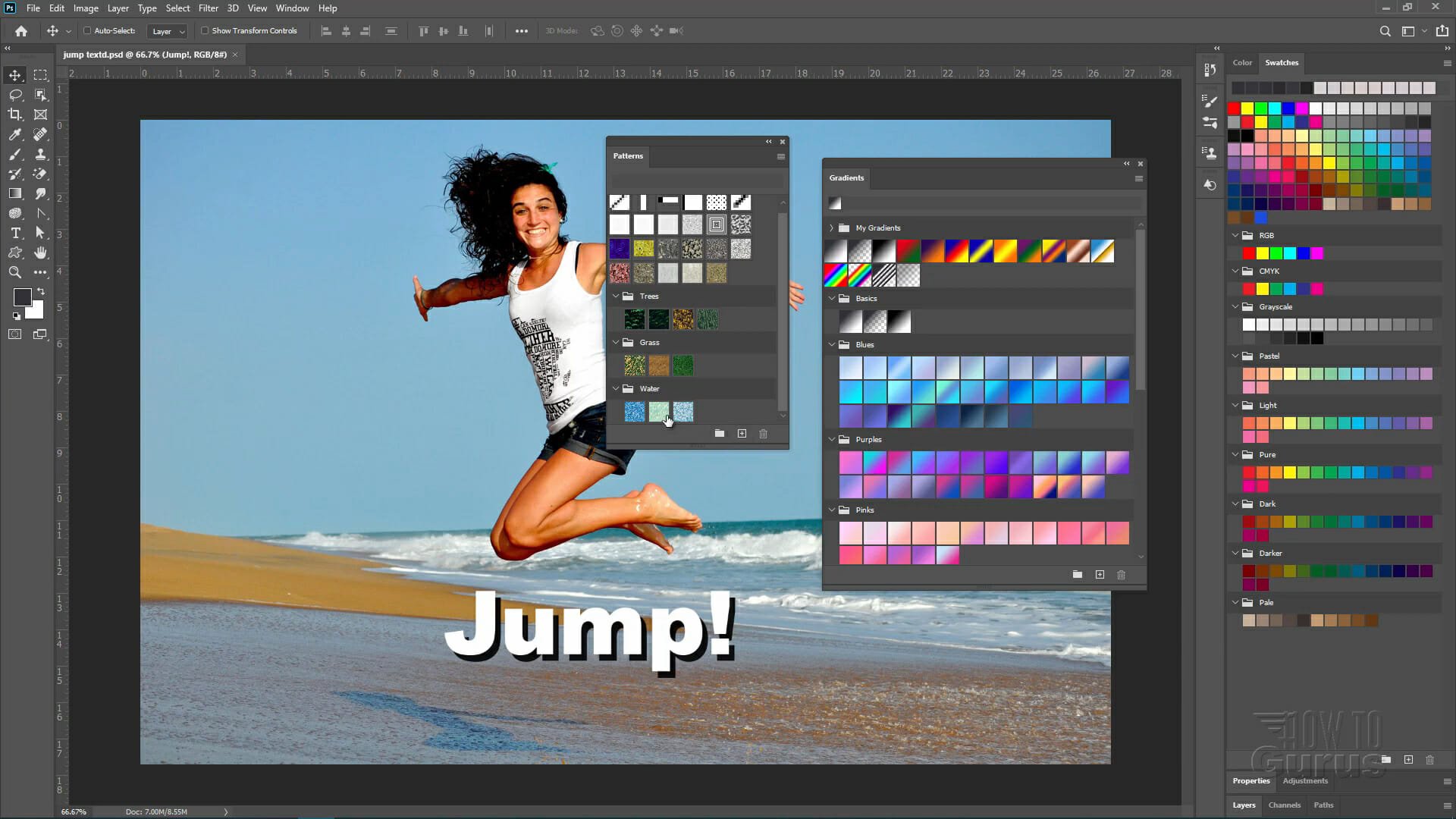
Adobe Fresco – Most suitable kids’ painting

Adobe Fresco is yet an amazing painting app that is inspired by the classic technique of applying pigment to wet plaster, and it can be complicated to use for a child.

With a bit of help from you and a good drawing tablet, your child will be able to create astonishing art in no time.

The really great thing about this tool is that it aims to replicate the way in which real-world watercolor and oil paints interact with each other or other surfaces.

Fresco includes brushes to create scalable drawings, layers, masking, and selection tools. All the files can be manipulated in Photoshop and easily transferred afterward to PDF for editing.

To get the most out of this software, it is recommended that you use it with a drawing pad or a similar device. This enables your child to have the same experience as painting on a canvas.

Adobe Fresco

Use this realistic app and create amazing painting with a tool that makes you feel you are using real water colors.
Free trial Visit website

Paint 4 Kids – Most kid-friendly

This image has an empty alt attribute; its file name is Paint4Kids.jpg

Paint 4 Kids is a Microsoft app that was designed specifically for kids, and offers a good range of tools to enable your child to create a variety of artworks.

It comes bundled with already-drawn shapes that your child can fill with colors just like in the case of a real-life coloring book.

You have the option to fill the shapes by using one tap or draw freehand over the sketches, which enables kids of all ages to enjoy this app thoroughly.

There are different brush sizes available, but no other more complex tools are to be found.

Paint 4 Kids

Unleash your kid’s creative potential by trying out this incredibly engaging application today!

ArtRage6 – Artistic paintings

ArtRage 6 combines perfectly the digital tools with the classic effects, making it another perfect painting tool. This software allows you to smear paint, and blend colors and it makes it easy to recreate natural ingredients.

Moreover, it has a Watercolor tool integrated that renders a variety of watercolor styles using a soft brush.

You can add volume to your custom brush strokes and use any of the variety of colors available in order to reach the desired combination.

⇒ Get ArtRage6

Tux Paint – Most interactive UI

Tux Paint is a child-friendly software application that enables your young ones to develop and enhance their digital creative skills without much of a learning curve.

This colorful software offers big icons with intuitive controls, thus enabling your child to focus on the creative part, and not on finding the right tools or colors.

Here are some of the best features found in this software:

  • Interactive sounds that play when tools are selected and used
  • A funny-looking penguin appears at the bottom of the screen giving useful information
  • One-size canvas makes it easier for kids to use the software
  • No file names need to be added when saving an art project
  • Wide variety of tools, brushes, and colors available to use

⇒ Get Tux Paint

These are some of the most perfect painting apps to use for kids and we hope that the information we offered you in this guide is enough to help you take the best decision.

If you have additional suggestions or recommendations, please let us know in the comments section below.
You can now install Adobe Lightroom without Creative Cloud

Those of you that use Adobe products have probably heard and most likely use Creative Cloud.

It is basically Adobe’s proprietary launch platform from which users can buy, download, update, manage, launch and uninstall all of their Adobe products.

Such products include Adobe Photoshop or Adobe Illustrator, Adobe Lightroom, and more.

However, this doesn’t seem to be the case for long. One of Adobe’s most important products, Adobe Lightroom has been updated, but it no longer requires Creative Cloud as a prerequisite.


Adobe and Microsoft collaborate to make Adobe Lightroom install easier

This not only marks a monumental change for users, but it also showcases the partnership between Microsoft and Adobe, as Lightroom can now also be downloaded from the Microsoft App Store.

As far as features go, there aren’t any significant differences between the Microsoft Store version and the regular version, so users will not experience any changes in functionality.

What makes this news even greater is that Lightroom is available in the Microsoft Store with a 7-day trial, which you can download at absolutely no cost.

Adobe Lightroom

Adobe Lightroom

Test the powerful photo editor Adobe Lightroom now, and edit stunning images like no other!
Free trialVisit website

Adobe commented on their decision to offer a free trial with the following:

Your first week is free. Once your free trial ends, the recurring monthly payment or upfront payment for a year in full, whichever option you selected, is automatically charged to your Microsoft account. To stop service, go to account settings and turn off auto-renew at least 24 hours before the end of your billing period. Prorating is unavailable – when you turn off auto-renew, service will continue until the end of that billing period

Furthermore, already active subscriptions to Lightroom will apply to the Microsoft Store version as well.


What are the new system requirements?

You won’t be able to run the Microsoft Store version of Lightroom with older versions of Windows anymore. You will need Windows 10 version 1903 and newer.

As such, if your device has already been updated to Windows 10 version 1909 you are eligible. Additionally, your PC will need to have at least 4GB of RAM to run the Store version of Lightroom.

Do you think getting Lightroom without Creative Cloud is a change for the better? Let us know in the comment section below.

5 of the best painting software for Windows 7

Microsoft no longer actively supports Windows 7, and some notable publishers are only releasing their latest painting software for Windows 10.

However, there is still some great painting software you can utilize on Windows 7.

The best painting software includes a plethora of art and design tools for artists to unleash their creativity with.

They also include image editing tools to refine photos with. These are five of the best painting software for Windows 7 users.

Adobe Photoshop

Adobe Photoshop painting software for windows 7

Adobe Photoshop is the crème da la crème of image editing and painting software for Windows platforms. The latest Photoshop 2021 doesn’t support Windows 7, but you can utilize Adobe Photoshop 2020.

Although some might think Photoshop is primarily an image editor, you can utilize this software for website, packaging, banner, logo, and icon design.

Painters will love Photoshop’s preview blending modes, sample brush presets, and a wide variety of brush tip controls. So, it’s among the most comprehensive art packages.

Other useful Adobe Photoshop features

  • Enables users to set up picture collages
  • Includes a Content-Aware Fill tool for removing unwanted details
  • Enables users to organize brush presets in folders
  • Includes more than 1,200 brushes
  • Users can set up slideshows with Photoshop’s Timeline feature
Adobe Photoshop

Adobe Photoshop

Use the full capabilities of Adobe Photoshop on your system and create astonishing work from the comfort of your own home.
Free trialVisit website

Adobe Illustrator

Adobe Illustrator painting software for windows 7

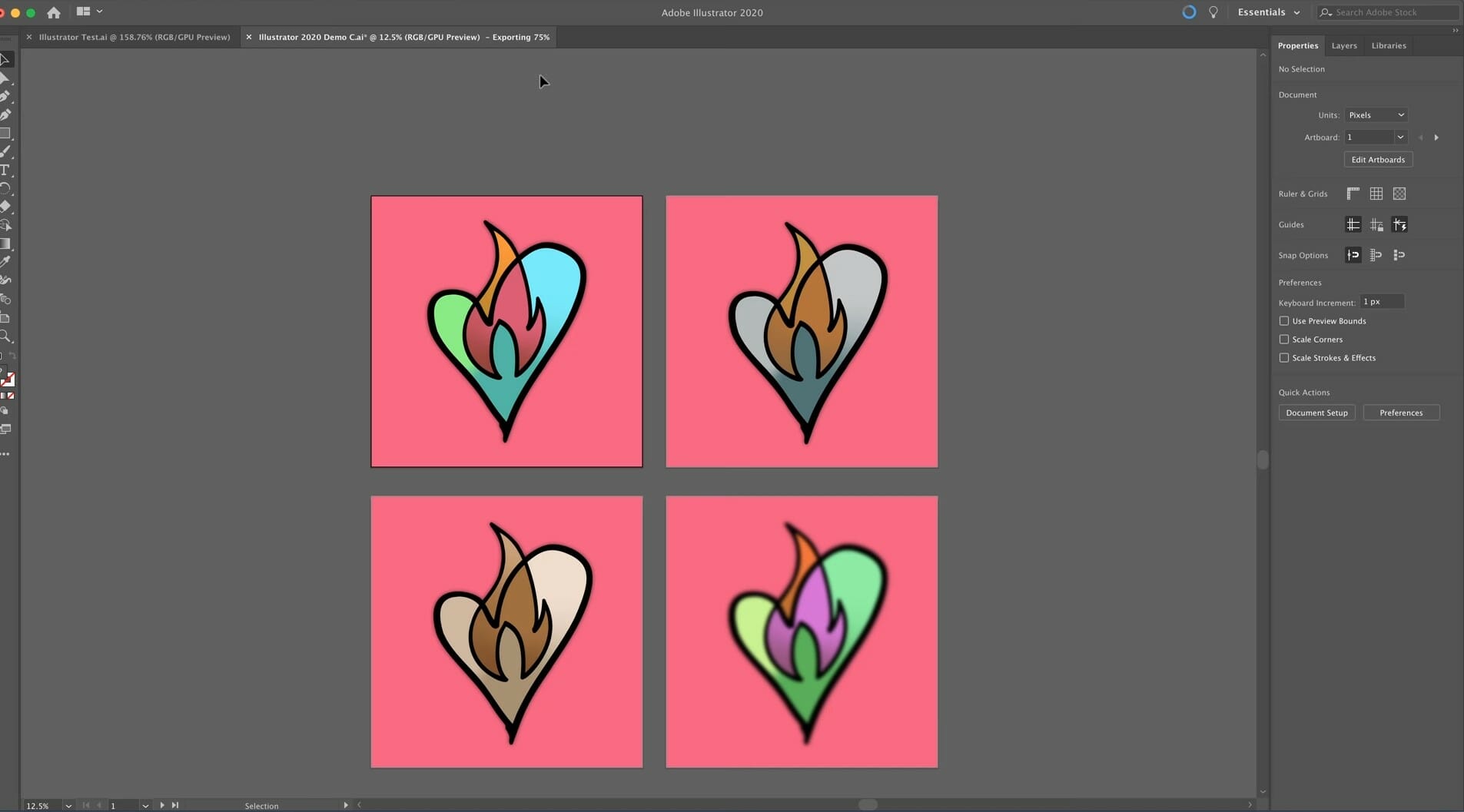
Adobe Illustrator is among the foremost graphics design applications for Windows. So, you can design all kinds of media with this application. As vector graphics software, Illustrator enables users to vectorize brush strokes for their designs.

Illustrator is the best software for users who need to apply paint to illustrations. It includes a Live Paint utility for colored drawings. That tool makes painting objects more like applying watercolors for pencil sketches.

Aside from Live Paint, painters will also appreciate Illustrator’s Brush tool. The Brush tool enables users to set up custom brushes.

This utility makes painting with Illustrator more flexible as users can customize brushes according to their design requirements.

Adobe Illustrator’s Transparency panel also enables users to apply transparent effects to art.

With that panel, users can apply blending modes, add transparent gradients and meshes, lower object opacity, and incorporate opacity masks for transparency variations within their pictures.

Other useful Illustrator features

  • Illustrator’s Adobe Sensei extracts colors from photos
  • 18 precision drawing tools
  • Includes six tools for complex typography
  • Graphing tools that enables users to set up data visualizations
Adobe Illustrator

Adobe Illustrator

Create amazing digital artworks on your Windows 7 system with this powerful software today.
Free trialVisit website

Corel Painter

Corel Painter painting software for windows 7

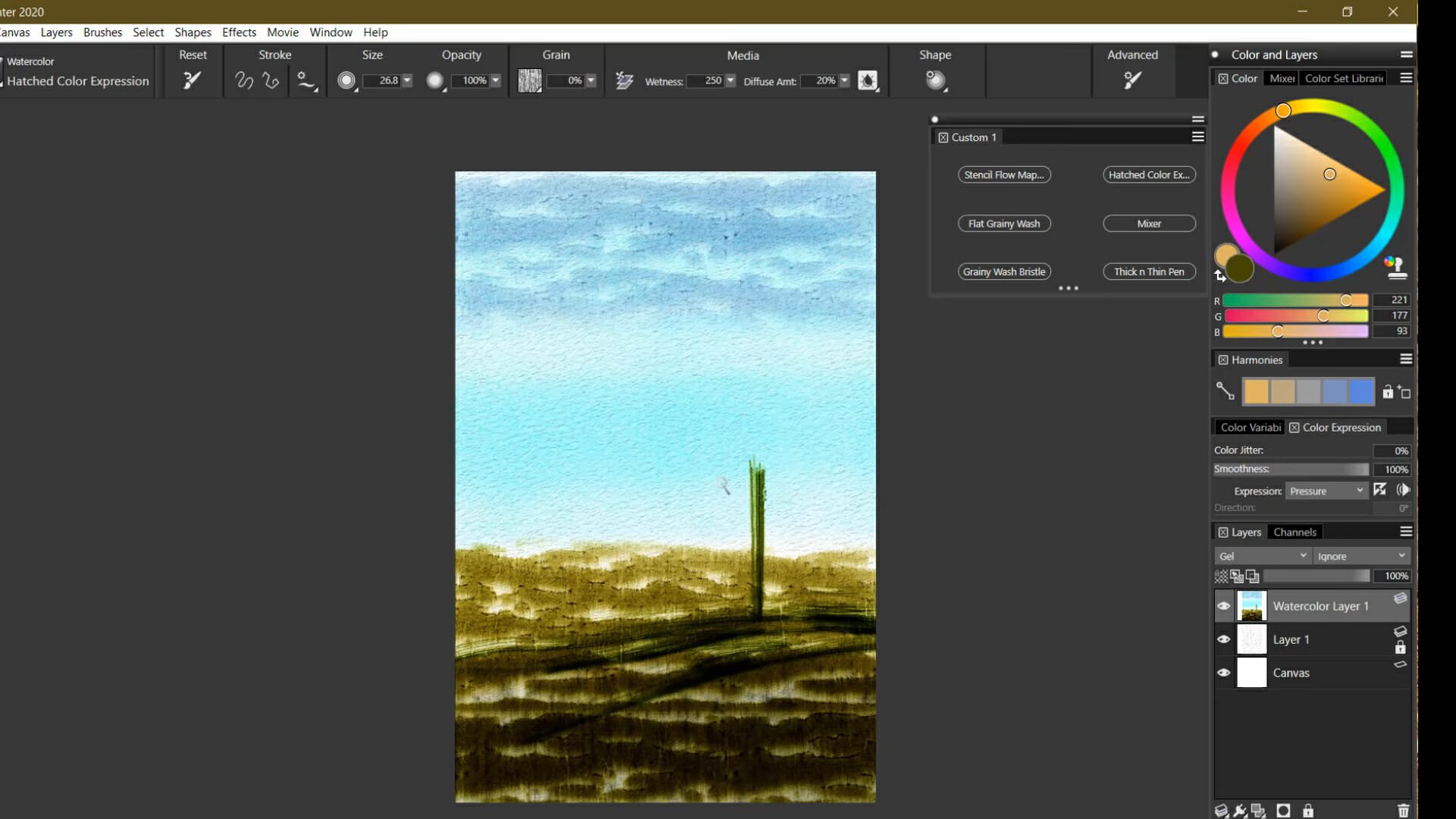
Corel Painter is an art package specifically designed to simulate traditional painting, printmaking, and drawing art media. So, this software is designed specifically for professional digital artists. The latest Corel Painter 2021 is only available for Windows 10, but Painter 2020 supports 64-bit Windows 7.

What sets Corel Painter apart from alternative art packages is its brushes. Firstly, it packs in a massive selection of brushes with more than 900 to choose from. Coral Painter’s brushes are also renowned for their realism and how they replicate real-world paintbrushes.

Corel Painter’s Brush Accelerator is among its most novel features. That feature optimizes Corel Painter’s brushes for your system specifications. Corel claims Brush Accelerator enables users to paint up to 20 times faster with traditional brushes.

Corel Painter also boasts impressive color selection features. Its color wheel is a very versatile color selection utility that combines very nicely with the mixer palette for mixing colors. Painter’s Color Harmonies feature provides complementary colors for current selections.

Other useful Corel Painter features

  • Includes layer tools for users
  • Provides dab and stroke previews
  • Enables users to set up brush presets
  • Includes extensive color modification, brightness, and canvass texture effects
  • The Move menu enables users to set up animated clips from pictures
Corel Painter

Corel Painter

Use this versatile tool to take your digital art creation to the next level in Windows 7.
Free trialVisit website

GIMP

GIMP painting software for windows 7

GIMP is among the most versatile image manipulation software for Windows.

You can utilize GIMP for painting, editing photos, graphics design, and more besides. The best thing about GIMP is that it’s open-source software that’s freely available for Windows, Linux, and Mac platforms.

GIMP includes parametric and raster brushes. Both brush types are very versatile for digital painting. The parametric brush can be especially effective for dry media charcoal, chalk, and pastel paintings.

There are a wide variety of additional brush packs for GIMP its users can download from DevianArt and other sources.

The brush packs are designed for more specific artistic effects. Alternatively, you can set up your own custom brushes within GIMP.

There are also a wealth of plugins you can add to GIMP to extend its paint feature set. For example, you can add the Paint Studio plugin to GIMP.

That plugin adds a further 102 brushes, 16 gradients, 12 palettes, and 28 patterns to GIMP. Even some Photoshop plugins reputedly work with GIMP!

Other useful GIMP features

  • Customizable UI design
  • Includes numerous filter effects for images
  • Users can retouch images with GIMP’s clone tool
  • Includes layer and layer mask tools

⇒ Download GIMP


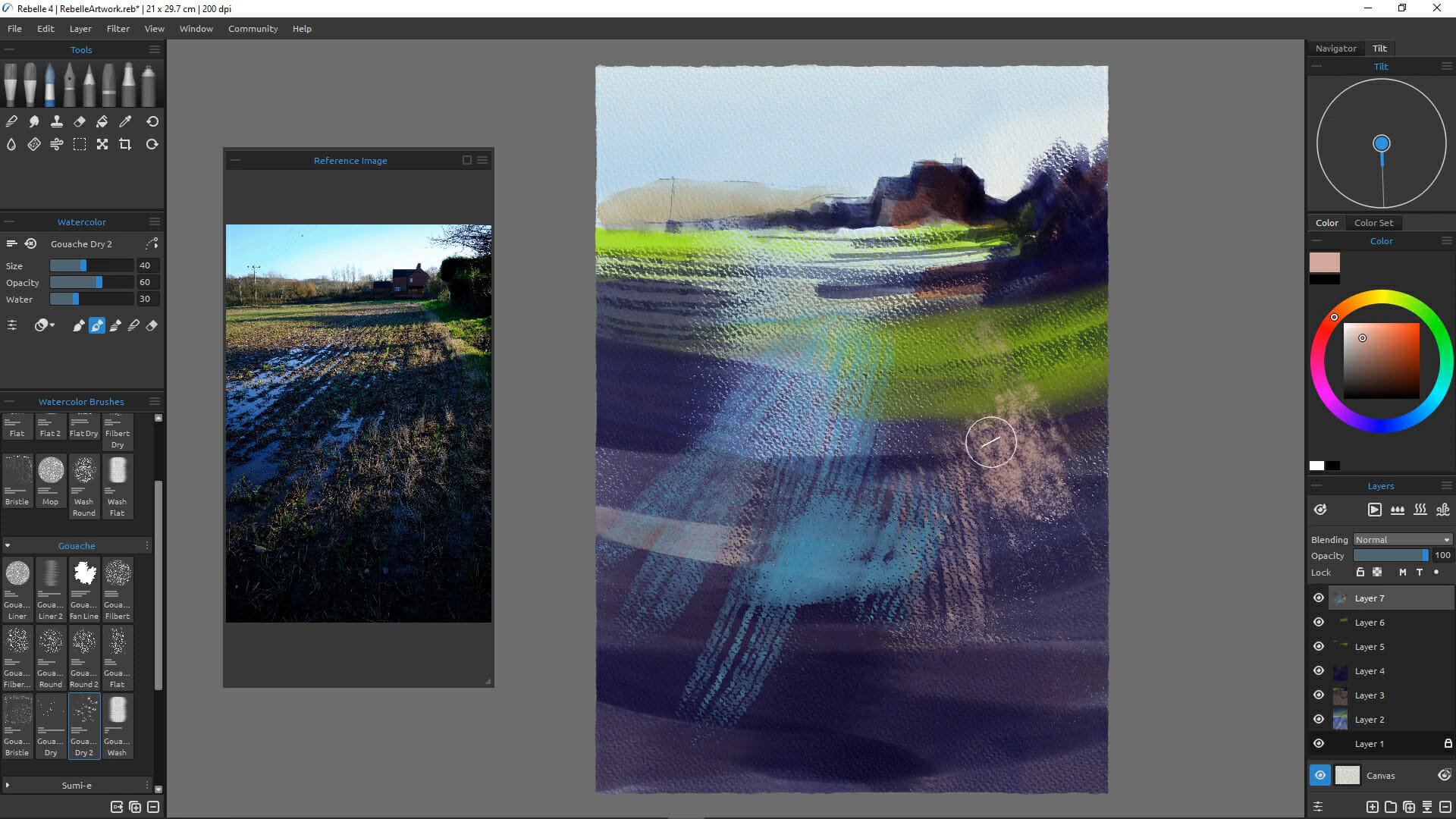
Rebelle

Rebelle painting software for windows 7

This is art software specifically for painting that incorporates watercolor simulation techniques. Rebelle mimics natural media more closely than the vast majority of digital paint software. Therefore, this software delivers some of the most realistic and natural-looking digital painting output.

Rebelle incorporates an extensive toolkit for painting. It incorporates wet tools for oil, acrylics, ink pen, and watercolor paintings. Alternatively, you can utilize its pastel, marker, and airbrush dry tools among others. Rebelle also includes a Brush Creator tool, blend and smudge options, and watercolor texture settings.

Although it’s not image-editing software, Rebelle does still include layer and color tools. Its layer utility enables you to overlap painting areas. Rebelle users can also adjust RYB color mixing, apply gamma correction, and select alternative RGB color profiles.

Other useful Rebelle features

  • Rebelle’s DropEngine generates water drip effects
  • Includes a Blow Tool for blowing drips
  • Ruler and perspective tools included for precision drawings
  • Includes numerous digital templates
  • Enables users to apply transparent water mixing

⇒ Download Rebelle 4


These are some of the best art packages digital artists can utilize on Windows 7.

Digital artists can paint visually stunning and realistic paintings with that art and design software.

Origin Error Code 327683:0: Fix it in 6 Easy Ways

Some users have posted on EA’s forum about an Origin 327683:0 error. That issue arises for some users when they try to update Origin or install games with that gaming client.

If you are also dealing with this issue, we will show you how to fix it for good in this guide.

What is error 327683:0 in Origin?

Error 327683:0 is an Origin update and game installation issue. Origin downloads the updates and games but displays the 327683:0 error message during installation.

The issue can be due to conflicting antivirus software, Windows’ firewall blocking Origin’s requests, and corrupted cache data.

How can I fix the Origin error 327683:0?

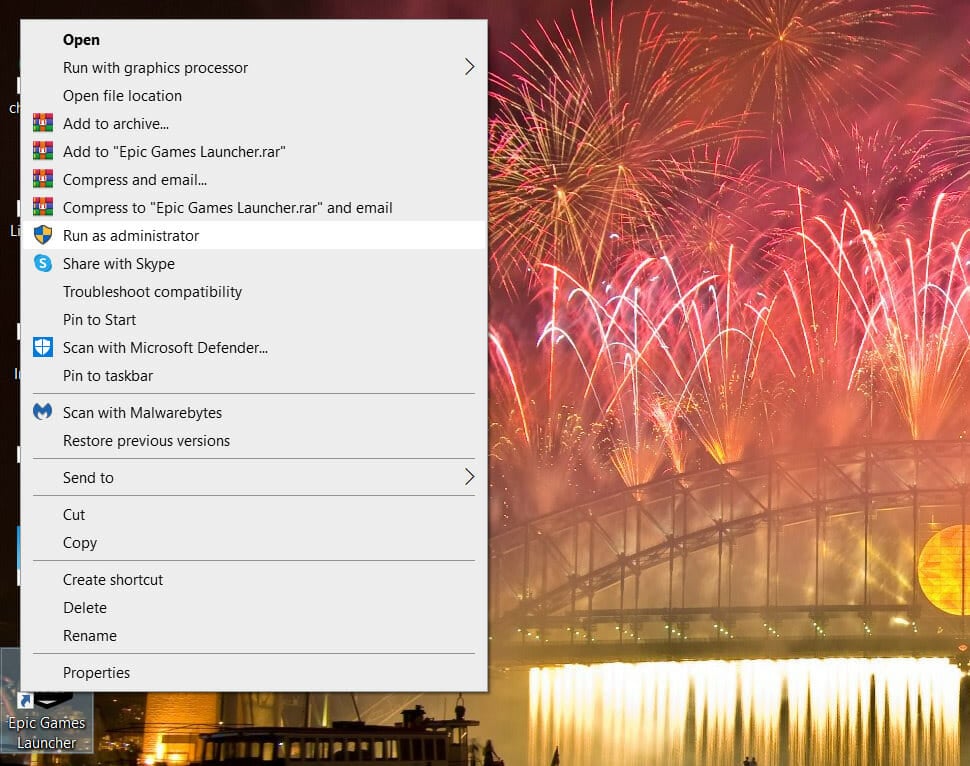
1. Run Origin as an administrator

Run as administrator option error: 327683:0

First, try running your Origin client software as an administrator by right-clicking its shortcut icon on the desktop.

Then, you can simply select the Run as administrator option on its context menu.

If you don’t have a desktop shortcut for it, right-click Origin on your Start menu, select More, and then choose Run as administrator. This also helps with issues like Origin Error Code 20.403; read this guide to learn about the issue

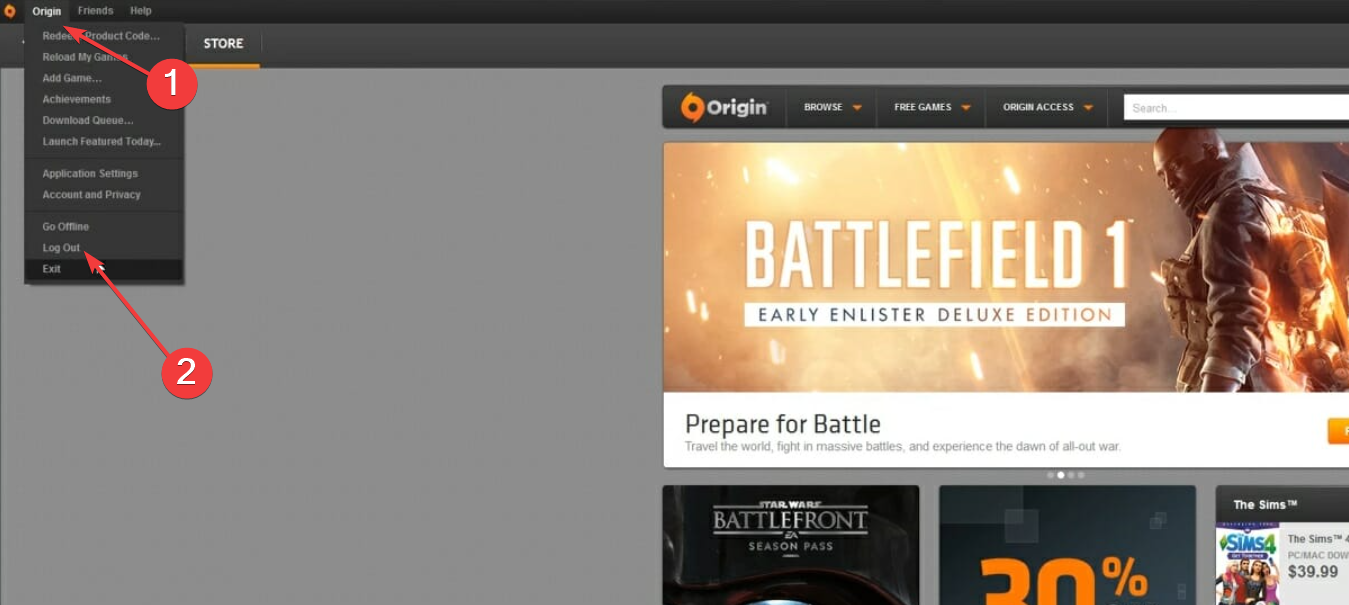
2. Log out and back into Origin

  1. Click Origin at the top left of the game client’s window.
  2. Now, choose the Log Out option.
    origin logout
  3. Finally, log back into Origin’s gaming client with your user account details after some minutes.

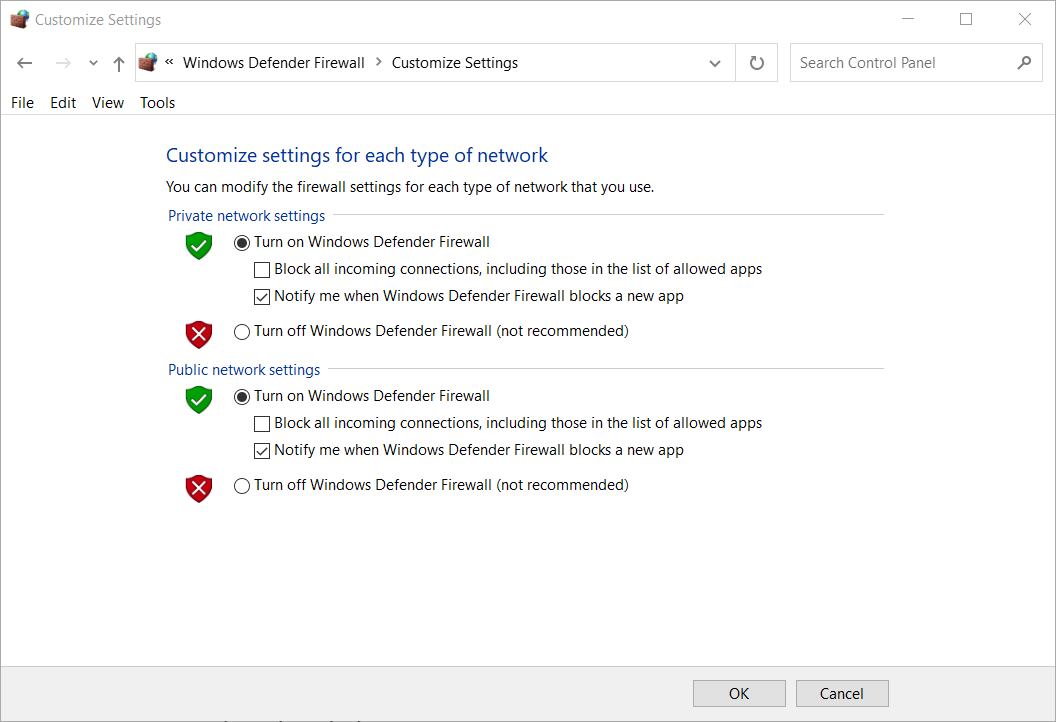
3. Temporarily turn off Windows Defender Firewall

  1. Press the Windows and R keys simultaneously to launch the Run accessory.
  2. Type this command line in Run’s Open box and press Enter: control firewall.cpl
  3. Next, click Turn Windows Defender Firewall on or off, which will open the settings in the snapshot directly below.
    Turn off Windows Defender Firewall options error: 327683:0
  4. Select both the Turn off Windows Defender Firewall options and click OK to close the window.
  5. Then try installing the Origin updates or games with the firewall off.

4. Disable third-party antivirus utilities

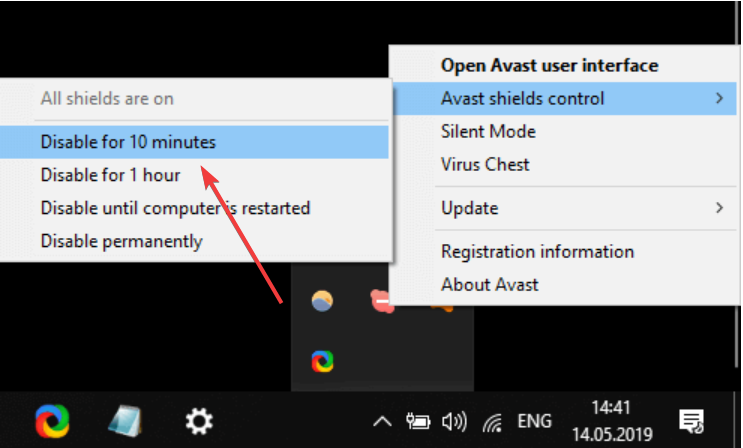
  1. Right-click the antivirus software icon for it on the Windows Taskbar.
  2. Choose the corresponding option to disable your antivirus.
  3. Finally, select the duration for which you want the antivirus to be disabled.
    disable error: 327683:0

5. Clear Origin’s cache

  1. Completely close the Origin client software if it’s open.
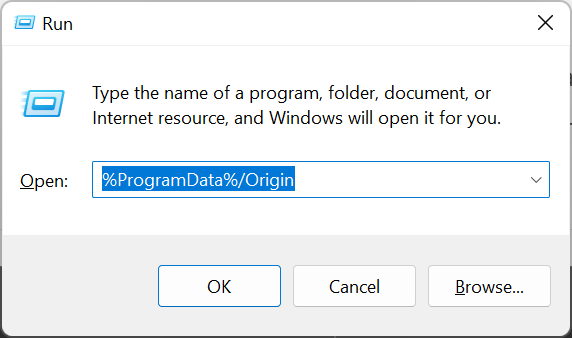
  2. Launch run with the Windows key + R hotkey that opens it.
  3. Open Origin’s cache folder by entering this location command and pressing Enter: %ProgramData%/Originprogramdata
  4. Select all content within the folder that opens with the exception of LocalContent.
  5. Click the Delete button on File Explorer’s Home tab to erase the selected content.
  6. Open Run’s window again.
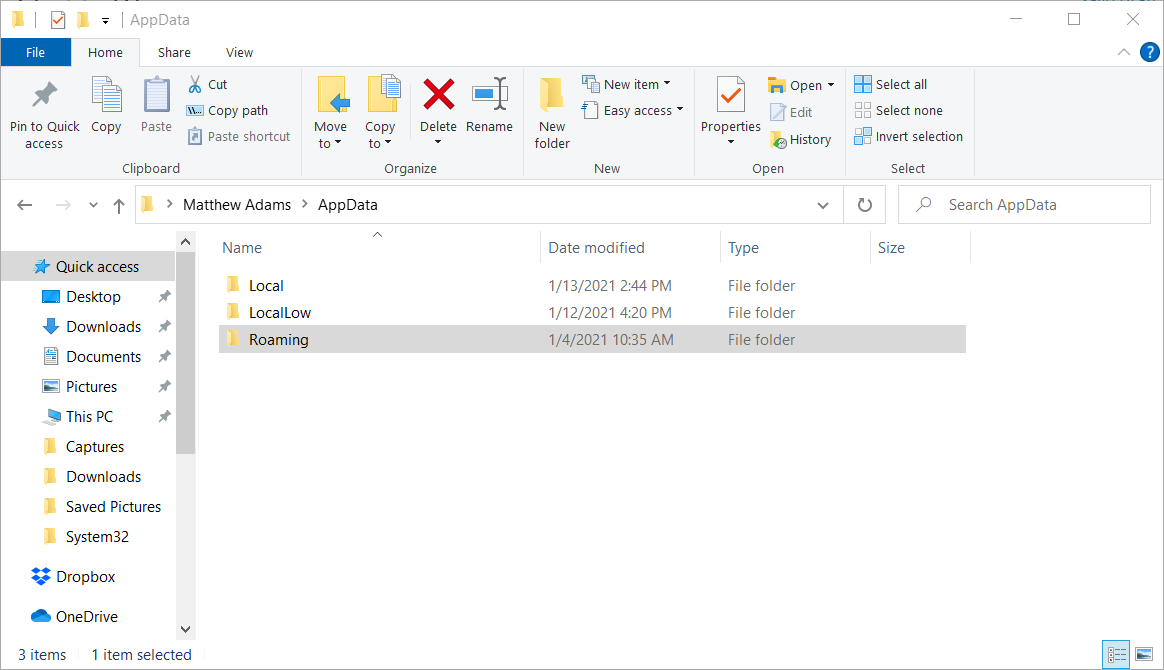
  7. Next, input this location command and press Enter: %AppData%
  8. Select the Origin subfolder within the Roaming folder that opens.
  9. Click the Delete button to erase the Origin subfolder.
  10. Click AppData in File Explorer’s path bar to open that folder.
    AppData folder error: 327683:0
  11. Open the Local folder within the AppData directory.
  12. Select the Origin folder in the Local directory, and press the Delete key.
  13. Thereafter, restart your desktop and laptop.

6. Reinstall Origin

  1. Open Run’s window.
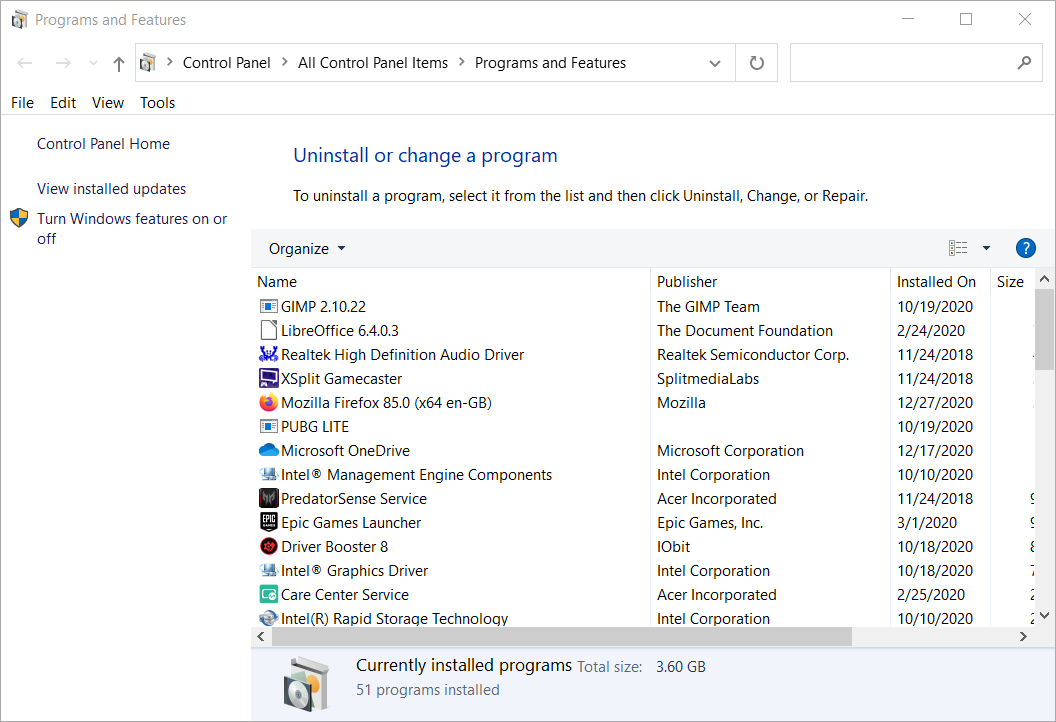
  2. To open Windows’ uninstaller, enter this launch command in Run: appwiz.cpl
  3. Select Origin in the programs list.
  4. Click Uninstall to remove Origin.
    Programs and Features error: 327683:0
  5. Restart Windows after you’ve uninstalled Origin.
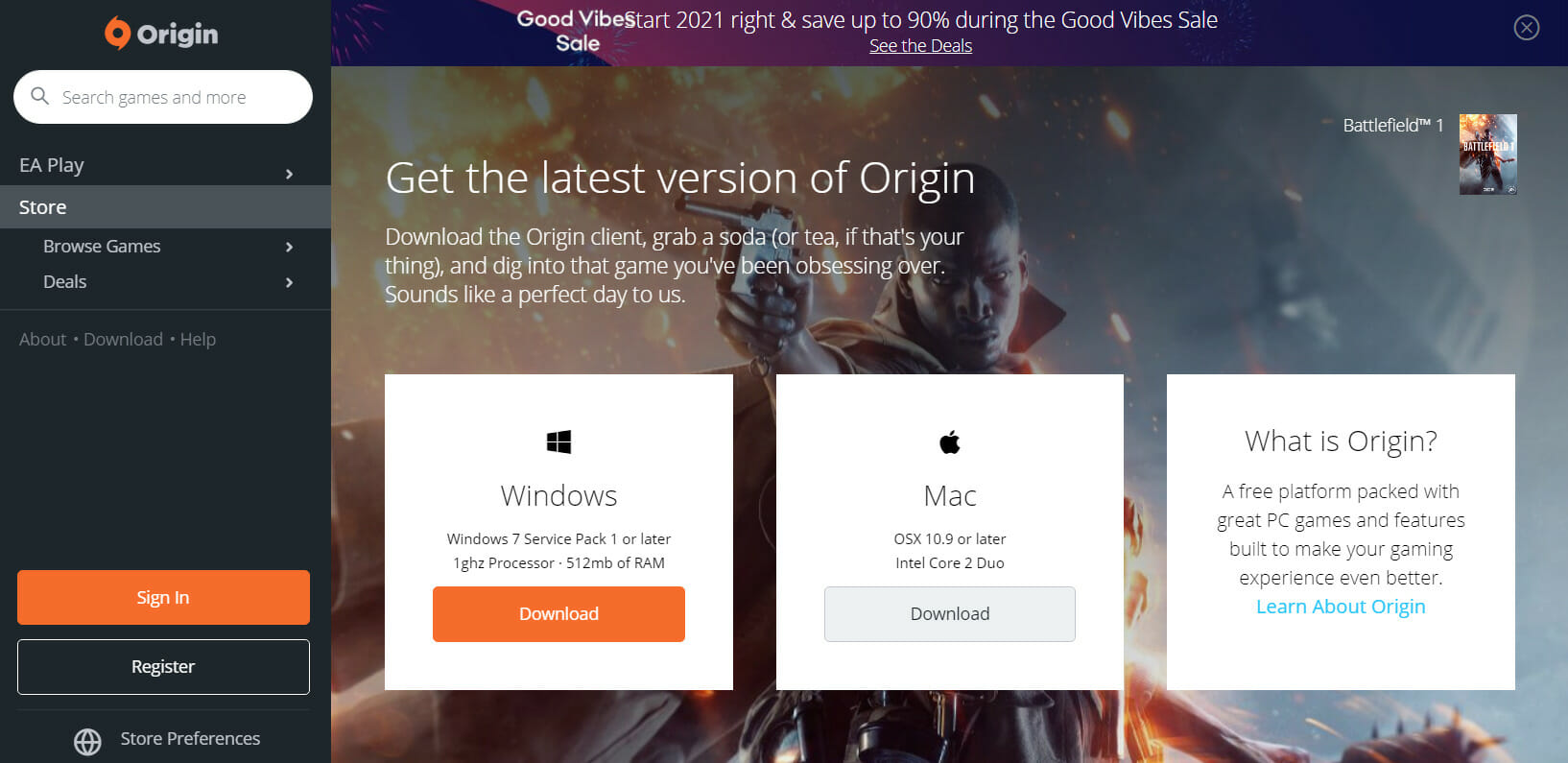
  6. Open Origin’s download page in a browser.
    Origin's download page error: 327683:0
  7. Click the Download button for Windows.
  8. Then, reinstall Origin with the downloaded setup wizard.

Those are some of the most widely confirmed resolutions that users have fixed error 327683:0 with.

So, there’s a good chance at least one of the above fixes will do the trick. With Origin’s 327683:0 error fixed, you can install Origin games again.

Similarly, if you want to know how to backup your origin game saves, we have a guide.

Fall Guys isn’t coming to Xbox Game Pass despite the Xbox team teasing it on social media

Fall Guys, a new platform battle Royale game from developer Mediatonic quickly became one of the most hyped games of 2020, along with Among Us. Since its launch on PC and PlayStation 4 back in August 2020, the game went to sell over 11 million copies on Steam, and it also became the most downloaded free PlayStation Plus game of all time.

Earlier today, a message from Reddit user ronbag gained some traction as it showed the Xbox team teasing the arrival of Fall Guys in Xbox Game Pass. The Xbox Game Pass team is known for its use of a funny tone on social media, but this reply to a comment on the official Xbox Game Pass Instagram account looked pretty serious.

Fall Guys is coming to Xbox Game Pass from Xboxnews

Unfortunately, the news that Fall Guys is coming to Xbox Game Pass has since been denied by both the official Fall Guys Twitter account as well as the one from the game’s publisher Devolver Digital. “There are no plans for Fall Guys to come to any form of Gamepass,” the publisher tweeted a couple of minutes ago.

Fall Guys coming to Xbox consoles and Xbox Game Pass would have been great news for Microsoft’s game subscription service, which recently welcomed the indie hit Among Us on PC. Even though the publisher’s tweet was pretty clear, there’s still a small chance that the original message from the Xbox Game Pass team was true.

As you may recall, we’ve seen the same thing happen with Control, the latest game from Remedy that joined Xbox Game Pass for Console last month and will be available for PC subscribers tomorrow. Xbox head Phil Spencer first announced in a December 2019 interview that the game was coming soon to Xbox Game Pass, but publisher Remedy was quick to deny it. One year later, the game did eventually come to Xbox Game Pass.

We’ll see what happens with Fall Guys, but the developer should really strike the iron while it’s hot and bring it to more platforms until the next gaming phenomenon shows up. If iOS and Android versions are also in the works, it would be surprising to see Fall Guys skip Xbox consoles entirely when Among us, another indie hit recently launched on Nintendo Switch with Xbox One and Xbox Series X|S versions to follow in 2021.

Microsoft looks to bolster the self-driving car market with new Cruise and GM partnership

Microsoft appears to be re-entering the automotive market in a significantly greater capacity than it has been previously.

A few years back, Microsoft seemingly slunk away from the automotive infotainment wars as Apple and Google staked their claims for center console attention leveraging their dominant smartphone operating systems. Only a few brands continued to make use of Microsoft’s underlying OS, and eventually those contracts were replaced with Blackberry’s QNX alternative.

In a similar pivot away from OS-centric development and eying the broader cloud services market, Microsoft continues to push forward with cloud computing and AI solutions for vehicle and road automation and forgoing the rigamarole of the infotainment competition.

On the Cruise website, the company announced that it, General Motors, and Microsoft have entered into a “long-term strategic relationship,” to expedite the “commercialization of self-driving vehicle.”

“Our mission to bring safer, better, and more affordable transportation to everyone isn’t just a tech race – it’s also a trust race,” said Cruise CEO Dan Ammann. “Microsoft, as the gold standard in the trustworthy democratization of technology, will be a force multiplier for us as we commercialize our fleet of self-driving, all-electric, shared vehicles.”

As with most of its cloud deals, Cruise will make use of Microsoft’s Azure cloud while Microsoft will siphon its partners’ knowledge and expertise to create better solutions to help accelerate its own innovation in the market.

While it would sci-fi-ish to see Microsoft connecting every automated car to another on the road while all vehicles communicate with AI-powered charging stations and real-time mapping APIs, I would venture to say yesterday’s deal may be a bit more pedestrian on an early scale. More than likely, Microsoft will provide Cruise and GM with AI scalability and machine learning capacity while also backing the companies internal communications, productivity, and production platforms through an integrated Microsoft 365 stack.

At the end of the day, GM and Cruise will create their own proprietary solutions that lay atop an Azure platform of information tracking to manage its array of on-vehicle sensors, in-warehouse operations, and digital supply chain tracking that all gets parsed through Microsoft’s cloud computing solutions. Microsoft may not show up on any self-driving vehicles but its presence in the market is now more significant than it’s ever been.

The specifics of the deal aren’t public knowledge yet, but what is known so far is that Microsoft, along with General Motors, Honda, and other institutional investors will enter into a consortium of sorts with a combined equity investment of over $2 billion in Cruise. The influx of investment also raises Cruise’s valuation to $30 billion.

12 Best Software to Mix Audio and Video Files [Free & Paid]

While editing a video sometimes you might want to mix different audio and video clips together.

By doing so you can achieve some interesting results, so today we’re going to show you the best audio & video mixer software.  

What is the best app to merge audio and video files?

Adobe Premiere Pro

Mixing video and audio together in order to create a compilation or a music video is one of the most basic tasks that you can perform with a video editor.

Of course, while any low-end video editor can perform this task, very few manage to blend the two elements together at a truly professional level.

That is where Adobe Premiere Pro is different compared to all the rest, as this timeline-based video editor has all the tools that you may ever need in order to pull off this job.

It doesn’t matter if you want to add a simple sound effect to a 5-minute video, or if you want to make a YouTube-worthy music video, Adobe Premiere Pro has got you covered. Simply annotate along the timeline where you want the secondary audio to be added in, and then let Premiere Pro process the file.

Of course, you can also use the program to perform some minor audio editing as well, so you don’t have to switch back and forth between audio and video editors.

However, that wouldn’t be the case with Premiere Pro anyway, since importing and exporting into Adobe’s dedicated audio editor, Adobe Audition, is incredibly easy.

Here are some of the perks of using Adobe Premiere Pro:

  • Great for mixing video, imagery, and audio together
  • Familiar-looking timeline-based video editor
  • Very compatible with all other Adobe products
  • Works best when paired with Adobe After Effects
  • It can be tested for free for 7 days
Adobe Premiere Pro

Adobe Premiere Pro

Industry-leading software for audio & video mixing for beginners and pros alike.
Free trialVisit website

VSDC Video Editor

Many video editors allow you to combine both audio and video and that’s also the case with VSDC Video Editor.

The application has a relatively simple interface so even the basic users will be able to edit videos without too much hassle.

The application supports a wide range of codecs and video formats including AVI, MP4, MKV, MPG, WMV, 3GP, FLV and many others.

As for audio files, the application can work with MP3, WAV, WMA, FLAC, PCM, OGG, AAC, M4A, AMR and many other popular formats.

In addition to audio and video files, the application also works with various image formats.

In terms of video editing, VSDC Video Editor supports a wide range of effects and you can even perform color correction and various transformations.

All visual effects are sorted into five different categories so you can easily access any of them.

In addition to video effects, the application supports a wide range of audio effects and you can easily normalize sound, change the volume, add reverb or echo effects.

According to the developer, this is a non-linear video editor so you can freely position your elements anywhere on the timeline.

The application also offers various blending modes and by performing minor adjustments you can get some interesting results.

The application also supports masking so you can create different masks and use them to hide or highlight certain elements.

The VSDC Video Editor supports social networks and you can easily export your video and optimize it for social media websites such as Facebook, YouTube, Instagram, Twitter, etc.

It’s worth mentioning that the application supports the H265/HEVC codec so it can work with 4K videos with ease.

The application also allows you to optimize your videos for various devices and you can even create and burn discs right from this tool.

If you want to share your videos online, you can also upload them to YouTube directly from this application.

Additional features include video stabilization tool and a file converter that can easily convert files from one format to another.

Speaking of extra features, VSDC Video Editor also supports video capture as well as screen recording.

The application allows you to use multiple tracks which makes it incredibly easy to combine audio and video.

Your audio will be added as a separate track, but you can also choose to mute the original audio. Each track supports customization and there’s a wide range of parameters you can configure.

⇒ Download VSDC Video Editor Pro


Full Video Audio Mixer

This is a simple application that allows you to easily combine audio and video files.

The application offers a simple interface that allows you to extract the video track and save it as its own file. You can also use this tool to extract audio from video files.

The application allows you to perform some adjustments to your videos and you can change the video size or crop your video.

If needed, you can also rotate your video or flip it right from this application.

You can also cut your video in order to remove the unnecessary segments. The application offers several syncing options and you can keep the original sync or you can add delay time to audio or video. You can also change image motion if you wish to do so.

There are also several mixing options available and you can remove the original sound from the video or choose to keep it.

In addition, you can also change the sound volume and tempo of the original audio.

The application has a built-in audio editor so you can easily preview your audio file and edit it.

You can cut, copy and paste the desired segments and change the audio amplification. If needed, you can also reduce the length of the audio so it can match the length of your video.

Full Video Audio Mixer offers a simple user interface so even the most basic users will be able to use it.

The application uses a tabbed interface so it’s easy to add both audio and video.

The software doesn’t offer any advanced features, which can be a flaw if you’re an advanced user. Speaking of missing features, there’s no preview feature available which is another flaw in our opinion.

We also have to mention that this isn’t a free application, and it will leave its watermark on all processed videos unless you purchase a license.

⇒ Download Full Video Audio Mixer


VirtualDub

Another application that can help you mix audio and video files is VirtualDub. This is a video capture software but it also offers some video editing features.

The application reads and writes AVI2 and multi-segment AVI clips. In addition, there are MPEG-1 and Motion-JPEG decoders available.

VirtualDub also allows you to remove and replace audio tracks on any video with ease.

As for video editing, the application offers some basic effects such as blur, emboss, smoothing, 3×3 convolution, and the ability to change brightness and contrast.

In addition, you can flip, resize and rotate videos or adjust levels, deinterlace, and threshold.

The application also offers bilinear and bicubic resampling and you can also decompress and recompress both audio and video.

If needed, you can also remove specific segments, adjust frame rate or decimate frames. In addition to all these features, VirtualDub is rather fast so you can process and edit videos with ease.

VirtualDub has a simple interface, but it offers decent video editing features, and you can even use it to mix audio and video files.

The application is completely free and portable, so it will work without an installation.

⇒ Download VirtualDub


VLC

Another application that can help you mix audio and video files is VLC Media Player.

This is a powerful media player and it can play almost any file with ease. In addition to files, the application also works with online streams, webcams, discs, and other devices.

It’s worth mentioning that VLC uses hardware decoding so it’s faster than other multimedia players.

As for supported formats, VLC Media Player supports a wide range of both audio and video files.

In addition, the application offers many advanced features, and you can extend it even further with various plug-ins.

VLC Media Player also allows you to play two or more files simultaneously allowing you to mix audio and video files.

Even though you can play and mix two files, you can’t save them as a separate file.

VLC Media Player is a great application, and even though you can combine audio and video files, you won’t be able to save them.

This is one of the best multimedia players, and if you need a media player that can also mix files, be sure to consider VLC.

⇒ Download VLC


VideoMeld

Another application that can help you mix audio and video files is VideoMeld.

The first thing you’ll notice about this application is its slightly outdated interface, but despite the interface the application has a lot to offer.

According to the developer, the application allows you to mix any number of audio and video files.

In addition to mixing, you can edit videos by adding captions, special effects and transitions to them.

Speaking of effects, there are about over 50 different video effects and transitions. You can also record your screen using this application and create video tutorials.

As for additional features, the application supports HD video up to 1920×1080 and it can save it to MPEG 4 H.264 format.

There’s also support for 7.1 surround sound which is always a welcome feature. Audio effects are also available and some of the available effects include Noise Reduction, Compressor/Expander, Equalizer, and Pitch.

The application uses a non-destructive virtual editing system so there’s no need to process your files. As a result, you’ll perform your edits faster and save time.

VideoMeld supports zooming, panning, and cropping, but you can also change colors, tint, and transparency.

There’s even support for blue or green screen so you can easily add custom background to your videos.

The application supports multiple undo and redo steps, and thanks to the multiprocessor usage you’ll achieve maximum performance.

Lastly, the application can also extract audio from video files and save it as an MP3 file which can be useful to some users.

VideoMeld is a decent video editor and it allows you to edit your videos, but it also lets you mix audio and video files.

Our only complaint is the slightly outdated interface, but if you don’t mind it, feel free to try this application out.

⇒ Download VideoMeld


OpenShot

If you need to mix audio and video files, you can do that by using OpenShot software.

This is an open-source application and you can use it without any restrictions. The application is available for all major desktop platforms including Linux and Mac OS X.

The first thing you’ll notice about this application is its modern and friendly user interface which makes it perfect for first-time users.

The application works as a video editor and you can easily trim your videos and remove any unnecessary segments.

There’s also support for animation and keyframes so you can easily create various animations.

As for additional features, the application offers various visual effects and you can easily remove the background from your videos, invert colors or adjust the brightness.

In order to edit your videos, the application offers an unlimited number of layers so you can combine multiple videos, effects, and audio tracks.

OpenShot supports waveforms and you can easily add them to your videos. There’s also a title editor as well as support for 3D animations and effects.

In addition, there’s support for time effects and you can easily adjust the speed of your playback. Speaking of playback, the application supports audio mixing so you can easily mix audio and video clips with ease.

OpenShot is a solid video editor and it comes with a modern and user-friendly interface. The application supports a wide range of features, and it’s perfect if you want to edit videos or mix audio and video files.

⇒ Download OpenShot


Aimersoft Video Editor

This application comes with a modern and simple interface that will be appealing to both basic and advanced users alike.

The tool works with audio, video, and photo files, and you can combine them to create some interesting results.

It’s also worth mentioning that you can easily edit your files right from this application and apply various special effects.

As for effects, there are more than a hundred visual effects that you can apply to your videos.

You can also add various text elements to your videos or use one of many available video transitions or credits screens.

As for additional options, the tool offers speed control so you can slow down or speed up your videos.

In addition, you can also play your video in reverse. Since this is a video editing software, it supports all standard video editing features.

This means you can easily trim or crop your videos, change the hue, saturation, or brightness. If needed, you can also merge videos with ease.

The application also offers various audio editing options so you can easily trim, split or change the volume of audio files.

Using this tool you can easily record your screen and there’s even a video stabilization feature available.

Additional features include split-screen, support for the green screen as well as tilt-shift. To make the editing process simpler, Aimersoft Video Editor also has a scene detection feature that will help you find a specific scene in a matter of seconds.

The application supports multiple tracks so you can easily mix audio and video. You can add your audio over the default audio track or completely remove the original audio.

Aimersoft Video Editor is a great tool for video editing, and thanks to the friendly user interface even the most basic users will be able to use it.

The application is perfect if you want to make edits to your video or if you need to mix audio and video files.

⇒ Download Aimersoft Video Editor


Avidemux

If you need to combine audio and video files, you might want to consider using Avidemux.

This is a free video editing tool and it allows you to perform basic editing tasks like cutting your videos, adding filters, or performing encoding tasks.

The first thing you’ll notice about this application is its simple user interface, but despite the interface, the application has a lot to offer in terms of usability.

The application is compatible with a wide array of codecs and video formats so you should be able to open any video file with it.

You can choose between many video output formats and configure output settings for each format.

In addition, you can choose the audio output format as well, change its configuration, or even apply basic effects.

Using Avidemux you can preview your video at any time, and you can navigate frame by frame in order to find a specific scene. If you want, you can also navigate through keyframes.

There’s full support for keyboard shortcuts so you can use them to control your playback and preview your video.

If needed, you can also select a specific segment of the video by using start and end markers.

As for audio, the application allows you to have up to four different audio tracks. If needed, you can keep the original audio track or you can completely remove it.

In addition to combining audio and video, you can also extract audio from a video file and save it separately.

Avidemux has a simple user interface, so you shouldn’t have any issues adjusting to it. The application doesn’t offer any advanced features, but it’s perfect if you want to mix audio and video files.

⇒ Download Avidemux


Kate’s Video Toolkit

Another simple application that can help you mix audio and video files is Kate’s Video Toolkit.

The application has a humble interface and it allows you to easily mix files. Using this tool you can play video files and adjust the volume or play rate of any video.

In addition, you can also see relevant information such as used codec, resolution, and frame rate.

The application also supports video conversion and you can easily convert your video to AVI, MPEG, WMV, DVD, VCD, and SVCD format.

Each format supports advanced options so you can configure various parameters.

If you don’t want to convert an entire video, you can simply set start and end time to convert only a specific segment.

If needed, you can also join two or more video files and export them to one of the available formats.

The application fully supports audio and video mixing and you can mix files with ease. The preview option is also available so you can see how your mixed video will look like.

In addition, you can easily mix two or more audio/video files. The application will remove the original audio and replace it with a new audio track, so keep that in mind. Once you’re done, you can save your file in one of the many available formats.

Lastly, the application allows you to create transitions and switch between different files. This feature supports only two videos, but it allows you to choose between 25 different transition effects.

If needed, you can set the transition starting point and duration in seconds.

This is a simple application, and it doesn’t offer any advanced features, so it might not be the best choice if you’re an advanced user.

If you’re a basic user and you’re looking for a simple tool, this free application might be just what you need.

⇒ Download Kate’s Video Toolkit


MediaCoder

This is a media transcoding software, but you can also use it to combine audio and video files.

The application supports file conversion for both audio and video files, and there’s also support for H.264/H.265 GPU accelerated encoding.

You can also use this tool to rip discs and there’s also support for video capture.

The application supports various audio and video filters, so you can easily enhance any multimedia file.

MediaCoder supports multiple threads and by doing so it ensures maximum performance.

It’s also worth mentioning that the application uses Segmental Video Encoding technology for improved parallelization.

MediaCoder supports a wide range of formats including both lossy and lossless audio formats. A list of audio formats includes MP3, FLAC, WavPack, Vorbis, and many more.

Various video compression formats such as H.264/AVC, H.265/HEVC, VP8/VP9, MPEG 1/2/4, Flash Video, XviD, DivX, and many more are available as well.

Using this tool you can compress multimedia files and reduce their size or even optimize them for playback on various multimedia devices.

If needed, you can also use this tool to extract audio from a video file. Lastly, you can also mix audio and video files together using this tool.

MediaCoder is a great transcoding application, and it offers an abundance of features.

The application offers a wide range of configurations, so it might not be suitable for basic users. If you just want to mix audio and video files, you might want to try a different application.

On the other hand, if you’re no stranger to transcoding, you’ll find MediaCoder perfect for all your needs.

The application is completely free, and there’s even a portable version available so you can run it without an installation.

⇒ Download MediaCoder


FormatFactory

Another useful application that can help you mix audio and video files is FormatFactory. This is a file converter software, and it works with a wide array of formats.

As for the video, it allows you to convert your files to MP4, MKV, AVI, WebM, 3GP, MWV, FLV, SWF, GIF, and several others.

If needed, you can also choose to optimize your files for various video devices.

In addition to audio and video files, FormatFactory also works with images, so you can convert images to WebP, JPG, PNG, GIF, ICO, and several other formats.

If needed, you can also use this tool with documents and easily convert PDF to HTML. In addition, Mobi, EPub, and AZW3 formats are also supported.

The application also works with DVD and CD discs allowing you to easily rip both DVD and audio CDs.

Alternatively, you can also convert any DVD or CD to ISO. Even though this is a file converter, it offers some hidden features, such as the ability to join video or audio files.

The application also offers a powerful rename ability as well as the ability to mix audio and video files.

As for video mixing, you can output your file to MP4 or MKV format. Of course, you can customize various parameters for your output file including video encoder, bitrate, FPS, audio stream quality, etc.

After you add the desired audio file, you can disable its audio track or keep it. If needed, you can also view video information or trim the unnecessary segments.

Video cropping is also available so you can resize your video with ease. After doing that, you just need to add a desired audio file and you’re good to go.

FormatFactory is a solid media converter, but it also offers video and audio mixing along with other features.

If you need a media converter that can also mix audio and video files, we recommend you check out FormatFactory. The application is free to use, so be sure to try it out.

⇒Download FormatFactory

Mixing audio and video is relatively simple as long as you have the proper tool to do that. We covered a wide range of tools for audio and video mixing, so feel free to try any of them.


Packaging Design Software: 7 Best to Use in 2026

Although not everyone wants to admit it, we all look for the packaging when deciding whether to buy a product or not. It has to be attractive yet to the point.

Designing such packaging is thus no easy task, as you not only need a good sense of style but also a good graphic design tool to go with it. Depending on your choice, you can eventually make your job a whole lot easier.

As such, we’re going to be listing a few software tools that are to be the best of the best when it comes to designing the packaging or pretty much any product imaginable.


What is the best product packaging design software?

Adobe Illustrator – Professional designing tool

Topping out our list is a world industry-standard and best software for packaging design that has dominated the market for years now.

Adobe Illustrator is a vector-based graphic design program that allows you to unleash your wildest imaginations when it comes to visuals.

It doesn’t matter if you are interested in designing a simple 2-color logo or a banner the size of a stadium with all the colors of the rainbow, Illustrator has everything you need.

The program comes with an extensive library of tools, brushes, and extensions that can be used to enrich your experience using it.

That being said, even a task such as designing the packaging of a product is a piece of cake with Adobe Illustrator.

The software features layer support, so your packaging can contain all the elements that you can ever dream of.

One great thing about is that it features plenty of tools that automate the creative process in an intuitive way, so less time focusing on doing basic tasks and more time focusing on what truly matters.

Here are some of Adobe Illustrator’s main features:

  • 24/7 Customer Support
  • An almost unlimited supply of resources
  • Plenty of tutorial guides
  • A complete toolset
  • Familiar UI for those used to Adobe Photoshop

Adobe Illustrator

Create awesome product packages that will attract customers and help your business with Adobe Illustrator
Free trial Visit website

CorelDRAW – Very intuitive interface

Are you wondering which software is used for packaging design? If you’re not all that versed in graphic design tools, then maybe Adobe Illustrator’s UI might seem a bit scary.

As such, if you are willing to part with a few of the tools and features, you could always choose a program like CorelDRAW.

While still a solid vector-based graphic design tool, CorelDRAW is far more user-friendly thanks to the cleaner and more intuitive UI.

However, unlike Illustrator, CorelDRAW is far more limited in terms of what it can do, as it is mostly directed towards those who want to make simpler designs, such as logos, or infographics.

This doesn’t mean that you cannot use it for packaging designs, just that you won’t be able to do everything you want with it just as easily.

Here are some of CorelDRAW’s main features:

  • Intuitive interface
  • A solid set of tools and features
  • Full layer control
  • Not too resource-intensive
  • Great for designing logos as well

CorelDraw

Create amazing graphic designs for your work by using the plethora of features included with CorelDraw
Check price Visit website

Adobe Dimension – Vector graphics and 3D models

We all know that Adobe is the best when it comes to art, graphical, or any visual product, so it shouldn’t come as a surprise that they also have a product specifically created for logo and packaging design.

Adobe Dimension provides you with a specific set of tools that will enhance your capabilities when it comes to visually enhancing your brand.

This tool will allow you to easily design packages, logos, illustrations, and even product mock-ups.

Adobe Dimension benefits from the years of experience that the company has gathered for its family of visual software. It allows you to use vector graphics or images and 3D models.

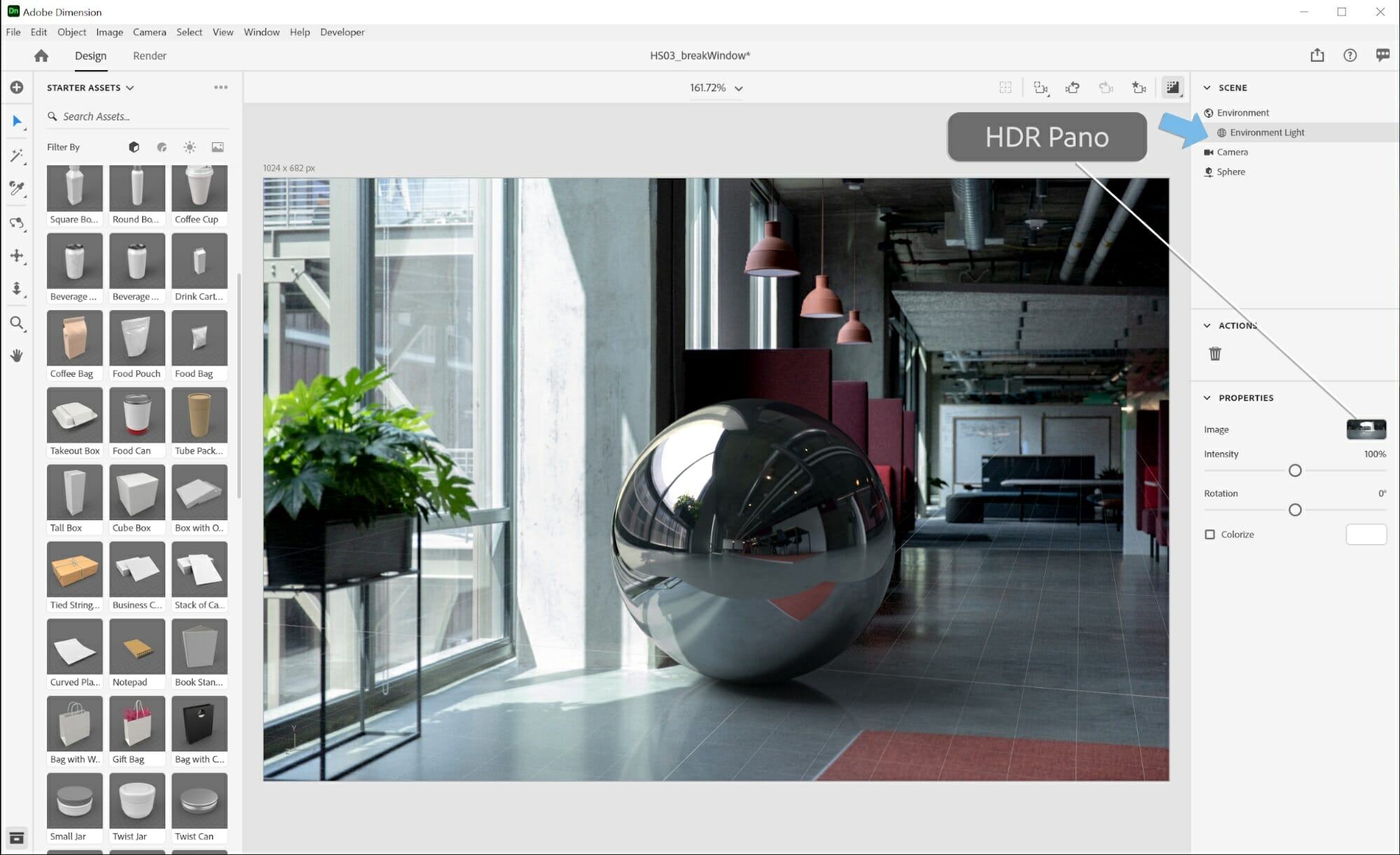
The interface is very intuitive and you can easily create 3D text, customize basic shapes, and then add rich materials to them. You can enhance your designs further with seamless imports to Adobe XD of InDesign.

You should also know that Adobe Dimension is part of the Creative Cloud All Apps plan.

Some of the key features of Adobe Dimension:

  • Create real-life images in real-time
  • Adobe Stock for 3D assets
  • Vector graphics and 3D models
  • Automatically match your 3D design with any background image
  • Create 3D text and customize basic shapes

Adobe Dimension

Package designing is made easy with this professional tool from Adobe.
Free Trial Visit Website

Graphic Design Studio – Wide library of templates

This next product is probably new to you since it hasn’t been on the market for all that long as compared to the other entries, but that doesn’t mean it is not a good choice.

However, do not get fooled by its short time, because this doesn’t mean that it is bad since it comes with quite an impressive toolset.

Graphic Design Studio from Summitsoft boasts what many would argue is an entry-level interface that pretty much anyone can handle.

By using this program you can create your own professional-looking graphics with easy-to-use design tools that make your projects look like you paid a graphic designer.

This is all thanks to the menus that are arranged in a way that is both logical and intuitive, as you can almost tell where you can find a certain feature even if it is your first time using the program.

More so, if you’re a fan of the hands-on approach, you will be happy to know that Graphic Design Studio also supports pencil and pen tools to their full extent.

Here are some of Graphic Design Studio’s main features:

  • Beginner-friendly UI
  • Wide range of tools
  • Can be used for plenty of graphic design projects
  • A wide library of Inspirations (templates) to choose from
  • The price tag

Graphic Design Studio

Design your own creations and put your ideas on paper by using a plethora of features with Graphic Design Studio
Check price Visit website

Affinity Designer – Portable device compatibility

This next entry is probably one that many Adobe Illustrators have heard. Affinity Designer was originally designed for use on the MacOSX but has slowly migrated to the Windows platform as well.

Those of you with prior Photoshop or Illustrator experience will find the UI to be very familiar, but those of you who are hard-core Windows fans may not like the macOS-inspired look.

However, if you love designing on the go, such as on a tablet, then you’ll love how Affinity Designer integrates itself with the device.

Regardless of which, if packaging design is what you are looking for, then Affinity Designer has all the tools that you may ever need, including font bundles, illustration kits, brush packs, and more.

All in all, these bonuses are meant to help you bring some extra creativity and polish to your projects, thus creating quality products.

Here are some of Affinity Designer’s main features:

  • Plenty of bonus features such as brushes, fonts, and more
  • Full layer support
  • Vector-based design
  • Portable device compatibility
  • Photoshop and Illustrator-inspired look

Affinity Designer

Affinity Designer’s interactive and awesome UI will make binging your ideas to life easier than ever
Check price Visit website

Inkscape – Open source design software

If you’re on a budget and are not bothered by the occasional bug here and there, then Inkscape is definitely the tool that you should be looking at.

Taking into consideration the fact that it is completely free, the sheer number of features and tools that Inkscape has is amazing.

More so, the fact that it is open-source makes it an ideal candidate for a large number of plugins that can add even more functionality to the base program.

As far as graphic design goes, Inkscape is perfectly capable of creating pretty much anything, from tiny logos to digital art and even billboards and banners.

Unfortunately, being free means that technical support is non-existent, but if you browse their forums, you are bound to find a solution at some point.

This product is completely free, without any hidden costs, although you can contribute through donations if you wish to support its development.

Here are some of Inkscape’s main features:

  • High-quality vector-based graphics
  • Great support forums
  • Highly customizable with plug-ins
  • Free
  • Open-source

⇒ Download Inkscape

4Pack – Complete product management

4Pack is a complete solution when it comes to managing your business and that of course includes the packaging design part of the process.

This platform allows you to bring together product management and packaging management plus many other tools that will make handling your products much easier.

The package design software from 4Pack comes with many of the tools we already have seen in the more visual and art-oriented software above.

The software comes with color management, an artwork archive, an asset library, and packaging material management and it allows integration & migration.

Having all this, plus the actual product management under the same system can be a benefit for some people, especially if you are not able te personally manage everything on your own.

Key features of the 4Pack platform:

  • Complete product management
  • Multiple pricing models to fit your business
  • Dynamic artwork
  • Packaging Material Management

⇒ Visit 4Pack


Designing your packaging in a way that will draw the attention of potential customers is basically winning half the battle.

Thus, it is always good to invest in a very good software tool when it comes to designing your product. Therefore, make sure that your final choice suits your needs.


Pattern Making Software: 4 Best to Download in 2026

With the latest advancements in computer technology, it is easier than ever to start producing original pattern designs for your clothing business.

Apparel pattern making software classifies as CAD (Computer Aided Design) software, and it can be used by anyone, no matter if they have experience in the industry or not.

Of course, experience in using CAD software helps, but with the use of specialized software, the learning curve in this domain is not very steep if you have the time to invest in learning.

Good CAD software for this domain will offer you the possibility to save a lot of time, reduce the overall costs of production.

You will also never have to worry about getting a measurement wrong before sending your project’s panels to be cut by a CNC machine again.

In order to help you get you started in this domain as soon as possible, in this article we explored some of the best apparel pattern making software available on the market in 2019. Read on to find out more.


What’s the best apparel pattern making software?

Adobe Textile Designer

Prints for fabrics aren’t all that easy to design as simply sketching on a piece of paper. That is why Adobe Textile Designer was created, the best fashion pattern making software on the market.

Acting as a set of tools for fashion and décor artists, helping them streamline the process of designing prints for fabrics for their own needs.

Initially, fashion designers would use Adobe Photoshop for this kind of job, but then they realised that using the base generic program didn’t cut it anymore, so they decided to go for a more niche approach with more dedicated tools.

That’s how Adobe Textile Designer came to be. You can use it to create bold and striking patterns, but not only for clothes, pretty much anything that is covered in fabric and can use a splash of color.

Thanks to this handy plugin, you can do much more within Photoshop, while keeping every element editable until you are ready to send it to your printer.

This includes, but is not limited to, previewing patterns, defining separations, and working with colorways.

More so, the great part about this program is that the files it edits are the same PSD format that Photoshop users are used to. Thus, you can always switch between one program or another when editing your print.

Note: Adobe Textile Designer is merely a plugin for Adobe Photoshop. As such, you will also need to purchase and install the base program in order to use Adobe Textile Designer.

Adobe Textile Designer

Adobe Textile Designer

Bring your awesome design ideas to life by creating any pattern possible with Adobe Textile
Free trialView website

PatternSmith

PatternSmith by AutoMetrix - apparel pattern design

PatternSmith is one of the best clothes pattern making software options on the market that gives you a wide range of tools to help you create the apparel of your dreams.

Whether you represent a company and need to streamline the pattern making process, or if you just started the journey by creating garments at home, this software will surely help you.

This software allows you to draft patterns, edit, nest, and also control the cutting machines, giving you professional results, while also reducing wasted materials and simplifying the process of apparel creation.

Here are some of the best features found in PatternSmith:

  • Automatic computer-calculated nesting – allows you to make the most out of the piece of garment you’re trying to cut
  • Can customize the fit of your entire project
  • Wide range of templates to help you choose the best option for your project
  • Can create patterns in 3D and then automatically transform them into 2D data for cutting
  • HideShot – helps you outline and find any flaws in your patterns
  • Automatically slices large patterns to get the most out of your material and fit it easily into your cutting machine

⇒ Try PatternSmith


PatternMaker

This software is another great option that helps you deal with all the issues of pattern creating, by offering you access to a wide range of features.

Here are a few of the best features found in PatternMaker:

  • Can view and print designs as needed with the capability to move, rotate, cut, and spread your apparel garments
  • Great professional-looking templates that can simplify the entire process of garment creation
  • Can be used to draw a wide range of pattern pieces (polygons) – curved segments, circles, rectangles, etc.
  • Easily measure curved items with very exact results
  • Can open and also export .dxf files

⇒ Try PatternMaker


Accumark 2D

Accumark is another great software option that will surely help you streamline the process of creating garment patterns and offering you access to a wide range of features.

Accumark’s plethora of features will simplify the process of creating, editing, and cutting your project’s 2D panels, allowing you to create wonderful things.

Here are some of the best features found in Accumark 2D:

  • Create professional-looking garment designs fast
  • Material-efficient calculations – allows you to get the most out of every piece of garment by reducing waste
  • Multi-dimensional grading – easily modify any existing projects
  • Can generate custom reports based on your needs
  • Easy customization for your apparel by using the drag and drop image placement feature
  • Very useful automatic batch processing for large-scale projects

⇒ Try Accumark 2D 


Because apparel design is complicated as it is, it is far more efficient to use specialized software to help you with the design, measuring, fitting, and cutting of your 2D patterns.

For these reasons, in this article, we explored some of the best software options on the market that allows you to save precious time, reduce the waste of material, and also simplifies the process of cutting your apparel panels.

Please feel free to let us know how these software options worked for you by using the comment section below.


Stained Glass Design Software: 4 Best Pattern Generators

Through the ages, people have used different types of materials and mediums to represent different elements of their psyche.

Starting with some of the most ancient cave paintings found across the globe (made with ash and red ochre), art has evolved into a more refined subject in time.

Today we have a wide range of types of art to choose from – painting, writing, drawing, acting, singing, and dancing. Each of the types of art we mentioned above can be combined with a wide range of environments.

One of the most interesting currents of art evolution is to use stained glass to create beautiful patterns. In this article, we will explore some of the best software options that will help you create amazing art.

What’s the best stained glass design software?

Adobe Illustrator – Bold glass designs

grab Adobe Illustrator

There is no secret that Adobe does a remarkable job when it comes to keeping up with the ever-changing world of content creation.

Adobe Illustrator is the best proof that an industry-standard vector graphics software tool can be what stained glass design professionals are looking for.

Illustrator basically puts the power of Adobe’s famous design tools in the hands of those eager to create sketches, icons, flyers, product packaging, book illustrations, billboards, and so much more with ease.

Among the positive things about this program is the fact that it assures amazing results at literally any size you could think of.

Moreover, it offers you a wide range of templates and design presets to choose from. Also, keep in mind the major benefits coming from its integration with Adobe Creative Cloud.

You are no stranger to other popular Adobe apps, so you’ll find sharing your art projects extremely intuitive as well.

These are some amazing key features to consider before making a decision:

  • Snap to Pixel feature allows precise alignment to customized pixel boundaries
  • Layout customization features are here included too
  • Seamless workflow with other Creative Cloud apps like Premiere Pro and InDesign
  • Illustrator trial works on both Mac OS and Windows
  • Illustrator is on its way to iPad; don’t hesitate to sign up and get early access

Adobe Illustrator

Create the most colorful, detailed, and amazing designs for your stained glass projects with Adobe Illustrator
Free trial Visit website

Artlandia SymmetryWorks – Affordable pattern design tool

Artlandia SymmetryWorks - stained glass design

Arlandia SymmetryWorks is not actually a computer program or a stained glass program per se. This is a plug-in designed for Adobe Illustrator that allows you to create an incredible amount of shapes and patterns to fit your stained glass project.

We have all heard about the endless capabilities of Adobe Illustrator, so in this article, we will focus on the features of the plug-in for creating stained glass patterns.

Even though this is not a stand-alone program in itself, SymmetryWorks contains an incredible amount of cool features that simplify the process of creating your stained glass pattern.

Here are some of the best features:

  • Can create patterns with one click of the mouse
  • Everything can be edited in real-time
  • Drag-and-drop features for adding new objects to your project
  • Has the ability to create replicas and multi-replicas
  • Supports a wide range of Illustrator objects, symbols, compound shapes, etc.
  • Can be used to create nested patterns including Guilloche
  • Full support for blends, swatches, and also raster images
  • Great harmonic growth designs – can create fractal-like patterns with ease

⇒ Get now Artlandia SymmetryWorks 

Glass Eye 2000 – Glass colors and texture

Glass Eye 2000 is a great software option that can simplify the process of creating beautiful stained glass models, offering you a wide range of capabilities under a user-friendly dashboard.

This software can be used both by professionals in the domain, but also by people that have no experience and want to start creating easily.

You can use Glass Eye to preview all your designs before building them and apply a wide range of glass colors and even different material textures.

Even more, it automatically calculates the number of pieces you need to build the model and can print the model pattern at 1:1 size.

If you are curious to see some patterns created by other people that used this software, you can visit the official pattern library. 

Glass Eye 2000 was released in a few different versions, each with its own capabilities. This is the complete list.

⇒ Get Glass Eye 

American Bevel Designer – High-class glass artwork

American bevel designer - stained glass software

American Bevel Designer is another great tool to have installed on your PC that helps you create an unlimited number of professional-looking stained glass designs.

This software can be used to create windows, doors, or for your own personal art projects. To be more precise, you can create pieces of stained glass by using built-in Pre-drawn Shapes.

Then, choose from different types of levels, can create lines, arches, and circles, and also allows unlimited multi-level undo’s.

This software also works on a WYSIWYG (What You See Is What You Get) type of text editing and different cool effects.

One of the best features found in American Bevel Designer is the fact that you can create custom pens that fit the needs of your current project, save them, and use them when needed.

In addition to this option, you can choose from a color gradient filled with 254 colors.  

The patterns that create your design can be then printed in full size, allowing you to easily transform your model from a virtual environment to real life.

You can also find a good range of downloadable patterns on the official American Bevel website.

If you are not sure about how to get started using this software, you can access the official tutorials page. 

⇒ Get American Bevel Designer 

In this article, we explored some of the best software options that can help you create amazing works of art using stained glass.

The features covered by these 4 top software options will surely help you get started in your art journey, or help you create a stained-glass project professionally.

We would love to find out what your experience with using this software was like. Please feel free to let us know in the comments section below.

Here’s How to Open NEF files in Windows 10

Nikon Electronic Format, a RAW file format containing digital photos taken by a Nikon camera. This format has detailed images as captured by the camera’s sensors, with no compression or loss of quality.

The NEF file format stores images’ metadata, such as the model of the camera itself, settings, lens information, and other details.

The main advantage of writing images in NEF file format to the memory card compared to the TIFF or JPEG format is that no post-processing is permanent.

Stuff like the hue, tone, sharpness, or white balance is applied, but these are retained as instruction sets that come with the NEF file and can be changed as many times as you want without affecting data.

Another advantage is that depending on the camera you’re using, the NEF file retains 12-bit or 14-bit data, translating to an image with a greater tonal range than an 8-bit JPEG or TIFF file.

With Nikon’s Capture NX2 software or other imaging programs, the after-capture processing of NEF files gives you greater control over the final image than when JPEG or TIFF files are processed.

You can then save them as TIFF, JPEG, or as NEF again. Provided the original NEF file is preserved, the digital negative remains untouched, and processing doesn’t change the original instruction set.

It is exclusive to Nikon cameras, and sometimes it is referred to as digital negatives and is written to the camera’s memory card in either uncompressed or lossless compressed format.

How do I open NEF files in Windows 10?

Adobe Photoshop – Most popular app

There’s no way you can talk about opening or editing image files without the name Adobe Photoshop popping into your mind.

This raster-based image editor can also be used as a NEF file opener. More so, the toolset allows you to take the NEF file and then turn it into a more manageable format, such as JPG or BMP.

Besides, NEF files could always use a little bit of doctoring themselves, and that is something that Adobe Photoshop can easily handle as well.

Normally, this world-class program is subscription-based, but now you can test it for a full 7 days without any limitations.

If Photoshop cannot open the files, install the latest Camera RAW plugin supported by your version of Photoshop and try opening them again.

Adobe Photoshop

Convert any type of file, including NEF easily, without losing data by using Adobe Photoshop.
Check price Visit Website

FileViewer Plus – Highly rated

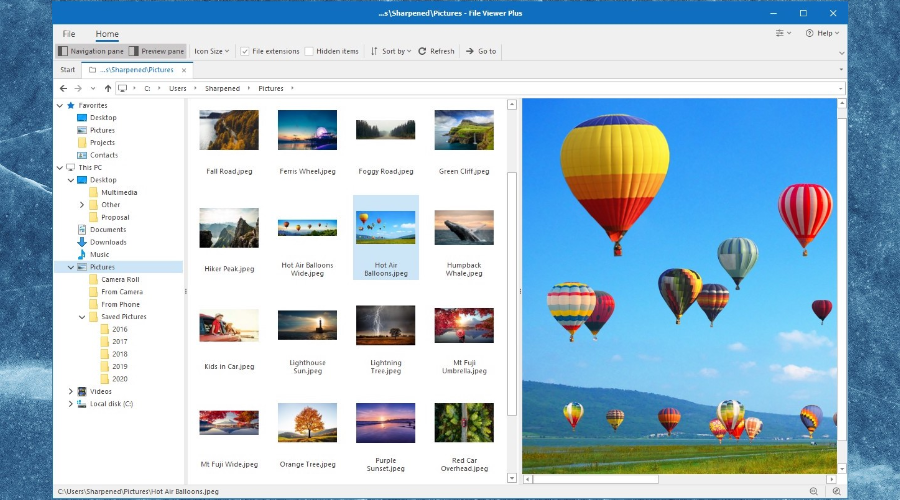
FileViewer Plus is an extremely powerful software highly rated on the market. It will open over 300 file formats, including all the most popular photo formats.

You can open, convert, and edit not only NEF files but also RAW, 3FR, ARI, CR2,  CRW,  and many other popular formats directly in its interface.

The best thing so far about this tool is that it can be used not only on photo files. You can also open and edit video, image, and text formats without having to download other software.

FileViewer Plus

Try FileViewer Plus and open over 400 formats on your PC with ease.
Check price Visit Website

GIMP – Free software

GIMP, or GNU Image Manipulation Program, is a free photo editing software for Windows, though it requires some extra skills or time to understand and use it.

Although it’s not as simple as most free photo editors, if you want to open NEF files, then GIMP is one of the best tools for this task.

⇒ Get GIMP


IrfanView – Advanced image processing

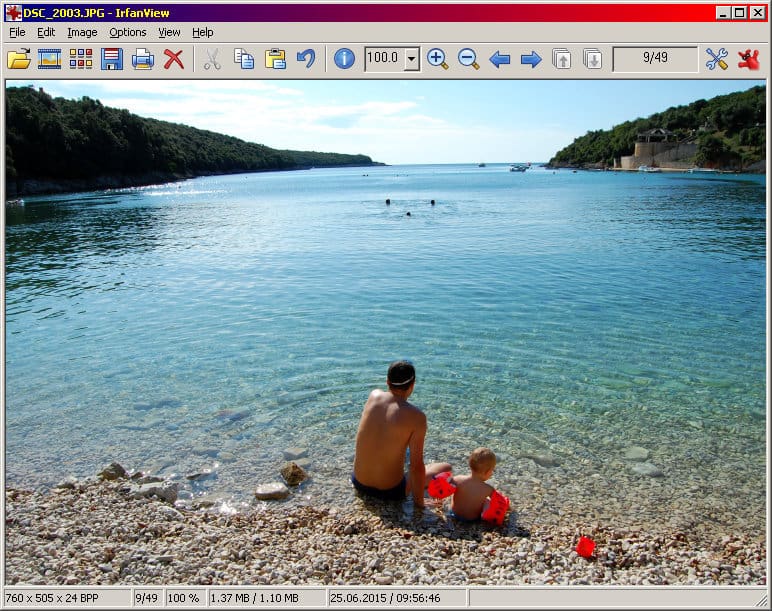
IrfanView is your best bet for opening NEF files. Some cool things you can do with this photo viewer include file searches, and batch conversions for advanced image processing.

The software also has Photoshop filter support, Paint options, blurring, and more, all packed into an easy to understand and interactive interface.

In case you’re not familiar with it, we have a great guide on how to set IrfanView as the default photo viewer in Windows 11, so don’t miss it.

⇒ Get IrfanView


CaptureNX2 – Fully-featured

This is a full-featured, non-destructive photo editing software that gives you all the tools to quickly and easily edit your digital photos.

It has features such as color control, selection control, auto-retouch, and shadow/highlight adjustment. You can enhance the hue, brightness, and saturation of an image as well.

It works with RAW NEF files, but also JPEG and TIFF as well, and its interface has customized workspaces, toolbar functions and layout.

In addition to that, the software also has edit list functionality, a redesigned image browser with a favorites folder, and image resolution adjustments.

⇒ Get CaptureNX2


ViewNX2 – RAW processing feature

This software also helps you open NEF files, and has a refined user interface with three different workspaces: Browser/GeoTag/Edit.

These can be smoothly switched using the tool button. You can also select background color based on image brightness.

It is free to download and install to browse, edit and share images and movies. It also has RAW processing functions and movie editing features equivalent to those in digital SLRs.

Images saved in the Nikon Image Space can be browsed as if saved on your own PC. Once you login, you need not input your ID and password again, plus you can use the drag/drop for easy uploading of images.

⇒ Get ViewNX2


How do I process NEF files on my camera?

Here are the steps you can take to process the NEF files in your Nikon DSLR camera prior to opening the file:

  1. In the Retouch menu, find NEF in-camera processing feature.
    • This lets you process NEF RAW files into JPGs within the camera, and is useful for shooting RAW files or sharing a quick JPG
  2. Adjust Picture Controls or change images from color options like Black & White (B&W) or Sepia, change white balance, exposure compensation and so much more.
  3. Once you’re done with and satisfied with the adjustments, preview it by pushing the magnifying glass button on the back of the camera.
  4. Select EXE when you’re ready to save the JPG file to your media or memory card.
  5. The original NEF file will be saved on the memory or media card so you can revert to the original capture when opening the NEF file on your computer.

If you have the right codec on your PC, you can open or view NEF files without needing more software. For Windows 10, you don’t need to install the Microsoft Camera Codec Pack.

The codecs are built-in to the operating system, but you would have to download a codec if you want to add support for DNG formats or others not supported.

The Microsoft Camera Codec Pack enables viewing various device-specific file formats in Windows Live Photo Gallery and other software-based Windows Imaging Codecs (WIC).

Installing it will allow supported RAW camera files to be opened or viewable in File Explorer and is available in 32-bit or 64-bit versions.


How do I convert a NEF file on Windows 10?

You can convert NEF files to different formats using a file converter or an image viewer/editor and then save to a different format such as JPG, RAW, PNG, TIFF, PSD, GIF, and many others.

There are other online options that you can use to convert your NEF files to open in Windows 10, like Zamzar, Pics.io, and Online RAW converter that convert the NEF files to BMP, GIF, JPG, PDF, and TDG, among others.

Are there other ways you can open your NEF files in Windows 10? Share with us by leaving a comment in the section below.

5 Best Transcription Software for PC

If you’re looking for good transcription software, this article will definitely help you. Transcribing audio recordings is an excellent way to earn a few extra dollars from the comfort of your home.

If you decided to work in audio transcription, you’ll also need reliable and feature-rich transcription software. If you want to download free video to text transcription software, we’ve got you covered as well.

In this article, we’re going to list the best transcription tools that you can use to get the job done really fast.

How to choose the best transcription software? We will help you by answering a series of questions that you might have asked :

  • Do you need a free or a full-featured version of the tool?
  • Does it support audio/video-to-text transcription?
  • Can you edit the text while transcribing?
  • Does it allow you to use voice commands?
  • Can you use a foot pedal to control playback?

You can find the answer to these questions below.

Rating
(1 to 5)
Free/PaidAudio/Video to textDictate&EditVoice commandsFoot pedal support
Adobe Premiere Pro5Free version availableYesYesNoYes
Express Scribe4.5Free version availableYesYesNoYes
Dragon Naturally Speaking5PaidYesYesYesYes
InqScribe4PaidYesYesNoYes
Audiotranskription5PaidYesN/ANoNo

What are the best transcription software?

Adobe Premiere Pro

Adobe has a habit on adding more and more software tools to its Creative Suite, and many of them have a habit of eventually becoming the best of their domain.

That certainly seems to be the case with Adobe Premiere Pro as well, as it has become an industry-leading video editor that everyone uses.

The timeline-based interface is organized in a way that caters to both new and veteran users, and the toolset makes it so that you can do pretty much anything to your video files, including transcribing them.

Normally these premium-level products would be subscription-based, but you can grab it now for free.

Here are some of the perks of using Adobe Premiere Pro:

  • Easy import and export to and from other Adobe Products
  • Compatible with pretty much any video file format
  • Capable of creating professional-level videos from scratch
  • Tutorials on how to use it are easy to come by
  • Can be tested for free
Adobe Premiere Pro

Adobe Premiere Pro

Transcribe your videos into texts easily by using the feature-rich Adobe Premiere pro.
Free trialVisit website

Express Scribe Transcription Software

Install Express Scribe on your computer and you’ll literally become a better typist. This tool lets you control audio playback so that you never miss a word.

Express Scribe supports both audio and video playback and plays most formats, including encrypted dictation files. The tool comes in two versions: a free version, and a premium one.

It is worth mentioning that the free version supports only common audio formats, including WAV, MP3, WMA, and DCT.

In other words, if you often transcribe from audio formats that are not frequently used, we recommend buying the Pro version of the tool.

Express Scribe supports professional USB foot pedals to control playback. Of course, you can also use hotkeys to control playback when transcribing into Word or other similar software.

Other features include:

  • Dock both analog and digital portable voice recorders to load recordings
  • Works with speech recognition software to automatically convert speech to text
  • Works with FastFox text expander for entering medical/legal phrases and common phrases with keyboard shortcuts
Express Scribe

Express Scribe

Transcribe your audio and video playbacks, play most file formats, and control your audio playback with Express Scribe
Check priceVisit website

Dragon NaturallySpeaking

Dragon NaturallySpeaking is a very versatile speech recognition software that can also help you transcribe audio recordings a lot faster. If you aren’t fast at typing, this tool will save the day.

To transcribe audio with Dragon NaturallySpeaking, you first need to pair the software with a compatible recorder. Then go to Tools and open a DragonPad.

Go back to Tools, click the option Translate Recording, open the audio file that you need, and hit the Transcribe button.

Dragon NaturallySpeaking will then transcribe the audio file into the recently opened DragonPad. The only downside is that there will be no punctuation in the transcription, so you’ll need to add it yourself.

To make sure that that the transcription is flawless, you should also go over the whole text while listening to the audio recording. The tool is accurate only with one speaker at a time.

It is worth mentioning that the transcription feature is only available in the Pro version of Dragon NaturallySpeaking. You can buy it for $300. In case you do not afford such a version, don’t worry.

On the link below (the official NUANCE webpage) you can choose between multiple versions and you also have a feature list for each version at your disposal.

Dragon Naturally Speaking

Dragon Naturally Speaking

Dragon Naturally Speaking is a great audio transcription software, allowing you to transcribe flawlessly and translate your recordings
Check priceVisit website

InqScribe transcription software

InqScribe is a powerful transcription tool that lets you play audio recordings and videos and type your transcripts in the exact same window.

This is an excellent feature as it gives you better visibility over the entire transcription process.

InqScribe is compatible with most media players out there. It can play audio and video files from your hard drive, flash drive, CD, server, or URL.

You can control playback using custom shortcuts and keep your hands on the keyboard at all times. The software also support USB foot pedals, but this is optional.

Once you’re done, you can share your transcripts via file or email. InqScribe can import and export data in the following formats: plain text, tab-delimited text, XML, HTML (export only), Final Cut Pro XML (export only), Spruce STL (export only), Subrip (export only), WebVTT (export only).

⇒ Get InqScribe

Audiotranskription

Audiotranskription is useful transcription software that allows you to slow down, as well as speed up audio playback.

In this manner, you can adapt the audio to your typing speed, and then speed the audio recording when proofreading your work.

The program comes with an interesting feature that automatically rewinds audio a little when you hit the pause button so that you can hear the last two words again.

Audiotranskription also types the speakers’ names in dialogues and marks them in different colors. The tool automatically inserts timestamps while typing.

This feature comes in very handy if you want to check an incomprehensible paragraph later. However, sometimes the software inserts the wrong timestamp, but in most cases, it gets it right.

This transcription software also supports comments, meta-level, or context information.

This is actually a very useful feature, allowing you to take notes and add comments, listing further details about the topic at hand.

⇒ Get Audiotranskription

The automatic transcription software currently available often fails at transcribing audio recordings.

The more variables (multiple speakers, background noise, non-native speakers, etc.), the lower the performance of these tools.

For the time being, nothing replaces the good old manual process of audio transcription. Indeed, this process takes more time and involves more money.

If you really want a good transcription tool, you’ll have to pay for it. Of course, you can use a free transcription tool, but the results are simply not the same.

We guarantee you that the four transcription tools listed above will make your transcription job much easier. Select the one that best suits your needs and start transcribing right now!

5 Best Video Repair Software to Unpixelate Videos

All kinds of issues can appear after you download your favorite videos that can ruin your whole day. Videos might freeze while they’re playing, they might be pixelated, they might break or not run at all.

There are all kinds of reasons for which a video can fail from faulty video codecs to corrupted formats, and these can be resolved with the help of video repairing tools.

Now many people know how to make a video less pixelated, but video repairing tools will take care of the damaged files, and mend corrupted videos easily to provide users hassle-free viewing experiences.

Here are 5 of the best software that can fix pixelated videos and many other related problems.

Make sure to check their features and functionalities before deciding which one is the best choice to enhance pixelated video.

What are the best video repair software to get rid of pixelation?

Adobe Premiere Pro

adobe premiere

Adobe is well-known for the top-quality products it delivers when it comes to imagery, both moving and stationary, and Adobe Premiere Pro is a testimony to that fact.

This industry-leading video editing software is designed for pretty much any type of video, for film, TV, and the web.

It features an abundance of creative tools, integration with other apps and services, and more.

Additionally, the power of Adobe Sensei helps you craft footage into polished films and videos, including the transformation of pixelated videos into high-quality movies.

The majority of Adobe Premiere Pro’s toolset is automated, and it intuitively manages to tell what you want from it.

This allows even those without advanced video editing skills to make use of it.

Let’s quickly look at its key features:

  • Integration with plenty of other Adobe products
  • Available on all platforms, from PC to mobile
  • Supports all major video formats
  • Familiar Adobe interface
  • Automated toolset
  • Frequent updates
Adobe Premiere Pro

Adobe Premiere Pro

Take pixelation out of your video projects with the industry-leading video editing software.
Free trialVisit website

Stellar Repair for Video

Pixelated videos are one thing, but when you have to edit a video that needs an entire hots of repairs and improvements, few tools come close to Stellar Repair for Video.

This user-friendly program is designed with the generic user in mind, having all of its tools organized in an intuitive manner.

Additionally, any type of repair you want to perform on a video is done through a wizard-like setup, where most of the time you just need to specify what you need, confirm, and move forward.

This software provides the option to choose multiple videos with the same or different file extensions and repairs them simultaneously.

You can repair the corruption in headers, frames, and data along with resolving sound issues in the video files.

Video processing speeds are quite high, and the only variable that can affect this is the size of the video and the number of operations you want to perform simultaneously.

Let’s quickly look at its key features:

  • Repair multiple videos simultaneously
  • Repairs severely corrupt video files using sample files
  • Preview repaired videos before saving
  • Fix severely corrupt and compressed videos
  • Repair videos recovered from corrupt storage media
  • Repair Standard Definition, Full HD as well as 4K resolution Video files
Stellar Repair for Video

Stellar Repair for Video

Unleash the stellar power to effortlessly repair even severely corrupt videos!
Check priceVisit website

Wondershare Filmora (Video Editor)

FilmoraPro

Just as its name suggests, Wondershare Filmora is not a dedicated video repair software, but a powerful video editor with all the video editing tools you need.

But there’s more to it than just titles, effects, and transitions. This all-in-one video software allows you to instantly upload to social networks and burn to DVD for better video preservation.

Of course, there are some useful features to optimize videos for mobile devices or convert them in a variety of video formats to eliminate corruption or pixelation.

Let’s quickly look at its key features:

  • Robust video editing toolkit (split, crop, trim, rotate, set fade in & fade out, adjust duration, etc.)
  • Contrast, Saturation, Brightness, and Hue tools
  • Record videos with a webcam and microphone
  • Wide range of animation effects
Filmora Video Editor

Filmora Video Editor

Edit and enhance your videos with great ease and have fun while you’re at it!
Free trialVisit website

Kernel Video Repair

Kernel Video Repair is an expert in repairing corrupt video files for all commonly used video formats and more.

The tool is as versatile (seamlessly blending with all Windows versions including Vista and XP) as it is easy to use.

You just need to select the videos you want to repair (one ore multiple videos simultaneously) and click the Repair button.

Finally, choose the location to save the freshly repaired video and you’re all set.

Let’s quickly look at its key features:

  • Compatible with all Windows version including older ones
  • Repair single or multiple video files simultaneously
  • Support for a wide range of formats (MP4, MPEG, MOV, Mkv, 3gp, Avi, Asf, DivX, and more)
  • Supports repairing high-quality HD, 4k and Blue-ray videos
  • Restores original quality with 100% integrity
  • Simple and interactive user interface

⇒ Get Kernel Video Repair


VLC Media Player

VLC Media Player is one of the best apps available to play video and audio files.

Not many people know that this handy tool is also great for repairing damaged videos that come in various formats such as MP4, MOV, AVI, and QTRM.

So, it’s time to learn that VLC Media Player has the great ability to fix your videos if they are pixelated or have other types of problems.

Let’s quickly look at its key features:

  • To fix damaged videos, you have to go to Tools and select Preferences from the drop-down menu.
  • After a window will open, click on Inputs/Codecs.
  • Scroll down to the location of Damaged or incomplete AVI file and see the drop-down called Always Fix.
  • After saving your preferences, you will be able to play the video without any errors.
  • The tool is compatible with Windows systems, and it’s completely free.
  • You can also add skins, extensions, and more.
  • There are no ads, spyware, or user tracking.

⇒ Get VLC Media Player

These are 5 of the best video repairing tools that will help you fix your pixelated and damaged videos.

No matter which one you decide to get, it will definitely provide a flawless viewing experience. So what’s it going to be? Share your thoughts with us via the comments section below.

Best Video Face Blurring Software for PC [2026]

If you’re looking for a reliable video face blurring software to hide or protect the identity of the persons appearing in your videos, you’re in the right place.

With privacy concerns rapidly escalating, you may be obliged to censor the faces of the people who star in your videos, and what better way to achieve that than with using good-quality video face masking software?

In this article, we’ll list the best tools that you can use to quickly anonymize faces in videos ranging from free video face blurring software to paid suites.

What are the best face blurring tools for PC?

Adobe After Effects

Adobe After Effects

At this point in time, it’s safe to state that Adobe After Effects is the best visual effects software in the world and you can also use it to blur people’s faces in videos.

Thanks to the motion tracking feature, you can easily obscure faces, logos, and other elements. You can apply a feathered mask to protect a person’s identity and then track that mask as it moves across the frames.

Here’s a quick guide to get you started with face blurring on After Effects:

  1. Go to Insert, and then select add a Null Object.
  2. Open the tracking panel and select both position and rotation to better track a person’s face.
  3. Select your tracking points. Set the newly created Null Object as the target.
  4. Go to Layer and add a new Adjustment layer in order to apply the blurring effect.
  5. Go to Effects & Preset and type the word mosaic.
  6. Drag the mosaic effect over the new adjustment layer.
  7. In order to apply the mosaic effect only to people’s faces, enable the pen tool, and start clicking around the subject’s face to mask it.

Let’s quickly look at its key features:

  • Create stunning animation with special effects
  • Content-Aware Fil to easily remove objects from videos
  • 12x faster performance on handling multi-channel EXR files
  • New GPU-accelerated display to view your designs
  • Seamless integration with Adobe apps and 300+ third-party tools
Adobe After Effects

Adobe After Effects

Looking for a face blurring tool? Go pro with the industry-standard motion graphics and visual effects software.
Free trialVisit website

Adobe Premiere Pro

Industry-leading Premiere Pro is unparalleled when it comes to video editing. Face blurring is just one of the many things you can achieve with it and the results will undoubtedly be over the top.

This versatile video editor will match any device, any platform, and any format allowing you to craft footage in any shape and resolution, from 8K to VR even on mobile workstations.

With seamless integrations you can get even more out of Premiere Pro without ever leaving your timeline. From Adobe Creative Cloud apps to hundreds of third-party extensions, you have it all at your fingertips.

Let’s quickly look at its key features:

  • Integrated lightweight proxy workflows and native file support
  • Compatible with all file formats, devices, and operating systems
  • Seamless integration with other apps and services
  • Intelligent reframing to automatically reformat your videos and optimize footage
  • Selective color grading with Lumetri Color tools
  • Essential Sound Panel to manage tracks
  • Immersive toolkit for VR 180 editing
  • Comprehensive and interactive in-app tutorials
Adobe Premiere Pro

Adobe Premiere Pro

Take your projects to the next level with the industry-leading video editing software.
Free trialVisit website

Movavi Video Editor

Movavi is an interesting video editor that also has a face blurring feature. If you need a tool to hide people’s faces or hide confidential information, the Movavi Video Editor can help you.

Using this feature is very easy and intuitive. After you install Movavi Video Editor, open it and import the video that you want to edit by clicking Add Media Files.

Here’s a quick guide to get you started with face blurring on Movavi:

  1. To blur people’s faces, go to Filters and select Blur. You can choose to blur an entire video or just a face.
  2. There is a series of different blur filters that you can use. To add your preferred blur effect, drag its icon to the video on the Timeline.
  3. You can even tweak the blur effect intensity from mild blur to intense blur.
  4. Moreover, you can also add an artistic touch to your blurring and choose various blurring shapes, such as hearts, diamonds, and more.
  5. Once satisfied with the result, you can export your creation by hitting the Export button.

Movavi Video Editor

Get started on video editing with this user-friendly, intuitive software.

Wondershare Filmora Video Editor

Wondershare Filmora is a great video editing software that also supports face blurring.

If you want to post a video online, but you don’t want others to see your face appear in the respective video, you can simply blur your face.

This tool features a face-off function that lets you blur out faces in less than one minute.

This feature automatically tracks the position and rotation of the face in your video to prevent awkward situations where blurred faces become visible for a split of a second.

Another interesting feature is the one that allows you to replace people’s faces with hilarious masks or funny faces.

⇒ Get Filmora Video Editor free


Corel VideoStudio

The new Corel VideoStudio Pro delivers all the tools you will ever need to create stunning videos with hyperrealistic effects while enjoying an optimized performance.

This award-winning video editing software combines the ease of use with next-generation editing features to satisfy all skill levels.

Packed with preset templates to get you started on face blurring or any other project you envision, 1500+ filters and effects, and a plethora of editing features, VideoStudio is the perfect choice for you.

Let’s quickly look at its key features:

  • Streamlined editing for accelerated workflows and performance
  • Smart slideshow and optimized 4k display
  • Enhanced video masking, blending modes and premium effects
  • HD, 4K & 360 video editing
  • Extensive animation toolkit
  • Color and Lens correction plus Chroma key/Green screen

⇒ Get Corel VideoStudio Pro


This brings us to the end of our list. Test all the face blurring software solutions listed above and keep the one that best suits your needs.

If you have any suggestions or questions, don’t hesitate to leave them in the comments section below.

Best Catalogue Design Software of 2026

All businesses need an interactive catalog these days.

If your organization delivers the interactive catalog to customers or if you decide to publish it online, this will definitely help you introduce your products more comprehensively and widely as well.

This is one of the most effective ways to promote your business in less time and with lower costs. Check out the seven options that we gathered for you in order to help you make an easier choice.

What are the best catalog creation tools for Windows PCs?

Adobe InDesign (suggested)

If you want desktop publishing software that can handle pretty much anything, you should definitely try out Adobe InDesign.

This program is perfectly capable of creating not only catalogs but also s posters, flyers, brochures, magazines, newspapers, presentations, books, and eBooks.

The conversion process is also quite simple, as all you need is a bit of text and some images, and Adobe InDesign’s simplistic UI will almost do the rest for you.

What’s great about this tool is that it perfectly integrates with other programs from the Adobe family. This makes importing content from Illustrator or Photoshop a piece of cake.

Here are some of the things that you should expect from Adobe InDesign:

  • PDF accessibility enhancements
  • Offers support for endnotes
  • HTML Export
  • Can support various object styles
  • Full support for text management in Creative Cloud Libraries
Adobe InDesign

Adobe InDesign

Create the coolest looking catalogs, posters, flyers, and much more easily with Adobe InDesign
Check priceVisit website

Flipbuilder

Most businesses choose to create their catalogs in simple PDF files that you can download, or even worse, ar a text document.

While there’s nothing wrong with the format, it has become rather mundane, and it definitely doesn’t help your brand stand out at all.

However, this all changes with Flipbuilder, as it will help you easily convert static PDF magazines, brochures, and catalogs into interactive, media-rich eBooks.

In addition to that, you can easily view, edit and share them on the Internet, social media websites, and even mobile platforms.

The conversion process is extremely simple, and the end result is positively amazing. There is no loss in image or text quality, but handling your catalog becomes a lot more interesting.

Just click on the edge of the screen or swipe with your finger and it will turn to the next page with a great 3D page-flip effect.

Additionally, your catalogs can now include built-in videos, audio, or hyperlinks to other websites as well.

Features:

  • Create life-like page-flipping eBooks with ease
  • Enrich your publication with video, audio, links, etc
  • Abundant pre-design templates and backgrounds
  • Mobile friendly – reach your audiences on all devices
  • Interactive reading – engage readers immediately
  • Upload online and embed into your website
Flip Builder

Flip Builder

Convert plain PDF brochures, magazines, and catalogs into media-rich and interesting looking eBooks with Flip Builder
Check priceVisit website

Flip PDF

You can use Flip PDF in order to engage your audience with interactive media and get the best appearance.

Check out what are the most significant features that you will be able to enjoy if you decide to get Flip PDF:

  • This tool offers an amazing selection of themes, templates, scenes, and backgrounds.
  • You will get support for interactive elements such as links and also rich media.
  • Flip Pdf offers HTML and Flash output, and the possibility to share online and offline as well.
  • You can embed the catalog into your website if you want to.
  • You will be able to customize an excellent appearance for your catalog, and you’ll be able to inject life into your digital content with videos, sound, image slideshows and more.

Flip PDF is a professional but at the same time an easy-to-use digital catalog maker.

It will make sure that all users have the ability to design their own interactive catalog that will eventually captivate customers to read.

Flip PDF

Flip PDF

Create catalogs in any shape or form and engage the public with interactive media using Flip PDF.
Check priceView website

MyBusinessCatalog

MyBusinessCatalog is a great software for creating product catalogs. Whenever your customers need a catalog to check out your products, this tool will turn out to be your best friend.

Using MyBusinessCatalog will spare you from asking for help from experts who usually turn out costly beyond imagination.

Take a look at the features that you will be able to enjoy if you do decide to use this tool:

  • MyBusinessCatalog comes with various options that will allow the customization of your catalog according to your preferences.
  • You will be able to easily create catalogs from just a simple database.
  • This tool provides a user-friendly interface that allows you to create your catalogs effortlessly.
  • MyBusinessCatalog enables you also to create links automatically that will send your potential customers straight to the product’s webpage.
  • You will also get the chance to easily create various designs such as catalogs with and without prices and catalogs without the business’ information in case you want to send them to your resellers.
  • One of the best things about this software is that it updates the catalogs automatically. All you will have to do is to update the Excel spreadsheet every now and then without having to go through the hassle of redesigning your manual every time you want to change something.

Overall, using MyBusinessCatalog, your products will be as attractive as possible, and your customers will enjoy the best presentations.

You can take a look at the complete set of features that are packed into the software by heading over to the official website and give it a try.

MyBusinessCatalog

MyBusinessCatalog

MyBusinessCatalog will help you create awesome and interesting catalogs with ease for your customers
Check priceVisit website

iPaper

With the help of iPaper, you will be able to drive sales, get leads and you can do all this with online flipbooks.

Check out what to expect when you’re using iPaper:

  • You will be able to turn your catalogs into engaging online flipbook to increase your sales and generate great leads.
  • With iPaper, you can enable shopping straight from your online catalogs for instance.
  • You can turn your online catalogs into effective sales and conversion tools.
  • Using iPaper, you can engage your readers to stay longer and also get in touch without interruptions during their flipbook experience.
  • You will also be able to bridge the gap between your offline and online channels.
  • With iPaper, you will get the chance to turn your print catalogs into useful marketing tools.

⇒ Get iPaper

Clever Cat Catalog Creator

Creating a catalog using a traditional page layout is an approach that can take days or even longer. It has never been easier to create a flipbook product catalog.

Catalog Creator teamed with Yumpu and managed to create a simple way to create a Flipbook. Check out the best features that are included in Catalog Cat:

  • This tool can save you hundreds or thousands of dollars in production.
  • It’s straightforward to learn using this software even for beginners.
  • You will be able to update the data in CleverCat directly and also to make changes in the original spreadsheet.
  • The template designer is a great feature that you will be able to enjoy.
  • Each product can have up to two photos, 20 customizable data fields, 20 labels and fonts from your computer.

⇒ Get CleverCat

Catalog Machine

If you’re looking for a tool to create catalogs on your PC, perhaps you want to consider Catalog Machine.

This tool allows you to create catalogs online, and you can easily create both PDF and online catalogs.

The tool is incredibly simple to use, and even if you don’t have much experience with design, you should be able to figure out the basics without any problems.

It’s worth mentioning that this tool is quite fast, and thanks to SSL encryption, your data will remain completely safe.

Of course, the backup feature is available, so if any problem occurs, there should be a backup of your catalog available at any time.

Since this is an online service, it fully supports collaboration, so you can easily work with multiple team members on a single project.

As for customization, you’ll have full creative control over the product data and images, and you can even import your products from online stores and CSV files.

Of course, all data is available for change, and you can easily change product descriptions or any other product information.

It’s worth mentioning that you can easily design your own templates from scratch or you can use one of many available predefined layouts for catalog pages.

Overall, Catalog Machine is a solid catalog maker, especially if you’re looking for a simple but powerful catalog maker tool.

Overview:

  • Simple and fast to use
  • Collaboration support
  • Ability to import products from e-stores and CSV files
  • Ability to create PDF & HTML catalogs
  • Number of available templates to choose from

⇒ Get Catalog Machine

FlipHTML5

This is another awesome digital publishing solution that allows you to create amazing catalogs for your business.

Check out the most exciting features that are included in FlipHTML5:

  • FlipHTML5 is a great tool when it comes to catalog creating and publishing.
  • Using this tool you will be able to create amazing interactive content.
  • This is one of the leading free catalog creators that you can find online these days.
  • FlipHTML5 allows you to add prices and links for your products.
  • You will also be able to add an About Us in the reading interface of your company.
  • This tool can help you get to know your customers better using the Google Analytics Integration.
  • You will be able to track readers and their behaviors in order to adjust your marketing strategy the best possible way.

⇒ Get FlipHTML5 now

These are currently the best programs for creating catalogs that you can find on the market.

After checking out their features you will be able to make an informed decision and choose the best software for your needs.

Make sure to leave any feedback regarding the subject in the comment section below.

Star Wars: Squadrons’ latest update is now live on Xbox One, Xbox Series X, and Windows

The latest update for the Star Wars: Squadrons video game is now live on both the Xbox One and Xbox Series X family of consoles and Windows PCs.

While this update doesn’t add any free content such those seen in the recent The Mandalorian and Star Wars: The High Republic updates, it does fix a variety of bugs.

Here’s the full release notes for the 4.2 update:

General

  • Fixed an issue where aim assist would not function as intended when firing lasers at a player who is drifting.

Custom Games

  • Fixed an issue where music would overlap for a spectator in Custom Games
  • Fixed an issue where the Flagship’s health and shields would not display correctly on the tactical map.

Social

  • Fixed an issue where text chat could stop functioning when using a controller.
  • Starfighters & Components
  • The TIE defender’s Concussion Missile cooldown has been increased from 2.3 seconds to 6 seconds.

It’s unclear if future updates to Squadrons will add any new content as the Star Wars game was never intended to have live service support like Star Wars Battlefront II which received massive content update for years post launch. It could get some more minor cosmetic additions along the lines of the small Mandalorian and High Republic updates but, while the former was met with a lot of positivity from the fandom, the content in the latter didn’t seem to excite anyone. At least as far as the Squadrons playerbase on Twitter and Facebook is concerned.

What do you think we’ll see in future Star Wars: Squadrons updates? Share your thoughts with us in the comments below and then follow us on Pinterest and Twitter for more Xbox gaming news.

STAR WARS™: Squadrons
Developer:
Electronic Arts
Price:
Free

FIX: PureVPN not working with Netflix [7+ tested methods]

If you discover that PureVPN is not working with Netflix any longer, you might need to step in.

Usually, if your VPN is suddenly not working with Netflix, it might be a temporary issue, which should resolve by itself in a short while.

However, you might also experience this problem if you recently made any changes to your system or VPN configuration.

We won’t assume anything, so we’ll just walk you through some methods you can use to restore PureVPN’s ability to work with Netflix.

How can I fix PureVPN not working with Netflix?

Switch to another server

If you notice PureVPN is not working with Netflix, the first thing you should always do is try another server.

There are various reasons why a VPN server can suddenly decide to drop everything (or, in your case, Netflix) and take a break.

One of the most common causes for this happening is the server becomes overloaded.

Thanks to modern technology, VPN services provide us with multiple servers we can switch between if we notice something amiss.

With that in mind, disconnect from the troublesome PureVPN server and just pick another one.

Before you skip to the next fix, we remind you that you must connect to a US server if you want to watch US Netflix. The same goes for other regions.

Change the VPN protocol

It’s not a secret that different protocols work in different ways.

So it shouldn’t surprise you to find out that changing your PureVPN protocol can make it work (better) with Netflix.

Here’s how to do it:

  1. Launch PureVPN
  2. Open its Preferences window
  3. Navigate to the App Settings section
  4. Open the Selected Protocol dropdown menu
  5. Select another protocol from the list

By default, PureVPN is set to automatic, which may sound great, but sometimes automatic settings just don’t cut it.

We suggest trying OpenVPN (UDP) since UDP is more appropriate (faster) for streaming multimedia content.

However, if you notice that this one doesn’t work either, feel free to try all of them.

More so, note that PureVPN offers multiple usage modes:

  • Stream
  • Internet Freedom
  • Security/Privacy
  • File-Sharing
  • Dedicated IP

Make sure to select the Stream VPN mode, as it’s less likely to cause any trouble with Netflix.

Clear browser/app cached data

  1. Click Chrome’s More button (three dots, vertically stacked)
  2. Select the Settings option from the menu
  3. Scroll down until you reach the Privacy and security section
  4. Click the Clear browsing data button
  5. Make sure you select cookies, as well as cached images and files
  6. Click the Clear data button
  7. Restart Chrome
  8. Connect to an appropriate PureVPN server
  9. Go to Netflix
  10. Check if PureVPN is still not working with Netflix

Keep in mind that the instructions above are only available for Chrome browsers.

But don’t worry, other browsers have similar settings, so you’ll have no trouble clearing data on Firefox or Opera, for instance.

If you’re using the Windows 10 Netflix app, things are even simpler; you just need to reinstall the app.

During the uninstallation process, Windows 10 automatically clears any cached app data.

Reinstalling it lets you start fresh, which could make PureVPN work again with Netflix.

Log in to Netflix without a VPN

Sometimes Netflix may not be able to process login requests coming from VPN users, which can make it seem that your VPN doesn’t work with Netflix.

If that’s the case, the resolution is quite simple; you just have to log in without using a VPN.

  1. Log out of your Netflix account
  2. Disconnect from the PureVPN server
  3. Log back in to your Netflix account
  4. Reconnect to a PureVPN server

After logging back in to your Netflix account, you can safely reconnect to your VPN and Netflix should now work just fine for you.

If it still doesn’t work, make sure to clear your browser cache and try again. We’ve described the procedure in the method above.

Use public DNS/flush your DNS

Many users noticed that their ISP-assigned DNS may be somewhat limiting, so they turned to free alternatives.

A restricted DNS server address could even stand between PureVPN and Netflix, causing various connectivity issues.

Google Public DNS is a free alternative to your ISP’s DNS, and it’s quite easy to use, too.

  1. Right-click your Start Menu
  2. Select Network Connections
  3. Click the Change adapter options button
  4. Right-click your default Internet connection
  5. Select Properties from the context menu
  6. Highlight Internet Protocol Version 4 (TCP/IPv4)
  7. Click the Properties button
  8. Toggle the Use the following DNS server addresses radio button
  9. Type 8.8.8.8 and 8.8.4.4 in the Preferred, respectively Alternate fields
  10. Click OK to confirm your settings
  11. Close the Properties window

Although you should already be seeing some improvement, you could also get rid of old DNS data that may interfere with your connection.

Here’s how to do this on a Windows 10 PC:

  1. Launch Command Prompt with administrator rights
  2. Type the following commands, one by one, each followed by the Enter key:
    • ipconfig /flushdns
    • ipconfig /registerdns
    • ipconfig /release
    • ipconfig /renew
    • netsh winsock reset
  3. Restart your PC

When your PC finishes its boot sequence, you can connect to PureVPN and check if Netflix is working as it should.

If the issue was caused by using a restricted DNS or cached DNS data build-ups, everything should run smooth from this point onward.

Remember that you may still need to flush your DNS from time to time, so you might want to bookmark this guide for later use.

Check security software

Security software on your PC such as firewalls and antivirus utilities can make PureVPN stop working with Netflix.

To prevent that from happening, make sure that your firewall doesn’t block PureVPN in any way.

Check connection rules and make sure PureVPN has the appropriate amount of privileges.

Now check your antivirus for the same restrictions. If you find any, you might want to remove it, lest you prefer this PureVPN not working with Netflix situation.

Use another VPN

  1. Purchase another premium VPN subscription (we recommend PIA)
  2. Download the VPN installer on your PC
  3. Install the VPN client
  4. Launch the VPN client
  5. Log in to your account
  6. Connect to an appropriate server (e.g. US servers for US Netflix)
  7. Enjoy streaming your favorite content on Netflix

Private Internet Access is a great VPN service brought to you by Kape Technologies that can unblock Netflix for you in a jiffy.

It comes with a series of top-notch privacy/security features meant to keep your online identity safe while you’re browsing the Internet.

Thanks to its huge network that counts over 22,000 servers, it’s easier than ever to switch servers in case your current one doesn’t work.

Check out PIA’s key features:

  • Zero-logging policy
  • Can unblock Netflix and other geoblocked services
  • Military-grade encryption
  • Over 22,000 servers all over the world
  • Built-in VPN kill switch
  • PIA MACE feature that blocks ads and malware domains
  • Private DNS on all servers
  • P2P support on all servers
Private Internet Access

Private Internet Access

Looking for a VPN that works with Netflix? Why not try PIA?
Check priceBuy it now

Other solutions

  • Restart your modem and/or router
  • Check if your router doesn’t blacklist Netflix
  • Reinstall PureVPN
  • Launch PureVPN with Administrator rights
  • Reinstall the TAP/TUN adapter driver

Conclusion

To sum it up, if you notice that PureVPN is not working with Netflix anymore, there are many things you could do about it.

Our recommendation is that you try all the methods we described in our guide and avoid skipping either one of them.

The ones you skip may be the very ones that get you out of this sticky situation.

What is Microsoft Blend?

Microsoft Blend for Visual Studio, also known as Microsoft Blend is an application program that developers use to design user interfaces for programs such as WPF, Silverlight and Web applications

This product is developed and sold by Microsoft, and back when the Microsoft Expression Studio suite was still available, it was an integral part of it.

From an overall view, Microsoft Blend for Visual Studio is yet another way for Microsoft to encourage developers to create more and more programs, expanding their resources in a versatile manner.


What is Microsoft Blend?

Down to its very core, Microsoft Blend for Visual Studio is an interactive, WYSIWYG front-end for designing XAML-based interfaces for Windows Presentation Foundation, Silverlight and UWP applications.

It helps you design XAML-based Windows and Web applications. It comes with the same basic XAML design experience as Visual Studio while adding visual designers for advanced tasks such as animations.

Ever since Microsoft Expression Studio suite was discontinued, Microsoft Blend for Visual Studio has become a part of the Visual Studio suite.

Because of this, it is released on an almost yearly basis alongside Visual Studio, and it is constantly upgraded.

How do I use Microsoft Blend?

The tool panel:

The UI for Microsoft Blend is pretty simple, featuring a versatile toolbar-based design that you want in all your designing programs.

You can access the tool panel on the left side of the XAML design, when your .xaml file is open. This feature has a user-friendly interface and is meant to help you create and modify objects.

All you have to do is select a favorite tool and use your mouse to draw on the artboard. You also have the possibility to choose different shapes like an ellipse or a line by right clicking on the tool.

With a variety of tools like the Selection tool that allow you select certain objects and path segments, the Brush that can help you add a gradient effect or modify the type of brush you’re using.

Brush Tool

You can let your creativity run wild with the Brush tool. It allows to completely change the appearance of an object, make a special set of brushes in order to enhance your creation.

You can design your own tile brush starting from an image brush or a drawing brush in order to make captivating and original digital drawings.

Another way of developing a unique brush is to basically take a control button as an original pattern .

Create and apply templates or styles

One of the most exciting features of this software is that it gives you the possibility to create a template or a style even if your are not a professional illustrator.

In order o do this you can either choose to convert an object on your artboard or make your template design from a preexisting control.

Applying your templates is pretty easy, just access the Objects and Timeline Window go to Edit Template and simply click Apply Resource.

The Resources are basically objects, for example a color that you created, that you can reuse later on in other graphic design projects.

Another fun and interesting feature is the Visual States tool that allows you to create a button a change its appearance based on its state. When a user clicks on a button it can change its color.

Object Tool

Create your layout panels texts and controls with the Object tool. Thanks to this feature you can draw a variety of shapes to make your content engaging.

In order to create a new UI and program its behavior, you will need two main windows in Microsoft Blend. These are the Assets and the Objects and Timeline windows.

The Assets window

If you know how to use Visual Studio, then you will find Microsoft Blend’s Assets window to be extremely familiar. Alongside the controls, you’ll find everything you need for your artboard in the Assets window.

These include pretty much all the tools from styles and media, to behaviors and effects.

The Objects and Timeline window

Once you add all UI elements and effects, you can organize and program their behavior through this window.

The interface for this window is similar to that of a video editing tool, where you set behaviors and actions within a timeline.

With this feature you can manage your storyboard close it or delete it. You can view the timeline by selecting the Timeline composition area on the right.

No matter how useful an application is, it will never have the success you

expect of it if it doesn’t look in a way that will attract your users. If you don’t have the skills to make the UI look attractive, you can at least make it look simple.

All things considered, a tool like Microsoft Blend is a must-have for independent and professional developers alike.

Do you use Microsoft Blend for designing your application‘s UI? Let us know in the comment section below.


Age of Empires 3 Not Working on Windows 10: How to Fix

Age of Empires 3 is a popular real time strategy game released in 2005, so it’s not necessarily uncommon to find problems with this old but popular game on Windows 10.

If you’re a Windows 10 user, and you’re having issues with Age of Empires 3, you might want to take a closer look at our solutions, so keep reading.

What to do if Age of Empires 3 is not working on Windows 10?

1. Run the game in compatibility mode

  1. Right-click Age of Empires 3 shortcut, and choose Properties.
  2. Go to the Compatibility tab.
  3. Check Run this program in compatibility mode, and select the operating system from the list.
  4. Click Apply, then OK.

This is a pretty straightforward solution, just run the game in Windows 10 compatibility mode by following the above steps to solve the problem.


2. Install the latest version of DirectX

Windows 10 users have reported getting The program can’t start because d3dx9_25.dll is missing from your computer error message when trying to run Age of Empires 3.

Try reinstalling the program to fix this problem. This error is caused if DirectX file is corrupted or not copied properly, so in order to fix it you need to download and install the latest version of DirectX.

In addition, you can also insert the game disc, and go to DirectX9 folder and copy the d3dx9_25.dll file from there to your game directory.

Also, check out possible fixes for Age of Empires 2, in case you’re having issues with it on Windows 10, as well.


3. Update Windows

Make sure that you’re running the latest Windows OS updates on your machine.

Microsoft constantly rolls out Windows updates in order to improve the system’s stability and fix various issues, including game bugs or game compatibility problems.

Keep in mind that running outdated Windows versions may cause various technical issues preventing you from enjoying a smooth gaming experience.

To access the Windows Update section, you can simply type “update” in the search box. Then go to Windows Update, check for updates and install the available updates.

Your Windows Search box is missing? Get it back right now with the help of this handy guide.


Having trouble updating your Windows? Check out this guide!


4. Remove temporary files and folders

1. Go to Start, and type Disk Cleanup, and launch the tool.

2. Select the disk that you want to clean.

3. Select Clean up system files.

Disk Cleanup is the simplest and quickest manner to delete temporary files and folders.

When you use your computer or browse the Internet, your machine accumulates various unnecessary files, the so-called junk files.

They may affect your PC’s speed, trigger various error codes, prevent apps, programs and games from running, etc.

It’s important to regularly clean your temporary files on the disk where you installed the OS.


5. Clean boot your PC

  1. Type System Configuration in the search box, and hit Enter.
  2. On the Services tab, select the Hide all Microsoft services check box, and click Disable all.
  3. Navigate to the Startup tab, and click on Open Task Manager.
  4. Go to the Startup tab, and select all items in Task Manager.
  5. Click Disable, and close the Task Manager.
  6. On the Startup tab of the System Configuration dialog box, click OK and restart your PC.
  7. Launch the game again and check if the problem persists.

By clean booting your PC, you use a minimal set of drivers and startup programs. This eliminates software conflicts that may occur when you launch Age of Empires 3.


6. Update your game client

If you use a third-party game client on your Windows 10 computer, update it as well. Running outdated game client versions may trigger a variety of issues that will limit your gaming experience.

So, make sure to cross this possible cause off your list by installing the latest game client updates.

In case you’re not running the original version of the game, you should know that there’s a great deal currently going on at Amazon to get Age of Empires 3 at a seriously discounted price.


Well, we hope that these quick solutions helped you fix the problem, and you can now enjoy smooth Age of Empires 3 gaming sessions.

If you have any other questions, post them in the comments section below, and we’ll continue the talk there.

How can I tell if Windows Update is stuck?

If you’ve ever asked yourself the question: How can I tell if Windows Update is stuck?, then you came to the right place. This issue is more common than you might think.

Because Windows 10 updates the services constantly, in some cases, it might happen that the installer got stuck at a certain percentage of the download or installation process.

This can cause a lot of anger, and some people even ended up having to reinstall their operating system again, as they stopped the process forcibly, while it was still working.

In today’s article we will explore the most common circumstances in which you might find yourself in. We will also discuss the best way to make sure that your Windows update is stuck or not, so keep reading.


What can I do if Windows 10 Update is stuck?

1. Check if the process is really stuck


In some cases, the update process inside Windows 10 will be slower than in other cases.

For this reason, drawing the conclusion that the process might be stuck will vary depending on your patience, internet speed, and CPU speed as well.

To make sure that you’re not stopping your update process while it’s still running, it is recommended that you wait 2-3 hours before reacting.

If after 2-3 hours the bar doesn’t advance at all, then you can safely assume the update process has stopped.


2. Verify if your PC’s CPU and RAM are being used

  1. Press the Ctrl+ Shift+ Esc buttons to open the Task Manager.
  2. Press More details inside the window.
  3. Select the Performance tab, and check activity of CPU, Memory, Disk, and Internet connection.
  4. In the case that you see a lot of activity, it means that the update process is not stuck.
  5. If you can see little to no activity, that means the update process could be stuck, and you need to restart your PC.

In this article we discussed how can you tell if Windows Update is stuck, or if its just taking longer than expected.

Using these methods will surely provide you with the required information to make an informed decision about your next step.

Now that you know how to tell if Windows Update is stuck, we have a great article on what to do if Windows Update is pending install, so don’t miss it.

We would love to know if this guide answered your question. Please feel free to let us know by using the comment section found below.

Microsoft Lists introduces Rules to help users keep track of changes in their lists

Microsoft Lists now supports a new “Rules” feature that makes it easier to notify people when something changes in their lists. Last week, Microsoft Senior PM Chakkaradeep Chandran announced on Twitter that the feature is now rolling out to Targeted release customers.

With this update, SharePoint users will now be able to create and manage if/then rules to set reminders and send notifications about changes in Microsoft Lists. Once a rule is set up, Microsoft 365 will automatically send these notifications emails to one or more users in an organization.

To get started with Rules in Microsoft Lists, select the “Automate” option, then click “Create a rule” in the list command bar near the top of the page. The feature will be available to all list users in Microsoft Lists and SharePoint. Keep in mind that users with edit permissions on the list will only be able to create and manage a maximum of 15 rules per list.

In a follow-up tweet, Chandran confirmed that the company is also working to add a native Teams integration, which will allow Lists users to send notifications to a Teams Channel. In case you missed it, Microsoft Lists also added support for undo and redo commands earlier this month.

Fix: Kast audio not working [Windows & Mac]

Kast is a popular live streaming hangout service that allows you to share videos, movies, live content, and games with friends in private or public watch parties.

However, several users have reported issues during watch parties due to the Kast audio not working bug.

According to Kast, the problem can occur due to incompatible microphones and headsets that do not work with streaming computer audio on Kast.

This problem can also occur if you have selected a different audio source for streaming.

In this article, we have listed a few troubleshooting steps to help you resolve the Kast audio not working issue on Windows and Mac computers.

How do I fix the sound on my Kast?

1. Check your computer audio

kast audio not working mac

To fix the Kast no audio input issue, make sure that you have Computer Audio selected as your input.

Also, check if your microphone icon is enabled on the party screen. You may also want to confirm the same with other members if they are facing the issue.

Check your audio device compatibility 

According to Kast, some headphones with a USB connection may not work well with the app.

Try changing your headset or using a speaker to fix any problem triggered due to incompatible USB hardware.


2. Enable Stereo Mix in Windows 10

kast audio not working
  1. Expand the system tray, right-click on Kast, and select Exit. You can also kill any Kast process from the Task Manager.
  2. Next, right-click on the Speaker icon in the taskbar and select Open Sound Settings.
  3. Under the Master Volume section, click on Manager sound devices.
  4. Scroll down and click the Stereo Mix option.
  5. Click the Enable button to enable Stereo Mix.
  6. Launch Kast and open its audio settings.
  7. Click the drop-down menu and then select the Stereo Mix option.
  8. Host a watch party and check if the audio is working.

Using the Stereo Mix feature, you can record the stream output. Kast audio may require you to enable this option and select it as the Audio source to transmit audio.

Enable Stereo Mix to see if that helps you resolve the Kast no audio from video problem.


3. Change the output device

kast audio not working
  1. Close Kast and exit the app from the system tray. Also, close any Kast related processes running in the background from Task Manager.
  2. Right-click on the speaker icon in the Taskbar and select open Sound Settings.
  3. Under the Output section, click the drop-down menu and select Speakers/ Headphone.
  4. Close the settings window, launch Kast, and check if the Kast no audio when streaming issue is fixed.

You may encounter audio related issues if the audio output on your system is set to Speakers. Change the output option to speakers and headphones to fix the problem.


4. Use third-party audio software

kast audio not working
  1. Download and install VoiceMeeter Banana.
  2. Run the installer and follow on-screen instructions to install the software.
  3. Launch VoiceMeter, and click the A1 button.
  4. Select WDM listening device from the drop-down. If it does not work, then try the MME version. Make sure your input and output of both the devices are either WDM or MME.
  5. Next, click the Select Input Device under Hardware Input 1 in the upper left corner.
  6. Select your WDM input device from the drop-down.
  7. Make sure to set VoiceMeter VAIO as your 1st virtual input.
  8. Next, right-click on the speaker icon in the taskbar and select Open Sound Settings.
  9. Click the drop-down menu under Speakers and select VoiceMeter as the Output device.
  10. In the Kast app, change the audio input to Computer’s audio.

5. Use Kast Web app (Mac)

kast audio not working

Getting your Mac to stream audio can be a bit tricky process. Kast seems to acknowledge this issue on their support guide as well.

As a workaround, Kast recommends using the web version of the app. Visit the Kast Web App and login with your credentials. Start a watch party and see if that resolves the Kast audio not working on Mac issue.

The web version has exclusive tab audio for Chrome tabs in addition to the standard audio options on Windows and Mac computers.

This allows you to share the audio from Mac more easily than from the desktop app. However, do note that when using Kast Web on your Mac, you will not be able to stream audio when sharing a browser tab.


The Kast audio not working issue can occur on your Windows and Mac system.

Check your audio input and output settings to see if that helps. If not, you can use third-party audio software like VoiceMeter to fix the problem.

Microsoft Teams to improve Search suggestions with new “Top Hits” section

Microsoft is planning to improve the search function in its Teams collaboration platform by adding a new “Top Hits” section. Indeed, the improved search functionality will help users discover relevant files and other items they might be looking for. The Microsoft 365 roadmap indicates that the feature would hit general availability in March.

The “Top Hits” section, powered by Microsoft Search, should significantly speed up the search process in Teams by showing top hits in the results. For instance, if a user searches for the term “deadline,” Microsoft Teams will intelligently scan other users, chat messages, and shared files to quickly displaying the most relevant suggestions at the top of the search results.

The company says that this feature will improve discovery and reduce search times for Teams users. It could be particularly useful when users need to go through the entire search suggestions to find relevant files with similar names.

Microsoft Teams Search Function

In addition to Top Hits, the company is also working on a redesigned search results page that should provide better context and faster results. The new search results page in Teams is expected to launch in June, though that date is subject to change. Do you think these changes will help you to be more productive? Sound off in the comments section.

Photoshop error Not a PNG file [TECHNICIAN FIX]

Adobe Photoshop is an industry standard when it comes to image editing and manipulation software for the Windows platform. Photoshop supports all the image formats from jpg to png.

However, some users have reported that they are not unable to work with any images due to a Not a PNG file error. If the user clicks on OK, the image doesn’t load into the Work area.

This is a common error and we have compiled a list of possible fixes to resolve it on a Windows computer.

Why Photoshop won’t open PNG files?

1. Update Photoshop

Photoshop constantly gets updated with new features and better compatibility, so you will need to update it to the latest version in order to take advantage of these new features.

Adobe Photoshop is the most recognized image editor in the world, and to maintain its spot at the top, Adobe is constantly adding new features to it. Here are some examples of the latest features to look forward to if you update Adobe Photoshop to the latest version:

  • Support for mobile devices
  • Enhanced Content-Aware Fill
  • Improved Lens blur with the new GPU-based algorithm
  • Faster image processing

2. Check and Change the File Extension

  1. Navigate to the folder where the problematic image is saved.
  2. Right-click on the image and select open with Notepad.
    Notepad Jpg PNG
  3. Check what the first character says. If it says ÿØÿá it means it is a jpg image. If it says ‰PNG it means it is a PNG image.
  4. Now if it says ÿØÿá it means you need to change the image extension to jpg.
  5. Open, File Explorer. Make sure the File Name Extensions box is checked.
  6. Right-click on the image and select Rename. Now change the file extension from png to jpg.
  7. Now try to open the file in the Photoshop to see if the error is resolved.

This is a simple solution but it can help you to determine the cause of the Not a png file error in Photoshop.

3. Resave the image as PNG

  1. Navigate to the folder where the PNG image is saved.
  2. Right-click on the image and open with Paint.
  3. In the Paint app, click on File > Save As.
    Save Paint Png file
  4. Save the image as a png file.
  5. Now try to open the image in Photoshop and check for any improvements.

Although this is a workaround, it will ensure that your file is saved as a PNG and by using it you should circumvent the Not a png file error in Adobe Photoshop.

4. Disable Use of Graphic Processor

adobe photoshop disable graphics processor
  1. Launch Photoshop.
  2. Go to Edit >Preferences >Performance
  3. In the  Performance tab, uncheck Use Graphics Processor
  4. Quit and relaunch Photoshop
  5. Drag and drop the problematic image onto the Workarea and check if the PNG file error is resolved

You may need to use Graphic Processor for other 3D-related tasks, but several users reported that by disabling this feature they fixed the Not a png file Photoshop error.

5.  Reset Photoshop Preferences

adobe photoshop reset preferences
  1. Launch Photoshop
  2. Click on Edit > Preferences
  3. In the General tab, click on Reset Preferences on Quit
  4. Quit Photoshop and reboot the computer.
  5. Launch Photoshop and try to access the image that was giving the error to see if resetting the preferences resolve the error.

Adobe Photoshop Not a png file error will prevent you from working with PNG files, but hopefully, you managed to fix it after reading this guide.

Xbox Canada teases players with a one-of-a-kind denim Xbox controller

The Xbox Canada Twitter account caused a bit of a storm on social media the other day when it shared a photo of what looked like a denim cover for an Xbox video game controller.

The controller design proved pretty popular with gamers in numerous regions. You can check it out below.

While the tweet does state that the denim Xbox controller is a “one-of-a-kind” product and is unlikely to be mass-produced and sold to the everyday consumer, it also asks Twitter users to share what kind of Canada-themed Xbox controllers they would like to see and implies that some of the coolest or most-popular ideas may in fact be made in the future.

Of course, if enough people tell Xbox Canada that the denim controller cover is in fact a good idea, they might release it after all but we’ll have to wait and see.

The Xbox Australia and New Zealand Twitter account has also been rather creative recently and is currently giving away Xbox merch inspired by the new Xbox Series X and S consoles.

Have you seen any cool Xbox merch lately? Have you bought anything from the Xbox Gear online store now that it ships internationally? Share your thoughts with the community in the comments below and then follow us on Twitter for more Xbox gaming news.

How to access Windows 10 without a Microsoft account

Installing Windows 10 is not hard as you only have to complete the default installation wizard and to follow the on-screen prompts which will easily guide you through the flashing process.

After Windows 8 was introduced, Microsoft also released Windows Store, which implies in using a Live Microsoft account in order to access and download apps.

This is similar with what we have on Android or on iOS where when you first start using a new Android or iOS powered device you have to sign in with your account in order to access Google Play or Apps Store.

Thus, when installing Windows 10 you will be prompted with the following message “Sign in to your Microsoft Account”.

But, what should you do if you don’t want to use your personal Live Microsoft account when installing a new OS?

Let’s say that you just want to perform a clean install for a friend, at work or in any other circumstance where using your Microsoft account isn’t recommended.

In that matter you should take a look over the guidelines below in which we’ll explain how to install windows 10 without Microsoft account.


How can I set up Windows 10 without using a Live Microsoft Account

Create a local user account

person using a computer windows 10 without microsoft account
  1. By following the installation wizard, at some point you will be prompted with the Microsoft authentication sequence.
  2. At that point, from the main window choose Create a new account (located at the bottom left side of the same window).
  3. You will be taken to the registration page from where you need to choose sign in without a Microsoft account (also located at the bottom left side of the window).
  4. Up next create your local account by following the on screen prompts.
  5. Do note that there might be added some restrictions as you will not have full access to Windows Store and to other in built features while using a local account (you can switch to your Live Microsoft account afterwards though).

Another thing you might do in order to skip the registration sequence will be to temporarily disable (during the installation or update process) your Internet connection.

Of course you will be then prompted to sign is with your Microsoft account as soon as the internet connection is being established, but still this is a trick that you might use.

So, that’s how you can create a local account when installing Windows 10 for being able to apply the OS without using the Live Microsoft Account.

On the other hand, if you want to set up windows 10 with Microsoft account, be sure to enter your Microsoft account credentials during the setup.

If you have something to share with us, don’t hesitate and use the comments field from below in that matter.

Microsoft is giving gamers in Australia & New Zealand a chance to win Xbox Series X and S merch

The Australian and New Zealand wings of Microsoft’s Xbox department are currently holding a special competition for local gamers celebrating summer and the ability to play Xbox video games outside due to the recently launched Xbox Cloud Gaming service.

This prize is a Summer of Xbox: Let’s Play Kit which includes an Xbox Series X and S-branded backpack, hat, and towel in addition to a can of V Energy Drink and a can of Pringles. 50 Let’s Play Kits are up for grabs and all participants need to do is reply to the below tweet and explain how they “plan to be gaming everywhere this Summer!”

The Xbox Australia and New Zealand teams have a history of holding fun competitions such as this with genuinely cool Xbox prizes like the recent Xbox skateboard, the famous Xbox Onesie, and the Xbox controller floaty.

Are you planning on entering this competition on Twitter? While you’re there, give us a follow and stay tuned for more Xbox gaming news.

How to play Harry Potter and the Sorcerer’s Stone on Windows 10

Released in 2001 on PC, Harry Potter and the Sorcerer’s Stone is a popular adventure video game with platform elements published by EA.

However, due to the copy-right protection feature in the game, users are unable to play Harry Potter and the Sorcerer’s Stone on Windows 10.

Users can successfully install the game using the game disc. However, when launching the game, nothing happens. This usually happens due to the copy-right protection driver not working on your PC.

Still wondering whether you can play Harry Potter and Sorcerers’ Stone on Windows 10 PC? Yes, it is possible. You can play many old games on Windows 10 using third-party tools like GoG.

In this article, we explore a few workarounds to play this popular Harry Potter game on your Windows 10 PC.


How do I play Harry Potter and the Sorcerer’s Stone on W10?

1. Run the game in compatibility mode 

Play Harry Potter and the Sorcerer's Stone on Windows 10
  1. Locate and right-click on the Harry Potter and Sorcerer’s Stone game shortcut.
  2. Select Properties.
  3. Open the Compatibility tab.
  4. Check Run this program in compatibility mode box under the Compatibility Mode section.
  5. Choose Windows XP Service Pack 3 from the OS list.
  6. Click Apply, and OK to save the changes.
  7. Once the changes are saved, double-click on the game shortcut to see if it works.

Windows 10 comes with a built-in compatibility mode that allows you to run apps made for an older version of Windows on the newer version of Windows. 

If the issue persists, check if you have a secdrv.sys in the game‘s folder. You can also check the properties of the games‘ .exe file for more information.

With Starforce, Macrovision and Securom are some of the protection drivers rejected by Windows 10. This problem usually occurs if you are trying to install the game from a CD. 


2. Install the game with a patch 

Play Harry Potter and the Sorcerer's Stone on Windows 10
  1. Before we proceed with how to use the patch, make sure you have the original disc and a valid serial number of the game.
  2. Insert the disc and install the game.
  3. Make sure to create a game shortcut on your desktop.
  4. Once you have installed the game, don’t run it. 
  5. If a shortcut is not placed automatically, go to the game installation folder, right-click on the exe file and select Create a Shortcut.
  6. Download these patched files to your computer:
    New Patch 
    Old patch 
  7. Extract the downloaded files into the game’s folder.
  8. To find the game’s folder, right-click on the shortcut, and click Open File Location.
  9. Once all the files are extracted, run the game from the shortcut on your desktop.

The first start may take a while. If it asks which 3D device to use, choose Direct3D Support. 

If you get into a black screen, one of our readers suggested to run HP.exe from the new patch in compatibility mode for Windows XP Service Pack 3.

Once the game is loaded, go to Options and change the resolution to 1024 x 768 and the color depth to 32-bit.

To increase the game resolution, you need to edit the games‘ ini file. However, editing the file can make the game crash.

Harry Potter and Sorcerer’s Stone is a popular action-adventure game based on the popular Harry Potter series and novel.

Did our solutions help you solve the problem? Leave us your answer or maybe other suggestions for solving it in the comment section below.

FIX: Calculating the time required to copy the files error

Copying files from one partition to another or from external media to your local storage should be so easy like a walk in a park. However, even the simplest of all operations can, occasionally, prove to be challenging.

That’s wany Windows 10 users reported that the Calculating the time required to copy the files error on their screen takes ages to finish, or it won’t finish at all.

Therefore, they’re forced to unplug media or restart the PC since the operation can’t be canceled. In order to fix this or at least find a workaround, we recommend checking the steps we enlisted below.

What to do if the screen is stuck on calculating the time required to copy files?

1. Wait for some time

A lot of users identify Windows time calculation as part of the copying process. Thus, they concur that this operation slows down the copying process and want to disable it.

That’s not the case, and you can’t disable it. This is just a standard calculation, and it’s approximate, not precise. What indeed slows down the calculating time to copy files is the copying itself.

For example, extra-large chunks of data, a lot of files in a different format, or the overall read and write speeds of the medium are the ones that make the system take a lot of time while copying.

When the File Explorer is stuck in the Calculating the time required to copy the files error screen, and it takes more than usual, just wait it out. Of course, don’t wait for hours as that won’t lead anywhere.

Also, try making some changes. Don’t just copy-paste the folder with 100 GB of raw data. Split it up in, say, 10 GB chunks. In addition, consider the number of files.

If you count files in tens of thousands, it’ll certainly take more than copying a few files which equal in size.

Regarding external storage, try changing the USB port. If you’re transferring files from/to your phone, avoid MTP protocol and stick with Mass Storage.

In addition, try using Wi-Fi to transfer your files. There are a lot of programs/apps available that allow wireless transfer. If you’re copying files from a DVD/CD, make sure that the disk and ROM are in a good state.

If you’re past that, but the issue is persistent and Explorer takes ages to calculate the data, make sure to continue with the steps provided below.

2. Check storage for errors

windows 10 error the current active partition is compressed
  1. Type cmd in the Windows Search bar.
  2. Right-click on Command Prompt, and run it as an administrator.
  3. In the command line, type the following command and press Enter:
    • chkdsk c: /r
  4. If your system partition isn’t C, replace c: with an alternative letter assigned to your system partition.
  5. Restart your PC, and try copying files again.

Now, the aforementioned steps should help you speed up the copying process substantially, but the prerequisite condition is fully functional storage.

If your internal/external HDD or USB is damaged or corrupted, the calculation and processing files will take a lot more time than needed.

In the worst-case scenario, you won’t be able to manipulate files at all. This is a clear sign of the upcoming HDD failure, and we recommend backing up your data as soon as possible.

But, what we don’t want is to rush to conclusions. Instead of that, you have various ways to check the storage for errors.

There are a lot of tools for doing so – some of the built-in utilities in Windows 10 and other third-party solutions.

3. Disable your antivirus temporarily

Even though Windows 10 comes with the fairly competitive Windows Defender, the majority of Windows users still place their trust in third-party antimalware solutions. And rightfully so.

However, certain third-party antivirus suits don’t work well with Windows 10. They are, arguably, better than their peers in many regards.

They can slow down the system and affect the performance of the simplest of operations – this includes copying.

Namely, the real-time protection of certain antivirus solutions will try to scan the files while they’re being transferred.

And if you already have issues with the lackluster hardware or system bugs, that’s certainly something you don’t need.

So, we recommend disabling the antivirus for the remainder of the data transfer. Once you copied everything, you can perform a localized scan to check for the virus presence.

After the operation is completed, consider switching to more dependable antivirus software that will not interfere with your Windows 10 system.

4. Use alternatives

There are a lot of different third-party File Transfer tools which might just work. The majority of those (if not all) are free to use and rather simple to handle.

  • FastCopy – fast multi-thread copying tool, not the best design, though.calculating-the-time-required-to-copy-the-files
  • Copy Handler – fast and well-designed, lacks data verifier.calculating-the-time-required-to-copy-the-files

Finally, if you’re repeatedly unable to go past the Calculating the time required to copy the files error screen, but you can confirm that the storage media is healthy, maybe the Explorer is the problem.

We hope one of the above solutions helped you solve the annoying error. In case you have an alternative solution or questions regarding the enlisted ones, feel free to tell us in the comments section below.
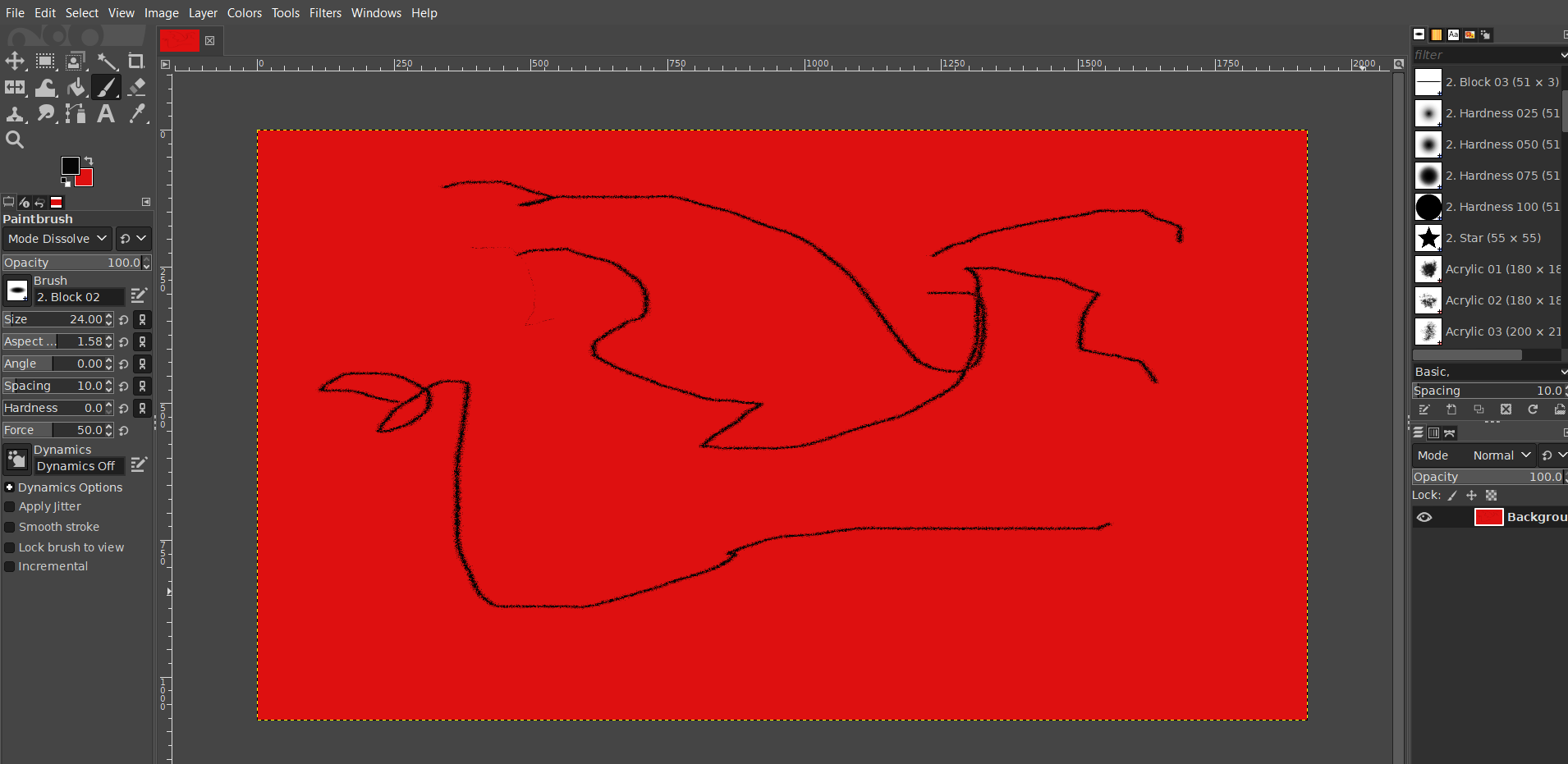
Windows XP Optimizer: 5 Best to Use in 2026

Windows XP still has a solid user base, but fewer tools support it as it ages. That means fewer PC optimizers work well on XP compared to newer Windows versions.

The best optimization software for XP helps boost startup times, speed up processing, and fix system errors. Here are five top all-in-one options to improve your XP PC’s performance.

What are the best system optimization tools for Windows XP?

Fortect – Best Overall

If you are using Windows XP, then you probably don’t get much support from the optimization programs available on the market.

Fortect is a universal system optimization and repair tool whose main function is to repair and rebuild Windows. This program can be used from Windows XP up to and including Windows 10.

Fortect offers great tools to solve most of the worst things that can happen to your system. It not only detects the issue withing the system but it replaces the broken or missing files with original ones from it’s own vast library.

Even tough it can’t operate with 3rd party programs, Fortect it’s still a great tool due to features like, it’s ability to identify broken hardware which may cause the dreaded blue screen of death.

Also in case you were to late to protect your system, with this software it’s really easy to turn that around and restore your system to it’s pre infected state.

Since this amazing software is as lightweight as possible, it runs without problems even on older PCs.

Main features:

  • repairs damaged DLL’s
  • identifies broken hardware in case of the Blue Screen of Death
  • restores system to pre infected state in case of viruses
  • operating system recovery

Fortect

Lightweight optimization, repair and diagnosis tool that runs even on older systems.
Free Trial Download now

System Mechanic Ultimate Defense – Real-time registry repair

Iolo System Mechanic Professional has had rave reviews, but that doesn’t run on Windows XP. However, Iolo still provides a customized System Mechanic Classic version specifically designed for Windows XP and Vista.

SMC is comparable to System Mechanic 15.5 as it includes the same tools within that version. As mentioned, System Mechanic Classic is much the same as the 15.5 version, which is also compatible with XP.

It includes the Overview tab on its dashboard that provides system status details and fixes detected issues with its Repair Now button.

You can give Windows XP a quick boost with System Mechanic’s LiveBoost tab that frees up system resources.

System Mechanic Classic is a great repair toolkit thanks to its ActiveCare which provides real-time hard drive and registry repair.

The Classic version also includes an enhanced registry tuner, program accelerator, SSD accelerator, and net booster.

System Mechanic Ultimate Defense

Enhance your Windows XP PC with this excellent repair tool.
Free Trial Download now

AVG PC TuneUP – Highly rated program

avg free pc optimization software

AVG PC TuneUp is a highly rated system optimizer that’s compatible with XP SP3 and other Windows platforms along with OSX 10.8 Mountain Lion.

AVG PC TuneUp is an all-in-one system optimizer that can speed up Windows, fix crashes, boost laptop batteries and free up more HDD storage space.

The software provides 1-Click Maintenance, which users can schedule, that cleans the registry, cleans up browser files, cleans the system cache, optimizes the system startup and shutdown, defrags the hard drive and erases invalid shortcuts.

Users can also check for third-party software updates, restore deleted files, delete file duplicates, adjust Windows settings, check for disk errors and uninstall unused software with AVG PC TuneUp.

There are about 17 optimization tools in AVG PC TuneUp, which is more than most system optimizers include. Another great thing about AVG PC TuneUp is its turbo and economy modes.

The software’s Turbo Mode gives Windows a quick speed boost by postponing scheduled maintenance, minimizing visual effects and turning off background services to optimize system resources.

The Economy Mode reduces energy consumption to extend laptop battery duration. The publisher claims that AVG PC TuneUp can extend laptop battery duration by 108%.

AVG TuneUP

Tune up your computer and let AVG handle the situation.
Free Trial Visit Website

Glary Utilities Pro 5 – Restore deleted files

glary utilities 5 screenshot

Glarysoft claims that Glary Utilities Pro 5 can make Windows 800% faster. You can run the software on Windows platforms from XP to 10.

However, you can also utilize a freeware version, which includes most of the tools in Glary Utilities Pro 5.

The main difference between the versions is that GUP 5 is for commercial use and enables users to schedule 1-click Maintenance and Web Update.

Whether Glary Utilities Pro 5 makes Windows 800% faster might be debatable. However, the software undoubtedly boosts system performance more than most of the alternatives.

It incorporates more than 20 system maintenance utilities, which include a disk cleaner, disk defragmenter, registry fixer, uninstall manager, startup manager, file shredder, RAM optimizer, shortcut fixer, and more besides.

The software’s file management tools enable users to split files and restore deleted files. Glary Utilities even packs in a malware scanner.

So Glary Utilities Pro is one of the most comprehensive optimization software for Windows.

Glary Utilities Pro 5

Get Glary Utilities and optimize your system within minutes.
Free Trial Visit Website

Norton Utilities – 1-Click Optimization

Norton Utilities can deliver a genuine speed enhancement for Windows XP. It is one of the few system optimizers that supports 32-bit Windows XP (Service Pack 3), but you can’t utilize it on 64-bit XP platforms.

Norton Utilities includes most of the essential system optimization tools, and those utilities give Windows a notable boost.

The software includes a registry cleaner, disk defragger, startup manager, file recovery, file shredder, duplicate file finder, repair drives, and uninstaller tools.

The best thing about Norton Utilities is its new System Dashboard that tells you if your system is in good shape or not and includes a 1-Click Optimization option.

NU provides recommended actions that make some system maintenance suggestions, and it also includes a Disk Doctor that can fix error messages.

The software’s disk-cleaning options are a little limited, but NU is still a system optimizer worth noting.

Norton Utilities

Norton Utilities

Boost your XP’s speed with Norton Utilities now!
Check price Visit website

Wrapping up

Keeping your Windows XP system secure and running smoothly takes more than just antivirus software. Along with choosing the best antivirus software for Windows XP SP2, it’s important to use a reliable browser optimized for Windows XP to ensure safe and fast internet access.

Pairing your antivirus with quality antimalware tools for Windows XP adds an extra layer of protection against emerging threats. For better privacy online, consider using a VPN client designed for Windows XP.

And to keep your PC in top shape, the right system optimization software for Windows XP can boost performance and fix errors. Together, these tools create a stronger, safer XP experience tailored to the challenges of an older operating system.

How to turn DDC/CI: on or off [Gaming guide]

Here’s how to turn DDC/CI on or off on a gaming monitor. Enabling this feature allows better communication between your monitor and PC. You can adjust brightness easier and enhance visuals.

Let’s get right to it:

How do I turn DDC/CI on or off

How to enable Display Data Channel/ Command Interface

turn DDC CI on off

Note: Below guide is for BENQ monitors. However, this should also work if you are using HP, Lenovo, Dell, or any other monitor.

  1. Press any of the physical control buttons on your monitor. You can find the control buttons, usually at the bottom of the display panel on the right side. In some monitors, the buttons are located at the back of the panel.
  2. When the context menu appears, press the appropriate button to open the Menu.
  3. Use the physical button to scroll down and select System.
  4. Use the forward navigation button and highlight the DDC/CI option.
  5. Next, use the forward navigation button and highlight ON.
  6. Press the OK/Check button to turn on DDC/CI and save the changes.

That’s it. You have successfully enabled the DDC/CI option on your computer.

However, If you have a multiple monitor setup where the monitors are from a different manufacturer, you can use a third-party tool like ClickMonitorDDC to manage DDC/CI settings.

How to disable Display Data Channel/ Command Interface

turn DDC CI on off
  1. Press any physical control button on your monitor.
  2. Press the appropriate button to open the Menu.
  3. Use the navigation button to scroll down and select System.
  4. Press the forward navigation button and then scroll down to the DDC/CI option.
  5. Press the forward navigation button and then select OFF to disable it.
  6. Next, press the OK/Check button to save the changes.

Now you have all the information you need to turn DDC/CI on and off. This handy feature lets your monitor and computer work together for easy adjustments like brightness.

Most monitors come with it enabled, but if it’s ever turned off, you can quickly switch it back on in your settings.

Best VPNs for Windows Vista That Still Work in 2022 [Free]

Microsoft ended support for Windows Vista on April 11, 2017, and most VPN services followed the course.

It meant that PC users could no longer use their favorite VPN apps unless they upgraded to a newer Windows edition.

But finding a VPN that works with Windows Vista can be challenging but not impossible.

However, a limited number of VPN companies continue to support Windows Vista today, despite that most businesses focus on VPN solutions for Windows 10 and Windows 11.

If you’re a Vista user, you know that you’re exposed to security risks. But you can get equipped with a reliable VPN to secure your connections and protect your online privacy.

Why use a third-party VPN for Windows Vista?

It is possible for any Windows Vista user to connect to a VPN software that is compatible with this Windows version. Hence, this is why you would need a 3rd party VPN on your device:

  • It protects your network connection with other IP addresses
  • Hides the personal data used on different websites
  • Unblocks restricted content from other regions

With that said, we handpicked and tested the best VPN app for Windows Vista which still works today. We’re also guiding you through every step of the installation process.

What’s the best VPN for Vista that actually works?

1. CyberGhost VPN – Winner VPN for Windows Vista

CyberGhost should be your first pick for Windows Vista operating system as it offers comprehensive VPN safety online.

This VPN software can be installed on multiple devices and delivers the fastest connection speed, having thousands of servers in many countries worldwide.

You will benefit as well from robust encryption for personal data stored online, protocols like OpenVPN for Windows Vista connection, or dedicated IP addresses for responsible digital navigation.

It’s worth noting that CyberGhost offers a free trial period for you to test drive the software and protect your PC. So, you have 45 days trial period with a money-back guarantee.

Key features of CyberGhost:

  • VPN protocols for high-speed connection
  • Fast server locations in 94 regions
  • Unlock streaming content restrictions
  • Public Wi-Fi high security

CyberGhost VPN

Utilize this most-valued VPN on Windows Vista to entirely shield your device.
Free trial Visit website

2. Windscribe

Windscribe is one of the best free VPN for Windows Vista

Made by Windscribe Limited, Windscribe is an ideal free VPN for Windows Vista. It’s one of the few services that are actually good and offer a free version (no credit card, only email address).

The only downside is that only the Windscribe old version works with Vista, so you can’t benefit from the latest features and improvements. Windscribe also offers a VPN for Windows XP.

Windscribe comes with its own firewall, secure hotspot, and split tunneling. It can unblock the Netflix US and UK libraries using Windflix. Furthermore, the Vista VPN app supports torrenting.

What else you need to know:

  • OpenVPN, IKEv2, SOCKS, AES-256, port forwarding
  • Servers in 110 cities across 63 countries
  • No identifying logs

Does Windows Vista have a VPN?

Yes, Windows Vista OS has an included VPN. You can thus perform a manual configuration to connect a VPN on your computer.

In any case, this process concerns some know-how regarding network settings and it’s more secure to use professional VPN software.

How to install CyberGhost VPN on Windows Vista

  1. Get a VPN account for CyberGhost.
  2. Download CyberGhost VPN software.
    Screenshot of CyberGhost install option
  3. Save and open the installation file.
  4. If UAC asks for permission to run the tool, allow it
  5. Follow the setup process to complete the installation.
  6. Launch the VPN interface once the setup is finished.

Conclusion

It’s not easy to find a VPN for Windows Vista that works since most businesses currently offer VPN apps for Windows 7 and newer.

But you can’t go wrong with CyberGhost VPN, especially if you’re a casual user. Besides, it offers a free trial version to use a VPN on Vista.

It’s definitely more convenient than going through OpenVPN manual configuration mode, which requires advanced skills.

And, if you’re not ready to upgrade to Windows 10, you can check out the best VPN apps for Windows 8 and 8.1.

Microsoft clarifies its practices for voice data collection

Microsoft has started rolling out some important updates to give users more control over how their voice data is used to improve its speech recognition technology. The new setting will allow users to choose if the company can use their voice recordings to enhance the performance of its voice-enabled products and services.

Microsoft’s data collection practices came under the radar back in 2019. A report revealed that the company was using human contractors to listen to voice conversations done with Cortana and Skype Translator. Last year, the software giant officially acknowledged it on its privacy policy and product support pages and stopped storing voice clips processed by its speech recognition technologies over privacy concerns.

The latest announcement comes in response to these privacy concerns about the use of audio content. From now on, the software giant will no longer force users to share voice clips, and it will roll out a new update for various products and services that use the speech recognition technology. The list includes Microsoft Translator, Windows, Skype voice translation, HoloLens, Cortana, SwiftKey, and Mixed Reality.

A graphic illustrates how the new settings for voice data will appear to users. Text boxes explain why Microsoft asks users to contribute voice clips, how user identity is protected and the people who use the contributed data.

In the blog post, the company now explains that it’s introducing an opt-in program for customers to submit voice recordings to improve the performance of its services. If people choose to opt-in, the human contractors and Microsoft employees may transcribe the voice content, and it will be retained for up to two years. Those customers who don’t want to participate in this program will still be able to use the company’s services.

“While Microsoft employees and contractors will only listen to voice clips with user permission, the company may continue to access information associated with user voice activity, such as the transcriptions automatically generated during user interactions with speech recognition AI. The details of how that works are described in the terms of use for individual Microsoft products and services, the company said,” the blog post reads.

Microsoft noted that personal data and personal identifiers (including email addresses, telephone numbers, and social security numbers) will be removed from voice clips before processing them. The company added that human contractors don’t use audio data collected from certain enterprise-focused speech recognition features.
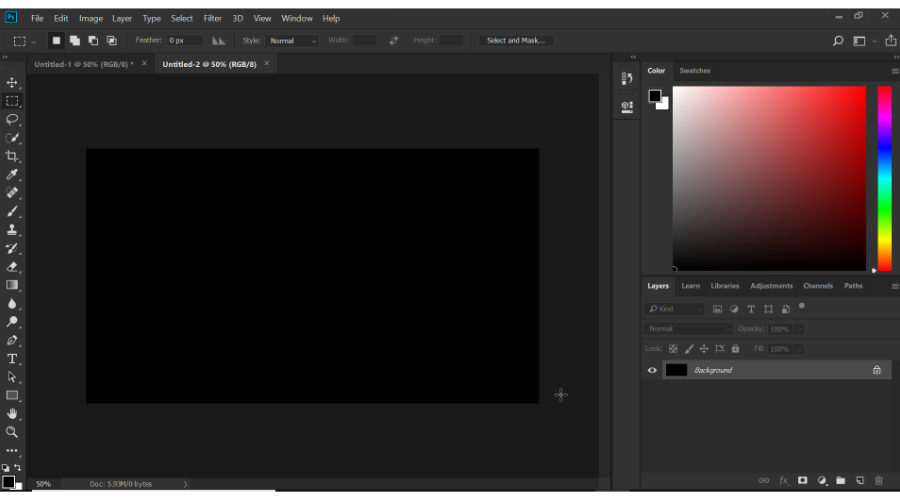
Hands-on with the newly redesigned Microsoft Teams public preview: A cleaner dark mode, and more

Since its introduction in 2017, Microsoft Teams hasn’t really seen a lot of visual or design changes. The app has largely kept the same look, with gray and purple-colored sidebars, and a purple title bar.

Towards the end of 2020, though, Microsoft announced some changes for Teams, including new Fluent icons and subtle color changes. It recently became possible to try out some of these changes in public preview, which is exactly what we did. Here’s a hands-on look at the experience, and some of the changes you’ll notice when it rolls out to you.

How to try the new Teams design

New Teams Design

Before jumping into anything, we’ll explain how you can try out this new design for yourself. You’ll need to enroll your Teams app in the public preview program to proceed. To do so, select your profile picture at the top, then choose about, and then Public preview. You’ll then see a notice which will alert you to switching to a public preview. You might be signed out, and will be required to sign back in. If at any time you want to switch back to the old teams, you can follow these steps in reverse.

The biggest change is dark mode

One of the biggest changes in this public-preview version of Microsoft Teams is the dark mode. Unlike before, the dark mode in this Teams version is now more representative of the experience of Windows 10 apps. It’s a lot cleaner than what we’ve seen before.

Overall, this new Teams look drops out a lot of the purple shades that have been present in the current non-preview version of the app. The title bar is now all black, as is the search bar. Microsoft also dropped out the gray shadows in the sidebar, too, changing it over to a pure black color. The white text from messages, as well as icons now stand out more in the improved dark mode.

See the changes for yourself in the slider above! The first slider is the original version of Teams. The second is the current public preview version of Teams. Let us know what you think in the comments.

The regular light theme looks different, too

If you’re not a fan of dark mode, then you should be happy to know that the standard light theme in the public preview version of Teams looks a bit different, too. Just like the dark mode, Microsoft has made changes to the title bar as well as the sidebar in Teams, all designed to be easier on your eyes.

Generally speaking, there’s a couple of visual tweaks. You’ll see a lot more of Fluent Design aspects. Teams now has more of an acylic look to it, though not as much as other stock Windows 10 apps. What that means is that instead of being all white, UI elements in Teams is rather a lighter gray color.

While the public preview version of the standard light mode theme in Teams still preserves the purple title bar, you should now notice that the sidebar has lost its purple in favor of that lighter gray. The icons in the sidebar also have a more subtle gray-black look, complete with drop-shadows, helping them stand out more.

Overall, it’s a great look for readability in the sidebar. Chats, calls, and channels are now much easier on the eyes.

Other changes on the way

As we noted when we reported on the news, this is just the start of what is to come in Teams. It’s just a new coat of paint for now, but Microsoft is also planning to roll out new icons, too. The new icons in Teams will be rounded, to match Microsoft’s new Microsoft 365 icons, and what we’ve seen in the leaked Windows 10X build. So, what do you think? Do you like this new look? Let us know in the comments below.

Windows 7 Optimizer: Best Tools to Use in 2023

Has your Windows 7 PC become slower, reduced in performance, and declined in efficiency? Do not panic! This post is meant for you.

Sometimes, due to reasons like invalid registry entries, malware, fragmented hard disk, loads of running startup/background apps, and more; your Windows 7 computer may perform slowly.

However, the only way to fix these problems is by performing system optimization so as to maintain your PC for continued usage.

Meanwhile, Windows built-in system maintenance tools are numerous but you may consider using third-party optimization software to supercharge your Windows 7 PC.

What’s the best optimization software for Windows 7 PCs?

Fortect – Best optimization overall

Fortect is an all-in-one PC optimization utility that takes care of everything. From junk files to registry entries, damaged system files, and browser cleanup, it can do it all in just a few clicks.

Despite being a new product, Fortect supports all Windows versions, including Windows 7. Using it will be no hassle even on older machines, thanks to its light file size.

Fortect uses a quick but thorough scanner to detect any issues with your PC.

It displays a report of everything that needs improvement. You can select if you want to fix all issues or take care of specific ones.

The utility is able to optimize your registry, detect stability issues that cause your PC to freeze, remove malware or malware traces, and take care of useless junk that takes up memory space.

Other key features of Fortect include:

  • Monitors downloads and installs for viruses & threats
  • Cleans your browser
  • Fixes BSOD
  • Restores damaged Windows files

All in all, Fortect is a great utility that will help you keep your entire system in check. Once you install it, it will perform a preliminary scan to detect the current issues with your PC, then help you quickly fix them.

Fortect

Fortect

Make the most out of your Windows 7 PC with this simple but powerful optimization utility.
Free trial Download now

CCleaner – Most used cleanup tool

With more than two billion downloads, CCleaner is an award-winning optimization software ideal for Windows 7 users.

CCleaner is an uninstallation and Registry cleanup software for your PC.

You may have to download, install, and use CCleaner to optimize your PC performance. It can delete files and modify or clean the Registry of your OS.

The software has a free version for budget users, as well as premium options, such as Professional and Professional Plus, which come with extra useful features.

CCleaner can help you keep your system clean and organize with its built-in registry cleaner and program uninstaller utilities. Easily remove unnecessary clutter for maximum optimization.

Some CCleaner key features include:

  • Startup monitoring
  • Duplicate finder
  • Disk analyzer
  • System restore
  • Browser plugins cleaner
  • Drive wiper
  • File shredder
  • Cookies/cache cleaner
  • Cleaner scheduler

Moreover, you can use it to delete your browsing data and also remove your internet activity, which is useful when using the internet in public places.

IObit Advanced SystemCare – Efficient system cleaning

IObit Advanced SystemCare is one of the best optimization software tools on the current market.

You can use the scanner to check for traces of junk files, startup items, incorrect registry entries, and spyware threats.

As its name suggests, your PC is being handled with care to ensure it is up and running.

The IObit Advanced System Care has a specialized AI that will scan your computer for any problems and malfunctions, then fix them for you.

Startup Optimizer improves startup components in Windows to improve boot speed. This allows you to manage your startup items, services, scheduled tasks, and browser startups.

Other key features of IObit Advanced SystemCare include:

  • Basic System Clean, Fix, and Optimization
  • Ultimate System Tuneup for Top Performance
  • Up to 300% Internet Speedup with Internet Booster
  • Capture intruders automatically with FaceID
  • Auto RAM Clean with Real-time Optimization
  • Hard Disk optimization
  • Fix System Weakness to Prevent Hacking with 1-click
  • Remove Infections and Protect against Various Threats
  • Auto Online Privacy Trace Clean with Browser Anti-Tracking
  • Redesigned Performance Monitor Monitors and Boosts Your PC
  • Up to 200% Quicker PC Startup

In addition, Advanced System Care can clean your saved passwords, keeping you and your precious data safe.

Lastly, the software also comes with an Internet Booster, a feature that can boost your internet speed.

Ashampoo WinOptimizer – Fastest cleaner technology

Ashampoo WinOptimizer is user-friendly optimization software for Windows 7 PC. The program can significantly improve your PC boot time up to 50x.

In addition, Ashampoo WinOptimizer can increase your overall system performance on an OS that has been utilized for a while.

The software also allows you to eliminate any browsing traces, which is useful when browsing the internet in public places.

Game Booster is also a fantastic addition. It stops non-essential background processes while your game is running to give your game a boost and resumes them when you’re through playing so you can go back to work.

When you quit your browser or application, this totally automated broom sweeps everything that doesn’t belong off your disks, such as temporary files.

Ashampoo WinOptimizer’s also allows you to encrypt and recover data with ease.

Key features of Ashampoo WinOptimizer 15 include:

  • Registry cleaner
  • Drive cleaner
  • Startup Tuner
  • Task scheduler
  • Internet cleaner tools
  • Icon saver
  • File Encrypter
  • File Splitter and many more

Thanks to increased accessible RAM, you may reclaim system resources and enjoy speedier startup times and a smoother overall Windows experience.

Moreover, the program has built-in AntiSpy features that will protect your PC from spyware, adware, and bloatware.

System Mechanic Ultimate Defense – All-around optimization

System Mechanic Ultimate Defense is one of the best optimization programs for Windows 7. This program has an appealing GUI which initiates the software’s tools and options.

The software improves your PC performance by defragging your hard drive, tweaking your CPU and GPU performance, and adjusting your RAM usage.

Its main advantages are its comprehensive system scan and real-time performance increase features, which work well combined with the Malware Remover, Privacy Guardian, and ByePass password manager.

In addition, if you buy the software’s license, you can install it on as many computers as you’d like for no additional charges, and you also get a system status overview indicating issues that need to be fixed.

Some key features of System Mechanic Ultimate Defense include:

  • Registry cleaner
  • Junk files/temporary files removal
  • Hard drive defragmenter
  • Cleanup tool
  • Registry cleaner
  • Startup manager
  • Ram optimizer
  • Internet connections tweaker

Overall, System Mechanic Ultimate Defense is a fantastic option for power applications.

Iolo System Mechanic

Iolo System Mechanic Ultimate Defense

Iolo System Mechanic helps you optimize your PC, improve computer speed, and fix crashes. Don’t hesitate to try it out!
Free Trial Visit Website

Glary Utilities 5 – Intuitive UI

Glary Utilities 5 is an easy-to-use optimization software. The program’s interface is packed with appealing visuals and is also highly customizable.

The toolkit includes over 20 system programs to boost computer speed and examines and analyzes PC problems.

You can run a custom 1-click maintenance scan utilizing several system tools within the program. Glary Utilities 5 comprises several optimization tools for your Windows 7 PC.

Glary packs a plethora of features in a single software, allowing you to remove junk and bloatware, uninstall useless and leftover programs, as well as improve privacy and security.

Some great tools included within Glary Utilities 5 are:

  • Registry cleaner
  • Disk cleaner
  • Disk defrag
  • Startup manager
  • Uninstall manager
  • Ram optimizer
  • File management tools, and other optimization tools

Glary Utilities also provides a toolbox with a File Shredder and an Open Space Wiper for wiping just free space. You can rewrite the data in one to ten cycles.

Glary Utilities 5

Make sure your device works at full capacity with easy-to-use computer management tools.
Check Price Visit Website

Tweaking Windows Repair – Reliable optimizing tools

The next entry on our list is a software utility that may look like it was created specifically for graphics, but we assure you that if you also own a Windows 10 PC, it will handle that just as well.

Whichever OS you are running, problems will always persist, be it from registries, DLL, bad RAM, high CPU use, and more.

That is precisely when a reliable software tool like Tweaking Windows Repair is recommended since it can easily handle all of the above and more.

Besides, the program is available in both a free and a Pro version, with the Pro version having a much wider toolset that caters to both beginner and advanced users.

Other key features of Tweaking Windows Repair include:

  • Fixes Windwos Firewall problems
  • Browser cleanup and optimization
  • Registry backups

Whichever the case, if you’re running Windows 7 because your hardware is old, or if you just love the old OS, Tweaking Windows Repair is something you should definitely have.

⇒ Get Tweaking Windows Repair

In conclusion, any of these software tools is what you need for your Windows 7 PC optimization.

Do share with us your experience in using any of the software we mentioned above. Let us know by commenting below.

5 Best Encrypted Messaging Software

Millions of people exchange messages every day throughout the world, but how many of them really know what truly happens to their messages once they send them? Will these be intercepted by third-parties?

The unfortunate truth is that we do live in a world and age in which data logging and Internet surveillance are happening.

End-to-end encryption is the solution because it involves the fact that the service provider does not keep copies of the messages that you send from their server and only people with whom you are communicating can access them.

Thankfully, there has been a rise in the area of secure messaging apps, and we gathered five of the best open-source privacy software that will make sure to keep your messaging a safe and intimate process.

Check out their sets of features and choose the best program for your needs. The software is equally useful if you were looking for a secure messaging software.


What is the best encrypted messaging app?

Signal

Signal is a mobile application created by Open Whisper Systems. This is one of the few apps in the world to claim an endorsement from Edward Snowden.

Signal has made itself a secure place among the safest messaging applications for mobile users, as well as desktop users.

The software is based on the end-to-end encryption in order to secure the messages you share with other users. This app is free and extremely easy to use, and the best thing about it is that it’s open-source.

This means that the experts can easily inspect the application’s code for potential security flaws. One of the greatest things about this app is that the messaged can self-destruct after you set the desired amount of time.

While using Signal, you will be able to send high-quality group, text, video, voice, document and picture messages all over the world without the hassle of MMS or SMS fees.

You can also get the chance to make crystal clear voice and video calls to the people who live across your street but also across the ocean.

The messages and calls you’ll make via Signal are end-to-end encrypted and engineered in such a way to keep your communication safe.

One the best security features is that the platform itself cannot read your messages, and it cannot see your calls either. You will also be able to keep your chat clean with messages that you can set to disappear.

To use Signal, you will not require any PIN codes or other login credentials.

⇒ Get Signal


Wire

Wire is another app for secure messaging, and it was developed by Wire Swiss GmbH. Using this app, you will be able to exchange end-to-end encrypted instant messages and also make voice and video calls.

This is another fantastic free and open-source app, enabling all users to check out the security by auditing its code.

One of the most awesome characteristics is that Wire combines strong encryption with a robust feature set. You will be able to add and remove people as a team administrator and access and remove the history.

You will get to use unlimited group chats with 128 people, and you can also delete messages for everyone. The app allows you to make crystal clear voice calls and group call with up to ten people.

The video calls are encrypted as well, making sure you stay safe at all times. Wire allows you to share your files securely and all the file types are supported.

You can share your screen with up to ten people, and this makes the app ideal for collaboration. Your files and chats can also be synced between your devices, and the app is available on all essential platforms.

Wire lets you enjoy rich conversations by using emojis, GIFs, embedded videos and more. The messages will self-destruct when the timer runs out, and this means that the app is just perfect for sharing sensitive data.

⇒ Get Wire


Ricochet

Ricochet can also become your sidekick regarding safe messaging because it makes safety and intimacy its priorities. The app uses the Tor network in order to reach your contacts without relying on messaging servers.

The app will create a hidden service that will keep your IP secure. The app comes with a different approach to instant messaging that doesn’t trust anyone to protect the users’ privacy.

While using Ricochet, no one will ever know who you are, who you talk to and what you are saying. You’ll be able to share anything you want without disclosing your location and identity to third parties.

There will be no servers in the middle to monitor your activity, censor or hack. You can see when your contacts are online and send them messages safely.

The list of contacts will only be known by your computer, and it’s never exposed to network traffic monitoring.

On the app’s official website, we are noticed of the fact that Ricochet is still an experiment and as we all know security and anonymity and slippery topics so we should carefully evaluate the risks and exposure that come with any software.

⇒ Get Ricochet


Viber

Viber is a free open-source software that aims at allowing its users to securely chat with their buddies in privacy. This is what everyone wants these days, and Viber delivers it sucessfully.

The advanced security features make this app stand out among others, especially thanks to the encryption keys that exist only on your own personal device.

This means that the personal information you share is fully protected and not even the provider has access to it. You can even exchange secret keys with your contacts, just to make sure of their identity.

In addition you can edit or delete seen messages so it’s never tool late to change your mind when it comes to getting your point across, a feature that works even in group chats.

Erase any traces of the messages you sent with the self-destructive feature that allows you to set a certain timer for your messages before they disappear.

Some other fun perk are the customizable gifs and stickers that keep the communication process fun and dinamic.

⇒ Get Viber


Kontalk

This is another innovative way of messaging that comes for free, and it’s also open-source. The software makes sure to maintain your privacy and intimacy.

Kontalk assures users that both client-to-server and server-to-server channels are fully encrypted, so the risks for your data to leak is almost zero.

You will definitely be safe with end-to-end encryption and servers will never be able to decrypt your data. The app is run by the community for the community as you can see on its official website.

Kontalk is run by a community of volunteers who are splitting the costs among them and offering their servers. All the software that is used in the app’s network, both the client and the server is entirely open-source, and Github hosts it.

The app uses your phone number to identify yourself among the contacts without the hassle of remembering the user IDs and usernames.

⇒ Get Kontalk


All of these free open-source applications are guaranteed to allow you to maintain your intimacy and safety while chatting online. The y come in handy when apps like Telegram are not working on your PC.

They all come with extended and unique sets of features, so the best thing that you can do is head over to their official websites and check out their in-depth functionalities and advantages in order to be able to make an informed decision and the best one for your safety and messaging needs.

We’d like to hear more from you on this subject so feel free to drop us a comment in the dedicated section below.