What is Eubkmon.Sys error? How can I remove it from my PC?

The eubkmon.sys error often leads to serious problems like blue screen, memory issues, and may even interfere with the booting process of your Windows computer.

You may also notice a slowing down in your PC’s overall performance as well as the computer hanging.

But what is eubkmon.sys error exactly and how can you fix it? Read on to get the answers.

First, let’s look at the EUBKMON.sys- the file which primarily originates the said issues..

What is eubkmon.sys?

Eubkmon.sys is a driver designed for the various versions of Windows. EUBkMon is actually an abbreviation for the EaseUS Todo Backup Monitor Kernel Driver.

The driver helps your system interact with the Todo Backup Free utility from EaseUS, a Chinese developer of utility software.

Like other drivers in Windows, the file can be found in the C:WindowsSystem32drivers folder.

What Is Eubkmon.Sys Error?

As I had mentioned earlier, the eubkmon.sys error is a bug associated with the said driver file. The error arises as a result of having an outdated or corrupt version of EUBKMON.sys .

The hitch can be frustrating and may make your computer unusable because of subsequent behavior. For instance, the machine develops a habit of restarting every now and then making it difficult for you to perform meaningful tasks.

Is Eubkmon.Sys Essential?

Drivers play an important role in the correct working of hardware as they are the channel through which an operating system communicates with the installed operating system.

For this reason, deleting the Eubkmon.sys file could disrupt some of your PC’s crucial functions but for instances when it’s extremely stubborn.

Warnings related to the Eubkmon.Sys Error

The eubkmon.sys error comes with other warnings including:

  • Driver Unload: The system can generate an error to the effect that a problem has just been detected…. and Windows shut down so as not to damage your computer (EUBKMON.SYS DRIVER_UNLOADED_WITHOUT_CANCELLING_PENDING_OPERATIONS).
  • Program stopped working correctly: You receive a notification that EUBKMON has made an app to halt and that Windows will notify you if it finds a solution (EUBKMON stopped working….Windows checking for solutions to the problem).
  • Memory access violation: The module EUBKMON.sys has encountered problems while accessing an invalid memory address FFFFFFFF or reading address 00000000.

What To Do if you Get Eubkmon.Sys Errors

Now that we know what is eubkmon.sys error, let’s look at ways of solving it.

Solution 1: Scan your System for Malware

Since cyber criminals are fond of hiding their malicious files by using the names of established programs, we advise that you check if your PC could be infected by a virus masquerading as eubkmon.sys..

Any top notch antivirus will nab the malware and delete it.

Solution 2: Scan and Repair Corrupted Files

Scanning your machine for corrupt files will resolve the issue if it’s due to damaged files:

Steps:

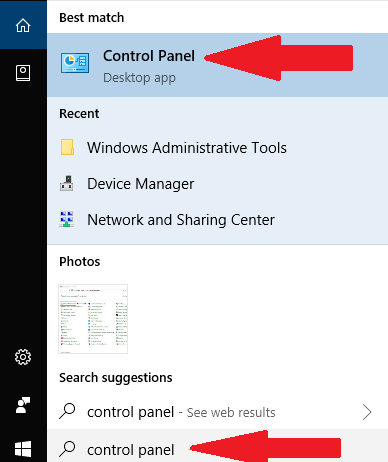
  1. Tap on the Start
  2. Type Command Prompt in the search dialogue box.
  3. When the results appear, Right-click on Command Prompt (Desktop app) and choose Run as administrator.What is Eubkmon.Sys Error
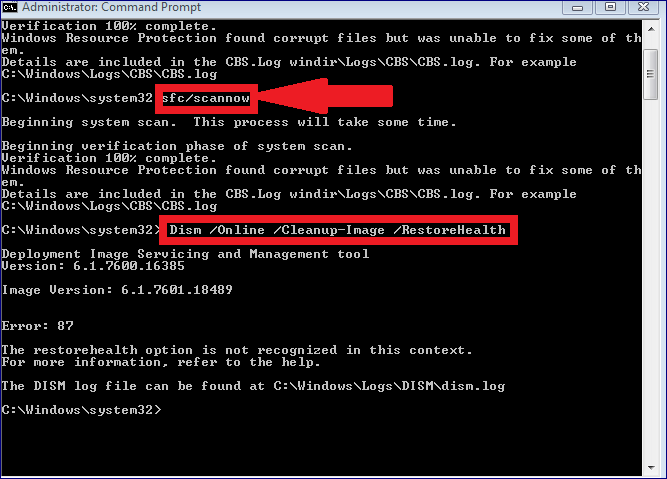
  4. As soon as the command prompt (elevated) pops up, type sfc/scannow and then press enter.
  5. Wait for the SFC (System File Checker) to run and follow any steps that it recommends.What is Eubkmon.Sys Error

6. Then type dism /online /cleanup-image /restorehealth and again wait.

This may mend any damaged files that could be the source of the eubkmon.sys error.

Solution 3: Run Automatic Disk Cleanup

The disk cleanup utility provides more hard drive cleanup options and may also be helpful considering that the eubkmon driver deals with hard disk backup.

One of the easiest ways of running the disk cleanup is by launching the Cleanmgr.exe from CMD.

Remember to specify your targeted hard disk from the command line.

Steps:

  1. Click Start
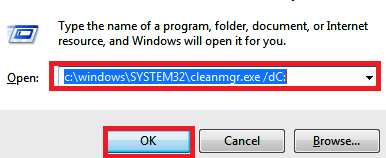
  2. Now click on Run.
  3. In the opened dialogue box, type c:windowsSYSTEM32cleanmgr.exe /dC then press Enter:Eubkmon

Replace C with the drive letter representing the hard disk you want to clean.

Solution 4: Uninstall Eubkmon

You can remove the Eubkmon itself:

Steps:

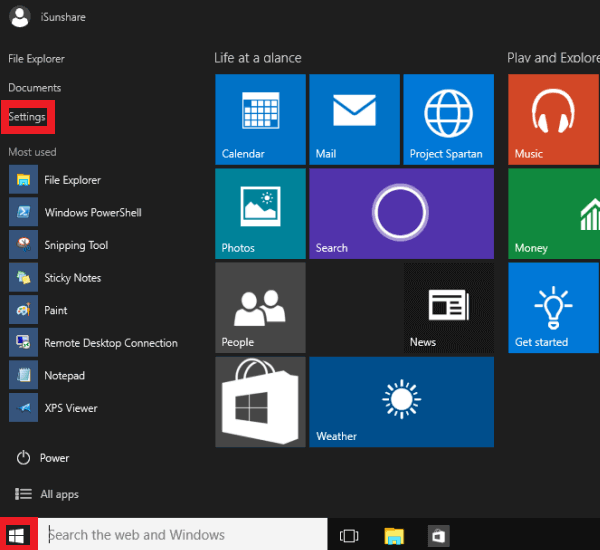
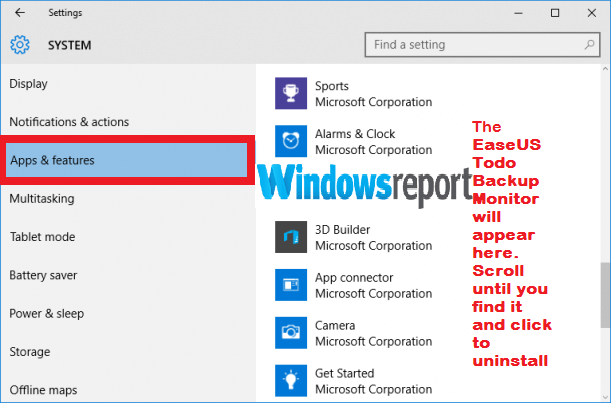
  1. Click the Start button and select Settings.EUBKMON.sys *** ERROR:
  2. Select System.
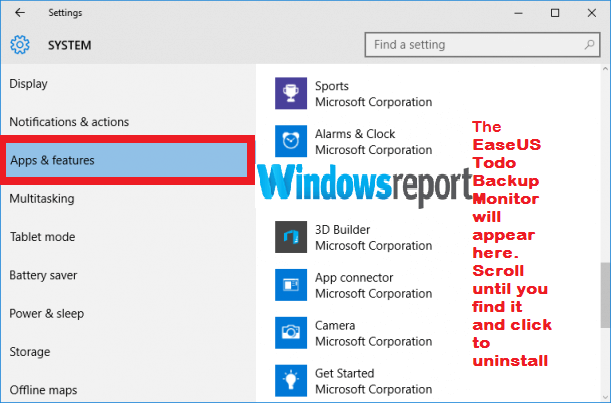
  3. Then choose Apps & features.
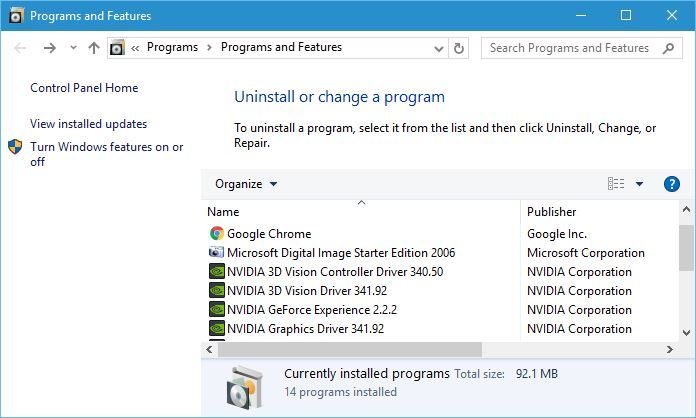
  4. Locate the Eubkmon program from the listed apps.
  5. Select Uninstall.EUBKMON.sys
  6. Wait for the uninstallation process to complete and restart your PC.

Solution 5: Uninstall the EaseUS Todo Backup Monitor

You can also completely uninstall the EaseUS Todo Backup Monitor as its one of the tools that is likely to trigger the errors linked to eubkmon.sys.

It’s best to do this while in safe mode as it may difficult to uninstall from the regular desktop.

Steps:

  1. Restart your PC.
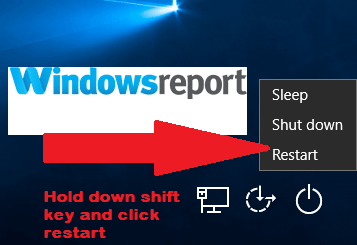
  2. When the sign-in screen comes up, hold down the Shift key and select Power then Restart.What is eubkmon.sys?
  3. The PC again reboots to the Choose an option screen.
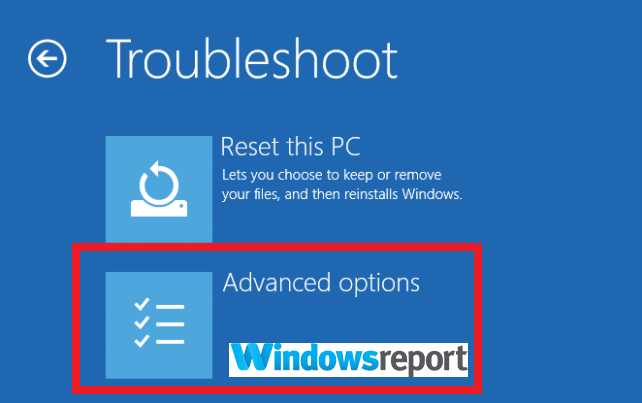
  4. Click Troubleshoot then Advanced options.page fault in nonpaged area windows 10
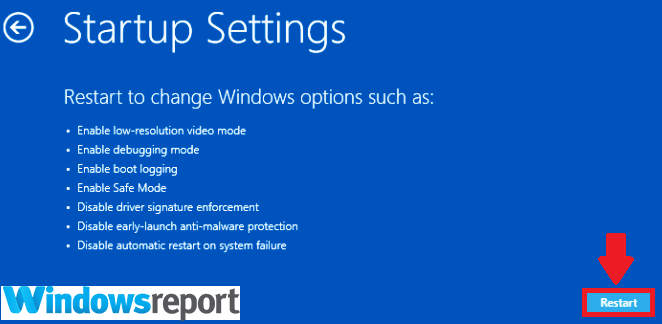
  5. From there, click Startup Settings then Restart.Eubkmon
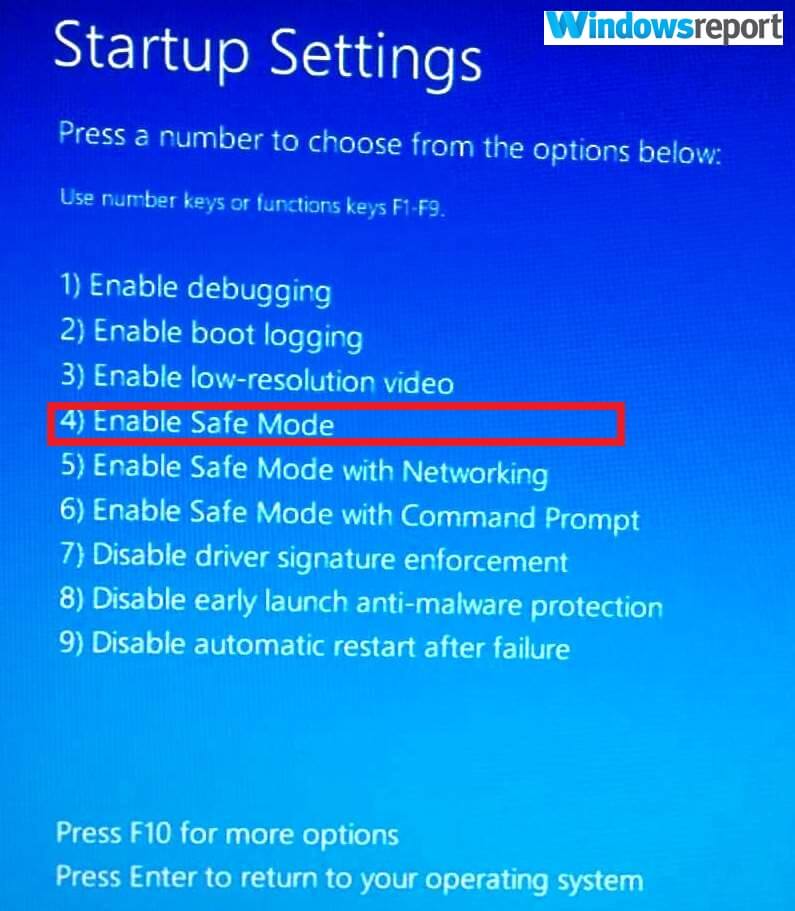
  6. Your PC restarts yet again and this time displays a list of choices. Select 4 / F4 to move into Safe Mode.Eubkmon issue
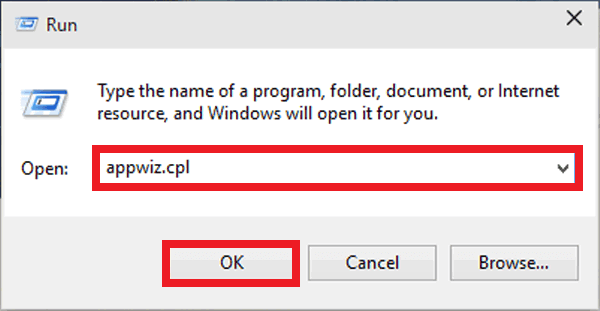
  7. Now Press Windows + R. This will open the run dialog.
  8. Now type appwiz.cpl then press Enter.eubkmon sys bsod
  9. Select the EaseUS Todo Backup Monitor from the list and presseubkmon sys page fault
  10. Follow the next instructions on to complete.
  11. Restart once more but this time normally.

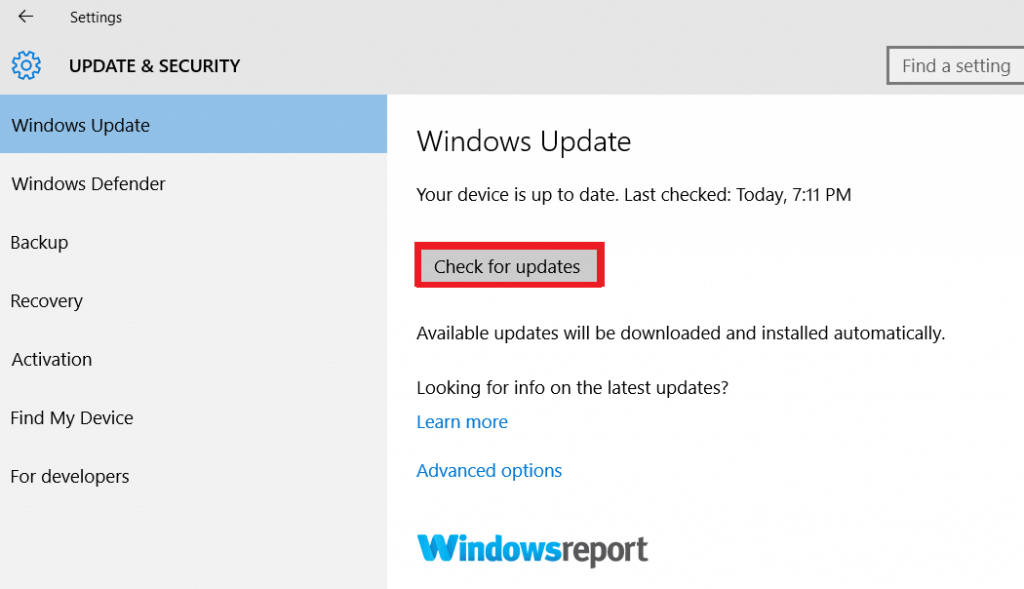
Solution 6: Update Your Windows

Updating your Windows 10 may help your device run smoothly and can help protect it from failing on account of the various eubkmon.sys errors.

Steps:

  1. Click Start
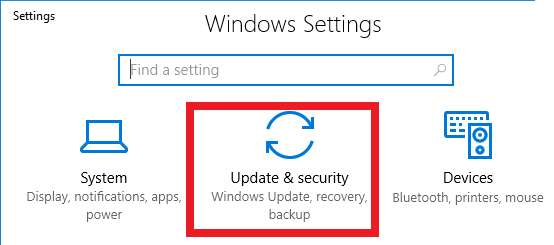
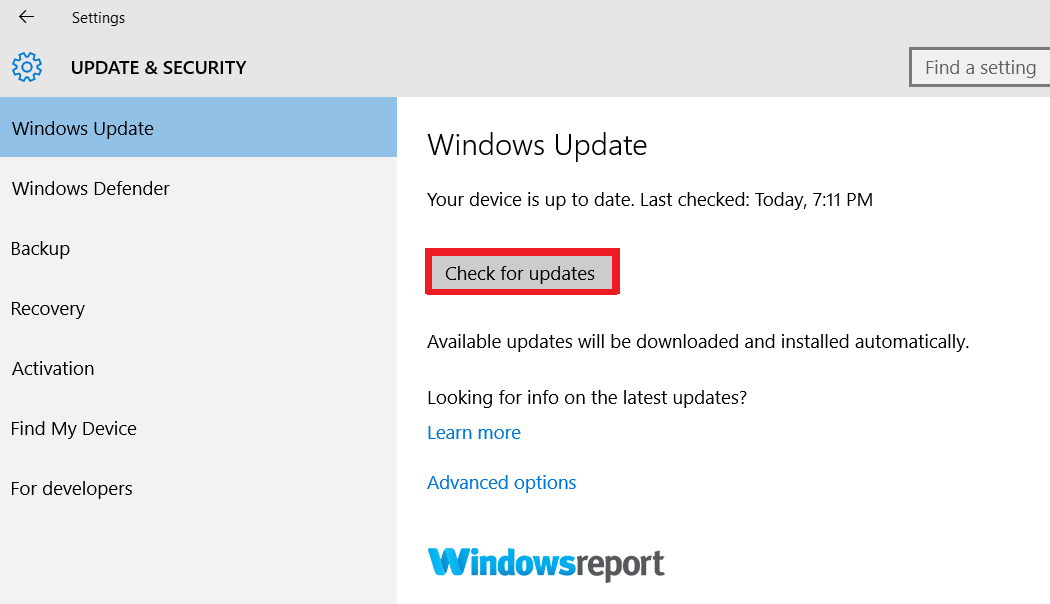
  2. Select Settings then Update & Security.Eubkmon error
  3. Choose  Windows Update.
  4. Select Check for updates and wait for the process to run to completion.Eubkmon blue screen

 OTHER USEFUL GUIDE SELECTED JUST FOR YOU

Common Football Manager 2018 bugs and how to fix them

Football Manager 2018 is out now! There are already tens of thousands of players enjoying the game, testing their management skills.

As its title suggests, Football Manager 2018 challenges you to lead your football club to victory. As a club manager, you are responsible for everything, you decide who to hire, what strategy to adopt on the field, etc.

As it happens with every newly released game, Football Manager 2018 is affected by a series of issues ranging from minor glitches to game crashes.

In this article, we’ll list the most frequent Football Manager 2018 bugs reported by gamers, as well as their corresponding workarounds, whenever available.

Make sure to bookmark this page so that you can quickly load it again in case you encounter similar issues.

Before we dive in, make sure that your computer meets the system requirements to run the game.

How to fix common Football Manager 2018 issues

  1. Low FPS
  2. FM18 won’t start
  3. Crash dumps
  4. A saved game won’t load
  5. ‘XML Parsing missing’ error message
  6. Match won’t run smoothly
  7. Mouse issues

1. Low FPS

The release version of the game brought FPS issues for some players, although the game used to run smoothly in beta.

Everything was okay while I am playing demo of FM 2018. But the game is released today and it became full version. Then I got really low fps on both game interface and match. I have installed the last version of my gpu drivers. Whats the problem ??

We recommend installing a reliable all-in-one tool designed to boost your computer’s performance and eliminate lag.

This type of software focuses the computer resources on the game you’re playing, turning off the other apps and settings that lead to overclocking. In this way, you’ll achieve higher FPS and the gameplay will improve exponentially.

Moreover, it provides real-time information about your system health, enabling you to customize the optimization process in the most efficient way. 

For more information on how to fix FPS issues, check out the troubleshooting guides below:

2. FM18 won’t start

Well, this is a classic issue. Many gamers struggled for a while until they managed to launch the game, while others are still trying to find a solution to fix this problem.

when i run the game it goes to the start screen with the music and stops. saying Fm manager 18.1 of 1040047 (staging) has stopped. any ideas . thanks

Here are a few solutions to fix Football Manager 2018 launch issues:

  • Run the game on your dedicated GPU and not the integrated GPU, if you use such a configuration.
  • Install the latest Windows 10 updates on your PC.
  • Run a full system antivirus scan.
  • Disable your Firewall and antivirus software and try to launch the game again.
  • Disable background apps and programs so that your system can direct all the necessary resources to the game.
  • Run System File Checker or use a dedicated registry cleaner to get the job done.

3. Crash dumps

We have another classic issue on the list: crash dumps. This problem has been affecting all Football Manager game editions, so players aren’t actually surprised that it occurs on the latest release as well.

Usually, these crashes occur in the middle of the gameplay.

How to fix crash dumps in Football Manager 2018

Of course, you can also use the workarounds listed above. If the issue persists, try these solutions as well:

  • Enable the borderless window. This action may temporarily fix crashes.
  • Install the latest GPU drivers updates on your computer.
  • Delete the game’s Save Game folder located in your user directory. Then, uninstall and re-install the game.

If nothing worked, wait until a hotfix is deployed.

4. A saved game won’t load

If you can’t load your saved games, rest assured, you’re not the only one. Quite a few gamers complained about this problem shortly after the game was launched.

Cant load my saved game , either from within game running or when trying to ‘load save game’ from title screen – the save file exists in my ‘Games’ folder within my documents ,but is not visible to select in the pop-up file selection window in game. Anyone else had this ?

The good news is that you can quickly fix this issue by adding .fm on the save file name. Right-click on it -> select Rename > add .fm > hit Play.

5. ‘XML Parsing missing’ error message

The annoying ‘XML Parsing is missing’ error prevents users from saving their progress. Moreover, every time they launch the game, they are asked to create a new profile.

I receive constantly the error message XML Parsing missing and something about token 2 and even if the game still works and do not crash, I am not able to save any game and every time I launch the game I get asked to create a new profile […]
I have checked the FAQ and there is already a topic regarding any XML issue, but I have followed the steps […] but still happening the same (or even more often) and do not know what do to. I have spent 35 € on a game I cannot play and after one day of research, I was not able to find any solution online.

Unfortunately, we don’t have a solution to fix this problem. We’ll continue to search for one and we’ll update this article accordingly.

6. Match won’t run smoothly

football manager 2018 issues FM 2018

Many gamers said that Football Manager 2018 still needs some polishing. It appears that the match engine is broken, causing various issues, including graphics issues, lag, choppy/ jumpy game sessions, etc.

“Match engine ????
ive got a good computer the game says i have excellent grapjics so why is the actual match a total mess ???doesnt run smooth at all ???? do i need to change a setting or something or is this IT ???? LIKE IT OR LUMP IT ??”

As a solution, try setting the game to low graphics, use key highlights, turn off shadow in match preferences, and install the latest driver updates. Also, don’t forget to install the latest game patch.

7. Mouse issues

Many players reported that sometimes the mouse seems to have a will of its own.

Hi, hope you are having a good fm 18 experience because Im not. Just downloaded the game and my mouse keeps going to the top right corner of the screen. I dont know how to fix this, can somebody help me?

For more information on how to fix mouse issues, check out the troubleshooting guides listed below. Hopefully, one of them will help you fix mouse issues in Football Manager 2018:

These are the most common Football Manager 2018 bugs reported by gamers. Of course, this list is not an exhaustive one, there are many other issues that occur rather rarely.

We’re sure that Football Manager 2018’s devs are working at full speed to fix these issues and will release a patch as soon as possible.

[Important News] Football fans would definitely not miss out on the most important football competition of the moment. Even if your country does not have a UEFA-approved broadcast partner, you can watch the Champions League stream free.

Check out the complete guide to watch UEFA Champions League on PC (live stream).

RELATED STORIES TO CHECK OUT:

Scaling Below 100% on Windows 11: Is it Possible

Microsoft has had issues with DPI scalling and blurry apps in Windows. To avoid these types of problems, users are wondering can Windows 11 scaling go below 100.

Usually, by changing the scale, the icons and text become more significant and more readable on high-resolution displays.

But can we make them smaller? We’re going to answer that in this guide.

How do I scale less than 100% in Windows 11?

Unfortunately, this isn’t possible since Windows Vista. The scaling options have been changed with Windows 7, and there’s no more option for scaling below 100%.

This means you won’t be able to set scaling below 100 on Windows 11.

What is the default scaling level in Windows 11?

Microsoft sets the default scaling level in Windows 11, and it’s most suitable for standard monitors.

Regarding the value, it’s set to 100% or 96DPI, but you can change it if you’re on a larger monitor.

What is the best custom scaling size for Windows 11?

There is no best scaling size. It all depends on your needs and display size. However, the general rule is the following:

  • Use 100% scaling on full HD resolution.
  • On 2K or 4K screens, use scaling larger than 100%

It all depends on your needs and DPI and screen resolution, so you’ll need to custom scale your Windows by experimenting with different values until you find the one that works for you.

Why does Windows recommend 150% scaling?

There are several reasons for this:

  • Windows detected a high-resolution display.
  • Text isn’t readable; therefore, Windows automatically recommended a higher scaling value.

So, to sum it up, Microsoft doesn’t allow going under the default 100% scaling, and even if you find the way, we won’t suggest it. If there’s a chance to change to a higher resolution, you can go with that, but in most scenarios, nothing but default and lower resolutions will work.

Consider getting a monitor with higher resolution if you’re really in need of smaller elements on your display. With that said, we can conclude this article.

In case you’re having issues with scaling, we have a great guide on Windows 11 scaling issues that you should read.

Did you find a way to scale below 100%? If so, share it with us in the comments section below.

Download Visual Studio 2019 and test the new features today

Microsoft has just rolled out the Visual Studio 2019 Release Candidate (RC). While the final version of the Visual Studio 2019 will be available to the general public at an online launch event on 2nd April.

What to expect in Visual Studio 2019?

Visual Studio 2019 comes as a complete package for both teams and individuals. The latest version is a lot more productive, faster, reliable and easier to get started and also easier to use for everyone.

This release introduced a couple of new features including expanded refactoring capabilities, IntelliCode for AI-assisted IntelliSense, smarter debugging and others. 

Moreover, two product channels have also been introduced along with the latest release. You can download Visual Studio 2019 RC from the release channel, while Visual Studio 2019 Preview 4 is available at the preview channel. 

Download Visual Studio 2019

If you are interested in getting early access to the upcoming version of Visual Studio, you can always download Visual Studio 2019 Release Candidate (RC).

Visual Studio 2019 will be available to the general users on 2nd April. You can easily install the Visual Studio 2019 RC build if you already have Visual Studio 2019 Preview builds and Visual Studio 2017.

The Visual Studio Preview can be downloaded from the official page. Additionally, you can always head towards the developer’s forum to report an issue or provide feedback to Microsoft. You can also use the UserVoice page in order to log feature requests and new product suggestions.

The preview channel will continue to offer an early look at upcoming features, just as you’ve become accustomed to in Visual Studio 2017.

Additionally, the company has also introduced Professional, Community and Enterprise editions for each of the two channels. Microsoft added some additional features to the Enterprise Editions and Professional of the IDE. 

The company said in an announcement that a preview of Time Travel Debugging (TTD) that has been integrated with the Snapshot Debugger will be available along with the Visual Studio Enterprise 2019. 

Furthermore, if you are interested in finding out in detail regarding the Visual Studio 2019 release you can simply head towards the Developer Community page.

RELATED ARTICLES:

Fresh Paint App to Download for Windows 10

Fresh Paint app for Windows 10 users is both fun and relaxing. Microsoft redesigned the tool for its latest OS version.
fresh paint windows 8
Fresh Paint
for Windows 10 is not the update for the Paint program that all Windows users have tried at least once.

You can still find the “old” paint inside the Windows Store. Even I prefer the actual Paint on my Windows 7 system because it’s much more easier than other programs to use it.

But let’s see in our review what comes new in Fresh Paint for Windows 8 and Windows 10.

Artists, starting designers, kids and average Windows 10 users will find this applications pretty entertaining, I can guarantee you that.

Here’s what new features Fresh Paint app brings on Windows 10

  • Intuitive UI, supporting touch, mouse, and stylus input
  • Draw or paint with watercolor, oil, pencil, pastel and pen
  • Natural pressure sensitivity allows precise control of the thickness of brush strokes
  • Import images, photos and even use your camera to capture an inspirational image to paint with
  • Available activity packs and coloring pages will entertain budding artists.
  • Print your artwork with high definition
  • Help your kids be creative and explore their imagination
  • Easily correct mistakes with the eraser tool and undo button.
  • Click the fan button to dry instantly all the paint on your canvas.
  • Easily share your paintings with people you care about.

Fresh Paint App for Windows 10 [Review]

The Fresh Paint application for Windows 8, Windows 10 and Windows RT devices has been amongst the first that have been released in the Windows store and for quite a while, it was actually the top application in the Entertainment section.

The biggest drawback of this application is that it won’t work that great unless you’re using it on a touch surface. And like I said, this isn’t meant to replace old Paint program, it’s a new, different approach.

fresh paint applicaiton windows 8 review
Your kids will love this application

Fresh Paint for Windows 10 update notes

Fresh Paint for Windows 10 was released in 2015. This version includes many interesting features like :

  • Allowing you to print your files in HD
  • You can now import images and photos to paint
  • Support for stylus, touch and mouse
  • Accelerated graphics rendering algorithm for a realistic painting experience

Fresh Paint for Windows 8 and Windows 10 review

Fresh Paint for Windows 8 and Windows 10 is a painting simulator that will prove to be useful to those that want to create some forms and art, but more likely, it will appeal to kids that can now play around with colors and shape without making a mess in the entire house.

To some extent, this is also a parenting application, too.

Everything that you create inside the Fresh Paint application is automatically saved and you can boast with your collection or your kid’s artwork at any time, by opening the gallery.

The application beautifully imitates a real scenario where you hve your palette and you can mix colors, too. Here are the tools that you will find inside the application, located on the top of your own painting screen:

  • Brushes
  • Crayons
  • Pencil
  • Blender
  • Eraser.

After you choose one of these tools, you can do an action that is found inside the old Paint, as well – changing the thickness. But the real beauty of the Fresh Paint app is the palette which has swatches, a bowl of water and an area where you can amalgamate colors in order to find the perfect one for your drawing.

And to make it even more real, you can clean up your brush in that boil of water, and the water will inherit the color of your brush.

Features and why Fresh Paint for Windows 8 and Windows 10 impresses

At the top, where you find the above mentioned tools, you will also find the option to change your canvas and to open up the gallery.

If  you think your painting has become a real mess and you’re not satisfied with it, you can use the “dry” button on the lower part of the screen.

You also have “Undo” and “Redo” buttons there, also the option to Center your drawing. PCAdvisor gives it a 4.5/5 rating and says the following:

Colour and texture are taken very, very seriously, so that you can just pick up a brush and slap some paint about, or mix and stain exactly the right shades. The way that colours interact is very realistic – you’ll get a tiny thrill the first time two strokes run in to each other and smear together into a different shade. With a bit of practice such multicolour streaking is a useful artistic tool. It’s also where ‘Dry’ comes in. Hit this and the colour you just laid on the page dries instantly, so that it won’t run into the next colour layer you apply.

For those of you that have a pen or stylus as an accessory for your tablet, you’ll discover how accurate your drawings and artwork will become with it. Fresh Paint for Windows 8, Windows 10 and Windows RT is an application made by Microsoft itself, just like the Microsoft Minesweeper game that we’ve recently reviewed.

You might think that you won’t be able to create too much art with this application, but the ability to insert image (as the one below) and to slightly modify them can trick your friends into thinking you’re an awesome artist.

I particularly enjoyed smudging images that are already created by great artists (reminds me of Johnny English and that painting that he ruined). Everything becomes very, very real and for some seconds you forget it’s a tablet that’s in front of you and there’s only an application, not real brush, not a real palette.

The majority of users’ review are positive, albeit there are some that report often crashes.

Other want such features as  higher output for resolution, fine tune adjuster for brushes. To recap, here’s what you can do with Fresh Paint for Windows 10 and Windows 8:

  • Use the tools to create realistic paintings.
  • Helps kids develop their imagination and express themselves.
  • Use asy-to-use paint templates, coloring pages and enough tools to paint awesome.
  • Import a photo, edit it, and convert it into a painting.

See the video below if you’re curious about the Fresh Paint application for Windows 8, Windows 10 and RT. The download link is at the bottom of the page.

Study shows Windows 10 fails to assist users during the update process

According to a recent research conducted by the University College, London, Microsoft does not care too much about the requirements of the non-Enterprise users as far as the updates are concerned.  In theory, Windows 10 Home should not install any updates while users are actively using their PCs.

The study involved 93 Windows 10 users and proved the following points:

  • Windows 10 Home’s Windows Update patching experience is frustrating for most of the users
  • Some of the users are even not familiar with using the Windows Update service/tools
  • Windows fails to assist the users during the update process
  • Windows built-in tools are inadequate to help users in making update decisions
  • The unexpected reboots during the update process disrupt the workflow
  • Microsoft should offer an alternate for the needed restarts

Some of you might be curious to know how the update process takes place, a flowchart of the Windows 10 Home update process has been published by the authors.windows 10 home updates


It is worth mentioning that some of the issues that have been highlighted in the study have already been addressed in the recent updates. Microsoft has put an icon in the taskbar indicating the users that they need an update. The feature will be available in April 2019 Update (19H1).

How did Windows 10 Home users respond to the research?

Annoyed by the huge volume of updates

It seems like users are pretty much annoyed with the huge volume of updates that take a lot of time and also chews up bandwidth as well.

This is simply going to lead to a permanent blocking of any updates, anytime, anywhere. I’ve already had to do that for several “Home” users because of the nearly-constant downloading of 4GB updates (taking all available bandwidth for days).

— RELATED: Survey confirms Windows updates trigger bugs for 50% of users

Users prefer to disable updates

While some of the frustrated users even took an extreme step by disabling the Windows Update service permanently.

As a matter of fact, they preferred to take the security risks that are associated with disabling the updates.

This is not surprising. I know someone who actually got fed up of their computer updating that they looked up how to stop it permanently. I found that they had disabled the Windows Update service. Re-enable it and explain why this is a very bad idea.

Lack of testing by Microsoft

While another user stated that Microsoft used to have a quality test team for Windows 7. While now it the number of bugs justify the fact that the tech giant is no longer focusing on quality assurance. It is just testing the products by releasing them to home users.

HOWEVER have in mind that the microsoft that handles Windows 10  isn’t the same that handled Windows 7 when it was in its prime and there used to be a quality test team that made sure updates issues were fewer, Windows 10 doesn’t seem to have that… its home users its beta testers.

The tradition of bugs in the first release

You might run into issues as Insiders are not property testing the builds and most of the times the builds rolled out with potential issues. Notably, Microsoft has a history of having bugs in its first release.

Microsoft has never had the reputation of nailing the first release.  If other Windows versions had forced you to install every update as it came down the pipe, we would have seen the same sorts of issues then as we do now.

— RELATED: Windows 10 October Update causes all these bugs

Downloading unnecessary apps

Surprisingly some of the users also have to delete all the newly installed apps that are of no use for a home user. They should have a feature to install only important security updates.

I would be fine with the updates if they were just for security issues. I’m sick of having to remove all the new Microsoft crapware every time a computer installs its gigabytes of updates. Why the hell does Win10 Enterprise have software for XBox anyway? Fortunately I only have to deal with it at work and at home I can use a reasonable OS where I control the updates but it’s still maddening.

Users lack the required knowledge

While few of the Windows users also blame the users to be lazy enough and lacking computer knowledge. The user states that often people don’t even try to understand the basics and that is the only reason they suffer during installation.

People just need to stop being lazy and educate themselves just a little on the technology that they use on a daily basis. Much of this would be alleviated if they took the time to understand the fundamental ‘how’s and ‘why’s of their computers instead of hitting ‘click click next’ every time something pops up on their screen. Security concepts and updates are not difficult to understand for most people if they just put a teeny bit of effort in.

One of the most important thing that should be considered by Microsoft is that around 28% of the users don’t even know about the Active Hours feature.

This feature allows the users to delay Windows update on their systems by setting a time beyond their working hours.

Microsoft seriously needs to think about creating awareness among Windows 10 Home users regarding its Windows Update service and tools. 

RELATED ARTICLES:

Windows 10 build 18845 fixes browser crashes and screen flickering

It’s Friday and, as always, Microsoft wants to keep its Insiders busy over the weekend. The tech giant rolled out a new Windows 10 20H1 build codenamed build 18845.

New emoji features

This build release brings a new set of emojis that now have keywords hooked up so that you may find them quicker. Simply type the keyword you’re interested in (such as smile, shoes) and the corresponding emojis will pop up on the screen.

Windows 10 20H1 emojis

Windows 10 build 18845 changelog

  • Microsoft fixed the issue which would cause the Bluetooth Hands-Free audio driver to hang.
  • All Insiders should now be able to access the Quests section of the Feedback Hub.
  • Microsoft Edge should no longer crash on launch.
  • File Explorer now looks a bit better when dark theme is enabled.
  • Microsoft also fixed a series of issues in certain languages (Adlam keyboard typing issues, Vietnamese auto-capitalizing bugs).
  • Microsoft also fixed the issue that could result in unexpected flickering if you used pen or touch in certain win32 apps to launch a second instance of the app when in tablet mode.
  • This build also addressed the issue that could result in DWM crashing after enabling high contrast.
  • The Family Safety icon in the notification area of the taskbar is now fully functional.
  • The taskbar search box text no longer becomes black on a black background.
  • Start menu no longer crashes when using Narrator to navigate pinned folders in Start.

Windows 10 build 18845 bugs

  • Launching games that use anti-cheat software may trigger a bugcheck (GSOD). Microsoft is still working on a fix.
  • For display calibration scenarios, monitors may be missing in the built-in Color Management application. You can use the Settings app to select color profile instead.
  • Some Realtek SD card readers are not functioning properly. 
  • In Windows Sandbox, if you try to navigate to the Narrator settings, Settings app crashes.
  • Mouse pointer color might be incorrectly switched to white after signing out and signing back in.
  • Creative X-Fi sound cards are not functioning properly. 

How has your Windows 10 build 18845 experience been so far?  Have you encountered other issues apart from the ones mentioned above?

Microsoft to sunset its Band and Health Dashboard apps in May, some customers can get refunds

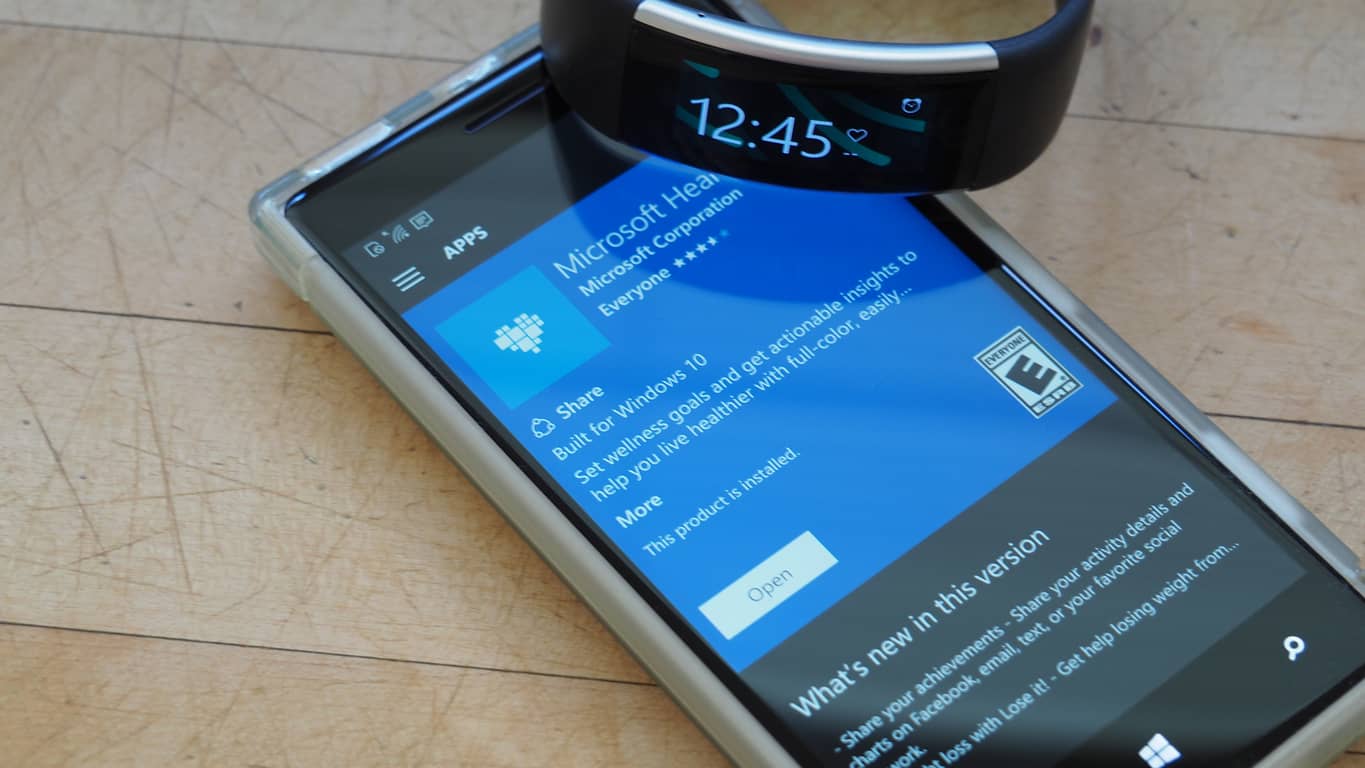
Windows 10 Mobile isn’t the only product that will finally go out of support this year. If you’ve been using a Microsoft Band or the company’s Health Dashboard service, you may have received an email today explaining that both the Microsoft Band mobile apps and the Health dashboard web app will be retired on May 31.

For those unfamiliar, the Microsoft Band apps and the online Health dashboard could actually be used without having a Microsoft Band device, which have been discontinued in October 2016. If you have synced any data with the Microsoft Health Dashboard service, you’ll be able to export it on the site until May 31. If you still use your Microsoft Band device, you’ll be able to continue to do so with limited functionality after May 31, though Microsoft notes that it will be impossible to set it up again if you reset it after that date.

That’s quite surprising, but Microsoft is actually offering refunds to Microsoft Band owners that still have a device under warranty, or who used it between 12/1/2018 and 3/1/2019. If you’re eligible, you will be able to get $79.99 for your Band 1 or $175 for your Band 2, which is actually quite a lot for discontinued devices. “All eligible users will receive an email with refund instructions,” the company explained in a FAQ.

With no new hardware in the pipeline, it’s not surprising to see Microsoft shut down these services after some time. Yesterday, it’s the Microsoft Wallet app for Windows Phone that has been discontinued, and we doubt many users noticed.

Download Anop Hindi Typing Tutor

This tool will help you build on Typing Skills necessary for most of the jobs in the Government and Private Sector. Anop Hindi Typing Tutor can help acquire good Hindi Typing Speed for Hindi Data Entry Job.

ANOP HINDI TYPING TUTOR

Being a Freeware Desktop Application Tool, you will not need internet access to learn Typing in Hindi, so you can enjoy this free offline Hindi Typing Software anytime.

Download Anop Hindi Typing Tutor

India Typing Software to Download for PC

This software offers online typing facility in all Indian languages like Punjabi, Bengali, Oriya, Tamil, Gujarati, Marathi, Kannada, Telugu and Malayalam from your English keyboard.

India Typing software converts your input text as you speak to the language you choose. The Transliteration System will convert your English text into Hindi text within fractions of a second.

Typing Tutor in Hindi and English was developed by this team to help users learn Hindi typing within 10 days of practice for 1 hour per day. Very useful if you want to achieve a fast speed of typing in less time. Works offline.

India typing software is compatible with all types of keyboard like – Hindi, Remington, Remington Gail, Inscript, Krutidev 010, Devlys 010, Mangal font Hindi etc.

Download India Typing Software

Soni Gindi Typing Tutor Software Free Download

Soni Hindi Typing Master is one of the most used software for Hindi Typing. You can easily learn to Hindi typing and English typing with the help of Soni Typing Tutor.

It uses Hindi legacy fonts of which Mangal font is mostly used in government typing exams and government offices.

While English typing and numeric typing are 100% free, the Hindi Typing comes as a free trial and there is a fee for the full version. Find out more on the official website below.

Download Soni Typing Tutor

Download Hindi Indic Input 3 & 2 for Windows 10 [32/64 bit]

This Hindi typing software can be downloaded from Microsoft Store and helps you enter Indian language text into any Windows applications. Using transliteration as the primary input mechanism, it also supports 3 keyboard layouts.

A visual keyboard is provided to assist with editing words that have not been transliterated.

There are 3 versions of Indic Input available for download and you can find the right one for your system following the link below.

Download Indic Input from the Store

Hindi Indic Input 3 version 1.4.0 is a free program available for download, offering users a convenient way of entering text in the Hindi Indian language. A virtual keyboard layout is used to type in Hindi characters from an English QWERTY keyboard.

Lingual text can be entered in WordPad, Notepad and Office applications. The tool features multiple keyboard layouts and toggling between Languages.

[wl_navigator]

Indic IME Free Download for Windows 10 [32 and 64 Bit]

Indic IME  version 5.0 is a great Hindi Typing software available for free download following the virus-free checked download link below. The setup package will not use more space then 32 KB for download. It is free software under the intellectual property of Surekha Sastry, Srinivasa Raghavan, relating to Internet & Network Tools.

Indic IME functions as a toolbar that allows typing in Indian Languages directly on a web page. This is useful for users who don’t want to change the language of the entire Operating System or Browser Application, but only type in text in Indian Languages on certain web pages.

Download Indic IME

[wl_navigator]

New Microsoft Quantum Network launches today with more startup partners

Microsoft has been betting big on quantum computing recently, building quantum labs and teaming up with startups to create a “quantum economy.” At its inaugural Startup Summit on its Redmond campus yesterday, the company announced a new alliance aiming to advance quantum computing called the Microsoft Quantum Network.

“The Microsoft Quantum Network is our commitment to establishing the partnerships required to build the quantum workforce and the quantum economy. We believe both are vital to solving some of the world’s toughest problems,” explained Todd Holmdahl, Corporate Vice President of Azure Hardware Systems Group at Microsoft.“

The main goal of the alliance is to bring together the best quantum computing experts around the world to create the world’s first scalable quantum computer and quantum applications. For those unfamiliar, quantum computing differs from classical computing with its use of Quantum bits (or qubits) that can perform more complex computations much more efficiently. As a result, quantum computers should be able to solve complex problems that traditional computers could never do.

Microsoft’s Quantum Network is welcoming two new startups, HQS Quantum Simulations and Rahko, but the alliance is also welcoming affiliate organisations interested in accelerating the adoption of computing. If you believe your organization has what it takes, you can submit your application to join the Microsoft Quantum Network on this page.

G++ has stopped working on Windows 10/11: How can I fix it?

The DEV C++ suite usually works without any issues on all platforms. However, there seems to be an error which is unique on Windows 10. The “g++ has stopped working” error on Windows 10 points towards some compatibility issues. In order to resolve it, try steps below.

How to address “g++ has stopped working” DEV C++  error on Windows 10

  1. Change Compiler options
  2. Run DEV C++ in Compatibility mode
  3. Reinstall DEV C++ with custom headers

Solution 1 – Change Compiler options

There are three methods we got a hold of, and either one should work in addressing the “g++ has stopped working” error on DEV C++.

The first method concerns Compiler options, as some parameters seeming won’t work. Especially if you’re running Windows 10 with the 64-bit architecture.

Follow these steps to fix the “g++ has stopped working” by changing Compiler options values:

    1. Open DEV C++.
    2. Click on Tools > Compiler Options.
    3. Under programs, set these values for these respective sections:
      • gcc: mingw32-c++.exe
      • g++: c++.exe
      • make: mingw32-make.exe
    4. Save changes.

Solution 2 – Run DEV C++ in Compatibility mode

The second method is rather simple. If an application worked seamlessly in a previous iteration of Windows, but it isn’t working as intended on Windows 10, we suggest trying the compatibility mode.

This way, the system will simulate Windows 7 and you should be able to work with DEV C++ without any further issues.

Follow these steps to run DEV C++ in the compatibility mode:

  1. Right-click on the DEV C++ shortcut and open Properties.
  2. Choose the Compatibility tab.
  3. Check the “Run this program in compatibility mode for” box.
  4. From the drop-down menu, choose Windows 7 and confirm changes.

Solution 3 – Reinstall DEV C++ with custom headers

Finally, the third and last method is, in comparison to first, much more applicable to Windows 10 with the 32-bit architecture (x86).

What you need to do is replace the current application version (uninstall it) with the last stable release. In addition, there are two extra header files which you need to copy into the installation folder later on.

Here’s the whole procedure you’ll need to follow:

  1. Uninstall DEV C++.
  2. Download and install the latest version. You can find it, here. Don’t start it yet.
  3. Download the iostream.h and fstream.h files. You can find them here and here.
  4. Navigate to C:Program FilesDev-CppMinGW64x86_64-w64-mingw32include and copy-paste both files.
  5. Start DEV C++.

With that said, we can conclude this article. In case you have any questions or suggestions, feel free to tell us in the comments section below.

RELATED STORIES YOU SHOULD CHECK OUT:

Classpnp.sys Blue Screen Error: 4 Simple Solutions to Use

The Classpnp.sys error is a BSOD error, and it leaves the affected PC unusable. The error can occur for several reasons, including hardware failure and software corruption.

In this detailed guide, we will show you how to fix this issue, irrespective of the cause.

What causes Classpnp.sys Windows 10 blue screen error?

There are a series of factors that can cause Classpnp.sys BSOD error. Below are some of the notable ones:

  • Faulty hardware: The most prominent reason Classpnp.sys error makes your device get stuck or fail is faulty hardware. You need to disconnect the hardware and restart your PC.
  • Faulty software: Sometimes, this issue can be caused by a faulty or incompatible program. The solution to this is to uninstall the app.

What does Classpnp Sys do?

Classpnp.sys is a Microsoft Windows SCSI class system file that comes as part of the Windows OS. This critical file system ensures your PC runs smoothly.

This system file comes with your Windows PC by default and should never be downloaded from third-party websites.

How do I fix Classpnp.sys error?

Before delving into the solutions in this section, below are some preliminary troubleshooting steps to try:

  • Remove faulty internal hardware (RAM, video card, or hard disk)
  • Disconnect all external hardware
  • Change SATA mode in BIOS (from AHCI to IDE and vice versa)

1. Uninstall recently installed programs

  1. Press the Windows key + R, type appwiz.cpl, and click OK.
    appwiz classpnp.sys
  2. Right-click the problematic software and click Uninstall.
    uninstall
  3. Finally, follow the onscreen instructions to complete the process and restart your PC.

Some Windows users have reported the Classpnp.sys error to have appeared after installing a video game or software. In such a situation, the software is likely causing the error.

If you can boot into Windows and go past the login screen, try to uninstall the game or software.

2. Run System File Checker

  1. Press the Windows key, type cmd, and click Run as administrator under Command Prompt.
    cmd admin
  2. Type the command below and hit Enter to run it: sfc /scannowsfc scan classpnp.sys
  3. Finally, wait for the command to finish running and restart your PC.

Sometimes, the Classpnp.sys error can be due to corrupt system files. If you can boot into your PC normally, the steps above should help you solve the problem.

If you can’t boot into your PC normally, follow the steps below:

  1. Power on your PC and press the Power button to shut it down when the manufacturer logo shows forcibly. Repeat this until the Advanced startup menu shows up.
  2. Now, select Troubleshoot.
    troubleshoot
  3. Select Advanced options.
    advanced options
  4. Next, choose Command Prompt.
    command prompt  classpnp.sys
  5. Now, type the command below and hit Enter: sfc /scannowsfc scan classpnp.sys
  6. If this does not work, run the command below: Sfc /scannow /OFFBOOTDIR=C: /OFFWINDIR=C:Windows
  7. Finally, wait for the command to finish running and restart your PC.

With this, the Classpnp.sys error should be fixed if corrupt system files cause it.

Alternatively, you can repair your system files using a dedicated solution. This clever tool relieves the stress of running and waiting for multiple commands.

Specialized repair tools can replace the corrupt files with an original version from their extensive databases.

3. Restore Windows to an earlier point

  1. Press the Windows key + R, type rstrui.exe, and click OK.
    rstrui classpnp.sys
  2. Click the Next button.
    next classpnp.sys
  3. Now, select a restore point and click the Next button.
    restore point
  4. Finally, click the Finish button and follow the onscreen instructions to complete the process.
    finish classpnp.sys

Sometimes, the Classpnp.sys Blue Screen of Death error can be caused by changes you have made to your PC. To fix this, you need to restore your PC to an earlier point when everything is working properly.

If you cannot boot into your PC normally, follow the steps below:

  1. Power on your PC and press the Power button to shut it down when the manufacturer logo shows forcibly. Repeat this until the Advanced startup menu shows up.
  2. Now, choose Troubleshoot > Advanced options.
    advanced options classpnp.sys
  3. Finally, select System Restore and follow the onscreen instructions to complete the process.
    system restore classpnp.sys

After restoring your PC, check if the error is fixed.

4. Clean Install Windows

This is the least recommended solution to fix the Classpnp.sys error. However, if the problem started on a new computer or after you installed the updates, clean installing Windows with the latest available version can fix the issue.

Make sure you take a backup of any available data before performing a clean install. 

The Classpnp.sys error can be pretty frustrating. However, following the solutions in this guide is pretty easy to fix.

If you are facing MULTIPLE_IRP_COMPLETE_REQUESTS error on your PC, check our detailed guide to fix it.

Feel free to let us know the solution that helped you fix this issue in the comments below.

How to fix Assassin’s Creed: Origins bugs on PC

Ubisoft finally released Assassin’s Creed: Origins for PC today. As the game is still very young, not too many players have played it already. But those who have are not overwhelmingly satisfied.

The game already has mixed reviews on Steam. I just went through the (mostly negative) reviews and noticed that the majority of players is complaining about technical problems.

So, I gathered the most common problems that bother early adopters of the game. Along with the issue reports, I’ll also add some basic solutions. So, if you’re looking to solve your problem with Assassin’s Creed: Origins, you’ve come to the right place!

How to solve Assassin’s Creed: Origins issues

1. FPS drops and stutters

FPS drops and stutters are perhaps the most common problem in Assassin’s Creed: Origins. And people are mostly disappointed because of the fact this isn’t the first AC game that has similar issues. In fact, people faced the same problem with Unity and Syndicate back in the day.

I could just tell you to update your graphics card driver, but that probably won’t solve the problem. One Steam user did the research for us, as he created a thread on Steam where he explained what exactly is wrong here. Here’s what he says:

“It really doesn’t seem to matter what kind of GPU you are using . The performance issues most people here are complaining about are tied to CPU getting maxed out 100 percent at all times. This results in fps drops and stutter. As far as I know there is no work around. 

I did some research online and some gaming mags are stating that they had less issues using a 6 or 8 core processor. I think most of us dont have that. I´m running the game on a GTX 1080 ti and a i7 4790K (thats 4×4 on 8 threads). Im doing fine for some seconds and the game is at around 70 to 90 frames and then comes the CPU hitch and I drop to 40 or even lower to 32fps.”

Nothing of has been confirmed yet. But it does seem like Assassin’s Creed: Origins is not so well-optimized for PC. So, if your hardware is not from the latest generation, you might have problems getting the most out of this game.

Another thing that adds up to this conclusion is the fact that Ubisoft allowed the biggest media outlets to test the game on the Xbox One X, and not on PC! Could that be because the game doesn’t run so well on ‘weaker’ PCs? We can’t know for sure.

2. Audio issue

Another problem that also appears to be quite frequent is the issue with sound. According to more than a few players, the game is either completely silent, or the sound level is very low. Here’s what one of the players said about the problem:

“Hi guys. I have noticed that the sound seems quiet, yet other games at same volume level seem louder. Has anyone else experienced this too? Thoughts and help greatly appreciated”

Unlike the FPS issue, the solution to this problem is quite simple. You just need to run the sound troubleshooter. In case you don’t know how to do that, just follow these instructions:

  1. Go to Settings
  2. Go to Update & Security > Troubleshoot 
  3. Click Playing Audio, and go to Run the troubleshooter
  4. Follow further-on screen instructions and restart your computer

3. Game crashes

In addition FPS and stuttering issues, there are also game crashes. A few gamers already reported that the game just randomly crashes while running.

While I cannot tell you the precise solution for this problem, as I still don’t know the actual cause. Here’s little something you could try:

  1. Make sure you run the game on your dedicated GPU and not the integrated graphics.
  2. Install the latest Windows 10 updates on your PC. Windows 10 Fall Creators Update actually improves the performance of some games.
  3. Run a full system antivirus scan.
  4. Run the System File Checker to scan your computer for potential ‘internal’ issues.

4. The game won’t launch

Similar to the crashing issue, some players can’t even launch the game. Once again, we don’t have a precise solution, but you could still try a few things:

  1. Install the latest graphics card drivers.
  2. Run the game and Steam as administrator: Right-click the Steam shortcut on Desktop > go to Properties > Compatibility > check the Run this program as an administrator checkbox.
  3. Make sure you run the game on your dedicated GPU and not the integrated GPU.

Now, let’s get to the known issues in Assassin’s Creed: Origins. These are the problems Ubisoft already acknowledged, so if you’ve already encountered some of these issues, we can almost surely say that the fix is on its way.

5. Objectives disappear in “The Hyena” main quest

Some players may see objectives disappear during the main quest “The Hyena”. For this problem, Ubisoft advises users “to investigate the clues to unblock them.”

Reportedly, this issue will be fully addressed in the next Title Update.

6. Master Seer increases fire damage on Bayek

If you find it hard to defeat Master Seer, and feel like he’s stronger than he should be, it’s exactly because he’s stronger than he should be.

A bug increases Master Seer’s abilities, making him more powerful, increasing the fire damage on Bayek. According to Ubisoft, this issue will, you guess, get addressed in the next Title Update.

7. HBCC causes performance drops 

If you enable HBCC on AMD Radeon settings, you may experience some performance drops. 

Of course, AMD promised to deliver a solution for this issue with the new update. So, check for your graphics card drivers update, and if there’s a new one, it should contain a fix.

If there’s no update, it’s advisable to disable HBCC until it arrives, if you want to avoid performance drops. 

8. NPCs not loading properly 

This issue is perhaps the most hyped problem of the Assassin’s Creed: Origins right now. People are making fun of ridiculous glitchy humanoid animals and Slenderman-like civilians in the game all over the internet.

Unfortunately, if you’re terrified by these supernatural beings, there’s not much you can do, except wait for the update. Ubisoft actually recommends disabling background apps on lower-end PCS, but we’re not sure how effective is that workaround.

9. Logitech headsets sound issue

Players have been reporting problems with sound on various Logitech headphones. Reported headphones:

  • G633
  • G430
  • G933

So far, we don’t know if the problem is strictly connected to the “Logitech” brand, as Ubisoft is still investigating the issue. Once again, the solution for this problem would probably be to install the latest drivers.

10. Poor Performance with AMD CPUs

Players who are using AMD FX Series, more precisely AMD  FX-8350, could experience some performance issues, including FPS drops and freezes.

To deal with these problems, you should do the following:

  • Disable the Cool and Quiet feature in BIOS settings
  • Set the Power Plan to High Performance

That’s about it. As you can see, most problems are related to the game’s performance, which many players believe is because the game is simply not as well-optimized for PC as it is for the Xbox One.

If you think that the solutions listed above are too complicated, you can simply check for updates. Ubisoft regularly rolls out new updates to the game in order to fix the issues reported by players so as to offer a smooth and pleasant gaming experience.

So, if it’s been a while since you last updated Assassin’s Creed: Origins, please do so now. Most of the bugs you’re experiencing right now should be history after the update.

What about you? Have you experienced any issues upon installing Assassin’s Creed: Origins? Let us know in the comments below!

Editor’s Note: This post has been updated to account for the increasing amount of bugs but also with their respective fixes, when applicable.

Posted in Fix

Download Resident Evil 2 on Windows 10/11 PCs [2019 Edition]

Resident Evil 2 is one of the most popular games of the moment and for a good reason. This horror survival game is actually a remake of the original Resident Evil 2 PlayStation game from 1998.

As far as the plot if concerned, the action starts after a deadly virus affects the residents of Raccoon City turning people into flesh eating zombies. Survivors have to fight for their lives all the time and hide away from zombies.

Resident Evil 2 2019 features realistic visuals, immersive audio as well as modern game controls.

So, if you already played the first version of the game and you enjoyed it, we’re sure you’ve fell in love this the new version as well.

Don’t let the zombies catch you off guard.

Microsoft leaks Chromium-based Edge browser screenshots

Microsoft mistakenly tweeted a screenshot of the upcoming Chromium-based Edge browser. The leaks belong to the Canary build of the new browser.

News and rumors related to the abandoning of the current Edge browser have been doing rounds since December last year.

At that time Microsoft started planning to use Chromium rendering engines to rebuild the browser from scratch. However, it was just an announcement and nothing was officially confirmed until recently.

Edge on Chromium screenshots leaked

Recently, a Twitter user ADeltaX  encouraged a debate by sharing some installer screens for the new Edge browser that is going to be released very soon. It is yet not clear that how he got access to the leaked screenshots.leaked chromium edge browser

Some of the users quickly took the screenshots just before the Tweet was removed.

The leaks further continued when the Program Manager for Open Web and Browsers at Microsoft, Chris Heilmann mistakenly leaked his desktop’s screenshot having one icon for Chrome and two icons for the edge browser.

The word “CAN” across the golden colored icon shows that the icon belongs to the Chromium-based Edge browser‘s Canary build. You might not know about this build, it is actually a build that has the latest features that will be added to the Chrome browser.

Anyway, the tweet and any related images were quickly removed.

Microsoft has not yet shared any dates regarding the release of the upcoming browser but it seems like it will soon be available to the users.

By the way, are you planning to give Chromium-based Edge a chance? Do you prefer to stick to the good old Google Chrome? What do you think about the hybrid Edge browser? Do let us know in the comments below.

RELATED STORIES TO CHECK OUT:

Download Fortnite on Windows 7/10/11 computers

Fortnite is one of the most popular battle royale games of the moment. The game has over 125 million players and growing.

Once you’ve dived into the game, it’s easy to understand why millions of players are simply hooked to it.

Fortnite is a free multiplayer game that challenges players to build the ultimate Fortnite world or battle the other players so as to be the last one standing.

Have you got what it takes to be the last man standing?

Before you hit the download button, keep in mind that Fornite is a game that uses quite a large amount of your computer resources.

Make sure to close any other unnecessary apps and programs so as to direct your computer resources towards playing the game.

Download Sniper Fury latest version on PC

If you want to play a really challenging and addictive sniper-themed game, then Sniper Fury should definitely be on your list.

This a game where there is no place for diplomacy. It’s either you or them. And if you want to stay alive, you need to be alert all the time and ready to shoot anything that moves.

Sniper Fury key features include:

  • Over 500 missions
  • Countless classes of soldiers, vehicles, and weapons
  • Slow-motion effects capture every sniper headshot.
  • Realistic weather effects.
  • You can steal resources from other players.
  • You can join existing sniper Clans or create your own.
  •  Clans wars are also available.

Are you ready?

Microsoft and Volkswagen’s Automotive Cloud to expand to USA, China, and Europe

Microsoft’s cloud services and technologies are being deployed across a myriad of vertices and one of them happens to include the automotive industry.

Recently Microsoft and German automaker Volkswagen have collaborated on Volkswagen Automotive Cloud, a cloud initiative to help the car manufacturer tie in new and emerging technologies such as artificial intelligence, machine learning and the Internet of Things.

With VAC up and running, Volkswagen’s AG CEO Dr. Herbert Diess and head of Digital Car & Services Christian Senger are planning to expand the use of the company’s Automotive Cloud in China and United States markets. As a German-based operation, VAC was originally developed for a European market, but with the help of Microsoft’s Azure the plans to implement the same sort of European vehicle and service data operations at scale in new locations.

Microsoft CEO Satya Nadella spoke about the collaboration during his recent visit to Volkswagen’s Digital Lab in Berlin on Wednesday,

“Digital technology is rapidly changing every aspect of the auto industry – from the manufacturing process to the car itself. Our partnership will enable Volkswagen to deliver new Azure-based connected vehicle services that accelerate the company’s transformation into a software-driven mobility provider and define the future of mobility for people everywhere.”

Beyond the flowery aspirational corporate speak Nadella offered about the expanded partnership, Volkswagen and Microsoft are working together to deliver more concrete results with the first vehicle generation to be fully connected to the company’s Automotive Cloud.

ID. is one of Volkswagen’s most ambitious projects that will “be the first vehicle to use the Automotive Cloud and is to be launched in Europe in 2020,” and the company plans to also launch a China production arm at that same time.

In extended partnership news, the Development Center in Seattle where the intent is for Volkswagen engineers to work side by side with Microsoft developers in relatively close proximity to major US-based innovations; is making progress according to a joint press release from Microsoft and Volkswagen.

As cloud services become ubiquitous, it’ll be interesting to see how companies apply technologies such as AI, ML and sensory collection to improve engagement, retail, purchasing, research and more.

New features for Teams, advances in security, and more: Here’s what’s new for Microsoft 365 in February

Microsoft has released their blog post outlining many of the improvements that business users saw in Microsoft 365 this month. As explained by Kirk Koenigsbauer, Corporate VP of Microsoft 365, the focus on these updates are to enhance security and increase productivity and workflow.

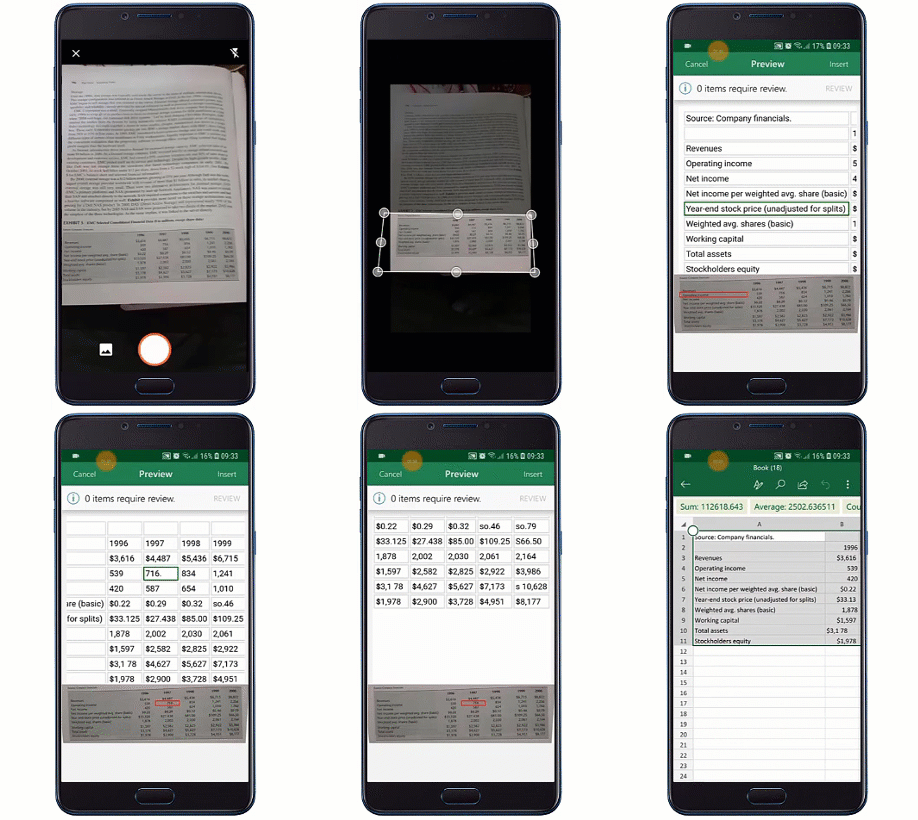
Microsoft is now rolling out a feature to allows users to scan data from a printed document onto Excel in the form of a fully editable spreadsheet. Initially available on Android and will come soon to iOS devices, the feature was first announced at Build 2018 in September.

An animated image shows Insert Data from Picture being used on a mobile device.

Microsoft has already made improvements to the Microsoft Teams app, particularly for Healthcare workers. These features include priority notifications to help clinicians focus urgent care patients, and support for integrating FHIR-enabled electronic health records data, both of which are currently in private preview.

If you’re enjoying the ease of passwordless login of your Microsoft account thanks to the company’s Authenticator app, it has also received improvements this month. The Microsoft Authenticator app now offers security notifications, allowing users to quickly react to account activity of something suspicions occurs.


Speaking of security, the company has also introduced Microsoft Threat Experts, a tool that works with the Windows Defender Advanced Threat Protection program to further increase security with the help of quick access to tech experts. For Azure users, there’s also Azure Sentinel, a preview tool to help admins “keep their organizations safe by harnessing the power, simplicity and extensibility of Azure to analyze data from Microsoft 365 and security solutions from other vendors,” in the words of Ann Johnson, CVP for the Cybersecurity Solutions at Microsoft.

Microsoft has also recently released the Office PWA app for Windows 10 users running the latest version. The new app brings the familiar apps with new icons to the top of the app screen, and recently opened documents towards the bottom. Organizations will also be able to integrate third party apps to the app and customize their own branding, if they prefer.

It’s certainly nice to see the changes Microsoft is making to these services. Many jobs can feel rather frustrating or tedious, however that’s what tech companies such as Microsoft are for—to enable us to work more efficiently with the evolving technology that empowers our productivity.

Windows 10 build 18342 is not available for all Slow Ring Insiders

If you’re enrolled in Microsoft’s Slow Ring Insider Program, you can now download a new Windows 10 v1903 build.

Windows 10 build 18342 is now available for download after Fast Ring Insiders tested it for three weeks.

The build is not available for all Insiders

However, keep in mind that not all the Slow Ring Insiders can download and install this build release. Certain game titles may trigger GSOD errors if you install this build on your computer.

In order to avoid such unpleasant technical issues, Microsoft decided to block build 18342 on the computers where these particular games are installed.

We’ve also added an upgrade block for users of the most common games that are impacted by the GSOD discussed in the known issues below. If you uninstall the affected games, you can get the update

While the Redmond giant didn’t list the games that are affected by this problem, it mentioned that “Launching games that use anti-cheat software may trigger a bugcheck“.

So, if your favorite games are protected by anti-cheat software, then you won’t be able to install the Windows 10 build 18342 at this moment.

As stated above, the only solution to get rid of this block is to uninstall the respective games.

Anyway, if you get any GSOD errors on your computer, use this troubleshooting guide to fix the problems.

At the same time, there is also a second category of users who won’t be able to download the latest Slow Ring Insider build. Namely, users who utilize ZH-CN as their base languages. Microsoft explains that:

PCs with the base language ZH-CN will not receive this update due to an issue that’s causing many common Chinese games to crash on launch.

For more information about the full changelog of this build as well as other known issues, you can check out Microsoft’s official blog post.

Have you experienced any additional issues after installing Windows 10 build 18342 on your computer? Let us know in the comments below.

RELATED STORIES TO CHECK OUT:

Alien: Isolation and The Walking Dead: Season 2 join Xbox Game Pass today

As we’re about to say goodbye to February, Microsoft is adding two new games to the Xbox Game Pass catalog today. The most important addition is Alien: Isolation, a survival horror game set in the universe of the popular science fiction horror movie franchise.

Alien: Isolation lets you play as Amanda Ripley, the daughter of the main protagonist of the Alien film series, Ellen Ripley. The action is set fifteen years after the first Alien movie, and the huge focus on stealth and survival is pretty much an homage to this cult-classic film.

The second game joining Xbox Game Pass today is the episodic game The Wlaking Dead: Season 2 from Telltale Games. The first season was added to Game Pass earlier this month, and the choices you did in the first season can be imported in the second one.

Microsoft added no less than 10 games to Xbox Game Pass in February, including blockbuster games like Shadow of the Tomb Raider. Let’s hope that March will continue on this trend.

Alien: Isolation
Alien: Isolation
Developer:
SEGA Europe Ltd
Price:
$39.99


The Walking Dead: Season Two

Windows 10’s Twitter app gets new languages, new emoji, and more in new update

The official Universal Windows Platform (UWP) Twitter app for Windows 10 Mobile smartphones and Windows 10 PCs and tablets has added quite a few new features and improvements this past week and an official list has finally been released showing what has been changed.

In addition to the new chronological timeline button which we noticed a few days ago, the Windows 10 Twitter app has also received support for the Irish, Galician, Basque and Urdu languages, screen reader improvements, and has replaced the native Windows 10 emoji with the official Twitter emoji.

Here’s the official release notes with all the details:

New

  • Timeline: The chronological timeline switch is now on for web! Click the ✨ at the top of your timeline to get your tweets in chronological order (or switch to the algorithmic timeline). We will eventually switch you back to the algorithmic tweets after a while, but if you keep switching we’ll wait longer before changing it back.
  • Navigation (widescreen): We changed the icon for Explore from a ???? into a #⃣. When in widescreen mode, there’s a search field on the screen, and having one ???? for Explore and another ???? for search was confusing. ????

Updated

  • Internationalization: Enabled our beta language support for Irish, Galician, Basque and Urdu.
  • Emoji: DM Groups and List titles now use Twemoji rather than native OS emoji for more reliable rendering

Fixed

  • App: There was a somewhat rare, almost impossible to reproduce, situation with UTF-8 character encoding that was causing the app to crash when loading. All files are now serving with proper encoding. Sorry Peru ????
  • Events: Events that are not found show a not found error instead of the generic ‘Try Again’
  • DMs: The thing where the text input wouldn’t have focus when entering a DM conversation is better
  • Internationalization: Corrected the display of numbers and Tweet action icons (e.g. “55 Retweets”) in languages that read right to left.
  • Accessibility: The screen reader reads the Tweet when navigating the timeline with J/K keyboard shortcuts. Including the number of Replies, Likes, and Retweets. Ratios for everyone!
  • Accessibility: Social proof (e.g. “@Twitter Retweeted”) now reads properly with screen readers
  • Accessibility: Improved handling of screen magnification
  • Accessibility: Added an aria label to the ‘promoted’ marker so the screen reader can tell when the Tweet is an ad

Do you use the official Twitter app on your Windows 10 Mobile smartphone or Windows 10 PC? Let us know why or not in the comments below and then follow us on Twitter for more Windows app news.

Digital pre-orders open for Phoenix Wright: Ace Attorney Trilogy on Xbox One

Phoenix Wright: Ace Attorney Trilogy is now available for digital pre-order and pre-download on Microsoft’s Xbox One consoles.

This new release contains all of the content from the first three Phoenix Wright: Ace Attorney video games and is selling for a relatively cheap price point at $29.99.

Here’s the official game description:

The classic courtroom adventure series that has sold over 6.7 million copies worldwide is finally here. Become Phoenix Wright and experience the thrill of battle as you fight to save your innocent clients in a court of law. Play all 14 episodes, spanning the first three games, in one gorgeous collection. Solve the intriguing mysteries behind each case and witness the final truth for yourself!

Phoenix Wright: Ace Attorney will launch on Xbox One on April 9th.

Are you a fan of the Phoenix Wright franchise and will you be getting Phoenix Wright: Ace Attorney? Let us know in the comments below and then follow us on Pinterest for more Xbox gaming content.

The app was not found in the store. ?

Fix mbamswissarmy.sys boot errors using 3 easy solutions

Since antimalware tools are mandatory booting with the system, a lot of things can go wrong. There are various instances where an antivirus will wreak havoc on the boot sequence which will, in the best case scenario, increase the boot time.

The worst case? It’ll destabilize the system and you won’t be able to boot at all. A quite prominent error for Malwarebytes users is the “mbamswissarmy.sys” boot error when the antivirus driver gets corrupted.

We come up with a few solutions thanks to the diligent community Malwarebytes have. Check them out below.

How to fix mbamswissarmy.sys corruption issues

  1. Boot into Safe Mode and uninstall Malwarebytes with MST
  2. Delete or rename the “mbamswissarmy.sys” file
  3. Backup your data and reinstall Windows 10

Solution 1 – Boot into Safe Mode and uninstall Malwarebytes with MST

This is the best and the safest method to deal with this issue. Namely, it seems that this massive problem occurred due to the corruption of mbamswissarmy.sys driver.

This driver starts up with the system and deals with on-boot cleaning of deleted or quarantined malicious files. Thus, it needs to start with the system. And, furthermore, as its an important startup component, its corruption will lead to boot failure.

If you’re unable to boot in a standard manner, the best way to deal with this issue is by booting into the Safe Mode and uninstalling the Malwarebytes antivirus.

The best way to do it is by using the MST (Malwarebytes Support Tool). With it, you can remove all associated files and registry entries. After that, it should be easy to reinstall Malwarebytes.

Follow these steps to download MST and then boot into a Safe Mode:

  1. Reboot your PC forcibly 3 times to summon the Advanced recovery menu.
  2. Choose Troubleshoot.
  3. Select Advanced Options and then Startup settings.
  4. Click Restart.
  5. Choose Safe Mode with Networking.
  6. If the system boots successfully, download Malwarebytes Support Tool, here.
  7. Install the application and run it.
  8. Now, you can either try repairing the installation or remove the antivirus completely. We’re inclined to suggest removal.
  9. After you’ve removed the Malwarebytes antivirus, reboot your PC. It should start as usual, without an error.
  10. Download the antivirus setup file, here, and install it again.

Solution 2 – Delete or rename the “mbamswissarmy.sys” file

If the previous step failed you and there’s no chance to boot into Windows, even with the Safe mode, this next step is what you should try.

Firstly, try booting into the Safe Mode again and navigate to C:windowssystem32drivers and rename the mbamswissarmy.sys to mbamswissarmy.sys.old. If you’re unable to do so, continue below.

The main goal is to get to the elevated command prompt which should enable you to delete the mbamswissarmy.sys driver from the system. Even though this isn’t exactly a risk-free solution, it should resolve the error at hand.

There’s a certain risk of critically damaging the system. However, in more than a few reported cases, affected users had no further issues.

On the other hand, if you’re unable to delete or rename the driver, you can prevent it from executing by removing its registry entry. This alternative workaround should get you going and allow to boot without any problems.

For both options, you’ll need an external installation media and an alternative PC to create it on.

Follow these instructions to deal with the “mbamswissarmy.sys” driver and boot into Windows 10:

    1. Create a bootable installation drive on another PC (with Media Creation Tool).
    2. Plug in the USB or insert DVD and restart your PC.
    3. Enter the BIOS settings and set the USB as the primary boot device.
    4. When Windows 10 files are loaded, click “Repair your computer” at the bottom.
    5. Open Troubleshoot > Advanced options > Command Prompt.
    6. In the command-line, type the following command and press Enter:
      • sc delete  MBAMSwissArmy
    7. Alternatively, you can run the following command:
      • reg delete /f HKLMSYSTEMCurrentControlSetservicesMBAMSwissArmy
    8. Unplug the USB drive and reboot your PC.

Solution 3 – Backup your data and reinstall Windows 10

Finally, if none of the two previous steps helped you address the problem, the last resort would be the system reinstallation.

Of course, make sure to use a third-party tool or command line to extract all important data before wiping the system drive.

After you’ve done that, you should have a simple task to download the Media Creation Tool and create the installation media (DVD or USB Flash drive).

If you’re not sure how to do it, check this article with the in-depth explanation. Also, don’t forget to tell us any alternative solutions we forgot to mention here. We look forward to hearing from you.

RELATED STORIES YOU SHOULD CHECK OUT:

How can I fix iPhone restore error 3194 in Windows 10/11?

Some users have stated that an error 3194 error message pops up when they try to restore iOS devices via Windows iTunes. The error message states, “The iPhone ‘iPhone‘ could not be restored. An unknown error occurred (3194).” Thus, users can’t restore their iPhones or iPads with iTunes.

Error 3194 arises when iTunes cannot contact Apple’s update server. That is the activation server which is essential for restoring iOS to its default settings. This is how users can fix iPhone restore error 3194 in Windows 10.

Steps to fix iPhone error 3194 on PC

1. Update iTunes

First, make sure that the iTunes software is the latest version. Users can do that by opening iTunes, clicking Help, and selecting the Check for Updates option. An iTunes dialog box might open from which users can select a Download iTunes option.

Alternatively, users can uninstall iTunes and then reinstall the latest version by clicking Get on iTunes’ MS Store page. Note that users will also need to uninstall Apple Software Update, Apple Mobile Device, Bonjour, and both 32 and 64-bit Apple Application Support.

Users an uninstall those software via the Programs and Features Control Panel applet, which they can open by pressing the Windows key + R hotkey and entering ‘appwiz.cpl’ in Run’s text box.

2. Edit the Hosts File

Error 3194 often arises for users who have jailbroken their mobiles. Jailbreaking an iPhone alters how iTunes connects with Apple’s activation server when users try to restore iOS.

Therefore, editing the hosts file can often fix error 3194. Follow the guidelines below to edit the hosts file.

  • First, close iTunes if that software is running.
  • Click the File Explorer button on Windows 10’s taskbar.
  • Then open this path in File Explorer: C: > Windows > System32 > drivers > etc.

  • Right-click the hosts file and select Open with.

  • Select to open hosts with Notepad. Press the OK button to open hosts as shown directly below.

  • Those users who can see 74.208.105.171 gs.apple.com at the bottom of the text file should enter a # just in front of 74.208.105.171 gs.apple.com as in the snapshot below.

  • If there isn’t an 74.208.105.171 gs.apple.com line at the bottom of the text file, enter 74.208.105.171 gs.apple.com at the bottom of the file instead.

  • Click File > Save in Notepad, and then close the text editor.
  • Restart Windows after editing the hosts file.

3. Turn Off the Windows Defender Firewall

Error 3194 can be due to firewalls blocking iTunes’ connection with Apple’s update server. So, turning the Windows Defender Firewall off might also resolve error 3194. U

sers can turn off WDF as follows:

  • Open Cortana with its Windows key + Q hotkey.
  • Enter the keyword ‘firewall’ in the search box.
  • Select Windows Defender Firewall to open the Control Panel applet in the snapshot directly below.

  • Click Windows Defender Firewall on or off to open the options shown below.

  • Select both the Turn off Windows Defender Firewall options there, and press the OK button.
  • Users can turn the firewall back on after restoring iOS by selecting the Turn on Windows Defender Firewall settings.

4. Turn Off Antivirus Software

Remember that third-party antivirus software can also include additional firewalls. So, some users might also need to disable third-party antivirus utilities. To turn off antivirus software, right-click its system tray icon.

That will open a context menu from which users can usually select a stop, disable, shut down, or other turn off option.

For example, Avast users can right-click the antivirus software’s system tray icon and select Avast shield controls > Disable for 1 hour.

5. Fix Restore Error 3194 With iMyPhone

The iMyPhone TunesFix software can fix lots of iTunes’ error messages. Therefore, that software might also resolve error 3194. The full version is currently retailing at $14.95 on the publisher’s website.

Users can click Try it Free > Windows on the software’s website to download and install the trial version. Then click Fix Other iTunes Problems > Repair in iMyPhone’s window.

6. Restore the iPhone via iCloud

  • Users can also restore iPhones via iCloud instead of iTunes. To do that, log in to the iCloud website.
  • Select the Find iPhone service within iCloud.
  • Then click All Devices, and select the device to restore.
  • Select the Erase option to restore the device to its default configuration.

Those are some of the best resolutions for fixing error 3194. Note that users can also restore iOS devices to default settings with alternative third-party software, such as PhoneRescue for iOS and Dr. Fone.

RELATED ARTICLES TO CHECK OUT: 

Microsoft To-Do App multiple account support is now available for users

Microsoft To-do app on Windows 10 now supports the most awaited feature “signing in with multiple accounts“.

The new feature helps users to use both of their work and personal accounts on the go by keeping their data separate. Currently, the feature is restricted to just Windows Insiders. 

Although this is a major change, Microsoft has not released any changelog for the updated Microsoft’s To-Do app version 1.51.2505.0. You can use the hamburger menu to identify the account that is currently being used as it shows your email address.

However, switching between accounts is just a few clicks away by using the drop-down menu. The feature comes as a lifesaver for those who have to constantly keep up with personal tasks and work.

Multiple account support was a high in demand feature

The feature was high is demand from Windows users as a similar feature was officially announced by Microsoft last year in December. An official announcement was made on Microsoft To-do’s Twitter handle.

“Movies we should watch together”, “Chores” or that “New job search” list —scared of accidentally sharing a list with your boss? We now support multiple accounts on Android (update 1.45), so you can keep your personal life separate from your work life.

The feature allowed the users to switch between different accounts the same way as it was being done in other Microsoft apps. Users are able to use the hamburger menu to view the account they are currently using to sign in.

The top of the menu featured the profile icon and email address and the drop-down menu is used to switch between accounts. 

Microsoft is also working on the new task manager app. The tech giant has not yet shared any details regarding the mass rollout of the feature.

It seems like iOS will still have to wait for a couple of months to the feature to be available in the app. Microsoft’s To-Do app for Windows is now available on Windows Store. 

RELATED ARTICLES YOU NEED TO CHECK OUT:

Windows 10 build 18346 issues: Slow download and installation errors

Microsoft has just released Windows 10 build 18346 for the Fast Ring. This is actually the third build in a week. The build brings a couple of bug fixes, improvements and known issues for the Windows 10 users. Insiders in the Slow ring have not yet received the update. 

Surprisingly, users started reporting issues within a few hours after its release. They faced a bunch of issues while downloading and installing Windows 10 build 18346. If you are one of them, this article provides you with a complete roundup of the issues that have been reported so far.

Windows 10 build 18346 reported bugs

1. Missing Settings Banner

As soon as Windows 10 users finished installing build 18346 they took to the Windows forum and started reporting that the Settings banner is no longer available.

The settings banner kept appearing and disappearing for different users. This is not a major problem that can cause any potential issues in the operating system.

One users described the same bug that he has experienced in the latest build.

On 18343 I had a banner; during the download of 18346 it disappeared; then when 18346 booted I have got half a Banner, just 2 Icons?

There is no official confirmation from Microsoft yet but a fix is expected to be available in the next release.

2. Build 18346.1 fails to install in VMware

It seems like this build has some compatibility issues with VMware. The VMware installation bug is being faced by most of the users and we can understand its frequency from the fact that users created a separate thread for this issue.

The issue is explained as follows:

This is the first build that will not install in VMware by either total clean install via ISO or upgrading from previous build. It gets to the windows logo and freezes there. No spinning dots, etc. On upgrade, on first reboot it freezes at same windows logo. Confirmed with another Insider on the Insider Forum using VMware.

3. Slow Download & installation fails

A couple of users reported that they are facing installation failure and slow downloads for the 32-bit version.

One of the users reported that the installation screen is stuck at 70% for a long time.

Similar time here for 32bit. Several fails; stuck at 70% GTR for a long time; slow download and install. But for the moment no reliability problems.

Currently, there is no workaround for the installation failure issue and it mainly depends on your existing Windows version. Check if your existing version is supported by build 18346.

Furthermore, use a fast internet connection, as you may experience slower downloads if you have a slow internet connection.

4. White taskbar icons bug

Although the issue has not been reported by most of the users still it can be annoying for most of us.

While switching to the white theme the taskbar icons might remain white, making them hard to see for most of the users.

Switching themes from dark to white, the icons in taskbar remain white and hard to see. 

It’s a temporary bug and it can be resolved easily by restarting your system.

5. “This can’t run on your machine” error

You might come across the issue that restricts you from installing the latest build.

 I just re-tried it on a PRO version letting it default to “ALL”.  Got the same “this can’t run on your machine”.  Beats me.

This is actually a silly error and prompts the users if they are trying to install arm64 on a 32-bit version of Windows 10.

Just like all other builds, Microsoft has acknowledged some known issues in Windows 10 build 18346.

One of the most important issues is that the users might encounter a Green Screen of Death while playing those games that are available with anti-cheat software.

Moreover, another issue that has been mentioned by Microsoft is related to Creative X-Fi sound cards that aren’t working correctly. Both of these issues are currently being addressed by Microsoft.

Comment down below if you are experiencing any other issues apart from those mentioned in this article. Have you found any solution?

RELATED ARTICLES:

Windows 10 build 18346 is all about bug fixes

Fast Ring Insiders can now test a new Windows 10 build but don’t get too excited about it. Windows 10 build 18346 focuses only on fixing the issues reported by Insiders in previous build releases.

Yes, there are no new features, but there’s a long list of fixes and improvements that will make the OS more reliable.

Windows 10 build 18346 changelog

  • Microsoft fixed the issue which caused the Bluetooth Hands-Free audio driver to hang.
  • The bug resulting in some Insiders not being able to access the Quests section of the Feedback Hub has been fixed.
  • Settings should no longer crash if you click “Pick your insider settings” button under Windows Insiders Program Settings.
  • The PowerShell .GetType method should no longer trigger errors.
  • The company fixed an issue where in certain languages if you pressed WIN+V before having opted into clipboard history the clipboard history UI would be truncated.
  • Microsoft also fixed the issue where, when friendly dates were enabled in File Explorer, in certain languages (such as Japanese and Chinese) Insiders would see the wrong day name displayed.
  • The issue resulting in an unexpected and non-functional Family Safety icon in the notification area of the taskbar has also been fixed.
  • At the same time, Microsoft also fixed an issue that could result in the taskbar search box text becoming black on a black background.
  • The Start menu should no longer crash when using Narrator to navigate pinned folders in Start.

Windows 10 build 18346 known issues

At the same time, this build release also bring issues of its own. Microsoft already published a list of known bugs that includes:

  • Launching games that use anti-cheat software may trigger a bugcheck (GSOD).
  • Creative X-Fi sound cards are not functioning properly. We are partnering with Creative to resolve this issue.
    For display calibration scenarios, monitors may be missing in the built-in Color Management application. As a work around, please use the
  • Settings app to select color profile instead, under the Display Settings page.
  • Some Realtek SD card readers are not functioning properly. We are investigating the issue.
  • In Windows Sandbox, if you try to navigate to the Narrator settings, Settings app crashes.
  • Mouse pointer color might be incorrectly switched to white after signing out and signing back in.
  • Chinese version of multiple games is not working.

Download Windows 10 build 18346

You can download Windows 10 build 18346 via Windows Update. Just hit the ‘Check for updates’ button and the download process will start automatically.

If you’re an Insider and you already installed the latest Windows 10 build on your computer, do tell us more about your experience in the comments below.

RELATED STORIES TO CHECK OUT:

Microsoft and 5G take center stage at MWC

The rollout of a new mobile telecommunications standard that will eventually replace 4G appears to have broader implications than just speeding up downloads on smartphones.

During Mobile World Congress this week, Microsoft and its PC manufactuers used the convention to shine some light on how 5G will power more mobile devices beyond smartphones.

In a recent blog post, the Vice President of Platforms Engineering at Microsoft Erin Chapple sums up the company’s efforts to hone 5G as such:

With all of this going on, we’re very excited about some of the big announcements from our partners and device makers here at MWC. Partners are critical to making this a reality—device makers, silicon manufacturers, mobile operators, eSIM enablers, mobile device management providers (MDMs) and ISVs, all need to establish a new “connected computing” approach to business. And we’re hearing that’s just what they’re up to.

Microsoft and its partners are looking at producing devices that come with 5G modems capable of faster connectivity for items such as LTE enabled PCs, laptops, tablets, IoT, ambient computing and smart speakers among others.

More specifically, Microsoft sees 5G helping boost its cloud services strategiesby enabling PC users to tap into speeds of connectivity that renders the cloud latency a moot point.

PCs connected to a cloud service via 5G, with all of that computing power served up as if you were right there at the server farm. They also announced Wi-Fi 6, which will play an important role for both consumers and in the enterprise.

Microsoft and its PC partners have been laying the foundation of 5G adoption with eSim inclusions in select devices since 2016, with one of the highest profile implementations came with the Surface Pro LTE and Surface Go.

At MWC 2019, eSims are playing a big roll as serveral manufacturers unvieled plans to implement in devices and connect them through Microsoft’s “Mobile Plans” app.

This week, several of these players are announcing new releases and partnerships within this category at MWC. As an example, IDEMIA and Mobile Iron will be sharing the offering for their common customers and mobile operators in support of the Windows commercial solution for eSIM.

Wandera showcased its Windows connected PC solution, which helps enterprise customers define policies that govern how mobile data can be utilized by both users and mobile apps across a variety of network scenarios (physical SIMs, eSIMs, Wi-Fi, etc.). We are also excited to continue to work with mobile operators, such as C Spire and KDDI, as we get closer to deploying eSIM within the organizations of their customers.

Aside from foldable phones, Mobile World Congress has been cornucopia of future looking technologies and Microsoft hardware and services seem to be at the center of many.


Microsoft Build registration begins at 9am PST today, Feb 27

This year’s Build, Microsoft’s annual developer conference, slated for May 6-8 in Seattle, is just about to open its doors for registration:

You can learn more about Build and register on the official Build 2019 website. We’ll learn more soon about pricing, etc., but this year’s event should be a doozy, with lots of info about “Windows Lite,” the new Chromium based Edge browser, and lots more. Stay tuned to OnMSFT.com for all the latest on Build and beyond!

Deal: Buy Spider-Man: Into the Spider-Verse digitally and get 2 weeks of Xbox Game Pass free

The Academy Award-winning animated film, Spider-Man: Into The Spider-Verse, is now available to watch digitally within the Microsoft Movies & TV apps on Windows 10 devices, Windows 10 Mobile smartphones, and Xbox One consoles.

To help promote this release, Microsoft is giving everyone who buys the film digitally between February 26th through to March 11th two free weeks membership of the Xbox Game Pass subscription service. The code for the free two weeks will be sent as a message to the associated Xbox user after the purchase has been made.

Spider-Man: Into The Spider-Verse is available to buy digitally in the Microsoft Store in SD, HD, and UHD and each version costs $19.99. This pricing is notable as usually the UHD version of a film costs around $5 more than the HD version.

The film is set within its own universe, separate from the live action Marvel Cinematic Universe films, and follows Miles Morales as he becomes a new Spider-Man and meets a variety of superhero counterparts from alternate universes.

Spider-Man: Into The Spider-Verse was pretty much universally acclaimed by both cinema-goers and critics and took home the Academy Award for best Animated Feature earlier this week.

Are you going to buy Spider-Man: Into The Spider-Verse digitally in the Microsoft Store? Which version will you buy? Let us know in the comments below and then follow us on Pinterest for more Microsoft news.