Best Document Scanner Deals

We reckon that after considering your options, you’ve decided to purchase a document scanner and begin scanning the paper files in your workplace in order to reap the many benefits of going paperless.

However, there are so many different document scanners to pick from that it’s difficult to know where to begin looking.

Before purchasing a document scanner, it is vital that you assess your wants and expectations, just like you would with any other purchase.

When shopping for a desktop scanner, one of the most important things to remember is that the daily duty cycles advertised by the scanner makers are far too high.

Even if you can physically scan 4,000 pages per day with a desktop scanner, you’ll have to be prepared to stay at the office all night scanning.

We’ve prepared below a list of the best document scanner deals that are on the market.

What are the best document scanners to get?

All these items have special Christmas prices.


There are numerous advantages to using scanners, whether you are looking for more productivity in the business or increased functionality in the home.

Today’s multifunction printers are frequently fitted with powerful scanners, allowing you to take advantage of these machines without having to purchase other accessories or take up additional space, so making them more useful and valuable than ever before.

Scanners currently deliver high-quality resolution for both color and black-and-white documents, regardless of the type of document being scanned.

Aside from that, they have enough detail and resolution to deal with pictures like photographs, graphics, and designs. This feature distinguishes them from a fax machine, which will often have difficulty reproducing color graphics and photographs.

Scanners, in contrast to fax machines, do not require the use of a phone line. Aside from that, there is no other end that is required to receive your scanned document in order for a successful transfer to be accomplished.

If you’ve finally decided to purchase one but are experiencing difficulties with it, learn how to resolve issues that prevent documents from being scanned properly.

Quickly take advantage of these fantastic offers while you still have the opportunity!

Fixed: Error 0x000007b Application Unable to Start Correctly

Some Windows users complained that every time they try to open a particular program or game, an error message 0x000007b occurs.

If you see this message on your computer, something went wrong while the operating system was running.

What does 0x000007b mean?

There are a few causes for it, but the two main reasons include:

  • Wrong configuration – Error code 0x000007b is an issue caused by misconfigured system files in your Windows operating system.
  • Conflicting program standards – Running a 32-bit program on 64-bit Windows or vice-versa can cause this problem.

How can I fix error 0x000007b?

Note icon NOTE
Before you start with these solutions, ensure you do not mix system and program architectures. Various factors could cause this error, but mixing 32-bit and 64-bit environments is the most common. For example, when a 32-bit application loads a 64-bit DLL, error 0x000007b will show up.

1. Reinstall .NET Framework

  1. Navigate to the official .Net Microsoft site.
  2. Download any of the versions you need.
    0x000007b
  3. Run the installer from the download menu and install it. Side note: If it gets stuck, don’t worry, the installation will continue.

The most common solution for this error is simply the re-installation of the .NET Framework.

You can easily download .NET Framework 4.5 installation, but if you’re using an older version, just browse the internet for the proper installation file.

Download the latest release if the .NET Framework 4.5 is below the minimum requirements. Once you’ve installed it, the program should be able to start without the Error 0x000007b.

2. Reinstall the troubled application

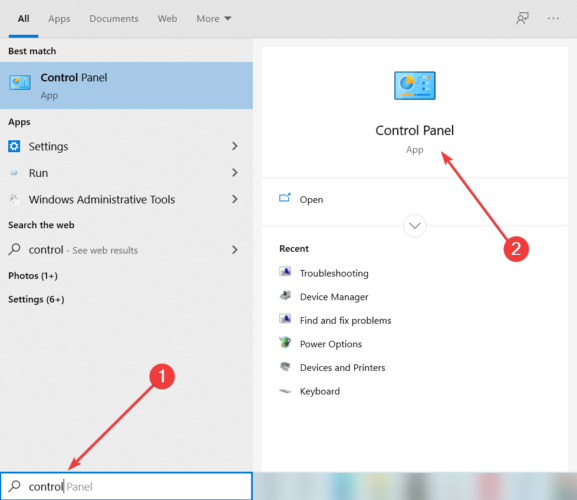
  1. In the Windows Search bar, type Control and open Control Panel.
  2. Open Uninstall a program from the Category view.
  3. Click on the troubled program and select the Uninstall option.
    0x000007b
  4. Restart your PC.
  5. Install the program and look for changes.

If the re-installation of the .NET Framework didn’t work, you can try re-installing a program or game that gives you this error. This should resolve the majority of system-imposed issues.

When you uninstall a program, there is a chance that some leftovers of the software will remain on your PC. Thus, we recommend you use a third-party solution.

⇒ Get IObit Uninstaller

3. Run the installer in the compatibility mode

  1. Right-click on the installation setup file (most of the time, it has the EXE extension) and open Properties.
  2. Select the Compatibility tab, check the Run this program in compatibility mode for, then from the drop-down menu, select an older Windows iteration, and finally, check the Run this program as an administrator box.
  3. Confirm changes and try installing the program again.

4. Run the Troubleshooter

  1. Press Windows + I to open the Settings app.
  2. Click on Updates & Security.
  3. Click on Troubleshoot, then find the Program compatibility troubleshooter, click it, and select Run the troubleshooter.
  4. Follow further on-screen instructions and let the wizard find any issues.
  5. Restart your computer.

5. Run SFC scan

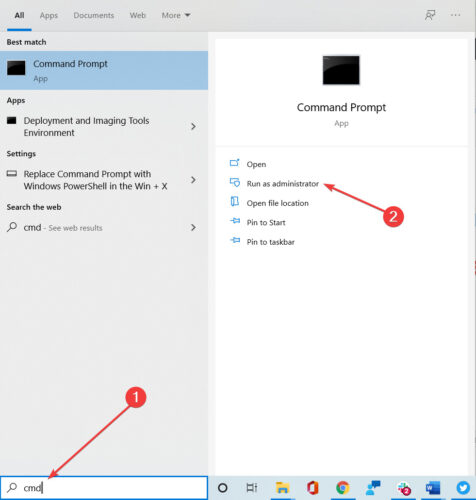
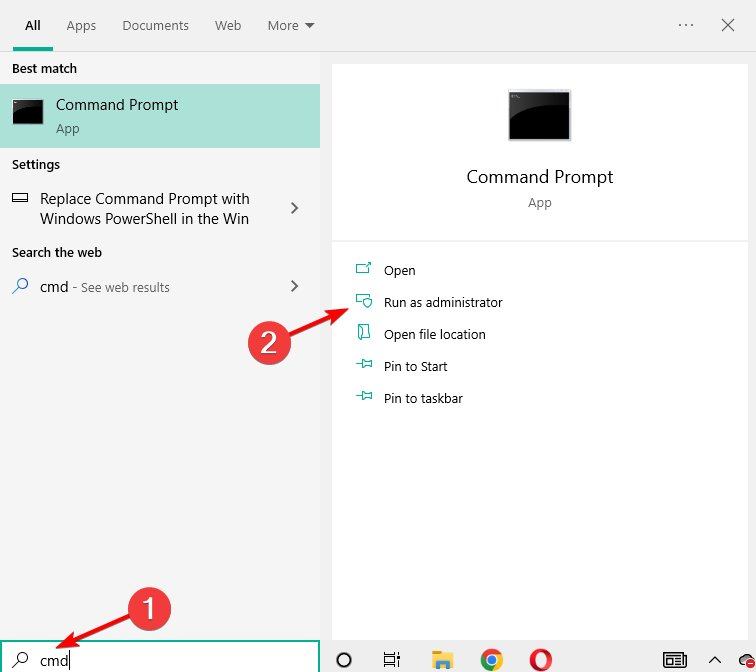
  1. Go to Search, type cmd, and open Command Prompt as Administrator.
  2. Enter the following line and press Enter:
    sfc/scannow
  3. Wait for the process to finish.
  4. Restart your computer.

6. Run DISM

  1. Go to Search, type cmd, and open Command Prompt as Administrator.
  2. Enter the following command on the command line:
    • DISM.exe /Online /Cleanup-image /Restorehealth
  3. If the DISM can’t obtain files online, try using your USB or DVD installation. Insert media and type the following command:
    • DISM.exe/Online /Cleanup-Image /RestoreHealth /Source:C:RepairSourceWindows /LimitAccess
  4. Make sure to replace C:RepairSourceWindows path of your DVD or USB.

DISM (Deployment Image Servicing and Management Tool ) is another great built-in tool from the Windows platform that can be used to repair your Windows OS.

That would be all, I hope that at least one of these many re-installations will help you to solve the problem with error 0x000007b.

These solutions will come in handy for different variations of the error including Office error 0x000007b and error 0x000007b in GTA 5.

If you have any comments or suggestions, or you maybe know some other re-installation we could add to this article, write to us in the comments section below; we would love to read it.

Top Mini Projectors Deals To Get Now

Mini projectors are quickly gaining traction in the market right now. Ideally, they are quite cheaper compared to their full-sized competitors. Besides, they provide the users with a lot of conveniences because they can be carried outside.

Mini projectors come with a lot of features such as, wireless streaming functionality that makes them the perfect fit for watching music videos, TV series and movies outdoors to be enjoyed amongst friends.

That being said, mini projectors’ features and price ranges can vary considerably, depending on the clarity of the image, connection types, format, and many other features.

That said, the lower-priced mini projectors come at an expense. there is a great compromise in terms of image quality and brightness.

There are a couple of features that you should look out for when you want to buy a mini projector. Some of the main ones are:

➡ Portability

Mini projectors are easy to carry around, this enhances their usability. It is small, light and at the same time produces quality content. However, projectors that come with higher resolutions are quite bigger and heavier. Also, ensure that you get one that comes with a detachable battery for outdoor use.

➡ Brightness

In most cases, mini projectors are used in space where one cannot exactly control the light. Therefore, it is important to ensure that the quality of the image is not compromised and that it is bright enough. Low transmission of single-panel LCD projects is a clear indication that they cannot compete with DLP mini projectors

➡ Resolution

Getting a mini projector does not necessarily mean that it is a bad projector. On the contrary, this is dependent on technology, optical elements in the lens, and the light source.

Note: All the prices and offers in this article are subject to change, so be sure to check the official product page to get the latest deal. If the product/offer you’re looking for is no longer available, you can try to find it on its official manufacturer page or get another one from our list.

What are the best deals on mini projectors?

All these items have special Christmas prices.

We hope that the above tips will help you narrow down your choices. Amazon has a lot of Christmas deals on tab revolving around mini projectors.

Which device did you get? Let us know what you settled on in the comment section below.

10+ Best USB 3.0 External Hard Drive [Cyber Monday Deals]

USB 3.0 external hard drive can be a quite useful device, especially if you need to back up your files.

Today we’re going to show you the best USB 3.0 external hard drive deals that you can get for this shopping season.

Note: All the prices and offers in this article are subject to change, so be sure to check the official product page to get the latest deal. If the product or offer you’re looking for is no longer available, you can try to find it on its official manufacturer page or get another one from our list.

What is the best USB external USB hard drive?

Toshiba Canvio Advance 4 TB

  • 4 TB capacity
  • Toshiba storage security software
  • Toshiba 2 year standard limited warranty
  • Sleek, minimalistic design
  • Can be pretty fragile

Toshiba Canvio Advance 4 TB comes with a minimalistic design aluminum case. This SSD offers automatic backup and password protection for your data through the Toshiba Storage Backup Software.

The device offers a huge, 4 TB storage capacity in a compact device, which should be more than enough for all types of users.

Seagate Backup Plus Portable 5TB

  • 2-year Rescue Service
  • One-year subscription to Mylio Create and a two-month membership to Adobe Creative Cloud Photography Plan
  • Polished aluminium enclosure
  • 120 MB/s transfer speed
  • Can be considered expensive

How do you feel about a 5 TB drive to store all your valuable documents, photos, and videos? That is all about the Seagate Backup Plus Portable that comes with a 120 MB/s transfer speed.

It’s portable and it comes with a one-year subscription to Mylio Create and a two-month membership to Adobe’s Creative Cloud Photography. That’s what we call a bargain.

LaCie Rugged Mini 5TB

  • Drop/shock, dust and rain resistant
  • Speeds of up to 130MB/s
  • One month membership to the Adobe Creative Cloud
  • Two-year warranty
  • The design is a bit bulky

An HDD is a delicate device and you have to handle it with great care. That’s why the LaCie Rugged Mini 5TB external HDD has a strong, ruggedized case that can protect the drive from 4 ft drops, rain, dust, and pressure.

Its 5 GB capacity is great for any backup tasks whether it’s photos, videos, or any important data that you need to keep protected. The drive comes with a one-month membership to the Adobe Creative Cloud.

WD-Black 5TB P10-Game Drive

  • Compatible with Playstation, Xbox, PC, & Mac
  • 5 TB capacity
  • Portable and durable form factor with top metal cover
  • Only 5400 RPM HDD

WD-Black 5TB P10 is a portable external HDD advertised for gaming purposes but it can be used for any possible storage tasks.

However, Western Digital also guarantees compatibility with Xbox and Playstation game consoles and the rugged design is typical for a gaming setup.

The 5 TB capacity and the 130 MB/s transfer speeds are on par with any usage whatsoever.

Silicon Power A30 1TB

  • Rugged design
  • Included USB 3.0 cable attached to the drive
  • LED indicator
  • 3-year manufacturer warranty
  • Problematic software from the manufacturer

The Silicon Power A30 is all about protection because the manufacturer says that the drive comes with military-grade shockproof protection.

Moreover, the gadget is backed by a 3-year warranty that guarantees complete services and technical support.

The only downside of this portable drive is the capacity of only 1TB but it compensates with an excellent price.

Seagate Expansion 4TB

Seagate Expansion 4TB is a USB 3.0 external hard drive and it’s fully compatible with USB 2.0 and USB 3.0 devices.

It’s worth mentioning that this device can work with both Windows and Mac computers, but you’ll need to reformat it if you want to use it on a different platform.

We have to say that transfer speed might not be the best, but this device makes up for it with its capacity.

⇒ Buy it now from Amazon

WD 2TB My Passport X

usb 3.0 external hard drive black friday

WD 2TB My Passport X offers a stylish design and solid transfer speed, which makes it perfect for file backup.

This hard drive can also work with Xbox One, but if you want to use it with your Xbox, you’ll need to reformat it first.

With its 2TB capacity and compact design, this hard drive will be perfect for all users.

⇒ Buy it now from Amazon

WD 4TB Elements Portable

usb 3.0 external hard drive black friday

WD 4TB Elements Portable hard drive is fully compatible with USB 3.0 and USB 2.0 devices and with its small size and great design it will look amazing next to your PC or laptop.

The device has 4TB of storage, which should be more than enough for both basic and advanced users alike.

⇒ Buy it now from Amazon

Toshiba Canvio Basics

usb 3.0 external hard drive black friday

Toshiba Canvio Basics comes with a sleek matte smudge-resistance finish, so it will be a perfect addition to your PC or laptop.

The device uses a USB cable for powering and data transfer, so you won’t need to deal with additional adapters.

This hard drive is also fully compatible with Mac devices, but in order to use it with a Mac device, you’ll need to reformat it beforehand.

⇒ Buy it now from Amazon

WD 6TB Elements Desktop Hard Drive

usb 3.0 external hard drive black friday

WD 6TB Elements Desktop Hard Drive offers amazing capacity, and with 6TB of storage, this device will offer enough storage even for the most advanced users.

This hard drive fully supports USB 3.0, but it also works with USB 2.0 devices.

Speaking of compatibility, this device can also work with Mac devices, but you’ll need to reformat it before you can use it on Mac.

⇒ Buy it now from Amazon

G-Technology G-DRIVE USB 3.0 External Hard Drive

usb 3.0 external hard drive black friday

G-Technology G-DRIVE USB 3.0 External Hard Drive comes with a solid but stylish aluminum case, and with the 4TB capacity, it will be perfect for all your needs.

This device is preformatted to work with Mac computers, but if you want to use it with Windows PC, you just need to format it and you’re good to go.

⇒ Buy it now from Amazon

WD 3TB My Passport Wireless Pro

usb 3.0 external hard drive black friday

WD 3TB My Passport Wireless Pro is a truly portable hard drive, and unlike other entries on our list, this hard drive comes with wireless support so you can stream your content with ease.

The device has a 6,400 mAh battery so it can also work as a power bank. If you want a truly portable hard drive, then this device might be perfect for you.

⇒ Buy it now from Amazon

G-Technology G-Drive ev RaW

usb 3.0 external hard drive black friday

G-Technology G-Drive ev RaW is a durable hard drive, and it comes with a polycarbonate enclosure rubber bumper that provides drop protection up to 1.5m.

This device uses a USB 3.0 port, but it comes with all the necessary cables. It’s worth mentioning that this device is preformatted for Mac computers, but with a quick format, you can use it on your PC as well.

⇒ Buy it now from Amazon

WD 4TB White-Gold My Passport Ultra

usb 3.0 external hard drive black friday

WD 4TB White-Gold My Passport Ultra offers an amazing design with its metal and matte finish. The device also has some advanced features such as 256-bit AES hardware encryption.

In addition, there’s an automatic backup feature as well as social media and cloud storage import features.

Overall WD 4TB White-Gold My Passport Ultra offers an amazing design and advanced features, so it will be perfect for all users.

⇒ Buy it now from Amazon

These are some of the best USB 3.0 hard drives that you can get for this shopping season, so be sure to get them while the discounts last.

Luminar: Best Deal To Catch

Luminar is among the top applications that people use to edit and enhance their photographs. Read on to find out which are the best Luminar Black Friday deals for 2022.

Is Luminar AI worth buying?

Luminar is supported both on Windows and Apple devices. Moreover, it is equipped with AI technology that allows it to produce results similar to Photoshop software within a short time.

Users can either use it as a stand-alone application or incorporate Photoshop and Lightroom as part of the editing and image enhancement applications.

The AI-technology editing feature allows Luminar to stand out from the rest, the one-of-a-kind editing features allow the users to manipulate the editing and enhancement process, ultimately producing amazing photographs.

Users can either let the software make adjustments to the photo they wish to edit automatically or make the changes manually according to one’s preferences.

Luminar Black Friday 2022: key features of the tool

  • AI Structure – This feature helps photographers magnify details in the images captured and helps make blurred photos clearer.
  • AI Sky Replacement – Luminar allows users to change the sky in any photo by the click of a button, thanks to the AI sky replacement tools. there is no need to go through the tedious process of masking, blending, and cutting out skies in Photoshop.
  • AI Skin & Portrait Enhancer – The tool helps photographers smoothen out the skin and clear out any blemishes in the photos. Therefore, you do not need to make any manual adjustments once you have this feature.
  • AI Smart Contrast – The tool helps enhance the quality of images by making a few clicks. However, you should be cautious when using this feature because it can potentially ruin the entire photo. With the smart contrast feature you can now comfortably apply the contrast feature and it will make the changes selectively where applicable.

These are just but a few of the many features you stand to enjoy once you get the software during this year’s Luminar Black Friday 2022 sale. Head on to their official website and make your purchase today!

⇒ Get Luminar

Which feature stands out the most for you from Luminar? Let us know in the comment section below.

Best Deals On Netgear Routers

When it comes to routers, what’s the first name that comes to your mind? For most, it’s Netgear. In the following sections, we have compiled a list of the best deals on Netgear routers along with their benefits.

Netgear has developed some of the best routers in the market that offer both, enhanced speed and connectivity. It’s one of the most trusted and leading names in the industry.

If you are planning to make an upgrade, try the Netgear routers for the best performance. It caters to all kinds of requirements, be it budget, high speed, more number of connected devices, along with both Wi-Fi 5 and Wi-Fi 6 versions.

So, you are more likely to find the right router during the Christmas deals on Netgear than any other brand. We went through the trouble and compiled a list of the best deals you will find.

Note: All the prices and offers in this article are subject to change, so be sure to check the official product page to get the latest deal. If the product/offer you’re looking for is no longer available, you can try to find it on its official manufacturer page or get another one from our list.

What are the best deals on Netgear router?

All these items have special prices.


These are the best deals on Netgear routers this season. Grab them for maximum savings while the discount season lasts.

Also, check out our extensive list of best Wi-Fi router deals this Cyber Monday, and enjoy a stable and seamless connection.

Let’s know which Netgear router appealed the most and your experience of it in the comments section below.

Best Bluetooth Portable Projector Deals

Portable projectors are extremely convenient if you’re on the go, but you still want to show certain content to others. Due to their size, they are quite compact, and can easily fit in a bag, so you can carry them with you at all times.

Picking the right model isn’t always easy, and you need to take several factors into consideration. The most important factor is the brightness, and it determines how well will your image look in certain under various conditions.

Resolution is also important, and the higher the resolution, the better your image will look. Display size should be taken into consideration as well, and a larger display size means that you can view the projection from a bigger distance.

Connectivity is especially important, and when picking a projector, make sure that your device has multiple ports and not just HDMI. Many models support Bluetooth and wireless connection, and we’ll focus on these models.

Now that you know what to look for, here are some of the best Bluetooth portable projectors that you can buy this season.

Note: All the prices and offers in this article are subject to change, so be sure to check the official product page to get the latest deal. If the product/offer you’re looking for is no longer available, you can try to find it on its official manufacturer page or get another one from our list.

What are the best Bluetooth portable projector deals?

All these items have special prices.


Picking the best portable projector isn’t always easy, but as long as you follow our guidelines, you should be able to find the suitable model for your needs.

Before making a purchase, be sure to do your research properly and check if the model you choose has all the required features.

What is your projector of choice? Let us know in the comments section below.

Best Portable Power Station Deals

As a result of the carbon monoxide emissions from generators, you must take crucial safety precautions, such as operating the equipment outside and at least 20 feet from any structure.

If we live in an age where we can charge our smartphones with a battery pack that fits inside a jeans pocket, shouldn’t there be a more straightforward approach to restore power in the aftermath of a hurricane?

How about powering a campsite without having to deal with the continual hum of a gas-fueled generator?

Portable power stations, often known as battery-powered inverter generators, have the potential to fulfill this promise. On the surface, they’re just big, bulky rechargeable batteries roughly the size of a countertop microwave oven, which you can charge up by plugging them into a standard 110-volt outlet.

Note: All the prices and offers in this article are subject to change, so be sure to check the official product page to get the latest deal. If the product/offer you’re looking for is no longer available, you can try to find it on its official manufacturer page or get another one from our list.

What are the best server racks up for sale this Christmas?

All these items have special Christmas prices.

Because it emits no pollutants, you can securely operate a portable power station inside when the situation calls for it on duty.

These batteries have enough capacity to run a couple of small appliances for a short period of time. With a variety of outlets (regular 120v outlets, USB ports, and DC chargers), you may use the station to charge your electronics as well as your phone or tablet.

Furthermore, portable solar panels are frequently included with the units, allowing for increased charging capabilities and runtime.

Portable power stations, unlike their gasoline-fueled counterparts, require a transfer switch if you want to use them to power items like your furnace, overhead lighting, or anything else in your home that is hardwired.

For example, if you completely charge the battery before a forecasted weather occurrence, a portable power station may be able to provide you with many hours of electricity to run a refrigerator or another vital equipment.

If you are considering acquiring additional portable useful devices, we recommend that you read our article on four of the greatest wireless power strips.

Do you have a portable power station in your wish list that you would like to check out? Please share your thoughts in the comment area below.

Onikuma Gaming Headset Deals

The new Onikuma Black Friday deals are now available. WindowsReport brings you an exclusive deal for the ONIKUMA I and ONIKUMA II stereo gaming headsets that you really don’t want to miss.

Which are the best Onikuma Black Friday 2022 deals?

Onikuma Gaming Headset with Noise Canceling

  • Works on Windows PC, Mac OS PC, iOS, Android, PS and Xbox
  • Maximizes the clarity of sound with 7.1 Surround technology
  • Strong cords and joints and features long-lasting durability
  • Adjustable and flexible to pick up sound in 360 degree
  • Doesn’t come with adapters for a lot of supported devices

This headset offers perhaps the best quality/ price ratio for a gaming headset. It features enhanced 7.1 surround sound for the best audio experience during your gaming sessions.

The noise-canceling microphone isolates all the noise around you so that you can communicate with the other members of your game team without any problems.

The soft breathing earmuffs have a nice ergonomic design. The headset features a thick over-ear ergonomic ear cup that successfully isolates ambient noise. We guarantee you that this headset won’t cause any ear discomfort. You can play your favorite Xbox and PC games for hours on end.

After a few minutes, over-the-ear headphones are really painful to use especially if you wear glasses. This is not the case with the ONIKUMA headsets. Simply extend the headset and you can play with your glasses on without any problems.

ONIKUMA headsets are equipped with top-notch neodymium magnets that deliver crystal-clear bass sounds. Moreover, you can adjust them in any direction, they’re flexible and they support 360 degrees of sound pick-up.

The cords and joints are super strong. They won’t break even after years of intense usage.  Moreover, ONIKUMA offers a 24-month money-back guarantee and a free replacement policy.

Onikuma Gaming Headset 7.1 Surround

  • Works on all current PC, mobile, and console OS, so it can be used everywhere
  • Supports 7.1 Surround technology for amazing immersiveness
  • Strong cords and joints and features long-lasting durability
  • The amazing sound quality in both headphones and microphone
  • Doesn’t come with adapters for a lot of supported devices

If you prefer LED light headsets, you can then purchase the ONIKUMA II headset model. This headset version has all the features listed above plus better looks.

The glaring LED lights on the earmuffs make the headset look very cool especially when you play your favorite games in a low-light environment.

So, what are you waiting for? Grab this headset before the offer expires.

Valorant not Updating: 6 Methods Get the New Update

If Valorant is not updating, this article will help you clear the issues. The update problem might reflect different ways, such as the downloading speed stuck at 0.1kb/s, Valorant not downloading, etc.

Why is Valorant not updating? While there may be diverse reasons that may trigger this problem, from user feedback, we narrow it down to these few principal elements:

  • Poor or unstable internet connection.
  • An outdated OS can be a possible cause for update issues on Valorant.
  • Some issues with the Riot Vanguard may make updates on Valorant impossible.

What can I do if Valorant isn’t updating?

For easier troubleshooting, you can watch the helpful video below for better visual steps:

Before you go into any of these complex solutions, try restarting the PC, using a different profile, and changing to a steady network connection.

1. Remove & Reinstall Vanguard

  1. Close Vanguard using the System Tray icon.
  2. Navigate to the Command Prompt by using the search feature in Windows. Type “Command Prompt” in the search bar.
  3. Run the Command Prompt with elevated privileges by selecting “Run as Administrator.”
  4. In the Command Prompt window, enter sc delete vgc and hit the Enter key.
  5. Next, input sc delete vgk in the Command Prompt and press Enter.
  6. Proceed to reboot your computer.
  7. Again, make sure Vanguard is not running in the System Tray.
  8. Open File Explorer and go to the following directory: C:\Program Files\Riot Vanguard. Once there, remove the Vanguard folder.
  9. Start Valorant to prompt an update or reinstallation of Vanguard. Follow the on-screen instructions which will include a system reboot.
  10. After restarting your computer as instructed, open Valorant. It should now launch without issues.

After these steps, Valorant should update itself without any issues. If this doesn’t solve the problem, feel free to use the other methods.

2. Allow Valorant through Firewall

  1. Press the Windows key + R, type control panel, and hit Enter.
  2. Change View by to Large icons.
    Valorant not updating
  3. Select the Windows Defender Firewall option.
  4. Click Allow an app or feature on the left pane through Windows Defender Firewall.
    Valorant not updating
  5. Press Change Settings on the new page. This will let you add Valorant.
  6. Click Allow another app, search for Valorant, and click the open button.
    Valorant not updating
  7. On the next screen, click the Add button, then tick the two boxes next to add, and you are done with the firewall settings.

Allowing Valorant through the firewall can solve the problem of stuck Valorant updates.

These three significant ways force Valorant to update and relaunch your game. However, here are some other fixes you can try if none work.

Some users claim that these are the fixes that worked best for them. Hence, you can try them out, too.

3. Repair Valorant game files

  1. Open Riot client, and click the profile icon on the top right-hand corner of the screen.
  2. Then click settings.
  3. In settings, select Valorant, then click the Repair button.

Some game files might be corrupt or even deleted. So, you should run a diagnostic scan to know where and what to repair.

4. Allow Valorant to run administrator

  1. Press the Windows key and input Valorant, and click the Valorant app.
  2. On the right pane of the screen, select the Run as administrator option.

Enabling the administrator privilege for your game can help it function better. This usually gives the game the power to overwrite permissions that could have affected its performance. So, this should solve the Valorant not downloading or getting stuck at 0.1kb/s.

5. Update Windows

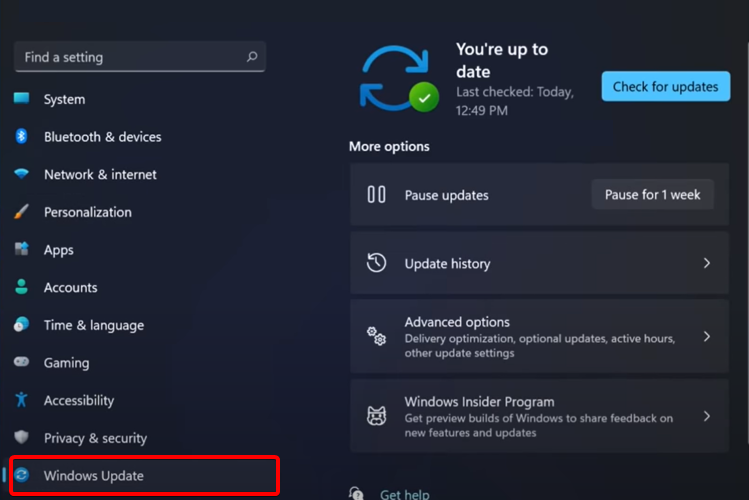
  1. Press the Windows key + I to open the Settings app.
  2. Then select Windows Update.
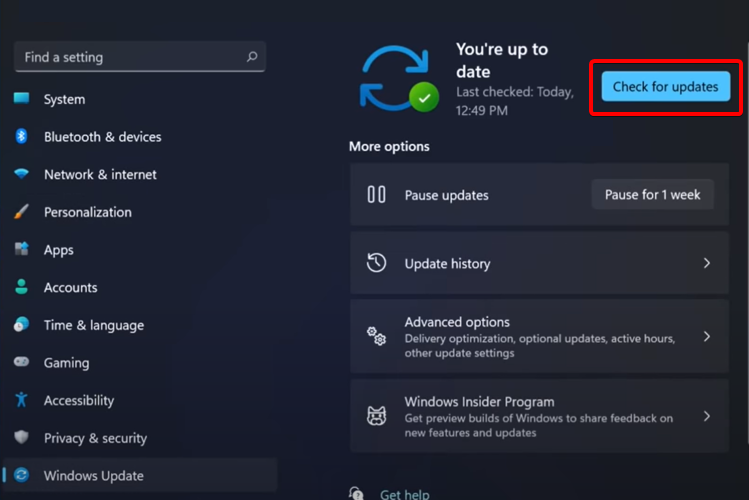
  3. Click check for updates.
  4. If there’s any update available, download and install it
  5. After the update is complete, restart your PC.

Incompatibility is often a massive problem for games with advanced games like Valorant. It would help if you had a Windows that meets all the requirements for the game.

6. Uninstall and reinstall Valorant

  1. Press the Windows key + R, type control panel, and hit Enter.
  2. Change View by to Category.
  3. Click on Uninstall a program.
  4. Select Riot Vanguard from the list, then click the Uninstall button.
  5. Go to the official site for Valorant and download and install the game.

Uninstalling your game might delete your saved progress and information if not backed up. Therefore, it should be the last option you should try on this list. This will automatically fix the Valorant update and any other issues affecting it.

This can also help you fix similar errors like a critical error that has occurred in Valorant; read this guide to learn more about it.

In a nutshell, Valorant is not updating, or several conditions can cause a stuck Valorant update. The above fixes are available to see which one works perfectly for you.

You can leave your questions and suggestions below in the comments section. We would love to know which of the fixes worked for you.

5 Best Xbox Wireless Headsets To Buy This Year

If you’re an Xbox gamer, you know-how intensive and loud the action can get sometimes, and this is why many are using headphones while gaming.

They allow you to fully immerse yourself in the game without having to cause any additional noise in your home. There are various types of headphones, but the most convenient ones are the wireless models.

When buying headphones, you should pay close attention to the range of the device, but in most cases, the headphones will work perfectly in the room where your console is.

Battery life is important since you don’t want to run out of power while playing your favorite game, so keep a close eye on that.

The quality of the speakers is another important feature, but you should also look for a headset that has a mute option, so you can mute your microphone when you’re not using it.

Now that you know what to look for, we’ll give you our top 5 wireless headsets for Xbox.

What are the best Xbox wireless headset deals?

All these items have special prices.


A wireless headset is one of the best accessories that you can get for your console, especially if you enjoy late-night gaming sessions or if you want to completely immerse yourself in the game you’re playing.

These are some of the best headsets for this season, so be sure to consider all of them for your Xbox.

What is your device of choice? Let us know in the comments section below.

Cyber Monday: Best Surge Protectors Deals this Year

Voltage spikes can cause permanent damage to your electrical devices. This is why an extra layer of protection is never a bad idea.

Using a surge protector is your best bet because spikes in voltage are not necessarily foreseeable events and can happen for various reasons.

These appliances protect your devices permanently by reducing the voltage below a safe threshold. They are relatively cheap solutions that can significantly prolong the life of your devices.

There are different types of surge protectors including whole-house appliances, surge protector strips, wall mount protectors, and more.

You can even find weatherproof tools, and even device-specific surge protectors specifically configured to ensure the safety of use for one particular device category.

We gathered some of the best surge protectors for this year’s sales. You will find below generous discounts for top-quality products.

What are the best surge protector deals?

All these items have special Cyber Monday prices


We picked some of the best deals that offer great value for money. The list contains various types of surge protectors, so make sure to check them all and pick the one that’s best for you.

The Amazon listings offer in-depth details on everything you need to know about the products. Make sure to carefully read them and make an informed decision.

If you have any suggestions or want to share which one of the above-mentioned products you decided on using, feel free to use the comment section below.

Best Movavi Video Suite Discounts

Movavi editors stand out for extremely good video, photo, and digital art editing software, allowing you to get that sharp clarity and insane project layouts and designs.

It is very easy to browse on the Movavi intuitive interface. In addition, during operation, step-by-step instructions are provided immediately on the screen.

You can consider yourself lucky to get this deal from Movavi sales! You can get everything at a low price if you hurry up and don’t miss it!

Note: All the prices and offers in this article are subject to change, so be sure to check the official product page to get the latest deal. If the product/offer you’re looking for is no longer available, you can try to find it on its official manufacturer page or get another one from our list.

What are the best deals from Movavi?

Get the special offers from Movavi regardless of you need to edit videos, convert files, record computer screens, create slideshows, edit photos, and work with PDFs. Everything is at great discounts starting from 35% off up to 85% off!

The best deal to make for yourself is Movavi Unlimited that provides all Movavi programs in one bundle, with an 85% discount. This is great if you want to want to wake the professional editor in you and want results that spark the eye.

Movavi Unlimited provides all the tools you need to be able to edit video and audio files, convert between 180+ media types, capture VHS output and TV signals, and much more. The screen-recording software included in the bundle allows you to record everything in Full HD or 4K resolution.

In addition to artistic setups, provides significant business and learning options, such as the ability to deal with PDF files and burn data to CD/DVD. Unlimited is more than just video editing software; it integrates all Movavi tools and gives you complete access to the effects collection.

Movavi Video Suite

Use stickers, titles, transitions, and backgrounds to make your videos unique and memorable. New handcrafted effects are added every month!
Check offers Visit website

Of course, other deals are great as well and provide you with tools that you can use in photo editing, or vlogger bundles, and digital media creations.

Take advantage of this awesome offer and purchase those great video editors for a very nice price tag.

Best Dell devices to buy this season [Cyber Monday]

If you’re a DELL fan, we’ve got an exciting piece of news for you: the company has revealed its deal lineup. The offer includes laptops, desktop deals, gaming laptop deals, monitors, audio deals, keyboards and more.

You can now save hundreds of dollars and get the DELL products that you’ve been waiting for.

Without further ado, let’s dive in and check out these amazing Dell deals.

Here are the best Dell deals to get

Dell Laptop Deals

Inspiron 15 Touch Laptop (1)

The DELL Inspiron 15 Touch starts from $529.99. This 15-inch laptop is optimized for fast and smooth performance to keep you connected, and it runs great thanks to the AMD Ryzen 5000 Series processors.

A lid-open sensor gets the laptop started when opened, even if completely off or hibernating, and an optional fingerprint reader will verify identity quickly for login using Windows Hello.

And, if you’re always on the move, the ExpressCharge feature minimizes the time you spend tethered to an outlet and will recharge your battery in a flash (up to 80% in 60 minutesi).

If this is the choice for you, hurry up and seal the deal before the offer expires on the 27th of November.

⇒ Get the DELL Inspiron 15” Touch laptop

Check out the complete list of laptop deals on DELL’s official website.

Dell Desktop Deals

XPS Desktop

DELL has tons of interesting Desktop deals, so all that remains to be done is draw up a budget and shop. 

Check out this XPS Desktop, for example, device that delivers outstanding performance with the power of up to 11th Gen Intel Core i9 K-series processors, featuring 10 cores and 20 threads.

Now you can blaze through system-intensive applications like video editing, HD video playback, gaming, and VR capable graphics options from NVIDIA or AMD.

It’s designed to be quiet, and it also has a state-of-the-art cooling system, so you don’t have to worry about intensive gaming or editing.

And the best part is that this bad boy is on sale right now, so you can take it home for $734.99, which is much less than it’s worth.

⇒ Get the DELL XPS Desktop

Also, don’t forget to check out all the other desktop deals on DELL’s official website.

Dell monitor deals

Dell 27 Curved Gaming Monitor

If you consider yourself to be even just a little bit of a gamer, you really need to check out DELL’s monitor deals. 

We know how important a monitor is for a gaming setup, some of DELL’s products are going even for 50% less.

This curved monitor is an expansive 27” Full-HD display with remarkably vivid visuals that draw you deeper into the game.

The 1500R curved screen creates a more realistic field of vision for an incredibly immersive viewing experience.

Also, the NVIDIA G-SYNC Compatible Certification and AMD FreeSync Premium Technology minimizes graphic distortions like screen tearing and stuttering for smoother, fluid gameplay and extraordinary image quality.

And we didn’t even get to the best part yet. If you areally want this for your current setup, you can have it for only $219 during this discount period. 

⇒ Get the DELL 27 CUrved Gaming Monitor

It would take us hours to talk about DELL’s deals. If you’re interested in purchasing a specific Dell product, go to the company’s deal page.

Happy shopping!

Note icon NOTE
Deals are subject to change. Sometimes, some of the deals listed in our guides may no longer be available by the time you hit the buy button. So, hurry up and grab them while they’re hot.

Cyber Monday: best Elgato Stream Decks Deals to Consider

Elgato Stream Deck offers a live production controller with 15 LCD keys and an adjustable stand with trigger actions in OBS studio, plus Twitch and YouTube.

Streaming devices will exponentially grow your productivity while streaming on your favorite platforms online. If you are a full-time streamer or really passionate about it, this offer is what you need.

You can entertain your audience instantly by creating quality content, using this device helpful customizable actions onto keys.

Hence, anytime you have to perform certain actions like media launching or social media posts, adjust audio, you only need to press a button. There are endless benefits you can explore, and grow your community online in an instant.

What are the greatest Elgato stream decks with deals?

All these items have special prices.

You can therefore find the device that suits your needs perfectly. There are numerous stream decks on the market, yet if you want to invest in qualitative and long-lasting gadgets be sure to check these products.

More so, a good idea would be to read the description of each product on Amazon and see what you can best use for your streaming activity.

If you already decided, please tell us in the comment what products you prefer the most.

Bitdefender Not Installing: 3 Easy Solutions You Can Use

Bitdefender is one of the popular antivirus solutions for Windows 10 and 11 users. However, some users have reported that Bitdefender is not installing on their computers.

This article will explore this problem, point out possible triggers, and recommend valid solutions. Let us get to it.

Why is Bitdefender not installing?

From the experience of other users, we have gathered that there may be a few causes of this problem. On top of the list are the following elements:

  • Third-party antivirus – Sometimes, you may be using other antivirus software. If they are not compatible with Bitdefender, you may expect this problem. Alternatively, disable Windows Defender or unblock the Bitdefender installer.
  • Corrupt files – You may be trying to install a bad software executable file.
  • Conflicting installations – For some users, if an older version of the antivirus is already installed, it will trigger this problem.
  • Insufficient storage – There is a minimum storage requirement for the installation; if your PC does not meet it, it will not install.

Regardless of your unique situation, the solutions we recommend should come in handy.

How can I fix Bitdefender if it’s not installing?

Before you start with any of these solutions, you should take note of the following:

  • Wait out any ongoing installation.
  • Ensure that there is no older version of the software already installed.
  • Ensure that there is enough disk space to accommodate the installation.

1. Turn off the Windows Defender real-time protection

  1. Type Windows Security in the Search bar, and click on the relevant search result.
  2. Click on Virus and Threat Protection.
  3. Scroll down, and click on Manage Settings under Virus and Threat protection.
  4. Finally, turn off Real-time protection.
  5. Try installing Windows Defender again and check for any improvements.

Microsoft Windows comes with a built-in security program with real-time protection. However, to install a third-party antivirus solution, you must first turn off the Real-Time Protection. 

2. Unblock Bitdefender installer

  1. Make sure you have the latest version of Bitdefender installer downloaded.
  2. Right-click on the Bitdefender installation file and select Properties.
  3. Click on the Unblock button under the Advanced button in the bottom right corner.
  4. Lastly, click Apply and OK to save the changes.
  5. Now run the Bitdefender installer again and check for any improvements.

Microsoft Windows may block or prevent the installation of security programs to protect the computer. However, following the aforementioned steps, you can easily unblock the Bitdefender installer.

3. Repair Bitdefender Client

  1. Exit Bitdefender if running.
  2. Press Windows Key + R to open Run, type control panel, and press hit Enter.
  3. Now, go to Programs, then Programs and Features.
  4. Select Bitdefender from the programs list and click on the Uninstall button.
  5. Follow the on-screen instructions and select Repair.
    Bitdefender repair
  6. Finally, relaunch Bitdefender and try to install the pending update.

Bitdefender not installing can be caused by leftover files on your computer. Using a specialized tool is the easiest way to eliminate unwanted software.

We hope these solutions fixed your Bitdefender installing problem. Lots of things cause your issue, so make sure you follow the steps provided.

Lastly, feel free to leave feedback regarding the subject and your experience with these antivirus tools in the comment section below.

Best Deals On All-In-One Printers

This year, Cyber Monday is coming with a bang! You can get your hands on practically anything. It is definitely time for you to get your hands on that all-in-one printer that you have been saving for but at a discounted price this time.

The all-in-one printers come with an array of advantages, the main one being the provision of a single support center. The feature combines several machines, ultimately creating one productivity center for the user.

Even more, this type of printer also enables you to save space, coming in handy no matter how much of it you have to spare. Of course, this feature becomes even more important if you’re office is on the smaller side,

Furthermore, the all-in-one feature helps reduce the cost incurred when it comes to maintenance. it is way cheaper to maintain one machine as compared to doing it separately.

Besides, the machine comes with one warranty that covers the entire combination.

What is the best all-in-one printer to purchase?

All these items have special prices.

Note: All the prices and offers in this article are subject to change, so be sure to check the official product page to get the latest deal. If the product or offer you’re looking for is no longer available, you can try to find it on its official manufacturer page or get another one from our list.

The specifications of the devices listed above do vary, therefore, you need to take your time to select the one that suits you most. All-in-one printers come with the following features:

  • faxing
  • scanning
  • copying capabilities
  • color photo printing

Aside from that, be sure to read the product descriptions from Amazon and see which one fits your needs, as compatibility will vary from one product to another

Ideally, this is supposed to provide you with the opportunity of making an informed decision when it comes to all matters of purchases. Be sure to get your hands on one today!

Don’t hesitate to share your choice and reason for purchase by leaving a comment in the section found below this guide.

5 Best G-Sync Monitor Deals To Get Now

Gaming is no longer just a recreational activity. It even became a sport where players are competing against each other to get the best performance and results.

In order to play at a high-level, you need a powerful computer that can run every game at maximum graphical settings. However, besides the computer, you also need a good monitor that has fast response times and eye-catching colors.

The best display technology out there is the G-Sync from NVIDIA. It is used in certain PC monitors to fight screen tearing, stuttering, and juddering, especially during fast-paced games or videos.

Note: All the prices and offers in this article are subject to change, so be sure to check the official product page to get the latest deal. If the product/offer you’re looking for is no longer available, you can try to find it on its official manufacturer page or get another one from our list.

What are the best G-Sync monitor deals?

ASUS VG278QR

  • 27-Inch Full HD display with 165Hz refresh rate
  • G-SYNC compatible technology with DisplayPort and HDMI
  • Extreme low motion blur technology
  • ASUS Eye Care technology to minimize eye fatigue
  • Supports DisplayPort 1, HDMI, and DVI-D
  • Narrow viewing angles

Our best budget-oriented choice from the list is the ASUS VG278QR, which comes equipped with both G-Sync and Free-Sync. The monitor can be mounted on the wall as well as on a stand, and it is fully adjustable.

Gamer-centric features like ASUS GamePlus enhance your in-game experience, while GameVisual provides various pre-set display modes to optimize visuals for different types of games.


Razer Raptor

  • 27-Inch WQHD IPS-Grade display
  • 144Hz refresh rate
  • 95% DCI-P3 Color Gamut and HDR 400
  • Razer Chroma RGB and built-in cable management
  • Razer Synapse integration
  • User must manually switch between SDR and HDR modes

Razer Raptor is the best product on our list, offering fantastic build quality with an aluminum stand, and a sharp display. The Raptor is the ultimate e-sports gaming monitor, created to perform with extreme speed and clarity.

The no-compromise display produces breathtaking visuals with the use of deep vibrant colors and a natural life-like image for a truly immersive gaming experience.


Dell S2417DG

  • 24-Inch QHD resolution
  • Anti-Glare coated display with 3H hardness
  • G-Sync Variable Refresh Rate
  • Supports HDMI and DisplayPort
  • 165Hz refresh rate
  • Poor native contrast ratio

The Dell S2417DG is a great gaming monitor that offers a good experience for its mid-range price.

The monitor has a high refresh rate and a sturdy stand which lets you tilt, pivot, and swivel it however you like.

The ultrathin bezels allow you to enjoy a seamless dual-monitor or triple-monitor setup for complete immersion.


LG 27GL83A-B

  • 27-Inch QHD display
  • 144Hz refresh rate
  • Nvidia G-Sync compatible
  • Adjustable stand
  • Underwhelming contrast ratio

The LG 27GL83A-B is a good mid-range choice, having a 1440p resolution and an IPS display. The monitor has remarkable motion handling, ensuring there is little to no motion blur during intensive gaming or watching videos.

The product has wide viewing angles, and its size and resolution make it a great choice for those who are interested in media creation. The Free Sync and G-Sync create an ultra-fast response time.


LG Ultragear

  • 27-Inch FHD IPS Display
  • 144Hz refresh rate
  • G-Sync compatible
  • Radeon Free-Sync technology
  • Adjustable stand
  • Can't display wide color gamut for HDR

The last product on our list is the LG Ultragear gaming monitor, which is available in Full HD and in curved Ultrawide. The monitor is capable of HDR and it has thin bezels for a wider display.

The viewing angles are wide and it has an excellent response time. The factory settings of the display are great so you don’t need to tweak them for better image quality.


This article should have you covered with all the information you need to buy the G-Sync monitor best suited for your needs.

Feel free to leave any feedback regarding G-Sync and Free-Sync monitors in the comment section below.

[wl_navigator]

Best Asus Routers Deals To Get Now

Have you been on the lookout to boost your Wi-Fi performance? Are you missing out on fun games because of poor Wi-Fi performance? Well, this Christmas is your chance to scoop one of the Asus routers on sale.

Since the release of Windows 11, developers have been releasing games that will require powerful Internet connectivity to avoid lagging.

The Asus routers are your best bet because of their AiMesh technology that boosts its performance by allowing you to establish a much stronger connection with 802.11ax technology/

One thing you won’t have to worry about is stability regardless of the distance in your house or wherever you will be using it. With their wireless backhaul, these routers can transmit data between two  RT-AX92U.

Depending on the exact model you’re interested in, the performance of Asus routers beats the competition overall. These performant devices ensure amazing game traffic speeds of up to 1.8 GHz. Even though this will depend on the model itself, you can rest assured that your Asus router will work better than any other in that price range.

What’s even better, is that you can forget about all the complicated technical stuff that will require you to get an expert. Setup is simple and easy made for the common man with basic skills.

Another advantage that definitely makes it a must-add in your cart is its advanced monitoring and control of bandwidth utilization per device as well as usage prioritization. You can cap how many devices you want to use the router.

If you are not big on pressing controls, you are in luck because you can add voice control by connecting to an Alexa-enabled device.

Note: All the prices and offers in this article are subject to change, so be sure to check the official product page to get the latest deal. If the product/offer you’re looking for is no longer available, you can try to find it on its official manufacturer page or get another one from our list.

What are the best deals on Asus routers?

All these items have special prices.

Each router has its own unique features so make sure to check your priority list before purchasing one.

Also, check for the product description for compatibility with your devices and go forth and acquire the Asus router of your dreams only this time at a steal.

Share with us your must-have Asus router and why it’s your choice in the comment section below.

Best Pc Power Supplies Deals To Get Now

The power supply is one of the least fascinating, but critically important components of a computer.

PCs, of course, require electricity to operate, and that electricity is not always delivered directly from the wall to every component within the PC’s chassis.

Instead, electricity is converted from alternating current (AC) supplied by the power provider to direct current (DC) needed by PC components at the appropriate voltage.

It’s tempting to just buy any old power supply to power your computer, but that’s not a sensible decision in this case. A power source that does not provide steady or clean power can result in a variety of problems, including instability that can be difficult to diagnose and diagnose.

In reality, a failing power supply frequently results in other issues such as odd resets and freezes, which can normally go unnoticed due to their strange nature. To prevent that, check out the best Christmas offers below.

Note: All the prices and offers in this article are subject to change, so be sure to check the official product page to get the latest deal. If the product/offer you’re looking for is no longer available, you can try to find it on its official manufacturer page or get another one from our list.

What are the best PC power supplie deals this Christmas?

While there are several significant elements to consider when selecting a power supply, just as there are when selecting any other PC component, determining one of the most crucial factors is surprisingly straightforward and straightforward.

Obviously, there is a lot to consider when selecting a power supply, and it is a critical step in the process of building a new PC.

In the long run, however, investing a little time upfront to ensure that your power supply provides your PC components with dependable, consistent, and safe power will save you a significant amount of time while also making your computer a better and more efficient machine.

After you have purchased your desired PC power supply, you may use the best software programs to easily test the power supply of your computer.

Do you have a PC power supply in your shopping basket that you would like to add to your order? Please share your thoughts in the comments box below.

Filmora not Opening on Windows 11: Make It Work in 4 Steps

With its great capabilities, Filmora uses a delightfully intuitive design that makes it easy for anyone without that much experience required.

Even if this is one of the most popular editing programs, some users reported that sometimes it is not opening on Windows 11. This issue occurs most of the time on the latest version, called Filmora X. It is worth noting that this applies to software that doesn’t have an active license.

Why is Filmora not opening on Windows 11?

  • Viruses and malware – The first important reason Filmora can not open on Windows 11 OS is diverse viruses and malware, which can seriously harm your video editing app. We strongly suggest looking at the best antivirus options for Windows 11 to try out today.
  • Poor updates – Another important reason Filmora could not open on Windows 11 is the poor updates on your operating system. In these terms, we can talk about general Windows updates, but the ones related to your video and graphics drivers are more significant.
  • Antivirus software – You should also remember that if you use a cracked version, antivirus software can sometimes delete files from Filmora.

Having these as a foundation, we selected the best solutions that will repair Filmora crashes in Windows 11.

How can I fix Filmora if it’s not opening on Windows 11?

Before you move to any solutions, try the workaround below.

  • Restart your Windows computer.

If, after a restart, the error continues, you may proceed to the solutions below.

1. Check for Windows updates

  1. Open Settings.
  2. Go to Windows Update.
  3. Select Check for updates.

Checking for general OS updates is a mandatory first action for any trouble you have on your computer.

Some issues might be caused because your components are not constantly updated. Thus, it would be best to ensure Windows automatically downloads and applies the latest patches.

However, if this option doesn’t work, keep reading this guide to discover the option that will help if Filmora is not opening in Windows 11.

2. Run the troubleshooter

  1. Open Settings, then go to System, and select Troubleshoot.
  2. Select Other troubleshooters.Other troubleshooters
  3. Search for Program Compatibility Troubleshooter, then click on the Run button.

The OS troubleshooter will automatically scan, recommend, and fix Filmora-related troubles. If your app is still not working, check the options listed below.

3. Update the related drivers

  1. Right-click on the Start menu and select Device Manager.
  2. Expand Display adapters, right-click on the needed graphics driver, and select Update driver.
  3. Select Search automatically for drivers.

As you’re probably used to automatic driver updates, you should know that you’ll also be able to perform them in Windows 11.

Driver update producers are preparing the latest releases, so keep an eye on our articles to get the biggest news. Until then, you should check the best driver update software for Windows 10.

The newest updates will work similarly to the previous OS version. So, looking at the above article will help you prepare for Windows 11 models.

4. Uninstall and reinstall the program

  1. Open Settings, and click on Apps.
  2. Search for Filmora, click on the three vertical dots, then select Uninstall.
  3. Access the manufacturer’s website, then download the version you want.
  4. Follow the on-screen instructions to reinstall the program.
Note icon NOTE
It would be best if you also tried to install Filmora on a different drive other than the C drive. This method has proven useful for other users.

We made sure to select only reliable solutions for the times when Filmora is not opening in Windows 11. Thus, at least one of these will work for your particular situation.

You should also look at how Wondershare Filmora X made video editing easy and discover some of its greatest new features.

In addition, because your feedback is important to us, do not hesitate to share it in the comment section below.

7 best Razer deals to buy [Black Friday & Cyber Monday]

Razer is a name that needs no introduction if you’re into technology and gaming.

Enthusiasts will be ecstatic to know that Razer just launched their best deals for the coolest T-shirts, hoodies, jackets, and backpacks among others. Check out their killer offers.

Show off your love for Razer!

Note: All the prices and offers in this article are subject to change, so be sure to check the official product page to get the latest deal. If the product or offer you’re looking for is no longer available, you can try to find it on its official manufacturer page or get another one from our list.

What are the best deals and sales on Razer?

Razer Backpacks

Razer Rogue 17-inch Backpack V3

  • Allows you to attach an assortment of compatible pouches and accessories
  • Tear and water-resistant exterior with rain cover
  • Dedicated slot for laptops up to 17-inches
  • Its ample interior is lined with TPU
  • Chromatic wordmark
  • The price tag

Razer gear is expensive, so carrying around in just any old bag won’t do, especially when you live in an area where the weather is not all that forgiving.

That’s when something like the Razer Rogue 17″ Backpack V3 will truly shine, thanks to the multitude of protective features that it has to keep your laptop safe.

This includes weather-resistant materials, several covers, lair and linings, and interior padding that will keep your laptop protected from physical shocks.

Razer Rogue 13 Backpack V3

  • Tear and water-resistant exterior with rain cover
  • Dedicated slot for laptops up to 13-inches
  • Its ample interior is lined with TPU
  • Chromatic wordmark
  • Can’t fit any laptop bigger than 13 inches

If you own a much bigger Razer laptop, such as the Razer Rogue 13 Backpack V3 is the perfect choice for you.

Made from the same weather-resistant materials as our previous entry, this bag sports a much more rugged design, befitting something you would take in the woods with you.

Besides, the TPU padded scratch-proof interior ensures that even if the bag is dropped, whatever is inside of it will stay in one piece.

Razer Recon 15 Rolltop Backpack

  • Soft padded shoulder straps and back panel
  • Flexible minimalist design
  • Adjustable chest buckle
  • Military-grade durability
  • Carry with comfort
  • Not very eye-catching

Walking over long distances while carrying something is never comfortable, but the Razer Utility Backpack begs to differ, providing maximum user comfort.

It comes with soft padded shoulder straps and a back panel along with an adjustable chest buckle so that it molds to the shape of your body.

More so, this isn’t just to carry your laptop, since the multitude of inner and outer pockets make it ideal for carrying much-needed accessories and utilities as well.

Colletion Brands

Unleashed Collection

If you loved the previous products from Razer, you will surely want to check out more from this amazing collection. Razer always creates the best gear for gamers.

Unleashed collection comes with a bold expression. Make a striking statement in limitless comfort with versatile streetwear designed for indoor and outdoor use.

Be sure to check the products we loved and much more on their website.

Razer T-shirts

Razer Unleashed Oversized Tee

  • Iconic black/green motif
  • 100% soft-touch cotton
  • Crew neck T-shirt
  • Lets your skin breath
  • Might have looked better in a slim fit

Gaming is when you most likely get really heated up in front of a PC, so a T-shirt might be your best choice of clothing, regardless of the season.

That being said, the razer Seeker Tee is there to let you feel comfortable, and let your skin breathe, but still, showcase your love for the Razer brand.

Speaking of which, the Seeker tee features the stylized razer logo right on the chest, so anyone who talks to you will know what you’re into.

Razer hoodies

Razer Unleashed Zip Hoodie

  • Lets your skin breathe over long gaming sessions
  • Comfortable to wear due to the cotton interior
  • Official Razer logo placed right on the chest
  • Hood with adjustable drawstring
  • Ribbed trimming
  • None

The Razer Unleashed hoodie is what the boys wear to showcase how much they love Razer gear, and the ribber trimming will let anyone know that they take gaming seriously.

Like the Seeker hoodies, these hoodies also only come in black with acid-green trimming, a trademark of pretty much any type of Razer gear.

Luckily, the hoodie isn’t just for looks, since they are also extremely comfortable to wear as well thanks to the predominant cotton composition.

Razer Glasses

Razer Anzu Smart Glasses

  • Blue Light Filtering and Polarized Sunglass Lenses Included
  • Low Latency Audio
  • Built-in Mic and Speakers
  • Touch-Enabled and Voice-Assistant Compatible
  • None so far

Its blue light filter lessens screen glare to protect your eyes, reducing eyestrain so they feel fresh and focused while enjoying entertainment or working, while the polarized replacement lens shields your eyes from the sun.

With more than 5 hours of battery life on a single charge, it’ll never run out during long gaming sessions. When folded up and not in use, it conserves power by shutting off automatically

This concludes our list of the best Razer deals that you can take advantage of this year. Let us know which one you might consider getting by leaving us a message in the comments section below.

How to Fix Low FPS in PC Games

If you want to learn how to fix low FPS, bear with us. We found a few ways in which you can get rid of choppy and laggy visuals that ruin your gaming sessions.

To cut short your search, we put together a step-by-step guide that should get rid of all frame-per-rate issues in the like of Fortnite, Roblox, Valorant, Overwatch, and others.

How can I fix low FPS in gaming?

1. Change graphics preference

  1. Press Windows + I to open Settings, and click on System.system
  2. In the Display tab, click on Graphics settings.graphics setting to fix windows 10 low fps
  3. Now, select the app that has low FPS, and click on Options.options
  4. Choose High performance from the options and click on Save.high performance to fix windows 10 low fps

Setting graphics preference to High performance will give the app the necessary boost and it shouldn’t have low FPS anymore. Also, make sure to make the same changes using NVIDIA Control Panel, if that’s the GPU on your computer.

2. Update the graphics driver

  1. Press Windows + R to open Run, type devmgmt.msc in the text field, and hit Enter.device manager
  2. Double-click on Display adapters to expand the entry, right-click on the graphics adapter, and select Update driver.update driver to fix windows 10 low fps
  3. Now, select Search automatically for drivers and let Windows install the best available version.search automatically for drivers

Your drivers are one of the most critical pieces of software, and issues with them can lead to low FPS in Windows 10. Also, if an update cannot be found automatically, there’s always the option to manually install the driver.

Besides, you could get the drivers from the manufacturer’s official website. Here are the links for the major players:

All of your drivers need updating, so we recommend you download a driver updater tool that is 100% safe and tested by us, and it will update your drivers automatically.

Fortect Driver Updater excels at this task, you can use this software to scan, identify, and replace any broken or out-of-date driver in one go. Not only that but this software can also be used for long-term monitoring of your system, so you can make sure the drivers never get outdated again.

⇒ Get Fortect Driver Updater

3. Uninstall recent Windows update

  1. Press Windows + I to open Settings, and click on Update & Security.update & security
  2. In the Windows Update tab, click on View update history on the right.update history
  3. Choose the Uninstall updates option.uninstall updates
  4. Select the recent major update, and click on Uninstall.uninstall updates to fix windows 10 low fps
  5. Finally, click Yes in the confirmation prompt and wait for the process to complete.yes

If you want to find out how to fix low FPS on a laptop, recollect if the problem started after updating Windows 10. And if that’s indeed the case, uninstalling the updates should fix things right away.

4. Disable Windows features

  1. Press Windows + I to open Settings, and then choose System.system
  2. Now, navigate to the Notifications and actions tab, and untick the checkbox for Get tips, tricks, and suggestions as you use Windows.disable to fix windows 10 low fps
  3. Once done, restart the computer for the changes to come into effect.

5. Perform a system restore

  1. Press Windows + R to open Run, type rstrui, and click OK.system restore
  2. Click on Next to proceed.Next
  3. Choose a restore point from the list and click on Next. Make sure to select one created before the problem first appeared.restore point
  4. Now, verify the restore details, and click Finish to start the process.system restore to fix windows 10 low fps

Still not working? Here are other things to try:

We figured out that the solutions above are the most likely to work for most people, but if they didn’t work for you, here are a few other tricks that might solve the puzzle:

  • Conflicting apps – If the problem suddenly appeared, a recently installed third-party program is likely causing the issue. Simply uninstalling the app should get things running.
  • Outdated graphics driver – In many cases, it was an outdated driver that led to low FPS in games in Windows 10.
  • A buggy update – Many reported low FPS after a Windows update, which indicates a bug in the installed version of the OS.
  • Hardware issues – Oftentimes, the hardware isn’t advanced enough to run an app or game, which could lead to low FPS in Windows 10.

For those facing high FPS drops on Windows 10, we’ve put together a detailed guide on how to address high FPS drops.

That’s it! A system restore would revert any changes made in the past and get things up and running. And you wouldn’t lose any files, though the apps installed after the creation of the restore point may be removed.

Once you have managed to fix low FPS in Windows 10, do not forget to find out how to boost the PC’s gaming performance. As for more tips on the main topic, make sure to check our article including the best Warzone FPS settings.

Tell us which fix worked, and share your queries in the comments section below.

PC Health Check Not Opening: 6 Ways to Make it Work

We were the first to report that Microsoft made available the PC Health Check app right after the event so that you could see if a device was ready for Windows 11 or not. But, many users have since reported that the PC Health Check app is not opening.

It’s not a very complex issue and can easily be fixed within a few minutes. And if you can’t get it to run for some reason, there’s a viable alternative available. Read the following sections to find out.

Why is PC Health Check not opening?

Here are some of the reasons the PC Health Check won’t open:

  • Corrupt system files – In most cases, users found that it was the corrupt system files that led to the problem, and running the DISM tool and SFC scan should fix things.
  • Running an outdated version of the OS – The PC Health Check app may throw errors or simply won’t open on an outdated OS, so make sure to update it.
  • Third-party conflicts – A third-party antivirus or security software could very well be responsible here.

How can I fix PC Health Check if it’s not opening?

Before trying the slightly intricate solutions, here are a few quick ones that might help:

  • Restart the computer and then launch PC Health Check if it was not opening earlier.
  • Check for Windows Update and install any available version.
  • Disable any third-party antivirus installed on the computer. Or even better, if you don’t have a reliable one installed, check out the best antivirus for Windows 10 and 11.

If none of these work, head to the solutions listed next.

1. Run the setup file again

  1. Press Windows + E to open File Explorer, Go to the Downloads folder or the destination where you saved the WindowsPCHealthCheckSeup.msi file or search for it, and then run it.

The only problem with this is that every time you want to check for Windows 11 compatibility, you have to do the same thing, but the solution would fix things when the PC health check won’t start.

2. Repair the app

  1. Press Windows + R to start Run, type appwiz.cpl, and click OK.
  2. Look for the Windows PC Health Check app in the list, right-click it, and select Repair.
  3. After repairing the app, the system will start it.

3. Run the SFC scan

  1. Click the Start button, type cmd, and then click on Run as administrator to start Command Prompt with full privileges.
  2. Click Yes in the UAC prompt.
  3. Type the following command and press Enter to run it: sfc /scannow
  4. Wait for the scan to finish, then reboot your PC and see if the app works

Sometimes, this problem may be caused by corrupt system files, so running the SFC scan will fix it quickly.

Of course, you can also use a dedicated tool for repairing your system that will be a lot quicker and fix more problems in the process.

4. Uninstall third-party apps

  1. Press the Windows key and select Settings.
  2. Now, go to Apps.
  3. Find the third-party app you installed lately, click on it and select Uninstall.
  4. Again, click Uninstall in the confirmation prompt that appears.uninstall to fix pc health check not opening

If the Windows PC Health Check app is not working after you installed a third-party app, that is probably causing a conflict and blocking it. And uninstalling the app should do the trick.

5. Reinstall the app

  1. Press Windows + I to open Settings, and select the Apps option.
  2. Look for the Windows PC Health Check app on the right pane, click on it, and select Uninstall.
  3. Run the WindowsPCHealthCheckSetup.msi installer again to reinstall the app. If you can’t find it, download the app again from Microsoft’s official website.

Reinstalling the app is the last resort to fix the issue with the Health Check app, but the whole process won’t take long, and it’s worth the time.

6. Try an alternative

If the PC Health Check is still not working or opening, there are several alternatives that do the exact same job. One of the more reliable options is WhyNotWin11.

WhyNotWin11

The tool will identify the current computer configuration, verify whether it matches the requirements for Windows 11, and list that, along with the reason, if the PC is not compatible.

You now know how to fix the Windows PC Health Check app if it’s crashing, not opening, or getting stuck. And after you have upgraded to the latest iteration, do not forget to check the best Windows 11 tips and tricks for an enhanced experience.

If you have any other problems with the app or found other solutions that worked, feel free to mention them in the comments section below.

EU investigating Microsoft for Teams antitrust complaints made by Slack

There’s no denying the fact that the online communication tools market has had its fair share of competition even prior to the COVID outbreak.

Since the need for such utilities has seen a meteoric rise with the relatively recent shift to hybrid work trends, the competition got even more fierce and unfair.

There has always been friction between platforms such as Teams and Zoom, or Slack, and now things are taking a more legal turn.

Slack complaints against Teams trigger EU investigation

Even though Microsoft’s Teams is the software of choice for many firms that are already leveraging Microsoft’s suite of products, let’s not forget about other competitors such as Slack and Zoom.

The people behind Slack have always been displeased with how Microsoft conducts its business, especially after the tech giant bundled Teams with the new OS it launched (Windows 11).

Now, it seems like European Union regulators are looking to investigate Microsoft over some antitrust issues related to the way the Teams service functions.

Thus, the European Commission (EC) is looking to launch an investigation against Microsoft for purported anti-competitive practices related to its Teams software.

We anticipated your next question, so know that the basis for this scrutiny is a complaint filed by Slack back in 2020. 

In this complaint, the company stated that bundling Teams with the Microsoft 365 suite of products forces it to be installed on many machines while hiding the true cost to enterprise customers.

Slack actually urged the regulator to force Microsoft to remove Teams from its Microsoft 365 suite and offer it separately at fair commercial prices.

This is much bigger than Slack versus Microsoft – this is a proxy for two very different philosophies for the future of digital ecosystems, gateways versus gatekeepers. […] Slack offers an open, flexible approach that compounds the threat to Microsoft because it is a gateway to innovative, best-in-class technology that competes with the rest of Microsoft’s stack and gives customers the freedom to build solutions that meet their needs. We want to be the 2% of your software budget that makes the other 98% more valuable; they want 100% of your budget every time.

Furthermore, according to this report, the European Commission sent out a new set of questionnaires last month, which is a sign that it’s considering ramping up its investigation against Microsoft.

We know that the Commission is looking at Microsoft’s interoperability and bundling but more detailed this time.

They are looking for information that allows them to define remedies and preparing the ground for an investigation, according to credible sources.

As you surely know by now, this isn’t the first time Slack and Microsoft have clashed, with Microsoft even considering acquiring Slack for $8 billion at some point. 

That didn’t happen, but the Redmond tech giant ended up launching the Teams app itself, thus starting this ever-burning fire.

No matter how you slice the matter, the truth is that this would not be a good time for Microsoft to be engaged in another antitrust investigation.

Microsoft is already being probed by European regulators over its $69 billion proposed acquisition of Activision Blizzard.

This surely won’t help the Redmond-based company’s case, but we’ll just have to wait and see the results of this investigation.

What is your take on this whole matter? Share your thoughts and opinions with us in the comments section located below.

5 Best Wi-Fi Speakers for Music Playback [Cyber Monday sale]

Music has been part of our society for a very long time. It has been used in rituals, dancing, healing, etc. It is such a powerful way of representing feelings that almost anybody can say they have a favorite song.

Music represents an important element in the evolution of society as well. We all love music, and some of us can’t even live a day without it.

For this reason, it is very important that you have the right speaker equipment in order to experience the entire array of high and low sounds in a song at high-def clarity.

If you want to find out what are the best deals for Wi-fi speakers on Cyber Monday, then read on.

Note: All the prices and offers in this article are subject to change, so be sure to check the official product page to get the latest deal. If the product or offer you’re looking for is no longer available, you can try to find it on its official manufacturer page or get another one from our list.

Which speakers are best for listening to music?

JBL Flip 5

  • Can connect up to 2 smartphones or tablets to the speaker
  • Up to 12 hours of playtime thanks to the li-on battery
  • Waterproof
  • The battery does not hold as well after some weeks

JBL Flip 5 is one of the best waterproof wireless speakers on the market. These speakers have a powerful sound thanks to dual external passive radiators.

This amazing JBL Flip 5 is waterproof and can pair multiple speakers with a party boost.

This speaker system from JBL has a built-in 3000mAh Li-ion battery that supports up to 12 hours of playtime.

Oontz Angle 3 Plus

  • Extremely clear sound
  • Volume booster 10+ watt power AMP
  • No distortion at higher volume
  • The Bluetooth connection drops at times

Oontz Angle 3 is a super portable speaker that has 10W power, is IPX5 water-resistant, and offers high-quality sound. This speaker can easily connect to iPhones, iPad, smartphones, tablets, and computers.

It has a 4400 MaH battery that can last up to 30 hours on one charge. It also gives you the capability to play non-Bluetooth devices and TVs by using Amazon Echo and Amazon Echo Dot.

MusiBaby Speaker

  • IPX5 Waterproof
  • Small size, easy to carry around
  • Long battery lifetime with 1500 minutes playtime
  • Pairing mode seems to be faulty at times

MusiBaby Speaker is a great wireless speaker that offers you a very good listening experience on the go. With a long battery lifetime, you can have up to 15000 minutes of playtime, good enough for outdoor activities, or while traveling.

It comes with a powerful app that bolsters a wide range of presets. This speaker can also be part of a larger speaker system that connects your entire house under one network with its 802.11 b/g/n compatibilities.

The stereo sound along with the full base sound enriches the music experience. Moreover, even at higher volumes, the sound quality remains the same.

MIATONE Outdoor Portable Bluetooth Wireless Speaker

  • Handles crisp treble and mid frequencies excellently
  • You can pair 2 Bluetooth speakers for a total of 32 Watts surround sound
  • Voice Reminder for power on and off, paired Bluetooth and battery level
  • Sound cand drop when the battery level is low

This is a smaller yet still powerful speaker that can easily connect through Wi-Fi or Bluetooth to any device compatible.

MIATONE Outdoor Portable Bluetooth Wireless Speaker can be used to create a wireless network of speakers throughout your house while the sound quality of the speaker continues to remain unaltered.

Thanks to the TWS function you can pair 2 Bluetooth speakers and the combined output will generate a full stereo sound.

DOSS SoundBox XL

  • DSP technology
  • Wireless stereo pairing
  • Up to 10 hours of playtime
  • Can lose Bluetooth signal at times

This is a 32W Bluetooth speaker with enhanced bass thanks to its 12W built-in subwoofer.DOSS SoundBox can easily connect and play music from your phone, tablet, TV, and other devices.

The stereo sound produced by DOSS SoundBox offers a rich bass, tight mids, and crystal-clear highs. The Booming Bass feature is perfect for use at home and even at parties, because of its clear bass that offers a perfectly clear sound without any distortions.

DOSS SoundBox XL is capable of 10 hours of playtime at 50% with just one charge of its 2200mAh battery, and it can fully recharge in just 3-4 hours.

Let us know what your choice is in the comment section below.

Windows Management Files Missing: 5 Ways to Repair Them

When the Windows Management files are missing, you won’t be able to access the details in the System Information app. The error code reads, Cannot access the Windows Management Instrumentation software. Windows Management files may be moved or missing.

This is an intricate error since most users aren’t really acquainted with Windows Management Instrumentation. In short, it’s basically responsible for managing applications and devices on the network. Let’s now find out how to fix things.

Why are Windows Management files missing?

Here are some of the reasons that Windows Management files are missing:

  • Running an outdated OS – If you haven’t updated Windows in a while, there might be issues, including the Windows Management Instrumentation service stopping.
  • Corrupt system files – If the system files are corrupt, it affects the core functioning of the OS and prevents services from running and apps from operating effectively.
  • Critical services are not running – If the Windows Management Instrumentation service failed or was not running, you will receive the error.

How can I fix missing Windows Management files?

Before trying the slightly complex and lengthy solutions listed below, here are a few quick ones:

  • Restart the computer and check if it resolves the problem.
  • Check if there are any available updates for Windows and install them.

If these don’t work, try the solutions listed next.

1. Run the Windows Management Instrumentation service

  1. Press Windows + S to open the Search menu, type Services in the text field, and click on the relevant search result.services
  2. Scroll down, locate the Windows Management Instrumentation service, right-click on it, and select Properties.properties
  3. Now, select Automatic from the Startup type dropdown menu, select Start to run the service, and then click OK to save the changes.run the service to fix windows management files missing
  4. Now, head to the Dependencies tab, and make sure all the services listed here are running. You can follow the same steps for the Remote Procedure Call and other relevant services.dependencies

2. Rebuild the repository

  1. Press Windows + R to open Run, type cmd, and hit Ctrl + Shift + Enter.command prompt
  2. Click Yes in the UAC prompt.
  3. Paste the following command and hit Enter:net stop winmgmtstop service to fix windows management files missing
  4. Again, press Windows + R, type system32, and then click OK.system32
  5. Open the webm folder here, and then rename the Repository folder to Repository.old.repository.old
  6. Now, head back to Command Prompt, and execute the following command:net start winmgmtservice

Once done, verify if the Windows Management files missing error is fixed. Also, the solution might work when you get The Windows Management Instrumentation service has detected an inconsistent system shutdown error.

3. Register WMI components

  1. Press Windows + S to open Search, type Command Prompt, and then click on Run as administrator.command prompt
  2. Click Yes in the UAC prompt that appears.
  3. Now, paste the following three commands one at a time, and hit Enter after each:cd /d %windir%\system32\wbem for %i in (*.dll) do regsvr32 -s %i for %i in (*.exe) do %i /regserver
  4. Once done, restart the computer and check if the error is fixed.

4. Reregister the msinfo32.dll

  1. Press Windows + R to open Run, paste the following command, and hit Enter:regsvr32 "C:\WINDOWS\PCHealth\HelpCtr\Binaries\msinfo.dll"Reregister the msinfo32.dll to fix windows management files missing
  2. Once the process is complete, launch System Information and check if it now opens properly.

This should fix things for good when you receive the Windows Management files missing error. If it doesn’t, head to the last solution.

5. Perform an in-place upgrade

  1. Go to Microsoft’s official website, choose the appropriate options from the dropdown menu, and download Windows 11 ISO file (or Windows 10, depending on the iteration you are running).iso file
  2. Launch the ISO file and then click on Open in the prompt.open to fix windows management files missing
  3. Next, double-click the setup.exe file.setup
  4. Click Yes in the UAC prompt.
  5. Wait for things to initialize and click on Accept to agree to the license terms.accept
  6. Once everything is set, make sure the setup lists Keeps personal files and apps, and then click on Install.install to fix windows management files missing
  7. Now, wait for the installation process to complete.

If nothing else worked yet, an in-place upgrade would fix the Windows Management files missing error effortlessly, though it would take some time to complete. Also, you wouldn’t lose any files and, in the process, eliminate several other trivial issues.

Also, while you are fixing things, find out a few quick tweaks to improve Windows’ performance.

Tell us which fix worked for you in the comments section below.

Keyboard Makes Clicking Noies But Won’t Type [FIXED]

If your keyboard is making clicking sounds but not typing anything, the issue could be due to software glitches, hardware failure, or incorrect accessibility settings. This guide walks you through practical fixes—from checking USB connections to disabling “Filter Keys” so you can get back to typing normally.

Here’s how:

How do I fix keyboard clicking sounds?

1. Change keyboard settings

  1. Press the Windows key + I to open the Settings app and select the Ease of Access option.
    ease keyboard making clicking noise
  2. Choose the Keyboard option in the left pane.
  3. Now, toggle the switch under the Use Sticky Keys option backward to disable it.
    sticky
  4. Toggle the switch for Use Toggle Keys and Use Filter Keys backwards to disable them too.
    use toggle
  5. Finally, sign out of your user account and sign in again.

The chief cause of the keyboard making a clicking noise is its ease of access features. While these features improve overall user experience, they can cause problems going forward. However, following the steps above will solve the problem.

2. Run the Keyboard troubleshooter

  1. Press the Windows key + I and select the Update & Security option.
    update and  keyboard making clicking noise
  2. Choose Troubleshoot in the left pane and select Additional troubleshooters.
    troubleshoot
  3. Select the Keyboard option and click Run the troubleshooter.
    run troubleshooter keyboard making clicking noise
  4. Finally, apply the recommended fixes.

Running the troubleshooter is another solution for fixing the keyboard making clicking noise issue. If these solutions do not work, you might need to take the keyboard to an expert, as that will mean a hardware issue.

3. Update your keyboard drivers

  1. Press the Windows key + R, type devmgmt.msc, and click OK.
    devmgmt keyboard making clicking noise
  2. Double-click on Keyboards to expand the section, and right-click on the driver option.
  3. Click the Update driver option.
    update driver
  4. Select the Search automatically for drivers option and install any available updates.
    search auto

If the Windows driver updater does not work, you can download the driver and install the driver directly from the manufacturer’s website.

However, the most convenient software you can get regarding driver concerns is Fortect Driver Updater, so you can keep track of outdated drivers or scan the PC to download the best drivers for your device.

Are you facing other issues, like the left Shift key not working? Check our detailed guide to fix it for good.

Feel free to also check out this guide on automatic typing issues, why your keyboard might be beeping, or what to do if your keyboard types backward.

If you’re dealing with double letters not registering, wrong characters appearing, or unexpected language switches, those links will help you troubleshoot related issues.

Feel free to let us know the solution that helped you fix this problem in the comments below.

Nas Servers With The Best Deals Today

All NAS servers offer hybrid cloud designs, which allow data to be stored on-premise on the NAS as well as off-premise on a second NAS or through a public cloud service provider.

While someone else is backing up their PC, you may watch an HD movie on your tablet or at home theater, without being slowed down or interrupted.

You’d also be able to access your files and data from anywhere in the globe if you use a NAS. You only need to set up the remote access capability to have your own private cloud.

What, on the other hand, is the best offer you can get on Amazon? We suggest that you try out the ones that we have listed below because you’ll find great discounts.

Note: All the prices and offers in this article are subject to change, so be sure to check the official product page to get the latest deal. If the product or offer you’re looking for is no longer available, you can try to find it on its official manufacturer page or get another one from our list.

What are the best NAS deals this year?

All these items have special prices.

One significant benefit of adopting NAS is that it consolidates file protection in a single area because it is a single system for distributing and storing information.

Furthermore, installation and configuration are relatively simple because no changes to your present network infrastructure are required.

Added to the list are the very low costs today, thanks to these amazing Amazon Christmas deals. Take advantage of them before the discount ends!

Let us know in the comment section below which one fits your needs.

.NET Runtime Optimization Service High CPU [Why & Quick Fix]

Some Windows OS processes can result in high CPU usage thus slowing down your computer. .NET runtime optimization service high CPU usage issue is among the most reported problems in the Microsoft community forum.

The occurrence of this issue is typically unpredictable, although it may also take place after an update to the .NET Framework has been applied.

If you are also troubled by this issue, here are a couple of troubleshooting tips to help you resolve it. Alternatively, you can opt to use one of the best CPU usage cleaner software to speed up your PC.

What is .NET runtime optimization services?

Windows has a component called NET runtime optimization service, which is also known as mscorsvw.exe.

This component helps your system perform more efficiently by accelerating the launch of applications and programs.

Why does .NET runtime optimization use so much CPU?

There is a possibility that your computer is infected with malicious software that is masquerading as the service itself, or that the service itself has been compromised thus causing the .NET Runtime Optimization Service server 2019 high CPU usage.

Moreover, it might be that the service has become corrupt; thus, you should attempt to restart it. Or, the performance of your computer is noticeably slower than usual; in this scenario, you will need to optimize it completely.

How can I fix .NET runtime optimization service high CPU issue?

1. Optimize the .NET framework process

  1. Press Windows then type cmd and select the Run as administrator option.cmd-run-admin 0x80070002 windows update
  2. In the Command Prompt enter the following command one by one and then hit Enter to execute:
    For 32-bit:
    cd c:Windows\Microsoft.NET\Framework\v4.0.30319
    For 64-bit:
    cd c:Windows\Microsoft.NET\Framework\64v4.0.30319cmd-comand FIX: .NET runtime optimization service high CPU
  3. Next, enter the following command and hit Enter:
    ngen.exe executequeueditemsngen FIX: .NET runtime optimization service high CPU
  4. Close the command prompt and open the Task Manager by pressing Ctrl + Shift + Esc.
  5. Check if the .NET Runtime Optimization Service is still using the CPU at 100.

The above command will help you to optimize the process allowing it to make use of more CPU cores so that it can finish the process faster.

2. Check for malware infection

If your PC is infected with malware or virus, it can slow down your PC by using the CPU resources in the background. If you have an antivirus installed, make sure you run a full scan of your system.

This may take longer than a quick scan, however, it will help you find any malware in your system.

If you don’t have a specialized tool installed, try TotalAV, an excellent malware protection tool that quarantines suspicious files immediately.

When TotalAV detects any malware, click on Removed Selected option to quarantine the suspicious files.

Malicious programs usually hide in plain sight and look like normal system processes while getting a hold of your system’s resources. By performing a complete scan, you can find and remove any infection from your computer.

If you’re looking for the best antivirus solution to protect your Windows 10 PC, check out this list with the best options you have at this moment.

3. Restart NVIDIA Telemetry Container

Note: This step only applies to the computer that has the NVIDIA graphics card installed.

  1. Press Windows Key + R to open Run. Type services.msc and click OK. This will open the Windows Services window.services-ok error printing windows 10
  2. Locate the NVIDIA Telemetry Container service on the list. Right-click on the service and select Properties.properties-nvidia FIX: .NET runtime optimization service high CPU
  3. In the Properties window, under Service status, click on the Stop button. Next, click the Start button to restart the service again.stop-automatic FIX: .NET runtime optimizaFIX: .NET runtime optimization service high CPUtion service high CPU
  4. Make sure the Startup status: is set to Automatic.
  5. Click Apply and OK to save the changes and fix the .NET Runtime Optimization Service high CPU usage after update.

4. Perform a clean boot

  1. Press Windows then enter msconfig and select System Configuration.msconfig 0x80070002 windows update
  2. Look for the Services tab and select Hide all Microsoft services.hide-services 0x80070002 windows update
  3. Select Disable all followed by Apply and OK then restart your PC to fix the .NET Runtime Optimization Service high CPU Windows server 2012 r2 usage.disable-ok 0x80070002 windows update

The .NET runtime optimization service is an essential Windows service and mostly goes away once it is done. However, in case it does not go away, you can follow the steps in this article to fix the high CPU usage issue caused by the process in Windows.

For more solutions, check out our guide on how to fix CPU at 100 for no reason.

If you have any other questions or suggestions, don’t hesitate to reach out in the comments section below.

Fix: Adobe Acrobat An Internal Error Occurred

When trying to open a document in Adobe Acrobat Reader and Acrobat X, you may encounter An internal error that occurred error followed by a blank page.

This error occurs when accessing a password-protected page. The reason for the error can vary, including permission issues as well as incorrect Adobe Acrobat Reader configuration.

If you are also troubled by this error, here are a couple of troubleshooting steps to help you resolve the An internal error occurred error in Acrobat on Windows 10.

 How to fix an internal server error occurred for Adobe Acrobat?

1. Reinstall Adobe Reader

failed to load application resource
  1. Press Windows Key + R to open Run.
  2. Type control and click OK.
  3. Go to Programs > Programs and Features.
  4. Select Acrobat Reader from the list of installed apps.
  5. Click on Uninstall.
  6. Select Yes to confirm the action.

Wait for the app to uninstall successfully. If the app is not removed completely, you can use the Adobe Creative Cloud Cleaner Tool to solve the installation files.

  1. Download the Creative Cloud Cleaner Tool.
  2. Right-click on the file and select Run as Administrator.
  3. Select the program to remove.

Once uninstalled, you will need to download and install the latest version of Adobe Acrobat Reader.

This great software enables you to have the full Adobe experience, while also taking advantage of its amazing PDF writing and editing.

⇒ Get Adobe Acrobat Reader

2. Disable Protected Mode at Startup

internal error occurred
  1. Launch Adobe Reader X.
  2. Go to Edit.
  3. Select Preferences.
  4. In the new window, select the General tab.
  5. Scroll down to the end of the page.
  6. Uncheck the “Enable Protected Mode at Startup”.
  7. Click OK to save the changes.

Once you have applied the changes, close and relaunch Adobe Acrobat Reader. Try to open the password-protected PDF file and check if the error is resolved.

Disable Protected View on Adobe Acrobat Reader DC

  1. Click Edit.
  2. Select Preferences.
  3. Select the Security (Enhanced) category from the left.
  4. Uncheck ‘Enable Protected View Mode at Startup‘.
  5. Click OK to save the changes.

Note: Make sure you enable the Protected View option once the error is resolved.

3. Check for permission issues

internal error occurred
  1. Open File Explorer.
  2. Navigate to the following location:
    C:\Users\[user_name]\AppData\Roaming\Adobe\
  3. Make sure all the files and folders are visible (Unhidden). To do this, click the View tab, and check the Hidden Items box.
  4. Right-click on the Adobe folder.
  5. Select Properties.
  6. Open the Security tab.
  7. Click the Advanced button.
    internal error occurred
  8. Click the Change link beside the Owner tag.
  9. Enter the name of your user account and click on Check Names.
  10. If found, click OK to save the changes.

Once done, close the properties window, and then try to access the PDF file with the error to see if the error failed to load the application resource (internal error Acrobat) is resolved.

At times, permission issues can prevent the Adobe software from making changes to the PDF file resulting in an error.

3.1 Run as Administrator

internal error occurred
  1. From the desktop, right-click on Adobe Acrobat Reader shortcut.
  2. Select Run as Administrator.
  3. Check if the file opens without any issues.
  4. If the error is resolved, right-click on the Adobe Acrobat Reader shortcut again.
  5. Open the Compatibility tab.
  6. Under Setting, check the ‘Run this Program as an administrator’ box.
  7. Click Apply, and then OK to save the changes.

By setting to run the Adobe AR as an administrator, you don’t need to run the software in administrator mode manually every time.

4. Repair Installation

failed to load application resource
  1. Launch the Adobe Acrobat Reader app installed on your system.
  2. Click on Help.
  3. Select Repair Installation.
  4. Click Yes when the confirmation box appears.
  5. The repair tool will scan and repair any issues with the software.
  6. Once complete, relaunch the Acrobat Reader app and check if the error is resolved.

The built-in repair tool can fix many issues with the app. By doing so, you can avoid having to reinstall the app all over again.

5. Force open the files with Adobe Reader

failed to load application resource
  1. Open File Explorer.
  2. Navigate to the location where your file is stored.
  3. Right-click on the PDF file.
  4. Select Open With > Choose another app.
  5. Scroll down and click on More apps.
  6. Scroll down again and click on Look for another app on this PC.
  7. Navigate to the Adobe Reader installation, such as:
    C:\Program Files (x86)\Adobe Reader
  8. Select the .exe file and click Open.

Double-click on the PDF file and check if the file opens without any error.

The Adobe Acrobat An internal error occurred error can occur due to several reasons, including permission issues as well as incorrect configuration.

Follow all the steps in the article one by one to resolve the error. If you continue to face issues, you may also encounter similar problems like Acrobat Distiller error 5 access is denied, which can be fixed with dedicated troubleshooting steps.

Setting Mic in Windows 11: How to Activate, Permissions & More

Today we’ll explain all you need to know about setting up your microphone on your Windows 11 PC. Because of security concerns, the mic may not always be enabled by default and won’t work during calls.

You might need to enable it by making some changes to your PC. Here’s what we suggest:

How do I enable my microphone on Windows 11?

1. Change Privacy Settings to give microphone permissions

  1. Click the Start button and select Settings from the menu.
  2. Select Privacy & security from the left pane. In the right pane, select Microphone.
  3. Make sure that Microphone access is enabled.

The first thing to do to be able to enable your microphone is to change the privacy settings to access the microphone on Windows 11. This will make it accessible on other apps.

2. Change Sound Settings

  1. Click the Start button.
  2. Select Settings from the list of apps.
  3. In the left pane, make sure that the System is selected in the right pane, and select Sound.
  4. Select your microphone from the Input section.
  5. Now click the Allow button in the Audio section to enable your microphone.

Keep in mind that if you disable your microphone from this section, this is the only way to enable it properly once again.

3. Use Device Manager

  1. Press Windows Key + X and choose Device Manager from the list.
  2. Expand the Audio inputs and outputs section. Locate your disabled microphone, right-click it and choose Enable device from the menu.

Using the Device Manager is one of the simplest ways to enable your microphone in Windows 11, but depending on your settings, it doesn’t always work.

To disable the microphone in Windows 11, follow the same steps, but choose Disable device instead of Enable.

While in Device Manager, we advise you to update your drivers. By doing so, you’ll ensure that your hardware is working correctly. If you want to do so for all your drivers quickly, we suggest using specialized driver updating software.

Why can’t I enable my microphone?

There are numerous factors to consider if you can’t enable your laptop microphone in Windows 11. Below are some of the prominent ones:

  • Microphone disabled in Device Manager: If you can’t configure or enable your headset microphone to work on Windows 11, it might be because it is disabled in Device Manager. This can sometimes happen to new devices. You can easily get past this by enabling the device.
  • Wrong privacy setting: In some cases, if you have not granted access to your microphone, you might not be able to turn on the microphone in your apps. The way out here is to change the privacy setting

That’s about it for this guide. To deal with microphone issues, the first thing that you should do is to check if your microphone is detected by the PC using some advanced microphone test tools.

Alternatively, check out our post that will give a detailed response to the how do I fix my Discord microphone in Windows 11 question. Few users reported that their microphone is not showing up in Device Manager, but we have a guide that can help with that.

Are you having any issues with your input device? Let us know in the comments section below.

Fix: Laptop Won’t Connect to TV via HDMI on Windows 10

Users tend to connect a TV to their PC, and while this usually works, many have reported that their Windows 10 laptop won’t connect to the TV via HDMI.

This is usually a hardware issue but could also be due to some problems with your software too. This guide will show you the easy ways to fix this effectively.

Why won’t my TV detect my laptop HDMI?

Several reasons your Windows 10 laptop cannot connect to the TV via HDMI. Below are some of them:

  • Outdated display driver: Outdated display driver could be why your HDMI works on the monitor but not with a TV. The quick way around this is to update your driver with one of the best driver updaters.
  • Wrong display output setting: You need to extend or duplicate your display to use your TV to Windows 10 via HDMI. You need to change the settings to fix this.
  • Hardware issues: Sometimes, you might get no HDMI signal on TV because the cable or ports are faulty. Sometimes, it might also be down to glitches with your PC. You need to check all the components and run the Hardware and Devices troubleshooter to ensure everything works well.

What can I do if Windows 10 laptop won’t connect to the TV via HDMI?

Before proceeding to the detailed fixes in this section, perform the following prerequisite checks:

  • Connect the TV to another PC
  • Clean the ports
  • Try another HDMI cable

If the following checks did not fix the issue, you could now proceed to the solutions below:

1. Reset display output

  1. Connect your PC to your TV using an HDMI cable.
  2. On your PC’s desktop window, right-click and select Display settings.
    display settings laptop wont connect to tv hdmi windows 10
  3. Select Display. This should show you the connected TV (as a second monitor).
    display
  4. If you can’t detect the TV, proceed.
  5. Press the Windows key + P and select Duplicate or Extend.
    extend

If the display output on your computer is not appropriately set, your laptop won’t connect to TV HDMI on Windows 10. The steps above should help you rectify this.

2. Update the display driver

  1. Press the Windows key + X and select Device Manager.
    device manager
  2. Expand the Display adapters option and right-click on the device there.
  3. Click on Update driver.
    update laptop wont connect to tv hdmi windows 10
  4. Choose the Search automatically for drivers option and install any available update.
    search

If the Windows 10 Laptop to TV connection via HDMI shows no signal, it might be due to your display driver. Updating it would fix the error, and your PC can detect the connected TV.

Alternatively, you can update all your drivers automatically with just a couple of clicks using third-party tools.

We strongly recommend the Outbyte Driver Updater tool to update your drivers to avoid damage to your PC by manually downloading the wrong driver versions.

To keep your PC, including hardware components, safe and efficient, the latest drivers should permanently be installed, like a display driver.

This great tool was developed, so you do not have to manually download and install your drivers.

⇒ Get Outbyte Driver Updater

3. Run the Hardware and Devices troubleshooter

  1. Press the Windows key, type cmd, and choose Run as administrator under Command Prompt.
    cmd laptop wont connect to tv hdmi windows 10
  2. Type the following command and hit Enter: msdt.exe -id DeviceDiagnosticmsdt
  3. Once the troubleshooter displays, follow the on-screen instructions to complete the process.

If your laptop is not connecting to the TV via HDMI on Windows 10, you might need to run the Hardware and Devices troubleshooter to diagnose the possible causes of the issue.

The good thing about this troubleshooter is that it will recommend the fixes you need to apply.

4. Install drivers in compatibility mode

  1. Navigate to the official download site of your PC manufacturer, and download the driver from there.
  2. Right-click on the driver installation file and select Properties.
    properties
  3. Locate and click the Compatibility tab and check the Run this program in compatibility mode for box.
  4. Now, choose Windows 8 from the dropdown menu.
    compatibilty laptop wont connect to tv hdmi windows 10
  5. Click Apply, followed by OK to complete the installation.
    apply
  6. Finally, run the installer and follow the on-screen instructions to complete the installation.

If you have tried all the fixes above and none of them are fixed, the Windows 10 laptop won’t connect to the TV via HDMI issue; you might need to run the display driver in compatibility mode with an older version of the OS.

This has proved effective for many users, and you should try it too.

We have come to the end of this detailed guide. If you still can’t fix the laptop that won’t connect to the TV via HDMI on Windows 10 issue after applying these fixes, you might need to consider seeing an expert to check your hardware.

If you want to know how to fit the laptop screen on TV over HDMI, check our guide for the following steps.

Feel free to let us know the solutions that helped you fix this issue in the comments below.

5 Best HP Deals to Buy Right Abway [Cyber Monday]

Hewlett-Packard is a multinational technology manufacturer that gained a reputation for its laptop computers, convertibles, monitors, keyboards, tablets, printers, and not only.

The products manufactured under the HP brand are reliable and focused on security, which are essential factors if you want to keep your data or your organization safe.

Without the most up-to-date hardware, you clearly can’t do so. Therefore, waste no more time and take a closer look at the best HP products you can buy these days.

Note: All the prices and offers in this article are subject to change, so be sure to check the official product page to get the latest deal. If the product or offer you’re looking for is no longer available, you can try to find it on its official manufacturer page or get another one from our list.

What is the best HP deal to grab right now?

HP 17.3″ laptop computer

  • 8th Generation Intel Core i5-8265U processor
  • Display resolution 1600 x 900
  • Intel UHD Graphics 620
  • Great volume
  • Realtek RTL8723DE 802.11b/g/n
  • Limited Wi-Fi capabilities

Firstly, we invite you to take a closer look at a great HP 17.3″ laptop model that packs an 8th Generation Intel Core i5-8265U Quad-Core processor with Intel Turbo Boost Technology.

Its vivid and crisp 17.3″ diagonal HD+ SVA BrightView WLED-backlit display is waiting to be enjoyed, while the volume is amazing.

As for the 8GB DDR4 RAM and 256GB PCIe SSD, take them both as a sign that you’re about to get a laptop that’s ideal even for gaming.

HP Pavilion x360 14 convertible

  • Four versatile modes
  • BIOS recovery and protection
  • 14.0-inch multitouch-enabled display
  • Incredibly fast processor
  • High bandwidth memory
  • No lit keyboard

If you want an HP device that can boot up in seconds and transfer files without waiting hours, then you should take a look at this HP Pavilion x360 14 convertible 2-in-1 laptop.

Well, you can easily convert from laptop mode to tablet, stand, or tent mode for drawing and other activities that feel as natural as using a pen on classic paper.

No less important, it is very easy to set up and the 10th Generation Intel(R) Core(TM) i5-1035G1 Quad-Core processor with Intel Turbo Boost Technology will give you the needed power all the time.

HP EliteDisplay E243 monitor

  • 3-sided micro-edge bezel
  • 100mm VESA pattern mount
  • Two USB 3.0 ports
  • Slim bezels
  • Three-year warranty
  • Not the best viewing angles

This HP EliteDisplay E243 HD monitor is also worthy of your attention. You’ll like how easy it is to find your most productive position with adjustable tilt, height, swivel, and up to 150 mm height adjustment settings.

Do note that crisp visuals from any angle are guaranteed thanks to the included 1920 x 1080 Full HD resolution IPS screen.

Even more, we are talking about a low-halogen, ENERGY STAR certified, so it is a great investment for the future.

HP 22-inch desktop computer

  • FHD anti-glare widescreen
  • Stereo speakers
  • Wired keyboard and mouse combo
  • HP privacy camera
  • Windows 10 Home
  • Not the quickest startup

This powerful HP 22-inch all-in-one desktop computer cannot disappoint you with its fast AMD Athlon 3050U Dual-Core processor and 256 GB PCIe NVMe M.2 Solid State Drive.

You can easily connect it directly to the Wi-Fi via an Ethernet cable, then pump up the volume to your favorite games or music with the included stereo speakers.

As for those of you worried about privacy, keep in mind that the HP privacy camera is only enabled when in use.

HP USB business keyboard

  • Very quiet
  • Wired USB
  • Ergonomic model
  • Durable keyboard
  • Inexpensive
  • The keys don’t light up

This HP USB Slim business keyboard is perfect if you want simplicity and durability. The keys work properly and your fingers can literally fly across the letters without stopping.

Moreover, it is one of the few quiet, slim keyboards that you can carry around with you with ease. That’s also essential if you travel a lot and don’t want a bulky model.

Besides the flat and narrow look, also consider that the special keys CAP-LOCK, TAB, SHIFT, and ALT don’t have a different feel from the other keys.

These are just some of the greatest HP products you can find on the market these days. Let us know which one is your choice in the comments area below.

How to Control Your Fan Speed in Windows 11 [4 Ways]

Keeping an eye on your fan speed is crucial for preventing overheating. We’ve all been there—forced to shut down our laptops because of high temperatures and loud fan noises.

While regular maintenance like cleaning the fan and applying fresh thermal paste is a must, you can also monitor and adjust your fan speed through your operating system. Check out all methods explained below:

How can I control the fan speed on a PC?

1. Use your manufacturer’s fan control software

  1. Press Windows + S to launch the Search menu.
  2. Enter System Information in the text field at the top and click on the relevant search result that appears.System information
  3. Locate the System Manufacturer and System Model the in the System Summary tab.Check computer name and model
  4. Next, go to Google or any other search engine, and look up the fan control software in Windows 11 using the Manufacturer’s name and model followed by Fan Control Utility as the keywords.Search for fan control utility in Windows 11
  5. Next, open the OEM’s website, locate the relevant utility and download it.
  6. Locate the downloaded file and double-click on it to launch the installer.
  7. Follow the on-screen instructions to complete the installation process.

After installing the software, you can start controlling the computer fan and set it to run at the desired speed. Unfortunately, not all manufacturers release such tools. If yours doesn’t, try the next method:

    2. Control fan speed on Windows 11 in BIOS

    You can easily control fan speed on PC through BIOS. Controlling the PC fan from the BIOS is both time-consuming as well as an intricate affair. You have to be careful while making the changes since a minor lapse can prove fatal for the computer.

  1. 1. Navigate to the desktop and press Alt + F4 to launch the Shut Down Windows box.

  2. 2. Select Shut down from the dropdown menu and click on OK at the bottom.

    Enter BIOS to control fan in Windows 11
  3. 3. Next, press the Power button to turn on the computer.

  4. 4. As soon the screen lights up, press Esc or F12 key (depending on the computer settings) to enter the BIOS.

  5. 5. Navigate through the different options (Advanced, Overclocking, or something similar) and look for settings related to the computer fan.

  6. 6. After finding the relevant options, you can now control the computer fan and run it at the desired speed for optimal results.

    fan control windows 11 bios
Note icon NOTE
The previous steps will be different for various computer manufacturers. However, with a basic concept idea, you can navigate to the relevant section and make the changes.

Note: do not change any other settings unless you know the results.

3. Use Control Panel

  1. Press the Windows key + R, type the “control” command and hit Enter.control panel command in run dialog box
  2. Locate the Power Options section.power options control panel
  3. Select your power plan and click on Change plan settings, then Change advanced power settings.changed advanced power settings
  4. Expand the Processor power management tab.processor power management settings
  5. Adjust the Maximum processor state to reduce CPU usage, and, as a consequence, overheating. For optimal performance, you can set it up to 80%-90%.adjust maximum processor state

You can’t control fan speed directly through the Control Panel, but you can adjust power settings, which can reduce overall system load and temperature, thus indirectly affecting fan behavior.

4. Download a third-party utility to control the fan speed on Windows 11

  1. Go to the GitHub page of Fan Control, scroll down, and click on Download the latest archive under Installation.Download fan control
  2. Navigate to the folder where the downloaded file (.zip format) is stored, right-click on it, and select Extract all from the context menu.Extrack Fan Control files
  3. Choose a destination to store the files and click on Extract in the window that appears.
  4. Open the folder where the extracted files are stored, and double-click on the FanControl.exe file to launch the app.Launch fan control in Windows 11
  5. Choose the appropriate response in case a warning pops up, and then click on Yes in the UAC (User Account Control) prompt that appears.
  6. Let the Fan Control app scan the system and choose the relevant response when prompted.
  7. After scanning, it will list all the fans connected to the system under Controls and their subsequent running speed under Speeds.Fan control app in Windows 11
  8. You can now make the relevant changes to the fan speed and set it to the desired value.

Fan Control is one of the best open-source third-party utilities available in the market and is free to use. It offers a simple interface and allows users to quickly change the settings and control the fans in Windows 11.

How do I reduce the fan noise on Windows 11?

There are various ways to control the fan noise on a Windows 11 laptop. Below are some of the easy methods:

  • Via power settings: Your power settings can significantly add to your Windows 11 fan speed problem. To get this under control, switch to either the Best power efficiency or the Balanced plan instead of high performance.
  • Clearing of air vents: When the Windows 11 air vents are blocked by dust and debris, it can increase fan noise. The solution here is to clear the dirt using a vacuum or other suitable methods.
  • Using a fan control tool: You can still experience high fan noise in some cases despite using the best power plan and cleaning the vents. In this case, you need to use a control tool to keep the noise in check. There is the option of using the tool released by OEM for your PC or fan control software for Windows 11.

That’s all there is to know about PC fan control in Windows 11. Before controlling and modifying the fan speed, do thorough research to understand the required settings.

You can also check the best available fans in the market if you are facing trouble with the installed one.

Tell us which of the above methods worked for you or whether you want to choose a utility not listed here in the comments section below.

5 Best 144hz Gaming Monitors for Cyber Monday [4K, 24 inch+]

Getting geared up for gaming is no easy task – after all, there is so much to take into account – but it is undoubtedly worth it.

The refresh rate is just one of the many guests invited to a gamer’s dream party and it can seriously affect your gameplay for better or for worse.

When competition is fierce, you know every second counts if it’s to obtain an advantage over your opponents.

Even if you’re in it more for the story, you will still appreciate a higher refresh rate monitor that can make your entire experience smoother, and more immersive.

So, without further ado, here’s our selection of the 5 best 144hz gaming monitors to not miss this season.

Note: All the prices and offers in this article are subject to change, so be sure to check the official product page to get the latest deal. If the product or offer you’re looking for is no longer available, you can try to find it on its official manufacturer page or get another one from our list.

What is the best 144hz monitor for gaming?

ViewSonic XG2402

  • FHD 24 inch display
  • USB, DisplayPort, HDMI, and USB 3.0
  • AMD FreeSync Premium technology
  • Ergonomic design
  • Some users reported issues with dead pixels

Why settle for decent gameplay, when you can conquer your entertainment and get a taste of the most intense and immersive gaming sessions?

This FHD monitor delivers ultra-fast 1ms response time and 144Hz refresh rate so that you won’t even remember what lagging feels like.

To further increase your edge for future gaming quests, in comes the AMD FreeSync Premium. This technology allows for smoother refresh rates to build your advantage and transport you into a new dimension quite literally.

Of course, immersion cannot be dissociated from comfort. Hence, the monitor is lightweight and equipped with an adjustable ergonomically-designed stand that will bend any way you like it.

SAMSUNG 32-Inch G5 Odyssey

  • 1000R Curved Screen
  • FreeSync Premium technology
  • Ultra-fast response time (1ms)
  • Vibrant HDR10 graphics
  • The image has a slight tint that requires calibration

Unparallelled immersion is what this curved, 1000R Odyssey panel promises to deliver.

But don’t just take our word for it – its high-end specs will convince and even impress you starting with the FHD, and WQHD resolution combined with ultra-fast 144Hz refresh rate.

A 1ms response time sounds too good to be true? You can take it for granted!

And just when you thought more smoothness to your gameplay is not possible, the AMD FreeSync Premium technology steps in to ensure flawless graphics.

Sceptre E255B-1658A

  • Fast refresh rate
  • AMD FreeSync technology
  • FHD LED monitor
  • Build-in speakers
  • The stand does not allow height adjustments

This gaming monitor is built to deliver spectacular graphics at surprisingly smooth speeds for you to enjoy the most immersive gameplay.

Boasting an ultra-fast refresh rate that can stretch up to 165Hz and fast, but accurate response times combined with the AMD FreeSync technology, this edgeless monitor will show you all about anti-flicker, blur-free crisp-looking images that flow seamlessly to transport you into fast-paced action.

With versatile display ports and connectivity options and equipped with a Vest mount, you can place your monitor wherever you need it to take the best performance out of it.

Asus VG248QE

  • Ergonomic design
  • Color temperature selection
  • Built-in 2W stereo speakers
  • Multiple ports
  • 144hz not available on Xbox

144 Hz-ready can only mean one thing in the gaming world: a smooth and seamless refresh rate. And this gaming monitor is all about fast-paced action beautifully rendered.

To complete your immersive experience, there is an ergonomic design that you can adjust in the most comfortable viewing position, built-in stereo speakers, and a multitude of ports to fit all your needs.

Acer XFA240 bmjdpr

  • FHD display
  • Adjustable ergonomic design
  • G-Sync compatibility
  • 2 built-in speakers
  • 144 Hz not available on PS4

Designed to bend to your will, this monitor will pivot, tilt, and swivel to perfectly fit into the most comfortable viewing position.

With your comfort secured by its ergonomic design, you can focus on what truly matters in gaming: speed and beautiful visuals.

And you can achieve this effortlessly with a 24-inch FHD display that is also G-Sync compatible, 144 Hz refresh rate, and Blue Light Filter plus Low-dimming technology.