Tor Browser→ Download for PC [Windows 32 & 64-bit, Free]

Tor Browser is a tool that has been designed to preserve your privacy online by masking who you are and where you are connecting.

For people who might want privacy and occasional anonymity, the Tor browser provides an efficient platform and an easy way to browse on the Tor network.

Tor browser works by rebounding traffic around a global network of servers which it calls ‘onion routers’. In Onion Routing, thick layers of encryption make it impossible to trace messages back to the point of origin.

This means that not only is your identity concealed from the sites you are trying to connect to. It also makes it impossible for anyone to intercept and read the communication en route.

Due to its unprecedented levels of privacy, the Tor browser has garnered a large audience base and is being used globally by people from different sectors.

Individuals use Tor to keep websites from tracking them, corporations use Tor to protect sensitive procurements patterns from eavesdroppers and conduct competitive analysis.

Journalists use Tor to effectively communicate with whistleblowers, and the government uses Tor to ensure safe communications between diplomats.

Quick Tip:

If you want privacy without compromising on versatility and the freedom to create your own workspace with extensions, add-ons, and integrations, try Opera One instead.

It’s a Chromium-based browser with a similar level of security to Tor, with a built-in VPN and an anti-tracking feature. It’s lighter than Tor and is compatible with more devices, including iOS.

Opera One

Benefit from online security with unlimited VPN bandwidth, secure page filtering, anti-tracking, and many more.

Here are 5 main reasons why we like Opera One so much:

  • There are no ad or tracking scripts and third parties can’t collect user data to generate specific user profiles.
  • The browser comes with a built-in privacy-focused search engine but you can use whatever search engine you want.
  • The built-in VPN fully encrypts your connection.
  • You can fully personalize the browser (wallpaper, home screen, download pages included).
  • Files get downloaded much faster compared to other browsers.

So, if you’re curious to see what Opera One offers, download it on your PC and give it a try.

Is Tor Browser available for Windows 10/11?

Yes, the Tor browser is available for download and installation on both Windows 11 and Windows 10. It works seamlessly on both iterations, so you shouldn’t face any trouble.

Also, there’s a separate download link for the Windows OS on the official website, along with that for Mac, Linux, and Android.

Is Tor available for 64/32 bit on PC?

Yes, the Tor browser is available for download on both 64/32 bit versions in Windows 10/11 and the links for both are available on the website.

In addition to that, the browser is also available in 36 different languages to cater to a larger set of users, and more are to be added soon.

Why should I use the Tor browser?

Given the advanced working mechanism, Tor has remained quite user-friendly and is easy to use. Also, it’s believed to be one of the safest browsers. Tor doesn’t share your data with the websites or store the cookies, making it difficult to track your online activity.

And the best of all, Tor is free to use. Besides, it allows users to access the dark web, though we recommend that you follow extreme caution.

How do I download Tor Browser on Windows 10/11?

    Download Tor Browser for Windows

    Tor helps you protect your online privacy from prying eyes. You can find below step-by-step instructions for downloading Tor Browser for Windows 10 and Windows 11.

  1. 1. Open any safe and reliable browser.

  2. 2. Navigate to Tor’s download page.

  3. 3. Now, click on the Download for Windows button, and wait for the Tor installer to download.

    tor browser download

That’s it! You now have the setup for the Onion browser for Windows 10/11. To find out how to install it, head to the next section.

How do I install the Tor Browser?

  1. After the installer is downloaded, navigate to the folder where it is stored, and double-click on it.Launch installer
  2. Select the installation language from the dropdown menu, and click OK.select language
  3. Now, verify and change the installation folder if required, and then click on Install.tor browser download
  4. Once the installation is complete, click on Finish to launch the Tor browser.Finish

The Tor browser will automatically launch now, and you can start using it to browse the web.

However, before you start, make sure to tick the checkbox for Always connect automatically, and then click on Connect to route your connection through the various nodes for safer browsing.

The Tor Browser or Onion browser for Windows 10/11 works just like any other browser, only that it masks your identity making it hard for people to know who you are and what you are doing online.

Have you already installed the Tor Browser? If so, what are your experiences? Let us hear your opinions in the comments section below.


Fix: 1Password Can’t Verify the Identity of Your Web Browser

If you’re using a web browser, it’s possible that 1Password is unable to verify your identity. This can happen if you’re using an outdated browser or a cracked version of a browser.

1Password is a password manager which can be used to store all your passwords and other sensitive data in an encrypted vault. Sometimes, 1Password may not be working on your browser but we have a dedicated fix for that.

The extension for Chrome and Firefox allows you to access your credentials from any browser but sometimes you may have trouble as it cannot identify your browser.

Why isn’t my 1Password extension working?

 If your 1Password extension isn’t working, it could be for one of the following reasons:

  • You’re using an older version of the extension – Make sure you’re using the latest version of 1Password. The older version doesn’t have all the latest features and may not function properly.
  • Unsupported browser – If the browser you’re using doesn’t support the 1Password extension, it will not work.
  • Outdated browser – Check that your browser is up-to-date. Some programs may fail to work if the associated browser does not meet the requirements.

If you suspect one or more of the above could be the reason behind your extension problems, proceed to try out our recommendations below.

Quick Tip:

Try installing the 1Password extension for Opera. The browser is built on Chromium, and all Google Chrome extensions are compatible with it as well.

Plus, it’s one of the lightest browsers on the market and also fast. It’s very responsive, so such errors may not occur at all in Opera.

Opera

Install and use your favorite extensions seamlessly, with no errors along the way!

How can I fix the 1Password can’t verify the identity of your web browser error?

1. Update your browser 

If you’re having trouble verifying your web browser, make sure that you’re using a fully updated version of the browser.

1Password can only verify the identity of a web browser if it is the latest stable release and it must be up-to-date with all of its latest security patches.

2. Uninstall and reinstall the browser extension

  1. Launch your browser (in this case Chrome) and in a new tab, Enter the following address: chrome://extensions/
  2. Locate the 1Password extension and click Remove.
  3. Confirm removal in the next dialog window that pops up.
  4. Navigate to your Chrome browser and Enter the following address in a new tab to access the Chrome Web Store: chrome.google.com/webstore/category/extensions
  5. Type 1Password in the search bar and click Enter to search.
  6. Click the Add to Chrome button.
  7. In the pop-up window, click Add extension.

3. Clear cookies

  1. Launch your Chrome browser and click on the three vertical ellipses on the top right corner.
  2. Select More tools then select Clear Browsing Data.
  3. Check Cookies and other site data and Cached images and files then click on Clear data.

If the above solutions don’t bear any fruits, you can try resetting your browser or using another browser and see if the 1Password extension still can’t verify the identity of your web browser.

We also have an excellent list of password managers with multi-factor authentication that you can install on your computer so be sure to check that out too.

Let us know whether the solutions worked for you in the comments section below.

Dell Dual Charge Dock (HD22Q) Review: Cleaning up your desk, cutting out cables to help you be productive

A great way to boost your home or office setup is with a laptop dock. Unlike USB-C dongles, these docks can stay at your desk all the time and help cut down on cables, giving give you a permanent hub on your desk for device charging, monitor outputs, and more.

Dell, though, recently made headlines with the Dual Charge Dock (HD22Q) as it was being dubbed the world’s first laptop docking station with a wireless charging stand for Qi-enabled smartphones and earbuds. Dell provided me one for review, and, after using it on my setup for a week, I feel like this is a laptop docking station unlike any other, decreasing the number of cables I need in my life and helping me get through true productivity.

Price & specs

The Dell Dual Charge Dock – HD22Q retails for $429. You can sometimes find it on sale for $344 at Dell.com. In terms of dimensions, the dock measures 3.6 x 4.6 x 4.4 inches. It weighs about 23.63 ounces. That’s quite hefty for a dock, but I actually like it, since it means that it won’t slide around too much on a table. The dimensions make it bigger than similar docks from HP, or even an incoming dock from Lenovo, but you need to remember that this is the only dock with a QI charger, so it serves a purpose. Dell says the dock takes up 40% less desk space than other solutions.

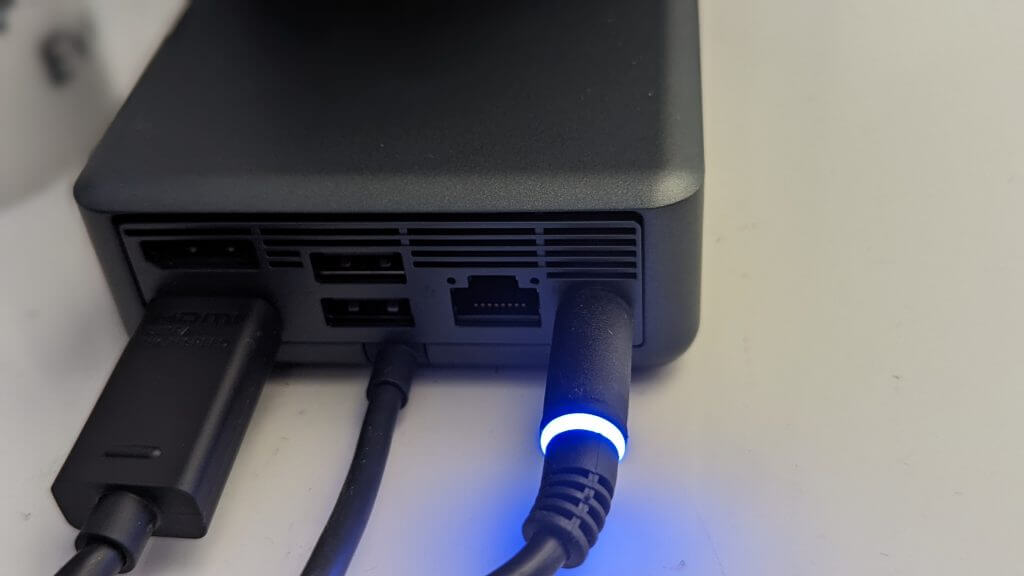
Interfaces on board this dock include 4 USB-A 3.2 Gen 1 ports, a USB-C Gen 2 port with power delivery, 1 HDMI 2.1 port, 1 DisplayPort 1.4 port, and an RJ-45 Ethernet jack. For power, Dell includes a 130-watt charger. The charger has a blue LED light, which I found a little too bright at night. A centered USB-C cable is how you’ll end up connecting your laptop to the dock, but it’s not detachable. The cable is rather long at around 2.5 feet, giving you plenty of wiggle room to place it at the right spot on your desk for maximum productivity.

For connections to displays, you can connect up to two displays at the same time using both the HDMI and Display Port with the dock. Max resolution supported is 8K and 30Hz for a single display, and 4K 60Hz for a dual display setup. 4K HDR 120Hz monitors are also supported over HDMI. I don’t use dual monitors in my setup, so this isn’t something I was not able to test. For purposes of being fair, I point you to check out the YouTuber BsianTech who has a really good look at the dual monitor setup performance of this dock.

Design

The Dell Dual Charge Dock – HD22Q has a really great design. It already mentioned the weight and feel above, so I won’t touch on that again. This section is more about the aesthetics of the dock.

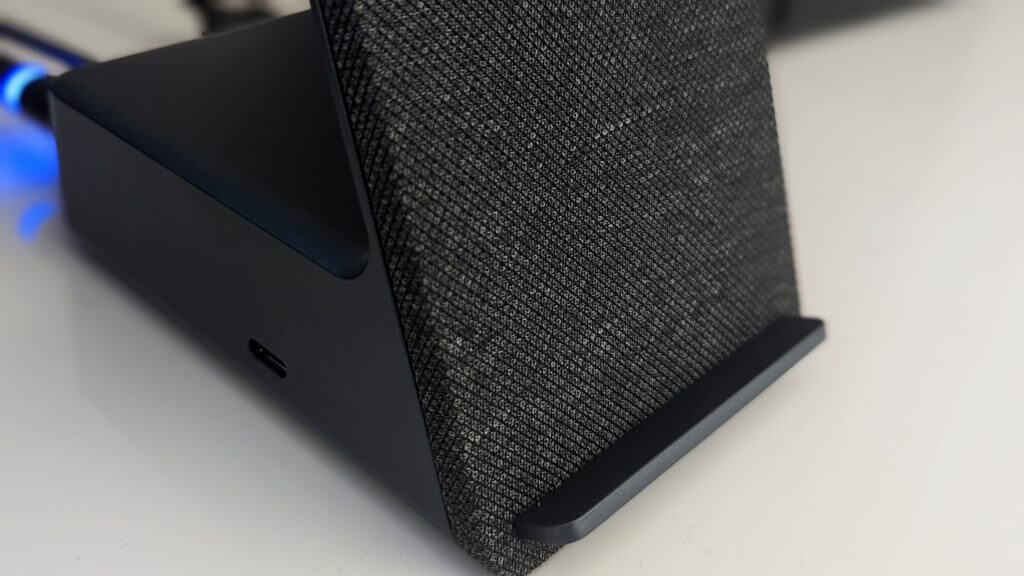
The dock comes in a ThinkPad-like grayish-black color. It’s also made of cool-to-the-touch aluminum material. Up front where the QI charger and stand sits, you’ll find a fabric backing. The fabric reminds me of what’s used on Dell’s speaker bars. I’ve found it also helps in keeping phones cool, too when attached for charging. The QI charger also works with earbuds.

A LED light will come on at the front of the dock to let you know when that QI charger is in use. The QI charger is also angled, so you can get a good view when your phone is in use for calling. I’ll have more on that later. I also don’t want to forget the power button at the top right corner of the dock. When connected via USB-C, this can be used in place of the power button on your laptop for putting your device to sleep and wake.

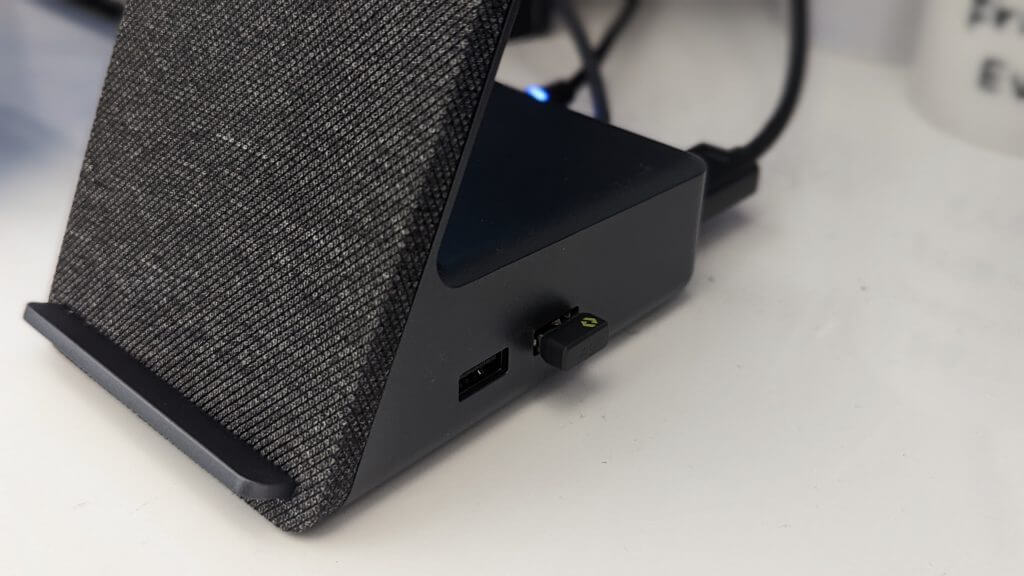
The left and right sides of the dock are clean. The left has a USB-C port with power delivery which I’ve used to connect another USB-C cable to charge up my iPad while the dock is in use. The right side has USB-A ports.

I used those ports to plug in my USB drives, as well as my Logitech Bolt dongle. For me, that USB-C port proves handy as a charging hub, as it meant I didn’t have to use Apple’s wall charger when I wanted to power up my iPad. It can free up space on your power outlet, and clean up your desk by not having to route cables around. USB-A, meanwhile, frees up the ports on my connected laptop for other things, like an external SSD. This means a lot in terms of productivity, as you can plug it in and forget about it when it comes to things like USB dongles.

The back of the dock has the ports I mentioned earlier, so I won’t get into that again. The arrangement is great, and you can blindly plug things in if you want. It’s something I did often, as the ports are arranged in a way so you can set them apart without looking at them directly. The top back of the dock has no ports. I found that it is a small place you can place something like AirPods or Wireless earbuds once they finish charging.

Usability & performance

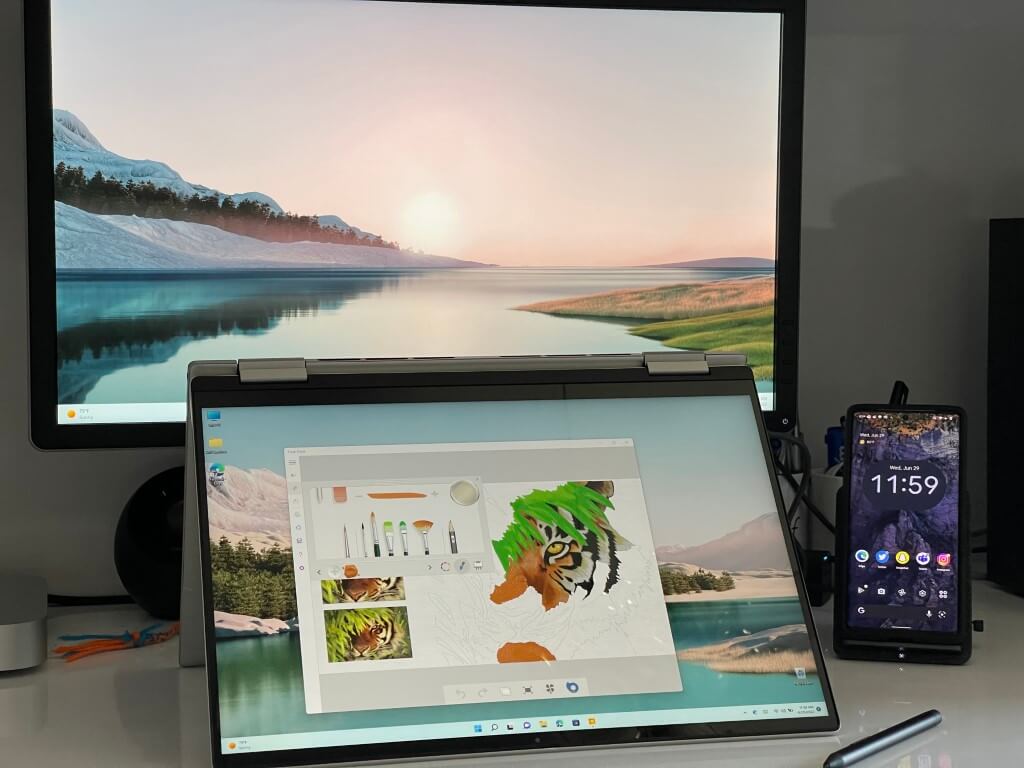
I used the Dell Dual Charge dock with a single monitor to connect an Inspiron 16 2-in-1 that I am reviewing, as well as a ThinkPad X13s, and a Mac Mini to my main Dell display. The dock works with any Windows or Mac device and doesn’t seem to require special drivers (which would have been an issue with my ARM-powered ThinkPad, which doesn’t work with all 64-bit or 32-bit drivers.)

Just open the lid of your laptop, plug in the single USB-C cord, and you’re good! But if you have a Dell system, you’ll get the bonus Wake on Dock feature. This lets you power up the laptop and connect it to the display without having to open the lid. The dock will recognize your Dell product and turn the system on automatically and show you a mirrored image on your display. You can check this guide for more on if your system will work with this.

In terms of performance, the dock instantly connects to all my PCs and Macs, with almost no wait time, with the display lighting up right away. The dock also doesn’t get too hot and there’s no audible fan noise — though I sometimes heard a “clicking” from the power charger. When the QI charger, USB ports, and display output functions are used, it is still touchable without warming up your hands. The only thing I noticed is that it takes a while for the dock to recognize a Qi-enabled device and provide charging, but I’ve had this issue with other docks in the past.

I used the QI charger with my Lenovo Earbuds, as well as my Pixel 6 Pro and iPhone 12 Pro Max. I am happy to say, all these deceives charged well with the feature!

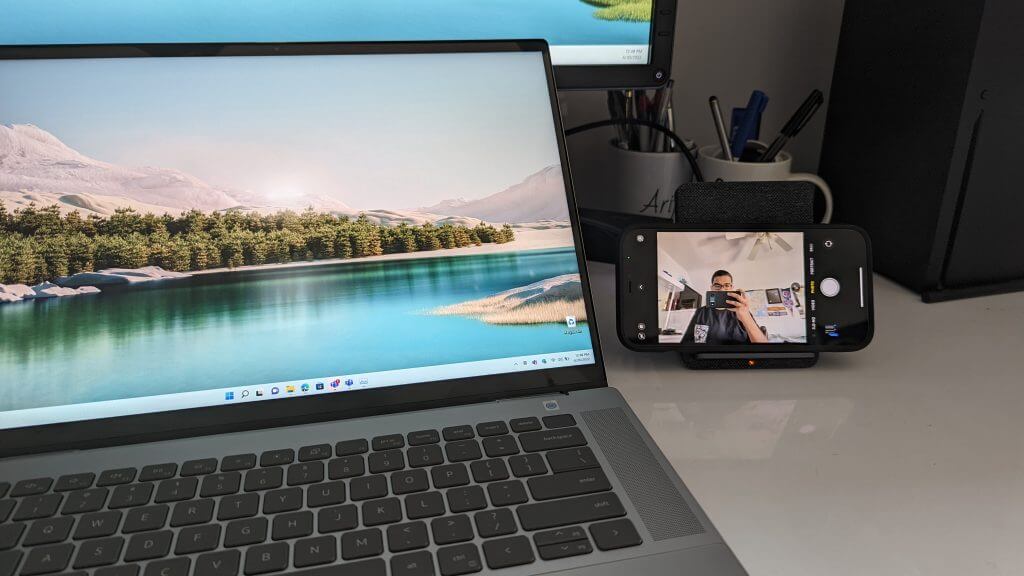
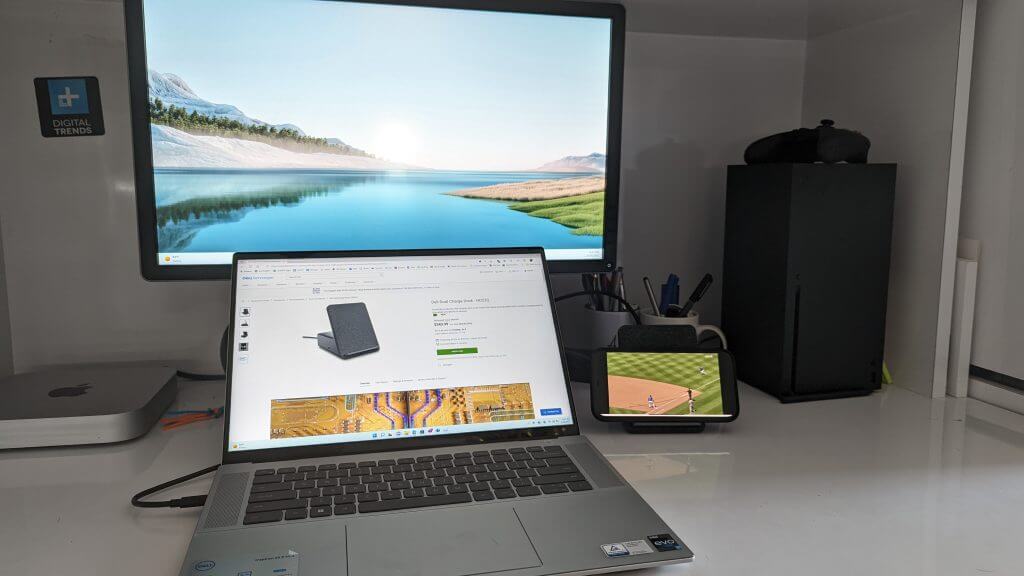
I really did like the QI charger, though. For video calls, the way the charger is angled puts the phone at a great point so that my head and neck are in focus on the camera. I even could rotate the phone into the horizontal mode while on a call, or, to watch a movie, using the QI charger as a stand. I used this function to watch a Mets game on my iPhone during my workday.

In terms of charging speeds, you can get up to 90 watts of power delivery with your laptop, and faster charging with ExpressCharge on Dell Commercial Notebooks. The QI charger does 12 watts of fast wireless charging. Even with a thick case on my Pixel 6 Pro and iPhone 12 Pro Max, this worked fine.

Cleaning up your desk, cutting out cables to help you be productive

The Dell Dual Charge Dock is a dock that I’m glad I got to review. As a journalist, I often have a lot going on at my desk, and plugging in dongles, and cables to my PC can get annoying. This dock’s ports and QI charges cut out a lot of the cables I use daily and helped me stay connected to my monitor with ease, regardless if on a Mac or a PC.

Fix: Yahoo Finance Charts are not Working in Google Chrome

Tools like the Yahoo Finance charts are important in the ever-revolving financial world. It allows you to keep track of the live events, plan, or take advantage of opportunities.

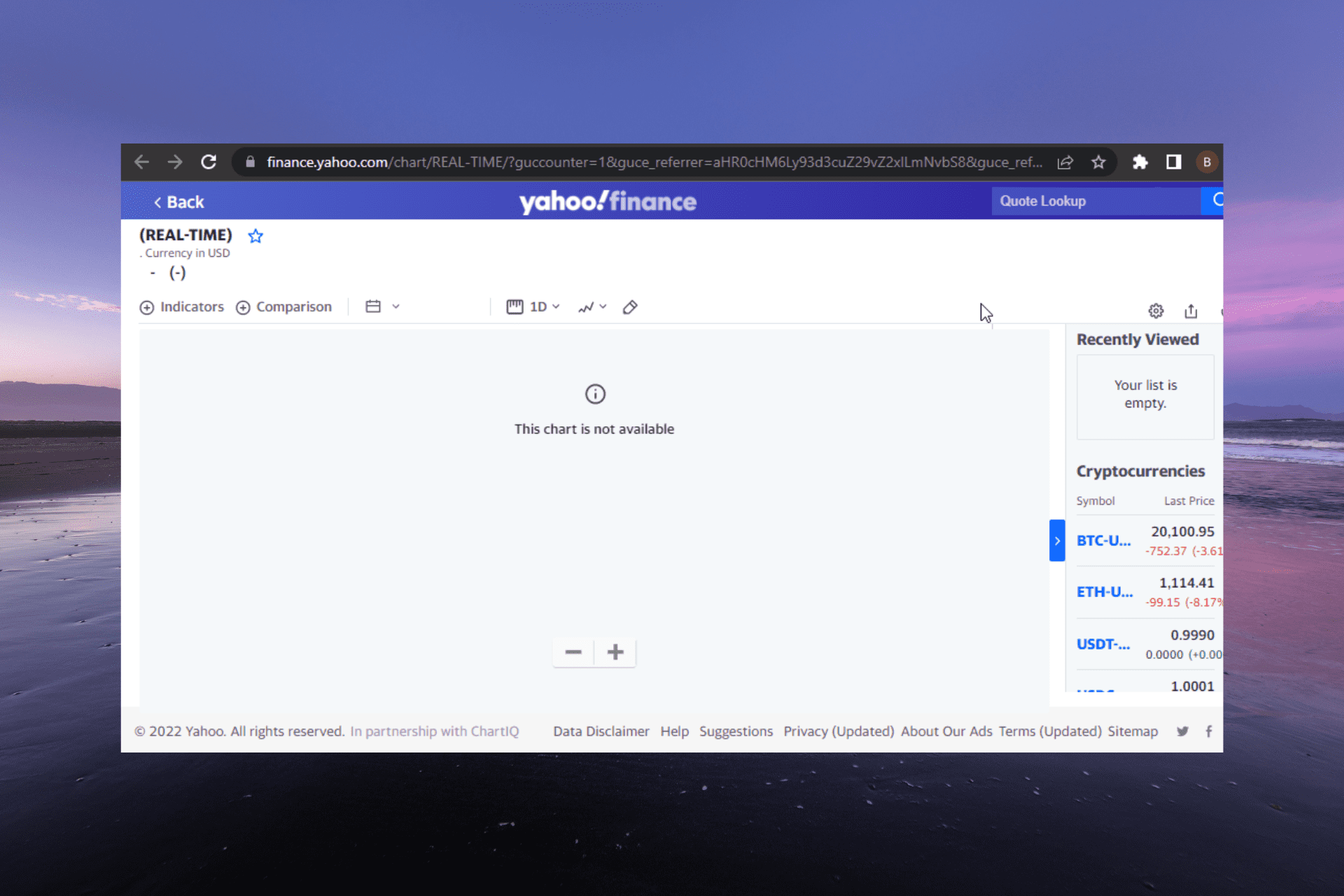
Unfortunately, the Yahoo Finance charts fail to show on one of the best browsers in Chrome. This could be due to your chosen chart settings or a browser problem.

Irrespective of the cause of the problem, this guide contains the solution to fit it effectively.

Why aren’t Yahoo Finance charts working?

The outdated browser is the major reason Yahoo Finance charts are not working or updating on Chrome. This is especially true if the charts are working on other browsers.

Another notable cause is a buggy browser causing the Finance page not to load properly.

What can I do if Yahoo Finance charts aren’t working in Chrome?

1. Update Chrome

  1. Launch Chrome and click the menu button at the top right corner.
  2. Select the Settings option.
    settings yahoo finance charts not working in chrome
  3. Choose About Chrome on the left pane.
    about chrome
  4. The browser will check and recommend available updates.
    check update

Google claims that the Yahoo Finance chart not working issue has been resolved as late as the Chrome Version 10.0.648.205. So, if you face this issue on Chrome alone, your best bet is to update and restart your browser.

2. Try an alternative browser

opera

If the Yahoo Finance page is still not displaying correctly after updating Chrome, you might need to use another browser Opera One for a change.

Opera One is a fast browser with excellent loading speed. It displays the Yahoo Finance charts clearly with its superb and clean interface. Lastly, while it is not averse to errors, it is not as error-strewn as most modern browsers.

Opera One

The Yahoo Finance management is neatly organized and displays everything on this modern browser.

The Yahoo Finance charts not working on Chrome issue can be annoying, as it might cause you to miss out on important live updates. Fortunately, it is an issue that you can fix without fuss, as we have shown.

Do you need a list of the best Yahoo Mail supported browsers? Check our top selection of browsers that provides online security and speed.

Feel free to let us know if you were able to solve the issue in the comments below.

Samsung Gaming Hub rolls out today, bringing Xbox Game Pass to Samsung 2022 smart TVs

The new Samsung Gaming Hub, an app designed to bring together various gaming services including Xbox Game Pass, rolls out today for 2022 Samsung smart TVs. Models receiving this update include the Neo QLED 8K, Neo QLED 4K, QLEDs (above BU8000 models) and 2022 Smart Monitor Series products.

Samsung has hinted that they may bring the Gaming Hub to older 2021 smart TVs as well.

What is the Gaming Hub, exactly? It includes Google Stadia, NVIDIA GeForce Now, and as already mentioned, Xbox Game Pass with Xbox Cloud Gaming. Twitch and Amazon Luna will also be coming to Gaming Hub in the near future according to Samsung.

You may recall that we reported that Xbox would be coming to Samsung smart TVs, as part of an ongoing effort to bring Xbox to as many screens as possible with or without an actual Xbox console.

Xbox head Phil Spencer spoke on this in a press statement, saying:

We’re on a quest to bring the joy and community of gaming to everyone on the planet, and bringing the Xbox app to smart TVs is another step in making our vision a reality. That’s why we’re excited to partner with Samsung, a global leader in TVs, on bringing Xbox to more players. Working with Samsung has helped us provide more access to gaming and enabled us to welcome new players into our thriving community.

Bringing Xbox (and Game Pass) to smart TVs – no console required – provides an excellent entry point for new gamers, and is a great option for those looking to declutter their living room entertainment setups without having to sacrifice their Xbox gaming.

The Connection for This Site Is Not Secure→ Edge, Chrome [Fix]

Due to security reasons, whenever the safety shield of a blocked website is compromised, you may get the message The site is not secure or DLG_FLAGS_SEC_CERT_CN_INVALID.

It comes up on any version of Windows, but Windows 10 users are most frequently complaining about Your connection to this site is not secure message.

This error may also occur due to missing a trusted root certificate or because the website contains malicious ads, codes, and links.

However, you may proceed by clicking on the Go on to the website (Not Recommended) button if you have visited the website before and your web browser did not block it.

In order to solve this intimidating problem, we have compiled universal solutions to fix it in various web browsers such as Microsoft Edge, Google Chrome, Mozilla Firefox, Opera One, and Internet Explorer.

Ignoring this warning may expose your PC to malware. Use the workarounds listed below at your own risk.

Why does my browser say the HTTPS site is not secure?

Usually, this issue occurs if there’s a problem with the security certificate of the website you’re trying to visit.

It’s possible that a website owner hasn’t updated or purchased a security certificate, or the certificate might not be properly configured.

Issues on your PC, such as an incorrect date and time can cause this problem as well, and if this happens, you might see This site is not secure dlg_flags_invalid_ca error.

Quick tip:

Before continuing, if you’re looking for a privacy-compliant browser that’s less prone to glitches, we recommend downloading Opera One.

Equipped with an adblocker, an anti-tracking feature, and a VPN for increased privacy, Opera One offers everything you need, including tons of secure extensions, add-ons, social-media integrations, and more.

Opera One

Modular design new browser that offers many useful tools, including the ability to save and print your web pages.

How do I fix this website is not secure?

1. Manually install missing certificates

  1. When the message appears, click on the Continue to this website (not recommended) option at the very bottom of it.
  2. Click on the More Information for the Certificate Error option next to the red Address Bar.
  3. Then, click View Certificates on the information window.
  4. Select Install Certificate and follow the on-screen instructions.
  5. Finally, click Yes on the dialog to proceed.

After doing that, the This site is not secure error code 0 should be gone.

Note icon NOTE
Manual installation of certificates is not recommended on strange websites or websites with a low reputation. Furthermore, manually installing the certificate should fix the This site is not secure error pop-up.

2. Clear web browser cache, data, logs, and bookmarks

The fastest way to clear browsing data in any web browser is via the Ctrl+Shift+Del keyboard shortcut.

Also, you can use a good cookie cleaner utility program to clear all your browsing history in one click.

Manually deleting cookies and cache is rather simple, no matter the browser you have and it should help you with Your connection is not private error. We’re detailing the process below.

Opera One

  1. Launch the Opera One browser
  2. Go to the Settings menu
  3. Proceed to the Clear browsing data menu
  4. Click on the detailed option to tick the delete the entire cache option.
  5. Click on the Clear data option to clear the entire browsing data.

If you ever wondered how to fix Your connection to this site is not secure in Opera One, you should know that this is one of the fastest methods.

Note icon NOTE
For detailed instructions on how to clear the cache in Opera One, check out their official documentation.

Google Chrome

  1. From the Menu button in the upper-right corner of the Chrome window, choose More Tools, then Clear browsing data.
  2. Using the Clear the following items menu, you can select the beginning of time to delete all the cached information using the drop-down menu.
  3. From there, you can select Cached images and files.
  4. Select the Clear data button, and Chrome will clear your cache.

Once you clear the cache, This site is not secure message should be gone from Chrome.

Internet Explorer 11

  1. On the right-hand side of the browser, click on the Tools (gear) icon.
  2. Select Safety, then Delete browsing history.
  3. Uncheck all options except the one labeled Temporary Internet files and website files.
  4. Then, click the Delete button at the bottom of the window.
  5. The Delete browsing history window will disappear and your mouse icon might go busy for a while.

For IE lower versions, if the Menu bar is enabled, click the Tools menu and then delete browsing history. Keyboard shortcut Ctrl-Shift-Del can be used as well to clear browser cache.

Once the cache is cleared, check if This site is not secure message is gone in Internet Explorer.

Microsoft Edge

  1. While in Microsoft Edge, click the History icon.
  2. Go to the three-dot menu and select Clear browsing data.
  3. Check the data that is going to be deleted.
  4. Then, click the Clear now button.

The message All Clear! will appear after the data has been erased.

After doing that, the The connection for this site is not secure in Edge should be gone.

Mozilla Firefox

  1. In Firefox, click the Menu button (the hamburger icon) and then select Settings.
  2. Click on the Privacy tab on the left. On the right click Clear History.
  3. In the Clear Recent History window that appears, set the Time range to clear: to Everything.
  4. Uncheck everything in the list except for Cache.
  5. Proceed by clicking on the Clear Now button.

If the pop-up message about your website not being secure still appears after clearing browsing data, proceed with the next step.

3. Disable the Certificate address mismatch option

  1. Select the start button and go to Control Panel.
  2. Then Open Internet Options and click the Advanced tab at the top.This website is not secure
  3. Scroll down to the Security section.This website is not secure
  4. Identify the Warn about certificate address mismatch option.
  5. If the box right beside it is checked with a tick, you can unmark it to disable the option.This website is not secure
  6. Click Apply and OK to save the changes and close everything.

How do I know if HTTPS is enabled?

  1. Open the desired web page.
  2. Check the address bar.
  3. If the URL starts with https, it means that HTTPS is enabled for that website.

If the error This site is not secure DLG_FLAGS_SEC_CERT_CN_INVALID still persists on the website, it is advisable that you do not attempt to visit the website.

You can also contact the site administrators and ask them to look into this issue. They may check the website certificate and fix the error from their end.

In case the issue is still there, read our guide on how to fix HTTPS errors in Google Chrome for more solutions.

If you’ve solved this error using other methods, feel free to comment below.

3 Ways to Fix Yammer if it’s not Working in Chrome

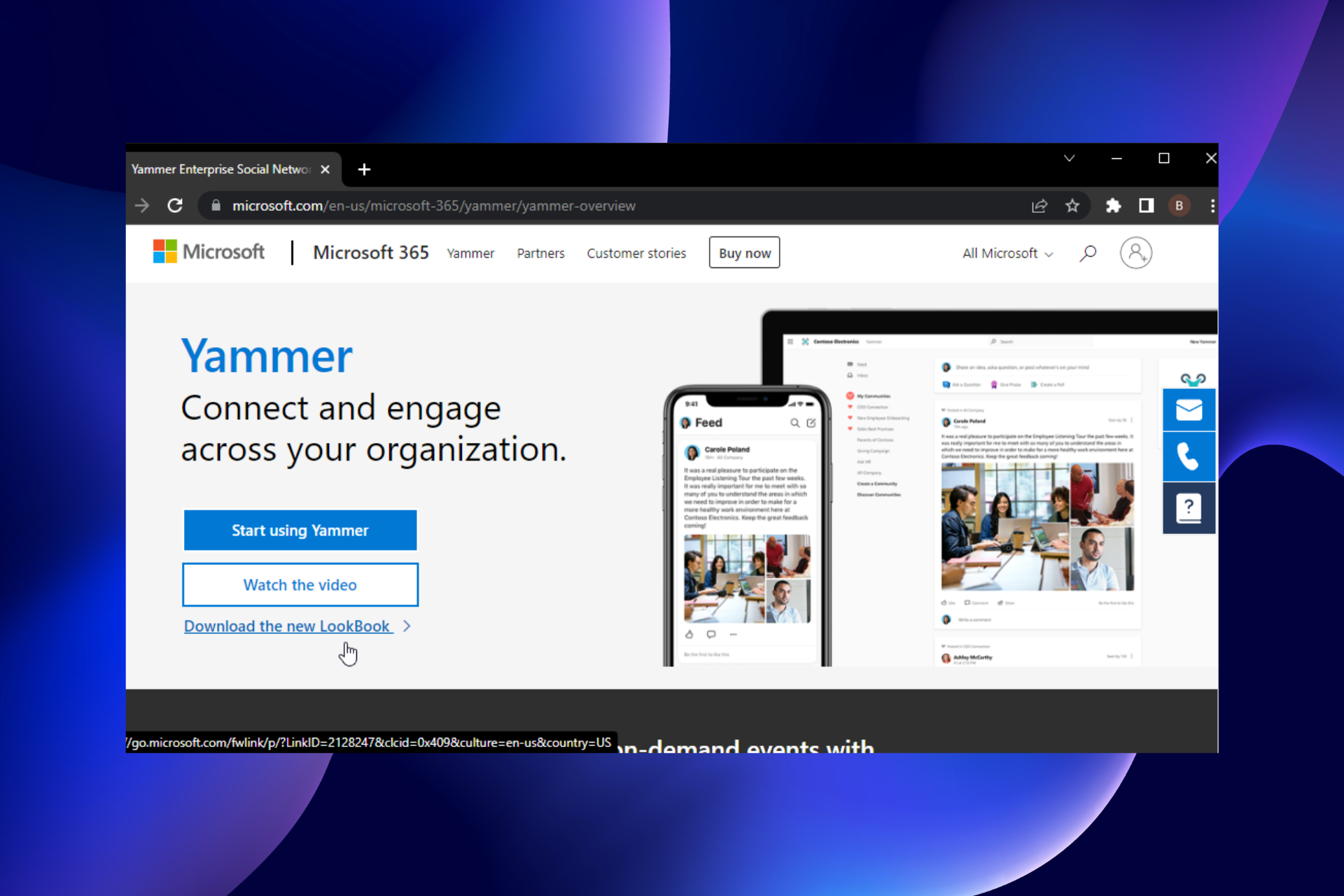
Yammer is an excellent tool that helps to keep an organized workflow. It has a desktop app but you can also use it on a web browser.

It is especially enticing on Chrome, thanks to the Yammer extension that allows you to improve the website’s functionality. But, it is not all roses, as users complain that the site is not working on Chrome.

Fortunately, we have gathered three effective fixes for this issue as we did with the Yammer app not opening on PC problem.

Why is my Yammer not working? 

There are several reasons why Yammer might not work, from network issues to problems with the Chrome browser. Another notable cause might be the wrong browser setting.

Do you need Microsoft 365 to use Yammer?

If you want only to use the Basic Yammer without any Admin tools, there is no need to register it with Microsoft Office 365. The only condition is that you must register with a valid company email.

What can I do if Yammer doesn’t work in Chrome?

1. Check if Yammer is not blocked

  1. Press the Windows + R keys to open the Run utility.
  2. Type control panel and press Enter.
    run utility yammer not working in chrome
  3. Select the Network and Internet option.
    network
  4. Select Internet Options.
    internet
  5. Click the Security tab at the top.
    security yammer not working in chrome
  6. Now, click the Restricted sites option.
    restricted site
  7. Click the Sites button and check whether Yammer.com or portal.office.com is inside the Websites section.
    websites remove
  8. If any of them is there, click on it, followed by the Remove button next to the Websites block.

2. Uninstall and reinstall Chrome

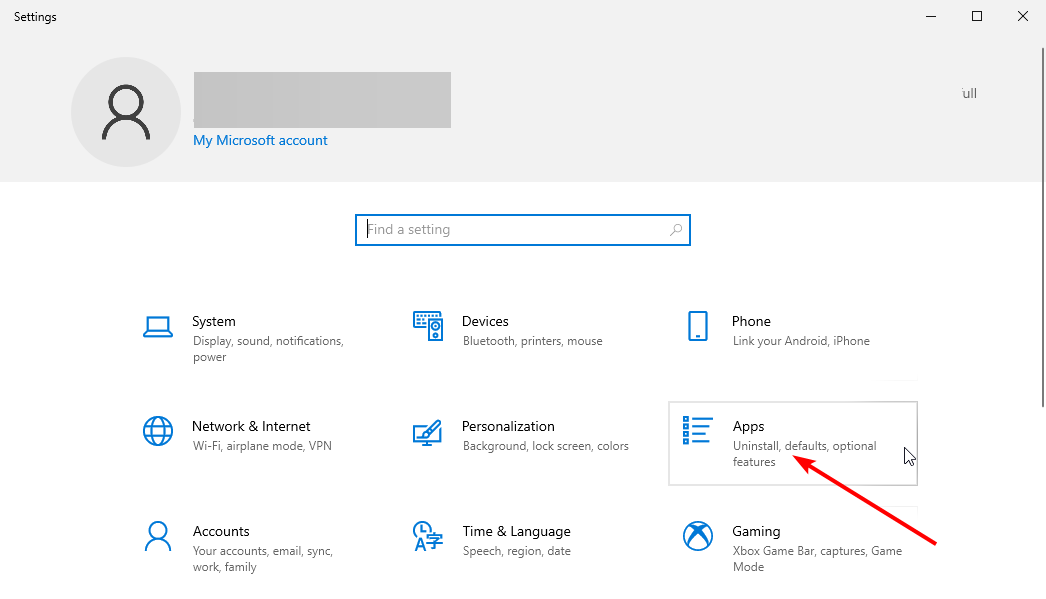
  1. Press the Windows + I keys to open the Settings app.
  2. Select the Apps option.
    apps yammer not working in chrome
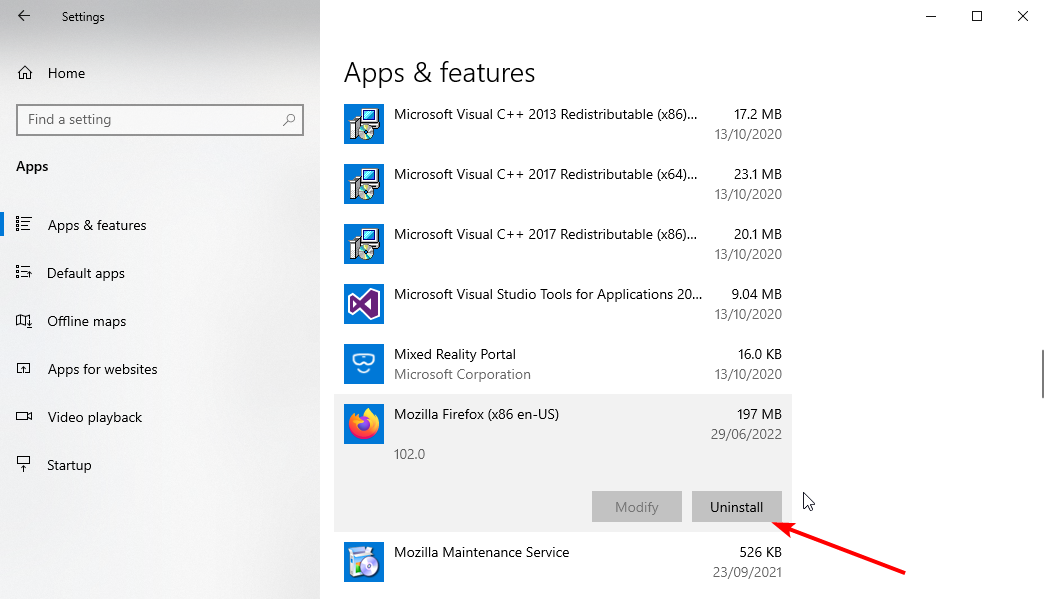
  3. Scroll down to Google Chrome and click on it.
  4. Select the Uninstall option. 
    uninstall
  5. Go to Chrome’s official website to download the app.
    download
  6. Click on the downloaded installer and follow the simple onscreen instructions to complete the process.

If Yammer is not working in Chrome or not showing users, images, and other vital information, the problem might be with your browser. Reinstalling the app should help get things back to normal.

3. Use an alternative browser

You should switch to an alternative browser if the fixes above prove abortive. Presently, Microsoft Edge, Firefox, and Chrome are the only supported browsers for Yammer. So, you can switch to either of the two remaining browsers. 

Yammer not working on Chrome could lead to problems, as people use it as the social network of big companies. With the fixes in this guide, you should be able to solve any underlying issues causing the problem.

Feel free to let us know the fix that got Yammer working on your browser in the comments section below.

How to Fix Trusteer Rapport if It’s Not Working in Chrome

Browsing the internet can be a rewarding experience, but this process can be tainted by increasing privacy violations and security breaches.

It would help if you were sure that you are protected whenever you use the internet, and the Trusteer Rapport is one way to guarantee this.

A powerful endpoint security solution, IBM Security Trusteer Rapport, is intended to shield users against phishing and financial malware, especially while using bank applications. Sadly it may not always work on your browser.

This article shows you what to do when Trusteer Rapport is not working in Chrome.

Why has Trusteer Rapport stopped working?

There are a few reasons, but a common one is that the extension is not enabled. Also, if you are using an outdated Chrome browser it may not work.

How do I enable Trusteer Rapport in Chrome?

The extension is enabled just like any other Chrome extension, and we will be given details in the next section.

Quick Tip:

Install the Trusteer Rapport extension to another browser and try again. Opera One browser supports all Google extensions, including this one. Open the Chrome Web Store page and select Add to Opera.

This browser is faster than Chrome and scores very well when it comes to error rates. It’s safe and smart due to build-ins such as VPN, Ad Blocker and AI.

Opera One

Keep web attackers at bay by incorporating the Trusteer Rapport extension in this fast and secure browser!
Free Download Visit website

What can I do if Trusteer Rapport doesn’t work in Chrome?

1. Enable the Trusteer Rapport extension

  1. Launch the Chrome browser.
  2. Paste the link to Chrome extensions shown below in your URL locator and hit Enter:
    chrome://extensions/
    trusteer rapport not working in chrome
  3. Lastly, search for the Trusteer Rapport extension and toggle on the switch.

Note that if the Trusteer Rapport icon is not showing in Chrome, it means it has not been installed in the first place, and you will have to install the Trusteer Rapport Chrome extension.

2. Update your Chrome browser

  1. Launch Chrome.
  2. Paste the link to Chrome Settings shown below in your URL locator and hit Enter:
    chrome://settings/
    trusteer rapport not working in chrome
  3. Click the About Chrome option.
    trusteer rapport not working in chrome
  4. Here, you will have the opportunity to update Chrome if one is available.

That is what you need to know about troubleshooting the IBM Trusteer Rapport extension on Chrome. These are easy fixes that you will be able to apply on your own.

Also, you can fix Trusteer Rapport problems in Windows 10 in just a few clicks.

Lastly, we would like to hear from you and would like to know if you found this guide helpful, so please leave comments below.

5 Ways to Get Teams Working Again in Google Chrome

Microsoft Teams is an incredible platform that makes virtual meetings seamless. While it has a PC and mobile version, users can also use the web app on a handful of browsers.

However, users are starting to encounter problems loading Teams on Chrome, one of the few browsers compatible browsers.

Thankfully, just like we did with the Microsoft Teams crashes during launch issue, we have gathered five solutions to solve this problem effectively.

Why is Teams not working in the browser? 

There are various reasons why Teams might not be working on Chrome or other browsers. Below are the most common ones:

  • Outdated browser.
  • Wrong Chrome settings.
  • Antivirus app blocking Teams.
  • Corrupt browser cache.

How do I join Microsoft Teams meeting via browser?

  1. Open the email invite and choose the Join Microsoft Teams meeting option.
    join email teams not working in chrome
  2. Choose the Continue on this browser option when prompted.
    continue
  3. Enter your name and choose the right video and audio settings.
    join now
  4. Finally, click the Join Now button.

Quick Tip:

If you keep having trouble accessing Teams from Chrome, try logging in from another browser. A fast option with a low impact on resources is Opera One.

The browser is often updated and has a very low error rate, so you might have better luck connecting to MS Teams. It includes a battery saver mode that can increase performance even more.

Opera One

Enjoy seamless collaboration with dedicated support for fast and uninterrupted connections.

How do I get Microsoft Teams to work on Chrome?

1. Update Chrome

  1. Launch Chrome and click the menu button in the top right corner.
  2. Select the Settings option.
    settings teams not working in chrome
  3. Choose About Chrome on the left pane.
    about chrome
  4. Your browser will show if there is any update available.

2. Enable cookies for Teams 

  1. Click the menu button on Chrome and select the Settings option.
    settings
  2. Choose Privacy and security on the left pane.
    security
  3. Click the Cookies and other site data option.
    cookies teams not working in chrome
  4. Ensure the radio for Block third-party cookies in Incognito is marked.
    block third party
  5. Click the Add button in the Sites that can always use cookies section.
    add section teams not working in chrome
  6. Enter the address below and check the checkbox for Including third-party cookies on this site. teams.microsoft.com
  7. Finally, click the Add button to effect the change.
    add

Microsoft Teams might not work on Chrome if you don’t have the third-party cookies enabled. Ensure to restart your browser to sync the changes.

3. Clear cache

  1. Open Chrome Settings.
  2. Select the Privacy and security option on the left pane.
    privacy teams not working in chrome
  3. Choose the Clear browsing data option.
    clear browsing
  4. Click the dropdown before Time range and choose All time.
    all time
  5. Check the checkbox for Cached images and files.
  6. Finally, click the Clear data button.
    clear button

As much as caches help improve your browsing experience, they can be why Teams is not working on the Chrome browser. This might be because the data is corrupt, or it might contain a file affecting Teams.

4. Reset Chrome to default

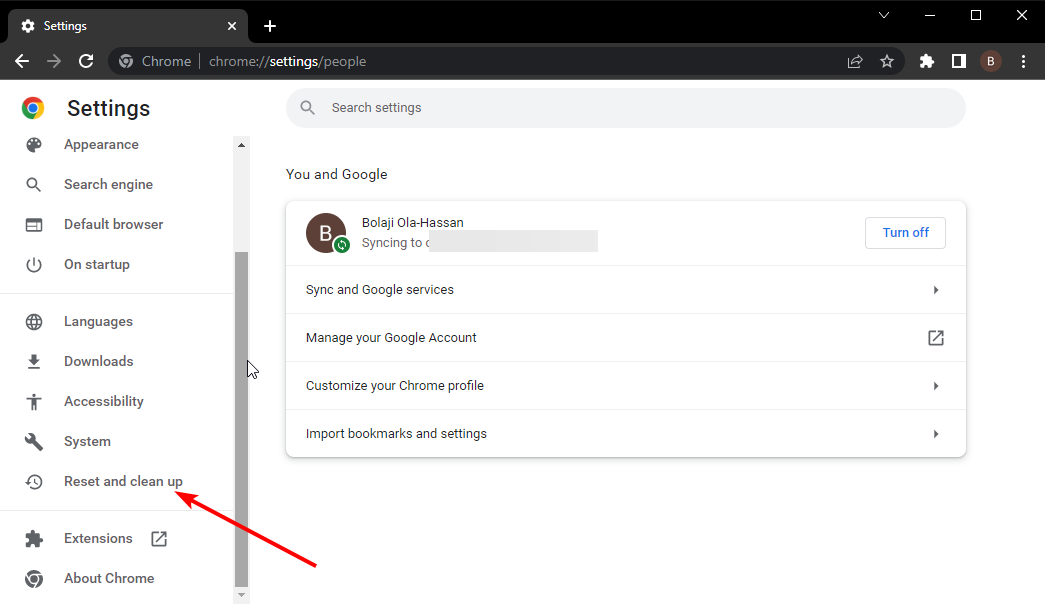
  1. Go to Chrome Settings and click the Reset and clean up option on the left pane.
    reset and clean teams not working in chrome
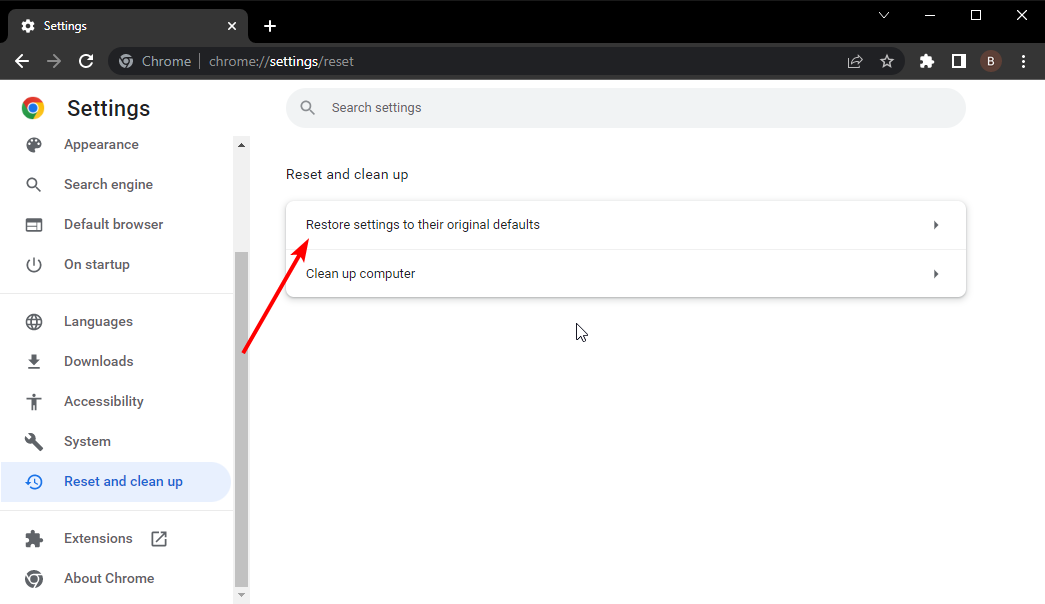
  2. Select Restore settings to their original defaults.
    restore default
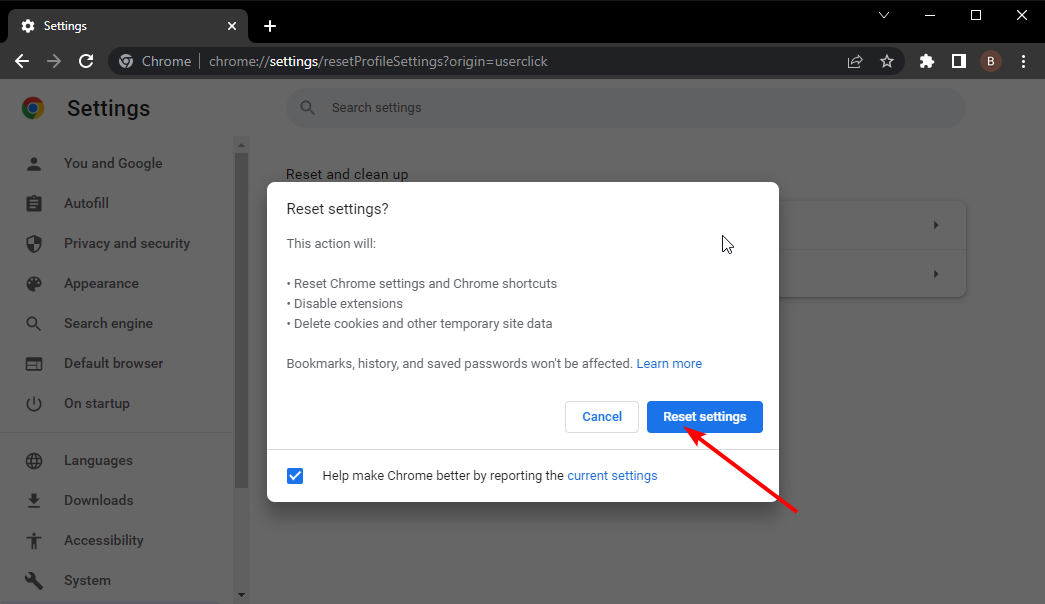
  3. Now, click the Reset settings button.
    reset button

If the Teams web app still doesn’t load on Chrome after the fixes above, you need to restore Chrome to the default to make things work.

5. Disable antivirus temporarily

Antivirus software on your PC might be causing the Teams web app not to load, as some users noticed. In this case, you need to disable the software temporarily and try to access Teams on Chrome again.

The Teams not working on Chrome issue can be frustrating, as it might cause you to miss an important meeting. Thankfully, it is not impossible to solve, as we have shown.

Are you facing other issues like Microsoft Teams not working on Windows 11? Check our guide for simple and quick ways to fix it.

Feel free to let us know the fix that got Teams working for you again in the comments below.

Do you use family products? Microsoft needs your feedback, wants you to join new Family Insider program

You might know Microsoft programs like Edge Insider, Windows Insider, and Office Insider, but there’s a new one in town. Microsoft recently announced the launch of the Microsoft Family Insider program.

This program is designed for you to preview new family-related products and experiences before general availability, and share feedback with Microsoft. You can sign up with this link, and connect with folks at Microsoft who are making new family-related offerings. What can you expect other than that? Well, Microsoft offers the following benefits.

  • Connect with Microsoft teams to improve product experiences for families everywhere.
  • Preview new designs and test upcoming features before general release.
  • Get tips and tutorials for making the most of your Microsoft products.
  • Receive email newsletters with research opportunities and educational resources.
  • Earn Microsoft swag for engaging with the community and sharing your feedback!

In the past, Family Insiders have been involved in several Microsoft projects. The list includes Microsoft Defender for Individuals and the Family Widget on Windows 11. Other things Family Insiders have tested include Famly Safety, Lists, and more.

Watermark Remover Tools for PC: Best to Use in 2026

You could use image-editing applications to erase watermarks from images, but it’s easier to use a dedicated watermark remover softwawre.

In this list, you’ll find the best apps that obliterate watermarks. Some are paid, but all of them include a free trial period or free versions with limited features.

What are the best watermark removal tools available?

inPixio Photo Studio Pro 12

If you’re looking to remove a watermark, stamp, or even a whole person from a photo, inPixio Photo Studio Pro 12 makes it easy.

Simply use the Eraser tool to highlight the watermark, and with a click, it disappears as if it was never there. This tool simplifies watermark removal, making it accessible even for beginners.

Plus, you can easily handle other photo edits like removing wrinkles or restoring old photos.

Photo Studio Pro 12

Photo Studio Pro 12

Vanish any watermark or any other unwanted elements in seconds!
Check price Visit website

Adobe Photoshop

Adobe Photoshop stands out for removing watermarks and other image modifications.

Known for its extensive toolset and high-quality results, Photoshop allows you to remove watermarks quickly and seamlessly using the stamp tool.

This process is fast, making it look like the watermark was never there. Plus, you can try it for free with a 7-day trial.

Key Features of Adobe Photoshop:

  • Familiar Interface: User-friendly design for easy navigation.
  • Quick Watermark Removal: Efficiently remove watermarks in seconds with the stamp tool.
  • Abundant Tutorials: Plenty of online resources for guidance.
  • Compatibility: Works well with other Adobe Creative Suite programs and beyond.

Adobe Photoshop

Edit photos, create designs, enhance pictures, and remove watermarks with Adobe Photoshop
Free trial Visit website

SoftOrbits Watermark Remover

softorbits watermark remover

SoftOrbits Watermark Remover efficiently removes watermarks and date stamps from images. The software offers three editions with varying features and a one-month trial. The Lite edition provides basic selection tools but lacks batch processing. Photo Stamp Remover detects surrounding textures to seamlessly refill areas. The software includes rectangular, marker, and free-form selection tools, along with three object removal modes. The Standard and Pro editions support batch processing, while the Pro edition also features advanced restoration tools for cleaning cracks and dust spots.

Key Features of SoftOrbits Watermark Remover:

  • Advanced Restoration: Pro edition offers tools for cleaning cracks and dust spots in old photos.
  • Three Editions: Lite, Standard, and Pro, each with different features.
  • Basic Selection Tools: Includes rectangular, marker, and free-form selection.
  • Texture Detection: Seamlessly fills areas by detecting surrounding textures.
  • Batch Processing: Available in Standard and Pro editions for removing watermarks from multiple images.

⇒ Get Photo Stamp Remover

Photoupz

photoupz watermark

Photoupz is a graphic editor designed to remove watermarks, stamps, logos, and other objects from photos.

The software is available for purchase at a reasonable price, with a trial version also offered. Photoupz features a marker tool to paint over and remove watermarks.

The inpaint option erases the marked areas and reconstructs the image, preserving edges for a seamless result.

Key Features of Photoupz:

  • Marker Tool: Paint over watermarks to erase them.
  • Inpaint Option: Reconstructs erased areas and preserves object edges.

⇒ Get Photoupz

Inpaint

inpaint remove watermark

Inpaint is a graphic editor designed to remove watermarks, date stamps, and other unwanted elements from JPG, PNG, TIFF, and BMP images.

It includes versions such as BatchInpaint for batch-editing, Multi-View Inpaint, and a comprehensive Inpaint Bundle.

Compatible with both Windows and Mac OS, Inpaint offers tools like the Marker tool for selecting watermarks, Guide Lines, Magic Wand, and Lasso for precise editing.

After selecting the watermark, users press the Erase button to remove it. Inpaint also supports photo retouching and object removal.

Key Features of Inpaint:

  • Watermark Removal: Effectively eliminates watermarks, date stamps, and other elements.
  • Marker Tool: Paint over watermarks for easy selection.
  • Guide Lines, Magic Wand, and Lasso: Provides precision in editing.
  • Erase Button: Initiates restoration to remove selected watermarks.
  • Batch and Multi-View Options: Available in BatchInpaint and Multi-View Inpaint.
  • Compatibility: Works with both Windows and Mac OS platforms.

⇒ Get Inpaint

So, those are thewatermark removing software with which you can erase watermarks from images and videos. The graphic editors can also erase other details.

If you have other suggestions or questions, feel free to reach for the comments section below.

Red Eye Remover: Best Apps to Remove Flash Reflections In Photos

Snapped the perfect photo—maybe of a birthday party or a selfie—only to find those dreaded red eyes ruining it? Don’t hit delete just yet! We found the best tools to help you fix it!

With advanced red-eye removal apps, you can fix the creepy glow that appears when the flash bounces off your eyes.

Check them out:

What is the best software to remove red-eye effects from photos?

Adobe Photoshop

red eye tool photoshop

Adobe Photoshop is a top tool for removing red-eye from photos.

To fix red-eye, use the Red Eye Tool: select it from the toolbar and click on the red-eye spots in your photo. Photoshop will automatically correct the red-eye, ensuring your images look natural and polished.

This feature simplifies the process, making it quick and effective. Beyond red-eye removal, Photoshop offers extensive editing capabilities.

Adobe Photoshop

Edit and remove the red-eye effect from your photos with the industry-leading software solution.
Free trial Visit website

Adobe Lightroom

lightroom red eye removal
courtesy of Adobe.com

Adobe Lightroom Classic makes removing red-eye and pet-eye easy with its Red Eye Correction tool.

Open your photo in the Develop module and zoom in to the affected area. Select the Red Eye Correction tool from the Develop panel, choose “Red Eye” or “Pet Eye,” and click and drag over the eye.

Adjust the circle size and position as needed, then apply to the other eye. Click Done to save your corrected image, ensuring a natural and polished look.

Adobe Lightroom

Adobe Lightroom

Edit your photos and remove the red-eye effect with one of the best software tools.
Free trialVisit website

Fotor

fotor red eye remover

Fotor’s red-eye removal software does away with such errors forever in three simple steps and a few clicks so you never have to worry about it ruining your perfect shots again.

Simply open the photo, use the Red Eye Remove and click to fix the red-eye, then finish modifying and save your work in the format, and desired quality.

Fotor not only offers red-eye removal, but also photo editor, photo effects, stickers, text, and other features such as retouching, collage making and graphic design.

So when you’re done removing the red-eye, you can also try other features including photo filters for free, and bring out the best in your photos.

Fotor

Fotor

Remove the red-eye with one of the great tools available, that will also has multiple editing features.
Check priceVisit website

iPiccy

ipiccy

With iPiccy’s red-eye removal software, the process is also as simple as a couple of clicks within minutes of uploading your photo to the program, and your unexpected red eyes are fixed in a jiffy.

Red-eye can be annoying and a nuisance, but with iPiccy’s Red Eye Corrector, you can deal with the error easily, regardless of your age or experience with a computer.

Simply upload your photo to the iPiccy Photo Editor, open the retouch tab, select Red Eye Remover, then apply to the select eyes. Once you’re done, save your image and voila!

Red-eye is just a part of what iPiccy can do for you, but its retouch tab can do much more than just correcting red-eye errors.

You can experiment with other tools and do stuff like slimming a face, or whitening teeth, and so much more.

⇒ Get iPiccy

GIMP

gimp

GIMP, or GNU Image Manipulation Program, is a free photo editing tool that comes with the red-eye removal software.

While GIMP doesn’t have a magic red-eye removal button, it has tools that you can use to achieve the desired effect.

You must do a selection (lasso or elliptical) of the boundary of the iris of the eye or eyes having a red-eye pupil.

Once you select the area, apply the filter by activating it in the image window menu under Filters>Enhance>Red Eye Removal.

The Preview window lets you see the modifications in real-time and you can choose the good value of threshold compared with what is displayed, then validate it.

⇒ Get GIMP

PicMonkey

picmonkey

PicMonkey’s red-eye remover is one of its touch-up tools, which you can use to polish up your photos.

In order to use this tool, click on it, then select either the Human or Furball (for animals) button. Drag your cursor over the area of the red-eye, and the tool will detect the errors and remedy the issues it finds.

Depending on the amount of red-eye in your photo, you may need to apply the red-eye removal effect more than once so as to achieve the desired results.

Once you’re done, you can get your photos off your desktop and into your hands by printing it from the PicMonkey Print Shop.

⇒ Get PicMonkey

Pixlr

pxlr

Pixlr was launched almost a decade ago to provide an easy and free tool for creating, editing, and sharing images online, but it was acquired three years later by Autodesk, who added new features to it.

To remove the red-eye error on your photos, you can use the Pixlr Editor found on its website, which is free to use and has the power and advantage of Photoshop and accompanying elements for free.

Simply open the image, and you’ll notice that Pixlr’s prebuilt red-eye tool gives you an adjustable tolerance control between 0 and 100 percent, with a default setting of 50 percent.

Once you set tolerance level, click the middle of each red pupil, and Pixlr adjusts automatically.

⇒ Get Pixlr

Have you settled on which of these photo editors with red-eye removal you’ll use this festive season? Let us know your choice in the comments section below.

Meme Maker for PC: 5 Best to Use in 2026

Got a great meme idea but unsure where to bring it to life? We got you. Our top picks will help you on your quest to make viral content.

Whether you’re looking to create something hilarious or thought-provoking, the meme maker apps below will deliver.

What’s the best meme generator for PC?

Whether you’re a fan of classic memes or prefer the freshest trends, you’ll find what you need below.

InPixio Photo Studio Pro 12 – social-media friendly meme generator

The free meme generator feature by inPixio offers a straightforward way to create memes.

You start by uploading an image, whether it’s a funny portrait or a casual snapshot. The tool’s AI features help you remove backgrounds, add custom text, and place stickers with ease.

Its user-friendly design ensures you can craft memes quickly. After finishing your meme, you can download it in various formats and share it on social media, directly from inPixio.

inPixio

inPixio

Express your fun ideas quickly and easily with inPixio’s resourceful meme generator!
Check price Visit website

Adobe Express – free image and video editing

Whether you need to create quick posters, flyers, or eye-catching memes, you can find what you want in Adobe Express.

Having a unique meme idea isn’t enough. Choose a meme template to start the process or use the drag-and-drop interface to add your main photo.

Then, personalize it by adding an interesting icon and choose one of those remarkable ready-to-go illustrations found within the platform.

To get as many likes as possible, don’t hesitate to change the appearance of the text, add backgrounds, and much more.

Canva – endless possibilities for creative memes

canva meme generator

Canva’s free meme generator offers a versatile tool for crafting viral content with ease.

You can access thousands of customizable templates and millions of stock photos to create unique memes.

Simply drag and drop your images, GIFs, or videos into the editor, and add text with any font or color you like. Adjust layout and design without restrictions.

Once your meme is ready, download it in various formats or share it directly to social media.

⇒ Get Canva

iMeme meme maker

iMeme is a free meme generator with over 100 built-in templates.

While it lacks the latest meme trends, it provides a solid selection of popular templates. Users can also upload their own images and templates, making it versatile for custom memes.

The app lets you to add and adjust headers and footers but lacks options to change text color or font. You can save memes to your PC, copy them to your clipboard, print, or upload to Reddit or Imgur.

⇒ Get iMeme

Meme Maker – brings back classic meme styles

meme maker app interface

Another meme generator you might want to try is Meme Maker. This Universal app offers a humble and slightly outdated user interface that some users might not like along with about 40 available templates.

If that’s not enough, you can always add your own images and use them as templates. Meme Maker offers four input fields for text and each input field represents a different location on your template.

Unfortunately, you can’t change the offset of your text, which is a major flaw in our opinion. Regarding text, you can easily change the font, color, and size, all of which is a major plus.

However, there’s no support for text outlines, so your text might not be visible on certain templates.

⇒ Get Meme Maker

Desktop meme generator tools are somewhat rare and most generators are available as online services. 

However, if you’re looking for powerful and free meme generator software for Windows 10, the above tools are ideal.

4 Best RAW Editors for Nikon in 2026: Free & Paid

If you’re looking for software that allows raw editing of Nikon photos, then you’re at the right spot.

We gathered the best raw converters for Nikon, so make sure that you check out what features they include. Let’s get right to it:

What is the best photo editor for Nikon RAW files?

Adobe Lightroom – Greatest photo enhancer

Interface of Adobe Lightroom

Adobe Lightroom is a cloud-based tool that gives you ultimate control and helps you quickly sort out and organize thousands of files using machine learning algorithms.

After you enhance the colors, add filters and effects, and create the best version of your photo, you can also use the sharing function to share them with your friends and family.

You have all the right tools to adjust black levels and exposure, work with HDR images, improve shadows, and more.

Here are the key features of Adobe Lightroom:

  • Great at performing photo enhancements
  • Non-destructive changes can be made
  • Profiles and presets that you can import
  • Available on all platforms (Windows, macOS, iOS, Android) to take your work everywhere with you

Adobe Lightroom

Enhance your Nikon RAW images effortlessly—try Lightroom’s powerful tools today!
Check price Visit website

Corel PaintShop Pro – Higher editing level

PaintShop Pro Corel_best photo correction tool

Using this massive software pack, you can edit your photos just like a pro using a complete set of professional image editing tools for photo composition and adjustments.

The interface is straightforward to use and easy to understand for the best overall experience.

It also packs a faster, more comfortable PaintShop Pro and an exclusive bonus collection of premium software.

Take a look at just a few of its best features and functionalities:

  • Budget-friendly
  • Automatically correct your images and edit the raw Nikon files with Corel AfterShot 3
  • Find everything that you need to produce a variety of fabulous graphic design projects
  • Restore color, details, and more

PaintShop Pro

Transform your Nikon RAW files with professional-grade editing tools.
Check price Visit website

DxO PhotoLab – Practical shots editing

dxo photolab

DxO PhotoLab is another software that works great with Nikon RAW files. This tool uses the revolutionary PRIME denoising technology, and it manages to push the limits of high ISO photography further.

The PRIME technology stands for Probabilistic Raw Image Enhancement, and this fantastic technology analyzes the structure of raw images in depth in order to be able to differentiate fine details from noise

This noise reduction technology offers spectacular performance that will result in detailed and vividly-colored images taken under the most extreme shooting conditions.

Check out the best features that are packed into this software:

  • Precise optical and geometric corrections
  • Intelligent optimization for exposure and contrast
  • Excellent preservation of colors and details
  • Creative renderings

⇒ Download DxO PhotoLab

RawTherapee – Multiple language support

raw therapee

RawTherapee is another option that you have available to work on your raw Nikon files.

This light but powerful software features batch processing, copy/paste editing parameters, parallel editing, basic tools, the opportunity to use an optional secondary display, and more.

RawTherapee is a free and open-source software that is also available in 25 languages.

Check out its best features:

  • The software is really versatile and supports lots of cameras
  • It can, of course, load most RAW files
  • There is also a command-line besides the standard graphics interface
  • There are various layouts included in the software
  • Advanced color handling, non-destructive editing, enhanced exposure, and tonality tools
  • Multiple denoising methods, various tools to enhance details, and more

⇒ Download RawTherapee

All these tools are ideal for Nikon editing software. Take a look at their sets of features just to make sure that you’re getting the right tools for both your needs and skills.

If you have any other suggestions or questions, feel free to reach for the comments section below.

Roboform Not Working: How to Fix It in 3 Fast Steps

Protecting devices and accounts is a priority for us. The problem is that it is hard to keep up with all the new accounts after the first few. And that’s where a password manager like RoboForm comes into the picture. But for many, RoboForm is not working in Chrome and other browsers.

Roboform is a downloadable program and a browser extension in Chrome, Firefox, and most other popular browsers. So, while many could go with the RoboForm extension for Chrome, others can download the program version.

And for those wondering if RoboForm works with Chrome. And you don’t need the desktop version of it. Just the browser extension would do the job. And let’s now find out why the password manager is not working and the solutions for it.

Why is RoboForm not working?

If the password manager stops working, it could be due to any of the following:

  • Disabled or outdated extension: When RoboForm is not working in Firefox, your primary approach should be to check whether the extension is disabled or outdated.
  • An outdated browser: Even running an outdated version can trigger various issues with Roboform.
  • Misconfigured settings: Frequently, the misconfigured program or extension settings were to blame for the problem.
  • A buggy update: If you start facing the problem after an update, check the RoboForm download page for any newer versions.

Whatever the case is, we will bring you the best fixes.

What browsers does RoboForm work with?

RoboForm works with major browsers like Chrome, Firefox, Edge and Opera One, as well as some less popular browsers like Avant Browser, SlimBrowser, and MSN browser.

To verify whether it’s compatible with other browsers, you can always check the official website or contact RoboForm support.

What can I do if RoboForm is not working in Chrome?

Before we proceed, perform the following checks first:

  • Relaunch the browser. Or even better, restart the computer. This should help when RoboForm is not working in Safari.
  • Make sure the RoboForm extension is enabled and you are running the latest version of it, though the browser usually does this automatically.

Re-enable the extensions

1. Get the browser extension via the downloaded program

  1. Press Windows + E to open File Explorer, paste the following path in the address bar, and hit Enter:C:\Program Files (x86)\Siber Systems\AI RoboFormpath
  2. Double-click on the installed version of the program.version to fix roboform not working in chrome
  3. Choose Chrome from the folders listed here.chrome
  4. Double-click on the rf-chrome.crx file.rf-chrome.crx to fix roboform not working in chrome
  5. Select Google Chrome from the list of options and click Just once to run the file using the browser.chrome
  6. Wait for the extension to install. If it doesn’t do so automatically, click on Add to Chrome button, and choose the appropriate response to confirm.add extension to fix roboform not working in chrome
  7. Once done, sign in with the account created earlier.sign in

You should now check whether RoboForm is working fine in Chrome or if there are still issues.

2. Pin the extension

  1. Launch Chrome, select the Extensions option in the toolbar, and then click on the Pin icon next to the RoboForm Password Manager entry.pin to fix roboform not working in chrome
  2. Now, check whether the extension starts working in Chrome.

3. Update Chrome

  1. Launch Chrome, click on the ellipsis near the top-right, hover the cursor over Help, and select About Chrome.help
  2. If a newer version of Chrome is available, it will automatically be installed. Just make sure to restart the browser for the changes to come into effect.update to fix roboform not working in chrome

One of these solutions should have helped fix the problem when RoboForm is not working in Chrome. Besides, reinstalling the app from the App Store should do the trick when RoboForm is not working on iPhone.

If you didn’t fix the problem and are looking for alternatives, check our curated list of the best password managers for Windows.

For any queries or to share a solution not listed here, comment below.

Photo Montage Software: 7 Best to Use in 2026

In this article, we’ll be looking at some of the best photo montage software on the market.

In the midst of these low-quality and expensive tools, there are a few standard and affordable ones. Find them below.

Which are the best photo montage software?

inPixio Photo Studio Pro 12 – AI backed editing

It doesn’t matter if you want to remove someone from a group photo, or multiple people who got in the way while you were shooting a historical monument, inPixio Photo Studio Pro 12 will make it look like it was never there.

Its advanced AI technology simplifies complex tasks like adding or removing objects with natural results, ensuring that your edits blend seamlessly with the background.

The software offers intuitive controls for easy object integration and includes automated features to adjust new elements, making your montages look polished and genuine.

With quick social media sharing options, you can effortlessly showcase your stunning creations.

✅ Pros:

  • Advanced AI for seamless edits
  • Effortless object removal and addition
  • Automated adjustments for perfect integration

❌ Cons:

  • Some advanced features may require practice
  • Lacks a few professional-level tools
Photo Studio Pro 12

Photo Studio Pro 12

Achieve flawless montages with AI-powered precision and ease!
Free Trial Visit Website

Adobe Photoshop – User’s first editing solution

Photo editing is what the world’s best imaging and graphic design software does best. Besides the standard edits like crop, objects, and retouching, you can seamlessly combine photos with Adobe Photoshop.

To create a montage in Photoshop simply add each new image to the collage as a separate layer. This process allows you to manipulate each photo individually.

Resize, reposition, and rotate the images or layers in the collage or rearrange the stacking order of the layers to craft the perfect montage.

✅ Pros:

  • Comprehensive toolkit with over 1,000 plugins
  • Advanced layering, masking, and selection tools
  • Cross-platform compatibility and cloud storage

❌ Cons:

  • Steep learning curve for new users
  • Requires a subscription for full access

Adobe Photoshop

Create stunning image montages and edit your photos with endless possibilities!
Free Trial Visit Website

Movavi Photo Editor – Professional photo manipulation

Movavi Photo Editor excels in making photo montages both accessible and professional.

The software supports essential photo editing tasks, including color adjustment and retouching, enabling you to create montages that look natural and polished.

Movavi’s automatic enhancement and neural network restoration tools streamline your editing process for impressive results.

The most striking feature here is fragment migration, which is the transfer of picture parts from one photo to another. Movavi blends everything together and makes such a photo look like a natural – unaltered – shot.

✅ Pros:

  • Simple background removal and replacement
  • Advanced fragment migration for realistic results
  • Automatic enhancement and image restoration

❌ Cons:

  • Basic editing features in lower tiers
  • Some advanced options require upgrades

Movavi Photo Editor

Create professional montages with ease and precision using Movavi!
Check price Visit Website

Fotor – Photo Montage – Creative photo edits

Fotor is another popular photo montage software, which is basically designed for rookie (and professional) creative artists, to facilitate photo montage creation.

The software is cloud-based — hence, it can be used on any web-enabled platform, including laptops, desktops, smartphones, and tablets.

With tools designed for both creative and technical adjustments, Fotor makes it easy to craft and personalize montages.

Its ability to work across devices ensures that you can start and finish your projects from anywhere.

✅ Pros:

  • User-friendly interface with intuitive tools
  • Cloud-based access and cross-platform support
  • Customizable presets and one-click enhancements

❌ Cons:

  • Limited advanced editing capabilities
  • Free version includes watermarks

Fotor Photo Montage

Pick from a variety of photo templates and albums with this trustworthy editor.
Free trial Visit Website

Magic Photo Manager Deluxe – Valuable photo managing

Photo Manager Deluxe, from Magix, is an all-inclusive photo montage software, specially designed for Windows PC. It is supported on all 64-bit Windows PCs, from Windows Vista to Windows 11.

This software supports multi-format images and provides tools for customizable templates, background removal, and advanced photo effects.

Its comprehensive design capabilities extend beyond montages, including text effects and 3D design.

With features aimed at speeding up and refining your montage creation process, Magic Photo Manager Deluxe is perfect for professionals seeking versatile graphic design tools.

✅ Pros:

  • Extensive graphic design and montage tools
  • Customizable templates and advanced photo effects
  • Multi-format support and color correction

❌ Cons:

  • Complex interface may be overwhelming for beginners
  • Premium features are behind a paywall

Magix Photo Manager Deluxe

Create detailed montages and more with Magic Photo Manager Deluxe!
Check price Visit Website

Fotojet – Web photo storage

Fotojet best photo montage software

Fotojet provides a robust platform for creating photo montages with a vast selection of templates and editing tools.

Its user-friendly design lets you select a template, make adjustments, and save or share your montage in just a few steps.

With over 800 templates and a variety of clip arts and effects, Fotojet allows for extensive customization.

This ease of use combined with its range of features makes it an ideal choice for both quick and detailed montage creation.

✅ Pros:

  • Extensive template library and clip arts
  • Easy-to-use editing tools and background removal
  • Customizable effects and frames

❌ Cons:

  • Free version has limited features
  • Advanced tools require premium upgrade

⇒ Get Fotojet

Tint – Photo Montage Guide – Full image optimization

best photo montage software

Photo Montage Guide is basically designed to alter the shape, color pattern, and sizes of photos, and then import solid images or fragments into the mix, to create photo montages.

It offers preset natural backgrounds like greenery scenes, water bodies, snow covers, and so on. This makes it ideal for creative artists with environmental/nature awareness.

Furthermore, it hosts a flexible design and can be installed as a plug-in on prominent photo manipulation tools like PaintShop Pro, Photoshop, PhotoPaint, and others.

With this, it can easily work in sync with any of this software to create photo montages.

✅ Pros:

  • Beginner-friendly interface and natural background templates
  • Integrates with major photo editing software
  • Simple photo editing and resizing tools

❌ Cons:

  • Limited advanced features
  • Free license is restricted

⇒ Buy Tint now

How can I create a montage of photos?

You can simply create a professional-looking photo montage by following the steps below:

  1. Upload your picture in the reliable photo editor and find the Tools option.
    SoftOrbits Photo Editor tools menu
  2. Go to the Remove Background settings to modify the current background.
  3. Edit the background with brushes or opacity tools.
  4. Add a different background for your picture or other graphics.
  5. Save the montage on your desktop.

Above is the top-recommended photo montage software for Windows PCs. They have been selected and rated based on individual adherence to factors like affordability, compatibility, features, and pricing.

Therefore, if you are in need of durable photo montage software, simply go for any of the above-listed ones, provided you have a system (laptop or desktop) that runs on Windows.

6 Best Advanced Photo Editing Software for Photographers [2026]

After extensively testing various photo editing software, we understand what photographers need for top-notch results.

From refining raw files to crafting stunning composites, the right tools can elevate your work. Keep reading to check our top picks that will simplify your workflow and enhance your images.

What is the best editing software for professional photographers?

inPixio Photo Studio Pro 12 – Ideal for Quick Edits and Photo Restoration

inPixio Photo Studio Pro 12 caters to professional photographers with its advanced features and intuitive design.

It simplifies complex tasks like object removal and photo restoration, making high-quality edits accessible.

✅ Pros:

  • User-Friendly: Designed for easy adaptation, even for beginners
  • Object Removal: Efficiently removes objects with seamless results
  • Photo Restoration: Can restore and colorize old photos
  • In-Depth Tutorials: Comprehensive tutorials aid in mastering the software
  • Sky Replacement: Easily switch skies and create vibrant montages
  • Social Media Integration: One-click sharing to social media platforms

❌ Cons:

  • Learning Curve: While user-friendly, advanced features may require some practice
  • Limited Advanced Tools: May lack some features found in more professional software
Photo Studio Pro 12

Photo Studio Pro 12

Touch up your photos, restore old photos, and organize your projects with this pro tool!
Free Trial Visit Website

Adobe Photoshop – Leading Choice for Professional Image Enhancements

adobe photoshop

Let’s just skip the introduction since Photoshop is already the most popular photo editor in the world.

It offers a robust toolkit for basic adjustments like cropping to advanced features such as layers and masks.

With cross-platform compatibility and touch support, Photoshop is designed for seamless creativity. Plus, enjoy automatic cloud saving and precise selection tools to enhance your workflow.

✅ Pros:

  • Industry-leading tools with over 1,000 plugins
  • Advanced layers and masks
  • Cross-platform compatibility
  • Touch and stylus support
  • Cloud storage integration
  • Precise object selection tools

❌ Cons:

  • Steep learning curve for beginners
  • Requires a subscription for full features

Adobe Photoshop

Create stunning artwork with the world’s best imaging software!
Free Trial Visit Website

CorelDraw – Perfect for Creative Design and Illustration

coreldraw graphics suite 2020 WR

Loaded with cutting-edge photo editing and vector illustration tools, CorelDraw is a world-cherished graphic design software that professionals cannot get enough of.

It combines cutting-edge vector illustration and photo-editing tools with AI-powered enhancements for stunning visuals.

The software’s Smart Selection tool ensures fast, accurate edits, while its extensive clipart library provides endless creative possibilities. It’s ideal for those seeking high-quality design capabilities.

✅ Pros:

  • Advanced vector illustration and photo editing tools
  • AI-powered image enhancements
  • Smart Selection tool for precise edits
  • Extensive clipart and stock image library

❌ Cons:

  • Higher learning curve for beginners
  • Subscription-based pricing

Corel Draw

Experience AI-powered bitmap-to-vector trace technology and create impressive images that speak for themselves!
Free Trial Visit Website

Adobe Lightroom – Best for Efficient Workflow and Organization

Interface of Adobe Lightroom

Meet Lightroom, a more lightweight alternative to Photoshop, but with equally impressive features. This is also an advanced photo editor that can help you, capture, polish, and even organize your stunning pictures.

With intuitive sliders, filters, and templates, Lightroom is perfect for capturing, polishing, and organizing your photos.

Its interactive tutorials and preset combination features make it easy to recreate stunning effects. Enjoy full RAW support and easy sharing across devices.

✅ Pros:

  • User-friendly interface
  • Comprehensive editing toolkit
  • Supports RAW and HDR images
  • Interactive in-app tutorials
  • Easy sharing features

❌ Cons:

  • Limited graphic design tools
  • Requires a subscription

Adobe Lightroom

Bring life to your photography projects without hogging your system with Lightroom!
Free Trial Visit Website

Skylum Luminar – Perfect for Easy and Powerful Editing

luminar

Full-equipped with the latest tools, presets, and incredible photo retouching features all wrapped in an uncluttered, user-focused interface, Skylum Luminar will make your daily edits and total image transformations equally easy.

From routine edits to total image transformations, Luminar makes complex tasks simple.

It supports non-destructive editing, RAW support, and cross-platform compatibility

✅ Pros:

  • AI-powered editing tools
  • Non-destructive, layered editing
  • RAW image support
  • Cross-platform compatibility

❌ Cons:

  • May lack some advanced features of competitors
  • Can be resource-intensive

Luminar

Get stunning, professional results using this AI-driven tool!
Check price Visit Website

Fotor – Ideal for Quick and Artistic Edits

Fotor is a photo editing software that enhances the quality of images to add that spark of elegance and artistic feel.

It features various options such as the healing tool and clone brush. Users can also mix text, effects, and borders to a personalized effect.

The software gives users to access shared to twenty layouts and a freestyle collage where users can edit to their own preference.

✅ Pros:

  • Intuitive interface
  • Healing tool and clone brush
  • Freestyle collage options
  • Accessible shared layouts

❌ Cons:

  • Limited advanced editing features
  • Watermarked images in the free version

Fotor

Enhance photos effortlessly with Fotor’s intuitive and artistic tools.
Check price Visit Website

Do share with us your experience in using any of the advanced photo editing software that we mentioned in this article. Feel free to comment below.

3 Ways to Permanently Fix Tor Browser’s High CPU Usage

Tor browser has been around for a long time and has been used by millions of people all over the world. However, it has some issues that users may encounter from time to time. Sometimes, you may have trouble installing the Tor browser but we have a guide for the same.

One common issue with Tor browser is high CPU usage. Many users have reported that their CPU usage goes up to 100% when they use this application. 

This can be very frustrating especially if you have an older PC or laptop which doesn’t have powerful CPUs like those found in modern laptops and desktops.

Why is Tor browser using so much CPU? 

If you are using the Tor browser, you may notice that it uses a lot more CPU than other browsers. The reason is that it has to do more work than other browsers in order to protect your privacy. 

Some of the common reasons why it uses so much CPU include:

  • Encryption – Tor browser is a great browser for privacy, but it can be a bit on the slow side. It is constantly performing encryption and decryption tasks in an effort to keep your browsing private.
  • Old computer – If your computer is old or has low-power hardware, it might not be able to run Tor browser at its full speed without slowing down your PC or using more than the normal CPU. 
  • Old version of Tor browser – It is possible that you are using an old version of the browser which may not function well with most sites hence hogging up your CPU.

Can I limit Tor browser’s CPU usage? Yes. You can close all other applications that may be running in the background. These other programs can slow down your computer and cause it to use more resources than necessary when they are running at the same time as Tor browser.

Quick Tip:

This is not a problem with the Opera GX Control Panel, which displays the CPU and RAM utilization of a specific opened tab or multiple tabs.

It also allows restrictions over the resources that the Opera GX browser will use, and it will keep to those limits until you further change them.

Opera GX

While this browser is used, it does not consume a lot of RAM and CPU resources.

What can I do if Tor browser is using too many resources?

1. Disable Javascript

  1. Launch the Tor browser and click on the menu icon at the top right corner.
  2. Select Settings.
  3. Click on Privacy & Security and under Security, select Safest.

It’s not uncommon for the Tor browser to use 100% CPU on computers with older processors and/or limited RAM. This can cause the computer to run very slowly and even crash.

2. Disable HTTPS Everywhere

  1. Launch your Tor browser and on a new tab, navigate to the following address: about:addons
  2. Locate HTTPS Everywhere and click the Disable button.

Tor Browser also has built-in HTTPS Everywhere, which automatically makes secure connections whenever possible. This can make your Tor browser use high CPU while browsing or during startup. Once disabled, you should see significant changes.

3. Install NoScript

  1. Launch your Tor browser and on a new tab, navigate to the following address: about:addons
  2. Locate NoScript and click the Disable button then Enable it.

NoScript blocks JavaScript and Flash elements on websites that you visit. This will prevent the Tor browser from using high CPU usage while idle.

Hopefully, you have been able to bypass the high CPU usage in your Tor browser with the solutions outlined above.

You may also face high CPU usage in Brave browser but worry not as we have a dedicated guide on how to fix these issues.

Let us know what solution worked for you in the comments section below.

Fix Your Browser’s High CPU Usage on Startup [Chrome, Opera]

Browsers are one of the most important apps on PCs. However, they shouldn’t be using too many valuable resources.

While it’s true that there are browsers with low memory usage, some are known to use high CPU either on startup or during browsing sessions.

This slows down your PC considerably and causes a series of problems. This guide will show you how to solve the problem effectively on different browsers.

Why is my browser taking up so much CPU? 

Most times, your browser records high CPU usage due to its activities. For example, if you open too many tabs at once, it will result in resource hogging.

Also, video streaming activities and using too many browser extensions can be the cause of the problem.

Finally, it can be purely down to your browser either by default requirement, wrong settings, or the presence of corrupt files, especially the high resource usage at startup.

Which browser uses the least CPU?

The best modern browser with the least CPU usage is undoubtedly Opera GX. The browser consumes fewer resources despite packing a series of excellent features.

The app is lightweight, to begin with, but it has intuitive CPU and RAM limiters to lower usage even more. You can set a custom limit for each tab.

Not only that, but you can also customize how much bandwidth your browser is allowed to use. Enabling these features will result in peak browser performance with minimal impact.

This little resource usage is why it is one of the best browsers for old and slow PCs. Microsoft Edge is another browser that comes close on Windows PC for minimal CPU usage.

Opera GX

Load pages fast by tweaking your memory and bandwidth usage!

How do I stop my browser from using so much CPU?

1. How to stop Firefox’s high CPU usage on startup

1.1. Restart Firefox in Troubleshoot Mode

  1. Launch Firefox and click the menu button (three horizontal lines) at the top right corner.
  2. Select the Help option.
    help high browser cpu usage on startup
  3. Choose the Troubleshoot Mode… option.
    troubleshoot mode
  4. Now, click the Restart button when prompted to confirm the action.
    restart button

Corrupt extensions or downloaded themes might be the reason for high CPU usage on startup on the Firefox browser. 

Restarting Firefox in Troubleshoot Mode will help you launch the browser with all themes, extensions, and custom settings disabled. Now, you can check if the issue is fixed.

1.2. Uninstall and reinstall Firefox

  1. Press the Windows + I keys to the Settings app.
  2. Select the Apps option.
    apps high browser cpu usage on startup
  3. Scroll down to Firefox and click on it.
  4. Click the Uninstall option.
    uninstall firefox
  5. Go to Firefox’s official website and download the Firefox installer.
    download firefox
  6. Click on the downloaded file and follow the simple onscreen instructions to complete the process.

If the Firefox browser is still recording high CPU usage on startup on Windows 11/10 after restarting it in the troubleshooting mode, maybe the browser or some of its files are corrupt.

In this case, your best bet is to uninstall and reinstall the browser.

2. How to stop Google Chrome’s high CPU usage on Windows 11/10?

2.1. Disable/remove unnecessary extensions

  1. Launch Chrome and click the menu button (three vertical dots) in the top right corner.
  2. Select the More tools option.
  3. Choose Extensions.
    more tools high browser cpu usage
  4. Toggle the switch in front of the extensions backward to disable them.
    disable extension
  5. Click the Remove button to delete them completely.
    remove extension

As much as extensions help improve a browser’s functionality, they only add to its resource usage. And this could be why Chrome uses a lot of your CPU resources.

2.2. Disable hardware acceleration

  1. Launch Chrome and click the menu button. 
  2. Select the Settings option.
    settings browser high cpu usage on startup
  3. Click the System option on the left pane.
    system option
  4. Finally, toggle the switch before Use hardware acceleration when available backward to disable it.
    disable hardware

In case you’re using Opera or Opera GX, don’t miss our guide on how to turn off hardware acceleration In Opera GX.

2.3. Reset Chrome to default

  1. Click the menu button in the top right corner on Chrome.
  2. Choose the Settings option.
    chrome  settings browser high cpu usage on start up
  3. Click the Reset and clean up option on the left pane.
    reset and clean
  4. Select Restore settings to their original defaults.
    restore default
  5. Finally, click the Reset settings button when prompted.
    reset button

If all fixes fail to stop high CPU usage on the Chrome browser, you should consider restoring the settings. This will help reverse any changes you might have made causing the problem.

Why is my CPU usage at 100 with nothing running?

There are different reasons CPU usage could be maximum without running any program. A notable cause is a virus or malicious software using the resources in the background.

This could be damaging to your PC if left unattended. To fix the CPU usage at 100% when nothing is running, we advise you to use a strong antivirus like the TotalAV to scan your PC.

When a browser uses a high CPU, it consumes the valuable resources that your PC needs for other processes. With the fixes above, you should be able to restore normalcy on the computer.

Note that fixes like disabling extensions and uninstalling your browser solve the high CPU usage issue on other modern browsers like Brave.

Check out our list of lightweight browsers on Windows PC to free up valuable resources for other activities.

Feel free to let us know the fix that helped you solve the issue in the comments below.

How to Turn On & Off High Contrast Mode in Your Browser

The high contrast mode is a nice feature that enhances the legibility and clarity of your browser. When used correctly, it can take the visuals of your browsing to a new level not seen before.

Some of the best modern browsers have this feature built-in, while you need to install extensions on some to increase the contrast. Also, some adjust automatically to the high contrast setting on your PC.

This guide will show you how to quickly turn on and off the high contrast mode on your browser. You only need to follow the instructions, and the process will be effortless.

What is high contrast mode for?

The main purpose of the high contrast mode is to maximize legibility. It changes the colors on your operating system, browser, and other apps to ensure the contents show clearly.

It is ideal for people with low vision problems or some photosensitivity issues.

Is high contrast good for the eyes? 

High contrast could be good or dangerous to the eyes, depending on who and where you use it. It is safe for the eyes if used in an environment with bright light.

However, if you use it in an environment with low background light, the glare and bright colors could strain your eyes.

Is high contrast good for gaming?

High contrast is generally good for gaming. This is because it shows the details of every aspect of the game clearly.

Also, it adds more color to your gaming and ensures things are not dull and boring.

High contrast mode vs dark mode

opera dark mode

The Dark mode is a change from the usual light and gray colors common in most user interfaces. With this mode, you will use darker colors like black and dark gray.

This dark mode is preferred for reducing eye strain in an environment with low or no light. Also, it is ideal for users with low vision or photosensitive conditions.

The high contrast mode, on the other hand, makes content legibility the priority. This mode maximizes the contrast between the operating system content and the background. 

It is best for users struggling with low vision or some photosensitive condition. Also, people in an environment with bright light and glare will find it useful. And you can always use a high-contrast theme in Windows 11.

How do I change the contrast on my browser?

How do I turn on high contrast mode on Chrome?

  1. Go to the Chrome Web Store to download the High Contrast extension.
  2. Click on the Add to Chrome button.
    add to chrome browser high contrast mode
  3. Click the Add extension button when prompted to confirm the action.
    add extension chrome
  4. Wait for the installation to complete and click on the Extensions icon beside the address bar.
  5. Select the High Contrast option.
    choose chrome
  6. Now, you choose the settings you want.
    tweak

The High Contrast extension is recommended for increasing the contrast on Chrome. Once the extension is installed, adjusting your browser contrast will make it easy.

To turn it off, you only need to disable the extension.

How do I turn on high contrast mode on Edge?

  1. Launch Edge and type the command below in the address bar. edge://extensions
  2. Select the Allow Extensions from other stores option in the bottom left corner.
    allow extensions browser high contrast mode
  3. Now, visit the Chrome Web Store to download the High Contrast extension.
  4. Click the Add to Chrome button.
    add to edge
  5. When prompted, click the Add extension button, and it will be added to Edge.
    add edge
  6. Click the Extensions icon next to the Address bar and select High Contrast.
    select high
  7. Finally, choose the contrast settings to implement.
    edge tweak browser high contrast mode

Edge, a Chromium-based browser, can use extensions from the Chrome Web Store. Hence, with this extension installed, you can set the high contrast to your taste on your browser.

Change the high contrast mode in the Samsung browser

  1. Launch the Samsung browser and click the More Menu button in the bottom right corner.
    samsung browser menu
  2. Select the Settings option.
    samsung settings
  3. Toggle the switch for High contrast mode forward to enable it.
    samsung toggle

One of the standout features of the Samsung Internet browser is that it allows you to use the high contrast mode without enabling it in your phone settings. To undo the setting, repeat the steps above and toggle the switch backward instead in Step 4.

How do I change my browser color in Opera? 

  1. Launch Opera and click the Settings icon on the sidebar.
    opera settings browser high contrast mode
  2. Scroll to the appearance section.
  3. Click the dropdown in front of Theme.
    opera theme
  4. Select the suitable option.

Opera allows you to customize your browser to your taste. One of the options is to choose whether to use the browser in light or dark mode. Also, you can tailor it to the activity of the system.

Lastly, you can change the wallpaper or add one of your choices to add more style to your browser.

How do I turn off the high contrast mode in Firefox? 

  1. Click the menu button (three horizontal lines) at the top right corner.
  2. Select the Settings option.
    settings home firefox
  3. Choose the General option from the left pane.
    general
  4. Scroll down to the Language and Appearance section and click the Manage Colors… button.
    manage browser high contrast mode
  5. Click the dropdown under Override the colors specified by the page with your selections above and select Never.
  6. Finally, click the OK button to effect the changes.
    never ok

This method is especially useful for disabling high contrast mode on your browser if it is set from your PC accessibility settings. Also, it can disable high contrast enabled through a theme.

How do I change the contrast on Safari? 

Changing the contrast on your Mac should also help do the trick for your Safari browser. This can be done by using the Accessibility Shortcuts panel.

To open this panel, press Option + Command + F5 keys. You can now invert colors, reduce transparency, and increase the contrast as much as you want.

Why can’t I turn off the high contrast mode?

If you use a computer with restricted access, like a school PC, and mistakenly turn on the high contrast mode with the shortcut, you might find it hard to turn it off. 

Your personalization has been disabled, and you can’t change the theme and related features.

There are numerous benefits to using your browser in high contrast mode, provided you do it right. We have shown the way to do it on different browsers in this guide. So, you can always take advantage of the feature.

Do you want to know how to adjust brightness and contrast on your PC? Then check our guide on how to do it quickly. Alternatively, you can enable high contrast mode in Windows Accessibility Settings.

Let us know if you have any problems turning off or on the high contrast mode on your browser in the comments below.

3 Ways to Disable Google Chrome Isn’t Your Default Browser Pop-up

With a variety of web browsers available, users may have a hard time figuring out which one to opt for.

Google Chrome is the most used browser across the globe. Thanks to the simple and clean UI, fast loading speed, and tonnes of extension support, Google Chrome is the go-to browser for many.

However, there are various other browsers that give you way more features and functionalities than Google Chrome.

In such a case, if you have installed multiple browsers on your PC, then every browser would like to be the default browser on your PC.

This guide will show you how you can disable the annoying Google Chrome isn’t your default browser pop-up. Let us check out the guide.

What does Google Chrome isn’t your default browser mean?

Google Chrome is not a browser that is free from issues. You will come across issues such as 100% disk usage in Chrome, or Chrome says This site can’t be reached, etc.

Uses are also coming across an annoying pop-up that says Google Chrome isn’t your default browser. This means you have set a different default browser on your PC, and Google Chrome wants to take that place.

When this Google Chrome isn’t your default browser pop-up message shows up in the browser, there is just an X or close sign, which when pressed closes the pop-up.

However, that is not a permanent solution, it only stops bugging you for a while. One simple solution is to actually set Google Chrome as your default browser. The below section explains exactly that.

How do I change my default web browser?

  1. Press the Win + I buttons to open the Settings menu.
  2. From the left pane, select Apps.
  3. Click on Default apps.
  4. Under the Set defaults for applications section, locate Google Chrome.
  5. On top, click on Set default for Make Google Chrome your default browser.
  6. You can also select Google Chrome to open a specific type of link or file type. If it is not selected then, your PC will use Microsoft Edge to open those types of links or files.

Below, we have explained how you can disable Google Chrome isn’t your default browser message pop up, on your Windows 11, Windows 10, and macOS PC.

Quick Tip:

In order to eliminate the repetitive default browser notification, consider a browser change to resolve it.

You can set up Opera One as your default browser to benefit from quicker navigation and security improvements like a built-in VPN or a native AI.

Opera One

Join millions of people who utilize Opera One as their default browser for better privacy and reliability.
Free Download Visit website

How do I get rid of Google Chrome’s default browser message?

1. Get rid of Google Chrome’s default browser message on Windows 11

  1. Open Google Chrome.
  2. Click on the 3-dot icon on top.
  3. Select Settings.
  4. From the left pane, select You and Google.
  5. Select Sync and Google services.
  6. Turn off the toggle for Help improve Chrome’s features and performance.

This trick has helped many users get rid of the annoying Set Chrome as the default browser pop-up. Unfortunately, apart from this, there is no option to permanently disable or get rid of the Google Chrome isn’t your default browser pop-up.

As mentioned above, when this pop-up shows, there is just an X or cross button that will temporarily get rid of the annoying pop-up from disturbing you during the session. However, that is not a permanent solution, and as soon as you open another instance of Chrome, it will appear.

Some users have reported that closing the pop-up a few times makes the annoying pop-up disappear. So, since there is no permanent solution to this, you can try closing the pop-up a few times and hope that it does not appear again.

2. Get rid of Google Chrome’s default browser message on Windows 10

Similar to Windows 11, there is no option to disable the Google Chrome isn’t your default browser pop up on Windows 10 as well.

You can follow the tip mentioned above for Windows 11 and hopefully get rid of this annoying message, or else actually set it as the default browser if the message is annoying you.

3. Get rid of Google Chrome’s default browser message on macOS

  1. Exit or close any instances of Google Chrome running on your macOS PC.
  2. Open Finder.
  3. From the Go menu, you need to select Go to Folder and paste the below and press Enter.~/Library/Application Support/Google/Chrome/Default
  4. Open the Preferences file and open it in TextEdit.
  5. Search for “browser”:{​ (complete with quotes and bracket).
  6. Once located, you need to replace it with “browser”:{“check_default_browser”:false, (don’t forget the comma at the end).
  7. Save the file.

In contrast to Windows OS, there is an effective solution to disable the Google Chrome isn’t your default browser pop up in macOS.

Notably, this solution has helped several users to disable this annoying pop-up and allowed them to continue using Chrome without setting it as their default browser.

Now, when you will open Google Chrome on your macOS PC, you won’t see the annoying message to set it as your default browser.

There you have it from us in this guide. The above solutions are effective and have helped many users disable the annoying default browser pop-up in Google Chrome, and we hope that you were also able to disable the message.

How to Hide Address Bar in Chrome: Auto, Shortcut, Full Screen

Google Chrome is often referred to as one of the best browsers, but it does lack certain useful features. For some reason, Google Chrome doesn’t offer the option to auto hide the address bar.

Though there’s no native built-in option, it doesn’t necessarily mean that you can’t hide the address bar. There are still a few workarounds and third-party extensions available that would help.

So, go through the following sections to find out how you can hide the address bar in Chrome.

Is there a shortcut to hide the address bar in Chrome?

While there’s no absolute keyboard shortcut to hide the address bar in Chrome, there’s one that will help switch to full-screen mode. To find out the keyboard shortcut, check the solutions below.

In the full-screen mode, the address bar would be hidden, along with the other options. It is designed to help users stay focussed on one tab and have it spread out across the screen.

How do I turn on & off auto hide in address bar?

While there earlier was a Compact Navigation flag in Google Chrome that allowed users to auto-hide the address bar, it doesn’t exist anymore. So, now there’s no way to that.

If Google Chrome releases an option for it in the future, we will update the guide and add the steps for it. So, make sure to bookmark this page and keep checking it regularly. Until then, you can try out the methods listed here to hide the address bar in Chrome.

Quick Tip:

If you’re looking for a distraction-free browsing experience, then you’ll probably get used to Opera One in no time. It comes with many advanced features – such as a built-in VPN – but it doesn’t forget the basics, either.

This lightweight browser lets you keep tabs in separate workspaces, hide the address bar, and organize your browsing the way you want.

Opera One

Whenever easily using Google Chrome becomes a challenge, Opera is a great alternative worthy of your interest.

How do I hide the address bar in Chrome?

1. Create a desktop shortcut

  1. Launch Chrome, and navigate to the website for which you want to create a shortcut (hide the address bar).Open website
  2. Click the ellipsis near the top-right, hover the cursor over More tools, and select Create shortcut.create shortcut to chrome hide address bar
  3. Use a different name for the shortcut if you want, tick the checkbox for Open as window, and then click on Create.Open as Window
  4. Now, every time you launch the website from the shortcut, the address bar would be hidden.New window with chrome hide address bar

This is a viable way to hide the toolbar and address bar in Chrome but comes with its fair share of limitations. For instance, you can’t create a desktop shortcut for every website that you visit. Check out the other methods here to find out if these work alright for you.

2. Switch to full-screen mode

Another simple way to hide the URL bar in Chrome is to go full-screen by pressing F11 or Fn + F11, depending on whether the Function (Fn) key is locked or unlocked.

Remember that this method will hide the tabs as well and only open the current tab in full-screen mode. So, navigating might be an issue here for a few users. But, it also helps hide the Toolbar in Google Chrome.

3. Modify the properties

Note icon NOTE
Since this method affects the way the Shortcut behaves, we recommend creating a new one.
  1. Right-click on the Chrome shortcut, and select Properties from the context menu.Properties to hide chrome hide address bar
  2. Now, enter the following at the end of the Target field, while replacing windowsreport.com with the website that you want to open:--app="https://windowsreport.com"add to target field
  3. Once done, click on Apply and then on OK to save the changes.Click Apply to chrome hide address bar
  4. The configured website would now open without the address bar or the toolbar.Website

This is another way to remove the address bar in Chrome, but just like the second method, it would require a shortcut for every website. The last method works well in this case.

4. Use a third-party extension

  1. Open Google Chrome, navigate to Open-as-Popup extension’s official page, and click on the Add to Chrome button.Add to chrome to chrome hide address bar
  2. Click on Add extension in the confirmation prompt that appears.Add extension
  3. Once done, simply right-click on any website and select Toggle Open-as-Popup.Toggle open as popup to chrome hide address bar
  4. It will then open without the address bar or toolbar.open

Using a third-party extension is an effective way to hide the address bar in Chrome since it doesn’t create unnecessary shortcuts and clutter the desktop.

How do I make Chrome compact?

Apart from removing the address bar, you can also hide the bookmarks bar in Chrome. In addition to that, there’s the option to hide the Home button placed right before the address bar.

Reading List in Chrome

Besides, categorizing tabs under different groups is an effective way to declutter Google Chrome and make it compact. Also, instead of adding everything to Bookmarks, you could make use of the Reading list in the Side Panel.

How do I hide the bookmark bar?

  1. Launch Chrome, enter the following path in the address bar, and hit Enter:chrome://settings/appearance
  2. Now, turn off the toggle for Show bookmarks bar.turn off toggle

How do you hide tabs?

Again, Chrome does not offer a built-in option to hide tabs but you can simply press F11 or Fn + F11 to go full-screen.

Besides, if the objective is to have them occupy less space, grouping multiple tabs together could do the trick.

How do I hide the address bar in full screen Chrome?

As discussed earlier, hitting the F11 or Fn + F11 key will automatically switch Chrome to full-screen mode to auto hide the address bar, and the bookmarks and tabs.

So, if you had been wondering how to hide the search bar in Chrome, these are all the ways you can do it, along with making your browser more compact.

Hopefully, Google Chrome developers will hear the people out and provide us with a built-in option in future releases to hide the address bar.

Also, find out what to do if Chrome keeps opening new tabs.

In case you know any more methods or have a query, drop a comment below.

LinkedIn Not Opening On Chrome? Try These 5 Tested Fixes!

LinkedIn not loading or not opening certain pages on Chrome is usually easy to fix by making a few adjustments to your browser.

Today we’ll take you through a few easy tricks, explained step-by-step to get back on LinkedIn as soon as possible.

How do I fix LinkedIn if it doesn’t load on Chrome?

Before we start, check LinkedIn’s status page to make sure there are no outages or server issues on the platform. If that’s the case, all you can do is wait. But if all looks fine on their end, follow the steps below:

1. Clear browser cache and data

  1. Launch your Chrome browser, click on the Menu icon, and select Settings.google chrome settings menu
  2. Select Privacy and Security.
  3. Click on Clear browsing data.
  4. Check the box for browsing history, Cookies & site data, and Cached images and files.clear cache and data chrome
  5. Click Clear data and confirm it.

By clearing these, all corrupted files and cookies will be removed and your browser should access LinkedIn.

2. Disable browser extensions

  1. Launch Google Chrome and click the extension icon.chrome extension icon
  2. Select Manage Extensions.manage extensions chrome
  3. Toggle off the blue icons beside the extensions.disable extensions google chrome

You can start re-enabling the extensions one by one and see which one causes the LinkedIn issue. Consider replacing it with an alternative that works better.

3. Update Chrome

  1. Launch Chrome, click the Menu icon, and choose Settings.
  2. Locate About Chrome on the left pane and expand it.update google chrome
  3. Chrome will automatically update itself if there’s an update.

4. Reset Chrome

  1. Open Google Chrome, type chrome://settings/resetProfileSettings in the search bar and press Enter.chrome profile settings
  2. Click on the Reset settings button to confirm you want to restore Chrome to default settings.reset settings button google chrome

This will restore Chrome to the state it was when you first downloaded it, removing potential settings, plugins, and extensions that could cause LinkedIn not to work.

Note icon NOTE
Be mindful that your data will be removed. To prevent losing any important info, consider transferring your information from Chrome to another browser like Opera or use a password manager to keep tabs on your accounts.

5. Flush DNS cache

  1. Type cmd in the Start bar and select Open as administrator.run cmd as admin
  2. Type ipconfig /flushdns and press Enter.ipconfig flush dns
  3. Wait and confirm the process was successful. flush dns cache success message
  4. Go back to Chrome and try to access LinkedIn again.

Bottom Line

Though LinkedIn has its fair share of errors, from Something went wrong to Unknown hosts, LinkedIn not loading on Chrome is usually caused by problems with your browser, not the platform itself.

This gives you the power to address and fix it right away instead of having to wait for LinkedIn’s customer support team. Just follow the steps above and you’re all set.

If you managed to fix this issue, you can go ahead and give LinkedIn Games a try.

If you stumble upon any issues along the way, let us know in the comments and we’ll assist.

Free Animation Software for Beginners: 5 Best We Tested

Using animation software is not that complicated. If you have absolutely zero experience using animation tools, but you’d like to animate your presentations or create animated video resumes or advertisements, we have a few solutions for you.

There are many animation software solutions for beginners that are very intuitive and easy to use.

Many of these tools offer pre-set animations and all you need to do is add some text to customize the video and that’s it.

Windows Report did the homework for you and compiled this list of the best animation software for beginners. Enjoy it!

What are the best animation tools for beginners?

Adobe Character Animator – Best animation tool

The revolutionary Adobe is now an industry-standard synonymous with image editing, so expect to get the best from Adobe Character Animator.

This powerful tool helps you quickly animate cartoon characters in real-time, without any complicated tools or previous experience.

If you want to master animation, Adobe Character Animator will help you out. The tool requires you to plug in your mic and cam, then import a character or start with one of the built-in character templates.

Up next, let the fun begin. The software further uses your expressions and movements to animate in real-time.

Walk cycles, breathing, blinking and other animation options assure diversity and you may choose to control gestures with your keyboard or MIDI device.

The most surprising movements may even be saved as buttons, so they’re more convenient than key commands. As for the lip-syncing feature, it incredibly matches the voice with the animations.

Last but not least, don’t keep the joy to yourself. Adobe Character Animator supports live streaming to amaze audiences and keep the entertainment going nonstop.

Adobe Character Animator is an easy animation software with amazing features and an intuitive user interface, so don’t hesitate to try it out.

Other great features:

  • Ability to quickly create characters
  • Motion tracking support
  • Offers integration with other Adobe products
  • Powered by Adobe Sensei AI

Adobe Character Animator

If you’re looking for easy to use but professional animation software, there’s no better choice than Adobe Character Animator.
Free trial Visit website

DP Animation Maker – Great for 2D animation

DP Animation Maker is a simple and powerful animation tool that can help you make stunning animation without tech skills.

You can use it for business or personal projects. This program has an easy-to-use interface, and also can offer complex editing tools for your desired outcome.

Besides selecting special effects, you can also fine-tune the height or speed from settings.

It comes with prebuilt animations and plenty of features to support your ideas to transform static photos or slideshows into captivating animation.

DP Animation Maker is simple animation software, but it’s packed with features, so be sure to try it yourself.

Here’s what you can create with minimum knowledge and effort:

  • Animated pictures for multimedia products
  • Animated videos
  • Animated Backgrounds
  • Digital greeting cards
  • Web banners
  • Music videos/YouTube videos
  • Animated introductions for games

DP Animation Maker

DP Animation Maker is animation software suitable for both beginners and advanced users alike.
Free trial Visit website

Animaker – Ideal for presentations

Animaker is a really useful animation tool that offers you tons of video templates that you can use as such or customize to your liking.

The best part is that these videos are already filtered under a series of categories such as video greeting, info-graphics, travel, sports, birthday, intro, outro, etc.

Using Animaker is very simple: just click and choose, drag and drop, edit and play and that’s it.

Once you select your favorite animation template, you can play the video and get a glimpse at the final product. Then you can click on the Use button to open the dashboard and start customizing the animation.

In the dashboard, you can add and edit the scenes, add text to personalize your animation, add various animation effects to draw your audience’s attention, and more.

You can even record your own voice and add it to the animation video. How cool is that? Once you’re happy with the result, you can save your animation video and export it.

In order to use Animaker, you need to register to the tool’s platform.

Once you’ve got comfortable using the free features of the software, you can step up the game by getting one of the three pricing plans available, ranging from $12 to $39 per month.

Animaker is the easiest-to-use animation software that we used, and if you’re a beginner, be sure to check it out.

Other great features:

  • Cloud-based
  • Comes with various templates
  • Character builder
  • Automatic lip-sync
  • Incredibly simple to use

Animaker

Animaker is a simple and user-friendly animation software, so it’s perfect for beginners.
Free trial Visit website

Flipsnack – Great for animated books

Flipsnack is a cloud-based flipbook animation software, that can help you create and publish realistic page flip animations.

Whether you’re a skilled designer or a non-technical person, due to Flipsnack’s intuitive user interface along with its integrated library of fully customizable templates, within a few clicks you can create all sorts of interactive publications.

From flipbooks, and magazines to catalogs, brochures, and many more, you can transform all of them into interactive content materials by using features such as photo-slideshows; GIFs; audio and video elements, social media buttons, and map embedding.

Moreover, if you want to share your animated content, you have various options to do so: public; unlisted (not indexed by any search engines, access through direct link only); password-protected, and private.

In conclusion, Flipsnack is a tool that can help you easily create or fine-tune static documents into engaging animated publications.

Take a look at its key features:

  • Turns any PDF document into a brochure
  • Cloud-based dashboard accessible from any location
  • Lots of free content available
  • Add interactions with buy links and more
  • Very easy to use by anyone

⇒ Get Flipsnack

Wideo Animation – Fast and simple to use

wideo

If you’re looking for an online animation tool for beginners, try Wideo. This animation platform is perfect for business use as it focuses mainly on marketing video templates.

Using Wideo is very easy, all you need to do is drag and drop elements or simply upload your own images and start animating.

The platform also features a ‘Learn’ section where you can learn the basics and create your very first animation video.

Once you’ve got some experience using Wideo, you can go to the advanced section and learn how to implement a series of advanced features in your videos.

⇒ Get Wideo Animation

This concludes our selection of the best free animation software for beginners and we hope that you have found the right one for your needs.

You might also want to take a look at our list including the best animation software for kids because you will get more ideas.

Which tool did you choose and why? Tell us all about it in the comments section below.

11 Tips to View & Delete Facebook Messenger Browser History

Users upload millions of photos and other media on Facebook daily to showcase their latest happenings. Moreover, users also use Facebook to connect with their friends and family members using the Facebook Messenger platform.

However, nowadays, Facebook has sort of become a marketplace, where you will come across multiple ads for different products, that companies are trying to sell on Facebook.

Some products may be of interest to you, while some may not. Whenever you click on such ads, you will be directed to either their official website or the Facebook page, where you can interact and purchase the product if you like.

Occasionally, products that looked great in the Facebook ad turn out to be completely different when you click on the link.

When you click on such links, Facebook tracks your interaction and, based on that, will show you future ads. In such a case, clearing your Facebook browser history is a good step, as this will prevent you from seeing those unwanted ads, again and again, in your feed.

Here are the different methods via which you can view your Facebook Messenger browser history:

  • Viewing recent ad activity
  • Checking the activity log
  • By viewing the browser history

Let us go through the steps that you need to follow to check the Facebook Messenger browser history on different devices.

How do I view Facebook Messenger browser history?

1. View Facebook Messenger browser history on a PC

1.1 View Facebook Messenger browser history on Windows 11

1.1.1 By viewing recent Ad activity

  1. Visit the Facebook website.
  2. Click on your profile icon.
  3. Select Settings and privacy.
  4. Click on Settings.
  5. From the left side, select Ads.
  6. This will list down all the ads that you see.

Recent ad activity will list down all the ads that are currently being displayed on Facebook. It will also show you all the links and sponsored content that you have viewed. It is a nice place to know about your Facebook browser history.

1.1.2. Check the Activity log

  1. Log in to Facebook.
  2. Go to your profile page.
  3. Click on the 3-dot button and select Activity log.
  4. Here you will see videos you have searched for, videos you have watched, search history, comments, and much more.

Using the activity log, you literally get every bit of detail about your Facebook footprint. That is, you can see which posts you liked, commented on, which videos you watched, which posts you are tagged in, and much more.

1.1.3. View browser history

  1. Open the web browser, for our case we are using Google Chrome.
  2. Press the 3-dot icon.
  3. Select History.
  4. Here you will see all pages you have visited on Facebook.

You won’t be able to go through your Facebook history on your smartphone, sadly, as you will be making use of the Facebook app.

However, if you use the browser to log in to your account on your smartphone, then you can check out the history and go through your Facebook browser history.

1.2. View Facebook Messenger browser history on Windows 10

1.2.1. By viewing recent Ad activity

  1. Visit the Facebook website.
  2. Click on your profile icon.
  3. Select Settings and privacy.
  4. Rest all steps are the same as mentioned for Windows 11 above.

1.2.2. Check the Activity log

  1. Log in to Facebook.
  2. Go to your profile page.
  3. Click on the 3-dot button and select Activity log.
  4. Rest everything is the same as mentioned for Windows 11 above.

1.2.3. View browser history

  1. Open the web browser, for our case we are using Google Chrome.
  2. Press the 3-dot icon.
  3. Select History.
  4. Here you will see all pages you have visited on Facebook.

2. How do I see my Facebook mobile browser history?

Note icon NOTE
Here, we will discuss the steps that you need to follow in order to view your Facebook account’s mobile browser history.

2.1. How to check Facebook Messenger browser history on Android and iPhone

2.1.1. View recent Ad activity

  1. Open the Facebook app.
  2. Click on the hamburger menu.
  3. Scroll down and tap on Privacy shortcuts.
  4. Locate Ad preferences.
  5. Tap on Review your ad preferences.
  6. Here you can view all of the ads that you are being targeted.

2.1.2. View the Activity log

  1. Open the Facebook app.
  2. Click on the hamburger menu.
  3. Scroll down and expand Settings & Privacy.
  4. Tap on Settings.
  5. Scroll down and tap on the Activity log.
  6. Here, you will see the posts you have liked, your comments, the posts you are tagged in, and much more.

How do I delete my Facebook browser history?

In 2020, Facebook introduced what is one of the most crucial settings of its platform. The feature is called Off-Facebook Activity.

Using the Off-Facebook Activity tool, Facebook users can conveniently delete their Facebook Messenger browser history. Do note that this feature is available on all devices irrespective of their operating systems.

This means that you can delete your Facebook Messenger browser history from your Android or iPhone devices, or even PCs and laptops.

This feature helps you delete all of your browsing data and clears all the information that businesses and organizations share with Facebook about your interactions, when you click on a link, visit a website, etc.

Here are the steps to view and delete your Facebook Messenger browser history.

On Android

  1. Open the Facebook app.
  2. Tap on the hamburger menu.
  3. Select Settings and privacy.
  4. Tap on Settings.
  5. Tap on Off-Facebook activity.
  6. From here, you can manage, view, and even clear your activities.

On iPhone

  1. Open the Facebook app.
  2. Tap on the 3-line icon at the bottom.
  3. Select Settings & Privacy.
  4. Tap on Settings.
  5. Scroll down and select Security.
  6. Tap on Off-Facebook activity to review.

On PC

  1. Open the Facebook website.
  2. Click on your profile icon.
  3. Select Settings and privacy.
  4. Click on Settings.
  5. From the left pane, select Your Facebook information.
  6. Next to Off-Facebook activity, click on View.

So, what happens when you access the Off-Facebook activity tool on your Android, iPhone, or desktop?

Well, in official Facebook terms, Off-Facebook activity is a summary of activities that businesses and organizations share with us about your interactions, such as visiting their apps or websites. They use our business tools, such as Facebook Login or Facebook pixel, to share this information with us.

When you access the off-Facebook activity control panel, you will see the below information:

  • How does Facebook receive your activity information? This is usually done by businesses using business tools such as Facebook pixel, the Facebook SDK, and Facebook login.
  • The number of interactions Facebook receives of yours. This information is obtained by Facebook by:
    • When you open an app
    • When you log in to Facebook
    • View content
    • Search for anything on the Facebook platform
    • Add an item to your shopping basket
    • Make a purchase or make a donation
  • Activities via the apps your access.

Considering all this information that Facebook collects about you, it would be a wise choice to clear your Facebook browser history using the off-Facebook activity tool.

How do I delete Facebook Messenger search history?

While using Facebook, there are instances when you would want to check in with one of your friends whom you have not heard from in a long time. For that, you would go ahead and use the search bar and search for the profile.

Now, whatever searches that you do, as mentioned in the above example, get stored and will show up on the search bar at the top of the Facebook app.

While this could be good to have quick access to your searches, from a personal point of view, you may not find it great if anyone using your phone knows what searches you have made on Facebook.

If you want to know how you can delete your Facebook browser searches, then you can follow the steps below for Android, iPhone, and PC.

On Android

  1. Open the Facebook app.
  2. Tap on the search bar at the top.
  3. Tap on the Edit button next to Recent searches.
    • Tap on the X button next to searches to clear your search history, one by one.
    • Tap on Clear all to clear all of your search histories.

On iPhone or iPad

  1. Launch the Facebook app.
  2. Tap on the search bar on the top.
  3. Tap on the Edit button next to Recent Searches.
    • Tap the X button next to searches to clear your search history, one by one.
    • Hit the Clear Searches button to clear all your searches.

On PC

  1. Log in to Facebook.
  2. Head to your profile page.
  3. Click on the 3-dot button and select Activity log.
  4. Click on Search history.
  5. Hit the Clear Searches button or delete searches one by one by clicking on the X button next to your searches.

There you have it from our side in this guide. Let us know in the comments below if you come across any issues while following the above steps.

8 Best Automated CRM Software [2026 Guide]

For every business, managing customer relationships effectively is crucial for success. That’s where automated CRM software comes into play.

By harnessing the power of technology, these tools streamline and automate various aspects of customer relationship management, empowering businesses to enhance efficiency, track sales, boost productivity, and drive growth.

In this guide, we will explore the best automated CRM software that can help you revolutionize your business with enhanced customer satisfaction.

What is sales tracking software?

Practically, sales tracking software is an automated program that can manage and track your sales process in real time.

Nowadays, companies utilize this technology to organize all the sales stages or specific deals at a certain moment in time.

This software is used mostly by the sales team because it requires an overview of all the prospects and sales workflow for particular deals.

In comparison with other weak methods like whiteboard sale tracking, software like this can maximize your leads to their best potential and thus close the deal.

What to consider for a good sales tracking software platform?

Using sales tracking software can certainly help you improve the whole process of sales and offer you improved business performance.

In any case, you still need to analyze your objectives and look for sales lead-tracking software or features that help you close the deals.

So there are different characteristics in your platform to look for, and they are as follows:

➡️ Pipeline dashboard

➡️ Customer journey management

➡️ Integration with the company website

➡️ Social media support

➡️ Content managing tools

That being said, in case you’re searching what are the best applications for tracking sales, keep going with this guide and find out.

What are the best automated CRM tools for your business?

Monday.com – Most efficient CRM solution

Monday.com is the most used productivity and CRM platform by all professionals in order to set effective workflows and achieve long-term goals.

This flexible software is actually a marketing solution designed for teams or managers that need to prioritize tasks and generate more sales using efficient CRM.

It’s possible to configure your dashboard easily and customize it based on your needs. You can add multiple columns or manage different deals using workflow tools.

On top of that, you can use automation to streamline your tasks and take action. All you need to do is set up recurrent tasks automatically and assign different actions for your team members.

This will certainly boost your CRM results and bring valuable income to expand your business. Hence, this complete software can improve your decision-making on essential deals.

More than CRM productive results, you have practical features like insights dashboards, task automation, a Kanban system to prioritize work, integrations with email, and other collaboration tools.

In addition, getting this platform will bring an overview of all deals and the sales data organized in structured dashboards.

Along the key features of Monday.com we can find:

  • Customizable dashboards
  • Instant overview of all business deals
  • Emails sync with Gmail or Outlook
  • Email leads tracking
  • Sales forecast
  • Import data from Excel reports
  • Activity tracking tools for every team

Monday.com

Level up your CRM system and final results by choosing this software with an amazing design.
Free Download Visit Website

Freshsales CRM – Flexible CRM solution

Freshsales CRM - Crm software

Freshsales CRM is a great lightweight CRM software option that allows small businesses to manage all aspects of their company’s customer service.

The solution was designed to be very easy to use. This allows you to use this software without a steep learning curve.

Even though this CRM software is lightweight, it still has a wide range of features that can help you run your business more efficiently.

This software automates a lot of manual tasks, like logging phone calls, tracking emails, and doing customer research.

Compared to the other software options presented in this article, Freshsales doesn’t have the same third-party integration power as Zoho CRM but is still a very useful tool.

Freshsales CRM was released in 5 versions: Sprout, Blossom, Garden, Estate, and Forest so that you can choose the right one for your business.

All the plans offered with Freshsales CRM include 24/7 email support and also 24-hour phone support during weekdays.

The features found in FreshSales CRM cover a wide range of topics such as Leads, Sales, Email, and Reports.

Some key features of Freshsales CRM include:

  • Detailed analytics and reporting features to gain insights into sales performance
  • Record calls, log call notes, and automatically update contact and deal information
  • Offers mobile apps for iOS and Android devices
  • Provides insights on email opens, link clicks, and attachment views
  • Capture leads from various sources, track their interactions, and segment them

Freshsales

Increase your business results using this structured sales platform that will streamline your sales process.
Check price Visit Website

PipeDrive – Most suited for sales management

PipeDrive is a complete CRM solution that offers practical tools specially created to help you close deals in no time.

The software is very simple to use due to its user-friendly platform that includes customizable pipeline stages or drag-and-drop actions.

By choosing this effective tool, you can increase your sales by 28%, according to the developers and over 100,000 companies that use it.

You can also benefit from task automation or AI assistant support to enhance your deals. Thus, repetitive tasks will disappear, and you concentrate on data collection or webhooks processes.

Besides the CRM benefit, you have a complete sales funnel that includes email contact management, customizable reports for successful deals, and many more.

It’s notable that you can integrate PipeDrive with other sales tools and include phone contacts or leads in one single view.

With all said, it only remains to try out all the helpful marketing tools with CRM benefits and automation tools.

Key features of PipeDrive:

  • Integrations with chatbots, accounting tools, and email marketing
  • Lead generation tools
  • Phone deals solution
  • Scheduler tool
  • Smart docs functionality

PipeDrive

Raise your sales by double-digits using this complete marketing automation and CRM platform.
Check price Visit Website

Keap– Best CRM for small businesses

Keap is the go-to platform for marketing automation tools, email marketing, or CRM that brings you results without chaotic work.

Firstly, you have a single-view interface with everything you need, including contact records with customers’ details.

It’s also possible to set up automated tasks easily in only 3 minutes and create email marketing strategies.

More than that, you have smart tools for contact management and successful ways to generate leads, such as landing pages or custom lead forms.

Besides the CRM-specific tools, you can use practical features like the sales pipeline or CRM analytics& reporting.

Using this functionality, you benefit from conversions by sales stages, form completion or click-through rates, plus campaign performance tools.

In addition, personalized follow-ups can generate more leads with triggered actions based on customer activity.

Key features of Keap:

  • E-commerce and payment tools
  • Email and text marketing
  • B2B capability
  • Appointments
  • A/B Testing
  • Lead generation

Keap

Have all the CRM tools in one place and get more leads than ever with the Keap solution.
Check price Visit Website

Zoho CRM – Fast and easy to use

Zoho CRM - automated CRM

Zoho CRM is another great software that allows you to manage your company’s customer relations, your employees, and customer data that you acquired in time. This software was designed to be used by small teams.

Zoho CRM offers a wide range of step-by-step tutorials that take you through the setup process with little to no experience needed.

The user interface of Zoho CRM is very intuitive, and the fact that this software is offered as a SaaS (software-as-a-service) solution makes it a lightweight option that packs a wide range of powerful features and customization options.

Because Zoho CRM is part of the Zoho Saas family, this software is fully compatible with all Zoho apps.

This means that you can extend the powers of the basic Zoho CRM with ease, you can use cloud storage to keep your data safe, and it also offers you the possibility to manage every aspect of your business from one screen.

Zoho products can be purchased as a single product or as a bundle that offers a wider range of features on the Zoho Marketplace.

All of the products that can be found on the Marketplace can integrate or extend the capabilities of your basic Zoho CRM software.

Downloading and using features from the Zoho Store allows you to customize your experience to your specific needs without the use of third-party software.

Some of the most notable products found on Zoho Marketplace include Workplace (replacement for Office Suite), Finance Plus (expense tracking, inventory software, subscription management, accounting, etc), IT management suite (for SMB help-desks), HR products, and more.

You can also customize your Zoho CRM software at different levels, depending on the type of license you acquire. For the free version of Zoho, you have limited customization possibilities.

With the Enterprise license, you get the power to customize advanced features of this software — change page layouts, and views, add buttons and conditional fields, etc.

With the Ultimate license, you can get access to sandbox features that allow you to do dev testing and a greater customer supports experience.

Zoho CRM license options also have different features depending on how you want to use the software.

Key features of Zoho CRM include:

  • Can produce reports and dashboards
  • Document Library
  • The administrator can define roles and profiles
  • Scoring rules
  • Sales forecasting tools
  • Call center connectors
  • Ability to send mass emails – for email campaigns
  • Capacity for 100.000 records

⇒ Get Zoho CRM

Salesforce CRM – Built-in AI features

Salesforce ServiceCloud - CRM software

Salesforce is another incredibly powerful CRM software that can be easily customized to fit your company’s needs.

Salesforce offers a third-party app marketplace that makes it easier than ever to add or remove features.

This software has a steep learning curve compared to Freshsales CRM, but it also offers a wider range of features.

The new version of Salesforce CRM has a beautiful new user interface (UI), supports sales pipelines, instant alerts, recommendation pop-ups, and drag-and-drop capabilities, and with the addition of SalesforceIQ, you can easily analyze sales data.

You can also add Salesforce Eistein Analytics which gives this program AI (artificial intelligence), which can be used to automate most of the processes of the software.

The best features of Salesforce CRM include the following:

  • Lightning service console with a 360-degree view of each customer
  • Combines processes for easy access to full customer details, context, history, etc.
  • Customize and automate processes with drag-and-drop features
  • Automatically matches cases with agents/clients
  • Service analytics and telephony integration
  • Automate repetitive or multistep tasks to streamline customer services
  • Track orders, support history, customer assets, etc.

⇒ Get Salesforce CRM

Apptivo – Great for customer service

Apptivo - CRM software

Apptivo is a great app that allows you to manage the customer service department. This software is perfect for small to midsize businesses.

It is incredibly easy to customize your software depending on your company’s processes and branding needs by using the wide range of tools offered in Apptivo’s online store.

The CRM module enables businesses to manage customer relationships effectively as it provides a centralized database for storing customer information, tracking interactions, and managing leads.

With features like contact management, deal tracking, and activity management, businesses can nurture leads, close deals, and deliver personalized customer experiences.

Apptivo has invoicing features that support multiple currencies, tax calculations, and payment integrations.

It provides financial management tools, including expense tracking, financial reports, and budgeting, to help businesses maintain financial visibility and control.

Key features of Apptivo include:

  • 24-hour support
  • OneDrive and RingCentral integrations
  • Granular security controls
  • Campaign management tools
  • App optimization

⇒ Get Apptivo

CRM.io – Robust customer management platform

CRM.io - automated crm software

CRM.io is a platform designed to enhance and streamline your business’s interactions with customers.

It is an integrated solution that helps you effectively manage customer relationships, sales processes, and customer data all in one centralized system.

CRM.io offers robust tools to manage your sales pipeline effectively. You can track leads, assign tasks, set reminders, and monitor progress at each stage of the sales cycle.

This platform enables businesses to optimize their sales and marketing efforts, increase customer satisfaction, and drive overall business growth.

You can track customer inquiries, manage tickets, and prioritize support tasks to ensure timely and effective resolution of customer issues, leading to increased customer satisfaction and loyalty.

Key features of CRM.io include:

  • Store, track, manage, maintain, and update your contact information
  • Capture leads and categorize them using tags to track their history
  • Organize, prioritize, decide, & track deals
  • Drag-and-drop flow builder to increase sales through automation
  • Intuitive dashboard to track and monitor all sales reports

⇒ Get CRM.io

Advantages of sales tracking software for small business

Most companies of different sizes can use sales tracking tools to manage and structure the entire sales process.

You can have multiple benefits using sales conversion tracking software. Hence, these are the advantages of this essential software for small businesses:

? Enhance the customer satisfaction

? Supports the entire marketing plan

? Repetitive tasks automation

? More leads conversion

? Increase the loyalty of customers

In this article, we explored some of the best customer service management software options that you need to try.

At this point, we would also recommend CRM.io from 500apps. It is a CRM tool included in a 39 software package that will help you streamline sales processes and business workflows.

The solution offers contact management, deal management, and sales automation but also features electronic signatures and a visual workflow drag-and-drop designer

It generates leads at scale with the built-in Out Reachly (SDR Software), Voxdesk (Call Center Dialer), and Finder.io (450M Leads) so you should definitely check it out.

This list covers the needs of both small and medium-sized businesses and contains a wide range of features that will surely streamline the workflow of your company.

You can use these software options to automate most of the processes you need in order to offer an exemplary level of customer service, manage data about customers, start and manage campaigns, etc.

While we are on the subject, you can also take a look at our list, including the best CRM email marketing software.

We would love to know what software you chose from this list. Let us know what software felt useful and why in the comments section below.

How To Fix Linkedin When It’s Not Loading On Safari

LinkedIn is a platform wherein you can search for that dream job of yours. Or should you’re looking to connect with like-minded professionals, LinkedIn is the best place virtual place to visit.

It also allows you to stay up to date with the newest trends in the job market and is a place for recruiters and candidates alike.

Although, Linkedin is an essential tool for professionals, what can be done when we are experiencing difficulties in loading the site or accessing our account?

We’ve come across a number of threads from users regarding this issue. However, there is a prevalence of the occurrence that LinkedIn is not loading on Safari.

Not to worry, this article is set to provide users with proven ways to fix LinkedIn not loading on Safari.

Does LinkedIn not work on Safari?

LinkedIn works very well on Safari. Safari is a great browser, but like all software applications, has its share of bugs and other issues.

However, developers make sure to remove such issues as soon as possible via updates. So, do not think LinkedIn does not work on Safari after your first trial. You probably need the fixes we’ll provide you with.

Why is LinkedIn blocked on Safari?

LinkedIn can be blocked on Safari if the site is unsafe at that moment. Safari attempts to protect you from visiting fraudulent sites on the web that may be trying to obtain personal information through phishing. For these, LinkedIn may be blocked on Safari.

Quick Tip:

Another practical method to bypass LinkedIn not loading error is to access it from another browser.

Opera One is offering an optimized browsing environment. This browser offers a lot of features that can help keep your browsing organized and safe, like built-in VPN, Ad Blocker, AI and social media and messaging buttons on the sidebar.

Opera One

Don’t miss any LinkedIn news or job updates with this optimized navigation.
Free Download Visit website

How do I fix LinkedIn if it doesn’t load on Safari?

1. Clear browsing history and cache

  1. Launch Safari on your device and click the Settings icon in the upper right corner.
  2. Select the Reset Safari from the dropdown menu.
  3. Tick the Clear History and Remove all website data.
  4. Then click on Reset to confirm and clear all history.

By clearing the history and also sites data, you should be able to fix this problem and remove all cookies-related problems also.

Alternatively, it’s more efficient to erase useless browsing data automatically using a cleaning software, such as CCleaner.

2. Turn off Safari extensions

  1. Open Safari and select the Settings icon.
  2. Choose Preferences.
  3. Click on Extensions.
  4. Deselect each extension you want to disable.

It isn’t uncommon for browser extensions to alter the accessibility of some sites. Hence, by turning off your browser extensions, it should fix the problem of LinkedIn not loading on your Safari.

3. Update your browser

  1. Launch Safari, choose the Settings icon, and select Preferences.
  2. In the System Preferences window, click Software Update.
  3. If your System Preferences doesn’t include Software Update, use the App Store to get updates instead.
  4. Install any updates or upgrades shown. 

If you have been delaying a Safari update, please complete it to fix any bug that might be stopping LinkedIn and other websites.

Unfortunately, Apple has stopped publishing the Windows-compatible version of Safari since 2012. Thus, you can’t download the latest version for Windows.

These are the best fixes to solve Linkedin not loading on safari. Alternatively, you can also try to use a VPN, incognito browsing mode, or fix network connections if these options failed.

We hope that this article is helpful enough regarding loading LinkedIn on Safari. However, you can check for more Safari fixes.

For more details on new features and how it could impact networking, see the complete article on LinkedIn Games.

Let us know in the comments section below which method worked for you to solve the problem of Safari not working.

Microsoft’s Edge browser is getting more Collaborations upgrades

Just in case you weren’t already aware of what is happening at Redmond, Microsoft has just announced some new features that are coming to the Edge browser.

Through these changes, the company wants to improve the Collection feature and allow users to store more content and collaborate with other people.

If you are ready to find out more about this topic, let’s dive in together and see what the tech giant has prepared for Edge users.

New upgrades coming to Collections in Microsoft Edge

If you are an Edge user you surely know that the current version of the browser allows the creation of Collections with various content.

Without beating around the bush, we’re talking entire web pages, pins from Pinterest, sticky notes, and many more.

Thus, Microsoft acknowledged the fact that users want to store more files in their Collections, so future updates will bring the ability to add images and videos using a simple right-click.

The Redmond-based tech giant will also let users work together in future updates, letting them share, collaborate, and brainstorm together using the feature.

Please note that people using Collections in Microsoft Edge should prepare for the influx of recommended content.

Now, you can save images and videos to your Collections as you browse the web, by simply hovering over or right-click the item on a webpage and click the add button to save it to a Collection.

Soon, you will also be able to share your collections with others so you can collaborate and brainstorm together, whether it be planning your next vacation or remodeling your home office.

Microsoft will soon start displaying an inspiration feed with content related to the things you store in a particular Collection.

That being said, for the time being, there is no information on whether the company will let users disable this recommended content.

It’s also important to note that this announcement comes shortly after Microsoft touted an Internet speed tester coming to Edge, and the ability to close tabs by double-clicking them.

Don’t forget to also check out Edge 103 and all the new features it comes with. Share your opinion about this latest announcement with us in the comments section below.

How to Get Past the Browser Not Supported Message on HBO Max

HBO Max is a subscription streaming platform by Warner Bros. It includes all the HBO TV shows and some new features.

However, HBO Max has an app that allows users to access their favorite shows and movies. In addition, a web app version was launched, allowing them to use their HBO Max subscription over the browsers. Furthermore, it will enable switching conveniently between using the mobile app or the browser app.

However, users complain about difficulties in taking advantage of HBO Max through their browsers. So we’ll discuss a common issue today: the browser not supported by HBO Max.

Why is HBO Max saying my browser is not supported?

1. Outdated browser

A web app needs some features to help it work smoothly on a browser. Thus, if these features are not available on your browser, it’ll encounter difficulties when running it.

2. Connection speed

Your internet speed can determine whether HBO Max will work on your browsers. So, poor internet connection or connection speed can prompt the browser not supported error.

3. HBO Max server is down

Another cause of this error is problems with HBO Max servers. If the servers are down, it won’t be able to receive or send back responses from its client. So, it can show in the form of the browser not supported error.

4. VPN or third-party app interference

Using a VPN service on the device or as an extension on your browser can cause HBO Max not to work.

What browsers support HBO Max?

  1. Google Chrome – the latest version of Google Chrome
  2. Mozilla Firefox – the latest version
  3. Microsoft Edge for Windows – the latest version
  4. Safari – version 12 or later

What can I do if HBO Max is showing that my browser is not supported?

1. Update your browsers

  1. Launch your Chrome browser, click the Menu button, and select Settings from the options.
  2. Click on About Chrome in the left pane.
  3. If there’s an update, it’ll download automatically.

It can help resolve the HBO Max browser not supporting Chrome issue. As stated earlier, incompatibility in the browser version can cause the problem.

Also, this solution is applicable to solve HBO Max browser not supported on Safari browsers and others.

2. Check your internet connection

Unplug your router from the power source and wait for a while before plugging it back in. It will restart your router and help it sync better. Alternatively, you can switch to a wired connection for a more stable and faster internet speed.

Fixing connection issues can help resolve HBO Max browser not supported on Safari.

3. Check HBO Max Servers

When you encounter an HBO Max browser error, visit their social media platforms like Twitter and forums for updates on the situation. On their pages, they’ll note if there is a server or upgrade problem.

These are the best fixes for the HBO Max compatibility issues with your browsers. However, you can also learn why HBO Max is slow on your device by checking out our article.

Another way to fix this HBO Max browser not supported issue is by switching browsers.

Were our tips helpful? Let us know in the comments section.

Teams on Web gets background effects and Live Captions

We haven’t spoken about Teams in quite a while, so it was about time to hear some new details about Microsoft’s highly popular communications app.

In fact, through a recent blog post, the company has introduced quite a few new features for Microsoft Teams for the web.

All of these latest functionalities are pretty basic and are already available on Teams desktop clients, so the novelty here is that they’ve also been added to the web version of the app.

Live Captions are coming to the web version of Teams

Shortly after announcing the new host of improved AI features coming to everyone’s favorite conferencing app, Microsoft comes with new features for the web version as well.

Users that rely on Microsoft Teams for the web will finally be able to use features such as background effects for the first time ever.

Furthermore, Teams for the web now give users the ability to blur their background or use a Microsoft-provided background during a meeting.

If you remember, this is a promise that Microsoft made back in 2021, so people are pretty psyched to see it being delivered so soon.

The Redmond-based tech company has also highlighted another great function that will make its way to the web version of Teams.

That being said, know that the Teams web client will now allow users to view captions coming from a CART provider (real-time captioning) within the Microsoft Teams meeting window instead of a secondary window.

You should also know that you can enable the CART caption from the meeting options on the web version of your Teams app.

But wait, there’s more. Support for Live Captions is yet another useful feature that Teams users on the web have been asking for.

Now, Microsoft has finally added it, giving users the opportunity to see who is speaking along with what’s being said.

It’s important to note that Live Captions support is currently available in several spoken languages, including German, Portuguese (Brazil), Japanese, Hindi, and more.

And, last but not least, Microsoft added Live Transcript support, which allows all users to follow and review conversations alongside the meeting video or audio in real-time.

We’re going to keep an eye out and inform you on any other new features being added to either the web or desktop/mobile app versions of Microsoft Teams.

Out of all the features being added to Teams for web, which one is your favorite? Share your thoughts with us in the comments section below.

Microsoft’s quiet mishandling of vulnerabilities is becoming a public mess

Microsoft has some explaining to do for its customers making use of Synapse Analytics with its cloud services or those exposed when using Azure Data Factory recently, as companies look for transparency on over five-month long response times to critical vulnerability patches.

According to a report from Ars Technica, Microsoft is facing criticism over its handling of two previously discovered vulnerabilities that took over five months and several botched attempts to address.

A botched attempt at securing a vulnerability, in and of itself is understandable at times, but Orca Security researcher Tzah Pahima documented the responses as well as the timeline in which it took Microsoft to address his concerns about a flaw in the Synapse Analytics component in Azure Data Factory, and it doesn’t look good for Microsoft’s Security Response Center.

  • January 4 – The Orca Security research team disclosed the vulnerability to the Microsoft Security Response Center (MSRC), along with keys and certificates we were able to extract.
  • February 19 & March 4 – MSRC requested additional details to aid its investigation. Each time, we responded the next day.
  • Late March – MSRC deployed the initial patch.
  • March 30 – Orca was able to bypass the patch. Synapse remained vulnerable.
  • March 31 – Azure awards us $60,000 for our discovery.
  • April 4 (90 days after disclosure) – Orca Security notifies Microsoft that keys and certificates are still valid. Orca still had Synapse management server access.
  • April 7 – Orca met with MSRC to clarify the implications of the vulnerability and the required steps to fix it in its entirety.
  • April 10 – MSRC patches the bypass, and finally revokes the Synapse management server certificate. Orca was able to bypass the patch yet again. Synapse remained vulnerable.
  • April 15 – MSRC deploys the 3rd patch, fixing the RCE and reported attack vectors.
  • May 9 – Both Orca Security and MSRC publish blogs outlining vulnerability, mitigations, and recommendations for customers.
  • End of May – Microsoft deploys more comprehensive tenant isolation including ephemeral instances and scoped tokens for the shared Azure Integration Runtimes.

While Microsoft was able to release a patch roughly two months after the initial discovery, it still took its Security Response Center well over five months to implement a fix that would stick as well as alert customers to the existence of the vulnerability as well as offer mitigations and recommendations for addressing potential issues.

If that wasn’t bad enough, Orca’s discovery came on the heels of another security firm discovering a similar exploit involving Azure Synapse as well. The security firm Tenable was less amenable to Microsoft’s sluggish response time and lack of customer transparency regarding the vulnerability in its publishing of Microsoft’s Vulnerability Practices Put Customers at Risk LinkedIn post.

Unlike the situation with Orca, Microsoft has yet to alert customers to Tenable’s SynLapse discovery despite a 90-day window of vulnerability due to the time it took the company to issue a patch to one of the problems.

The Azure Synapse vulnerabilities represent the latest mishandlings by Microsoft to address critical security issues in a timely manner following concerns about Windows exploits identified in a 2020 academic paper.

The ongoing spam exploit had gone formally unaddressed by Microsoft until Tuesday of this week, which promoted researchers from Shadow Chaser Group to take to Twitter to sound alarm bells in regards to the company’s inaction on the matter.

Due to the sheer size and breadth of the company’s service offerings, Microsoft’s Security Response Center is undoubtedly working overtime to put out fires, but when exploits are hand wrapped by well-intentioned researchers, the company may want to prioritize their communications addressing those findings in the future.

Microsoft 365 web apps now get idle session timeout feature

It’s time to get a bit technical and discuss one f the latest features announced by the Redmond tech giant. No, it’s not a Windows 11 Insider Build, it has to do with Microsoft 365.

Some studies conducted in relation to remote work have indicated that people actually use both unmanaged and managed devices to access corporate resources.

By far, the most common reported scenarios involve signing in with the Microsoft work account to access company files.

The bad part about what we just said is that users that handle unmanaged devices usually forget to sign out when they are done.

In an unmanaged/shared device access scenario, users often forget to sign out, exposing sensitive data to unauthorized access. This behavior has continued despite security training and corporate policy in place. It results in more work for IT admins of these organizations who want to keep their company data safe.

But don’t worry, as Redmond developers have worked tirelessly to come up with a solution to the above-mentioned problem.

Idle session timeout

The tech giant specified the fact that it has realized that firms want a predictable implementation that allows them to configure a timeout policy across all Microsoft 365 apps.

Thus, idle session timeout is the solution that solves this problem, with several benefits of configuring this setting.

Among these benefits are the prevention of data leakage, compliance, and a consistent user experience across all Microsoft 365 web apps.

Keep in mind that, even though the idle session timeout feature is already generally available, it will be rolled out in a staggered manner from June to August 2022.

Also worth mentioning is the fact that it will encompass Office, Word, Excel, PowerPoint for the web, Outlook on the web, OneDrive for the web, SharePoint, and Microsoft 365 admin center.

That being said, note that Microsoft also has big plans to roll this feature out to Government clouds later in the year.

We will keep an eye out for any new details regarding this new security feature and keep you informed as fresh information rolls in.

Have you already tested this idle session timeout feature on any of your Microsoft 365 apps? Share your experience with us in the comments section below.

KB5014666: All you need to know about this Windows 10 Update

In the words of several famous or important people, the time has come again. No, we’re not talking about any blockbuster scenes that are about to happen, just about the latest Windows 10 cumulative update.

Indeed, Microsoft has just released new optional updates for those users that are currently running Windows 10 versions 21H2, 21H1, and Windows Server 20H2. 

We’re about to take a much closer look and see exactly what new features, fixes, and known issues KB5014666 comes with.

What’s new with KB5014666 for Windows 10?

This new update, which brings the build versions to 19042.1806, 19043.1806, and 19044.1806, comes with a lot of bug fixes and minor improvements, plus a couple of new printing features.

The first thing you should know about this build i21H2, 21H1, and Windows Server 20H2s that it adds IP address auditing for incoming Windows Remote Management (WinRM) connections in security event 4262 and WinRM event 91.

Know that this addresses an issue that fails to log the source IP address and machine name for a remote PowerShell connection.

Besides that, it also adds Server Message Block (SMB) redirector (RDR) specific public File System Control (FSCTL) code FSCTL_LMR_QUERY_INFO.

Furthermore, via KB5014666, the Redmond tech giant is also introducing the following Print and Scan features:

  • IPP over USB support – Microsoft has supported Internet Print Protocol (IPP) for network printers starting in 2018 with the release of Windows 10, version 1809. We are now expanding IPP support to USB printers.
  • Print support app (PSA) APIs – Using the PSA framework, printer manufacturers can extend printer functionalities and user experience. For more information, see Print support app design guide.
  • PIN-protected printing for IPP and Universal Print – Standard print dialogs now include a user interface to enter a PIN code.
  • eSCL Mopria Scan protocol – Windows now supports the eSCL Mopria Scan protocol. It can be used with Mopria certified scanner devices.

With that in mind, if you consider yourself a regular user and don’t really care about enterprise-related features and improvements, KB5014666 comes with the following notable changes:

  • Addresses an issue that affects the Cloud Clipboard service and prevents syncing between machines after a period of inactivity.
  • Addresses an issue that prevents the Pashto language from appearing in the language list.
  • Enables the 
    InternetExplorerModeEnableSavePageAs
     Group Policy. For more information, see Microsoft Edge Browser Policy Documentation.
  • Addresses an issue that affects the touchpad area that responds to a right-click (the right-click zone). For more information, see Right-click zone. 
  • Addresses an issue that affects some certificates chains to Root Certification Authorities that are members of the Microsoft Root Certification Program. For these certificates, the certificate chain status can be, “This certificate was revoked by its certification authority”.
  • Addresses an issue that leads to a false negative when you run scripts while Windows Defender Application Control (WDAC) is turned on. This might generate AppLocker events 8029, 8028, or 8037 to appear in the log when they should not.
  • Addresses an issue that prevents the use of Encrypted File System (EFS) files over a Web-based Distributed Authoring and Versioning (WebDAV) connection.
  • Addresses an issue that causes a domain controller to incorrectly write Key Distribution Center (KDC) event 21 in the System event log. This occurs when the KDC successfully processes a Kerberos Public Key Cryptography for Initial Authentication (PKINIT) authentication request with a self-signed certificate for key trust scenarios (Windows Hello for Business and Device Authentication).
  • Addresses an issue that causes the LocalUsersAndGroups configuration service provider (CSP) policy to fail when you modify the built-in Administrators group. This issue occurs if the local Administrator account isn’t specified in the membership list when you perform a replace operation.
  • Addresses an issue in which malformed XML inputs might cause an error in DeviceEnroller.exe. This prevents CSPs from being delivered to the device until you restart the device or correct the XML.
  • Addresses an issue that causes Microsoft NTLM authentication using an external trust to fail. This issue occurs when a domain controller that contains the January 11, 2022 or later Windows update services the authentication request, is not in a root domain, and does not hold the Global Catalog role. The affected operations might log the following errors:
    • The security database has not been started.
    • The domain was in the wrong state to perform the security operation.
    • 0xc00000dd (STATUS_INVALID_DOMAIN_STATE).
  • Addresses an issue that affects devices enrolled in Update Compliance and have installed the April 2022 Windows non-security or later updates. For more information, see Monitor Windows Updates with Update Compliance. Devices that are enrolled in other Windows diagnostic data processor configuration programs or have a combined enrollment with any of these programs and Update Compliance are not affected.
  • Addresses a known issue that might prevent you from using the Wi-Fi hotspot feature. When attempting to use the hotspot feature, the host device might lose the connection to the internet after a client device connects.

Windows 10 21H2 and 21H1 users can download KB5014666 from Windows Update or the Windows Update Catalog.

Remember that Microsoft has also announced that both Windows 8.1 and Windows Exchange Server 2013 are soon going out of service.

Have you noticed any issues after installing this latest cumulative update for Windows 10? Share your experience with us in the comments section below.
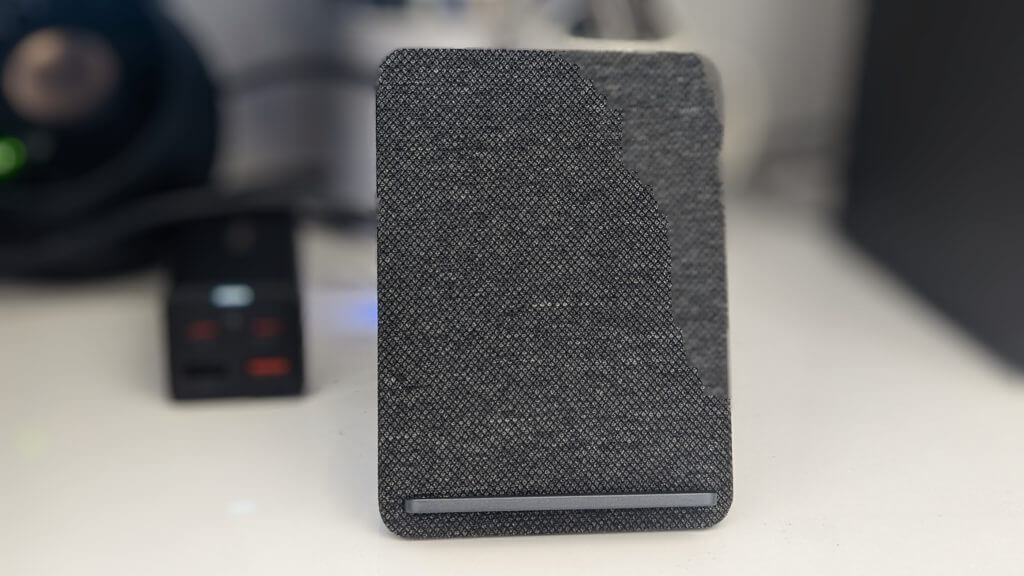
Browser Not Supported by Jira: 3 Ways to Quickly Fix It

Jira is software designed to help teams across different professions manage their work. It serves as a tool to manage agile software test case development. With Jira, you can create, track, update, plan, report, and access the progress of any scrum.

Jira has a web app version that allows users to access it through their mobile browsers. It is available across different operating systems, and it is a cross-browser platform.

However, users encounter issues like browsers not being supported by Jira when trying to access Jira on some browsers. The Jira web app version has requirements and features that allow browsers to run it.

What browsers does Jira support?

1. Google Chrome

It is a Chromium-based browser owned by Google, and it has a lot of features. These features allow it to access web apps like Jira smoothly. It makes use of extensions that you can add to improve these functionalities. Also, it has lots of workspaces that you can assign to different projects.

⇒ Get Google Chrome

2. Firefox

Mozilla Firefox is a browser with amazing functionalities. It allows users to access vast amounts of extensions and features. Firefox has a stable security system and prevents internet attacks. It is strong and reliable to run web apps like Jira.

⇒ Get Mozilla Firefox

3. Safari

Safari is a browser by Apple, and it is the default browser for all Apple devices. However, it is fast and uses a stable internet speed for heavy project managers like Jira. It has a simple interface that allows users to access it easily.

⇒ Get Safari

4. Microsoft Edge

Edge is one of the best browsers for speed and productivity. It uses a high intelligence code to provide the best internet experiences for its users. It is a good browser for Jira.

⇒ Get Microsoft Edge

What can I do if my browser is not supported by Jira?

1. Update your browser

  1. Launch your Chrome browser, click the Menu button, and select Settings from the options.
  2. Click on About Chrome in the left pane.
  3. If there’s an update, it’ll download automatically.

2. Disable browser extensions

  1. Launch your browser and click on the icon of the extension in the upper right corner.
  2. Click Manage Extensions.
  3. Then, disable the extensions by toggling off the blue icons.

Some extensions have configuration settings that conflict with Jira. Hence, this may prevent your browser from working with it.

Also, you can try using the incognito tab, just to check if the issue is caused by the extensions or not.

3. Change your internet connection

When your internet connection is poor, it can affect Jira and sometimes can prompt the browser not support error. Also, your network might be blocking access also.

So, restarting your internet connection source might be helpful in getting a better sync and connection.

Reinstalling your browser can also be an alternative to fix this problem. However, it should be the last thing to do after trying all other solutions. Although, the solutions above should solve the browser not supported by Jira issue.

You can also learn about some browsers with the best customizable web address features. Let us know which fix worked for you in the comments area below.

7 Best SEO Reporting Software for Business

SEO is a term that everybody keeps on hearing since its importance in developing and managing a website is undeniable, but without specialized SEO software, things wouldn’t have gotten so far today.

SEMrush, TrafficTravis, and SEO PowerSuite are only a few of the best tools that can help users maintain a healthy relationship between their websites and search engines by optimizing the content effectively.

What are the best SEO software solutions?

SEMrush – Best for analyzing competitor data

SEMrush is one of the power players when it comes to SEO (Search Engine Optimization) and for good reason, too.

Instead of embracing the role of just another SEO tool, SEMrush took it to the next level and developed an all-in-one suite of tools that could benefit anyone who’s even remotely interested in SEO, regardless of their needs.

This tool’s inventory holds an impressive number of assets that are specialized not only for SEO, but also for PPC (Pay Per Click), social media, content, and competitive research.

SEMrush will help you take a look at your competitors’ best keywords and observing how domains’ position shifts.

You will also discover organic competitors, engage in marketing in a more active manner by localizing ad campaigns, using Audience Insights to target the right consumer group, conduct deep link analysis, gather keywords and phrase matches, analyze markets and niches, and get insights regarding in-market audiences.

The tool suite can be tried for free during its 7-day trial period, but the trial comes to an abrupt stop which automatically continues with a premium subscription plan, turning card credit info into a necessity when registering for a free test run.

SEMrush

Improve your marketing results with a powerful and complex suite that helps you analyze your competition.
Check price Visit Website

Affilorama – Great for website assessment

Affilorama is an SEO-specialized software solution for Windows computers that can help its users build or improve their website’s online presence by providing them with a wide variety of useful tools.

This utility can be used for free, but it has limited functionality. Even so, it requires registering for an account, which comes with a registration code, which must be input before launching the application for the first time.

Beginners can quickly catch up on how to use Affilorama, as instructional videos and helpful dialogs are available right from the start.

Initially, the program will ask if it should perform a quick analysis of the desired website and will prompt users to select the search engines (along with their edition, if possible) they want to run the scan against.

Among the data that Affilorama will come up with about the desired website, it is possible to find domain authority, Alexa traffic rank, page warnings, XML sitemap, keyword count, potential traffic average, rankings for specified search engine-country combinations, backlinks, and a top of the best five backlinks.

Although users will probably get to meet Affilorama as a free tool, this version comes with some limitations.

⇒ Get Affilorama

SEO PowerSuite – Powerful set of tools

SEO PowerSuite's overview

SEO PowerSuite is, as its name boldly indicates, a powerful suite that can help users interested in promoting their website or SEO companies yield promising results with their projects.

The thing about SEO PowerSuite is that it’s actually a suite of individual software solutions that can be used on Windows computers, each of which comprises its own set of features and controls.

Long story short, SEO PowerSuite holds four different programs, each of them specialized in another SEO fragment than the other.

SEO PowerSuite can be downloaded and tested for free, but only for the duration of its 7-day trial, after which a subscription plan must be purchased.

Here is a rundown on some of its included tools:

  • SEO SpyGlass can help users take a sneak-peek at their competitors and see how well they do in terms of ranking
  • Rank Tracker can be a trustworthy ally for users who want to keep a close eye on their website’s ranking and the ranking of their keywords
  • WebSite Auditor performs a complete rundown of one’s website by crawling each page and analyzing the findings in terms of Alexa ranking, content type, or broken links
  • LinkAssistant enables users to increase the online presence of one’s website by helping them bring it closer to Google’s first page

⇒ Get SEO PowerSuite

SEO SpyGlass

SEO SpyGlass' main interface

SEO SpyGlass is a nifty SEO-specialized software solution that can give its users the upper hand when it comes to optimizing their websites in order to rank better in search engine results by providing them with handy details about their and their competitors’ websites.

The combination of this program’s user-friendly interface and its intuitive controls should make it possible that virtually anyone could use it without significant effort. Technically, what SEO SpyGlass does is analyze what one’s competitors are doing to snag the top places in major search engines such as Google, Bing, and Yahoo and give users hints of how to reach the same results.

After performing a thorough scan of the input website, SEO SpyGlass generates a list of results that hold clickable links, minimizing the work that needs to be done by checking the URLs manually.

SEO SpyGlass can be downloaded and tried for a maximum of 7 (seven) days after which a premium subscription plan needs to be purchased.

⇒ Get SEO SpyGlass

Rank Tracker – Very easy to use

Rank Tracker's main screen

Rank Tracker’s name is highly suggestive already to mention that it’s a software solution specialized in SEO.

With the help of this program, users can keep an eye on their website’s ranking on various search engines, and also take a look at how well their keywords rank in the same environments.

Rank Tracker can be understood and used even by computer novices or SEO beginners, given that it packs a user-friendly interface and controls that are easy to figure out.

All that needs to be done in order to perform an analysis with this tool is inputting a valid website address when prompted to do so and letting the program work its magic.

Although users might grow impatient (because it could take a while to process all the keywords), Rank Tracker is actually pretty adamant in its scanning process.

After the scanning process is completed, users can view the ranking for each of their keywords, regardless that they might not even be in the first 100 results.

Rank Tracker can be downloaded and tried for 7 (seven) days but needs a paid subscription to work afterward.

⇒ Get Rank Tracker

WebSite Auditor – Great for unexperienced users

WebSite Auditor's interface

WebSite Auditor does SEO at its highest form by making sure that its users’ websites get as close to the top as possible in terms of search engine rankings.

Even though the intro might be a bit off-putting for novices who might have no idea what’s happening, the program is easy to use even by inexperienced Windows PC users or people who have no previous experience with SEO-specialized software.

What makes WebSite Auditor really stand out in the crowd is its ability to optimize websites on two different levels: on-site and on-page, thus giving users the possibility of performing on-domain or on-content enhancements.

The program needs to perform a full assessment of the website it will be working with, to understand if there are any issues with it, such as broken links, duplicate content, unindexed pages, HTML errors, missing meta descriptions, or titles that might be too long.

During the initial scan, there’s pretty much nothing that can be done, since WebSite Auditor needs to complete this analysis before it can get to work in detail.

WebSite Auditor can be downloaded and used for free, but only for 7 (seven) days, after which a premium subscription plan must be purchased in order to use it.

⇒ Get WebSite Auditor

LinkAssistant's interface

LinkAssistant is an SEO software solution that can help users build a strong online presence for their websites by providing them with all the means to identify link partners and team up with them.

Given that link exchanging is no longer seen as an essential component in SEO due to it being considered an artificial means of promoting one’s content or website, it can still be pretty helpful in boosting websites’ presence if webmasters are careful enough and use specialized software such as LinkAssistant.

The program performs an online lookup based on various criteria, including but not limited to competitor links, relevant keywords, and link submission forms, and then provides users the capability of organizing the results under various categories, for easier management.

LinkAssistant will display only results that rank up high in Google and Alexa rankings, making it difficult to miss top-tier allies.

It is possible to download and try LinkAssistant for free, but only during its 7 (seven) day trial. After that, a premium subscription plan must be purchased in order to use this tool.

⇒ Get LinkAssistant

No matter what you plan on using from this list, having any of these on your Windows computer can boost your chances of having a popular website on major search engines through SEO magic.

You should also look at our best local SEO software list because you might also find some interesting ideas as well. If you prefer browser addons, check out the Mozbar extension.

For any other suggestions or insights, don’t hesitate to use our comments section below.
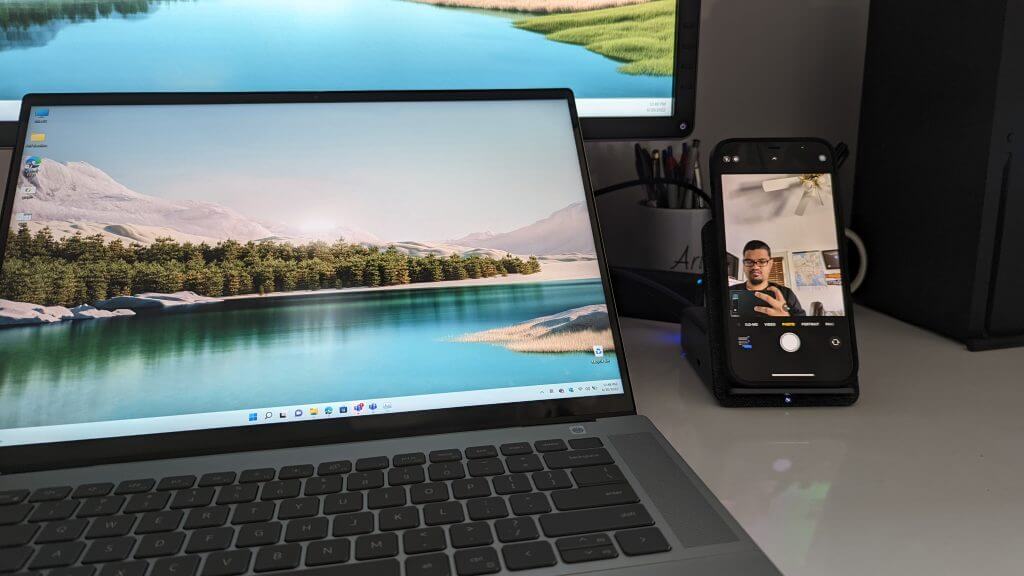
Brother Embroidery Machine Software to Download

Being one of the most popular brands of embroidery machines on the market, Brother is an incredibly user-friendly machine that can give you the possibility to create incredible professional-level complex embroideries.

There is a wide range of embroidery machines available from Brother, and each of them comes with different features and options.

The wide variety of machine options allows you to choose the perfect one for your needs.

Where do I find great embroidery ideas?

In order to use any of the Brother embroidery machines, you will need to use specialized software that allows you to design custom patterns, drawings, etc.

However, if you don’t want to lose any more time creating your own designs, you can find lots of websites with users that share their work.

In this article, we will explore some of the best software options that can create, edit, and manage embroidery designs for your Brother machine.

Embroidery machine software for Brother machines

PE Design Software by Brother – Best own brand app

PE Design - Brother embroidery software

If we are talking about Brother embroidery machine software, it is natural that at the top of the list we will have the official software released from them.

This software is called PE Design and allows you to simplify the process of creating complex embroidery patterns with ease, can transform different file formats into compatible design formats, and then start the embroidery process.

The PE Design software from Brother can be used by all users no matter their proficiency level by using this type of software.

Every part of the menu and sub-menu is sorted in such a way that it becomes easier than ever to access the options and tools you need. This software can be used by hobbyists and businesses alike.

Once you buy a model of the Brother embroidery machine, you will get a USB dongle that runs the software.

It is worth mentioning that in order to use the software, the USB stick needs to be inserted in your PC’s USB port.

You can use this software to create, modify, embellish, and then transform the digital file into a beautiful embroidery pattern.

It is incredibly easy to transform an image into embroidery because of the easy-to-use customization tools, but what helps the process, even more, is its ability to preview the design before you start stitching.

You can find a good range of projects and free patterns by visiting the official project webpage.

Here are some other useful features found in PE Design embroidery software:

  • Intelligent Color Sort – allows you to easily match colors both in software and on the embroidery machine (thread switching)
  • Great font filter that allows you to isolate only the fonts that match your pre-set criteria
  • 130 fonts of different styles that include small fonts as well (4mm – 6mm)
  • Fabric selector – automatically sets the sewing attributes based on the material you’re using
  • PhotoStitch – great tools that allow you to transform photos into embroidery without increasing the stitch count (preview, reserve colors)
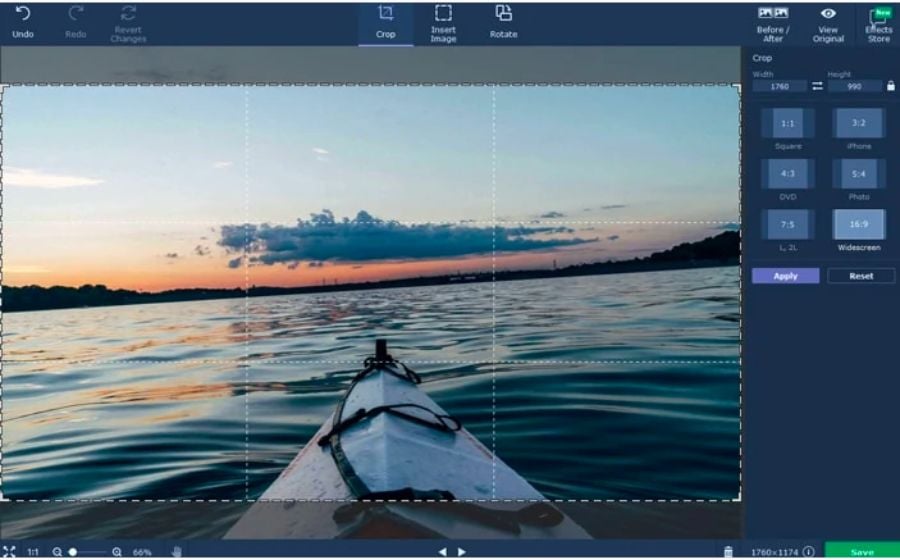
  • PatchWizard – automatically creates outlines for your appliqué

⇒ Get PE Design by Brother

SewArt – Best sewing tool

SewArt - Brother embroidery software

SewArt is another great software option that allows you to design, modify, and then transform your designs or photos into beautiful-looking embroidery designs.

This software option is compatible with a wide range of embroidery machines, including any model from Brother.

SewArt can easily transform raster image files (.jpg, .png,) , vector images (.svg, .emf), and also clipart into compatible embroidery file formats.

You also get access to a wide range of image processing tools and also a step-by-step wizard that takes you through the entire process of setting up your images to be embroidered.

In order to access the Getting Started wizard, you will need to click on the Help button once you open up the software.

As we mentioned above, SewArt has a few image-processing tools that can help you customize your design, and reduce color content.

Once you obtained a result you’re happy with, you can click on the Convert toolbar button.

This will start the process of auto-digitizing and will automatically open up the Sewing mode screen. You can now change a wide range of presets – pattern fills, stitch angles, choose only a single color to be processed, etc.

Here are some of the best features found in SewArt:

  • Supports a wide range of both raster and vector formats – .bmp, .png, .jpg, .gif, .svg, .wmf, and .emf
  • Allows you to paste unsupported file formats into the workspace
  • Output embroidery file formats – Brother(.pes), Tajima (.dst), Janome (.jef), Melco (.exp), Viking (.hus), etc.
  • Wide range of pattern fills with customizable features
  • Supports both auto-digitizing and manual digitizing – offers greater control over the final results

If you feel that you need a bit of support in order to understand how SewArt works, you can visit the official support page.

If you have questions regarding how to use SewArt, you can also visit the official FAQ page.

⇒ Get SewArt

Embird – Ideal tool for embroidery

Embird - Brother embroidery machine software

Embird is another great embroidery software option that offers you access to a wide range of useful tools and features.

This software supports more than 70 embroidery file formats, and another 20 embroidery machine brands.

You can use this software to digitize, edit, customize, convert, lettering, and cross-stitch your project with ease. Also, EMbird allows you to resize, split, edit, display, print, and also convert embroidery designs to the required format.

The features found in this software can be extended even more by using additional plug-ins.

Embird can be used in two modes – Embird Manager and Embird Editor. Here are some of the features found in each of these modes:

Embird Manager can convert your designs to a big number of embroidery and even quilting file formats, supports a wide range of hoop types and sizes, can process designs in both ZIP and RAR files, and also provides you with a great-looking 3D preview of your design.

Another feature that’s worth mentioning is that the Embird Manager supports both Amazon and Azure cloud storage.

The Embird Editor can be used to insert/modify/delete colors or pattern trims in the design, can join designs for a seamless effect, and also offers you with a wide range of image editing options – move, resize density, centers, mirrors, rotates, etc.

You can also choose if you want to edit individual stitches, or an entire part of your design can simulate the final result in 3D mode, and can also print templates in a 1:1 scale on multiple sheets of paper.

You can find a good range of video tutorials on the official Embird website.

⇒ Get Embird

In this article, we explored some of the best software options that are compatible with the Brother embroidery machine.

The tools we presented in this list cover all the areas of creation, customization, editing, and embroidering processes, with some great tutorials and easy-to-understand interfaces.

And while we’re on this subject, you might also consider reading our selection of the best hat design software to start your own line.

Please feel free to share your opinion on this software with us, by using the comment section below.