Many users complain that their Logitech F710 wireless gamepad is not working properly and although the gamepad is detected in Windows 10, it appears with a yellow mark in Windows Device Manager.
Moreover, there are some users stating that their Wireless gamepad F710 returned no driver found error message which is causing a lot of frustration.
We will explore in this article what are the exact steps you need to make in case your Wireless gamepad F710 is not working or the driver is unavailable, so make sure to keep on reading.
How can I install wireless gamepad F710 driver?
1. Use Device Manager
Press Windows Key and R simultaneously to open the Run box.
Type in devmgmt.msc and press OK.
Next, locate the Other devices option and double click on it.
Now right click on the Wireless Gamepad F7 and tap on Update Drivers.
Finally, click on the Search Automatically for Updated Driver Software.
Allow for the process to finish and restart your device.
In the search bar type F710 and then select Wireless Gamepad F710.
Next, locate on the page the Downloads section and click on Download now.
Save the file on your device and run it.
Once the process is finished make sure to restart your device.
3. Use a third party software
As it is already known, having updated drivers can avoid a wide range of issues, from improper malfunction of the software to a total lack of responsiveness.
To make things easier and more efficient, using dedicated and reliable third-party software that will help update all necessary drivers is the recommended approach.
With this last recommendation, we will conclude our article. As you can see, updating the wireless gamepad F710 Windows 10 driver is not difficult at all.
Additionally, you can also check out this guide of the best Windows 10 gaming controllers and choose the one that best meets your gaming expectations.
You can update the drivers manually although in order to avoid any mistakes that can happen in the process, using a dedicated tool is recommended.
As always, don’t hesitate to leave us a comment in the dedicated section below if you have additional suggestions.
Using the touchpad is one of the primary actions during our day-to-day work. Unfortunately, some Acer Nitro 5 users complain that their touchpad is not working.
This takes away an essential ease-of-use feature on their PCs. Fortunately, the issue can be easily fixed, as shown in this guide’s ensuing sections.
Why won’t my Acer laptop touchpad work?
A series of potential causes for the Acer Nitro 5 touchpad not working, from software to hardware problems. Below are some of them:
Faulty touchpad drivers: Sometimes, this issue is to an outdated or corrupt touchpad driver. You need to reinstall or update your driver to solve this problem.
Disabled touchpad: At times, this Acer Nitro 5 touchpad problem can occur simply because the touchpad is disabled. The solution to this is to enable it with the required shortcuts.
Outdated PC: Windows updates are important for keeping your PC running smoothly. Hence, you need to update your PC if it is outdated to prevent issues such as this.
What can I do if Acer Nitro 5 touchpad is not working?
1. Re-enable the touchpad
Sometimes, the Acer Nitro 5 touchpad might not be working because it has been somehow disabled knowingly or accidentally. To fix this, press the Fn key + F6 or F7 (or any function key that works for the touchpad) to enable it.
With this, the issue should be fixed for good.
2. Check for Windows updates
Press the Windows key + I to open the Settings app and select Update & Security.
From the left side, select Windows Update, then click on the Check for updates button from the right side.
An outdated PC is prone to different issues, including this Acer Nitro 5 touchpad not working problem. So, you need to keep your operating system updated at all times.
Expand Mice and other pointing devices, right-click on the touchpad driver you need, and select Properties.
Click on the Driver tab, then on Update Driver.
Select Search automatically for drivers.
Unlike the manual option presented above, you can use a dedicated driver updating tool to automatically scan and fix any driver you need. Thus, you’ll always keep your components safe with much less effort.
Not only will it keep your driver’s troubles away, but the operating system will be constantly updated to the latest software version.
Moreover, a dedicated driver updater allows you to work with an extremely easy-to-use interface.
4. Uninstall the touchpad driver
Press the Windows key + X and select Device Manager.
Expand Mice and other pointing devices, right-click on the driver you need, and select Uninstall device.
Click Uninstall for final confirmation.
After the driver uninstallation is complete, restart your PC.
NOTE
Windows will automatically restore your deleted driver.
The solutions above are the best options you can find to fix the Acer Nitro 5 touchpad not working issue.
With Chromecast users can watch internet streamed video content a lot easier, all is needed is for the platform app to be supported by Google cast technology.
As many users have reported, it can happen sometimes, for the Chromecast device to not being able to connect to Wi-Fi, and there are a few reasons for this.
Most of the time, it can have something to do with a faulty internet connection, the distance where the Chromecast is located, and even Wi-Fi issues.
We will guide you in this article through the exact steps you need to make in order to ensure that Chromecast will start connecting to Wi-Fi once again.
How can I fix Chromecast not connecting to Wi-Fi?
1. Use the extender cable
In general, Chromecast can work without having to use the extender but since you are having trouble connecting it to the Wi-Fi we would recommend you try this first.
It can happen that the signal is not really good, therefore we would suggest that you connect your digital media player to the back of the TV.
Luckily you do not need to purchase an extender cable considering that Chromecast already comes with one, and you can use it.
2. Change the Dual band frequency
Next, if you have already tried the first recommend step and Chromecast still cannot connect with Wi-Fi, then we would suggest you check the dual-band frequency of your router and make the adjustments needed.
Make sure that you have your digital media player device on 2.5 GHz or 5 GHz and see if anything changes and if you are able to connect now.
If you have a TP-link router, here’s how you do it:
Open your router’s control panel.
Choose Advanced, and then click on Wireless Settings.
Click the 2.4GHz option from the top of the window, and change the values in the Channel and Channel Width drop-downs.
Click Save.
Open the 5GHz option from the top of the window and perform the same steps as before.
Activate the Save button to save your settings.
3. Restart your router
Although it may seem like a simple solution, most often it comes with amazing results, and it’s also an easy step to perform.
In order to reboot your router all you need to do is turn it on and off, but make sure to wait for 10 seconds before putting the router back on.
This should reset any faulty settings and once the router is on again try to connect Chromecast and see if it works this time.
4. Perform a hard reset
Our next recommendation, if none of the above steps worked, will be to perform a hard reset that will format the device, restoring it to the factory settings.
This action will delete all data and will revert the settings along with user preferences, offering a clean start so to speak.
You can format your device in the Google Home app from the Settings menu or through the reset button by pressing it gently for 25 seconds.
After the 25 seconds you should see a sharp LED light turned into a blinking red one. Once you release the button, the Led light will become flash white and the device will start to reboot.
Once the process is finished you can perform once again the same initial settings and try to connect your device to Wi-Fi.
This is about all. As you can see solving the connectivity Chromecast issues with your Wi-Fi router is easy to solve by following the steps indicated in this article.
If you have additional recommendations or suggestions, don’t hesitate to let us know in the dedicated section below.
Developed by Jays2Kings, DS4Windows is an easy-to-use program allowing users to play PC games using a DualShock 4. A few users have, however, run into the error, and could not open DS4 exclusively.
Without any question, DS4 is the best controller to play games, and the best way to play games is in the exclusive mode, so what do you do if DS4Windows can’t open exclusively?
This mode has particular requirements regarding the connection between the DS4Windows tool and other applications, and if they’re not met, the log file will show you the message Failed to enable exclusive mode.
Why are DS4Windows not opening?
We figure that a few elements may cause the DS4Windows program not to open. At the top of the list are the following:
Controller connection – Users have encountered this problem when their DS4 controller is incorrectly connected.
User privilege – You may be required to have administrative privileges, and in cases when you do not, you can expect this issue.
Firewall or antivirus – Sometimes, the issues is triggered because your firewall or antivirus blocks out the program.
System requirements – Generally, you should only use programs that match your computer because falling short of system requirements is often a recipe for bugs and computer issues.
How can I fix the Could not open DS4 exclusively error?
Several Mac users take advantage of iCloud Drive to sync their important work and personal files and folders. However, after the recent update, several users have reported that the iCloud Drive is not in Finder.
This problem seems to be a common affair with macOS beta updates. The Beta version of the OS allows the enthusiast to test and try new features before being released to the public.
However, the beta updates usually consist of bugs that can break some functionalities. Fortunately, in this case, you can recover and fix the iCloud Drive not in Finder issue by following a few quick troubleshooting steps.
What can I do if the iCloud Drive is not in Finder?
1. Make sure the sync is complete
After installing an update, iCloud Drive will sync all the data from the cloud to your computer. Depending on the file size, the sync may take a long time to complete.
This holds even if the iCloud Drive content existed on your Mac before. You can verify if the iCloud Drive sync is still in progress from the Finder.
Open Finder and check if there is a circular loading bar present next to the iCloud Drive tab. A circular bar indicates the files are still syncing. So, wait for it to complete the process before you look for the folder in Finder.
You may also want to check if your Internet connection is working. If there is no loading bar or sync has completed, and you still can’t find the iCloud Drive in Finder, make sure it is enabled to show in Finder.
2. Check if iCloud Drive is enabled in Finder Preferences
Open Finder on your Mac.
Next, click go to Finder and choosePreferencesfrom the menu bar.
Open theSidebartab in the top left corner.
Under the Show these items in the sidebar section, check theiCloud Driveoption.
Close the Finder window to apply the changes. Open a new window and check if the iCloud Drive is now visible in Finder.
While the iCloud Drive app is enabled to show in Finder by default, a buggy update can tweak or reset the setting without user interference.
One way to fix this issue is to recheck and enable the iCloud Drive option to appear in Finder, as described above.
3. Sign out of iCloud and then sign in
Open SystemPreferencesand chooseApple ID.
Click theOverviewtab from the left pane.
At the bottom, click the Sign Out button. You will be prompted to download data before signing out. You can ignore this message and proceed to sign out.
Once you have logged out, open System Preferences again and open the Apple ID tab.
Enter your Apple credentials and log in to your Apple account.
If a glitch is preventing the iCloud Drive from syncing, try to sign out and sign in again to sync the folder and files. While none of your data will be lost, you may have to wait till iCloud retrieves and syncs with your computer.
4. Recover deleted iCloud Drive folder
From the Dock, open Trash.
Look for any files or folders that you may want to restore.
Right-click on the file or folder and choose Put Back. This will restore the file to its original location.
If you are looking for missing folders or files in your iCloud Drive, it is possible that the macOS update may have moved or deleted them. Fortunately, you can restore deleted files and folders in the Trash.
5. Rollback to the previous version of macOS
It is possible that the macOS beta or even the public may have bugs resulting in the disappearance of iCloud Drive in Finder. As a last resort, you can revert to an earlier version of macOS.
This can be cumbersome, but you will be able to restore your computer to normal working condition. Before performing a rollback, make sure to back your computer for new data.
Next, delete the macOS update, and reinstall the earlier version of the OS.
6. Access content directly from the iCloud Drive
Go to iCloud.com and log in with your Apple credentials.
Open the iCloud Drive section and search for the missing file or folder.
After locating the file, you can manually download the files to your computer. Select the file and click on Download. However, manual downloading is not possible for folders.
As a last resort, you can access the files and folder from iCloud Drive directly from the iCloud website. This is handy if you find the iCloud Drive on your Mac is missing any important file or folder.
The iCloud Drive not in Find problem is often reported on MacBooks with the latest beta or public release installed. Make sure iCloud Drive is allowed to show in Finder from Preferences.
Additionally, try to log out and log in, check for pending sync or revert to an earlier macOS version to resolve the issue.
These are some of the solutions that are confirmed to work when iCloud Drive is not in Finder. If you happen to know other tips too, let us know in the comments section below.
Borderlands 3 is a decent Windows game, but it can still have occasional hiccups. One hiccup Borderlands 3 players have reported on forums is a Video driver crash error message.
That issue arises when players try to start Borderlands 3 or shortly after they start playing it. The full error message says:
Video driver crashed and was reset. Make sure your video drivers are up to date. Exiting…
Assuming that you’re no stranger to this problem, don’t hesitate to take a closer look at the below tips and apply them one by one.
How can I fix Borderlands 3 video driver crashed error?
1. Update your graphics card’s driver
Well, the above error message says it all when it suggests, Make sure your video drivers are up to date. You can do that by scanning your PC’s devices with driver updater software.
That software will tell you if your graphics card has an outdated driver and enable you to quickly update its driver.
2. Reinstall your GPU’s driver
Right-click the Start button to open the Win + X menu that incorporates various shortcuts.
Click Device Manager to open that utility’s window.
Next, expand the Display adapters category by double-clicking it.
Right-click your PC’s graphics card to select an Uninstall device option.
Then you’ll need to select the Delete the driver software for this device checkbox.
Select the Uninstall option to confirm.
Thereafter, Windows will reinstall a GPU driver when you restart your PC. You can also click Action, then go to Scan for hardware changes in Device Manager to reinstall a graphics card’s driver.
Note: Windows won’t necessarily install the latest driver for your PC’s graphics card after restarting. This resolution is recommended if your PC already has the latest driver for its graphics card.
3. Delete Borderlands 3’s Config folder
First, open the Explorer window by clicking the File Explorer taskbar button.
Next, open this folder in File Explorer: This PC\Documents\My Games\Borderlands 3\Saved\
Select the Config subfolder in the Saved folder.
Click the Home tab shown directly below.
Press the Delete button on that tab to erase the selected Config subfolder.
Then try playing Borderlands 3 after deleting that folder.
Right-click the listed Borderlands 3 game and select Properties.
Click the Set Launch Options button on the General tab of the window that opens.
Enter the following text in the Launch Options window: -USEALLAVAILABLECORES -sm4 -d3d10 -nomansky -lowmemory -novsync
Press the OK button on the Launch Options window.
Restart Steam, and try playing Borderlands 3 again.
5. Extend GPU processing time
Open Run from the Windows Systems folder on the Start menu.
To launch the Registry Editor, input this Run command in the Open text box and clickOK: regedit
Browse to this key in the Registry Editor: Computer\HKEY_LOCAL_MACHINE\SYSTEM\CurrentControlSet\Control\GraphicsDrivers
Select the GraphicsDrivers key.
If you can’t see a TdrDelay DWORD for the GraphicsDrivers key, right-click a space on the right side of Registry Editor to select the New and DWORD options.
Enter TdrDelay as the title for the GraphicsDrivers key’s new DWORD.
Double-click TdrDelay to open an Edit DWORD window for it.
Delete the current number in the Value data box.
Enter 8 in the Value data box.
Click the OK button to close the Edit DWORD window.
Restart your desktop or laptop after editing the registry as outlined above.
6. Turn Borderlands 3 back to DirectX 11
Open File Explorer in Windows 10.
Then browse to this folder path in File Explorer: This PC\Documents\My Games\Borderlands 3\Saved\ Config\WindowsNoEditor
Double-click the GameUserSettings.ini file in that folder to open it in Notepad.
Scroll down the file until you see the PreferredGraphicsAPI=DX12 setting.
Delete DX12 from that setting and replace it with DX11. Then the setting should be PreferredGraphicsAPI=DX11 as in the screenshot directly below.
Click the File menu button in Notepad.
Finally, select the Save option.
Players have confirmed the above resolutions for Borderland 3’s Video driver crashed and was reset error to work. That doesn’t necessarily mean those potential fixes are guaranteed to work for everybody, but they’re certainly worth a shot.
If you still need further potential fixes, your best bet is to check out the Borderlands 3 help page on the 2K Support site.
Click the Submit a ticket button there. Then you can fill out a support form for the Borderlands 3 game and send it. Even more, we’ve got the perfect guide if Borderlands 3 is crashing.
Which of the above solutions worked for you? Just let us know in the comments area below.
Removing certain applications can be a tedious task, especially since many apps tend to leave leftover files and registry entries that can interfere with your system.
Therefore, it’s always better to use a dedicated uninstaller software that can remove any application and all its files with just a couple of clicks.
Today we want to show you one of those applications, so without any ado, let’s take a closer look at the Ashampoo Uninstaller 10 and see what does this software have to offer.
What is Ashampoo Uninstaller 10 and should you use it?
Usability
Quick and simple installation without unwanted applications
The setup process for Ashampoo Uninstaller 10 is pretty straightforward, and you can install the software and start running it in less than two minutes.
Once you start the setup, the only thing that you need to configure is the theme that you’ll be using. There are only two themes available, but that should be enough for most users.
It’s worth mentioning that the software doesn’t come with any additional or unwanted applications, so you won’t get any offers to install anything except the core software.
This also means that there are no hidden settings that you need to disable to avoid installing any potentially unwanted software.
Clean and easy to use interface
As soon as you start the software, you’ll be presented with a system overview. In the left pane, you can see all the features listed so you can access them quickly.
The left pane is designed to access all other features of the app, and you can expand each section for more information about apps or more features.
In the right pane, you can see recently installed applications, as well as a quick overview of all the installed applications and plug-ins on your PC.
Overall, the interface is pretty simple to use, and you won’t have any issues while using Ashampoo Uninstaller 10, even as a first-time user.
Features
Easy application removal
The main feature of the Ashampoo Uninstaller is its ability to remove applications. You can see the list of all installed applications on your PC alongside information such as file size, rating, and installation date.
It’s worth mentioning that the software has a powerful search feature that you can use to easily find any application that you want.
The filter feature is available as well, allowing you to hide redistributables, frameworks, and Microsoft applications. You can also choose to show only the applications that are installed on a specific drive, which will surely come in handy.
To uninstall an application, you just have to select it from the list and click the Uninstall button and choose if you want to perform an in-depth uninstall and create a restore point.
Once the software is removed, you need to confirm that the original uninstallation is confirmed and the software can proceed with the removal of files and registry entries.
Once the process is done, you can see the list of files and registry entries that were removed in the log file.
It’s important to mention that you can enable the option to hide the original uninstaller from the settings, which can come in handy if you don’t want to deal with uninstall dialogs.
With Ashampoo Uninstaller, you can select and uninstall multiple applications, which makes the uninstalling process more convenient and faster.
In case any leftover files are detected, the Ashampoo Uninstaller will alert you about them, and you can take a look at these files and choose to leave them, remove them or wipe them permanently from your PC.
The software also allows you to view all large applications or the ones that have been rated negatively which can come in handy if you want to free up space or just remove problematic applications.
Log files are also available, allowing you to view the list of all removed applications, along with the detailed log that shows each removed file and registry entry.
Logging for all installed applications
Ashampoo Uninstaller has a powerful installation logging feature that will monitor all your installed applications and each created file.
This feature isn’t enabled by default, but you can enable it easily with just a single click in the Overview tab.
If you don’t want to enable this feature, you can install applications simply by dragging and dropping the setup file to the Installation tab.
By doing so, the software will index all files thus ensuring that all of them are removed when you want to uninstall the application.
When you try to install certain software, you’ll get a window on top of your screen, and once the installation is finished, you just need to click the Installation completed button.
Once the software is installed, you can find it in the Logged section, and you can view its log file to see which files and registry entries were created during the installation.
While the installation logging feature is useful, we found the notification window to be a bit large, and we hope that this will change in future versions of the software.
Windows Universal apps removal
In addition to standard applications, you can use Ashampoo Uninstaller to remove Windows Universal apps.
All installed Universal apps will be listed, and you can delete them just like any regular app. Keep in mind that you can delete the preinstalled Windows apps as well, which can be useful if you want to keep only the essential apps.
If you have multiple user accounts, you’ll be pleased to hear that you can delete preinstalled applications for all accounts simultaneously, which can come in handy.
Of course, you can restore all default Windows Universal apps with just a single click of a button if you need to.
The performance impact to monitor the resource usage
The Impact section lets you have a quick overview of the resource usage on your PC, and it will list the applications that are using most of your CPU or RAM.
In addition, you can see the boot time of certain autorun applications, as well as the number of entries and services associated with a certain application.
You can click on each application for more information, and you’ll be able to see all the application processes, related services, and autorun entries.
While this feature is useful in providing information such as related services, autorun entries, and resource usage, we found it a bit lacking in terms of functionality.
Our main complaint is that the feature only shows you apps that have the most impact on your system and not all currently open applications. This is just a minor complaint, and it doesn’t affect this feature too much.
Browser plug-in removal
Another welcome feature that Ashampoo Uninstaller 10 offers is the ability to remove browser plug-ins and extensions.
Using this software, you can see all installed plug-ins and extensions for all browsers on your PC. Removing a plug-in is simple and you can remove it from any browser without starting the browser.
Although this feature is useful, we wish that there was a way to filter or at least separate extensions from plug-ins. Currently, all plug-ins and extensions are bundled into a single category, which makes navigation harder than it needs to be.
This can also lead to removing some of the essential plug-ins, and we wish that those plug-ins were somehow labeled and made easier to differentiate from the rest.
Snapshots and in-depth file comparison
Using the Snapshot feature, users can easily compare all the changes made to their system. Thanks to this feature, you can see every modified file or registry entry.
Keep in mind that to use this feature, you need to create snapshots manually. First, you need to create your original snapshot and after a while, you need to create the other one for comparison.
All this is done through a built-in wizard, and even if you’re creating snapshots for the first time, you won’t have any problems using this feature.
This is an advanced feature, and while basic users won’t have too much use for it, the advanced users that want to keep track of individual files will find it more than useful.
Drive cleaner, registry optimizer, and other additional features
Drive Cleaner, Registry Cleaner, and Internet Cleaner
Ashampoo Uninstaller offers a Drive Cleaner feature that will scan your system for any unwanted files and help you remove them.
Using this feature you can easily find and remove temporary files, log files, history files, search files, etc. All these files are nonessential and in most cases, you can just remove them.
Of course, you can view a detailed log and see individual files that you will remove using the Drive Cleaner feature.
We wish that this feature could as well detect large files or folders, but hopefully, that functionality will be added in the future versions of the software.
Registry Cleaner works similarly to the Drive Cleaner, and it will detect all incorrect or corrupted registry entries that you have in your registry.
To make sure that you don’t delete an important registry path, you can always view a detailed log and see exactly which registry entries will be deleted.
Browser Cleaner feature allows you to easily clear your browser cache from all installed browsers on your PC, simultaneously.
Before you had to open each browser and choose the option to delete the cache, but with Ashampoo Uninstaller 10, you can clear the cache on all your browsers in a matter of seconds, without even opening your browser.
StartUp Tuner and Service Manager
StartUp Tuner and Service Manager are a couple of features that advanced users might appreciate. With StartUp Tuner, you can easily manage your startup applications.
Unlike with regular Startup manager in Windows, with this one you can even add startup entries along with startup arguments for each entry.
Service Manager works similarly to the Services window in Windows and it allows you to stop the services or change their startup type.
All the startup settings are available at your fingertips, so you won’t have to open any additional windows to change the startup type or stop a specific service.
Undeleter, File Wiper, and File Associator
Ashampoo Uninstaller can also help you restore files with its Undeleter feature, but the feature that we want to focus on is File Wiper.
With this feature you can permanently delete files from your hard drive by using four different deletion methods, thus making your files irrecoverable.
This is extremely useful if you need to delete sensitive files for good. The feature also lets you delete files from the empty space on your hard drive thus making already deleted files unable to recover.
Registry Defrag and Unlocker
Lastly, the two remaining features are Registry Defrag that will scan your registry for any fragmentation and help you optimize it to run better.
The last feature is the Unlocker, and with it, you should be able to unlock protected folders and files on your PC.
You can see the list of locked files along with the application that is using it. To unlock the file, simply select it and choose one of the many available options from the Unlock menu.
Conclusion
Ashampoo Uninstaller 10 is a great application if you need to remove any application or multiple applications permanently from your PC.
The software can remove Win32 applications as well as Windows Universal apps, so it’s perfect if you want to remove any built-in Windows apps in just a couple of clicks.
To top it off, the software has some great additional features such as Impact overview or Snapshot manager that should help you keep a close eye on your PC and your files.
There are few minor drawbacks, and in our opinion, a couple of features could be expanded with additional functionality.
We had some complaints with certain user interface elements, such as the Installation log window that felt too cumbersome at times.
Pros
Easy to use
Can completely remove applications
Ability to remove leftover files and registry entries
Can remove built-in Windows apps
Browser plug-ins and extensions removal
Cons
Certain UI elements felt too big
Overall, these aren’t any real dealbreakers and we’re positive that the software will keep improving in the future.
If you require powerful uninstaller software, then Ashampoo Uninstaller 10 is a perfect choice, it’s simple, easy to use, and it packs a lot of great features.
Have you tried Ashampoo Uninstaller 10 or any other uninstaller software? What did you think of it? Let us know in the comments below.
Computer errors are bound to appear, and one issue that many users reported is AppModel-Runtime Event ID 69.
This error usually appears in the Event Log and it doesn’t cause problems on your PC, but it can affect Windows Store applications or some of the default Windows apps in some rare cases.
In this guide, we’re going to show you the best methods that you can use to fix this problem once and for all on your Windows 10 PC, so let’s get started.
Once the process is finished, check if the AppModel-Runtime Event ID 69 error is gone.
2. Run the built-in troubleshooter
Press Windows Key + I to open the Settings app.
Navigate to the Update & Security section.
From the menu on the left, select Troubleshoot. In the right pane, choose Additional troubleshooters.
Select Microsoft Store Apps and click on Run the troubleshooter.
This is a simple solution, but several users reported that it helped them with this error, so be sure to try it as well.
3. Reinstall the app that is giving you this error
Check which Windows app is giving you this error. You can do that from the Event Log. In our example, it’s Windows Photos, but it might be a different one for you.
Press Windows Key + X and choose Windows PowerShell (Admin).
Now enter the following command: get-appxpackage *Microsoft.Windows.Photos* | remove-appxpackage
After the command is successfully executed, open the Microsoft Store and download the removed app again.
NOTE
4. Check for missing dependencies
Navigate to the following directory: C:\Program Files\WindowsApps
After gaining access to the WindowsApps directory, start PowerShell as administrator.
Run the following command: Get-AppxPackage Microsoft.WindowsCalculator
Pay close attention to the names of the listed dependencies.
Go to the WindowsApps directory and make sure that all dependencies directories exist in the WindowsApps folder.
Create a new folder in WindowsApps directory and name it: Microsoft.WindowsCalculator_10.1510.13020.0_neutral_split.scale-100_8wekyb3d8bbwe
Go to the following directory: C:\Program Files\WindowsApps\Microsoft.WindowsCalculator_10.1510.13020.0_x64__8wekyb3d8bbwe
Locate the AppxManifest.xml file and paste it to the directory that you created in Step 6.
Go back to PowerShell and run the following command: Remove-AppxPackage Microsoft.WindowsCalculator_10.1510.13020.0_x64__8wekyb3d8bbwe
Once the app is successfully removed, download it again from the Microsoft Store.
This is an advanced solution, and the commands that we used might not work for you and help you fix the AppModel-Runtime Event ID 69 error.
In our example, we used the Calculator app and its file paths, but on your PC remove the app that is shown in the Event Log as the cause of this error.
Error AppModel-Runtime Event ID 69 shouldn’t cause any problems on your computer, and you’ll only notice it if you open the Event Log.
In most cases, you can leave this error be, but if it starts interfering with your PC, be sure to try some of our solutions. You can also use one of these great repair toolkits and you’ll see the difference.
Don’t hesitate to let us know which solution worked for you. Feel free to use the comments area below in that regard.
Is it possible to install a printer driver without admin rights? This guide will answer this question, so keep on reading.
How do I install a printer driver without admin rights?
Before trying anything else, try using type 4 drivers or preload the drivers via config management.
1. Change Security Options in GPO
Press theWindows + R shortcut to open Run.
In the Run box, type gpedit.msc and click OK to open Group Policy Editor.
In Group Policy Editor, navigate to the following location: Computer Configuration > Policies > Windows Settings > Security Settings > Local Policies > Security Options
Next, in the right-pane, look for Device: Prevent users from installing printer drivers option. By enabling or disabling this policy, you can control whether to allow or reject non-administrator printer driver installs.
Select and right-click on the option and choose Properties.
In the Properties window, choose the Disabled option.
Click OK and Apply to save the changes.
Next, navigate to the following location: Computer Configuration > Policies > Administrative Templates > System > Driver Installation
Make sure you have selected the Driver Installation folder. In the right pane, locate the following policy: Allow non-administrators to install drivers for these device setup classes.
Right-click on the policy and choose edit. Set it to Enabled.
In the same policy, you need to specify the device class GUIDs corresponding to printers. So, click the Show button under the Options section.
In the Show Contents window, enter the following GUIDs one by one: Class = Printer {4658ee7e-f050-11d1-b6bd-00c04fa372a7} Class = PNPPrinters {4d36e979-e325-11ce-bfc1-08002be10318}
Click OK and Apply to save the changes.
Close Group Policy Editor and restart your computer.
By disabling the Devices: Prevent users from installing printer drivers policy, you have allowed non-administrators to install printer drivers when connecting a shared network printer.
2. Disable Point and Print Restrictions
Launch Group Policy Editor by pressing the Windows key + R, type gpedit.msc and click OK.
In Group Policy Editor, navigate to the following location: Computer Configuration > Policies > Administrative Templates > Printers
In the right-pane, right-click on Point and Printer Restrictions, choose Edit.
Set it to Disabled. Click Apply and OKto save the changes.
Next, navigate to the following policy path: User Configuration > Policies > Administrative Templates > Control Panel > Printers
Locate and open the Print and Printer Restrictions policy and set it to Disabled as well.
Close the Group Policy Editor and try to install the printer without admin rights.
A few users suggested changing the Package Point and Print – Approved Servers policy by following these steps:
One Group Policy Editor.
Follow the steps from above, but this time enable Package Point and Print – Approved Servers policy.
Add the FQDN of your print server and save changes.
This is how you can use Group Policy to install printer driver without admin rights.
However, this prevention feature can become annoying when installing a printer driver on a work computer without admin rights. The driver download may fail. To fix the problem, try using the driver software updater to install the printer without admin rights.
If that does not work, take the bit complicated way of disabling a few group policies using the GP Editor. And you won’t face issues downloading Dymo printer drivers without permission.
Biomutant is a great, open-world, RPG action game that brings you to a post-apocalyptic, luxuriant scenery that could excite all genre players across the board.
However, being a pretty new addition to the gaming lore, it has its share of issues and one of them is that players can suffer FPS drops even with excellent configuration PCs.
A user on Reddit explains the situation in detail:
The game always just started, I play it without problems +100 fps in 1080p and high settings, but after a while (generally 5-10 minutes) and passing through certain areas where there is a lot of volumetric fog there are generally FPS drops to a minimum of 25 FPS and looking at the MSI Afterburner, The GPU in those areas lowers its performance from 100% to 55% more or less.
Even under the resolution (720p) and all the settings on low, it continues in the same amount of FPS and the GPU working at 50-55%. It is the only game that happens to me, I doubt that it suffers a bottleneck, I wanted to know if one has happened and solved it, thank you.
Others have described similar issues even if they have powerful computers with plenty of resources.
This is a new problem that was just discovered and there are no official fixes or patches but we will try to help you with some possible solutions.
How can I fix Biomutant FPS issues on Windows 10?
1. Update the drivers for your controller
Right-click the Start button and select Device Manager from the list.
Click on the Sound, video and game controllers section to expand it.
Right-click on your controller driver and select Update driver.
Select the first option, Search automatically for drivers.
The system will find a default driver online and install it.
A user discovered that he solved this FPS problem after updating the drivers to his Bluetooth controller so you will need to perform the steps above to get this done.
2. Run the game in high priority
Right-click the Start button and select Task Manager.
Click on the Details tab.
Find Biomutant and right-click on it.
Then click on Set priority and select High.
Running the game in high priority will force the sistem to favor the game to any other unnecessary processes and the performance should improve.
We hope that our solutions helped you fix this annoying FPS problem with Biomutant in Windows 10.
You might also be interested in our guide on how to get the best graphics in Biomutant and have the best possible experience.
If you know about any other solutions or you have any advice, leave us a line in the Comments sections below.
According to a post on Reddit, the YouTuber ACG hinted during his Defining Duke podcast that Xbox is planning to purchase some existing IPs and announce that at E3.
Microsoft is clearly expanding its gaming realm, and the acquisitions of Bethesda and id Software are exactly on that line of development for the Redmond giant.
So, it wouldn’t surprise anyone if we would see some nice and surprising IP acquisitions from Xbox during the next E3 that is due soon.
At this point, everybody’s looking at Phil Spencer’s shelf to look for any hidden surprises that might give away a hint for that news.
What are the IPs that Microsoft might buy?
As for the titles that Microsoft might get, your guess is as good as ours although we might have some interesting suppositions.
For instance, it might be The last of Us, a title that made some great friends on the rival console. Other rumors bring EA’s Army of Two into question.
Other gamers ar praying to see a reiteration of Dead Space by Coalition although some work on sequel is already underway.
The fan list continues with titles like Blinx, Alpha Protocol, Legacy of Kain, Deus Ex, and even Gex the Gecko.
Other rumors say that it could also be a title from Konamy as the Japanese already said that they are willing to outsource IPs.
According to the Microsoft 365 roadmap, announcement, the IT managers will have full control over this VoIP encryption feature:
Teams will support an option to use end-to-end encryption (E2EE) for ad hoc 1:1 Teams VoIP calls, providing an additional option for conducting sensitive online conversations. To support customer security and compliance requirements, IT will have full control of who can use E2EE in the organization.
What is the new encryption feature for Microsoft Teams?
The E2EE feature is configurable by the IT managers who will also decide to which users will use it.
The end-to-end encryption will be a welcomed extra layer to secure the VoIP calls in an enterprise environment but it has its downside.
The users who benefit from this option will no longer be able to use some of the features, including the transcription and the recording that would void the whole point of securing the connection.
After the feature gets activated by the IT administrator, the user will also have to activate it on its endpoint PC within the Privacy menu from Settings in Microsoft Teams.
What is the new E2EE used for?
Of course, the new encryption feature will come in handy when you will need to send sensitive information across your organization or your business partners or officials.
We should also note the fact that its less business-oriented competitor, Zoom, already installed end-to-end encryption on meeting with up to 200 participants since last year.
The benefits for this option are unquestionable and it will be generally available beginning with July.
Last month, we reported that Microsoft plans to add support for apps in external meetings and chats in Teams. The Redmond giant has recently updated its Microsoft 365 roadmap to indicate that this feature has started rolling out and will be available soon for all Microsoft 365 subscribers.
The launch of apps in external meetings and chats will let users add apps while hosting meetings/chats with people from another organization. Specifically, users from the host organization will be able to manage (install, delete or update) these shared apps. However, external users who have been invited to the group chat or meeting will only be allowed to interact with the apps installed by host users. You can find more details about managing external access in meetings on this support page.
To install an app during a meeting, click the “Chat with participants” icon and select the ( … ) menu. Now use the search box to find the app (e.g., Microsoft Forms) you want to add to the meeting and finally click the “Send” button to create a poll. The meeting participants will instantly get a poll notification that appears in the middle of their meeting screen.
Similarly, Microsoft Teams users will be able to add apps to group chats by clicking the ( … ) menu available at the bottom of the screen. The rollout of apps in external scenarios will honor the data policies of the host organization and it will not change any previous organizational settings.
Overall, the new apps experience could be beneficial for business customers to gather feedback and seek approvals from partners. Microsoft Teams has recently introduced support for adding external users to group chats, and this new feature should eliminate the need to jump back and forth between windows during meetings.
If you need to keep a log of your driving, fortunately, there’s specialized software that can do this for you. There are both apps and online tools that can keep track of various data regarding your driving.
Mileage tracking apps are able to automatically detect when you go for a drive and thanks to the mobile devices’ built-in GPS.
It’s also essential that such an app does not impact your battery very much. Online mileage calculator software can do the same thing and provide you with the same data.
Here are the best tools, apps, and online calculators, for your mileage and we advise you to check out their sets of features carefully just to see which one fits your needs and preferences best.
What are the best mileage calculators for Windows 10?
MPG Tracker is a great mileage calculator app that is able to conveniently track your vehicle consumption right on the go.
Overall, this is one of the best mileage calculator apps that you can find out there.
And to find out more about its features and to get this app we advise you to head over to the Microsoft Store and grab the MPG Tracker from the Microsoft Store.
Users find this app extremely handy, and one of the most appreciated features is that it allows you to see the value of lower speed and less aggressive acceleration.
The app comes packed with various useful features and functionalities, so take a look at the key ones below:
MPG Tracker is easy to use, and it allows fast data entry, while at the same time providing plenty of statistics about the vehicle’s fuel consumption.
The app also supports distance input based on trip meter reading and odometer reading.
The History view feature will show you all the fill-up records, and they will be sorted by the most recent date, allowing you to edit all entries.
The various graphs that are included in the app show how your MPG progresses and how the gas price changes over time.
The advanced reports allow you to compare fuel grade, brand, and also to view the monthly expenses and mileage as well.
The application supports multiple vehicles, and it allows you to back up your data to OneDrive, this way allowing you to restore the data if your mobile device is broken.
You can also export to Excel for more report customization and share the MPG info via email, social networks, and SMS.
The app provides support for both metric and imperial system.
If you have even been in a situation in which you have no idea whether you have enough fuel to reach a particular destination, well this is another solution that allows you to calculate the fuel.
This is a handy app for tracking your mileage. Fuel Calc Free is an easy way to find the average consumption of your vehicle’s fuel.
This app also allows you to share the results with your buddies. Check out the main features that are packed in this app:
Besides calculating the fuel, this app is also able to calculate the cost of your travel and also divide it between the passengers.
Fuel Calc Free can see what the cost of driving to a specific place will be as well.
This app can successfully calculate the time and distance in which LPG installation will be paid to.
It’s also important to note that the app supports both imperial and metric units.
Fuel Calc is a free app, and it’s available on most mobile devices.
The application is straightforward to use even for people who have never used such a tool before.
Fueleconomy.gov is an online mileage calculator tool. It’s the official U.S. government’s source for fuel economy information, so it’s definitely worth trying out its features and functionalities.
Among its other benefits, you will find out that with the help of Fueleconomy, you can save money and you can also support climate change.
Check out a few of them below:
Using Fueleconomy, all you have to do is select one or more vehicles and then add, edit, and remove more vehicles any time you want
You will be able to edit the vehicles to personalize the MPG and the fuel price as well
Using this online tool, you will be able to make driving more efficient, and also keep your car in shape
It allows you to plan and combine trip and even choose a more efficient vehicle
Using this tool, you will get various tips for hybrids, plug-in hybrids, and electric vehicles as well
You can enjoy fuel economy in both cold and hot water
This tool will help you with the fuel calculations
GasBuddy’s Trip Cost Calculator is another online tool for calculating the mileage.
With the help of GasBuddies across North America reporting prices of fuel from various local stations, the tool is also to find the cheapest stations along your road trip.
Check out more important features that you will be able to enjoy using this online tool:
All you have to do is enter the start city and the end city.
You also have to select the trip type (one way or round trip) and the measurements that you want to use (US or metric).
You will also have to add some vehicle information such as the year, make and model, tank, fuel and more.
Squawkfox’s Gas Mileage Calculator is our last, but definitely not least choice for an online mileage calculator tool.
You will be able to effortlessly use the Gas Mileage Calculator even if you have never used such a program before. It will help you determine just how much fuel your vehicle consumes.
Check out a few steps that you need to accomplish before getting a result:
You have to enter some gas data at first such as the distance that you have to drive.
You also have to add the amount of gas that you used.
The tool asks you to add the price of the gas that you have used as well.
All you have to do after entering the requested data is to press the Calculate button, and you’re good to go.
The results will be the gas mileage and the cost per distance.
These are our five recommendations for the best mileage calculator that you can currently find on the market.
Both the online tools and the downloadable apps will do a great job, and it’s best to check out their entire sets of features and advantages before making the final decision.
If you happen to know other great tool for gas mileage calculations, don’t hesitate to write us about them in the comments section below.
Is Windows 11 upon us? Two days ago, Microsoft announced a June 24th event to unveil “what’s next for Windows.” So far, we don’t know much more than that, but of course there’s rampant speculation. Let’s take a look at what we know so far and what we might hear on the 24th. First, some quick history:
News of a “new version” of Windows first started filtering out with leaks about something called Windows 10X: a lightweight, refreshed version of Windows first slated for the Surface Duo and the unreleased Surface Neo. Windows 10X was at first going to be limited to dual screens only. Continuing problems getting Windows to run reliably (meaning with full Win32 app support) on ARM chips, something necessary for a smartphone like the Duo, changed those plans, and Microsoft announced that Windows 10X would first come out for single screens only, that Duo would run Android instead (?!), and the Neo just faded away.
Could the Surface Neo run “Windows 11?”
Windows 10X, even on single screens was never meant to be a “replacement” for Windows 10: it was going to come out on new hardware only, and be positioned to compete with Chromebooks in Edu (just a note here: Chromebooks are doing *very* well in Edu, and while it’s not a huge market, losing those young hearts and minds to Google has been and continues to be a concern for Microsoft).
But as it turns out, Windows 10X was not to be. Microsoft apparently reversed course, announcing that there would be no 10X launch, and that instead many of the mostly UI and UX features would be instead incorporated into Windows itself.
Windows 10 “Sun Valley,” the code name for UX changes, would serve as the revisioning of Windows 10X, with new icons, a new Start menu, and a more consistent UI.
So that leaves us with the announcement yesterday. As usual, there are a lot more questions than answers. Let’s dive in:
1. What’s in a name?
Much has been made of the “Windows 11” shadow in yesterday’s teaser GIF, and it’s obvious to call “the next version of Windows” Windows 11. Others are leaning toward just calling it “Windows.” And of course, even with all the speculation, we still could end up with some variant of “Windows 10.” It was supposed to be the last version of Windows, right? (Still, it was only one guy at a session at Ignite 2015 who said “last version”).
The hints are coming hot and heavy that we’re in for “a new generation of Windows,” but how much change should we expect? A job listing spotted last week promises “a multi-year journey to revolutionize the Windows UX platform,” and while Microsoft is making a big deal about this June 24th announcement, it seems far fetched to think we’ll have a completely new and different Windows in the 21H2 timeframe (read: this Fall). Everything we’ve heard so far about Sun Valley is that while it carries a new, refreshed look, it’s still very much Windows 10 under the hood.
Sun Valley should hit the high points, with a fresh clean look born out of Windows 10X, but can we really expect a fully cohesive UI/UX makeover? This has the earmarks of a “multi-year journey,” indeed.
3. What about the enterprise?
Microsoft has long held to a mantra of staying true to legacy Windows, and there’s good reason for that. Enterprise generally hates change, because there’s real financial pain involved in having to rework training materials, help desks, and IT management to accommodate changes in Windows.
As consumers, we all want the latest, freshest look, but that’s exactly what enterprise *doesn’t* want.
4. A new path, or a fork in the road?
On their regular Windows Weekly podcast this week, Mary Jo Foley and Paul Thurrott had lots to say about the just released news of an upcoming June 24th announcement. In particular, though, one thing Mary Jo said stood out: After saying that “this is going to be a lot of smoke and mirrors, plus a new store,” she also said (while noting that she was just guessing, with no insider knowledge) that she’s expecting to see 21H2 *plus* a new Windows “11” this fall. Her reasoning is that enterprise doesn’t care about any of this UI stuff (see above), and will want to stick with Windows 10.
A French blog, Frandroid, posted a screenshot of what it says is the Windows 11 System menu, and also postulates that Windows 11 should be a free update while Windows 10 continues to be supported in the future. Since we know Insiders will get to test this new version (see #8 below), one possibility is that it ships with new devices (see #6), but that it’s also available to “seekers,” as an opt in, with everyone else remaining on Windows 10.
5. Is a Feature Experience Pack the answer?
Of course Daniel Rubino and Zac Bowden were also talking Windows “11,” and on their new “Ask Windows Central” feature, Zac Bowden noted that while technically the current Windows Insider Dev Channel is gearing up toward Sun Valley, Microsoft is trying hard to keep the new UX features a “secret.” These features, Bowden says, could come as part of a Windows Feature Experience Pack, allowing the company to keep the new stuff under wraps for as long as possible.
What this also might mean, however, is that the Sun Valley / Windows 10X / Windows 11 features that Insiders and consumers are clamoring for, but that enterprise is almost sure to hate, could come as part of a modular Windows. Want the latest and greatest? Install this Feature Experience Pack and here you go. Need to go stuffed shirt to keep your enterprise IT department happy? Just don’t install the Pack (or indeed, install an Enterprise Features Pack perhaps, making the core of Windows less bloated).
— Aggiornamenti Lumia (@ALumia_Italia) June 1, 2021
6. Can Windows “11” sell?
One thing almost everyone agrees on: a new naming scheme for Windows is going to be a boon for OEMs trying to sell new devices. OEMs are going to love being able to put “New: Windows 11!!!” (or whatever) on their marketing and packaging, and with PC sales enjoying a pandemic fueled resurgence, having something new and shiny to sell is going to make OEMs *very* happy.
7. Will Sun Valley turn Teams integration up to 11?
Mary Jo Foley mentioned that Microsoft had told Bloomberg a bit more about what to expect on June 24th. Here’s the quote: “The new software will include changes to the design, added opportunities for creators and developers via the Windows app store, and ways to more easily build connections between users and communities they care about, the company said.” (Italics ours). This sounded to Mary Jo, Thurrott and Leo Laporte like Teams built into Windows, and we have to agree, although like everything else, we’ll have to wait until the 24th to find out.
8. Will Windows Insiders get to test the new Windows? And when?
Again, Microsoft provided Bloomberg with some hints, saying “The software will be rolled out to so-called Windows Insiders who sign up to test new products after the event, and is likely to be released widely this fall.” Whether this means that Insiders will be able to test a potential new “Windows 11” channel, or just that some new features will start showing up in Dev channel builds, we’re not sure. Anyway, be prepared to mash some refresh buttons if Microsoft does open up “Windows 11” to new testing. Fair warning.
9. (Just like Windows, we skipped 9 ? )
10. Oh and one more thing, what’s this about a new Store?
Sure, you can read this as “one of the most significant updates to Windows of the past decade,” but it sure sounds like Nadella was talking specifically about changes coming to the Microsoft Store. Back in April, Microsoft announced that it was dropping its cut on game sales in the Store from 30% to just 12%, and more information has surfaced about changes coming to the Store, far more than just a Sun Valley UI refresh. According to Zac Bowden, the new store will:
Allow developers to submit unpackaged Win32 apps to the Store
Allow developers to host apps and updates on their own content delivery network (CDN)
Allow developers to use third-party commerce platforms in apps
Now Microsoft has tried to reinvent the Store model before, most notably with Windows Phone, and we know how that went. It has also tried recently to push, without much success, PWAs as a way to break through the walled gardens of the Apple and Google Play stores. Even without a new selling model, however, the Microsoft Store is in desperate need of a revamp, so this can only come as good news.
We can’t wait until June 24th (or whenever the leaks start showing up before then) to find out what all the commotion is about. What do you think will happen? Is the next generation of Windows “Windows 11,” or something else entirely? Let us know what you’re expecting in the comments below.
Exchange Servers and Exchange Databases play an important part when it comes to data security and secure reliable access to emails, and contacts in modern-day companies.
Keeping them safe, secure, and always working will greatly help a company make better revenue and manage things easily.
However, things don’t always go as planned, and unforeseen events will make you wish you had some means of recovering your data from corrupt Exchange Database files (EDB files), and that is why we would like to talk about one of the best Microsoft Exchange recovery tools called Stellar Repair for Exchange.
What is Stellar Repair for Exchange?
As the name of the product suggests,Stellar Repair for Exchangeis a dedicated third-party Exchange Server data recovery tool that boasts powerful recovery of data tools and a simplistic user interface.
Not only will it recover the server data, but it will also help to Export EDB files directly to live Exchange and Office Server databases, and it doesn’t matter if it was an Exchange server crash, power failure, or vulnerability exploitation without any risk of data loss
Regarding its compatibility, you can use Stellar Repair for Exchange on Microsoft Windows Servers and Microsoft Windows even more, since it supports recovering data from EDB files of Exchange servers 2019, 2016, 2013, 2010, 2007, 2003, 2000, and 5.5
It also works with the latest versions of Microsoft Office as well, as it has the ability to export complete EDB files directly to live Exchange and Office 365
In fact, Stellar Repair for Exchange can be used in a wide variety of other cases, including:
Dirty shutdown errors
Exchange Server crashes
Failing to mount Exchange databases
Not just a bulk recovery tool
It does a great job not only at scanning your PC for missing or corrupt EDB files, but it also lets you customize your search in mail items as per the combination of search criteria.
You can perform this operation based on different search criteria, such as To, From, Subject, the contacts you’ve Cc-ed, Attachment Name, etc.
All Mail items that you then find can then be exported to PST, MSG, EML, HTML, RTF, or PDF format.
Manage your mailbox data to a greater degree
If recovering contact is your main concern, Stellar Repair for Exchange helps with that as well, as it helps to save the contacts of repaired mailboxes in CSV format which can later be viewed and edited in Excel or Google Sheets.
Stellar Repair for Exchange also recovers calendars, journals, and tasks with multiple formats to choose from when saving them.
More so, if the mailboxes you are trying to recover are incredibly large, holding tens of thousands of emails in a folder, then you should know that Stellar Repair for Exchange will split these folders upon recovery or repair so that managing them can be easier.
The Split is based on the number of emails in a folder. After saving a specific number of emails, the application splits the folder into smaller sub-folders, but one common practice is for the program to split your recovered data based on the date of the sent or received messages.
For example, if you have a mailbox with 100.000 emails, rather than recovering one large and hard-to-read file, you will instead get smaller subfolders based on the month of the sent or received message.
An Exchange recovery tool for all PCs
Because of the fact that Stellar repair for Exchange can even help Exchange 22003 and Exchange 2007, it was designed to run even on older PCs, since there is a high possibility that older versions of Exchange may be due to older hardware.
That being said, here are the minimum system requirements for your PC to run Stellar Repair for Excel efficiently:
Processor: Intel-compatible (x86, x64)
Operating System: Windows 11, 10, 8.1, 8, 7 & Windows Server 2016, 2012, 2008
Memory: 4 GB minimum (8 GB recommended)
Hard Disk: 250 MB of free space
3 different versions based on your particular needs
Stellar Repair for Exchange is currently available in 3 different versions:
Corporate
Technician
Toolkit
Each subsequent version has all the features of the previous one and a few extra tools that will prove useful
Here’s a precise rundown of what each version can do:
Supports Parallel processing for faster mailbox recovery
✓
✓
✓
Set-Mailbox priority as per importance while saving
✓
✓
✓
Export the recovered mailboxes & Public folders to Live Exchange, Office 365 or PST
✓
✓
✓
Save the repaired file as PST, MSG, EML, RTF, HTML, and PDF
✓
✓
✓
Extract offline mailboxes from corrupt Exchange backup file
X
X
✓
Convert EDB file to PST format
X
X
✓
Convert inaccessible OST to PST
X
X
✓
Reset lost password of Windows Server
X
X
✓
Try it before you buy it
When it comes to recovery or repair tools, one of the biggest problems is that a lot of them lack any kind of free version, or at least a trial or demo for users to test out and assess the program’s efficiency.
However, this doesn’t seem to be the case with Stellar Repair for Exchange, since you can opt to download a free version of the product so that you can see just how good it is at recovering the mailboxes from your EDB files.
Tip
Note: The free trial version of Stellar Repair for Exchange can only scan and preview your recoverable mailboxes.
Stellar Repair for Exchange
A database recovery tool that has never been more powerful and more easy-to-use like now.
In a world where security vulnerabilities are on the rise and the struggle to keep them at bay becomes harder and harder, keeping a good recovery tool at hand can always be helpful.
Such would be the case with EDB files, and the recent attacks detected by the Microsoft Threat Intelligence Center where multiple zero-day vulnerabilities on on-premises versions of the Exchange server were detected.
These vulnerabilities were caused and exploited by the Hafnium group, and through them, they managed to gain remote access to Exchange servers so that they could steal critical data from a variety of organization networks.
The vulnerabilities being exploited are the following:
As a response to these attacks, Microsoft has released several Exchange Server updates, so have them installed as soon as they become available.
How can I protect Exchange Servers from Hafnium attacks?
1. Run the Microsoft On-Premises Mitigation Tool
The Exchange On-Premises Mitigation Tool (EOMT) is a tool released by Microsoft that is meant to combat common vulnerabilities exploited by the Hafnium group, and it works with MS Exchange 2019, 2016, and 2013.
The main purpose of this tool is to check whether your Exchange Server is vulnerable to CVE-2021-26855, and you can use it as follows:
Extract the content of the Security folder to a location of your choosing
Press Windows and open PowerShell with administrator rights
Via PowerShell, go to the extracted folder location
Run the EOMT.ps1 script to check if your server is vulnerable : .EOMT.ps1
2. Update your Exchange Servers
If you’ve run through the previous solution and noticed that your Exchange servers are indeed vulnerable, you can help prevent any possible future attacks by simply updating your Exchange servers, which is a solution that even Microsoft recommends.
Exchange 2007 and 2003
While these versions are believed to be safe from Hafnium attacks, they no longer receive any updates from Microsoft, so you need to upgrade them anyway.
Exchange 2010
This particular version of Exchange server was affected by CVE-2021-26857, so you’ll need to update it with the latest security patches, and you can also run the EOMT script mentioned above just to be sure.
Exchange 2019, 2016 & 2013
These versions of Exchange Server were the primary target of the Hafnium attacks, so if your company is using any of them, install the latest security updates and use the EOMT script as soon as possible.
3. Restore your Exchange server mailboxes data via a backup
If the preventive measures came too late and your company’s Exchange servers were already attacked, damaged, and rendered useless by Hafnium, you can use the RecoverServer switch to get all of the data back.
Tip
Note: This solution only works if the Windows Server and Exchange versions are the same as the new server or else there may be compatibility issues.
4. Use Stellar Repair for Exchange
The solution mentioned above in the 3rd point is only usable if you have a backup stored somewhere, but if you don’t your only solution is to use third-party Exchange Server recovery tools, and Stellar Repair for Exchange is one of the best on the market.
You can now browse your PC for the location of Exchange Server databases using two methods:
Press Browse to find them manually
Press Find to let Stellar Repair for Exchange detect them for you
Choose the damaged EDB file and click on Next
You can now select one of two scanning modes to proceed with this operation:
Quick Scan – the scans will be faster, but they may not yield all the results you may be looking for
Extensive Scan – the scans will last a lot longer, but all the data will be presented to you thoroughly
Press OK to start the scan
Once the scan is complete, all mailboxes that can be repaired will be listed as you can see below:
Choose a mailbox(es) or any item(s) of any specific one that you want to recover, and click on Save
Choose a format in which the mailbox will be saved, and select Next
Browse for a location where the mailbox file will be stored, and select OK
This concludes our brief overlook of Stellar Repair for Exchange, and we hope that we made it easier for you to understand why having such a tool at hand is important, especially if you hold sensitive information on your Exchange Server databases.
Let us know what you think about this tool by leaving your thoughts in the comments section below.
Yes, the title reads “4-minute review” but rest assured I spent more than 4 minutes reviewing the ThinkBook 14s Yoga. My intention is to try and deliver a hyper concise review that you can read, digest and enjoy in as few as four minutes. Now having wasted 15 seconds, let’s get on with the review.
Lenovo sent over its ThinkBook 14s Yoga 2-in-1 convertible a while back and I’ve been using it off and on for the past month and half to get a genuine feel for its everyday usefulness versus the marketing jargon the company was looking to hand feed customers.
Plainly put, the 14s Yoga is a business computer that’s intended to be bought in bulk to replace currently aging and clunky SMB workstations from 2013 or older. Starting at under $1,000 ($922.35) an “everyday joe” customer can snag the entry level configuration or move up to the $1,110.85 Abyss Blue model I tested that houses:
Specs
Processor
Up to 11th Generation Intel® Core™ i7-1165G7 Processor (2.80 GHz, up to 4.70 GHz with Turbo Boost, 4 Cores, 8 Threads, 12 MB Cache)
Operating System
Windows 10 Pro
Display
14” FHD (1920 x 1080) IPS, glossy, touchscreen with Corning Glass, 100% sRGB color gamut, 300 nits
Battery
Up to 8.4 hours* with 60Wh (MM18)
Rapid Charge technology available with 65W AC
Storage
Up to 1 TB PCIe SSD
Graphics
Integrated Intel® Iris® Xe Graphics
Camera
720p HD
Webcam privacy shutter
Memory
Up to 24 GB DDR4 3200MHz
Connectivity
Wi-Fi 6 802.11AX (2 x 2)
Bluetooth® 5.1
Security
Default Smart Power On (touch fingerprint reader integrated with power button)
Touch Fingerprint Reader integrated with power button
The ThinkBook 14s Yoga looks and feels like other Lenovo Yoga branded devices. The brushed aluminum helps keep the device cool to the touch as well as a moderately lightweight carry. As with most 2-in-1 convertibles, the 14s Yoga is only comfortable in its tablet mode for minutes at a time due to its 3lb weight and exhaust vents that get covered by the lid when folded backwards.
Aside from a familiar chassis, the keyboard of the 14s Yoga is also reminiscent of other ThinkPad and Yoga lines with a sunken island style key placement and clickily responsiveness from the U-shaped chiclet keys and nifty fingerprint sensor on the side of the deck.
The touchpad is responsive enough, some gestures, strokes or selections may have to be reregistered depending on where you rest your finger on the surface.
The normal Lenovo accoutrement of ports make an appearance for the dongle adverse, that include two USB-C, HDMI connector, one USB-A, and MicroSD care slot and pen holster.
Couple all of this with Lenovo’s new update color for the 2021 models that includes a very vibrant and notice Abyss Blue that puts a stunning exclamation point on the whole review.
Performance and Productivity
The 14s Yoga has an Intel 11th gen chip in it, but strangely does not meet the bar for EVO qualification this year. Between the weight and battery performance the 14s falls short of EVO status in 2021. Speaking of battery, the 14s pushes 11 hours during benchmark test but only got me on average 9 hours of real-world use.
Most things done on the 14s Yoga were snappy. The Iris Xe graphics are onboard and help edge out the 14s’ performance from last year in things like Photoshop, Filmora, Lightroom, AutoCAD and multiple instances of Edge and Chrome. Items cached in memory restarted relatively smooth, it was when opening new apps that the system would struggle to keep everything from becoming unresponsive or jittery for seconds at a time.
When running benchmark test, the 14s scored relatively high placements. I say relatively because with an 11th gen Intel chip in inside the laptop is sparring in a different weight class but is not alone. In Geekbench 5 the 14s Yoga’s single score peaked at 1549 and a 4783 on the multicore equivalent whereas the Intel Surface Laptop 4 managed a close 1533 single core score and an impressive 5785. Against its cousin the Yoga Slim 7i Carbon the 14s is barely edged out at 1564 for single but roundly trounced in multicore with a 5588 score. As for benchmarking the overall system performance with PCMark 10, the 14s scored a 5242 compared to the Surface Laptop 4’s 4879.
While it scores pretty well, most of that comes at the expense of fan noise and battery performance. As I mentioned earlier, the battery performance ranges from average to slightly disappointing depending on the task, and the fan noise was louder than any other device I had in my testing stable.
Summary
The ThinkBook 14s Yoga is not as much a consumer play as it is a modernization of the company’s workstation profile. As some people continue to or push for more work-from-home dynamics, the 14s satisfies an itch of basic convenience. It’s light enough to port around in most circumstances and its 2-in-1 nature and included pen offer greater flexibility for document signing (for those of us who ran out of ink early in the pandemic) as well as note taking or finer tuned graphics editing.
I don’t expect this device to fly off the shelves like an M1 Mac or even a Dell XPS but for those in the know, it’s definitely a recommendation to the IT department when asked, “do you have an upgrade within budget, in mind?”
After installing a fresh copy of Windows 10 for the general public, you might want to install a couple of additional tools.
One of the essential tools for your system is a codec pack. In this article, we’ll show you the best multimedia codecs for Windows 10 and how to install them.
Before we tell you where to find and download the latest codecs for Windows 10, we have to say that Windows 10 comes with a huge variety of codecs, so maybe there’s no need to install any additional ones.
Windows 10 natively supports AMR, MPC, OFR, DIVX, MKA, APE, FLAC, EVO, FLV, M4B, MKV, OGG, OGV, OGM, RMVB, and XVID formats, which can be loaded into Windows Media Player seamlessly.
What is a codec?
A codec is like a password to compress and decompress songs and videos. All media players, including Windows Media Player, use codecs to play and create media files.
There are two parts to a codec, one that encoder that compresses the file and a decoder that decompresses the file. Some include both components while others have only one of them.
If you’ve never downloaded a codec pack on your computer, don’t worry, we’ve got your back. In this guide, we listed all the steps you need to follow in order to install codec packs on Windows 10.
And now, let’s see what are the safest codec pack sources that you can use.
How can I download codec packs for Windows 10?
Use Shark007
But if you accidentally deleted some of your codecs files or you want to add some more codecs to your system, you can download a full codecs pack from Shark007.
This site is one of the most reliable and most popular source of codecs that have been online for a very long period of time. And it provides all sorts of audio and video codecs for Windows users.
Use K-Lite Codec Pack
Of course, there’s another popular source of codecs, K-Lite Codec Pack. K-Lite updates its codec pack on the regular basis, so it will feature all necessary codecs for watching movies or listening to music in Windows 10.
Installing codecs in Windows 10 is as simple as on older versions of Windows.
Use X Codec Pack
The X Codek Pack, formerly known as the XP Codeck Pack goes a long way back are it’s one of the most complete packs out there, covering all major audio and video formats.
And when you download it, you will also get a Media Player Classic Home Cinema if you don’t have it allready.
You just have to decide whether you want to use codecs from Shark007, K-Lite Codec Pack or X Codec Pack, download it, and let the installer do everything for you.
Download the Windows Media Player Codec Pack
Many Windows 10 users download codec packs for Windows Media Player. With the help of these packs, they can run new video format files on their player.
One of the most popular codec packs for the Media Player is the one that allows users to play AVI files more smoothly.
As a quick reminder, Microsoft doesn’t offer support for AVI codec in the Windows Media Player. For this reason, you need to install the codec from a third-party source.
For more information on how to install the AVI codec pack for Windows Media Player, you can use this step-by-step guide.
How can I identify the codecs on your PC?
Use Windows Media Player
Start Windows Media Player.
Press the Alt + H shortcut to open the Help menu and select About Windows Media Player.
Now click on Technical Support Information.
Scroll down to find all the audio and video codecs installed on your system.
This way, you can easily find out what are the codecs installed on your system and thus find out if you’re missing a needed one.
Use a dedicated tool
If the steps from the previous solution seem too complicated or you don’t have Windows Media Player installed, you can also use a dedicated software to find that out.
The tool recommended below is a small, free, piece of software that will display all the codecs installed on your PC and all their characteristics.
Not only that, but you will also be able to disable any codecs by selecting them from the list and clicking on the disable icon like in the screenshot below.
The tool also comes with a search function to find a codec from the hundreds installed so you don’t need to look for it alphabetically.
Also, right-clicking any codec will display a list of options including the one to open it in the Registry Editor to check its values or delete it.
Usually, if a video can’t be played because of a missing codec, any player will display an error that will also contain the name of the missing codec.
Then, it can be fairly easy to look for it online and install it. However, process can take some time and we don’t recommend downloading it from a random website as it can contain malware.
Another solution is to use the tool below that will not only what codecs you have installed on your system, but it can also analize a video and tell you exactly which codecs you need to play it.
And moreover, you will also be able to download the necessary codecs by clicking on their corresponding Download button.
You will be directed to a search page on your browser where you will be able to get that exact codec.
In an age where web apps are replacing downloadable software with each passing day, not only is your browser a gateway to the Internet, but it is also your main means of accessing pretty much any software that you need.
Unfortunately, accessing a lot of web apps at the same time means opening a lot of tabs simultaneously, and that can be a real headache to handle, especially when you get mixed in them or it takes forever to close them up.
It can be also very time-consuming and after a while you can lose focus on what you were doing.
We know that this is a rising problem, and that is why we’ve shifted our focus onto another great tool, one that lets you clear, save, and better manage all of your browser tabs, and that software is called tabExtend.
What is tabExtend?
In a nutshell, tabExtend is a browser tab manager that lets you manage a large number of tabs in a more efficient manner.
This includes letting you save entire sets of tabs and reopen them in a single click, the ability to close all tabs with just one click, and more.
Besides, tabExtend changes the way you view tabs from a visual standpoint, allowing you to organize them and see a preview of their contents at the same time.
It also gives you an always, close by notepad that you can use to quickly write down your ideas and to-dos. And the notes can be paired with specific websites.
Organize your tabs and never look for websites ever again
In simple terms, tabExtend is your average browser’s bookmark manager, only better in every single way.
Not only will you gain access to a new menu where all of your tabs will be grouped together based on your preferences but adding websites to the tab menu is much easier as well.
Add as many tabs as you want to a single group, rename the groups so that finding them is easier, and more, all thanks to tabExtend’s clever functionality.
These groups can be further rearranged via drag-and-drop to the point where organizing your tabs seems more like a fun activity rather than a chore.
You can further make tab groups easier to identify by adding notes and comments to each of them, such as adding Have a great time to a group of game-related tabs.
Everything you do in tabExtend can be done either via dragging and dropping or by simply left or right-clicking once, allowing you to save, switch between, open and close tabs faster than ever before.
Give your groups emojis to easier scan and find what you are looking for. Groups can be organized into different categories for different purposes.
Another advantage is that all the date is stored in the cloud, giving you the ability to access your data from different devices.
What browsers support tabExtend?
As of the writing of this article, tabExtend is currently available as extensions for the following browsers:
Note: Those of you that use other Chromium-based browsers can go ahead and see if tabExtend works on them as well, although there is no guarantee that they are optimized to do so.
All aspects included, we definitely recommend you try out tabExtend on your browser if you’re the type that works with tens of tabs opened at a time, or if you love keeping things organized.
Give tabExtend a try and let us know what you think about it by leaving your feedback in the comments section below.
Microsoft Yammer is getting a new feature that will allow approved users to post on behalf of someone else in their organization. The feature is currently in development, and it is expected to start rolling out globally later this month.
This update will enable any Yammer user to assign other people in their network as their delegate or delegate manager. These delegates will be able to start a new conversation or respond to an existing one on behalf of the delegator in the Yammer integrated experience in Microsoft Teams, SharePoint, and Outlook. However, the delegate will not be allowed to send private messages.
The new delegation experience can be helpful for team leaders who can’t post regularly to engage with their followers or communities. The feature will be enabled by default, and Office 365 admins will not be able to turn it off in their network.
Microsoft’s Yammer has seen a number of new features and integrations added over the past few months, including new Yammer experiences in Teams and the ability to share SharePoint pages with Yammer communities. Additionally, the enterprise social networking service now provides real-time insights to organizers during Live Events.
The simplest thing you may ever try to do with a PC is turning it on, but however unlikely it may seem, even this operation can be met with some issues.
If you’ve ever tried booting your PC and were met with an error message stating that the BOOTMGR is Missing. Press Ctrl+Alt+Del to restart then you should know that this is quite a common issue.
The MBR (Master Boot Record) is what controls where the PC boots off of, and is thus essential for a computer’s well-being.
That is why we’ve compiled a list of solutions for you to try that will fix your missing MBR issue, so be sure to read on.
What can I do if my MBR is missing?
1. Restart your PC
Sometimes the fact that your PC can’t detect your MBR may be just the result or a random mishap.
As such, when the error message appears, simply follow the instructions to perform a restart. If this doesn’t work, you should proceed to the next solution.
2. Remove all of your removable media
Because the MBR determines where the PC boots from, removing all removable media will force the PC to boot from its hard drive.
This includes removing all CDs, DVDs and removable flash drive, and connecting them after the boot is finished.
3. Change your Boot order in your BIOS
Boot your PC, and enter the BIOS.
Go to the Boot tab, and change the boot order so that the hard drive containing the MBR is set as the first choice.
Save the changes, and press Exit.
4. Repair your Master Boot Record
Use MiniTool Partition Wizard to build a bootable USB flash drive or CD/DVD.
Insert the removable media in the PC.
Change the Boot order so that the PC will launch off of the removable media.
Launch the Partition Wizard.
Select the damaged disk, and click Rebuild MBR from Check Disk.
Select Apply, and let the program run its course.
Sometimes the missing MBR error can be caused by a severely damaged MBR. If that seems to be the case, then you will need to repair it.
You could try to use a professional third-party tool named MiniTool Partition Wizard, and then follow the above steps.
5. Mark the partition as active
Repeat steps 1-3 from the previous solution.
Select the wrong active partition, and click on Set Inactive.
Choose the partition that you need, and click on Set Active.
Press Apply, let the program run its course.
6. Test the hard drive
Follow the steps mentioned above to enter the MiniTool PE Loader interface.
Select the Surface Test feature, and let the program run its course.
Restart the PC.
One common reason for the missing MBR error is the presence of too many bad sectors on that drive.
Once more MiniTool Partition Wizard. come to the rescue, as it also comes with tools that allow the testing of a drive’s disk surface.
7. Perform a Windows Startup repair
Create a bootable USB flash drive or CD/DVD containing your OS.
Use it to enter the Advanced boot options menu.
Go to Troubleshoot, and select Advanced Options.
Choose Startup Repair.
8. Check your cables
Something as simple as old, damaged or improperly plugged cables can also cause the missing MBR error.
As such, turn off your PC, and make sure all cables are plugged, or even try to replace them with new ones (especially the IDE cable).
9. Update your Motherboard’s OS
Sometimes an old BIOS version can also lead to a missing MBR error. Thus, it is always good to update your BIOS to the latest available version. If you don’t know how to do this, check out our detailed guide.
10. Perform a clean Windows install
If none of the other 9 solutions seemed to work, then your only choice is to perform a clean Windows install.
Keep in mind that this will remove everything from your PC, so it is a good idea to back up all of your data before proceeding with this solution.
If the missing MBR error seems to be caused by a combination of too many bad sectors, and not even a clean Windows install can fix it, then it is time to retire your hard drive and replace it with a new one.
While this is the most costly solution, it is surely the one that will definitely get rid of any missing MBR errors.
Because the investment is quite serious, you should look for the best hard drive that your budget can afford.
If you’re looking for a good hard drive replacement, you should check out our detailed article for some good suggestions.
Did you find this article useful? Let us know what you think of the missing MBR error in the comment section below.
The Power BI Windows 10 has been updated this week with a new home page design that’s currently in beta. During the preview period, the new design can be turned on and off by clicking on the “New look” toggle at the top right corner of the app.
According to the team, the new home page serves as a centralized hub for all Power BI content, with frequently accessed items sitting at the top of the home page. By clicking on the ellipsis menu available on every item in the Frequent strip, users can access quick actions such as open, pin, or favorite.
A Quick access table is also available at the bottom of the home page, giving users access to recent, favorite, shared, and other items. A shortcut to this new homepage has also been added to the left navigation pane, making it easy for users to access it from anywhere within the app.
This new update should also bring some performance improvements to the Power BI app for Windows 10. “As part of building the new look we also built some of the app’s infrastructure for caching, background processing and more,” the team explained. You can download the app on your PC with the link below.
The XPS 13 has always been one of the best Windows 10 laptops you can buy for your money. With its signature Infinity Edge display and a woven glass and carbon fiber interior, it has been hard for other laptop makers to beat. But how can Dell make it even better? By introducing an OLED model, that is.
With a new OLED model, the perfect laptop is now even more perfect. Dell was kind enough to send us the new OLED model of the XPS 13 9310 for review, and it is quite the laptop to drool over. Here’s a look at why this new XPS model with a bright and lively display has us so excited.
Specs, pricing, and ports
Our review unit is one of the higher-end models. It comes configured with the 11th generation Intel Core i7-1185G7 processor, 16GB of RAM, and a 512GB solid-state drive. The 3.5K (3456 x 2160 resolution) display is also touch-enabled, though it doesn’t work with a pen. If you want that pen functionality, you’ll have to go for the XPS 13 2-in-1, which we previously reviewed.
Anyway, this specific configuration is available for $1,950 over at Dell.com. If you’re hoping to buy the OLED model you’ll have to pay $400 extra (included in that listed price above.) The OLED also only comes in the 3.5K resolution option, so you’re getting extra pixels for the $400, helping make multitasking on the screen a bit easier.
The ports on the OLED model as the same as all other versions of the XPS 13 9310. The only big difference is the display. This means that you’ll still find two Thunderbolt 4 ports, a microSD card slot, and a headphone jack. Those Thunderbolt 4 ports will be handy if you’re planning to use an external GPU, for a boost beyond the integrated Iris Xe graphics on the XPS.
For such a thin and light laptop, this has actually become the new standard. Other publications point out the lack of USB-A or HDMI as a bummer for the XPS 13 lineup, but with a laptop so thin, it’s hard to include full-size ports as it is. Dell gets that and includes a USB-C to USB-A dongle in the box for you.
As is routine in most laptop reviews in 2021, we’ll also touch on the webcam, microphone, and audio setup here, too. This laptop comes with a widescreen HD 720p 2.25mm webcam. It also sports a dual-microphone array powered by Waves, as well as stereo speakers professionally tuned with Waves MaxxAudio Pro.
The experience of all that is the same as the XPS 13 2-in-1, down to the Windows Hello support in both the webcam (for face logins,) as well as the fingerprint reader in the power button. 1080p webcams are rare in laptops, and with the webcam living in the tiny bezel up the top of the laptop, it probably would have been tricky for Dell to upgrade the sensor as it is.
We wished the quality was better, but it still is good. We had no complaints about the webcam or audio quality in our workflow of Teams calls, and video chats with family on Skype. If anything, the OLED screen only makes everything feel more realistic, but more on that later.
Design
The minute you take the XPS 13 out of its box, you’ll be wowed by its design. There’s nothing new here over the other models, but first-time XPS 13 buyers who opt for the OLED option should be prepared to be amazed.
While other laptops sport magnesium, aluminum, or even titanium, Dell goes for a hybrid of materials that make the XPS 13 stand out at a coffee shop or anywhere you go. It also makes the laptop worth the pretty penny you’re paying for it.
The XPS 13 is cut from a block of aluminum in two pieces, so it’s more durable than a laptop that’s pieced together with one. On the outside of our review unit, you’ll find a frost-colored aluminum lid. Then, on the inside, the stunning “Arctic White” finish with a luxurious-feeling glass-coated carbon fiber material on the palm rests.
This XPS definitely looks different from the silver-on-silver, and the black-on-black laptops that we’re used to here at OnMSFT. The diamond-cut sidewalls only top it off, shining bright as we slid our fingers through it after our initial unboxing. Plus, since these are premium materials, there is no flexing, bending, or creaking to deal with. This is a premium laptop that is the real deal.
Much like we found with the XPS 13 2-in-1, Dell’s design choices keep this XPS model quite thin and light. It weighs in at 2.8 pounds and is 0.58 inches thick. That’s pretty much standard across what most laptop makers offer these days.
You’ll probably barely feel any difference over a MacBook Pro, an HP Spectre, or a Surface Laptop 13-inch. It’s light enough to carry around with one hand, and the lid is even easy to open with one hand.
Touchpad and keyboard
We had some complaints about the keyboard when we reviewed the XPS 13 2-in-1, but thankfully, the standard XPS 13 is much better on this front. It features a regular traditional keyboard and not the Macbook-like Maglev keyboard found on the 2-in-1 version.
The keyboard is soft, and our fingers easily skated between keys without harsh clicking feedback as we sped our way through Bing’s typing test. We got to around 80 words per minute. Basically, this is super comfortable to type on. Dell says you’ll get 1.0mm of travel, which is pretty good for a laptop this small.
We just have one complaint, and it is about the backlighting. Since the keycaps are white, and the keyboard letters black, the letters might be a bit hard to see when the backlighting is turned on. It will wash out the black with the white LED lighting in some conditions.
The Trackpad, though, is great. We can’t complain about that. It is large, smooth, and supports Microsoft’s precision drivers for gestures and more. It is also slightly offset from the center, leaving our palms more place to rest when typing.
Display
As we hinted at the top of our review, the OLED screen is what makes this XPS laptop different. Sure, you can find other laptops with OLED displays (we reviewed an HP Envy with one last year,) but most aren’t as immersive as Dell’s.
Other laptops are flanked by an ugly bottom bezel, or thick side and top bezels. The displays also are in the boxy 16:9 aspect ratio, which isn’t good for multitasking. The rare exception is the HP Spectre x360, which has a 3:2 aspect ratio OLED option. But again, that’s a convertible and not a traditional clamshell laptop like the XPS.
On the XPS, things are different. Dell managed to squeeze a 13.4-inch “Infinity Edge” display in an 11-inch size, for a 91.5% screen-to-body ratio. It’s also formatted in the 16:10 aspect ratio, which is taller and allows more room to stack windows side by side.
As we’ve explained before, that makes multitasking, watching movies, and consuming media quite immersive. The OLED panel only improves on that and makes for a really breathtaking experience that you need to see to believe.
Compared to the standard LCD panel you’ll get on the regular XPS models, there are a lot of benefits. The panel has a 100,000:1 contrast ratio and covers 100% of the DCI-P3 color gamut. It even is VESA Display HDR 400 certified, and brightness can get to around 380 nits in our testing.
These numbers are all common for OLED panels found in other laptops. For you, it will mean that colors are more vivid and lively especially when it comes to black colors.
But enough of the numbers. To test this OLED panel, we went to YouTube and searched up for nature videos. The results had us surprised when we put the XPS 13 2-in-1 right alongside the OLED XPS 13.
In scenes with a forest and water, the greens and blues looked more life-like and colorful on the OLED XPS. In a scene with a sunset in a forest, the oranges popped right out against the black of the leaves on a forest floor. We asked our readers if they could tell the difference between the OLED XPS and the regular XPS 2-in-1 based on just a single photo, and indeed they were. OLED is really noticeable when the two are side by side.
What better way for me to catch up on all those episode I missed of NBC'S Debris than to watch on the OLED XPS 13? Pictures don't do this justice. Once you use an OLED screen it's hard to go back. You can see the smallest of details. Everthing just looks SO REAL. pic.twitter.com/fp81DBDpNN
We also enabled HDR (off by default in Windows 10 to save battery) and watched episodes of NBC’s Science Fiction Drama Debris and the results were stunning. In such a dark-themed show, the faces of the characters were true to real life. We could make out the fine details in the makeup and fake scar on one character’s face.
Outside of multimedia, the OLED panel makes typing in our CMS and browsing the web quite pleasing. Text looks more clear, and images on web pages are more vibrant. Going back to the LCD on the XPS 13 2-in-1 was hard, and we instantly noticed the lack of colors and contrast on the regular XPS.
Performance
Configured with the 11th generation Intel Core i7-1185G7 processor, 16GB of RAM, and a 512GB solid-state drive, this XPS OLED model is no joke. We like to talk about this in real-world use. There is one word when it comes to performance on this laptop — amazing.
Intel’s 11th generation Core i7 processor makes a lot of gains in terms of graphics and productivity. The XPS was able to handle our daily flow of 20+ media tabs in Edge just fine. It also outputted a 47-minute long (3 GB worth of data) and 1080p podcast video in Filmora in just 22 minutes. That’s double the time on our dedicated gaming laptop and video editing machine, but considering there is no GPU inside the XPS, that’s quite the feat.
There’s also no fan noise here either, and the XPS stayed cool and quiet throughout day-to-day use, and only got hot when encoding videos. Dell is using dual fans to spread heat over a larger area and a single heat pipe with a single evaporator and dual condenser. Hidden exhaust vents in the hinge also help with airflow and a slight ramp aids in lifting more heat out. This all definitely does the job and keeps the laptop at a manageable temperature.
Intel Core i7 11th Gen and Iris Plus is no joke. This XPS 13 was able to punch out a 45 min 1080p podcast (3GB worth of data and video files and B-roll and audio) in about 22 mins. My dedicated video editing machine with a NVIDIA graphics does it in half that time. Not too bad. pic.twitter.com/uMV00U8Hk3
As for gaming, in Fortnite, the XPS punched out around 25-32 frames per second, which is perfectly playable on medium settings. If you’re looking for more dedicated benchmarking tests, we point you to notebookcheck.org, which runs the full suite of paid benchmarking software, out of our typical range. But trust us, this is a beast of a machine for something that doesn’t have a dedicated GPU inside.
Battery Life
With an OLED panel and 3.5K resolution touch screen, you can expect the XPS 13 to take some big hits to battery life. This XPS has to spend a lot of power to fulfill the needs of all those pixels. Generally speaking, for productivity, which includes web browsing, working on Word, and other apps, we got to around 7.5 hours of battery life. It’s a big difference from our XPS 13 2-in-1, which pushed past 10 hours in our previous review.
We got to these numbers with our settings put the way Dell-recommended us (dark mode turned on in Windows 10 along with a dark wallpaper, HDR disabled when not needed.) We also had the brightness turned down, to a still viewable percentage of around 20 during these tests.
These settings are also chosen because of how OLEDs handle blacks by shutting power off to pixels to save energy. Switching things to light mode only worsened battery life a bit, kicking things down a couple of minutes to nearly 6.5 hours in our tests.
For multimedia, meanwhile, the XPS 13 OLED managed to push us through a binge-watching session of NBC’s Debris. We got through three and a half one-hour episodes of the show before the XPS 13 died on us.
In this case, we had HDR turned on, and the brightness was pushed up past 30% for the best viewing pleasure. Turning HDR off pushed us through another 4 episodes on a single charge.
All in all, there are some expected sacrifices with the OLED display. It’s not a Dell problem either, as we had a similar hit in battery life when we reviewed the OLED HP Envy 15.
Buy if you’re into color accuracy and details
If you’re into either light photo or video editing, or just really love watching movies and streaming content on your laptop, then this XPS 13 with OLED is a must-buy for you. There will be some sacrifices when it comes to battery life, but it will be overall worth it for you.
This laptop punches out some incredible-looking images and videos that will feel quite immersive thanks to the near bezel-less design. The $400 upcost also means that you’ll get more pixels, too, which not everyone might need, but this is one beautiful laptop to look at.
There are lots of websites from all kinds of agencies all over the world that equip you with high-quality satellite imagery of all sorts of places from our planet.
There are both free and paid software that provide satellite data, and we gathered five of the best sources.
Just take a look at our top picks and after you check out these tools’ sets of features decide for yourself which one is the best choice of eyes from the sky that you would like to use.
What are the best satellite imagery tools for your PC?
We beat that everyone has heard about Google Earth and it’s excellent that recently it has been redesigned in order to offer users a better overall experience.
Google Earth was designed to offer a beautiful and user-friendly experience.
Check out more features and functionalities that come with this fantastic program and get Google Earth from the official website to give it a try for yourself.
There, you will find Google Earth for Chrome and older versions as well. In case you encounter any issues while using Google Earth on PC, this troubleshooting guide will help you fix them in no time.
Take a look at the most impressive features that are packed in this popular software below:
You will be able to discover new content and visualize 3D imagery of cities and more places on Earth
You will have access to Street View imagery, and you will be able to share links to specific Street Views
The speed that you can move around with is enhanced, and the program’s performance is comparable to the Classic GE
There a feature called Feeling lucky? that will randomly fly you to an exciting place on Earth to provide you data about it
The Voyager is a brand-new way to explore lots of content with extensive information available
You will be able to experience interactive stories from all over the world in Voyager
Maptitude Mapping Software is another excellent satellite imagery program. The pictures and images enhance the maps and expand the type of data that you are able to use.
This software allows you to use one or more photos, satellite images, aerial photographs, and scanned docs as layers to create maps.
Maptitude Mapping Software offers you a few OpenGIS web Map Services by default, and you will also get full control over which servers are listed.
If you have installed at least version 4.0 of Google Earth and later versions and you have access to the Internet, you will be able to use the Google Earth toolbox as well.
Check out more exciting functionalities and features that are included in this program:
The features included in Maptitude Mapping Software can improve the appearance of your maps
You will be able to add more information to your maps
The program provides a basis for editing and updating your map files as well
Using this software, you will be able to access free imagery from the Internet for various locations in the world
Maptitude Web Map offers you access to satellite and imagery from all kinds of Internet sources
The tool automatically updates the image resolution and location
There’s also the WMS Image toolbox included, and this lets you download aerial photos, maps, and more effortlessly
You will be able to enjoy the Google Earth toolbox as well which will let you use Google Earth images for your maps
Using this program, you will be able to download imagery from anywhere on Earth with a single click of a button
Worldview is a satellite imagery browsing and downloading tool that comes packed with awe-inspiring features.
With Worldview, you will be able to pan and zoom quickly through space and time in order to find the most cloud-free and relevant data that is currently available.
Check out the best ones below:
This tool is designed for interactive browsing and downloading imagery from NASA’s own Earth-observing satellites
The software is building upon a set of open-source mapping and user interface libraries
Worldview provides an environment to visually discover really interesting phenomena just as it is observed by NASA’s satellites
You will get the chance to download the data for further analysis
This program was initially designed in order to offer relevant data for time-critical scenarios such as flood and wildfire management
Satellite imagery is now available in this program to view it within four hours of observation
You will be able to view the imagery in the highest and the native resolution
TerrSet is a Geospatial Monitoring and Modeling Software. This is an integrated geospatial system for monitoring and modeling the Earth system for sustainable development.
You can check out the complete features that are included in this amazing tool on the TerrSet official website.
Take a look at the most important features that are packed in TerrSet:
It incorporates the IDRISI GIS Analysis and IDRISI Image Processing tools along with a vast constellation of apps
You will get the most extensive set of geospatial tools in just one package
You will not need to buy all kinds of expensive add-ons in order to extend your search capabilities
The IDRISI GIS tool provides more than 300 analytical tools for manipulating the geospatial datasets for the exploration of our world
You will be able to use a vast set of procedures for image restoration, transformation, enhancement, and classification of remotely sensed imagery
The Habitat and Biodiversity Modeler is a vertical app targeted at habitat assessment, biodiversity modeling, and landscape pattern analysis
This software comes with a tool called GoOSIRIS that is able to quantify and map the impact of national-level REDD projects on carbon emissions, deforestation, agricultural revenue, and carbon payments as well
The Ecosystem Services Modeler is a support system that will access the value of natural capital for sustainable development
The software also includes an Earth Trends Modeler which is a set of tools for analyzing image time-series data associated with Earth Observation remotely sensed imagery
There’s also a Climate Change Adaptation Modeler that includes a set of tools for modeling climate and assessing its impact on sea level rise, species distribution and crop suitability
Geomatica is another excellent satellite imagery tool that comes with an extensive set of features and functionalities.
Overall, Geomatica offers user everything they need for accurate and fast results. The image thumbnails and the background reference layers make the project set up effortless.
There are lots of efficient editing tools included, and the image deactivation functionality and detailed reporting feature allow you to get a flawless job quickly.
More features are worth checking out, so it’s best to head over to Geomatica’s official website and take a look at all of them there.
You can check out the best features below:
This is an easy-to-learn and effortless to use software with Object Analyst add-on that guides you through image segmentation, feature extraction, and training site creation
By segmenting images into discrete shapes, relationships, and boundaries, it can be easier to see and analyze data
With this software, you will be able to shape manipulation and accuracy, and this will allow quick image processing and results as well
Geomatica comes with an automatic GCP feature and tie-point collection
You will also be able to use a multi-way point selection, and you can calculate relative, absolute, and combined models
These are five of the best tools that provide satellite imagery, and we recommend that you pay a visit to each official website to check out their complete sets of features before you make your final decision.
You might also be interested in one of the best Windows 10 maps apps to use on your PC and find your landmarks.
Did you use one of the tools above? Tell us more about your experience in a comment from the se
A great number of users have encountered the operating system needs more disk space to printthis document error message when trying to print stuff using Microsoft Word.
It seems that this issue occurs on a large array of operating systems and versions of MS Word. Even though the error says something about needing more disk space, that is not actually the case.
This issue can be caused by a variety of elements – from add-ins installed to your MS Word application, to a broken registry entry.
Considering all of this, we know how important it is for you to be able to use Word, so in today’s article, we will explore a few troubleshooting methods to deal with this issue.
How can I fix Windows needs more disk space to print error?
1. Update MS Word to the latest version
Open MS Word by double-clicking on the icon.
Select File from the upper part of your screen then click on Account.
Click on Product Information and select Update options, then Update now.
Wait for the process to complete and check to see if the issue persists.
The first thing you should do to fix the Windows needs more disk space to print this document error is to update your MS Word. Once you hit the update button, all of the MS products will update.
Click onthe Cortana search box and type regedit, then press Enter
Locate the specific registry subkey depending on what version of MS Word you’re using:
Word 2016: HKEY_CURRENT_USER\Software\Microsoft\Office\16.0\Word\Data
Word 2013: HKEY_CURRENT_USER\Software\Microsoft\Office\15.0 \Word\Data
Word 2010: HKEY_CURRENT_USER\Software\Microsoft\Office\14.0\Word \Data
Word 2007: HKEY_CURRENT_USER\Software\Microsoft \Office\12.0\Word\Data
Word 2003: HKEY_CURRENT_USER\Software\Microsoft\Office\11.0\Word\Data
In Filemenu, click on Data, then Export.
Name the file Wddata.reg and save it to your desktop.
Right-click the Datakey, then clickDelete and click Yes.
Exit Registry Editor and start MS Word.
NOTE
Performing this method will also reset the ‘most recently used file’ list and setting made inside Options. Please follow the steps in this method carefully to avoid creating any other issues.
We hope this guide helped you solve your Windows needs more disk space to print Microsoft Word error. Don’t forget to let us know by using the comment section found below.
Following the Windows 10 Anniversary Update, many users have reported that after doing a full scan, the Windows Defender shield changes.
The antivirus switches from all-white to a red circle containing a white X overlaying the lower right quadrant of the shield. The next question is: what does this new icon mean?
For the time being, no one can answer this question, the red circle with the white X overlay is as mysterious as the Bermuda triangle. The good news is that Windows Defender appears to be up and running.
All the status indicators are normal: the antivirus indicates the PC is being monitored and protected, real-time protection is on, and the virus and spyware definitions are up to date.
Quick Tip:
While Windows Defender is great antivirus software, completely integrated into Windows, it is not the best one there is. There are better options on the market.
We suggest installing a third-party security tool that specializes in protecting your system from the newest harmful software, phishing attacks, and data theft.
TotalAV
Protect your data, keep your identity private, and browse the Internet freely thanks to TotalAV.
After the Windows 10 Anniversary update and after doing a full scan, the Windows Defender shield switches from all white to the following image (a red circle containing a white X overlaying the lower right quadrant of the shield.) What does it mean?
All the Insiders who joined the conversation on a forum thread have confirmed they have never seen this overlay before.
Some even said the overlay is certainly an interesting anomaly. However, we wouldn’t haste to say that, taking into account that Windows Defender appears to be running normally.
Perhaps, this Windows Defender firewall red x is a new part of the overlay that Microsoft forgot to introduce.
How do I get rid of the Windows Defender overlay problem?
1. Restart Windows Defender
Click on the Windows Defendericon from the System tray.
Next, click on the Gear icon.
Then, click on Windows Defender.
It may appear to be On. Turn it Off, then On again.
If this strange Windows Defender shield overlay really annoys you, simply turn off the antivirus and then turn it back on. According to users’ reports, this simple action makes the mysterious overlay disappear.
I also had this issue. Here was my solution. Click on the Windows Defender icon in the system tray. Click on the gear (settings) icon. Click on Window Defender. It may appear here to be “On”. Turn it “Off” and turn it “On” again. Worked for me. Good luck all!
2. Run a System Scan
Press the Windows Key + S and type in Command Prompt.
Right-click on it and choose run as administrator.
Type the following and press Enter: sfc /scannow
Wait for the process to finish.
Running a System Scan will solve most system problems, and seeing as the Windows Defender is integrated into the system, it should solve the Windows Defender shield red cross problem.
3. Run a DISM scan
Press the Windows Key + S and type in Command Prompt.
In Command Prompt, type in DISM /Online /Cleanup-Image /CheckHealth
You can also type: DISM /Online /Cleanup-Image /RestoreHealth
You can then run the following command again: sfc /scannow
Wait for the process to finish.
4. Restart your device
This might be just a visual bug, due to some conflicting software. If your Windows Defender is actually running fine even if the icon is different, you should be safe.
Restarting your device might solve this issue, although it’s not guaranteed. Most likely, this is a problem from Microsoft’s end and it will fix itself in time.
This concludes our article. We gave you an overview of this strange behaviour from Windows Defender.
Building a gaming PC is always exciting, especially when you add multiple RGB lights.
While the use of RGB lighting is a debatable topic, it is important that you have plenty of case fans to keep your PC cool all the time.
That said, adding multiple fans can become problematic if the motherboard does not have enough connectors to accommodate all the fans. This is where the fan speed controllers come in handy.
In this article, we have listed the best fan speed controllers to keep your PC cool while providing greater control over the case fans.
Haven’t you heard of the GIM KB-23 RGB case fans? The GIM RGB case fans give you the chance to enjoy the unique RGB lighting effects in 16.8 million color.
Even more, the fans are designed with 3 different music modes and each music mode has its own lighting mode, which creates some visual and audio effects that enhance your gaming experience.
When it comes to the included RF wireless remote, keep in mind that it is perfect to adjust fan speed (S/M/H)/lighting effects/brightness/LED speed without even opening the case.
The NZXTAC-2RGBC-B1 RGB & fan controller is also worthy of your attention. it comes with two NZXT RGB lighting channels and up to 40 individually addressable LEDs per channel.
As for the three fan channels with max 10W per channel output and built-in noise detection module, they are also top-notch.
Even better, feel free to look for NZXT RGB LED accessories within each channel, including NZXT Underglow, LED strips in various lengths, and Aer RGB fans while syncing all lighting accessories across different channels.
Thermaltake Commander FT is a touchscreen-based 5 channel Single bay cooling fan controller. You can control up to 5 RGB case fans with a touch.
It boasts a 5.25” touch screen display. The users can either use the auto mode to let the controller decide the fan speed or manual mode to take full control of your RGB fans.
Even more, Thermaltake Commander FT offers 3-Pin and 4-Pin connectors and supplies 10 Watts per channel.
As expected, fan speed controllers play a crucial part in keeping your gaming rig cool all the time.
Although we have listed from very basic to premium fan controllers here, pick a fan controller that suits your gaming rig’s needs. Then, let us know your choice in the comments area below.
Morgan Stanley and Microsoft announced an interesting cloud partnership earlier today, that is mainly aimed at accelerating the firm’s digital transformation, as well as the future of innovation in the financial services industry.
The two giants will build a collaboration to unlock the opportunities that Microsoft’s cloud provides, with a more concentrated and niche view toward the challenges of financial services.
This initiative will therefore enable Morgan Stanley to boost the modernization of its IT environment, in order to enhance client, employee, and developer experiences.
Microsoft will help boost cyber security
As we all know, the financial services industry is in a constant battle to satisfy evolving customer needs, as well as dynamic markets, a complex regulatory landscape, and especially increasing cyber threats.
This partnership could also be the result of the increased number of malicious cyberattacks that have been registered lately, attributed to the Nobelium hacker group.
Achieving such feats, of course, requires secure and upgradable solutions that can empower businesses, and clients altogether, to better manage complex data tasks and growing risks.
Big innovation plans for the future
So, basically, with these two companies joining forces, the engineering power of Microsoft Azure, along with Morgan Stanley’s Technology teams, important changes and solutions are bound to quickly arise.
Microsoft will help Morgan Stanley with a secure and compliant platform. with data privacy at the center. that will fuel the firm’s cloud transformation and scale across natively integrated platforms to dramatically improve developer experience to drive innovation.
During the period in which the two companies will collaborate, the main goals that whey will be focusing on are:
Developing and co-designing new application infrastructure meeting the key requirements for financial services and informing product innovations including for Microsoft Cloud for Financial Services, bringing together common data models, cross-cloud connectors, workflows, APIs, and financial industry-specific components and standards.
Accelerating Morgan Stanley’s digital transformation aligned with the firm’s cloud- first and multi-cloud strategy, resulting in a modern, more flexible and scalable environment with the transition of workloads onto Microsoft Azure; improved employee experience with Microsoft 365 and collaboration tools; higher developer effectiveness and innovation power with cloud-native services; and better service, insights and connectivity to clients.
Enhancing the employee and developer experience by building innovative solutions with cloud-native services for faster implementation of apps. The companies’ engineers will also collaborate on requirements and capabilities across the latest technology to drive client- and business-centric innovation in financial services in faster and more flexible ways by leveraging Morgan Stanley’s deep engineering and domain expertise.
This is an interesting outcome of the needs that big companies are having in this ever-hazardous online era.
Not totally unexpected, but all in all a logical solution for Morgan Stanley, considering Microsoft is a world-class tech company, and an obvious choice when it comes to these matters.
What is your opinion on this partnership’s potential? Tell us all about it in the comments section below.
When you’re getting a USB network adapter, knowing a thing or two will go quite a long way to fit your setup.
Finding a USB network adapter that will work best for your laptop, desktop, tablet, and router, is the primary objective.
There are a couple of things that are very important to know with Wi-Fi today, and we’ll browse through them all for you.
Every wireless adapter will be different from the other ones, but one thing that they all have in common is the fact that you can use them as a replacement of your dead internal card.
You can also use a USB wireless network adapter in case you really want to boost your network’s wireless speed.
In the guide below we’ve compiled the best choices and reasons why you should choose a USB wireless network adapter, so read on.
This is very good, and it works pretty well, being compatible with Windows machines. It supports Windows 10, 8. 1, 8, 7, XP/ Mac OS X 10. 9-10. 14,
It features 200 Mbps speeds on the 2.4 GHz band and 433 Mbps speeds on the 5 GHz band. The unit connects to PCs via USB, and it features a compact design and 3ft. cable for easy desktop placement.
It has a high-gain external antenna for increased coverage, that rotates and it can be adjusted for optimal user experience and performance.
This one is a small and convenient wireless unit, and it supports IPv4/IPv6 protocols and dual-channel transfer mode. The unit allows you to have the farthest range with the widest coverage.
The built-in feature surge protection will keep your devices safe and data protected against the most common malware attacks.
This unit is also perfect as an external extension solution. The Tecknet USB 3.0 hub ensures a good arrangement of all connections making sure that plugs and cables do not interfere with each other.
This one is a small low-cost unit that is perfect for users on a budget. It will not break any speed records, but it’s a pretty good unit for people who are looking for a low-cost wireless adapter.
During the testing processes, it featured a 101 Mbps download speed, and this is an excellent one for such a small wireless adapter.
Using it is very simple and all you have to do is plug it in, install the drivers, and that’s it. It works on every device running Windows 10/8/7 and Mac OS.
In case you are looking for the fastest wireless dongle than this one is really worth your attention.
First of all, you should know that this does not come cheap, so if all you need is to simply get online, then you might want to consider some more affordable devices.
Having the fastest adapter is not a thing that is needed by most users so unless you really need a fast wireless USB adapter for a desktop or upgrading a laptop, it’s best to choose cheaper units.
This unit is for anyone who is looking for the fastest USB Wi-Fi adapter available on the market. It uses the Realtek RTL8814Au chipset which features the latest tech, 3×4 MIMO, and AirRadar beamforming.
Its theoretical speed is 1900 Mbps which is split between 2.4 GHz (600 Mbps) and 5 GHz (1300 Mbps) frequencies.
It instantly upgrades laptops and desktops to dual-band AC1900 Wi-Fi foe extended coverage and higher output.
It features a cradle that provides additional placement options for optimizing coverage for desktops, and it increases the Wi-Fi speeds by up to 300%.
This one is a low-cost 802.11ac dual-band unit from Glam Hobby called Ourlink.
During the testing processes, the tool worked pretty good with Windows 10, and it ran at a solid 100Mbps download speed.
The adapter upgrades PCs to 802.11ac using the latest and the most powerful Wi-Fi technology out there. It is three times faster than wireless N speeds.
It is ideal for gaming online and also for seamless HD video streaming.
The dual-band reduces interferences for great connections to more Wi-Fi devices, and it should offer up to 1200Mbps Wi-Fi speeds on 5GHz (867Mbps) and 2.4GHz (300Mbps) bands.
It also features super speed USB 3.0 Port up to ten times faster than USB 2.0. The device can boost speed, reliability and range and it’s designed especially sharply in 5 GHz.
It has an innovative mini design, and it is compatible with Windows 10, 8.1, 7, and XP.
The days of dial-up are now long gone, and we’re living the era of wireless.
With so many companies offering their customers the option of a wireless modem or router, the temptation to upgrade an already existing wired connection is huge.
But, for most consumers, receiving a wireless signal is much more complicated than it seems.
Most modern computers come with an internal wireless network interface controller (WNIC), but others don’t. If a machine is built from scratch, here may lack a wireless card.
There are plenty of reasons for which to go for a USB Wi-Fi adapter and for switching to a wireless network, and we’ll discuss them all below.
Reasons for choosing Wi-Fi
Even if many consumers are still relying on a wired connection in their homes, the popularity of a wireless network option has been continuously increasing for quite a while now.
The wireless Internet subscriptions have decreased in cost very much, and the variety of devices that can connect wirelessly to the Internet has really grown.
Long story short, here are the reasons for which you should definitely switch to a home Wi-Fi network:
You can get immediate network support for MP3 players, cell phones, netbooks, tablets, game systems and more devices with Wi-Fi capabilities.
Satellite and cable providers and Internet-based movie rental businesses as well usually provide a customer the option to stream movies straight to an appropriately equipped TV set via Wi-Fi.
As a consumer, you will be able to wirelessly serve multiple computers in different areas of the house without having to get Ethernet cables installed.
You can offer your guests the opportunity to connect to the Internet via the Wi-Fi connection.
VoIP telephone services can be chosen instead of more expensive landlines.
You can also send faxes via the Internet.
Most home Wi-Fi networks feature a range of about 65 ft, so you can choose to work whenever you want to, even in outdoor areas.
Modern Wi-Fi networks are very reliable, and the small losses in download speed will definitely not be an issue.
High-speed signals are usually offered by hybrid coaxial and fiber lines, so the initial connection rate will be rapid.
The USB wireless adapter
USB Wi-Fi adapters have been developed as a response to the advancing rate of wireless network expansion, in comparison with the smaller numbers of PCs with inbuilt wireless network interface controllers (WNICs).
Lacking a way to access the new technologies, some consumers were just not upgrading.
The development of the USB adapter has made it possible for computer owners to justify setting up a wireless home network.
These cool gadgets also allowed laptop owners to work in Wi-Fi hot spots.
The number of prefabricated systems without integrated WNICs has significantly dwindled, but there are still lots of reasons for the growing popularity of the USB Wi-Fi adapter:
Some users with robust, custom-built systems predating the wireless era may choose to expand and to upgrade their existing system rather than to purchase a new one.
Consumers who use their computers rarely may be satisfied with their older unit, and this makes the addition of a USB device preferable to a new system.
Users whose integrated network interface cards fail may choose to replace the faulty components with a USB alternative.
Some users may feel that it is safer to unplug their systems from their home networks when they are not using them.
Selecting the right kind of USB Wi-Fi adapter for your computer and network
Which adapter is best for you? Which one will work correctly with your device?
How can you get the highest speeds without wasting your money on lots of capacity that you don’t really need or buying something that will not work on your machine?
To make the best decision you must take into consideration three main factors – the 3Cs: compatibility, capacity, and cost.
First, you have to make sure that the adapter you decide on purchasing is compatible with your system and your network.
Everyone desires the fastest possible network access whether it’s for connecting to the Internet or for downloading files from an office server.
But you should keep in mind the fact that there is no point in spending money on extra capacity that you will not use.
Also, remember that getting a faster adapter will not make your network faster if its speed is limited by the Internet connection or some hardware from the network.
The speed at which data can be transferred over the network usually varies depending on lots of factors.
For instance, if there are many systems connected to the network, or is any of the computers is infected with some kind of virus, this will definitely lead to degraded speed.
Generally, for a home network, the most important is the speed you have contracted for with your Internet service provider (ISP).
Distance, 802.11 protocols, and antennas – these are three more important aspects you should take into consideration.
Distance
2.4 GHz used to be the frequency used for Wi-Fi until back in 2013 when the 5 GHz band was opened up for wireless devices.
What you should know is that the higher the frequency, the less distance it can travel reliably. Therefore, using the good old 2.4 GHz will go farther than the new 5 GHz dangles.
In case you are asking yourself why to use the new 5 GHZ band, we will answer your question right away.
There are simply too many devices talking in the old frequency, and now it has become overcrowded, and the result is the fact that everyone trying to get a signal is slowed down.
On the other hand, the new 5 GHz even if it’s not able to send a signal as far as the old band, it is not that crowded.
As a simple conclusion, if you live in a crowded city, your best option is to use a 5 GHZ dongle. In case you live outside a city, and you only have a few neighbors, you should go for the 2.4 GHz dongle.
802.11 protocols
802.11 is the thing that sets the standards for the manufacturers and device makers to create their products.
Most modern devices are 802.11, and they’re also called Wireless-N. This can work on both the 2.4 GHz and the 5 GHz frequency ranges. Dongles that work with both are called Dual Band.
In 2013 there was introduced a new protocol, the 802.11ac, and it can transfer information faster than the wireless N. why not choose this one then?
Well, because it only works in the 5 GHz range which as we already said it doesn’t travel as far as the 2.4 GHz.
Antennas
You should know the fact that internal antennas are good for keeping a low profile, but they will not transmit as far as external ones.
The dongles that come with an external antenna will use an SMA connector that allows for easy screw-on attachments of antennas of different sizes.
This will allow for cheap solutions to distance and connectivity issues.
Installing a USB Wi-Fi adapter on your Windows 10 PC
In case your PC does not have a built-in Wi-Fi feature, or if your PC’s or laptop’s internal Wi-Fi adapter is not working anymore, your best bet is to use a good-quality USB Wi-Fi adapter.
After you purchased it, you also need to know exactly how to install it to boost the Wi-Fi signals.
In case your system features the required drivers
Most of the USB Wi-Fi adapters come as plug and play devices for Windows 10 PCs.
The latest operating system from Windows already contains the minimal drivers for most of the devices, and so do all other Windows systems.
When you have all the built-in drivers, you can just use the Wi-Fi directly without having to download more drivers for the adapter separately.
In case your system needs to update its drivers, you can simply go to the manufacturer’s website, or you can do it from the Windows Device Manager.
One of the main advantages of having the drivers installed on PC is that you can directly use the wireless network via the Wi-Fi adapter.
You can just choose the Wi-Fi 2 as the secondary network and this will be shown to you due to the new wireless adapter.
You will see this option being displayed at the top of the wireless network list in the taskbar. After doing this, you can reconnect to the network, and you are ready to go.
If you don’t have any wireless networking device installed on your PC running Windows 10, then your system will automatically conduct the plugged USB adapter as your primary choice.
In case your system lacks the needed drivers
Unlike the previous versions of the operating system, there should be any chances that your Windows 10 machine doesn’t come with all the drivers installed.
But in the exceptional case in which this happens, you have a few ways to install the drivers correctly. Here they are:
Download the drivers on a separate machine
Ideally, your machine should come with a functional internal wireless adapter that will allow you to go online and to look for all the required drivers.
But if it’s not the case, you can download the drivers by using a separate computer.
In order to get this done, you have to go to the manufacturer’s website and navigate to the Support page or the Drivers page.
You have to find the package which contains the necessary drivers for setting things up.
After you download the needed drivers, you have to transfer the file to a USB drive and then plug it into the PC or your laptop you want to use the Wi-Fi adapter for.
Then drag the files into the local folder and finally extract them.
Now, open the Windows Device Manager and find the name of your adapter in the list. You will find it in the Network adapters section; right-click on it and then select the update driver software.
After a Driver Update Wizard will open, choose Browse my computer for driver software from the options that will appear displayed on your screen.
You have to click on Browse and then select your local folder where you have previously copied and extracted the drivers.
Now you can just stay put and watch how Windows 10 installs the drivers by itself. After the installation is complete, the adapter will start looking for available wireless networks.
Use the installation CD
This method is probably the most popular and the most obvious solution for installing the drivers on your own.
You will see that most of the USB Wi-Fi adapters come with a driver CD.
You have to insert the CD into your machine, and it will display a window for driver installation and third-party wireless tool for searching networks.
We hope that these recommendations from our list were helpful. For more suggestions and other questions, please access the comments section below.
Microsoft Surface line revolutionized the portable computer market, and with the Surface Pro series, the software giant targeted the power users who needed power with portability.
The Microsoft Surface Pro lineup is capable of running all the Windows applications just like your big bulky laptop or desktop does.
Apart from being compatible with native Windows applications, an advantage of extremely portable computers like the Surface Pro is that you can use it to run the mobile application using emulators.
The best way to run mobiles apps on PC is to use the Android emulators. Android emulators allow you to run all the Android games and apps on your Surface Pro laptop and make use of the powerful desktop level hardware to offers enhanced and lag-free gaming experience.
Now if you are a using a Microsoft Surface Pro device and looking for the best emulators to run Android apps on your laptop, we have got you covered.
In this article, we take a look at the best emulators for Surface Pro 3 and Surface Pro 4 to run android apps and games to make the most of your portable workstation.
What are the best emulators to install on Surface Pro 3/4?
LD Player is a great emulator that is relatively new in the game and it doesn’t have so many features as others, but it’s very good at what it does.
Namely, it offers great compatibility to play mobile games on your PC without any problems. And a very convenient feature is that it comes with both Google Play Store and its own LD Store.
And if, by any chance, you don’t find the game or app in those two stores, you can always install it from your own apk file.
Performance wise, the LD Player offers an Android OS platform with maximum 4K resolution and a 60 FPS refresh rate.
You can also record your gameplay to share it on your website or YouTube channel later and you can even play more games at once from different accounts if you have a potent PC configuration.
Another useful feature is the ability to block the mouse cursor so you don’t make any accidental clicks on the interface.
LD Player is very easy to use, thanks to its simple and friendly interface so you should try it right now so see if it matches your requirements.
Nox Player is an easy to use Android emulator and is compatible with both Surface Pro 3 and 4 devices. It is compatible with Windows XP to Windows 10 running devices.
There are no special requirements to run this tool; hence you should comfortably run the player even on the base model of the Surface device.
The user interface is simple and clean. You feel like using a large screen Android device looking at the UI.
All the apps and settings are exactly like it on any Android device except some modifications made to offer a better experience on a PC.
Nox Player runs on the forked version of Android 4.4.2 and 5.1.1. It is compatible with X86 and AMD chipsets out of the box.
If you want an emulator for playing Android games, Nox Player comes with some essential feature developed keeping gamers in mind.
The emulator supports high-FPS (up to 60 FPS) gameplay along with keypad control and smart-casting feature to a name a few.
You can use the keyboard controls to manage the apps and games. For games, Nox Player supports Gamepad controls.
The multi-instance feature allows you to play multiple games simultaneously or multiple instances of the same game at a time.
Nox Player is completely ad-free and is an excellent Android emulator for your Surface Pro device.
You probably must have seen this coming or at least wondering where the most popular Android emulator in this list is? BlueStacks is one of the oldest and among the most successful Android emulators in the market today.
From installing apps to playing Android games, BlueStacks has been consistently receiving new updates improving performance while reducing CPU and memory usage to an extent.
What give BlueStacks an upper hand in the emulator game when compared to Memu Play and Nox Player is the fact that it runs on Android 7.1.2 Nougat with Oreo version being in development.
The other Emulators still run on the relatively older version of Android 5.1 Lollipop. For a developer, this can be of advantage as you test your Android apps on the new version of Android with ease.
On the flip side, BlueStacks loses a point for the sponsored ads that can be annoying at times. Nox Player and Memu Play are relatively clean offering great user experience.
For gaming and navigation, BlueStacks comes with keypad and gamepad control support. It also has the trendy Multi-Window feature that lets you play multiple games simultaneously through the split window.
BlueStacks also has a reward program where the user can collect points by using apps and games and redeem them for gaming accessories etc.
Whether you want to install WhatsApp on your Surface Pro or play PUBG Mobile, Memu play offers a decent gaming and Android experience on any Windows compatible devices.
The focus of Memu Play is on mobile gamers. However, it can run any Android app just fine.
If you want to run WhatsApp to reduce the mobile usage during working hours, install it on PC using Memu Play and all the message will come to your surface device.
Just like Nox Player, Memu Play also has some features to enhance the gaming experience of the users.
For instance, you have the multiple Instances feature that allows you to use multiple accounts for same or play multiple games at the same time on the single computer.
The gaming control options include support keyboard and gamepad controllers. You can also use your mobile as the joystick if needed.
To install apps and games, Memu Play offers two options. You can use the built-in Google Play Store app to download and install apps, or you can download the app apk and move it to Memu Play screen to proceed with the installation. The second option is beneficial for installing non-Google Play Store apps.
Memu Play is a relatively new emulator, but it has made a quite bit of name for itself for all good reasons. If you have used Nox Player before, give Memu Play a shot to see if it is any different.
Genymotion not your standard emulator but is developed for Android app developers. It is a premium emulators that comes with seven days of free trial. The single user license for a year costs $136.
Genymotion offers the emulator for Desktop and Cloud.
Apart from exclusive features for Developer, Genymotion comes with all the feature offered by other Android emulators. You can install apps using Google Play Store or by downloading app apk.
Genymotion allows you to emulator over 3000 virtual Android device configuration for testing the app with a different version of Android, screen size, hardware etc.
Genymotion Cloud offers a cloud-based Android virtual device to run your app in your website without the user needing to download it or use it for app test automation.
It also offers broader virtual device test coverage from Android 4.1 and 8.0, API and CLI support and scaling capabilities.
Genymotion is a cross-platform emulator. The premium tag means it is developed for serious Android developers looking to automated the testing process without spending a fortune on infrastructure.
Android Studio is the official Android IDE that allows you to test android apps on your PC. The core aspect of Android Studio is to help the android developers, but it also comes with a built-in emulator.
The user interface is not the most user-friendly and is definitely not meant for casual users looking to play PUBG Mobile on PC.
It always supports the latest version of Android OS which is a plus for the developers. You can also test the apps for the older version of Android.
Since it doesn’t come with a built-in Google Play Store, users need to use the apk to install any games or apps.
Android x86 is a free open source project that allows you to run Android release on your Surface Pro device using a virtual box or a boot using a USB flash drive.
Android x86 has been forked to work with Intel and AMD chipsets. While the project itself is extremely efficient, what robs it of the charm is the fact that it is not the easiest of the lot when it comes usability and user interface.
Installing Android x86 requires some know-how to experience with Virtual Box. If you have a virtual box installed, you can download the Android x86 ISO image file and install it.
The user interfaces as I said is not the most polished one despite it running the relatively new Android 7 Nougat out of the box. You can use it to test your Android apps and probably run a few Android games and apps using the apk.
Some of the features Android x86 includes WiFi support with GUI, better disk installer, power suspend and resume option, battery status, support for keyboard and mouse controls and debug mode with busybox.
Android emulators are not just for enthusiasts who want to play their favorite apps and games on Surface devices. But, it also brings a large screen real estate and better hardware resources for the mobile app developers.
With so many options on offers, it can get confusing as to which Android emulators is best for you? I believe it is a matter of preference. While emulators like BlueStacks offer the latest Android versions to the users, Nox Player’s ad-free user experience makes it a non-nonsense emulator.
For development and testing work, you can use premium emulators like Genymotion and Android Studio.
Microsoft Surface Pro 3 & 4 is well capable of running all the Android emulators listed in this guide. Do let us know your pick for the best emulator in the comments below.
According to the game developers, Biomutant will receive more changes and tweaks, based on the complaints received from the gaming community.
Fans open this initiative with open arms, as they are the ones that get to enjoy the game, and would like a few modifications that will enhance their gameplay.
Previous to the launch of this new update, developers at Experiment 101 stated that, based on community feedback, they were about to perform some pretty intense surgery on the Biomutant patient.
We are working on an update for #Biomutant which we will hope to get into players' hands soon.
Most likely we will be able to deliver the update to PC platforms first and then to consoles.
The update will include bug fixes and changes based on community feedback.
— Biomutant on Nintendo Switch ? (@Biomutant) May 29, 2021
Basically, creators said they were sorting out the pacing of dialogues, narrator settings, difficulty settings, video settings like depth of field and motion blur, loot and enemy tuning as well as sound and combat.
So, now, players that are not really fans of the built-in game narrator, can actually turn it off and resume their gameplay.
All you have to do in order to achieve this is:
Pause the game.
Navigate to the Audio settings.
Find the Frequency section.
Toggle the Narrator setting to 0.
Keep in mind that this almost entirely silence Biomutant’s narrator, but he’ll still make appearances during cutscenes and when important events are happening in the world around you.
In the same Frequency section, you can also turn down the amount of Gibberish you hear in Biomutant. This represents the weird and, sometimes obnoxious, language spoken by the game’s NPCs.
More new features available with latest update
Apart from the narrator settings, there is now a new slider for motion blur intensity. This was amongst the first batch of player requests, since the game was released.
Developers have rethought the whole idea of the loot system so that you’ll get more stuff appropriate to your level, less junk from high-level containers, and fewer random healing items.
Also, the people from Experiment 101, responsible for Biomutant, had something to say about the Tutorial version, as well.
In order to improve the pacing of the early parts of the game, we’ve edited dialogues to be shorter. We’ve also added more enemies and loot to these areas to better represent the experience later in the game.
Overall, the amount of tweaks that Biomutant went through vast, and you can get a better idea of the complete set of changes by reading the patch notes.
As an alternative to teaching yourself to play the guitar from the book, you can also get a similar experience of having guitar lessons with interactive guitar learning software.
Such programs can listen you play, and they can give you real-time feedback and help you master the playing techniques and theory as well.
The best guitarlearning programs come with well-structured lessons that offer you a strong basis to make progress effortlessly.
Great software will make good use of songs and practice tools to help you master even the most advanced techniques. It will also provide real-time feedback when you connect your guitar to your computer.
We compiled a list of the five best tools to learn how to play the guitar, so make sure to check out their sets of features to see which one you can relate more to.
What are the best interactive tools to learn playing the guitar?
This is one of the most complete guitar instruction software that is available on the market today. eMedia interactive feedback technologies make understanding the guitar lessons much easier and faster.
eMedia Guitar Method offers Instant Feedback and Performance Evaluation while you play both melodies and chords.
Check out the best features included in this software below:
You will be able to enjoy chord recognition technology, ear training exercises, progress tracking, dozens of play-along Jam Tracks and more.
The software comes with more than 190 guitar lessons for beginners by Kevin Garry, award-winning guitarist and Professor of music.
You will get over 80 guitar songs with new play-along Jam Tracks.
The program offers over 50 videos with a split-screen view and close-ups of both hands showing you the techniques required for learning how to play the guitar.
The integrated guitar software tools include the Automatic Tuner for guitar, Chord Dictionary, Recorder, and Metronome.
The Note Tracker and Finger Tracker tools display the notes that you are playing in staff notation and on the Animated Fretboard as the guitar software hears you playing via your computer’s microphone.
eMedia Guitar Method
Learn to play guitar in your own home at your own time!
Jamorama is another interactive tool that will teach beginners to play guitar and improve the more advanced users’ skills.
You can check out the pricing structure of Jamorama and more exciting features that are included in this software for learning guitar on its official website.
Just take a look at the most impressive features that are packed into this interactive software:
Jamorama’s interface is clean and easy to navigate, so you will find that it’s pretty straightforward to get a grip on this program.
It allows students and not only to start playing guitar with minimal efforts.
The lesson page comes with a few elements such as a sidebar with full course contents list and a course progress bar.
You will also get a button to mark the lesson as complete and an easy to use video player.
The lessons are watchable, and they’re filmed in high quality.
Some tutorial videos have a chord chart on the side and scrolling chords at the bottom, and this is really intuitive, making the lessons easy to follow and understand.
Jamorama specializes in lessons for novice users, and it comes with a Beginner Guitar Method Course.
The actual developer of Guitar SightReader Toolbox is Pro Level Guitar, and this is another excellent program for learning to play the guitar for novice users.
Check out the best features that are included in this program below:
The software will help you get guitar sight-reading notes as well.
You can get access to 25 different ways to play any chord using Quick Chords, and you can also see what the scales that match the chord look like.
There are other tools included in this program such as ear-training, playing through progressions and more.
The installer that’s available for download requires 289.1 MB on your disk, and it’s scanned with some of the best antivirus software.
With Guitar Pro 7 you can enjoy all kinds of tools that will help you learn how to play guitar and create songs that can become real masterpieces.
Guitar Pro 7 is easy to use for novice users, and it supports creativity and easy learning. Check out more of its features and get it from the official website.
Take a look at some of the most impressive features included in this software:
The software’s interface is straightforward to use, and the toolbar comes with the main functionalities of this program.
There’s also an inspector that simplifies choosing the song and track settings.
The software startup and file loading have been enhanced since the older versions of this program.
The zooming and scrolling features are smooth, and the install/update process is enhanced.
This program is compatible with hi-res screens and touch screens as well.
The score-display engine has been rewritten since older versions, and now it provides a realistic and professional sheet music.
In addition to fretted instruments such as guitars, the standard notation will get automatically transcribed into tablature.
You will be able to plug your guitar into an external sound card connected to this software, and you can apply it to the effects just as you have modeled them for any tune in a given file.
You can choose between mono and stereo for the acoustic guitar.
You will get the opportunity to choose and modify the sound from over 100 presets that combine a soundbank and an effects chain.
These are the best tools for interactive guitar learning that are compatible with Windows systems that will turn out really useful for both beginners and more advanced guitar enthusiasts.
You might also be interested in our selection with the best guitar tuning software to set up your instrument easily.
Just head over to their official websites to check out their entire sets of features before you decide which one is the best for your skills and needs.
Which one did you choose? Leave your feedback in the comments section below because it might be valuable for other users.
The 10 Inch Digital Picture Frame comes with a 1024×768 high resolution, 10-inch display.
With this picture frame, you can share your photos and videos with your family and friends anywhere in the world.
The cutting-edge smart frame automatically formats your photo in order to be suitable for the HD display as well as automatically excluding blurry photos from the display.
This 15.6-inch digital frame from Humblestead is big enough to be hung on any wall and feast your eyes with the photos and videos you load it with.
We’re talking about a touchscreen with Full HD resolution that will display your content with crisp details.
The frame also comes with the latest Wi-Fi 6 technology so you can upload any media straight from your laptop or smartphone as fast as you can say cheese.
The Feelcare digital photo frame has a 10.1-inch display and a modern, black design that can fit into any setting of your home.
Forget about bulky buttons because you can make any adjustments with the touch of your finger on the screen.
And when it comes to sharing content, the Wi-Fi connection will help you upload photos and videos straight from your smartphone by using a dedicated free app.
Irrespective of the quality of the photo frames or the style you want, we’re certain there’s something listed here for everyone.
The best of the high-quality products as well as the most budget-friendly products have been chosen and included, so this article is a one-stop-shop for all.
We hope that our recommendations were helpful. For more suggestions or other questions, please access the comments section below.
Windows OS comes pre-installed with Windows Media Player, but sometimes the program doesn’t recognize a blank CD. The problem can be with your disc or your PC.
So, in this article, we have listed all the possible solutions to fix this problem.
What can I do if Windows 10 Media Player won’t recognize CD?
Type regedit and press Enter or click OK (you will need administrative privileges to run the Registry Editor).
Navigate to the following subkey: HKEY_LOCAL_MACHINESYSTEMCurrentControlSetControlClass{4D36E965-E325-11CE-BFC1-08002BE10318}
Select UpperFilters, and select Delete from the Edit menu.
If you can’t find the UpperFilters key, you will need to also delete the LowerFilters registry key.
Exit the Registry Editor and restart the PC.
NOTE
You need administrative privileges to perform the steps above. Also, this is a method dedicated to advanced users only.
Some corrupt registry entries may cause this problem. Follow the steps above to use Registry Editor to delete the corrupted Registry entries.
Back up your registry before starting the procedure above to ensure your system will not be affected.
You should also know that after deleting the registry key, some CD or DVD recording software can start malfunctioning so you might need to uninstall and reinstall them.
2. Use a different CD-burning software
Another alternative, for CD veterans, is to use some different burning software to burn the disc. In this case, we strongly suggest that you try out Ashampoo Burning Studio.
It is a simple to use tool to copy CD, DVD, and Blu-ray discs, modify existing discs or create your own video discs.
Despite the multitude of multimedia features, the tool is quite intuitive to use, since everything can be done with just a few clicks. So, no particular multimedia software knowledge is necessary.
Ashampoo Burning Studio is compatible with Windows 7, 8, or 10, so you really have no compatibility excuse not to try it out. Besides, it also has a freeware version, with fewer features, the CD burning one is included.
Ashampoo Burning Studio
Burn, rip, or create CDs, DVDs, Blue-ray disc and design their covers and labels with this versatile editor.
In theDevice Manager, expandIDE ATA/ATAPI controllers.
Right-click on Standard SATA AHCI Controller and select Update. Do this for any other SATA driver under this section.
If no updates are found for this driver, right-click on the Standard SATA AHCI Controller and select Uninstall.
Restart your PC. Windows will automatically reinstall the uninstalled drivers after the restart.
Usually, you don’t need to update IDE/ATAPI drivers manually as it is handled by the OS automatically. However, you can try reinstalling the driver if you suspect that this causes the system to not recognize CDs.
7. Check your CD / Optical Drive
If you have an internal or external optical drive, your CD drive may be at fault here. This is the last way to resolve this problem, but if nothing works, you might want to consider the hardware failure as the cause.
For an external CD drive, try connecting to another PC. You may have to send it for repair if it doesn’t work.
8. Disable the CD write function
Hit the Windows + R keys to open the Run command.
Type regedit in the dialog box and hit Enter.
Navigate to the following location: HKEY CURRENT_USER\Software\Microsoft\Windows\CurrentVersion\Policies\Explorer
Double-click on the NoCDBurning entry and set the Value data to 0.
Close the Registry Editor and restart your PC.
If the entry is missing or not in the DWORD registry value format, you’ll have to delete it and create one. Remember to back up your registry or create a restore point before making any changes.
These are some solutions you can try if Windows Media Player doesn’t recognize a blank CD. If any of these solutions worked for you, let us know in the comment section below.
Microsoft today announced a few new improvements coming to the font rendering system in the Edge browser, including contrast enhancement, gamma correction of text, and more. These updates are currently available for Edge Insiders in the latest Edge Canary builds.
“Today we are excited to announce improved font rendering in the latest Canary builds of Microsoft Edge on Windows. We have improved the contrast enhancement and gamma correction to match the quality and clarity of other native Windows applications. Font rendering will also now respect user ClearType Tuner settings when applying text contrast enhancement and gamma correction,” the Edge Insider team explained.
This update is currently hidden behind an experimental flag and can be enabled by searching for “Enhance text contrast” in edge://flags. Once found, users will need to enable the feature and relaunch the web browser. Finally, head to the Start menu and then search for “Adjust ClearType text” in order to experiment with different contrast and gamma settings to choose the one that works best for their monitor.
The improved font rendering experience is now rolling out in preview in Microsoft Edge Canary version 93, though users need to manually opt-in. Microsoft noted that it will soon be enabled by default in Edge 92, which is expected to hit the stable channel in July 2021. The firm is planning to bring these changes to all Chromium-based browsers to provide a “consistent font rendering experience “ on Windows. Let us know in the comments below if this update has improved the reading experience in Microsoft Edge.
Since Windows 10 is a cross-platform operating system, it is present on a lot of tablets and 2-in-1 devices. Not to mention that a lot of new Windows 10 devices will be released in the years to come.
So, if you decided to buy a Windows 10 tablet this year, you’ve come to the right place. This is our list of the best Windows 10 tablets to get today.
This list focuses on Windows 10 tablets, as well as 2-in-1s. Honestly speaking, standard Windows 10 tablets are not really the best Windows 10 devices in the market.
If you want to find out what are the most powerful Windows 10 tablet devices, check out our in-depth list of the best hybrid devices.
Best Windows 10 Mobile tablets
Besides regular Windows 10 tablets that run the same system version as PCs, there are a few tablet devices powered by Windows 10 Mobile as well.
So, in case you want to get a Windows 10 Mobile device with a bigger screen, you might decide on one of these. Without further delay, let’s jump to our list of the best Windows 10 tablets to own this year.
What are the best Windows 10 tablets to buy today?
If you want only the latest and the greatest, you can go straight for the best, and that’s the Microsoft Surface Pro X.
With a great 13-inch PixelSense Display and only 7,3 mm in thickness, this Windows 10 tablet can make you forget about carrying that heavy laptop in your bag.
The Microsoft SQ1 processor powered by Qualcomm provides long battery life and faster LTE and Wi-Fi connectivity.
Yes, you can also stay away from unsecured hotspots and only use the high-speed mobile network if you’re away from home.
Other powerful features of this tablet are the 16 GB of memory and the 256 SSD, excellent for a laptop, let alone for a tablet PC. The only downside is the price.
The CHUWI UBook X Tablet brings you a bit more of everything starting with unrivaled processing power fueled by the Intel N4100 Quad-core processor.
Its generous memory allows you to take full advantage of this snappy device: you can download all your favorite apps, play music, watch videos, and much more, fast.
Speaking about video watching, the stunning 12-inch wide IPS display will render the most beautiful images at 2160 by 1440 resolution.
With expandable storage space up to 128GB via micro SD slot, numerous ports to cover all your needs, and a lightweight, portable design, this is the perfect companion for your travels.
Of course, it is just as great as the device to support your daily tasks at home or at the office.
This highly versatile product can turn itself into pretty much any device from a studio to a tablet in order to perfectly suit your needs.
It’s no wonder that solving daily tasks or even more complex tasks is so fast. Equipped with the 10th generation of Intel Core processor, the tablet is quick and responsive, just as you want it.
The dual connectivity (USB-C and USB-A ports) opens up a whole new world of possibilities, all elegantly wrapped in an ultra-slim, lightweight, and portable device that you can take with you anywhere.
If you were looking for a device that can deliver good performance without straining your budget, this might just be the best budget Windows tablet you can find.
This tiny device will tick all your boxes in terms of CPU and GPU thanks to the powerful Intel Quad-core Processor and beautiful graphics, not to mention the 4GB of RAM.
Storage space and performance are also privileged and we know for sure you will put the full-size USB 3.0 port to good use.
You may think that all this technology must surely result in a bulky thing that adds to the clutter on your desk, but we are here to tell you otherwise.
All these modern enhancements are neatly wrapped up in an ultra-slim and stylish looking tablet that is quite a sight for sore eyes.
Microsoft Surface Pro 6 is perhaps the best Windows 10 tablet that you can purchase in 2021.
The Redmond giant officially introduced this ultra-thin and highly versatile device in October 2018. Its modern design will definitely help you stand out in the crowd and attract people’s attention.
The Surface Pro 6 is equipped with a 8th-gen Intel Core processor that still delivers lightning-speed performance. The device is perfect from office and business tasks to home usage tasks.
We simply cannot add the Surface Pro 6 to this list without also mentioning the amazing Surface Go.
This affordable device may be the best Windows tablet under $500 that you can get. Of course, you can add other pieces of hardware, such as a stylus pen and keyboard and the price tag will go up a bit.
The Surface Go is powered by an Intel Pentium Gold processor that clocks in at 1.6 GHz.
As far as its storage capacity is concerned, it varies from 64 GB to 256 GB, depending on your needs.
Speaking of specs, the device supports 4-8 GB of RAM depending on the configuration you choose. The display resolution reaches 1,800 x 1,200.
With powerful CPU and GPU alike and ultra-slim and stylish design, this tablet will take care of all your needs and even exceed your expectations.
Its snappy reactivity is guaranteed by the Intel Quad-core processor, 4GB of RAM to which you add a whopping 128GB memory.
With beautiful graphics displayed on a 10-inch widescreen, Bluetooth 4.0, and USB 3.0 compatibility, and a 12-month full warranty, you are in for the ultimate tech treat!
This tablet boasts a unique combo of power and discretion so you should take into consideration for an office tablet.
Fueled by an Intel N3450 Quad-Core processor that clocks at 1.1GHz-2.2GHz with 8GB RAM and 128GB ROM to support multitasking, this tablet is as responsive and as performant as you could wish.
The interesting part is that it does all that and even more while keeping a low-profile, quiet. Power-efficient and distractions performance, that is the best way to describe this feature-rich device.
Powered by an Intel Core M3 Processor that clocks at 2.2Ghz, this smart tablet is all about boosting up productivity.
To further accelerate your workflows and help you save time, you can 4GB RAM plus 128GB SSD – more storage, more memory, more responsiveness to quickly execute your commands.
Connectivity is also privileged for your convenience to help speed up things even more.
Ergonomic, ultra-thin, and compact, this tablet will ease your load in more than one way. Of course, its portability makes it easy to carry around and its glass panel makes it sturdy enough to resist the journey time and again.
But its advanced features will also contribute to lighting up your burden via an Intel 14nm Atom X5-Z8350 Quad-core processor with speed up to 1.92GHz, 2G RAM, 32G ROM, and up to 128GB expandable memory through SD slot.
To top it all, you can add a stylus pen or go fully tactile thanks to its 8-inch touch screen.
Samsung released a very interesting 2-in-1 tablet in 2018. The Galaxy Book 12 is a Windows 10 Home device that’s powered by a 7th-gen Intel CPU. It’s also equipped with a 4GB/128GB SSD.
If you own a Samsung smartphone, then this is the perfect Windows 10 tablet for you. You can connect the tablet to your smartphone is less than one-minute thanks to the Samsung Flow feature.
You can type on this tablet using the on-screen keyboard or the physical keyboard. You can quickly switch from touch to type just by pressing a key on your physical keyboard.
Moreover, the S Pen is very responsive and it’s a very useful tool for image and video editing.
First, it’s really important to know what you will use the tablet for. If you’re getting a tablet for leisure, to browse the Internet ant to stream a movie, you will need a good screen.
However, you won’t need very high-tech specs for that. Just 4 GB of RAM will do, and you also don’t need too much internal memory.
But if you want to use it for work, or to replace your laptop with a more portable solution, you will need a tablet with high specifications and big screen.
You will also need a keyboard. Usually, Microsoft Surface tablets have an included or optional keyboard because they are designed to be used as laptop replacements.
You can add a Bluetooth keyboard on any tablet, but you will have to check the Bluetooth version before buying the keyboard.
You should also consider the wireless connections. If you’re going to use the tablet at home or at the office, a Wi-Fi connection will suffice but if you’re travelling a lot, think about a mobile connection.
This is our selection with the best tablets to get right now. Check the specs carefully to match your requirements and usage needs.



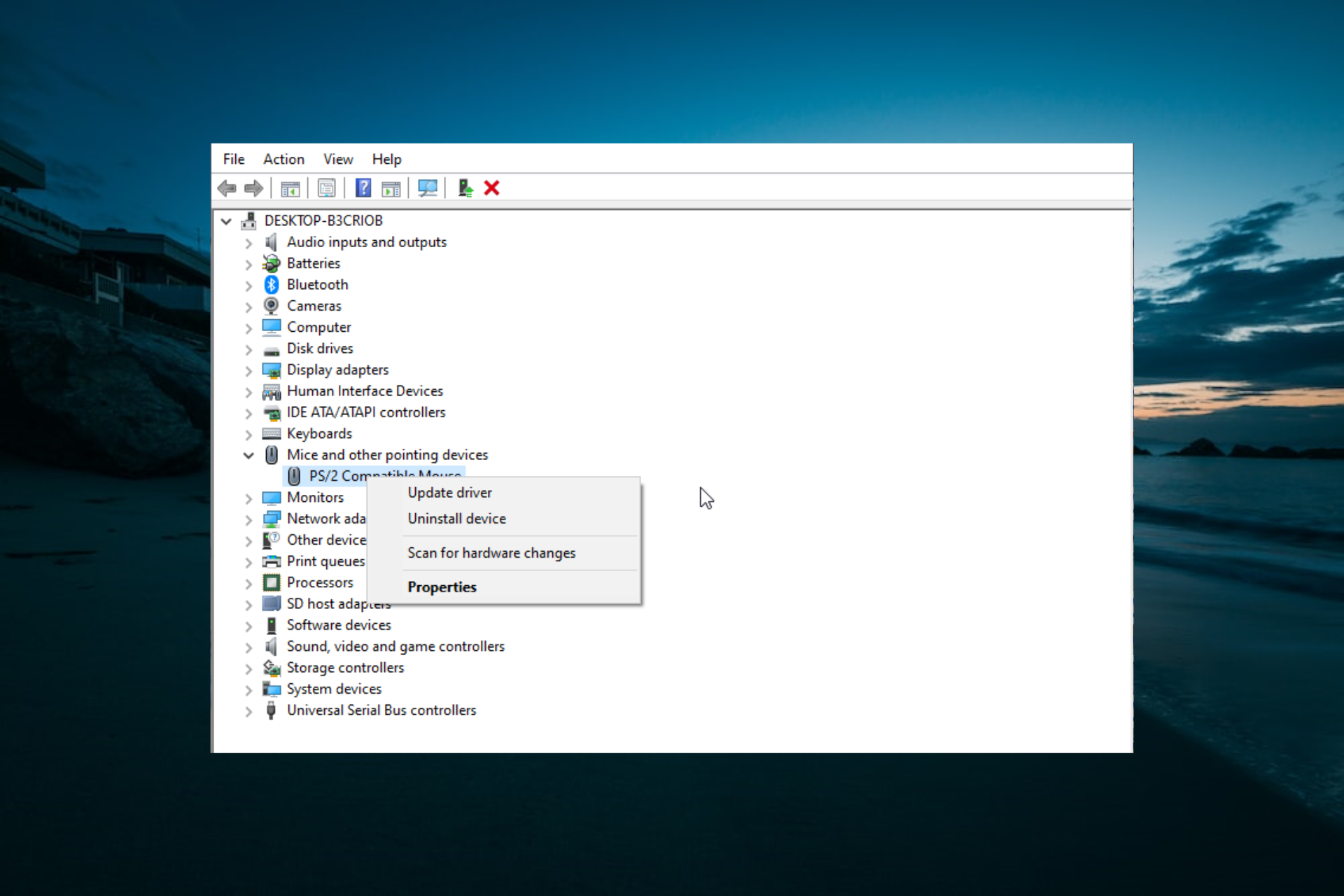


![FIX: Chromecast not connecting to Wi-Fi [Full Guide]](https://windowsreport.com/wp-content/uploads/2021/06/Chromecast-not-connecting-to-Wi-Fi.jpg)


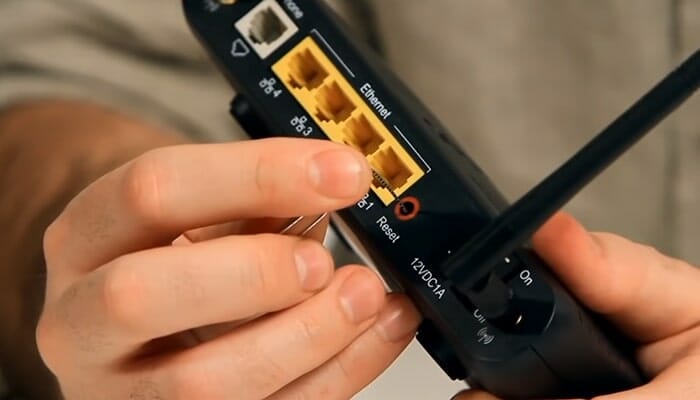
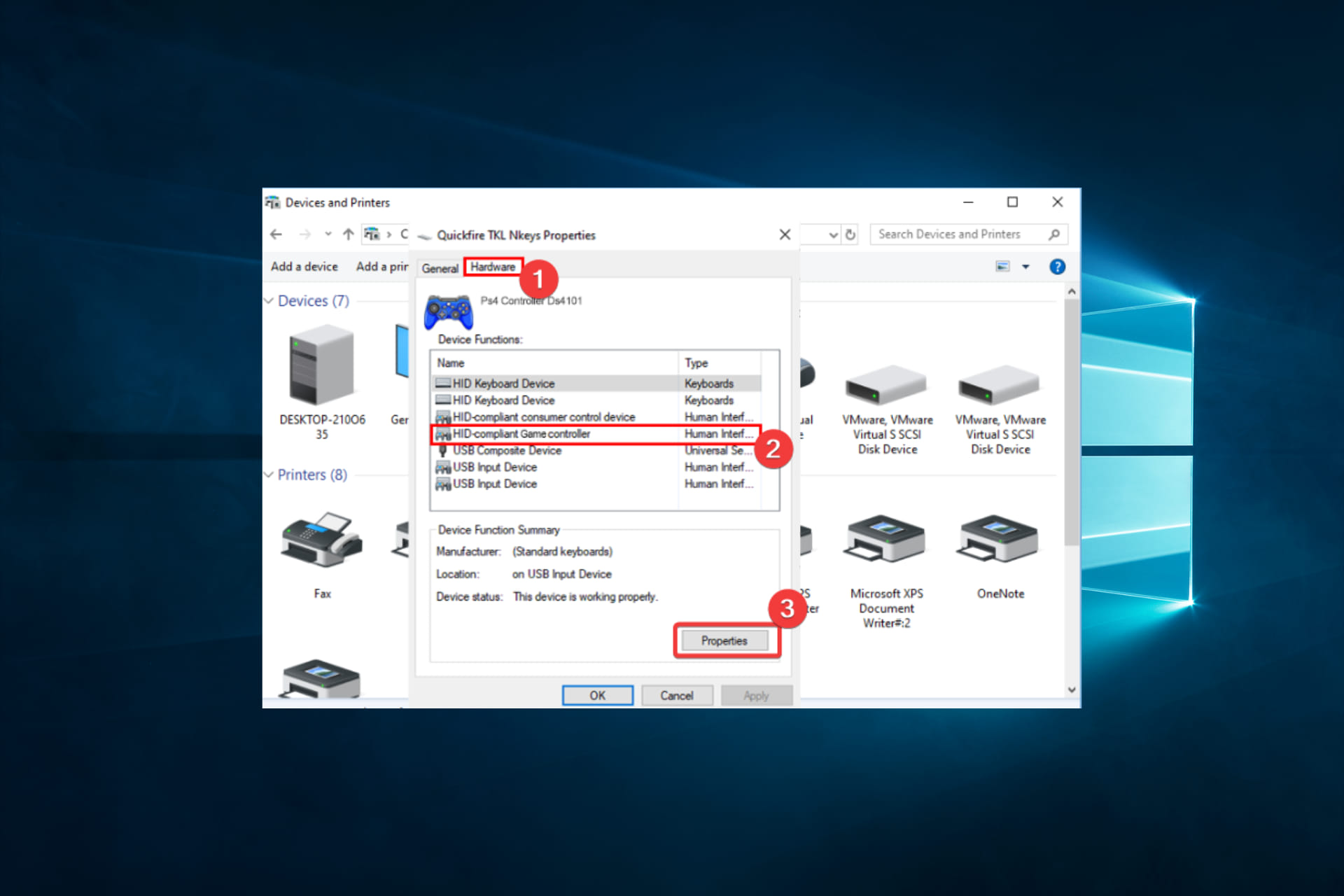


![iCloud Drive not in Finder [Quick Solutions]](https://windowsreport.com/wp-content/uploads/2021/06/icloud-drive-not-in-finder.jpg)
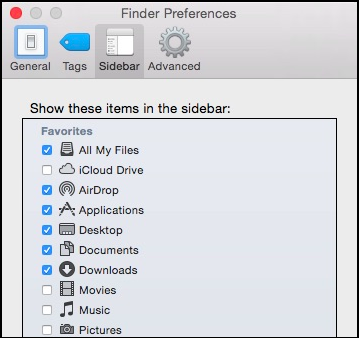
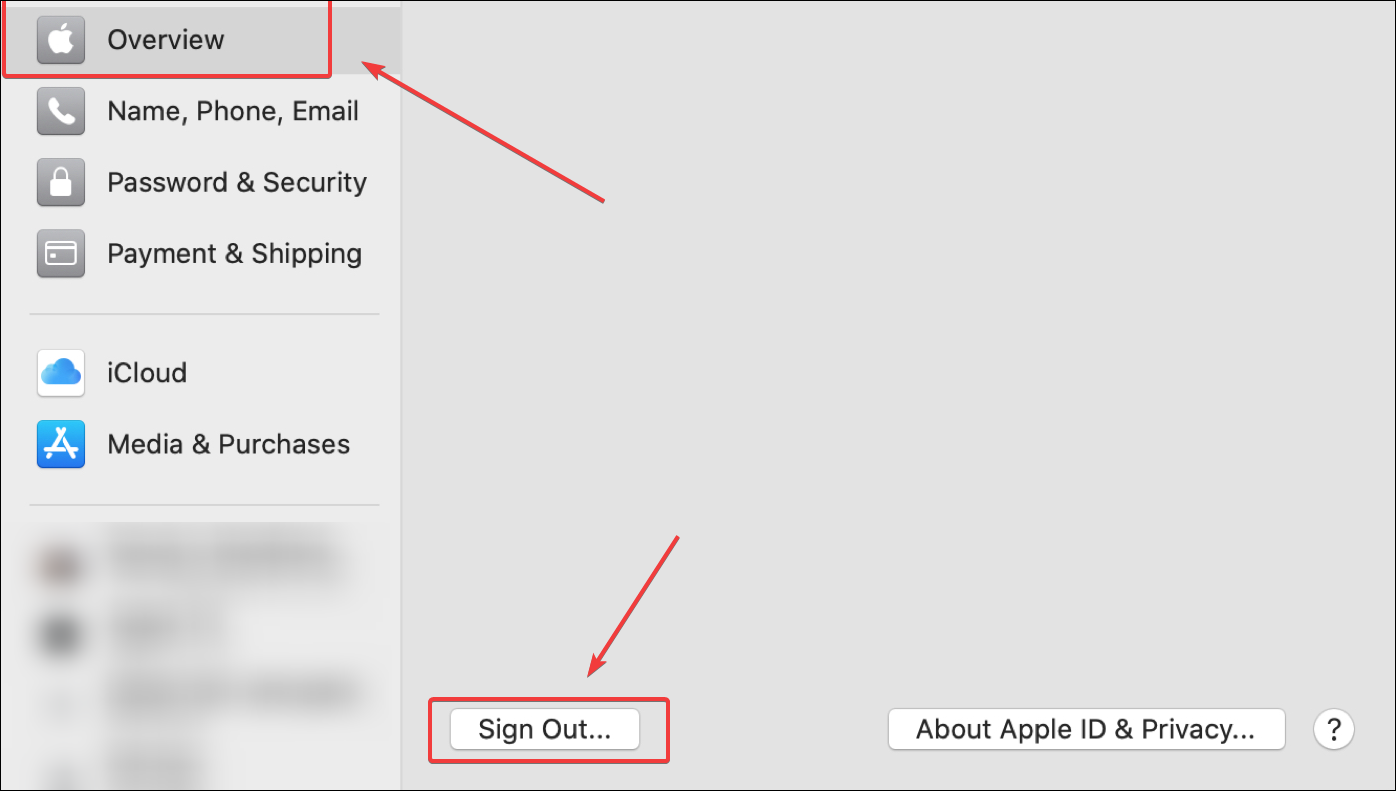
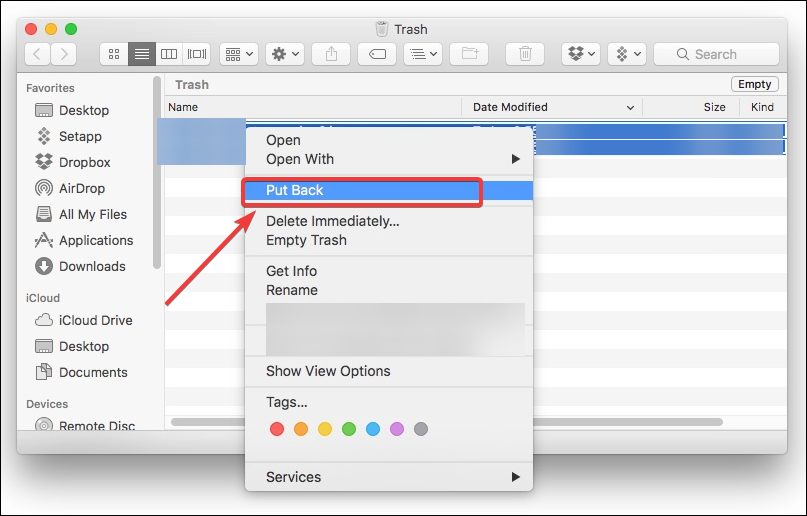
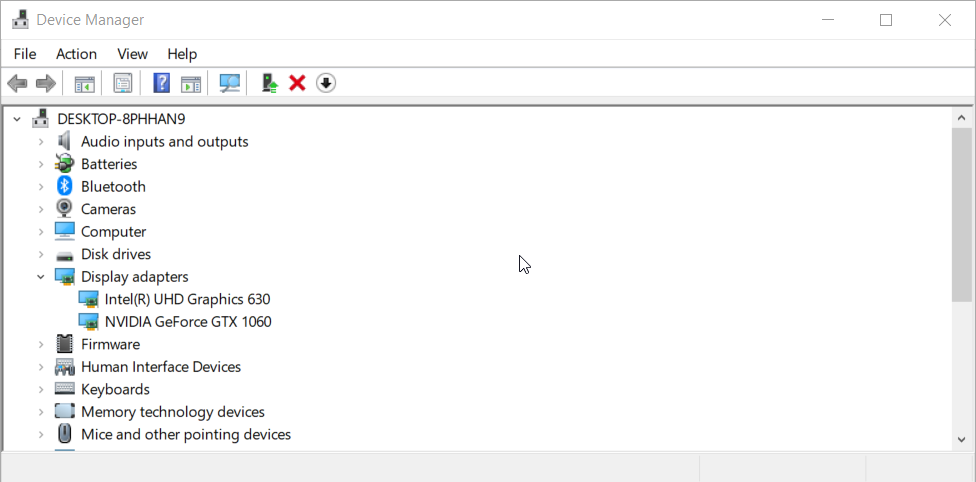

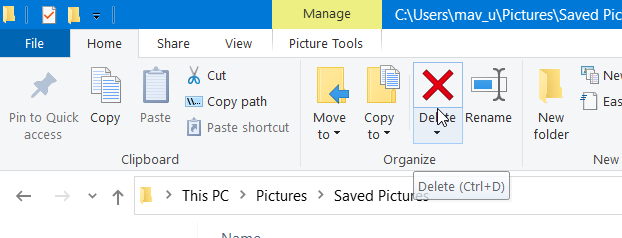
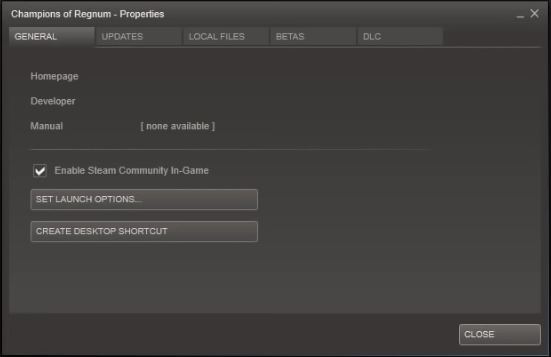
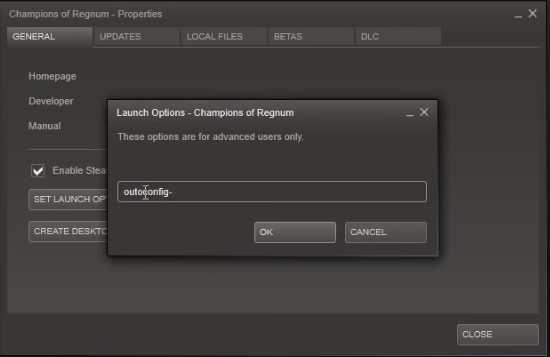
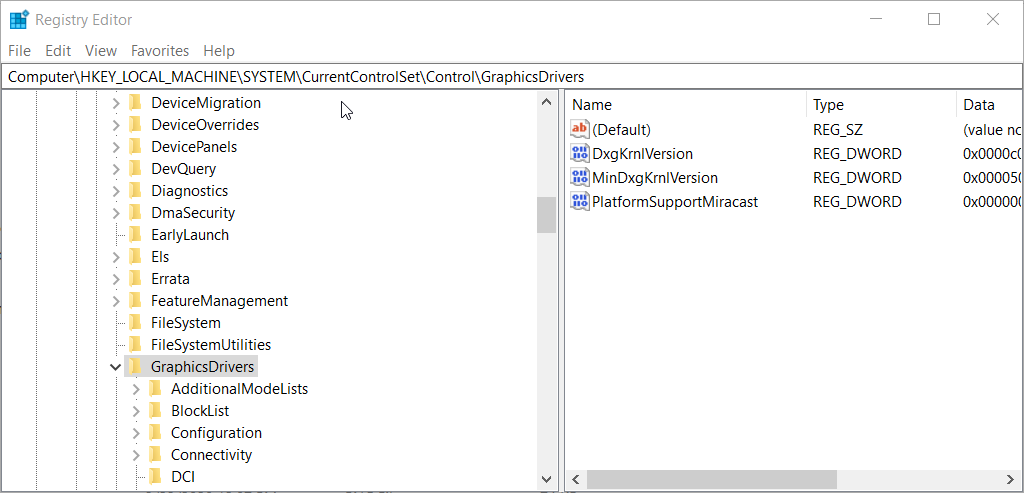

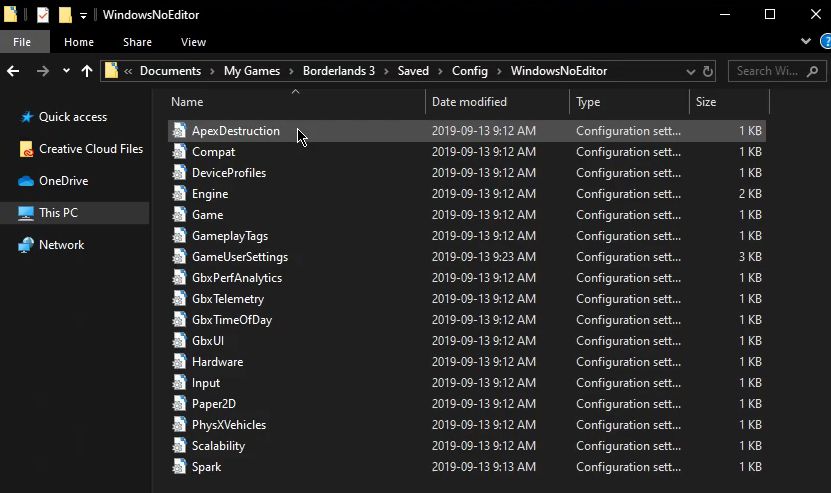
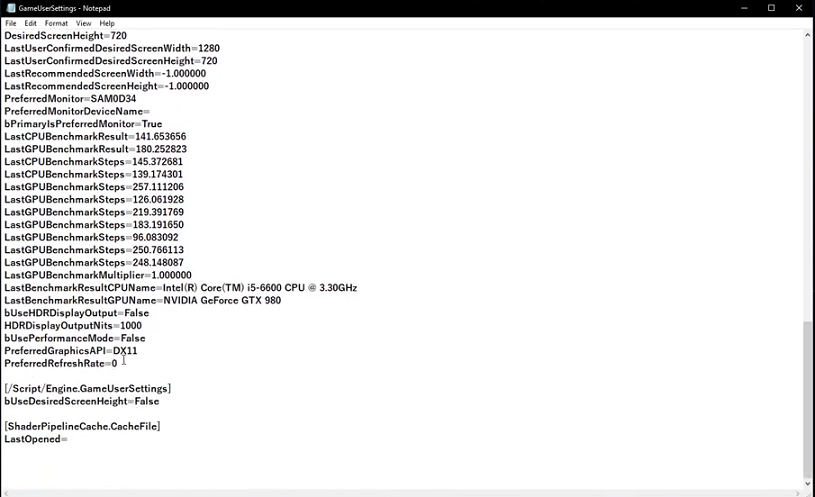
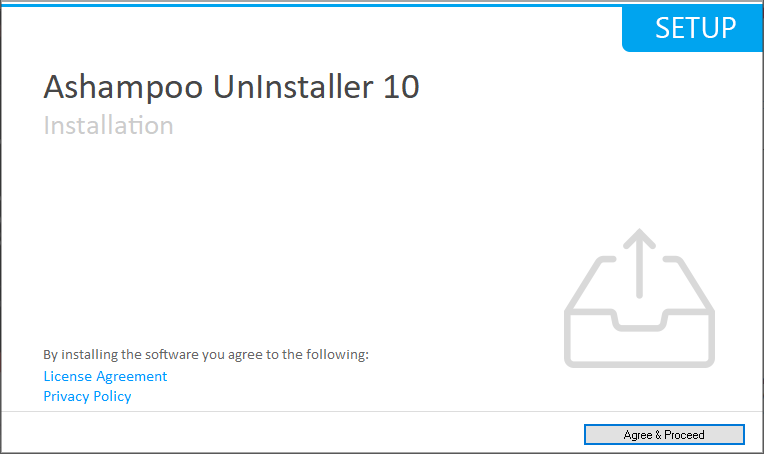
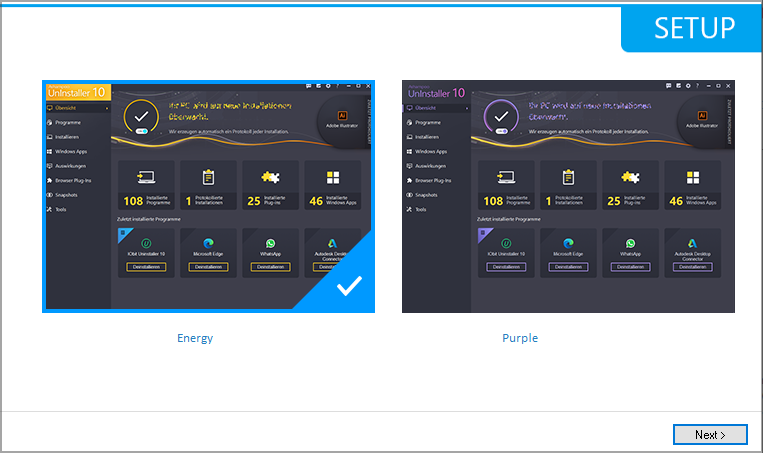
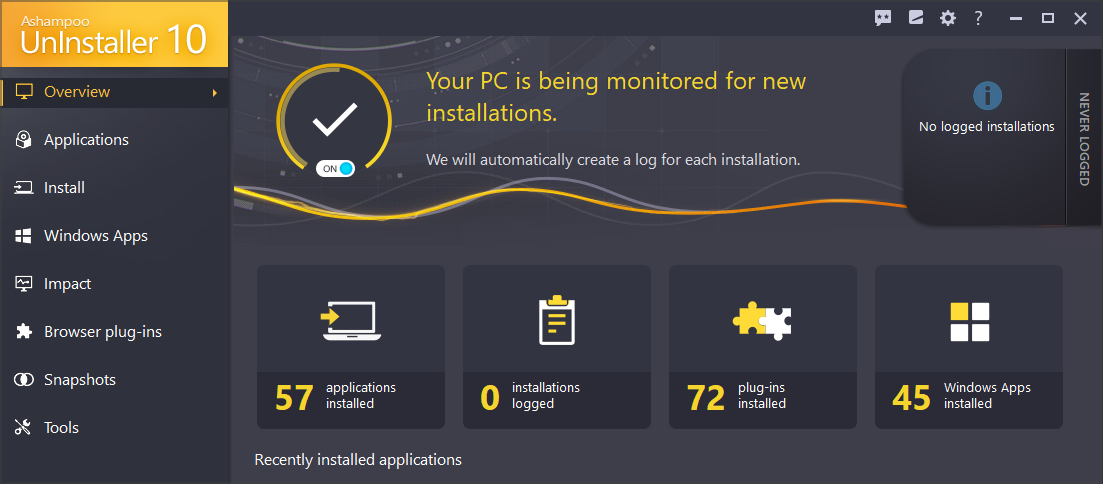
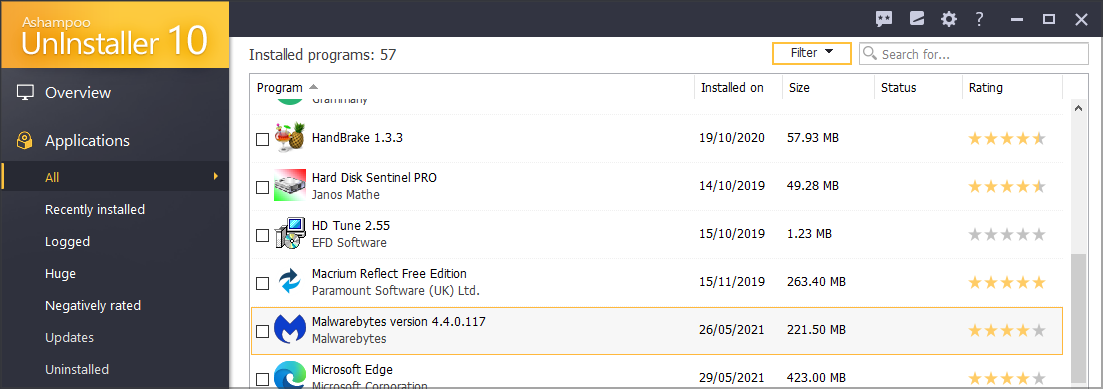
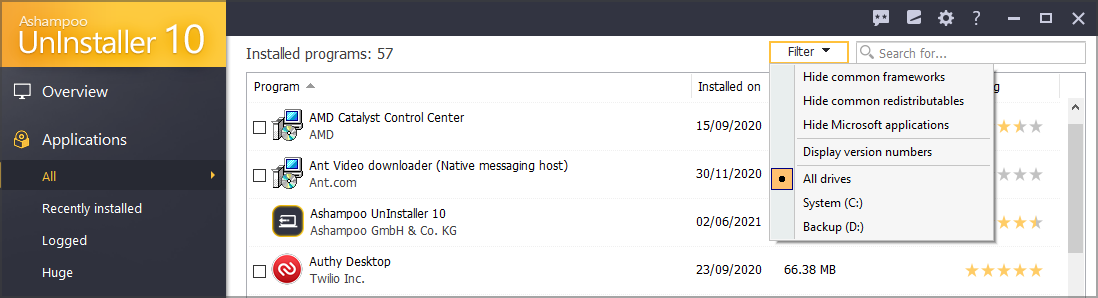
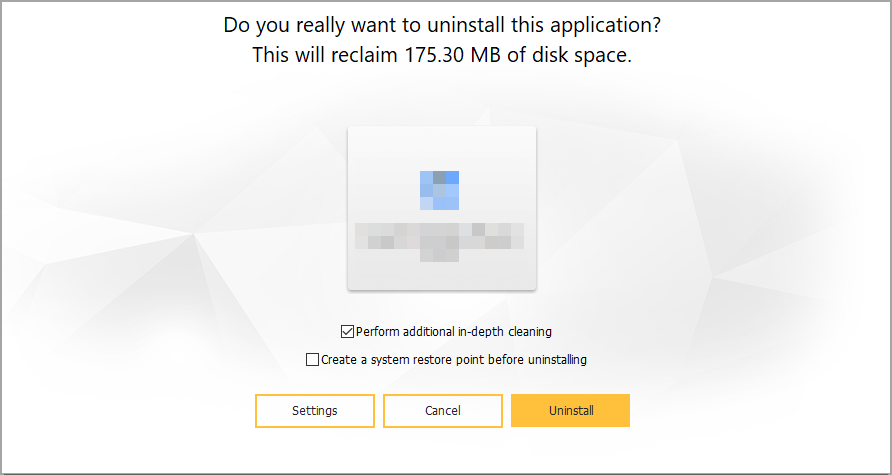
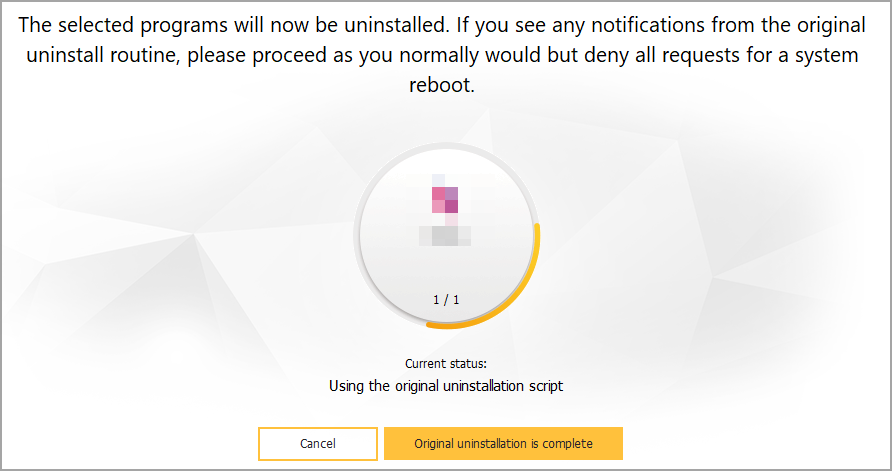
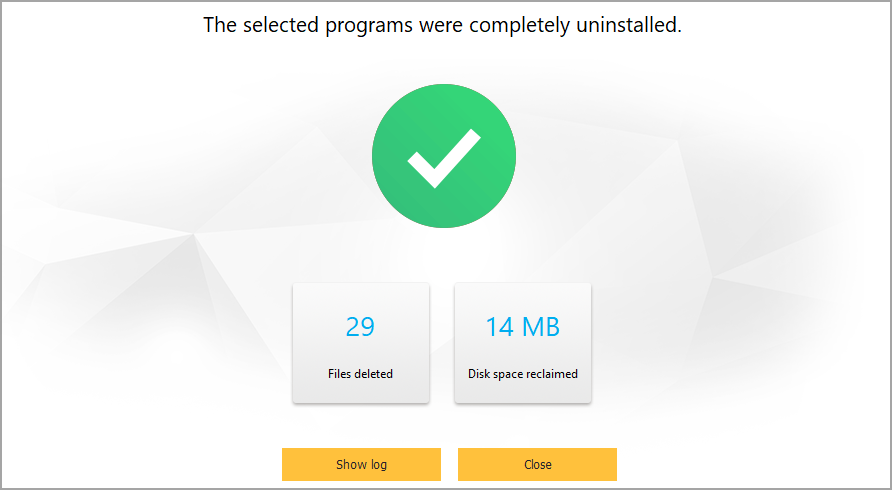
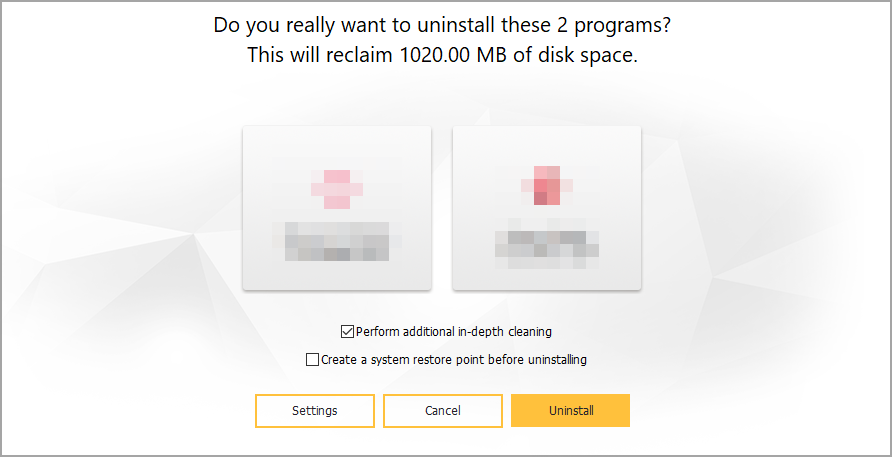

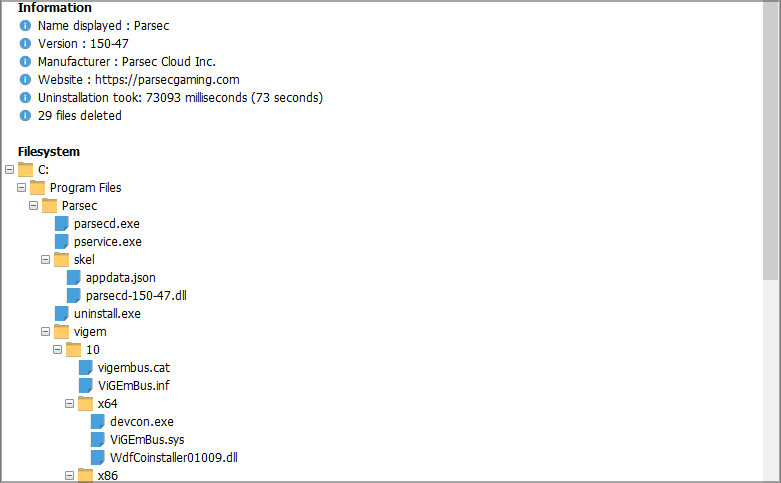
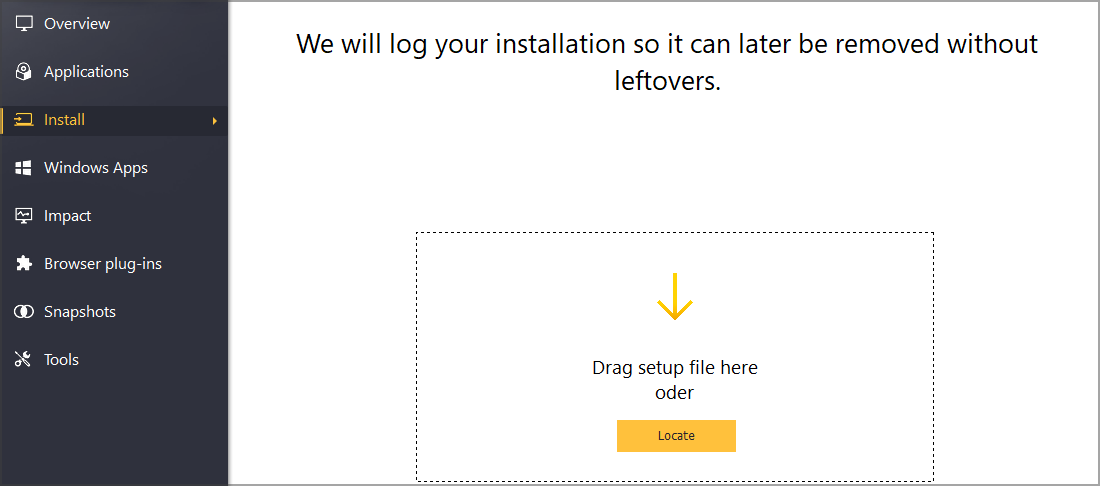
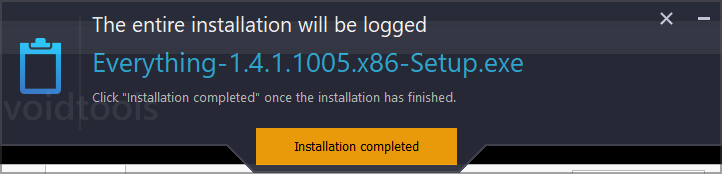
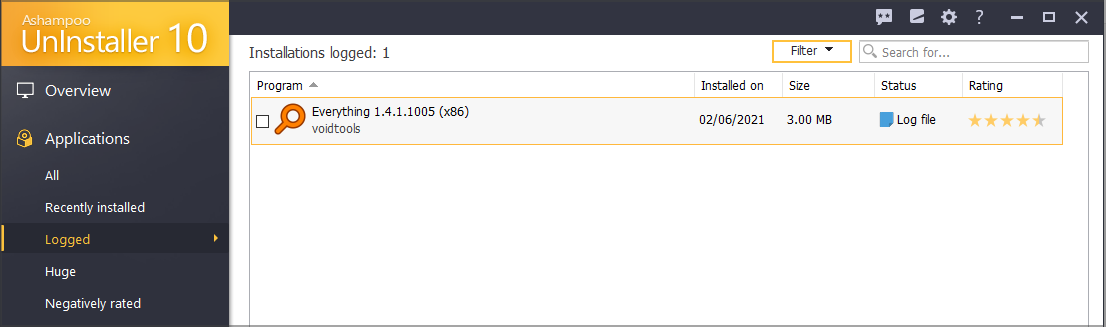
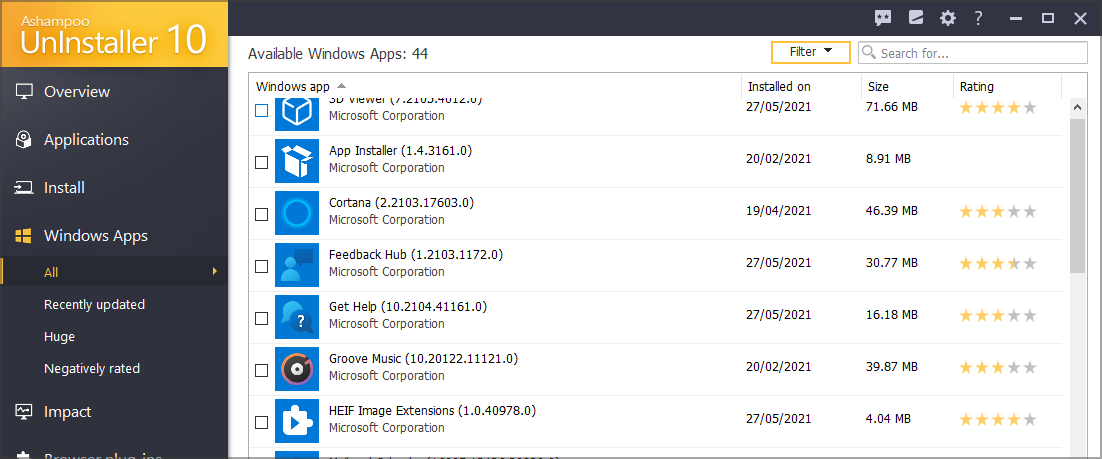
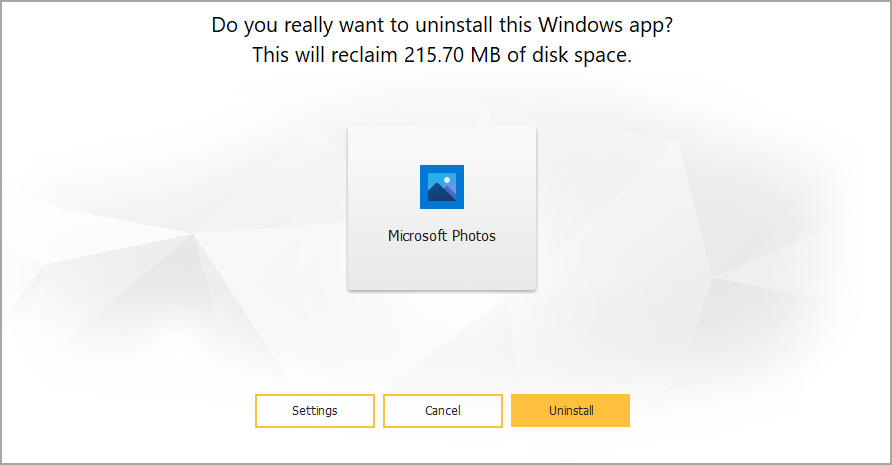
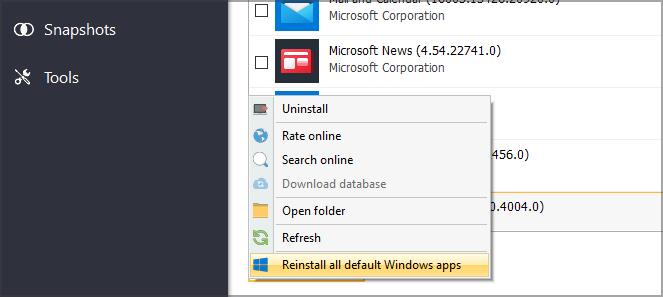
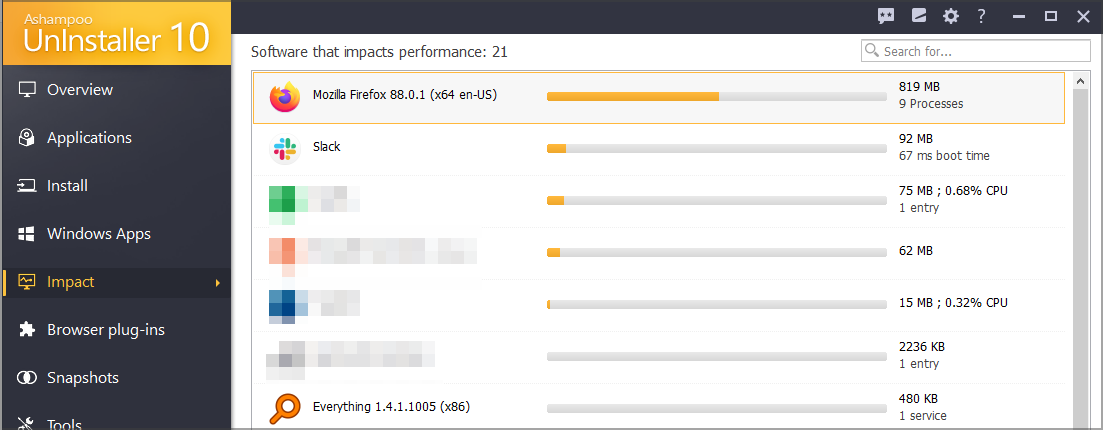
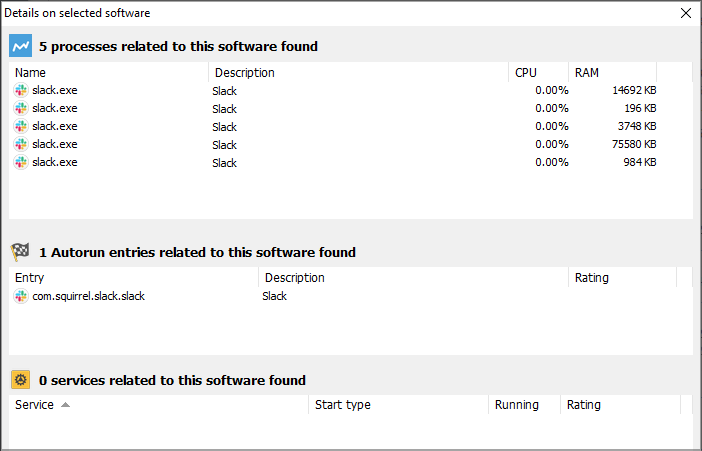
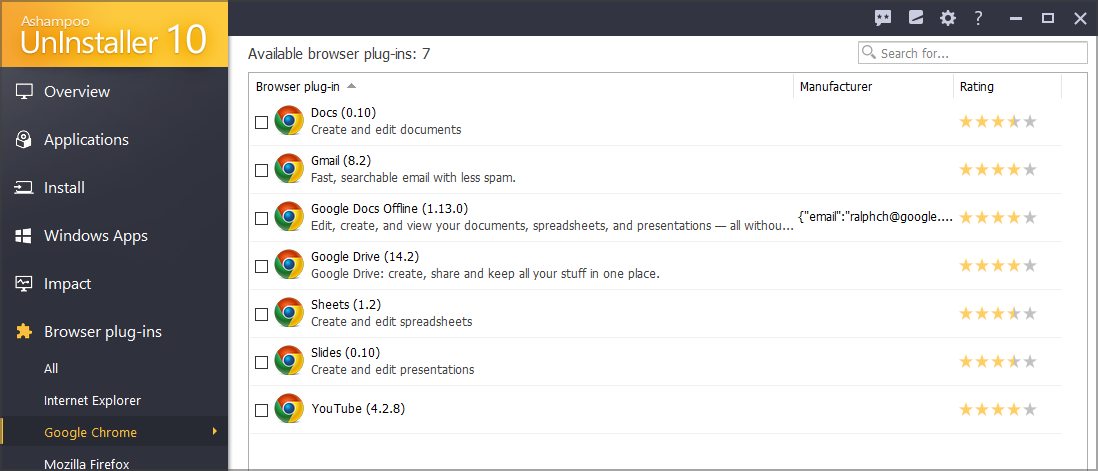
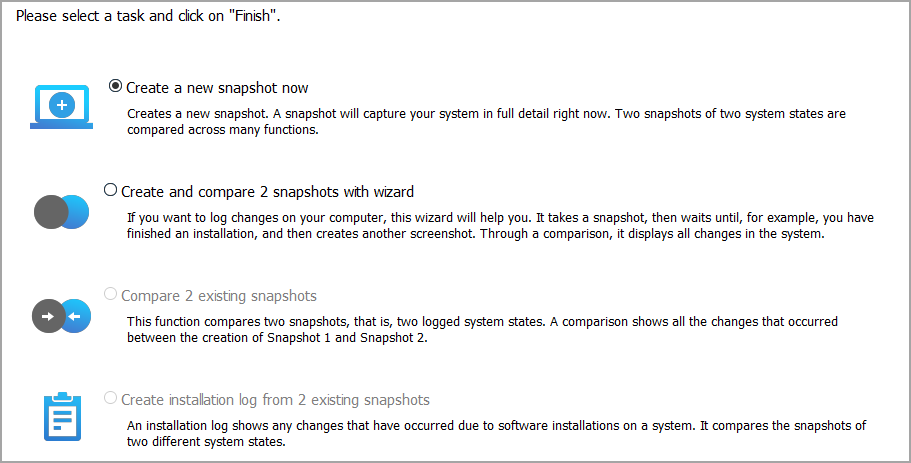
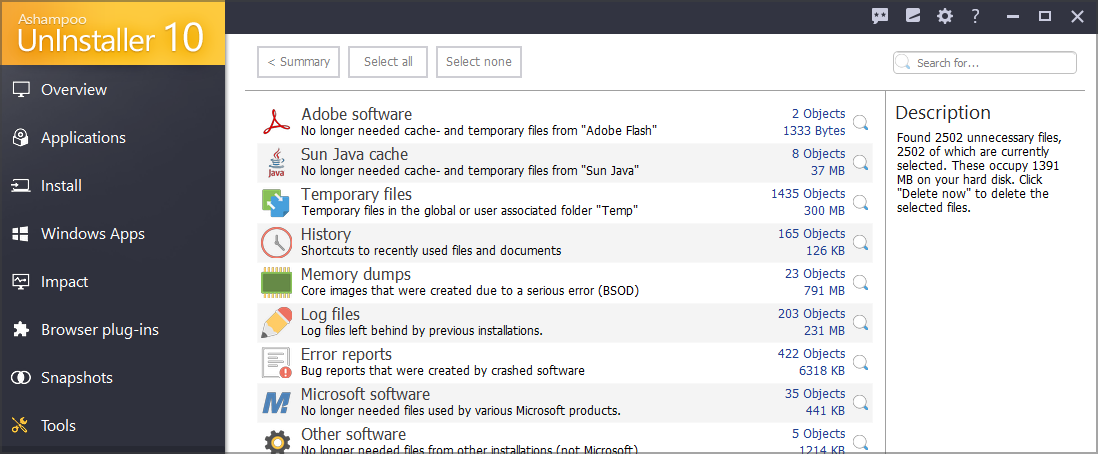
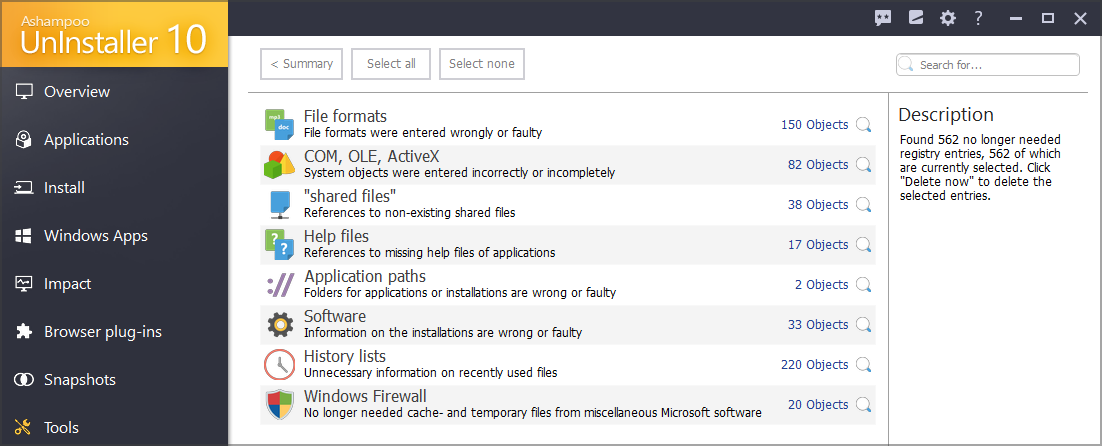
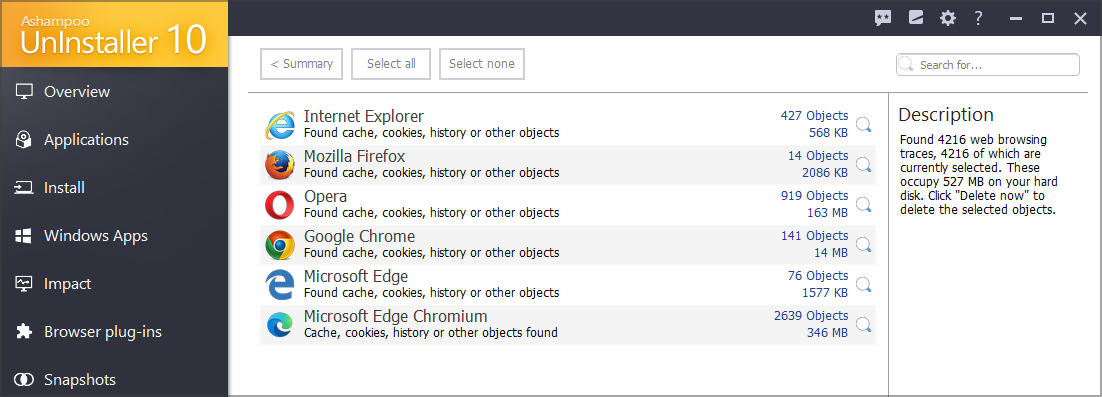
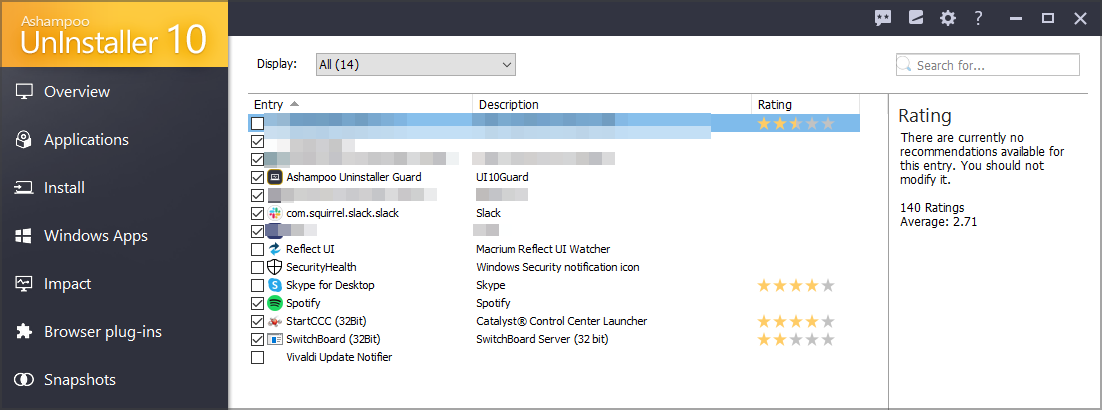
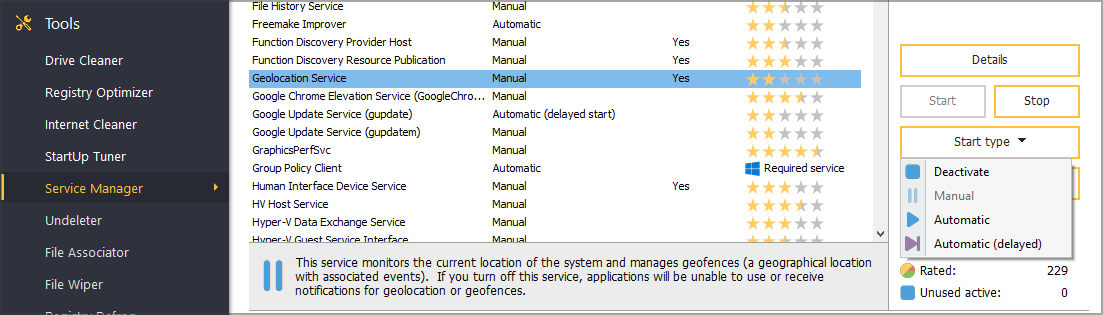
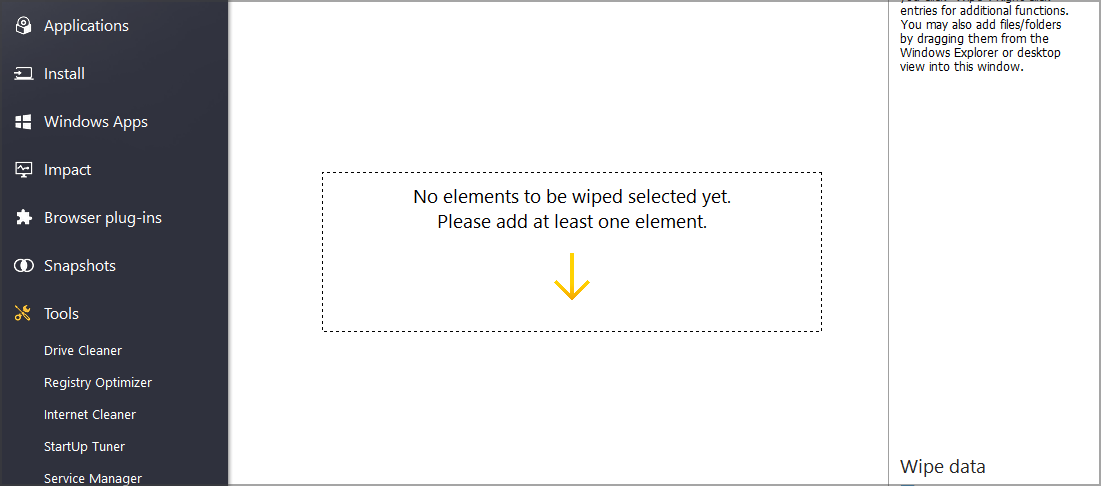
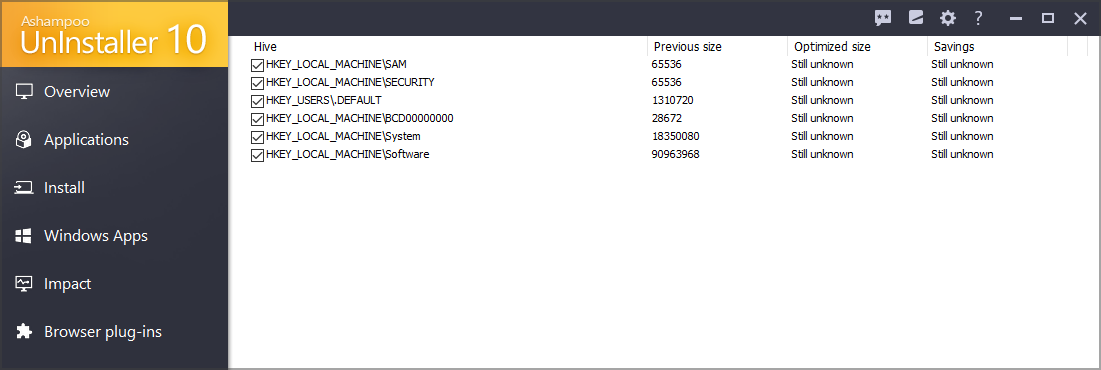
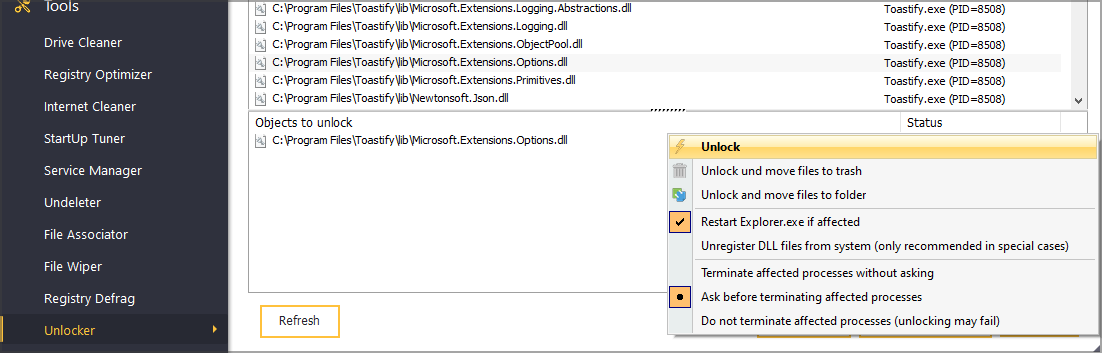

![FIX: AppModel-Runtime Event ID 69 [Full Guide]](https://windowsreport.com/wp-content/uploads/2021/06/AppModel-Runtime-Event-ID-69.jpg)

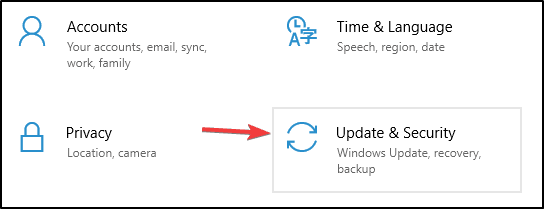
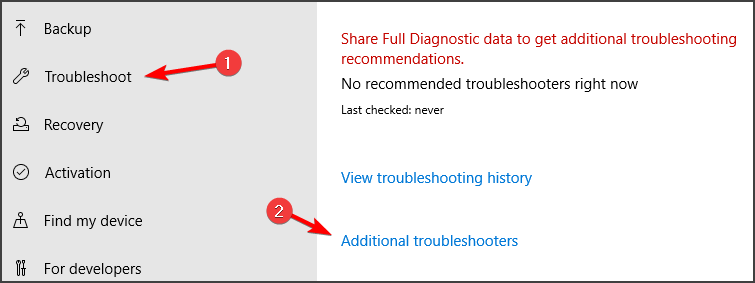



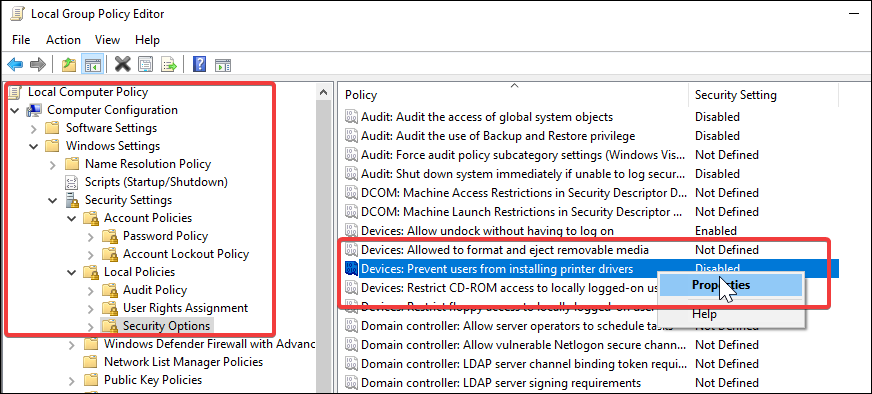
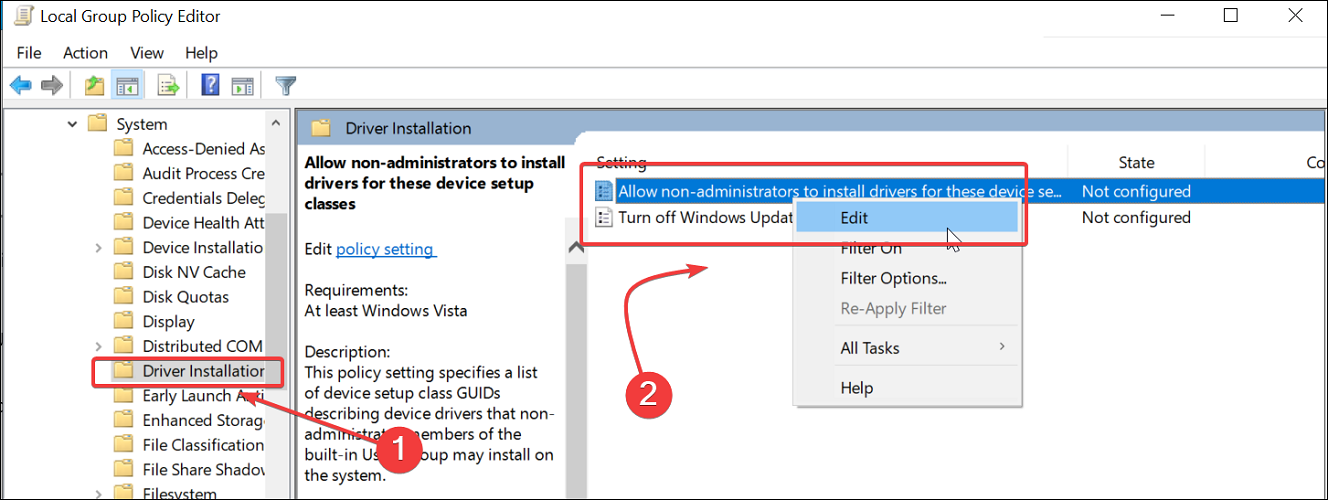
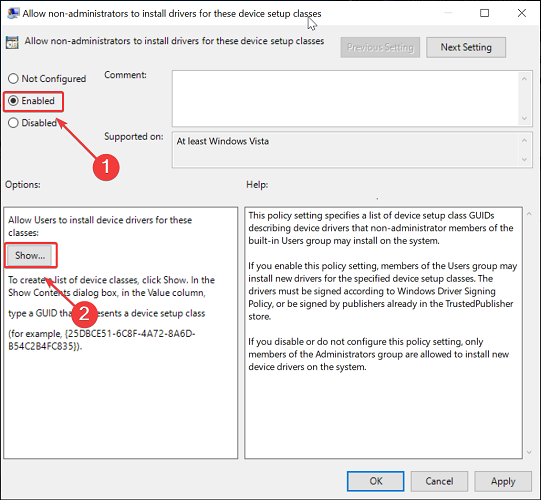
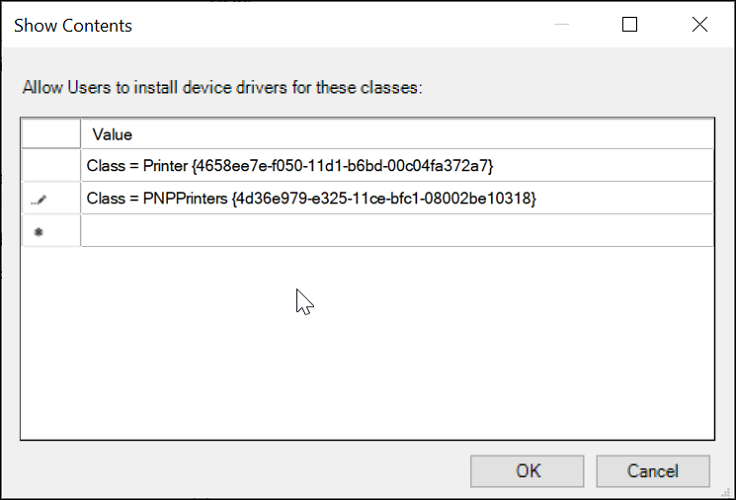
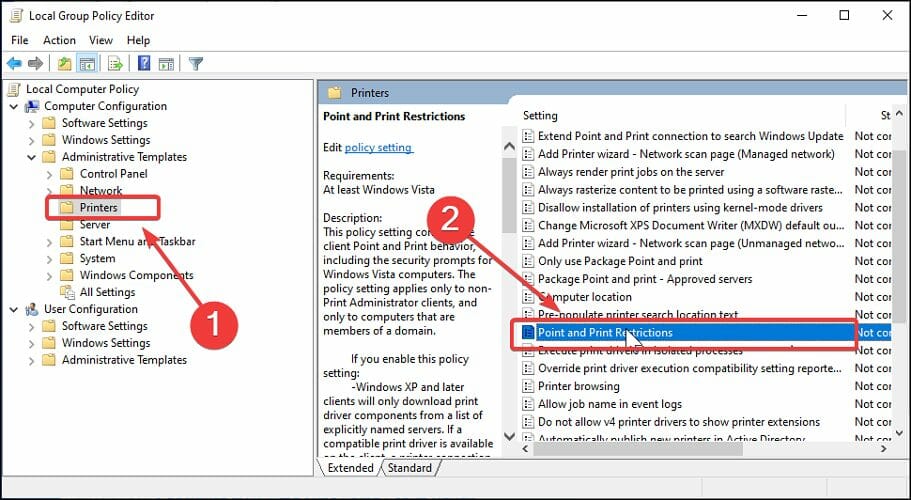


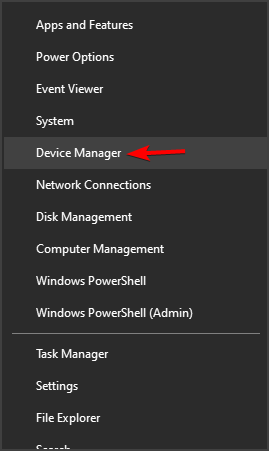










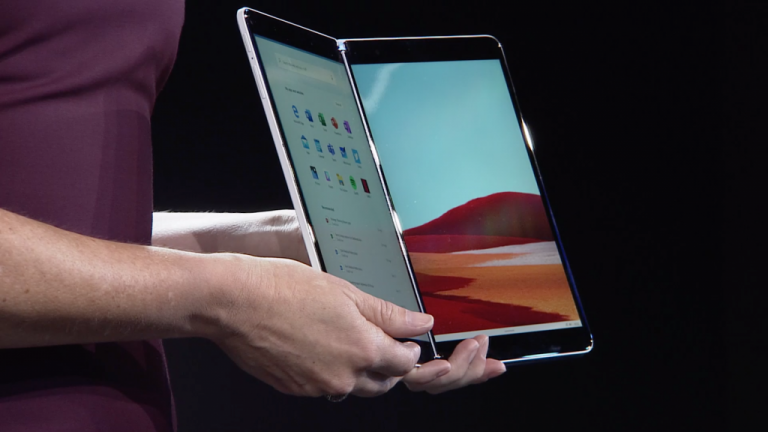
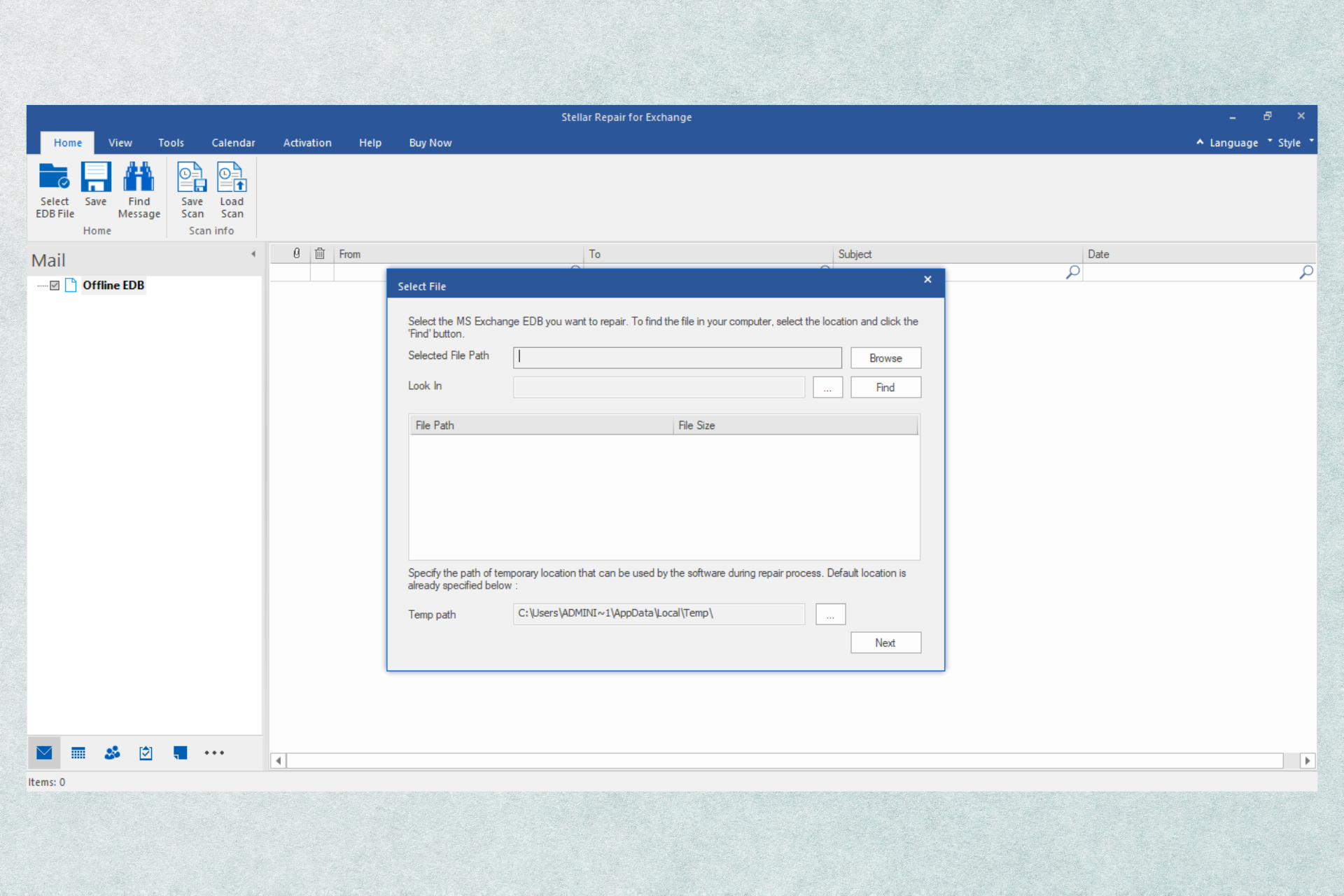

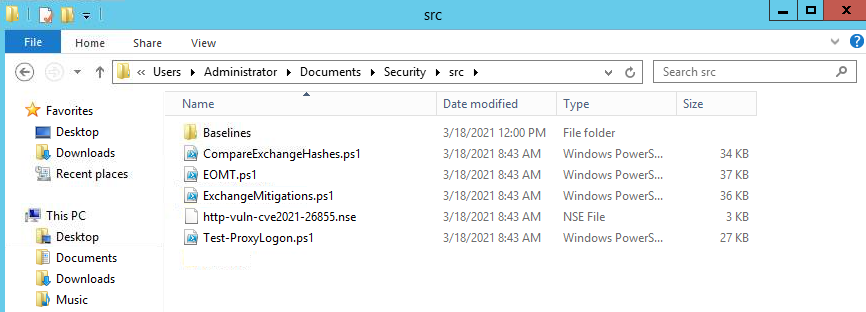
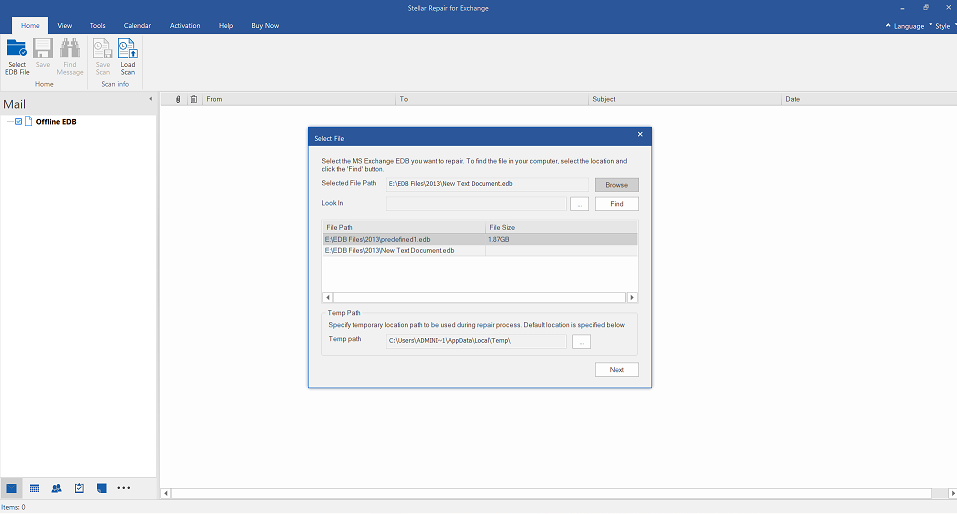
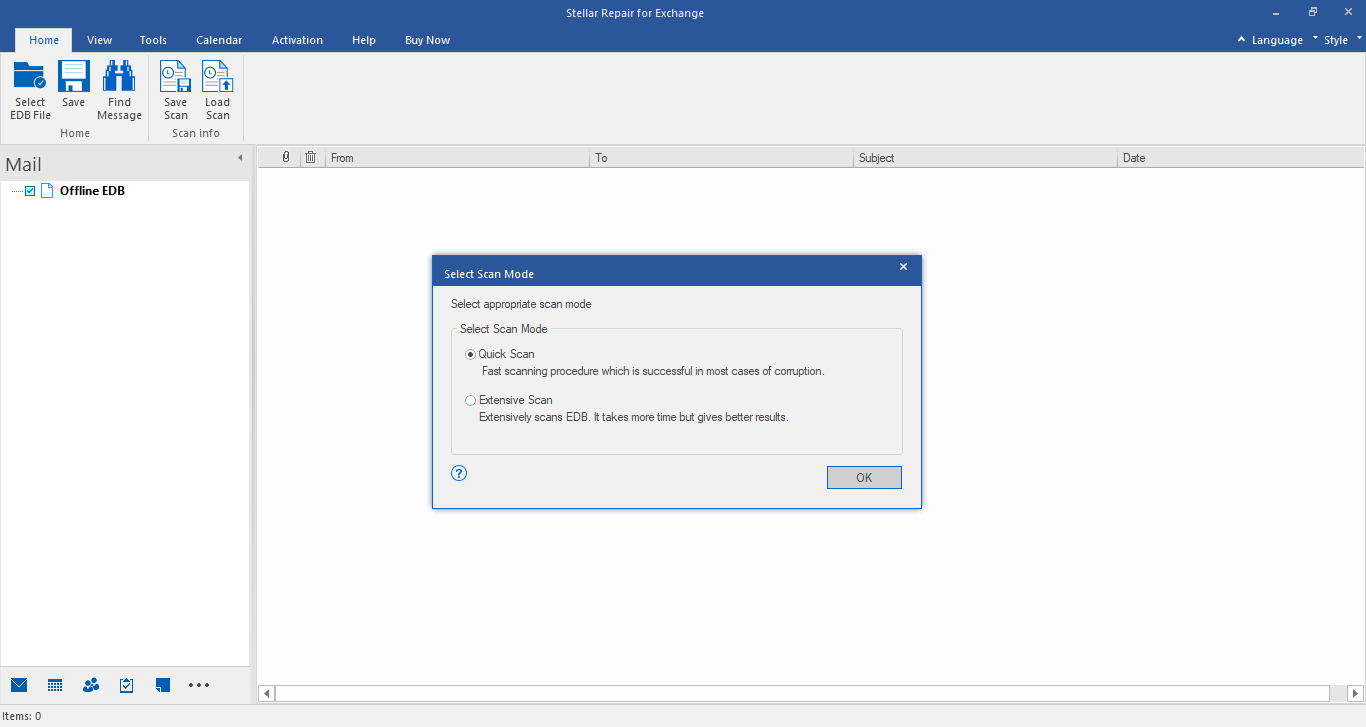
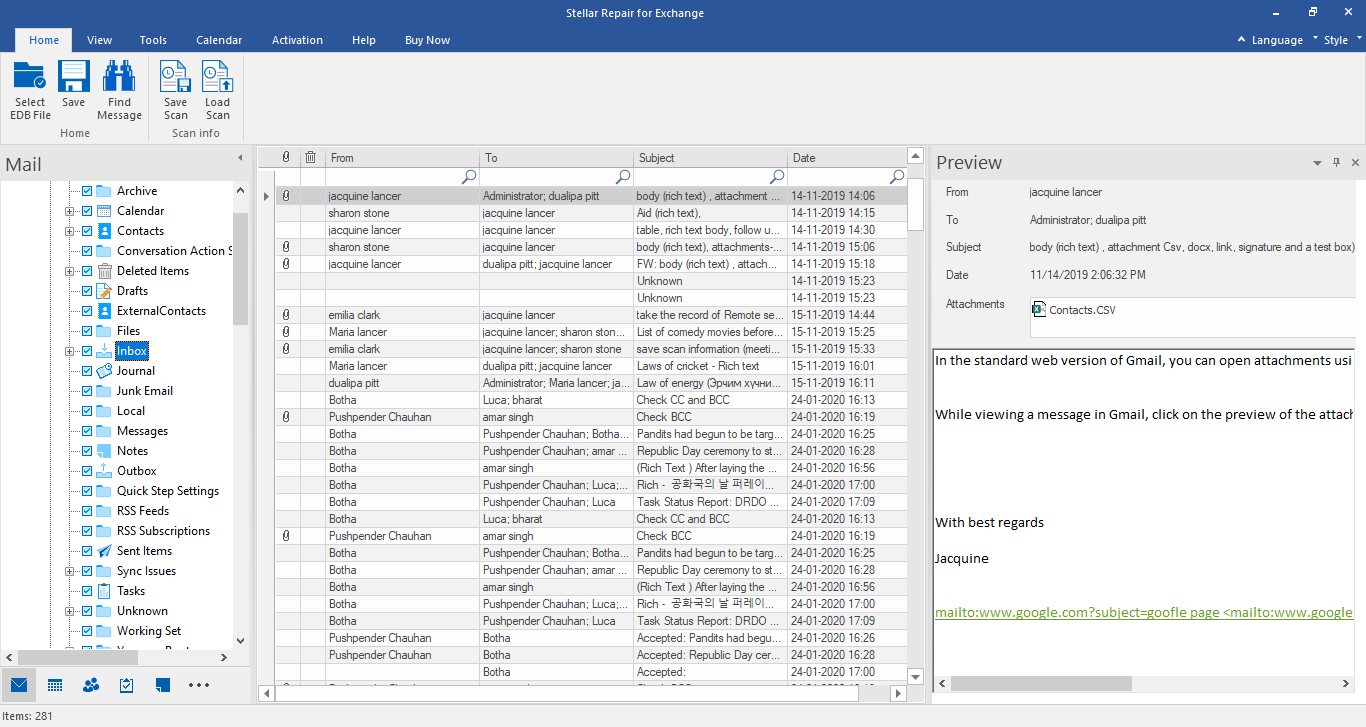
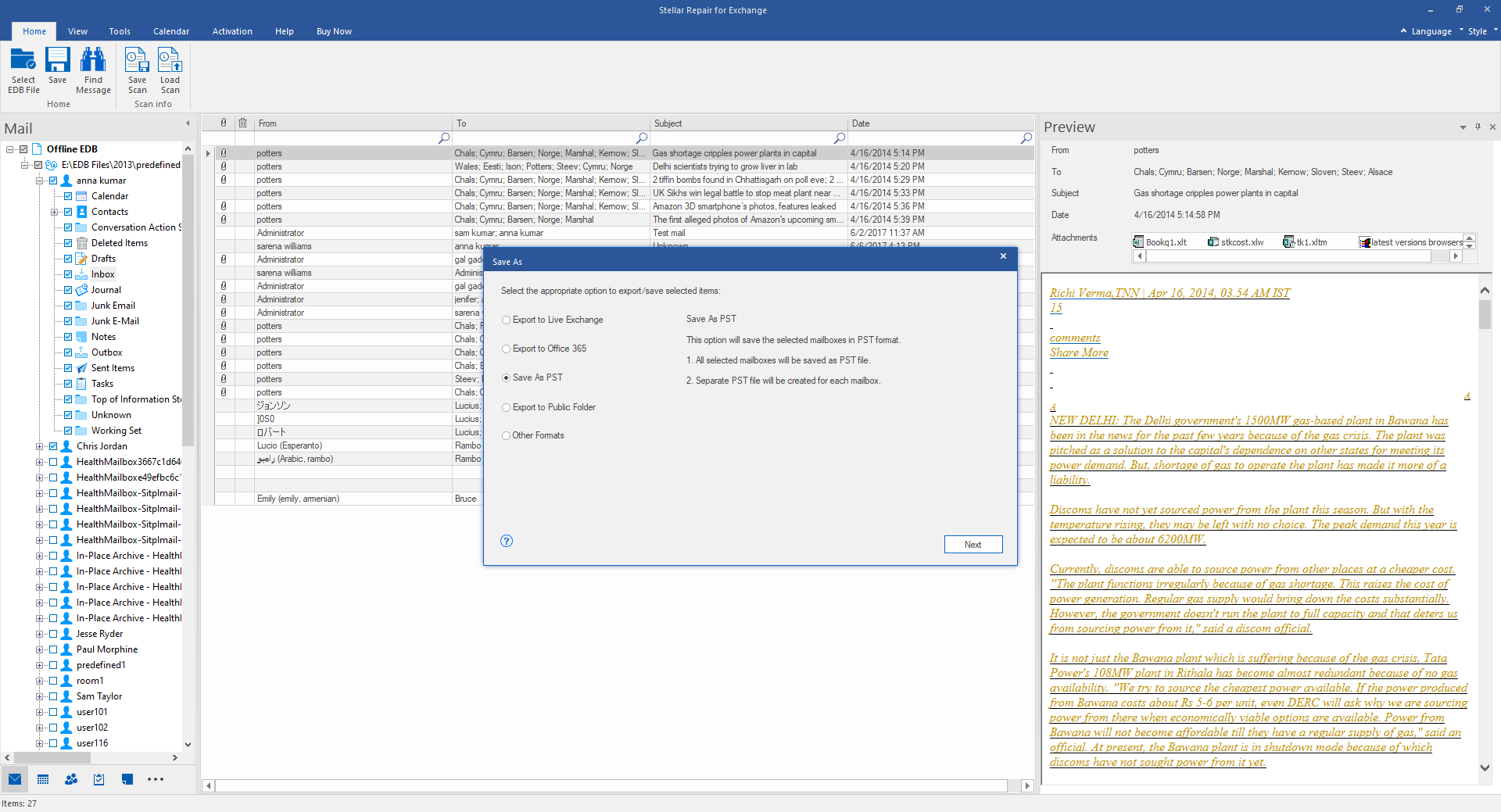
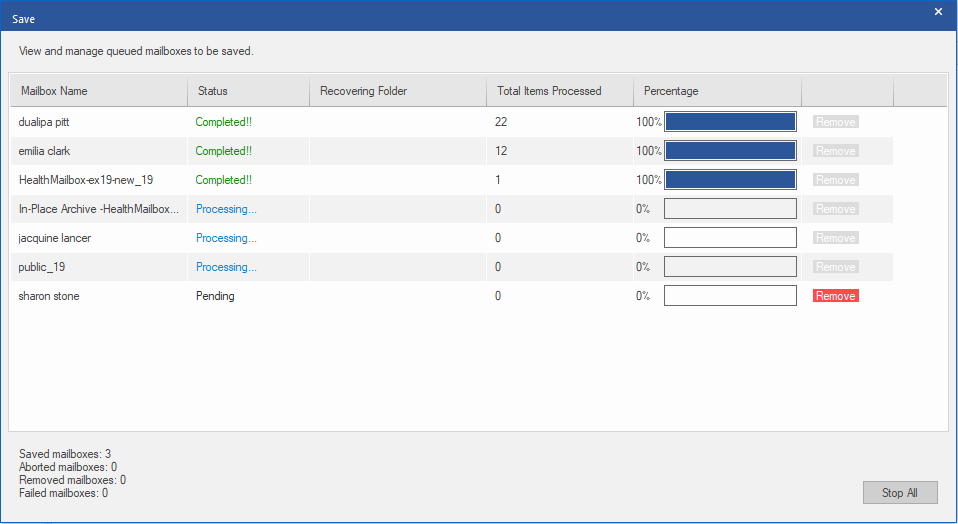

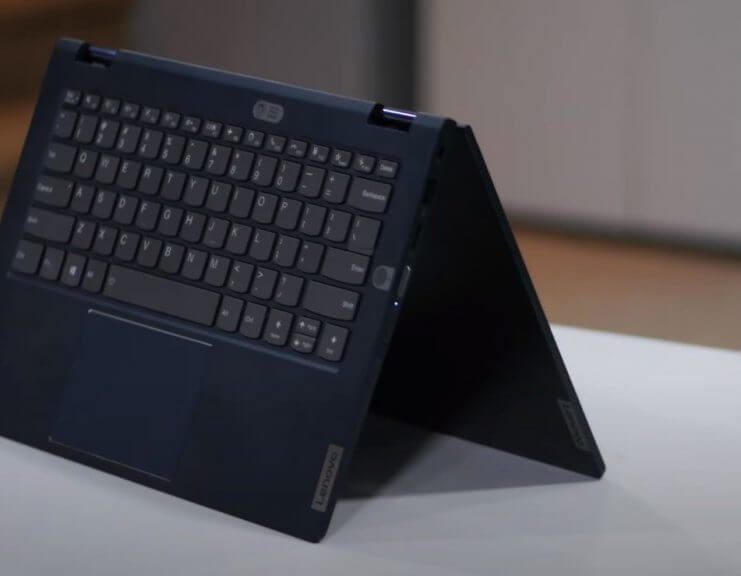
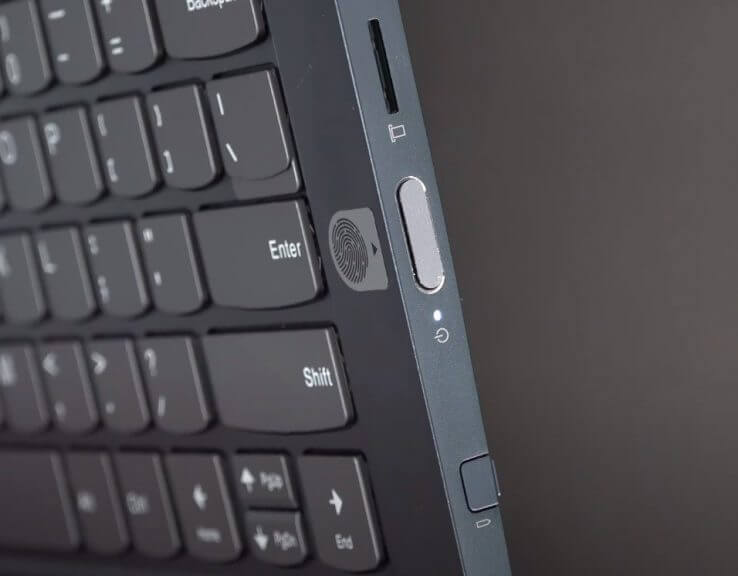
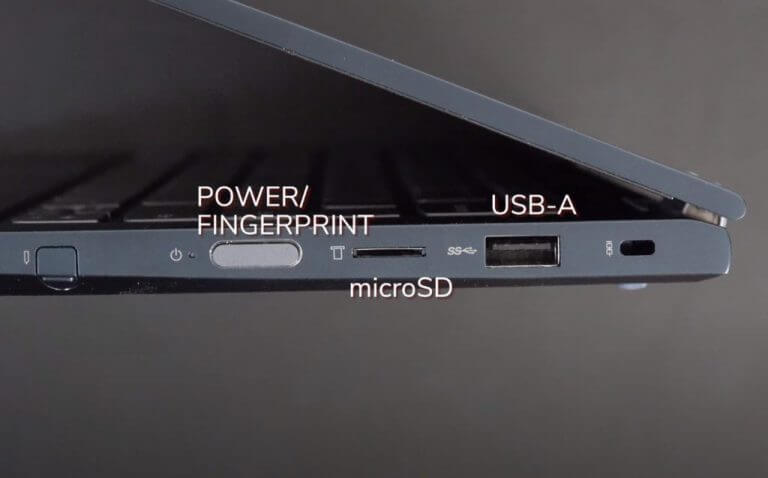
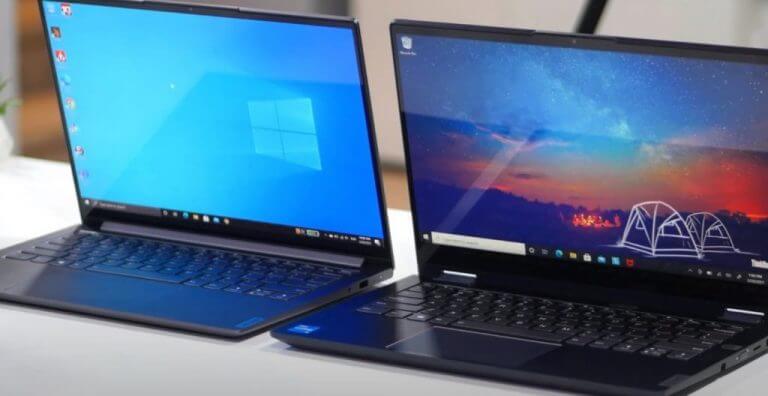
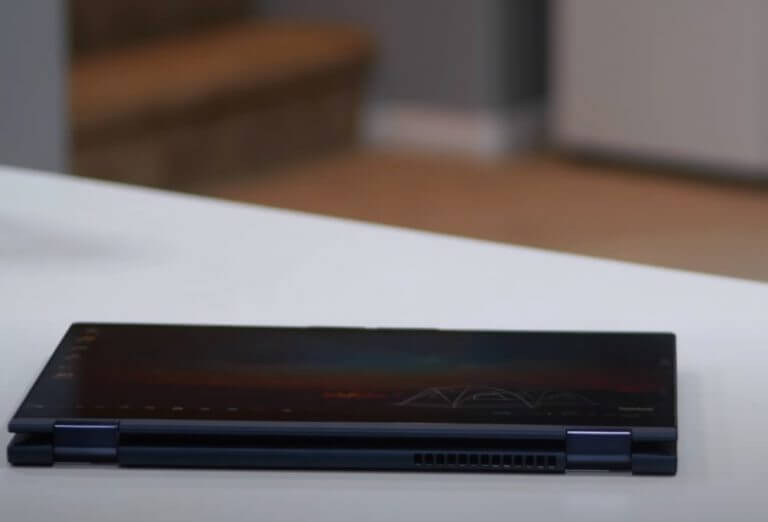
![How to install Codecs in Windows 10 [Download Links]](https://windowsreport.com/wp-content/uploads/2018/10/Codecs.jpg)


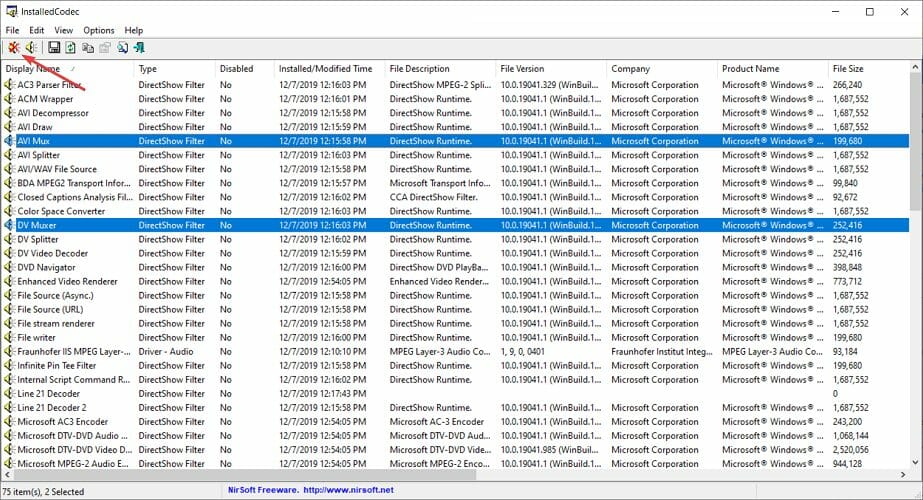







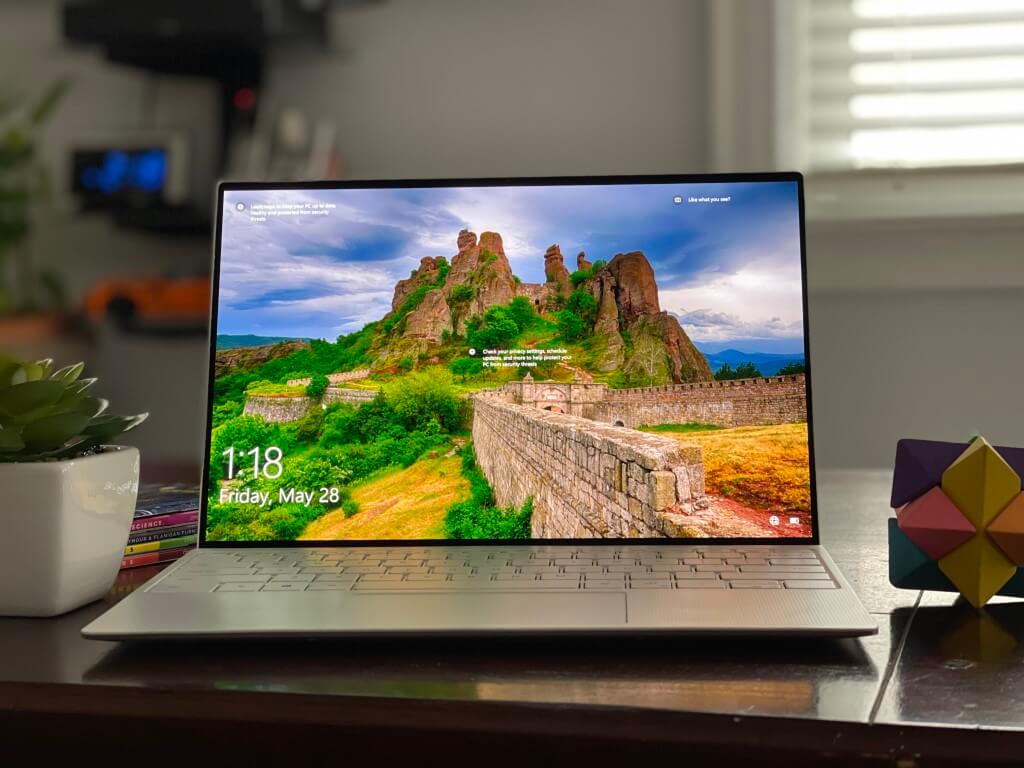
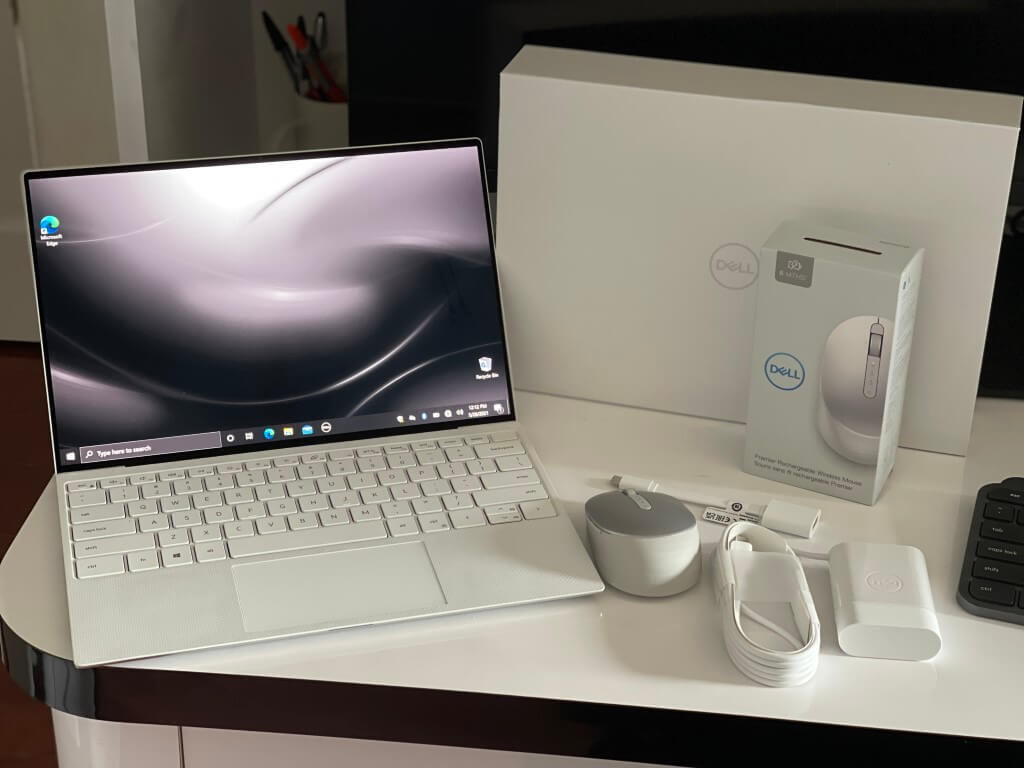
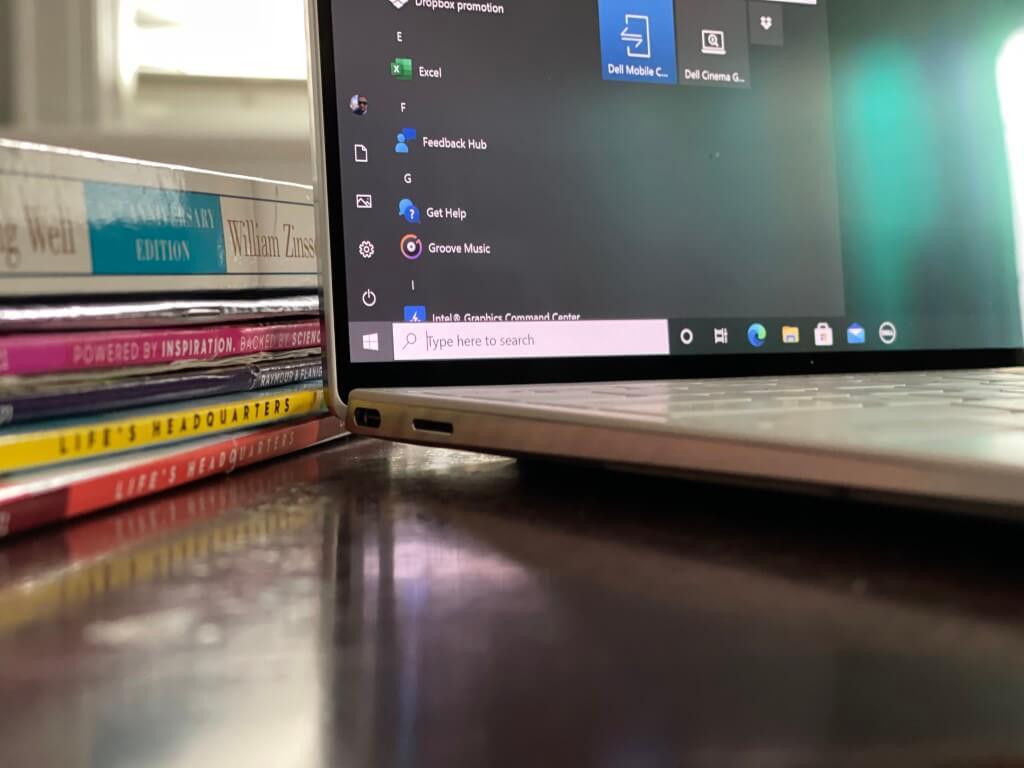
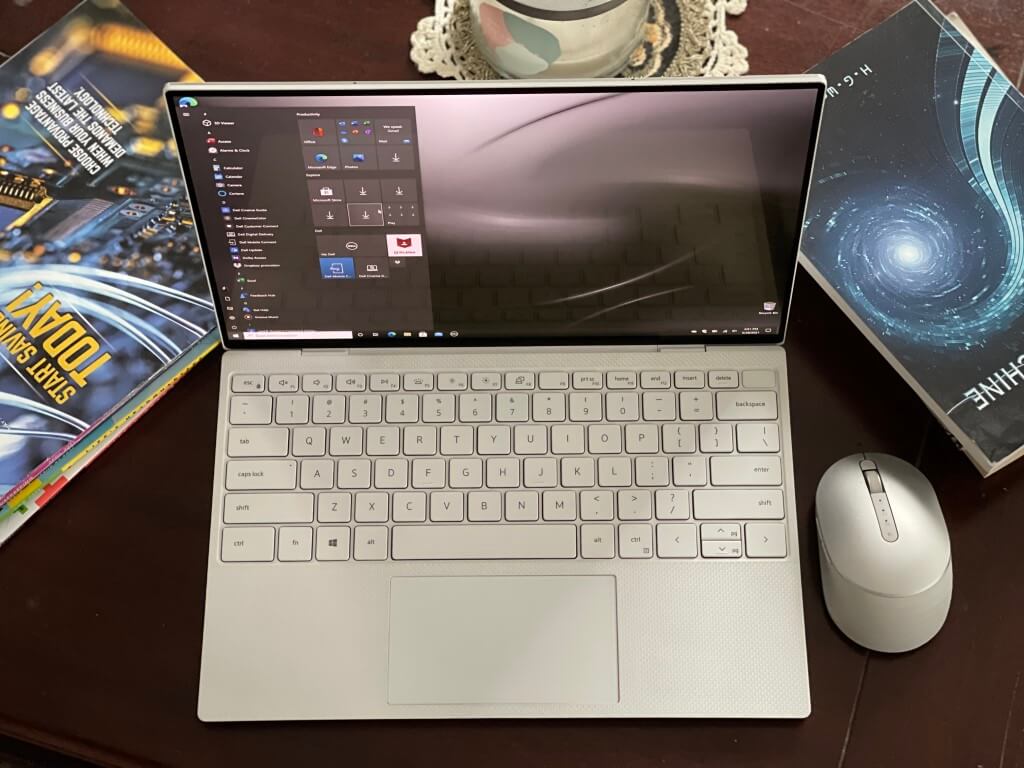
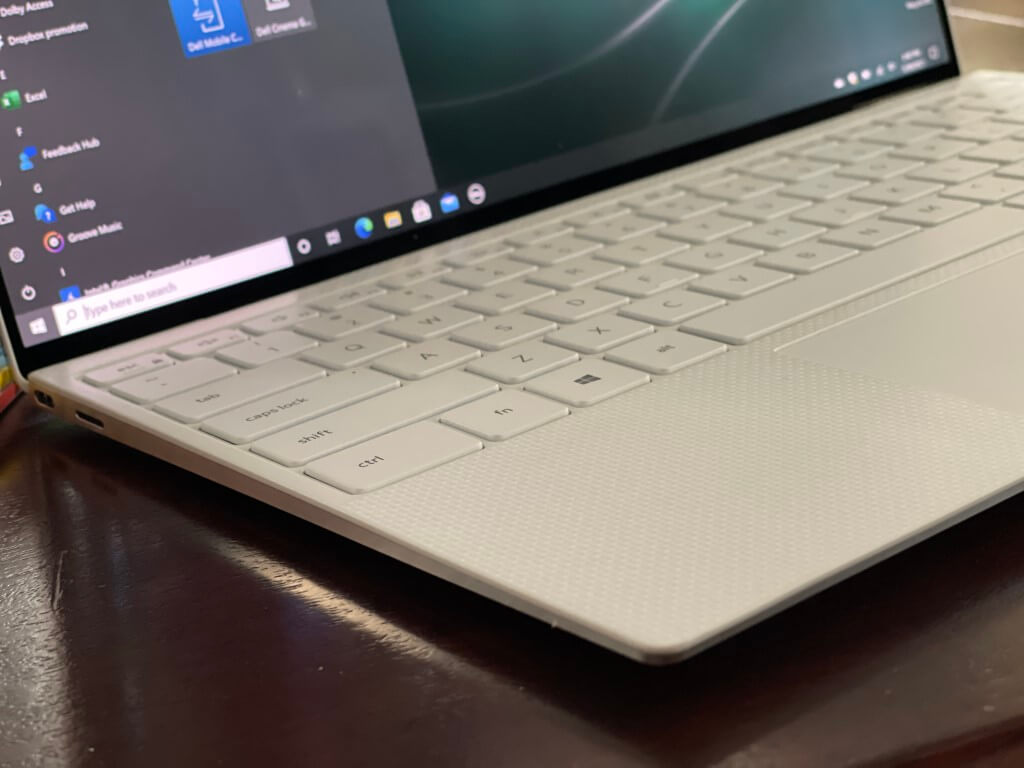







![FIX: Windows Defender security center has a red X [Solved]](https://windowsreport.com/wp-content/uploads/2016/08/windows-defender-3.jpg)



![5 Best Fan Speed Controllers To Buy [2026 Guide]](https://windowsreport.com/wp-content/uploads/2020/11/Best-fan-speed-controllers-to-get.jpg)
























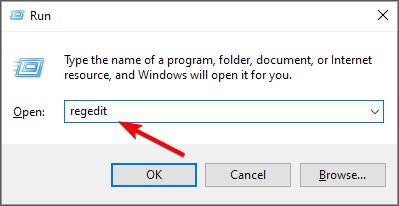
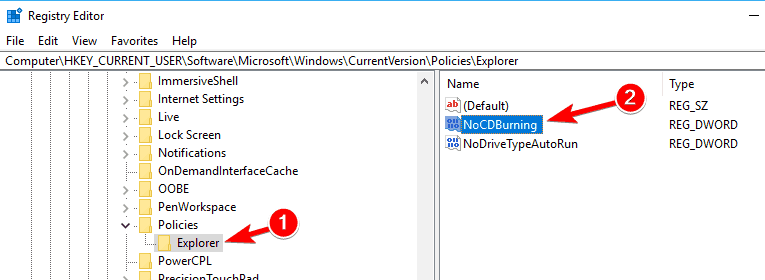


![11 Best Windows 10 Tablets [High-Rated Picks]](https://windowsreport.com/wp-content/uploads/2020/11/best-Windows-10-tablets-1.jpg)