If you are still running the older version of Windows, like Windows 7 or older, you may be also using the Windows Live Mail client.
While this email client is discontinued now, some users of the client have reported the WLDCore.dll missing error in the Microsoft community forum:
I had a working Windows live mail prog. I did something and now the program will not load and the banner comes up that says file WLDCore.dll is missing. Where do I find that file and how do I load it?
The full error reads: The programs can’t start because WLDCore.dll is missing from your computer. Try reinstalling the program to fix this problem.
If you are also troubled by this error, here are a couple of troubleshooting tips to help you resolve the issues in Windows.
How can I fix the WLDCore.dll is missing error?
1. Copy and move WLDCore.dll
Open the File Explorer.
Navigate to the following location: C:Program Files (x86)Windows LiveShared
The 64-bit users may find the Windows Live folders at – Program Files instead.
Inside the Shared folder, locate the WLDCore.dll file and select.
Right-click on the file and select Copy.
Next, navigate to the following location: C:Program Files (x86)Windows LiveMessenger
Paste the copied files in the Messenger folder.
Navigate to following locations and paste the copied file in the respective folders as well: C:Program Files (x86)Windows LiveContactsC:Program Files (x86)Windows LiveMail
Close the Windows Live Client if running. Start it again and check for any improvements.
If the error occurs after upgrading to a newer Windows release, the WLDCore.dll file may have been moved out of the folders and grouped in the Shared folder.
Following the above steps, you re-arrange the WLDCore.dll file back to where they belong thus allowing the Windows Live Mail client to run without any issues.
To efficiently repair this issue, it’s advised to use repairing software that can manage PC’s various issues and resolve the errors.
With such tools, it’s possible to restore corrupted or missing DLL files automatically. More exactly, the program will detect missing files and replace them with new and up-to-date file versions.
2. Repair Windows Live Mail client
Press Windows Key + R to open Run.
Type appwiz.cpl, and click OK to open the Control Panel.
Locate and select Windows Essential 2012.
Click on the Uninstall/Change option.
On the Uninstall or repair Windows Essentials programs window, click on the Repair all Windows Essentials programs option.
Windows will run the troubleshooter and check for any issues with the Windows Live Mail client and try to fix them automatically.
Once the repair is complete, close the Control Panel and launch Windows Live Mail.
You can’t open Control Panel? Take a look at this step-by-step guide to find a solution.
3. Reinstall Windows Live Mail
Download Windows Live Mail client. This is an archived version of the official web page. As Microsoft has ended the support for the client, it has also taken down the download page. So, make sure you can download from the given link before proceeding with uninstallation.
Once downloaded, open Control Panel.
Go to Programs, and choose Programs and Features.
Select Windows Live Mail client and click on Uninstall.
Proceed with the uninstall by following the on-screen instructions.
Once it is uninstalled, open the folder where you have saved the Live Mail installer.
Double-click on Windows Live Mail installer and proceed with the installation.
Launch Windows Live Mail and check for any improvements.
If you need more info on how to uninstall programs and apps in Windows 10, check out this handy article.
You can easily fix the WLDCore.dll missing error by copy-pasting the relevant files in the correct folder. However, if the issues persist, try other steps in this article to fix the problem.
Don’t hesitate to reach in the comments section below for any other questions or suggestions that you may have.
Some users of Windows 10 have reported that when they try to launch a certain game, an error message saying that XAudio2_6.dll is missing from their computer appears, and they’re unable to launch the game.
Luckily, there are some solutions for this error, and you’ll find them in this article, so keep reading.
Problems with XAudio2_6.dll can cause various issues to appear, and speaking of issues, here are some of the most common problems reported by users:
XAudio2_6.dll missing Windows 10, 7 – This problem can appear on any version of Windows, and older versions of Windows aren’t an exception. Most of our solutions will work with any version of Windows, so even if you don’t use Windows 10 be sure to try some of our solutions.
XAudio2_6.dll crash – According to users, sometimes crashes can occur due to problems with this file. To fix the issue, be sure to update your audio drivers to the latest version and check if that helps.
XAudio2_6.dll Skyrim – This issue can appear while trying to run certain games, such as Skyrim for example. If this problem occurs, be sure to reinstall DirectX and check if that helps.
XAudio2_6.dll not found – If this file isn’t available on your system, you might be able to fix the problem simply by copying it from another PC.
How do I fix the XAudio2_6.dll error on Windows 10?
1. Manually register with Microsoft Register Server
Press Windows Key + X, and choose Command Prompt (Admin) or PowerShell (Admin).
Enter the following line into the Command Prompt, and press Enter:
regsvr32 /u XAudio2_6.dll (this command will un-register the file)
Now Enter this command, and press Enter:
regsvr32 /i XAudio2_6.dll (this will register the file again)
Close the Command Prompt, and try to open the game associated with XAudio2_6.dll again
Maybe XAudio2_6.dll is present on your computer, but it’s just not registered. In most cases, it (and all other .dll files) should be registered automatically, but in some cases, there could be complications.
So, you can try to register this file on your own, and see if there are any improvements or you can use dedicated software to do the job for you.
2. Manually copy the missing files
In some cases, you might be able to fix the problem with missing XAudio2_6.dll simply by copying it from another PC.
To do that, switch to a different PC and search for the missing file. If you find it, copy it to the other PC and check if that helps.
The file should be located in Windows/System32 and Windows/SysWow64 directories, so be sure to copy it there on your PC.
Many websites will also offer you to download this file, but most of these websites aren’t reliable, so it’s always better to copy this file from another PC.
3. Reinstall DirectX
XAudio2_6.dll is a file related to DirectX, which is, as you probably know, one of the essentials for running almost every game on Windows 10 and other Windows operating systems.
So, to solve this issue, and repair the corrupted XAudio2_6.dll file, all you need to do is to reinstall or repair your current version of DirectX, and everything should work just fine.
If this error appears while trying to run a certain game, you can also find the DirectX setup file in the game’s installation directory, just search for the DirectX folder, and you should find the required setup file there.
4. Update Sound Driver
Press Windows Key + X, and choose Device Manager from the list.
Under Sound, video and game controllers, right-click on your audio driver, and go to Update driver.
Choose Search automatically for updated driver software.
If there are any updates available, let the wizard finish the process.
After doing that, Windows 10 will download the latest drivers for your audio device.
Although XAudio2_6.dll is a DirectX-related file, some users also reported that updating the sound driver solved the issue.
So, if you reinstalled DirectX, and you’re still facing the same error, head to the Device Manager, and check if there are any updates for your audio driver.
Although this method is quite simple, it won’t always download the latest drivers, so it might not fix your problem.
If you want to completely fix the problem, it’s advised to download your drivers directly from the motherboard or sound card manufacturer.
Simply visit the manufacturer’s website, enter the model of your sound card or motherboard, and download the latest audio drivers for it.
This method might be a bit more complicated than the previous one, but by using it you can download the latest audio drivers for your PC.
If both these methods are ineffective, you might want to try a third-party tool that will automatically update all your drivers with a single click.
Outbyte Driver Updateris such a tool, and by using it, you can update your drivers automatically in a matter of minutes.
When your system restarts you’ll be presented with a list of options. Select Safe Mode with Networking by pressing the corresponding key.
Once you enter Safe Mode, try to install the AMD driver once again. If you manage to install it successfully the issue should be completely resolved.
According to users, problems with missing XAudio2_6.dll can occur due to your graphics card drivers.
Some users reported that this issue occurs while installing AMD drivers, and in order to fix the issue, it’s required that you enter Safe Mode and try to install the drivers from there.
In case you’re not familiar, Safe Mode is a special segment of Windows that runs with default drivers and applications, so it’s perfect for troubleshooting.
6. Clean your registry
A few users reported that they managed to fix the problem with XAudio2_6.dll simply by cleaning their registry.
In some cases, your registry entries can become corrupted, and that can cause this and many other errors to appear.
To fix the problem, some users recommend cleaning your registry. The simplest way to do that is to use registry cleaner software.
With the right solution, you will automatically clean the registry and improve system services like booting speed.
You should know that such effective tools will improve your PC, plus repair faulty system files or registry values. So, carefully pick the one that suits you.
7. Remove overclock settings
Sometimes the problem with XAudio2_6.dll error can occur while trying to run certain games.
According to users, the issue was caused by their overclock settings, and after removing the overclock settings, the problem was completely resolved. For that purpose, you can use efficient overclocking tools.
If your system is overclocked, lower your overclock settings or disable them completely and check if that solves the problem. This isn’t the most reliable solution, but it might work for you, so be sure to try it out.
8. Install the missing updates
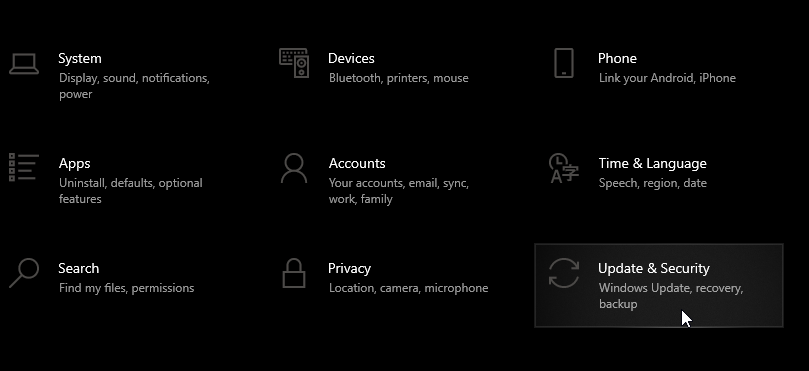
Open the Settings app, and go to the Update & Security section.
Now click the Check for updates button.
If the problem with XAudio2_6.dll appears, the issue might be missing Windows updates. Sometimes if you don’t have the latest updates installed, you might encounter certain issues.
However, you can easily solve these issues by installing the missing updates.
Windows 10 usually installs the missing updates automatically, but sometimes you might skip an update or two due to certain issues.
If any updates are available, they will be downloaded in the background and installed as soon as you restart your PC. Once your system is up to date, check if the problem is still there.
That’s it, we hope at least one of these solutions helped you to solve this issue, if you have any comments, or questions, just reach out to the comment section below.
Many users reported that mshtml.dll was not found on their PC. What is mshtml.dll and why is it important? The mshtml.dll file is a Dynamic Link Library file related to the Microsoft Internet Explorer Web browser. It helps it to read and display HTML Web pages.
So, the mshtml.dll error might appear when using IE browser. However, it can appear when installing or uninstalling different programs. The causes can be malware infection, corrupted registry, or others.
Common error messages related to mshtml.dll error you might see, states that This application failed to start because mshtml.dll was not found, or similar. Another related message is The module mshtml.dll was loaded but the entry-point DIIRRegisterServer was not found. This is often displayed in the IE browser.
How do I fix the mshtml.dll not found error in Windows 10?
1. Use a specialized tool
An easy way to fix the mshtml.dll not found error is by using an automatic solution that helps you to solve multiple computer issues automatically.
Third-party repair software can automatically scan your system and replace any broken or missing system files with fresh and genuine files from their database.
2. Undo changes on your system
Click the Start button.
Type System Restore in the search bar and select Create a restore point.
Then, click System Restore button.
Now, select Choose a different restore point and click Next.
Select a date for restore before the problem occurred, then click on Next.
Enter your password if asked and follow the on-screen steps to choose a restore location.
Finally, restore your PC.
Note: System Restore is a built-in Windows tool that allows you to restore important system files to a previous state. This procedure is important because it can return your PC to working condition.
Type regsvr32 /u mshtml.dll in the box and press the Enter button to unregister the file.
Also, type regsvr32 /i mshtml.dll in the box and press the Enter button to register the file.
After, close the Command Prompt window.
Finally, restart your computer and see if the error persists.
5. Reinstall Windows
This solution should be used as a last resort if all other solutions fail. Bear in mind that this solution will remove all files from your system drive, so be sure to back it up beforehand.
After you reinstall Windows, check if the problem is still there. If it persists, it means that there is a problem with the Windows version you have installed.
Make sure to get a new Windows copy only from trusted sources, like Microsoft’s official website or IT-specialized stores.
This isn’t the only error you can encounter, and if msxml4.dll is missing on your PC, check our dedicated guide that addresses this issue.
If Mshtml.dll was not found on your system, you might have some issues running certain applications. However, we hope that you found some of our solutions helpful.
While running the System Preparation tool you may encounter several errors. One such error is Sysprep Fatal Error, Could not load MSESysprep.dll.
This error is common in an older version of Windows and occurs due to a missing .dll file in the installation directory. One Windows user reported a similar error in the Microsoft community:
Trying to run sysprep – fatal error because MSE was once installed I have a W7 Prof 64 bit machine I am trying to Sysprep. I had MSE installed previously and uninstalled it. And I am aware of the REARM issue and I dont believe it to be the cause.
If you are also troubled by this error, here are a couple of troubleshooting tips to help you resolve the Sysprep Fatal Error, Could not load MSESysprep.dll error in Windows.
How can I fix the Sysprep dll errors on my Windows PC?
1. Delete an invalid entry from the registry
Press Windows Key + R to open Run.
Type regedit and click OK to open the Registry Editor.
On the Registry Editor, click on File and Export. Give the file a name and save it in a safe location. This way you can restore the registry files if anything goes wrong.
In the Registry Editor, navigate to the following location: HKLMsoftwareMicrosoftWindowsCurrentVersionSetupSysprepCleanup
Right-click on Cleanup Key.
Select Permissions.
In the Permission window, select Administrators.
Under Permissions for Administrators, check Allow box for Full Control.
Click Apply and OK to save the changes.
Select the CleanUp key again.
From the right pane, delete the following value: 2D153B43-11B4-461F-AA43-832B2C8B8872
Right-click on the value and select Delete.
Close the registry editor.
If you can’t edit your Windows 10 registry, then you should use a proper repair tool for this.
To get a better idea, such repairing tools use their resources to scan your PC and find damaged software files quickly. Thus it will find corrupted system files or invalid registry entries.
Once they detect the issues with your system, they can start finding the missing or damaged DLLs and replace them with functional ones from its big database.
Next, run the CCleaner app, and clean any leftover junk files related to MSE.
Once done, restart your PC and run the System Preparation tool.
In case you want to fully remove specific programs and applications from your system, the best way to accomplish this is with one of these efficient uninstaller tools.
3. Delete the Panther folder
Open File Explorer.
Navigate to the following location: C:WindowsSystem32sysprep
Right-click on the Pather folder.
You can delete the folder or simply rename it.
Run the System Preparation tool again, and it should run successfully without errors.
File Explorer is slow in Windows 10? Follow the simple steps from this guide and get it running fast again with ease.
The Sysprep Fatal Error, Could not load MSESysprep.dll seems to occur due to incomplete uninstallation of Microsoft Security Essentials.
By following the steps in this article you can fix the error and continue with the Sysprep process.
If you have any other questions or suggestions, feel free to leave them in the comments section below.
Microsoft Windows 10 comes with a Biometric Facial Recognition system called Windows Hello. It allows the users to log in to their Windows Device with their face.
However, some users have reported a bioenrollmenthost.exe msvcrt.dll error while trying to set up the Facial Recognition system.
This error can occur due to Windows update or driver malfunction as reported by the users in the Microsoft Community Forums.
I just updated my MDT task sequence for installing Win 10 Enterprise from 1703 to 1803 all deploys correctly but when trying to enroll in face recognition the bioenrollmenthost.exe crashes with error below. I have updated drivers, bios, tpm and can not get this to work.
In order to fix the Windows Hello issues in Windows 10, keep reading our guide below.
How do I fix the bioenrollmenthost.exe msvcrt.dll error?
1. Roll back to the previous build
Click on Start and select Settings.
Choose Update and Security.
Click the Recovery tab.
Under Go back to the previous version of Windows 10 click the Get Started button.
Follow the on-screen instructions to roll back to the previous version of Windows. After the restart check if you are able to set up Biometric sign-in feature.
You can roll back to the previous Windows OS build from the settings within 10 days of the build was installed.
If the bioenrollmenthost.exe msvcrt.dll error started to occur after upgrading to the latest Windows OS build, the issue can be with the Windows build and not your system.
2. Use a third-party DLL fixer
In case you require PC repairing software, it will fix broken DLL files and replace them with functional ones to restore the system.
To solve your operating system problems, you need a great repair tool that you can rely on and perform this job automatically.
3. Update the camera driver
Press Windows Key + R to open Run.
Type devmgmt.msc and press OK to open the device Manager.
In the Device Manager, expand Cameras section.
Right-click on your camera and select Update driver.
Select Search automatically for updated driver software.
Wait for Windows to look for any pending updates and install them.
Reboot the system and check for any improvements. Hopefully, you won’t see the bioenrollmenthost.exe msvcrt.dll error anymore.
For a more automated and efficient updating process, it’s recommended to manage all the PC drivers rightly and install the latest versions with an expert tool such as Outbyte Driver Updater.
4. Install Microsoft Visual C++ 2015 Redistributable Update
Microsoft introduced the Edge browser quite some time ago, but some users still prefer Internet Explorer because of its features and various settings /customizations.
Res://aaResources.dll/104 is a network error that occurs on Internet Explorer 11. This error is also coming with the page cannot be displayed message and will prevent you from accessing certain web pages.
Therefore, you need to fix the issue for being able to properly use your favorite Windows 10 browser, and here is how you can do that.
How can I fix the IE 11 res://aaResources.dll/104 error?
1. Use Opera One
The error 11 res://aaResources.dll/104 that appears on Internet Explorer can be very troublesome especially if it keeps on showing up.
While Microsoft still offers support for IE 11 on Windows 10, there are many excellent alternatives out there, so maybe it’s time to switch to another browser, such as Opera One.
Opera one comes withnew built-in packages, great design, a tab manager organizer, and instant messaging from having instant access to all your social media accounts.
With this browser, your data is easily synced and kept private with the free VP. It also has a built in AI.
Opera One
Use Opera One, and enjoy navigating the Internet without having your browser crashing multiple times!
If you are wondering what res://aaResources.dll/104 is, and you want to be able to use your favorite browser in Windows 10, then it means you need a great repair tool to fix it.
It is not uncommon for DLL files to get corrupted, resulting in error reporting. To resolve the issue, you must first validate and then repair your DLL files.
Windows Update was also responsible for a large number of these issues by changing system files that were incompatible with your current browser.
A DLL Repair Tool is our recommendation for the best option for identifying and automatically fixing faulty or obsolete DLL files.
The final reason is data corruption, which is frequently caused by hardware failure. For the purpose of your peace of mind, one solution for each problem is included in a computer repair toolkit.
4. Uninstall Amazon Assistant
PressWin+R hotkeys.
In the Run box enter Control Panel.
Click Ok when done.
In Control Panel click on Programs.
Search for the Amazon Assistant.
Choose remove/uninstall this program.
5. Reboot in Safe Mode
Access Run box.
Type msconfig and press Enter.
From System Configuration switch to the Boot tab.
Under Boot, choose Safe Boot.
Apply all changes and close the window.
Restart your Windows 10 system.
Retry the Amazon Assistant uninstall process.
6. Perform a clean boot
Enter msconfig again.
Switch to Services from System Configuration.
Click on Hide all Microsoft services.
Next click on Disable all.
Switch to Startup tab
Click on Open Task Manager.
In Task Manager switch to the Startup tab.
Select each startup item and disable it.
Restart your Windows 10 device.
Uninstall the Amazon Assistant app now.
Right-click on the Start icon, and select Run.
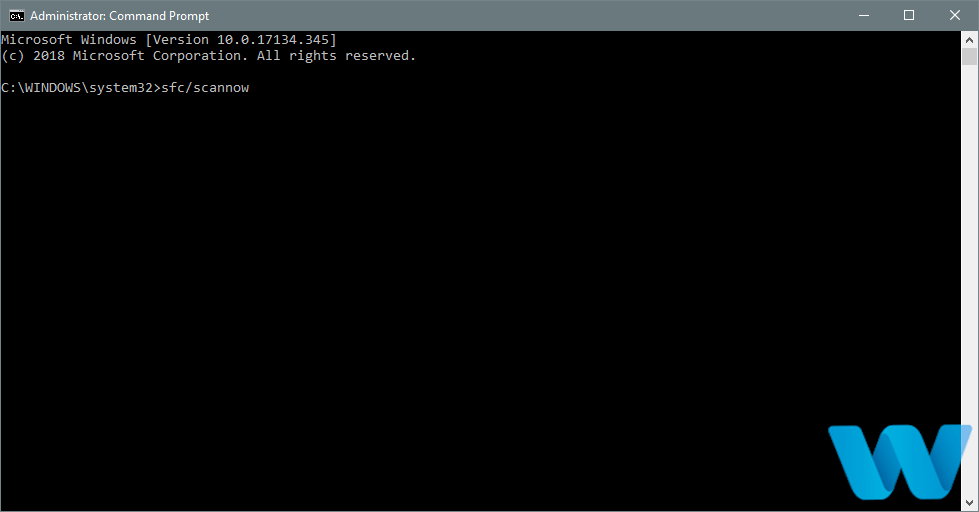
Run sfc / scannow command.
Press Enter.
Note: Do not close this Command Prompt window until the verification is complete. Once the scan is finished, you will see on the screen the results.
That’s it. Now Internet Explorer should run without further problems on your Windows 10 device.
In case you are still experiencing the res://aaResources.dll/104 error try to scan for corrupted files or directories on your PC.
Feel free to tell us how this fix worked for you. Don’t forget, we are always here to assist you through different troubleshooting processes, so ask for help if you need it.
Dynamic-link library is a Microsoft library that contains data and code that can be used by more than one program at the same time.
The frequent missing DLL files are mostly related to DirectX or redistributables, but even minor DLL file like bcrypt.dllcan occur from time to time. This file is essential for running certain applications and if it’s not in its place when called, the error bcrypt.dll missing will occur.
To address this, we prepared a list of viable solutions. Before we move on to solutions, we recommend updating your system. It seems that in a lot of instances major updates disrupt the system. Not a single major update came without any issues.
So, navigate to Settings > Update & Security > Windows Update, and check for available updates. That might fix the problem.
How do I fix the bcrypt.dll missing error in Windows 10?
1. Use specialized software
The safest solution to solve various DLL problems is to use third-party software to spare the troubleshooting time.
Streamlining the process is not all this kind of software can do. You can easily use it for the optimization and the long-term maintenance of your computer.
2. Run SFC
Press Windows + S to open Windows Search bar.
Type cmd.
Right-click on Command Prompt and run it as an administrator.
In the command line, type sfc/scannow and press Enter.
After the procedure ends, restart your PC.
Note: System File Checker is a utility tool in Windows 10, with the main purpose of locating the system files with false integrity or corruption and replacing them accordingly.
3. Clean junk files
Press Windows key + S to open Search bar.
Type in dsk and open Disk Cleanup.
Choose the system partition and click OK.
Click on Clean system files and choose the system partition again. The calculation can take some time.
Check all boxes and click OK.
Note: Windows 10 stores a lot of redundant files that take a lot more space than usual on your system partition and can, in the worst-case scenario, cause certain issues.
To resolve this, we recommend deleting all cluttering junk files from your system. We recommend Disk Cleanup. This is a native utility and the risk of deletion of important files is close to zero.
4. Scan for malware
Open the Windows search bar and type Virus & threat protection and select it.
Open Scan Options.
SelectWindows Defender Offline Scan and clickScan now.
Your computer will restart and the scanning procedure will start.
Note: Malware infection can also be the cause for bcrypt.dll error in Windows 10.
5. Reinstall the affected program
In the Windows Search bar, type Control and openControl Panel from the list of results.
From the Category view, click Uninstall a program under Programs.
Uninstall the game/application which invokes the error.
Download the latest installation package and install it again.
Note: This DLL file, like so many others, is an integral part of communication between the system and third-party applications or games.
The error at hand will most likely pop up while you’re trying to start the game or application. In order to address this, we recommend reinstallation of the affected program which won’t start.
6. Reset PC to factory settings
PressWindows key + Ito summon theSettingsapp.
Open theUpdate & Securitysection.
ChooseRecovery.
Under Reset this PC, click Get started.
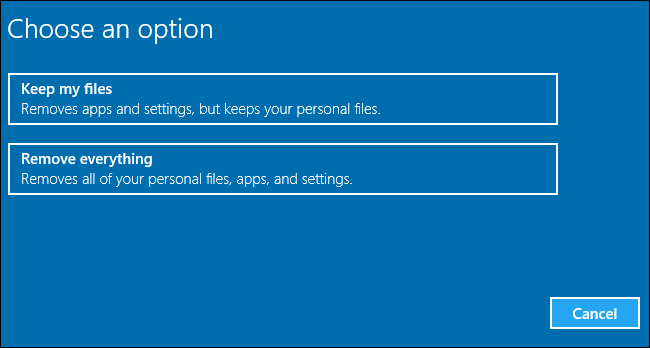
Preserve your files when prompted and continue with the procedure.
Hopefully, these solutions worked for you and the bcrypt.dll is missing error is now gone. These solutions can also be used for other DLL missing issues.
The Epson WF-3640 is a printer that you can print wirelessly with by connecting it with your Wi-Fi network.
However, some WF-3640 users can encounter wireless issues during printer setup or when they try to print with a wireless connection.
In either case, the printer usually can’t connect to Wi-Fi.
Why is my Epson printer not connecting to Wi-Fi?
Some users might see an Epson Printer Wi-Fi Setup Failed message when trying to set up the WF-3640 for wireless printing.
The wireless setup might fail due to users entering invalid SSID or password details. That issue can also arise due to network settings conflicts or dropped Wi-Fi connections.
Some WF-3640 users, who have already set up the printer, might see a Printer is offline message when they try to print wirelessly.
This wireless printing error can be a printer driver issue. However, firewalls can also block Epson wireless printer connections.
How do I get my Epson printer to print wirelessly?
1. Turn off Windows Defender Firewall
Click the magnifying glass button icon on the left side of Windows 10’s taskbar, which opens the search box.
Click Turn Windows Defender Firewall on or off to open those settings.
Select the radio buttons for both the Turn off Windows Defender Firewall options, and click OK to confirm.
Users with third-party antivirus or firewall software should either disable or uninstall those utilities.
Right-click the system tray icons for third-party antivirus or firewall utilities to select disable settings that are often on their context menus. Temporarily disable the third-party antivirus or firewall software.
Note: Users who need to fix the Epson Printer Wi-Fi Setup Failed error should turn off firewalls before opening the WF-3640’s Epson Installer software to set up wireless printing.
2. Verify your SSID and password details
Double-check the SSID and password details you’re trying to establish a Wi-Fi connection with are valid.
To do that, look at the stickers on your Wi-Fi router. One sticker on your router should include your SSID network name and password needed to set up wireless printing for your WF-3640.
3. Update drivers with a third-party solution
Outbyte Driver Updater can be a potential resolution for users who need to fix the WF-3640 printer offline error.
That driver updater software will quickly scan your PC and list hardware devices with outdated drivers. Outbyte Driver Updater’s scan report might show you that the WF-3640 needs a driver update.
If so, you’ll be able to click an Update button for the WF-3640 printer that will download its latest drivers. Outbyte Driver Updater Pro will automatically install the downloaded printer drivers when you click its Automatically Install option.
Then plug your router back it, and wait a few more minutes until all its lights are on.
Thereafter, turn on your desktop and laptop.
5. Move your router closer to the WF-3640
If possible, try moving your router closer to your printer by plugging it in elsewhere.
If you really can’t set up the router in an alternative place, then consider moving your printer nearer.
Include the WF-3640 within the same room as the router (ideally about eight to 10 meters from it) if you can.
6. Reset your WF-3640’s network settings
Press the Home button for your WF-3640’s display (circled in the shot directly below).
Select the Setup option on the display.
Then select System Administration, and enter your printer‘s admin password if required.
Select Restore Default Settings to open a menu that includes five alternative options.
Select the Wi-Fi/Network Settings option, and then tap Yes to confirm.
The above resolutions can resolve Wi-Fi setup and offline errors for the WF-3640 and other Epson printers.
If you still need further potential resolutions, however, click Chat online on Epson’s support page. Alternatively, you can click Technical query there to send a support ticket.
The gaming industry is a fickle one, especially when it comes to the hardware since every single company is in an arms race with each other to add more and more to their products just so they can justify the gaming label attached to them.
For example, if you’re talking about a gaming keyboard, the first thing that may pop into the head of any user is RGB lighting, and configurable keys.
As for mouse pads, if they have some RGB elements as well, a good non-slippery bottom, and a smooth surface, they are more than enough.
Well, to day we will be reviewing two products that have that, and much more:
The Aukey RGB Mechanical Gaming Keyboard
The XXL Gaming Mousepad
We will be looking over how they look, how they behave in terms of their intended purpose, judge whether the price tag is worth it or not, and ultimately give you all the information that you may need in order to see whether the product is indeed worth it or not.
Are the Aukey KM-G12 and KM-P7 worth it?
The Aukey RGB Mechanical Gaming Keyboard
First of all we will start talking about the looks and what’s interesting about this keyboard is just how inconspicuous it looks, since it doesn’t have any of the typical traits that you’d expect from a self-proclaimed gaming keyboard, such as a large frame, or a resting area for your wrist.
Additionally, those of you that haven’t had many gaming keyboards may be surprised at just how heavy it is, but that is mainly because of the metallic frame that makes up its middle section.
However, that all changes the moment you connect it to your PC, because that’s when the true light show begins.
A keyboard with great RGB lighting effects
The KM-G12 Mechanical Gaming Keyboard comes equipped with 7 colors presets and 12 lighting configuration presets.
Each individual key has it’s own RGB light settings, and the transitional rainbow light effects are incredibly smooth and seamless, to the point where you might end up looking at the keyboard for a few brief seconds instead of your intended game.
Besides the individual keys, this keyboard also features a strip of RGB lighting that runs around the outer edge of it.
While this strip also has transitional lighting effects, we have to mention that they are not in sync with the ones affecting the keys, but that’s nothing to be worried about.
If RGB lighting isn’t that much of a deal for you, and find it as a distraction, know that the KM-G12 is highly compatible with RGB software, and you can use it to turn it off.
Speaking of which, the products comes with its own software called G-aim, and that is there to help you with your RGB customization needs.
Unfortunately, the software is a bit limited, since it only helps with the key lighting, and has no effects on the side strip.
However, it does help you create and store up to 5 different lighting profiles that you can customize in however way you want.
Even if switching between profiles may seem wonky at times, and the UI looks a bit odd, the software is completely free, which is quite nice considering that this keyboard is marketed as budget-friendly.
What it feels when typing with it
We wrote the review about the keyboard while using the keyboard itself, and we have to admit that strictly from a tactile point of view, as the buttons really feel responsive, allowing you to truly tell whether a key was actually pressed or not.
Characterized by precise tactile feedback & satisfying travel with an audible click sound.
This is mainly due to the Outemu Blue switches that are behind the keys, and while they do contribute to the overall lower price of the keyboard, they do come with a certain drawback: they are very loud.
Besides the large sound of the keys, there’s also a large clacking sound with each press, so if you plan on using the keyboard for typing, or intense gaming sessions, make sure that you are wearing headphones, and that no one is trying to sleep in the same room as you.
Is the Aukey KM-G12 good for gaming?
You can’t call a gaming keyboard as such if all it does is flash some pretty lights, so we tested the keyboard intensely while playing multiples popular MMORPGs, RTS and and FPS games.
As expected, the responsiveness of the keys truly delivered, since we never had the feeling that maybe we pressed the wrong button, since the feedback was incredibly obvious, both tactile and from a sound point of view.
Unfortunately, this is yet another department where the key’s loudness might get the better of you, since we had difficulties hearing what was going on within the games, or what we were talking to each other via Discord, since we literally had to stop typing.
While one part of the problem could be easily solved by simply wearing headphones, there was nothing that we could do when trying to talk over the microphone, except trying to limit our typing to a minimum, and not pressing any buttons during intense gaming moments is more or less equal to a loss.
Fortunately enough, the metallic framework makes it quite durable, so if you’re the type of gamer that doesn’t take gaming losses too lightly, know that the keyboard ca take quite a bit of a beating before you actually start leaving any marks.
Those of you looking for something with less of an aggressive look but with the same high-quality performance might also like to try out Aukey’s KM-G15 Mechanical keyboard as well.
It has the same RGB effects, tactile feedback, and the same rollover with anti-ghosting.
However, there are a few differences between the two models, since the KM-G15 has 4 extra keys, more color and lighting configuration presets, and it is a bit easier to configure using the gaming software.
If you’re going ahead and treating yourself to some budget-friendly gaming gear, might as well add the XXL Gaming Mouse Pad to your inventory as well.
One thing that we were amazed about when we first received them was just how massive the mousepad actually is.
While we did have the measurements beforehand (35.4×15.75×0.15inches), for some reason the mousepad seems a whole lot bigger in real life, to the point where the XXL in its name would seem like an understatement.
A good build for great stability and control
Most gaming mouse pads usually follow teh same blueprint nowadays:
RGB rim
Smooth upper surface
A gripping underside (usually made of rubber)
The Aukey XXL Gaming Mouse does nots tray from the blueprint at all, and that is not a problem at all.
The underside that is definitely non-slippery combined with the mouse pad’s sheer size makes it almost impossible to slide it across a flat surface, offering you complete stability and control over your mouse and keyboard during intense gaming moments or office work.
A gaming mousepad that is both simple and beautiful
As mentioned before, the mouse pad features an RGB rim, and while you cannout light it up except via a USB port, the result is quite amazing.
With a simple switch of a button, you can switch between multiple color schemes, and while there is no way to save profiles per say, the default ones are already very entertaining.
Lastly, we liked how the mousepad was extremely simple from a design point of view since many gamers find mouse pads that have wallpapers on them or any type of flashy logo to be quite distracting.
Since this is a mouse pad that will eventually cover the entire surface of your desk, having it in a smooth black color is more than anyone can ask for.
The Aukey KM-G12 Mechanical gaming Keyboard is an impressive piece of work considering how it isn’t created by a company that has a long history in gaming gear.
However, if you are expecting this keyboard to be silent, then you might as well go looking for a different model altogether.
The RGB lighting is smooth and well-executed, although the build-in software that lets you customize it does need some serious reworks.
The key responsiveness was very good, and the 104-key rollover with anti-ghosting allows great typing and gaming performances, allowing you to not have to feat miss-clicks and unsolicited commands.
When putting the pros and the cons side-by-side, this keyboard is indeed worth it given the price range, so if you’re on the market for a great-looking gaming keyboard with good performances and a low price tag, then go ahead and give the Aukey KM-G12 Mechanical Gaming Keyboard a shot.
As for the XXL Gaming Mouse Pad, there is no actual limitation to using it as far as we are concerned, except if your desk is not big enough to hold it, since folding is definitely out of the question due to the RGB lighting strip.
Have you tried these amazing Aukey products? Let us know what you think about them by leaving us your feedback in the comments section below.
As one of the most popular content hosting platforms, YouTube is your choice when it comes to videos. Millions of them are added on a regular basis, so you’ll most likely find what you’re looking for.
Not being able to check out insightful comments on Microsoft Edge to see what other users are thinking turns into a problem.
Some users complain about the annoying loading wheel that never leaves the screen, while others say that the YouTube comment box is simply blank.
The result is the same: YouTube comments are not loading on Microsoft Edge, so you can see nothing other than the previously pinned comments. Moreover, here’s what one user reveals:
Yeah, it started happening with the Edge browser as well. Someone also said they’re having a problem with their Safari browser, so this is also an issue on Apple.
The only place I can still read comments is on the YouTube app for my Android phone.
What to do if YouTube comments are not loading on Edge?
Enter into Settings > Privacy, search, and services.
Go to Clear browsing data.
While there, select Choose what to clear.
You must also specify a time range from the Time range drop-down menu.
You may now choose the types of data you want to clear.
Finally, make sure to select Clear now.
Assuming that you want to catch some key points of a new video by reading YouTube comments, rest assured that there’s a way to make them load again on Microsoft Edge.
You basically need to clear browsing data on your computer. In that regard, make sure sync is turned off, then follow the steps detailed above.
You may also try to open the YouTube page in Incognito Mode. This way, there are no extensions and plugins used for the site.
Which trick worked out for you in solving this YouTube error? Do you happen to know other potential solutions? Don’t hesitate to share them in the comments.
Camtasia is one of those niche software suits which provides users with all tools they need for tutorial and presentation making, video editing, and screen recording.
Of course, like any other software you can think of, it does have certain issues. And Camtasia filters.dll failed to register or Camtasia filters.dll is missing issues are the most common.
Due to this error, users are unable to load the program. We’re limited when it comes to possible solutions due to configuration differences, but the following solutions might help.
What can I do if Camtasia filters.dll is missing on my PC?
1. Run a third-party DLL fixer
It’s true that sometimes DLL file errors are caused by system glitches, not by a specific program. For that reason, you might need professional repair tools.
Consequently, using professional software can help you run free scanning of the system and detect missing or broken software files that determine Camtasia issues.
The tool will then find malfunctioning DLL files and replace them with new ones right away. Afterward, the Camtasia app should function without interruptions.
2. Install the Redistributables pack
In order for the installation to identify necessary filters, you’ll need to have Visual C++ Redistributable installed. A bunch of loading errors appears this pack is missing.
With that in mind, we suggest navigating to the official website and downloading the Virtual Studio C++ Redistributable which meets your OS requirements.
If you have a 64-bit system architecture, it’s advised to install both x86 and x64 versions of the said software.
After you’ve done that, reboot your PC and give Camtasia another try. In most situations, the programs work. If otherwise, proceed with the next step.
3. Reinstall the software
In the Windows Search bar, type Control, and open Control Panel.
Click Uninstall a program with the Category view enabled.
Uninstall Camtasia and reboot your PC.
Navigate the TechSmith official website and download the latest release.
Run the installer, install, and configure the application.
Possible corruption in the application files can occasionally inflict a Camtasia filters.dll failed to register error.
So a fresh install should resolve all problems you have with this video tutorial software.
That’s a wrap. Don’t forget to send a ticket to TechSmith if you’re still stuck with the error. The support team should help you address it.
Also, feel free to tell us whether you’ve succeeded or not in the comments section below.
The Data_Bus_Error is a BSOD issue, with a 0x0000002E error code, that can arise on Windows 10 and other platforms.
This blue screen of death error is more of a hardware issue, but it can also be caused by faulty or wrong versions of drivers being used.
In today’s guide, we present you with the best of the resolutions to fix recurring Data_Bus_Error BSOD errors.
How do I get rid of the Data_Bus_Error code?
1. Update or fix video card drivers with Outbyte Driver Updater
Driver updater and troubleshooting software, such as Outbyte Driver Updater, can often resolve BSOD issues.
Outbyte Driver Updater’s scanning enables you to quickly download and install new drivers for devices with outdated or corrupted ones. That software provides a detailed report of devices on your PC that need new drivers.
Outbyte Driver Updater Pro users can select to download and automatically install all the latest drivers for listed devices.
The Data_Bus_Error error can be more specifically due to antiquated or corrupted video card drivers. However, you can download new drivers for all listed devices by clicking Outbyte Driver Updater’s Update All button.
Other useful Outbyte Driver Updater features
Users can view download progress with Outbyte Driver Updater’s Download Manager
Outbyte Driver Updater can automatically back up drivers for users
This software provides notifications for new driver updates
Includes a schedule manager for scheduling scanning, notifiers, and back ups
As opposed to manually updating or fixing your drivers, a dedicated tool is completely safe and error-free. Many users face even more severe errors if they install the wrong driver version on your PC, so we advise you to be cautious.
Outbyte Driver Updater can always detect the exact version of your video card hardware (or any other hardware) and find the perfect and most updated version for it.
Select the Choose a different restore point radio button, and click Next to continue.
Select the Show more system restore points option if you can (System Restore doesn’t always display that checkbox).
Then choose a restore point that will roll Windows 10 back to a time that predates the Data_Bus_Error BSOD issue on your PC.
Press the Next button to proceed.
Click Finish to initiate the system restoration process.
Note: Rolling back Windows 10 will remove software installed after selected restore point dates. You can click Scan for affected programs on the System Restore window to see what programs a selected restore point deletes.
One, or more, of the above resolutions, might fix the Data_Bus_Error BSOD issue on your PC.
Mass Effect Legendary Edition, the much-anticipated anthology of Bioware’s critically-acclaimed Mass Effect trilogy, will be released on May 14 on Xbox, PlayStation, and PC. The Xbox One version of the game is already available for pre-order on the Microsoft Store, and it will be forward-compatible with Xbox Series X|S consoles.
Mass Effect has a special history with Xbox consoles, as the original game launched first on the Xbox 360 back in November 2007 and was published by Microsoft Game Studios. The action-RPG franchise grew even more popular as it went multi-platform, with Mass Effect 2 and 3 also allowing players to import their saves and all the choices they made in the previous episodes.
If the Mass Effect trilogy on Xbox 360 is already backwards compatible on Xbox One and Xbox Series X|S consoles, these cult-classic games were not playable on PS4 or PS5, and developer Bioware had a good opportunity to give the beloved franchise a fresh coat of paint ahead of the release of Mass Effect 4, which is currently in early stages of development.
Mass Effect Legendary Edition will include the 40+ DLCs story, weapons and armor packs from Mass Effect, Mass Effect 2, and Mass Effect 3. According to Bioware, fans shouldn’t expect a lazy remaster with updated graphics: In addition to remastered character models, up-dressed textures, updated lighting and dynamic shadows, the developer also introduced some gameplay changes to the original Mass Effect game including improved aiming, squad controls and behaviour, and more. This news is very welcome as the first game in the trilogy didn’t age very well compared to Mass Effect 2 and 3.
“The Mass Effect Legendary Edition features unified character creation options that persists across all three titles and is complete with an improved and expanded selection of hair, makeup and skin tone options. The iconic Female Shepard default appearance from Mass Effect 3 is now available as the default female Shepard appearance in character creation in all three games, further adding to the unified experience across the trilogy,” Bioware said in a press release today.
In a interview with Eurogamer, BioWare also confirmed that loading times in the remastered trilogy have been significantly reduced, and that the game will support 4K, HDR, and 60FPS gameplay on Xbox One X and Xbox Series X. Interestingly, Bioware considered moving from the Unreal Engine 3 to the Unreal Engine 4 for these remasters, but dropped the idea due to various technical challenges.
Mass Effect: Andromeda, BioWare latest’s Mass Effect game released back in 2017 disappointed fans and was plagued by technical issues at launch. The EA-owned studio has been in trouble ever since, with 2019’s Anthem being an even bigger failure than Andromeda. The Canadian studio has a good opportunity to go back to basics with Mass Effect Legendary Edition, and you can already pre-order the ultimate package for $59.99 on the Microsoft Store.
The XPSSVCS.DLL is a missing error is one that some users have encountered when attempting to install Google Cloud Print in Windows 10 and other platforms.
The full message reads:
[1103/184546:WARNING:setup.cc(263)] File is missing: XPSSVCS.DLL… [1103/184546:ERROR:setup.cc(402)] Unable to install driver.
This is yet another DLL error that can be caused by a missing or corrupted DLL file.
Microsoft has also admitted that the cumulative KB3176493 and KB3177725 Windows updates have print bugs, which is another factor behind this error.
So here are a few potential solutions that will resolve the XPSSVCS.DLL is missing error in Windows 10.
How to fix XPSSVCS.DLL issues on Windows 10?
1. Use a third-party DLL troubleshooter
You can resolve this kind of error with DLL files effortlessly, and the most practical way is by using dedicated repairing software.
Hence, using these tools will offer you a complete scan report of your computer to show the comparison between your files and new ones.
Then, the next step is to replace damaged DLL files and other corrupt or missing files with functional ones and resolve this installing error.
2. Scan files with the System File Checker
Open Win + X menu and choose Command Prompt (Admin) or PowerShell (Admin) from the list.
Enter sfc /scannow command and press Enter to run it.
The scanning process can take about 10 minutes, sometimes more, so don’t interfere with it.
After the SFC scan is finished, check if the issue is still there. If you can’t run or complete the SFC scan, you should try using the DISM scan.
Start Command Prompt as administrator.
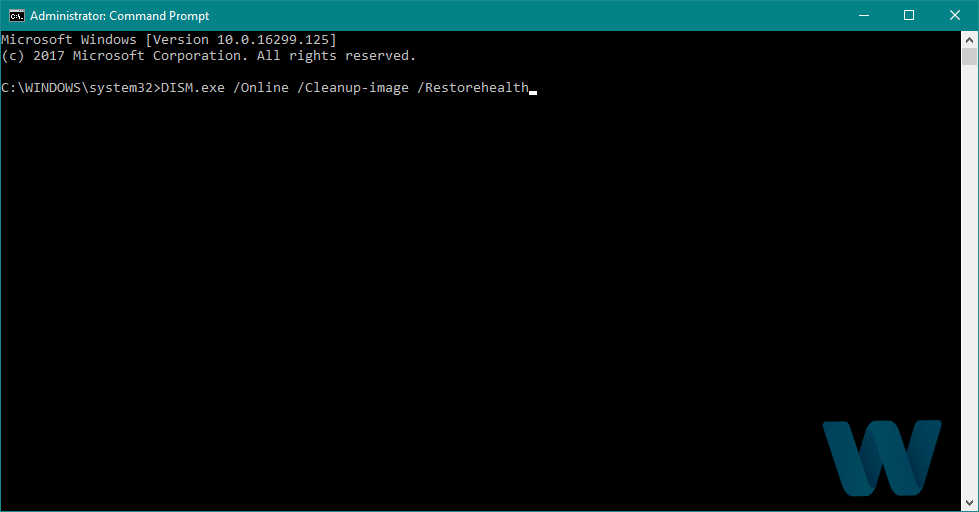
Enter the following command and press Enter: DISM /Online /Cleanup-Image /RestoreHealth
DISM scan will now start. This process can take about 20 minutes, so be sure not to interrupt it.
Once the DISM scan is finished, check if the problem is still there. If you want, you can also repeat the SFC scan after a successful DISM scan just to be on the safe side.
3. Reinstall the application that causes this error
If XPSSVCS.DLL is missing message appears only when trying to run a certain application, perhaps you should uninstall that application completely.
There are several ways to do that, but the best method is to use uninstaller software.
You’ll completely remove all files and registry entries that are related to the faulty application. As a result, there won’t be any leftover files that can interfere with your system.
To completely remove this application from your PC, you should look for exemplary uninstaller software. It will help you remove all residual files left behind after deleting any program.
Once you remove the problematic application using such tools, the issue should be completely resolved.
4. Perform a System Restore
Press Windows Key + S and enter system restore. Choose Create a restore point.
Now click the System Restore button.
When the System Restore window opens, click Next.
Check Show more restore points option. Select the restore point you want to return to and click Next.
Follow the instructions on the screen to complete the restoration process.
Once you successfully perform a System Restore, check if the problem is still there.
5. Update Windows
Open the Settings app. (You can do that by using Windows Key + I shortcut.)
Now navigate to the Update & Security section.
In the right pane, click on Check for updates button.
Windows will now check for available updates. If any updates are available, they will be downloaded automatically in the background. Once you download the updates, restart your PC to install them.
After updating your system to the latest version, check if the problem is still there.
Microsoft is constantly working on Windows 10, and it usually fixes these bugs using Windows Update. If you want to avoid this problem, be sure to keep your system up to date at all times.
By default, Windows 10 automatically installs the missing updates, but sometimes it might miss an update due to certain issues. However, you can always check for updates manually as shown here.
6. Perform a Clean boot
Press Windows Key + R to open the Run dialog. Enter msconfig and click OK.
The System Configuration window will now appear. Navigate to the Services tab and check Hide all Microsoft services.
Click the Disable all button.
Now go to the Startup tab and click Open Task Manager.
You’ll now see a list of startup applications. Right-click the first entry on the list and choose Disable. Repeat this step for all applications on the list.
Go back to the System Configuration window.
Now click Apply and OK to save changes and restart your PC.
Once your PC restarts, check if the issue is still there. If the problem doesn’t appear, it’s rather likely that one of the disabled applications or services was causing it.
To find out which application was the problem, enable applications and services in groups until you manage to recreate the issue.
Once you find the problematic application, remove it and check if that solves the problem.
7. Create a new user account
Open the Settings app and navigate to the Accounts section.
Pick Family & other people from the left pane.
Choose Add someone else to this PC from the right pane.
Select I don’t have this person’s sign-in information.
Click on Add a user without a Microsoft account.
Enter the desired username for the new account and click Next.
After creating a new user account, check if the problem is still there. If the issue doesn’t reappear, move all your personal files to the new account and check if that solves your problem.
These fixes are likely to resolve the missing XPSSVCS.DLL issue so you can install Google Cloud Print on Windows 10.
Handling this app is quite easy, but if you need any guidance, this tutorial will help with the setup process.
Users encountering the dramatically-called blue screen of death aka BSOD Windows 10 devices report their PC restarting suddenly.
This happens immediately after displaying the error message Pfn_share_count without any further indications on what to do next.
This is a rather frustrating error and it can also be time-consuming to diagnose it and find the best ways to try and solve it.
As it seems, there are many reasons that can cause the error, such as not enough free disk space on your device, an incompatible version of BIOS, incompatible device drivers, or the antivirus blocking system files.
Thankfully we have looked thoroughly into this issue and we will explore in this article the best ways to proceed in order to solve the blue screen pfn share count error, so make sure to keep on reading.
How can I fix the pfn_share_count error message?
1. Update your drivers with Outbyte Driver Updater
If there are any outdated drivers installed on your device, this can be another reason that is causing the BIOS blue screen error.
The easiest way to check this and also solve it is to use dedicated software such as Outbyte Driver Updater. It will scan the drivers in no time and update the faulty ones.
Outbyte Driver Updater is the ideal tool to use for drivers update since it will compare your existing drivers with the ones from the built-in library and install the exact ones that you need on your device.
With the Automatically Install option, you will simply click on it and the drivers will be updated in just moments.
Let’s have a look at other Outbyte Driver Updater features
You can schedule scans for when is convenient for you in the Outbyte Driver Updater schedule manager.
Back up drivers with ZIP files.
Progress download manager.
Built-in drivers library.
Live chat support.
Outbyte Driver Updater can assist you in automatically updating drivers and preventing PC harm caused by installing the incorrect driver version. It keeps up with the latest modifications, preventing the system from experiencing latency, system failures, and BSoD issues.
Go to Windows Settings and here select the Update & Security option.
Click on Windows Update from the menu on the left side of your screen.
Select the Check for updates from the menu appearing on your right.
If there are updated available, make sure to download them on your device. Once you install them restart your PC.
2. Scan your device
Open Windows Defender and click Device performance and health.
Check for any listed issues with your updates, storage, and drivers.
Select the Repair/Reinstall options if there are any issues found.
Click on Additional info under Fresh Start in Windows Defender.
Next, make sure to follow the prompt steps that appear.
Once done, restart your device and check if the issue persists.
3. Unplug external hardware
It seems as though this specific error can happen due to external hardware being connected to your device.
There are hardware that can be connected, such as printers, scanners, or other activities. Unless they are crucial to the functionality of your device, we would recommend that you remove them for the moment.
Make sure to restart your device and see if the error is still there. In case it’s not, that is an indication that one of the external hardware may have caused it and we’d recommend that you contact the manufacturer.
Although the reasons to why pfn share count error appear are multiple, the steps to fix them are not difficult to take with the right guidance.
We have explored in this article the easiest ways to solve this error and we hope that by following the indications we provided you will restore the full functionality of your device.
We would love to hear about which solution from the ones presented above, worked best for you. Leave us a comment in the section below.
Installing a new operating system can cause a lot of problems, especially with the missing .dll files. This is exactly what occurred to some users who recently upgraded their systems to Windows 10.
Reportedly, people are complaining that MSVCR100.dll and MSVCP100.dl are missing from their computers after the upgrade.
So we’re going to show you a few solutions to restore these files so that you are able to run all Windows programs smoothly.
The resulting issues are more complex and users mentioned the following error messages:
Msvcr100.dll not found – This is a standard variation of this problem, but you should be able to fix it with one of our solutions.
Msvcr100.dll Event ID 1000 – This message usually comes with the name of the missing file, so you should be able to fix it easily.
Msvcr100.dll Entry point not found – This is a minor error, and you should be able to fix it with one of our solutions.
Msvcr100.dll Either not designed – Keep in mind that this is a minor error so you should be able to fix it with ease.
Msvcr100.dll Unhandled exception – Just like other errors caused by missing files, this one can be easily resolved.
Msvcr100.dll Unable to launch – According to users, sometimes certain applications will be unable to launch due to this error.
Msvcr100.dll Outlook crash – Missing DLL files can affect various applications, and many users reported that Outlook keeps crashing due to missing files.
Msvcr100.dll Application extension – Another minor problem, and you should be able to fix it with one of our solutions.
Msvcr100.dll Access violation, Access denied – In some cases, missing DLL files can prevent you from accessing certain files or locations.
Msvcr100.dll Faulting module – To fix it, you just have to reinstall the problematic application or install the necessary components.
Msvcr100.dll keeps crashing – This problem is caused by file corruption, but it can be easily resolved.
Msvcr100.dll corrupt – If this occurs, you’ll need to reinstall the necessary components in order to fix this problem.
How do I fix a missing MSVCR100.dll file?
1. Run a third-party DLL fixer
For the less tech-savvy, tackling the missing DLL file issue can be a bit difficult. That’s why we recommend a reliable third-party program to do the job instead.
It seems that Visual C++ Redistributables got corrupted during the upgrade process and by reinstalling them you should be able to fix this problem.
Depending on your computer architecture, you can download an x86 version or an x64 version. After installing the package, restart your computer and check if the error occurs again.
Keep in mind that you might have to install multiple versions of the Visual C++ Redistributable package in order to fix this problem.
3. Manually download MSVCR100.dll and MSVCP100.dll
If installing the Visual C++Redistributable package didn’t get the job done, you can manually download these two .dll files from the Internet.
If you don’t feel comfortable downloading these files from third-party sources, you might be able to find them on your PC.
Sometimes these files can be located in Windows.old directory on your PC. It contains the old version of your Windows system and it can also contain the necessary files in the System32 directory.
So go to that directory and look for them. Windows.old is available only for a couple of days after the upgrade, so you might not be able to find it.
Alternatively, you can copy these files from any other working Windows 10 PC.
4. Install the latest iCloud update
If MSVCR100.dll and MSVCP100.dll are missing, you might be able to fix the problem simply by updating iCloud.
It seems that the program’s latest version will also install both MSVCR100.dll and MSVCP100.dll files.
5. Uninstall Sony’s PlayMemories Home
Users reported that the DLL file disappeared because of the PMBVolumeWatcher.exe process.
After a bit of research, users found that this application was related to Sony’s PlayMemories Home application.
To fix the problem, users are recommending removing this application from their PC completely.
For this purpose, we strongly advise using an uninstaller program such as CCleaner to make sure that all related files are diligently deleted.
After you remove the application, the issue should be resolved. If you’re frequently using Sony’s PlayMemories Home and you don’t want to remove it, reinstall it or update it to the latest version and check if that solves the issue.
6. Perform an SFC scan
Press Windows Key+ X to open the Win + X menu.
Choose Command Prompt (Admin) from the list of results. (If Command Prompt isn’t available, feel free to use PowerShell(Admin) instead.)
When Command Prompt opens, enter sfc /scannow and press Enter.
The scanning process will now start. SFC scan can take 15 minutes or more so be sure not to interrupt it.
If SFC scan can’t fix the problem, or if you’re unable to run SFC scan at all, you should perform DISM scan instead. To do that, follow these steps:
Open Command Prompt as administrator.
When Command Prompt opens, enter the following command and press Enter: DISM /Online /Cleanup-Image /RestoreHealth
The scan can take 20 minutes or more, so be sure not to interrupt it.
After the DISM scan is complete, check if the problem still persists. If you were unable to run SFC scan before, be sure to run it after DISM scan and check if that solves your problem.
7. Reinstall Adobe Reader
If MSVCR100.dll and MSVCP100.dll are missing, you might be able to fix the problem simply by reinstalling the Adobe Reader.
First, you need to remove it from your PC. Afterward, download the latest version of Adobe Reader and install it, and your problem should be resolved.
According to users, sometimes Skype can cause this problem to appear. Just like in the previous solution, remove your current version of the program, then install the latest one and check if that solves the problem.
That’s it, we hope these solutions helped you to get rid of any error message related to missing MSVCR100.dll and MSVCP100.dll files.
If you managed to fix the problem using another method, share it with us in the comment and we’ll surely check it out to update our list.
Microsoft Teams is gaining the option to disable the chat functionality in Teams meetings. Microsoft’s Mike Tholfsen has recently announced the rollout of the new meeting chat moderation settings on Twitter. The feature is rolling out gradually, and it should be fully available within a few weeks.
In Teams, the meeting chat functionality is turned on by default and it allows the participants to chat before, during, and after a meeting. The new meeting chat moderation settings will now enable the Teams meeting organizer to enable or disable chat in the meeting in real-time.
It is important to note that there are three options available for this setting:
On (default): allows chat at any time.
Off: will make meeting chat read only and no one can send messages in chat including the organizer.
During the meeting only: participants can send message during the meeting only and the organizer can send messages all the time.
This new capability, which is already available to Zoom users, should make it significantly easier for meeting organizers to control the chat functionality in Teams meetings. The ability to disable chat could be useful for large meetings and classrooms and it helps to reduce distractions.
You may encounter the error former volume not mounted or error files missing from job message on popular torrent clients when trying to move or rename the downloaded files.
As a result, the users are unable to access their downloaded files. The error can occur on all the major torrent clients, including BitTorrent, Utorrent, and Vuse.
Reading through different user experiences with similar error suggests that the error can occur due to several reasons.
Bad external driver letter, incorrect download location, wrong letter in disk management, and corrupted content are some of the reasons.
In this article, we have listed a few easy ways to fix the Former volume not mounted error in Windows 10.
How do I fix former volume not mounted error?
1. Remove and reconnect the external storage device
Turn off your computer and disconnect the external hard drive.
Restart your PC and reconnect the drive.
Launch the torrent client and check if the drive is detected by the app.
Reconnecting the storage device will force Windows OS to reassign a letter to the external drive.
This may resolve the issue if triggered due to an incorrect drive letter. If the error persists, proceed with the other steps below.
2. Reconfigure the download location
Launch the Torrent client that is causing the error and right-click on the torrent file.
Go to Advanced and select Set Download Location.
Next, navigate to the directory where the torrent files are stored.
Click on Select Folder once you are in the correct directory.
Restart your torrent client and check for any improvements.
Installing a Windows update can trigger the error if the torrents is referencing a download path that does not exist.
It can also occur if you have abruptly removed an external drive that was saving the in-progress downloads.
To fix the problem, simply relocate the original download location of the existing torrent files and set it as the torrent’s download location.
Repeat the steps if the error is triggered on multiple torrent files.
3. Match the download drive letter
Launch the uTorrent client on your PC.
Click Options from the menu and select Preferences.
In the Preferences window, click on the Directory tab from the left pane.
On the right pane, check if the drive letter matches your current configuration. If you are using an external drive, make sure the drive letter matches.
If necessary, change the drive letter and click Apply to save the changes. Click OK to close the Preferences window.
Restart uTorrent and check if the error torrent error former volume not mounted is resolved.
Your PC may alter the drive letter allocated to an external hard drive that is used to save the downloads and regularly disconnected from your PC.
Make sure the drive letter is matching by going into the uTorrent Preference settings.
4. Change driver letter using Disk Management
Open the torrent client, hover over the error message and check the drive letter mentioned.
Close the torrent client and open the Disk Management tool.
Press the Windows key + R to open Run.
Type diskmgmt.msc and click OK.
In the Disk Management window, right-click on the drive letter that doesn’t match the one mentioned in the error message.
Select Change Drive Letter and Paths.
Click the Change button in the Change Drive Letter and Paths window.
Click the drop-down menu and select the drive letter that was mentioned in the error message.
Next, click OK to save the changes and restart your computer to apply the changes.
After the restart, open your torrent client and check if the uTorrent former volume not mounted.
5. Edit the Resume.dat file
Note: Skip these steps if you are not using uTorrent. To edit the resume.dat file, you need a file editor. Download and install Notepad++ if you don’t have it installed already.
Once installed, press the Windows key + R to open Run.
Type the following and click OK: %AppData%\uTorrent\
Locate the Resume.dat file, create a copy and save it in a different folder as a backup.
Go back to the AppData\uTorrent folder and right-click on the Resume.dat file.
Selectthe Edit with Notepad++ option from the context menu, and press Ctrl + F.
Click the Replace tab, and in theFind Whatfield, enter the incorrect path, for example C:\Downloads.
In the Replace With field, enter the correct path for your drive.
Click the Replace All button to replace all the instances of the incorrect path with the correct one.
Click Close, and press the Ctrl + S button to save the changes.
Restart your computer and launch the app to see if the error is resolved.
By modifying the Resume.dat file, many users have reportedly fixed the error. Just make sure to fill the incorrect and correct path and then proceed with the replacement process.
If anything goes wrong, replace the edited Resume.dat file with the backup file saved in step 4 above.
The Former volume not mounted error in torrent clients can occur due to incorrect storage drive letter or if the computer is unable to detect the drive.
Follow the steps in the article to fix the problem and complete the torrent downloads.
If your main operating system is still Windows XP, and you’re using Skype on it, you might receive an error message that says Skype failed to load library dxva2.dll, after the most recent update.
Alternatively, the error might read dxva2.dll is missing from computer file location.
As you can probably imagine, when this error message occurs, Skype doesn’t start and you’re unable to sign in.
It’s important to know that this issue was not reported on newer versions of Windows. But if it would be, the solutions would probably be the same.
In this article, we’re going to show you the steps to troubleshoot this error, while also explaining why it occurs.
How can I restore the Skype dxva2.dll missing file?
1. Run a third-party DLL fixer
With each update that Microsoft brings to Skype, it’s likely that it becomes incompatible with your OS version.
But with the right specialized software, you can make sure that such system errors are quickly fixed by performing this action automatically.
2. Install .NET Framework 4
With the newer Skype version, the app uses DirectX Video Acceleration 2.0, which requires .NET Framework 4.0 installed in order to function normally.
Since a lot of users (especially Windows XP users), don’t have .NET 4.0 installed, they get this error message.
The dxva2.dll file was introduced on Windows Vista, so it’s not installed on older systems by default, and you have to download .NET Framework 4.0 to have this DLL file.
You can download it from the official Microsoft location. Afterward, you should be able to sign in to Skype normally again.
3. Disable your antivirus
Your antivirus and firewall software may block your Skype.exe file, preventing the tool from launching. Disable your security software and test if you can use Skype in this way.
Since we don’t recommend running Windows without adequate protection, especially if the system is no longer supported by Microsoft, you should consider switching to a different antivirus solution.
Many professional tools can automatically repair this type of error and provide your computer with stronger and more secure protection.
4. Reset Skype settings
Close Skype fromTask Manager.
Open a Run window and enter%appdata%. Hit Enter.
In the new Roamingfolder, locateSkype and change its name to Skype.old.
Open Run and enter%temp%skype.
Now simply remove theDbTempfolder.
5. Reinstall Skype
If nothing worked, you should try to reinstall Skype. This solution is usually the last resort and fixes many technical issues.
So these were the steps to restore your Skype app functionality on older Windows operating systems.
We also strongly recommend that you upgrade to Windows 10 as soon as possible to avoid similar events in the future.
If you’re concerned that your device can’t support Windows 10 because of resources, you might also want to consider an affordable new laptop, with just the apps & programs you need.
Microsoft announced last week a special digital event on Thursday, February 4, which will feature Microsoft CEO Satya Nadella and CVP of Microsoft 365. The upcoming event will see the execs discuss the future of the employee experience, and introduce “new ways to bring together communications, knowledge, learning, resources, and insights with everyday work.”
According to Tom Warren from The Verge, the company could be planning other digital events focused on Windows, Gaming, and other topics throughout the rest of the year, in addition to the company’s annual conferences like Build or Inspire. The Windows event should focus on Windows 10X and the big design update codenamed “Sun Valley” that is expected to make its debut with the 21H2 update for Windows 10 in the second half of 2021.
In a separate digital event dedicated to gaming, Microsoft could announce an expansion of Xbox Cloud Gaming (Project xCloud), which launched on Android devices back in September. The Cloud gaming service is expected to launch on Windows 10 PCs and iOS devices via the web this year, and Xbox head Phil Spencer previously mentioned his interest to bring Xbox Cloud Gaming Smart TVs, with the possibility of Microsoft releasing its own streaming sticks.
As the COVID-19 outbreak continues to spread across the world, Microsoft quickly announced back in April 2020 that it wouldn’t hold any in-person events through July 2021. In recent months, we’ve seen many other big tech companies including Apple and Google trying to find the right formula for their digital events, and we’re looking forward to seeing if Microsoft will try a new format for its upcoming event on Thursday.
The Synthetic Watchdog Timeout BSOD error in Windows 10 frequently occurs when the system is idle or you’re playing games.
This error is triggered when the processor is unable to continue the processing tasks because its resources are occupied, resulting in a deadlock. When the system is in the deadlock state, it will hang or freeze, resulting in a blue screen of death.
Here’s how you can fix it:
How do I fix the Synthetic Watchdog Timeout error?
1. Update outdated drivers with professional software
Missing or outdated system drivers can trigger the blue screen of death error. To fix the problem, try updating the system drivers using a specialized driver updater.
These tools allow you to update all your drivers with one click and enjoy better gaming and overall system performance. With huge databases of drivers, you can fix missing and outdated drivers in no time.
2. Install pending Windows updates
Click on Start and select Settings.
Go to Update & Security and choose Windows Update.
Click on Check for updates and wait for the Windows to scan for an available update.
Download all the feature KB update available for your system. Install the updates and reboot the computer.
3. Rollback to the previous version of Windows
Press the Windows key + I to open Settings.
Go to Update & Security.
Open the Recovery tab from the left pane.
Scroll down to Go back to the previous version of Windows 10 section.
Click the Get started button. Follow on-screen instructions to install the previous version of Windows 10.
4. Repair Windows 10 image with DISM command
Press the Windows key, and type cmd in search.
Right-click on Command Prompt and select Run as Administrator.
In the Command Prompt windows, type the following command and hit enter: DISM /Online /Cleanup-Image /CheckHealth
Wait for the tool to complete the scan and verify any data corruption that requires fixing.
Next, run the following command to run an advanced scan and repair problems automatically: DISM /Online /Cleanup-Image /RestoreHealth
Wait for the tool to scan the system and apply the required fixes to resolve the issue.
If the tool is stuck at 20 or 40 percent, do not exit or turn off your computer, as it is a normal behavior. After a few minutes, the process will complete successfully.
If the issue persists, run the system file checker tool to scan the system files for corruption and repair them automatically.
Run System File Checker tool
Open the Command Prompt as Administrator.
In the Command Prompt, enter the following command and hit enter: Sfc /scannow
Wait for the system file checker to complete the scan. If any data corruption is found, proceed to apply the recommended fixes by following on-screen instructions.
Once the fix is applied, reboot the computer. After the restart, check if the Synthetic Watchdog Timeout Windows 10 error is resolved.
5. Update BIOS
Check bios version
Press the Windows key + R to open Run.
Type msinfo32 and click OK to open System Information.
Click the System Summary option.
In the right pane, check your BIOS Version and Date field.
Start the update process
If you are using a laptop, you can download the latest BIOS version using the OEM system utility software.
Lenovo offers the Vantage utility to help users keep their systems up to date. You can also download the latest version of BIOS from the laptop’s OEM website.
For a custom-built PC, visit the motherboard manufacturer website to download the latest BIOS version for your system. You can refer to our detailed guide on how to update BIOS on Windows 10 for more details.
If updating the system BIOS did not fix the problem, check for hardware issues.
Consider using a third-party BSoD repair software to help you diagnose and fix the problem automatically.
6. Check for hardware issues
One of the common reasons for the blue screen of death error is faulty hardware or outdated driver.
If you had recently added a new piece of hardware to your computer, such as upgrading your RAM or adding a USB device, check if the device is triggering the error.
Remove the connected USB device and reboot the computer. After the restart, check if the blue screen of death error occurs.
If the issue persists, check for internal hardware issues. Faulty RAM slots are also a known cause of BSOD errors. Empty your primary or secondary RAM slot and reboot the computer to diagnose the problem.
The Synthetic Watchdog Timeout error usually occurs due to a buggy Windows update or hardware issues. Follow all the steps in this article one by one to diagnose and fix the problem quickly.
Graphic artists use drawing tablets and digital pens to get their art into the digital realm but what if you want to draw just by using your mouse?
Many users will say that doing this is really hard, but nothing is impossible, so with the right software, time and dedication, you will surely get the hang of it.
Even though the mouse was not created for drawing, there are some extremely precise gaming mice, that can be used even for this task.
Drawing complicated shapes, especially curved lines with a mouse, even though uncomfortable, can be done with enough practice and the right software.
In this guide, we compiled some of the best techniques that can help you draw with a mouse by using adaptable software.
Quick Tip:
Creating art by using your mouse on your PC can have its disadvantages, and that is exactly why you need to use powerful and versatile software that will give you a competitive edge: Adobe Photoshop.
This amazing software ensures that even though you might be limited in the exactity with which you can draw your artwork’s lines, you will never be limited in the chapter of editing potential.
Adobe Photoshop
Adobe Photoshop allows you to create amazing looking artworks by using only your mouse, and the wide plethora of digital tools offered.
The most simple method is by cheating a little bit, because you’re not using the mouse for the whole process.
You can sketch the outlines of the shapes on a blank sheet of white paper and scan your artwork.
Once you scan or photograph your artwork, you can transfer it to your project, and use it as a background layer with low contrast, to follow the specific lines with your pen tool, by using your mouse.
The tools and brushes on this software will get you to an extraordinary and original result with only a steep learning curve of the program.
2. Use the included Pen tool
There is actually a clever way of drawing with your mouse using only Photoshop. It’s not like drawing with a stylus or a smart pen but it will get you almost the same results.
This technique implies using the Pen tool. You can use it to create a set of points on the screen that will be connected by straight lines. Pressing the Ctrl button on your keyboard and dragging the lines will create curvatures.
This way, you can actually create any line or shape you may want. After you finish creating the line or shape, right-click it, select the Stroke Path option, and select the tool that you want to use for the line.
The only think left to do prior to that is to select the thickness and color of the line. In the end, you can get rid of the line you drew with the Pen tool by selecting it and pressing the Enter key.
You can even use the Simulate pressure option from the latest Photoshop versions to immitate the effect produces by different pressure levels from the stroke with a digital pen.
Also, if you are happy with a shape you created, you can just fill it up by right-clicking the space inside it and use the Fill tool.
3. Other useful tips
Holding the Shift key in Adobe Photoshop will help you create a perfectly straight line.
Use the already available shapes available in Photoshop like ovals, circles, and rectangles to create the necessary elements in your drawing.
Use layers for elements that you are not 100% sure you want to keep so you can delete them or add them easily.
Save the artwork as often as you can. That applies to any digital work but it’s still worth mentioning.
We hope that our guide on how to draw with a mouse gave you the courage to unleash your creativity by using a mouse and a keyboard.
The system.xml.dll is a DLL system file that is a part of the NET Framework. Thus, it is one of the DLL files installed with NET Framework versions.
There are various system.xml.dll and system.xml.ni.dll profiling error messages that can pop up in Windows if files are corrupted in some way, missing, or not correctly installed.
You can fix most system.xml.dll errors much the same as other DLL file issues. These are a few of the various potential resolutions for any error message that includes system.xml.dll within it.
One quick way to fix any DLL file error message is to install and use specialized repair software. Not only it can repair your problematic files, but it also protects your data from future compromise.
These kinds of tools use their Windows system file databases to replace any broken or missing files with new ones, ensuring proper system functionality.
2. Run the system file checker tool
Press the Windows key + X hotkey and select Command Prompt (Admin) on the menu.
First, type the following: DISM.exe/Online/Cleanup-image/Restorehealth
Then press the Enter key to initiate the Deployment Image tool in Windows.
Then initiate an SFC scan by entering: sfc/scannow
Then press Enter.
The SFC scan will usually last between 20-30 minutes. When the scan is complete, the Prompt window will tell you if the files were fixed. Restart Windows if WRP does repair corrupted files.
The System File Checker can come in handy for fixing various DLL errors. This in-built tool fixes most corrupted files it detects. This is how you can utilize the SFC tool in Windows 10.
3. Scan the Registry
First, Download CCleaner from their official website.
Open that installer to add CCleaner to Windows.
Click Registry to open CCleaner’s registry tools.
Select all the registry checkboxes, and press the Scan for issues button.
Press the Fix selected issues button. Then you can select to back up the registry.
Click Fix all selected sssues to repair the registry.
DLL errors can often be due to invalid registry entries. As such, scanning the registry might fix numerous system.xml.dll error message. You can scan the registry with the utilities included in this software guide.
CCleaner is a utility that millions of users scan the registry with, and it comes with a plethora of other useful features.
4. Re-register the System.xml.ni.dll
Open the Command Prompt(Admin) via the Win + X menu.
Type the following: regsvr32/u system.xml.ni.dll
Then press the Return key.
To register system.xml.ni.dll again, input:regsvr32/i System.Xml.ni.dll
Then press Enter.
System.xml.ni.dll error messages might pop up if the DLL is not registered properly. To remedy that, you can re-register the DLL with the Microsoft Register Server tool (Regsvr32).
To re-register the System.xml.ni.dll with Regsvr32, please follow the steps listed above and you’ll be good to go.
5. Scan for malware
Malware targets DLL files. As such, scanning for malware is usually a suggested resolution for fixing DLL issues.
There are many good options available, with various features, depending on what you specifically need. Some general requirements to look for when picking your antivirus are a large threat database and multi-layered protection.
Additionally, we suggest you pick an antivirus with a small footprint so it will be able to protect your system in real-time without interrupting or interfering with your activities.
Once you made your choice, run a full PC scan and remove or quarantine any threats. Reboot your PC and see if the error is removed.
6. Roll Windows back to a restore point
Open Run from the Win + X menu.
In the Run text box, type rstrui, then press the Enter key.
Click the Next button to open a list of system restore points as below.
Choose a system restore point to roll Windows back to.
Restoring Windows also removes software installed after a restore point. To check what software gets removed with a restore point, press the Scan for affected programs.
To confirm the selected restore point, press the Next, then theFinish buttons.
System Restore is also a handy tool for fixing DLL errors. That will undo Windows registry changes and recover missing DLL system files.
Thus, System Restore might fix a system.xml.ni.dll error if you select to restore Windows to a date when there weren’t any system.xml.ni.dll error messages popping up on your desktop or laptop.
Those are resolutions that can fix various system.xml.ni.dll errors in Windows 10. Please make sure you share any information regarding the subject with us in the comment section below. You can also learn how to deal with the msstdfmt.dll missing error.
Whether you are an indie developer or part of a popular game development studio, you need a solid software solution to create game assets. These tools allow you to take your design beyond 3D models.
When scouting for a game assets design software, it is important to check if the software is easy to use, offers drag-and-drop functionality, and the set of editing and drawing tools on offers.
With over hundreds of game developer software available, we have ranked the top best drawing for game assets to help you find the right drawing program to suit your budget and game art needs.
What are the best drawing software for game assets?
Adobe Substance allows you to take your designs beyond 2D by hand painting your 3D models.
It comes with smart materials that adjust to any model showing realistic wear and tear. You can also experiment with masks and presents that adapt in any shape.
Designers can choose from thousands of fully customizable materials created by specialists. Generate infinite texture variations to fit all types of creative applications. All the parametric materials are compatible with popular game engines like Unity and Unreal.
Key features of Adobe Substance:
Excellent set of creative suite tools
Professional level tool for material authoring
Great 3D paint tool with powerful features
Massive library with over 1,800 full customizable materials
Adobe Substance
Create astonishingly-vivid gaming assets with this powerful Adobe software today!
A 3D modeling and rendering software for design and visualization, games, and animation, Autodesk 3DS Max is the industry-standard for game development.
With its rich and flexible toolsets, you can create premium designs and full artistic control.
Creative massive worlds in games, visualize-quality architectural rendering, model finely detailed interiors and objects, and bring character and features to life with animation and VFX tools.
Autodesk 3DS Max allows you to apply material finishes, change textures, and use vibrant colors to make your design photorealistic.
Additionally, you can use pre-existing OSL maps, automate complex modeling operations and create parametric and organic objects with a polygon.
Key features of Autodesk 3DS Max:
Excellent graph creation controllers
Practical flow effects
Character animation and rigging tools
Excellent users interface and plenty of tutorials
Autodesk 3DS Max
The features contained in this software ensures that you will be creating professional-level gaming assets in no time.
Autodesk Maya is a popular 3D computer animation, modeling, simulation, and rendering software. The latest update has made it only better with new features and improved performances.
The new version of the program comes with animation bookmarks to mark and navigate specific events and the Native motion library plugin to access high-quality motion capture data.
With Arnold integration now, you can view scene changes in real-time, including lighting, materials, and camera. The New Remesh tool helps you add extra details to a model by redefining any area’s topology on the mesh.
Key features of Autodesk Maya:
New matrix-driver rigging tools
Arnold 6 with GPU rendering support
Remesj and retopology tools to add extra details
Clean user interface with great learning resources
Autodesk Maya
Autodesk Maya lets you unleash your cretivity with a wide range of tools designed for creating gaming assets.
Dubbed as the artist’s software for drawing and painting, Clip Studio Paint is affordable enough for the budding creative artists and feature-rich for professional painters.
If you have invested in a drawing tablet, Clip Studio Paint works with your device to capture every nuance of your pen, with up to 8192 levels of pen pressure detection.
With 1000 new materials every month on Clip Studio Assets, and customizable brushes, Clip Studio Paint offers a limitless supply of tools to match your personal style.
Key features of Clip Studio Paint:
Excellent value for money
Great selection of editing tools
Accurate and responsive
Support for drawing tablets and stylus
Clip Studio Paint
Creating game assets has never been more accessible than using this versatile and thorough software.
If you need a tool designed for professional artists without all the 3D modeling and rendering features, check out Corel Painter.
It is a professional blank canvas painting and photo-art tool offering world-class emulation and digital art brushes, unlimited customization of brushes, textures, other media assets, and an easy to use interface.
Using Corel Painter, you can create your signature style photo-art with hundreds of realists, brushes, and media assets. The latest edition of the tool comes with performance updates.
The new update brings the Brush Accelerator feature to use GPU and CPU resources, thick paint compatible brushes, and artificial intelligence to quickly start your art and Clone Tinting to render your clone source with custom color.
Key features of Corel Painter:
Improved performance, and negligible lag with media brushes
Improved user interface with plenty of learning materials.
Useful new color tools
New AI and Brush Accelerator feature
Corel Painter
Set your imagination free and create awe-inspiring game assets with the help of this powerful software.
Windows 10 DLL errors may happen at times for some users due to several reasons.
One common issue is a message error in the form of <Windows root>system32hal.dll. and it may affect your Windows 10 PC in various ways.
The most common reasons for the missing or corrupted Hal.dll root file in System32 are due to your PC turning off unexpectedly or not saving your files properly.
The Hal.dll file is an essential file in your root System32 folder that can cause your PC to display a Blue Screen at startup or for it to restart constantly. Read on so you can find out how to fix this issue.
How do I fix the missing hal.dll system32 root file?
1. Use third-party tools to repair your DLLs
If you want to get rid of those problems caused by damaged files or threatening programs, then you may use the advanced software dedicated to repairing DLL files.
These tools are backed by powerful technology meant to repair your PC and restore it to its maximum capacity. They are a must if you want to keep your hardware running smoothly for a long time.
Thanks to its rich repository of replaceable DLL files, these tools will help you with any type of corrupted elements, even with those damaged files that generate the system32 hal.dll missing error on your Windows 10.
Third-party tools have everything integrated to optimize your PC and remove broken files. They do a thorough system analysis, then perform rigorous system optimization, and restore the Windows registry.
2. Try restarting your computer
Restarting your Windows 10 PC can sometimes fix the issue. This is because the file can restore itself to normal when you restart your computer.
For this to work, you would need to click on the physical Restart button on your Windows machine.
If your machine does not have a physical restart button, then press the Turn on / Turn off button on your machine for 5 seconds, then turn your PC on again.
If the hal is missing or contains errors still still appears, then you should follow the next steps below.
3. Check the BIOS boot sequence
Turn off your PC.
Turn your PC back on, then immediately start pressing F2 continuously until you are prompted with your BIOS menu.
Navigate over to the Boot tab or option, then select your main SSD (or HDD) on which Windows 10 is installed as your first choice.
Save your settings, exit the BIOS, then start your Windows 10 PC as normal.
The missing or corrupt Hal.dll error should now be fixed.
Note: Your BIOS menu might be different depending on what kind of PC BIOS software you have.
3. Use the Windows 10 Startup Repair feature
If your issue has not been fixed, you will be prompted with a Windows Automatic Repair screen. Click on Advanced Options.
Select the Startup Repair option.
Windows will then start diagnosing your PC for errors and automatically fixing any issues, including the missing/corrupt Hal.dll file error.
4. Your SDD or HDD might be corrupt
Your storage device on which Windows 10 is installed might be malfunctioning and not working properly.
We also advise you to take a look at this step-by-step guide that shows you how to verify if your SSD or HDD is working properly, as well as fixes for possible issues.
5. Reinstall your Windows 10
The last option to fix the hal.dll is missing error, would be to reinstall your Windows 10. A clean install of Windows 10 will reset all your files to normal and fix the missing/corrupt Hal.dll file error.
You should only approach this method if none of the above solutions work. For this, please follow our guide on how to clean and install Windows 10.
As you can see there are various methods for fixing <Windows root>system32hal.dll. error on your Windows 10 and we can assure you that one of them will suit your situation.
We’d like to hear more from you so feel free to leave a comment in the dedicated section below.
The Blue Screen of Death error is among the most common issues Windows users experience.
While the BSOD error seems to be occurring less frequently now with Windows 10, it is here to stay. One such error is the SDBUS INTERNAL ERROR.
This error, on HP and Lenovo laptops, can usually occur after logging in, and it seems to appear due to several reasons including outdated drivers, third-party app conflict, incompatible security programs, or even buggy Windows 10 updates.
In this article, we have listed a few troubleshooting steps to help you resolve this annoying BSOD error on Windows computers.
How do I fix the SDBUS INTERNAL ERROR?
1. Update outdated drivers with Outbyte Driver Updater
Outdated system drivers can trigger the dreaded SDBUS INTERNAL ERROR in Windows computers.
Try updating the outdated drivers using Outbyte Driver Updater to see if that resolves the error.
Outbyte Driver Updater is a popular Windows utility for updating outdated and missing Windows drivers with a click.
Upon installation, it scans the system for driver issues and recommends updating outdated drivers or installing missing drivers.
It also comes with a few additional features to help you manage driver downloads. The backup scheduler can automatically run backups and updated drivers as specified by the users.
Key features of Outbyte Driver Updater:
Database of over 18 million driver files
Built-in download manager
Backup and update scheduler
One-click driver updates
All being said, using this practical driver tool you will efficiently resolve any drivers concerns on your Windows 10 PC.
Click on Check for update button. Once the scan is complete, proceed to download and install all the pending updates.
If your system crashes, during the update, wait for it to restart, then try to update again. Do this until all the updates are installed.
If the error was triggered after installing a Windows update, Microsoft might release a hotfix through Windows update.
Apart from the hotfixes, Windows update also includes driver updates and bug fixes to resolve Windows computer issues.
If the update fails to complete or the system crashes during the update, run the Windows update troubleshooter to fix the problem. Here’s how to do it.
Run Windows Update Troubleshooter
Press the Windows key + I to open Settings.
Click Update & Security.
Choose the Troubleshoot tab from the left pane.
Scroll down and click on Windows Update.
Click the Run the Troubleshooter button.
The troubleshooter will scan the system for issues that are preventing Windows update from installing. Apply the recommended fixes and close the troubleshooter.
Restart your computer and try to update your system again. After the update is installed, check for any improvements.
If the issue persists, reboot Windows 10 in Safe Mode to check for the third-party conflict.
3. Restart Windows 10 in Safe Mode
Press the Windows key + R to open the Run dialogue box.
Type msconfig and click OK to open System Configuration.
In System Configuration, open the Boot tab.
Check the Safe Boot option under the Boot options section.
Choose the Network option.
Click Apply and OK to save the changes.
When prompted, click the Restart Now button and wait for the system to restart.
After the restart, check for the SDBUS INTERNAL ERROR BSOD. If there are no errors, you may have third-party software that is triggering the error.
Uninstall recently installed apps
Click on Start and select Settings.
Click on Apps.
In the Apps tab, locate the most recently installed programs.
Select the app and click on Uninstall.
Repeat the steps for all the recently installed apps that you think may have caused the error.
After uninstalling the apps, open System Configuration, select Normal Startup in the General tab and click Apply and OK to save the changes.
Reboot the computer and check if the Acer Aspire 1 SDBUS Internal Error is resolved.
4. Run System File Checker tool
Close any saved apps and documents before attempting to run the System File Check tool.
Press the Windows key, and type cmd.
Right-click on Command Prompt and select Run as Administrator.
In the Command Prompt window, type the following command and hit enter: Sfc /scannow
Wait for the tool to complete the scan. It will scan the computer for corrupted or missing system files and apply the required fixes automatically. Close the Command Prompt window, once you see the success message.
After the scan is complete, reboot the computer and check if the Lenovo sdbus internal error is resolved.
If the issue persists, run a system repair utility tool to help you diagnose and fix the problem. We have a detailed guide on using BSOD repair software to help you get started.
The SDBUS INTERNAL ERROR BSOD in Windows usually occurs due to outdated system drivers or missing Windows updates.
Try updating your system drivers, installing Windows updates, or running the System File Checker tool to resolve the Blue Screen of Death error quickly.
The qtcore4.dll is a Dynamic Link Library system file that Windows needs to load system components. It is otherwise a shared system file required by some programs.
If this DLL file is in any way corrupted or missing, you might get an error message stating that the program couldn’t start because qtcore4.dll is missing from the computer.
If that error message is popping up on your Windows 10 laptop or desktop, this is how you can fix it.
How can I fix qtcore4.dll issues on PC?
1. Run a system file scan
First, press the Cortana button on the Windows 10 taskbar.
Enter cmd in Cortana’s search box.
Right-click Command Prompt and select Run as administrator.
Input the following code in the Prompt then press Enter: DISM.exe /Online /Cleanup-image /Restorehealth
In the Command Prompt insert the code below and press Return to initiate the system file scan. The scan might take up to half an hour: sfc/scannow/
Restart Windows if Windows Resource Protection does repair corrupted system files.
The System File Checker tool included in Windows 10 repairs system files. So this tool might fix a corrupted qtcore4.dll system file. Follow the guidelines below to initiate a system file checker scan.
If the above solution does not solve your issue, then move to the next one.
2. Use a dedicated tool
Do you think manually repairing Windows bugs and errors is counterproductive? It allows for a lot of human error and oversight. That’s what we also think.
That’s why we recommend using a third-party app that can automatically analyze your device for corrupted or damaged files and then repair them to restore stable functioning.
With a professional repair tool, you can recover damaged files and also restore the registry settings to default values. They offer a wide variety of updated replacement files so that your Windows 10 can function great at any time.
3. Scan the registry
Save CCleaner’s installer to Windows by pressing the Download button on this webpage.
Open CCleaner’s installer to add the system optimizer to Windows.
Then open the CCleaner window in the snapshot directly below.
Click Registry to open the software’s registry cleaner.
Select all the registry checkboxes for a thorough scan. Note that CCleaner’s registry cleaner includes a Missing or Shared DLLs check box, which is one of the more essential check boxes to select.
Press the Scan for Issues button.
Then click the Fix selected issues button to repair the listed entries.
A dialog box opens that asks to back up the registry. Click the Yes button, select a folder to save to, and then press the Save button.
Press Next and Finish to restore Windows to the restore point you selected.
Missing DLL error messages can be due to invalid DLL registry entries. Thus, scanning and repairing the registry might resolve the qtcore4.dll error. You can repair the registry with numerous system optimizers.
The professional version of CCleaner includes a registry cleaner and it might help when the code execution cannot proceed because qtcore4.dll was not found message error.
4. Roll Windows back to a restore point
Open themenu by pressing the Win key + X hotkey.
Select Run on the Win + X menu.
Enter rstrui in Run, and click the OK button.
Press the Next button on the System Restore window.
Select a listed restore point that predates the qtcore4.dll error message.
Restoring Windows 10 will also remove software installed after the selected restore point. To check what software will be uninstalled, press the Scan for affected programs button to open the window directly below.
Press Next and Finish restoring Windows to the restore point you selected.
The System Restore tool included in Windows restores the platform back to a selected date.
As restoring Windows to an earlier time undoes modifications to system files, System Restore can resolve the qtcore4.dll is missing on Windows 10.
That’s especially the case if the program returning the missing qtcore4.dll error message was running fine a few months back. You can roll Windows back to a restore point as follows.
5. Check for Windows Updates
Click the Cortana button and enter the keyword update in the search box.
Select Check for updates to open the window shown directly below.
Click the Check for updates button on that window.
If Windows 10 detects available updates, press the Download button.
The Settings window might state there are available updates as soon as you open it, and then you can press a Restart now button.
When the qtcore4.dll error occurs you should download the latest Windows 10 updates for 64-bit system and you might solve the issue easier than you initially thought.
6. Reinstall the software
Enter appwiz.cpl in Run, and press the OK button.
Select the software that’s returning the missing DLL error message on the window below.
Press the Uninstall/Change button.
Then you’ll need to click Yes at least once to confirm.
Restart Windows after uninstalling the software.
Reinstall the latest version of the software. If it’s a freeware package, download the setup wizard for the software again before reinstalling it.
The qtcore4.dll error message suggests that you reinstall the program. Reinstalling a fresh copy of the software that’s returning the error message will replace the program files.
We’ve detailed all the solutions to fix the qtcore4.dll error, so you can resume your work right away.
Whether you opt for intelligent repairing software or choose other options to fix the issue, we hope that our options helped you to get out of the predicament.
We’d like to hear more from you so drop us a comment in the dedicated section below.
Attempting to open any Microsoft Office applications such as Word, Excel, PowerPoint, and such might often lead to the generation of an error that shows the message – api-ms-win-crt-heap-l1-1-0.dll missing.
That is rather curt and the least user-friendly, more so for the non-tech types. However, it still can be dealt with effectively and easily with just a little bit of patience and a few changes here and there.
As should be evident from error messages themselves, the issue has to do with a faulty installation.
So, going for an uninstall of your Office suite followed by re-installing the same can be the easiest way to be remedied from the problem.
However, before you get into that, attempting a repair of the current installation is also recommended. Here is how you can do that.
How can I fix the Api-ms-win-crt-heap-l1-1-0.dll missing error?
DLL problems are common but it’s not so simple to solve. We recommend that you don’t download the file from a random website as it may hide a malware infection.
Fixing the Api-ms-win-crt-heap-l1-1-0.dll error manually can be extremely tedious but using third-party software can fix the issue quickly and automatically.
2. Repair your MS Office installation
Right-click on the Start button at the lower-left corner of the desktop.
From the pop-up menu that appears, select Apps and Features.
From the list of applications currently installed on your computer, select the MS Office product you are having issues with.
Click on Modify.
Now, your MS Office could be either MSI based or a click-to-run install.
For click-to-run, after selecting Online Repair, click on Repair (This way the corrupted files will be identified and replaced automatically).
For MSI-based, click on Repair under Change your installation and then click Continue for the process to begin.
Follow the on-screen instructions thereafter to complete the repair process.
Somehow, the Office suite can suffer from a corrupted installation. However, you can modify and repair the installation as shown in the steps above.
3. Uninstall it from the Control Panel
Type Control Panel in the taskbar search box. From the list of options that you get, select Control Panel.
Select Programs and Features.
Choose the Microsoft Office product that you are having issues with.
Right-click on it and click Uninstall.
Follow the on-screen instructions to complete the un-installation process.
However, while this makes for the most user-friendly method of uninstalling MS Office from your PC, what has to be kept in mind is that this does not delete (all) the files and registry entries pertaining to Office.
Instead, configuration information in files such as Word Normal.DOTM remains intact.
This allows for future installations to use the same configuration details and hence ensures you do not lose on any of your existing work.
The Control Panel uninstaller often leaves behind unwanted files like installation wizards or temporary files. These take up space for no reason and can prevent you from reinstalling the program again.
This is why we recommend you try one of the best uninstaller software because they are built to detect and permanently remove any leftover files.
4. Uninstall MS Office manually
Before you get into this, it is extremely important to understand the process is complex, lengthy, and could be taxing on both your mind and body.
Further, a few wrong steps can require you to go for a complete re-installation of the entire operating system as well.
So make sure you have a clear understanding of what you are up to and plan your steps with caution. At the same time, it isn’t rocket science either, which means it shouldn’t be too tall an ask to pull off the entire thing.
Refer to the Microsoft help page for all the info you need to manually uninstall MS Office from your PC.
5. Re-install MS Office
After you have successfully completed the un-installation process, here is how you can do a re-install of MS Office. You can do it from the Microsoft support page.
The page carried detailed info such as Quick Install of the Office files or a more elaborate step-by-step instruction for both PC and Mac computers.
After you are done with the re-installation process, the ‘api-ms-win-crt-heap-l1-1-0.dll missing’ error message should be gone for good.
MS Office’s Access is among the foremost database applications that millions of users utilize to set up databases, and for a reason. The app is great and filled with a wide variety of features.
However, some Access users have encountered an Error in loading DLL message when they try to run wizards within the software, which makes it hard for them to use the software.
Thus, the error can arise when users try to import text or spreadsheets with the required wizards. The Error in loading DLL error can crash the active Access window.
How do I fix the DLL loading error in Microsoft Access?
1. Use a third-party DLL fixer
Specialized software can help you restore any faulty or compromised files on your PC, including DLL files and crucial system data as well.
Besides restoring your PC and keeping it clean, this kind of program will also improve its performance and keep any malware and adware away while browsing the internet.
2. Register the Dao360 and Msado15 DLL files
The official Microsoft resolution for the Error in loading DLL error is to register the Dao360 and Msado15 DLL files. To do so, open the Win + X menu with the Windows key + X hotkey.
Select Run to open that accessory.
Search for the following in the Run’s text box then select Ok: Regsvr32.exeC:ProgramFilesCommonFilesMicrosoftSharedDAODao360.dll
Then in Run, input the following and select Ok: Regsvr32.exeC:ProgramFilesCommonFilessystemadoMsado15.dll
Some users might need to update MDAC to fix the Error in loading DLL error. Once you’ve updated it, it is advised to restart your device.
Note: The software hasn’t been updated but it still works as intended, so you shouldn’t care much about it being discontinued. The latest version is 2.8.
4. Repair MS Office from the Programs and Features Applet
Launch Run by pressing the Windows key + R keyboard shortcut.
To open Windows’ uninstaller, enter appwiz.cpl in the text box.
Then select the OK.
Select the MS Office suite listed within the Programs and Features Control Panel applet.
Then select the Change option.
Thereafter, an MS Office dialog box window will open that includes a Repair option. Select it, and click the Continue button.
MS Office 2016 users can select an Online Repair option to fix the suite’s applications.
Thereafter, click Close when the repair, or configuration, the process is finished.
Note: Some users have confirmed they’ve fixed the Error in loading DLL error by selecting theChange option for MS Office on the Control Panel’s uninstaller applet.
5. Fix Access Files with the Access Repair Tool
Click the Free Download Access Repair Tool button on the Access Repair Tool page to save the installer for that software.
Open the installer Stellar Repair for Access installer to add the software to Windows.
After opening the software, click the Browse button to select a file to repair.
Then press the Repair button.
Thereafter, the software displays a preview of the displayed file. Click Save Database to select a path to save file at.
If the Error in loading DLL arises for a more specific Access database file, try fixing it with Stellar Repair for Access, which has a demo version that users can try out.
Those are some of the more probable fixes for the error in loading DLL on Microsoft Access. With that error fixed, Access users can then utilize the application’s wizards for their databases.
If you want to know more about access, don’t miss our guide on how to convert ACCDB files to PDF for more useful information.
A wide number of users have reported that all of the sudden, windows.devices.smartcards.dll went missing from their Windows 10 PC.
The windows.devices.smartcards.dll file is a program that allows your PC to run multiple software with the same functionality.
Because of the capability of DLL files to be shared depending on the services you use on your PC, they are also exposed to errors.
For these reasons, in this article, we will explore some of the best methods to troubleshoot the missing DLL files error on your PC. Read on to find out more.
How do I fix the missing Windows.devices.smartcards.dll file?
1. Use third-party software to repair the DLL
Whatever you do, don’t try to get the DLL file from a random website. It’s a dangerous procedure as the file that you download might be infected with malware.
The DLL file problem can be fixed manually, but it is much easier to employ the help of specialized repair software that can do it automatically in just a few minutes.
2. Restore your PC back to the previous restore point
Click on Start button, type System Restore and press Enter.
Click on System Restore.
Follow the on-screen instructions and restore your PC to the previous backup.
3. Run a SFC scan
Press Win+X keys on your keyboard and select PowerShell (Admin).
Inside the PowerShell window type sfc /scannow and press Enter.
Wait for the process to complete, close the PowerShell window, and check to see if the issue persists.
If it does, then follow the next step.
4. Update Windows with the latest releases
Click on Start button, search for update and select Check for updates.
Wait for Windows to check for any updates, then download and install them all.
After this process is completed, be sure to restart your PC if you are prompted to do so.
After the restart is completed, try to see if the issue persists.
5. Manually register the DLL causing issues with Microsoft Register Server
Press Win+X keys on your keyboard and select PowerShell (Admin).
Inside the PowerShell window type the following command and press Enter: regsvr32 /u Windows.Devices.SmartCards.dll
Type the following command and press Enter to reregister your file: regsvr32 /i Windows.Devices.SmartCards.dll
Close the PowerShell window and restart all programs associated with Windows.Devices.SmartCards.dll error.
If this doesn’t solve your issue, follow the next method.
6. Perform a clean installation of Windows
If all of the steps above have failed to solve your issue, you will need to perform a clean install of your Windows 10 operating system.
This will re-install and fix all previously experienced issues, but it will take some time to complete.
In this article, we explored some of the best troubleshooting methods to deal with a missing Windows.Services.SmartCards.dll file.
Please make sure to follow the steps provided in this list in the order that they were written.
Please make sure to let us know if this article helped you solve your issue, by using the comment section below.
What is Windows.Devices.SmartCards.dll is missing error mean?
There are multiple reasons that may cause windows.devices.smartcards.dll error, including the system being infected with malware. So, try to perform a full scan of your computer.
How to fix Windows.Devices.SmartCards.dll missing error?
First, try to restore your PC back to the previous restore point, then run SFC to restore corrupted and missing files. If these solutions don’t work, read our full guide carefully to solve this error.
If your system suffers from driver issues or missing system resources, you may encounter the User_mode_health_monitor error.
This stop code is a Blue Screen of Death error that is triggered on a system with low storage.
Apart from system resource issues, it can also occur due to corrupted Windows image files, bad sectors in disk or faulty hardware connected to your computer.
Once affected, you may experience screen flashes or crashing issues at frequent intervals.
Since this error can occur due to several reasons, there is no go-to fix that you can apply to resolve the issue.
To make things a bit easier, we have listed a few effective troubleshooting steps to help you resolve the User_mode_health_monitor BSOD error in Windows computers.
How do I fix the User_mode_health_monitor BSOD error?
1. Update drivers with Outbyte Driver Updater
In most cases, the Blue Screen of Death errors occurs due to corrupt or outdated device drivers creating incompatible device problems.
To prevent this issue, update all the device drivers with Outbyte Driver Updater.
Outbyte Driver Updater is a popular Windows program to update all your drivers with one click. It offers access to a massive database of drivers that can be managed from the built-in download manager.
After completing the scan, you can manually update individual drivers or all the drivers at once. It also comes with backup and schedule manager features to create automatic backups and manage driver updates.
Key features of Outbyte Driver Updater:
One-click Windows drivers updates
Over 18 Million drivers database
Clean and easy to use UI
Backup, Schedule and download manager
Outbyte Driver Updater
Resolve the User_mode_health_monitor BSOD error in no time with this powerful and safe tool.
Open the File Explorer and right-click on This PC.
Select Properties from the context menu.
Click the Advanced System Settings option located in the left pane.
In the new window, scroll down to the Startup and Recovery section and click Settings.
Navigate to the System Failure section.
In the Startup and Recovery window, uncheck the Automatically restart box.
Click OK to save the changes.
That’s it; You have successfully disabled automatic Windows restart. This is necessary if your PC frequently restarts, thus not giving the required time to try and apply any fixes.
3. Run System File Checker tool
Click Start, and type cmd.
Right-click on the Command Prompt option and select Run as Administrator.
In the Command Prompt window, type the following command and hit enter: Sfc /scannow
The System File Checker tool may take some time to scan the system for issues and apply recommended fixes.
Once the verification is 100% complete, close Command Prompt and reboot the computer.
After the reboot, check if the error user_mode_health_monitor is resolved.
The System File Checker tool can resolve the issues that may be occurring due to a missing DLL file or corrupted system resources.
If the tool is stuck at 20 or 40 percent for a while, this is normal behaviour. The process will complete in a few minutes.
4. Boot Windows in Safe Mode
Press the Windows key + R to open Run.
Type msconfig.msc and click OK. This will open the System Configuration window.
Open the Boot tab.
Under Boot options, check Safe Bootand then choose Minimal.
Click Apply and OK to save the changes.
When prompted to restart, click the Restart Now button and wait for the system to reboot.
In Safe Mode, Windows only loads minimal services and helps you determine if the BSOD error is occurring due to a third-party software conflict.
If the system remains error-free in the Safe Mode, try uninstalling the most recently installed software on your system.
Make sure to restart the system in normal mode once you have resolved the user_mode_health_monitor (9e) error.
To disable the Safe Mode, open System Configuration, and in the Boot tab uncheck Safe Boot, apply the changes and restart.
5. Perform a System Restore to get back to an earlier state of Windows
Press the Windows key and typecreate system.
Click to open Create a System Restore Point.
In the System Protection window, click the System Restore button.
Click Next.
Select, Show more restore points box. If not available, select the most recent restore point shown.
Click Next. Read the description and click Finish.
Do not turn off your system when the system restore is in process. Your PC will restart once the restore is complete with a success message. After the restart, check if the error bug check 0x9e user_mode_health_monitor is resolved.
6. Disconnect external peripherals
Incompatible USB peripherals and external devices like a mouse, microphone, speaker, or a USB can cause the user mode health monitor BSOD error.
Disconnect all the devices that you may have added to your system recently. Once removed, restart the computer and check if the Blue Screen of Death error is resolved.
For more stability, download and install the latest drivers for your peripherals from the official sites.
The user mode health monitor BSOD error can occur due to several reasons. We have listed all the effective fixes that can help you resolve the error quickly.
As a last resort, try clean installing Windows 10 to resolve this blue screen of death error.
If you’re wondering what a WIM file is and how to open WIM files on Windows 10 computers, this post will show you how to open this file format.
WIM is an acronym for Windows Imaging format file; this is an imaging format that allows for a single disk image to be used on multiple computer platforms.
WIM is usually used to manage files like updates, drivers, and system component files without having to reboot the operating system image. WIM files may consist of multiple disk images that are mounted within windows so as to make them bootable.
If you want to open .wim files in Windows 10 and you cannot do it, there are always third-party tools that can do it for you.
We recommend File Viewer Plus, a universal file viewer for Windows that can open and display over 400+ different file types. It will let you open .wim files and also some edit options that are not available in many other file viewers.
In some rare cases, if FileViewer cannot display the native view of the file, you can use the Text and Hex views to inspect the file contents.
These views let you see inside the file, providing valuable information, especially for unknown file types. You can even search for content stored in the file.
In addition, this resourceful tool will provide reliable support for browsing, editing, or converting multiple files. Thus you will not only open dozens of file types but also manage them accordingly.
This user-proofed program is also capable of showing multiple thumbnail formats, preview file contents, or browsing the entire PC directory for files or folders.
With all being said, File Viewer Plus makes finding million of files easier and offer genuine help regarding file viewing on your Windows PC.
File Viewer Plus
Open hundreds of file formats with this fantastic tool, including WIM files. Get the best deal now!
7Zip is a popular open-source utility program, which is primarily used to open WIM files in Windows 10. The program can be used to modify the size of a file to allow for quick file transfer depending on your preference.
This program has a clean and simple user interface that highlights all the tools in the main menu. Also, it supports over a hundred different file formats and popular formats such as WIM, RAR, GZIP, BZIP2, ISO, CAB, RPM, and NTFS.
In addition, 7 Zip also supports WIM files with the powerful utility allowing users to mount, modify and convert WIM files to other formats.
Meanwhile, 7Zip is free to download and comes as a lightweight application with powerful features which make it a desired utility program to have on your Windows 10 computer.
It’s worth mentioning that such software has a compression ratio of 2-10% higher than WinZip or PKZip for ZIP formats.
Therefore, you have complete control over all your file types and also high encryption for your ZIP file formats.
PeaZip is a free utility software that allows you to compress, encrypt and extract utility files archive. This tool offers good features as you can create duplicate files, split and join different files and it comes with a simple file manager.
In addition, PeaZip supports many of the popular file formats available such as ZIP, Tar, WIM, GZIP, RAR, and PEA formats. You can extract WIM files and modify information and compress these files for later use. The program is also known for its strong encryption and provides excellent security measures with a secure password manager.
PeaZip is a good utility tool to open WIM files in Windows 10; hence, it is a must-have tool on your Windows 10 computer.
ExtractNow is a lightweight utility program used to extract, compress and encrypt files. Extract Now allows for multiple file extraction simultaneously and is popular for this feature.
The program supports a wide range of file formats such as ZIP, RAR, WIM, and TAR. WIM format can easily be extracted and modified, with ExtractNow and the program allows for multiple extractions of WIM files.
In addition, ExtractNow has a simple user interface with all tools arranged neatly in the software menu.
Furthermore, ExtractNow is a simple powerful program that can open WIM files and perform other general file extraction functions.
You can as well search through folders recursively for archives and control what happens after extraction of the files. Hence, you get the full perspective over your files.
Plus, it includes much more helpful features like a passwords list for archives, monitoring directories for archives, excluding specific files from being extracted, and so on.
In conclusion, the programs we mentioned above can open WIM files in Windows 10 without any doubt. Most of them are easy-to-use, user-friendly, and quite intuitive, so you will be able to run a .wim file easily in a few moments.
However, while some of the programs are free, the others are not but they give good value for money.
If your Windows 10 isn’t recognizing your current password then this is the tutorial you should follow in order to fix this issue.
Seeing that some of the Windows 10 users are having difficulty entering their correct passwords or perhaps the system isn’t accepting the correct password, you will get a detailed explanation in the lines below as why this is happening and how you can fix this issue.
If you’re Windows 8 or Windows 10 device isn’t recognizing your password even though it is the correct one then it will most likely be because some registries inside the operating system have been modified by one or more applications on perhaps the Microsoft account you created might malfunction.
How can I fix Windows 10 not accepting password?
1. Use Stellar Password Recovery
Before discussing more the steps you can make in order to solve this issue, we would recommend that you use a dedicated tool, such as Stellar Password Recovery.
Stellar Password Recovery is a simple tool, easy to use, and with a straightforward interface that would make the recovery process fairly simple.
All in all, this is the perfect tool to use that will help you recover most lost passwords.
Let’s look at the most important features:
Friendly interface
Compatible with a wide number of Windows versions
Comes with a free trial
Windows login password resets through a bootable disc
Logging into the local account and try and change the Microsoft account password from there. (Go to the fifth method below for a detailed explanation)
After you changed the password you will need to reboot your Windows 10 device.
After the restart of the operating system is completed try logging into the Microsoft account with the new password you made.
3. Run a security scan
Another way to solve this issue would be to run a security scan using a professional antivirus. This is a reliable and easy-to-use solution that will ensure complete, real-time protection and scan for your system.
Run a virus and a malware scan on your Windows 10 device for the full hard drive. This means the partition where Windows 10 is installed as well as the other ones you might have made when you installed the operating system.
After the virus and malware scan is completed reboot the Windows 10 device. After the reboot of the system try and see if your password is working properly.
Follow the instructions on the screen in order to reset the Microsoft password.
Reboot your Windows 10 device.
Try logging in to your Microsoft account now..
Another password-related issue is when you try to login into Windows Marketplace to play your favorite games and the system gives you the ‘WIndows live ID incorrect’ or password incorrect.
You have to know that this is a problem that can be fixed before you might want to create a whole new account. We recommend you check our dedicated guide that will help you fix Windows live ID’/’Password is incorrect.
So you have above a couple of methods on how you can handle the password recognition issue you are having. Please write to us below if you have any other suggestions or questions on this issue.
Blue Screen of Death errors are probably one of the most serious errors that you can encounter on Windows 10.
These errors will restart your PC every time they appear, and since they can be such a big problem, today we’ll show you how to fix BUGCODE USB3 DRIVER error.
The software keeps you safe and your computer clean, getting rid of useless files, thus improving your system’s health. Moreover, it is easy to use thanks to its comprehensive UI.
2. Run the BSOD Troubleshooter
Open the Settings app.
Go to Update & Security > Troubleshoot.
Select BSOD from the right pane and click Run the troubleshooter.
Follow the instructions on the screen to complete the troubleshooter.
The next thing we’re going to try is Windows 10’s built-in troubleshooting tool. This tool can be used when dealing with various system problems, including the BSOD issues.
So, it’s likely to resolve the MSDN BUGCHECK bugcode_usb3_driver error. Follow the fairly simple steps above to learn how to troubleshoot using your pc.
3. Download the latest drivers
Drivers are an integral part of every operating system, and in case your drivers are corrupted or outdated, Windows 10 won’t be able to recognize or use that specific hardware.
Updating your drivers is fairly simple if you choose to use a third-party app. In fact, the software will download all the necessary drivers for you. All you need to do is click a few times and the process is automated.
Never worry about drivers and driver related problems again and install this useful and awesome software asap.
Press the Windows search bar and type in Settings.
Go to Update & Security.
Then select Windows Update.
On the right, press Check for Updates.
Let windows check for a new version.
If it finds one, follow the steps.
Almost every operating system has certain issues with hardware and software, and Windows 10 is not an exception.
Sometimes these issues can cause BSoD errors, such as BUGCODE USB3 DRIVER, to appear and it order to fix these errors it’s important that you download the latest updates.
Some updates bring security improvements and new features, but many of them offer both hardware and software bug fixes, therefore it’s crucial to update in order to prevent BSoD errors from appearing.
Enter the following line and press Enter:sfc/scannow
Wait until the process is done (it may take a while).
If the solution is found, it will automatically be applied.
Now, close the Command Prompt and restart your computer.
The next troubleshooting tool we’re going to try is the System File Checker. This tool scans your computer for potential issues, and resolves them automatically (if possible).
So, if the BUGCODE USB3 DRIVER error is caused by a corrupt system file, the SFC scan will deal with it.
6. Run DISM
Right-click Start and open Command Prompt (Admin).
Paste the following command and press Enter: DISM/Online/Cleanup-Image/RestoreHealth
Wait until the scan is finished.
Restart your computer and try updating again.
And the third troubleshooter we’re going to try here is DISM. This tool re-deploys the system image, and resolves potential issues along the way.
So, it’s possible that running DISM will also resolve the BUGCODE USB3 DRIVER error.
Right-click the Start menu and, from the menu, choose the Command Prompt (Admin).
In the command line, type the following commands and press Enter after each: dism/online/cleanup-image/scanhealthdism/online/cleanup-image/restorehealth
Now, type the following command and press Enter: DISM/Online/Cleanup-Image/RestoreHealth/source:WIM:X:SourcesInstall.wim:1 /LimitAccess
Make sure to change an X value with the letter of the mounted drive with Windows 10 installation.
After the procedure is finished, restart your computer.
7. Check the hard drive
Enter the Advanced Startup (Restart your computer while holding the Shift key).
Choose Troubleshoot > Advanced Options.
Select Command Prompt from the list of options.
When Command Prompt appears, enter the following lines and press
Enter after each line in order to run it: bootrec.exe/rebuildbcdbootrec.exe/fixmbrbootrec.exe/fixboot
Some users are also suggesting that you need to run additional chkdsk commands as well.
To perform these commands, you need to know drive letters for all your hard drive partitions.
In Command Prompt you should enter the following (but remember to use the letters that match your hard drive partitions on your PC): chkdsk/r c:chkdsk/r d:
This is just our example, so keep in mind that you have to perform chkdsk command for every hard drive partition that you have.
Restart your computer and check if the issue is resolved.
BUGCODE_USB3_DRIVER BSoD error can be caused by your hard drive, so it’s recommended to perform a chkdsk scan.
8. Find and remove problematic applications
Restart your computer a few times during the boot to start the Automatic Repair.
Alternatively, you can just press and hold Shift on your keyboard and click the Restart button.
Choose Troubleshoot > Advanced options > Startup Settings and click the Restart button.
When your computer restarts press 5 or F5 to enter Safe Mode with Networking.
Sometimes certain applications just aren’t compatible with your PC, and that can cause BUGCODE_USB3_DRIVER or any other Blue Screen of Death error to appear.
The common cause for these types of errors can be your antivirus software, therefore we advise you to remove all third-party antivirus programs from your PC.
9. Update your BIOS
According to users, you can fix BUGCODE_USB3_DRIVER error by upgrading your BIOS. Updating BIOS unlocks new features of your motherboard thus allowing you to use different hardware.
Note: We have to mention that updating BIOS is a somewhat dangerous procedure, therefore use extra caution and make sure to check your motherboard manual for detailed instructions.
10. Use USB 2.0 port during the Windows 10 installation
Few users reported BUGCODE_USB3_DRIVER BSoD error while installing Windows 10. According to them, Windows 10 installation has certain issues with USB 3.0 ports.
Therefore if you install Windows 10 from a USB flash drive, be sure to connect the flash drive to USB 2.0 port in order to avoid this error.
Alternatively, you can use Windows 10 DVD to install your operating system if your computer has a DVD reader installed.
11. Reset Windows 10
Restart your computer a few times during the boot sequence to start Automatic Repair.
Choose Troubleshoot > Reset this PC.
Then, select Remove everything.
You might get asked to insert Windows 10 installation media during this step, so be ready to do that.
Choose Only the drive where Windows is installed > Just remove my files.
Then click the Reset button to start.
Follow the instructions to complete the reset process.
Windows 10 reset is a similar procedure to clean install, and if this error is caused by software Windows 10 reset should be able to fix it.
Since this process will delete all files from your C drive, we strongly recommend that you create a backup. In addition to creating a backup, you might also need a bootable USB flash drive with Windows 10.
After Windows 10 reset is complete, don’t install any drivers or applications. Test your computer for a while and check if the error appears again.
If the error does appear, it means that your hardware is causing this issue, so be sure to perform a detailed hardware inspection and replace the faulty hardware.
BUGCODE_USB3_DRIVER BSoD error can cause certain problems on your PC, but we hope that you managed to fix this error by using one of our solutions.
The new version of the Control video game designed for Microsoft’s new Xbox Series X and Xbox Series S consoles, Control – Xbox Series X|S, is now live and playable on both consoles.
This new version of the game is a separate purchase from the original Xbox One version though it is a free unlock for those that bought the Control Ultimate Edition bundle which came out in 2020. The whole thing’s a bit confusing but basically the Xbox One version of Control is a different version than the Xbox Series X|S one while the Ultimate Edition bundle contains both versions and all of the post-launch DLC for the Xbox One release (the Xbox Series X|S version comes with all of the DLC content built-in.) To get even more brain-melting, all three versions of Control (Control, Control Ultimate Edition, and Control X|S) are playable on the Xbox Series X and S consoles due to their support for Xbox One backwards compatibility. Also, the Xbox One version is free to play with an active Xbox Game Pass subscription. ????
Which version of Control are you going to play and don’t you wish this release had been handled differently? Share your thoughts with the community in the comments below and then follow us on Pinterest and Twitter for more Xbox gaming news.
Update: Added clarification on which version (the Xbox One one) was playable via Xbox Game Pass.
The United Arab Emirates is a popular destination for expatriates and generates much buzz due to its being a liberal Islamic country.
However, UAE has one of the strict clampdowns on internet services. Hence, access to dating sites, gambling sites, gaming sites, and even VOIP apps and software like WhatsApp calls and Skype are blocked by the government.
A major way of bypassing this block is to use a VPN (Virtual Private Network). VPNs work by hiding your IP from the government and your Internet Service Provider (ISP) which enables you to access content that is otherwise blocked or inaccessible to your region.
Meanwhile, over the years VPNs have been a good solution for foreigners visiting the UAE to access geo-restricted websites such as Netflix and many more services. The use of a VPN is legal but comes with a lot of rules and regulations.
What is the solution to my VPN not working in the UAE?
A number of VPN tools have been blocked in the Arab Emirates. If you are in a situation where your VPN no longer works in UAE, there is a solution devised by the two major telecommunication giants in the country.
Etisalat and Du offer subscribers special VPN packages that enable users to use either mobile data or Wi-Fi to access geo-restricted websites. These packages also enable Video/Voice calls over the internet with some specific applications.
You may wonder if some VPN still work in UAE? The answer is yes, the Windows Report team has tested four of the best VPN clients that work perfectly. Read below to see our reviews on each of the VPN service.
If you plan a trip to the United Arab Emirates, you’d better get Private Internet Access now than later. This world-class Kape Technologies owned VPN service is unmatched when it comes to unblocking geo-restricted content.
By cleverly bypassing ISP throttling, government infringements and basically any type of restriction, you will be pleased to discover that censorship is a thing of the past.
PIA allows you to enjoy a truly liberated web experience whenever and wherever you are. Its massive worldwide network covers 46 countries and you can choose from an impressive 3292 + servers array.
Now that we have established that the UAE is not off-limits for this powerful barriers-shattering VPN, you might find yourself wondering if such privileges come with legal repercussions.
PIA has also taken care of this aspect and protecting your privacy is paramount for the VPN provider.
You are guaranteed complete anonymity while browsing or streaming content online thanks to the IP cloaking feature which prevents your identity from ever being exposed and your location from ever being compromised.
Plus, PIA adheres to a strict no-logs policy which means that nobody – and we do mean nobody (not the government, not your ISP, not even them) – can track or monitor your traffic data, browsing history or online activities.
Let’s quickly look at its key features:
Private IP address allocation for anonymous browsing
Unblock streaming and geo-restricted content worldwide and bypass censorship
Ultra-fast highest speeds and unlimited bandwidth to eliminate buffering or slow loading times
Secure protection on public Wi-Fi
Compatible with all major operating systems
No-logs policy for complete privacy
Easy to use UI (1 click or tap connection)
Secure VPN Protocols (Wireguard, PPTP, OpenVPN and L2TP/IPSec)
Protects up to 10 devices simultaneously
30-day money-back guarantee
Private Internet Access
Enjoy the UAE and forget about web infringed clampdowns with barriers-shattering PIA!
IPVanish is a popular VPN service used worldwide and an excellent solution for the UAE. Produced by StackPath, LLC, this software uses strong encryption that secures your data from UAE government agencies.
Also, IPVanish upholds a no-logs policy which ensures your information is not recorded on their servers.
The VPN comes with advanced features such as a kill switch and DNS leak protection. These two features guarantee that your online activity is not monitored or tracked by your ISP or government.
In addition, IPVanish secures your data traffic by tunneling your connection through a secure SOCK35 proxy.
Packed with a 30-day money-back guarantee and an affordable price, this VPN service is ideal to use in the UAE.
IPVanish
Take private connections and online freedom with you in the UAE thanks to IPVanish!
VyprVPN offers quality services at an affordable price. Developed by Golden Frog GmbH, this VPN owns their servers and reroutes all your connections through them which gives your connection extra performance.
It also uses a strong 256 military-grade encryption which encrypts all incoming and outgoing data from your system. This makes user information unreadable for hackers and security agencies.
The VPN has well-balanced and extensive security features including a kill switch and DNS leak protection to secure your online activity.
The unique stealth mode called Chameleon mode enables completely anonymous surfing of the internet, making Vypr one of the most trusted services in the VPN market.
Servers also offer fast connection speeds. Hence, VyprVPN is ideal to use in the UAE.
VyprVPN
Powered by the Chameleon technology to hide your IP and liberate your UAE experience!
Having attained trust and support from a large base of VPN users, ExpressVPN is among the best choices available for the UAE.
This Express VPN International Ltd. owned VPN, operates a strong OpenVPN protocol, and a well-defined privacy policy.
ExpressVPN has servers located in over 90 countries and ultra-fast connection speeds are guaranteed since they also own their server pool.
Your connection is secured with military-grade 256-bit encryption which ensures your data is kept safe at all times. The DNS leak protection and kill switch options gives further credence to this VPN’s security capacities.
Also, Express VPN has a stealth mode feature that prevents your ISP from detecting your IP address, which in return helps to bypass bandwidth throttling.
ExpressVPN is quite affordable and comes with a 30-day money-back guarantee. Plus, you can also pay in Bitcoin.
ExpressVPN
Need a VPN that works in the UAE? Look no further: try ExpressVPN.




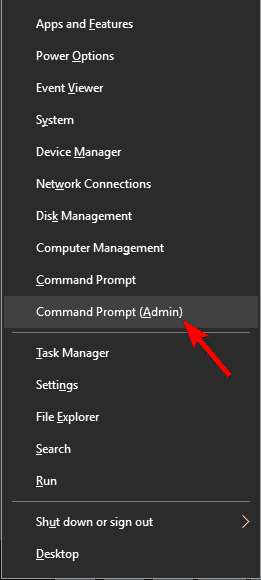
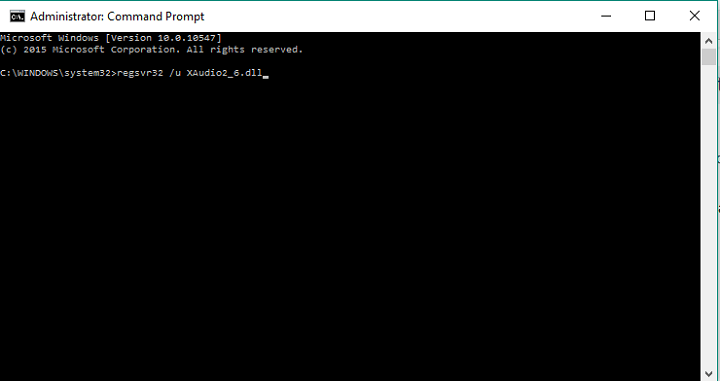
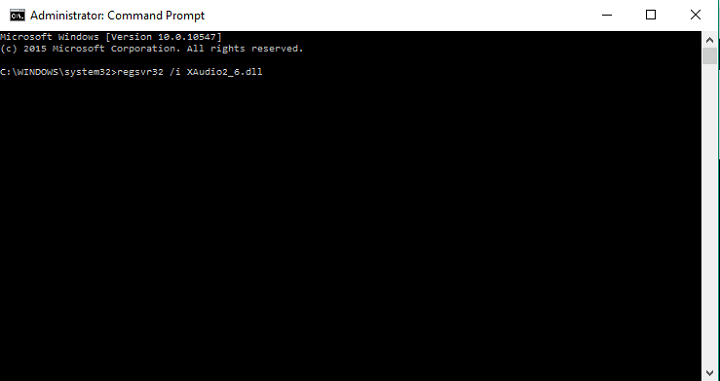


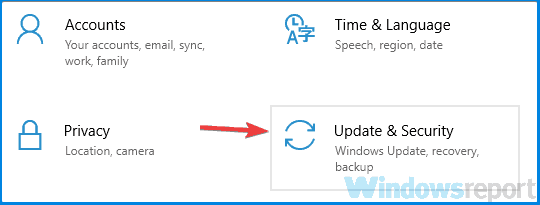

![How to Fix Mshtml.dll Not Found Error [Quick Fix]](https://windowsreport.com/wp-content/uploads/2020/05/This-computer-does-not-meet-the-minimum-requirements-1.jpg)


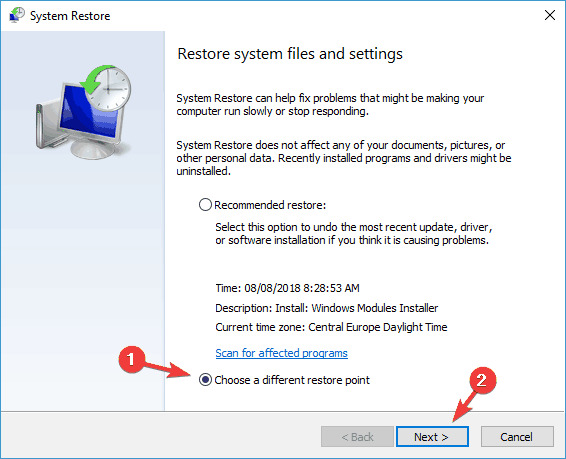


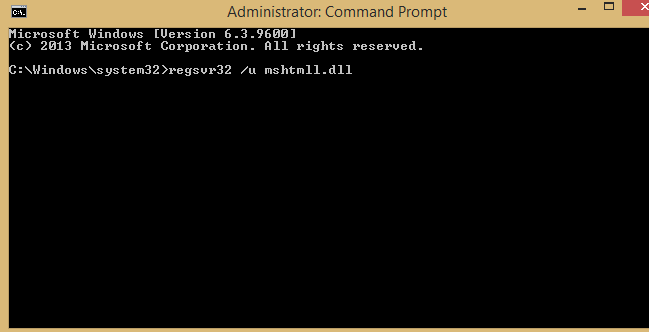





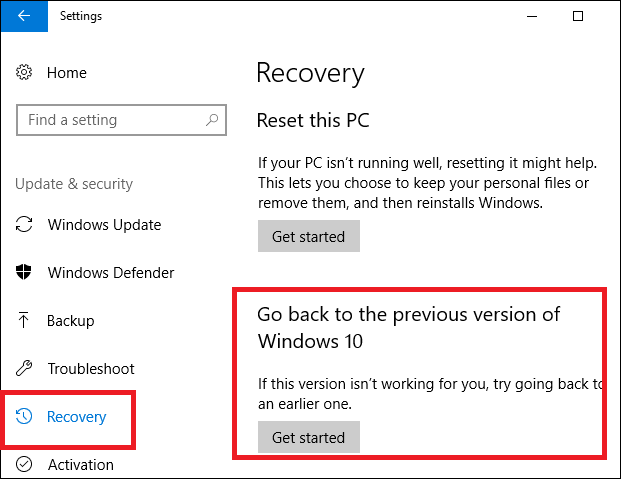
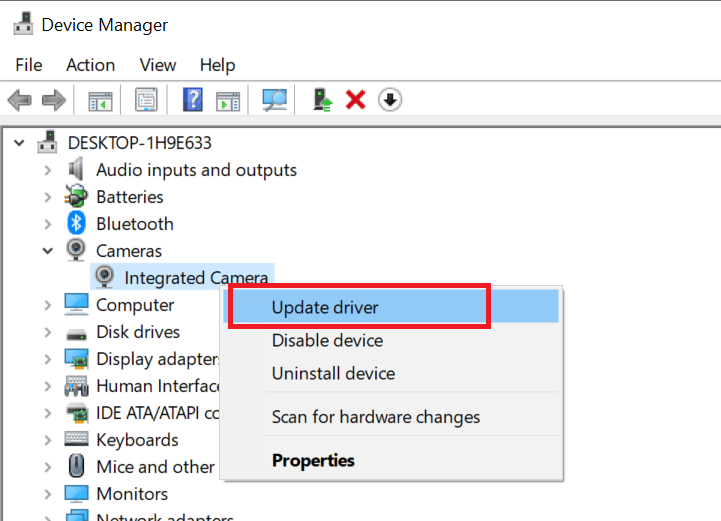

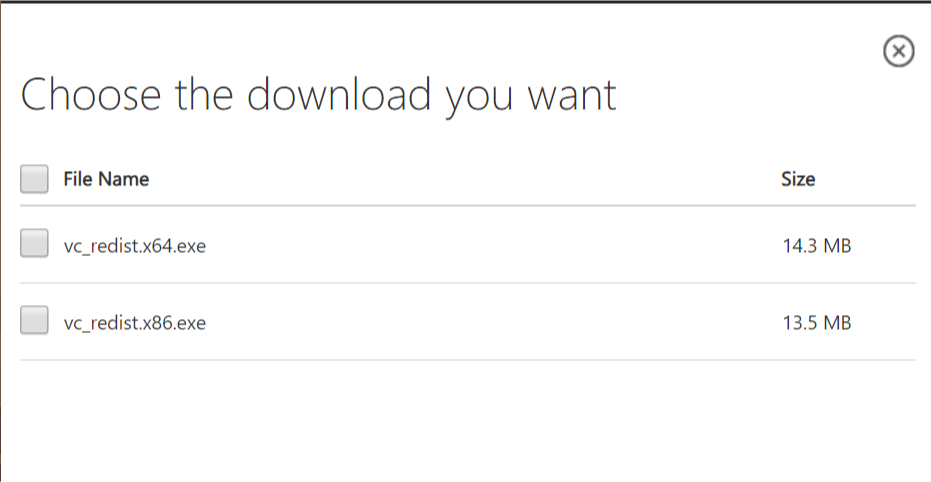



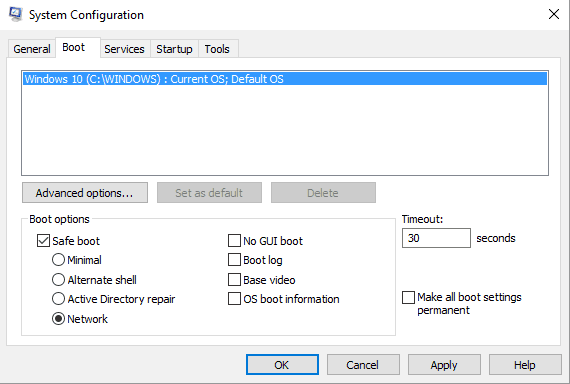


![Epson WF-3640 won’t print wirelessly [Troubleshooting guide]](https://windowsreport.com/wp-content/uploads/2021/02/Epson-WF-3640-wont-print-wirelessly.jpg)


![Aukey KM-G12 keyboard & KM-P7 mousepad: Gaming on a budget [Review]](https://windowsreport.com/wp-content/uploads/2021/02/Aukey-Review.jpg)


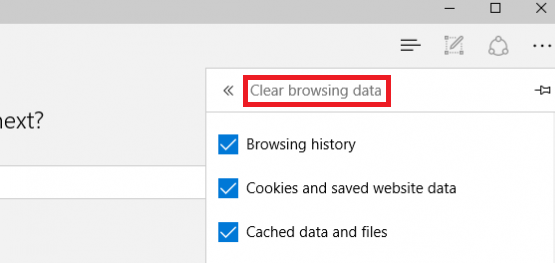

![[Full Fix] Data_Bus_Error code in Windows 10/11](https://windowsreport.com/wp-content/uploads/2020/06/BSoD-4.jpg)



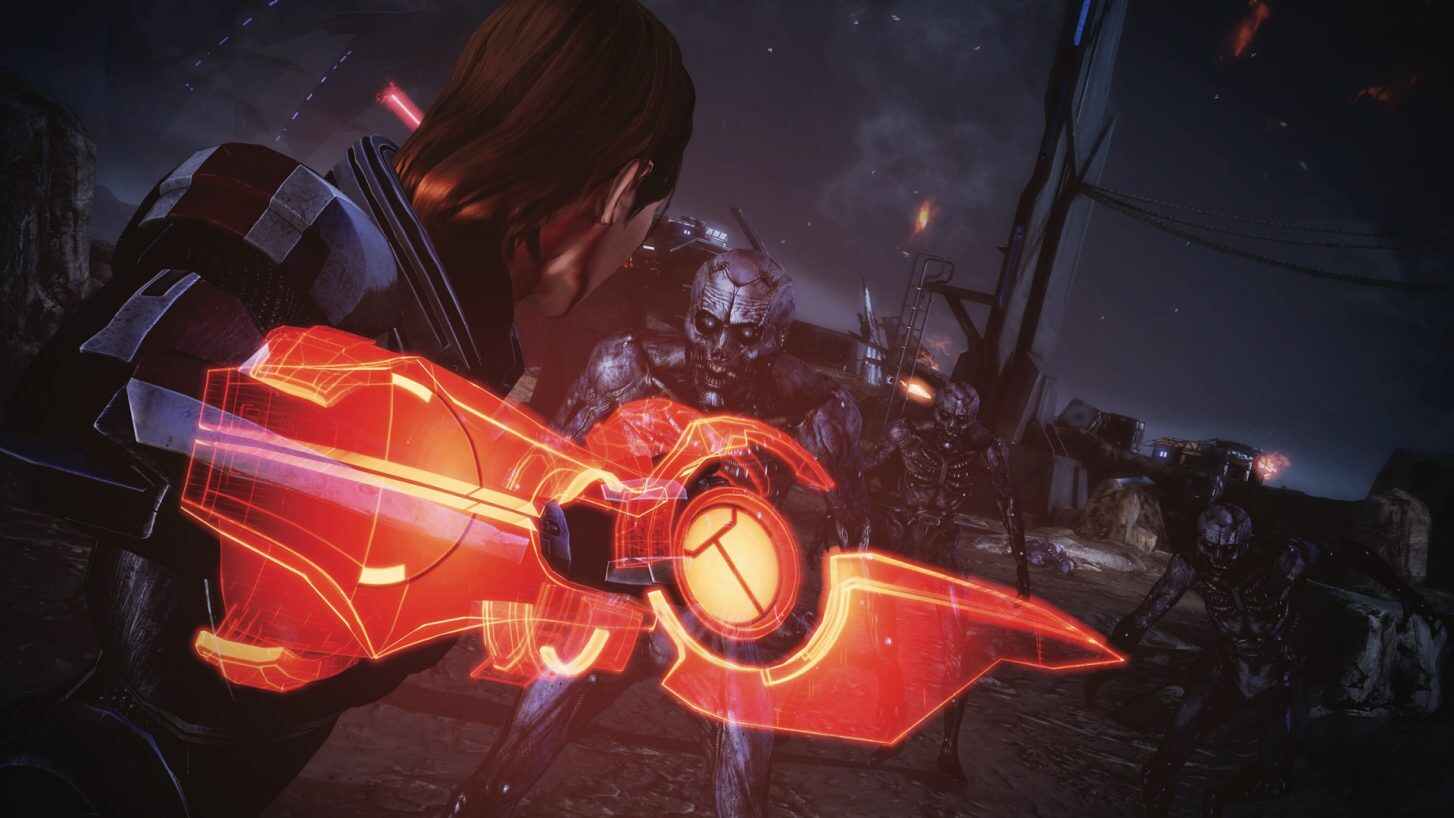

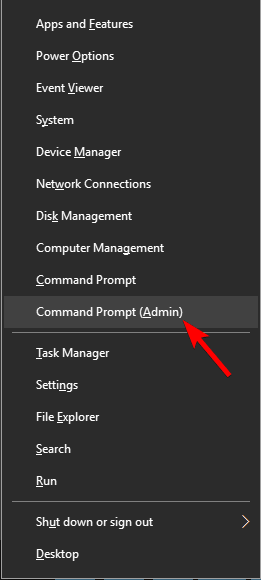
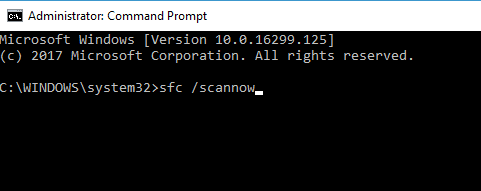
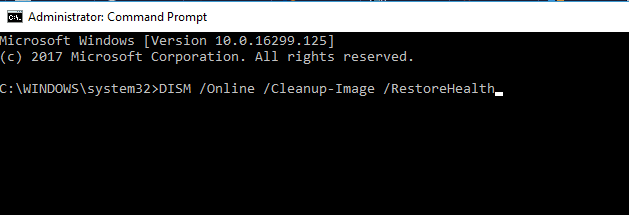

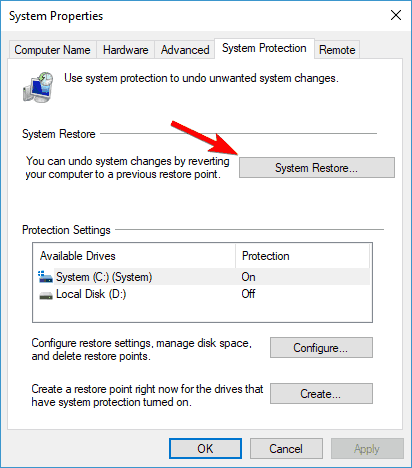

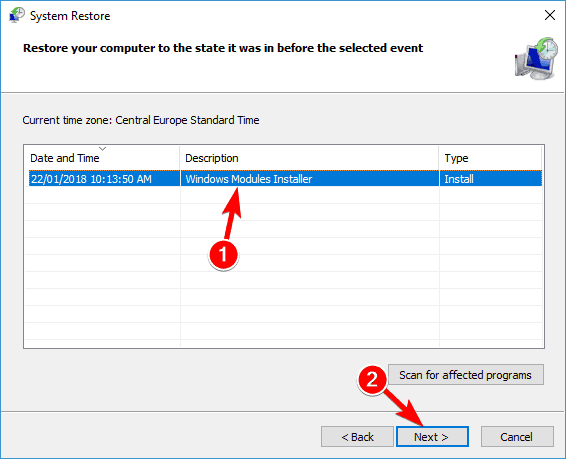

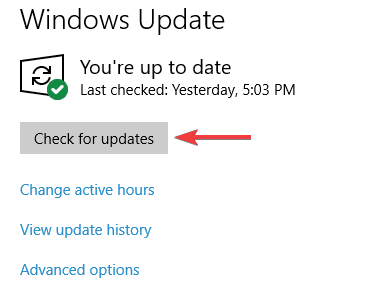
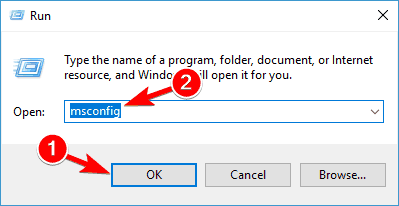
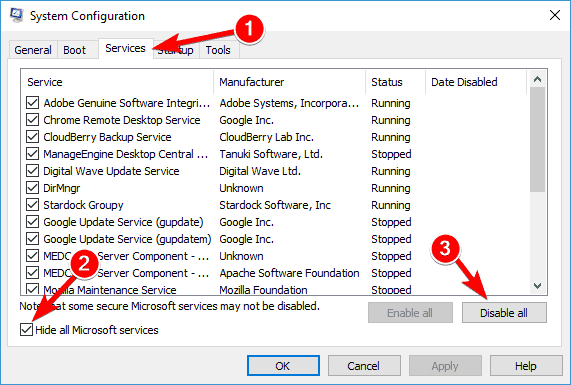

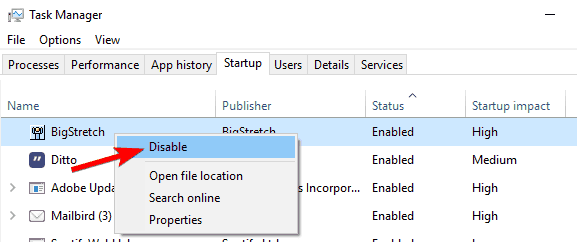
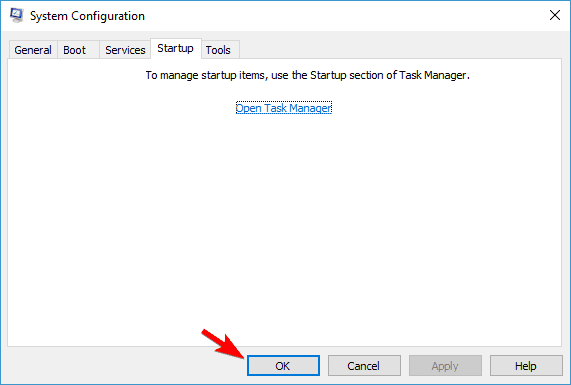
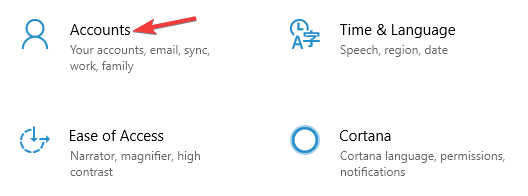
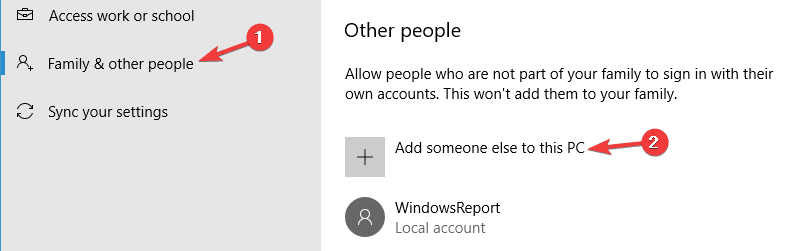
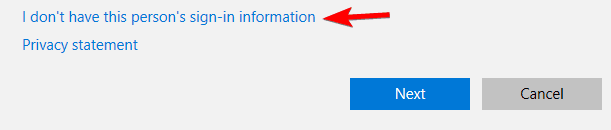

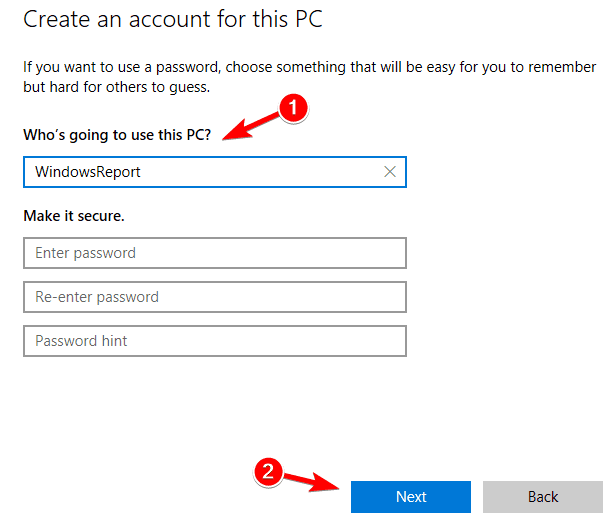
![Pfn_share_count error in Windows [Full Fix]](https://windowsreport.com/wp-content/uploads/2020/04/not-a-png-file-photoshop-error.jpg)

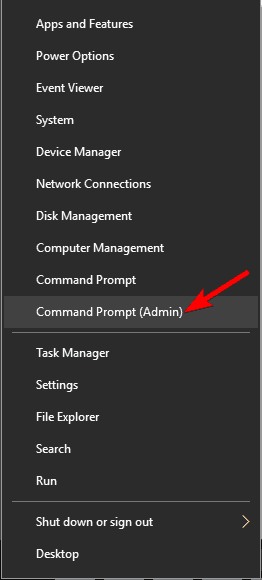
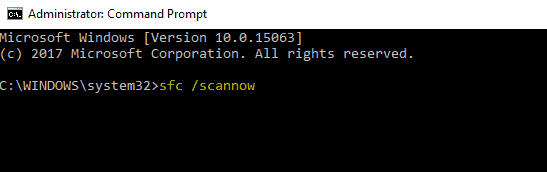
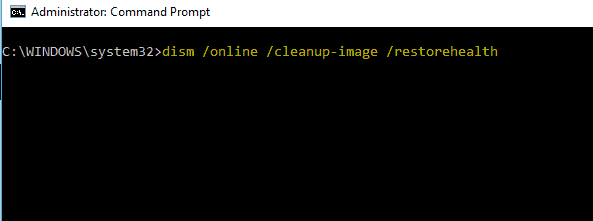

![Fix: Former volume not mounted error [Utorrent, Bittorrent]](https://windowsreport.com/wp-content/uploads/2021/01/Fix-Former-volume-not-mounted-error-Utorrent-Bittorrent.jpg)


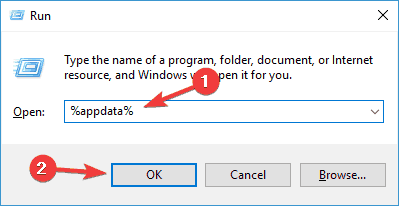
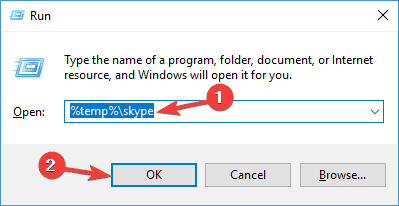

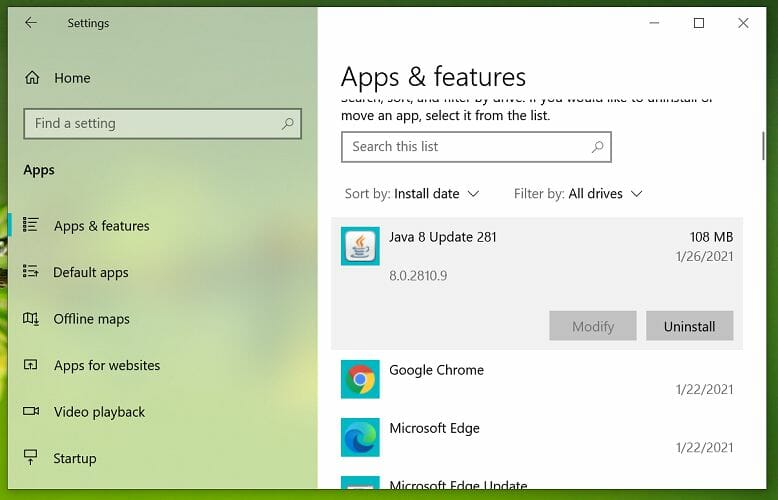









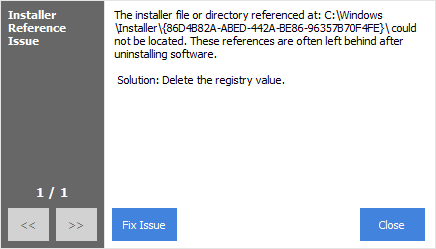

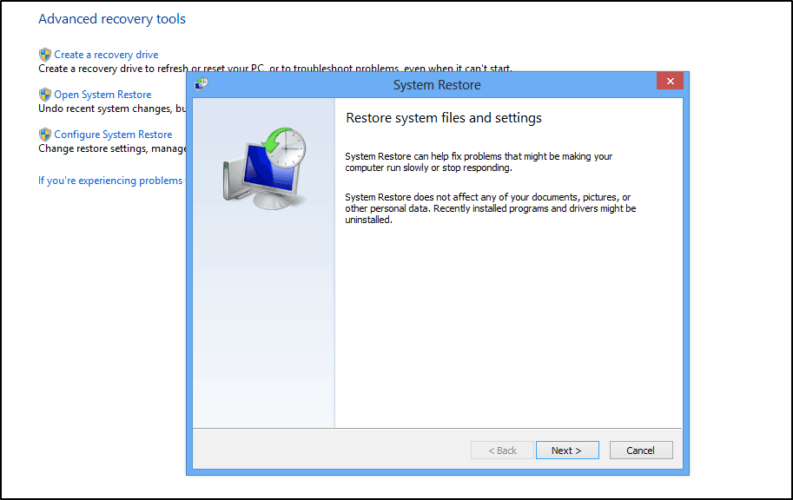











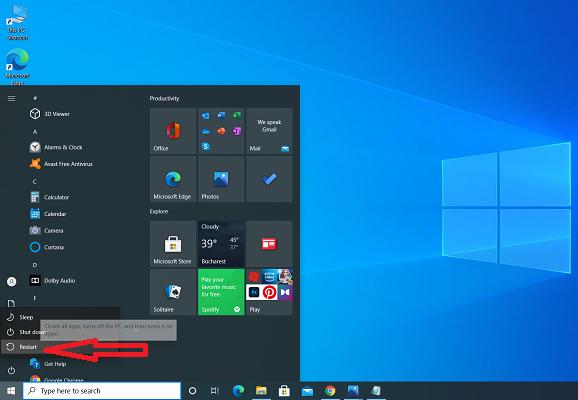


![Sdbus_internal_error BSOD stop code [Fixed]](https://windowsreport.com/wp-content/uploads/2021/01/Sdbus_internal_error-BSOD-stop-code-Fixed.jpg)




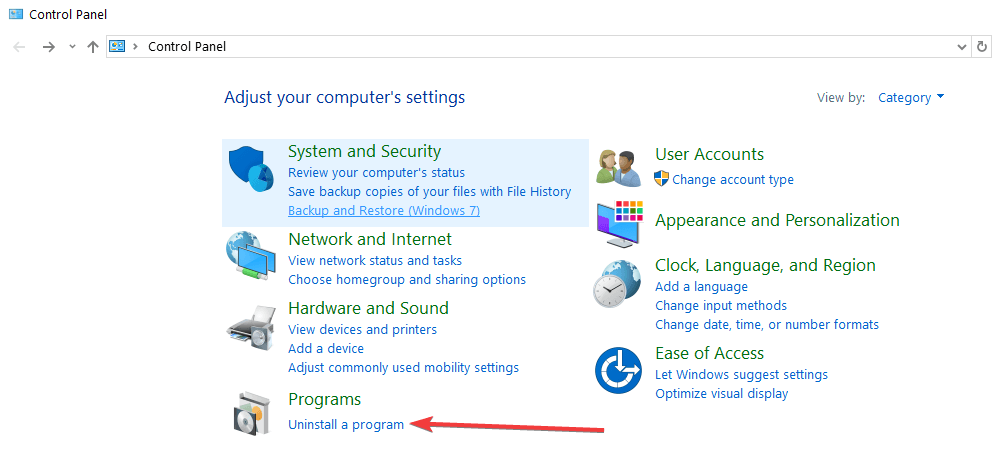


![Windows.devices.smartcards.dll Is Missing [Expert Fix]](https://windowsreport.com/wp-content/uploads/2019/07/Windows.Devices.smartCards.dll-is-missing.jpg)


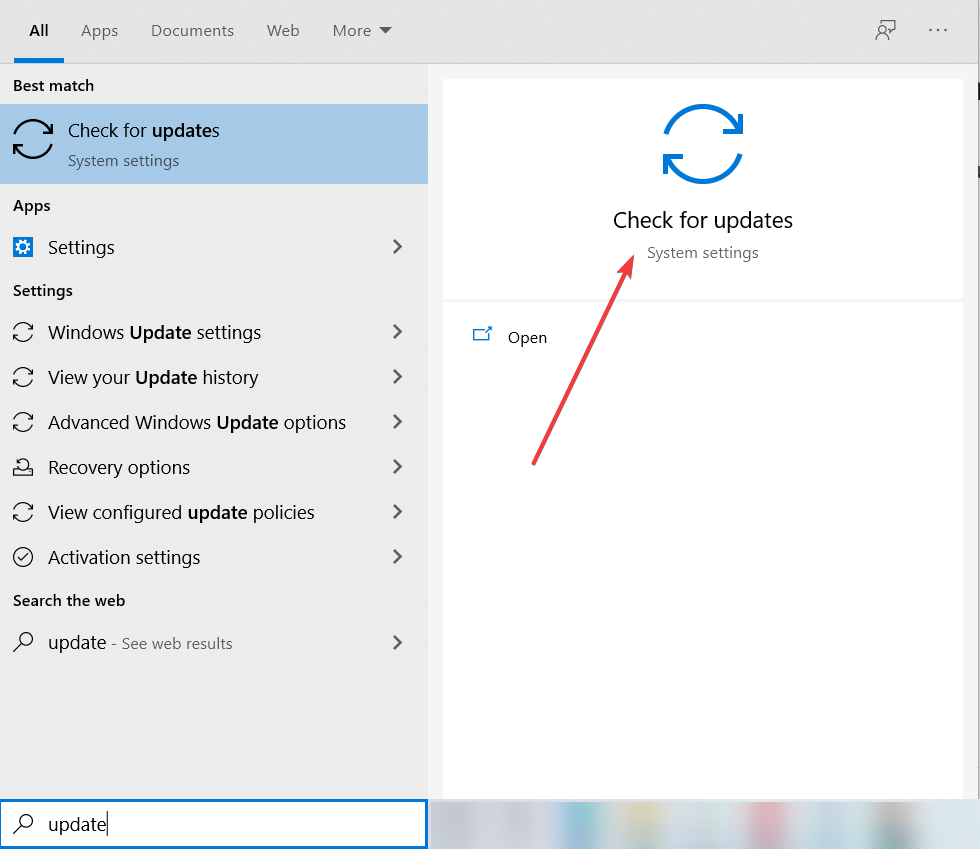

![User_mode_health_monitor BSOD error [Fully Fixed]](https://windowsreport.com/wp-content/uploads/2021/02/User_mode_health_monitor-BSOD-error-Fully-Fixed-.jpg)




![How to open a WIM file in Windows 10 [Best Tools]](https://windowsreport.com/wp-content/uploads/2021/12/WIM-files.jpg)




![FIX: Windows 10 not accepting password [Safe Mode, Update]](https://windowsreport.com/wp-content/uploads/2021/12/Password-Error.jpg)