5 Best Cassette to MP3 Converter Software

People from the cassette era would have never imagined that one day they would need to convert their favorite records using a cassette to MP3 software. Just like a popular music format in the current times, cassettes were the leading music format back then.

The  advancement of technology, brought a complete metamorphosis to the entire music scenario. Cassettes transformed into digitalized versions and that gave rise to the digital audio files.

Soon the audio cassettes were taken over by MP3s, and the latest with USB drives and external hard disks. So, how to protect the priceless audio cassettes? Well, the cassettes can be converted to MP3 format so that the favorite records can be played in future. Although the original cassettes can be saved, they can’t be preserved for long. Therefore, a digital copy of the songs becomes a must.

There was a time when the converting the cassettes to MP3 was not an easy task, but as technology evolved, even that is possible now. There are dedicated apps that can easily convert the cassette tapes to MP3 format either using a computer, or a USB flash drive. Here is a list of a some of the best cassette to MP3 software for your review.

What software can I use to convert cassette to MP3?

NCH Software
Top convert cassette to MP3 software

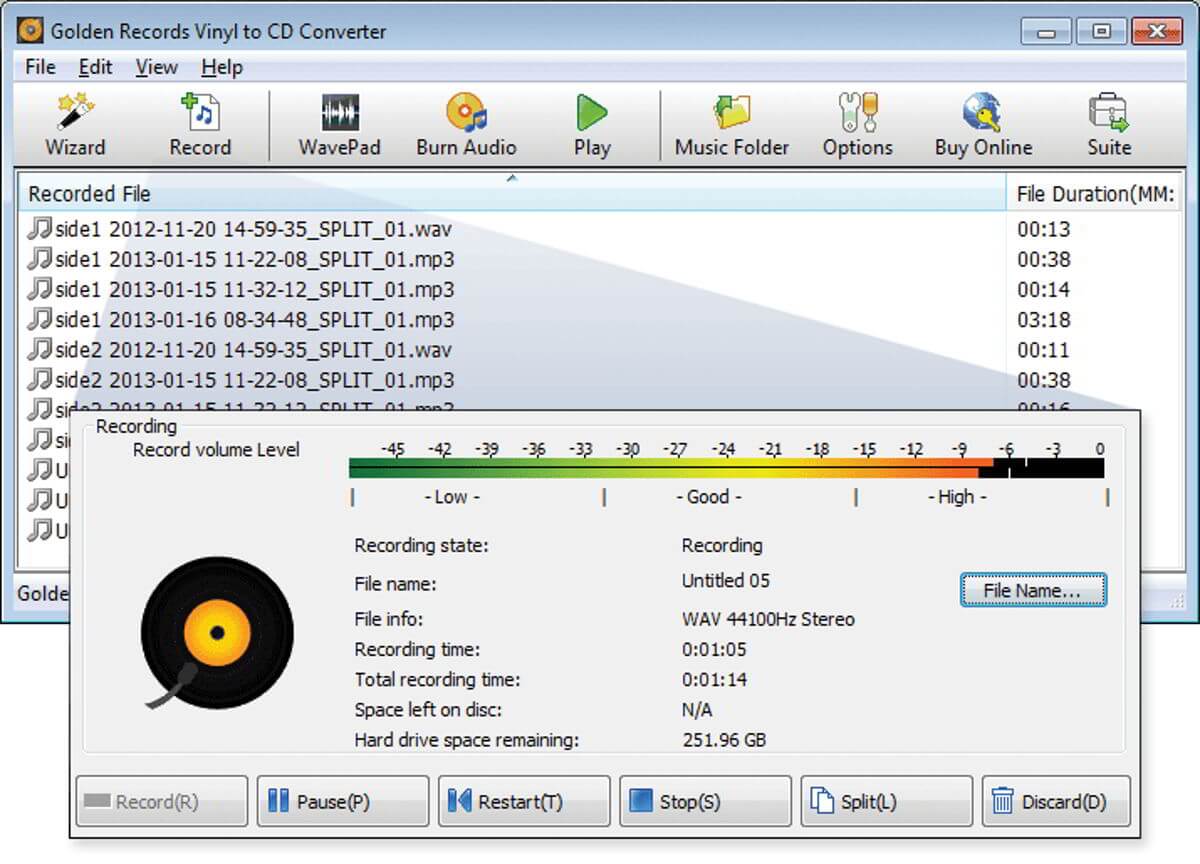
NCH software is one of the leading technologies in the category of audio, video, and business. The company offers different software for different needs, and the Golden Records Vinyl and Cassettes to MP3 or CD is one of them.

This software allows users to convert their favorite cassettes to CD or MP3 format with the help of Windows or Mac computer. It’s a user-friendly software that ensures your classic favorites sound their best using restoration tools that automatically clean-up broken audio.

Among its other major features are:

  • Extracts hiss, clicks, and pops from old or damaged tapes;
  • Adjust the volume of the audio while converting to CD;
  • Implement dc offset correction while converting analog to MP3;
  • User-friendly wizard automatically identifies silence to help break audio into tracks;
  • Eliminates the need of pre-amplifier and replaces the same with phono RIAA eq;
  • Encodes cassettes to MP3 or wave formats;
  • Transfers to portable devices like PSP, or iPhone;
  • Allows users to edit tracks and create custom audio mix.

The software works with all major platforms including Windows, Mac, IOS, Android, Linux, and tablets.

Price: starts from $9.99.

⇒  Get now Golden Records

Magix/Sound Forge

Top convert cassette to MP3 software

Experience advanced audio editing with Sound Forge (by Magix) that offers state-of-the-art technology, 64-bit fuelled efficiency, and flawless high-definition audio. The software is known for its art of digital audio manufacture.

With some robust editing tools, quick processing ability, and cutting-edge workflows, it’s a converter worth a try.

For those who want to convert tapes to MP3 files or CD, Sound Forge audio studio is the solution. It generates high-definition, 32-bit audio, and allows users to boost using more than 30 professional filters and effects. Users can also digitize, repair, or rebuild the cassettes to create MP3 files or CDs. The easy to use software is specially designed to create audio with ease.

 ⇒  Get now Sound Forge Pro

Roxio LP to MP3

Top convert cassette to MP3 software

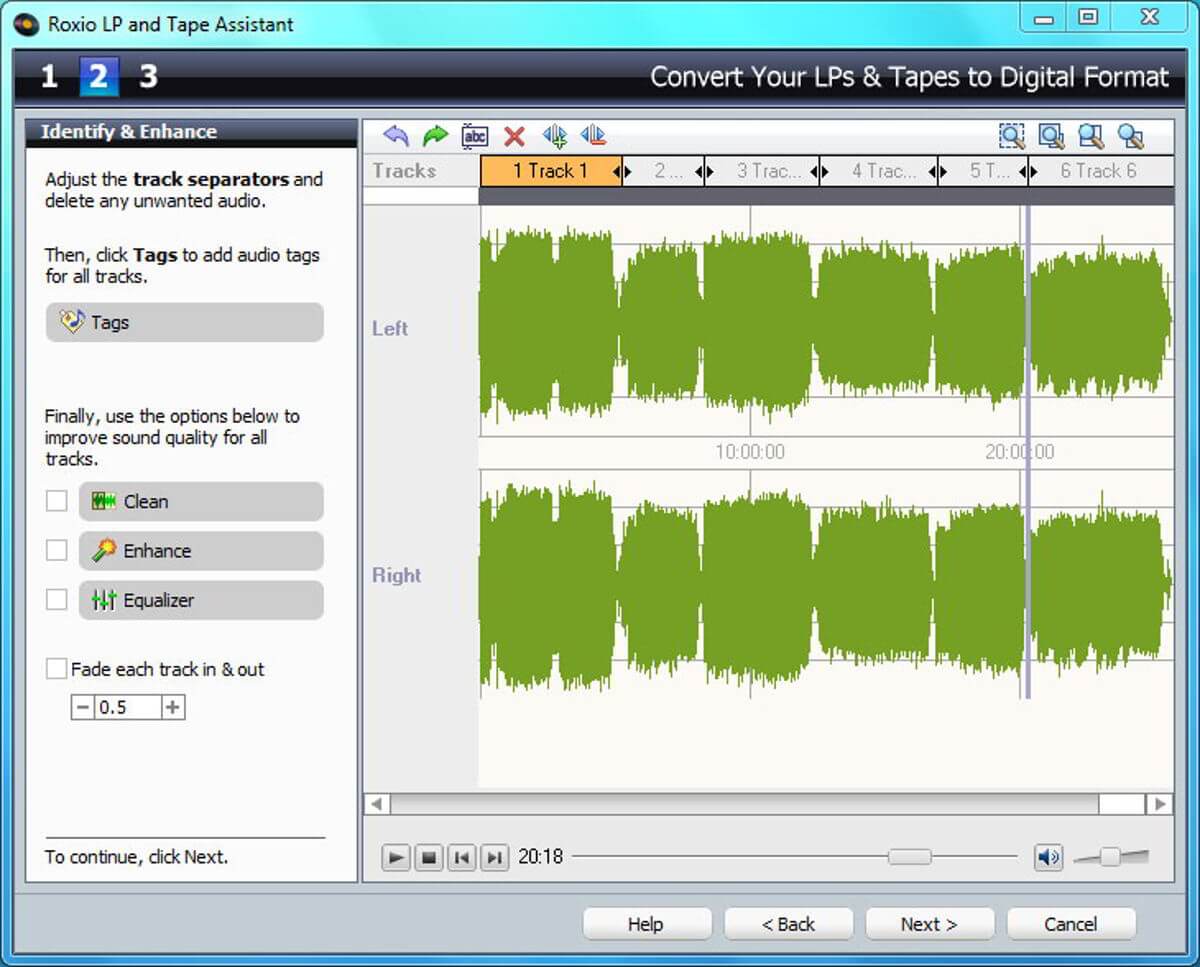
Roxio LP to MP3 is another great convert cassette to MP3 software that offers all that you need to clean up and convert your cassette audio from LPs to MP3s, easily. It makes converting the cassettes to MP3s in digitized versions a breeze.

Music fanatics can now leverage the benefits of this software to record music albums, and even cassettes or internet radio to their PC.

Moreover, users can also delete any unnecessary noise from the audio (clean audio) and convert it to MP3 files, and for other devices like iPhone, iPad, iTunes, or CDs.

Some of its significant features include:

  • Records from LPs and cassettes to different audio formats, viz., MP3, WMA, Audio CD or MP3 CD;
  • Splits and names audio tracks automatically;
  • Enhances experience by removing hiss, pops, and clicks;
  • Implements special effects with effects like digital hall, fade in/out, etc.;
  • Boosts audio quality using 10-channel graphic equalizer.

Complete cable kit included, Roxio is perfect for music lovers to help them enjoy their favorite numbers.

⇒  Get now Roxio LP to MP3

Price: $49.99 with 30-days money back guarantee.

Leawo Music Recorder
Top convert cassette to MP3 software

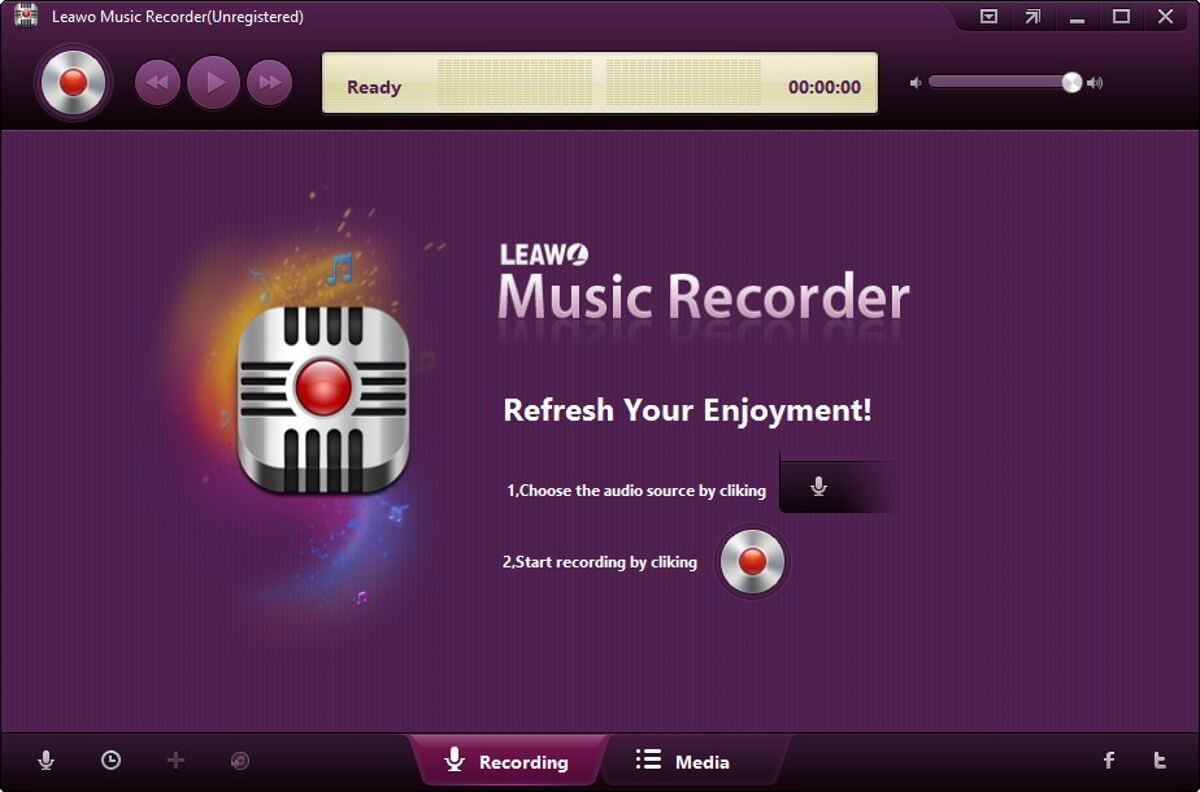
Leawo Music Recorder is one of the leading music recorders that offers the easiest and safest method to record music and audio on Windows. This is also a powerful cassette to MP3 converter.

The software comes along with a host of handy features like recording Task scheduler, automatic addition song album cover, and more that’s a boon for the music lovers.

Among its other main features are:

  • Records any audio file from computer storage and from online channels like AOL Music, YouTube, etc.;
  • Records various in-built audio files such as, Realtek Digital Input, Realtek HD, and more;
  • Schedule audio recording using the built-in task scheduler;
  • Breaks or filter songs automatically based on pre-set time range;
  • Adds the cover of the music album, artists, and song name, automatically;
  • Manages and edits recorded audio streams;
  • Adds recorded music files to iTunes in single click.

Leawo Music Recorder works on Mac and Windows XP/Vista/7/8/8.1/10

⇒ Get now Leawo for Windows

Price: Free trial available. Full version available at $19.99.

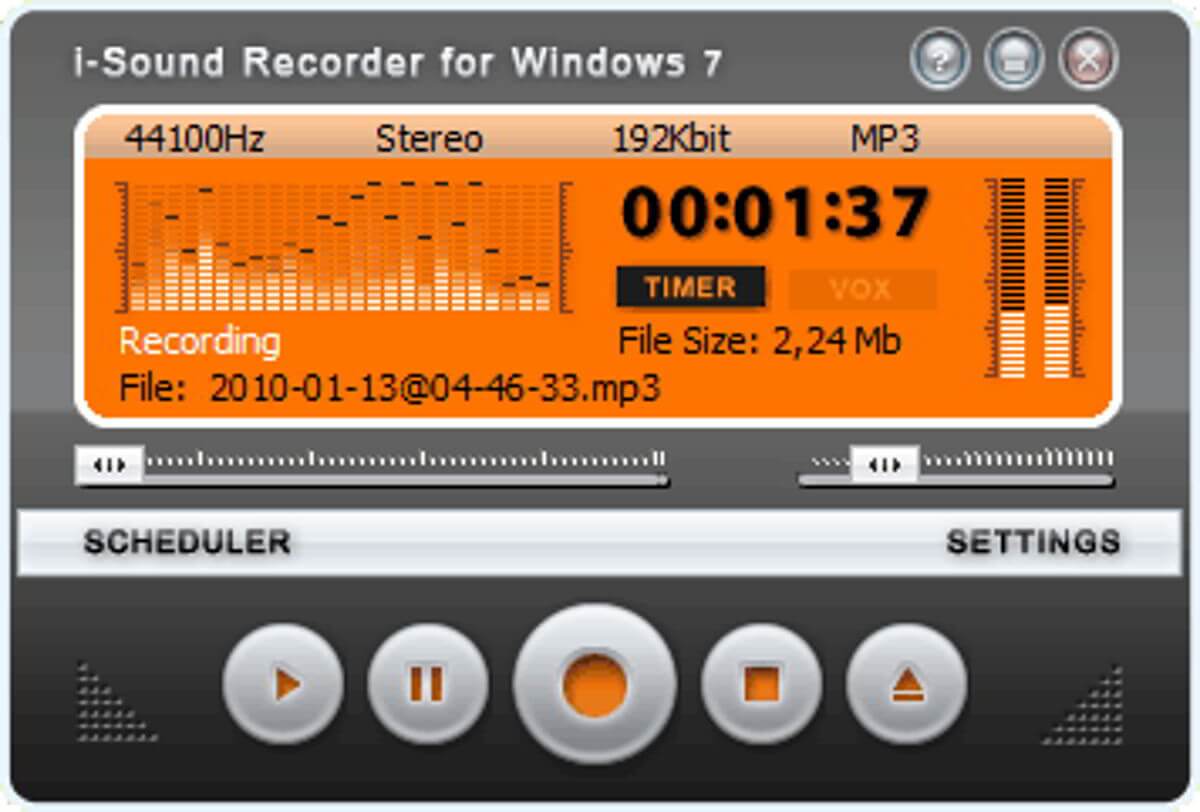
i-Sound Recorder
Top convert cassette to MP3 software

i-Sound Recorder is an effective and direct cassette to MP3 software, specially designed for Windows 7 and Windows 10. It allows users to record music for as long as upto 3hours for each recording file.

Best of all, it can be run alongside other software, helping users to record audio as they continue working on the system.

Some of its other features include:

  • Uses default playback of the PC to record audio directly;
  • Allows users to record in top-quality HD music and store it in FLAC format;
  • Supports recording modes upto 96kHz/24-bit;
  • Saves free space on hard drive with real-time audio compression to the highly popular formats such as, MP3, OGG, and WMA, and in loseless formats such as, WAV, APE and FLAC;
  • Automatic scheduling of recording at pre-set time.

Voice activated recording, automatic gain control, and automatic naming systems are among the other mentionable features.

Price: Free to try; $29.95.

Cassettes are a priceless for those in who nurture music as a passion. So, if you want to keep your passion for classics alive, preserve them by using any of these efficient and powerful cassette to MP3 software.

RELATED POSTS:

Urgent-response type phishing attack hits Office 365 emails

Researchers at phishing platform Cofense discovered a new phishing attack aimed at Office 365 accounts.

The method used isn’t a novelty: the attackers inserted a fake SharePoint document into an email, requesting urgent review and response.

The seriousness of the event is more concerning since it managed to bypass Microsoft’s security layers, the report shows:

The campaign was found in an environment protected by Microsoft’s own secure email gateway (SEG). With thousands of individuals still required to telework, this has created a perfect opportunity for hackers to lure their victims with almost picture-perfect sharing themed emails.

The details to look after in a phishing attack

Similar to other phishing scams, this one was also spread via a seemingly legitimate email.

A first notable detail was the sender’s email address: the name wasn’t clear, nor was a Microsoft reference or the organization’s title.

Then, the email contained a team project document apparently uploaded and shared via SharePoint, plus a general message claiming urgent attention and response.

This type of scams falls into the same category of attacks requesting a change/refill of login credentials.

phishing attack sharepoint document

Besides, emails calling for urgency should be usually considered suspicious, especially when they come from an unknown or undisclosed address.

If clicked, the fake link takes to a landing page that displays Microsoft’s SharePoint logo, a blurry background, and a request to log in to view the document.

Of course, upon entering the credentials, the user is taken to an irrelevant document, and only then one realizes the scam.

The entire scam proves that sharing and accessing sensitive documents via email (even using Microsoft’s protocols) is quite risky. A few common-sense ways to prevent falling victim for such attacks would be to:

  • Install an antivirus with phishing and/or ransomware shield (most tools have it)
  • Make sure the system and all programs are up to date
  • Exercise precaution when it comes to revealing credentials or opening suspicious emails or documents
  • Block the addresses of potential scammers

Hopefully, this article offered some useful details about phishing scams and how to prevent them. Feel free to leave comments in the section below.

Free Resume Builder – Best Options to Use in 2026

Looking for a reliable free resume writing software that’ll make it easier for you to list your skillset and experience? We got you.

No matter the field you’re in, having a good resume is a must. Find below tools with built-in templates, inspirational examples to give you a headstart, and tons of options for exporting.

What are the best tools to write an eye-catching CV?

Adobe Spark

adobe spark

Creating a compelling resume takes only a few minutes of your time with Adobe Spark. Plus it’s completely free and up for grabs.

Spark Post boats intuitive and streamlined customization tools for text, graphics, and colors.

It also offers premade templates, and preset size options to help you showcase yourself and your achievements in a professional and impressive resume.

Let’s quickly go through its key features:

  • Gorgeous typography
  • Iconic imagery
  • Professional themes (wide variety of best-in-class layouts, colors, and fonts)
  • Professionally designed templates
  • Inspiration gallery of completed projects, tutorials, and design resources
  • Seamless integration with other Adobe Creative Cloud apps, Dropbox or Google Photos
Adobe Spark

Adobe Spark

Built a resume that stands out content and visual-wise with the professional tools developed by Adobe.
Free trialVisit website

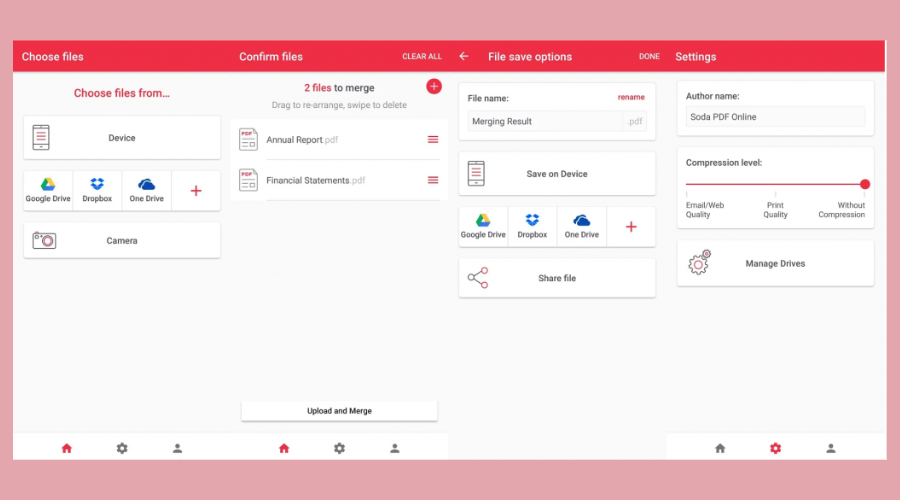
Soda PDF

soda pdf interface

With Soda PDF you can automatically convert the most beautiful templates for resumes to PDF, securing all the formatting.

The tool also has built-in spell checkers. So you don’t have to worry about typos or awkward phrases within your resume.

Key features:

  • Formattings security
  • Free and paid
  • Transforms scanned PDF files into editable resumes
  • Tons of customization options
Soda PDF

Soda PDF

Add, remove, change or modify the text, fonts, colors directly in the PDF for an impeccable resume.
Check priceVisit website

Canva

canva resume builder

Canva is a well-known tools for graphics designers and an excellent learning resource for those who want to improve their log or product design skills.

From professional-looking resumes to more creative approaches, Canva has a huge gallery to help you match your personality and desired role.

Key features:

  • Web-based resume builder
  • Free and paid option
  • Tons of templates
  • Big gallery of photos, illustrations and other visual elements
  • Beginner-friendly

⇒ Try Canva


Resume.io

Resume.io is another free source that you can use to build a professional-looking resume, CV, or cover letter.

You can also choose from several templates, depending on how you want the final document to look like – creative, simple, or modern.

Key features:

  • Resume examples to help you get started
  • Templates
  • Multi-format support
  • Free and paid plans

⇒ Try Resume.io


WinWay Resume Deluxe 14

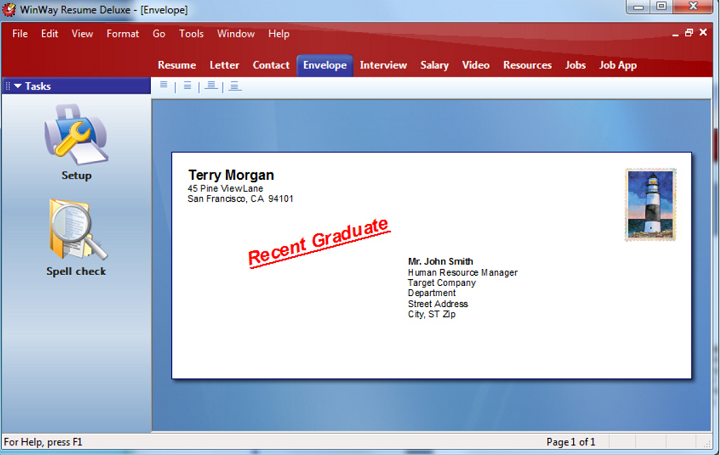
This is another tool that will help you with your resume writing. It will write, format, and also audit your resume along with other more functionalities.

It comes with a 90-day money-back guarantee, and it’s compatible with Windows 10 and more.

Let’s quickly go through its key features:

  • Creates your resumes and cover letters automatically
  • Highly customizable
  • Over 14,000 resume examples
  • Persuasive resume cover letter
  • You can access current job openings and apply to them immediately.
  • Powerful contact manager

⇒ Download WinWay


Easy Resume Creator Pro

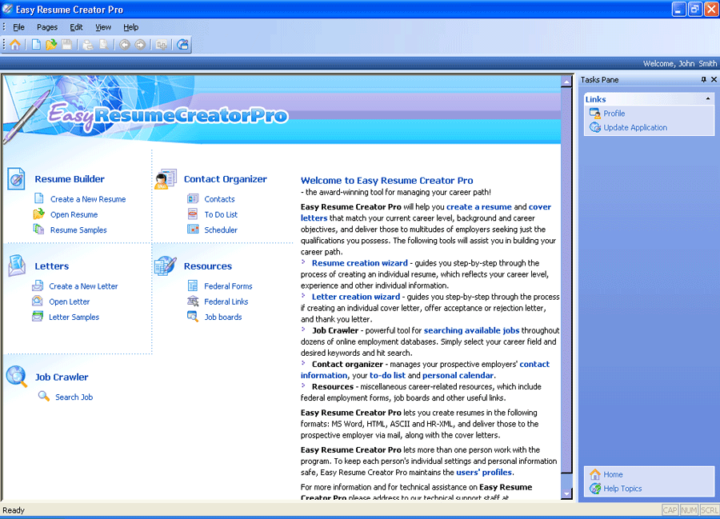
Easy Resume Creator Pro will help you stay ahead of the pack in today’s competitive job market with a perfect resume. A winning resume will grab the employer’s attention, and it will instantly impress them.

Let’s quickly go through its key features:

  • You can find, track, and apply for the position that you want in just a few seconds.
  • You will also be able to follow the applications efficiently.
  • Easy Resume Creator Pro allows you to define your career objective.
  • The resume builder and cover letter builder will help you write the perfect resume and cover letter to emphasize your current career level, background, and also your desired career objectives.

Every Easy Resume Creator update provides up-to-to-minute information as well. You can browse the extensive of the most popular and updated job boards.

⇒ Get Easy Resume Creator Pro

These are six of the best resume-writing tools that you can find on the market, and all of them help users create the perfect resume.

They also include other functionalities, so it’s recommended that you check out their unique set of features.

After analyzing them carefully, you will eventually be able to choose the best resume writing tool that seems to work best for you.

Microsoft Edge v92 will have automatic HTTPS

Many websites utilize HTTPS (HyperText Transfer Protocol Secure) instead of the increasingly outmoded HTTP protocol. Yet, Edge has been a bit slower than some browsers to implement automatic HTTPS.

However, Microsoft has just confirmed Edge v92 will incorporate automatic HTTPS.

Microsoft confirms automatic HTTPS for Edge v92

The big M confirmed it will add automatic HTTPS to Edge on a 365 roadmap page. There Microsoft announced automatic HTTPS for its flagship browser as follows:

Starting with Microsoft Edge version 92, users will have the option to upgrade navigations from HTTP to HTTPS on domains likely to support this more secure protocol. This support can also be configured to attempt delivery over HTTPS for all domains.

At the moment, automatic HTTPS for Edge is in development. So, users will need to wait for Microsoft to release Edge 92. The big M has confirmed a July 2021 release month for Edge 92.

What is HTTPS?

HTTPS is a more secure browser protocol than HTTP that establishes connections with hosting servers. While the HTTP protocol is not encrypted, HTTPS shuffles web traffic through SSL encrypted tunnels.

Thus, there can be no doubt HTTPS is more preferable to HTTP. Edge currently redirects from HTTP to HTTPS. However, Edge 92 will likely open pages a bit quicker with HTTPS as its default option.

The Bing search engine in Edge

If you really can’t wait for Microsoft to release Edge v92, check out the HTTPS Everywhere extension for Chromium-based browsers. That is a Chrome extension you can add to Edge that enables automatic HTTPS in browsers.

You can add HTTPS Everywhere to Edge from its Chrome Web Store page.

So, Edge will soon become a more secure browser with automatic HTTPS thanks to the upcoming v.92 update.

There can be little doubt that Chromium Edge is an altogether better browser than it used to be that keeps getting better with further Microsoft updates.

Virtual Assistant Software for Windows: 5 Best in 2026

Virtual assistant programs are AI software that can assist you with various things. You can request that virtual assistants send texts or emails, provide weather details, search the web, remember phone numbers, provide dictionary definitions, open software and much more. These are also programs that you can use with microphones or chat with by entering text. There are more AI applications for mobiles than desktops, but some publishers have launched a few virtual assistant programs for Windows.

Apple’s Siri was among the first digital assistants for mobiles and tablets, and Microsoft included its first virtual assistant in Windows 10 and Phone 8.1. Cortana is Windows 10’s virtual assistant, and that can keep a notebook for you, send emails, tell you the time in various countries, replace the Calculator app, provide football scores and fixtures, set alarms, play songs with apps, schedule dates, etc. Although it might seem little more than a search tool at first, Cortana is a lot more. However, you can still try out any of these alternative third-party virtual assistants for various Windows platforms.

Braina

Braina is virtual assistant software that has a freeware Lite and proprietary Pro version, which is retailing at $29. With the Lite version you can save notes, set alarms and reminders, open programs and files, open websites, play songs, get weather details and search web. The software is also a handy dictionary and thesaurus. However, the Pro version can do quite a bit more and enables users to dictate speech to text for word processing, make Skype calls, set up hotkeys to trigger custom commands, create keyboard macros and establish startup commands that automatically execute when you first open Braina.

Jarvis Light


Jarvis Lite is freeware you can add to Windows by pressing the Download Now button on its home page. This application has minimal system requirements, so it’s a good choice for more outdated laptops or desktops. With Jarvis Lite’s shell commands users can launch software, shut down Windows, play songs, open and send emails and open web pages. The software’s termination commands come in handy for closing programs and windows. In addition, Jarvis enables speech to text dictation and provides handy audio controls; and you can also set up custom voice commands with it.

Denise


Denise is VA software available for $120, and there’s no stripped down freeware version. However, the software might still be well worth it as it comes with a unique set of avatars and a GUI that Cortana can’t match. Denise has male, female and robot avatars within a real-time display system with millions of colors. Users can resize the avatars to alternative resolutions and customize the UI’s menu options.

Aside from its amazing avatars and GUI, this virtual assistant has weather forecast, email, agenda, search and dictionary modules. You can use Denise as a media player to play music and video or as an app launcher to open programs with. The software supports both Spanish and English dictation to dictate text in external software. Denise can rip music from CDs and convert it to MP3 format, and it can also send photos and videos to Picasa and YouTube accounts. Kiosk Studio is one of the software’s more novel modules with which you can set up PowerPoint style presentations hosted by Denise. With a little programming, users can even integrate Denise with third-party software.

Ultra Hal Assistant 6.2

Ultra Hal Assistant 6.2 is retailing at $29.95 and runs on most Windows platforms. This VA software includes 3D avatars that users can chat with, and it also has a UI that you can customize with skins. The best thing about this software is that it boasts an expansive chat database for more natural discussions. It also includes its own text editor for text dictation. Aside from that, this digital assistant can search for and open programs, tell you the weather, replace the Calculator app, dial phone numbers, start emails and provide reminders when required.

Syn Virtual Assistant


This is a freeware virtual assistant you can add to Windows 7/8/8.1/10 from this website. Syn Virtual Assistant is another that includes 3D avatars that bring it to life. Iron Man fans will love the software’s 3D Iron Man avatar. The software’s SynEngine integrates with Skype, Google maps, Yahoo, Twitter and other web services. Syn opens programs and websites, manages contacts, checks email and plays media. The software also supports Visual Basic, C++ and C# plug-ins so that developers can further enhance it.

At the moment there aren’t many digital assistants for Windows. However, virtual assistants could be the next big thing in the software industry. Hal, Syn, Denise, Jarvis and Braina are five alternatives to Cortana you can install now; and they’ll probably be lots more new virtual assistant software for Windows.

How to enable the new MS Teams Noise suppression on macOS

Approximately one year after announcing that Microsoft Teams for Windows will get a noise suppression option, Microsoft now revealed that the same feature is going to be added to macOS as well.

The feature has been recently launched in public preview, meaning that it is available for testing for a limited number of users.

Having Noise suppression activated to a certain degree, the meeting presenter makes sure that the audience only hears music and the human voice. Other annoying background noises (pets, doors, alarms, shuffling papers, etc) are cancelled.

How to activate noise suppression on macOS?

  1. Select your profile picture at the top right of the Teams app.
  2. Then, select Settings.
  3. Scroll down to Devices.
  4. Under Noise suppression, select an option to determine how much of the background noise the app should mute.
noise suppression ms teams

These steps are avaialble if you’re making the changes before a meeting. If you want to adjust them during a meeting, the steps are the following:

  1. From the meeting window, select More options in your meeting controls.
  2. Then, choose Device settings.
  3. Proceed with selecting an option under Noise suppression. The options are the same as in the previous instructions.

Presently, there are some limitations when it comes to totally shut off background noise – Noise suppression High, the announcement points out:

  • Your computer’s processor must support Advanced Vector Extensions 2 (AVX2).
  • Not available if the meeting or call is being recorded or live captions is turned on.
  • This option uses more computer resources and the feature might fall back to Low automatically.

According to Microsoft, the preview app is not available on macOS devices with an M1 processor. Also, anyone who wants to join Microsoft’s public preview community can do so by switching a few settings.

The final Noise suppression option for macOS should be launched in August; until then, the feature is subject to changes.

FIFA 21 is coming to EA Play and Xbox Game Pass Ultimate on May 6

FIFA 21, the latest installment in the popular football simulation video games series is coming to EA Play and Xbox Game Pass Ultimate on May 6. The game will join Madden NFL 21, NHL 21, and many other EA Sports games in the EA Play catalog, which is now included for free with Xbox Game Pass Ultimate and Xbox Game Pass for PC

Along with Call of Duty and Madden, FIFA remains one of the best-selling video game franchises every year. FIFA 21 was released on October 6 on Xbox One, and a separate version for Xbox Series X|S consoles was released on December 3. Both versions of the game will be available on EA Play, similar to what EA previously did with Madden NFL 21.

Slowly but surely, Xbox Game Pass is becoming a must-have service for sports games fans on Xbox. In addition to all the EA Sports games available on EA Play, Xbox Game Pass subscribers can also play Konami’s PES 2021, 2K Sports’ NBA 2K21, as well as Sony’s MLB The Show 21 which just made its big debut on Xbox consoles.

Are you excited about FIFA 21 coming soon to EA Play and Xbox Game Pass Ultimate? If you’re already a subscriber, we remind you that you can already take advantage of a 10-hours trial before the game fully unlocks on May 6.

FIFA 21 Xbox One
FIFA 21 Xbox One
Developer:
Electronic Arts
Price:
Free


FIFA 21 Xbox Series X|S
Developer:
Electronic Arts
Price:
Free

How to fix Norton antivirus errors on Windows 10/11

Norton Antivirus is fully compatible with Windows 10 starting with version 22.5.2.15 released on July 20, 2015, but issues might appear.

The antivirus supports Windows 10 builds, and you shouldn’t encounter errors or bugs when running Norton on the latest Windows OS.

Since the world is not perfect, sometimes users do report Norton errors which prevent them from using the antivirus on Windows 10.

What to do when Norton installed on Windows 10 has issues? The most simple solution is to use the built-in Norton’s Autofix. Usually, problems with Norton appear after a partial or a faulty installation.

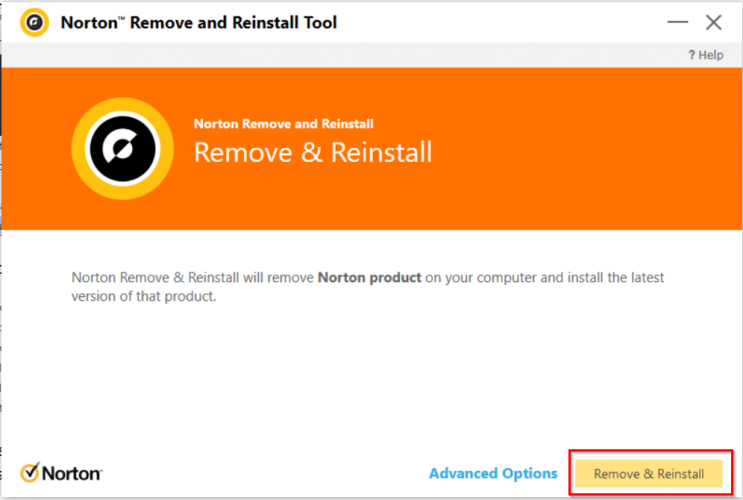
If this doesn’t solve your problem, run the Norton Remove and Reinstall tool or check the Network proxy settings.

User also complained about Norton security.exe application error message popping up when they try to install or update the antivirus. You can use the bellow solution to fix this.

Below, we’ll list the most frequent Norton antivirus issues in Windows 10, that users can encounter, as well as the available fixes.

What to do if I have Norton issues on Windows 10?

1. Install the antivirus from the Norton Portal

  1. Go to the Norton Portal and log in to your account.
  2. In the Norton portal, select Download Norton.
  3. On the Get Started page, you have to select Agree & Download.
  4. After the download is complete, locate the file and run the installer.
  5. Follow the on-screen instructions to complete the installation.

If you can’t find Norton in Windows 10, maybe it wasn’t installed properly. Go to your Norton Portal and install the antivirus from there.

2. Use the Norton Remove and Reinstall tool

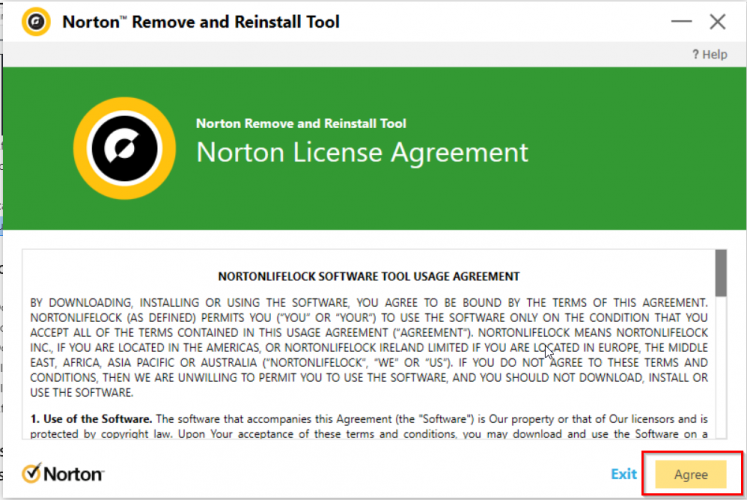
  1. Download the Norton Remove and Reinstall tool. If you have Norton Family, uninstall the program before you download this tool.
  2. Double-click the tool‘s icon and accept the license terms.
  3. Click Remove & Reinstall then select Continue.
  4. Click Restart Now to finish the uninstall process.
  5. After the restart, follow the on-screen instructions to reinstall your Norton antivirus.

This tool is developed by Norton to help you out with multiple issues, such as installation errors, or update problems. Thus, it is a trusted app.

3. Install an updated version of your Norton product

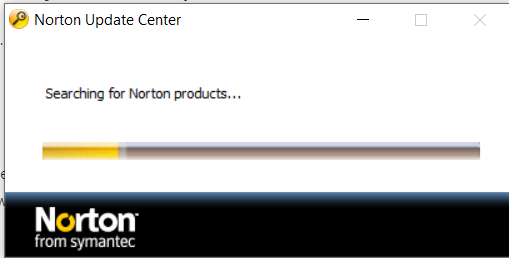
  1. Go to the Norton Update Center page.
  2. Click the Update me now button.
  3. Wait for the tool to be downloaded.
  4. Double-click the installer to run it.
  5. Wait for the process to finish and follow any on-screen instructions.

The Norton Update Center will download the AutoDetectPkg.exe. This app checks for installed products and guides you to the correct product download page with further instructions.

If your Norton antivirus fails to update, take a look at our dedicated guide and learn what to do when this issue appears on your computer.

4. Norton error: 8504, 104

  1. Use the Norton Remove and Reinstall tool and run it to remove Norton.
  2. Uninstall any-non Symantec security tools:
    1. Go to Control Panel and choose Uninstall or change a program.
    2. Remove all non-Symantec-related programs.
  3. Update the Video graphics driver:
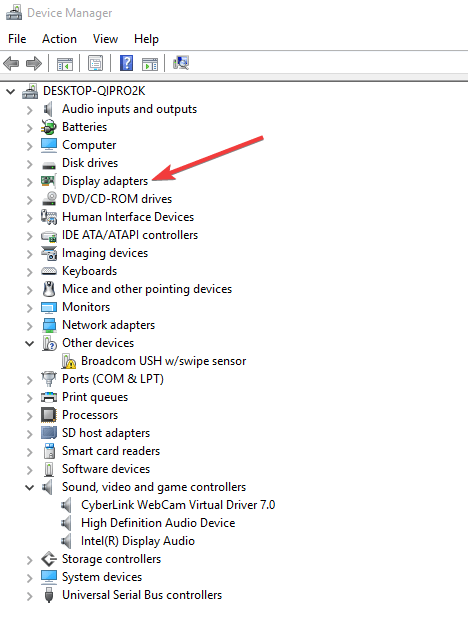
    1. Go to the Device Manager and search for Display adapters.display adapters
    2. Right-click on the HD graphics card and choose Properties.
    3. On the Driver tab, check for available updates
    4. If driver updates are available, download and install the latest version of the graphics card driver.
    5. Restart your computer.

It’s likely to encounter this error if you’re running another security program, or if installation errors slipped when upgrading the antivirus.

Norton also recommends checking if your graphic adapter driver needs an update. That is why we also provided the steps on how to update it. 

It is always best to keep your drivers up to date in order to avoid issues. Thus, use any of these great auto detect drivers software, to automatically have them updated.

5. Norton error: 3048,3

  1. Launch Norton.
  2. Go to Security and then click on LiveUpdate.
  3. Wait for the update to finish and click OK.
  4. Run LiveUpdate until the message Your Norton product has the latest protection updates appears to the screen.
  5. Restart the computer.

This error appears when the latest Norton antivirus update hasn’t been downloaded. If the actions listed above don’t solve your issue, run the Norton Remove and Reinstall tool.

6. Norton errors 8506,421 and 3039,65559

  1. Run the Norton Remove and Reinstall tool and follow the on-screen indications to remove the antivirus and install it again.
  2. If this doesn’t solve the problem, download and run Norton Power Eraser:
    1. Double click the NPE.exe file.
    2. Click Yes or Continue if the UAC appears, and accept the license agreement.
    3. Wait for the tool to scan. Norton Power Eraser checks for and automatically downloads the new version if available.
    4. In the Norton Power Eraser window, select Unwanted Application Scan and click Run Now.
      When the scan is complete, the results are displayed in the Unwanted Apps Scan Complete window.
    5. If there are no unwanted applications detected on your computer, the message No Threats Found is displayed. Click Done.
    6. If unwanted apps are detected, click Uninstall and follow the on-screen instructions.
    7. Restart the computer.

In many cases, these errors can be fixed by restarting the computer. If the problem persists even after you restart the computer, follow the above steps.

7. Norton error 8505, 129

Check the Network proxy settings

  1. Type Internet options in the search bar and then press Enter. The Internet Options window is launched.
  2. Go to the Connections tab and select LAN settings.lan settings
  3. In the LAN settings box, ensure that none of the Proxy server boxes are selected.
  4. Click OK to close the window.

Configure network connection settings on Windows

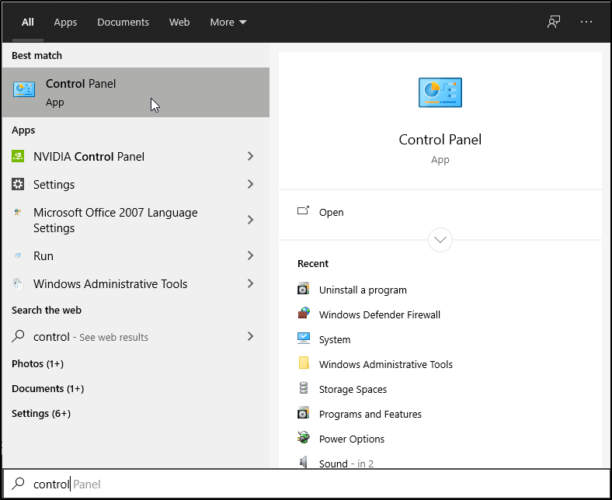
  1. Open the Search bar and type control to open Control Panel.
  2. Go to Network and sharing center.
  3. Right-click the active network adapter and select Properties.
  4. In the Network Connection Properties window go to This connection uses the following items, then click Internet Protocol (TCP/IP) or Internet Protocol Version 4 (TCP/IPv4).
  5. Click Properties.Properties of main adapter
  6. In the Preferred DNS server and Alternate DNS server boxes, type the two Norton ConnectSafe IP addresses:
    • Preferred DNS: 199.85.126.10
    • Alternate DNS: 199.85.127.10
  7. Click Ok.
  8. If this action doesn’t solve the issue, run a scan with Norton Power Eraser.

If the issue still persists, look for the unwanted toolbars that are usually bundled with certain free programs you might have installed. To remove browser hijackers, check our detailed guide.

8. Use another third-party tool

Norton is reliable antivirus software, but, as you can see there are many errors related to it. Thus, you may think to change it with another tool.

When Norton won’t install on your Windows 10, even if you performed the above steps, there is no other solution than to try another antivirus.

We recommend you to use a cross-platform solution to protect your Windows, Mac, and Android devices with a single license for the ultimate in security and convenience.

You’ll also enjoy premium features such as encryption for your files and removable media. Moreover, you can store and organize your passwords, and protect your laptop with Anti-Theft.

TotalAV

Get rid of errors and keep your computer safe with one of the best antiviruses available.
Check Price Visit Website

A good antivirus is very important if you care about your privacy and security. Norton is one of the best, but if you encounter any issues with it, be sure to solve them as soon as possible.

However, other tools might work better with your computer. Discover all of them in our guide including the best antiviruses for Windows 10.

Also, if you are a Norton user, feel free to tell us in the comments section below what errors have you found and how did you solve them.

The MS Store Instagram app has been updated to be a full PWA

Instagram, one of the most used communications tools has been updated in Microsoft Store, and it’s been converted to a full PWA (Progressive Web App).

In other words, the app can now be installed via the Chromium Edge installation process and next to Twitter this will likely be the biggest PWA on the Windows platform.

The great thing about Instagram going full PWA is that this will allow for the app to be updated more frequently since a single update can be pushed across multiple platforms.

Instagram goes full PWA

Considering that the Instagram app on Windows 10 has not been updated since July 2018 this is great news for users.

After this update, more than 1.16 billion Instagram users will benefit from a richer desktop experience thanks to the nice additions.

For example, the users will see the same color branded version of the Instagram icon as if they would in the case of using Microsoft Edge.

Additionally, e new ellipsis can be seen at the top left of the app. Through it users can access additional settings that otherwise could be found on Edge.

If we are to look at Twitters PWA progress then we can have an idea on what to expect next regarding Instagram. Gaining some additional notification settings or shortened timelines could be in the mix.

At this moment the Instagram update is still rolling out to devices and it can be possible that is not present for all facets of Microsoft app store.

We would love to know how you feel about Instagram going full PWA, so don’t hesitate to leave us a message in the comments section below.

SOLVED: Can’t access AOL website (8 easy solutions)

AOL, formerly called America Online, is an American global media and technology company that offers premium content and innovative technology.

A subsidiary of Verizon Media, AOL offers Internet users services that include e-mail, AOL Instant Messenger (AIM) software, AOL Video, video search, news, sports, weather, stock quotes, and MapQuest, an online source of maps and directions.

Their website covers news, politics, sports and is a great source for the latest headlines

Unfortunately, there are users who can’t access the AOL website. If you are one of them, there are some possible causes:

  • The website may be down, and in this case all you have to do is wait for a few minutes, then try again to access it.
  • If you can load the site on other devices, there may be a problem with your computer or network.
  • The website may only be available for some specific countries.
  • Your ISP provider may restrict your access to the AOL website

No matter what is the reason behind your restricted access to this website, follow these 8 tips below to quickly fix your issue.

What can you do if you can’t access AOL website?

1. Check your Internet connection

If you think that your Internet connection is down, try accessing another website and see if it loads.

In case it doesn’t, you have to check your Wi-Fi settings, by following these steps:

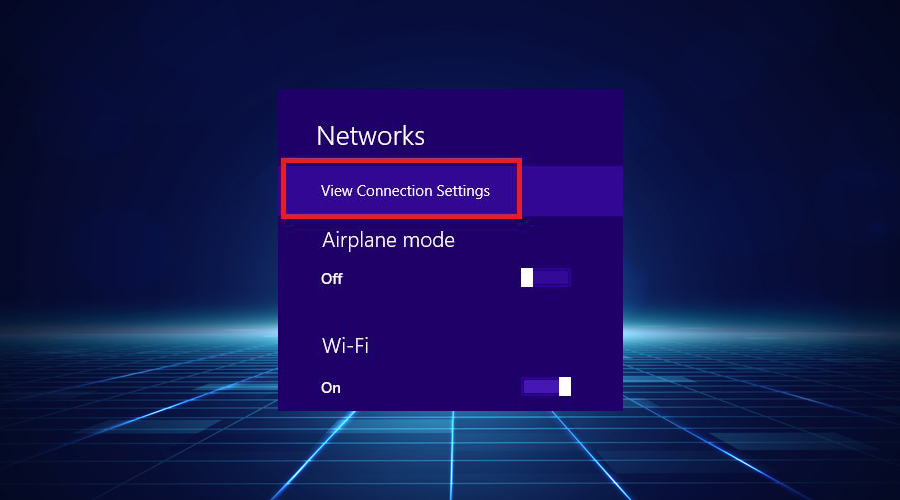
  1. Click on the connection icon from your taskbar.
  2. Select the View Connection Settings link from the drop-down list.
Windows View Connection Settings
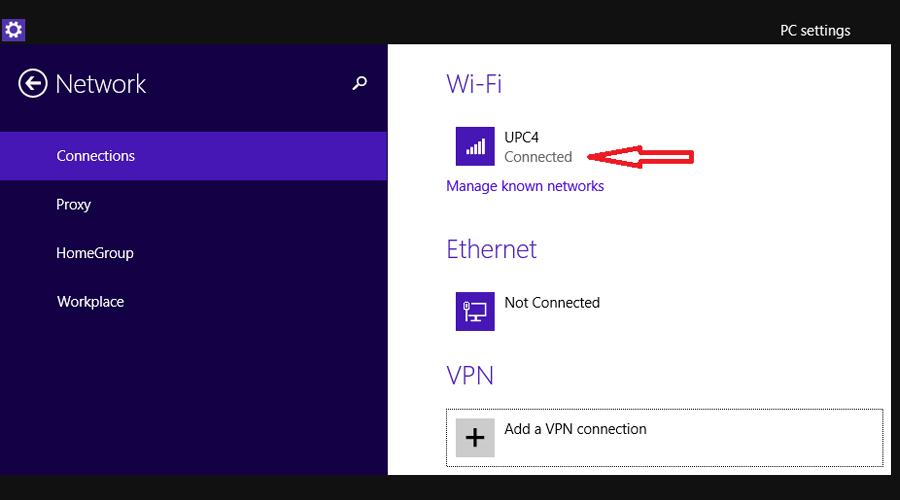
  1. In the Network pop-up window, check if you see Connected status.
Windows shows network connections

2. Test and manually reset your router

It is not uncommon to experience problems with your home router and this may cause a website or web page not to work.

To check if your router or modem works properly, disconnect the power cable and wait for a few seconds, then plug the cable back into the device.

Open your browser, refresh it by pressing F5 on the keyboard, and test if you still can’t access the AOL website. If it doesn’t work, proceed with the next steps.

3. Check if you accidentally blocked the website on Chrome

There are some situations when you accidentally block a website in Google Chrome or even the browser might block your access to certain websites.

This happens when Chrome considers that the website is dangerous and can harm your device.

If you think that you unintentionally blocked the AOL website and therefore you can’t access it, try to unblock it from the restricted list, by following these steps:

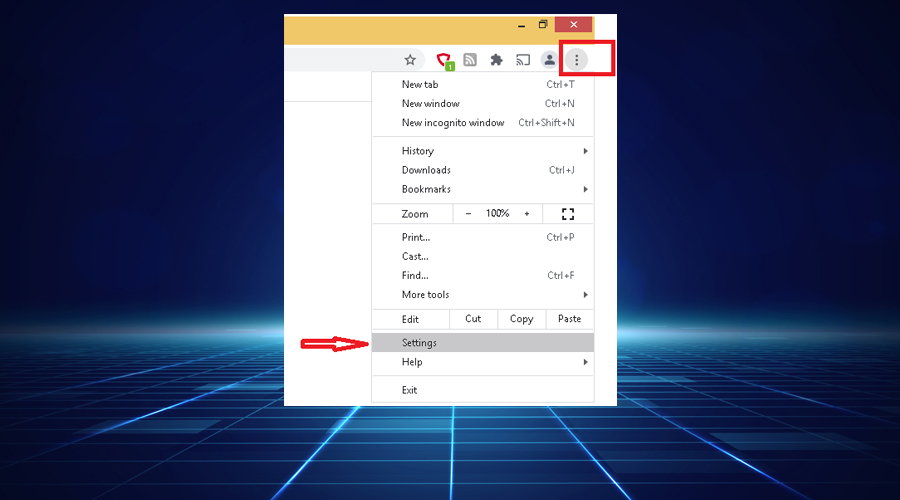
  1. Open Google Chrome, click on More icon, from the upper right corner, then on Settings.Google Chrome more settings
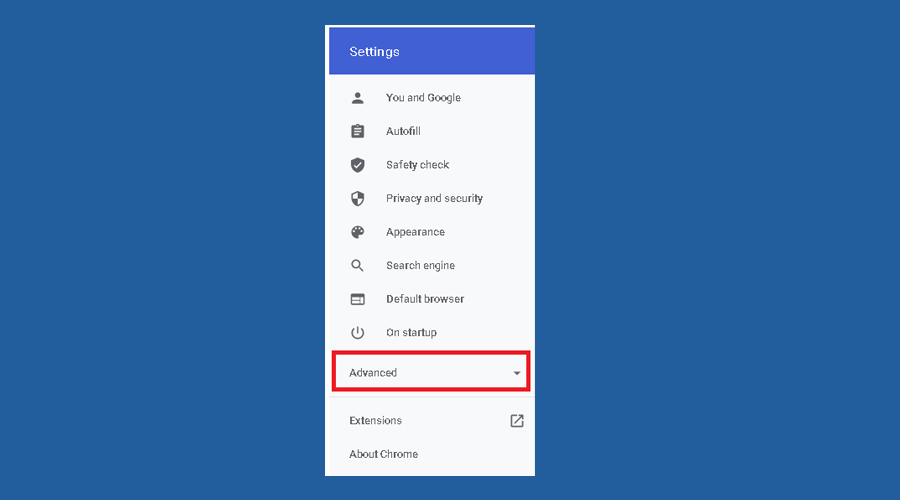
  2. Scroll to the bottom of the page and click Advanced.Chrome advanced settings
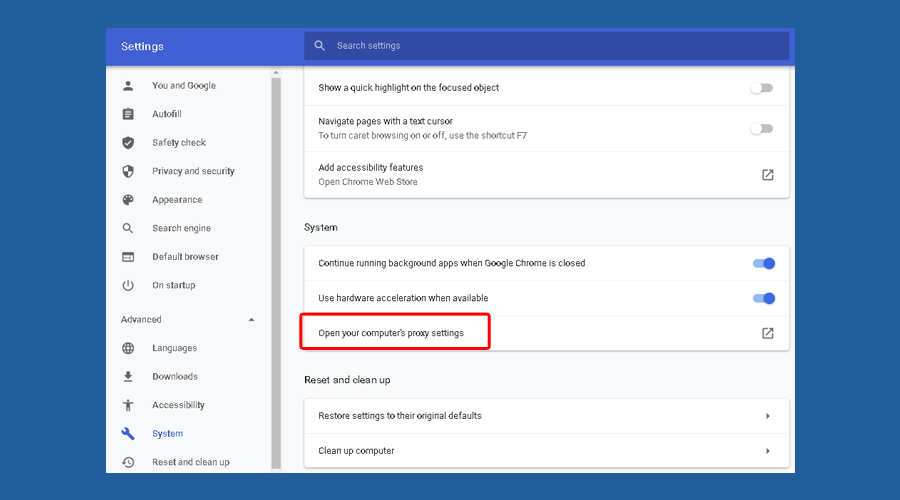
  3. In the System section, click on Open your computer’s proxy settings option.Google Chrome computer's proxy settings
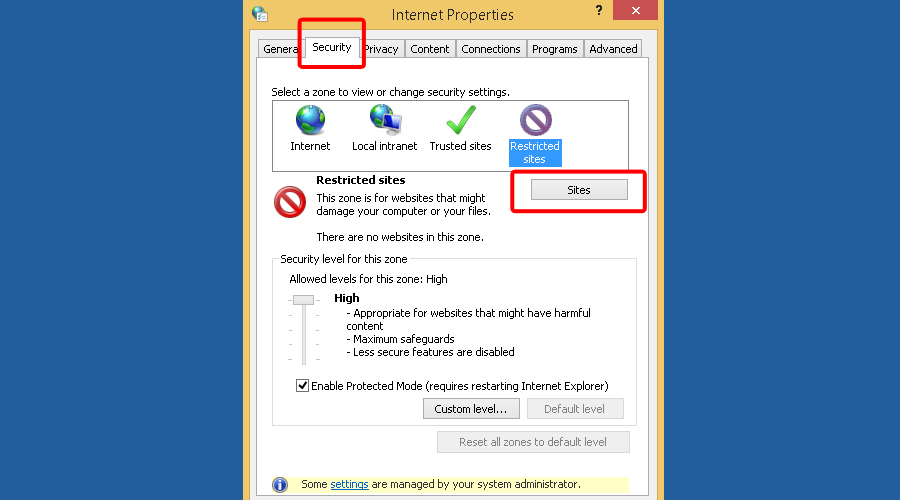
  4. In the Internet Properties pop-up window, click on Security tab, select Restricted sites, then click on the Sites button.Internet properties restricted sites
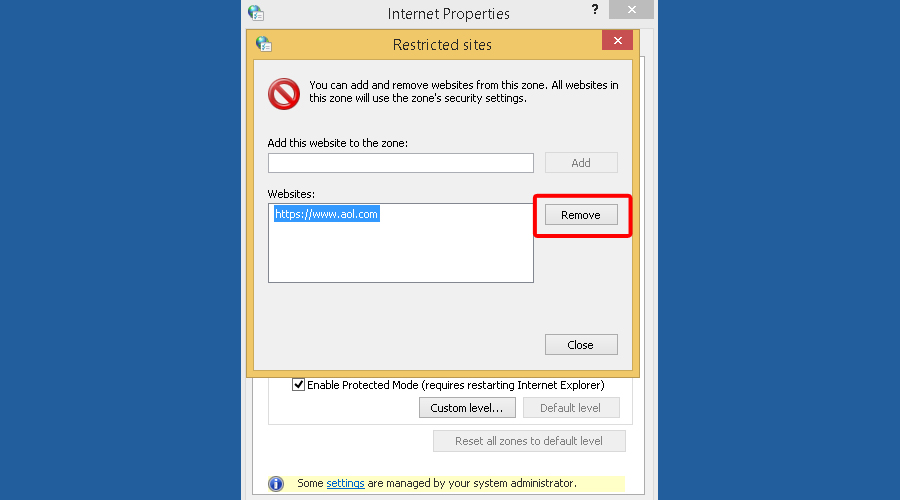
  5. If you find AOL website on the list, select its URL then click on Remove button.Internet properties remove restricted sites
  6. Close Chrome browser, then try to access AOL website to see if you fixed the issue.

4. Edit your Windows Hosts file

The Hosts file is used by your operating system to map human-friendly hostnames to numerical Internet Protocol (IP) addresses which identify and locate a host in an IP network.

The Hosts file contains lines of text consisting of an IP address in the first text field, followed by more hostnames.

Perform the following actions to reset the Hosts file and unblock AOL website, in case you can’t access it:

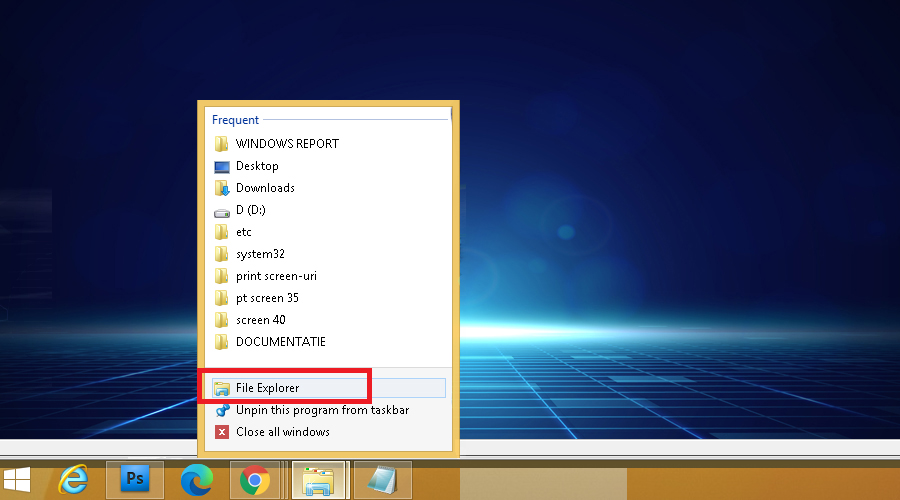
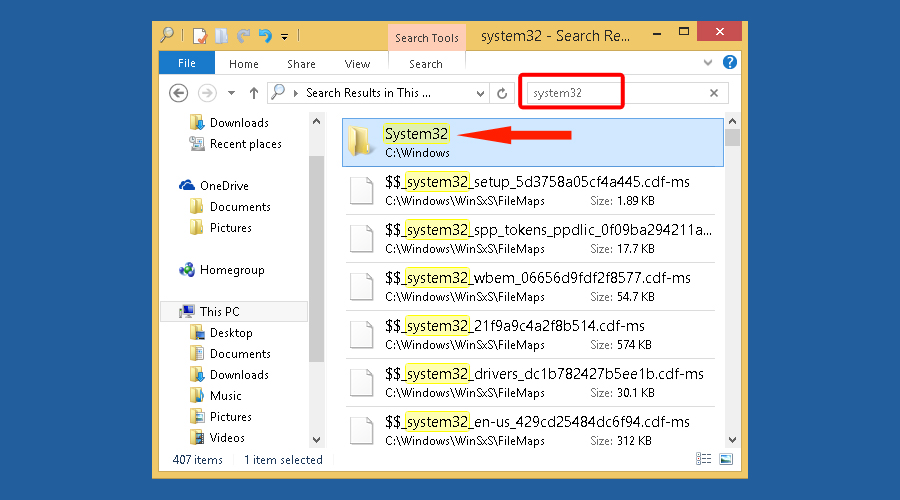
  1. Click on File Explorer icon from your taskbar.windows file explorer
  2. In the File explorer tab, search for System32 and click on C:WindowsSystem32.Windows system32
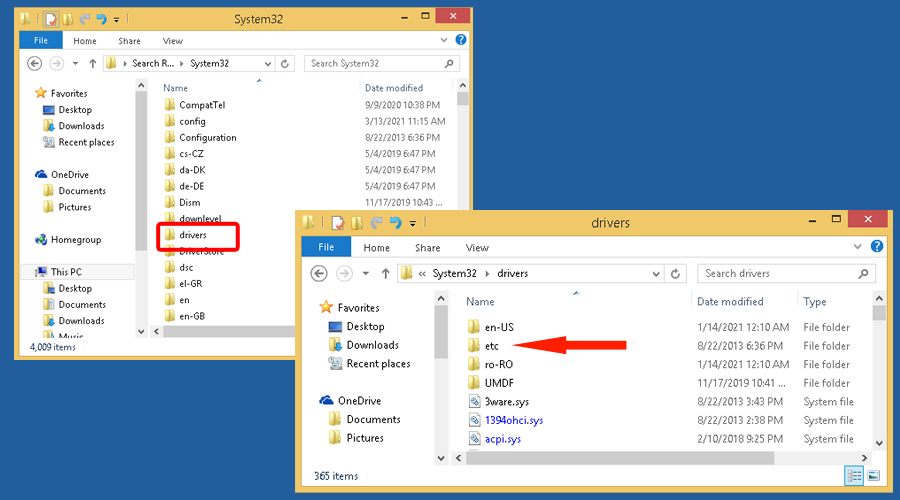
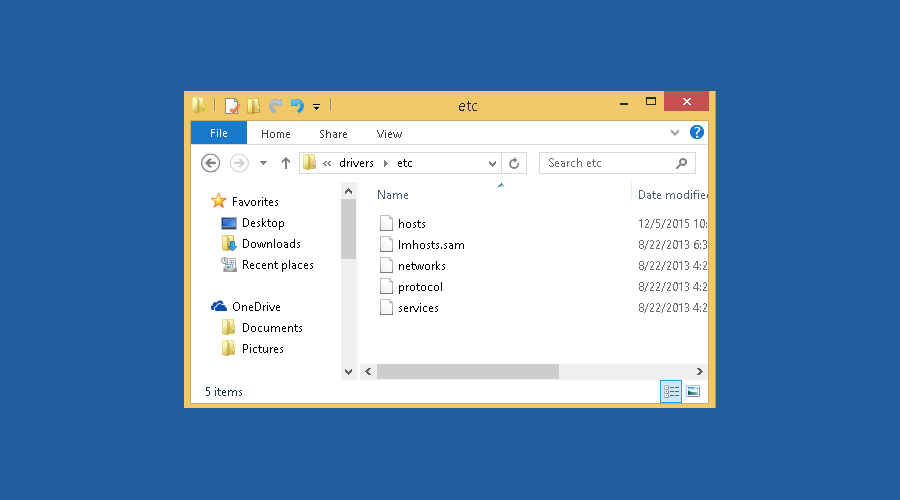
  3. Look for drivers in the list and click on it, then on etc.Windows system32 drivers etc
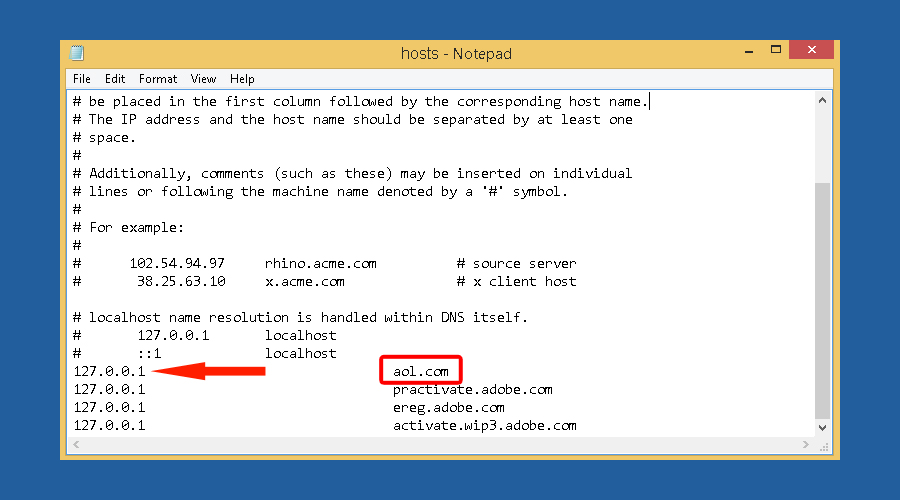
  4. Right-click on the hosts and open it with Notepad. If you see AOL website in the list, it is possible that your hosts file have been modified.Windows system32 drivers hosts
  5. Select the line that contains AOL URL and delete it. Save the changes and close Notepad.Windows restricted websites hosts notepad
  6. Restart Google Chrome and check if you can access the website.

5. Use a VPN

In case the previous steps didn’t solve your problem, try installing a virtual private network (VPN) for another layer of protection.

Since access to the Internet depends on geo-restrictions, you need a VPN to bypass them and connect to a server from a different location.

By pretending that you are located in another place, it will help you especially when you can’t access websites like AOL.

By using industry-leading privacy tools you can bypass local limitations and have access to the AOL website again anytime you want. 

Therefore, by choosing the most efficient VPNs out there you will gain access to restricted websites for your daily content.

Conclusion

Even if you can’t access a certain website, hopefully, you can unblock it by following one of the steps detailed in this article.

First, you need to understand the reason behind the issue and act accordingly.

For instance, if your location affects your online activity it means that it falls under geo-restrictions, and installing a VPN can help you bypass them.

At times, editing your Windows Hosts file, checking if you accidentally blocked the website on Chrome, or even trying a different browser, may get you back on AOL website.

11 Best Free PDF Editors for Windows 10

The PDF format is one of the most popular file formats in the world. That’s why it is absolutely essential to have an excellent PDF editor nowadays.

There are numerous software solutions that can help ease editing PDF documents.

Selecting a simple and easy-to-use PDF editor is not an easy task. Therefore, we have chosen for you 10 of the best PDF editors that are compatible with Windows 10.

  1. Soda PDF – Effective OCR function
  2. Adobe Acrobat Pro DC – Cutting-edge features
  3. pdfFiller – Online tools
  4. Icecream PDF Editor – Reliable search function
  5. PDFelement – Affordable solution
ProductFree TrialOperating system
Soda PDF✅All versions of Windows
Adobe Acrobat Pro DC✅All versions of Windows
pdfFiller ✅Web-based
Icecream PDF Editor✅All versions of Windows
PDFelement✅All versions of Windows

What are the best free PDF editors for Windows 10?

Soda PDF – Effective OCR function

This PDF editor is among the best in its field, especially if we consider the quality-price ratio. Just like the other programs mentioned so far, Soda PDF also allows you to easily edit PDFs.

As for the editing sector is concerned, we could say that Soda PDF is absolutely among the best tools on the market.

The software exists in three different versions: Standard, Professional, and Pro + OCR.

All these versions only allow you to edit and convert PDF files. The only difference is in the presence or absence of some advanced functions.

The Pro + OCR version, for example, is the only one that allows you to transform scanned PDF files into editable and searchable documents.

Pros

  • The reduced cost of Soda PDF is undoubtedly among its best qualities.
  • The OCR function is really effective.
  • It allows you to protect and sign PDFs.

Cons

  • The version with more advanced features is also the most expensive.
  • Protection and signature functions are also included in the Pro version only.

Compatible Systems: Soda PDF is compatible with all versions of Windows.

Soda PDF

The best all-in-one solution for your PDF needs.
Free Trial Visit Website

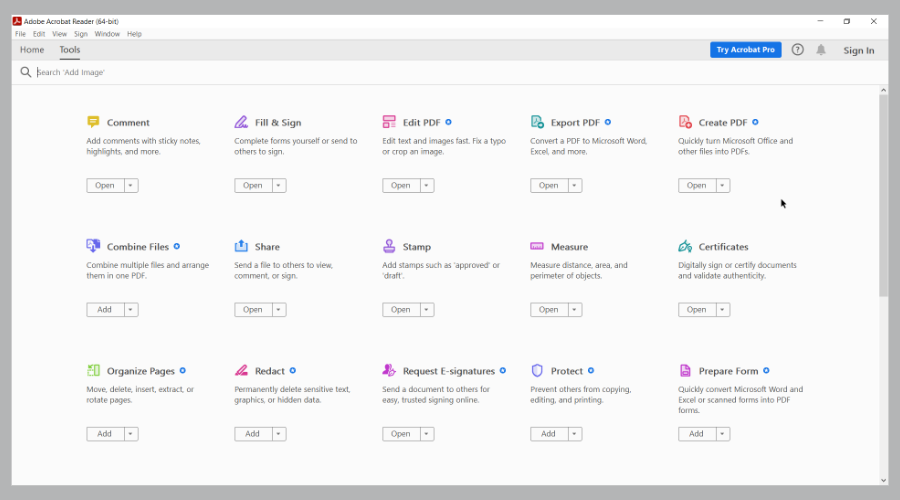
Adobe Acrobat Pro DC – Cutting-edge features

There is no doubt that Adobe Acrobat PDF has established the market pace for PDF editing on Windows 10. However, it is an extremely efficient product.

Modifying PDFs is essential for large companies, individuals, and small businesses. The price, therefore, is an element of fundamental importance.

That being said, Adobe Acrobat is a high-quality software thanks to advanced features that allow users to convert, edit, annotate PDFs, and more.

Pros

  • Cutting-edge features, one of the best PDF editors on the market.
  • Simple to use, with a relatively intuitive user interface.
  • OCR technology to edit scanned PDFs.

Cons

  • More expensive than most other quality PDF editors.
  • The high price makes it unsuitable for individuals and small businesses.

Compatible Systems: This PDF editor is compatible with all versions of Windows.

Adobe Acrobat Pro DC

Adobe created the PDF format so it’s easy to understand why they have the best product for editing these files.
Free Trial Visit Website

pdfFiller – Online tools

pdfFiller is another PDF tool that we highly recommend to our users mostly because it has various online tools that you can use for free.

You can edit, add images, checkmarks, and share PDFs effortlessly, as this software provides easy document editing.

pdfFiller allows you to sign documents electronically by drawing or adding an image of your signature, canceling the need for physical signing.

Pros

  • Seamless collaboration and tracking features
  • Integration options with popular cloud storage like Google Drive, Dropbox, and OneDrive
  • Automatic form-filling to save time and effort

Cons

  • Recurring fee to access all features
  • Internet dependency

Compatible Systems: All systems because pdfFiller is a web-based software.

pdfFiller

Optimize your PDF experience with pdfFiller’s seamless and advanced features.
Free Trial Visit Website

Icecream PDF Editor – Reliable search function

Editing and managing pages, in general, can be a laborious process, especially if you are not using the right tool.

There are plenty of tools to use when editing and you should make sure to choose the one that is best for your needs.

We analyzed all the options out there and we believe that Icecream PDF Editor is definitely worth trying.

It has great options when it comes to editing, annotating, managing pages, or filling in forms

Not to mention that the interface is very easy to use and intuitive so you will not be wasting time searching for what you need.

You can create pdf documents from scratch and even protect them with a password. The search function and adding stamps are also not missing.

Let’s also have a look at some of the features that Icecream PDF Editor brings:

  • Extracting PDF pages
  • Search function
  • Editing PDF
  • Combining PDF pages
  • Splitting and merging

Icecream PDF Editor

Icecream PDF Editor is an all-in-one software that allows you to efficiently edit all your PDF’s.
Free Trial Visit Website

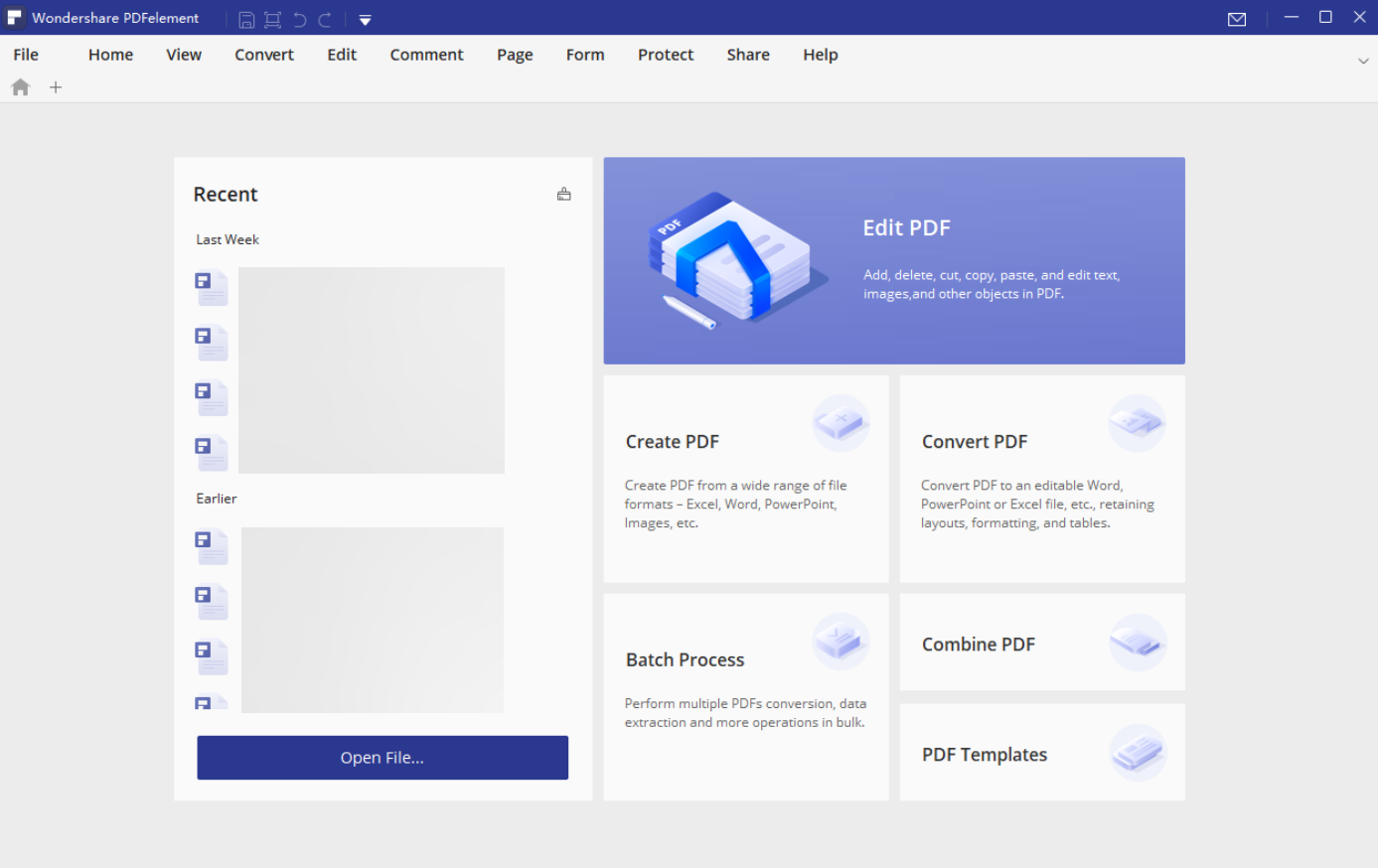
PDFelement – Affordable solution

PDFelement is a PDF editor for Windows 10 so exceptional that you’ll wonder why you haven’t used it before.

This software is an excellent alternative to Adobe Acrobat, which has been considered the absolute standard in PDF editing for years.

The best aspect of PDFelement is the presence of a free version, equipped with all the essential features.

The paid version has an excellent quality-price ratio and is very convenient compared to that of other editors.

PDFelement comes with many features, including annotation, editing, converting PDFs to other formats, adding signatures, and filling out PDF forms.

This PDF editor for Windows 10 is a complete PDF management solution. Do not wait any longer and download this very practical PDF editor today.

Pros

  • PDFelement sports all the options and features that Adobe supports, which makes it valid and convenient alternative.
  • Free trial.
  • The intuitive UI makes PDF Element perfect for both beginners and advanced users.
  • Excellent document security.
  • It comes with an OCR technology that allows you to edit and extract information from scanned PDFs.

Cons

  • The functions of the free trial version are significantly limited.

Compatibility: PDFelement is the best PDF editor and reader for Windows XP/Vista/8 and Windows 10.

PDFelement

Get one of the simplest PDF solutions to edit, convert, and sign your files.
Free Trial Visit Website

Nitro PDF Pro– Fast usage

The Nitro Pro PDF editor offers a range of functionalities similar to those found in other Windows 10 editors.

Key features include editing, creating, combining, reviewing, and collaborating. In addition, the Nitro editor allows you to compile, sign, and protect PDF documents.

The software is compatible with all Windows systems.

Is available in two versions: personal and commercial. The commercial version is not free but it comes with a set of advanced features.

Pros

  • Fast and easy to use.
  • Presents the OCR technology, essential for editing scanned PDFs.

Cons

  • Compared to other PDF editors in the ranking it is quite expensive.
  • The functions of the trial version are very limited.

Compatible Systems: Works correctly on Windows XP, Windows Vista, Windows 7, Windows 8, and Windows 10.

Nitro PDF Pro

Try this fast PDF software and manage your documents more efficiently.
Free Trial Visit Website

Readiris 17 – Password-protect

Readiris Pro is ideal for both private consumers and professionals. The tool offers many advanced features that allow you to edit, annotate, protect, and sign your PDF files.

Moreover, you can edit your PDF files so as to turn them into a variety of digital formats within seconds.

When it comes to PDF editing, if you need a collaboration-focused tool, then Readiris Pro is the right choice for you.

You can attach annotations, comments, and hypertext in order to add all the necessary information.

The Readiris Pro OCR software also simplifies the archiving process of documents. How? By classifying them according to keywords. In this way, you’ll find and share them immediately.

If associated with one of the IRIS mobile scanners, this program can then manage the digitization of all types of documents (photos, invoices, contracts, recipes). Moreover, there are more than 138 languages available.

Pros

  • It is enough to open the software and upload the files to merge, divide, change the order of the pages, add notes and comments, attach documents, protect them with a password.
  • You can also export, modify and convert any document format (PDF, Word, PPT) to the desired one.
  • Readiris Pro can also extract text from documents thus preserving the layout of the original file. It is the ideal solution to merge, protect, apply the digital signature, compress and correct a text. You can also annotate, underline, delete, reorganize the text or the order of pages and even add voice comments.

Cons

  • The version with more advanced features is also the most expensive.

Readiris 17

Try this unique and intelligent solution for all your PDF documents.
Free Trial Visit Website

AbleWord – Free of use

This PDF reader and compiler is not as popular as the tools mentioned so far, but it remains one of the best free PDF editors on the market.

AbleWord also acts as a text processor. Therefore, it allows us to edit documents with the same ease offered by Microsoft Word.

This software allows you to format images, add and edit headers and footers, manage tables, and much more. It also includes a tool for spell-checking.

Pros

  • Free and easy to use.
  • It supports some Microsoft Word features.
  • Simple download and install.

Cons

  • The functions are rather limited.
  • The output quality is not up to that offered by the other PDF editors mentioned.

Compatible Systems: AbleWord can be used to edit PDFs on Windows 10 and Windows XP.

⇒ Get AbleWord

PDF Buddy – Simple design

PDF Buddy editor

PDF Buddy is another tool that deserves a place in the list of the best PDF editors. The service is free and requires no download or installation to be used.

In fact, PDF Buddy allows you to easily edit PDF documents directly online.

Since all the functions are executable on the web, you do not need to install any software.

Pros

  • Loading and editing documents is very simple.
  • The instructions are clear and allow you to complete the operations quickly.
  • The signing of documents takes only a few seconds.
  • This is a free PDF editor for Windows.

Cons

  • The functions are very limited and there are several operations that you could not perform at all. For example, PDF Buddy does not allow you to merge documents or create new PDFs.
  • Since editing operations are performed completely online, it is safe to worry about file security.

Compatible Systems: PDF Buddy is a completely free service compatible with all Windows systems, from XP to 10.

⇒ Get PDF Buddy

Foxit Phantom PDF – Good annotating feature

Foxit Phantom PDF is an effective PDF editor for Windows 10. This software has tools for editing, merging, and dividing PDFs, annotating and sharing documents, creating forms, and converting PDFs in other formats.

In addition, Phantom PDF also allows you to encrypt PDFs, edit them, and sign them.

Pros

  • It provides a free 14-day trial period.
  • The OCR function allows you to work with scanned PDF documents.

Cons

  • The trial version has very limited functions.
  • The user interface of this PDF editor is very unintuitive.

Compatible Systems: It supports all Windows versions.

⇒ Get Foxit Phantom PDF

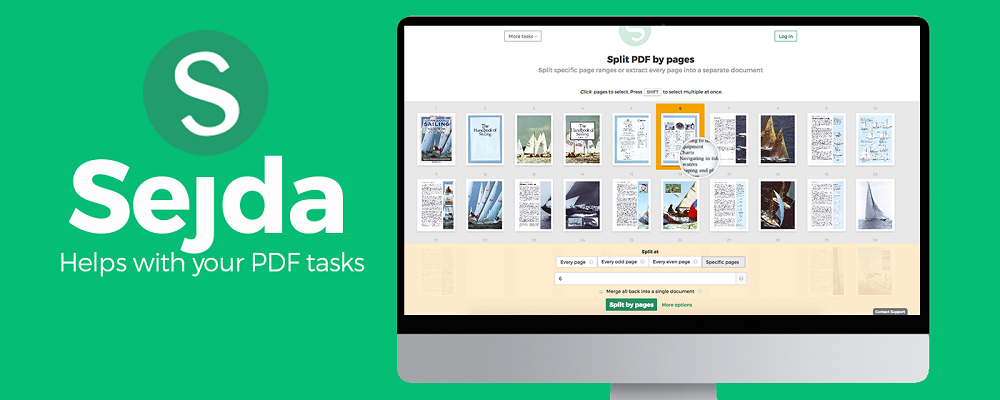
Sejda PDF Editor – Insert signatures

Sejda is a free PDF editor that has earned a place on our list due to its excellent features. This tool allows you to edit PDFs with great ease.

In addition, it has functions to insert signatures, comments, and links, create PDF forms and modify any elements contained in PDFs.

Pros

  • The tool allows you to change an unlimited number of documents.
  • It has no page or time limits.

Cons

  • Not as secure as other PDF publishers.
  • Being an online PDF editor, it lacks the OCR function.
  • The user interface is not very intuitive.

Compatible Systems: Sejda PDF is compatible with all versions of Windows.

⇒ Get Sejda PDF Editor

In this guide, we listed 10 of the best PDF editing tools to use on Windows. We also offered you information on the pros and cons of each tool, as well as price and compatibility information.

This should help you choose which PDF editing solution best suits your needs.

If you’ve got any other suggestions or questions, let us know in the comments section below.

Windows 10 Insider build 21370 is now available with Bluetooth audio improvements

Microsoft has just released the Windows 10 Insider build 21370 for testers in the Dev Channel, which brings notable improvements to the Bluetooth audio experience. Starting with this build, Bluetooth audio devices will appear as one unified audio endpoint in the volume dropdown in taskbar, which will make Bluetooth headsets and speakers with a built-in mic easier to use.

The build 21370 also brings support for the high-quality AAC codec, which delivers better audio streaming quality in smaller files. Other minor changes in this build include design improvements for the icons in File Explorer’s address bar, as well as a smoother launch animation for the Windows 10 touch keyboard.

You can learn more about all the changes, fixes, and known issues in the build 21370 below:

What’s new in Build 21370

Improving the Bluetooth audio experience

Over the past several months, we have been adding new features to make Bluetooth audio streaming easier, better, and more performant.

Updates to the “Select playback device” dropdown on the taskbar for Bluetooth audio devices.
  • Unified audio endpoint: No more clicking through multiple audio endpoints to make your Bluetooth headset’s voice and mic work properly. We now only expose one audio endpoint in the UI and will switch to the correct one automatically for you for a seamless experience. Listening to Spotify and then have to hop onto a Teams call? You can also now directly control the volume of your headset.
  • Support for AAC codec: Enjoy premium audio streaming quality wirelessly on your Bluetooth headphones and speakers with AAC codec. Short for Advanced Audio Codec, AAC is a lossy codec that delivers high quality audio streaming in smaller files – great for listening to music online.

Changes and Improvements

  • We’ve made some small adjustments to the icons in File Explorer’s address bar.
  • We’ve improved the touch keyboard launch animation to make it smoother in cases where UWP apps reflow when it appears.
  • We made a change so that if you set focus to the Run dialog, the touch keyboard will now show a backslash (\) key.

Fixes

  • [News and interests] We fixed an issue where hovering over the news and interests button sometimes may not open the flyout.
  • [News and interests] We fixed an issue where the news and interests flyout may get stuck displaying the loading spinning dots.
  • [News and interests] We made some explorer.exe reliability and performance improvements.
  • [News and interests] We fixed an issue where news and interests may sometimes briefly appear on the taskbar if the taskbar is aligned to the top.
  • We fixed an issue resulting in some Insiders seeing error 0x80092004 when installing KB5001030 – 2021-02 Cumulative Update Preview for .NET Framework 3.5 and 4.8 after updating to the previous build.
  • We fixed an issue that could result in Insiders seeing error 0x80070005 when installing framework updates.
  • We fixed an explorer.exe crash in the previous flight that could result in issues with the login screen and logging in after resuming from sleep.
  • We fixed an issue resulting in some Insiders experiencing bugchecks with a CRITICAL PROCESS DIED error.
  • We fixed an issue where Narrator wasn’t announcing the error message on the login screen after entering the wrong password multiple times.
  • We fixed an issue resulting in broken characters appearing in text across Settings.
  • We fixed an issue in the last couple flights resulting in Cortana not launching from the taskbar after clicking the icon.
  • We fixed an issue impacting mouse input on the dual boot screen.
  • We fixed translation issues in the –help text in the Windows Subsystem for Linux.
  • We fixed OS upgrades creating copies of libdxcore.so and other files when using the Windows Subsystem for Linux.
  • We fixed two issues impacting conhost.exe reliability.
  • We fixed two issues preventing some USB printer drivers from initializing correctly.
  • We fixed an issue where if you sent the VK_HOME virtual key code while the Japanese IME was active and numlock was on, unexpected 7 would be input.
  • We fixed an issue where the Japanese 50-on touch keyboard layout wasn’t inserting full-width space characters correctly when it was in the Shift state.
  • We fixed an issue where the Chinese Pinyin IME was inserting a placeholder string if you selected a cloud candidate while the cloud candidate entry was still loading.

Known issues

  • We’re looking into reports of the update process hanging for extended periods of time when attempting to install a new build.
  • We’re investigating an issue where elements of Search (including the search box in File Explorer) are no longer displaying correctly in dark theme.
  • The Windows Camera App currently does not respect the default brightness setting set via the new Camera Settings page.
  • We’re working on a fix resulting in WSL users finding that File Explorer launch performance regressed after upgrading to Build 21354 and higher.
  • Some Windows Subsystem for Linux instances can fail to launch with a ‘The parameter is incorrect’ message. This known issue is being tracked here on the WSL repository.

Today’s flight follows the release of the Windows 10 build 21364 last week which brought Linux GUI apps support and a new Eco Mode for Task Manager. Things are getting interesting again in the Dev Channel, and traces of the Sun Valley’s Floating Taskbar redesign have also been discovered in recent Insider builds. 2021 is expected to be a big year for Windows 10, and we’re looking forward to seeing more new features and design changes in future flights.

Fix: Apex Legends Server Connection Error

By default, Apex Legends teams you up by two other players and creates a squad. There are 20 such squads in a regular game. However, Apex Legends lets you also enjoy the game in two-player squads, or singles (no squads, players are against each other).

Perhaps one of the most appealing aspects of the game is that you can play it for free. You won’t be able to play with all the characters at first, but you can purchase legends by spending real money or trade your in-game points for them.

Sadly, we’re not here to discuss Apex Legends’ awesomeness. Instead, we’ll teach you how to avoid one of the most common problems you may encounter in this game: server connection errors.

How to fix Apex Legends connection issues?

1. Use a VPN

  1. Get an Express VPN subscription.expressvpn subscription page
  2. Download and install the VPN on your PC
  3. Launch the VPN and log into your account
  4. Connect to a fast server (nearby ones work best)
  5. Launch Apex Legends
  6. Check if there’s any improvement

More often than not, using a VPN can greatly increase the quality of your connection. More so if your ISP artificially limits it by means of throttling your bandwidth or routing traffic improperly.

Besides connectivity issues, if you’re facing memory errors in Apex Legends, our guide on how to get rid of the Memory Could Not Be Read error in Apex Legends provides effective solutions.

Not having a strong, good-quality connection can really affect your ability to enjoy Apex Legends. Therefore, it would only make sense that using a service such as Express VPN can curb the incidence of these unwanted connection issues.

A good, trustworthy VPN like Express VPN can also circumvent geo-restrictions and bypass network congestion.

Even if you don’t notice any improvement at first, make sure you switch to another server and try again. Express VPN has servers in 105 countries so you can easily connect through it no matter where you are.

Express VPN

Make sure you fully enjoy your Apex Legends matches with this powerful VPN solution.
Check Price Visit Website

2. Flush your DNS

  1. Run CMD as administrator on your computer
  2. Type these commands, one by one, in this order:

ipconfig /flushdns
ipconfig /registerdns
ipconfig /release
ipconfig /renew
netsh winsock reset
exit

Once you close the CMD window, restart your PC, launch Apex Legends, and check if you still experience connectivity issues.

Additionally, you can switch to another DNS, other than the one your ISP assigned to you. We’ve been using Google’s free Public DNS and we’re nothing short of satisfied with it.

It’s worth mentioning that you should back up your ISP-assigned DNS, in case the new ones don’t work as intended. If your DNS is set to automatic, there’s no need to back anything up.

Before launching the game, you can also take the following steps:

  1. Right-click your Apex Legends shortcut/launcher icon
  2. Select Properties
  3. Head to the Compatibility tab
  4. Select Disable fullscreen optimizations
  5. Check the Run this program as an administrator boxApex Legends compatibility settings
  6. Click OK

Reportedly, disabling the full-screen optimization option improved things for certain users.

3. Change the data center

Fortunately, Apex Legends doesn’t tie your hands when it comes to regions. Right before you reach the main menu, you can switch to a data center in a different region.

If you notice fewer connectivity issues, the issue might be server-side, which means there’s nothing you can do about it.

Alternatively, you can check the servers’ status before you jump to any conclusions. There’s a Server Status button on the official website, but we found it quite rudimentary.

4. Restart Windows audio service (AMD FX series users)

  1. Optional: Disable your microphone
  2. Launch Apex Legends
  3. Press the CTRL + SHIFT + ESC key combination on your keyboard
  4. Go to the Services tab
  5. Locate Windows Audio Endpoint Builder (AudioEndpointBuilder) and stop it
  6. Start the Windows Audio (Audiosrv) serviceDisable Windows Audio services

Note that this fix reportedly mostly works for AMD FX-series users. This doesn’t mean others can’t try it too, but the results might not be as expected.

You can also try the microphone trick, but make sure to disable it before you launch the game. You can enable it shortly after launching Apex Legends, but you will still be unable to use the microphone.

5. Troubleshoot your connection

  1. Restart your PC, router, and/or modem
  2. Use wired connections instead of Wi-Fi (Wi-Fi is less reliable than Ethernet)
  3. Change your wireless channel to a less noisy one
  4. Run a pathping test
  5. Call your ISP and ask them if they can do anything about it
  6. Upgrade your Internet subscription (if it’s possible and long overdue)
  7. Replace Ethernet cables if they’re old or worn out

The troubleshooting advice we’ve included in this short list is not Apex Legends-specific. These are common steps you can take to improve the overall quality of your connection.

However, if you’re experiencing connectivity issues in Apex Legends, they might even help you curb these issues, or even get rid of them for good.

However, you must keep in mind that if the problem occurs on the server’s side, waiting it out might be the best way to tackle it. You can even try using a VPN, but this fix will only work if the issue occurs somewhere between you and the game server (endpoints excluded).

Without a doubt, getting randomly disconnected can really bring the worst out of you. That and not being able to join a game, in the first place.

Even if the game seemed to work perfectly the night before, you may discover it no longer wants to connect you to the server. Sometimes it’s because of the game server that may throw the clock code error, and there’s little you can do about it other than waiting.

Among the most common issues, we remind of:

  • Freezing
  • Server timeout
  • Crashing
  • Frequent disconnections

Let us know which of the above tricks worked for you in the comments area below.

MLB The Show 21 review: A dream come true for Xbox and baseball fans

Xbox has plenty of great hit games. But up until this year, there was one glaring omission, especially for baseball fans like myself. In fact, it sometimes made me regret buying into Microsoft’s gaming world.

While I’ve played other baseball games like RBI Baseball and Super Mega Baseball on Xbox, Sony PlayStation fans have long been enjoying the officially licensed game of Major League Baseball, MLB The Show as a PS console exclusive. But this year it finally comes to Xbox One and Xbox Series X and S consoles, and it is even included for Xbox Game Pass members and on Xbox Cloud Gaming, too.

For MLB fans like myself, this is a dream come true. There are many things that MLB the Show does so well that other baseball games can’t. And, there are many things in MLB The Show 21 this year that really make it one of the best sports games to grace the Xbox.

“Are you watching a baseball game?”

Mlb The Show 21 Featured Game

The highlight of MLB the Show 21 is definitely the way the game looks and feels. Though I played the game on an older Xbox One, it still feels and plays well, with no lag or stutter. When I initially booted up into an exhibition game between the Dodgers and the Rays, I could not help but think I was standing behind the plate with a baseball bat myself.

The game is able to run at 4K resolution and 60 frames per second on Xbox Series X consoles, but even on an older console, it still feels quite realistic (but suffers from long load times.) Long-time The Show players might not notice any visual differences, but for newbies to the series to me who are playing on Xbox for the first time, this game is as authentic of a baseball experience as you can get.

There’s a lot of details here that you don’t get in previous Xbox MLB games like RBI Baseball. It definitely has the graphical quality of Madden 21 and other EA Sports titles.

Pitching, fielding, the MLB player models, and in-stadium crowd animations are true to what you’d expect in real life. Even the commentary is great, always accurate, featuring the voices from real-life MLB Network anchors Matt Vasgersian, Mark DeRosa, and Dan Plesac. Take a look below, when I hit a walk-off home run in a game with my New York Mets, as an example. Listen to the way the crowd reacts, and how the mood changes. Also, look at Michael’s subtle movements when batting.

San Diego Studios actually added more than 1,000 new animations this year, and you can definitely feel it when playing. From the pump a player might make with his glove during a double play, or the confusion that ensues on the field of missing a routine fly-ball, you definitely get the little details of MLB that matter. Not to mention the in-game stadium scoreboard animations, too. Even fielding the ball has been revamped so that your fielders can rob home runs more naturally, and look less like robots.

I even noticed some touches that only true baseball fans can pick up on. When taking an at-bat at Citi Field in MLB The Show 21, you can see airplanes taking off and landing from nearby LaGuardia Airport. And, in Yankee Stadium in the Bronx, you can see the subway trains passing between the center field scoreboards.

It’s amazing to see the level of detail put into this game. Even the socks the Mets batters wear are exactly the same as the ones they wear during home games at Citi Field. And let me not forget Mets pitcher, Noah Syndergaard’s wavy hair, too.

Play the way you want

Mlb Difficulty

Of course, with MLB The Show 21 hitting Xbox for the first time, and also as a part of Xbox Game Pass, there will be a lot of players who aren’t familiar with the controls. The developers of the game seem to have kept this in mind. During the initial bootup, you can pick various settings to play the game the way you want.

This actually made me happy, as previous baseball games on Xbox One were either too difficult or way too easy and too arcade-style. You can opt for casual if you’re new to the game to have the CPU handle most of the gameplay and fielding for you. There’s also simulation if you really don’t want CPU help, or competitive if you want to depend on your own skills. The game will even ask for dynamic difficulty, which can change up the difficulty if you become too good and pile up too many wins.

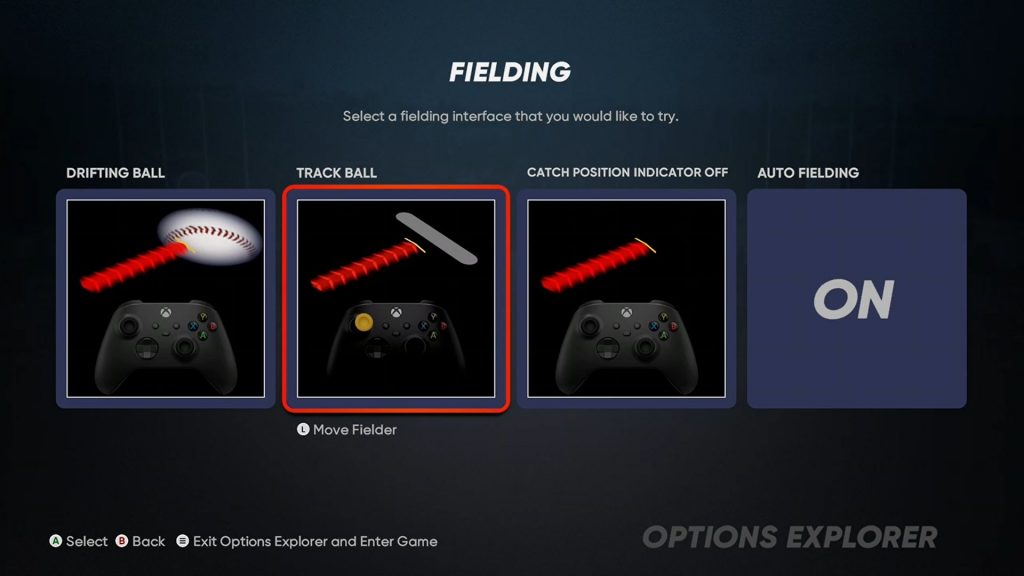
You can select a difficulty level, and then move on to tweak the way you pitch or field, and choose various controller schemes. These are all explained by the game for you as you explore your options, and you can even demo the controls before picking a final option. I opted for a more casual experience with the meter pitching type, the zone hitting type, trackball, and auto fielding turned on.

Filfileding

This combination I choose is best for anyone who just wants to have fun in the game and not end up rage quitting. You’ll get more in-game and on-screen visual hints about how to improve your batting, or your fielding with these options turned on.

Note that there is a new pitching mechanism this year known as Pinpoint Pitching. This will require you to use your controller’s right analog stick to find the location and the quality of the pitch. Various patterns are linked to various pitches. The craziest pattern is the half-circle, and then rotate clockwise movement for a two-seam fastball. I guess this is more true to life but stay away if you don’t want to crack your controller in half.

Anyway, this level of control and customization is all the kind of stuff I wish were in other sports games like Madden. Those games have always been unplayable to me because there are too many button combinations to make for common in-game tasks. In MLB the Show 21, the game has your back and explains the rules of baseball, and everything you need to do to become a virtual baseball player.

Various modes & what’s new

Game Modes

MLB The Show 21 is one of the most comprehensive sports games ever to hit Xbox. The reason why? You can enjoy the game of baseball in more ways than one.

The main game modes in the game include Road to the Show, Diamond Dynasty, March to October, and Franchise. These modes focus on prolonged gameplay and require the utmost dedication and concentration. You can’t just finish these modes overnight, or in a few days.

For some more fun and quicker moments, you also can quick play with Challenge of the Week (a curated set of challenges,) Moments in MLB (a list of special moments from the season you can play,) or play a Home Run Derby (just slam the ball out of the park!) And, for a quick trip to baseball’s biggest game enter Postseason Mode and shape your own World Series and MLB Postseason bracket.

If you’re confused, I attempted to summarize each of these main game modes below. Of course, you always can run a quick Exhibition game using Live Rosters, too, or go with Retro Mode for a more simple tap and go control mechanism. There’s no need to explain those two modes, as it’s one of the easiest in the game just pick a team, settings, and start playing.

  • Diamond Dynasty: Play games, collect new players, build the best squad possible. Like Ultimate Team in FIFA 21 or MyTeam in NBA 2K21. Collect MLB Players to improve your roster and build your own dream team. Programs here have been streamlined this year to make goals and rewards more clear.
  • Road To the Show: Start your own career as a minor league player, make your way up the ranks and aim to become a MLB Star.
  • March to October: Pick a MLB Team, play as them throughout the simulated season and try to guide them to the World Series. A casual mode where you get put in the ending of various games throughout the season, without having to play complete games. You also can manage the team/trade players/train minor leaguers, too.
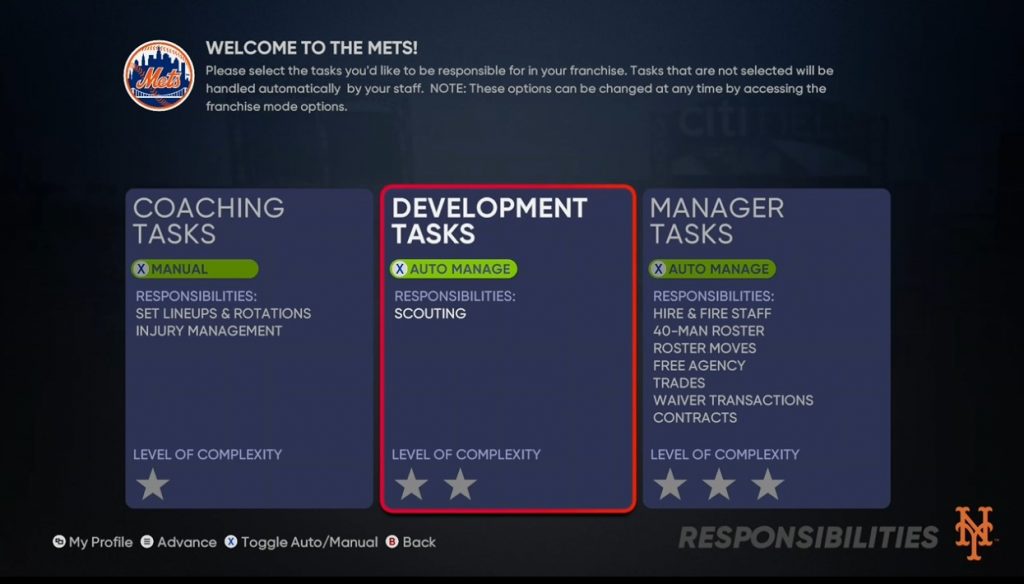
  • Franchise: Pick a MLB Team, and manage the team throughout the year. Set rosters, scour players, hire and fire players and staff. You become the owner! Automate tasks, if needed to speed up the process. (You can’t send this team online, though!)

In my time playing, the fun aspect of the game has been the March to October mode. This mode just puts you, the player, in games right when they’re close to ending (usually the 6th inning.) The goal is for you to try to win, or finish off the game for your team and keep winning to build a strong season record. It’s quite fun, and I’ve finally managed to guide my Mets to a World Series Title.

Automation is what’s key here, and it is what makes playing fun. There is no need to play the full 162 game schedule as this mode will skip games for you based on your performance. Some of the moments you get placed in can be quite interesting. I was placed in a tie-game scenario between the Yankees and the Mets and broke the tie with a home run and led my team to more momentum. Exciting!

As for what’s improved in these modes for returning players, there’s a bit to note this year. You can now port your player from Road to the Show over to Diamond Dynasty to shape a roster. The player also has the ability to turn the Road to the Show character into a two-way player, too, as both a fielder and a hitter. And, in Road to the Show, you get MLB Network Podcast episodes to reflect on your in-game progress as a player, too. Small changes that only long-time players will notice.

Next-Gen Features & differences

Although I wasn’t playing on a next-generation console, there is a unique feature in the game for folks who are new to the game on PS5 and Xbox Series X consoles is the ability to build your own stadium with Stadium Creator mode.

This mode lets you build a professional MLB stadium from scratch. Walls, foul poles, stands, bleachers, props, you name it is all possible here. You even can adjust wall heights and go with different dimensions, too. Anything created in this can be carried over to Diamond Dynasty and Franchise Mode so you can play in it.

Asides from this, and the 4K and 60 frames per second performance jump, there are not many differences between next-gen and old-gen versions of the game. Note that on Xbox, you’ll have to pay extra for the next-gen upgrades, as Sony did not opt to use Microsoft’s Smart Delivery system on Xbox consoles.

Online Play & Crossplay

As a rarity in the gaming world. MLB the Show 21 allows for online cross-play between PlayStation and Xbox users. It seems like a good idea on the surface, but online play is one of the worst parts of this game. You can actually add friends from the PlayStation world from within a system inside MLB The Show to handle the cross-play and then invite them to Exhibition Games.

For matchmaking and playing without friends and playing with random strangers, Online mode also works with what’s known as “Online Rated.” It is here where you can play and controlling a team of your choice. You’re matched based on team rating, team strengths, and starting pitcher strengths. Longer wait times can happen if the rating isn’t quite right.

There are also Custom Leagues too, where you can create your own MLB fantasy league, invite various friends and control a team and play to see which team and player end up on top. No CPUs are in this mode, and everything is dependent on the player itself.

Generally speaking, playing with friends across consoles is really buggy. There’s a lag in between hitting or throwing the ball and also fielding. Playing with friends who are on the same console (Xbox to Xbox) is a much better experience and a lot less frustrating. It’s also a shame that you still can’t take your own Franchise Team online, which is a long-time request of MLB The Show players.

Annoying microtransactions

Stubs

The other annoying aspect of MLB the Show 21 is the microtransactions. These are indeed completely optional, but I hate seeing card packs and stubs show up on my screen after competing games. MLB The Show uses Stubs as microtransactions, which will let you buy card packs in Diamond Dynasty, and other modes, it doesn’t require real-world money, as these are earned easily during regular gameplay, but these are very annoying to have in place in moments where I just want to enjoy the game.

Worth the buy or Game Pass sub

For die-hard as well as casual baseball fans who have an Xbox console, MLB The Show 21 is a dream come true. It’s a visual masterpiece, and the gameplay is really fun and easy, for any gamer, or anyone who has an interest in the sport. There’s so much you can do in the game, too, from playing with friends, managing your own leagues, or becoming an MLB player. It’s just the online play and microtransactions that are a bit annoying, but otherwise speaking, MLB The Show 21 has made a fantastic debut on Xbox.

Xbox Game Pass Ultimate


Microsoft Acquires Flatcar maker Kinvolk

Today, Microsoft announced that it has formally acquired Kinvolk, the Berlin based creator and distributor of Flatcar Container Linux, an enterprise-grade open cloud native stack.  As ZDNet reports, the amount is so far undisclosed.

Following Microsoft recent acquisitions of ZeniMax Media and Nuance Communications this latest acquisition could help aid Azure efforts with the development of Azure Kubernetes Service (AKS), Azure Arc, future projects on the expansion of Azure’s hybrid container platform capabilities and Microsoft’s increased open source contributions in its open source Kubernetes and container space.

According to the company’s press release today,

We’re excited to bring the Kinvolk team and their technologies to Microsoft and look forward to the contributions they bring to Azure, our customers, and the open source community.

Adding Kinvolk to the company’s portfolio appears to pave the way for Microsoft to expand it’s open source efforts on it’s Azure platform. Kinvolk has already worked with Microsoft on the Service Mesh Interface and helping Microsoft to bring the Flatcar container to Azure, supporting the transition of Azure customers from Core OS to Flatcar and most recently enabling support for Azure Kubernetes Service (AKS) with both Lokomotive and Inspector Gadget instruction set and debugging tools.

Kinvolk was founded in 2015 in Berlin, Germany and launched its Flatcar Container Linux in 2018.

The Kinvolk company blog also mirrored Microsoft’s announcement, as the company is looking forward to working closely with Redmond on it’s open source efforts for Azure customers. Nether Microsoft nor Kinvolk has mentioned transition details of employees and the acquisition amount. Microsoft has promised to provide more technical details.

inPixio Photo Studio 12 Review: Main Features & Price

Photography is not longer exclusive to those who own a camera. With the apparition of smartphones, everyone can take pictures of anything, anywhere, and anytime.

The growth of social media also urged people to take photos of their lives, minute details, and some glimpses into their day-by-day routines, what they eat, and what they do.

People take photos outside of social media as well. Content creators, for example, need photos for their content, and others take pictures to capture important moments in their lives.

For some, photography is a hobby or a job. All in all, taking photos has been normalized and assimilated by our society. It is mundane and natural, and we all do it.

Unfortunately, not all the pictures come out the way you want them to. Sometimes you get unwanted pictures, objects, or animals in your photos.

Many things put distance between yourself and a good picture. Perhaps something is blocking the view, the lighting isn’t good, or the sky is cloudy.

Fortunately, Avanquest developed inPixio Photo Studio 12, a photo editor that will allow you to express yourself truly.

The software has many cool features and tools that let you change your digital photos in almost any way imaginable. You can crop, cut, add filters, and so much more.

All you need to know about inPixio Photo Studio 12

Over the years, inPixio has specialized in simplifying photo editing and making it accessible to all photo enthusiasts, so they can fully optimize their digital pictures, retouch, and customize them however they wish.

Their photo editing software is comprehensive, intuitive, easy to use, and promotes limitless creativity in a very short time.

inPixio Photo Studio 12 is the latest iteration of one of the most popular photo editors on the market. The software allows you to cut and resize photos, crop people and objects, and even entire backgrounds.

Get rid of unwanted objects, people, or animals easily with this specialized software, remove red eyes, and make other minor tweaks to your image to make it look the way you want.

Additionally, Photo Studio allows you to create collages, and montages, and save them in the most popular image formats such as JPG, PNG, BMP, and many others.

Note icon NOTE
The system requirements for Photo Studio 12 are:
– Windows 10, 8, 7 (64-bit)
– Intel® Core™ i3 processor or equivalent
– 8GB of RAM
– 1.5GB free space
– mouse and keyboard
– internet connection

What’s new with inPixio Photo Studio 12?

The 12th version of the software is a great overhaul that starts with a complete revamp of the user interface. Now, you have all the editing tools right at your fingertips from the start.

Now, using inPixio Photo Studio 12 is as simple as dragging and dropping your shot into the designated area and selecting one of the actions. You can use one of the tools such as Remove Background, Replace Sky, Erase Objects, Make Photomontage, or Edit Photo.

Here are some of the improvements that Avanquest brought to the new inPixio Studio 12:

Improved Auto-Correction – Thanks to improved AI, the auto-correction tool is now even better at enhancing your photos in one click.

New Advanced print options – New print setup options include guides, orientation, resolution and placement adjustments, allowing you to get the perfect print format.

Improved Dual view – You can now see a before/after preview in the Erase, Sky and Background modules thanks to new dual views.

Let’s see exactly what this new version of the product has in store for you:

New all-in-one interface

Photo Studio is available entirely on one single software that includes all the modules, so you can enjoy editing photos without having to constantly switch between them.

While the previous version had an Easy mode, now, inPixio Photo Studio 12 doesn’t even need to mention such a mode because it’s easy to use right from the start. As we’ve mentioned above, all you need to do is upload one or more images and you’re up for editing.

Removing background with a single click

Clicking on Remove Background and selecting your photo is the easiest way to get your main objects even from a complicated image like the one we’ve created. It’s a one-click job and the embedded AI tool from inPixio Photo Studio 12 does the rest in only a couple of seconds.

And thanks to the new Dual view improvement we’ve mentioned above, now you can see the before and after preview. As you can see in the screenshot, the tool even handled the fluffy aspects of the puppy and kitty.

After removing the background, you can add your own or include one of the options readily available ones.

For that, you can just go to images and upload your background. We have selected one from inPixio’s Podium shots that simply make our heroes some kind of sci-fi-heroes from space. There are plenty of backgrounds to choose from and you can even blur the background instead of removing it.

Replacing the sky instantly

Sometimes, all you want is rainbows and butterflies. So, if your shot was ruined by a cloudy sky, or just want to make things more dramatic, the Replace Sky tool will take care of that by using the most capable AI feature.

Just like Remove Background, Replace Sky takes your photo, identifies the sky in your shot and allows you to replace it with a myriad of possible options, including your own, if you have any. However, there are so many sky images available in inPixio Photo Studio 12 that it’s nearly impossible not to find one that matches your needs.

You will find a lot of blue skies, stormy ones, sunsets and even rainbows, such as the one we’ve chosen above. Again, you will be able to see the before and after shots and see which one fits better before saving.

Removing unwanted objects like magic

Having unwanted objects in your photos is pretty common. Oftentimes, people try to take a picture of themselves and end up with a car or a stranger passing by in the background, ruining their photo.

Such problems are old news! Photo Studio can completely remove that ugly construction building, that old granny, or a random animal from your photo.

What’s even better is that you won’t even realize these things used to be in the picture after the program is done editing. The Remove Objects feature was also available in inPixio Photo Studio 11, but now, with version 12 it’s even easier than before.

Two bear plushies in our image were throwing some mean looks on our puppy and kitty and that was a huge mistake on their part. We selected the Erase Objects tool and our image, then hit the Auto Detection feature on the left.

The AI automatically detected all the objects in the image and with just two clicks, the culprit plushies were out of the picture. Literally! You can’t even see they were there in the After preview shot. Of course, the bear plushies were actually innocent but we can understand why you would like to remove the face of a distant relative who is ruining that perfect wedding shot.

The Erase Objects tool has many other features available such as cloning some objects and pasting them into the image or using a brush tool to select the objects which might not have been detected.

Creating a spectacular photomontage

Do you want to create an original Happy Birthday card for your loved ones? Or perhaps you want to prank them by making a fake magazine cover that will show their faces as stars? There are many options to do that and more with the Make Photomontage tool.

As with the other tools we’ve talked about above, you just need to select Make Photomontage and choose one of your images. Then, pick one of the many AI templates available.

Of course, you can create your own design from scratch. You can add titles and text boxes, add graphics and even in the More Items you will find lots of examples to choose from. The combinations are endless, just like your imagination.

Editing photos like a pro

We’ve left the Edit Photo feature at the end because it’s one of the richest. After all, inPixio Photo Studio 12 is a photo editing tool at its core.

Right off the bat, you will see the usual settings such as the basic adjustments (color saturation, exposure, clarity, contrast, etc.), sharpness options and noise reduction. However, there is also an Auto-Correction toggle button that uses AI to improve your image straight away. The option is remarkable if you want to better a lot of images and you don’t want to spend a lot of time on them.

However, you will find lots of pro options in the Adjustments, Sharpness and Noise reduction menus if you need them.

However, the real fun began for us in the Effects menu from the left. The Vigneting, Film grain and Graduated blur filters can really transform your photo into a piece of art by playing with the effect amounts. And don’t worry about ruining anything. All the changes can be reverted individually with an undo button.

You’re not a pro photo editor and don’t know how to fine tune the filters? No worries! That’s where the Creative menu is for. In the Luts menu under Creative you will find ready-made filters to play with.

Do you want a fashion filter, or perhaps a vintage one? You can literally find tens of filters to apply. And if that’s not enough, switch to the Texture filters below where you will find even more effects to sophisticate your shots.

How about a nice frame? It would be a nice graphics touch if you actually want to print your art piece and hang it on a wall or put it on a night stand. Just click on the Frames menu under the Creative tab and you will unveil a world of opportunities.

Classic frames, paint frames, or retros, you have plenty of options under each category and they all look amazing, complementing your photo.

How much do I pay for inPixio Photo Studio 12?

The software has three options to choose from: inPicio Photo Studio Standard, inPixio Photo Studio Pro and inPixio Photo Studio Ultimate. Here’s a breakdown on what you get for each license.

inPixio Photo Studio 12 Standard

  • $29.99 one-year license
  • Remove unwanted objects and correct image errors
  • Edit portraits and landscapes to create beautiful images
  • Create photomontages
  • Crop & Cutout photos with picture perfect precision
  • Interactive tutorials to help newcomers

inPixio Photo Studio 12 PRO

  • $39.99 one-year license
  • Includes all the features in the Standard plan plus the ones below:
  • Replace Sky feature
  • inPixio One-Click Image Correction
  • Complete editing features allow you to edit, enhance, & touch-up photos
  • 100+ filters and effects at your disposal
  • 30+ frames
  • 50+ original textures

inPixio Photo Studio 12 ULTIMATE

  • $59.99 one-year license
  • Includes all the features in the Standard and PRO plans plus the ones below:
  • Make blurry photos sharp and clear
  • Enlarge whole photos or any detail by up to 1,000%
  • Create crystal-clear photos for prints, posters etc.
  • Give your photos the Ultimate look!

Thankfully, the Pro version of the program has frequent discounts. It is 25% off right now, so make sure you check it out!

inPixio Photo Studio 12 Pro

inPixio Photo Studio 12 Pro

Want to create awesome professional-level photos? This feature-rich tool is waiting for you!
Buy Now Visit website

We’ve tested inPixio Photo Studio 12 to help you make the best choice. As you can see, the Professional version of the software packs a bigger punch, both in terms of features and on your wallet.

There is a noticeable gap between the two. However, if you like enjoying unique frames, filters, effects, and textures, our specialists can only recommend you choose inPixio Photo Studio 12 PRO.

Closing thoughts

Pros
Great UI
Easy to use
Beginner-friendly
Premium quality
Great AI
Frequent discounts
Cons
The background removal feature needs some tweaking

There are many photo editors on the market, and we could even go as far as to say that the market is oversaturated with them, but not everything is premium quality.

Surely, you can buy cheaper or even get free photo editors, but most of the time, they are limited or do a poor job, and nobody wants bad photos.

inPixio Photo Studio 12 is worth every penny since its tools and algorithms are accurate in their editing. The software is well-made, full of customization options, and constantly updated.

Do you already use inPixio Photo Studio 12? Tell us about your experience in the comments below.

Microsoft Edge’s new Math Solver feature is now available for all users under a flag

Last month, Microsoft announced a new Math Solver feature in its Edge browser, which helps users solve maths problems. After testing the feature with Canary Channel Insiders in recent weeks, it looks like the company is finally bringing Math Solver to users running the stable version of the Edge browser (via TheWinCentral).

Indeed, a recent update to Microsoft Edge Stable has brought an experimental flag that lets users enable the Math Solver feature in the browser. It is a free service that allows users to get help with a wide range of mathematical concepts, including algebra, trigonometry, statistics, arithmetic, calculus, and more.

To try out this feature, Microsoft Edge users will need to enable it manually in Settings. To do this, simply follow the steps listed below:

  1. Type “edge://flags/#edge-math-solver” in the address bar, enable the Math Solver flag and then restart your browser.
  2. Next, head to Settings >> Appearance >> Customize toolbar and turn on the “Show Math Solver” button.
  3. Microsoft Edge will add the Math Solver button to the toolbar for quick access.

Once you enable this option, click the “Select math problem” button and capture the equation you want to solve. Finally, click the “Solve” option to receive an instant solution in the sidebar. The tool will also provide step-by-step guidance on other available methods that can be used to solve the same problem. In addition, you can also click on the Show more learning content option to get access to learning resources, including online videos, quizzes, and worksheets.

Overall, the Math Solver feature is a nifty tool for helping students better understand complex mathematical problems. The addition of this feature makes it quite easier for students or teachers to quickly look up the solutions to complicated equations without leaving the tab. Have you enabled Math Solver on your Edge browser? Let us know in the comments!

3 best songbook apps to download for Windows 10/11

There is so much more to Windows 10 than Microsoft Edge and Cortana. While it’s true that you may have to dig around the internet to find other worthwhile applications, there’s no doubt some of the best apps reside in the Microsoft Store.

And if you are looking for the best songbook apps for Windows PC, then Microsoft’s store has got them all for you on top of third-party sources. Here they are.

What are the best songbook apps for Windows 10?

SongBook by LinkeSOFT

The SongBook app is great for professional and amateur musicians alike. The program handles your song collections with lyrics and chords. You can view any chord variants by tapping on any chord name.

The app includes a vast array of chord libraries for many instruments such as guitar, ukulele, banjo and piano. It is optimized for use with keyboard and mouse.

On Windows 10, touch-enabled tablets, use the Windows Store app SongBook for Windows Tablets instead. Its features include:

  • Song List

The program groups songs in categories that work like folders on your PC and lets you organize songs by genre, tags, or level of difficulty.

Deleting a category also removes all the songs in it. You can search titles by entering a letter, which will display the titles starting with that letter, and pressing Ctrl+Space will mark songs you’ve already played.

Marked songs are then shown in grey across the board. Closing the app, however, removes the mark.

  • Song View

This feature displays the current song with lyrics and chords. You can look up chord definitions by clicking on a chord and change chords, lyrics and tab font and color by going to Tools>Options>View.

Pressing Ctrl +/- or Ctrl+Mouse Wheel to increase or decrease the font size. The app also displays the song in the largest font size possible when you go to View>Zoom>Auto-Zoom. To revert back to normal font size, select View>Zoom>Normal.

You can go to View>All Song Chords to view all chords that show up in the current song. The app initially displays the most simple fingering of a chord.

You can cycle through all definitions by clicking on a chord. Go to View>Hide Chords or View>Hide Lyrics, respectively, to switch off display of chords or lyrics.

  • Full-Screen Mode

SongBook also displays a song in full-screen mode to maximize screen real-estate, hiding the menu and toolbar. You can also hide the song list to the left by pressing Ctrl+L. Type ESC to switch off full-screen mode.

  • Auto-Scrolling

Press View>Auto-Scroll or press key F5 or use the Play button in the toolbar to start automatic scrolling. Use the Save button in the auto-scroll popup to save the current tempo in the song. The tempo will be preset the next time you select the song.

You can optionally insert {pause: x} directives somewhere in a song, where x denotes a pause in seconds (e.g. {pause: 20} to pause for 20 seconds).

Auto-scrolling will pause for a certain amount of time when the line with this pause statement reaches the top of the screen.

Auto-scrolling also halts the Windows screensaver. You can also put that directive at the top of the song to delay the auto-scroll start.

  • Transposing

The app allows you to transpose a song to another key through Tools>Transpose or the transpose buttons on the toolbar.

You can convert all # chords to their b equivalent or vice versa using the “All b” and “All #” menus. However, the transposition is only temporary. For a permanent change of tune, select menu Tools>Transpose>Save Transposed.

You can also define a fret for a capo by selecting Tools>Transpose>Capo. However, if the song contains special chord definitions, these will usually no longer be valid after transposing.

  • Link with Music

SongBook also lets you copy a music file into the SongBook directory and link to it using menu Tools>Music>Link. This will allow users to play along with background music. Select Tools>Play Music to play the linked music with a built-in mini music player.

You can alternatively insert a link to an arbitrary file into the song by dragging the file from Explorer into the song editor and then clicking the link to open the associated program.

  • Song Edit

SongBook includes the ability to edit songs or add new songs. Go to Edit>Chordpro menu to enter the most common chordpro control statements. It will also display the keyboard shortcuts for faster input.

When you’ve selected some text, the chordpro control statement (e.g. [] or {c: }) will be inserted around the selection. To move a chord definition like [Am] to a different text position, double-click on it to select it, then cut/paste it at the new position. Use Copy Chords/Insert Chords from the context menu to apply chords from one verse to another.

You can also convert the current song or selected text from tab format to the compact chordpro format by selecting Edit>Chordpro>Convert Tab To Chordpro.

  • Tags

Another way to organize your song collection is by assigning arbitrary tags to any song. You can filter songs by tag by clicking the Tags button in the main song list screen.

When you remove a tag, the song is not deleted. Unlike with categories, songs can have several tags assigned. In the song, tags are stored with a {tag: xx} directive.

  • Playlists

Playlists contain references to songs by title/subtitle, independent of their category. The app lets you add songs to multiple playlists, and one song can occur multiple times in one playlist.

The playlist dropdown box will display the number of songs in that playlist in parentheses. You can right-click on a song in a list and select Add to Playlist.

To add multiple songs at once, select them with Shift or Ctrl+Mouse-Click before you choose Add to Playlist. To create a new playlist, right-click on a song in the song list and select Add to Playlist>New Playlist.

Select Move Up/Move Down from the context menu to change the order of songs in a playlist. To remove a song from a playlist, right-click on the song in the playlist and select Remove.

  • Chords and Instruments

SongBook includes a comprehensive chord libraries for guitar, ukulele (C and D tuning), mandolin, piano and others. Select a chord in a song or select Tools>Chords to see the chord view.

Chords are grouped by base pitch (tone) and name. Each chord can have several variations. SongBook knows about identical pitches (e.g. C# = Db).

You can add your own chords (File – New Chord…) or change existing chord definitions by clicking on it.

Right-click on a chord to search for identical chords (with different names) or to add this specific chord definition to the song.

To remove a custom chord from the database, click on it to edit and select Remove. Select an instrument from the Instruments menu to change the currently used instrument.

  • Chord Edit

The app also lets you change any chord in the chord database. Select the base fret in the dropdown to the right, then click on the finger boxes. If a string produces no sound, select the x above the string.

The added chords are saved in a file <instrument>.chords.txt in the documents folder. You can edit it with a text editor.

You can download SongBook from the Windows Store for $9.99.

Chordle

Keeping a large music folder can take its toll on your PC memory. Thanks to apps like Chordle, you can get rid of that burden. Chordle is a songbook management program that does a lot of things.

For example, it can transpose chords for your songs as you play them, create and share set lists, display capped chords when you’re playing with guitarists or uncapped chords for other band members.

Chordle can show chord charts for a song, along with chord variations for both guitar and ukulele. Other features include:

  • Build your own library of songs
  • Create and share your set lists
  • Customise the keys and capo position for each song in a set list
  • Guitarists can show the capoed chords, whist other musicians can show the un-capoed chords
  • Search online sites from within the app to quickly build up your song library
  • Import and export your songs and set lists
  • Export set lists as a Microsoft Word document for sharing with musicians that don’t own tablets
  • Great for church and contemporary bands alike
  • Easily convert songs from ChordPro format to Chordle format
  • Customize the colors that songs are presented in
  • Synchronize your songs and set lists with OneDrive

Download Chordle for free from now

SongRepertoire

If you are a musician, then SongRepertoire is the app for you. It helps to manage music sheets, playbacks and set lists.

  • Songs with multiple chord files or music sheets, also supporting external controllers like AirTurn
  • Integrated chord file editor, import from existing files or take picture
  • Record playbacks and loops or add existing audio files
  • Support of stylus to add annotations, write tabs or music sheets
  • Management of set lists
  • Up- and download to OneDrive or local drives
  • Share with your band mates and friends

With the app, you can add multiple chord files or music sheets as well as playbacks to a song. You can also use the integrated chord file editor or add an external file.

Also, you can use the camera of your device to take pictures of printed music sheets. The app lets musicians transpose songs easily through the chord format of SongRepertoire. The program supports external controllers like AirTurn, too.

You can also add playbacks to your song or create them by yourself with the audio recorder on your tablet. To arrange your setlists, you can manage multiple playlists, add, reorder or remove songs from them. You can also upload your songs into the cloud via OneDrive.

You can also export songs or playlists and import them on other SongRepertoire installations or share them with your band mates.

You can export your music sheets to pdf, as well as recorded audio as mp3. The app is available from the Microsoft Store for $4.49.

If you think we’ve missed something in the list, don’t hesitate to leave a comment below.

Error Path Not Found: 5 Simple Methods That Can Fix it

While some error codes are specific, others can be encountered in a wide array of problems, thus making it slightly trickier to troubleshoot them. One such is the ERROR_PATH_NOT_FOUND message in Windows.

It indicates that Windows can’t access the disk or the data it’s trying to read. The error has been reported while opening files, running applications, and even during a Windows update. So, let’s find out how you can fix things.

Why does ERROR_PATH_NOT_FOUND error occur?

Here are a few reasons you might be getting the error:

  • Critical files are missing: When critical files, either related to the program, a specific driver, or even Windows Update components, are missing, you may come across the error.
  • Corrupt system files: In case the system files are corrupt, you are bound to face issues using the PC, and there’s a chance that apps crash at launch.
  • Improper installation of the app: If the problem is limited to a particular program, it’s likely that the initial installation didn’t go through properly.
  • Issues with the disk: Corrupt disk sectors can also affect the process of reading data and trigger such errors.

How can I fix ERROR_PATH_NOT_FOUND error?

Before we start making the major changes, here are a few quick things you can try:

  • Restart the computer and then try the operation that failed earlier.
  • Disable any antivirus or security software on the PC and check whether the ERROR_PATH_NOT_FOUND code disappears during installing a Windows update or running a program. If it works, we recommend you switch to a Windows-friendly antivirus.
  • Check for any pending updates and install them.
  • Move the affected file to a different location.
  • Take ownership of the folder where the file throwing the error is stored.
  • Reinstall the app throwing the error. While removing it, use the dedicated tool or an effective uninstaller software to get rid of any leftover files and registry entries.

If none work, head to the solutions listed next.

1. Repair your registry

The simplest way to repair your registry is to use a dedicated tool. Don’t forget first to back up your registry in case anything goes wrong.

Many reasons are causing the ERROR_PATH_NOT_FOUND code, which means that Windows cannot access the main disk where your OS is installed.

We recommend using third-party software to fix it and keep your computer safe from common Windows errors.

2. Repair corrupt system files and check for disk issues

  1. Press Windows + R to open Run, type cmd, and hit Ctrl + Shift + Enter.cmd
  2. Click Yes in the UAC prompt.
  3. Paste the following commands individually and hit Enter after each to run the DISM tool:DISM /Online /Cleanup-Image /CheckHealth DISM /Online /Cleanup-Image /ScanHealth DISM /Online /Cleanup-Image /RestoreHealth
  4. Now, execute the following command to run the SFC scan:sfc /scannowsfc scan to fix error_path_not_found
  5. Once done with both, run the following command for Check Disk:chkdsk /f /r /xcheck disk to fix error_path_not_found
  6. Press Y and then hit Enter to confirm running the utility the next you restart.confirm
  7. Finally, restart the computer and wait for the scan to run.

The DISM (Deployment Image Servicing and Management) and SFC (System File Checker) scans primarily repair the corrupt system files, while Check Disk aims to fix issues with the storage drive, if any. After running the three, check whether the ERROR_PATH_NOT_FOUND message is fixed.

3. Replace the affected file

Some users checked the error logs and were able to identify the affected file. This is usually tricky because once you know what’s causing the trouble, simply replacing the file (or the whole folder) fixes things in no time.

All you have to do is find a healthy computer with the same Windows version and architecture and copy the files from it to the PC throwing the error.

Here are a few of the affected files/folders, replacing which helped users:C:\Windows\System32\DriverStore\FileRepository\hpsamd.inf_amd64_0784fd3ef0d7ec93 C:\Windows\System32\DriverStore\FileRepository\capimg.inf_amd64_5a4379f63bea786c

4. Clean the temporary files and folders

  1. Press Windows + S, search for Disk Cleanup, and then launch the utility.
    Error_path_not_found Windows 7 sp1
  2. Select your system drive and click OK. By default, it should be C:, so choose that from the dropdown menu.
    Error path not found Lenovo
  3. When Disk Cleanup window opens, you’ll see a list of files. Select all files on the list and click OK.
    Error_path_not_found Windows 7 sp1
  4. You may also choose Clean up system files if this doesn’t work, but be extra cautious when deleting any entries there.

After using Disk Cleanup, check if the ERROR_PATH_NOT_FOUND code is still there. Several users claim that Windows.old folder was the cause for this issue, so be sure to select Previous Windows installations in Disk Cleanup to remove it.

5. Perform a System Restore

  1. Press Windows + R to open Run, type rstrui.exe, and hit Enter.system restore
  2. If there’s an option, select Choose a different restore point, or simply click Next.system restore to fix error_path_not_found
  3. Choose a restore point from the list created before the error first appeared, and click Next.restore point
  4. Finally, verify the restore details, and click Finish to start the process.restore to fix error_path_not_found

Wait for the restore process to complete. Your computer will restart during the process, so we recommend you save any open files. And once it’s complete, the ERROR_PATH_NOT_FOUND error should be gone for good.

Also, before you leave, check some quick tips to boost Windows performance and the best repair tools to get rid of such errors easily.

If you’ve encountered other workarounds for this error, please list the troubleshooting steps in the comment section below.

New Calling experience is coming to Microsoft Teams in May

Microsoft unveiled its plans to overhaul the Calling experience in its Teams collaboration service back in December last year. If the software giant initially planned to roll out the enhanced Teams calling experience in April, the company has just updated the timeline in the Microsoft 365 Admin Center with a May 2021 release.

This update is meant to streamline the whole calling experience in the Windows and macOS desktop apps into a single location. Instead of being spread around, the new calling interface will bring all calling features such as the dial pad, contacts, voicemail, call history, and settings together in one tab. Overall, it should make it much easier for users to start a new call or return a call with a single click.

Apart from the new Calling experience on the desktop, Microsoft also announced other upcoming enhancements including CarPlay support on iOS devices and built-in spam call protection capabilities. The app is also getting new call recording options, which will enable Teams Admins to make OneDrive or SharePoint as a default location for saving their recordings.

Microsoft Teams has been growing very fast since the beginning of the COVID-19 pandemic, and it has just reached an important new milestone for the company: Earlier this week, Microsoft announced more than 145 million daily active users for Teams, which is up from 115 million daily users reported in October last year.

5 Best Brewery Software for Automation [2026 List]

Most breweries that exist today were commonly started as small brewing systems developed inside the houses of beer lovers. The systems were generally small units that could produce only a small quantity of beer.

As time passed, some of the breweries that started this way developed into full-fledged beer-producing companies. Because of the substantial growth, companies had to deal face different issues.

Keeping the beer quality at the same level as before the growth is harder because of the increased production. Another very important factor was obviously, the loss in profitability if any of the batches of beer were corrupted in any way.

In order to better manage the scaling up from a home brewing station to company-level production, or manage the brewing company you already own, you can use software designed specifically for this task.

Even better, the brewing software we are going to explore in this article allows you to automate the process of brewing, and get information regarding the state of your batch on your computer, phone or tablet’s screen.

Automate your brewing process with these tools

BruControl

BruControl - automated brewing software

BruControl is a great brewing software that allows you to manage and control processes of different kinds of machinery. It was specifically designed for breweries but can also be used for food manufacturing and processing, or IDS (Industrial Control Systems).

This software uses micro-controller boards that were designed by users, that allow you to control the input and output of the interface. You can use BruControl with a large number of these interfaces that can be connected either via USB, by Ethernet, or by Wi-Fi. This allows you to control a good number of interfaces from the same dashboard.

You can use this application either as a control panel that replaces physical indicators and switches, or, if you don’t mind a bit of programming, even as a logic controller with automated multi-tasking capabilities.

The normal use of BruControl doesn’t require any programming capabilities or for you to install any other software. This app supports a wide range of inputs, algorithms, and outputs that can be analog, digital, counter, PID, etc.

Some of the best features of BruControl include:

  • Customizable interface that’s touchscreen friendly
  • Communicates with one or more local or network microcontroller interfaces
  • Microcontroller interfaces can be used as hardware I/O for physical electronic controls
  • Simple and flexible script language with complete automation capabilities and multitasking options
  • Can be integrated with multiple device types – relays (SSR/mechanical), contacts, switches, sensors, PWM (Pulse Width Modulation) motor control, lights, heaters, etc.
  • Temperature measurement – thermistor/analog, RTD, 1-wire (DS18B20)
  • Effect/pulse sensors – encoders, flowmeters, proximity, etc.
  • Local LCD displays
  • Small CPU impact on PC
  • Multi-page workspaces

BruControl also has a customizable graphical representation of your brewery setup that allows you direct control of the entire range of phisical devices. You can set timers, alarms, and also continually collect data with immediate access to data that was already collected.

This software was released in 2 versions, each offering different features :

  • BruControl Basic – this version can connect one interface only by USB.
  • BruControl Advanced – can connect more interfaces by either USB, Ethernet or Wi-Fi.

If you already own the Basic version of BruControl, then you have the choice to upgrade to the Advanced version by just paying a small fee. You can see more information about prices on BruControl Official Website.

⇒ Try BluControl

CraftBeer Pi

CraftBeerPi - automated brewery software

CraftBeer Pi is a Raspbery Pi based software that is designed to help you automate the process of brewing and controlling the fermentation process.

You have easy access to all the information provided in this app by the use of a web interface, that can accessed directly from your Raspberry Pi, mobile phone, tablet, or desktop.

Some of the most important features of CraftBeer Pi include:

  • Customizable kettle configurations – from single kettle to 3 kettle RIMS or HERMS setup
  • You can configure you own brew steps from the process of mashing to boiling
  • Can import recipes from .xml files of BeerSmith
  • Can be easily extended by the addition of new control logics or hardware
  • Hardware control from the web interface – heater, pump, valves, agitator
  • PID controller – manages the temperature of your kettle
  • Temperature chart option
  • Can define fermentation steps with custom settings
  • Automated temperature control for multiple kettles
  • DS18B20 sensors
  • Supports different outputs (USB-Plugs, GPIO, PiFace)

If you need a bit of guidance regarding how CraftBeer Pi works. you can visit the Official Website.

If you need a tutorial about how to install and use CraftBeer Pi, click here.

⇒ Try CrafBeer Pi

Brewer’s Dashboard

Brewer's Dashboard - brewing software

Brewer’s Dashboard is another great software that is designed to offer you full control over every aspect of your business,and also offers automation capabilities, automated billing, and temperature control.

This software is very reialble because it was built using the SCADA software platform which is compatible with different technologies – SQL databases, Java, Ajax and Flash.

Using this software allows you to easily collect batch data about your brewing process, and offer important information to your brewers as well.

You can manage the entire range of processes included in brewing, and also offers you the capability to manage your tanks, all from a user-friendly interface.

Important features that are worth mentioning include:

  • Temperature control – can be controlled from anywhere in the world by the use of internet connected gauges
  • Reports that display real-time data from testing and the stage of brewing batches
  • You can program stem mashing
  • Remotely turn boiler on before brewing
  • Tank and level monitoring
  • Chiller and glycol monitoring
  • Compatible with oilers, air compressors and other equipment
  • Energy monitoring and management

Besides the basic features of the Brewer’s Dashboard , the company can also provide custom automation solutions that can help you solve specific problems. This includes system design, integration with third party devices, PLC programming and control boxes, user interfaces and more.

⇒ Try Brewer’s Dashboard

BrewMaxx

BrewMaxx - brewing software

Brewmaxx is another great option when it comes to automating the brewing process of your company.

You can use this software to constantly have control over the wide range of processes ranging from production data, recipe based liquid handling, MES (Manufacturing Execution System), and also has good integration with ERP and LIMS systems.

One of the best features found in Brewmaxx is the ability to use parameterisation instead of programming. This allows you to replace using individual programming with parameterisation of all technical functions.

The system architecture allows you to apply changes to it without the need to stop the production. This allows you to save time and is far more efficient than having to stop the entire brewing process for every small change in the setup.

Brewmaxx has a wide range of features, some of the most notable are:

  • Process control system – object-related, open, and PLC-based
  • Automated recipe control and management
  • Library of vector-based process graphics
  • Large module library of predefined classes of automation
  • Equipment modules that are brewing specific
  • Web-based reporting system
  • Great archiving functions
  • Various languages available
  • Can record and export process sequences

Brewmaxx was released in 2 different versions :

  • Brewmaxx Basic – operating,production data acquisition and liquid handling with integrated recipe control.
  • BrewMax Integrate – the MES reporting system for location-independent, web-based reporting. Can be purchased as a stand-alone solution or in combination with Brewmaxx.

There are also two optional modules available :

  • Brewmaxx Material – materials management, can be used on it’s own or as an add-ojn for Brewmaxx Basic
  • Brewmaxx Connect – allows you to create communication interfaces between Brewmaxx and ERP or LIM systems.

⇒ Try Brewmaxx

Vertech

Vertech - brewing software

The software from Vertech is another great software option that offers an efficient and high perfomance way to automate and control the entire production system of your brewery.

Key features include:

  • Manager dashboard – business process consulting, production scheduling, ingredient traceability, recipe management
  • Efficiency monitoring system – shows you comprehensive data about your yield, qulity, efficiency, etc.
  • Brewery automation – automate new or existing equipment in order to improve quality
  • WhiteBox – offers you real-time performance data.

If you want to find out more about how to use Vertech, click here for a good range of video tutorials.

⇒ Try Vertech


Running a brewery is hard work as it is, and you don’t need to constantly worry about physically checking the gauges of every piece of your hardware, temperature scales, water pressure, etc.

You can do all of this from the comfort of your favorite chair, by using the software presented in this article.

Let us know what brewing automation software you chose from this list in the comment section below.

How to get rid of the Malware.Exploit.Agent.Generic message

Recently, users started to describe a similar situation that prevents them from properly enjoying both Microsoft Word and PowerPoint.

Every time they try to use the Save as an option, the Malwarebytes Anti-Exploit module lets them know that it successfully blocked an exploit by showing the Malware.Exploit.Agent.Generic title.

However, this means that they are simply caught up in this never-ending scenario in which saving any file isn’t possible and their security might be at risk.

Here’s what one user looking for answers said:

I believe this is a false positive because this happens even when creating a new word document. I simply create a new Word document from blank template and try to save as -> browse and Malwarebytes exhibits the same behavior.

What does Malware.Exploit.Agent.Generic really mean?

As you can easily guess from the word malware found in the generic detection title, you have to deal with software intentionally designed to cause damage to your computer or data.

More precisely, Malware.Exploit.Agent.Generic is basically the prompt that shows up every time when Malwarebytes detects a new exploit.

Since such exploits are basically threats that take advantage of vulnerabilities in the software you use in order to infiltrate malware, these latest events may raise security concerns.

At the same time, the risks involved when using Microsoft Word and PowerPoint are supposedly kept to a minimum. Therefore, don’t hesitate to confirm that you’re only dealing with a false positive.

What can I do if I get the Malware.Exploit.Agent.Generic prompt?

In order to get rid of the Malware.Exploit.Agent.Generic title, you should try using an award-winning security tool that is well equipped to protect you from any threats.

Microsoft Defender is often a starting point for certain users. However, Here is the solution that offers guaranteed real-time monitoring for viruses, malware, spyware, and ransomware.

Benefit from advanced AI scanning that utilizes machine learning to constantly improve itself and prepare for new threats. No virus or malware will be able to infect your computer.

The protection this antivirus product offers is rock-solid, while never interfering with Office, PowerPoint, and pretty much any other app from the Microsoft suite or with your system, in general.

As for the free support for malware remediation, it might be just what you need in this case.

TotalAV

Get rid of any malware, spyware, and other harmful software thanks to TotalAV.
Check Price Visit Website

This concludes our article today. The Malware.Exploit.Agent.Generic module is a message displayed by Malwarebytes. Thankfully, you can get rid of it if you follow our guide.

Interested in more antivirus tools? Find more premium security apps in this great list containing the best antivirus software with lifetime license.

Let us know in the comments area below if you still see the Malware.Exploit.Agent.Generic prompt or if it happens to show up in other Microsoft Office apps too.

Does VPN protect you from viruses? How can VPN protect you?

VPNs are great tools that can secure your connection and protect your online privacy. You can deploy them on a wide variety of devices and enjoy private, secure browsing in no time.

However, a common misconception is that VPNs are universal security tools, like antiviruses which is wrong.

It’s true that a VPN can protect you from various types of cyberthreats, but they are helpless when facing viruses.

How can a VPN protect you?

A VPN will perform a lot of operations to make sure that your connection is secure.

More so, it will spoof every single bit of data, so that even if someone were to get it, they won’t be able to make anything of it.

Some would even go the distance to implement additional functionality to their service. For instance, you can find VPNs with ad-blockers and even website blockers.

The tool recommended below, for instance, has a feature called MACE, which is a DNS-based ad-blocker. It helps protect you from malicious content by restricting access to ad and malware domains.

Its feature automatically detects and blocks websites that are suspected of hosting phishing scams or malware.

It’s extremely easy to activate the MACE feature. You just need to click on the Privacy tab from the left pane and toggle ON the feature from the right pane just like in the screenshot above.

This is an excellent software to protect your privacy from everyone, even from authorities and your ISP but it will still not be effective against serious threats.

Private Internet Access

Private Internet Access

Want malware blocking with your VPN? PIA has it, together with perfect privacy protection features.
Check priceVisit website

Can a VPN protect you from viruses?

Or does a VPN block viruses? To put it shortly, no, there’s no way a regular VPN can protect you from viruses. As long as you’ll use a VPN, your privacy will be safer than not using one.

But when it comes to clicking suspicious email attachments or downloading sketchy files online, a VPN can do nothing to protect you.

It’s your responsibility to check whether the website you’re browsing is trustworthy or not.

More so, you should practice safety measures by always checking everything you download and avoid warez/crack download websites.

If you’re looking to increase your PC’s security by protecting it from viruses, the answer is simple.

Use dedicated antivirus software and forget anything you heard about VPNs protecting you from viruses, as it’s a load of nonsense.

How can I protect my PC from viruses?

1. Use antivirus software that works well with VPN

Some antivirus tools, especially firewall-enabled ones, might not work well with VPNs. In fact, they might even impair the latter’s functionality to some degree.

Therefore, you can start looking for software that’s at least compatible with your VPN and won’t try to block its every attempt to secure your connection.

Or you could check out our recommendations for the best antiviruses to use with VPN on our website.

2. Try antivirus software with free VPN licenses

Some antivirus providers realized the importance of having a VPN on your home connection. As a result, they started to invest in VPN solutions and embed them in their Internet security bundles.

If you’re looking to improve the security of both your connection and computer at the same time, you can’t go wrong with an antivirus that comes with a VPN.

So, can a VPN stop viruses? All things considered a VPN alone will not help you prevent viruses from wreaking havoc on your PC.

There are some VPNs that offer you extra features such as ad/malware-domain blocking, but that’s as far as it goes.

If you’re looking to protect your PC from viruses, or get rid of them, you should also check our best antiviruses with lifetime license selection and try some of the products.

They will offer great protection and save you some money in the process. Do you have any questions or suggestions? Leave them in a comment below.

FIX: Be careful files from the Internet can contain viruses

You need to be very careful when you are working with Microsoft Excel workbooks and other Office documents because you can easily catch a malicious program or a virus.

Therefore, you may experience the Be careful files from the Internet can contain viruses error message when you tried to open an Excel document.

Due to the fact that many files are sent back and forth between business partners, colleagues, departments and companies via email, and they are randomly modified, this error may occur.

If you receive an Excel document from the Internet or by email and then open it on your own PC, you will first see the Protected View. However, the file cannot be edited with it.

What is the Protected View? It is a security mechanism from Microsoft. If you download a file from the Internet or receive it by email, you do not know whether there are viruses attached to the file.

This protection mode guarantees that you don’t let viruses or malware enter your PC.

How do I fix the Internet files can contain viruses error?

1. Configure your network drive as a trusted location

  1. Open the Microsoft Excel app, and click on the File tab.
  2. Go to the Excel Options window, and select Trust Center.
  3. Click on Trust Center Settings and choose Trusted Sites.
  4. Insert new paths. If the files are stored on a storage location in the network, the checkbox Allow trusted storage locations in the network must be activated.
  5. Click the Add new location button to add as many paths as you need and click OK to finish.

The entered path will be among your storage locations and will no longer be criticized by Microsoft Excel through error messages.

Usually, Microsoft Office files are stored on a file server on the network. This facilitates the control of the access permissions, and also the data backup.

2. Disable the Protected View option

  1. Open the Microsoft Excel app, and click on the File tab.
  2. Go to the Excel Options window, and select Trust Center.
  3. Click the Trust Settings button, and choose Protected View.
  4. Disable the Enabled Protected View for files originating from the Internet option, and click OK to finish.

When you are confirming with OK, the system will remove the NTFS hint that the file is from the Internet, and Microsoft Excel will no longer switch to the Protected View mode.

3. Install a powerful antivirus

The threat can be very real. Some file can contain viruses or otherwise be harmful to your computer.

Online threats are increasingly dangerous as time goes by and nowadays the ransomware and spyware attacks have spiked.

Apart from the dangers of getting infected documents, you still need to protect your PC against all threats and the recommended tool below is the best choice for that.

This security solution is light on your system, easy to handle by anyone without any training and it can counter any such dangerous attacks.

Not only that it protects your PC and your system, but it also covers your IoT devices like your webcam and your router.

Get it now! You can use its 30-day trial period to see if it checks your security needs for protection.

TotalAV

Prevent downloading infected files and cover all possible vulnerabilities with this smart solution.
Free Trial Visit Website

How can I download files safely from the Internet?

To save a file or image from the Internet to your PC, you have to download it first.

You should take caution before you download something from the Internet because viruses, malware, and Trojans can easily attack your PC.

Therefore, the safest way to keep your PC running safely is to use good antivirus programs to scan all documents before they are downloaded.

You can check out our list including the best antivirus software with a lifetime license to make sure you have successfully covered this issue.

One wrong click on the file attachments that are believed to be from a safe sender, and it may be responsible for infecting your entire system.

You should therefore be very careful when opening attachments from emails. If you have any more questions or suggestions, be sure to let us know by using the comments section below.

8 Free Antimalware Tools for Windows XP to Protect your PC

Cybercrime frequency has increased in the past decade with the Internet explosion as more people have become exposed to the Internet.

Attacks generally involve corruption of data, hacking or in extreme cases, ransomware attacks, and more.

Moreover, Windows XP computer users seem to be one of the main targets of malware attacks due to its redundant state in the line of Windows Operating Systems.

If you desire a definite list of some of the best free antimalware for your Windows XP, we got you covered in this post.

All the antimalware solutions we mention below are efficient in protecting your PC against all forms of malware.

How do I remove malware from Windows XP?

Windows XP doesn’t come with any security software so in order to remove malware from Windows XP you need to install a third-party antivirus with malware protection capabilities.

An antivirus will make sure that your Windows XP system is completely protected from any virus or attempt to steal your data.

In the list below you will find the top antiviruses that are still compatible with Windows XP.

What is the best antimalware software for Windows XP?

ESET HOME Security Premium – Most security features

ESET HOME Security Premium is a top antivirus that still offers compatibility with Windows XP. With some of the most advanced security features, ESET is sure to protect your PC 24/7.

The users gain access to ESET LiveGuard, a security protocol that actively protects, scans, and finds all types of threats, even the ones we have never seen before.

Also, it provides military-grade encryption for extra protection of your sensitive data as well as passwords and bank details.

If your PC is used by your kids, you should know that ESET has a very complex parental control feature, so you can easily monitor and prevent your children from being exposed to inappropriate online content.

With its advanced technology, ESET has no resource impact on your computer, provides an anti-phishing feature to secure your data against digital fraud, and with multilayered proactive protection, you can safely explore the internet.

Check other essential features:

  • Great protection against malware and spyware
  • Regular updates that improve the antivirus database
  • Game mode, to prevent pop-us while playing

ESET HOME Security Premium

Complete antivirus protection for Windows XP with all the security features you need.
Free Trial Visit Website

Malwarebytes Endpoint Protection – Most advanced malware security

antivirus tools for Amazon Fire device

Malwarebytes is among the upper echelon of free antimalware for Windows XP available in the market.

The tools utilize different features that ensure that malware, spyware, and suspicious programs are diagnosed effectively.

Its popular Chameleon technology has been lauded by industry aspects as it can detect a whole range of computer infections.

In addition, Malwarebytes for Windows XP is free with full features for a 14-day trial duration after which the premium features are deactivated with only basic features available.

No need to be downcasted after the 1-day trial as you still get top-class protection with the free version.

Furthermore, Malwarebytes is a good choice for those that value multilayered security. Also, Malwarebytes is compatible with several Windows OS including Windows XP.

We dare say that Malwarebytes is the perfect free antimalware for Windows XP.

Take a look at its top features below:

  • Prevents threats in real-time
  • Advanced ransomware protection
  • Defends against harmful sites
  • Powerful malware and cleaning and removal features
  • Extremely easy to operate

Malwarebytes

If your old Windows XP PC needs antimalware protection, there’s no better solution than this.
Free trial Visit Website

Panda Dome Essential – Most intuitive and user-friendly

router antivirus

Panda incorporates a nice interface alongside some handy features which makes it included on our list for free antimalware for Windows XP.

The tool scored excellently well in AV-Test, although below solutions such as Kaspersky and Avast. However, Panda Pro simplifies real-time protection for Windows XP users through its intuitive user interface.

In addition, Panda incorporates a VPN limited to 150MB daily. Panda Pro is compatible with most Windows versions and lightweight in size with a quick install time.

However, Panda Pro is available as a free antimalware solution for a period of 30 days prior to subscription.

This makes it ideal for Windows XP users to evaluate its functionalities prior to subscription.

Check out Panda’s key features below:

  • Additional firewall for Windows devices
  • VPN for private Internet use (150MB/day)
  • Virus scan for external devices like USB drives and more
  • Wi-Fi protection against hackers
  • Friendly interface

Panda Dome Essential

If you need to enhance Windows XP protection, Panda Dome Essential is both reliable and fast!
Free trial Visit Website

AVG Internet Security – Best free antivirus

windows vista antivirus

AVG has a long rivalry history with Avast as the most popular free antimalware in the past two decades. Despite its purchase by Avast a few years ago, it still retains the features which make it loved by millions worldwide.

For instance, the AVG installer file is less than 10MB which makes the antimalware solution compatible with the barest minimum computer resources. You can install it on older PCs and especially Windows XP computers.

Furthermore, AVG utilizes cloud-based technologies for scanning which makes it more effective in detecting the latest malware threats on the platform.

In addition, AVG offers real-time protection which works quietly in the background in detecting the latest malware. 

AVG is an ideal free antimalware for Windows XP but the free version has some limitations which are offered by the premium version.

Let’s take a closer look at some of its top features:

  • Web and e-mail protection
  • Shop and bank online freely and securely
  • Removes and blocks viruses, ransomware, spyware, rootkits, Trojans, and other malware
  • Automatic updates
  • Artificial Intelligence (AI) and real-time threat analysis

AVG Internet Security

Enjoy using your Windows XP PC without malware or cyber threats with AVG antivirus!
Free trial Visit Website

Kaspersky Standard – Great browsing security and virus prevention

Kaspersky is one of the well-known antimalware for Windows XP and is highly rated and ranked by its users worldwide.

This tool is available in a free version with watered-down features from the premium version.

Nevertheless, Kaspersky is easy to use due to its user-friendly interface. Moreover, after installation, this antimalware set up a toolbar on your web browsers to provide added security when surfing the web.

In addition, Kaspersky also conducts regular updates of its malware database in the background.

Besides, Kaspersky provides good value for its antimalware features compared to other free antimalware for Windows XP.

On the other hand, you can try out this tool for a free trial period of 30 days. It is important to note that the premium version is all-inclusive and detailed.

Check out its best features below:

  • Searches out Windows vulnerabilities and threats
  • Isolates and removes immediate dangers
  • Network attack blocker and anti-ransomware
  • An advanced antimalware feature that removes threats including spyware, adware, keyloggers, XSS attacks
  • Easy to use and maintain

Kaspersky Standard

If you need a tool to protect a Windows XP old PC, Kaspersky is a top choice!
Free trial Visit Website

Free Avast Antivirus – Great free malware removal

Avast is probably the biggest free antimalware tool worldwide with over 500 million users.

This antimalware for Windows XP gives users an unparalleled advantage when it comes to offering real-time protection.

In addition, Avast has a vast database of viruses and malware signatures. Also, it has a small size and short installation time which makes it ideal for Windows XP users.

Nevertheless, Avast incorporates a unique feature called intelligent threat detection which gives users an added layer of protection against malware. Besides, Avast scores high in AV-Tests and antimalware tests.

Consequently, Avast gives adequate protection to keep your Windows XP out of risk from major malware and cyber-attacks.

Keep in mind that Avast’s free version is riddled with ads that may not be pleasing but that is the cost to bear for using such powerful features for free.

Let’s see what its best features are:

  • Uninterrupted gaming or movie time thanks to the Do Not Disturb mode
  • Constant monitoring of all apps installed on your PC and their behavior
  • Safely shop and make transactions online
  • Wi-Fi scanner
  • Password manager

Free Avast Antivirus

This ultra-powerful antivirus tool also comes with a webcam protection feature called Webcam Shield.
Free download Visit Website

Comodo Anti-malware Protection – Great antimalware for Windows XP

BOClean Anti-malware Protection is one of the renowned antimalware for Windows XP. This antimalware solution is developed by Comodo — one of the cybersecurity giants in the world today.

This tool has a user-friendly interface that allows users to automate security protection in the background thereby safeguarding their PC from malware threats.

However, BOClean Anti-malware Protection is now part of the Comodo Internet Security software package.

Therefore, Windows XP users can access this antimalware tool by purchasing the Comodo Internet Security suite.

Some of Comodo’s best features are:

  • Instant malware removal
  • Minimal resource usage
  • Optimal “malware deletion reports”
  • Full-spectrum protection

⇒ Get Comodo Internet Security

Cybereason– Great ransomware protection and removal

free antimalware tools Cybereason

Cybereason may not be as popular as AVG or Avast but it pretty much does a decent job of protection against malware.

This free antimalware for Windows XP was developed by former cybersecurity chiefs of the US army and it is renowned for its military-grade protection against malware and even ransomware.

In addition, Cybereason gives specific protection to highly destructive ransomware such as Petya and WannaCry.

Nevertheless, it also offers real-time protection features for free despite its relatively lightweight size.

  • Complete ransomware protection
  • Ransomware spread prevention
  • Artificial intelligence on the endpoint
  • Multi-layered protection
  • Visibility from the kernel to the cloud

⇒ Get Cybereason

In conclusion, all the tools we mentioned above are free Windows XP malware removal and protection solutions for your PC.

You should also check our selection of the best antiviruses for Windows XP because you will find more tools that will help you ensure the needed security for your old PC.

While some of the antimalware is not totally free they come with a free trial period for you to test their services before committing to a premium plan, while the rest are totally free to use.

Dictation Software to Use in 2026 [Most of Them are Free]

When the keyboard and mouse were first created, they created a revolution in the manner humans interacted with computers. But then, the best dictation software for Windows 10 kicked in.

Nowadays, a new trend is becoming more and more popular among computer owners: using their voice and the best speech recognition software for Windows 10 to control their devices.

There are a series of advantages that determine the user to adopt this method: it’s faster, easier, and makes the human-machine interaction more personal.

Speech interaction between users and computers is also very useful for professionals on the go, as it allows them to simply dictate their answer to important emails while embarking on their next flight.

We’re going to answer this question by listing the best voice recognition software for Windows 10, as well as their main features.

What is the best speech recognition software for Windows?

Dragon Home

If you enjoyed the speech recognition experience offered by Windows’ built-in speech app, and you want to take this experience to the next level, we recommend the Dragon Home.

According to Nuance, the company behind this app, you can literally speed through your to-do list simply by speaking.

This best dictation software for Windows 10 allows you to create and edit documents three times faster than you can type, send emails, or search and surf the web.

If you’re often on the go, you can capture notes for later transcription. Dragon Home also lets you keep up with what’s going on on social media. You can post on Facebook, check your friends’ profiles, and communicate with clients and colleagues.

Dragon Home

Dragon Home

Create, format, and edit documents just by speaking with this amazing tool. Get the best deal now!
Check priceVisit website

Windows Speech Recognition

Why first look elsewhere when Microsoft offers you a built-in speech recognition app? To turn this feature on, type speech recognition in the search box, and then enable it.

When you want to activate this app, all you have to do is say Start listening and the microphone activates.

Windows Speech Recognition can basically do anything: it can launch apps for you, write a Word document as you’re dictating it, or reply to emails.

This app is available in six languages: English, French, German, Japanese, Mandarin, and Spanish.

Of course, this is not the best voice recognition software for Windows 10 on the market (curiously, right?) and some improvements to make tool more accurate would come in handy.

⇒ Read more about Windows Speech Recognition

Braina

Braina (Brain Artificial) is a smart personal assistant, human language interface, and automation software that can easily qualify for the title of best speech recognition software for Windows 10.

This tool allows you to control your computer using only your voice, and perform various personal and office tasks much faster. However, the interface is available in English only, which may be a drawback for non-native speakers.

On the other hand, the list of actions Braina can perform is impressive. So here goes: it can take dictations, search information on the web, play the songs you want to hear, open or search files on your computer, or set alarms, and reminders.

It can even do mathematical calculations, remember notes for you, automate various computer tasks, read ebooks, and more.

⇒ Get Braina

VoxCommando

This tool doesn’t offer as many features as the previous entries listed here. In fact, its focus relies mainly on controlling multimedia.

While VoxCommando may not be the best dictation software for Windows 10, it does allow you to voice control your media, home automation, and PC.

You can also customize the settings and commands to make it easier for you to control all your devices. If tinkering is your hobby, this is the perfect tool for you, as it lets you add voice control to almost anything.

VoxCommando uses two speech engine options and supports more than 20 languages and accents. The main advantage of this tool is that it allows for a higher degree of customization.

However, it is not as versatile as the best voice recognition software for Windows 10 listed above. Essentially, VoxCommando is speech recognition software for Windows 10 that caters to tech-savvy users.

⇒ Get VoxCommand

Cortana

cortana speech recognition

Microsoft has managed to significantly improve Cortana in the last years, but the app still has a series of limitations and is still plagued by many bugs. Thus, despite being a native ap, it’s far from being the best speech recognition software for Windows 10.

On the other hand, Cortana works on all your Windows devices. This makes it more familiar and easier to use for Windows users.

You can use Cortana to dictate emails, search for information on the internet, call your contacts, launch apps on your computer, and more.

In order to function at its full potential, Cortana needs to collect private information about you, and this has been bugging users for a long time.

⇒ Read more about Cortana

Have you already used some of these best dictation software for Windows 10 listed above? Tell us more about your experience in the comments section below.

McAfee Client Always Shows the System State as Inactive

A large number of people have complained on different online forums that their McAfee client isn’t working properly.

The application always shows the system state as being inactive, no matter what changes they make in the settings of the software.

This issue can be frustrating over time, as it doesn’t allow you to be sure that you are being protected from online threats.

The error we’re discussing can be caused by either the Windows Boot Loader or Boot Manager not working properly, or a disk space problem.

The McAfee Drive Encryption [DE] process is the source of this error message, and we will need to use an elevated command prompt to fix it.

In today’s fix article we will discuss the best method to apply in this situation and get back to exploring the online realm without any security risks.

Depending on the version of McAfee that you use, the solution to the problem will differ, as it is being caused by different elements.

In one of the cases, the problem is caused by the Boot Loader, and in the other case, it is caused by not having enough free hard disk space available on the drive that you’re trying to encrypt.

How do I fix the McAfee system state error?

1. Use PowerShell to fix the Boot Configuration Data problem

  1. Press the Windows + X keys on your keyboard to open the Start sub-menu.
  2. Choose the Windows PowerShell (Admin) option.powershell admin gog
  3. Copy-paste this command inside the command prompt window: Bcdedit /set {default} path \Windows\System32\Winload.efi
  4. Press Enter to run the command.
  5. Copy-paste the following command: Bcdedit /set {bootmgr} path \Efi\Microsoft\Boot\Bootmgfw.efi
  6. Press Enter to run the command.
  7. Close the PowerShell window and restart your PC.

If Windows PowerShell stopped working, don’t worry, check our step-by-step guide to fix this problem right away.

Moreover, in order to get a full understanding of this problem, you can visit the official McAfee Knowledge Center.

2. Defragment the drive using PowerShell

  1. Press the Windows + X keys and choose the Windows PowerShell (Admin) option.
  2. Inside the elevated command prompt, run this command: chkdsk /r
  3. After the process is completed, please restart your system.
  4. Manually shrink the drive that’s causing the problem using the Microsoft Disk Partition tool named Diskpart (Check the Microsoft Build page for more information about how to do this).

Defragmenting the problematic hard drive will help you get the space needed for McAfee to function properly.

3. Try changing your antivirus with a more reliable one

If McAfee continues to produce more problems than solutions, you need to consider trying another antivirus that is less prone to such issues.

The security tool recommended below is light on your system and it protects all your devices with one license, including the router or the webcam.

Moreover, you will stay protected especially when you perform online payments or banking transactions.

It comes with a 30-day trial period so you will have plenty of time to know if you like it or not.

TotalAV

TotalAV is a reliable, light, and always active antivirus for your PC and your peripherals.
Check Price Visit Website

In today’s fix guide we explored both of the possible causes for the McAfee error that doesn’t allow the software to show the correct system state, and we offered a quick solution for each of them.

Because this can expose your system and data to various risks online, it becomes an even more important issue if it is left unsolved for a long period of time.

If you have the same problem at the office, don’t hesitate to pick one of the best antiviruses for Windows Server to strengthen your security for your company data.

We hope that this guide offered you a solution to fix the McAfee drive encryption system state inactive issue.

Please feel free to let us know if this article helped you, or if you have any suggestions. You can contact us by leaving a comment in the box found under this article and tell us all about it.

FIX: Filename contains a virus and was deleted

When you’re trying to download an email attachment or other file online and you get a message saying the filename contains a virus and was deleted, the issue may be on your computer’s performance after using antivirus.

The error filename contains a virus and was deleted indicates that you had an antivirus that you tried to uninstall, but it wasn’t executed properly, and this is why you’re facing the problem.

It is important also to note the antivirus software you tried to uninstall and uninstall it properly by downloading the appropriate removal tool and removing it completely.

However, you need not worry about this file contained a virus and was deleted issue as we have some quick fixes you can try to resolve it.

What can I do if the file contains a virus and was deleted?

  1. Disable your antivirus program
  2. Boot in Safe Mode with Networking
  3. Perform a Clean Boot
  4. Run the Microsoft Safety Scanner
  5. Check for the issue in another user account or create a new one

1. Disable your antivirus program

Firewalls and your antivirus program software may prevent some functions on your computer and cause the filename contains a virus and was deleted error.

It isn’t recommended to permanently turn the security software off, but you will still be protected by Windows Defender.

If the issue persists, you may need to uninstall your antivirus completely and check if you still get the same error.

However, if the problem disappeared, it means you need another antivirus and we recommend the security solution below for that job.

It’s faster than most other solutions, it offers unsurpassed protection, and, more important, it doesn’t interfere with your system or files.

This tool comes with virus, malware, and spyware protection by using modern machine learning technologies that can identify and block even zero-day threats before they reach your system.

⇒ Get TotalAV

2. Boot in Safe Mode with Networking

  1. Restart your computer.
  2. When the sign-in screen is displayed, hold down the Shift key while you select Power then Restart.
  3. After the computer restarts to the Choose an option screen, select Troubleshoot.
  4. Click Advanced options.
  5. Click Startup Settings.
  6. Click Restart.
  7. Once it restarts, you will see a list of options. select 5 or F5 for Safe Mode with Networking.
filename contains a virus and was deleted

Safe Mode with Networking starts Windows in safe mode, including the network drivers and services you need to access the internet or other computers on the same network.

Once you’re in safe mode, try to perform a clean boot.

3. Perform a Clean Boot and exit Safe Mode

3.1 Perform a clean boot

  1. Go to the search box, type msconfig, and select System Configuration
  2. Find the Services tab.
  3. Select Hide all Microsoft services box.
  4. Click Disable all.
  5. Go to the Startup tab.
  6. Click Open Task Manager.
  7. Close Task Manager then click OK.
  8. Reboot your computer.

You will have a clean boot environment after all these steps are carefully followed, after which you can try and check if the problem is gone.

3.2 Exit Safe Mode with Networking

  1. Right-click the Start button.
  2. Select Run, type msconfig, and press Enter.
  3. Go to the Boot tab.
  4. Deselect or uncheck the Safe Boot option box.
  5. Restart your computer.

This procedure will complete the process and next time you restart the computer it will not boot in Safe Mode anymore.

4. Run the Microsoft Safety Scanner

  1. Download the tool from the official Microsoft page.
  2. Open it and select the type of scan you want to run.
  3. Start the scan and review the scan results on the screen, which lists all malware identified on your computer

When a virus infects your computer, it makes the machine’s performance slows down greatly.

Running a virus scan means any infected files may be cleaned by deleting the file completely, meaning you may experience data loss.

Microsoft Safety Scanner is a tool designed to locate and remove malware from Windows PCs. It only scans when manually triggered, then you get to use it 10 days after you download it.

This means you need to download the latest version of the tool before you perform each scan on your computer.

However, the Microsoft Safety Scanner tool doesn’t replace your antimalware program. It helps remove malicious software from your Windows 10 computer.

To remove the Microsoft Safety Scanner tool, just delete the msert.exe file from your computer.

5. Check for the issue in another user account or create a new one

5.1 Create a new account

  1. Click Start.
  2. Select Settings.
  3. Then, select Accounts.
  4. Choose Family & other people.
  5. Click Add someone else to this PC.
  6. Fill in the form with the user name and password. Your new user account will be created.
  7. Click on Change account type.
  8. Click the drop-down arrow and choose Administrator to set the account to administrator level.
  9. Restart your computer.
  10. Login to the new account you just created.

If the issue goes away, then it may mean your other user profile is corrupted.

5.2 Try to repair a corrupt user profile

  1. On your new account, use it to downgrade your usual account.
  2. Click Apply or OK.
  3. Raise back your old account to its default admin level.
  4. Repeat a few times as this will help to remove any corruption.
  5. Leave your account on as Administrator.

Check whether you still get the filename contains a virus and was deleted error when using the newly created account.

If it persists, then you can either fix the old user account or migrate to the new account. If you have different user accounts, log in to each and check if the problem persists or goes away.

As this issue may be caused by your antivirus, it wouldn’t hurt to also look at our selection including the best antiviruses with unlimited license validity.

Did our contained a virus and was deleted fix for Windows 10 worked for you? Let us know by leaving a comment in the section below.

ProtonVPN: Privacy and security at the tip of your fingers

With so many things happening in the online environment, it’s no wonder that everyone is curious about accessing a wide range of information.

Unfortunately, this process can be severely hindered once geo-location restrictions come into play, or when you just want to look up things on the Internet you aren’t keen about letting anyone else know about.

That’s precisely why a good virtual private network is helpful, and while many associates this type of software with PCs, they are available for mobile phones as well, one great example being ProtonVPN.

A great VPN service for pretty much all platforms

ProtonVPN is a community-supported VPN service created by the CERN scientists behind ProtonMail, the world’s largest encrypted email service, and its mission is to create an internet where privacy is the default.

ProtonVPN is a service that is currently available on 7 different platforms:

No matter what device you are using to access the Internet, there’s always an IP address associated with it, making identification and monitoring by third parties extremely easy.

This is especially the case with a mobile device since you always leave it with either the Wi-Fi connection or the Mobile Data turned on, and you never know when you end up in a compromised network.

Fortunately enough, ProtonVPN has thought this through and created Android and iOS apps that anyone can use to protect their mobile devices.

For those of you interested in downloading this VPN service for your mobile device, it is available on the Google Play Store, as well as Apple’s App Store.

This versatility in terms of supported platforms goes hand-in-hand with the community-driven nature of this service, as the active development team listens to everyone’s suggestions and inputs, all for the betterment of ProtonVPN.

Open-source and audited apps

All of ProtonVPN’s apps are open source, meaning anyone can inspect their code to check and see if the app is doing what ProtonVPN claims. They have also been audited by independent security experts, and ProtonVPN has shared the reports.

This transparency also makes it easier to find and fix potential vulnerabilities in ProtonVPN’s apps, because the entire security community can inspect and contribute to their code.

The main reason why anyone ever calls on a VPN for help is privacy and protection, but VPNs can themselves be targeted by attacks, and along with them, everyone connected to the network.

With ProtonVPN, you don’t have to worry about that, especially if you have the Secure Core architecture.

This architecture acts by routing your traffic through multiple servers before leaving the ProtonVPN network.

Because of this, even someone with the ability to monitor the network traffic at the exit server will not be able to discover the true IP address of ProtonVPN users, nor match browsing activity to that IP.

Note icon NOTE
This is a paid feature that is not part of the core service.

A strict no-log policy

Like all VPN services, ProtonVPN can be used to browse anonymously online, and access geo-locked content that not even your own Internet Service Provider can track.

They achieve this by following a strict no-logs policy and being headquartered in Switzerland, home to some of the world’s strongest data privacy laws, being free from American and European surveillance agreements.

Because of this, they are not required to keep logs of users’ Internet activity, providing them with a strict no-logs policy and the ability to protect their users’ privacy.

Servers all over the globe

VPNs are known to reduce some of the users’ bandwidth, especially when they try connecting via servers that are physically very far from them (eg. someone from Europe trying to connect to a New York server).

One way ProtonVPN avoids this is by providing a large number of server locations. It has servers in 55 countries scattered all over the globe, so pretty much every region is covered.

A VPN with minimal bandwidth impact

The ~1300 servers provide high bandwidth to anyone, with low latencies and almost nonexistent downtimes, so it doesn’t matter what website your phone is trying to access, it will feel almost like home.

ProtonVPN offers high-speed VPN servers around the world, with most supporting connection speeds up to 10 Gbps.

This in turn translates into more coverage around the world while still maintaining blazing fast speeds.

Blocks annoying ads from popping up

When using a VPN, one concern that many users encounter is that while they longer see ads from their own countries, they see ads from the country they are connected to at the moment, and that can be very confusing.

Fortunately enough, ProtonVPN comes with a feature called NetShield that will make all that go away.

NetShield is a feature available to paid ProtonVPN users that protects your device and speeds up your browsing by blocking ads, trackers, and malware.

Price plans for every pocket

All versions of ProtonVPN can be accessed and used with the same account that a user can create.

The subscriptions are account-based, so you can have ProtonVPN installed on one of each of the supported devices at no additional cost.

More so, ProtonVPN is also available for free, and while the limitations are quite significant, you have more than enough features to imagine what a paid version might bring.

Here are the detailed price plans that protonVPN offers:

Subscription typeFreeBasicPlusVisionary
# of VPN connections121010
# of countries with servers3435555
Connection speedMediumHigh speedHighest speed
(Up to 10 GBps)
Highest speed
(Up to 10 GBps)
Strict no-log policy✓✓✓✓
Access blocked content✓✓✓✓
Adblocker (NetShield)XX✓✓
P2P file sharing/BitTorrent supportX✓✓✓
Secure Core VPNXX✓✓
Tor over VPNXX✓✓
Streaming service supportXX✓✓
ProtonMail Visionary accountXXX✓

Closing thoughts on ProtonVPN

We’ve tested ProtonVPN both on PC and mobile, and we’ve concluded that it is indeed a solid when looking for your next VPN.

ProtonVPN behaved flawlessly during our tests, regardless of whether the device was connected to Wi-Fi or via mobile data. If you do encounter connection issues, you can troubleshoot them easily.

The prices are more than affordable compared to what it offers, and the quality of the service makes it worthwhile in the long run, especially if you’re a fan of content that is otherwise unavailable in your country, or if you just love your privacy.

Pros
Open-source code that anyone can enhance
55+ countries and 200 servers worldwide
Secure Core architecture for extra security
Strict no-log policy thanks to Swiss laws
Active community-driven development
Available for all major platforms
Cons
Could use some extra server locations

Navigating the Internet via mobile sounds a little bit safer now that you know there are viable VPN services that you can use.

All in all, we recommend that you give it a try, and let us know what you think about this service for yourself by leaving your feedback in the comments section below.

Factorio: Server not responding [Full Fix]

Factorio is classified as a survival game by some gamers, and it’s one of the better survival games on Steam. However, several users have reported that Factorio server is not responding when trying to join a multiplayer game.

In this article, we have listed a few troubleshooting steps to help you resolve problem and connect to the server successfully.

How can I fix the Factorio server not responding error?

1. Allow Factorio through Firewall 

  1. Press the Windows key + R to open Run.
  2. Type control and click OK to open the Control Panel.
  3. Click on System Security.
  4. Next, click on Windows Defender Firewall.
    Factorio server not responding
  5. From the left pane, click on Allow an app or feature through Windows Defender Firewall.
  6. Click the Change Settings button. Click Yes if prompted by UAC.
  7. Scroll through the apps and locate Factorio.
  8. Make sure both the Private and Public boxes are checked.
  9. Click OK to save the changes and exit the Control Panel.

Relaunch Factorio and check if the Factorio still can’t connect to server. If you have a third-party antivirus with a firewall, make sure the app is not blocking games either.

Play via Steam 

factorio server not responding

If you or your friend is having difficulty joining the Factorio server, ask them to join via Steam. Several users have reported that when playing via Steam, they don’t get the error or server issues. 

2. Check if you have configured port forwarding 

  1. Go to your local connection setting and note down the local IPv4 address. It should look something like this:
    192.168.1.1
  2. Next, open your internet browser and type your local IPv4 DNS address.
  3. Enter your username and password. The username is admin, and the password is admin/password by default for most routers. You can also check your router’s manual to see its login credentials.
  4. In your router configuration page, open Port forwarding.
  5. Type 34197 in the Service Port field. 
    Factorio server not responding
  6. Enter 34197 again in the Internal Port field as well.
  7. Paste your local IPv4 address in the IP address field.
  8. Click Apply/OK to save the changes.
  9. Open Google and search My IP to get your IP address.
  10. Send both your IP address and port forward code 34197 to your friend. 

Try connecting to the game server and check if the Factorio can’t establish connection error is resolved.

3. Disable Windows Defender Firewall 

  1. Click on Start and choose Settings.
  2. Go to Update and Security.
  3. Click on Windows Security.
    Factorio server not responding
  4. Next, choose Windows Firewall.
  5. Choose your currently active profile.
  6. Scroll down and toggle the switch to disable the firewall.

If you have a third-party antivirus with a firewall installed, disable it as well. Disabling the firewall seems to have resolved the Factorio not responding LAN and lag related issues.

Make sure to disable the security program temporarily and try connecting to the server to see if the error is fixed.

4. Run the network troubleshooter 

  1. Press the Windows key + I to open Settings.
  2. Go to Update & Security.
  3. Open the Troubleshoot tab from the left pane and select Additional troubleshooters.
  4. Scroll down and click on Internet Connections.
  5. Click the Run the Troubleshooter button.
  6. Follow on-screen instructions. You may need to choose your internet adapter to proceed.
  7. Once it is completed, in the Troubleshoot window, scroll down and click on Network Adapter.
  8. Click the Run the Troubleshooter button and follow on-screen instructions.

If the error persists, check your WiFi hardware. If you are using external WiFi hardware, check the WiFi receiver for issues. Unplug the card and reboot your computer.

After the reboot, plug the card back and make sure it is detected. Connect your WiFi network and check if the Factorio couldn’t establish network communication with server error is resolved.

5. Switch to GTX Gaming server hosting

If you are a game server owner we recommend switching to GTX Gaming server hosting. This game server hosting may be a better option if none of the mentioned solutions didn’t work.

Using Factorio server hosting is very simple. Easy to use configuration files and offsite backup systems, your server has instantly set up. In case you get stuck, you have 24-hour support that can help you immediately.

Your server may still be installing in the same time you are logged in. This means that your server is updating to the latest Factorio version via a Steam update. You have to refresh your browser after two minutes and your server wil be running and ready for you to configure it out with your own title and admin password.

⇒ Get GTX Gaming


The Factorio server not responding error can occur due to several reasons, and we hope that our guide helped you fix this issue.

Did we miss a certain solution? Let us know in the comments below.

FY21 earnings call confirms business is good for Microsoft

Microsoft has released its FY21 Q3 earnings report in April 2021. That report shows there has been revenue, operating, and net income increases for the big M over the last three months.

Microsoft also announced a notable increase in Windows 10’s user base at its latest earnings call.

The FY21 Q3 report

Microsoft’s FY21 Q3 financial report shows the company’s overall turnover and profit for the period January to March 2021. During that period, Microsoft’s total turnover amounted to approximately 41.7 billion.

The company’s net income (its profit) figure of approx 15.5 billion is also a rosy one.

Those figures are all the better for Microsoft as they are higher than those recorded for the FY20 Q3 finance report. The big M has confirmed its revenue has increased by 19 percent on the FY20 Q3 total.

The 15.5 billion net income figure is up by 44 percent on the previous FY20 Q3 profit total.

Microsoft’s investors will no doubt be encouraged with the latest financial figures.

The big M’s stock market performance has been strong over the last three years as its stock has reputedly increased by 240 percent over that period. The FY21 report shows investors Microsoft is sustaining an upward trend.

The FY21 report highlights Microsoft has benefited from the global pandemic. That pandemic has generated a surge in cloud usage. Microsoft chief, Mr. Nadella, said this:

Over a year into the pandemic, digital adoption curves aren’t slowing down. They’re accelerating, and it’s just the beginning.

Windows 10 installed on 1.3 billion active devices

Aside from its latest financial report, Microsoft had more good news at its FY21 Q3 earnings call. The big M announced that Windows 10 is now installed on 1.3 billion devices. That means Windows 10’s user base has increased by 300 million since 2020.

Windows 10 finally reached the golden one billion device mark in 2020 (later than expected). As Microsoft discontinued Windows 10 Mobile, it took a bit longer for the big M’s flagship OS to reach that milestone.

Nevertheless, the Windows 10 desktop platform has gone from strength to strength.

So, Microsoft has had quite a lot to celebrate in April 2021. The big M’s FY21 Q3 report shows financial increases across the board, and Windows 10 is now comfortably the world’s biggest PC platform with an ever-expanding user base.

Fix: There was a problem reading this document error on Windows 10

There was a problem reading this document error message usually appears when trying to view PDF files. This error message will prevent you from viewing certain documents, and in today’s article we’ll show you how to fix this error.

There was a problem reading this document error message will prevent you from viewing PDF files. This message has several variations, and these are some similar problems that users reported:

  • There was a problem reading this document (14) expected a dict object – This problem can occur for various reasons, and if you encounter it, be sure to resave the problematic file and check if that solves your issue.
  • Adobe there was a problem reading this document (15), (109), (131), 11, (16), (114) – These are some variations of the original error, and if you encounter it in Adobe Reader, be sure to try some of our solutions.
  • There was a problem reading this document PDF, Adobe – This issue can occur when viewing PDF files. To fix it, try updating Adobe Reader to the latest version and check if that helps.
  • Document could not be saved there was a problem reading this document – To fix this message, try using a different PDF viewer or try to open the document in the browser.
  • Adobe reader there was a problem reading this document access denied – Certain issues with Adobe Reader can appear, but you can fix them simply by reinstalling the application.

There was a problem reading this document error message, how to fix it?

  1. Hold the CTRL key to view extra information
  2. Resave the problematic file
  3. Extract the desired pages
  4. Open the file in the browser and save it
  5. Use an older version of Adobe Reader
  6. Disable Display PDF in browser option
  7. Update Adobe Reader to the latest version
  8. Use a third-party reader
  9. Download the PDF again

Solution 1 – Hold the CTRL key to view extra information

There was a problem reading this document error 14 message can appear while trying to open certain PDF documents. According to users, the problem occurs due to file corruption, and in order to see the full error message, users are suggesting to press and hold the Ctrl key when the error appears and click the OK button.

This will show you more information about this error. Bear in mind that this method won’t fix the core problem, but it will give you the additional information that you can use in order to troubleshoot the issue further.

Solution 2 – Resave the problematic file

As previously mentioned, There was a problem reading this document error 15 can occur due to file corruption, and in order to fix the problem, it’s advised to open the document, save it again and try to open it once more.

Several users claim that resaving the document can fix the file corruption issues as long as the file is readable, so be sure to try that.

Solution 3 – Extract the desired pages

According to users, if you keep getting There was a problem reading this document error 14 messages, you might be able to circumvent the issue simply by extracting the pages that you need.

Your PDF file can be corrupted, and if you can’t repair it by using our previous solutions, you can at least try to export the pages that you need. This won’t fix the core problem, but at least you should be able to view the pages that you need.

Solution 4 – Open the file in the browser and save it

In order to fix There was a problem reading this document error 14, you might want to try using a browser to view the file. If the file can’t be rendered in the browser, then it’s advised to save a copy from the browser.

To do that, open the PDF file in the browser, choose File > Print > PDF > Open PDF in Preview. After doing that, choose a save location and save the file and you should be able to open it without any problems.

Bear in mind that you might not be able to open the PDF file in your default browser, so it’s advised to try this solution with several different browsers until you find the one that works for you.

Solution 5 – Use an older version of Adobe Reader

According to users, sometimes this problem can occur due to the version of Adobe Reader you’re using. To fix that, you just need to switch back to the older version of Adobe Reader. To do that, you first need to uninstall the version of Adobe Reader you’re using.

There are several methods you can use to do so, but the most efficient one is to consider the best uninstaller software on the market right now.

In case you don’t know how uninstaller software works, it will remove the selected application, but it will also remove all files and registry entries associated with it.

Once you remove Adobe Reader, download an older version and install it. Keep in mind that the older version might not be available from Adobe’s website, so you’ll need to rely on third-party sources.

Bear in mind that Adobe Reader might try to update itself automatically to the latest version, so be sure to disable this option in settings.

Solution 6 – Disable Display PDF in browser option

Sometimes There was a problem reading this document error 14 message can appear due to your settings in Adobe Reader. However, you might be able to solve this problem simply by disabling the Display PDF in browser feature.

To do that in Adobe Reader, follow these steps:

  1. Open Adobe Reader.
  2. Head over to the Edit > Preferences > Internet section.
  3. Locate Display PDF in browser option and uncheck it.

After doing that, check if that problem is still there. Several users reported that this workaround solved the problem for them, so be sure to try it out.

Solution 7 – Update Adobe Reader to the latest version

In some cases, you might be able to solve There was a problem reading this document error simply by installing the latest updates for Adobe Reader. Adobe Reader usually checks for updates automatically, but sometimes you might skip an update or two.

However, you can always check for updates right from the application itself. Alternatively, you can download the latest version from Adobe’s website and install it. Once Adobe Reader is up to date, the problem should be resolved and everything will start working again.

Solution 8 – Use a third-party reader

If you’re still getting There was a problem reading this document error message, the problem might be your PDF viewer. Issues with Adobe Reader can occur, and in order to fix the problem, perhaps you can try using a different PDF reader.

There are many great PDF viewers on the market besides Adobe, so if you’re an avid user of digital papers or ebooks, you can try the best PDF reader apps on Windows 10.

Once you download and install a different PDF reader, try to open it again and check if the problem is still there.

Solution 9 – Download the PDF again

If There was a problem reading this document error keeps appearing, the problem might be the PDF file. Sometimes the PDF file can get corrupted, and if you tried all of our previous solutions, perhaps you can fix the problem simply by redownloading the PDF file.

Once you do that, try to open it and check if the problem is still there. Alternatively, you can try to open the PDF file on a different PC or on your phone and check if the problem appears there as well.

There was a problem reading this document error can be quite problematic and cause issues while trying to view PDF files, but we hope that you managed to solve this problem using one of our solutions.

5 Best Novel Writing Software For Windows 10 [2026 Guide]

If you’re an aspiring writer or a well-known novelist and you’re looking for a software to put your ideas on paper (or digital paper for that matter), then this post is for you.

Writing a novel requires hard work: you need to invest a lot of time into actually writing it and pressing the keys on your keyboard, then you also need to keep track of your ideas in order to maintain a logical sequence of events.

This is when a dedicated novel writing software comes in very handy.

What software is best for writing novel?

Scrivener

Scrivener is the go-to software for writers. Packed full of features, this app will deliver all the tools you need to create the next award-winning novel from scratch.

Suitable for all kinds of platforms including MacOS, iOS and of course, Windows, you will be able to pursue your literray inspiration whenever and wherever. You can even sync it with Dropbox or transfer with iTunes.

What’s more, Scrivener will automatically save your work so you don’t have to worry about backups and additional security measures – simply take your time to focus on what matter.

The Scrivener provides a fully customizable toolbar with neatly organized options, just one click away.

Let’s quickly look at its key features:

  • Formatting presets and templates to quickly apply and reuse in future projects
  • Import function (Word documents, PDFs, web pages, scripts, and more)
  • Organization tools (labels, status, keywords, metadata fields, and more)
  • Build smart lists of related documents
  • Make snapshot and compare versions of the same document
Scrivener

Scrivener

The best writing app delivers all the tools you need to follow your inspiration freely.
Free trial Visit website

WriteItNow

  • Move chapters around using the storyboard
  • Storyline editor with edits' logs
  • Built-in thesaurus, spelling checker, and readability checker
  • Integrated word counter tool
  • You cannot save your writings in the free version

As its name suggests, WriteItNow really helps you stop procrastinating and start writing the novel you have been thinking about.

This software was specially designed to help anyone write a novel. It has a very intuitive user interface, which makes is very easy to use.

WriteItNow keeps the novel text and all the background information that you need to polish your work in one place.

As a matter of fact, the program is divided into two sections: one for chapters and scenes and the second one for background details.

You can download it for free from the official website and try most of its features, but you can not save your writings unless you buy it.

Writer’s Blocks

Writer’s Block is an interesting novel-writing tool that you should definitely check out.

This book writing software will make your writing faster, easier and smarter, allowing you to finish your novel much faster that you expected.

Writing a novel required hard work and attention. As you all know, the more pages you add to your novel, the more difficult it becomes to manage, navigate and polish our work.

Most word processors, including Microsoft Word, allow you to work with one small piece of your novel at a time.

Writer’s Block allows you to be more productive and create, view, and organize your writing in smart ways.

As its name suggests, the tool lets you create blocks of content and then navigate and arrange them as you like.

  • Create clear writing with visual outlining
  • Intuitive Office-like interface
  • Organize blocks (up to 100 columns)
  • Suitable for any type of complex writing
  • Software is not available on CD/DVD

⇒ Download Writer’s Blocks

FastPencil

FastPencil

FastPencil is not a household name among writers, but once you’ve tested it, you’ll definitely like it.

Although not as powerful as the two tools listed above, this program is unique in its own way.

FastPencil is a cloud software, which means that you don’t need to download anything to your computer.

Most importantly, it also allows you to write, publish, and sell your ebooks and even print them.

In other words, if you’re an aspiring novelist, you are no longer bound to publishing houses — you can publish your novels on your own.

This writing software also makes editing much easier and faster.

If you need help with editing, you can send an invite to your friends or editor, and they’ll be able to access your novel directly on the FastPencil platform.

⇒ Create a FastPencil account here

The Novel Factory

the novel factory

The Novel Factory is the last writing software on our list, but definitely not the least.

This program focuses on productivity, allowing you to successfully avoid the dreaded writer’s blocks.

The tool is perfect for both beginners as well as advanced writers.

It comes with a step-by-step guide on how to get started planning and writing your novel, including theory notions about story structure, plot development, character development, themes, and much more.

It doesn’t require hours to learn how to use it, as it’s 100% intuitive.

The Novel Factory also offers you a very useful feature for those moments when inspiration strikes all of a sudden.

Your notes about plot, characters, and so on are automatically organised so that you can keep focusing on the writing process.

Moreover, the tool also features a Character Questionnaire that you can use to better describe your characters.

⇒ Download The Novel Factory


We hope that this list was helpful.

Download the novel writing software that you like best to start writing and don’t forget to share your choice with us via the comments section below.

[wl_navigator]

There Was a Problem with the Dedicated Server Error [Full Fix]

There was a problem with the dedicated servers usually occurs in Halo 5 on Xbox One, and in today’s article, we’ll show you how to fix the problem. This issue could be caused due to actual server issues or certain user connectivity conflicts.

Here’s how one user described the issue on Halo Waypoint forums:

Well I just tried to join a game and now it’s not letting me, it gets stuck on 2/4 starting dedicated server for about a minute or two and then boots me back out, anyone else getting this? My first 9 games went smoothly.

In this article, we’re presenting you a list of solutions to help you stop getting this error.

What to do if I can’t connect to Halo 5 servers?

1. Check the Xbox Live Status

  1. Check the status of Xbox Live servers online.
  2. If there’s a problem with any of the Xbox Live services, you’ll have to wait for Microsoft to address the issue.
xbox live status There was a problem with the dedicated server

2. Check the Halo service status

check the service status There was a problem with the dedicated server
  1. Visit the game forums, and look for other users with the same problem.
  2. If this is a widespread issue, it will most likely be addressed shortly.

3. Check your network connection

  1. Press the Xbox button > open Settings.
  2. Choose All settings > Network > Network settings
  3. Select Test network connection to check the status of your Internet connection.test network connection xbox one There was a problem with the dedicated server
  4. Use a wired connection instead of a wireless network.
  5. If you notice abnormal internet behavior, contact your Internet provider and let them know about your issues.

4. Have the NAT settings open

check NAT settings There was a problem with the dedicated server
  1. Test your network connection as described above.
  2. If you find that the connection NAT type is closed, reset your modem/router.
  3. Test your connection again and see if it now shows NAT Type: Open.

5. Try another server hosting service

If you tried all the mentioned solutions and you still can’t connect to Halo 5 servers then you should think to try another dedicated server hosting that is secured and ready to run instantly.

We suggest you try Citadel Servers that utilize the latest networking and hardware technology. This server hosting has a custom-powerful TcAdmin panel and instant setup in seconds.

Using Citadel Servers is completely safe and secure, due to Anti-DDoS protection and full network monitoring 24x7h. Also, it is free of lags – all of their game servers run on SSD Drives with a network that has 1 Gbps connections.

Citadel Servers

Run your game without any lags or crashes!
Check price Visit website

6. Make sure that you are not banned

check if you're banned There was a problem with the dedicated server
  1. If your Xbox account was banned, you will not be able to access the Xbox Live features.
  2. Go to the Xbox Enforcement section and check your account status.
  3. If you feel that you were banned unfairly, contact the support center.

There you go, 5 quick and easy solutions that can help you fix There was a problem with the dedicated servers error.

If you’re on a PC, you might be interested in solving ‘Host Core Dumps Cannot be Saved’ with these methods.

In most cases, this is a server issue, so you’ll just have to wait for Microsoft or the development team to fix it.

IoT Simulation Software: Best to Use in 2026 [15 Tested]

IoT simulators allow you to design, create, and test IoT apps and devices without using real IoT boards.

If you’re looking for an IoT simulator but can’t decide which one to get, read this article to learn the best IoT simulators you can use on your Windows PC.

Which are the best simulators for IoT?

Iotify

Iotify is a powerful IoT simulator that allows you to develop IoT solutions in the cloud quickly. This tool lets you simulate large-scale IoT installations in your virtual lab.

You can generate customizable traffic from thousands of virtual endpoints and test your platform for scale, security, and reliability to identify and fix issues before rolling out the final product. You can simulate heavy network traffic to see how latency affects your overall system performance.

Simulating a connected vehicle fleet or a network of surveillance cameras has never been easier. You can develop your IoT models using Javascript templates and generate traffic in real-time via MQTT, HTTP, or CoAP to any cloud platform provider.

⇒ Get Iotify

MATLAB


MATLAB features an interesting IoT module that allows you to develop and test smart devices, as well as collect and analyze IoT data in the cloud.

Iot platforms collect data from smart devices, aggregate it in the cloud, and then analyze it in real time. Patterns and algorithms are extracted, and engineers can use this information to create prototype algorithms and execute them in the cloud.

You can use MATLAB to prototype and build IoT systems. More specifically, you can develop algorithms in Simulink and then deploy them on your embedded hardware. You can also prototype your smart devices using Arduino and Raspberry Pi.

⇒ Get MATLAB

Netsim

NetSim is a powerful network simulator that you can use to simulate IoT systems. You can use it to test the performance of real apps over a virtual network. If you’re building a new IoT network from the ground or expanding an existing one, you can use NetSim to predict how the respective network will perform.

This simulator supports multiple sources and destinations and can be scaled to hundreds of nodes. You can simulate various situations with the help of the what-if scenarios and test metrics such as loss, delay, error, quality of service, and more.

⇒ Get Netsim

BevyWise IoT Simulator

This IoT Simulator is a complex and easy-to-use MQTT simulation tool that simulates thousands of IoT devices.

The clean and powerful UI lets you quickly create and add the necessary devices. You can configure the simulated IoT devices to publish messages at an exact time. IoT Simulator can store simulation data in FLAT files or MySQL and SQLite databases.

The tool supports thousands of IoT devices on Windows 7 and later.

⇒ Get BevyWise IoT Simulator

Ansys IoT Simulator

This IoT simulator can help you develop and test tomorrow’s IoT devices and networks. Ansys collaborated with the best IoT leaders worldwide across industries to build this comprehensive framework for IoT engineering simulation.

You can use this tool in various fields, including wearables and medical devices, drones, connected cars, industrial equipment, and more. Ansys’ IoT simulation solutions help you build more affordable and profitable devices.

⇒ Get Ansys IoT Simulator

IBM Bluemix

IBM’s Bluemix is an innovative cloud platform that allows you to sample the company’s Internet of Things Platform even if you don’t have a physical device using simulated data.

The built-in web console dashboards lets you monitor and analyze your simulated IoT data and then use it to build and optimize your own apps. The tool supports various functions for manipulating data, storing it, and even interfacing with social media.

For more information, go to IBM’s Bluemix webpage.

⇒ Get IBM Bluemix

IoT simulators are great tools to build and test future IoT devices and networks in a virtual lab. They allow developers to reduce cost, take their ideas from zero to one, and then scale from one to a million in order to roll out products faster.

If interested, you should check out the latest IoT statistics and understand how it has impacted our economy worldwide.

The IoT simulators listed above are powerful tools that support complex simulations. Use them to build and test the IoT devices of tomorrow.

360° VR Walkthrough Software: 5 Best to Use in 2026

Whether you are an event manager, travel blogger/company, professional photographer or a realtor, being able to stand out from the crowd is an essential aspect of any successful business.

This is where the walkthrough software gives you an upper hand as you can create a 360° virtual tour of any property using your 360° camera, smartphone or DSLR, and put it on your website or send it to your client for a review.

Some of the best walkthrough software allows you to create 360-degree virtual reality videos and show it to the client by hosting on your website or the software provider’s server. In addition, you can also create and show scenes from the property, pre-recorded tour guide videos with voiceover, floor plan and more.

Anyone can create a virtual tour using any 360 camera or even your smartphone. You can also stitch panorama shots from DSLR to create a virtual tour video. For a smartphone, you would need a motorized rotator to capture lag-free and stable panorama shots.

Now if you don’t want to spend a fortune on the popular and more sophisticated virtual tour solutions offered companies like Matterport, there are cheaper walkthrough software alternatives. While Matterport is an excellent solution, it is not for everyone.

In this article, we take a look at the best walkthrough software to create a virtual home tour and create a 360-degree interactive tour video with ease.

5 walkthrough tools to create a virtual home tour

My360 (recommended)

My360 Virtual Tour Software

MY360 is an easy to use online virtual tour software that allows you to use your own interactive virtual tours using panorama image captured on any 360-degree camera or even manually stiched DLSR panorama shots.

My360 comes with a free 2-weeks trial. However, it has only one premium plan on offer which offers everything unlimited.

My360 Virtual Editor takes four steps to create virtual tours. The user needs to upload the images, arrange them, customise and publish on your own website, social media or public websites.

You can add buttons to the virtual tour for easier navigation, add images along with a tour description and your brand logo. The virtual tour can be added to Google Street View for no additional cost.

In addition, My360 allows you to embed your virtual tours on the website, has email marketing feature, ability to add contact forms to the tour, add a video intro and quick menu, analytics support and multiple account support to share your subscription with other agents.

My360 is a straight forward online property virtual tour creating software with one single plan and unlimited possibilities.

My360

My360

Enjoy your 360 tour close to reality!
Check priceVisit website

IStaging (suggested)

LiveTour iStagging

LiveTour by iStagging is a top class cloud-based tool to create a cost-effective professional grade virtual reality tour of your properties with exceptional ease of use.

LiveTour is a cloud-based software solution. The company also offers a VR kit that consists of a camera lens and rotator. The kit comes in handy if you don’t have access to a 360-degree camera and decide to shoot the panorama shots using your mobile phone.

There are multiple tier plans on offer from starters to advanced users. The basic free plan offers 3 Live Tours, VR editor, free educational workshop and access to TouringApp that allows you to live chat with your clients.

On the pro plan, you get all the features of free plan + VR Maker app for smartphone, floor plan builder, custom branding, Free LiveTour capturing kit and standard shipping. The ultimate plan gets additional storage space and access to Google Street View feature.

LiveTour VR Editor is responsible for creating an online virtual tour and comes with wide 360° Panorama support that allows you to import panorama pictures from any 360° camera or manually stitched DSLR shots to the editor.

To create a connection between rooms, you can add hotspots within your panoramas making the virtual tour feel like a real walk-through experience. For promotion, you can add your business information and logo to the virtual tour as well.

You can also add floor plans to virtual tour for creating interactive virtual tour experience. Similar to EyeSpy 360, here too you can add tags to objects in your virtual tour providing more information about the objects with text and images.

LiveTour allows you to add up to 20+ team members (agents) to the same subscription and each of them can create virtual tours for their own listings.

Other handy features offered LiveTour include the ability to add videos, music and 3D models to the videos, option to embed virtual tour onto your website, and VR headset support.

⇒ Get IStaging

EyeSpy 360

EyeSpy 360

EyeSpy 360 is a self-service 360 virtual tour platform. Realtors can use the platform to capture and upload panoramic photos captured from any 360 VR camera to the website and create a virtual tour in no time.

Once the tour is ready, you can publish it and give access to your clients on the web, tablets and mobile. There is a video chatting option EyeSpy Live to interact with your clients while giving them a virtual tour of your property from anywhere in the country.

The EyeSpy Play feature enables you to add voice narration to the virtual tour video to provide more information about the property to the customers as if you are doing a live demonstration with commentary.

Using any 360 camera, you can create 3D floor plans for marketing and promotion of properties. The videos are also compatible with VR headset including Google Cardboard VR devices.

Once you upload the Panorama shots, you need to rearrange the photos and then link them keeping doorways in mind. You can mark and add information to any object inside the tour using labels that contain text and images.

Other features supported by EyeSpy 360 include the ability to add company logos and information in the tour, analytics status showing traffic demographics and API integration to embed virtual tour on your property portal (website) or Android and iOS apps.

⇒ Get EyeSpy 360 

Kuula

Kuula

Kuula is a virtual tour and 360 image sharing platform used by real estate agents, architects and interior designers and most popular in the US.

It is a cloud-based virtual tour creating software that comes in three plans. You can start with the basic free plan with limited features and gradually upgrade to the Pro plan that starts at $12 per month or Business plan for $48 a month with additional features such as own domain, free SSL certificate, website builder etc.

The free plan does not have a virtual tour editor, but only virtual tour player. With the Pro plan, you can upload multiple panoramic images and use the drag and drop feature to arrange them in order.

The Virtual Tour Editor’s user interface is simple and easy to use. You can customise the virtual tour to meet your client needs by adding custom hotspot icons, images and audio for voice narration.

For real estate agents, floor plans and maps can be added to the virtual tour. You can also add Labels to any object in the tour with text and images to provide more information.

The virtual tour can be embedded onto your website on smartphone and tablet. It also supports VR platform for VR headsets including Oculus Go, Samsung Gear VR and more.

Kuula is easy to use. It may not be as glittery as EyeSpy or LiveTour, but it gets the job done with ease.

⇒ Get Kuula 

Virtual Tour Pro/Standard – 3D Vista Software

Virtual Tour Pro - 3D Vista

3D Vista’s Virtual Tour is a professional grade software that comes in two versions. Virtual Tour Standard for amateurs and beginners and Virtual Pro for professional looking for a standalone tool with a perpetual license to create a stunning virtual tour for the clients or own property listing portal.

You can download the trial version for your PC and Mac for evaluation. Virtual Tour allows you to create virtual reality tour for your property from panorama images and 360° videos. In addition, you can embed music and voice narration, videos, photos and floor plans into the tour, and customise the frames as per client needs.

Virtual tours created using Virtual Tour Pro or Standard can be hosted on user’s own server or on Vista3D’s server which costs extra. The virtual tours are compatible with all the devices and users can view the tour on the computer, mobile phones and tablets both online and offline.

It is also VR compatible and works with Oculus, Vive, VR Box, DayDream and Google Cardboard headset among others.

Virtual Tour is compatible with 3D walkthroughs created with CAD software. It allows the user to create an animated panorama, live panorama for timelapse shots and tourist interactive 360 videos to add static and dynamic hotspots.

From Floor plans to hotspots and Street view to taking virtual tour videos offline, Virtual Tour Pro can do a lot. However, it is not for everyone.

Download the trial version for your Mac and Windows PC to see if your business can benefit from the software before purchasing the license for the software.

⇒ Get Virtual Tour Pro 

Conclusion

Whether you are a property owner or a realtor or even a travel blogger or agent, having a virtual tour of your property offers a more immersive experience and helps you to grow your business.

Virtual Tours or walk through are a great way to give the customer a look at what you have to offer. So that both the clients and agents can proceed further after the client is satisfied with the virtual tour of the house.

While you can capture panorama images using your smartphone with the help of a rotator and a lens, it is recommended that you invest in a 360-degree camera for better results and more convenience.

There are 360-degree cameras from Chinese brands like Xiaomi which offer high-quality images without breaking your bank.

If we missed any brilliant alternative that you think deserves to be on this list, go ahead and let us know your thoughts in the comments below.