Windows 10 April Update installs on Intel SSD computers

On Reddit, there’s a thread about the Intel SSD issue on Windows 10 version 1803.

One user claims that the update finally showed up on the Surface Laptop, which we already know was on the block list, among other devices.

On the other hand, one other user who says runs Intel SSD, P600 256 GB claims that there are no issues with Windows 10, version 1803.

No issues with build 1803 (I updated as soon it was released.) It didn’t even know there were issues with Intel SSDs and I even have BitLocker enabled. Everything works.

KB4103721 triggered the problem

windows 10 april update intel SSD install


Looking for the best tool to fix Windows Update issues? Here are our top picks.


Many users suggested that update KB4103721 caused the compatibility issues between Intel SSD machines and the April Update.

Just to refresh your memory, here’s what Microsoft posted on the company’s support page about the May 8, 2018—KB4103721 (OS Build 17134.48):

  • The issue that used to cause some devices to stop responding or working when using apps, such as Chrome or Cortana after installing Windows 10 April 2018 Update was fixed.
  • The problem that prevented some VPN apps from working on builds of Windows 10, version 1803 was also fixed.
  • Problems involving updated time zone data were resolved as well.
  • The issue that might have caused an error when connecting to a Remote Desktop server was fixed.
  • The build includes security updates for Windows Server, Microsoft Edge, Internet Explorer, Microsoft scripting engine, Windows app platform and frameworks, Windows kernel, Microsoft Graphics Component, Windows storage and filesystems, HTML help, and Windows Hyper-V.

Known issues triggered by KB4103721

Among the problems that are triggered by the update, Microsoft noted that:

When attempting to upgrade to the Window 10 April 2018 Update, select devices with Intel SSD 600p Series or Intel SSD Pro 6000p Series may repeatedly enter a UEFI screen after restart or stop working.

The company also provides the workaround, saying that they’re working together with OEM partners and Intel in order to identify and block devices with Intel SSD 600p Series or Intel SSD Pro 6000p Series from installing the April 2018 Update.

Well, judging by user reports, it seems that Microsoft managed to fix this problem.

The company has yet to officially confirm the information, so this also leads to a new conclusion: perhaps Microsoft experimentally pushed the hotfix to a few users so as to make sure that it actually works.

RELATED STORIES TO CHECK OUT:

Best free recipe apps for Windows 10/11 to cook like a chef

With the right recipe apps, your Windows 8.1, Windows 10 tablet can become a real cooking book. We have included below one of the best Windows 10, 8.1/RT recipe apps for you to use. Bon appetit!
windows 8 cooking apps
Let’s face it, not anyone can cook fancy meals and complex dishes. However, having a recipe book handy might help you create a dish that you couldn’t have imagined doing. Also, even experienced cooks, sometimes need a recipe book, just to refresh their memory.

But thanks to the continuous advance of technology, recipe books have somewhat been replaced by recipe apps, and Windows users can use such recipe apps with great ease.

Today, we’ll be taking a look at some great recipe apps for Windows 10, Windows 8.1/RT that will give you a helping hand in the kitchen. They will allow you to find awesome recipes that you can trey and create, as well ass give you information on how to cook them.  In some cases, you will also have the the possibility to add your own recipes so other can try them.

Best Windows 10, 8.1 Recipe/Cooking Apps

  1. Allrecipes
  2. So CookBook
  3. Recipe4share
  4. Sweet’N’Spicy
  5. EatItalian
  6. Recipe Shows
  7. PetitChef
  8. BigOven
  9. Epicurious

You don’t have to be a gourmet chef to cook a fine dish. All you need is to have the right ingredients and to have a guide to show the steps. With these recipe apps, you will have all that information so you can impress everyone who comes to your house for dinner.

1. Allrecipes

best-windows-8-recipe-apps-cooking-apps (1)

Probably one of the best Windows 8, Windows 10 recipe apps of all is Allrecipes. This app offers users a perfect balance between design and functionality as well as an impressive number of recipes. From the start, you are greeted by a main menu that features recipe ideas or a filtering option based on ingredients.

The filtering menu can be refined after choosing the main ingredient by adding other ingredients and you also have the option to search recipes that do not contain a certain ingredient.

The number of recipes pretty impressive, and the way you search for them is also unique and very good. I would like to see this system implemented by other developers, as it puts complete control of the results in the hands of the user. There is no support for video, which would have been a awesome addition to the app, but it does provide the possibility to rate and review each dish.


2. So CookBook

best-windows-8-recipe-apps-cooking-apps (4)

CookBook is one of the best looking Windows 8, Windows 10 recipe/cooking apps you will find. But besides its looks, it also features lots of recipes for diverse dishes, all categorized into menus such as Main Courses, Deserts, Salads and others.

Each recipe is very easy to follow, having a panel with the ingredients needed, and one that shows the cooking process step by step. Users can also comment on recipes and if they want, they ca upload their own.

Overall, CookBook is a very well designed Windows 8, Windows 10 recipe app, with great content and a very neatly designed interface. Users that want to easily find different recipes will be pleased with it and if you also want to share your own creations, than you will find CookBook a perfect addition to your Windows 8, Windows 10 device.


3. Recipe4share

best-windows-8-recipe-apps-cooking-apps (5)

While other Windows 8, Windows 10 recipe apps try to impress users by having complex designs and over the top graphics, Recipe4Share is more focused on content and the easiest possible way to give the user what he wants. While the app does not have too complex graphics or beautiful backgrounds and transitions between menus, it does however have a simple and intuitive user interface that allows everyone to find the information that they want.

The app’s menu is divided into categories of dishes, starting from Main Courses, Appetizers, Deserts and all the way different types of drinks or other interesting types of food.Each of these categories has a Top and New section, so users can find the best recipes or the newest added, which they can try.

The information for all dishes is very well structured and easy to follow. Users can also upload their own recipes. I think that Recipe4Share has the potential to be one of the best recipe apps for Windows 10, Windows 8.

Although a few modifications in the design department would benefit the app, and the addition for videos would also have a big impact. Nevertheless, I feel that anyone would greatly benefit by using Recipe4Share, and it can prove to be of great help in the kitchen.


4. Sweet’N’Spicy

best-windows-8-recipe-apps-cooking-apps (2)

A simple app that provides users with lots of interesting recipe that they can try is Sweet’N’Spicy. The app’s user interface is well designed, the transition between menus is very fast and the overall layout is easy to use.

The users have many recipes at their disposal, however, they are not described as well as they are in other apps. Nevertheless, they provide all the information you need, so you can make some awesome dishes.

You can also do a search of the app for recipes that are made with different ingredients. This feature is accessible via the My Kitchen tab, and it provides a great addition to the app, as it lets you look for recipes that are created with anything you have lying around your kitchen.


5. EatItalian

eatitalian cooking app

If you love Italian food, then this is the right cookbook app for you. EatItalian features some of the best and most popular Italian recipes. Follow the cooking instructions available in this app and learn to cook like an Italian chef.

The recipes are organized by type of dish, so you can quickly find the perfect recipe so appease your hunger. If you prefer to use written recipes, you can also print individual recipes.

The app also features a series of interesting cooking tips that complement the preparation instructions whenever appropriate.


6. Recipe Shows

recipe shows app

As its name suggests, this app offers you a plethora of video recipes that you can use to polish your cooking skills and impress your friends when when they come over to dinner.

Whether you need to prepare dinner or just a snack, this app got you covered. It features a bevy of video recipes from around the world with detailed instructions on how to prepare the dishes.

Key features include:

  • Ingredient list along with video of the recipe so that you don’t forget any ingredient.
  • Automatically download new recipes and video links. In this manner, you’ll have access to the latest recipes.
  • Keep track of your favorite recipes across updates. Install new updates won’t delete the list of your favorite recipes. You can always return to it whenever you wish to cook delicious meals.
  • Access video history from the history page.

Download Recipe Shows from the Microsoft Store.


7. PetitChef

petitchef app

With the help of this app, you can learn to cook like a chef.
Install it on your Windows phone, and you’ll have access to more than 100.000 recipes for free, as well as a daily menu.

You can also organize your favorite recipes in your own cookbook. When your friends ask you to cook that delicious meal that you prepared some time ago, you can quickly find the recipe and start cooking.

PetitChef has a 4.5 star rating on the Microsoft Store, which confirms once again that this game is wort downloading.


8. BigOven

bigoven app

BigOven is a very interesting cookbook app that will save you when you’ve got no idea what to cook. Install the app and you’ll have access to over 300,000+ recipes.

There is a great diversity of recipes suitable for every taste and preferences.

Great recipes for all ethnicities, styles, even the options for gluten, egg, dairy, wheat, etc. free, just so many varieties to make the best meals you ever could for any guest or family member!

BigOven comes with a very useful feature that allows you to find recipes tailored you the ingredients available in your fridge. All you need to do is enter three items and the app will tell you what you can cook.

9. Epicurious Recipes & Shopping List

Epicurious App for Recipes and Shopping ListThis is quite a useful app, available in Microsoft Store for PC and Mobile devices. You might find the recipe box integration and the shopping list very useful! Expect to be surprised on how well the hands free cooking mode can work. Give it a try – it’s free.

There are lots of other cooking/recipe apps for Windows 10, Windows 8 available on the Windows Store. However, some of them, like Recipe Keeper, have a great user interface, but for the moment, there are not too many recipes featured.

Latest version of Recipe Keeper Pro has some interesting features that allows you to:

  • Add your own recipes, quickly and easily
  • Import recipes automatically from your favorite websites
  • Organize your recipes, your way, by course and by category
  • Add ingredients to your shopping lists with one click
  • Weekly and monthly meal planner

However, this is not a free recipe app, and you have to buy it to access its features. Hopefully, in the near future, all free apps will provide users with lots of cooking ideas and useful additional features. It all depends on how well the public takes to them and how many recipes are are submitted. Nevertheless, I think that in no time, there will be a lot of other great cooking apps for Windows 10, 8.1/RT.

RELATED ARTICLES TO CHECK OUT:

Send SMS from Windows 10, Windows 8 with Mysms (Free)

Sending an SMS from your Windows 8, Windows 10 tablet or laptop couldn’t be any easier with the MySMS app for Windows 8, Windows 10 and Windows RT
mysms-for-windows-8-app-send-sms-for-free-from-computer-tablet (2)
Text messages are one of our favorite methods of interacting: they are simple, easy to type and cheap. However, sometimes you don’t have your phone at hand or you just don’t have time to type on the little keyboard, and so, a method of sending an SMS text from your computer to another person via your phone had to be found.

mysms is a service used by thousands of users and it has proven its worth time and time again.Windows 8, Windows 10 users will be thrilled to know that mysms has released their official Windows 8, Windows 10 app, which can be downloaded from the Windows Store. Today, I’ll be taking a look at the app and we’ll see if lives up to the mysms name.

mysms App for Windows 10, Windows 8

mysms-for-windows-8-app-send-sms-for-free-from-computer-tablet (3)

mysms for Windows 10, Windows 8 comes as a paid app, for which users must part ways with $4.49, but there is also a trial version, especially designed for those who want to get a sense of the app will do for them. Also, for this app to work, you will need to have it installed on your smartphone as well, as it is not a stand-alone app and it will send and receive text messages via your smartphone.

Once you’ve installed the app, the first time you open it, it will prompt you for authentication. Here, you will have to input your country code, mobile phone number (the number of the phone you have the app installed on) and the password to your mysms account. If you don’t have a mysms account, you won’t be able to use the Windows 8, Windows 10 app. I’ll show you how to set up the service in a few simple steps.

Setting up mysms for Windows 10, Windows 8

Before you install the Windows 8, Windows 10 app, know that it requires a smartphone with an active phone number, from which you will send messages, and on which you will receive messages. Also, you will need to install on that smartphone, the mysms dedicated app. In order to do this, follow these guidelines:

  1. Go to the mysms website and download the mobile app for your device – the developers have tried to make the service available for all platforms, therefore, users have at their disposal Android, iOS and WP versions, as well as tablet apps for each of these apps.
  2. After you download the app on your smartphone, open it and set up your account – the process is very simple, as you only have to input your phone number and a password. After waiting a few seconds, your account will be created and you will be able to  move on to your Windows 8, Windows 10 app
  3. After everything is complete on your smartphone, download the Windows 8, Windows 10 App – The app can be found in the Windows Store, where you can search for it, or follow the link from the mysms website. On the website, you will also find Mac OSX, Windows XP/7, Chrome and Browser versions of the app.
  4. Open your Windows 8, Windows 10 app and input the phone number, country code and password and you are done – be patient, as the sync process will take a few minutes, depending on the number of SMS messages you have on your smartphone.

After you’ve set up the service, give it some time to sync all the messages. In my case, it took over 30 minutes to finish the process, but this time depends on how many messages you have on your device (in my case, close 5000). If you don’t have too many text messages on your smartphone, the sync process will finish much quicker.

mysms-for-windows-8-app-send-sms-for-free-from-computer-tablet (4)

The app itself is has a very simple interface, similar to other PC-to-Smartphone messengers. On the left side of the screen, you will a list of recipients, while the main part of the screen is taken by the conversation. This makes it very easy to read your conversations. On the bottom of the screen, you have your text box, where you can type your message, as well as a attachment button, from where you can insert pictures to messages in order to send multimedia messages.

If you want to see a list of all your contacts, you have to click the button at the top left corner, next to the “+” button (which is for creating a new message). This will forward you to a page that contains all your contacts. As you can see, the app‘s UI is very simple and clean looking. This makes it very easy to create and read messages. The simplicity of the app is one of its best features.

mysms-for-windows-8-app-send-sms-for-free-from-computer-tablet (5)

If you were wondering how much it costs to use the app, know that you will still be regulated by your carrier, so the same rates will apply. However, if you want to send free SMS messages, you can do this if the recipient is also a user of mysms. This is also true for group messages, which mysms for Windows 8, Windows 10 also supports.

Keeping your contacts and messages safe at all times is also a reason why one would want to use mysms. All your messages are automatically synced to the mysms server, where they can be kept safe and you will never lose them. The sync is automatically done across all platforms, if you use it on other devices as well, so no matter where you send your message from, it will always be backed up instantly.

mysms-for-windows-8-app-send-sms-for-free-from-computer-tablet (6)

After trying out the app, I was very pleased with the result. The thing that I liked more than all is the cross-platform compatibility, allowing me to use the service from my Windows 8, Windows 10 laptop, my Windows 7 computer as well as from my Android smartphone. The fact that users can benefit from the services provided by Mysms from different devices running on different platforms is a feature that few others support.

Download mysms for Windows 10, Windows 8

Other ways to send SMS from your Windows PC

You can choose to use another method to send SMS from your PC, and you can do that directly with your Windows 10 OS. All you have to do is to set up Cortana correctly and you are ready to go.

The only problem might occur is that this feature works with Windows 10 mobile devices only, but Microsoft is working hard in order to make this feature available for Android devices as well. If you want to start sending SMS from your Windows 10 PC, you can find a full guide here.

READ ALSO: Skype for Windows 10 brings SMS support and a new group video call interface

Download Star Chart app for Windows 10/11 to gaze at the sky

In love with the stars or an aspiring astronomer and owner of a Windows 8, Windows 10 tablet? The you should be downloading the Star Chart app from the Windows Store as soon as possible if you want to explore this infinite Universe!

Ever since the dawn of mankind we have looked at the stars and wondered what they are and how they got there. And if in ancient times humans considered them gods or the souls of their ancestors, today we know what they are and how they were formed. We have comes to learn much about the celestial bodies and the mysteries and wonders of the Universe, and with Star Chart for Windows 10, Windows 8, you can see them for yourself.

star-chart-for-windows-8-astronomy-app-review (11)

Those of you who are passionate about the mysteries of the Universe and like astronomy will find this next app very helpful. Star Chart for Windows 10, Windows 8 is a marvelous app that allows users to search our Solar System and find information on each and every planet and moon that are found within it.

Star Chart for Windows 10, Windows 8 Brings the Universe Closer

star-chart-for-windows-8-astronomy-app-review (8)

Before we delve in the in the wonders of the Solar System, I must say that this app is a paid app which supports a 24-hour trial for those who want to get a taste of what it can bring them. Users who like astronomy will gladly spend the $1.49 for a chance to take this app for a spin and they would be right to do so. For the purpose of this review, I used the free demo, but I might just go the extra mile and buy it.

From the first time you start Star Chart for Windows 10, Windows 8, you will see 3D simulation of the planets, all beautifully created with stunning detail. The user can move the sky around and see from different angles. Also, by clicking on any object, you can get information about it. This works with planets, moons and stars, and most visible galaxies.

star-chart-for-windows-8-astronomy-app-review (6)

By right clicking, you can see a bottom menu that give the user a few options, such as seeing the location they are at right how it looks in that moment, which is a great options if you want to compare it to the sky from outside and get information on the stars that you can see, as well as options to speed up time, both forward and backwards so you can see how the sky was at any date in the past or in the future.

star-chart-for-windows-8-astronomy-app-review (13)

One option that I would have loved to see is the ability to manually add a time and date so you can see the Solar System as it was/will be then. However, if you want to see what the sky was like on the day you were born, then you will have to reverse it and wait for it get to that date. Luckily there are more speeds for both backwards and forwards travel, so you don’t have to wait too long.

  • RELATED: Star Trek Online released for Xbox One and PS4

star-chart-for-windows-8-astronomy-app-review (2)

The information contained on each object is the name, what constellation it is from, the scientific name, a picture (the pictures are mostly generic for start), and other characteristics, such as distance from Earth or the orbital period and so on.

star-chart-for-windows-8-astronomy-app-review (5)

Also on the bottom options bar, you can see the “Explore” button, which opens a menu with all the planets in the Solar System (including the Sun and Pluto, even if they are not planets). All the planets are animates, showing them rotate around the Sun and the day/night cycles moving by.

star-chart-for-windows-8-astronomy-app-review (3)

The Sky View option allows you to see how the sky looks from a specific point. You can see the constellations, along with images of them and their latin names. The last option is the Night Mode, which turns the entire view red.

star-chart-for-windows-8-astronomy-app-review (12)

From the Settings charm, users can turn on or off different features, such as names, objects of interest or orbital lines. For a cleaner look, you can set all of these options off, but if you are interested in having a complete picture of the sky, filled with information, then you might find it best to keep these active.

  • RELATED: Astroneer game comes to Windows 10 and Xbox One

star-chart-for-windows-8-astronomy-app-review (4)

When you move from one object to the another, instead of just jumping to it, it moves like a short cinematic towards it, almost like a spacecraft flying from one planet to another. The planets also have a short video of each of them. This is like an overview of the orbit, the way the sky looks from there and their position relative to the Sun.

star-chart-for-windows-8-astronomy-app-review (9)

Also in the Settings charm, users can set up their location manually by imputing the coordinates, to compare the sky from the app with the real one and seek information about what they can see. Star Chart for Windows 10, Windows 8 can be used as a guide if you plan to take your telescope out for a viewing and you want to know exactly what you are looking at.

star-chart-for-windows-8-astronomy-app-review (5)

The Search charm is also a very powerful feature, allowing users to search for any celestial body and pick from the results an object which the app will bring onto the screen. This is the perfect tool if you want to see nebulae in closeup. This option also works for stars and other objects.

star-chart-for-windows-8-astronomy-app-review (7)

Overall, I think that the Star Chart app for Windows 10, Windows 8 is a must have app for anyone who likes astronomy and wants to find out more about the Universe and its mysteries. The quality of the pictures and 3D animations is not notch and the information is decent (however, it would be nice if it it were more). The features that the app has are awesome and the attention to detail paid off. I can’t say how much I enjoyed Star Chart for Windows 10, Windows 8, but in a short time, it has become one of my favorite apps.

Download Star Chart for Windows 10, Windows 8

Star Chart is one of the first apps available in the Microsoft Store. Meanwhile, its developer added a bevy of new features and improvements to the table, such as:

  • Point and view support: Your Windows 10, 8 AR enabled device will open up a window into the visible universe.
  • The app shifts forwards and backwards in time by up to 10,000 years so that you can witness the past.
  • Control Star Chart with your voice.
  • You can track satellites including Hubble and the ISS.
  • You can explorer all 88 constellations.
  • In-app purchases allow users to explorer 120K stars up to magnitude +10, and unlock 18M stars.
  • The zoom function lets you view the sky in extra detail.
  • Fully configurable — The app focuses only on the sky objects that you are interested in.

RELATED STORIES TO CHECK OUT:


Windows 10 Twitter PWA gets dark mode and more improvements with latest update

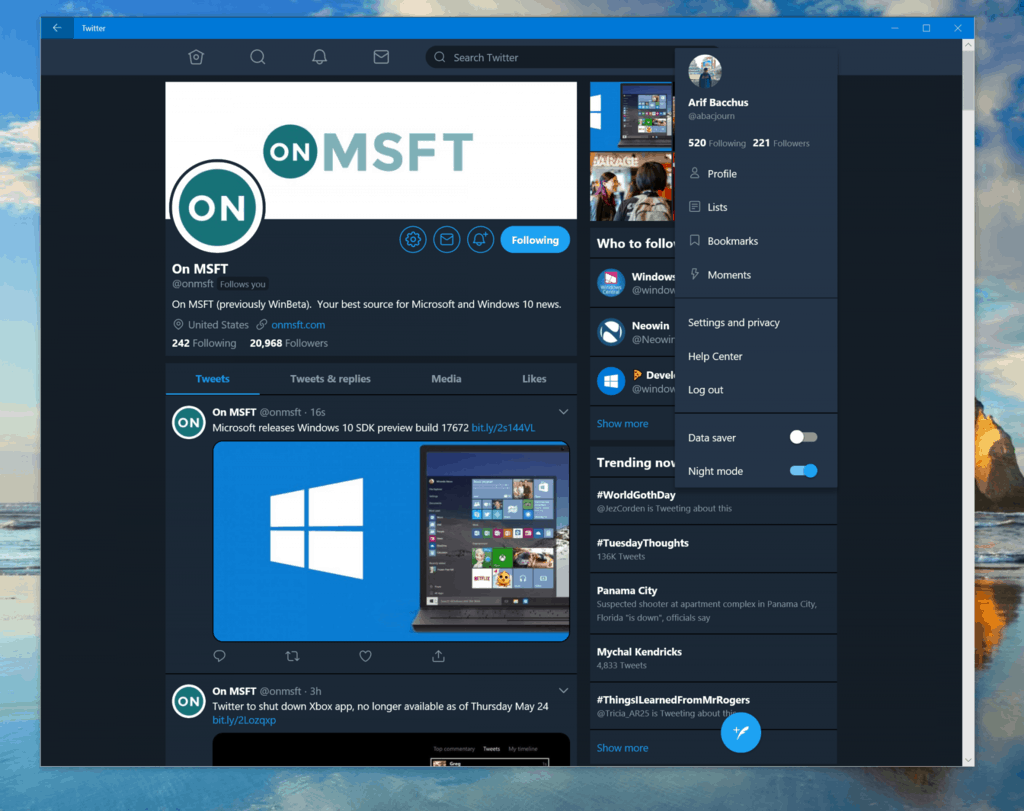
Twitter today pushed out an update for the PWA on Windows 10, and it introduces the much-awaited night mode feature. Overall, this automatic update is solid and brings much more consistency across all Twitter apps on Windows, Android, iPhone, and other platforms. Here’s what’s new.

Once updated, you’ll find the toggle option for a dark mode under your profile submenu. You’ll also notice that the Retweet and Like counts will update in real time, perfect for keeping track of viral moments. And finally, there is an updated Tweet compose box (accessible by pressing N) which now makes it possible to more easily move between your Tweets and your timeline.

Again, since this is a PWA, there’s no need to head to the Microsoft Store to get this update. Everything is automatic, and if you’re not seeing these new features at first, you might want to wait a few seconds or minutes and re-launch the app. Are you liking this update? Let us know your thoughts in the comments below.

Download Angry Birds for Windows 10/11, 8.1/RT

angry-birds-for-windows-8 (1)

There is no doubt that Angry Birds has taken the world  by storm and has become one of the most loved mobile games. Ever since the first Angry Birds game appeared, fans numbers have continued to grow, and with the next Angry Birds games, this growth has only been accelerated.

Now, with the rise of the Windows 8.1, Windows 10 operating system, the developers of Angry Birds have brought their games to Windows 8.1, Windows 10 users. Angry Birds for Windows 10, Windows 8.1 is just as fun as we remember it from the other platforms.

Angry Birds for Windows 10, Windows 8.1: The Same Fun, Different Platform

Pretty much everyone has heard of Angry Birds by now, the immensely popular Android and iOS game has thousands of fans in every corner of the world, and if you have moved to the Windows 8.1, Windows 10 platform, then you can still download and play the games just like before.

In the Windows Store, users can find two official versions of the game, and these are Angry Birds Space and Angry Birds Star Wars. Although the original version of the game is not available, these two will definitely suffice for most.

angry-birds-for-windows-8 (2)

Watch Angry Birds Space Trailer

Keep in mind that the these games are not free, each of them costing $3.49, but you can download a demo version of each of them for free. These demo versions have a limited number of levels, but they will keep you in front of your Windows 8, Windows 10 device just as long as you need to get your Angry Birds fix.

Watch Angry Birds Star Wars Trailer

Rovio is renowned for the quality that their Angry Birds games has, and the Windows 8.1, Windows 10 versions are no different. They are both very well designed, having the same high quality graphics and great gameplay.

So, if you are a fan of Angry Birds, and you own a Windows 10, Windows 8.1/RT device, then you should download these awesome games, as they offer the same great experience as the other versions. Playing them on a Windows 8.1, Windows 10 computer is even better, as the HD graphics make the games look awesome.

[Update] Although Rovio developer has ended support for Windows platform and focused on Android and iOS market, these games are still available in the Microsoft Store. Also, if you have some favorite games on your phone and want to play them on PC, you can use one of the best free Android emulators for Windows 10/8.1/7 and ejoy a better game experience.

RELATED ARTICLES TO CHECK OUT:

Microsoft Store gives users a Windows 8.1, Windows 10 Picture Vault

All our devices have sensitive information and personal files that we don’t want anyone else to see. Pictures are a prime example of such files, and due to the lack of a password protected Gallery on most of our devices, they can always be accessed by anyone.

Windows 8.1, Windows 10 users can use F.Y.E.O., a picture vault app that will give exactly that: a password protected image gallery, which only they can enter. Any picture that is added to the gallery is safe from any prying eyes.

This is one awesome app that works perfectly well like a picture vault feature for Windows 10, Windows 8.1 and will be found useful by those looking for security measures.

Update: This app has no longer received support in the Microsoft Store, so if you are looking for an alternative app to protect your pictures, jump right at the end of this article.

F.Y.E.O. for Windows 10, Windows 8 Keeps your pictures safe

for-your-eyes-only- windows-8-picture-vault-app (5)

F.Y.E.O. (For Your Eyes Only) is a free Windows 10, Windows 8/RT app that can be downloaded from Windows Store and installed on any device. It is very simple to use and many users will appreciate the fact that it lets them hide their photos very fast.

The app itself is very simple. It only offers a picture vault, with no other features, so you won’t have to spend time figuring out how it works. The first time you fire it up, it will prompt you for a password. This password will be required every time you open the app.

F.Y.E.O. - windows-8-picture-vault-app (3)

Keep in mind that you have to close the app for it to prompt you again for a password. If you minimize it, like all other Windows 8, Windows 10 apps, it will resume where you left it. F.Y.E.O.’s user interface is very simple to use.

Adding photos to the vault is as simple as clicking or tapping the “Add Photo” button from the bottom right corner of the hidden menu. The default Windows 8, Windows 10 file browser will open and you can browse for the files you want to hide.

F.Y.E.O. - windows-8-picture-app-keeps-pictures-safe

Once you’ve selected the files that you want to add to F.Y.E.O., you can press the “Protect Images” button and they will be added to the vault. The app will ask you if you want to delete the original files from your device, so they will only be available via the app itself.

F.Y.E.O. - windows-8-picture-vault-safety-app

This is a very good feature, as you won’t have to manually search for the images you’ve added to F.Y.E.O. later on. If you open a image from within the app, you can also restore it to its initial position if you want.

F.Y.E.O. - windows-8-picture-vault-app (6)

Overall, F.Y.E.O. for Window 8 is a very well designed app. The fact that it does not have ads is a definite plus, and its simple and intuitive interface makes it easy to use. I’d say F.Y.E.O. is a perfect Windows 8.1, Windows 10 image vault and every device should have it.

Alternative app to protect your pictures gallery

As we mentioned at the beginning of this post, the F.Y.E.O. app is no longer available for download in Microsoft Store. Therefore, you can try a similar app that does the job for you.

Photo Locker is a free app that allows you to securely keep certain pictures away from prying eyes. It’s an easy and quick way to save your private photos in a safe place.

The app is available for Windows 10 and has the following features:

  • Photo encryption and decryption
  • Password Login
  • Create folders to categorize photos
  • Import and export photos
  • Photo viewer

Download Photo Locker from the Microsoft Store
RELATED ARTICLES TO CHECK OUT:

Download Multimedia 8 on Windows 10, 8 computers

App developers have continuously tried to provide us with specialized apps that are the very best at what they do. We have awesome audio players, music players or audio book players, but despite this, the number of apps that offer a complete multimedia experience, spanning across multiple types of media is pretty low.

Good apps that provide these services are even fewer. But in this category, there are some that stand out, and one of them is Multimedia 8 for Windows 10, Windows 8. Many say that it is one of the best multimedia apps they have ever tried, thanks to its battery of features, and I tend to agree with them. Today, we’ll be taking a look at what makes Multimedia 8 for Windows 10, Windows 8 such a great app.

Multimedia 8 for Windows 10, 8 – The Complete Multimedia Experience

Unleash the power of Windows 8 with Multimedia 8, a free media application that allows you to access network media, load subtitles, convert media files, play 3D video, capture from external devices and much more!

multimedia-8-for-windows-8-best-player-all-multimedia-files-video-audio-editor-3d-rendering (5)

For starters, Multimedia 8 for Windows 10, Windows 8 is a free app that can be downloaded by anyone from the Windows Store and it can be run on both Windows 10, Windows 8 and Windows RT, which is perfect for both computers and mobile devices. Although it is dedicated for mobile devices, during testing on a Windows 8, Windows 10 computer, the app has performed exemplary.

The main menu of the app is very well designed, offering users access to almost all the features that it has, starting from video playback, audio playback, online playback, media servers or playlists, as well as organized media by the user.

multimedia-8-for-windows-8-best-player-all-multimedia-files-video-audio-editor-3d-rendering (4)

Although a part of the browsing is done via the default Windows 8, Windows 10 file explorer, it does not cover all parts of the app, so on a computer where you keep your media files elsewhere than in the Music or Video folders from User Documents, you will not have the possibility to browse to your music folder. This might come as a drawback, but it can be overcome by creating playlists with other apps or other players and load the playlist files to the app.

multimedia-8-for-windows-8-best-player-all-multimedia-files-video-audio-editor-3d-rendering (6)

The video section of the app is by far the most interesting, as it allows users to play virtually any type of files and load subtitles from your local drive. In the menu located on the bottom right corner of the screen you will find the different options that you might need, these include load subtitles, 3D rendering, zoom and others.

multimedia-8-for-windows-8-best-player-all-multimedia-files-video-audio-editor-3d-rendering (3)

Also on the main screen, users can find other options by scrolling to the left, where the developers have created the Recording Area, where anyone who uses a device (computer or mobile) that has a video camera or a microphone, can record videos or audio as they please. Also here, you can see a list of the recent files that were played.

The developers of Multimedia 8 for Windows 10, Windows 8 have put a lot of work in providing users with an assortment of features that will tend to their every need. The list of features, as provided by the developers goes as follows:

  • Play media from your libraries and Media Servers
  • SRT and WebVTT subtitles
  • 3D video
  • Multilanguage media
  • Create, manage and shuffle playlists
  • Convert and trim media to MP4 and WMV
  • PlayTo your DLNA TV
  • PlayTo from other devices, such as Windows Phone, to Multimedia 8
  • Search your libraries and Media Servers
  • Video Stabilization
  • Capture audio and video

multimedia-8-for-windows-8-best-player-all-multimedia-files-video-audio-editor-3d-rendering (7)

As you can see, Multimedia 8 has some very interesting features, trying to provide users with all the options they need in order to have a better multimedia experience. From subtitles to video convertion and video players, it has it all. I could go as far as to say that Multimedia 8 for Windows 10, Windows 8 is the all-inclusive package and all you could ever want from a media app.

Download Multimedia 8 for Windows 10, Windows 8

The latest Multimedia 8 update brings a series of interesting new features and options such as:

  • A new browsing algorithm can now process browsing more than 10000 files at the same time
  • Playlists now show in all locales
  • The app got a faster thumbnail generation algorithm
  • The update also fixed a UI bug that broke the app after playing a playlist
  • Several stability and performance fixes

RELATED STORIES TO CHECK OUT:


Windows 10 on ARM gets tested on Raspberry Pi 3B [VIDEO]

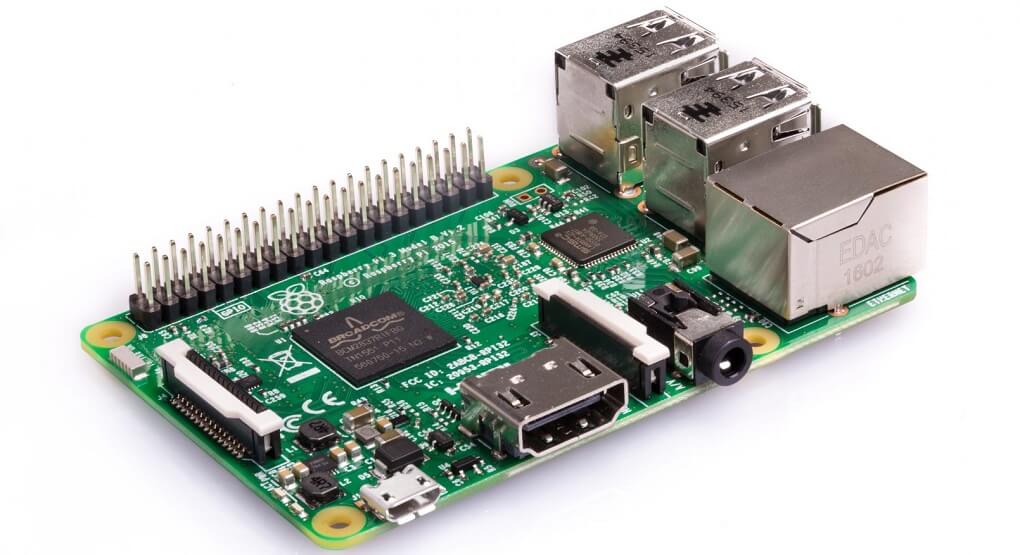
Novaspirit Tech just tested Windows 10 on ARM on Raspberry Pi 3B proof-of-concept and WoW. They also published a video that you can watch below to see some pretty exciting things happening. There’s also need for a bit of help in order to get the drivers working.

Don from Novaspirit has already created a thread on the subject which is really interesting and exciting.

Cases where Windows 10 on Raspberry Pi would be useful

One Redditor believes that there are a few cases in which running Windows 10 on ARM on a Raspberry Pi would turn out very useful.

Even though it may seem like a novelty, I can think of a few edge cases where it may be useful to run Windows 10 on the Raspberry pi. I have a brother printer that needs a server application for the networking to function properly. They do have network drivers for Debian, but the install process is arcane, and there are a lot of steps to get the buttons and the scanner and the printer all working together.

The Redditor goes on and says that their Windows app is easy enough to install and it comes with a simple GUI to set everything up, and it only takes a few minutes.

I currently run a virtual machine on a server to handle it. But I wish I could have just stuck a raspberry pi behind it and let that be the end of it. As much as I love Linux, sometimes things that are simple on windows are a huge time sink on Linux – almost always because driver support is lacking. But still. It’s good to have the option at least.

Windows 10 on ARM has built-in x86 emulation

The fact that Windows 10 on ARM comes with built-in x86 emulation offers high-performance capabilities. Microsoft has been focusing on building x86 emulation into Windows 10 on ARM for a while, and this means that if an app that you want to run is not compiled on the ARM architecture, then it should still be able to run thanks to the emulation layer that’s packed in Windows 10 on ARM.

This will make most x86 apps work, but there is a catch to all of this called performance. You can check out the complete Reddit thread to see all users’ opinions on the tests.

RELATED STORIES TO CHECK OUT:

Twitter to shut down Xbox app, no longer available as of Thursday May 24

Did you know that Twitter had an app for the Xbox One? If not, you’re probably not alone, and this may be why Twitter has just announced its retirement on Thursday, May 24. The Twitter Xbox app won’t be the only client to disappear this week as the company will also sunset Twitter for Android TV and Twitter for Roku.

As noted by Techcrunch, the Twitter apps for Apple TV and Amazon Fire TV will stay alive for now, which is a bit surprising. To be clear, all these Twitter apps for big screens aren’t full-fledged Twitter clients, but focus on live streaming videos and trending moments. The Twitter app for the Xbox One was released back in September 2016, and it initially didn’t let users sign in to their accounts until an update last year. However, you couldn’t use Twitter for Xbox to tweet, search or scroll through other users’ timelines, and that probably explains its current 1.5 stars rating.

While Twitter for Xbox will soon disappear from the Xbox Store, the Xbox One April update recently brought the ability to share screenshots and clips directly to Twitter, which is probably much more useful. Do you use the Twitter Xbox app, and will you miss it once it’s gone for good? Sound off in the comments below.

CPU Fan Makes Noise in Windows 10/11 – Try these fixes

According to some forum postings, some users have reported increased CPU noise coming from their laptops after making the upgrade to Windows 10. We’re offering some fixes that might solve your problems

Windows 8.1 comes with a lot of software problems for new users, but apparently, it does some annoying things to the hardware, as well.

Recent reports suggest that the CPU noise on some laptops is actually increased after making the Windows 8.1 update. One of the frustrated users is using a Sony VAIO Windows 8.1 laptop, he said the following:

My laptop is a Sony VAIO and is less than 1 year old. I am referring to fan sound, I had no problem before the update to Windows 8. Called Sony and they told me to contact Microsoft. I noticed my laptop too hot on the side where the fan sound comes. I am not using my laptop on a flat surface, I usually use a little piece of wood in the back to have a 30 degree angle. The fan stop if I restart the laptop, couple minutes after, it started again at full power. When I explained this to SONY, they told me to contact Microsoft immediately, there’s nothing wrong with the machine.

The higher noise level coming from the CPU fan has been reported on Microsoft’s support forums, as well as on the forum of other laptop OEMs. The fact that the CPU fan is generating more noise than before, is caused by increased heat of the processor. Therefore, Windows 8.1 is requiring more CPU power which causes a temperature increase.

The Windows 8.1 system requirements aren’t that strict and they don’t require a lot of power or space:

  • RAM: 1 gigabyte (GB) (32-bit) or 2 GB (64-bit)
  • Processor: 1 gigahertz (GHz) or faster with support for PAE, NX, and SSE2
  • Hard disk space: 16 GB (32-bit) or 20 GB (64-bit)
  • Graphics card: Microsoft DirectX 9 graphics device with WDDM driver

Some potential fixes for the CPU noise in Windows 10

[Update] Upgrading on Windows 10, some users have encountered similar issues with CPU constantly making a whirring/buzzing noise.

I have an Asus Vivobook S200e which has been running fine. However, since I have upgraded to Windows 10 the fan has been constantly running at the highest speed as soon as I turn on my computer. I’ve checked task manager and the CPU is very low, between 2 and 15%. I tried closing programs in task manager however nothing seems to affect the fan speed. I’ve been on the forums and tried a lot of what has been recommended however nothing has worked.

Microsoft officially listed the minimum hardware requirements for Windows 10 as follows:

  • Processor: 1 gigahertz (GHz) or faster processor or SoC.
  • RAM: 1 gigabyte (GB) for 32-bit or 2 GB for 64-bit.
  • Hard disk space: 16 GB for 32-bit OS 20 GB for 64-bit OS.
  • Graphics card: DirectX 9 or later with WDDM 1.0 driver.
  • Display: 800×600.

1. Clean CPU Fan in order to clear CPU noise

First of all, you need to make sure that Windows 8.1 is indeed the culprit. To do that, just clear fans carefully from dust so that you’re sure it’s not the dust that is causing the noise. You can find more details on how to manage increased fan noise by checking our article How to Reduce Fan Noise.

After you have done this, here’s what one user is suggesting

If you run Task Manager and go to the Performance tab, you’ll probably see that the CPU utilization is really high (80-100%) for no apparent reason. Also, if you go to the Processes or Details tab, you’ll notice multiple instances of a process called “sdclt.exe” appearing & re-appearing every few seconds.

So, here are the steps that you need to take:

  • Go to Task Scheduler
  • Task Scheduler Library -> Microsoft -> Windows -> Windows Backup
  • Disable the “ConfigNotification” task
  • Restart your computer

2. Fix Memory issue through Registry Hack

 Try hacking your way out of this issue by performing one Registry tweak. Here’s exactly what you need to do:

  1. Go to Search, type regedit, and go to Registry Editor
  2. Go to the following path:HKEY_LOCAL_MACHINESYSTEMCurrentControlSetControlSession ManagerMemory Management
  3. Find ClearPageFileAtShutDown and change its value to 1.
  4. Save changes
  5. Restart the computer.

3. Update drivers to fix the issue

It’s highly recommended to make sure you have the latest drivers installed. For a detailed procedure on how to check for driver issues and update them, read our article How to update outdated drivers in Windows 10.

If you are looking for an even faster way to update your PC drivers, use a dedicated automatic tool, such as Fortect Driver Updater. This type of software will update your drivers within a few clicks and always keep your device secure.

Let us know by leaving your comment if you have managed to fix the annoying CPU noise problem.

Adobe Flash Player bugs Gets Fixed on Windows 10 by latest updates

Microsoft and Adobe have announced the availability of a new security update for the Flash Player for Windows 8 and Windows 8.1 users. It brings fixes to bugs and also increases security.
adobe flash player windows 8.1
The Adobe Flash Player has been having quite a few issues in Windows 8.1, not working for several users. A previous update has fixed part of those bugs, but now a new version has been made available as part of the November 2013 Patch Tuesday that takes care of most of the glitches and also brings some security improvements. Here’s what Microsoft said regarding the update:

On November 12th, a security update for Adobe Flash Player in Internet Explorer 10 and 11 on supported editions of Windows 8, Windows 8.1 and Windows Server 2012 and Windows Server 2012 R2 is also available. The details of the vulnerabilities are documented in Adobe security bulletin APSB13-26. This update addresses the vulnerabilities in Adobe Flash Player by updating the affected Adobe Flash binaries contained within Internet Explorer 10 and Internet Explorer 11.

On Adobe’s website we find even more details about the Adobe Flash Player 11.9.900.117 version. Here is the full release note for the Adobe Flash Player and the Adobe AIR, as well

  • Users of Adobe Flash Player 11.9.900.117 and earlier versions for Windows and Macintosh should update to Adobe Flash Player 11.9.900.152.
  • Users of Adobe Flash Player 11.2.202.310 and earlier versions for Linux should update to Adobe Flash Player 11.2.202.327.
  • Adobe Flash Player 11.9.900.117 installed with Google Chrome will automatically be updated to the latest Google Chrome version, which will include Adobe Flash Player 11.9.900.152 for Windows, Macintosh and Linux.
  • Adobe Flash Player 11.9.900.117 installed with Internet Explorer 10 will automatically be updated to the latest Internet Explorer 10 version, which will include Adobe Flash Player 11.9.900.152 for Windows 8.0
  • Adobe Flash Player 11.9.900.117 installed with Internet Explorer 11 will automatically be updated to the latest Internet Explorer 11 version, which will include Adobe Flash Player 11.9.900.152 for Windows 8.1
  • Users of Adobe AIR 3.9.0.1030 and earlier versions for Windows and Macintosh should update to Adobe AIR 3.9.0.1210.
  • Users of Adobe AIR 3.9.0.1060 and earlier versions for Android should update to Adobe AIR 3.9.0.1210.
  • Users of the Adobe AIR 3.9.0.1030 SDK and earlier versions should update to the Adobe AIR 3.9.0.1210 SDK.
  • Users of the Adobe AIR 3.9.0.1030 SDK & Compiler and earlier versions should update to the Adobe AIR 3.9.0.1210 SDK & Compiler.

Update: Latest Flash Player updates for Windows 10

Since its last big update, Flash Player has received other many bug fixes appearing in Windows 10 but also in its previous versions. The first big update was on ‘Not working’ issues. It fixed some zoom scaling issues, rendering problems and other major problems.

In early 2017 Windows fixed a security flaw which allowed some malicious software to be installed on users PC. If you have an older version of Flash Player, we recommend you to take a look at the log in this article and see what you can do in order to secure it.

The most common error: ‘Error loading player: No playable sources found’ now can be easily fixed by using one of these solutions. It is one of the most annoying error, especially if you use the browser for video purposes a lot. In case you do, and you get this error, our solutions might be very useful.

Another security mass update was released with KB4053577 patch and it fixed the issues that could reset the global settings preferences file. The update covered all Windows versions so all users can be safe from problems with Flash Player.

READ ALSO: New Adobe Flash zero day vulnerability provides users more reasons to disable the tool


Microsoft Garage expands with new facility at NERD in Cambridge, Mass.

Microsoft announced today that it has opened up the seventh Microsoft Garage facility at the New England Research & Development Center in Cambridge, Massachusetts (NERD.) The opening comes after several years of hard work, brings new space for innovation, collaboration, and also marks an investment in cultural change.

The new Microsoft Garage space at NERD is designed to create a connection between Microsoft and the local community. There are nearly 15,000 square feet of space at the facility, which is perfect for presentations, workshops, and more. Other features in the space include a “makerspace” where local students and professionals can also book time, with 3D printers, soldering equipment, a metal stamper, and other tools. There’s also a Reality room which is designed for Windows Mixed Reality and HoloLens, and a special space for Garage internship program for university students.

According to Jeff Ramos, partner director of The Garage, the location is a display of how Microsoft has evolved as a company. “We’re a company of hackers, of doers, of makers, with a passion for experimenting. The Garage is an embodiment of that,” said Ramos.

He continued, “Like the rest of the company, the idea of The Garage itself has evolved… The Garage and the annual Hackathon have really changed our ethos so the whole company has embraced the value of experimentation and hacking.”

Anyone is free to explore The Garage at NERD, and a Microsoft badge is not required for most uses of the facilities. Residents in the area can walk into the lobby, visit the coffee bar or patio, or schedule an appointment to use the conference room, makerspace, and Reality Room. Learn more about The Garage at NERD here on Facebook.

How to submit usable feedback to the Windows Insider Program

Microsoft gets a lot of value out of the Windows Insider program and the Feedback Hub, but it can be hard to submit usable feedback that will actually be used. Here is some information on Microsoft’s new Cohorts program, how the Feedback Hub works, and how to submit viable feedback that Microsoft’s developers can actually use to improve Windows 10.

Feedback Hub

Microsoft developed the Feedback Hub with good intentions. The basic idea is that if you run into any problems with Windows 10, you can use the Feedback Hub to report your issue. You can also search through the Feedback Hub to see if anyone else is experiencing the same issue that you are having.

The problem with the Feedback Hub is that many Windows 10 users will report an identical issue, but it will show up multiple times because users don’t pinpoint their precise problem. The way feedback is reported has proven to be a major problem for the Feedback Hub; multiple entries reporting on the same issue. As you can tell from the low rating of the Feedback Hub app in the Microsoft Store, Windows 10 users are well aware of this issue too.

Microsoft, Feedback

Cohorts

Building upon the Feedback Hub (probably because of its abysmal app rating in the Microsoft Store), Microsoft recently introduced the Windows Insider Cohorts program. Cohorts could be considered a better Feedback Hub, but Microsoft is certainly taking a step in the right direction.

Microsoft created Cohorts as a way to sift through all the feedback by using groups of people that have a common specialty. These groups, or “cohorts,” can provide Microsoft with usable feedback for features in Windows 10. So instead of relying on random feedback by random Windows 10 users, Microsoft uses Cohorts as a specialized feedback community.

App developers, illustrators, Office 365 enterprise users, and other Microsoft MVPs come together in cohort forums to discuss what issues require the most attention and go after the pertinent details for further Windows 10 development. If you believe you can make a meaningful impact, Microsoft invites you to sign up to be considered a member of a cohort forum. You need to sign up to be a Windows Insider to be able to be a part of the cohort program.

Microsoft, Windows, Developer, Windows Insider

It’s important to know how to not only create feedback, but to create usable feedback that developers can actually use.. Raymond Dillon created a blog post on what constitutes good feedback and how to create feedback that is actionable for developers. Raymond Dillon is a Microsoft MVP and Windows Insider advocate.

In his blog post, Dillon outlines how you should you should phrase your feedback and be as detailed as possible, so that the developer can take your feedback and actually use it to improve their app or service within Windows 10.

“If you are providing feedback on an app (or a new feature of Windows) – try and avoid phrases like “it doesn’t work”, or “it’s broke” – try and provide as much detail as possible – what device are you using? What were you doing at the time? Did an error message appear? Can you reproduce the issue by trying the same steps again?

If you are able to answer these kind of questions, it gives developers (like me!) a better understanding of what has went wrong and how to fix it feeding back into the development of the product providing a better outcome for all parties involved.

Likewise, if you are involved in providing ideas to help improve a product, try and be as descriptive as you can. Avoid phrases like “make it look better”, or “make it work better” – be as detailed as you can and try and describe why your suggestion would help improve the product – it helps developers gain a better understanding of the users of the product. The more detailed your feedback is – the more actionable it will be.”

Microsoft is using CollaBoard as a pilot program for using cohorts as a future Windows 10 service for all apps. Collaboard is a Windows 10 app that acts as a real-time digital whiteboard to help transform how your team communicates and collaborates.

For those of you that already use the Feedback Hub app in Windows 10, how can Microsoft make the app better? Is there something specific Microsoft can do to filter out the unusable feedback they receive? Of course, Microsoft won’t be able to make everyone happy when it comes to submitting feedback. However, the most important thing about feedback is that developers can use it to improve Windows 10 and Microsoft’s apps and services for all users.

Microsoft, Google reveal fourth variant of Meltdown and Spectre exploit, Intel promises new security patches

It looks that the Meltdown and Spectre security flaws could continue to haunt Intel and other chip makers for quite a long time. Yesterday, Microsoft, Google and Intel jointly revealed a fourth variant of the Meltdown and Spectre vulnerabilities, which according to Intel affect “many modern microprocessor architectures, including but not limited to Intel’s.”

This new variant of the Spectre and Meltdown security flaws is called “Speculative Store Bypass,” and it could allow attackers to gather sensitive data on your PC. Here is how intel described the vulnerability:

Variant 4 uses speculative execution, a feature common to most modern processor architectures, to potentially expose certain kinds of data through a side channel. In this case, the researchers demonstrated Variant 4 in a language-based runtime environment.  While we are not aware of a successful browser exploit, the most common use of runtimes, like JavaScript, is in web browsers.

According to the chip maker, previous security updates for the most popular web browsers already offer some protection against this new Variant 4. However, Intel still plans to offer additional mitigation through a combination of microcode and software updates, and the bad news is that the firmware updates will negatively impact performance. Intel has already made beta microcode updates available for its various industry partners, and it expects them to roll out over the coming weeks. However, the mitigation will be turned off by default and it will be up to PC manufacturers to enable it or not.

“Research into side-channel security methods will continue and likewise, we will continue to collaborate with industry partners to provide customers the protections they need,” Leslie Culbertson, executive vice president and general manager of Product Assurance and Security at Intel Corporation. It’s important for Intel to get prepared for future Meltdown and Spectre variants that have yet to be discovered, but the company is also announced earlier this year that its upcoming Xeon and 8th gen Core chips will have built-in protections against Meltdown and Spectre.

Microsoft To-Do app now opens faster on Windows 10 devices

Microsoft To-Do has updated on Windows 10 PCs and tablets and Windows 10 Mobile smartphones. This updated hasn’t added any new features but significantly improves the app’s start-up time and the speed of switching lists. Here’s the release notes.

  • We’ve made some substantial improvements to our startup time. While we haven’t engaged the warp drive (yet), we think you’ll be quite pleased by the app’s new speed.
  • We’ve also improved performance when switching lists.

Microsoft To-Do is a productivity app designed for assisting in tracking tasks via a simplified checklist. The app is also available on iOS and Android and data can sync between any device as long as the same Microsoft account is used to login.

Let us know if you use To-Do in the comments below and don’t forget to follow us on Twitter for more app news.

Duplicate Cleaner Tool Windows 10 app is free for the next 2 days

The Windows 10 Duplicate Cleaner Tool app is currently free for the next two days in the Microsoft Store app store.

Duplicate Cleaner Tool runs on Windows 10 PCs and tablets, Windows 10 Mobile smartphones, and HoloLens headsets and is designed to help find and remove duplicate files to free up space. The app can also scan OneDrive accounts and specific folder locations can be skipped to help avoid the deletion of important documents. Here’s the official app description.

Powerful program to quickly find and remove duplicate files from your device. You can find and remove thousands of duplicates quickly with just a few clicks. There are advanced filters, comparison options and selection assistance if you are looking for more control. Duplicate Cleaner Tool is the most comprehensive duplicate cleaner available on the Store, best for both basic and advanced users. It works fast, uses little amount of system resources and have a pleasing user interface. You’ll enjoy using this program to clean your storage.

By default, the app compares duplicates by their finger print for 100% accuracy. Comparing by size, name, modified date and also containing folder are available as faster alternatives. Multiple filters allow you to only look for certain type of files or files within a certain size or modified date to speed up the process. Preview tool shows you thumbnail image and key properties of each duplicate file before attempting to delete. You’ll be confident and won’t delete anything that you need thanks to this feature. Selection Assistant saves you a lot of time by selecting thousands of duplicates in a single click. You can choose to compare folder, date, size or name to select duplicates in each group. You won’t find this poweful tool in any other app on the Store. Once you are done, the app brings you a complete report of what has been done, you can export the report to a CSV file for further uses.

The Duplicate Cleaner Tool app is usually around $5 so it’s worth grabbing now for free if you think you have a use for it or will in the future.

Have you tried this app yet? Let us know if you found it useful in the comments below and don’t forget to like us on Facebook for more Windows 10 app news and sales.

Duplicate Cleaner Tool
Developer:
Mehrzad Chehraz
Price:
$3.99

State of Decay 2 is now live on Xbox One and Windows 10 for all gamers

State of Decay 2 is now available to play on Xbox One and Windows 10 for all owners. Those who purchased the Ultimate Edition were given a few days of early access but now anyone can play.

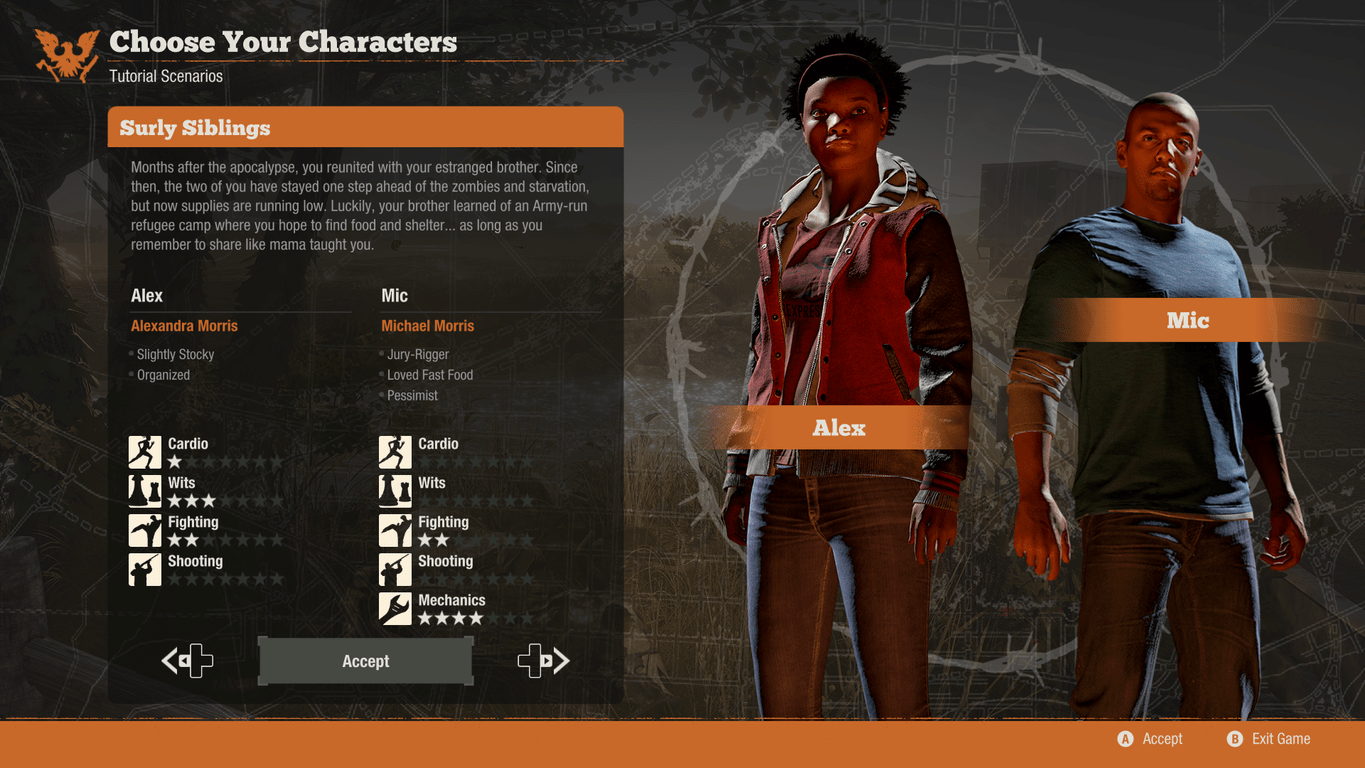
State of Decay 2 is an action strategy game with roleplaying elements set in a zombie apocalypse. It’s an Xbox Play Anywhere title which means that those who bought it on Xbox One can download it for free on a Windows 10 device and vice versa. Game progress will also transfer between devices and both console and PC gamers will be able to play with each other.

Here’s the official game description and trailer.

How Will You Survive? The dead have risen and civilization has fallen. Not even the military could stop the zombies, and now it’s up to you to gather survivors and build a community in a post-apocalyptic world – a world where every decision matters, and where you define what it means to survive. State of Decay 2 is the ultimate zombie survival game in an open world where you and up to three friends build a community of survivors. It’s up to you to establish a base, develop your characters’ abilities, and manage resources to survive as a group in a world where choices matter and every decision has lasting consequences.

Every player’s experience is unique – as you play, the open world responds to your decisions, developing in real time and dynamically offering new opportunities for you to demonstrate your own personal survival priorities. These decisions also result in real consequences that affect your community. Send your best scavenger across the map to gather medicine for a sick friend… but know that they might not make it home. Help your neighbors, and you might make new allies… or you could decide that you need their food supply more than they do. In the end, how you survive might surprise you.

In addition to being buyable, State of Decay 2 has also been added to Xbox Game Pass, Microsoft’s Netflix-style video game subscription service. Will you play via Game Pass or did you buy State of Decay 2 outright? Let us know in the comments below and make sure to follow us on Pinterest for more video game content.

Download Debugging Tools for Windows 10/11 to Crush PC Bugs

The Debugging Tools are essential for Windows 10 and 11 developers looking to create apps and submit them to the Microsoft Store, free of serious bugs and glitches. Here’s more about it and where to download.

Debugging in Windows 10/11, just like with any other operating system, means finding and reducing the number of bugs and defects to make the app behave as expected. For that, developers have the Debugging Tools set at their disposal.

With the launch of the Windows 8.1 SDK, the  Debugging Tools has been made part of it, as this was one of the new features and updates brought by Microsoft.

However, if you’re interested only in the Debugging Tools for Windows 8.1, when installing the Windows 8.1 SDK, you can select only the box for Debugging Tools, leaving others unchecked. As far as we know, this is the single way to install the standalone Debugging Tools for Windows 8.1 component, as there are currently no individual download links.

What you can download, though, as a standalone file is the Windows Remote Debugging Client for Windows 8.1. You can use it to work remotely with developers from Microsoft by using the Kernel Debugger (KD).

Follow the links below to download the Windows 8.1 SDK, where you’ll need to check only the Debugging Tools for Windows 8.1, if you need that, and the Windows Remote Debugging Client for Windows 8.1.

Debugging tools can also help fix an OAuth2 error, invalid_request; read this guide to learn more about it.

Debugging tools for Windows 10 (WindDbg)

Analyzing crash dumps, examining the CPU registers as code executes, and debugging kernel and user mode code, have all been made possible with the Windows Debugger (WinDbg) for Windows 10 developers.

A new version of WinDbg was released in 2017 for Windows 10 developers. It came with more modern visuals, faster windows, and a full-fledged scripting experience built with the extensible debugger data model front and center.

Read more about WinDbg Preview and find out the new features and updates.

5+ best Windows 10/11 board games to play with friends

The Windows 8, Windows 10 touch interface is perfect to play these board games. Check out our list of the best board games that you can play with your friends.

Before video games, in an “era” were every home didn’t own a computer, children and parents alike used to entertain themselves with board games. Board games are physical games made of cards and other components that require players to display imagination while interacting with their opponents.

Board games are also considerate desirable because they teach important social skills to the younger audience. However with the advancement of technology, board games have of course moved to the online environment as well. That’s why Windows 8, Windows 10 or Windows RT users have the opportunity of finding some of the most recent and engaging board game apps in the Windows app store.

Play these board games on Windows 10, Windows 8

  1. Dominion [No longer supported]
  2. Ludo
  3. Mancala Master
  4. Don’t get angry
  5. Snakes and Ladders Wave [No longer supported]
  6. Mind Pursuit
  7. Bingo!

1. Dominion

dominion windows 8 board game

Enjoy a classic board game experience right here on your Windows 8, Windows 10 machine. Dominion is a game about monarchs and as it is known kings always want to expand their kingdoms. Players have to buy cards in order to build up their decks, thus becoming more powerful and more feared.

There are 500 cards in a deck and three large piles of treasure cards which translate into copper, silver and gold. Victory cards are also available and give off: provinces, duchies and estates. Players also have 250 Kingdom Cards and 30 curse cards. The game can be played with players using one action card.

By following the direction of the card, they can draw other cards, or gain currency so they purchase goods or gain other extra actions. The game can develop into a very complicated one in no time. Dominion is fully optimized for moulti-touch PCs so playing it will be a breeze.

UPDATE: Unfortunately, Dominion is no longer available for download in the Microsoft Store.

2. Ludo [Free]

ludo windows 8 board game

Ludo is one of those classic board games with pretty simple rules such as Tock and Sorry! for which you need two or four players. The game play can be summarized like this: players race their tokens to the finish line.

And if they get there or not depends all on dice rolls. For those who haven’t played this game before, the app will prove really useful as it will teach them how to get the hang on things, as possible moves are highlighted according to the dice rolls. It’s guaranteed fun for the entire family.

3. Mancala Master [Free]

mancala windows 8 board game

Mancala is an ancient board game that has been passed from generation to generation. Mancala consists of a board with two rows of six holes and two long “Mancalas” positioned at the end. The player’s Mancala is located on the right side of the board. At the beginning of the game each opponent will have 3 stones placed in the 6 holes, with the Mancalas empty.

Now they will have to collect as many stones in their Mancala as possible. How to do this? By grabbing all the stones in one hole and dropping them, one by one in succeeding holes in counter-clockwise direction. Players can put their stones in their Macala(it counts as a hole) but not in their opponent’s .

The stones can be places in the holes of their opponent’s side. If the last stone drops in one of the player’s hole they get to keep that stone plus the one of the opponent’s from the opposite pocket. The players goes on to place them in the Macala.

4. Don’t get angry [Free]

don't get angry windows 8 board game

Another classic game to be played on a rainy day with family. Don’t Get Angry can be played by two to four players and every move somebody makes its decided by a die throw. The aim of the game is to move all four pieces in a clockwise direction from the starting field towards the target fields according to the score that comes up on the dice.

The game is won by whoever moves all the four pieces in the respective target fields. Grab the pop corn and enjoy the fun!

5. Snakes and Ladders Wave [Free]

snakes and ladders windows 8 board game

Snakes and Ladders has a simple purpose to it: the winner will reach the end of the board by moving most quickly from square 1 to square 100. To advance the board, of course players will have to throw dice.

If you’re lucky you will be able to advance quickly via ladders and if you are unlucky you’ll have to slide downwards as to avoid the snakes. Try it, it’s one of the game board with the most simple set of rules.

UPDATE: Unfortunately, Snakes and Ladders is no longer available for download in the Microsoft Store.

6. Mind Pursuit [Free]

mind pursuit windows 8 board game

Not your classic board-game but it can be viewed as such. This is more of a trivia game, and by roll of a dice you advance on the board and get questions asked to you. Each player has a differently colored pawn which must reach the end of the line.

7. Bingo!

play Bingo! windows 10

Bingo! is an addictive board game that will keep you and your friends hooked for hours on end. Here are some of its key features:

  • You’ll get super bonuses simply for signing-in daily
  • Compete with players all around the world
  • There are more than 30 Bingo rooms available.various themed rooms and winning patterns!
  • Huge Jackpot prizes.

Other Windows 8, Windows 10 board games

There aren’t a lot of old school board games available for Windows 10, Windows 8, but some game theoreticians classifies simpler games like Backgammon (a list of the most interesting Windows 8, Windows 10 apps can be found here), Checkers (click here), Chess (here), Scrabble others as board games. You can try these out as well.

Also for those wanting to be kept up to date with the most exciting news from the world of board games these Windows 8, Windows 10 apps should come quite in handy.

Board Game News and More [Free]

board game news windows 8

This app gathers up all the information related to board games from Twitter and around the web through Bing News, BoardGameGeek.com, YouTube and Flickr. Stay up to date with the latest information with this news-feed like application.

UPDATE: BoardGame News is no longer supported in the Microsoft Store.

Ancient board games [Free]

windows 8 board game ancient

Interested in the history of the board game? If you are a fan of such entertainment you probably know that board games are as old as time. They were played in India and the Arab world and most likely held a very important religious significance. Learn about the histories of your favorite games from Chaupat to Mancala with this engaging Windows 8, Windows 10 app.

UPDATE: Unfortunately, the app is no longer available in the Microsoft Store.

RELATED STORIES TO CHECK OUT:


How can I install .NET Framework on Windows 10/11, 8?

.NET Framework is a software technology that can be used with several Microsoft Windows operating systems. What’s special and useful about it is that is comes packed with pre-coded solutions to common programming problems. These days the increasing popularity of programming languages like C# or VB.NET requires that users have installed on their machines the .NET Framework, in order for specific programs written in those languages to function.

For those who have upgraded to Windows 10, Windows 8, you should know that the .NET Framework version 4.7 is pre-packed into the operating system, so you don’t need to worry about installing it. However if you stumble upon an application that requires a lower version of Framework, specifically version 4.7 you will need to take a few steps in order to be able to install it on your Windows 8, Windows 10 machine. To do this users are faced with a choosing from two options:

Installing .NET Framework version 4.7 manually by request

In Windows 8, Windows 10 when a program will need .NET Framework to operate and isn’t able to locate it within the system, it will display a pop-up saying you need to “Install the feature” – indicating the .NET Framework 4.7, of course. Just click the option and the downgraded version will start installing.

Turn .NET Framework 4.7 on in Control Panel

windows-8-net-framework-3.5-control-panel-enable

The same can be achieved by going into Control Panel and selecting Program and Features. In there you should find the Turn Windows features on and off. You need to click on it and find the .NET Framework 4.7  box you have to check. Good news is that the 4.7 version in Windows 8, Windows 10 also includes .NET 2.0 and 3.0 so you don’t have to worry about checking any more boxes.

In any case, for both methods users need to be have a working Internet connection. Still it’s not impossible to get .NET 4.7 even if you don’t, but you have to be quite geeky to be able to apply this.

What if you don’t  have Internet but still need the .NET 4.7?

In case of not being able to connect to the Internet, users should follow these steps in order to activate .NET 4.7 in Windows 10, Windows 8:

  1. Create a folder. Name it net47
  2. Mount your copy of Windows 8, Windows 10 ISO file
  3. From the ISO folder copy the following: “sourcessxs to the net47 folder.
  4. After everything has been copied use the DISM (Deployment Image Servicing and Management Technical Reference) to turn on the .NET Framework 4.7 by typing in Command Prompt:

DISM.exe /online /enable-feature /featurename:NetFX3 /All /Source:c:net47 /LimitAccess

Note: You have to open Command Prompt as Administrator in order to successfully run this command

These methods will allow you to install Microsoft’s .Net Framework 4.7 on Windows 10, Windows 8 with no problems. Also, if you want to go the extra mile, you can download it from the Microsoft Download Center.

Download .Net Framework 4.7 from Microsoft’s Download Center

Download older .NET Framework versions

If you’re looking to download older .NET Framework version, we got you covered as well. Follow the links listed below to download and install previous .NET Framework versions:

20+ Windows 10/11 Games to play

Somebody that has a Windows 10 tablet, or any other device is probably looking to download, install and play the best Windows 8, Windows 10 games there are. We have tried to find more than 20 such games for your gaming pleasure.

Everyone likes games. Be it on a mobile device or a computer, games are what keeps computing technology move forward. Windows 10 has most definitely opened new paths for app developers like Windows 10 users can now install apps on computers or laptops. Game developers have added support for keyboard and mouse control to their games, thus creating a new ecosystem for gaming.

Even though the Windows Store is still in its infancy, there are lots of apps and especially games that are really nice and every user must try them. All kinds of types of games can be found and today, we’re taking a look at some of the best games for Windows 10 users.

The best Windows 10 games to Date

As we mentioned in our top of the best Windows RT games, making a countdown is pretty difficult, as each of us has a different understanding of what “a good” game is. Therefore, we opted to take into account other factors, to create a more objective list.

The number of votes and the rating of each game were taken into account, as well as graphics, stability, and how fast it moves. Other factors like storyline would not have been good factors to differentiate games, as each of us likes certain types of games.

What are the best Windows 10 games to play?

1. SoulCraft

play soulcraft Windows 10

If you are a fan of hack and slash RPG games, then you will definitely love SoulCraft. This beautifully crafted Action RPG game offers users great graphics and realistic environments. The game also offers players a choice between Angel, Demon and Human races, each having its own strengths and weaknesses.

Like any other self-respecting RPG game, it has lots of weapons, hordes of enemies, and different combo attacks that will make your journey more diverse. Seeing that the most important part of a role-playing game is an immersive storyline, SoulCraft has prepared for its players an epic story that will take them through real-life cities such as Rome, Venice, or New York.

2. Guns 4 Hire

play-guns-4-hire

Action games…the best way for a geek to get the ultimate adrenaline rush. Guns 4 Hire is a story surrounding a 4 man mercenary crew that has to battle millions of enemies and crime lords with state-of-the-art black market weapons. Also, the game allows the player to use the different special skills of the team, like demolitions experts or artillery commandos.

The game has an alert rhythm, keeping the player always on his toes and always expecting another battalion of enemies to come marching down the street. Great graphics, awesome environments, and lots of weapons choices are the main highlights of the game, but like any good action game, it’s the player that makes it all happen.

3. Hydro Thunder Hurricane

play Hydro Thunder Hurricane windows 10

Destruction, high speeds, weapons, and races, what more can you ask from an awesome, Windows 10 game? If your answer was “something interesting” then Hydro Thunder Hurricane is the game for you. What we mentioned earlier happened on superfast boats racing in canyon rivers where hairpin turns are at every step.

If you’re into racing games, but you are fed up with street racing, then this, Windows 10 game will rock your world (or boat). The game has decent graphics and a very attractive collection of boats and weapons, but seeing how fast the gameplay is, you won’t have too much time to notice these details.

4. Halo: Spartan Assault

Halo Spartan Assault best windows 8 games

I’ve said it before, and I’ll say it again, you’re not a gamer until you play Halo! One of the most iconic shooter games of all time, Hale has been with up for what seems like a lifetime. Now, gamers will be able to play this awesome game on, Windows 10 devices that have touchscreens!

Battle your way through 25 action-packed levels that take place before Halo 4. You will be able to do battle against the Covenant and find out interesting facts about the origin of the Spartan Ops program. Also,  not to spoil the surprise, you will find out some new facts about Sarah Palmer.

5. Royal Revolt!

windows 8 best games Royal Revolt

Do you like Tower Defense games? If you do, then imagine how it’s like to be at the other end of the barrel, as you try to break through the defenses of a city. Royal Revolt! is a game that puts players in the shoes of the invaders as they try to regain the throne stolen by enemies.

And if the setting of the game was not reason enough to play it, then know that the game has awesome 3D graphics and a complex strategy is needed to command your forces to victory. Using magic and other kinds of medieval secrets, you will have to storm the city and bask in the spoils after you win.

6. Zombie HQ

Zombie HQ best windows 8 games

Zombies have always made gaming pleasure for those that enjoy the occasional bloodbath and the classic axe to the forehead, so it’s no surprise that a number of zombie-killing games have made their way to the top of the best Windows 10 games to date.

Zombie HQ follows the line of most survival games, where a city is infected and all its inhabitants turned to brain-eating ghouls that are more than happy to relieve the player of his thinking muscle. With this in mind, gamers will have to literally carve their way through infested streets to find salvage and better weapons.

7. Drift Mania Championship 2

best Windows 8 games ever Drift Mania Championship 2

I’ll be the first to admit that drifting has not been in the center of attention for a while now (ever since the Fast & Furious Tokyo Drift movie faded away), but fans of fast cars that do stylish maneuvers to impress judges and especially the girls have been true to this style of racing.

If you like drifting, then try your skills online, against other players and take home tournament trophies in Drift Mania Championship 2. The revamped version of this popular game offers users awesome graphics, fully customizable cars, and great tracks where they can put the pedal to the metal.

8. Violet Storm Lite

Violet Storm Lite best windows 8 games

If you’re not one for complex stories and gameplay, then you might find a great game in Violet Storm, where players control a space ship and their sole purpose in the game is to destroy anything that moves. It kind of reminds me of Space Invaders, but in a modern-day, with neon lights!

The graphics of the game are simple, but very appealing, with alert gameplay that keeps you on your toes. Nevertheless, I found the game to be pretty simple and it might not offer the challenge that some gamers seek. All things considered, Violet Storm Lite is a game that will take your mind off your problems for a few minutes.

9. Spider Solitaire HD

spider solitaire hd best windows 8 games

If you’ve been following our game-related stories, we previously talked about Spider Solitaire HD. While the app isn’t awe-inspiring, it is still a good solitaire game that fans can play. The gameplay doesn’t offer too much over the default Microsoft Spider Solitaire, and in terms of graphics, the game looks good but nothing over the top.

Other features that Spider Solitaire HD offers are diverse backgrounds and simple gameplay. While I don’t understand why someone would play a different Spider Solitaire than the default version, fans of card games will definitely find it interesting.

10. reVersi Free

reVersi Free windows 8 best games so far

Although I’ve never been a huge fan of board games apart from chess, I have to give credit where credit is due, and the developers of reVersi most certainly are entitled to receive credit. They took a simple idea and went with it, and the result was a successful, Windows 10 game that is both simple and good.

Usually, board games are not known for their graphics and the gameplay leaves nothing to the imagination, therefore, from the get-go, they are at a disadvantage when compared to other types of games. Nevertheless, this niche market has its faithful followers, and they will definitely enjoy reVersi.

11. Rat on a Scooter XL

rat on a scooter best windows 8 games

If you think that name is a metaphor and it stands for something with a hidden meaning, think again. It describes this, Windows 10 game pretty well: you play as a rat that rides a scooter. What can be more fun than that? Well, I could think of a few other things, but it’s best to leave them to the imagination.

The graphics of the game, while pretty basic are still high quality, and users will definitely appreciate them. Gameplay on the other hand is similar to other running games, but even so, the idea of controlling a rat on a scooter is well worth it. Getting all those yummy foods and bonuses will be pretty entertaining.

12. Judge Dredd vs. Zombies

best windows 8 games judge dredd vs zombies

If you remember, a while back we stated that Judge Dredd vs. Zombies was “killing zombies at its best”, and in the meantime, nothing has happened. Blowing zombies to smithereens has lost nothing of its charm, and painting the walls with that green blood is still funny as… always.

Providing users with a wide assortment of guns and levels where horde after horde of zombies attack Judge Dredd, is a good recipe for an awesome game. Even though the movie wasn’t as good as I’d hoped, the game turned out pretty good, and I must admit that I’ve spent hours and hours blasting those rotting walkers to kingdom come.

13. Agent P Strikes Back

Agent P Strikes Back awesome games for windows 8

While I can’t say I liked Agent P Strikes Back, many Windows 10 users seem to think it is an awesome game. We’ll just chuck it to personal taste and give it the credit that it deserves. Adventure lovers that want to take a dive into the world of secret agents and evil robots will feel right at home playing this game.

Their mission, should they choose to accept it, is to save captured agents and ensure their return. But alas, the road is riddled with mazes, puzzles, and an army of metallic soldiers that are hell-bent on stopping Agent P. The game offers users exciting gameplay and it also has nice graphics, which I’m sure most players will appreciate.

14. Super Golf Land

super golf land best windows 8 games

While the sport of golf isn’t for everyone, many finding it boring and for old people, virtual golf games have caught on with the public and to some extent, it has lots of players around the world. Such is the case with this Windows 10 game, Super Golf Land, which was also present in one of our weekly Windows 8, Windows 10 apps lists.

Thanks to the growing number of players, the game seems to find its way again in our crosshairs, as one of the best Windows 10 games to date. If you’re into whacking a ball all day long, throughout various levels that have different obstacles, then this game is right up your alley.

15. Hills Of Glory 3D

hills of glory 3d best windows 8 games

I’ve been known to enjoy a good war game once in a while, and for a while now, Hills of Glory 3D has been a prime candidate for replacing Call of Duty 1 and 2. While the games are of different genres, both of them manage to stir up that inner soldier that is in everyone.

Hills Of Glory 3D puts the players in the heat of battle, where they have to win their way from Italy to Germany. The road is long and full of perils, so before you decide to undertake this challenge, be sure to show everyone your war face. Once you’re ready, kill them all and save Europe!

16. Pylon

pylon windows 8 games

What’s your favorite type of game? If your answer contains RPG, Action, or Tactical Strategy, then Pylon is the game for you. This Windows 10 game offers players all the above experiences all rolled up into one beautifully crafted game. Players will embark on an epic journey through the land of Pylon, where monsters lurk behind every corner and under every rock.

With lush environments, lots of monsters, and a team consisting of three soldiers, each with its own special abilities, players of Pylon will have lots of fun roaming this realm. Apart from the complex world and awesome graphics, the game also allows players to customize their character for the maximum amount of damage.

UPDATE: Unfortunately, the game is no longer listed in the Microsoft Store.

17. Rayman Jungle Run

Rayman Jungle Run best windows 8 games

Running games have been on the front stage of mobile gaming for some time now. And just when everyone thought that this type of game didn’t have anything else to offer, here comes Rayman Jungle Run which brought us a new adventure to go on. Players will join the hero in his quest that takes him through different worlds to collect lums.

Players will have at their disposal different power-ups to help them throughout the 50 different levels of the game. Also, there are not one, but 5 worlds to explore, each having a new look and feel. Skilled players will be able to unlock other secret realms to explore, so be sure to give it your best.

18. The Gunstringer

the gunslinger best windows 8 games

While we’re talking about running games, let’s take a look at another Windows 10 game that promises to keep players on their toes for a while. Gunstringer’s the name, running and shooting are the game. The Wild West holds loads of impressive characters, but the skeleton of a cowboy who’s seeking retribution is one of the most interesting.

While the game has only 15 levels to offer, players that complete the story mode will be able to challenge other players in an online battle to see who’s the best. These matches will be of help on infinite tracks, and the winning cowboy will be the one with the best loot and longest run. After all, this town ain’t big enough for everyone, so only one must be the top cowboy.

19. Reckless Racing Ultimate

reckless racing ultimate best windows 8 games

On your marks, get set, GO! if an adrenaline rush is what you’re looking for, try your skills on the racing track. Reckless Racing Ultimate is the place you can burn some rubber in hairpin curves, aggressive competitors, and fast cars. The ingredients for the run are all present in this awesome Windows 10 game.

Having a large assortment of vehicles you can race, with lots of upgrades and many tracks, Reckless Racing Ultimate is a top contender for the best, Windows 10 games of all. More so, the game has excellent graphics and textures, realistic physics and offers support for online multiplayer.

20. Dungeon Hunter 5

play Dungeon Hunter 5 windows 10

As one of our readers suggested in the comments section, Dungeon Hunter 5 definitely deserves a place on our list. If you really like hack-and-slash games, then this is the right game for you.

This title heavily relies on co-op, so you should definitely learn how to make friends and keep your allies close as the will help you on your journey of vengeance and bounty hunting. The game also supports hundreds of customization options, including creature and weapon upgrades. But nothing’s free, so you’ll have to work for your reward:

Daily Dungeons will reward your demon-killing skills with unique materials to evolve and fuse your gear, while weekly Wanted Challenges will require you to get on top of the leaderboard to get the best rewards.

21. Ice Age Adventures

Ice Age Adventures is one of the most popular Microsoft Stores games and for a good reason. If you’re an explorer at heart, you can then join Scrat, Sid, Manny and Diego and embark on an epic adventure together.

The herd suddenly realizes they’re at the edge of a continent that’s cracking wide open. Separated from home and family, they’re floating out to sea and this is where you step in to save the day. As a player, you need to save every animal in the herd from menacing dinosaurs and many more threats.

22. ROBLOX

play ROBLOX windows 10

ROBLOX is one of the most popular games in the world counting over 65 million active players. ROBLOX is actually a social platform for play where gamers create and play together within immersive 3D worlds built by other gamers.

Everything in Roblox is user-generated. Players can create the ultimate theme park, compete as a professional race car driver, star in a fashion show, become a superhero, or simply build a dream home and hang out with friends. In this safe and moderated environment, imagination rules supreme.

What are you waiting for? Are you ready to join millions of players in these user-generated 3D worlds?

Are there any other games you would like us to add to this list? Let us know in the comments below.

RELATED STORIES TO CHECK OUT:

Six Challenging Apps to Play Checkers in Windows 8, Windows 10

The Checkers game in Windows 8, Windows 10 couldn’t be more fun unless you install 6 of the best apps to play it
checkers windows 8Checkers is one of those classic games we have learned to play from our grandparents on a hot Saturday afternoon. Pretty much like Backgammon, and if you fancy that game you should check out some interesting apps over here.

So Windows 8, Windows 10 and Windows RT users will probably be happy to know that they can find in the Windows app store a bunch of Checkers apps that will fulfill their cravings. No matter if you haven’t played it in a while, you can rediscover the fun of Checkers on your Windows 8, Windows 10 machine.

Endless hours of fun with Windows 8, Windows 10 top Checkers apps


Checkers Deluxe [Free]

checkers deluxe for windows starting

Checkers Deluxe is a great free version of checkers games for Windows 10 and Windows 8.1 users. You can play six different game variations which will enhance your checkers experience.

You can choose the solo-player mode against the computer where you can choose between four game modes or you can play online with your friends. Enjoy its great graphics and gameplay and let us know in the comments how it is.


Ultimate Checkers [Free]

ultimate checkers windows 8

This free Windows 8, Windows 10 features the classic game of checkers. Jump over the pieces of your opponent in order to “eat” them and make them disappear from the board. The player who manages to scratch off all the pieces first wins. The app allows for 2 levels of difficulty, while the game-play is judged by the standard US Tournament rules.


Fantastic Checkers [Free]

fantastic checkers free windows 8

Regardless of the fact that this is a free app, the graphics are quite an improvement from the previous appication we reviewed. Here a player can start a tournament against a human opponent or a computer. There are three levels available: Beginner, Medium and Expert so the app is a great environment for noobs to start training. A plus you will certainly notice while playing with this app is the great background sounds.


Fantastic 4 in A Row [Free]

4 in a row windows 8

With this app we notice some improvements as well. There is an extra level of difficulty added – expert. Users can still opt to play against the computer or a human opponent, while progress and wins are being kept track of. The goal is however to drop in the checkers to get 4 in row before the other player does, hence the name of the app.


Magnificent Checkers [$1.49]

manficient checkers windows 8

This paid Windows 8, Windows 10 app features improved graphics and an addictive game play. The pieces have to be captured before the opponent and one can do so diagonally. There are 3 levels of difficulty but what’s special about this app is that it allows for machines to play against each other. The game can also be set to show the available moves, so if you haven’t played before you have a chance to learn now.


Dameo Online [Free]

dameo online windows 8

This is a variation to the game of checkers, which allows for the pieces to jump in every direction, not just diagonally like in the classic game. More than that in Dameo they can jump over whole rows. Being an online app you can team up and play with player from around the world. The app brings a social element to the game play, allowing chat. ELO Rankings will show you how many games you won or lost and the developing trends.


READ ALSO: Internet Checkers Windows 8, Windows 10: Where to Get it?

How can I pin Steam games to Windows 10, 8.1 start screen?

If you have installed the Steam client on your Windows 8, Windows 10 tablet, then you are probably wondering how you can pin Steam games to the Start Screen. The Steam Tile app from the Windows Store will help you with that!

One of the most popular platforms for gaming nowadays is Valve’s Steam. Many of you are familiar with the name, as it has become one of the biggest markets for buying computer games of all sorts. Steam has a number of advantages over traditional gaming, as it keeps an electronic list of your games and it allows you to download and install them any time you want.

Also, Steam offers users daily deals on games, as well as many free to play games. These factors have made the Steam platform so successful on all operating systems. Windows 8, Windows 10 also supports the Steam client, but sadly only in desktop mode, and until a Steam app will be available, we’ll have to make due with replacements.

Steam Tile for Windows 10, 8 allows users to pin games to the start screen

steam-client-windows-8-pin-games-to-start-screen (2)

As mentioned before, due to the lack of an official Windows 8, Windows 10 Steam app, developers have tried to fill in the blanks as best they could, and as a result, many Steam-like apps have appeared on the Windows Store. While these apps cannot give users the functionality of the Steam client, they can help users access their games easier.

steam-client-windows-8-pin-games-to-start-screen (6)

One such solution is Steam Tile, a free Windows 8, Windows 10 app that will allow users to pin all their games to the Windows 8, Windows 10 start screen. The app is easy to use and it only need to be set up once and you’re done. After installing the app, you will see that it prompts you for your public ID from the Steam website.

After you enter your ID, all your games will be shown, and by clicking on them, you will be able to pin them to the start screen. After pinning a game, you will the icon change shape, so you will know what games you have pinned and which not.

steam-client-windows-8-pin-games-to-start-screen (5)

Also, the tiles that you create with your games are not static. These Steam live tiles will show you the progress you have achieved at each game. You will be able to see pretty much anything you will see in the Steam client: time played, achievements, or last played time.

If the game has Steam Achievements, you’ll be able to see your progress directly on the Live Tile.

Furthermore, if you are concerned about the security of your account, know that the app does not require you to input your password, as it only needs your public account to view your games. Once you’ve set your live Windows 8, Windows 10 Steam games tiles, and you want to play a game, when you click on any tile, it will redirect you to the desktop version of your Steam client.

steam-client-windows-8-pin-games-to-start-screen (7)

Although Steam Tile does not allow users to install or launch Steam games from their Windows 8, Windows 10 start screens, it does provide users with some simple shortcuts to their favorite Steam games. Until an official Steam app is available, Steam Tile for Windows 10, Windows 8 will have to suffice.

steam-client-windows-8-pin-games-to-start-screen (3)

A word of warning: I’d recommend you stay away from apps that ask you for your Steam password (or for any password for that matter). If an app does require you to input your account password, make sure the app is an official app, developed by that company.

Download Steam Tiles for Windows 10, Windows 8

At the time of writing, the latest Steam Tile version is version 6. Here are some of its key features:

  • Windows 8.1, 10 tile size support has been added
  • Search is fixed in Windows 8.1, 10
  • Square tiles are now available. In other words, when you click on a game, you also select which portion of the banner to crop for your square tiles.
  • The app does how ads but you can quickly get rid of them by making a donation to Steam Tile. Irrespective of the amount you decide to donate, you will get a code that removes ads for good.

RELATED STORIES TO CHECK OUT:


How to Install Windows 10 for Free

Windows 10 are available for users to download and try as final OS versions. Windows 10 is also available as a customer preview. If you want to download Windows 8.1, Windows 10  for free, you can do it right now with next to no effort and witness for yourself all the new upgrades that were released.

If you don’t know what new features Window 8.1 or Windows 10 has brought, check out this post, where we explained all the new features that would come along with this update. Also, if you are interested in seeing the Microsoft //build/ conference for yourself, you can check it out here.

check for updates

If you already own Windows 8, Windows 10 then you can download the latest OS version for free and upgrade your existing operating system. The ISO files are available for both OS versions and you can follow the links listed below to download them:

All users of Windows 8, Windows 10 will be able to download for free the upgrade package for Windows 10 right now. If you wish to know how you can do this, read this short guide and in a matter of minutes, you will have Windows 8.1, Windows 10  on your computer.

Download Windows 10 for free

As mentioned, in order to install Windows 10 or Windows 10, you need to have an original copy of Windows 7, 8 or an older Windows 10 version installed on your computer. At this point, Microsoft has released the upgrade package for x86 based computers. If your Windows 8 is a x64 version, then this upgrade will not work sadly.

The first step for downloading the Windows 8.1, Windows 10 upgrade for free is to follow the two links listed above and save the upgrade files to your drive.

After the download has finished, open the installer and follow the wizard that will guide you through the installation. After the installation is complete, you will have Windows 8.1, Windows 10 installed on your computer. Now, you can check out all the new features that Microsoft has brought in this update.

Test the upcoming Windows 10 features with the Insider Program

Microsoft also allows users who enrolled in the Windows Insider Program to test the upcoming new features and improvements before they are released to the general public. When a new Windows 10 build is out, Insiders usually need to wait for a couple of days before the ISO files are available for download.

To enroll in the Windows Insider Program, go to Settings > Update & Security > click on ‘Windows Insider Program’.

windows insider program

I hope everyone will like the new features that were introduced in Windows 10, Windows 8.1, and if you plan on installing it, the only thing I can say is : “Enjoy your free Windows 8.1, Windows 10 install“.

RELATED STORIES TO CHECK OUT:


You Will Get DirectX 11.2 Only With Windows 8.1

DirectX 11.2 is currently the latest version of DirectX and many of you are wondering how to get it if you’re not running Windows 8.1. The harsh truth is that you can’t; read to find out more
download direct x 11.2 windows
DirectX 11.2 is the latest version of the popular graphics software. Many folks all over the world are acquainted with DirectX because it was one of those annoying programs you had to install sometimes before playing a game. Not many know what it means exactly, but almost everybody has heard about it. And chances are, albeit slim,  that when you will play a certain game, you will be asked to download the latest version of DirectX, which is  11.2 (or 12 for Windows 10 users).

But you will be extremely disappointed to find out that this is going to be EXCLUSIVE to Windows 8.1 and next-generation consoles. Initially, it was thought that only the Xbox One would’ve get it. This information has been made public at Microsoft‘s Build event which ends today, so hurry up to catch a live stream while you still can.

You can read all the details about DirectX 11.2 on Microsoft’s website if you’re interested in detailed technical specifications. Microsoft‘s decision to release DirectX 11.2 exclusively on the Windows 8.1 is obviously a move meant to force users to upgrade to Windows 8.1.

Therefore, it might not seem such a good idea anymore to uninstall Windows 8.1 despite its annoying errors in its current preview state.

Want DirectX 11.2? Get Windows 8.1

Although it might seem like an incremental update, DirectX 11.2 is actually a big deal, especially for developers and programmers. The tiled resources ability is meant to augment the number of details on-screen, so it’s a very important tool for developing and even consuming apps and games, as I see it (correct me if I’m wrong). Gareth Halfacree with Bit-Tech does a much better job explaining this than myself:

Designed to allow a game to use both system RAM and graphics RAM to store textures, Leblond claimed that tiled resources will enable DirectX 11.2 games to vastly improve the resolution of textures displayed in-game. By way of proof, Leblond showed off a demonstration that used a claimed 9GB of texture data – the majority of which was held in system RAM, rather than graphics RAM.

It’s a clever trick, and one that could help boost the quality of future PC games – but it’s one that will require those who have yet to take the plunge to upgrade their operating systems. Leblond confirmed that Direct3D 11.2 will be the first version of the API to support tiled resources, and that it will be exclusive to Windows 8.1 on the PC as well as featuring in Microsoft’s next-generation Xbox One console.

You should also know that DirectX 11.2 won’t come to Windows 8 at all if that wasn’t made clear from the beginning. Windows 8 users currently have DirectX 11.1 at their disposal. Windows 8.1 users (don’t forget that this is still a preview) will be able to get the official stable release of Windows 8.1 in autumn.

Besides tiled resources, DirectX 11.2 also reduces the latency for DirectX applications, allowing for a faster user interface response. Also, there are other features, new or improved, that will come with DirectX 11.2:

  • HLSL shader linking
  • Inbox HLSL compiler
  • GPU overlay support
  • DirectX tiled resources
  • Direct3D low-latency presentation API
  • DXGI Trim API and map default buffer
  • Frame buffer scaling
  • Multithreading with SurfaceImageSource
  • Interactive Microsoft DirectX composition of XAML visual elements
  • Direct2D batching with SurfaceImageSource

All in all, let’s hope that the updates from DirectX 11.2 will allow for much more awesome games and apps. However, it will be interesting to see whether Microsoft‘s technique of luring users to upgrade to Windows 8 will function.

Update: DirectX 12 for Windows 10

directx 12 logo

At the time the article was written, the only option for gamers to improve their performance while using DirectX 11.2 was to install Windows 8. Now, we have great news – upgrading to Windows 10 not only offers you a better OS experience but it also gives you the possibility to use DirectX 12 that revolutionized the entire gaming industry.

This version is using up to 20% fewer GPU resources and improving CPU performance with 50%, it is one of the ‘must have’ software installed on your PC if you are a true gamer. Games like Gears of War or Forza Motorsport are utilizing this software and the results are awesome.

In case you encounter problems while installing the new version, you can find the right fixes in this guide we wrote after DirectX 12 release and some issues occurred.

Having all this information plus the update about DirectX 12 should help you choose which Windows version is better for you and what DirectX version suites your needs.

READ ALSO: How to fix the “DirectX encountered an unrecoverable error” in Windows


Do I Need a Windows 10/11 Product Key? Here’s the answer

You’re probably wondering where you could find the product key for Windows 10, Windows 8.1. Well, if you bought the software, you’d now, if not … then read on.

Windows users all over the world are wondering if they need a product key for Windows 10, Windows 8.1 and what exactly that is. We have first seen Windows 8.1 in a video preview some while ago, but only has it been released for free to those that already run Windows 8. Together with us, you have watched live the 2013 Build event from the Moscone Center. But during the entire talk we didn’t hear nothing regarding the product key.

Many folks were afraid that they would have to pay for the Windows 8.1, Windows 10 update. Luckily, this was not the case and it’s available for free. We’re just wondering if there will be frequent updates in the future or if Windows 10, Windows 8.1 was a needed quick update because of the furious users. Nonetheless, it brings important updates that are getting the love of users all over the world and this is great news for us here, as well, because we review Windows 8 apps.

But, let’s not get away from the question that made you be here – what is the product key for Windows 10, Windows 8.1?

Windows 8.1, Windows 10 product key: you might need it

You will need the Windows 8.1, Windows 10 product key only if you will download the Windows 8.1, Windows 10 ISO and you will install it like that. Microsoft already released the ISO files for both OS version. Follow the links listed below to download them:

However, when asked the product key, you will display the one from below, as it also says on Microsoft’s Windows 8.1, Windows 10 webpage.

windows 8.1 product key

We have attached above an image with the Windows 8.1 product key, as well.

Windows 8.1 product key – NTTX3-RV7VB-T7X7F-WQYYY-9Y92F

If you will install Windows 8.1, Windows 10 through the Windows Store, then you won’t need this product key at all. Remember, it is unique at the moment, so don’t look for torrents or suspicious software files. If there will be an official update on this, we will definitely let you know about it.

Windows 10 product key

If you received Windows 10 as a free upgrade and everything was done automatically for you, then you don’t need a specific product key. However, you do want to write down your Windows 10 product key just in case, check out this step-by-step guide to learn how to identify it.

In case you encounter any issues related to your Windows product key, here’s a series of troubleshooting guides to help you fix them:


How to Uninstall Windows 8.1 [Update]

Important update: Many of you are probably getting bugs and issue with your Windows 8.1 install, this is why I recommend to read this. If you have an official Windows 8.1 update already running on your Windows 8 device, you might want to try the following suggestions, but most likely, just like Microsoft said, there is no way at the moment to uninstall it. Leave a comment at the end letting us know what made you uninstall the Windows 8.1 update.

Windows 8.1 was released a few years ago and those who were anxious to try it for themselves have already installed it and saw what it can do. However, the final product might still have some issues. Therefore, those who don’t want to fiddle with these issues might want to uninstall Windows 8.1 and revert to the plain old Windows 8 or Windows 7.

Uninstalling Windows 8.1 can be done in a few ways, as it depends on what operating system you had before, but it can be done. The amount of work you have to put in is depends on the manner of the installation you made.

Microsoft was kind enough to give us a FAQ on how Windows 8.1 that manages to answer (more or less) most of the questions users might have. In this FAQ, those who want to revert to their original OS  can see exactly how to uninstall Windows 8.1 from their computer.

uninstall-windows-8.1

There are two ways of uninstalling Windows 8.1 from your computer, and, as mentioned before, it depends on how you installed it, or more exactly, if you upgraded for free from Windows 8 or if you did a clean install from Windows XP, Vista or 7.

How to Uninstall Windows 8.1 easily

Microsoft gave a few pointers on how you can manage to uninstall Windows 8.1, depending on what type of installation you did, and the two solutions will be presented as plainly as we can, so you can accomplish this with the least amount of effort.

Method 1: If you upgraded for free from Windows 8

uninstall windows 8.1

If you already have Windows 8 installed on your device, then you most likely upgraded to Windows 8.1 with the free patch (link below).

If this is how you installed it, then uninstalling Windows 8.1 is as simple as doing a System Restore or a System Refresh (Settings->Change PC Settings->General->Refresh or Restore). Keep in mind that you will need a bootable Windows 8 disk, either a DVD or a memory stick to do this.

Method 2: If you did a clean install from older versions of Windows

On the other hand, if you went all the way from Windows XP, Vista or 7 to Windows 8.1, the process will take a while longer and there will be some data loss. Basically, in this scenario, in order to uninstall Windows 8.1, you will need to format and reinstall your old operating system.

If you require additional information about Windows 8.1, feel free to check out our posts about it:

Also, if you wish to see the official Microsoft Windows 8.1 page, follow this link and get whatever information you need. You can use any of these two methods to uninstall Windows 8.1 from your computer. If you had problems with Windows 8.1, remember that it will receive many more upgrades and bug fixes in the near future, so when the final product is released, it will work properly.

How to uninstall Windows 8.1 [Update]

The above guide covers the first version of Windows 8.1 and the Windows 8.1 Update. So we’re going to provide new information on how to delete the Windows 8.1 Update 1. Here are the steps that you need to take:

  1. Open the Control Panel
  2. Navigate to Control PanelPrograms
  3. There, click the ‘Installed updates’ link under the ‘Programs and Features’ item or you can press Win+R shortcut keys on your keyboard and type the following in the run box: ‘shell:AppUpdatesFolder’
  4. Now, you need to uninstall these KB files: KB2949621, KB2938439, KB2937592, KB2932046, KB2919355
  5. Reboot and that’s it

Also, try this:

  1. Open the command prompt as Administrator
  2. Type and execute the following commands, one by one:
    wusa.exe /uninstall /kb:2949621
    wusa.exe /uninstall /kb:2938439
    wusa.exe /uninstall /kb:2937592
    wusa.exe /uninstall /kb:2932046
    wusa.exe /uninstall /kb:2919355
  3. Reboot your PC and that’s it

Let us know if this worked and, of course, as always, leave your angry comment below if you have one.

Install Windows 10, Microsoft’s latest OS version

We know there are many Windows 8 and Windows 8.1 users out there who wouldn’t give up using their good old OS for anything in the world. However, it is worth mentioning that Microsoft ended mainstream support for Windows 8.1 in January, 2018. The OS is now on Extended Support until January, 2023. After this date, Microsoft will stop releasing Windows 8.1 security updates.

Windows 10 April Update is Microsoft’s latest OS version. The new OS brings a series of interesting new features and protects your computer against the latest cyber threats. If you want to use the news Windows 10 features, we strongly recommend that you upgrade to the Windows 10 April Update.

RELATED STORIES TO CHECK OUT:


Read Quran in Windows 10/11: Five Basic Apps

These are the best six apps to help you read and understand Quran on Windows 8, Windows 10
quran windows 8
Islam is an ancient religion practiced with preponderance in the Middle East. But recently Islam has spread its wings upon the Western World as well, so today we can find a lot of practicing English speaking Muslims. So we thought we dig out of the Windows app store, some Windows 8, Windows 10 or Windows RT apps that might make the study of the Quran – the Islamic holy book – more fun and interactive for the English speaking community.

Top Windows 8, Windows 10 Quran apps for the true beliver

The Quran [Free]

the quran windows 8

For those believers who don’t know the Arabic language but still want to revel in seeing how the old text might have looked like when Mohammed first wrote it after it was revealed to him, this Windows 8, Windows 10 app will surely help. It features the verse text in Arabic text plus a translation or a recitation, depending on what you choose. The text font can be changed from let’s say Uthmanic Calligraphy to Simplified Arabic, so students of Arabic can understand more easily the words.

Memorize Quran [Free]

memorize quran windows 8

If you would want to take up the difficult task of memorizing some verses from the Holy book, this app can be of assistance. It’s no matter if you know Arabic or not, because the software features the translation in several languages. However the original body of the text is showcased as to perfectly match the Madinah Print “Mushaf Al-Madinah”.

If you don’t want to read it yourself you can program the app to do a recitation and you can choose from 50 different recitation styles. The recitations can be Played, Paused, Stopped, Slowed Down or Speed Up. You can also highlight passages you have memorized or plan to memorize and search within the Quran.

Listen Quran [Free]

holy quran windows 8

This is a simple listening app. If you want to calm your mind after a busy day at work, you can turn on this app an listen to full Quran chapters. You can choose the chapter you left off the last time and continue reading form where you stopped.

IslamicHub [Free]

islamic hub quran windows 8

This Windows 8, Windows 10 app might prove vital to the modern busy Muslims. It delivers a bunch of updates daily to remind the believers of what’s truly important. The app features Quran quotes, translations, the ability to pursue exploration of the Holy book. IslamicHub also features a section that help the faithful extend their knowledge of the holy ones. The app is available in both German and English.

Science in the Quran [Free]

science in quran windows 8

This app might appeal to those who want to find a correlation between Religion and Science. This app scans the Quran and pulls out some verses and then compares them to the discoveries modern Science has made over the years.

For example, the app conveys that the verse “And We have made the heaven a roof, safe and well guarded. Yet they turn away from its signs” is a reference to the earth protective magnetic field. The app is definitely worth checking out.

Quran Windows

quran windows app text window

This app is open source based on Quran Android project and can be considered the successor of Quran Phone app for Windows phone 7/8. It has many interesting features like:

  • Crystal clear Madani compliant images
  • Landscape mode for even larger fonts and more comfortable image viewing
  • Beautiful and smooth page transition effect
  • Bookmarking of an unlimited number of pages and ayah
  • Translations in many different popular languages


Windows 8, Windows 10 Chess Titans: Where it is?

Many of you are still longing for Chess Titans and even after installing Windows 8, Windows 10, you are searching for ways to get it back. Read our article that might just help you with that.

chess titans windows 8
Those of us who enjoy a good game of chess on Windows 10, Windows 8 now and then must surely know abut Chess Titans – the classic Windows game, developed by Oberon Games. The game has become very popular with chess players who can play versus the computer or a different human player. Users can select the computer’s skill which ranges from 1 to 10. Chess Titans features three difficulty levels: Beginner, Intermediate and Advanced.

Since the launch of the Windows 10, Windows 8, users have started wondering again – where is Chess Titans in Windows 10, Windows 8? After all, the game has so many fans all over the world. But what happened to this popular pre-installed game in Windows 10, Windows 8? A lot of users have reported not being able to find it.

Has Microsoft removed it from its latest operating system? Sadly it looks like the answer is yes. Users requesting help on the official Microsoft forums on how to locate the game have been steered towards alternative options like ChessTactis, Chess Buddy or Chess Pro.

Play Chess Titans in Windows 10, Windows 8

However, the feedback for such apps hasn’t been the most promising. For example, the user thomasbixon has tried the suggested games but he didn’t like it at all. Here’s his opinion:

Debbie, Thanks for the answer but those game are like little kids chess games in looks, style and usage. (Unless you know of one similar to Chess Titans)

So what remains to be done? Apparently, there are still a lot of Chess Titans fans out there, whose daily routine involves playing a few rounds in this game, and they won’t settle for less. An alternative exists: have a look at some of the best Chess apps from the Windows Store in our top.

If the suggestions from the first article didn’t satisfy you and you’re still looking for an alternative, we also have another chess app article that you can check out.

Update 2018: Play Chess Titans in Windows 8, 8.1, 10

It is important to mention that at this moment there are not so many games that can visually and technically replace all the features of Chess Titans, but there are still some solutions that can help you install the game, and with a little luck, it will work on your PC. For more information, you can visit this forum thread from our dedicated article which guides you in installing Chess Titans.

On the other hand, there are lots of other chess apps and games which can successfully replace Chess Titans and are fully compatible with Windows 10. These are great alternatives that can provide a great gameplay and will keep your brain in shape. If you are searching for FREE chess games, we have a great list in this article.

If someone wants to have a chess party while sitting on the couch, there is Chess Ultra game that can be played on Xbox and will give you a great time while playing online.

For the best Chess Titans alternatives, please check the apps presented below.

Chess Giants – the closest alternative to Chess Titans

chess giants

As you can see there are a lot of chess games out there. However, they’re not as interesting, intuitive and easy to play as Chess Titans.

But we do have a good piece of news for you: there is one particular game that resembles Chess Titans a lot.

As its creator says, Chess Giants strives to be the most appealing chess software for PC. We tested it and we can confirm that if you liked Chess Titans, then you’ll definitely going to love Chess Giants.

You can download the game for free and run the trial version for 4:45 minutes. Once the trial period expires, you need to make a donation in order to continue playing the game.

chess giants game

Download the game and tell us if you like it.

SparkChess – another interesting alternative to Chess Titans

sparkchess

If you prefer to play online games, then you may want to check out Spark Chess as well. This online chess game platform allows you to play chess without downloading anything on your computer.

No user account is required, all you need to do is go to SparkChess’ website, select your opponent and hit the play button.

The game’s interface is very easy to use and intuitive. Also, if you’re a beginner you can select an opponent suitable for you (for example, you can pick Cody who’s still learning the basics). You can also undo your moves if your previous move was not an excellent one.

There you go, we hope that you liked your alternatives to Chess Titans. Unfortunately, the original game is no longer available, but the good news is that there are plenty of alternatives that you can use to polish your chess skills.

RELATED STORIES TO CHECK OUT:

What audiobook apps should I use on my Windows 10, 8 PC?

If you’re looking for the best audiobook apps to use with your Windows 8, Windows 10 tablet, then stop here as we have gathered four of the best applications for your use.

When have you read your last book? With our busy schedules and hectic lives we hardly have the time anymore to sit down and enjoy old and new authors. However, the miracle of technology comes up with a solution. Even if you don’t have time to broaden your cultural views, it doesn’t mean all is lost. Have you tried audiobooks so far? Audiobook give you the freedom of not being focus only on the object – namely the book.

You can do chores around the house or walk around town and at the same time listen to a voice reading to you Margaret Atwood’s “Alias Grace”. Windows 8, Windows 10 and Windows RT users have at their disposal a few apps that will help them browse easily through the most intriguing titles and allow them to select the most interesting novels and scientific literature out there. Here’s a bunch we thought might be useful for you.

Best Windows 10, 8 audiobook apps

1. Audible – Audiobooks and more [Free]

audible windows 8

The Audible Windows 8, Windows 10 app (which we have reviewed) has been released by a company belonging to the Amazon family and offers a wide range of audio book choices. Learn to multi task and listen to the newest and most exciting books while on the go. If you prefer classics, the app has that too. The books are downloadable to any device via Wi-Fi. You can shop at the Audible store.

The books will be showcased starting with the most recent ones you browsed or listened to. Users can add bookmarks, so they can resume listening where they left off. The app has recently been updated with the option to stream audiobooks, by the way.

2. Grimm’s Fairy Tales [$1.49]

grims fairy tales audiobook windows 8

I for one was always a sucker for fairy tales and their dark twisted morals. This app will definitely appeal to fans of the Brothers Grimm. It offers the ability to choose and listen to a collection of some lesser known fairy tales written by them like “The Golden Bird” or “The Twelve Dancing Princessess”

3. OverDrive Media Console [Free]

over drive audiobook windows 8

Now this is a very interesting app. Don’t want to take a trip to your local library? The OverDrive will allow you to access your local library, campus library or school library and download on your Windows 8, Windows 10 machine one of the titles available in the virtual collection. OverDrive covers a data base of over 22,000 libraries across the world, so the potential is huge and should be taken advantage of.

However, this online library functions just like a real one, you can download the books onto your machine but the titles have an expiration date or a borrowing period. OverDrive offers the possibility of users downloading digital books in the EPUB format, not only audio ones. You can find libraries browsing by countries and cities. Start updating your library today!

4. Audiobooks 5000 HD [$1.99]

audiobooks 5000 hd windows 8

This app allows you to have access to a wide data base of classic audiobooks. You can browse the material by letters or by authors, genre or narrator. Haven’t read the works of Mark Twain or James Allen up until now? With this up you have the chance to catch up on the classics of literature. The app doesn’t spam users with ads and other annoying additions.

Avid readers can start listening to the first chapter of the book, while the others are still in the downloading process, ensuring that no time is lost.

Where is Librivox in Windows 10, 8?

An audiobook app that has been proved to be very popular with users is Librivox. The application features more than 5000 public domain audiobooks recorded by volunteers. Books can be browsed by genre, authors and language. Unfortunately Windows 8, Windows 10 users don’t have access yet to this up, only Windows Phone ones. Surely enough the app will come soon to Microsoft’s newest operating system.

Meanwhile, you can download this third-party Windows 10 Librivox app called English Audio Books – Librivox. The app features more than 3000 audiobooks and also includes the texts of the respective books. If English is not your mother tongue, you can use this app to improve your listening skills. The app also features an English Dictionary with samples and sounds and lets you search your favorite books in the LibriVox catalog.

If you are a book lover, and you don’t mind consuming books in a different format other than audio, then I would suggest you to check out some of the best eBook readers that you will find for Windows 10.

RELATED STORIES TO CHECK OUT:


6 Helpful Windows 8, Windows 10 Bible Apps for the True Believer

Some might believe that religion is an old-fashioned practice, but this is not quite accurate. Religion as other human institutions has stepped into the twenty-first century as well, and believers who also have a soft spot for technology can now easily blend their two loves. Following this line of thought, we have scanned the Windows app store and found a collection of potentially useful Bible apps for the Windows 8, Windows 10 and Windows RT users.

Top 5 Windows 8, Windows 10 Bible apps


Bible

bible app interface windows 10

This app is currently rating Nr. 1 on Microsoft store and it is fully compatible with Windows 10 and Windows 8.1. For those of you who still use Windows 8, there are 5 more apps below.

Bible has multiple language versions and can be used offline, so if you are not a native English speaker and you cannot have access to the internet daily – this app is perfect for you. It also has some special features that will help a true believer in his daily Bible study:

  • Keeps last 10 chapters/verse you visited so you can quickly access them from the opening screen
  • The Verse of the Day feature opens automatically in the opening screen
  • Social media sharing: easily share verses on Twitter and/or Facebook
  • Reading plans available (over 200) so you can consistently read the Bible
  • Highlighting: you can highlight your favorite verses with different colors

The Holy Bible [Free]

holy bible windows 8 app

This Windows 8, Windows 10 app brings the basic biblical text arranged in Chapters. The app allows believers to see the text translated in different languages like Danish, Indian or Korean. Users can choose to have the text being read out to them. The virtual Bible can be browsed via chapters (Genesis, Kings, Numbers, Deuteronomy and so on). Highlighting the text you mostly appeals to you is also supported.


Study Bible [Free]

windows 8 bible

For those who want to gain more in-depth knowledge of Bible text, the Windows 8, Windows 10 Study Bible app is the one for you. Bible students can easily browse any chapter of the sacred text, look for certain phrases, set up daily reading plans, take notes and much more. The app includes useful study tools like the Easton Bible Dictionary, Spurgeon’s Morning and Evening, Jamieson-Fausset-Brown Bible Commentary and many more.


Bible+ [Free]

bible+ windows 8

If you are an advanced student in Bible studies, you might have reached a point where you need to compare different translations and version of the holy text. If so, you don’t need to go to the library and do massive research. All you need is a Windows 8, Windows 10 machine. The Olive Tree’s Bible+ app offers the possibility of downloading several versions of the Bible so you can compare, take notes or prepare a sermon. Users can also take advantage of the share charm to show other what they are reading.


Bible Quiz [Free]

bible quick windows 8 app

If you think you have gathered enough information about the Holy Bible and want to test your knowledge, this little app might be the perfect solution for you. If features up to 1000+ questions and is divided up into Bible Quizzes for Kids, Bible Quizzes for Teens and Bible Quizzes for Adults, so the whole family can have some holy fun. The more questions you answer correctly the more points you gain and the app allows you to compete against other Christian believers across the World. Just log in with your Facebook account.


Pray for me [Free]

windows 8 bible app

Prayer is not something of us usually engage in anymore and it’s really a shame given the positive effect it can have on our souls. With this Windows 8, Windows 10 app believers can learn the art of prayer. The app will take you step by step showing users how to pray, when to do it and some other useful tips so they can get maximal results. The app also includes some Bible Quotes and some relaxing music that can help set the mood for an afternoon of prayer.


RELATED ARTICLES: 

What are the best Zuma apps for Windows 10/11, 8?

Zuma is one of the most popular mini games that has ever been released. Everybody I know including grandparents, workmates and kids have been one way or another acquainted with this game. The premise is quite simple and maybe that’s why this game has become so addictive to everybody curious enough to try it.

The basic idea is that you get a chain of gems of different colors. The player will be then be able to shoot a gem of a particular color into the chain. To make gems disappear you need to attach the shooting gem to at least two of the same color. Why do you need to make gems disappear?

In order to prevent them from advancing to the finish line, of course. Even if plain old Zuma is not available for Windows 8, Windows 10 or Windows RT, users of Microsoft’s new operating system can still find some satisfying replacements.

Zuma-like game apps for Windows 10, 8

1. Chicken Zooma [Free]

chicken zooma windows 8 zuma

As the name suggests, in this game gems are replaced by colorful eggs. The crazy chicken will sprout eggs right from the source, so gamers can reduce the advancing egg chain. Once they accumulate more score, users will be able to advance to different levels and the speed at which the chain of eggs advances will increase.

2. Zulu Start [Free]

zulu star windows 8 zuma

Zulu Star basically follows the same game play, but places the entire action in an Aztec world of sorts. There’s 45 different levels to play, each featuring diverse backgrounds. For every level you can gain 3 starts, depending on the amount of points you have managed to accumulate. The 3D graphics are a lot of fun, so we’re pretty certain you won’t be able to stop playing this game.

3. Sparkle 2 [$5.99]

sparkle 2 windows 8 zuma

This Zuma like game has quite a complex story attached to it as well. The game is built upon a legend that tells the story of five enchanted keys that were created long ago. All of them were supposed to unlock something of great value, but they have been lost throughout ages. The gamer must help find these keys and discover the secrets behind them.

The game can be played in three modes: Story, Survival and Challenge. Also players can enjoy up to 90 levels which are wonderfully designed. The soundtrack of the game has been composed of famous composer Jonathan Geer. This game has it all, so what are you waiting for?

4. Bubble Star [Free]

bubble star windows 8 zuma

This game does not feature the classic Zuma experience you might have been accustomed to. However you get a conglomerate of funny looking bubbles which you get to shoot. When you shoot a bubble of a certain color which ends up glued to more bubble of the same color, you will make them pop. You must hurry to remove them before the bubbles reach ground level and accumulate more points.

5. Marble Zumas 2

Marble Zumas 2 windows 10 game

Marble Zumas 2 is an addictive Zuma puzzle game that’s very easy to play.Players get three starts after completing all the levels in challenge mode. Control your marbles and aim accurately to match three or more marble colored balls. Boost your score with power-ups and combos to get the highest possible score.

6. Zumas Marble Royal

Zumas Marble Royal windows 10 zuma game

Zumas Marble Royal is an amazing Zuma themed game that you can download from the Microsoft Store. Have you got what it takes to survive tens of secret scenes in classic Zuma mode? Hit the play button to become a Marble Woka Woka Legend.

The Microsoft Store offers many more games like Zuma for Windows 10. Here are some more Zuma game alternatives that you can play on your Windows 10 computer:

RELATED STORIES TO CHECK OUT:


.

10 Best Windows 10/11, 8.1 / 8 Apps and Games for Kids

Lately we have witnessed a growing trend that seems to be blaming technology for anything that goes wrong with our kids. To be fair, using technology the right way can help improve educational experiences and tap into children’s natural curiosity.

Even games that don’t have a seemingly educational value have been proven by scientific studies to increase spatial perception abilities and paradoxically focus in children. So we thought to scan the Windows app store for some applications interesting enough to catch the attention of your young ones.

5 Best Windows 8,Windows 10 Educational apps for Kids

Children Stories [Free]

children stories best windows 8 apps kids
Remember when you were little and you went to bed and mom or dad used to tell you a story or read one with you? Now if you have a Windows 8, Windows 10 or Windows RT device you will be able to choose from countless stories classified as: Fairy tales, Folklore, Fables or Legends.

There are stories taken from different countries like the Legend of Phat tu or Legend of To Lich. Each story follows the epic trail using simple words that children can understand. The interface is also very cheerful and colorful and is very easy to browse through.

[Update] This app is no longer available in the Microsoft store, therefore we have scanned to find a related app to provide you with great content of stories for connection time with your child. iStory Books has a fortnightly updated library with free e-books and audiobooks. BedtimeStories need no introduction and we hope it helps!

Moral Stories for Kids [$4.99]

moral stories for kids best windows 8 apps
Even if it might not be moral to charge for teaching morality, this little app might be worth your money. Every child should hear stories and fables which teach the love of others, the importance of friendship and other important human qualities. The stories are showcased like videos and include animations.

The app includes stories taken from different cultures like The Old Woman with the Pumpkin, The Hare and the Tortoise or Tenali Rama.

[Update] This app is no longer available in the Microsoft store, therefore we can recommend you a new app with 60 stories divided into 4 categories:

  1. cultural stories form around the world;
  2. religious stories from 6 main reliogions;
  3. moral stories including bullying, racism and disability;
  4. historical stories.

This app has on offline library, so you don’t need to be connected to the internet to read the books once you’ve downloaded the app. The author, Paul Urry is an experienced primary school teacher and storyteller.

Fun Math Bingo [$1.49]

fun math bingo best windows 8 apps kids
If you are already trying to get your kid to work with basic math operation, Fun Math Bingo will prove very useful. First of all it will allow you to choose which kind of operations to you want your kid to start tackling: Plus, Minus, Multiply or Divide. Difficulty levels can also be selected, so the child doesn’t start off with some complicated exercises.

When the game begins the player with be faced with a grid featuring numbers on it. On top of it a problem to be solved will pop up like “9×5” let’s say. The player will have to choose the right answer from the rid below.

[Update] This app is no longer available in Microsoft Store, and we can suggest a similar game for your child’s mathematical skills to develop in a fun digital mode. Get started with Numbers Game and then try to involve them a money game called Change Please. With easy to follow instructions, you can play along with your kid the game of counting coins and mental math.

Daily Colorbook [Free]

daily colorbook best windows 8 kids apps
All children love to color. It helps develop their creative side and not only. Daily Colorbook does exactly what the name says – provides countless of drawing outlines for your child. The kid not only gets to color stuff but the game play also blends other features like having to guess the profession of the character you’re drawing.

The color palate provides the child with a lot of colors and a mixing spot where he/she can make their own colors. It guarantees for hours of tremendous fun.

Match’Em Up [Free]

english spanish best windows 8 kids apps
Trying to get your kid to learn a language from an early age? Spanish has seen a surge in popularity recently with all the Latin singer and actors attracting the attention to their culture and heritage.

In this game the child will have to do some matching: either match the English word with the Spanish one, or match an object with the Spanish equivalent or match the spoken word to the English equivalent. The different levels are also timed and score, so children can track their improvement.

5 Best Kid Games on Windows 10, Windows 8

Toddler Touch and Drag [Free]

toddler touch and drag best windows 8 apps for kids
Getting your toddler accustomed to a touch screen device is made super easy with this particular app. It’s pretty simple, but for a toddler it’s actually a pretty big deal.

On the screen an over-sized dot of a particular color must be dragged into a circle. As a player advances in the levels, multiple dots of different colors and sizes will appear on the screen.

[Update] This game is no longer available in the Store and we suggest you an alternative.

Play with Santa [Free]

play with santa best windows 8 kid apps
Every child loves Christmas time and this little app will enable your kid to summon the holiday spirit earlier. Play different mini games which involve finding elves around the house, throw snow balls, learning Christmas songs and what not.

Overall this are memory and dexterity games and will not only help pass the time in a fun manner for your child but also help his development.

Cat Puzzle [Free]

cats puzzle best windows 8 kids apps
Because we love kitties and we’re firm believers that children should be thought to love animals from a young age, we present you Cat Puzzles.

Puzzles are a great way to teach concentration and endurance in a fun, creative way. Children using this app will reconstruct cats. There’s two different game modes and puzzles made up of up to 216 pieces.

Little Mermaid Dodge [Free]

little mermaid dodge best windows 8 kids apps
This might be a perfect game for little girls who enjoy Disney movies. Help Ariel the mermaid dodge the evil sharks and get safely back home to her dad and sisters.

The game can be easily played with a keyboard. Dodge as many shark as you can to increase your score.

[Update] This game is currently unavailable, but there is a new app based on this fairytale, with beautiful color illustrations. HD quality might take longer to download, but worths the effort. Free trial is available.

Sleeping Beauty – Interactive Book [Free]

little mermaid dodge best windows 8 kids apps
This particular app provides a sort of audio book with illustration but with a fun twist.

Within the illustrations children are challenged to find interactive elements that could change the course of the story. The app develops the kid’s attention to details but also his/her imagination.

RELATED STORIES TO CHECK OUT:

Microsoft Launcher updated with Microsoft Rewards integration, new Visual Search feature

Microsoft announced a new update for its popular Android Launcher today, just a couple of days after the version 4.10 became available for beta testers. Today’s update is actually the phase 2 of this “major release,” and after adding a Microsoft Family integration last week this latest version brings several new features including Visual Search, Microsoft Rewards integration, a new wallpaper experience as well as a new App drawer layout.

We’re not seeing this update yet on our own Android phones, but Microsoft’s Gorden Lin shared all the details about this release on the dedicated Google+ community:

  • Microsoft Family: Parents with Microsoft Launcher can now view the last known location and activity report for their children across their Android phone, Windows PC and Xbox console! (Requires Android 4.4+ for parent devices and 5.0+ for child devices)
  • Search: Introducing Visual Search. Use the camera function through the Launcher Search bar to capture images and intelligently recognize celebrities, landmarks, items, apparel and more!
  • Microsoft Rewards (US only): Now Microsoft Rewards customers can see their Rewards balance in the Launcher Feed and earn points for using Bing Search through Microsoft Launcher;
  • Wallpaper: UX improvements and bug fixes;
  • UX improvements:
    • support deleting documents through Documents card;
    • welcome animation enhancements;
    • Improvements to folder naming experience
  • Additional crash/bug fixes

If you want to try these new features, you’ll need to install this version from the Google Play Beta store. If you’re interested in testing the new Microsoft Family integration, we remind you that you’ll need first to set up your own at account.microsoft.com/family.

New “Departments” menu looks to be coming to the Microsoft Store

Over the weekend Microsoft started testing a new Departments menu in the Microsoft Store app on Windows 10 for some users. Since the store already offers many different types of downloadable content, this hints that the company might be helping users navigate sections and find stuff more easily (via Windows Central.)

The new Departments menu better showcases the software, devices, deals, and entertainment available in the Windows 10 Store. These are actually the four main categories listed under the menu, with five additional and related subcategories directly under. For instance, under “Software and Apps,” you can find Office, Windows 10 apps, Edge extensions, customize windows, and software support. And, under “Entertainment” you can find PC gaming, Mixed reality, Movies & TV, Books, and Xbox.

The Departments menu in the Microsoft Store (image via Windows Central)

We’re not seeing this new Departments category on any of our devices just yet, so Microsoft might just be A/B testing it for now. This isn’t the first time testing has been done, as some users once saw a “Edge Extensions” category in the Store, before it rolled out to a wider audience. Anyway, the change is welcome and should make finding new apps and games even easier. Are you seeing this new Departments menu? Let us know in the comments below.