The Game Awards happens on December 11, and we already wrote about the Game Awards nominees not a while ago. Based on confirmed appearances, leaks, and industry chatter, here are the games most likely to show up during the event.
The Game Awards Predictions: The Games We Would Like To See
Exodus
The developers confirmed on X that Exodus will appear at this year’s show. The game delivers a third-person sci-fi action-adventure RPG where humanity fights the Celestials. The new reveal may include story updates or extended gameplay.
This is your call to rise.
A new EXODUS trailer premieres live at @TheGameAwards. December 11. Don’t miss it.
Neon Giant confirmed that Project Impact will be shown. This first-person immersive sim runs on Unreal Engine 5 and takes place in a cyberpunk-themed world. Expect new gameplay footage or world-building details.
The Final Fantasy 7 Remake trilogy began in 2020, and with the anniversary of Rebirth, Square Enix may use The Game Awards to announce Part 3. Fans expect the final chapter to close the iconic story arc.
Death Stranding 2 for PC
Leaks suggest that Death Stranding 2 may receive a PC version. The ESRB reportedly rated the PC release, which increases the chance of an official reveal during the show.
Silent Hill 1 Remake
Bloober Team is working on a Silent Hill 1 remake. Insider claims hint at a reveal-ready build, making The Game Awards an ideal stage to reintroduce this survival-horror classic.
Prince of Persia: The Sands of Time Remake and Assassin’s Creed Black Flag Resynced
Insiders believe Ubisoft may reintroduce the Prince of Persia: The Sands of Time Remake. Fans regard it as the most iconic entry in the series, making its comeback highly anticipated.
Ubisoft may also reveal Assassin’s Creed Black Flag Resynced, the rumored remake of the popular pirate-era AC adventure.
Resident Evil Requiem, Pragmata and Onimusha
Rumors claim Resident Evil Requiem might feature Leon Kennedy. The Game Awards offers the right moment to confirm details about the next entry.
Capcom may also share updates about Pragmata, its lunar-station action-adventure featuring Hugh and the android Diana as they battle hostile AI systems.
A new Onimusha game may also appear, reviving the supernatural action series set in medieval Japan.
The Duskbloods
FromSoftware may finally showcase The Duskbloods, one of its most anticipated upcoming projects. Players expect gameplay, story hints, or a release window.
What Do You Want To See?
These predictions come from confirmations, leaks, and industry discussions. Which games do you want to see on December 11? Share your thoughts in the comments.
If you’ve ever heard of or know about Smart App Control (SAC), you must be aware that it is one of those Windows features that sounded great on paper but came with a catch big enough to make many people ignore it.
Microsoft announced SAC as a proactive feature that blocks suspicious or untrusted apps before they can run. However, when it is disabled, it stays off unless you are willing to do a full clean install.
Most people understandably chose not to use the feature. Well, it seems Microsoft was well aware of this, which is why it made a necessary change back in November as part of Windows 11 Insider build 26220.7070 (KB5070300).
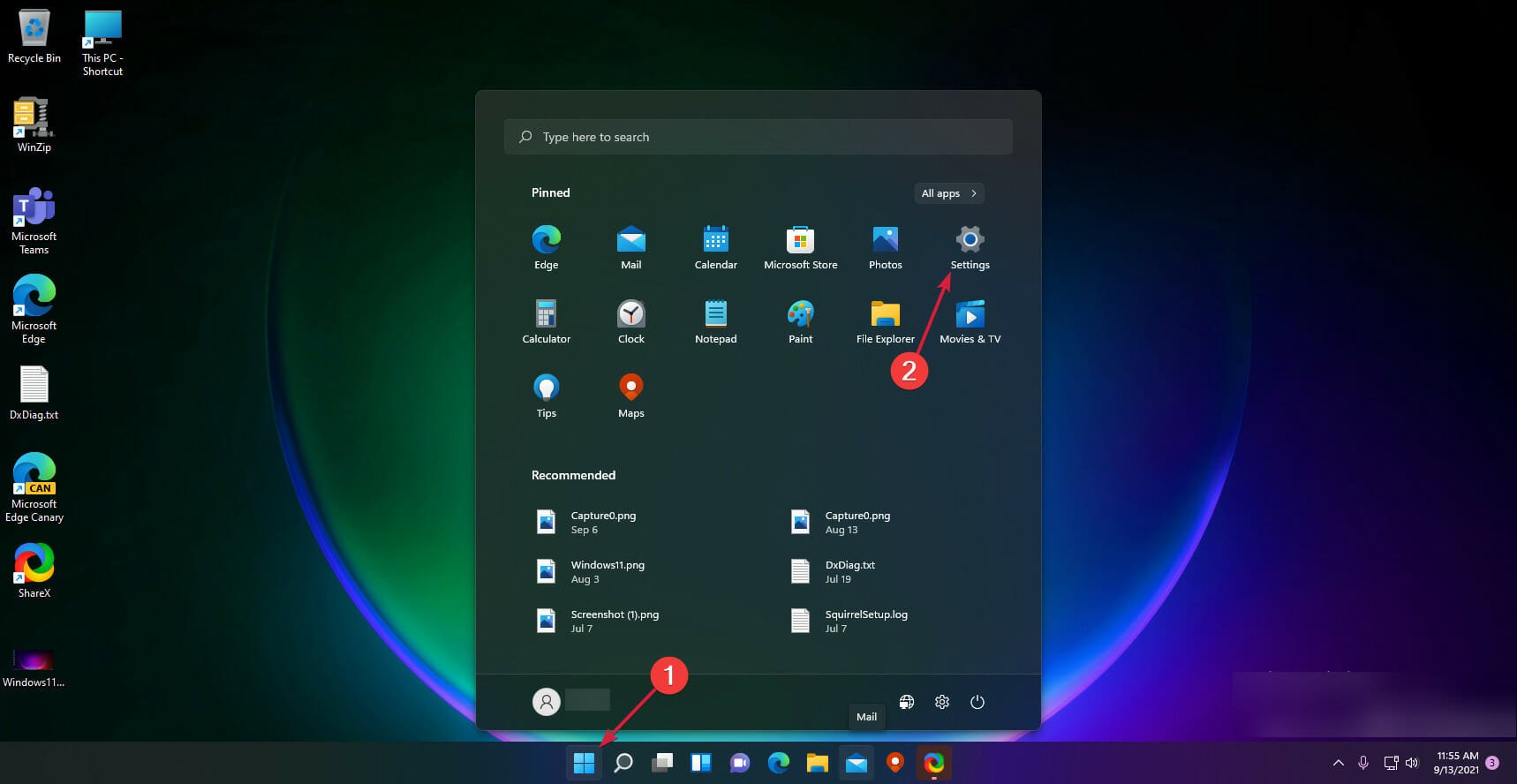
With the aforementioned update, Microsoft finally removed the clean install requirement. Now, you can turn on Smart App Control via a simple toggle found under Windows Security > App & Browser Control > Smart App Control settings. Based on what you want to do, you can choose to turn it on or off like any other protective Windows feature you’d find these days in Windows 11.
Unlike usual antivirus software that scans files constantly and defends your PC after a threat appears, SAC tries to block unknown or potentially harmful apps before they run. Because of that, it has a lighter impact on overall performance. There’s no continuous background scanning pulling resources, so your system stays responsive whether you’re gaming, working, or multitasking across a dozen tabs.
With this update, SAC becomes far more useful, and now that turning it back on doesn’t require a full reset of your PC.
You can’t sign in with this account appears when Windows blocks your profile due to corruption or sync issues. Damaged user data and incorrect Microsoft account settings often trigger this message. You can fix the problem by repairing your profile, refreshing account sync, or creating a new user.
How Can I Fix You Can’t Sign In With This Account?
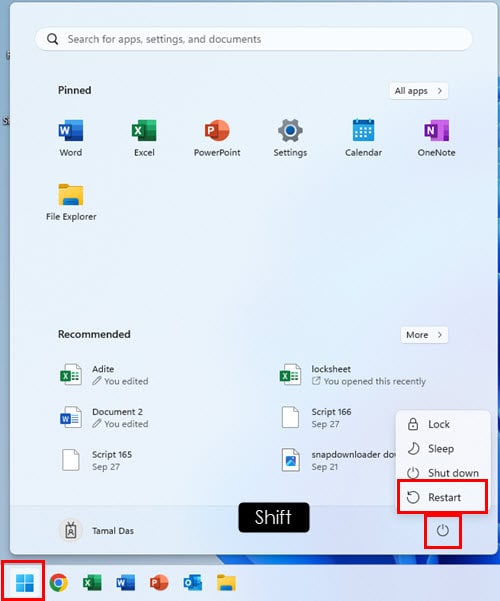
1. Restart Your PC And Try Again
A quick restart clears temporary profile errors.
Click Start.
Select Power.
Click Restart.
Sign in again.
If the error involves Microsoft account sync problems, you can review an extended walkthrough that explains common causes and solutions in our problems signing in with a Microsoft account guide.
2. Disconnect And Reconnect Your Microsoft Account
Refreshing the sync between Windows and your Microsoft account often resolves this error.
Open Settings.
Click Accounts.
Select Your info.
Choose Sign in with a local account instead.
Restart your PC.
Return to Your info.
Select Sign in with a Microsoft account.
Enter your credentials.
For broader sign in errors that affect both local and Microsoft accounts, you can explore a comprehensive troubleshooting resource in our why Windows sometimes refuses account sign in article.
3. Run SFC And DISM To Repair Profile Files
These tools repair damaged Windows components that may block account access.
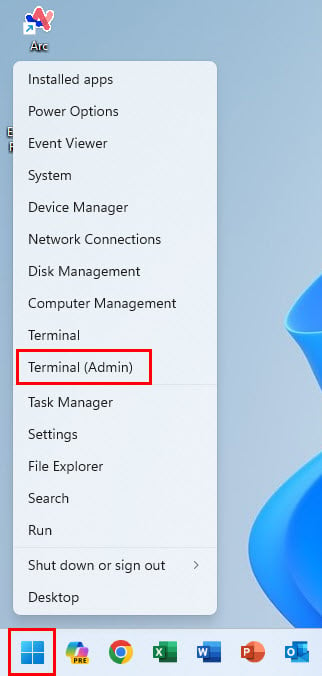
Press Win + X.
Select Windows Terminal (Admin).
Type sfc /scannow and press Enter.
Wait for the scan to complete.
Run DISM /Online /Cleanup Image /RestoreHealth.
Restart your PC.
4. Create A New User Account
A fresh profile often solves deeper corruption issues.
Open Settings.
Click Accounts.
Select Family and other users.
Click Add account.
Choose I do not have this person’s sign in information.
Faulty updates sometimes interfere with the profile service.
Open Settings.
Click Windows Update.
Select Update history.
Click Uninstall updates.
Remove the most recent update.
Restart your PC.
6. Reset Windows While Keeping Your Files
This restores Windows system files without deleting personal data.
Open Settings.
Click System.
Select Recovery.
Click Reset this PC.
Choose Keep my files.
Follow the instructions.
What Causes You Can’t Sign In With This Account
Corrupted profile files, cloud sync errors, damaged updates, or permission problems often lead to this message.
FAQ
Can I fix this error without creating a new account
Yes. Restarting the PC, reconnecting your Microsoft account, or running SFC and DISM often resolves the issue.
Will I lose my files if my profile is corrupted
Your personal files usually remain intact. The error affects login data, not documents.
Why does Windows show You can’t sign in with this account
The message appears when the user profile becomes corrupted or when Microsoft account sync breaks.
Is resetting Windows required to fix this problem
Only if the corruption is severe. Resetting Windows acts as the final option after other fixes fail.
The error usually results from corrupted profile data or broken account sync. Restarting your PC, reconnecting your Microsoft account, repairing Windows system files, or creating a new user profile resolves the issue in most cases. Resetting Windows provides a final solution when profile corruption runs deeper.
NTFS, FAT32, and exFAT remain the most common file system options for PCs and portable drives. This guide explains how each one works, their pros and cons, and when to use them.
NTFS vs FAT32 vs exFAT: Here’s What You Should Know
NTFS Explained
What NTFS Offers
Supports very large files and partitions
Provides advanced permissions and security
Includes file compression and encryption
Maintains strong reliability for internal Windows drives
When To Use NTFS
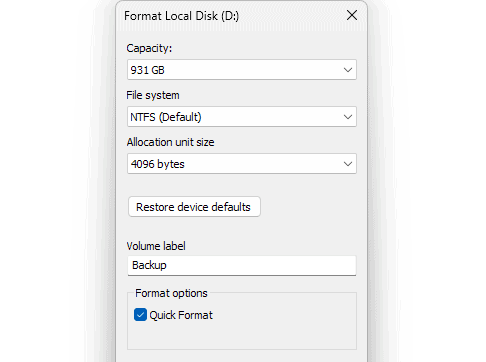
Use it for system drives, SSDs, and internal storage that require stability and permissions control. If you want to understand how the format works at a deeper level, you can check a full breakdown of the NTFS file system.
NTFS Cons
Limited compatibility with macOS without extra tools
Limited support on smart TVs, consoles, and cameras
Not ideal for portable drives used across platforms
FAT32 Explained
What FAT32 Offers
Works on nearly all legacy devices
Provides strong compatibility with cameras, TVs, and car systems
Offers simple structure for basic storage
When To Use FAT32
Use it for small USB drives or older devices. If you want to confirm Windows support, see how Windows 10 reads FAT32 in practice.
FAT32 Cons
Maximum file size is 4 GB
Maximum partition size is 32 GB on Windows
Not suited for modern high capacity storage
exFAT Explained
What exFAT Offers
Supports extremely large files
Runs on Windows, macOS, Linux, consoles, and smart TVs
Provides lightweight structure without NTFS overhead
Works well for fast flash storage
When To Use exFAT
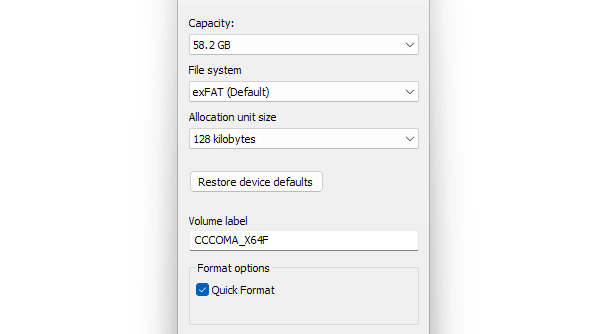
Use it for external drives that move large files between multiple platforms. If you ever need guidance on switching formats, you can check a practical guide on converting exFAT to FAT32.
You can manage partitions and switch file systems more easily with tools designed for safe disk operations, such as the one available at AOMEI Partition Assistant Standard.
exFAT Cons
Lacks NTFS style permissions
Not ideal for system drives
Some older devices may not support it without updates
NTFS Vs FAT32 Vs exFAT Key Differences
NTFS supports the largest files and partitions
FAT32 offers the widest compatibility with older hardware
exFAT supports very large files across modern platforms
NTFS includes advanced permissions and security features
FAT32 restricts file size to 4 GB
exFAT balances flexibility and capacity for portable drives
FAQs
Why should I pick exFAT for a USB drive
Choose exFAT when you need to transfer large files between Windows and macOS.
Is FAT32 still useful today
Yes, FAT32 works well for legacy devices that do not support exFAT or NTFS.
Can NTFS slow down portable drives
It can, because NTFS includes extra features that portable flash storage does not always need.
Why does FAT32 block files over 4 GB
The file system design limits individual files to 4 GB.
NTFS suits internal Windows drives that need strong security and modern features. FAT32 still works for older devices but shows clear limits when you handle large files. You can follow a complete step by step guide on how to format a Windows computer when you decide to prepare an NTFS system drive for a clean installation.
exFAT offers the best experience for portable storage, giving you cross platform support without strict size restrictions. Choose the file system that matches your devices, your file sizes, and how you plan to move data between different systems.
Google is testing new message variations in Chrome to encourage users to set it as the default browser. Chrome shows three versions: a short thank-you note right after the switch, a brief line that describes the purpose of the default browser when Chrome is not selected, and a Windows prompt that also suggests placing Chrome on the taskbar.
The first variation appears right after the user sets Chrome as the default browser. Chrome shows a short message that thanks the user for choosing it. Chrome has not used this style of message before.
Image Credit: Venkat | WindowsReport.
The second variation appears when Chrome is not the default. Chrome adds a brief line that describes the purpose of a default browser. It explains that the default browser opens links launched from other apps or system elements, such as messages, documents, or notifications. This gives a clear idea of why the default choice matters.
Chrome adds a line that explains what the default browser does when it is not selected. Image Credit: Venkat | WindowsReport.
The third variation appears inside Chrome’s Default browser settings page on Windows. Chrome adds a line that invites the user to set it as the default browser and add it to the taskbar.
When the user selects the Make default button, Windows opens the Default apps page for Chrome, and a notification appears that asks whether to pin Chrome to the taskbar. This behaviour was first noted during feature development and now appears in Chrome Beta for us.
Google tests many small experiments inside Chrome. Only a limited group of users see these message variations because the rollout reaches specific test groups first.
These changes do not alter the feature itself. Chrome still uses the system setting to open links launched from other apps. The experiment only changes how Chrome presents the default browser choice and how users see the available options.
Microsoft has dropped Windows 11 Insider Preview Build 26220.7344 (KB5070316) to the Dev & Beta Channels of the version 25H2. Besides introducing improvements related to Quick Machine Recovery, Update Orchestration Platform (UOP), and more, this build comes with a bunch of fixes for issues that were reported in previous builds.
Check out the full changelog for fixes below:
Fixes gradually being rolled out with toggle on*
[Search]
Fixed a recent issue which could caused the search window to unexpectedly start floating above the taskbar.
[File Explorer]
If there are no available or enabled AI Actions, this section will no longer show in the context menu.
Fixed an issue where File Explorer might not search certain SMB shares after the latest updates.
[Windows Hello]
Fixed an issue resulting in fingerprint recognition not working for some Insiders after the latest flights.
[Display and Graphics]
Fixed an issue which could cause the Project pane to not appear after pressing WIN + P.
[Xbox full screen experience for PC]
For Insiders with the new Xbox full screen experience for PC, the virtual keyboard should now show properly when needed for controller users on devices without a touch screen.
[Other]
Fixed an issue in the previous flight which was leading to some Insiders seeing a bugcheck with error DRIVER_IRQL_NOT_LESS_OR_EQUAL when using a controller.
Fixed an underlying issue that could lead to your PC freezing where attempting to run Windows Terminal elevated from a non-admin account.
New features are gradually being rolled out with toggle on*
Public preview of native support for MCP on Windows
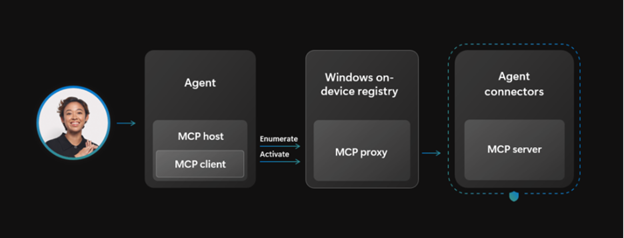
Windows now offers native support for the Model Context Protocol (MCP), an open standard that gives AI agents a universal way to connect with apps, tools, and services. Agents can discover and connect to these tools and other agents via a secure, manageable Windows on-device registry (ODR). By default, all agent connectors in the Windows on-device registry will be contained in a secure environment with their own identity and audit trail. With OS level integration, MCP on Windows delivers secure discoverability, consistent controls, and enterprise-grade manageability—empowering developers, IT professionals, and end users to build and deploy agentic workflows at scale.
Image: Microsoft | MCP enables secure agent connections to Windows apps and services.
As part of this release, two agent connectors are built into Windows—File Explorer and Windows Settings.
File Explorer Connector: Agents can use the File Explorer connector to manage, organize and retrieve local files on a user’s device with their consent. On Copilot+ PCs, the connector can also perform natural language search to retrieve the exact file based on descriptions, content, metadata, and, for images, enhanced search based on image classification.
Windows Settings Connector: On Copilot+ PC devices, the Windows Settings connector lets users check, change settings, or navigate directly to specific pages such as display, mouse, keyboard, and sound, using natural language.
Next up, Microsoft has also mentioned that “Quick machine recovery (QMR) will now be turned on automatically for Windows Professional devices that are not domain joined. These devices will get the same recovery features as Windows Home users. For enterprise computers that are domain joined, nothing changes—QMR will stay off unless your organization turns it on.”
The changelog follows:
Update Orchestration Platform (UOP)
The Unified Update Orchestration Platform (UOP) is starting to roll out to Windows Insiders in the Dev and Beta Channels. UOP makes app updates more consistent and predictable, with fewer interruptions. Insiders will see a new page in Settings > Apps > App Updates, where they can check update progress and take action if needed.
How it Works
Apps will register with UOP via APIs.
UOP triggers a registered app to scan, download, and install updates based on user activity and system state.
Apps continue to utilize their own backend for acquiring updates.
Apps report update status back to UOP, so users can see it in the App Updates page.
Availability
No apps utilize UOP yet because the feature is new, but apps will start using it over time. The feature is partially enabled for Dev and Beta Channel Insiders today and will reach full enablement in these channels soon. API documentation will follow.
Windows MIDI Services
We’re excited to announce the highly anticipated production release of Windows MIDI Services, going to the Dev and Beta Windows Insider channels today, and then to retail Windows in the next few months. This is our update of MIDI on Windows with a focus on a great experience for musicians using MIDI 1.0 or MIDI 2.0.
New features in this release include:
Full support for WinMM MIDI 1.0 and WinRT MIDI 1.0, complete with in-service translation, enabling any API to use any MIDI 1.0 or MIDI 2.0 device. This means your existing applications will use the new service and gain important new features like the ability for more than one app to open a MIDI port at the same time, custom port names, and more.
New loopback and app-to-app MIDI support.
Lots of performance improvements and bug fixes thanks to our vibrant community. Thank you!
The App SDK and Tools package is a separate download, versioned outside of Windows. This enables applications to use the in-box MIDI 2.0 features and also provides the tools you need to manage your MIDI setup on Windows, including the MIDI Console and MIDI Settings app. Current releases are available on our GitHub repo releases page or via the main Windows MIDI Services landing page. Please note that these are unsigned releases at the moment and so will give you a warning when you download and install.
We look forward to having Windows Insiders who create music try out the Windows MIDI Services release, especially with your current applications and devices. You can also join the discussion on Discord if you have questions or are looking to help or provide feedback! You will find a list of known issues documented here.
Changes and Improvements gradually being rolled out with toggle on*
[“Open With” App Integration]
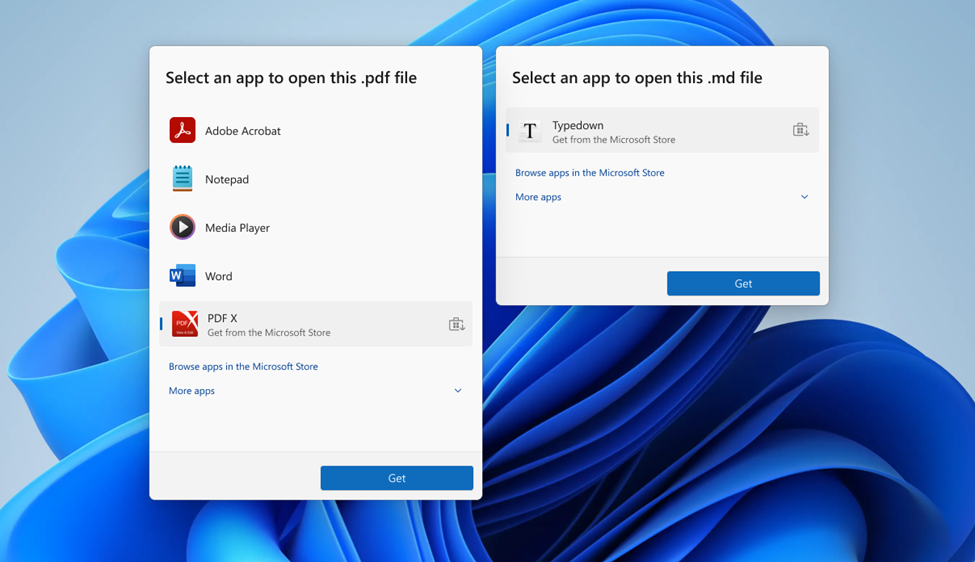
We’re updating Open With so that if you don’t have a relevant app you need installed, instead of having to open Microsoft Store to find it, it will now show directly in this list as available to install. This makes it faster and easier to find and install the app you need.
Image: Microsoft | Choose an app to open files—now with direct Microsoft Store integration.
For more information about this build, head to this official blog post linked at the top.
The AI race is at an all-time high, thanks to big AI companies like Google, OpenAI, and Anthropic, which are pushing new modes one after another. In case you missed it, Google recently introduced Gemini 3 Pro, its most advanced model so far.
Early tests show it outperforms OpenAI’s best model in several benchmarks. Reports from earlier this week suggest this prompted OpenAI’s CEO to issue a “code red” memo. Now, it looks like OpenAI wants to respond quickly with its next model, GPT-5.2. According to a new report by The Verge, the GPT-5.2 update could be released as soon as December 9th.
Tom Warren’s source claims the upgrade will meet Google’s new model head-on. That’s not all; the pressure created by Gemini 3 is reportedly pushing OpenAI to move up its release plans. According to the report, the update was originally scheduled for later in December.
As of now, we haven’t heard anything from OpenAI yet. Meaning, there is no teaser or official announcement so far. We expect Sam Altman, the hypeman of OpenAI, to tease it on X, but we’ll see. The date could shift because OpenAI usually weighs multiple factors before releasing anything new.
As for what else OpenAI is changing to stay competitive, the company is pausing a few ongoing efforts, including stuffing ads in ChatGPT and pushing updates to AI agents that handle health and shopping queries.
Do you think OpenAI’s updated model could catch up to Gemini 3? We’d love to hear your thoughts in the comments below.
If you’re unable to download Microsoft 365 desktop apps these days, Microsoft has confirmed that a license check bug has been triggering it. Apparently, that bug is blocking downloads straight from the Microsoft 365 homepage.
The issue has been active since November 2, but Microsoft only tagged it as an official incident very recently. This tells us that the issue is much widespread than Microsoft may have actually anticipated.
According to Microsoft’s incident report (OP1192004), the issue has been triggered by a recent service update released with a code issue (via Bleeping Computer). That bug has since disrupted the license validation step in place before the Office apps download begins.
Our analysis of the components of Microsoft 365 infrastructure, as well as recently deployed changes, identified that a recent service update containing a code issue is impacting the license check process, leading to users being unable to download Microsoft 365 desktop apps from the homepage.
Without that license check process, the download never starts, which means users remain stuck at the homepage with no real explanation. Microsoft says that it has a patch ready, which it is testing in its internal environment. The company wants to make sure the fix works before pushing it out to production systems.
We’re continuing to validate and test the aforementioned fix in our internal environment to ensure its efficacy prior to deploying it to the affected infrastructure, and we expect to provide an estimated deployment timeline by our next scheduled update.
If you’re affected by this bug, the only option now is to wait until the patch is released. Once the license check issue is resolved, downloads should resume normally.
If you use Microsoft Teams, you need to stay vigilant because an ongoing phishing attack is trageting users by abusing Teams’ official notification system. As reported by security research firm SpiderLabs, the attackers send deceptive messages that appear genuine. Apparently, that’s done by bypassing usual email filters, which can even fool careful users sometimes.
How attackers trick victims
The scam begins with invites to malicious Teams groups that use convincing names. You may receive fake notifications for PayPal payments, auto-renewal charges, or invoice disputes. Once a user is added to the suspicious group, the platform automatically generates a notification email from [email protected]. That’s a sender domain trusted by both users and security systems.
PhishingAlert: Threat actors are abusing #Microsoft Teams notifications to deliver callback #phishing. Victims are invited to groups where team names contain the #scam content, such as fake invoices, auto-renewal notices, or #PayPal payment claims, and urges users to call a fake… pic.twitter.com/jr2VTYDCEw
These emails contain urgent instructions, which make the victim call a support number if they did not authorize the transaction. The psychological pressure kicks in, after all, we are humans.
Victims feel they must act fast and make calls to reported phone numbers, including 1-983-220-2463, 1-810-221-5391, and 1-805-331-8539. When users call, scammers pose as support staff and attempt to extract sensitive details, including login credentials, payment info, or even remote access to devices.
The campaign is especially effective because it bypasses regular phishing detection, which usually flags suspicious links or attachments rather than phone-based social engineering. Security researchers recommend using multi-layered defenses to curb this phishing attack.
If you’re the owner of a business, you must monitor Teams logs for newly created unusual groups or naming patterns, and email filters should flag Teams notifications with extra scrutiny. Meanwhile, individual users must always double-check unexpected charges through official channels rather than calling numbers in unsolicited messages. Moreover, administrators can also implement governance rules to restrict group naming and track unusual activity.
If you open a typical editing setup in 2026, chances are you’ll see at least one AI video editor running alongside everything else. AI video editing tools now handle subtitles, clean up noisy audio, cut out awkward pauses, reframe footage for vertical formats, and in some cases even generate completely new shots from a text prompt.
The nice twist is that this isn’t only for studios or full-time editors. Even small creators use some form of AI video editing software now because it saves time and makes decent results more achievable.
Let’s walk through five editors you’re likely to come across in 2026 and see where they shine.
Top 5 AI Video Editing Software
1. Movavi Video Editor
The video editor by Movavi is a desktop app that doesn’t want you to overthink. Drag clips onto the timeline, add a few transitions and titles, and you’re already halfway to a decent video.
The interesting part is how much it’s AI runs quietly in the background across lots of features. Movavi can generate subtitles from speech, attach other images or video to a subject in the clip, and clean up background noise with a couple of clicks. There’s also a large collection of effects, transitions, and ready-made templates that help you finish a YouTube or social video without spending hours on tiny tweaks. It’s exactly the kind of AI video editing software people recommend to friends who say, “I’m not an editor, but I need to put videos together.”
Pros
Very straightforward, beginner-friendly interface
One-click tools like auto-subtitles, motion tracking, and noise reduction
Plenty of built-in effects, titles, and templates
Works fine on mid-range laptops and PCs
Cons
Not built for heavy VFX or super advanced color grading
Some extra content lives behind paid add-ons or higher tiers
Best for: small business videos, tutorials, personal projects, school assignments, and everyday YouTube content.
2. DaVinci Resolve
DaVinci Resolve is on the other end of the spectrum. It’s an all-in-one post-production environment: editing, color grading, sound, and visual effects, all bundled into one very serious package.
Under the hood, the DaVinci Neural Engine drives a lot of clever AI features. Magic Mask lets you isolate people or objects, face recognition helps you organize long projects, and smart reframing adjusts footage for different aspect ratios. Voice isolation helps with pulling speech out of noisy recordings, and automatic captioning speeds up work on interviews or documentaries.
Pros
Full professional environment for editing, color, audio, and VFX
Top-tier color grading tools and detailed control over the image
Strong AI helpers like Magic Mask, smart reframing, and voice isolation
Generous free version; Studio is a one-time purchase rather than a subscription
Cons
Steep learning curve, especially if this is your first editor
The interface can feel overwhelming when you just need a simple cut
Some of the fancier AI tools are locked to the Studio edition
Best for: filmmakers, colorists, agencies, and creators who want their YouTube work to look professional.
3. Wondershare Filmora
Filmora often becomes that “first real editor” when someone outgrows basic phone apps. It sits in the comfortable middle: more flexible than a mobile tool, but nowhere near as intimidating as a full studio suite.
The interface is fairly self-explanatory, and the AI covers things like background removal, automatic silence detection, and quick subtitle generation. You still get editing features like motion tracking, keyframing, and a decent library of effects and titles.
Usually cheaper and lighter on hardware than high-end suites
Cons
Some packs, effects, and extras sit behind additional payments or subscriptions
Not the best choice for very complex or long-term professional projects
Best for: vloggers, teachers, marketers, and small businesses that don’t want to dive into technical details.
4. CapCut
CapCut started as a mobile app and later picked up a desktop version. Still, its heart is in short, vertical, social-first content.
It leans heavily on AI for speed: automatic captions, background removal, face and skin retouching, and ready-made templates synced to music. You can load a couple of clips, pick a template, and have a decent short ready in a few minutes. It doesn’t pretend to be a full film editing suite, and that’s exactly why so many creators like it.
Pros
Free core version with a lot of functionality
Very fast workflows, ideal for short-form social content
Plenty of trendy templates, transitions, and effects
Cons
Some effects and features require subscriptions or in-app purchases
Relies a lot on cloud content and a stable internet connection
Not designed for long, complex projects or detailed audio work
Best for: influencers, social media managers, and brands pushing quick campaigns.
5. Runway
Runway is where things get properly generative, since it lets you create new footage with AI. You work in a browser, and alongside a regular timeline you get tools for text-to-video, background replacement, object removal, style changes, and more.
You can type a prompt and have Runway generate B-roll, use AI green screen to separate your subject from the background, erase unwanted objects, or enhance and upscale clips. It feels a bit like mixing an editor with a visual lab, which makes it very different from the other tools here.
Pros
Advanced text-to-video and image-to-video options
Strong background removal, inpainting, and enhancement features
Cloud-based, so you’re not as limited by your own hardware
Great for experimental visuals, concept pieces, and unusual promos
Cons
Credit-based pricing can be confusing until you’ve used it a bit
Needs a stable internet connection for a smooth experience
Not ideal as your only editor for long, traditional projects
Best for: designers, agencies, and creators who want to play with what AI can do visually.
Final Thoughts
In the end, it’s not about finding some universal best AI video editor, it’s about what fits the way you actually work. If you love short vertical clips, CapCut or Filmora will probably feel right. If you’re cutting longer videos or client projects, Movavi or DaVinci Resolve are safer bets. And if you want to play with generative visuals, Runway is a creative toy you might want to pick up.
Remote Help in Microsoft Intune gives support teams a secure way to assist Windows users. This guide explains how the feature works, how to enable it, and how users and helpers start a session quickly.
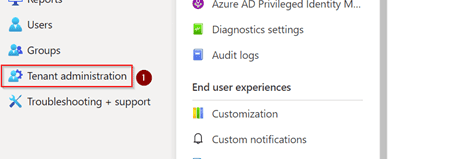
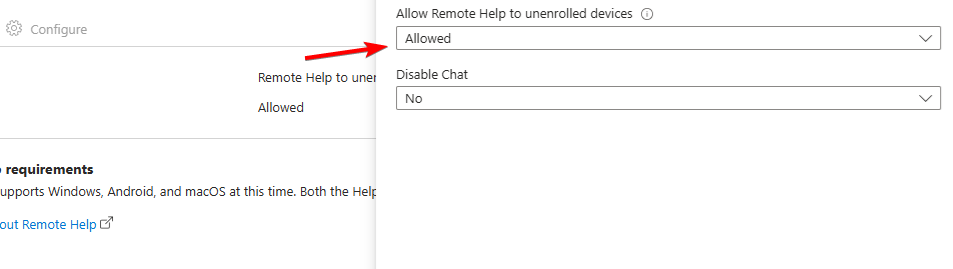
Admins enable Remote Help inside the Intune admin center and configure access based on organizational requirements.
Sign in to the Microsoft Intune admin center.
Open Tenant administration.
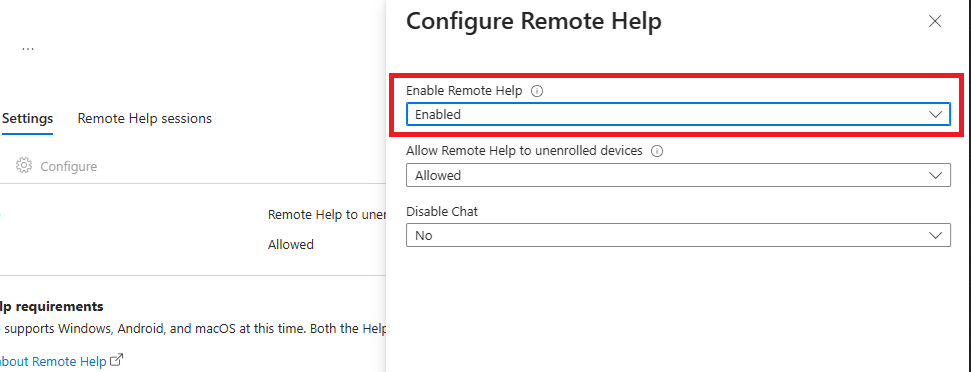
Select Remote Help.
Enable Remote Help.
Choose whether to allow unenrolled devices.
Set permissions for screen viewing and full control.
Save the configuration.
Some users see unwanted support prompts in Windows 10. Anyone who wants more details can check the Get Help Pops Up guide for context on why it appears.
How to install the Remote Help app for users
Users need the Remote Help client on their Windows device. IT teams often push it automatically, although manual installation works as well.
Download the Remote Help installer from the Intune admin center.
Add it to Intune as a Win32 app for automated deployment.
Assign it to the correct user or device groups.
Confirm installation from the Apps dashboard.
How to request help with Remote Help
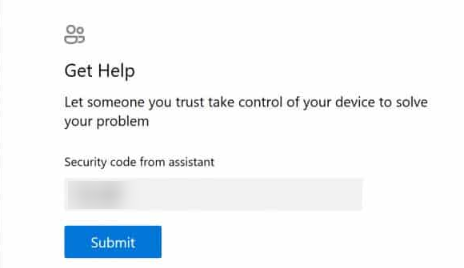
Employees ask for assistance by generating a session code and sharing it with their support agent.
Open the Remote Help app.
Sign in with your Microsoft Entra ID account.
Select Get help.
Copy the session code.
Share the code with your helper.
Approve the incoming connection.
Users who cannot launch the tool or authenticate properly can review the Get Help Not Working on Windows 11 guide for additional insight into related issues.
How to provide help with Remote Help
Support agents connect to the user’s session and guide them through the fix.
Launch the Remote Help app.
Sign in with your support or admin account.
Select Give help.
Enter the user’s session code.
Choose View screen or Take full control.
Help the user complete the necessary steps.
End the session when finished.
What Remote Help in Microsoft Intune does
Remote Help gives IT staff controlled access to a user’s Windows screen with compliance checks and permission prompts.
Users who rely on the built in Get Help tool can read the Get Help App guide to learn more about basic troubleshooting features.
Why Remote Help in Intune improves support
Remote Help gives IT teams strong oversight through RBAC, compliance requirements, and full session auditing. It shortens troubleshooting time and strengthens security across managed environments.
FAQs
What licenses do I need for Remote Help
You need Intune licensing and Remote Help add on licensing for assigned users.
Can I use Remote Help on unenrolled devices
That depends on the settings your admin configures.
Does Remote Help allow more than one helper
Only one helper can join a session at a time.
Do session codes expire quickly
Yes, codes expire after a short period to keep sessions secure.
Remote Help in Microsoft Intune gives organizations a reliable, secure, and structured support solution. After you enable it and deploy the app, users and support staff connect through simple, time limited codes that keep every session safe.
Microsoft is finally making Windows 11 version 25H2 available to anyone with an eligible device. For the uninitiated, the new version first rolled out in September, but Microsoft maintained that it would gradually roll out to all Windows 11 users down the line.
Well, it seems the day is finally here. Now, if you wish, you can make your system jump to Windows 11 version 25H2, but you need to make sure to enable a toggle in the Windows Update settings menu.
In an updated document, Microsoft confirmed:
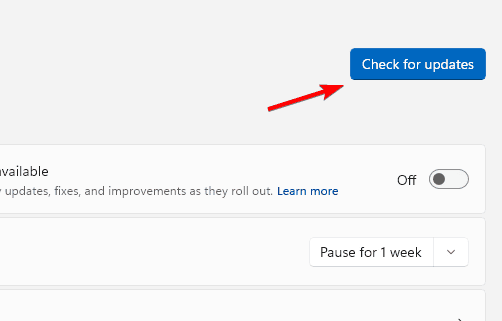
Windows 11, version 25H2 is now available to all eligible Windows 11 devices for users who have turned on the setting Get the latest updates as soon as they’re available. If you have an eligible Windows 10 or Windows 11 device, you can check if the update is available by selecting Settings > Windows Update and selecting Check for updates. If your device is ready for the update, you’ll see the option to Download and install Windows 11, version 25H2. For more details, watch this video.
If you want version 25H2 right now, simply enable the “Get the latest updates as soon as they’re available” toggle in Windows Update.
Microsoft also notes that unmanaged PCs, those not controlled by IT departments, are now part of the rollout. If you’re already on Windows 11 version 24H2, whether Home or Pro, your device is queued for the update. If you prefer to take your time, you can. But, all eligible systems will automatically receive the update automatically later on.
Did you make the jump to version 25H2? If yes, make sure to let us know what’s good and unsatisfactory about it.
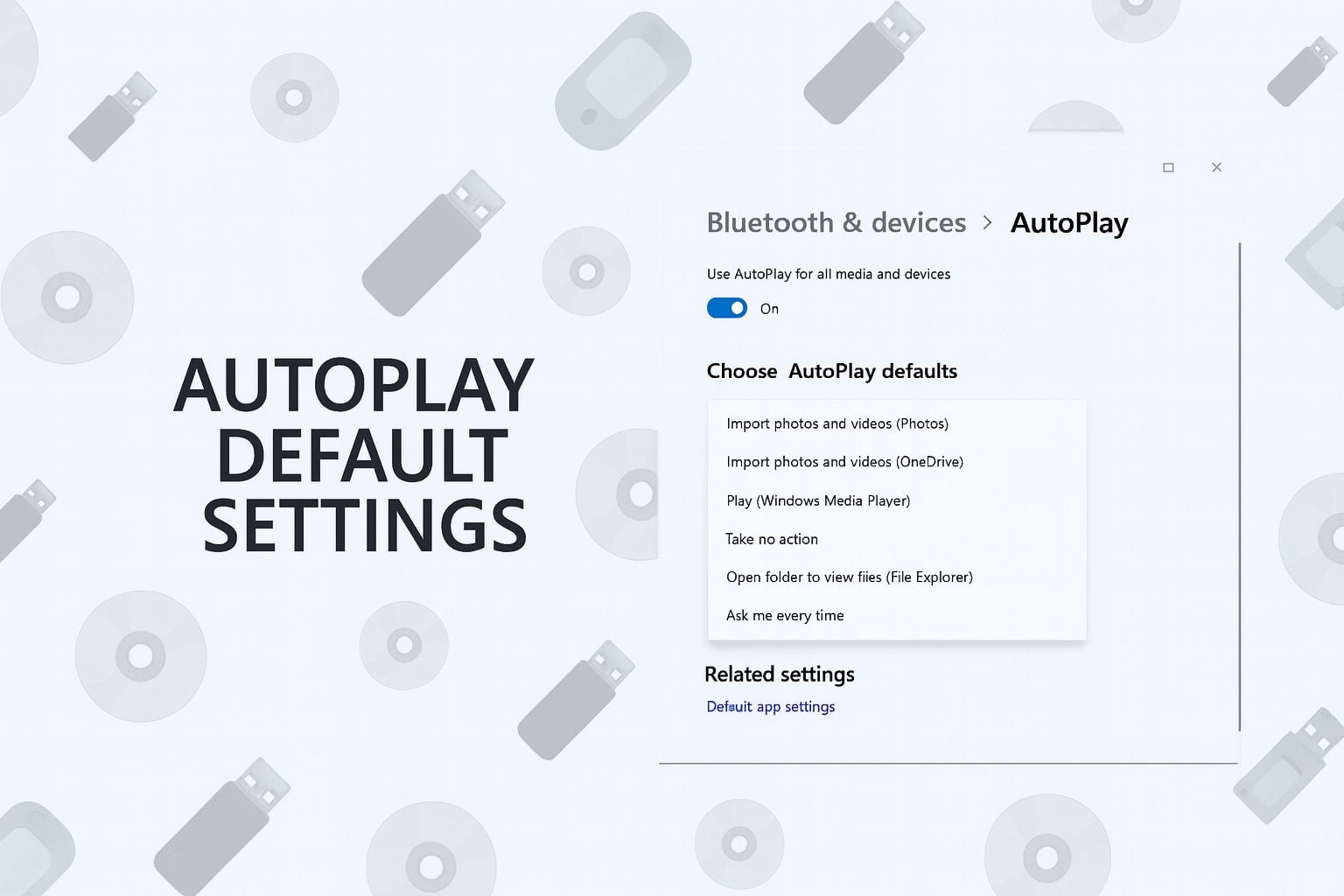
Autoplay default settings decide how Windows reacts when you connect USB drives, phones, or memory cards. These rules help you control whether Windows opens files, imports media, or waits for your decision.
Pick Open folder, Import photos, or Ask me every time.
For broader context on how Windows manages these actions, you can read more in this guide about Autoplay in Windows.
3. Set memory card actions
Handle SD cards with your preferred default.
Open the Memory card dropdown.
Select the option that fits your workflow.
How to turn autoplay on or off
Go to Settings.
Select Bluetooth and devices.
Choose AutoPlay.
Toggle Use AutoPlay for all media and devices on or off.
If AutoPlay still does not respond properly after you toggle these options, you can check helpful fixes in this guide on AutoPlay not working in Windows 11.
Why your changes may not apply
Security software, outdated drivers, or device specific software sometimes override AutoPlay choices. Enterprise configuration policies may also block user level changes.
FAQs
How do I reset autoplay settings
Open AutoPlay and choose Ask me every time for all items to restore prompts.
Why does autoplay not work
You may have disabled automatic actions or installed software that overrides Windows.
Can I set different actions for each USB drive
Windows uses the same rule for all removable drives and does not store individual preferences.
How do I stop Windows from opening photos automatically
Disable AutoPlay or set the action for memory cards to Take no action.
Autoplay default settings let you control how Windows responds when new devices connect. Adjust the options for USB drives and memory cards, enable or disable automatic actions, and troubleshoot cases where the feature stops working. These changes help you optimize how Windows handles your media and improve your daily workflow.
First announced in 2023, The God Slayer went quiet for a long time as Pathea Games stopped sharing updates. After months of silence, the studio finally revealed new information and gave fans a fresh look at the project.
What is The God Slayer?
The God Slayer is an open world RPG set in a world inspired by Eastern culture and powered by steampunk technology. You play as Cheng, an Elemancer who must defeat powerful Celestials. Cheng uses elemental abilities that feel similar to the bending powers from The Last Airbender, and the first gameplay trailer shows these abilities along with the overall world design.
What platforms will The God Slayer release on?
Pathea plans to release The God Slayer on all major gaming systems. The confirmed platforms include PlayStation 5, Xbox Series X|S, and PC through Steam. The studio has not mentioned a Nintendo Switch version, so for now the game does not appear to target handheld players.
What is The God Slayer release date?
Pathea Games has not shared a release date for The God Slayer. While excitement grows, current information suggests that the game will not arrive in 2026. Fans should watch for future developer updates as the project moves forward.
If you follow new releases closely, you can also check out the latest Xbox lineup, since 15 new titles are coming to Xbox Game Pass and may interest you while you wait for The God Slayer.
Google finally announced results for Year in Search 2025, and the trends offer a clear picture of what shaped this unpredictable year. At the top of the trending list is Gemini, which is Google’s AI model that was in the spotlight throughout 2025.
Charlie Kirk’s name also appeared across multiple categories after confusion surrounding reports of his assassination. His passing drove repeated search spikes as people looked for confirmation.
In the news segment, heavy topics led the charts. Searches about the assassination of Charlie Kirk, developments in Iran, the US government shutdown, and the selection of a new Pope were among the most searched news topics this year. LA fires also climbed the rankings as extreme climate events returned to focus.
In people searches, names like d4vd, Kendrick Lamar, Jimmy Kimmel, Tyler Robinson, and Pope Leo XIV topped the charts. Meanwhile, the passing list includes Ozzy Osbourne, Hulk Hogan, Michelle Trachtenberg, Diane Keaton, and Charlie Kirk.
When it comes to entertainment, movies such as Anora, Superman, Minecraft, Thunderbolts, and Sinners dominated film searches. Gamers pushed Arc Raiders, Battlefield 6, and Clair Obscur: Expedition 33 to the top of gaming queries. Recipe searches, including Hot Honey and Chia Pudding, rounded out a year where lifestyle and entertainment shaped everyday curiosity.
Google Assistant for PC gives you voice powered shortcuts, quick searches, and smart controls on Windows. This guide shows you how to install it and use it safely.
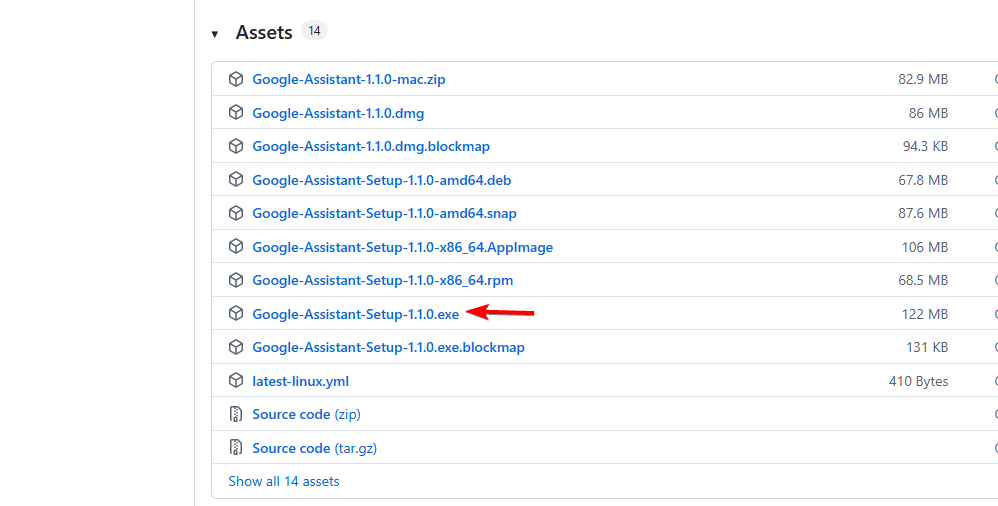
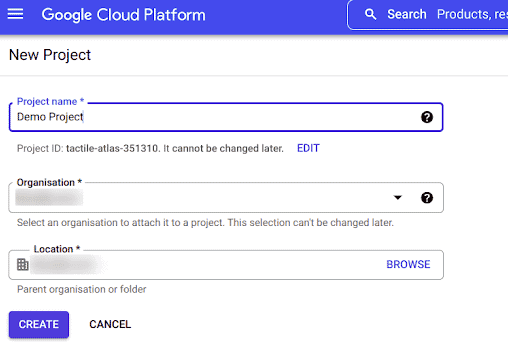
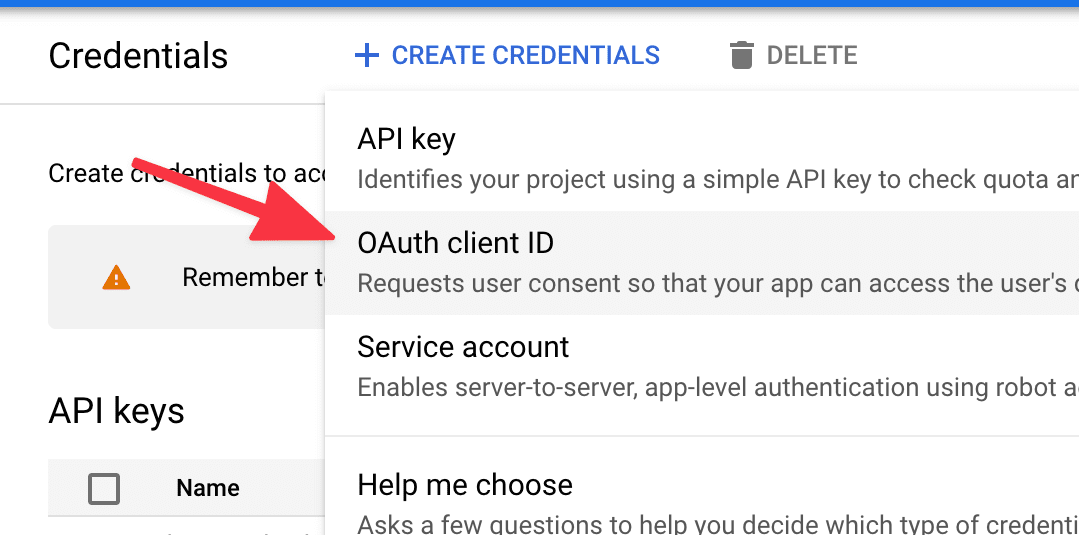
You download an unofficial desktop client, create Google Cloud credentials, and then sign in with your Google account on your Windows computer.
Is there an official Google Assistant app for Windows?
No, Google only releases official Google Assistant apps for Android, iOS, and ChromeOS, so Windows users rely on community desktop clients.
Is it safe to use Google Assistant on PC?
It is generally safe if you download the client from the original developer source, protect your Google account, and keep your credentials in a secure folder.
Can I control smart home devices from my PC?
Yes, as long as your smart home devices link to the same Google account, you can manage lights, plugs, and other gadgets from the desktop client.
Google Assistant for PC gives you quick voice access to searches, smart home controls, and basic PC actions on Windows. You install the unofficial desktop client, attach your Google Cloud credentials, set up your microphone and hotword, then start using natural voice commands. With the right setup, your computer works like a hands free assistant that fits smoothly into your daily routine.
TweetDeck, now known as X Pro, works only with an active X Premium subscription. This guide explains how to use TweetDeck, how to access X Pro, and which features you unlock with a paid plan.
TweetDeck transitioned into X Pro after the platform rebranding. It now serves as a premium dashboard where you manage timelines, searches, lists, and multi account activity in one screen.
If your X interface behaves unexpectedly at login, review this guide on resolving Twitter X sign-in problems: how to fix Twitter X not logging in.
How To Access X Pro
You must subscribe to X Premium before you open TweetDeck.
Go to x.com and sign in.
Click your profile icon and open the Premium section.
Choose a subscription plan and complete payment.
After activation, visit tweetdeck.x.com or x.com/pro.
X Pro unlocks several tools that help brands, creators, and social teams manage X more efficiently.
Full access to the TweetDeck style multi column layout
Post scheduling and content planning
Multi account posting and monitoring
Real time search and custom tracking columns
Enhanced filters for more precise monitoring
Priority support for Premium accounts
FAQs
Is TweetDeck Still Free
No. TweetDeck is now X Pro and requires an active X Premium subscription.
Can I Schedule Posts Without Premium
No. X limits scheduling features to accounts that have X Premium.
Does X Pro Work On Mobile
X Pro works best in desktop browsers. No native mobile app exists at the moment.
Why Can I Not Access TweetDeck
Your account likely does not have X Premium activated or your subscription expired.
X Pro offers a focused workspace for creators, brands, and support teams that need advanced posting tools and real time monitoring. After you activate X Premium, you can organize columns, schedule posts, and manage multiple accounts in one efficient dashboard that keeps your most important activity front and center.
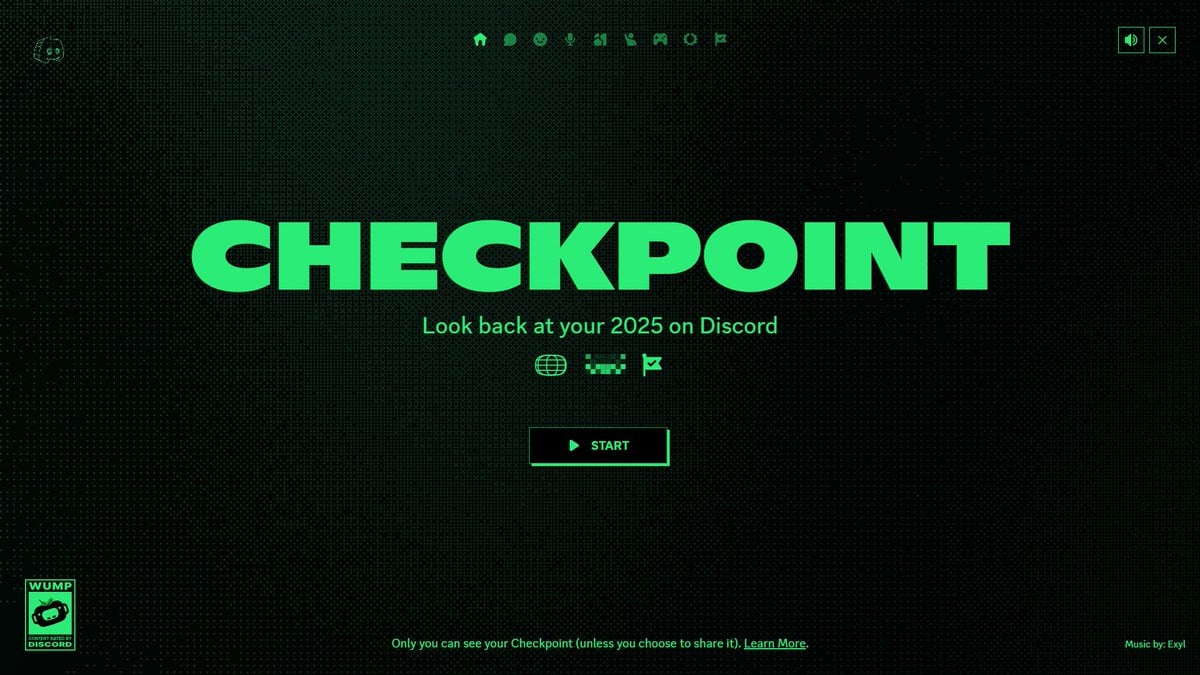
Discord released a new recap feature called Checkpoint, similar to Spotify Wrapped. It shows personalized highlights from your activity across servers and chats. The feature works on both mobile and desktop, and this guide explains exactly how to access Discord Wrapped for 2025.
How to See Discord Wrapped?
1. Use Discord Checkpoint on the mobile app
Updating the app ensures the Discord recap for 2025 appears in your profile section.
Update the Discord app to the latest version. If you need help, see this guide on how to update Discord.
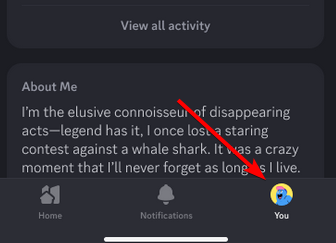
Open Discord and tap your profile picture in the bottom right.
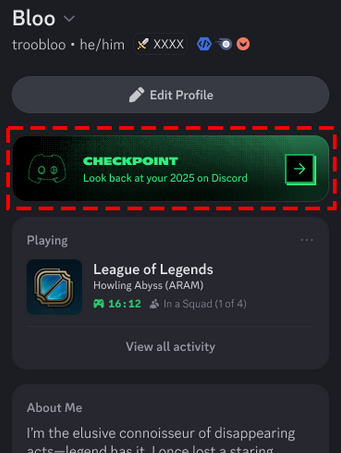
Look for the Checkpoint tab below your profile options.
Tap it to start generating your Checkpoint recap.
If you are new to the platform, you can review how to set up your account using this guide on how to create a Discord account.
2. Check Discord Checkpoint recap on desktop
The desktop version gives you access through a small icon near the top bar.
Open Discord on your PC or load it in your browser.
Look for the flag icon in the top right corner.
Click the icon to start creating your Discord Checkpoint recap.
Discord is rolling Checkpoint out gradually. If your account does not show the icon or the tab:
Make sure you updated to the latest version
Restart the app
Wait a few days for the rollout to reach your region or account group
FAQs
What is Discord Checkpoint recap
It is a personalized highlight reel of your Discord activity, showing server interactions, messages, and engagement trends.
Why does Checkpoint not show up on my Discord
The feature rolls out in stages. Update your app and check again in a few days.
Can I share my Checkpoint recap
Yes, Discord includes built in sharing options so you can post your highlights to friends or social platforms.
Do I need a Discord account to use Checkpoint
Yes, only logged in accounts get personalized stats. You can create one using the guide linked above.
Discord Checkpoint recap gives users a simple way to review their yearly activity across servers and chats. The steps stay straightforward on both mobile and desktop, as long as your app runs the latest version. If the feature is missing, you can expect it to appear soon as Discord continues the rollout.
Now that you know how to check the Discord Checkpoint, go ahead and give this feature a try!
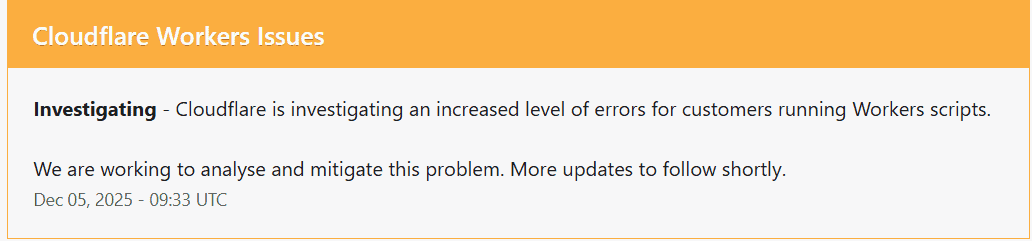
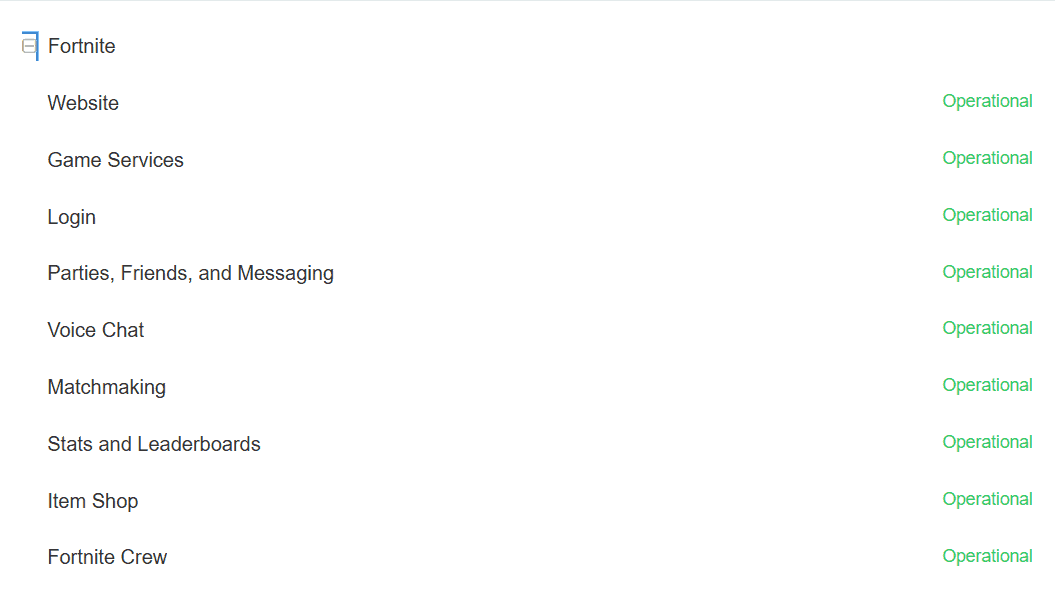
Speaking of Fortnite explicitly, Epic Games isn’t aware of the issue as its server status page mentions that servers are fully operational across all platforms on December 5, 2025. Epic Games confirmed that login, matchmaking, and game modes like Reload and Blitz Royale are all running smoothly following Chapter 7, Season 1’s Pacific Break update.
Image: Epic Games
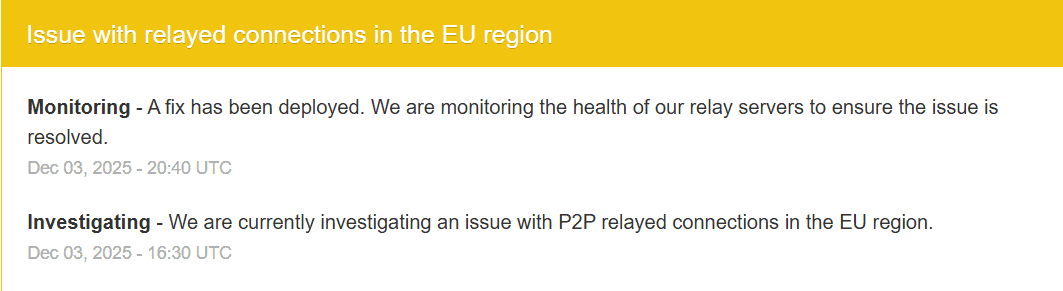
Earlier this week, players in the EU region faced connectivity problems due to an issue with P2P relayed connections. On December 3, Epic Games began investigating the problem and deployed a fix later that day. The company is still monitoring the EU relay servers is ongoing to ensure stability, and reports indicate that normal gameplay has resumed.
The problem primarily affected peer-to-peer (P2P) connections in Europe, which caused intermittent delays and difficulties joining matches. Despite the EU-specific relay issues, players outside the region did not experience disruptions.
The next update for Fortnite, patch version 39.10, is scheduled for December 11 at 4 AM ET, promising additional content and improvements.
Are you experiencing any errors with Fortnite servers right now? Do let us know in the comments.
Meta search engines combine data from multiple providers and give users broad, accurate results. They help you compare sources quickly without switching between platforms.
If you want to explore AI-powered options as well, check this helpful guide on the best AI search engines.
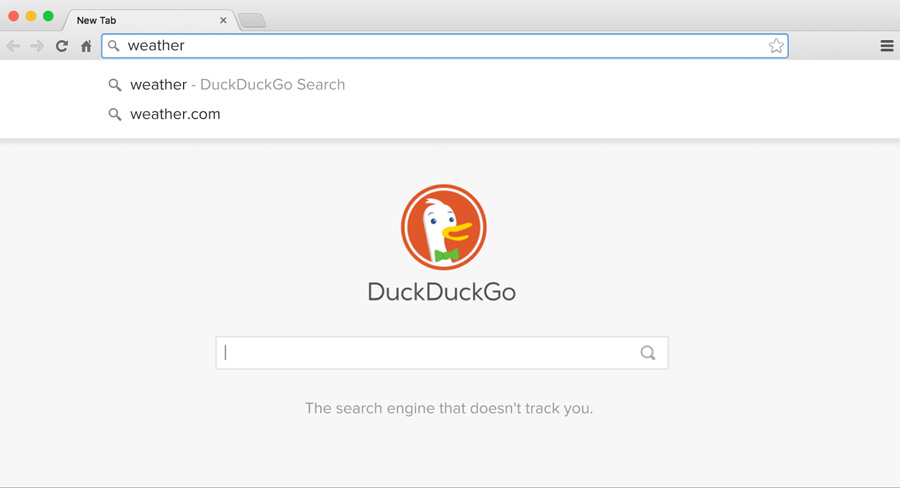
DuckDuckGo protects user data while pulling results from a wide set of sources. It blocks trackers and keeps pages clean for users who want a private experience.
You get instant answers, fewer ads, and reliable blended search results from multiple providers.
MetaCrawler gathers results from several search engines and puts them into one easy list. You avoid switching between platforms and save time during research.
Its simple interface loads fast and gives you quick filtering options for more relevant results.
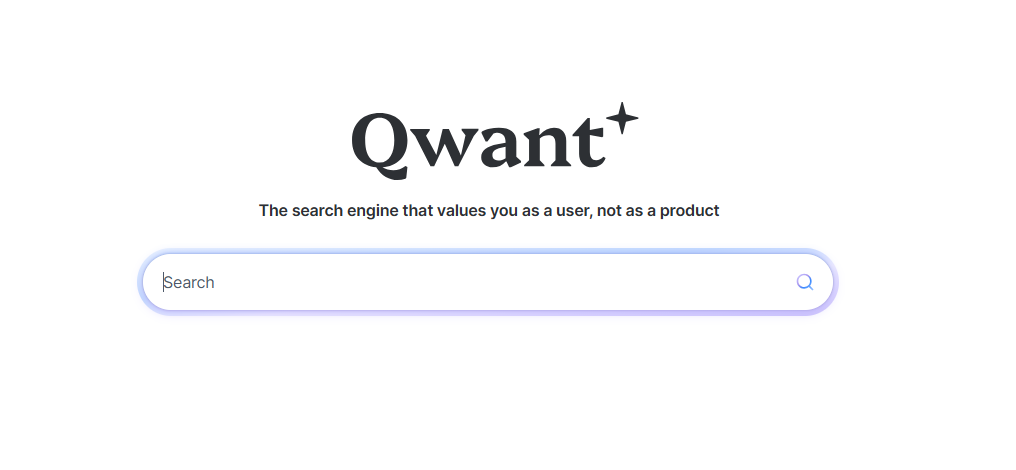
Qwant delivers structured layouts for web, media, and social sections. It avoids tracking and keeps searches private.
Its media widgets help you explore music, trending topics, and images in a more visual way than traditional engines.
Other great features:
Qwant Maps and Qwant Music
No tracking or profiling
Grouped result categories
Clear visual presentation
FAQ
What is a meta search engine?
A meta search engine pulls results from multiple search engines and merges them into one list.
Are meta search engines safe?
Yes, reputable options encrypt connections and avoid tracking. Some offer additional privacy tools.
Which option is best for privacy?
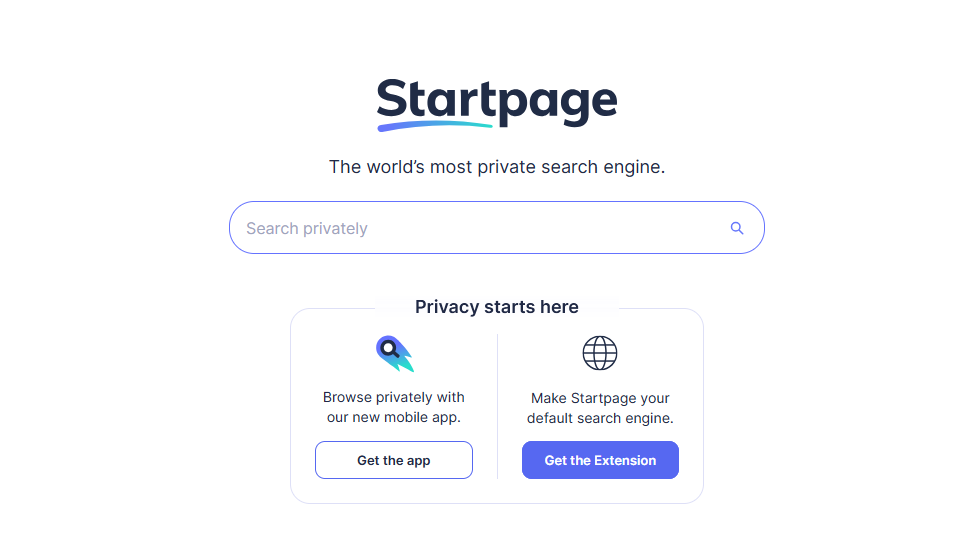
DuckDuckGo and Startpage offer strong privacy features and avoid storing personal data.
Can I set one as my default?
Yes, browsers allow you to switch your default search provider in the settings.
Meta search engines give users broader access to information and stronger control over how they search online. Each option offers unique strengths, from privacy tools to visual layouts. Try several engines and adjust your browser settings to support your preferred workflow.
Last month, Microsoft announced a new File Explorer pre-loading feature, which, when enabled, helps File Explorer launch much faster. As we mentioned in our previous report, the idea behind this feature is to load key components in advance so the app feels snappier when you open it.
But reports from earlier this month hinted that the promise of faster launch times still falls short. You can read more about it here in our coverage. If you are still frustrated by the slow launch time of File Explorer, you’d be surprised to know that a simple trick can fix the issue.
According to tests performed by YouTube channel kli0bit, changing the default launch location of File Explorer from “Home” to “This PC” dramatically speeds up the app, often matching the performance of Microsoft’s resource-heavy pre-loading feature.
By default, Windows 11 opens File Explorer to “Home,” which delays content loading time. Switching to “This PC” in the options menu, found under the three-dot menu, removes that problem without consuming extra resources.
You should try this method once to see if it works. Don’t forget to drop your comments below.
Windows 10 includes a dedicated Gaming section that improves gameplay, captures, and GPU behavior. This guide explains what each setting does so you can choose the best options for smooth and responsive gaming.
Xbox Game Bar gives you an overlay that monitors system performance and manages widgets in real time. It helps you track FPS, adjust audio, and communicate with friends without leaving the game.
You can also manage performance widgets for CPU, GPU, RAM, and network load. For a deeper breakdown of its tools, see this guide on how to use Xbox Game Bar.
Captures
The Captures menu controls how Windows records gameplay clips and screenshots. You choose capture resolution, frame rate, audio quality, and background recording duration.
Higher capture settings improve clip quality but increase CPU and storage load during gameplay. To explore more recording options, check this guide on screen capture and video recording.
Game Mode
Game Mode directs system resources toward your game and limits background interruptions. It improves frame pacing and reduces stutter on both high end and low end hardware.
You gain more consistent performance because Windows directs more CPU and GPU time to your running title.
Xbox Networking
Xbox Networking verifies your NAT type, latency, and multiplayer readiness. It helps you identify issues with voice chat, online lobbies, and connection stability.
Online games feel smoother when you keep latency and packet loss low. If you want to improve Xbox ecosystem tools and connectivity, review this guide on Xbox software on Windows 10.
Graphics Settings
Graphics settings let you assign High performance mode to specific games. This tells Windows to use your dedicated GPU in a stronger and more consistent way.
When supported hardware exists, this menu also unlocks Hardware Accelerated GPU Scheduling, which lowers latency and improves frame pacing.
FAQs
Why does Game Mode help gaming
Game Mode focuses more system resources on your game and reduces background interruptions.
Does Xbox Game Bar affect performance
It can when you load many widgets, but it helps you track performance and manage audio.
Do Captures settings impact gaming
Yes. Higher quality recordings increase CPU and storage load during gameplay.
Why check Xbox Networking
It helps you diagnose NAT issues, latency jumps, and multiplayer connectivity problems.
These gaming settings in Windows 10 give you better performance, cleaner recordings, and smoother online matches. Adjust each category to match your hardware and your favorite games. Because each system behaves differently, test combinations until you find the balance that delivers the smoothest experience.
File Explorer Options let you control folder views, file display behavior, and search preferences. Some systems block this panel due to policy restrictions. This guide explains how to enable access and how to disable it again by reversing the same settings.
A policy rule often hides the Options menu when it becomes unavailable.
Press Windows + R, type gpedit.msc, then press Enter.
Go to User Configuration > Administrative Templates > Windows Components > File Explorer.
Open Do not allow Folder Options to be opened from the Options button on the View tab.
Set it to Disabled or Not Configured.
Apply the change and restart Windows.
After you restore access, you can adjust view preferences along with layout settings that work together with the updated right click menu in Windows 11. To explore more customization options in File Explorer, check a guide on how to show more options in Windows 11 File Explorer.
Use the Registry Editor when Group Policy is unavailable
This method works on Windows Home editions and any system without Group Policy.
Press Windows + R, type regedit, then press Enter.
Navigate to: HKEY_CURRENT_USER\Software\Microsoft\Windows\CurrentVersion\Policies\Explorer
Look for the value NoFolderOptions.
Delete it or set its value to 0.
Restart Windows.
Adjusting File Explorer Options often pairs well with visual folder tweaks. If you want further control over layouts and views, you can explore how to customize Windows 11 File Explorer.
How to Disable Access
You can disable access by reversing the Group Policy or registry changes.
In Group Policy, set Do not allow Folder Options to be opened from the Options button on the View tab to Enabled.
In Registry Editor, create a NoFolderOptions value and set it to 1.
These actions block the Options menu and prevent users from changing folder settings. This can help when you want to restrict modifications to layout features such as drag and drop behavior. To understand related navigation settings, see how to use drag and drop in Windows 11 File Explorer.
FAQs
Why is File Explorer Options missing?
A policy or registry configuration hides it. Reversing the restriction restores the Options panel.
Does this work on both Windows 10 and Windows 11?
Yes. Both systems use the same policy paths and registry values.
Do I need to restart after changes?
Yes. Windows refreshes policy and registry changes only after a reboot.
Can I apply these restrictions to all users?
Yes. Use the Computer Configuration branch in Group Policy for system wide enforcement.
Windows allows full control over File Explorer Options through simple policy settings and registry edits. You can restore the menu when it is blocked or disable it to prevent unwanted changes. Reversing the same settings lets you switch between locked and unrestricted behavior at any time, so you keep File Explorer aligned with how you want the system to work.
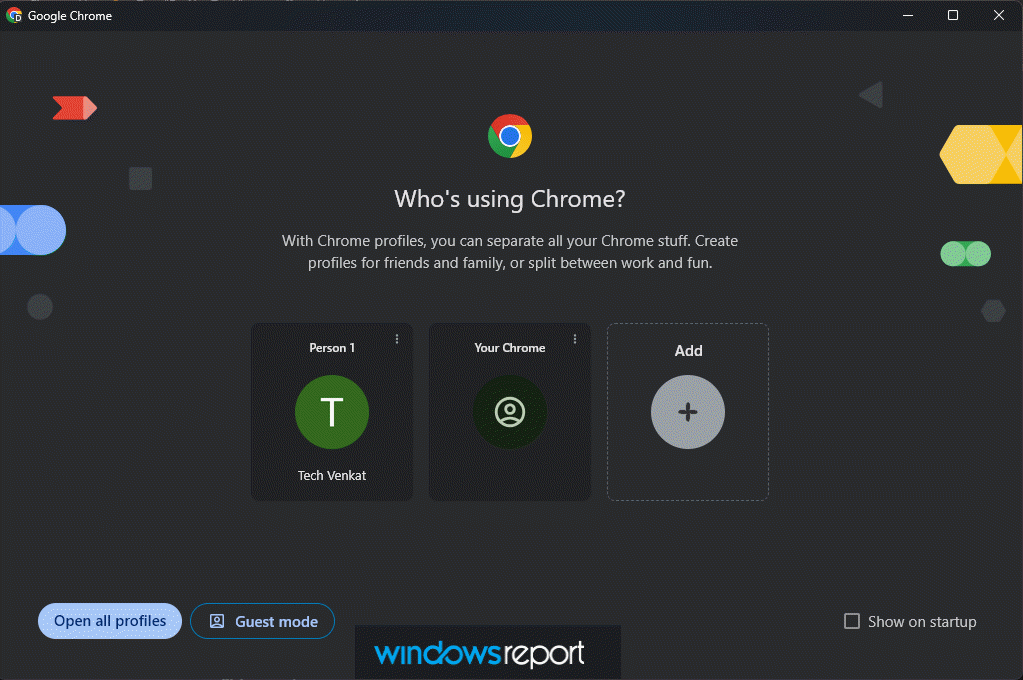
Do you have separate Chrome profiles for work and personal use? For a long time, users asked for a native way to open everything at once without looking for complex workarounds or shortcuts. Google is finally testing a built-in option. The company runs an experiment with a new “Open all profiles” button in Chrome’s profile picker. It opens every profile on your device with one click.
Profiles in Chrome help users keep their data, bookmarks, extensions, and accounts separate. Many users create one profile for work and another for personal browsing. Others create extra profiles for testing or for different Google accounts.
The profile picker appears at browser launch and shows the profiles available on the device. A single button that opens all profiles can save time for anyone who moves between more than one profile. Chrome now shows this option before “Guest Mode” as part of the experiment.
Chrome shows an “Open all profiles” option in the profile picker as part of a test. Image Credit:Venkat | WindowsReport.
Google limits this experiment to systems with fewer than five profiles. The Open all profiles button may not appear for everyone, and the design may change. The test appears only in pre-release Chrome versions, so the option may change or disappear before general rollout. There is no timeline for its availability.
Google tracks how often users click the button and how frequently they return to it. Those metrics decide whether the option survives the experiment and reaches more users in the future.
Opening several profiles at once also loads multiple windows and tabs together. This may place extra load on memory and CPU on some PCs.
Not everyone will want this option. Users who switch between multiple profiles each day may still prefer this option even with the extra load it creates.
OpenAI recently launched its upgraded coding model, GPT-5.1-Codex-Max, which it says is designed to handle long, complex engineering tasks, where an AI needs to plan, reason, and revise code across extended sessions without losing track of earlier steps.
One of the standout features of the GPT-5.1-Codex-Max is the new compaction system, which allows the model to keep massive tasks coherent, even when they run into the millions of tokens. Now, that same model is available in GitHub Copilot in preview for Copilot Pro, Pro+, Business, and Enterprise users.
Developers can select GPT-5.1-Codex-Max directly from the Copilot Chat model picker in Visual Studio Code, GitHub.com, GitHub Mobile (iOS and Android), and the Copilot CLI. Do note that this a gradual roll out, so nit everyone will see the model immediately.
If you are Enterprise and Business administrator, you must enable the model via Copilot settings for your organization. Pro and Pro+ users can simply select the model in the picker and confirm a one-time prompt. Those using Bring Your Own Key can enable GPT-5.1-Codex-Max by entering an API key in the model picker.
If you told me Stranger Things’ elements would show up someday in Microsoft Flight Simulator, I’d have laughed it off. Yet here we are, Netflix’s biggest supernatural hit is about to land in the most realistic flight sims ever built.
Microsoft teased the crossover with a short clip on Xbox’s X account, and it gives away just enough to spark theories. The standout moment from the clip is a Huey helicopter sporting a “Hawkins Heli-Tours” badge. In other words, it practically confirming the iconic aircraft is making its way into the sim. For a series that loves its era-accurate machines, the pairing oddly makes sense.
Microsoft Flight Simulator 2024 is already preparing for a big December with its PS5 launch on the 8th, and this collab drops one day later on the 9th. What we don’t know yet is whether this add-on will launch as a free update or a paid expansion. Microsoft has gone both ways in the past, so it’s a wait-and-see moment.
The teaser doesn’t reveal much besides the aircraft, so I am wondering whether we’ll get more Hawkins landmarks, a themed mission, or something wilder. Honestly, the brief shot makes me feel that Microsoft has something more in its store. But, agaain, we’ll have to wait and watch.
All that said, it’s fun to see two completely different worlds collide, and in a fun way. Not to forget, the final season of Stranger Things is already streaming on Netflix.
So what do you think of this crossover? Would you take a Hawkins-branded Huey for a spin? Drop your thoughts in the comments below.
The AI Assistants category sparked the most debate. Perplexity and ChatGPT tied for the top spot, with both apps praised by Microsoft for deep integration, fast research tools and enterprise-ready privacy controls. While many agreed they were strong contenders, users on X argued that the category ignored newer AI apps that are doing better.
Other winners stirred similar conversations. Moon Invoice grabbed the Business category for its streamlined billing tools, while Manus won the Computer-Using Agent award for its secure, automated workflow system capable of executing complex tasks in a sandbox.
Users, however, felt CUAs are still too experimental to headline an award. Creators celebrated n-Track Studio’s win for its AI tools and unlimited track support, though some music producers said smaller competitors deserved recognition.
Education, gaming and productivity categories rolled out more familiar names. Scratch 3 secured the education win for its approachable coding lessons, Castle Craft claimed gaming thanks to strong performance on a wide range of devices, and Moises Live earned praise for real-time, on-device audio separation. Notion topped productivity with its unified workspace and deep Windows integration.
If you’ve ever felt that the Windows Run dialog UI looked stuck in time, Microsoft appears to be getting ready to change that. In the latest Windows preview builds, a new Run box UI has been spotted by @phantomofearth on X. The new Run dialog UI seen below is visibly inline with Windows 11’s Fluent Design language.
Image credit: X/@phantomofearth
Speaking of design, the new Run dialog box looks bigger, featuring a larger text entry field and a recent commands list that appears above the input. It reportedly also shows app icons when it finds a match, which adds clarity and makes navigation seamless than ever.
Do note that the new UI is optional to use. You can toggle the switch beside “Run Dialog” on or off to switch back and forth between old and new Run dialog UI. You can find the toggle under Settings > System > Advanced. Microsoft the updated UI as “modern Run dialog.”
Image credit: X/@phantomofearth
As you may know, Microsoft recently added dark mode to the traditional Run dialog, but we are yet to see how the modern Run dialog looks in dark mode.
But, don’t get too excited, it’s not immediately available. The Modern Run box is hidden in Build 26534 and hasn’t been officially announced. That’s not all; it’s not yet functional, but it’s ckear that Microsoft is actively working on it.
The Run dialog has been staple for power users for decades now, but rarely does Microsoft touch long-standing UI elements like this. Honestly, it looks clean and matches with the Windows 11 modern design. It will be interesting to see when it will be available to masses. Whenever it rolls out, we’ll let you know.
So, what do you think about the new, modern Run dialog box? Do let us know in the comments below.
If you’ve enjoyed Microsoft 365 Suite all this while, 2026 will the year you have to start paying a little more than what you are paying now. Today, the company announced new list prices for its commercial Microsoft 365 and Office 365 suites, which will take effect on July 1, 2026. And, it’s one of the biggest pricing updates for Microsoft 365 Suite since the Copilot era took off.
The price hike comes at time when Microsoft is fully focused on AI, security, and device management tools across Microsoft 365. The company says it has introduced more than 1,100 features this year alone. The company is now folding many of those, including in Defender, Intune, Security Copilot, and Copilot Chat, into core plans like Office 365 E3, Microsoft 365 E3, and Microsoft 365 E5.
Here’s what’s coming to Microsoft 365 Suite in 2026:
Image: Microsoft
Here’s what the new pricing looks like:
Image: Microsoft
In simple terms, Microsoft is adding more features across the board, then raising the price to match the “added value.” The new pricing will apply globally, with local adjustments depending on region. Notably, nonprofit and government suites will follow the same structure.
Whether businesses see the added features as a worthwhile trade-off is something we’ll only know once these changes land in 2026.
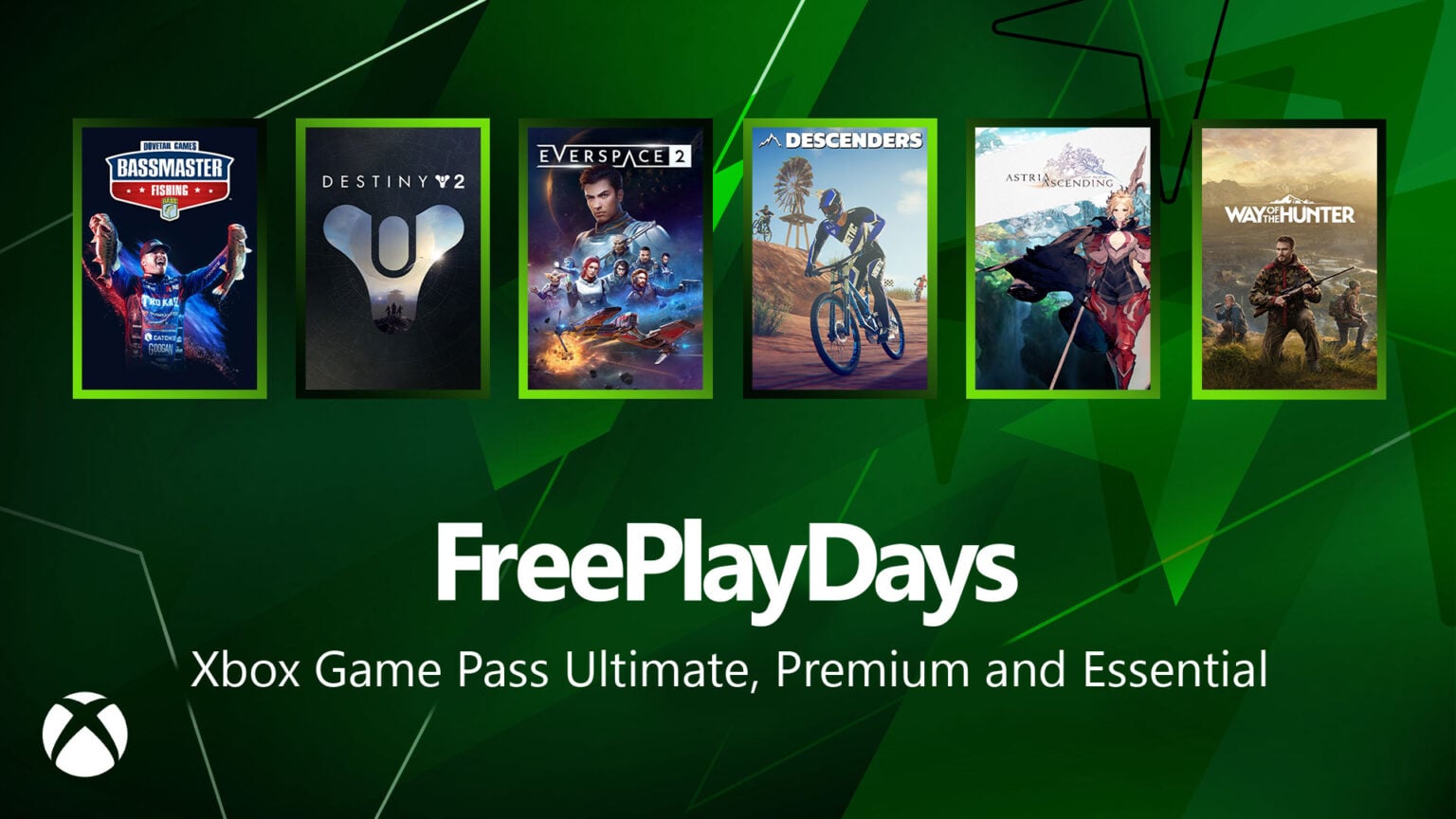
It’s Thursday, which means Microsoft is back with another Xbox Free Play Day lineup for this weekend (from December 4 to December 7). If you are Game Pass Ultimate, Premium, and Essential subscribers, you can play Bassmaster Fishing, Everspace 2, Astria Ascending, and Way of the Hunter for free this weekend.
Microsoft also notes that Bassmaster Fishing, Everspace 2, and Astria Ascending are all Xbox Play Anywhere titles. In other words, you can jump between console and PC without losing progress.
That’s not all; Bungie is also opening the doors to Destiny 2’s biggest recent expansions: The Witch Queen, Lightfall, and The Final Shape. These expansions are free to try from December 2 through December 9.
Meanwhile, Descenders is available for all Xbox members, no subscription required. It’s a great pick if you want something fast, fun, and easy to drop into between longer sessions. You can check out the pricing of the games for this weekend’s Xbox Free Play Days below:
Microsoft has refuted claims made by The Information in one of its report, where the publication claimed that several internal teams within the company recently lowered their sales growth targets for AI products. The report said multiple Azure sales staff missed last year’s quotas, forcing divisions to adjust expectations for the current fiscal year.
“The Information’s story inaccurately combines the concepts of growth and sales quotas, which shows their lack of understanding of the way a sales organization works and is compensated,” Microsoft shared a statement as published by Reuters. “Aggregate sales quotas for AI products have not been lowered, as we informed them prior to publication,” the company further added.
According to The Information’s sources, at least one U.S. Azure unit asked its sellers to boost customer spending on Foundry by 50% last fiscal year, but fewer than 20% hit that target. The report also claimed Microsoft quietly lowered those expectations to around 25% growth for the current fiscal cycle. Microsoft, however, didn’t confirm or deny those specific numbers.
The report also highlighted customer frustration, citing Carlyle Group’s reduced usage of Copilot Studio after issues with pulling data from different sources. There’s no word on this claim by the Redmond giant, though.
Big Tech is under intense investor pressure to prove that massive AI spending is turning into real revenue. Microsoft alone spent nearly $35 billion last quarter on AI-driven infrastructure, with capex expected to rise through 2026.
It’ll be interesting to see where Microsoft ends up with all its AI projects by next year, especially when it is experiencing a massive pushback from users.
What do you think about Microsoft’s approach with AI at large? We’d love to hear your thoughts in the comments below. Keep them coming.
Microsoft’s aggressive push to make Windows 10 users migrate to Windows 11 appears to be not as effective as it may have thought, at least according to latest Statcounter data. In terms of market share, Windows 11 has slipped 1.95 percent (53.7% in November 2025 to 51.75% in December).
As you may know that Microsoft has officially ended support for Windows 10 except for those enrolled in the ESU program. Despite that, the legacy OS is holding its ground in market share. The Statounter data shows that Windows 10’s market share jumped from 42.7% in November to 44.29% in December.
Image credit: Statcounter
That’s completely opposite of what we saw in the recent Valve’s recent survey, which hinted that Steam gamers are gradually transitioning to Windows 11, leaving Windows 10 behind. Meanwhile, Windows 7 is barely holding its ground in the market, as it stands at 2.19 percent.
Even worse for Microsoft is that the cumulative market share for Windows (including all versions) stands at 66.67 percent. That’s a drop of 2.7 percent in just one month. If we have to compare this in the same period from last year, Windows’ market share has dropped 6.71 percent (against 73.38 percent in December 2024).
After Microsoft killed Windows 10 support, many users are switching to Linux rather than Windows 11. The frustration of users is not alone with Microsoft ending support for Windows 11, but the fact that the company is pushing AI into every part of Windows 11 to make it an agentic OS, is also hurting its adoption rate. We’ll have to wait and see how well the forced Windows 11 migration pays off over time.
OpenDNS free DNS gives you faster browsing, built in security filtering, and simple parental controls across home networks. It also improves stability when your default ISP DNS performs poorly.
These advantages make OpenDNS a strong choice for families and home users seeking extra protection.
Cons of OpenDNS free DNS
Filtering features require a free account
Strict filters may block safe sites if not configured carefully
Performance varies across regions
Advanced security features belong to paid tiers
These limitations matter if you want fine grained filtering or enterprise level protection.
Who should use OpenDNS free DNS
OpenDNS works best for households that want safer browsing, parents needing category filtering, and small offices looking for free DNS level protection. It also helps users who struggle with unreliable or slow ISP DNS performance.
If you want to compare speeds with other providers, you can check nearby options using this guide on the fastest DNS servers near you.
FAQs
What makes OpenDNS different from regular DNS?
It provides faster lookups, malware protection, and customizable filtering.
Does OpenDNS slow the internet?
No. It often improves speed due to faster domain resolution.
Do I need an account?
No. DNS servers work without an account, but filtering requires one.
Can I apply OpenDNS on a router?
Yes. Router configuration protects every device on your network.
Tips
Tune filtering rules in the dashboard regularly
Set DNS on your router to cover the whole household
Compare speed with and without OpenDNS to find the best setup
Review logs to understand browsing patterns
OpenDNS free DNS boosts speed, safety, and control for home and small office networks. It adds phishing protection, flexible filtering, and reliable resolution without costing anything. When you configure it on your router or device, you gain stronger security and a more stable browsing experience.
High Service Host Network Service network usage slows down your connection and makes apps feel unresponsive. This guide walks you through quick fixes that reduce background traffic and keep Windows stable.
How Can I Fix Service Host Network Service High Network Usage?
Check for Windows updates
Stuck or incomplete updates cause constant background downloads and heavy bandwidth usage. You clear that pressure when you install all pending updates.
Delivery Optimization uploads and downloads update files in the background. You take control of bandwidth when you stop it from sharing updates with other devices.
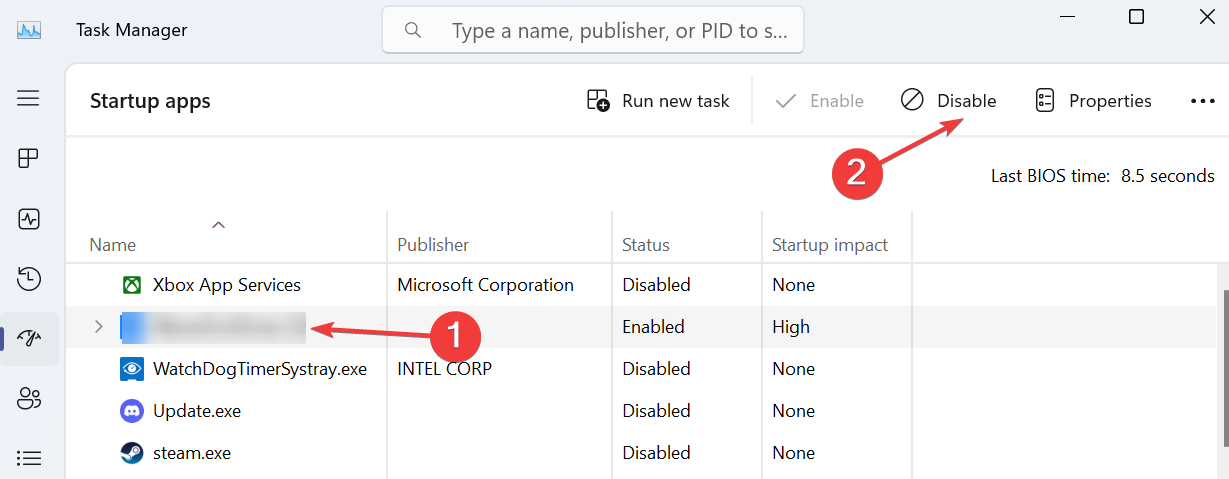
Startup apps sync, download data, and check for updates as soon as Windows loads. You free network capacity when you stop non essential apps from running at startup.
Press Ctrl + Shift + Esc to open Task Manager.
Select the Startup apps tab.
Disable apps you do not need to run at startup.
Restart your PC and test your connection.
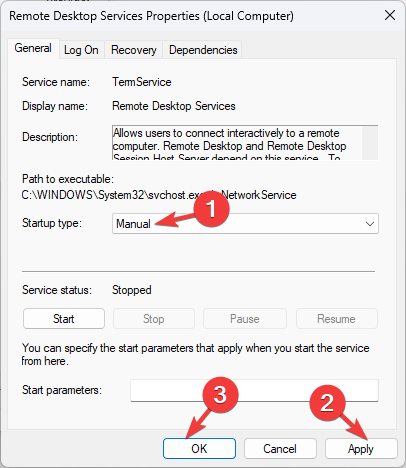
Stop the SysMain service temporarily
SysMain improves launch times but sometimes increases disk and network activity. You check its impact when you stop it and see if usage drops.
Press Windows + R, type services.msc, and press Enter.
Scroll to SysMain and double click it.
Click Stop.
Set Startup type to Manual if you want to control it later.
Malicious programs open hidden connections and send data in the background. A full scan helps you remove threats that inflate Service Host Network Service traffic.
Open Windows Security.
Click Virus and threat protection.
Select Scan options.
Run a Full scan and follow the recommendations.
Reset network settings
A damaged network stack creates retries, timeouts, and repeated calls to services. You restore a clean baseline when you reset network components.
Open Settings and click Network and Internet.
Select Advanced network settings.
Scroll down and click Network reset.
Restart your PC to apply the reset.
Update your network adapter driver
Outdated or buggy drivers cause packet loss and unstable throughput. You often fix random spikes when you install the latest network driver.
Press Windows + X and select Device Manager.
Expand Network adapters.
Right click your active adapter and choose Update driver.
Select Search automatically for drivers and follow the prompts.
FAQs
Is Service Host Network Service a virus?
No. It is a core Windows component that groups network related services. Malware can still hide behind normal processes, so a full scan always makes sense when you see unusual traffic.
Why does Service Host Network Service use so much bandwidth?
It handles updates, telemetry, and background communication for various services. When updates stall or services loop, network usage grows very quickly.
Can I disable Service Host Network Service safely?
You should not remove it or try to turn it off directly. Instead, you adjust related features such as Delivery Optimization, startup apps, and specific services that cause heavy usage.
Will a VPN fix high Service Host Network Service usage?
A VPN might hide your activity from a provider, but it does not remove the cause. You need to fix the underlying Windows services and drivers to reduce network load.
You reduce Service Host Network Service network usage by fixing stuck updates, limiting Delivery Optimization, and trimming background apps. When you also check SysMain, scan for malware, reset network settings, and update drivers, you tackle the main triggers that cause bandwidth spikes. These steps help your PC stay responsive while it runs the network tasks it needs.
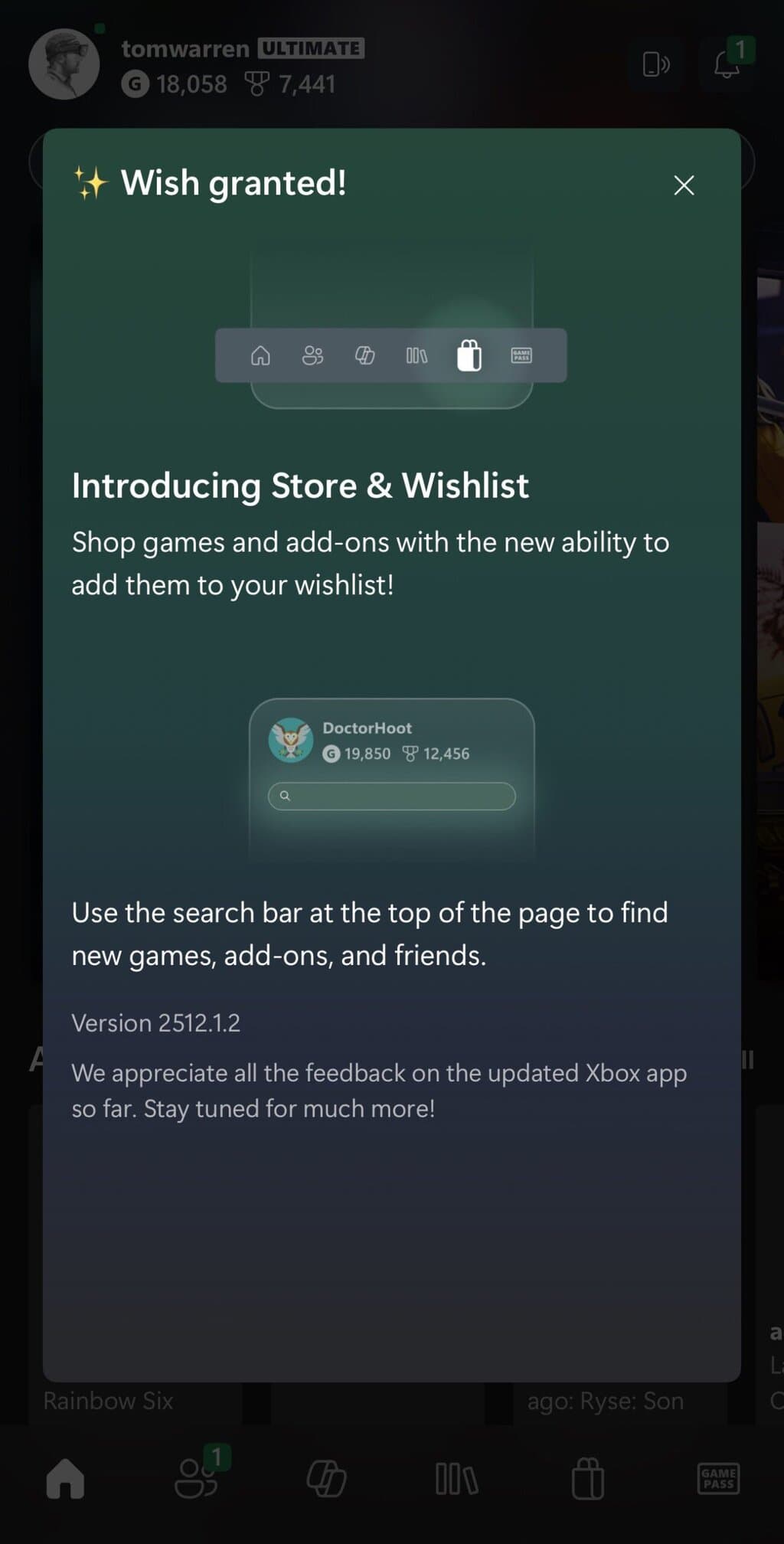
If you use the Xbox mobile app, you must be aware that it is long overdue for an update. Well, finally, it’s happening. As spotted by Tom Warren on X, the company is reportedly testing a real, fully featured store for its Xbox mobile app.
The changes are currently visible in the app’s beta version 2512.1.2 on Android, with an iOS release planned later. As part of this update, the Xbox Store tab now allows you to browse and buy games, DLC, and bundles directly inside the app.
The new layout is reportedly similar to the console store. Yes, the Xbox mobile beta app now includes filters for things like Xbox Play Anywhere. You can check editions, compare add-ons, and access full game pages without being redirected to a web browser.
You also get wishlist support in the current beta version of the app. That’s not all; if you have any game saved to your wishlists on the app will sync instantly with your console and the Xbox website. This makes it easier for you to track them across the board.
The Xbox app has always been useful for remote installs and notifications, and never had a complete store. Searching for games even returned mixed, unrelated results. To make it even worse, buying anything required you to hop on Microsoft’s web storefront, with mobile users not able to manage wishlists at all.
With this test rollout, Microsoft is positioning the Xbox app as a true mobile counterpart to the console experience. It gives users a dedicated store, consistent wishlisting, and a cleaner way to browse new releases on the go. As Microsoft continues working on its expanded mobile gaming plans, this upgrade looks like an important step in that direction.