Microsoft Opens Public Preview of Windows 365 Cloud Apps

Microsoft has launched Windows 365 Cloud Apps in public preview, giving access to all users after months of private testing. The new feature allows IT admins stream individual apps, just like Outlook or Word, directly from the cloud without provisioning a full Cloud PC.

This will eventually cut costs, simplify app delivery, and better support shift-based and task-driven roles across industries like healthcare, retail, and government.

Rather than offering a full virtual desktop, 365 Cloud Apps run on Windows 365 Frontline Cloud PCs in shared mode. In day-to-day usage, that means unlimited users per license, given only one session at a time. Besides, these are lightweight and optimized for part-time and frontline workers.

What’s new in public preview

During the private preview, Cloud Apps were already supported in the Windows App. Now, Microsoft has enhanced the experience by:

  • Auto-launching OneDrive for smoother workflows.
  • Adding a Windows 365 filter in the Apps page for easier navigation.

Microsoft further says the next big step is making Intune the central hub for app delivery. Right now, IT teams must build custom images to publish custom apps as Cloud Apps, which is an outdated process.

In future updates, admins will be able to publish Intune Apps directly as Cloud Apps, making it inline with the modern Autopilot approach already used for device setup.

As of today, any organization with a Windows 365 Frontline license can start testing Cloud Apps by following Microsoft’s official documentation.

Microsoft launches Cyber Dial Agent for faster security investigations

Microsoft is adding something new to its already expanded security portfolio. Here, we’re talking about the Cyber Dial Agent. Microsoft says it’s a lightweight add-on designed to simplify investigations across Microsoft Defender, Purview, and Defender for Cloud.

According to Microsoft’s announcement, the new agent reduces context switching, saves navigation time, and offers a single, menu-driven interface for analysts. Instead of navigating multiple dashboards, users can simply pick a number from a menu, enter the required value, and get an instant deep link that opens the relevant page.

Image: Microsoft
Image: Microsoft

This will apparently allow security teams to act faster without wasting time searching for the right portal. Per Microsoft’s Purview Blog, the Cyber Dial Agent can reduce navigation time by as much as 60%. That translates into lower Mean Time to Detect and faster responses, two of the most critical metrics for Security Operations Centers.

The latest security agent also benefits less technical staff, as it removes the need to memorize portal paths or manage complex queries. To help organizations adopt the new tool, Microsoft has shared step-by-step guides.

These include importing a Cyber Dial Agent built in Copilot Studio into another tenant, publishing it afterward, and adding the browser extension to Microsoft Edge or any modern browser.

Image: Microsoft

That’s not all, the company has also explained the use of Purview DSPM for AI to secure custom Copilot Studio agents. All that said, the best part is that it requires no complex API integration, as it relies on existing Defender and Purview URLs.

US House of Representatives to start using Microsoft Copilot, Axios reports

It’s been just a few days since AI giants like OpenAI and Anthropic announced to offer enterprise AI services to the U.S. government for just $1. Microsoft jumped into the boat by announcing that Copilot will be made free for U.S. government workers.

Now, according to an exclusive report from Axios, The House of Representatives will start rolling out Microsoft Copilot soon. The news outlet notes that The House will be using the technology to modernize its operations and the legislative process.

So, how will The House use Copilot? The chamber will reportedly start with a limited rollout, giving staff in each office access to Copilot. As Axios notes, testing began back in June, with early adoption scheduled for this month.

Going forward, senior staff and leadership will also have access to Copilot. The report also mentions that over the next year, as many as 6,000 licenses will be made available. Unlike standard Copilot products, The House version will apparently have “heightened legal and data protections” to ensure compliance with federal standards.

The report further mentions that House Speaker Mike Johnson and Minority Leader Hakeem Jeffries will reportedly announce the initiative during the Congressional Hackathon scheduled for today.

This is interesting given that Microsoft’s Copilot was banned last year from all of the U.S. Congress’s Windows devices. But, slowly, governments around the globe, including in the US, are showing confidence in AI tech, as they are tracking its development closely.

Moreover, an email from The House CAO, Catherine Szpindor, spotted by Axios, suggests The House is also reviewing and even testing Enterprise AI offerings from other AI giants like OpenAI, Anthropic, and more.

Governments around the globe are now increasingly collaborating with U.S. tech giants to bolster their AI infrastructure. Yesterday, Microsoft committed $30 billion in AI investment in the UK, while NVIDIA pledged $11 billion to build out AI infrastructure in the country. On the same day, OpenAI also announced a Stargate UK partnership, which will give Britain sovereign AI computing power.

WWE 2K25’s Attitude Era Superstars DLC Pack Released: New Superstars, Price, Hall of Legends Expansion & More

The long-awaited Attitude Era Superstars Pack for WWE 2K25 is now available across all major platforms including PS5, PS4, Xbox Series X|S, Xbox One, Switch 2, and PC via Steam.

This pack was launched today, September 17, 2025, and is part of WWE 2K25’s post-launch DLC rollout.

What the WWE 2K25 DLC Attitude Era Pack Includes?

The WWE 2K25 DLC adds five hugely popular WWE stars from the Attitude Era: Billy Gunn, D’Lo Brown, Mark Henry, Road Dogg, and Victoria.

Besides new Superstars, the pack features over 50 new moves and taunts plus MyFACTION cards for each character. You can buy it standalone, or as part of the WWE 2K25 Season Pass / Deadman Edition / Bloodline Edition.

WW2K DLC Release Time

While 2K hasn’t specified an exact hour (like “midnight local” or a UTC unlock time), announcements indicate the pack is already released in relevant regional digital stores as of today.

Hall of Legends Expansion & Additional Content

Besides the Attitude Era Pack, the Hall of Legends expansion also launches today. It brings WWE Hall of Famers Goldberg and Nikki Bella, and a new Hall of Legends Arena in The Island mode. Additionally, you get extra creation parts, and quest content, with available in-game for 50,000 VC.

Attitude Era Superstars Pack Price

The Attitude Era Superstars Pack costs $9.99 / €9.99 / £7.99 when purchased separately. If you own the Season Pass, Deadman or Bloodline Editions, it’s already included.

What’s next?

The final DLC, the Saturday Night’s Main Event Pack, will release on November 12, 2025. It will feature Jesse Ventura, “Mr. Wonderful” Paul Orndorff, Tito Santana, Junkyard Dog, and Sid Justice.

OpenAI Announces “Stargate UK” to Boost Sovereign AI Infrastructure

OpenAI yesterday announced Stargate UK, a sovereign AI infrastructure project developed in partnership with NVIDIA and Nscale. The company says the project will bolster Britain’s computing capabilities for specialist and jurisdiction-specific use cases.

Worth noting that the announcement came on the same day that Microsoft confirmed a $30 billion investment in the UK’s AI ecosystem, and NVIDIA unveiled plans to spend £11 billion to build advanced AI factories across the country.

To catch you up, Stargate UK builds on the OpenAI for Countries program announced back in July 2025 with a memorandum of understanding with the UK government. The project will operate across several sites, including Cobalt Park in the North East.

The aforementioned regions have been recently designated as part of the UK’s AI Growth Zone. OpenAI plans an initial deployment of 8,000 GPUs in early 2026, with potential to scale to 31,000 GPUs over time. This ensures OpenAI’s most advanced models, including GPT-5, can run locally for important sectors like finance, public services, research, and national security.

NVIDIA, meanwhile, will provide its latest Grace Blackwell GPUs, incorporating semiconductor designs from Arm. This ensures the infrastructure benefits from state-of-the-art AI hardware, delivering both performance and sovereignty for the UK.

Sam Altman, CEO of OpenAI, stated, “The UK has been a longstanding pioneer of AI, and is now home to world-class researchers, millions of ChatGPT users, and a government that quickly recognized the potential of this technology. Stargate UK builds on this foundation to help accelerate scientific breakthroughs, improve productivity, and drive economic growth.”

Besides bolstering AI infrastructure, OpenAI is introducing the OpenAI Academy in Britain. The academy is supposed to offer flexible learning modules to support the government’s plan to upskill 7.5 million workers by 2030.

Everything Announced at Made on YouTube 2026

At the Made on YouTube 2025 event, CEO Neal Mohan announced the video-streaming platform’s 20th anniversary with a focus on AI. One of the biggest highlights from the announcement revolved around new AI features for YouTube Shorts. The platform says that new AI features are designed to make video creation faster and more accessible.

AI features to help create quick and engaging YouTube Shorts

First and foremost, Google DeepMind’s Veo 3 Fast will now allow creators to instantly generate video backgrounds, add props, and apply stylistic changes to clips.

The company further says that tools like Edit with AI can take raw footage and produce a ready-to-edit draft. Whereas Speech to Song turns ordinary dialogue into playful, soundtrack-style audio.

YouTube Studio becomes a creative partner

Besides announcing improvements to Shorts, YouTube also announced some updates for creators managing their content via YouTube Studio. You’ll see a new Ask Studio conversational tool within YouTube Studio, which will offer personalized guidance for creators, helping you optimize videos and channels.

That’s not all; YouTube also plans to include features like A/B testing for video titles, improvements to the Inspiration Tab, and auto-dubbing upgrades. Moreover, the platform is also expanding the likeness detection tool to all Partner Program members. This will eventually give creators more control over AI-generated content that uses their image.

Big upgrades for live and podcasts

YouTube says over 30% of daily logged-in users watch live content, so it is rolling out its largest-ever upgrade for live streaming. The new tools will improve fan interaction, audience reach, and monetization options for streamers.

Image: YouTube

Podcasters are also being prioritized, with the new features like clipping podcast episodes into Shorts. And for creators without video resources, Google DeepMind’s Veo can now turn audio-only podcasts into video with customizable visuals.

Music fandom and monetization tools

As part of the upgrade, music artists will get countdowns and pre-save features for upcoming tracks on YouTube Music. Fans can also expect closer interaction through exclusive merch drops, behind-the-scenes clips, and personalized thank-you videos.

If you are an artist collaborating with a brand, YouTube is making the process more seamless than ever. The platform will soon launch a new brand-to-creator initiative and expand YouTube Shopping. On top of that, Shorts will soon support direct links to brand websites, and AI will make product tagging simpler.

YouTube brand collab
Image: YouTube

From AI-powered editing to deeper fan engagement, YouTube is looking ahead in the future. Mohan summed up the vision clearly, saying, “We didn’t just create a platform. We built an economy.” Moreover, it’s worth noting that YouTube has already paid out over $100 billion to creators, artists, and media companies in the past four years.

How to Set Homepage in Edge (Quick Steps)

Knowing how to set homepage in Edge helps you open your favorite site right away and skip the default start page. If you don’t know how to do that, this guide will tell you all you need to know.

How can I set homepage in Edge?

1. Change Startup Page in Edge

This option lets you pick which site loads automatically when Edge starts.

  1. Open Microsoft Edge and click the three-dot menu (… ) in the top-right corner.
  2. Select Settings from the menu.
  3. In the left panel, click Start, home, and new tabs.
  4. Under When Edge starts, select Open these pages.
  5. Click Add a new page, type your desired website address, then press Add.

For even more customization, you can enable Edge flags to unlock experimental features that can influence startup behavior.

2. Enable and Customize the Home Button

The Home button provides one-click access to your chosen homepage.

  1. Go to Settings > Start, home, and new tabs.
  2. Scroll down to Home button and toggle the switch On.
  3. Enter your preferred homepage URL in the provided box.
  4. Click outside the box to save the change.

Another quick personalization is adding quick links in Edge for instant access to your favorite websites from the new tab page.

For quicker checkouts while you browse, set up Microsoft Edge Wallet to securely save your cards and billing details.

3. Test Your Homepage

Testing confirms that your homepage is set up correctly.

  1. Close Microsoft Edge completely.
  2. Reopen Edge to check if it loads your chosen homepage.

If you want to continue where you left off instead, see how to restore your previous session in Microsoft Edge.

Some homepages require pop-ups for sign-ins, downloads, or verification prompts; see how to allow pop-ups in Edge so your start page loads and functions correctly.

Conclusion

Setting a homepage in Edge gives you a faster start every time you open the browser. Combine a custom startup page with the Home button, quick links, and session restore for a fully personalized and efficient browsing experience.

And when you land on sites in different languages, it’s easy to stay productive, as long as you know how to translate a page in Edge.

You can also learn more about customizing your startup preferences across different browsers by checking this detailed guide on changing your browser homepage. To explore even more homepage customization options by checking this guide on how to set a homepage in Microsoft Edge for a smoother browsing routine.

Chrome users who want the same Google first experience can follow this guide on how to make Google your homepage in Chrome.

FAQs

How do I make Google my homepage in Edge?

Go to Settings > Start, home, and new tabs > Open these pages, then type www.google.com and save.

Can I set multiple homepages in Edge?

Yes. Under Open these pages, add more than one URL and Edge will open them all at startup.

Is the homepage the same as the new tab page?

No. The homepage loads when you start Edge or press the Home button, while the new tab page has its own layout and settings.

Why won’t my homepage save in Edge?

Updates or extensions might override settings. Update Edge, disable extensions temporarily, and try setting the homepage again.

Change Netflix Email Easily: Step-by-Step Tutorial

If you’re wondering how to change email address on Netflix, the process is simple. Whether you’re on a web browser, mobile app, or lost access to your old email, here’s a clear step-by-step guide.

How to Change Email Address on Netflix?

1. Change Email on Netflix from a Web Browser

If you usually stream Netflix on your computer, you can update your email directly from the browser.

  1. Sign in to Netflix.com.
  2. Hover over your profile icon (top-right) and click Account.
  3. Under Membership & Billing, select Change email.
  4. Enter your new email address and your current password.
  5. Click Save.

If you’re facing issues after updating your details, clearing cookies can often help. Here’s a full guide on how to clear Netflix cookies.

2. Change Email Using the Netflix Mobile App

If you prefer using Netflix on your phone or tablet, you can change your email from inside the app.

  1. Open the Netflix app and sign in.
  2. Tap your profile icon in the top-right.
  3. Select Account (a web page opens inside the app).
  4. Under Membership & Billing, tap Change email.
  5. Enter your new email and current password, then tap Save.

If the app keeps crashing or won’t load, check out this fix for when Netflix is not working on Firestick.

3. Change Email Without Knowing Your Password

If you don’t remember your password, you can still update your Netflix email after resetting it.

  1. On the Change Email page, click Forgot password?
  2. Reset your password via email or SMS.
  3. Sign in again with the new password.
  4. Go to Account > Change email.
  5. Enter your new email and password, then save the changes.

For more general troubleshooting, see this complete guide to fix Netflix not working issues.

Want to share your account securely after updating your details? Learn how to add an extra member on Netflix.

FAQs

Can I change my Netflix email without password?

Yes. Reset your password first using the “Forgot password?” option, then update your email.

Will Netflix notify me after I change my email?

Yes. You’ll receive a confirmation email at both your old and new addresses.

Do I need to log in again after changing my Netflix email?

In most cases, yes. You may need to re-enter your new email on smart TVs, phones, or streaming devices.

Can I use the same email for multiple Netflix accounts?

No. Each Netflix account must be linked to a unique email address.

Conclusion

Changing your Netflix email address is quick and secure, whether you do it on desktop or mobile. If you’ve lost your old login, reset your password first and then update your details. Always check your inbox for the confirmation message to ensure your account is updated successfully.

After updating your account details, learn how to download Netflix shows and movies so you can watch your favorite titles offline anytime.

Ghost of Yōtei Release Date, Time, Platforms, and Game Details

Earlier this year, Sucker Punch Productions has officially announced October 2, 2025 as the release date for Ghost of Yōtei. The long-awaited successor to Ghost of Tsushima will debut with a midnight local time rollout. In other words, players across various regions can jump in to play as soon as the clock turns past midnight

Is Ghost of Yōtei going to be PS exclusive?

At launch, Ghost of Yōtei will be exclusive to PlayStation 5. The studio hasn’t a PC version or an Xbox edition of the title. While many PlayStation exclusives have made their way to PC months or years later, Sucker Punch has not shared any such plans for Ghost of Yōtei yet. We’ll have to wait and see if that happens.

Pre-orders and special editions

Pre-orders for the game opened earlier this year, offering players multiple editions to choose from. Besides the Standard and Digital Deluxe editions, a Collector’s Edition is also planned. It’ll reportedly include art cards, a replica mask, and a papercraft display piece. As for digital bonuses, you can grab exclusive cosmetic gear, weapons, and PlayStation Network avatars. If you’ve pre-order any edition, you must have received an additional in-game mask as a launch bonus.

Ghost of Yōtei storyline and gameplay features

The game is set in Ezo (modern-day Hokkaido) in the year 1603, with a new lead character named Atsu. Her mission revolves around dismantling the “Yōtei Six,” which is a powerful group responsible for her family’s downfall.

The game focuses on player choice in progression, allowing you to decide which targets to confront first.

If you’re eyeing multiplayer feature, sadly, it won’t be available at launch. However, Sucker Punch has confirmed that a co-op mode will arrive in 2026, following in the footsteps of Ghost of Tsushima: Legends.

How to Cancel Amazon Prime Subscription in Minutes

If you are wondering how to cancel Amazon Prime subscription, this guide can help you do that. Whether you are on desktop, mobile, or a TV app, the steps are quick and easy.

How to Cancel Amazon Prime Subscription?

1. From a Web Browser

You can easily manage your membership on Amazon’s website.

  1. Go to Amazon.com and sign in.
  2. Hover over Accounts & Lists and click Prime Membership.
  3. On the left panel, select Manage Membership.
  4. Click Update, Cancel, and More.
  5. Choose End Membership and follow the on screen steps.

If you are still setting up your account, read this guide on how to subscribe to Amazon Prime.

2. From the Mobile App (Android/iOS)

Canceling from the mobile app is straightforward.

  1. Open the Amazon Shopping app.
  2. Tap the menu icon (≡) and go to Your Account.
  3. Scroll to Manage Prime Membership.
  4. Tap Manage Membership > End Membership.
  5. Confirm cancellation by following prompts.

3. From a Smart TV or Streaming Device

You can also cancel through your TV’s Prime Video app.

  1. Open the Amazon Prime Video app.
  2. Go to Settings.
  3. Select Account & Subscriptions.
  4. Follow the link to manage your subscription in your Amazon account.
  5. Complete the steps as in the browser section.

If you want to customize your streaming, here is how to turn off Amazon X Ray on Prime Video.

Once you manage your subscription on your TV, you can still watch Prime Video on your desktop. Here is how to install Amazon Prime Video on Computer for easy streaming access.

Important Notes

  • You keep benefits until the end of the paid period.
  • If you are in a trial, cancellation ends benefits immediately.
  • You may get a refund if you have not used Prime benefits since the last billing.

FAQs

Can I get a refund after canceling Prime

Yes, if you have not used Prime benefits since the last charge, Amazon may issue a refund.

Does canceling Prime also cancel Prime Video

Yes, Prime Video is included with Amazon Prime, so both end together.

Can I pause my Prime subscription instead of canceling

No, Amazon offers cancellation only, but you can rejoin any time.

Will I lose my order history after canceling

No, your Amazon account, order history, and wish lists remain available.

Conclusion

Canceling Amazon Prime is simple on web, mobile, and TV. Follow the steps above and you will be done in minutes. If you plan to share benefits with family later, learn how to share Amazon Prime.

How to Turn Off X-Ray on Amazon Prime Video (Quick Steps)

Amazon Prime Video’s X-Ray shows cast, trivia, and music; disable it for distraction-free viewing, but if you don’t want to use it, this guide will show you how to turn it off.

How to Turn Off X-Ray on Amazon Prime?

1. On Web Browser

You can switch off X-Ray while streaming from your computer.

  1. Open Prime Video and play a title.
  2. Move your cursor on the screen until the X-Ray panel appears.
  3. Click the X-Ray toggle in the corner to disable it.

If you also want to tidy up your watchlist, see how to remove Continue Watching on Amazon Prime.

2. On Mobile App (Android/iOS)

The Prime Video app lets you hide X-Ray during playback.

  1. Launch the Prime Video app.
  2. Start playing a video.
  3. Tap the screen to show controls.
  4. Tap the X-Ray icon to turn it off.

3. On Smart TVs and Streaming Devices

Turn off X-Ray from the Prime Video interface on your TV.

  1. Open the Prime Video app on your TV or streaming device.
  2. Play any show or movie.
  3. Press the Up button on your remote to bring up X-Ray.
  4. Select the X-Ray option and turn it off.

Conclusion

X-Ray is helpful, but if you want a cleaner screen, turning it off is quick on web, mobile, and TV. If you are new to the service, learn how to subscribe to Amazon Prime. To share benefits with others, see how to share Amazon Prime.

Need to stop using the service later? Here is a full guide on how to cancel Amazon Prime subscription.

FAQs

What is X-Ray on Amazon Prime Video?

X-Ray provides behind-the-scenes details like cast, trivia, and music for the scene you are watching.

Can I turn off X-Ray permanently?

No, you disable it per playback session; it stays hidden until you re-enable it during that session.

Does disabling X-Ray affect video quality?

No, turning off X-Ray only hides the information overlay; playback quality is unchanged.

I do not see the X-Ray toggle; where is it?

Tap or move the cursor to reveal controls, then look for the X-Ray label or icon; if it is missing, the title or device may not support X-Ray.

Age of Empires 2 DE Update Kills Infinite Farms, Brings Back 3D Water

Age of Empires II: Definitive Edition just pushed a second “micro” hotfix to clean up issues from the last major patch. Build 155976 went live on September 16 and zeroes in on a handful of gameplay bugs and visual regressions—most notably killing an infinite farm exploit and restoring the 3D water effect that had mysteriously flattened for some players. After updating, your title screen should show Build 155976.

On the gameplay side, shift-queued attack orders are reliable again—units won’t skip later targets when an early one dies, and Onagers won’t stop after their first queued shot. A quirky interaction where deleting a Scorpion mid-shot could nuke resource nodes is gone. Chickens can no longer be lured to the Town Center (back to being properly unlurable), Poles get a consistent gold trickle while mining stone, and Cenotes now spawns the standard four starting sheep as expected. And yes, the infinite food from farms bug has been closed.

Quality-of-life tweaks round it out: spectators now see civilizations correctly once delayed matches begin, the Elite Cannon Galleon finally has a proper training hotkey post-upgrade, and over-zealous username censoring on consoles has been toned down. On PC, launching from CaptureAge without Steam running no longer hard-crashes, and the Microsoft Store/Game Pass build correctly recognizes installed DLC.

Campaign fixes target blockers in Attila #1 (saving Bleda now triggers the right follow-up), Liu Bei #1 (the “destroy hideouts” objective now completes), and a Chronicles entry—Grand Campaign #7: Earth and Water—where the Hall of Emissaries foundation had been disappearing. Modders also get relief: data mods with an English strings file no longer need that file duplicated across every language to load. (

The team flags this as part two of a planned duo of small patches, and points anyone still hitting oddities to the live Known Issues tracker while investigations continue.

How to Subscribe to Amazon Prime (3 Easy Ways)

If you’re wondering how to subscribe to Amazon Prime, the process is quick and flexible. This guide will show you how to do that on the web, mobile app, and smart TV so you can enjoy all Prime benefits right away.

How to Subscribe to Amazon Prime?

1. Sign Up from the Web

The easiest way to get Prime is directly through Amazon’s website.

  1. Go to Amazon Prime.
  2. Click Start your free trial or Join Prime.
  3. Sign in with your Amazon account (or create one).
  4. Add a valid payment method and confirm your plan (monthly or yearly).

If you plan to share your membership with family members, check this guide on how to share Amazon Prime benefits.

After you complete the sign up on the website, install the desktop app to start streaming on your PC or laptop by following this guide: Install Amazon Prime Video on Computer.

2. Subscribe from the Amazon App

If you prefer mobile, you can join Prime right from the Amazon Shopping app.

  1. Open the Amazon Shopping app.
  2. Tap the menu (☰) and select Try Prime.
  3. Choose your subscription plan.
  4. Confirm payment and enjoy instant access.

3. Subscribe on a Smart TV or Streaming Device

For those who mainly use Prime Video, subscribing from a TV app is also possible.

  1. Open the Prime Video app.
  2. Sign in with your Amazon account.
  3. Select the option to subscribe or start a trial.
  4. Follow the on-screen instructions to activate your plan.

Need help after subscribing? See how to sign in to Amazon Prime Video on a smart TV.

Subscription Costs

Amazon Prime is available with flexible pricing options.

  • Monthly plan: Around $14.99.
  • Annual plan: Around $139 (saves more if you pay upfront).

Why Subscribe?

With one membership, you get multiple benefits beyond free shipping.

  • Free two-day delivery.
  • Access to Prime Video movies and shows.
  • Prime Music streaming.
  • Exclusive shopping discounts.

Want to customize your viewing experience? See how to turn off X-Ray on Amazon Prime Video.

You can also manage your watch history easily. Learn how to remove Continue Watching on Amazon Prime to keep your recommendations clean.

FAQs

Do I need a credit card to subscribe?

Yes, Amazon requires a valid payment method, but you won’t be charged during a free trial.

Can I cancel anytime?

Yes. You can cancel your Prime membership under Account > Prime Membership before the next billing cycle.

Does Prime have a free trial?

Yes, new users often get a 30-day free trial.

Can multiple people use one Prime account?

Yes. With Amazon Household, you can share benefits with another adult and up to four teens or children.

Conclusion

Subscribing to Amazon Prime is straightforward whether you do it online, through the app, or on your TV. With perks like fast delivery, entertainment, and exclusive discounts, it’s a service that adds real value to everyday life.

Ready to end your membership later? Follow our step-by-step guide on how to cancel Amazon Prime subscription.

When is Arena Breakout: Infinite Coming to Xbox Series X|S and PS5?

On September 15, 2025, Tencent’s MoreFun Studios has officially released Arena Breakout: Infinite on PC via Steam and Epic Games Store. Mobile players on iOS and Android have already had early access, making this one of Tencent’s biggest cross-platform shooters in years.

But there’s one big question on the minds of every console players: will Arena Breakout: Infinite come to Xbox Series X|S and PlayStation 5? And, if yes, then when the game is coming to these platforms? Well, in this short guide, we’ll explain everything you need to know.

Will Arena Breakout: Infinite release on Xbox and PlayStation consoles?

As of now, Arena Breakout: Infinite is not available on Xbox or PlayStation. The game launched worldwide on PC and continues to build out its mobile player base, but console users are still left in the dark.

On top of that, the developers haven’t confirmed any release window for consoles, and there’s no mention of Xbox One, Xbox Series X|S, PS4, or PS5 on the official roadmap.

Why Arena Breakout: Infinite not released on Xbox Series X|S and PS5 yet?

Usually, porting games to console isn’t a simple like a flip of a switch. The shooter was originally designed around PC mouse-keyboard precision and mobile touchscreen input. Adapting that to controller layouts, aim-assist systems, and console UI takes serious work.

On top of that, cross-play balance is a concern. A mix of PC and console players could create fairness issues in such a competitive extraction shooter.

Should Xbox and PlayStation console players expect a release?

While there’s no confirmation about console release at the time of writing, the demand for cinsole launch has been immense. Forums and community discussions show thousands of players asking for Xbox and PlayStation ports. Tencent has also brought many of its titles to console in the past, meaning the possibility isn’t off the table. It wouldn’t be surprising to see a console version teased in 2026.

NVIDIA to invest £11 billion to build AI infrastructure in the UK

After Microsoft committed $30 billion to strengthen artificial intelligence in the United Kingdom, NVIDIA has stepped in with a significant £11 billion investment to build the nation’s largest AI infrastructure.

As noted in the official press release, the project includes up to 120,000 Blackwell Ultra GPUs deployed in local data centers, designed to accelerate sovereign AI development and fuel economic growth. Not to forget, the announcement comes only three months after UK Prime Minister Keir Starmer and NVIDIA CEO Jensen Huang revealed their collaboration at London Tech Week.

PM Starmer has said that these commitments represent a decisive step toward the UK becoming a global leader in AI, hinting that it can bring in more jobs, investment, and improved public services as part of the government’s “Plan for Change.”

Huang meanwhile described the UK as a “Goldilocks ecosystem” of talent, universities, and industries. Besides, building AI infrastructures with partners including CoreWeave, Microsoft, and Nscale, NVIDIA is also collaborating with Oxford Quantum Circuits to establish a quantum-GPU supercomputing center.

The company will do that by teaming with techUK and QA to train a new generation of developers through the NVIDIA Deep Learning Institute. These initiatives will create opportunities for researchers, startups, and enterprises while powering projects in healthcare, science, and climate research.

By 2026, NVIDIA’s investment will not only supply advanced computing to companies such as OpenAI but also accelerate national projects in medicine, sustainability, and robotics.

How to Share Amazon Prime With Family (Step-by-Step Guide)

Wondering how to share Amazon Prime? This guide will show you how to do it step by step using Amazon Household so you can enjoy Prime benefits with family.

How to Share Amazon Prime?

1. Set Up Amazon Household

To begin, follow these steps to create a Household.

  1. Sign in to your Amazon account.
  2. Go to Accounts & Lists > Your Account > Amazon Household.
  3. Select Add Adult and enter the other person’s name and email.

You need an active Prime membership before sharing; follow this quick guide on how to subscribe to Amazon Prime to get started.

2. Accept the Invitation

The invited adult needs to confirm their participation.

  1. The invited adult gets an email.
  2. They must accept and agree to share payment methods.

Share Prime Benefits

Once the setup is complete, the other adult can enjoy these Prime perks.

  • Free Prime shipping
  • Prime Video
  • Prime Reading
  • Prime Early Access deals

If you also want to manage your watchlist, here’s how to remove Continue Watching on Amazon Prime Video.

After sharing Prime benefits, you can also enjoy them directly on your computer. Learn how to install Amazon Prime Video on Computer to start streaming together.

Add Teen or Child Profiles (Optional)

You can extend Prime benefits to younger family members too.

  1. Add up to four teen profiles (ages 13–17) so they can shop with parental approval.
  2. Add up to four child profiles (under 12) for safe access to Amazon Kids+ content.

Want fewer on-screen distractions while sharing Prime Video? Learn how to turn off X-Ray on Amazon Prime Video.

Key Notes

Keep these important rules in mind when sharing Prime.

  • Only two adults can share Prime in one Household.
  • Both adults must share a common payment method.
  • Not all benefits (like Amazon Music Unlimited) are shared.

FAQs

Can two households share one Prime membership?

No. Amazon Prime can only be shared within one Amazon Household, which allows two adults to link accounts.

Do both adults need the same payment method?

Yes. To share Prime, both accounts must agree to share a common payment method.

Can kids use Prime Video through Household?

Yes. Child and teen profiles can access Prime Video, with parental controls available for safe viewing.

Is Amazon Music Unlimited shared with Household?

No. Amazon Music Unlimited is not part of shared Prime benefits.

Conclusion

Learning how to share Amazon Prime is simple with Amazon Household. By linking another adult and creating profiles for teens or children, you can extend Prime benefits to your entire family. Just remember that both adults must share a payment method, and not every benefit is included.

If you need help beyond sharing, check out guides like signing in to Amazon Prime Video on a Smart TV or troubleshooting when Amazon Prime Gaming is not working.

If you decide sharing is not for you, here is a complete guide on how to cancel Amazon Prime subscription.

How to Remove Continue Watching on Amazon Prime Video

Wondering how to remove Continue Watching on Amazon Prime? This guide shows you the steps on web, mobile, and smart TV so you can clear unwanted titles quickly.

How to Remove Continue Watching on Amazon Prime Video?

1. From a Web Browser

If you’re on your computer, you can quickly remove shows from the web version of Prime Video.

  1. Open Prime Video and sign in.
  2. Scroll to Continue Watching.
  3. Hover over the title you want to remove.
  4. Click the X or Hide this option.

If you want to take things further, you can also stream Prime Video on Discord and watch with friends online.

2. From the Mobile App (Android/iOS)

If you’re using the Prime Video app, the process takes only a few taps.

  1. Launch the Prime Video app.
  2. Scroll to Continue Watching.
  3. Tap and hold the title.
  4. Select Remove from list.

Prefer a cleaner screen while you watch on mobile? Learn how to turn off X-Ray on Amazon Prime Video.

3. From Smart TV or Streaming Device

You can also manage Continue Watching directly on your TV with a remote.

  1. Open the Prime Video app on your TV.
  2. Navigate to Continue Watching.
  3. Highlight the title you want to delete.
  4. Press the Menu button on your remote.
  5. Choose Remove from list.

If you ever have trouble accessing your account, check this guide on how to sign in to Amazon Prime Video on Smart TV.

Remember that in order to manage your Continue Watching list, you’ll first need an active membership. Here’s a simple guide on how to subscribe to Amazon Prime if you haven’t joined yet.

Sharing your account with family and want everyone set up correctly? Follow our step-by-step guide on how to share Amazon Prime to link another adult and add teen/child profiles for smoother viewing.

FAQs

Can I clear all Continue Watching titles at once?

No, you need to remove them one by one.

Will removing a show delete it from My Watchlist?

No. Continue Watching is separate from Watchlist.

Does removing from Continue Watching delete my watch history?

It only hides the title from that section. Full history is still stored by Amazon.
Can I restore a show once removed from Continue Watching?

Yes, start playing it again and it will reappear.

Why does a removed title show up again?

If anyone resumes playback on your account, the title will return to Continue Watching.

Conclusion

Managing what appears in Continue Watching on Amazon Prime Video keeps your homepage tidy. Use the steps on web, mobile, and smart TV to remove old shows and enjoy a cleaner streaming experience. If you also use Amazon’s extras, you may want to fix issues like Amazon Prime Gaming not working so you do not miss perks.

Dying Light: The Beast Release Date, Time & Confirmed Platforms

Techland has confirmed that Dying Light: The Beast won’t keep fans waiting any longer. After racking up pre-orders in millions, the game studio has confirmed that the upcoming game will officially release (and globally) on September 18, 2025. In other words, you won’t have to wait just because you live in some other region.

Dying Light: The Beast release time by region

Image: Techland

The game launches globally at 4:00 PM UTC. For those wondering what that means locally, here’s a quick breakdown:

  • US (Eastern Time): 12:00 PM
  • US (Pacific Time): 9:00 AM
  • UK (BST): 5:00 PM
  • Europe (CEST): 6:00 PM
  • Japan (JST): 1:00 AM (September 19)
  • Australia (AEST): 2:00 AM (September 19)

Platforms confirmed for Dying Light: The Beast at launch

Dying Light: The Beast will rekease day-one across PC, Xbox Series X|S, and PlayStation 5. Techland has also hinted that the release is identical across all platforms, so there’s no waiting period for console or PC players.

What to expect next

The Dying Light: The Beast will launch as Techland’s most ambitious content drops yet. Yiu can expect new storylines, advanced parkour mechanics, and expanded co-op play. With the simultaneous rollout throughout the globe, exoect servers to be buzzing the moment the clock strikes release time.

Steam Appear Offline: Hide Your Status Quickly

If you’re wondering how to appear offline on Steam, the platform gives you quick options to hide your status from friends. This lets you enjoy games without interruptions while still staying connected when you choose.

How to Appear Offline on Steam?

1. Change Status in the Friends List

To set yourself as offline, follow these steps:

  1. Open the Steam client on your PC.
  2. Click Friends & Chat in the bottom-right corner.
  3. In the pop-up window, click your profile name.
  4. Select Offline from the list of status options.

Your friends will now see you as offline even if you are actively playing.

If you’re also organizing your library, here’s how to unhide games on Steam so they appear again in your collection.

2. Use Invisible Mode (Alternative)

If you don’t want messages but still need access to the Friends list:

  1. Go to Friends & Chat.
  2. Choose Invisible instead of Offline.

This lets you browse and use chat while looking offline to others.

When switching between different Steam interfaces, you may also need to know how to exit Big Picture Mode to return to the standard desktop client.

Why Appear Offline?

  • Avoid interruptions during gameplay.
  • Stay private when testing new games.
  • Control when you interact with friends.

FAQs

Does Steam show what I’m playing if I appear offline?

No. Once offline, your current activity is hidden from your friends list.

Can I still receive game invites while offline?

No, you won’t appear available for invites or messages.

What’s the difference between Invisible and Offline?

Invisible hides your status but lets you access chat. Offline hides your status completely.

Does appearing offline affect multiplayer games?

No. You can still play online games normally, only your status is hidden.

Conclusion

Learning how to appear offline on Steam is an easy way to manage your privacy. Whether you switch to Offline or use Invisible mode, you stay in control of your visibility and enjoy uninterrupted gameplay.

If you want to make the most out of your account, you can also check how to share games on Steam with family and friends.

Overwatch 2 Season 18 (Mid-Season) Patch Notes: Phantom Thieves crossover, Anniversary 2026, Hero updates & more

Blizzard’s September 16 update kicks off Season 18 (mid-season) in Overwatch 2. The patch introduces the Phantom Thieves crossover, the Anniversary 2025 event, competitive improvements, and sweeping hero balance changes. Players also get Stadium upgrades with bots and custom rules. Here’s complete overview of patch notes for the game sourced from official website.

Phantom Thieves crossover event

Overwatch 2 patch notes confirm a limited-time Phantom Thieves collab running September 16–29. The event adds Persona 5–inspired skins, UI changes, and secret map interactions.

Overwatch 2 Anniversary 2025 returns

Anniversary 2025 runs September 16–October 13. Classic modes like Junkenstein’s Lab and Mirrorwatch return, with rotating rewards, Legendary loot boxes, and Mythic Prisms. Below are all the changes coming up for you:

  • Week 1 kicks off with Mischief & Magic and Overwatch Classic Launch Meta where you can earn a Legendary and Epic Loot Box, a Legendary Lifeweaver Skin, souvenirs, icons, and more!
  • Week 2 dive back into the Mirrorwatch and Overwatch Classic Moth Meta and earn a Legendary and Epic Loot Box, weapon charms, and other exciting rewards.
  • Week 3 doubles down on chaos with Totally Normalwatch and Overwatch Classic Goats Meta and earn another Legendary Loot Box alongside player icons, sprays and other surprises!
  • Week 4 closes strong with Junkenstein’s Laboratory and Overwatch Classic Golden Meta and get Mythic Prism bonuses alongside more souvenirs, sprays, icons, weapon charms, XP, a namecard, and an epic lootbox!

Competitive play updates

The September 16 Overwatch 2 patch notes highlight a new Leaver Compensation system. Players lose less rank if a teammate abandons. Higher ranks get reduced protection, while leavers still face full penalties.

Hero balance changes in patch notes

The Overwatch 2 Season 18 patch brings notable hero updates. Here’s quick rundown:

  • Hazard: Damage trimmed across Spike Guard and Violent Leap.
  • Ramattra: Gains extra armor in Nemesis Form.
  • Roadhog: Stronger Scrap Gun crits and faster Breather regen.
  • Wrecking Ball: Ammo reduced, Minefield duration cut.
  • Genji & Hanzo: Nerfs to Deflect and Storm Arrows.
  • Torbjörn: Longer Overload, stronger Molten Core.
  • Tracer: Higher perk cost, but now officially added to the Stadium roster with a huge kit of new powers and items.
  • Widowmaker: Shorter Grappling Hook cooldown and deadlier Venom Mine.
  • Brigitte: More Shield Bash damage.
  • Lucio & Wuyang: Slight nerfs to firepower and healing.

Stadium patch notes updates

The September 16 patch for Overwatch 2 Season 18 lets players host custom Stadium matches with bots and new rulesets. AI teammates and opponents make it easier to test comps or play casually.

Bug fixes

The pattch notes also includes dozens of fixes address progression errors, UI glitches, and mislabeled skins. Stadium also gets polish across visuals and mechanics. Here’s everything detailed on the official website:

General

  • Fixed an issue that caused the Spectate and Join Game options to disappear from the Social tab.
  • Fixed an issue with the “Leave as Group” option that prevented players from leaving with their group.
  • Fixed an issue with the Gladiator: LXXVI skin being incorrectly labeled as a legendary.
  • Fixed an issue where Baptiste’s progression rewards were not awarded correctly.
  • Fixed an issue that sometimes caused charms and souvenirs to not appear in the Hero Gallery.
  • Fixed an issue that displayed incorrect prices in certain regional stores.
  • Fixed an issue where you could not use certain cosmetics with the Nerf Weapon Skin equipped on Baptiste.
  • Fixed a bug that caused some player progression levels to be higher than intended. Some players may see their level reduce.

Heroes

D.Va

  • Fixed an issue with D.Va’s Defense Matrix drain rate reduction when using the Precision Fusion perk.

Venture

  • Fixed an issue with Venture’s Burrow ability that caused a delay when attempting to use subsequent abilities after emerging.

Wuyang

  • Fixed an issue with Wuyang’s “autofire after controlling orb” setting, which should now respond appropriately.

Stadium

General

  • Fixed an issue where players near stadium rank convergence started to gain extremely low SP.
  • Fixed an issue where some Stadium rewards were being incorrectly unequipped on logout.

Junkrat

  • Fixed an issue with Junkrat’s Concussion Mine not increasing damage when using the “Champion’s Kit” mod.

Moira

  • Fixed an issue with the damaging orb deployed from Moira’s “Optimal Overflow” power that could bounce off unintended surfaces.

Orisa

  • Fixed an issue with visual effects on Orisa’s spear when the “Spynstem Update” power was equipped.
  • Fixed an issue with deflected shots from Orisa’s Javelin Spin not aligning with the reticle when using the “Spynstem Update” power.

Pharah

  • Fixed an issue with Pharah’s primary fire rocket that could visually follow the same path as the homing rocket after using the “Heat Seekers” power.

Solider: 76

  • Fixed an issue with Soldier’s “Super Visor” power that could incorrectly reduce Ultimate charge after firing a Helix Rocket.

How to Share Games on Steam with Family Sharing

Steam offers Family Library Sharing so trusted friends or family can access your games, and in this guide we’re going to show you how to easily share gamse on Steam with others.

How to Share Games on Steam?

1. Enable Steam Guard Security

Before you share your library, make sure your account is protected.

  1. Open the Steam client.
  2. Click Steam > Settings > Account.
  3. Enable Steam Guard Security by email or the mobile app.

2. Authorize a Computer

You need to authorize the computer that will access your shared games.

  1. Log in to your Steam account on the target computer.
  2. Go to Steam > Settings > Family.
  3. Under Family Library Sharing, check “Authorize Library Sharing on this computer.”
  4. Select the account or accounts you want to authorize.

3. Access Shared Games

Once authorization is complete, the other account can see and use your library.

  1. The authorized user logs into their own Steam account on that computer.
  2. Shared games appear in their Library, marked as borrowed.
  3. They can download and play if the lender is not currently playing.

If you also want to control your online presence, check out how to appear offline on Steam so you can stay private while sharing your library.

Key Rules and Limitations

Keep these important conditions in mind when using Family Sharing.

  • You can authorize up to 10 computers and 5 accounts.
  • Only one person can play from the shared library at a time.
  • Some games with third party keys, subscriptions, or region locks cannot be shared.

If you need to manage your account, see how to change your Steam region or how to unhide Steam games so they stay visible in your library.

FAQs

Can two people play the same shared game at once?

No. Only one person can use the shared library at a time.

Can I share only certain games?

No. You share your entire library, but not every game may be available due to restrictions.

Is Family Sharing safe?

Yes, as long as you only authorize computers and accounts you fully trust.

Can I still use Big Picture Mode with shared games?

Yes. If you need to disable it, follow this guide to exit Big Picture Mode in Steam.

Conclusion

Steam Family Library Sharing helps you maximize your game collection across trusted accounts. Enable Steam Guard, authorize the right computers, and remember that only one person can play at a time.

Users who maintain their own dedicated servers can check this guide on how to use SteamCMD to manage server downloads and updates more efficiently.

Microsoft busts Telegram-based phishing hub RaccoonO365 and links it to Nigerian programmer

Microsoft’s Digital Crimes Unit (DCU) has uncovered the operator behind RaccoonO365, a subscription-based phishing service targeting Microsoft users. The leader of tge group, Joshua Ogundipe from Nigeria, allegedly ran the scheme with associates who sold access to criminals through Telegram.

According to Microsoft, the service had more than 850 members and generated at least $100,000 in cryptocurrency. Each subscription allowed customers to send thousands of phishing emails daily, adding up to hundreds of millions annually. Microsoft says this business-like structure highlights how accessible large-scale cybercrime has become.

Ogundipe and his team handled development, sales, and even customer support for fellow criminals. They registered domains under false names and addresses across multiple countries. An operational mistake, revealing a cryptocurrency wallet, enabled investigators to link transactions back to the group. Microsoft has referred Ogundipe’s case to international law enforcement.

To dismantle RaccoonO365, Microsoft worked with partners like Cloudflare and used blockchain analysis tools such as Chainalysis Reactor. The joint effort cut off revenue streams and took down malicious infrastructure. Still, Microsoft warned that international legal gaps allow actors to rebuild quickly, urging governments to align cybercrime laws and close loopholes.

Microsoft recommends that organizations and individuals enable multi-factor authentication, use updated anti-phishing tools, and remain vigilant against evolving scams. The company says collaboration across tech firms, governments, and civil society is critical to disrupting the global cybercrime ecosystem.

Steam Big Picture Mode Exit Options Explained

Big Picture Mode gives Steam a console-like interface for TVs and controllers. If you want to switch back to the regular desktop view, follow the methods below to learn how to exit Big Picture Mode.

How to Exit Big Picture Mode on Steam?

1. Use the Exit Button

The quickest way is to exit directly from the interface.

  1. Move your mouse to the top-right corner.
  2. Click the power icon.
  3. Select Exit Big Picture Mode.

2. Use Keyboard Shortcut

If your mouse isn’t responding, you can fall back on keyboard commands.

  1. Press Alt + Tab to bring up your desktop.
  2. Close the Steam Big Picture window.

3. Change From Settings

You can also prevent Steam from starting in Big Picture Mode automatically.

  1. Open Steam Settings.
  2. Go to Interface.
  3. Uncheck Start Steam in Big Picture Mode.
  4. Restart Steam.

If you’re changing more than just this preference, you might also want to learn how to change your Steam account name.

If you also want to let others access your titles, see how to share games on Steam for a clear walkthrough of Family Sharing.

While managing your interface settings, you can also learn how to appear offline on Steam to stay private when gaming.

4. Controller Shortcut

For those using controllers, exiting Big Picture Mode is just as simple.

  1. Press the Guide button on your controller.
  2. Choose Exit Big Picture Mode from the menu.

If you’re managing Steam’s display settings, you may also find it useful to learn how to change your region on Steam.

FAQs

Why does Steam keep starting in Big Picture Mode?

Because the “Start Steam in Big Picture Mode” option is enabled under Interface. Disable it in Settings.

Can I use Big Picture Mode only with a controller?

Yes, it’s designed for controllers, but you can still use a mouse and keyboard.

Is Big Picture Mode required for Steam Deck?

Yes, the Steam Deck runs a customized version of Big Picture Mode.

Does exiting Big Picture Mode close Steam entirely?

No, it only switches back to the desktop client, leaving Steam running.

Conclusion

Exiting Big Picture Mode on Steam is straightforward whether you use a mouse, keyboard, or controller. By adjusting settings, you can stop Steam from opening in this view by default. If you’re reorganizing your library, you may also want to unhide games on Steam to keep everything accessible.

Microsoft again urges users to switch to the new Outlook for Windows

Microsoft is once again pressing Windows users to move from the classic Outlook client to the updated Outlook for Windows. The company says the modern version offers improved performance, better consistency across devices, and new features powered by AI.

What’s new in Outlook for Windows

The updated Outlook includes long-requested tools such as pinned emails, colored mailbox folders, improved attendee tracking, and shared mailbox support. Users also get access to Copilot for email drafting and prioritization, plus the ability to design professional newsletters directly in the app.

Microsoft further highlights that the new Outlook is built for hybrid work. Features like support for up to 21 time zones, hybrid RSVP options, and improved scheduling aim to make managing meetings across global teams easier. Outlook also integrates more tightly with Windows and Microsoft Teams, enabling drag-and-drop attachments, OneNote sharing, and native file handling.

Availability and transition

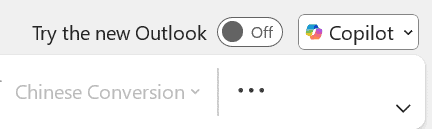
The new Outlook is available to all users on Windows 10 and later. Switching is as simple as toggling “Try the new Outlook” within the app.

Image: Microsoft

Microsoft says the rollout is gradual, giving users time to adjust, but stresses that the modern client is the future of Outlook on Windows

How to Unhide Games on Steam in 4 Easy Steps

If you’ve hidden a game in your Steam library, you might wonder how to make it visible again. The process is simple and only takes a few clicks. Follow the steps below to restore hidden games.

How to Unhide Games on Steam?

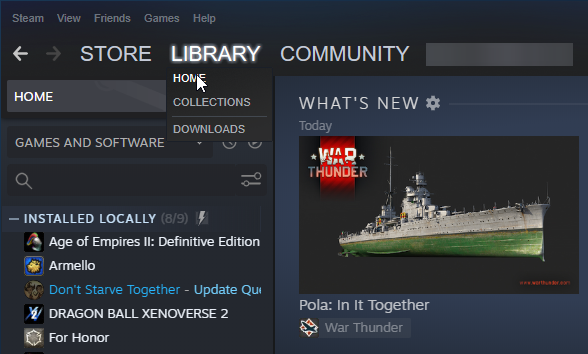
1. Open Steam Library

Start by launching the Steam client on your PC to access your games.

  1. Open the Steam app.
  2. Click on Library from the top menu.

If you’re just starting with Steam, you may also want to know how to redeem a code on Steam to activate new games.

Running Steam in Big Picture Mode? Switch back to the desktop client before managing hidden titles by following this guide on how to exit Big Picture Mode on Steam.

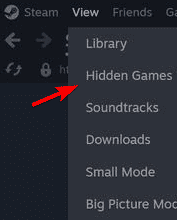
2. Access Hidden Games

Now you need to locate the section where hidden games are stored.

  1. In the left sidebar, click the drop-down menu above your game list.
  2. Select Hidden to display games you’ve previously hidden.

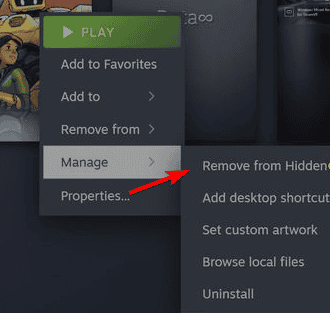
3. Unhide a Game

Once you’ve found your hidden titles, remove them from the hidden list.

  1. Right-click on the game you want to unhide.
  2. Select Manage > Remove from Hidden.
  3. The game will return to your main library list.

4. Check Collections (Optional)

Finally, make sure your game appears in the right place within your library.

  1. Go to your Collections tab if you use it for organization.
  2. Add the unhidden game to your desired category.

If you’re also reorganizing your account, you can see how to change your Steam account name to personalize your profile.

Another way to organize your library is by letting family members or friends play your titles. See how to share games on Steam for detailed instructions on enabling Family Sharing.

Prefer to control your visibility while organizing your library? Learn how to appear offline on Steam to hide your status from friends.

FAQs

Why can’t I see my hidden games?

You must enable the Hidden filter in your library to display them.

Will unhiding a game reinstall it?

No. It simply restores the title to your visible library list.

Can I hide and unhide games multiple times?

Yes. There are no limits; you can toggle hidden status anytime.

Does unhiding affect my saved data?

No. Your progress, achievements, and settings remain intact.

Conclusion

Unhiding a Steam game only takes a few steps and doesn’t affect your save data or installations. You can toggle hidden status anytime to keep your library organized. For more account management tips, check out how to change your Steam region.

You can also check this guide on Steam password reset issues to fix cases where the platform will not let you change your account password.

How to Change Your Steam Region in Easy Steps

Moving to a new country or just curious about different Steam store prices? Changing your Steam region is possible, but you’ll need to follow a few rules. Here’s how you can do it safely without running into account issues.

How to Change Region on Steam?

1. Check When You Can Change

Before you start, make sure you actually qualify for a region change.

  1. Steam allows region changes only when you are physically in the new country.
  2. Your payment method must match the new region (local billing address or card).
  3. Steam may limit how often you can switch.

2. Open Steam Settings

Next, open your Steam client and head into the settings menu.

  1. Launch the Steam app on your PC.
  2. Click on Steam in the top-left corner.
  3. Go to Settings > Store & Purchase.

Using Steam in Big Picture Mode? Switch back to the desktop view before changing store settings by following this guide on how to exit Big Picture Mode on Steam.

While managing your store or account settings, you might also want to know your unique Steam identifier. Learn how to find your Steam ID easily using this quick guide.

3. Update Country in Store

Now, update your store country to match your current location.

  1. Under Store Country, click Update store country.
  2. Steam will detect your current location automatically.
  3. Confirm the country and enter a valid local payment method.

If you’re here because you’re dealing with other account changes, you might also want to learn how to change your Steam account name.

You can also set up Family Library Sharing to let trusted people access your titles; see how to share games on Steam for step by step instructions.

4. Make a Purchase to Finalize

To lock in the change, Steam requires a local purchase.

  1. Steam usually requires you to make a purchase using a payment option from that country.
  2. Once the transaction is complete, your store region updates.

5. Use Wallet Codes (Alternative)

If you don’t have a card from the new country, try wallet codes.

  1. If you don’t have a local card, you can redeem a Steam Wallet code in the new region.
  2. The wallet currency must match the target country.

Need help with this step? Here’s a quick guide on how to redeem a code on Steam.

Important: Steam may block or flag accounts that change regions with VPNs or mismatched payment details. Only change your region if you have genuinely relocated.

FAQs

Can I change my Steam region with a VPN?

No. Steam detects mismatched IPs and payment methods, which can lead to account restrictions.

How often can I change my Steam store country?

Steam does not allow frequent changes. It may require support approval if abused.

What if I moved permanently?

Provide a local billing method or Steam Wallet code from the new country to update successfully.

Conclusion

Changing your Steam region isn’t hard, but it does require the right conditions. As long as you’re in the new country and have a matching payment method, the process is straightforward. Stick to the official steps, and you’ll unlock the correct regional store without risking your account.

And if you ever change your mind about a purchase after switching countries, you can also check out this guide on how to return a game on Steam.

If you also want to better organize your library, here’s how to unhide games on Steam with just a few clicks.

Chrome and Edge Will Soon Use Windows 11’s GPU Power for Video Calls

Google is adding a new feature in Chrome that lets the browser use “D3D12 video encoding” on Windows 11. In simple terms, this means Chrome (and Microsoft Edge, since it’s also based on Chromium) will soon handle video calls and screen sharing with improved performance.

Right now, Chrome mostly relies on your computer’s CPU for video calls or sharing your screen. With D3D12, that heavy lifting shifts to the GPU, the same chip that powers games and graphics. This makes video calls and sharing smoother, uses less power, and can even improve video and audio quality.

D3D12 Video Encoding Brings Faster Video Calls

D3D12 video encoding has actually been in development for the last two years. Now, Google is making it easier for users to try by adding a new flag in Chrome’s early release versions. This flag will soon appear in Chrome Canary, allowing anyone to test the new feature before it rolls out to everyone.

Here’s what the new “D3D12 video encoder” flag does:

  • Enables D3D12 video encoding
  • Falls back to the older Media Foundation video encoder if D3D12 isn’t supported or fails to start

How D3D12 Video Encoding Works

For everyday users, this means:

  • Smoother Google Meet, Teams, or Zoom calls in the browser
  • Better battery life during long meetings on laptops
  • Less lag and sharper video when sharing your screen

Chrome and Edge will automatically try to use D3D12 encoding if your PC supports it, and will switch to the older system if not. It’s being tested now and should roll out more widely once graphics card makers improve support in their drivers.

This update might sound technical, but the idea is simple: make video calls in Chrome and Edge smoother, more reliable, and less demanding on your computer. Over time, users should notice better performance and longer battery life during meetings.

That’s not all. Google will use prefetching in Chrome to load bookmarks and the New Tab page more quickly. The company is also making incognito mode harder for websites to track.

Additionally, Chrome could use Google Gemini AI to extract the checkout amount for BNPL payments.

How to Change Account Name on Steam (Quick Profile Fix)

If you’re searching for how to change account name on Steam, remember that your Account Name (login ID) is permanent. However, you can easily update your Profile Name, which is what other players see.

How do I change my Steam account name?

1. Log In to Steam

  1. Open the Steam client or go to Steam in a browser.
  2. Enter your account credentials.

2. Access Your Profile

  1. Click your username at the top-right corner.
  2. Select View my profile.

3. Edit and Save Profile Name

  1. Click the Edit Profile button.
     
  2. Under General, find the Profile Name field.
  3. Enter your new display name.
  4. Scroll down and click Save.

You can also customize your appearance further by following this guide on how to change your Steam profile picture.

Using Steam on a TV interface and cannot find profile settings? Exit Big Picture Mode to return to the desktop client by following this guide on how to exit Big Picture Mode on Steam.

Key Limitations

  • Your Steam Account Name (login ID) cannot be changed once created.
  • You can update your Profile Name as often as you want.
  • Changing your profile name does not affect your games, progress, or friends.

FAQs

Can I change my Steam login ID?

No. The Account Name you created at signup is permanent.

How often can I change my profile name?

There’s no limit, as you can change it anytime.

Will changing my profile name affect my saved games?

No. Your games, achievements, and friends list stay linked to your account.

Can I hide my real name on Steam?

Yes. Just use a Profile Name that doesn’t reveal personal details.

Conclusion

You cannot change your Steam Account Name, but updating your Profile Name is quick and unlimited. This allows you to refresh your identity on Steam without losing access to your account or games.

For more Steam tips, see how to return a game on Steam or redeem a code on Steam.

If you’ve moved countries or need different store pricing, here’s how to change your Steam region safely and correctly.

You can also manage your library visibility, and here’s how to unhide games on Steam in a few simple steps.

Consumer Reports’ open letter to Microsoft CEO demands extension of Windows 10 support deadline

If you’re frustrated by the fact that Microsoft is killing off Windows 10, let me tell you that there are many who feel the same. One of the names in that list is an American nonprofit organization, Consumer Reports, which has now stepped in, saying the October 14, 2025, deadline will leave millions of users with no protection against new threats.

In a letter sent to CEO Satya Nadella, the group argued that nearly half of all PC users worldwide still depend on Windows 10. Of those, up to 400 million devices cannot be upgraded to Windows 11 due to hardware restrictions. Consumer Reports says this hard stop is unfair and puts consumers at risk.

The letter also blasts Microsoft’s paid extension model, which charges $30 for only one year of extra protection. Consumer Reports called this “hypocritical,” pointing out that the company constantly advises users to stay updated while simultaneously charging for basic security as an additional cost.

While Microsoft offers an Extended Security Updates program, the group argues that this is not enough. Without a broader extension, many consumers will either pay more or use unsupported devices.

For now, Microsoft hasn’t addressed the demands sought by Consumer Reports. We’ll update this piece if we hear anything from the company.

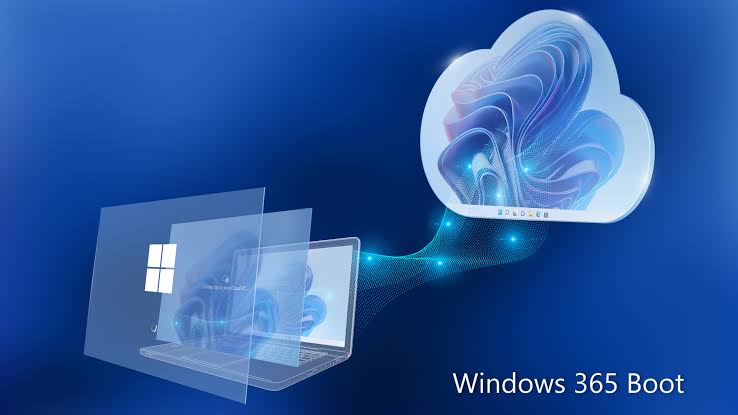
Microsoft updates Windows 365 Boot with connection center and disaster recovery

Microsoft has announced the general availability of new features for Windows 365 Boot, making it easier for users to connect to their Cloud PCs directly from any Windows 11 device. The service, widely praised for simplicity, now delivers smoother login experiences, advanced troubleshooting, and disaster recovery support.

One of the most notable additions from this update is the integration of Windows 365 Connection Center at logon. Users managing multiple Cloud PCs can now select their preferred PC and take actions such as restart, troubleshoot, or manage settings without leaving the login process.

MultiCPC1
Image: Microsoft

Microsoft has also introduced enhanced diagnostics. If login errors occur, users can instantly jump into the Connection Center to restart or check the status of their Cloud PC. This direct pathway reduces downtime, allowing employees to return to work faster without waiting for IT intervention.

Error1
Image: Microsoft

The update also brings built-in cross-region disaster recovery. With the proper license, organizations can automatically failover to a backup Cloud PC hosted in another region during an outage. Microsoft said this feature is designed to maintain productivity and business continuity even if a primary data center experiences disruption.

ConnectingWindowsBlur
Image: Microsoft

Besides resilience and troubleshooting, Microsoft has improved connection logic to cut login delays and disconnections. Users also gain the ability to adjust display settings for Windows 365 Boot directly from the Windows 11 Settings app, offering more flexibility for multi-monitor setups.

MultiCPC-WithActions
Image: Microsoft
Picture5
Image: Microsoft

The new features require Windows 11 Pro or Enterprise endpoints, a Windows 365 license, and Intune administrator rights. Microsoft confirmed that the rollout of the Windows App version 2.0.704.0 has already begun and is expected to reach all users within two months.

Microsoft Invests $30 Billion in UK’s AI Push Backed by PM Starmer

Microsoft has announced $30 billion in investment to expand its artificial intelligence presence in the United Kingdom. The tech giant said the move reflects its confidence in Britain’s role as a global leader in science, technology, and responsible innovation.

The company highlighted that more than one million people in the UK have already been trained in AI skills through Microsoft programs. It also pointed to its research hubs in Cambridge and London as proof of its long-term commitment to the country’s innovation ecosystem.

Microsoft said its decision was enabled by recent government efforts to reform planning rules, expand electricity capacity, and build a more stable regulatory framework. These changes, the company stressed, provide businesses with the clarity and predictability needed to make major AI investments.

Microsoft stated:

For AI to fully realize its potential, businesses need clarity and predictability in how they can deploy their investments, and people need confidence that these technologies are being developed and deployed responsibly.

Prime Minister Keir Starmer welcomed Microsoft’s commitment, calling it a vote of confidence in the UK economy.

Britain has the talent, the research strength, and the ambition to lead the world in artificial intelligence. By working alongside trusted partners like Microsoft, we can deliver new jobs, stronger growth, and a more innovative economy.

skate. Launches in Early Access Today: Check Release Time, Minimum PC Requirements, Supported Platforms & More

EA has officially opened the doors for skate. Early Access today (September 16, 2025). Meaning, you can now dive into San Vansterdam’s open playground two years before the game’s full launch.

The earky access gives fans a chance to explore the city, try multiplayer skating, and experience new content updates as they roll out regularly.

skate. is designed to keep friends connected, no matter their platform. From day one, the game offers both cross-play and cross-progression. That means you can skate with players on other systems and keep your progress synced everywhere you log in. Whether you switch from console to PC, your achievements and unlocks follow you seamlessly.

The Early Access version of skate. is available on a wide range of systems. Supported platforms include:

  • PlayStation 4 and 5
  • Xbox One and Xbox Series X|S
  • PC

Sadly, mobile platforms are not supported at launch.

skate. Minimum PC requirements

EA has also shared the minimum PC requirements needed for Early Access:

  • OS: Windows 10 or 11 (DirectX 12)
  • Processor: Intel Core i5 6600K / AMD Ryzen 3 3100
  • Graphics: Nvidia GTX 1050 Ti / AMD RX 460
  • VRAM: 4GB
  • RAM: 8GB
  • Storage: 25GB free space
  • Controller: Required (DualShock, DualSense, or Xbox controller)

Keyboard and mouse controls are not supported during Early Access. These requirements target 1080p, 30fps at low settings. Advanced upscaling tools like FSR and XeSS are already planned, while DLSS support will arrive later.

skate. Early Access Release Time

The release times are varied by region. For example, the Early Access launches at 10 AM PDT on the West Coast, 1 PM EDT on the East Coast, 5 PM GMT, 6 PM CET, and 10:30 PM IST. For players in Japan and Australia, the launch will kick off in the early hours of September 17, at 2 AM JST and 4 AM AEDT, respectively.

EA Sports FC 26 Web App Release Date, Time, and All the Details

EA SPORTS FC 26 fans can get a head start on building their Ultimate Team with the new Web App releasing on Wednesday, September 17.

The EA FC 26 Web App release time is expected to be around 6 PM BST / 1 PM EDT / 10 AM PDT, giving players early access two days before the full game release.

The Web App will also allow players to manage squads, complete objectives, and plan transfers before diving into the full EA FC 26 experience on consoles and PC. Players should expect heavy server traffic at launch, similar to previous years, which may cause login delays. Patience will pay off as access opens fully throughout the day.

Using the EA FC 26 Web App, players can:

  • Manage Football Ultimate Team squads remotely.
  • Access player transfers and market items.
  • Prepare for Early Access content and daily events.

For those who pre-ordered the Ultimate Edition, this is a perfect opportunity to plan your team, claim FC Points, and unlock exclusive content ahead of the game’s official launch.

EA FC 26 worldwide release is scheduled for September 26 on consoles and September 25 on PC, with Early Access starting September 19 for Ultimate Edition owners.

The FC 26 Web App provides a convenient way to get started early, ensuring players can hit the ground running on launch day.

Article feature image source: EA Sports

Microsoft releases Windows 11 Preview Build 22631.5984 and Windows 10 Preview Build 19045.6390 with fixes

Microsoft has rolled out new cumulative updates for Windows 11 and Windows 10, bringing important fixes and improvements for users in the Release Preview Channel. These updates focus on enchancing stability, address bugs, and improve overall system performance.

For Windows 11, version 23H2, Build 22631.5984 (KB5065790) resolves multiple issues. The update fixes authentication problems that caused the sign-in screen to stop responding after entering a SIM PIN during mobile broadband sign-in. Profiles for select mobile operators have also been updated via the Country and Operator Settings Asset (COSA). Last week, the same KB build was pushed with Build 22631.5982.

The update also fixes display issues during Remote Desktop Protocol (RDP) sessions with multiple monitors are addressed, preventing unexpected shutdowns when disconnecting from docking stations. Input problems in the Chinese Input Method Editor (IME) have been fixed, including instances where characters appeared as empty boxes in apps like Connection Manager Administration Kit. Printer queue crashes for shared printers and the missing description in the McpManagement service are also fixed.

For Windows 10, version 22H2, Build 19045.6390 (KB5066198) brings minor general improvements and fixes that enhance device stability and reliability. Though smaller in scale, this update continues Microsoft’s efforts to refine the Windows 10 experience for insiders. For tge uninitiated, Mocrosoft rolled out similar update last week with same KB number, but with Build 19045.6388.

Both updates are now available for users in the Release Preview Channel. Microsoft urges users to install these updates and enjoy improvements and smoother performance on Windows 11 and Windows 10 PCs.

Google tests new desktop Search app for Windows featuring AI Mode and Lens

It’s no secret that Google experiments a lot around its apps and services to offer the best experience it can. Now, the tech giant is taking search to Windows in a new way.

Google, in its The Keyword blogpost, announced the launch of a test version of its search app for Windows PCs. And it’s currently available for personal accounts via Google Search Labs.

The app brings more than just a typical search bar. Once installed, a floating search bar appears on your desktop, which you can drag anywhere and resize to fit your workflow. You can simply hit Alt + Space to minimize or open the app instantly.

Google’s new Windows app isn’t limited to the web. You can search your local files, Google Drive, and the web, all from one place. What’s interesting is that the app also includes Lens, Google’s visual search tool. It lets you select images on your screen, translate text, or even highlight a math problem in homework and use AI Mode to find answers instantly.

Image: Google

Well, switching between result types is equally easy. As on the web version, you can toggle between AI Mode, Images, Shopping, Videos, and standard search results. You can further switch between light and dark mode for a more comfortable visual experience. If you’ve thought of Mac’s Spotlight, well it’s kindof… but Google’s approach integrates AI and visual search from the start.

Image: Google

Google has built in customization options as well. You can enable or disable AI Mode entirely and even change the shortcut for opening the app by going to your profile picture and selecting Configurations. The app’s Chrome-like installation makes setup simple, requiring a sign-in to your Google account.

As of now, this experiment is limited to English language and U.S. users, running on Windows 10 or newer. If you are eligible, you can enable it on Google Search Labs to try it out today itself.

Microsoft confirms WMIC removal in Windows 11 25H2 to boost security and block malware

Late last month, Microsoft released Windows 11 version 25H2, and removed legacy tool like the Windows Management Instrumentation Command-line (WMIC) utility. These changes are part of Microsoft’s ongoing efforts to streamline the operating system and enhance security.

Now, in a recent Microsoft 365 Message Center update spotted by folks at Bleeping Computer, the company has urged admins to transition from using WMIC to more modern tools, confirming its removal.

To be precise, Microsoft recommends using PowerShell and other alternative utilities for tasks previously handled by WMIC. With this move, Microsoft is looking to reduce the attack surface and improve system integrity. You can check the WMIC’s deprecation timeline published by Microsoft below.

Image: Microsoft

Now, you may ask: why is WMIC being removed? Well, WMIC has long been considered a “living-off-the-land binary” (LOLBIN), a Microsoft-signed executable that threat actors exploit for various malicious activities during attacks.

For example, ransomware attakers commonly use the WMIC command to delete Shadow Volume Copies, ensuring that victims can’t use them to recover encrypted data. That’s not all; Malware has also been observed using WMIC to add exclusions to Microsoft Defender, evading detection when launched.

By removing WMIC, Microsoft aims to thwart these attack tactics and bolster overall security. The tool’s removal will make it more challenging for malicious actors to execute certain commands, thereby enhancing the system’s defense mechanisms.