Subtitle Software: 10 Best to Use in 2026

When you’re editing your videos, you may also consider adding some subtitles to them either. The subtitles will make your videos more personalized or simply better at conveying their meaning.

The market is filled with subtitle tools that are great for helping you add subtitles to your videos and also for editing them afterward.

You will also be able to translate your favorite movies with the help of these programs.

We gathered five of the best subtitle editing software that will be able to help you add and edit subtitles to your favorite videos. Check them out and decide.

What is the best subtitle editing software for Windows 10?

Adobe Premiere Pro – Great tool for professionals
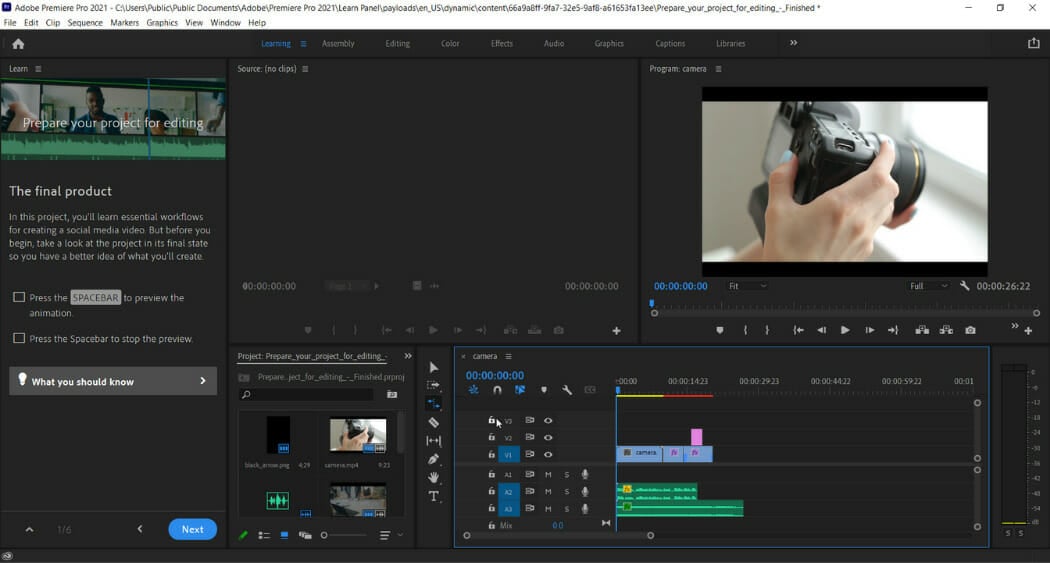
Our top recommendation for adding and editing subtitles in a video is Adobe Premiere Pro. Getting on the first spot in this list is no surprise for us, it is of the best video editing software overall.

Premiere Pro comes with a vast toolset for editing captions and text along with a couple of export and import features.

The import feature allows you to view a caption and edit fonts, colors, and backgrounds in real-time. The supported subtitle formats being .scc, .mcc, .srt, .xml and .stl which are the most widely used.

Adobe Premiere Pro 15.4 includes Speech to Text, an integrated, automated, and quick workflow for adding and modifying captions, native support for Apple M1 devices, and text stylizing and editing capabilities.

Speech to Text, powered by Adobe Sensei, converts transcripts into caption elements on the timeline that follow the pace of your dialog. You can use broadcast captioning settings or build your own if necessary.

With the caption tool, you can edit, create and export files into any format foreign language lines are also easy to implement due to the non-linear video editing format it has.

Premiere Pro also gives you the freedom to create subtitle files from scratch, all you need is the text and practice of syncing the sound with captions.

Adobe Premiere Pro

Create awesome subtitles and captions in any shape or form to suit your needs with Adobe Premiere Pro
Free trial View website

Movavi Video Converter – Best converter with subtitling
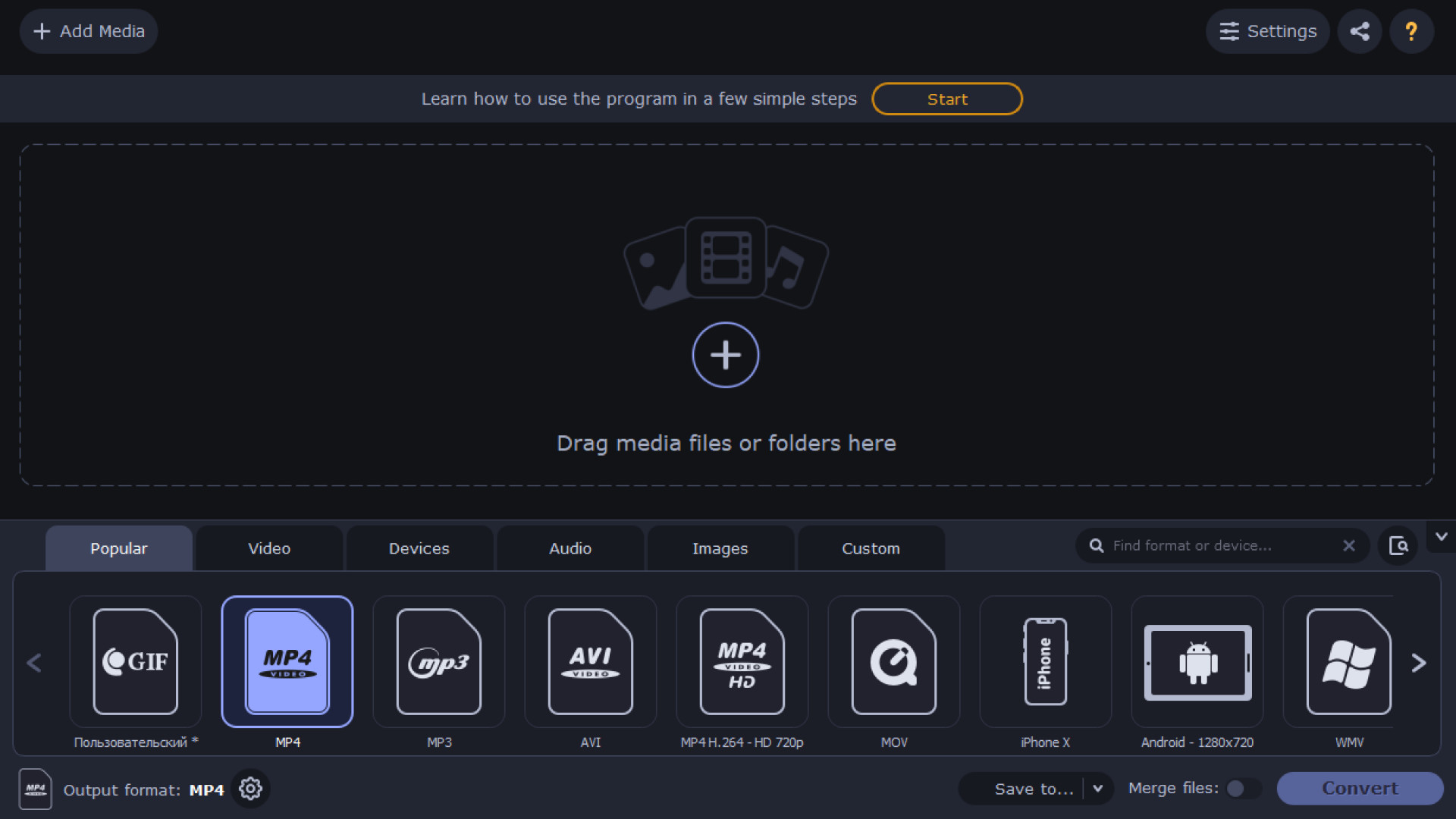
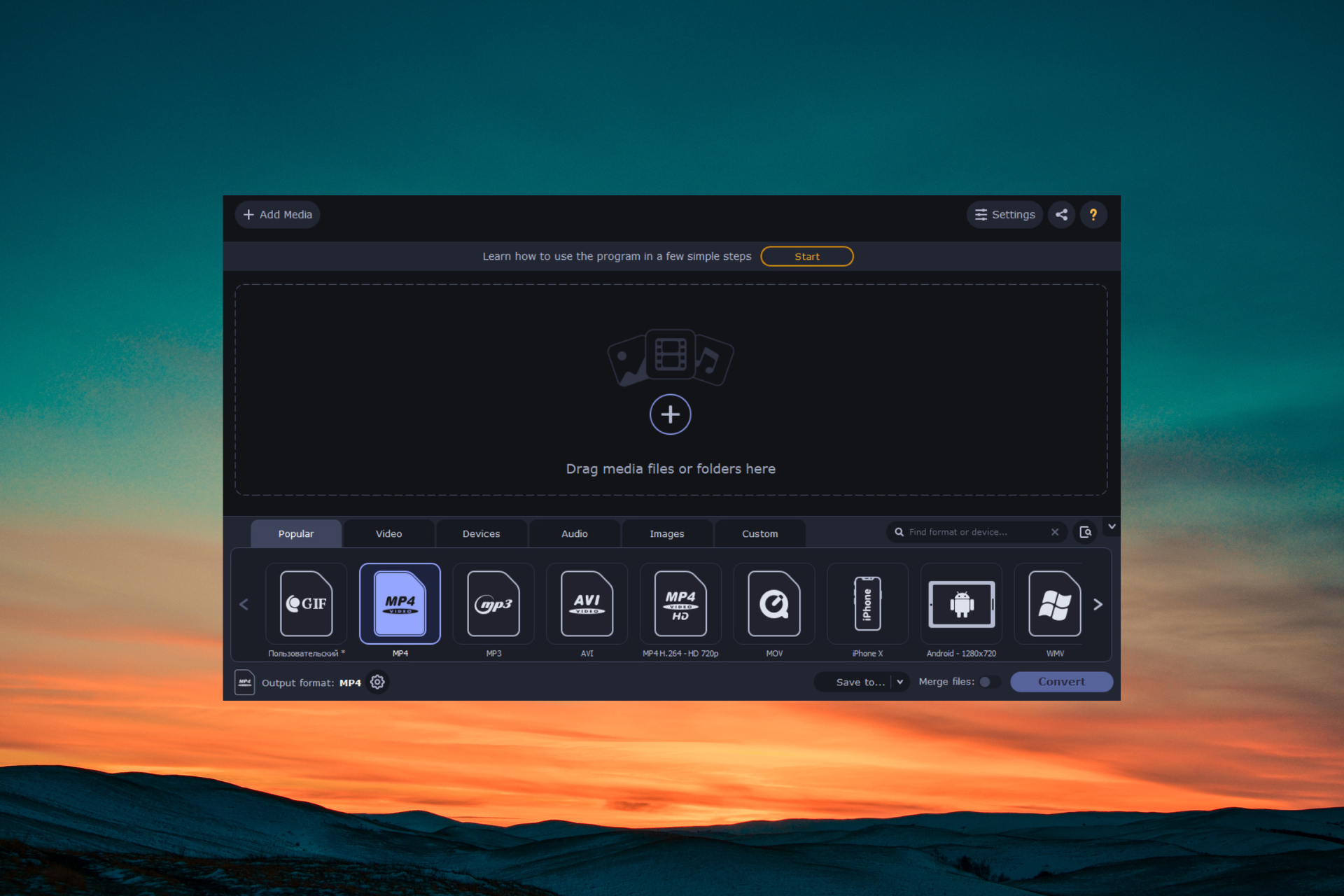
Movavi Video Converter is the ultimate tool in terms of video conversion and it’s so easy to use that you don’t even have to bother with formats.

Why? Simple, because the tool also comes with specific conversions for certain devices or social networks.

For instance, you can convert your video directly to fit the iPhone requirements or Facebook or Instagram, so you don’t need to worry about what you need to do in order to get the right resolution or format.

As for subtitles, this app automatically identifies the movie and gets the right subtitle for your language so you won’t even bother with editing it.

Of course, you can still edit its position, the encoding, and the sync timing although you will rarely need to touch those features.

Movavi Video Converter can use the hardware acceleration for NVIDIA NVENC, NVDEC, Intel HD Graphics, and AMD graphics cards and convert your videos with lightning speed.

But that’s only a fraction of what you can use the software for. It comes with easy subtitling tools but also with a pretty advanced video editor.

Yes, not only you can convert it, but you may also crop it, add color filters, normalize audio, and a lot more.

The conversion alone supports over 180 formats which is staggering but you will also notice that you will be able to compress your videos without any quality loss.

Enjoy the free trial version to test all its features or use the online tool for quick conversions on the fly!

Movavi Video Converter

Convert your videos to more than 180 formats and compress your videos without quality loss!
Free trial Visit website

WonderShare Uniconverter – Very easy to use
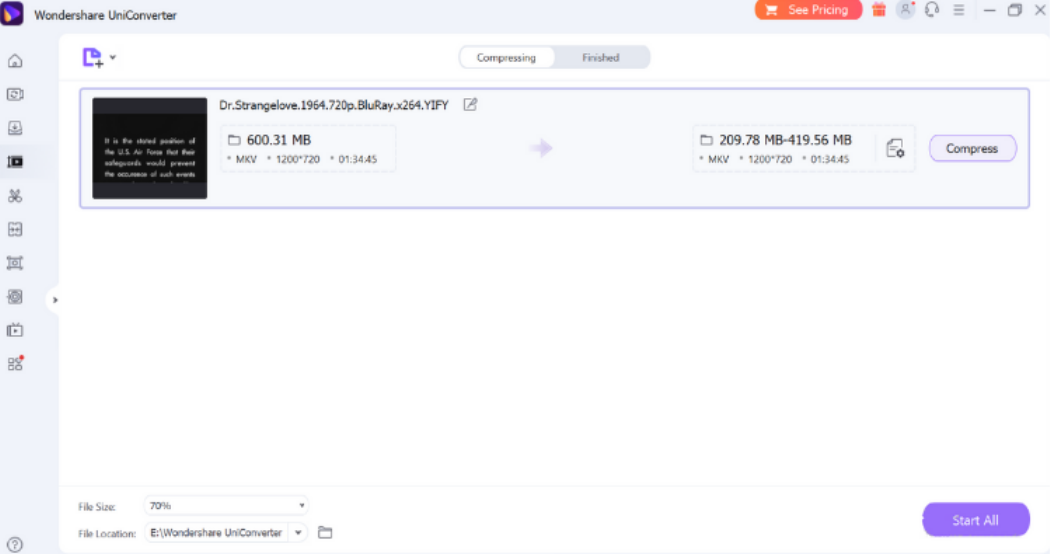
Use WonderShare Uniconverter to edit your videos just the way you like. Make changes to your video entirely with the software’s easy and interactive interface.

In addition, you can also edit and add any subtitles to your videos with ease. The program works perfectly with most video formats, and it allows you to downsize and resample them.

There are two methods to modify your movies with subtitles using WonderShare Uniconverter. Make your own or have them generated for you.

To make a subtitle, go to the Toolbox area and select the Subtitle Editor option, then add the necessary file.

If you want to add subtitles quickly, you may use the Auto-Subtitle Generator function. Its intelligent voice recognition function will convert the audio in the video directly and clearly into words.

After you’ve submitted the subtitle content, you can customize its font, size, color, opacity, position, and make it bold, italics, and underlined.

Some of WonderShare Uniconverter’s key features include:

  • Being able to convert more than 1000 video and audio formats
  • Insane conversion speed, up to 30x faster
  • Being able to convert multiple media files at the same time from different devices
  • It allows you to extract and insert subtitles
  • It allows you to compress and burn your videos into DVDs

WonderShare Uniconverter

Wondershare Uniconverter allows you to edit, create, and export subtitles for your awesome videos with ease.
Check price Visit website

VideoProc Vlogger – Great for video editing

VideoProc Vlogger is a desktop-based video editing program that includes a text editor. To caption the video, just insert the text in the caption/subtitle track.

You may set the time, font, type size, alignment, angle, character space, border, shadow, and other amazing features using the software.

The name implies that it is perfectly suitable for making documentaries for your vlog or long videos and sharing them on YouTube, Vimeo, and other video streaming platforms.

This software also provides more complex options for subtitle editing, which is especially useful if you wish to include burned-in or forced subtitles.

The subtitle stream is burned into the video, so the subtitles become part of the movie and can be watched without the need for subtitle plugins.

As a result, if you want to freely watch videos with subtitles on computers, mobile phones, TVs, and anyplace else while keeping the subtitles correctly and permanently displayed on those devices, this program can assist you.

VideoProc Vlogger

Insert burnt-in subtitles and use special effects to create cinematic films for everyday creativity, special moments, or fun.

VideoPad – Great for social media uploads

VideoPad excels indirect social media uploads due to its user-friendly design and lightweight performance, as well as simple functionalities that allow you to generate a desired short movie.

It is a wonderful option if you are a beginner who wishes to modify your videos but has little experience with video editing. Furthermore, it performs well in terms of adding a professional touch to your movies.

In terms of audio, unfortunately, VideoPad lacks a real-time EQ audio preview.

VideoPad is a well-known video editor that aids in the recording of footage from camcorders (DV camcorder, VHS camcorder, and Webcam).

Many transitions and visual effects have been integrated into the editing program.

You may apply transitions and effects to your video or movie while editing to make it look more professional.

VideoPad Video Editor is an excellent application for coping with video subtitles.

Whether you want to add commentary to your vlog video or generate professional movie subtitles, VideoPad makes it easy. You may also load subtitles from existing files and modify them to exactly match your video.

VideoPad

This tool’s Subtitles function makes it simple to create or edit captions for your video. You may change the position, text size, and color to your preference.

Subtitle Edit – Ideal for subtitle editing
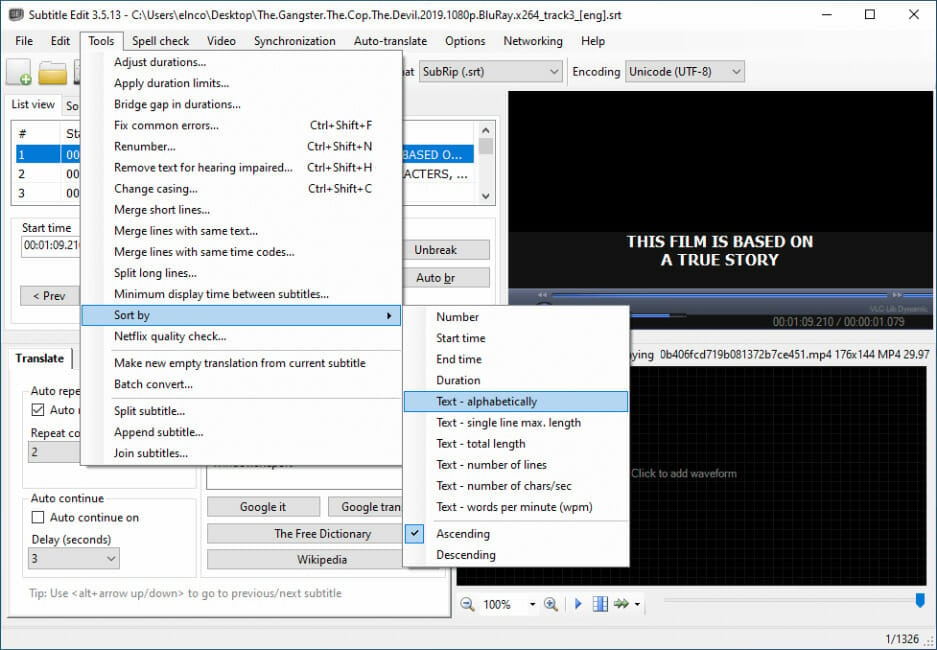
Subtitle Edit is another great easy subtitles synchronizer for Windows 10. It allows you to easily adjust the start line of any subtitle if it’s not synced with the movie.

If you just want to make modifications to the subtitles, this multi-language captions editor is ideal.

Subtitle Edit provides many options for synchronizing subtitles. You can change the timing if you need to show the text earlier or later, and you can sync by matching the start/end scene.

Sync point time codes may be manually inserted, making it simple to use time codes from another subtitle that is already in sync.

You may match one of the initial paragraphs, match one of the end lines, sync, and then all lines should be in sync if you have another subtitle in sync in another language.

Take a look at the best features that come together with this software for editing subtitles:

  • You will be able to create/adjust/sync and translate subtitle lines
  • The program comes with a cool audio visualizer control that is able to display waveform and spectrograms
  • You will be able to visually sync and adjust a subtitle and its start/end position along with speed
  • The software provides auto-translation via Google translate
  • Subtitle Edit 3.5.4 can merge and split subtitles
  • It also comes with a wizard that fixes errors
  • You will be able to also enjoy spell checking via Open Office dictionaries

⇒ Get Subtitle Edit

Subtitle Workshop – Ideal for subtitle conversion
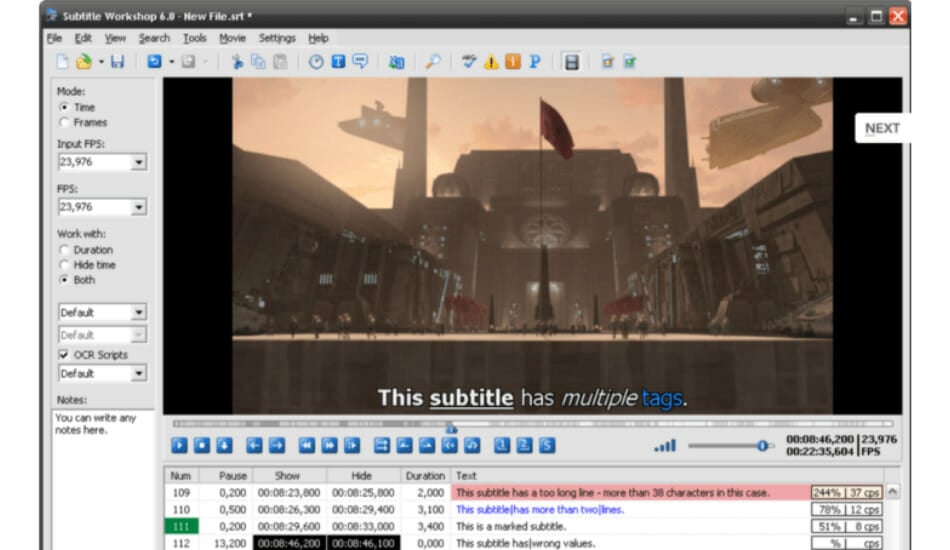
Subtitle Workshop is a free software for creating, editing, and also converting text-based subtitle files. The program is ideal for beginners.

This program is considered to be one of the best free subtitle editing tools out there that come with an extremely easy-to-use interface.

Subtitle Workshop comes with an integrated video player that provides customizable subtitles preview and a full-screen mode.

The software also includes detailed information about the subtitle files including custom data based on user-defined rules.

You can download Subtitle Workshop or visit its website to find out more about this great software that’s also compatible with Windows systems.

Take a look at the best features that are included in the program:

  • It supports converting between creating, opening, editing, and saving more than 60 subtitle formats via the Subtitle API library
  • You can also save subtitles in a custom user-defined file format.
  • The program’s interface is user-friendly, customizable and multi-language
  • You will get a massive set of tools that you can customize and all kinds of functions for automatic timing and manipulation of texts
  • Some of the best tools include automatic durations, spell checking, smart line adjusting, FPS conversion, search and replace and more
  • The software comes with a customizable system for manually or automatically detecting, marking and also fixing all kinds of subtitle errors
  • This program supports style tags and color tags in the subtitle text

⇒ Get Subtitle Workshop

Jubler Subtitle Editor – Great interface

The Jubler Subtitle Editor is a handy tool that is able to edit text-based subtitles into videos with an interactive and colorful interface.

It can be used as a tool to convert, correct, transform or refine existing subtitles. You can also use the software as an authoring program for new subtitles.

The minimum requirements to use the software is the latest version of JRE, MPlayer to view the subtitles, and ASpell to spell-check the subtitles.

The software is written in Java 5.0, and this means that it’s multiplatform. You can check out more of its features, and you can also download Jubler Subtitle Editor from its official website.

Take a look at the most impressive features of Jubler Subtitle Editor:

  • It supports some of the most popular subtitle formats
  • You will also get to preview in real-time or in design time the subtitles
  • The program comes with a spell checker, and it also includes a translation mode
  • Jubler Subtitle Editor comes with various editing styles for your subtitles

⇒ Get Jubler Subtitle Editor

POP Subtitle Editor – Perfect for subtitle creation
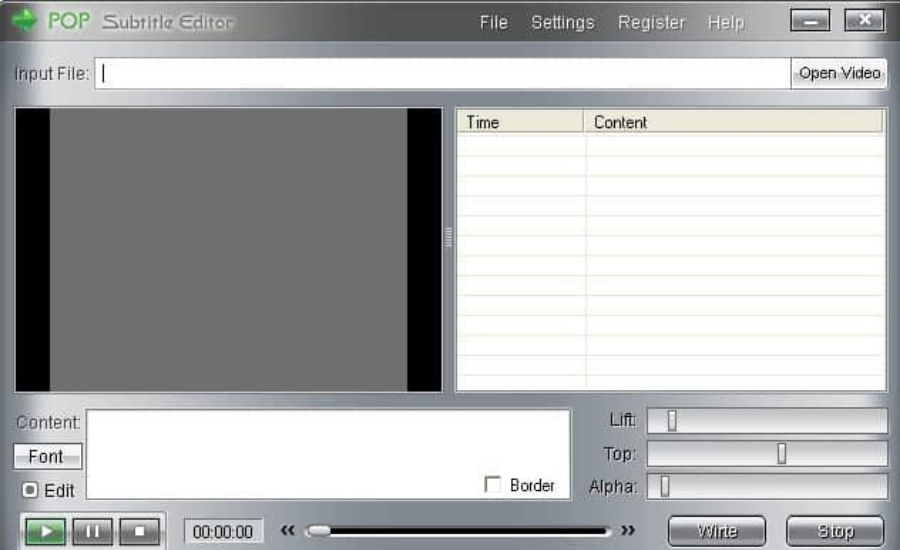
POP Subtitle Editor is a really easy-to-use program that allows you to write and add your very own subtitles to any video file.

You can write your texts while previewing the movie and all you have to do after that is to select both start and end times by using the same function key.

It’s important to note that with this software, subtitles will be always justified to the left margin.

This will be more obvious with longer subtitles that will take up at least a line or two. You will be able to center the whole block of text if that is what you want.

You can download the POP Subtitle Editor 1.0 from the official website and start adding and writing subtitles on your videos.

Check out more impressive features that are packed into this software for editing subtitles:

  • You can customize the font, size, color and also position of your subtitles.
  • You will be able to generate AVI, MPEG or WMV files with just a single click
  • Adding subtitles to your videos will turn out to be the most straightforward task even for beginners with this editor
  • You can easily change and edit the font properties

⇒ Get Pop Subtitle Editor

Aura Video Editor – Good for trimming audio and video
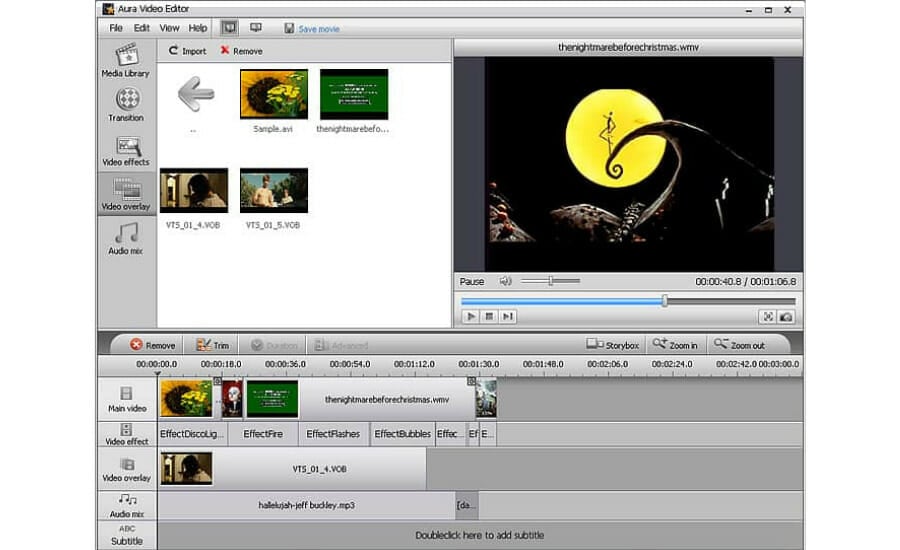
Aura Video Editor is a full-featured and effortless to use video editor that comes with a built-in subtitle editor for managing your subtitles.

The software is really efficient to edit videos, trim audio and video, and also add watermarks and subtitles as well.

You will be able to preview all your edits in real-time without having to render your entire project first. This is one of the best video editing software out there with an abundance of helpful features regarding subtitles.

You can check out the complete detailed list of its functionalities, and you can download Aura Video Editor from the official website.

Take a look at the most impressive features of this tool below:

  • This is a professional video editing software that allows you to create your very own videos
  • You will be able to make a professional looking video with all kinds of effects and transitions
  • It includes a built-in subtitle editor.
  • You can apply various video effects, and you will be able to create
  • The program supports adding all the popular video formats, images and soundtracks as well
  • It comes with a user-friendly interface that will allow you to edit videos with a unique video editing timeline and a story box panel as well.
  • All you have to do is just drag and drop the video files onto the graphical timeline and start editing

⇒ Get Aura Video Editor

Here is the point where our roundup of the five best subtitle editing programs comes to an end. We recommend that you analyze all these tools’ features to decide which software is the best for you.

All five of these programs are compatible with systems running Windows 10. Check them all out and pick your favorite. If you have any other suggestions or questions, drop them in the comments section below.

How to Fix Metamask Not Working Problem

The cryptocurrency market, although currently down, has seen tremendous growth in recent times. More and more people are excited about this decentralized currency market.

If you are interested in cryptocurrencies, then you would know that there are a whole bunch of different cryptocurrencies, each having traits different from the other.

You will also find a wide variety of crypto wallets available on the internet, that help you to keep your cryptocurrencies, safe and secure. Moreover, you can also use them to trade within the app itself.

MetaMask and other open-source crypto and web-based crypto wallets are examples of such open-source crypto and web-based crypto wallets.

All you need to do is simply install the MetaMask extension on Firefox, Chrome, or other supported browser and create an account. Then you are good to store your cryptocurrency.

However, just like every other app or software, MetaMask also has its own set of issues. One of which is MetaMask not working problem.

Although the term “MetaMask not working” doesn’t specify anything, there are a bunch of solutions that we have compiled in this post that you can apply and possibly fix this problem.

What are the key features of MetaMask crypto wallet?

As already mentioned, there is a good variety of crypto wallets you can choose from and use to store your cryptocurrencies in them.

You can also check out our curated list of the best crypto wallets on PC to keep your cryptocurrency safe and secure.

Talking about the MetaMask crypto wallet, let us take a look at some of the key features of this wallet:

  • One of the simplest and cleanest UI on a crypto wallet.
  • Along with cryptocurrencies, you can also store crypto collectibles and NFT arts as well in MetaMask.
  • You do not need to download software to use MetaMask. It is web-based and is available as an extension for compatible browsers.
  • It makes use of Swap technology to allow swapping cryptocurrencies.
  • Transaction fees are decided based on the blockchain network you use.
  • It is an open-source crypto wallet, which gets frequently updated.

What can I do if MetaMask is not working?

1. Restart your browser

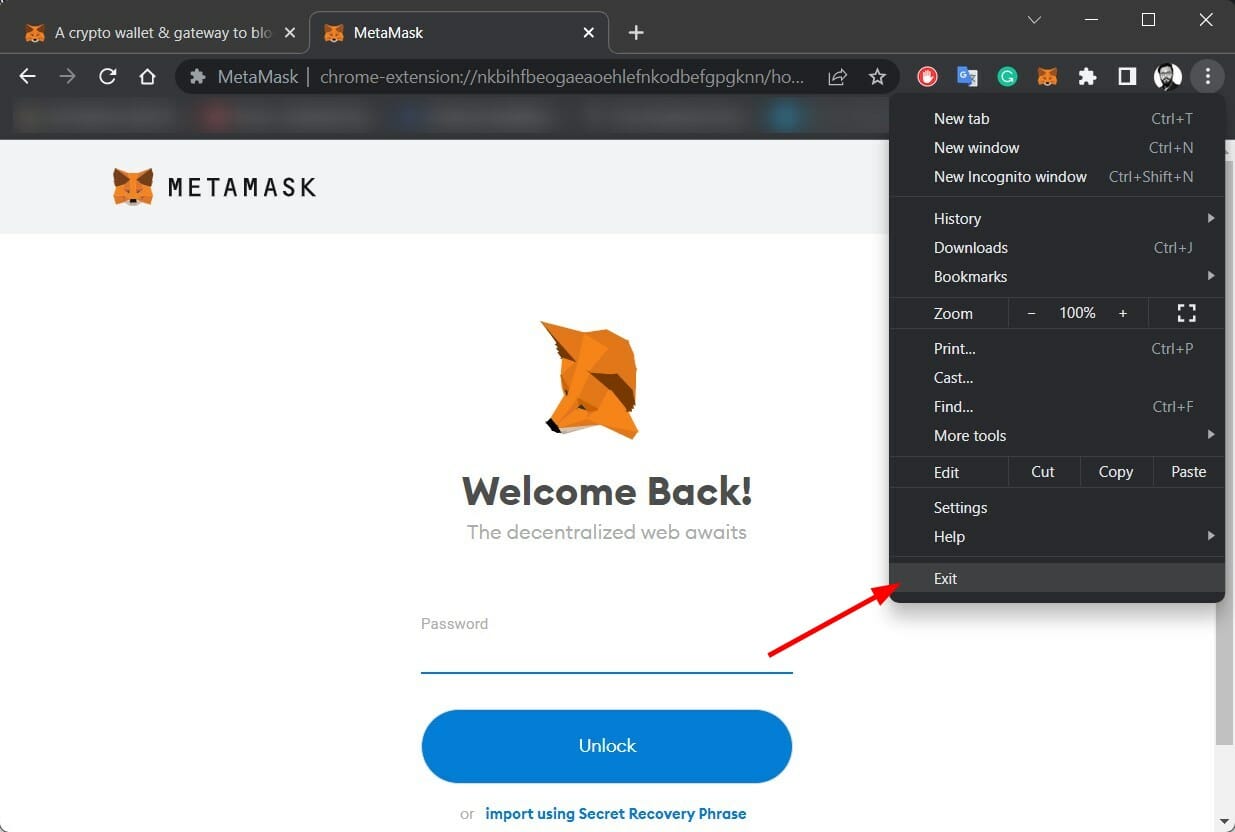
  1. Press the 3-dot menu icon on the browser.
  2. Click on Exit.restart browser
  3. Open the browser back again and see if MetaMask is working or not.

2. Use an alternative browser

In order to fix the MetaMask issue on your PC in a practical way, it’s advised to change your browser to a more compatible one.

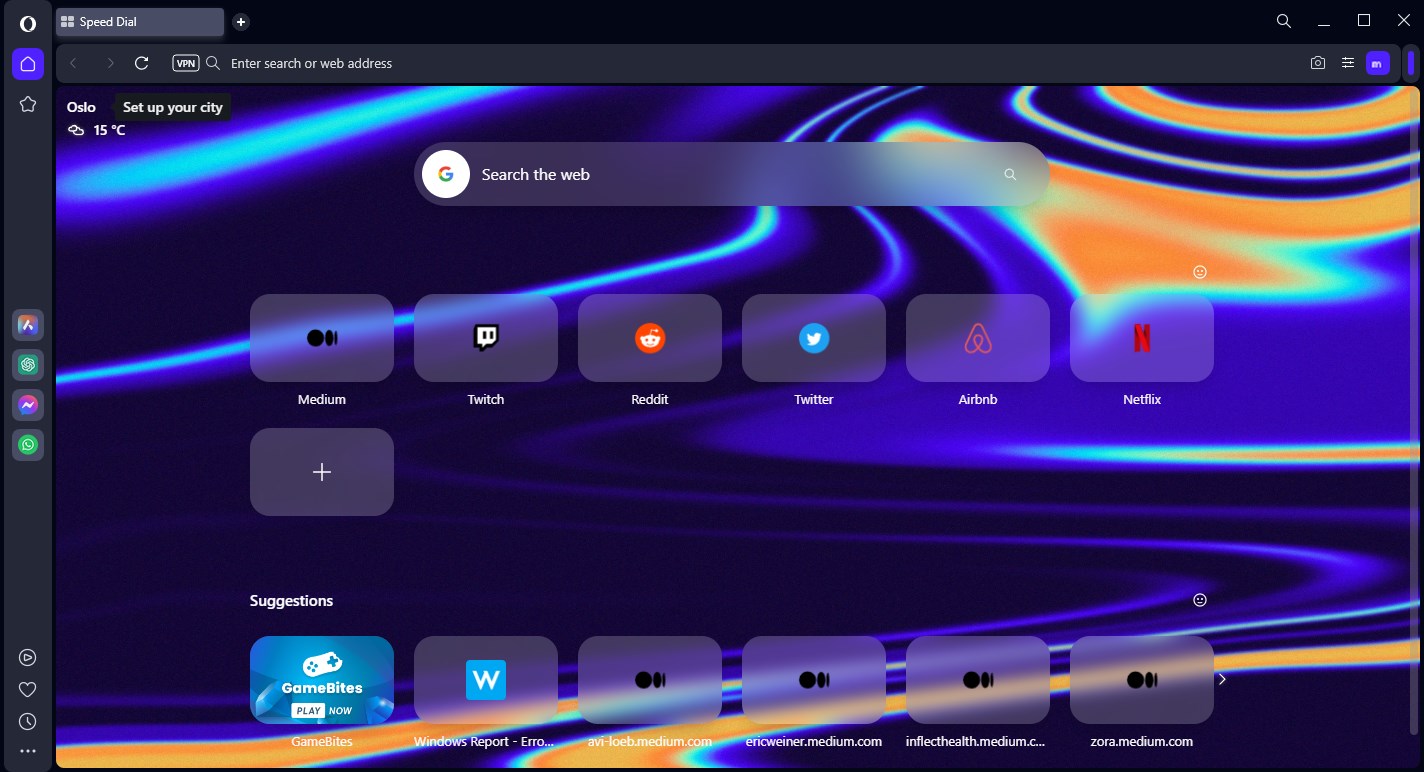
Changing your browser to Opera One can highly benefit you and grant compatibility with many extensions and apps like MetaMask.

This browsing tool is on the market for 25+ years with constant improvements, offering integration options to run services like messaging apps or a built-in crypto wallet.

Opera One

Use one of the best options to make your browsing experience seamless.

3. Restart your computer

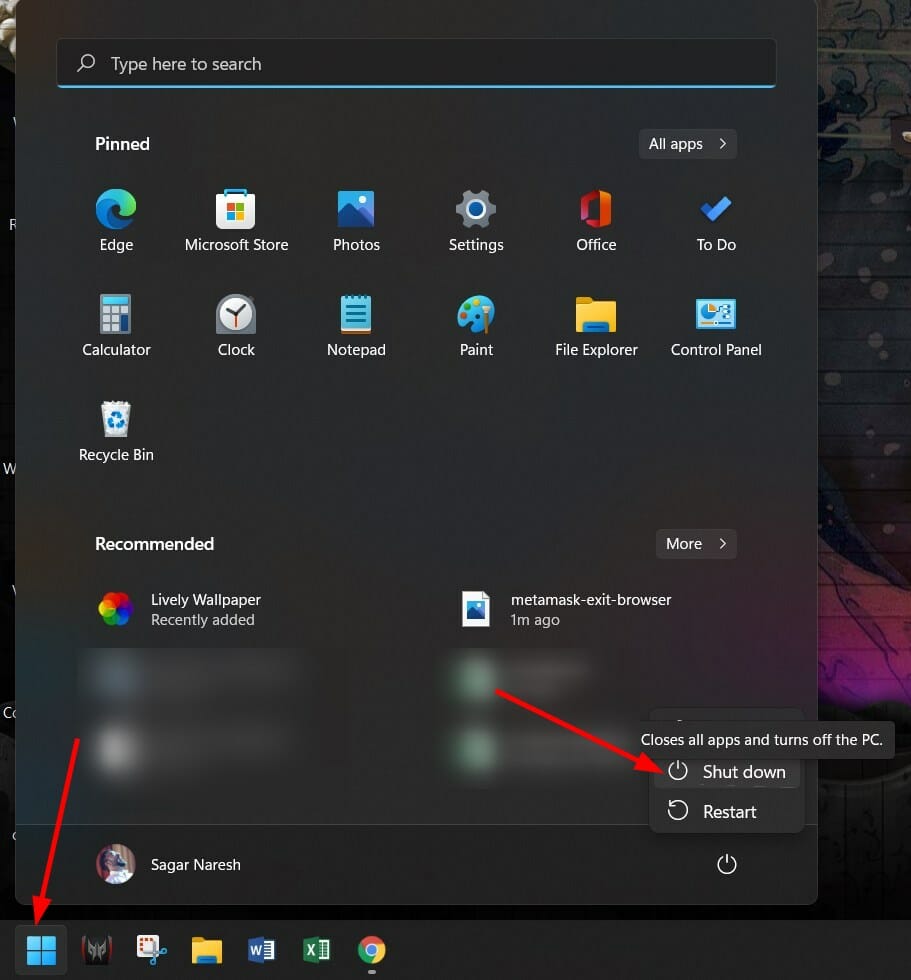
  1. Press the Start menu button.
  2. Click on the Power off button and select Shut down.shut down pc

4. Switch MetaMask network

  1. Open MetaMask on your browser.
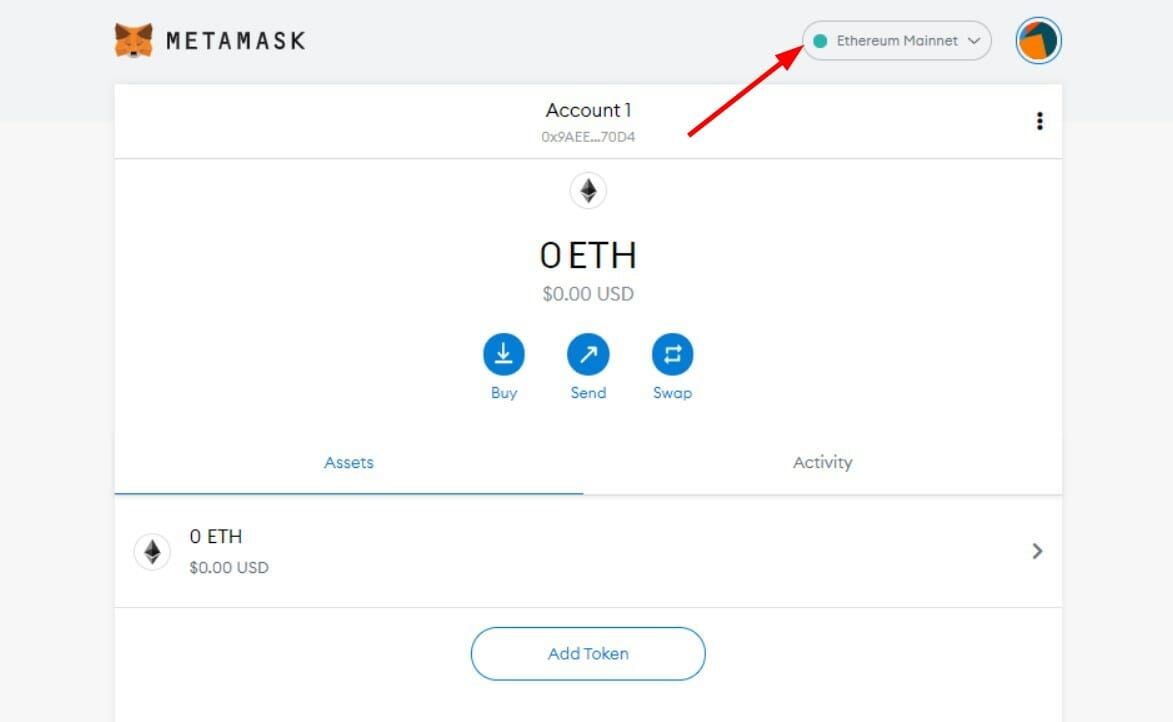
  2. Click on Ethereum Mainnet before the profile icon.select network
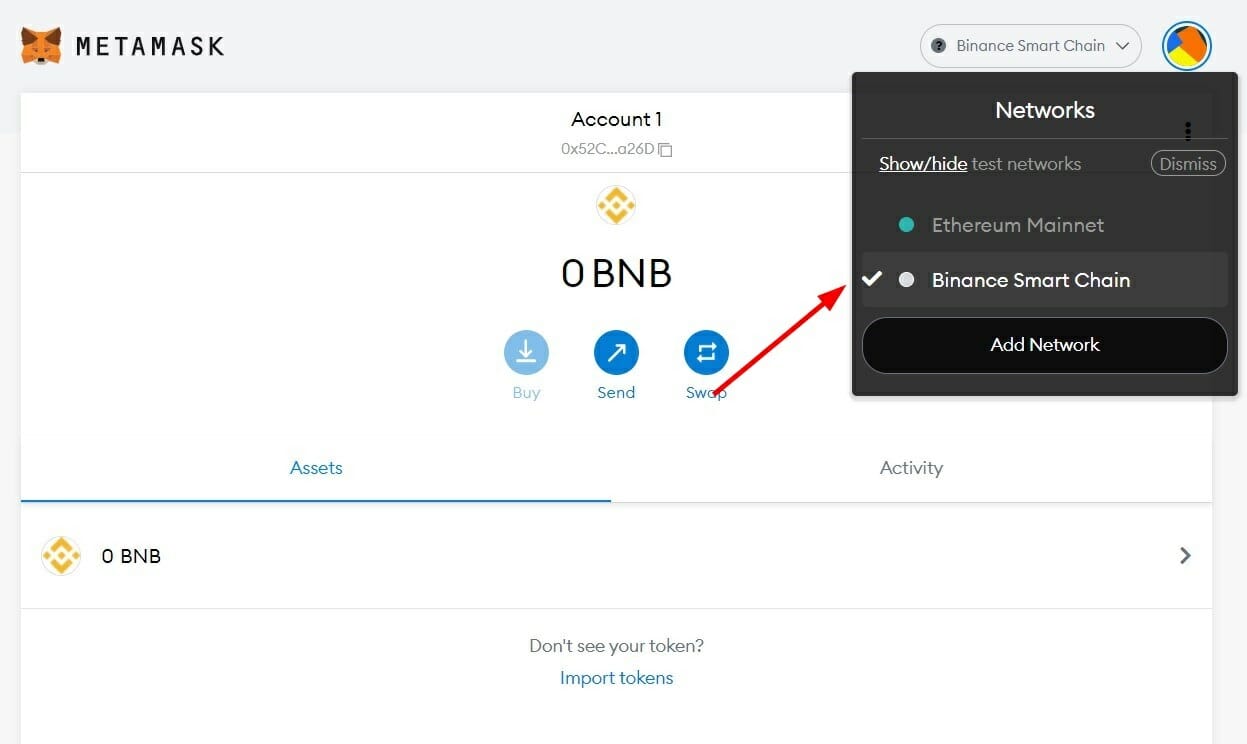
  3. Select a different network from the list.metamask not working change network

5. Update MetaMask extension

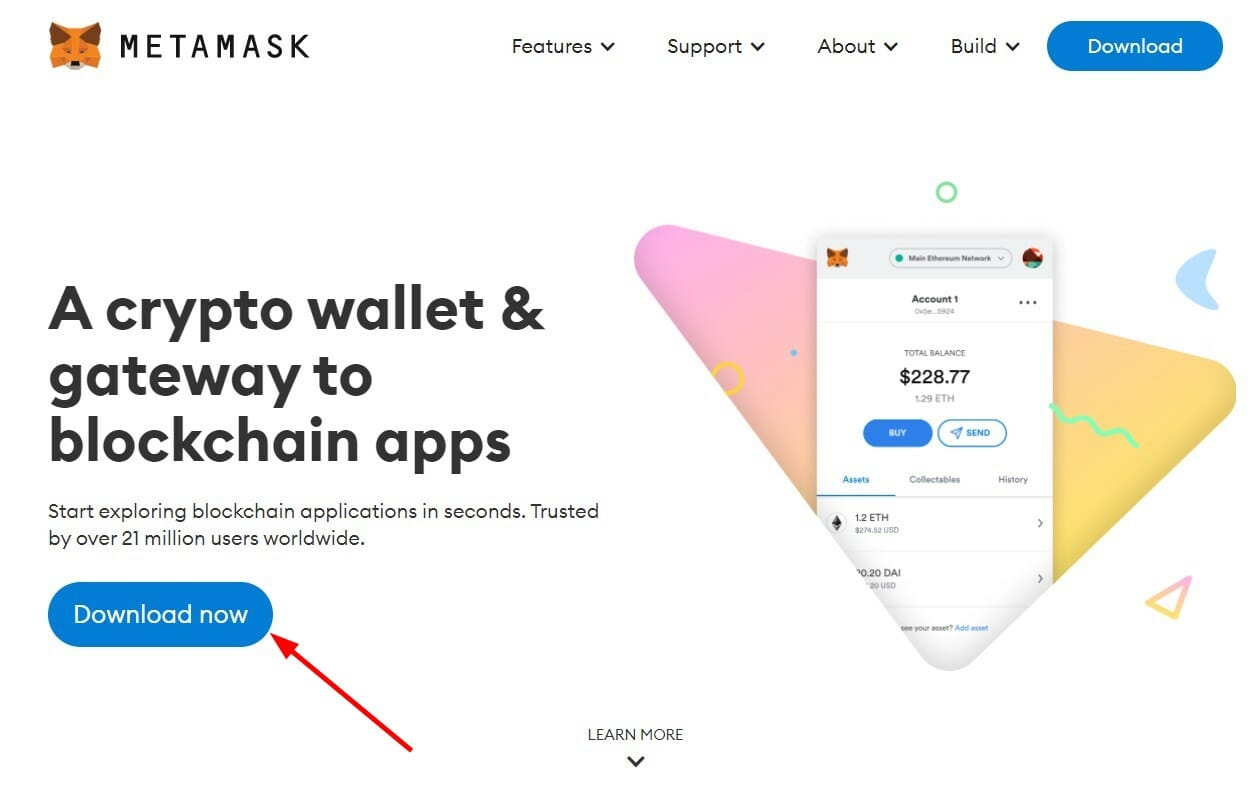
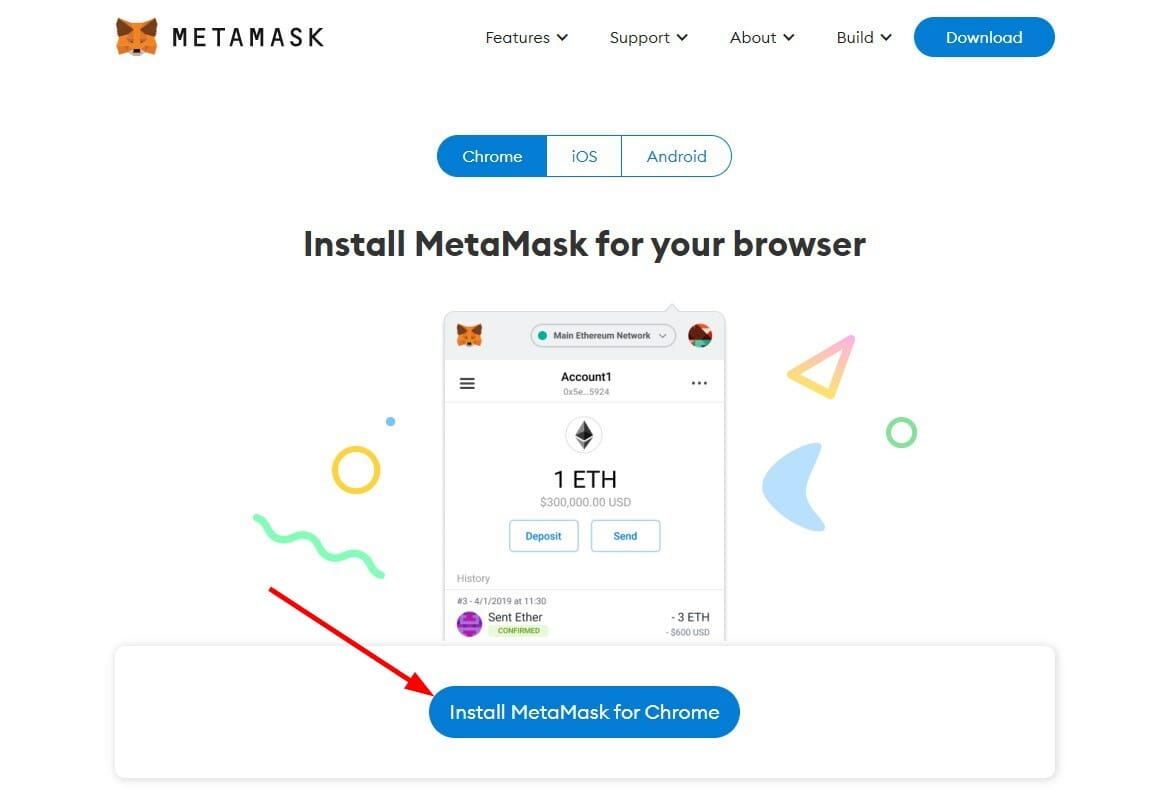
  1. Visit the MetaMask official website.
  2. Click the Download Now button.download metamask
  3. Press the Install MetaMask for Chrome button.metamask not working install
  4. It will redirect you to Chrome Web Store.chrome web store
  5. Under the Additional Information section, cross check the listed version with the version of MetaMask extension installed on your web browser.check metamask version

6. Clear data

  1. Right click anywhere on the MetaMask homescreen web page and select Inspect.metamask not working inspect
  2. Swtich to the Application tab.MetaMask application tab
  3. Click on Storage.MetaMask storage
  4. Select Clear Site Data button.Clear site button MetaMask

7. Check MetaMask server

  1. Visit this website.
  2. Type MetaMask in the search bar and select the appropriate option.metamask not working server
  3. Select status page button.status page
  4. The next page will show you all information about the website status.metamask status page

Alternatively, you can keep a check on the official MetaMask Twitter handle, as well as MetaMask Support’s official Twitter handle to get information about server outages or any other issues.

What can I do to resolve MetaMask not connecting issue?

1. Clear browser cache

  1. Open your default browser.
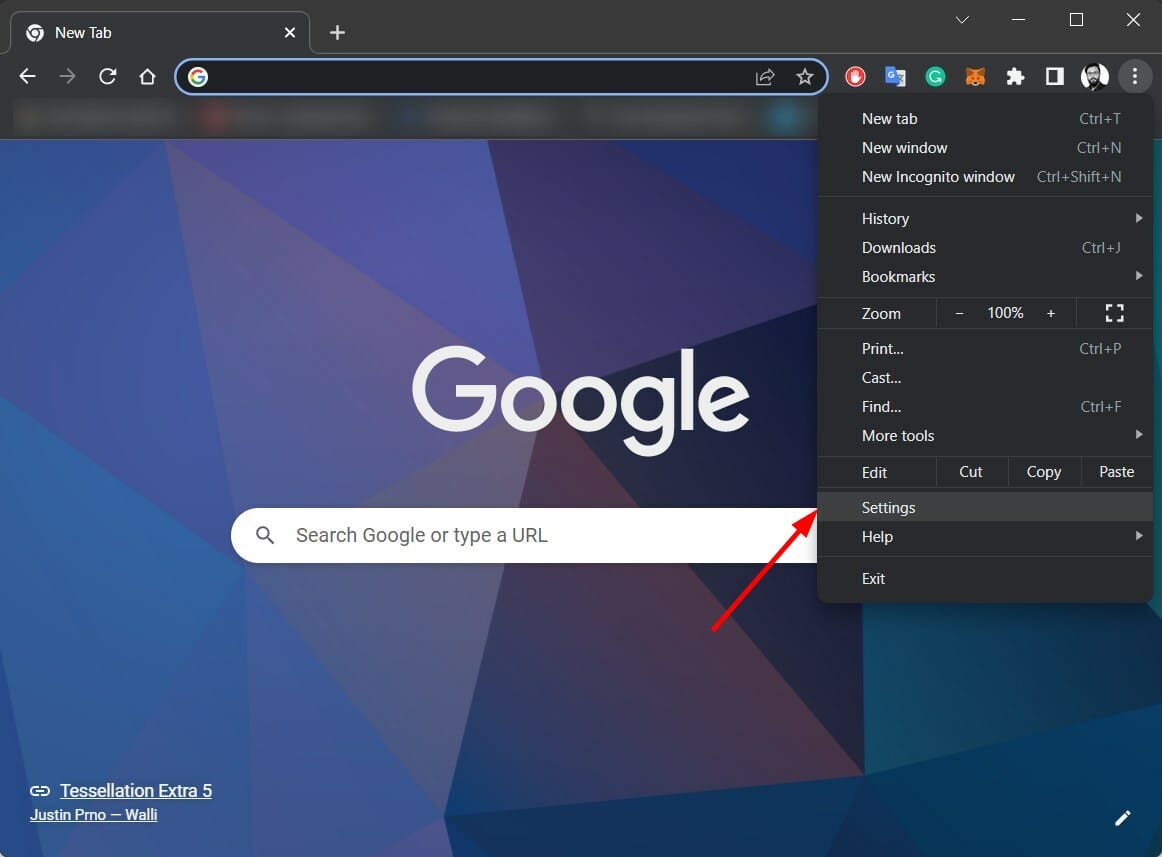
  2. Click on the 3-dot icon and select Settings.3-dot-metamask-not-working-issue
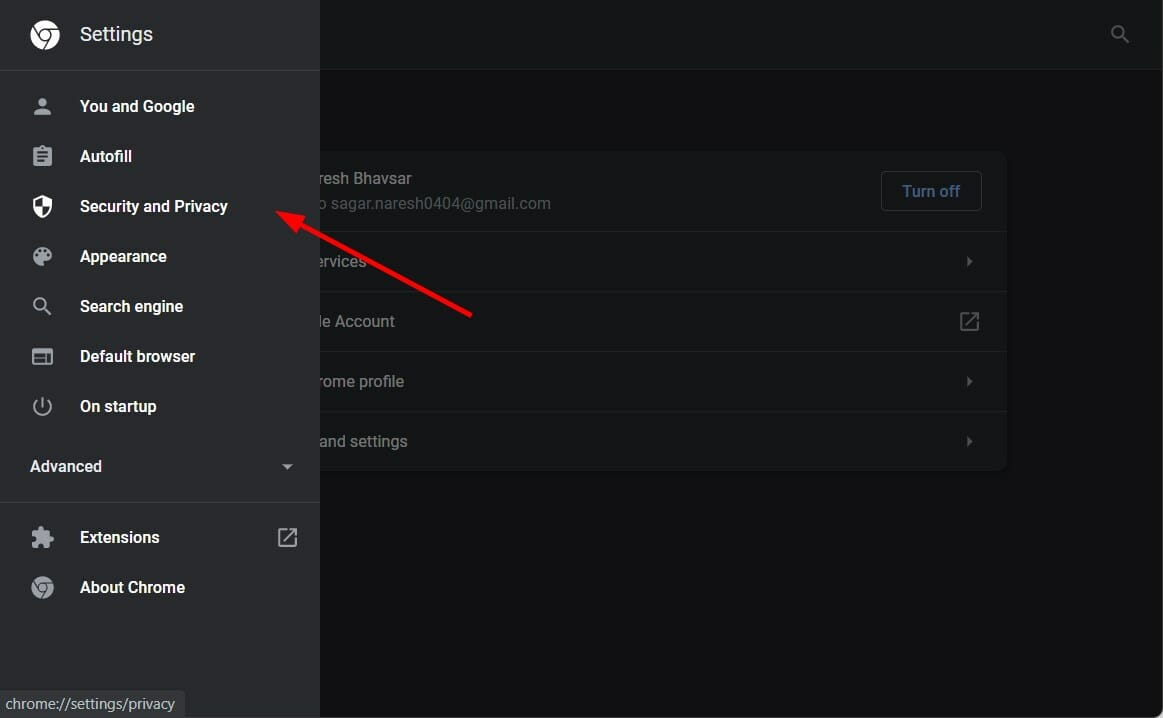
  3. Select Security and Privacy.security and privacy
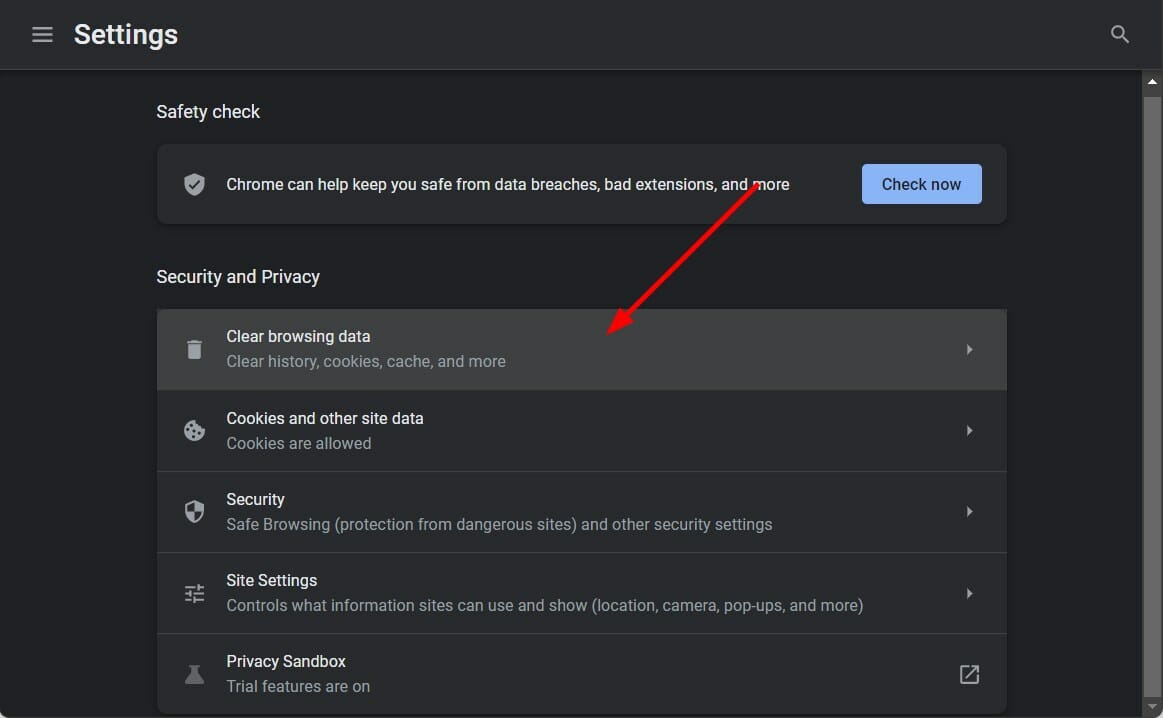
  4. Click on Clear browsing data option.clear-browsing-data-metamask-not-working
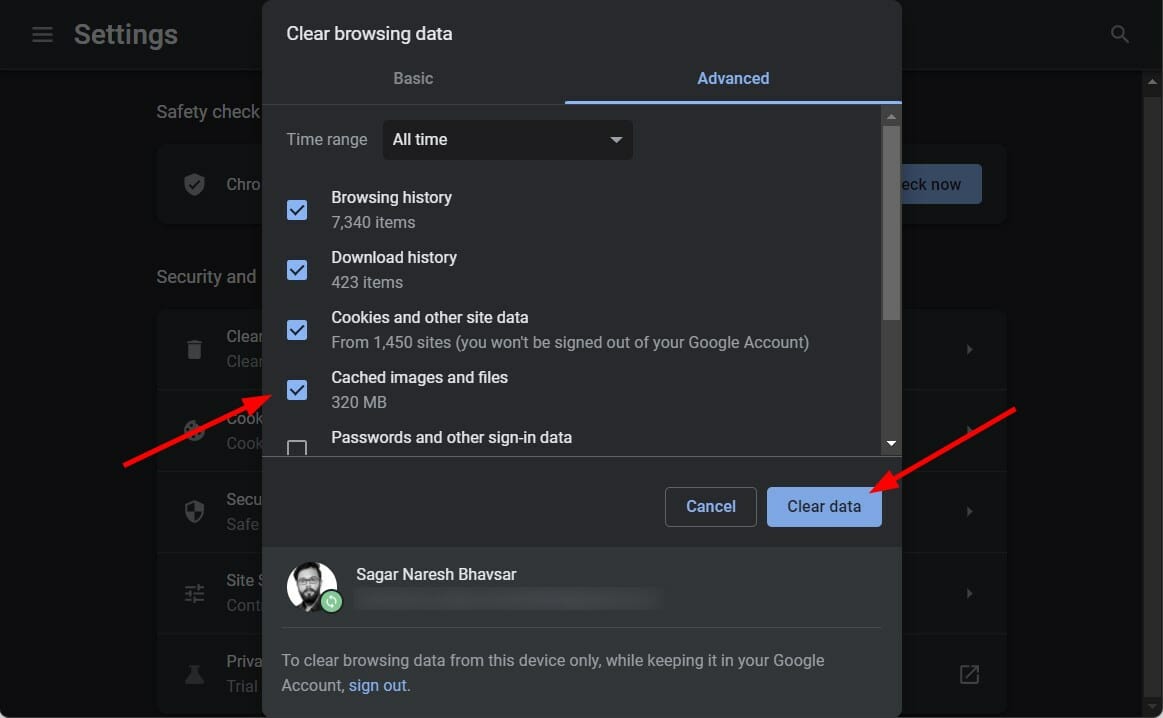
  5. Check all the appropriate boxes, but make sure to select Cached images and files option.
  6. Finally, click the Clear data button.clear data

Build-up cache usually throws authentication issues, such as error authenticating with Venmo, so this should fix it.

2. Reset MetaMask

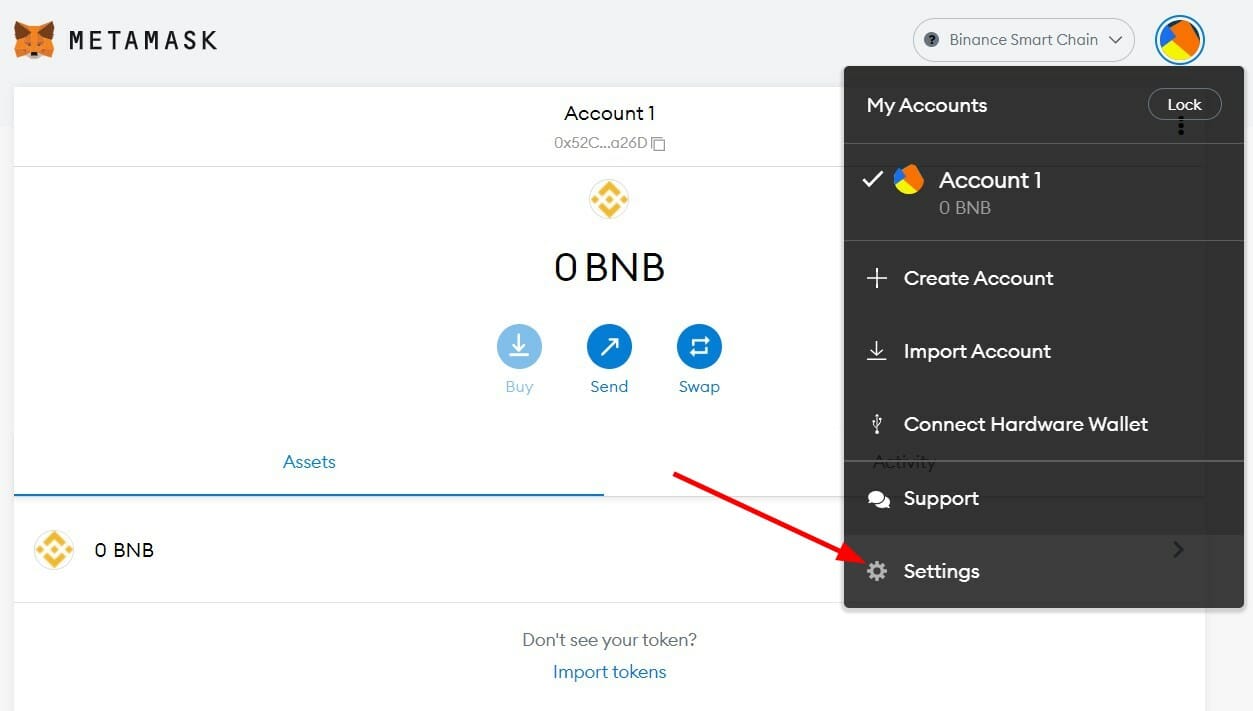
  1. Click on the Profile icon and select Settings.MetaMask not working settings
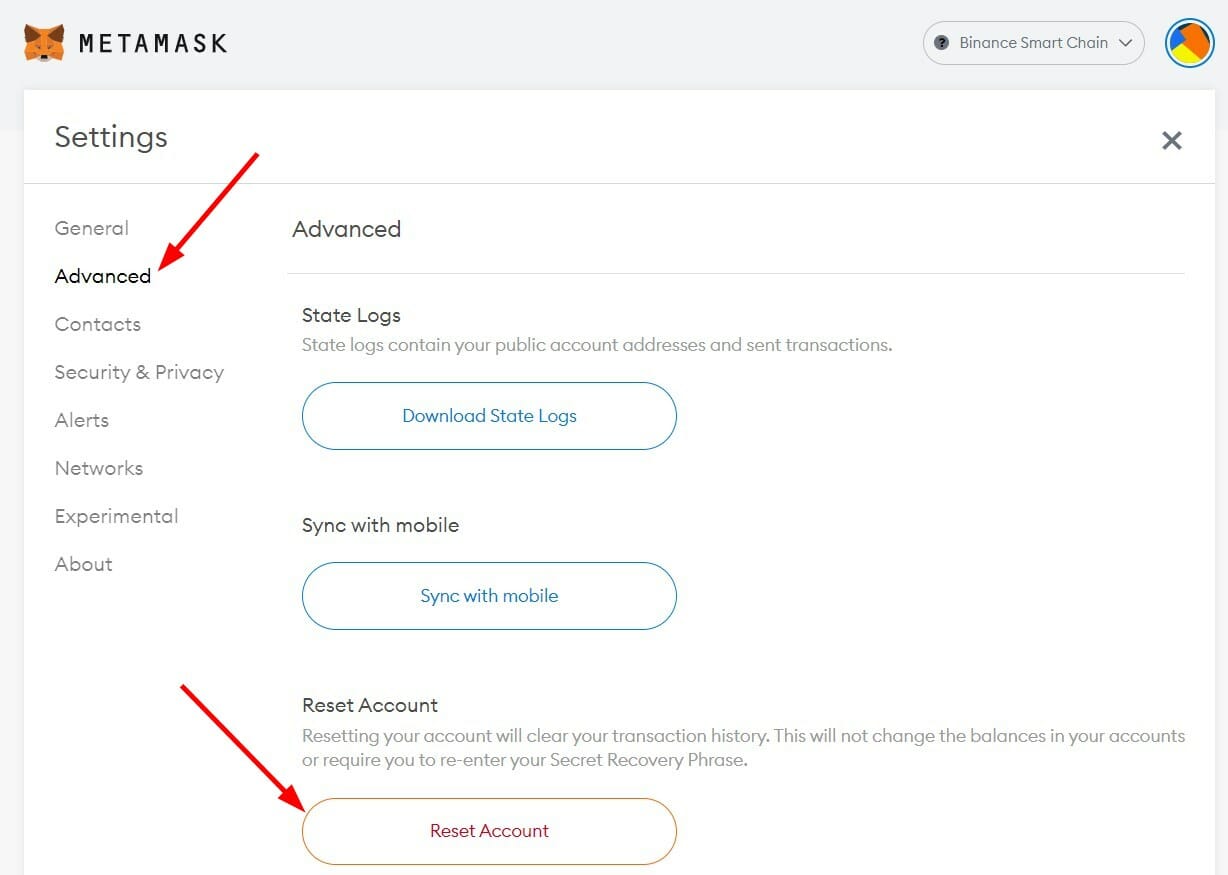
  2. Select Advanced and Reset Account button.reset account metamask

You can also apply the solutions mentioned for the MetaMask not working issue as well to fix the connection problem on the crypto wallet.

While it is important to opt for a safe cryptocurrency wallet, you might also find cryptocurrency price tracker extensions for browsers.

Apart from investing in cryptocurrencies, you can also opt to invest in NFTs (Non-Fungible Tokens). These are available in a variety of shapes and sizes.

If you are interested in the business side of things and want to sell your very own NFT to the market, then you can check out our guide on some of the best software to create NFT art.

To dive into more details about how to select the best size and resolution for your NFT, you can read our guide on what is the best resolution and size for NFT.

Taking things to the next level, you can even play Xbox NFT games at this point. Thanks to the versatility of this medium, you can expect more unique features to arrive in the future.

Some people are perplexed as to why they cannot simply screenshot an image they desire rather than invest their money on NFT.

To answer this, taking a screenshot of an NFT doesn’t allow you to have your crypto wallet attached to purchasing that NFT. Ultimately, this means that you are not the owner of it.

We’d love to know your thoughts on this topic. Let us know in the comments below which solution helped you fix the MetaMask issue.

Lenovo Yoga 9i Review: An impressive redesign on most accounts

Starting at $1,759.99

The power promise of Intel’s 12th Gen Alder Lake processors is finally making its way into Ultrabook’s such as the Dell XPS 13, HP Spectre and Acer Aspire, but Lenovo’s Yoga 9i may be the best showing yet for sleek and powerful.

The Yoga 9i isn’t just a chassis redesign where much of the body is rounded off for a more comfortable fit and finish, but it’s also a showcase for a new third tier 12th Gen Intel offering. In 2022 Intel will power select devices with a new P-series variant of its Alder Lake chips which sits between the high-performance H-Series and low wattage U-Series.

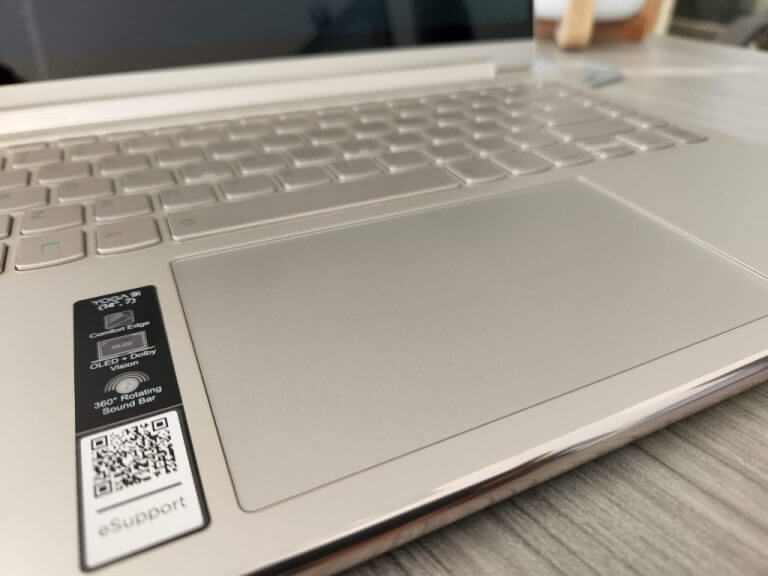
Lenovo Yoga 9i Touchpad

Unfortunately, where Intel got away with super-cooling its H-series variants, OEM’s such as Lenovo aren’t given that much runway in these ultra-thin laptops and as a result performance consistency is sacrificed for designed portability.

Lenovo Yoga 9i (Intel) 7th Gen
Processor 12th Generation Intel® Core™ i7-1260P(2.1 GHz / 12 Cores / 18M Cache)
Operating System Windows 11Home64-bit
Graphics Intel Iris Xe Graphics
Storage 512GB(One M.2 2280 PCIeGen 4×4 slot, supports M.2 2242/2280 SSD)
Weight Starting at 1.4 kg (3.09 lbs)
Display 14″, WQHD+ (2880×1800), OLED, IPS, 400 nits,100% DCI-P3, 60 Hz, 16:10, Touchscreen, Dolby Vision
Storage Removable solid-state drive (SSD)6 options: 256 GB, 512 GB, 1TB, 2TB
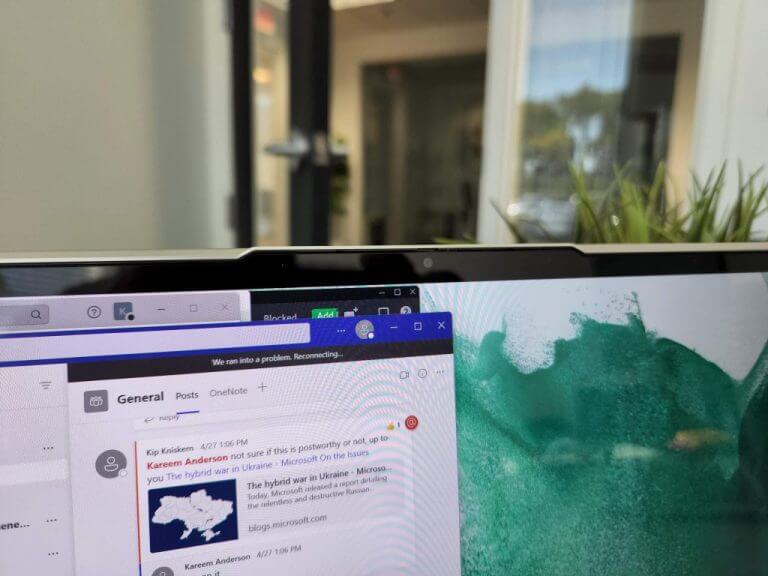
Camera 2.0-megapixel IR & RGB hybrid, FHD 1080p webcam with privacy shutter, fixed focus
Memory 16GBDual Channel LPDDR5-5200 (soldered)
Dimensions 318 x 230 x 15.25 mm (12.52 x 9.06 x 0.6 inches)
Wireless IntelWi-Fi® AX211+ Bluetooth 5.2
Battery 75WhLi-Polymer, supports Rapid Charge Boost (2 hrs runtime with 15 min charge)
Color Oatmeal
Ports/Slots 1x USB 3.2 Gen 2
1x USB-C 3.2 Gen 2 (support data transfer, Power Delivery 3.0 and DisplayPort™ 1.4)
2x Thunderbolt 4 / USB4™ 40Gbps (support data transfer, Power Delivery 3.0 and DisplayPort 1.4)
1x Headphone / microphone combo jack (3.5mm)
What’s in the box Lenovo Yoga 9i

Charging Cable

Pen

Quick Start Guide


Look and Feel

Key takeaways

  • New rounded design is among the best designed laptops on the market
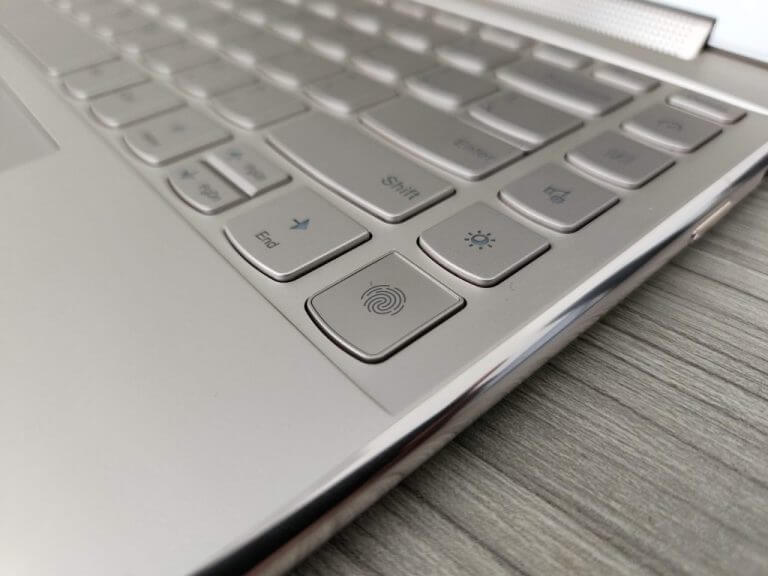
  • Keyboard includes new secondary functions for Power, Audio, Windows theme modes, webcam toggles
  • Better feel in-hand
  • OLED display is bright with vivid color profiles
  • Touchpad is larger

In 2022 Lenovo seemingly adopted an arguably classic design language from 2014, back when Apple leaned heavily on polished rounded accents to accentuate an iPhone that nestled comfortably in the hand with the iPhone 6.

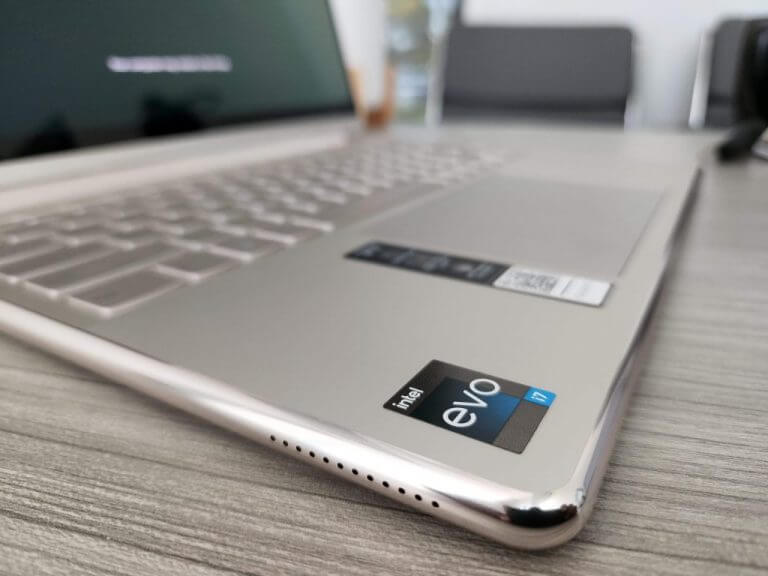
The seventh generation Lenovo Yoga 9i resembles two gold iPhone 6’s stacked on top of one another when closed thanks to the heavily jewelry-inspired aesthetic on display with this ultra-thin portable.

Lenovo Yoga 9i lead

Lenovo claims the new design “improves grip comfort while being used in tablet mode,” and while I only used the laptop in tablet mode on a handful of occasions; handling the device in and out of bags, to and from meetings and generally about, the palms of hand and edges of my fingers contoured around the rounded finishes of the 9i much better than the angular models of old.

Similar to other models and even Microsoft’s flagship Surface brand, Lenovo makes use of reflective aluminum for the subtle Yoga lettering located in the top-left of the lid as well as 1/3-inch Lenovo branding in the opposite corner.

The polished rounded edge is accented by the Oatmeal polish on the speak grill-hinge of the Yoga 9i and helps package the entire device with a premium attention to detail.

Lenovo Yoga 9i 2022

The Oatmeal color is more akin to a pale gold and depending on the lighting in an area, can traverse from light grey to hints of copper.

The weight of the laptop feels significantly lighter than other previous Yoga’s despite being only 0.28 oz slimmer than last year’s model.

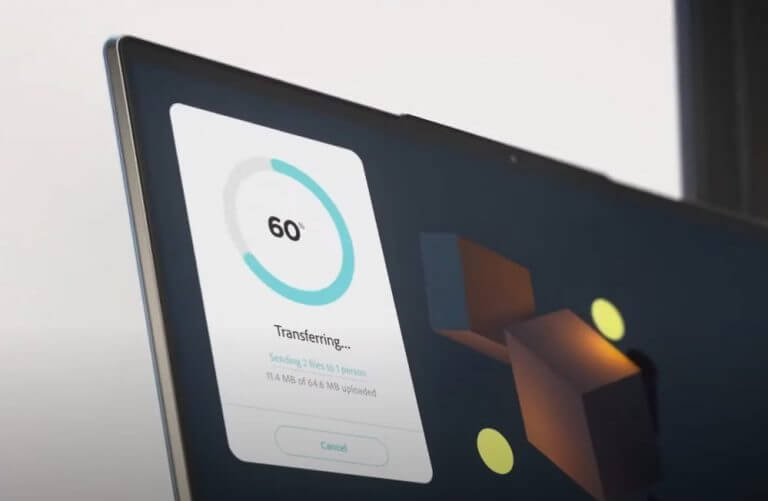
The next biggest visual upgrade is found in the 14-inch 16:10 display that Lenovo offers in both 4K and 2.8K configurations. For that aspect ratio, users are getting a panel of 3,840 x 2,400 OLED goodness powered by Lenovo’s PURESight calibration technology.

When opting for the 2K version, users will get a 90Hz refresh ration option while the 4K OLED models are stuck at 60Hz, which all of that translates to a more vivid color profile out of the box. Users who need to be more color accurate for work can also make some tweaks with Intel’s display tech downloaded from the Microsoft Store.

The last noteworthy change to the Yoga 9i for 2022 is the keyboard where Lenovo managed to cram an entire row of secondary function keys in alongside the right side of the deck.

Users can quickly initiate Window’s dark mode color profile, toggle between performance and audio profiles and adjust background blur when using the hybrid IR and integrated webcam.

Lenovo Yoga 9i keyboard

The sacrifice on space is minimal and Lenovo manages to maintain a satisfying key travel with its traditional U-shaped keys on the new deck, all while also raising the length of the palm rest area to incorporate an even larger touchpad.

Perhaps, the biggest quibble with the new 9i design is in the lack of space dedicated to storing the included pen. Unlike other Lenovo laptops, the 9i for 2022 forces users to come up with their own makeshift MacGyver-esque sets to house and store the included pen when not in use.

Performance

Key Takeaways

  • New Intel 28W 12th Gen Alder Lake P-Series CPU makes another leap in power but is hamstrung by old integrated graphics
  • Fans run often
  • Optimum performance requires the charging cable
  • In consistent performance off charger

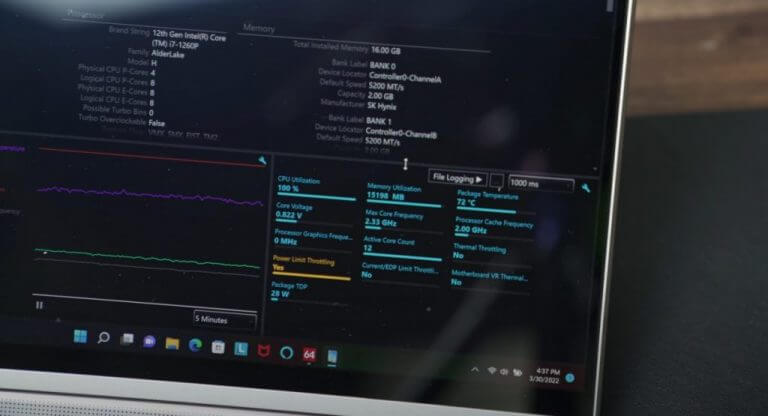
The configuration I had was an Intel Core i7-1260P which makes use of 4 performance cores with Hyperthreading support as well as 8 additional efficiency cores. The combination of both 8E and 4P cores means the SoS can deliver 16 threads of simultaneous execution channels to better handle peak workloads.

In real world usage, that meant that editing video in Adobe Premiere, bulk uploads and edits in Photoshop and closing and opening macro-laden Excel docs ran quicker than other comparable laptops using 11th Gen Intel chips.

Lenovo Yoga 9i Usage

That is not to say that the Yoga 9i couldn’t be tripped up by overlapping workloads and ram draining tabs in Edge or Chrome, but for the most part the system powered through most processing tasks with little to no effort.

Where the Lenovo gets dinged points is in its per wattage consumption, which is notably high for Intel’s 12th Gen Alder Lake mobile P and U chips so far as well as the fans.

The fans on the Yoga 9i are considerably lower in volume than other Lenovo laptops but they seem to run pretty consistently when in use during my review.

Despite having a larger battery embedded in the Yoga 9i this year, the power-hungry performance of Intel’s 12th gen practically negates the change. Battery life isn’t awful but also is nothing to write home about.

However, when plugged in the Yoga 9i does a relatively good job of outpacing current laptop competition as well as keeping pace with Apple’s M1 architecture.

My day typically starts and ends with Excel docs and depending on the device, this could be a blessing or a curse (in most cases, it’s a curse). On the Yoga 9i working with a piece of software called SuperMetrics was quick and easy, traversing back and forth between data sheets, data Studio and crafting APIs in real time worked second to none.

For my more creative tasks, as I mentioned, the Yoga 9i handled most Adobe software fairly well as well the Affinity catalog of apps. Real time editing with Da Vinci Resolve was a bit of a labor for some reason. Using a set with proxies and rendering 1080p quality level video took just about as long as 11th Gen processor setups.

Moving into the theoretical, I wonder if and when Intel pairs more devices with its new Arc GPUs, will setups like the 9i finally make that per wattage performance leap that many Windows users have been clamoring for.

Lenovo Yoga 9i Webcam

As I’ve gotten olde, my PC gaming days have been limited, but I tried running older titles such as State of Decay 2 and Far Cry 6 on the 9i to varying degrees of success.

State of Decay 2 played smoothly at minimum settings, while bumping it up slight produced some choppier results. Far Cry set to 1080p resolution was a fun experience and similar to my gameplay on the Xbox but moving to native resolution actually stalled out the game.

Summary

Beyond some power niche power-hungry activities, the 9i is perhaps the best new all-around laptop for 2022. Where Dell opted for a complete makeover of its XPS line up which has proven to be polarizing, Lenovo’s subtle refinements may be easier for both consumer and commercial users to get behind.

The 9i isn’t an inexpensive purchase but will serve most people attempting to do most compute tasks fairly well.

I’d recommend the Yoga 9i 7th Gen to anyone who isn’t reliant on it being a dedicated gaming device or software the specifically utilizes dedicated GPUs, otherwise it’s both power and perhaps the most stylish laptop being offered in 2022.

7 VPNs With Dynamic IP for Total Anonymity

Internet privacy is becoming a hot topic right now. We have realized that we share an insane amount of information every day.

The good news is that there are options you can take to protect yourself online, by using a VPN service.

They work with your router and Internet connection to provide 24/7 protection against hackers and information snoops, to change your IP address, hide your location for anonymous browsing, unblock sites that are censored in your country or area, and encrypt all your Internet traffic.

This means that while you’re connected, no one can see what you’re doing on the web—not even your ISP or anyone else who might be snooping around on your network.

A VPN can employ multiple techniques to ensure privacy and anonymity. One of them is to use a dynamic IP address.

What is a dynamic IP address used for?

A dynamic IP address changes every time you connect to the Internet. This means that the IP address assigned to you by your internet service provider (ISP) will be different every time you connect.

Dynamic vs static IP address (Source: Netpluz)

This can help make sure that your activities are anonymous. It is also useful when you want to mask your location from websites and services that track your IP address to bypass their geo-restrictions.

For example, you could use something like Netflix or Hulu. It’s also useful for people who travel a lot or spend time at different locations throughout the day.

What is a dynamic IP VPN?

Dynamic IP VPN is a service that allows you to connect to the internet through a virtual private network (VPN) by using a dynamic IP address that changes periodically.

This means that you can use your computer or device as if it were in another country, all while staying right where you are.

What are the best 7 dynamic IP VPNs?

ExpressVPN – Best all-around VPN

ExpressVPN is our top pick for a dynamic IP VPN as it is one of the best and most popular VPNs on the market.

You can get some of the fastest speeds and high-quality encryption, allowing you to download and stream anything you want without any drop in speed.

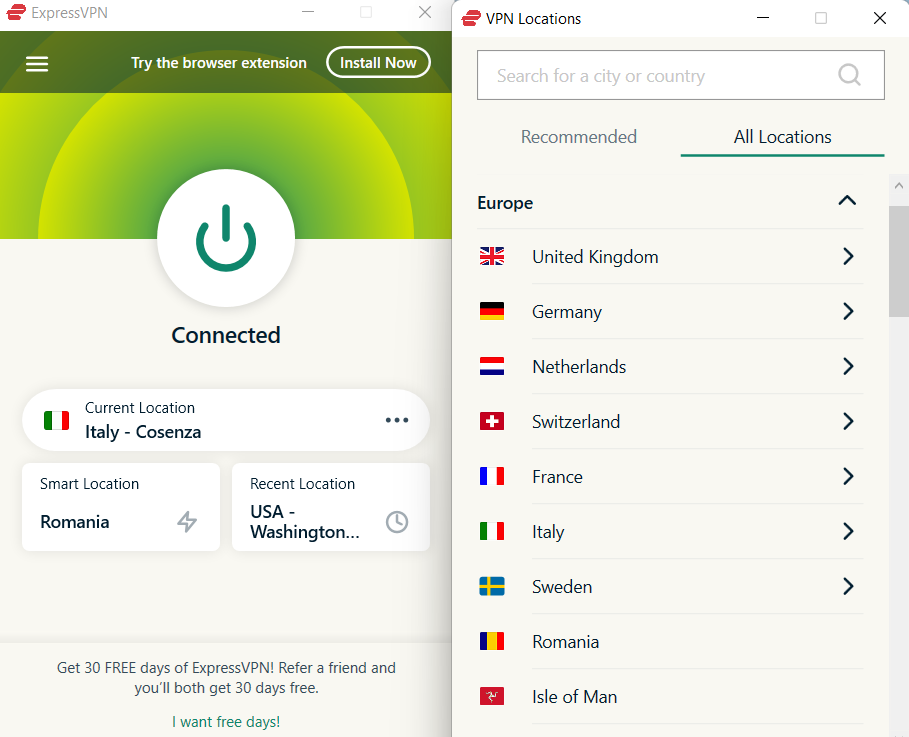
It also has over 3000 servers in 94 different countries, making it easy for you to find a server in your area that will work with your device.

You can also take advantage of advanced features like split tunneling and adblocking. One more reason you will like ExpressVPN is its customer support.

If you’re looking for a VPN without a static IP address, then this will be the right choice for you.

Key features:

  • Over 3000 servers to choose from
  • Servers are available in 94 different countries
  • Available on all major platforms
  • Kill Switch feature

⇒ Get ExpressVPN

NordVPN – The most affordable

NordVPN is another great option for dynamic IP VPNs because they offer fast speeds and a wide variety of locations around the world (including 4,000+ servers in 62 countries).

NordVPN’s dynamic IP addresses as an optional feature that you can add to your subscription.

If you’re looking for a military-grade security VPN with good speeds and access to thousands of servers around the world that can also unblock 400+ streaming platforms at an affordable price, this VPN may be right up your alley.

If you’re looking for an IPSec VPN with a dynamic IP address, then don’t hesitate to try NordVPN.

Key features:

  • Next-generation encryption
  • Malware blocking
  • 5500+ servers in 60 countries
  • Obfuscated servers feature

⇒ Get NordVPN

Surfshark – Advanced security

Surfshark’s dynamic VPN offers you the best of both worlds: the security of a traditional VPN and the convenience of unlimited server switching.

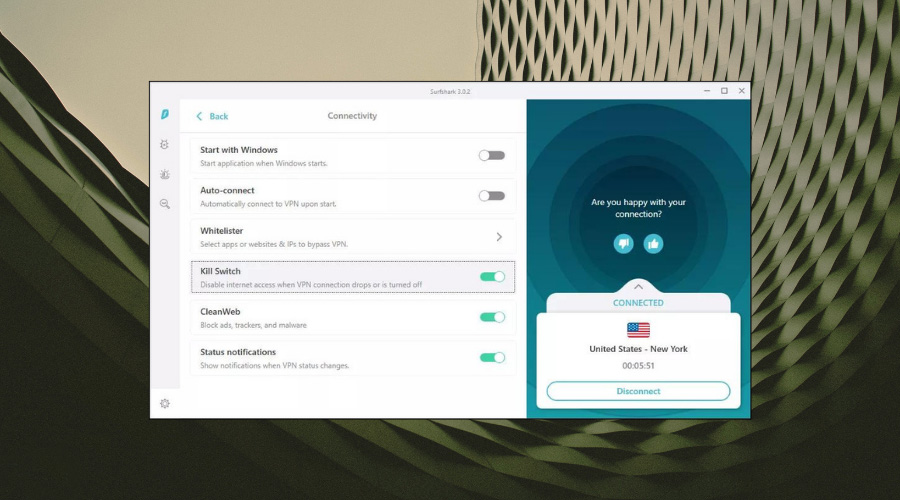
It is fast and reliable because Surfshark uses military-grade encryption technology to protect your data and it’s not just a claim and is backed by their AES-256 encryption, 4 encryption protocols, and RAM-only servers.

Key features:

  • Blocks ads, trackers, malware, and phishing attempts
  • Support for an unlimited number of devices
  • Split tunneling feature
  • DNS Leak protection

⇒ Get Surfshark

CyberGhost – Perfect for beginners

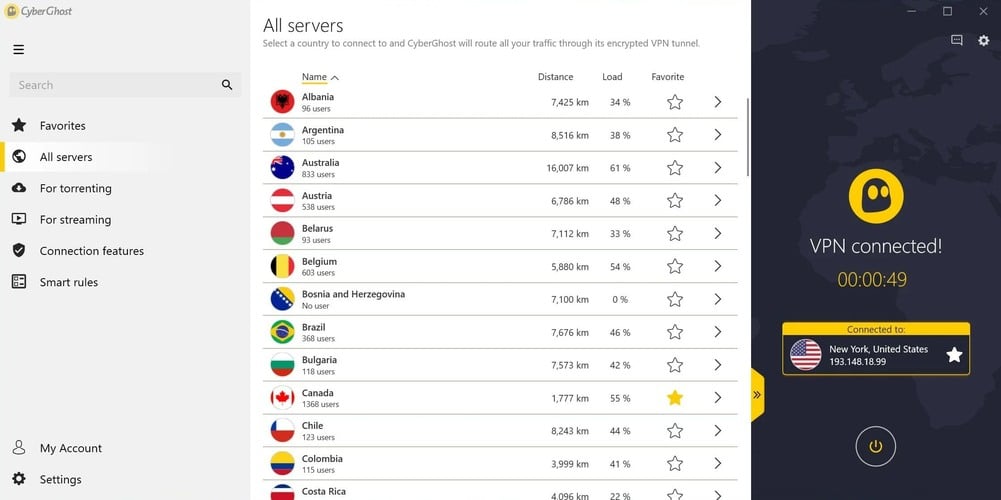
CyberGhost has a clean, simple interface with great functionality overall. It’s a fast and easy-to-use VPN that can unblock all the sites you want on all your devices.

Additionally, it also has the most impressive number of servers (8000+) across the globe. By using this software, you’ll get access to OpenVPN without static IP, so be sure to consider it.

Key features:

  • 8300+ servers in 91 countries around the globe
  • No logs policy
  • Available on all major platforms
  • Incredibly fast

⇒ Get CyberGhost

Windscribe – Great for geoblocking restrictions

If you want to unblock streaming services like Netflix and other streaming services, Windscribe is the best VPN. It’s fast, stable, and easy to use.

They also offer unlimited Windscribe bandwidth and no restrictions on data usage or speed. Windscribe is great if you need site to site VPN with dynamic IP, so you should consider it.

Key features:

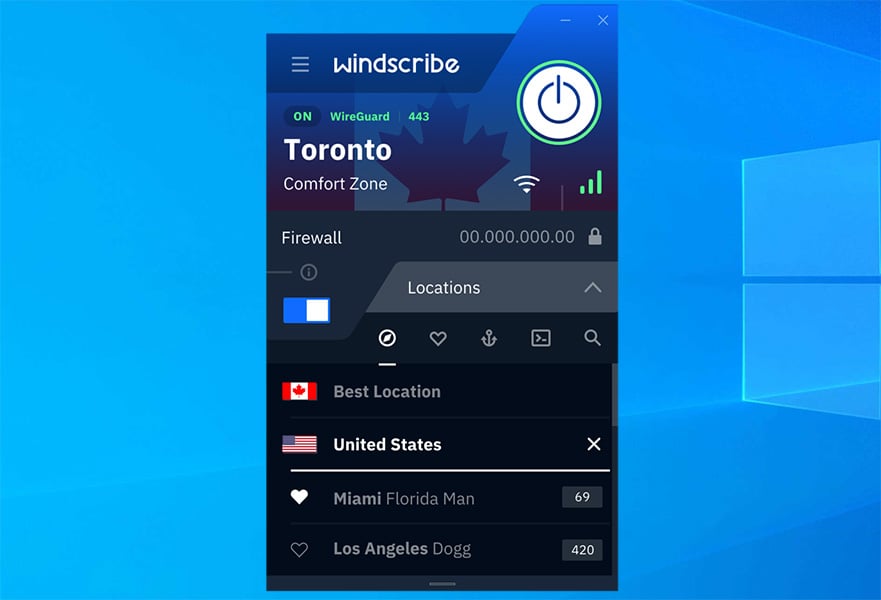
  • Servers in 63 different countries
  • Can blocks domains and ads
  • AES-256 encryption with SHA512 auth and a 4096-bit RSA key
  • Static IPs are also available

⇒ Get Windscribe

PureVPN – Works in China

PureVPN

PureVPN is a great choice for anyone who wants an easy-to-use dynamic IP VPN that works in China. It has a simple interface, and it’s incredibly affordable.

So if you’re just looking for something to get around the Great Firewall, this is your best bet.

Key features:

  • P2P servers
  • Support for OpenVPN, L2TP/IPSec, PPTP, SSTP, IKEv2, and WireGuard protocols
  • No log policy
  • DNS leak protection

⇒ Get PureVPN

VPNArea – For Netflix streaming

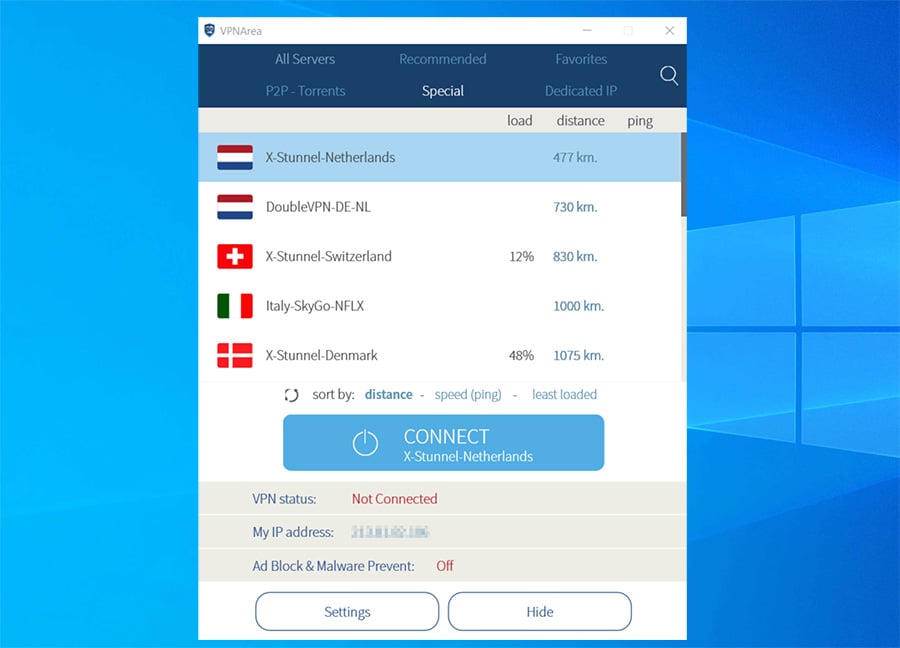
 VPNArea is a dynamic IP VPN that offers users several features to ensure security and anonymity. In addition, VPNArea is a fantastic VPN for streaming Netflix.

The VPN offers you unlimited bandwidth and free apps for all major platforms, and if you’re looking for a VPN with dynamic WAN IP, VPNArea might be just what you need.

Key features:

  • Servers in 55 different countries
  • Double VPN servers for extra security
  • IKEv2 and Stealth servers
  • Unlimited bandwidth

⇒ Get VPNArea

Despite that there are many VPN providers out there, so choosing the one that’s right for you can be a daunting task. 

There are many VPNs on the market, but not all of them are created equally. Some offer more features than others, and if you want to learn more, read our best VPNs for Windows guide.

We hope this list has been helpful for you in that regard.

Software to Create NFT Art: 8 Best in 2026

The world is moving over to the digital art space called NFT. Thanks to the decentralized system that cryptocurrencies have introduced, a whole new and exciting market have opened up for enthusiasts not afraid of taking risks.

So, if you are into art or someone entering this space, and would like to create your piece of art, then you are in the right place.

Without any further ado, let us check out the list of some of the best software to create NFT art on your PC or mobile phone.

Where can I explore and purchase already-created NFT art?

As the first step when creating any sort of art is to see what the market has to offer, it is an important step that you shouldn’t miss.

Doing research about what kind of NFTs sell, and what markets ask for to mint your NFT will not only impact the path you will need to choose before creating your artwork but also be aware of what market could be compatible with your newly-created design.

As not all art is the same, the marketplaces vary in the same way. Some NFT marketplaces offer a variety of elements that are specifically oriented towards upcoming artists, while others only allow access with an invite from an existing member.

As you can see from the image above, there are plenty of online marketplaces for exploring and selling NFT art, and each of them offers specific features that will influence accessibility and compatibility with your newly-created NFT art.

How to select the best NFT to purchase from a marketplace?

If you have Ethereum cryptocurrency and want to diversify your profit opportunities, then you should consider purchasing NFTs for yourself.

Well, first of all, it is highly recommended that you do your research and gain in-depth knowledge about the subject and cryptocurrencies before taking a step towards purchasing some.

After doing that, you should consider which online market to use. One of the most popular marketplaces is OpenSea. It is trusted by artists across the world and has seen exponential growth in a short period.

After doing that, you just need to ask yourself these questions:

  • Do you really like the NFT?
  • Does the team behind it have a huge community following them?
  • What are the long-term milestones of the team behind it?
  • Is your NFT unique?
  • Does the product suit your budget?

Even though the number of questions will vary depending on the value you’re willing to spend, and also the intention with which you’re buying it, these are some pertinent elements to consider.

You could choose to invest in an NFT from a well-known person to keep it for a long amount of time and wait for its price to increase over time, or you could perform low-value transactions and sell the NFTs fast.

There is no perfect strategy to apply here, and it all depends on how you want to use the NFTs, either to keep it forever and give it to your kids or if you’re on the market for some quick profit.

In-depth research on this topic and understanding the principles that make the NFT markets work will surely give you a good chance at making an informed choice when it comes to creating, investing in, and selling NFTs successfully.

What is the best software to create NFT art?

Adobe Illustrator – Most advanced toolset

Adobe Illustrator is another great option to create NFTs and create huge collections.

As you are probably aware, Illustrator is one of the world’s most popular digital art apps. Turns out it’s great for NFTs too.

Illustrator offers the support needed to make generative NFTs without requiring any coding knowledge.

Now Illustrator gives creators a lot of freedom. It has a huge toolset so you can design pretty much anything. 

The basic principle to building a design is layering here too. You can add or create your own objects and create final results.

Some designers do 100% original artworks, but you can also add pre-made presets and objects and make an original piece of NFT quicker.

Other key features of Adobe Illustrator include:

  • All designs are completely scalable
  • Compatible with most devices
  • Share and collaboration tools
  • CAD tools

Another important thing to mention is that Adobe supports the cryptocurrency platform Polygon. It’s should make it easier to showcase and sell NFT creations.

Adobe Illustrator

Create and showcase your NFTs with one of the best graphic design apps that gives you complete creative freedom.
Free trial Visit website

The NFT Generator – Best overall

software to create nft art

If you want all the tools you may ever need to create NFTs, NFT Generator is the platform for you.

It is a layer-based tool that lets you create NFTs without requiring much of a graphic design skill set.

The only thing you have to do is to upload each of your layers and build your NFT. For example, you can start out with your background, and then add multiple objects to build your final result.

You can download your NFTs and organize them in collections. NFT Generator lets you set up attribute rarity, generate metadata and create advanced collections with categories, blocklists, and more.

Users of the NFT generator have full control of their creations, the platforms don’t place any watermarks on collections.

The NFT Generator official website has some handy guides that will help you get started with the tool and start creating NFTs right away. It’s simple to use and very intuitive.

Other key features of NFT Generator include:

  • Support for multiple devices
  • Unlimited number of collections
  • Unlimited chat or email support
  • Support for PNG and JPEG files

You can try out the generator for free, without creating an account and download your first sample.

The NFT Generator

Get all the support you need to create NFTs and NFT collections, right now!
Free trial Visit website

Fotor – Best for simple and quick designs

Fotor best software to create NFT art

Don’t you want to become an NFT artist without much effort? Well, Fotor is the software that lets you create your digital art easily, at least that’s what the first thing on their landing page says.

With advanced AI (Artificial Intelligence) tools, you will be able to create your digital art in just a few clicks. There is a minimum learning curve for using this tool.

The process of creating NFT is pretty simple using Fotor. All you need to do is upload the image, select the art style you wish your image to convert to, and that’s it. The software will take care of the rest, and will barely require input from your side.

Thanks to such software as Fotor, you don’t need to know code to create NFTs. Creating layers, adding your personal touch, brushing up the look of the art, can all be done with the click of a button.

Here are some highlights of Fotor:

  • Simple to use interface
  • Create NFT digital art in just a few clicks
  • You may create or download NFT without registration
  • A diverse range of art styles to choose from

Fotor

One of the simplest and fastest ways to create NFTs is Fotor; be sure that it will let you create digital art in a matter of seconds.

Krita – Best free option

Krita best software to create NFT art

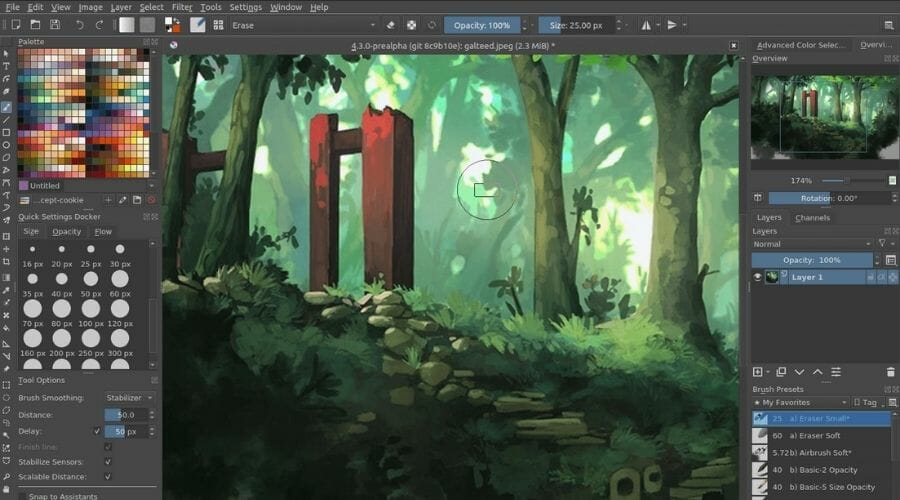
Krita is one of the best open-source drawing software that you can rely on to create your NFT art. The best part about it is that it’s available for free.

You can make use of the plethora of drawing aids that this app offers to create one-of-a-kind digital art and sell it in the marketplace of your choice.

Apart from offering multiple customizable drawing tools, you may create your palette of tools that you use most frequently for easier access.

With support for HDR painting, over 100 brushes, brush stabilizers, vector tools, etc., Krita is one of the most reliable software solutions to create NFT art.

Using the Resource Manager option, you can import brushes from your favorite artists in the community.

Here are the best features of Krita:

  • Interface is simple to use
  • There are numerous drawing aids available
  • Brush stabilizers and vector tools
  • Supports HDR painting

Krita

If you need digital art software that can create NFTs from scratch, then Krita is the perfect tool for you.

NFT Art Generator – Best web based option

NFT Art Generator best software to create NFT art

Another one of the web-based NFT art creator software is called NFT Art Generator. Being a web-based tool, it doesn’t hog your computer resources.

The app interface is easy-to-understand, and within minutes, you will get a hang of it. With the help of this tool, you can export your digital art in different formats.

For instance, GIF, PNG, and MP4 formats. Just like any other digital art software, NFT Art Generator gives you the option to create multi-layered pictures.

You do not need to log in to start working on your NFT masterpiece. Moreover, you can purchase the full version to use extra features.

Some of the key highlights of NFT Art Generator are:

  • No login or sign up required
  • Offers mulitple layer support
  • Export your NFT in different formats
  • No learning curve to use it

⇒ Get NFT Art Generator

NightCafe – Support for multiple art styles

Nightcafe

NightCafe also makes use of advanced AI to help its users create wonderful digital art with ease. The tool uses a machine learning technique called neural style transfer.

This helps in converting your uploaded images to any art style you have chosen within the software. The process of creating digital pictures is pretty simple.

Just upload your image, select the art style from the various styles within the tool, and let AI handle the rest of the task, making it one of the simplest tools to create NFT art.

NightCafe lets you create and download high-resolution (up to 2.2-megapixel resolution) artworks. There is a bulk creation mode as well that lets you create 100s of pictures simultaneously.

You can use NightCafe across different devices, and the best part is that you can create and download up to five artworks a day for free with no watermarks.

Some of the highlights of Nightcafe are:

  • Offers bulk create mode
  • Create or download up to 5 artworks in a day for free
  • Multiple art styles to choose from
  • In-built notification system, to notify when an artwork is ready

⇒ Get NightCafe

SketchAR – Built-in NFT market support

SketchAR

SketchAR’s website says: Founded by creators for creators. This art tool is available only on the mobile platform. That adds to its advantage, as you can create your very own art on the go.

The app lets you convert your digital art or photos into NFT using powerful AR (Augmented Reality). Simply, use the drawing tool provided by SktechAR to create digital art and convert it with ease.

You can share your art in the SketchAR community, which is quite active, and if you get selected as the Creator of the Week, then your artwork will be converted into NFT.

Another good thing about this tool is that your art gets automatically listed on marketplaces such as Opensea and Rarible.

Here are some of the key features of SketchAR:

  • Automatically submits your NFT to reputable marketplaces
  • Available as a mobile app
  • Converts your digital art into NFT quickly
  • It has an active art community

⇒ Get SketchAR

VoxEdit – Great for beginners

VoxEdit NFT software

Last but not least is VoxEdit. It is one of the leading software to create high-quality NFT artworks.

The tool is beautifully designed so that it can be used by beginners as well. VoxEdit offers a robust set of tools, allowing its users to create their artwork easily.

Furthermore, you may even animate your artwork using the timeline. Once your artwork is created, you can list and sell your art on The Sandbox marketplace.

You can download VoxEdit software on Windows, macOS, or even Linux operating systems. The VoxEdit beta software is available to download for free.

Some of the best features of VoxEdit are:

  • Provides tools suitable for beginners as well
  • Offers animation tools
  • It also allows you to sell NFTs on The Sandbox marketplace
  • Simple to use software

⇒ Get VoxEdit

What are some of the risks involved in trading NFTs?

Now that you have a list of some of the best software to create NFT art and you are all set to list your art, it is advisable that you also note down some of the downsides and risks.

The market is seeing a boom, and it is natural to get attracted to things that are generating an insane amount of money. But there is some risk involved too.

First of all, trading NFT requires you to have some knowledge about cryptocurrencies and the rules and regulations of the marketplace. Speaking of which, if you’re working with crypto, you might want to consider using cryptocurrency converter apps.

Sometimes, the rules and regulations can be overwhelming to understand, thus leading the creators to a standstill.

As there are several legitimate NFT marketplaces, there are also fake ones. Another issue is represented by the sellers that aren’t holding the original art.

Most countries across the world do not have a legal definition, official law, or legislation in place for non-fungible tokens.

Overall, you need to be well aware of all things related to NFT, be it creating one, buying, or selling it in the marketplace. So, before you start selling your art, do the proper research and find all about having the NFT certificate of ownership.

We hope that you found this guide useful and you managed to pick the right tool for this task. In case you need more similar software to create digital art, be sure to visit our list of great painting apps.

We’d like to know your thoughts on this topic. Let us know in the comments below which tool is your favorite for creating NFTs in the section below.

How to Open Works Files on Windows 10 PCs

Are you having issues opening your Works files, aka .WKS files? This article will guide you on some of the applications which can help you view this file format.

Works file is a spreadsheet file that contains data information arranged in rows and columns. The file may also store charts, graphs, formulas, and other information. WKS files store data in a grid of cells and are generally open with database spreadsheet applications.

In the past, you could open WKS files easily using Microsoft Works, the productivity app suite that was replaced by the well-known Microsoft Office.

You can still open these files even if Microsoft stopped developing the Works app, using the Office suite. More exactly, you’re able to access WKS files with Microsoft Excel 2003 or earlier versions.

Therefore, we selected the most practical tools for managing Works files without running into errors or incompatibility issues.

Open Works files with these software solutions

Microsoft Excel

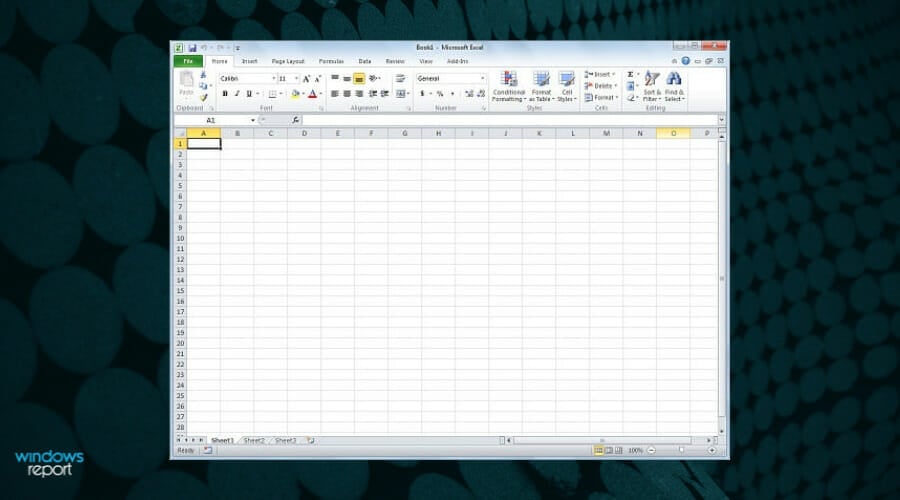
We start this list with the best software to open .wks file in absolute: Microsoft Excel. It is the most popularly used software for opening works files in Windows 10 computers. With MS Excel, you can easily organize, analyze and modify data.

Excel enables access to over 100 offline templates and thousands of online templates within the user interface. Also, this application gives you a worksheet which is a grid of cells that can be formatted in different ways.

The software has advanced features such as sorting data and making simple formulas. You can also use sparklines to detect trends in your data.

In addition, MS Excel supports over 80 formats such as XML, CSV, and (WKS) works files. Users can view, modify, and open works files with the program possessing numerous formatting tools. Excel also provides bar charts, scatter plots, and other analysis tools for managing database spreadsheets.

You can also use different options of mathematical analysis which enables you to manipulate data in groups rather than individually.

In addition, you can collaborate with others on the same spreadsheet and connect with different analyses or data made by your colleagues.

Concluding here, using this famous spreadsheet application to open and edit WKS files is very suitable and effective for your projects.

⇒ Get Microsoft Excel

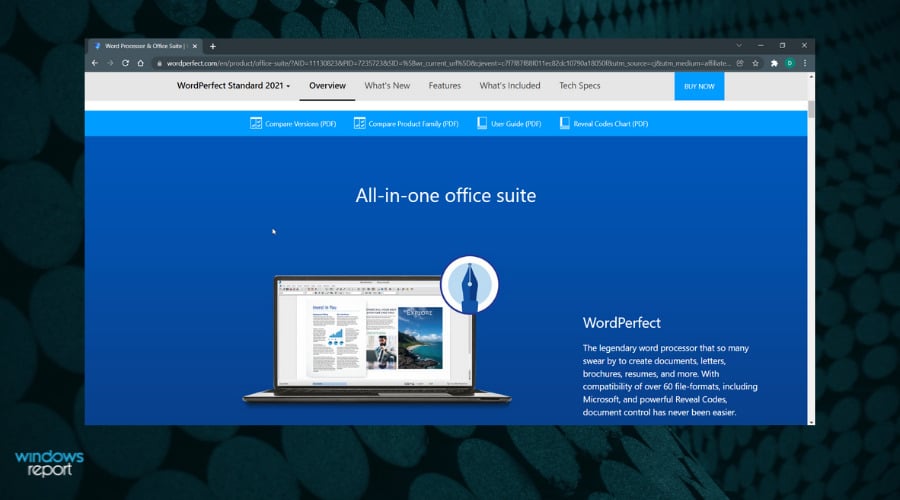
Corel Quattro Pro

Corel Quattro Pro is a similar spreadsheet application to MS Excel developed by Corel Corporation. One major feature of Quatro Pro is its simplicity. Users can easily write formulas used in cells and there are several formatting options such as fonts, color, border, size, and charts.

Also, Quattro Pro supports many files and can be used to access WKS files. With this tool, you can quickly open, modify and save WKS files. Hence, you can open works files on Windows 10 computers by using Quattro Pro.

Quattro Pro also gives excellent features which makes it an ideal spreadsheet application. Although this tool must be downloaded as part of the Corel WordPerfect Office, you get to open works files as well as other files format with this tool.

More so, you benefit from extensive features that can increase the productivity level and generate better results with detailed analysis or reports.

For example, it include practical features like reveal codecs in a separate window, metadata removal, Bates numbering or even an eBook Publisher.

If we are talking about compatibility, this software ensure MS Office support for any file formats, such as Excel files or Word files format. Yet, it’s possible to save them in WordPefect Office app right away.

Additionally, there is more support for other file formats like PDFs that offers essential features, including PDF forms or PDF import and export options.

⇒ Get Corel Quattro Pro

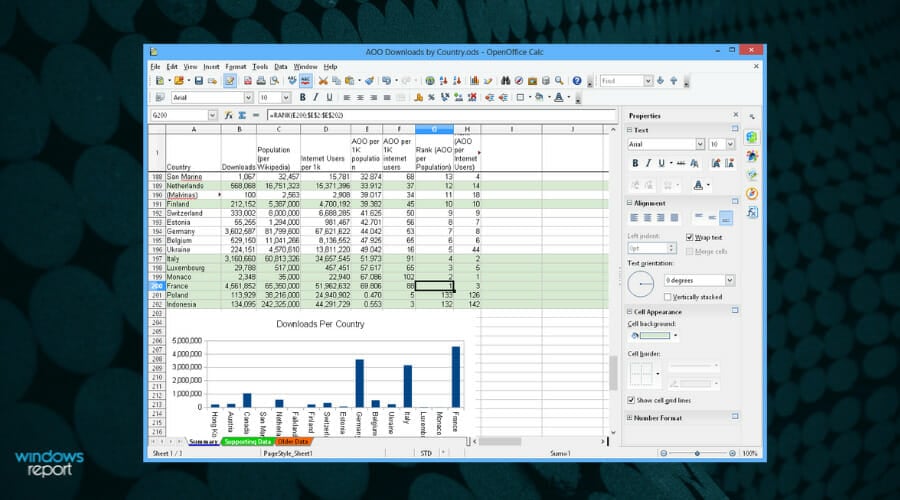
Apache OpenOffice

Apache OpenOffice is a popularly used office suite utilized by Windows users as an alternative to Microsoft Office suite. The OpenOffice suite offers similar programs to Microsoft Office such as; “Writer” for word processing, “Impress” for making presentations, and “Calc” for spreadsheet functions.

In addition, this software supports a wide range of files and supports WKS file format. Using this office suite, you can easily open works files on Windows 10 computers.

Meanwhile, the function buttons are similar to Microsoft Office; hence, this makes the program easy to use as users don’t need to start adjusting to new methods.

Furthermore, Apache OpenOffice is an excellent suite that is available for free and serves as a free alternative to the popular Microsoft Office suite.

This efficient software offers an intuitive platform and in case you’re familiar with office or spreadsheet files, you can use it right away.

⇒ Get Apache OpenOffice

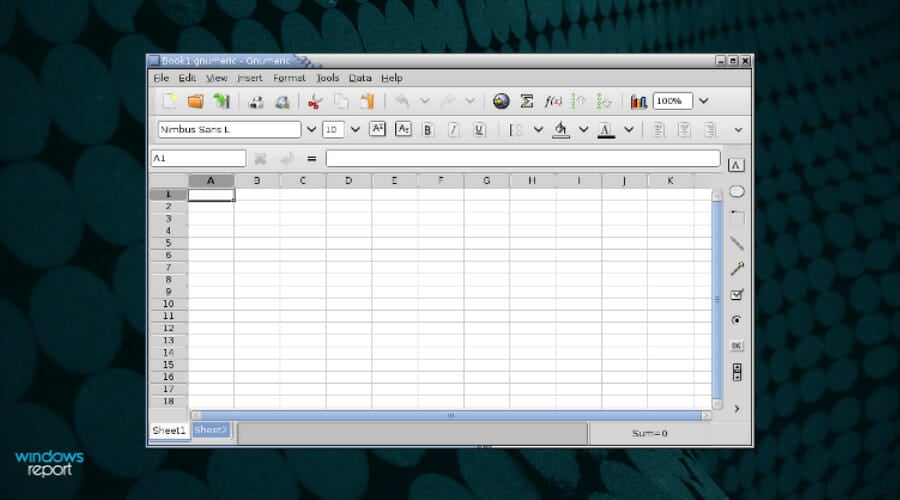
Gnumeric

This spreadsheet application is an open-source program for managing and creating spreadsheets. Gnumeric is free to use and has similar functions to other premium spreadsheet applications such as Microsoft Excel.

One intriguing feature of Gnumeric is that it supports various types of data file formats. The program supports CSV, WK1 and WKS file formats.

With Gnumeric, you can easily edit, format, and open works files on Windows 10 PC according to your preference. You can as well convert WKS files to other popular file formats such as XML file format used by Microsoft Excel.

In addition, Gnumeric also gives an added advantage to you as it utilizes fewer computer resources when compared to other alternatives.

At the same time, it offers similar features found in MS Excel and employs a similar interface which makes it easy for beginners to adapt. Meanwhile, this tool is available for free; hence, it is recommended as a handy program to open works files in Windows 10.

⇒ Get Gnumeric

Conclusion

Conclusively, MS Excel is the best application to use if you want to open files on Windows 10 computers; it gives the best analysis and data organization tools.

The industry-standard program is what we recommend for opening works file format, but for readers who want a free alternative, Apache OpenOffice is a good alternative to Microsoft Excel.

Even more, we have a detailed guide on how to open DPP files, so make sure to take a closer look and find out more about DrawPlus software.

However, other tools we mentioned above can also open works files in Windows 10. If you know of any software that we didn’t mention above, feel free to tell us by commenting below.

Windows 10 KB5014023: What’s new?

Windows 11 users aren’t the only ones still receiving updates, you know? In fact, the new operating system’s predecessor is still on the supported list until 2025, so we should be good for the time being.

Besides the latest Dev Channel build for Windows 11, the Redmond tech giant known as Microsoft also provided fresh software for Windows 10 users.

But don’t get overly excited, because this rollout contains extremely little content, and there are no new features being added.

What can we expect from Windows 10 Build 19044.1741?

Yes, Windows Insiders on the Windows 10 21H2 version received a new Cumulative Update today, with only one fix.

That being said, keep in mind that all of the fixes from last week on Monday’s optional KB5014023 update are included in this new build 19044.1741 (21H2).

Remember that KB5014023 is an optional update, which tests if certain non-security fixes can make it through to the next Patch Tuesday.

  • We fixed an issue that prevents the file system control code (FSCTL_SET_INTEGRITY_INFORMATION_EX) from handling its input parameter correctly.

This non-security, optional cumulative update for Windows 10, KB5014023, is now available for download via Windows Update or through the Microsoft Update Catalog. 

We’re also talking other several notable fixes, such as slowdowns when copying files, problems with old games that use Direct3D 9, and other bugs.

In a nutshell, here is what is new in May 2022 C updates (non-security release) for Windows 10:

  • Addresses a rare issue that prevents Microsoft Excel or Microsoft Outlook from opening.
  • Addresses an issue that affects the IE mode window frame.
  • Addresses an issue that prevents internet shortcuts from updating.
  • Addresses an issue that causes an Input Method Editor (IME) to discard a character if you enter the character while the IME is converting previous text.
  • Addresses an issue that causes file copying to be slower.
  • Addresses a known issue that affects certain GPUs and might cause apps to close unexpectedly or cause intermittent issues that affect some apps that use Direct3D 9

Note that KB5014023 is available on systems with Windows 10 21H2, 21H1, and 20H2, with build numbers 19044.1741, 19043.1741, and 19042.1741.

We’re you expecting something other than this to be present in this release? Share your opinions with us in the comments section below.
Microsoft highlights performance improvements in Teams, reconfirms work on new WebView2 app for business

Microsoft Teams users might be familiar with how much of a performance hog the Teams desktop client can be, but Microsoft might want to change your mind a bit. The company is now highlighting some of the performance enhancements made to Teams over the past year, while also reconfirming their work on a new WebView2 app for businesses.

Per Microsoft’s survey of what’s being dubbed “the 95th percentile of all desktop users in the world,” (which includes low-end devices and low bandwidth) there are two core improvements in Teams over the last year. The first relates to latency and page load times for messaging, and the second is greater fluidity and reduced lag in meetings.

When it comes to scrolling in chat lists from August 2021 to today, Microsoft says that latency has improved by 11.4%, and scrolling over the channel list has improved by 12.1%. The compose message box also loads 63% faster, and the time to switch to a channel and to open a chat window has improved by 25%, per Microsoft’s data. The other two highlights cover switching threads in the activity feed jumping by 17.4% and switching between chat threads improving by 3.1%

As for fluidity and reduced lags in meetings, there are improvements with mute and unmute, navigating the pre-meeting join page, and opening the calling or meeting window. See these below.

  • The mute and unmute audio response during a call improved by 16%
  • Opening a calling/meeting window loaded 4.5% faster. Then once a user is in a meeting switching into a chat improved by 13%, switching to the activity feed improved by 18.7%, and switching to a channel improved by 20%.
  • Navigating to the ‘Pre-meeting join’ screen is 9% faster.

You might also recall that when Microsoft revealed Windows 11, the company teased a new Edge Webview 2 powered Teams app dubbed as “Teams 2.0.” The company has been very quiet about the app, and one commenter on Microsoft’s blog post questioned the company about the app. In response, Microsoft mentioned that  there is “heavy resource allocation towards the WebView2 work you mention for business.” Of course, Microsoft didn’t elaborate much beyond that, but it does seem like work is coming along nicely on the app.

You can win this cool custom Ms. Marvel Xbox Series S console

From June 2 through June 23 you can enter to win a custom Marvel Studio’s “Ms. Marvel” Xbox Series S console. The exclusive console, which comes with a matching Xbox Wireless Controller, is inspired by the new original series Ms. Marvel, from Marvel Studios which begins streaming on Disney+ on June 8.

The show follows a young Muslim American girl named Kamala Khan (played by Iman Vellani), a superhero megafan who struggles to fit in at school before discovering her own super-human powers. The miniseries will consist of six episodes and will serve as a set-up for the upcoming 2023 superhero film The Marvels.

To enter the sweepstakes for a chance to win this gorgeous custom Ms. Marvel Xbox Series S console, head over to the official Xbox Twitter account above, and follow and retweet with #MsMarvelXboxSweepstakes.

How to enable the new Windows 11 inspired design in Microsoft Edge

If you’re on the stable version of Microsoft Edge (at least version 102) then we have some good news for you. As spotted by Neowin, Microsoft is now widely testing a hidden redesign for the web browser on Windows 11. The new design sports more rounded and floating tabs (similar to Firefox) and also sports elements of Microsoft’s Fluent Design and Mica design languages.

This comes after testing started in the Canary version a few weeks ago. But what matters is that this design now matches the looks of Windows 11. So, if you want to try out this redesign today, you can in just a few steps. Here’s how.

Update Microsoft Edge


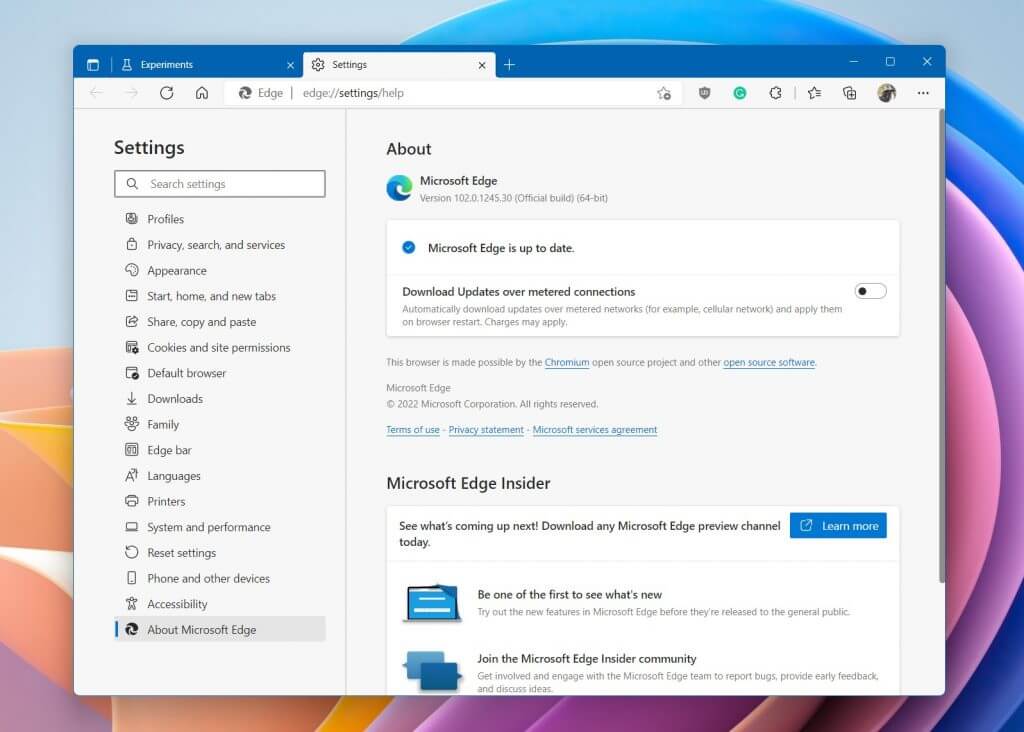
To begin, you’ll want to make sure that you’ve updated to the latest version of Microsoft Edge. Currently, this is Edge version 102. Head to the settings menu at the top of the web browser, choose Help & feedback, and then to About Microsoft Edge. Make sure that Edge version 102 is downloading, and then allow it to finish. When done, follow the prompt to restart your browser, or quit it manually.

Go to enable this flag & restart

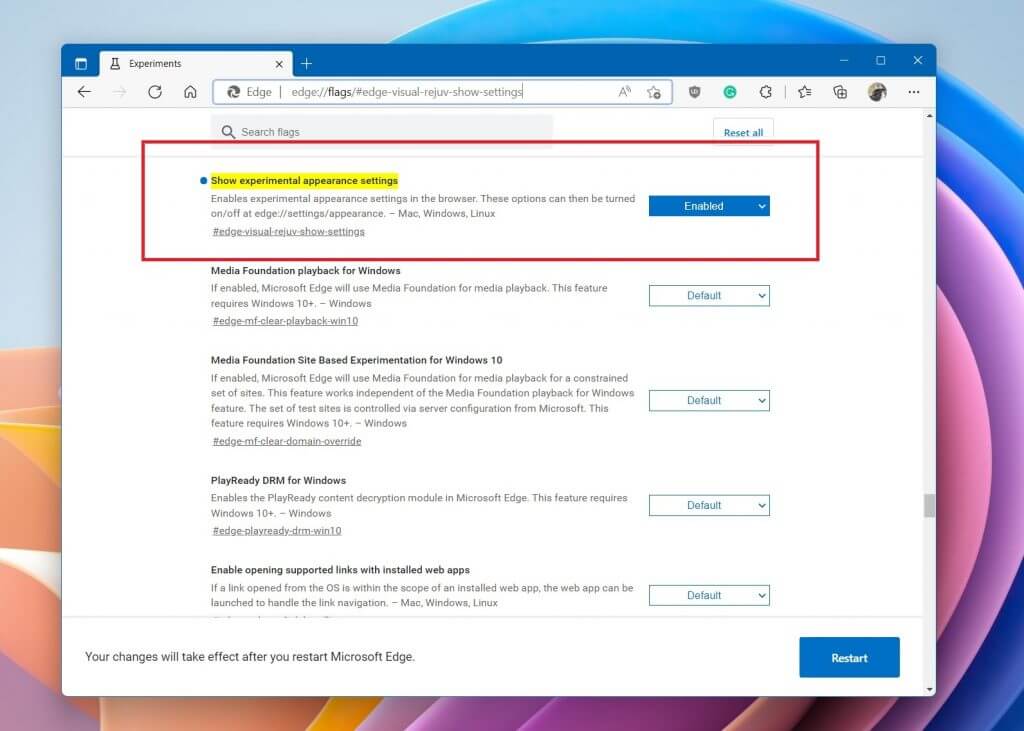
Once you’re on Edge 102, go to this URL. edge://flags/#edge-visual-rejuv-show-settings. From there, on the highlighted option that has a circle blue dot, you’ll want to make sure that you’ve selected the Enabled option. You’ll then want to restart your web browser by quitting it or choosing the Restart option at the bottom of the page.

Tweak a setting

Flag enabled, all that’s left for you to do is to go to Edge’s settings again. Then, choose Appearance. From there, you’ll want to make sure the Show Windows 11 visual effects in the title bar and toolbar option is enabled. Also, make sure use rounded corners for browser tabs are turned on as well. You’ll then have to restart your web browser once again by clicking the blue Restart button. You should then see that Edge looks a lot different, similar to our featured image above.

Just one of many app redesigns in Windows

This new redesign for Microsoft Edge is just one of many that have already happened in Windows 11. Microsoft has previously tested (and rolled out) redesigns for the Notepad app, clock, photos app, as well as the media player. The company is obviously going for more design consistency in Windows and Edge’s new look is just the cherry on top.

How to Fix the Not Communicating Status on Vipre Business Agent

When your Vipre Business Agent is not communicating with the server, it could mean that the server may not be accessible at the moment.

Normally, when Vipre Business Agent is installed on a computer, it will communicate with the master server by default to provide real-time protection for all of the other computers in your network. 

This allows the master server to receive information about any new threats that have been detected by any of your computers and then send out updates to other computers in your network so they can be protected as well.

Vipre Business Agent is one of the most trusted corporate antivirus software that has advanced security features. However, things are not always rosy and you may encounter hiccups from time to time.

The Not communicating status is one of the most common issues that indicate the system is not powered on or that file or printer sharing has not been enabled.

Will Vipre work on Windows 10 & 11? 

Yes, Vipre will work on both Windows 10 and Windows 11. It’s compatible with all versions of Windows. The only issue you could experience is if you’re using a very old version of Windows that isn’t compatible with the latest versions of Vipre as they are updated routinely. 

So, how do you download Vipre Business Agent? You will navigate to the official website but first, you must enable .NET Framework 3.5. Once done, you can proceed to download Vipre Business. 

What can I do when Vipre Business Agent shows the not communicating status? 

1. Restart VIPRE Business Agent

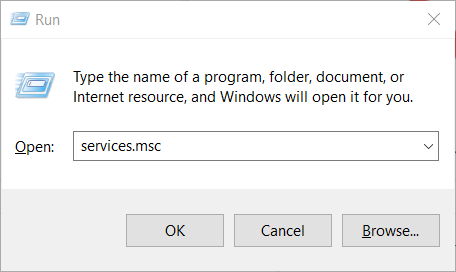
  1. Press the Windows + R keys simultaneously to open the Run command.
  2. Type services.msc in the dialog box and press Enter.
  3. Locate VIPRE Business Agent, right-click on it, and select Start.

2. Enable file and printer sharing

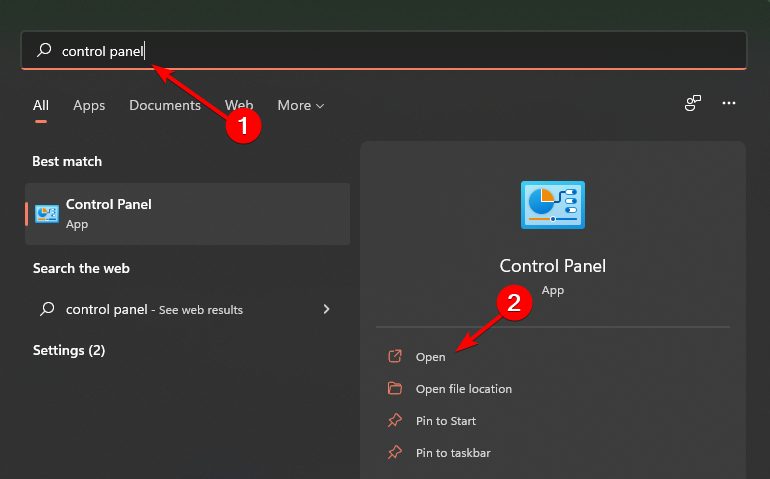
  1. Press the Windows key, type Control Panel in the search bar and click Open.
  2. Select Network and Internet and select Network and Sharing Center.
  3. Click on Change advanced sharing settings.
  4. Locate File and printer sharing, check the Turn on file and printer sharing box and click Save changes.
  5. Restart your PC and see if the problem persists.

How do I update Vipre Business console? 

Before updating Vipre Business console, you need to have Microsoft .NET Framework 4.6 installed and back up your Vipre database.

  1. Once you have downloaded the update, launch the Vipre Business Agent again.
  2. Click on Updates, select Software Updates and check the Check for agent software updates periodicity in hours box.
  3. Reboot your console.

We hope with the help of this guide, you have been able to resolve your Vipre not communicating status and your systems are not exposed to vulnerabilities.

While you are still here, feel free to check out our other recommended security software for small businesses that guarantee you all-rounded protection.

For any further queries or additional comments on this topic, engage us in the comment section below.

Wacom Driver Won’t Install on Windows 10: 5 Confirmed Fixes

More and more users turn to forums in search of an answer to why the Wacom driver won’t install on their Windows 10 computer.

When trying to perform the procedure, users encounter different kinds of errors like abrupt closing during the installation process, errors while running scripts from the package, or an error saying some files can’t be installed.

Luckily, there’s no need to panic. We have compiled a simple guide to help you fix this error and install the necessary drivers with no problems.

How to successfully install the Wacom driver on Windows 10?

1. Remove all traces of Wacom drivers

1.1 Uninstall the driver from Device Manager

  1. Disconnect your Wacom tablet from the PC.
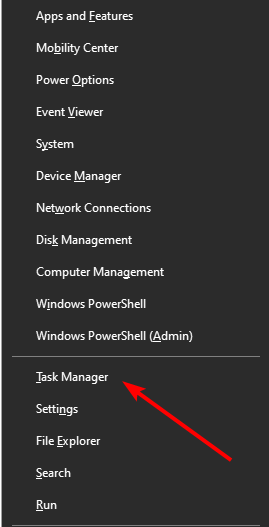
  2. Right-click on Start and select Device Manager.
  3. Locate the Wacom Tablet under Human Interface Devices.
  4. Right-click on it and select Uninstall.
  5. Now, reconnect your tablet and wait for Windows to recognize it and install the right drivers.

1.2 Use a specialized software

Removing the Wacom driver from a Windows computer can be a little tricky, as drivers for tablets have a tendency to hide around the computer once they are installed on it.

This helpful driver solution is the perfect match for every task that involves drivers changes in the system. Whether you have to fix corrupted drivers or backup a driver file, you can do it automatically.

Therefore, with Outbyte Driver Updater you have the most reliable support regarding driver operations, and thus optimize your PC performance using the latest driver versions.

⇒ Get Outbyte Driver Updater

2. Update your operating system

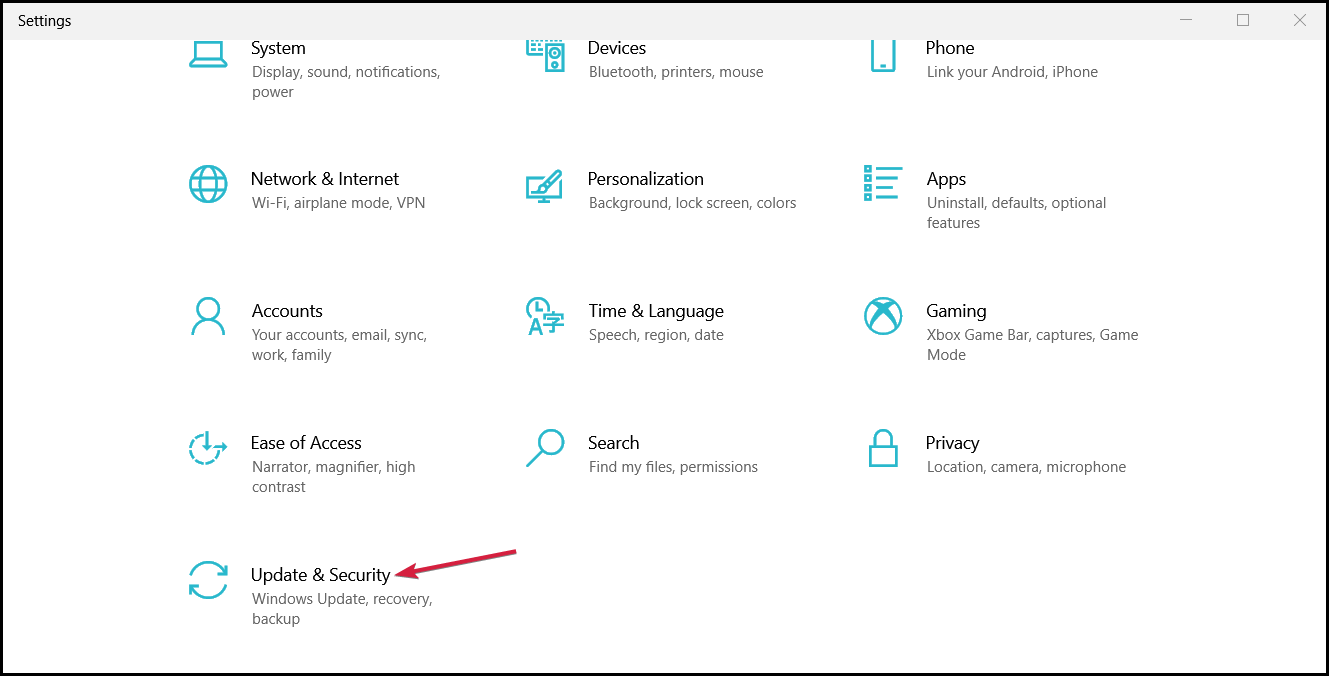
  1. Go to Start and click on Settings.
  2. Go to Update & Security.Update & Security
  3. Select Windows Update and click on Check for updates.check for updates
  4. If updates are available, install them.

You may also visit the manufacturer’s website and download the latest compatible driver for Windows 10.

3. Use the Program Install and Uninstall troubleshooter

  1. Download the Program Install and Uninstall troubleshooter.
  2. Follow the on-screen instructions.
  3. This should help to sort any corrupted registry keys that are blocking the installation.
  4. Try installing the downloaded driver after the troubleshooting process is complete.

4. Update and reinstall

4.1 Use Command Prompt

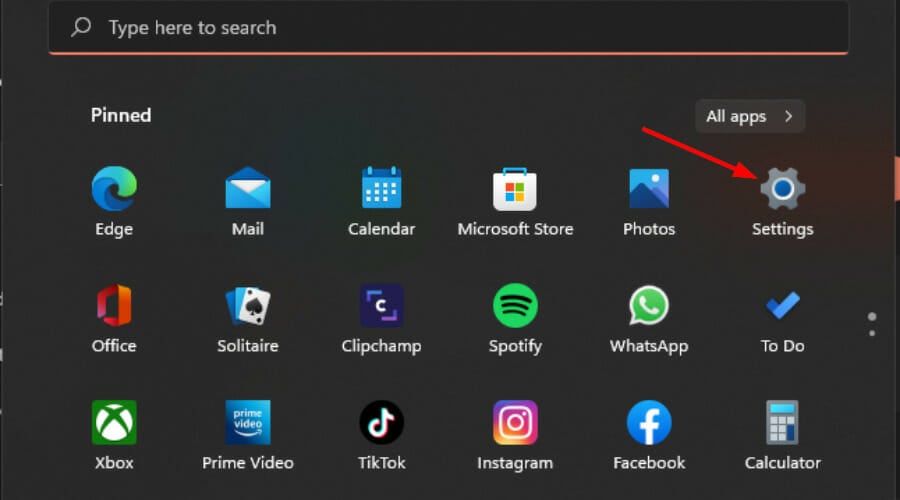
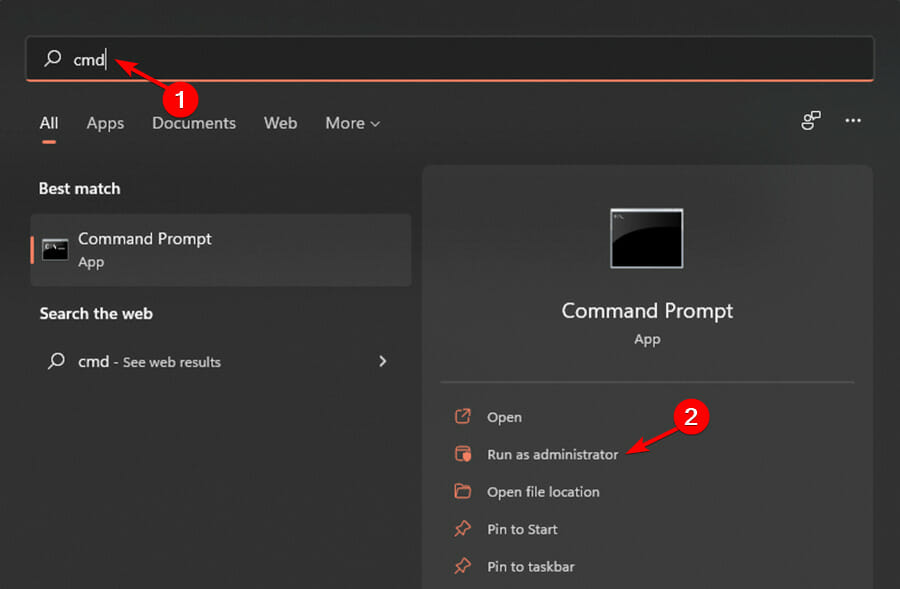
  1. Press Windows + S to launch the search bar.
  2. Type cmd in the dialogue box, right-click on the application and select Run as administrator.
  3. Once at the command prompt, run the following command: mklink / j D:\Program Files\Tablet C:\Program Files\Tablet
  4. In this case, the dedicated location for Program Files is drive D. You can replace D with whatever your drive is.

4.2 Manually download and install the driver

  1. Visit the official Walcom website and download the latest available drivers. Save them to an accessible location as we will access them later.
  2. Right-click on Start and select Device Manager.
  3. Locate the Walcom Tablet from the list of devices, right-click on it and select Update driver.
  4. In the new window, select the second option: Browse my computer for driver software.
  5. Browse to the location where you downloaded the driver and install it.
  6. Restart your Wacom device and plug it in again.

4.3 Restart Wacom Services

  1. Press the Windows key + R to start the Run console.
  2. Type services.msc in the dialogue box and press Enter.
  3. Navigate through all the services until you find Wacom Professional Services.
  4. Right-click and select Restart.
  5. Now check if the problem got solved.

5. Perform a clean boot in Windows

  1. Sign in using a profile with administrator privilege.
  2. Press the Windows key + R to start Run, type msconfig and press Enter to open the System Configuration window.
  3. Open the Services tab, and check the box next to Hide all Microsoft services.
  4. Click Disable all.
  5. Go to the Startup tab and click on Open Task Manager.
  6. Open the Startup tab in the Task Manager window, then select and Disable each program.
  7. Close the opened windows and restart your computer.
  8. After you restart the computer, you’ll have a clean boot environment so you can now try to install the previously downloaded Wacom driver.

We hope that these solutions helped you successfully install your Wacom driver on Windows 10 and you can now enjoy using your tablet with no issues.

Moreover, take a look at our list including the best auto detect drivers software. these tools are ideal if you want to forget all about using Device Manager constantly in order to update your drivers.

If you have any additional suggestions on how to fix this issue or just a question or two, use the comments section below and we’ll make sure to reply.

7 Best Password Sync Software to Pick From Popular Choices

As cybercriminals get smarter and even more cunning, more people fall victim to cyber fraud resulting from the theft of passwords and important personal information.

Frighteningly, cybercrime is projected to cost the world around $6 trillion by 2021. Presently, fraud and cybercrime are now so common offenses that one in every ten people is a direct victim.

Much of the problem lies in our online behavior, mainly the way we now switch from one device to another with ease. While not long ago we used to go online from one device, we now have smartphones, iPads, notebooks, and home desktop PCs.

With so many devices, there is a greater risk to expose your passwords.

What should I look for in a password manager?

Using a password manager with a sync feature, you can save your passwords once and the manager will autofill them for you, whatever device you are using.

The best password managers even go beyond just syncing your passwords. Their other features include a password generator, password analysis, which shows the number of old, weak, reused and compromised passwords, as well as e-wallets where you can keep a record of your online payments, personal information, and receipts.

So, let’s see together the pros and cons of the best password managers you can use today.

What are the top password managers with a sync feature?

NordPass – Best password encryption features

NordPass entered a crowded industry in 2019, and it only took a year for it to become one of the users’ favorite password managers.

This is hardly unexpected given that the technology was built by NordSec, the same organization that delivered the well-known and trustworthy NordVPN service.

The sync feature supports the upkeep of all information in your NordPass vault. It is always synced across your devices and backed up to the cloud. As a result, regardless of the device or platform you use to access it, it is always immediately available at all times.

Also, your passwords will always be close at hand with NordPass, even when you’re not connected to the internet.

Moreover, NordPass provides these key features to the user:

  • Storage for unlimited passwords
  • No limit for devices that use NordPass
  • Syncs passwords across all devices
  • Searching for all old/weak passwords and suggesting new powerful ones
  • Increased security via Multiple Factor Authentification

Switching to or from NordPass will only take moments since it features direct importing or exporting of .csv files. Caution when switching via .csv files since it contains all your passwords for every account.

NordPass

With NordPass’ features, you can access them even when you’re not connected to the internet.
Free Download Visit Website

Dashlane – Great interface

I have used Dashlane for the past year and must confess that I am a big fan of the password manager because of its sleek interface and ease of use.

Not only can I store all of my passwords in one place, but I also don’t have to fill in the passwords every time I log into my social accounts and the many online marketplaces and forums I subscribe to.

Dashlane allows me to sync all my passwords across devices and web browsers so that I won’t have to memorize them even when I switch from my PC to my phone.

The sync feature is however only available to premium account subscribers.

A great feature of the password manager is the master password that I have to manually enter when divulging banking card information.

While the autofill feature is incredibly convenient, saving me lots of time, when I am divulging banking information I will feel safer if I am prompted to manually enter my master password every time, in case my device falls in the wrong hands.

Using cloud storage, Dashlane also vaults my personal details, including usernames and other information for every online account I open.

Every time I fill in personal information for an account for which Dashlane has not saved my credentials, the password manager asks if I would like to save the password information. I can choose not to save the information, which is a choice I sometimes take.

Another cool feature I like on the Dashlane desktop app is the security score, which analyzes all your passwords to pick those you have reused, those that are weak, and, importantly, those that are compromised.

It then works out a percentage security score that you can work to improve by taking the password manager’s suggestions, which include replacing individual passwords with stronger, new ones.

The Dashlane database can be accessed while offline by downloading the desktop app. The password manager is supported on Windows, iOS, macOS, and Android operating systems as well as most web browsers.

1Password – Quick password management

1Password main window

1Password is an excellent password manager. Initially limited only to iOS and macOS devices, in time it’s also become available for Windows, Chrome OS, Linux, and Android.

Some may find the interface of 1Password sleeker than Dashline’s. The password manager is more efficient than those two, often requiring lesser steps or clicks before logging you in.

If you are not comfortable using cloud services to store your passwords, 1Password also has an option for local storage. In the individual plan, for instance, you get 1 GB of cloud space.

Yes, password sync across your devices and browsers is convenient, but there are some sensitive passwords for which you may prefer local over cloud storage.

Even with cloud storage, your master password is never stored in the cloud, which just seems the safest option.

So if you are a fan of all things Apple, 1Password is clearly an upgrade on both Dashline and LastPass.

Unfortunately, 1Paword doesn’t offer a free plan, only a trial period. After one month, you’ll have to switch to one of the subscription plans.

LastPass – Works on almost any platform

LastPass password manager

There are others, and many comparative reviews have given an equally glowing recommendation of LastPass.

LastPass became a lot more attractive after it announced that the sync feature is now available for free for all users.

Password sync is a big benefit that even has me considering a switch to LastPass. The ability to sync your passwords across devices, web browsers, and platforms is more important now than ever as most people now use more than one device to access online accounts.

In case something happens to you, you want trusted people to be able to access your accounts. LastPass allows you to do just that with the emergency access feature that shares your password information with the people you choose.

Just like Dashline, LastPass uses your gathered personal information to autofill forms and password fields for the sites you visit. To give you more control, LastPass allows you to disable the autofill feature on a site-by-site basis.

Some may consider it significant that LastPass’ password generator gives an option of up to 100.

But we can’t imagine needing a password that’s 100 characters long. But then again there is no such thing as being too secure. Anything that can keep those pesky hackers locked out of your accounts is always welcome.

LastPass has both free and paid plans. The password manager works on Windows, macOS, Android, iOS platforms, and the major browsers, including Chrome, Firefox, Safari, Microsoft Edge, and even Android wearables, and the Apple Watch.

The browser extension for Microsoft Edge has however been flagged for quite a few glitches.

Keeper – Reliable solution for card scanning

If you want powerful password sync software, perhaps you might want to consider Keeper. The application comes with 256-bit AES encryption, meaning that your personal data will remain protected and only accessible to you.

Just like any other password manager, Keeper uses a master password in order to protect your account and all your passwords and personal data. The application also supports two-factor authentication which provides another layer of security.

Other standard features include the ability to automatically generate and fill password fields. All generated passwords will be stored in Keeper, and the tool adds them automatically to the input field when you need to log in to certain websites.

Another great feature is the ability to scan your payment cards, so you can use them for faster checkouts in the future. Your personal information is safely stored and the form autofill feature works like a charm.

Keeper is optimized for sharing, so you can easily manage and share your data with family members or even set up emergency access for up to 5 contacts.

It’s also worth mentioning that this application allows you to import your passwords from other password managers or from your browser, so if you decide to switch to Keeper, you can keep all your passwords.

Keeper is a great password sync software, and it’s perfect for both individual and family use. If you’re a business user, there’s a special package with advanced features, so Keeper will be perfect for all your needs.

⇒ Get Keeper

Enpass – Ideal for syncing your passwords across devices

Enpass

If you have tried 1Password before, you will find Enpass to be too similar in appearance and features. But perhaps disappointingly, the password manager does not offer anything too compelling to be a viable alternative.

As is standard with the other password managers we have reviewed here, Enpass also enables you to sync your password data across your devices.

There is also no need to copy and paste your usernames and passwords on sites you frequently visit, as the autofill feature is also included in Enpass’ features bundle.

As one of its chief attractions, Enpass is dirt cheap. The desktop pro version is free, while the mobile version has a free trial with a lifetime license that is pegged at just $9.99 per platform.

Enpass saves your passwords locally, on the device itself. For password sync across devices, Enpass requires you to sign up for a cloud service like Dropbox or iCloud, which is a bit of a drawback and an added cost.

⇒ Get EnPass

RoboForm – Best audited password manager app

RoboForm is the next software tool on our list, and it does an excellent job when it comes to syncing passwords, regardless of circumstances.

Regardless of whether you are on your PC at one moment, or on your phone halfway around the world, simply log into RoboForm, and your passwords will sync accordingly.

This also applies when you change your passwords from one location since this data is bound to your RoboForm account, and not client-side.

Besides, RoboForm makes for an excellent overall password manager, allowing you to store your credentials and log into any website with just one click, without having to remember complicated passwords.

Speaking of complicated passwords, if you lack the imagination to come up with unbreakable credentials, RoboForm will help you thanks to the random password generator.

Recently, RoboForm has successfully undergone a security audit and penetration test conducted by Secfault Security. That adds a lot of credibility to this tool.

Why do I need a password manager?

You can’t afford to be careless with your passwords and personal information anymore. And everyone who wants to be safe online should be using a password manager.

Choosing one that syncs your passwords across devices and browsers just makes your life that much easier. It also makes your passwords and personal information a lot safer.

Any of the password managers we have reviewed here has enough features to secure your passwords and personal information online.

Furthermore, saves you a lot of time on repetitive tasks like filling in your email address and other personal information.

Choose one that seems the most suitable for your personal circumstances and kick off everyday with an enhanced cybersecurity toolset.

Windows 10 Password Manager: 9 Best Picks for 2026

No one wants to have their data leaked and give hackers access to personal information and private files.

Although Windows 10 and Windows 11 do implement powerful security options and have regular updates to keep up with new security requirements, they don’t have a very secure option to secure your passwords.

We use passwords to authenticate to pretty much any type of digital account, many of which we use to communicate and also store sensitive information.

Whilst Windows 10/11 does not have a built-in password manager, there are some third-party solutions that provide great security and ease of use.

For this reason, we tried to find the best password manager for Windows 10/11 and ended up with several noteworthy options, hence the following list.

All these tools come with password storing features and some of them include additional benefits such as a password generator or cloud-based sync.

Some of these tools even include data breach monitoring features and alert you right away in case any of your passwords is compromised.

How do I manage passwords in Windows 11?

Today’s security risk requires us to change passwords frequently and it’s advised we don’t use the same password for all accounts.

This can get overwhelming real quick, so it’s recommended you get a password manager that can securely store all your passwords so you won’t have to memorize them.

Fortunately, many password managers on the market offer free versions, so you will not have to pay in order to benefit from highly secure password storage.

Does Windows 11 save passwords?

The closest thing to a password manager that you can find in Windows 11 is the Credential Manager Menu.

There you can see all the accounts that are saved on your computer. For example, if you use the built-in Microsoft email app, you will get access to your email addresses and their credentials.

It can also store some passwords that you have saved around the web, but it is somewhat updated when compared to the built-in password saving features within browsers.

The Windows credential manager will not be able to autofill web-based passwords. To access the information you will always have to browse around the panel, so it’s not exactly quick and intuitive.

Plus, some users reported having their data leaked when using this feature, so we recommend you try a different tool until the issue is addressed.

How do I choose a password manager?

When you pick a password manager it’s essential to make sure it has the following assets:

  • Enough storage space for your needs (many offer unlimited)
  • Powerful encryption algorithms such as AES-256-bit or XCHaCHa20
  • Data breach monitoring to make sure you’re not at risk
  • Password assessment to let you know how secure your password is
  • Cross-platform compatibility so you can access your passwords from all your devices

What are the best password manager apps for Windows 10/11?

NordPass – Best password manager with encryption

NordPass is a streamlined password manager brought to you by the team that’s behind the highly secure and award-winning service, NordVPN.

Security and convenience are probably some of the most sought-after benefits you want to get from a password generator and NordPass excels in both.

Along with managing your passwords and making them readily available on multiple devices, it also has a strong password generator that gives you sturdy, unbreakable key combinations to keep your accounts safe.

NordPass stores your data in a cloud and uses the zero-knowledge encryption model to make sure it stays private. This means that all decryption of the data only takes place on your devices.

In terms of user experience, NordPass is very easy to navigate. New users are able to adjust to its intuitive interface in no time.

Note: Take advantage of the valuable NordPass plan for businesses, including new perks like the in-house authenticator. The price starts from $3.59 per user/ per month.

Moreover, the key features of NordPass are:

  • Unlimited saved passwords and devices connected
  • Autosave password and autofill when needed
  • Fast and automatic sync across all the devices you use
  • Find old, weak, and reused passwords and suggest new powerful ones
  • Stay logged in when switching devices
  • Family plan for all family members

NordPass has a free version that offers the necessary support to set up and store passwords. However, it offers some amazing features when choosing a subscription plan.

NordPass

Store your passwords with this tool that uses next-level encryption to keep your data secure.
Free Download Visit Website

Password Manager Pro – Best Enterprise Password Solution

Password Manager Pro

ManageEngine Password Manager Pro is an enterprise-grade password management solution. It helps organizations securely store and control access to sensitive credentials across IT environments.

Rather than acting as a simple password vault, it focuses on privileged account management, making it especially useful for IT teams handling large volumes of system and service accounts.

At its core, the platform provides a centralized, encrypted vault where passwords, documents, and digital identities are securely stored using strong encryption standards.

Administrators can enforce granular access controls, ensuring users only see or use credentials relevant to their role, while automated password resets and policy enforcement help maintain strong security hygiene.

One of its standout capabilities is privileged session management, allowing users to connect to remote systems without exposing credentials, while sessions can be monitored or recorded for auditing purposes.

The platform also offers detailed audit trails and compliance reporting, making it easier to meet regulatory requirements and track all password-related activity.

Overall, Password Manager Pro is a powerful, highly configurable tool best suited to medium and large organizations. It goes beyond basic password storage by combining security, automation, and oversight into a single platform designed to reduce the risks associated with privileged credentials.

Dashlane – Ideal for password autofilling

Dashlane password manager is a great tool that stands out among its competitors through many features like top security, a user-friendly interface, and competitive pricing plans.

Once installed, Dashlane starts scanning your browsers for any saved passwords and imports them into its database where you can manage them.

The free version allows you to store 50 passwords, but the paid version unlocks a plethora of cool password management features that help you access your accounts.

First of all, it has a simplified VPN that helps you connect faster. Well, it cannot be compared to some of our best VPN choices but it does the job of connecting to the fastest server.

You are also protected in case your personal information appears on the Dark Web. Speaking of security, it comes with 256-bit encryption, a backup of all your passwords, sync across multiple devices, and a password generator.

Dashlane can also keep track of other private data such as your bank credentials.

You can get quick access to all your sensitive information from its secure, unified user interface.

The tool saves you lots of time as it implements an autofill feature. You don’t even have to check and type your password, Dashlane is doing it for you.

It’s also important to mention that Dashlane makes a point to keep your data secure and has a transparent privacy policy that states they don’t sell any user information to third parties.

1Password – Quick and light tool

1Password is another generous password manager with very good reviews from both individuals and businesses using it.

For personal and family use, the tool comes in two paid plans, each with a one-month trial period.

In the simplest version, you can store an unlimited number of passwords and items, plus get a 1 GB storage space for documents.

The Travel Mode can come in handy if you’re a frequent traveler and you need sensitive data to be accessible only within certain territories.

If you want to go for the family version, you’ll get up to 5 accounts, the option to share with other members personal data such as passwords or credit card numbers, and manage what the others can see and do in the app.

1Password has a comprehensive digital vault that you can use to store passwords, login information as well as private data.

You can use it to secure and manage your bank account information, personal documents, identity cards, and more.

It has an automatic form filler so you can log in within seconds. 1Password stores your usernames and their corresponding passwords and automatically fill them in for you when you start typing them.

LastPass – Great secure app

We’re sure that many of you already heard of LastPass. But if you haven’t used this password manager before, here’s why you should give it a try.

First of all, LastPass is one of the very first password manager apps released for Windows 10 and is kept up to date and compatible with Windows 11 as well. It is very stable and reliable and it comes with a very easy-to-use user interface.

This password manager app also supports fingerprint technology, allowing you to quickly access your information.

The tool also includes some interesting productivity features. For example, you can save important details on your account, including bank account information, your driver’s license, passport information, social security number, and more.

LastPass also includes data breach monitoring so you can rest assured that you’ll be notified in case there are any issues with your current passwords.

The tool even monitors data breach problems that appear on the dark web.

It also has an emergency access feature. With this feature, you can give access to your LastPass account to a trusted friend.

All in all, it’s a performant, secure, and convenient solution. Desktop users can enable the autofill option for quick account logins.

LastPass

Store your passwords across all your devices and favorite websites with this intuitive password manager.

Efficient Password Manager Pro – Simple password manager

Another great password manager that we want to show you is Efficient Password Manager Pro. Just like another password manager on our list, this one uses a master password to protect all your passwords.

Thanks to the 256-bit encryption, all your passwords will remain protected, and in order to access them, you just need to enter your master password.

This software supports synchronization, so you can access all your passwords across multiple devices. This app is available on PC, Android, and iOS, so you’ll be able to access your passwords at any time.

Efficient Password Manager comes with a built-in search option so you can find the desired password in a matter of moments.

Another notable detail is the ease of use,  allowing you to copy your login information simply by right-clicking it. Of course, you can visit any website right from the password manager and quickly enter the required login information.

In order to make sure that you’re using proper security practices, the application also has a built-in password generator, so you can easily generate secure and strong passwords.

Overall, Efficient Password Manager Pro might not be as advanced as other entries on our list, but it will help you organize and create secure passwords, so it’s worth checking out.

Keeper – Stores an unlimited number of passwords

Keeper is both a password manager software as well as a password generator. 

To decrease the risk of getting hacked, it is important to use different passwords for each of your accounts, and with this software, you can do that in a more organized way.

Not only can Keeper generate strong passwords, but it also stores them and automatically fills them in so you will not have to bother trying to memorize them.

It stores an unlimited number of passwords, so you can rest assured that you’ll be able to secure all your accounts with no worries.

Besides password management and protection, Keeper also offers a very secure digital vault where you can store other sensitive data such as private documents, pictures, and so on.

It uses a proprietary zero-knowledge protocol (ZKP) which means that your data is always encrypted when stored in the vault and the decryption only happens locally, on your device.

Each vault uses the powerful 256-bit AES encryption model which is very much praised by cybersecurity experts.

Keeper is also a convenient software. It syncs the information stored and allow you to access your passwords and vault data across multiple devices. You just have to provide your credentials and log in.

To make sure your data stays safe, you can set a logout timer to prevent account theft.
Keeper also includes two-step authentication via SMS or dedicated services such as Google Authenticator, Duo Security, or RSA SecurID.

Keeper comes up with a free version that you can use but with limited possibilities. If you want to use the fully-featured version, you will have to subscribe to the paid plan.

⇒ Get Keeper

Password Padlock is one of the most popular password managers on our list. It’s very likely that you have heard of it before.

This great password management tool uses efficient AES-256-bit encryption algorithms to keep your data safe.

It works on a similar principle to other software on this list, meaning that it requires you to set up a master password.

That password is not stored anywhere for security reasons, so you need to make sure you will remember just that one password in order to be able to have access to your other data.

The tool has a password generator with pre-defined categories, but you can also create your own passwords yourself.

You also have an option to back up and restore all your passwords to OneDrive, so you’ll never lose or forget any of them. That means you can back up your password on one computer and restore it on another.

Managing passwords is very easy because they’re organized into categories. Besides, Password Padlock has no annoying ads and you can share your data with a Windows phone.

⇒ Get Password Padlock

RoboForm – Best audited password manager app

Managing passwords means two things: never having to remember them yourself and having them entered automatically when needed.

Well, RoboForm Password Manager is a software tool that can handle both of these things easily, and much more, all thanks to the one-click convenience that governs its design.

RoboForm securely stores all of your passwords and logs you in with a single click, or tap if you’re using touchscreen devices, thus saving time entering personal and billing information.

The program is available on a wide range of platforms, so you don’t get it just for your PC, but also for your phone and tablet, as well.

Besides, it doesn’t just store passwords, it generates them randomly for you, all so that you never have to worry about creating easy-to-crack passwords without meaning to.

Moreover, recently, RoboForm has successfully undergone a comprehensive security audit and penetration test conducted by Secfault Security. That adds a new level of credibility to this tool.

All being said, take advantage of this multi-functional password manager with its exclusive features like data backup on all devices included in their subscription plans.

RoboForm

Manage your passwords and keep them safe and secure with this platform’s advanced toolset.
Free trial Visit website

This has been our rundown of the best password manager tools. Now you know what the market has to offer and can apply this knowledge to determine which tool fits your specific needs best.

It is very important to make sure you use a reliable tool as data breaches have become regular problems. Hackers invent new ways to access sensitive information about your identity, financial accounts, legal documents, and more.

If you want to know more about the security of the Windows operating system, you should check our article about the top 5 security apps for Windows 10 & 11.

Your feedback is welcome, so drop us a line in the comments section below.
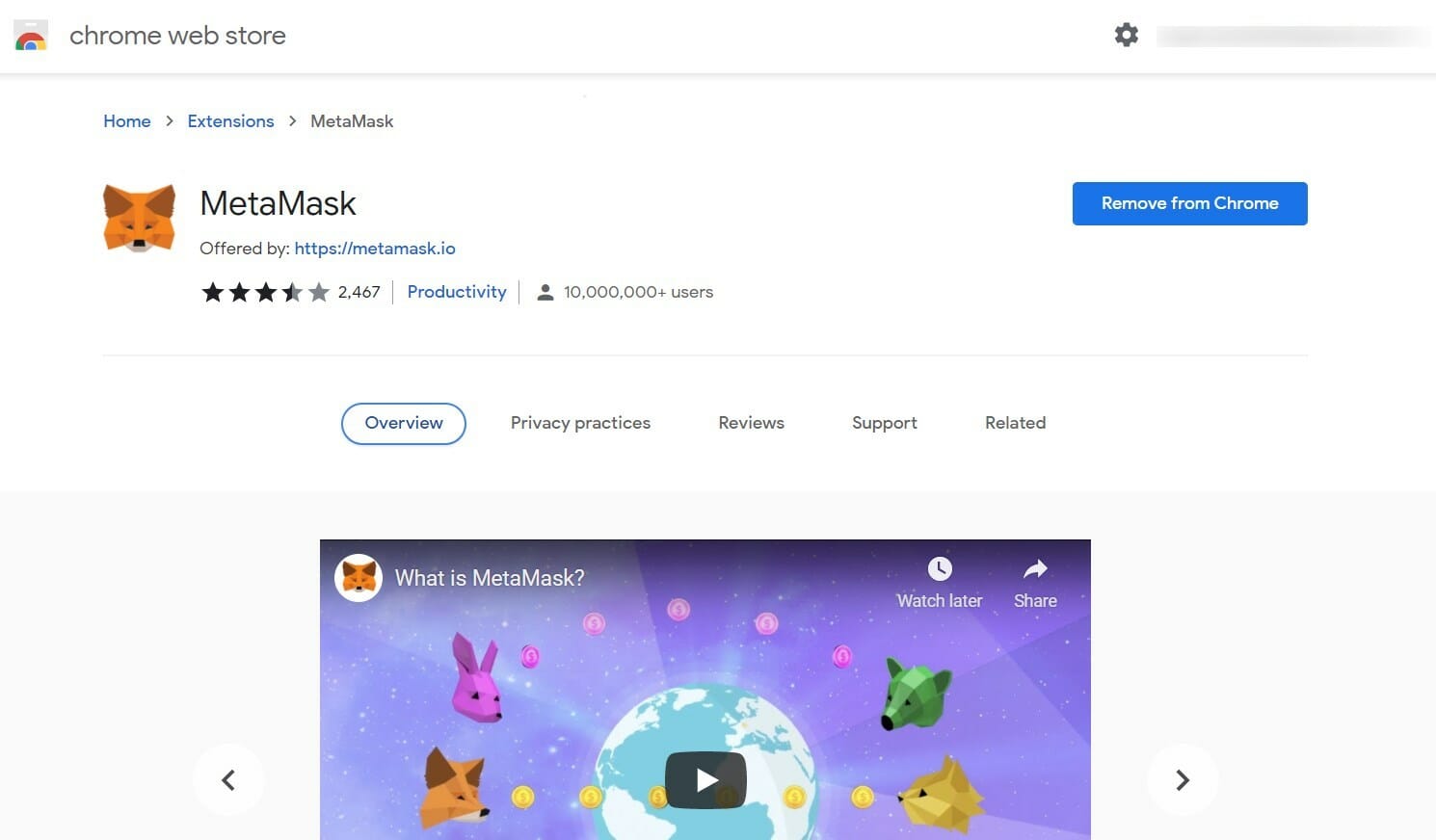
Secure your online accounts thoroghly with leading tools

How to Properly Update Synapse X: Easiest Guide

For most people, Synapse X is a trusted tool that helps them get the most out of their gaming experience. However, some users have reported issues as the software fails to update.

In such cases, it can be frustrating especially if you have accustomed yourself to enjoying all the perks that synapse X has to offer when gaming.

Given that it is a third-party program that gives players an unfair advantage, most antivirus programs often flag it as a virus or malware. You can make it an exception so that it never misses any updates.

How long does it take to update Synapse X?

Synapse X is updated on a regular basis with new features, improvements, and bug fixes. These updates are delivered automatically through your product’s software update system.

Other updates depend on the specific game you are playing. If that game has updates, so will the program. The developer usually releases the updates by the hour but sometimes it can take up to six hours.

If the update takes longer, something may be wrong with your Synapse X and you need to check and ensure your firewall is not blocking any notifications.

Does Synapse X auto-update? Yes, once you have whitelisted it in your antivirus, you should receive regular updates as they are released.

How do I manually update Synapse X? 

You can manually update Synapse X by going to the official website and downloading the update. 

They are categorized by date so that you know which one is the latest. There are also different versions of Synapse X available so you can choose one with features you like.

How do I fix Synapse X not updating? 

If Synapse X is not currently updated, it’s probably just a minor glitch, and in a few moments when you try again, the problem will have been resolved. However, if this doesn’t happen, the issue could be in the executable files.

The files may have been corrupted during download. You will have to uninstall and reinstall Synapse X to renew the files.

To uninstall Synapse X, follow the steps below:

  1. Press the Windows key, type in Control Panel in the search bar and click Open.
  2. Navigate to Programs and Features and select Uninstall a program.unable to uninstall program windows 10 11 app won't uninstall
  3. Find Synapse X, right-click on it and click Uninstall.
  4. Go back to Synapse X official website to download it again.

That brings us to the end of this article. We hope that at this stage you have been able to successfully update Synapse X either manually or automatically.

Should you encounter any other related issues such as Synapse X Discord not working, we have excellent solutions you can try.

We have also covered how to download and use Synapse X for Roblox so that you can get more out of your games with the many features it brings.

Let us know of any other additional thoughts you may have in the comment section below.

Skype Call Recording Software: 10 Best in 2026

One of the most frequently sought features for Skype is the ability to record video and audio calls.

Of course, the premier online calling application possesses a native recording tool.

However, if you want an app that does a bit more than just record your call, you’ll have to resort to third-party developers.

Check out the best Skype call recorders currently available on the market.

What are the best Skype call recording tools?

Loom Screen Recorder – Ideal for Skype captioning

Loom is a free screen and video recorder program that is ideal for capturing Skype video chats on Windows 10.

Loom includes internal recording capabilities for both your browser tab and programs on your device through the desktop app.

There are two methods for capturing your Skype conversations when recording with Loom.

With the Loom Chrome extension, you may record the internal audio of a specific browser tab in two ways: capture mode for the tab and audio recording just, without a microphone.

When you use the Loom desktop software, you may record the system audio of any program on your device, including Skype video conference sessions.

You may record your full screen, a selected window, or a custom-size recording region using the Screen and Cam and Screen Only choices.

If you have multiple monitors, you may select which monitor’s screen to record and share over Skype.

If you want to record your camera and audio while recording your screen, you may use any camera or microphone that is connected to your computer.

To stop recording, use the Control Menu’s stop button in the browser or the Loom program on your desktop. From the Control Menu, you may also instantly restart, pause, or erase your recording.

When using Loom you can take advantage of these key features:

  • Capture any Skype content
  • Share and embed videos
  • Trim content and remove background noise
  • Emoji reactions to shared videos
  • Drawing tool & mouse emphasis

Loom Screen Recorder

Loom allows you to record your Skype video calls, modify and adjust them, and then share them via a link.

Aiseesoft Screen Recorder – Great for basic screen recording

If you here hoping to come across a decent Skype call recording tool, this is definitely not it. Aiseesoft Screen Recorder is the ultimate screen recorder, for both video and audio.

From gameplay to microphone and music, videos, apps, and pretty much anything and everything that’s happening on your screen, you can record flawlessly and enjoy crystal clear playback afterward thanks to Aiseesoft Screen Recorder.

But there is more where that came from – feel free to take snapshots and perform professional edits on your video and/or audio with no need for additional software. You can do it all with one single app.

Let’s quickly look at its key features:

  • Cross-platform compatibility (Windows and Mac)
  • Screen recording (video, audio, mic, voice, Skype calls, Youtube clips, and more)
  • In-built snapshot tool with editing capacities
  • Video and photo editor
  • Multiple customization options (output type, hotkeys, frame rate, video codecs, and more)
  • Watermark-free files
  • Supports all major file formats including PNG, GIF, MOV, MP4, and more

Aiseesoft Screen Recorder

High-quality screen recording and professional-grade editing tools at your fingertips.

Movavi Screen Recorder – Best recorder for Skype

Skype basically introduced the idea of video calling someone on a large scale, but they never did find a way to also record those calls efficiently.

That’s where Movavi Screen Recorder comes into play, as it allows fast and efficient recording of your entire screens, even when you’re in a Skype call.

Of course, you don’t have to limit yourself just to Skype calls, since it can handle Google Meets or Zoom calls just as easily.

Using this tool is equally easy since all you need to do is choose the capture area and adjust recording settings, hit the REC button to start screen recording, and, once you’re done, perform some slight editing to better tweak the recording.

Besides, the program can be downloaded and tested for free, so there’s no reason why you shouldn’t try it.

In fact, the entire premise of this tool is to be used for this purpose, forgoing the usual tools that you would find in a regular screen recorder.

Take a look at its best features:

  • Capture webinars and online calls
  • Record video instructions and tutorials
  • Grab streaming videos and online events
  • Easy to install and use
  • basic editing functions

Movavi Screen Recorder

Record your Skype calls in the highest available quality fast and easily with Movavi Screen Recorder.

AthTek Skype Recorder – Dedicated Skype recording app

AthTek Skype Recorder is designed to work with Windows. The tool can serve to answer Skype calls or enable parental control for kids.

The tool combines both audio and video recording features in a single program to launch with Skype and initiate a call from within the app and store the recording output in AVI, MP3, WMA, OGG, and FLAC formats. 

The tool also features a Hidden Mode to run in the background as it captures conversations.

Parents can enable the auto start mode for parental control by tweaking the option in advanced settings and activating Hidden Mode.

Let’s quickly look at its key features:

  • Excellent call quality
  • Easy user interface
  • Allows for separate audio tracks selection
  • Parental control

AthTek Skype Recorder

Launch AthTek with Skype and experience high-quality recording features and more!

Gilisoft Audio Recorder Pro – Ideal for top-quality recordings

Audio Recorder Pro is the go-to software when it comes to recording sounds from a wide variety of sources.

Skype is included on the list, but if you do decide on getting this tool, then you should prepare yourself since it records even from Skype, Yahoo Messenger, Google Talk, and any other VoIP applications.

Of course, conversations aren’t the only things it records, since music from YouTube, Pandora, Spotify, BBC Radio, iTunes Radio and much more are also accessible.

The recordings are top-quality, the only limit in terms of sound clarity being the actual recording source.

Let’s quickly look at its key features:

  • Intuitive UI
  • Wide variety of supported recording sources
  • Easy on the system’s resources
  • Save conversations as WAV, MP3, or WMA

Gilisoft Audio Recorder Pro

Recording your Skype calls has never been easier – schedule, manage, and customize audio as you seem fit!
Check price Get it now!

Evaer Video Recorder for Skype – Simple tool

The Evaer video recorder is an easy to install software with modern design and features.

Evaer lets users record Skype calls and store the resulting file in HD on the computer. The software requires no configuration after installation and allows for recording in various modes, including Both Sides, Picture In Picture, or Self-Adaptive.

On first use, the tool asks permission to access Skype. Click Allow access when notified, otherwise, Evaer will automatically connect to Skype after a few seconds anyway. 

As well as manually setting the tool to start recording a Skype call, Evaer can also automatically capture calls while it runs in the background if you so choose.

For privacy purposes, Evaer notifies users when it starts recording calls.

Evaer video recorder for Skype

While recording a Skype video call, you can preview the recording results and control the recorded video channel in real-time.
Check price Visit website

Amolto Call Recorder for Skype – Great for quick recording

Amolto Call Recorder works with Skype and other VoIP applications with high-quality output.

The software has a simple user interface and recording starts concurrently once a user begins a Skype call.

Users can also add notes or MP3 tags to recorded calls in order to highlight key parts of a conversation. 

⇒ Get Amolto Call Recorder for Skype

TalkHelper Call Recorder for Skype – Dedicated call recorder

TalkHelper is a modern call recorder for Skype that lets users capture audio or video conversations and store the output on PC for future use.

On first use, Skype will ask users to allow the tool access to the conversation in order to initiate recording.

It then displays the time duration of a call in a list form. Users also have the choice to automatically launch the call recorder once a Skype call starts.

There’s an option to pause the recording anytime and edit the output in order to remove the unnecessary parts of the conversation. 

⇒ Get TalkHelper Call Recorder for Skype

MP3 Skype Recorder – Ideal for audio call recording

MP3 Skype Recorder works in the same way as Pamela and captures Skype calls in high quality.

Audio and video calls are recorded in the MP3, OGG, WMA, or WAV format.

The call recorder can also capture P2P, SkypeOut calls, and online number calls, as well as record simultaneous calls and save them as separate files. 

⇒ Get MP3 Skype Recorder

Call Graph recording plugin for Skype – Great Skype plugin

Call Graph recording plugin for Skype works to capture audio and video calls on Skype, SkypeIn, SkypeOut, conference calls, podcasts, and phone interviews. The tool saves the output in MP3 or WAV format.

Users can also look for specific conversations through tags, search, sort, and filter options, as well as add time-coded notes to the recording. 

It comes with a built-in Flash player to playback Skype recordings.

⇒ Get Call Graph recording plugin for Skype

That’s it for our list. Do check out each product presented above and pick the one that best suits your needs.

You might also me interested in our list including the best HD video recording software for Windows 10/11.

Don’t forget to share your favorite choice with us by hitting the comments section below.

Microsoft’s Surface Go 2 laptop is now available for $599

This isn’t totally unexpected, considering we already had several leaks and quite a few last-minute spoilers. 

Now, the Redmond tech giant has officially unveiled the Surface Laptop Go 2, a sequel to the original Surface Laptop Go from 2020.

If you’re looking at acquiring a brand new laptop you will have to dig deep in your pockets, as this new model has a price tag of $599.

https://www.youtube.com/watch?v=Myn1Kw_RINQ&feature=emb_title

Surface Go 2 will become available starting on June 7

Yes, you read correctly, you can’t have this laptop right now. That being said, don’t be sad, as it will become available on June 7, but you can preorder now.

It’s true that the Surface Laptop Go 2 is slightly pricier than its predecessor, but the company argues that the price is totally justified by the gadget’s features and power.

With this device, you get 128GB of storage instead of the usual 64GB in the original Surface Laptop Go base configuration.

Microsoft also decided to change the 10th gen Intel Core i5 with the newer 11th gen Intel Core i5-1135G7 and introduced a new version with 16GB of RAM.

Another detail that will surely make you happy is the fact that the Surface Laptop Go 2 comes is four colors, such as Ice Blue, Sandstone, Platinum, and Sage.

Microsoft guarantees an autonomy of up to 13.5 hours, an improved HD camera (720p), and better thermals that make the laptop less noisy.

Those are pretty much all of the changes for the Surface Go 2, which means users have to deal with only 4GB of RAM in the base configuration and no backlit keyboard.

What should really interest you the most is the fact that Microsoft says the Surface Laptop Go 2 is better in terms of sustainability as well.

The device’s replaceable components now include not just SSD but also the keyboard, trackpad, display, battery, and the Surflink cable.

Is this a device you might be willing to buy? Share your thoughts with us in the comments section below.
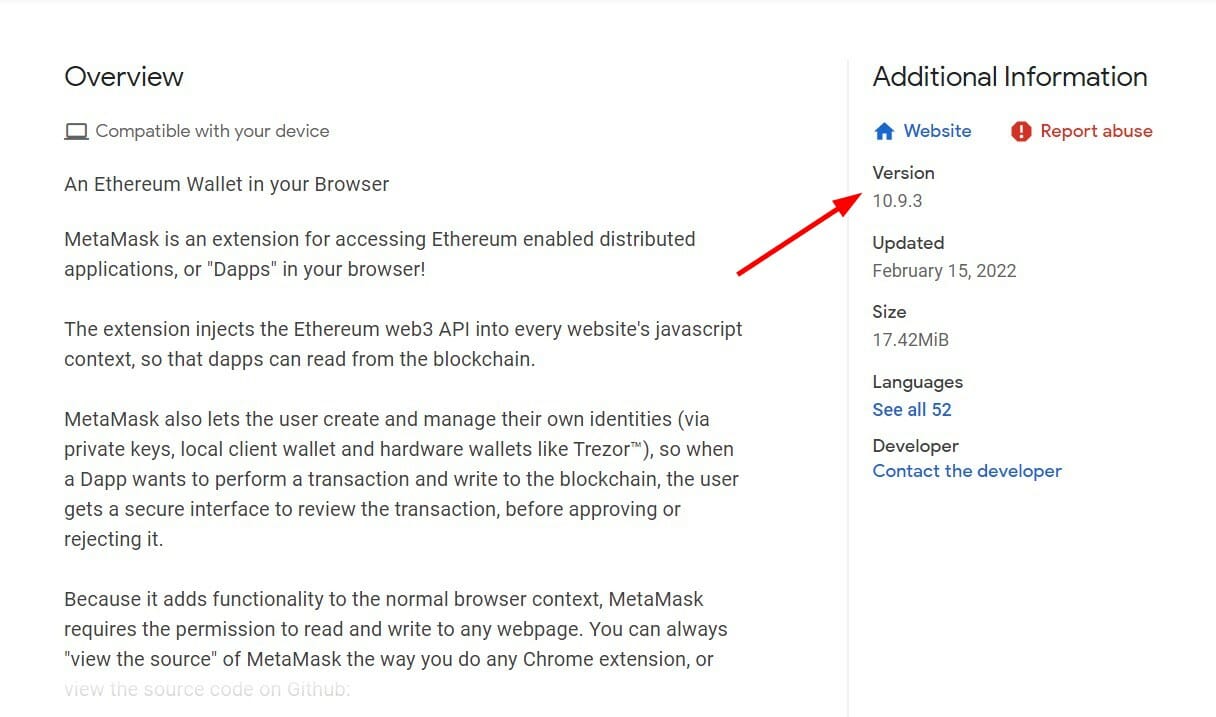
7 Quick Fixes for Outlook 2010 Cannot Open PST Files

Microsoft Outlook 2010 is a good software program that doesn’t crash easily, but sometimes Outlook 2010 cannot open PST files because it has been corrupted.

This is one of the common Outlook errors, but because it’s so prevalent, it’s also easy to fix, and in this guide, we’ll show you how to do that.

If you’re having this problem with your email client, follow our solutions carefully, and the error message should be gone in no time.

What is the max size of a PST file in Outlook 2010?

By default, the default limit of a PST file is set at 50GB, which should be more than enough for most users. However, you can easily remove the default limitation.

Regarding the maximum size, the technical limitation is 4194304GB or 4096TB, but we doubt that any user will need that much storage for their PST file.

What can I do when Outlook 2010 cannot open a PST file?

1. Close all processes and programs

  1. Right-click on the taskbar and select Task Manager.
    task manager
  2. Click More details and then select Processes.
  3. Find Outlook, Lync, UCMAPI, and Communicator processes; click End Task to end them.
  4. Exit Task Manager and restart Outlook 2010.

This is a quick and easy method that can help you if you encounter the Outlook PST is in use and cannot be accessed close any application that is using this file error on your PC.

2. Open MS Outlook 2010 in Safe Mode

  1. Press Windows + R to open Outlook 2010 in safe mode.
  2. Type outlook.exe /safe and press Enter.
    run outlook in safe mode
  3. Check if the error disappears. If it does, click File and select Options.

  4. Navigate to Add-ins and disable the third-party add-ins.
  5. Launch Outlook 2010 and gradually enable the add-ins to determine the corrupted one.

This method also works if Outlook data file cannot be opened Office 365, so we encourage you to try it.

3. Use an Inbox Repair Tool

  1. Quit Outlook 2010 and go to MS Office installation directory which should be in one of these locations:
    C:\Program Files\Microsoft Office\Office14
    C:\Program Files\Microsoft Office(x86)\Office14
  2. Find and launch the SCANPST.EXE inbox repair tool.
  3. Select Browse and click on the PST file.
  4. Click Start to scan the file for errors; if there are errors, click Repair and wait for the Repair to complete.
  5. SCANPST.EXE may seem unresponsive; do not close it because it works like that.

If the tool does not remove the Not Responding status or stops working completely, use an advanced repair tool, as detailed in the next fix.

4. Use an advanced PST Repair Tool

If this problem persists, you can try using a specialized PST repair tool. This type of utility can recover corrupt PST files. After you run it, your files will be as good as new.

  1. Click Browse to select the source PST file.
  2. Once the tool has completed the recovery process, it displays a preview of the restored items.
  3. Select mailbox folders and click Save to store the items.

We decided to use Kernel for Outlook PST Repair because it is one of the most reliable tools of this sort.

The advanced repair software scans and identifies corrupt PST files. It repairs the files and retrieves all data, so no information is lost in the process.

It displays the data in a tree-like model. Recovering files using Kernel for Outlook PST Recovery software entails the above steps. It can also convert PST files to various formats.

So if you ever wondered how to repair a PST file without scanpst, this is the best way to do it.

5. Create a new data file

  1. Click File on the ribbon and then select Info from the Menu.
  2. Then, click Account Settings and then select Account Settings again.
  3. Click on Data Files.

  4. Select Add to open the Create or Open Outlook Data File.

  5. Enter the new Outlook 2010 Data (.pst) file name.
  6. Click OK.

If you’re getting Cannot open PST file Access Denied, It is possible that when creating a PST file in Outlook, it became corrupted, and creating a new data file can help.

6. Recover items from the backup file

After repairing the error, you might recover additional items by opening the Original Outlook Data file.

The inbox repair tool creates a backup file with the same name as the original but with a .bak extension. You may open some files from the backup that the software couldn’t.

7. Modify the registry

  1. Press Windows key + R. Enter regedit and press Enter.
  2. Navigate to the following key: HKEY_CURRENT_USER\Software\Microsoft\Office\<number>\Outlook
  3. Right-click the right pane and expand the New section. Now select Expandable String Value. Name it ForcePSTPath.
  4. Double-click the ForcePSTPath value that you just created.
  5. Enter the path to the PST file and save changes. This was our example, but it might be different on your PC: C:\Documents and Settings\WindowsReport\Local Settings\Application Data\Microsoft\Outlook

Those are the 7 quick fixes you can follow to solve an Outlook 2010 cannot open PST file error.

Follow the steps to recover your PST files quickly, saving you the stress and disappointment of not accessing them when you need them.

This isn’t the only error that users encountered, and if you’re still having this problem, our Outlook.pst is not valid error guide will help you.

What solution did you use to fix this issue? Let us know in the comments section below.
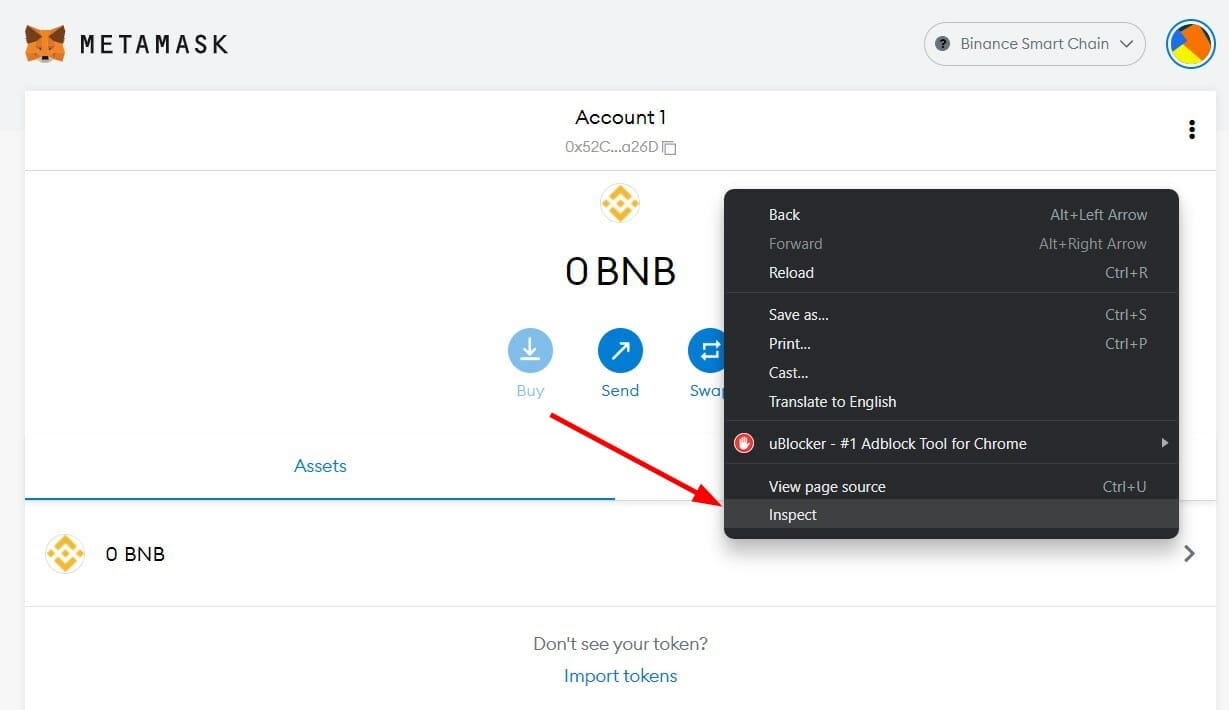
Bitdefender Unable to Connect to Server: Fix it in 5 Steps

Bitdefender is one of the best all-around security software to help keep your PC secure. It’s quick and highly effective at identifying and eliminating threats. However, you need to sign in before using Bitdefender and several users reported that the login is not working.

Similar programs that offer these many features generally require a high-end PC but this program works just fine on any system, and you can download Bitdefender and start using it right away.

However, with the Bitdefender login not working, users are left in a lurch and can’t register or use the program. If you too are facing the issue, read the following sections to find out all about it and the best solutions.

Why can’t I log into Bitdefender?

This could be due to Bitdefender’s inability to connect to the servers or problems with the system, though if the problem persists for long, chances are that it’s the latter.

Also, if you face the problem right after installing Bitdefender, it could have to do with an improper installation. In which case, a quick and simple option would be to uninstall the app and then reinstall it.

?️ Quick Tip:


Consider a more stable antivirus app. If Bitdefender keeps causing problems, try TotalAV. Not only does it offer complete protection against malware, viruses, ransomware, and other threats, but it’s also very lightweight and uses up only a few resources both when idle and while scanning.

⇒ Get TotalAV

How do I log into Bitdefender without Authenticator?

  1. Go to BitDefender Central, and enter your credentials to sign in.Login to fix bitdefender login not working
  2. Click on the Profile icon near the top-right and select Bitdefender Account.Bitdefender account
  3. Next, go to the Password and security tab.Password and security
  4. Click on 2-Factor Authentication here.2 factor authentication to fix bitdefender login not working
  5. Click on the Turn Off 2-Factor Authentication button.Turn off to fix bitdefender login not working
  6. Finally, enter the verification code received on the email address used to sign up for Bitdefender in the text field, and again click on Turn Off 2-Factor Authentication.enter code

That’s it! From now on, you could only sign in to Bitdefender using the login credentials and will not receive a verification code. Though, remember that the feature is meant to secure your account, and it’s not recommended that you disable it.

Let’s now head to the fixes if the Bitdefender login is not working.

How to fix login problems on Bitdefender?

1. Wait for the servers to respond

This is the very first thing you should do. There are times when the Bitdefender’s servers are down or the program is unable to connect to them due to a high load. The problem here is automatically resolved after a while.

Just wait for a few hours and check if the Bitdefender login now starts working. In case the problem persists even after a day or two, there’s something else that’s causing it. So, try the methods listed next.

2. Run DISM and SFC scan

  1. Press Windows + S to launch the Search menu, enter Terminal in the text field, right-click on the relevant search result, and select Run as administrator from the context menu.Terminal to fix bitdefender login not working
  2. Click Yes on the UAC (User Account Control) prompt that pops up.Click Yes
  3. Next, click on the downward-facing arrow and select Command Prompt from the list of options. Alternatively, you can hit Ctrl + Shift + 2 to launch it.Command Prompt
  4. Now, paste the following commands one at a time and hit Enter after each to run the DISM (Deployment Image Servicing and Management) tool:dism /online /cleanup-image /scanhealth dism /online /cleanup-image /checkhealth dism /online /cleanup-image /restorehealth
  5. Once it’s done running, execute the following command to run the SFC (System File Checker) scan:sfc /scannowSFC scan to fix bitdefender login not working

3. Update the network adapter

  1. Press Windows + S to launch the Search menu, enter Device Manager in the text field, and click on the relevant search result.Device manager
  2. Double-click on the Network adapters entry to expand and view the ones under it.Network adapters
  3. Right-click on the one currently in use, and select Update driver from the context menu.Update driver to fix bitdefender login not working
  4. Next, select Search automatically for drivers from the options in the Update Drivers window.Search automatically for drivers
  5. Wait for Windows to find the best available driver on the system and install it.

Outdated network adapter drivers are likely to cause issues with the connection and lead to Bitdefender login not working. If that’s the case, you can always update the network adapters on your computer.

You can also use an automated tool to make sure your drivers including the network adapters are always updated. We suggest Outbyte Driver Updater because it’s easy, error-free, and very lightweight.

4. Uninstall/disable the third-party firewall

  1. Press Windows + R to launch the Run command, enter appwiz.cpl in the text field, and click OK to launch the Programs and Features window.appwiz.cpl
  2. Now, locate any installed third-party firewall, select it, and then click on Uninstall at the top.Uninstall to fix bitdefender login not working
  3. Next, follow the on-screen instructions to complete the uninstall process.

Third-party firewalls, though, meant to secure your system, can often prevent Bitdefender from connecting to its server and thus the login is not working. You may first try disabling the firewall and if it works, go ahead and uninstall it.

Also, if it was a conflicting firewall behind the issue, you may consider switching to a more reliable Firewall for Windows.

5. Reinstall Bitdefender

If the login button is not showing up in Bitdefender, it’s most likely that the installation didn’t go through successfully. Also, in some cases, users notice that the interface is not showing, which is also due to an installation issue.

In this case, it’s best that you uninstall Bitdefender and then reinstall it. Make sure to download it from a reliable source, preferably the Bitdefender’s official website. Once the reinstall process is complete, the Bitdefender login not working problem would be fixed.

What do I do if Bitdefender keeps asking me to sign in?

This is another issue often faced by users where Bitdefender keeps sending you prompts to log in, but when you do, the process doesn’t go through and the whole cycle repeats. The solutions are very similar to the ones discussed earlier.

First, wait for a few hours or even a day, in case the BitDefender servers are down. If that’s the case, things should be up and running by then. But, in case the problem persists, you have no option but to reinstall BitDefender using the steps listed earlier.

These are all the ways you can fix the issues behind the Bitdefender login not working. And most likely, you wouldn’t have to try them all since the first few have helped the majority of the users eliminate the problem.

Also, find out what to do if the Bitdefender services are not working.

Tell us which fix worked and your review of Bitdefender, in the comments section below.
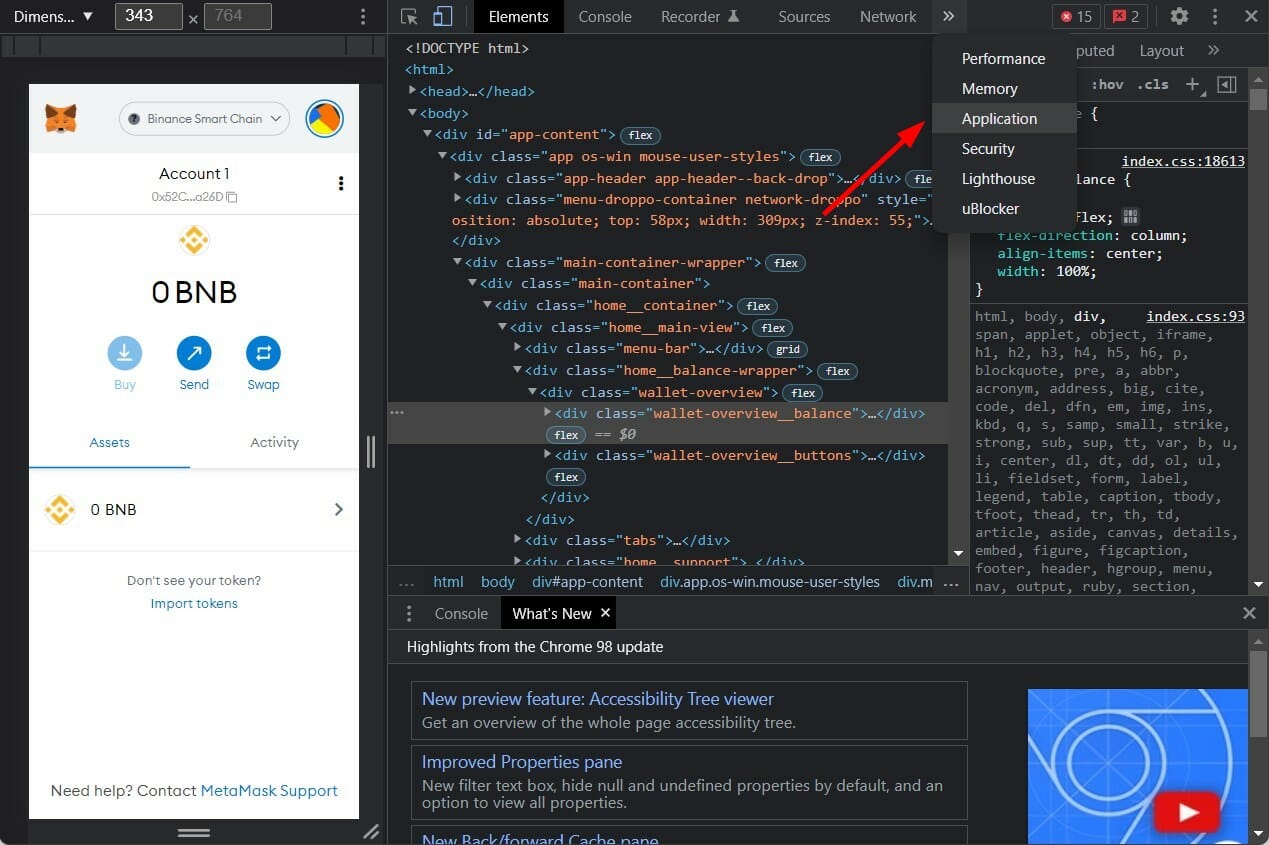
Change Date and Time Format in Windows 11

Changing the date and time format in Windows 11 is simple, even with the redesigned interface. Many users are curious about how to adjust these settings, especially those familiar with Windows 10. The good news is that the process remains intuitive and nearly identical. In this guide, we’ll walk you through the exact steps to change the time and date format on Windows 11 quickly and easily.

How do I change the time on Windows 11?

1. Change time settings via the Control Panel

  1. Click the Search button on the taskbar.
    change date and time windows 11
  2. Type control and choose Control Panel from the list of results.
    change date and time windows 11
  3. Then, click on the Clock and Region option.
    change date and time windows 11
  4. Select Date and Time.
    change date and time windows 11
  5. Click on the Change date, time.. button.
  6. You will now be able to adjust this parameter as per your liking.
  7. Finally, don’t forget to hit the OK button once you’re done in order to confirm and apply the modifications.

This is the conventional way to change time on Windows 11. As you can see, the procedure is as intuitive and straightforward as always and it works pretty much the same way as for Windows 10.

Now, we all know that evolution works in mysterious ways – to a certain extent – and as a direct consequence, the Redmond giant decided to ditch quite a few features deemed unworthy for the new operating system.

As you can see, the Control Panel is still going strong and you can rely on it for many years to come. Unless a brand-new, breakthrough comes along and Microsoft decides to shake our worlds from the ground, that is.

2. Explore the Widgets Panel

  1. Right-click on the Time and Date widget on the taskbar of your Windows 11 desktop.
  2. From the list, choose Adjust date/time, which will take you to a familiar Date and Time settings screen.
  3. Now, make sure you toggle the Set time automatically option to off.
  4. The next step is to click the Change button under the Set date and time manually section.
  5. Here, you can make all the modifications you want.
  6. As always, don’t forget to hit the Change button to validate your custom settings.

Easy, right? Here’s one more thing that might also interest you when you want to change time on Windows 11: formats.

Let’s say you’re not happy with a particular format or even with the calendar settings on your brand new operating system.

You can also set this parameter to reflect your style and needs, from the Date, Time, and Regional Formatting screen, located in the same widget.

Check out these quick steps to do just that:

  1. Open the Time and Date widget and click the Adjust date/time option, as shown above.
  2. Click the Language and region option.
  3. Select drop-down from the Regional format option, and click Change formats.

The new OS does not just bring new functionalities to the table. While some features did not make the cut, others are restored to former glory. Such is the case of widgets that made a powerful comeback in the new Windows 11.

The Widgets feature, now replacing the old live Tiles, is rather privileged and enjoys a dedicated panel, along with numerous customization options.

As you can see, the steps are pretty similar to the way things work in Windows 10. Speaking of which, you might want to check out this comprehensive Windows 10 and Windows 11 parallel.

If you want to learn more about adjusting time settings on Windows 11, be sure to check out this guide on Set Time Automatically on Windows 11.

But what we would love is to have your insights on this topic. So, feel free to reach in the comments section below and share your thoughts with us.

Autoplay Not Working on Windows 11? 7 Ways to Fix it

Autoplay not working in Windows 11 is a common problem that you may have encountered. This can be caused by a number of problems, such as a bad internet connection or incorrect settings.

When you insert a CD or DVD into your computer the AutoPlay feature will kick in and ask you what to do with it.

It is a feature that detects when you insert different types of media into your PC, such as an audio CD or a memory card, and then automatically takes some kind of action based on the type of media detected.

We have a detailed guide on what to do if AutoPlay is not working on Windows 10 if you face a similar problem on the previous version. If any of the above reasons are the cause of the problem, proceed to try one or more of the solutions below.

Why is Autoplay not working on Windows 11?

Some of the reasons why Autoplay is not working in Windows 11 include:

  • Autoplay is disabled by default – The Autoplay feature enables a user to insert a CD, DVD, or other removable media in the drive and have it begin playing automatically. Check from Settings to see if it is disabled and enable it.
  • The external device is corrupted – The device inserted may be corrupted preventing your system from detecting it. Try using a different device and see if the problem persists.
  • Virus or malware in your system – There’s also a chance that your operating system has been corrupted by a virus or malware and therefore you can no longer use the functionality of certain programs. If this is the case, try running a full scan of your system using your Windows 11 antivirus software.
  • Interference from third-party programs – Check if any third-party programs could be interfering with them. If you have recently installed a program, try to uninstall it and see if Autoplay works.

What can I do if Autoplay is not working on Windows 11?

1. Turn Autoplay off and on

  1. Press the Windows + I keys simultaneously to open Settings.
    Autoplay not working Windows 11 select settigns start menu
  2. Select Bluetooth & devices on the left pane then Autoplay on the right pane.
    Autoplay not working Windows 11 bluetooth and devices
  3. Toggle Use Autoplay for all media and devices button off and on again.
    Autoplay not working Windows 11 toggle autoplay

For a full step by step walkthrough on setting up this feature, see our guide on how to enable Autoplay in Windows 11 so Windows can react automatically when you plug in a drive or insert a disc.

2. Reset Autoplay settings 

  1. Hit the Windows key, type Control Panel in the search bar, and click Open.
  2. Search for Autoplay on the Control Panel search bar and click on it.
  3. Scroll down and select Reset all defaults then click Save.

You can also try this solution if iPhone AutoPlay is not working on Windows 10 or 11 since the process is the same for both versions.

3. Change Autoplay notification settings

  1. Press the Windows + I keys simultaneously to open Settings.
  2. Select System on the left pane then Notifications on the right pane.
  3. Navigate to Autoplay and toggle it on.

4. Enable Shell Hardware detection

  1. Press the Windows + R keys simultaneously to open the Run window.
  2. Type services.msc in the dialog box and press OK.
  3. Find Shell Hardware Detection, right-click on it and select Restart.

Restarting this service can help if USB AutoPlay not working on Windows 10 or 11, since both operating systems use it.

5. Set Startup to automatic

  1. Press the Windows + R keys simultaneously to open the Run window.
  2. Type services.msc in the dialog box and press OK.
  3. Find Shell Hardware detection, right-click on it and select Properties.
  4. Locate the Startup type and change it to Automatic.

6. Run a command

  1. Press the Windows key, type cmd, and click Run as administrator.
  2. Type in the following command and press Enter: net start shellhwdetection

7. Check for updates

  1. Hit the Windows key, type Check for updates in the search bar then click Open.
    Autoplay not working Windows 11 check for updates search
  2. If available, download then restart your PC.
    Autoplay not working Windows 11 windows update window open
  3. Once the updates are installed, Autoplay is still not working on Windows 11.

Can I set Autoplay for all devices?

The AutoPlay dialog box displays a list of actions that are available for each type of media or device.

For example, if you connect a new digital camera to your computer, the actions might include importing pictures from the camera to your computer or opening a photo-editing program so that you can work with your pictures.

You can configure AutoPlay for each type of media or device that you connect to your computer or set Autoplay defaults to all devices so that anytime you connect a device to your PC, the Autoplay dialog box appears. Remember, the Autoplay settings only apply to removable media.

To set Autoplay for all devices, follow the steps below:

  1. Hit the Windows key, type Control Panel in the search bar, and click Open.
    Autoplay not working Windows 11 control panel search
  2. Search for Autoplay on the Control Panel search bar and click on it.
    Autoplay not working Windows 11 select autoplay control panel
  3. Check the box for Use Autoplay for all media and devices then scroll down and Save.
    Autoplay not working Windows 11 enable autoplay for all devices

By enabling this feature, you’ll fix the Autoplay dialog box not showing in Windows 10 or 11, so be sure to try it.

If you find yourself annoyed with the Autoplay not working on Windows 11, no need to be frustrated, you only have to apply one or more of the solutions and you are good to go.

We also have specific fixes for Autoplay not working on CDs and DVDs so be sure to check our article on the same.

You can explore all available configuration options in this guide on Autoplay default settings, which explains how Windows assigns actions for each device type you connect.

You can also enable Autoplay for Youtube embedded videos from our expert guide. You can learn more about how the feature behaves in this in depth guide to Autoplay in Windows, which explains the main options and common use cases.

Should you experience any additional problems relating to this issue, don’t hesitate to leave us a comment down below.

Set Different Wallpaper on Each Virtual Desktop [Windows 11]

If you use virtual desktops on a day-to-day basis, then we have great news for you! After multiple tests on Windows 10 Insider Builds, the ability to apply custom wallpapers on virtual desktops is now part of Windows 11.

While now, on Windows 10, you can open multiple desktops, having a different wallpaper on each one is not possible. With the release of the first Insider Build for Windows 11 next week, you’ll be able to do it with ease.

Usually, virtual desktops are used for specific apps and actions and most of the time are used to keep things organized.

But if you also want to personalize your desktops with custom wallpapers, then your only choice is Windows 11.

How can I change my wallpaper on a virtual desktop?

The first step is to make sure that your PC meets the minimum requirements for Windows 11. After that, you’ll have to apply for the Insider Program if you’re new or check the compatibility of your device if you’re already an Insider.

If you’re not in the Insider Program, the steps for applying are pretty simple:

  1. Go to Settings.
  2. Then head over to Update & Security.
  3. Click on Windows Insider Program.
  4. After that, click on Get started and follow the steps.

After upgrading to Windows 11, if you want to personalize every desktop, follow the steps:

  1. Right-click on an empty area on the desktop that you want to change the wallpaper on.
  2. Under background, select Picture, Solid color, or Slideshow.
  3. Then choose your preferred background.

While this doesn’t seem much of a change, it’s certainly a very welcomed quality-of-life improvement that will make a big difference for users who count on multiple desktops for their workflow.

Are you using virtual desktops on your PC? Leave your answer along with your take on Microsoft’s improvement in the comments section below.
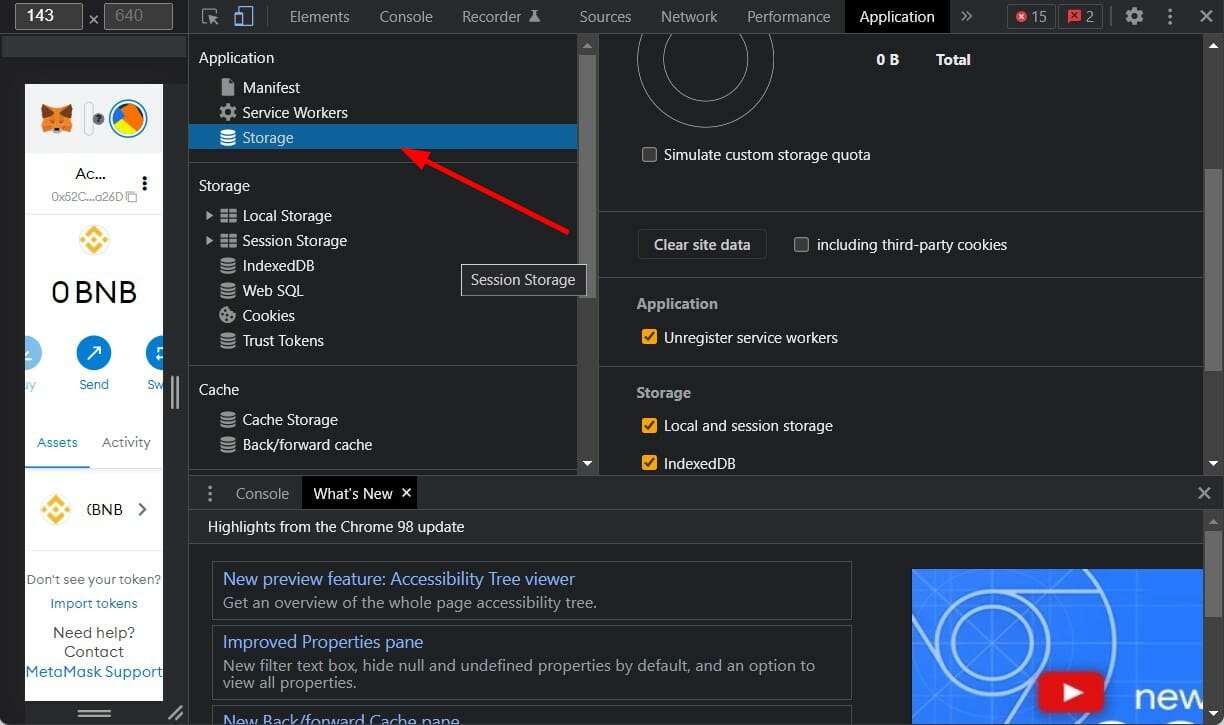
Windows 11 22h2: How to Download & Install the ISO

There’s still a lot of mystery surrounding the impending release of the first major update for the latest Microsoft-designed operating system.

The Redmond tech giant already let everyone know that Windows 11 22H2, also known as Sun Valley 2, is ready for mass release, and since then we only heard speculations as to when it will actually become available.

Many still believe that this update will be released this summer, while others are actually hoping for a May rollout, even though the month is all but over.

However, there’s a way you can get this version of Windows 11 on your PC, and we’re about to show you how to do just that.

What can I do to install Windows 22H2 on my device?

In truth, you really don’t have to be a rocket scientist to accomplish this, and this process strictly requires that you are already a Windows Insider.

If you aren’t already a part of the Windows Insider army, you should get started by visiting the official page and enrolling in the program.

Now, provided you were already one or simply just became a part of it, here’s what you need to do in order to get this version of Windows 11 on your device.

  1. Visit the official page and sign in as a Windows Insider.authenticate
  2. Click on the dropdown menu, select Build 22621, and press the Confirm button.22h2 version
  3. Choose the language you want.choose language
  4. Download the ISO.download ISO
  5. Right-click on the downloaded file and select Mount in File Explorer.Mount ISO
  6. Run the Setup.install iso

What you also have to know is that, once you have installed Windows 11 22H2, you can immediately leave the Windows Insider Program.

Congratulations, now you have installed the first major Windows 11 update (Sun Valley 2) on your device and you can start enjoying all of its features.

Has this process gone smoothly for you? Share your experience with us in the comments section below.
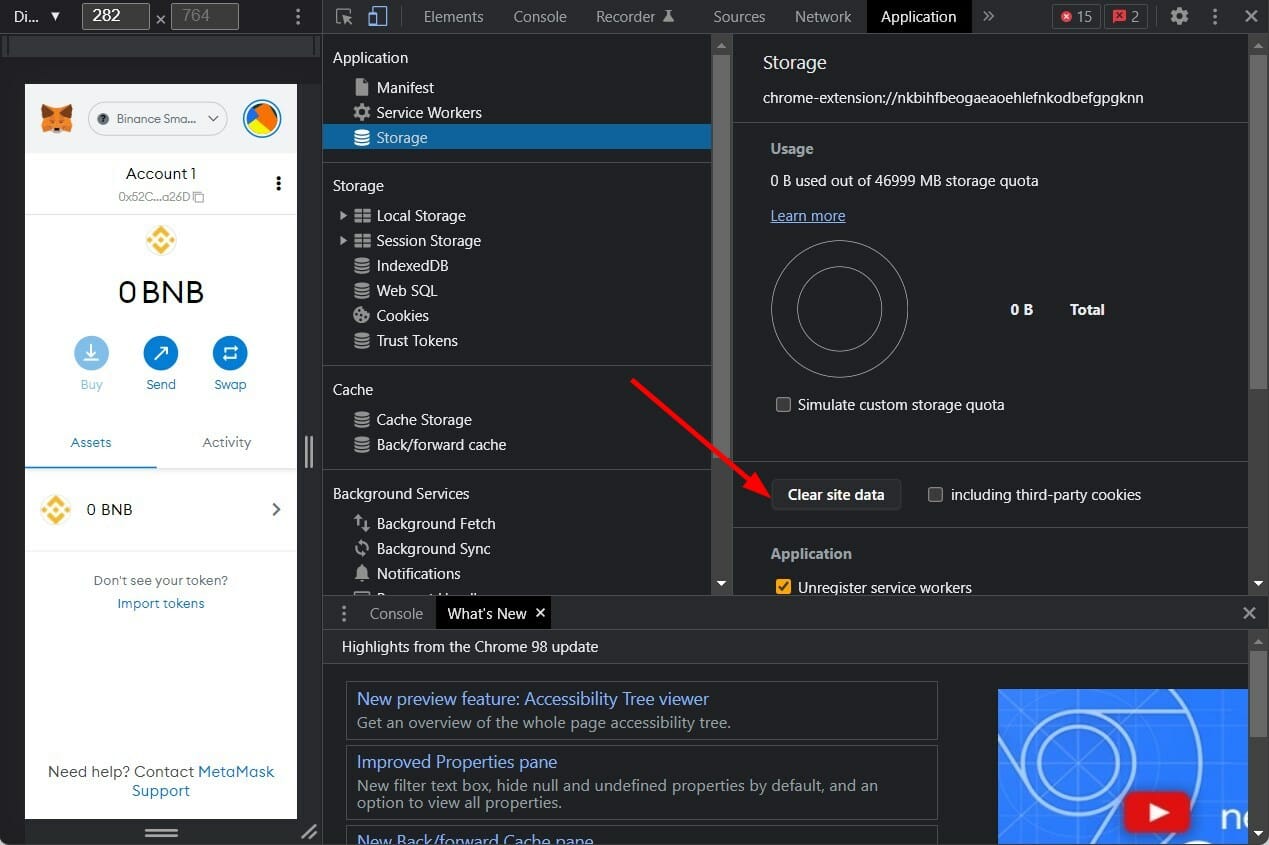
Steam Chat Failed to Upload and Send Image: 8 Ways to Fix it

Steam Chat is a free voice and text chat system with rich properties to enhance your gaming experience.  However, at times Steam chat may encounter an Image failed to upload error.

This error occurs when the user tries to send an image through Steam Chat. Many users reported that Steam failed to send message, so today we’re going to fix that.

The full error reads Steam failed to upload image data to cloud server. If you are facing a similar error, here are a couple of troubleshooting tips to fix it.

Can I also upload videos on Steam?

Yes, you can. As a great tool to express yourself or share content with your gaming buddies, using video opens up an entirely new realm of possibilities.

As Steam is extremely strict when it comes to the type of content they allow on their platform, it is a very good idea to ensure that no issues occur in the upload process.

Here’s how you can do this without too much hassle:

  1. Open your browser, then navigate to the YouTube official page.
  2. Create a YouTube account if you don’t already have one. In case you do, use it.
  3. After you logged into YouTube, in the top-right corner of the main page, click on the recording camera icon, then choose to Upload video.
  4. Now, click on the Create channel button.
  5. Choose to Upload video.
  6. Click on Select Files, then upload the video you need.
  7. Navigate to Steam, and click on the Install Steam button. If you’ve already installed it, move to the next step.
  8. Log into your Steam account.
  9. Now, you’ll need to connect your YouTube account to your Steam one. To do this, open Steam, then navigate to the Video tab.
  10. Click on Link YouTube account.
  11. In the new appeared window, click Allow access to YouTube videos. You will then be asked to log in to your YouTube channel.
  12. Once you’ve linked your YouTube account to your Steam account, you can find the videos you’ve uploaded to YouTube in the Videos tab of your Steam app.

What can I do if Steam Chat failed to upload image?

  1. Logout of Steam
  2. Use Steam online
  3. Disable Compact friends list and Chat view
  4. Disable Firewall
  5. Run Steam as admin
  6. Update Steam and disable the antivirus
  7. Send images via a third-party host
  8. Use an alternative voice chat app

1. Logout of Steam

  1. Launch Steam and on the top right, click on your Profile name.
  2. Select Log out of account.
  3. After that, exit Steam and relaunch it.
  4. Login with your Steam credential and see if you can send images via Steam chat.

One way to fix this error is to log out of your Steam account on the Steam client and log back in. It seems to have worked for a  lot of users that have encountered Steam failed to start upload a server error occurred issue.

2. Use Steam Online

  1. Log in to Steam web client.
  2. Enter the special security code if asked.
  3. Click on Chat to open the Chat window.
    Steam Chat Client Web
  4. Select your friend and upload the image you want to send.
  5. That’s it! You should be able to send the images through Steam web chat client as long as the Steam desktop client is not fixed.

You can access your Steam account online using the web browser. Do keep in mind that this method won’t work if you’re getting Steam Limited users cannot upload images error.

3. Disable Compact friends list and Chat view

  1. Launch Steam.
  2. Click on Friends and Chat at the bottom right screen.
  3. In the Friends and Chat window, click on the Settings (Cog icon).
    Steam - Friends and Chat - Settings
  4. In the Settings window, click on the Size and Scaling tab.
    Steam - Turn off Compact friends list and chat view
  5. Make sure that the Compact friends list and Chat view option is Off.
  6. Close the Settings window. Exit Steam and Relaunch it.
  7. Try to upload the image again and see if that resolves the error.

To offer a better gaming experience while chatting, Steam added a Compact friends list and chat view option to the Chat settings.

However, this feature is also known to cause Failed to commit upload A server error occurred commit 16 error on Steam. This feature is disabled by default. If you have turned it on accidentally or intentionally, try disabling it.

4. Disable the Firewall

  1. Click on Start, and go to Settings.
  2. Select Update and Security.

  3. Click on Windows Security, and select Firewall & network protection.
  4. Select your Network and turn off Firewall.

Also, check your Firewall protection. The firewall may wrongly flag a connection and block the access. Try to turn off the Firewall momentarily to see if Failed to start upload a server error occurred 25 error is gone.

5. Run Steam as Admin

  1. Type Steam in the Cortana/search bar.
  2. Right-click on Steam and select Run as administrator.
    Steam Run as Admin
  3. Open Steam Chat and upload an image.
    Steam - Friends and Chat
  4. Check for any improvements.

Exit steam and try to launch the Steam client with administrative privilege, by following the above steps.

6. Update Steam and disable the antivirus

  1. Launch Steam and click on Steam.
    Steam - Check for updates
  2. Select Check for Steam Client Updates.
  3. Wait while the updates are being downloaded.

If your Antivirus software is blocking the connection to the Steam server for any reason, it may result in Steam a server error occurred error. Disable your antivirus temporarily and check for any improvements.

7. Send images via a third-party host

Now, this is not a fix but a workaround till Steam fixes the issue.  You can try to upload images to any public image hosting sites like Imgur or Tinypic etc.

Upload the images to the sites and share the Image link in your Chat. This is handy if you want to share an image with your friend urgently.

8. Use an alternative voice chat app

You probably don’t want to hear this, but if you are experiencing this error for a long time now, you may want to give other popular game chat apps a try.

Apps like Discord are among the most popular voice and text chat apps for gamers and gaming communities with exceptional quality servers.

You can read our complete guide on the best VoIP software for gaming to find the best VoIP clients to step up your game.

Can I send videos in Steam Chat?

Any Steam user enjoys sharing gaming experiences with his/her friends or family through the Steam chat.

If you’re in the same situation, keep in mind that this app allows you to send not only images but also videos via this amazing feature and this is how you can do it in specific cases:

  • Video related to a game that is available on Steam – You’re allowed to upload it to the community page of the game, then send the URL to your friends.
  • Video doesn’t violate its terms of service – You can also upload it to YouTube, then send your friend the related link.
  • If you just want your friends to see your videos (and nobody else) – We recommend setting the video in a password-protected .ZIP file, then upload it to any of the hosting sites you want.

We hope that these recommendations from our list were helpful and that you managed to fix the Steam failed to upload image error.

This isn’t the only problem that you can encounter, and many reported that Steam voice chat isn’t working for them, but we tackled this issue in a separate guide.

Did you manage to fix this issue on your PC? Let us know in the comments section below.
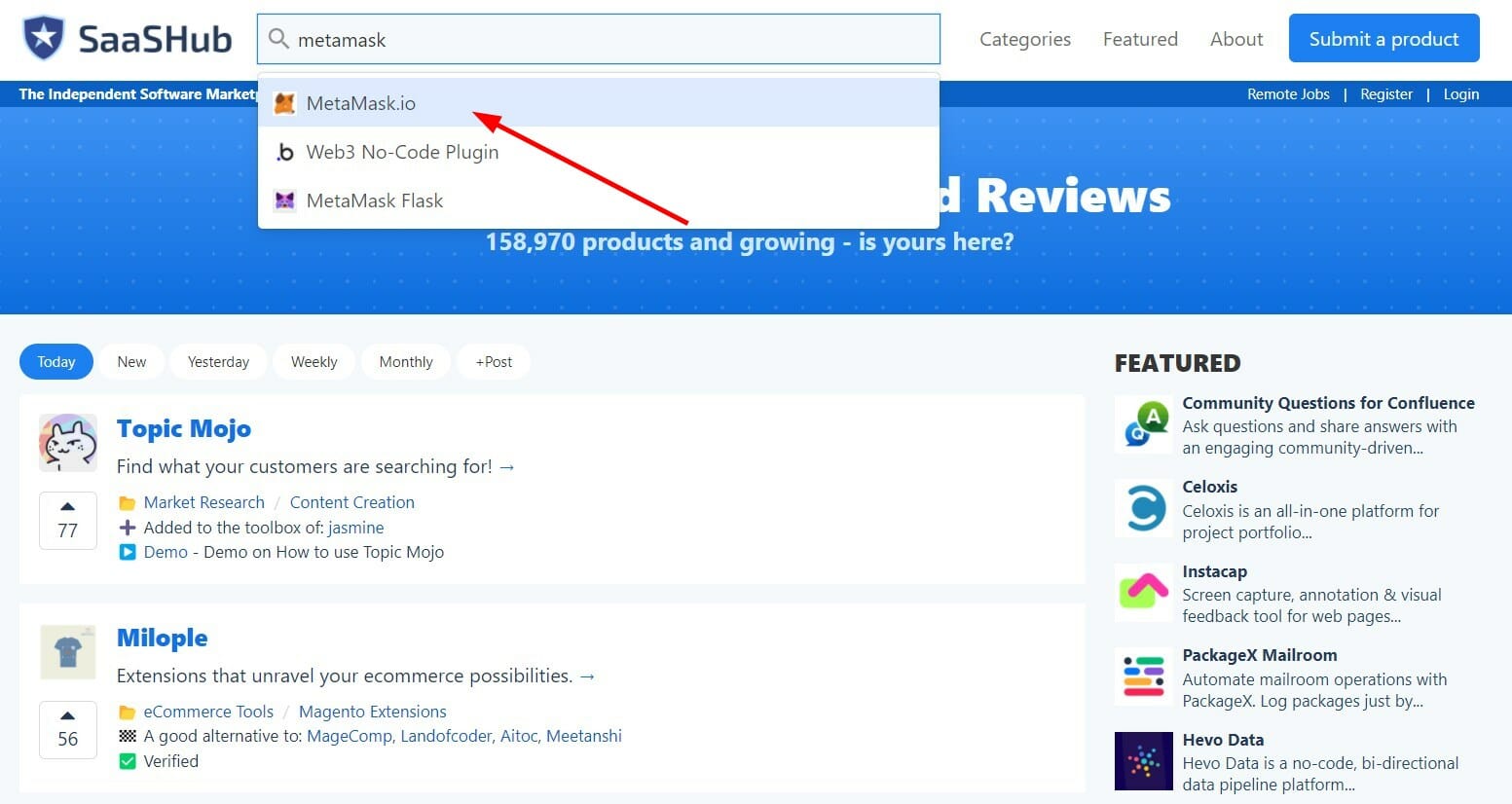
Microsoft’s Xbox goes all-in on Pride Month 2022

It’s June and you know what that means; Pride Month is here. As expected, Microsoft’s Xbox division has gone all-in on the LGBT+ celebrations this year with a number of new Pride-themed initiatives and products released.

Here’s a breakdown of what Microsoft is doing for Pride Month 2022.

  • Donations to LGBT+ charities. Microsoft is donating $170,000 to LGBT+ non-profits OutRight Action International, African Rainbow Family, National Center for Transgender Equality, Mermaids, Lavender Rights Project, and Fulcrum UA.
  • New Pride Month 2022 Xbox Gear merch. A variety of new Pride Month 2022 merch is now available to buy on the official Xbox Gear Shop online storefront in addition to a surprisingly large amount of Pride Month merch from last year.
  • Pride Month Surface skins. Official skins for Surface and Surface Pro devices featuring Microsoft’s 2022 Pride Month design are now available. The 2020 skins are also in stock at a reduced price.
  • Microsoft Rewards donations. Microsoft Rewards users can now donate points to select LGBT+ charities.
  • Pride Month 2022 in-game content. Players who log into Halo Infinite, Forza Horizon 5, Forza Horizon 4, and Forza Motorsport 7 will receive free Pride Month-themed cosmetics.
  • Pride Month 2022 Xbox profile items. New gamerpics, profile themes, and avatar items based on Microsoft’s Pride Month 2022 design have been made available for free for users to select. Note that these items are unavailable in some regions for obvious regions.
  • A Pride Month 2022 Xbox controller. An official Pride Month controller for Xbox One and Xbox Series X console generations and Windows PCs will launch on June 9th.

As can be seen with the list of initiatives (and some additional minor ones listed here,) Microsoft has really stepped up its efforts to appeal to LGBT+ minority groups and/or promote itself as a progressive company compared to previous years.

Whether or not this attempt is well received by those in said minority groups will naturally vary from person to person though with some on social media clearly appreciating the extra attention brought to certain causes while others becoming noticeably fatigued by large companies piggybacking off of the same causes.

One thing that’s proven a bit controversial is Microsoft’s Pride Month 2022 logo which, in an attempt to be inclusive by featuring 34 different types of pride flags, has kind of ended up being a bit of an aesthetic mess with so many colors crammed into such a small space.

Pride Month 2022 Xbox Controller

Also noticeable is the absence of the iconic rainbow Pride flag which was commissioned in 1978 by Harvey Milk, the first openly gay man to be elected to public office in California, and designed by Gilbert Baker, an openly gay artist and gay rights activist. (If you’re interested in LGBT+ history and civil rights, reading up on these two is highly recommended.)

The Pride Month 2022 Xbox controller can be ordered via the Xbox Design Lab website in select regions from June 9th. While the Pride design can’t be customized, the colors of the buttons, joysticks, and triggers can be.

Not a fan of Microsoft’s design? This Rainbow Chrome Xbox controller by Controllerzz might be exactly what you’re looking for to add some pride to your gaming sessions this month.

Got some extra cash and want to donate to an LGBT+ charity? The Trevor Project does great work for LGBT+ youth and also has a ranking of 100% for accountability and transparency.

Are you going to pick up the new controller or any of the other Pride 2022 merch? Let us know why or why not in the comments below and then follow us on Twitter and Facebook for more Xbox and Microsoft news.

How to Fix Path of Exile if it’s Not Recognizing Your Graphics Card

Path of Exile is a Free-to-Play video game developed by Grinding Studio Games. It is one of the best in the genre and offers thrilling gameplay and some captivating graphics. However, several users have reported that Path of Exile is not recognizing the graphics card.

This affects the in-game graphics and the overall experience of users. For a game that boasts of high-end graphics, an issue with the graphics card can be problematic.

So, without further ado, let’s walk through all there is to know about why Path of Exile is not recognizing your graphics card and the most effective solutions for it.

Why is my game not using my graphics card?

This is primarily the case on computers with two sets of graphic cards installed, the integrated and the dedicated one. Here, users often find PoE using integrated graphics rather than dedicated graphics. This could be due to a bug, improper selection, or misconfigured settings.

Other than that, you could have wrongly configured the dedicated Graphics Card settings through its native Control Panel. If that’s the case, you can manually set things such that Path of Exile starts using the integrated graphics.

Also, for some users, when the power-saving mode kicked in on their laptop, the device automatically switched to integrated graphics. So, you will have to check for this as well.

Do you need a good computer for Path of Exile?

You don’t need a computer with high-end specifications to run Path of Exile. A decent one should do the job but you must have a good dedicated graphics card.

In case you are planning to install PoE or believe that your video card does not meet the requirements to run Path of Exile, check the graphic requirements below:

  • Processor: Quad core 2.6GHz x86-compatible
  • Graphics: ATI Radeon™ HD 7850 or NVIDIA® GeForce® GTX 650 Ti
  • RAM: 8 GB
  • DirectX: DirectX Version 11

What can I do if POE doesn’t recognize my GPU?

1. Manually set Path of Exile to use the dedicated graphics

Note icon NOTE
We have listed the steps for Nvidia Control Panel and it should provide you with a basic understanding of the concept. In case you are using another graphics card and are unsure of the process, check its official website for the exact steps.
  1. Launch the Nvidia Control Panel, and select Manage 3D settings from the navigation pane on the left.
  2. Go to the Program Settings tab.Program settings to fix path of exile not recognizing graphics card
  3. Choose Path of Exile from the Select a program to customize dropdown menu. If it’s not listed there, click on the Add button, locate the game launcher file, and add it.Select program
  4. Next, select High-performance Nvidia processor from the Select the preferred graphics processor for this program dropdown menu.High performance Nvidia processor to fix path of exile not recognizing graphics card
  5. Finally, click on Apply at the bottom to save the changes.Apply

If the dedicated graphics card is not listed in Path of Exile, you can switch it using the dedicated Control Panel. This worked for a lot of users who were wondering how to Disable Intel HD graphics and use Nvidia.

Also, the in-game settings might still show that the integrated graphic card is currently selected, but that’s not the case, and you should notice the change in graphics right away.

2. Update your drivers

In order to run any games on your PC at maximum performance, you must have graphics card drivers updated.

You can perform this task manually if you want to, but there are efficient driver managing tools like Outbyte Driver Updater that will do the trick.

This software will scan your computer and detect outdated or broken drivers, and then update them accordingly in due time.

⇒ Get Outbyte Driver Updater

3. Switch the power plan

  1. Press Windows + S to launch the Search menu, enter Control Panel in the text field, and click on the relevant search result.Control Panel
  2. Click on System and Security here.System and Security to fix path of exile not recognizing graphics card
  3. Next, click on Power Options.Power options
  4. Now, select the High Performance power plan from the ones listed here.High performance to fix path of exile not recognizing graphics card

Once done, restart the computer for the changes to come into effect, and Nvidia should now start recognizing the graphics card on your computer.

How do I change what graphics card a game uses?

For that, you can either use the in-game settings or the dedicated Control Panel for the graphics card.

However, oftentimes, the in-game settings, due to some issue, do not list all the available graphics cards, which is why you will have to use the dedicated Control Panel.

The changes made through the Control Panel reflect immediately and are far more effective. So this should be your preferred option.

These are all the ways you can fix issues when Path of Exile does not recognize your graphics card. Doing this ensures good performance in the game and avoids related errors like Failed to connect to instance.

Also, these methods would work on other games as well.

Besides, here’s how to fix common issues with Path of Exile, including sudden crashes, or problems with the connection and sound, among others.

Do not forget to tell us which fix worked and your review of Path of Exile, in the comments section below.
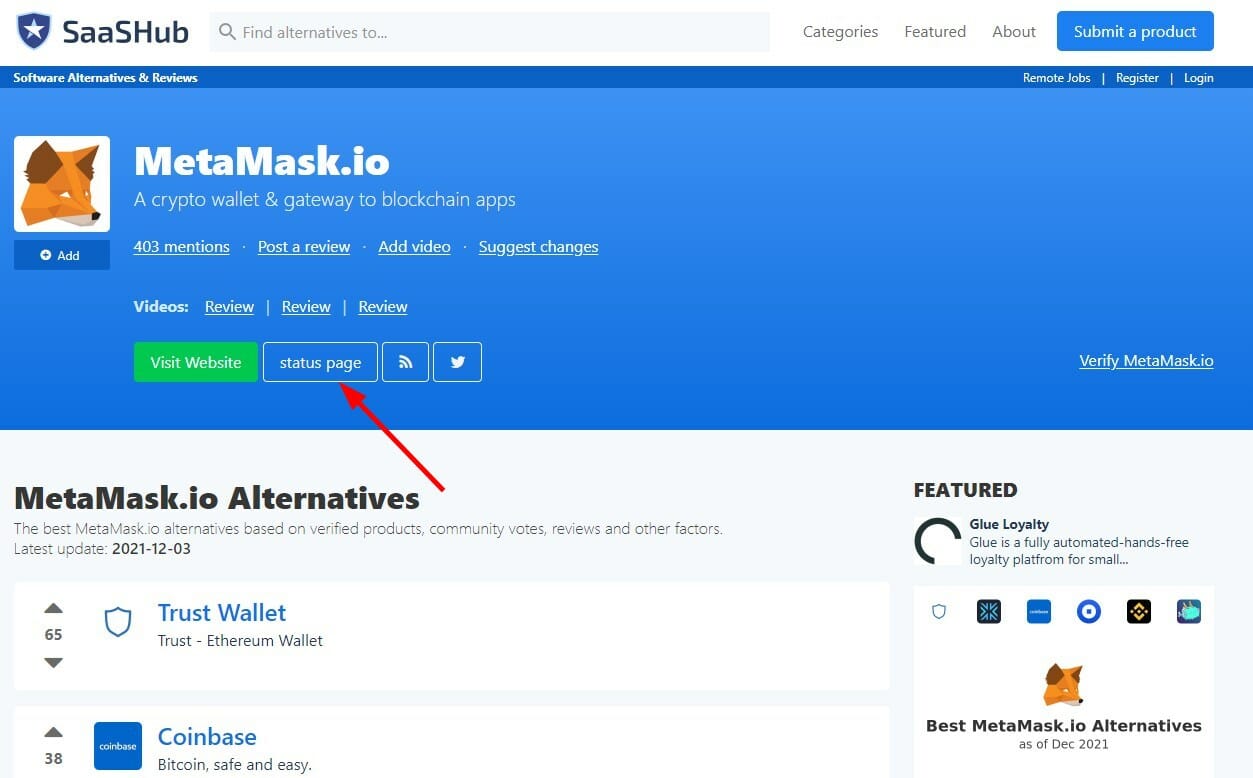
ID@Xbox exec says indie development is leading the future of gaming

Chris Charla, head of ID@Xbox, recently sat down to talk about the state of indie gaming during a GI Live: Online event. During the stream Charla noted that independent games have come a long way since their early days, saying “I date that 2008 launch of Castle Crashers as the beginning of an indie Golden Age. 14 years in and that Golden Age hasn’t stopped.”

He added, “As time’s gone on, what we’ve seen is independent developers start to occupy every niche that has ever been successful in the history of game development.”

Charla noted that indie games started out largely with 2D side scrolling games like Braid and Castle Crashers, that took inspiration from 8- and 16-bit games, and from there indie development slowly expanded to larger teams making more sophisticated games with a higher level of graphical fidelity.

“Now we’re on Gen 9 with our consoles, Xbox Series X, PlayStation 5, and we see small developers, making games that are super competitive,” Charla says in the stream. “It’s amazing to see independent devs have caught up and are producing Gen 9-quality games.” He points to the 2021 snowboarding game Shredders as an independently created title that pushes the boundaries of the current hardware.

Charla also thinks that independent developers have a chance to steer where the gaming industry is heading. One recent example Charla gave was a conversation he had with a AAA developer who stated a desire to make a game like Hades – an award-winning independently developed roguelike dungeon crawler.

“I do think that for independent developers, it’s a great time to think about not just being part of the games industry, but where they help lead the industry next. This is one of the big reasons Xbox is proactively working with indie devs with new technologies and business models. The ID@Azure program is all about this democratization of development and giving indies access to technologies that would typically be reserved for AAA companies.”

“And we know that when we give independent developers access to our tools and technology, right back from Xbox 360 days… no one would have guessed that Castle Crashers was going to be the game on 360. No one could have guessed that a 1930s-style, hand drawn side-scrolling boss rush platformer was going be a thing that people wanted to play. But Cuphead came out it was this amazing success. So when we give developers access to the power of the cloud, I think we’re going to see similar mind blowing things from them. And so we have to do it.”

And what does ID@Xbox get in return for all its support of small and independent developers? Fantastic games. It’s hard to argue that video games industry in general has benefitted from the accompanying influx of creativity that has come with the influx of independent developers making “smaller” games, whereas big studios making massively-budgeted AAA titles that take years to develop can afford little risk with their products. Indie gaming has long been seen as the industry bastion of creativity and innovative game concepts.

“I see the future is really independent developers having the opportunity to lead where the industry is going.”

Featured image courtesy gameaxis.com. 


Dell 32 4K UHD Gaming Monitor Review: The best monitor for play & work

These days, there’s a chance that you’re not buying a monitor for just work or gaming. You’re probably going to hook it up to a PC for your day-to-day productivity, as well as other devices, maybe a gaming console like an Xbox, or even a streaming stick for multimedia.

Dell has all kinds of monitors that you can choose for each of those tasks, but I was recently sent over the Dell 32 4K UHD Gaming Monitor for review. In two and a half weeks of use, I feel as though even though this is a gaming monitor at heart, it is still perfect for productivity, too. Features like the 4K resolution, 144Hz refresh rate, and 120Hz refresh for supported consoles, support for HDR, all make this one of the best Dell gaming monitors I’ve reviewed.

Specs & Pricing

Dell 32 4K UHD Gaming Monitor Review

The Dell 32 4K UHD Gaming Monitor retails for $1,100, but you can find it for closer to $825 when on sale at Dell.com. For that price, you’re getting a lot of bang for your buck. You’re getting a display with a massive 32-inch 3840 x 2160 resolution LCD LED TFT panel with an anti-glare coating. That resolution adds up to 138 pixels per inch. This is actually the only 4K branded monitor in Dell’s Gaming lineup and the first 4K Dell Gaming monitor that supports 144Hz refresh rate and HDMI 2.1

Note that the monitor also supports up to 144Hz refresh rates, across both HDMI 2.1 as well as the DisplayPort 1.4 ports (you must use a compatible cable.) There’s even a picture in picture mode, which I’ll get into later. Of course, you do get AMD Freesync, too, since this is a gaming display.

And what about those numbers behind the display? According to our colorimeter, the monitor supports a peak brightness of 600 cd/m2, with the optional range being around 400. It also hits 95% of the DCI-P3 color gamut and, 99% of the sRGB range. Contrast is rated at 1000:1. There’s also a vertical viewing angle of 178 degrees. Response time is rated at 1ms in the Extreme Mode.

If you’re curious about dimensions, it measures 28.6 inches x 2.7 inches x 16.8 inches. There’s also the support for swiveling and tilting the monitor. You can tilt from -5 degrees to 21 degrees, and swivel from -30 degrees to 30 degrees. Height can go up to 3.9 inches. With the stand the width of the monitor is 28.6 inches, the depth is 9.7 inches, and the height is 18.07 inches to 22.01 inches. Weight comes in at 20.3 pounds.

Setup is simple and easy, as always. Just screw the stand into the base with the pre-inserted screw tab (no tools required) and then snap the display into the back of the stand.

Design

I’ve reviewed Dell’s dedicated non-Alienware-branded gaming monitors in the past. The design across the mainstream Dell Gaming lineup is pretty much standard. Basically, a monitor that has gaming aesthetics, but isn’t over the top, and can fit in with any setup. The Dell 32 4K UHD Gaming Monitor is no different.

Like the others, this one sports a black-colored plastic finish on the front and back end, as well as the stand. It has nice curves and clean angular cuts on the base. There are also the vents in the back, which Dell says can improve the thermal regulation. Not to forget, the single color backlight, which glows in blue and added a nice touch to my white desk when gaming at night. Oh, and there are also the three-sided narrow bezels, which let you fit more on your screen.

Like I’ve said in previous reviews this design feels right at home on my desk. It is definitely clean-looking. I had the monitor right next to my Xbox Series X, and it just blends right in with it, matching the matte-black look of the console. It even contrasts nicely with the silver finish from when my Surface Laptop Studio and Mac Mini sit on my desk.

Ports & Buttons

As we touched on at the top of the review, included on this monitor are a variety of ports. The main port for connectivity includes 2 x HDMI (ver 2.1) and 1 x DisplayPort (ver 1.4.) There are also 2 x SuperSpeed USB 5 Gbps (USB 3.2 Gen1) downstream ports on the front bottom, one with charging capability at 2 amps max.

Other than that, you’ll find 1 X SuperSpeed USB 5 Gbps (USB 3.2 Gen1) upstream port on the rear, and 1 x headphone-out port on the bottom. I really do like the inclusion of the headphone jack. This means that you can plug your favorite speaker into the front of the monitor and make your gaming experience even more immersive. It’s a huge plus, for me in avoiding using headsets or headphones, considering that there are no in-built speakers on this monitor.

For a gaming monitor, this is a great mix of ports. I had my Xbox Series X hooked up on one of the HDMI ports, to get the 120Hz maximum refresh rate supported by the console. Dell says this monitor has a “Console Mode” that can detect the attached console and push out the right refresh rate.

The Display Port, though, (and HDMI, too) can also support up to 144Hz, so if you hook it up on a PC using a cable that supports it, you’ll get an even higher refresh rate, making your content seem fluent and fresh. This is what I did with my Surface Laptop Studio. As I get into later, I enjoyed it for my video editing and productivity.

As far as buttons go, this monitor has the signature joystick controls that are becoming more common on Dell’s products. That’s in addition to the three physical buttons below the stick. A single click on the Joystick brings up the main menu, letting you navigate to the different modes for the Game mode, adjust brightness and contrast, switch input, change display settings, and tweak the PIP mode, audio, and menu. It’s quite simple and easy to use, and I am glad Dell is making this the standard on more displays.

Note that these menus also have a place for you to swap between color spaces and game settings. This builds on the uniformity compensation feature and helps to dynamically balance the screen to offer uniform color and brightness so you can be confident in the quality of your work.

Gaming performance on console and PC

I tested the Dell 32 4K UHD Gaming Monitor in three different ways. For PC gaming, I played Microsoft Flight Simulator 2020, as this is one of the most stressful games on hardware. For console gaming, I played Forza Motorsport 7 on my Xbox Series X, which is optimized for the next-gen console. Outside of that, I also used the monitor day to day for productivity, as well as for video editing.

In PC gaming, the monitor performed well and beyond expectations. Flight Simulator is a very intense game, with scenery always changing. I noticed no lag or tear, even in the Top Gun: Maverick missions, where you need to fly low over ever-changing landscapes. If there’s one way to describe the experience I had there, I’d say as life-like, but without the G-forces and motion sickness from sitting in an actual cockpit.

Over on Forza on my Xbox Console, I felt like I was suddenly a top-tier racer. In taking a Corvette around the Daytona International Speedway, the HDR support, and 120Hz refresh made the scenery feel life-like, down to the reflections of the sun on the car. I’ve never quite felt this immersed when racing before.  It even improved my racing skills, as small details that matter in the car like the rear-view mirror and side mirrors were lit up properly, without too many shadows. I definitely see where HDR comes into play here, with increased brightness and detail in otherwise dark scenes.

As far as it comes to productivity, I could not be happier. 4K resolution meant I could fit up to four Microsoft Edge windows side by side. I found myself using my Surface Laptop Studio more in the closed mode because of this. I depended more on the monitor, as I could fit so much more on my screen. The 144Hz refresh rate also meant that Windows felt as lively as ever, including the motions of the Start Menu. And for video editing? It’s a dream, with clips playing super smooth, and my video timeline moving without any stutter. HDR adds to that mix, with text looking super sharp and clear.

All in all, this is my dream monitor as it checks all the boxes that I needed. That’s 120Hz refresh for console gaming, 4K resolution for video editing and gaming and productivity, and 144Hz for PC gaming. Not to forget, the headphone jack for connecting speakers.

PIP & extra feature


I touched on all the “main” features of this monitor, but there are some extras here, too. Of those extra features is the cool picture in picture or picture by picture mode. This lets you have two inputs on your screen at the same time. You can resize the inputs through the menu and make one bigger or smaller to a variety of percentage sizes, and also swap the audio.

I found this useful when gaming, as I had my PC input on one side of the screen, and Xbox on the other. Following guides for the weekly Microsoft Rewards quest was easy because of this, as I could see both the video, as well as my game at the same time. Dell provided me with other scenarios where this could come into play. Examples include keeping up with a stream chat, catching up on podcasts, and more. All that said, this monitor can definitely help you get more done.

Buy it now for the best

There’s no shortage of 32-inch 4K gaming monitors in the market. You can find plenty of these at your local BestBuy and the Gigabyte M32U is a good alternative for the same price. However, the Dell 32 4K UHD Gaming Monitor G3223Q is special. You can use it for both your productivity as well as gaming thanks to the 120Hz and 144Hz support, and when you want to combine the two, there’s an amazing PIP mode that you can use. This is a monitor that I’d love to keep and buy for my own use, I don’t say that very often.

How to Pin Apps & Programs in Windows 11 Start Menu

Windows 11 comes up with some new design features that are quite different from what we were used to in the previous OS.

Unlike Windows 10, the newest taskbar is default set on the desktop center. However, one of the most impressive attributes is that Windows 11 allows you to pin apps to the Start menu.

Thus, such an option seems to focus more on the users’ needs and choices. In these terms, you can set the most used apps and access them quickly.

This guide will show you how to easily do it, so make sure you look at our recommendations. But first, let’s see how you can customize the Start menu in Windows 11.

How can I customize the Windows 11 Start menu?

  1. Click the Start button and select Settings.
  2. Now click on the Personalization option from the left pane and select Start from the right.
  3. You can now toggle On or Off the options to see the recently added apps, the most used apps or the recently opened ones.
  4. There is also the Folders option to customize which folders you want to see next to the Power button from the Start menu.
  5. In the next window, you can toggle the desired folders to On.
  6. As you can see, we’ve selected the Network and the Settings folders and now you can get them right near the Power button.

There are not so many options to customize the Start menu in Windows 11 but you’ll surely find the suitable method for the desired result.

How can I easily pin apps to Start menu in Windows 11?

1. Use the general menu

  1. Click on the Start button, then select the All apps button, from the top-right corner.
  2. Search for the app you want to pin, right-click on it, then select the Pin to Start option.

2. Select the Pin to Start option

Note icon NOTE
This option is so-called the secondary click, which represents the simplest and the less time-consuming to pin your apps. All you have to do is just perform two clicks and that’s it!
  1. Right-click on the app you want to pin.
  2. Select Pin to Start.

3. Use the Start menu and the Taskbar

  1. Click on the Start button, then select the All apps button, from the top-right corner.
  2. Search for the app you want to pin, right-click on it, select More, then click on Pin to taskbar.

For more visibility, also pin your favorite apps to the Windows taskbar. You can do it both for already pinned apps or for unpinned programs.

How can I customize my pinned apps in Windows 11?

As a first suggestion, if you’re not interested in an app anymore, note that you can unpin it by right-clicking on it and selecting the Unpin from Start option.

Also, consider that the initial view of the Windows 11 Pinned section displays a number of 18 items. However, you can use the pagination control to move through pages of additional pins.

You can see up to 18 apps in the Start menu, but you can add more

Microsoft describes two important available customizations for your pinned apps:

  • Up to four items on the first page of this section
  • A maximum of four items at the bottom of the pinned app grid. In these terms, you’ll need to scroll down in the Start menu to see these pins.

For those who need to know how to pin apps to the Start menu or Taskbar in Windows 11, we hope our article helped you.

Pinning the apps can seem like a pointless task but once you get your most frequently used apps there, you will see that the seconds you used in the process will be rewarded.

However, using the same steps, you can’t pin all the items to the Taskbar. In case you want to a batch file to the Taskbar on Windows 11 to access repetitive tasks without any hassle, you need to use a workaround. To learn more, read this guide.

You could also be interested in our guide on how to make Windows 11 look like Windows 10 again if you’re nostalgic about the old OS.

Do keep in mind that sometimes unpinned apps keep coming back on Windows 11, but that can be easily fixed.

And if you have any other questions or suggestions, feel free to use our comments section below and drop us a line.

Don’t expect to see the Xbox Snap feature to make a return

For those of you who miss Xbox Snap: take heart, for it doesn’t look like the feature will be returning anytime soon. That’s according to Xbox engineer lead Eden Marie, who expressed her doubts on Twitter when asked about it. Given Marie’s position she would be the one to know, so it’s safe to say that Snap is gone for good on Xbox consoles.

For anyone unfamiliar with the snap feature, it launched with the Xbox One console and was later removed in February 2017. The feature basically functioned just like the snap feature on Windows PCs, allowing users to run multiple apps simultaneously on their screen. For instance, you could run a game on one side of screen and open a music player app like Spotify in another corner to DJ your gaming experience. You could even run a game and stream video at the same time.

While many users have reported that they miss Snap, there are still alternatives such as using a second device like a smartphone to achieve the same function.


Disney Magic Kingdoms gets some retro content in latest Windows update

The Disney Magic Kingdoms video game got a long overdue permanent content update today on Windows and all other supported platforms that introduced characters and items from Disney’s classic The Rescuers animated feature film.

Bernard and Orville are now available to unlock for all players who have unlocked all previous permanent content up to Ratatouille. Bernard can be unlocked for free by getting other characters to collect his tokens while Orville can be obtained by spending 500 gems, Disney Magic Kingdoms’ in-game currency.

The Rescue Aid Society attraction, a new float, and Marsh-mallow Gummy Mug Shake Stand, both also inspired by The Rescuers, are also now available to unlock.

Disney Magic Kingdoms usually gets an update once a month that adds new content but the vast majority of content being added over the past year or so has been tied to limited timed events instead of the game’s main storyline. Players have been begging for new story/permanent content for a while now as passionate players have long since completed all of the main tasks in the regular storyline.

In addition to the new The Rescuers content, a massive number of other changes and adjustments were made with this update. A full list of these changes can be read here.

Today’s update is officially called The Rescuers (Part One) which confirms that more characters from The Rescuers and its (vastly superior) sequel, The Rescuers Down Under, will be added in a future update.

Have you been waiting for more permanent content to be added to Disney Magic Kingdoms? Let us know in the comments below and then follow us on Pinterest and Facebook for more Windows gaming news.

Disney Magic Kingdoms
Developer:
Gameloft SE
Price:
Free

Bootrec is Not Recognized: How to Fix it on Windows 11

The boot sector is a critical part of the drive that takes over a short while after the computer is turned on. When you encounter issues with it, bootrec comes to your aid. But what do you do if bootrec is not recognized in Windows 11?

The boot sector contains the MBR or Master Boot Record, which helps locate the OS on the drive and load it. And issues with it can prevent you from booting Windows 11 effectively or at all.

Speaking of issues, many reported Bootrec /Fixboot access is denied message, and we covered this problem in detail in a separate guide.

In this case, it’s recommended that you run the bootrec command to eliminate the issue. If you get an error running the command, find out what to do in the following sections.

Why Bootrec is not recognized in Windows 11?

When you launch Command Prompt separately or in the Windows Terminal while logged in to Windows 11 and try to run the bootrec command, it would read, bootrec is not recognized as an internal or external command, operable program or batch file.

You may have searched the web for the underlying cause but wouldn’t have come across any informative results. And honestly, there ain’t many. So, here we are with a solution!

You can’t use bootrec command while logged in to Windows 11 or even the previous iteration, rather it can only be executed from the Windows RE (Recovery Environment).

No matter whether you are unable to boot OS at all or are just encountering a minor error, this guide will help you fix Bootrec /fixmbr not working and similar issues.

Remember that sometimes bootrec is not recognizing Windows installation, but we’ll show you how to fix this issue.

What do I do if the Bootrec is not recognized in Windows 11?

Use Command Prompt

  1. Turn off the computer and press the power button to turn it on. Hold the power button to turn off the system when the display lights up.
  2. Repeat the same process three-four times until you see a blue screen that reads Recovery.
  3. Click on the See advanced repair options button under It looks like Windows hasn’t loaded correctly.See advanced repair options to fix bootrec is not recognized windows 11
  4. Next, click on Troubleshoot.Troublehoot
  5. Select Advanced options.Advanced options to fix bootrec is not recognized windows 11
  6. Now, select Command Prompt from the six options listed here.Command Prompt to fix bootrec is not recognized windows 11
  7. You can now paste the following bootrec commands and hit Enter after each to execute them. Once done, click on the Close icon:bootrec /fixmbr bootrec /fixboot bootrec /scanos bootrec /rebuildbcdExecute bootrec
  8. Finally, click on Continue to boot Windows 11 normally.Continue

If you’re getting Bootrec is not recognized in Windows 11 the steps above should be able to help you.

Also, if you can load Windows 11, there’s no need to force shut down the PC to access the Recovery Environment. Rather, you can try other ways to enter recovery mode in Windows 11.

Remember to use the force shutdown method only in emergencies since this could harm the OS if it works fine.

After using this solution, check if the bootrec /fixboot not recognized file system error message remains.

How does Startup Repair work in Windows 11?

Do we always need to follow such intricate approaches when dealing with boot errors? The answer is No. Microsoft provides built-in tools and utilities that can help identify and eliminate a plethora of errors in Windows 11, such as Bootrec /fixboot the system cannot find error for example.

One such is the Startup Repair utility. You can use this feature to fix issues while booting Windows. It looks for problems with the system files, whether corrupt or missing, and replaces them.

You can open The Startup Repair utility from the Advanced Options screen in the Windows RE. Also, it wouldn’t take too long to run the utility. If it can eliminate the problem, you should have the PC up and running in around 20-40 minutes.

If Startup Repair is unable to eliminate the error, various third-party boot repair tools might come in handy.

Now that you understand Bootrec properly feel free to try all our solutions.

Also, some users have reported being stuck on the Automatic Repair screen in Windows 11. Problems with MBR are responsible for this issue, so the bootrec command will again come to your aid.

Do not hesitate to tell us which fix worked for you in the comments section below.
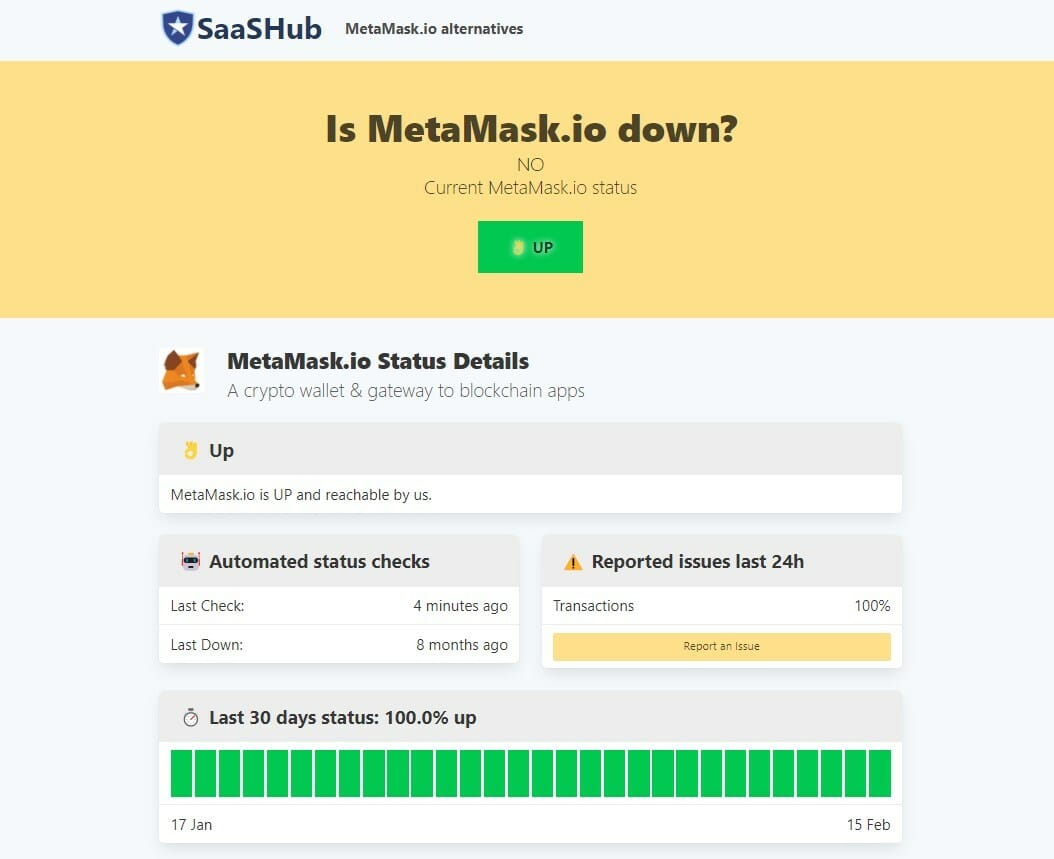
June Xbox update adds ability to reveal secret achievements on Xbox

Microsoft has revealed some details about the June Xbox Update. This month’s update adds one big new feature, the ability to reveal secret achievements anywhere you play Xbox.

This new feature is all for those who don’t mind story-related spoilers when gaming. To trigger it on an Xbox, click the guide, go to Game Activity and then choose Achievements. When you see a hidden achievement, you’ll be able to reveal the full detail, as well as the Gamerscore value. After you peek, it can be hidden once again. This also works on the Xbox app for Android and iOS, the Xbox app for Windows PC, and Game Bar on your PC, too. Check it out below.

In addition to the achievement-related feature, Microsoft also added a small quality of life fix to Xbox this month. The company mentioned that the June Xbox Update offers improvements to the speed and reliability in two areas. This includes detecting available updates, both in your collection and when you launch a game.

5 Best Portable Browsers For Chromebook

Made for the internet, Chromebook is a powerful machine in the hands of avid web surfers. A lightweight and sleek laptop primed for everything web browsing. And what better than pairing it with a portable browser designed to meet the requirements of Chromebooks.

The Chromebook runs on Google’s proprietary ChromeOS. It comes with the popular Chrome browser pre-installed. With Chrome being an already stunning app, any portable browser recommendation must be equally top-notch.

And that’s exactly what you get on our list of best portable Chromebook browsers. As always, all apps here are tested and trusted.

What are the best portable browsers for Chromebook?

Opera One – Tab islands features

Not a browser tops Opera One on the list for good reasons. However, its high compatibility with chromeOS is one of the reasons it is the leading portable browser for Chromebook.

Like Chrome, Opera One is a Chromium-based browser with lightning-fast speed. In addition, it comes with a free VPN that allows you to browse the internet without restriction.

Thanks to its built-in ad blocker, you can quickly get rid of annoying ads, cookies, and pop-ups. In addition, the incognito tab allows you to browse the internet without the concern of being tracked or monitored.

Only a few browsers can come close to Opera One whenever the argument is on user-centricity.

Other features:

  • Ads blocker
  • Liquid browsing buttons
  • Data saving
  • Custom feeds

Opera One

Add this to your Chromebook and enjoy high-speed browsing, top-notch security, and practical integrations.

Mozilla Firefox – Enhanced web privacy

firefox portable browser for chromebook

Mozilla has been around for a while and never seized to improve. Nevertheless, it is second only to Chrome as the most-used browser worldwide.

Firefox is an effective ad blocker. Its enhanced privacy features help you keep trackers at bay. You can switch Firefox into private browsing mode to escape all sorts of internet spying.

It is also prominent for its less internet memory consumption. As a result, your Chromebook RAM won’t get overstretched as you browse with this portable browser.

Want to render web pages less cluttered and more readable? No problem. Switching Firefox to reading mode allows you to read content online without distraction.

Other features:

  • Privacy Control
  • Advanced Add ons
  • Tab Grouping
  • Share Button

⇒ Get Mozilla Firefox

Brave Browser – 3x quicker navigation

brave

Despite its late entry, the Brave browser is inarguably one of the best browsers on the web. Launched in 2019, It promised to take browsing speed, privacy, and security to the next level.

Looking at its advanced security functions like firewall, configurable global shield, ad blocker, and more, it’s safe to say that Brave is delivering on its promise. It is also lightweight, making it an ideal portable browser for Chromebook.

Lastly, Brave lets you control the appearance of ads in your browser. Everything privacy and security is down to you, as you can select the settings to implement or neglect.

Other features:

  • 3rd party cookie blocker
  • Secure Bookmark Syncing
  • Anonymous Browsing History
  • Data Saver

⇒ Get Brave Browser

Dolphin Browser – Customizable gestures

dolphin chromebook portable browser

If you are looking for an easy switch from Chrome, Dolphin Browser is apt but with more catches. It is a one-kind intuitive browser that looks and operates just like Chrome. This similarity in operation and its light-weightiness makes it an excellent portable browser for Chromebook.

Dolphin Browser ticks many functionality boxes. It comes with virus and malware protection features that keep you protected online and offline.

Built-in video downloader, PDF viewer, automatic translation, voice command search, battery saver, and built-in flash player, among others, will make it your favorite in no time.

Other features:

  • Multiple Tabs bar
  • Bookmarks & Add-ons sidebar
  • Gesture Browsing
  • Personalized Search

⇒ Get Dolphin Browser

Bromite – Uncluttered browsing

portable browsers chromebook

Bromite is a highly secure open-source browser that’s very suitable for Chromebooks. The browser was initially created for Android, but you can set it up on Chrome OS as well.

Like other mentions on this list, it is Chromium-based. It has a powerful adblocker that uses advanced filtering and blacklists to eliminate annoying ads.

You can even create your own customized settings and block specific types of ads from being displayed when you use Bromite.

It also has impressive anti-tracking features. It disables AMP and click-tracking. It also has DNS over HTTPS support and is always in incognito mode.

Other key features of Bromite include:

  • Import bookmarks and preferences
  • History support in incognito mode
  • Page source viewing

⇒ Get Bromite

There you have it: a list of four portable browsers that fits well with Chromebook. As good as Chrome is as a default browser, your Chromebook can still do with other browsers that do not consume much of its resources.

You can also check out this guide on the best gaming browsers for Chromebook to add more fun to things and take advantage of your device’s superb resources.

Feel free to discuss your pick from this list and why in the comment section below.
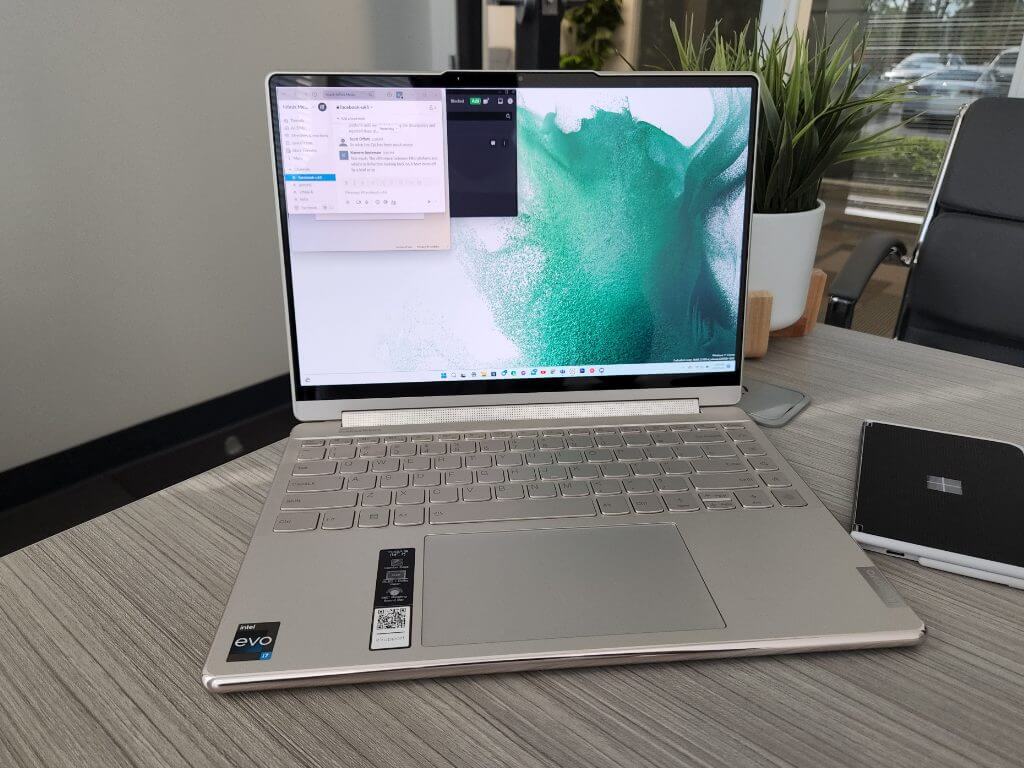
Ctfmon.exe Not Starting Automatically: How to Enable It

The ctfmon.exe file needs to run automatically with Windows 11, but that’s not always the case, so let’s see how we can fix that.

Many want to remove ctfmon.exe, believing that it’s malware, but you can rest assured that this is an authentic file from Microsoft and perfectly safe to use.

So, here’s how to enable it:

How can I enable ctfmon.exe automatically on Windows 11?

1. Use the ctfmon.exe shortcut

  1. Press the Win + R keys to open the Run dialog.
  2. Now you need to enter Ctfmon.exe path in the input filed and press Enter. The path is: C:\Windows\System32
  3. Search for the ctfmon.exe file and right-click on it.
  4. Choose Send to and then select Desktop (create shortcut).
  5. Open the Run dialog again.
  6. Execute the below command. shell:common startup
  7. You will be redirected to the location of the startup folder mentioned below. C:\ProgramData\Microsoft\Windows\Start Menu\Programs\StartUp
  8. Copy the ctfmon.exe file from the desktop and paste it into the startup folder opened in the above step.
  9. Restart your PC and check if the ctfmon.exe file is starting automatically in Windows 11 or not.

2. Use the Registry Editor

  1. Open the Start menu.
  2. Search for Registry Editor and open it.
  3. Navigate to the below-mentioned path: HKEY_LOCAL_MACHINE\SOFTWARE\Microsoft\Windows\CurrentVersion\Run
  4. On the right empty space, right-click and select New and then choose String value.
  5. Name the new string ctfmon.
  6. Double-click on it and set the Value to C:\Windows\System32\ctfmon.exe
  7. Restart your PC and it will resolve your problem.

3. Use the Task Scheduler

  1. Open the Start menu.
  2. Search Task Scheduler and open it.task-scheduler disable windows 11 telemetry
  3. Expand Microsoft.
  4. Expand Windows.
  5. Select on TextServicesFramework.
  6. On the right-side, right-click on MsCtfMonitor and select Enable.
  7. Close the Task Scheduler.
  8. Restart your PC and check if ctfmon.exe runs automatically at startup or not.

How can I fix ctfmon.exe not starting automatically error?

1. Run SFC Scan

  1. Open the Start menu.
  2. Search for Command Prompt, right-click it and choose Run as administrator.
    command prompt
  3. Type the below command and press Enter: sfc /scannowRun SFC scan to fix windows 11 error recovery
  4. Your PC will start scanning and possibly fix the issue as well.
  5. Reboot your PC.

As an alternative, you can always rely on specialized software to help you repair your system files in no time. Plus, this kind of software can be easily used as a maintenance tool in the future.

2. Check for Windows updates

  1. Press the Win + I buttons to open Settings.
  2. Select Windows Update from the left pane.
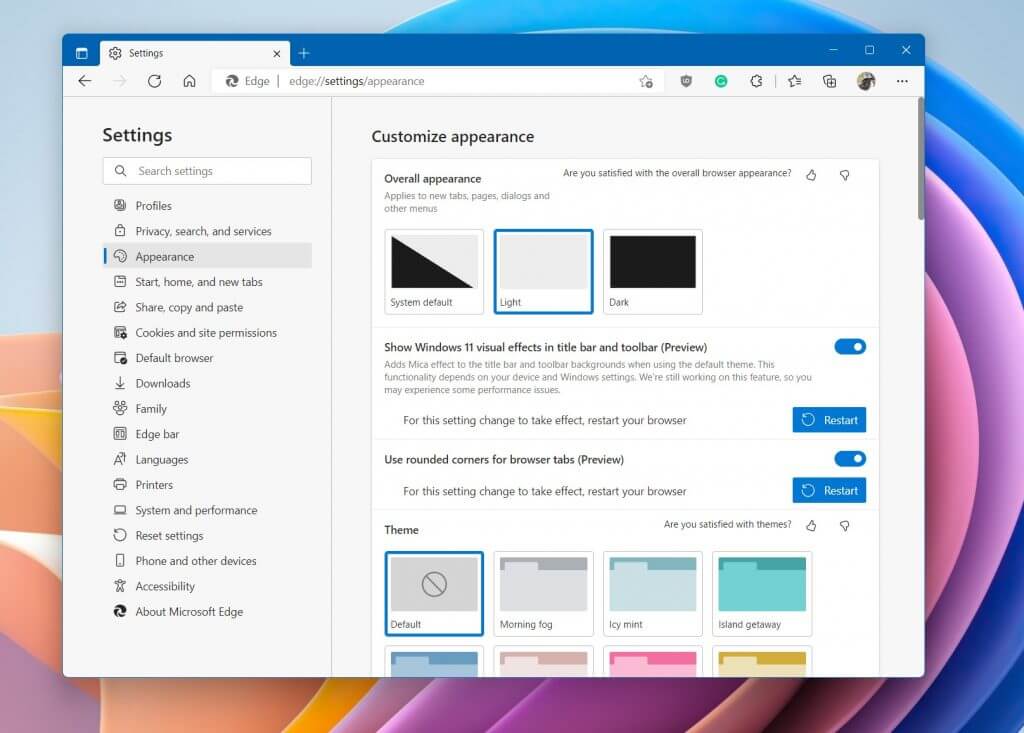
  3. Click on Check for updates button.
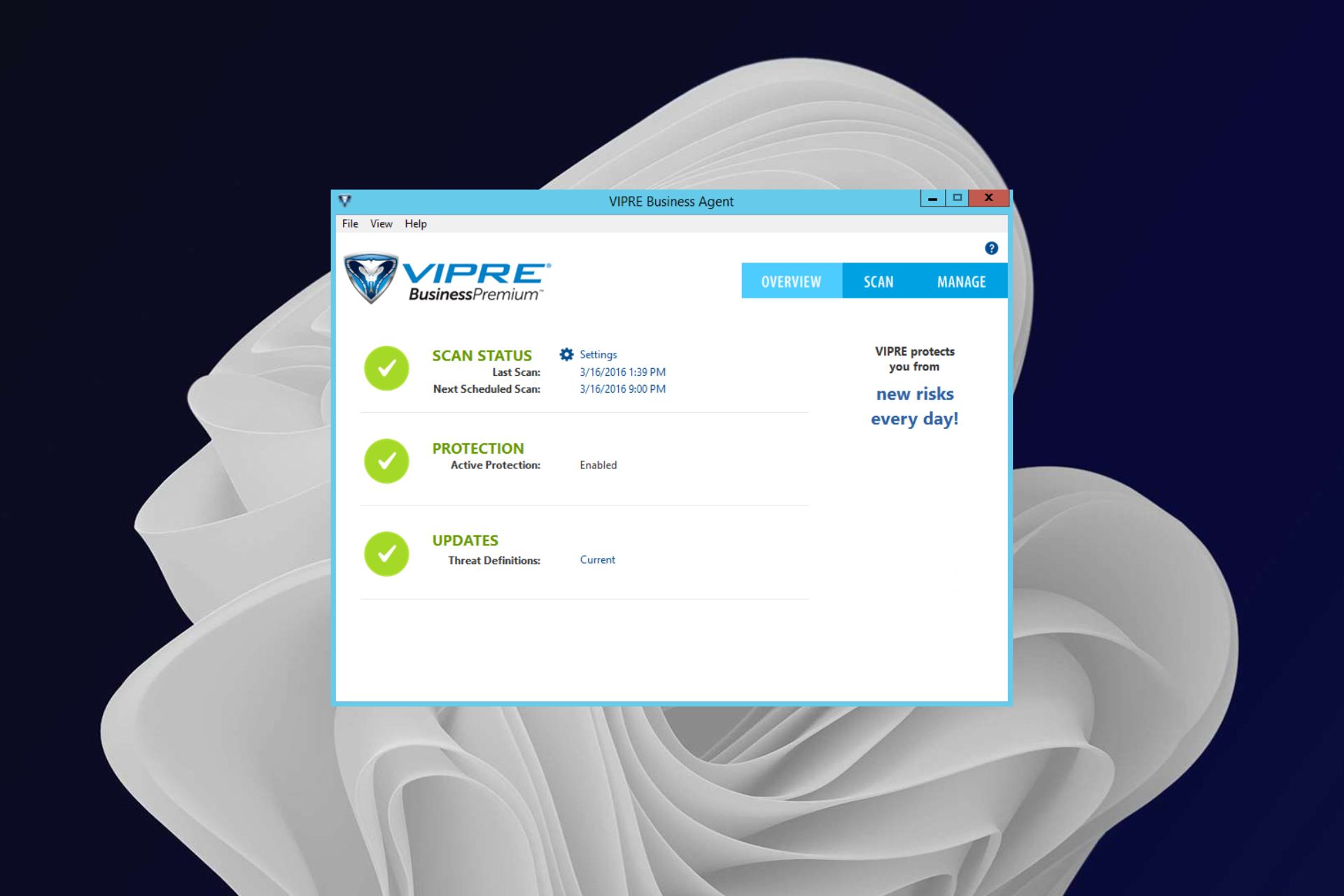
  4. Your system will now check for any latest update available, and if it detects one, it will install it automatically.

After doing that, check if the ctfmon.exe is still not working.

3. Re-enable CTF Loader Service

  1. Right-click on This PC and select Manage.
  2. Select Services and Applications.
  3. Double click on Services.
  4. Search for Touch Keyboard and Handwriting Panel Service.
  5. Right-click on it and choose Properties.
  6. Select Startup Type as Disabled.
  7. Click Stop.
  8. Click Apply and OK.
  9. Restart your PC.
  10. Once the PC restarts, repeat the steps from above, but this time enable the service.

If none of the above solutions help you fix the problem at hand, then as a last resort you can opt for resetting your Windows 11 PC.

But before you do that, you need to take a complete backup of your data because resetting the PC can remove all of your data. You can follow our comprehensive guide on how you can always perform Windows 11 factory reset.

Let us know in the comments section below if this guide helped you fix the ctfmon.exe error on Windows 10 and 11.

Assassin’s Creed Origins, For Honor: Marching Fire Edition, and more are coming soon to Xbox Game Pass

As per usual, a couple of entries are set to make their way to Xbox Game Pass in June. Gamers should also look out for the Xbox and Bethesda’s Game showcase which is set to take place on June 12, where we expect a ton of games to make their way to Xbox Game Pass.

Coming soon to Xbox Game Pass

First on the list is For Honor: Marching Fire Edition (Cloud, Console, and PC) which is set to make its way to Xbox Game Pass come June 1, followed by Ninja Gaiden: Master Collection and Assassin’s Creed Origins which are set to be available on June 2 and June 7 respectively.
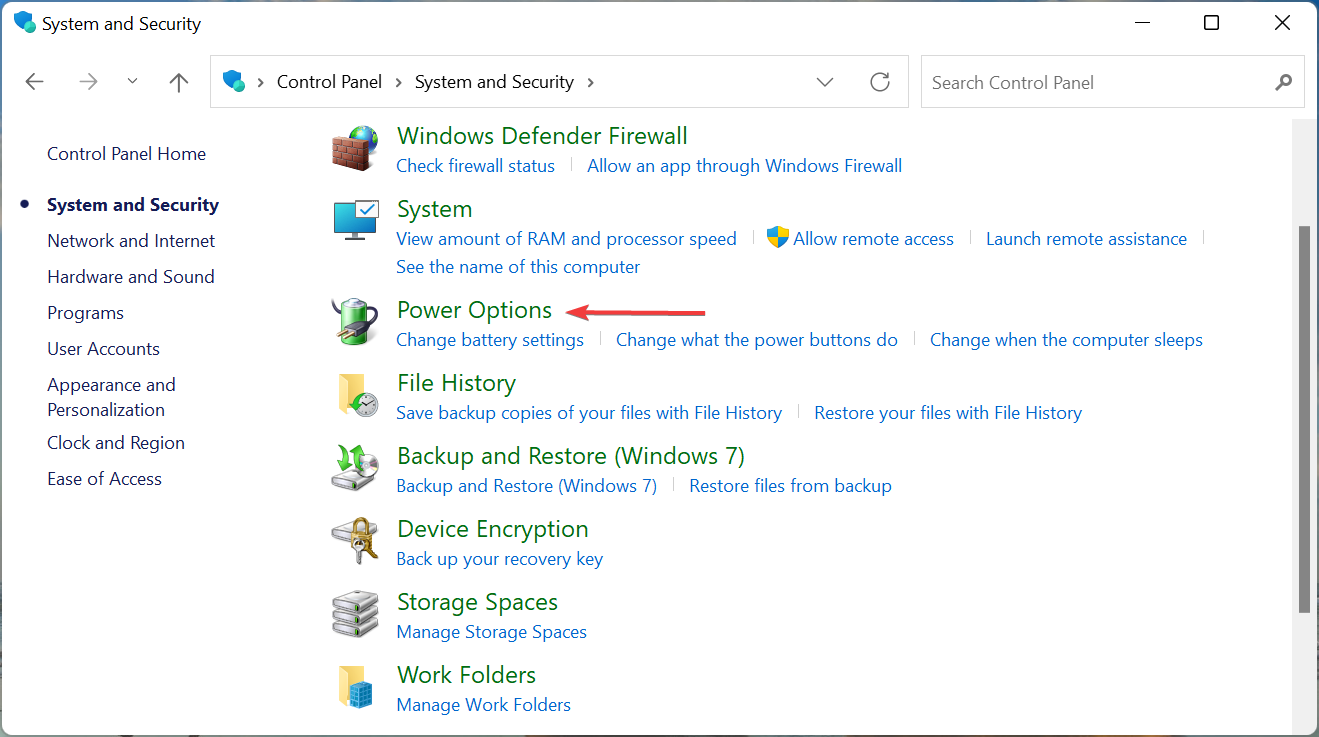
Xbox Game Pass

Gamers are expected to get For Honor: Marching Fire Edition on their devices quicker courtesy of the enhancements that Microsoft has been laying on the Xbox App. As such, gamers will now be able to search for and install Ubisoft games via Ubisoft Connect.

The Ninja Gaiden will feature all of the previously released game modes and DLC costumes which will provide gamers with a wide array of choices before getting to the battleground.

Be sure to also look out for Chorus, Disc Room, and Spacelines from the Far Out which are set to come to Xbox Game Pass on June 7. Get to enjoy Spacelines from the Far Out which is packed with “unlockable spaceships, upgrades, characters and customizations, randomly-generated challenges, trips, and itineraries”. It will be available on day one with Game Pass.

Entries getting updates in June

Besides the entries making their way to Xbox Game Pass in June, Microsoft is also rolling out a couple of updates with the aim of enhancing the gameplay experience. Here are the titles are set to receive updates:

  • Assassin’s Creed Origins: Deluxe Pack – June 7
  • Madden NFL 22: MUT MVP Bundle – Available now
  • Eternal Return: Skins and Boosts Premium Bundle – Available now
  • Smite: Slipknot Starter Pass – Available now

Leaving Xbox Game Pass

Be sure to make the most out of the following entries as they are set to leave Xbox Game Pass soon. However, you can choose to purchase the entries at a 20% discount which will allow you to access them from your library whenever you want.

  • Darkest Dungeon (Cloud, Console, and PC)
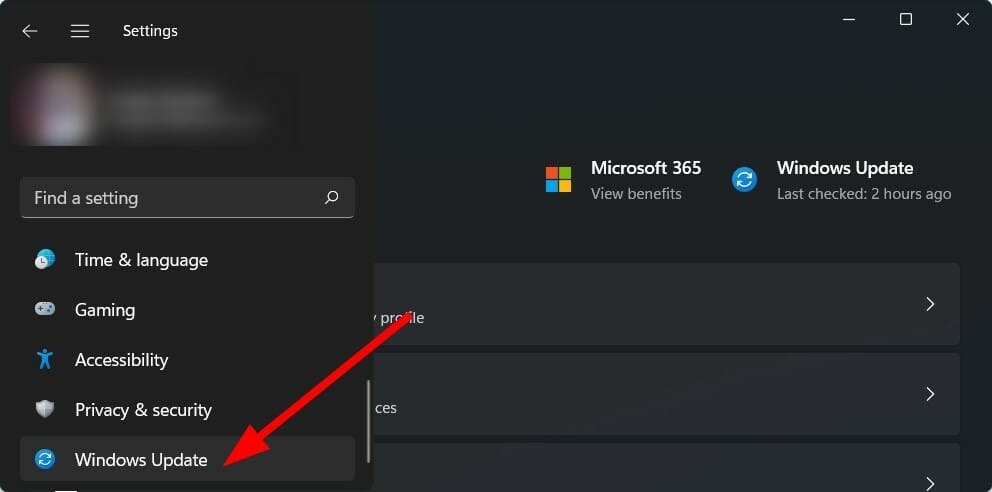
  • Dungeons & Dragons: Dark Alliance (Cloud, Console, and PC)
  • Greedfall (Cloud, Console, and PC)
  • Limbo (Cloud, Console, and PC)
  • Worms Rumble (Cloud, Console, and PC)

They have further indicated that you should look out for more announcements in June, as well as the Xbox and Bethesda game showcase.