Microsoft 365 vs Office 2021: Differences & Buying Tips 

Microsoft is renowned for its Office suite, a robust set of productivity tools ideal for individuals and business users.

In this guide, we will delve into the distinctions between Microsoft 365 and Office 2021, the most recent versions of Office Suite, to help you understand the differences between them so that you can make an informed decision.

Are Office 2021 and Office 365 the same?

No, Office 2021 and Office 365 are not the same. The Office 2021 is a one-time purchase that lets you access basic Office apps, including Word, Excel, and PowerPoint, on one computer.

Office 365 is a subscription service that ensures you get the updated version of productivity tools available in the suite, along with cloud integration and additional features.

What are the Differences between Microsoft 365 and Office 2021?

Microsoft 365 vs Office 2021: Price Comparison

Office 2021 is a perpetual license and comes in three different versions; here are the version name and their prices:

Plan NamePrice Apps & Services Included
Office Home & Student 2021$149.99Word 2021, Excel 2021, PowerPoint 2021, & OneNote 2021
Office Home & Business 2021$249.99Word 2021, Excel 2021, PowerPoint 2021, OneNote 2021, Outlook 2021
Office 2021 Professional$439.99Word 2021, Excel 2021, PowerPoint 2021, OneNote 2021, Outlook 2021, Publisher 2021, Access 2021

On the other hand, Microsoft 365 is a subscription-based model with many variants and plans to choose from. The business plans can be purchased for up to 300 users, whereas the Personal and Family ones are available for 1 and 6 people.

Here are the other details:

Plan NamePrice Apps and Services included
Microsoft 365 Family$99.99 per year or $9.99 per month
Excel, Word, Outlook, PowerPoint, OneNote, OneDrive, Outlook.com, Skype, & Microsoft Family Safety
Microsoft 365 Personal$69.99 per year or $6.99/monthExcel, Word, Outlook, PowerPoint, OneNote, OneDrive, Outlook.com, Skype, & Microsoft Family Safety
Microsoft 365 Business Basic$6.00 per user/monthOneDrive, Exchange, Microsoft Teams, SharePoint, Outlook Web App, & Office Online
Microsoft 365 Business Standard$12.50 per user/monthWord, PowerPoint, Excel, Outlook, Teams, OneDrive, Exchange, SharePoint, Access & Publisher (PC only)
Microsoft 365 Business Premium$22.00 per user/monthWord, Excel, PowerPoint, Outlook, Microsoft Teams, OneDrive, Publisher, Access (PC), Intune, Azure Information Protection, SharePoint, & Exchange
Microsoft 365 Apps for Business$8.25 user/monthWord, Excel, PowerPoint, Outlook, Publisher, Access (PC), Intune, & OneDrive
Microsoft 365 Apps for Enterprise$12.00 per user/monthOneDrive, Microsoft Access (PC only), Microsoft Publisher (PC only), Delve, Sway, Microsoft Forms
Office 365 E1$10.00 per user/monthMicrosoft Teams, OneDrive, Exchange, SharePoint, Viva Connections, Viva Engage, Viva Insights, Microsoft Bookings, Delve, Microsoft Stream, Sway, Microsoft Forms, Power Apps, Power Automate, Power Virtual Agents, Microsoft Planner, & Microsoft To Do
Office 365 E3$23.00 
user/month
Word, Excel, PowerPoint, Outlook, Microsoft Teams, OneDrive, Microsoft Access (PC only), Microsoft Publisher (PC only, )Exchange, SharePoint, Viva Connections, Viva Engage, Viva Insights, Microsoft Bookings, OneNote, Delve, Microsoft Stream, Sway, Microsoft Forms, Power Apps, Power Automate, Power Virtual Agents, Microsoft Planner, & Microsoft To Do
Office 365 E5$38.00 
user/month
Word, Excel, PowerPoint, Outlook, Microsoft Teams, OneDrive, Microsoft Access (PC only), Microsoft Publisher (PC only), Exchange, SharePoint, Viva Connections, Viva Engage, Viva Insights, Microsoft Bookings, OneNote, Delve, Microsoft Stream, Sway, Microsoft Forms, Power Apps, Power Automate, Power Virtual Agents, Microsoft Planner, Microsoft To Do, & Power BI Pro
Microsoft 365 E3$36.00 
user/month
Word, Excel, PowerPoint, Windows., Teams, Outlook, Exchange, SharePoint, OneNote, OneDrive, Microsoft Stream, Microsoft Bookings, Microsoft Publisher (PC only), Microsoft Access (PC only), Viva Connections, Viva Engage, Viva Insights, Microsoft Lists, Microsoft Forms, Sway, Visio, Power Apps, Power Automate, Power Virtual Agents, Microsoft Planner, & Microsoft To Do
Microsoft 365 E5$57.00 
user/month
Word, Excel, PowerPoint, Windows, Microsoft Teams, Outlook, Exchange, SharePoint, OneNote, OneDrive, Microsoft Stream, Microsoft Bookings, Microsoft Publisher (PC only), Microsoft Access (PC only), Viva Connections, Viva Engage, Viva Insights, Microsoft Lists, Microsoft Forms, Sway, Visio, Power Apps, Power Automate, Power Virtual Agents, Microsoft Planner, Microsoft To Do, & Power BI Pro
Microsoft 365 F1$2.25 
user/month
Word, Excel, PowerPoint, OneNote, Microsoft Teams, Exchange, Microsoft Bookings, SharePoint, Viva Connections, Viva Engage, Viva Insights, OneDrive, Microsoft Stream, & Microsoft Planner
Microsoft 365 F3$8.00 
user/month
Word, Excel, PowerPoint, Windows, Microsoft Teams, Outlook, Exchange, SharePoint, OneNote, OneDrive, Microsoft Stream, Microsoft Bookings, Viva Connections, Viva Engage, Microsoft Lists, Microsoft Forms, Sway, Visio, Power Apps, Power Automate, Power Virtual Agents, Microsoft Planner, & Microsoft To Do

Microsoft 365 vs Office 2021: Version Comparison

Microsoft 365 Business and Standard, Family, and Personal editions allow you to access Word, Excel, PowerPoint, and other apps on your desktop. The rest of the Microsoft 365 versions provide web and mobile app access.

On the other hand, all three versions of Office 2021 allow you to download the classic Desktop versions for Word, Excel, PowerPoint, and Outlook. And, with Office Professional, you get two additional apps, Publisher and Access.

All the versions of Microsoft 365 (earlier known as Office 365) enable you to download mobile apps for Word, Excel, PowerPoint, and Outlook on your iPhone, Android, and iPad.

Additionally, you can download Microsoft Teams, One Drive, SharePoint, and Exchange apps for Business Standard, Business Premium, and Apps for Business versions.

If we talk about operating system compatibility, all the Microsoft 365 versions can be downloaded on:

  • Windows – Windows 11, Windows 10, Windows Server 2016, Windows Server 2019, and Windows Server 2022.
  • Mac – macOS Big Sur 11 or later.
  • iPhone & iPad –  iOS 12.0 or later.
  • Android – Android 10 or later.

For Office 2021 can be installed on the devices with the following:

  • Windows – Windows 11, Windows 10, Windows 10 LTSC 2021, Windows 10 LTSC 2019, Windows Server 2022, or Windows Server 2019
  • Mac – The three most recent versions of macOS. Currently, it supports macOS Big Sur 11 or later.

To learn about Office version compatibility, you can check this guide.

If we talk about the changes throughout the years of Microsoft Office since its inception, it would not be wrong to say that it has come a long way. Here’s an overview of the changes over time:

Office VersionChanges introduced
Office 1.0 (1990)The first version of Office introduced the concept of integrated office apps.
Office 4.0 (1994)Added the Office Assistant, Clippy & improved collaboration features.
Office 95 (Office 7.0) (1995)The first 32-bit Office version came with a Task Pane and an online Help section.
Office 97 (Office 8.0) (1996)Added Internet Explorer integration, Office Toolbar, and Outlook as email clients.
Office 2000 (Office 9.0) (1999)Enhanced web integration with Office Web Components.
Office XP (Office 10.0) (2001)Introduced Smart Tags features and shifted their focus to security and user experience.
Office 2003 (Office 11.0) (2003)Improved XML support and added Research Task Pane.
Office 2007 (Office 12.0) (2007)Introduced the Ribbon interface and improved collaboration with SharePoint integration.
Office 2010 (Office 14.0) (2010)Added Backstage view and enhanced collaboration with Office Web Apps.
Office 2013 (Office 15.0) (2013)Improved touch support and added the Start screen.
Office 2016 (Office 16.0) (2015)Introduced Tell Me feature and enhanced collaboration with real-time co-authoring.
Office 2019 (2018)A standalone perpetual license with the classic apps.
Microsoft 365 (2020) {Formerly known as Office 365, introduced in 2011}A subscription-based model with cloud-based services
Microsoft 365 Apps Continuous updates with a cloud-connected suite and focus on real-time collaboration, & security
Microsoft Office LTSC (Long-Term Servicing Channel) (2021) A version of Office with infrequent updates and long-term support with security updates, ideal for organizations.
Office 2021 (2021)A standalone perpetual license with a focus on offline use and conventional software licensing

In 2019, Microsoft introduced the Long-Term Servicing Channel (LTSC) for Office 2019 for organizations who prefer stability with less frequent updates & a fixed set of apps & features.

As the name suggests, the LTSC versions support a longer support lifecycle and are intended for environments where strict regulatory needs are essential to maintain control over software updates.

Remember that if you choose the LTSC version of Microsoft Office, you might be unable to use the latest features, cloud-based services, or other collaboration tools.

Microsoft 365 vs. Office 2021: Feature Comparison

CategoryOffice 2021Microsoft 365
Licensing modelPerpetual licenseSubscription-based model
UpdatesFixed set of features available at the time of purchase, along with security patches and bug fixesRegular updates, including new features, bug fixes and security updates
Office AppsWord, Excel, PowerPoint, and OutlookOutlook, Word, PowerPoint, Excel, OneNote, Publisher (based on the plan chosen), and Access (depending on the plan).
Cloud-based servicesNo services includedCloud-based services like OneDrive for online storage & collaboration, Teams for communication & collaboration, and SharePoint for managing documents.
Real-Collaboration ToolsTrack changes, & sharing documents via emailReal-time collaboration, which allows multiple users to make changes to a document in Word, PowerPoint, and Excel
Cross-Platform CompatibilityCan be installed on Windows and macOSWorks on Windows, macOS, Android, iOS and web browsers
AI-powered features No AI featuresComes with AI features to check grammar, provide content suggestions, design suggestions, and more
Security & Compliance No security featuresAdvanced security features, threat protection, data loss prevention (DLP), and other compliance tools
Offline UseIntended for offline use and is ideal for those who don’t have continuous access to the internetNeed internet connection for full functionality but can work offline with some limitations

Can you switch from Microsoft 365 to Office 2021?

You can switch from Microsoft 365 to Office 2021 or vice versa. Still, you need to cancel the subscription plan, backup your data, uninstall Microsoft 365, register & purchase 2021 via your Microsoft account, and install the new software suite from the download link on your account.

To subscribe to Microsoft 365 services and get extra features, you need to abandon your Office 2021 license, uninstall it from your machine, get a plan as per requirements, and download & install the apps from your Microsoft account to get started!

Remember, understanding your requirements while purchasing any of the software is important. If you are a single user and don’t want continuous updates, you can choose Office 2021.

However, if you want to get the latest features and updates from Microsoft and enjoy using collaboration features and cloud storage, then Microsoft 365 is the right choice. If you want to know how to get this Office suite at a cheaper price, read this guide.

If you are an MSP, you might also be interested in our guide about Microsoft 365 Lighthouse and its security services.

To learn even more, we have a great guide on the list of Microsoft Office programs available in different versions, so you might want to check it out.

If you have any other questions or suggestions about these products, please mention them in the comments section below.

Best Website Security Software: Top 5 Picks

Today, the Windows Report team will be showing you some of the best website security software. Website security has become more important in the past decade with news of high-profile web attacks on websites.

These attacks range from DDoS, malware distributions, heavy adware activity, website hijacking, and complete website shutdown.

Hence, the emergent needs to secure websites against impending attacks. However, this has led to an increase in web security but the hard choice for users is how to pick the right website security software.

Meanwhile, Windows Report has compiled some of the best web security software available on the market to help you choose the right security solution for your website.

Protect your website with these security tools

Sucuri

Sucuri is a popular website security software provider with a reputation for its strong security features. The program uses cloud-based technology to ensure comprehensive security for your website. Meanwhile, this web security software helps to increase your website performance through its CDN and smart catching features.

In addition, Sucuri suite package comes with an inbuilt antivirus and firewall to detect viruses and prevent bug attacks on your website. Also, the software filters web traffic and blocks hack and bugs through DDoS mitigation and WAF, hence, Sucuri also patches vulnerable spots on your website to prevent exploit attacks.

You can also back up your website information with their cloud storage which is a cool feature. Sucuri offers quality customer support services which are available 24/7 all through the year.

Moreover, this great tool provides SEO support and guides you to respect principal rules for a legitimate site on the web. So aspects like keyword stuffing or links injections are removed in order to make your site appealing in searches.

Thus you don’t have to worry about the security issues or performance needs of your website because this platform can resolve them effectively and also increase site results.

Also, Sucuri is available on Windows devices and comes at a basic cost of $10 per month.

Sucuri

Improve your website using professional security services to fully increase the gains of your business.
Check price Visit website

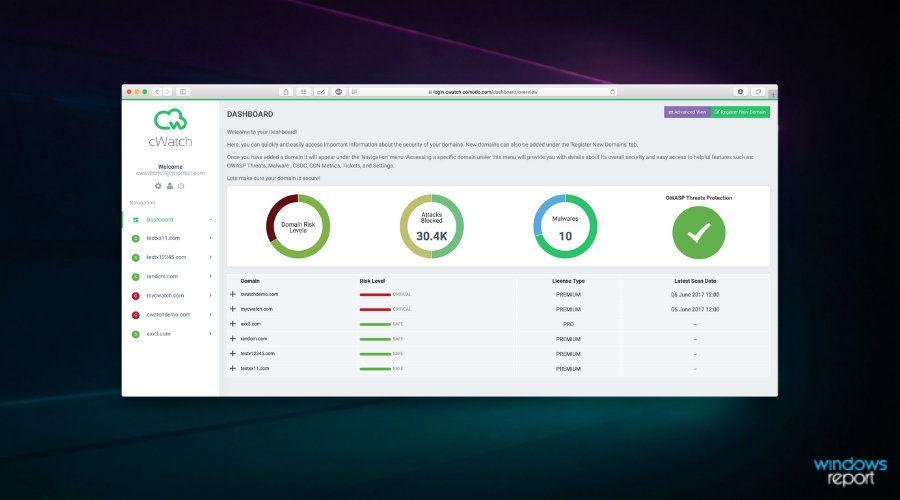
Comodo Cwatch

This is one of the popular website security software with millions of websites protected by this security software. Comodo Cwatch uses cloud network technology to manage security services for websites and online applications.

Comodo offers comprehensive security services which detect, and removes malware after detection.  The software uses a unique combination of security information and event management with web application firewall to create a secure content of delivery network which secures your website.

In addition, this website security software also comes with improved website performance with the DDoS keeping threats at bay while keeping your website information safe. Comodo Cwatch helps your website to be PCI compliant which gives online merchants more credibility as a safe place to make purchases.

The software also boasts excellent customer support which guides you through the entire setup and is available 24/7 a day.

However, Comodo Cwatch is ideal for any business website either startup or established website. The software is available on Windows devices to download.

Therefore, you should take advantage of the superior security services offered by experts and engineers ready to protect any business website.

⇒ Get Comodo Cwatch

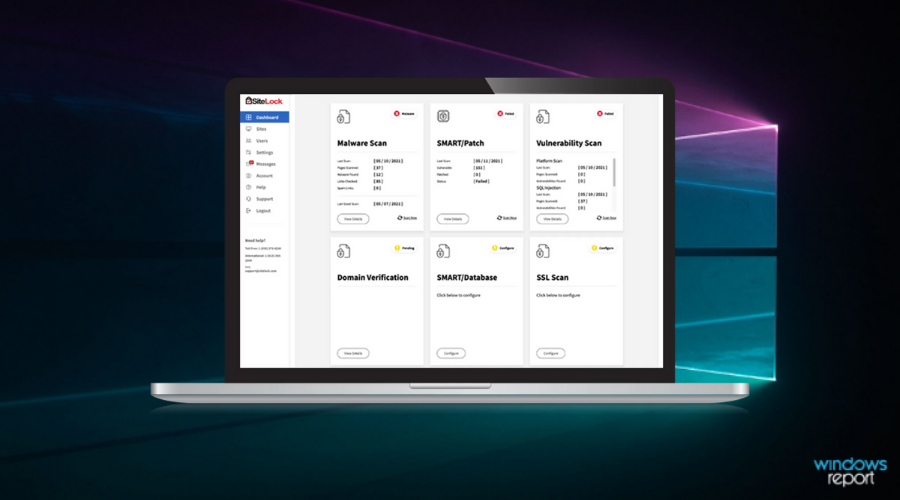
Sitelock

This web security software uses cloud-based security technology to automatically detect threats and attacks on your website. Sitelock also helps prevent attacks by fixing threats and putting them in their database, to ensure the attack is recognized and fixed anytime it resurfaces.

The software helps to boost website performance and allows online e-commerce websites to meet PCI compliance standards through excellent customer-based support it offers. Sitelock uses “Truecode” statistic application testing which allows for fast analyzing the source base of websites and applications to prevent attacks.

The DDoS protection helps to keep your DNS server and Web applications secure from malware.  This website security software is excellent software to use for your website protection.

Hence choosing this reliable platform you invest positively in website maintenance and secure the digital activity of your business, no matter what type of site you have. With this service the security worries are null and you enjoy constant website safeguarding.

The software is available for download on Windows devices and the price range from $9 to $49 depending on your website activities.

⇒ Get Sitelock

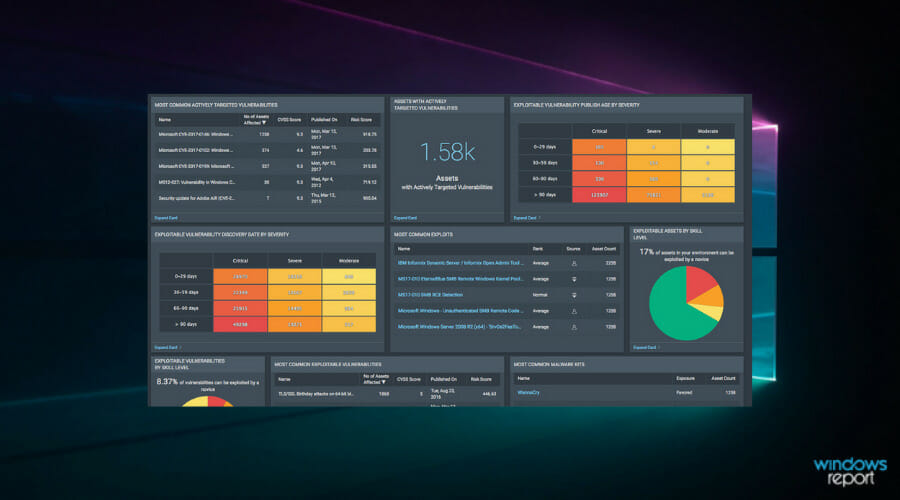
Rapid 7

This web security suite offers complete and advanced web protection features. Rapid 7 helps to analyze traffic, detect and repel attacks on your website. The software has a simple interface which allows for easy settings and customization.

Meanwhile, this website security software utilizes a unique vulnerability management feature that analyses your website traffic and indicates vulnerable spots, which are remediated by the security program.

In addition, the cloud-based protection technology allows your entire system workload to be minimized while increases your website credibility and protecting your site endpoints. In addition, Rapid 7 is available for Windows devices.

What’s more, this SIEM (System Information and Event Management) tool is prepared to boost your site performance and assures instant return of investment regarding superior security benefits.

Hence you can rely on high-security services based on machine learning and advanced technology, detecting all potential threats to your website and help resolve them.

⇒ Get Rapid 7

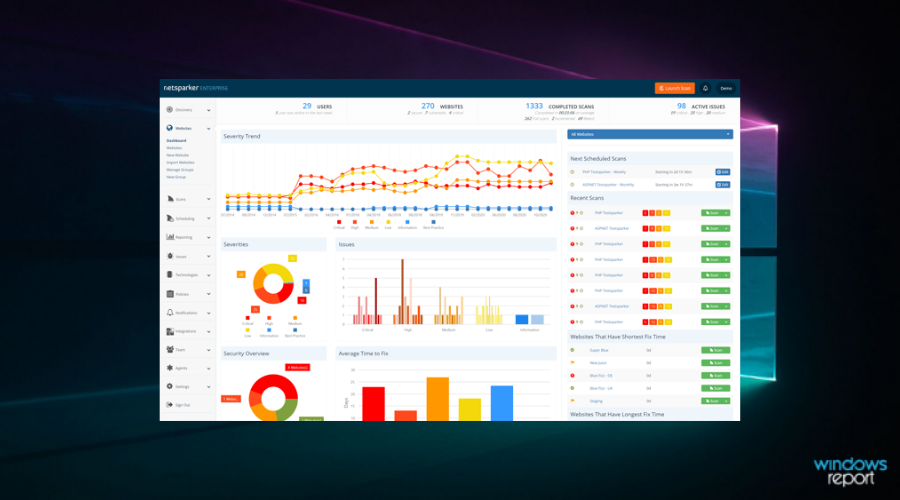
Invicti 

Invicti offers excellent web security features and is cross-compatible on several operating system platforms.

This website security software offers a nice user interface which makes web security easy to set up and use without having any technical knowledge.

In addition, Invicti scans your website and gives detailed vulnerability reports periodically which allows for easy detection and removal of threats. The software enables full configuration of its scanning tool whereby you can select which part of your website needs more attention.

The penetration test feature enables the software to protect your website from DDoS attacks and bugs as it detects and blocks these threats.

In addition, Invicti enables your website to be PCI compliant; hence, it improves your website performance and boosts credibility with your site visitors.

Therefore a program like this offers qualitative security services in order to provide the needed website administration thus improving the traffic or sales.

⇒ Get Invicti

Menlo Security Web Security

If you want to protect your website, perhaps Menlo Security Web Security might be just what you need. This tool isolates all web activity on a pool of secure browsers and thanks to its special technology it delivers a seamless browsing experience. By doing so, users are at no risk of malware infection.

This service uses its own Secure Web Gateways technology that will completely eliminate all malware infections and enhance your security. The service has a special feature called “allow without risk” that will eliminate any risks associated with uncategorized websites.

Menlo Security also has a document protection feature that will isolate and open all documents and email attachments thus prevent malicious documents from infecting your PC. This service also has a Data Loss prevention feature that has special file upload and download policies. For extra protection, there’s a special Isolate + Read-Only option available.

Another great feature of Menlo Security is webmail protection. Thanks to this feature, all web traffic will be isolated thus keeping your emails safe from malicious links. In addition to webmail, Menlo Security will also protect you against malicious URLs.

Menlo Security Web Security offers solid features, so if you’re looking for website security software, you might want to try it out.

Overview:

  • Isolates all web traffic to reduce the chance of malware infection
  • Has its own Secure Web Gateway technology
  • Isolates all documents and email attachments
  • Document, webmail and URL protection

⇒ Get Menlo Security Web Security Today

Conclusively, there are other website security software out there but those listed here are the best ones which have been properly reviewed.

However, the website security software listed is unique in its own way; the best software combines a blend of affordability and capability, which are highlighted in this post.

You can always rely on powerful penetration testing services to help you determine what your vulnerabilities are and what the right tool is for you to use. Cyberglobal offers a wide range of testing capabilities and a team of security experts that operates 24/7 to provide the best solutions to your needs.

Have you used any of the website security software which we mentioned above? Feel free to share your experience with us by commenting below.

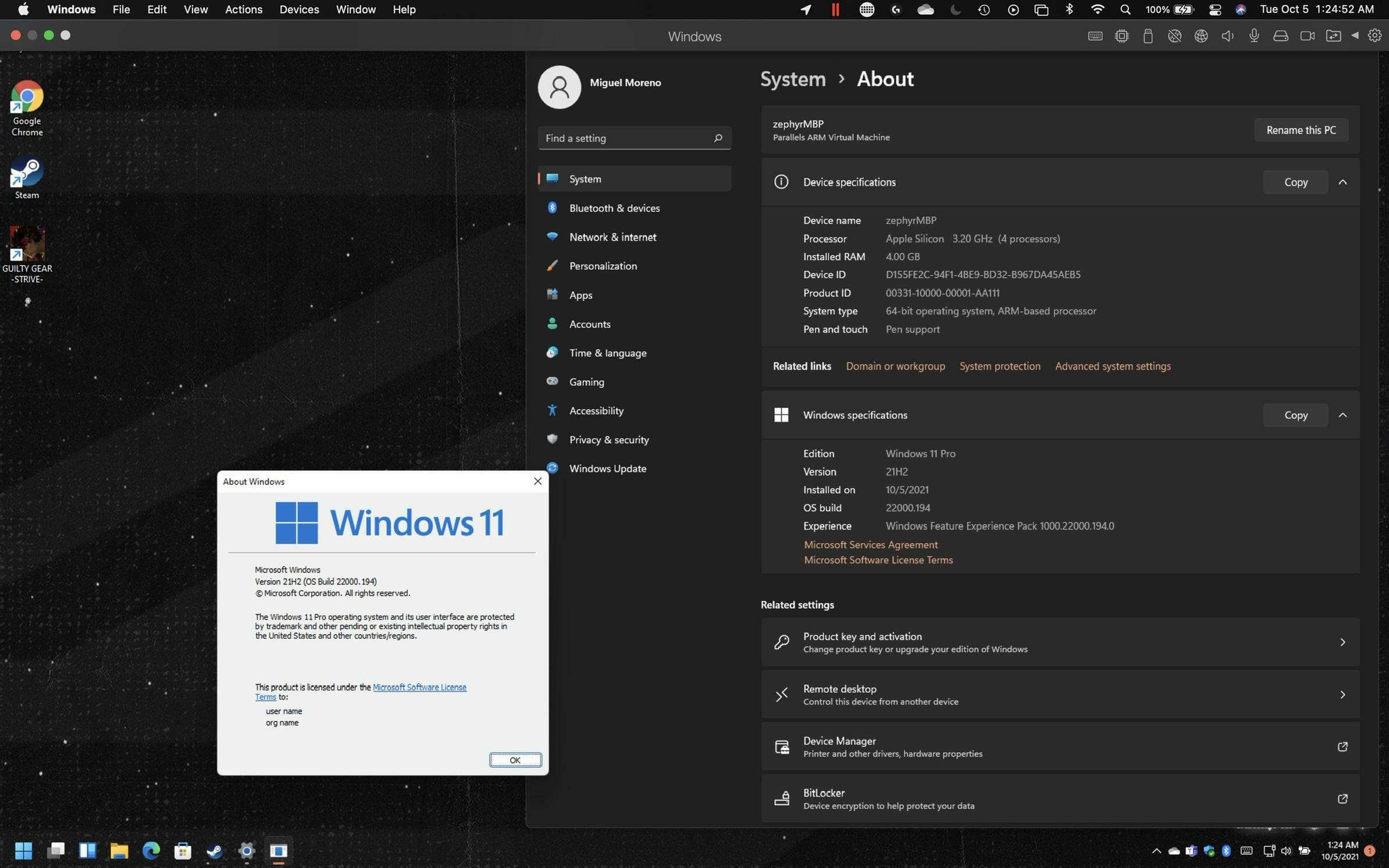
Get ready to use Windows 11 ARM on M1 devices, with Parallels

One of the most popular virtualization tools available now, Parallels Desktop, recently launched version 17, which was used to run the Windows 11 beta on Apple M1.

However, soon after that, the development version started to have hardware compatibility errors when using the software.

Trying to avoid an uncomfortable situation, the Parallels team fixed this issue with version 17.0.1 but gave absolutely no guarantee that similar incidents won’t happen again.

Recent information dissipates all the doubt and brings smiles to the faces of those who really wanted to take Windows 11 for a test run on their Apple desktops and laptops.

You can run Windows 11 on M1 chip powered desktops

Given the unpredictable state in which Windows 11 was a few weeks ago, and the scepticism of many, in regards to it being ready in time, every Mac owner was getting worried at the thought they couldn’t run it on VM.

You can relax now, as it has been confirmed that you can indeed run Microsoft’s new operating system using Parallels, on your M1 chips.

Users that already tried and were successful at installing and running this OS on their Apple devices were quick to share the exciting news with everyone else, through forums or social media platforms.

For those of you that don’t have VHDX, all you have to do is simply download the update and convert it to ISO.

Note icon NOTE
And just in case you aren’t familiar with the term, VHDX is a semi-open file format that describes a virtual hard disk.

It is not related to formats, such as NTFS or FAT, or EXT3. It is also not concerned with partitions. VHDX presents the same characteristics as a physical hard drive, or SSD, or SAN LUN, or any other block storage.

It is up to some other component, such as the guest operating system, to define how the blocks are used.

Also, if you are looking to game on your Windows 11 ARM< you might want to look into it first, as there are some concerns about gaming on Parallels 17.

So it doesn’t matter if you were an Apple person all your life, you still have the chance to try out the Redmond company’s recent operating system, without having to worry about a thing.

Well, of course, maybe just how many hours you are willing to spend in front of your monitor without taking a small break.

Did you manage to install Windows 11 on your M1-powered device, using Parallels 17? Let us know in the comments section below.
Latest Microsoft Edge Dev build brings voice typing support, Microsoft Editor built directly into the browser

Microsoft has released Edge Dev channel update 96.0.1032.0. This update is another fairly minor one, however, it does bring some new features. These include voice typing support, and Microsoft Editor built directly into the browser. Here’s what you need to know.

We start first with the new features. You can now use voice typing on web pages on Windows 11 in Edge. In addition, you should see a new item in the right-click many on tabs that can move that tab to a different profile, even if no windows are open. Other added features are below.

  • Added a button to the main feedback dialog to easily get to the “Recreate my problem” sub-dialog.
  • Added an X to close certain toast notifications that appear when managing Collections.
  • Added a button to exit Immersive Reader on iPad.
  • Added improved messaging when the Web Widget fails to open because an extension disabled it.

The reliability improvements and changed behaviors are short this week. We’ve included all of them below. These cover various crashes, as well as issues with importing data and editing text notes.

  • Fixed an issue where enabling spellchecking for multiple languages resulted in only one language getting spellcheck results.
  • Fixed an issue where opening a new window from the Favorites or History management pages fails.
  • Fixed an issue where importing data from other browsers sometimes fails in certain languages.
  • Fixed an issue where certain kinds of browser history are able to be deleted even when deleting history is disabled by management policy.
  • Fixed an issue where editing a text note in a Collection sometimes isn’t possible because the pane automatically scrolls to where the note isn’t visible.
  • Fixed an issue where entering Kids mode unnecessarily adds badging to browser shortcuts.
  • Fixed an issue where websites that ask for permission to use a 2-Factor Authentication device result in a blank permission dialog.
  • Fixed an issue where setting a website installed as an app to run when the device starts up via the app’s post-install dialog isn’t reflected in the Apps management page.
  • Fixed an issue where there is no indication that a download has started in websites installed as apps.
  • Fixed an issue where clicking the button in Settings to restart the browser doesn’t actually restart it.
  • Fixed an issue where input sometimes doesn’t work when mini menus are visible.
  • Fixed an issue where the Web Widget doesn’t respond to touchscreen input.
  • Fixed an issue on Xbox where the Setting to open a specific page on browser startup doesn’t work.

Known issues are slim this week, but the same as in the past. These include issues with ad-blocking extensions, tabs crashing with a STATUS_INVALID_IMAGE_HASH error, and wobbling with scrolling. Happy downloading, Edge insiders, and remember that Edge is on Xbox now, too!

5 best email clients for a productivity boost

Emails are still the best way to communicate in the workplace. However, most people don’t have their emails organized. It is noisy, all over the place and none of us have the patience to keep cleaning the mess every other day.

The problem multiplies when you have to deal with multiple email accounts on day to day basis. Managing all of these email accounts can take hours of your work hours that you would rather spend taking your business forward.

This is where the email clients come into play. Even though, modern web-based email clients like Gmail and Outlook have come a long way and pretty much offer all the functionalities to keep your emails spam-free and organized, web-based email clients, are not still feasible when you have to deal with multiple email clients all the time. Having to keep multiple tabs open to manage email again clutters the desktop.

This is where offline email clients excel. Desktop mail clients can manage all your email addresses from a single window, store emails for offline use, offer top-notch encryption, offer business app integration such as WhatsApp, Trello, Slack, and more.

If you feel like buried in emails and spending hours managing the accounts every day, here is the list of best emails clients for increasing your productivity that will help you to supercharge the email management process like never before.

What are the best productivity-oriented email clients?

Mailbird

If I had to sum up Mailbird is an email client in one sentence, it would get 4.5/5 stars. That should be enough to tell you that it is a real deal and worth being your primary email app and you should give it a shot without any second thoughts.

Mailbird is a premium email client for Windows users and comes in yearly and lifetime licenses which is affordable for many. But, there is a free version as well just in case you are looking for a free email client.

The Personal subscription gets you multiple account support, contacts manager, app integration, and personal use license.

The Pro subscription allows you to use Mailbird for commercial use, Exchange support, email speed reader, LinkedIn Lookup Feature, Mailbird essential options, and customer support plus everything that comes with a personal account.

As an email client Mailbird has the basics covered. It can send and receive emails, filter emails, and supports keyboard shortcuts to create and compose new emails, etc.

You can manage emails from your multiple accounts from one place. It has a customizable layout with free themes to make it look exactly like you want it to look.

Then there is app integration support. You can use apps like Facebook, Twitter, WhatsApp, Dropbox, Google Calendar, Asana, Slack, Trello, Todoist, and more right from the Mailbird client.

In addition, Mailbird also gets features like attachment search, Undo Send, custom sounds, Speed Reader, and the Snooze option to snooze messages for later and deal with the emails on a priority basis.

Mailbird is an excellent email client with all the necessary features on offer and makes email management a much simpler process.

Mailbird

Download Mailbird for free and see how your productivity skyrockets. Take advantage of the limited-time offer!
Free trial Visit website

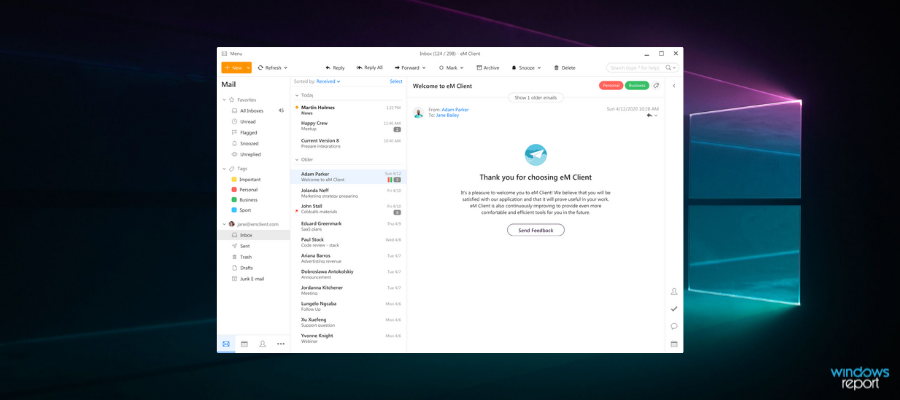
eM Client

With superior search options, apps integration, and support for a vast range of email providers, eM Client is an excellent email client for Windows users.

It comes in both free and premium accounts. The free version retains most of the features except VIP support, unlimited accounts setups (only two accounts allowed in the free version), and the license to use it for commercial use.

Although the Pro plan is expensive, it could be worth the money if you need features missing in the free account and also use the email client for commercial purposes.

eM Client supports almost all the email technologies including POP3, SMTP, IMAP, Exchange, and Office 365.

The user interface is simple and intuitive. All the emails can be grouped into one folder, or you can view them separately.

The Conversation View automatically groups all the relevant conversations much like Gmail resulting in a much cleaner inbox.

The messages can be encrypted with PGP or S/MIME to secure signed documents and confidential information.

In addition, it also gets a message scheduler, quick text, email translator, mall mail, templates and signature, emails, categorization and tags, and more.

eM Client also has a calendar management feature that allows you to sync data from Gmail or iCloud accounts, create schedules and agendas, send meeting invitations and confirmations, set reminders, and more.

Furthermore, you can manage contacts with features like categorization, contacts merging, automatic deduplication, and exhaustive field, etc.

eM Client makes the process of email and contact management a breeze. It is expensive than Mailbird, but it does offer more features. Do take the free version for a spin to see if it meets your requirement.

eM Client

Manage all your emails securely and work better with message schedulers, quick texts, email translators, mall mails, mail templates, and more!
Free trial Visit website

Thunderbird

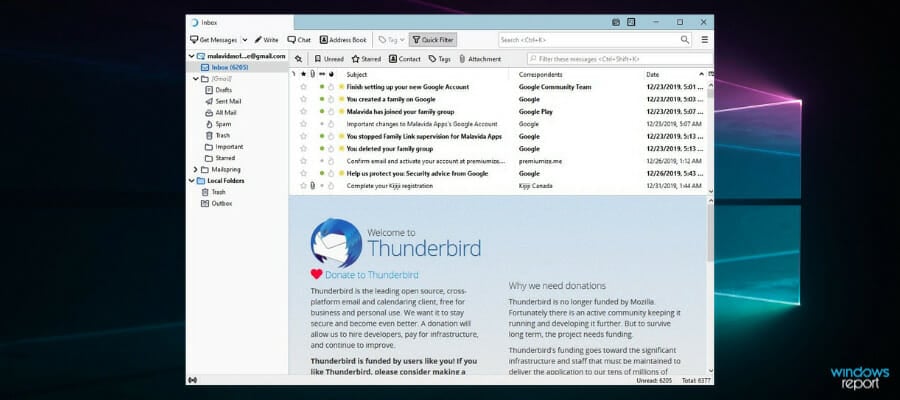
Thunderbird (formerly known as Mozilla Thunderbird) is the most popular free email client that offers all the features for free and more with extension support with no strings attached.

The latest version of the popular email client has received a major overhaul making it better than ever. You can add as many email accounts as you want without any limitations.

Setting up an email account is as easy as entering your email address and password. For some email service providers authentication may be required.

Thunderbird also allows you to set up your own custom email address directly from its dashboard. Address Book helps you to manage contacts with add, and edit functionality and customize it with photos, birthdays, and other details.

Thunderbird comes with integrated chat support for multiple channels including Facebook, Google Talk, Twitter, XMPP, and more with the ability to search through the conversation and receive emails.

Other handy features offered by the app include attachment reminder, tabs, and search, web search, quick filter toolbar, search tools, activity manager to record the interaction between the email client and your service providers, and large file management options.

And if that is not enough, you can always extend the functionality by adding third-party Thunderbird add-ons. For example, if you are unhappy with the default anti-spam add-ons, try these best anti-spam addons for Thunderbird.

Although this email client may require some getting used to, it is an excellent alternative to the native email client on Windows 10.  If you haven’t used Thunderbird before, it is time to give it a shot.

⇒ Get Thunderbird 

Mailspring

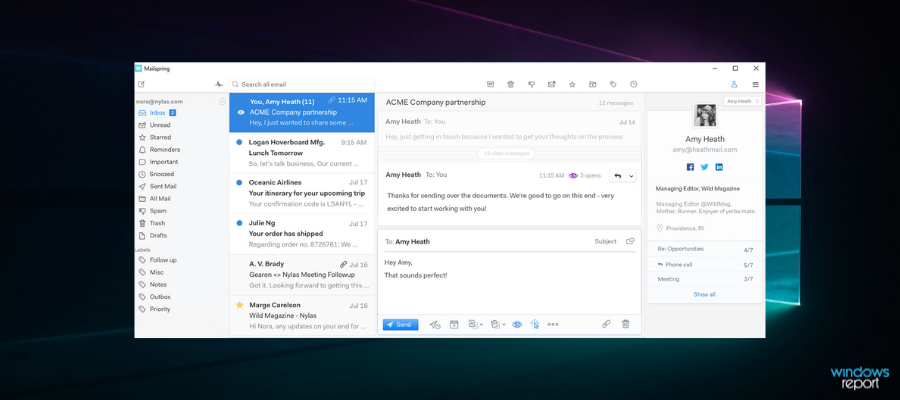
Mailspring is a multi-platform free email client that boots your productivity. It comes in both free and a pro version with obvious differences in the features list.

The Pro version of Mailspring offers features such as template support, rich contact profiles, send later feature to schedule response, company overview, ability to snooze messages for later, link tracking, read receipts for better email conversion analysis, and the ability to send follow-up reminders.

Mailspring supports all the major email technologies including IMAP, SMTP, and Office 365 which means you can add email accounts from Gmail, Hotmail, Yahoo, and more and manage all the email in one place.

You can add unlimited email accounts to the client. The advanced search features help you with searching message contents from all the connected accounts.

Then there are some handy features like the ability to add signatures to your outgoing email to add a touch of professionalism with ease.

Similar to eM Client, Mailspring offers an email translation feature in case you receive an email written in an unfamiliar language, spell check to avoid silly mistakes, and customization options to stylize your email clients with multiple layouts and themes to match your desktop mood.

Mailspring is available for Windows, Linux, and OSX and if the premium features don’t seem exciting, you can use the free version forever.

⇒ Get Mailspring 

Sylpheed

Sylpheed is yet another free email client that is available for Linux, Windows and Mac users. Unlike other email clients in this, Sylpheed is completely free without any premium plans on offer.

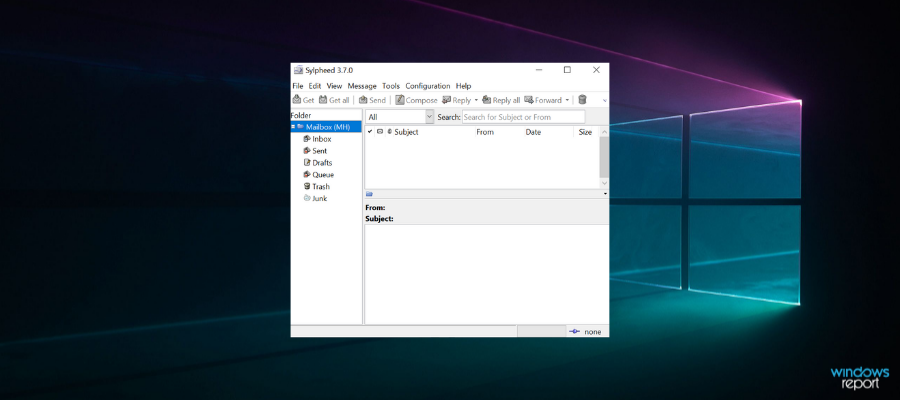
Sylpheed is at least two decades old, and the UI is no different. However, for an email client Sylpheed offers excellent email management options for those looking for a lightweight yet feature-rich email client that can be used by anyone.

You can extend the functionality using third-party plugins. Sylpheed supports all the major email protocols and allows you to configure multiple email accounts with ease.

The minimal user interface means Sylpheed doesn’t have any noticeable impact on system performance thus allowing the user to browse through thousands of emails without any lag issues.

Other email management features like email filtering, search, Junk/Spam mail control, and multi-language support make Sylpheed a super simple yet effective email client for casual users.

⇒ Get Sylpheed 

Built-in Mail Apps

Both Windows and OSX come with their own email clients aka Mail apps. The built-in apps get the job done most of the time and work great for casual users and for those who like apps with minimal features.

However, if you are a professional looking for a mail app that can organize your emails, offer business app integration and streamline the whole email management process, then this list of premium email clients for productivity should help you do more in less time.

Make sure you take the apps you like from the list for a spin and commit to the one that meets your requirement rather than one that has the most features on offer.

See our top email clients with multiple accounts for details.

  • Is there a better email client than Thunderbird?

Surely there are some that have a more modern interface. Go through the best email clients for the productivity list and see what options you have.

  • Is a Gmail account IMAP or POP?

Gmail offers both IMAP and POP support and almost all email clients support both protocols. Also, make sure the antivirus doesn’t block your emails.

This article is part of our Productivity Software Hub, check it out if you’re interested in more recommendations and solutions in this field.

If you want to learn more specifically about email and email-related tools, check our extensive Emails section.

7 Best Software to Repair Corrupted ZIP files

Like all digital data, archives such as ZIP files are prone to be damaged as well. The biggest problem is when these archives contain important data that we haven’t backed up anywhere else. That’s precisely when a good ZIP archive recovery tool can come in handy.

The problem is that the Internet is full of such tools, so choosing the right one is difficult. They all pretty much look and sound the same, and the differences are just minor.

We’ve selected a list of the best archive repair tools that you can buy today. The main criterion that we’ve based this list on is the efficiency with which it manages to recover data from the archives.

What are the methods to repair a corrupted ZIP file?

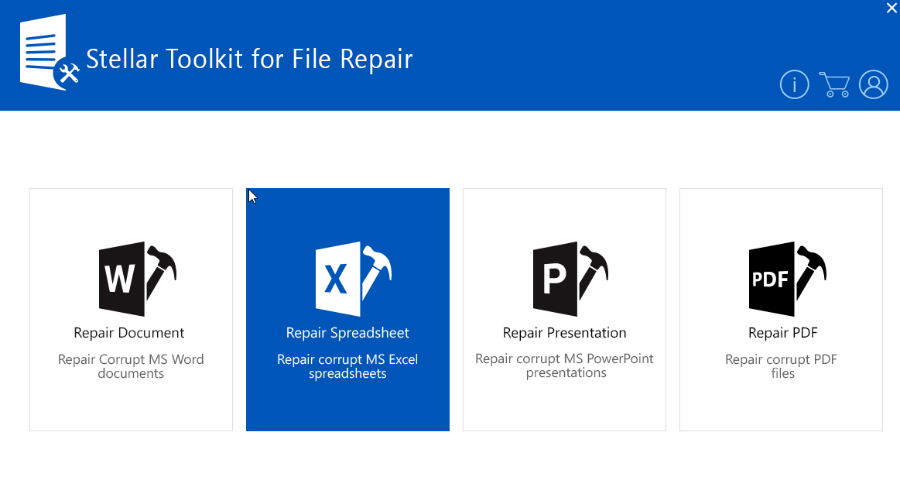
Stellar File Repair Toolkit

Stellar-File-Repair-Toolkit interface

Stellar File Repair by Wondershare represents efficient software for damaged ZIP files or other types of files like Word, Excel, PNG files, and many more.  

Using a toolkit like this one, you will fix corrupted files and save a big time trying to restore them. Thus, it can provide support for corrupted video files, unsupported downloads, virus attacks, etc.

Regarding the ZIP archives, you can benefit from services like repairing large ZIP files, fixes of corrupted files by viruses, bad sectors on the disk, or incompatible compression. 

What’s more, the program can offer support not only for ZIP files but also with Office Suite including MS Word documents and MS Excel files. 

Pros: 

  • Provides repair of ZIP files as large as 800 MB 
  • Restore damaged video files for multiple reasons 
  • Recovery for non-password protected subtypes ZIP files 
  • Available on multiple PCs
  • 30-day money-back guarantee 

Cons: 

  • Price tag 
  • Not compatible with Windows 10 

Stellar File Repair Toolkit

Using strong software like Stellar File Repair your ZIP files are in no danger, so check it out confidently!
Check price Visit website

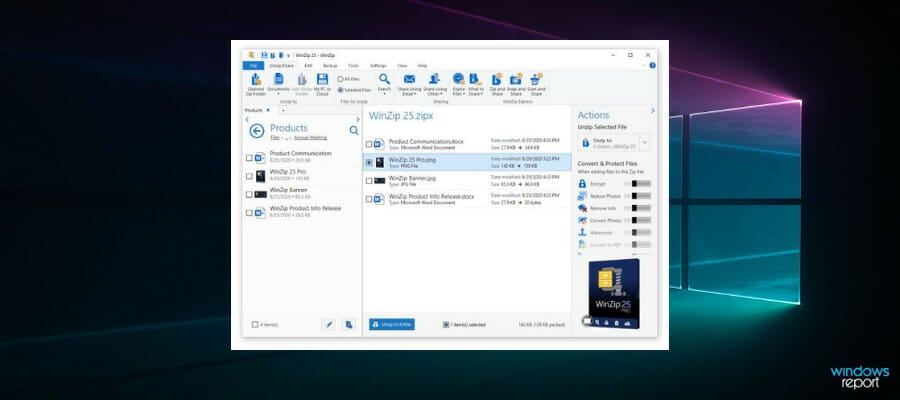
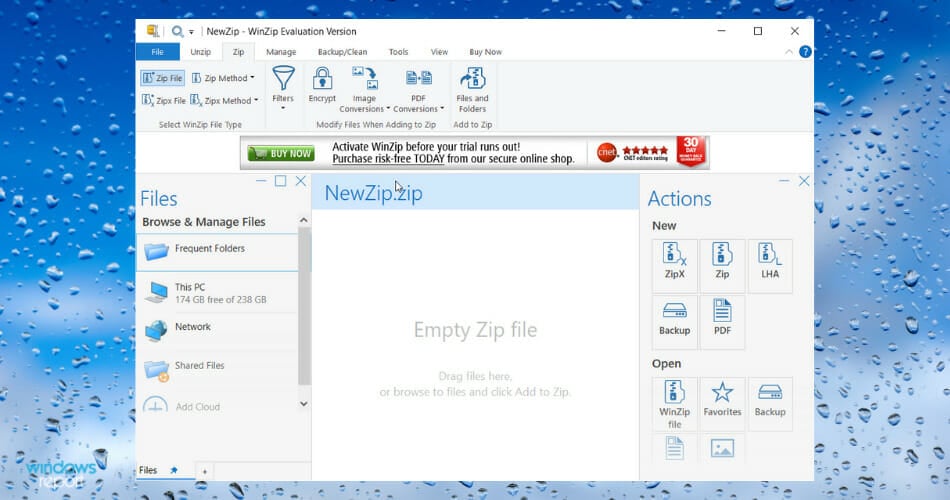
WinZip

You can’t talk about repairing the ZIP archive without at least mentioning the best ZIP archiver in the world.

WinZip can zip and unzip to and from all of the most known archive file formats, and the ones that it creates have the highest compression rates among all such programs.

Besides that, it can protect the archive by encrypting them or making them password-protected.

Any archive that may have become corrupted for one reason or another can also be repaired using WinZip, with a very high rate of recovery.

Once you are done with your archives, you can move them between PCs, networks, and clouds, or share them on social media with ease.

Pros:

  • Can provide encryption and password-protection
  • Great for repairing damaged archives
  • High data compression rate
  • Lightweight and fast
  • Easy-to-use

Cons:

  • The Trial is too short

WinZip

Extract RAR files in a fast and efficient manner with the help of this professional compression and unzipping tool.
Check price Visit website

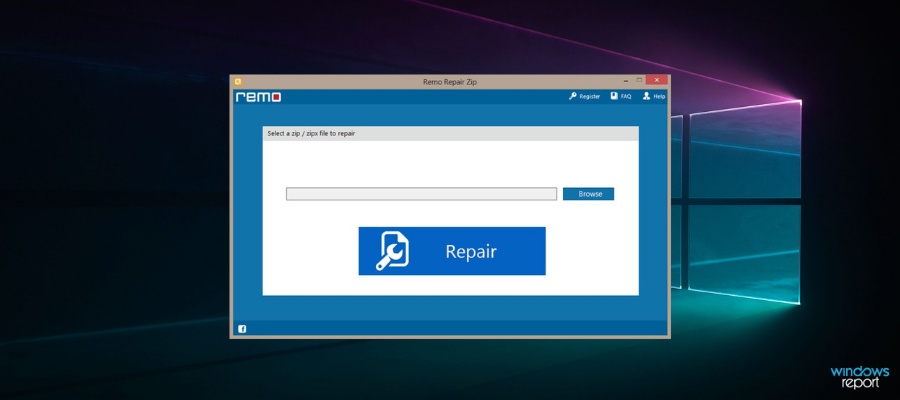
Remo Repair Zip

The following program is Remo Repair Zip, an extremely easy-to-use ZIP archive repair tool that can bring back data from even the most damaged archives.

It can recover the corrupted files with cyclic redundancy check (CRC) errors, and the data that has been repaired can be saved to any particular destination accessible to the host operating system.

Pros:

  • Can be used to repair all types of ZIP (32-bit, 64- bit)
  • Efficiently repairs data from within damaged archives
  • Easy to use

Cons:

  • The price tag

⇒ Get Remo Repair Zip

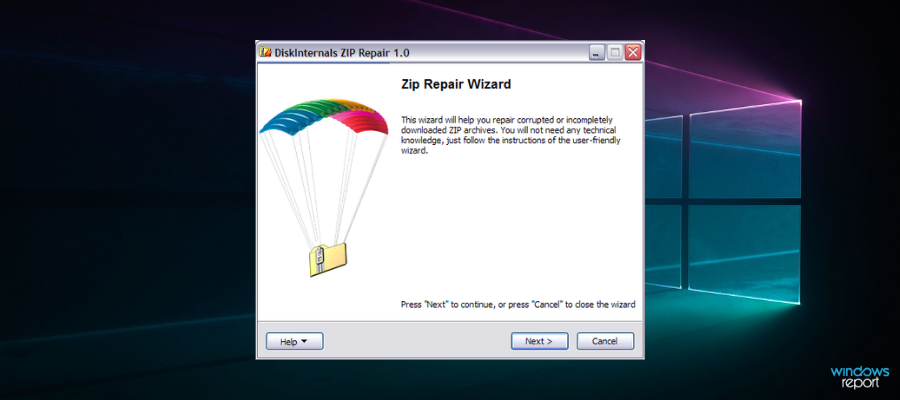
DiskInternals ZIP Repair

If your archive has been severely damaged and it seems like no tool can recover the data from within it, then you need to try DiskInternals ZIP Repair.

This lightweight tool is capable of recovering the data from archives that have been corrupted in pretty much any way imaginable, from archives broken from interrupted downloads to archives that are in bad hard drive sectors or on damaged disks.

Pros:

  • Repairs zip files broken during an interrupted download, copy, move, and network transfer
  • Repairs partially overwritten zip files from data recovery software
  • Repairs data from zip files damaged by viruses
  • Repairs ZIP files from damaged or defective disk, CD, DVD or bad sectors

Cons:

  • The demo version is very limited

⇒ Get DiskInternals ZIP Repair

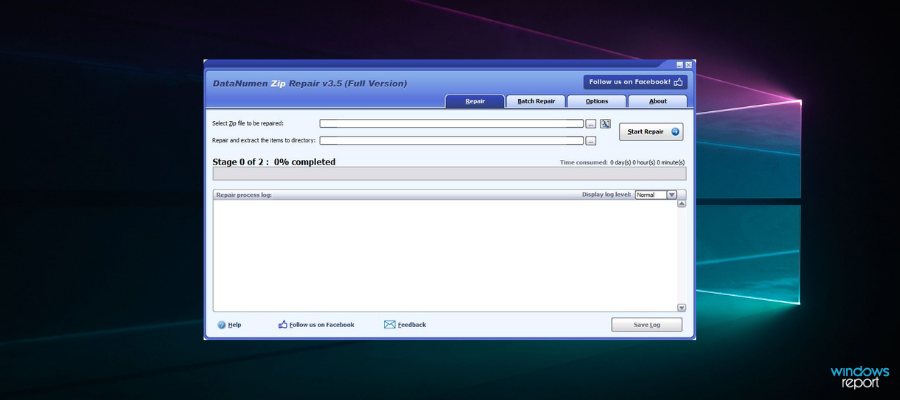
DataNumen Zip Repair

If the archive isn’t all that damaged but you are concerned about repairing as much of the data as possible, then DataNumen Zip Repair is the utility that you need.

Proven to have one of the highest repair rates on the market, this handy tool is the favorite of thousands worldwide.

Pros:

  • The highest data repair rate on the market
  • Supports batch repair
  • Can be used as a computer forensic tool and electronic discovery tool
  • Free for personal use

Cons:

  • A lot of the auxiliary features are available only for the Business version

⇒ Get DataNumen Zip Repair

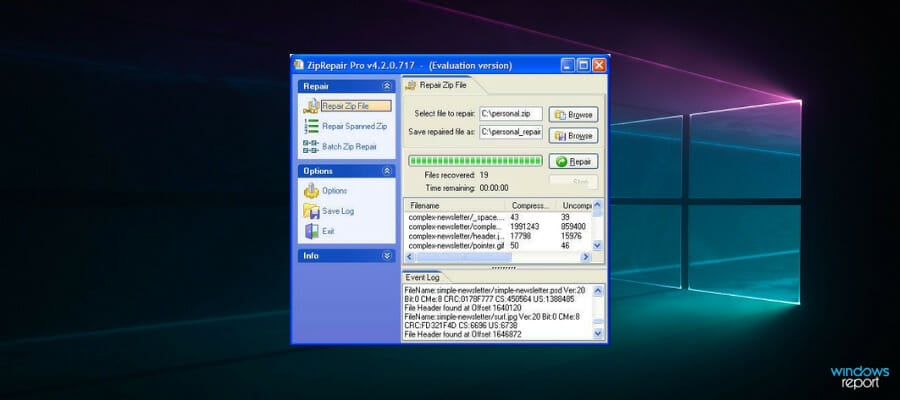
ZipRepair Pro

If you’re not very tech-savvy, then you may opt for a zip archive repair tool that is made to be more friendly to beginners.

One such program is ZipRepair Pro, a highly intuitive and efficient repair tool that will get the job done in no time

Pros:

  • Good data repair rate
  • Extremely intuitive
  • User-friendly UI

Cons:

  • The price tag

⇒ Get ZipRepair Pro

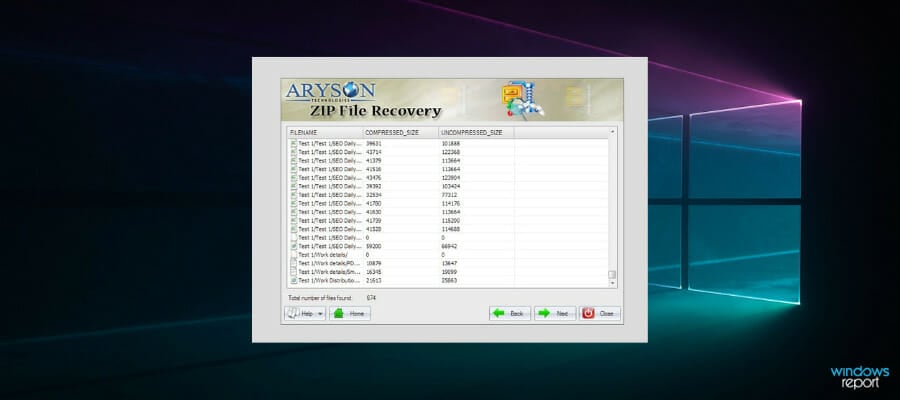
Aryson ZIP Repair Tool

Aryson ZIP Repair Tool is highly efficient to extract corrupt, damaged, and inaccessible zip files easily without damaging or changing the contents in any way.

Additionally, the program works even with data that was split into multiple archives, allowing you to recover that other programs could not.

Pros:

  • Quickly recovers and repairs the corrupt zip file in a bulk
  • Offers support to all archive types
  • Works even with errors of zip files like “Cannot open file: not a valid archive”
  • Enable users to save the extracted file at a user-specified location

Cons:

  • Pricier than some of the other entries

⇒ Get Aryson ZIP Repair Tool

Archives are great as a format since they allow you to carry around data of all types in a safe and more compact manner. However, if corruption ever occurs, then all of that data is compromised.

Thus, having an efficient repair tool at your disposal can be crucial.

The above-mentioned software is also useful if you’re interested in the following topic:

Repair zip file free – All tools listed here have at least some form of free trial or subscription, so that you can repair your ZIP files for free.

Mixed Reality gets a new startup experience and Steam VR boot option

Since Windows 11 is officially here and everyone is patiently waiting for their turn at the full version of the operating system, we can now talk about some of the additions coming to it.

But did you also know that Mixed Reality for Windows 11 has also been released by Microsoft?

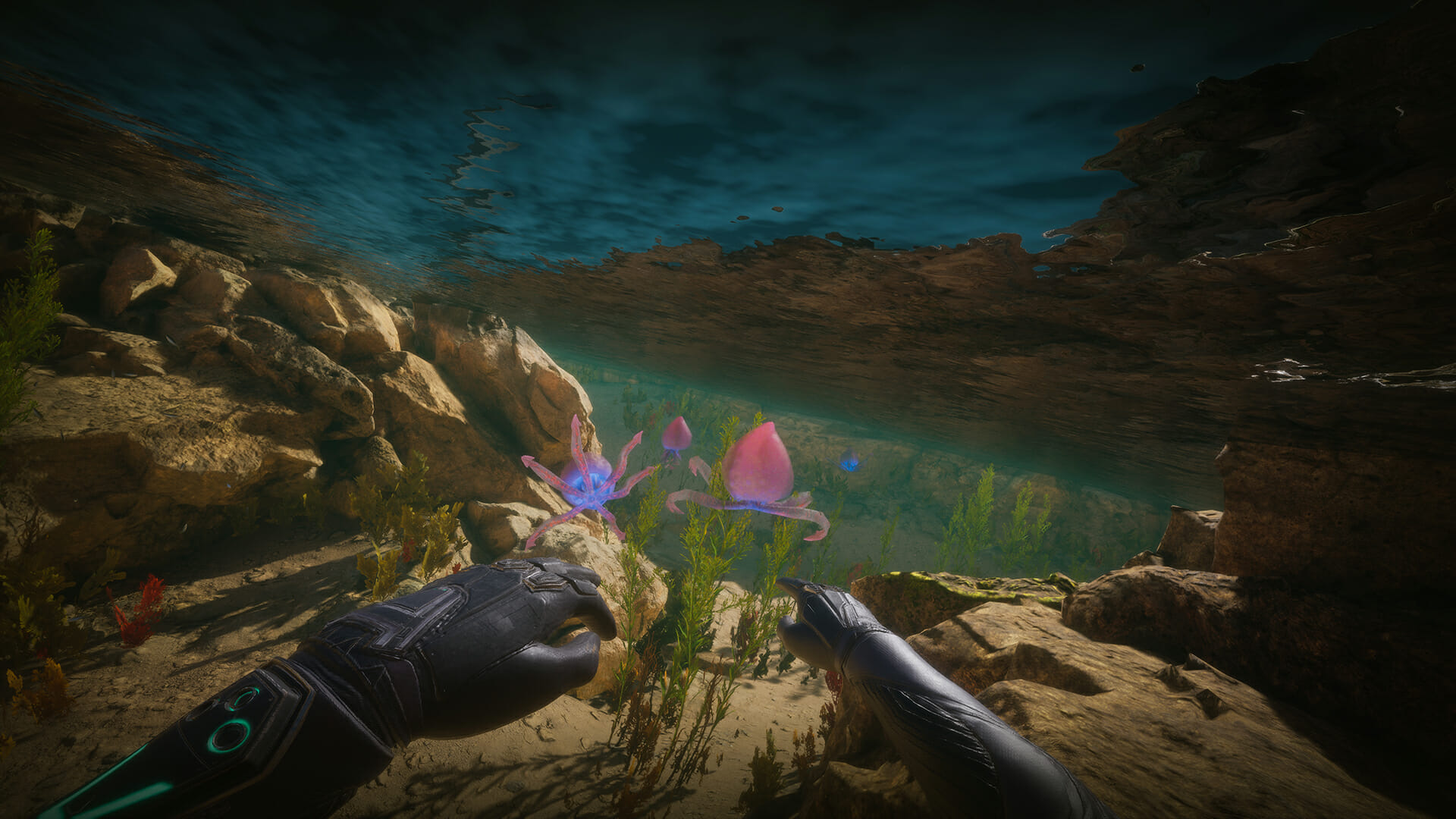
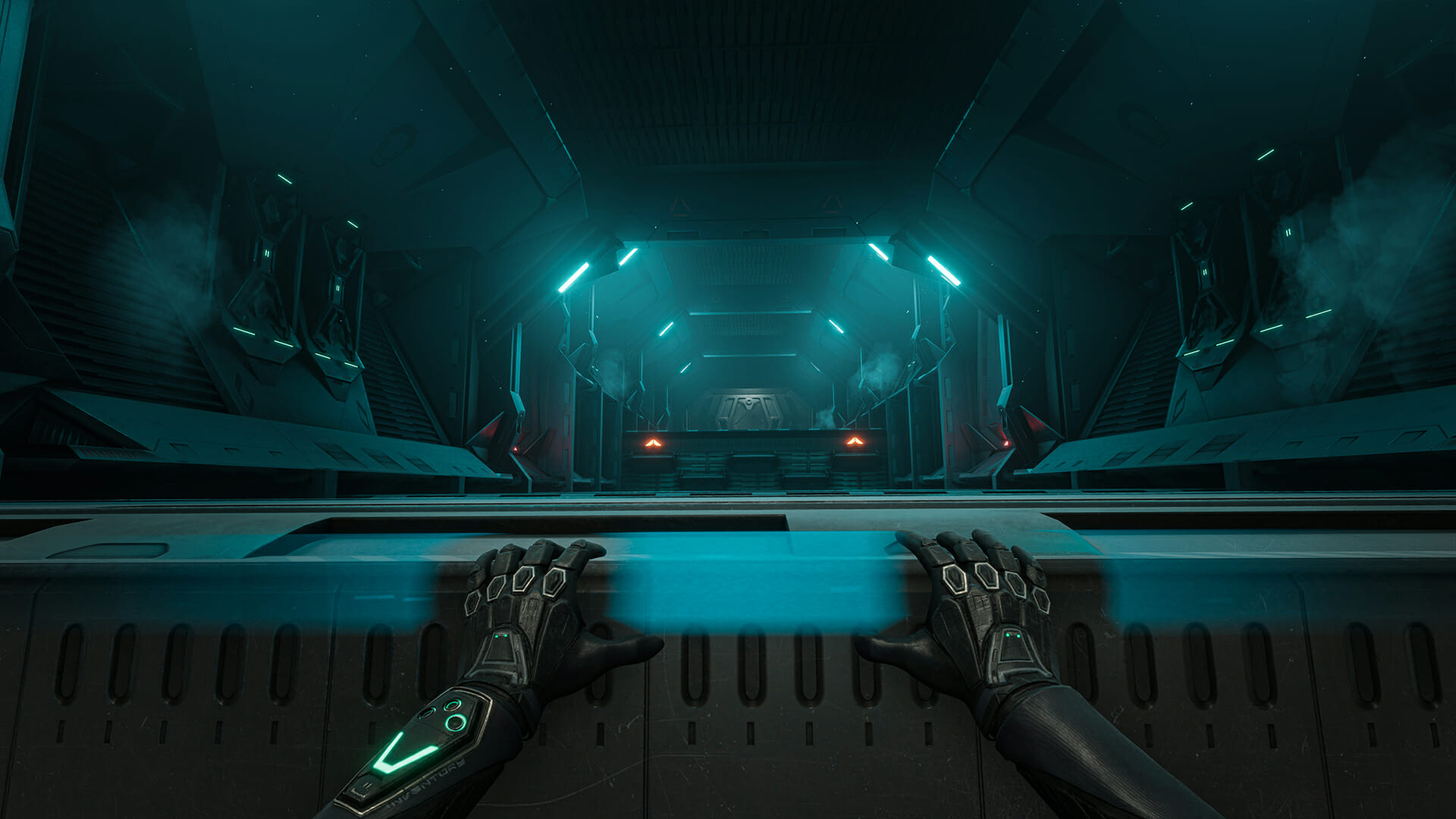
This update adds a new virtual home environment to the Places menu called the Infinite Expanse, a smaller and more performant home environment that utilizes fewer system resources during VR sessions.

Additionally, new settings options have been enabled, to allow you to jump directly into SteamVR when launching the Mixed Reality Portal.

Furthermore, you can control whether Mixed Reality Portal opens when your device is connected or when the presence sensor on your headset is engaged.

This was a totally expected move since Microsoft did tell us a few months ago that we were going to gain more control over this exciting VR world.

Prepare to explore the Infinite Expanse

Focusing on enhancement, the Infinite Expanse was designed to address long-standing customer requests for a less resource-intensive virtual home environment that allows users to get the best performance out of their games and experiences.

Redmond officials have announced the new virtual home environment for Windows Mixed Reality devices featuring a significant reduction in scope and size, streamlined down to singular stage instead of the more feature-rich Cliffhouse.

This new virtual home environment can be found in the Pins Panel within the Places menu.

New startup experience settings and SteamVR boot

As we mentioned above, Microsoft added some new settings that give you the ability to automatically launch SteamVR when WMR launches.

This, of course, will allow you to bypass WMR home space and jump directly into SteamVR.

The Redmond tech giant optimized the system for us to better configure our ideal startup experience by increasing your level of control over when Mixed Reality Portal launches.

You can now control whether or not Mixed Reality Portal launches when a device is connected or when the presence sensor is activated, as well as control how the virtual Desktop app opens.

This is excellent news for all the Windows VR users out there, who were expecting such an update for quite some time now.

And the fact that Microsoft decided to combine the release of the OS and the new version of Mixed Reality makes it all so much better.

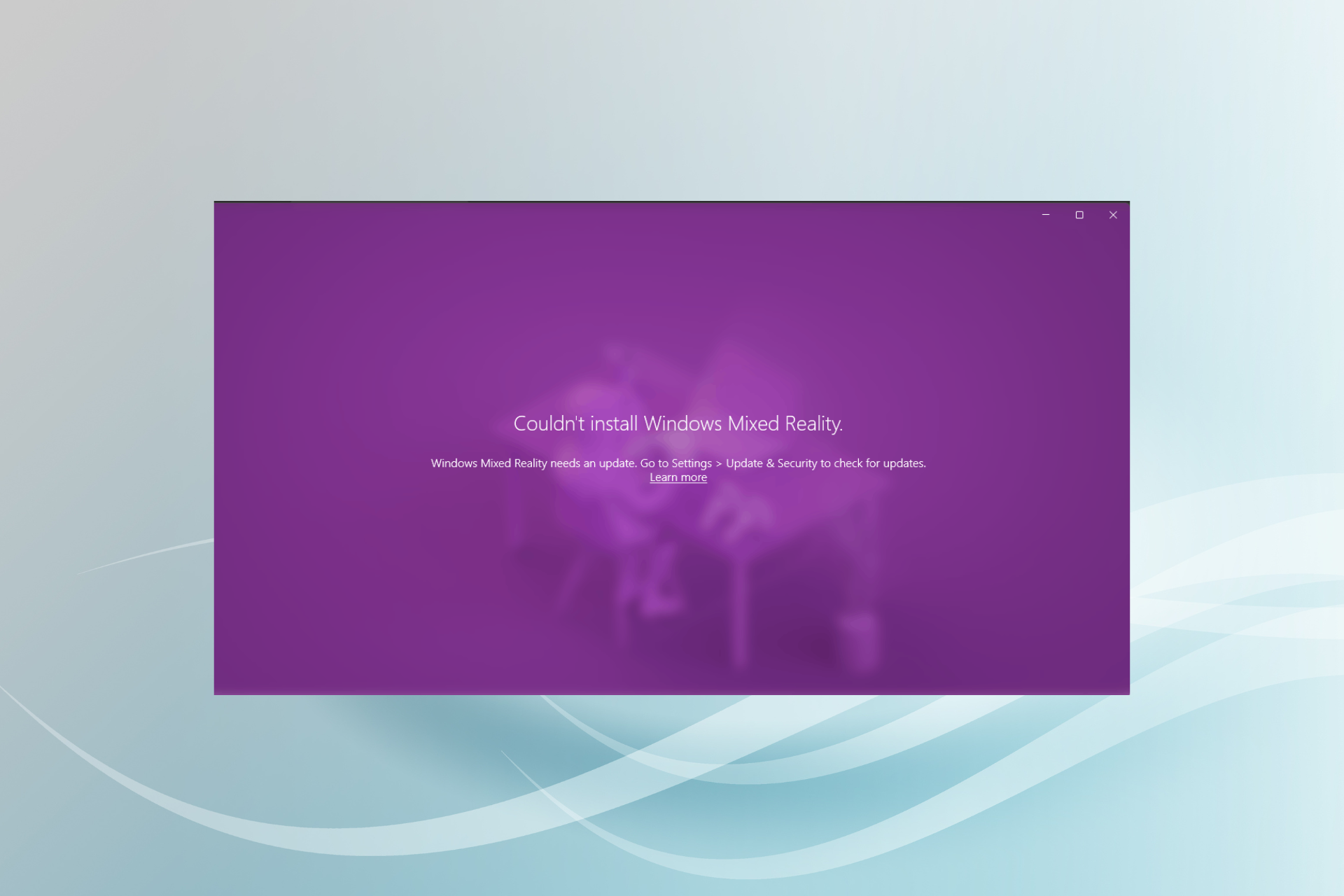
However, we were recently discussing that various people are actually having trouble installing this software on their Windows 11 devices.

Then again, we were still talking about the Insider preview version of the operating system, so hopefully, these problems are behind us now.

Did you take the new version of Mixed Reality out for a test drive? Share your experience with us in the comments section below.
Windows 11 Gaming Laptop: 5 Best for 2026

As Windows 11 is finally here, and because we already discussed the complete system requirements for running this OS optimally on your device, some wonder if Windows 11 will be good for gaming.

Microsoft has taken this element into consideration when building its new OS, so it will be capable of running games at an even better speed than the predecessor OS, Windows 10.

As we know already, Windows 11 has some other important improvements, besides the design of the interface itself. One of the most important is the requirement to have a TPM chip on your device to improve your system’s security.

Some game developers are planning on using the new TPM improvements to ban any cheaters on online multiplayer game servers, and this would signify an important change in the world of online gaming.

Here are Windows 11’s system requirements:

  • Processor: 1 GHz or faster with 2 or more cores
  • System memory: 4 GB minimum
  • Storage: 64 GB minimum
  • System firmware: UEFI
  • Security: TPM required, UEFI Secure Boot
  • Display: 9-inch minimum in diagonal, High definition (720p), 8 bits per color channel
  • Graphics: DirectX 12 API, WDDM 2.0
  • Connectivity: Bluetooth (excluding desktop PC), Wi-Fi or Ethernet connection
  • Digitizer: Precision Touchpad (if the touchpad is present)
  • Hardware buttons: Power button and volume up and down buttons required
  • Ports: USB ports (at least one), video output required

That being said if you want to run games without issues besides running the OS optimally, it is extremely important that your system can deal with the latest and greatest game requirements.

In today’s guide we will explore some of the best gaming laptop options that can run Windows 11 without any issues, so make sure to read the details for each of the products.

How we chose the best Windows 11 gaming laptops?

The WindowsReport team of professional testers, with a combined experience of more than 15 years, have taken each of the devices described in this guide through a rigorous process of analysis and tests.

As we understand how important it is to ensure not only that the devices can run Windows 11, but also some of the latest games on the market, we took the time to install the OS from scratch, and then matched the hardware capabilities with some of the most resource-intensive games released until this point.

Tip icon Tip
Editorial tip:

To ensure that your gaming laptop will not only be able to run Windows 11 perfectly but will also tackle any of the latest games without issues, there are a few elements that need to be taken into account:

➡ CPU
➡ GPU
➡ RAM
➡ Storage space
➡ Display size

Depending on the exact game/games you’re trying aiming to play on your PC, the exact requirements in regards to the elements presented above will vary considerably.

That being said, we do consider that it is always best to have a more capable PC and play a game with smaller requirements than the other way around.

For this reason, the list our team of testers produced will start by presenting the best gaming laptop we could find that runs Windows 11 without issues, and then gradually the capabilities will taper off.

It is also worth noting that even the laptop in the last position, and also the bottom runners will be good choices, even if the FPS levels for the latest games will not be comparable to the results of the first options.

What to consider when choosing the best Windows 11 gaming laptops

CPU

The processor is one of the most important elements of your laptop, acting as the brain of the device. If you want to run the latest games released on your Windows 11 gaming laptop, the CPU will need to be capable of fast data processing speeds.

That being said, if your system has a good CPU, but some of the other elements are not up to par, the games still won’t run, so choosing the right gaming setup is crucial.

All of the devices presented in this guide have a powerful CPU that will surely be able to run any game without problems.

GPU

The GPU, or the graphics processing unit is the component that processes all the visual input and the transformation of pure data into cinematic and immersive scenes in your games.

When it comes to its importance, the GPU is almost at the top of the list, very close to the CPU, as the combination of these two hardware pieces are the ones that allow you to immerse yourself in the world of your game, and do so at a normal speed, without any lagging and stuttering.

The rate of FPS (frames per second) will vary depending on the GPU’s capabilities, and the requirements of the game you’re trying to run.

As you can see from the image above, the optimal FPS range for games should be below 30, but games will run without large issues even at 60fps. From that point on, the games will start lagging and will make the game almost unplayable.

What is the best FPS rate for gaming?

  • 30 FPS – Good enough for single player games
  • 60 FPS – The most suitable FPS rate for most gamers and games, being able to sustain both single player and multi-player configurations
  • 120 FPS – Provides you with an important edge when it comes to multi-player gaming, but will tax your GPU considerably, so lowering some of the graphics settings might help
  • 240 FPS – Can provide an added edge if you’re playing games profesionally, but, as it requires a professional-level monitor, will be very expensive

Even though for a smooth operation the GPU is also important, in case you find that this device is not enough to run your favorite games properly, then you can supplement its power by using an eGPU, which can be attached to your system by the use of a USB cable.

It is worth noting that choosing this option will imply that the mobility of your gaming laptop will be reduced considerably, so it would only prove useful in the case you’re planning on using your gaming laptop at home.

RAM

The rapid access memory of your laptop will prove useful in case you need to run multiple applications like photo editing software, and sound editing tools at the same time, but will also be extremely handy when playing games.

Different games will have different requirements when it comes to the RAM of your system, but it is safer to have more than you need.

Windows 11 requires you to have at least 4GB of RAM, so any value above this will ensure that the games you play will be able to run optimally.

A good starting point for gaming laptops is to have around 8 GB of RAM, but 16, and even 32 RAM setups are becoming more common as the gaming industry evolves, and more and more realistic games are produced.

All the gaming laptops our team of testers has chosen for this list have 16GB RAM or more, ensuring that you won’t encounter any issues no matter what game you choose to play.

Storage space

As you might expect, the storage space you have available on your device will make a huge difference when it comes to storing the games you install, their save files, and also other applications and personal files.

The requirement for running Windows 11 is only 4 GB of space, so that shouldn’t be a concert at all, as most laptops nowadays have around 512GB storage at least.

The list we created is not any different, as 512GB is the minimum amount our options have, but we included laptops with 1TB or even 2TB storage capabilities.

That being said, not all storage components are the same, as laptops have either an HDD, an SSD, or a combination of both.

HDD and SSD data processing speed comparison

As you can see from the image above, the processing speed for a system using an SSD is two times better than in the case of a system with an HDD.

This can be a very important factor when it comes to running games on your laptop, as the speed at which the data can be read is of paramount importance when it comes to the overall gaming experience.

For this reason, our list only includes options that have an SSD installed, but not all SSDs are the same.

What are the types of SSD and what is the difference between them?

  • SATA SSD

This type of SSD uses the same interface as HDDs, even though they are still four to five times faster.

This type of interface has been used for a while, and even though computer producers are slowly moving towards the next model, it is still widely found in systems across the globe.

  • NVMe SSD (including PCIe/NVMe/PCIe-NVMe)

The NVMe SSD is used especially in gaming PCs, as the faster transfer rates can make a huge difference.

For this reason, the entire set of gaming laptops we’ve chosen for this list will have an NVMe SSD installed.

Display size

The size of the display your gaming laptop features will make a very big difference in case you’re not planning on using an external monitor with your setup.

That being said, it is always best to have the option to play games without connecting it to an external monitor or TV, so at least 15 inches are required to have a good experience.

Of course, as in the case of RAM, having a bigger monitor, like a 17-inch, will not do any harm, but will affect the portability of your laptop, making it bigger as well.

Tip icon Tip
Buyer’s tips:

➡ For the best overall performance, and insurance that you won’t need to invest in a new PC at least for the next couple of years, going with the Razer Blade 15 is the best option.

The combination of the powerful CPU, GPU, and RAM will ensure a smooth operation even when dealing with the most graphic-intensive tasks or the latest games available.

➡ In case you would like to invest in a laptop that offers great processing capabilities, and also offers extra storage space, the Elektronics Prometheus XVII is the best option on the list.

With a small difference between the capabilities of the CPUs between this model and the best option from the list, the Prometheus XVII offers a great configuration, and at a more affordable price.

➡ When it comes to some more price-accessible options, both the Asus ROG Strix G17 and Asus TUF 3070 are great options.

When it comes to choosing the best between them, take the time to consider that the latter has almost 3 times the amount for RAM, and a better GPU, even though the price is a bit steeper.

➡ If you don’t mind having a less capable GPU, the Acer Predator Triton 300 is a very good option.

Equipped with 32GB RAM, and a 2TB SSD, it could be a good contender to the Strix G17 option, but the less powerful GPU makes it discussable.

All these elements considered, it is now time to see what the results of our 3-days long tests have been. Even though we tried to include a variety of laptops in all price ranges, we assure you that every last one of them will provide a great Windows 11 gaming experience.

Razer Blade 15

  • Intel Core i9-11900H CPU
  • NVIDIA GeForce RTX 3080 GPU
  • 32GB RAM
  • 1TB NVMe SSD
  • 15-inch 4K display
  • Vapor Chamber Cooling
  • Wi-Fi 6
  • Free upgrade to Windows 11
  • Expensive

The Razer Blade 15 is our top pick for the best gaming laptop that can run Windows 11 without any problems, while also offering you the possibility to explore the fantastical world o gaming with the best quality display possible.

This device not only offers more than enough power to run multiple graphic-intensive and CPU-intensive tasks but also provides you the freedom of upgrading to Windows 11 free, as soon as you get it delivered.

Besides looking incredible, the Blade 15 from Razer has some serious firepower built into its slick designed case, starting with an 11th Generation Intel Core i9-11900H processor with 8 cores.

This powerhouse processor will ensure that the laptop will outperform most other laptops no matter if you’re running the latest released games, or running resource-intensive applications at the same time.

The overall benchmark results for this CPU proved to be 9% better than the laptop in the second position, which is a huge difference at this level.

To ensure smooth gaming across the board, the Razer Blade 15 comes equipped with a powerful Nvidia GeForce RTX 3080 GPU.

Even though this GPU is the same model found in the laptop we chose for the second position, the more powerful CPU is capable of using every last drop of power that the GPU is capable of.

The 32GB RAM installed on this slick-looking gaming laptop ensures that running the latest games, and also providing enough memory to run CAD software and photo-editing apps will be a breeze.

This laptop also has a 1TB nVME SSD installed capable of processing data at lightning speeds, but where this device shines the most is the display capabilities.

It has a 15,6-inches 4K OLED display that will ensure an amazingly immersive gaming experience.


Eluktronics Prometheus XVII

  • AMD Ryzen 9 5900HX CPU
  • NVIDIA GeForce RTX 3080 GPU
  • 32GB DDR4 RAM
  • 2TB NVMe SSD
  • Wi-Fi 6
  • 17.3 inches display
  • Can seem heavy for some users

The Prometheus XVII from Eluktronics is another very powerful gaming laptop that will be able to run games on Windows 11 without any issues whatsoever.

At a slightly lower price, this amazing laptop comes with a powerful AMD Ryzen 9 5900HX CPU, which offers only 5% less speed than the first choice in our list.

This CPU is one of the best on the market at this point, so the speed reduction is negligible, even more when considering the GPU.

The RTX 3080 GPU from Nvidia installed on this PC is exactly the model found in the laptop in the first position, making it a great contender, and with a more accessible price.

At the same time, the GPU has proven to be 48% better in our overall benchmark tests than the laptop found in the 3rd position, which is a huge difference when it comes to data processing capabilities and overall projected gaming experience.

The Prometheus XVII has 32GB DDR4 RAM, which ensures that you have more than enough processing capabilities for the latest games or to run multiple applications that require a large amount of resources at the same time.

When it comes to storage, this laptop has a 2TB NVMe SSD, which allows you to store data from a large number of games, personal files, save games, high-definition movies, and everything in between.

The display installed on the Prometheus XVII runs at 165Hz and offers a 17.3-inches screen surface for an immersive gaming and movie-watching experience.


ASUS ROG Strix G17

  • AMD Ryzen 9 5900HX CPU
  • NVIDIA GeForce RTX 3060 GPU
  • 16GB DDR4 RAM
  • 512GB PCIe NVMe SSD
  • RGB keyboard
  • 17.3 inches display
  • Small storage space
  • CPU 10% slower than previous option

The ASUS ROG Strix G17 has all the features it needs to run games on Windows 11 without facing any problems like stuttering or lagging, and it is powered by the same CPU as the model presented previously – an AMD Ryzen 9 5900HX.

That being said, the Strix G17 is a lot more affordable than the Prometheus XVII, making it obvious that the GPU is where the main difference in configuration is.

Even though that is the case, the Strix scored a 10% better GPU benchmark rating than the model found on the 4th position in our guide.

The Strix G17 is equipped with an Nvidia GeForce RTX 3060, which even though it is slower than the one found on the previous laptop we mentioned, is still a capable GPU.

The GPU will be allowing you to play most games found on the market without any stuttering, but it might be helped by reducing the graphics quality to a medium setting.

16GB DDR4 RAM also ensures that most game system requirements will be fulfilled without any problems, and will be capable of running multiple instances of CAD software, music-editing apps, etc.

When it comes to storage capabilities, the Strix G17 has a 512GB PCIe NVMe SSD, which offers great data processing speeds both for your gaming experience and day-to-day usage.

The 17.3 inches display mounted on this gaming laptop runs at 144Hzm and offers a 1920×1080 Full HD resolution, ensuring that the power of the graphics card will be used as best as possible.


Asus TUF 3070

  • Intel Core i7-11370H CPU
  • NVIDIA GeForce RTX 3070 GPU
  • 40GB RAM
  • 1TB SSD
  • Mytrix HDMI Cable included
  • 10% smaller CPU score than previous option
  • More expensive than previous option

The Asus TUF 3070 is another great gaming laptop that can run the latest releases on Windows 11 without any problems.

It is powered by an Intel Core i7-11370H CPU, which is 11% in our overall benchmarks scores than the next option presented in this guide.

This CPU will allow you to run any games you want, and even though it might not reach the same capabilities as the first option in our list, it is a clear contender nonetheless.

The GPU, a GeForce RTX 3070 is 9% better than the previous laptop, and a whopping 30% better than the laptop option that follows it.

This justifies the bigger price when compared to the Strix G17, and provides a better performance overall, even though not by much.

This laptop impressed us with 40GB RAM, which trumps all the other options we discussed in today’s guide, offering un-paralleled multi-tasking capabilities.

Another element that makes this laptop a worthy opponent even when compared with the first position, the Razer Blade 15, is the 240Hz FHD display, which measures 15,6 inches.

The resolution for this display comes in at 1920 x 1080 and uses anti-glare technology for a better experience even in sunny weather.

At the same time, the Asus TUF 3070 is one of the slimmest options on our list, allowing greater portability, and also lighter weight than most gaming laptops.

The package also comes with a Mytrix HDMI cable which ensures great image quality, and also amazing transfer speeds to any HDMI-enabled display.


Acer Predator Triton 300

  • Intel Core i7-10750H CPU
  • NVIDIA GeForce RTX 2070 GPU
  • 32GB DDR4 RAM
  • 2TB NVMe SSD
  • RGB Backlit keyboard
  • Oydisen cloth included
  • CPU capabilities was 10% lower than previous model
  • Small display
  • Big price/capability ratio compared to Strix G17

The Acer Predator Triton 300 is worthy of being part of the list containing the best Windows 11 gaming laptops, even though it is the last choice.

This device is powered by an Intel i7-10750H CPU, which provides good processing power even with the latest games. It is also powerful enough to run any resource-intensive applications like CAD software or image processing apps.

The Nvidia GeForce RTX 2070 GPU which comes installed in this device does its job, even though compared with the Asus Rox Strix G17 – which is in the same price range – it offers fewer capabilities overall.

That doesn’t mean that the GPU from the Triton 300 will not be capable of running games, but, depending on your exact preferences, there would be better options.

It comes with 32GB DDR4 RAM, which is double the amount that the direct competitor Strix G17 has, making it a better option if you’re planning on running multiple applications simultaneously.

The Triton 300 also comes at an advantage if you require more storage space, offering a 2TB NVMe SSD. This is more than enough to store a large number of photos, 4K videos, game data, and other personal files.

It also has an RGB backlit keyboard, which proves useful when playing at night, while also improving the looks of the device.

The display of this device runs at 144Hz and offers a 15.6-inch surface for gaming and everyday use. It is a Full HD IPS, which will provide immersive color quality and good refresh rates.


Bottom runners

Besides the options we presented in the list above, there have been a few other gaming laptop options that stood out.

The reasons for not including them in the list will vary depending on the laptop itself, but they are worth a mention nonetheless:

➡ Asus TUF 15

This device is a great gaming laptop option but has not made the list as the i7-9750H CPU is slower than the model we described at the end of our list.

That being said, the price is more accessible than any options we described in our list, and the NVIDIA GeForce GTX 1650 and the 16 GB RAM make it a worthy contender.

➡ Acer Nitro 5

The Nitro 5 from Acer is another good option that comes at a very accessible price and still contains a powerful i5-10300H CPU, a GeForce RTX 3050, and 8 GB of DDR4 RAM.

This is a great option for those of you who don’t want to break the bank when investing in a PC but don’t want to compromise too much on performance either.


These are some of the best gaming laptops that can run Windows 11 without any problems, and since the release of the OS is upon us, having some options that are worth investing in is a great idea.

If you’re not interested in a gaming-specific laptop that can run the new OS, you can also check out some of the best Windows 11 laptops on the market.

All the options presented in this guide provide great capabilities both for running games, and also for running graphic-intensive applications like drafting apps, or 3D printing software.

Feel free to share your preferred choice with us by using the comment section below.

The Xbox Store on the web is getting a brand new look

Microsoft has quietly started to roll out a redesigned Xbox Store on the web that lets customers add games to their wishlist or launch cloud-enabled games. This new Xbox Store was spotted yesterday by Twitter user @tamelucas (via The Verge), and it seems to be only available in Canada as of this writing.

This revamped Xbox Store uses a new dark theme that’s easier on the eyes, and it looks consistent with Microsoft’s dedicated website for Xbox Cloud Gaming or the Xbox mobile apps. The store listings are also more complete with the addition of supported languages and accessibility features for every game.

For Xbox Game Pass Ultimate subscribers, the ability to launch a cloud-enabled game right from this new Xbox Store should be pretty handy. Microsoft has yet to officially announce this new web experience, though, so it could be some time before it becomes available in other markets.

You can now upgrade to Windows 11 as part of the Windows 10 out of box experience

Microsoft wants to make it easier to get Windows 11 on new Windows 10 devices. The company released a patch that improves the initial setup experience in select Windows 10 editions, so you can directly upgrade a new device to Windows 11 without needing to complete the full Windows 10 setup process.

The new experience will be available on new devices with all the most recent versions of Windows 10, including Windows 10, version 2004, 20H2, 21H1, and 21H2. Of course, you’ll need to have an internet connection to get the KB5005716 update that allows this to happen, and the device will need to be eligible for the Windows 11 upgrade, too.

Once your system has this update ready, you can choose the upgrade to Windows 11 option, and the process will begin shortly after the out of box experience is completed. If you really want Windows 11 and you just got a new Windows 10 PC, this new option should be a real-time saver as you won’t have to go through Windows Update or deal with using the Installation Assistant to get the new OS.

Windows 11 has started rolling out yesterday on eligible PCs, and we invite you to check out our detailed post if you want to install the new OS now without waiting for Windows Update. Stay tuned to OnMSFT as our full Windows 11 video review will be available soon!

Clip Art Software: 8 Best to Use in 2026

While the clip art function from MS Word got replaced by Bing images, there are many other options to insert clip art.

There are some of the best software to create Clip Art online, that help users to choose from their favorite images.

From making greeting cards to visually informative presentations, Clip Arts are the best way to perk up any illustration.

These images do not belong to stock photos and are copyrighted to avoid getting stolen. Clip arts are solely designed for sale or distribution.

So, those looking to access exclusive clip art images should invest in the best software to create clip art.

These software solutions are available in both paid and free versions and keep users off from any legal issues. Best of all, these programs offer a host of royalty-free images from every genre.

Here we have listed some of the best clip art software that can save both time and money.

What are the best Clip Art tools to create great digital images?

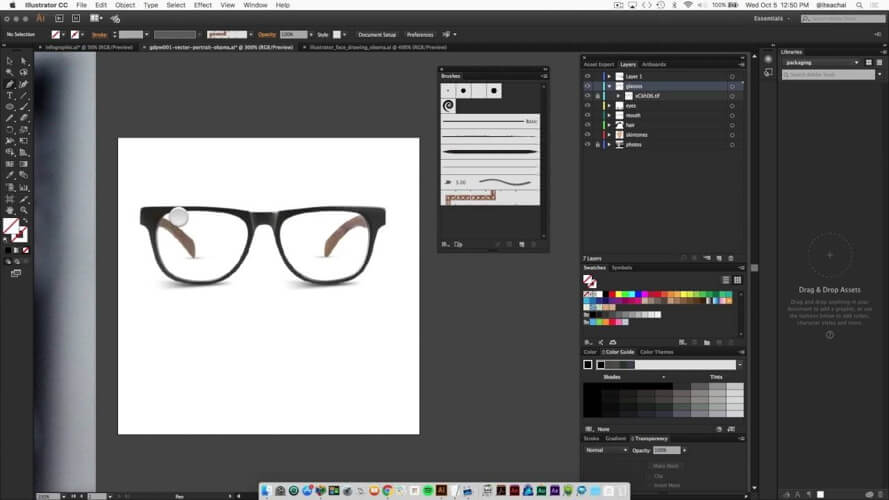
Adobe Illustrator – Professional art integrations

The industry-standard vector graphics software is the natural choice for creating beautifully sophisticated clip art.

This solution is packed with everything from vector-based graphics that allow you to scale your artwork to the perfect size and obtain crisp, sleek-looking print-ready outputs every time.

The results are complex drawing tools, gorgeous typography with stunning effects, loads of different styles, and a rich color palette plus an unlimited fonts library.

Unleash your creativity and get your clip art over the top with Illustrator. As a bonus, you can work seamlessly with other Creative Cloud apps like Photoshop, InDesign, XD, and Premiere Pro.

Let’s quickly go through its key features:

  • Improved launch time and faster file opening for peak performance
  • Improved effects (faster rendering of Drop Shadows, Gaussian Blurs, and Feather Effects in preview mode)
  • Simplified vector paths (simply remove redundant points to accelerate your workflow)
  • Freeform Gradients that allow you to create rich color blends
  • Step-by-step tutorials to help you get the job done hassle-free

Adobe Illustrator

Make clip art and icons out of shapes and colors. Make typography, freehand drawings, and trace and recolor visuals.
Free trial Visit website

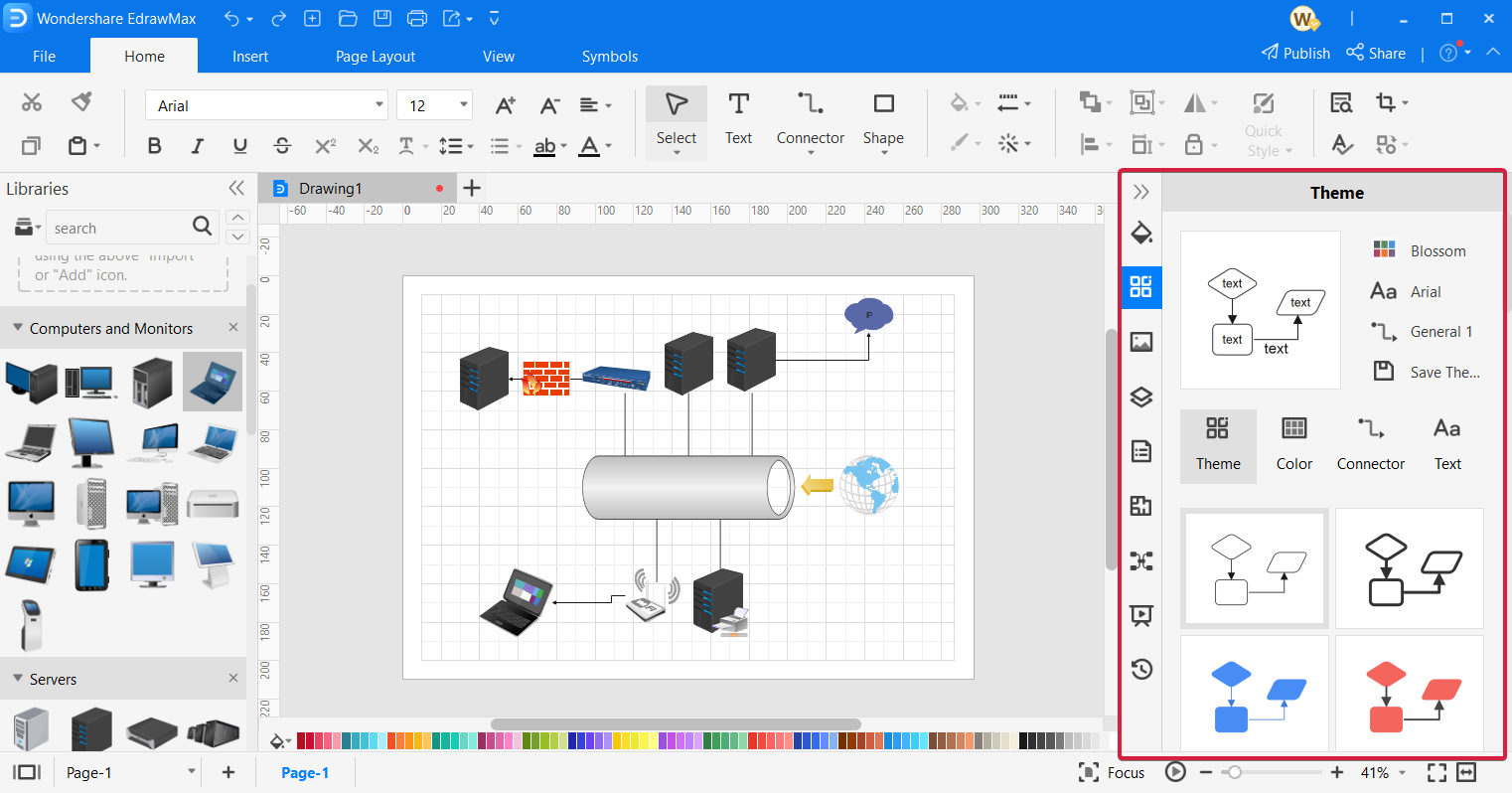
EdrawMax – Clip art suitable & diagrams

Edraw is one best clipart software programs that work on all major platforms.

It empowers users to create different types of diagrams like flow charts, floor plans, mind maps, etc. using their gallery full of templates and examples.

It’s a convenient vector-supported clipart drawing tool that offers a free download. This powerful application comes loaded with advanced functions that help make amazing clipart.

The software helps users create amazing designs using its high-quality and exceptional functionalities.

It features 8500 plus vector clip art that can be used to personalize greeting cards, flowcharts, business diagrams, and more.

Best of all, users do not require any added verification for using and sharing these clip art.

While it offers several categories, it also features easy-to-understand floating dialogues. The images are saved within the software and no downloading is required.

Compatibility with an extended range of software, scaling of images without losing clarity, or the option to export to TIF, GIF, JPG, PNG file formats are among its other major features.

Edraw

Hundreds of pre-made, customizable beautiful templates, symbols, and icons may help you do your clip art fast.
Check price Visit website

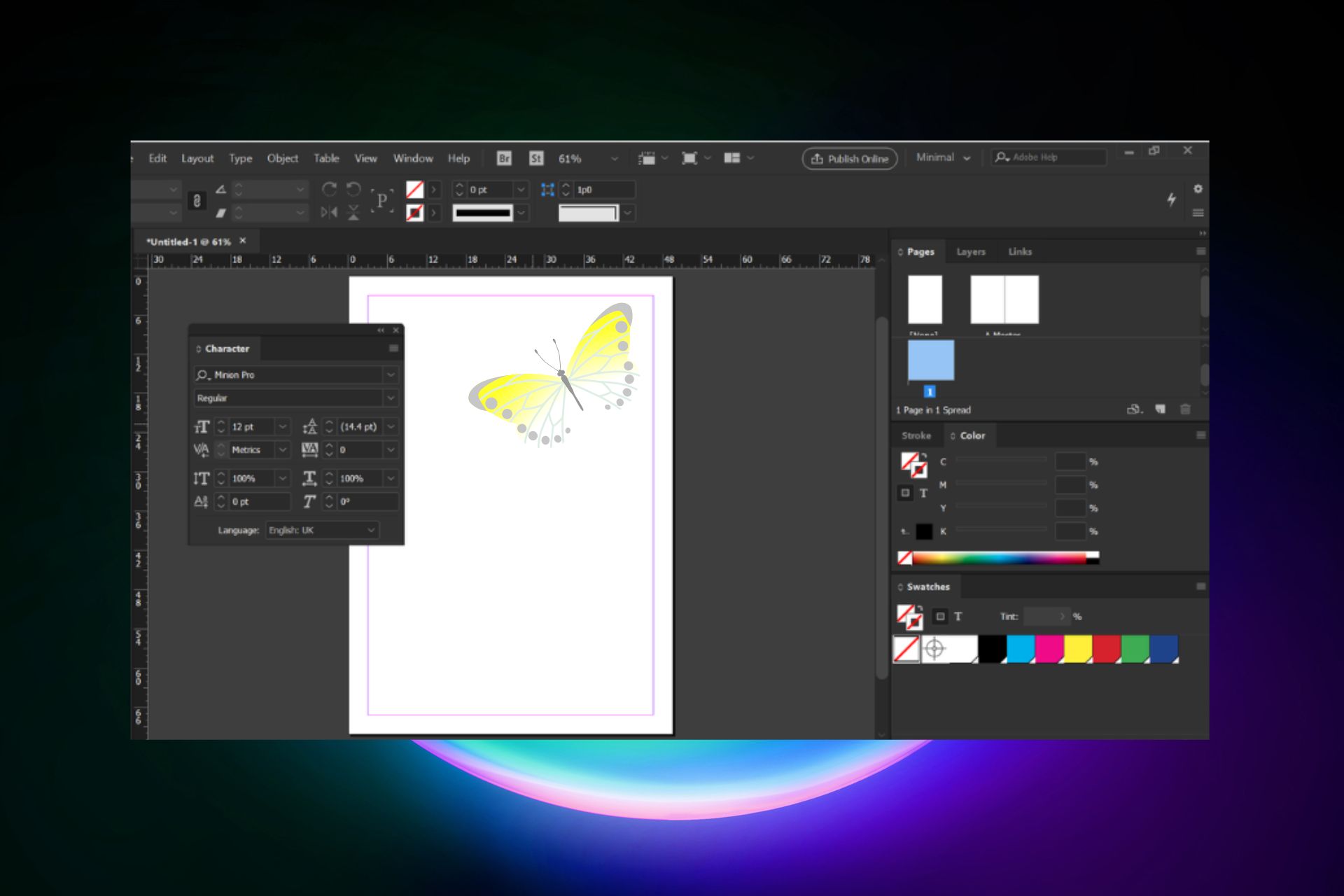
Adobe InDesign – Unforgettable poster designs

InDesign product by the Adobe suite is the most suitable choice for layout design with clip art tools.

This professional interface offers a variety of tools for crafting layouts or editing projects that can definitely stand out.

More so, the UI allows you to create awesome design layouts for both digital and print media. You also have standalone design tools for incredible outcomes.

To sum up, there are high-quality instruments to craft all you can imagine, and add creative art clips to make your design more interactive.

It’s worth mentioning that InDesign is the right place to create your brand. There are effective collaboration tools and real-time feedback for improving your final product.

Adobe InDesign

Craft media or print designs with this high-professional clip art solution.
Free trial Visit website

Canva – Creative digital templates and designs

canva brochure maker software

Canva is the next entry if you need the definitive solution for clip art software and a free online design hub.

This photo design and editing platform is overly popular and everybody used it at least once. And for good reason as it delivers professional digital tools.

There are flyers, brochures, presentations, video templates, or creative clip art to transform your pages into art.

Using Canva, you can craft or edit any project and make it your own. The platform includes graphic elements, icons, and animated graphics to personalize your project.

Therefore, be aware that you have a galaxy of different templates and designs, from print media to digital marketing, which you can customize with suggestive clip art.

Canva

Simply adorn your designs with creative clip art elements.

Fotor – Photo enhancing for anyone

Fotor is the new big hit for easy online editing and digital designs, coming with plenty of project types and graphics.

This simple-to-use UI is similar to Canva as it provides various templates and design pages to customize however you like.

More exactly, you can start with marketing-related designs like posters or logos and go to social media designs or AI avatar makers.

Besides that, it includes smart photo editing options to beautify your page. So, there are background removers, photo enhancer tools, AI image generators, and more to go.

That being said, you can sign up with a click and start creating any digital media or print with interactive clip art elements.

Fotor

Choose this whole editing solution to create visionary designs with animated graphics.

Greeting Card Builder – Personalized greeting arts

Greeting Card Builder by PearlMountain is another great software that offers a fun and fast way to make personalized greeting cards and clip art using your own images and text.

The program is user-friendly making it easier even for beginners. It does not require any previous experience or any computer skills.

It helps users to create personalized greeting cards in just three simple steps.

The software offers a good collection of editing options with easy controls. Its WYSIWYG editor enables users to view any changes made to the greeting cards made immediately.

Moreover, it comes with an aggressive set of tools that helps arrange light and color, resizes images, crop, applies masks, and more.

Pre-made templates for all occasions, or options to save, share, and print images, are some of its other significant features.

⇒ Get Greeting Card Builder

SmartsysSoft Label Maker – Ultimate label printing

SmartysSoft Label Maker is counted among the best software to create clip art due to its ability to design and print some nice-looking images.

From address labels, postcards, envelopes, or media labels to even CD/DVD labels, it offers all possible designs.

The software comes equipped with a range of pre-designed templates, images, shapes, and symbols for templates.

Users can pick one of their liking from the library and then modify it using their own logos, pictures, and clip art.

This robust program is perfect for vector graphics that allow users to design their own high-quality labels that are print-ready. Users can also get a print of the clip arts or images on any regular paper on their local printer.

Moreover, it also lets users save their prints in different formats, viz., PDF, BMP, JPEG, GIF, PNG, and TIFF.

It provides tools for visual path editing, different types of dash styles, and smoothly painted drawing elements. Best of all, it works as a perfect image editing software that offers powerful layer editing.

⇒ Get SmartysSoft Label Maker

PhoXo – Intuitive photo editor

A compact, fast, and easy-to-use program, PhoXo is rightly among the best software programs to create clip art. It’s free software that’s so tiny that it can be used as a small PhotoShop tool.

Option to undo, adding layers, batch processing, more than 50 special effects, and a wide range of handy tools are among its major features.

These tools help users to perform different functions like selecting, cropping, painting, retouching, measuring, and navigating.

Moreover, users can also add text effects like shadows, gradients, and more to the images. It comes with a huge collection of resources that includes step-by-step shapes, patterns, textures, clip art, tutorials, and more.

Photo enhancement tools, brush pens, and multi-language support are among its other major features.

⇒ Get PhoXo

Clip arts are especially useful for those who are creative and love to add images to express their words more artistically.

So, if you are looking for the best software to create clip art, you will definitely find the right tool for you in our guide. Let us know which one you liked best in the comments section below.

Windows 11’s new Chat app shows Microsoft’s big “Teams for Life” ambitions

Microsoft has officially started rolling out Windows 11 yesterday on select PCs, and one of the big new consumer-facing features is a built-in chat app powered by Microsoft Teams. Even though Teams remains an enterprise brand first and foremost, Microsoft has recently introduced new features for consumers in the communication app, and the company may now see Windows 11 as a good opportunity to make Teams for consumers a built-in alternative to more popular messaging apps.

As you may know, this is a strategy the company tried before with Skype, with little success. The company actually announced last week that Skype was getting another redesign, confirming along the way that the app Microsoft acquired 10 years ago was here to stay. Skype didn’t really benefit from the worldwide pandemic that made Microsoft Teams a true juggernaut in the business communications space, but it remains to be seen if Windows 11 can help Microsoft Teams to become more popular with consumers

Microsoft previously emphasized that Windows 11 was the first version of Windows designed for the hybrid work era, and this new built-in Teams app is a pretty good example of the increasingly blurred lines between our personal and work-related activities. The new Windows 11 Chat allows users to connect with their friends, family, and colleagues right from the taskbar, but it’s also designed for sharing tasks and calendars with other people.

A simpler, lighter Microsoft Teams experienceMicrosoft teams app on windows 11.

When you first install Windows 11, you will see a new chat icon on the taskbar. Simply click the icon (or use the Windows + C keyboard shortcut) to launch the Chat app and sign in with a personal Microsoft account. People who have never used Teams will need to set up their profile and automatically sync Skype and Outlook contacts if they want to.

By default, the chat app opens in a small window, but you can click on the “Open Microsoft Teams” button at the bottom to open it in a big window you can resize the way you want. Your most recent individual and group messages appear at the top of the window. You will be able to immediately start a new chat or call by clicking the Meet or Chat buttons at the top and choosing who you want to contact.

Compared to the regular Microsoft Teams app, this new Chat experience certainly looks a lot less cluttered. While it may be difficult to get your contacts to use this new Chat app on Windows 11, there’s also a new SMS Chat feature that lets you send a text message directly to a phone number, though it’s is only supported in select markets.

A first look at Microsoft Teams 2.0

As you probably know, the regular Microsoft Teams app is based on Electron, and it’s pretty heavy. Since launch, many users have been complaining about high memory usage and performance issues, but the new Chat app on Windows 11 is a different story.

Under the hood, this new Windows 11 Chat app has ditched the Electron framework in favor of Edge Webview 2, and it’s pretty fast. It also offers a more modern design language which really helps to make the app feel native on Windows 11 design. You can expect support for light and dark themes, live emoji reactions, Together Mode, native OS notifications, quoted replies, and much more.

Microsoft previously said that the faster “Teams 2.0” architecture used by this new Windows 11 chat app will eventually make its way to the regular Microsoft Teams app for enterprise users. “The journey is starting with Windows 11 + consumer accounts, and will continue from there, explained Rich Tandon, CVP of Engineering for Microsoft Teams. In a series of tweets, the Microsoft employee explained that this new Teams architecture will also allow Microsoft to iterate faster and add support for new “work life scenarios.”

Can Microsoft Teams become a real consumer app?

Overall, this new Chat experience is an interesting look at the better “Teams 2.0” architecture that should make a big difference when it starts supporting enterprise accounts. For consumers, though, there’s no guarantee that putting this new Chat app front and Center in the Windows 11 Taskbar is going to make Microsoft Teams the hottest messaging app for consumers.

As you know, Microsoft is competing with many other popular platforms in the messaging space such as WhatsApp and Facebook Messenger. To make things worse, Microsoft Teams is also competing with Skype, an app that still enjoys better brand recognition in the consumer world. To be frank, the “Teams” brand screams enterprise, and most people would probably not use an app named “Teams” to chat with close friends and family.

Since the release of Windows 10, we’ve seen Microsoft try and fail with new consumer-focused features that never got any significant traction, such as Paint 3D or Timeline. However, the Windows 11 Chat app could be a different story as Microsoft really seems serious about Teams for consumers. Recently, the company hired a former Facebook and Google product leader to work on its new “Teams for Life” initiative. Previously, the company hired former Google and Uber employee Manik Gupta as its new CVP for Teams Consumer Experiences.

Microsoft obviously has a strategy to make Microsoft Teams an app that can appeal to everyone, but we may well see history repeating itself with this new Chat app on Windows 11. The software giant pushed Skype pretty hard on Windows 8 and Windows 10, but most people had already moved to other messaging apps. Do you think the new Chat app on Windows 11 will get traction once the novelty effect wears off? Sound off in the comments below.

Windows 11 has been officially released

Ever since the first leaked version of Windows 11 appeared on the internet, people have been constantly speculating on when the OS will officially be released.

Some even thought that this was all a big hoax, and all that was coming was only a system-wide revamp for Windows 10.

Now, on October 5th, we are happy to announce that Windows 11, version 21H2, has been officially released to the general public and will soon be in your home, provided your device has the necessary specs.

The rollout process will prioritize newer machines first and will continue to become available for everyone throughout 2021, until mid-2022.

What’s new in Windows 11?

Let’s start at the beginning, with the Out of Box Experience, and mention that the Installation UI will now show the Windows 11 logo in some places.

Also, some form controls have been updated to match the Windows 11 form controls in the Installation UI. When using the Home edition, you must set up an internet connection, to be able to install it.

During OOBE, you will not be asked to name your PC, instead of having Windows generate a name consisting out of random numbers and letters. A random name can still be set by skipping this step.

After connecting to the internet, you’ll see sign-in options that allow you to set up a local account with internet.

This entire experience has been redesigned from the ground up, with half the screen dedicated to animations to visualize what you’re doing.

  • Windows will now ask you to restore your device from a previous system setup in the OOBE.
  • The Getting things ready for you UI is now animated with fading blue glows behind the text.
  • The Getting things ready for you UI now has a light theme in addition to the dark theme.
  • The OOBE will now ask if the device will be used by just you or your family and help setup a family group once the OOBE completes.
  • The OOBE will now ask you what you use your device for.
  • The OOBE is an excellent opportunity for fresh users to get acquainted with this new and improved operating system.

But don’t go thinking that Windows 11 is just a reskinned version of Windows 10, because you couldn’t be more wrong.

At its core, it’s still a Windows OS, so there are of course many similarities, but this is a whole new and enhanced experience.

The Redmond tech giant sought to tweak and improve everything it possibly could. Here are some of the changes that you will surely enjoy while dealing with Windows 11:

Start + taskbar

  • The taskbar is now taller.
  • The touch gestures on taskbar icons have been removed.
  • Icon’s progress indicators are now part of the “Opened window” indicator instead of the background.
  • The icons in the taskbar are now center in the taskbar.
  • Icons that want your attention will now stop flashing after a while and switch to a red-ish backplate with a red activity indicator.
  • Icons that you tap on will now animate in the same way as clicking would do.
  • The various flyouts like Network, Battery, and the Action Center have been refreshed with more modern controls in some places.
  • All context-menu items with the exception of “Taskbar settings” have been removed from the taskbar’s context menu.
  • Window previews will now show groups the window is part of as a snap composition.
  • Cortana has been removed from the taskbar.
  • My People has been removed.
  • The Tablet Mode Quick Action has been removed from Action Center.
  • Taskbar previews have been redesigned.
  • Right-clicking locally available files in jump lists will now show an option to “Open File Location”.
  • Toggling night light from the Action Center will now immediately turn it on or off instead of slowly fading.
  • Audio endpoints from the same device are now shown as 1 audio endpoint in the audio control. Windows will automatically switch between the various variations depending on the context.
  • Start
    • The start menu has been redesigned, dropping live tiles in favor of pinning apps in an icon grid of 6 by 3 icons with one or more pages.
    • The search box has been added to Start as a visual element, it will however still trigger the separated search UI.
    • Pinned items in start no longer support jump lists.
    • Start’s “Recommended” now show you files, in addition to recently installed apps and can be expanded to show more.
    • The username is now shown at the bottom of start.
    • The power menu will now show you estimates for how long it will take your device to restart when an update is ready to be installed.
    • After upgrading or installing Windows, start will now open on the first launch.
  • App list
    • The alphabet in the apps list has been updated for the Vietnamese alphabet which does not include the Latin letters F, J, W, and Z.
    • Folders in the app list in the Start menu will now be flattened when only 1 item is located in the folder.
    • Windows Tools has been added and replaces the Windows Accessories, Windows Administrative Tools, Windows PowerShell, and Windows System folder.
    • File Explorer has been been moved out of the “Windows System” folder into the root apps list.
    • Notepad, Paint, and Snipping Tool have been moved out of the “Windows Accessories” folder into the root apps list.
  • Search
    • You can no longer show search as a search bar in the taskbar.
    • The search UI has received a minor refresh.
    • Hovering over the Search button will now show you a list of recently used search results.
  • Task View
    • Virtual desktops can now be re-ordered by dragging them across the virtual desktop bar.
    • A virtual desktop can now have its own individual background.
    • Task View now shows Virtual Desktops at the bottom of the screen in a prominent bar, even if only one desktop exists.
    • The close-button in Task View for apps is now always visible.
    • Hovering over the Task View button will now show you your desktops to quickly navigate instead of having to open Task View entirely.
    • Timeline has been removed.
    • Setting a background for a virtual desktop will now force Settings to move to that desktop.
  • Widgets
    • “News and Interests” has been moved to the same area as Search and Task View, is now a static icon, and has been renamed “Widgets”.
    • Widgets appears as a full-height sidebar on the left hand side of the screen.
    • You can now add your own widgets to the top of the feed, as well as resize them and move them around.
  • Chat
    • Microsoft Teams is now integrated in the taskbar.
  • Pen menu
    • Windows Ink Workspace has been renamed to “Pen menu”.
    • Pen menu has been revamped and is now fully customizable in regards to which app you pin to it.
    • The Pen menu now only shows while you are using your pen when enabled in Settings.
  • On-screen keyboard
    • The on-screen keyboard button has been updated with a smaller icon to be more in line with other systray icons.
  • Quick Settings
    • The Quick Settings now open with the Windows + A keyboard shortcut.
    • The main system icons (battery, network, and sound) have been combined into one big button and now open the Quick Settings fly-out.
    • Right-clicking the volume icon and selecting “Volume mixer” will now open the modern volume mixer in Settings.
    • The “location in-use”-icon has been altered to be a compass arrow instead of a dot in a circle.
  • Show Desktop
    • Hovering over the show desktop button no longer makes the windows transparent.
  • Calendar
    • The calendar can now be collapsed to show only 2 weeks.
    • The Notification counter icon is now shown in your accent color as part of the clock.
  • Notification center
    • The Action center has been renamed to “Notification center”.
    • The Notification center now opens with the Windows + N keyboard shortcut.
    • Media playback controls have been added to the Quick Settings fly-out.
    • Focus assist settings can now be accessed from the Notification center.

User Interface and Experience

  • App windows will now appear with rounded corners.
  • Windows has various new animations for resizing windows.
  • Most sounds have been replaced.
  • The acrylic effect in some UI elements is now more translucent and has an increased saturation.
  • Apps can now use theme-aware splash screens
  • Replaces the MDL2 icons in the Windows UI with Segoe Fluent Icons.
  • Updates the window opening and closing animations.
  • Windows Shake has been made optional, and is disabled by default.
  • The desktop icon set has been revamped with new Fluent style icons.

Windows Snap & sizing

  • Hovering over the maximize button will now show a variety of snap positions for your window depending on your screen size, resolution, and scaling.
  • Windows will now resize all windows in any composition, previously this only worked when only 2 windows where snapped on both sides. A snap composition doesn’t need to be completely filled for this to work.
  • The Snap preview is now an acrylic window rather than a light shadow.
  • In portrait mode, moving a window to the left and right side will now snap apps to the top and bottom of the window.
  • Windows now supports snap compositions where 3 apps are shown in a row, similar to Windows 8.1’s Snap for Modern apps.
  • Dragging a window around with touch will now show the windows dropped into itself with an acrylic border.

The touch-targets for resizing windows is now much larger both when resizing individual windows as well as Snap compositions.

File Explorer

  • The File Explorer icon has been redesigned.
  • File Explorer has been redesigned, removing the ribbon in favor of a simpel toolbar on a Mica-background.
  • All File Explorer context menus have been redesigned.
  • You can now enable the settings to “Show Network” and “Show This PC”.
  • You can now remove previous searches by right-clicking an entry in the dropdown menu
  • File Explorer will now show more padding for touchscreen devices by default
  • WSL distro’s will now show in the sidebar
  • Zipped files stored on your OneDrive that are not available offline will now show an “Extract All” option in their context menus
  • The 3D Objects user-folder has been removed as a default library.
  • The File Explorer layout has been updated to be more in line with modern XAML experiences.
  • The “View”-ribbon has a new option to enable compact mode, restoring the previous spacing.

Settings

General

  • Settings has an updated icon to match the other new app icons.
  • The Settings app has been redesigned, moving the categories to the sidebar and the pages to the main content area.
  • Settings have now been divided on their page in sections with improved iconography for better readability.
  • Various system alerts previously styled in the Windows 8-design language have been refreshed.

System

  • The System home page now shows your device information (name, type), Microsoft account, OneDrive status, and Windows Updates status on the top of the page.
  • System is now opened by default.
  • Display
    • You can now control which GPU apps can run on.
    • You can now set the default high performance GPU.
    • You can now pick which application should default to which GPU”.
    • Content Adaptive Brightness Control can now be disabled.
    • An option has been added for Windows to remember window locations based on which monitor is connected. Enabled by default.
    • An option has been added to minimize windows on a monitor that is being disconnected. Enabled by default.
    • Support for Dynamic Refresh Rates has been added to the “Choose a refresh rate” setting.
    • Custom Scaling settings will now warn you against altering the scaling.
  • Sound
    • Sound > Manage sound devices will now mark the default devices as such.
    • Sounds now displays a message when microphone permissions have been turned off for the whole system or all apps.
    • “App volume and device preferences” has been renamed to “Volume mixer” and has been redesigned to hide the default input and output devices behind a dropdown.
    • When managing sound devices, the properties page now shows the provider, driver date, and version as well as various options related to audio output like the format, volume, left and right channel, enhance audio, and the type of audio (stereo, mono).
  • Notifications
    • “Notifications & actions” has been renamed “Notifications”.
    • A shortcut to Focus assist settings has been added to the page.
    • An option has been added to let Windows suggest options to finish the setup of your device. Enabled by default.
    • You can no longer manage your Quick actions.
  • Focus assist
    • Focus assist’s default setting for showing the summary is now off.
  • Storage
    • Storage will now provide you with cleanup recommendations.
    • Storage Sense will no longer clear your Downloads folder when the folder is being synced to a cloud provider.
    • Under Storage, a new setting “Manage Disks and Volumes” has been added which allows you to change your volumes similar to Dis Management.
    • Storage will now warn you when a drive’s health is degraded.
    • You can now toggle Advance View in “Optimize Drives” to show hidden volumes, “Current status” will now provide more detailed information and support for refreshing the window with F5.
    • Storage Space settings have been added.
  • Power & battery
    • “Power & sleep” has been renamed “Power & battery” on mobile devices and “Power” on desktops.
    • You can now view a detailed overview and graph of your battery usage from the last 7 days.
    • You can now manage the Power Mode of your device from Settings.
  • Nearby share
    • “Nearby share” has been added.
    • Includes the Nearby share-related settings from “Shared experiences”.
  • Tablet
    • All Tablet-related options have been removed.
  • Multitasking
    • An option has been added to toggle Windows Shake. Disabled by default.
    • Windows Snap can now be turned of completely. Enabled by default.
    • You can now set Windows to make the drag targets for snapping larger. Enabled by default.
    • You can now toggle whether Windows should show you snap compositions when hovering over the maximize button. Enabled by default.
    • Windows now allows you to show snap compositions an app may be part of when hovering over its icon in the taskbar. Enabled by default.
  • Activation
    • Activation has been moved from “Updates & security” to this category.
  • Troubleshoot
    • Troubleshoot has been moved from “Updates & security” to this category.
  • Recovery
    • Recovery has been moved from “Updates & security” to this category.
  • Shared experiences
    • Shared experiences has been removed, in favor of Nearby share. Other share options are not available.
  • About
    • About will no longer show your Windows Security status.
    • About will now show your graphics card information.

Bluetooth & devices

  • “Devices” has been renamed “Bluetooth & devices”.
  • The home page of this category now shows your paired devices and their status at the top of the page.
  • Devices
    • A controller has been added as an example for the Bluetooth option in the “Add a device” dialog.
    • The notification to pair Bluetooth devices will now remain on screen longer.
    • “Bluetooth & other devices” has been renamed “Devices”.
  • Your Phone
    • “Your Phone” has been added as a page.
    • The link to the settings page provides a quick link to the Your Phone app.
  • Cameras
    • Adds the camera page which allows you to manage webcams and other network-connected cameras.
  • Touch
    • A setting has been added to enable three- and four-finger touch gestures. Enabled by default.
  • Touchpad
    • Toggling the touchpad no longer required admin privileges.
  • Typing
    • “Typing” has been moved from this category to “Time & language”.

Phone

  • The “Phone” category has been consolidated into “Bluetooth & devices”.

Network & internet

  • The homepage of this category now shows you your network status and internet usage as well as quick toggles to disable and enable various network-related settings (like Wi-Fi, mobile hotspot, and Airplane Mode).
  • You can now edit Encrypted DNS settings in the Settings app.
  • A static DNS entry is now required when entering a static IP, making a gateway is no longer required.
  • Status
    • The Network properties page will now show your Network DNS settings.
  • WiFi
    • Hotspot 2.0 has been removed as its own setting and is now considered enabled when Wi-Fi is enabled.
  • VPN
    • Disconnecting to a VPN network will now uncheck the auto-connect option.

Personalization

  • The homepage for this category now shows a preview of your selected theme as well as quick access to the default themes in Windows.
  • Background
    • Right-clicking on a background will now provide you with options to set it for a specific virtual desktop.
    • Changing a wallpaper when using virtual desktops will only change the background of the current active desktop.
    • The default backgrounds have been replaced.
  • Themes
    • The Windows 10 and Flowers themes have been removed.
    • The “Windows” theme has been renamed “Windows (dark)”
    • Glow, Captured Motion, Sunrise, and Flow have been added as new default themes.
  • Touch keyboard
    • “Touch keyboard” has been added.
    • You can now change the keyboard theme between 16 pre-defined themes (default, light, dark, black-white, color pop, poppy red, ice blue, platinum, tangerine tides, lilac river, silky dawn, indigo breeze, pink-blue, green-purple, pink-orange, and blue-green) or your own custom theme.
    • You can now change the color of the key text, suggestion text, keys, and window of the on-screen keyboard individually, or set a background image for the window. For the keys, you can also set the transparency level.
    • You can now enable or disable key backgrounds. Enabled by default.
    • You can now change the key test size between small, medium, and large. Small by default.
    • You can now trigger the on-screen keyboard from the Settings app.
  • Start
    • The icon for Start has been refreshed to represent the new Start menu instead of live tiles.
    • Option related to the tile-based start menu have been removed.
    • “Show app list in Start menu” has been removed.
    • “Show suggestions occasionally in Start” has been removed.
    • All additional folders to show in Start have been disabled by default.
  • Taskbar
    • Toggles for showing the Windows Ink Workspace button, touch keyboard button, Task View button and Search have been added.
    • You can now set the alignment of the taskbar to left or center. Center by default.
    • You can now disable the “Show desktop” button. Enabled by default.
    • The option “Automatically hide the taskbar in tablet mode” has been removed.
    • The option “Use small taskbar buttons” has been removed.
    • You can no longer unlock the taskbar.
    • You can no longer disable Windows Peek.
    • You can no longer switch the Windows PowerShell items in the Win + X menu with Command Prompt.
    • You can no longer change the location of the taskbar.
    • You can no longer change the combination method of taskbar buttons.
    • The dropdown to change the way Search is displayed on the taskbar has been replaced with a toggle for whether to show the button or not.
  • Device usage
    • The “Device usage”-page has been added allowing you to customize suggestions for tips, tools, and services based on whether you use your device for gaming, family, creativity, schoolwork, entertainment, business, or any combination of these 6 categories.

Apps

  • Default apps
    • The basic default app settings have been removed.
    • A search field has been added to “Choose default apps by file type”.
    • Windows will now prefer to open text files in either Notepad or Word by default, instead of WordPad.
  • Offline maps
    • The wording of various phrases has been updated.
  • Optional features
    • “Optional features” has been added to manage features.

Accounts

  • The homepage of this category now shows your Microsoft Rewards points and OneDrive status.
  • Your info
    • Previous profile pictures are no longer shown.
  • Email & accounts
    • You can now pick Microsoft Edge when setting up Assigned Access.
    • Whenever you need to sign in again because something about your account changed, the notifications will now make this clear by saying “Select here to sign in to your account to continue using apps between this device and your other devices.” instead of telling you to fix your account.
  • Windows backup
    • “Sync your settings” has been renamed to “Windows Backup”.
    • The page now shows your Desktop icon and name, as well as the status of your OneDrive account and whether or not apps and preferences are being backed up.
    • A setting has been added to sync your theme.

Time & language

  • Date & time
    • The “Set time zone automatically” toggle will be disabled if location is disabled.
    • When the time zone in your locations changes, Windows will now show a notification indicating that the time zone is being changed, if the OS isn’t certain about this change, it will provide options within the notifications to not change the time zone.
  • Language & region
    • The individual “Language” and “Region” pages have been merged into one page.
  • Typing
    • Typing has been moved from “Devices” to this category.

Gaming

  • Xbox Game Bar
    • Settings to manage Xbox Game Bar shortcuts have been removed in favor of the in the Game Bar present settings.
  • Xbox Networking
    • The “Xbox Networking”-page has been removed.

Accessibility

  • “Ease of Access” has been renamed to “Accessibility”.
  • Text size
    • “Text size” has been added as a new page and contains text size-settings previously contained on the “Display”-page.
  • Visual Effects
    • “Visual effects” has been added as a new page and contains settings related to animations, transparency, scrollbars, and notification duration which were previously available on the “Display”-page.
  • Mouse pointer and touch
    • The “Mouse pointer”-page has been renamed to “Mouse pointer and touch”.
  • Text cursor
    • The page icon has been updated.
  • Magnifier
    • Magnifier now follows keyboard focus by default.
  • Color filter
    • A preview image and color grid has been added to better preview the filter.
  • High Contrast
    • The high contrast themes have been removed and replaced with 4 new themes named Aquatic, Desert, Dusk, and Night sky.
    • The high contrast themes are now selected from a visual representation similar to normal system themes.
  • Captions
    • “Closed captions” has been renamed “Captions”.
    • The captions preview is now an enlargeable video.
    • You can now create multiple caption styles and switch between them with a dropdown.

Privacy & security

  • “Privacy & security” is a new category existing out of all pages from the “Search” and “Privacy” categories, as well as the pages not related to Windows Update from “Update & Security”.
  • For developers
    • You can now change the default terminal app from Settings.
  • Diagnostics & feedback
    • “Basic diagnostics data” and “Full diagnostics data” have been renamed to “Required diagnostics data” and “Optional diagnostics data”.
  • Location
    • Improved the description on the Location page to indicate that the icon shown when an app is using your location will be shown in the taskbar.
  • Downloads folder
    • Download Folder has been added as a new privacy setting to manage which apps can access your account’s downloads folder.
  • Screenshot borders
    • Screenshot borders has been added as a page to control which apps can disable the screen capture border.
  • Screenshots and apps
    • Screenshots and apps has been added to control whether or not an app is allowed to make screenshots beyond its own borders.

Windows Update

  • “Windows Update” is a new category consisting out of all pages from “Update & Security” that are related to Windows Update.
  • Windows Update
    • Windows Update will now keep your drivers up-to-date as part of Optional Updates.
    • You can now copy the text from Optional Updates Available.
    • The toggle for “Automatically adjust active hours for this device based on activity” is now enabled by default and will enable if you’ve never interacted with it.
  • Windows Insider Program
    • Updates the names of the various Windows Insider Channels.

Touch

Windows 11 on Touchscreen Laptops - How good is it? - YouTube
  • Many new touch gestures have been added, they mostly match the default Precision Touchpad multi-finger gestures.
  • Swiping in from the left side will now open Widgets instead of Task View.

Apps

Connect

  • Connect now has an updated icon.

Control Panel

  • Volume Mixer has been removed.
  • “Device Encryption” has been renamed “BitLocker Drive Encryption”.
  • The “Administrative Tools” have been renamed “Windows Tools”.

Device Manager

  • Device Manager will no longer ask you to install drivers from a floppy disk in the A-drive by default.
  • Options to sort drivers as “Devices by drivers”, “Drivers by type”, and “Drivers by devices” have been added.

Get Started

  • Get Started has been added as a default app.
  • Get Started walks you though settings up OneDrive, Microsoft Edge, and Your Phone.

Internet Explorer

  • Internet Explorer has been removed.
  • Options related to the UI of Internet Explorer have been removed from Internet Options.

Microsoft Edge

  • Microsoft Edge Legacy support has been removed.

Microsoft Store

  • The Microsoft Store has been redesigned.

Notepad

  • Notepad now supports for its windows to persist through updates.
  • Notepad is now updated through the Microsoft Store.
  • Notepad now has an updated icon.

Paint

  • Paint is now updated through the Microsoft Store.
  • Paint now has an updated icon.

People

  • The People app no longer appears as an app in the app list, it can now be accessed from Mail and Calendar only.

Power Automate Desktop

  • Power Automate Desktop has been added as a default app.

PowerShell

  • PowerShell will now run as x64 on ARM64 instead of x86.

Register

  • Adds support for using Ctrl + Backspace to delete an entire word in the Find window, when renaming a key and other places.

Snip & Sketch + Snipping Tool

  • Snipping Tool can now be uninstalled through Optional Features.
  • Snipping Tool is now updated through the Microsoft Store.
  • Snipping Tool has been added to Snip & Sketch, installing one will install the other.

Task Manager

  • Task Manager has a new icon
  • Under the tab Details, a new column has been added called “Architecture” as an optional column.
  • The keyboard short cut for Restart is now Alt + R when setting focus to the Windows Explorer in the Processes tab.
  • Updates the scaling of graphs in the Task Manager’s Performance-tab.
  • Adds support for properly classifying the various processes of Microsoft Edge.

Windows Sandbox

  • Windows Sandbox and Microsoft Defender Application Guard now use a new runtime that optimizes for container scenarios.
  • Windows Sandbox has been updated to include the new Microsoft Edge.
  • Windows Sandbox WDB files are now case insensitive.

Windows Security

  • Updates the Windows Security icon.
  • Improved performance when there are a large number of detections.

Windows Subsystem for Linux

  • WSL is now services through Microsoft Update like 3rd party drivers.
  • Support for GPU compute.
  • WSL can now be installed with the wsl -install command and updated with wsl -update.
  • Support for accessing the Linux file system when they are not natively supported in Windows.
  • The default path to access Linux files from Windows has been changed from \\wsl\\ to \\wsl.localhost\\.
  • Linux GUI applications can now run on Windows through WSL.

Windows Terminal

  • Windows Terminal has been added as a default app.

Other app changes

  • 3D Viewer has been removed as a default app.
  • OneNote for Windows 10 has been removed as a default app.
  • Paint 3D has been removed as a default app.
  • Skype has been removed as a default app.

Fonts

  • The Segoe UI Variable font has been added.
  • Support for Emoji 12.1 and 13.0, as well as updates to pre-existing emojis.
  • The Ebrima font has been updated to support Bamum characters.
  • The Nirmala UI font has been updated to improve how characters are displayed.
  • The Segoe UI Historic font now supports characters from the Bamum Unicode range.

Language and input

  • The touch keyboard now has support for theming with 13 themes included by default.
  • The voice typing launcher has been can now be placed anywhere on the screen.
  • The Scottish Gaelic keyboard will now use AltGr + 7 to input ⁊, pressing ´ will now directly insert this characters and Alt Gr + ´ will now act as a dead key to add the acute accent to the next letter.
  • The on-screen keyboard will now open by default when tapping in a text field on a touchscreen device.
  • The new touch keyboard introduces a revamped design that can float around on the screen.
    • The floating keyboard now has an acrylic background.
    • The accent color is no longer used to colors keys that are being tapped, new animations have been added as well as sounds.
    • Selecting child keys is now easier.
    • The settings menu now labels all options including the various keyboard layouts.
    • The revamped emoji bar design is now integrated in the keyboard.
    • Voiced Typing is now integrated in the keyboard.
    • You can now control your cursor with the spacebar.
    • The keyboard now supports the split keyboard layout in portrait mode.
  • The Emoji picker now has an updated design with an in-line search box for emojis.
    • Adds a new home page showing the most recently used emojis, gifs, kaomoji’s and symbols.
    • Adds a new page for gifs.
    • The Kaomoji’s tabs are now represented by text rather than icons.
    • The Symbol’s tabs are now represented by text rather than a singular character from the group.
    • Adds a new page for your clipboard history.
    • The N’Ko keboard layout has been updated so that pressing Shift + 6 will now insert ߾ and pressing Shift + 7 will now insert ߿.
  • The Math Input Panel has been removed.
  • The dictation UI has been updated to appear floating at the bottom of the screen instead of beng locked to the top bar.
  • Improved spellchecking and text prediction relevance.
  • Undocking the keyboard will now automatically switch it to the small keyboard layout.
  • The symbols view has been updated for the small and split keyboard layouts.
  • The keyboard layouts are now a nested menu under settings rather than a top-level one.
  • Updates the password feedback icon to an eye-icon instead of a blinking-key icon.
  • When the keyboard is shown on screens larger than 12″, the Esc, Tab and Windows key will be shown as well.
  • The candidate bar will now only show up to 5 results and center them for easier access.
  • The N’Ko keyboard layout now provides quick access to currency and other symbols by holding Shift and using the top row.
  • A new Japanse 50-on touch keyboard has been added.
  • The launch animation for the touch keyboard has been updated to better work with UWP apps where the content reflows as the keyboard appears.
  • The touch keyboard will now show a backslash when setting focus to the Run dialog.

Emoji picker & Clipboard

  • You can now pin items in the clipboard history.
  • An option to “Paste as plain text” has been added to the clipboard history.
  • Support for searching in Amharic, Belarus, Cherokee, Filipino, Faroese, Icelandic, Khmer, Mongolian (Cyrillic script), Burmese, Sindhi, Serbian (Cyrillic script), Serbian (Latin script), Swahili, Thai, Turkmen, Tonga, Uzbek (Latin script), and Cantonese (Traditional) has been added.
  • Updates the sort order of the symbols in the emoji panel.

Input Method Editor

  • The Korean IME has been updated with a new candidate selection window and improved algorithms for text prediction when using the touch keyboard.
  • The Japanese IME can now switch between Hiragana and Katakana by using Ctrl + CapsLock and Alt + CapsLock respectively.
  • The Japanese Address and Rinna candidate suggestion services has been removed from the Japanese IME.
  • Revamps the IME design to be more in line with Fluent Design.
  • The IME now provides quick access to the emoji picker.
  • The Korean IME has been reversed to the version shipping in Windows 10 version 2004, 20H2, and 21H1.

Accessibility

Windows 11 redefines accessibility – Windows 11 News
  • Windows Voice Typing replaces Windows dictation.
  • Narrator will no longer enable scan mode when interacting with Excel’s Ideas pane.
  • Narrator can now distinguish candidate characters and words by providing detailed reading information when using the Pinyin IME.
  • Narrator will now tell you that no linked item is available when annotated content and linked control Narrator commands are invoked.
  • Microsoft Print to PDF will now try to convert a provided font glyph to Unicode where possible.
  • Narrator will now read out any notification that appeared while the computer is locked and was labeled as high priority.
  • Narrator will now announce that notifications have been cleared when deleting a group of notifications when using the Delete key or Dismiss button.
  • Narrator has an updated icon.
  • Magnifier has improved, smoother motion when transitioning between mouse and keyboard.
  • Advanced startup has been improved to allow for a number of Accessibility functions to work as expected.

Gaming

  • Auto HDR Preview has been added to automatically apply HDR visuals to over 1000 DirectX 11 and 12 games.
WoW: Rogue #57 - Level 90! | World Of Warcraft Gameplay 2015 - YouTube

Features & technologies

  • Native support for Wi-Fi 6E has been added.
  • DNS-over-HTTPS support has been added.
  • Support for DNS over HTTPS has been added.
  • Support for nested virtualization voor AMD processors.
  • Support for TLS 1.3.
  • Support for the AAC codec has been added.
  • HDR support has been added for color managed apps.
  • Adds support for Hyper-V features on ARM devices.
  • ESENT Warning Event ID 642 has been turned off.
  • Support for x64 emulation on ARM devices.
  • Compatibility settings for x64 applications have been added.
  • Windows will now require your system to have a TPM2-compatible CPU or TPM-module.
  • Official support for 7th gen Intel and Zen 1 AMD CPUs and lower has been dropped.
  • The minimum RAM requirements has been updated from 2GB to 4GB.
  • The minimum storage requirement has been updated from 32GB to 64GB.
  • The minimum display resolution has been updated from 800×600 to 1280×720.
  • The display size must be 9 inch or larger.
  • The minimum graphics card requirements have been updated from DirectX 9 to DirectX 12, and from WDDM 1.0 to WDDM 2.0.
  • Support for legacy BIOS has ben dropped.
  • Support for single-core CPUs has been dropped.
  • All hardware requirements are ignored for virtualized instances of Windows 11.
  • Windows is no longer available in a 32bit edition.

System

  • MSI installers will now show a new icon.
  • The Segoe UI font has been replaced with Segoe UI Variable as the new default Windows font.
  • You will now receive a notification whenever an app registers as a startup app.

Other features

  • The Eye Control settings have been redesigned to span multiple pages to make it easier to navigate.
  • Services implemented by binaries residing in the user profile will now persist through upgrades.
  • You can now reset apps from the command line with Reset-AppxPackage.
  • Windows Sandbox and Microsoft Defender Application Guard now use a new runtime that optimizes for container scenarios.
  • Windows Sandbox has been updated to include the new Microsoft Edge.
  • “Use legacy display ICC color management” has been added to program properties.
  • You will now receive a notification whenever an app registers as a startup app.
  • The Windows Recovery Environment no longer requires an admin password to access recovery tools.
  • Improved the drag-and-drop default cursor design when dragging items into other apps.
  • Users will no longer be reminded of Home Group’s removal.
  • Improved support for 940nm wavelength cameras in Windows Hello.
  • Starting your username with a space when logging in will no longer cause an error.
  • Replaces the display version with “Dev” rather than the YYHH-version, and removes the copyright year from the Windows version dialog.

Known issues

Since we’ve gone through almost everything new that Windows 11 brings to the table, let’s also have a peek at some of the known issues that this OS has.

You weren’t thinking that everything was just going to be perfect, were you? But don’t worry, because its mainly about some compatibility problems, nothing to be alarmed about.

Oracle VirtualBox and Windows 11

As we mentioned a few weeks ago, the Oracle VirtualBox VM won’t really work with Windows 11 as it did before.

Microsoft and Oracle have found a compatibility issue between VirtualBox and Windows 11 when Hyper-V or Windows Hypervisor is installed. 

As a result, you might be unable to start Virtual machines and you might receive an error.

To safeguard your upgrade experience, we have applied a compatibility hold on these devices from installing or being offered Windows 11.

In order to mitigate the safeguard, you will need to remove Hyper-V or Windows Hypervisor until this issue is resolved with an update

However, if you are no longer using VirtualBox, uninstalling it should also mitigate the safeguard. Please note, if there are no other safeguards that affect your device, it can take up to 48 hours before the upgrade to Windows 11 is offered. 

Note icon NOTE
We recommend that you do not attempt to manually upgrade using the Update now button or the Media Creation Tool until this issue has been resolved. If you are trying to upgrade to Windows 11, you might encounter an upgrade compatibility hold and receive the message, VirtualBox. Your PC requires the latest version of this app. Click Learn More for more information on how to update this app.

Intel Killer networking software and Windows 11

Some compatibility issues have also been found between some Intel Killer networking software and Windows 11. 

Thus, devices with the affected software might drop User Datagram Protocol (UDP) packets under certain conditions.

This creates performance and other problems for protocols based on UDP. For example, some websites might load slower than others on affected devices, with videos streaming slower in certain resolutions.

Keep in mind that VPN solutions based on UDP might also be slower.

Note icon NOTE
Microsoft is working on a resolution and targeting its release in the October security update (October 12, 2021).

The Cốc Cốc browser and Windows 11

Since we were discussing compatibility conflicts, here’s another one that might interest you, even if we are talking about software that’s not so widely used.

The Cốc Cốc browser might be unable to open and, on some devices, might cause other issues or critical errors.  

In order to safeguard your upgrade experience, Microsoft applied a compatibility hold on these devices from installing or being offered Windows 11.

Note icon NOTE
We recommend that you do not attempt to manually upgrade using the Update now button or the Media Creation Tool until this issue has been resolved. 

Removed features

As you might have imagined, certain features that we used and enjoyed during Windows 11’s predecessor are no longer available on the new OS.

Of course, you can continue using them if you still haven’t upgraded, but once you did, they will be gone.

Here is a complete list of all removed features, so that you get the general idea of what we’re dealing with:

Bundled apps

  • 3D Viewer
  • Cortana
  • Internet Explorer
  • OneNote for Windows 10
  • Paint 3D
  • Skype
  • Wallet

Windows shell

  • Quick Status
  • Tablet mode
  • The Timeline feature in Task View
  • The Save Search option in File Explorer

In addition:

  • The touch keyboard no longer docks in screens larger than 18 inches.[1]
  • Windows no longer synchronizes desktop wallpapers across devices with a Microsoft account.[1]
  • Folder previews for images or videos contained in that folder in thumbnail view/large/extra large icon views are removed. The generic folder icon is now shown for any folder containing images or videos.

Start menu

Some functionality from the Start menu will be removed and replaced with other features.

  • Folders and groups
  • Live tiles (the Widgets app provides portions of what the live tiles of Windows 10’s bundled apps once provided)
  • Pinned apps and sites
  • Recent and pinned files on apps

Taskbar

  • Support for bringing an app into focus by dragging a file to its button
  • Support for moving the taskbar to the top, left, or right of the screen
  • The People button
  • The Peek button
  • All context menu items, excluding a link to its Settings menu
  • The Network flyout
  • “Some icons in the System Tray,” although Microsoft doesn’t specify which
  • Support for third-party taskbar components (deskbands)
  • The option to hide or customize individual system tray’s icons (Only third-party icons can be hidden or shown)
  • Support for launching another instance of an app via Shift + left click
  • The upward swipe gesture for jumplists

Microsoft has listed News & Interest among the removals but instead says that it has been evolved. This part of the taskbar, introduced in Windows 10 version 21H1, is now called Widgets.

  • Support for showing each instance of an application as a separate button in the taskbar

Architecture

Windows 11 only runs on the x64 or ARM64 CPU architectures. As such, the NTVDM subsystem, which was never available on these architectures, is no longer part of Windows 11.


This is only the first version of the new OS that has been released to the general public, but the Redmond-based tech company is working on bringing more improvements to it, as well as a second version.

Have you already received your Windows 11 free upgrade? Tell us all about your experience in the comments section below.

Anti-Keylogger Software: 5 Best Free to Use in 2026

Keystroke logging or keylogging is a technique that’s used by hackers to catch your keystrokes in order to extract precious data such as passwords, bank account details, and more.

There are various types of keyloggers, and these include hooking keyloggers and kernel-driver keyloggers.

Kernel ones are harder to detect because when they are installed, they can be almost invisible.

The best defense against this kind is to stop them from getting installed in the first place.

So, you need to block all driver installation via limited user accounts or HIPS. Hook-based keyloggers are easier detected, and most software works against them flawlessly.

Keyloggers can usually be detected by signatures. There’s software that reveals keyloggers because it can defeat the methods used by the keyloggers to hide.

We gathered five of the best free anti-keylogger programs that will protect your system.

Make sure to check out their sets of features, just to make the most informed decision for your computer running Windows.

Check out our dedicated article to find out how to disable the keylogger on your Windows 11 device.

Free anti-keylogging software for Windows PC

SpyShelter Free (recommended)

SpyShelter Free is a handy way to protect your system running Windows.

This anti-keylogger app can protect your computer against any known and unknown custom compiled malware such as keystroke loggers and more.

This app is able to continually monitor all the vulnerable areas from your operating system, in our case, Windows.

The reason is to make sure that your personal data is being protected from data-hacking software. Using anti-spy services assured by this tool you exponentially expand your security against keyloggers.

To exemplify, all kinds of important data like your passwords, credit card data, addresses, or chats can be tracked with keylogging. Consequently, this solution detects and protects you against zero-day malware attacks.

More benefits you should explore include a proactive system protection module that monitors your system components, real-time keystrokes encryption, anti-network spy, or even webcam protection.

Therefore this kind of security issue requires conscious shelter plans, which SpyShelter software will cover for you.

Check out more impressive features that are included in SpyShelter Free:

  • There are various modules that are integrated into this app’s set of functions, and they help the software better understand how malware operated and how it can alter your system files.
  • These modules that we’ve mentioned make sure that your computer is protected at all times from unwanted intrusions that are able to expose confidential data.
  • SpyShelter Free can detect and stop most complex malware.
  • Using this app you will be able to enjoy high-quality anti-keylogging protection.
  • You will also get clipboard and screen protection.
  • SpyShelter Free uses keystroke encryption to protect your computer.
  • There’s no need for virus databases, and the app is compatible with most anti-virus software and other security programs from your system.
  • It has a two way firewall protection that provides detection for incoming and outgoing requests. Spy Shleter stops unwanted applications from connecting to the internet.

The app comes with a great design. It’s a fast and powerful tool with secure processing algorithms that won’t affect your system’s performance.

SpyShelter Free

SpyShelter Free

Stay protected against dangerous activity using anti-keylogger software, and navigate safely from now on.

TotalAV

TotalAV antivirus scan

Keyloggers usually arrive as a bundled download, an infected attachment or a fake page, and TotalAV covers each route. Real-time protection stops spyware before it can run, downloads and attachments are scanned as they are saved, and WebShield blocks the phishing sites that try to plant it.

The higher plans add a password vault, so fewer passwords are typed by hand, and a Safe Browsing VPN for shared networks. It is available for Windows, Mac, Android and iOS under one subscription, and the free version gives you on-demand scanning to check a machine you suspect.

  • Real-time protection against spyware and keyloggers
  • Scans downloads and attachments as they arrive
  • WebShield blocks phishing and malicious sites
  • Password vault and VPN in the higher plans
  • One subscription for several devices
TotalAV

TotalAV

Acquire this powerful protector software to safeguard your PC against keyloggers, using TotalAV. 
Free Trial Visit Website

Zemana AntiLogger (suggested)

This program is able to recognize, prevent and block all kinds of online identity theft and financial deception tools.

Financial malware can deeply harm you by obtaining your credentials which include passwords, usernames, or credit card details.

You can wake up one morning and find out that your bank account is empty. Also, your payments can be authorized in your name, and we know that this would be a horrible nightmare.

Thus you can secure information as social security number, credit card, or login data to remove any risks of attacks on your PC. More so, with keystroke logging protection you’re able to secure daily online activities that require sensitive data on your part.

That’s why we recommend that you take a look at the main features and functionalities that you can enjoy if you do decide to get Zemana:

  • Zemana AntiLogger is a powerful tool that’s also easy to use.
  • It will keep track of who is operating on your PC, and it monitors your system against hackers, preventing all attempts at recording and stealing your private data.
  • The app is able to block various suspicious activity.
  • Zemana makes sure that your precious data gets transmitted securely without reaching any attackers.
  • You will also be able to camouflage your daily online activities such as calling, texting, shopping and more.
  • Using Zemana, you will get the chance to enjoy the best ransomware protection.
  • This tool is also able to detect and clean your browser’s add-ons and adware infections.
  • Zemana AntiLogger comes with a lightweight and efficient online malware scanner that can detect malware and various malicious processes.
  • This tool will work continually in the background protecting your system in real time.

You can check out even more exciting features that are included in this software by heading over to Zemana AntiLogger’s official website.

Zemana Antilogger

Zemana Antilogger

Prevent all kinds of cyber attacks using a clever tool like Zemana Antilogger to stay fully protected online.
Check priceVisit website

Ghostpress

Ghostpress is a modern free anti-keylogging program. It is able to detect key-loggers and prevent them from capturing your keystrokes.

This tool is able to do its job flawlessly, and it’s based on hiding and manipulating all of your keystrokes on a really low level.

This way, key loggers won’t ever be able to capture them. At the same time, it’s possible to block profound attacks on your PC that read your keystrokes.

Moreover, the software can protect your system fully without limitations, covering all programs on the system and protect the activity accordingly.

Thus regarding data protection, this tool can provide powerful security over information like passwords or email addresses.

Take a look at the program’s main features and functionalities:

  • Ghostpress is a straightforward program to use, and you won’t have to struggle with sophisticated configurations.
  • This tool is customizable, and you can set the desired features according to your preferences.
  • You will get to choose from lots of languages that are available in the program.
  • There will also be automatic updates that can be enabled in order to keep the program updated automatically.
  • There’s a “Start with Windows” option available, and this will allow the tool to star whenever you log on to the operating system.
  • In Security Settings, you will find some pretty neat security features that can prevent any attacks to the software.
  • You can enable Process Protection, and this will not let anyone but the admin stop the program’s processes.
  • The Delay Protection can be set in order to prevent the identification based on typing style.
  • The Prevent Hook Overwriting feature is another essential protection step.
  • The software’s widget can be configured to stay on top of other windows.
  • The Whitelist feature allows you to choose the apps that are not supposed to be monitored and which should be permitted key logging.
  • It comes in 7 languages (English, German, French, Italian, Spanish, Korean and Polish).

Overall, this is a complex app that’s really easy to use and it protects your system. Hence you can benefit from it entirely free or choosing the business plan if needed.

⇒ Get Gostpress

SecureEncrypt’s SE-OPS

SecureEncrypt’s SE-OPS is another useful tool that comes with anti-keylogger features among many others. It is guaranteed to provide ransomware and malware protection.

The founder company’s mission is to protect users from cybercrime and online threats.

On the same note, this software helps you to secure various ransomware attacks that can come unexpectedly and lock your valuable information.

Thereby choosing this solution means detecting dangerous risks that may harm your PC and remove the unusual activity identified on system components. So keylogging activities are highly encrypted, plus eliminating third-party tracking cookies to secure online data.

With that being said, you can watch this tool in action by trying out the 15-day free trial and seeing how it works.

Check out the best features that are included in SE-OPS:

  • This tool is able to detect unusual behavior on your system and remove all malicious tools.
  • All threats are detected, blocked and removed by SE-OPS before they get a chance to infect your system.
  • SE-OPS keyboard encryption can prevent any interception of keystrokes between your keyboard and apps.
  • This tool will scan your computer for all known and unknown key loggers, and it can also detect keyboard Hooks that come with every key logger.
  • You will be able to enjoy real-time protection if you choose to use this tool.
  • With the help of SE-OPS, you can stop key-loggers from capturing your private logins.
  • You will get the opportunity to secure your logins for social media, email, online banking, and online gaming as well.

Check out even more features and functionalities that are included in SE-OPS by heading over to SecureEncrypt’s official website.

⇒ Get SecureEncrypt’s SE-OPS

Software to Reduce File Size: 4 Best to Use in 2026

Filesize reducing tools are highly useful programs that compress files so that they take up less data on HDD or SDD. There are also other reasons users would want to compress files.

For instance, compression software not only increases the available amount of space in your hard disk, but it also allows for faster file transfer. Having smaller files means that users can send more items through size-restricted sharing services.

To help you look for the ideal filesize size-reducing software for Windows 10, we compiled an up-to-date list of the best compression software currently available.

These applications earn their place in the spotlight for their flexibility, reliability, features, and more.

Which are the best filesize reducing programs for Windows 10?

WinZip – Best filesize reducing program

Perhaps the most popular compression tool for Windows 10 is WinZip. It currently has more than one billion active users.

This tool is more than a simple compression tool as it also allows users to share, manage, password-protect, and backup files.

Furthermore, WinZip unzips all compression major formats, such as Zip, Zipx, RAR, 7z, TAR, GZIP, VHD, XZ, and more.

Other features include finding, opening, editing, moving, and sharing the files stored on PCs, networks, or cloud services. Not to mention the convenient integrations it has with Dropbox, G-Suite, or OneDrive.

WinZip also encrypts files to secure information and data and can create read-only PDFs and add watermarks to deter copying.

WinZip

Try WinZip to reduce the size of your most important large files so you can easily share or store them
Free Trial Visit Website

WinRAR – Popular option

WinRAR is another highly popular compression software that has been around for a couple of decades.

It offers numerous features, but perhaps its most distinctive feature is its ability to create files in the RAR format. RAR is a powerful type of format that allows files to be compressed at extremely high levels.

WinRAR is the only official software that is capable of producing RAR files, but most compression software is capable of extracting RAR archives.

Besides, WinRAR can extract the following formats: ZIP, CAB, ARJ, ISO, 7-ZIP, UUE, GZIP, LZH, ACE, TAR, and much more.

Users will also be able to secure files with 256-bit encryption and password-protect them. WinRAR utilizes a unique algorithm to significantly increase the speed of the compression process.

As for its interface, WinRAR does not offer anything special. Yet, despite not being especially attractive, its interface is easy to use.

WinRAR

Files may be compressed to their minimum size with high-level encryption and safe sharing.

7-Zip – Highly flexible

Users will be glad to know that 7-Zip is completely free, which makes it ideal for individuals on a budget. Despite being freeware, 7-Zip is still packed with features and has an outstanding reputation.

7-Zip is a highly flexible program, as it is capable of handling pretty much any type of compression format.

Furthermore, the file size reducer software offers its own compression format called 7z. This format is unique as it is specifically built to be able to handle massively sized files. According to its developers, 7z is capable of compressing files up to 16 billion gigabytes.

Unfortunately, the rate at which files are compressed or decompressed is rather slow compared to other popular file size reducer software for Windows 10. Thus, users with time-sensitive projects may not find this software to be ideal.

Aesthetically speaking, 7-Zip is definitely on the less attractive end of the spectrum. Nevertheless, reliability and efficiency are key when it comes to size-reducing software, and 7-zip is steady as a rock.

⇒ Get 7-Zip

Hamstersoft ZIP Archiver – Modern-looking

What sets this filesize reducer software apart from the crowd is that it has a modern-looking interface that is also user-friendly. Furthermore, the software can handle a wide variety of compressed file formats and is completely free.

Almost all compression formats are supported by Hamster Free ZIP Archiver, including RAR, ZIP, 7Z, ARJ, and ISO, as well as the lesser-known IHA, IZH, BZ, and CAB formats.

The most intriguing features are the compression levels, password security, and the ability to divide files.

The unique thing about Hamstersoft is it has cloud support. Users can compress a file, upload it to a cloud service like OneDrive, Dropbox, and more, and create a link to share all in one move.

Convenience and ease of use are what make Hamstersoft a top file-compressing software.

⇒ Get Hamstersoft ZIP Archiver

So these four filesize reducer software for Windows 10 are all outstanding in their unique way. They are specifically selected from a multitude of software as they are simply the best.

Want to see more similar tools? Check out our recommendations on the File Compression page, and in the File Management Hub, you’ll find everything you need to know about file management software.

And if you’re a developer, you may find our article on software size estimation intriguing.

As always, if you’ve already used one of the tools listed above, you can tell us more about your experience in the comment section below.

Windows 11 TPM: Is it Required And What’s it Used For?

Since the Windows 11 leak and installation tests, TPM (Trusted Platform Module) stole a bit from the center stage and became the no.1 enemy for early adopters.

So what is TPM and how does it work? In this guide, we’ll find that out!

What is TPM and how is it related to Windows 11?

What is TPM 2.0?

The Trusted Platform Module is a little chip that can be embedded on a motherboard or a code that runs on your CPU.

In a computer, this chip is there to supply a cryptographic key to unlock your PC. If your device was stolen and the wrongdoer is trying to steal the data from your encrypted drive, the key won’t work and the PC won’t boot.

TPM types and uses

TPM is usually used for boot protection, but it can be used by email clients for encryption or key signing.

There are two types available:

  • Physical TPMs that are embedded in the motherboard.
  • fTPM that runs a code on your CPU.
  • Virtual TPM that runs on your device, but it’s not as safe as the previous two.

What do I need to do to check if my computer has TPM 2.0?

  1. Type tpm.msc in Windows search and click on the app from the results.
  2. Now, look at the specification version from the bottom right corner of the screen. If it says 2.0, you’re fine.

Yes, Windows 11 needs TPM 2.0 to install on your PC but before jumping to any conclusions or make any purchases, do a Windows 11 TPM check by performing the steps above.

However, there are many issues why your PC might not be able to run Windows 11. If you want to make sure that you can, run the PC Health Check app.

Turn on TPM 2.0

  1. Type tpm.msc in Windows search and click on the app from the results, just like we did in the solution above.
  2. Click on the Action tab and select Turn on TPM.

If your TPM is malfunctioning for some reason, you can also check out our expert guide to fix that problem quickly.

We also have a guide on how to enable TPM without BIOS, so don’t miss it.

What do I do if I don’t have TPM 2.0?

You can install Windows 11 without TPM 2.0

If you don’t have TPM on your PC, there’s a way to perform a Windows 11 TPM 2.0 bypass.

This Windows 11 TPM workaround is, however, a temporary solution and we don’t know if Microsoft will decide to do something against it or not.

Buy a TPM chip

For a more reliable solution, we have a nice guide about TPM chips, where to buy them from, and even a price comparison so you will know exactly what to do.

Although TPM is a requirement, some Windows 11 systems will run without TPM 2.0, but in most cases, the PC must support TPM 2.0 to run Windows 11.

Before you go, don’t miss our guide on the differences between TPM 1.2 and 2.0 to learn more.

Dell Inspiron 14 2-in-1 review (AMD): A well performing all-rounder laptop for school & beyond

There’s no doubt that Dell offers a lot of laptops in its lineup. At the top is the all-expensive XPS, for businesses there is the Latitude series, and then there are gaming laptops from the Alienware lineup. But if you’re a student or parent or someone just wants a no-nonsense laptop that takes a little bit from all three lineups but without going too over the top, then the Inspiron series is what you want to look at.

Inspiron laptops are designed with budgets in mind, and the new Inspiron 14 2-in-1 is no different. With an AMD Ryzen 7 5700U processor under the hood and a slim-bezel screen, this laptop is perfect as a general day-to-day machine for web browsing, light photo editing, and your daily Teams or Zoom calls. We were provided one for review, and after using it, here’s why we think it’s a well-performing laptop for students, or anyone else.

Specs & Price

Dell 2-in-1 Windows Laptop

Our review unit comes configured with the AMD Ryzen 7 5700U processor, 16GB of RAM, and a 512GB SSD. It also has a 14-inch touch screen, coming in at the resolution of 1920 x 1080. Our specific configuration is one of the higher-end models. It retails for $1,059. Without our upgrades, you can get a base model with the Ryzen 5 5500U, 8GB RAM, and a 256GB SSD for $860. When on sale, the difference in upgrading is just $100, making this an interesting buy.

All AMD Ryzen units also come in the “Mist Blue” color. Dell is using sustainable waterborne paint to get that color, and it helps make the device environmentally responsible.

Design

Dell Inspiron 14 2-in-1 design

Any laptop intended for school and prolonged use needs to be tough, and the Inspiron doesn’t disappoint there. This device sports an aluminum and plastic design, which feels very premium. The lid barely flexes, and the keyboard deck is very strong. Combined with the “Mist Blue” color, it also looks very appealing to the eyes, setting it apart from the gray or black 2-in-1s that usually dominate the market. Note that there’s also an Intel version of this, too, but it comes in silver.

Since this is a 2-in1, I also will mention the hinges. In a cycle of opening, closing, and moving the Inspiron around into its four modes, it stayed strong with each one of my movements. The hinge supports the laptop at all the angles I tested it at. Like most other devices in this class, the base of the laptop will also lift up when the lid is opened up, to raise the keyboard up to a comfortable angle.

That base has some ventilation holes, and there are also some hidden vent grills in the rear of the keyboard portion (that’s the side facing the screen.) Dell also mentioned to me that it tested the hinges by opening up the device and closing it up to 20,000 times. This is a device that’s bound to last.

In terms of weight, the Inspiron is manageable. It comes in at close to 3 pounds, and measures just under half an inch thick. This is common for laptops in this price range, as is the “sloped” design, where the laptop is thick ad the rear and thin to the front. Dell though rounds off the corners on the laptop to make it look a bit more unique. It says this can help you move the device more easily.

Ports & Security

These days it seems like laptop makers take away ports rather than add them. But on the Inspiron line, Dell doesn’t. This Inspiron 14 2-in-1 has every port you might need as a student, parent, or worker. The ports include an HDMI port, 2 USB 3.2 Gen 1 Type-A ports, a USB 3.2 Gen 1 Type-C port, and a 3.5 mm headphone jack. There’s even a microSD card reader on board, too.

Since this is an AMD system. there is no Thunderbolt support. But the USB-C port can be used for juicing up the laptop with the stock charger. It’s nice to see this feature, as most other laptop makers might bundle in a barrelled charger instead of USB-C. Note that the USB-C port can also be used for external displays if you prefer it over HDMI.

As far as security, the Inspiron takes inspiration (pun intended) from Lenovo. You can slide a shutter over the webcam to cover it when not in use. It’s a nice little trick that should be useful for students who are always using sticky notes to cover that webcam. There’s also a fingerprint reader built into the power button, so you can secure your account and go passwordless in Windows 10.

Display & Webcam

Looking at the display, for general web browsing, and multimedia, the Inspiron makes the grade. The brightness can get up to 270 nits in our testing. It also comes in with 63% of the sRGB spectrum, and 44% Adobe RGB coverage. Compared to an XPS, these aren’t great numbers, but you’ll have to remember that this is a budget-oriented laptop. Yes, the screen could be brighter and more vivid, but for basic day-to-day use, it’s just fine. Again, the numbers are close to what you get in other budget laptops, like the Lenovo IdeaPad Flex 5.

In one situation, I used my Inspiron to watch walkthrough guides on YouTube for the game Night in the Woods. This is a dark-looking game, but at 70% brightness the Inspiron well represented the red in Mae’s eyes, and the black in her fur. For work, meanwhile, I stacked my browser windows side by side.

The Inspiron has some slim side bezels, which means you get a little more vertical space. This takes inspiration from the XPS lineup, but do note it’s not a true bezel-less experience as you’ll still get thick bezels on the bottom. But those bezels help you use the device in tablet mode, where you might want some space to grip onto something.

And about this, my review unit does work with a pen! I used the Dell Active Pen from my XPS 13 2-in-1, and the display registered it just fine. Dell tells me that it does mention pen support on the Inspiron 14 product page, so if you need it, you can buy it as an extra.

I’ll end this section by touching on the webcam. The webcam is 720p, which is fine for most situations. However, considering that most laptop makers have moved to 1080p in 2021, I do hope that can change in next year’s model. 720p is fine for my web calls and my colleagues didn’t say I looked like a potato when I used the Inspiron’s webcam, but 1080p adds extra details that make a huge difference.

Performance

AMD Ryzen Chips

We’ve talked about the AMD vs Intel rivalry before, and since this is an AMD system, you should expect some amazing performance on the Inspiron 14 2-in-1. The AMD Ryzen 7 5700U is no joke. And the Ryzen 5 option isn’t either. With 8 cores and 16 threads, this Ryzen 7 can push the Inspiron quite far.

In our tests, the Inspiron came home with an 1139 Single-Core score, and a 5985 Multi-Core Score. I also used the Inspiron for light video editing and putting together my “tour of WIndows 11” video, and it finished encoding the 10-minute 1080p movie in Filmora in about 8 minutes, which isn’t all too bad considering the integrated graphics.

As for gaming, Fortnite played just fine on the system at low settings, netting around 30 frames, and closer to 20 on medium. GTA V, meanwhile, played close to 23 on high settings, and 30 on medium settings. You could get some light gaming down on this device, but I wouldn’t bet too much on it. Settings would need to be tuned down. This is more of a productivity laptop.

Outside of those demanding tasks, the Inspiron does well for web browsing and day-to-day work. My usual workflow of 10+ tabs in Edge didn’t cause the device to cough, and tabs never froze or reloaded. This really is a well-performing laptop for the fundamentals.

Keyboard & Trackpad

Since this laptop is going to be used by students or at home by parents, then a strong keyboard and trackpad are a must, and this is where the Inspiron excels. Dell says this new Inspiron offers a full-sized keyboard with 9% larger keys than the previous generation.

I like the bigger keys as they give my fingers more room to glide as I speed type. I also liked how quiet the keyboard is, as it’s one of the softest and quietest I’ve ever typed on. As for the trackpad, it feels pretty thin, but it is pretty smooth. It’s also well-sized and supports all the Windows 10 gestures. I wish it felt a bit more solid, but that’s just me.

Battery life

I love laptops where the battery can last the entire day, and this one can be added to that mix. From my 8 AM-4 PM workday, the Latitude went from 100% close to 30% battery with brightness set at medium, and the battery slide on recommended. In the video streaming test, where I lopped the same video, it went on for about 11 hours on the same settings. That said, you easily can expect to get around 8-11 hours of battery life on the Latitude.

Dell software

Dell’s Inspiron laptops come pre-installed with some extra Dell software. You’ll get Dell Mobile Connect, and Dell Cinema Color all pre-installed (just to name a few.) Dell Mobile Connect can help connect your phone to your PC so you can get text photos, and more on your PC. Cinema Color, meanwhile, tweaks the display for various multimedia. I like this extra software, as it adds value to your PC.

Worth it for the price

Priced at just under $1,000, the Dell Inspiron 14 2-in-1 is a good all-rounder laptop. With AMD Ryzen chips under the hood, it works great as a general day-to-day machine for web browsing, light photo editing, and your daily Teams or Zoom calls.

Skype gets a modernized UI with latest Insider update

Last week, Microsoft’s Skype team promised big things were coming to the platform as its newer more publicized cousin Teams continued to hog the company’s conferencing and chat services spotlight. According to a recent press release, Skype users can expect to see performance improvements, UI updates and new features come to both desktop and mobile applications for the service.

Today marks the first step in a long hike for the company as it begins to deliver on some of its promises. A new Skype Insider preview build rolls out today to users with minor tweaks to the platform.

Tempering expectations, Skype Insiders can grab the latest updates now that includes:

  • Modernized UI improvements: new notifications/activity tab look, new look for the header and footer on Desktop and Mobile
  • Video rendering improvements: on Android, iPhone and iPad
  • Group Profile screen to support new avatar selection options from the MeetNow creation board: emoticon or sticker on colorful background + uploading photo (which already is there)
  • Bug fixes and stability improvements

Anecdotally, when I tested this version out it was hard to spot the changes initially, but they are there.

Last week, the Skype team promised a fanciful number of changes to its aging platform, and while today’s update feels like breadcrumbs to its pie in the sky ambitions, it’s a least a start.

At the last minute, Microsoft provides a path to upgrading unsupported hardware to Windows 11

One of the biggest controversies with Windows 11 is the minimum hardware requirements. Officially, Windows 11 only installs on PCs that have a TPM 2.0 chip, an Intel 8th gen or Ryzen 2000 series or newer processor. Turns out, though, that you can, in fact, install Windows 11 on any hardware, but with the caveat of (possibly) not getting security updates. So, did Microsoft back off the hardware requirements for Windows 11? We did some digging to find out.

First off, we want to talk about some support pages. On the new “Ways to install Windows 11″ support page, Microsoft mentions installing Windows 11 on a device that does not meet the minimum system requirements. It highlights how you can use a registry hack (and actually provides the registry settings) to bypass the TPM and CPU checks in the Windows 11 Installation Assistant:

This makes it clear that it is, in fact, possible to run Windows 11 on any hardware. Yet, a second support page also explains what might happen if you do so. It explains that it is not recommended, and the device might malfunction. Microsoft also makes it clear that “devices that do not meet these system requirements will no longer be guaranteed to receive updates,” So there it is.

We tested this out for ourselves. We pulled out a 13-year-old ThinkPad X200 running Windows 7, downloaded the Windows 11 Media Creation Tool (NOT the Installation Assistant), and saved a Windows 11 ISO File to our system. After mounting it, we launched the setup.exe file, and Windows 7 upgraded to Windows 11 (but didn’t properly activate, since there’s no official upgrade path this way.) We also were able to find some driver updates, as well as definition updates for Microsoft Defender.

Previously, when we tried to update this very same laptop to Windows 11 using Microsoft’s own Windows Insider Windows 11 ISO files, it was blocked for the lack of TPM, as well as the CPU being too outdated. The new ISO file from the Media Creation Tool seems to have removed the block.

Using the Media Creation Tool, and the ISO file it downloads, Windows 11 installed fine. We didn’t We didn’t have to tweak the registry, etc, but we did get a warning about not meeting requirements. See our above thread for the full details. A fellow Twitter user also replied to us, indicating that he did the same on his newer “unsupported” ThinkPad running Windows 10, and everything worked fine after — so we’re not alone in our journey.

Based on our experience, and these support pages, it just as well seems as though Microsoft did back off the hardware requirements for Windows 11, with the listed caveat of not getting security updates. As far as what this means for running Windows on a Mac, we’re going to test that out at a later point and will update this post accordingly.

Have you tried updating unsupported devices to Windows 11? Tell us about how it went for you in the comments below.

Ninja Turtles, SpongeBob, the Rugrats and more fight it out on Xbox consoles today

Nickelodeon All-Star Brawl is now live on Microsoft’s Xbox Series X and Xbox One console families. This family-friendly multiplayer title brings together a variety of popular kids cartoons, ranging from the Teenage Mutant Ninja Turtles and The Wild Thornberrys to Hey Arnold! and Rugrats, to create a chaotic fighting game in the vein of Nintendo’s hit Smash Bros series.

Nickelodeon All-Star Brawl supports up to four players in both online and local multiplayer matches and features 4K Ultra HD visuals with over 60 frames per second when played on an Xbox Series X console. The game also supports cross-buy and cross-play between the Xbox One and Xbox Series X (and S) versions which means that buying it on one console generation will unlock it on the other and players on both can play with each other.

Here’s the official game description and trailer:

Brawl it out as your favorite Nickelodeon characters in bombastic platform battles! With a power-packed cast of heroes from the Nickelodeon universe, face-off with all-stars from SpongeBob Squarepants, Teenage Mutant Ninja Turtles, The Loud House, Danny Phantom, Aaahh!!! Real Monsters, The Wild Thornberrys, Hey Arnold!, Rugrats, and more to determine ultimate animation dominance. With unique move sets and attacks inspired by their personalities, each character has an individual style of play enabling endless action for Nickelodeon’s legion of fans. Select your favorite and then let the intense brawls begin with online and local multiplayer action.

Nickelodeon All-Star Brawl is currently on sale with a 20% discount which brings its price down from $49.99 to $39.99.

Want more Xbox gaming news? Follow us on Pinterest, Facebook, and Twitter.

The Epic Games Store is now available in the Windows 11 Microsoft Store

Following on from the recent arrival of Opera and Discord to the Windows 11 (and 10 if you’re old-school) Microsoft Store app store, the Epic Games Store is now available to download alongside all of the other native store apps.

The Epic Games Store app is basically the same one that can be downloaded from the official Epic Games website with its updates being managed by Epic instead of the Microsoft Store.

While the addition of an app store to an app store may seem a little strange at first, it makes a lot more sense when taking into account that the aim is to make app discover easier for casual Windows users. Now, instead of opening a browser and searching for the Epic Games Store installation web page, and potentially being tricked into downloading a fake version infected with malware, users can simply open the Microsoft Store app and download it from there.

It should be noted that downloading the Epic Games Store app from the Microsoft Store doesn’t offer any more benefits than grabbing it from the official website so there’s no need for those who already have it installed to download it again.

The Epic Games Store app is the online storefront for the Epic Games digital video game store where users can download a wide variety of PC video games from Fortnite to the latest Battlefield title. If you can’t find a PC video game you’re after in the Microsoft Store, it can likely be found in the Epic Games Store.

Want more Windows news? Follow us on Twitter and Facebook.

You can now remove annoying followers on the Windows Twitter app and web

The Twitter web experience and the official Twitter app for Windows 11 and Windows 10 devices have begun rolling out the new Twitter Communities feature and the ability to manage followers from either their profile or an account’s Followers page.

The new Follower functionality is actually rather useful as not only does it allow users to manage their followers from one location (the Followers page) but it also lets them force an account to unfollow them.

Previously, Twitter users would have to block and then unblock an account to stealthily force them to unfollow but now this can be done with one quick click on the new Remove this follower option which is available via the ellipsis menu next to a user’s name on the Followers list.

Twitter’s new Communities feature is curious as it lets admins invite other users to participate in conversations posted in a community but all of the posts by community members will still be viewable by the general public, like most posts on Twitter.

Right now, participation in Twitter Communities is invite only but the functionality does appear to be live on both the Windows app and the web.

Here’s the full release notes for all of the major changes made to the Twitter web and Windows app over the past month or so:

New

  • Communities: We’re beginning to roll out Communities, a way to connect with others about an interest on Twitter. Communities are invite-only for now as we build and update based on your feedback. Learn more from @HiCommunities here!
  • Followers Management: We’re experimenting with giving you more tools to manage your followers. In the Followers screen for your account, there’s a new context menu which allows you to mute, block, report, share a profile, or remove the follower.
  • New Tweets Bar: You may notice a new Tweets bar at the top of your home timeline when new Tweets come in. We’ve also been tweaking how we insert new Tweets into the timeline to prevent the Tweets you’re viewing from shifting around.
  • Search: When using search, you may be presented with a dialog to let us know whether you found what you’re looking for. This helps us further improve search results.
  • Spaces: The end screen for a Space will now show additional information including hosts, co-hosts, and speakers from the Space, allowing you to follow their accounts.

Updated

  • Accessibility: Improved color contrast of Spaces captions when the increased color contrast setting is enabled.
  • Popovers: Most popover menus will now automatically dismiss when scrolling.
  • Spaces: We’ve improved how we represent the number of other listeners currently within a Space.
  • Settings: The SMS notifications preference has been removed.
  • Tweets: You’ll no longer see the reply context on focal Tweets within the Tweet detail when viewing your own thread.

Fixed

  • Accessibility: Updated color contrast for links when using the default blue display color with increased color contrast enabled.
  • Accessibility: The social context for Tweets will now be properly read as part of the Tweet content by screen readers.
  • Accessibility: Labels on the profile page are no longer classified as buttons instead of text elements.
  • Carousels: Resolved an issue where clicking on video within carousels would open the Tweet media viewer.
  • Login: You should no longer be occasionally shown an error dialog when selecting “Forgot Password” on the login menu.
  • Modals: Corrected issues where refreshing the page from a modal screen would cause the incorrect background page to be loaded.
  • Profile: We no longer render the pending state button if you’ve sent a follow request to someone previously, and their account is no longer protected.
  • Settings: Attempting to use a suggested name when changing your username should no longer show you a duplicate name error.
  • Settings: Newly muted accounts will properly show in the muted accounts settings screen without needing to refresh the current session.
  • Sign Up: When cancelling the sign up flow after opening from the home screen, you’ll now be properly taken back to the home screen.
  • Spaces: Clicking on an avatar with a Space presence ring will no longer open the profile page on certain devices.
  • Spaces: The dock will no longer block the composer when attempting to Tweet a link to a Space on mobile devices.
  • Spaces: Clicking the “Set reminder” button on the Space detail screen will now properly set a reminder.
  • Video: Fixed issues with certain labels on videos rendering with black text on a dark background in dim or lights out mode.
  • Video: We’ve improved video uploads on iOS Safari where videos could be uploaded in an improper format.
  • Voice Tweets: The captions toggle will now only apply to the currently playing Tweet, and not other voice Tweets which may be visible.

Have you used any of Twitter’s new features yet? Let us know what you thought of them in the comments below and then follow us on Twitter for more Windows app news.

Twitter
Twitter
Developer:
Twitter Inc.
Price:
Free

Windows Mixed Reality is Not Installing? Here’s What to do

Windows Mixed Reality allows users to experience virtual reality with a compatible headset. The latter is a critical requirement, but users experienced issues even with a headset. More often than not, Windows Mixed Reality was not installing.

The error message read, Couldn’t install Windows Mixed Reality, and a reboot didn’t fix the problem. You can’t be certain whether it’s issues with the installation process or another reason to blame, given the lack of error codes.

Why is Windows Mixed Reality not installing?

  • Your PC doesn’t meet the minimum system requirements for the Mixed Reality Portal.
  • A bug in the installed version of the Windows.
  • The installed driver or Mixed Reality headsets are not compatible.
  • Corrupt system files.

What can I do if Windows Mixed Reality can’t be installed?

Before we start with the slightly complex solutions, try these quick ones first:

  • Make sure your PC meets the minimum system requirements if you face frequent Windows Mixed Reality issues.
  • Check for an unstable Internet connection. If that’s the case, switch to Ethernet instead of Wi-Fi or vice-versa when Windows Mixed Reality won’t install after update
  • Plug the headset into another compatible USB 3.0 port.
  • When getting the error message, unplug the headset, retry the installation without closing the error message, and check whether Windows Mixed Reality is still not installing.

If none work, move to the fixes listed next.

1. Update Windows

  1. Press Windows + I to open Settings, go to Windows Update from the navigation pane, and click on Check for updates.update to fix windows mixed reality not installing
  2. If an update is listed after the scan, click on Download & install.
  3. Now, click on Advanced options.advanced options
  4. Click Optional updates under Additional options. 
  5. Expand all the entries here, tick the checkboxes for available updates, and click Download & install.optional updates

2. Install the latest drivers

  1. Press Windows + X to open the Power User menu, and select Device Manager from the list.
  2. Expand the Display adapters entry, right-click on the graphics adapter, and select Update driver.update drivers to fix windows mixed reality not installing
  3. Choose Search automatically for drivers and let Windows find the best driver available locally and install it.search automatically
  4. Finally, restart the computer and try setting up Windows Mixed Reality.

Often, an outdated driver may trigger issues and be the reason Windows Mixed Reality is not installing. In this case, update the graphics driver.

If Windows can’t find a newer version, head to the manufacturer’s website, locate the latest version, and manually install the driver. Similarly, you should update the headset drivers as well.

3. Repair the corrupt system files

  1. Press Windows + R to open Run, type cmd, and hit Ctrl + Shift + Enter.cmd
  2. Click Yes in the UAC prompt.
  3. Now, paste the following commands individually and hit Enter after each: DISM /Online /Cleanup-Image /CheckHealth DISM /Online /Cleanup-Image /ScanHealth DISM /Online /Cleanup-Image /RestoreHealth
  4. Execute the following command to run the SFC scan: sfc /scannowsfc scan to fix windows mixed reality not installing
  5. Finally, reboot the PC.

Corrupt system files could be why you couldn’t install Windows Mixed Reality, and it says, needs an update, even when running the latest version of the OS. Simply run the DISM commands and the SFC scan to fix things.

4. Reinstall the Mixed Reality software

  1. Press Windows + I to open Settings, go to Apps from the left pane, and click on Installed apps.installed apps
  2. Click the ellipsis next to Mixed Reality Portal, and select Uninstall.uninstall to fix windows mixed reality not installing
  3. Again, click Uninstall in the confirmation prompt.
  4. Now, open the Microsoft Store, search for Windows Mixed Reality, and click on the Get button to install it.mixed reality portal

5. Reinstall the Analog.Holographic capability

  1. Unplug the HMD (Head Mounted Device). 
  2. Press Windows + S to open Search, type Command Prompt in the text field, right-click on the relevant search result, and select Run as administrator.
  3. Click Yes in the prompt.
  4. Now, paste the following command and hit Enter: dism /online /remove-capability /capabilityname:Analog.Holographic.Desktop~~~~0.0.1.0dism
  5. Finally, check for Windows updates and install any available components.

6. Make changes to the registry

Tip icon Tip
Modifying the Registry is tricky, and any experimental changes can severely harm the PC. Make sure you follow the steps as it is and do not modify any other keys or DWORDs. To be safe, create a restore point beforehand.
  1. Disconnect the HMD.
  2. Press Windows + R to open Run, type regedit in the text field, and hit Enter.
  3. Click Yes in the confirmation prompt.
  4. Paste the following path in the address bar and hit Enter or navigate to it: HKEY_CURRENT_USER/Software/Microsoft/Windows/CurrentVersion/Holographiclem_with/path
  5. Now, double-click the FirstRunSucceeded key, change its Value data to 1, and click OK to save the changes.change to fix windows mixed reality not installing
  6. Right-click on the empty portion, hover the cursor over New, select DWORD (32-bit) Value, and name it AllowFailedSystemChecks (if it doesn’t already exist).new DWORD
  7. Double-click the newly created DWORD and set its Value data to 1.
  8. Similarly, create the OnDeviceLearningCompleted DWORD (if it doesn’t already exist) and set the Value data to 1. 
  9. Now, reboot the PC, reinstall WMR, connect the Head Mounted Device, and it should work properly without throwing any errors.

7. Perform an in-place upgrade

  1. Go to Microsoft’s official website, choose the OS edition and product language, and then download the Windows 11 ISO.
  2. Run the ISO file and click Open in the confirmation box.
  3. Double-click the setup.exe file.setup.exe
  4. Click Yes in the confirmation box.
  5. Click Next in the Windows 11 setup.proceed
  6. Read Microsoft’s license terms, and click Accept to agree to these.
  7. Verify that the setup reads, Keep personal files and apps, and then click Install.in-place upgrade to fix windows mixed reality not installing
  8. Wait for the repair upgrade to complete.

An in-place upgrade can fix things when Windows Mixed Reality is not installing, and you don’t lose any files or apps, as is the case with a reinstall using a bootable USB. And you should now be able to use the reality portal.

What do you need for Windows Mixed Reality?

Tip icon Tip
The minimum system requirements listed here are for Windows Mixed Reality 90Hz PC. They are slightly different for 60Hz and when using a high-resolution reality device like HP Reverb G2.
  • OS: Windows 10 version 20H2 or newer ( All editions except the N version and Windows Pro in S mode).
  • Processor: Intel Core i5 4590 (4th generation, quad-core or better), AMD Ryzen 5 1400 3.4Ghz (quad-core or better)
  • Storage space: 10 GB or more
  • RAM: 8 GB DDR3
  • Graphics driver: WDDM (Windows Display Driver Model) 2.2
  • Graphics card: NVIDIA GTX 1060 (or better) DX12-capable discrete GPU, AMD RX 470/570 (or better) DX12-capable discrete GPU
  • Display: Integrated or external VGA (800 x 600 or better)
  • Graphics display port: HDMI 2.0 or DP (DisplayPort) 1.2
  • Bluetooth version: Bluetooth 4.0
  • USB: USB 3.0
  • Headset framerate: 90 Hz 

Once you have fixed things that lead to Windows Mixed Reality not installing, learn how to use the Mixed Reality Portal.

And if you find Mixed Reality USB 3.0 not working after the installation, updating the OS will do the trick!

For any queries or to share what worked for you, drop a comment below.

Hubris game preview: A VR Sci-Fi adventure with AAA-quality visuals

Hubris is an upcoming VR action-adventure game with stunning graphic quality which is set in an all-new Sci-Fi universe including a mini-series called Terra-former. It’s currently in development by Cyborn, a Belgian studio with years of experience in 3D animation.

Before we get started, here is their Hubris announcement trailer, which will help you understand the game we’ll be talking about today:

Because they were nominated for the “Most Promising Game” award in the Belgian Game Awards 2021, I had the honor of being one of the select few to have an early taste of Hubris. I first tested the roughly 1-hour demo in their stunning-looking offices and later got access to an even more polished build.

Speaking of their office building, the location in the center of Antwerp, Belgium, is truly impressive! They even have their own theatre:

Spider-Man says hi!

A VR adventure in a Sci-Fi universe

You might have noticed the three-dotted design in the key art above or on the suit of the character below. This is the emblem of the OOO or the Order-Of-Objectivity. This order governs the rules in this Sci-Fi universe and with their treaties, they aim to prevent war between the different planets and factions.

OOO, what do we have here?

As the player, you take on the role of a recruit in training to become an OOO agent. Together with a more experienced pilot called Lucia, you are sent to the planetoid belt around a twin-planet system and you’re tasked with searching for the mysterious agent Cyanha.

From the get-go, it’s clear that a lot of thought went into this universe and its characters and it feels like you set foot in a plotline that has been spinning tales for centuries.

The demo I played takes place at the start of the game where you land on an alien planet with lots of aquatic locations and the accompanying wildlife swimming around in them.

Squids are truly ink-redible creatures!

AAA quality visuals

What’s immediately apparent is how great the game looks for a VR title. Recently, most Virtual Reality games have been aiming at stand-alone models like the Oculus Quest 2, which can’t run graphics as detailed as what I was able to behold here. With Hubris’ focus on the more high-end VR market, it’s able to showcase some truly impressive textures and details.*

*Hubris will release on all major VR headsets, including the Oculus Quest, but playing the PC VR version will result in vastly improved visual quality.

The 3D animation roots of the studio also showed themselves during my playthrough, with great-looking models, credible facial expressions, and lifelike animations made possible through motion capture. Looking at the game, it’s evident why this is one the biggest production budgets to ever come out of a Belgian videogame studio.

“Hair goes nothing”

Interesting gameplay

VR games often offer a teleportation mechanic but in Hubris you’ll have 1:1 movement through the analog sticks and your actual body moving around in real space. VR motion sickness is a constant concern for such titles and this became quickly apparent as my colleague who joined me for the initial test couldn’t stomach the demo for very long.

For those not very familiar with VR titles, motion sickness is a hurdle every game needs to cross and this game having actual running + jumping in it will make people who are sensitive to it struggle. VR legs are a thing though and playing more does make you more resistant to the phenomenon.

Giddy up!

The main way Hubris tries to combat this is by making the player perform physical activities. Like many other VR adventures, you’ll be climbing a lot of surfaces, from ledges to ladders. You’ll even be hanging from alien tentacles that you fabricate and shoot across gaps.

Yes really. You’ll have to hunt down the squids from before, grab their tentacles and mix them in a machine to make an elastic alien rope that you can use to cross large crevices. Fun fact: this rope behaved very realistically and could be stretched as far as you could manage, it reminded me of the famous electricity chord video that was going around when The Last of Us Part II was released.

1. Insert alien Squid tentacles | 2. ??? | 3. Profit!

What I’ve never experienced before however, was the swimming mechanics. As stated before, this planet has a lot of water and you’ll be swimming through small pools of water and submerging yourself through tunnels. You move around by making swimming motions with your hands and this felt really awesome to do in VR.

Not combat ready

While there was a lot of exploration and typical VR motion controls, the opening hour of the game doesn’t have a lot of combat in it. You first unlock an underwater gun to shoot at the squid creatures and near the end, you’ll be shooting giant tick-like bugs with another weapon, but the real combat against humans wasn’t present in this build. And the existing opposition all went down with a single well-aimed shot.

Water pistols are standard OOO agent equipment!

The trailer did promise a lot of humanoid shootouts though, so I’m anxious to try that out and also see how the story unfolds. The worldbuilding here is masterful and I’d like to explore the planet even more. I didn’t get to hear a lot of dialogue in the game yet and most of the story was told to me by the developers in a brief session before playing.

Early thoughts on Hubris

What I’ve played made me really excited for the full release, and Hubris certainly will not disappoint in the graphical department. Few other VR titles reach this level of detail with perhaps only Valve’s own Half-Life: Alyx doing better.

The exploration gameplay was fun and engaging, but the opening hour left me a little bit hungry for more action, something I’m sure we’ll get to see more of in the near future. It’s definitely a title to keep an eye on and one I’m eager to review. If you need more info, you can find out more about Hubris on their Website, Steam, or Twitter.

*Disclaimer: Preview copy played on Oculus Quest 2 with an Oculus Link cable, running on a Desktop computer. Hubris will release in the first half of 2022 on all major VR platforms.

Blu-Ray Creator Software: 8 Best to use in 2026

Blu-ray is, without doubt, the most powerful video content hub today, which is a marked improvement to the preceding DVD medium.

However, its convenience of usage on PC is less ideal compared to that of the DVD medium. Nevertheless, you can still enjoy top-quality videos (from various storage sources) in Blu-Ray formats.

This can be done simply by creating, or in more explicit terms – burning – high-quality videos (from various sources) on Blu-Ray discs. Hence, in this piece, we will be bringing you some of the most reliable Blu-Ray creator software out there.

Decades ago, the CD was the dominant video storage medium. Later on, DVDs took over. And now we have Blu-Ray, which is available in three basic variants – disc, ISO image file, and folders.

To create quality videos in any of these variants, you’ll need a special kind of computer software, technically tagged Blu-ray creator software. The final step during post-production is the DVD authoring process.

It is the process of taking video and combining it with images, artwork, user menus, chapter points, text, music, overdubs, commentary, animation, autoplay, repeat settings, and more.

Therefore, for your convenience, we’ll be looking at six of the best blu-ray creator and DVD authoring software. Any of which you can easily employ to create videos in Blu-ray formats.

What are the best Blu-ray creator tools for PC?

WinX DVD Author

WinX is the best Free DVD Author software you can find to make personalized DVDs.

This package also includes WinX DVD Ripper Platinum and WinX HD Video Converter Deluxe. Together makes a complete DVD authoring package deal.

Unlike other free DVD burners that support only one or restricted inputs only, WinX accepts almost all your videos. Furthermore, it features an inbuilt option to cut off unpleasant segments without hassle.

Additionally,  it permits you to add (*.srt) subtitles to make the Blu-ray DVD disc look more professional and intelligible.

Other key features include:

  • Built-in YouTube downloader
  • Menu creator
  • Aspect ratio settings

The best about WinX is its clean and intuitive multilingual interface, where you won’t see any ads. The installer does not contain any extras bundled, which makes this software easy to install and use.

WinX DVD Author

WinX DVD Author

Fast speed and easy to use, it helps you to create personalized and high-quality Blu-ray DVDs.
Check priceVisit website

NCH Express Burn

NCH Express Burn is an optical disc authoring program for  Windows and  Mac. It allows you to burn audio, data, and video discs to CD, DVD, or Blu-Ray disc formats.

The software supports all types of CD, CD-R, or CD-RW so you can easily create data, MP3, or audio CDs. Additionally, you can burn audio, video, or data to DVDs or Blu-ray formats.

It features all the DVD authoring toolbox that will help you to create your own menus, choose from templates or add custom images to any template.

The application is easy to use, you just drag and drop files directly into the application and the software does the rest.

It is compatible with all 64 bit Windows versions, starting with Windows XP until the latest Windows 10. It can also be installed and used on Mac OS X 10.5 or above.

The most important features of NCH Express Burn include:

  • Burn data discs as ISO/Joliet, UDF or Hybrid
  • Burn Blu-ray data and video discs
  • Supports dual layer DVD/Blu-ray burning
  • Command line operation for automation and integration with other programs
  • Includes menu and button templates for DVD authoring
  • Create and manage chapters on DVD and Blu-ray discs
NCH Express Burn

NCH Express Burn

Burn Blu-ray disc easy and fast, with menu and button templates for DVD authoring.
Check priceVisit website

Roxio Creator NXT 8

Roxio Creator NXT 8 is a complete multimedia suite for video and audio files. 

It is another great choice for burning to Blu-Ray formats without losing quality. It can actually help you improve the quality with its integrated video editor and audio file enhancer.

To start working on your media files, you just have to insert them into the workspace with drag-and-drop.

Roxio provides several editing options that can help you create professional projects. You get to add menus, select from multiple templates, and more. 

If you need more advanced editing options, you can use the Roxio VideoWave editor integrated into this suite. 

The burning software can also help you create physical disc labels. You get to create fully polished projects and keep your media content organized.

Other key features of Roxio DVD Creator include:

  • Webcam and screen recording
  • Burn multiple CDs, DVDs, and Blu-rays at the same time
  • Can copy most files types
  • Encryption feature

Roxio Creator NXT 8 is a licensed-based product. If you are not satisfied with its features, you can get your money back in 30 days.

Roxio Creator NXT 8

Roxio Creator NXT 8

Create professional-level Blu-rays with multiple templates, audio quality enhancer, chapter creator, security features, and many more.
Check priceVisit website

Xilisoft Blu-ray Creator

Xilisoft Blu-ray Creator rounds up our list of top Blu-ray creator software. It is one of the most popular programs, widely employed for creating Blu-ray movies/videos on Windows PC.

It is specially designed for Windows, and it is compatible with virtually all known Windows computers, basically Windows 10/8.1/8/7/Vista/XP.

The software is equipped to convert all known video formats to Blu-ray (or DVD). And its output is also multi-format, with support for BD-50, BD-25, BD-R and BD-RE, ISO image, DVD disc, and more.

With this wide range of support, Xilisoft comfortably stands out as one of the best choices for converting Camcorder/ Camera/Phone/Downloaded videos to Blu-ray format(s) videos.

Xilisoft Blu Ray Creator also offers you the tools to customize your videos. You can trim and clip, add various effects, watermarks, insert pictures, and more.

You can easily compare before and after videos in real-time since the software allows you to play them side by side.

Some of the noteworthy features of Xilisoft include:

  • Multi-core CPU support
  • Multi-format input & output support
  • Optimized video conversion rate
  • Subtitles and audio file import
  • Multiple HD resolutions support

Xilisoft has a free version and a licensed version with a 30-day money-back guarantee. 

Xilisoft Blu-ray Creator

Xilisoft Blu-ray Creator

Convert any video to Blue-ray with XiliSoft’s multiple HD resolutions support and optimized video conversion rate.
Check price Visit website

DVDFab Blu-ray

DVDFab is arguably the leading developer in the aspect of DVD/Blu-ray solutions. The software enables its users to burn virtually all forms of videos (including HD and UHD videos) on Blu-ray discs.

You can also convert such videos to Blu-ray ISO files or Blu-ray folders, before backing it up on your PC. With this, you can enjoy an unmatched Blu-ray experience, on movies (or videos), which, originally, were not.

Besides, DVDFab Blu ray creator software is specially designed for Windows and Mac PCs. For Windows, the software is compatible with modern Windows OS, from Win7 to Win10.

Furthermore, it supports all notable Blu ray output formats, including BD-R, BD-RE, BD-50, BD-25, BD-5, and BD-9. Essentially, to play created Blu-ray videos on your computer, you must have a Blu-ray drive connected to your system.

Key features of DVDFab Blu-ray creator software include multi-format support (for MKV, MP4, FLV, WMA, 3GP, and many more), ISO backup support, Intel Quick Sync support, an automatic shut down, progress monitoring/review, intuitive and customizable UI, preview window and more.

Creating HD and UHD Blu ray from normal videos is quite easy; it involves only four consecutive steps. To create the video from an HD video using this creator software, follow the steps below:

  • Launch DVDFab Blu ray Creator.
  • Load the source video.
  • Select output quality and size.
  • Initiate the creation process.
DVD Fab Blu Ray Creator

DVD Fab Blu Ray Creator

Create Blu-Ray media files from all types of input formats and keep them secure with DVD Fab’s backup support.
Free trialVisit website

Wondershare DVD Creator

Wondershare DVD Creator is a lightweight software that can burn media files of various formats to DVD and Blu-Ray discs.

The Blu-Ray burn feature is only available to Windows users. Wondershare promises a high success rate and a fast process due to advanced, error-preventing technologies.

You can upload ready-made videos and proceed directly to the burn process, or you can edit your video before that. Wondershare has various editing options like trim, crop, brightness adjustments, or special effects.

You can also make your videos easier to follow by using the pre-made templates for chapters and titles. Wondershare also allows to insert and edit subtitles.


The software also helps you create video materials from scratch. You can merge multiple videos together, insert images and create slideshows, combine multiple media files, and more.

Other key features of Wondershare DVD Creator include:

  • Burn multiple videos at the same time
  • CD 
  • Customizable background images/music
  • Thumbnail creator
  • Watermark creator

Wondershare DVD Creator is a licensed product with 3 different versions. It also has a trial version that includes most of the premium functionalities but places a watermark on all your output files.

Wondershare DVD Creator

Wondershare DVD Creator

Enjoy premium quality videos guaranteed by this fast and easy tool with a high success rate!
Free trial Visit website

Aiseesoft Blu-ray Creator

Aiseesoft Blu-ray Creator is one of the most widely used programs for creating Blu-ray discs, ISO files, and folders from standard videos. In terms of system (Windows) compatibility, Aiseesoft is probably the best Blu-ray creator software out there.

The software is compatible with virtually all Windows operating systems, from the newest Windows 10 all the way down to Windows XP SP2.

In addition, Aiseesoft doesn’t require any top-end system specification to function properly: Once your system is equipped with – RAM of >1GB, >1 GHz 64-bit processor, and >200MB hard disk space – you are good to go.

Notable features of Aiseesoft Blu-ray Creator include multi-format video support, Video to ISO conversion, external subtitles & audio tracks (customizable), BD-50/BD-25 output formats, customizable template/interface, video editing (clip, watermarks, crop, and the likes), video preview (during conversion and edition), batch burning and many more.

Aiseesoft creator software hosts a highly intuitive user interface, which can easily be navigated by anyone to create Blu-ray videos.

To do this, follow the simple guidelines below:

  • Attach a Blu-ray drive to your desktop/laptop.
  • Slot-in an empty Blu-ray disc.
  • Launch Aiseesoft Blu-ray Creator on your PC.
  • Load video from source, by clicking Add Files on the menu.
  • Customize your settings (add audio/subtitles).
  • Start the conversion process, by clicking Create.
Aiseesoft Blu-ray Creator

Aiseesoft Blu-ray Creator

The best video to Blu-ray creating software which enables you to create Blu-ray disc/folder/ISO file with any video.
Check priceVisit website

Leawo Blu-ray Creator

Leawo Blu-ray Creator is another popular Blu-ray creator software. It can be employed to convert virtually all formats of videos into Blu-ray. Aside creation of Blu-ray videos, this software can also be used to burn photo slideshows or screenshots on DVD discs.

Leawo Blu-ray Creator is supported on Windows OS (and macOS), and it is compatible with notable Windows versions, from Windows Vista to Windows 10. Also, it’s flexible enough to support over 180 different video/image formats, including MKV, MP4, VOB, MPEG (image), MOV, JPG (image), BMP (image), PNG (image), and many more.

Furthermore, Leawo Blu-ray creator software can create Blu ray videos/images from downloaded HD videos, camcorder videos, screenshots, and phone/web cam-recorded videos among other sources. Supported output formats are typically BD-50 and BD-25 (as well as DVD 5/9).

Key features of Leawo Blu ray creator software include :

  • 40+ preset disc options
  • Multiple video/image formats
  • Slideshow/photo editor
  • Powerful video editor
  • Inbuilt Blu ray media player
  • 4K support
  • Batch file conversion (to Blu-ray)
Leawo Blu-ray Creator

Leawo Blu-ray Creator

Create and convert high-quality videos, create slideshows, edit photos, and play all your media files using just this one software.

The above-outlined Blu-ray creator software is the best option you can get if you are looking to create a Blu-ray disc, ISO image, and/or folder from camcorders, cameras, webcams, online videos, and so on.

By adopting any of the aforementioned software, you can easily create/burn/convert and back up your favorite movies in Blu-ray format(s), without stress.

If you need software that can perform authoring as well as editing, visit our DVD authoring hub.

For more related video editing software, don’t hesitate to visit our Video editing section.

Here are some of the best new PCs that ship with Windows 11

Today is Windows 11 day and that means Microsoft is highlighting the new PCs shipping with the latest and greatest Windows operating system pre-installed. Obviously, Microsoft would like to tout its own Windows 11 integration efforts with its own Surface hardware, but there are other PCs available for purchase from its partners, too. We have a recap of some of these PCs if you’re hoping to buy one soon.

Surface devices

Two weeks ago, Microsoft unveiled a handful of new Surface devices that will come preinstalled with Windows 11 such as the Surface Laptop Studio, Surface Pro 8, Surface Go 3, and Surface Pro X.

For Surface devices, Windows 11 integration involves haptics both on the screens as well as synchronizing with the new Surface Slim Pen 2 to provide even more granular drawing, writing, and sketching experiences. Windows 11 also comes with support for variable refresh rates for up to 120Hz on screen.

Asus

Asus revealed its Windows 11 powered PC lineup a few weeks ago to include the ProArt Studiobook 16 and 16 Pro with OLED, Vivobook Pro 14 and 16X, and Zenbook 14X with OLED. Unlike Microsoft, Asus is experimenting with AMD as well as Intel for its lineup and has put an AMD Ryzen 5000 Series in its ProArt Studiobook Pro 16 OLED as well as a 3rd Generation Intel Xeon workstation processor option. The ProArt Studio will also come with an NVIDIA RTX A5000 or A2000 graphics processor and 16:10 display. All five devices will come with Windows 11 out of the box.

HP

Meanwhile, HP is touting its HP Spectre x360 16 as well as HP ENVY 34 All-in-One PC and its multi-placement webcam feature as well as the HP 11-inch Tablet PC HP 14-inch, HP Pavilion All-in-One desktop PC, and the All-in-One Desktop PC with the last two packing AMD Ryzen 5000 series processors or Intel’s latest.

Lenovo

Lenovo brings its Yoga Slim Carbon weighing just 2.37 pounds, Yoga Slim Pro, and with a 16-inch QHD In-Plan Switching (IPS) touch 16:10 QHD display to the Windows 11 launch party.

Once again, Lenovo is giving users configuration options between AMD Ryzen 7 5800U and H-Series Mobile processors as well as NVIDIA GeForce RTX  3050 Laptop level GPUs and GeForce MX450.

While neither of the previous two companies have said their displays will support Windows 11 120 Hz refresh rates, Lenovo is offering 90Hz for Yoga Slim Carbon. Lenovo’s devices claim to have better cooling brighter screens, and 100% sRGB color gamut’s.

Acer

Acer is introducing its Aspire Vero which is a PC made from recycled plastics. The company describes this new WIndows laptop over on its website:

Thoughtfully designed to adapt to the planet’s needs, we use 30% PCR1 plastic in the chassis saving around 21% in CO2 emissions.2 Further your eco goals with easy disassembling, perfect for quick repairs, upgrades, and recycling to make your green mark.

In addition to VeroSense which helps to manage the energy efficiency of the laptop with options that range from Eco+, Eco, Balanced, and Performance Acer is also looking durability with its new 15.6 FHD IPS display design.

If you’re out of luck and can’t upgrade your existing PC or laptop to Windows 11, then these laptops, tablets, and All-in-Ones are a good choice. Pricing, availability vary based on the manufacturer, so best to check the laptop maker’s website for more. information.

How to install Windows 11 today

The wait for the final version of Windows 11 ends today. Microsoft has taken the wraps off its latest operating system, and anyone interested in a softer UI design, animations, drop shadows, updated ribbons, improved security, new iconography, fonts, snap layouts, sounds, and more, can read below on how to get started.

Step 1: Ask yourself if you have the time for the upgrade?

To begin, you need to consider this: to upgrade to Windows 11 and receive official support from Microsoft, Microsoft is requiring that devices have TPM 2.0 enabled prior to upgrading.  You also need to check and see if your PC has a compatible processor, too. Windows 11 only works with PCs that have an Intel 8th generation or newer processor, or an AMD Ryzen 2000 series or newer processor. Of course, select PCs with Qualcomm processors are eligible too. That processor list is here.

To some fortunate degree, Microsoft does provide a tool at least to get the ball going on whether or not a Windows PC is capable of upgrading to Windows 11. We have more on that in the next section. Otherwise, continue below for some of the other minimum specs suggested by Microsoft. These are not very different from Windows 10’s.

  • CPU: a 1 GHz or faster dual-core or higher processor on a compatible 64-bit processor or System on a Chip
  • Memory: 4 GB RAM
  • Storage: 64 GB
  • TPM: Trusted Platform Module (TPM) version 2.0
  • Graphics card: DirectX 12 compatible graphics / WDDM 2.x
  • Display: A display 9 inches or larger, with a resolution of 720p or higher

Once you confirm that you can move on to the second step. This is where the action truly begins and when you can start downloading the new operating system.

Note that if you’re on an unsupported system that don’t meet these requirements, skip to the end of this piece. We have an important note for you on how you might be able to run Windows 11 anyway using the Media Creation Tool.

Step 2: Download PC Health Check App

Now that you’ve committed to the upgrade process and the time it might take to get your PC updated with all of the new goodies of Windows 11, head over here to download the app for more device compatibility.

There was a separate link for Insiders established when Windows 11 was in testing, but the above link has now become the official way to test PCs both as Insiders and non-Insiders alike.

Once downloaded, run the .exe file to get started and follow the Install prompt. There will be two options to choose from to diagnosis your PC, I recommend Show All because it will also incorporate device-specific qualifications. The process (scan) should take less than 3 minutes to complete.

For those who need a straightforward answer, using the Device Specifications option will bounce you out to a web page with a clearly marked Will Run, Will Not Run prompt as well as some further FAQs about the process. Now you know if your PC truly will run Windows 11.

Step 3: Upgrade to Windows 11 via Windows Update

Assuming the fork in the road guides you to a device that will run Windows 11, you can then head to Windows Update to check if your PC has the new operating system ready for download. Go Settings, then click Update & Security, and then Windows Update. Choose Check for updates, and you’ll see a window show up with Download & install. Click this.

Note that Microsoft is taking a “phased approach” to rolling out Windows 11. It wants to ensure that the operating system only shows up for you when it’s ready. Depending on the age of your PC, you might not see Windows 11 in Windows Update right away. Microsoft says new devices will be offered the upgrade first. Then upgrade will then roll out over time to in-market devices based on intelligence models that consider hardware eligibility, reliability metrics, age of the device, and other factors that impact the upgrade experience.

When all is said and done, if you have Windows 11 for you in Windows Update, follow the on-screen prompts. The download and installation portion of Windows 11 could take anywhere from 20 to 40 mins, dependent on OTA downloading speeds in your area. I’ve upgraded four devices from Windows 10 to Windows 11 via the Insider program and each device took roughly 35 mins to complete the download, install and restart the process for Windows 11.

Alternatives: Use the Installation Assistant, or Media Creation Tool or Windows Insider Program

Windows Update is the best way to get Windows 11, but there are some alternatives if it’s not available for you. As an alternative, you can check out the Windows Meda Creation Tool or Windows 11 Installation Assistant. The Installation Assistant will let you upgrade to Windows 11 without going through Windows Update. However, installing with this tool might lead to a lot of bugs on your PC as it won’t undergo verification through Windows Update. It’s best to wait it out and download the right way through Windows Update.

Note that the Media Creation tool will also work to upgrade or install Windows 11 on unsupported hardware, according to Microsoft. However, going this route will leave your PC in an unsupported state, and you won’t get critical security updates or driver updates.

If all else fails, users can join the Windows Insider Program to get the operating system right away to start testing, playing, and living with Windows 11.

You can begin by going to the Windows Insiders webpage here to register, or simply visit your PC’s Windows Update Settings page. Make your way over to the Windows logo in the taskbar and use it to open up the Settings page. Navigate to the bottom and select Windows Update & Security.

Next, select the Windows Insiders tab to approve or disapprove of Microsoft collecting diagnostic data and hit the Get Started Prompt. Pair a Microsoft account with the Insider program for notifications, prompts, and account sync.

Once a Microsoft account has been linked, you will be able to choose your channel of upgrades and updates with the options including a Dev Channel for “highly technical users,” a Beta Channel for “early adopters,” and a Release Preview, for those who only prefer minor “fixes for certain key features.” I recommend the Beta Channel to the most up-to-date features of Windows 11 as it is the most stable with fewer bugs. The Dev Channel, however, will be the most unstable with the most chances of messing up your PC.

Hot Wheels Unleashed game review: An amazing arcade racer

There are two types of racing games: the ones that aim to emulate real driving and want to comes as close to being a simulation as possible and the arcade racing games which let go of all rules and just aim for 100% fun. Hot Wheels Unleashed is definitely the latter and possibly one of the best the genre has to offer.

We all know the Hot Wheels brand, whether we’ve played with them ourselves in our childhood or not. The tiny metal cars are iconic toys, as are the bright orange road pieces that you could use to build ridiculous tracks. This game proudly brings them both into an amazingly fun videogame experience.

Pure unadultered fun

Fun. It’s such a simple and short word, yet it’s so important. Hot Wheels Unleashed earns the adjective with flying colors. You’ll be racing down angled slopes, driving over boost pads to pick up extra speed before a looping, and then shifting into a magnetic strip that has you racing upside down.

Who doesn’t love loopings?

The entire game is just such a thrilling experience with many different elements adding to the enjoyment. Don’t expect to just stick to the railing and boost your way out of trouble the entire time. If you want to have a shot at that coveted gold medal, you’ll need to align your jumps, dodge obstacles, and even avoid traps like giant spiders shooting webs at you.

A sticky situation

In fact, most of the challenge doesn’t come from the opposition but from trying to stay on the road. You’ll need to pick up speed to prevent you from falling down when the road gets curvy, and there are plenty of jumps where you’ll need to correct your trajectory mid-air so you’ll land on the track again.

Fail to do so and you’ll have to respawn your car, losing precious time and probably whatever lead you had on the cars behind you.

The good news is that players who spend the time to learn the tracks inside & out will find some very useful shortcuts here and there. They’re tricky to perform, but when you’re aiming for the gold, every second counts.

Healthy mix of difficulty

Confession time: I usually play games on easy. I like to enjoy myself and I’m often on a deadline to review games around the embargo date and making it harder on myself just doesn’t feel like it would add any fun.

When I played Hot Wheels Unleashed for an hour or so, however, I quickly changed the difficulty setting to Medium. Easy is fine for young players, but if you want a bit of a challenge at least and if you crave feeling like you earned that spot on the podium, you’ll need to amp it up a little.

And if even the Hard AI doesn’t provide enough challenge for you, you can always invite over some skilled friends or try your luck in the online competitions.

Local split-screen multiplayer!

When an arcade racing game doesn’t include a local split-screen option, it automatically loses a few points in my book. So you’ll be happy to hear that Hot Wheels Unleashed provides! There’s nothing as fun as having friends over for drinks and games and hanging out on the couch and I’m pretty sure this one will stay installed on my Xbox Series X for just that occasion.

Single player campaign provides hours of fun

Ex marks the spot.

Solo players will not have a dull moment either. Hot Wheels Unleashed features a lengthy single-player campaign in which you move across a map and unlock new races, time trials, and boss levels as you go. There is tons of content here, but looks can be deceiving: you’ll be playing the same levels over and over again.

While there are indeed only 6 locations in the game, there are a ton of track variations to spice things up. That doesn’t mean you won’t be replaying the same combinations however, the game doesn’t shy away from repetition. In fact, you’ll even be revisiting specific races with specific cars to unlock some of the secrets.

Unlocking this one was peanuts

And that’s perhaps where the secret ingredient of Hot Wheels Unleashed lies: there’s always something on the brink of unlocking. Every race will give you either Gold or Gears, the former can be used for buying cars or loot boxes containing random cars, the latter can be used to upgrade your vehicle (Normal > Rare > Legendary).

You will even get items to decorate your basement with posters, collectibles, different patterns for the walls or floors. It’s a neat idea to let us customize this because it’s the same area used in the game when racing. I just haven’t figured out yet how to fill the empty display units.

Eat. Sleep. Game. Repeat.

My only complaint: the races don’t pay out enough and progression just happens a little slower than I would have liked. It makes finding a hidden loot box all the more satisfying though. But be prepared: finding all cars and leveling them to legendary will be quite the grind, but more on that later.

Share your creativity

It’s not just the basement you get to decorate, you can make your very own levels with a custom track builder. There are a lot of tools here at your disposal but to me, it was a bit overwhelming. Especially because the tracks can bend and curve however you like.

I’m totally bent out of shape

I had issues with the simplest of things like finding the finish block, but I guess that’s just my lack of experience with track builders like these. It’s a feature I explore for reviews, but wouldn’t be caught spending a lot of time with on my own clock. That being said, it adds hours upon hours of possible game time by downloading the creations of people with more know-how and I’ll be sure to check those out.

what I do love, is playing around with the aesthetics of all kinds of things. You can also create your own liveries for every car and even with the simplest of modifications, you can achieve cool results. Just look at this Rip Rod that I painted in the Joker’s famous purple & green colors.

The Joker

One last thing you can express yourself with is the photomode. Any game that includes this has a step up from the competition in my book. At any point in time, you can freeze the action and angle your camera just right to snap some cool pics to share on social media.

Picture Perfect

The game looks fantastic, with the cars actually looking like their real toy counterparts thanks to the great use of lighting and textures. The level textures did experience some loading issues, however, even on Xbox Series X, but only in the short fly-over before the actual race, so nothing really bothersome.

Grinding your teeth

Well, that’s a mouthful

So far, I’ve done nothing but sing its praises, but there are a few things that bothered me while playing Hot Wheels Unleashed, most of all …the music. While the soundtrack isn’t terrible per se, it isn’t very memorable or noteworthy either.

Most of the music that plays in the background is of the type you’d expect an indie game with a limited budget to buy from stock footage, repeated loops, nothing catchy, and not adding anything to the thrilling experience that the rest of the sound design offers through screeching tires and boosts.

Worst of all, when you do boost with most of the cars, it deforms the music in what the English language so kindly describes as “off” or “out of tune” but where my own dutch use of “vals” falls more in line with “I hate it, please make it stop.”

Don’t let the Twitter clips fool you, I edited my own music into the video to make it more exciting. But it just goes to show how much great audio can add to the sensation of a game.

Another small regret is that the game doesn’t support Quick Resume on Xbox Series X|S. This feature has been a blessing for me, as I usually play multiple games at the same time, and not having this option for a game that would be perfect for a daily quick race is a shame. I’ll definitely keep the game in my daily rotation, but this is a slight bump in how easily accessible it is.

Achievements and Completion

Beating the single-player campaign takes around 14-15 hours, provided you win every race on the first attempt. If you’re going for the full 100% completion, however, you’ll be in for the long stretch.

There are plenty of cars to unlock and you’ll need some luck with the loot box system or pay with hard-earned gold in the daily deals. As I already said earlier though, getting a sufficient amount of cash will require some grinding.

*Empties wallet*

The Achievement list is a grind as well, here’s a list of the ones you’ll be working on for hours:

  • Box Collector (90G) – Open a total of 100 blind boxes
  • It’s over 9000 (10G) – Upgrade the rarity of 15 rare vehicles
  • Unbridled luxury (30G) – Get a total of 100,000 Coins
  • What do I do with so many? (30G) – Get a total of 25,000 Gears.
  • Faster than light (15G) – Use the Boost for a total of 60 minutes.
  • Master of drift (15G) – Drift for a total of 500,000 centimetres (196,850 inches).

So yeah, we’re talking dozens of hours to grind out the full 1000G here. If you’re the type of gamer who needs a 100% completed check on your games: know what you’re getting yourself into.

And yes, before you ask, there are a few online multiplayer achievements (We all hate those)

Final thoughts on Hot Wheels Unleashed

Pros
Incredibly fun racing experience
Tons of unlockables to keep you going for hours
The multiplayer and custom tracks adds long-lasting value
Cons
The audio could have been better
Only 6 locations available
No quick resume on Xbox Series X or S

Final Score: 4.5/5

Hot Wheels Unleashed is pretty much the perfect arcade racing experience: It’s fun, it’s fast and it’s got plenty of content to last. Sure, there could have been a few more locations to spice things up, and collecting everything is a bit of a grind, but between the meaty single-player campaign and endless custom user-generated tracks, you’ll be boosting for hours on end with a smile on your face.

Hot Wheels Unleashed costs $49.99 and is available on Windows PC, Xbox One and Xbox Series X|S, Playstation 4 and Playstation 5, and Nintendo Switch. Developed and Published by Milestone.

*Disclaimer: Reviewed on Xbox Series X. Review copy provided by Koch Media Benelux.

How to upgrade to Windows 11

Since Windows 11 will begin its official rollout process tomorrow, October 5th, we thought that it was important to also show you how you can upgrade from Windows 10 to this new OS.

Don’t be alarmed, thinking that it’s going to be a hard process, taking up most of your day to complete. In fact, it will be as simple as downloading and installing an update.

Let’s dive right into it and see exactly what all this is going to be like.

How do I upgrade from Windows 10 to Windows 11?

First of all, as we mentioned before, it’s important to keep in mind that the Windows 11 rollout will be a slow process, and it could actually take months before it’s available on your device.

Of course, new PCs will get the upgrade first, and all compatible devices are expected to receive it by mid-2022, depending on device age and hardware. 

So, before expecting Windows 11, make sure that the machine you are planning on running it on is compatible, using the PC Health Check app.

However, when your time comes, this is what you have to do in order to move from one operating system to the other:

  1. Press Windows key + I to open the Settings menu.
  2. Select the Windows Update category. windows update
  3. Press the Check for updates button.check for updates

If you are eligible and Windows 11 is available for you, you will see it as you would a regular update. Except, this is everything but regular, as we are talking about a new step in our lives.

Upgrading from Windows 10 will be a walk in the park, but doing so from a previous version of the OS is a different story entirely.

If you are running Windows 7, or 8, you are first required to upgrade to 10, only afterward being able to make the transition the Windows 11. So also keep this in mind when the time comes.

What happens to all my files when I upgrade?

If you simply perform an upgrade from Windows 10 to Windows 11, all your stored files will be OK, so there is nothing for you to worry about.

This being said, if your system requires you to clean install the new operating system, then the situation changes drastically. You will have to erase everything, so a backup is recommended.

And speaking of backups, it is wise to have all your important files stored in a cloud, or a personal device, such as an HDD, just in case disaster strikes.


This is the first major change to Microsoft’s operating system since Windows 10 launched back in 2015. Rumors about a major Windows redesign have been circulating for the past year, but nobody was expecting a new OS.

We were all surprised at the Microsoft Build developers conference on May 25, when CEO Satya Nadella said Microsoft was planning one of the most significant updates of Windows of the past decade.

That was basically the confirmation that a major change was on the horizon for the 1.3 billion users of the OS in 2021.

And in mid-June, Microsoft quietly announced that it would end support for Windows 10 in 2025 as leaked images of Windows 11 spread.

That was the beginning of a four-month-long journey of speculating, anticipating, and testing this new operating system.

Now, all we have to do is be patient and wait for our turn in this massive rollout process that, as we said, will prioritize newer devices.

Are you ready for receiving Windows 11 on your device? Let us know in the comments section below.

How to Connect Your Meeting Room System to Microsoft Teams

The pandemic pushed companies all over the world to adapt to an online work environment. Therefore, as more and more people started working remotely, the demand for online meetings also grew.

As a result, companies such as Microsoft started focusing on improving and expanding the features of their meeting services.

They developed, overhauled, and added new changes to Microsoft Teams, striving to make it the best online meeting tool.

Using MS Teams is simple, but to benefit from all of its tools and customization, a company planning to hold huge meetings needs to ensure that it’s easy to join meetings no matter what type of meeting room system you’re using.

Use meeting room hardware

If you’re part of an organization that has thousands of employees scattered across the world, regular meetings with the team are key to staying in touch.

Organizations need to make it easy for employees in the office to meet with colleagues who are working from home.

Offices set up to ideally accommodate a hybrid workforce ensure that there are plenty of video meeting rooms dedicated to holding online meetings.

Board rooms and huddle rooms must be equipped with gear that facilitates clear and concise collaboration between coworkers and guests.

Beyond the video system, meeting rooms need high-quality microphones, a control device, displays, and tables or desks and chairs.

How do I connect a meeting room system to MS Teams?

1. Connect your physical equipment

The first thing you need to do when creating a meeting room for your company is to make sure you have all the necessary hardware.

A central unit that acts as a console is required, which you will use to connect all the other peripherals needed for the room.

The central unit should have a tablet or other touchscreen-enabled device connected to it that will serve as a command center.

Ethernet connection is also recommended to make sure there is enough bandwidth for video and screen sharing.

Connecting the display TVs, the microphones, and the other peripherals can be done through cables (HDMI is the best choice) or wirelessly if the devices support it.

Now, in order to access Microsoft 365 services, all the devices need Dynamic IP addresses instead of static ones until the initial configuration is completed.

2. Ensure all employees and guests can connect to Microsoft Teams meetings

Not all participants will be in front of a computer when joining a Microsoft Teams meeting. For the best meeting experience, colleagues at the office will likely want to join from a dedicated video meeting room.

External guests may also be joining from their video systems. To ensure that everyone can join a Microsoft Teams meeting from any device, a Cloud Video Interoperability solution is needed.

Certified Cloud Video Interop (CVI) solutions for Microsoft Teams enable everyone to securely join the meeting, no matter what device they’re using.

3. How to use a third-party CVI solution

It’s easy for meeting participants to use a CVI solution to connect to a Microsoft Teams call.

Pexip enables any standards-based video conferencing systems on SIP and H.323 to connect to Microsoft Teams meetings seamlessly. Participants need to apply the following steps:

3.1. Using a remote control or touch screen

When using the remote control or the VTC’s touch screen, you can call into the meeting either via a Virtual Reception or by directly dialing the meeting address.

3.2. Dialing in via the Virtual Reception

  1. Find the address in the meeting invitation and enter it using the remote / touch screen. Typically, the address is similar to [email protected].
  2. Enter the Conference ID on the VTC system.
  3. If the VTC is registered on the Pexip Service under the same company as the CVI Service for MS Teams or is a trusted device, it is allowed automatically into the meeting.
  4. If not, it is placed into a Teams lobby waiting to be admitted.

3.3. Dialing the address directly

  1. Open the invitation and click on the Alternate VTC dialing instructions link.
  2. Enter the address found under Join directly.
  3. If the VTC is registered on the Pexip Service under the same company as the CVI Service for MS Teams or is a trusted device, it is allowed automatically into the meeting.
  4. If not, it is placed into a Teams lobby waiting to be admitted.

4. Using the Pexip mobile app

The user needs to download and install the Pexip mobile app and allow the app to read the calendar used for Teams invites. See Downloading the apps for more information.

When using the Pexip mobile app to join a Teams meeting with a VTC you can either join from a list of VTCs or use QR code scanning.

4.1. Joining from a list of VTCs

These options require an active endpoint subscription if your organization has adopted them.

  1. Open the Pexip mobile app on your phone.
  2. Go to the Meetings tab and select your Teams meeting.
  3. Choose Video system and select the VTC you want to use.
  4. Answer the incoming call to your VTC room on the touch panel or remote control.

4.2. Scanning a QR code

This option requires an active Pexip endpoint subscription. If your organization has adopted QR codes to join video meetings, see Using your smartphone to join video meetings with MeetingConnect for instructions on how to join the meeting.

5. Meeting room mode

Meeting room mode (MRM) is a simple way to join scheduled video meetings with a single click. It works by integrating your video conferencing units, the Pexip mobile app (running on a shared mobile device), and your company’s existing calendar/room booking system.

See Meeting room mode (MRM) setup guide for more information.

Thankfully connecting systems to MS Teams is a breeze thanks to companies such as Pexip, which uses Cloud Video Interoperability (CVI) that enables SIP and H.323 video conferencing system to join MS teams.

These systems will work as if they were native Microsoft clients, letting authenticated systems participate in the conferences without lobby bypasses or other additional user interaction.

Pexip lets you connect to different meeting room systems using different methods. The service also provides both a downloadable app or a web-based version.

The easiest way to join a VMR (your own room, or one hosted by somebody else) is by accessing a Pexip room invite link.

You can also join using a remote control or touchscreen device:

  1. Download and install Pexip.
  2. Open the Calendar invite.
  3. Enter the address found under Join directly.
  4. Otherwise, select the joining options.
  5. Open the invitation and click on the Alternate VTC dialing instructions link.
  6. If the VTC is registered on the Pexip Service under the same company as the CVI Service for MS Teams or is a trusted device, it is allowed automatically into the meeting. 
  7. If not, it is placed into a Teams lobby waiting to be admitted.

Microsoft Teams receives constant support

Microsoft dedicated a huge amount of resources and time to developing Teams. They are still coming up with new features as we speak.

One of the company’s priorities is security. Since lots of big organizations rely on MS Teams for their conferencing and meetings, the risk of data leaks is high. This is why it’s key that you trust the third-party solutions that are integrated into MS Teams.

The Redmond giant rolls out weekly security updates to stop any possible data breaches. Besides the security updates, they also add new features that will improve your experience with the software.

That’s how you can set up a meeting room system and connect it to Microsoft Teams. We included all the steps and procedures that need to be followed.

Even more, learn how to create Breakout rooms in Teams and take advantage of them, since they come with various customization options so you can control the flow of the meeting.

We also have a guide on how to set up Teams Walkie Talkie feature, and great guide on what to do if Breakout Rooms in Teams aren’t working.

Leave a comment in the section below and tell us what you think about the article, or share any other feedback regarding the subject.

Windows 11 starts rolling out to compatible devices tomorrow

Well, after so much talk and the seemingly endless emotional rollercoaster of the last three months, it is finally happening. Windows 11 has been declared a finished product and is coming to our devices.

But don’t go thinking that everything we saw throughout these past months will be there from the start. Some features will be released in the near future, as they weren’t quite ready to make the initial cut.

And we know that you are all expecting it, so this can only be good news.

Its finally time to welcome Windows 11

Since we first learned about the new operating system, back in June, we all started speculating on what it might look, sound, and feel like.

We’ve seen it grow from the messy and buggy first versions, and we helped mold it into what it’s about to become.

Therefore, now, eligible Windows 10 devices will get a free upgrade to the next-generation OS, but you’ll need to make sure your laptop or desktop meets the necessary requirements to run it.

Remember that you can check if your gadget is eligible for the free Windows 11 upgrade by downloading and using the PC Health Check app.

Another important factor to take into consideration is that Microsoft is making this rollout a phased and measured process.

This actually means that some Windows 10 users aren’t likely to get the upgrade until later this year or even 2022.

Redmond officials specified that the reason behind this is that, basically, Microsoft will prioritize the Windows 11 rollout based on hardware eligibility, reliability metrics, age of device, and other factors. 

So, starting tomorrow, compatible laptops, PCs, and tablets will start upgrading to Windows 11 for free. You better get ready for this new chapter of your life, because you might just be among the first ones to actually get it.

If your device is outdated and doesn’t meet the criteria for running the upcoming operating system, there are plenty of options for you out there, including Microsoft’s latest Surface products release.

Not to mention that there are also tons of other alternatives, provided by big companies like Lenovo, Dell, or Asus, who already announced Windows 11-ready devices.

Another reason to be excited for tomorrow is the fact that Office 2021 is also coming, according to what the Redmond tech giant had to say a few weeks ago.

All in all, we have a lot of reasons to be happy about this new launch, so all we can do now is just wait for this free upgrade to become available to us and simply jump on the opportunity.

If you have a compatible device but don’t get it right the second it launches, don’t be alarmed, as your turn will surely not be forgotten and Windows 11 will also come to your machine.

Make sure to also check our Windows 11 dedicated section, in order to catch up and be up to date with everything that happened with the operating system, ever since its early stages.

Are you ready to upgrade to Microsoft’s new OS? Share your thoughts with us in the comments section below.
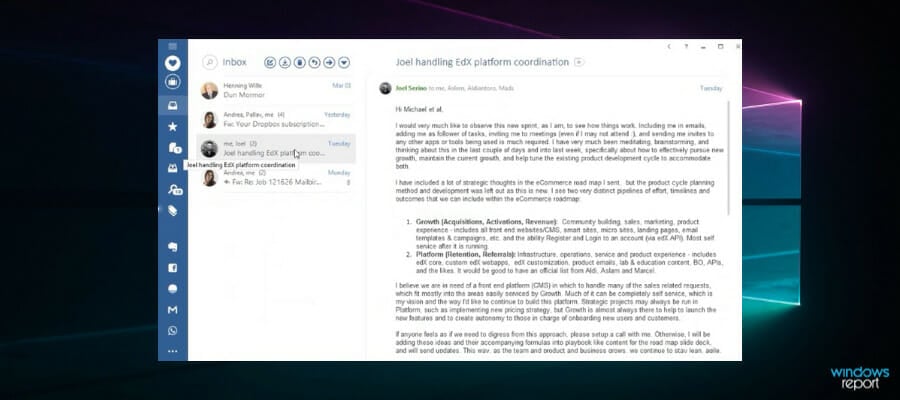
Best Windows 11-Ready Laptops [2026 List]

As the much anticipated Windows 11 presentation has already taken place, we now know what the new OS will look like and some of the most important features it will bring.

Added to that, the official information about the system requirements has been released, and based on this, we can safely assume which PCs could be used to run the OS.

8065 users from 152 countries have completed a thorough survey regarding Windows 11 which covers their expectations, wishes, and wants, so make sure to check it out to explore the subject in depth.

8% of responders have stated that they are sure to invest directly in a Windows 11 ready computer, while 92% prefer upgrading the system they already own.

To get a clearer picture, here are the actual requirements for running Windows 11, or explore the more detailed version.

  • Processor: 1 GHz or faster with 2 or more cores
  • System memory: 4 GB minimum
  • Storage: 64 GB minimum
  • System firmware: UEFI
  • Security: TPM required, UEFI Secure Boot
  • Display: 9-inch minimum in diagonal, High definition (720p), 8 bits per color channel
  • Graphics: DirectX 12 API, WDDM 2.0
  • Connectivity: Bluetooth (excluding desktop PC), Wi-Fi or Ethernet connection
  • Digitizer: Precision Touchpad (if the touchpad is present)
  • Hardware buttons: Power button and volume up and down buttons required
  • Ports: USB ports (at least one), video output required

Keep in mind that these are just the basic requirements to install Windows 11 on a PC. To find out exactly if your system will work with Windows 11, simply download and run the PC Health Check application.

A powerful gaming laptop that can run Windows 11 will have some different capabilities compared to the options in this list. That being said, all gaming laptop options can be used with everyday tasks, but the same can’t be said about most non-gaming laptops.

How we choose the best Windows 11 laptops

To create this comprehensive list, our panel of expert testers have researched laptops across the web, and have meticulously compared their systems to choose the best devices for running Windows 11.

Because the official release of the Windows 11 OS is coming soon, and thus, manufacturers can’t yet provide you with devices that already have Windows 11 installed, it is safe to say that the offer will increase exponentially in the next couple of weeks.

Tip icon Tip
Editor’s tip:

To exemplify the exact elements that were considered while choosing the best laptops for running Windows 11, here is a useful list of things you should consider as well:

➡ Processor speed
➡ System memory
➡ System firmware
➡ TPM 2.0 capability
➡ Internet connectivity

Taking these features into consideration while choosing the best Windows 11 capable laptops is essential.

Added to this idea, the usual features needed to be considered as well, thus enabling our testers to choose the best PCs from the list of Windows 11-enabled devices.

Some features that were also taken into consideration to make a distinction between the capable laptops, were the GPU, storage, and design.

What to consider when choosing the best Windows 11 laptops?

Besides the normal elements that you would take into consideration when choosing a capable laptop, to run Windows 11 optimally on it, some specific requirements need to be fulfilled.

Processor speed

Even though the processing speed is an incredibly important element whenever you’re exploring the capabilities of any PC, this element is even more important if you’re interested in a device that can run Windows 11 without problems.

Windows 11 will work on your laptop if you have a 1 GHz or faster processor with at least 2 cores. More is going to help considerably in this case.

Even though almost all new PCs in the last few years have a CPU that offers better speeds than 1GHz, and most already have 2 or more cores, this shouldn’t pose much of a problem, but it is worth mentioning nonetheless.

Of course, the processors we chose for this list will not only offer you the capability to run Windows 11, but we chose options that will allow your entire laptop experience to go smoothly.

System memory

For your system to be able to run Windows 11, you will need to have at least 4GB of system memory. System memory is not the same as rapid access memory (RAM), but it is the size allocation that enables the elements that construct your Windows 11 to run properly.

This means that 4 GB of your SSD or HDD should be available to allocate solely for running the actual Windows 11 OS.

System firmware

The firmware of your PC is extremely important to consider because Windows 11 works only with UEFI, which also enables the OS to run the UEFI Secure Boot feature to improve security levels.

Of course, all the products we will present to you in this list will have this element already checked out and confirmed, so you can rest assured you won’t need to dive deep into the details of the computer you’re interested in.

TPM capability

As Windows 11 is also bringing new levels of security to the table, the Trusted Platform Module (TPM) is an essential element of this setup, thus being included in the system requirements list for the OS.

TPM is a microcontroller that is designed to secure hardware through a variety of cryptographic keys that are integrated into the system.

Internet connectivity

Even though almost all PCs are capable of connecting to the internet, you must understand that to run Windows 11 for the first time, you need your device to be connected to the internet.

If you’re going to invest in a new PC, even though chances are that it will capable of connecting to the internet, consider if you can connect it when installing Windows 11.

Tip icon Tip
Buyer’s tips:

➡ If you’re interested in very good processing speeds, sturdy and multi-joint construction, and multi-touch that resists high pressures, the Spectre x360 Convertible 13-AW1002NR is the best choice for you.

This powerful device will of course enable you to run Windows 11 without issues, while also offering enough processing speed to run almost any software.

➡ In case you’re more inclined towards a system that offers specific gaming capabilities, then you don’t need to look any further than the powerful OMEN 15T-EK100 from HP.

To make things even better, HP allows you to customize it even further. You can choose a better CPU, GPU, SSD, and even keyboard by using the toggles from the website.

➡ For those of you who are more artistically inclined, the ASUS ZenBook Flip S 13 proves to be a great contender for the previously mentioned devices, as it offers an incredibly powerful CPU, a great amount of RAM, and pressure level output for using it with digital pens and styluses.

The 360u00b0 ErgoLift hinge easily transforms the laptop into a drawing tablet and vice-versa, while also proving very useful in case of presentations in meetings.

➡ If you find yourself interested in a laptop that offers decent power, a good number of ports, military-grade toughness, and a 14-inches display that offers a great color spectrum, then the Acer TravelMate P6 is the perfect choice for you.

Now that we’ve covered the most important aspects you need to consider when investing in a Windows 11-enabled device, let’s see what the results of our research show.

Spectre x360 Convertible 13-AW1002NR

  • Intel Core i7-1065G7
  • Intel Iris Plus Graphics
  • Multitouch-enabled display with Gorilla Glass
  • 16 GB LPDDR4-3200 MHz RAM
  • 512 GB NVMe M.2 SSD
  • GPU could be better

The Spectre x360 Convertible 13-AW1002NR is an incredibly powerful laptop that comes prepared for a fruitful and smooth interaction with Windows 11.

Even though at this point in time Windows 11 doesn’t come pre-installed, having your laptop ready for the moment Microsoft makes the official release is very important.

Powered by an Intel Core i7-1065G7 with 4 cores, that can run up to 3.9GHz with the useful Intel Turbo Boost Technology. The processor has an 8MB L3 cache, making it extremely adaptable no matter what tasks you want to run.

The GPU is called Intel Iris Plus Graphics, and its power is put into perspective by using a 13.3 inches FHD and IPS monitor. This display is multitouch-enabled and uses an anti-reflection Corning Gorilla Glass NBT to ensure that it is resistant to almost any kind of shock.

Added to this, the edge-to-edge glass with a micro-edge takes advantage of every centimeter available, thus allowing you a more seamless experience while using it.

The 100% sRGB color gamut ensures that your movie-watching sessions or color-intensive work will be able to be displayed without issues.

The device comes with 16 GB RAM which will allow you to run multiple instances of the same program, or multiple different applications without any problems, while also giving you enough processing power to run graphic-intensive games as well.

As storage is always an important element, and the speed at which it runs can prove a great advantage, this HP laptop comes with a 512 GB NVMe SSD.

Everything is powered by a 65 W USB Type-C power adapter, making the battery lasts up to 11 hours and 30 minutes of heavy usage.


OMEN 15T-EK100

  • Intel Core i5-10300H
  • 6GB NVIDIA GeForce RTX 3060
  • 512 GB PCI NVMe SSD
  • Custom configuration options for all components
  • No touch display

The OMEN 15T-EK100 from HP is a very good option if you want to run the latest games on your new laptop besides simply running Windows 11 at full capacity.

This laptop can be customized before the purchase, which enables any user to modify the CPU, GPU, display, RAM, keyboard, camera, and storage space and type.

When it comes to the CPU, you can choose between an Intel Core i5-10300H processor that can reach up to 4.5 GHz, and a more powerful i7-10870H processor which can work at 5.0 GHz and has a set of 8 cores with 16MB L3 caches.

In the GPU department, the first configuration offers you an NVIDIA GeForce RTX 3060 with 6GB. , and as an alternative, you can choose the 8GB Nvidia GeForce RTX 3070 with a Max-Q design.

As mentioned before, you can customize the size of the storage, and its type, thus, you can choose between a 512 GB PCI NVMe SSD, a 1 TB version, or two 512 GB PCIe NVMe SSD’s with Raid 0 configuration.

You even have the option of choosing what software you want pre-installed on your PC, with the capability to choose between a Microsoft 365 suite and different versions of Microsoft Office. The same applies to security software, where you can opt for a variety of McAfee annual subscriptions.

To complete the setup entirely, the device comes with Audio by Bang & Olufsen, DTS:X Ultra, and HP Audio Boost, thus ensuring that your music and gaming experience will sound amazing.

Connectivity will be extremely easy, as you will have access to 1 Thunderbolt 4 port with USB4 Type-C, and two SuperSpeed USB Type-A ports.


ASUS ZenBook Flip S 13

  • Intel Core i7-1165G7 CPU
  • 16GB RAM
  • 1TB PCIe NVMe SSD
  • 360° ErgoLift hinge
  • 133% sRGB colours
  • Pressure level output could be better

The ASUS ZenBook Flip S 13 offers you everything you need to run Windows 11 optimally, and also a processor that can take on any task you choose without problems.

Besides the 13,3 inches 4K OLED touch display that offers incredibly crisp colors, this device comes with an Intel Core i7-1165G7 CPU with 12M Cache, runs up to 4.70GHz.

To ensure that you would not need to worry about running multiple applications at once, or using multiple displays to work in tandem, this powerful laptop is equipped with 16GB RAM.

The 1TB SSD ensures that you will have enough space to install any game or program your heart desires, and at the same time leaving you with enough space for personal files like pictures, videos, and documents. Being a PCIe NVMe M2 SSD, you are sure to get the best processing speeds available on the market.

The versatile 360° ErgoLift hinge allows you to use this device as a tablet, present, and also get the keyboard out of the way when you just want to watch your favorite show.

The combination of Jade Black color and Red Copper diamond-cut highlights make this device look absolutely incredible while showing the built-in quality on the exterior as well.

Being ASUS Pen and Windows Ink capable, with 4096 pressure level output, it ensures that you can draw, write, or sketch in any app with incredible precision.

The display also comes into play here, offering a 100% DCI-P color gamut with 133% sRGB colors. With this setup, you are a sketch away from incredible art, and a click away from a seamless and professional video-editing experience.


Acer TravelMate P6

  • Intel Core i5-8265U
  • 14 inches Full HD LED-backlit display
  • 8 GB DDR4 RAM
  • 256 GB PCIe NVMe SSD
  • Good number of ports
  • Military-grade toughness
  • Small storage space
  • Fingerprint scanner doesn't work perfectly

The Acer TravelMate P6 is a thing and light laptop that uses a 14-inches FHD IPS display, powered by an Intel Core i5-8265U which is sure to be able to run Windows 11 without issues.

The processor runs with up to 3.9 GHz, and the widescreen LED-backlit display will surely offer you an immersive experience no matter if you’re watching your favorite shows or using the laptop for editing photos.

Even though it doesn’t have as much storage space as the other options presented in this guide, the 256 GB PCIe NVMe SSD is sure to run at very high speeds.

This computer has 8 GB DDR4 onboard memory that enables you to run multiple applications at the same time without any problems.

You also get one Thunderbolt 3 port, two USB-3 1 Gen ports of which one features USB charging, and one HDMI 2.0 port as well.

The battery enables you to use this device for up to 20 hours and allows fast charging to 100% in just two hours.

In case you want to feel secure when it comes to third parties accessing your webcam randomly, you have great security features included. With a TPM 2.0 module installed, this ensures that your data is safe and the fingerprint reader makes sure that you’re the only person capable of accessing the device.

To ensure even more privacy, the camera can be covered with a special button which ensures that even if people connect to it, they won’t be able to see a thing.


Lenovo ThinkPad X1 Nano

  • Intel Evo i5-1130G7
  • Intel Iris Xe GPU
  • 16:10 IPS Display
  • 16 GB LPDDR4 RAM
  • 512 GB PCIe NVME SSD
  • Small display

The ThinkPad X1 Nano laptop from Lenovo is another very powerful laptop that offers full support for Windows 11 OS.

Even though smaller than the previous models we discussed in this list, measuring 13 inches only, don’t judge it by its size, as you might find the powerful components to be quite a surprise.

The IPS display with 450 nits is incredibly crisp, with a 2K resolution of 2160×1350, offering you a great visual experience even though smaller.

Having a reduced size is not for everybody, but if you need a laptop that can be easily carried wherever you’re going, this laptop is unbeatable.

This nice laptop offers you an Intel Evo i5-1130G7 processor, a backlit keyboard, and 16 GB of RAM. To round it off, it comes with a 512 GB PCIe SSD, to ensure you can store and run data at very high speeds.

The integrated Intel Iris Xe GPU is not the latest and greatest, but it offers enough power for you to be able to use this laptop at work, or in the comfort of your own home, browsing the internet and watching TV shows.

Added to this, the ThinkPad X1 Nano comes bundled with a 720p HD webcam built into its upper lid panel, a fingerprint reader, Wi-Fi 6, and Bluetooth 5.1.

When it comes to connectivity, this laptop doesn’t disappoint, being set up with 2 USB 4 Thunderbolt 4 ports, and comes with a WOOV 32 GB Micro SD card included. 


Bottom runners

Besides the options presented above, our research has unearthed some more Windows-11 capable devices that didn’t make the list for a variety of other reasons.

The fact that they didn’t make the list, doesn’t imply that they’re not worthy of a mention, so here is a small list containing them:

➡ ASUS ExpertBook P5440

This 14-inches device, even though a good contender, didn’t make the list because of its sub-par GPU unit, which entails a variety of issues with the device.

Offering an i5-8265U CPU and 256 GB SSD, this device will surely be able to run Windows 11 and is a good choice if you’re not inclined to use it for graphic-intensive work.

➡ ASUS ExpertBook P3540

The cousin of the previously-mentioned device, the ExpertBook P3540 offers a good array of features but lacks in the same department as its family member – the GPU.

Having the same GPU as the option above, and with a lower spec capability overall, even though not the best choice, this device still offers a stable platform to run Windows 11 on.


As you can see, our list of the best PCs that are capable of running Windows 11 includes a variety of options with different capabilities and advantages.

You can also check the best Windows 11 ASUS laptops and PCs if you’re more inclined to go with a well-known company. All these options will allow you to choose the perfect fit for your needs.

We hope that this list has given you all the information needed to make a decision based on your personal needs.

Feel free to share your thoughts about this subject by using the comment section found below this guide.

Cash Register Software: 7 Best to Use in 2026

If you are looking for a reliable software that will register and calculating transactions at a point of sale, we have compiled the best cash register software for PC in order to get you started.

The cash register itself is usually attached to a printer that can print out receipts and even a drawer for keeping storing cash. While cash register software for PC simplifies the sales process, ensures payment is made securely and organizes the sales recording.

A new business just starting out can appear more legitimate and professional by making use of cash register software, otherwise known as a point of sale (POS) system.

There are many cash register software for PC out there, and you might probably get lost while searching for the right one. We have compiled a list of the best cash register software for PC guaranteed to streamline your sales process and boost your productivity.

Cash register software for PC

Square

Square is a versatile all-in-one business management software that comes with a powerful point-of-sale integration.

It can be used both for online and in-person sales. For in-person transactions, it offers the Square Reader which works both with insertion and contactless.  

When it comes to online businesses, Square gives you a variety of options, including local delivery and click and collect. 


With Square, you can easily set what kind of payments your business accepts. You can choose from pretty much all possible options: Credit Cards, Apple Pay and Google Play, Gift Cards, Cards on Fire, Invoices, Transfers, and more. It also assists you with processing refunds.

Other key features of Square include:

  • Monitors payments for suspicions transactions
  • Safe, encrypted payments
  • PCI compliance
  • 2 step verification 
  • Helps you create receipts
  • Integrated preset tip amounts
  • Create automatic discounts 

Square is a paid service with custom plans, based on your transaction rates.

Square

Square

Keep your business running with safe payments, receipts, click and collect, and more.
Check priceVisit website

Copper POS

Copper is a POS software for all types of business. You can manage your store, your stocks, your finances, and even the currencies. This software includes a lot of features that are extremely useful for business owners. The most important are:

  • Client management
  • Inventory control
  • Support for multiple currencies
  • Multiple payment forms
  • Tax exemption
  • Refunds

You can find almost all of these features in the free (demo) version of the software. However, if you will need to use it on a daily basis at a ‘full throttle’ you will need to upgrade to the Pro version.

Copper POS

Copper POS

Manage financial transactions of all kinds and with multiple currencies.
Free trialVisit Website

Vend

First of all, Vend is the leading cash register software in the USA, streamlining the sales process for retailers. It works with top merchant providers around the world enabling businesses to choose the best way available to accept payments ranging from gift cards, credit cards, and debit cards. Also, cash register software for PC, Vend is very efficient on almost all Windows systems.

Some of its key features include:

  • It works well on Windows PC, iPad, Mac
  • Custom receipts with logo
  • It works offline (Automatically sync when you are back online)
  • Add discounts and notes to specific items
  • Track all cash movement from cash float to cash register
  • Create individual staff accounts and track sales

Most noteworthy, this cash register software offers a range of pricing structures with the Starter package available at a cost per month and is designed for a single outlet with three users. It is a paid service, but it does offer a 14-day free-trial so you can see how it works for you before proceeding with the purchase.

⇒ Get Vend

Brilliant Cash Register Express

Also, Brilliant CRE makes an excellent cash register software with the cash register express software. The software is remarkable due to its faster customer checkout, accurate inventory tracking, and employee management. It is available for any business ranging from small shop outlets to large multi-store chains.

Some important features of Brilliant CRE are:

  • Track inventory and employee hours/activity
  • It comes with free gift card processing
  • Web portal for multi-location management
  • Sales and inventory reports

Also, Brilliant CRE gives retailers the option to build their own POS or download a free trial. Brilliant CRE is compatible with major Windows OS including Windows Vista, Windows 7 and Windows 8.

⇒ Get Brilliant Cash Register Express

Nextar

Another easy-to-use cash register software for PC is Nextar. The free version can be installed used instantly.

Some of Nextar’s innovative features include:

  • Sales tracking
  • Revenue report generation
  • Faster checkout service
  • Cash register management
  • Create individual staff accounts

In addition, this software works well as a faster cash register software for PC on any Windows system. Nextar has a limited, free plan but Pro and Premium packages are available

⇒ Get Nextar

Chromis POS

This Windows-friendly cash register software for PC can run on all Windows versions (XP through 10). Due to its customization options for screen and receipts layouts, Chromis comes with kitchen screen software that can integrate with the POS, if you want to send orders back to a separate monitor.

Some important features of Chromis include:

  • CSV import for product list
  • Barcode supported, including variable price or weight (GS1 standard)
  • Built in reporting and reports
  • Supports USB printers
  • Customer database

Most noteworthy, Chromis is an open-source cash register software with support for almost nine separate locations.

⇒ Get Chromis POS

Floreant POS

Finally, built especially for restaurants, Floreant is a free and open-source cash register software. It can run on Windows and other operating systems. You can easily take and track orders using Floreant by using the bar tabs feature. Kitchen printers are connected to Floreant which makes it easier to manage menus and recipes.

Some of the core features of Floreant are:

  • Friendly interface for managing food menu, prices, beverages, cooking instruction.
  • Create separate bar tab
  • Cash terminal for magnetic card, giftcard and coupon
  • Kitchen control
  • Financial reports generation
  • Supports free/commercial plugins for purchase, warehouse and many more.
  • Tax deduction

Furthermore, Floreant is hardware-friendly because it offers hardware support for java tablets, kitchen printers, magnetic cards, and barcode scanners. Therefore, Floreant is the best cash register software for a restaurant setting.

⇒ Get Floreant

These were our top cash register software for PC that we picked for you. Check them all out on your Windows system and stick with the one that fits your sales process needs.

Xbox teams up with Rockstar Energy to offer exclusive Halo Infinite content and prizes

The Xbox team has announced today a new partnership with Rockstar Energy Drink to promote the upcoming release of Halo Infinite. For a limited time, Halo fans can purchase five limited-edition Halo Infinite Rockstar Energy cans and win exclusive in-game content and prizes thanks to the digital codes included with every can.

The different prizes include Challenge Swaps and 2XP bonus for Halo Infinite’s free-to-play multiplayer modes, as well as free cosmetics for the game’s vehicles and weapons, which you can see below. Each can purchase will also provide Halo fans the opportunity to win a free copy of Halo Infinite and an Xbox Series X prize bundle including a console, a digital copy of the game, a Razer Raptor 27” monitor, and a Razer Kairo Pro Halo Infinite headset.

Exclusive In-game Content and Prizes

In the US, Xbox and Rockstar Energy Drink will also be offering the ultimate Grand Prize, which is a custom Jeep Gladiator that would make Xzibit and his colleagues from the Pimp my Ride TV show drop their jaws. “Inspired by the power of Master Chief, the custom vehicle will feature Master Chief-colored protective coating, massive 43” extreme traction tires, stylized body armor, performance upgrades and pro-level suspension ready for any level of terrain from rock crawling to cruising the pavement,” the blog post reads.

Last year, the Xbox team announced a similar partnership with Monster Energy to promote the upcoming release of Halo Infinite, though this was before the game was delayed to 2021. This time, Xbox and Rockstar Energy Drink have also partnered with five acclaimed artists to create the five limited-edition cans inspired by Halo’s Master Chief.

The promotion will be available until the launch of Halo Infinite on Xbox and PC on December 8. To redeem under-the-tab codes, consumers will need to visit Halo.RockstarEnergy.com, where you can also learn more information about the partnership.

Disney+ app now available on Windows 10 & Windows 11 Microsoft Store

It used to be that you needed to set up Disney+ as a PWA on Windows to get the best experience, but that’s no longer the case. An official app is now available for download on both Windows 10 & Windows 11, letting you get into the best of Disney’s action natively on your PC without having to use a web browser.

Overall, this new app is pretty visually similar to the web-based experience but it is an exciting arrival for Windows fans at a time when Microsoft is heavily advertising the revamped Microsoft Store. Disney+ was a missing piece on the store, and it’s now the latest heavy-hitting streaming service to arrive on Windows 10 and Windows 11. Apps were already available for Netflix and Amazon Prime Video, though an Apple TV has yet to appear on the Store.

Anyway, once you install the app and sign in, You’ll see the various Disney+ media categories in a bar up top, as well as the same listings page for movies and other shows.  We tested the app on both Windows 10 and Windows 11, and everything works fine. It weighs in at around 80 MB, and you can download it via the link below. Check it out now and let us know if you’re enjoying it by dropping us a comment.
Disney+
Disney+
Developer:
Disney
Price:
Free+

Microsoft news recap: Google claims “Google” is most searched term on Bing, Xbox Cloud Gaming expands, and more

Microsoft news recap is a weekly feature highlighting the top Microsoft news stories of the past week. Sit back, grab some coffee, and enjoy the read!
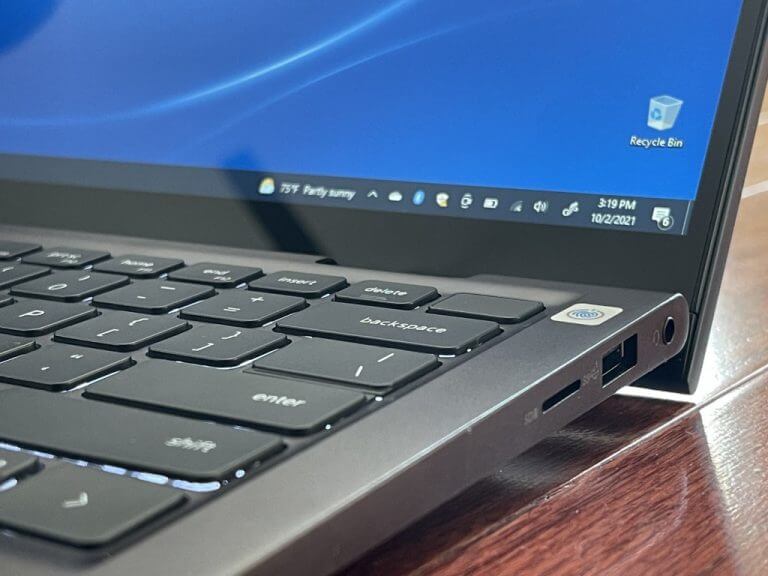
Google is “by far” the most popular search term on Microsoft’s Bing, Google says

In an attempt to appeal a $5 billion antitrust fine issued by the EU, Google has claimed that “Google” is the most searched term on Microsoft’s Bing, arguing that people use Google because they choose to do so.

Google Antitrust Cropped

Xbox Cloud Gaming officially launches in Brazil, Mexico, Australia, and Japan

Microsoft’s game streaming ambitions continue to pick up pace, as the company has officially expanded its Xbox Cloud Gaming service to Brazil, Mexico, Australia, and Japan, opening up game streaming to a much larger audience.

Microsoft starts testing Xbox Cloud Gaming on Xbox consoles

In other Xbox Cloud Gaming news, game streaming is now being tested on Xbox consoles. The feature allows Xbox Game Pass games to be played without downloading them, and will eventually allow Xbox One console owners to play next-gen games. Testing is available to some Xbox Insiders.

Microsoft CEO Satya Nadella looks back on TikTok acquisition talks, “the strangest thing I’ve ever worked on”

Looking back on talks that took place to acquire TikTok, CEO Satya Nadella has said that they were “the strangest thing” that he’s ever worked on, though the talks never led to an actual acquisition. Read more about what Satya Nadella had to say here.

Tiktok microsoft windows 11

That’s it for this week. We will be back next week with more Microsoft news.