10+ best screen sharing software and apps

It can be extremely frustrating to solve a significant problem of a technical nature over the phone or using messages.

Therefore for both the user and the tech support provider, this can become a true nightmare with confusion popping up at every step.

Enjoy the main feature of web conferences – sharing your computer’s screen

Even if they’re still very common around the world, telephone conferences lack the advanced collaboration and all the interactive features of web conferencing.

Even f you don’t have access to web conferencing, you are now able to benefit from one of its most essential features, namely the ability to share your computer screen with the teleconference participants if they have Internet access.

Screen sharing software advantages

This is exactly the point in which screen sharing software comes into the picture for solving all communication issues and to make it possible to see any type of process being displayed in real-time.

Desktop sharing/screen sharing apps are targeted at making life easier for both admins and users at the same time.

Their more than just a plain way of supplying tech support for users, they’re really an amazing way of sharing data and of collaborating with others remotely easily and quickly.

With such software, multiple individuals in different locations can work on a presentation or on a project plan simultaneously from their desktop PCs.

Sharing your screen with friends and family is also great, and it comes in handy many times.

The screen sharing apps allow you to share whatever is happening on your display to anyone in real-time and you can share it all with just a single user or like we already said before, with a group of people.

This way, it will all be perfect for virtual meetings, for instance. Here are 15 screen sharing apps and software that will make life much easier and the sharing experience much more pleasant:

Mikogo

This is a great collaboration tool that provides stable screen sharing tools along with a fantastic VoIP service.

The free version is only appropriate for one-on-one screen sharing and for sharing your screen with more people you will have to get the pro version.

Once the app is downloaded, you are able to start a session and share the provided link with more people for sharing your screen with them.

⇒ Get Mikogo

ScreenLeap

This is a newer software which you can use to share your screen for free. The best one of its features is the one-click sharing as long as you have Java installed. After 20 seconds, you’ll be good to go: you get a code, you give that particular code to the person you want to share your screen with, and they’ll be able to view your screen from a tablet, a desktop, and even from a smartphone.

⇒ Get ScreenLeap

Chrome Remote Desktop

This is a Google Chrome app that allows you to access all your computers from another computer or even from your mobile devices.

You can use it for various purposes such as accessing your machine from different locations, for providing remote support and for securely accessing your files and software apps on your computer.

It’s linked to your Google account, and the installation and setup are quite easy. It’s very fast and it works on Windows, Mac and also Linux. The mobile version of the application is available for both iOS and Android.

⇒ Get Chrome Remote Desktop

JoinMe

The site was created by the LogMeIn developers, and this is a very traditional service offering remote access to your machine.

It features instant screen sharing, and it has a lot of features that make it fantastic for online meetings.

With the free version, you will be able to have up to 10 participants who can all view your screen at the same time, and the software also allows you to pass control to others.

It includes multi-monitor support, it lets people see your screen on an iPad, iPhone, or Android device, and it supports chat file transfer.

⇒ Get JoinMe

ScreenStream

This is a basic app that allows others to see your desktop and it doesn’t feature remote control capabilities.

The person that wants to share the screen must download the app, but the viewers don’t need to download anything.

The images are viewed from a web browser, and the app is compatible with PC, Mac, and Linux. There is no limit to the number of users that can see your screen.

⇒ Get ScreenStream

TeamViewer

This is probably the most popular remote desktop software together with Skype. It’s a simple and fast application, and it’s also very intuitive and ideal for network engineers.

It is also available on Windows, Mac, Linux and the mobile app is compatible with iOS, Android, Windows Phone, and BlackBerry.

⇒ Get TeamViewer

FreeScreenSharing

This is another great site which allows you to conduct unlimited online meetings that last up to 6 hours. You first have to create an account to get started, and the required elements include only a name and an email address. The interface is impeccable and organized in the most intuitive way.

⇒ Get FreeScreenSharing

Microsoft Remote Desktop

Microsoft introduced its Remote Desktop apps for Android and iOS a few years ago, but this is perfect for accessing your Windows computers.

It is also free without usage restrictions, and unlike Chrome Remote Desktop, the setup process is a bit more complicated but only when you perform it for the first time.

⇒ Get Microsoft Remote Desktop

MingleView

This is a freeware screen sharing tool that is very simple, and it comes with no upgrades. It doesn’t feature limitations on service, and it doesn’t require any registration.

You only have to start the download on your PC and you have to allow the local peer-assisted network prompts to begin the sessions considering the fact that the session is based on a per network.

⇒ Get MingleView

Skype

Yes, we know, this is one of the most (if not the most) popular programs for screen sharing that is currently used by millions of individuals.

You can share your screen with another Skype user and it’s great because Skype is a trusted and a safe program to use.

Once you install the application, you will be able to add all your PCs by entering all the necessary details. It can only be used for accessing Windows PCs from a remote location.

⇒ Get Skype

BeamYourScreen

After the meeting organizers sign up for the service, they’ll get a nine-digit session ID, and they will be able to share it with the teleconference participants.

The software is browser-based so that no downloads will be necessary. The service allows up to 25 people to share and view their desktops and they can also grant remote control rights to each other.

Using it, you are able to record the desktop sharing session so try it out right now.

⇒ Get BeamYourScreen

Glance

You can share your machine’s screen with up to 100 users at a time. The app works on both PC and Mac letting users pick their own URL.

The software can be fully customized to feature the looks of a company’s website. It allows the users share their mouse and keyboard and it’s cool for online collaboration.

It even works great with video, and there won’t be any delays.

⇒ Get Glance

CrankWheel

Sharing your screen becomes incredibly easy with this app. You can share your screen with anyone without any preparation and even in the middle of a phone call.

Users don’t have to download anything not even when they are on the go with their mobile phones. You can easily see what others are seeing, and you can also check if they’re paying attention or not.

⇒ Get CrankWheel

Depending on your personal desires and needs you can choose which software or app works best in your particular case.

Some of the software above are better geared for actual online presentations, and others are plain simple screen sharing apps.
How to install the Windows 10 v21H1 update

The most expected Windows 10 update is finally here. The Windows 10 May 2021 (21H1) is the first big release of the year and you can now install it on your device.

This update is one of the two major updates Microsoft will launch this year and is expected that the Windows 10 21H2 will be launched by the end of 2021.

Microsoft has not made a public announcement regarding the launch of the Windows 10 May 2021 update but if you don’t want to wait any longer there’s an easy way to install it right away.

How do I install the Windows 10 May 2021 update?

All you need to do in order to get the Windows 10 May 2021 update, even before the public launch, is to get into the Windows Insider Program.

Make sure to follow the steps indicated below:

  1. Open the Settings app and click on Update and Security.
  2. Locate the Windows Program Insider and click on it.
  3. Select the get started option and choose a Microsoft account to link.
  4. Next, select Release Preview Channel and click on Confirm.
  5. Finally, restart your PC.

Once your device restarted you need to return to the Settings app and you should see the Release Preview channel listed.

Once you click on the Windows Update option there will appear a section displaying the Windows 10 version 21H1 update.

You can now install it on your device and allow for the installation process to finish. The process will be completed after you will restart you PC once again.

So, there are the steps you need to make if you want to go ahead and install the Windows 10 May 2021 (21H1) right away.

As we already mentioned the update will be available for everyone and is expected that Microsoft makes a public announcement in the following days.

Don’t hesitate to leave us a comment in the dedicated section below, as always, we would love to hear your thoughts on the subject.

Getting Started with GitHub Sponsors Program to monetize your Windows app

You created an open source Windows program and uploaded it to GitHub. But you were considering making money on what you have created? Some would suggest to publish your Windows app on a storefront like the Microsoft Store or on Epic in order to monetize from it. However, there is a new way to monetize your open source creations and it’s called GitHub Sponsors.

GitHub Sponsors allows independent open source creators to get paid for what they do. This article is about getting started with the GitHub Sponsors Program.

Creating a GitHub Sponsors profile

Access Github Sponsors Dashboard

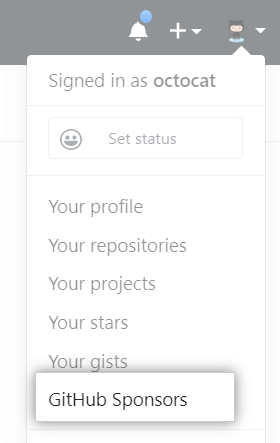
Sign in to your GitHub account using your GitHub account from your personal email or your organisation email. Once signed in, go to the upper right corner of the page, click on your profile photo, then click GitHub Sponsors.

Dev Sponsors Dashboard Button

When your sponsored and eligible accounts is shown, to the right of the account you want to manage, click on Dashboard.

Profile Tab

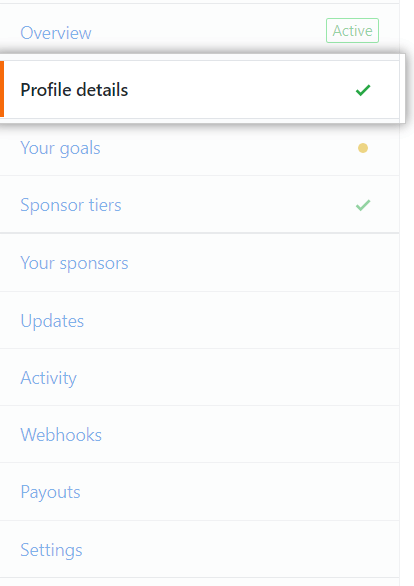
On the left sidebar, click on Profile details, and fill out the Short bio, introduction, and Featured work sections:

Featured Work Edit Button

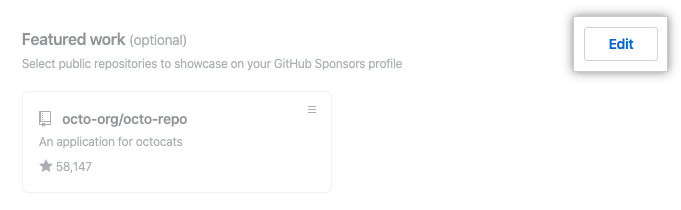
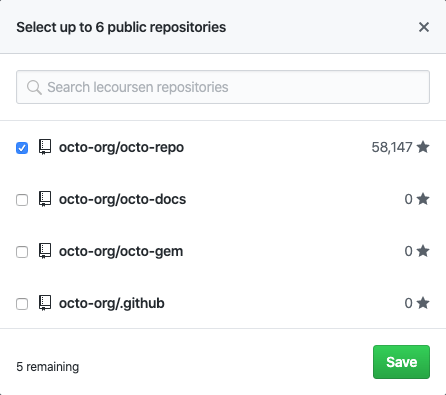
You should have your GitHub repositories listed on the GitHub platform. Optionally, you can choose the repositories that are showcased on your GitHub Sponsors profile. On the right hand side of “Featured work”, click the Edit button.

Featured Work Select

You can select up to 6 repositories maximum, once you have selected your repositories you want to be featured to your sponsors, then click on the Save button.

Optionally, you can select the Opt-in potentially being featured on github.com/sponsors. This would provide another way for potential sponsors to find your GitHub Sponsors page. GitHub will show them your avatar and your short bio on the Sponsors page.

After you’re done adding details to your GitHub Sponsors page, you can click Update profile.

Managing your sponsorship goal

To manage your sponsorship goal. On the left sidebar, click on Your goals. To the right of your goal, click on Edit profile.

Select Goal Type

Under “What is your goal based on?, select Number of sponsors or Sponsorships a month.

Type the number of sponsors you’d like to have, or the monthly amount you’re aiming for. Under “Describe your goal”, type a description for your goal. Then, under “Describe your goal”, type a description for your goal.

If you chose a goal based on sponsorships per month, select “I under stand that this will publicly display how much sponsorship funds I receive each month.

Publish Goal Button

Once you’re done managing your sponsorship goal. You can now click on Publish.

Managing your sponsorship tiers

On the left sidebar, click on Sponsor tiers.

Add A Tier Button

Click Add a monthly tier at the right of the page. Alternatively, to create a tier for one-time payments, you can click on One-time tiers and then click Add a one-time tier.

Tier Price Description

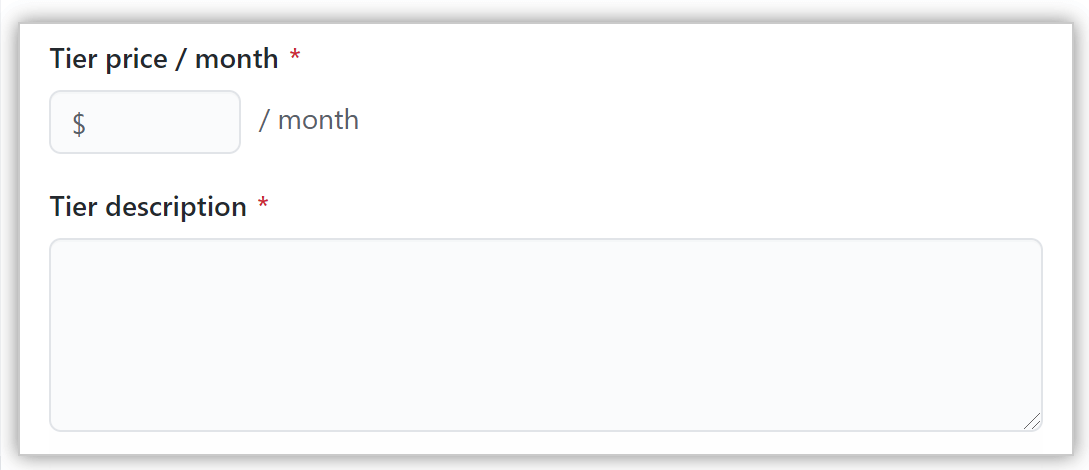
Type a price per month and description for the tier. Then, click Save draft once you have written your Tier description.

Proofread your tier, then click Publish your monthly type tier.

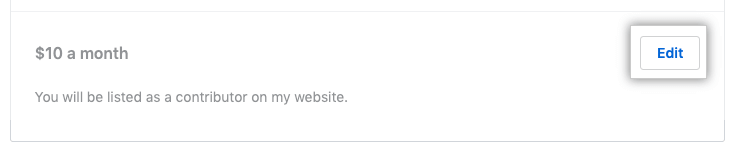
Go back to the Sponsors tiers section. Click on the right of the tier you want to edit, then click Edit.

Edit Tier Button

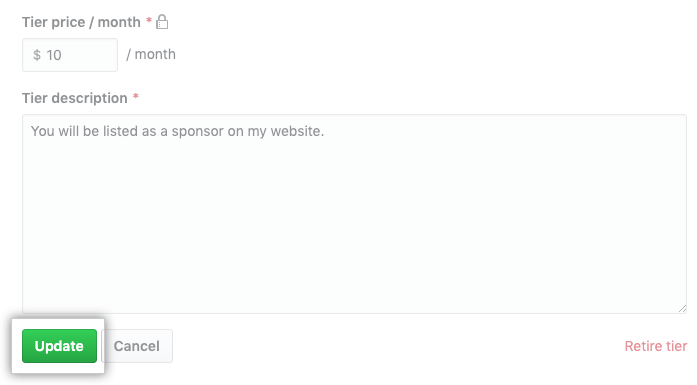
You can type a price per month and description for the tier. Once you typed your price per month and description for the tier you have created and proofread your tier, then click on Update. If you want to retire tier, click on that, then click OK.

Update Tier Button

When you have at least one tier, you’ll see an option to enable custom amounts above the monthly and one-time tiers. If you want to allow sponsors to set their payment amount, then select Enable custom amounts.

Optionally, you can enable custom amounts you can set to display for the custom tiers by specifying an amount as a default or you can disable tiers  with custom amounts.


Viewing your sponsors and sponsorships

Filter Drop Down

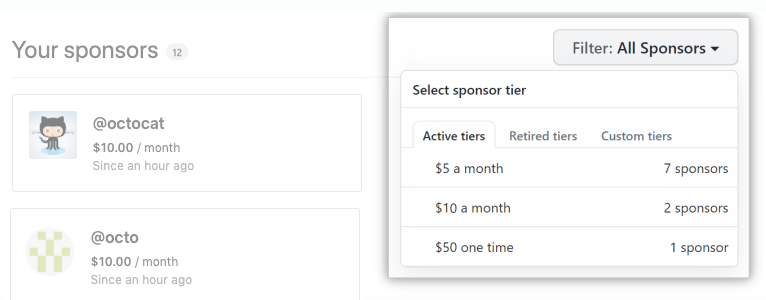
To view and export detailed information and the analytics about your sponsors and sponsorships of your GitHub software project. You can filter your sponsors by tier, using the filter drop down menu, clicking on Active tiers or Retired tiers, and select a tier. To do this, go to Activity.

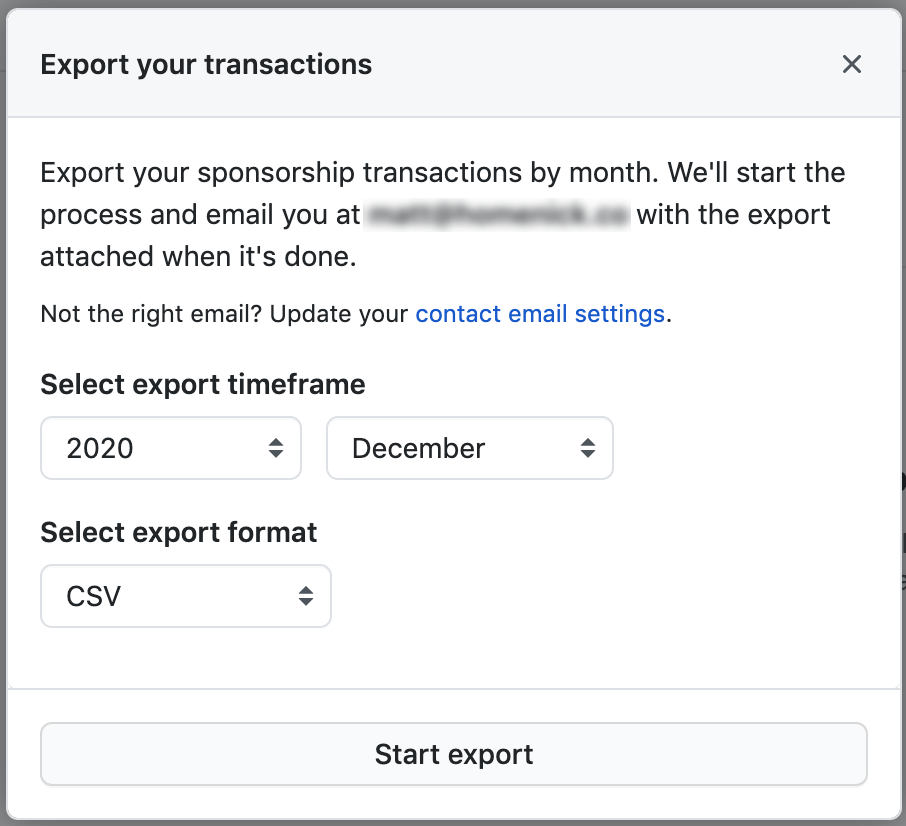
To export your sponsorship data go under Activity and click on Export. Then, choose a time a frame and format for the data to export and Start export.

Export Your Sponsors

Managing payouts from sponsors

You can view the information from past and future payouts in GitHub Sponsors. Also, you can edit and update your bank information. In order to do this, you go to Payouts on the left sidebar.

You can update, your bank information under “Payouts information” by clicking on Edit your bank information.

Contacting sponsors

Click on Updates on the left sidebar. Then to the right of “Email updates yo your sponsors”, you can click Draft a new update to your sponsors.

New Update Button

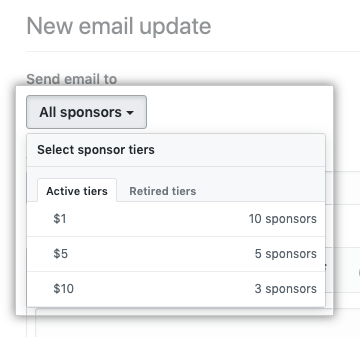
You have an option to send email to sponsors on specific tiers, using drop down menu with the “All sponsors” and select one or more tiers.

Select Tiers Email

Type a subject and message your update to sponsors. Then, click Publish.


Tax info for GitHub Sponsors

If you are handling sponsored money, as a sponsored developer or in an organization, you must submit tax information to GitHub and are responsible for evaluating and paying your taxes by submitting the W-9 digital form.

Summary

Using GitHub Sponsors as an open source contributor on GitHub, allows you to access financial support from people and organisations of your sponsors who build, design and maintain open source projects on GitHub. I’d love to hear from you about how GitHub Sponsors has benefitted your open source software development projects financially. If you’re just getting started with GitHub in general, check out our previous posts of our series – Getting Started with GitHub – Hello World, Getting Started with GitHub – The Basics of Source Control, Getting Started with GitHub – Free vs Paid Accounts and Getting Started with GitHub – Tips and Tricks. Learn more about GitHub Sponsors here.

Best Dealer Management Software: Top 5 Ranking

With the constant increase in sales and production orders for the automotive industry, using automobile dealer software is a must. More and more people are interested in highly efficient vehicles, and if you own a car dealership, you know how hard it is to keep track of sales, customers, customer’s preferences, and employees all at once.

The classical way of keeping records and managing sales was done by printing a large number of papers, that are to be stored in files. This is a very inefficient way to manage your business because in some situations storage space can be a problem, people can lose or misplace papers, etc.

The solution to solving all these issues is to used specialized software designed specifically to help you easily manage every aspect of your car dealership. In this article, we will explore some of the best software options on the market that allow you to do just that, and in some cases, even more.

Top 5 auto dealer software to strike more deals

uAutoDealers

uAutoDealers - car dealership software

uAutoDealers is a powerful PHP based script that allows you to easily modify the data your dealership owns about the cars on sale, can create an unlimited number of online listing pages, and can be customized to meet your company’s needs with ease.

General overview of key features:

  • Real-Time information – allows real-time price listing and bidding
  • Multiple sellers – can be used for single and multi-seller sites
  • Fully open-source
  • Responsive design for all devices
  • Multi-language support
  • Modern and clean HTML5/CCS3 template
  • Security

Additional optional modules:

  • Embedded database of auto makes, models etc
  • Multi-database support
  • VAT calculation by company definitions

Because of the wide range of uses that are covered by uAutoDealers, next we will explore some of the features based on feature type.

Seller account features:

  • Statistics on dashboard
  • Company details
  • Company staff management
  • Company locations management
  • Authorized buyers management
  • Customers management
  • Saved listings management (from search results)
  • Seller listings management
  • Muliti-images uploading
  • Listing image gallery
  • Account profile and settings
  • Possibility to define vehicle features

Buyer account features – encompasses dashboard statistics, company details, staff management, image gallery, and adds:

  • Related sellers management
  • Search preferences management
  • Saved listings management (from search results)
  • Bids management
  • Account profile and settings

Administrator features:

  • Administrator control panel
  • Configuration panel
  • Full inventory management
  • Sellers and buyers management
  • Sellers groups/companies
  • Private/company sellers
  • Seller company locations management
  • Seller customers
  • Authorized buyers for seller company
  • Different seller roles: admin, sale person, manager.
  • Private/company buyers
  • Buyer search preferences
  • Listings management
  • Email templates management

Even though these features cover almost all areas of your car dealership, there are even more additional modules available – backup, testimonials, blog, news, etc.

uAutoDealers comes in 3 different versions distinguished by the features they offer:

  • Standard version
  • Premium version
  • Professional version

You can also add additional services to any version of the program you want to buy.

⇒ Get uAutoDealers

DealerTrack DMS

Dealertrack - auto dealer

DealerTrack DMS is another great software option that allows you to easily manage your dealership. This app gives you all the tools you need under one cloud platform. This allows easy access to any stored data, can gather information regarding sales, customers needs, and also keeps all your data safe online.

One of the best features of DealerTrack DMS is that it has full integration with OEM (original equipment manufacturer). You can use OEM to produce efficient results and make more profit by connecting all your company’s departments under one hub.

You can easily automate key processes, obtain real-time information about your business, manage customer’s complaints, increase productivity by reducing costs and using the built-in accounting application that allows you to keep tabs on account balances, transactions, and your dealership performance.

With DealerTrack, you can easily see detailed information about the transactions and that offers you the posibility to notice any issues and solve them in real-time, by using the intuitive user interface. You can also create, customize and produce scheduled reports in any format you want.

With the fixed operations features found in DealerTrack, you can automate your business processes and also review and consolidate any function or system. This is achieved by joining the Parts and Service departments of your company into one.

Using this feature makes it easier than ever to control every aspect of your business from a single screen, and is one of the best strategies that can reduce the number of errors. This in turn makes your dealership run smoothly.

Key features include:

  • DMS advanced reporting – can create your own custom reports
  • Credit card processing – secure credit and debit card transactions
  • Bar code scanning – track and manage your parts inventory
  • Daily rental system – create, track, and manage your vehicle rentals
  • Document management – scan, archive, and file documents
  • Hardware – certified hardware
  • Key tracking system – car key management service
  • Labor time guides – can create accurate service claims for a streamlined payment process
  • Service dispatching – send electronic repair orders
  • Service price guides – accurate service repair quotes for your customers

⇒ Get DealerTrack DMS

DealerCenter

DealerCenter - auto dealer

DealerCenter is another great auto-dealer software designed to simplify your company’s day-to-day operations. Being cloud-based, this software allows you to keep your data stored safely and securely, and you can also access it remotely and see real-time data from anywhere in the world.

Key features include:

  • Inventory management – recording and reviewing of your vehicle stocks
  • Reports
  • Managing costs
  • AutoCheck unlimited – review detailed car histories
  • NMVTIS and Carfax integrations
  • AutoStructure – supports desk actions with automated deal and loan calculations, document management, etc.
  • QuickBooks – RFC management for BHPH (buy-here-pay-here), eliminates file duplicates, centralizes sales paperwork
  • Ability to schedule reports
  • Credit bureau services – you gain access to customer credit checks with built-in protection and authentication measures
  • Website and marketing functions – custom professional-looking websites from templates, ability to post ads online on any third-party channel like AutoTrader or eBay Motors.

DealerCenter also offers a good range of vehicle booking services that will surely help you be more efficient:

  • NADA Rooftop
  • Kelley Blue Book (KBB)
  • Black Book Desktop
  • Black Book Motorcycle
  • Black Book Mobile
  • Manheim Market Report (MMR)

⇒ Get DealerCenter

EverLogic

Everlogic - auto dealer

EverLogic is another great car dealership management software option. It is a cloud-based software that encompasses sales, parts and service departments. This software includes nine modules – customer management, parts inventory, document management, sales and finance, QuickBooks accounting, etc.

You can use EverLogic to easily enter new data and manage the data already on your storage regarding customer demographics, buying preferences, etc, all from one dashboard. Customer’s activity is logged in automatically, and you can easily keep an accurate inventory by using features like – inventory tracking, stock refills, cycle counting.

The point of sale (POS) service provided by EverLogic, is a complete payment system that allows barcode use. This feature can streamline the selling and logistics of parts or cars, keeping you updated on every change or possible issues.

With the sales and finance module, you can calculate APR payments, taxes, and even manage sales quotes and accounts. You can set a sales objective and measure your employee’s performance, and also schedule deliveries using the included delivery calendar.

Everlogic also has a unit inventory module that offer features like dealer hold back, line of credit tracking, features list, etc. , and also allows you to create invoices and track ayments with QuickBooks accounting.

Other notable features include:

  • Item-account mapping
  • Window sticker printing
  • Ageing and itemization
  • Multi-location
  • Document storage and management
  • Back office administration management
  • OPOS compliant peripherals supported
  • Supplier catalog management
  • Lead capture
  • CRM
  • Activity logging

⇒ Get EverLogic

DealersLink

DealersLink - auto dealer

DealersLink is another great software option that allows you to manage all aspects of your car dealership from one dashboard.

You can also use DealersLink to create health reports, automate the bidding process, scan mobile barcodes, sync vehicle data across devices, track your inventory and dealer inventory, make specific vehicle searches, access to dealer rating system, and also is integrated with Carfax and AutoCheck.

AuctionLink is a great module that comes included with DealerLink, that is a free online vehicle auction system, open to all members of DealersLink. You can use this module for live bidding, reserved bidding and vehicle reporting.

The LiquidationLink module allows dealers to post older vehicles for sale bellow their wholesale price, in order to get rid of old inventory and clear up space in your car dealership.

ExportPro allows you to easily manage your inventory. You gain access to vehicle details such as specifications, princing, photos. This module can automatically create descriptions, marketing content – stickers and guides, exports logs of vehicles.

The analytics module of DealersLink provides you with various reports like retail market analytics, inventory health and stocking reports, and velocity reports.

The Dealership Tools module offers a wide range of useful features:

  • Vehicle barcode scanner
  • Inventory booking
  • Inventory management
  • Photo management
  • Vendor consolidation
  • Optimizes inventory by stocking and selling right
  • Buy and pay through the software
  • Allows users to shoot and manage pictures of vehicle
  • Customer Brochures
  • Import / export data
  • Sales reports
  • Stocking Report

⇒ Get DealersLink

In this article, we explored some of the best software options on the market, that allow you to manage every aspect of your car dealership. This list encompasses an incredibly wide range of features that will surely help you and your business achieve better results.

We would love to know what software option you chose from this list and why. Let us know in the comment section below.

5 Best Software for MIDI Keyboard to Master Music Production

A MIDI keyboard is one of the essential pieces of equipment to have in your music studio. These ultra-portable keyboards work with your computer directly via USB connection allowing to increase your workflow as well as get creative with your DAW (Digital Audio Workstation) or notation software.

While having a MIDI keyboard is an excellent addition to your studio, what’s equally important is to find a perfect software to use for MIDI keyboard. Now if you are not sure what music production software to use with your MIDI keyboard, we got you covered.

We have created a comprehensive list of the best software to use for MIDI keyboard to bring your musical fantasies to life. These programs will also help you to optimize workflow and make the composition process easier.

Best software to use with MIDI keyboards

FL Studio – Well-designed interface

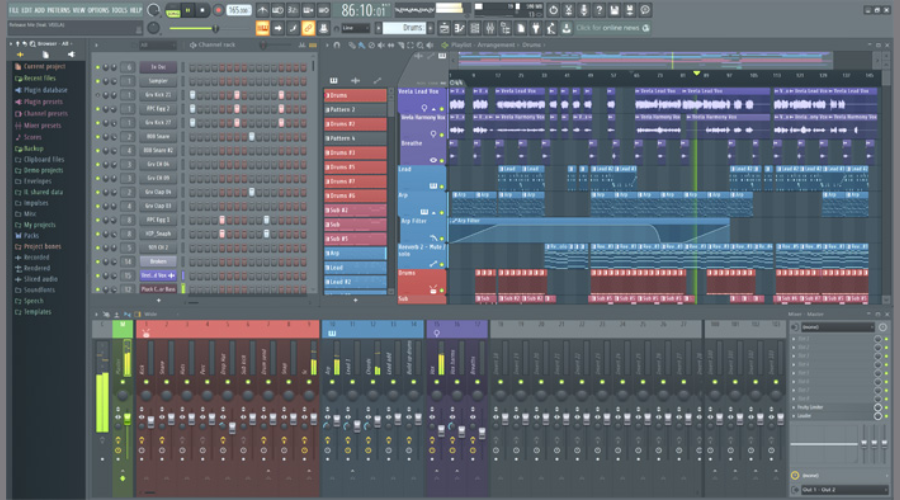
FL Studio is a big name in the music composition industry and for all the right reasons. It is one of the oldest in the business and offers a complete music production suite with composing, arranging, recording, editing, and mixing features to master pro-quality music.

On the bright side, FL Studio is beginner friendly. That said, the more advanced version offers more tools and features for professional and seasoned artists.

The user interface is well-designed keeping beginners in mind. For anything else, you can watch YouTube videos or use the community forums to get your doubts cleared.

FL Studio works greatly with MIDI Keyboard, Microphone, and other sets of music equipment. The Mixer allows you to create effects chains, audio sends, advanced automation, and plugin delay right from the software.

Furthermore, it has Piano Roll to send notes and automation data to plugin instructions, a detailed browser and playlist area, 80+ plugins, and more.

FL Studio is an excellent piece of music production software that offers enough features to get new users started with the standard pack and advanced features for professionals to do more.

FL Studio

A complete music production suite to help you achieve the best music experience.
Free Trial Visit Website

Avid Pro Tools – Collaboration feature

Avid Pro is the industry standard in mixing and mastering work. It is also one of the affordable music production software for beginners while offering an advanced version for professionals.

Avid Pro offers multiple versions of its music composition software. Pro Tools First is the free version of the software and provides a limited set of functionalities including the ability to create up to 16 audio tracks.

The premium version offers more features with up 128 and 256 audio track support in Pro Tools and Pro Tools Ultimate version.

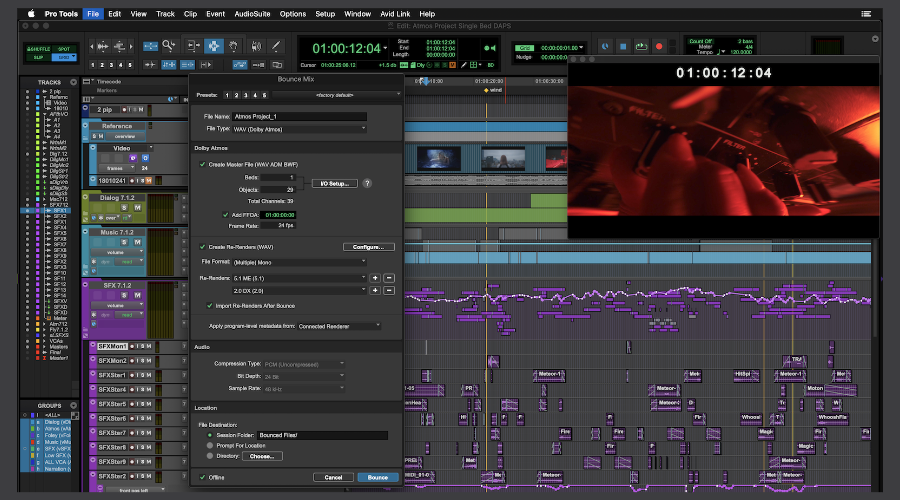
From virtual instruments, samples, and sounds to tons of track presets and MIDI enhancements, Avid Pro Tools offers everything to keep you on track.

The collaboration feature allows you to collaborate with other artists in the cloud or studio to maximize your efficiency.

Avid Pro Tools

Maximize your sound efficiency and try the Avid Pro Tools software.
Check price Visit Website

ACID Pro – Advanced technology

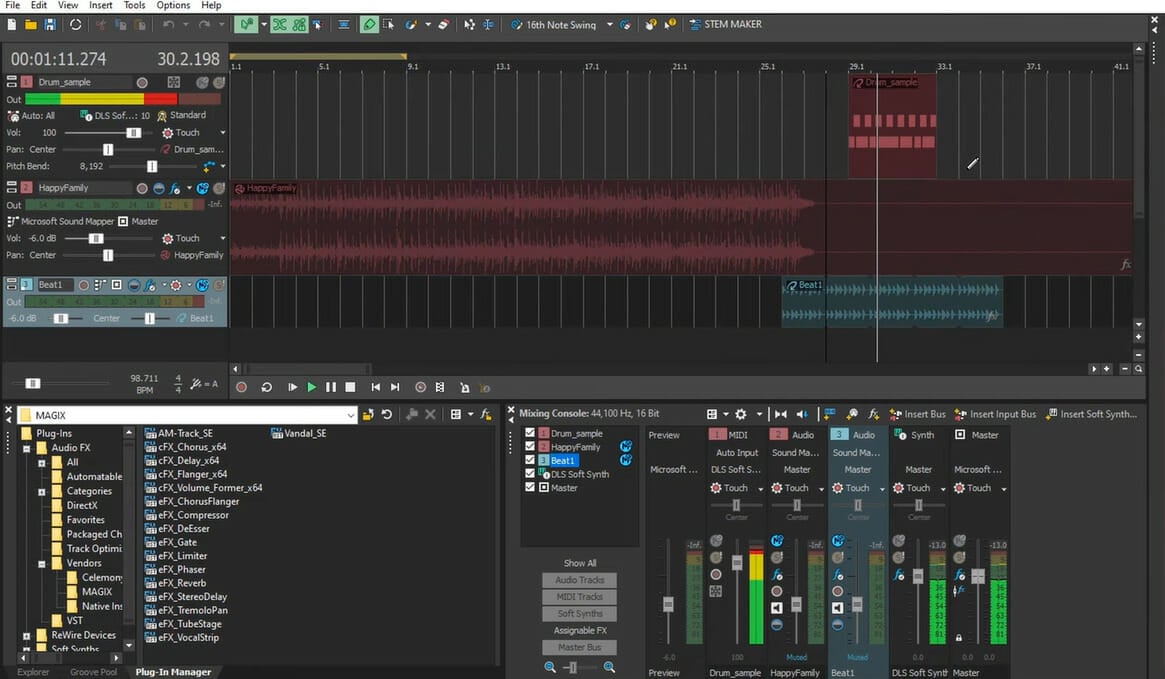
Acid Pro from Magix is a professional music production software. The latest version comes with a modern and sleek user interface making it easier for both professionals and beginners to work with it.

It is a premium software and comes in only one version. The company offers a fully functional free trial with 30 days validity, which is good enough to test the software.

The latest version now uses the more powerful 64-bit technology. It also comes with flexible multitrack recording, multiple new plug-in instruments and effects, advanced MIDI and Audi editing features improved loop-based composition, and up to 9 GB of new ACIDzied loops to get you started right off the bat.

Acid Pro is a fully featured professional music production software that works with MIDI keyboard and other instruments and offers professional recording, editing, and mixing features to keep your creativity flowing.

ACID Pro

Enable your creativity and use professional recording, editing, and mixing features.
Free Trial Visit Website

Ableton Live – Various instruments

Abelton Live

Ableton Live has no reason to be second on this list and is as good as FL Studio if not better. It is also one of the most popular DAW ( Digital Audio Workstation) that can please both beginners as well as seasoned professionals alike.

One big advantage of Ableton Live is the inclusion of the sound package that comes bundled with the software. This package consists of 23 sound libraries which are a whopping 50 GB of sound files for you to use.

In addition, it also comes with 13 instruments to try including Wavetable, Operator, Sampler, Analog, and more. You also have 56 effects for audio processing and MIDI. It has an instant mapping feature that allows you to use the software with keyboard and controller.

Ableton Live should be your go-to software if you want to perform live on the stage. Take the trial for a spin to see if it is something that can help you do more with your music.

⇒ Get Ableton Live 

Reason by Propeller Heads – Good edit functionality

Reason Propeller Heads

Last but not least, we have Reason which is a Digital Audio Workstation that is easy to get started with yet can go deeper depending on the producer’s knowledge. 

It is the ultimate tool to create, compose, mix, and produce the next chartbuster for audiophiles and casual alike.

Reason allows you to better organize the work area which is divided into four parts namely Browser, Mixer, Reason Track, and Sequencer enabling you to deal with instruments, sounds, effects, record, and edit functionalities.

It also has other essential features including Mixer, CV & Routing, Rack, and Layout that allows you to create the music from scratch and add a final touch to your music.

⇒ Get Reason 

All the software listed in this article can be used with a MIDI keyboard. However, what software to use strictly depends on your use, requirements, and experience with the music production software.

If you enjoy music so much, why don’t you take a look at this great list of the best music production software. You’ll be pleased with their features and offers.

We have listed one of the most expensive as well as the cheapest music production software that you can use to create the next chartbuster for your studio.

Zoho Loyalty Program Software: 7 Best To Use

Loyalty programs are common with restaurants, hotels, and airlines, but today, they’re even with telcos, supermarkets, and other brands, in a bid to create lifelong customers.

The idea is that customers who frequent a business gain by getting points for all purchased made, or for taking other actions, and then they can redeem these points for rewards like buying more merchandise or getting services from the companies that offer them.

This is why loyalty program software is used, to give users the ability to customize different areas of their loyalty programs, including rules on how to earn and spend points, number of points earned with each purchase, and which customers are VIPs and which ones are not.

When looking for the best customer loyalty program software, you need to check for overall performance, customer support, ease of use, and features such as reporting and analytics that help you identify trends in the program.

Common features include rewards management, customer relationship management (CRM), a member portal, mobile loyalty app, card management, and integrations with content management systems or social media pages, or even with a point of sale system so that they can see how many points they’ve earned or spend directly as they check out.

The benefit of these programs is that customers are incentivized to return and make more purchases by participating in the loyalty program, so they have an impact.

Here are our favorite picks for the best loyalty program software for 2021.

Best loyalty program software for 2021

Marketing 360 software

As its name suggests, this loyalty program software is a cloud-based, all round marketing platform suite for entrepreneurs and small and medium sized businesses, that lets them run social media ad campaigns, conduct SEO programs, and analyze digital marketing activities and performance.

Features like the UXi websites helps business users create branded web pages with calls to action and web templates are customizable and can be edited with the drag and drop functionality. Another feature is the Natural Listing ads feature to help users manage organic search results through tracking keyword volume and rankings.

It also analyzes SEO performance of your competitors with similar keywords and delivers real time reports with organic conversion rates. With the social targeting ads, you can get to your customers and in turn segment and target them personally based on their demographics like age, gender, location and interests.

⇒ Get Marketing 360 loyalty program software

Apptivo software

This is yet another cloud-based suite of apps that help businesses manage their finance, HR and supply chain management functions. Its CRM apps provide modules so that users can do contact management, lead management, opportunity management, and customer service ticket management.

The marketing apps like campaign management, lead segmentation and loyalty program management help businesses with their customer database, but they can select the applications they deem necessary, and what they don’t need, they can omit.

Other features include expense reports, sales planning, cash management, license and insurance tracking, budgeting, and territory management.

You can also access Google app integrations for use with Google Drive, Calendar, and Tasks. It also has mobile apps, and pricing is available per month, but billed annually.

⇒ Get Apptivo loyalty program software

Loyverse POS

This is another cloud-based, and mobile POS solution useful as a loyalty program software that’s aimed at small retail, restaurant and salon businesses, to help them manage inventory, sales analytics, and customer relationships.

Users can set up a loyalty program to award customers with points for recurring purchases, while managing all customer information and preferences on the customer database. It also lets you sell directly from smartphones and tablets, with discounts applied and orders modified directly on the same platform.

Your customers can receive their receipts either in print or electronic form, and you can also issue them refunds when necessary. It also has receipt printers, barcode scanners and cash drawers, plus you can sell in offline mode as the system stores and syncs data upon receiving internet connection.

There’s also a customer and employee communication module, and the best part is this loyalty program software is free to use with multilingual support around the clock, and you can be trained on how to implement it in your business.

⇒ Get Loyverse POS loyalty management software

Yotpo

It lets users gather information and user-generated content of all types and use it to build the brand while managing customer experiences. Its integrated solution helps companies collect, curate and manage, plus respond to the user-generated content from one platform.

The integrations with third-party rating systems like Google Seller and Facebook or Twitter also help users monitor social media channels, SEO rankings, and other important analytics for making better decisions.

Yotpo also provides email and social marketing, marketing automation, analytics, marketing resource management, search and mobile marketing, with options charged on monthly basis including starter, mid-range and enterprise options.

⇒ Get Yotpo loyalty program software

Zoho CRM Software

This offers a cloud-based customer relationship management solution that is meant for small and medium sized businesses. The interface has CRM tools like sales and marketing automation, customer support, plus a help desk, reporting, product configuration and customer analytics.

Its multichannel support lets businesses connect and keep in touch with their customers through email or live chat, phone and social media channels.

Features include gamification, which businesses can use to gamify sales processes and reward employees who hit their targets. It also has a mobile addition so users can access sales activities and customer information via smart devices.

Users can benefit from automated sales processes through defined workflows and macros for regular activities. Zoho loyalty program software also integrates with existing software solutions like Microsoft Office, Google Docs and Sharepoint, plus it gives add-on apps for specialized business collaboration and productivity.

It is available on a monthly subscription basis.

⇒ Get Zoho loyalty program software

SocialSpiral

If you’re looking for a powerful loyalty program service, you might want to consider SocialSpiral. This service is incredibly simple to use, and you can set up everything in 10 minutes. The service is quite straightforward, and new users can join the loyalty program simply by texting “join”.

Using SocialSpiral you can easily keep track of customer points and rewards, and automatically send promotions, deals, and gifts to your customers based on their history. The service also has a powerful analytics tool, so you can easily keep track of campaigns and keywords and monitor customer engagement.

If needed, you can also create various surveys and keep track of user reviews. As for the number of campaigns, this service allows you to set up an unlimited number of campaigns without any hassle. It’s worth mentioning that there’s also marketing integration, so you can easily use this service with various social networks.

As for availability, this service can work on any device regardless of the platform since it’s available in a form of web application. Overall, if you’re looking for a loyalty program software, feel free to try out SocialSpiral.

Overview:

  • Incredibly simple to set-up and use
  • Ability to track points
  • Loyalty triggers
  • Analytics
  • Customer feedback
  • Available on any platform as a web application

⇒ Get SocialSpiral today

Preffered Patron

Preferred Patron is a loyalty program software for any company or business size with incentive promos, visitor loyalty management, multi-channel marketing, and also gift card management functionalities. This suite is available in cloud or on-premise deployment options with a mobile app for iOS and Android devices as well.

Features include an incentive promo module so users can manage cash backs, appreciations, recognitions and referrals, as well as mystery award promotions. They can also roll out a visitor engagement solution via tablet, where customers who visit the store or company can be incentivized.

Its multi-channel marketing feature lets users design and send customized loyalty campaigns via email, text messages on phone, or social media. The RESTful API also integrates it with e-commerce websites and users can roll out loyalty programs therein. It can also be integrated with accounting, POS, and mobile app systems.

⇒ Get Preferred Patron loyalty program software

Have you decided on which loyalty program software to use? Or did your current one make the list? Let us know your thoughts by leaving a comment in the section below.

Microsoft Teams meetings now let organizers disable attendee’s video

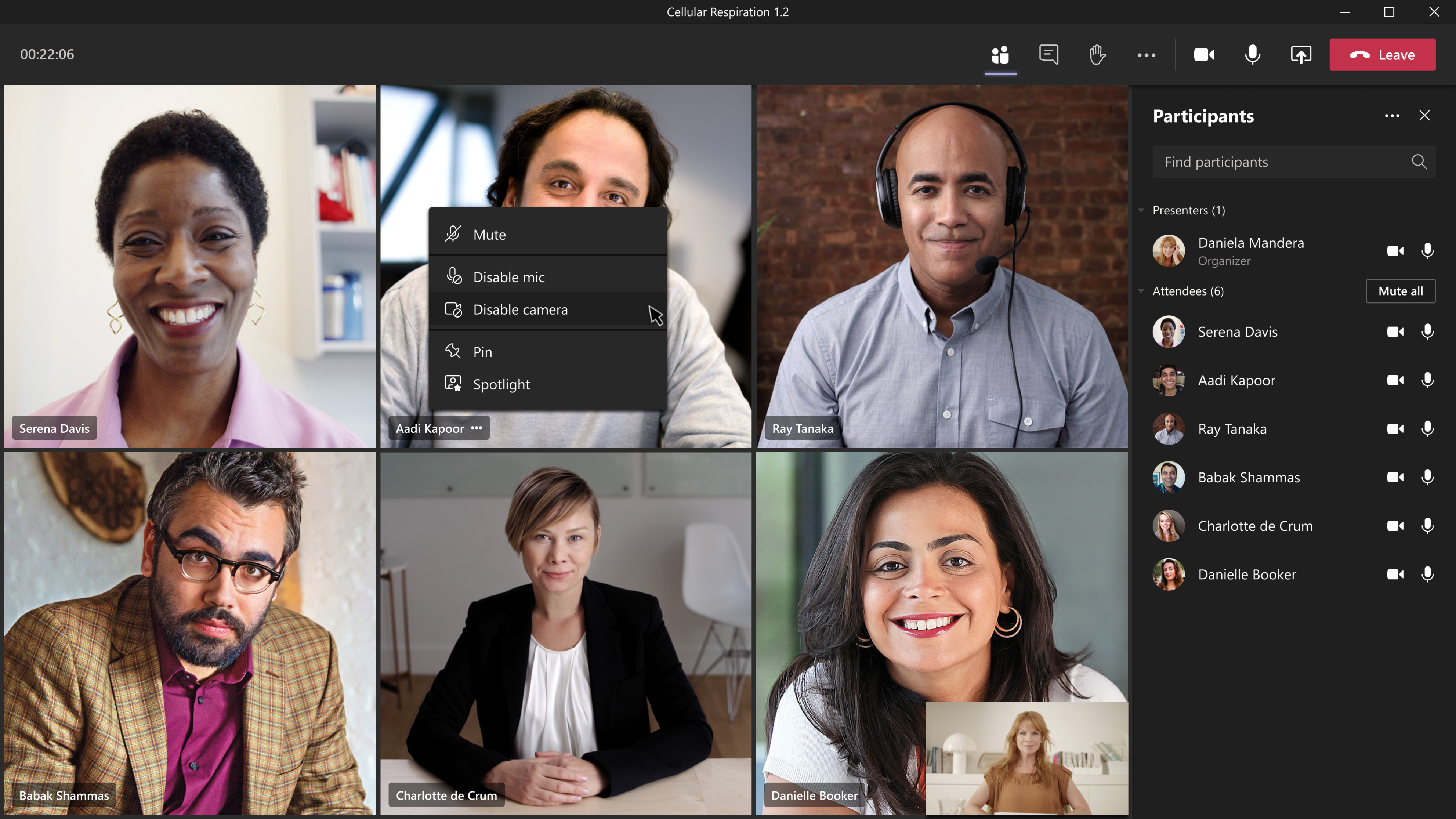
Microsoft Teams is getting a new update that will enable meeting hosts to manage the video of participants within a meeting. This feature was added to the Microsoft 365 roadmap back in February, and it just started rolling out gradually to all Teams users.

Previously, meeting hosts could not prevent people from sharing their video feed on a per-meeting basis, and attendees could turn on their cameras at any time. The new controls in the app now include the ability for presenters and organizers to disable the video feed of select or all attendees during a meeting.

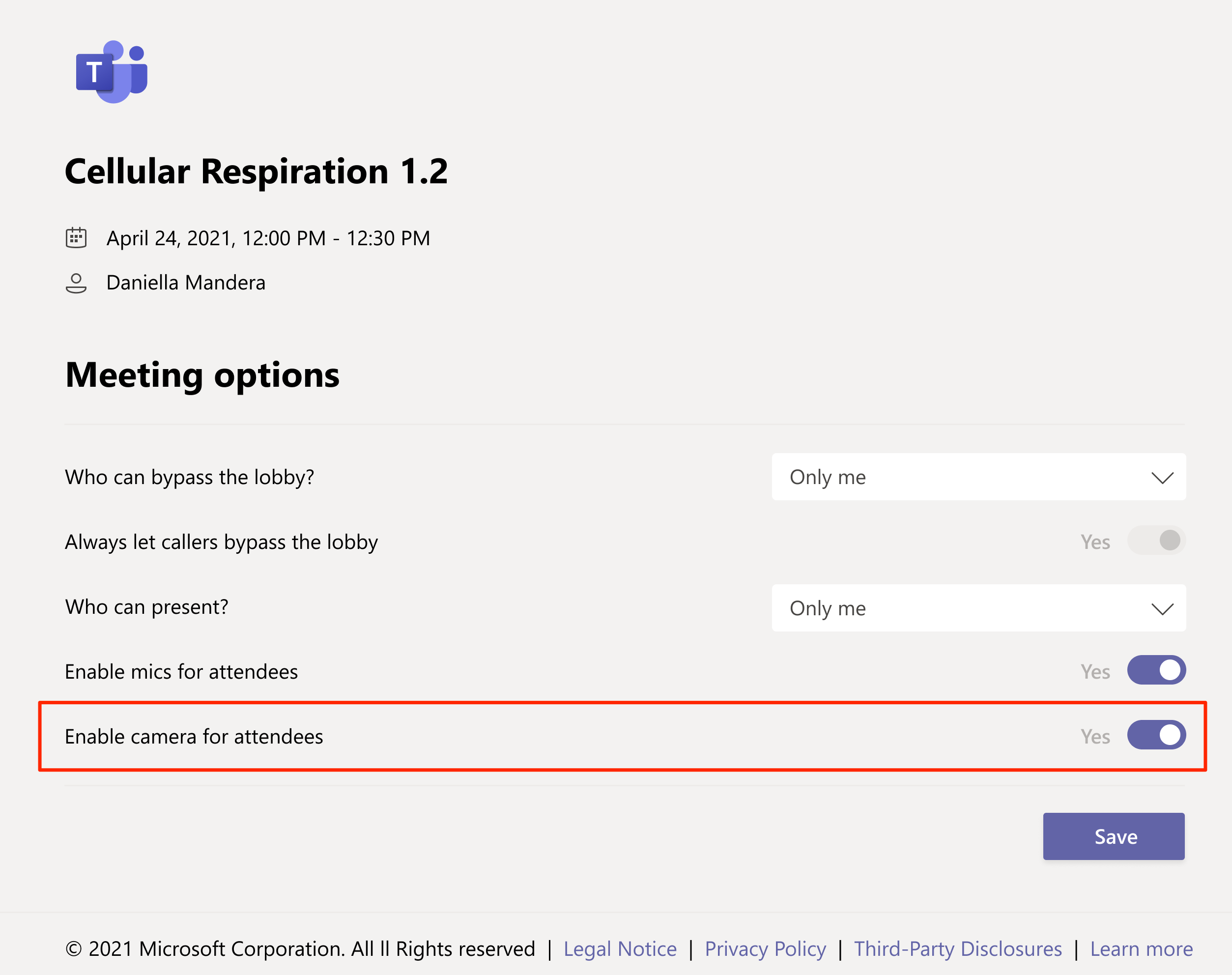
It is important to note that all meeting participants will still be able to turn their camera on or off by default, but meeting organizers or presenters can now choose to manage the attendees’ camera in a couple of ways. The organizer can head to the Meeting Options web page before a meeting and enable/disable the “Enable camera for attendees” toggle button. However, turning on this option does not mean that everyone in the meeting will be forced to share videos.

Video settings

The presenter or organizer will be able to reverse this setting during a meeting by clicking the “manage permissions” icon available in the roster. They can also enable or disable the camera of individual attendees by right-clicking on their video or name from the meeting stage or roster.

Changing setting on stage

Overall, these new host controls could be useful for both business and education customers and should help them reduce distractions in a group call or meeting. Keep in mind that this setting does not affect the video streams for the organizer and presenters, and it only applies to meeting participants.

In case you missed it, the company has also announced the general availability of personal features in Teams. Users can now click the profile picture at the top to add a personal account and switch between personal and work profiles as needed.

Windows 10 on ARM users can now use a native version of Adobe Photoshop

Adobe Photoshop is now running natively on Windows 10 on ARM PCs such as Microsoft’s Surface Pro X. Adobe quietly announced the rollout of the ARM64 version of PhotoShop on a support page earlier this month (via Windows Central), where the company detailed some of the features that are not yet available on this new native ARM version.

The list of missing features include Windows Dial support, the Shake Reduction filter, Invite to Edit workflows, and the ability to import, export, and play embedded video layers. Adobe says that these features will be added in future releases, but there’s no ETA yet.

Be aware that the new ARM64 version of Adobe Photoshop requires Windows 10 on ARM version 20H1 or newer, and PC with a minimum of 8GB of RAM. If you decide to update your version of Photoshop to the new ARM64 version, you also won’t be able to continue using the emulated 32-bit version of Photoshop and other 32-bit Creative Cloud applications.

Even though Windows 10 on ARM PCs have been around for quite some time, Adobe released a native version of Photoshop for M1 Macs a bit earlier in March 2021. Adobe Photoshop for Apple Silicon also has some limitations compared to the legacy app running in emulation mode, but Adobe is also working on erasing the feature gap in future updates.

3 Best Anti-Pharming Software To Use Today

Pharming is a type of cyber attack that redirects a website’s traffic to a fake site. There are two main methods to conduct pharming attacks:  by changing the hosts file on victims’ computers or by exploiting  a DNS server software vulnerability.

Just like phishing, pharming is also used to gain information for online identity theft. Therefore, pharming is a major thread to e-commerce and online banking websites.

Here’s what to do to prevent pharming attacks:

  1. Check the website’s URL, make sure you’re using the known authentic address of the site. Abort all operations if you notice any additional characters.
  2. Use a legitimate Internet Service Provider with rigorous security levels.
  3. Check the website’s certificate. For more information, check out the following support pages for Google Chrome, Mozilla Firefox, Opera, and Microsoft Edge.
  4. Use file and folder encryption software to protect your data.

You can also use specialized software to prevent pharming attacks. Using just a firewall and an antivirus program is no longer enough to protect your computer against pharming.

Anti-pharming software

Norton 360 and Norton Internet Security

Norton confirms that its two tools, Norton 360 and Norton Internet Security can protect you against pharming attacks by detecting and blocking fake websites. In this manner, you can be sure that most of the sites you are using are legitimate. Norton 360 and Norton Internet Security are mainly suitable for home users.

The two security tools warn you about social media scams and suspicious content and safeguard your identity and online transactions.

You can purchase Norton Internet Security and Norton 360 for $39.99 and $49.99, respectively.


OpenDNS

OpenDNS is the largest and most reliable recursive DNS service available with over 65 million Internet users worldwide. The tools relies on a unique manner of handling DNS requests and applies multiple levels of validation to all DNS queries.

Using OpenDNS reduces the possibility of pharming and cache poisoning attacks, as well as other Internet attacks. The tool also speeds up your Internet connection.

OpenDNS comes in several variants, suitable for both home users and professional users. OpenDNS Family Shield and OpenDNS Home are free to use, while OpenDNS VIP comes with a one-year subscription of $19.99.

OpenDNS enterprise security products have been rebranded to Cisco Umbrella. You can request a quote on Cisco’s official page.


Detect Safe Browsing

Detect Safe Browsing is an anti-pharming tool that verifies a website’s reliability before users actually connect to it. For example, before users connect to online banking websites, DSB quickly scans the hosts file and processes running on the computer. The tool immediately alerts users and financial institution if the scan detects malicious activity.

DSB is a very reliable tool. You can customize it using only the bank URL to avoid any false positives. For more information about this tool, you can check out the presentation video below and read this FAQ page.

For more information about DSB’s price tag, you can contact Easy Solutions.


These three tools are the most popular anti-pharming software available at the moment. If you’ve got any comments, suggestions or recommendations, use the comment section below to share your thoughts.

Download IObit Advanced SystemCare 11 [Free & Pro]

It’s a well-known secret that despite being updated to the latest build Windows starts slowing down after continuous usage.

This mainly happens due to the waste files, unused temporary files and other junk which clogs the storage and in turn needs additional computing resources.

While clean formatting may seem like one of the solutions its not sustainable. Windows users can resort to hard format only in extreme cases otherwise tools like Advanced SystemCare 11 will help free the Windows from all the unnecessary files.

The best analogy for using a software like Advanced SystemCare 11 is to the regular servicing of your car, however careful you might be when it comes to driving at the end, the car still needs timely servicing.

I have been using Advanced SystemCare from quite some time and I must say the tool has been impressive so far.

Advanced SystemCare is a PC cleanup tool that boosts performance by miles

Well, Advanced SystemCare has been around for quite some time but the 11 Beta brings in some critical changes. The Advanced SystemCare 11 promises to make your PC run up to 200% faster by cleaning up the junk files and privacy traces.


Download now Advanced SystemCare 11


The program apparently employs a deep clean method which is better than the other tools available in the market. The Advanced SystemCare 11 also comes with a FaceID and the optimized algorithm cleans the registry deeper and faster thus resulting in better performance.

The other extremely useful tools include WhatsApp cleaner, Startup Optimisation, Surfing Protection, Resource manager, protection against cyber threats including ransomware and malware, hardware acceleration, surfing protection, large file finder, and an intuitive resource manager.

The Homepage advisor will detect any changes made to your homepage and search engine thus avoiding a potential hijacking attack.

Advanced SystemCare 11 Installation, Features and Performance

Installation is typical all you need to do is head over to this link and download the Advanced SystemCare 11.

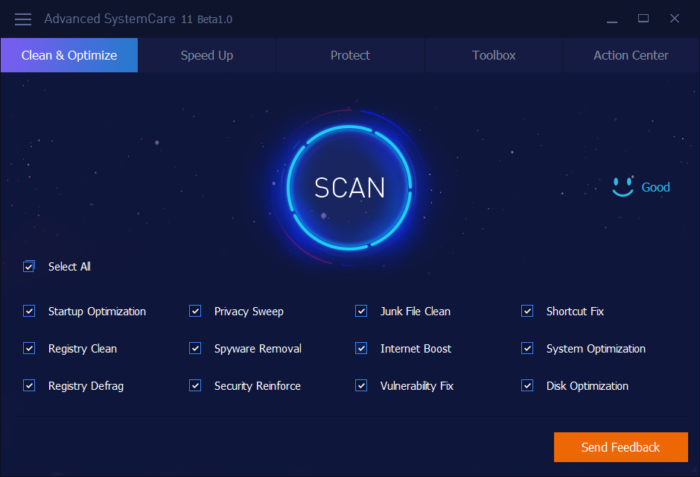
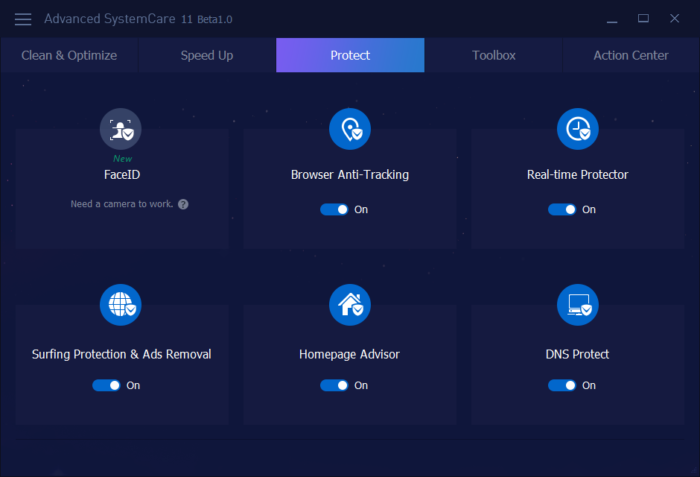
The home UI of the program is very neat and the features are segregated into the following tabs, Clean and Optimise, Speed Up, Protect Toolbox and Action Center.

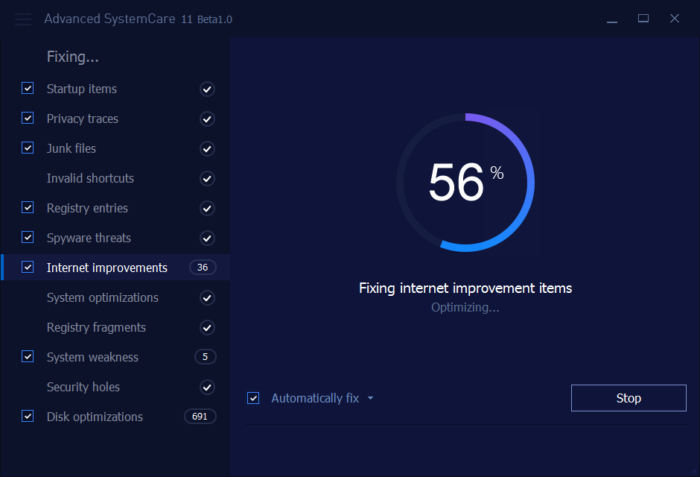
The scan button at the middle will launch an automatic scan of your PC across various sectors. The scan is performed for startup items, privacy traces, junk files, registry entries, internet improvement, spyware threats, registry fragments, security holes, system weaknesses and disk optimizations.

Unlike other cleanup utilities, all of these problems can be fixed without needing to upgrade to the paid version.


Restore your PC’s health in under 2 minutes with these repair toolkits


Speed Up Options

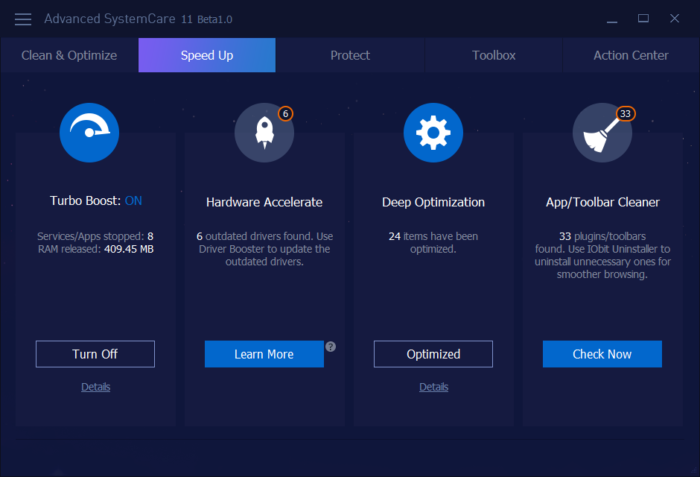
This has to be one of the most important features in Advanced SystemCare 11, Speed Up offers a couple of features that will help boost the system performance and all of this is completely automated.

For instance, the Turbo Boost will kill all the unnecessary programs that are using RAM while the Hardware Accelerate will scan and warn users about outdated device drivers.

Deep Optimisation does a deep scan of the applications and fixes any undesirable behavior.

Protect Features

The FaceID is like a CCTV camera for your Windows machine. What this feature does is that it automatically captures the picture of the intruder who tries to fiddle with your computer and sends you the same.

Browser anti-tracking will ensure that the cookies and ad trackers are not stored in your browser memory. Real-time protector provides online protection while the Surfing Protection safeguards the users from phishing and other cyber threats.

Toolbox

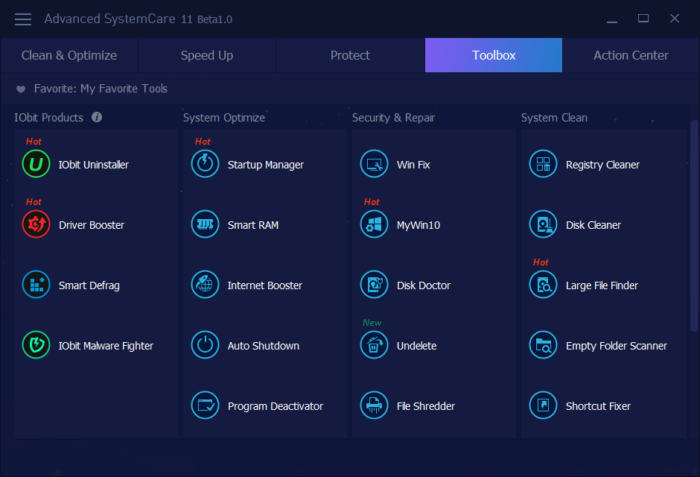
The Advanced SystemCare 11 offers quite a handful of features and to track all of this we have the Toolbox.

Under this section, you will see all the tools that are currently available and also the other quintessential tools that are offered by IObit, the company behind Advanced SystemCare 11.

Advanced SystemCare 11 supports the following Windows operating system versions: all Windows 10 versions, Windows 8, Windows 7, Windows Vista and Windows XP.

Wrapping it up

Well, I have been using the CCleaner from the last couple of years and after switching to Advanced SystemCare 11 I reckon that most of the new features offered by the latter are not available on the CCleaner.

The best part of it all is that the processes are completely automated and doesn’t require any kind of expertise from the user’s end.

In a nutshell, the Advanced SystemCare 11 is a comprehensive cleanup tool that boosts your PC’s performance.

Windows Defender SmartScreen is blocking unrecognized apps

Windows Defender is a very good built-in security tool. However, it can occasionally be quite a bothersome experience due to frequent notifications and actions.

We’re talking especially about the Microsoft Defender SmartScreen prevented an unrecognized app from starting message.

Microsoft can say that’s for your own good, but that’s something a user needs to decide. Let’s take Windows Defender‘s SmartScreen which deals with third-party apps.

Lots of users are not thrilled by the frequent preventive blockage of apps in Windows 10. We gave our best to explain why this is the case and how to disable SmartScreen on your own accord.

What can I do when Windows Defender blocks apps?

1. What does this prompt mean

Windows SmartScreen is part of Windows Defender which deals with unknown (uncertified) apps.

If a third-party application is not certified or it’s known as a malicious piece of software, Windows will prevent it from installing or executing.

When you download a third-party application from an untrusted source, chances are that it will get blocked.

This is the first line of defense against malicious software, and we wouldn’t recommend disabling it.

At least, if you’re not 100% sure that the applications you install are not a threat to your system. Or have an alternative way to locate possible threats.

Allowing the app to run and dismissing the prompt is a rather simple task. Just click More below the warning. Then click on the Run anyway option and you’re good to go.

After that, you should be able to run the application. Now, for some applications, this stands only for the installation part.

If you want to avoid blocking during the usage, right-click on the shortcut and open Properties. Under the General tab, at the bottom, check the Unblock box.

2. How to disable SmartScreen

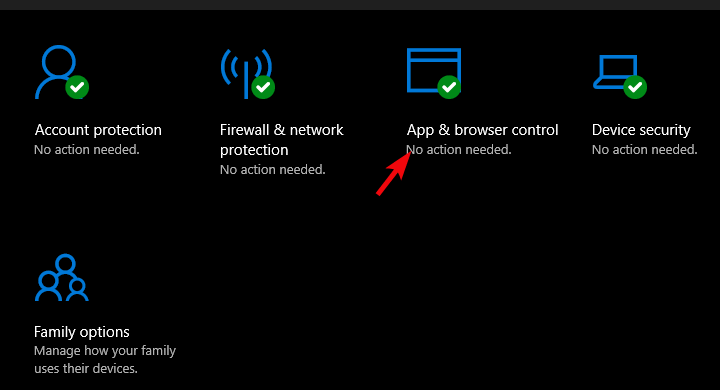
  1. Open Windows Defender from the notification area.
  2. Select App & browser control.windows defender smartscreen prevented an unrecognized app from starting
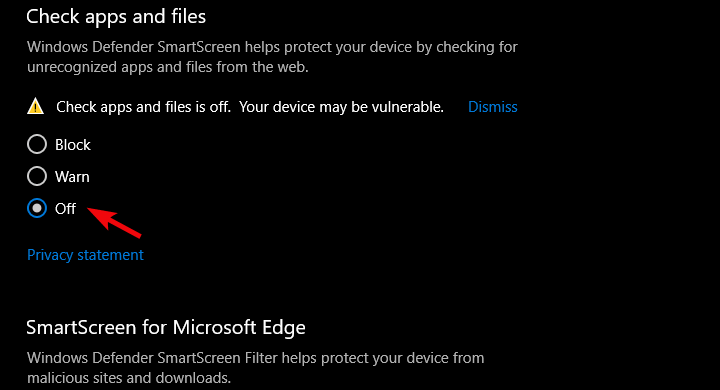
  3. Under the Check apps and files section, select Off.windows defender smartscreen prevented an unrecognized app from starting

On the other hand, if you’re tired of SmartScreen’s methods or have a third-party tool that deals with this kind of threat, you can disable it for good.

Since the introduction of Windows Security Center, you can disable this feature with ease. We made sure to provide you with the required steps above.

3. Install a better antivirus

Windows Defender is a first line of defense against any threats and it’s doing a decent job on that. However, as you can see, you can experience such annoyances and errors.

After you finish tweaking it by using our solutions, you should think about getting yourself a better third-party antivirus that will not bother you with these kinds of problems.

The tool recommended below is trusted by over 110 million users who installed it, so you know it’s a reliable solution.

Moreover, this software is focused on securing all your online transactions and will even take care of your privacy by blocking access to your webcam to any wrongdoers.

TotalAV

Forget about Windows Defender’s errors and notifications and get yourself a trusted antivirus now!
Check Price Visit Website

We hope that you managed to deal with the Windows Defender SmartScreen prevented an unrecognized app from starting warning and got rid of the annoying prompts that were distracting you.

If this built-in security solution is still giving you headaches, it’s worth installing one of the best antiviruses with unlimited licenses for higher protection.

Make sure to tell us whether this was a helpful read in the comments section below.

Investigations in personal conduct may have forced Bill Gates to leave board, says WSJ

After Bill Gates and philanthropist wife Melinda recently announced their divorce after 27 years of marriage, new reports are putting the Microsoft co-founder behavior with women into question. Yesterday, the Wall Street Journal revealed that Bill Gates’ departure from the Microsoft board last year followed an investigation over an affair Gates had with a Microsoft employee in the year 2000.

According to the report, the investigation started in 2019 after a Microsoft engineer revealed in a letter that she had an intimate relationship with Bill Gates. This led members of the Microsoft Board to hire a law firm to look into the matter in late 2019.

“Microsoft received a concern in the latter half of 2019 that Bill Gates sought to initiate an intimate relationship with a company employee in the year 2000,” a Microsoft spokesman told the WSJ. “A committee of the Board reviewed the concern, aided by an outside law firm to conduct a thorough investigation. Throughout the investigation, Microsoft provided extensive support to the employee who raised the concern.”

As Microsoft Board members became increasingly concerned about Bill Gates’ inappropriate relationship with this employee, Bill Gates was re-elected to Microsoft’s Board at the company’s annual shareholder meeting in December 2019. However, the Microsoft co-founder announced three months later in March 2020 that he was leaving the board to focus on his foundation, and the surprise announcement came before the law firm tasked with investigating the alleged affair had shared its conclusions with the Board.

A spokeswoman for Bill Gates confirmed the affair in a statement shared with the WSJ, but denied it was related to Gates’ departure from the Microsoft Board. “There was an affair almost 20 years ago which ended amicably,” the spokeswoman said, adding that his “decision to transition off the board was in no way related to this matter. In fact, he had expressed an interest in spending more time on his philanthropy starting several years earlier.”

The revelation of Bill Gates’ affair with a Microsoft employee may eventually impact the ongoing Gates divorce. To add fuel to the fire, a separate report from the New York Times published yesterday also shed the light on Gates’ reputation for questionable conduct in work-related settings, as well as his controversial relationship with Jeffrey Epstein.

Through his philanthropic work with the Bill and Melinda Gates Foundation, Bill Gates cultivated the image of an altruistic man who cared more about solving the world’s problems than enjoying his immense wealth. In their joint note announcing their divorce, Bill and Melinda Gates announced that they would continue working together on philanthropic projects, but that was before these latest revelations surfaced.

How to change meeting participant settings in Microsoft Teams

Whenever you set up a meeting in Microsoft Teams, there might be a set of default settings that are usually pre-selected for you by your IT Admin. However, if it is allowed by your admin, you can actually self-control some of the permissions that the folks in your meeting have and don’t have. You’ll be able to control if/when they bypass the lobby, who can present, and a lot more. Today, we’ll be showing you how you can do this in a variety of ways.

With scheduled meetings from your calendar

Teams Scheduled Meetings Options

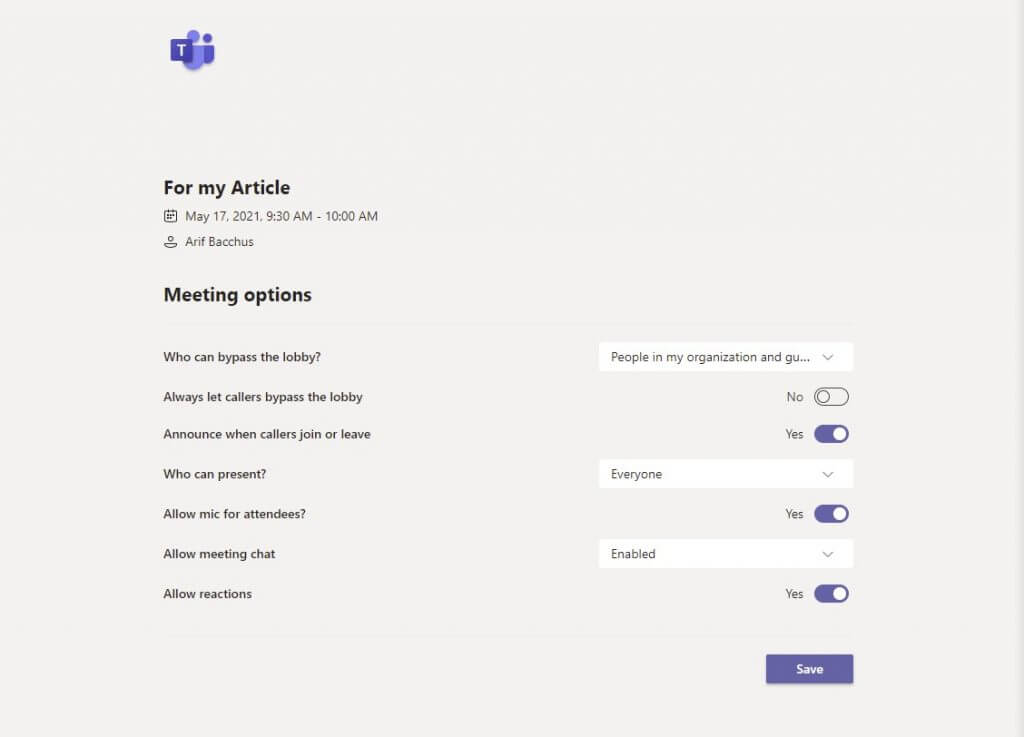
To change participant settings for a meeting that has already been set up and is on your calendar, all you’ll need to do is click the meeting on your Microsoft Teams calendar. Then, from there, click the Edit button. At the bottom of your screen, you should see a Meetings Option link. Select this by holding down the control key on your keyboard and then clicking on it, and then head into the link that opens in your web browser.

From that link, you’ll see the full list of controls you can tweak. We’ve highlighted these for you below. There are various options available under these controls, most of which either apply to everyone in your org, guests, people you invite, or only yourself. You can check the full controls in the drop-down menus.

  • Bypass the lobby: Change who can jump straight into the meeting without you having to admit them.
  • Always let callers bypass the lobby: A toggle switch to automatically admit people into meetings, without having to enter a lobby.
  • Announce when callers join or leave: Controls the popup on the screen for when people enter or leave the meeting.
  • Who can present: Changes who can share their screen during the meeting.
  • Allow mic for attendees: Controls if attendees can turn their microphone on during the meeting.
  • Prevent attendees from unmuting themselves: Good to avoid random noise and distractions in large meetings, you  decide when attendees can unmute.
  • Allow meeting chat: Controls the chat function, and if it is on or off.
  • Allow reactions: Controls the reactions feature.

Once you tweak a participant setting option for the meeting, you’ll need to click the Save button to save it and apply it. Of course, you can also change these controls mid-meeting, too, which is what we’ll get into next.

During a meeting or with instant meetings

Meeting Options In Meeting Teams

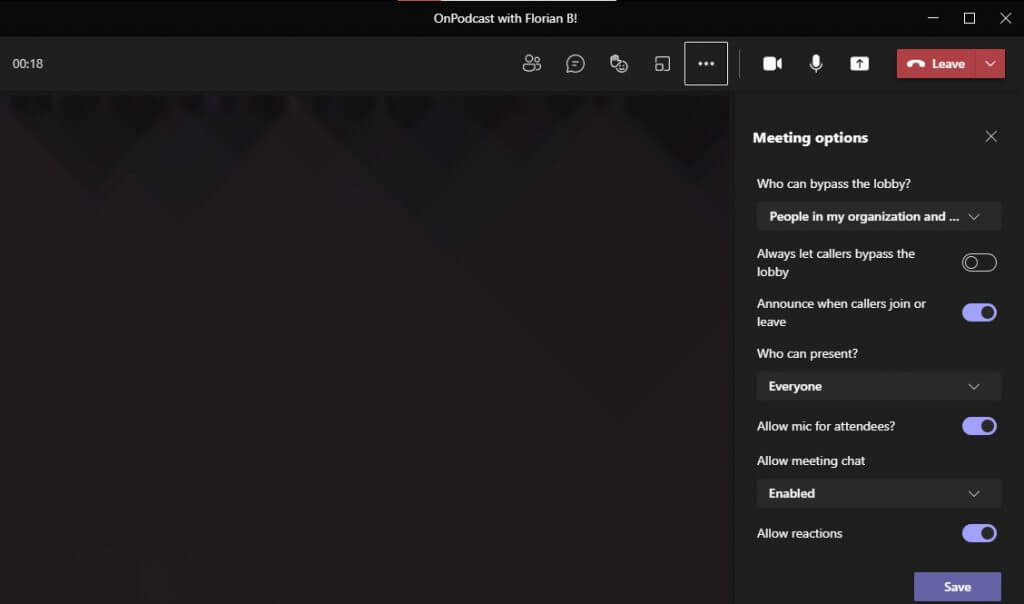
If you’ve set up an instant meeting, are in mid-meeting, and need to change your participant settings, then do not worry. You can easily tweak things to fit your way. During an active meeting, just select Show participants in the meeting controls. Then, from there, above the list of participants, you’ll want to select Manage Permissions. You can then access the same controls we mentioned above.

As an alternative, you also can get to these controls from More actions at the top of the meeting window. Then from there, you can select Meeting options. A panel will open on the right, and you can change your options right from there.

Just one of many ways to tweak Teams

This is just one of many ways that you can Tweak Microsoft Teams to be your own. We’ve covered other topics such as how you can plug Teams in with Google Calendar, settings to tweak to get the most out of video calling, and how you can engage with your coworkers through Yammer in Teams. We’ve always got your back and have you covered with lots of how-to guides, news, and more.

5+ best online eCard maker sites

Every time we have an important function or event, we think of sending our friends and relatives invitation cards. For so long we’ve been doing it the traditional way—via post or hand-delivery.

Thanks to the advancement in technology that we can now create and send the cards online. You can make electronic invites for wedding, birthdays, graduation party and more.

And since they are very easy to create and send via email or share across social networks, online eCards have become the go-to invitation card solutions for millions of people.

Creating online cards is not only convenient but fun too. Most of the online eCard maker sites provide beautiful and different templates for different occasions.

You will find templates for wedding cards, birthday cards, thanksgiving cards, success cards, mother’s day cards, father’s day cards, etc.

The best sites even give you the option to create a customized card of your own if you don’t like the templates provided.

Even better, some online eCard maker sites let you add background music, animations, and other special effects. We have assembled a list of the best eCard maker sites for you so you can easily create eCards.


What are the best online eCard maker tools?

Adobe Spark (editor’s choice)

Adobe Spark is another great software from Adobe and it is the best eCard maker when it comes to graphics, designs, presentations, and interactive banners.

It is one of the easiest and intuitive apps that come from Adobe with the ability to choose from tons of pre-made layouts.

Besides ready-made designs, it offers plenty of customization options on backgrounds, text, photos, music, and voice content.

Other features included:

  • Easy to understand interface
  • Low impact on PC’s components
  • Thousands of templates
  • Unlimited number of fonts and themes
  • Has a 7-day trial
Adobe Spark

Adobe Spark

Unleash your creativity and create wonderful greeting cards with the help of this professional tool.
Free trialVisit website

Canva Pro

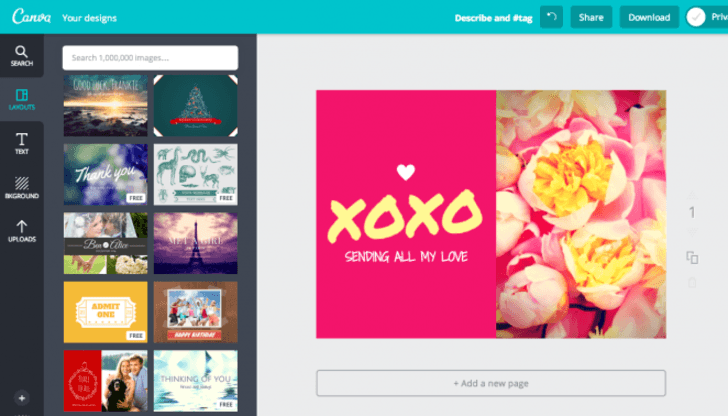
If you want your eCards to have a sense of touch and a professional feel, then you might want to try out Canva. This online eCard maker creates some of the most stunning eCards you see on the internet.

There are a ton of design templates and countless customization options. You can either upload your image or choose from a library of over 1 million photographs.

You can also change the background to reflect the occasion’s tone, choose from over 130 fonts, and even change the color of the text and text boxes to add extra flair.

And if you are not comfortable with the available design templates, you can use the inbuilt design tool to create your own. And the good news—it’s 100% free.

Canva Pro

Canva Pro

Customize your art-work with amazing templates and exciting fonts so you can create beautiful designs.
Free trialVisit website

Flipsnack

If you’re looking for a publishing tool that can do more than cards, Flipsnack is another excellent choice because you will be able to create a lot of types of products.

The editor tool enables you to create even magazines and brochures but also flyers, greeting cards and catalogs. And you can even upload your own PDF file and convert it right there.

After you’re happy with the result, you can download the work as a number of file formats including PNG, JPEG, PDF, GIF, video or HTML5.

Of course, you can make your material as engaging as you want with videos, buy buttons, and links. The result can also be published online.

Flipsnack

Flipsnack

Carry on with all your publishing needs easily with this great free online tool.

Greetings Island

Greetings Island carries the Oscar when it comes to designing online greetings and invitation cards. The website allows you to create free printable eCards easily and fast.

You can easily design invitation cards for any occasion you are planning, be it a birthday, farewell, anniversary, cheer up, wedding, house warming party, and more.

Many users have asked: is Greeting Island safe, and it seems that according to various Greeting Island reviews it is a safe site to use, so you don’t need to worry about bugs or malware.

The website doesn’t require any sort of registration or sign-up. All you have to do is visit the site and start designing your cards.

Greetings Island also allows you to design and share your cards online with whoever you want to invite to the occasion.

⇒ Visit Greetings Island


Smilebox

Smilebox is an easy and impressive way to reach out to your online friends and families with special messages that are beautifully crafted and richly layered.

With Smilebox, you can create beautifully designed eCards for wedding invitations, birthdays, anniversaries, and more. All the templates are beautifully designed, animated, and fully personalized.

You can add custom music, photos, and other special effects and Smilebox will let you preview your draft at any stage of creation.

Once the eCard is ready, you can share it via email or post to Twitter, Facebook, or on any blog free of charge. 

⇒ Visit Smilebox


123Greetings

123Greetings.com lets you create and send free eCards that are highly customizable, thanks to the integrated text editor. The text editor allows you to customize the templates with your own personal messages.

Once you are done designing, you can either send the cards immediately or schedule them up to 60 days in the future.

123Greetings allows you to send each eCard to as many as 100 recipients, making it ideal for those functions like weddings that require many invitations.

You get all these services at no cost. However, you can register for the 123Greetings Connect service that comes with additional new features such as reminders and also gives you an online address book.

⇒ Visit 123Greetings


Fleeting Greetings

Designed by Lucky Stairs Studio, Fleeting Greetings focuses on modern typography and the eCards are brightly colored to reflect the amazing art of electronic card making.

The amazing thing about Fleeting Greetings is that their cards are highly customizable and you can send them from your own email account. It also represents a great Greetings Island alternative.

Here you will find cards for all occasions, be it a birthday, wedding, thanksgiving, holiday cards among others. The entire process is very simple.

All you have to do is click a card of your choice and you will be brought to an editing page where you can customize your card as well as specify where you would like to send it.

⇒ Visit Fleeting Greetings


American Greetings

American Greetings is one of the most popular online eCard maker sites and its popularity is for a good cause.

The site allows you to create free printable eCards for several occasions like birthday, wedding, farewell, fresher, new baby party, Get well soon, anniversary, and more.

In addition to allowing you to easily create amazing designs, American Greetings enables you to post to social media or email those invitation cards to your online friends and relatives.

However, the site does require you to register first before proceeding to the card design page.

⇒ Visit American Greetings


Evite

Evite website offers an easy and reliable way to send eCards to your guests. Here you will find a universe of free invitation templates for weddings, birthdays, baby shower, parties, and all the seasonal events.

There is an integrated filter that lets you choose your preferred design based on different parameters so you won’t spend much time looking for the perfect design template.

Editing the card is simple and fast. The templates allow you to enter the details of your future event such as date, place, time, format, gift options etc.

The most amazing thing about Evite is its sending option. You can customize it to send you a notification when a guest replies.

⇒ Visit Evite


Online invitations have become so popular that physical cards are slowly becoming outdated. For years, the online eCard maker sites only provided services to those who were willing to pay.

But now an influx of online eCard maker sites have changed that stereotype, forcing even the earlier sites to either reduce the fee or go free.

If you haven’t used an online eCard maker site before, now it’s definitely the time to check out these sites. Hope you found this article useful. Feel free to comment and share.


  • Which software is best for brochure design?

Adobe Spark is a perfect app to help you create these materials. Don’t miss out on other amazing apps in our guide on the best brochure design software.

FIX: Razer Firefly not showing up in Synapse 3

Razer Firefly is an illuminated mouse mat that plugs into PCs. It shows up in Synapse 3 when detected. However, Firefly doesn’t show up in Synapse 3 for some users when that software doesn’t detect it.

There could be a software or hardware issue when Synapse doesn’t detect Firefly, and in this guide, we’ll show you how to fix that.

The issue may also happen if you do not have the latest updates of Synapse 3 installed on your machine. This can cause some mismatches and errors.

It is also possible that your antivirus itself detects false positives and causes the Razer Firefly not showing up in Synapse 3 problem.

What to do if Razer Firefly is not showing up in Synapse 3?

1. Update USB port drivers

Synapse might fail to detect Firefly because some of your PC’s USB port drivers are outdated.

To check and remediate the issue, you have two major options: check your drivers with Windows or with the help of an automated utility.

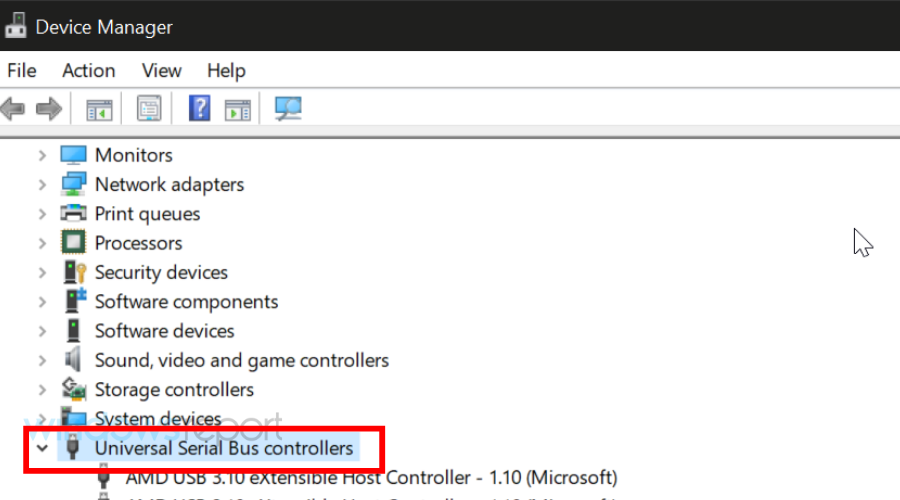
Here’s how to update your drivers with the built-in Device Manager:

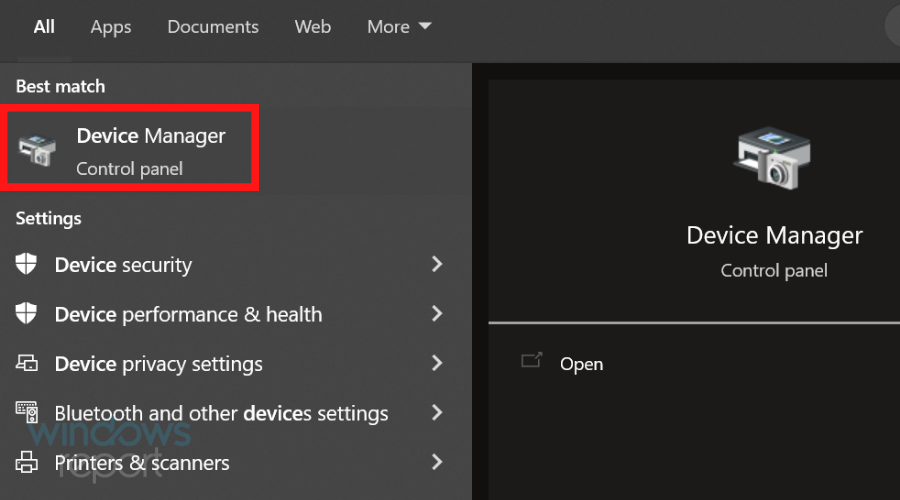
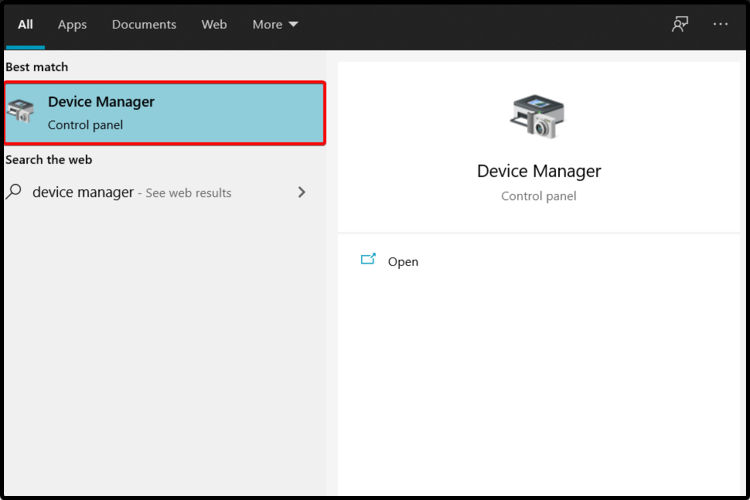
  1. Head to the start menu and type Device and open the Device Manager result.
  2. Locate your USB port drivers and select Razer Firefly from the list.
  3. Right-click on it and select Update.
  4. Wait for the process to complete, then reboot your PC and see if you can now use your mouse mat.

As we mentioned in the beginning, there is also an automated option. With the help of a third-party driver manager and updater tool, you will be able to keep all your drivers in check on a regular basis.

In this regard, we recommend you try Outbyte Driver Updater because it is secure, light, and easy to use.

To update your drivers with Outbyte Driver Updater, just select the specific driver, let the app scan it, and install and download the latest version available.

The tool can also update and maintain your drivers in bulk, so you won’t need to take care of them individually.

Due to the fact that it is pretty light, you can let it run in the background and update your drivers whenever necessary with no other effort on your part.

⇒ Get Outbyte Driver Updater

2. Plug Firefly into a different USB port

Try plugging your Razer Firefly into a different USB port. When you plug the mat into a different port, make sure it’s properly plugged in.

Don’t connect Firefly with your PC via a USB hub. If Firefly then shows up in Synapse, there’s most likely an issue with your PC’s other USB port.

These are some simple guidelines, but they can help you if Razer Firefly is not showing up in Synapse, so be sure to try them.

3. Update Synapse 3

  1. Look for the Synapse 3 icon in your system tray. You might need to click a little arrow on your taskbar to view system tray programs.
  2. Right-click the Synapse 3 system tray icon and select the Check for updates option.
  3. Click Check For Updates in the Window that opens.
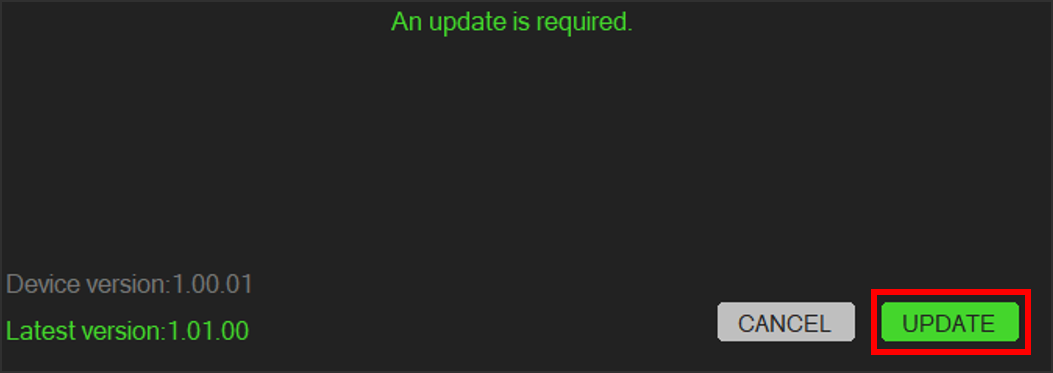
  4. If an update is available for Synapse, click the Update option.

If Razer Firefly is not showing up in Synapse, be sure to update the software and check if that solves your problem.

4. Repair Synapse 

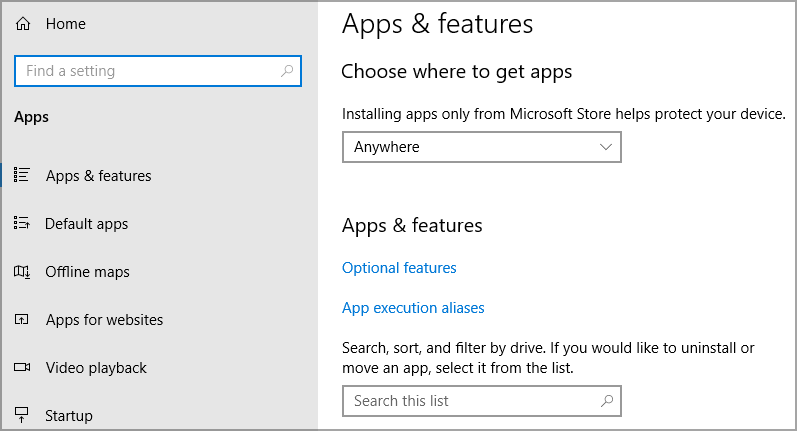
  1. Press the Type here to search taskbar button to open that tool.
  2. Input apps within the search tool’s text box.
  3. Click Apps & features to open the window in the screenshot directly below.
  4. Select the Razer Synapse 3 software in the app list.
  5. Click the Modify button, and select Yes on the UAC window.
  6. Then press the Repair option, which will reinstall the software.
  7. Restart Windows after repairing Razer Sypanse.
  8. Thereafter, you’ll need to sign in with your Razer ID again.

You can also uninstall Razer Synapse along with its residual files with the help of CCleaner. The tool has a built-in uninstaller to go along with its leftover file cleaning features.

5. Disable antivirus utilities

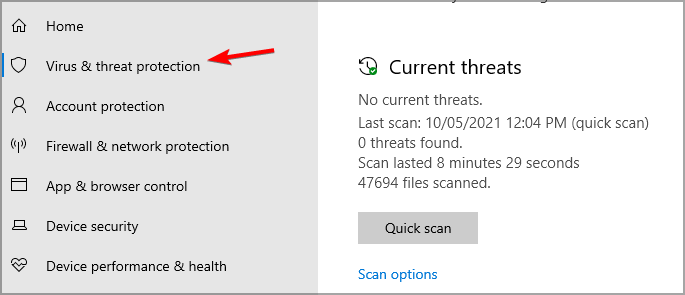
  1. Click the Windows Defender icon on your system tray.
  2. Then click the shield icon on the left side of Windows Defender.
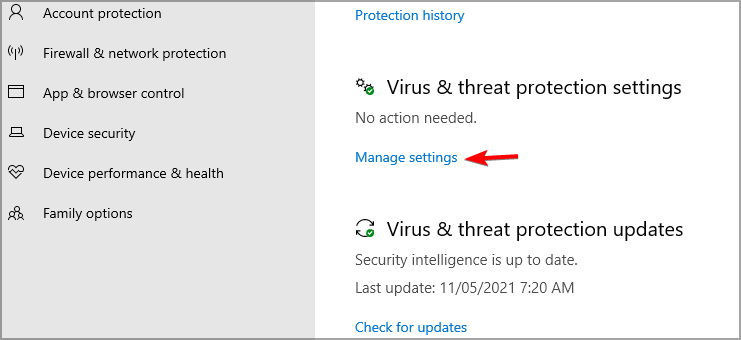
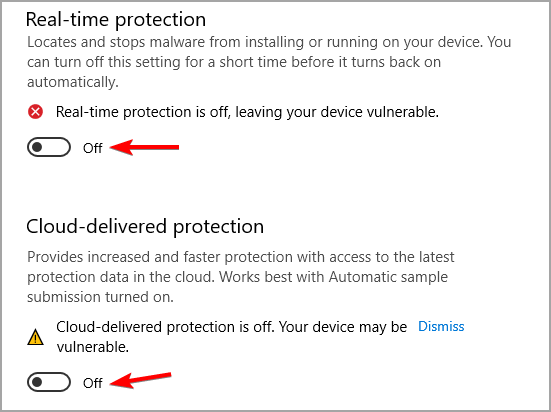
  3. Next, click Manage settings to open the options shown directly below.
  4. Toggle the Real-time protection option off. Turn off the Cloud-delivered protection setting.

If you’re utilizing third-party antivirus software, right-click the system tray icon for it. Most third-party antivirus software tools include disabling options on their context menus.

So, look for and select your antivirus utility’s disable context menu option to temporarily turn it off. After making these changes, check if Razer Firefly is still not showing up in Synapse.

6. Update the firmware for Razer Firefly

  1. Click the download link for the Razer Firefly Firmware Updater tool on the Software and Firmware Updates page.
  2. Open the folder you downloaded the Razer Firefly Firmware Updater to in File Explorer.
  3. Click the Firefly firmware updater file to launch that utility.
  4. Select the Yes option on UAC prompts.
  5. Press the Next button within the firmware updater tool.
  6. Connect your Firefly device to a PC when prompted.
  7. Press the Update button if a firmware update is required.
  8. Then wait for the update to complete.
  9. Press the Close button, and restart Windows.

If none of the above resolutions fix Firefly not showing up in Razer Synapse 3, you might have a faulty device. In which case, you can get in touch with Razer support via its Contact Us page.

If your Firefly is within its warranty period, you can return it to Razer for a potential replacement. This guide dedicated to Razer Synapse lighting issues is also worthy of your attention if the problems didn’t stop here.

Did you manage to fix the issue on your own, by using one of our previously detailed solutions? Share the one that worked for you in the comments below.

Fixed: Razer Deathadder scroll wheel not scrolling

Razer’s DeathAdder is a popular gaming mouse. However, recently tech forums have been abuzz with the Razer Deathadder scroll wheel not scrolling problem.

The scroll wheel on the DeathAdder can stop working completely or skip some inputs. The reason why the scroll wheel on your mouse is not working can vary, including outdated device drivers, mouse glitches, issues with the Synapse software, and hardware failure.

To help you troubleshoot the Razer Deathadder scroll wheel not scrolling problem, we have tested and listed a few fixes in the article below.

What can I do if the Razer Deathadder scroll wheel is not scrolling?

1. Update the mouse drivers 

If you haven’t updated your system for a long time, check if any device driver update is pending for the mouse. Firmware updates and new drivers usually bring bug fixes and performance improvements.

One way to update your Razer mouse device driver is to use the Device Manager. However, the easiest way to update all of your peripherals and system components is to use driver updater software automatically.

2. Reset Razer DeathAdder mouse 

  1. Make sure your Razer mouse is plugged in and flat on your mouse pad.
  2. Press and hold the Left-click, then the right-click and the mouse scroll wheel button for 7 seconds.
  3. After 7 seconds, release the buttons, and that should reset the surface calibration.

Your mouse pointers, scroll wheels and other functions may stop working if the mouse may have been incorrectly calibrated. A simple 7-second reset can fix this issue. After the reset, check if the Razer Deathadder scroll wheel not scrolling issue is resolved.

3. Repair Razer Synapse 

  1. Press the Windows key + R to open Run.
  2. Type control and click OK to open the Control Panel.
  3. Go to Programs and then click on Programs and features.
    Razer Deathadder scroll wheel not scrolling
  4. Locate and select the Razer Synapse from the list of installed apps.
  5. Click the Change button on top. This will load the Razer Gaming Software setup.
    Razer Deathadder scroll wheel not scrolling
  6. Click on the Repair button under the What Would You like to To Do section.
  7. The repair tool will download the required files to modify and repair issues with the software.

A quick repair should fix any problem with your Razer DeathAdder scroll wheel if it was due to a software glitch. However, if the repair did not help, try cleaning by installing Razer Synapse to fix the problem.

4. Clean install Razer Synapse 

  1. Press the Windows key + R to open Run.
  2. Type appwiz.cpl and click OK to open the Control Panel.
  3. Locate and select Razer Synapse from the list.
    Razer Deathadder scroll wheel not scrolling
  4. Click the Uninstall button. In the setup screen, click the Uninstall button to remove Razer software.
  5. Choose all the tools that you want to remove and then click Uninstall. Click the Yes/Remove button to complete uninstallation.
  6. Once uninstalled, open Registry Editor.
  7. Press the Windows key + R.
  8. Type regedit and click OK.
  9. In Registry Editor, navigate to the following location:
    Computer\HKEY_CURRENT_USER\Software\Razer
  10. Right-click on Razer and choose Delete. Click OK to confirm.
  11. Next, download and install the latest version of Razer Cortex and Synapse software from the official website.
  12. Once installed, restart your PC and check if the Razer Deathadder scroll wheel not scrolling; the issue is resolved.

Repairing and reinstalling the Razer software will fix any issues occurring due to corrupted software or glitches. However, the scroll wheel encoder failure can also stop the wheel from registering any user input.

5. Check for hardware issues 

Razer Deathadder scroll wheel not scrolling
Photo credit – Wiredchild/reddit

Hardware issues are a common cause of why your mouse scroll wheel may stop working. In case of a new mouse under warranty, reach out to the manufacturer to replace or repair the device. Don’t try to repair an under-warranty device, as self-repair will void your existing warranty.

For a DIY, you need to remove the scroll wheel and clean the contacts on both the wheel and the metal disk using isopropyl alcohol. Next, remove all the dirt and debris that is preventing the scroll wheel from contact with the encoder. 

After cleaning the components, put back the scroll wheel and see if the DeathAdder scroll wheel is working again. This can be risky, so do it at your own risk. 

The Razer Deathadder scroll wheel not scrolling problem usually occurs due to outdated drivers, Razer software glitches, or hardware failure. Try updating the driver, repairing Razer Synapse, or fixing the scroll wheel to resolve the issue.

Windows 10 news recap: Windows Insider Bug Bash returns, PowerToys gets a new bugfix update, and more

Welcome back to our Windows 10 news recap, where we go over the top stories of the past week in the world of Microsoft’s flagship operating system.

Microsoft announces new Windows Insider Bug Bash for the first time in ages

It’s been quite some time since the last Windows Insider Bug Bash, but it made a surprise return this week, running from 12th to 17th May, with spring-themed badges being up for grabs for completing quests.

PowerToys version 0.37.2 is out with bug fixes and stability improvements

A new update for PowerToys was released this week, version 0.37.2. It brought some bug fixes and stability improvements, with a relatively short changelog:

  • #11068 – Power Rename freezes & resets explorer.exe after latest update
  • #11162 – Event handle leak in PowerToys.KeyboardManagerEngine.exe

Powertoys

May Patch Tuesday updates are now available for Windows 10 versions 21H1 and older

New patches are available for Windows 10 versions 21H1 and older, bringing fixes and stability improvements, with the changelog noting:

  • Updates to improve security when Windows performs basic operations.
  • Updates to improve Windows OLE (compound documents) security.
  • Updates security for Bluetooth drivers.

Windows 10 Sign Logo NYC

That’s it for this week. We’ll be back next week with more Windows 10 news.

Microsoft news recap: 20 years of Xbox celebration plans, Outlook on iOS gets Apple Watch support, and more

Microsoft news recap is a weekly feature highlighting the top Microsoft news stories of the past week. Sit back, grab some coffee, and enjoy the read!

Microsoft invites fans to celebrate 20 years of Xbox throughout November 15

Xbox’s 20th anniversary is coming up this November, and Microsoft is inviting fans to the celebration. Alongside 20 years of Xbox, the Halo franchise is also celebrating its 20th year. Amongst the livestreams and social media hype, there’s also new official gear to commemorate the 20 years.

Xbox Halo 20th Gear Assort Jpg Crop

Microsoft Outlook app updates on Android and iOS with new Apple Watch support and spam filtering

The Outlook mobile apps on iOS and Android got a new update this week. For iOS, Outlook has gained support for Apple Watch, allowing you to quickly reply to emails with suggested replies, dictation, or scribble. As for Android, emails from outside of your organisation will now show a label, so that you can be more weary of it (if enabled by the organisation administrator).

Outlook E1499877013414

Microsoft tests Console Purchase Pilot for Xbox One owners looking for an Xbox Series X|S

In what appears to be a bid to stop so-called ‘scalpers’, Microsoft is testing a new system called Console Purchase Pilot, which allows Xbox One owners (limited to selected Xbox Insiders at the moment) to essentially claim first dibs on future console availability, in order to help those struggling to purchase an Xbox Series X or S.

Microsoft’s relationship with Xbox devs gets highlighted in Epic Games v. Apple trial

As the Epic Games vs. Apple court battle rages on, Microsoft has continued to come up during the discovery phase. This time, Microsoft has been shown to be requiring some indie game developers to enable xCloud game streaming support, or forfeit their game being published on the Xbox Store.

Cuj9cpe

This week in Microsoft Teams

Microsoft Teams to add a Restart option for Live Events

Live Events will gain the ability to be restarted. Currently, live events cannot be stopped and then started again, instead requiring a new one to be scheduled. The feature is expected to roll out next month.

New in-meeting sharing experience is now rolling out in Microsoft Teams

The new in-meeting sharing experience has begun rolling out. When sharing during a meeting, a new flyout will appear that aims to offer a clutter-free experience in order to make it easier to share.

Microsoft starts rolling out new Calling experience in Teams

Alongside the new sharing experience, a new Calling experience has also begun to roll out. The new experience makes it easier to find important features, such as contacts, call history, voicemail, and speed dial.

Microsoft Teams now supports Webinars for up to 1,000 attendees

Webinars with up to 1,000 attendees are now supported on Microsoft Teams. The Webinar system allows you to access attendee reporting and move data over to CRMs post-webinar.

Microsoft Teams now lets Meeting participants search for attendees in the roster

Meeting participants can now search through the attendees, making it easier to find people who are participating in the meeting.

Microsoft Teams will let you create group chats with external users this month

Expected to roll out to users later this month, it will soon be possible to create group chats with external partners.

That’s it for this week. We will be back next week with more Microsoft news.

How to disable the AutoRun feature in Windows 10

Autorun could be annoying sometimes. A lot of us don’t want movies or music files to play automatically when we insert CDs or USB flash drives.

So, if the AutoRun feature annoys you as well, we have a solution for you. In this article, you’ll find out how to disable the autorun feature with just a couple of tweaks in your Registry.

How do I turn off AutoRun in Windows 10?

  1. Use the Registry Editor
  2. Use a Group Policy
  3. Use the Windows 10 Settings menu

1. Use the Registry Editor

Whether you want to stop Autorun USB in Windows 10 or just turn off AutoRun CD, then this guide is for you.

Anyway, to disable AutoRun feature in your Windows 10 Registry Editor, follow these steps:

  1. In Search type Regedit and open the Registry Editor.
  2. Go to the following key: HKEY_CURRENT_USER\Software\Microsoft\Windows\CurrentVersion\Policies\Explorer
  3. In the right pane of the window create a new DWORD value NoDriveTypeAutorun and set its value to some of the following, based on what you want:
    • FF – To disable AutoRun on all drives
    • 20 – To disable AutoRun on CD-ROM drives
    • 4 – To disable AutoRun on removable drives
    • 8 – To disable AutoRun on fixed drives
    • 10 – To disable AutoRun on network drives
    • 40 – To disable AutoRun on RAM disks
    • 1 – To disable AutoRun on unknown drives

2. Use a Group Policy

There is also a second method that you can use to configure AutoRun — that is by using the Group Policy Editor. Here are the steps to follow:

  1. Go to Start > type gpedit.msc > double click on the first result to launch Group Policy.
  2. Go to Computer Configuration > select Administrative Templates > go to Windows Components.
  3. Now, you need to select Autoplay Policies > navigate to the Details pane.
  4. Double-click Turn off Autoplay to disable the feature.

3. Use the Windows 10 Settings menu

  1. Press the Windows key.
  2. Type in autoplay and select AutoPlay Settings.
  3. Under Use AutoPlay for all media and devices, move the slider to Off.
  4. Under the AutoPlay Defaults, for both Removable drive and Memory card select Do nothing.

That would be all, the annoying AutoRun feature won’t bother you anymore, but if you want to return it, you know what to do.

If you have any additional questions or suggestions, write to us in the comments below, we would love to hear your opinion.

Lenovo ThinkPad missing drivers [Complete Fix]

When it comes to Lenovo ThinkPad, we can strongly mention that it is one of the greatest laptops, being on top of the bestselling models for anyone who is looking for performance during digital work.

Drivers are an essential part of each computer, essentially creating a bridge between your hardware components and day-to-day use.

Most users reported that when navigating through Device Manager noticed the Lenovo ThinkPad missing drivers problem.

During this article, we will show you a series of options that will support you in order to fix this issue. Make sure you consider all the recommended solutions, so you’ll never worry again.

How can I fix Lenovo ThinkPad missing driver issues?

1. Install the latest Windows updates

  1. Go to Settings.
  2. Select Update & Security.
  3. On the left side, click on Windows Update, then select Check for updates.

2. Update your drivers

2.1 Use Device Manager options

  1. Open Device Manager.
  2. Expand the System devices list.
  3. Right-click on Intel(R) Smart Sound Technology (Intel(R) SST) Audio Controller and select Update driver.
  4. Select Browse my computer for driver software.
  5. Click on Let me pick from a list of available drivers on my computer.
  6. Select High Definition Audio Controller and then click on Next.
  7. Reboot the system when the driver is installed.

2.2 Use a third-party updater

Taking into consideration that constantly checking for updates can consume time, do not hesitate to try using a high-quality and efficient third-party software tool.

With a specialized program like Outbyte Driver Updater, you’re able to manage your laptop drivers with ease and install or update them with official manufacturers’ versions.

The user interface is pretty simple so you can easily interact with the platform, and just select the drivers you need to update or repair. Afterward, the software will run automatically.

3. Use Lenovo System update

You should also consider accessing the Lenovo System update official driver download link, in order to solve this annoying issue once and for all.

Several users confirm that checking for updates was the key to this annoying issue. Since you’re looking for an efficient solution, we recommend you try it too.

These were just a few options regarding how you can fix the Lenovo ThinkPad missing drivers error. Of course, the list can continue, but be sure that the recommended solutions are the best.

In addition, you should check a full guide about how to update drivers in Windows 10, so you’ll always keep your PC reconditioned.

Also, keep in mind that your feedback is extremely important for us, so please comment in the section below. Let us know which one of these alternatives worked for you.

How to Fix Microsoft Teams Error Login Hint is Duplicated [EASY]

When it comes to corporate work, collaborative tools are held in high regard since they help everyone stay in touch.

One very good example is Microsoft Teams, a neat and completely free collaborative tool that is also part of the Microsoft Office Suite but can also be downloaded separately.

Users log into it, and from then on, they can start communicating with colleagues, send files, and more.

Unfortunately, Microsoft Teams has the occasional glitch in the system, especially when it comes to login issues.

For example, users have been reporting that they are receiving an error message when trying to enter Teams:

I am struggling to connect to Teams today. The error switches between a 500 error or this: AADSTS9000411: The request is not properly formatted.

The parameter login hint is duplicated. I have tried clearing my Credentials in the cred manager and restarted both my PC and the Teams app. Any suggestions?

This issue is quite common, and that is why we decided to approach it with this step-by-step guide on how to fix it.

How do I fix the duplicated login hint error?

1. Clean your Windows PC of all Teams login credentials and cache files

  1. Exit Microsoft Team.
  2. Press Windows + R.
  3. In the search box, search the folder location and click OK to navigate to that location: %appdata%MicrosoftTeams
  4. Delete the items under: C:\UsersUserNameAppDataRoamingMicrosoftTeamsCache
  5. Delete all the items under the folder: C:\UsersUserNameAppDataRoamingMicrosoftTeamsApplication CacheCache
  6. Restart Teams.

Clearing all the cache from Teams will refresh the program and will hopefully solve this login problem for you.

2. Perform a clean reinstall

  1. Press Start and select Settings.
  2. Click on Apps.
  3. Search for Microsoft Teams in the list of installed programs.
  4. Uninstall the following two programs:
    • Microsoft Teams
    • Teams Machine-Wide Installeruninstall microsoft teams
  5. Once the uninstall is finished, delete all files from the following locations:
    • %LocalAppData%MicrosoftTeams
      %LocalAppData%MicrosoftTeamsMeetingsAddin
      %AppData%MicrosoftTeams
      %LocalAppData%SquirrelTemp
  6. Go to Microsoft’s Team’s website, download the client, and install it again.
  7. Reboot your PC.

Reinstalling Microsoft Teams should solve this problem completely so perform the steps above to do it.

You could also opt for an automatic tool to perform the uninstalling process faster and thoroughly. We recommend using this type of program because it removes all the files left in the Windows registry and system.

Over time, these files will clog your device and lead to overclocking or similar performance issues. Plus, dedicated uninstallers are able to completely remove stubborn and malicious apps in just a few clicks, without having any negative impact on your PC.

3. Enlarge Microsoft Teams and try again

  1. Launch Microsoft Teams.
  2. Close the window with the error message.
  3. Enlarge the Teams window and click on the Signing out link.
  4. Login to Teams.

This method is more of a bizarre workaround, but it has proven itself useful to quite a number of users so it’s worth trying it out.

4. Use the web app

This issue is very common when you’re using the Microsoft Teams desktop app. As such, if you encounter the duplicated login hint error, try using the Microsoft Teams web client instead.

By following any of these methods, you should be able to log into Microsoft Teams without encountering the login hint is duplicated error.

However, if you can’t manage to make Teams work or it still gives you headaches, you should take a look at our selection with the best telework software to get right now.

Which one of these methods worked best for you? Leave us a message in the comments section below.

How to migrate Windows 10 to SSD [Easy Guide]

How do I move Windows 10, 8.1 on SSD?

  1. Necessary hardware and software
  2. The steps to follow
  3. Windows 10, 8.1 on SSD: what you need to know?

Transfering OS to SSD

Have you been wondering if you can migrate your Windows 10, 8.1 operating system from a regular hard drive to an SSD? Well, the answer is yes, you can switch very easily to an SSD drive but you have to keep some things in mind like if your SSD drive has enough space on it to support your Windows 10,  8.1 operating system and the whole programs you have stacked in the Program Files of your Windows 8.1 system.

You can easily check how much space your Windows 10, 8.1 system takes by right-clicking the partition where you have the Windows and selecting properties. After that, you will know the space you need to have on your SSD drive in order to properly migrate your Windows 10, 8.1 over and the programs you have installed in the system. You can follow the tutorial below for a quick understanding of how to migrate your Windows 10, 8.1 to SSD.

Tutorial for migrating Windows 10, 8.1 to SSD

Well the SSD has a lot more advantages than the regular hard drive, the most important advantage is the speed at which it operates. The only disadvantage so far is the price seeing that these SSD’s cost a bit more than the regular drives.

Necessary hardware and software:

  1. First, you will need a USB to SATA adapter.
  2. Second, a thing you will need is a software capable of cloning your operating system. You can download this software by accessing the link below (this software supports Windows 10, 8.1 and 8).

Update: We recommend using Paragon Software to transfer your Windows OS to SSD. Please note that Migrate OS is now available as part of Drive Copy Advanced, which is a component of Hard Disk Manager for Windows.

The steps to follow:

  1. First backup your whole Windows 10, 8.1 system or the programs you have installed on it by copying them to an external hard drive. If any system error occurs during the migration it would be very good to have a copy of the original Windows 10, 8.1 somewhere.
    Note: For a system backup you can use either “Ghost” program or “Acronis”. Both programs work fine for Windows 10, 8.1.
    *Check now Acronis Backup program
  2. Connect the SSD drive via the USB to SATA adapter to your laptop or to the PC.
    Note: If you have a Windows 10, 8.1 laptop or PC, you have to plug it in the power socket to prevent any power downs during the migration.
  3. Now if you have installed Paragon program from the link above double click on the executable of the app.
  4. Left click on “Clone” feature in the Paragon program.
  5. After you left clicked on “Clone” you will have to select the HDD you would like to clone
    Note: The HDD should be the one you have the Windows 8.1 installed.
  6. Now the next thing is to select the “Destination disk:” which will be the SSD drive you have connected.
  7. In the lower left corner of the “Disk/Partition clone” window, you need to check the box next to “Optimize for SSD”.
  8. Left click on “Proceed” button in the lower right side of the “Disk/Partition clone” window to start the cloning process.
  9. When the cloning is finished you can close the program and shut down the Windows 8.1 PC or laptop.
  10. After the shutdown is completed you can unplug to old HDD you were using and plug in the new SSD drive.
  11. Now after your Windows 8.1 starts you will need to type in the start screen “Command”.
  12. A search should pop up for command prompt. Left click on it to open the feature.
  13. After the command prompt window is opened type In there “fsutil behavior query disabledeletenotify” without the quotes and press “Enter”.
  14. If you get a “0” as a return value then your SSD drive should work good, if you do not get a “0” value then do the steps below.
  15. Write in the Command Prompt window the following command:
    “fsutil behavior set disabledeletenotify 0” without the quotes and press “Enter” on the keyboard.
  16. Now write the following command: “fsutil behavior query disabledeletenotify” and press ‘Enter”.
  17. You should now get a “0” value.
    Note: The commands we have put in the “Command Prompt” window allows you to verify if TRIM feature is set to enable.
  18. Also, we will need to check if Windows 8.1 recognizes the SSD Media by typing in the start screen of Windows 10, 8.1 the word “Optimize”.
  19. Left click on the icon “Defragment and optimize your drives”.
  20. Now in the window that opened you will need to check if your SSD drive is recognized as a “Solid State Drive”.
  21. If it isn’t recognized as a “Solid State Drive” then do another reboot of the system and check again the status.

Windows 10, 8.1 on SSD: what you need to know?

Having an SSD might be a blessing, especially when it comes to operating data very quick and segmenting the sectors of your disks. Windows 10 can be installed on Intel SSD PCs without any issues and it works well after installing. If you cannot perform this action, you can check our guide that helps you when Windows 10 is not installing on SSD. If it is installed and starts, but is doing it slowly, check our article on how to fix Windows 10 slow boot on SSD.

So here it is, you now know how to migrate your Windows 8.1 operating system to a brand new SSD. For any questions on this article write us below in the comments sections and we will reply as soon as possible.

Fans still mourn Hotmail’s interface three years after Microsoft killed it

Microsoft launched Hotmail twenty years ago, and it proved to be one of the most successful products the company has ever rolled out. Despite that, three years ago Microsoft decided to replace Hotmail with Outlook.

When it comes to change, people’s first reaction is often to reject it — exactly what happened with Microsoft Outlook when it was launched. Hotmail users perceived the new email tool to be more difficult to use, and many switched platform, choosing Yahoo Mail or Gmail instead.

With time and more information, most Hotmail users learned to use Outlook and in a way got used to the idea that Hotmail is gone forever.

However, what it surprising is that even in 2016 — three years after Microsoft killed Hotmail — nostalgic users are still mourning Hotmail’s interface and wish Microsoft had never replaced it.

hate the new outlook format.

How do I get the old hotmail layout back ? I hate the new one. If your not a computer geek the new one is very hard and confusing. Not everyone can navigate computers

Another user backs up this opinion, sharing his own experience:

I am a 60 y.o. .non tech head.  2 weeks ago while overseas my hotmail account suddenly became outlook.   I HATE IT!!!!  It’s slow and clunky, I cannot do things that were easy, eg empty junk, it’s not user friendly where the old hotmail worked a treat. Why oh why do you force this change onto us ???

Thanks for the downgrade. …Do you have a10 y.o.  writing code?

We’ve scoured the mighty internet hoping to find a workaround allowing users to restore the old Hotmail interface but unfortunately, couldn’t find any.

Die-hard Hotmail fans have two options:

  • Accept that Hotmail is gone and learn to use Outlook.
  • If Outlook isn’t good enough, choose another email platform.

One thing is sure: you’ve got to move on. Microsoft’s decision is done and the company isn’t planning to miraculously revive Hotmail any time soon.

However, there is always an alternative to everything : there are so many other mail clients and apps that can replace you Hotmail. We would recommend you a wonderful mail client, which is Mailbird. It’s one of the leaders on the market and it’s very instinctive to use.

Stare into the future with the 21H1 update for HoloLens 2

With the main objective being the making of day-to-day usage of your HoloLens 2 more intuitive and customizable, Microsoft doesn’t stop tinkering.

So, without further ado, we can announce that Windows Holographic, version 21H1 is now available, judging from the official release notes.

What does Windows Holographic, version 21H1 bring new?

Designed for both end-users and IT admins, this update will greatly improve the experience that users report having while using HoloLens 2.

Through the plethora of updates that were brought to the table, it is useful to mention that the new, Chromium-based Microsoft Edge will now be available for HoloLens.

The good news is that it will now be the default browser for this device, fact that will offer users a better degree of compatibility and, also, will create less fragmentation for web developers.

The Settings app will also receive great enhancements and extra settings and features through the above-mentioned update.

Feel free to explore more options for Sound, Power & sleep, Network & Internet, Apps, Accounts, Ease of Access, as well as others.

Changing the color profile for your HoloLens 2 display with the display color calibration tool is just the start. Think about how resetting default apps using the default app picker would feel.

Also, enabling the Battery Saver feature, or Airplane Mode for your HoloLens 2 can also be done through the new and improved version of the Settings app.

You will surely be happy to hear that another one of the new additions that Microsoft is bringing to HoloLens 2 via the update is a Swype to Type feature, similar to the one you have on your mobile device.

The power menu will also be updated, allowing you to sign out, shut down and restart your device by simply tapping the user profile icon. If you have an update available, this is where you where you will see the notification.

For those of you who want to jump right into it, getting this update is easy. All you have to do is:

  1. Press Windows key + I to open Settings and select Update & Security
  2. From the Windows Update tab, click on Check for Updates

Multiple users now supported by HoloLens 2

There are, of course, people that use HoloLens and don’t mind sharing it. Now, there is absolutely no need to constantly retype usernames and passwords to change users

After installing this update, when selecting Other user which is located to the right of the PIN entry field, the Sign in screen will display multiple users with have previously signed into the device.

We continue to look towards the future and can’t help but wonder how will all this technology evolve in the next 10 years. We have to admit that what we’ve achieved so fat is pretty impressive.

Have you used the Microsoft HoloLens 2 holographic device? If so, tell us about your experience in the comments section below.

Celebrations for Xbox 20th Anniversary have started

Put your party hats on and let’s all rejoice in the fact that two decades have passed since Microsoft first introduced consoles to our lives.

This special event will be marked through many activities spread over a span of five months.

Xbox 20th Anniversary to be celebrated until November

Festivities have been kicked off with a special live video streamed on the Xbox Twitch channel, where the hosts discussed, with nostalgia, about two decades of console gaming and best off games.

How do you celebrate 20 years of Xbox in November? You get started in May.

Through the celebratory post on the Xbox news page, Major Nelson announced that May 13 is just the beginning of the anniversary celebrations, which will last until November 15th, and that there are many surprises in store for the fans.

This milestone was also marked by another important turning point in the history of Xbox gaming.

Since the achievements scoring system was first introduced, back in 2005, Xbox gamers have collectively unlocked almost a trillion Gamerscore points.

Lots of surprises for the fans

What kind of celebrations would these even be without festive apparel and chances to win amazing prizes? Well, Microsoft thought about that and they made sure that everything is on point.

The Xbox Gear Shop has been stocked with the latest and most awesome anniversary gear, available for anyone that wants to mark this special event by acquiring a souvenir.

Also, fans can sign up for the Xbox Fanfest bonanza! If you are asking yourself what that is, Fanfest is a combination of exclusive physical and digital events, content, sweepstakes, merch, and more.

By registering to this online event, you can unlock exclusives throughout Xbox hosted events, promotions, and curated online experiences hosted just for you.

20 years of Halo

You guessed it! There’s no secret in the fact that 2021 also marks the 20th anniversary for one of the oldest and most loved Xbox games of all time, Halo.

To celebrate this significant milestone, Microsoft offers fans worldwide a selection of free HD Xbox Anniversary and Halo Anniversary wallpapers.

All these wallpapers are compatible with Microsoft Teams and other video conferencing software and you can get them here.

The Halo series, a franchise deeply embedded into the Xbox DNA, will release a new game this fall, called Halo Infinite. This news has players thrilled and eagerly awaiting there next adventure.

If Microsoft managed to achieve all this in just 20 years, through the Xbox consoles, lets imagine where this journey will take us after another two decades.

Are you also celebrating 20 years of Xbox? Tell us you decided to mark this event in the comments section below.

The best 3 Internet of Things scanners to use

To start with a quick short definition, the Internet of Things is the inter-networking of physical devices embedded with electronics and software, that allows these devices to collect and exchange data. Basically, any device that can connect to the Internet, can be part of the IoT.

Since not all the devices that create the IoT network offer the same security level against cyber threats, the question of how safe the IoT network is rightfully arises.

Fortunately, there are various IoT scanners that you can use to enhance your network’s security. In this article, we’re going to list the best Internet of Things scanners currently available on the market.

Best Internet of Things scanners

Mirai Scanner for IoT

Kaspersky recently detectly the first Windows-based Mirai botnet. Keeping your IoT devices secured is now more important than ever, as Mirai is particularly fond of IP cameras, routers and DVRs.

Mirai threats also have a predatory-like behavior. They scans IP addresses, trying to guess the login credentials, and they even replace malware previously installed on devices.

Incapsula’s Mirai Scanner checks your gateway from outside your network in order to detect any access ports vulnerable Mirai attack. The scanner can only scan your public IP address.

⇒ Get Incapsula

Bullguard IoT scanner

Bullguard‘s solution checks if your internet-connected devices at home are public on Shodan, the world’s first search engine for Internet-connected devices. If the result is positive, this means that the public, including hackers, can access them.

Knowing if your devices are public on Shodan represents a warning sign, allowing you to take further measures to improve your devices’ security level. Moreover, details about the specific security issues are also provided.

BullGuard’s IoT Scanner scans your security cameras, baby monitors, Smart TVs and any wearables that may be visible to hackers. The tool can also provide you with an email report of the scan results that can help to further diagnose problems. Also, if you want to convince your friends to scan their IoT devices, you can share notification of successful scans with them.

⇒ Get IoT Security

Retina IoT Vulnerability Scanner

The Retina IoT Vulnerability Scanner offers you a clear picture of your IoT devices, revealing which ones are using default or weak passwords. Surprisingly, many users don’t even change their devices’ default passwords, which makes them extremely vulnerable to threats.

RIoT is available as a free tool for corporate/business use only. The tool identifies high-risk IoT devices and generate IoT vulnerability reports and remediation guidance. It can perform external scans of up to 256 IPs on an unlimited number user accounts. There is no software or hardware to install.

⇒ Get RIoT

Have you used other reliable IoT scanners that you think should be included on this list? Use the comment section below to tell us more about your experience.

Windows 10 mail app is now pinned to your taskbar by default

The latest Windows 10 build brings a bevy of new features and improvements, as Microsoft is preparing for the release of the Creators Update OS. Build 15002 marks the beginning of a wave of changes, and this trend will likely continue until April, when the Redmond giant is expected to release the Creators Update.

One of the recent changes involves the Windows 10 Mail app. Email is a fast and reliable communication tool, allowing you to stay connected with your friends and colleague.

Microsoft knows that Windows 10 users need to launch their email app very quickly so as to access the information they need as soon as possible.

For this reason, the Windows 10 Mail app is now pinned to your Taskbar by default. However, if you have another email tool already pinned to your Taskbar, the Mail app won’t get pinned.

Windows 10 Mail app is pinned to Taskbar by default

You may see the Mail app pinned to your Taskbar after updating to Build 15014. The Mail app is now pinned by default to the Taskbar starting with the Windows 10 Creators Update. If you unpin the Mail app after this change, it will not return. ADDED: If you have Outlook 2016 (or previous Outlook releases), Yahoo! Mail, or TouchMail pinned to your taskbar – the Mail app won’t get pinned.

For many users, pinning Windows 10 Mail to Taskbar can prove to be quite a challenge. There are many users who have experienced various issues when trying to pin Windows 10 Mail to Taskbar: the icon wouldn’t pin, there was no “Pin to taskbar” option, Pin to Taskbar was greyed out and more.

If you’re not a principled old-school mail user, you can always try another solution. We suggest you to check our list of mail clients and apps who can easily replace your Windows Mail app experience with another one.

Thanks to the latest Windows 10 build, you can now strike this task off your list.

Microsoft sneaks in a Friday Windows 10 Insider build with HDR improvements for creative apps

This was quite unexpected, but Microsoft has just released a new Windows 10 preview build for Insiders in the Dev Channel. The main change in the build 21382 is the new HDR support for creative apps that use International Color Consortium (ICC) display color profiles.

This new build also brings some minor changes for Device Manager, the Start Menu, and File Explorer. The new Segoe UI Variable font which made its debut in the build 21376 last week has also been applied to the Windows 10 touch keyboard in the build 21382.

You can learn more about what’s new, fixed, and still broken in the build 21282 below:

What’s new in Build 21382

Bringing HDR support to color managed apps

HDR mode changes the behavior of some creative and artistic apps that use International Color Consortium (ICC) display color profiles, such as Adobe Photoshop, Adobe Lightroom Classic, and CorelDraw (amongst others). In the past, these apps were limited to targeting the sRGB color gamut.

We have added a new feature that lets these apps get accurate color and access the full gamut of your HDR display. To turn this feature on, close your application, right-click the app’s icon and click in Properties > Compatibility tab and then under Settings select “Use legacy display ICC color management”. This flag only has an effect in HDR mode.

Application Properties window. HDR ICC compatibility tool can be enabled on the Compatibility tab, under Settings, by checking the “Use legacy display ICC color management” checkbox.

Changes and Improvements

  • As some Insiders have noticed, Device Manager now has the ability to view drivers alongside of devices. The new driver focused “Devices by drivers”, “Drivers by type”, and “Drivers by devices” views enable users to view, install, and remove drivers, while the new “Add drivers” action enables users to add and install new drivers across all applicable devices. Managing drivers directly is more intuitive in many situations than working with them by way of the devices they are installed on, so we hope that developers and power users alike will enjoy the added flexibility. This change was added in Build 21343.
  • The Start menu will launch to help people get to the apps they want quickly after a clean install or upgrade is finished.
  • We’ve updated the new generic folder icon in File Explorer so it will now show an indication when the folder has contents.
  • We’ve updated the touch keyboard to use the Segoe UI Variable font and made some small adjustments to the icons.

Fixes

  • We fixed an issue in the previous flight where after updating some devices unexpectedly showed a warning in the taskbar indicating the version of Windows 10 had reached end of service.
  • We fixed an issue impacting explorer.exe reliability.
  • We fixed an issue that could result in multiple hung SearchProtocolHost.exe processes.
  • We fixed a memory leak that could result in DWM unexpectedly using a lot of memory over time.
  • We fixed an issue resulting in certain notification toasts unexpected not firing.
  • We fixed an issue resulting in delayed audio playback on ARM64 devices.
  • We fixed an issue where the new unified audio endpoint work wasn’t displaying on ARM64 devices.
  • We fixed an issue that could result in certain games launching to a black screen in recent builds.
  • We fixed an issue where if you select the System option after pressing WIN + X it would just open Settings and not navigating to the About page.
  • We fixed an issue resulting in certain devices unexpectedly being listed twice on the Printers and Scanners page in Settings.
  • We fixed an issue that could result in Windows Update failing with error 0x80070003.
  • We fixed an issue that could cause pixilation when a colored mouse pointer was set to be a large size.
  • We fixed an issue where the cursive style for closed captions wasn’t displaying in the list on the Captions page in Settings.
  • We fixed an issue where Japanese touch keyboard in 50-on or 12-key layout could show a non-functional and broken text candidate.
  • We fixed an issue where incorrect spacing was applied when using the voice typing to type a parenthesis.
  • We fixed an issue where when using the handwriting panel to write Chinese, pressing the return key wasn’t committing the text.

Known issues

  • The Windows Camera App currently does not respect the default brightness setting set via the new Camera Settings page.
  • We’re investigating an issue where elements of Search (including the search box in File Explorer) are no longer displaying correctly in dark theme.
  • [News and interests] We’re investigating an issue where the flyout may occasionally flash in the top left corner of your screen after clicking the button on your taskbar.
  • During the upgrade and in the initial welcome screens when after first signing in after upgrading, you may unexpectedly see the text that appears to be displayed in Times New Roman font.

As a reminder, the Windows Insider team is also running a new Bug Bash until May 17, and Insiders can now participate by checking the different Quests in the Windows 10 Feedback Hub. New Quests will be released every day through May 17, and the most active participants will be able to earn some cool badges.

12 Best Software for Windows in 2026 (Improve PC Performance)

Being already in the middle of 2021, this might be a good time to add some new software to your Windows laptop or desktop. Of course, you could just persist with older software that you’ve already installed.

Still, you’ll miss out on the new tools and features in the latest releases.

Many publishers have already launched 2021 additions to established software series that include plenty of enhancements. These are some of the hottest Windows software to check out this year.

Must-have Windows software this year

Bitdefender Total Security – Low-resource

Update anti-virus software is essential to combat malware, and Bitdefender is one of the most efficient anti-virus utilities for Windows. Check for regular discounts at Amazon.

However, you can also add a freeware version to the Windows 10/8/7 and Mac platforms by downloading it from the official website page.

The latest Bitdefender has a revamped UI design and enhanced security modules.

The software utilizes a variety of scanning and detection techniques to stamp out malware, phishing schemes, fraudulent websites, ransomware, and more besides.

Bitdefender users can manually select quick and system scans, but the software’s Autopilot mode can take care of most things with minimal user input.

The software will scan your emails and USB drives and detect outdated software.

Also, Bitdefender will protect your privacy by preventing any intrusion into the cameras on all your devices.

Every Bitdefender product will be updated automatically, keeping up with the cyber threats.

Another good thing about Bitdefender is that it isn’t system resource-heavy, and with its gamer mode, you can temporarily suspend the software to reduce game lag.

Bitdefender Total Security

Ensure your PC security with high-end malware detection and removal.
Check price Visit Website

Private Internet Access – Fastest VPN source

A security software you should certainly save on your PC nowadays is a reliable VPN like PIA.

With this open-source VPN, you’re covered against many dangers online by choosing from numerous server addresses around the world.

You would need this fastest VPN of all for different online activities that require privacy filters to protect sensitive information.

To get a better idea, it’s possible to use the VPN to increase your connection speed while browsing. You have 10Gbps speeds and thousands of servers in 84 different regions.

There is no bandwidth limit so you can stream or access restricted content from other places without having data limitations.

You don’t need to worry about throttling and avoid connection issues with your Internet provider using strong VPN encryption.

Other worth mentioning tools can help you strengthen privacy with split tunneling or high-end encryption protocols.

Private Internet Access

Utilize this VPN software for speedy connection and the best privacy.
Check price Visit Website

PaintShop Pro

Adobe PhotoShop might be the industry standard image editor, but Corel’s latest PaintShop Pro is a slightly better all-around editor and design package that matches PhotoShop pound for pound.

PaintShop Pro is retailing sometimes at a discount on Amazon and (for the Ultimate version), it has better value than PhotoShop CC’s annual subscription.

The image editor has two versions, and PaintShop Pro Ultimate includes Painter Essentials 6, Perfectly Clear 3.5, and AfterShot 3. Also, as of 2019, it includes PhotoMirage Express.

You can run the image editor on 32 and 64-bit Windows 10, 8, and 7 platforms.

PaintShop is an image editor, graphic design, and photo organizer wrapped into one package.

The software includes 86 creative filters, which is a number few other image editors match.

You can utilize the software’s photo-editing tools to create panoramas, correct lighting, remove backgrounds, fix colors in photos, combine pictures with layers, fix lens distortion, and more besides.

Furthermore, you can set up High Dynamic Range images with PaintShop, which is an advanced tool Photoshop Elements lacks.

Aside from its image-editing toolkit, this is also decent graphics design software as it provides a plethora of paint, draw, and text tools.

PaintShop users can add transitioning color effects to pictures with gradients. You can use its vector graphics tools to set up smoother vector images.

So along with editing photographs, you can utilize PaintShop to design cards, collages, logos, social media images, posters, and lots more besides.

PaintShop

Have an improved photo editing software on your PC and benefit from the latest features.
Check price Visit website

Cyberlink PowerDirector 19 (suggested)

power director 17 software

Cyberlink PowerDirector 19 is cutting-edge video editing and DVD authoring software that’s usually one step ahead of the rest when it comes to incorporating tools for the latest video technologies.

It has multi-key sampling chroma key editing, which will help you to perform green screen editing like in Hollywood movies.

Also, it has frame-by-frame motion tracking, which ensures 100% accurate object tracking.

The products are sometimes discounted on Amazon,  and the full versions of the software are useful for professionals.

However, our readers can try the free version of this software directly from the links down below.

The Ultimate version includes more effects and templates than PowerDirector 18 Ultra. Both versions are compatible with 64-bit Windows 10, 8, and 7 platforms.

PowerDirector 19 is the best video editor for many as it packs in all the basic and more advanced editing tools but still remains an easy and straightforward editor to utilize.

The software provides a video stabilizer, chroma-key, audio mixer, masking, slideshow, motion tracking, multi-cam, automatic video creator, action camera, blending, audio ducking, and color match video-editing tools.

The latest version is embracing 360-degree video editing with its new 360-degree video stabilizer. PowerDirector 19 users can also add titles and images to their 360-degree footage for the first time.

PowerDirector 16 is also great DVD authoring software. You can utilize this software to set up both DVDs or Blu-ray discs that include your videos.

PowerDirector 16 includes a menu designer so that you can add unique menu layouts to the video discs. The software supports both 2K and 4K export, and you can export clips with 15 alternative video formats.

Furthermore, this editor also provides 25 optimization profiles with which you can optimize the videos for various devices. So PowerDirector is an ideal video content creation package for 2019.

Cyber Link PowerDirector

Take advantage of this AI photo editor for professional edits.
Check price Visit website

PowerDVD 21 Ultra (suggested)

Although you can play discs with Kodi, PowerDVD 21 Ultra is a dedicated DVD and video media player for Windows 10/8/7 that includes more extensive playback options and settings.

PowerDVD 21 is a top-notch DVD player that supports all the latest video technologies, such as 4K and 3D 360-degree video.

The software has Ultra, Pro, and Standard editions; and PowerDVD Ultra supports the most disc, video file, and audio formats.

Now, PowerDVD Ultra supports 8K videos, bringing the next wave in ultra-high definition entertainment.

The product may sometimes come with a discount on Amazon or on the publisher’s website.

PowerDVD 21 is a media player with massive format compatibility.

You can utilize the software to watch DVD, Blu-ray, DVD-R/RW, Ultra HD Blu-ray, Blu-ray 3D, 3D DVD movies, and AVCHD discs along with numerous digital file formats.

The software has a VR Mode so that you can watch 360-degree videos with VR headsets.

Its TV Mode and casting enable you to watch 4K video on 4K TV and cast video, music, and photos to Chromecast, Apple TV, and Roku.

The media player includes digital zooming, HD upscaling, hue, saturation, AB repeat, region changing, and subtitle playback settings.

PowerDVD 21 isn’t just a movie player either. You can utilize it to view 3D and high-resolution photo slideshows.

The media player supports a broad range of lossless audio formats, and PowerDVD 21 users can also rip songs from DVDs and extract soundtracks from movies.

PowerDVD 21 Ultra

Watch all your movies on Blu-ray using this ultimate media player.
Check price Visit website

Kodi

The main interface of Kodi

The Kodi media center was one of the software sensations of 2017, albeit also a little controversially.

The media center is controversial as you can stream so much media content with it, and that included exclusive Premier League matches until the FA clamped down on Kodi boxes.

However, this open-source media center is entirely legal so long as you don’t utilize it with Kodi boxes to watch exclusive subscription channels.

The software has established a huge user base since it became a mainstream media center, and you can run it on Windows, Mac OS X, Android, iOS, Raspberry, and Linux platforms.

Press the Windows button on this website page to add it to Windows.

Kodi is among the best software for 2019 because you can utilize it in so many ways. You can play video and music directly from DVDs, Blu-ray discs, and CDs or from media sources saved to your hard drive.

Alternatively, you can view TV and films with the media center’s streaming add-ons.

Some Kodi users add a TV tuner card to their desktops so that they can view and record live TV with the media center.

The software’s radio plug-ins can bring you thousands of radio shows.

You can also utilize the media center to import pictures and set up slideshows. So the versatility of Kodi is amazing.

⇒ Get Kodi

Glary Utilities 5 (suggested)

Glary Utilities 5 is an all-in-one system optimizer that’s ideal for Windows system maintenance.

This is one of the most efficient system maintenance tools with which to speed up Windows and fix software issues.

Even though there are paid versions and freeware versions, the freeware package is almost entirely the same as the Pro alternative.

The main difference is that the freeware version is not for commercial usage and lacks automatic updates.

You can add Glary Utilities 5 to Windows platforms from XP up by pressing the Download Now button on this webpage.

Glary Utilities 5 is among the most comprehensive system optimizers for Windows that includes more than 20 tools.

You can utilize this system optimizer to free up hard drive space, remove startup software, clean the registry, defrag the HDD, uninstall software, optimize RAM and uninstall drivers.

It also includes more advanced tools that enable you to recover deleted files, repair system files, purge malware and even split and join files.

So this is a very handy system optimizer that includes all the utilities you’ll need for Windows system maintenance during 2021.

⇒ Get Glary Utilities free 

LibreOffice 6.2.3

Office suites are among the most essential additions to any software library. MS Office 2016 might be the dominant office suite, but the open-source LibreOffice is a great alternative that doesn’t have any annual subscription fee.

As LibreOffice is a fork of OpenOffice, it’s much the same as that office suite; but LibreOffice is getting more regular updates.

The office suite is compatible with 32 and 64-bit Windows, Mac OS X, and Linux platforms; and you can download its setup wizard from this webpage. LibreOffice 6.2.3 is also compatible with more Windows platforms than MS Office 2016.

The LibreOffice suite includes a word processor (Writer), database (Base), spreadsheet (Calc), presentation (Impress), and drawing (Draw) applications.

That’s almost a full suite of office software, but it lacks an email client.

Those applications share many of the same options and tools included within the MS Office suite, and they are fully compatible with Office’s file formats.

The suite’s applications are also customizable as you can modify their menus, toolbars, hotkeys, color schemes, fonts,, and icon styles.

In addition, you can further enhance LibreOffice by adding extensions to it from the suite’s vast extension repository.

So unless you need to utilize an email client application or online web apps, LibreOffice is certainly a great value alternative to MS Office 2016.

⇒ Get LibreOffice

Firefox 57

Firefox 57 has played second fiddle to Google Chrome for a while now, but the November 2017 Quantum update has revitalized Mozilla’s flagship browser.

Fox is now an altogether snappier and more responsive browser with an entirely new rendering engine. So the new Firefox is the browser to check out it 2019.

You can add the browser to Windows 10, 8 and 7 by pressing the Download now button on this website page.

Firefox is now a significantly faster browser since the Quantum update, and that speed boost alone might convince many Chrome users to switch to Fox 57. However, there’s more to the Quantum update than just a new engine.

Firefox 57 has a revamped UI design with rectangular tabs, light and dark themes and a redesigned New Tab page.

A new Page actions menu includes Copy Link and Take a Screenshot options.

The browser is also more customizable than Chrome as you can add and remove buttons from its URL toolbar, select three alternative Density settings, add or remove a separate search box and even configure the title bar with built-in options.

Firefox 57 no longer supports legacy extensions, which reduces the number of add-ons for the browser.

However, you can also add Google Chrome and Opera extensions to Fox 57 with the Chrome Store Foxified extension.

As such, with Chrome Store Foxified and its WebExtension API, Firefox also has the widest selection of extensions.

⇒ Get Firefox 57

Microsoft Word

Word, Excel,PowerPoint Viewers

Word processors are probably the most essential applications for most folks, myself included.

MS Word 2016 is the industry standard word processor for Windows 10/8/7 that’s a benchmark for all other alternatives.

Although the MS Office suite includes this word processor, Word 2016 is also available as a separate $109.99 package.

UPDATE: MS Word 2016 is currently not available, but you can buy Office Home&Business 2019 for $249.99.

With Microsoft launching MS Office 2019 in 2019, a new MS Word 2019 will also be included with that suite.

MS Word is chock-a-block with options and tools for designing a wide variety of document types.

The software has an intuitive tabbed UI design that ensures the application’s primary tools and options are easy to access, which many users will probably prefer over the more conventional menu navigation.

Word’s Home tab includes most of its formatting options, such as bold, italic, underline, strikethrough, subscript and superscript, font drop-down menu, and bullet points.

From the Insert tab, you can select to add tables, images, online pictures, shapes, charts, screenshots, headers, footers, online video, symbols, equations, and more besides to documents.

Word users can add automatically generated tables of contents, bibliographies, citations, indexes, tables of figures, and captions to documents from the References tab.

You also get one TB of OneDrive cloud storage with the software, which is a great bonus.

⇒ Get Microsoft Word

Winaero Tweaker

Winaero Tweaker is among the best freeware programs for customizing Windows in 2019. For a lightweight 2.2 MB package, Winaero Tweaker packs in remarkably extensive customization tools.

It is essentially front end software for editing the registry, as many of its tweaks would otherwise require you to manually modify the registry.

You can run this software on Windows 10, 8 and 7 by clicking Download Winaero Tweaker on this page and then extracting its ZIP file.

Winaero Tweaker includes customization tools listed under File Explorer, Settings and Control Panel, Windows Apps, Window 8 Metro UI, Appearance, Desktop and Taskbar, Boot & Login, Get Classic Apps and Context Menu categories.

You can utilize this software to customize the Alt + Tab dialog, dialog window fonts, scrollbars, status bar fonts, window borders, add more transparency to the taskbar, modify taskbar thumbnails, and add new options to context menus, and much more besides.

So Winaero Tweaker is packed with loads of handy tools, and it’s a really straightforward to utilize as the software has an intuitive UI design and tells you what each tool does.

Winaero Tweaker also includes a Restore to defaults option so that you can quickly undo customizations. So it’s a great customization package for quickly tweaking Windows.

⇒ Get Winaero Tweaker

Object Desktop

Although you can apply many customizations with Winaero Tweaker, to really transform the Windows desktop check out Object Desktop 2019.

Object Desktop is the ultimate Windows customization suite that includes more than 12 apps to customize and enhance the desktop. The latest Object Desktop suite is fully compatible with Windows 10, 8, and 7; and the software suite is currently retailing at a discounted $29.99.

This YouTube video provides a brief overview of the customization suite.

The primary software of the Object Desktop suite are WindowBlinds, Deskscapes, Fences 3, Start 10, and Groupy; but the suite also includes IconPackager, WindowFX, Multiplicity, SpaceMonger and Tiles.

You can add entirely new custom skins to the desktop with WindowsBlinds.

Deskscapes enables you to add videos and animated backgrounds to the desktop. Fences automatically organize your shortcuts into groups.

Groupy is handy software with which you can merge open programs into single tabbed windows.

To add an alternative Start menu to Windows, which includes a search box, you can utilize Start 10.

You can also customize desktop icons, add animations and effects to program windows, free up storage space and add a new launch dock to Windows with other Object Desktop software.

Those are some of the best software for 2022 that you can now snap up during Amazon’s January sales.

Thus, the proprietary packages are currently available with discounts on Amazon and some of the publishers’ sites.

Firefox 57, Kodi, LibreOffice, and Winaero Tweaker are always great bargains as they’re freeware and open-source software.

Here’s How to Fix Something Went Wrong QuickBooks Online Error

When working in QuickBooks, you may get the Something went wrong error. This can happen, for instance, when you’re trying to drill down your customized profit and loss or when you’re trying to log in to QuickBooks online.

It can also occur when you are attempting to export data, for example, from your QuickBooks desktop version to the cloud.

What causes Something Went Wrong QuickBooks error? Well, there are several possible workarounds. And we will be looking at them shortly. But let’s first look at the causes of the frustrating Something went wrong QuickBooks error:

  • Browser Issues: Temporary internet files, cookies, browsing history, passwords, and data saved in your PC’s browser can sometimes interfere with QuickBooks.
  • Your Antivirus: Anti-virus settings may be blocking a connection to the Intuit website, making it impossible for you to log in causing the error to appear.
  • Computer problems: In some instances, the source of some of these issues is something in your computer and not QuickBooks itself.

How can I solve Something went wrong Quickbooks error?

1. Add Intuit.com to Your List of Trusted Sites

Making intuit.com a trusted site does sometimes help with this issue. You will need to change your current browser security setup like this:

Internet Explorer

  1. Open Internet Explorer.
  2. Click the Tools (gear) icon on the menu.
  3. Now select Internet options.quickbooks something went wrong internet options
  4. Click on the Security tab then on Trusted sites. something went wrong quickbooks trusted sites
  5. Now click on the Sites as shown.
  6. Type https://*.intuit.com under option Add this website to the zone. Click Add.quickbooks oops something went wrong add trusted site
  7. Click Close and Apply.
  8. Click OK now to exit the Internet Options.

Google Chrome

  1. In Chrome, click on the More icon (three horizontal lines) at the far right.quickbooks something went wrong chrome settings
  2. Select Settings and scroll down until you find the  Advanced. Click it.it looks like something went wrong quickbooks advanced chrome
  3. Click Open proxy settings.open proxy settings oops something went wrong quickbooks
  4. Repeat Steps 4 through 7 from the previous section.

Firefox

  1. In Firefox, click the 3 lines (Upper right) to open the Menu.Something went wrong quickbooks online firefox options
  2. Click on Options.
  3. Select the Privacy & Security tab.quickbooks error privacy and security
  4. Scroll until you view the Permissions tab and select Exceptions (near Warn you when websites try to install add-ons).quickbooks error exceptions
  5. Type https://*.intuit.com then click Allow.
    quickbooks desktop something went wrong
  6. Click save changes.

2. Use a private browsing window

Open a private browser window and use it to log into your QuickBooks Online. This helps overcome irregular browser’s settings as they might be the reason behind this unexpected behavior.

Edge

  1. Open Microsoft Edge.
    quickbooks error code inprivate window
  2. Click the Settings and More icon(three dots on the edge) and choose New InPrivate window.

Chrome, Firefox, and Internet Explorer

The following keyboard shortcuts should take you to an InPrivate/Incognito window (Start the relevant browser first).

  • Google Chrome: Press the keys Ctrl+Shift+N 
  • Firefox /Microsoft Internet Explorer: Press Ctrl + Shift + P 

Now visit https://camps.intuit.com/ from the private window. That may sort your Something went wrong error in QuickBooks.

You might also be interested in reading our guide on how to fix the QuickBooks payroll service connection error.

3. Clear Your Browser’s Cache

If the above doesn’t work, reopen your browser program and clear the cache. This removes all temporary internet files stored on your computer and potentially the irritating error.

Edge

  1. Start Edge.
  2. Go to More then Settings.quickbooks something went wrong settings
  3. Tap on Choose what to clear (Just under Clear browsing data).choose what to clear quickbooks something went wrong
  4. Select each checkbox next to every data type you desire to clear then click Clear.

Google Chrome

  1. Open Chrome.
  2. Click the More button (three dots at the top right).
  3. Click on More tools then Clear browsing data.quickbooks something went wrong clear browsing data
  4. Choose an applicable time range or All time.
  5. Select the data you want to erase.
  6. Now click Clear Data.clear data it looks like something went wrong please restart quickbooks

Firefox

  1. Click the Menu and choose Options.
  2. Click on Privacy & Security.
    clear data Something Went Wrong Quickbooks
  3. Under Cookies and Site Data area, click Clear Data.
    clear data Oops, Something Went Wrong
  4. Ensure you have marked the checkboxes in front of the Cookies and Site Data as well as cached web content then press the Clear button.

4. Swap Browsers

If you haven’t achieved any success yet, try using a different browser to access the QuickBooks online website.

This helps you avoid any browser-specific issues preventing you from reaching the website. For example, change to Chrome from Edge/Firefox and vice versa.

5. Disable your antivirus temporarily

The easiest way to counter restrictions placed by your antivirus software on QuickBooks processes is to switch off your installed antivirus temporarily. If necessary, check the procedure of disabling or at least tweaking your antivirus from your security software’s support website.

If that doesn’t help, consider switching to different antivirus software. Many great antivirus applications are on the market, so you should consider the best reliable antivirus.

6. Use a different computer or device

To rule out the probability that it’s your device/PC with issues, can you try to execute your required QuickBooks task from another machine?

There you go, these solutions can help you with Something went wrong QuickBooks error, so be sure to try them all.

5+ best license control software to manage software licenses

License control or license management is basically controlling and documenting where and how software run so as to check and enforce compliance with different End-User license agreements or software licenses.

It therefore means that license control software or license management software are tools or processes that companies and/or organizations use for this purpose.

Sometimes remembering all the compliance and agreements you signed up for is not easy to do individually, so this is where license control software does its magic, letting you save time, costs that may arise out of non-compliance consequences, and stress.

License control software also help the software vendors themselves to monitor compliance and ensure the company or organization is compliant with the developer’s software license.

These software also prevent copying, sharing, and/or illegal use or pirating of the developer’s software by non-licensed users.

For vendors, license control or management involves creating trials, license keys, product activation or deactivation, and much more.

In order to implement license control in your company or organization, there are some prerequisites that come in handy, including:

  • A software asset management (SAM) tool that record, store deployment details, and license details
  • A software license auditor tool that identifies the licenses deployed across your system network and reports the information to the central management engine
  • An asset inventory tool to account for the systems in your organization
  • Dedicated license controllers or managers, and compliance maintenance processes for 360-degree control over licenses

The process of implementation of license control involves obtaining details of all the procured licenses, identifying where the licenses are deployed, comparing purchase and deployment of licenses, and uninstallation or procurement of licenses.

Best license control software

  1. Snow
  2. Reprise
  3. Intelex
  4. Samanage
  5. Flexera
  6. License Dashboard

1. Snow

license control software

Snow is a license control software designed to reduce the risks, costs and complexities usually associated with software assets, and licensing.

This tool helps your company or organization avoid overspending on software entitlements and cloud resources, while ensuring fully compliance with the licensing rules. Its license manager provides a unified view of all software, cloud and hardware assets, license entitlements, and application usage metrics.

This means that multiple stakeholders in your organization can gain access to tailored reports so they can create ELPs (Effective License Positions) for software vendors, track software usage and expenditure, track cloud usage and expenditure, identify and monitor the use of deployed assets and cloud subscriptions, as well as identify opportunities for reduction of costs that come with licensing and support.

The benefits of using Snow license control software include digital transformation such that you get a detailed understanding of all your technology usage so you can align to your company’s business goals, a unified view of multiple assets across the network and cloud, datacenter optimization for simplified management of datacenter licensing, financial management, software recognition guarantee, built-in automation for automatic import of audit data from multiple inventory tools, and support for all key licensing types such as Microsoft, IBM, Oracle and many more.

You can also give tailored access for multiple users in different key departments such as IT, Procurement, Finance and Governance. Another feature of benefit is the automatic detection of unused software assets so you can see the potential opportunities for license optimization, deletion, or overspend and take action to reduce costs on the latter. It is available as a hosted cloud service and an on-premise solution.

Get Snow


2. Reprise License Manager (RLM)

license control software

This is an affordable, and easy to use enterprise-class license control software. It is flexible, and has the power to serve enterprise users ensuring your software is used within your specified terms and conditions.

Enjoy flexibility, simplicity, power and value for money as RLM provides all features needed and expected from an enterprise-class license control software. It is easy to administer whether on-premise or cloud, and lets you capture new customers and increase revenues by giving you the peace of doing your work knowing licensing is taken care of.

Features include a simple API that handles complex licensing models, mobility of licenses so you can move them easily, straightforward diagnostics from all licensed clients and servers, convenient trial modes convertible to permanent licenses later on, painless change of licensing even after software releases, multi-platform and operating system support, and automatic discovery of license service over a LAN network.

RLM can be used whether you’ve never used license control software before, or you use an in-house developed license control software, or a commercial one – RLM will help with the transition strategy.

Other features and benefits include efficiency, convenience and flexibility with added value to you and your customers. You can also access the RLMCloud feature, which is a hosted solution for managing licenses in the Cloud. With this tool, your customers need not install license servers on-site, as it is already enabled to use with no code changes, and you can deploy servers in Cloud or on-premise, as preferred.


3. Intelex

license control software

Intelex is a simple yet so easy to use license control software that lets you track critical dates and actions with so much ease, and ensures your employees are fully licensed at all times.

With this tool, you can centralize licensing data and tracking activities and associated renewal and expiry dates in one centralized system, which is accessible across work groups, departments and different locations. You can also ensure your licenses are always updated by automating email notifications and sending these to employees and supervisors for upcoming or overdue renewals to ensure 100% compliance.

Other features include viewing license statuses and related requirements, ensuring all-round annual audit preparedness by maintaining a historical record of all licenses possessed at any given time for reporting, avoid penalties and fines, eliminate time wasting and inefficient loss of money and resources, and also ensuring regulatory compliance by checking that all employees are in possession of the latest license requirements for their roles, and avoid associated costs from unlicensed workers.

Get Intelex


4. Samanage

license control software

This license control software lets you simplify, organize and automate the software license compliance processes in your company or organization. You can govern license compliance across your company with license tracking capabilities for maintaining long-term compliance, and enforcement of software usage policies for guaranteed security.

It also ensures you meet the IT audit requirements and lowers licensing costs, and non-compliance risks.

Features include a one repository control base where you can maintain proof of license ownership such as receipts, packing slips, reseller invoices and/or copies of all agreements, with easy reference in seconds to ensure compliance and create opportunities for cost improvement and negotiation leverage.

Get alerts on risks or gaps in your compliance status before they become huge problems, because this tool ensures you meet regulatory requirements, and minimize risk and exposure for your business from using unauthorized software. It supports Windows and other operating systems, plus you get a reports and dashboard so you can analyze your inventory and generate reports that can be exported to PDF or CSV formats.

Samanage tracks and monitors your contracts, software licenses and their requirements and/or restrictions automatically. It also tracks software titles installed across the entire company network and identifies changes over time, automatically stores and retrieves licenses, tracks changes in inventory and prepares your team for replacements or exchanges, gives reminders to ensure you don’t miss any expiration dates giving you time to renew contracts before they end.

You also get risk detection as Samanage scans your inventory to detect risky compliance gaps in your system network.

Get Samanage


5. Flexera

license control software

License control can be difficult due to the increasing complexity of software licensing agreements, and/or the lack of best practices for software license management.

Most companies and/or organizations don’t know they’re compliant until a software audit is undertaken, which has potentials for penalties, true-up expenses, and corporate embarrassments, and this is why you need a license control software that is thorough enough to check mistakes that can significantly impact the company’s profitability.

Flexera is a centralized software license management and license control software that reduces license compliance risk in your business. Managing such risk is a challenge owing to the complexities of the agreements these days and lack of best practices, plus issues like mergers and acquisitions, or cloud and virtual deployments exacerbate the problem.

The solution is a centralized license control or management process, and Flexera offers just that. Its benefits include leveraging the right information by integrating with existing business systems to aggregate and reconcile your inventory and data for continuous compliance and audit readiness. Centralized licensing and software operations, control over licensing operations, and constant improvement through monitoring and tracking of key performance metrics are other benefits Flexera offers.

Its license control solutions are automated, and support software asset governance to reduce risk by ensuring continuous compliance is maintained across the software estate.

Features include an app portal that enforces continual software license control and compliance while increasing employee satisfaction and service delivery efficiency, the FlexNet Manager Suite which delivers the information needed through reconciling accurate inventory of applications against actual usage and product use rights.

It also has the Workflow Manager which helps businesses manage the application readiness and software license optimization processes for streamlined procurement, preparation, deployment, and ongoing application management.

Flexera’s entire enterprise product portfolio work together to deliver unique value in managing application usage across the software lifecycle, through years of experience, industry best practice expertise, and deep knowledge designed to help you create and implement solutions for your business needs.

Get Flexera


6. License Dashboard

license control software

This is a simplified license control software that comes with automation and built-in licensing intelligence for the most accurate software and license management experience.

Build a license repository painlessly, import and validate license entitlements automatically, gather and cleanse audit data sets automatically, and schedule reporting of installs and licensing positions all in one tool. License Dashboard offers more than 60 inventory tools designed to integrate your audit solution to its license manager and manage all your software licenses faster and easily.

Features include seamless and automatic management of licenses, automatic collation and comprehension of licensing entitlements (which takes months if done by human hands), a market leading datacenter, virtual environment visualization, creation and exporting of reports at the click or touch of a button, and an intelligent dashboard and notifications for tips and advice on areas where investigation is warranted.

With this tool, you can also understand and assign user based licensing schemes and know who is assigned what, plus their entitlement to deploy across endpoints, thus resolves multi-user subscription aliases to one primary user account.

Also included is the ability to manage complicated vendors such as Oracle, SAP, and/or IBM, with their own workspaces that align their licensing rules with consumption data easily.

You can also get clear definitions of each license type and make strong recommendations for budget spend predictions, plus share the relevant metrics through the License Dashboard Portal, which is accessible to any and all your business stakeholders.

Get License Dashboard


Why license control software is important for your business

Being compliant in as far as licensing and software in your company or organisation is concerned involves more than just knowing the software installed and license agreements you have signed for. It also involves the licenses purchased, the limit of your license purchases, the details of the license usage rights and restrictions, as well as maintaining compliance while reducing related costs significantly.

As mentioned in most of the license control software tools above, the lack of best practice may lead to your organization incurring related and/or associated costs.

Best practice includes five basic steps you need to incorporate into your company or organisation:

  • Centralization of licensing operations so that multi-users gain one console view so as to manage and maintain licenses across the business enterprise
  • Leverage accurate usage data
  • Analyze reports of usage data by segmenting and analyzing by project or user group so as to gain insights on actual usage
  • Automation of licensing operations
  • Selecting the right license control software tools for easier management and increase of end-user satisfaction.

Have you found the best license control software for your company or organisation? Let us know what you use, or your favorite pick among the ones we’ve listed, by leaving a comment in the section below.

Healthcare Staffing Software: 5 Best to Use in 2026

Healthcare is the improvement or maintenance of health by using prevention, diagnosis, treatment of illnesses and injuries and other physical impairments.

Physicians and physician associates are part of the health professions – dentistry, nursing, medicine, optometry, etc. are also part of healthcare.

Many years ago, the only way to deal with your medical employees was to keep stacks of paper in folders. Apart from the fact that this option is wasting time and space, it is not sustainable from an ecological point of view either.

For this reason, different software providers have created automated software that simplify the management of your medical staff and clinic management while also reducing the impact of paper use on our planet.

In this article, we will explore the best software options on the market that allow you to manage your medical staff and offer other management tools for your business.

5 medical staffing software to better run your healthcare business

Akken Cloud

AkkenCloud -Medical staffing

Akken Cloud is one of the fastest growing staffing and recruiting solution providers for the healthcare industry in the world. Akken Cloud is continually improving by the constant addition of new features.

This application is a cloud-based human resource management (HRM) solution that helps you organize your staff and get a grip of your recruiting campaigns with ease.

One of the best features found in Akken Cloud is the employee self-service (ESS) feature. This allows your staff to log in and update information on the portal. The admins receive a notification when any requests or changes are made.

Another great feature is the employee onboard (EOB). This option allows you to easily manage employee records including assignment history, compensation and tax information. Once the information is recorded in EOB, it automatically gets reflected in the CRM record so you can easily keep track.

Akken Cloud also has a reporting and analytics feature that helps you create a variety of statistical reports in order to help your business grow fast. This solution also integrates third-party accounting and payroll options such as Quickbooks, Paychex, and more.

Key features include:

  • You can find qualified candidates faster.
  • You can engage your doctors and nurses with ease to use schedules and availability options.

Download Akken Cloud

Bullhorn

Bullhorn Staffing software

Bullhorn is another great staffing software option as it allows you to easily streamline your business’s operations.

This application can increase recruiter productivity by offering powerful automation regarding items like credentialing and working VMS jobs. With its features, Bullhorn improves the candidate and client experience giving you time to make better business decisions by using its great report features.

Bullhorn is a true cloud recruiting software built for healthcare that is always up to date with the latest features and also doesn’t require any sort of plug-ins or upgrades to work.

With Bullhorn’s easy-to-use interface it’s never been easier to interface, find, manage and place candidates into the required positions. It also has redeployment features that ensures that your roles will always be filled.

Bullhorn with Fyre Sync has been created to ensure you secure quality providers ahead of your competition. It automatically imports jobs directly into Bullhorn ATS, it has an automated and self-service facility mapping feature that can increase your productivity by eliminating the time needed to wait when releasing a report, facility request, etc.

Buy Bullhorn

Erecruit

erecruit - medical staffing software

Erecruit gives you a complete enterprise staffing software designed by staffing experts. The suit from Erecruit is suitable for front-office, middle-office, management system (VMS) and onboarding modules.

Erecruit Staffing Software was created to meet the needs of large, multi-region and multi-division staffing firms.

You can use Erecruit to create schedules, credentialing, facility management, etc. This program makes it easier that ever to keep up with your company’s priority listings, facilities, scheduling and credentialing in the most intuitive way possible.

Let’s explore Erecruit modules :

  • Front Office – Can be used for consolidating sales, CRM , recruitment capabilities.
  • Middle Office – This module is designed to increase operation efficiency and speed data entry and also combines front and middle office reporting that includes real-time commission calculations and margin analysis.
  • Vendor Management System (VMS) – You can easily manage client requirements and large pools of vendors allowing you to exceed service levels and even outperform client expectations.

Download Erecruit

Momentum

Momentum Medical Staffing

Momentum is another great medical staffing software option and can help you manage your business at a wide range of levels.

Momentum can be used anywhere with it’s web-based 24/7 access and can also sync schedules to iCal, Outlook and Google Calendar.

This application can give you advanced reports like :

  • Tracking assignments by staff, role, group
  • Easily compare schedules between staff members
  • Quickly track variation hours and allowances

Some other features of Momentum include:

  • Simplified scheduling
  • Appointment manager
  • Drag and drop features
  • Facility scheduling
  • On call scheduling
  • Physician scheduling
  • Self service portal
  • Staff scheduling

Download Momentum

Meditab Practice Management

meditab practice management -medical staffing

This application allows you to boost your efficiency with fully-integrated EHR, practice management and billing solution.

This Meditab app was designed by physicians and is an award winner because of it’s technology that adapts to your practice. Every aspect of this software is fully customizable.

Meditab Practice Management is easy to use and very powerful, offering you a great quality customizable software that is able to optimize your practice’s wrokflows, financial performance and coordinate quality care.

It can be used in the cloud or on the eeb but also as an installed application for Windows 10.

Key features include:

  • Appointment Management
  • Billing and Invoicing
  • Facility Scheduling
  • Multi-Location
  • No-Show Tracking
  • On Call Scheduling
  • Patient Records
  • Patient Scheduling
  • Physician Scheduling
  • Recurring Appointments
  • Self Service Portal
  • Staff Scheduling
  • Physician Management

Download Meditab Practice Management

Conclusion

In this article, we explored the best options for medical staffing management. The options presented in this list offer you specific services regarding medical staffing.

They also pack other very useful features to help you run your business no matter if it’s a small business or at an enterprise level.

Let us know which tool you chose from this list.

Windows Web Filtering Software: 6 Best to Use in 2026

The internet can be a magical place where you learn new amazing things and come in contact with new people from different cultures, everyone having something to gain from each interaction. Unfortunately, that’s just not the case most of the time. While the internet can be all those things, it is also a pretty dangerous place, especially for children.

Young minds should definitely not be able to see everything that’s happening on the internet, as they are very easy to influence.

Parents that are aware of this are very concerned about the well-being of their children and want to know how they can take precautions. Of course, banning your kids from using the internet might sound like a solution to all internet-related problems, but the internet is such a major part of today’s society that it will be pretty much impossible to do that.

Even some school assignments might have children go online to research stuff or use services. Fear not, concerned parent or person distraught with the vulgarity and obscenity that can pop up on the internet out of nowhere, for there is a solution: Online filters or internet browsing filters.

What are they?

Internet filters are services provided by various companies that restrict the level of access a computer has to online features. It’s the best way to make sure that your kids don’t see what you don’t want them to see and that content you don’t want popping up won’t pop up on-screen. In this article, we are looking at the top internet filter programs available for Windows right now.Net Nanny

McAfee

McAfee is a well-known company with many different branches. They also dabble in online filtering as evidenced by their presence in this list. That being said, there are definitely good qualities about this app, but there are also a lot of lackluster or inexistent features that prevent it from being a rounded and comprehensive security tool.

What you would expect

The app does come with the standard online filter app features that are the core of such a service. Parents can use it to put restrictions on their children’s internet activity and prevent them from accessing pornographic websites or even get into situations where they might get cyberbullied.

Keeping it in the family

As mentioned previously, McAfee has multiple branching which means that some users might already be using the company’s assets in some form. For instance, McAfee also provides more than competent antivirus protection so someone that is already using that service might benefit more from sticking with the same service provider in terms of extending to internet filtering as well.

Generally having all services on one platform could be very useful for keeping things organized but also ensuring integrations and connectivity between the different services. That doesn’t mean it’s a must-have scenario as you might benefit more from using a completely different provider.

Targeted blocking

A cool thing about McAfee is that it allows users not just to block websites based on their content and theme but also based on their URL. That means that there are fewer chances for a website to sneak through some loopholes and pop up right in front of your kids since you can specifically tell the software to not allow access regardless of your motives for doing so.

Good support

Some services offer great features but lack severely on the support side. With McAfee, users are privy to a well-rounded support service that includes all the necessary resources you might need. You can either look for an answer yourself in the FAQ or use live chat and phone support to get in touch with someone from McAfee. There is also a number of articles available which can be of great help in different situations.

⇒ Get McAfee

Net Nanny

Net Nanny is regarded as one of the best (for some, the very best) internet filter software.  There are many attributes that put Net Nanny on top, one of them being the fact that it’s very easy to use. When it comes to actual features, it comes with a lot of options that help parents filter pornography but also prevent cyber-bullying. It is truly a cyber-nanny and the many users that have tried it vouch for its efficiency.

Keeping track and reporting

Net Nanny comes with multiple options regarding how parents can track their children and more specifically their online activity. You can choose multiple ways in which data is sent to you and how you receive reports of what they’ve been up to online. There is even a social media feature that lets you track social media activity and also monitor messages they might receive. The service definitely does a good job of keeping a close eye on the kids’ activities.

Filtering

As mentioned before, Net Nanny is able to filter and block content, which is pretty much the bread and butter of any online filter. The ability to dictate what children are able to see and what not is invaluable for a parent these days and Net Nanny provides that very service. Content can be blocked completely so you don’t have to worry about your children accidentally (or not) getting exposed to pornography or other things online they should stay clear of.

⇒ Get NetNanny

Witigo

Witigo is another great solution for providing children with security and filters while they browse the internet. It has pretty much all the features you would expect from an online filter and definitely have seen with other similar services. However, it also has some features that set it aside from the crowd. Let’s take a closer look at what makes Witigo a solid pick for parents that want to protect their children.

Cloud service

Witigo can be downloaded and installed on a computer, after which it will begin providing security for that particular computer. However, there is also a cloud-based version of Witigo that users are privy to. The cloud version comes with some perks of its own, specifically the fact that you can manage multiple devices as once, not just one computer.

Through cloud technology, parents can keep an eye not just on their kids’ computer history and activity but also on their smartphones and other smart devices they might be using. It’s also compatible with Mac computers, which makes it even better from a Mac owner’s perspective.

2-step setup

Setting up Witigo isn’t necessarily hard but it’s definitely more challenging and tedious than other similar software. The main difference between Witigo and other software is that the former cannot be immediately used after installation. After downloading and installing the PC version, users must first install the mobile version on their phones.

After downloading and installing the PC version, users must first install the mobile version on their phones. Only then will they be able to use the PC version to track and scan. Once the installation is complete, however, users can safely and efficiently manage settings for all platforms.

27 different filters

There are many websites and themes that shouldn’t be available for children. The included 27 different filters help users restrict internet access to desired platforms, ranging from the obvious ones like pornographic websites to online games or gambling sites and even news sites. Some parents might want to prevent their children from being exposed to the harsh realities in the news, and having that option at the ready is a great feature.

⇒ Get Witigo

Surfie

Surfie is a pretty neat pick, but it has one big flaw that prevents it from being a higher priority when it comes to selecting an online filter service. Despite being a competent pick as far as features as efficiency go, the problem with Surfie is that it doesn’t really offer any support. The software was developed by Pure Site and the

The software was developed by Pure Site, and the developer doesn’t seem to be all that interested in maintaining a constant support line for users that might have problems or inquiries.  In fact, any Surfie user that runs into problems has to learn to make do with just the online user guide. There is also the option of sending the developer an email but that isn’t the most effective or quick method for getting results.

Super easy installation

Surfie is truly user-friendly from the practical perspective, and even though its user support infrastructure is severely lacking, it kind of makes up for it a little bit through how easy it actually is to set Surfie up.

Users are greeted by a setup wizard that takes over all installation duties and guides users through the step-by-step process. This way, no user can get confused or lost within the installation process. The wizard also sets up an admin ID for the user, which will be used to call the shots.

Chat monitoring

Surfie is a really good pick if your kids spend a lot of time on different chatting services. Skype, Facebook Messenger, Yahoo Messenger, and others are frequently visited by children, and the easiest way for them to get in contact with strangers that they shouldn’t have any contact with, to begin with. The software takes extra precautions to make sure that users are able to block all these services or restrict their kids from them as they see fit.

The bulk of the features

When it comes to Surfie as a package, it’s just as compelling as any other service with a wide variety of features and options that allow parents to monitor their children thoroughly but also to take action at any moment and in many different forms from completely blocking something to set time limits.

⇒ Get Surfie

CYBERsitter

CYBERsitter could have been better but it can definitely be a useful pick/ It depends strongly on how far you want to go in terms of internet filtering and restrictions. If you are looking to block websites or apply pornography filters, CYBERsitter is more than capable to help you do that. However, if you want the full package that also includes activity tracking and that sort of thing, you might need to look for it somewhere else.

CYBERsitter focuses real hard on providing one type of protection and that means that outside its comfort zone where it does very well, it’s quite a bit lackluster and feels incomplete. That being said, the software does not include cyberbullying detection, which should be a must-have feature in all internet filtering software. The ability to block out all potential negative content is very useful and CYBERsitter definitely loses a couple of valuable points thanks to that one.

Different filters

Since it’s an internet filtering app, you can depend on it to provide useful filters for online content. Users are free to choose what kind of content will and will not be allowed on screen. The program offers a pretty reasonable list of filters that can be used to block content, which is always a good thing.

Time management

A great feature that helps CYBERsitter raise the bar is its time management feature. This feature allows the user to set just how much time their children spend in front of the computer. It’s very important that kids learn to take all things in moderation, even the internet, and going outside to play and explore is crucial in their development.

Computers and the internet usually stand in the way of that, especially with newer generations so the fact that CYBERsitter provides that kind of support for parents is pretty awesome.

⇒ Get CYBERsitter

Norton Family

Norton Family is just as good as any of the other services highlighted in this article. That being said, it provides a solid list of features that many people find enticing. Norton, just like McAfee, is known for its contributions to the antivirus scene as well, being an elite antivirus service provider. The Norton services in regards to internet filtering are thus recommended by the company’s impressive record in keeping computers safe and protected.

In preparation of children browsing sessions

Norton Family allows users to prepare the computer and the inline environment for a child’s browsing session. This means that certain settings can be prepared so that kids can safely browse the internet without parents fearing what they might find.

Activity tracking and child protection

It has been long established that parents need to know what their kids are doing online. That being said, Norton helps parents learn more about their kids’ online habits and occupations. Staying informed is the best weapon a parent can ask for against alienation from their kids because when a parent knows what’s going on, they can engage in conversation a lot easier.

Additionally, kids are prone to revealing their real-life information way too easily online. Norton Family provides features that help parents protect their children’s information from people they interact with online but also from websites and platforms they might access.

Multi-platform

Norton Family can be used to protect and monitor all the platforms on which a child spends their time online, and at the same time too. That means that whether your kid is on the computer or on their tablet, you can keep track of what they’re doing at any moment.

⇒ Get Norton Family

FIX: DirectX 11 issues in FIFA 21 [Quick Solutions]

Many users are thrilled about FIFA 21. However, nothing is perfect, and this game is no exception.

Quite a few people encountered a major problem with DirectX 11 in FIFA 21. Usually, FIFA 21 starts in DirectX 12, but it makes the gameplay laggy.

Someone reported the following on the official EA forum.

Been waiting since release day, paying monthly for a service I can’t use…

Redownloading drivers (clean) doesn’t work.

Changing directx select doesn’t work.


Other users reported the DirectX function GetDeviceRemovedReason – DXGI_ERROR_DEVICE_HUNG error when playing the game on Origin.

Apparently, this issue appears when opening a FUT pack or when users receive penalties and the game freezes.

Fortunately, we have simple solutions to solve this issue, and today we will show you what to do if you encounter DirectX 11 or DirectX 12 problems in FIFA 21.

Quick Tip:

Year after year EA manages to polish this fantastic game series more and more, and FIFA 21 is the culmination of gaming technology.

Get it now and feel what it is like to be a world champion! We hope that you master its secrets and may the best win!

⇒ Get FIFA 21

How do I fix DirectX issues in FIFA 21?

1. Tweak a FIFA 21 file

  1. Go to the FIFA 21 folder.
  2. Open fifasetup.ini
  3. Change DIRECTX_SELECT = 0 to DIRECTX_SELECT = 1.FIFA 20 Crash change line
  4. Save the change and launch the game to see if FIFA 21 works properly.

2. Update or reinstall your video drivers

2.1. Update your drivers manually

  1. Press Windows + X
  2. Select and open the Device Manager
  3. Select Display AdaptersDeus Ex Mankind Divided a problem has occurred with your display driver
  4. Right-click on your PC’s display adapter and select Update driver
  5. Choose whether to let the troubleshooter browse the Internet for drivers by itself or if you want to browse your PC

2.2. Update the drivers automatically

A much faster and more efficient way to update your drivers is to simply use a third-party driver updater and fixer, and we recommend you give a shot to the recommended tool below.

This tool will not only download and install all of the latest drivers available for your hardware, but it will also do so in time, and without overloading your PC.

3. Repair the game files

  1. Navigate to the FIFA 21 app on your PC.
  2. Right click on the game and select App settings.
  3. Click the Repair button.

Repairing the game files also fixed this problem for some of the users so make sure you try it.

4. Reinstall DirectX and the game

If none of the solutions above worked for you, it’s time to think about reinstalling DirectX and the game itself.

It’s easy to do that from the Apps option in Settings. Just find DirectX and FIFA 21, select them and click the Uninstall button.

After that, install them again, one by one and hopefully, you won’t experience the freezing issues in FIFA 21.

As you can see, the solution for fixing the DirectX 11 error in FIFA 21 is very simple. However, some users reported that changing DIRECTX_SELECT from 0 to 1 helped only a bit.

We hope that our solutions helped you overcome the FIFA 21 Directx 11 problem and enjoy the game.

If the game crashes at launch, we have an excellent guide that will help you fix that problem too. The gameplay is not perfectly smooth even in the ultra-quality mode at 60 FPS.

Did you encounter this issue in FIFA 21? Do let us know in the comments section below!

Animal Shelter Software: 6 Best to Use in 2026

Running an organization is not an easy task and when it comes to organizing things in the proper way electronic software is the best. Although certain time ago they were unreliable as the machine can fail anytime but with the cloud integration everything happens to be safe, and we can trust these machines as we do with the properly documented copies in hand.

With proper animal shelter software, one can definitely increase the efficiency at which the organization works and streamline the various processes.

Although we need proper software to manage the whole animal shelter and take the control hence today we are going to let you know about the best Animal Shelter software available in the market.

Let us first enlist the best Animal Shelter software then we will talk about each of them in brief:

  1. Animal Shelter Manager
  2. Rescue Connection
  3. PetPoint
  4. Shelter Buddy
  5. iShelters

Animal Shelter software to install on Windows PCs

1. Animal Shelter Manager

 animal shelter software

The shelter manager for most of the part is one of the best software to manage any Animal Shelter. The application comes pre-loaded with some features such as generating adoption and other paperwork without actually typing, and also creates custom reports and graphs and also keeps a track on the medical, waiting list and all other things of the Animals.

2. Rescue Connection

Rescue Connection

This application comes in some variants, wherein we get Enterprise edition as the fully loaded one which has all the bells and whistles.

Other versions of the app have these feature in any of their version but not all the features, hence if you just need a couple of features from the list, then you can get the cheaper one which will be an excellent bet for the features and amount of control the application offers.

3. Pet Point

petpoint animal shelter software

This is a free application which comes with two in one solution. The application’s database is over the cloud but still, the application offers its software which happens to be the main working place, but you can monitor the graphs and the incoming and outgoing and health of animals from your home via just an internet browsing device. So it doesn’t matter whether the volunteer is at the office or off-site they can always access the database over the cloud.

4. Shelter Buddy

shelter buddy animal shelter software

This app also does the same which the above two app does; the functionality happens to be more or less the same, the app does its job well. The application is even well optimized to be working on Windows 10 which makes the application a great choice if you are looking for at-par safety. Here also we get more than one version of the application which is termed as enterprise and pro edition. The best part is that the application also offers a feature to schedule and manage a fundraising event which is very thoughtful indeed.

5. iShelter

This version doesn’t come with any software to be installed but will work with your existing web browser, which means the application has an online web-based solution which is also great, as you can log in from wherever you want.

The website is quite well optimized for Windows 10. This application is also a paid one, and you have to subscribe to a monthly fee of 2.5$ per month which is excellent for some features it offers.

These are some of the applications which happen to be the best in class Animal Shelter Manager application for Windows 10. You can try any of the application if you need to manage your Animal Shelter in a more organized way.

Microsoft starts testing Dolby Vision Gaming on Xbox Series X|S consoles

Microsoft’s Xbox Series X|S will soon be the first video game consoles to support Dolby Vision for Gaming. Xbox Insiders in the Alpha Ring will get early access to this new feature in an upcoming build to be released later this week, but testing will require a TV that supports Dolby Vision.

For those unfamiliar with it, Dolby Vision is Dolby’s proprietary HDR technology that delivers a better visual experience than the HDR10 standard that Microsoft contributed to democratise with the Xbox One S back in 2016. Xbox One and Xbox Series X|S consoles already support Dolby Vision for media content, but Dolby Vision for Gaming will be exclusive to Microsoft’s next gen consoles. All Xbox consoles also support the Dolby Atmos spatial audio technology.

“When you play in Dolby Vision, you unlock the most realistic and lifelike visuals the game has to offer, with brightness, contrast, color, and depth that goes beyond even traditional HDR games,” Dolby explains on its official website. With Dolby Vision Gaming, the company promises 40x brighter highlights and 10x deeper black levels compared to traditional HDR games.

Dolby Vision Gaming

The majority of high-end new 4K TVs now support both HDR10 and Dolby Vision, though Samsung is one of the rare manufacturers to ignore Dolby Vision in favor of the alternative and royalty-free HDR10+ format. We’re still waiting for Microsoft to share more details about which TVs will support Dolby Vision Gaming, and some models may require a firmware update to support Dolby Vision at 4K/60Hz and 4K/120Hz.

It’s also not exactly clear if support for Dolby Vision Gaming will require some work from game developers, or if it’s a system-level feature Microsoft can apply to all games running on Xbox Series X|S consoles. Anyway, the Xbox team deserves credit for its forward-thinking approach and Dolby Vision Gaming is another next-gen feature that Sony’s PlayStation 5 consoles won’t have.