Steel Division: Normandy 44 bugs on Windows 10/11 [Full Fix]

Steel Division: Normandy 44 is a tactical real-time strategy game that puts your military tactics skills to the test. You can play against AI enemies in a single-player campaign, or against several opponents in 10-on-10 multiplayer epic battles.

Many gamers report that Steel Division: Normandy 44 is affected by a series of technical issues. The good news is that the game’s devs already published a list of quick fixes to help you solve some of these bugs.

How do I fix the Steel Division: Normandy 44 issues?

Steel Division: Normandy 44 is a great real-time strategy, but it suffers from various issues. Speaking of issues, here are some problems that users reported:

  • Steel Division Normandy 44 keeps crashing, crash on startup – Crashing is one of the common problems that you can encounter with this game. This is usually caused by trying to run the game in fullscreen mode. To fix the problem, start the game in borderless window mode.
  • Steel Division Normandy 44 no sound – This problem can occur if there’s an issue with your audio drivers. In addition, check the integrity of game files and see if that solves the problem.
  • Steel Division Normandy 44 game did not terminate properly – This is a peculiar issue, but it can occur from time to time. However, you should be able to solve this problem by using one of our solutions.
  • Steel Division Normandy 44 low fps – Many gamers reported low FPS while playing the game. This can be a big issue, and to fix it, check your graphics card drivers and graphics settings.
  • Steel Division Normandy 44 lag – This problem can occur due to your antivirus or firewall. To fix the issue, be sure to add the game to the list of exceptions in your antivirus and firewall.
  • Steel Division Normandy 44 not loading, starting – If the game won’t start at all, the issue might be Visual C++ components. Simply install the necessary components and check if that solves your problem.

Solution 1 – Change your graphics settings

If Steel Division: Normandy 44 crashes after you change the graphics options, use these two solutions:

  1. When you see the prompt suggesting to use the last working configuration, select No. The game should automatically use the right options now.
  2. Change the graphics options one by one, but don’t modify the Shader Quality and Terrain Resolution settings.

Solution 2 – Check your antivirus

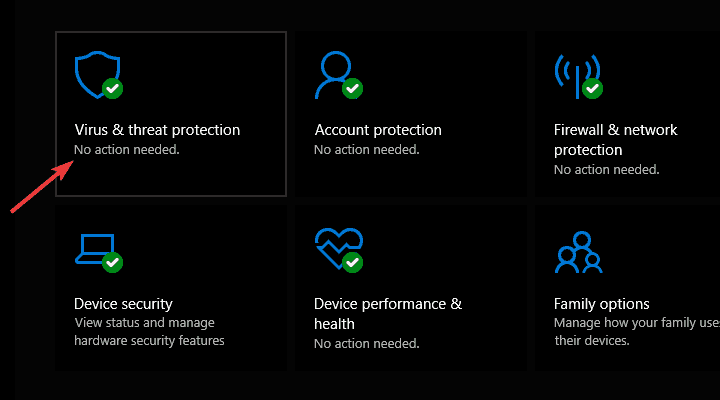
The most common cause for Steel Division: Normandy 44 issues can be your antivirus software, and in order to fix this issue, you need to add the game to the exclusions list in your antivirus and firewall.

If that doesn’t work, your next step would be to disable certain protection features and check if that helps. In addition, you can also try disabling your antivirus entirely.

In case that doesn’t work, you might have to remove your antivirus. If removing that solves the problem, you should consider switching to different antivirus software.

There are many great antivirus applications on the market, but if you’re a gamer, we recommend you try a suitable antivirus solution that works great in gaming mode.

These security utilities have a Gaming Mode feature, so it offers great protection without interfering with your favorite games.

Many users reported that Avast caused this problem to appear, but other applications can also cause it, so be sure to try this solution regardless of the antivirus you’re using.

Solution 3 – Run the game in borderless window mode

Many users reported various Steel Division: Normandy 44 issues, and according to them, they can’t even run the game in fullscreen mode. This is a strange bug, however, you can fix it by forcing the game to run in borderless window mode.

To do that, just follow these simple steps:

  1. Go to C:UsersUSERNAMESaved GamesEugenSystemsSteelDivision directory.
  2. Now locate the option.ini file and open it with Notepad.
  3. Now locate WindowFormStyle = 1 value and change it to WindowFormStyle = 2.
  4. After doing that, save changes and try to run the game.

By changing this one value, you’ll force the game to run in borderless window mode and the issue with the game should be resolved.

Solution 4 – Install the latest Windows updates

Sometimes Steel Division: Normandy 44 issues can occur due to missing updates. Windows 10 has certain bugs, and in order to fix those issues, it’s recommended to install the latest updates. Installing updates is pretty straightforward on Windows 10, and for the most part, the updates are installed automatically in the background.

However, you can check for updates at any time by doing the following:

  1. Press Windows Key + I to open the Settings app.
  2. Navigate to Update & Security section.
    Steel Division Normandy 44 lag
  3. Now click Check for updates button.
    Steel Division Normandy 44 keeps crashing

Windows 10 will now check for updates and download the available updates in the background. Once the updates are downloaded, they will be installed as soon as you restart your PC. After updating your system to the latest version, check if the problem is resolved.

Solution 5 – Reinstall Microsoft Visual C++ 2015 Redistributable

According to users, Steel Division: Normandy 44 issues can occur due to Visual C++ components. Sometimes your Visual C++ installation might be corrupted, and that can lead to various issues with the game. However, you can fix the issue simply by reinstalling Visual C++ components.

To do that, just go to the game’s installation directory and look for the vcredist folder. Inside the folder, you’ll find some setup files. Run the setup files and choose the Repair option. If available, you can choose the Uninstall option as well and then install Visual C++ 2015 Redistributable again.

Once you reinstall Visual C++ components, the issue should be completely resolved.

Solution 6 – Change your graphics card settings

Many users reported that Steel Division: Normandy 44 has some issues working with two graphics cards in SLI mode. However, you can easily fix that issue simply by going to the Nvidia Control Panel > 3D settings and selecting Do not use SLI technology.

Solution 7 – Remove problematic software

Sometimes Steel Division: Normandy 44 issues can occur due to certain third-party applications. Those applications can interfere with your game and prevent you from running it. However, you can fix the problem simply by removing the problematic application.

The common cause for this problem is Raptr Gaming Evolved software, and in order to fix the problem, you need to remove it. Once the software is removed the issue should be completely resolved.

There are several ways to remove this application from your PC, but the most effective one is to use uninstaller software, that works perfectly for this task. In case you’re not familiar, uninstaller software will remove the selected application, but it will also remove all files and registry entries associated with it.

By using uninstaller software, you’ll ensure that the application is completely removed, and prevent any leftover files from interfering with your PC. Once the problematic application is removed, try to start the game again.

Solution 8 – Remove option.ini file

Sometimes, Steel Division: Normandy 44 won’t run on your PC due to the option.ini file. If your configuration isn’t correct, you might encounter various problems, and the best way to fix those problems is to remove the option.ini file.

This is quite simple to do, and you can do it by following these steps:

  1. Navigate to C:usersSaved GamesEugenSystemsSteelDivision directory.
  2. Locate the option.ini file and remove it. Alternatively, you can move the file to your Desktop for same results.

After doing that, start the game and check if the problem is resolved.

Solution 9 – Verify integrity of game files

Steel Division: Normandy 44 issues can occur if your installation is corrupted. If that’s the case, the game won’t be able to load at all, or you might experience some different issues. However, you can fix the problem simply by verifying the integrity of game files. To do that, follow these steps:

  1. Open Steam and go to your Library.
  2. Now locate Division: Normandy 44 on the list, right-click it and choose Properties from the menu.
    Steel Division Normandy 44 game did not terminate properly
  3. Go to the Local files tab and click Verify integrity of game files button.
    Steel Division Normandy 44 low fps
  4. The verification process will now start. Keep in mind that the process can take up to 10 minutes, sometimes more.

Once the process is finished, the corrupted files will be repaired and the issue should be permanently resolved.

If you’ve come across other workarounds to fix various Steel Division: Normandy 44, feel free to list the troubleshooting steps in the comment section below.


Posted in Fix

Microsoft Teams to add a Restart option for Live Events

Microsoft is planning to add support for restarting Live Events in Teams. The feature was recently added to Microsoft 365 roadmap and will be available for both desktop and web clients.

Currently, producers can’t stop and restart the Live Event later, and they need to schedule a new event for attendees. With the new feature, producers or presenters will see an option to restart their Live Event after encountering a problem or accidentally ending it. As noted on the Microsoft 365 roadmap, the capability is expected to roll out in June this year.

Along with it, Microsoft is also adding the ability to opt-out of the multi-window producer experience for Live Events. The software giant announced multi-window support for managing Teams Live Events last month. However, it does not provide access to the Call Health Panel for now, and this issue could prove particularly frustrating for some users.

The company is recommending Office 365 admins to revert their tenants to the single view experience until the Call Health Panel is available in the end of June. “If you wish to continue with the current Multi-Window Producer experience there is nothing you need to do. If you would like to opt-out, please send mail to [email protected] with your tenant ID,” the company announced in a message on the Microsoft 365 Admin Center.

Microsoft Teams continues to thrive in this new hybrid workplace era. The firm has recently rolled out many new features, including a new Calling experience and support for interactive webinars for up to 1,000 attendees. The app has also introduced an option to share content directly from a mobile screen to Teams Rooms devices.

Browser Based Animation Software for Windows 10 & 11: Best 5

Animation software is becoming more and more popular these days. Such tools are not used just for fun, but they’re also gaining popularity in more directions as well.

For instance, we can use animation for other purposes such as running effective marketing campaigns or congratulating a friend of ours with the most creative animated video message.

There are plenty of software that can be downloaded to meet your expectations, and we gathered the best ones that you can currently find that you can use in your browser.

So, make sure to take a look at their best features and then make an informed decision that will make you happy and suit all of your needs. Good luck and have fun!

Quick Tip:

If you’re interested in working with animation and were wondering what browser would serve it justice, Opera One is something we can stand behind.

Opera One is based on the Chromium project, with a privacy and security focus. As for it’s features, this browser comes with a lot of built-in, amongst them we can find a VPN, an Ad blocker and a native AI.

Opera One

Use a browser with enhanced security features, built-in virus scanner and fast loading pages.
Free Download Visit website

What are the best browser-based animation tools to use?

Marionette Studio

Marionette is one of the smartest ways to animate characters and environments as well.

Using this fantastic browser-based tool, you will be able to unleash your full creativity and produce professional-looking animations even if you’re not the most advanced animation expert.

You will get a great chance of benefiting from an automated animation pipeline this way, you can create a great animation in no time.

You can check out even more amazing and exciting functionalities that are packed in this tool by heading over to Marionette Studio’s official website and taking a look around.

Take a look at the best features that are included in this software below:

  • You can experience the look and feel of an installed app straight from your browser with the enhanced GPU performance of Marionette
  • Using this tool, you will be able to drag and drop images in the editor and rename them in your own scene
  • You will also be able to define the frames that you find the most important for your animation
  • Marionette allows you to play and refine motions in the animations curve tool
  • You can follow the shape of your scene objects and define a sort of skeleton for them
  • You can save the animation as a video, GIF, image pack, or game engine
  • Marionette will allow you to export the animations in all kinds of formats and use them as you wish

Marionette

Check out one of the best tools to create amazing animations and export them in all kinds of formats.
Free trial Visit website

BrashMonkey’s Spriter

BrashMonkey’s Sprinter is another fantastic animation app that is packed with lots of interesting and exciting features. Animation creation will become a breeze using this efficient tool.

The character’s body parts can be easily rotated and moved. You will see that it’s much easier to make some tweaks that would otherwise be unnecessary during the gameplay testing.

Here are a few of the best features that you’ll be able to enjoy if you decide to try this tool:

  • To successfully use this software, you don’t have to be the most experienced game design artist
  • You will be able to spend less time polishing your game if you’re using this tool because it allows users to reuse various modular images.
  • If for instance, you will have to change the game’s character’s head configuration during the final design stage, you will see that this tool becomes your best friend
  • You only have to change a small bit of the image because the models are set to be used across various frames
  • Professional game designers will also find it really easy to deal with various tweaks
  • This tool allows fast creation of characters based on data from other characters

⇒ Get BrashMonkey’s Sprinter

Creature

Creature is another amazing animation software that is designed to add some amazingly fluid animation to all kinds of digital content that you may have.

If you decide to try this tool out, you will also get the chance of taking advantage of its Directable Automated Animation Engine and its robust workflow to produce exquisite animation effortlessly.

Learning this tool will eventually become a pleasant journey into the fantastic and fascinating world of 2D animation.

On the official website of this software, you will find lots of in-depth documentation on how this robust tool is used for the best results. You can also find there a few video tutorials.

Take a look at the fey features and main functionalities that are in included in this software:

  • Creature is the perfect tool for digital artists, game developers, and also web designers who want to add some magic to their content via animation
  • After trying out this tool, you will definitely reconsider everything you thought you knew about making 2D animation
  • The Directable Automated Animation Engine that we mentioned above is the tool’s core technology that lets users produce motion that you never thought was possible with traditional skeletal animation software
  • Using this software, you will be able to export your art in various formats that will be ready to enter your content
  • You can export your animation into image sequences. Movie files, sprite sheets, and more
  • Creature provides enhanced flexibility and power

⇒ Get Creature

Moho Pro 12

Moho Pro 12 is another goodie for digital artists and professionals. It’s interesting to note that it was used in the Oscar-nominated movie, The Breadwinner for the Best Animated Feature Film.

We believe that this says a lot about this tool’s amazing quality. The program is packed with a bunch of brand-new features that you will be able to analyze on its official website.

The best features include: Bezier handles, smart warp, enhanced freehand drawing tools, pin bones, realistic motion blur, the ability to animate more layers at the same time, and many, many more.

Check out the most exciting features that you will be able to enjoy while using this animation software:

  • This tool is ideal for professionals who desire a more efficient alternative to regular animation tools
  • It comes with an intuitive and effortless to use interface and a robust set of features
  • It’s optimized for animations, and it includes a professional Timeline, physics tools, motion graphics, 64-bit architecture, and more amazing features
  • The advanced tools that are provided by Moho Pro 12 will speed up your workflow significantly
  • The cutting-edge set of features packed in this software together with the powerful technology that it uses will offer users one of the unique pieces of software available

⇒ Moho Pro 12

Fusion Character Animator

Fusion Character Animator is a small but handy animation tool for Clickteam Fusion 2.5 that will facilitate the animation of 2D characters for developers.

This small software is excellent for generating animations frame by frame. It offers modules for managing the colors, pixels, creating motion, and for importing animations.

Even if this is a small tool compared to the more powerful ones that we presented above it’s still an excellent solution for creating animations.

Check out more key features included in this software:

  • You can use paint and draw tools and scaling functions as well.
  • Another amazing thing is that Fusion Character Animator comes with a collection of pre-built animations and the user will require only to supply images for each of the body parts because this small but intelligent tool will take care of the rest.
  • Fusion Character Animator is easy to manage, and the file manager can deal with easily generated pictures.
  • You will also get an additional control power the color palette.

⇒ Get Fusion Character Animator

These are the best five tools that we’re currently recommending for browser-based animation, and they’re all packed with lots of great and useful features.

It’s best to visit their official websites as well in order to be able to take a more in-depth look at their advantages before making the final decision that will best suit your needs and your skills as well.

5 best free game brightness software for better balance

While working on a computer system, brightness of the screen plays a major role. For the game fanatics, the right amount of brightness adds to the excitement and so, a game brightness software is what they need.

The better the brightness level of the screen, the better the gaming experience. On the contrary, too much brightness can also put that added strain to the eyes that can be harmful to the vision.

Therefore, for an enhanced experience, the screen needs a balanced configuration and extra relaxed settings. While brightness can be adjusted manually or automatically on a computer, it may not always offer the right balance.

Moreover, there are some desktop models that do not come with external controls for brightness or contrast. In such cases, all you can do is to adjust the brightness using the slider in the Windows power settings.

So, how to get that perfect brightness that’s easy to the eyes? We have handpicked some of the best game brightness software for Windows that come with advanced features.

Which are the best game brightness tools for Windows 10?

DimScreen

Best screen brightness apps for windows

DimScreen is a compact program that that helps change the screen brightness easily. The same can be achieved on laptops using two shortcuts such as Fn and two dedicated function keys.

But in desktops, such keys either don’t exist or they don’t work. Here’s where the app comes to the rescue.

One of its major advantages is that it does not need to be installed. The executable file for the software can dwell in any folder, for example, in the Home folder.

When the user right-clicks on the notification option, it opens up the selection menu for brightness. It features 10 different levels.

What’s more? Users can identify the option as the app lights up the menu automatically. This is especially eye-friendly during the nights.

The keyboard shortcuts come really handy, and these can be adjusted in the Settings option. These shortcuts work as a perfect alternative for the function keys in laptops.

Best of all, this game brightness software allows users to select the brightness level that gets enabled as it’s launched.

⇒ Get DimScreen

VibranceGUI

Best screen brightness apps for windows

There could be no better addiction than playing games on a bright Windows system and VibranceGUI enhances the overall experience.

This lightweight and easy to use software automates the NVIDIAs digital vibrance option and AMDs saturation for any game. Best of all, it’s VAC safe.

It can modify the digital vibrance level to the expected level during the game. Moreover, when users close the window or the game is not on, the vibrancy level is turned back to the original level.

What’s interesting is, that the software keeps running and monitors till users shut it down.

The app can be minimized to the tray, and can even autostart when the system starts. It allows users to configure in-game and the vibrancy levels in the Windows GUI. In addition, it allows users to save the adjusted data.

⇒ Get VibranceGUI

Gamma Panel

Best screen brightness apps for windows

Gamma Panel is a small and convenient program that allows users to configure the brightness and other settings (contrast, gamma) in real-time.

This game brightness software comes with a hot-key feature that lets users adjust the settings without leaving the game.

The software works a lot like the Color profiles in that of the PowerStrip. However, the program is absolutely free of cost and is more compact when it’s about the system load and the use of memory.

The best part about the software is that it’s straightforward, that is, it simply rests on the taskbar and carries out its functions.

The profiles can be applied in two methods – either by clicking the allotted combination of the hot keys or by choosing the entry from the popup menu.

The color profile that was last selected gets applied automatically when the next program starts running.

⇒ Get Gamma Panel

F.lux

Best screen brightness apps for windows

Whether a game fanatic or someone using the system on a regular basis for work, no one wants to be blinded by the computer screen. Computers screens are designed in a way that they are easy to the eyes during the day.

As it gets dark, the brightness needs to be adjusted based on the intensity of the light in the room.

What f.lux does here is that it helps the color of the system screen to adjust based on the time of the day. Further, it helps the screen color to get warm at night and match the sunlight during the day.

The program helps relax your eyes while working and even adds to the overall look of the screen.

F.lux helps the computer screen to match the room appearance at all times during the night. Interestingly, it matches the color of the screen match the indoor lights when the sun sets.

Best of all, back again in the morning, the color of the screen matches the sunlight.

⇒ Get F.lux

Desktop Lighter

Best screen brightness apps for windows

Desktop Lighter is software that allows users to easily adjust the brightness of their computer screens. This game brightness software for Windows can be especially useful in low-light environments.

It can also be handy when an increasingly bright screen strains the eyes of the users. Moreover, it is also helpful while reading large blocks of text, otherwise, it can be stressful for the eyes.

The best part about this software is that it does not need to access the control panel anymore. This helps to adjust the screen brightness manually. Users can identify an icon on the toolbar placed at the bottom of the page.

Users can click on this icon to open up a window that shows a sidebar. All the users need to do is to slide the bar to the left or the right side. This helps in adjusting screen brightness.

In addition, it allows users to preset the program to work in accordance with the hotkeys. Alternatively, users can also enlarge the entire window making it easier to read.

⇒ Get Desktop Lighter

A game brightness software is not just designed for games, but for the overall appearance of the computer screen.

So, whether you play games, or simply want to adjust the screen brightness for daily use, these 5 programs are perfect for all situations.

Play NBA 2K21 and Ride on the Edge 2 on Xbox Series X and Xbox One for free this weekend

NBA 2K21 and TT Isle of Man: Ride on the Edge 2 are both free to play on Microsoft’s Xbox Series X and Xbox One consoles this weekend for all gamers with an active Xbox Live Gold subscription.

Both video games will be playable in full doing the promotional campaign which is set to end on Sunday at 11:59 p.m. PDT.

Here’s the game description, trailer, and store link for each title:

NBA 2K21

NBA 2K21 is the latest title in the world-renowned, best-selling NBA 2K series, delivering an industry-leading sports video game experience on Xbox One. With extensive improvements upon its best-in-class graphics and gameplay, competitive and community online features, and deep, varied game modes, NBA 2K21 offers one-of-a-kind immersion into all facets of NBA basketball and culture – where Everything is Game.

TT Isle of Man: Ride on the Edge 2

Without a shadow of a doubt it is one of the most dangerous motorbike races in the world. In TT Isle of Man – Ride On the Edge 2, you prove your worth in different championships before setting out to conquer the Snaefell Mountain Course, a 60 km-long track with both winding and straight sections that will push your riding skills to the limit. TT 2 features 17 additional tracks, 18 different motorbikes including classic models, and the official riders. And now it’s more realistic than ever, thanks to entirely revamped physics and faithfully reproduced rider movements. Fine-tune your motorbike, upgrade its performance and monitor its data in real time so you can stay competitive. TT2 also offers a brand-new open world, a biker’s paradise where you can test your bike settings and gain the experience you’ll need to win the TT Isle of Man title!

Which game are you going to play this weekend? Let us know in the comments below.

NBA 2K21
NBA 2K21
Developer:
2K
Price:
Free


Best ISO Software for Windows 10 [2026 Guide]

In order to backup your CDs, DVDs collection or your operatin system, the best way to do it is to use specialized software that allows you to create virtual CDs with your data.

This type of software works by creating a virtual CD/DVD drive that you can use to mount virtual images to it and restore data from an image file.

In this article, we will explore some of the best options on the market that allow you to store and extract data from ISO files.

Which are the best tools to mount ISO images in Windows 10?

PowerISO

Topping off our list of best ISO mounting tools is none other than PowerISO, a tool that can open, extract, burn, create, edit, compress, encrypt, split and convert ISO files, and mount ISO files with internal virtual drive.

Despite the name, PowerISO doesn’t just handle ISO files, it can manage all kinds of virtual disk image formats, including BIN, NRG, CDI, DAA and so on.

Basically, it doesn’t matter if you want to make a copy of an audio disk, burn data on a DVD, or create a mountable copy of your favorite games since PowerISO can do them all.

The interface is intuitive and familiar, and the program can be used not only to create new ISO images but also to edit existing ones, such as adding or deleting info from them.

Here’s a brief overview of what PowerISO can do:

  • Create ISO files
  • Edit ISO files
  • Extract ISO files
  • Burn ISO files
  • Mount ISO files
  • Burn audio disks
  • Audio CD ripper
  • ISo & BIN converter
  • Create bootable USB drives, and so on…

⇒ Get PowerISO

Daemon Tools

Daemon Tools in an incredibly versatile and easy to use tool that, among other features, can create a virtual hard drive on your Windows PC to which you can mount as many ISO image files as you want.

Daemon Tools comes in a wide range of versions, each designed specifically to suit different needs of customers.

With Daemon Tools Lite, you can mount disc images,VHDs and TrueCrypt files, can grab images from physical discs, organize your images library, and can also emulate 4 DT/SCSI devices.

Daemon Tools Pro is an advanced imaging software with a classical-looking interface that contains all the features of the Lite version, and adds:

  • Ability to emulate up to 256 DT and 32 SCSI devices
  • Lifetime updates
  • Can create, convert and edit images from files
  • Burn images, data, and audio CDs
  • Can create VHDs
  • Emulate up to 4 IDE devices
  • Create virtual writable devices

Daemon Tools Lite Personal — this version has all the capabilities of the Lite version, and adds lifetime updates and other features:

  • Create Live USB devices
  • Protect USB sticks with password
  • Create bootable USB sticks for Windows and Linux
  • Create bootable devices for BIOS with MBR partition
  • Create bootable devices for UEFI with GPT or MBR partition

Daemon Tools Ultra contains the entire range of features offered by the company. It includes the features of all the previous versions presented, and also adds:

  • Browse mobile devices via local Wi-Fi network
  • Run several wizards simultaneously
  • Back up any files to disk, VHD or TrueCrypt container

⇒ Download Daemon Tools

WinCDEmu

WinCDEmu is an open-source CD/DVD emulator that allows you to easily mount ISO image files by simply double-clicking on them in Windows. Even though WinCDEmu is almost 2MB in size, it packs a good range of useful features.

Some of the best features include:

  • Can easily mount ISO, CUE, NRG, images
  • Create an unlimited amount of virtual drives
  • Compatible both with 32-bit and 64-bit Windows versions
  • Can create ISO images by using the context menu in Windows Explorer
  • Can install virtual drives without the need to restart the PC
  • Can be used in multiple languages through LNG files created by the community
  • Does not occupy drive letters when not used
  • Supports data, DVD-video and BD-video images

If you feel like you need a bit of guidance regarding how to use WinCDEmu, click here , to visit the official tutorial webpage or check out our detailed review.

⇒ Download WinCDEmu

Gizmo Drive

Gizmo Drive is another light-weight software option that has the power to access data stored into ISO, IMG, BIN, CUE, NRG, etc. You can use this software to mount hard drive files like VHD.

Some of the features that make Gizmo stand out, are the fact that you can easily create encrypted hard drive images and mount password protected files, and that you can mount multiple types of virtual drives at once.

Key features include:

  • Mount VHD files – used with Microsoft Virtual PC
  • Mount password protected images to a virtual hard drive
  • Encrypt HD images using a passphrase
  • Protect vital files from hackers using encrypted HD images
  • Mount and unmount files from the Windows Shell
  • Mount and unmount files from the command line
  • Support for compression and sparse HD images

⇒ Download Gizmo Drive

UltraISO

UltraISO is another great software option that allows you to acces data from ISO files. Beyond that, this software offers you the ability to create and edit ISO image files,  includes a CD/DVD maker, and can also be set up to extract files and folder from any physical external, or virtual source.

UltraISO also stores all the changes applied to any of your ISO files. This allows you to check when changes have been made, by whom, and to what extent. You can easily create bootable ISO files, and then burn them to a CD or a DVD.

Key features of UltraISO include:

  • Create ISO file from hard disk document
  • Create CD/DVD image from CD/DVD-ROM while keeping bootable information
  • Process the compact disc boot information
  • Supports all known CD/DVD image file formats – ISO, BIN, IMG, CIF, NRG, MDS, CCD, BWI, ISZ, DMG, DAA, UIF, HFS, etc.
  • Supports ISO 9660 Level1/2/3 and Joliet extension
  • Automatically optimizes the ISO image file structure – saving disc space.

⇒ Download UltraISO

In this guide, we explored some of the best software options found on the market that allow you to easily create, manage and extract data with ease from ISO files.

In this list, we covered both light-weight apps that also get the job done, but don’t have many extra features, or, you can use Daemon Tools paid version for a wider range of features and options.

Let us know which software option you chose from this list and why in the comment section below.

Microsoft releases limited edition merch for Xbox and Halo’s 20th anniversary

As part of the company’s 20th anniversary celebration for both their Xbox consoles and Halo video game franchise, Microsoft has released a number of special limited edition items for sale on their official Xbox Gear Shop website.

Products range from T-shirts and mugs to a cushion and tote bag with each either sporting a green Xbox 20 logo or a gold or silver Halo 20 design.

Of particular note is the 20th anniversary Xbox mug which can be customized with a person’s Xbox Gamertag on the back.

20th anniversary Xbox mug

Microsoft first launched their original Xbox console in North America in November 2001. The first Halo video game, Halo: Combat Evolved, was one of its launch titles.

Are you going to buy any of this special merch? Let us know which items have caught your eye in the comments below and then follow us on Pinterest and Twitter for more Xbox news.

3 Ways to Update Graphics Driver in Windows 10

Graphics cards are essential nowadays since they hold some beefy computing power that can render high-quality images.

Why would you need higher quality images and resolution, you ask? Because anything visual that happens on your computer requires a GPU to run.

Without a graphics card, there would be no video signal coming to your monitor. Nobody wants to stare at a blank screen, do we?

Obviously, some processors come with integrated GPUs, but those don’t compare to the dedicated ones that are capable of running the newest games and playing videos in 8k resolutions.

However, just having a capable grapchis card doesn’t suffice. You need to keep it updated, because the firmware needs to be optimized in order for it to run properly.

Therefore, keeping your drivers updated is crucial if you want to achieve maximum performance in games and watch movies at higher resolutions.

Additionally, frequent driver patches come with fixes for issues and errors that might do or break games. If you’re a gamer, you have to keep up with these updates for the best experience.

New drivers usually bring various improvements, such as new features and improved stability, so you can see why it’s important to keep your drivers up to date.

This is especially important for graphic card drivers because newer versions can offer better performance in the latest games.

Updating drivers is relatively simple, and today we’re going to show you how to update graphics drivers in Windows 10.

How can I update graphics drivers on Windows 10?

1. Use Device Manager

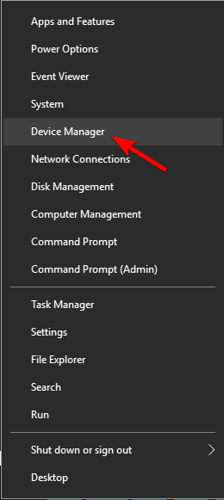
  1. Press Windows Key + X to open Win + X menu.
  2. Choose Device Manager from the list.
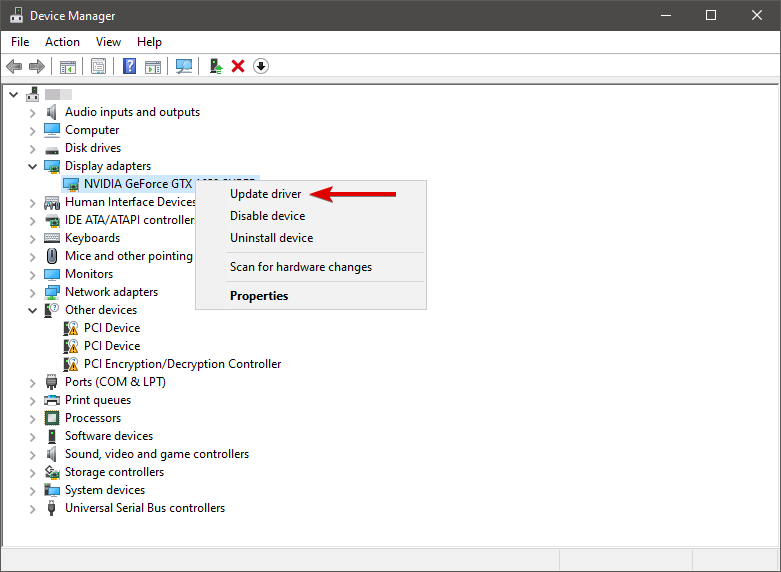
  3. Go to the Display adapters section, right-click your graphics driver.
  4. Choose Update Driver Software from the menu.
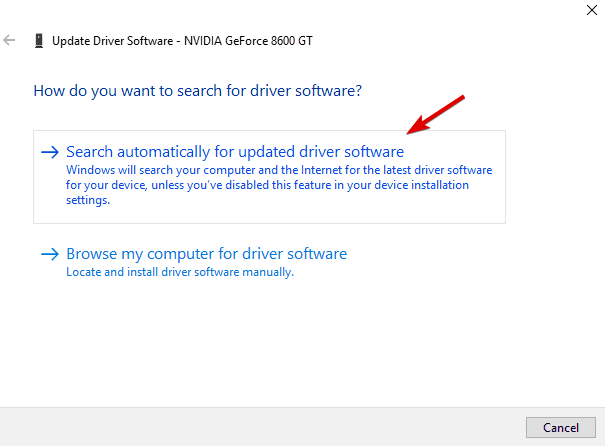
  5. Select Search automatically for updated driver software.
  6. Wait for a few moments while Windows 10 tries to find and install the latest driver for your PC.

Using the Device Manager to update your drivers requires a bit of background knowledge, but once you get your head around it, it’s going to be smooth sailing.

Note icon NOTE
The Windows Device Manager is not the best way to update your drivers since there might be driver versions that the software doesn’t know about yet.

Install the drivers from your local computer.

  1. Follow Steps 1 and 2 from above.
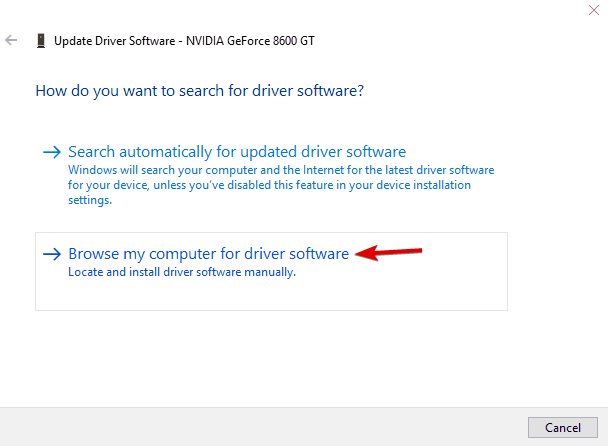
  2. Click the Browse my computer for driver software option.
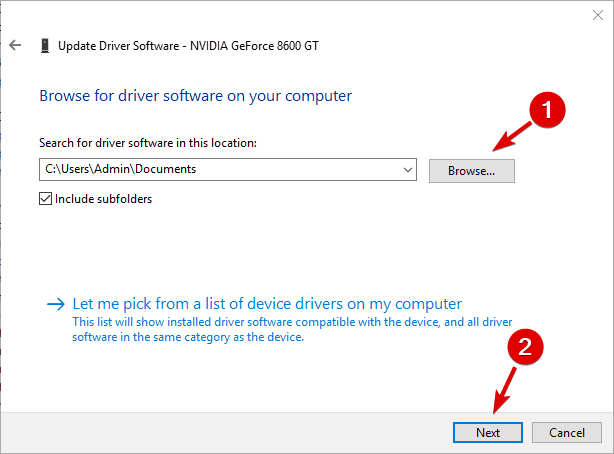
  3. Next, click on the Browse button.
  4. After finding the appropriate folder, click Next and wait for Windows 10 to scan the folder.
  5. If compatible drivers are found, Windows 10 will automatically install them.

If you already have the necessary driver files on your computer, you can easily guide the Device Manager to them, the the program will do the rest of the job for you.

2. Update drivers automatically

Updating drivers automatically is a time-saver. A dedicated driver updater tool will keep your system safe from permanent damage caused by the installation of the wrong driver version.

Once a professional tool is installed, the program will start scanning your PC for outdated drivers automatically and check your installed driver versions against its cloud database of the latest versions.

3. Download the drivers manually

This method is a bit more advanced since it requires you to know what type of graphic card you’re using, the manufacturer’s website, and the correct driver version.

To find out the model of your graphic card, you can use Device Manager and navigate to Display adapters section like in the previous solution.

After finding the model of your graphic card, you need to visit the manufacturer’s website. From there you need to navigate to the Download or Drivers section.

Now you need to choose Product Type, Product Series and Product. All this information is available from Device Manager or any other system information tool.

After selecting your graphic card model, you need to select the version of the operating system that you’re using. This implies the 32-bit version or the 64-bit one.

Keep in mind that you need to select 64-bit version of the driver if you’re using 64-bit operating system in order to get the maximum performance.

After the new graphics driver is installed, restart your computer to complete the installation. Now you can enjoy the latest firmware features and tools.

As you can see, updating the graphics driver on Windows 10 is quite simple, and we hope one of our methods will help you.

We highly recommend checking out this comprehensive guide on updating your GPU drivers on Windows 10 for more information.

If you have other suggestions or recommendations, or you want to share your experience with the subject, let us know in the comments section below.

Accreditation Management Software: Best Picks in 2026

By going through the accreditation process, you can spot your organizations strength and weaknesses. The board members can decide which areas of the organization needs improvement and create an achievable goal.

This is also an excellent way to know if your business is following the industry standard and best practices and is on par with other recognized firms in the field.

That being said, going through the accreditation process can be a tedious task. Organizing required documents can be a major hassle. You may even have to hire professionals to help through the paper sorting process.

And if any records go missing, that will create a new set of problems.

Accreditation software can solve this headache. Accreditation management software allows you to manage workflow, track progress, check compliance against standards, add comments, find issues and send automated alerts.

Today, in this article, we will be looking at the best accreditation software that enables you to get faculty buy-in, increase transparency, document collection, improve workflow, create dynamic reports and manage self-studies.

Accreditation management software to increase efficiency

Zengine by Wizehive

WizeHive

Wizehive is a complete grant management software that allows you to streamline accreditation process for grants, scholarship, and high-education.

The user interface is easy to learn and use with exceptional support from the company. You can use the software to build your own applications form and follow-up forms, create a report, add a new workspace and overall simplify the process.

Wizehive is a fully customizable solution with management features for grants, scholarship, award, internship and fellowship, accreditation and customer management.

Being a flexible solution you can only include solutions that you will use in the package, instead of buying it all.

The Zengine platform used by WizeHive offers organizations a seamless grant management solution for the entire grant cycle.

The robust yet user-friendly scholarship management solution streamlines your process of scholarship collection using personalized applications.

It can also be used to collect all the required documents for the review process and manage every stage of the review process to manage your accreditation or certification process.

⇒ Get WizeHive

OpenWater

OpenWater Accreditation software

OpenWater is an accreditation software that makes it easy to manage entire accreditation process from scratch to hatch.

OpenWater allows your candidates to process their accreditation process using its user-friendly yet straightforward workflow making even the most complicated process easier.

Your candidates can submit all the documents related to the accreditation process using the online application portal and upload documents.

It includes features such as high-resolution file upload for pictures, video, and documents, drag-and-drop form builder, integrated payment services, letters of reference, and create a dependent field along with multi-categories.

The administrator can process the application real quick from the dashboard. After checking the documents and verification, the application can be approved for the next stage of the vetting process.

With the new Collaborator feature, multiple staff members can work on a single application. You can also sort through new and renewal applications, add or subtract point through autoscoring option and check the submission eligibility.

The integration features offer compatibility with popular CRMs like SalesForce, Aptify, Microsoft Dynamics CRM and Yourmemebership CRM.

Apart from accreditation, OpenWater also has Award management feature to maintain a view of the entire award process and Fellowship management feature to streamline behind the scene operation for a smooth workflow.

It also has a Grant management option to manage applicants and applications and Application management option to sort through hundreds of applications and compare them for accuracy and report results.

⇒ Get OpenWater Accreditation Software

Creatrix Campus

Creatrix Campus

Creatrix Campus is a cloud-based modern and a comprehensive higher education software with CRM, SIS and LMS capabilities.

From Outcomes mapping, online assessment to OBE analytics and accreditation support, Creatix Campus allows you to meet all the educational objectives with a single solution.

Creatix Campus offers Student Lifecycle Solution and Academic Solution. as well

The Student lifecycle solution offers requirement management, admission and enrollment management, attendance and assessments management, placement solution, alumni and fundraising features, and course evaluation.

The Academic Solutions offers outcome-based education and competency-based education solutions, curriculum management, task scheduling, exam preparation, accreditation, student information, and faculty management system.

Creatrix Campus is a highly customizable solution with a modern user interface.

Most of the time-consuming yet straightforward tasks like attendance maintenance, timetables scheduling, assignments, and student can be managed from the cloud. Your team will be more productive and spend more time on things that matter.

You can quickly generate reports, sort through applications and manage data with ease. All the desired results can be generated in no time.

Creatrix Campus is an all-in-one cloud-based software solution for higher education to manage everything from students’ related data to the academic system.

⇒ Get Creatrix Campus

JetPack

JetPack Accreditation system for higher education

If you want to sail through the accreditation process for your school, college and other firms in the most streamlined point-of-view, JetPack is the answer.

JetPack automates the accreditation process for document generation, management and report submission.

User management allows you to configure and manage all types of users offering features such as Web Access for user login and create, modify, activate and deactivate users. You can also create and modify self-study templates on an ongoing basis.

The Data Management features offer data archive, data port, data import and export old and new data, port and modify existing data, documentation to provide the team members with procedural manual, best practices, and other reference materials.

All the reports can be generated and sent to a printer directly from the dashboard.

For Assessment Management, JetPack offers a self-study tracking to view the status of a self-study by each school and Strategic Assessment that allows the users to enter critical issues with a subsection of strategic directions and map against the issues.

Then there is a Document Management option for generating custom data-driven documents for visit reports and accreditation letters.

JetPack is a solid and robust accreditation system for higher education offering an incredible amount of features, flexible pricing, and advanced security option.

⇒ Get JetPack

Weave

Weave Accreditation management software

Weave is a cloud-based accreditation and assessment software that allows you to learn better about your students by conducting authentic assessments.

The software is developed by former educators which makes it an ideal accreditation solution for grants, scholarship and higher education management.

Weave allows simplifying the process of accreditations while offering assessments, faculty credential management, strategic planning, and program review.

The unlimited data repository allows you to store standard-related documents and access them at will. It also offers increased transparency with a robust dashboard to view and modify reports and statistics.

Weave offers accreditation management solution to manage an entire group of institutions and programs from one place. It can help the accreditors and accredited programs move smoothly through the accreditation process.

Notables features offered by Weave include assessment for the institution, course and program level, accreditation for program and institution, faculty credential management, program review, strategy plan tracking, and unlimited customizable templates.

In addition, it can also streamline processes and reduce redundancy. After the implementation of the solution, Weave offers training and support to all the users.

⇒ Get Weave

Armature

Armature Accreditation software
  • Price – Custom pricing

Armature Accreditation and Certification software allow you to manage the complex accreditation process the easy way. The solution can be configured to tailor fit your process and workflow.

The software allows you to set up audits to test compliance against industry standards. You can collect all the necessary data including rating, documents, comments, issues, and findings and add your own instructions.

The education institutions can fill data and let the assessors see it on site showing self-study by the institution. You can also build your own instruments by collecting accreditation data from programs and departments.

Armature software is highly configurable as a result you can create new questions and forms, set user roles and assign permissions, build report templates, update and manage standards and more.

Armature Accreditation software offers all the necessary feature including organization & people management, process configuration, process management and assessment setup in one package.

You can buy Perpetual license or opt for a subscription-based model.

⇒ Get Armature Accreditation Software 

Accreditation management software can help an institution in many ways. It can help your whole team to be part of the process instead of just being an observer and also update them about the changes with updates.

If you want to make changes to your procedure manual to meet the new standards of accreditation, you can make immediate changes and provides access to the required documents using a centralized online repository with a click of a button.

Accreditation software frees you from the clutches of papers and keeps everything online organized and safe.

We hope that our accreditation software recommendation made it easy for you to find a perfect solution for your institution to be accreditation-ready.

Karyotyping Software: 5 Best to map your Chromosomes

Karyotyping is the process of ordering and pairing of all the chromosomes found in an organism in order to obtain an all-encompassing view of the entire chromosome map of an individual.

But let’s first make sure we understand what chromosomes are in the first place. Chromosomes are structures that look similar to threads that are contained within the nucleus of each of your body’s cells.

Each chromosome structure contains the entire genetic information plan of your body. This dictates the way your body is structured, reacts to stimuli, predisposition to illnesses,etc.

Women have 2 X chromosomes, and men have one X and one Y-chromosome. Each cell of your body contains 23 pairs of chromosomes, 46 chromosomes in total.

In order for researchers to be able to understand the sequences of chromosomes of each patient, they use karyotyping software.

This type of software is designed to perform chromosome analysis, and it evaluates the structure and the number of a person’s chromosomes. By doing this, researchers and scientists can detect abnormalities.

In this article, we will explore some great software options that allow you to perform karyotyping analysis.

Which is the best automated karyotyping tool?

ArgusSoft

ArgusSoft - karyotyping software

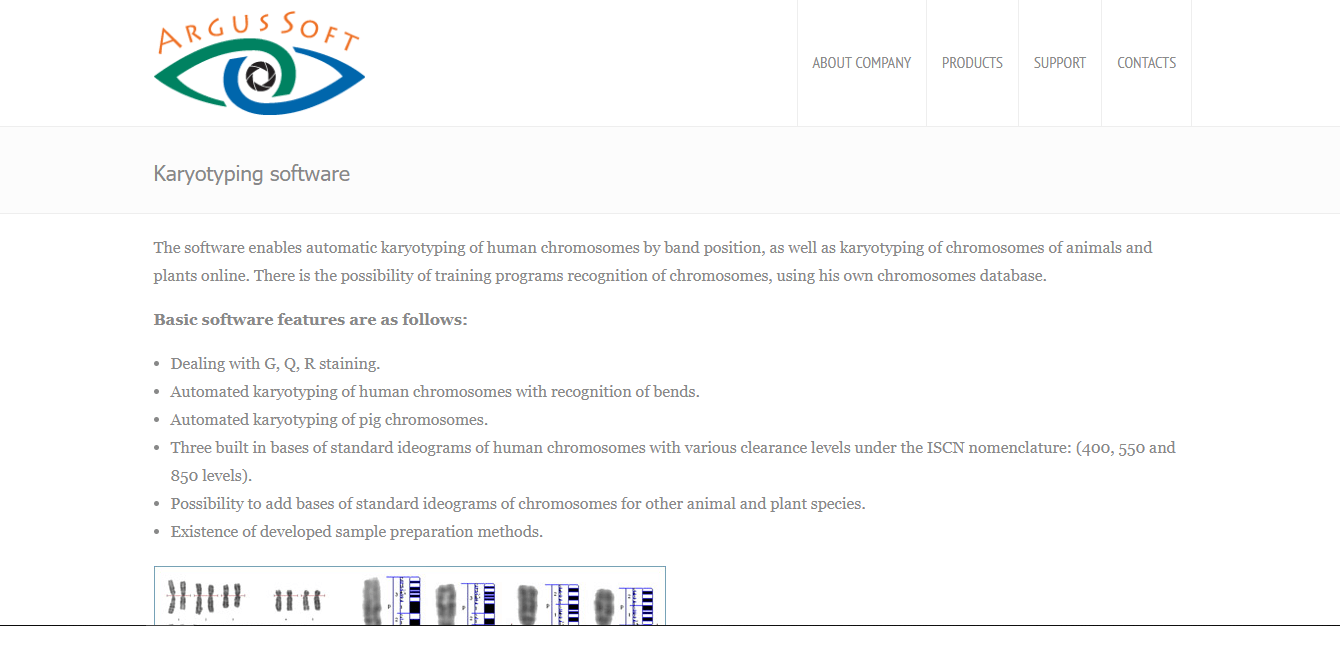
ArgusSoft is a great software option that allows you to automatically karyotype human chromosomes by band position, and can also be used for karyotyping of animals and plant’s chromosomes online.

Key features:

  • G, Q, R staining
  • Automated karyotyping of human chromosomes with recognition of bends
  • Automated karyotyping of pig chromosomes
  • 3 built-in bases of standard ideograms of human chromosomes with various clearence levels – 400, 550 and 850 levels
  • Can add bases of standard cromosome ideograms for other animal and plant species
  • Sample preparation methods
  • Input of metaphase plate images using a camera and a scanner
  • Accompanying an image with graphics
  • Automated division of applied and contacting chromosomes
  • Comparison of chromosomes and ideograms

You can also use ArgusSoft to train the system of chromosomes recognition using pre-set preparations, can transfer metaphase plate images and karyograms in built-in database, can produce patterns of reports, correct karyograms and also store and print images and analysis results.

You can get training and support for using ArgusSoft from their official website . The support center includes training, maintenance and consulting services.

⇒ Try ArgusSoft

HiBand by Applied Spectral Imaging

HiBand - karyotyping software

HiBand is a software created by Applied Spectral Imaging, that can perform advanced chromosome analysis by using digital karyotyping features.

This software uses automated scanning features for an in-depth analysis of the chromosome structure.

You can use the wide range of features found in HiBand for indexing, counting, storing, and managing results data. You can also use this powerful software to scan the chromosome sequence automatically.

The results obtained by using the karyotyping features found HiBand can be stored in a secure location with password protected and encrypted layers.

This allows you peace of mind regarding losing any important sequencing data, and because of this, also improves your lab’s efficiency.

Sorting through the results is done in a very easy way, you just need to search for the specific sequence of chromosomes, and all results are shown in a well-contained screen that offers easy access to modify, review, and also add tags to any of the files.

Key features:

  • Brightfield Karyotyping-G-Band and R-Band
  • Fluorescence Karyotyping-Q-Band, R-Band and FISH
  • Spectral Karyotyping
  • Automatic chromosome counting
  • Chromosome indexing and classification
  • Advanced separation of chromosomes and advanced image enhancement
  • Image gallery – can present all case metaphases and karyotypes on one screen
  • Can compare chromosomes – see them side by side
  • Abberant Ideogram – you can add chromosomes, cells, ideograms and annotations in an image generator

HiBand uses fully automated workflows for an increase in lab efficiency, has start-and-walk-away scanning features, finds metaphases, automatically read bar codes, uploads images real-time during slide scanning and also exports to lab LIS Central Portal and Database.

⇒ Try HiBand

Ikaros by MetaSystems

Ikaros - karyotyping software

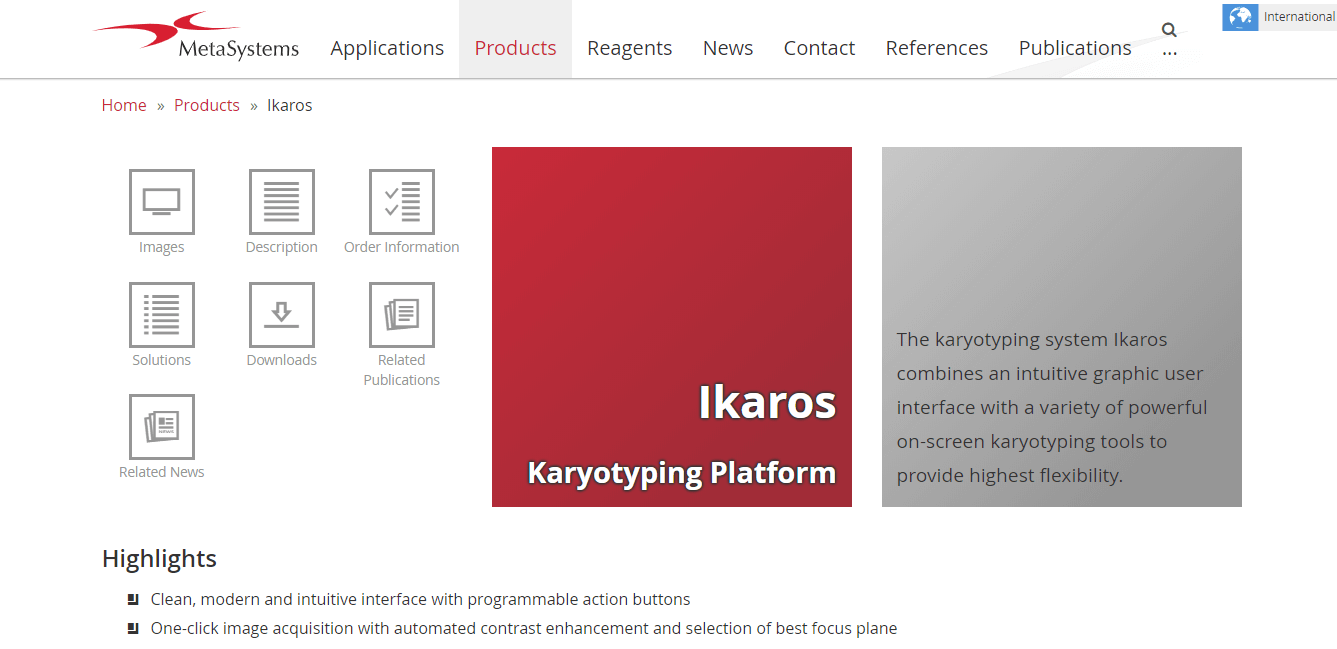
This karyotyping system has a greatly intuitive user interface that offer all the features on one screen. This allows easy and quick access to all the information obtained.

Ikaros can be used with Neon, which is a platform designed to help with image data and case organization.

Neon collects data from all imaging jobs, external sources and allows you to present them in a easy-to-understand way using a case management dashboard.

This tool allows you to always have important information close at hand and stored in a secure way, but uses very strong data management algorithms, has a nice range of ways to observe data and can provide specific searches based on keywords and data characteristics.

Check out more information about Neon and it’s features here.

Ikaros supports many different banding techniques – Brightfield G-Band and R-Band, Fluorescence Q-Band, R-Band and FISH – , offers a great number of pre-defines karyogram forms for humans, plants, and animals.

You can easily edit these forms to add any data required for the type of research you’re doing.

The fact that you can compare chromosomes by classess or by karyograms, offers you greately useful information that allows you to easily identify differences.

⇒ Try Ikaros

MetaClass by Microptic

MetaClass - karyotyping software

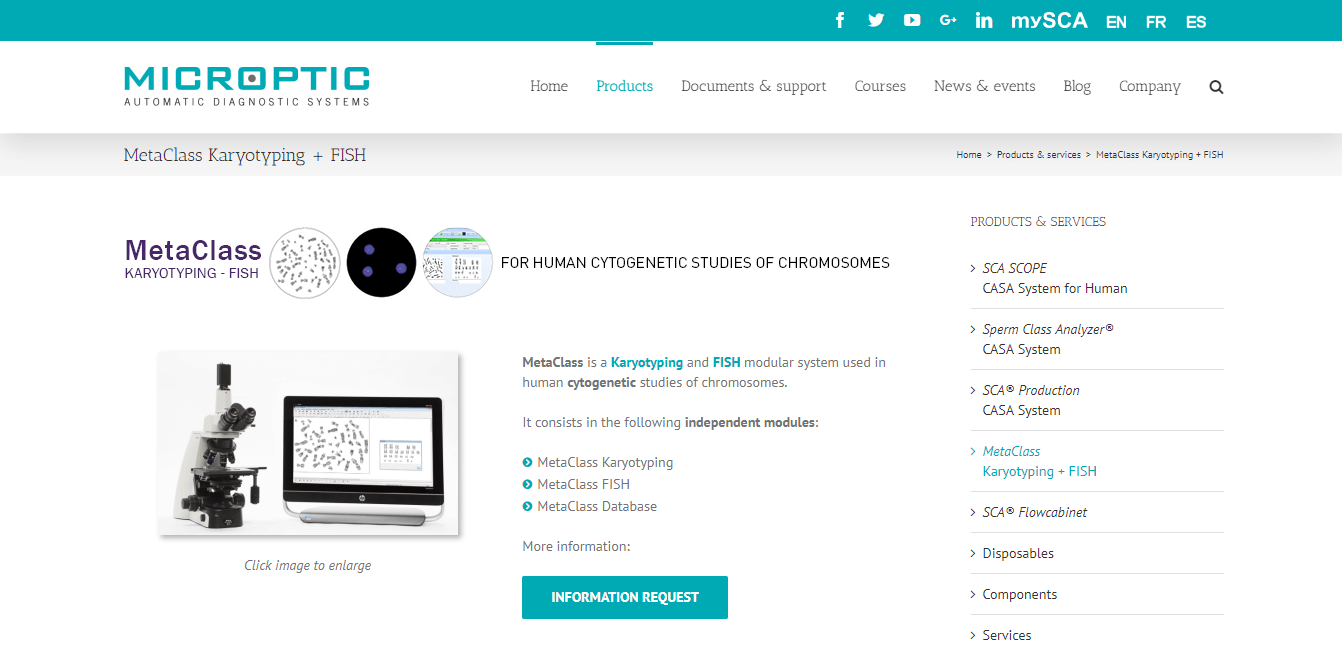
MetaClass is a great karyotyoping software that is designed in a modular fashion. This software helps you perform karyotyping and FISH studies of chromosomes.

MetaClass is formed out of the following modules :

  • MetaClass Database

Database that can be installed with any of the modules of MetaClass. Allows you to store patient details and gives you easy access to results. You can create customized reports in any language with this module.

  • MetaClass Karyotyping

Allows you to study a karyotype after the images of the metaphase preparation stage have been digitaly captured, and arrange them into pairs based on size, position, etc.

This module gives you excellent quality results when it comes to chromosome bands, and it can also provide you with professional-looking reports.

Key features include:

  • The study of karyotype is analyzed under brightfield 100X magnification
  • Can capture several Metaphase images
  • Image quality is modifiable for crisper results
  • Automatic classification of chromosomes
  • 4 screen views – Metaphase, Karyotype, and Unclassified chromosomes window
  • Can display chromosome prototypes
  • Chromosomes that aren’t classified can be automatically or manually corrected – superimpositions, separation, crossings, rotations, etc.
  • MTC session files or BMP images can be saved and reloaded at any time
  • Can export individual chromosomes to the Metaclass Database with the possibility to add comments and notes

MetaClass FISH

This is an analysis module that allows you to obtain Fluorescent IN SITU Hybridization (FISH) image.

This module captures images using fluorescent DNA probes and allows you to confirm genetic abnormalities – trisomies, microdeletions, chromosome rearrangements, etc.

FISH images are analyzed under 100X magnification and, for a wider range of image clarity, can also capture images with different filters.

If you are interested to find out more information about the modules presented above, and other features, you can have a look through the MetaClass catalog.

⇒ Try MetaClass

GenASis Bandview

BandView by DSS - karyotyping software

GenASis Bandview is another great karyotyping software that is built out of modules with different capabitilites. You can use this app to perform karyotyping diagnostics, and obtain accurate test results.

This software allows you to fully customize the workflow and the process of diagnosis, depending on the needs of your company and the goals you are trying to achieve.

The wide range of tools provided in BandView are easily accessible with just one click of the mouse, and offers powerful G/R/C/Q-Band karyotyping experience. You can choose between an automated or manual workflow when it comes to locating metaphases and capture images.

Chromosome abnormalities, if found, can be observed through addition, deletion, or the rearrangement of the patient’s genetic material. With BandView, you can use band of FISH molecular technique .

FISH uses flourescent probes to attach to different parts of the chromosome, enabling the software to detect and localize the abnormalitites found in specific DNA sequences.

⇒ Try GenASis Bandview

In this article, we explored some of the best automated karyotyping software that exists on the market at the end of 2021.

The karyotyping software options covered in this article offer you a variety of features that will help you reach your company’s goals.

By using this type of software, you can count thousands of chromosomes structures fast, analyze with different professional techniques, and produce high-grade reports that will allow you to identify any abnormalities with ease.

We would love to find out what your opinion is regarding the software we presented in this top 5 list. Please feel free to let us know by using the comment section below.

Your data may not be safe anymore due to RAT malware attacks

As we said countless times, staying protected while online nowadays should be the number one priority for every user or organization that is connected to the internet.

Hackers and the ones that deliver malware are almost always one step ahead of security and, therefore, an attack will never come in the way or form you expected it.

RAT can steal passwords, webcam and browser data

The warning that Microsoft made public refers to remote access tools (RAT). Also known as RevengeRAT or AsyncRAT, this dangerous malware is being distributed through carefully crafted email messages.

When the unsuspecting person opens the file, usually masquerading as an Adobe PDF file attachment, it triggers the download of a malicious visual basic (VB) file.

This is what Microsoft had to say about this on Twitter:

In the past few months, Microsoft has been tracking a dynamic campaign targeting the aerospace and travel sectors with spear-phishing emails that distribute an actively developed loader, which then delivers RevengeRAT or AsyncRAT.

Needless to say that we should steer clear of these malicious software and simply don’t click on any links or download any files that we feel aren’t safe.

On the off chance that we do, and RATs are deployed, they are known to steal credentials, video, and images from a webcam.

Also, remember that anything that’s been copied to the system clipboard for pasting elsewhere is also going to be intercepted by the RAT.

Security organization Morphisec recently conducted activities meant to locate and flag such dangerous software. The remote access tools were disguised as advanced Crypter-as-a-Service.

Its important that we read and research about the potential threats we face while accessing some dark corners or downloading certain files.

Keeping up with how malware/ransomware changes and its being dealt with can save us in some situations.

Have you ever been a victim of malicious software? Tell us about it in the comments section below.

What to Do if BitLocker Fails to Encrypt the Drive

BitLocker is a Windows 10 built-in tool that you can activate on your OS to protect your hard drives or removable drives from offline attacks.

While this is a welcome software offered by Microsoft for privacy purposes, the tool has glitches.

For instance, users complained about unusable protected drives when migrating from an older OS version to a newer one.

Other common BitLocker-reported error messages are:

  • This device can’t use a Trust Platform Module
  • Illegal operation attempted on a registry key that has been marked for deletion
  • BitLocker Drive Encryption cannot be used because critical BitLocker files are missing or corrupted; use Windows Startup Repair to restore the file to your computer (0x8031004A)
  • The BitLocker encryption key could not be obtained from the Trusted Platform Module (TPM) and enhanced PIN; try using a PIN containing only numerals. C: was not encrypted
  • BitLocker could not be enabled; the data drive is not set to automatically unlock on the current computer and cannot be unlocked automatically. C: was not encrypted
  • The drive cannot be encrypted because it contains system boot information

You’ll find a solution for each of these errors in this article. Hopefully, by the end of this material, you’ll be able to use BitLocker to the best of your needs.

How can I fix BitLocker drive encryption issues?

1. Clean the disk and re-create the partition

1.1 Clear the partition with third-party software

Before continuing, remember that this method will erase all the information stored on your disk.

Creating a backup on a different drive is advisable to ensure you won’t lose all your files and folders.

For less hassle, you could assign this task to a third-party dedicated tool that will do the right thing. On this note, we recommend the excellent tool below.

It is a multifunctional assistant that will manage, partition, and optimize your hard drive according to your needs.

If you have a backup, run this software to split, move, resize, and manage your partitions without data loss to make the most of your disk space.

In this case, you’ll want to use the Format Partition feature to fresh-clean the disk so that you can move the saved data back into the blank space.

⇒ Get AOMEI Partition Assistant

1.2 Clear the partition manually

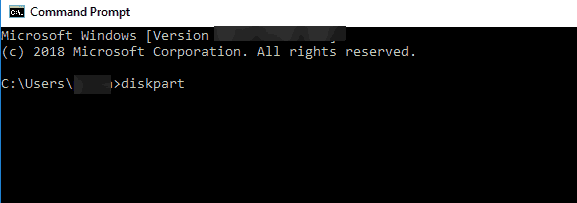
  1. Type cmd in the Windows search tab and click on Run as administrator to launch Command Prompt as an administrator.
  2. Type diskpart, and hit Enter.diskpart
  3. Enter list disk to show a list of all drives.list disk
  4. Enter select disk #  (where # is the problematic drive) and hit Enter.
  5. Type clean and hit Enter.
  6. Wait until the drive is cleaned. Now, it’s time to create a new partition.
  7. Type create partition primary and hit Enter
  8. Type assign letter = # (Once again, # is the letter you want to use).
  9. Format your partition by typing format fs=ntfs quick and hit Enter.

The manual process can be tricky so proceed with extreme care and follow it to the letter. If you’re not experienced, you should go with the software recommended above.

2. Change the Security Chip settings

  1. Start your machine and open the BIOS setup.
  2. Go to the Security tab and select Security Chip settings.
  3. Select the Discrete TPM option.
  4. Go to Clear Security Chip and save your changes.
  5. Restart your machine, log in, and enter your PIN. Check if the issue persists.

According to reports, it seems this issue affects machines equipped with Intel PTT Security Chips using particular settings.

Namely, when the issue occurred, the BitLocker Drive Encryption used TPM and PIN, and the Allow BitLocker without a compatible TPM option was turned off.

Also, the machines were running the OS in BIOS, not UEFI. We listed the general steps to follow above. Keep in mind that they may vary on your machine.

If you want to reverse the action, you need to replace the firmware’s boot capability with UEFI boot. Sometimes, you may also need to reinstall the OS.

In case you cannot arrive at a fix, we strongly recommend you switch to using the software below, which is a powerful encryption tool.

Its wide range of security features includes copying encrypted lockers to the USB drive, CDs, DVDs, and even email attachments and the possibility to upload your encrypted files to a cloud server.

⇒ Get Folder Lock

3. Enable BitLocker without a compatible TPM

  1. Open Run from Start button, write gpedit.msc, and hit OK.
  2. It will open the Local Group Policy Editor.
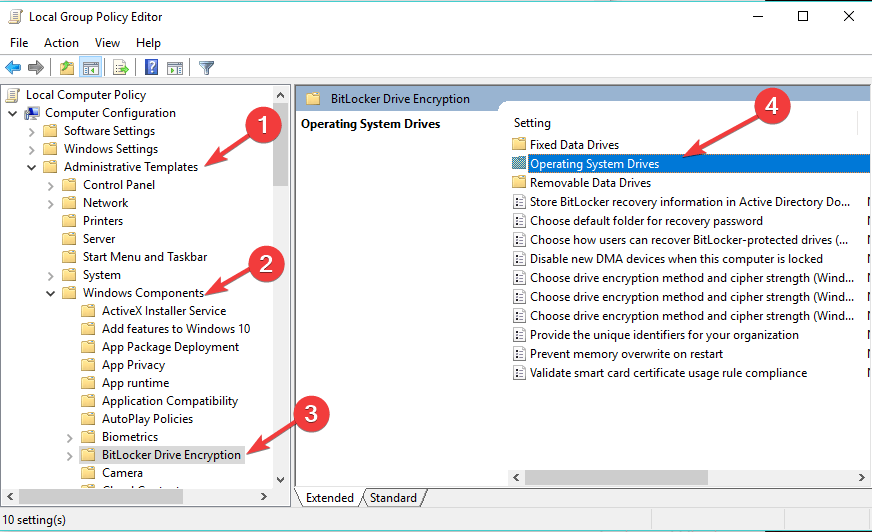
  3. Click on Administrative Templates from Computer Configuration and then on Windows Components.
  4. Select BitLocker Drive.
  5. Go to Encryption and then to Operating System Drives.bitlocker operating system drives
  6. Double-click on Require additional authentication at startup.bitlocker Require additional authentication startup
  7. In the new window, select Enabled and Allow BitLocker without a compatible TPM (requires a password or a startup key on a USB flash drive).bitlocker Require additional authentication startup
  8. Save the changes by hitting Apply.
  9. Now try to encrypt your drive by using BitLocker.

Enabling BitLocker from the Group Policy Editor without TPE can solve this problem quickly so make sure you try it by using the steps above.

4. Clear the TPM (Trusted Platform Module)

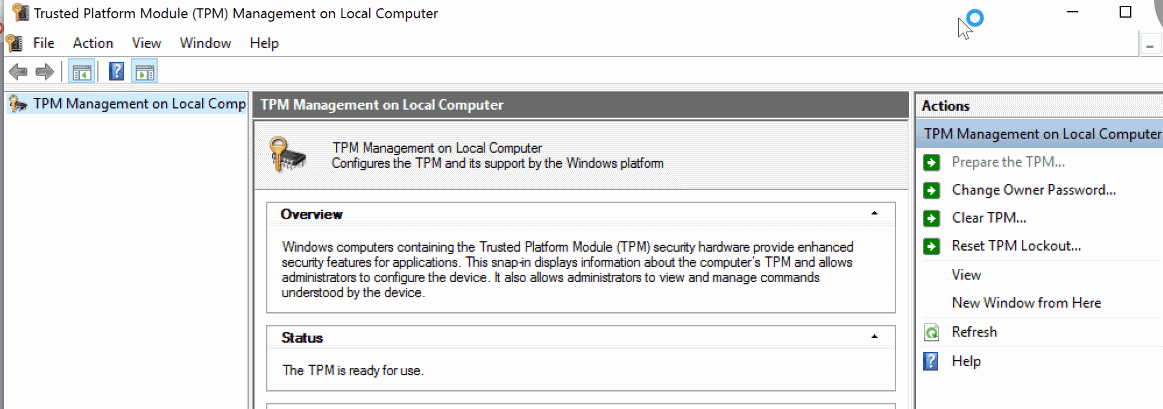
  1. Open Run from Start button, write tpm.msc, and press Enter.load management console windows 10
  2. A new management console will open.
  3. Under the Action tab, on the right, press Clear TPM.TPM trusted Platform Module
  4. In the Clear TPM Security Hardware box, the simplest solution is to check I don’t have the owner password and click OK.
  5. You will be asked to reboot. It will indicate that you should press a key (usually F10) in order to clear the TPM.
  6. Once the system reboots, you will be prompted to press a key (usually F10) to enable TPM. Press that key.
  7. The TPM Setup wizard will start for you to enter a TPM owner password.enter TPM owner password

Note: Before starting to clear TPM settings, please make sure that you backed up your computer, as mentioned in the first solution. This method may result in data loss.

5. Change the settings of USB devices in BIOS

  1. Enter the BIOS setup utility (Consult the manual from the manufacturer to learn how to do that for your specific model).
  2. Go to Advanced, then Peripheral Configuration.
  3. Access USB Host Controller and USB Devices.
  4. The setting of the USB Devices should be All.USB Host controller BIOS

This solution applies when BitLocker fails to encrypt the operating system drive using a USB startup key. The cause of it can be related to some settings in BIOS mode.

And if all this seems too complicated, Device Encryption is available, but do check out our Device Encrytion vs BitLocker review to see which one is more suitable for you.

BitLocker usually does a great job encrypting your data, but after that, don’t forget to safeguard them with one of the best automatic backup software for Windows 10. You may also want to disable the Recall feature if BitLocker encryption is unreliable since it keeps a snapshot of your activity.

We hope that these solutions helped you to fix your BitLocker encryption problems. If you have additional tips and suggestions, please list them in the comments section below.

12 Best Disk Space Analyzer Software to Use in 2026

Any person using a computer is well aware of the problem of low disk space. To resolve this issue, disk space analyzers are used for Windows 10. What is a disk space analyzer you ask?

It is a software utility for Windows used by many people around the world to kick out the problem of low disk space.

Disk Space Analyzer software visualizes the hard disk space usage on your personal computer by getting the size for each folder this also includes the subfolders and files or folders in a drive.

This software allows the user to understand the distribution of his hard disk usage between different folders or any other criteria specified by generating a graphical presentation.

Some of these software also offer the analysis of the history of size and count for each folder which helps in finding the growing folders.

There are numerous software offered on the Internet for disk space analysis for Windows. Some of them are mentioned below with their specifications.

What are the best Windows 10 disk space analyzer software?

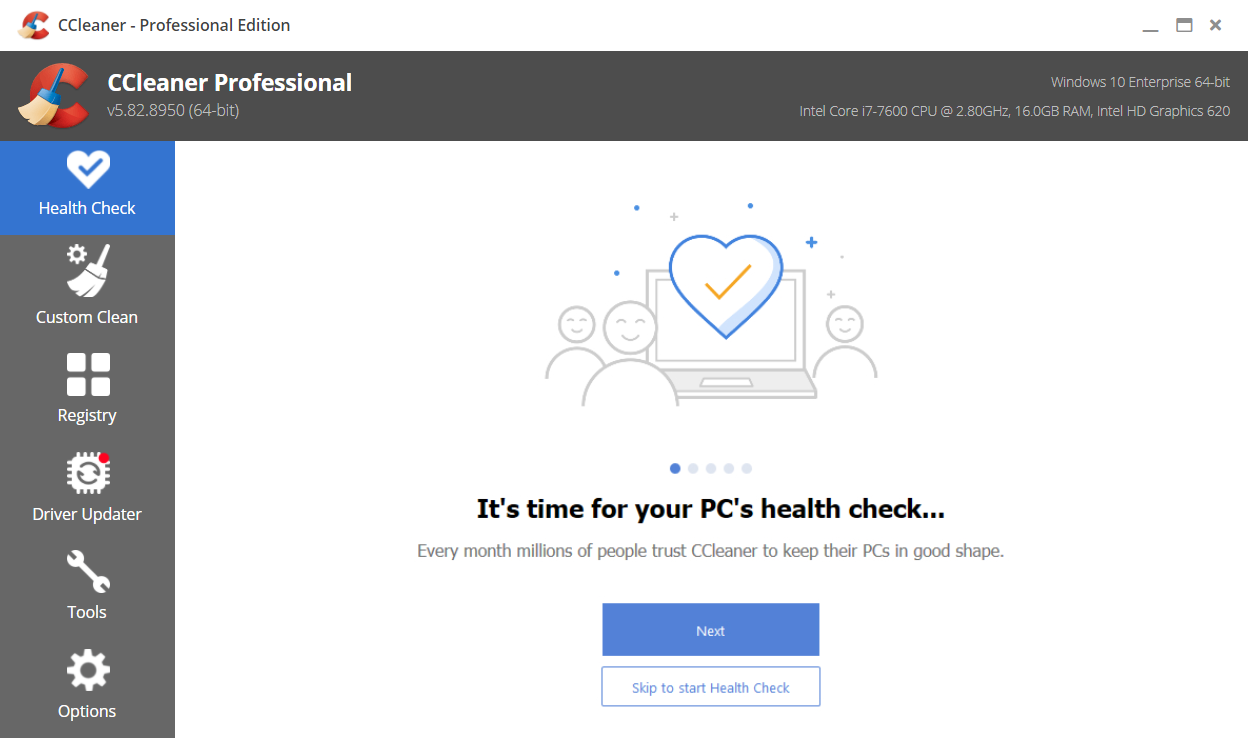
CCleaner – One-click software updater

The ultimate goal of disk analyzer software is to find and remove the space-hogging files and free some disk space.

CCleaner not only that it scans your system but also optimizes it so that it runs at its optimum speed at all times.

Apart from the constant health checks for your PC, it helps you keep all your apps updated and secure with only one click.

And if you’re still keen on clearing some space on your drive, this tool automatically detects old and unused files so you can eliminate them quickly.

CCleaner also clears your browser search history and cookies so that all that data doesn’t fall into the wrong hands without compromising your identity.

Take a look at its most essential features:

  • One-click software updates for your apps
  • Tune-up features for quicker startup times
  • Old and unused file detection
  • Automatic browser cache cleaner for advanced privacy
  • Easy to use and maintain

CCleaner

CCleaner is not just a space analyzer but a whole suite of useful tools to boost your PC.

Glary Utilities – Clean interface

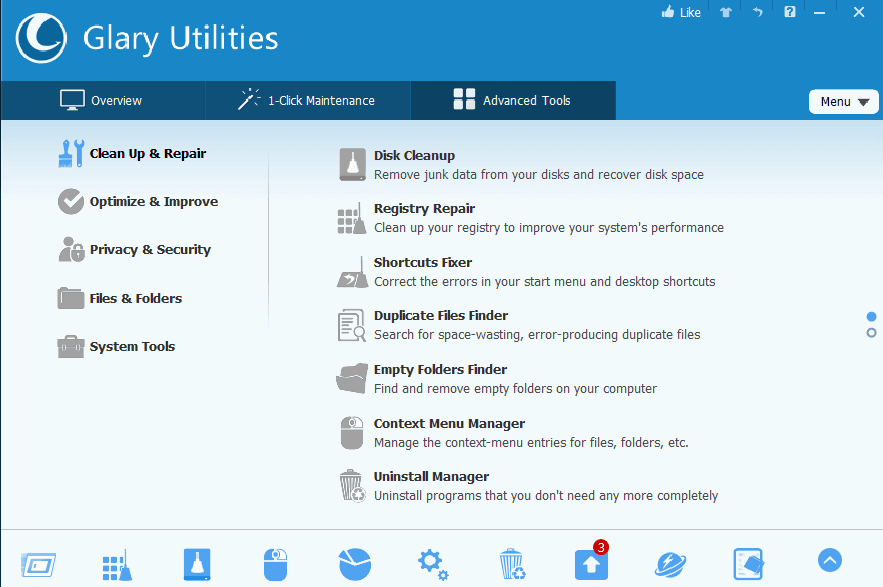
Glary Utilities is a software that performs the essential functions of a disk space analyzer and presents the disk space used by the user of the computer.

It shows all the information used by the files and folders using most of the space on your computer.

Then the information gathered is presented in a graphical form. This software also performs the task of system optimizer software.

This software scans and analyses your computer issues faster and more thoroughly than ever before.

Glary Utilities is a very popular and one of the most frequently recommended system utilities.

Let’s see some of its top features:

  • Automated options
  • Over 20 tools to maximize your PC performance
  • Simple and clean interface
  • Software update features
  • Duplicate files detection and cleaning

Glary Utilities

Analyze your disk space with a free tool that can also easily optimize your system.

Wise Disk Cleaner – Quick scan

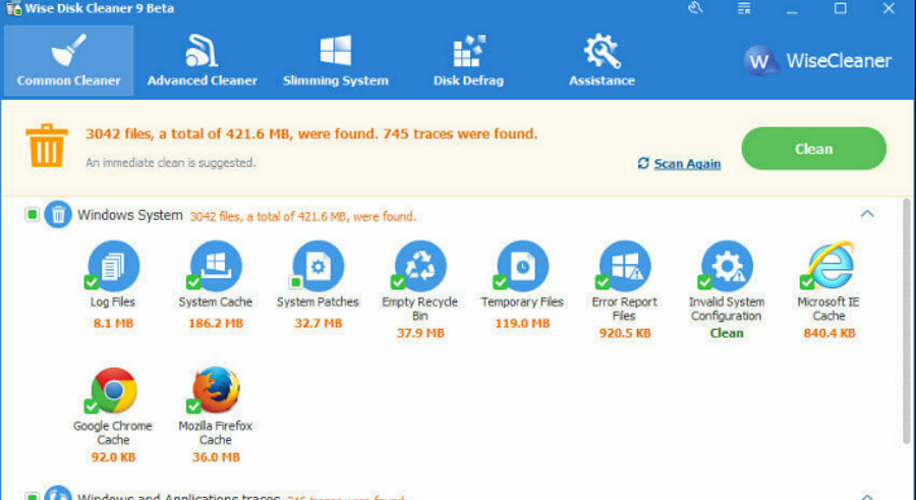
Just like the tool above, Wise Disk Cleaner is not just a disk analyzer but it’s also more like a tune-up software with multiple functionalities.

For instance, it can clean the Internet history, cache files, and cookies from any of your browsers.

It also detects and cleans all other useless files generated by Windows System, components, and other applications that take up unnecessary space.

And because we’re talking about clearing some space, this program can be programmed to clean up the disk on a schedule.

But you can also set some filters to clean certain junk files and place a 1-click shortcut on your desktop so you can hit it whenever you feel like doing a little dusting up.

It’s free software so you definitely need to check it out. It also has free regular updates to keep it in good shape.

Check out this software’s best features below:

  • Disk defragging feature
  • Scheduled automatic disk cleaning
  • One-click shortcut for customized cleaning
  • Quick scan and removal of unused files
  • Completely free

Wise Disk Cleaner

Tune up your PC and remove junk files from your drive with this excellent tool.

TreeSize – Available in 16 languages

It is a freeware program for analyzing the disk space of your personal computer. And it even works on ancient configurations and Windows Vista.

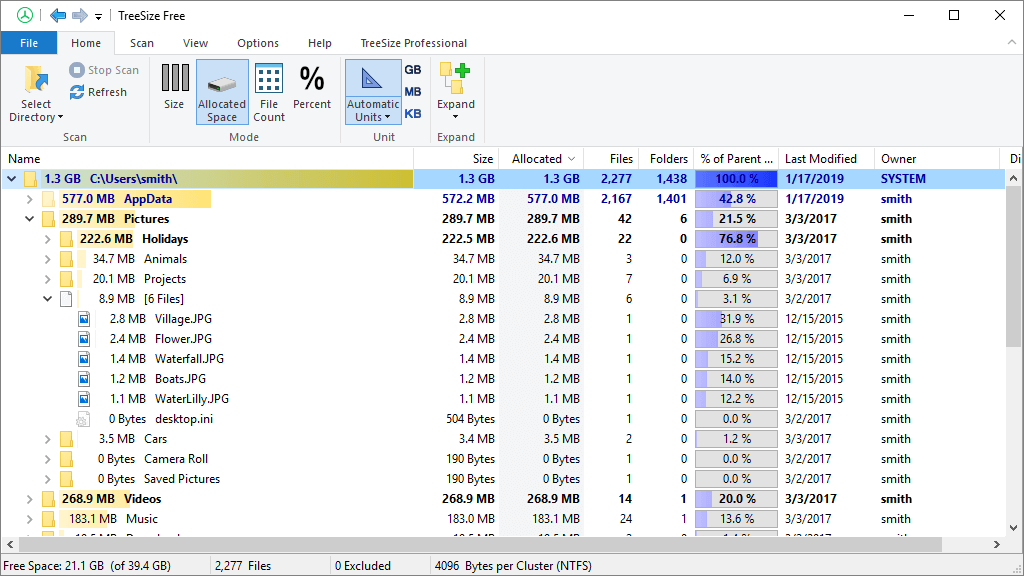
This app rapidly scans the hard drive and exhibits the directories and files which occupy the most space on the drive. This app enables integration with the contextual menu of File Explorer.

Tree Size presents the data in detailed form as the name of files and folders, size, allocated size, number of directories, number of files, and total disk space used as a percentage.

Another great feature of TreeSize is that it can run from USB sticks without a hitch. That means it’s completely portable so you can use it on remote PCs.

Take a look at some of its best features below:

  • Available in 16 languages
  • Completely portable, without the need for installation
  • Works on low configurations and outdated Windows systems
  • Quick scanning and drive analyzing
  • Detailed report with graphical representations

TreeSize

TreeSize is a fast and fuss-free tool to get the real picture of your computer disk space.

SpaceMonger – Comprehensive graphics

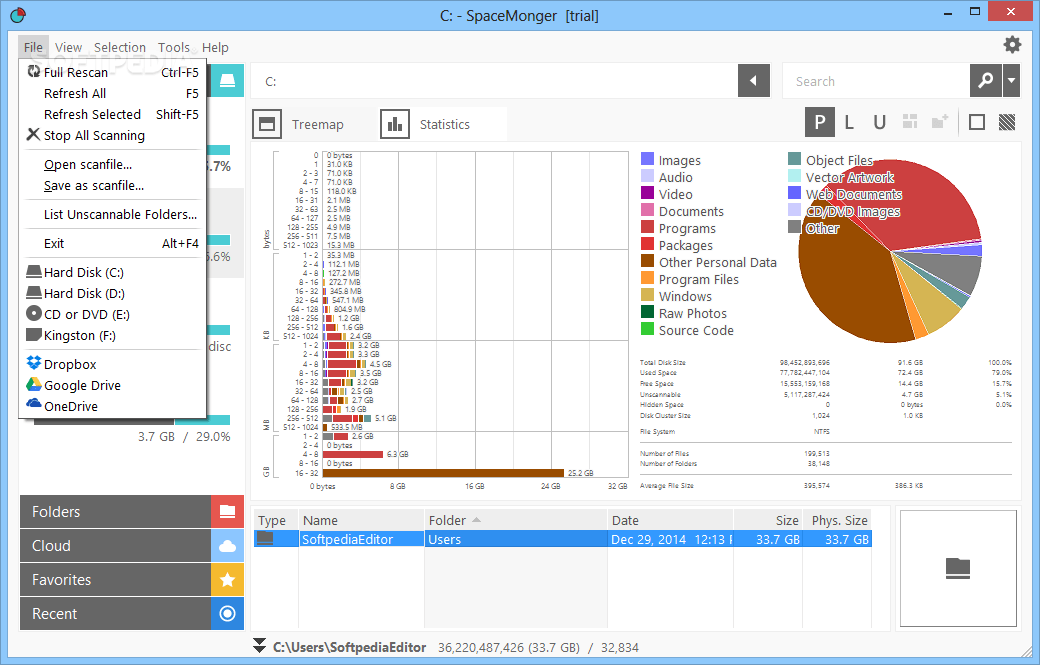
This app is not freeware but it comes at a decent price that is justified by its advanced features compared to other basic apps.

The developer of this app also offers a 30-day free trial. This app shows the data in the tree view and graphical view and these views can be configured by the user.

It is not easy as other apps and is mainly designed for advanced users. It is also available as a portable app.

One of its greatest features is the graphical interface. Each file or folder on a given drive is displayed in a box in the main window which makes it easy to compare to others.

Let’s see what are its most important features:

  • Multiple language support
  • Pop-up information about the file and folders
  • Comprehensive graphical interface
  • Advanced drive analyzing features
  • Free 30-day trial period

SpaceMonger

Leave the drive analyzing to a professional tool with advanced features for your PC.
Free Trial Visit Website

Fortect – Windows Restoration

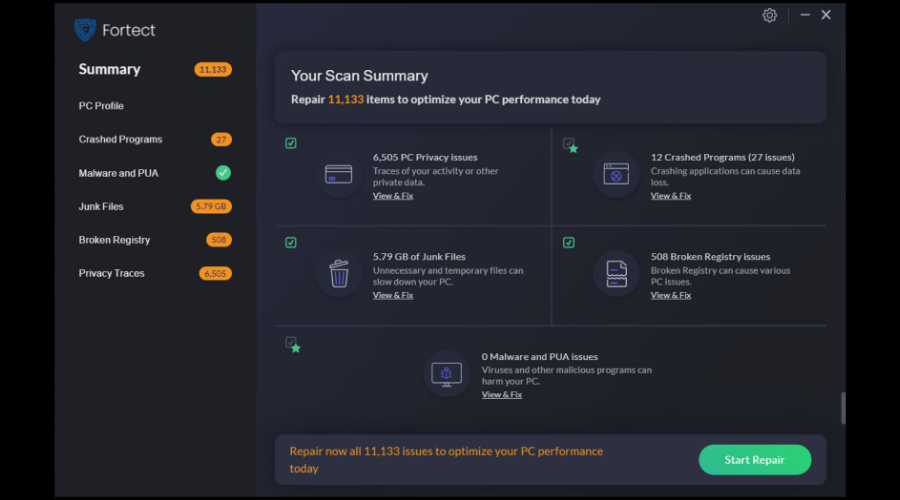
Fortect is the perfect tool if you want to analyze your disk’s space as it is able to free up space by removing junk files and other build-up files not only from your disk but from your folders and hard drive as well.

Thanks to its OS advanced repair technology, this app helps you scan your entire PC and offer a comparison between your system and a healthy one to detect with unerring precision its deficiencies.

Fortect can repair your damaged or missing operating system files, such as DLLs and registry keys, and locate the healthiest replacements from its massive vault.

Besides its junk file removal feature, you can also use the browser cleanup one to delete all your web browser tracking cookies and clear any trace of your activity to boost your privacy.

Take a look at other key features of Fortect:

  • Software and malware monitoring
  • Detect and repair stability issues
  • Optimize Windows Registry
  • In-depth scan report

Fortect

Free up space and boost your computer’s health by using Fortect’s advanced features.
Free Trial Download now

SpaceSniffer

spacesniffer

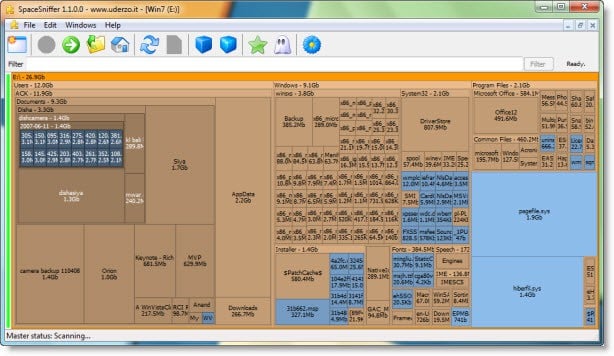
This software is also freeware and provides the function of disk analyzer software for windows.

It presents the data relating to the size of the files and folders graphically, making it stress-free for the user to comprehend. Space Sniffer displays the complete structure of the directory in a tree form, displaying the files and folders according to their sizes.

It is also easy to find the folders or files in software by just typing the first letter of the name of the folder or file you are trying to find. this characteristic helps in filtering the specific extensions and filenames.

⇒ Get Spaceniffer

Folder Size – Multiple tools scanner

foldersize

This software is developed by Mind Gems Software. It is freely distributed to the users and it displays the scanned data as a chart display making it visual but needs a flash player to show the data.

It also has the ability to scan a folder and show size, percent of space used, number of files, number of sub-folders, date, attributes, and owner. It shows the data in different units as bytes, KB, MB, or GB.

⇒ Get Folder Size

Disktective – Multi-compatibility

Disktective

It is a portal utility software that offers the function of detecting the size of the hard disk used by the directories and the space inside them.

This software is freeware and is compatible with all versions of Windows and Linux.

⇒ Get Disktective

DiskSavvy – Customizable scans

disksavvy

This is one the most popular free disk analyzer software which is designed to provide information about the disk space used by different directories.

In this software, the user can customize the scans and or delete filters while scanning for the files.

It then represents the information in the form of a chart which can easily be understood by the user.

⇒ Get DiskSavy

WizTree – Quick deep scan

Its developer praises WizTree as the fastest disk space analyzer and it promises to find files and folders that are taking up the most space in record time.

The truth is that most analyzer software needs to perform a deep scan that will take a lot of time and this software promises to do that in a few seconds.

That’s because WizTree reads the hard drive’s Master File Table (MFT) directly from the disk.

With this tool, you will also view the dimensions of the files visually so that you have the correct measurement of their size.

And the results can also be imported on a CVS file to analyze the data or keep a record of your files in time.

⇒ Get WizTree

TweakNow – Graphic report

This tool is great if you have an older PC. Although it hasn’t been updated in a while, it’s still great at what it does.

Its greatest feature is the clean and simple interface. If you want to find the biggest files, select the drive and click on the Scan Drive button.

You can also scan a certain folder or the common folders like Documents, Music, Pictures, and Video instead.

The scanning process will take between 5 and 15 minutes depending on the size of the drive and the number of files and folders on it.

In the end, you will get a graphic report with the biggest size files and you have a button to bring you exactly to the file’s location using File Explorer.

⇒ Get TweakNow

Hard Disk Drive sizes are increasing as technology is upgrading day by day, decreasing the need of deleting files and other personal stuff to save disk space on computers.

But whatsoever is said, it is always a good idea to be aware of the game, music, images, or documents that eat up most of the disk space.

And after you find them, delete all the unnecessary files and other stuff to make up space for whenever you need it in the future.

It is hard to determine which of these is the best but users can rely on any of these to get what they want i.e to save disk space.

It will also be useful to take a look at our selection of the best disk management tools for Windows 10 to get your system in top shape.

What product did you choose and why? If you also have other product suggestions, leave them in a comment below.

Can’t upgrade to the latest Windows 10 version [Full Fix]

This problem though is not even in Windows 10 – it is in the Upgrade Tool, something that Microsoft built to let users easily upgrade to the latest and greatest operating system with ease and a few clicks. There are various reasons why you might be unable to upgrade to Windows 10, and we are going to cover some of them with a solution but know that there is no way to know the exact issue unless you have an exact error code.

Can’t update Windows 10 to the latest version, what to do?

Keeping Windows 10 up to date is important, but sometimes you might not be able to do that. Various update issues can occur, and as for issues, here are some common problems that users reported:

  • Windows 10 not updating – If Windows 10 isn’t updating, the problem might be your antivirus. Simply disable it or remove it and the issue should be resolved.
  • Upgrade Windows 10 restart, reboot loop – If your PC is stuck in a reboot loop, it’s possible that a driver or software is causing this issue. However, you should be able to fix the problem with one of our solutions.
  • Upgrade Windows 10 not enough space – Sometimes you might not have enough space to perform an upgrade, however, you can fix that simply by using Disk Cleanup or any other tool to free up some space.

Solution 1 – Check your antivirus

Having a good antivirus is important if you want to protect your PC from online threats, however, sometimes a third-party antivirus can interfere with your system and it can cause various issues. If you can’t upgrade Windows 10 to the latest version, the issue might be your antivirus.

There are several ways to fix this problem, and the first thing that you should do is to disable certain antivirus features. If that doesn’t work, you might have to disable your antivirus altogether. In the worst-case scenario, you’ll have to completely uninstall your antivirus software.

Once you remove the antivirus check if the problem is still there. If the issue doesn’t appear, it means that your antivirus was the cause behind this issue. To avoid this and similar problems in the future, perhaps you should consider switching to a different antivirus.

There are many great antivirus tools on the market, but if you looking for a reliable antivirus that won’t interfere with Windows Update, an ideal way to acquire it is by checking the best antivirus programs that exist right now.

That being said, when you choose the software it’s best to pay attention to the high detection of malware or the power and resource usage.

Solution 2 – Turning on DEP

Turning on Data Execution Policy is something you need to do from your BIOS – you will have to follow your motherboard’s guide for this, or simply google the instructions for it. However, there is an option for it in Windows as well – and you might need to enable it there along with BIOS, and this is how you do it.

  1. Open the Start Menu and search for “performance” the top result should be “Adjust the appearance and performance of Windows”, click on that.Upgrade Windows 10 not enough space
  2. Now open the Data Execution Prevention tab and click on “Turn DEP on for all programs and services except those I select”.Windows 10 not updating
  3. Click OK and restart your PC, and make an attempt at upgrading your Windows once more.

Solution 3 – Clean your install partition

According to users, sometimes you can’t upgrade to the latest version of Windows 10 due to lack of space on your PC. In order to upgrade successfully, you need to have at least 20GB available on your system drive.

To ensure that you have enough space, it’s advised to manually remove large files. However, old and temporary files can also take a lot of storage space, so you might want to remove them first in order to free up some space. To do that, just follow these steps:

  1. Open the “This PC” or “My Computer” window – you should be able to find this in the Start Menu or even your Desktop.Upgrade Windows 10 restart loop
  2. Right click on your C: Drive and click on “Properties”, under the General tab you will see the option for Disk Cleanup – click on it and wait for it to do its work.Upgrade Windows 10 not enough space
  3. Once opened, you should see an option that says “Clean up system files” with a shield icon next to it. Click on that and give it administrative privileges.Windows 10 not updating
  4. After waiting a minute for the rescan, simply go through the list of files it is going to clean up just to make sure you are not deleting anything necessary and finally clean up the disk.Upgrade Windows 10 reboot loop

This process should clean up at least a few GB’s off your Windows installation drive and might give you just what you need for the upgrade process.

Alternatively, you can also use Advanced System Care 11 to scan your system drive and find and remove old and temporary files. Many users prefer using Advanced System Care over the Disk Cleanup tool or other third-party tools since it provides more options for advanced users, so you might want to try it out.

This tool is not just lightweight and has an intuitive interface, but also has a wide range of optimization tools that a PC need. This is one of the most used Cleanup tools and it is available for free download.

Solution 4 – Use Windows Update Troubleshooter

If you can’t upgrade Windows 10 to the new version, perhaps the issue is related to your system or your settings. However, you might be able to fix this problem simply by using a built-in troubleshooter. Windows comes with various troubleshooters, and you can use them to fix common problems automatically. To run Windows Update Troubleshooter, do the following:

  1. Open the Settings app. To do that, you can just use Windows Key + I shortcut.
  2. When the Settings app opens, navigate to the Update & Security section.
    Upgrade Windows 10 reboot loop
  3. Select Troubleshoot from the left pane. Choose Windows Update from the list and click the Run the troubleshooter button.
    Windows 10 not updating
  4. Follow the instructions on the screen to complete the troubleshooter.

Once the troubleshooter is finished, the problem should be resolved and you’ll be able to install upgrades without any problems.

Solution 5 – Reset Windows Update components

Another cause for Windows Update issues can be Windows Update components. Sometimes certain services aren’t running or certain files might be corrupted, and that will prevent you from updating Windows 10.

However, you can fix that simply by resetting Windows Update components. To do so, just follow these steps:

  1. Open Command Prompt as administrator. To do that, just press Windows Key + X and choose Command Prompt (Admin). You can also use PowerShell (Admin).
    Windows 10 not updating
  2. When Command Prompt starts, run the following commands:
  • net stop wuauserv
  • net stop cryptSvc
  • net stop bits
  • net stop msiserver
  • Ren C:WindowsSoftwareDistribution SoftwareDistribution.old
  • Ren C:WindowsSystem32catroot2 Catroot2.old
  • net start wuauserv
  • net start cryptSvc
  • net start bits
  • net start msiserver

After running these commands, check if the problem with Windows Update is resolved. If you don’t want to type all these commands manually and run them one by one, you can always create a Windows Update Reset script and run the commands automatically.

Solution 6 – Download the update from Windows Update Catalog

If you can’t upgrade Windows 10 to the latest version, you might be able to circumvent this issue simply by downloading and installing the latest updates manually. All Windows updates are available for download from Microsoft’s Update Catalog, so you can easily install them on your own.

Before you can download the update, you need to find out the update code. This is quite simple to do, and you just have to go to the Update & Security section on your PC and should see the update code there. The update code starts with KB followed by an array of numbers. Once you find the updated code, do the following:

  1. Visit Microsoft Update Catalog website and enter the update code in the search bar.
    Upgrade Windows 10 not enough space
  2. You’ll now see the matching updates. Find the update that has the same architecture as your operating system and download it.
  3. After the update is downloaded, double-click it and follow the instructions on the screen.

Once the update is installed, the problem should be completely resolved.

Solution 7 – Perform an in-place upgrade

If you still can’t upgrade Windows 10 to the latest version, you might want to try performing an in-place upgrade. This process will reinstall Windows 10 and upgrade it to the latest version while keeping all your files intact. To perform an in-place upgrade, do the following:

  1. Download and start Media Creation Tool.
  2. Select Upgrade this PC now and click Next.
  3. Pick Download and install updates (recommended) and click the Next button. Now you’ll need to wait while the updates are downloaded. This can take a while, so you’ll need to be patient.
  4. Follow the instructions on the screen. After you get to the Ready to install screen click Change what to keep.
  5. Select Keep personal files and apps and click the Next button.
  6. Follow the instructions on the screen to complete the setup.

After the upgrade process is finished, the issue should be resolved and everything will start working again.

There are various reasons why the upgrade process could fail – and usually, there is no way to find out the exact reason for it, all we can do is give some solutions a shot and hope for the best.

A new Calling layout for Microsoft Teams is now available

Microsoft has been busy with MS Teams in recent months. In early May 2021, the big M introduced a new casting feature for Teams. Now Microsoft is rolling out a new calling layout for Teams.

Users discover Teams’ new Calls layout

The Twitter user Mr. Bolem was among the first Teams users to notice a new calling layout within the app. He tweeted about the changes on his Twitter page as follows:

The long-anticipated #MicrosoftTeams calling layout is here! So much simpler, everything you need without jumping to different tabs. Call forwarding options set from the same pane, no more multiple clicking to expose the Calls option buried in settings. Well worth the wait!

Other Teams users have been somewhat confused about the layout changes. One user posted on Microsoft’s forum about a strange Calls layout.

That user wondered how to restore the original layout. An Independent Advisor on the forum replied:

Microsoft has released new calling capabilities for Microsoft Teams in May 2021 updates. This feature will be completely rolled out by the end of May 2021 to all regions and tenant users– as long as Microsoft hits its deadline.

The Calls layout changes

So, do not be alarmed if you are among those Teams users a little confused by Calls layout changes. Calls layout change designed to streamline and simplify calling has been on Microsoft’s roadmap.

However, the big M has yet to make any official announcement about the new layout update.

The new Calls layout seemingly delivers what Teams users have been crying out for. It streamlines calling by showing call history, contacts, and voicemail together.

No longer do users need to switch between alternative tabs to find certain options.

The new Calls layout in Teams

However, a new Calls layout is not the only thing Microsoft is introducing to the app. The big M is also rolling out PowerPoint Live and webinar support to Teams in May.

Such features will enable users to host webinars with up to 1,000 attendees and utilize PowerPoint slides within Teams.

So, Microsoft Teams keeps on getting better and better! Teams’ user base surge over the last year, partly due to the global pandemic, has no doubt prompted Microsoft to give that app a bit more attention than usual.

Users report error 0x800f0922 when installing KB5003173

It seems like the latest Patch Tuesday, brought by Microsoft in May, did not only fix some known issues and bugs but also brought forward new challenges for users worldwide.

While in the process of installing the new updates, some users were star-struck when they realized that the installation process failed.

The only alert Windows gave them would be error message 0x800f0922, followed by an immediate automatic rollback.

Installing KB KB5003173 results in 0x800f0922 error

According to posts on Reddit, quite a number of users managed to actually install it, but after restarting their devices, the issue would occur.

It installs but after a restart, its prompting to Undo changes, and then error 0x800f0922

This issue is related to KB5003173, which, as we know, is the cumulative update for the most recent version of Windows 10 – version 20H2 (released in October 2020), as well as version 2004 (released in May 2020).

Initial reports indicate that this error is caused by the fact that Microsoft Edge was manually removed, in order to restore the legacy Microsoft Edge.

Thus, installing KB5003173 means that the process will also add Chromium Edge.

This update installation is, of course, going to fail because the destination Edge folder is empty. This triggers the notion that users who had problems did not remove the Microsoft Edge folder properly.

How do I fix error 0x800f0922?

The two workarounds that can be used to bypass this issue are pretty simple and require just a few minutes of your time.

The first option you have would be to manually reinstall Microsoft Edge from the official website. After you completed this, retry installing the update.

Another, simpler method, is to just remove the Edge folder entirely and let the cumulative update install it when it starts making changes on your PC.

If you are not sure where to find this directory, follow this path:

C:\Program Files (x86)\Microsoft\Edge\

There are, sadly, some users that haven’t managed to move past this system hiccup, even after trying these workarounds.

If you are still having trouble with this month’s updates, after trying what we mentioned above, don’t despair.

The next pack of optional cumulative updates will be available shortly, so you can pause your update for now and resume then.

One more trick that you can try and get this fixed would be to repair your operating system using the Media Creation Tool.

We eagerly await the new updates and fixes from Microsoft. However much you have struggled with KB5003173, rest assured that it will definitely get fixed until next Patch Tuesday.

For more information or direct download links for these updates, you can click here.

Tell us how you managed to get past this nuisance in the comments section below.

7 Best Decision Tree Software to Use in 2026

Taking an important decision requires careful analysis of a lot of aspects. In personal life or in office situations, taking a decision involves many steps.

People may need to talk with the colleague involved, list all the important points, and weigh the pros and cons.

Moreover, people also tend to find out the previous management decisions and other aspects. This is called the decision analysis and decision trees are used to perform the analysis.

For this, people would need the best software to create decision trees.

The applications of these programs are in data mining where they streamline the entire complex tactical challenges. Besides, these programs also analyze the profitability of the decisions related to business and research.

The aim is to accurately explain, classify, and evaluate to arrive at relevant conclusions using the best decision tree makers.

Risk analysis in insurance companies, or checking optimal staffing levels in call centers, are some of its applications.

Here’s a list of some of the best software to create a decision tree that helps users with a quick start.

What is a decision tree?

A decision tree is a mechanism that uses a tree-lookalike diagram of decisions and their possible consequences, such as event outcomes, resources, prices, utility, and many others.

Decision maker trees software help you create diagrams using various templates and layouts to evaluate your options and choose between numerous courses of action.

What is the best software to create a decision tree?

Edraw Max – Dynamic file compatibility

Edraw Max is a complete package that offers assistance in creating some really awesome diagrams. One of the best software to create a decision tree, this software comes equipped with free templates that quicken the entire process.

Users have the freedom to choose from the wide range of professionally designed templates that are ready to use.

One of its other major features is its dynamic compatibility with files which helps users to export their drawings and even share them in different types of file formats such as Word, PPT, PDF, JPEG, Html, and more.

What’s more? The program also features icons, shapes, and symbols that fulfill any requirements from more than 50000 vector-integrated graphics. Users can also easily edit the symbols according to their requirements.

Editing is a breeze with this software as it comes loaded with quick and responsive toolkits. The powerful set of tools enables the users to configure each detail with flexible options rapidly.

Edraw Max

Simply create a decision tree with Edraw Max and increase your overall performance at work.
Free Trial Visit Website

LucidChart – Additional security

Those looking for the best decision tree maker have a lot to rejoice with Lucid Chart. The software helps the users create their diagrams in just the right manner.

It’s a perfect tool for team collaboration at any time, at any location. It makes creating diagrams a breeze with straightforward flowcharts, intricate technical diagrams, and all that’s required for clear communication.

It helps teams collaborate smoothly at any given time, on any device across all major platforms. Moreover, it offers a live data connection facility to the diagrams and even offers the option to import data to create org charts, ERDs, and other graphics, automatically.

The advanced version of the software offers additional security and an effortless way to manage user accounts. Best of all, it syncs smoothly with different programs like MS Office, G Suite, and other well-known apps.

LucidChart

The perfect tool that helps you create diagrams thanks to its straightforward usage.
Free Trial Visit Website

Canva Decision Tree – Professional types of graphs

Canva Decision Tree is an exceptional software that helps users determine possible results for all kinds of situations by creating diagrams with various templates.

It is designed to simplify the procedure of a visual sketch of numerous alternatives to make a decision easier while also looking complex.

Canva Decision Tree has over 20 professional types of graphs and pleasantly looking templates that you can use to accelerate your workflow.

Moreover, this program offers simple drag-and-drop tools to create your decision tree for projects and presentations without any effort.

Canva Decision Tree

Evaluate choices with your team and create decision trees by using professional-looking templates.

Creately – Customizable color palettes

Creately is an intuitive application created to help you calculate the risks of a specific situation to make a better decision.

It has a library of customizable templates and color palettes to organize your information for greater discernment.

You can use simple drag-and-drop tools and enable a smooth creation procedure to design your decision tree projects.

Creately offers the possibility to comment and have debates on the same canvas and video conferencing with your colleagues for improved teamwork.

⇒ Get Creately

SmartDraw – Professional-level outcome

SmartDraw is one of the leading software that helps users with easy and robust creation programming. It makes the entire process easier with its intelligent formatting that helps create and edit diagrams, effortlessly.

It produces professional-level outcomes with automatic spacing, right order, color patterns, or sizing.

Moreover, it works seamlessly with the tools used such as Google apps, Outlook, MS Office, G Suite, and more.

It comes with 4500 plus templates for various types of programs (over 70), and 34000 plus icons for all major disciplines. These include fields like healthcare, engineering, software designing, and other commonly used shapes like flowcharts, etc.

That’s not all, as the software also enables users to draw diagrams related to engineering and architectural fields for scaling, and even get a print.

Additionally, it also comes with an annotation that’s similar to AutoCAD and helps resize according to the diagram.

You have the option to import and export diagrams in Visio format, a platform to create diagrams without the need of drawing, and the option for team collaboration anywhere, which are some of its other major features.

⇒ Get SmartDraw

Gambit – Responsive UI

Gambit is a free and open-source software that helps do the computation part in the game decision trees. This software empowers users to create, evaluate, and experiment with game models.

It features a responsive user interface that offers inspiration for simple games.

Alternatively, it also makes use of command line tools and Python Scripting API that provides support for some excellent research and real-world applications.

Basically, it provides a unified setup for development that offers game theory models and trees perceivably, while analyzing their primary critical features.

The program works seamlessly on all major platforms such as Mac OS X, Windows, and Linux.

⇒ Get Gambit

Powerpoint – Basic usage

PowerPoint is a Microsoft product used for multiple purposes, including decision trees to ease decision-making for its users.

It has a template that contains a tree diagram layout to help you edit with ease and create your decision tree slide.

Moreover, the template also has various slide designs with a few diagram options, which makes this procedure facile and suitable for beginners.

Besides creating decision tree slides, Powerpoint offers the option to insert 3D objects and embedded animations into its decks.

⇒ Get PowerPoint

Can I create a decision tree in Microsoft?

You can definitely generate and edit decision trees in Microsoft by using applications like PowerPoint, Excel, and Word.

These tools offer flowchart and diagrams templates to help you connect information and establish various outcomes.

It is pretty easy to use the Microsoft apps, but you need to keep in mind that their templates and options are very basic and simple.

In closing, a decision tree helps you visualize the individual ways you might adopt to come to a conclusion, therefore offering much-needed flexibility.

It can basically help you find a path that you might have never explored. This can further help to combine the routes to get the best results.

To achieve the maximized results, make sure that you use the best software to create a decision tree thereby, reducing the chances of any errors.

If you’ve found this article helpful, please let us know in the comment section below and tell us if you’ve tried any product from our list.

Flooring Takeoff Software: 5 Best to Use in 2026

Construction take-off software is a suite of processes, programs and information used in order for contractors to be able to estimate the costs of their construction project.

Estimators perform this process by using construction blueprints, either electronic or on paper. When it comes to using physical printed blueprints and paper, it is very hard for an estimator to process the entire range of information. Using pen and paper makes the possibility of making a small mistake possible, which would affect the final result of the estimation.

The takeoff process can happen in different ways. Some estimators perform manual takeoffs based on field sketches, some use electronic measuring devices called digitizers , and others get great results by the use of construction estimation software.

Once the data is on screen, contractors and estimators can get detailed information regarding costs automatically. This increases the efficiency and speed in which your company can finish different projects.

Beyond this, using specialized software allows you to estimate the costs of your project/projects exactly, and then you can choose to store the data in protected data centers that allow easy access.

Takeoff software can include all details and aspects of your project – from number of light bulbs needed, to the number of vents, wiring length, flooring, etc. Because of the fact that flooring takeoffs require a lot of time when using paper drawings, using professional takeoff software becomes a necessity.

In this article, we will explore some of the best software options on the market that allows you to get exact measurements regarding the flooring plan of your project.

5 best takeoff software for accurate flooring cost estimations

eTakeOff

eTakeoff - flooring takeoff

eTakeOff is an incredibly powerful takeoff software that allows you to easily calculate all your material needs for your project. You can get exact flooring measurements and cost estimations with ease, and can also be used for estimations in other areas – electrical wiring, light bulbs, etc.

You can also use this tool to set multiple scales on the same project, access the set of specialty tools like – riser, joist, roll, hip/valley, grid, etc. , and can also add features to a favorites list, allowing you to save time when doing repetitive tasks.

Besides making electronic measurements, eTakeOff has a wide range of other useful features such as:

  • Full Microsoft Office compatibility
  • Instant help on each button – pausing the cursor over any button gets you access to help features
  • True Database structure – the engine is small and fast, and also stores data in one place for easy access
  • Database security – protect your scales, bid codes, layers, WBS codes, etc.
  • Read PDF files – no need to transform PDF files to TIFF file format
  • License management – allows you to manage your licenses from anywhere in the world
  • Assembly capabilities – can generate additional extensions with your own variables and formulas
  • Work breakdown – allows you to add different attributes to your measurement- part numbers, location, and other data

eTakeOff is divided in 3 different versions, with different capabilities.

Dimension Basic

  • Can create lineal, count, area, cutouts, arcs, etc.
  • Multiple monitor support
  • Optimized for native PDF drawings – no Tiff conversion
  • Download plans directly from Plan Rooms
  • Import/restore project with takeoff data
  • High-performance database technology

Dimension Advanced contains all the features found in the Basic version, and also adds:

  • Ability to store your measurements and access them easily
  • Quick takeoff –  can remove great numbers of materials on each project 
  • 30 predefined templates that allow you to easily choose the most useful one
  • Disconnected points options 
  • 4 different quantity reports
  • Flip/rotate individual and group measurements
  • Manage typical group measurements, scales and annotations
  • Multiple scales on same page

Dimension Premier contains all the features found in the Advanced version, and adds:

  • Can measure items off the scale
  • Uncounted points
  • Automatically accounts for pattern changes and adapts
  • Can search on multiple pages for a specific pattern
  • Unlimited number of reports with multiple quantities
  • Customizable quantity worksheet
  • Advanced point editing
  • Annotate in extra drawing windows
  • Default project variables

eTakeOff also offers you the possibility to use their Bridge software, that allows you to integrate Dimension with cost estimation systems. Bridge is integrated with Sage Estimating 300.

This is a separate program that bridges the gap between eTakeOff and the estimation software, for seamless workflow and easy to access features.

You can find a good range of tutorial videos that will show you how to get started using eTakeOff, by clicking here.

Try eTakeOff

PlanSwift

PlanSwift - takeoff flooring

PlanSwift is another great software option that offers you a comprehensive and easy to use way to deal with every aspect of your takeoff project. This app allows you to save time, reduce costs, and also offers exact measuring results.

You can use this software to drag and drop material and labor aggregation onto your takeoff, can takeoff and create estimates with just a few clicks, and then you can export your project into Excel file formats.

This software can be used for concrete, drywall, electrical, plumbing, etc. , but for the sake of this article we will focus on PlanSwift’s capabilities to manage takeoff of flooring.

Using this software is easy because of its One Click option. This feature allows you to easily select tile, carpet, hardwood or laminate floor areas, and measure the confines for baseboard and nail bands. You can also count, calculate, print and export your projects into takeoff files stored on your PC, and get very accurate estimates.

With PlanSwift, you can choose and add different plug-ins from their store, allowing you to customize your software pack to fit your needs exactly. If you wanna check out the plug-in offer, click here to visit the official page.

Try PlanSwift

PreBuilt ML

PreBuiltML - takeoff flooring

PreBuilt ML is another incredibly useful software options that allows you to easily deal with the takeoff of your flooring plan.

This application is very easy to use, and as soon as you start your project, you can create a custom database that contains all the information regarding the items to be used for carpets, tiles, laminates, and wood flooring.

The database, once saved, allows you not to repeat the information adding step again. It stores all the information provided into a secure folder, allowing you an easy and fast access to your project’s data.

PreBuilt ML also allows you to import data from files like PDF, Jpeg, BMP, PNG, Jif, Tiff. Once the measurement process is completed and you have all the required costs and quantity estimations, you can easily export the files to all popular file formats.

Some other notable features of PreBuilt include:

  • Accurate material list – minimizes waste and reduces expenses
  • Can create custom layouts 
  • Note tool – allows you to add any notes to clarify confusions
  • Can choose the specific items and applications and create custom databases
  • Great customer support

PreBuilt ML was realeased in two different versions, each covering the needs of different customers.

PreBuilt ML PROtrade

  • Digitizer that works by hitting the button once
  • Can set custom page levels and scales
  • Includes a wide range of automatic updates
  • Great range of digitizers
  • Custom database
  • Can generate up to 6 material reports
  • Allows layouts and notes

PreBuilt ML X – contains all the features of PROtrade version, with some changes and additions:

  • 3D viewer
  • Preference management
  • More than 50 million built-in product database
  • Standard or custom wall assemblies
  • Can generate more than 12 material reports
  • Cut logic reports

You can find a good range of training videos and tutorials on the PreBuilt ML Official Website.

Try PreBuiltML

FloorRight

FloorRight - takeoff flooring

FloorRight is another great software option that was specifically designed for dealing with flooring takeoff. This software can reduce the times of your takeoff process, can handle a high amount of work, and allows you to adapt to any changes regarding the design and cost of your project.

Key features include:

  • Can analyze materials needed in reach room, floor or in the entire construction plan
  • Tools that allow you to easily draw on-screen
  • Can import blueprints that allows you to easily trace over the project
  • Can automate estimations for patterned carpet or vinyl, tile patterns and strip flooring
  • Mathematical based suggestions for optimum coverage of floor
  • Can move  and insert seams, reverse direction, change starting points, etc.
  • 3D modelling
  • Can adds tags to walls, corners, or any other item in the construction plan
  • Automatically calculates room perimeter

FloorRight was released in 2 different versions, with different features.

FR Professional

  • Input rooms of any shape or size and calculates steps
  • Produces cutting diagrams for installers
  • Ability to grow, divide, join, and curve rooms
  • Edit, move, and flip seams or entire room
  • 3D renderings of wall tile (showers, tubs, and backslashes
  • Reads Bitmap, JPEG, and PDF files
  • Attach voice annotations to any room

FR Commercial – contains all the features found in the Professional version, and adds :

  • Import AutoCAD, DWG, DXF, and Dodge Plans
  • Works with large digitizer boards for a rapid and efficient way to import blueprints
  • Calculates carpet base
  • Manages multiple job situations and offers great template options
  • Integrated report designer
  • Multi-roll allocation

Try FloorRight

Oasis Takeoff by OnCenter Software

OnCenter Software - takeoff flooring

Oasis Takeoff  is a great software option created by OnCenter Software, that allows you to take measurements, calculate, and also estimate the required quantity and also the cost of all the products you will need for your project’s flooring.

Using this software, allows you  to calculate every aspect of your estimates directly from your computer screen. In order to get professional results, you just need to use a few clicks and drag of your mouse.

You also have the power to edit all the data collected through measuring, and manage it simply through this all encompassing software.

Other features of Oasis Takeoff that are worth mentioning include:

  • Optical Character Recognition (OCR) – automatically counts objects in your project based on specific characteristics
  • Can select takeoff objects and paste them by distance, space and directions
  • Can create style sheets and templates  – allows you not to repeat tasks
  • Great overlay features – when comparing , deleted items are found in red, and added items are in blue.

Try Oasis Takeoff

Conclusion

In this article, we explored some of the best software options on the market in 2019 that allow you to simplify every aspect of the takeoff process for flooring.

This software can help you easily obtain exact measurments and material estimations, store the data into an easy accessible and protected location.  You can also use this type of software to customize and save presets based on the amount of materials needed, size of the project, type of project, etc.

We would love to know what software option you chose from this list. Please feel free to let us know in the comment section below.

5+ best Windows 10/11 fitness apps

“Mens sana in corpore sano”, translated “A sound mind in a sound body”, this is what the Latins used to say. Modern man appears to have forgotten this piece of advice. Most of us have a sedentary life style: we spend too much time in front of our computer screens and not enough taking care of our health. We should strive for a perfect balance between periods of inactivity and physical exercise, but caught in today’s chaotic life style, sometimes we don’t find the time to exercise.

On the other hand, we’re very good at finding excuses: “I don’t have enough time”, “Exercising it’s time consuming”, “I don’t want to spend money on gym”, “I don’t like going to the gym”, “I was never good at sports”, and we’re sure the list can go on.

Being fit should be a priority for everybody. End of story. Do yourself a favor today, read this article listing the best Windows 10 fitness apps, install the one that best suits your needs and just do it.

Here are the best fitness apps for Windows 10


Daily Workouts

Daily Workouts windows 10 fitness app

This impressive app is your own personal trainer no matter where you are. The daily routines provided by this app take only 5 to 10 minutes, which means you can no longer use the same old “I don’t have time” excuse. The routines are great for both men and women and target all major muscles. You can choose from more than 170 free exercises.

Daily Workouts brings a simple interface, complete with video and timer, allowing you to easily follow along and understand each exercise. Additional workouts and exercises are available for purchase, as well as custom routines.

You can download Daily Workouts for free from the Windows Store.


5 Minute Home Workouts

5-minute-home-workouts-windows-10-fitness-app

This app brings various, easy to follow 5 minute home exercise routines divided into 6 categories: Abs, Fat Loss, Chest and Arms, Butt and Legs, Yoga and Pilates. All the sessions have timed rest and exercise periods, which is a guarantee that the workouts won’t take more than 5 minutes. Finding 5 minutes a day to exercise shouldn’t bee too much of a problem, right?

5 Minute Home Workouts offers detailed instructions and clear 3D animations to help you better understand the workouts. There are 12 sessions and 42 different exercises available and every exercise has a target which will vary, depending on your previous progress. If a single exercise if too easy for you, combine different sessions to create longer workouts.

You can download 5 Minute Home Workouts for free from the Windows Store.


Seven – 7 Minute Workout Challenge

Seven - 7 Minute Workout Challenge fitness app

The exercises brought by this fitness app are based on the 7-minute workout featured in NY Times Magazine.No special equipment is required, you’ll only use a chair, a wall, and your own body weight. The 7-minute workout provide the maximum benefit of working out regularly in the shortest time possible. This is the perfect workout tool for busy people.

The main advantage of this app is its interactive interface, as your progress depends on how dedicated you are. When you first launch the app, you’ll dispose of three lives. Skip a day and lose a heart, but if you miss 3 workouts in a month, your progress resets to zero. This means that you’ll have to work 7/7 days to get the results you want. What better incentive could you ask for?

  • Unlock achievements from Novice to Athlete as you vary your routine
  • Earn rewards and health-related giveaways
  • Track your progress visually on color-coded graphs and calendars
  • Share your success with friends by e-mail, text message, Twitter or Facebook.

You can download Seven – 7 Minute Workout Challenge for free from the Windows Store.


Runtastic Six Pack

Runtastic Six Pack windows 10 fitness app

Who wouldn’t like to have 6-pack abs? Runtastic Six Pack will tell how to get strong core muscles – yes, it involves hard work, but nothing good comes easy. The app will keep your ambitions high, while lifelike avatars, Daniel and Angie, will guide you through 50+ HD tutorial videos to help you get the flat stomach and core strength. The quality of the videos will definitely keep you hooked in front of your computer until you complete the workouts.

Other features include:

  • Adaptable difficulty, three levels of a scientifically developed training plan
  • 10 week Six Pack Plan
  • Pre-defined workouts, including: The 7-Minute Workout, Insanity, Shape Up, Six Pack Junkie and more
  • Voice Coach for easy-to-follow instructions: English, German, French, Spanish, Italian, Portuguese, Japanese, Chinese
  • Filter exercises for your personal fitness level
  • Track sixpack training sessions and overall progress using detailed graphs.

You can download Runtastic Six Pack for free from the Windows Store. Create your account and start putting those muscles to work.


My Fitness App

My Fitness App windows 10

If you are tired of the same workout and you want to get rid of routine, check out My Fitness app. You won’t find any pre-built training programs, as the app’s developer is against training routine and monotony. Instead, the exercises for each workout are automatically selected.

You can train anywhere, and you don’t need special sports equipment. Moreover, this app offers you recommendations to improve your training, which will increase the efficiency of your workouts. Experienced fitness instructors approved each exercise, which means you’re on safe hands.

My Fitness app has a very user-friendly interface, and very efficient means to track progress. The only disadvantage is that the app is free for only one month, but once you test it, you’ll definitely want to purchase it.

You can download My Fitness app for free from the Windows Store.


Simply Yoga

Simply Yoga windows 10 fitness app

If you’re into yoga, we’ve got one wonderful yoga apps for your The first one, Simply Yoga is your own personal yoga instructor. The app comes with three free predefined yoga routines, and each pose is demonstrated by a certified personal trainer.

Get your yoga mat, select your workout length and follow along. If you work hard enough, you can unlock the additional content which offers you three additional predefined routines. You can also create your own routines based on the poses available, as in-app purchases.

Other features include:

  • Level one 20, 40 and 60 minute workouts
  • Level two 20, 40 and 60 minute workouts with purchase
  • Video demonstrates how to get into each pose
  • Audio instructions for entire routine
  • 38 free poses
  • 60+ poses with purchase.

You can download Simply Yoga for free from the Windows Store.


There you go, you’ve got 6 fitness apps you can install on your Windows 10 PC for free and start exercising. If you want to show off your 6-pack abs on the beach, then download the Runtastic Six Pack app. If you’re looking for peace of mind and gentle exercises, install Simply Yoga. No matter the app you install, be consistent and exercise daily.

Eliminate the parasite activities that are preventing you from getting in shape and make fitness your priority.

Microsoft starts testing Xbox Party Chat Speech transcription and Synthesis with Xbox Insiders

Xbox Party Chat, the default communication platform that Xbox gamers use for voice and text chat will soon support transcribing speech into text and synthesis of speech from text. The accessibility features are currently being tested with Xbox Insiders, and they also support multiple languages.

With the new Speech Transcript feature, Xbox consoles will transcribe other player’s voices into text when gamers are in a party chat session. With text-to-speech synthesis, gamers will be able to type into Party chat and have the text ready by a synthetic voice to other players in the party.

For Xbox Insiders interested in trying these new accessibility features, they can be found in Settings under Ease of Access > Game and chat transcription.

Graphical user interface Description automatically generated


Microsoft hopes that Party Chat Speech Transcript and Synthesis will help gamers who are deaf or hard of hearing and/or cannot or choose not to speak to participate in Xbox Party Chat. After Microsoft dropped the Xbox Live Gold requirement for Xbox Party chat last month, the company said today that “tens of millions of gamers” now use Xbox Party Chat for voice & text chat.

Top 5 cross-platform cloud backup services to keep your data safe

Cloud backup, which is otherwise known as online backup, has become a necessity for computer users today.

Due to the spate of file/data theft, loss, damage, and corruption — backing up files on hard drives is not reliable. Hence, a reliable solution ultimately entails cloud storage and backup.

A typical cloud backup program provides an automatic backup system for all files on your computer or smartphone. It consistently (or in predesigned intervals) copies all your files to its cloud-hosted backup storage.

Generally, a cloud backup service offers more storage space than a typical cloud syncing solution.

Today, most of the available cloud backup programs are either substandard or non-flexible (for multiple platforms).

Therefore, to bridge this gap, we have compiled a list of five best cross-platform cloud backup, any of which can be deployed on two or more operating platforms (desktop and/or mobile).

5 best cross-platform cloud backup tools for your PC and phone

iDrive

iDrive best cross platform cloud backup

iDrive is an industry class cloud backup solution, and it is widely regarded as the best cross-platform cloud backup program. The software is flexibly compatible with all notable operating systems, including Windows, macOS, Linux, Android, and iOS.

iDrive hosts a highly intuitive interface, which is packed with a powerful set of backup, storage, and recovery features. It is a versatile tool, which is specially designed for users with multiple devices (desktop and smartphones alike).

With iDrive, you can backup all essential files on your PC, Macbook, and smartphone with a single iDrive account.

Notable features of iDrive include file sharing, centralized dashboard, activity reports, remote installation and management, customizable settings, 5 TB storage, snapshots, data security and protection, file sync, disk image backup, true archiving, data retrieval, web interface, video guide and more.

iDrive offers flexible pricing options adjusted to the number of users and computers.  There’s also a free trial that lets you evaluate its services and determine if its capabilities match your needs.

iDrive

iDrive

Protect, organize, and share your files on any device with this versatile cloud backup software!
Get it nowVisit website

Carbonite Safe

Carbonite Safe best cross platform cloud backup

Carbonite is a simple cloud backup and data protection program, which hosts a relatively easy-to-navigate interface. The software is flexibly designed to run on single or multiple computers and servers. And it hosts cross-platform support for both Windows and macOS computers.

Carbonite Safe’s simple UI is packed with a versatile set of advanced data protection, management, backup, and storage features.

Carbonite provides you pricing plans that have different features, depending on your needs. It also allows you to try its services during a free trial period.

Carbonite

Carbonite

Keep your data safe and organized with Carbonite, an effective cloud backup solution!
Get it nowVisit website

Zoolz

Zoolz best cross platform cloud backup

Zoolz is one of the most popular cloud backup service providers, with a huge client base (positive reviews) across the globe. The program hosts cross-platform support for macOS and Windows computers.

There is also a pseudo-support for mobile platforms (iOS and Android), which can be employed to access and view backed up files.

Zoolz is uniquely built to serve personal or home users, as its features are relatively simple, and not sophisticated enough for enterprise usage.

Basically, the program offers 1 TB of cloud storage, which should be enough to back up one or two PCs or Macbooks, but may be insufficient to back up huge office files across multiple computers.

Other key features of Zoolz cross-platform cloud backup include: 500 GB Vault storage + 500 GB Cold Storage (1 TB), mobile viewer, dual support (for two users), data encryption (256-bit), file sharing, simple data restore, free trial and many more.

Zoolz has a flexible and inclusive pricing structure, with packages that contain features tailored to the needs of various customers. You can try its features for free during the trial period.

Zoolz

Zoolz

Access and manage personal files with ease using Zoolz, a popular and safe cloud backup service!
Get it nowVisit website

SpiderOak One

SpiderOak One is another popular cloud backup & storage solution, which stands out as one of the best cross-platform cloud backup service providers available.

This program, just like iDrive, supports multiple platforms, notably iOS and Android mobile OS, as well as Mac, Linux, and Windows desktop operating systems.

SpiderOak One affords you the opportunity of synchronizing cloud backup across multiple devices, with a single account. Its intuitive yet powerful user interface makes it ideal for all classes of users, irrespective of technical proficiency.

In plain words, anyone can easily back up, store and share photos, audio, documents and/or videos within a few clicks of buttons.

Key features of SpiderOak One include Data Encryption (end-to-end), Share Room, Point in time recovery, Privacy protection, File Sync, Online Support, 5 TB Storage (maximum), Unlimited Devices Support and more.

SpiderOak One is offered on the basis of storage capacity. The lowest plan goes for $6.00 per month (with up to 150 GB). Other plans include the “400 GB” plan ($11.00 per month), the “2 TB” plan ($14.00 per month), and the “5 TB” plan ($29.00 per month).

All plans are subject to an initial trial period of 21 days (for free).

⇒ Get SpiderOak One Now

Backblaze

Backblaze best cross platform cloud backup

Backblaze is versatile cloud storage & backup program. It is one of the most widely used backup services, with a track record of 750+ PB of data backup and over 30 billion file retrieval.

It hosts cross-platform support for macOS and Windows desktop OS, as well as iOS and Android mobile operating systems.

However, it is important to note that while Backblaze supports iOS and Android, the mobile app can only access backed up files, and cannot run mobile back up. Aptly put, Backblaze cannot back up files on Android and iOS smartphones (and tablets).

Furthermore, Backblaze offers an exclusive cloud storage support i.e. “B2 Cloud Storage”, which is offered at a relatively affordable price. With this, you are able to back up a huge volume of files on the cloud, with unimaginable ease.

Some of the key features of Backblaze cross platform cloud backup include unlimited backup, simple user interface, mail restore, web download, centralized management and administration, ransomware protection, billing alert, data encryption,  and more.

Backblaze offers two basic backup plans: Personal Backup and Business Backup. Both packages go for $6 per month (per computer) and $60 per year (per computer) respectively. There is also a free trial (for 15 days) on offer, prior to full purchase.

⇒ Get Backblaze Now

Conclusion

Outlined above are the top 5 cross-platform cloud backup solutions. The key selection and ranking criteria here include, but are not limited to, cross compatibility, ease of usage, feature set, storage capacity, and affordability.

They come in handy especially in cases where you want to restore changes but get hit with the no previous versions are available error.

Therefore, if you are looking for a reliable cross-platform cloud backup, the above-listed tools are the best you can get.

5+ handy tools to reduce computer related eye strain

The migration from analog to digital brought along so many challenges in the 21st century. Whether it’s on desktops, laptops, or in mobile devices, our eyes remain glued to the screen for more than 10 hours a day. The internet has caused people to become slaves to the screens. Our desire to be connected to the digital world has grown out of hand such that nowadays people are being diagnosed with strange diseases like nomophobia—a fear of being without a mobile phone.

But social commentary is just a fraction of the imminent danger that screen obsession poses. Recent studies show screen obsession causes eyes strain, which includes a cocktail of symptoms (lack of sleep, headaches, blur vision) and potential long-term damage to your vision. For instance, the blue light emitted from these screens reduces melatonin levels required for natural sleep.

Doctors often recommend taking regular breaks to prevent eye strain but we all know how hard this can be especially when you have some serious games to play or a deadline to beat. So today, we will introduce you to the 7 apps that will help reduce eye strain from your monitor without fuss.

Related: Monitors that help reduce eye fatigue and headache from long computer exposure


Best software to help reduce eye strain

F.lux

f.lux_eye_strain_software

F.lux is a free software that adapts colors of your screen’s display to the time of the day; not just brightness, but tint as well. For example, it will activate in the evening and gradually turn the glow to a tint of orange or golden hue as night falls. You can also customize it manually by adjusting the color intensity, which determines how strong the effect will be. This way, it controls the amount of blue light emitted from your screen. F.lux is easy to install and available across multiple platforms.

Download F.lux 


Eye Pro

Eye_pro_eye_strain_software

Eye Pro is a Windows app specifically designed to help reduce eye strain but also does a stellar job at keeping your eyes properly moisturized. Developed under the guidance of imminent eye specialists, Eye Pro is one of the best software for reducing eye strain. Since research shows that our eyes blink rate reduces drastically when we use a computer, developers of Eye Pro designed the app to help you blink more. It has an automatic adaptability mode that adjusts its setting based on your current eye status. It gives break alerts at custom intervals. There are two kinds of breaks; short break and long breaks with eye exercises at preset time intervals.

Download Eye Pro 


Calise

Calise_eye_strain_software

Calise is a free and open source program that uses your computer’s webcam to calculate the ambient light intensity and adjusts your screen’s brightness accordingly. Its execution has four cycles: dawn, day, sunset, and night. In each period, it adjusts the backlight of your display accordingly, keeping you safe at all times day or night. Calise has an interactive and customizable GUI, giving you the option to manually adjust the backlight level if not satisfied with the system generated results.

Download  Calise 

Read also: 6 best laptop EMF radiation and heat shields


EyeLeo

eye_strain_software_eyeleo

EyeLeo is a handy application for PC that regularly reminds you to take breaks from your PC screen. It has a mascot who will notify you of any incoming breaks and shows you simple eye exercises to prevent you from working during break hours. You can enable the strict mode to prevent you from skipping any break. Following EyeLeo’s regulations will help reduce eye strain which results in less physical fatigue and an overall healthy working condition.

Download EyeLeo 


Pangobright

pangobright_eye_strain_software

Pangobright is a screen dimming software for adjusting the brightness of your monitor as well as external monitors. After installation, it sits in the system tray enabling you to adjust your screen’s brightness with a single click. The free app for Windows can be very useful in a multi-monitor setup since it gives you control over multiple monitors. You can adjust the brightness level of each monitor independently according to your preferences.

Download Pangobright  


Protect Your Vision

reduce eye strain software

Just as the name implies, Protect Your Vision keeps your eyes safe by reminding you to take short breaks on a regular basis. It has three modes to select from namely 20-20-20, custom, and 60-5 mode. The 20-20-20 mode requires the user to gaze at an object 20 feet away for 20 seconds after spending 20 minutes on the computer. The 60-5 mode requires the user to take a five minutes break after every hour spent on the computer, while the custom mode allows the user to define the frequency of the breaks.

Download Protect your Vision


Awareness

eye_strain_software_awareness

If you are a workaholic and spend most of your time on the computer, then you need a software that will remind you to take breaks without being annoying. The software uses the gentle tone of a Tibetan singing bowl to notify you that it’s time for a break. And if you choose to ignore it, the app will not nag you. It will wait till another hour passes, then it will chime twice and so on. In addition, the software will show you the amount of time you have spent on the computer without a break. It takes a muted and more subtle approach so as not to interrupt you from your busy schedule.


Conclusion

Everyone who spends more than 4 hours per day looking at a display needs a software to reduce eye strain. Getting an eye strain software is the first step towards protecting yourself from eye strain and its related problems such as computer vision syndrome. And since most of these software programs are available as freeware, it will cost you nothing to try one. So why don’t you give it a try and let us hear your experiences in the comments section below.

What email clients can I use with BT Internet?

Have you even wondered if there is any way to use your BT Internet with other email clients?  If the answer is yes, then you are in luck. In this article, we will explore exactly this idea.

The reasons for which you would like to use your preferred email client to use the BT Internet address are varied. You could just have gotten bored with the limited features on offer, maybe you want an UI that’s more user friendly or you might do it just out of practicality.

It is far more efficient to use a downloadable email client because of the advantages that this type of software presents, such as:

  • You can back up your emails to a local storage
  • You can access the email information from a PC that is not connected to the Internet
  • Better looking user interface with easily understandable options
  • Faster processing speeds
  • Quick-view features that offer easy access
  • You can assign different keyboard shortcuts, labels, and color codes to any email

Let’s explore some of the best software options available on the market that allow you to use BT Internet account with your preferred email software.

Top 4 email clients to use with BT Internet

Mailbird

MailBird - email clients for BT internet

Mailbird is a great email client software for Windows that has a very good looking and easy to understand user interface, filled with a great range of useful features, all packed into one small install package.

By using the dashboard found in Mailbird, you get easy access to all of the features easily, while you can also modify the way the main screen looks and reacts to your actions. This app works with a wide range of email providers, and it is also compatible with the email from BT Internet.

Because of the introduction of POP3 support on Mailbird, you can connect a wide range of compatible email providers to it, some of them are : O2, AT&T, BT Connect, BT Openworld, and BT Internet.

You can find more information regarding how POP3 email account works with Mailbird, you can visit this page.

— RELATED: Best Windows 10 Email Clients and Apps to Use

In order to streamline the process of sorting through a large number of emails daily, you can use Mailspring to customize the keyboard controls. These controls will surely help you reduce the time spent on repetitive tasks, and it even allows you to drag and drop elements.

By just touching a few keys on your keyboard, you have the power to manage every aspect of your email client, from creating emails to sorting them, and getting comprehensive delivery reports.

One of the best features of this email client is the fact that you can easily read, reply, and sort through a large number of emails by simply using the pup-up features of Mailspring.

Every time you want to access the information from an email you received, you can use the amazingly useful pop-up feature that gives you quick access to the information, without having to open separate tabs.

Editor's choice
mailbird mail client app logo
  • Social Media Integration
  • Friendly User Interface
  • Free Version Available

Microsoft Outlook

MS Outlook - email client for BT Internet

MS Outlook is another great email app that is fully compatible with BT internet accounts. You can easily integrate it with many types of email accounts. It also offers you great spam filtering services, large inbox storage, and social media integration.

Even though Outlook is known for being part of the Microsoft Office suite, they have a free email option available as well.

One of the best features of this software is the fact that it supports incredibly large attachments, and also offers you 1TB of inbox storage. This can help you in many situations in which you need to share a big file with somebody and don’t want to use any other third party software.

Another useful feature of Outlook is the fact that it allows you to import contact information from your social media accounts with ease. This feature saves you time because you don’t have to manually copy them.

Instead of signing into one email at a time, you can use Outlook to import a wide range of email addresses and have access to them directly from one screen.

As in the case of the software options we presented you above, Outlook also allows you to organize your emails by the use of coloured tags and names, and then easily search through them based on any features.

In case you don’t know how to add a BT Internet account to your Outlook software, you can visit this step by step guide.

Download Microsoft Outlook

Mozilla Thunderbird

Mozzila Thunderbird - email client for small business/ for BT internet

Thunderbird is another great email client software that was designed to look and work in the same way the Mozilla Firefox internet explorer does. You can use tabs for quick access to any information, and can be used with an unlimited number of email accounts – BT Internet, Yahoo, Gmail, etc.

By using this software you get the option of customizing the user interface to show you only the information you need, and you can also choose from a wide range of plug-ins available for free download on the Mozilla store.

Because it is a downloadable email client, Thunderbird allows you to back up your entire email database, address book, calendar and customer information on your PC or local storage option of your choice.

This allows you to access all emails even without an internet connection, and also ensures that you are never at risk of losing your important email information.

This ensures that you can never lose work by having a faulty hardware piece or losing your connection to the internet.

If you are not sure how to set up Thunderbird to work with BT internet, you can follow the guide on this webpage.

Download Mozzila Thunderbird

Mailspring

Mailspring - lightweight email clients/ email client for BT internet

Mailspring is a great lightweight email software that helps you sort, manage, send and also customize the way you use email on your PC, fast.

In order to use this software you will need to create a Mailspring account, but after you are done, you can attach any of your favorite email providers like Gmail, Yahoo, etc.

This software also works brilliantly well with the email service provided by BT. By using this feature, you can send emails, read email, and customize the way you react to them.

Using a desktop application instead of an online hub provides you with better speeds, and at the same time, you have to option to back up important emails directly to your hard drive or the external storage device of your choice.

Under it’s good looking user interface, Mailspring offers you support for multiple email accounts (IMAP and Office 365), can be used on touch screen devices, and gives you access to a powerful and fast search tool. You can search through your contacts, message contents, by folders, etc.

One of the best features found in Mailspring is its ability to set up custom keyboard shortcuts for different actions. This feature helps you streamline the process of browsing or reading through a large number of emails, and makes it easier for you to reply quickly and efficiently.

Another greatly useful feature that needs to be mentioned is Mailspring’s ability to automatically translate the text found in your email to and also from a wide range of languages – Spanish, Russian, Chinese, German, etc.

This feature also applies to when you are using the incorporated spell-check features without needing to modify any settings manually.

If you need a step by step guide regarding how to set up Mailspring to connect with BT services, you can check out this official link.

Download Maispring

Conclusion

In this article, we explored some of the best software email clients that you can use on Windows in 2019, which also have the ability to connect to BT internet accounts and email platform.

The features covered by these 4 software options will surely cover all your needs when it comes to this type of software. You can easily manage a big database of emails coming from one or more email providers and set custom keyboard shortcuts to make the process of responding faster. You can also create templates that help you not waste any time when doing repetitive work.

We would love to find out what software option you chose and how did it work for you. Please feel free to let us know in the comment section below.

WiFi Troubleshooting Software: 6 Best to use in 2026

Windows don’t do the best job of providing Wi-Fi tools. The operating system does allow you to search and connect to the networks nearby, but this is about the most it can do.

If you want to obtain in-depth information about every Wi-Fi network nearby, troubleshoot your own network, turn your computer into a portable Wi-Fi hotspot or keep your computer safe on public Wi-Fi, then  Wi-Fi quality software will come in handy.

This is why we have rounded up five of the best tool to provide higher quality network features to make your choice much more comfortable because the market is filled with this kind of tools. Take a look at their sets of features and see which one seems to be what you need.

Enhance the quality of Windows 10 Wi-Fi with these tools

InSSIDer

MetaGeek’s InSSIDer is a useful program for finding Wi-Fi networks within the range of your computer and gathering all the necessary information about each and every one of them. You can also use this helpful tool for troubleshooting all kinds of issues that may affect your Wi-Fi network.

Take a look at more interesting features that you will be able to enjoy if you decide to use InSSIDer:

  • For every network that this tool finds nearby, it will show you in-depth information about it such as the router’s manufacturer, the channel used by the router, the service set identifier, the public name of that specific network, the kind of security that it’s using, its speed and more data.
  • What’s even cooler, it’s the fact that it displays the current signal strength of the network and the signal strength over time.
  • To use this software in order to troubleshoot your Wi-Fi network, you don’t have to be a rocket scientist because it’s effortless.
  • If you see that your Wi-Fi is using the same channels as the nearby networks with stronger signals, you will have to change the channel that your network transmits over and this will cut down on potential conflicts.
  • The software is also able to detect dead zones that don’t receive a strong Wi-Fi connection.
  • Walk around your office or home, and you may see some spots where the signal drops; avoid using the computer there. You can also try to reposition the wireless router just to see if this will help with better coverage.

Using InSSIDer, you can solve the most common issues such as interference from neighboring networks, inadequate coverage, poor router placement, faulty network configurations, dropped connections and more.

Check out more features that are included in this software and head over to the InSSIDer’s official website to see how you can maintain a reliable Wi-Fi network.

Acrylic Wi-Fi Professional

Acrylic Wi-Fi Professional is another handy tool that you can use to diagnose and evaluate your Wi-Fi’s quality. The software monitors all available Wi-Fi networks that are located nearby, and it allows you to select an access point to see all the various parameters that are affecting the Wi-Fi quality. This tool also allows you to see the network’s security-related aspects.

Check out more features that are packed in this useful tool:

  • Acrylic Wi-Fi Professional is an excellent solution for assisting WLAN specialists in their daily work and more.
  • It enables you to monitor and analyze the available access points, and it also makes sure to track the transferred data packets.
  • The software’s user interface is pretty straightforward, and it’s approachable by inexperienced users as well.
  • You will have a lot of tabs at your disposal for multiple functions, and you won’t have to struggle with a hard time figuring out what they do.
  • This program is able to determine the existing Wi-Fi stations and their current state.
  • You will also be able to carefully analyze the Packet Tree and the Hexadecimal View of the data that is transmitted.
  • This utility can also determine the geographical coordinates of the Wi-Fi network if there’s a compatible GPS device connected.
  • Acrylic Wi-Fi Professional comes with Scripting features that will let you write, open, compile and also test scripts.

Overall, Acrylic Wi-Fi Professional is quite a useful and sophisticated tool that will successfully assist users in tracking and inventorying Wi-Fi access points.

Download Acrylic Wi-Fi Professional from the official website and give it a try.

Xirrus Wi-Fi Inspector

Xirrus Wi-Fi Inspector is another program that is able to sniff all nearby Wi-Fi networks, and after that, it will share relevant data about them. The information that you’ll be able to get includes how far or close the networks are among other details.

Check out more essential functionalities of this tool:

  • Xirrus Wi-Fi Inspector shows all nearby hot spots on a display that is similar to a radar.
  • There’s also a separate pane that provides detailed information on every hot spot that it is able to find.
  • The data displayed includes the signal strength, the kind of network that the program finds, the router vendor, the channel used by the network to transmit and whether the network is an access point or just an ad hoc network.
  • Xirrus Wi-Fi Inspector also shows you more in-depth data about the network that you are currently connected to: external IP address, internal IP address, DNS and gateway information.

The software boasts a clean and straightforward user interface, and this will make it really easy to see the information about all hot spots nearby. This tool will also show the distance between you and each hot spot.

As you can see, Xirrus Wi-Fi Inspector is a great bet so head over to its official website and get it to give it a go.

WeFi

WeFi is a similar tool to InSSIDer and Xirrus Wi-Fi Inspector. This program is useful for finding the hotspots that are currently in the range of your laptop and displaying information about them as well as about your own Wi-Fi connection.

One exciting feature of this tool is that it also lets you find hotspots in other locations. For instance, let’s say that you will be visiting a city tomorrow and you need to know the hot spots in a specific location. WeFi is the ideal choice.

Take a look at more features that it comes with:

  • It is able to find your current location, and it will show you nearby hot spots.
  • WeFi will also help you manage the connections to the hot spots that it finds.
  • You will be able to automatically connect only to your favorite hot spots or just to the hot spots that have been discovered by other WeFi members until now.
  • You have to options: you can get the basic version of WeFi for free, and the WeFi Premium version is paid.

What’s different about WeFi Premium is that it allows you to find and connect to paid hot spots. Anyway, you can find out more details about this tool be heading over to WeFi’s official website.

NetSpot

netspot wifi quality software

Another great application that can help you optimize your Wi-Fi connection is NetSpot. The tool will scan all available Wi-Fi networks and show you the information in an interactive table. By using this tool, you can see AP details including channel info, transmit rate, vendor, security type, brand, and other useful information.

All information is displayed in real-time charts, so you can easily monitor the signal strength. As for supported networks, NetSpot works with both 2.4GHz and 5GHz bands. The application also supports augments surveys allowing you to find Wi-Fi issues in specific areas with ease.

It’s worth mentioning that each Wi-Fi has its own color-coded bar, so you can easily compare access points. Of course, file export is supported, and you can export all data in CSV format for later review.

Another great feature is the color-coded heat maps allowing you to easily outline Wi-Fi data on the map. The application also allows you to create multi-level zones in order to best analyze the Wi-Fi coverage and potential issues. Of course, you can create snapshots within each zone in order to quickly compare Wi-Fi configurations.

Overall, NetSpot is a great tool if you want to analyze the quality of the Wi-Fi signal and troubleshoot Wi-Fi issues. As for availability, this application is available on Windows, MacOS X, and Android.

Overview:

  • Ability to see important AP information
  • Real-time charts
  • Works with 2.4GHz and 5GHz networks
  • Ability to export details in CSV format
  • Color-coded heatmaps
  • Ability to create multi-level zones
  • Available on Windows, MacOS, and Android

Download NetSpot now

Plug and Browse

This is another interesting tool that helps you to easily have a high-quality connection to the Internet whenever you switch between different network settings. It does this by allowing you to create multiple network profiles.

Check out more exciting functionalities that you will be able to enjoy while you are using Plug and Browse:

  • Whenever you switch your network whether it’s wireless or broadband, you have to change the setting of your adapter, but this tool will help you avoid the hassle.
  • Plug and Browse is a solution that helps you to easily switch between network profiles without losing time to manually configure your adapter in order to be compatible with every connection.
  • Using this tool, you will be able to enjoy high-quality connections on each network.
  • Every network can be saved under a different profile with its settings.
  • You can also set this program to automatically switch to another network profile when it detects it.

Plug and Browse will save the setting that it detects to a network profile, and you will have the opportunity to choose which network options it can save. You will be able to protect current setting by creating a password that will be prompted every time you use the app.

This tool provides you the chance to skip the hassle of manually connecting to a network because it automatically switched it for you and you can enjoy a high-quality connection every time because the profile settings are saved.

You can take a look at more exciting features that are packed in this program and head over to the official website of Plug and Browse where you can download a 30-day trial just to try out this program.

These are some of the best tools for sniffing, monitoring, managing and troubleshooting Wi-Fi connections that you can currently find on the market, they all come with their unique sets of features so make sure to check them out to see which one works best for you.

FIX: File record segment is unreadable on Windows 10/11

Computer problems can appear once in a while, and while some problems are just annoying, others are more serious. Users reported File record segment is an unreadable error on Windows 10.

This error usually appears if your hard drive is failing, but there are a few solutions that you can try in order to save your files.

What to do if the file record segment is unreadable

Solution 1 – Clone your hard drive to a new drive

If you’re getting File record segment is an unreadable error, it means that your hard drive is failing. In order to salvage your files, it’s advised that you clone your current hard drive. To do that, you’ll need a new hard drive and hard drive cloning software.

Using specialized disk cloning software is the best option for this job, as it has more features, including cloning to a smaller-capacity disk by excluding files if there’s not enough space.

After cloning the problematic drive, use the new drive and check if your files are still available. Users reported that all their files and applications are available after cloning the drive, so be sure to try this solution.

We have to mention that some of your files might be permanently lost due to the damage to your hard drive. This isn’t a universal solution, but it should help you salvage your files from the problematic hard drive.

Solution 2 – Perform chkdsk scan from Safe Mode

Safe Mode is a special part of Windows that works only with default programs and drivers, therefore it’s perfect for troubleshooting. According to some users, you can fix the File record segment as an unreadable error simply by entering Safe Mode and performing a chkdsk scan.

To enter Safe Mode, you need to do the following:

  1. Start Windows normally.
  2. Once Windows starts, open the Start Menu.
  3. Click the Power button. Hold the Shift key on your keyboard and choose Restart from the menu.
  4. Your PC will now restart. Once the PC boots, choose Troubleshoot > Advanced options > Startup Settings. Click the Restart button.
  5. After your PC restarts again, you’ll see a list of options. Select any version of Safe Mode by pressing the appropriate button.

If you can’t boot to Windows 10 at all, you can also enter Safe Mode by restarting your PC a few times during the boot process.

After the Safe Mode starts, you need to start Command Prompt in order to run chkdsk. This is rather simple, and you can do it by following these steps:

  1. Press Windows Key + X to open Win + X menu. Choose Command Prompt (Admin) from the menu.
  2. When Command Prompt starts, enter chkdsk C: /R and press Enter to run it. Since you’re currently using your C drive, you’ll be asked if you want to restart your PC in order to perform the scan. Press Y and restart your PC. Wait for the chkdsk to finish and don’t interrupt it.

After chkdsk finishes the scan, you should be able to access Windows 10 and back up your files. If the problem still persists, you can download GParted Live, create a bootable USB drive and boot your PC from it.

Now you need to use the tool to create an image of your drive for backup. After that, you can try fixing the drive by using Low Level Format tool such as Arconis True Image or HDD Low Level Format Tool.

Solution 3 – Connect the hard drive to a different PC

File record segment is unreadable error usually appears if the surface of hard drive is scratched. Unfortunately, there’s no way to fix physical damage on your hard drive. However, this doesn’t mean that your files are lost.

You can still salvage some of your files by connecting your hard drive to a working PC. You can do that by connecting the hard drive internally or by using a hard drive enclosure.

After connecting the drive, you should be able to access it and copy all your important files. After making a backup, you’ll need to get a new hard drive and install Windows 10 on it. Now you can move your files to a new hard drive and continue where you left off.

Some users are also suggesting to purchase a new hard drive and add it to your PC. Now you need to install Windows 10 on a new hard drive. After doing that, simply copy all important files from the failing drive to the new drive.

Solution 4 – Use a Data Recovery tool

If you have problems with File record segment is unreadable error, you might be able to salvage your files by using Data Recovery software.

These dedicated tools for data recovery are most useful to recover lost data due to damaged hard drive, software crash, formatted or virus infection and other unknown reasons.

After recovering the files using these tools, simply reformat your drive and you should be able to use it again. We have to mention that this is just a temporary solution. If the error is caused by physical damage on your hard drive, you’ll encounter this error again or your hard drive will fail completely.

To prevent that from happening, we strongly advise that you replace your failing hard drive with a new one.

File record segment is unreadable error usually occurs if your hard drive is damaged or failing. Since there’s no way to fix the physical damage on your hard drive, we strongly advise you to back up all important files and to replace the problematic drive.

3D Printing Apps for PC: 5 Best We Tested in 2026

Finding the best 3D printing software for every stage of your workflow whether you are a beginner or a more advanced enthusiast is not always the easiest thing to do.

This is why we gathered the best 3D printing tools that are compatible with your PC in order to make your choice less challenging.

One of the best things about all these programs is that they are all free of charge for students, educators and also open source projects. Check out their sets of features and decide which one is the best for you.

3D printing tools for Windows PCs

Fusion 360 (recommended)

Fusion 360 is the best choice for intermediate users who want to design 3D models for 3D printing. This is a professional 3D CAD software that was created by 3D software pioneers at Autodesk. This tool is different from other professional, robust body 3D modeling tools.

Check out the best features it comes with:

  • The software is incredibly reliable in usability.
  • It covers the whole process of planning, testing and also executing 3D design.
  • It comes with compelling parametric tools that are ideal for most challenges that involve industrial design.
  • The program is able to simulate the construction of the designed components but also the stresses that they’ll have to face after they are manufactured.
  • This program supports cloud-based file sharing version control and import/export of common CAD file types.

Fusion 360 comes with amazing support for 3D printing CAD files can be directly imported into the Autodesk Printing Studio. The software is a free CAD program for students and educators.

Check out Fusion 360 on its official website to learn more details about its functionalities.

    –  Get it now from the official website

Sculptris

Sculptris is a virtual sculpting tool that comes with the primary focus on the concept of modeling clay. This is a fantastic 3D printing software especially if your main target is to create statues and figurines.

Take a look at the essential features that are packed in this software below:

  • This 3D printing program is ideal for when you are creating a bust of your favorite character from comic books or video games.
  • This tool is also free, and you can efficiently use it on your PC.
  • Sculptris is placed by enthusiasts at the gateway to the more advanced and sophisticated tools.
  • The software provides users a fun and engaging way to start off your digital sculpting journey.
  • This program is useful if you are new in the world in digital sculpting because it’s effortless to learn how to use it.
  • Sculptris uses an award-winning software called the Zbrush that was released more than ten years ago.
  • The software became famous for bringing ground-breaking innovations in the world of digital art.

You will easily be able to create base models that can then be refined in other apps. Using this software you can take art and 3D printing to the next level.

Just take a look at the complete set of features on the Sculptris official website.

3D Slash

3D Slash is a 3D printing program that is effortless to use, and it’s quite unique as well. With the help of 3D Slash, you will be able to design 3D models using a simple building-block concept.

Take a look at the most exciting features that are included in this tool:

  • The software is especially targeted at beginners who want to design 3D print models.
  • You can either start with a massive block and remove small cubes from it by using various tools, or you can begin by emptying your workspace and build your model by adding cubes and multiple shapes.
  • The tools include a hammer and a drill, and they act as virtual stone-cutters.
  • You will also be able to add colors and use images as templates.
  • Another exciting feature that you will find included in this tool is a logo and a 3D text maker.
  • The logo maker is able to import images, and it will create a 3D model.
  • The text maker will allow you to enter and format a specific text and then turn it into 3D text.

3D Slash comes with a unique interface that is as fun as a building game. The advanced features that are included in this software will help you work precisely.

Check out 3D Slash on its official website and start printing right away.

Blender

Blender is a popular computer-aided design program with a steep learning curve. This is probably not the best choice if you are a newbie, but it is ideal for professional users who want to design 3D models for 3D printing.

It will turn out to be the perfect choice when your skills have totally developed, and you are in need of a more sophisticated 3D modeling-3D printing software.

Check out the best of its features:

  • This is one of the most powerful 3D printing software tools that you can use.
  • It features a helpful community and a massive amount of tutorials.
  • The program is open source, and this means that people are writing extensions for it in order to enhance its capabilities and features.
  • With Blender, you will be able to create jaw-dropping renders thanks to Cycles, the high-end production path tracer.
  • Blender is currently used for award-winning shorts and feature films as well.
  • This tool comes with a Video Editor that offers a vast range of fundamental but efficient tools.

Blender features an extensive Python API, and every tool is available for sculpting and customization. Thanks to its custom architecture, Blender’s UI, the shortcuts and its window layout are fully customizable.

Check out Blender’s extensive set of features on the official website and download it to start marking some fine art.

OctoPrint

OctoPrint is another software targeted at professional users who want to control their 3D printer wirelessly. This is a 3D printer host software that will allow you to start, pause and also interrupt 3D printing jobs.

If you combine this software with a Wi-Fi enabled device, it will turn out perfect for monitoring the 3D printing process remotely through an Internet connection.

Check out more impressive features that are included in OctoPrint:

  • OctoPrint accepts G-code from any printer slicer software.
  • It incorporates the gCodeVisualizer that will allow you to visualize G-code files before and also during 3D printing.
  • If you want to banish the 3D printer from your desktop and instead control it wirelessly, this will turn out to be one of the best 3D printing solutions that you will currently find.

OctoPrint’s powerful plugin system allows you to extend its functionalities with amazing plugins from the community.

You can check out more features of OctoPrint and download the software from its official website.

These are five of the best 3D printing tools that you’ll be able to find out there, and they’re entirely free of charge. You can download them from their official websites, and they are all compatible with PCs.

We recommend that you head to their websites and check out in detail their full set of features before deciding which 3D printing program is the best one for your own needs.

Beginners and more advanced enthusiasts of 3D models and printing will find something appropriate for their experience and needs among these tools.

You can now pre-download Mass Effect Legendary Edition on Xbox consoles ahead of launch

Those who have purchased Mass Effect Legendary Edition can now pre-download it on their Xbox One or Xbox Series X (or S) console ahead of its launch in a few hour’s time.

Interestingly, the official Mass Effect Twitter account stated earlier today that Microsoft’s Smart Delivery system has allowed for a smaller initial download size for Xbox owners compared to other platforms. “For Xbox players, Smart Delivery allows for a smaller preload,” the tweet reads. “With ME2 & ME3 able to be downloaded from the launcher at release.”

Mass Effect Legendary Edition is a remaster of all three of the original Mass Effect video games which originally came out on the Xbox 360. All of the post-launch DLC is included with this release and there’s also been a number of additional improvements as well such as more nuanced character creation and improved controls in addition to the obvious visual upgrades.

Are you hyped for Mass Effect Legendary Edition? Let us know which platform you’re playing it on in the comments below and then follow us on Pinterest and Twitter for more Xbox content.

What’s Windows Defender summary and how to disable it?

The number of users who pledged their trust to Windows Defender is enormous. We’ve been using Windows Defender and for almost 2 years, it got better and better gradually.

For a regular user, Windows Defender should be good enough protection with scheduled background scans and real-time protection.

However, notifications are, true to be told, quite intrusive. Especially if we have in mind that the recent Windows Defender summary notification isn’t as important.

We wrote this piece about the Windows Defender summary notifications and how to disable them. Make sure to check it out if you want to get rid of impertinent notifications below.

Quick Tip:

Windows Defender is not the greatest security system, even if it’s constantly being improved by Microsoft, and its part of your Windows OS.

We suggest switching to a popular antivirus software that is specialized in everything security-related, and that uses advanced AI and other protection tools to keep you and your data safe.

TotalAV

This antivirus provides ultimate protection against viruses, malware, adware, and other harmful software that is trying to infect your device.
Check Price Visit Website

What is the Windows Defender summary?

Windows 10‘s native security tool is Windows Defender. We all know that. And the sole presence of it is a good thing for all end-users.

With it, based on the analysis, you won’t need a bloated free third-party antivirus for standard protection. Although we suggest some paid solutions over Windows Defender for advanced users.

Now, the best thing about it is that it’s the part of the Windows ecosystem, part of the Windows Security. And therefore it has a better coverage on all kind of possible liabilities.

However, it seems that Microsoft was a tad more overzealous with the notifications. Because the Windows Defender summary and all associated tasks just won’t go away.

The Windows Defender summary shows you the results of all scheduled fast scans the tool has done in the background.

And what would be better is to just show the number of threats found. If you’re working on something important, the last thing you want to see is the pop-up with no importance.

How do I disable the Windows Defender summary?

  1. Open Windows Security Center from the notification area.
  2. Choose Virus & threat protection.windows defender summary
  3. Under the Virus & threat protection settings, click Manage settings.windows defender summary
  4. Scroll to the bottom and, under the Notifications section, click Change notification settings.windows defender summary
  5. Under Notifications, click Manage notifications.windows defender summary
  6. Bellow the Virus & threat protection notifications section, toggle off the Get informal notifications option.windows defender summary
  7. Or you can disable only the Recent activity and scan results by unchecking the box.

It’s rather simple. You can even curate the notifications and choose what kinds of information you deem important, what’s a plain waste of time, and allow something with more substance and ditch the summary.

That’s it. After that, you won’t be seeing any Windows Defender summaries. You can, of course, navigate to the Security Center > Virus & threat protection and see all the details you need.

If you are doubting software’s capabilities, take a closer look at this thorough guide dedicated to Windows Defender’s usefulness.

On that note, we can wrap it up. How do you rank Windows Defender in comparison to other free antivirus solutions? Tell us in the comments section below.

4 Best Emulators To Play Knives Out On Windows 10/11

If you have played PUBG for mobile, you would have also love Kines Out. It is a Battle Royal-style game that is set in Tokyo and allows you to compete online against other players for survival.

The game starts with 100 players at any point in time, and only 1 of them can survive and get out. You can team up with other players, explore islands, snow-capped mountains, train tunnels, other unique locations, and more.

Players are pitted against each other in a 6400m x 6400m area. You can search the buildings for weapons and other items, fight other players and of course come out alive to claim victory.

Players can choose from the vast collection of weapons, medical supplies, and vehicles to roam around the city. You can go alone or team up with others to take the dinner home.

Knives Out is available for smartphones running on Android as well as iOS. It is also available for Windows PC. However, if your PC doesn’t meet the requirement to run Knives Out, you probably looking for a workaround.

One way to play any Android game on PC is to use the Android emulators. This software allows you to install and run all kinds of mobile applications on your PC.

Android emulators also come in handy if you don’t have a PC but Mac or Linux computer, the platforms still not supported by Knives Out developers.

In this article, we take a look at the best emulators to run Knives Out on PC, Mac and Linux powered machines.

Which are the best Android emulators for Knives Out?

LDPlayer

change the emulator to ld player

LD Player is the newest kid in the block. This emulator is being promoted as the perfect Android emulator to play mobile games on PC.

The features list on LD Player is not as big as other popular emulator mentioned earlier, but it gets the job done.

LD player comes with Google Play Store installed, but also comes with LD Store. So, you can install games from any of the two apps stores in the emulator. If not, you can install the games using apk files in case the app is not available in the Play Store.

LD Player is based on Android OS and supports 60 FPS gameplay in max 4K resolution.

Other features in LD Player include the ability to lock the mouse within the LD Player window to avoid accidental mouse clicks, a video recorder that allows you to record the gameplay and share it on social media, and multi-lingual support for non-English speaking users.

You can play multiple games using multiple accounts simultaneously but depends on how capable your PC hardware is to handle multiple instances of gaming.

LD Player is a new emulator, but the developers are consistently pushing new updates to add new features as well as fixing minor bugs and glitches during gameplay.

⇒ Get LDPlayer

BlueStacks

The latest version of the popular Android emulator is BlueStacks 4, and it now comes with a completely new user interface, better resource management and improved performance.

BlueStacks allows you to play Knives Out on PC as well as Mac. It is a multi-platform software but unfortunately not available for Linux users. Although, you can run BlueStacks using Virtual Box in Linux.

There are two ways to install any apps on BlueStacks. You can use the built-in Google Play Store app and download any game from the app store. Or you can download an apk for the app or game and move it to BlueStacks screen to install the app.

BlueStacks brings distraction free mobile gaming to your PC with lower memory and CPU usage along with improved gaming performance with moderate impact on your system performance.

For better gaming control, BlueStacks supports both Keypad and mouse combo as well as external Gamepad out of the box. You can tweak the controls based on your preference.

If you want to play multiple games at a time or login to multiple instances of the same game using multiple accounts, the Multi-Instance feature allows you to achieve just that.

Just be aware of the sponsored ads which can be annoying at times. Other than that, BlueStacks is an excellent Android emulator that you should give a try.

⇒ Get BlueStacks + Knives Out Free

Nox Player

Nox Player supports all the mobile battle royal games. It allows you to play games like Knives out on PC using keyboard and mouse combo or a Gamepad.

Nox Player is a free android emulator and one of the best as well. Unlike BlueStacks, Nox Player doesn’t show you any sponsored ads offering much cleaner user experience.

After downloading the emulator, you can tweak the settings as per your preference. In the Advanced Settings, you can customize performance settings, startup settings, Graphics rendering mode from OpenGL and DirectX and Frame setting with up to 60 FPS on offer.

You can further tweak the setting of the game you want to play. Depending on your PCs configuration, you can tweak Music, Graphics, Mic and character and object sensitivity options.

To install Knives Out, you can use the Google Play Store or simply download the APK and drag-and-drop it to the emulator screen. Nox Player is based on Android 4.4.2 and 5.1.1 version and is compatible with AMD and Intel chips.

The performance is highly dependent on your PCs hardware configuration. And for a battle royale game, do read the minimum configuration on the official website.

Apart from using a keyboard and gamepad for game control, Nox Player also comes with Multi-instance feature which as we already discussed with other emulators enables you to run multiple instances of the same game with different accounts or multiple games simultaneously.

⇒ Get Nox Player

Memu Play

Memu Play is one of those Android emulators that has been developed keeping Android gamers in mind. It comes with all the essential features required to give you an upper hand in competitive mobile RPG games.

Memu Play makes use of your PCs hardware resource to make the gaming experience better.

To install Knives Out, you can use the built-in Google Play Store app in the emulator or download the apk from a third-party site and proceed with the installation.

Memu Play is based on Android 5.1 Lollipop, which supports all the Android games and apps in the Play Store as of now. Select the Direct X+ graphics mode in the emulator to get the highest possible performance from Knives Out.

Just like BlueStacks, Memu Play also comes with Multiple Instances mode that allows you to play multiple games on the same account or even a single game with multiple accounts.

It also comes with support for keyboard and mouse operated controls and even gamepad controls if you prefer Joysticks. The new key mapping panel allows using of a powerful Macro function.

Memu Play is a simple, stable and fast emulator. You can use it to run Android games, mobile apps and even for testing purposes.

⇒ Get Memu Play 

Let’s Match!

Battle Royal games are the new trend and can be addictive. Games like Fortnite and Knives Out have made battle royal games much more popular by bringing it to the mobile platform.

Knives Out developers also offer Rules of Survival, another battle royal game but with distinct features.

While Android emulators allow you to play mobiles games on PC, it is important to understand that massive online battle royal games are large in size and have a significant impact on your system performance.

The performance of these Android emulators are entirely dependent on your PCs configuration.

The top 3 emulators in the list are primarily focused on the mobile gaming experience and offer adequate features to back up the claims. LD Player, on the other hand, is new. While it works, it still in the early stages and requires some polishing.

So, what’s your pick among these top five android emulators? Do let us know in the comments below.

2 of the best automated reasoning software for simplified logic

Automated reasoning is a budding concept that’s still in its nascent stage. It’s a branch of computer science and mathematical logic that’s devoted to interpreting different facets of reasoning.

So, how does automated reasoning or automated reasoning software help?

Automated reasoning is used to develop computer programs that enable the machines to reason automatically either entirely, or almost entirely.

Irrespective of it being contemplated as an alternate domain of artificial intelligence, it’s related to both philosophy and theoretical computer science.

Automated theorem proving and automated proof checking is the majorly evolved sub-fields of automated reasoning.

While the automated theorem proving is less automated, yet it’s a more efficient subarea of the interactive theorem proving. Uncertain and non-monotonic reasoning are among the other topics in the field.

Argumentation forms a significant part of the uncertainty field that includes additional limitations of minimality and consistency.

These limitations are implemented in addition to the more regular automated deduction, for instance, John Pollock’s OSCAR method.

Bayesian inference, fuzzy logic, traditional logic, calculi, etc. are tools and methods of automated reasoning.

History of automated reasoning

Before the development of artificial intelligence, formal logic was a major contributor in the automated reasoning field. In fact, formal logic led to the development of artificial intelligence.

A testimony where all of the logical reasoning has been evaluated with the basic axioms of mathematics is called the formal proof.

Here, while all the logical points are furnished with no exception, no plea is made either to the instinct. This is although the process of translation from instinct to logic is usual.

This proves that regular proof is not much responsive and is less prone to logical mistakes.

Birth of automated reasoning

Some believe that automated reasoning originated from the famous Cornell Summer convention in 1957. Others believe that it originated either in 1955 through the Logic Theorist program of Newell.

Application of automated reasoning

The automated deduction has been primarily used to prepare automated theorem provers. However, theorem provers usually work as proof assistants since they demand some human guidance to be effective. F

or instance, Logic Theorist has introduced methods to prove a theorem. It did so by generating a testimony for one of the theorems in Principia Mathematica that was more effective. It demanded fewer steps as opposed to the proof provided by Whitehead and Russell.

Which is the best automated reasoning software?

Bandera

Automated Deduction Software

The Bandera project is designed to take care of one of the significant obstructions in the way of practical finite-state software verification. SMV and SPIN are the tools that get a picture of a finite-state transition structure as input.

It fills the semantic gap between an infinite-state software system articulated as source code. The tool fill-in languages need the implementation of refined program study, abstraction, and transformation methods.

This automated software aims to sync the current programming language processing methods with newly created techniques. These techniques offer automated support for the removal of safe, small, finite-state prototypes that are perfect for authentication from Java source code.

The toolset offered by the software provides an open framework where different investigation and transformation units can be added.

⇒ Get Bandera

MathSAT 5

Automated Deduction Software

A descendant of the MathSAT 4, MathSAT 5 is an effective automated reasoning software that works as a solver for SMT (Satisfiability Modulo Theories).

It supports an extended variety of theories that includes equality and unexplained features, linear arithmetic, etc., and services that include removal of unfulfilled cores, the formation of proofs and models, and more.

⇒ Get MathSAT 5

Whether you are from software engineering field or from the field of quality and security software systems, automated reasoning software is the perfect tool to decode applied math.

So, simplify your life and logical processes by implementing these programs today.

FIX: GTA 4/GTA 5 lag problems in Windows 10/11

Some users are complaining about lag in GTA IV and GTA V on Windows 10. We have to mention that both of these games are quite demanding on the hardware power, so make sure that you can run them first, by checking the system requirements.

If these games run perfectly on your previous operating system, then the lagging is related to Windows 10 and driver optimization.

If the developers are aware of any bugs and incompatibilities, they are probably going to fix them with an official update. But until the official update comes, you can try the following steps.

How do I fix GTA 4/GTA 5 lag in Windows 10?

1. Try alt-tabbing your game a few times

If you are looking for a GTA IV & V lag fix for Windows 10, try pressing Alt+Tab and going back and forth between your game and your desktop. It’s not the best solution, but sometimes it helps.

In addition, try running your game in fullscreen instead of windowed mode to get the maximum performance. Usually, running the game in Windowed mode is more demanding on your PC.

Your desktop apps and other tabs that you have open will run in the background at the same time as the game, causing performance problems.

2. Update your display drivers

  1. Press the Windows Key + S and type Device Manager, then click on it.
  2. Expand the Display Adapter and locate your GPU.
  3. Right-click on it, then select Update driver.
  4. Wait for your Windows to finish updating the driver and restart your device

Update your drivers automatically

You can always update your display drivers from Device Manager or by using a dedicated uninstaller, that allows you to thoroughly remove the driver from your PC.

When it comes to reinstalling the display drivers, we suggest you use a professional tool that will automatically download all the missing and outdated drivers on your PC safe and fast.

3. Disable background processes

  1. In the Windows Search bar, type msconfig and open System Configuration.
  2. Under the Services tab, check the Hide all Microsoft services box.
  3. Click Disable all to disable all active third-party services.
  4. Now, select the Startup tab and go to Task Manager.
  5. Prevent all programs from starting with the system and confirm changes.
  6. Restart your PC.

Another possible reason for GTA 5 running slow on Windows 10 might be due to some of the background processes. Thus, we suggest disabling them.

We’re aware that some of them you might use to communicate with your friends while playing online, but some apps will slow down the system while others, the network-dependent ones, will affect the bandwidth.

4. Reinstall Windows 10

If you have upgraded to Windows 10 from Windows 8 or Windows 7, sometimes it’s good to perform a clean install of Windows 10 in order to get rid of any software incompatibilities.

Just download the ISO file from Microsoft’s website, burn it to a DVD or create an installation USB and reinstall Windows 10 from scratch.

Note icon NOTE
If none of these solutions are helpful to you, you’ll just have to wait for an official patch from Microsoft or Rockstar Games. In addition, if you have any concerns, you can ask the developers on Microsoft’s or Rockstar Games forums.

This concludes our article. We included 4 important solutions that should fix your FPS problems while playing GTA IV or GTA V.

Feel free to give us any feedback regarding the solutions, and share with us any other tips you have in the comment section below.

Microsoft announces shutdown of its Azure Blockchain Service

Microsoft this week announced the shuttering of its relatively new Azure Blockchain Service. As of this past Monday, no new member creations or deployments are being accepted though existing projects will continue to be supported until September 10th when the entire platform is set to shut down.

The tech giant is strongly encouraging all users to migrate their projects to other blockchain platforms such as Quorum Blockchain Service which is mentioned by name in some new support documentation that was just published.

The Quorum Blockchain Service is currently owned by ConsenSys who purchased it from JP Morgan in late-2020 for an undisclosed amount. This US-based company focuses primarily on the Ethereum blockchain and is involved in a variety of blockchain and cryptocurrency projects such as Metamask, a popular Ethereum wallet web browser extension.

While the shutdown of Azure Blockchain Service may be disappointing for some blockchain enthusiasts, it’s unlikely that this is a sign of Microsoft withdrawing interest from the technology completely. Interest in blockchain in general is on the rise in a number of industries and Microsoft has already shown interest in blockchain and cryptocurrency for other projects such as its ION decentralised ID project which launched on the Bitcoin mainnet just last month.

Are you sad to see Azure Blockchain Service go? How do you see Microsoft using blockchain tech going forward? Share your thoughts with us in the comments below and then follow us on Facebook and Twitter for more Microsoft news.

FIX: Mail, People, Calendar apps don’t work in Windows 10/11

Problems with Mail, Calendar, and People apps is a well-known issue and Microsoft is aware of it. But until Microsoft fixes all the bugs, we have an alternative solution for this problem.

How do I fix the Mail and Calendar apps on Windows 10?

  1. Use PowerShell
  2. Reinstall the apps
  3. Reset Mail and Calendar
  4. Run the Windows Store App troubleshooter

1. Use PowerShell

You’ll need to do a couple of things in the Command Prompt, just follow these instructions:

  1. Press the Windows key, type cmd, and open Command Prompt (As Administrator)
  2. When the Command Prompt window opens type powershell and press Enter
    • You’ll notice that the window will stay the same, but the command line will begin with PS
  3. To remove the non-working Mail, Calendar, and People apps, paste the following command line and press Enter: Get-appxprovisionedpackage –online | where-object {$_.packagename –like “*windowscommunicationsapps*”} | remove-appxprovisionedpackage –online
  4. Wait until you receive a confirming message that the operation has been completed and restart your computer.

2. Reinstall the apps

  1. Go to Start Menu and open the green tile of the Store App in All Apps section.
    • Don’t open Windows Store with the grey tile, because it’s a beta version and it probably won’t help you).
  2. Sign in to Windows Store with your Microsoft Account.reinstall mail calendar app windows 10
  3. In the Store, search for Mail.
    • You should find a result for Mail, Calendar, and People apps.
  4. Select the search result and install the apps.
  5. Wait for the confirmation message and you’re done.
    • You may be prompted to add a payment account during the installation, but this isn’t necessary, so you can skip that part.

Alternatively, we recommend using a third-party uninstaller for this process, to ensure all the files left behind are removed and they won’t clog your system over time. This type of tool can be a great apps management solution, as it allows you to organize your programs once you reinstall them, according to various factors, such as the name, size, or installation date.

3. Reset Mail and Calendar

If the steps above didn’t work for you, you can reset the Mail and Calendar apps by following these instructions:

  1. Open Settings.
  2. Click Apps.
  3. Click Apps & feature.Mail and Calendar apps reset
  4. Locate Mail and Calendar, then click Advanced options.
  5. Click Reset.
reset mail calendar app

4. Run the Windows Store App troubleshooter

  1. Go to Settings
  2. Select Update & Security
  3. Click on Troubleshooter
  4. Select Additional troubleshooters
  5. Click on Windows Store Apps and select Run the troubleshooter

Since the Mail and Calendar App is a Microsoft Store app, you can also use Windows 10’s built-in troubleshooter to fix the problem.

That should be all, the Mail, Calendar, and People apps should now be installed and visible in your Start menu.

If you have any additional questions or comments, please write them down in the comments section below, we would love to provide you further assistance.

FIX: Dragon Naturally Speaking 13 doesn’t work [Windows 10/11]

Voice recognition has been seeing again in popularity over the recent years, mostly because the software has come a long way since it was first introduced.

Dragon Naturally Speaking 13 is a Windows dictation software that will eliminate the stress of typing and ease your life as a Windows 10 PC user.

Thanks to this awesome program you can use simple voice command to control your device, especially when typing. This means that you can open Microso Word and dictate words and punctuation.

Additionally, the program allows you to modify text and use all Word’s features locally. It is up to three times faster than typing.

Dragon Naturally Speaking is perfect for those users who prefer using voice recognition software. However, it has been reported that the program isn’t working properly for some people.

According to users the Dragon Speaking Naturally is running, and its process is available in Task Manager, but the main screen doesn’t appear.

As you can see, this makes this software unusable on Windows 10, but there are few solutions that might help you fix this issue.

Before we start, make sure that you update your Dragon Speaking Naturally to the latest version as well as your Windows 10.

This will help you to deal with most incompatibility issues that you might have. If updating doesn’t help, try some of these solutions.

How to Solve Dragon Naturally Speaking 13 Problems in Windows 10

1. Turn off Compatibility mode

  1. Locate the Dragon Naturally Speaking shortcut and right-click on it.
  2. Choose Properties from the list.
  3. Navigate to the Compatibility tab, locate the Run this program in compatibility mode for section, and uncheck it.
  4. Click OK to save the changes and try running the application again.

Users report that the latest version of Dragon Naturally Speaking on Windows 10 doesn’t require Compatibility mode in order to run correctly. You can disable compatibility mode with the steps above.

If you don’t have Compatibility mode turned on you might want to try running the application or installing it using the Compatibility mode.

Note icon NOTE
If you still have the key/ license of the program and you can’t fix the issue, we strongly recommend you to go on the official website and get in touch with the team. You can check which version/price plan you have on this page. Don’t reinstall another version until you are sure it will work with your key/license.

2. Don’t run natspesk.exe as administrator

  1. Locate natspesk.exe. It should be located in your Dragon Naturally Speaking installation directory.
  2. Right-click natspesk.exe and choose Properties.
  3. Go to the Compatibility tab and uncheck Run as administrator.
  4. Click Apply then OK to save the changes.
  5. Restart your computer and try running the application again.

If turning off the compatibility mode didn’t solve the problem, you can try NOT running natspesk.exe as administrator. If you’re not sure how to disable it, just follow our steps.

It is not unusual for a program to malfunction randomly when you’re trying to start it with administrator privileges. Make sure that’s taken care of.

3. Use USB headphones

Headphones with Audio Jacks are quite outdated, and are slowly being replaced by the USB versions that are more compabitle, and don’t need separate jacks for the microphone and the headphones.

Some users report using USB headphones to fix the issues with Dragon Speaking Naturally software, so maybe you want to try using USB headphones to see if it fixes the problem.

We suspect that the software is having problems with the Audio Jack, and switching to USB will surely fix the issue, since USB-ports are very versatile.

That would be it for this article. You should be able to solve the Dragon NaturallySpeaking problem on your Windows 10 device in no time.

If you’re still not pleased with the app, take a closer look at this awesome list of the best dictation software and choose a better one.

Feel free to give us any feedback regarding the subject and your experience with the solutions above in the comment section below.

5+ best Windows web hosting providers for freelancers

There are two popular kinds of hosting offered by web hosting providers: Linux and Windows hosting.

The differences are not as many, as they deliver the same proficiency levels, but if you’re looking for the best Windows hosting provider, it is important to understand how it works prior to considering your options.

Windows hosting providers basically let you host your personal and/or business website via a Windows server/servers, using in technologies such as Microsoft SQL Server, ASP, Microsoft Access, and .NET.

This, however, doesn’t necessarily mean that if your computer runs on Windows OS, you have to use Windows hosting as the hosting you choose is not dependent on the OS itself.

It depends on the technologies needed for your website. Windows hosting servers work with any type of hosting from VPS, dedicated, shared, and even cloud.

It can also handle any content management system so you still have a best friend in Windows when it comes to hosting.

Some of the reasons people choose to use Windows hosting include compatibility for .NET frameworks, Active Server Pages or ASP, Visual Basic, C#, SharePoint, and much more.

Windows hosting also comes with a bag of benefits such as:

  • Simplicity and ease of use
  • Easy to manage
  • Easy to update
  • Seamless integration of Microsoft products to your site
  • Supports ASP, .NET, Visual Basic and C# scripting languages
  • It is stable and reliable as it is produced by Microsoft
  • Ensures full security and safety of your site from rogue elements like hackers
  • You can use it even if you’re not as experienced with hosting

Finding the best Windows server hosting provider can be a difficult and daunting task, but we’ve simplified everything, and here are the best Windows hosting providers you can use for your site.

What are the best Windows hosting providers for freelancers?

A2 Hosting

best Windows hosting provider

This comes highly recommended among users as the best Windows hosting provider, with its blazing fast features, and fine-tuned servers.

If you want your content delivered in a high-performance environment, then A2 Hosting’s Swift Servers that comes with the Turbo Servers option is your best bet.

The Turbo servers deliver up to 20 times faster performance as compared to other competing Windows hosting provider options.

Nobody wants his or her website running on snail speed. In fact, these days, even 3 seconds is considered slow in terms of lag time because it can make or break your business.

Customers today have shorter attention (patience) span, so anything over 2 or 3 seconds more is too slow and they move to the next fastest site.

This is why you need the best Windows hosting provider that can offer and deliver blazing-fast performance, reliability, and can integrate simply with other web building tools in Windows such as the .NET framework, or ASP.

With A2 Hosting, you are assured of fast speeds, 24/7 Guru Crew support so you know you’ve got experts standing by, plus a wide variety of tools to get your Windows hosting up and running, blazing fast!

A2 Hosting also prides itself on being the best Windows hosting provider and experts in the industry.

This hosting provider also offers a risk-free experience with their Anytime Money-Back Guarantee and carefully planned products that cater to your Windows hosting needs.

Get all the Windows hosting integration elements you need in one hosting provider including MSSQL, ASP, .NET framework, C#, and Visual Basic.

This is one of the benefits why A2 hosting users go for their services, as well as their scalability, ease of use, ease of updating, and Plesk control panel – a complete range of tools to ensure and enable you to succeed.

Let’s check out A2 Hosting’s main features:

  • Fast speeds
  • 24/7 Guru Crew support
  • A wide variety of tools
  • Optimized processes determine faster loading times
  • MSSQL, ASP, .NET framework, C#, and Visual Basic integration
A2 Hosting

A2 Hosting

A2 Hosting has everything you need to run a Windows Server smoothly without professionally, even as a freelancer.
Check priceVisit website

SmarterASP.NET

best Windows hosting provider

As its name suggests, this is not just one of the best Windows hosting provider, but also smarter at that.

It offers world-class quality Windows hosting services both for individuals and businesses, with a shared hosting package that is renowned for its speed and reliability.

With over 18 years of experience, having set up in 1999, SmarterASP.NET provides superior hosting services, with features such as a one-click installer and technical support team to optimize your experience.

Additionally, it has a built-in CloudFlare content delivery network that makes your website 4 times faster, and 99.9% uptime guarantee.

With this hosting provider, you get different features based on the option you pick from either Windows 2012 hosting, MSSQL database, or the MySQL database.

The free trial comes with a free temporary domain name to try out the service, so you need not buy one or transfer yours.

You also get instant hosting setup and upgrades with the free trial, and you can upgrade once the trial ends to a paid package from the control panel without experiencing any downtime.

Unlike other providers, this one guarantees the same quality of service and offerings for free trial users and paid users alike so you can have your cake and eat it!

The provider’s best features include:

  • Windows 2012, MSSQL database, or MySQL database hosting
  • Free trial
  • Instant hosting setup
  • Built-in CloudFlare content delivery network
  • Shared hosting package available
SmarterASP.NET

SmarterASP.NET

SmarterASP.NET provides top-notch server hosting quality for your business, giving you all the tools you need to succeed with your business.
Free trialVisit website

Hostwinds

best Windows hosting provider

If you’re looking for unrivaled support – because we all need the best Windows hosting provider who can be there all the time – and state of the art hardware, then Hostwinds is your friend.

Its offerings include a fully managed, instant hosting setup with nightly backups, plus you can get solid state drives (which is the future structure of the Internet), and 24/7 technical support.

This is a robust and secure hosting provider that will meet, and exceed your expectations in terms of security protocol, besides giving you full control over your site.

You also get a guarantee that their servers cannot be oversold, so you know they got your back. Run your own copy of Windows, on a 100% network uptime SLA, with multiple carriers and a 100 Gbps+ global network.

When it comes to monitoring and tech support because, HostWindws will be there for you every single minute of every day, with 5-minute guaranteed incident response, and one-hour hardware replacement time.

Windows hosting clients also get to upgrade their server specifications anytime meaning you get instant scalability, plus full management of your servers.

The Hostwinds team will help you any day, any time. If you’re going with Windows hosting, then Hostwinds gives you the option of using either Windows server 2008, 2012, or 2016 as your OS.

HostWind’s main features include the following:

  • Stability provided by redundant network
  • HostWindws Cloud Portal to upgrade your server with ease anytime
  • Real-time monitoring service
  • Nightly backups of your data
HostWindws

HostWindws

Customer’s well-being is always the priority for HostWindws. Be sure that they will provide excellent web hosting servies.
Check priceVisit website

TMD hosting

best Windows hosting provider

TMD Hosting also promises blazing fast Windows hosting, because at the end of the day, speed, security and scalability are a priority.

You get to enjoy exceptionally fast speeds and superior performance, in an environment that supports the latest ASP .NET framework, Windows Server 2012 R2, and MSSQL server.

You can select from three different hosting plans: Starter for starting a website, Business for enriching multiple websites and growing traffic, and Enterprise for more complex sites and heavy traffic.

Its features include dedicated technical support, daily automatic and constant backups of your site’s database and files with free restoration.

Benefit from up to 20 times faster load time thanks to the use of SSDs on all servers, unlimited email accounts, and free Let’s Encrypt SSL certificate installation in one click on your Plesk panel.

If you’re setting up a new website TMD gives you immediate activation, free installations, free domain registration, 24/7 support all year round, and step by step tutorials to guide you.

For an existing website, you get free file and database transfers, zero downtime, unused months compensation, and 24/7 support all year round.

Get fully managed on the cloud as the servers are managed by experts, there is a high level of security updated daily with a web-based firewall to ensure your site is guarded from online threats.

The security system has 99% uptime, anti-spam protection, and a dedicated yet isolated VPN for better monitoring, connectivity and speed.

Some of its core features include:

  • Free daily backup and restoration
  • Best support response time
  • Free domain name forever
  • 99% uptime for the security system
  • Stable and fast connection
TMD Hosting

TMD Hosting

This web hosting provider has demonstrated countless times that stability, speed, and quality are its priority.
Check priceVisit website

Miles Web

best Windows hosting provider

This is a hosting provider based in India, which provides superfast ASP.NET hosting service for as little as $1.67 monthly – so affordable.

If you’re looking for the best Windows hosting provider that offers all the features at a comfortable price, then this is your guy.

Ideally, Windows hosting integrates Microsoft apps such as ASP, .NET, Visual Basic, Access, FrontPage, and/or MSSQL, so this hosting provider gives you just that.

Its features include the Plesk Control panel, multiple domain hosting and databases, unlimited emails, 24/7 uninterrupted support, unbeatable reliability, and 99.95% uptime needed to run your website at any point in time.

You also get a free domain name (or transfer yours for free), SSD drive for faster loading time and performance, one-click installer for WordPress, Joomla.

Moreover, you will benefit from shopping carts and other apps, secure email, programming features as mentioned, free website transfers at no added cost, and daily automated backups for optimal security.

Set up your account instantly with Miles Web and enjoy affordable rates at superfast speeds and the best uptime.

Here are the main features:

  • 24/7 and 365 day support
  • Free migration from another server
  • SSL certificate for secure connection
  • Automated backups
  • SSD powered
  • Plesk Control Panel
Miles Web

Miles Web

This is an SSD-powered web hosting service with awesome customer support, daily backups, and more.
Check priceVisit website

AccuWebHosting

AccuWebHosting is an excellent web hosting provider that has been around and kicking since 2003. It has a huge range of plans, services, and more.

You’ll find VPS hosting, shared hosting, and WordPress hosting as well, giving you one of the best values for the money you pay.

When it comes to accessibility, AccuWebHosting doesn’t restrict you to Windows. Thankfully, the services also apply for Linux users.

It’s worth mentioning that these providers have fully-powered SSD storage options for your server’s data, which will ensure everything runs fast and smooth.

You won’t have to worry about breaches either, since they are well equipped with strong security methods that will stop any of your sensible data from being stolen.

When it comes to pricing, we were pleased to see that they are very affordable, and vary in range, depending on the plans you choose.

Let’s have a look at its core features:

  • Shared hosting with multiple storage choices
  • 100% hardware uptime
  • Fast and responsible customer support
  • Daily backups
  • 24/7 monitoring
  • Free site migration
AccuWebHosting

AccuWebHosting

AccuWebHosting is the ideal web hosting service, being known for its unbeatable security, speed, and customization.
Check priceVisit website

HostDime

best Windows hosting provider

If you want your website hosted in a state of the art data center, HostDime is the best Windows hosting provider you can choose.

Features include a pure SSD and 10 Gbps fiber network so you are assured of fast read or write speeds, private IPs dedicated to your accounts only so you can customize your DNS records and have a private mail server for increased mail reputation, enterprise virtualization for increased scalability, reliability, and customizability, plus site reliability.

Its business platform is pre-secured and fully managed, so your site is protected against any operating system and/or kernel vulnerabilities.

You also get industry-leading software, and value-added services such as client management software, billing merchant accounts, and other add-on services to run your business and have stellar customer service online.

HostDime comes with the following core features:

  • High-availability for crucial applications
  • Handles enterprise traffic
  • Pay as you use
  • Bare metal servers
  • Colocation
  • Cloud storage
HostDime

HostDime

HostDime consists of purpose-build next-generation data centers, offering products from managed servers to enterprise level colocation.
Check priceVisit website

HostGator

best Windows hosting provider

It is not possible to talk about hosting and miss out HostGator in the list of the best Windows hosting provider.

If it’s not at the top, it’s one of the top 10 hosting providers, so you know it is consistent in its service provision and performance.

HostGator makes Windows hosting simple and easy for you to use. Its features include the Plesk Control Panel so you can control your hosting account easily (like you would using a WordPress back end).

Additionally, site building tools and more than 4000 free website templates, MSSQL Server 2008 R2, MySQL, Access Databases, FTP accounts, and email addresses, administrative tools, one-click installs, and programming features including ASP and ASP.NET.

HostGator is known for its award winning technical support and highly extensible Windows Server 2012 R2, and its hosting plans let you draw as much as you can from the hosting accounts at the lowest cost possible.

Other features include 99.9% uptime guarantee, unlimited sub domains, Safe Harbor Certified, and you get free stuff with each hosting plan including a free website builder from HostGator.

You will also get 4500 free templates, free website transfer, domain transfer, MySQL transfer, and script transfer, plus 38 free scripts can be installed on your account instantly.

HostGator benefit from the following main features:

  • 99.9% uptime
  • 4500 free templates
  • Free website transfer, domain, and MySQL transfer
  • Administrative tools
  • One-click installs
  • Plesk Control Panel

⇒ Get HostGator

IONOS by 1&1

best Windows hosting provider

At 1&1, you get all the opportunities you need for Windows hosting so as to present your web content successfully.

Its features include programming elements such as ASP, ASP.NET, MVC, AJAX, and includes the NetObjects Fusion in all its hosting plans which complete obligatory code blocks and show syntax errors in your code.

It comes with a website builder to create functional websites by yourself in four simple steps, so you don’t need programming expertise.

You can also choose your hosting plan based on personal needs of volume and speed performance, and enjoy using different software with your package of choice.

Other features include domain extensions such as .com, .org, or .net, high standards of cooling, security and power supply of data centers, as well as daily backup of all your data.

You are assured of reliability and stability with 1&1’s geo-redundancy feature that keeps performance stable, and the SiteLock feature for comprehensive data protection.

Phishing and anti-spam security is also included, plus 24/7 year round support with Windows hosting.

⇒ Get Windows hosting on IONOS by 1&1

Host1Plus

best Windows hosting provider

This hosting provider is touted as the best Windows hosting provider offering full scalability and 24/7 support, as well as a 14-day money-back guarantee if you’re not happy with their service.

Its features include direct access to your web control panel, advanced networking features, KVM virtualization, clever service delivery, quick deployment of your virtual machine in just seconds.

The pre-configured templates like the cPanel to manage your site easily, simplified management and control which is great when dealing with lots of domains.

You can also create your domain zones, edit records directly, schedule automatic backups or make manual ones, save time spent on getting support through a simplified rDNS control system.

The rescue mode allows you to work in a safe environment in case of file system corruption, and track your use of resources live with alerts to avoid overusing your CPU, memory or network.

Other features include advanced networking on a high speed network built on high end hardware, as well as cloud server locations in multiple premium data centers for better reach and higher connectivity.

⇒ Get Windows hosting on Host1Plus

What to consider when choosing the best Windows hosting provider

Here are the factors to consider when shopping for the best Windows hosting provider for your website:

  • Features: This is important because you want a hosting provider that has all the features you’re looking for based on the needs of your website, and exceeds or goes over to offer much more. Windows hosting plans usually come with many unique features, so depending on what you have in mind, check carefully what features the host is providing. For example, if you want programming features such as ASP.NET, yet the hosting provider only has ASP, then you may not be satisfied with their offer. Shop around and find the one that has everything you need and some.
  • Security: this is very important for any website. A hosting provider should be able to provide security for your website, and the strongest level at that. Since Windows is a target for hackers and cyber crooks, then you need to check if the host provides special, top-level security features that will not compromise your website.
  • Responsiveness is another key feature more than price or features because when there is a problem, you need immediate attention. Therefore, you need to look for a trusted, consistent, hosting provider with a high level of support than the rest, preferably 24/7 365 responsiveness. Check for contact channels such as phone, email addresses, live chats, toll-free numbers, and even social media contact pages.
  • Technical support and Service reliability: this goes together with service reliability because you need to know your provider has your back. The best Windows hosting provider will not slack on service reliability or tech support because they know that keeps you with them, far beyond their prices or amazing features.
  • Hardware and Performance: your Windows hosting provider should have high-end hardware to host your website because this will affect your site’s overall performance. Choose the best Windows hosting provider with the latest and advanced processors and SSD storage.
  • Clear hosting plans and terms of engagement
  • Multiple and reliable backup layers
  • Unlimited availability of resources such as RAM, bandwidth, storage, and CPU power
  • Easy to use and simple control panel
  • Simple data recovery and restoration process

If you are interested in making your Website more appealing to your viewers, check this useful list of the best landing page software that will bring creativity to your domains.

Now that you know the best Windows web hosting providers in the market, let us know your favorite pick, or share with us the one you use in the comments section below.

Form Filling Software: 8 Best to Use in 2026

Form filler tools allow users to automatically fill forms with the click of a button. They can be part of a larger program, such as a password manager or an enterprise single-on solution.

Given nowadays’ digitization, filling forms online is part of our daily lives when checking out our purchase on an online store, signing up for the online store, adding new info to the online store, logging into our accounts, and more.

Come to think of it, form fillers are the opposite of screen scrapers which are used to extract data from a particular form.

Do I need a form filling software?

It really depends on your daily activity But using such software definitely quickens the process of connecting to several sites at a time or placing online orders.

Safari, Chrome, or Opera have taken the approach of identifying high-value form fields and providing a way to manage what exactly the browser will autofill in those particular fields.

For instance, Opera offers autofill for credit cards and addresses. Chrome, Safari, and Opera are different regarding which fields they provide autofill for, but the basic fields needed to complete a checkout process are supported.

On the other hand, Microsoft Edge and Firefox will store certain values submitted along with the value of the name attribute, in order to autofill any field.

In case the browser sees a field in the future with a matching name attribute, it will immediately provide autofill options.

This approach involves some concerns regarding security and privacy issues and the autocomplete-off value has been long supported to prevent the browser from storing and auto-filling crucial data for this reason.

Yet, the user submits a form in order for the browser to store values to use later with autofill. The browser will not save your answers without form submission, and you should know this.

This is why developers prefer this method instead of pre-determining what fields to auto-complete.

So let’s take a look at some form filling software that will ease this tedious task with every online operation.

What is the best online form filling software?

RoboForm – Feature-rich password manager

Roboform password manager software

Form-filling software is here to save you time, and in an age where speed is a priority, time is a most precious commodity, and RoboForm is here to save you a lot of it.

Down to its very core, RoboForm is a feature-rich password manager and form-filler that allows you to log into any website you have an account on with just one click.

This makes logging in faster, and easier, and spares you the trouble of having to remember anything, other than the RoboForm account.

Thanks to the AutoFill function, RoboForm will not only remember your username and password but also billing information, which everyone knows takes the most time to find and fill out.

The program is available on almost all major operating systems, making it great for those of you that frequently fill out forms, either on your PC or on the go.

If you want to benefit from Roboform completely, you can as well consider a subscription that gives you access to useful features like sync for all devices or data backup.

RoboForm

Fill in your information easier and faster with RoboForm’s affordable plans.
Check Price Visit Website

Adobe Fill & Sign – Browser integrations

Unlike the rest of the programs in our list, Adobe Fill & Sign is not a program in itself per se, but a feature that is included both in Adobe Acrobat and Adobe Reader.

As you may know, whenever you install any of these two programs, you will also be prompted to install certain browser integrations as well. This helps with managing PDF files through your browser without actually having to download them first.

That is precisely where the Adobe Fill & Sign feature shines best, as it can also handle any PDF files that can be signed as well. From this point forward, the product acts like any other signature-saving program, acting as both a signature saver and a password manager as well.

Here are some of the perks of using the Adobe Fill & Sign feature in Adobe Acrobat or Adobe Reader:

  • Intuitive form completion
  • Integrates with all major browsers
  • Create for storing digital signatures
  • Allows you to create and tweak your signatures
  • Doesn’t slow down your browser

Adobe Fill & Sign

Add this feature to your device with one click and ease form filling and signing on any visited page.
Free trial Visit Website

Soda PDF – Highly customizable forms

Soda PDF is available both as a web-based and desktop app. Its nine-themed innovative modules were designed to boost productivity and fulfill the needs of PDF users.

You can use the Forms Module to create HTML forms in a PDF file and customize them in real-time. The software’s numerous capabilities allow you to create something simple like a text field form, or something more complex, like adding a push button that can perform various functions.

Its modular design and email integration enable users to submit the form directly from the document. Plus, you can import and export data into the forms, while the Secure & Sign feature makes it possible to add a digital signature.

Stored data can be protected with 256-bit AES passwords and control permission levels that determine who can access your files.

Here are some other advantages of using Soda PDF:

  • Highly customizable forms without needing any coding knowledge.
  • Adding list boxes, radio buttons, checkboxes, and more.
  • Combining the answers from multiple forms into a single CSV file.
  • Strong Security Module that protects your files against unauthorized access.
  • The possibility to work with batches of PDFs.

Soda PDF

Quickly fill in a PDF form in just a few seconds with Soda PDF.
Check price Visit Website

Forms on Fire – Intuitive user interface

You can now replace paper forms with tablets and phones using cloud software, and you don’t even have to have any programming experience.

You can use the software to capture info on the go, and this is great because we all know that paper forms are extremely slow and tiring and by going mobile it will all be easier. You can also get photos, GPS, and more!

The app works both online and offline and this way, you’ll be able to take everything with you, tasks, forms, and all the data you need, even when you are offline. All you need to do is drag and drop and use a bit of Word and Excel; you don’t have to know any coding.

You can connect to more than 750 systems and also to a custom API. The workflow is pre-defined, rules-driven, or user-defined. All the maps, the data lists, and the details from your device will help your work get smarter and smarter.

According to users’ experiences, the app features a great intuitive user interface, and it’s perfect for collecting and analyzing research data.

Forms on Fire

Try Forms on Fire and collect and analyze data fast and easily, either online or offline.
Free trial Visit Website

ProntoForms – Drag-and-drop form builder

This software can transform processes with form automation, improves efficiency and productivity, and track, and optimize business performance as well.

Using it, you can create a form with the drag-and-drop form builder, and you can also dispatch partially filled forms to your workers in the field and avoid wasted trips back to your office.

You can also add photos inside your forms, and you can sketch on top of them to provide visuals of site-related activities and greater reports on job site issues.

You can also use the software for offline work, as forms can be filled out with or without connectivity and they are auto-sent once the network is restored.

The tool can successfully capture and collect signatures and barcodes right on the device using the touchscreen. You can scan QR and barcodes from the device, and you can integrate them straight into the forms.

You can quickly confirm the location of job sites, time of arrival, customer visits, and also the work performed.

⇒ Get ProntoForms

Repsly – Real-time feedback

You can forget pen and paper from now on because Repsly’s mobile forms will let you quickly gather consistent, clean, and real-time data.

In case you haven’t known, mobile forms are the key to having clean and consistent data. Whether you are trying to keep track of your product on a shelf or if you are only looking to take notes at every visit, the software will give you a way to create a customized and consistent data collection tool.

The information that you collect in the field will offer feedback in real-time allowing managers to make business decisions without having tons of paperwork or without waiting for weekly recap emails.

You can see trends over time, or you can simply get a quick snapshot of that day’s performance; whatever you are looking for this particular software with mobile forms will have you covered.

Even if this program is quite robust, it is not also complicated, and the developers promise that you and your team will benefit a lot from using their product. Repsly’s mobile sales app is both simple and powerful, and its goal is to increase efficiency and productivity.

⇒ Get Repsly

Integrify – Process activity tracking

You can use it to build business forms with customized workflow automation quickly. You can now dramatically improve business performance in the field or the office with some powerful automation forms.

Integrify is the most powerful and also easy workflow automation software available. You can start managing and improving your workflow system right now by using the software.

You will be able to build unique forms and processes for single, group, and multi-tiered approval (sequential or parallel). You can now automatically route forms based on the data that your users are providing.

You will be able to build form processing flows faster with the visual interface of the program so you can deploy in days instead of weeks. Activate the app in just a few minutes or install Integrify OnPremise in less than an hour.

With the software, you will be able to enjoy rapid user adoption. The simply configured user interfaces will provide users with a straightforward interface for submitting requests, completing tasks, and for tracking process activity.

You will be able to deliver positive ROI in less than three months, and the program’s workflow software will reduce direct process and workflow costs by more than 30 percent.

The solutions offered by this software will not require any programming and the intuitive workflow management software with process design and forms creation will not need any coding.

This is a robust and flexible software, and the service-oriented architecture is built around REST web services and AJAX technology. The app will provide a widget export feature to place Integrify Widgets on any Intranet page or on any website.

⇒ Get Integrify

PerfectForms – Easy to use

You can use this to build online forms and workflow apps with ease. All you have to do is drag and drop objects on a canvas to create powerful HTML forms and workflow apps as well.

You will not require any technical skills to get your form or your app into production. You can deploy your work in just a few minutes without having to rely on IT.

You will be able to use the program to build great reports for monitoring your performance and to get the visibility that you need to drive improvements.

You will also be able to pull data from directory services or send/receive data from some third-party systems through web services or API without the need to code at all.

All in all, you can create any type of online form or workflow app without knowing a single line of code, and you just have to simply drag and drop to design a pixel-perfect UI, mark the workflow, integrate it with other systems, and build reports. You can do all these and more with this online form builder software.

⇒ Get PerfectForms

We encourage you to download and try any of this software and see how it helps with your day-to-day activities.

If you have already used such a tool with considerable benefits, share it with us in the comments below.