Fix: Windows Live Mail error 0x8007007A on Windows 10/11

Error 0x8007007A may show up if you use Windows Live Mail to send and receive emails on Windows 10. This error usually roots from a conflict between One Drive and Live Mail.

More particularly, this error mostly shows up when users try to send images, which are uploaded from OneDrive, in their emails.

In this article, we look into some troubleshooting methods to resolve Windows Live Mail error 0x8007007A.


How do I fix Windows Live Mail error 0x8007007A?

  1. Switch your email server to another email client
  2. Delete Pending emails from Outbox
  3. Send Images as Attachment, not Album.
  4. Remove and reconfigure WLM account
  5. Fix Windows Live Mail

1. Switch your email server to another email client

The built-in email client that comes with Windows is decent. It has all the basic functionalities most people need.

But if you want more, or you simply have problems, errors , or bugs with it, it’s time to consider making a switch. You won’t lose any emails, and you will gain new features.

It’s a win-win situation if you choose MailBird – winner of Most popular mail alternative 2020.

  • Compatible with common email services such as Outlook, Gmail , and Yahoo as well as private services.
  • Easily add multiple emails accounts and see them in one unified Inbox
  • Integration with WhatsApp, Dropbox, Twitter, Facebook, Slack , and many more
  • Our favorite: LinkedIn lookup with the app

That’s it. The best alternative to your current email client.

Mailbird

Mailbird

The best email client for Windows
Free trial Visit website

2. Delete Pending emails from Outbox

  1. Find the Outbox on the left pane of the Windows Live Mail window.Fix: Windows Live Mail error 0x8007007A on Windows 10
  2. Select all pending emails that have Pictures attached as albums. (Make sure to keep a backup if it’s something important).
  3. Delete the selected emails.
  4. Compose a new email with text only. Try sending it.

The first thing to try in order to resolve error code 0x8007007A is to delete all pending emails from the Outbox of your Windows Live account.

This solution is particularly for those who getting an error even when trying to send a simple text email via Windows Live mail.

Error code 0x8007007A will most likely not appear anymore. If it does, move onto the next solution.


3. Send images as Attachment, not Album.

  1. On Windows Live mail, compose a new email.
  2. Click on the Attach File icon (the little paper Clip).
  3. Find the picture you want to attach & select it.
    • In case you want to send multiple images in the same email, follow the same steps and when selecting pictures, hold the Ctrl key while selecting the intended pictures.
  4. Once you’ve done this, and added the necessary body and subject to the email, simply send it.

The second thing to try is sending images as attachments and not albums. Doing this will almost certainly resolve Error code 0x8007007A. Follow these steps:

Hopefully this didn’t produce error code 0x8007007A. Just in case it did, move onto the next solution.


4. Remove and reconfigure the WLM account

  1. Open Windows Live mail and go to Tools.
  2. Find and open Accounts from the menu.
  3. Select the email address you intend to remove.
  4. Click the Remove button on the right side of the window.
  5. Click OK to confirm.Fix: Windows Live Mail error 0x8007007A on Windows 10
  6. Now to add your account again, open the same window (Tools > Accounts).
  7. Click the Add button, and select an email account.
  8. Click next and type in your email address, password and display name.Fix: Windows Live Mail error 0x8007007A on Windows 10
  9. Once you’re done, click Next and then Finish.

Removing and reconfiguring your Windows Live mail account could also help resolve error code 0x8007007A.

Try sending an email again. If error code 0x8007007A persists, move onto Solution 4 below.


5. Fix Windows Live Mail

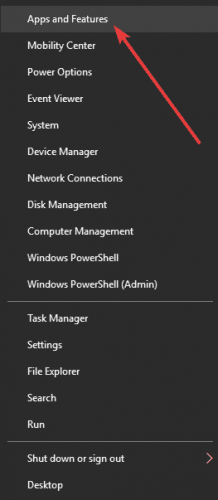
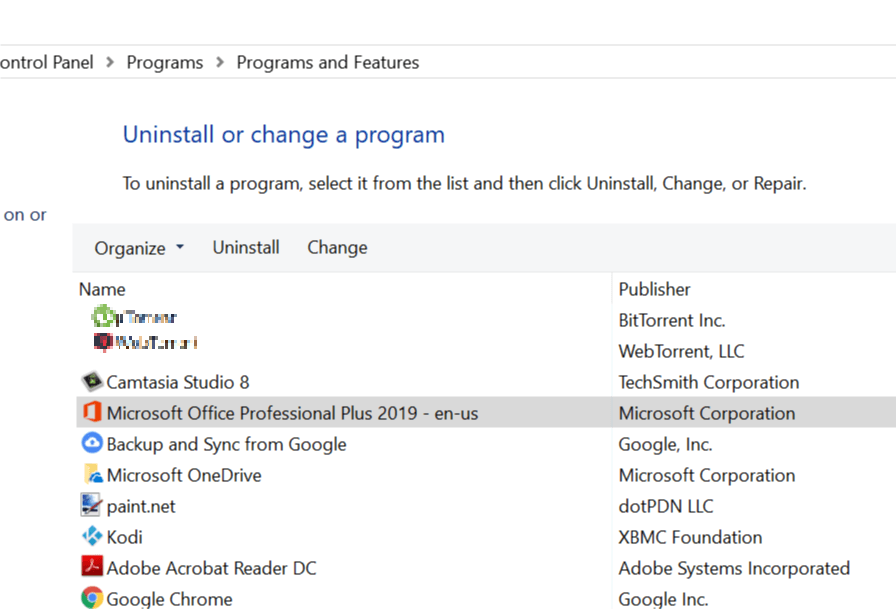
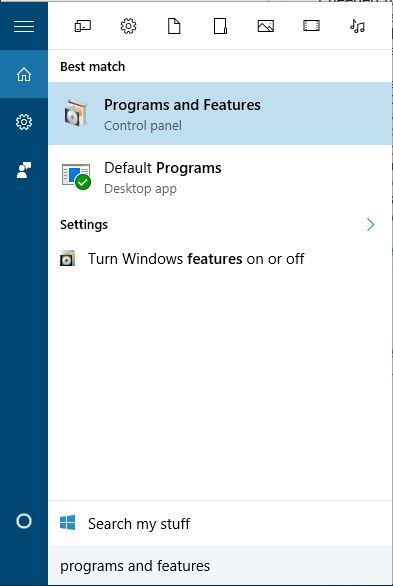
  1. Open Control Panel.
  2. Go to Programs and Features.
  3. Find and select Windows Essentials.
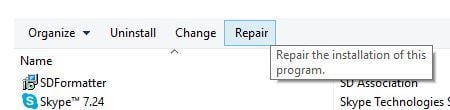
  4. Click on the Uninstall/Change button on the top of the window.Fix: Windows Live Mail error 0x8007007A on Windows 10
  5. In the dialogue that opens, select Repair all Windows Live programs.
  6. Wait until the process completes. Once it does, restart your computer.
  7. Try sending the email again.

Hopefully one of these solutions worked for you. If it didn’t try contacting Microsoft Support.

Also, in case you have any additional troubleshooting steps you deem worth suggesting, feel free to do so in the comments section below. We more than welcome them.


[wl_navigator]

Lenovo ThinkSmart View: Great communications hub, wrong time

Starting at $349

Following the wave of Microsoft Teams’ adoption, Lenovo is introducing its revised Teams-centric dedicated communication hub, the ThinkSmart View.

The View is a dedicated Teams box that is designed to be an office (small or large) single point of chat communications and OnMSFT was given two to test out.

In July the View arrived at my doorstep in a pretty large box given the actual size of the product, but never the less receiving something in the mail has become a highlight of my day in this COVID-19 existence.

The Hardware

Out of the box, there was minimal setup with a single power cord connector and the sleekly designed device itself. The actual software setup for home use is a bit more complicated than just logging into your Teams account, as an admin needs to set up a network and issue credentials specific to the device.

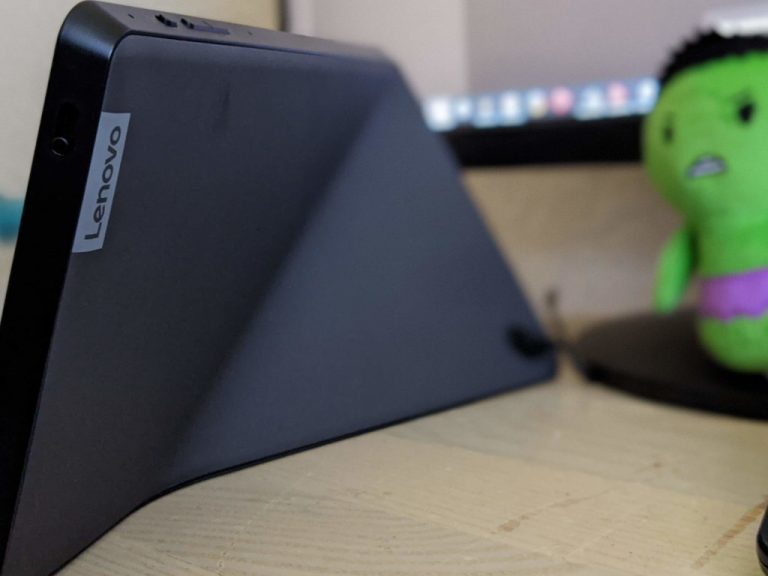
The View is a matte black origami-like design full of triangular folds with the bulk of its weight spread across a semi-triangular base. There is a premium heft to the device that discourages continual movement or repositioning over an extended period. While it is no heavier than a Bluetooth speaker, because of its 1/3 glass construction makeup, I didn’t feel comfortable with handling it beyond my stationery desktop setup.

Thinksmart Origami View

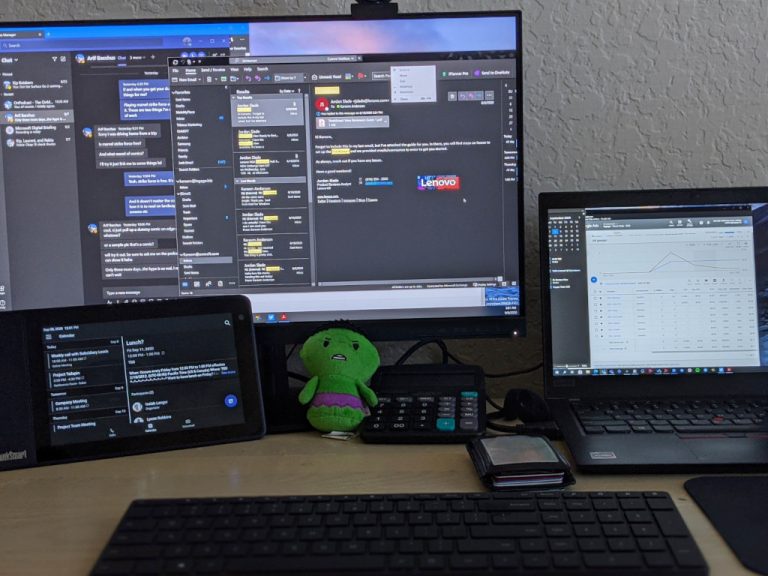
The View houses a 5MP camera with Lenovo’s patented Privacy shutter, an 8-inch IPS display, a 10-Watt speaker system, and dual-array microphones with a manual mute switch and connects via Wi-Fi and Bluetooth technologies.

During my time with the View, I tried to run as many close-to-office-life simulations from my home office as possible to get a feel for how Lenovo’s ThinkSmart View would hold up in an actual conference room. Fortunately, at OnMSFT, we’re Teams enabled outfit, and converting my workflow to the View was painless and, in some cases, a pleasant addition.

Usage

It should be noted, much of what the ThinkSmart View offers can be had with a smartphone or PC from home, but in an office where traveling back and forth between the conference room and an office desk could be made cumbersome with extra hardware, a dedicated communications hub is welcomed.

Thinkview Desktop Cropped

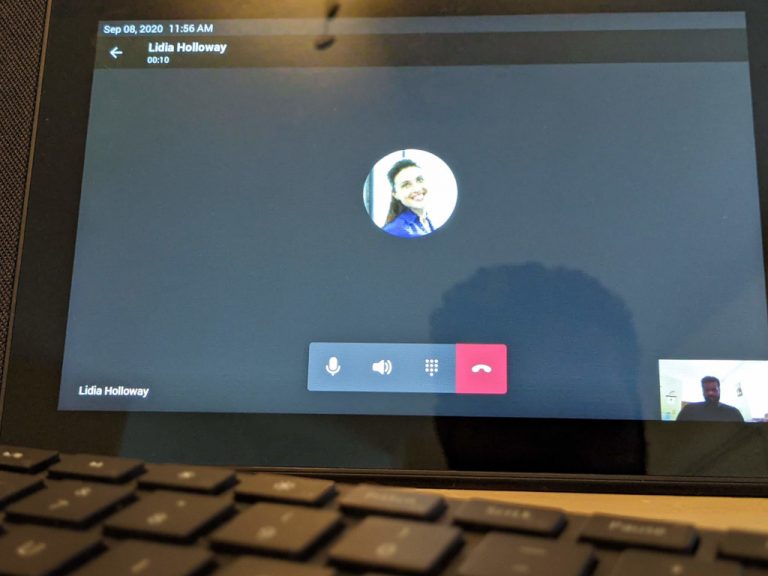
The most important feature of the View is its ability to make and receive calls and from home my tiny home office on questionable Wi-Fi at times, it was exceptional. With dedicated calls, voicemail, and calendar icons that sit in the bottom left corner of the screen throughout most interfaces, making a call was intuitive and easy to accomplish.

Pairing it via Bluetooth to your smartphone or PC also helps with establishing call continuity so you can pick up and end calls across devices.

Once on a call with the View, the audio was also surprising. Instead of the tinny sounds pumped out by laptops, the 10-Watt full-range speaker with 2 passive tweeters the View produced loud and clear audio, and testing on the receiving end the audio picked up by the 360-degree microphone array proved to be similarly unobstructed.

Thinkview Call Cropped

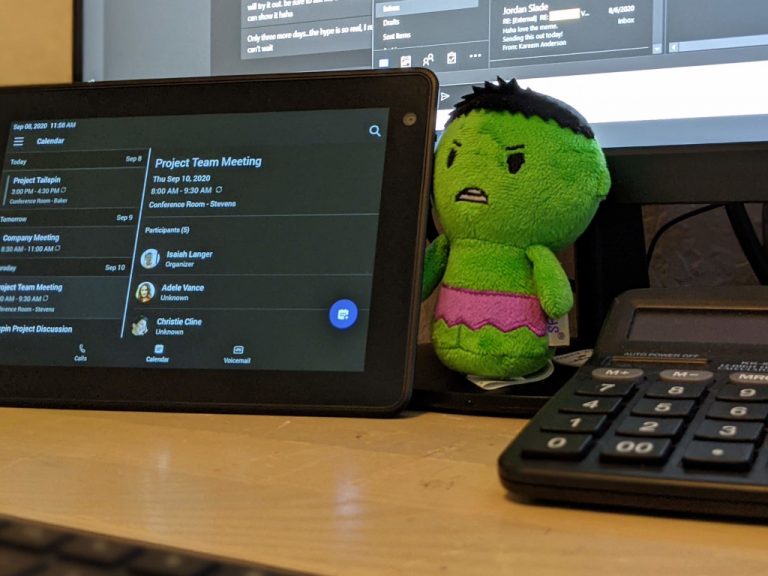
The interface of the View is broken up into three parts that include a dialer screen, a call screen, and a calendar screen. As far as previous chats or shared files, there is limited support for those interfaces, but the bulk of the View’s use cases rely on quick calls and video meetings that leverage a company’s Teams network.

Summary

In a world where several mainstream consumer devices are being outfitted with Zoom support, new Teams dedicated communications hubs feel like a natural progression. However, the Lenovo ThinkSmart View is not as consumer-friendly as say a Google Nest Hub or Amazon Echo and seems to shine more at a conference table than on a home desk.

Thinksmart Desktop Cropped

Prior to social distancing mandates, conference rooms were in need of simplified tools that mitigated the number of fail points during meetings and the ThinkSmart View helps massively in that department. Unfortunately, the conference room has quickly evolved to be practically whatever device can host an app and a decent webcam, and in that world, the ThinkSmart View becomes a super niche device at a steep price point. For the enterprise, a $350 communications hub is par for the course, and one that abstracts the growing clutter of chat apps has a place in business, however, I just think it’s bad timing for the ThinkSmart View to be rolled out.

How to stream NBC Sports online on laptop [Live Streaming]

If you’re on the go and you want to keep up-to-date with the latest news in sports, or even watch live events, then you may be no stranger to NBC Sports. More so, you may already have considered streaming this service on your laptop.

While this idea might sound great on paper, there are some potential drawbacks. For once, streaming NBC Sports outside of the US may appear downright impossible, especially if you lack the right tools for the job.

But don’t worry, we have a few tricks up our sleeves to help you stream NBC Sports from anywhere in the world.

How to watch NBC Sports without cable?

1. If you have a TV subscription

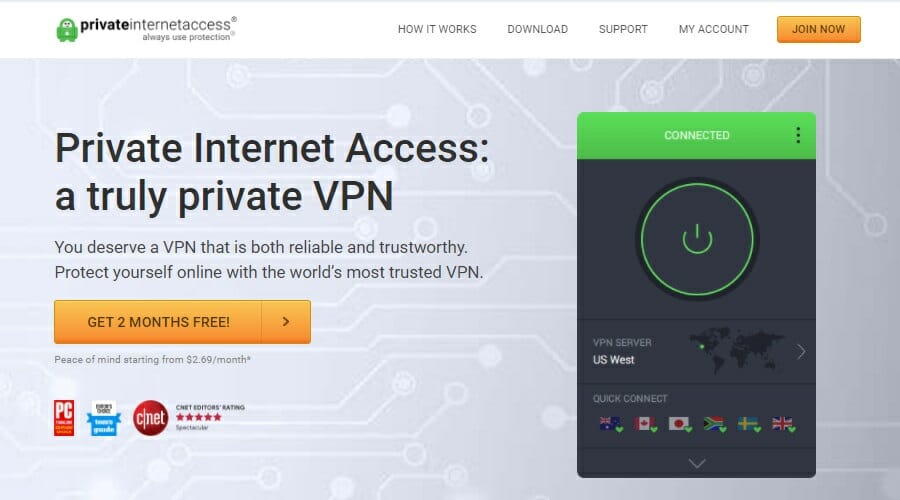
  1. Purchase a Private Internet Access VPN subscription plan.PIA
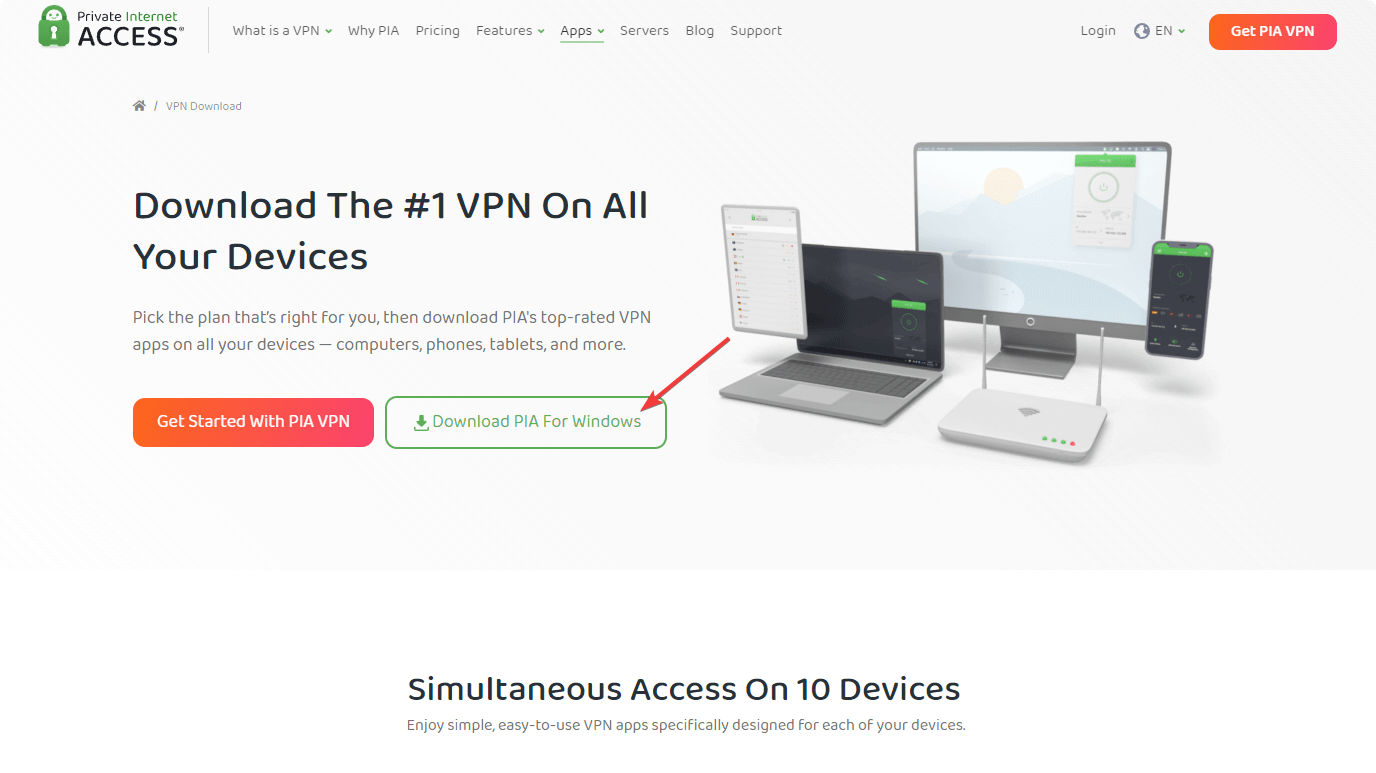
  2. Download, install and launch the VPN client
  3. Connect to a US server
  4. Head over to the NBC Sports website
  5. Select any event you want to watch on your laptop
  6. Click the Verify Now button to remove temporary access limitationVerify NBC Sports TV provider
  7. Select your TV provider from the listNBC Sports provider list
  8. Click the Full Provider List button if you can’t find it
  9. Log into your TV provider’s website to continue

Note that you won’t be able to stream NBC Sports if your TV subscription doesn’t include NBCSN.

Private Internet Access

Want to remove NBC Sport’s geo-restrictions? PIA could come in handy.
Free Trial Visit Website

Furthermore, you won’t need to pay extra for the service, you just log in on the NBC Sports website with the same credentials you use on the website of your provider.

2. If you don’t have a TV subscription

If you don’t have a TV subscription, you’ll need to do one of the following things:

Either you purchase a TV subscription plan and use it to remove the time limit on NBC Sports, or
Purchase an NBC Sports Gold subscription plan

Assuming that you’ll go with our second suggestion, here’s what you need to do:

  1. Buy a premium VPN subscription plan (we strongly recommend PIA)
  2. Download and install the VPN on your PC
  3. Launch the VPN and connect to a US server
  4. Go to the NBC Sports website
  5. Purchase an NBC Sports Gold subscription plan

Note that NBC Sports Gold lets you purchase different subscription plans based on the sport you prefer. This service comprises the following passes, for both live and on-demand events:

  • PGA Tour Live
  • Indycar Pass
  • Cycling Pass
  • Track Pass
  • Pro Motocross Pass
  • Premier Lacrosse Pass
  • Supercross Pass
  • Supercross + Pro Motocross Package
  • Rugby Pass
  • Track & Field Pass
  • Philly Pass
  • Blazers Pass
  • Figure Skating Pass
  • Snow Pass
  • Speed Skating Pass

You can also purchase multiple sports passes if you’re interested in several sports events. Note that the NBC Sports Gold is already available in the following countries and doesn’t require a VPN:

  • Austria
  • Canada
  • Denmark
  • Germany
  • Ireland
  • Italy
  • Japan
  • Luxembourg
  • Netherlands
  • Spain
  • Sweden
  • Switzerland
  • United Kingdom
  • United States of America

However, you should also know that the content might be different depending on the country you’re accessing it from.

Final thoughts on streaming NBC Sports online

All things considered, if you’re looking for ways to watch NBC Sports online, even from outside the United States, there are a few methods you could use.

If you have a TV subscription, you can simply log in to the NBC Sports website using the same credentials as for the provider’s website. However, note that even then, the service might not be available without a VPN.

If you need an alternative, use Sportzfy TV on PC to watch all your favorite sports content. You can also try some Streameast alternatives, in case the popular platform doesn’t show your favourite sport or competition.

If popular services are unavailable, you can also check our CrackStreams not working guide for troubleshooting tips and streaming alternatives.

Alternatively, you could purchase an NBC Sports Gold plan, which enables you to watch your favorite events, both live or on-demand. On the downside, this too might require you to use a VPN such as PIA.

How to burn MKV files to DVD [Windows 10 & Mac]

If you have downloaded MKV files to your computer or already had a few files and trying to burn it to a DVD, you would need two things. A DVD writer and a DVD burner.

Not all DVD players support MKV format. This is where burning MKV files to DVD come in handy. You can burn MKV files to DVD using DVD ripper tools.

In this article, we explore how to burn MKV files to DVD on Windows 10 and Mac quickly burn large MKV files to DVD.

How do I burn MKV files to DVD in Windows 10?

WinX DVD Author

burn MKV files to DVD

WinX DVD Author is one of the best DVD ripper tools available for Windows 10. The tool is completely free to install and use. It allows you to burn all videos, including MKV file, to a DVD.

Additionally, you can create a menu, insert substiles to your videos, set aspect ratio, and supports encoding systems like PAL and NTSC DVD.

WinX DVD Author supports various input formats, including MP4, VOB, FLV, MOV, and ISO. Additionally, the built-in YouTube download manager helps you to download YouTube videos directly from the app menu.

  • Supports multiple input formats, including MKV
  • Built-in YouTube video download manager
  • Ability to add external subtitles with .srt files.
  • Basic video editor to trim and crop video parts.
WinX DVD Author

WinX DVD Author

Easily burn MKV files to DVD by using this powerful and easy to use software!
Free trial Visit website

Nero Burning ROM

Nero Burning ROM is yet another popular DVD ripping software that can help you convert MKV files to DVD. You can burn music and data to your preferred disc types such as CD, DVD, and Blu-ray as well as add some security to your disc with SecureDisc 4.0 feature

The built-in Gracenote technology helps retain the original album cover and integrate them into the audio file. So, you can browse your playlist without having to recreate it again.

  • Enables copying MKV files to DVD.
  • SecureDisc 4.0 to encrypt your disc data.
  • Nero CoverDesigner to create unique arts for DVDs.
  • Supports multiple audio and video formats.
Nero Burning ROM

Nero Burning ROM

Burn MKV files to DVDs in Windows 10 with this easy to use software option!
Free trialVisit website

Aiseesoft Burnova

burn MKV files to DVD

If you have large MKV files like movies in MKV format, you can burn them to a DVD using Aiseesoft Burnova. Burnova is a premium DVD ripper that can burn MKV video to DVD disc, folder and ISO image file.

To burn MKV to DVD, launch Aiseesoft Burnova. Drag and drop the MKV file to the timeline. Use the edit button to rotate, crop, clip, or add effects to the video. Next, work with the preformatted templates and click Start.

  • Burn MKV videos to DVD.
  • Offers customized output files.
  • Ability to add track and subtitles
  • Basic video editing tools to crop and add effects.
Aiseesoft Burnova

Aiseesoft Burnova

This powerful software ensures the transformation of your MKV file to DVD is done smoothly without loss of quality.
Free trial Visit website

AnyMP4 DVD Ripper

burn MKV files to DVD

This excellent DVD ripper enables you to rip and burn MKV files to DVDs, folders, and ISO image files. AnyMP4 DVD Ripper supports over 500+ digital video and audio formats, including MKV, MP4, MOV, AVI, MP3, etc.

AnyMP4 DVD Ripper can rip original DVD to MPG format without losing quality. It can also clone an uncompressed ISO file and folder without disturbing the original structure.

Like other DVD rippers, AnyMP4 DVD Ripper also offers a few additional features, including the DVD customization option. You can add subtitles, audio track, add filters and adjust effect, add watermark, crop, rotate, merge and cut videos with the built-in video editor.

  • Convert MKV to DVD, folder, and ISO image files.
  • Built-in video editor for DVD customization.
  • Built-in GIF maker, video compressor, and metadata editor.
  • Supports 500+ digital video and audio formats.
AnyMP4 DVD Ripper

AnyMP4 DVD Ripper

This powerful software can transform MKV to DVD with just a few clicks of the mouse!
Fee trial Visit website

DVDFab

burn MKV files to DVD

DVDFab is a feature-rich all-in-one video and DVD solution. Using the tool, you can decrypt, copy, rip and burn DVD, convert audio and video to a different format and remove DRM and Cinavia encryptions.

To burn MKV to video, launch DVDFab. Open the Creator tab and then select the DVD creator. Drag and drop your MKV file to the timeline.

Clicking the wrench icon will bring the up advanced settings menu. Here you can add a title, choose the output format and video quality, and select encoding format and aspect ratio. Click Save to save the changes.

Next, select any of the preformatted templates. Clicking on Set Menu will show more customization options. Click the Start button and then choose the DVD as your source.

DVDFab

DVDFab

This easy to use software transforms MKV to DVD very fast, and the interface is easy to use. Try it now!
Free trial Visit website

The best way to burn MKV to DVD is to use DVD ripper tools like WinX DVD Author.

These apps come with all the necessary tools to not only convert and burn the MKV files but also allows you to make minor adjustment such as adding subtitles to your video.

Explore the apps and let us know your favorite tool in the comments.

You can improve the quality and compatibility of your MKV files before burning them by using MakeMKV software, which creates clean MKV videos from your DVDs and Blu rays for smoother conversion and DVD authoring.


[wl_navigator]

The file size exceeds the limit allowed and cannot be saved

System errors can be a big problem, and many users reported ERROR_FILE_TOO_LARGE errors on their PC.

This error usually displays the following message: The file size exceeds the limit allowed and cannot be saved.

Today we’re going to show you how to fix this error on Windows 10.

How do I fix the file size exceeds the limit allowed error?

1. Use WinZip as a file compression tool

Perhaps the easiest, and the first-on-the-list solution, is to try and compress the respective file or files with a dedicated tool.

WinZip is the most popular app in this segment, with more than one billion users.

With WinZip, you can compress most major formats, such as Zip, Zipx, RAR, 7z, TAR, GZIP, VHD, XZ, and more, so you won’t have any trouble quickly shrinking the size of any file to get rid of or avoid the above-mentioned error.

In case you need further features, WinZip helps with finding, opening, editing, moving, and sharing the files stored on PCs, networks, or cloud services.

It conveniently comes with Dropbox, G-Suite, or OneDrive integrations.

”WinZip”

”WinZip”

”Try
”Try
&aff_sub2=Native” current_url=”true” button_text=”Get it now” image=”https://windowsreport.com/wp-content/uploads/2017/11/WinZip-button-210×160.png”]

2. Modify your registry

  1. Press Windows Key + R and enter regedit. Press Enter or click OK.
  2. Optional: Modifying the registry comes with certain risks, and if you don’t modify it properly you can cause system stability issues to occur. To prevent any potential problems, it’s important to backup your registry. To do that, click on File > Export.
    Select a safe location for your backup. Enter the desired file name, select All as Export range and click on Save.
    After exporting the registry, you can use the exported file to restore everything to the original state if anything goes wrong.
  3. In the left pane navigate to the following location HKEY_LOCAL_MACHINESYSTEMCurrentControlSetServicesWebClientParameters
  4. Locate FileSizeLimitInBytes DWORD in the right pane and double click it.
  5. In the Value data field enter 4294967295 and click OK to save changes.
  6. Close Registry Editor.

After doing that, you just need to restart your PC and the issue should be resolved.

By modifying the registry you’ll change the maximum file size to 4GB. Instead of restarting your PC, some users are recommending restarting the WebClient service. To do that, follow these steps:

  1. Press Windows Key + R and enter services.msc.
  2. Locate the WebClient service and restart it.
  3. Close the Services window.

After you restart the service, changes will be applied and the file size limit will be removed.

3. Scan your PC for viruses

Several users reported that this error can occur due to malware infection.

That’s why we strongly advise you to perform a detailed scan using a dedicated anti-malware program.

To perform this efficiently and get a detailed report of your system’s health status, you should use powerful anti-malware tools. Hence, you can select the best antiviruses for Windows 10.

4. Configure your SharePoint storage

Few users reported that The file size exceeds the limit allowed and cannot be saved message appears with files located in the SharePoint folder.

To fix this issue, users are suggesting configuring your SharePoint storage so it can save larger files.

Apparently, SharePoint has a storage limit, but you can easily change it. After doing that, you should be able to save files without any issues.

5. Set a file size upload limit

  1. Login to SharePoint’s Central Admin and navigate to Central Administration > Application Management > Manage Web Applications.
  2. Select the applications you want to change and click on General Settings.
  3. Once the General Settings opens, you’ll see Maximum upload size value. Change that value to 2047 MB and save changes.

After performing these steps, the error message should be gone.

6. Change the SharePoint web.config file

  1. Open Internet Information Server console on server desktop.
  2. Open the Websites tree and select the desired website. Select Open in Explorer View option.
  3. Locate web.config file in the folder.
  4. Create a copy of that file and use it as a backup in case anything goes wrong. Open the original web.config file with Notepad (or any other text editor).
  5. In the Notepad text, locate the <httpRuntime maxRequestLength=”51200″ /> line and change it to <httpRuntime maxRequestLength=”204800″ />.
  6. Repeat these steps for each server in SharePoint.

7. Increase the machine-level request setting

  1. Open the SharePoint Administrative Command Prompt.
  2. Enter the following command: %windir%system32inetsrv appcmd set config -section:requestFiltering -requestLimits.maxAllowedContentLength:209715200
  3. You should receive a confirmation message after applying this command.

As seen, The file size exceeds the limit allowed and cannot be saved error usually affects SharePoint users. We truly hope that using one of our solutions has been helpful.

We’d appreciate it if you’d tell us which solutions you tried or if you have further suggestions on this topic.

FIX: Dropbox Zip file is too large to download

When the Zip file you receive through a download link exceeds the Dropbox download file limit, occurs the ZIP file is too large to download error message.

Dropbox has a one GB download limit for its folder/file downloads. Thus, Dropbox users can’t download Zip files that exceed one GB directly from their web accounts.

This maximum one GB limit also applies to shared links whether the person downloading the Zip has a Dropbox account or not. So that’s probably why the Zip file is too large.

In order to help you address this, we prepared a list of the most applicable solutions. If you’re having a hard time resolving the issue at hand, make sure to check them out below.

How do I fix the Zip file is too large to download error?

1. Split the Zip into smaller parts

  1. Download and run WinZip.
  2. Open the software, and right-click the Zip you need to split.
  3. Select Split file, and enter a size volume for the split files.
  4. Press the … button, and select to split the file to your My Dropbox desktop folder, if you’ve installed the client software. If you haven’t, you can upload them to Dropbox.com instead.
  5. Press OK.
  6. Set up shared links for each of the split files so the recipient can download them.

If it’s somebody else who can’t download the shared Dropbox Zip, you could also split the Zip up into smaller parts so that they can download each of the smaller files instead.

Splitting the Zip into smaller parts is a great way to cut it down to size for somebody to download from a Dropbox link, and that might also come in handy for uploading files to cloud storage.

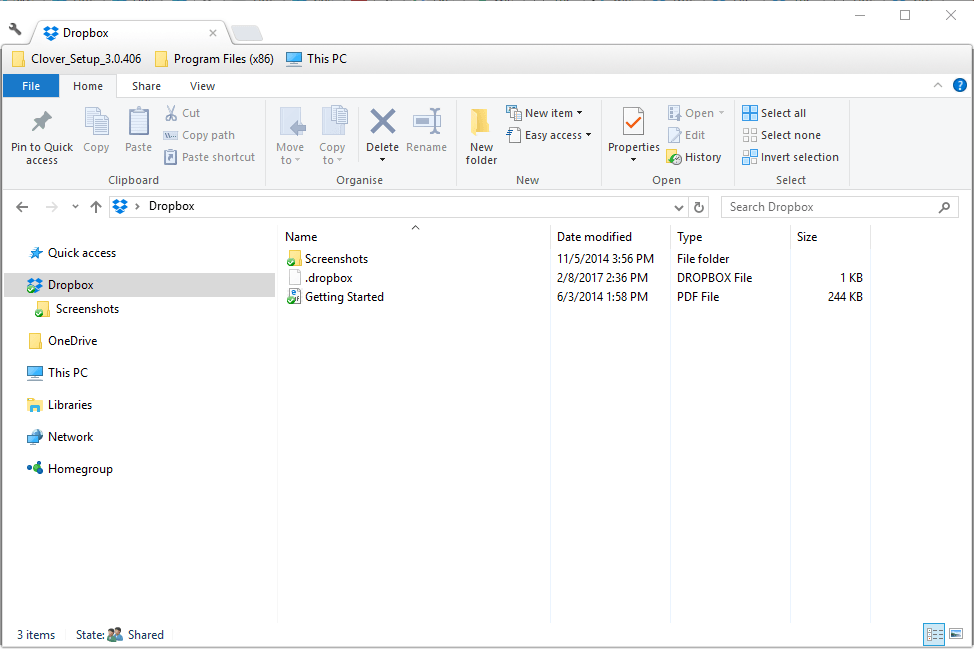
Alternatively, adding the client software to Windows will enable you to open the Zip via the synced desktop Dropbox folder.

2. Check your hard disk storage space

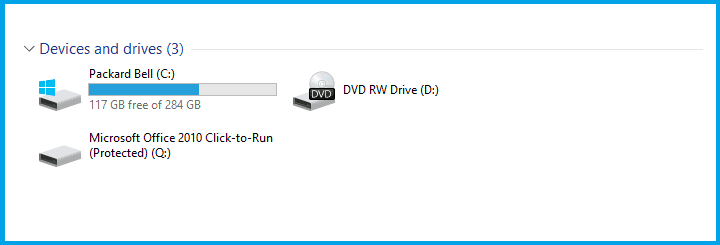
  1. Press the File Explorer button on the Windows 10 taskbar.
  2. Click This PC to open an overview of devices and drives.
  3. The C: drive has a bar beside it that shows you your storage space.
  4. You can check if there’s enough HDD storage space for the Zip to download.

If the Zip file you’re trying to download from Dropbox doesn’t eclipse one GB, then your hard disk might not have sufficient space for it.

3. Add the Dropbox desktop software client to Windows

zip file too large to download
  1. Download Dropbox.
  2. Start the Dropbox installer to add the software to your desktop or laptop, and run it.
  3. Open the shared Dropbox folder link again and press the Add to my Dropbox option.
  4. Press Open instead of Download for the shared Zip in Dropbox.com.
  5. Click that button to open the Zip in File Explorer.

The Dropbox desktop client software doesn’t have the same download limit restrictions as Dropbox.com.

With that, you, or whoever you’re sharing the Zip with, can select an Add to my Dropbox option on the shared file preview.

Once you’ve added the Zip to a Dropbox account, it will automatically sync with the Dropbox folder on PC from which you can open it.

Don’t forget to tell us whether one of the steps gets you through the problem. You can do so in the comments section below.

There are numerous services online, and we covered all sorts of issues in our Web apps Hub, so we encourage you to check it out. Software errors are less dreadful if you’re using our expert advice in the Troubleshooting section.

How to split files in Windows 10

Windows 10’s File Explorer doesn’t include any split file options. They would be handy as users constantly look for ways to cut a file down into smaller pieces.

This is essential for backing up and sending larger files, and there are numerous third-party software packages available for Windows 10 that enable you to split files into smaller parts. 

Just take a closer look at our top picks below.

How can I split files in Windows 10?

1. Splitting files with WinZip

install WinZip
Since you’re here, you probably need to install a great and easy-to-use tool for splitting files. WinZip isn’t just a modern looking application; it’s simply the perfect one for this job.

Besides the fact that it supports a variety of different archive types, it always protects your data with banking-level encryption.

Rest assured that this isn’t the only advanced feature that’s waiting for you. Users also appreciate the easy management of files not only on their PC but on network and clouds as well.

As for simple procedures such as splitting files and zipping them, you can’t find any other tool with a better overall speed.

”WinZip”

”WinZip”

”Looking
”Free
&aff_sub2=Native” current_url=”true” button_text=”Get it now” image=”https://windowsreport.com/wp-content/uploads/2020/09/winzip-logo-210×160.png”]

2. Splitting files with Icecream PDF Split & Merge

  1. To easily split and merge unlimited files, click Merge to begin the procedure.time to click Merge
  2. Then, click Add file or easily drag and drop the file you have in mind.
  3. While in PDF Split & Merge, type a new name for the selected file.
  4. Press the Merge button and you’re good to go.green Merge button

If you’re looking for a powerful tool to easily split files in Windows 10, you’ll probably love Icecream PDF Split & Merge.

Do note that it comes with many advanced features, such as strong encryption or 50+ languages support. In spite of that, it doesn’t forget the basics, either.

With drag-and-drop support for arranging files with ease, passwords for both Split and Merge modes, and Windows/Mac OS compatibility, it’s definitely worth downloading (if you don’t have it already.)

Icecream PDF Split & Merge

Icecream PDF Split & Merge

Splitting files in Windows 10 is incredibly intuitive when using Icecream PDF Split & Merge. Ready to try it out?
Get it free Visit website

3. Splitting documents with PDF Splitter Joiner

  1. First, download the PDF Splitter Joiner tool for Windows 10. try out PDF Splitter Joiner
  2. With this software, you can split text documents, videos, and audio files. Click the Splitter tab and press the Input File button to select a file to split (or select the File Splitter Joiner option from file context menus). Note that file sizes must eclipse one megabyte.
  3. Next, press the Output Folder button to choose a folder to save the split files in.
  4. Then choose how to split the file. Click Split Equal Parts to split the file into equal-sized parts. Enter how many files to split the file to.
  5. Alternatively, you could select the Split Volume option. With that, you can specify the approximate size of each of the split files. For example, a 10-megabyte video would split into 10 files if you entered 1 MB there.
  6. Press the Split button to cut up the file.
  7. The split files will save to the selected output folder.
  8. Open that folder in File Explorer.
  9. Open one of the file segments by right-clicking it and selecting Open with from the context menu.
  10. Then, select to open it with a suitable software package. For example, you can play audio and video files with Windows Media Player.

4. Splitting text documents with HJ-Split

  1. If you need to split text documents less than one megabyte, grab HJ-Split.
  2. Unzip its zipped folder by opening it in File Explorer and selecting Extract all.
  3. Enter a path for the extracted folder. You can open the window shown below from the extracted folder.
  4. Click Split to open the options below.split documents3
  5. Press the Input File button to select a text document to split.
  6. Press the Output button to select where the split files will save to.
  7. Enter a value in the Split file size text box. For example, to split a 4KB file in two exactly you would enter 2 there.
  8. Then, press the Start button to cut the file up. Note that the software works best with TXT files, so if you can’t open the split files in a word processor convert the original document’s format to TXT before splitting it.
  9. Open the split documents by right-clicking them and selecting Open with. Choose suitable software to open the document with. It’s best to select the default file format packages.

5. Splitting PDFs with PDF Shaper

  1. If you need to split a PDF document, download PDF Shaper. More precisely, click the Download button under PDF Shaper Free to save the setup wizard and install the software. Open the program’s window below.split documents5
  2. Click Content > Split to open the window in the snapshot below.split documents4
  3. Click the Files tab and press Add to select a PDF to split.
  4. Select the Options tab, and enter a value in the Split by the number of files box. That’s the number of split files you’ll get.
  5. Then, press the Process button to split the PDF.

So those are four great software tools you can split files up with. Those programs enable you to split up audio, video, text documents, and PDFs.

Then, you can also join files together with HJ-Split or PDF Splitter Joiner and not only.

[wl_navigator]

Best FIPS 140-2 encryption software for Windows 10/11

FIPS, also known as  the Federal Information Processing Standard, is an official accreditation program that allows software to be included in categories based on the cryptographic power each of them has.

This enables you, the user, to easily choose between the levels of protection that you feel you need for your company, just by checking the FIPS 140-2 accreditation validation level.

Using this type of software enables you to protect your company from any third-party interests, maintain confidentiality, and also the integrity of the information stored on your servers/PC hard-drives.

For these reasons, in today’s article we will discuss some of the best software options that support FIPS 140-2 encryption on Windows 10, to ensure you’ll never be exposed to any risks online.

What is the best software that offers FIPS 140-2 encryption?

WinZip

WinZip is our top pick when it comes to software that enables you to easily use FIPS 140-2 encryption, and it’s by far the best option on the market at this point in time.

This powerful software is incredibly easy to use because of its intuitive user interface, but don’t let that fool you into thinking that the capabilities are not up-to-par with the latest innovations.

Hiding behind its apparent simplicity, WinZip contains an absolute powerhouse of features that will make other software options get out of its way from the start.

Besides the ability to encrypt files by using the FIPS 140-2 encryption, this software enables you to compress large files without loss of quality, can split archives and merge them, add watermarks to images, and even convert files to PDF.

The incredible versatility contained in this easy to use and small-sized software can leave anybody speechless, but it also contains some other useful features:

  • Works perfectly on Mac, Windows, and Linux OSs
  • Full compatibility with Dropbox, GoogleDrive, and SkyDrive
  • Can easily add links to files via email, IM, and social media
  • Amazing compression quality and processing speed

”WinZip”

”WinZip”

”Compress
”Free
&aff_sub2=Native” current_url=”true” button_text=”Get it now” image=”https://windowsreport.com/wp-content/uploads/2017/11/WinZip-button-210×160.png”]

ESET Endpoint Protection

The Endpoint Protection software from ESET is another very good software option to encrypt your files and folder with a FIPS 140-2 standard.

Beyond the capability to encrypt files easily and efficiently, this powerful software also offers great anti-phishing support and has one of the best detections rates on the market.

One of the most important and useful features that Endpoint Protection contains it’s its ability to be controlled remotely from anywhere on the planet. All you have to do if you’re on vacation is to remember the log-in details for your account and log into the software to change any sort of settings for your PC back home.

Because of this constant connection, you also get notified of any pushing attempts or logins while you’re away from your PC.

Here are some other useful features found in this powerful software:

  • Allows you access to useful forensics tools
  • Software firewall
  • Network attack protection
  • Full support for Microsoft Hyper-V and VMWare ESXi (local), and Microsoft Azure, Amazon Web Services (public cloud)
  • Very easy setup
ESET Endpoint Protection

ESET Endpoint Protection

Encrypt your database with the FIPS 140-2 standard with ease by using this incredibly powerful software.
Free trial Visit website

McAfee Total Protection

McAfee Total Protection not only offers you top-of-the-range FIPS 140-2 encryption, but it’s packed in a beautifully designed and easy to understand user interface to top it off.

This great software protects you from a wide range of viruses, malware, spyware and ransomware attacks, while also protecting your privacy online.

The native encryption features of this software ensures full functionality on Mac OS X File fault, and also Microsoft BitLocker on Windows, so you never have to worry about this elements no matter what platform you use.

Some other useful features:

  • Driver encryption
  • File encryption
  • Easy native encryption management from one hub
  • Automated encryption process
  • Advanced identification and verification of multifactor authentication

⇒ Get McAfee Total Protection

We hope that these software options have given you the chance to make an informed decision about the best FIPS 140-2 encryption software on the market.

Feel free to share your opinion with us by using the comment section found below this guide.

[wl_navigator]

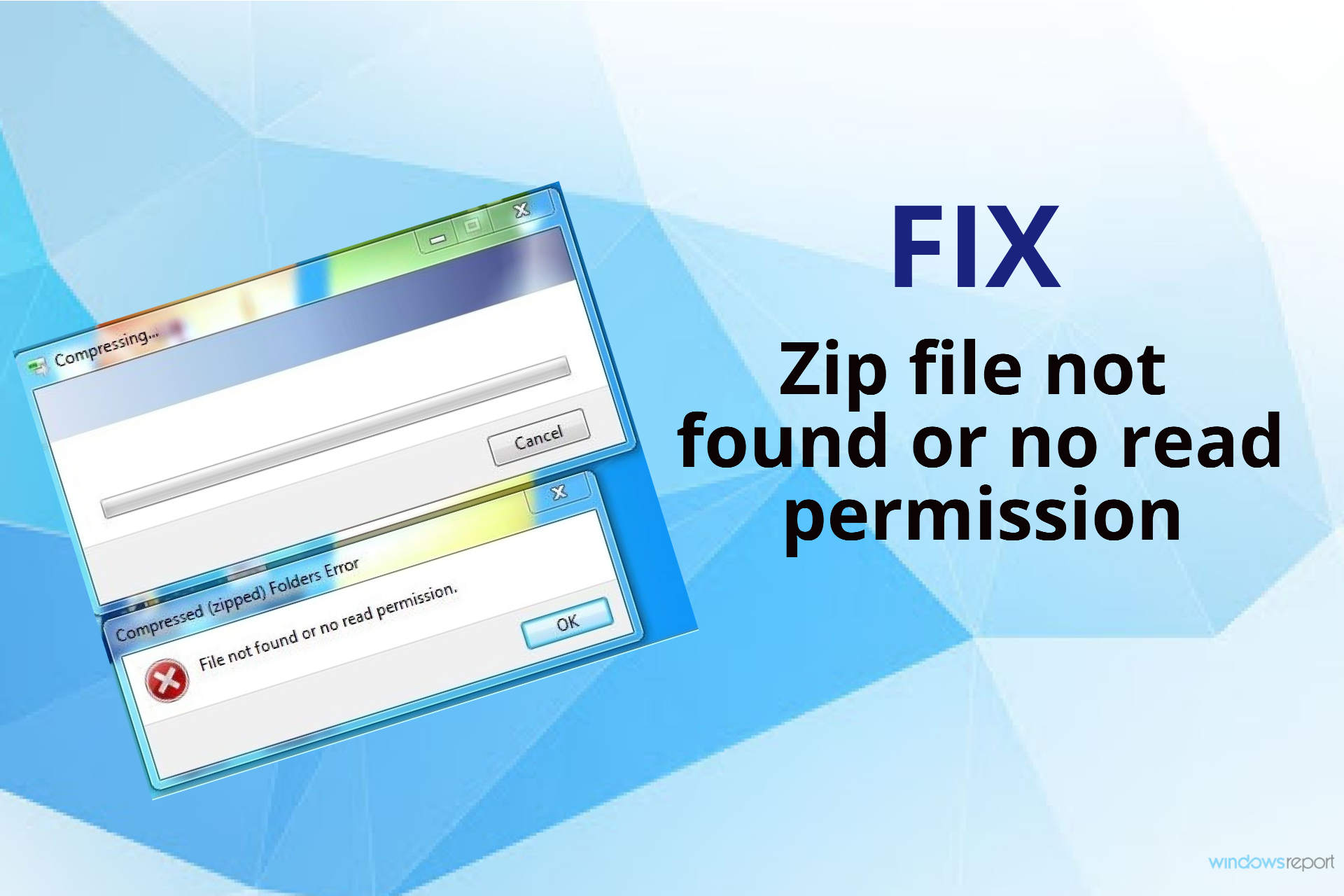
FIX: Zip file not found or no read permission error

Encountering the Zip file not found or no read permission error can be very annoying, especially if you’re trying to archive a file from a  folder that is supposed to work.

The error appears whenever you try to use the right-click sub-menu to compress a folder easily. Here is what one user had to say about this problem on the Microsoft Answers forum:

Since upgrading to Windows 10 I have not been able to create a zipped folder using the explorer options Send to and Compressed (zipped) folder. The error given is File not found or no read permission.

This error is occurring for folders off the root directory C: however does not seem to occur for subfolders.

To find out more about the resolution for this error, read through the entirety of this guide.

How can I fix the Zip file not found or no read permission error on Windows 10?

1. Use WinZip


This powerful software resolves this problem once and for all by replacing the common sub-menu with one made by WinZip.

The feature that stands out the most is the versatility and ease of use of the user interface, allowing you very quick access to any option.

Amongst the plethora of features included in this simple software, you get amazing processing speeds for creating, merging, and splitting archives, like no other software on the market.

It is also worth mentioning that this software enables you to also encrypt your files, and works seamlessly with OneDrive, Dropbox, and Google Drive.

To resolve the pesky Zip file not found or no read permission issue, all you have to do is follow these steps:

  1. Download and install WinZip.
  2. Navigate to the folder/file location on your hard-drive.
  3. Select the file/files you want to add to the archive.
  4. Right-click the selection and hover over the WinZip option.
  5. Choose Add/Move to zip file.
  6. Follow the on-screen instructions to create the archive easily.

”WinZip”

”WinZip”

”Resolve
”Free
&aff_sub2=Native” current_url=”true” button_text=”Get it now” image=”https://windowsreport.com/wp-content/uploads/2017/11/WinZip-button-210×160.png”]

2. Create a new User Account

  1. Click the Start menu and choose Settings.
  2. Select Accounts, and then click the Other User Accounts option.
  3. Choose Add an Account.
  4. Type a user name and press Next.
  5. Click Finish.

Note:  After this process is completed, you can simply log out of the account you’re currently using, and log into the new one you just created.


3. Close any files open in another program


Some users have mentioned that the issue was caused by a file opened in another program that’s found in the directory in which you’re trying to create the zip file.

To resolve this issue, you can simply make sure to close all the software running in the background, or make sure that the location is not in use.


4. Restart your PC


Even though it might seem like a solution to easy to be true, sometimes the issue mentioned in this guide is caused by some registry files that haven’t been properly refreshed.

For this reason, and because users had good feedback about this method, restarting your laptop/PC, and then attempting the same steps that cause the error might result in the files being archived without issues.


5. Re-install Windows


In the case of some users, it seems that the problem was caused by the way they installed Windows 10.

If you know that you upgraded to Windows 10 from the previous Windows OS, and didn’t perform a clean install, this might be causing the issue.

Even though this is more of a workaround, this method can save you hours of trouble, even though it implies waiting for the Windows installation process to complete.


We hope this guide helped resolve this issue once and for all.

If you have any suggestions, or if you simply want to share your experience with us, don’t hesitate to use the comment section found below this guide.

[wl_navigator]

FIX: Among Us keeps disconnecting on PC

Among Us is a popular multiplayer game on both PC and handled gaming devices like smartphones. However, with the popularity, the game is causing some issues as it keeps disconnecting on PCs.

The disconnection issue usually occurs due to poor internet connection. Fortunately, you can fix most of the connectivity issues by performing a few quick troubleshooting steps.

In this article, we explore a few troubleshooting steps to help you fix the Among Us keep disconnecting on PC issues and get you back online.

What can I do if Among Us keeping disconnecting on Windows 10?

1. Change server region

Among Us keeps disconnecting
  1. Launch Among Us on your PC.
  2. Click the little Globe button in the right corner of the game.
  3. Go through all the servers available and select the one that you think is less populated.

While this is a preferred solution for server error on Among Us, it should also fix any connection issue occurring due to server outage. It is a bit of trial and error, so try to select different regions to find the best one for you.

A great and more convenient alternative would be to use a private network equipped with features dedicated to gamers, respectively a Gamers Private Network (GPU).

This service optimizes game connection data, without changing your network settings or masking your IP address. Moreover, its advanced technology reduces latency, packet loss, and ping, enhancing your Among Us gaming sessions exponentially.

WTFast

Play Among Us without interruptions or lag with this fast and advanced VPN service!
Try it now Visit website

2.  Run Windows network troubleshooter

Among Us keeps disconnecting
  1. Press the Windows key + I.
  2. Click on Update & Security.
  3. Open the Troubleshoot tab from the left pane.
  4. Scroll down and click on the Additional troubleshooters’ link.
  5. Click on Internet Connections.
  6. Click on the Run the troubleshooter button.
  7. The troubleshooter will scan for the issues and recommend some fixes.
  8. Apply the fixes and check for any improvements.

3. Clear DNS cache

Among Us keeps disconnecting
  1. Press the Windows key, and type cmd.
  2. Right-click on Command Prompt and select Open as Administrator
  3. In the Command Prompt window, enter the following command and hit enter one by one.
    netsh int ip reset
    netsh advfirewall reset
    netsh winsock reset
    ipconfig /flushdns
    ipconfig /release
  4. Wait for the success message and close the Command Prompt.

Restart the computer and then launch Among Us on Steam and check for any improvements.


4. Change DNS server

Among Us keeps disconnecting
  1. Press the Windows key + R.
  2. Type control and click OK.
  3. Click on Network and Internet.
  4. Open Network and Sharing Center.
  5. From the left pane, click on Change adapter settings.
  6. Right-click on your network adapter and select Properties.
  7. Scroll down and double-click on Internet Protocol Version 4 (TCP/IPv4).
  8. Select Use the following DNS server addresses option.
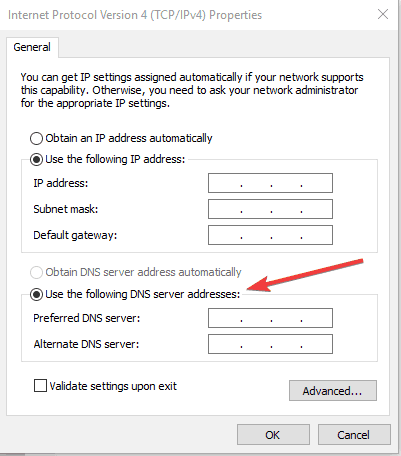
  9. Enter the following DNS server address in the Preferred and Alternate DNS server field:
    8.8.8.
    8.8.4.4.
  10. Check ‘Validate settings upon exit.’
  11. Click OK to save the changes.

Now restart your computer. Launch Steam and check if the disconnection issues in Among Us is resolved. If it continues, check your home network for connection problems.


5. Troubleshoot home network

Game disconnects on PC

If you don’t have a stable connection, it can cause the game to disconnect from the server. Use speed testing tools to check if you have a stable connection. A quick power cycle can fix several issues with the network router.

  1. Make sure the router is powered on.
  2. Disconnect the power cord and ethernet cable from your router.
  3. Leave the device idle for a few minutes.
  4. Reconnect the cables and wait till the lights stop blinking.
  5. Connect your PC to the network and try to launch Among Us.

The Among Us keeps disconnecting on PC problems can be triggered due to server issues. You can fix the problem by changing the game server or using a public DNS server address.

You can also follow our guide on how to play Among Us on Windows to confirm your setup and avoid basic configuration issues before you start troubleshooting disconnects.

Do let us know which method helped you resolve the problem in the comments.

[wl_navigator]

FIX: Among Us keeps crashing & freezing on PC?

Among Us is a popular multiplayer social deduction game available on multiple platforms. However, several PC users have reported the game to be crashing and freezing when launching and playing.

The crashes and freezes can be triggered due to a glitch in the game or Steam issues.

If you are also experiencing the Among Us keeps crashing and freezing on PC issue, here is how to fix it with a few quick steps.

What can I do if Among US keeps crashing and freezing on PC?

1. Verify integrity of Steam files

Among Us keeps crashing

  1. Launch Steam from the desktop.
  2. Open the Library tab from the top menu.
  3. Right-click on Among Us from the left pane.
  4. Select Properties.
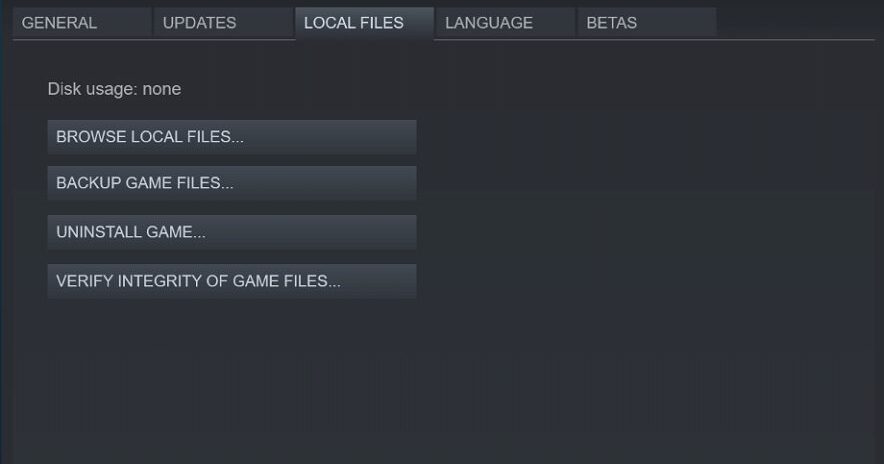
  5. In the Properties window, open the Local Files tab.
  6. Click on Verify Integrity of Game Files.
  7. Steam will scan and validate the game files. And fix any issues with the game files.

Click the Close button and then close Steam. Relaunch Steam and launch Among Us to see if the issue is resolved.

Verifying the integrity of game files should help if you are encountering the ‘You are running an older version of the game, please update’ error.

If the problem persists, try updating your Steam client to see if that resolves the issue.

Among Us keeps crashing

  1. Launch Steam.
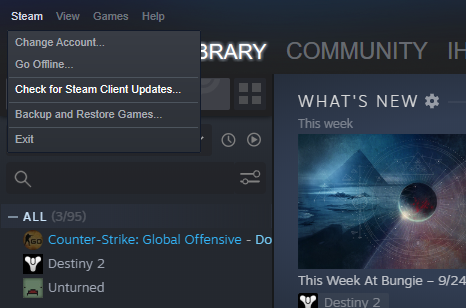
  2. Click on Steam and select Check for Steam client updates.
  3. Download and install the available update.
  4. Relaunch the app and open Among Us to check for any improvements.

2. Disable Max FPS limit

Among Us keeps crashing

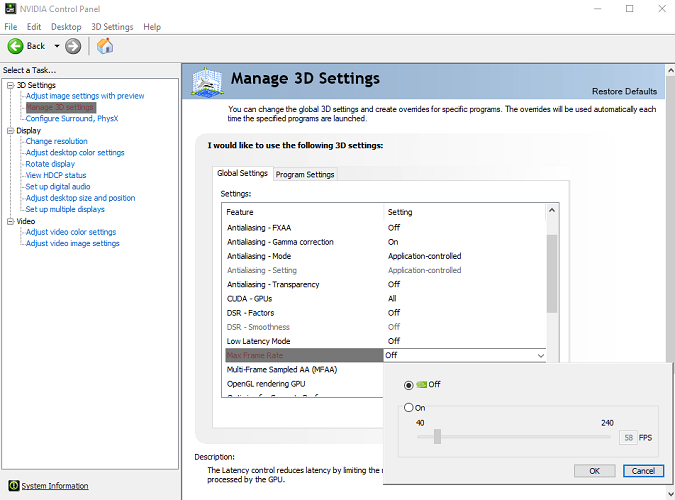
  1. Launch Nvidia Control Panel.
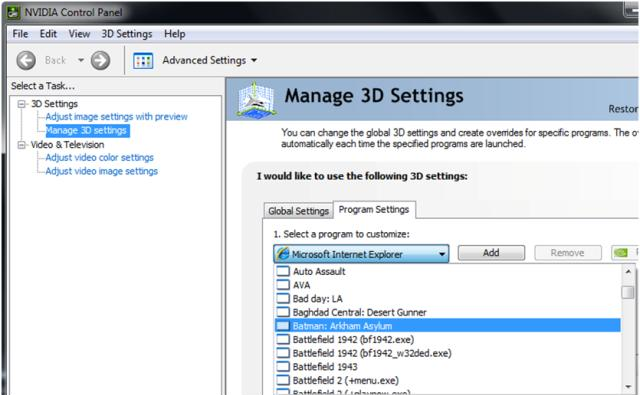
  2. Open Manage 3D Settings option.
  3. Go to Programs Settings.
  4. Select Among Us from the list.
  5. Here, you have to disable the Max FPS limit option.

Setting the right FPS value is a bit of a trial and error to find which value works best for your GPU, and the game works without crashing. Change the value a few times to find the right FPS limit for Among Us.

Change power management settings.

Among Us keeps crashing

  1. Open Nvidia Control Panel.
  2. Go to Manage 3D settings and click Program Settings.
  3. Select the game and change the following settings:
    Set Power Management to Prefer Maximum Performance
    Set Texture filtering to High Performance
    Next, Set Vertical Syn to On
  4. Close the control panel and check for any improvements.

GPU Overclocking

In some instances, the freezing issue is triggered when launching the game on a GPU overclocked machine. If you are running an OC version of GPU, check if it is overclocked.

Reverting to the default GPU frequencies should help fix any crash issues. If you are unwilling to mess with your GPU frequencies, limiting the Max FPS output should fix the issue.


3. Run in compatibility mode

Among Us keeps Freezing

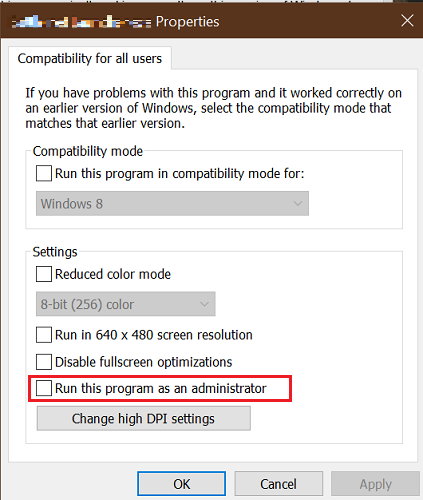
  1. Right-click on the game’s exe file.
  2. Select Properties.
  3. Open the Compatibility tab.
  4. Under the Setting section, check Run this program as an administrator.
  5. Click Apply and then click OK to save the changes.

Run the game again and check for any improvements. Check your antivirus and firewall if it is blocking the connection.

Disable firewall and antivirus

Among Us freezing issues

  1. Press the Windows key + I.
  2. Click on Settings.
  3. Go to Updates & Security.
  4. Open Windows Security.
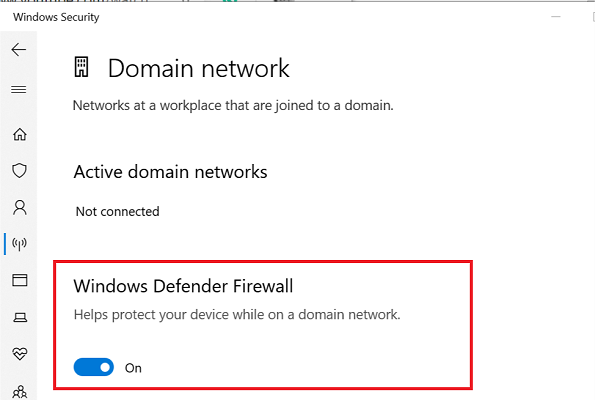
  5. Click on Firewall and network connection.
  6. Open your currently active network profile.
  7. Toggle the switch to turn off Windows Defender Firewall.

To disable your antivirus, right-click on the antivirus icon from the system tray and select the available option to turn off antivirus.

Launch Among Us and check if the problem persists. Make sure to enable the firewall as well your antivirus once you are done troubleshooting the problem.

The Among Us keeps crashing & freezing on PC issue can occur due to GPU overclocking or game incompatibility. Follow the steps in the article one by one to fix the error. Make sure to leave a comment if you have a tip to fix this error.

[wl_navigator]

How to edit saved passwords in Chrome

Google Chrome lets you easily log in to websites by auto-filling your login details. The desktop version didn’t offer a way to edit passwords, yet things are about to change.

We had seen the code change and now, Chrome is finalizing its work on a new feature to give you the opportunity to edit any of the previously saved passwords.

Since the project is almost complete and Google developers are solving the identified bugs, users can already start testing it in the Chrome Beta builds.

Doing so is rather convenient, especially when Google Chrome remains the ideal choice in terms of browsers when it comes to protecting your privacy.

No saved password is ever exposed. More precisely, it protects your private data from anyone else who uses your personal computer, as well as from other threats on the Internet.

How to save passwords on Chrome?

Google Chrome, like pretty much any other browser in the market, lets you save the username and password for certain websites that you frequently visit.

If that’s your intention as well and you need a quick reminder, you simply need to open a window or tab in Chrome and click on your profile in the top-right corner of the screen.

You may now select Passwords, then toggle on the Offer to save passwords option.

Offer to save passwords
You can now start saving all passwords to your Google account and later on, if you happen to change your mind, edit them with ease.


Google Chrome is not saving passwords? Count on us to solve the problem.


How can I edit previously saved passwords in Chrome?

  1. Start the procedure by downloading the Chrome Beta for Desktop.
  2. Install it into your PC.
  3. In the address bar, type the following and press Enter: chrome://flags/#edit-passwords-in-settings
  4. Enable to Edit passwords in Settings.
  5. When prompted, relaunch the browser.
  6. With the browser restarted, go into this page: chrome://settings/passwords
  7. While here, click on the three vertical dots menu next to your saved credentials.
  8. Select Edit password and you’re free to make the desired changes.

In the past, all password changes on the desktop browser included deleting the previously saved credentials and then logging back into a site with the new password.

Fortunately, things are about to get a lot easier. This Google Chrome feature to edit saved passwords will be released along with Chrome 86.

Since it goes to Stable in the next few days, it’s just a matter of waiting. Let us know if you’re excited about the upcoming feature in the comments area below.

[wl_navigator]

How to bypass & unlock DVD region codes the easy way

If you ever bought a DVD from another region and it shows incorrect region code when playing, it is most likely region locked. So, how do you bypass DVD region codes?

Similar to OTT platforms, some multimedia contents like the TV shows, Movies, and videos can be region restricted. Since the DVD content is region restricted, you can only bypass this restriction by ripping DVDs to digital files.

In this article, we explore how to bypass & unlock DVD region codes with ease on your Windows and Mac system.

How can I change the region code on DVD?

1. Rip region-locked DVDs using a ripper tool

Region locking makes no effect while ripping or playing back the final rip. It only impacts physical disc playback.

The ability to rip them is dependent on your disc drive and the discs themselves. If your drive can read them, you’re ready to go; however, many drives are region locked and can not read discs from another region.

A DVD ripper utility allows you to unlock encrypted and region-locked DVDs by converting DVD contents to other formats.

Apart from converting DVD to MP4, a DVD ripper can be used to back up the DVD collection and also Rip DVD for playing on iPhone and Android devices.

When you put a disc into some drives, you can change the region, but be careful because the number of times you can change is typically limited in hardware, and you may be stuck in an area you don’t want.

2. Change DVD player region code

  1. Make sure the DVD player is powered on.
  2. Next, open the DVD tray, but don’t insert a DVD yet.
  3. Press the Setup button the DVD player remote.
  4. Go to Preferences and then choose Region on the screen.
  5. Depending on the region the DVD is locked to, select Region 0/9.

If you only see Region 0/8, it means your DVD Player does not support another region apart from the one that comes under Region 1-8.

When changing the region, it is important to note that most of the DVD players have limitations on changing the region. In most cases, you can change the region for about five-times.

Once you have exhausted the limit, your DVD player will automatically set the last region as the default region.

DVD Region Codes:

  1. R1 – Canada, the U.S., and its territories.
  2. R2 – Japan, Europe (such as the UK), South Africa, the Middle East (including Egypt), and Greenland.
  3. R3 – South East Asia, and East Asia (including Hong Kong).
  4. R4 – Australia, New Zealand, the Pacific Islands, Central America, Mexico, South America, and the Caribbean.
  5. R5 – Eastern Europe, Russia, India, Africa, North Korea, and Mongolia.
  6. R6 – China.
  7. R7 – reserved for unspecified special use.
  8. R 8 – Special international venues for air and oceanic travel.
  9. R 0, 9, or Region ALL — worldwide.

3. Use region DVD hack codes

You can also use DVD hacks to region unlock your DVD. To perform this hack, you need to access hack codes for your DVD player, depending on the DVD maker. Here’s how to unlock the DVD region for Samsung DVD players.

  1. Power on the DVD player and make sure the tray is closed without disc.
  2. Press the Repeat button on the remote.
  3. Enter one of the following codes depending on the region you are in:
    R1 – 29334
    R2 – 38767
    R3 – 56732
    R4 – 76884
    R5 – 53814
    R6 – 24462
  4. If you are in Region 2, enter 38767, followed by the region code 1-6 for the DVD you have.
  5. You can also press 9 if you want to make the DVD player region-free.

So, these are the three ways to bypass DVD region codes for your region-locked DVD. While WinX DVD Ripper Platinum offers an easy way to bypass the region restrictions, other methods are useful if you want to use the DVD itself.

[wl_navigator]

Windows 10 Insider build 20226 brings Storage health monitoring to Dev Channel Insiders

Microsoft has just announced the release of the Windows 10 Preview build 20226 for Insiders in the Dev Channel. This minor update introduces a single new feature, which is Storage health monitoring to protect user data.

“This feature is designed to detect hardware abnormalities for NVMe SSDs and notify users with enough time to act,” the Windows Insider team explained. After installing this build, the OS will now send notifications when a drive failure could be imminent, and clicking on the pop up will allow Insiders to back up their data.

Image of toast notification sent to users when NVMe SSD abnormalities are detected.

In case of a drive failure, the Storage settings page (Settings -> System -> Storage -> Manage disks and volumes -> Properties) will also provide additional details for the affected drive, including estimated remaining life.

In addition to this new feature, this new build will also disable theme syncing for some users, and fix some issues affecting the Settings app, WSL2, File Explorer, Focus Assist, and more. You can find the full list of changes, bug fixes, and known issues in the build 20226 below:

Changes and Improvements

  • We’re starting to roll out a change that will turn off theme syncing. As part of that, you will no longer see “Theme” as an option in Sync your settings, and changes made to your background will not sync across device. If you have been using theme synchronization, when setting up a new PC or account there will be a one-time download of the last saved synchronized desktop background to %LOCALAPPDATA%MicrosoftWindowsWallpaperBackup if you need to access it.
  • Thanks for your patience – after making some reliability improvement, we’re re-enabling the ability for Notepad windows to persist update and restarts (if “Restart apps” is enabled in Sign-in Settings).
  • When you have a PWA installed from Microsoft Edge, Task Manager will now correctly display it under Applications instead of Background Processes in the Processes tab, and will show the app icon associated with the PWA.
  • We’re updating File Explorer so that if you right-click on a zipped OneDrive file that was set to online-only, you’ll now see an Extract All option, same as if the file was available locally on the PC.
  • We’re updating the new DNS options in settings to make a statis DNS required when entering a static IP, and to make gateway not a required field.
  • We’re updating the N’Ko keyboard layout so that pressing Shift + 6 will now insert ߾ (U+07FE ) and pressing Shift + 7 will now insert ߿ (U+07FF).

Fixes

  • We’ve resolved an issue resulting in Settings crashing for some Insiders when opening Manage Disks and Volumes.
  • We fixed an issue affecting Windows Subsystem for Linux 2 distros where users can receive the error: “The remote procedure call failed” on startup. See this GitHub issue for more details.
  • We fixed an issue where activating Speech Recognition under Ease of Access in Settings was unexpectedly requiring admin permissions.
  • We fixed an issue where after turning off “Drop shadows for icon labels on the desktop”, and opening Task View, the drop shadows would unexpectedly reappear.
  • We fixed an issue where pressing F7 in the File Explorer search box would bring up a dialog asking to enable caret browsing.
  • We fixed an issue where Focus Assist was considering Screensaver to be a full screen app and suppressing notifications when it was running.
  • We fixed an issue impacting explorer.exe reliability for some Insiders in the last few flights.
  • We fixed an issue where some of the apps in the Windows Accessories folder in Start’s all apps list, would unexpectedly display the name Windows Accessories when pinned to the Start menu in recent builds.
  • We fixed an issue impacting taskbar performance and reliability on 2-in-1 convertible devices.
  • We fixed a few issues impacting Action Center reliability.
  • We fixed a couple of issues impacting Settings reliability.
  • We fixed an issue where the Settings icon was unexpectedly small when pinned to the Start menu and using the small tile size.
  • We fixed an issue in Touchpad Settings where the header for the Taps section was unexpectedly missing in the last few flights.
  • We fixed an issue with Meet Now resulting in the flyout crashing if you pressed the Esc key while it was open.
  • We fixed an issue that if Meet Now was opened before opening a jumplist from the taskbar, then ShellExperienceHost would crash.
  • We’ve made some fixes to improve accessibility of the Meet Now flyout, including updating the tab order, marking the image so it’s not read out by Narrator, adjusting the contrast of the buttons, making the arrow keys navigate between the buttons, and fixing an issue where focus wasn’t returning to the previous location in the taskbar after pressing the Esc key.
  • We fixed an issue from the last few flights resulting in some apps failing to install, citing a lack of internet connectivity, when IPV6 was enabled.
  • We fixed an issue with the new DNS options in Network Settings where switching back from a custom DNS to automatic would result in a loss of connectivity.
  • We fixed an issue resulting in not being able to insert the full-width question mark when typing with the Pinyin IME in recent builds.
  • We fixed an issue that could result in the Japanese IME crashing on initialization.
  • We fixed two issues with the Bopomofo IME impacting Shift and Ctrl key usage in apps when the IME was active.
  • We fixed an issue with the Turkish one-handed touch keyboard layout, where it was missing keys for ü and ö.
  • We fixed an issue when using the Japanese touch keyboard layout that could result in the spacebar UI appearing stuck in a pressed state.

Known issues

  • We’re looking into reports of the update process hanging for extended periods of time when attempting to install a new build.
  • We’re working on a fix to enable live preview for pinned site tabs.
  • We’re working on enabling the new taskbar experience for existing pinned sites. In the meantime, you can unpin the site from the taskbar, remove it from the edge://apps page, and then re-pin the site.
  • We’re working on a fix for an issue where some Office applications crashing or missing after updating to a new build.
  • We’re working on a fix for an issue causing some devices experiencing a KMODE_EXCEPTION bugcheck when using certain virtualization technologies.
  • We’re working on a fix where some devices are experiencing a DPC_WATCHDOG_VIOLATION bugcheck.
  • We’re investigating a bug where the vEthernet adapter in Windows Subsystem for Linux 2 distros becomes disconnected after a period of use. For full details please follow this GitHub thread.
  • We’re working on a fix for an issue where after taking this build some users receive a Compatibility Assistant notification that “Microsoft Office is no longer available”. Despite the notification, Office should still be there and working fine.

The Windows Insider team released this new build a bit earlier than usual today, but that’s to get prepared for the Windows Insider Anniversary webcast that will kick att at 10 AM PDT on Twitch. That’s right, the Windows Insider program kicked off six years ago, and Windows 10 has definitely evolved a lot since the release of the first-ever Insider build.

How to fix DHPC error on Kindle Fire HDX [Easy Guide]

Amazon Kindle owners have been reporting DHCP error on Kindle Fire HDX devices. The error is triggered when the user tries to connect to their WiFi network.

The issue seems to be with the Kindle Fire firmware and can be fixed by changing the IP address type to static from dynamic.

If you are also troubled by this error, here is how to fix the DHCP error on Kindle Fire HDX for good.

How can I fix the DHCP error on Kindle Fire HDX and what is it?

1. Change the IP type to Static

Kindle DHCP error

  1. Open Settings.
  2. Select WiFi.
  3. Press and hold the WiFi network you are connected to and select Modify Network.
  4. Scroll down and tap on Show advanced options.
  5. Select Set IP Settings to Static.
  6. Note down the IP address shown under the IP address section.
  7. Type in the IP address in the field.
  8. Enter the gateway IP in the Gateway field.
  9. Set the following address:
    37.37.37
    185.37.37.39
  10. Tap on Save to save the changes.

Restart your Kindle. After the restart, try connecting to the same WiFi network and check if the DHCP error is resolved.

Forget WiFi Network

Kindle DHCP error

  1. Open Settings.
  2. Open WiFi settings.
  3. Tap and hold on the WiFi network and select Forget.
  4. Scan and reconnect to the WiFi network.

Forgetting and reconnecting to the WiFi network can fix any temporary issues with the network or your device.


2. Update Kindle Fire

Kindle DHCP error

  1. Make sure the tablet is connected to your WiFi network.
  2. Open Settings.
  3. Tap on Device Options.
  4. Select System Update.
  5. Tap on the Check Now button manually search for the pending updates.
  6. Select to download and install any available updates.

If updating to the latest firmware did not fix the error, check if the error is triggered by your WiFi router.


3. Troubleshoot WiFi router

Kindle DHCP error

  1. Make sure the WiFi router is powered on.
  2. Pull the ethernet and power cable from the WiFi router.
  3. Leave the router idle for a few minutes.
  4. Reconnect the cables and power the router on.
  5. Wait for all the LED lights to stop blinking and then connect your Kindle tablet to the network.

If performing a power cycle did not help, try resetting the router.


4. Reset WiFi router

Amazon Fire tablet WiFi error

Note: Resetting your WiFi router will erase all the custom settings made to the network device.

  1. Use a paperclip or a sim ejector tool and press the Reset button on the back of the router.
  2. Press and hold the Reset button until you see all the LEDs blinking.
  3. The router will restart once the reset is complete.
  4. Reconfigure the router and connect your Kindle tablet.

Resetting your WiFi router can fix DCHP error in Kindle tablets. However, if the issue persists, check for a firmware update.

Update router firmware

Amazon Fire tablet WiFi error

Note: Instructions for TP-Link routers. Refer to your router guide for specific instructions.

  1. Go to the Download Center of the TP-link website of your region.
  2. Select your Router Type and Model Number to download the latest firmware upgrade.
  3. Extract the Zip file to a folder.
  4. Login to your TP-Link router’s web management page.
  5. Go to System Tools > Firmware Upgrade.
  6. Click on Browse/Choose and select the extracted firmware file.
  7. Click the Upgrade button to initialize the installation process.

Once installed, you may have to reconfigure your router.

The Kindle DHCP error when connecting to the WiFi can be resolved by changing the IP address type to Static from Dynamic. If not, you can perform a reset to fix the error.

[wl_navigator]

Windows 10 on ARM PCs will be able to emulate x64 apps later this year

Windows 10 on ARM is finally getting support for 64-bit legacy apps later this year. Microsoft’s Chief Hardware Office announced the news today on a blog post about the evolving the role of Windows PCs since the beginning of the coronavirus pandemic, highlighting the fact that Windows 10 on ARM PCs are starting to get real traction.

“We are excited about the momentum we are seeing from app partners embracing Windows 10 on ARM, taking advantage of the power and performance benefits of Qualcomm Snapdragon processors,” wrote Panay. Microsoft launched its own ARM-based Surface Pro X last year, though the app compatibility issues and poor performance offered by emulated 32-bit apps has been an ongoing problem.

“We will also expand support for running x64 apps, with x64 emulation starting to roll out to the Windows Insider Program in November,” Panay said today. Microsoft will also continue to push more developers to recompile their apps for the ARM64 architecture, and the company is leading the way with new versions of Microsoft Edge and Visual Studio code that run natively on Windows 10 on ARM. An ARM64 version of Microsoft Teams is also in the works, which should provide improved performance and reliability.

“For organizations, we’re committed to helping them ensure their apps work with Windows 10 and Microsoft 365 Apps on ARM64 devices with App Assure. We are working closely with Acer, HP, Lenovo, Samsung and Surface to bring these Windows 10 on ARM innovations and products to our shared customers,” Panay also said today. It’s still early days for Windows 10 on ARM, but Microsoft seems to do the right things to make sure the platform can finally take off.

ExpressVPN not working with Hulu [How to fix the issue]

A VPN is the best software you can use to access geo-restricted content through streaming media like Hulu and others.

However, even with this functionality, not all VPNs are able to access such content streaming sites as these sites block such unauthorized access in locations with such restrictions to their content.

Ideally, a VPN should help you access the sites while hiding your identity and location details, but when your VPN gets blocked, you need to find a way around it fast.

Despite being one of the best, ExpressVPN can still get blocked by Hulu, a concern that its users have raised before. But, before you dismiss it just yet, there are ways to fix the ExpressVPN blocked by Hulu problem.

When this happens, you may get an error message that says: You seem to be using an unblocker or proxy, OR, You’ll need to disable your anonymizer.

If you are getting the ExpressVPN blocked by Hulu error, here are solutions you can use to resolve it.

How to fix Hulu not working with ExpressVPN

1. Preliminary checks

If you get an error message saying: You seem to be using an unblocker or proxy or You’ll need to disable your anonymizer when trying to access Hulu, contact your VPN tech support team.

They should be able to provide for direct assistance before trying the solutions below.


VPN does not work over 3G networks? We have the answer here.


2. Check your IP address

If your ExpressVPN service has been blocked by Hulu, check your IP address for information such as your city or region (country) next to the location you selected when you connected with ExpressVPN.

If it shows a location near you, it means you’re not connected to an ExpressVPN server location. Try and connect again.


3. Change your VPN

There are a handful of VPN services that still work with Hulu and other similar content platforms even today.

So, if ExpressVPN simply won’t work with Hulu, you might want to try a completely different tool. And why not go for the very best?

Install Private Internet Access

Private Internet Access

PIA offers its users top-notch protection and access to all manner of geo-restricted services. If your current VPN service is being blocked by Hulu, then you should consider switching to Private Internet Access.

Many users have mentioned that ExpressVPN causes a proxy error on Hulu, and if you are one of them, then the solution can be as simple as switching to a different service.

PIA is best equipped for streaming and has made a mission of eliminating online censorship.

And by all means, it has everything you could possibly think of to do so including lightning fast download speeds, servers located all over the world, best-in-class encryption for your traffic data and to top it all, a strict no-logs policy to guarantee that your navigation traces vanish into thin air.

What’s more, you can forget all about ISP throttling or lagging and buffering while streaming since PIA gives you nothing more and nothing less than unlimited bandwidth and secure VPN connections.

Apart from getting rid of the Hulu proxy error, PIA has many more benefits for its subscribers.

Let’s quickly look at its key features:

  • Military-grade encryption
  • More than 3000 servers located in over 45 countries
  •  Protection for up to 10 devices at once
  • SOCKS5 Proxy support
  • P2P support
  • No-log policy
Private Internet Access

Private Internet Access

Private Internet Access will give you access to all the Hulu content you want. Enjoy a major discount right away!
Check priceBuy it now

4. Check your internet connection

Disconnect from ExpressVPN and try accessing a website the usual way to test if your Internet connection is working.

If you cannot access the internet even when disconnected from the VPN, check your internet connection.

However, if you can access it while disconnected from the VPN, try the next solution.


5. Try connecting to another ExpressVPN Location

If you can access the internet when disconnected from ExpressVPN, but cannot connect to a server location, choose a different server location from the list of locations.

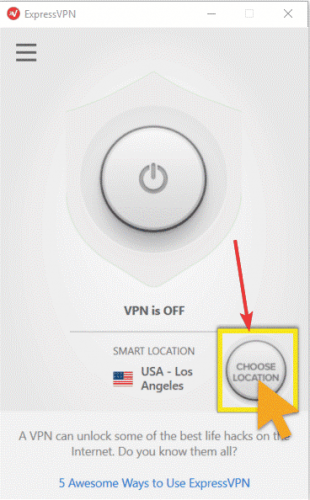
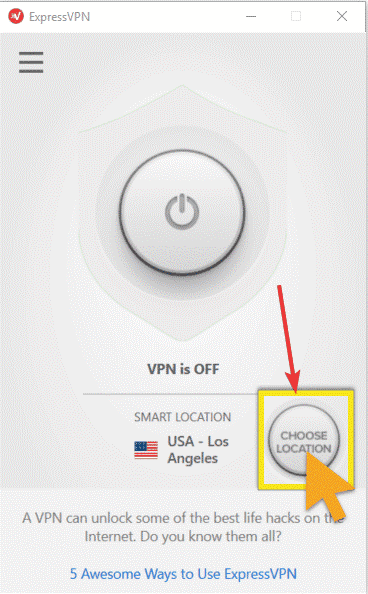
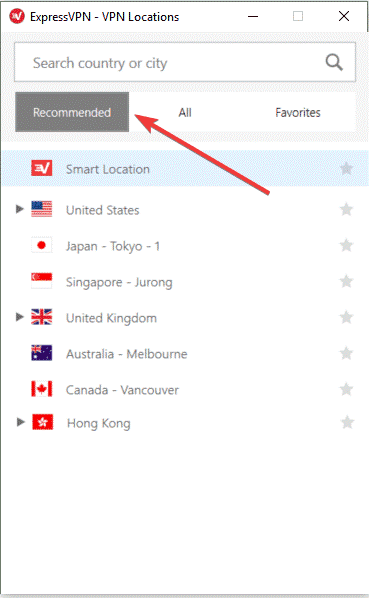
  1. Click Choose Location to get the list of locationsExpressVPN blocked by Hulu
  2. Click on the server location to connect
  3. Click ON button or double-click on the location
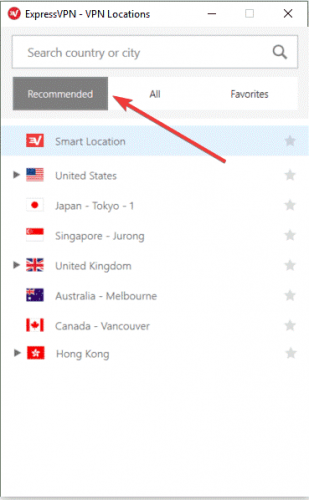
  4. Under the Recommended tab, check the list of top VPN picks to connect toExpressVPN blocked by Hulu
  5. Click the All tab to see the list of VPN server locations by region
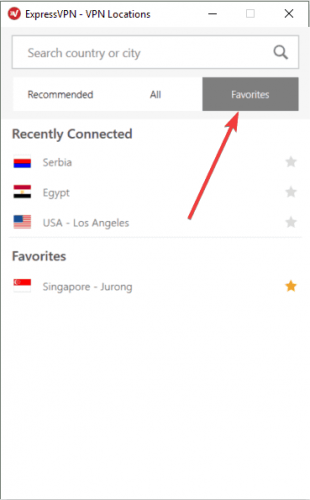
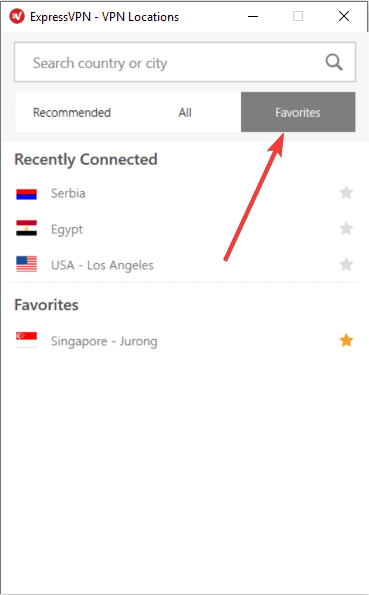
  6. Click the Favorites tab to show the locations you saved as favorites. It also shows the three Recently Connected locations you connected toExpressVPN blocked by Hulu
  7. Go to the search bar by pressing CTRL+F, then type the name of your desired server location and double-click on it to connect
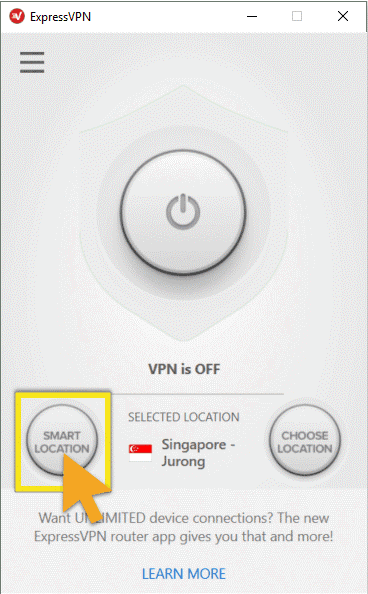
  8. Once you disconnect from the location you selected, you can go back to your smart location by clicking on Smart Location
ExpressVPN blocked by Hulu

6. Disable your security software

  1. Configure the program blocking the connection to allow ExpressVPN. You may need to change the security level from High to Medium (depending on the program) and grant exceptions to ExpressVPN or UDP ports 1194-1204, or set it to Trust ExpressVPN.
  2. If you have the option to reinstall the security software or program blocking ExpressVPN connection, install it after the VPN is already installed so that it allows the VPN to connect by first uninstalling ExpressVPN, then uninstall the program blocking the connection, install ExpressVPN again, then reinstall the program blocking the connection.

Try and disable your firewall or antivirus as these may block your VPN connection.

Check if you can connect again and try to access Hulu.


VPN not working with Kodi? Find out how to fix it easily.


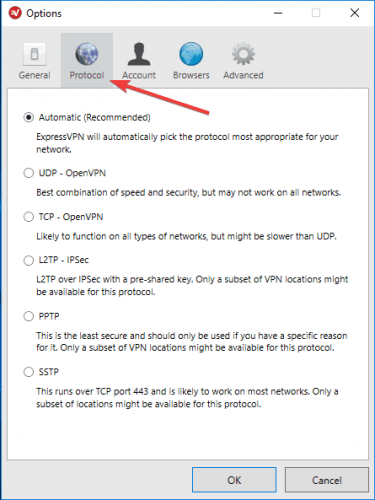
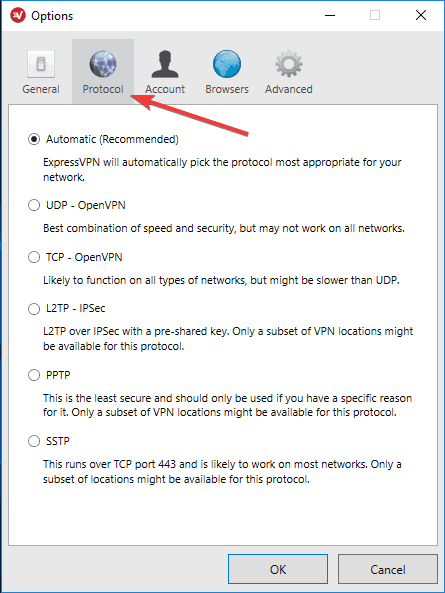
7. Change the protocol

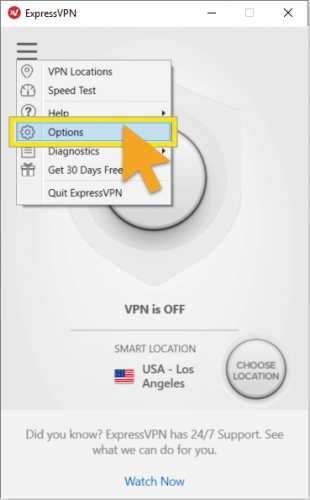
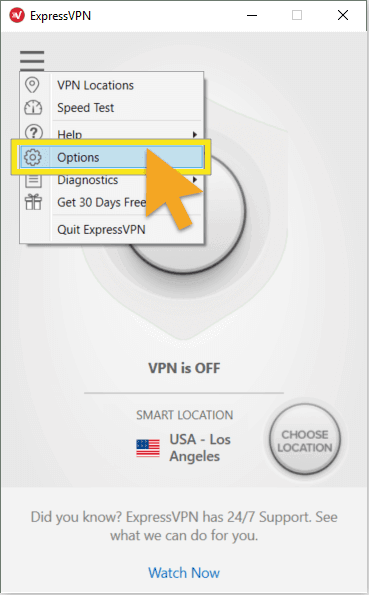
  1. Go to the ExpressVPN window and click on the hamburger menu
  2. Select Options (while disconnected from the VPN)ExpressVPN blocked by Hulu
  3. Find the Protocol tab then select the protocol you want to useExpressVPN blocked by Hulu
  4. Click OK

Your device connects to ExpressVPN servers using VPN protocols, the default one being the UDP protocol, which in some countries like the Middle East, is blocked. Change the protocol, which will also help you achieve faster connection speeds.

For better performance, choose the OpenVPN TCP first, then L2TP, and finally PPTP protocols in that order. ExpressVPN doesn’t recommend using PPTP as it offers minimal security.


8. Manually configure DNS settings

Your computer may not automatically connect to ExpressVPN DNS servers, so you need to configure it with ExpressVPN DNS servers’ IP addresses, manually.

Manually configuring your computer with other DNS server addresses helps you access Hulu and other blocked sites, and enjoy faster connection speeds.

Here’s how to do it in Windows:

Step 1: Open Network Connections settings

  1. Right-click Start and select RunExpressVPN blocked by Hulu
  2. Type ncpa.cpl and click OK
  3. Under the Network connections window, find your usual connection, either LAN or Wireless network connection.
  4. Right-click the connection and select Properties

Step 2: Set the DNS server addresses

  1. Double click Internet Protocol Version 4 (IPv4) or just Internet ProtocolExpressVPN blocked by Hulu
  2. Select Use the following DNS server addressesExpressVPN blocked by Hulu
  3. Type these Google DNS server addresses
    • Preferred DNS server 8.8.8.8
    • Alternate DNS server 8.8.4.4
  4. If Google DNS is blocked, try the following:
    • Neustar DNS Advantage (156.154.70.1 and 156.154.71.1) enter and press OK
    • Level3 DNS (4.2.2.1 and 4.2.2.2) enter and press OK

Step 3: Set ExpressVPN DNS settings

For ExpressVPN 5.X/4.2/4.1/4.0

  1. Click the three dots and select
  2. Select Advanced tab
  3. Uncheck the Only use ExpressVPN DNS servers while connected to the VPN box and click OK

For ExpressVPN 3.X

  1. Go to Options
  2. Uncheck the Only use DNS servers set by the VPN option

Once you have configured your computer for ExpressVPN DNS servers, flush old DNS entries again as described in solution 7 above.

9. Manually configure proxy settings

  1. Click Tools
  2. Select Internet Options
  3. Go to the Connections tab
  4. Click LAN settings
  5. Uncheck all the options except Automatically detect settings and click OK for all

A proxy server is the go-between your computer and the internet and is used to hide your real location so you can access websites like Hulu, that would otherwise be blocked.

If you have internet connection issues, it is possible that it has been set to use a proxy server.

Ensure your browser is set to auto-detect proxy or no proxy, then use the instructions to manually configure proxy settings for your browser.


10. Flush the DNS

  1. Click Start
  2. Select All Apps
  3. Click Accessories
  4. Type CMD in the search box, and right-click Command Prompt, and select Run as administratorExpressVPN blocked by Hulu
  5. Type ipconfig /flushdns and press Enter. You should get a confirmation that says: Windows IP Configuration Successfully flushed the DNS Resolver Cache.

In some countries, DNS entries saved from your ISP on your computer may be intentionally wrong, as an additional method of blocking Hulu and other sites.

In this case, flush your DNS cache so your computer can automatically access ExpressVPN’s DNS for the proper/correct entries.


11. Download the latest ExpressVPN version

  1. Right-click Start and select Programs and FeaturesExpressVPN blocked by Hulu
  2. Find ExpressVPN from the list of programs and select Uninstall
  3. In the Setup Wizard, click You’ll get a notification after a successful uninstall, so click Close to exit the wizard.
  4. If the ExpressVPN is still listed as available after uninstalling it, right-click Start and select RunExpressVPN blocked by Hulu
  5. Type ncpa.cpl and press Enter to open the Network Connections window
  6. Under Network Connections, right-click on the WAN Miniport labeled ExpressVPNExpressVPN blocked by Hulu
  7. Select Delete
  8. Click Start and select Settings
  9. Click Network & InternetExpressVPN blocked by Hulu
  10. Select VPN. If you see ExpressVPN as available, delete it

Uninstall the ExpressVPN app you’re running, then sign in to your ExpressVPN account and select Set up ExpressVPN. Find the latest version for your device and then connect again, then see if you can access Hulu.

Connect again to ExpressVPN and see if you can access Hulu.

There you go, you should be all set now.

Let us know if any of these solutions helped fix ExpressVPN blocked by Hulu error by leaving a comment in the section below.

How to Fix a Windows 10 PC That Doesn’t Detect Your Lumia Smartphone

If your Lumia phone isn’t showing up on your Windows 10 laptop, don’t worry. This guide will walk you through quick fixes to get it recognized again and let you access your files.

What can I do if the Lumia smartphone is not recognized?

1. Reinstall the Lumia USB driver

  1. Make sure that your phone isn’t connected to your computer.
  2. Press Windows Key + X and choose from the menu.
    Windows phone charging but not connecting to PC
  3. Go to View and click on Show hidden devices.
    PC doesn't recognize Nokia Lumia
  4. Expand Universal Serial Bus Devices.
  5. Locate Lumia USB driver and right-click it.
  6. Choose Uninstall device.
    Windows phone not detected in Windows 10
  7. Click Uninstall.
    Windows phone charging but not connecting to PC
  8. Restart your computer.
  9. Connect your Lumia device, wait for the driver to install, and check to see if the issue is resolved.

A simpler way is to use software like Fortect Driver Updater. It ensures you get the newest drivers without the risk of installing the wrong ones.
Just download and install Fortect Driver Updater — it runs automatically and scans your system.
Then, select the drivers to update and click Install.

⇒ Get Fortect Driver Updater

2. Check your antivirus

If your laptop doesn’t recognize the Lumia smartphone, the issue might be your antivirus.

Many antivirus applications are designed to scan any USB devices that you attach to your PC, and in some instances, an antivirus can block your USB device.

To fix this problem, open your antivirus and make sure that USB devices aren’t scanned or blocked. In addition, you might want to try disabling other features or even disable your antivirus altogether.

If that doesn’t solve the problem, you might have to uninstall your antivirus. Certain antivirus tools can interfere with your system, and the only way to fix the problem is to remove that antivirus.

Once you remove your antivirus, check if the problem is still there. If not, it’s advised that you switch to a different antivirus solution.

Keeping your PC safe is essential, so make sure to get a Windows 10 compatible antivirus that won’t interfere with your system.

3. Turn Xbox Music Cloud Collection off

  1. Go to Music +Video app on your phone.
  2. Choose Settings.
  3. Turn off Xbox Music Cloud Collection.
  4. Reconnect your Lumia smartphone to your computer.

4. Change the General settings of your USB device

  1. Make sure that your Lumia smartphone is connected.
  2. Click on the USB icon from the Taskbar.
  3. Choose Open devices and printers.
  4. Double click the Lumia device icon.
  5. Click on Change General settings.
  6. Click on the drop-down box and select When this device connects open Windows Explorer to view files.
  7. Click OK.
  8. Disconnect your phone and restart your computer.
  9. Connect your phone to see if it works.

5. Perform a soft reset

To perform a soft reset on Lumia, you just need to press and hold the Volume Down button and the Power button for 3-5 seconds.

After doing that, your phone will perform a soft reset and it should be recognized by your laptop.

Some users are suggesting that you can perform a soft reset simply by holding the Power button for about 10 seconds, so you can try that as well.

The process might be slightly different for different Lumia models, so we suggest that you check your instruction manual for detailed information.

6. Turn off and turn on your phone while it’s connected to your computer

If your laptop doesn’t recognize Lumia, you might be able to fix this issue simply by turning the phone on and off while it’s connected to your PC.

After your phone starts, it should be detected by the PC automatically.

7. Install Media Feature Pack for N and KN versions of Windows 10

Windows phone 10 not connecting to PC

In case your Laptop doesn’t recognize the Lumia smartphone, the issue might be the lack of a Media Feature Pack.

In case you don’t know, European and Korean versions of Windows 10 lack certain media features, and if you’re using one of these versions, you most likely don’t have these features installed.

Due to the lack of a Media Feature Pack, your PC might not be able to recognize your phone.

Although this can be a big problem, you can easily fix it simply by downloading Media Feature Pack for N and KN versions of Windows 10.

8. Replace your charging cable

According to users, one possible cause for this problem can be your charging cable. USB cables can break after a while, so if your laptop doesn’t recognize Lumia smartphone, it’s possible that your cable is broken.

To fix this issue, the simplest solution is to get just a different USB cable.

It’s also worth mentioning that there are two types of USB cables, and sometimes you might get a USB cable that is designed just for charging.

To ensure that your Lumia works with your laptop, be sure to get a USB cable designed for both charging and data transfer.

9. Install the latest updates

  1. Open the Settings app using the Windows Key + I shortcut.
  2. Go to the Update & Security section.
    Windows phone not detected in Windows 10
  3. Click Check for updates button.
    PC doesn't recognize Nokia Lumia

Windows will now check for available updates and download them automatically in the background. Once the updates are downloaded, restart your PC to install them.

After your system is up to date, the problem with Lumia should be resolved.

In addition to updating Windows 10, it’s also important to update the system on your phone. Once you update the system to the latest version, check if the issue is still there.

Whether you’re dealing with Windows 11 not detecting your Android phone both issues have clear fixes.

If your laptop doesn’t recognize the Lumia smartphone, that can be a big problem, but you should be able to fix this annoying issue by using one of our solutions.

If you have any other suggestions, leave us a line in the comments section below.

Mail app Error 0x80048830: Use These 4 Methods to Fix it

Error code 0x80048830 is a sync error that prevents the Windows 10 Mail app from loading messages from the server.

While there are a series of potential causes for this issue, it is not the most difficult to fix, as shown in this guide.

What causes error code 0x80048830?

Listed below are some of the causes of the Mail app sync error code 0x80048830:

  • Interference from security software: Your antivirus or firewall might be preventing the Mail app from syncing. The solution to this is to disable your antivirus software and firewall.
  • Outdated PC: In some cases, this issue might occur if your operating system is obsolete. You need to update your PC to solve the problem.

How can I fix the 0x80048830 error?

Before proceeding to the solutions in this section, try the following troubleshooting steps:

  • Relaunch the Mail app
  • Remove and re-add the account you are trying to sync

If this does not solve the problem, you can now proceed to the solutions below:

1. Try a different mail app

With so many email clients available on the market, wasting time trying to fix the one you have is not worth it.

Thus, moving to a different, maybe even better, alternative is the most time-efficient solution.

That’s why we recommend you try Mailbird, you can download it on your Pc or use the web client via browser, and you’ll enjoy the sleek and responsive UI that you can customize to your every need anyway.

All your emails can be centralized into a single window, and managing them, even in the hundreds, will never be more straightforward.

2. Allow access to SVCHOST.EXE

  1. Press the Windows button, type Firewall, and select Windows Firewall with Advanced Security to open it.
    firewall 0x80048830
  2. On the left pane, find Inbound rules and click on it.
  3. Now on the right panel, find and select New Rule under the Actions group.
    inbound rules
  4. On the left pane of the new window that opens, select Program and click Next.
    program
  5. Click on This program path, and in the text box below, type in the following: c:/Windows/system32/svchost.exe
  6. Now, click the Next button.
    path
  7. The system will likely produce a warning about svchost. Ignore the warning message and click on Yes.
  8. On another dialogue that opens, click on Allow the connection and proceed to check all of the following boxes.
  9. Add a name to the Inbound rule and click on Finish to complete the process.
  10. Now, on the right pane of the Windows Firewall with Advanced Security window, find and select New Rule under the Actions group.
  11. Click on Protocol and Ports and select Specific local ports.sync error 0x80048830
  12. On the textbox next to Select local ports, type in the following ports:
    • 6412
    • 993
    • 56161
    • 56161
    • 56164
  13. Specify which connects to allow and click on Allow the connection, and proceed to check the following boxes.
  14. Finally, add a name to the rule and click on OK.

The first and most straightforward solution you need to try is to allow access to svchost.exe on Windows Firewall. Follow these steps:

This should ideally fix the Mail app sync error 0x80048830 if it doesn’t, move on to the next solution.

3. Disable Windows Firewall and Antivirus

  1. Press the Windows key, type windows defender, and select the Windows Defender Firewall option.
    windows defender 0x80048830
  2. On the left pane, find and click on Turn Windows Firewall on or off.
    turn windows
  3. Now, in the Customize Settings window, select the Turn off Windows Firewall radio buttons for both the Private and Public network settings.
  4. Click OK to disable Windows Firewall.
    turn off 0x80048830
  5. Next, press the Windows key, type virus, and select Virus & threat protection.
    virus
  6. Click the Manage settings link.
    manage settings 0x80048830
  7. Finally, toggle the switch under Real-time protection backward to disable it.
    real-time

If error code 0x80048830 no longer shows up, the culprit is your antivirus and firewall programs.

In this case, the best thing to do is to disable the security software temporarily. Then, make sure you enable it after your Mail app finish syncing.

4. Update Windows

  1. Press the Windows key, type update, and select Windows Update settings.
    windows update
  2. Click on Advanced options.
    advanced options
  3. Now, toggle the switch for Receive updates for other Microsoft products when you update Windows.
    receive updates 0x80048830
  4. Next, go back to the Windows update page, and click Check for updates.
    check for
  5. Finally, download and install all available updates.

Microsoft frequently releases small and big updates for Windows 10, and with the patches that fix errors such as the error code 0x80048830. So it is wise to make sure that updates are automatically installed.

Hopefully, one of these solutions helped you fix this error and helped you get the Mail app syncing again.

If the Mail app is not working on your PC, check our detailed guide to fix it.

Feel free to let us know the solution that helped you fix the issue in the comments below.

Send to Mail Recipient not working in Windows 10 [TROUBLESHOOT]

The Send to Mail Recipient is used to add attachments to your email directly from the contextual menu. However, after the Creator update, users have reported that this feature is not working anymore in File Explorer.

Is Send to Email recipient in Windows 10 missing? Firstly, try repairing the Microsoft Office. Outlook, as the vital part of the suite, might be the problem. Furthermore, try setting it Microsoft Outlook as your default email client. In addition, try deleting the DLL file that configures Outlook‘s integration.

Find a detailed explanation of each step below.

How do I enable email recipients in Windows 10?

  1. Repair Microsoft Office
  2. Set Microsoft Outlook as the default mail client
  3. Delete MSMAPI32.DLL
  4. Try an alternative to Microsoft Outlook
  5. Reinstall Microsoft Office
  6. Other solutions to try

1. Repair Microsoft Office

  1. Press Windows Key + R to open Run.
  2. Type Control and hit enter to open the Control Panel.
  3. Go to Programs > Programs and Features.
  4. Select  Microsoft Office from the installed programs.
    Windows 10 - Programs and Features - Uninstall- Office
  5. Click on the Change button (beside the Uninstall option).
    Microsoft Office Repair Option
  6. The Office Repair Interface will show two repair options.
    • Quick Repair – Select this option first. It fixes the most issue quickly without the need for an internet connection.
    • Online Repair – If the Quick Repair option did not work, try Online Repair. It fixes all issues, but takes a little longer and requires an internet connection to work.
  7. Select the Repair option and click on Repair to proceed.
  8. The Office Repair tool will look for the problems and fix them automatically.

Microsoft Office comes with a built-in option to perform a quick repair of the program files in case something goes wrong with the app.

2. Set Microsoft Outlook as the default mail client

  1. Click on Start and select Settings.
  2. Click on Apps.
  3. Click on Default Apps.
    Windows 10 - Default Apps - Mail Client
  4. In the right-pane, click on Mail client and select Outlook from the options.
  5. Close the Settings and also close the Outlook app if running.

Windows by default set the Mail app as the default Mail client. If you are using Outlook, you may encounter File Explorer error if the Outlook client is not as the default mail client on your computer.

3. Delete MSMAPI32.DLL

  1. Open File Explorer.
    Delete MSMAPI32 _dll delete
  2. Navigate to the following location in your c: drive based on your Windows edition.
    • For 32-bit:
      • C:Program Files (x86)Common FilessystemMSMAPI1033
    • For 64-bit:
      • C:Program Files (x64)Common FilessystemMSMAPI1033
  3. If you can’t find the MSMAPI file in the above location, navigate to this location:


    • C:Program Files (x86)Common FilessystemMSMAPI1033
  4. Inside the folder, locate Msmapi32.dll. Right-click on Msmapi32.dll and select Delete.
  5. Close the File Explorer.
  6. In the Cortana/search bar, type fixmapi.exe.
  7. Select Run Fixmapi.exe.
    Fixmapi_exe Run command
  8. Relaunch Outlook. Outlook will recreate the msmapi32.dll file and launch.

The next step is to delete the MSMAPI.32.DLL files from the installation drive. This file is associated with the Microsoft Outlook client. After deleting the file, Outlook will recreate a new file in the same location.

Try to send an attachment from Send to > Mail Recipient again and check if the error is resolved. If the issue persists, try restarting your system and check back for any improvements.

4. Try an alternative to Microsoft Outlook

Before trying to repair Microsoft Outlook, you should consider replacing it altogether with a better alternative.

One such choice is Mailbird. Just like Outlook, both are available as both a downloadable client and as a web client.

However, Mailbird is superior in terms of designs and customization, being less rigid than Outlook, and a lot more fun to use.

Mailbird is also lightweight and frequently updated, so errors will not be there for long if they ever even happen.

5. Reinstall Microsoft Office

  1. Press Windows Key + R, type control and hit enter to open Control Panel.
  2. Click on Programs > Programs and Features.
    Windows 10 - Programs and Features - Uninstall- Office
  3. Select your  Microsoft Office version and click on Uninstall.
  4. The office will ask you to confirm the process, click on Uninstall to remove the program.
  5. Now you need to download and install a fresh copy of the Microsoft Office, and that should resolve the error.

You can also fix this issue by reinstalling Microsoft Office. Uninstalling the Microsoft Office app will remove any corrupted files in the system and fix the issue after a fresh install.

6. Other solutions to try

Create a new user account and log in to it. Check if the Send to > Mail Recipient feature is working. Also, you can try restoring your system to a previous restore point.

If you have multiple languages for Office installed, change the display language in Outlook to your second language and check if that resolves the error.

To learn more about frequent Outlook issues and their solutions, visit our Outlook Fix Hub.

Need help finding a better email client? read all about them on our Email page.

Where Can I Watch Avatar: The Last Airbender in 2022?

Avatar: The Last Airbender is a popular animated TV series that follows a young boy who recently woke up from a hundred-year slumber and can manipulate the elements of nature.

The world is on the brink of destruction, so the protagonist of the show naturally tries to stop that from happening by using its awesome powers.

If you’re a fan of superpower, Chinese martial arts animated series, then you should really give Avatar: The Last Airbender a try. The series only has 61 episodes and the last episode aired in 2008.

Therefore, if you didn’t see it, you have a lot of catching up to do.

Is Avatar: The Last Airbender on any streaming service?

We’ve prepared a list of platforms where you can stream Avatar: The Last Airbender TV series:

Streaming AppsBest dealSeasons
Amazon Prime14.99$ per month3
Disney+11$ per month3
Hulu12.99$ per month3
Paramont+99.99$ per year – save 16%3
Apple TV4.99$ per month3

As you can see, there are quite a few options, compared to other TV series that are exclusive to certain platforms. You can also find Avatar: The Last Airbender on Crunchyroll to stream, and the JustWatch TV guide provides you with even more streaming alternatives.

However, this doesn’t mean that you can just sign up for an account, purchase a subscription, and just stream the series.

Most of these platforms are geoblocked, which means that you can only access and use them from certain countries in the world. Alright, alright, you can only stream Avatar: The Last Airbender on these platforms if you’re in the US.

However, here’s how you can watch these animated series, even if you’re not in the United States.

How can I watch Avatar: The Last Airbender online from anywhere?

1. Get a VPN optimized for streaming

  1. Purchase a premium VPN subscription (we recommend Private Internet Access).
  2. Download and install the VPN on your device. download-pia
  3. Launch the VPN client and log into your account. premium content not available
  4. Connect to a US server (preferably one that’s not too crowded).

Kape Technologies’ Private Internet Access is an excellent VPN service that can easily unblock geo-restricted content on various platforms.

This VPN service provides you with a huge network of servers (more than 11,000 servers) that you can easily switch between, in case some of them don’t work as intended.

Last, but not least, it’s one of the few VPN services that offer 24/7 live chat support to their customers.

Private Internet Access

Stream Avatar: The Last Airbender anywhere thanks to this utility providing a large server network for streaming.
Check price Visit website

2. Subscribe to a streaming platform

  • Exclusive Amazon original TV series
  • Early access to deals
  • Free delivery to thousands of items
  • Access to music & games from the Amazon library
  • Requires Amazon membership & credit card details

You can choose any streaming platform we’ve mentioned above. At this moment, you can watch Avatar: The Last Airbender on any platform at HD quality, so it’s really a matter of choice.

If you don’t know where to start or which platform to choose, Amazon Prime seems to be the most popular choice. Even if you binge-watch Avatar: The Last Airbender (it only has 61 episodes), you can still watch some other great shows.

Amazon Prime also provides you with a 30-day free trial, but there’s a catch: you’ll need to provide it with valid credit card details in order to get the trial.

3. Enjoy your TV show

We didn’t need to tell you this, but once your VPN is up and running and you have your subscription plan, you can go ahead and start watching Avatar: The Last Airbender.

Note that sometimes the show might not even appear in the library of your current streaming service. If that happens, take the following steps:

✅Make sure your VPN connection has been successfully established.

✅Disconnect from the VPN and connect to the same server.

✅Switch the VPN server (but remember to pick a US-based one).

✅Enable the VPN’s obfuscation feature (if available).

✅Choose a different VPN protocol.

✅Clear your browser’s cache and cookies.

✅Flush your DNS.

Bonus: choose an obfuscation-ready VPN

Sometimes, streaming services can get smart and block VPN traffic, which is quite easy to detect. If that’s the case, you could switch to a VPN service that offers obfuscation features.

Some providers may call them stealth VPN, obfuscated servers, or even CHAMELEON. What this obfuscation feature does is it takes VPN traffic and disguises it as regular traffic, making it incredibly more difficult to detect and block.

If you’re interested in such a VPN but don’t know where to start, check out our list:

?Private Internet Access with WireGuard protocol from Kape Technologies.

?ExpressVPN with stealth servers from Express VPN International Ltd.

?NordVPN with obfuscated servers from Tefincom & Co., S.A.

?SurfsharkVPN with camouflage mode from Surfshark LTD.

?IPVanish with scrambled OpenVPN traffic from StackPath, LLC.

All things considered, if you want to watch Avatar: The Last Airbender, the good news is that there are several streaming platforms where you can do that. The downside is that most (all) of those platforms are geo-restricted.

Check out our VPN Troubleshooting Hub if you’re experiencing any issues with your VPN. Visit our Unblocking Hub for more guides on unblocking restricted services with a VPN.

However, geoblocking can be easily bypassed with VPN services. Worse comes to worst, you may have to switch to an obfuscation-ready VPN service that can mask your traffic, but that should definitely take care of everything with minimum hassle.

Android Repair Tool for PC: 5 Best We Tested in 2026

Sometimes your phone can encounter certain issues, and in order to fix them, you might need to use specific software.

Speaking of which, in today’s article we’re going to show the best software to fix Android phones, so let’s get started, shall we?

What is the best software to fix Android phones?

Tenorshare ReiBoot

Tenorshare ReiBoot is a repair software for Android phones that lets you boot into Bootloader mode on any Android device with a single click, so there’s no need to use the key combination to access fastboot.

In addition to Bootloader, you can also access Recovery Mode just as easily with a single click. If you tend to flash your ROM or Kernel, you’ll be pleased to know that you can also access Download or Odin mode.

Tenorshare ReiBoot can also be used to clear system cache or partition cache from your phone and make your device snappy again.

As for compatibility, this software works with 600+ Android devices, regardless of the manufacturer or your carrier.

Tenorshare ReiBoot is a great software if you want to fix all sorts of Android issues, so we strongly suggest that you consider it.

Tenorshare ReiBoot features:

  • Supports over 600+ different devices
  • Can fix over 50+ different Android issues
  • Ability to boot to fastboot, Recovery Mode, Download/Odin mode with a single click
  • Can delete system/partition cache
  • Can fix slowdowns

Tenorshare ReiBoot

Tenorshare ReiBoot is powerful Android repair software that can fix over 50 different issues on your phone.
Check Price Visit website

FoneLab Broken Android Data Extraction

If you’re looking for software to fix Android phones and extract your data, you should consider using FoneLab Broken Android Data Extraction.

The software can fix your Android device with a couple of clicks, and you can also use the software to recover files from your phone’s SD card.

The software can recover all sorts of data including photos, music, contacts, messages, videos, documents, call history, and WhatsApp data.

The application can also help if your device isn’t responding or if you’re experiencing system crashes, black screen, reboot loop or any other similar problems.

FoneLab Broken Android Data Extraction is a great software for data extraction, and it’s optimized for Samsung devices, so be sure to consider it.

FoneLab Broken Android Data Extraction features:

  • Ability to extract data from the SD card
  • Can recover photos, music, contacts, messages, videos, documents, call history, etc.
  • Can help with system crashes, reboot loops, black screen, and other issues
  • Supports a wide array of Samsung devices
FoneLab Broken Android Data Extraction

FoneLab Broken Android Data Extraction

FoneLab Broken Android Data Extraction can repair your Android phone, but it can also help you recover lost files.
Free trial Visit website

PhoneRescue

PhoneRescue is another great software that can fix your Android phones. Speaking of phones, the software works with SAMSUNG, HUAWEI, LG, Google, and devices from all other manufactures.

The software allows you to easily restore all accidentally deleted data including your messages, contacts, call logs, and calendar.

PhoneRescue can also recover hidden files that are stored deep inside of your device. This includes media files, but also various application data.

Using this software, you can also remove the lock screen and access the locked device once again. Keep in mind that this feature only works for supported models and not all Android phones.

PhoneRescue is great software, and it’s a perfect choice if you want to recover phone data or gain access to a locked device, so be sure to try it out.

PhoneRescue features:

  • Supports a wide array of Android devices
  • Allows you to easily restore deleted data
  • Can restore hidden files
  • Ability to remove lock screen on supported devices
PhoneRescue

PhoneRescue

PhoneRescue is great software that can restore deleted data and repair your Android phone.
Free trial Visit website

FonePaw Android Data Recovery

FonePaw Android Data Recovery software to fix android phones

Another software that might help you fix your Android phone is FonePaw Android Data Recovery. The software is specialized in data recovery, so you can easily retrieve the data from your phone.

As for the type of data that you can recover, the application can recover contacts, messages, call logs, Whatsapp data, photos, videos, music, and documents.

FonePaw Android Data Recovery is faster than its competitors, and it can retrieve files without any additional file loss. In addition, you can preview files before you recover them, which can be useful.

The application is simple to use and it can help you with accidental file deletion, OS crashes, SD and SIM card issues, rooting errors, ROM flashing problems, and malware issues.

Overall, FonePaw Android Data Recovery is a simple but powerful software that should be able to recover your files in case of an emergency.

FonePaw Android Data Recovery features:

  • Ability to restore contacts, messages, call logs, photos, music, and other data
  • Ability to preview files
  • Faster than its competitors
  • Simple to use
  • Supports over 6000 phone models

⇒ Get FonePaw Android Data Recovery

MiniTool Mobile Recovery for Android

MiniTool Mobile Recovery for Android software to fix android phones

If you’re having issues with your Android phone, you might want to try MiniTool Mobile Recovery for Android. The software comes with a simple and friendly interface, so it’s incredibly simple to use.

The application is optimized for data recovery, and it can recover lost, deleted, and corrupted data from various Android devices. In addition, you can use this software to recover data from SD cards as well.

As for the data that you can recover, MiniTool Mobile Recovery for Android will recover messages, contacts, call history, as well as photos, videos, music, and other multimedia data.

We also have to mention that this software might come in handy if you’re experiencing system crashes, or if you’re having problems with a forgotten password, virus attacks, OS errors, and other issues.

MiniTool Mobile Recovery for Android is simple to use, and it can be used to recover all sorts of data, so you might want to try it out.

MiniTool Mobile Recovery for Android features:

  • Simple to use
  • Ability to restore lost, delete, and corrupted files
  • Can recover messages, contacts, photos, videos, music, and other files
  • Can help with system crashes, virus attacks, OS errors, and other problems

⇒ Get MiniTool Mobile Recovery for Android

Fixing your Android phone doesn’t have to be a tedious task, and you should be able to do it as long as you use the proper software to fix Android phones.

FIX: FIFA 17 stops working on PC [Startup Crash]

FIFA 17 is an improvement compared to its predecessor in many ways. With better-established AI and an upgraded Story Mode, we have a more realistic and immersive soccer simulation.

Additionally, you can test your skills against friends and other players worldwide with the Ultimate Team feature.

However, optimization issues seem to have a large impact on PC players. The game suffers from the same problems as earlier versions. The special emphasis goes to older PC configurations.

One of the most frequent issues is the game crashing. On some occasions, the game crashes while playing offline/online. On other occasions, FIFA 17 can’t even start.

So, if these problems bother you as well, we’ve prepared some of the most common solutions for this problem.

How do I fix FIFA 17 crashing on Windows 10?

1. Update GPU drivers

All modern games are highly dependable on GPU drivers. That is the case with FIFA 17, too. It doesn’t matter how powerful a graphics card you own if the drivers are not up to date.

So, be sure to check out your drivers and update them accordingly. If you are using older GPUs with legacy drivers, be sure to check if FIFA 17 is on the list of playable games.

In addition, your card must support DirectX 11 in order for the game to work.

In order to prevent PC damage by installing the wrong driver versions,  we suggest doing it automatically by using Outbyte Driver Updater.

This is a tool that you install on your device and allow it to scan your system. The software will find all outdated drivers and show a list of recommended new ones.

You can then choose whether you want to update all at once, or just one of them.

Therefore, you will resolve every driver matter easily following through the process and optimizing your system devices to work without interruptions.

⇒ Get Outbyte Driver Updater

2. Run in Compatibility mode for older Windows OS

  1. Open the FIFA 17 installation folder.
  2. Find Fifa17.exe and right-click to open Properties.
  3. In the Compatibility tab, check Run this program in compatibility mode for box.fifa 17 crashes on pc
  4. Select Windows 7 SP 1 or Windows 8.1.
  5. Check Run this program as an administrator box.
  6. Save and try running the game.

FIFA 17, as stated by developers, will work only Windows 7/8.1/10 with 64-bit architecture. Make sure to meet all the minimum system requirements, though.

3. Try out windowed mode

On older PC configurations, FIFA 17 can crash because of a resolution bug in the full-screen mode. If you are not annoyed with the windowed mode, set it up.

The first step is ALT + ENTER combination. This should change your game from full-screen to windowed mode. Nonetheless, on some occasions, this won’t work.

You can force the game to start in windowed mode by following these steps:

  1. Go to the FIFA 17 desktop shortcut.
  2. Right-click the Fifa17.exe and open Properties.
  3. Select the Shortcut tab.
  4. In the Target,  you will see the destination to Fifa17.exe
  5. After quotation mark, press space and write -window.
  6. Save your settings and start the game.

4. Install the latest DirectX, VC++, and NET Framework

Besides the GPU drivers, you probably want to check the DirectX, Visual C++ redistributables, and NET framework.

All of them are valid reasons for some FIFA 17 crashes, so make sure you have them installed.

You can download all the apps here:

5. Use the Origin client to fix corrupted files

  1. Go to your Origin client.
  2. Find FIFA 17.
  3. Right-click on the game and select Repair Game.
  4. The tool will scan and fix corrupted game files.
  5. The process shouldn’t take long and your saved games are safe, so don’t worry.

If you used Origin to obtain your digital copy of FIFA 17, you can also use it as a repair tool. This feature has proved useful multiple times.

So if files are corrupted or incomplete, the tool will surely find and fix them.

6. Reinstall the game

Another option for you, if the game keeps being unresponsive or crashes often, is reinstallation.

To proceed with this, you should first uninstall the game completely, and the method to do that correctly is by using one of the best uninstaller software available on the market.

Afterward, if you have a hard copy of the game, insert it into your PC, and start the process.

On the other hand, if you are installing from Origin, the game needs to be downloaded and installed from the client. Keep in mind that the process can be lengthy, depending on your download speed.

7. Install the Dual Core software solution

Since the game is primarily designed for four or more cores, many players encountered problems while trying to play with dual-core processors.

This is one of those optimization issues that demand newer hardware acquisitions for players. However, there is an application that can save you money.

Dual Core is a software solution that can help you optimize your CPU and let you play the latest games. You can download it here. To install it, follow these steps:

  1. Right-click and run Extreme Injector v3.exe as administrator.
  2. Click on the Add Dll button on the left.
  3. Add the two dlls dualcore.dll and EasyHook64.dll (both should be automatically ticked/enabled after you have added them).
  4. Run FIFA 17 as normal, keep the Injector open, click on the Select button, and click on the “Fifa17.exe” process within the process list window.
  5. Click Inject.

Disclaimer: This is an unofficial download mirror for the Fifa 17 The Division Dual Core fix. WindowsReport is not responsible for the download or the installer package.

To conclude, your best bet for playing FIFA 17 without bugs, crashes, and other issues is to meet the recommended system requirements.

In most of the crash-reported cases, the game functions with unreliable configurations.

If you’re interested in reading about other issues affecting the FIFA game, check out our articles on FIFA 18 and FIFA 19 bugs.

We also have a guide on what to do if FIFA 17 is not launching, so don’t miss it.

What other problems have you encountered in FIFA 17 (or newer) and how did you solve them? Leave your answers and any other questions you may have in the comments section below.

Surfshark silently rolls out Wireguard protocol feature

Surfshark teased the implementation of the Wireguard protocol in their VPN service for quite a while. Word around the block is that the new feature‘s ETA was sometime in the second half of 2020, and it seems we’re already there.

According to a Reddit user’s post, Surfshark already included Wireguard as one of their protocols without saying a word. Here’s what they said:

So I just noticed that Surfshark now has the Wireguard protocol. When was it rolled out?

What is Wireguard?

Wireguard is a promising open-source protocol that the Linux kernel already uses as a module but has been adapted to work on popular platforms, such as the abovementioned ones. It’s published under the GPLv2 license.

It aims to offer greater speed, more performance, and lower power consumption than its OpenVPN and IPsec analogs.

Wireguard comprises a lightweight code that can be audited quickly and easily. Furthermore, it can keep your data safe by encrypting it with modern, thoroughly-tested cryptographic primitives and protocols.

Surfshark now supports Wireguard on multiple platforms

It’s currently unclear which came first, or the exact time Wireguard rolled out on each platform, but one thing’s certain. It’s here for the long haul and shows a lot of promise in terms of speed, flexibility, and security.

What we do know is that Surfshark now offers Wireguard as a protocol of choice on multiple platforms. Namely:

  • Windows
  • macOS
  • Android
  • iOS

More so, it would appear that Android and iOS users who would leave their protocol settings on Automatic may be switched to Wireguard, by default.

Surfshark to release a Wireguard safety article

As far as Surfshark’s implementation of Wireguard goes, reportedly an official article regarding the safety of this new protocol is in the works.

On the downside, no ETA was announced, but we can expect it to be posted sooner, rather than later.

[wl_navigator]

How to compress a .mov file on Windows 10 & Mac quick & easy

Because video files can be very large, this can cause a lot of problems when uploading them on different websites or when hosting them.

For example, a 1-min uncompressed 1080p video can take up to 120-130 MB which is a lot considering that a .mov file lasts more than one minute.

If having the highest possible resolution on your .mov files is not a must, then making them smaller can be a better solution.

This will reduce both bandwidth and uploading speed, with less buffering on the viewer’s end.

Compressing a large video might take up some time, but once is done it will surely free up some space on your device.

In this article we will show you some easy steps you can make in order to compress your .mov files in both Windows 10 and Mac, so make sure to keep reading.

How can I compress a .mov file on Windows 10 or Mac?

1. Use a dedicated software


One of the great things about WinZip is that it offers some really useful features, such as sharing, editing, or moving the files stored on your PC or in the cloud service.

This software is more than just a simple compression tool, due to its options that allow you to share, manage, protect, and even backup your files.

Using WinZip is extremely easy. Once the tool has been downloaded and installed on your device, you’ll need to right-click on the .mov file and choose Zip from the menu.

All that is left to do is choosing the desired location for where the Zip file to be stored.

WinZip supports the following compression formats: Zip, Zipx, RAR, 7z, TAR, GZIP, VHD, XZ, and more.

Now, let’s have a quick look at its key features:

  • Multiple files extraction.
  • ZIP file repair.
  • Password protection.
  • File Manager and File Splitter features.
  • Data back-up and sharing options.
  • Connects with Dropbox, Google Drive, OneDrive etc.

”WinZip”

”WinZip”

”Compress
”Free”
&aff_sub2=Native” current_url=”true” button_text=”Get it now” image=”https://windowsreport.com/wp-content/uploads/2017/11/WinZip-button-210×160.png”]

2. Compress the file using VLC

compress mov file to smaller size with vlc

  1. Download VLC and run it on your device.
  2. Open VLC and go to the File menu.
  3. Next, select the Convert option.
  4. Click the Add button and then select the video you want to convert.
  5. Next, click on the Convert/Save button.
  6. In the Profile section, select Video – H.265+ MP3 (MP4).
  7. Click on Destination and select the place where you want the file to be saved.
  8. Next, click Open.
  9. Finally, click on Start and wait for the conversion process to be finished.
  10. The compressing process can take a few minutes. Don’t close the window as this could compromise the whole process making the output video corrupt.

Note: In the settings window you can modify parameters like codec, frame rate, resolution, etc to change the video file size. Our recommendation here is not to change the aspect ratio parameters, as this will modify the original quality of your video and make it unusable.


3. Convert the .mov file online

compressing .mov files for email
There are various websites where you can convert the .mov files and is a great option to use especially when you don’t have a lot of time on your hands.

It can be the case though, that you will not be given the option to choose which MP4 technology is being used and there could be a limit in what file size you can upload.

Wondershare is such a website, where you can easily convert your .mov file to different file formats, just as long as the file size is 100 MB or smaller.

Converting your file is a pretty simple process. All you need to do is to upload your file and simply wait to be prompted to download the file. This does not take more than a few minutes usually.

As a side note, we recommend you install antivirus software on your PC, if you don’t have one already, taking into consideration you will be downloading the file over the Internet.

As you can see, compressing a .mov file does not have to be a tedious process or take much of your time. It can be done in just a few steps, using our recommendations above.

If you have additional suggestions and recommendations, please let us know in the comments section below.

[wl_navigator]

F.lux Not Working on Windows 10 [STEP-BY-STEP GUIDE]

F.lux is a cross-platform program that is used for adjusting your display’s color temperature, but many users reported that F.lux is not working on their PC.

The main feature of the software is the reduction of eye strain for the user, especially when you’re on your machine at night.

As you can see, this software is incredibly useful, and in today’s article, we’ll show you some troubleshooting tips.

I’ve noticed f.lux isn’t working on later versions. It is a predecessor to built in Night Light but with a feature to turn down brightness which really is the point for me. Any solutions?

What can I do if F.lux isn’t working?

1. Update your graphics card drivers

The importance of constantly updating your drivers has been a part of many online conversations lately and it is because of all these potentially related issues.

That’s our recommendation for you today as well, in order to make F.lux work again. Of course, you can visit your graphics card manufacturer’s website and download the latest drivers for your model.

Alternatively, you can use a third-party tool such as Outbyte Driver Updater to automatically update drivers with ease and avoid all risks from the very start.

Moreover, this tool truly lets you update all your PC drivers with just one click. And best of all, discovering every single missing driver is done in mere seconds.

⇒ Get Outbyte Driver Updater

2. Turn off Windows Night light

  1. From your Start Menu select Settings.
  2. Now head on over to System and click on Display.
    display settings Flux not working on windows 10
  3. Select Night light settings, and in the Schedule area you can set custom hours or turn in off.

3. Run a malware scan

It’s not impossible to imagine having a virus of any kind that prevents F.lux from working. When updating the drivers made no difference, you need to perform a full system scan.

If it’s the case, don’t postpone removing any malware. On top of that, consider switching to a reliable antivirus, to begin with.

In case you don’t have a powerful one already, there are multiple options you can choose to get complete malware protection.

Plus, to assure your digital security at its best you should consider the most efficient antivirus with high detection rate.

4. Upgrade your DirectX

  1. Make sure that you have the latest version of DirectX installed.
  2. If you’re using DirectX 9 on your PC, you’ll have to upgrade to DirectX 10 in order to use F.lux.

5. Switch to a Display Port

  1. If you have the ability to switch to Display Port, please do so.
  2. Just connect your monitor to the Display Port and check if the issue is still there.

These are just a couple of solutions that you can try if F.lux isn’t working on your PC. They may also be applied when F.lux is not working on the second monitor.

Feel free to try them all and let us know in the comments section which solution worked for you.

Lenovo’s long-awaited foldable PC is finally available

In May of 2019, Lenovo teased its ThinkPad X1 Fold right around the same time Samsung was introducing smartphone users to bendable glass. Fast forward a year and Samsung is leading the charge for semi-accessible foldable with the second titration of its Z Fold lineup and Lenovo is finally putting its ThinkPad X1 Fold in the hands of users.

Earlier today, Lenovo announced that its ThinkPad X1 Fold is now available for order, starting at a whopping $2,499.

Yes, just like most early bendable tech, the X1 Fold is coming in at a staggering upsell price, however, at just shy of $2,500 buyers get an Intel Lakefield powered processor, 5G support, two USB-C ports, 8GB of RAM, and 1TB of storage in a package roughly 2lbs in weight.

Other features of the X1 Fold include a 50Whr battery with claims of up to 11 hours of power on a single charge, Integrated UHD 11th Intel graphics flexible QVGA OLED 13.3 panel with up to 300 nits of brightness, Wi-Fi 6, Dolby Atmos Speaker System array and Windows 10 Pro with some Lenovo tweaks for optimizing the folding experience.

The extra $1,000 people will be paying for is the folding hardware and tech behind the X1 Fold that will open broader use cases for fields like medical, farming, construction, shipping, and more.

X1 Fold Lifestyle Photography

Flying lower under the radar was Lenovo’s other hardware announcements that included the more practical ThinkPad X1 Nano which offers a refined experience to the X1 lineup. Lenovo’s new X1 Nano comes in under 2 lbs and is certified under Intel’s ultra-Ultrabook standards dubbed Evo. Intel’s Evo platform dictates a new classification of PC that’s intended to offer even-longer battery life than the previous Ultrabook platform as well as a mandate for fast charging, instant wake support, Thunderbolt 4, and Wi-Fi 6 (Gig+) support.

Specifically, the Nano will sport Intel’s 11 Gen processor with possible i7 configurations, up to 16GB RAM, 1TB of SSD storage, Iris X graphics, an IR camera with human presence section, a fingerprint reader, and a battery that should last roughly 17 hours.

Linux’s fans should be happy to hear Lenovo is offering the same chassis with an option to configure Windows 10 Pro or Linux out of the box.

03 Tp X1 Nano Cropped

Another nice new feature of Lenovo’s ThinkPad X1 Nano is the screen to chassis manipulation that offers customers a 2K 13-inch display with the coveted 16:10 aspect ratio in a relatively compact footprint.

The X1 Nano starts at a more reasonable price of $1,399 and should be available for order later this year.

Lenovo also announced the availability of additions to its ThinkBook lineup that includes the ThinkBook 13s Gen 2, ThinkBook 14s Yoga, ThinkBook 15 Gen 2, and their AMD powered counterparts. The new ThinkBook line up comes with Intel’s latest 11 gen chips that usher in the company’s Evo platform standard so customers should be welcoming longer battery life, Wi-Fi 6 and 5G support as well as improved sleep/wake experiences with the new offerings

Starting prices for the ThinkBook rage from $569 to $729 in the US for both AMD and Intel models beginning in October 2020.

14 Thinkbook 15 Cropped

Lastly, Lenovo introduced its ThinkVision T27hv-20 which should be available during the holiday season for anyone still looking to redo their home office with a stylish new computer monitor.

05 Thinkvision T27hv 20 Cropped

The ThinkVision T27hv is a 27-inch almost bezel-less display with an integrated 1080p webcam for the avalanche of Zoom calls people are receiving as of late. Other features include a USB-C hub and smart guard for improved privacy among the 20 or so listed by Lenovo.

Still running Windows XP? Leaked source code is a red flag

Reports have constantly emerged during the past few days regarding the source code of Windows XP and other operating systems. As confirmed by Microsoft, it has indeed leaked online.

Microsoft is aware of the incident and an official statement reveals their plans:

We are investigating the matter.

While the leak does have an impact on certain privacy-conscious users, it poses no real threat to software developers.

In fact, while this seems to be a big problem for many, some users aren’t at all affected by the leaked source code. Here’s what one of them said:

Much of my equipment is older and the software only supports up to XP. With XP being the best operating system, I don’t really mind.

Which Microsoft Windows source codes have been leaked?

Windows XP source code leaked

The sources under discussion were initially published last week on a file-sharing site called Mega (4chan), with the actual OS codes packed in a torrent file that weighs in at just under 43GB.

Then, they got leaked all over the Internet. Besides Windows XP, the pack includes the source code for a variety of older Microsoft operating systems as well:

  • Windows Server 2003
  • Windows 2000
  • MS-DOS 3.30
  • MS-DOS 6.0
  • Windows CE 3
  • Windows CE 4
  • Windows CE 5
  • Windows NT 3.5
  • Windows NT 4
  • Windows Embedded 7
  • Windows Embedded CE

As you can see, none of the platforms included in the leaked file are modern.

For example, Embedded used to be Microsoft’s connected experiences platform currently replaced by Windows IoT.

Even Windows XP hasn’t been supported by Microsoft since 2014. However, it’s still there and this means one thing.

Vulnerabilities of all kinds do exist on the millions of computers that still run it, even if Windows XP has a tiny market share.

Therefore, are you willing to break the old habit and try something new or do you intend to keep on using Windows XP and risk hackers create new exploits targeting this OS?

[wl_navigator]

Could Not Initialize Direct3D: Why and How to Fix

One of the worst things that can happen to you if you’re a PC gamer is that you cannot start your favorite video game.

Some users have reported an error message saying that there has been a problem initializing Direct3D in Windows 10.

If you’re a gamer with this problem, you might want to check the following solutions.

What can I do if I can’t initialize Direct3D on Windows 10?

  1. Update drivers automatically
  2. Run the inbuilt Hardware & Device troubleshooter
  3. Update your graphics card driver
  4. Check for display driver updates in Optional Updates
  5. Uninstall and reinstall the display driver
  6. Install an older driver
  7. Change the game’s resolution
  8. Reinstall Visual C++ Redistributables
  9. Remove the problematic update
  10. Rename the problematic DLL file

1. Update drivers automatically

Suppose you need to initialize Direct3D in Windows 10, but you don’t know what causes the issue that prevents you from doing so. First of all, you’re entitled to suspect graphics card driver issues.

How to solve them easily? Well, Outbyte Driver Updater is your safest choice since it has a growing database of drivers for a wide variety of devices.

In case you don’t have the necessary skills to update your drivers manually and you fear of damaging your computer by downloading the wrong driver version, let Outbyte Driver Updater do its magic.

Outbyte Driver Updater updating drivers

This tool is the best-automatized solution since it can update all your drivers at once or only the ones that you select, not to mention that you can create backups before any update.

⇒ Get Outbyte Driver Updater

2. Run the inbuilt Hardware & Device troubleshooter

  1. First, press Windows + S keys on your keyboard to open the search option.
  2. Enter Troubleshoot and click Troubleshoot.
    Cannot initialize Direct3D device troubleshooter system settings
  3. Click on Hardware and Devices and then click on Run the troubleshooter button.
    Initializing Direct3D VirtualBox run the hardware and devices troubleshooter
  4. Follow the instructions on the screen to complete the troubleshooter.

This is a pretty simple solution, and it will automatically check if your new hardware installed properly. After the troubleshooter is finished, check if the issue still persists.

3. Manually update your graphics card driver

  1. Press Windows Key + R. In the Run prompt, enter devmgmt.msc and then press OK button.
    Initialization of Direct3D device failed device manager
  2. In Device Manager, you need to find Display adapters section and click it to expand it.
  3. Find your display driver from the list, it should be the only one available, and right-click the display driver and then click Update driver.
    Failed initialize Direct3D with current settings update gpu driver
  4. Select Search Automatically for Updated Driver Software.
    Error initializing Direct3D device is not available search automatically for updated driver software
  5. Windows will now search and update the selected driver automatically.

As already said, problems with initializing Direct3D can be caused by your graphics card driver. To fix the issue, you can also update your driver by following the above steps.

Once your driver is updated, the problem with Direct3D should be fixed.

4. Check for display driver updates in Optional Updates

display driver updates
  1. Open the Start screen/menu and type Windows Update.
  2. Click on Settings on the right side and then select Install optional updates from the left results.
  3. Windows Update control panel should open and then all you need to do is to click Check for Updates on the top left corner in order to receive the latest updates.

After downloading the necessary updates, the issue should be fixed.

5. Uninstall and reinstall the display driver

  1. First, open Device Manager.
  2. Find Display adapters and click to expand it.
  3. Right-click the display card driver and click Uninstall device in the context menu.
    Direct3D error code 38 uninstall device
  4. Windows will ask you to confirm the removal of the device, so click Uninstall to remove the driver. If available, be sure to check Delete the driver software for this device option before you uninstall your driver.
    Direct3D unable to create device delete driver software uninstall device GPU
  5. After the uninstallation is complete, you’ll need to restart the computer in order to load the default display drivers.
  6. Now you just need to visit your graphics card manufacturer’s website and install the driver for your graphics card.

If you want to completely delete all files associated with your graphics card, you might want to check our guide on how to use Display Driver Uninstaller.

This is a free tool that will remove all files and registry entries associated with your display driver.

6. Install an older driver

If you have problems initializing Direct3D while trying to run certain games, you might want to install an older driver for your graphics card.

Simply uninstall the currently installed driver and download the older version from the manufacturer’s website.

Installing the latest drivers is usually better, but some older games might have issues with them, so try installing older drivers and see if that helps. This is a simple solution, so be sure to try it out.

7. Change the game’s resolution

Sometimes problems with initializing Direct3D can be caused by your game’s configuration. Several users reported that they were unable to start their game while using a specific resolution.

To fix the problem, simply change the game’s resolution from its configuration app and try to run it again. If that game doesn’t have a configuration app, try changing its resolution in configuration files or in the registry.

This isn’t the most user-friendly solution, but few users reported that they solved the problem by using this method.

Several users also reported that they fixed the problem by setting the game to run in Windowed mode. After enabling Windowed mode the issue should be completely resolved.

8. Reinstall Visual C++ Redistributables

  1. Press Windows Key + S and enter Control panel. Select Control Panel from the list of results.
    Error initializing Direct3D device is not available control panel
  2. When Control Panel opens, click on Programs and Features.
    Cannot initialize Direct3D device
  3. List of all installed applications will now appear. Double click the desired Redistributable in order to remove it.
    Initializing Direct3D VirtualBox uninstall redistributables

To fix this problem many users are recommending to reinstall your Visual C++ Redistributables. This is relatively simple, and you can do it by following the above procedure.

After removing the problematic Redistributable, you need to reinstall it again. You can download all Visual C++ Redistributables from Microsoft’s website for free.

Many games also come with Visual C++ setup files, so you don’t have to download anything.

Simply open the installation directory of the game you want to run, locate the vcredist directory, and install all files from it. After doing that, the issue with Direct3D should be resolved.

It’s also worth mentioning that sometimes you don’t have to reinstall Visual C++ Redistributables.

Sometimes you might not have the necessary Redistributable installed, and you just need to download it or install it from the vcredist directory to fix the problem.

You can’t open Control Panel? Take a look at this step-by-step guide to find a solution.

In order to always download and install the latest Visual C++ Redistributables, check out this dedicated article.

9. Remove the problematic update

  1. Press Windows Key + I to open the Settings app.
  2. Now navigate to the Update & security section.
    Direct3D out of memory update & security
  3. Click on Update history.
    Direct3D could not be correctly initialized update history
  4. Now click on Uninstall updates.
    Initialization of Direct3D device failed uninstall updates
  5. Locate the problematic update and double click it to uninstall it.
    Failed initialize Direct3D with current settings uninstall updates windows 10

Sometimes you might have problems initializing Direct3D due to problematic updates. If this error started occurring after installing a Windows 10 update, be sure to remove it.

If removing the update fixes the issue, you might want to prevent this update from installing automatically.

We already wrote a guide on how to block automatic Windows updates, so be sure to check it out for detailed instructions.

If you’re having trouble opening the Setting app, take a look at this detailed article to solve the issue.

10. Rename the problematic DLL file

  1. Go to the game’s installation directory and locate d3d9.dll and d3d11.dll.
  2. Right-click d3d9.dll and rename it to oldd3d9.dll.

After doing that, the game will be forced to use d3d11.dll and the issue should be resolved. Keep in mind that this is a crude workaround, so it won’t work with all games.

If you have issues initializing Direct3D, the problem might be a specific DLL file. Users reported this error while trying to run certain games.

In order to fix this issue, you just need to rename a single file. To do that, follow the above steps.

Problems with Direct3D prevent you from enjoying your favorite video games. There are various Direct3D problems that can occur, and in this article, we’ve covered the following issues:

  • Initialization of Direct3D device failed – This is a common problem with Direct3D on Windows. However, you can easily fix this issue by using one of our solutions.
  • Failed to initialize Direct3D with current settings – Another common error that can occur with Direct3D. To fix the problem you might have to reinstall the necessary Visual C++ Redistributables.
  • Error initializing Direct3D device is not available – Few users reported a message saying that the Direct3D device isn’t available. This problem usually appears due to issues with your drivers.
  • Cannot initialize Direct3D device – This is just a variation of the previous error, and it’s most likely caused by your drivers.
  • Initializing Direct3D VirtualBox – This error can appear in Windows, but it can also appear while using virtualization apps such as VirtualBox.
  • Direct3D error code 38 – Several users reported Error code 38. This can be a big problem, but you should be able to fix it by using one of our solutions.
  • Direct3D unable to create the device, set display mode – Some users reported that Direct3D is unable to create a device or to set display mode. To fix this issue, be sure to check your graphics card drivers.
  • Direct3D out of memory – This is also a relatively common problem with Direct3D. If you’re getting this error, make sure that the application you’re trying to run is installed properly.
  • Direct3D could not be correctly initialized – Another error that can occur with Direct3D. This error can be a big problem since it will prevent you from accessing the desired applications.

Just like many other issues, initializing Direct3D in Windows 10 problem is probably caused by incompatibility between a graphics driver, so refer to our below tips.

For any more suggestions and questions, go to the comments section below. You’ll find us there, so do share your opinion with us.

How to send large files via Gmail without Google Drive

For sure, at least one time in our lives we all had to deal with that moment when, after we finished working on an important project, we wanted to hit the Send button on only to see the file is too big and can not be sent?

Unfortunately, most email accounts have size limitations when it comes to how big the file you are trying to send out can be. For example, Gmail can only support files up to 25 MB.

Moreover, a large file can occupy a lot of storage space, even if it’s only sitting in your Sent folder.

If you are wondering what ways there are to send a large file without using Google Drive the traditional Gmail way, we’ve got you covered.

In this article, we will show you the fastest and easiest way to do that, in just a few minutes.

How can I send a file over 25mb on Gmail without Google Drive?

1. Use a dedicated tool

One way to solve this issue is to reduce the size of your email messages and attachments. You can do this pretty fast by compressing them, using a dedicated tool.

In this matter, we recommend you use WinZip. This is especially a great tool if you have multiple files and sending them in one email could be troublesome.

The process of adding new files to the archive is extremely simple. All you need to do is drag and drop them and allow for the compression process to complete.

This tool is great for saving time and space while ensuring your files remain intact.

The fact that WinZip can integrate itself into Dropbox, OneDrive, GoogleDrive, makes it easy for you to work on any of your documents directly from the folder.

WinZip is more than just a simple compressing tool. You can share, manage, protect, and even backup your files within minutes.

The WinZip files can be easily opened on any device, as long as the program is installed there as well, so you won’t have to worry about this aspect.

Using this tool only takes a few minutes, but it mostly depends on how large the files are. You need to download and install it on your device, locate the files you need to compress, and simply right-click on them and choose WinZip from the menu.

Here are some of its key features:

  • Archiving tools.
  • File Splitting and File Manager options.
  • ZIP files repair.
  • Extracts multiple files.
  • Security and password protection feature.
  • Data back-up and sharing options.
  • Supports multiple compression formats: Zip, Zipx, RAR, 7z, TAR, GZIP, VHD, XZ, and more.

”WinZip”

”WinZip”

”Send
”Free”
&aff_sub2=Native” current_url=”true” button_text=”Get it now” image=”https://windowsreport.com/wp-content/uploads/2017/11/WinZip-button-210×160.png”]

2. Use Dropbox

Dropbox is pretty great when it comes to it and you can upload and keep all your important files here. This is actually a very popular method for sharing large files with others.

With Dropbox, you can upload the file and afterward send a web link via email or text to your recipient, by clicking on the Share option.

Through this link, they will be able to access your file and you can even set a time period for how long the sharing is available.

Moreover, the Dropbox for Gmail Chrome extension will allow you to send, preview files and links without having to leave your Gmail window.

Unlike other similar programs, where users on both ends need to have access to the same programs, that will not be the case here. Your recipient won’t have to necessarily be a Dropbox user in order to access your file.

3. Use a free online service

Another popular service for sending large files is WeTransfer. The process of sending your files using this web-based option is very simple.

You will need to go to the WeTransfer website, upload your file. Make sure to type your email address, the recipient email, and the body of your email into the browser window. 

There’s no need to create an account on the website in order to use it and you can upload for free, files up to 2 GB.

Perhaps one of the most important factors when choosing which method to use is how much time does it take in your emailing process.

We hope that one of your suggestions will help you send your large files easily via Gmail.

If you have additional comments or suggestions, please let us know in the comments section below.

How to send a large file through Outlook?

Outlook is being used all over the world by millions of users and it’s a great email client with some amazing features.

It does have some downsides though, such as the 20 MB size limit when it comes to how large can a file be when sending it through Outlook.

If you tried to send a file that exceeds this limit, then you probably get the error message The file you’re attaching is bigger than the server limit.

Unfortunately, this error message appears even if you are sending some individual files, that don’t exceed 20 MB.

The size limit is cumulative, therefore, if an additional file is being added to the email, that can cause the error.

There are several workarounds that will allow you to send files that exceed the imposed limit size and we will present them to you in this article, so keep reading.

How can I send files larger than 25mb through Outlook?

1. Use a dedicated tool


Reducing the size of the attachments or files you need to send is an option that will allow you to send them via Microsoft Outlook.

A great tool that we strongly recommend due to its amazing features is WinZip. Especially, if you have multiple files, sending them in one email could be troublesome but with this tool, you can easily add and compress them.

You can rest assured that your files will remain intact and there will be no quality loss in the process.

Moreover, WinZip can integrate itself into Dropbox, OneDrive, GoogleDrive. This will facilitate your work on any documents directly in the folder.

The WinZip files can be easily open on any device, as long as the program is installed there as well, so you won’t have to worry about this aspect.

It does not take long to compress your files, but it depends of course on how large the files are. After you install WinZip on your device, locate the files you need to compress and simply right-click on them, and choose WinZip from the menu.

Here are some of its key features:

  • Advanced ZIP compression.
  • File Splitting and File Manager features.
  • ZIP files repair.
  • Efficient cleaner tool to identify and delete unused files.
  • Documents protection with password.
  • Supports multiple compression formats: Zip, Zipx, RAR, 7z, TAR, GZIP, VHD, XZ, and more.

”WinZip”

”WinZip”

”Send
”Free”
&aff_sub2=Native” current_url=”true” button_text=”Get it now” image=”https://windowsreport.com/wp-content/uploads/2017/11/WinZip-button-210×160.png”]

2. Use the automatic resizing option

send larger files through Outlook
In order to use this feature, all you need to do is click on the File tab and select the Resize the large images when I send this message.

It’s important to mention that the images or the files will be resized only when you press on the Send button. therefore, you will not be able to reduce the size of the file using this method.

What the automatic resize option does, is that it reduces the size of the images you are sending, which will increase the likelihood of them being accepted by the recipient’s email system.


3. Use Microsoft OneDrive

sending large files in outlook with one drive
Another great option for sending large files is uploading them in a cloud service and then sharing the link. One such sharing cloud service is Microsoft OneDrive.

It’s built into Windows, if you have a Microsoft account then you can store up to 15 for free on your OneDrive account.

You will see the OneDrive could in your Windows File Explorer. Here you can create as many folders as you need and you can organize and manage them as you see fit.

In order to share the folders via OneDrive, all you need to do is drag and drop them in the desired folder. Once this step is completed, you can right-click on the folder name and select More OneDrive Sharing Options.


Copy the link that will come up in the Share box in order to share the file via Microsoft Outlook.

You can now simply open a new message window and copy/paste the link you’ve received in the previous step. All is left to do is press the Send button.

These are several workarounds that can help you send a larger file through Outlook.

If you have additional suggestions or recommendations, please let us know in the comments section below.

[wl_navigator]

Best way to send large files via Email [Easy Guide]

Sending files over email is a pretty simple and straight process, except when the files or folders we are trying to send exceed the size limit accepted.

Depending on your email client account, you may have noticed there are some limitations in regard to how big the files you want to send can be.

If you are using Gmail then you have seen for sure that you can only send messages up to 25 MB, including the message’s text, while the size limit in Outlook is 10 MB.

With all these limitations there are still plenty of ways that will allow you to send large files over email. in this article we will explore each, so keep reading.

How can I send a large file through email?

1.Use a third party software

When it comes to sending large files over email, the best way to do this is by using a file compression process.

This kind of tool will compress your files and reduce their size without compromising on quality. If you have multiple files to send, then just use the compression program to fit them in your email.

Using the tool is fairly simple. All you need to do is go to the file you need to compress, or folder if there is more than one, right-click and reduce your files.

What will happen next is that your file will be compressed and you will be able to send it over email without getting the error message, stating that the file is too big.

If you are working with Dropbox, OneDrive, GoogleDrive then we have great news for you. Using the right tool, you can surely integrate these cloud storage apps and backup your data on the cloud.

That being said, you can efficiently manage large files using the best file compression tools for Windows PCs.

2. Upload your files to a cloud storage service

One of the easiest and most popular methods for sending large files over email is using a cloud storage system, such as Google Drive, Dropbox, or Microsoft OneDrive.

Depending on your email provider you will have one of these cloud storages system integrated. For example, if you are using Gmail then GoogleDrive is the cloud storage you can use. For Outlook the corresponding cloud system storage is OneDrive.

Every time you will try to send an attachment within Gmail, you’ll rapidly see the integrated GoogleDrive button. All you need to do is press it, chose which file you want to send, and then send it like a normal attachment.

If you’re sending an attachment within a provider like Gmail, you’ll see the Google Drive button already integrated. Simply press it, choose your file, and then send it like a regular attachment.

If you are using Dropbox, then you will be able to share the file from the website. Locate the file you want to send, right-click on it and then select the Share link.

3. Use a free online service

There are many available services that allow you to send large files, such as WeTransfer or Jumpshare.

Sending your files using the web-based option is very simple and usually, all you need to do is access the website you want to use and simply upload your file there.

You’ll have to type your email address and the recipient email as well and then you will be provided with a link to share the files.

There’s no need to create an account on the website in order to use it and you can upload for free, files up to 2 GB.

Perhaps one of the most important factors when choosing which method to use is how much time does it take in your emailing process.

The recipient doesn’t need to have an account created on the website in order to download the files. They will receive the link over the email address you indicated, and all they need to do is click on the link.

If you are sending over sensitive files make sure to check out the website security policy just as a safety precaution.

As you can see there are several ways you can use to send large files over email. Choosing one method over the other depends on how comfortable you feel with the process and how much time you need to invest.

If you have other additional suggestions or recommendations, please let us know in the comments section below.

Microsoft Family Safety app gets new premium features with Location Alerts and Drive Safety

Microsoft quietly announced yesterday an update for its Microsoft Family Safety app for iOS and Android, which now supports two new premium features that the company announced earlier this year. The Microsoft Family Safety app launched in preview in May and became generally available in July, and it can give parents more control over what their kids can do with their different devices.

“Microsoft Family Safety mobile app users with a Microsoft 365 Family subscription can now access two new features—Location Alerts and Drive Safety—empowering families to create healthy habits and protect what matters most with both physical and digital safety,” the company said yesterday. Drive Safety can provide parents insights on how their kids behave behind the wheel, while Location Alters will send push notifications when a family arrives or leaves a specific location.

These two new premium features are only supported on Android as of today, and Drive Safety is only available in the US, UK, Australia, and Canada. Microsoft is still working to bring digital safety features to iOS devices, though there’s no ETA yet. You can download the Microsoft Family Safety app on your iPhone or Android phone from the links below.


Microsoft Family Safety

How to convert Mini DV to DVD the easy way [Windows 10]

If you have used an older camcorder to record videos, you most likely want to create a backup of the files as the Mini DV tapes get degraded with time. The best way to preserve these tapes is to convert Mini DV to DVD.

Since the Mini DV tapes cannot be connected to the computer directly, you need to use your camcorder to create backups. If you don’t have a camcorder, consider third-party transfer services.

In this article, let’s take a look at how to convert Mini DV to DVD in a Windows computer and also explore the tools and services you can use.

How do I convert Mini DV to DVD in Windows 10?

1. Use the WinX HD Video Converter Deluxe

convert Mini DV to DVD

WinX HD Video Converter Deluxe is a premium HD and 4K video converter utility that supports over 370+ input and 420+ output formats. It is an excellent tool for encoding clips and offers the largest library of conversion and optimization profiles.

Apart from the conversion tools, WinX HD Video Converter Deluxe also offers editing tools such as cut, crop, merge volume booster, and the ability to add subtitles.

To convert Mini DV files to DVD, launch WinX HD Video Converter Deluxe, click the DVD icon. Drag and drop the Mini DV file to the timeline.

You can use the preformatted templates and enhance the video by adding subtitles. Once done, select the output destination and click on Run.

⇒ Get WinX HD Video Converter Deluxe

2. Extract video file with Windows Movie Maker

Note: Make sure to use a Windows 7 or XP running system. These steps may not work on Windows 8 and newer versions due to Firewire connector incompatibility issues.

convert Mini DV to DVD
  1. Connect your Camcorder to your system using a Firewire connector. In case your system does not have support for Firewire cable, use a USB adapter to connect.
  2. Launch Windows Movie Maker on your system.
  3. Go to Tools and select Options.
  4. In the Options window, open the Advanced tab.
  5. Select Video Properties and then choose NTSC or PAL format.
  6. Click OK.
  7. From the primary screen, click on Tasks and select Capture.
  8. Enter any details required and click Next.
  9. Select Digital Device Format from the video settings and click Next.
  10. Here, you can choose to capture the entire video or select part from the video.
  11. You can use the Start capture and Stop capture option to capture the video.

Once you have the video captured and saved, you can convert it to a DVD using WinX HD Video Converter Deluxe. Here’s how to use it.

3.  Convert using a DVD recorder

  1. Using the available connection cable, connect the output of your camcorder to the DVD recorder’s input.
  2. Insert a blank DVD into your DVD record.
  3. Make sure you have inserted the Mini DV taper into your camcorder.
  4. Press play on the camcorder and record on the DVD recorder simultaneously. The DVD recorder will start recording your MiniDV tape.
  5. Once the recording is complete, stop your DVD recorder and camcorder.

4. Mini DV conversion service

If you want to convert Mini DV to DVD without a camcorder, consider using Mini DV conversion services. The Mini DV conversion services like South Tree and Scan Corner offer high-tech videotape conversion via mail-in service.

You can choose to get back the converted files through digital download or thumb drive/ disc set for an extra charge.

Other benefits of using a third-party conversion service are the ability to transfer video at 1:1 speed, optimized image and sound quality, color correction, and digital noise reduction.

To transfer Mini DV to DVD, you can use a DVD recorder as Mini DV to DVD converter or connect the camcorder directly to your computer. If you don’t have a DVD recorder or camcorder, consider the third-party conversion services.

To convert Mini DV to DVD, you can connect Camcorder and capture via Windows Movies Maker, record using a DVD recorder, or use a third-party service.

FIX: Can’t install Asus Smart Gesture driver on Windows 10

If you want your laptop or computer to work properly, you need to have the appropriate software installed. Speaking of software, Asus users reported a similar situation.

It seems that they can’t install the Asus Smart Gesture driver on Windows 10, so let’s see how to fix this issue.

What can I do if I can’t install the Asus Smart Gesture driver?

  1. Remove Asus Smart Gesture and reinstall the driver
  2. Run the driver setup file as an administrator
  3. Download Touchpad Synaptics instead
  4. Repair the driver and install the newer version
  5. Reset Asus Smart Gesture settings
  6. Load BIOS Defaults
  7. Update BIOS
  8. Reset Windows

1. Remove Asus Smart Gesture and reinstall the driver

According to users, in order to fix this problem, you need to manually remove the Asus Smart Gesture driver.

To do that, simply search your computer for Asus Smart Gesture and delete all files related to it. Then, to make sure that you delete all related files, you may want to use an uninstaller.

Check out this list with the best uninstallers available right now. Bear in mind that those files won’t disappear until you restart your PC.

After restarting your PC go to the Asus website and download the touchpad driver for your computer.

After downloading the file, click the Disable3fun.exe and extract all folders. Once you’re done, run the SetupTPdriver.msi and install a new driver.

Restart your PC once again. Now you just need to open Device Manager and locate your touchpad, right-click it, and choose the option to Update the driver.

Windows 10 should download the latest version of the driver for you. If updating the driver manually from Windows doesn’t work, do it automatically by using specialized driver updating software.

There are some good reasons to update drivers and you already experience some unfortunate repercussions of not considering this rule.

Updating them takes no more than a few clicks and you don’t even have to worry about looking for the right versions or identifying the culprit.

2. Run the driver setup file as an administrator

Users reported that they are unable to install the Asus Smart Gesture driver on Windows 10, but you can easily fix this issue by running the setup file as an administrator.

To do that, locate the setup file, right-click it and choose Run as administrator from the menu.

asus-smart-gesture-run as administrator

3. Download Touchpad Synaptics instead

If you can’t install the Asus Smart Gesture driver on Windows 10, users are suggesting installing Synaptics Touchpad driver instead.

According to them, Touchpad Synaptics for Windows 8.1 works perfectly on Windows 10, but be sure to download the Windows 10 version if it’s available.

Alternatively, some users are suggesting installing Sentelic drivers instead.


4. Repair the driver and install the newer version

  1. Go to the Asus website and download the same version of the Smart Gesture driver that you have installed. After you download the driver, run it, and extract the setup files.
  2. Now open Programs and Features. To do that press Windows Key + S shortcut, enter programs and features, and select Programs and Features from the list.
    asus-smart-gesture-programs-features
  3. A list of installed software will appear. Select Asus Smart Gesture driver and click Repair or Change.
    asus-smart-gesture-repair
  4. Locate the driver setup file and select it.

To fix this problem you need to repair the Smart Gesture driver that you have installed on your PC. To do that follow the above procedure.

After repairing the driver, you should be able to uninstall it and install the version for Windows 10.


5. Reset Asus Smart Gesture settings

  1. Go to Control Panel.
  2. Find Asus Smart Gesture, and open it.
  3. Click Set all to default.
  4. Restart your computer.

There’s a chance you’re not able to update because something’s wrong with Asus Smart Gesture settings. So, we’re going to reset the settings and try to install updates once again.


6. Load BIOS Defaults

Now, let’s move on to BIOS-related solutions. Although it’s not quite often the case, your BIOS settings may actually block certain updates from installing.

So, the first thing we’re going to do now is load BIOS defaults. Since this process isn’t identical on all computers, I can’t exactly tell you how exactly how to perform it.

All in all, the point is to enter BIOS (probably by pressing DEL on the boot) and go to the option for loading BIOS defaults.

If you don’t know how to do this, google your motherboard for a more detailed explanation or check the link below.

If Windows skips BIOS, take a look at this useful guide to solve the problem quickly.

We have additional guides on what to do if Windows skips BIOS and how to access the BIOS.


7. Update BIOS

If resetting your BIOS settings didn’t get the job done, we’ll try a more serious measure – updating your BIOS. There’s a good chance you’ve never done this in your life before.

And that’s fine, updating BIOS isn’t something you do every day. And it should be like that. Because updating BIOS is quite risky.

One mistake can render your BIOS, and therefore your computer useless. So, you should really approach the whole process with extra care.


8. Reset Windows

If none of the solutions from above managed to solve the problem, the only thing left to do is reset your Windows operating system.

There are multiple ways to reset Windows 10, but if you’re not sure how to perform any, everything is explained in the link below.


Here are some more examples of this problem:

  • Asus Smart Gesture there is a problem with this Windows installer package – This issue appears when you’re not able to install Asus Smart Gesture drivers using the official installer.
  • Asus Smart Gesture another installation is in progress – This error prevents you to install the drivers, even if another installation is not in progress.
  • Asus Smart Gesture source file not found – Another driver installation issue, that appears when the installer is unable to locate the source of the driver file.
  • Asus Smart Gesture not working / Can’t uninstall Asus Smart Gesture – Besides the driver installation problem, Asus Smart Gesture can also cause uninstallation issues to some users.
  • Asus Smart Gesture problem with Windows installer – Another issue that affects the Asus Smart Gesture driver installer.
  • Asus Smart Gesture the specified account already exists – Although this issue tells you that something’s wrong with your user account, it can be resolved with a simple update.
  • Asus touchpad driver – That’s another problem that users complain of. If you’re one of them, Fortect Driver Updater can help you out.

Installing Asus Smart Gesture driver on Windows 10 can sometimes be problematic but, hopefully, you managed to install it after using one of our solutions.

If you have any other suggestions or questions, leave them in the comments section below and we’ll be sure to take a look.

Get paid for your photos with Trove, a Microsoft Garage project

Ever wanted to make money for taking some super simple photos? Well, now you can. Microsoft recently announced a big update for Trove, a Microsoft Garage project. Now, anyone with the app can get paid via PayPal for uploading photos to AI projects in the Trove marketplace.

Available for download on Android, here, or on the web here, Microsoft officially expanded the service beyond what was announced in May 2020 when it launched. It’s still only available in the United States, but Trove is simple to use. All you need to do is download the app, and then find a list of projects that will pay you for your photos. Then, you submit your photos from the camera roll or gallery, and it will be approved by Microsoft after a few days.

As an example, currently, there is an open project for Rubber Stamps. Simply take photos of stamps, submit it, and then await payment from Microsoft in PayPal after connecting your accounts. Average pay is about 50 or 60 cents per photo, depending on what project you’re contributing to.

But what is Trove? According to Microsoft, Trove is a marketplace app. It essentially allows people to contribute photos to open AI projects. Developers can then take the photos and use them to train machine learning models.