Microsoft re-publishes Windows 10 19H1 Build 18237 after unintentionally releasing it as encrypted

Microsoft released Windows 10 19H1 Build 18237 to Skip Ahead Insiders yesterday, but many users were quick to report high memory usage and installation issues with this release. The Insider team was speedy in investigating the problems, and they’ve since provided an update, saying the build was re-released after unintentionally being pushed out as encrypted.

If you’re still having high memory usage or other issues with the build, the Windows Insider team said that they are still investigating to see if the re-published build resolves the problem. There are no further details beyond that, but Microsoft MVP Rafael Rivera dived deeper into what was causing the problem, explaining the technicalities in a series of tweets.

https://twitter.com/WithinRafael/status/1039986328576831488

Additionally, as noted by Richard Hay on Twitter, a symptom of getting this encrypted build could be the much-longer than normal install time. If that’s happening to you, it’s probably best to cancel the install or pause the update and restart. Did you also have issues installing this build? Let us know in the comments below.

Microsoft quietly takes controversial Edge “ads” offline, says it’s part of Insider testing

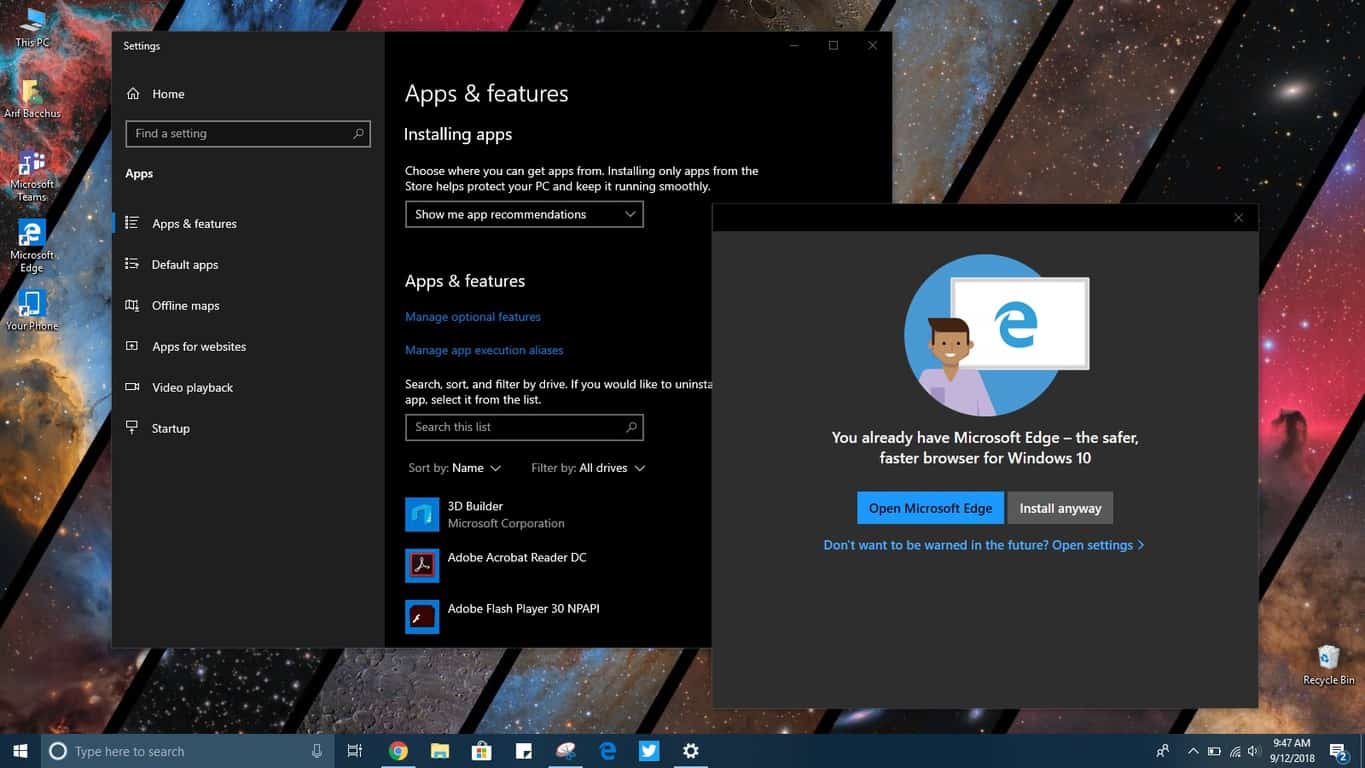
Yesterday, we noted that Windows Insiders on Redstone 5 builds were getting an Edge app recommendation “ad” when trying to install Chrome or Firefox. Windows users across the internet have since shown major outrage over this, and it quickly became yet another controversy for Microsoft. Well, the company has now come forward on the issue, issuing a statement saying that the pop up is just a part of Insider testing (via ZDNet.):

We’ve tested this functionality with Insiders only – The Windows Insider Program enables Microsoft to test different features, functionality and garner feedback before rolling out broadly. Customers remain in control and can choose the browser of their choice.

In his testing, Ed Bott over at ZDNet found that the “ads” have since been turned off and can’t be reproduced with the latest Redstone 5 Windows Insider build, 17758.1. We also checked on PCs running build Redstone 5 build 17755.1 and 19H1 build 18234 and can confirm we’re not seeing these “ads.” as well.

Many other Windows features have disappeared and re-appeared after testing and a feedback period with Insiders, so it’s not surprising to see Microsoft pull that card here. The best example of this is the Sets feature and even A/B testing of certain features in the Microsoft Store.

Microsoft is obviously now trying to distance itself from the controversy, and the annoying pop up would probably have done very little to boost Microsoft Edge, which is still a decent browser. Do you agree that Microsoft went too far to promote its new web browser? Let us know below.

KB4457128 installs twice and breaks File Explorer

Patch Tuesday on 11 September was just not meant to be a safe day for Windows 10 users. KB4457128, version OS Build 17134.285, has come with two major issues: duplicated installation and File Explorer crash.

Make sure to read this post before you install this security update. If you already updated your system, definitely check out below find out all the details of issues and fixes that were reported so far.

Read also: Microsoft releases new patches for Windows 10: KB4457138 and KB4457142

KB4457128 improvements and fixes

First, we are going to have a look at what this update includes as key changes. No new operating system features are being introduced since this update only brings quality improvements. Microsoft mentions the following:

  • provides protection against a Spectre Variant 2 vulnerability (CVE-2017-5715) for ARM64 devices.
  • addresses an issue that causes excessive CPU usage from the Program Compatibility Assistant (PCA) service.

KB4457128 brings security updates to:

  • Internet Explorer
  • Microsoft Edge
  • Microsoft scripting engine
  • Microsoft Graphics Component
  • Windows media
  • Windows Shell
  • Windows Hyper-V
  • Windows datacenter networking
  • Windows virtualization and kernel
  • Windows Linux
  • Windows kernel
  • Microsoft JET Database Engine
  • Windows MSXML, and Windows Server.

Since this is a cumulative update, only the new fixes in this package will be downloaded and installed on your device, if you installed earlier updates.

KB4457128 issues

Duplicated installation of KB4457128

Early on today, in the Microsoft Answers community there was an issue reported regarding the double installation of KB4457128. Replies came shortly to confirm it is not a single case, but many observed this problem in the Windows Update History.KB4457128 installed twice

Apparently, there is no critical harm yet reported on any computers whatsoever, but a big sign of concern from a few Insiders:

The only issues so far coming from Release are Apps window sizes revert to default on the upgrade and still turns on “Show me suggested content in Settings” after turning this to off in Release. Most of the other issues have cleared up. This build shows promise. Will clean install this one in laptop.

Looks like Microsoft could have prevented this, but omitted to test these Cumulative Updates with the Insiders. Now the whole world has to deal with this, as one of the Insiders claims on the Microsoft Answers community:

This is what happens with MS not giving these CU to Insiders on Just Fixes as they once did prior to releasing. This could have been prevented. Now the whole world has to deal with this.

Other users have confirmed the double install, although observing that computer is running great.

You can also make sure to check your Event Viewer for any warnings or critical issues since signing in after this update. Also, check Security and Maintenance log for any problems.

One of the Microsoft Agents followed this thread and guaranteed that the engineering team knows about the issues now. It might be just a matter of time for the new patch to be released and fix this. Keep an eye on our news category to be informed.

File Explorer freezes after installing KB4457128

We have noticed that File Explorer was running quite slow today and scanning the forums appears that we are not the only one to see some problems. If you also happen to have these issues, do not hesitate to leave us a comment in the box below.

Try to organize your files in the File Explorer, and check its behavior even with few files in a folder. Pay attention to the speed it operates simple commands and if at any time appears to be frozen.

A few users have checked if programs that take lots of CPU/memory resources were run when these problems occurred. Also, reassured that no file transfer or other operations were actioned at that time.

How to fix File Explorer issues after installing the update

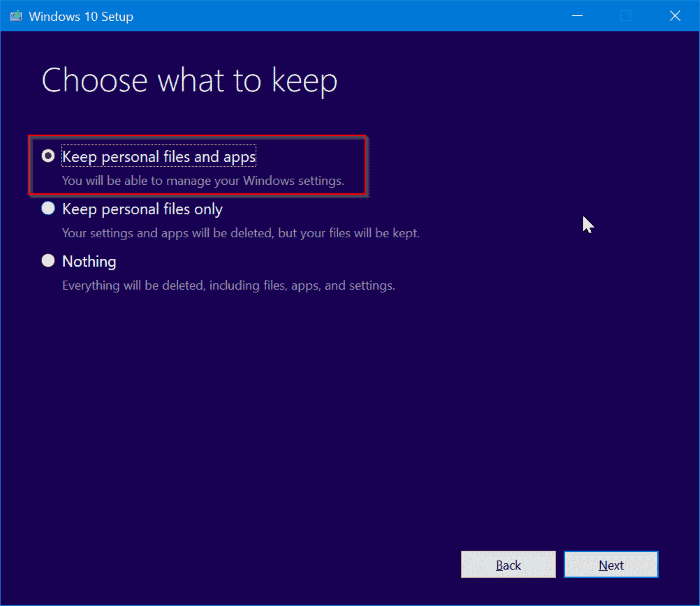
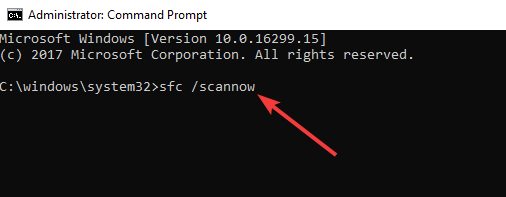
We recommend running a SFC/scannow to check and repair system files. Also, perform a refresh or reset for Windows. If you reset your system, you have the option to Keep personal files in the setup process.
Reset Windows 10 - Keep personal files and apps

Read also: 

There are various issues after Windows Updates in the previous builds, and we covered all of them with effective solutions. Let us know about your specific issue in the comments below.

Related stories to check out now:

How to fix YouTube DPI scaling in Windows 10/11

Steps to fix DPI scaling problems on YouTube

  1. Adjust the System Display DPI settings
  2. Check the browser zoom-in options and disable add-ons
  3. Allow the browser to scale on its own
  4. Clear browser’s cache and browsing data
  5. Add the command parameter while running the browser
  6. Reinstall the browser
  7. Check GPU drivers

Bad DPI scaling is certainly not a novelty on the Windows platform. And it seems that Windows 10 has the most issues concerning high-resolution on small or medium-sized displays. That’s exactly one of the reasons why some users had a hard time with video reproduction on YouTube. Due to the discrepancy between PPI and DPI, videos appear blurry and barely watchable.

For that reason, we prepared a few solutions which should allow you to resolve the problem at hand. If you’re not sure what to do, follow the list we prepared below.

SOLVED: YouTube DPI issues in Windows 10

1: Adjust the System Display DPI settings

If the problem is local in nature or it impacts the DPI scaling in general, your first step should be to change the default value and look for changes. This is a grave problem Microsoft still hasn’t dealt with. The large-scale display will suffer from blurriness and this includes video streaming. Even in some UWP apps which are native. Thus the DPI issue with the YouTube videos reproduction appears.

Follow these steps to change the system DPI settings:

  1. Press Windows key + I to open Settings.
  2. Choose System.windows 10 dpi fix youtube
  3. Under the Display section, choose the recommended Scaling. Here’s it’s on 100% as it should be on this display configuration.windows 10 dpi fix youtube
  4. Also, you can click on the Advanced scaling settings just under and toggle on the “Let Windows try to fix apps so they are not blurry” option.windows 10 dpi fix youtube

2: Check the browser zoom-in options and disable add-ons

When you stream a video, you’ll probably use a web browser to access YouTube. The negative DPI scaling effect can be a result of various complex shortcomings. However, it can be inflicted by the simplest of errors.

Namely, if you zoomed in (or zoomed out, for that matter) your browser UI, the video streaming might come blurry and with the bad DPI scaling. Of course, this can be avoided by simply resetting Zoom options to default (100%).

In addition, we suggest temporarily disabling all add-ons you have. Some of them, especially the anti-tracking extensions and add-blockers can disrupt video reproduction. And, as a final note in this section, we must suggest checking the network connection. YouTube will automatically reduce the reproduction quality if you have a subpar connection or a slow bandwidth.

3: Allow the browser to scale on its own

The DPI scaling is a grave problem for the UWP apps as they’re programmed to follow the system scaling. However, standard third-party win32 programs have an option to configure the DPI scaling on their own. This might help you overcome the problem with the YouTube DPI scaling on YouTube.

This is applicable to any application, and this includes all web browsers. It’s the part of the Compatibility options which are used to optimize and improve the user experience of older or non-compatible programs.

Follow these steps to allow a web browser to use its own DPI settings:

  1. Right-click on the browser’s desktop shortcut and open Properties.
  2. Choose the Compatibility tab.
  3. Click on the “Change High DPI settings” button.
  4. Check the “Use this setting to fix scaling problems for this program instead of the one in Settings” box.
  5. Check the “Override high DPI scaling behavior” box and choose Application from the drop-down menu.windows 10 dpi fix youtube

4: Clear browser’s cache and browsing data

While we’re at it, let’s continue with the browser-related troubleshooting. Google Chrome is, for example, known to have certain problems on Windows 10 when it comes to DPI scaling. To some extent, this has to do with Windows 10, while sometimes the clogged Chrome is the one to blame.

Cached data can be helpful, with an intention to speed up your browsing and make the experience as seamless as possible. However, over time, it can impact the overall performance. For that reason, we suggest clearing the browser’s cache. Hopefully, that will allow you to watch YouTube videos without blur or a bad case of DPI scaling.

Here’s how to clear browser’s cache on Chrome, Mozilla, and Edge, respectively.

Google Chrome and Mozilla Firefox

  1. Press Shift + Ctrl + Delete to open the “Clear browsing data” menu.
  2. Select “All time” as the time range.
  3. Focus on deleting ‘Cookies’, ‘Cached Images and Files‘, and other site data.
  4. Click on the Clear Data button.windows 10 dpi fix youtube

Microsoft Edge

  1. Open Edge.
  2. Press Ctrl + Shift + Delete.
  3. Check all the boxes and click Clear.windows 10 dpi fix youtube

5: Add the command parameter while running the browser

Another way to manipulate the execution of a third-party program in a Windows platform is to add the run parameter. There are various parameters you can use to manually configure the behavior of the application at hand. In this case, we need to set the parameter which forces the High DPI support.

This can be done through the shortcut Properties. If you’re not sure how to do it, follow the steps we enlisted below:

  1. Right-click on the browser’s desktop shortcut and open Properties.
  2. Under the Shortcut tab, focus on the Target tab.
  3. To the installation path, add the following parameter and save changes.
    • dpi-support=1 /force-device-scale-factor=1windows 10 dpi fix youtube

6: Reinstall the browser

If your browser is the only distinctive part that underperforms, reinstallation is a valid option. There are lots of reasons for a browser to start misbehaving. This, of course, can be easily solved by completely wiping out the current installation and downloading the latest iteration of the said browser.

After you’ve done that, you should be able to use YouTube without scaling DPI issues. Just don’t forget to delete all locally stored data the browser created.

7: Check GPU drivers

Finally, the problem might lie in the faulty graphics card driver. We need you to confirm that the proper driver is installed by checking the available resolutions. Your native resolution should be set as the default value. If the values are lower, that means that the GPU driver isn’t installed and that the generic display driver is active. And we don’t want that.

This is especially the case just after the system installation. Windows 10 mostly installs all essential drivers, but it has a hard time obtaining the proper GPU driver most of the time.

What you need to do to fix this is to get the driver manually, from the OEM’s official site. You can find the drivers on one of these 3 websites:

With that said, we can conclude this article. In case you’re still suffering from the DPI scaling issues on YouTube, make sure to post the details here. We might help you with enough information provided. You can do so in the comments section below.

Error 0x8000ffff while installing KB4457144 on Windows 7: what to do?

Windows 7 patch Tuesday is here and brings some security improvements, but also some issues. The update fails to install for some users because of 0x8000ffff error that will not let you to.

It seems that the cause of ‘install failed’ error while installing the KB4457144 update on your Windows 7 system is the 0x8000ffff error.

While many users cannot install this KB, there are many others that do not have any struggles with that even if the installation runs really slow.

Some users reported on askwoody.com dedicated topic that the ‘Retry’ option will not help this problem.

Well, there is not yet any fix, and we will have to wait a little bit until Microsoft fixes it. Here are the thoughts of an anonymous user about this:

‘Aerosmith you will probably be waiting a few days at least for people to report it, and Microsoft to investigate it. Then they have to fix it.’


Are Windows 7 updates still available? Yes, they are! Find out more about this from our article!


How to avoid Error 0x8000ffff on your Windows 7 PC?

We are afraid that many of you that tried to install this KB,  had no results. You will probably not be able to do it until it will not get fixed.

However, a few days without the newest patch are not critical for your Windows 7 PC and you can wait so you can install the fixed KB4457144 version.

You can also try to perform some steps on your own. First of all, you will find how to fix the 0x8000fff error here.

It is our exhaustive guide that contains seven solutions in order to help you get rid of this error code while downloading Windows updates.

If you do not arrive to follow all the steps from the guide, simply perform the following steps:

  • Stop the update if you already started it (if you have not – do not do it)
  • Hide temporarily this update
  • Open your update center in Windows 7 and set your update options to ‘Never check for updates‘
  • When the update is officially fixed, roll back the setting ‘Never check for updates‘
  • Check for updates, and install KB4457144

This is all that is known about this update at this moment. Keep an eye on our site so you could be the first to know if this problem was fixed. Do not forget to let us know in the comment section if you found a workaround to this annoying issue.

Windows 7 KB4457144, KB4457145 security updates and fixes

Microsoft released on 11 September 2018 the monthly roll-up and a security-only update for Windows 7 users as part of the cumulative updates.

KB4457145 for Windows 7 includes security updates to Windows media, Windows Shell, Windows Hyper-V, Windows kernel, Windows datacenter networking, Windows virtualization and kernel, Microsoft JET Database Engine, Windows MSXML, and Windows Server.

There were no reported issues with this update. If you encounter any problems, leave us a comment in the box below the article.

KB4457144 changelog

This monthly roll-up that includes improvements and fixes as part of update KB4343894 (released August 30, 2018) and addresses issues related to security updates for:

  • Windows media
  • Windows Shell
  • Windows Hyper-V
  • Windows kernel
  • Windows datacenter networking
  • Windows virtualization and kernel
  • Microsoft JET Database Engine
  • Windows MSXML and Windows Server.

In the released notes, Microsoft team mentioned that the following software also benefits from security updates:

  • Internet Explorer
  • Microsoft Edge
  • Microsoft Windows
  • Microsoft Office and Microsoft Office Services and Web Apps
  • ChakraCore
  • Adobe Flash Player
  • .NET Framework
  • Microsoft.Data.OData
  • ASP.NET

KB4457144 issues

Microsoft warns about the known issues that may occur when applying this update. The network interface controller (NIC) could stop working on some configurations. The exact problematic configurations are currently unknown, but aparently is related to a missing file, oem<number>.inf.

If you encounter this issue, try the suggested workaround and manually locate the network device.

  • Open Device Manager and locate devmgmt.msc

A second solution is to Scan for Hardware Changes from the Action menu on the Device Manager panel. This will automatically rediscover the NIC and install drivers.
Scan for Hardware Changes from Action menu in Device Manager

How to get KB4457144 security update

Windows Update service will automatically download and install this update. However, you can also download the standalone package for this update form the Microsoft Update Catalog.

Related articles to check out:

[Updated] Windows 10 Insider preview 18237 comes with Task Manager fixes and more

Microsoft’s Windows team has just dropped its latest Insider preview for the Skip Ahead release ring. With Windows 10 Insider preview build 18237. Insiders are given a hefty list of fixes and improvements.

UPDATE: Microsoft is investigating an issue with this build where some users are getting update failed with error code 0x8007000e or seeing very high RAM usage. You can check this page for more details. Please log your feedback on this RAM usage problem in the Feedback Hub here, and with the 0x800700e error here.

Here’s what’s been fixed and improved upon in build 18237,

  • General changes, improvements, and fixes for PC
    We fixed an issue where Task Manager couldn’t be resized in the previous flight.
  • We fixed and issue resulting in Settings crashing when navigating to Accounts > Sign-in in the previous flight.
  • We fixed an issue resulting in reduced Action Center reliability in recent flights.
  • We fixed an issue where if you opened one of the taskbar flyouts (like network or volume), and then quickly tried to open another, it wouldn’t work.
  • We fixed an issue for people with multiple monitors where if the Open or Save Dialog was moved between monitors some elements might become unexpectedly tiny.
  • We fixed an issue resulting in certain apps crashing recently when setting focus to the in-app search box.
  • We fixed an issue resulting in certain games, like League of Legends, not launching/connecting properly in recent flights.
  • We fixed an issue where clicking on web links in PWAs such as Twitter didn’t open the browser.
  • We fixed an issue resulting in certain PWAs not rendering correctly after the app had been suspended then resumed.
  • We fixed an issue where pasting multi-line text into certain websites using Microsoft Edge might add unexpected empty lines between each line.
  • We fixed a crash in recent flights when using the pen to ink in Microsoft Edge’s web notes.
  • We fixed a high hitting Task Manager crash in recent flights.
  • We fixed an issue resulting in Settings crashing for Insiders with multiple monitors when changing various options under Display Settings in the last few flights.
  • We fixed a crash when clicking the Verify link on the Accounts Settings page in recent flights.
  • We’ve added a new group policy for preventing the use of security questions for local accounts. This can be found under Computer Configuration > Administrative Templates > Windows Components > Credential User Interface.
  • We fixed an issue where the contents of the Apps & Features page wouldn’t load until the apps list was ready, resulting in the page appearing blank for a time.
  • We fixed an issue where the list on Settings of built-in phrases for the Pinyin IME was blank.
  • We fixed an issue in Narrator where activating Microsoft Edge history items would not work in Scan mode.
  • We made some improvements in Narrator Selection when moving forward in Microsoft Edge. Please try this out and use the Feedback hub app to let us know any issues you encounter.
  • We fixed an issue where Narrator would incorrectly report some standard combo boxes as “editable combo box” instead of “combo box”.

However, this wouldn’t be a Skip Ahead preview without a few issues testers need to be aware when downloading this build. Here are some notes for testers and developers.

Known issues

  • Narrator sometimes does not read in the Settings app when you navigate using Tab and arrow keys. Try switching to Narrator Scan mode temporarily. And when you turn Scan mode off again, Narrator will now read when you navigate using Tab and arrows key. Alternatively, you can restart Narrator to work around this issue.
  • You may notice the background of notifications and the Action Center lose color and become transparent (with an acrylic effect). We’re aware that for notifications this can make them difficult to read and appreciate your patience as we work on a fix.

Known issues for Developers

  • If you install any of the recent builds from the Fast ring and switch to the Slow ring – optional content such as enabling developer mode will fail. You will have to remain in the Fast ring to add/install/enable optional content. This is because optional content will only install on builds approved for specific rings.

A lot has been addressed in this build, but I’m sure we’ll see more addressed in upcoming builds as the Windows team preps for a possible October release of the next Windows 10 Update.


Why Windows 10 Needs to be Free for Windows 8, 8.1

Windows 8 is a concept that hasn’t been liked by too many long-time Windows customers, mainly because it took away some features that they were so familiar with. But Windows 10 is said to come and fix these issues and here’s why it needs to be free for Windows 8 owners.
free windows 10 for windows 8
Windows 10 is said to be Microsoft’s operating system that Windows 8 was supposed to be. After millions complained about the absence of the Start Menu and didn’t adopt the Windows Store idea wholeheartedly, Microsoft had issued Windows 8.1, trying to fix some of the problems.

However, even that wasn’t enough, despite the various desktop improvements that were released for mouse and keyboard users. That’s why many rushed to uninstall Windows 8.1, which resulted in a lot of issues and problems.

READ MORE: How to Get Windows 8.1, 10 for Free Without Breaking Laws

But the biggest problem for Microsoft is that Windows 7 and even Windows XP haven’t embraced the Windows 8 or Windows 8.1 concept that easily. And here’s where Windows 10 steps in – not only that it tries to bring familiar desktop features, but it unifies the experience across Windows Phone, desktop, tablet and, why not, even wearable devices.

However, it would be a disaster if Microsoft forced Windows 8 or 8.1 owners to pay for Windows 10. After all, it doesn’t come with groundbreaking new features. And I think that Windows 8 owners should be rewarded for embracing the new vision. Windows 10 is also Microsoft’s way of saying ‘sorry’ to Windows XP, Vista and 7 users that wanted to make an upgrade to something new.

As for Windows 8 users, Windows 10 simply has to be free for them, there really is no other way around.

Windows 10: free or not for 8, 8.1 users? [2018 update]

Even though many Windows users still think about whether upgrading to Windows 10 or not, I have upgraded. Having a paid license on a Windows 8.1 laptop, I have upgraded to Windows 10 whithout paying a single penny. I just used the license key that I have extracted with Magical Jelly Bean KeyFinder, a great tool for not losing your license key.

After the upgrade, my Windows 10 worked like a charm and it still works. I suggest you check your license key if you have bought Windows 8 or 8.1. If you have NOT and you have a free copy or a non-licensed copy then prepare your wallet because this will cost you a Windows 10 license.

READ ALSO: Windows Store Nearing 200,000 Apps Milestone

Microsoft releases Windows 10 SDK Preview Build 17754 and second preview of Visual Studio 2017 version 15.9

Microsoft released yesterday the Windows 10 SDK preview build 17754 as well as the second preview of Visual Studio 2017 version 15.9. After installing the latter, developers will see that the latest Windows 10 Preview SDK is now included as an optional component in the Universal Windows Platform development Workload, which is pretty convenient for accessing the latest Windows 10 APIs right away.

Visual Studio 2017 version 15.9 Preview 2 comes with the following new features for developers (more details are available here):

  • You can now import and export an installation configuration file that specifies which workloads and components should be installed with an instance of Visual Studio.
  • Step back in debugger is now available in C++.
  • We fixed several bugs in the F# compiler when working with byref types.

Visual Studio 2017 version 15.9 Preview 2 shouldn’t be used in a production environment, though you can use this latest preview release alongside other versions of Visual Studio. You can download this latest preview from the Visual Studio website, and the Windows 10 SDK preview build 17754 is available on this page.

Fixed: SD Card Not Recognized After you Wake up Windows 8.1, Windows 10

If your SD card is not recognized when you wake up the computer in Windows 8.1 or a version of Windows Server, or even Windows 10, then it seems that Microsoft has already worked out a fix for you. Let’s have a look at some more details after the image.
sd card not recognized windows 8, windows 10
There are various problems link to the SD Card functionality in Windows 8 and Windows 10, and we have previously talked about a bunch of problems, such as the following ones:
READ MORE: Format SD cards on Windows 10 using these software solutions

SD Cards not being recognized by Windows computer – problem solved

Today, however, we won’t be telling you how to fix yet another annoying problem related to the malfunction of your SD card in Windows 8 or Windows 10, but we’ll just inform you that it has been fixed by Microsoft.

So, the problem sounds like this – when you insert an SD card into the SD card reader, the SD card cannot be recognized in one of the following scenarios either immediately after you wake the computer from sleep mode or the computer does not go to sleep but the SD card reader is idle for a long time without an SD card inserted.

This problem has been fixed as part of update rollup 2995388, and unfortunately, there is no hotfix available for download. So, this means that you will have to perform the latest Windows Update to get this fix, as well. This applies to all versions of Windows Server 2012 and Windows 8.1 as well as Windows RT 8.1.

Common ‘SD Card not being recognized’ problems

‘SD Card not recognized’ is a common error for Windows 10, 8.1 users. It is important to know that many users managed to fix this type of errors by applying general fixes. We have monitored these issues along the time and have some general fixes for you. Here they are:

The first guide is for general SD Card issues. It can be applied to any SD card out there. The second fix is more for users which use their mobile phones Micro SD cards and have issues with them. We hope that this information will help you and you will let a comment so we could see what solution helped you.

READ ALSO: Fix: Windows Computer Doesn’t Recognize SD Card

How to fix corrupted .NET Framework issues


How to repair .NET Framework in Windows 10

  1. Run a System File Checker Scan
  2. Open the .NET Framework Repair Tool
  3. Repair .NET Framework via Programs and Features
  4. Reinstall .NET Framework

NET Framework is a runtime environment and programming framework that’s essential for running some software. Thus, a .NET Framework error message might pop up in Windows when you run certain software if .NET gets corrupted. For example, one .NET error message states: Microsoft .NET Framework Error: Unhandled exception has occurred in your application.

If you suspect that .NET Framework is corrupted on your Windows laptop or desktop, check out some of the potential resolutions below.

SOLVED: .NET Framework file corruption problems

1. Run a System File Checker Scan

Some .NET Framework versions are integrated within Windows. Thus, running a System File Checker, which fixes corrupted system files, might also repair .NET Framework. You can run an SFC scan as follows in Windows 10 or 8.1.

  • Open the Win + X menu with the Windows key + X hotkey.
  • Click Command Prompt (Admin) to open an elevated Prompt window.

  • Before you initiate an SFC scan, input ‘DISM.exe /Online /Cleanup-image /Restorehealth’ and press Enter.
  • Next, input ‘sfc /scannow’ in the Command Prompt; and press the Return key.

sfc scannow

  • Wait for the SFC utility to scan, which might take up to 30 minutes. Then restart Windows if the Command Prompt states that Windows Resource Protection repaired system files.

— RELATED: Full Fix: Windows Driver Frameworks uses too much CPU

2. Open the .NET Framework Repair Tool

The Microsoft .NET Framework Repair Tool is a utility for repairing .NET Framework. That’s certainly a utility worth noting for fixing a corrupted .NET Framework. Click Download on this page to save the utility to Windows. Then open NetFxRepairTool from the folder you downloaded it, and click the Next button to initiate the repairs.

3. Repair .NET Framework via Programs and Features

This is a fix more specifically for earlier Windows platforms, such as Windows XP, that don’t include so many built-in .NET versions. The Programs and Features applet lists .NET Framework versions installed via Windows Update in older Windows platforms. If you’ve installed any older .NET Framework version manually, you might also find it listed in Control Panel’s Programs and Features. If so, you can select a Change/Uninstall option to repair corrupted .NET Framework versions.

  • To repair .NET Framework versions via the Control Panel, press the Windows key + R keyboard shortcut.
  • Enter ‘appwiz.cpl’ in the Open text box, and click the OK button.

  • Select a .NET Framework version listed in the Programs and Features applet if you can anything.
  • Then you can press a Change/Uninstall button to open a window that includes a Repair .NET Framework option on it.
  • Select the Repair .NET Framework to its original state option.
  • Then click the Next button to fix .NET Framework.

— RELATED: Fix: .NET Framework 3.5 is Missing From Windows 10

4. Reinstall .NET Framework

Reinstalling .NET Framework will get rid of the corrupted versions. Then you can replace the corrupted .NET Framework versions by reinstalling them. This is how you can quickly uninstall all .NET versions with the .NET Framework Cleanup Tool and then reinstall them.

  • Open this Softpedia webpage in your browser.
  • Click the Download Now button on that page to save the .NET Framework Cleanup Tool ZIP to a folder.
  • Double-click the dotnetfx_cleanup_tool ZIP in the folder you downloaded it to. Then press the Extract all button.
  • Click Browse to choose a path to extract the ZIP to, and press the Extract button.

  • Open .NET Framework Cleanup Tool from the extracted folder.
  • Click Yes on the dialog box that opens.
  • Then select the .NET Framework – All Versions option on the Product to cleanup drop-down menu.

  • Press the Cleanup Now button.
  • You can quickly reinstall .NET Framework versions with All in One Runtimes, which enables users to reinstall all essential Windows runtimes. To add that software to Windows, click All in One Runtimes on this webpage.

  • When you’ve launched All in One Runtimes, select the .NET Framework check boxes on the Installation tab.
  • Click Install to reinstall .NET Framework.
  • This guide also includes more information on how to download .NET Framework.

So that’s how you can fix corrupted .NET Framework in Windows. In addition, check for Windows updates that might provide .NET updates with the Check for updates button in Settings.

Fixing corrupted .NET Framework will ensure you can run all software that needs it. You may also run into similar issues when a critical DLL file like the mscorlib.dll is missing or damaged.

RELATED STORIES TO CHECK OUT:

Fixed: ‘Taskbar Works Incorrectly, Duplicated’ in Windows 10

As part of its most recent updates, the Windows team has provided some working fixed and updates for issues related to the taskbar. So, if the taskbar works incorrectly or is duplicated in Windows Server 2012 R2 and Windows 8.1, 10 the fix is here.
taskbar Works incorrectly or is Duplicated in Windows 8 10Here’s how the official issue has been described – “The taskbar does not work correctly on a computer that is running Windows Server 2012 R2, Windows 8.1, or Windows RT 8.1. In some cases, the taskbar remains on the screen for longer than expected or there may be a duplicate taskbar.” But what’s really awesome is that the fix has been provided via the traditional Windows Update.

READ ALSO: How to Clear the Clipboard in Windows 8, Windows 10

Problems fixed with taskbar functionality in Windows 10

So, make sure you install update rollup 2984006 when you perform the latest Windows Update check.  install update rollup 2984006. As always, the update applies to the following operating systems – Windows Server 2012 R2 Datacenter, Windows Server 2012 R2 Standard, Windows Server 2012 R2 Essentials, Windows Server 2012 R2 Foundation, Windows 8.1 Enterprise, Windows 8.1 Pro, Windows 8.1, Windows RT 8.1, Windows 10.

Common Taskbar functionality solved issues

Many Taskbar issues have not received official fixes at that time, but luckily we have managed to find out how to get rid of them. For our readers, we have listed them below so you could fix various taskbar problems. Here they are:

Let us know in the comment section what solution helped you. Do not forget to add new ones so we could update our guide.

READ ALSO: Fixed: Price Appears Incorrectly for Some Windows Store Apps

Fixed: Price Appears Incorrectly for Some Windows Store Apps

As part of its recent updates that got rolled out, Microsoft has issued a bunch of fixes that are affecting Windows 8 and upcoming Windows 10 users. We’re talking now about a fix related to incorrect display of prices on the Windows Store.
incorrect price windows store apps
Sometimes, you might get some annoying problems related to the price of various apps on the Windows Store. Through the Windows Update utility, Microsoft’s dedicated team has taken care of some problems related to promotional items. So, to get rid of these problems yourself, make sure you have installed the latest update.

READ ALSO: Windows Store Error Codes on Windows 8, 8.1: Complete Guide to Fix Them

Problems with incorrect Windows apps price fixed

Here’s how the issue has been described:

Some promotional items are priced at $0.00 but are labeled as 99% off in Windows Store in Windows 8.1, Windows RT 8.1, or Windows Server 2012 R2. These items should be labeled as 100% off.

In order to fix this issue, you will need to make sure that you have installed the update rollup 2984006. Just like pretty much all the updates of this kind, it will apply to Windows Server 2012 R2 Datacenter, Windows Server 2012 R2 Standard, Windows Server 2012 R2 Essentials, Windows Server 2012 R2 Foundation, Windows 8.1 Enterprise, Windows 8.1 Pro, Windows 8.1 and Windows RT 8.1 operating systems.

Fix Wrong currency displayed

You also might have the wrong currency displayed and this can be very annoying. Here’s how you can fix this issue:

  1. In the Search bar tap ‘settings’ (For Windows 8 or 8.1 tap Windows Button+C to open charms bar and click on ‘search’)
  2. In ‘Settings’ type ‘location’
  3. Select ‘Change Location’
  4. Change the ‘Home Location’

This might help you to have your country’s currency while entering Windows Store. Let us know in the comment section how have you fixed this issue.

READ ALSO: Fixed: Downloading Stops in Xbox Video App for Windows 8.1, Windows 10

Here’s what we expect (and don’t expect) from Microsoft’s October 2 NYC event

Following the action at Microsoft Ignite in September, Microsoft is set to take a few additional moments of your time with a special event in New York City on October 2. Timed perfectly for the Fall and holiday shopping season, many are expecting the Redmond giant to use the event to take the wraps off refreshed, new Surface products, and maybe even some new software. We’ll be attending and blogging live on the ground at the event in New York City come October 2nd, so here’s a look at what we expect (and don’t expect) from Microsoft.

What to expect (Hardware)

Surface Refresh

Like everyone else, we’re highly expecting Microsoft to show off some refreshes (with the latest 8th Gen Intel chips) for the Surface Pro, Laptop, and Book devices. The timing is just right, especially since the current generation devices were heavily discounted for Labor Day weekend. We also think these refreshed Surface devices will come with USB C ports, given that Microsoft is now selling its own Surface-branded USB C adapters for the Surface Go.

Maybe Surface Hub 2, Surface Studio 2, and HoloLens 2.0?

This is a bit wild, but these devices are still worth mentioning as a reminder of the state of the Surface family. First off, we think this event could finally reveal more on Surface Hub 2, which Microsoft has said is already in use by customers, but planned for 2019 release.

Though it doesn’t seem like the venue, there is also the possibility of hearing more about HoloLens 2.0. Several patents for that headset have leaked, but HoloLens 2.0 too was rumored for 2019.

Finally, something much more possible is Surface Studio 2, since the original Studio is now close to 2 years old. That hardware is now aging, and it would be nice to see the All-in-one PC pick up USB C, newer Intel Chips and even SSDs.

The Surface Family

A New Surface and Surface Headset?

The past two Microsoft events in New York City have seen the reveal of new Surface devices— the Surface Studio and Surface Laptop. Though there are rumors indicating Surface Pro 6 (codenamed Carmel) won’t come until 2019, we might again see new Surface devices at this October 2 event. Surface chief Panos Panay has been quiet on any new hardware but last hinted at an “evolution of communication.” So, all things considered, it wouldn’t make sense for Microsoft to hype up and spend money on a media event in NYC and NOT showcase new Surface hardware.

Take it as a fine grain of salt, but a reply in this Reddit thread says Microsoft has banned entry into its Surface hardware building. Per that comment, the last time that happened was for the Surface Studio. There definitely could be something a new Surface cooking over at Redmond.

Finally, a story from Microsoft watcher Mary Jo Foley also shows that Microsoft could be working on a Surface-branded headset. She reports it could be like a Jabra Evolve. We’ve seen Microsoft reveal Surface-branded accessories (Surface mouse, keyboard, etc) alongside main new Surface devices before, so this too makes sense.

Surface family on stage

Surface Go with LTE?

When Surface Go launched in August, Microsoft promised that an LTE model would be coming later this year. Now that initial reviews of the device have phased through the media, it makes sense for Microsoft to now take the wraps off the LTE version at the October 2 event. As we saw with Surface Pro LTE, the company has also been big on pushing its devices for “a new culture of work”, and the LTE Surface Go would fit right in with that plans.

Microsoft Surface Go device and Type Cover
Surface Go

What to expect (Software)

Windows 10 October 2018 Update

The next version of Windows 10 is appropriately named for the month in which this event is occurring, so we expect for Microsoft to highlight this latest version of Windows 10. Similar to what they did with the 2016 Creators Update Surface Studio hardware event, any new hardware from this years event will likely pair up with new Windows 10 October 2018 Update features, and Windows 10 adoption rates and momentum. We could even hear about the next Windows 10 19H1 update, set for release in the Spring.

A white Windows logo on a blue background
Windows Logo

Office, Cortana/Alexa, other productivity software

After Microsoft’s internal shakeup, Corporate Vice President Yusuf Mehdi started using the term “modern life services,” talking about helping consumers achieve more and making their lives easier. The “moment in your time” theme for this event can be a nod to that, and even productivity. That said, we think this event could reveal more about Office 2019, recent updates to Office 365, and even that Cortana and Alexa integration. The last May 2017 Surface Laptop Microsoft event did feature a similar software side of things, so we expect it to come up again.

Image of reflection on glass showing people working with Microsoft devices with "Office 365" text
Office 365 Logo

Xbox, Game Pass, Minecraft

New Xbox hardware is usually reserved for E3 2018 or Gamescom, but this event could again see a recap of what’s been new with Xbox software/games for the past few months. We could get a peek at the Xbox version of the Windows 10 October 2018 update, and also new or upcoming Minecraft features. Again, Microsoft’s October 2016 Surface Studio event did feature both Xbox and Minecraft, so it won’t surprise us to hear more about those on this October 2nd either.

Xbox Logo

What NOT to expect

Project Andromeda or Surface Phone

Windows Phone fans might be hoping this event could shed more light on Project Andromeda or Surface Phone, but we don’t see that as possible. Rumors have shown that Surface Andromeda is definitely not coming in 2018, so don’t expect for it to get any mentions at this event. Last we noted, the reason for the delay happens to be related to the software not being ready, so don’t get your hopes up just yet and wait for 2019 instead.

Microsoft Band 3 or Microsoft Watch

Despite the “moment of your time” theme for this October 2 event, we don’t think Microsoft will be showing off a wearable device. The company killed off its previous wearable, the Microsoft Band, and has shown little interest in it since then. Still, patents have shown that a new wearable could be in development, so you never know.

Microsoft Andromeda Surface Phone Concept
Surface Phone concept

As you can tell, there is a lot of rumors, and hype around Microsoft’s fall devices lineup. All of that is likely to culminate come October 2nd, so be sure to keep it tuned right here to OnMSFT. The event is set to kick off at 4 PM ET, and it is not clear if Microsoft will be streaming it live, so we’ll have you covered with our own live blog.


0x3B (0x0000003B) Error Fixed for Windows 8, 8.1 Users

There are many annoying problems that are affecting current Windows users, which are on Windows 7, 8 and 8.1 and we try to cover the latest updates that are fixing various issues. Today we’re covering the 0x3B error.

As you have probably been affected, the 0x3B Stop error occurs randomly when you log on a computer that is running Windows 8.1 or Windows Server 2012 R2. Now, via the Windows Update functionality, this has been solved, so you just need to make sure that you have update rollup 2984006 installed and running on your machines.

READ MORE: Skype App for Windows 8, Windows 10 Now Lets you Edit or Delete Messages, Adds Notifications

0x3B error gets fixed with recent Windows Update

The above-mentioned stop error indicates a SYSTEM_SERVICE_EXCEPTION issue. Thus, the parameters in this Stop error message vary, depending on the configuration of the computer. Microsoft also mentions that not all 0x0000003B Stop errors are caused by this issue. The cause is the following:

This issue occurs because there is a race condition between two threads during the logon process.

The update applies to Windows Server 2012 R2 versions, Windows 8.1 Enterprise, Windows 8.1 Pro, Windows 8.1 and Windows RT 8.1. Leave your comment below and let us know if this has solved your problems.

Download hotfix for 0X3B error

You can also fix this problem by installing Microsoft’s hotfix for this issue that they launched then. Here is how to perform this action:

  1. Go on this link (Microsoft Support link)
  2. Click on ‘Hotfix Download Available’
  3. Install the hotfix on your Windows PC
  4. After it is installed – restart your PC

Here it is, the only thing you have to do is to check if the problem still persists. Let us know in the comment section if this fix helped your case.

READ ALSO: Surface RT Tablets to be Discontinued this Year, Death is the Only Solution

Fixed: Microsoft Store Apps are Not Updated Automatically in Windows

Windows users have always had many problems with the Microsoft Store, but Microsoft has relentlessly tried to come up with fixes every time. Today we’re talking about an update that takes of some problems with Windows apps.
windows store apps not updating

How to fix ‘Microsoft Store Apps not updating automatically’?

As part of update KB 2919355, Microsoft has recently released an update that takes care of some annoying problems related to the updating process of the Microsoft Store apps. So, the problems appear when if you have a Windows 8.1-based device that is connected to the Internet through a proxy and you configure Windows Store to obtain updates automatically; these don’t get through.

READ MORE: Latest Firefox Version for Windows 8 Improves Video Streaming and the Viewing Experience

So, by installing the aforementioned update, you will make sure that Microsoft Store apps will be updated automatically if you have selected this option from the menu.

Microsoft also informs that this problem occurs when you use a statically configured Proxy Auto Configuration (PAC) file. What’s nice is that there’s a hotfix available, as well, so follow the links from below to download it. Still, make sure that you have the mentioned KB install on your machine before downloading them.

Download the Update for Windows Server 2012 R2
Download the Update for Windows 8.1
Download the Update for Windows 8.1 for x64

Microsoft Store apps errors (2018 update)

‘Store apps not updating’ issue has been investigated and the issue seems to be fixed. In case you encounter it, just check the solutions above. If the app don’t want to update, just try to reinstall it. You will find a guide here. This isn’t the only issue you might have with the apps from Microsoft Store. You can also have the annoying error when the apps from the Store cannot be downloaded.

The apps are great, but there are many headaches that can occur while trying to use them. If you have any issues with one of them, just check our site for a fix and let us know in the comments if it helped you.

READ ALSO: October Patch Tuesday Botched Updates: KB 3000061, KB 2984972, KB 2949927, KB 2995388

How to Get Windows 8, 8.1, 10 for Free Without Breaking Laws

If you like Windows 8, Windows 10 or if you don’t and you want it uninstalled and upgrade to Windows 10, here are some advices on how to get both Windows 10 and Windows 8 for free. Let’s have a look at all the possibilities.
free windows 8 windows 10
First of all, let me start by saying that most of the ‘free Windows 8 or Windows 10′ download pages that don’t come from Microsoft are not safe and you shouldn’t use them! However, you can still get Windows 8 for free without doing anything illegal, but there are drawbacks with each option, but we hope we can be of help for you.

How to get Windows 8 and Windows 10 for free?

First of all, you can try to get the usual trial version Windows 8.1, which is usually worth for 1 month or 90 days in some situations. After that, you can go ahead and try the Enterprise Edition, after your first evaluation period has ended.

This way, you will be able to use Windows 8.1 for free for as much as 3 months. After that period has ended, you will have to purchase it, though. But you can try to install the normal trial version, as well, and maybe you’ll be able to get it for free for as much as half an year! If you won’t make the upgrade after the evaluation period will have ended, the computer will start shutting down after an hour or two of being used.

You can also use the Windows Developer Edition that is available as a free download. As the name suggests, it’s being used by developers to test whether or not the OS works properly. So, if you have an MSDN subscription, you can get Windows 8.1 available for 90 days. So, this means another three months on top of the previous six ones.

Also, ff you’re a student or a member of the faculty staff, you could be lucky enough to get Windows 8 for free. You won’t be getting a limited trial version but a fully working one. However, your school needs to be eligible for you to be able to get it. There aren’t too many schools all over the world included in the program, with most of them being located in the US, but it’s good to know that Microsoft is expanding the number with every new year.

As for Windows 10, you can currently participate in the Windows Insider Program, where you can download the first technical preview of Windows 10. While it’s not the full version, you will be able to see how the real deal looks.

At the moment, it’s not quite sure, but there is a possibility that current Windows 8.1 owners will get Windows 10 for free, so we’ll keep you updated on this.

Where to download Windows 10

For all of you who want to download Windows 10 April Update, you can do this by following this guide. After you have installed it, you might want to have access to some important old apps, like Live Mail, there is a solution. Check our dedicated guide on how to install and set up Windows Live on Windows 10. If you are not able to download it, just take a closer look here.

READ ALSO: Latest Firefox Version for Windows 8 Improves Video Streaming and the Viewing Experience

Fix: Error Code 0x80246017 When Downloading Windows 10 Preview Build

Windows 10 is already available for download in its first Technical Preview form, and it’s been said that there are at least 1 million users who have already signed up for the Windows Insider Program. But here we have the first problems.
0x80246017 Download Windows 10 Preview Build
Many users are interested in the features and functionalities of the upcoming Windows 10, but they are overlooking the fact that right now, we’re talking about the first preview build, which, obviously is half-baked. Microsoft has advised numerous times that we should install it on a machine that we’re not using often or on a virtual machine.

Here’s what one affected users has been saying about error code 0x80246017 when downloading the Windows 10 Preview Build:

I am trying to download the newest preview build, but when I press “Download Now” the error code “0x80246017” appears with the message “Failed to download the new preview build, please try again later. 0x80246017”. I am on the x64 version of the Technical Preview.

How to fix Error Code 0x80246017?

Here’s what a Microsoft support representative said:

You will want to change the registry keys back to values that the public update servers will recognize and give you newer builds as they become publicly available for Windows Insiders. If you did change the registry keys a refresher on what they should be is as follows:

ComputerHKEY_LOCAL_MACHINESOFTWAREMicrosoftWindowsSelfHostApplicability
BranchName = fbl_release
ThresholdRiskLevel = low
ThresholdInternal = <should not exist>
ThresholdOptedIn = <should not exist>

He also added that you can use these commands from and Admin Command prompt (Windows Key + X, select Command Prompt (Admin))

reg add “HKEY_LOCAL_MACHINESOFTWAREMicrosoftWindowsSelfHostApplicability” /v “BranchName” /d “fbl_release” /t REG_SZ /f
reg add “HKEY_LOCAL_MACHINESOFTWAREMicrosoftWindowsSelfHostApplicability” /v “ThresholdRiskLevel” /d “low” /t REG_SZ /f
reg delete “HKEY_LOCAL_MACHINESOFTWAREMicrosoftWindowsSelfHostApplicability” /v “ThresholdInternal” /f
reg delete “HKEY_LOCAL_MACHINESOFTWAREMicrosoftWindowsSelfHostApplicability” /v “ThresholdOptedIn” /f

There are many other solutions offered, but this is the single one coming from Microsoft, so I recommend you to try this one and see if it solves your problems.

Clean PC from previous Windows installations

If you want to try another solution (non-official) then you can try to delete previous Windows Installation files. Here is how to perform this action:

  • In the search bar of your Windows version tap Command Prompt
  • Right-click on Command Prompt and select ‘Run as Administrator’ and open it
  • In command Prompt line, write the following command: rundll32.exe pnpclean.dll,RunDLL_PnpClean /DRIVERS /MAXCLEAN  and press ‘Enter’
  • Close Command Prompt
  • Open Search feature
  • Type ‘Disk cleanup’ and open the Disk Cleanup utility
  • Remove ‘Temporary files’ and ‘Previous Windows Installations’
  • Restart your PC and see if the error still occurs when trying to download Windows 10 Preview Build

Leave your comment below and let us know how did it go.

READ ALSO: Fix: ‘Your PC Ran Into a Problem and Needs to Restart’ in Windows 8, Windows 10

Easy Fix for Windows 10/11 Lagging Issues


  1. Adjust your PC for better performance
  2. Disable unwanted programs
  3. Scan for viruses
  4. Update your RAM

Since the release of Windows 10 and Windows 8.1 along with Windows RT, users were constantly arguing if this Microsoft’s operating system is good or bad, or if it’s better or worse than the previous one. But whether you like it or not, you have to agree that some of the major system problems of Windows 10 and Windows 8.1 are the fact that it becomes slow and begins to lag after some time of using. But don’t worry, there’s a solution to that problem, as well, and you’ll find it in this article.
Windows 8 lagging issue wind8aapsThe best solution to a lagging problem is definitely a fresh installation of the system, but I guess that most of you would rather skip that step. But, there’s one more thing you could do, besides installing the new system. Just follow these easy steps and your performance should significantly improve and use of your computer will be much smoother than it is now.

How can I stop Windows 10 from lagging?

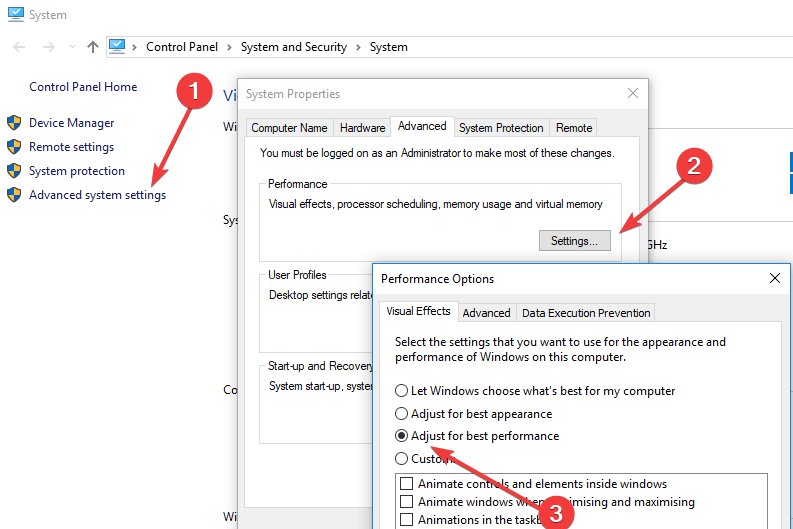
Solution 1 – Adjust your PC for better performance

  1. While you’re on Desktop, right-click on Computer and then click on Properties.
  2. In the System window, click on Advanced system settings located on the left side of the screen.
  3. A new System Properties window will open. Under Performance click on Settings.
  4. In System Properties window click on Adjust for best performance, and before you click on OK, check the Smooth edges of screen fonts option.adjust best performance

If you’re running Windows 10 you need to go to This PC in order to adjust to settings.

Solution 2 – Disable unwanted programs

In most cases of lagging computers, there are a lot of useless programs that run in the background and use a big part of your memory. All these programs running at the same time may cause your computer to run slowly. Here’s how you can disable them easily.

  1. Press Ctrl+Shift+Esc keys together to bring up the Task Manager dialog box.
  2. Click on the Startup tab.
  3. Select the program that you don’t use often and then click Disable.

Solution 3 –  Scan for viruses

Your windows may be running slow also because of undetected viruses. Perform a deep scan on your system with an Antivirus program, rather than a quick one for a better result.

Solution 4 –  Update your RAM

If you need to use a lot of applications at the same time, you should probably update your RAM. This will most likely make your computer work faster.

And that’s pretty much it, from now on your Windows PC should perform a lot better than before.

Your performance might suffer a bit because of this tweak, but it will certainly improve the performance of using your computer. These are some very useful tips if you have a slower computer from the start, or you want to make your system operate faster without any hardware upgrades. If you have some questions, or somehow these steps doesn’t work for you, please leave your comments and thoughts in the comment section below.

RELATED STORIES TO CHECK OUT:

Fix: ‘Microsoft Account Service is Unavailable at the Moment, try Again Later’ Windows Phone Error

Just like with the desktop and tablet version of Windows 8, the mobile Windows Phone 8 can also give a lot of headaches. We try to provide some working fixes for the ‘Microsoft Account Service is Unavailable at the Moment, try Again Later’ error.
Microsoft Account Service is Unavailable at the Moment, try Again Later
There’s an annoying Windows Phone 8 store error for many users out there which gives the following explanation: ‘Microsoft Account Services unavailable at the moment, try again later’. Here’s how one of the complaints sounds like – “I’m using a windows 8 phone try to access the windows apps but now getting Microsoft account services are unavailable please try again later. I have been able to download apps before. Any suggestions or is there any way of checking store status?”

How to fix Microsoft Account Service is Unavailable at the Moment, try Again Later’ error?

We will try to provide a set of potential fixes. Let us know by leaving your comment in the box at the end of the article if they worked out or not. They are independent solutions from each other:

  • Try to set the clock and date again properly
  • Try changing your account password
  • Switch from Wi-Fi connection to cellular connection
  • Go to settings and choose email+accounts; then update and synchronize all account you are using

You can also try this:

You can use soft restart for mobile. Hold the power button + Volume down button at the same time for few seconds. The Phone will restart. [go to setting -> email+account].

Try to update the in case password changed for windows phone first account. Check the registered account is active. To do this, just go to windows live login & just enter the user name as shown in the first windows account [email+account in setting] & password. In case you forget the account password, use “I forget password” wizard & reset.

Check Date of Windows Phone. If in correct, change to current zone. Sync first windows account registered in the mobile. Check it is working. [go to setting -> email+account]. Try to update the in case password changed for windows phone first account.

And the following:

I fixed this on my phone! The problem was that my phone was new and my Microsoft didn’t recognize the device I was logging in from. So, they were blocking me from the store as a security thing. I went into my Microsoft account on the web and answered some security verification questions and verified my email address with a code. Then I was able to access the store and download apps no problem!

Let us know by leaving your comment if this solved them.

Windows 8 Phone common errors

If you tried to fix ‘Microsoft Account Service is Unavailable at the Moment, try Again Later’ issue by updating your phone, you might have been encountered other annoying error messages. Some of the can disappear after a while and other updates, but some of them will block your phone. We will present you the list with the error codes and the link to the fix article at the end of this list. Here they are:

  • 801881cd
  • 80004004
  • 80188264, 80188265
  • 801882cb
  • 801881d0, 8018822a, 80072f30, 80072ee7, 80072ee2, 80072efd, 80072f76, 80072efe
  • 80188d1, 80188d2

You can find fixes for these error in our dedicated  article.

Read Also: Funny: Windows Phone 8 Users Ask How to Download Google Play Store on their Phones

Getting errors while updating Windows Phone 8? Here’s how to fix them

When updating your Windows Phone 8 device to a newer version, such as Windows Phone 8.1 or an even newer one, you might be getting a ton of error codes that won’t let you complete the install.
windows phone 8 update fix issues
If you are seeing a message like 801881cd, 80188265, or 801881d0 when you update your Windows Phone, the obviously you have a problem. It’s possible to solve it with some basic troubleshooting in order to get rid of these annoying updates. Microsoft has officially provided fixes and we’re going to put them all together so that you could get help for your problems.

How to solve Windows Phone 8 update problems

Fix error code 801881cd

This error appears when you don’t have enough storage space on your phone to install the update. So here’s how to fix it:

Remove some media files (videos, music, and photos) or apps to make room for the update. You can connect to your computer and move your media files there, and you can always reinstall apps from the Store. Keep in mind that deleting an app, even temporarily, will erase app data, such as saved progress in a game.

Fix Error code 80004004

The uninstall option of this error is greyed out and that seems to be an annoying issue. What can you do in order to fix it?

  • Reinstall your apps in order to minimize the ‘losses’
  • Reset your phone – press Start Menu button on your phone and choose Settings; scroll down until you see the Reset option, and perform a hard reset

You can find more detailed information in our dedicated fix on error 80004004.

Fix error codes 80188264, 80188265

This issue arises when you haven’t agreed to download the update over a cellular connection. Here’s the solution:

The best thing to do is connect to Wi-Fi so you can download without having to worry about possible cellular data charges. If you can’t connect to Wi-Fi and want to update using cellular data, tap Download when prompted to download using cellular data.

Fix error code 801882cb

This particular error is caused by troubles connecting to a network. Here are some potential workarounds:

Make sure that your phone has a good connection to the Internet. The best thing to do is connect to Wi-Fi so you can download without having to worry about possible cellular data charges. If you can’t connect to Wi-Fi and want to update using cellular data, tap Download when prompted to download using cellular data.

Fix error codes 801881d0, 8018822a, 80072f30, 80072ee7, 80072ee2,
80072efd, 80072f76, 80072efe

All these appear because there was a temporary issue with a server or your Internet connection during the update. Here is the solution:

Make sure you’re connected to the Internet and try again. It’s best to connect to Wi-Fi so you can avoid possible cellular data charges.

Fix error codes 80188d1, 80188d2

There was an error installing the update and this caused the problem. Fix:

Restart your phone and try downloading the update again.

These are mostly common fixes, but these are official solutions provided by Microsoft. Also, the company suggests to pay attention to the following things, as well:

  • Power up – If your battery charge is low, you may have to plug in and wait before you can finish installing your update.
  • Check yourself – You don’t have to wait for us to tell you there’s an update: in the App list, just go to Settings Settings icon> Phone update, and then tap Check for updates.
  • Wait a bit – Many errors are temporary. If you try again, there’s a good chance the error won’t repeat itself.
  • Restart your phone – If your phone freezes during an update, you can restart your phone to get your update back on track.
  • Make way – If your phone’s storage space is maxed out with apps and all of your media, remove some files that you can do without.

Read Also: How to uninstall the Windows 10 Mobile Anniversary Update

Cortana disappears when you click on it? Here’s the fix

Cortana is your digital assistant built right into the Windows 10 OS. The digital voice assistant comes with several excellent features. Thus, using Cortana you can search the web, find things on your PC, receive the weather forecast and even engage in light chat. If you have ever used Siri on an iPhone or Google Assistant on Android, you are already acquainted with this type of technology. Many users reported various issues with Cortana and one of them is that Cortana disappears when you click on it. Here is a simple and easy to follow list of possible solutions:

SOLVED: Cortana disappears when I click on it

  1. Restart the Cortana process
  2. Perform a SCF scan
  3. Perform a DISM scan
  4. Check for updates
  5. Update drivers
  6. Use the Windows Troubleshooter
  7. Disable antivirus software
  8. Create a new administrator account
  9. Reinstall Cortana
  10. Reset your PC

Solution 1: Restart the Cortana process

A viable solution could be to stop and restart Cortana. To restart the service:

  1. Hold down the Ctrl + Alt + Del keys on the keyboard in order to open Task Manager
  2. Click on More Details
  3. From the Processes tab, scroll to locate Cortana and click on ittask manager processes
  4. Click End Task
  5. Restart the device

Solution 2: Perform a SFC scan

Sometimes Cortana might disappear when you click on it due to corrupted system files. File corruption can occur for various reasons, but you can fix it simply by performing a SFC scan. In order to do this, follow the simple steps described below:

  1. Right click on Command prompt and choose Run as administratorcommand prompt run as administrator
  2. Type sfc /scannow and press entercommand prompt sfc scan
  3. Restart the computer

— RELATED: Fix: Cortana Reminders not working in Windows 10

Solution 3: Perform a DISM scan

If the SFC scan is completed but the problem still persists, another solution is to use DISM scan. This is also rather simple and you can do it by following these steps:

  1. Right click your start button and select Command prompt (Admin)
  2. type the following commands and press enter after each command
    DISM.exe /Online /Cleanup-image /Scanhealth
    DISM.exe /Online /Cleanup-image /Restorehealthcommand prompt dism
  3. restart your computer

Since the DISM and SFC scans are pretty limited, you’ll need a stronger tool to properly analyze your system for corrupted or problematic files. These specialized system restoration tools will do just that! Besides repairing your computer, they will also run periodic scans to make sure everything runs smoothly.

Solution 4: Check for updates

Microsoft has updates available to fix known issues with Cortana so make sure your Windows is up to date. To update Windows 10 (using Windows Update):

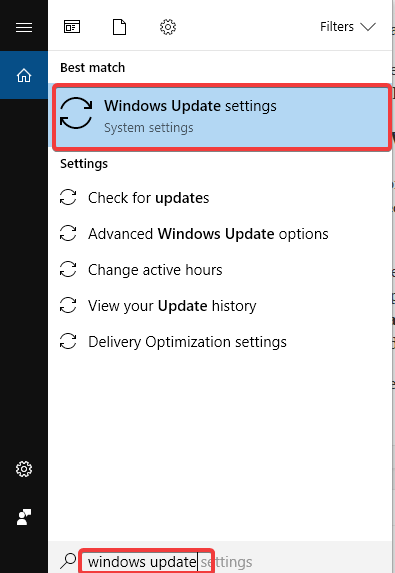
  1. In the Search window, type Check for updateswindows update settings
  2. Choose Windows update settings
  3. Choose again Check for Updates and wait for the process to completecheck for updates
  4. Restart your PC

Solution 5: Update drivers

Another possible solution is to try and manually update your graphics and audio drivers. Launch Device Manager and update all the drivers for which there is an exclamation mark. You can also use a dedicated tool that automatically installs the latest driver updates on your computer.

⇒ Get Fortect Driver Updater

Solution 6: Use the Windows Troubleshooter

You can also use the Windows Troubleshooter when dealing with various system problems, including Cortana issues. You can find below how to run this troubleshooter in Windows 10:

  1. Go to Settings and click on Update&Security
  2. Go to Troubleshoot
  3. Find Windows Update, and click Run the troubleshootertroubleshoot windows update
  4. If issues arise, let the troubleshooter fix them
  5. Restart your computer

Solution 7: Temporarily disable your antivirus software

The fact that there are incompatibilities between Cortana and some anti-virus software programs is a known fact. So, if you use a third-party anti-virus or an anti-malware application, you can try to temporarily disable it. If the problem is solved by disabling that software, consider uninstalling it and use an antivirus software that actually works with Cortana, not against it. In order to uninstall a third party antivirus program:

  1. Go to Control Panel and click on Programs and features
  2. In the list of programs that appears, click the antivirus program one time, and click Uninstallcontrol panel uninstall a program
  3. Work through the uninstall process
  4. Restart your PC

Solution 8: Create a new administrator account

If you still cannot fix your problem with Cortana, try creating a new local administrator account:

  1. Press the Windows key + R
  2. Then type ms-settings and then select OK
  3. Select Accounts and go to Family & other people
  4. Under Other people, select Add someone else to this PCCan’t type password in Windows 10
  5. On Windows 10 Home and Windows 10 Professional, provide a name for the user and a password, and then select Next. On Windows 10 Enterprise, select I don’t have this person’s sign-in information, and then select Add a user without a Microsoft account
  6. Set a user name, password, and password hint
  7. Select Next and Finish

Next, make the new account an administrator account:

  1. Under Family & other people , choose the account you created, and then select Change account type
  2. Under Account type, select Administrator and press OK

If the problem still is not fixed, try deleting the old administrator account:

  1. Under Other users, select the old administrator account
  2. Choose Remove and Delete account and data
  3. After the old account is removed, restart your device and sign in with the new account

Solution 9: Reinstall Cortana

If you are still having this problem, the cause might be corrupted Cortana components but you can solve the issue simply by reinstalling Cortana:

  1. Start PowerShell as administrator by pressing Windows Key + S and entering powershell
  2. Right click Windows PowerShell from the list of results and choose Run as administratorpowershell
  3. Run the following command: Get-AppXPackage -Name Microsoft.Windows.Cortana | Foreach {Add-AppxPackage -DisableDevelopmentMode -Register “$($_.InstallLocation)AppXManifest.xml”}

After the command is executed, the problem should be solved.

  • READ ALSO: Full Fix: Cortana Not Working in Windows 10

Solution 10: Reset your PC

If none of the above options worked to fix Cortana, you may have to reset your computer:

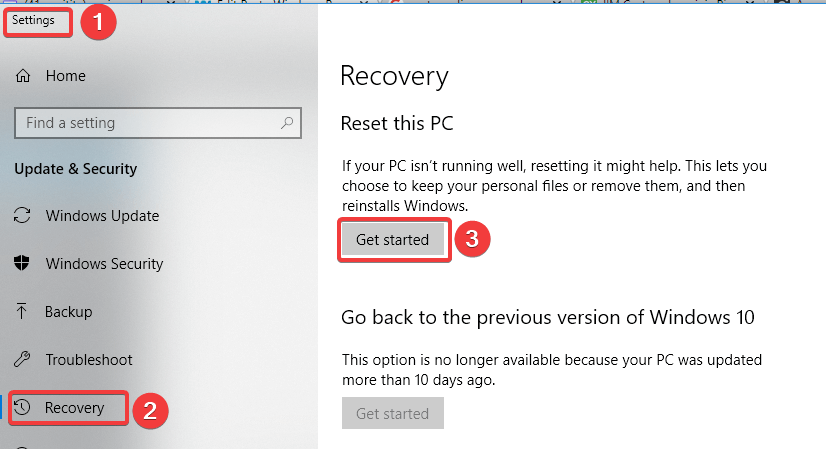
  1. Go to Start and click on Settings
  2. In the Update &Security section, click on Recovery
  3. Click Reset and follow the promptsreset PC

This will reset Cortana by reinstalling Windows but please bare in mind that is best used as a last resort.

As you can see, fixing Cortana is not that hard, and we hope that our solutions were helpful to you. If you have any comments, questions or suggestions, just let us know in the comments down below.

READ ALSO:

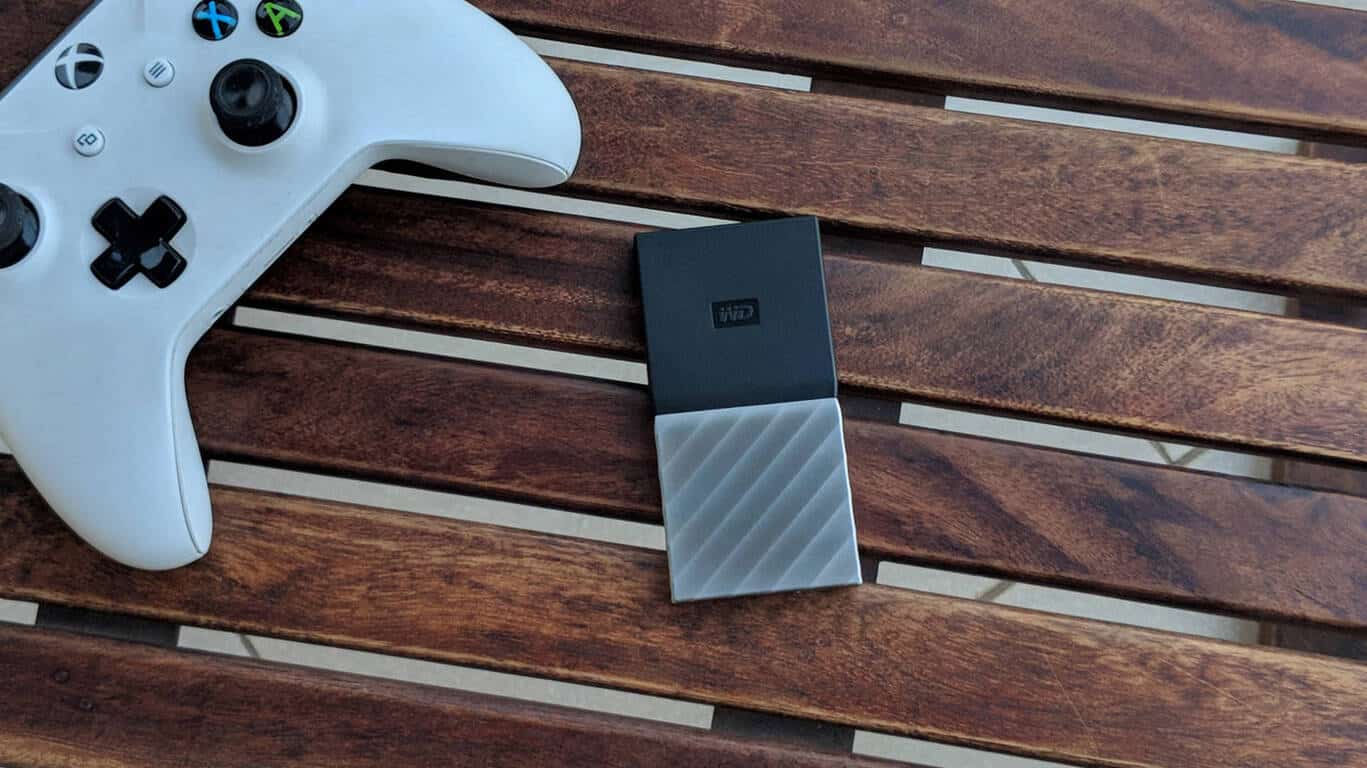
WD My Passport SSD review: A capable portable SSD in a slick chassis

Portable SSDs aren’t too common, but if you value speed and reliability, you should definitely go for one. They’re expensive, yes, and therefore mostly appeal to the geeks and early adopters at the moment.

I had a look a Western Digital’s My Passport SSD, a compact and uniquely designed portable SSD that fits into the palm of your hand, and here’s the complete review of the same.

Design

The WD My Passport SSD has an interesting design approach. It has a dual-tone finish with a plain black plastic half and a gunmetal looking ribbed half. The eclectic design apart, the build quality is pretty good and it feels solid. However, the metal portion picks up smudges all the time and it’s hard to clean them.

At about 3.5 inches long and less than 2 inches wide, the My Passport SSD easily slides into your pocket or any small pocket of your bag. It’s only about 40 grams, you won’t even feel its weight. If you’re used to carrying pen drives around, this one is just a little wider and that’s all.

According to the company, My Passport SSD can survive the shock of a drop from of up to 6.5 feet, but there’s no water or dust resistance, so keep it safe from the elements. That said, there’s a generous three-year limited worldwide warranty.

The drive comes with a USB Type-C (USB 3.1) connector, along with a USB Type C-to-A adapter bundled in eliminating the need to carry any extra cable. The only problem is that the adapter breaks the Type-C standard laid down by the USB Implementers Forum, the industry body that promotes and supports the standard. While the My Passport SSD works perfectly with this arrangement, you’d not be able to use this adapter with other cables for any other USB Type-C devices you have.

Since the SSD is bus-powered, it doesn’t need any power supply and is simply plug-and-play. In an odd omission, the My Passport SSD does not have any LED activity indicator so you’re always guessing whether or not a read/write operation has finished before you can unplug it.

Software

The WD MyPassport SSD comes with pre-loaded software on the drive that you can choose to install or ignore.

WD Drive Utilities lets you check the SSD for errors and format it. WD Security lets you set a password to take advantage of the 256-bit encryption on board. If the My Passport SSD is locked, it will show up on other PCs as a read-only virtual CD with a tiny utility called WD Unlocker where you need to type in your password to unlock the drive.

While these two are available for both Windows and macOS, WD Backup and WD Discovery are only available for Windows.

WD Backup lets you select specific folders on the drive and back them up to your Dropbox account at your preferred syncing schedule. Unfortunately, no other cloud storage services are supported. The WD Discovery app is a dashboard that lets you launch other utilities and check for updates. This one is mostly unnecessary, and its only purpose is to allow WD to push ads for third-party apps and services.

Performance

Out of the box, My Passport SSD is set to exFAT file system which ensures compatibility across any latest Windows PC or a Mac. There’s also 256-bit AES hardware encryption on board. I reviewed the 256GB variant, and the formatted capacity was 238GB.

My Passport SSD is described as ‘USB 3.1 Gen 2 ready’ but don’t expect speeds anywhere close to the theoretical 10Gbps. The rated speed is 540MBps anyway, and CrystalDiskMark test achieves up to about 450MBps sequential read and write speeds.

Copying about 30GB of videos from my latest Surface Pro to the SSD took under five minutes and only two minutes from the SSD to the Surface. Moving a cluster of about 10GB data with over 4200 files took five minutes. I’ve seen better speeds with some other SSDs but this is not bad.

The SSD works just fine as an OTG USB drive with an Android smartphone (I tried with a Google Pixel 2 XL and a OnePlus 6). Of course, you’d need to format it from exFAT to NTFC on the PC beforehand.

Summary

The WD My Passport SSD has a lot of things going for it, especially its striking chassis, but the real-world usage is only middling. The preloaded software though adds some value.

A portable SSD is a luxurious indulgence at this point of time, but once you get used to the speed of one or if carrying large amounts of data all the time with you is a need, it’s hard to go back.

Available in 256GB, 512GB, 1TB, and 2TB variants, the My Passport SSD is priced starting at $99.99 in the US or ₹8,999 in India for the 256GB variant.

Microsoft says they don’t need Crackdown 3 this year because there’s more than enough AAA content for Xbox One this holiday season

Revealed at E3 in 2014, Crackdown 3 is an exclusive Microsoft title that has had its release date pushed back numerous times. Every time a new release date is announced, it should be looked at with scepticism.

In an attempt to turn the negativity of the release date being pushed back, Microsoft’s Xbox executive, Aaron Greenberg, has said that the company doesn’t need to release Crackdown 3 this year as it has more than enough AAA content for Xbox. Greenberg said he “can’t think of a holiday that had more AAA games in such a tight time period” (via gamesindustry.biz).

We’re going to get it (Forza Horizon 4) out early (October 2nd) and before the blast radius. Then we didn’t need Crackdown or any of our titles in this holiday window. We’re planning to launch that in February, and then after that we will launch Ori and the Will of the Wisps. We like to have a steady cadence of content throughout the year. But there is more than enough content this holiday. That’s why we’re working with so many third-party partners to showcase their games and help drive our platform during that window. I can’t think of a holiday that had more AAA games in such a tight time period.

Microsoft’s stance does make sense. With so many big releases this holiday season, such as Call of Duty: Black Ops 4 with a new Blackout mode, Battlefield 5 with a battle royale-style mode, Forza Horizon 4, Red Dead Redemption 2, and so many more, it is understandable that the company wouldn’t want Crackdown 3’s sales to be hindered by the already large lineup for gamers to choose from.

Repair Corrupted MP3 Files Online and Offline: 3 Free Ways

A music file might be corrupted if it isn’t played in a media player. Before jumping to hasty conclusions, try playing the audio file in multiple media players.

However, you’ll probably need to repair the music file if it doesn’t playback in VLC or any other media player. This is how you can fix corrupted music files that don’t playback.

How can I repair corrupted MP3 files?

1. Repair corrupted MP3 files online

MP3 is one of the biggest file formats for music. If you need to repair a corrupted MP3 file online for free, a series of websites can help you.

Most of these sites have impressive interfaces and are easy to use. So, you only need to visit the website and get going. One example is the Technorshare free online repair tool, which you can use by following the steps below:

  1. Visit Technorshare’s online audio repair tool website.
  2. Click the Upload Audio button.
    upload audio
  3. Now, choose the file you want to repair, click the Open button, and wait for the upload to be complete.
    open
  4. Finally, wait for the repair process to complete and preview the file.

For our example, we have selected an online tool that worked very well, but plenty of other web apps will be as efficient.

2. Repair Music Files With All Media Fixer

Check out the All Media Fixer software if you need to repair music files that aren’t MP3s. That software fixes a broader variety of audio file formats, such as WMW, WMA, WAV, AVI, and MP3.

All Media Fixer is not exactly freeware, but you can still utilize an unregistered version by clicking Download on this webpage. When you have All Media Fixer up and running, press the Add media file button to select music and click Start check and fix.

3. Fix music files with VLC

This tip is more specifically for fixing corrupted WAV files. VLC is a media player, but you can still repair WAV audio files with its Convert tool. You can fix broken WAV music with the VLC media player.

  1. Right-click the WAV file you need to fix, and select to open it with the VLC media player.
  2. Click Media and select Convert / Save to open an Open Media window.
    media convert
  3. Press the Add button to select the WAV music file to repair.
  4. Click the Convert / Save button on the Open Media window.
  5. Press the Browse button to choose a folder to save the repaired audio file in. Remember to add a new file title for the music to the end of the chosen folder path.
  6. Click the Profile drop-down menu to select Audio – CD.
  7. Press the Start button.
  8. After that, try playing the WAV audio file saved in the destination folder you selected for it.

Do you really need to fix corrupted music files?

Remember that you can get loads of music from MP3 websites these days. If your corrupted audio file played music by a famous singer or composer, there’s a good chance you can probably download the same music from an MP3 website.

Check out the MP3Juices and Emp3z websites to see if they include the same music as your corrupted file.

Alternatively, you might find a video on YouTube (or Vimeo) playing the same music as your corrupted file. YouTube includes a plethora of music videos you can play in your browser.

Enter the specific title of the music in YouTube’s search box to find a video for it.

Nevertheless, if you can’t find the music online, you can still fix corrupted music files with various software. Further, it’s a lossless file, errors like the property requested was not found may prevent you from making changes to the file if left unrepaired.

MP3 Repair Tools and All Media Fixer are just two software worth noting.

Some of the utilities included in our file repair tools guide might also come in handy for repairing corrupted music files.

FIX: Surface Dial won’t pair with my PC or laptop

The Surface Dial is a new kind of peripheral that serves as a tool for the creative process. It can be successfully used by artists, students, bloggers, or people who are very passionate about technology because it optimizes your digital workflow by bringing your most-used shortcuts and tools directly to your screen.

It has an intuitive design that requires only three simple gestures (press & hold, click, and rotate) and offers haptic feedback, a vibration that makes it intuitive to be precise with the controls. Normally, the process of pairing up is pretty straightforward.

However, you might be in the position when your Surface Dial won’t pair with your PC. In this guide, we have listed some troubleshooting steps that may help you solve the problem.

How to fix Surface Dial pairing problems

  1. Verify the pairing steps
  2. Check if the batteries are installed properly
  3. Disconnect Surface Dial from another device nearby
  4. Check if other Bluetooth devices can be connected
  5. Verify if your PC supports Bluetooth 4.0 LE
  6. Check if you have installed the latest updates

Solution 1: Verify the pairing steps

The first step in the troubleshooting process should be verifying you have correctly followed the pairing steps. In order to do this:

  1. Open Settings and click on Devices
  2. Click on Bluetooth and turn on the Bluetooth toggle switchbluetooth
  3. Pull the bottom off the Surface Dial to open the battery compartment
  4. Press and hold the pair button by the batteries until the Bluetooth light flashes (it is opposite the button on the other side of the batteries)
  5. Go back to the Bluetooth settings page on your PC and select Bluetooth or other device
  6. Click on Bluetooth and choose Surface Dial from the list of devices. Follow additional instructions if they appear, then select Done

Solution 2: Check if the batteries are installed properly

Make sure the batteries are installed properly. In order to do this, remove the batteries and you will see a diagram under them. Put the batteries back in according to the diagram. Press the pairing button again. If the LED pairing light does not turn on after 10 seconds, try some new batteries.

Solution 3: Disconnect Surface Dial from another device nearby

If the pairing light blinks three times and then stops, it means that Surface Dial is paired to another device nearby. At this point, go to that device and remove it from the list of Bluetooth devices in Settings. Then go back to the device you want to pair it with and try pairing it again, following the steps described in Solution 1.

Solution 4: Check if other Bluetooth devices can be connected

Another suggestion is to see if other Bluetooth devices can be connected. If you cannot connect other Bluetooth devices to your PC, the issue is not with Surface Dial. It is actually a Bluetooth issue with the device. If other Bluetooth devices are pairing, please check solutions 5 and 6 described below.

Solution 5: Verify if your PC supports Bluetooth 4.0 LE

In order to work, your PC or laptop must support Bluetooth LE (Low Energy). In order to check if this is happening:

  1. Use the search box in the Start menu and type device manager
  2. In Device Manager, expand the Bluetooth category of items
  3. Look for any drivers that contain words LE Enumerator (short for Low Energy)bluetooth LE Enumerator

If you can see this item, it means that your PC hardware and installed driver supports Bluetooth 4.0 Low Energy and is compatible with your Surface Dial.

Otherwise, you have the option to manage any drivers accurately using the automated help from expert software Fortect Driver Updater, which will find missing drivers or update old ones in a few clicks.

Solution 6: Check if you have installed the latest updates

In order to be able to use Surface Dial, your PC needs to be running Windows 10 Anniversary Update or later. To make sure that you have installed the latest updates:

  1. In the Search window, type check for updates
  2. Click Check for Updates (in System Settings) in the results.
  3. Click Check for Updates and wait for the process to completecheck for updates
  4. Restart your PC

We hope that by now you managed to pair Surface Dial with your laptop or PC and you are enjoying this experience.

Microsoft sends outs press invites for October 2 event in New York City

Not to be outdone by Apple and Google this Fall, Microsoft has announced it is hosting an event on October 2, 2018. The invite itself leaves plenty to the imagination with the words “A moment of your time.” cryptically displayed.

Historically, October has been the month Microsoft has introduced or refreshed Surface devices as well as unveil new or upcoming features to its Windows 10 operating system. There was even a point in time where a portion of the smartphone using population would eagerly await the next Windows Phone offering.

Here at OnMSFT, we share the same investigative hunch as the folks over at Windows Central do, that Microsoft is preparing to show off a possible Surface Studio 2 refresh as well as a possible update to the Surface Laptop with a much-needed USB-C upgrade.

As for a smartphone returning to the October event line up, we’re not holding our breaths. As far as leaks or industry gossip is concerned, project Andromeda seems to be in stasis at the moment. Whatever is announced at Microsoft’s October 2, 2018 event in New York, you can rest assured we’ll have all the details here.

Rare officially releases Sea of Thieves “Forsaken Shores” trailer

Sea of Thieves, the much promoted pirate game for Xbox and Windows 10 PC, is set for a new major update, dubbed “Forsaken Shores,” due on September 19th. The free update opens up a new region in the game, “The Devil’s Roar”:

Navigating this treacherous land brings with it new threats, new challenges and new adventures. Superheated water, burning rocks raining down from volcanoes and exploding geysers are just some of the new environmental elements that will change the way pirates traverse land and sea.

In anticipation of the update, Rare has released a new video, which you can check out below:

The trailer was due to be released yesterday, but was held back because of “emergency maintenance” after an update caused gamers to lose, or appear to lose, their progression in the game:

The team are aware of an issue in which players have lost the ability to see how far they have progressed within a given level, we are aiming to have this fixed in the next game update.
Rest assured your progress within each Company, including Athena, is not lost, players can continue to play and your level will increase once you have fulfilled the XP level requirement for the given Company rank as normal.

Note: You will be able to see your updated progress briefly each time you hand in a treasure item.

The trailer was briefly posted before being pulled yesterday, not before some gamers were able to grab the video and distribute it, but this is the now officially released trailer.

You can get Sea of Thieves from the Microsoft Store below, or if you have the game you’ll be getting the Forgotten Shores update for free on September 19th.

Complete September’s Xbox Game Pass Quests for the chance to win a custom Halo Xbox One X console

Are you the ultimate Halo Fan? If you are, you might want to complete all of September’s Xbox Game Pass Quests for the chance to win a custom Halo Xbox One X console.

To get started, head to the Xbox Game Pass tab on your Xbox One, and click on the Game Pass Quest tile. You must then play 120 minutes of Halo: The Master Chief Collection, complete five new achievements in that game and also increase your Gamerscore by 50 points. Microsoft will be tracking these quest activities and will message the winner on Xbox Live appropriately once the month ends.

As for the custom console, it looks to be a pretty cool representation of the Halo legacy. It has four helmets on the top to represent the design evolution of the Master Chief’s helmet through the Halo games, and a circuit boards pattern to represent Cortana.

This is not the first time that Microsoft has given gamers a chance to win a custom Xbox Console for completing Game Pass challenges. As you may recall, the company previously gave away a 24-karat gold plated Xbox One X to a lucky gamer who unlocked at least one Xbox Achievement in March while playing a game via Xbox Game Pass.

First “19H1” build for the Xbox One is now rolling out to Skip Ahead Xbox Insiders

The Xbox team has been testing Xbox One 1810 builds with select Xbox Insiders for quite some time now, but those on the Preview Alpha Skip Ahead ring can now test the first “19H1” build for the Xbox One. This new build doesn’t bring any new features to the table, but we should learn more details about this major Xbox One update over the coming months.

The “19H1” naming, which was first used by the Windows Insider team to describe the next major update for Windows 10 after Redstone 5, is now being used by the Xbox team, which is quite interesting. To our knowledge, the team never used the “Redstone” moniker for previous major releases, and the latest Xbox One update (1806) was officially named “July update.” However, the Xbox team adopting the “19H1” naming doesn’t necessarily means that Windows 10 and Xbox One updates will be aligned going forward: this Spring alone, we’ve seen the Xbox One receive three minor system updates (1804, 1805 and 1806) in three months, which was pretty much unprecedented.

As a reminder, the upcoming 1810 update for the Xbox One will bring several new features including the redesigned Xbox Live Avatars, Dolby Vision support for video content (only Netflix for now) and UX improvements for the My Games & Apps section. Yesterday, Microsoft also started testing a new Xbox Skill for Cortana and Alexa with select Xbox Insiders in the US, and we wonder if an integration with the Google Assistant could also be in the works.

After introducing a completely revamped Xbox One dashboard earlier this year, it will be interesting to see what’s coming for the Xbox One OS next year. Fortunately, the Xbox team is being quite transparent and recently launched a new “Xbox Ideas” website where Xbox users can submit and vote for new features suggestions.

Final Fantasy XV Pocket Edition just appeared on the Xbox One console

In a rather surprising move, Square Enix has just launched Final Fantasy XV Pocket Edition on Xbox One and it’s now available to download and play for all console owners.

Final Fantasy XV Pocket Edition was released on mobile devices and Windows 10 computers for fans of the franchise who didn’t have hardware powerful enough to run the proper Final Fantasy XV video game. This Pocket Edition features a lot of the main story from the full game but uses streamlined graphics to make it more playable on a wider range of devices.

The Xbox One version of Final Fantasy XV Pocket Edition is currently selling with a 40% discount for the next six days, making it just $14.99 instead of its regular $29.99 price.

Are you thinking of playing Final Fantasy XV Pocket Edition or will you stick to the regular version? Share your thoughts with the community in the comments below and then follow us on Pinterest for more video game content.

Windows 10 Skip Ahead build 18234 just shipped with a huge list of changes – here are the important ones

With over 35 listed fixes, changes and improvements with today’s Windows Insider preview build 18234 for the Skip Ahead release, its easy to go cross-eyed trying to find the ones that will have the most impact on your Insider experience.

Here’s a list of the most important changes, as well as highlighting what still needs to be addressed by the Windows team in the next preview.

Fewer GSOD’s

Nothing is more annoying the a Green Screen of Death (GSOD) using a Windows 10 PC. It often just reaffirms that, despite all the improvements, Windows 10 is still susceptible to crashes. Fortunately, they are becoming far and in between with recent Windows 10 updates.

  • We fixed the issue where logging out of your user profile or shutting down your PC would cause the PC to bugcheck (GSOD).

Snip & Sketch working like it was supposed to

The Windows team’s newest publicized change wasn’t working. The Snip & Sketch app (previously Snipping Tool) would launch but users would need to close and reopen the app to conduct multiple screen grabs.

  • We fixed an issue resulting in New button in Snip & Sketch not working

Edge & UWP apps copy/pasting again

While Microsoft hasn’t completely abandoned its UWP platform for the greener pastures of PWA, it has seemingly put development and publicity of the app development on the backburner.

Perhaps, this led to a missed check box on a seemingly obvious omission. Fortunately, the Windows team has addressed it and Windows 10 users who rely on UWP apps can go back to seamlessly transferring data between Edge and apps.

  • We fixed an issue where text copied from certain websites in Microsoft Edge couldn’t be pasted into other UWP apps.

Office in S Mode works

For those adventurous types still living the Windows 10 S Mode life, aside from battery life, the other benefit is being sold is the ‘near’ Windows 10 like experience for the OS and when an error in the Windows Store spits out a .dll explanation, you’re in for a bad time.

Perhaps, some experiencing this issue have just gone to the web to workaround not being able to download Office from the one place it’s available on S Mode, others may have just stopped using S Mode and upgraded to Windows 10 avoid the headache. Well, the Windows team would like you to try again.

  • We fixed the issue causing Office in the Store to fail to launch with an error about a .dll not being designed to run on Windows on PCs running in S Mode.
  • We fixed an issue for Insiders using Windows 10 in S Mode recently resulting opening Word from a Word Online document not working.

There we have it, a lot crashes, hangs and closures have been addressed with this preview and for the full list read here.

Just what you need after all those chicken dinners: a greaseproof Xbox One controller!

Serious shooters fans know that you should always carefully wash your hands before starting practicing your aim, but in our increasing fast-paced environment, hands hygiene can often be an afterthought. Well, for all the dirty-handed gamers out there, the smart folks over at Xbox Australia are here to help.

Indeed, Xbox Australia has a new competition on its Facebook page where you can win one of five limited edition PUBG Greaseproof Xbox controllers (via Eurogamer). The limited edition controllers are part of a clever marketing campaign to promote the release of PUBG 1.0 in the country, and according to the video description, that greaseproof technology is totally not a joke:

Created to celebrate the graduation of the game from Xbox Game Preview to full release (out now) and as a nod to the fan favourite “WINNER WINNER CHICKEN DINNER!” phrase, the controller features a patented coating that is resistant to chicken grease – assisting players in their fight for elusive, yet tasty, chicken dinner victories.

If you want to participate to the competition, head over to the official Facebook page for Xbox Australia and tell everyone about your best “Winner Winner Chicken Dinner” story to the After offering limited edition Xbox Onesies and inflatable white Xbox One controllers, it seems that Xbox Australia is just getting started with fun goodies and we can’t wait to see what they will come up with next.

Microsoft backtracks and extends support cycle for Office, Windows 7 and Windows 10

After announcing important changes to the Office 365 Pro Plus and Windows lifecycle for businesses back in February, Microsoft again today revisited the topic. The firm has now backtracked on their original promises and will be extending the support cycle for businesses running Office, Windows 7, and Windows 10 to help them “shift to a modern desktop.” Please keep in mind these changes are only for businesses, and the standard 18-month support period of Microsoft’s consumer-facing products are not otherwise impacted.

First off are the longer Windows 10 support periods for Windows 10 Education and Enterprise. Customers running these flavors of Windows will now find 30 months of support for Windows 10 version 1607, 1703, 1709, and 1803. Additionally, starting with Windows 10 Version 1809, any Windows 10 Enterprise and Education editions with a release month of September will get support for 30 months. And finally, starting with Windows 10 Education and Enterprise version 1903 (with a March release date,) will see support for 18 months from release. The graphic below summarizes the September 2018 changes quite nicely for you non-technical folks.

Changes to the Windows 10 support cycle

Secondly, Microsoft will continue to support Office 365 Pro Plus on Windows 8.1 through January 2023. The company will also continue to support Office 365 Pro Plus on Windows Server 2016 through October 2025. There are even changes for Office 2016, with the connectivity support to Office 365 now getting support through October 2023 instead of October 2020.

Microsoft is also announcing changes to Windows 7, now offering paid Extended Security Updates (ESU) through January of 2023, beyond 2020. The ESUs continue to be available for Windows 7 Professional and Windows 7 Enterprise customers in Volume Licensing, and there will be a discount for those with Windows software assurance. This also means that Office 365 ProPlus will be supported on those devices with active Windows 7 Extended Security Updates (ESU) through January 2023.

Windows 7

As part of helping businesses upgrade to Windows 10, Microsoft announced cloud-based analytics tools. The first one is called Desktop Analytics and it is integrated into ConfigMgr, Microsoft says this tool will create an inventory of apps running in any organization and access app compatibility with the latest versions of Windows 10 and Office 365 Pro Plus. Also announced was Desktop App Asure, which scans a system after a Windows 10 Upgrade and helps address issues with program compatibility.

All of these changes come as Microsoft wants to help businesses ease their transition over to Windows 10. The company realizes that the process is much more complicated than it seems, and came to this decision based on feedback. As Jared Spataro, Corporate Vice President for Office and Windows Marketing explained: “We recognize that it takes time to both upgrade devices and operationalize new update processes. We know that there is still a lot of work to do. But we’re committed to working with you and systematically resolving any issues.”

Popular image and photo editor Paint.net updated with GPU rendering for “huge performance gains”

Back in 2004, when Paint for Windows wasn’t 3D or even very good, a Washington State University student created Paint.net, a free .Net based image and photo editor that became a bit of a sensation. The program, which boasts both traditional Windows and Windows Store versions, has just been updated to version 4.1, bringing with it a number of new features and enhancements.

At the top of the list is the conversion of some effects in Paint.net to use the GPU, resulting in “phenomenal” performance gains:

Gaussian Blur is actually fast now and no longer takes ages to complete for large images or radii, and the same goes for both Motion Blur and Radial Blur (although Radial Blur does currently need a pretty powerful GPU). A few other effects were converted for the sake of completeness and for my own learning, and there are two new ones (Morphology and Turbulence). This is where most of my time (the aforementioned “last 7 months”) and sweat was spent: getting a GPU-based effect rendering system up and running end-to-end was no small feat! Expect to see more effects converted over to the GPU in subsequent updates as this tech matures. I am also planning to make the GPU available for plugins to use in a future update.

The update also includes copy/paste for selections, bicubic sampling for the Move Selected Pixels tool, and +/- controls for Tolerance and Hardness. If you’re looking for a Windows based, full featured image and photo editor, check out Paint.net!


Windows Server 2019 Essentials could be the last of its kind

The upcoming Windows Server 2019 Essentials may well be the last edition of the server OS for small businesses, the Windows Server team announced yesterday. This new version will succeed to Windows Server 2016 Essentials later this year, but Microsoft warned IT admins that there is a “strong possibility that this could be the last edition of Windows Server Essentials.”

The Windows Server team explained that it has been seeing more and more small businesses embrace cloud services in recent years. However, Microsoft also acknowledges that “on-premises servers are still valuable and desired in the short term for reasons such as price and ability to run traditional applications that may not yet have corresponding cloud-based functionality.“

Compared to its predecessor, Windows Server 2019 Essentials will bring support for new hardware and features like Storage Migration Services, System Insights and more. However, companies with more than 25 users may consider switching to Windows Server 2019 Standard, which will provide even more deployment options.

There’s still no official release date for Windows Server 2019 Essentials and other editions of the server OS, though it’s worth nothing that Windows Server 2016 Essentials will still be supported through November 2027. That should leave IT admins enough time to decide between keeping on-premises servers or moving to a complete cloud solution like Microsoft 365.