Microsoft has released its November 2025 Patch Tuesday update for Windows 11 25H2 and 24H2 under KB5068861. After installing this update, you’ll be on Build 26200.7171 (for version 25H2) and Build 26100.7171 (for version 24H2).
This update, as expected, brings important security fixes and performance improvements. The company has also addressed some of the annoying bugs reported by users in the last update.
One of the major highlights of this update is that it fixes the battery drain issue affecting gaming handheld devices. Some users had reported that their devices couldn’t stay in low-power states, leading to faster battery consumption.
Microsoft has also fixed a problem where game controllers would briefly stop responding after signing in using the built-in Gamepad. For storage, this update resolves an issue that could make certain Storage Spaces inaccessible or cause Storage Spaces Direct to fail when setting up a storage cluster.
In addition, the update tackles a Task Manager bug where closing the app didn’t completely terminate the process, leaving background instances that slowed performance.
There’s also a fix for Voice Access, which previously failed during setup when no microphone was connected. Moving on, Microsoft has improved window management to stop the desktop from unexpectedly opening Task View. Moreover, the update addresses a networking parser bug in HTTP.sys to comply with the RFC 9112 standard.
The update is available now via Windows Update, or you can download it manually from the Microsoft Update Catalog.
If you are on the Sony’s side, this milestone might feel personal to you. The PlayStation 5 has now officially outsold every Xbox console ever released. According to Sony’s latest financial report, the PS5 has sold 84.2 million units worldwide since its 2020 debut.
The reported figures are higher than that of Microsoft’s Xbox 360, which topped out at around 84 million units (via The Gamer). Thanks to the new milestone, the PS5 stands ninth on the list of the best-selling consoles of all time, just behind the PlayStation 3.
With fewer than three million units separating the two, it’s only a matter of time before the PS5 surpasses its older sibling as well. What makes this milestone more impressive is that the PS5 has achieved this feat it in just five years. If we have to compare, the Xbox 360 took an entire decade to reach similar numbers.
Microsoft, meanwhile, remains tight-lipped about its current-generation sales. As reported by the WSJ, the Xbox One sold around 58 million units and the Xbox Series X|S stood at 28.3 million units as of mid-2024 (via Games Radar). If we combine those figures, it’ll still be far behind Sony’s PS5 console.
Even after five years, the PS5 is showing no signs of losing any momentum. And with new titles and potential hardware revisions on the horizon, Sony’s latest console might not just be ahead of Xbox.
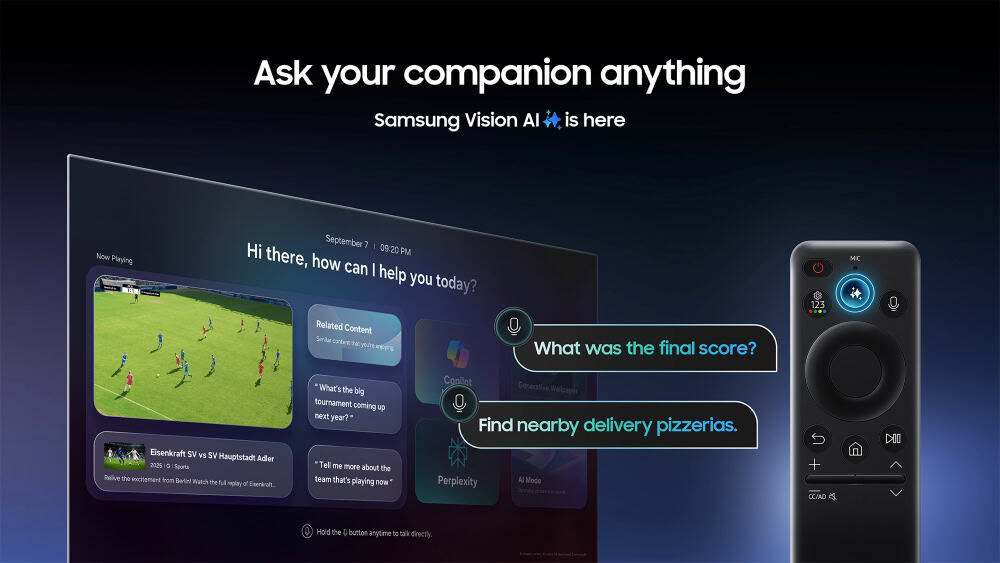
Samsung has been tinkering with AI since the Galaxy AI launch, and now the company is reimagining what an AI-powered TV can do. The new Vision AI Companion announced today by the South Korean giant converts the familiar living room screen into an intelligent hub.
Unlike AI features for phones and PCs, Samsung Vision AI Companion is designed for shared spaces. It allows families to ask questions, get suggestions, and manage tasks, all without leaving what’s on screen. Want to know who stars in a movie or find a dinner recipe? Just press the AI button on the remote and ask.
Image: Samsung
Samsung says that the upgraded Bixby engine understands context, provides instant visual answers, and continues the conversation naturally. Do note that the companion is powered by Gen AI and can handle follow-up questions and multi-step requests.
For example, you can ask, “What’s a good Christmas movie?” or “What’s the weather like this weekend?” The next thing you hear and see is Vision AI Companion responding with curated suggestions, visuals, and real-time information. What’s interesting is that everything happens right on the screen. No matter whether you’re watching Live TV, Samsung TV Plus, or your favorite streaming app.
As the world’s first multi-AI agent TV platform, Vision AI Companion integrates AI tools like Microsoft Copilot and Perplexity to offer richer, visualized responses. It supports 10 languages, including English, Korean, Spanish, French, and German, making it one of the most accessible AI TV platforms available.
Samsung has added more smart features, like:
Live Translate for real-time dialogue translation.
AI Gaming Mode for optimized visuals and sound.
Generative Wallpaper that adapts to your mood.
AI Picture and AVA Pro for automatic quality tuning.
The Samsung Vision AI Companion is available across Samsung’s 2025 lineup, from Neo QLED to Smart Monitors. Notably, it runs on One UI Tizen that comes with seven years of OS updates.
Microsoft has had a history of promoting its apps and services to an extent that frustrates both users and competitors. If you use Windows 10, you must have seen many ads asking you to update to Windows 11 for better security, support, and new features. Speaking in the context of browsers, Edge has been heavily promoted by the company.
In the past, we have seen that when a user searches for Chrome from inside the Microsoft Edge browser, the company does its best to urge them to use Edge instead. It’s not that Google hasn’t tried similar tactics. But this time, Microsoft seems to have crossed all limits.
A report by Windows Latest from yesterday suggests that Microsoft has started offering users 1,300 Microsoft Rewards points to keep them hooked to Edge on Windows 11. Apparently, the offer appears when a user searches “Chrome” on Bing (via Edge).
Image credit: Windows Latest
As reported, those reward points can be converted into gift cards, and users who don’t want to retain the gift card can also donate the amount to an NGO.
Well, this very tactic has drawn the attention of the Browser Choice Alliance, which has now accused Microsoft of “bribing” users to keep using Edge. If you’re unaware, several big names, like Google and Opera, are behind this alliance.
Rather than competing on the merits and letting users decide the best browser for their needs, Microsoft is now bribing users with the promise of Microsoft Rewards points that have real cash value. Microsoft should stand on the side of users instead of expanding its campaign to undermine consumer choice and lock out competing browsers.
The Browser Choice Alliance isn’t just upset about Microsoft’s recent tactic. It has also called out other long-standing anti-competitive practices that it believes limit user choice. These include forcing Microsoft 365 links to open in Edge, showing persistent pop-ups promoting the browser, advertising Edge when users search for alternatives, and even resetting the default browser to Edge in some cases.
While the group hasn’t announced any formal action on this matter, such as a lawsuit, we can’t deny the possibility. To catch you up, Opera filed a lawsuit against Microsoft in Brazil back in July, citing Microsoft’s “manipulative design tactics” to trick users into using Edge.
Microsoft doesn’t seem to be slowing down its global AI ambitions. According to a Bloomberg report, the company has announced to invest $10 billion to build a major AI infrastructure hub in Sines, Portugal, over the next few years.
Microsoft will reportedly partner with Start Campus, Nscale, and NVIDIA to power the new site with 12,600 next-gen GPUs. The compamy further expects the Sines data hub to significantly boost Europe’s cloud and AI compute capacity.
For those unaware, Start Campus had already announced an €8.5 billion plan to transform Sines into a data center hub by 2030. That’s not all; one of its six planned buildings is reportedly up and running.
As stated by Microsoft’s Vice Chair and President, Brad Smith, the partnership will help make Portugal a “benchmark for responsible and scalable AI development in Europe.”
With global demand for AI compute skyrocketing since the launch of ChatGPT in 2022, this decision could help Microsoft take lead in AI infrastructure race. Not only that, this plan allows the company to help cement Portugal’s place on the map of emerging tech powerhouses.
The team behind Skate has dropped a major Early Access update. And it comes with the devleoper, Full Circle, addressing bugs, player frustrations, and upcoming balance changes. The makers of stake. also thanked fans for their patience, and as a gesture, offered a small reward to celebrate the community’s support.
Starting November 10, all players can claim 2,000 Tix and 500 SVBs by logging in before the launch of Season 2 on December 2, 2025. These in-game currencies can be used toward skate.Pass tiers and unlocking in-game items.
Full Circle also admitted that the Early Access rollout hasn’t been smooth as they would have liked. Millions of unexpected players caused server strain, softlocks, and progression bugs, but the studio says it’s working on batch fixes and long-term stability updates.
“Making skate. is a balancing act between delivering content and improving the overall experience,” the dev team said. So, wondering what’s changing in Season 2. First of all, Skate’s skate.Pass will be easier to complete and feature around 90 tiers. The studio is also boosting SVB rewards to 500 total across standard and premium tracks.
That’s not all; Premium items will feel more “unique and valuable,” while the in-game economy will see adjustments to prevent event currency overload. Players can expect further updates during the upcoming 7-Ply Maple Harvest event, replacing October’s Skate-O-Ween.
“We wouldn’t be here without you,” the team wrote, adding that player feedback is invaluable and will help shape the future of skate.
Microsoft’s AI goals have started to entering a new era. According to AI chief Mustafa Suleyman, the company is now free to independently pursue artificial general intelligence (AGI) after years of contractual limits tied to its partnership with OpenAI.
In a new interview with Business Insider, Suleyman said that the is building a “world-class, frontier-grade research capability in-house” under a newly formed unit called Microsoft AI Superintelligence. The team will reportedly advance the kind of AI that could one day outperform humans across multiple tasks.
Until recently, Microsoft’s earlier agreement with OpenAI barred it from racing towards AGI until 2030. This limited the company to remain focused on smaller models and post-training work. That limitation is now gone. Following a renegotiated partnership, Microsoft can reach AGI on its own or with other partners.
Suleyman said the company now plans to train its own large-scale models, develop custom AI chips, and invest heavily in compute infrastructure with support from NVIDIA and its in-house silicon efforts. “Microsoft needs to be self-sufficient in AI,” he told the news outlet.
As rivals like Google, Meta, Anthropic, and xAI chase their own “superintelligence” goals, Suleyman said Microsoft wants to be the “adult in the room.” The focus, he stressed, is on humanist intent to design systems that remain safe and aligned with human interests.
He recently added Trevor Callaghan, formerly of DeepMind, as VP of responsible AI to oversee this mission. “There’s a risk these systems get extremely smart and run away from us,” Suleyman warned. “We have to design them so they don’t,” he added.
With new autonomy and vast resources, Microsoft’s AI future now looks more independent than ever.
Microsoft has officially confirmed that Xbox Cloud Gaming has now launched in India. The announcement came earlier today, following multiple leaks that the service was coming to the region.
The service, part of Xbox Game Pass Ultimate, allows users to stream and play hundreds of games directly from Microsoft’s Azure cloud servers, eliminating the need for high-end gaming consoles or PCs.
This launch makes India the 29th region to get official Xbox Cloud Gaming support. According to Microsoft, Xbox Cloud Gaming supports a wide range of platforms, including Windows PCs, Android and iOS devices, Samsung and LG Smart TVs, and Amazon Fire TV sticks. Players only need a stable internet connection and a compatible controller to access games.
The new service gives players access to Xbox’s extensive game library, including AAA titles, indie favorites, and day-one releases. That’s not all, cloud saves also sync across devices. In short, you can start a session on their console and continue on a phone or laptop.
With this rollout, India joins countries like the U.S., Japan, Australia, and Germany, where Xbox Cloud Gaming has been available for some time.
For now, Xbox Cloud Gaming in India will be available through Game Pass Ultimate subscriptions, priced at ₹549 per month. You can head to xbox.com/play to start streaming today.
INBRAIN Neuroelectronics is gearing up for intelligent brain-computer interface therapeutics by partnering with Microsoft. The company plans to merge its graphene-based neural technology with Microsoft’s agentic AI and cloud infrastructure. INBRAIN says that this will help enable real-time, adaptive treatments for neurological disorders.
According to both companies, the potential impact could be groundbreaking. By creating closed-loop precision interventions, the technology may one day help manage conditions such as Parkinson’s disease, epilepsy, and psychiatric or memory disorders with personalized accuracy.
“Our vision is to create the most intelligent, autonomous, and personalized interface between the nervous system and AI,” said Carolina Aguilar, CEO and Co-Founder of INBRAIN Neuroelectronics. “Together with Microsoft, we’re building a future where brain-computer interfaces not only decode but also truly understand and respond to the nervous system in real time—turning the body into its own operating system.”
For the uninitiated, INBRAIN’s platform mostly relies on graphene, a material prized for its conductivity, flexibility, and biocompatibility. This enables neural interfaces that can read and modulate brain activity with extreme precision. And it eventually forms the foundation for AI-driven therapies that adapt dynamically to each patient.
As part of the partnership, Microsoft will contribute its Azure cloud infrastructure and cognitive AI models to power the platform’s continuous learning capabilities. Clare Barclay, President of Enterprise and Industry for EMEA at Microsoft, called the partnership “the next frontier of AI,” noting that it sits “at the intersection of neuroscience, bioelectronics, and artificial intelligence.”
Both companies emphasized that the partnership is in line with Microsoft’s bigger goal of responsible and ethical AI in healthcare. Moreover, data privacy and transparent development will be a priority as they explore what INBRAIN calls “AI-enabled organ therapeutics.”
If you’ve tried logging into Fortnite today, you’re not alone in finding the servers down. Epic Games has temporarily taken Fortnite offline to roll out update v38.10 for one of the most anticipated mid-season updates.
The downtime began earlier this morning at 9 AM GMT, with matchmaking disabled shortly before that. Epic hasn’t confirmed an exact end time, but based on previous updates, servers should be back online around 10:30 AM GMT.
What’s New in Fortnite Update 38.10?
This week’s update isn’t just about fixes. It reportedly comes with bunch of upgrades for Simpsons season. You can expect new in-game contents like, new skins, emotes, and visual changes inspired by the legendary animated series. Reports also suggest that players have spotted teasers hinting at Homer, Bart, and Marge joining the Fortnite universe.
Additionally, the update could includes several performance improvements, fixes for creative mode bugs, and more. Worth noting that the latest update is reportedly coming to PS5, PlayStation 4, Xbox Series X|S, Xbox One, PC, Nintendo Switch, Switch 2 and Android.
How Long Will Servers Be Down?
Server downtime usually lasts between 90 minutes to two hours, depending on the size of the update. Once maintenance wraps up, players will need to download a small patch before jumping back into the game.
Epic is expected to share full patch notes shortly after servers are restored. If you’re waiting to get back online, keep an eye on the official Fortnite Status account for real-time updates.
Microsoft is reportedly taking some unusual route to boost the popularity of its Copilot chatbot. That’s according to a Bloomberg report, it’s doing that by partnering with social media influencers instead of tech experts.
The company recently launched a marketing campaign featuring online personalities like Alix Earle and the Pheloung twins. Per the report, the idea is to make Copilot resonate with Gen Z audiences. As Microsoft keeps on saying, Copilot isn’t just a productivity tool but your digital companion. Now, it’s betting on social media influencers to cement that narrative.
Microsoft’s Consumer CMO Yusuf Mehdi called Copilot a “challenger brand” in the consumer AI space. Mehdi admits that the company still lags behind OpenAI’s ChatGPT and Google’s Gemini. Despite 150 million monthly users, Copilot is far behind ChatGPT’s huge 800 million weekly user base. That’s a gap Microsoft hopes influencers can help close.
In one viral TikTok video, Alix Earle asked Copilot how to appear younger, captioning her post “Copilot is my mentor & therapist.” Interestingly, the video racked up over 15 million views. Whereas others featuring fashion creators Brigette and Danielle Pheloung saw millions more. Microsoft says engagement metrics show the campaign is “driving usage.”
Rather than pushing Copilot for business use, Microsoft is now positioning Copilot as an everyday AI assistant. The company says Copilot can do a lot if things, including helping people with life advice, fashion choices, or even trip planning.
Gartner’s Jason Wong still believes that while influencer marketing can help Microsoft boost Copilot’s visibility, surpassing ChaptGPT “will be difficult.” Given that Microsoft has already taken the bet, it’ll be interesting to see how things pan out down the line.
Do you think influencer marketing for Copilot is a good idea? We’d love to hear your thoughts, make sure to comment below.
Article feature image source: Microsoft | Via: Bloomberg
Microsoft Edge’s right-click menu has quietly changed, and it is a fix that has been three years in the making. In 2022, Microsoft said it wanted to simplify Edge’s right-click menu (also known as the context menu) after users complained it was too large and hard to navigate.
For years, Edge’s context menus were among the most crowded parts of the browser, filled with options that few people used. Microsoft has not formally announced this redesign, but it now appears in recent release versions of Edge.
The company even acknowledged the issue directly in its Top Feedback Summary for April 2022, saying:
“We have seen feedback across all the platforms we listen on that the context menu is obscenely large. We hear that both the right-click context and the … menus are too long, too wide, and don’t offer any ways to customize.”
” You may have seen some ways we are attempting to address these pain points in our Canary channel. We want to hear from you still. Please continue to send us feedback and suggestions on how it can be improved for you.”
Edge’s new “More tools” submenu fixes its long right-click menu
That fix has rolled out in recent release versions of Microsoft Edge. A new “More tools” submenu now appears across different menus, including when you right-click a page, a link, or an image, and even inside the main three-dot menu.
The new “More tools” submenu in Microsoft Edge’s main three-dot menu moves less-used options into one section. Image Credit: Venkat | WindowsReport.
It moves several secondary options, such as Add to collections, Read aloud, and Share, along with other less-used features, into one section. The menu now looks cleaner and less overwhelming.
Edge’s right-click menu now includes a “More tools” section that hides extra options such as Add to collections, Read aloud, and Share for a cleaner look. Image Credit: Venkat | WindowsReport.
The change is now visible to everyone in Edge’s release and other versions. With this update, Microsoft has addressed one of Edge’s biggest user complaints.
Edge’s right-click menu is no longer the endless list it used to be. It is a welcome change for anyone who found the menus too long and cluttered, even if it now adds an extra click for commonly used actions.
The decision comes as the company says maintaining Firefox on this platform has become “increasingly difficult.” In addition, Mozilla has mentioned that it will help deliver the best and most modern Firefox for 64-bit and ARM64 systems.
In case you can’t transition immediately, Mozilla says “Firefox ESR 140 will remain available — including 32-bit builds — and will continue to receive security updates until at least September 2026.”
Talking of new features, Firefox 145 also brings the ability to add, edit, and delete comments directly within PDF files. The feature makes it easier for students, editors, and researchers to annotate lengthy documents without leaving the browser.
Additionally, the company has also improved tab groups with the latest version, which allows users to hover over a group name to preview open tabs. A new setting, “Open links from apps next to your active tab,” offers more control over where new pages appear.
Speaking of visual changes, Firefox’s horizontal tab design now sports smoother corners and updated controls for a cleaner look. When you click the Extensions button without any add-ons installed, the browser will now suggest exploring extensions from the official Add-ons store.
It’s worth noting that Mozilla plans to officially unveil Firefox 145 alongside the Firefox 140.5 and 115.30.0 ESR releases tomorrow. If you plan to download the latest version now, click here for Windows, macOS, and Linux.
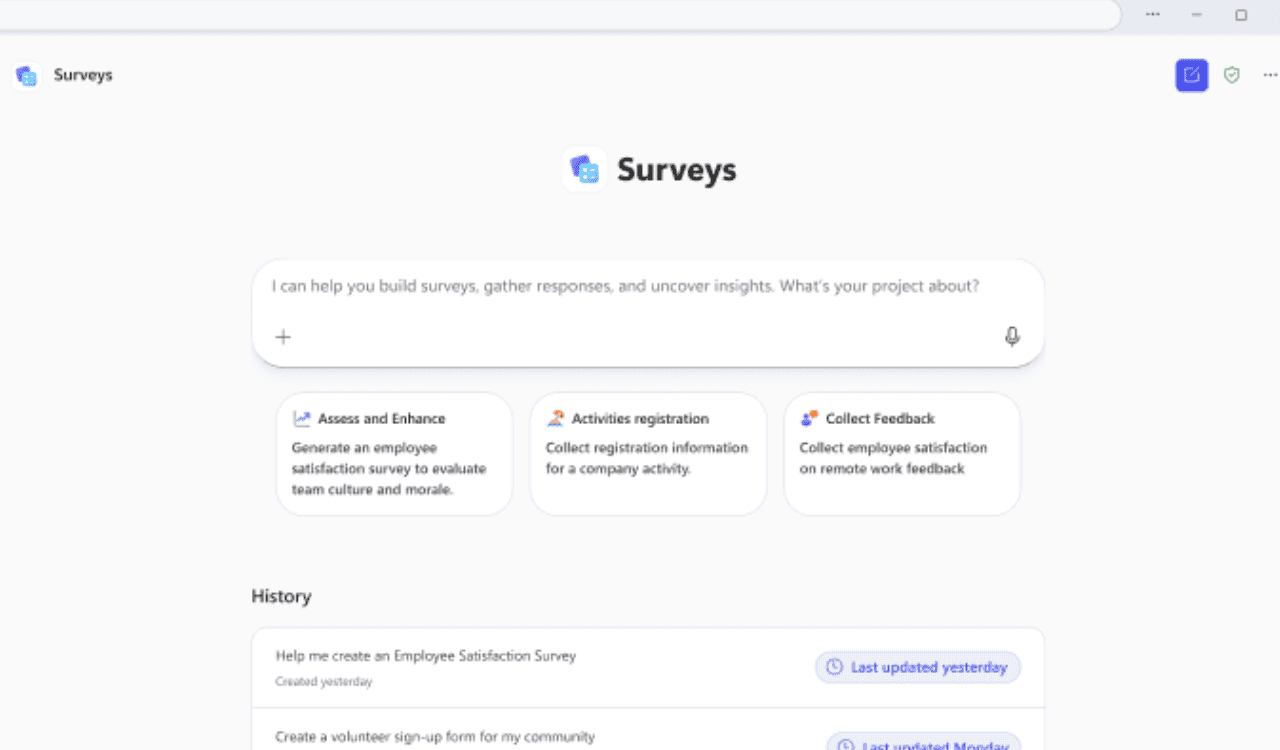
Microsoft has announced general availability to all Microsoft 365 Copilot commercial users worldwide. The decision came after months of testing the faature via the Frontier preview program. For those unaware, Surveys Agent will streamline often-tedious survey process into a simple, chat-like experience.
If you plan to use, simply ask Copilot to draft a survey in Microsoft Forms, improve questions for better clarity, plan rollout timelines, or send reminders. What’s intersting is that you can do all of that within single interface.
Image: Microsoft
Not to forget, the Survey Agent agent also monitors responses and can export results directly to Excel for deeper analysis. Microsoft, in the announcement blog post, says the goal is to eliminate the hassle of managing multiple apps and workflows.
Image: Microsoft
With th general availability, Surveys Agent gets smarter and more connected. Users can now ground the assistant to existing Word, Excel, and PowerPoint files, or even link older Microsoft Forms surveys. Microsoft has also added an interactive tutorial prompt to guide first-time users through all of its capabilities..
All that said, Surveys Agent now joins a growing list of dedicated Copilot agents designed to streamline specific workflows. If yu’re willing to use the agent, you can find it under the “Built by Microsoft” section in the Agent Store. Moreover, you can also pin it to the Copilot sidebar for immediate access.
Microsoft has announced to delay the rollout of File Explorer’s new Recommended section. The feature was initially planned in the October 2025 non-security update (KB5067036).
Update: These features previously listed in the October 2025 non-security update (KB5067036) will roll out in a future date.
[File Explorer]
New! The Recommended section in File Explorer now makes it easier to access files you frequently use or recently downloaded. To view this section on the homepage, turn on the Show Recommended section setting in File Explorer > Options. This feature is now available to all users, including those signed in with personal Microsoft accounts.
Interestingly, the latest update came just two days after Microsoft updated the changelog noting that Recommended section would reflect after the KB5067036 update. It’s unclear why Microsoft has pulled the feature.
Besides Recommended section, Microsoft is also delaying StorageProvider APIs. The company says that these APIs help cloud storage providers integrate deeper with File Explorer Home. The idea is to allow system query for suggested files. In short, developers must wait a bit longer before experimenting with them.
While File Explorer’s improvements are delayed, other improvements from the same update, like the post-quantum cryptography support and driver installation fixes, have been released. The company updated in the same changelog. The cryptography update, for example, adds NIST-approved ML-KEM and ML-DSA algorithms.
Microsoft has announced this week’s Xbox lineup, and Call of Duty: Black Ops 7 is undoubtedly the main highlight. The game will be launched on November 14 and takes players to 2025, where they will enjoy chaos and psychological warfare collide. David Mason and his elite squad face their pasts in a new co-op campaign built for both solo and squad play. Additionally, you’re in for a multiplayer treat, where 16 6v6 maps and two large-scale battlefields will welcome you.
If you prefer swords to soldiers, Monster Hunter Stories and Monster Hunter Stories 2: Wings of Ruin are dropping on Xbox on November 13. You can experience RPG adventures filled with “Monsties” and friendship. The same day, Anno 117: Pax Romana also launches, allowing you to build and manage sprawling cities at the peak of the Roman Empire’s power.
For fantasy fans, Sacred 2 Remaster returns November 11 with its sprawling open world and fast-paced combat. Well, November 12 is packed with multiple launches. You will come across Bus Stuff Shuffle, Chorus of Carcosa, Flying Candy, Hexa Chippy, Hollowgrace, and more. Goodnight Universe, Let Them Come: Onslaught, and more are coming to Xbox on November 11.
You can check the release date of each of the games with their respective Xbox release date below:
Game Title
Release Date
Inazuma Eleven: Victory Road
November 10
Sacred 2 Remaster
November 11
Suzerain
November 11
Goodnight Universe
November 11
Let Them Come: Onslaught
November 11
Mudness Offroad & Turbo Dash Kart
November 11
P1: Anchor Light
November 11
Rue Valley
November 11
Windswept
November 11
Monster Hunter Stories
November 13
Monster Hunter Stories 2: Wings of Ruin
November 13
Anno 117: Pax Romana
November 13
I Love Finding Cats Collector’s Edition
November 13
Lia: Hacking Destiny
November 13
Legends BMX
November 13
Love Is All Around 2
November 13
Rennsport
November 13
Before Exit: Gas Station
November 13
Winter Burrow
November 12
Bomb Kitten
November 12
Bus Stop Shuffle
November 12
Chorus of Carcosa
November 12
Flying Candy
November 12
Hexa Chippy
November 12
Hidden Cats in Rio de Janeiro
November 12
Hollowgrace
November 12
Schedule I: Dope Empire
November 12
Wildkeepers Rising
November 12
Call of Duty: Black Ops 7
November 14
Astro Duel
November 14
Bioprototype
November 14
Bioweaver
November 14
Bunninjutsu
November 14
Chopper Strike
November 14
Clawpunk
November 14
Dark Atlas: Infernum
November 14
Dirt Bike Retro
November 14
Horror Tale 3: The Witch
November 14
Liminal Department
November 14
Pocket Minigolf
November 14
Use Your Words 2
November 14
Videoverse
November 14
So, which game are you most excited about? I’m pretty sure you may be waiting for COD: Black Ops 7. Are there any other games besides that you’re looking to play on your Xbox console? Do let us know in the comments below.
Earlier today, we reported on Windows 11’s Snipping Tool getting an “Add Text” feature, citing PhantomOfEarth’s finding. The upcoming update would help annotate screenshots in a better way.
Now, the same tipster has revealed that Windows 11 will soon get new mouse “haptic signal” options in Settings. We generally associate haptic feedback with phones these days, but Microsoft is looking to change that narrative by bringing the support to its OS.
As seen in the screenshot below, the feature description reads, “Feel subtle vibrations when you snap windows, align objects, and more.” The setting has a slider to adjust the intensity of the haptic feedback. Apparently, it’s available for the MX Master 4.
Image credit: @Phantomofearth
Following up on Phantom’s finding, Zac Bowden from Windows Central added more about the feature in a report from earlier today. Bowden notes that his sources have confirmed that this feature is “designed to work with haptic trackpads.” The feature will apparently work in different scenarios, such as when you drag a file between two windows.
Per the report, the feature haptic feedback option will be optional. So, you can’t always turn it off if you don’t like your device vibrating.
All that said, the tipster hints that the feature is currently hidden in the latest Dev/Beta build. Unfortunately, it isn’t working as of now. Neither do we have any ID to share with you at this point to enable it.
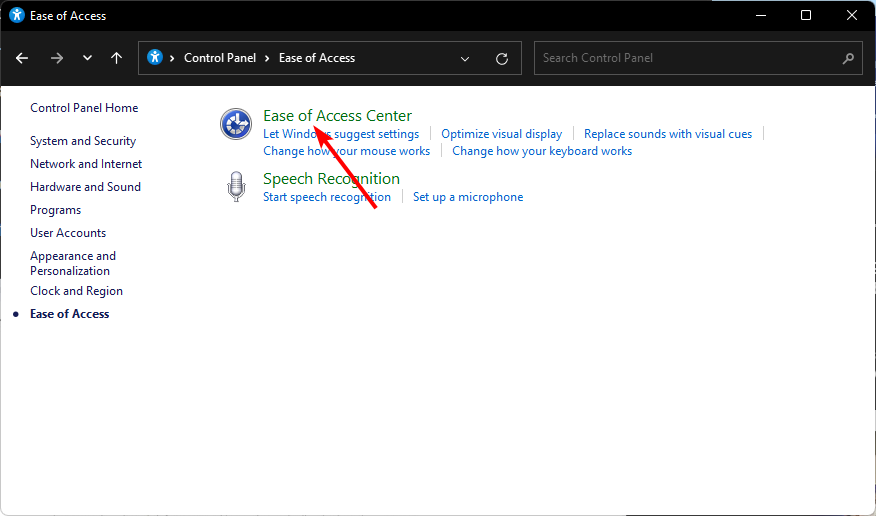
Speech recognition in Windows 11 lets you control your PC with your voice, making typing and navigation faster and easier. This guide will show you all you need to know to set it up and start using it efficiently.
Once enabled, you can start controlling your PC with simple voice commands.
Say Start Listening to activate the feature.
Use commands like Open Word, Click File, or Select all.
To stop, say Stop Listening or press Ctrl + Windows + S again.
What Is Speech Recognition in Windows 11?
Speech Recognition is a built in Windows feature that lets you dictate text, issue commands, and control applications using your voice. It is especially helpful for accessibility and productivity.
Use these practical tips to get more accurate results from Speech Recognition.
Use a high quality microphone.
Speak clearly and at a steady pace.
Train the system regularly to improve recognition.
Avoid background noise when dictating.
FAQs
How do I turn off Speech Recognition in Windows 11?
Say Stop Listening or press Ctrl + Windows + S to disable it.
Does Windows 11 support voice typing?
Yes. Press Windows + H to use the built in Voice Typing feature.
Can I use Speech Recognition without an internet connection?
Yes. Windows Speech Recognition works offline once it is installed and set up.
What is the difference between Speech Recognition and Cortana?
Speech Recognition controls your PC and allows dictation, while Cortana is a virtual assistant focused on tasks, reminders, and web queries.
Conclusion
Setting up Speech Recognition in Windows 11 only takes a few minutes and greatly enhances how you interact with your PC. Once configured, you can control apps, dictate text, and perform tasks hands free, making Windows more accessible and efficient for everyday use.
It turns out even encrypted AI chats might not be as private as you think. Microsoft security researchers have now detailed a vulnerability, dubbed “Whisper Leak,” that could let attackers guess what users are talking about with AI chatbots via Transport Layer Security (TLS). What’s scary is that attackers don’t even need to decrypt a single message.
Per the detailed report, AI assistants from OpenAI, Mistral, xAI, and DeepSeek were all vulnerable to this side-channel attack. Here’s how it works. While AI chats remain encrypted, the size and rhythm of data packets exchanged between a user and a chatbot can reveal conversation topics.
In other words, attackers could study the “pattern” of your chat traffic to make a remarkably accurate guess about what you’re discussing. The issue traces back to how modern AI chatbots stream responses word by word to mimic natural human conversation.
Well, this live-streaming behavior creates a data pattern that can be measured and, with enough samples, interpreted. In Microsoft’s tests, AI models trained on traffic data could infer topics with over 98% accuracy. What’s worse is that the accuracy improves over time. As attackers monitor more conversations, their systems learn and adapt. In short, the future guesses are even more accurate.
Fortunately, Microsoft says that all the companies have been made aware of the vulnerability and have already patched it. OpenAI, Microsoft, and Mistral have implemented “data padding.” For those unaware, that’s small bits of random text to disrupt these detectable patterns. Think of it as adding static to a radio signal. While you can still hear the message, outsiders can’t easily analyze it.
From the users’ point of view, Microsoft recommends joining trusted networks, using a VPN, and avoiding sensitive discussions over public Wi-Fi. You can read all the technical details here.
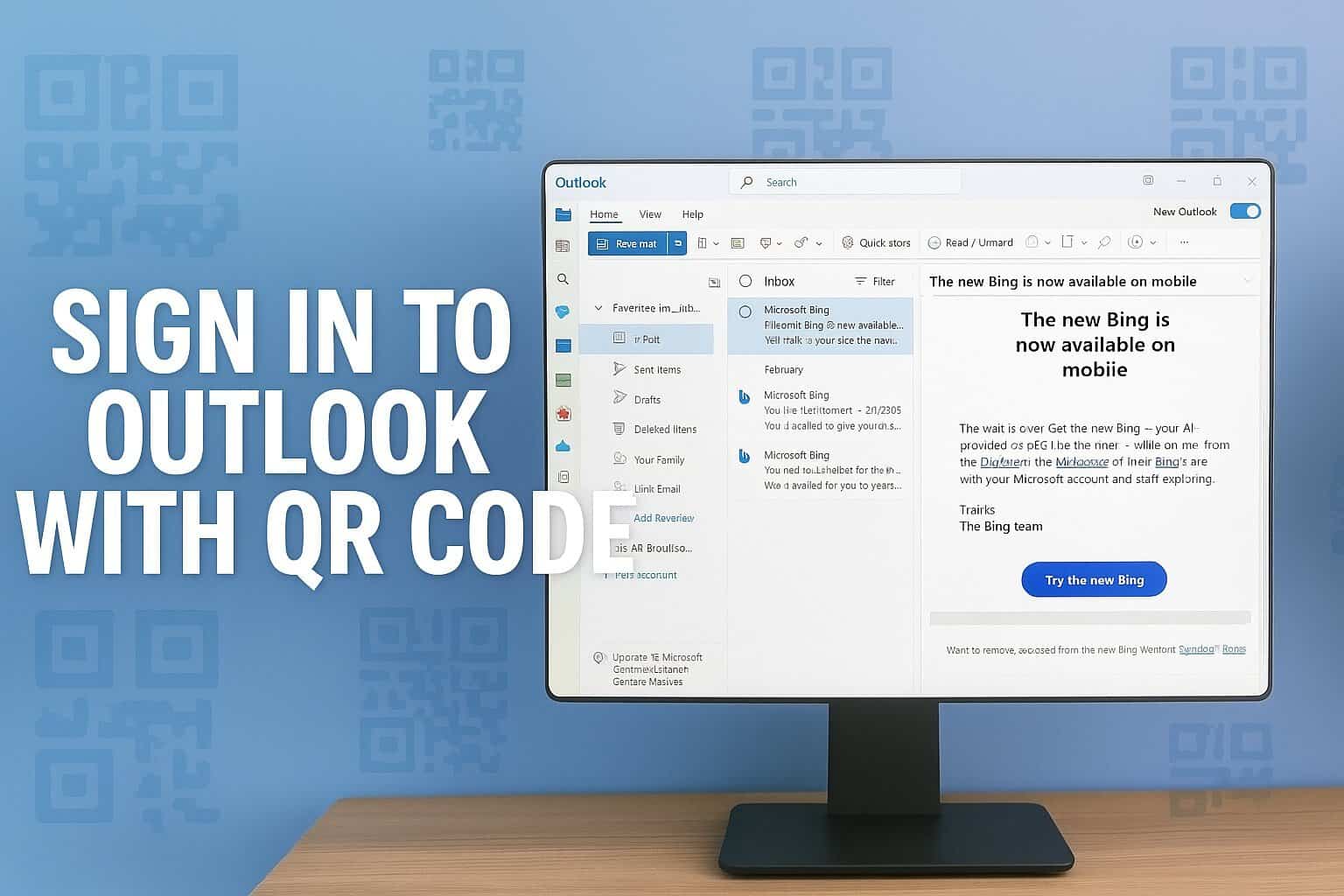
If you are tired of typing passwords or dealing with login issues, Outlook QR code sign in is one of the fastest and most secure ways to access your account. It connects your Microsoft account to your phone through the Authenticator app, ensuring safe, password free login in just seconds.
Outlook QR code sign in is a secure login method that replaces passwords with mobile verification. By scanning a QR code using the Microsoft Authenticator app, you confirm your identity without typing anything. This approach provides faster access and better protection from phishing or unauthorized access.
Why QR Code Sign In Works Better
No passwords needed: Helps you avoid password theft or phishing attempts.
Instant authentication: Lets you sign in within seconds using your phone.
Two factor protection: Strengthens your account security with device verification.
Troubleshooting Outlook QR Code Login
Here is what to do if QR sign in does not work as expected.
Refresh the Outlook page to generate a new QR code.
Make sure your phone camera is clear and focused.
Confirm that both devices are connected to the internet.
Update your Microsoft Authenticator app to the latest version.
FAQs
Can I use Outlook QR code login on multiple devices
Yes. You can register multiple devices with the Authenticator app by scanning unique QR codes for each one.
Is Outlook QR code sign in available for the desktop app
Not yet. It currently works best for web based Outlook.com and Office 365 accounts.
Do I need an internet connection to use QR sign in
Yes. Both your phone and computer must be connected to the internet for verification.
What if I lose access to my phone
If you lose your device, visit the Microsoft account recovery page to remove it from your trusted devices, then set up a new phone or alternative sign in option.
Conclusion
Signing in to Outlook using a QR code is a simple and secure way to access your email without typing passwords every time. Once you set up Microsoft Authenticator, you can log in in just a few taps, keep your account safer from phishing, and enjoy a smoother Outlook experience on any supported browser.
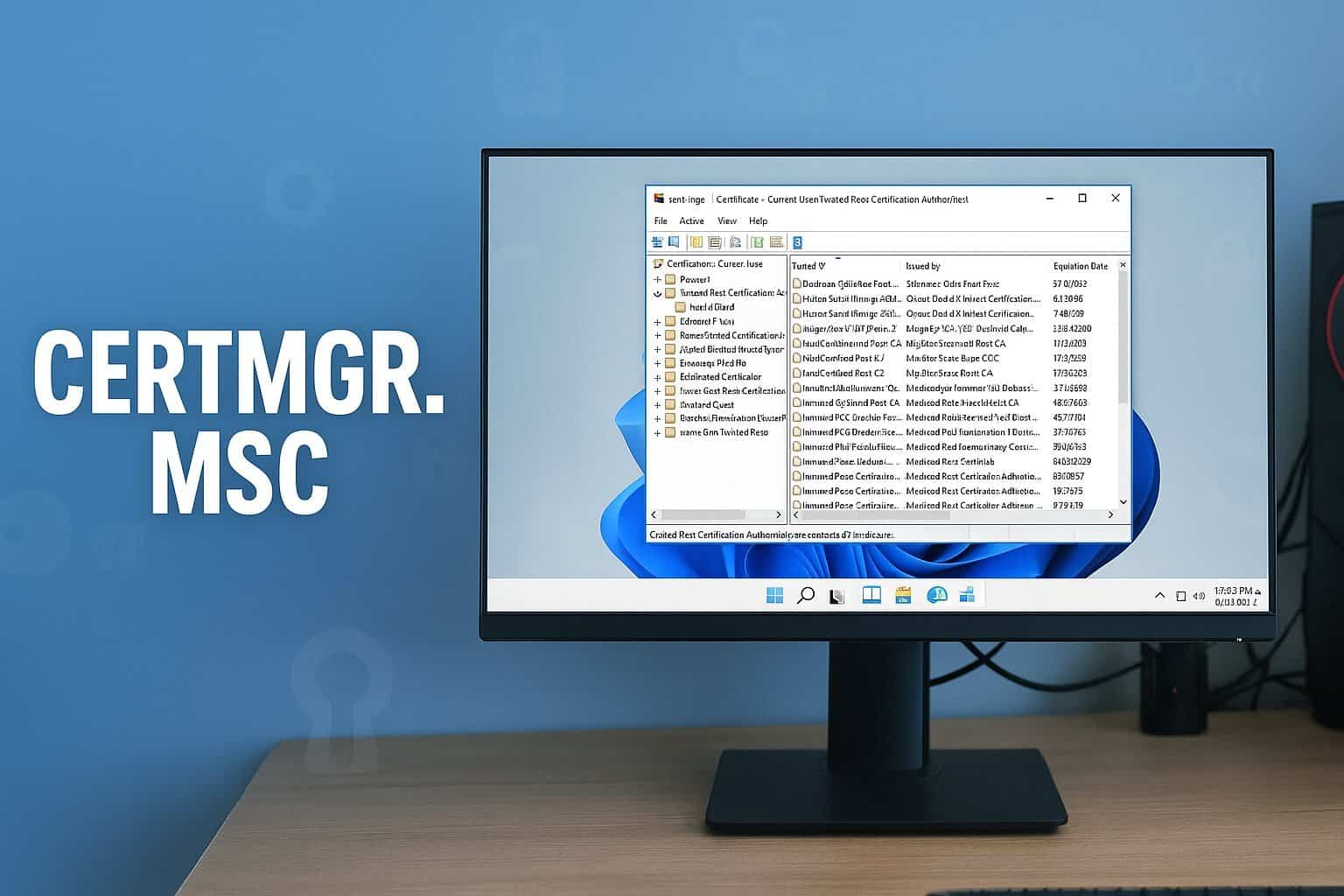
Windows 11 includes several built-in tools to help manage system security, and one of the most useful is certmgr.msc. This powerful utility allows users and administrators to handle digital certificates that verify the authenticity of websites, software, and users. Understanding how to access and use it can help you troubleshoot SSL issues and maintain a secure PC environment.
The certmgr.msc tool is the Microsoft Management Console (MMC) snap-in used to view, import, export, and delete digital certificates on Windows. It helps manage certificates for users, computers, and trusted root authorities to ensure secure communication and authentication.
Exporting lets you back up or share certificates between systems.
Right click the certificate you want to export.
Select All Tasks > Export.
The Certificate Export Wizard will open.
Choose whether to export the private key.
Select a file format and destination, then click Finish.
4. Delete an Expired Certificate
Deleting helps maintain system security by removing outdated or untrusted certificates.
Open the folder containing the certificate.
Right click the expired or unwanted certificate.
Choose Delete and confirm your choice.
Why certmgr.msc Is Useful
Ensures secure connections for browsers and email clients.
Helps diagnose SSL/TLS certificate issues.
Enables administrators to manage user and system trust levels.
Useful for troubleshooting certificate related errors in Windows apps.
FAQs
What is the purpose of certmgr.msc?
It allows you to view and manage digital certificates for secure communication and authentication on Windows.
Can I open certmgr.msc as an administrator?
Yes. Run Command Prompt or PowerShell as an administrator before typing certmgr.msc.
Is certmgr.msc available on all Windows editions?
Yes, it is available on Windows 10, Windows 11, and most Windows Server versions.
What should I do if certmgr.msc will not open?
If certmgr.msc fails to open, ensure that your Windows system files are intact by running sfc /scannow in Command Prompt, or check for system policy restrictions that may block administrative tools.
Conclusion
Using certmgr.msc in Windows 11 is a reliable way to manage your digital certificates and keep your system secure. Whether you are viewing, importing, exporting, or deleting certificates, this built in console gives you full control over trusted authorities and authentication processes on your PC.
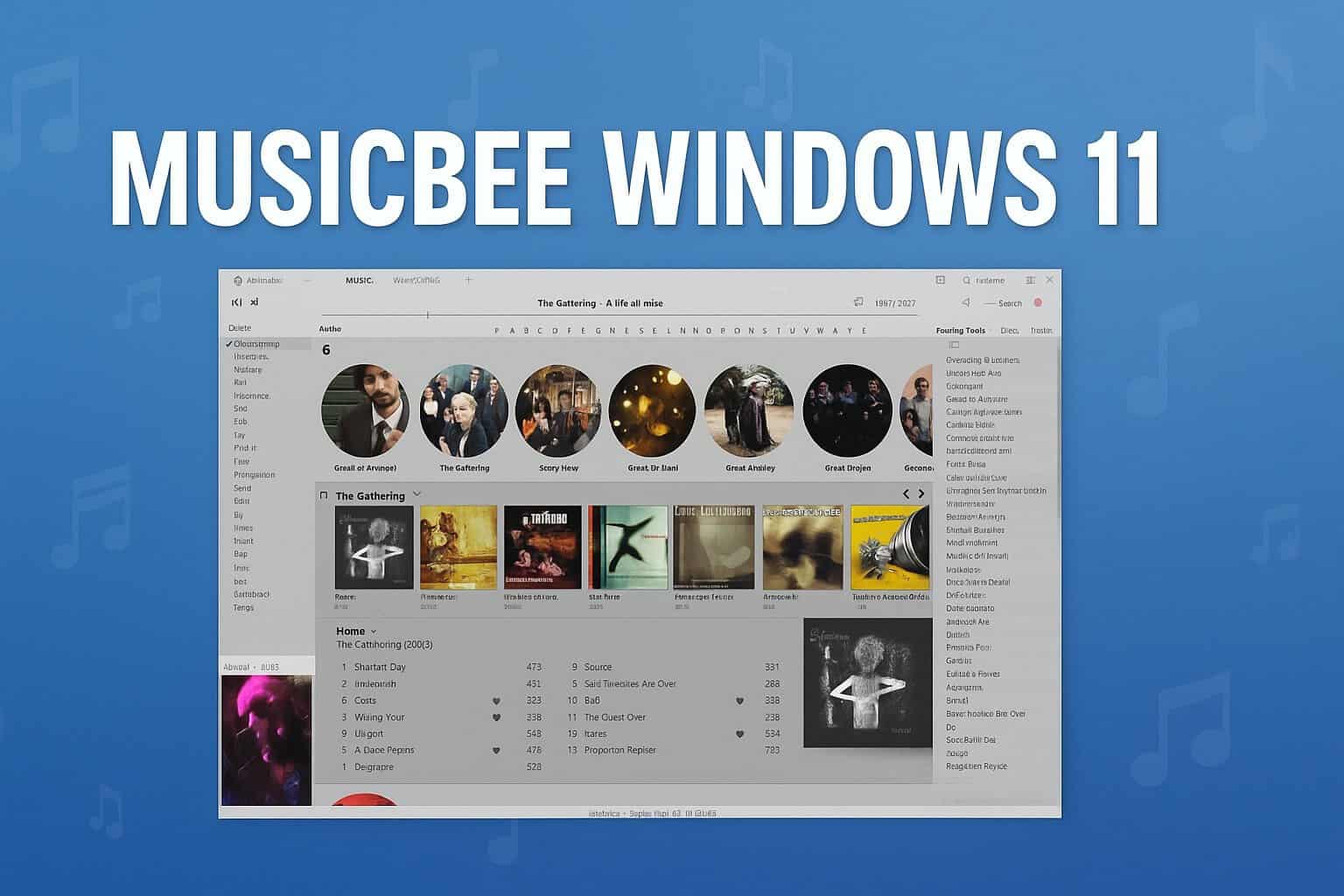
MusicBee Windows 11 is a free, lightweight music player and organizer designed to give users full control over their music collection. Whether you are managing thousands of songs or building a simple playlist, it delivers smooth performance and deep customization.
This guide will tell you everything you need to know about using MusicBee on Windows 11, from setup to its most useful features.
Everything You Need to Know About MusicBee for Windows 11
What Is MusicBee?
MusicBee is an advanced audio player for Windows that supports popular file formats like MP3, FLAC, AAC, and WAV. It provides tools for library organization, automatic tagging, and sound enhancements, offering a complete experience for any music lover.
For more tools that help you manage large collections, check out this guide on music library software.
Why Choose MusicBee on Windows 11?
MusicBee offers a perfect blend of design, customization, and performance, making it one of the top music players for Windows users.
Integrates seamlessly with Windows 11’s modern design and supports light and dark themes.
Automatically scans folders for new music and updates metadata to keep your collection tidy.
Includes a 10-band and 15-band equalizer, crossfade, and gapless playback for enhanced sound control.
Supports custom skins, themes, and plugins for a personalized experience.
Syncs easily with Android devices and other portable players.
You can also explore other great music organizing software if you want additional management options.
How to Install MusicBee on Windows 11
Installing MusicBee is quick and straightforward.
Visit the official MusicBee website.
Click Download MusicBee and select either the installer or portable version.
Run the installer and follow the on-screen setup steps.
Open MusicBee and import your music folders to start organizing your collection.
AIMP – Lightweight and easy-to-use player with strong audio effects.
Foobar2000 – Minimalist but highly customizable through plugins.
MediaMonkey – Excellent for managing large music libraries with smart tagging tools.
FAQs
Is MusicBee free?
Yes, it is completely free to use with no ads or subscriptions.
Does MusicBee work on Windows 11?
Yes, it is fully compatible and optimized for Windows 11.
Can I use MusicBee for streaming?
You can stream podcasts and radio, but it is mainly for local music playback.
Does MusicBee support lyrics display?
Yes, it can automatically fetch and show lyrics from online sources.
Conclusion
If you want a reliable, powerful, and free music player for your PC, MusicBee for Windows 11 is an excellent choice. It combines organization, customization, and high-quality playback into one package, making it ideal for anyone who wants a better way to manage and enjoy their music on Windows 11.
Windows 11’s Snipping Tool is finally getting the ability to insert text when editing screenshots. The news comes via popular Windows tipster, @phantomofearth on X. The feature, possibly spotted in a recent Insider build, adds one of the most requested improvements to the built-in screenshotting tool.
Up until now, Snipping Tool only basic markup options like pen, highlighter, and shape tools. The new text insertion feature modernizes the experience. But, this one will be handy for many who rely on third-party tools like ShareX.
In a screen recording posted on X, the tipster shows how the feature works. And, from the looks of it, it’s pretty straightforward. The updated Snipping Tool interface includes a new “Text” button in the toolbar.
Video credit: PhantomOfEarth
You can simply click it to type directly on screenshots. As one can guess, other functions like moving the text and resizing it, changing fomts, picking colors for the font, everything is possible. For some who deals with annotations day in and out, this change is a lifesaver.
As if now, Microsoft hasn’t confirmed whether or when this update will roll out to masses. But, whenever it lands, we expect it for Insiders first. General users can expect the update in a future update.
If you’ve been waiting for Silent Hill 2, there’s some good news, fortunately. After months of speculation, Silent Hill 2 is coming to Xbox. A new listing spotted by True Achievements on the Microsoft Store confirms that KONAMI’s acclaimed horror remake will release on Xbox Series X|S and PC on November 21, 2025.
Image credit: TrueAchievements
The leak follows last month’s rumors about Xbox release when Silent Hill website quietly updated about new platforms. Now, thanks to leaked Microsoft Store listing, Xbox release is confirmed. What’s interesting is that the Store page for Silent Hill 2 doesn’t mention Xbox Play Anywhere support. In other words, cross-progression between Xbox and PC may not be able immediately at launch.
The game was originally released on PlayStation 5 and PC, Silent Hill 2 Remake is now set to make its long-awaited debut on Xbox Series X|S. If the Microsoft Store’s listing isn’t an error, you won’t have to wait long to return to the misty streets of Silent Hill, within two weeks from now.
Well, the leaked listing includes a few surprises for Silent Hill fans too. You can look forward to a Deluxe Edition featuring a digital artbook, the game’s haunting soundtrack, and a special Pyramid Head pizza box cosmetic. There’s also a bundle that pairs Silent Hill 2 with Silent Hill f.
If you don’t know, here we are talking about the remake of the 2001 survival horror classic has already earned praise for its unsettling atmosphere and reimagined visuals. The game retells the story of James Sunderland, a grieving man drawn to the fog-covered town of Silent Hill after receiving a mysterious letter from his deceased wife.
If your printer suddenly stops printing or your colors look faded, your ink or toner levels may be low. Checking printer ink levels on Windows 11 helps you know when to replace cartridges before print quality drops. This guide explains the best ways to view your ink status quickly and accurately.
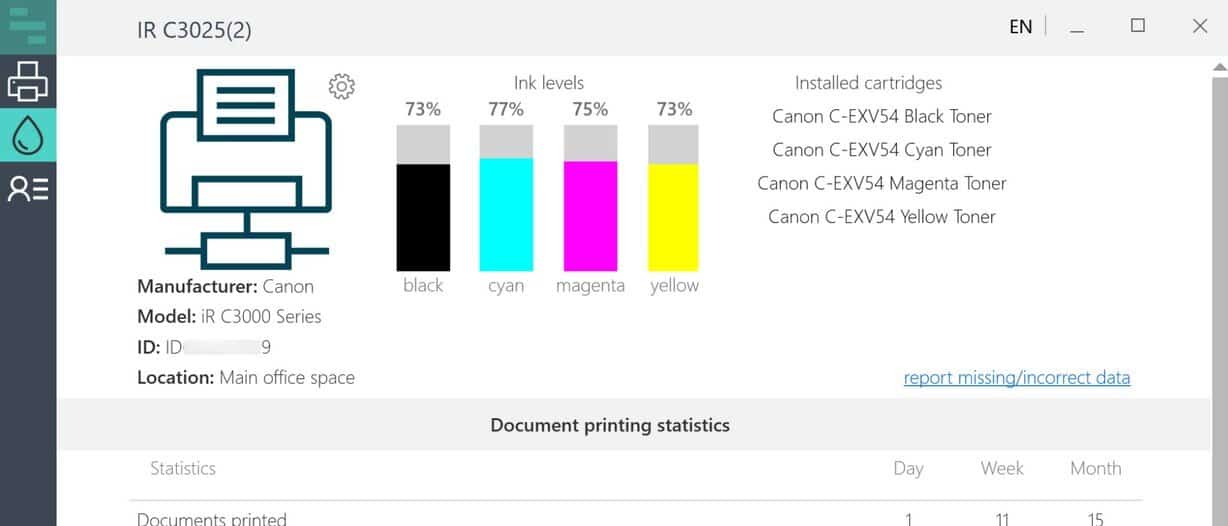
The official printer utility from your manufacturer usually provides the most detailed ink or toner level information.
Open the Start menu and search for your printer utility, such as Canon, Epson, HP, or Brother tools.
Launch the utility and select your printer if prompted.
Open the Maintenance, Status, or Ink Levels tab.
Review the current ink or toner status for each cartridge.
Tip: If you cannot find the utility, download the full driver and software package from your printer manufacturer support page.
3. Check Ink Levels on the Printer Screen
Many modern printers display cartridge information right on the built in control panel.
Power on your printer.
Press the Home or Menu button on the printer panel.
Navigate to Ink Levels or Supplies Status.
View the remaining ink or toner level for each cartridge.
This is a good time to print a test page to confirm that your cartridges are working correctly. You can also print a contact sheet of photos in Windows 11 to preview multiple images on one page before printing them individually. It’s a convenient way to test colors and ink quality after checking your ink levels.
FAQs
How do I check printer ink levels without software?
You can use your printer display panel and open the Settings or Maintenance menu to view ink or toner levels directly on the device.
Why can’t I see ink levels on Windows 11?
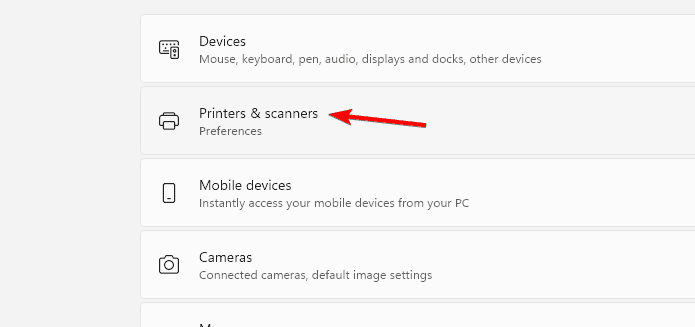
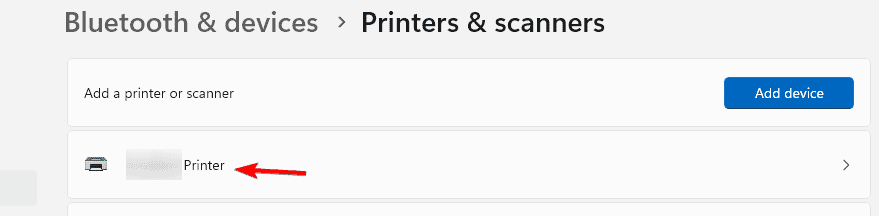
Your printer driver may not be fully installed. Install the official driver package from your printer manufacturer, then check the Printers and scanners page again.
Does low ink always affect print quality?
Yes, low ink often causes faded colors, missing text, or streaks, so you should replace cartridges once the printer warns about low levels.
Can I check ink levels for a wireless printer?
Yes, as long as your printer is connected to the same network as your PC, Windows and the printer utility can usually display live ink status.
Why You Should Check Ink Levels
Low ink or toner can lead to faded colors, streaks, or incomplete prints, so regular checks are essential.
Maintain clear and vibrant print quality
Prevent last minute printing interruptions
Save money by managing ink usage effectively
For even better print accuracy, you can also align your print cartridges to ensure colors and text print properly.
Conclusion
Keeping an eye on your printer ink levels helps you avoid surprise printing failures and keeps documents looking sharp and professional. Whether you use Windows settings, the printer utility, or the printer screen, regular checks ensure you always know when it is time to replace a cartridge.
Printing a test page in Windows helps you verify if your printer is working correctly and aligned properly. Whether you are troubleshooting print issues or setting up a new printer, this quick guide shows you the simplest ways to print a test page on Windows 11.
A printer test page is a diagnostic print that helps identify issues like misaligned text, color streaks, or communication errors between your PC and printer. It is also a quick way to confirm that the printer driver is installed properly.
Printing a test page offers quick feedback on your printer status.
Detects clogged ink nozzles or toner issues.
Confirms proper driver installation.
Verifies connectivity between your PC and printer.
Tests color accuracy and alignment.
You should also check your printer ink levels to rule out low ink as a cause of poor test page results. After confirming your printer quality, you can print a contact sheet of photos in Windows 11 to organize and preview multiple images on one page. It is a useful next step to ensure your printer produces consistent colors and sharp results.
FAQs
How do I print a test page from my printer software?
Open your printer dedicated software, go to the maintenance section, and select the option to print a test page.
What should I do if the test page does not print?
Ensure your printer is powered on, check the connection cable or Wi Fi status, and reinstall the printer driver if needed.
Can I print a test page without ink?
No, printers require at least a minimal ink level to complete the test page, even in grayscale mode.
Does printing a test page waste ink?
Not significantly. Test pages use a small amount of ink and help identify issues early, which can save more ink in the long run.
Conclusion
Printing a test page in Windows 11 is a simple but important way to confirm your printer performance. You can do it through Settings, Control Panel, or directly from the printer menu, and the linked guides help you fix device settings, color issues, and common printing errors when problems appear.
You can also verify your recent print activity, and the guide on how to check print history in Windows 11 helps you confirm that your system records each job correctly.
The news comes from Windows Latest, which reported that users in Europe are still finding that ESU enrollment is “temporarily unavailable.” In affected regions, Windows Update displays a warning that the OS is out of support, prompting users to “Enroll now.”
Image: Windows Latest
However, clicking the button only surfaces a message that reads, “ESU Enrollment coming soon,” with no clear timeline. When asked about the issue back in October, Microsoft confirmed to the news outlet that ESU is a staged rollout influenced by “local market factors.”
At the time, the Redmond giant said that it would begin rolling out ESU across the European Economic Area in early October, with availability extended to everyone by mid-month. However, reports from countries like the Netherlands suggest it’s still missing for many. As of now, there are no official words from Microsoft on this matter. If there are any, we’ll update this piece for you.
Adding to the frustration, some users (from supported regions) have reported a separate issue that prevents them from completing ESU enrollment. Per the report, the ESU setup tool is throwing a generic “Something went wrong” error with no further details.
Image: Windows Latest
The news outlet further mentions that the possible reason behind this could be that Windows is wrongly flagging a personal PC as an enterprise device. So, is there any fix for the issue? Apparently, unliking your business account and performing an in-place upgrade using the Media Creation Tool remains your feasible option until we hear anything from Microsoft.
Are you also living in Europe and having similar issues with ESU enrollment? If yes, did the offered solution help you fix it? If it didn’t, please let us know in the comments below.
Looking for a free Snagit alternative that helps you capture screenshots, record your screen, and annotate images easily? Here are five excellent options that deliver impressive performance without the cost of Snagit.
ScreenRec is an all-in-one screenshot and screen recording tool designed for productivity. It allows you to capture your entire screen or a specific region and instantly share it via a private link. Its built-in cloud integration means you don’t need to upload files manually — everything is saved securely online and ready to share in seconds.
The app also supports HD video recording, audio capture from both system and microphone, and quick annotation tools for marking up your screenshots. ScreenRec is ideal for professionals, educators, and anyone who frequently needs to create visual guides or tutorials.
ShareX is a completely free and open-source screen capture and recording program with unmatched flexibility. It allows you to capture specific regions, scrolling pages, or full screens with pixel-level precision. Beyond screenshots, it also includes advanced automation features that let you upload captures directly to hosting services or cloud platforms.
This makes ShareX an excellent tool for developers, content creators, and IT professionals who want deep customization and powerful workflow options. While it may take a bit of learning, the reward is complete control over every capture step.
Other great features:
Capture any screen area, including scrolling content
Loom is a user-friendly screen recorder built for communication and collaboration. It enables users to record their screens alongside webcam footage and audio commentary, making it ideal for quick video messages, tutorials, or walkthroughs. Loom automatically generates shareable links after each recording for seamless sharing.
The tool’s simple design hides a lot of smart functionality, from automatic transcription and captions to engagement insights for shared videos. It’s perfect for teams that rely on visual communication, remote workers, or educators who want to create interactive lessons.
Greenshot focuses on fast and easy screenshot capture. It’s perfect for users who need quick image captures rather than full video recording. With just a few keystrokes, you can grab a region, window, or full-screen image, then annotate it using text, arrows, or highlights in the built-in editor.
Its lightweight design ensures it doesn’t slow down your system, and the ability to export images directly to Office apps or online services adds convenience. Greenshot is perfect for professionals who need clarity and speed in their documentation.
Lightshot is one of the simplest tools for capturing and sharing screenshots. After installation, you can use a keyboard shortcut to select any area of the screen, edit it immediately, and upload it online with a single click. The image link is generated instantly, making it ideal for sharing visuals quickly.
Although minimal, Lightshot includes enough editing tools for basic annotations, highlights, and text. It’s great for anyone who values simplicity and speed without needing advanced features or setup.
Other great features:
Intuitive and lightweight design
Capture custom screen regions instantly
Built-in image editor
Upload and share links online
Available for Windows, macOS, and browsers
FAQs
Is there a completely free Snagit alternative?
Yes. ScreenRec, Loom, and Lightshot all work on both Windows and macOS, while ShareX and Greenshot are Windows-focused.
Can I record my screen with audio using these tools?
Yes. ScreenRec and Loom both support audio recording from your microphone and system sound, making them great for tutorials or presentations.
Which Snagit alternative is best for screenshots only?
If you only need still images, Greenshot or Lightshot are the fastest and easiest options.
Are these apps safe to use?
All the apps listed are from reputable developers and widely used by professionals. Always download them from the official links provided above.
Can I use these tools on macOS?
Yes. ScreenRec, Loom, and Lightshot all work on both Windows and macOS, while ShareX and Greenshot are Windows-focused.
Conclusion
Finding a free Snagit alternative is easier than ever — whether you want to capture screenshots, record videos, or share content instantly. Tools like ScreenRec and Loom are great for recording and communication, while Greenshot and Lightshot excel at quick captures. If you often work with on-screen text, also explore this detailed guide on how to extract text using the Snipping Tool in Windows 11.
Each of these options provides high-quality features without the hefty price tag, making them perfect for everyday users and professionals alike.
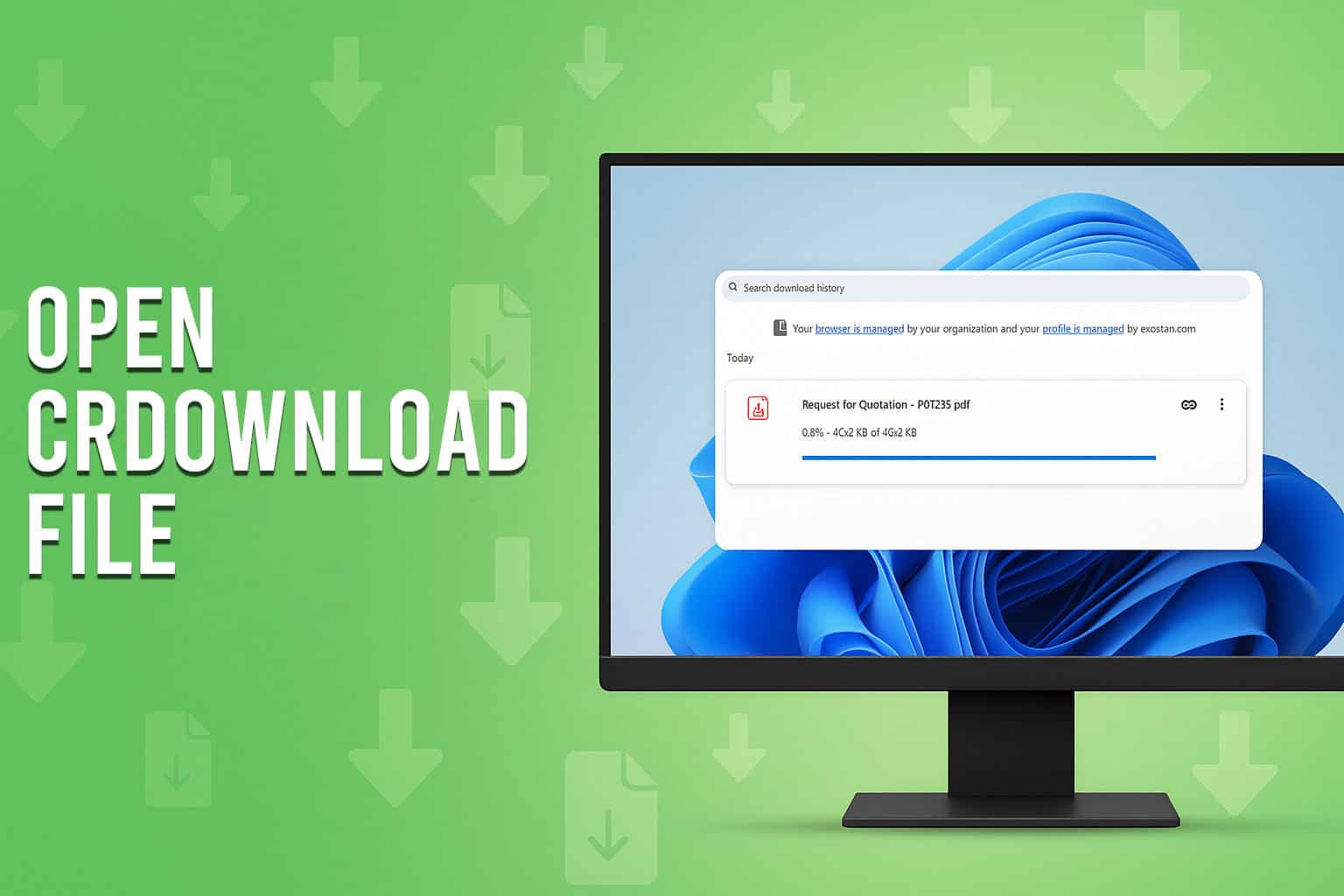
A CRDOWNLOAD file appears when you are downloading something via Google Chrome. It is a temporary file used to store incomplete downloads, and you can often recover or open a CRDOWNLOAD file safely with a few simple steps.
If you cannot resume the download, you can try opening the partial file manually.
Navigate to your Downloads folder.
Right click the .crdownload file and select Rename.
Remove .crdownload from the file name and press Enter.
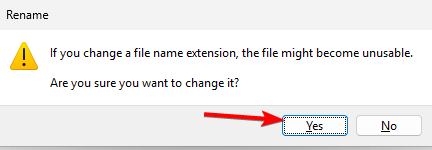
Choose Yes when asked to confirm the file extension change.
Try opening the renamed file using a compatible program such as VLC for videos or WinRAR for archives.
Note: The file may not open fully if the download was not complete.
4. Use a File Recovery Tool (Optional)
If none of the above methods work, you can attempt recovery using dedicated tools.
Install a recovery program such as Recuva or EaseUS Data Recovery.
Scan your Downloads folder for lost or incomplete files.
Look for files that match the name of your CRDOWNLOAD file.
Attempt to recover or reconstruct the file and then try opening it again.
Why It Works
CRDOWNLOAD files hold partial data segments. By resuming the download or renaming the file, you allow Chrome or another tool to interpret the data that already exists and access any usable parts that were successfully downloaded.
What is a CRDOWNLOAD File?
A CRDOWNLOAD file is a partial download file automatically created by Chrome. It remains in your Downloads folder until the download is complete. Once finished, Chrome renames it to the final file format such as .mp4, .zip, or .exe.
If your download was interrupted, this file may stay behind. You can sometimes recover data from it manually.
Yes. If the download failed or you no longer need it, deleting the CRDOWNLOAD file will not harm your system.
Why does Chrome leave CRDOWNLOAD files?
They appear when Chrome does not finish downloading because of network loss, a browser crash, or manual cancellation.
Can VLC open a CRDOWNLOAD video?
Sometimes. If most of the video was downloaded, VLC may be able to play it after you rename the file to its correct video extension.
Are CRDOWNLOAD files safe?
Yes. They are temporary files created by Chrome and are not harmful on their own. You should still avoid opening renamed files with unknown or untrusted software.
Can I convert a CRDOWNLOAD file to its final format?
You cannot truly convert it if the download is incomplete, but you can rename the file to the expected extension and then try opening it to see whether enough data was downloaded to be usable.
Conclusion
You cannot fully open a CRDOWNLOAD file until the original download is complete, but you can often recover parts of it by resuming the download, renaming the file, or using recovery tools. Understanding how CRDOWNLOAD files work helps you troubleshoot Chrome download problems faster and avoid losing important files when a download stops unexpectedly.
A BAK file is a backup file automatically created by software to store copies of data. These files help restore information in case of corruption, loss, or accidental deletion.
Below, you will learn what BAK files are, how to open them, and how to restore your data safely.
A BAK file (short for backup) is a file that contains a copy of data from another file or system. It is commonly used by programs such as Microsoft SQL Server, Photoshop, AutoCAD, and even web browsers to save backup versions.
BAK files usually share the same name as the original file but with a .bak extension (for example, database.bak or config.bak).
.bak from SQL Server – open with SQL Server Management Studio (SSMS)
.bak from Notepad or text files – open with Notepad or Notepad++
.bak from AutoCAD – open with AutoCAD or rename to .dwg
Before you try opening a BAK file, it helps to know what program generated it.
If your BAK file came from a database, you can also learn how to open SQL BAK files in Excel for easier data viewing.
2. Rename the File Extension (Optional)
If you suspect the file just has the wrong extension, you can rename it manually to make it readable.
Right click the file and select Rename.
Change .bak to the original file format (for example, .docx, .jpg, .dwg).
Confirm the change if prompted.
Try opening the file again with the corresponding program.
3. Restore Database Backups in SQL Server
If your BAK file is a database backup, you can restore it using SQL Server Management Studio.
Open SQL Server Management Studio (SSMS).
Connect to your server instance.
Right click Databases and select Restore Database.
Choose Device and browse for your .bak file.
Follow the wizard to complete the restoration.
Why BAK Files Are Useful
Data Recovery – helps restore lost or corrupted files.
Version Control – lets you revert to older versions of files.
Safety Net – protects against accidental deletion or overwrite.
How to Create a BAK File Manually
Creating your own BAK file can give you an extra layer of security for important data.
1. Duplicate the File
Use this method when you want a quick manual backup of an important file.
Locate the file you want to back up.
Right click and choose Copy.
Paste it into the same folder.
Rename it to include .bak at the end of the filename.
2. Use a Backup Tool
You can also use a dedicated backup tool for a more automated process.
Open a backup program (for example, File History, Acronis, or EaseUS).
Select the files or folders to back up.
Choose a destination (external drive or cloud).
Start the backup process.
FAQs
Can I delete BAK files
Yes, but only if you no longer need the backup. It is best to keep them until you verify that your main files are safe.
Are BAK files dangerous
No. They are safe and usually created automatically by trusted programs.
Can I convert a BAK file
Yes. Rename the extension to match the original file format or open it with the program that created it.
Where are BAK files usually stored
They are often stored in the same directory as the original file, or within a designated backup folder created by the software.
Conclusion
A BAK file is a simple yet vital safeguard against data loss. Whether it is a database, document, or configuration file, knowing how to open and restore a .bak file ensures your data stays protected on Windows 11 or any other platform.
Downloading YouTube videos for offline viewing can be tricky without the right tool. iTubeGo YouTube Downloader simplifies the process by letting you save videos, playlists, and audio files in various formats and qualities. Whether you want 8K videos or MP3 music files, this guide will show you how to use it efficiently.
iTubeGo YouTube Downloader is a powerful desktop tool that allows users to download videos, playlists, channels, and music from YouTube and thousands of other websites. It supports multiple formats like MP4, MP3, MOV, AVI, and resolutions up to 8K.
Its built-in media converter makes it easy to transfer files to any device, including iPhones and Android phones. You can also extract audio directly from a video for offline listening.
Yes, iTubeGo is safe when downloaded from the official website and installed on a clean system.
Can iTubeGo download from other sites?
Yes, it supports many video and music sites, including Vimeo, Facebook, Instagram, and TikTok.
Does iTubeGo work on Android devices?
Yes, there is an Android version that lets you download videos directly to your phone.
Can I download private or age restricted videos?
Yes, iTubeGo can download private or age restricted videos if you sign in with your YouTube account inside the app.
Does iTubeGo limit the number of downloads?
No, you can download as many videos as you want, but your internet speed and system performance may affect the experience.
Conclusion
iTubeGo YouTube Downloader is a reliable way to save YouTube videos, playlists, and music for offline viewing. With fast downloads, rich format support, and simple controls, it works well for both casual users and power users who save large collections. If you want an easy way to keep your favorite clips and tracks locally on Windows or Mac, iTubeGo is a strong option to consider.
Microsoft is changing how users access “Help” in the Edge browser. The company is testing a new way that routes the “F1” shortcut to Copilot in the sidebar instead of the traditional “Microsoft Edge help & learning” web page.
Copilot is Microsoft’s built-in AI assistant that sits in the Edge sidebar. It can answer questions, summarize pages, generate content, and guide users through browser settings and issues.
Until now, pressing F1 in Edge opened a dedicated Microsoft support page that lists help articles and troubleshooting steps for the browser. Microsoft also highlights this shortcut under the Help and Feedback section in Edge’s main menu.
The classic Help option in Microsoft Edge’s Help and Feedback menu, showing the F1 shortcut that opens the traditional support page. Image Credit: Venkat | WindowsReport.
Microsoft Edge’s F1 Help Now Opens Copilot
That support page includes articles about browser features, troubleshooting advice, and links to official documentation that provide users with web-based answers to common problems.
Pressing F1 in the current stable version of Edge opens Microsoft’s Help and Learning page on the web. Image Credit: Venkat | WindowsReport.
In the latest Edge Dev version, we noticed Microsoft is replacing this with a “Help via Copilot” option in the Help and Feedback menu. Pressing F1 now opens Copilot in the sidebar with the following message:
“All queries in this session are related to Microsoft Edge. Provide specific guidance and wait for user input before responding.”
The addition of “Help via Copilot” in the menu confirms that Microsoft is experimenting with this direction.
Edge’s “Help via Copilot F1” menu option. Image Credit: Venkat | WindowsReport.
Edge users who are used to pressing F1 for static help pages may soon find Copilot handling those queries directly inside the browser. It shows Microsoft wants Copilot to handle more of the help and support inside Edge.
Pressing F1 in Edge opens the Copilot sidebar, which focuses on browser help queries within Microsoft Edge. Image Credit: Venkat | WindowsReport.
It’s worth noting that this feature is still in testing. In the stable or release version of Edge, pressing F1 continues to open the Microsoft Edge Help and Learning page.
Controlling your PC from a mobile device can be convenient, especially when your mouse isn’t working or you’re away from your desk. With Remote Mouse, you can turn your smartphone or tablet into a wireless mouse and keyboard for Windows quickly and easily.
Now, link both devices through the same local Wi-Fi network.
Make sure both your phone and PC are connected to the same Wi-Fi network.
Launch the Remote Mouse app on your phone.
Your PC should automatically appear in the app. Tap it to connect.
If not detected automatically, tap the “+” icon and manually enter your PC’s IP address (shown on your computer screen).
4. Start Controlling Your PC
Once connected, you can instantly begin navigating your PC using your phone.
Use your phone screen as a touchpad to move the cursor.
Tap once to left-click, double-tap to double-click, and tap with two fingers to right-click.
Access the keyboard icon to type remotely.
Use gesture controls like scrolling and zooming with two fingers.
What Is Remote Mouse for Windows?
Remote Mouse is an app that turns your smartphone or tablet into a wireless mouse, keyboard, and touchpad for your Windows PC. It’s ideal when your physical mouse stops working or you want to control your computer from a distance.
Remote Mouse uses your local network to send control signals with low latency. It replicates all key functions of a mouse and keyboard, making it perfect for presentations, media control, or operating your PC from the couch.
Yes, it’s free for basic use, but offers in-app purchases for premium features.
Can I use Remote Mouse without Wi-Fi?
No, both your PC and phone must be connected to the same local network.
Does Remote Mouse work with Windows 11?
Yes, it works with Windows 11, Windows 10, 8, and 7.
Is Remote Mouse safe to use?
Yes, it’s safe when downloaded from the official website or app stores. Avoid unofficial downloads to prevent malware risks.
Conclusion
Using Remote Mouse on Windows is one of the simplest ways to turn your mobile device into a wireless controller. Whether you’re using an Android, tablet, or iPhone, this setup gives you full control of your PC for browsing, typing, or presentations without needing a physical mouse.
Google has ended its Privacy Sandbox plan, the framework designed to replace third-party cookies in Chrome. Following its April 2025 announcement that cookie control would remain in users’ hands, Google has now begun deprecating and removing the main Privacy Sandbox APIs. Chrome will continue to support third-party cookies in normal browsing.
In new developer intent threads posted on November 7 and 8, 2025, Google engineers announced plans to retire several Privacy Sandbox APIs. The list includes:
Google plans to deprecate these APIs in Chrome 144 and remove them completely by Chrome 150.
Google Is Deprecating and Removing Privacy Sandbox APIs in Chrome
In one thread for the Topics API, Google explained the reason:
“Chrome has announced that the current approach to third-party cookies will be maintained. Given this, we expect adoption to decrease over time (currently at 13% of page loads) as interest-based ads will remain possible in Chrome through third-party cookies. Further, other browser engines have not signaled interest in launching the API.”
This statement confirms that Google’s privacy direction now depends on user control rather than new ad standards. By keeping cookies and ending these APIs, Google has effectively closed the chapter on its plan to redesign web ads around privacy.
The Privacy Sandbox project began in 2019 as a proposal to create privacy-focused alternatives for ad measurement and delivery. Adoption stayed low, and no other browser added these APIs. With Chrome now maintaining full third-party cookie support, the framework has lost its purpose.
That announcement ended years of uncertainty over Chrome’s cookie policy. Now, with the Privacy Sandbox APIs set to be removed in Chrome 150, Google has confirmed that the browser’s cookie model will stay unchanged.
The removal of the Topics, Attribution Reporting, and other APIs ends one of Chrome’s most ambitious privacy projects. Google’s choice keeps cookies active on the web and places privacy control directly with users instead of a new technical framework.
Microsoft is testing different versions of its Copilot-powered New Tab Page in the Edge Canary version. The feature changes how the page looks and how Copilot tools appear on screen. A new sidebar with Copilot options on the left and the removal of the cog icon on the right are the important changes we noticed.
Microsoft has already replaced the traditional New Tab Page with Copilot, called “Copilot Mode“. But that’s not where it stops. The company is now testing new layouts for the page, and each shows a slightly different version of Copilot.
Studio-based Edge New Tab Page
The feature is available under the hidden flag “CMFeature: Enable Studio-Based Edge NTP” in the Canary version. The flag offers the following options:
Default: Loads the current Copilot page with a greeting and input box.
Enabled: Shows a Copilot layout with a new search mode.
“Enabled (use EdgeTab surface with default route)”: Opens Copilot inside a standard new tab.
“Enabled (use EdgeTab surface with NTP route)”: Keeps the same design but loads differently in the browser.
One of the most visible changes is the addition of the left sidebar.
New Copilot Sidebar
When you turn on this flag using the third or fourth option, you see a new panel with shortcuts for Copilot Home, Open Sidebar, New Chat, Discover, Imagine (for image creation), Library, and Labs. This changes how people access Copilot tools right from the start page.
Edge Canary’s Copilot New Tab Page showing the new left sidebar with shortcuts for Copilot Home, Chat, Discover, Imagine, Library, and Labs. Image Credit: Venkat | WindowsReport.
There’s another difference on the right side. The cog icon, which usually opens quick settings for links, feed, themes, and Copilot modes, disappears. This makes the page simpler and puts Copilot fully at the center of the experience.
The “Studio-based” flag likely means Microsoft can change these layouts and sidebar options remotely. This lets the company test new page designs without releasing full browser builds.
How to try it
Open the latest Edge Canary
Visit edge://flags/#edge-studio-ntp
Choose one of the available options under “Enable Studio-based Edge NTP.”
Restart the browser and open a new tab to see the changes.
The hidden flag “CMFeature: Enable Studio-Based Edge NTP” found in Edge Canary under edge://flags. Image Credit: Venkat | WindowsReport.
Page layout, sidebar, and settings options may vary depending on which mode you select.
The flag description mentions that Edge switches to a Studio-based New Tab Page on Windows, macOS, and Linux. Image Credit: Venkat | WindowsReport.
Microsoft seems to be exploring new ways for users to access Copilot from the New Tab Page. Would you prefer a clutter-free Copilot page or one with Copilot options always visible on the left? Share your thoughts in the comments below.
Valve just rolled out a fresh Steam update that makes store pages wider and easier on the eyes. After spending months in beta, the redesigned layout is now live for everyone. Now, you’ll see expanded pages from 940 to 1200 pixels wide.
Image: Valve
If you were already using the Steam client beta, you’ve likely been experiencing these improvements since August. But for everyone else, this update offers an immersive browsing experience, something which users on larger svreen would cherish.
Per the announcement, the biggest visual update appears on game store pages. You can now see a revamped trailer and screenshot carousel. Additionally, you can toggle between three modes: default, theater, and full-screen. To top it up, images are now displayed in higher-resolution.
Image: Valve
Valve has done a few things that will help overhaul the “About the Game” section. The company notes that new tools and options are now available for developers to use and explaintheir games and respective features in a better way. For users, it means seeing better formatting, high-quality images, and more.
Image: Valve
Speaking of changes regarding background imagery, Valve mentions, “You might also notice some subtle updates to the backgrounds of game store pages, allowing a little more of the color and texture of the game artwork to come through and give the store page a little more personality from the game.”
Image: Valve
Besides game pages, the Steam Store as a whole is getting wider treatment. Search results now feature slightly taller rows with bigger artwork. Bundle pages, tag hubs like Supernatural, and recommendation pages such as Popular Among Friends and Interactive Recommender all received similar spacing updates for a more unified feel. Moreover, Steam Charts and the News Hub now share consistent platform colors and sizing.
While it may seem like a relatively small change on paper, it’ll surely make browsing feel smoother.