January’s Windows 11 optional update adds Microsoft Account panel to Settings app

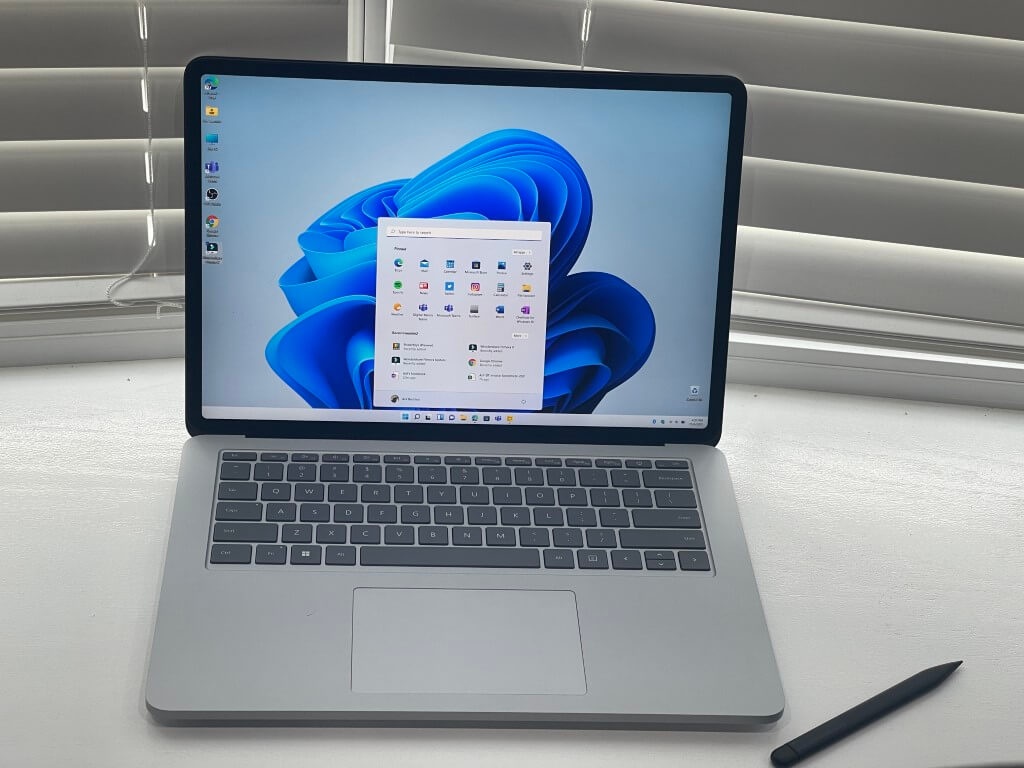
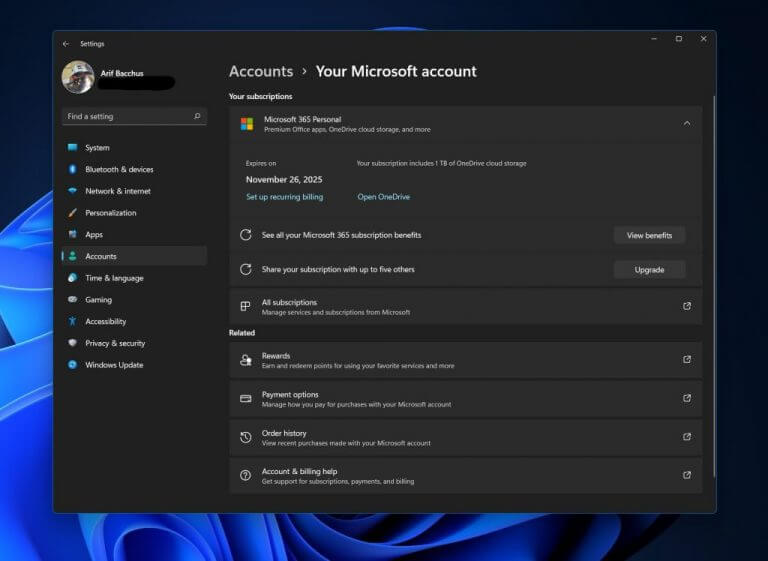
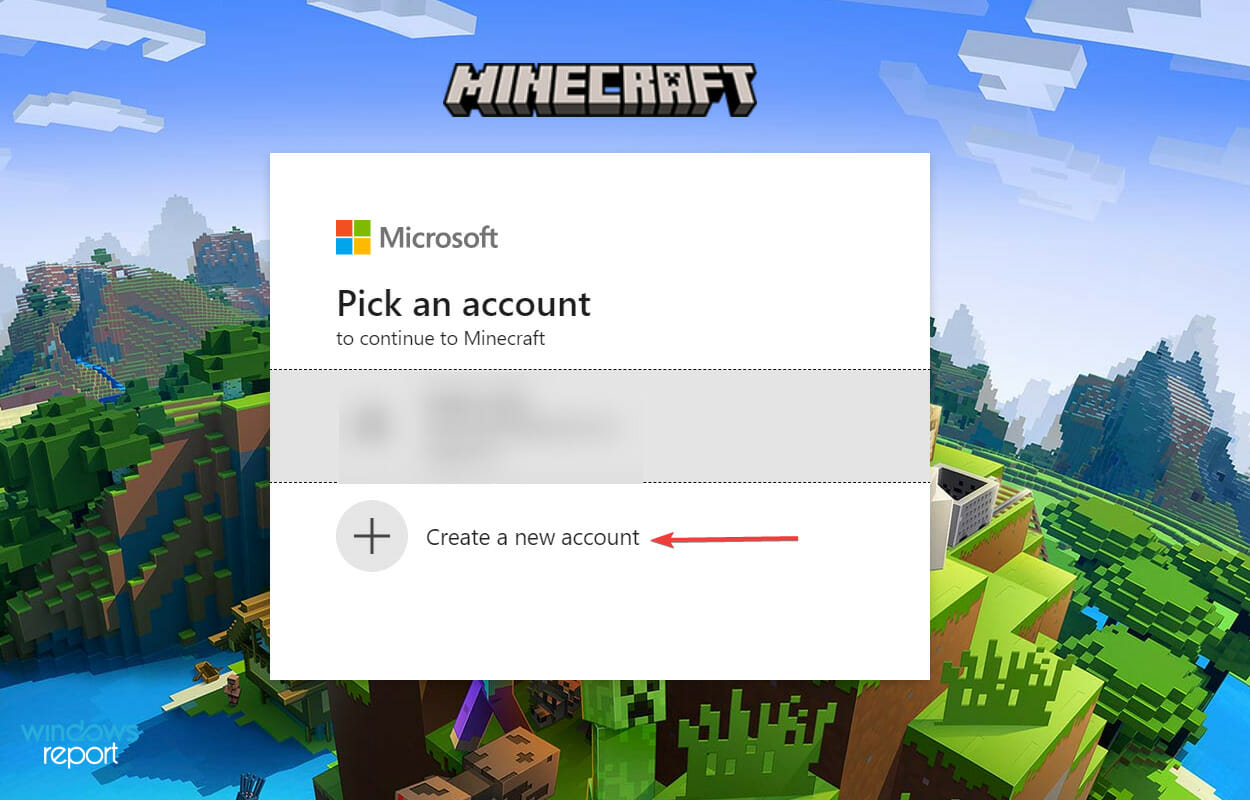
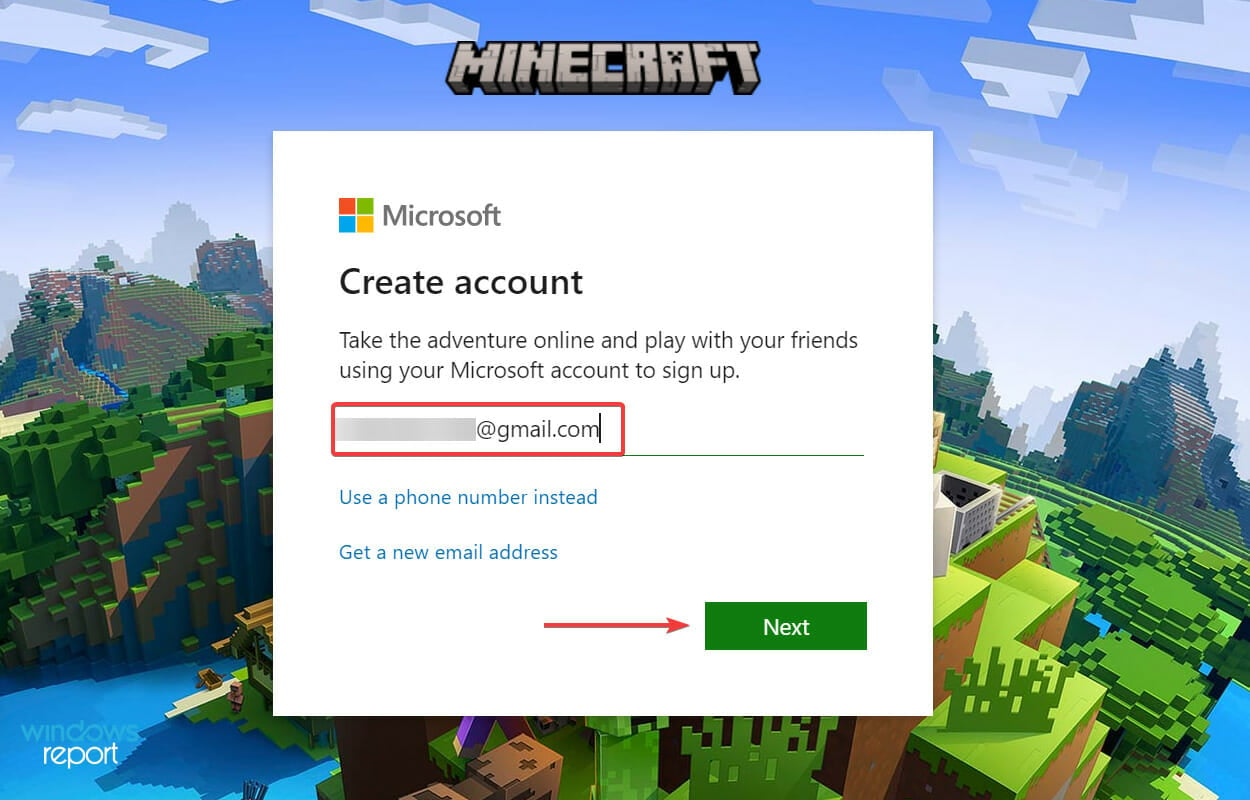
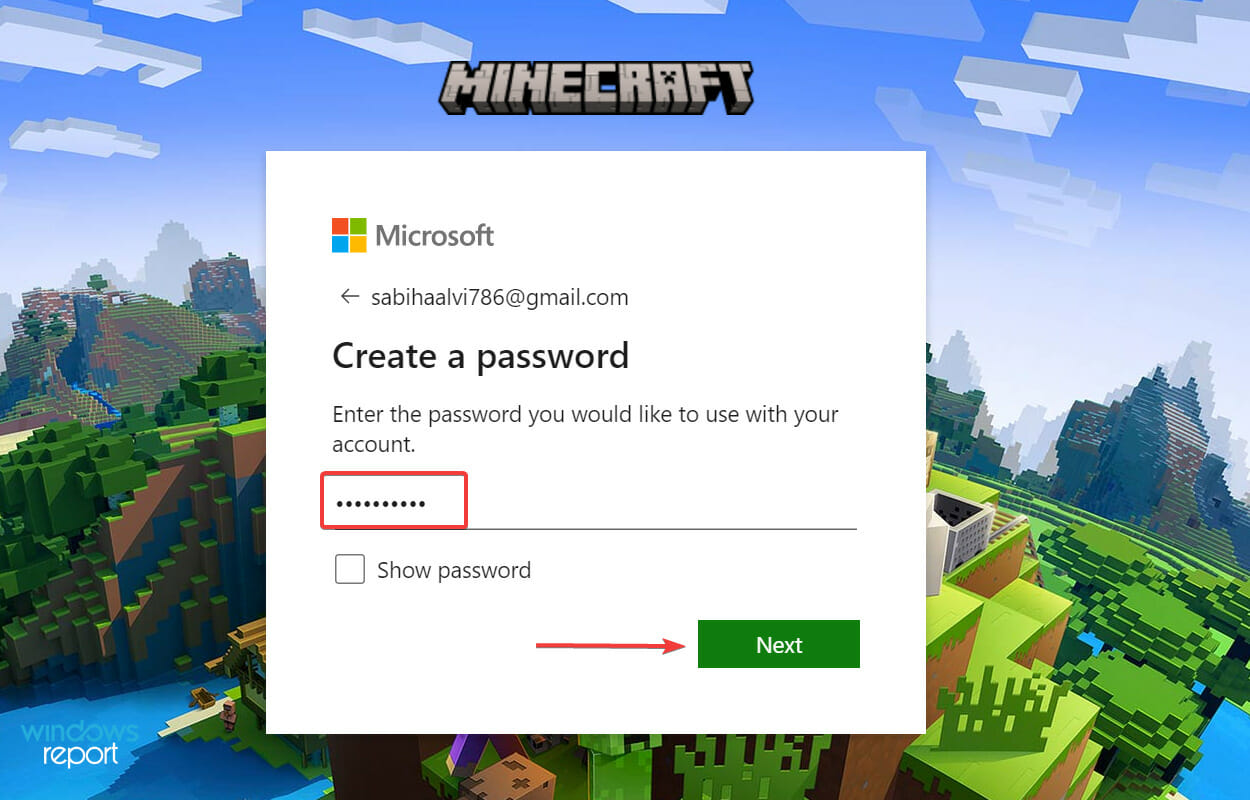
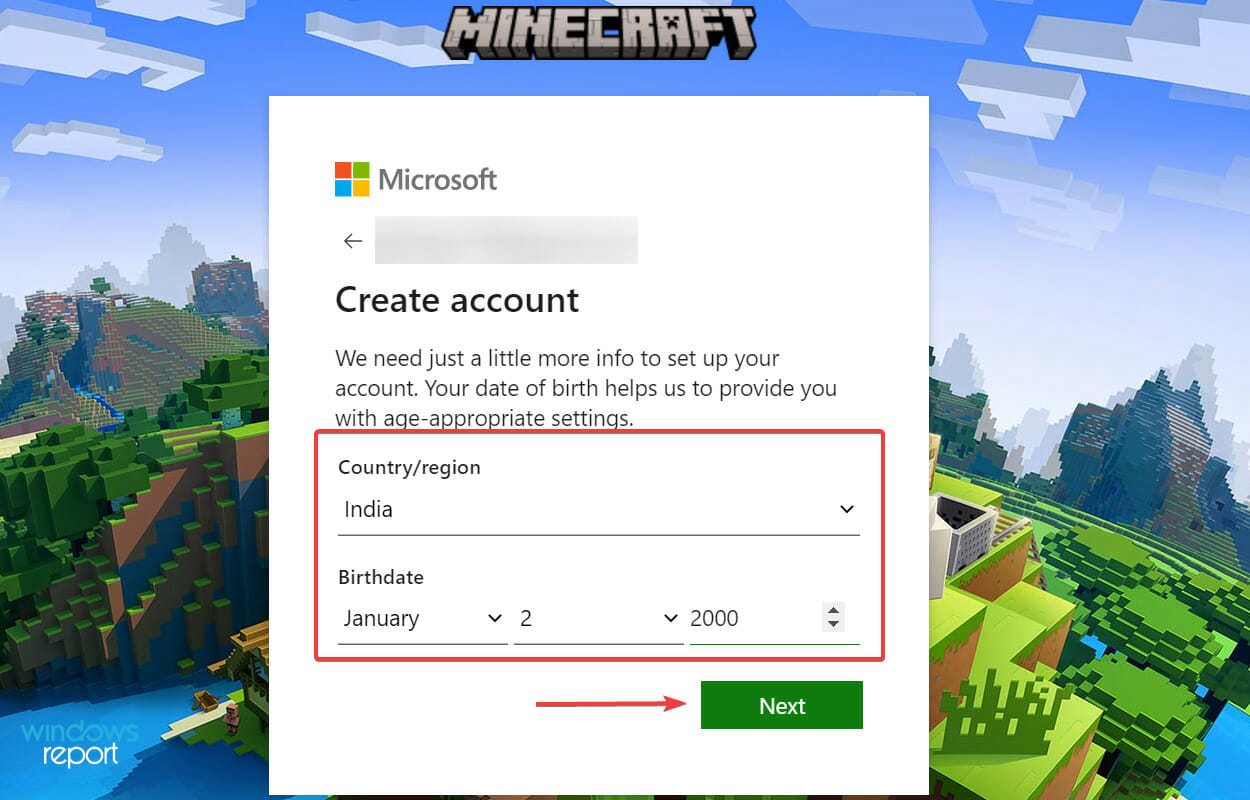
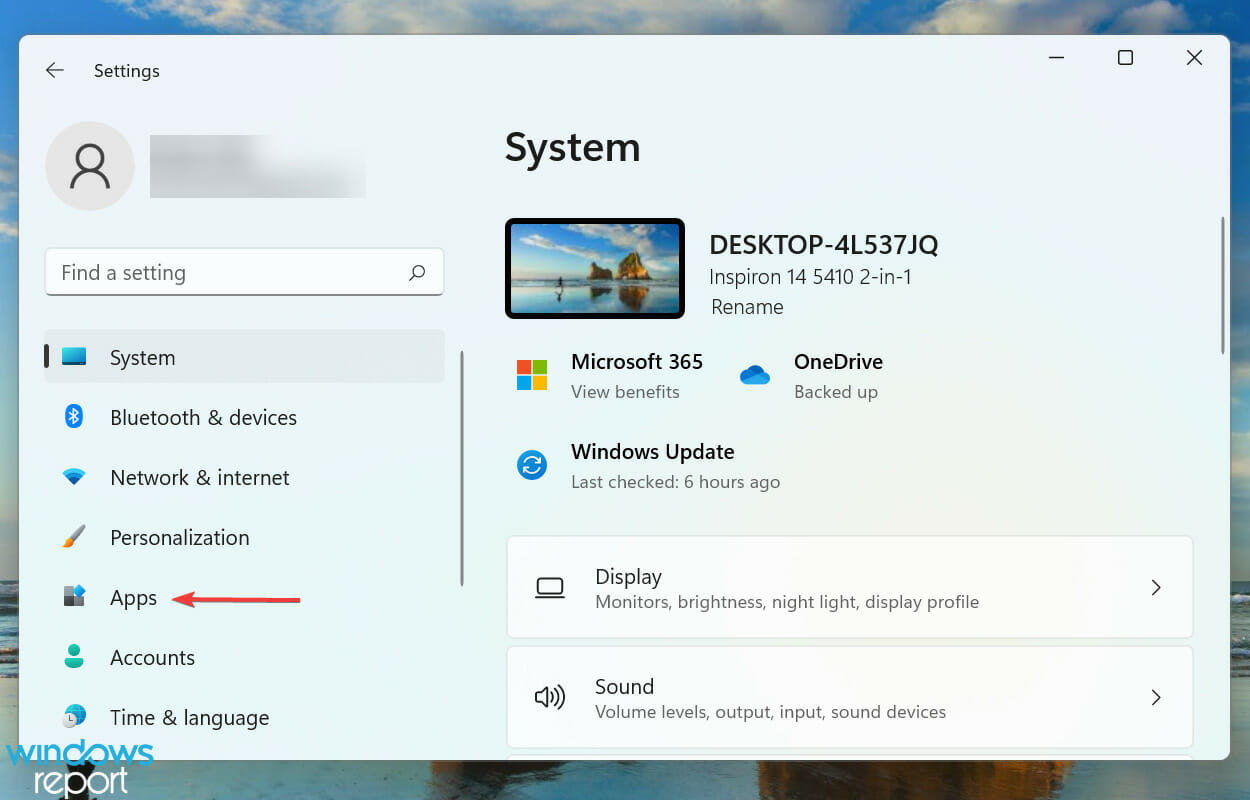
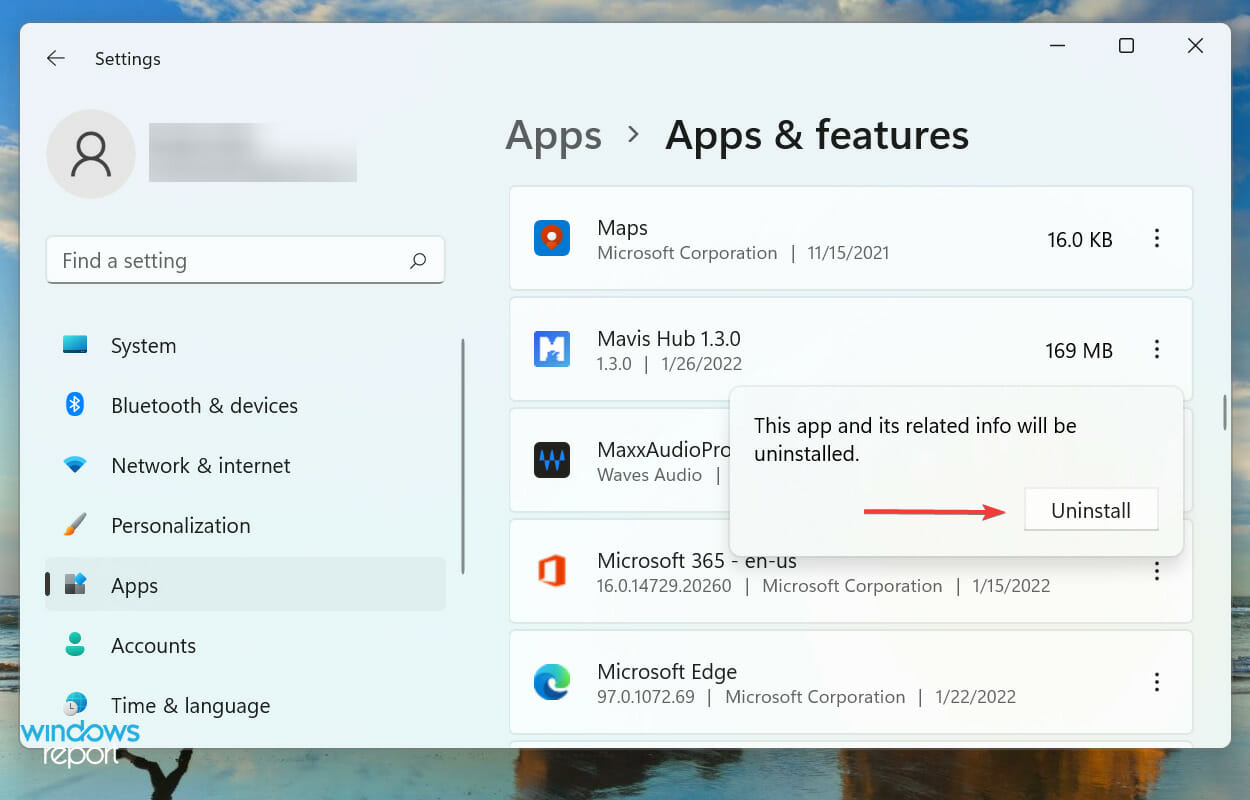
If you installed January’s KB5008353 optional preview update for Windows 11, then you’re getting a new feature that should make managing accounts easier. As many have pointed out, the update adds a new Microsoft Account panel to the Settings app, to put you in control of your subscriptions.

The new Microsoft Account settings panel doesn’t add too many additional controls, but it does help make keeping an eye on your Microsoft 365 subscriptions easier. Previously, you had to click a link that would take you out to your web browser to manage Microsoft 365. Now, with the update, you can see when your subscription expires, and how much space is being shared across your OneDrive.

Windows 11

There are also links to see more about Microsoft 365, when your next charges will be, and what benefits are covered under your account. Of course, there are links out to manage Microsoft Rewards, Payment options, order history, and even get account support. These all link you out to the Microsoft Account online experience.

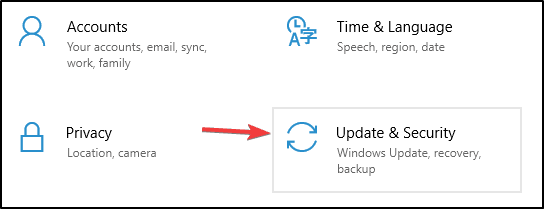
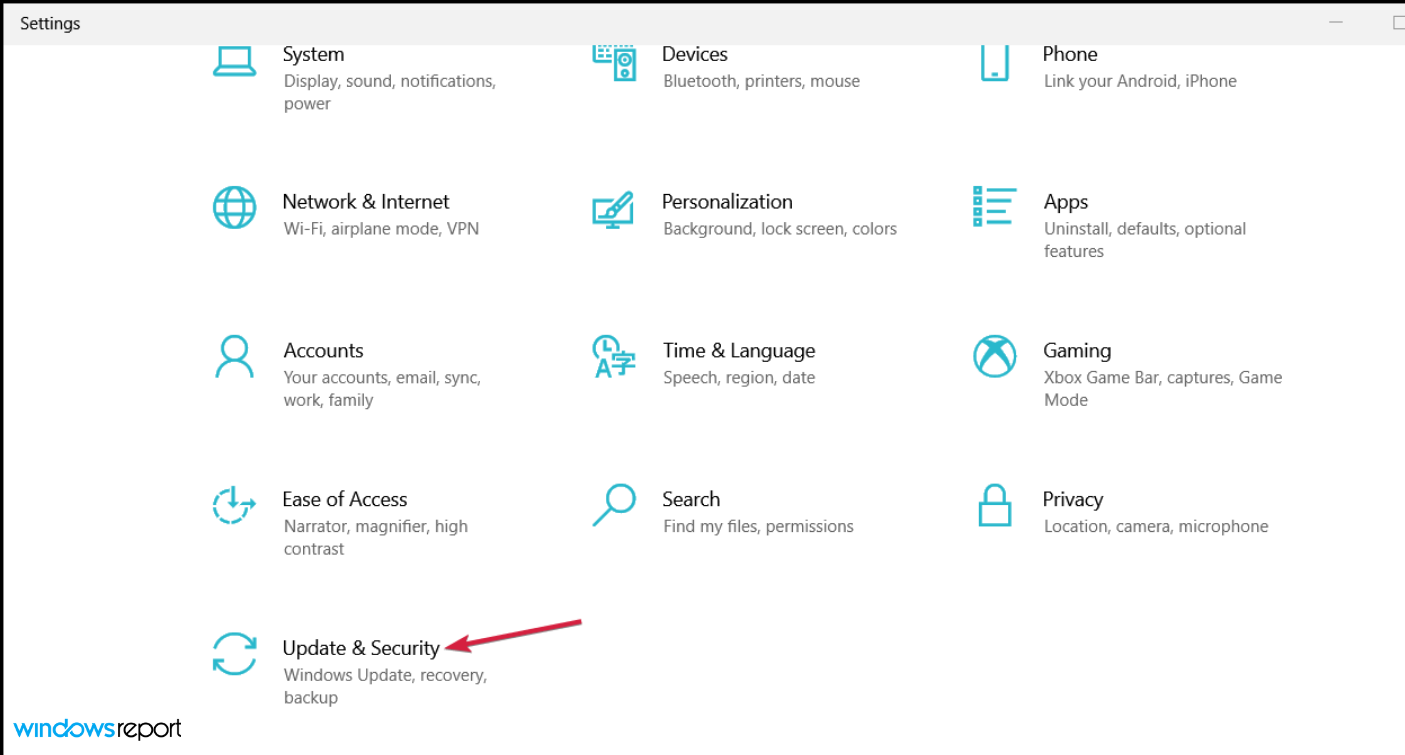
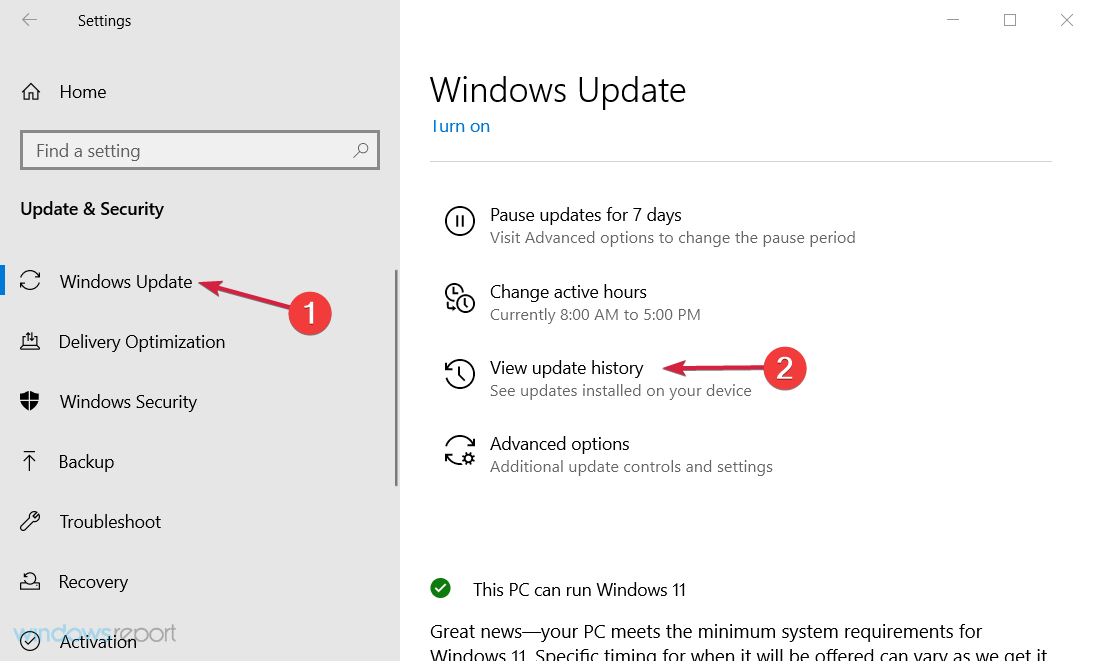
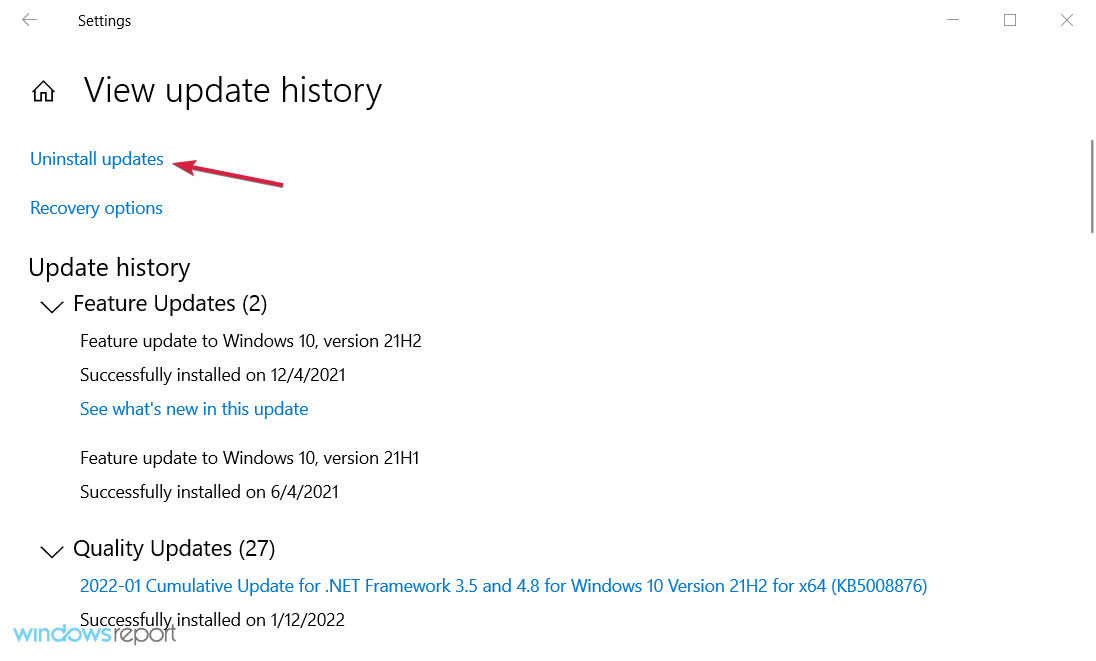
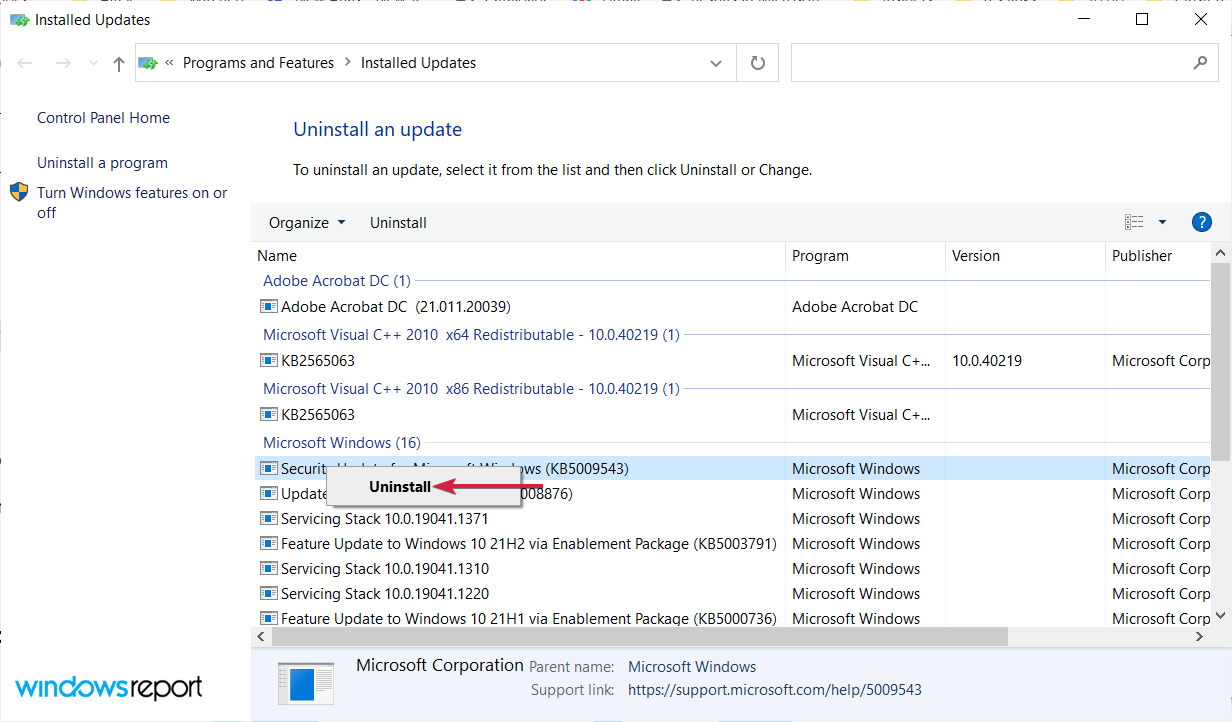
Other than this new Microsoft Account page, this optional update addresses the issue where image editing programs might not properly render colors correctly on certain high dynamic range (HDR) displays. You can see the full changelog over on Microsoft’s website. And, you can go to Settings > Update & Security > Windows Update to check for it. In the Optional updates available area, you’ll find the link to download and install the update.

Customize the Lock Screen on Windows 11 [2 Quick Ways]

When it comes to the lock screen, you may customize it by going to the Windows Settings panel and selecting the Personalisation option. You can customize the settings to meet your own needs even though the choices are limited.

There are also other ways to customize the interface, which we’ll present to you right after we show you what’s new in Windows 11 regarding this feature alone.

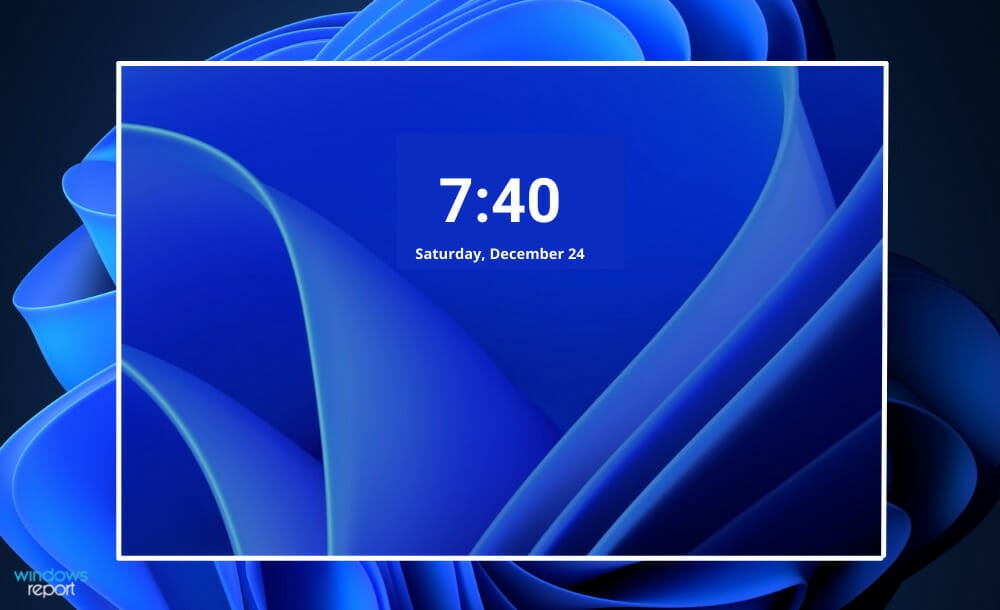
The operating system includes an uncluttered lock screen with only the bare minimum of information, similar to its previous iteration. In addition to a backdrop wallpaper, a clock, and the current date, it also displays other crucial details.

Note that the best part is that the background of the lock screen can be customized to meet your specific needs, and the status may be changed, among other things, as needed.

Consequently, if you are looking for an alternative, this article may be of assistance to you. Follow along!

What’s new with the lock screen in Windows 11?

Windows 11 includes an improved lock screen version, which preserves the familiar look and feel of the classic experience available in Windows 10 but with some new visual changes and iconography to reflect the new design language introduced in the operating system.

The information displayed on the screen has perhaps seen the most profound transformation. On Windows 10, the time and date were displayed in the screen’s bottom-left corner.

However, on mobile devices, the time and date are displayed centered at the top of it, with a bold typeface.

lock screen customize lock screen windows 11

The first time you sign in to Windows 11, a new background image will be displayed that is comparable to the default wallpaper on the desktop.

The Sign-in screen appears when you click or swipe up from the bottom of the screen, and it is nearly identical to the one seen on Windows 10, with a few minor design differences.

Examples include the addition of rounded corners and a solid underline to the box where you type your password or PIN.

The settings for the lock screen remain the same, with the background image being refreshed every time the machine is restarted by default (using Windows spotlight), but you may always choose to display a custom image or slideshow.

You can continue to display the statuses of several apps, such as the weather, mail, and calendar if you choose. In addition, you can disable the lock screen background for the Sign-in screen, allowing a solid color background to be displayed instead.

How can I customize the lock screen in Windows 11?

1. Access Settings

  1. Press the Windows key + I to open the Settings app, and navigate to Personalisation in the left panel followed by Lock screen from the right side.pers-lock customize lock screen windows 11
  2. Now expand the Personalise your lock screen section and choose Windows spotlight, Picture, or Slideshow depending on what you wish to display. More options will appear once you choose one of those options.spotlight-choice customize lock screen windows 11
  3. Next, expand the Lock screen status section and choose which app you want to be shown in detail.screen-status customize lock screen windows 11
  4. Lastly, toggle the Show the lock screen background picture on the sign-in screen button to turn it on or off as you wish.toggle-lockscreen customize lock screen windows 11

If you choose the Picture option, you will be able to choose an image from a predefined list or from your computer’s hard drive. This can be accomplished by selecting an image you like from the Browse photographs option.

On the other hand, you can also toggle on or off fun facts, tips, and tricks, from being shown on the lock screen. For that, remove the tick from the Get fun facts, tips, tricks, and more on your lock screen checkbox.

2. Right-click on Desktop

  1. Another way to access the personalisation panel is to right-click anywhere on your Desktop, then choose Personalise.desktop-pers customize lock screen windows 11
  2. From here you can follow the same steps from the first solution, the interface being exactly the same one.pers-same customize lock screen windows 11

What is the purpose of a lock screen?

Lock screens are a type of security feature that can be used on a computer, smartphone, or tablet that helps prevent unwanted access to the device. It’s an interface with a start-up view, as the name implies. When a device is locked, the apps that can be run on it are severely restricted.

Unwanted users’ data can be saved with the help of a locked unit. Anyone seeking to access the system is required to complete a certain activity or series of actions in order for the system to be considered secure.

When a computer is locked and the password is entered, the only thing that is available is the correct password or biometrics. There are several icons on your computer’s desktop, including the home screen and program icons, thus if you open a window, you can utilize the window for no charge.

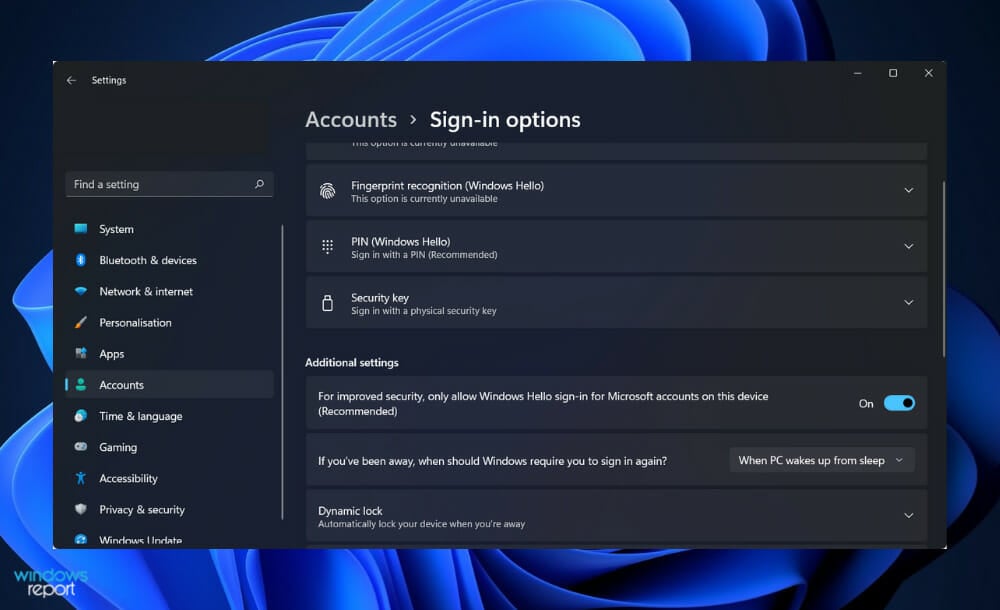
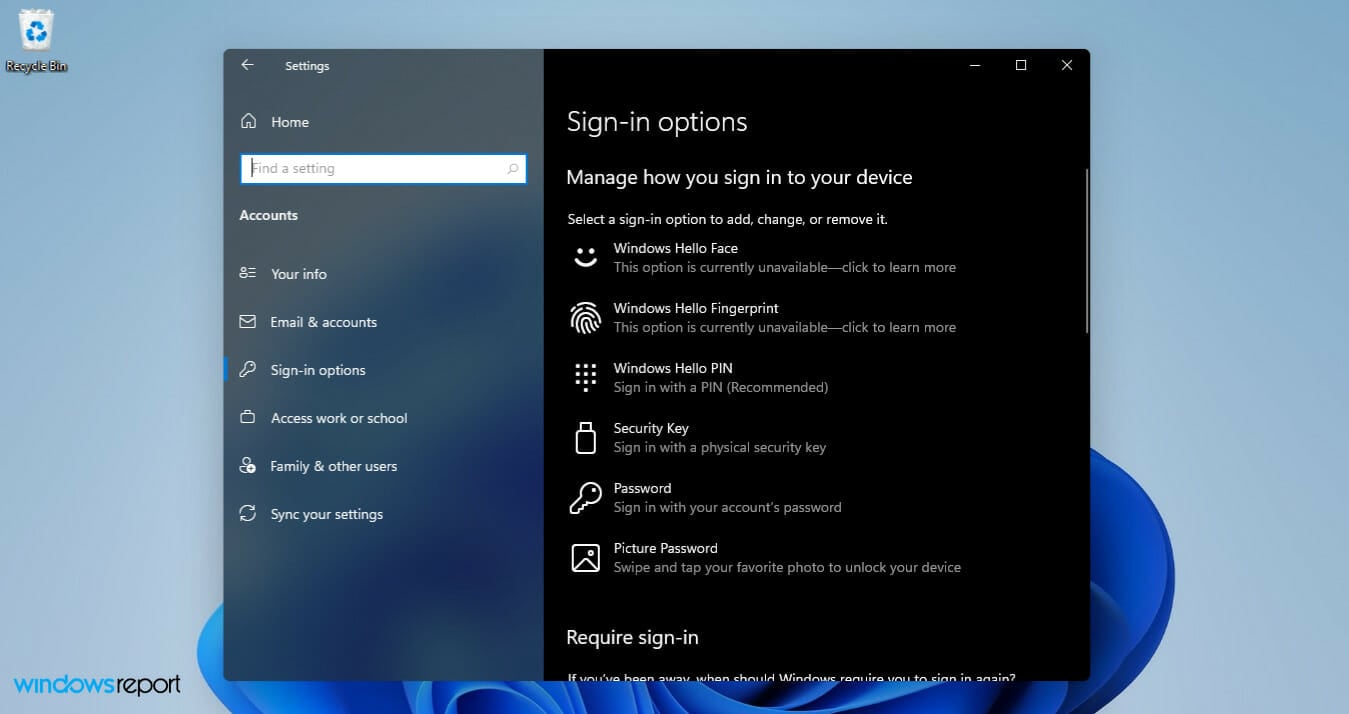
sign in options customize lock screen windows 11

The user’s password or passphrase must be typed, the biometric reader must be accessible, or the computer must be unlocked by making a certain motion or gesture on the screen, which scans the user’s eyes or analyses its fingerprint, among other things.

Microsoft Surface and other hybrid tablets or laptop computers have become increasingly popular, and Windows has moved closer and closer to the locking displays that we are familiar with on our laptops and smartphones.

Its functionality does not compare to that of a tablet, but it will display a snapshot of information, such as the number of unread emails we have waiting for us, in addition to keeping unpleasant visitors out of a computer. In most cases, the Windows lock screen requires a password to be unlocked.

The question of whether or not it should be protected by a security scan or require a password to be entered on your computer cannot be answered categorically.

Even though many of us are adept at logging out of our home computers without performing this verification, it is important to remember that everyone can quickly log into many important websites, such as Facebook, simply because the account information is always saved in our browsers.

Following the above, we recommend that you take a look at our article on how to change the password in Windows 11 to ensure your privacy. And don’t hesitate to also change Windows lock screen language in just a few quick steps.

Alternatively, if you encounter issues with your lock screen Spotlight feature, don’t miss out on the linked post which details how you can fix it.

And lastly, in the case that the error didn’t go away, we have prepared for you a guide on how to fix various lock screen problems in Windows 11. Make sure to check it out!

Before we go, don’t miss our guide on how to customize File Explorer in Windows 11.

Let us know in the comments section below whether you found the above article helpful or not. Thanks for reading!


Valkyria Chronicles 4 and For Honor are free to play on Xbox consoles right now

For Honor and Valkyria Chronicles 4 are both now playable in full for free for all Xbox console owners with an active Xbox Live Gold subscription.

Each game can be played on either of Microsoft’s Xbox One or Xbox Series X console families until the end of Sunday at 11:59 PM PST with all progress being saved to the cloud for future access should the game ever be bought in full or unlocked during another free play campaign.

To encourage players to buy Valkyria Chronicles 4 and For Honor, both games have had their prices reduced for a limited time.

The Standard Edition of Valkyria Chronicles 4 has had its price slashed by 60% while its Complete Edition is now 70% cheaper than usual.

The Standard Edition of For Honor has been given a massive 85% discount which brings its price all the way down to just $4.50. The Marching Fire Edition and Complete Edition have each been given 75% discounts.

Are you planning on playing Valkyria Chronicles 4 or For Honor on your Xbox console this weekend? Let us know which one in the comments below and then follow us on Twitter and Facebook for more Xbox news.

FOR HONOR - Standard Edition
Developer:
Ubisoft
Price:
Free


Valkyria Chronicles 4
Developer:
SEGA
Price:
$5.99

Is Microsoft Teams still supporting 365 accounts on Windows 11?

Teams bring together people, conversations, and content to help teams be more productive. It offers a chat-based workspace, modern meetings, and calling, alongside shared notebooks to keep everyone on the same page and a Files tab to store all your documents in one place.

Whereas Microsoft has made headway over the past year with the Teams app with numerous updates and new improved features such as automatic music detection and noise suppression, it now seems that the app no longer supports 365 accounts.

It seems like it is not a problem with Teams per se but that business accounts are not supported. Whether it is because there’s no dedicated “business” client or because Microsoft is treating business users as individuals that use their personal accounts.

Work or school version

Microsoft Teams on Windows 11 is the future of workplace collaboration, and it’s likely to become a central component in how many businesses operate. By providing a single, unified workspace for all your team to communicate, Microsoft Teams is designed to make it easier for teams to work together.

Users gathered on a Reddit thread as they were somewhat confused when they could no longer access the application.

While there is only one Android app for teams, it supports both personal and work accounts.

The Teams Admin was prompt to respond and clarified the confusion. The version you need depends on the kind of school or business you’re involved in. The personal/home version is not intended to be used with educational institutions, so you will have to install the work/school version if your school uses it.

This is only a temporary situation as Microsoft plans to unify both sometime later.

Tell us what you think of the distinction between Teams personal and work accounts in the comment section below.

Opera Gaming Browser makes its way to the Epic Games Store

Epic Games announced today that the Opera browser will soon have an Epic Games Store dedicated Opera GX browser as part of a new partnership.

This news comes as the Epic Games Store app is also now integrated into Opera’s mobile browser, and players can use the store to buy titles on both PC and mobile.

The market for gaming is going to continue growing. However, it’s not just about the games. If you use an app like Discord to play with your friends, then that is something that needs support and Opera understands this fully.

Key features

One of the key features of Opera GX, which has led to its popularity, is that it allows you to easily play games from your favorite sites and stream them on Twitch. As both a store and a browser, Opera is already home to a large community of gamers.

GX is a simple and fun way to browse the web while playing games. It’s designed with gamers in mind, featuring features like RAM and CPU usage limiters, which optimize your gaming experience by prioritizing the most important processes, effectively reducing lag.

In addition, GX comes with a sleek and customizable interface to match your gaming style. It also supports RGB lighting effects on Razer Chroma and Corsair RGB peripherals, so you can make your browser as unique as you are.

Opera says that it wants to give gamers more choice when they play their favorites games and do other things online, essentially making competition between the Epic Games Store and Steam more intense. 

Opera users will also get access to GX Corner, a new feature within the store that surfaces GAMES content such as game releases, publisher news, and more. GX Corner currently has a game release calendar, notifications for games on sale, and links to further information about games. 

More variety in stores

The Epic Games Store is a great addition to the Opera GX portfolio. The Epic Games Store has already become a great place for PC gamers to purchase games. It has opened up new opportunities for developers to reach customers on multiple platforms.

If you’re an online gamer, it means your favorite titles are now available to buy on one convenient storefront. And if you’re a developer or publisher, it means your content is now in front of even more players.

Opera GX is already available for download on the Epic Games Store via this link.

What games are you hoping to see now with the integration of Opera and Epic Games Store? Let us know your thoughts in the comment section below.

Attackers are exploiting Office 365 credentials to access organizations’ networks

Hackers are attempting a new method of widening the scope of their phishing campaigns by using stolen Office 365 credentials to register Windows devices with Azure Active Directory.

If attackers are able to access an organization, they will launch a second wave of the campaign, which consists of sending more phishing emails to targets outside the organization as well as within.

Target areas

The Microsoft 365 Threat Intelligence Team has been tracking a malware campaign targeting organizations in Australia and Southeast Asia.

To get their targets’ information, the attackers sent out phishing emails that looked like they were from DocuSign. When users clicked on the Review Document button, they were taken to a fake login page for Office 365, already pre-filled with their usernames

“The victim’s stolen credentials were immediately used to establish a connection with Exchange Online PowerShell, most likely using an automated script as part of a phishing kit. Leveraging the Remote PowerShell connection, the attacker implemented an inbox rule via the New-InboxRule cmdlet that deleted certain messages based on keywords in the subject or body of the email message,” the intelligence team highlighted.

The filter automatically deletes messages containing certain words related to spam, phishing, junk, hacking, and password security, so the legitimate account user will not receive non-delivery reports and IT notification emails they might otherwise have seen.

The attackers then installed Microsoft Outlook on their own machine and connected it to the victim organization’s Azure Active Directory, possibly by accepting the prompt to register Outlook when it was first launched.

Finally, once the machine became part of the domain and the mail client was configured like any other regular use within the organizations, the phishing emails from the compromised account fake Sharepoint invitations pointing again to a fake Office 365 login page became more persuasive.

“Victims that entered their credentials on the second stage phishing site were similarly connected with Exchange Online PowerShell, and almost immediately had a rule created to delete emails in their respective inboxes. The rule had identical characteristics to the one created during the campaign’s first stage of the attack,” the team indicated.

How to bypass

The attackers relied on stolen credentials; however, several users had multifactor authentication (MFA) enabled, preventing the theft from occurring.

Organizations should enable multifactor authentication for all users and require it when joining devices to Azure AD, as well as consider disabling Exchange Online PowerShell for end users, the team advised.

Microsoft also shared threat hunting queries to help organizations check whether their users have been compromised via this campaign and advised that defenders must also revoke active sessions and tokens associated with compromised accounts, delete mailbox rules created by the attackers, and disable and remove malicious devices joined to the Azure AD.

“The continuous improvement of visibility and protections on managed devices has forced attackers to explore alternative avenues. While in this case device registration was used for further phishing attacks, leveraging device registration is on the rise as other use cases have been observed. Moreover, the immediate availability of pen-testing tools, designed to facilitate this technique, will only expand its usage across other actors in the future,” the team advised.

Loopholes to lookout for

Microsoft’s threat intelligence analysts recently flagged a phishing campaign that targeted hundreds of businesses, this one an attempt to trick employees into granting an app named “Upgrade” access to their Office 365 accounts.

“The phishing messages mislead users into granting the app permissions that could allow attackers to create inbox rules, read and write emails and calendar items, and read contacts. Microsoft has deactivated the app in Azure AD and has notified affected customers,” they indicated.

Attackers can also bypass Office 365 Multi-Factor Authentication by using rogue applications, stealing authorization codes, or otherwise obtaining access tokens rather than their credentials.

Have you fallen victim to these attacks by hackers before? Share your experience with us in the comment section below. 

Battlefield 2042 just dropped from the top 50 most-played Xbox games

The Battlefield franchise has been a mainstay of the Xbox Live charts for years but it seems the luck is changing if the latest reports are anything to go by. 

When the official date and game requirements were announced, things seemed to be moving swiftly in the right direction.

However, the recent release of Battlefield 2042 has not only been a disappointment for fans of the Battlefield franchise but it’s also brought down the series’ ranking in the top 50 played games on Xbox Live.

The game suffered from technical issues at launch, including rampant crashes and memory leaks. The game also featured a revamped progression system that turned off many fans of the classic Battlefield experience.

Drop from the top

Battlefield 2042 is not in the top 50 most-played games on the system, despite releasing just about three months ago. Battlefield 2042 has been on a downward trend for months, with many users complaining about bugs, glitches and boring gameplay.

This is pretty surprising, considering that Battlefield 2042 was once the most played Xbox game on Steam. Now, Battlefield 5 seems to be progressing at a faster rate leaving Battlefield 2042 behind.

In fact, according to data from Steam Charts, Battlefield 5 is now more popular than Battlefield 2042 on PC.  Server issues aren’t the whole story here, though. The game’s retention numbers are also low, with about half of all players who try the game giving up after just one match.

A fall from grace

Battlefield 2042 is no longer being played by many people and has fallen off a major leaderboard that tracks the most popular multiplayer games on the Xbox One. The slip from charts is not a good sign as reports also indicate the numbers on Steam are also not doing so well.

This isn’t a good sign for the game’s future, because if there aren’t that many people playing it, then it’s probably on its way towards going free-to-play.

A quick glance at the top 50 most-played games on Xbox includes; Halo Infinite, Apex Legends, Grand Theft Auto 5, Call of Duty: Modern Warfare, and Fortnite, with the number 50 slot going to Call of Duty: Black Ops 3.

Free or not, problems are still there

EA hasn’t made any official announcements about Battlefield 2042 going free-to-play, but this move would make a lot of sense for them.

If Battlefield 2042 is going to make a comeback, it’s going to need to do more than just make its premium content free – it will need to overhaul the game’s core mechanics.

EA has been under a lot of pressure recently due to the loot box debacle and some other decisions that upset their customers. This is mostly because the last Battlefield game did not meet expectations within the company.

Do you think there is anything that can be done to salvage Battlefield 2042 dwindling fame among gamers? Share your thoughts in the comment section below.

Changes effected on Xbox subscription auto-renewal policy after deliberations between CMA and Microsoft

Microsoft has altered its practices in how it handles the automatic renewal of contracts for online gaming services.

The company offers the Xbox Live Gold and Game Pass products, which allow customers to access a library of games and play together online.

Memberships are billed on an automatic renewal basis. If you do not cancel your membership, your credit/debit card will be charged at the end of your initial contract period unless you contact them to cancel your membership.

As part of an investigation into the online console video gaming sector, the UK’s Competition and Markets Authority issued a statement regarding its concerns with Microsoft’s auto-renewing subscriptions. The concern was that consumers did not fully understand the implications of signing up for this service.

Agreeable terms

The CMA has secured undertakings from Microsoft which address these concerns. The new terms include:

  • Better upfront information: Microsoft will provide more transparent, upfront information to help customers understand their Xbox membership – making clear, for example, that the subscription will auto-renew unless the customer turns off auto-renewal; when the subscription will auto-renew; how much it will cost; and how the customer can receive a refund after an accidental renewal
  • Refunds: Microsoft will contact existing customers on recurring 12-month contracts and give them the option to end their contract and claim a pro-rata refund
  • Inactive memberships: Microsoft will also contact existing customers who haven’t used their memberships for a long time but are still paying. These customers will be reminded how to stop payments, and if they continue not to use their memberships, Microsoft will ultimately stop taking further payments
  • Better information about price increases: Microsoft will give clearer notifications of any future price rises, and will ensure people know how to turn off auto-renewal if they don’t want to pay the higher price.

Here’s what Michael Grenfell, the Executive Director of Enforcement had to say at the CMA:

“Gamers need to be given clear and timely information to make informed choices when signing up for auto-renewing memberships and subscriptions. We are therefore pleased that Microsoft has given the CMA these formal undertakings to improve the fairness of their practices and protect consumers, and will be offering refunds to certain customers.“

“Other companies offering memberships and subscriptions that auto-renew should take note, and review their practices to ensure they comply with consumer protection law.”

What are your thoughts on the new auto-renewal policies in place? Let us know in the comment section below.  

Windows 11 Might Not Be A Free Upgrade For Long As The Offer Could End Mid-2023

Almost four months have now passed since the Redmond-based tech giant officially launched its brand new, state-of-the-art operating system.

Ever since the beginning, the latest OS has been offered to all users as a free upgrade, provided their rigs met the rigorous system requirements.

Months went by and Windows 11 went from being ultra-buggy to being more stable and having lots of integrations available, or in the works.

And although not that many users have actually upgraded from Windows 10, you might like to know that Windows 11’s adoption rate is twice that of his predecessor.

But it seems that Microsoft is planning to put a stop to the current free upgrade situation soon, leaving the users that haven’t already upgraded to purchase it.

Free upgrades to Windows 11 could end by mid 2022

Although this is not yet official information, the speculations that Microsoft may end the free upgrade offer come from something Panos Panay, chief product officer for Windows and devices, actually said.

He inadvertently suggested that this free upgrade offer could end before the summer of 2022, in a recent Microsoft blog post.

Today, we’re excited to share that the upgrade offer to Windows 11 is beginning to enter its final phase of availability putting us ahead of our initial plan of mid-2022.

This statement also included a footnote indicating that it applies to devices that have a Microsoft Account (an MSA for Home edition) and have eligible releases and compatibility.

Even though we can’t know for sure if that’s what he intended to announce, it could actually mean that Microsoft is considering ending the free upgrade offer for Windows 10 Home users.

However, there’s no reason to be alarmed, even if you were planning to upgrade from Windows 10 to Windows 11 later this year.

Even if the context suggests that the free availability for Windows 11 could end by mid-2022, information available on the official Microsoft upgrade page suggests otherwise.

Under the FAQ section at the bottom of the web page, there is an answer, provided by the tech giant, which sheds more light on this matter.

Redmond officials stated that the free upgrade offer does not have a specific end date for eligible systems, but, Microsoft reserves the right to eventually end support for the free offer.

It is also mentioned that this will not happen sooner than the 5th of October, which will mark a year since the operating system has been officially launched.

But, knowing Microsoft, anything can happen, so betting money on something they said could prove to be more of a risky gamble.

We’ll just have to wait and see what the tech company has planned for its latest OS, and how many users have managed to upgrade until the free offer expires, whenever that is.

And if it does, it will be interesting to see what price tag Microsoft will put on it. Have you already upgraded from Windows 10 to Windows 11?

Share your experience with us in the comments section below.

6 Best NFT Xbox Games To Try Out

NFT technology has landed on video games not too long ago. There are games on your smartphone, PC, or even consoles that use this technology.

Since the beginning of BlockChain technology, we have got the cryptocurrency and later NFT, however, there’s a difference between the two.

In recent years, many titles have incorporated this, and in today’s guide, we’re going to show you the best NFT Xbox games that you can get.

How does NFT works in gaming?

These types of games are like any regular one we play every day, but they have NFTs in their mechanisms and rules. Such mechanisms differ and it’s up to developers how will they implement this feature.

You can think about those where you earn different digital items and achievements based on your performance. In both regular and NFT games, you can sell these digital items on the marketplace.

However, each of these items will be unique and there won’t be any equivalent items. As a result, there is a high chance to get a decent amount by selling the items. This is a common difference between regular and NFT games.

Also, your character, avatar, weapon stickers, etc., can be unique. In some cases, there may be an in-game mining system where players will earn cryptos and can purchase different unique items to boost performance.

Mainly, NFT games work in two models; play-to-earn and pay-to-earn. You can start with play-to-earn games with or without paying/investing anything. While playing, you will earn native currencies or other digital items.

On the other hand, they don’t allow you to enjoy the game unless they invest something in it. Each of these models may work differently, as you’ll see by yourself.

What are the best NFT Xbox games to get?

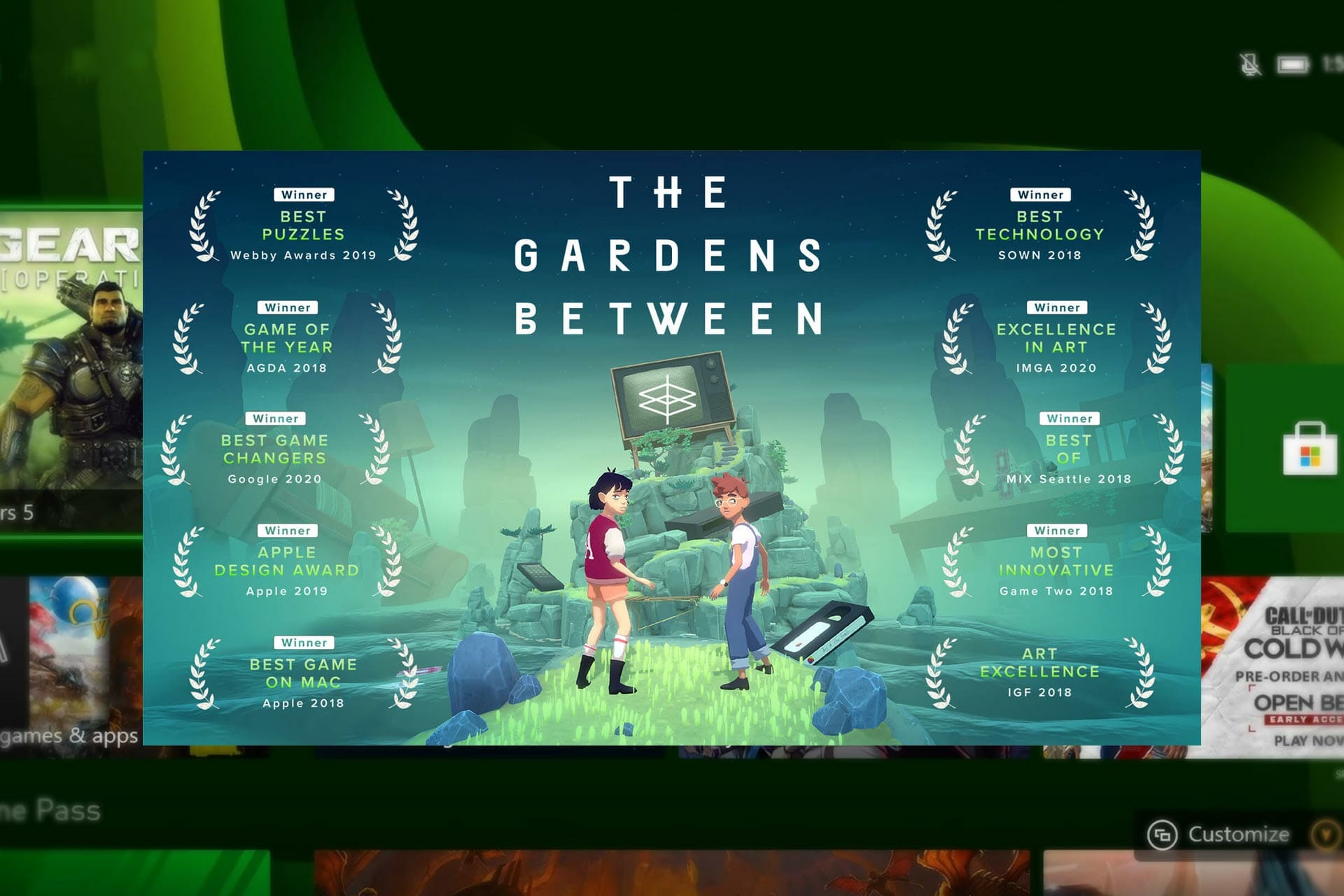
The Gardens Between

the gardens between

If you are a big fan of puzzle adventure titles, there is no better title than The Gardens Between as an NFT game for Xbox. With artistic low poly graphics, this single-player game can attract those who have a deep interest in this type of genre.

The Voxel Agents is behind the development and publishing of The Gardens Between, and they are one of the first developers who introduced NFT in their mechanisms. Right now, this popular title is available on many other platforms, along with Xbox.

You will have to help your friend to solve some interesting puzzles. For this, you’ll need to manipulate time in the correct way. After completing each particular task/level, you will earn NFT achievements.

⇒ Get The Gardens Between

Stormrite

stormrite

The Stormrite is an open-world RPG NFT game developed by Kelechi Apakama, and it’s available on Xbox, Steam, and other platforms. If you want a high-end video option where blockchain technology is used, Stormrite is the best choice.

It is story-based, where a player can explore the world of Stormrite, reveal the secrets, twisted history of the kingdom, and fight the enemies.

Stormrite has multiple endings like we usually see on modern RPG games. NFT items are available too and you can purchase them using Enjin’s platform and redeem them in Stormrite.

You may also sell digital items in Enjin’s marketplace, where you can make a profit, get your money back, or even lose some money.

⇒ Get Stormrite

22 Racing Series

Are you a racing game fan? The 22 Racing Series developed by GOATi Entertainment is probably the best NFT game you can play. It is available on multiple platforms, including Xbox, PlayStation, and Steam.

22 Racing Series is an RTS racing title where you will need to apply real-time strategy to win while doing high-speed racing. You can play it with enjoyment because of its simple graphics on your Xbox as well as a low-end budget gaming PC.

This is an extreme example of a game that uses blockchain technology. There are various digital items available and a player can get an NFT car each month if they are lucky enough.

Except for this, you can explore many other exciting things once you start playing it.

⇒ Get 22 Racing Series

ChainMonsters

Chainmonsters

ChainMonsters is another excellent NFT Xbox game. It’s an online RPG multiplayer one developed by B-Side Games where the player will have to explore the map, find various items, catch monsters and do battle.

There is a huge list of unique monsters and the gameplay can be more fun than you expect because of story-based campaigns.

The player can earn resources, upgrade their monsters, modify them, and turn them into digital items for sale. Some of the resources like gemstones, flowers, or any other rare items that you often find on the map can be NFT. You can also earn items rewards based on performance.

⇒ Get ChainMonsters

HeroCatGamefi

HeroCatGamefi

The HeroCatGamefi is an NFT game available on multiple platforms, including the Xbox. It’s a Metaverse where a player can use Hero Cat to fight battles.

You can say it’s a play-to-earn NFT+DEFI mining game. You may easily earn crypto by playing or spending time in the game. There are a lot of rewards and items, including the mining pet that everyone talks about.

The mining pet is an important part to take into consideration. Every player can purchase just one mining pet. Over time, it will mine HCT (Hero Cat Tokens) that you can use to buy items, including Hero Cats.

⇒ Get HeroCatGamefi

Alpha Kombat

Alpha Kombat

Alpha Kombat is a play-and-earn NFT game available on Xbox and some other platforms. The gameplay is similar to Capcom’s legendary Street Fighter. But, It is a global blockchain tournament game where you can get NFT rewards.

This may not be as enjoyable as Street Fighter, but it unlocks the ability to earn money by just playing. The developer claims that Alpha Kombat can be a good source of passive income for those who are passionate.

⇒ Get Alpha Kombat

Can play-to-earn games be a money machine for me?

The term money machine is a bit inappropriate here. Of course, you can earn a lot from play-to-earn games. But, there is no guarantee that you can make money by just playing this type.

Sometimes, the outcome can be zero. It depends on many things, including the time you are willing to spend and the demand for items.

In most cases, you will earn money by selling the NFT items you got. There are times when they may come free, and sometimes you may need to purchase these items. If you choose to purchase, there is also a chance of losing money.

This type of game earns by cutting transaction fees from the players and also by selling NFT items. For example, In the HeroCatGamefi, the player will have to pay a fee to acquire a Mining Pet.

However, if the main motive of either the developer or the player is to earn money, the quality of the gameplay may drop, and later that can be a problem for both parties.

This type of NFT game should be seen as just a video game where money-making is just a bonus.

The play-to-earn is a relatively new gaming business model that has been shaking the industry in recent years. We can expect it will grow further within the next few years. Who knows, some games can be a real money machine. Only time will give us the final answer.

This article showcased the best Xbox NFT games. In case you’re looking for more options, then you should read our guide on cheap Xbox One games to buy.

Also, if you’re new to NFT but eager to gain in-depth knowledge about the subject, let us help you discover the best software to create NFT art.

If you already have experience with any of these titles or even any kind of NFT games, you can share your experience in the comment box.

5 Best VPNs for Mobile Data to Protect Your Privacy

You probably already know that using a VPN can help you increase your privacy protection by a great deal.

VPNs are also useful for unblocking geo-restrictions and lowering your in-game ping, which makes them even more attractive.

Although many users rely on VPNs while they’re connected to WiFi or wired networks, some may need it to work with mobile data plans.

Contrary to what some people believe, a VPN can’t mess up your phone. Now here’s the thing: unfortunately, not all VPNs work the same.

Therefore, you may notice that a VPN that works great on WiFi doesn’t work at all on mobile data, or throttles your connection speed.

We hear you, which is why we compiled a list of the best VPNs you can use on mobile data without a worry in the world.

What are the best VPNs for mobile data?

Private Internet Access

Private Internet Access, also known as PIA, is a popular VPN service that caters to the needs of various types of users.

Whether you plan on using PIA to reduce in-game ping, protect your privacy, or unblock geo-restrictions, this VPN works great.

The fact that it works on a wide variety of devices, including mobile ones, is definitely a plus.

Long story short, if you’re looking for a VPN that works great with mobile data, PIA might just be the one you need.

Check out PIA’s key features:

  • More than 29,000 servers
  • Supports various devices
  • Up to 10 simultaneous connections
  • Fast connection speed
  • No-logging policy
  • Doesn’t leak data
Private Internet Access

Private Internet Access

Looking for a VPN that works flawlessly on mobile data? Try Private Internet Access.
Check priceVisit website

PIA is also the best VPN for iPhone and laptops.

NordVPN

If you have a bit of know-how in the VPN department, NordVPN should need no introduction.

It’s one of the most popular VPNs on the market, and for good reason. It offers you top-notch privacy protection and is quite the speedster.

NordVPN works flawlessly on a wide variety of platforms, which means that you can use it without a care in the world even on mobile data.

Aside from its classic VPN features, NordVPN also packs an ad blocker and a double VPN feature for enhanced privacy protection.

Check out NordVPN’s main features:

  • Zero logging policy
  • Works great even on mobile data
  • No private data leaks
  • Fast connection speeds
  • CyberSec ad-blocker feature
  • Double VPN to increase your privacy
NordVPN

NordVPN

Your current VPN is not working great on mobile data? Maybe it’s time for a change. Give NordVPN a try.
Check priceVisit website

Surfshark

Surfshark VPN

Surfshark is our final recommendation, but that doesn’t make it any less fit to serve you than our other picks.

In fact, Surfshark can provide you with excellent privacy protection and its functionality is not bound by platform.

Therefore, no matter if you use it on WiFi, wired or mobile data connections, Surfshark will always deliver great privacy protection.

It’s also important to mention that Surfshark is one of the few VPNs that support unlimited connections on the same account.

Discover more about Surfshark:

  • Doesn’t leak your private data
  • Zero-logging policy
  • Unlimited simultaneous connections
  • Works great on mobile devices
  • Can unblock geo-restricted services
  • CleanWeb component that blocks ads

Surfshark

Can’t seem to get your VPN to work on mobile data? Surfshark will never let you down like that.
Check price Visit website

CyberGhost VPN

Developed by Kape Technologies, CyberGhost VPN is a fit contender for the best VPN for mobile data competition.

It provides you with a generous selection of servers and works great regardless of the platform you install it on.

CyberGhost VPN can help you protect your privacy and can accommodate your privacy needs even on mobile data.

More so, it offers a 7-day trial if you plan on using it on Android & iOS devices. The Windows trial lasts only for a day.

Discover more about CyberGhost VPN:

  • Zero-logging policy
  • Allows up to 7 connections
  • Doesn’t keep data logs
  • No data leaking
  • Can unblock geo-restricted content
  • 1-day free Windows trial
  • 7-days free Android & iOS trial
CyberGhost VPN

CyberGhost VPN

CyberGhost VPN can protect your privacy in any given condition, and works great even on mobile data.
Check priceVisit website

ExpressVPN

If you are looking for protection for your Android phone that keeps no activity logs and no connection logs, ExpressVPN picks up your call.

ExpressVPN audits its services through independent specialists to ensure its users that the privacy policy they preach is also feasible with strong security and transparency standards in the business.

The best characteristic of ExpressVPN is that you can use it on all types of devices, even on  Android TV.

Learn more about ExpressVPN:

  • Powerful leak prevention
  • Auto connect to VPN when using untrustworthy Wi-Fi
  • Zero-logging policy
  • Kill switch all traffic if VPN can’t connect to the phone
  • Split tunneling to choose which app needs VPN 
  • AES 256-bit encryption
ExpressVPN

ExpressVPN

Convert your mobile data traffic into a safe place where you can work or make payments securely.
Check priceVisit Website

ZenMate VPN

ZenMate VPN is another great product from Kape Technologies that aims to protect your privacy at all costs.

It offers you a great variety of privacy- and security-oriented features so that you can rest assured that your anonymity is safe.

The ZenMate VPN works as a charm on various platforms, which makes it great if you plan on using it with mobile data instead of WiFi.

Last, but not least, you’ll be glad to know that ZenMate VPN allows unlimited connections on the same account.

ZenMate VPN’s key features:

  • No data leaks
  • Zero data logging
  • Can unblock restricted services
  • Free browser extension
  • Unlimited simultaneous connections
  • 7-day free trial

ZenMate VPN

Looking for a VPN that works great on mobile data? Why not check out ZenMate VPN for a change?
Check price Visit website

To wrap it up, if you were looking for a VPN that works great on mobile data, we just offered you 5 suggestions you can choose from.

All VPNs we included on our list are guaranteed to protect your privacy no matter if you use them on WiFi, wired, or mobile data connections.

And, if you ever stumble upon VPN functionality issues with your tablet, come back to our website to check out some easy fixes. Does VPN help with ping? could also be one of your questions. Rest assured we have a precise answer for that as well.

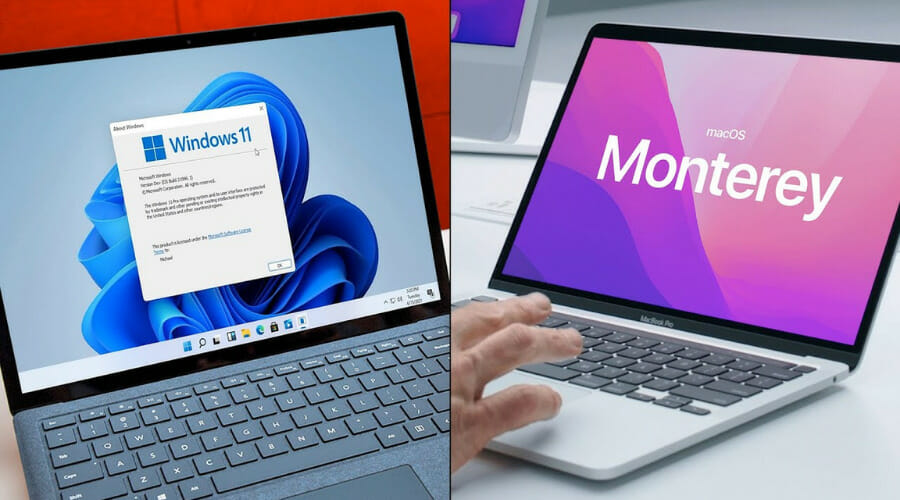
You won’t be able to send .txt files via Bluetooth from Monterey to Windows 11

Let’s say you are a Windows 11 user and you are in need of some text files that are located on a device that uses a different operating system, like macOS, for example.

Trying to send those files on your Microsoft-powered PC via Bluetooth sounds like a great idea, until you realize that what you are trying to do won’t actually work the way you imagined.

And by that, we mean that it won’t work at all. Recently, users that tried to perform the above-mentioned process, found that the task is impossible for the time being.

Bluetooth transfer issue stops Windows 11-Monterey exchange

Today, one displeased macOS Monterey 12.1 user took to an Apple community forum to share his latest situation with the rest of the mac-heads.

Basically, he tried sending some text files from his iMac to his Windows 11 PC, but couldn’t go through with the process, for no apparent reason.

I am unable to send text files from iMac via BlueTooth to a Windows 11 computer.
The iMac is able to receive text files via Bluetooth from the Windows 11 computer.
The iMac is a Retina 5K, 27-inch, 2020 running Monterey 12.1 with Bluetooth firmware v75 c4194.
Apple Support has investigated this (Case Number: 101590561315) without resolution as of this posting (Wednesday 26 January 2022).

This issue has even been put in a ticket, apparently, and the developer team over at Apple Support is supposedly currently investigating it.

Even though there are a few ways that you can transfer files from one operating system to another, the Bluetooth path is simple and fast, provided you are planning on sending small files, such as text.

However, as of right now, this feature isn’t working, and all you can do is wait for Apple to provide a fix patch, along with an explanation.

The big problem here is the fact that iMac Monterey Bluetooth software does not provide the ability to send files to a Windows 11-powered machine.

However, the iMac will successfully receive text files from the Windows 11 PC via Bluetooth. We’re hoping the companies will soon fix this annoying issue.

We’ll keep an eye out for any changes on this subject and keep you informed once new details are made available.

Have you also encountered this issue while trying to use Bluetooth and transfer files between the two operating systems? Let us know in the comments section below.

8 Best File Recovery Software for Windows 10

One of the worst feelings a computer user can have is when he/she accidentally deletes some important files or folders.

For most users, once the program is removed from the Recycle Bin, it’s treated as lost forever. But, that doesn’t have to be the case anymore.

Even though Windows doesn’t offer built-in options for recovering lost data, there’s still something that can be done.

You’ve guessed it right, third-party software! There are quite a few programs for recovering your lost data, and each one of them offers something worth mentioning.

What can deleted file recovery software do for me?

We’ve all probably been in a situation where we accidentally deleted something we weren’t supposed to, or simply thought we don’t need it anymore, discarded it, and then realized that we did, in fact.

Such mistakes are pretty common, so don’t be alarmed if you too have erased anything, as there are ways in which you can recover the lost data.

And you don’t even have to leave the house and take the device to some sort of expert or PC service. All you have to do is download and install the appropriate software for the job.

We’re about to show you the best apps for recovering lost files, leaving you with the task of choosing whichever is more suited to your needs for both Windows 10 and Windows 11.

What are the best file recovery software tools?

1. Recoverit Data Recovery – High recovery success rate

Even if you deleted some precious files recently, you can still get them back entirely if you use Wondershare’s Recoverit Data Recovery.

As its name suggests, the tool helps you recover a lot of types of files including images and other multimedia files, documents, and even archives.

And you can even preview them before recovering so that you know exactly if you really want to get them back or not.

Of course, the tool is not only effective for your PC drives but it also works on any external storage devices like USB sticks, memory cards, and digital cameras.

You shouldn’t worry about the file systems. Recoverit Data Recovery handles FAT16 and 32, NTFS, and exFAT without any problems.

We need to highlight a great feature called Resume Recovery. As a recovery process can take a while, you can always stop it whenever you need and resume it without any losses.

Let’s take a look at some of its most important features:

  • Restore all your data from any PC or Mac from all your internal or external storage devices
  • Over 1,000 file formats supported
  • High recovery success rate
  • Simple, three-step recovery process
  • Trusted by over 5 million users worldwide

Recoverit Data Recovery

Retrieve your deleted files quickly and safely from all your memory storage devices with this great tool.
Free trial Visit Website

2. Stellar Data Recovery – Complete recovery of unbootable systems

Stellar Data Recovery is one data recovery tool that scores high in both simplicity and efficiency. It can retrieve all types of data, from text documents to full-length movies.

This program also doubles as an email recovery tool, so you don’t need to get a license for a program specifically for that scenario.

In fact, plenty of users have no idea how useful this tool really is. Don’t be one of them and read our elaborate Stellar Data Recovery review to discover all about it.

It can recover Microsoft Outlook (PST), Outlook Express (DBX), Exchange Server (EDB), Lotus Notes (NSF), and many other file types.

All you need to do is specify the type of file you are looking for, then specify the location where the program should start searching.

Once that is done, the program will proceed with the recovery phase without further user intervention.

Let’s quickly look at its key features:

  • Complete recovery of crashed & unbootable systems
  • HDDs, SSDs, external USB drives, and optical media are also included
  • Recovery of lost or deleted Windows partitions
  • Data retrieval from scratched CDs, DVDs, and more

Stellar Data Recovery

Stellar Data Recovery is an unparalleled recovery data solution that allows selective recovery and previews recoverable files.
Free trial Visit Website

3. DoYourData Recovery Pro – Preview option

Undeleting lost photos, emails, videos, and documents with DoYourData Recovery Pro is no complicated task. Quite the opposite, millions of users around the world confirm that recovering data is done in mere seconds.  

Even if you’re not tech-savvy, rest assured that it’s very easy to use this tool. It packs a few advanced options as well, just in case you want to further explore its features.

After scanning, you can even review the results and choose to recover only certain files. Moreover, DoYourData Recovery Pro is fully compatible with Windows 10, Windows 8.1/8/7/Vista/2000/XP, Windows Server, and not only.

DoYourData Recovery Pro key features that you are about to enjoy:

  • Full Windows 10 recovery
  • Formatted recovery (HHD, SSD, storage device)
  • Includes deep scan mode
  • Intuitive preview option
  • Extended compatibility

DoYourData Recovery Pro

Try DoYourData because is the very best file recovery software tool available.
Check price Get it now

4. Kernel Data Recovery – Simple interface

Kernel Data Recovery is a powerful tool for recovering lost, deleted, and inaccessible data from corrupt FAT16, FAT32, NTFS, and NTFS5 partitions of Windows systems.

Aside from local use on any PC, the tool also supports recovery from removable drives like USB, IDE, EIDE, SCSI, SATA, PEN, and even ZIP drives.

Kernel Data Recovery can be used to fix Windows corruption errors from both logical and physical devices and recover your songs, photos, documents, etc. without any alteration.

Let’s quickly look at its key features:

  • Recovers lost and permanently-deleted files and folders without limitations on file size
  • 100% assured data recovery from corrupt FAT16, FAT32, NTFS, and NTFS5 partitions
  • Easy data recovery from removable drives
  • Free Demo version available to instantly view your lost files and folders

Kernel Data Recovery

Kernel Data Recovery ensures data recovery from almost any corrupt partition and fixes corruption errors.
Free trial Visit Website

5. Recuva – Ease of use

Recuva is one of the most famous and most popular recovery software tools for Windows, that almost everyone heard about. And it’s like that for a reason.

The main advantage of this program is the fact that it makes recovering very easy, and almost effortless.

Once you open Recuva, the recovery wizard will pop up automatically, asking you about a file type you want to recover (document, image, compressed, etc.).

When you choose the file type, it will start looking for all deleted files of that kind. You can also set up a specific location where you want Recuva to search for your file, for even more accurate results.

Depending on how hard it is for Recuva to get your files back, you can choose between a quick or deep scan. So, if you’re unable to retrieve your file with a quick scan, try the more complex solution.

Once the search is done, all potential files will be listed, along with condition ratings. If your file is available, you may then recover it without any problem.

Recuva

Team up with Recuva and recover your deleted files quickly and effortlessly.
Free trial Visit Website

6. MiniTool Power Data Recovery – Extremely simplistic

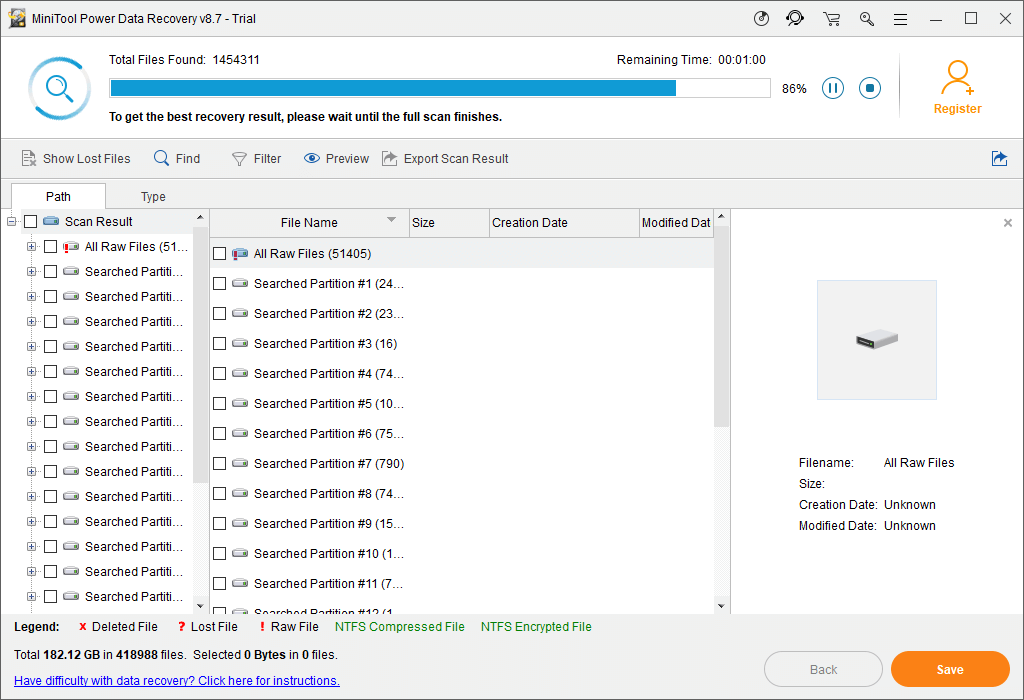
MiniTool Power Data Recovery scan

MiniTool Power Data Recovery is a staple of what it means to provide a powerful yet efficient software solution.

The user interface is extremely simplistic, allowing users of all experience levels to make quick work of this program.

It is a read-only data recovery utility that helps you in recovering your all-important data, regardless of the circumstances that lead to their loss in the first place.

This includes accidental formats, virus problems, software malfunction, file or directory deletion, or even sabotage by a third party.

It works by scanning all volumes in a local machine and then builds a directory tree of all lost and deleted files.

Note that it supports the following formats: FAT 12/16/32 and NTFS. The recovered files can then be exported anywhere, including network drives, removable media, etc.

All in all, if you are looking for a quick and hassle-free recovery solution, then MiniTool Power Data Recovery is the one for you.

MiniTool Power Data Recovery

Recover all your important data safely and try this excellent tool.
Check price Visit Website

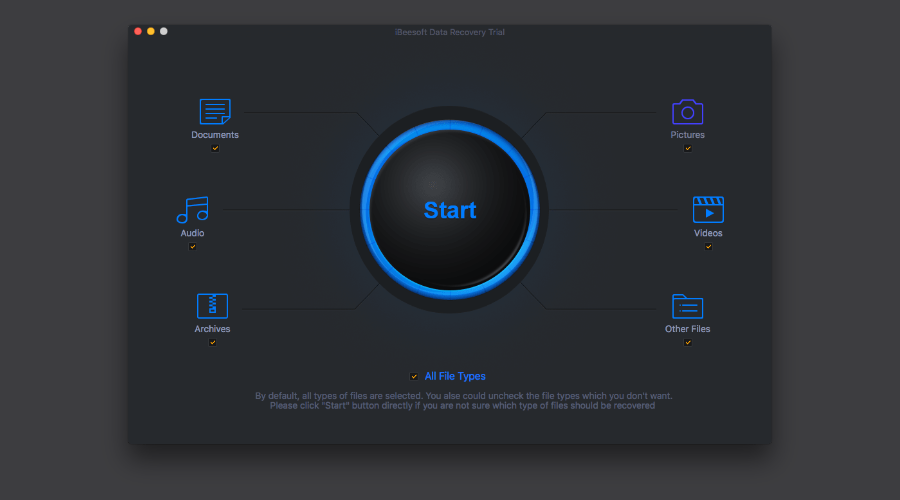
7. iBeesoft Data Recovery – Deep scan feature

If you have in mind the idea of finding a highly-responsive data recovery software to completely recover deleted files, then let us tell you that there is no better option than iBeesoft Data Recovery.

As expected, it can recover files lost due to almost any reason – you can do so from a memory card, disk/partition, RAW drive, USB drive, and other storage devices.

Besides its incredibly easy-to-use menu, do keep in mind that we are talking about getting back all commonly used file types, including documents, photos, graphics, videos, emails, archives, and more.

Let’s take a closer look at its key features:

  • Accessible wizard-style interface
  • Deep Scan feature to scan every drive sector
  • Preview option for photos and other files
  • Quick recovery of files, formatted drive recovery in Windows 10/8.1/8/7/Vista/XP/Server
  • Efficient results from devices based on FAT, exFAT, NTFS, NTFS5, ext2, ext3, and HFS+ file systems

iBeesoft Data Recovery

Give a try to iBeesoft Data Recovery and you’ll see that all deleted files are fully recoverable.
Check price Get it now

8. Paragon Backup & Recovery – Define new scenario strategies

Paragon Backup and Recovery backup options

Rest assured that Paragon Backup & Recovery is one of the best backup and recovery tools available on the market.

With advanced restore features, this software does not compromise on ease of use, making it incredibly simple for individual users to protect files and folders, partitions, disks, or the entire system.

Let’s quickly look at its key features:

  • Schedule automated backup operations and repetitive processes
  • Fully customizable backup parameters (type, event, interval, and so on)
  • Define new scenario-based strategies
  • Run backups quickly in manual mode
  • Assistance to prepare bootable environments on a USB drive or an ISO image

Paragon Backup & Recovery

Restore your important files without compromising them and try Paragon Backup&Recovery software.
Check price Visit Website

Is it safe to use software recovery software?

To give you a short answer right off the bat, yes, it is totally safe to use such software if you are in need of recovering some deleted files.

The procedures performed by these apps aren’t going to change, steam, or render any other files on your PC unusable, so you don’t have to worry about that.

Millions of users have, at one point in their lives, downloaded, installed, and used one of the software solutions we listed above, and none have reported any problems.

The only issue you could have with such a program would be that it doesn’t work on your current setup, either because it’s bugged or incompatible, but the chances are pretty slim.

So, this means that you don’t need to sleep with one eye open after using one of these applications.

That’s about it for our list of the best file recovery software for Windows 10, 11, and Mac. As you can see, all these programs offer some unique features. For more options to pick from, check out this list including the best data recovery software for Windows 10/11 too.

So, depending on your needs, you can choose the best available option for you. Don’t hesitate to let us in the comments section below.

FIX: The user system dialed a connection named which has failed

Nowadays, we’re all connected as we browse websites, share pictures and videos, have fun on social networks, watch videos, buy items, download music, and so much more.

Sometimes, you may need to access the Internet from a public place like a café or a library. For that purpose, you need a VPN (Virtual Private Network).

It will help you gain remote access to another machine through the Internet and become part of its LAN. Thus, you’ll be able to use shared resources such as files, printers, and even its web camera.

However, there can be some issues when you try to connect with a VPN provider. The most common problem that users face is that they cannot connect at all or they cannot connect properly due to various reasons. 

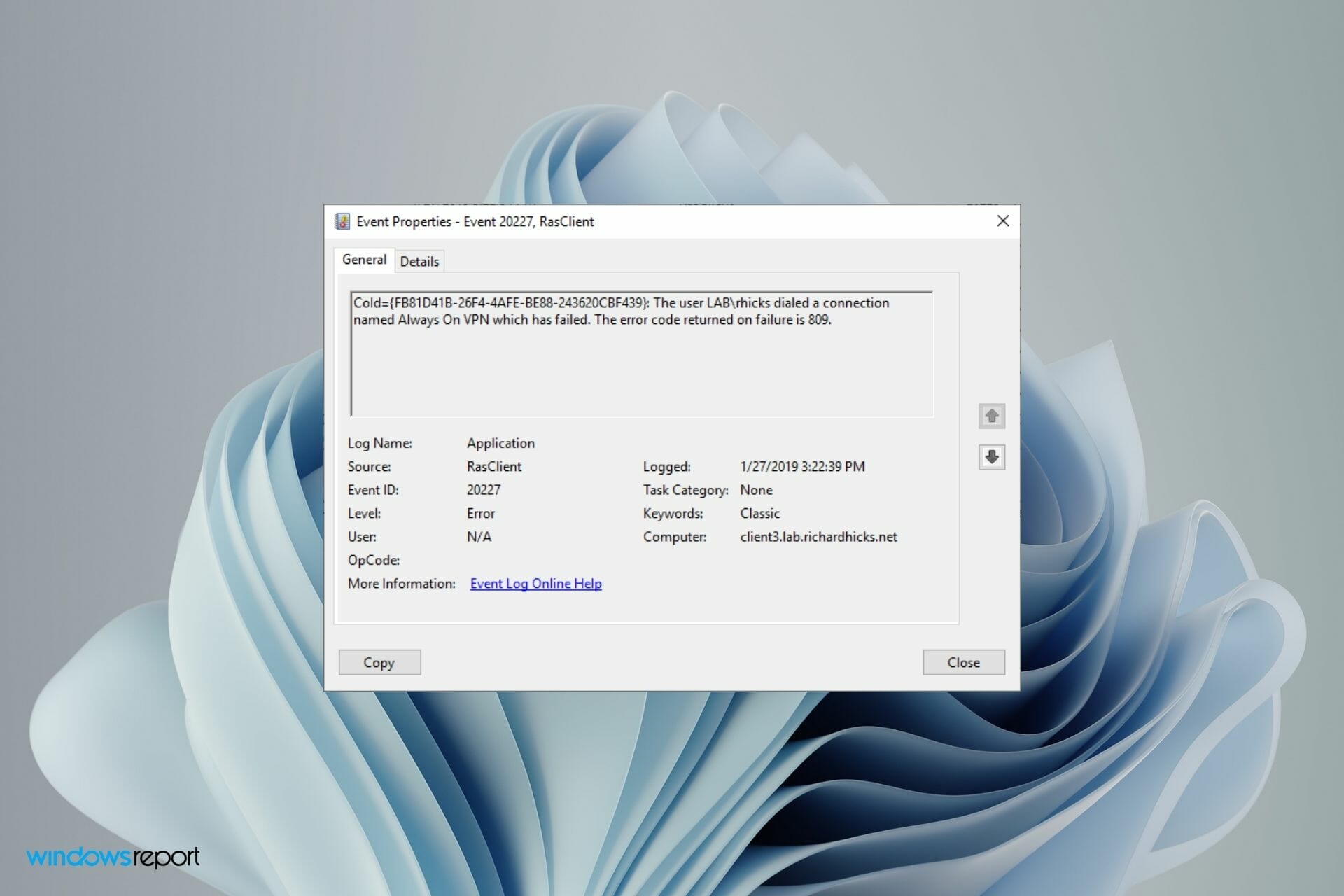
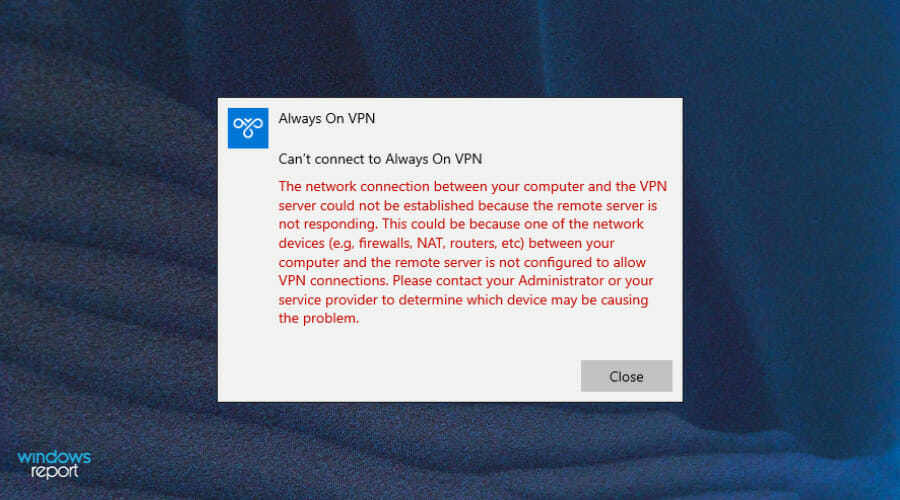
One of the common errors users are getting reads: The user system dialed a connection named which failed. This problem occurs when your VPN server fails to respond. It could be because of a network issue but other times, other factors may play a part.

Is VPN error code 809 related to The user system dialed a connection named which failed error?

If you are using a VPN to connect to your office network and the connection is established successfully but you receive an error 809, it could be that the firewall between the client and server is blocking the ports used by the VPN tunnel.

The problem calls for using a native VPN rather than a manual VPN. You should be able to fix the error on Windows 10 by visiting our guide on the same.

When getting The user system dialed a connection named which failed error, you can try our solutions below.

How can I fix The user system dialed a connection named which failed error?

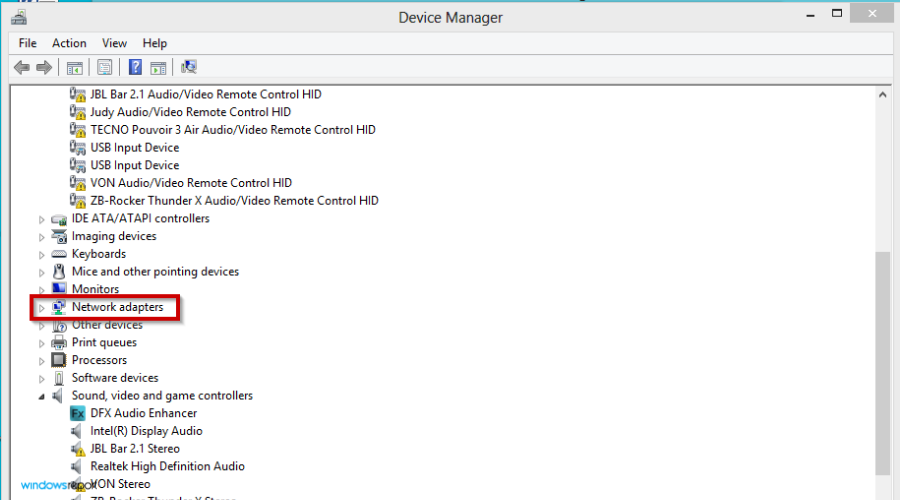
1. Uninstall WAN Miniport drivers

  1. Hit the Win key and search for Device Manager.Control panel
  2. Navigate to Network adapters.Device manager
  3. Uninstall all of the WAN Miniport (XXXX) devices or at least the one related to your VPN connection.
  4. Right-click on Network adapters and select Scan for hardware changes.Device manager
  5. The WAN Miniport adapters should have re-created themselves.
  6. Try connecting to your VPN again.

2. Remove other VPN connections

  1. Hit the Windows key and open Settings.
  2. Click on Network & Internet.
  3. Select VPN.Select VPN
  4. Click the Remove button for the VPN service you are not using.VPN settings
  5. You will now be connected to only one server.
  6. Now try connecting to your VPN again.

3. Disable the firewall temporarily

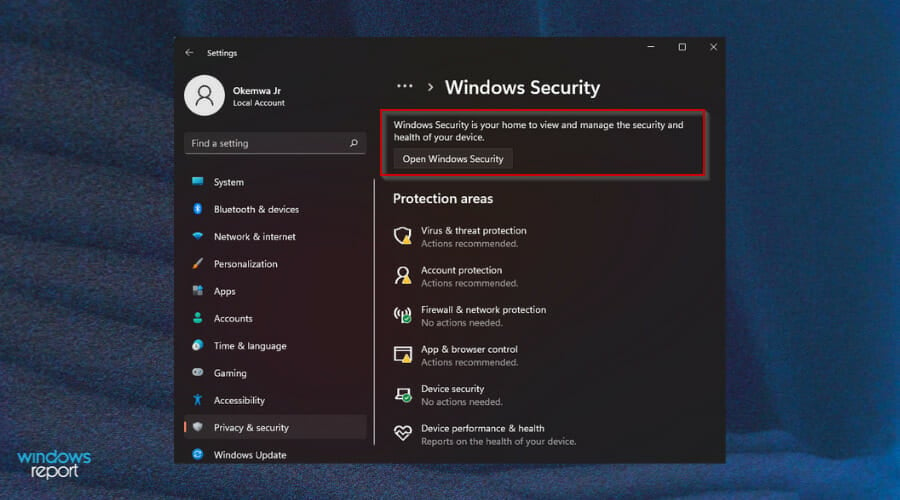
  1. Press Windows Key + I to open the Settings app.
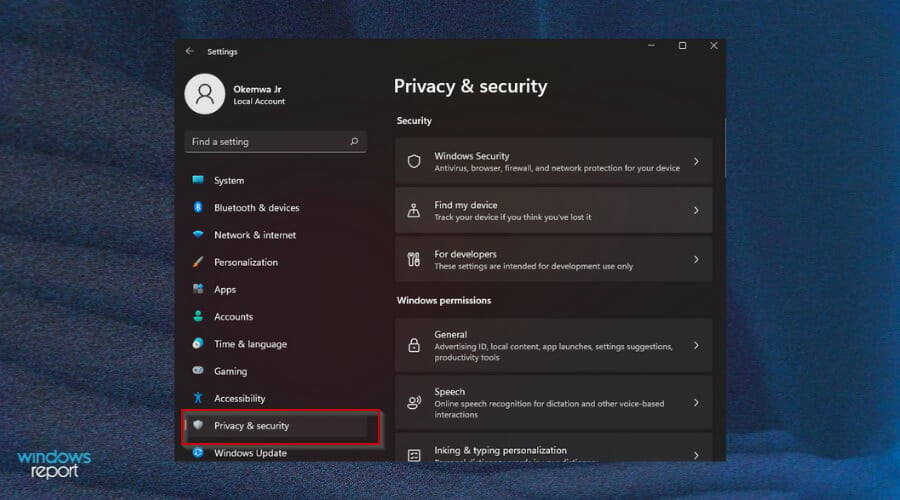
  2. Click on Privacy & security.
  3. Select Windows Security and click Open Windows Security.Windows settings
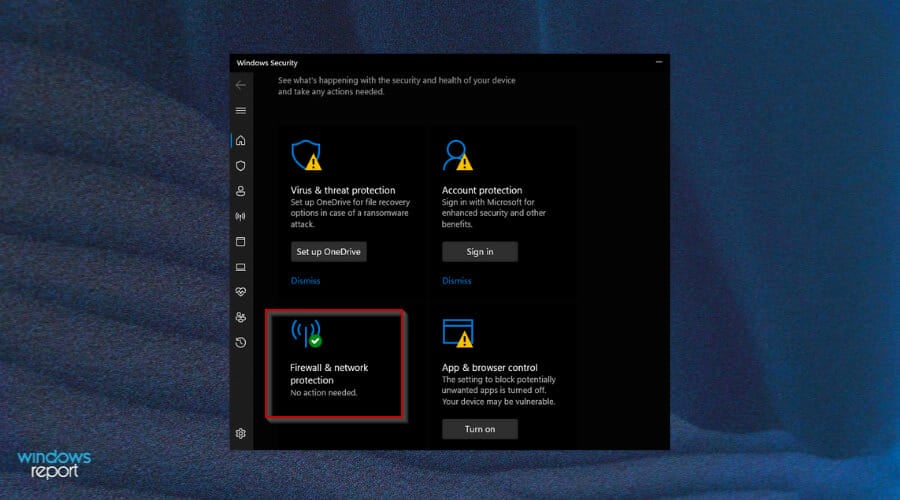
  4. Click on Firewall & network protection.
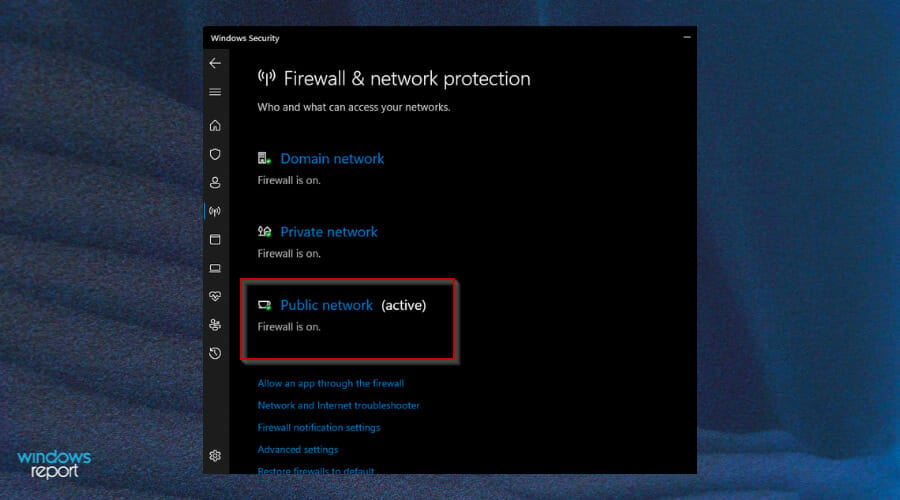
  5. Select Microsoft Defender Firewall and toggle to turn it off.Firewall off
  6. Now try connecting to your VPN again and see if the problems persists.

Can I change my VPN server?

It is easy to change a server. If you use a VPN service to connect to the Internet, then you have a lot of options. You can select a different one from a different country if the one you are using has issues.

You may also change your IP address by selecting a different country for your VPN connection. This will help you to create an anonymous IP address and hide your real identity from data and websites that are trying to track your personal data.

To change your server, log in to your VPN account management panel and change your current VPN server location.

You will be prompted to accept the new server choice, and after accepting it, your connection will be automatically switched to the newly selected location.

Here are some more details about how the process works:

  1. Navigate to your browser and log in to your acount.Log in VPN
  2. Click on See VPN Locations.See VPN locations
  3. Pick one from the list of available locations, i.e. USA, United Kingdom, Sweden, and so on.VPN server
  4. Click on the Power button to turn your new server location On.Turn on VPN

Once you start digging into VPN services, you’ll find that many of them are either overloaded or underpowered. Most free VPN services won’t offer the kind of bandwidth or security features needed to protect your data in the long run. 

They might track your IP address and sell that information to third parties without your knowledge or permission. We have a guide on a VPN that won’t snoop on your activities if you would like the extra layer of security.

The best VPNs use military-grade encryption, have no bandwidth limits, and don’t keep logs of your IP address or browsing history.

They also offer a variety of servers so you can change locations as often as you like. If you are looking for a VPN service that will mask your identity, visit our guide on the best untrackable VPNs. 

Should you experience any other VPN-related errors, you can also visit our guide on common errors affecting your connection and attempt to solve your issues.

We hope this guide was able to help you solve your issue if you encountered this particular problem. We’d also love to hear from you on other solutions that you may have tried. Feel free to share down below.

New Warzone patch fixes collision and screen flicker issues

We don’t even have to explain what Warzone is, as we are pretty sure that mostly everyone out there is familiar with this popular Call of Duty battle royale.

Recently, Raven Software announced a new patch that is supposed to tackle bug fixes for the free-to-play shooter.

Developers even went as far as delaying season two Battle Pass and free content launch for both Call of Duty: Warzone Pacific and Call of Duty: Vanguard, to allow the development team to work on a variety of issues.

Operator skin invisibility bug hasn’t been dealt with yet

Players aren’t really happy with the studio’s decision, but it seems that this delay is already paying off, as Raven Software already managed to fix some of the most critical bugs.

The biggest and most annoying of the Warzone Pacific bugs affects Operator skins, that glitch and become invisible, allowing players to move undetected on the map.

However, this hasn’t been filed through this release, and everyone is hoping that a solution will be included in the upcoming patch.

Also scheduled to be released with a future patch is a much-needed fix for a bug that allows a specific throwing knife blueprint to have unintended benefits.

There are, however, issues that got addressed with this recent release, among which we can find:

  • Collission issues with various elements across Caldera that allowed players to peek or otherwise shoot through them.
  • An issue causing instability when players press the Xbox home button twice while in-game.
  • An issue causing instability when typing non-ASCII characters such as ©, ®, or ™ in the chat.
  • Issues causing screen flicker.
  • Issues that allowed players to buy back a squadmate at a buy station, and that squadmate would spawn in with all or part of their original loadouts.
  • Issues where placeholder images appeared in Store bundle previous or purchases.
  • Issues that caused live matches to crash abruptly.
  • Issues where players who attempted to swim in the pool would fall into a bottomless pit.
  • Issues where the second loadout event would not occur during Battle Royale modes.

Another extremely annoying bug yet to be fully eliminated by Raven studios is the one involving Buy Stations which, upon interacting with them, would cause the game to freeze for many players.

Even though a hotfix for this particular issue was deployed on the 26th of January, players report that this still happens sometimes, therefore developers need to focus on it a bit more.

It’s safe to say that all these problems damaged the image of the new Caldera Warzone map even more, after pro players criticized it extensively, saying that it’s much easier and less imaginative than Verdansk.

However, this is still a new map and will be subjected to change probably, until developers feel that everything is right, and players won’t really have any reasons left to complain about it.

Have you experienced any sorts of issues while playing the new Warzone map? Share your experience with us in the comments section below.

Posted in Fix

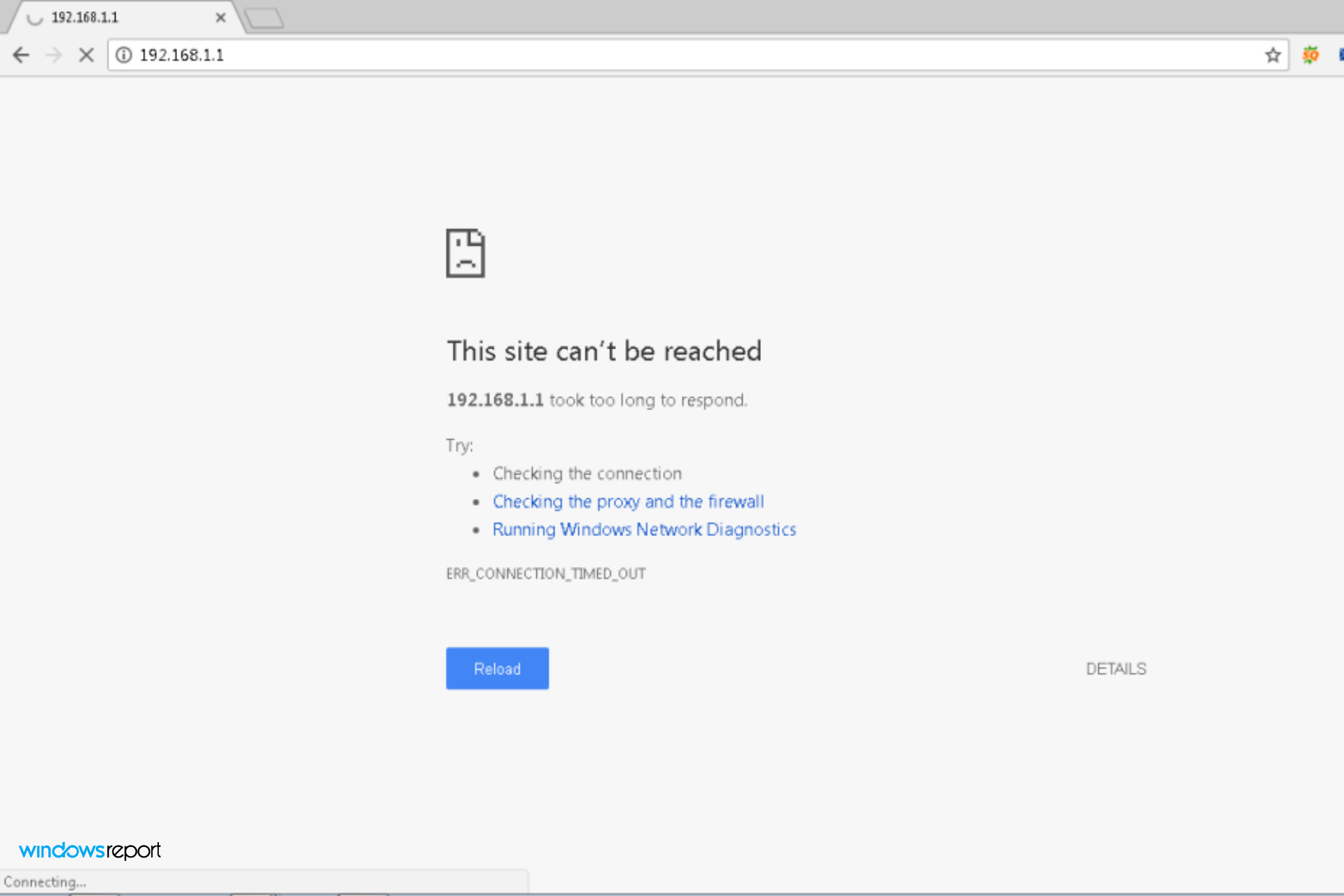
Having Trouble and Can’t Access Router Page? Here’s the fix

Accessing the router page can be a hassle for many people. If you can’t do so, you’re going to be unable to change your internet settings to make your Wi-Fi work.

Fortunately, there are steps that you can take to access the router page. The first one is identifying how you can get into the admin settings of your modem or router.

Why can’t I access the router page? There are many reasons why this might be happening, so we will try to cover them all. However, the most common reason for being blocked from accessing the router page is that you are trying to access it over an unsecured connection, such as public Wi-Fi or a free Wi-Fi network in a hotel.

Use a secured connection such as your home network or a Virtual Private Network (VPN) service to access the router page. You can have a look at our top VPNs compatible with Windows 11 if you are not sure of the best option for you.

You might be entering the address of your router in the wrong place. Always check that you are typing it in the address bar of your browser and not in the search box.

On your browser, ensure that you have typed the URL correctly and have enabled cookies if required by your device.

If you haven’t enabled cookies on your device, log into your router using the browser on your computer, then access it from there to enable cookies on your device before trying to access it directly.

However, if you have enabled cookies and have typed the URL correctly, have tried accessing your router using a different browser or device, and still can’t see anything, then there may be a problem.

First, try restarting the router by pressing the power button to turn it off. Wait for 30 seconds, then turn the router back on. If this doesn’t work, you can try the solutions listed below. 

How do I find my IP address?

Your IP address is a unique identifier that allows your computer to communicate with the Internet.

There are two kinds of IP addresses: dynamic and static. Dynamic IP addresses can change every few hours or even more often if your ISP has configured them to do so, which means they’re not always going to work for long-term access. 

If you have a dynamic IP address, it’s easy enough to find it without looking at your router’s settings (assuming it has Internet-connected software). Simply visit What Is My IP Address? and type in your home network’s gateway address

Static IP addresses, on the other hand, never change (unless you contact your ISP to make a change). Most people have Static IP addresses.

You will need your IP address to access your router page. If it is not listed on the bottom of your router, there are other ways to find it:

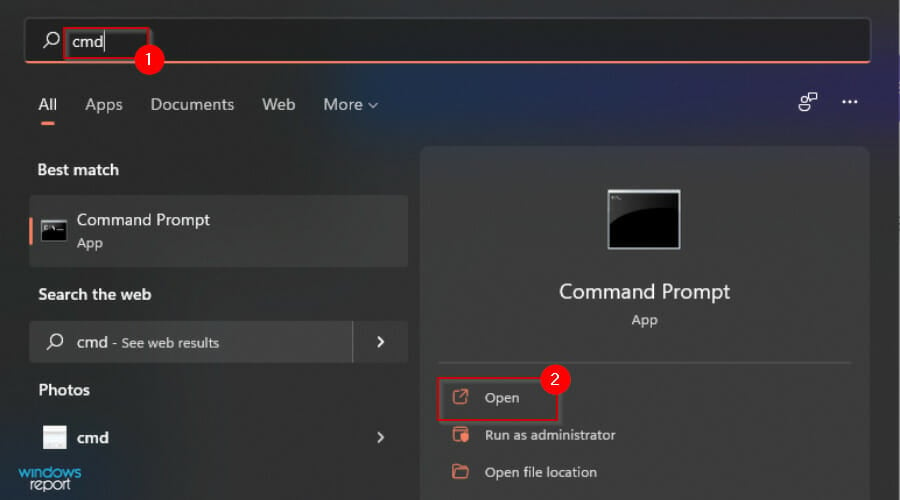
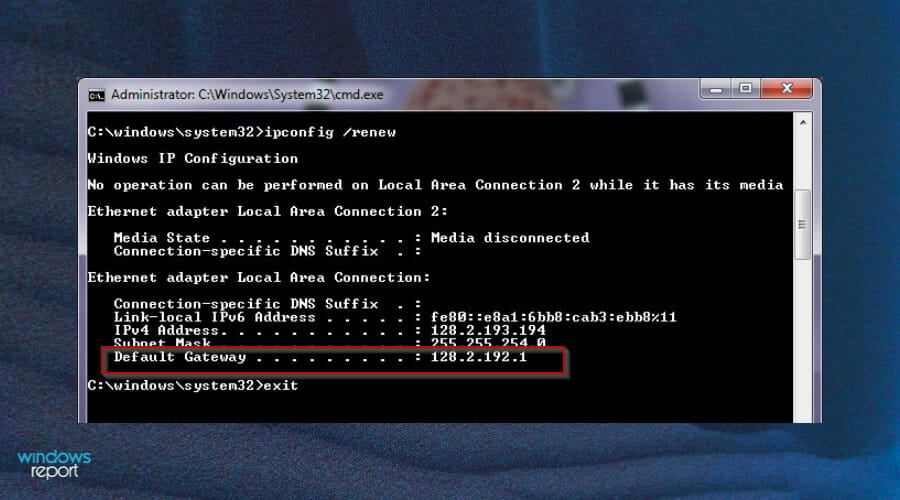
  1. Hit the Search button, type cmd, and click Open.command prompt
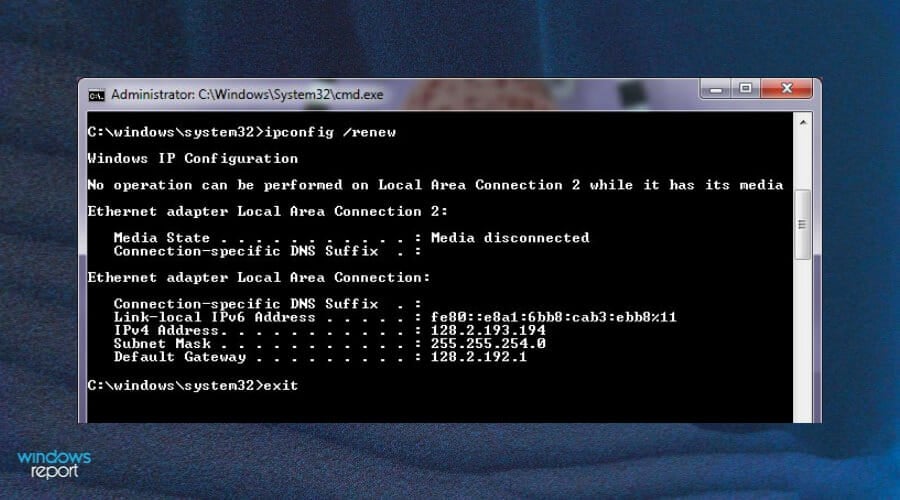
  2. Next, type ipconfig to discover your IP address.Command Prompt
  3. Locate Default Gateway and the address listed next to it is your IP address.IP Address

Once you have located your IP address, try logging in to the router page.

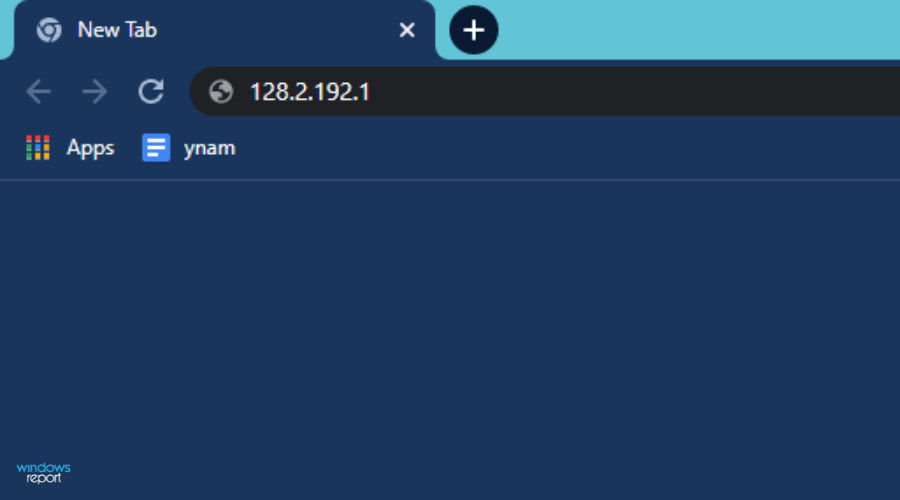
  1. On your browser, type the IP address on the address bar.IP
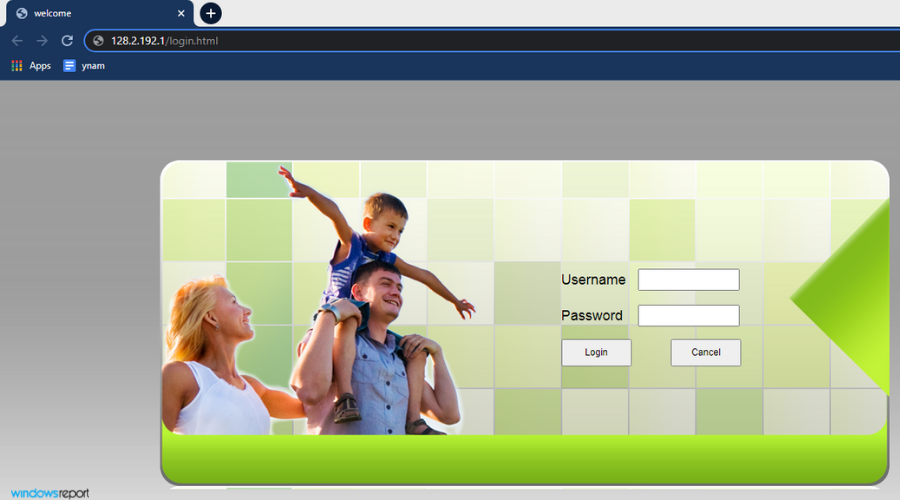
  2. You will be directed to a login page. Enter your details or the default credentials at the bottom of your router if you had not changed them.login page

3. Once you are in, you will be able to change the settings or adjust any details as you wish.

For a step-by-step tutorial on accessing the admin panel, see this guide on how to login to your router.

What can I do if I cannot access the router page?

1. Reset your router to factory settings

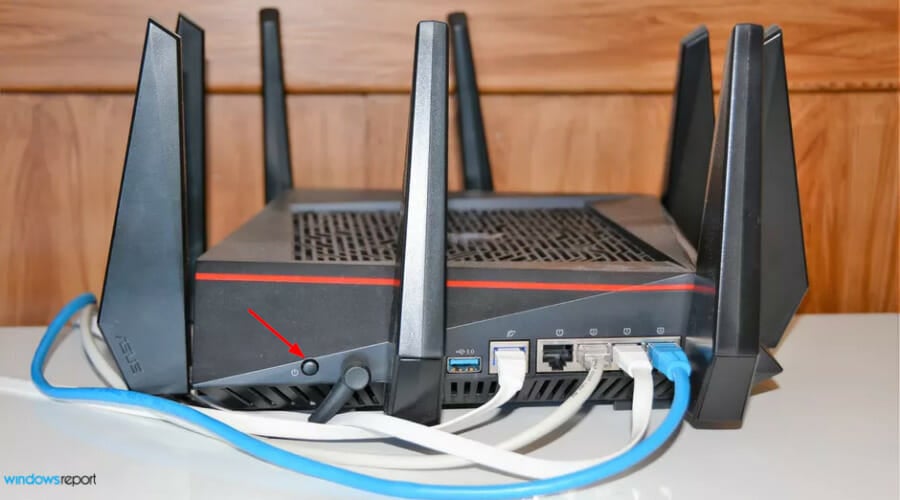
  1. Locate the router button either at the back or bottom.power button
  2. Press and hold the button for 30 seconds.
  3. Wait for the router to power on and try accessing the router page again.

This also helps if MyFiosGateway is not working.

2. Set your default IP address manually

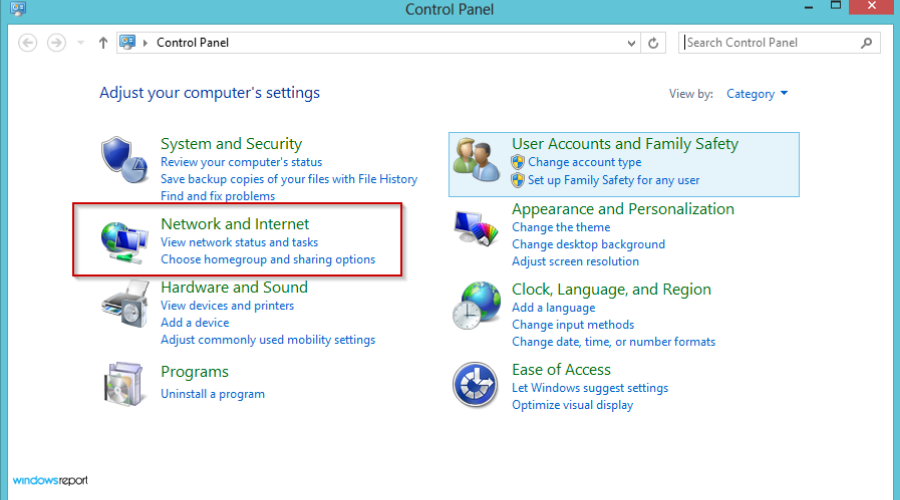
  1. Open the Control Panel and select Network and Internet.control panel
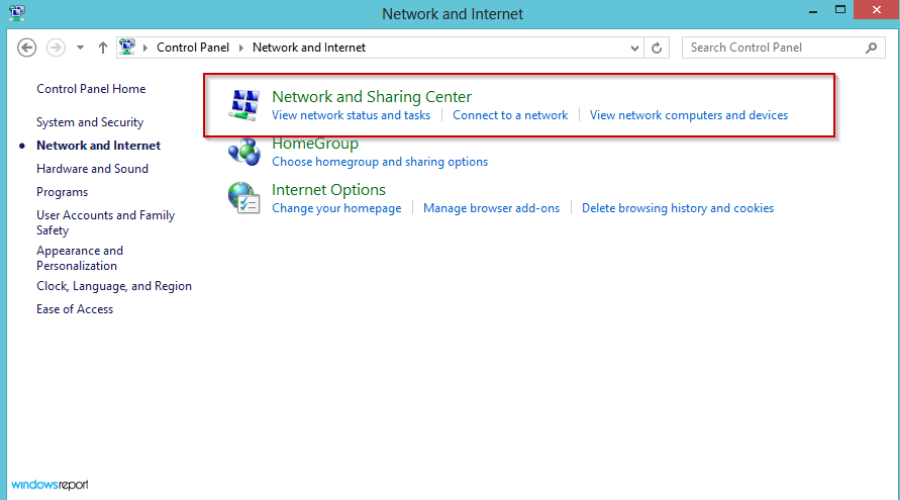
  2. Select Network and Sharing Center.Control panel
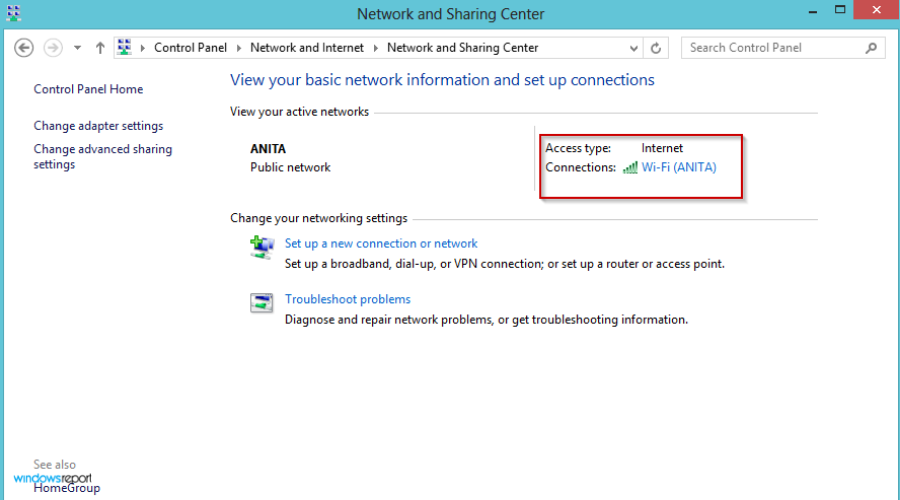
  3. Click on Connections.Network settings
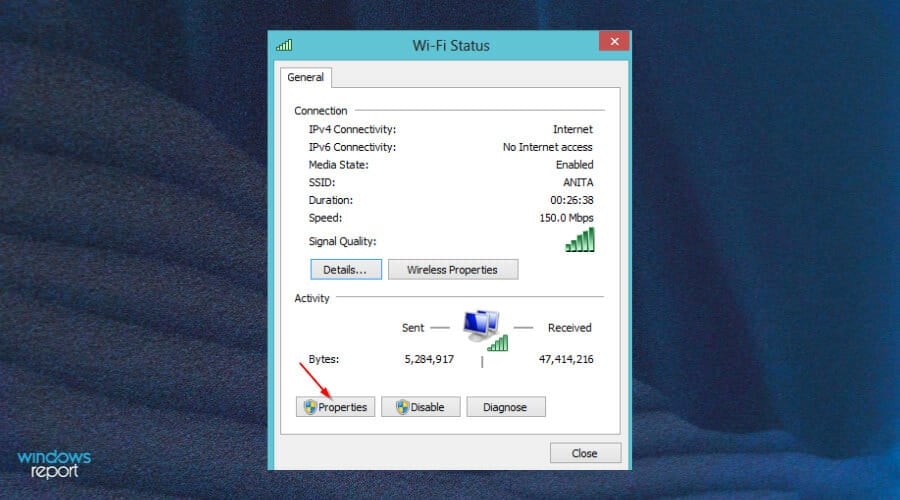
  4. Select Properties.control panel
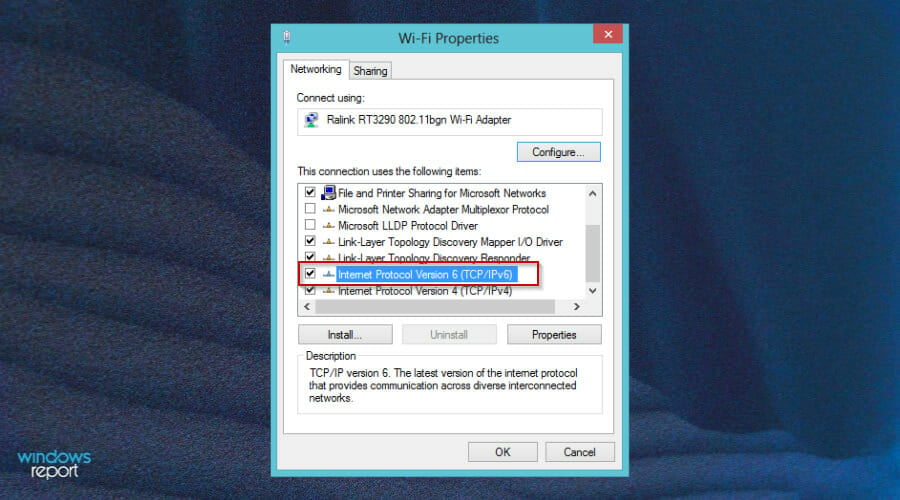
  5. Click on Internet Protocol Version 6 (TCP/IPV6).Locate IP address
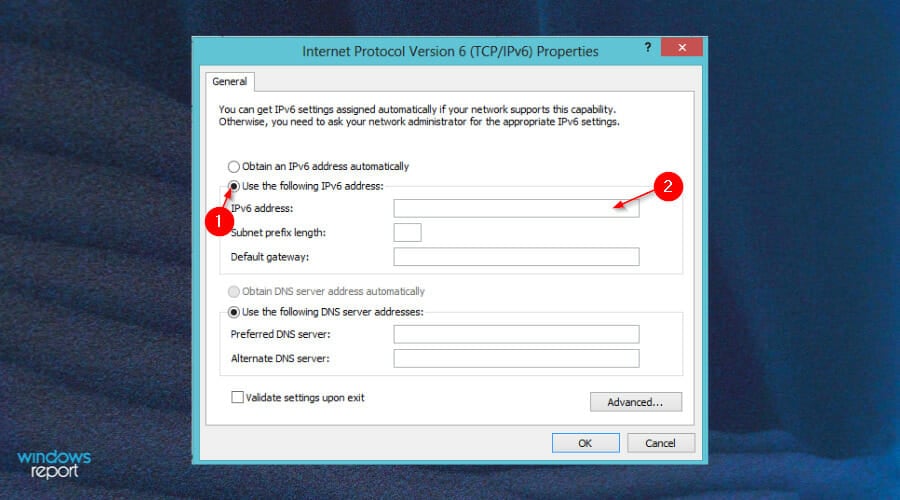
  6. Select Use the following IPV6 address and manually enter your IP address.Eeter IP address manually
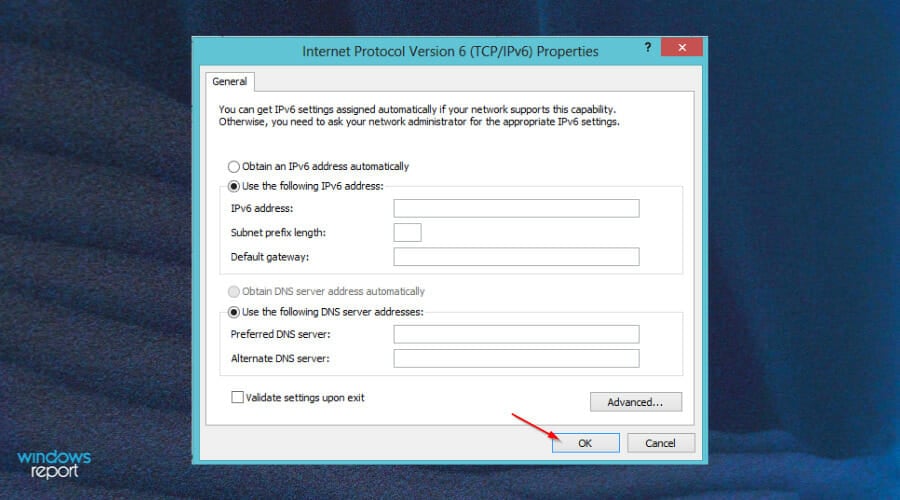
  7. Click OK and try accessing the page again.IP properties

What can I do if I still can’t access the router page?

If you’ve tried the solutions above and still can’t log into your admin page, you may have to temporarily disable your firewall:

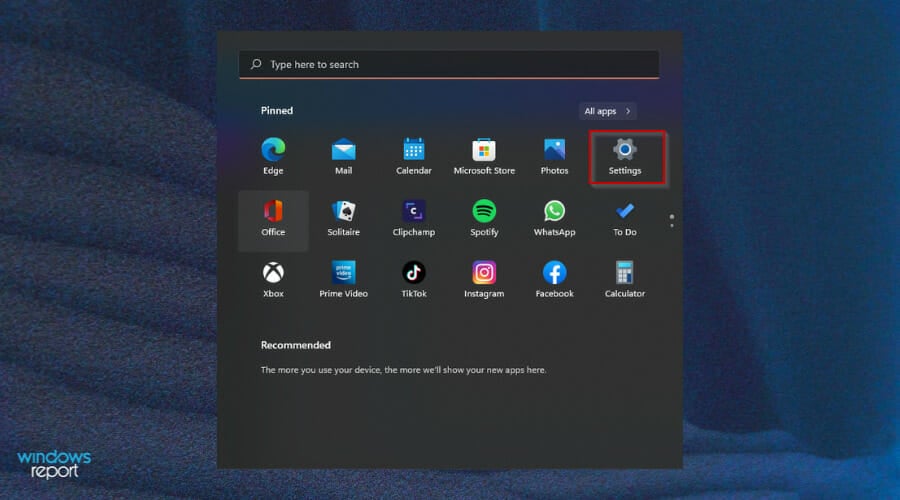
  1. Hit the Windows key and click on Settings.Settings Windows
  2. Select Privacy & security.Windows settings
  3. Click on Open Windows Security.Windows settings
  4. Select Firewall & network protection.Select firewall
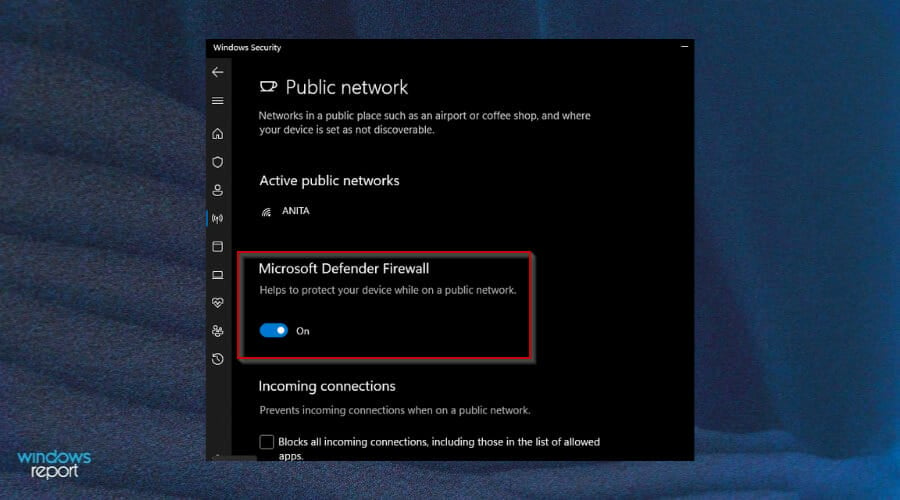
  5. Click on Public network.Firewall settings
  6. Next, toggle Microsoft Defender Firewall off.Firewall off
  7. Try accessing the router page now.

If this still fails, your router may be broken. It happens to everyone. It is common for a wireless router to stop working one day. Routers have a lifespan and after some time, they may be broken completely.

Lots of reasons can cause a router to malfunction or stop working altogether. These range from simple causes like a power surge to more complex problems like interference from other wireless routers in the area.

This should, however, not be a reason to sulk but rather an opportunity to upgrade your router. It could be the opportunity you have been waiting for to get your hands on some of the best Windows 11 routers that will not cause a dent in your pockets.

As a temporary solution, you can also easily turn your PC into a Wi-Fi router as you plan to get a new router. Your work doesn’t have to be interrupted by the lack of a router.

That brings us to a conclusion but we certainly hope that at least one of our solutions was able to give you access to your router’s page.

Always update your router firmware whenever updates are available to access new features and security updates.

In case you stumbled across the Router init failed error on Altice One, read this guide to help you fix it.

If you have encountered a similar problem and tried another method that worked for you other than the ones listed above, we’d love to hear from you. Share your thoughts in the comments section below.

5 Best Email Encryption Software Ranked by Features

These days, the majority of today’s correspondence is carried out through email even though there are a lot of alternative cloud platforms for that.

At the same time, this can also attract a potential threat to the users’ privacy and security. Data loss and sensitive information leakage via email are some of the most pressing concerns for most users and especially businesses.

Hence, confidentiality and confidence are vital factors for organizations and typical users alike. This is where email encryption enters the scene.

How can the email encryption software help me?

Email encryption software is basically scrambling the contents of your message so that even if it’s intercepted it cannot be read by the attackers.

At this point, the importance of mail encryption is undeniable, and fortunately, the market is filled with open source privacy software that can provide it.

However, you can also employ an email-scanning software tool to remove malware and protect your PC from any email-driven attack.

Here are the best email encryption software tools along with their set of features and advantages.

What is the best encrypted email service to get?

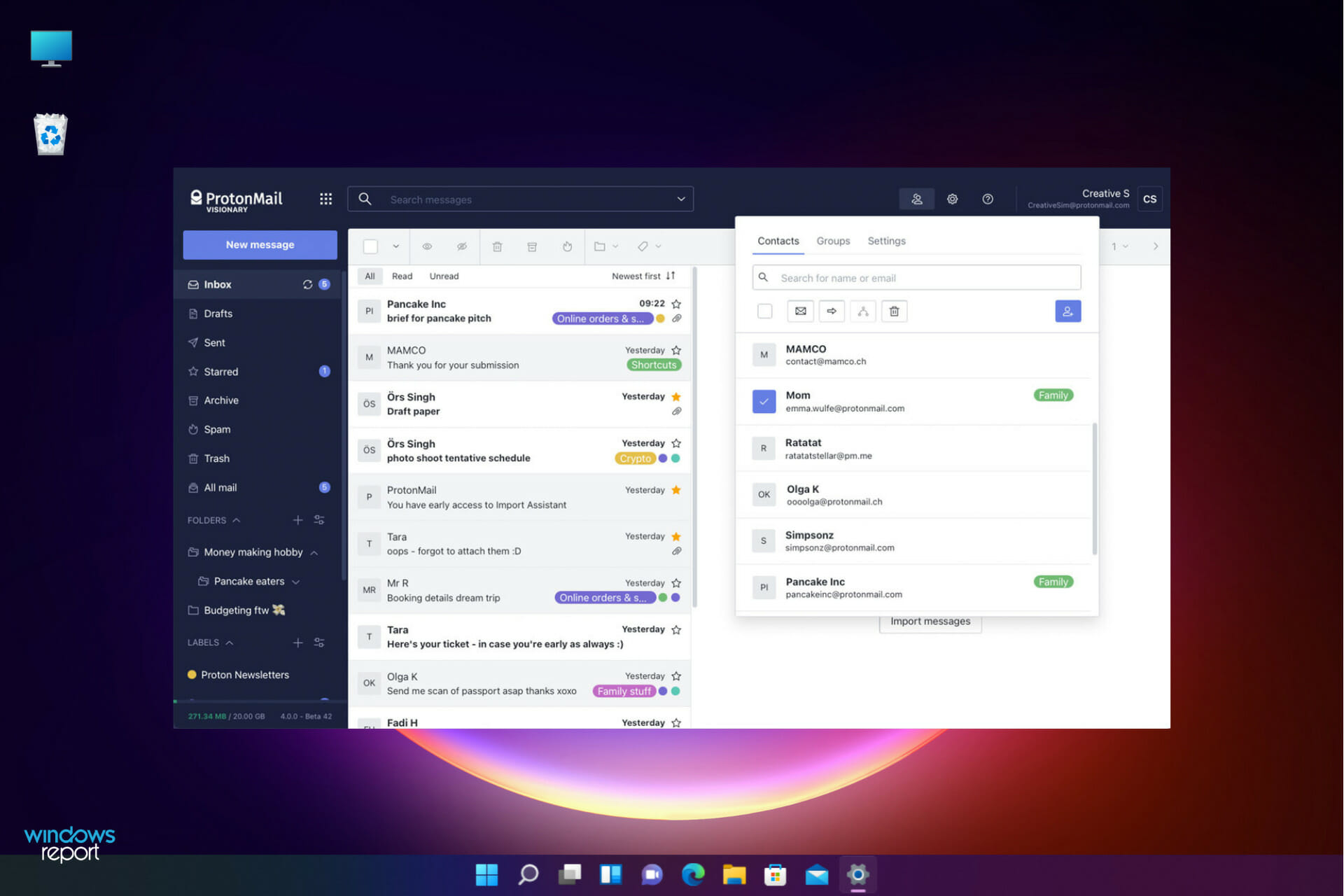
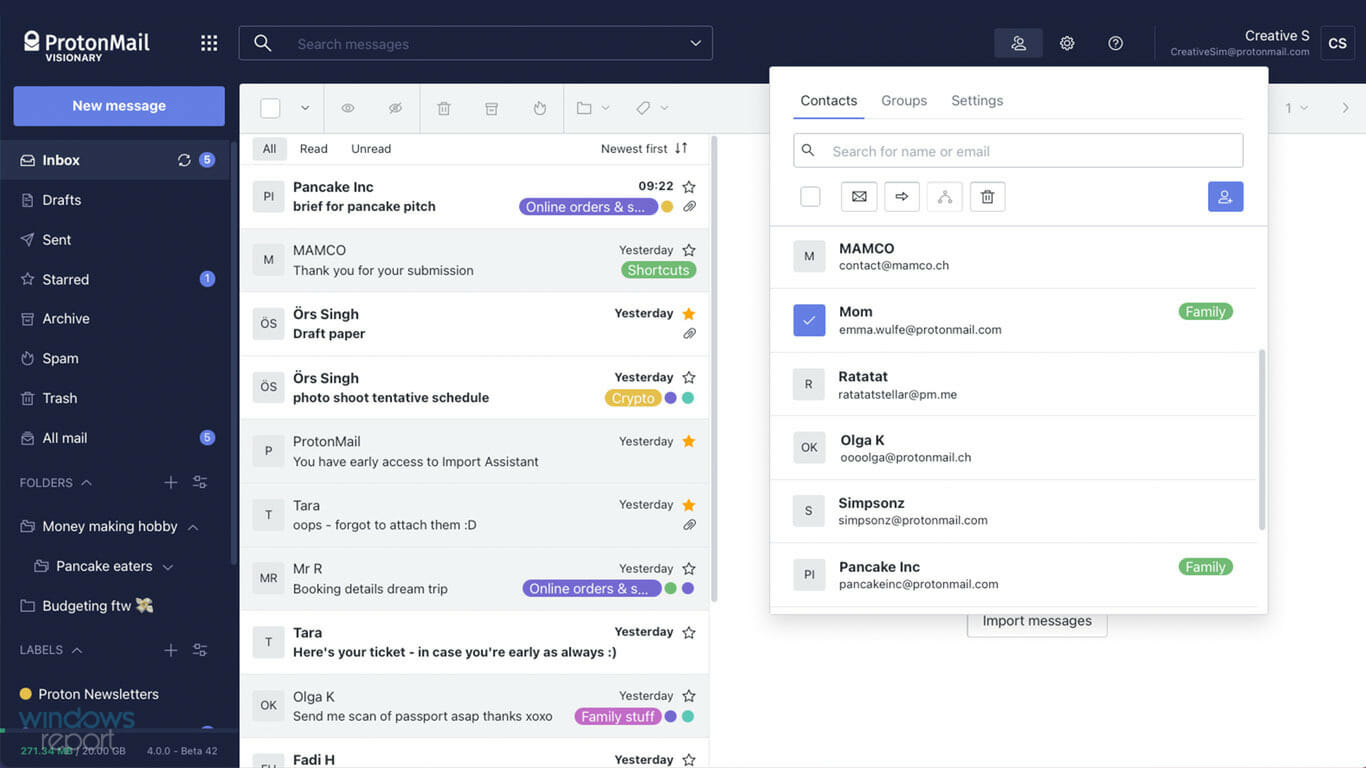
ProtonMail – Great encryption

ProtonMail is a great service that can encrypt your emails. This email provider is located in Switzerland and, therefore, it has to comply with strict Swiss privacy laws.

The service offers end-to-end encryption, meaning that only you and your recipient can decrypt and read each other’s emails. Your email messages will remain encrypted from third parties and even from the ProtonMail servers.

It’s worth mentioning that this service doesn’t require any personal information in order to register, and even your IP address won’t be logged, so your privacy will remain protected.

The service is completely free and simple to use, and thanks to the modern design, you won’t have any issues getting used to ProtonMail.

Overall, ProtonMail is a great email encryption service, and it’s available for free. The service is available on multiple platforms including Android, iOS, Web.

Unfortunately, there’s no desktop client available, but that’s not a major problem for most users.

We have to mention that the Free version has limitations in terms of storage, the number of email addresses, and messages that you can send per day.

So, if you want to remove those limitations, you might want to consider getting a yearly subscription plan.

Let’s quickly look at its key features:

  • Open source and free (with certain limitations)
  • End-to-end encryption
  • No log policy
  • Easy to use and modern design
  • Availability on iOS, Android, and Web

ProtonMail

Secure your emails with end-to-end encryption and enjoy Swiss-grade privacy.
Free trial Visit website

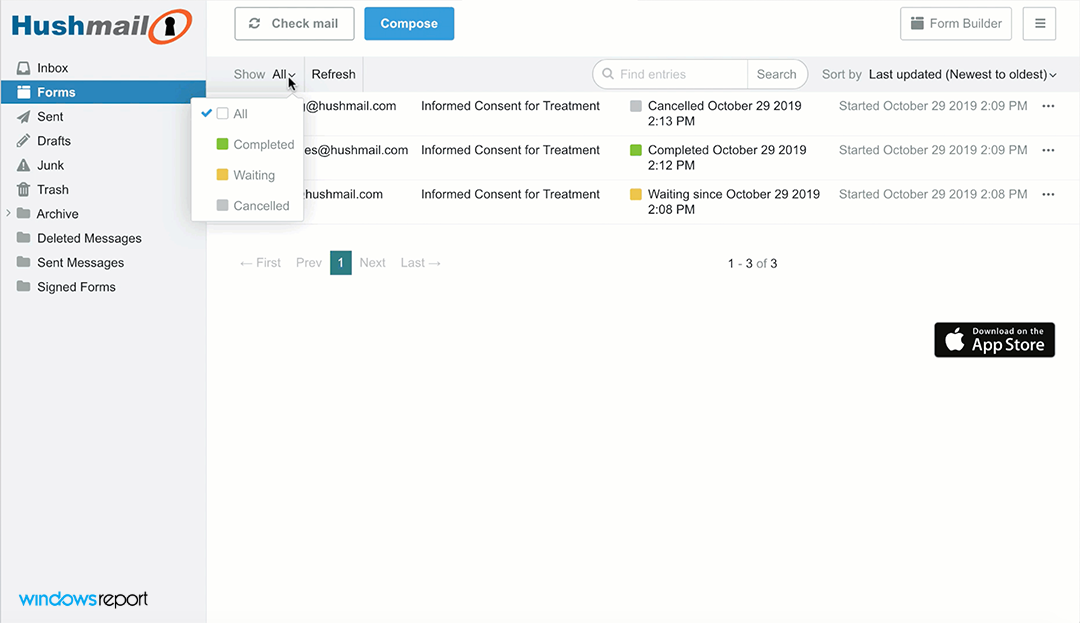
Hushmail for Personal Use – Plenty of storage space

Hushmail for Personal Use allows users to secure their email in order to keep their personal conversations private.

Using this piece of software, you will be able to regain control of your private data and enjoy the experience of having a clean inbox with no advertising.

You will have the chance to choose the emails that you want to send using this tool’s powerful encryption features, and this will result in private and confidential conversations.

When you get this solution, you’ll benefit from 10 GB of storage space to fill with your precious sensitive information.

It doesn’t look like much but for a personal inbox with OpenPGP encryption, it’s quite satisfactory.

You also need to know that the encryption between Hushmail users is automatic but when you send an email to an external inbox, they will get a link and a passphrase to access it.

There is a 60-day money-back guarantee so you can test it for a while and see if it fits your requirements.

Let’s quickly look at its key features:

  • Includes 10 GB of storage space and multiple layers of security
  • Uses OpenPGP encryption that is guaranteed to protect the content of your email
  • Your emails will not be analyzed to display all sorts of ads
  • Mask your email address by using various aliases
  • Dedicated customer support
  • Two-step verification to prevent unauthorized access to your account

Hushmail for Personal Use

Secure your email account with Hushmail’s built-in OpenPGP encryption.
Check price Visit website

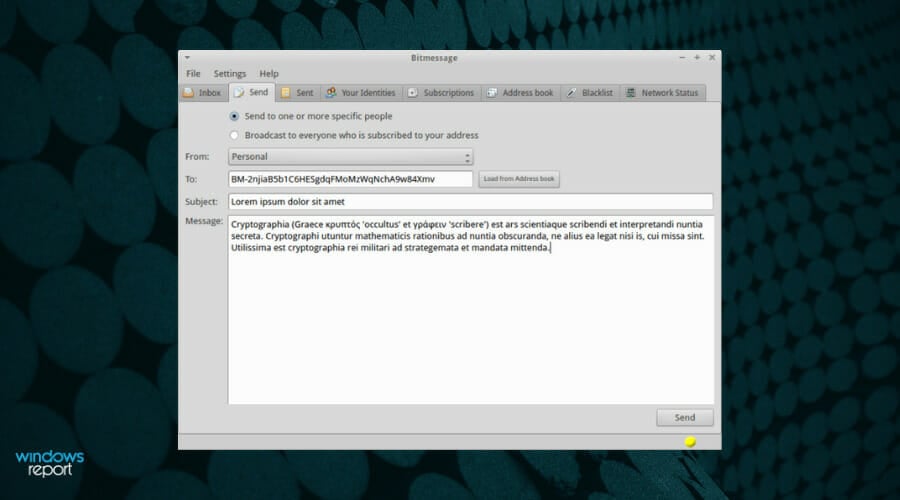
Bitmessage – Great blockchain encryption

Bitmessage is a P2P communication protocol that is used in order to send encrypted messages to another user but also to lots of subscribers for instance.

This protocol is decentralized and trustless. In other words, you will not have to trust any entities such as root certificate authorities.

You may freely view the Python source code on Github, and there will also be available step-by-step instructions on how to run the source code on Windows and more.

Bitmessage’s transfer mechanism is similar to Bitcoin’s transaction and block system, and you can find out more about this on Bitmessage’s whitepaper.

That means that the users will receive all messages, and they will be responsible for attempting to decode each message to see whether it’s bound for them.

Let’s quickly look at its key features:

  • Strong authentication
  • Users can freely view the Python source code on Github
  • Cryptocurrency-like block system for the transfer mechanism
  • The messages will be decoded at their destination

⇒ Get Bitmessage

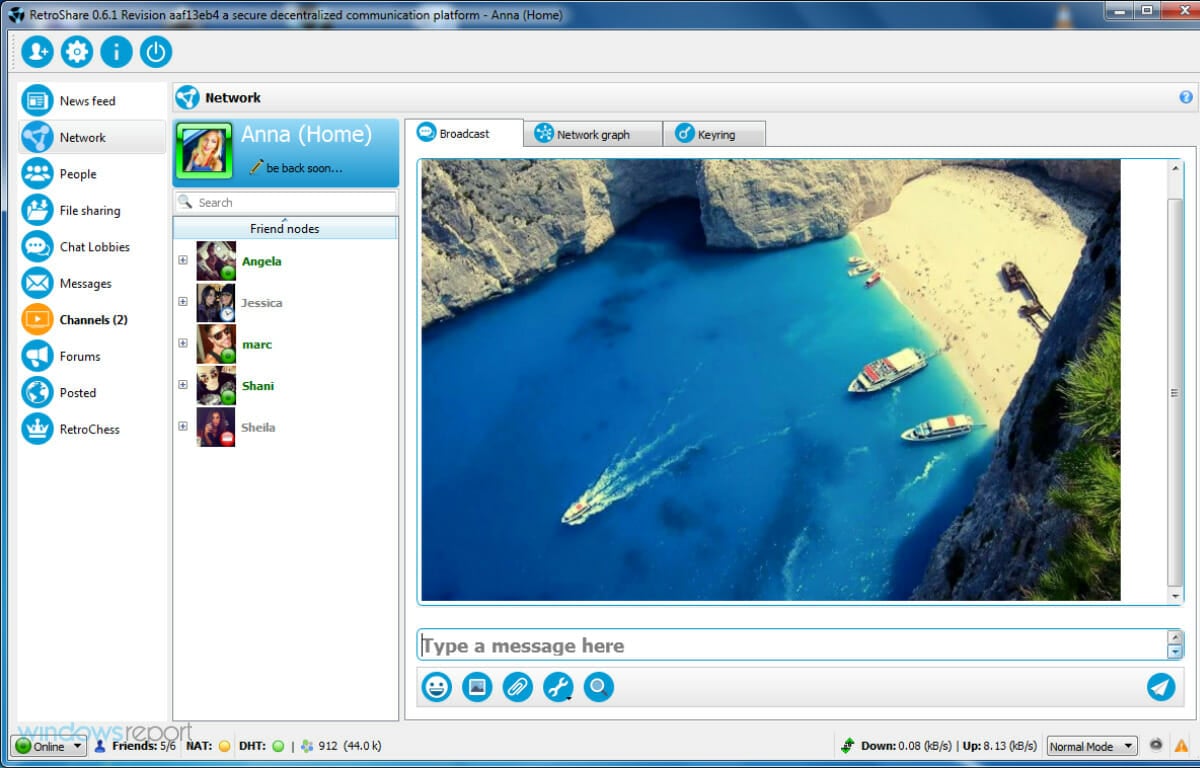
RetroShare – Various distributed systems

RetroShare was created back in 2006, and its primary target was to provide secure communication and file sharing between friends.

Developers have been joining the platform ever since, and they improved the software significantly.

RetroShare creates encrypted connections to your friends and guarantees that nobody will spy on you. This is entirely decentralized, and this means that RetroShare does not involve using central servers.

The program is open-source and free, and you will never have to deal with any costs, ads, or Terms of Service.

RetroShare is not just an email client because it also offers a lot of other features like chat rooms, forums, and a lot more.

Let’s quickly look at its key features:

  • It creates encrypted connections in order to build a network of computers
  • Provides various distributed services including channels, forums, and more
  • The program is available on Windows systems
  • Send text and images and discuss in decentralized chat rooms for maximum security and anonymity
  • Stores messages to deliver them while you are offline

⇒ Get RetroShare

Sendinc – Simple and familiar interface

And last, but definitely not least, Sendinc is another excellent way of sending secure emails that you should learn about.

It’s also fast, safe, and free and it packs a great deal of fantastic safety-related features and advantages.

This is not an email client but an add-in for Microsoft Outlook that allows enhanced security features.

When you receive an email protected with Sendinc, you will get a link to view the contents in a separate, secure environment.

The email doesn’t store the encryption keys so only the recipients you send it to will be capable of decrypting it. However, they don’t need to have the software themselves.

Let’s quickly look at its key features:

  • Military-grade encryption for emails (within Microsoft Outlook through a dedicated Add-In)
  • Does not store the encryption keys
  • Noadditional programs needed to see the messages
  • Compliance with GLBA, HIPAA, SOX, and more
  • Integrate email encryption straight into your applications with its APIs

⇒ Get Sendinc

These are our top recommendations for encrypted email software, and we advise you to head over to their official websites and check out their complete sets of features before making a choice.

Keep in mind that protecting your sensitive data and your communication is vital these days, and this is enough reason to consider using such software.

You might also be interested in our article on how to open encrypted files in Windows 10 that will also help you understand file security and the software that will help you with that.

If you have used any of the tools or you have better ideas, don’t hesitate to leave us a note in the comments section below.

Netflix full screen not working [FIX]

If Netflix full screen is not working on your PC, that can be an annoying issue and impact your viewing experience. Many users reported this problem, and in today’s article, we’ll show you how to fix it once and for all.

Any movie or documentary is always worth watching on the big screen or via full-screen mode. But what do you do when you get a Netflix full screen not working problem?

Usually, when you cannot turn on full-screen mode on your PC or device, it indicates that information on your browser needs a refresh.

We did the homework for you and here are solutions you can take if you’re using Windows to fix Netflix’s fullscreen not working issue.

Netflix full screen won’t work? Fix it now with these solutions

  1. Troubleshoot browser
  2. Uninstall and reinstall Silverlight plugin
  3. Download Netflix from Microsoft Store

Solution 1 – Troubleshoot browser

There are three steps to executing this so you can resolve the Netflix full screen not working problem:

  1. Clear cookies
  2. Restart browser
  3. Try a different browser

Clear cookies

Clearing cookies helps resolve any outdated or corrupted settings on your browser’s cookie file. Follow the steps below to do this:

  1. Go to Netflix.com/clearcookies to clear the Netflix cookies.
  2. You will be signed out of your account and redirected to the home page.
  3. Sign in again.
    netflix main screen Netflix full screen not working
  4. Try playing your show or movie in full screen mode.

Does this help resolve the Netflix full screen not working problem? If not, restart your browser.

Restart your browser

Restarting your browser can sometimes help clear the full-screen mode issue. Quit your browser, exit, then restart it and play your show or movie.

Try a different browser

Netflix supports Opera (version 33 or later), Chrome (Version 37 or later), Internet Explorer (11 or later) and Firefox (version 47 or later), and Microsoft Edge (for Windows 10). Other requirements include resolution of between 720p to 1080p based on the browser.

For Microsoft Edge, streaming resolution is up to 4K, which requires an HDCP 2.2 compliant connection to a 4K capable display.

Ensure your computer is compatible with Netflix requirements so as to prevent such errors as the Netflix full screen not working. If not sure, check with your device’s manufacturer.

Update to a browser that supports HTML5 player and ensures your computer meets the compatibility requirements for Netflix web player.

Opera One is one of the most stable browsers with a high speed rate. It has great security and can be great for streaming as it has an integrated VPN feature that will allow you to surpass geo-restrictions.

Opera One

Enjoy seamless on-demand content and surpass geo-restrictions with the integrated VPN.
Free Download Visit website

Solution 2 – Uninstall and reinstall Silverlight plugin

The Silverlight plugin is a browser plugin lets you watch shows and/or movies on your computer.

If you experience the Netflix full screen not working problem, you may have an outdated version of the Silverlight plugin, or it may be corrupted.

In this case, uninstall and then reinstall the Silverlight plugin using the steps below:

  1. Quit and exit any or all open browser windows.
  2. On the lower right side of your screen, select Settings.
  3. Select Control Panel.
  4. Go to Programs.
  5. Select Uninstall a program.
  6. Find and select Microsoft Silverlight.
  7. Select Uninstall.

How to install the most recent version of Silverlight plugin

  1. Go to Netflix.com.
  2. Select and play any movie or show title.
  3. Select Install Now.
  4. Select Save File. If you cannot locate the file, check Downloads folder for exe file.
  5. Select Run.
  6. Select Install Now.
  7. Click Close.
  8. Reopen your browser.
  9. Launch Netflix again.

Solution 3 – Download Netflix from Microsoft Store

If you’re still having problems with Netflix, perhaps you might be able to fix them simply by downloading the Netflix app from Microsoft Store. This is incredibly simple to do, and you can do it by following these steps:

  1. Press Windows Key + S and type store. Select Microsoft Store from the list of results.
    mirosoft store serach netflix fullscreen problems
  2. When the Microsoft Store opens, in the search field type Netflix. Select Netflix app from the list of results.
    mirosoft store search bar netflix fullscreen problems
  3. Now click the Get button to download the Netflix app.
    get app netflix fullscreen issues

After downloading the Netflix app, run it and check if the problem is still there.

Do you have any other issues or did either of these solutions help fix the Netflix full screen not working problem? Let us know in the comments section below.

Fix: Just Cause 2 Problems on Windows 10/11

Just Cause 2 is an open-world action game, probably one of the most action-packed games for Windows 10.

Unfortunately, certain issues can prevent Just Cause 2 from running properly, so let’s tackle those issues.

How do I fix Just Cause 2 issues on Windows 10 & 11?

Fix – Just Cause 2 crashing

1. Update your graphics drivers

Sometimes old, broken, or missing GPU drivers can cause a game to crash, and this applies to all games, not just Just Cause 2.

You can update your graphic card drivers manually from the Device Manager in Windows. Just open the panel from the taskbar, find your graphics card in the list of devices, right-click, and select Update driver.

That being the case, if you want to get rid of the issue fast and efficiently, use driver updater software.

From the moment you first launch it, it will scan your PC for faulty drivers, update the old ones, and fix the broken and missing ones. This tool is extremely lightweight, easy-to-use, and the only real requirement is a stable Internet connection.

It will save you a lot of time and it will remove the risk of damaging your device with mismatched drivers. You can set it up to do regular scans and driver updates so you won’t have to worry about this issue again.

2. Turn off decals / bokeh

Just Cause 2 is a demanding game, and sometimes crashes can be caused by game’s video settings. Many users have reported that turning off decals and/or bokeh from game’s video settings fixes crashing issues, so make sure that you try that.

3. Run the game in compatibility mode

  1. Find game’s shortcut (or .exe file) and right-click it.
  2. Choose Properties from the list.
    open-properties
  3. Navigate to Compatibility tab, check Run this program in compatibility mode for and choose an older version of Windows, for example, Windows 7.
  4. You might have to try several different options before you find the one that works for you.
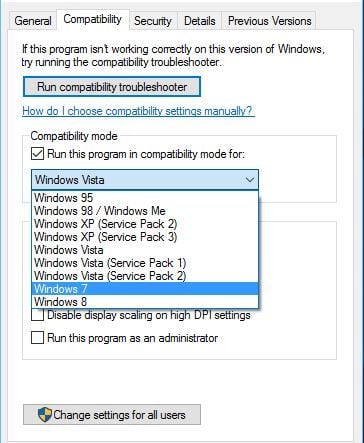
    compatibility-mode
  5. Click Apply and OK to save changes.

If Just Cause 2 is crashing on your PC, you can try running the game in compatibility mode. According to users, this method has been successful, so feel free to try it.

4. Remove Xbox app

  1. Press Windows Key + S and type Powershell.
  2. Right-click Windows Powershell and choose Run as administrator.
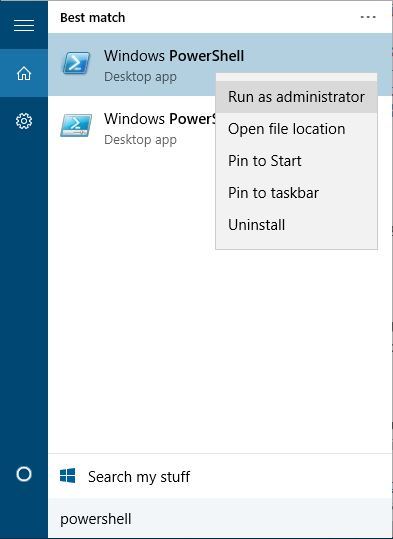
    powershell-run-as-admin
  3. When Powershell opens, paste the following and press Enter to run it:
    • Get-AppxPackage *xboxapp* | Remove-AppxPackage
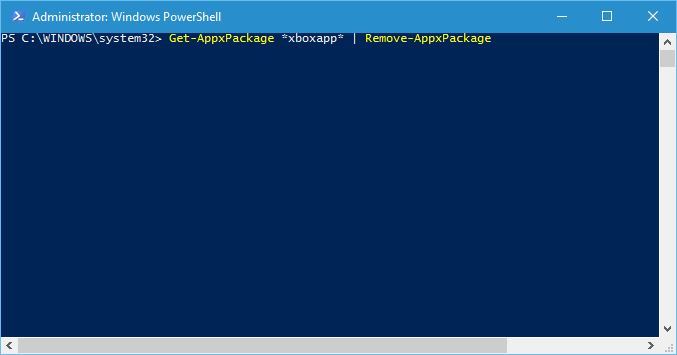
      power-shell-xbox-app
  4. Wait for the process to complete and close Powershell.

The Xbox app can sometimes cause crashes with Just Cause 2, therefore, users are suggesting removing the Xbox app.

5. Add dxadapter launch option

  1. Start Steam, go to your Library and right click Just Cause 2.
  2. Choose Properties from the menu.
    properties-steam
  3. In General tab click on Set launch options button.
  4. Enter /dxadapter=0 or /dxadapter=1 and save changes.
  5. Try running the game again.

In order to fix Just Cause 2 crashing issues, it advised that you add dxadapter launch option.

6. Use Nvidia Inspector

Users have reported that using Nvidia Inspector fixes Just Cause 2 crashes, so it might be a good idea that you try it. To fix this issue using Nvidia Inspector, do the following:

  1. Download Nvidia Inspector from here.
  2. Open Nvidia Inspector and click the button to the right of Driver version.
  3. From the profile menu choose Just Cause 2.
  4. Scroll down until you find Shim Rendering Mode Options per application for Optimus.
  5. Click the text on the right, and select SHIM_RENDERING_OPTIONS_DEFAULT_RENDERING_MODE.
  6. Click Apply changes.
  7. Run the game.

Keep in mind that Nvidia Inspector is an overclocking tool, so use it at your own risk.

7. Replace d3dx10_42.dll

Sometimes your files can get corrupt, and this can lead to Just Cause 2 crashes. Users have reported that d3dx10_42.dll can sometimes get corrupted and cause Just Cause 2 to crash.

If you’re having a similar problem, we advise you to download d3dx10_42.dll and replace the corrupted file.

8. Disable Xfire overlay

If Just Cause 2 is crashing on your computer, it might be due to Xfire. Users have reported that after disabling Xfire in-game all crashing issues were resolved.

9. Delete main.ncf file

Few users have reported deleting main.ncf file has fixed Just Cause 2 crashing issues, so let’s see how to delete this file:

  1. Make sure that Steam isn’t running.
  2. Go to your Steam installation directory and switch to steamapps folder.
    • By default, the location of the steamapps folder should be the following:
    • C:Program Files (x86)Steamsteamapps/strong>
  3. Go to Just Cause 2 directory, find main.ncf file and delete it.
  4. Start Steam.
    • You will be asked to install Just Cause 2.
    • Download the necessary files and run the game again.

10. Switch to windowed mode

Another workaround for Just Cause 2 crashes is to run the game in windowed mode. Several users have reported that switching to windowed mode has fixed crashing issues, so be sure that you try that.

11. Install DirectX

Sometimes Just Cause 2 crashes can be caused by DirectX, and if you’re having crashes, you’re advised to reinstall DirectX. To reinstall DirectX, just do the following:

  1. Go to Just Cause 2 installation directory. By default, it should be:
    • C:Program Files (x86)SteamsteamappscommonJust Cause 2
  2. Open DirectX folder and run dxsetup.exe.

12. Add different launch options

Users suggest that adding /frameratecap=30 /filmgrain=0 launch options to Just Cause 2 has fixed crashing issues.

We have already explained how to add launch options, so make sure that you check Solution 4 for detailed instructions.

13. Verify game cache, turn off antivirus real-time scanning

  1. Start Steam and find Just Cause 2 in your game library. Right-click Just Cause 2 and choose Properties.
  2. Go to Local files tab and click Verify integrity of game cache button.
    local-steam
  3. Wait for the process to complete and try running the game again.

If Just Cause 2 is crashing on your computer, make sure to verify game’s cache.

If this doesn’t work, you should temporarily disable your antivirus real-time scanning and see if that helps.

Fix – Just Cause 2 not starting

1. Delete Square Enix folder

If Just Cause 2 isn’t starting on your PC, you can try deleting Square Enix folder. This folder should be located in Documents folder, and after you’ve deleted it, restart Steam and try running the game again.

2. Install the game on a local hard drive

Users have reported that Just Cause 2 won’t start if the game is installed on an external hard drive.

If that’s the case, you’ll have to uninstall the game and reinstall it on your local hard drive.

3. Install Download Visual C++ Redistributable

Problems with Just Cause 2 can be caused by missing files, and if that’s the case, you should check the integrity of game cache. In addition, make sure that you install all necessary Visual C++ Redistributable files. To install the necessary files, go to Just Cause 2 installation directory and locate vcredist folder. Run setup file from that folder and follow the instructions.

Fix – Just Cause 2 freezes

1. Launch the game from the installation directory

If Just Cause 2 freezes on your computer, try running the game from its installation directory. To do so, navigate to game’s directory and run justcause2.exe. 

2. Move your game to a different hard drive

Players have reported that Just Cause 2 freezes and gets stuck on the splash screen, so in order to fix this problem, you’re advised to move Just Cause 2 installation directory to a different hard drive.

To do this, just find Just Cause 2 installation directory, cut it, and paste it to a different hard drive.

If you don’t have two hard drives, try moving Just Cause 2 folder to a different hard drive partition or to a root directory of your hard drive.

3. Update your graphics card drivers

In most cases, issues with freezes are caused by your graphics card drivers, so maybe you should update them. To do that, visit your graphics card manufacturer and download the latest drivers for your GPU.

Downloading and installing the wrong driver version will cause permanent damage to your system. We strongly recommend using Download Outbyte Driver Updater (100% safe and tested by us) to automatically download and update all the outdated drivers on your PC.

Disclaimer: Some features of this tool are not free.

Fix – Just Cause 2 graphics glitch

1. Disable Vsync

Users have reported that some cutscenes are slow and out of sync. Although we don’t know what is the cause of this issue, we suggest that you lower your graphics options to the minimum.

A few users have reported that disabling Vsync has fixed this issue for them, so feel free to try that as well.

2. Update your drivers, verify game cache and check the temperature

In some cases, graphical glitches can appear if your drivers are out of date, so make sure that you update them regularly. If the problem persists, verify the integrity of the game cache.

If that doesn’t resolve the issue, check if your graphics card is overheating.

Manually updating drivers is a long and annoying process. Thus, we recommend using a dedicated tool to automatically update your drivers.

Download Outbyte Driver Updater, it automatically identifies each device on your computer and matches it with the latest driver versions from an extensive online database.

3. Disable Steam Overlay

Users have reported that they are getting the strange red overlay, and as far as we know, this issue is related to Steam Overlay. To disable Steam Overlay, do the following:

  1. Start Steam and go to Steam Settings.
    steam-settings
  2. Click on In-Game settings and uncheck Enable the Steam Overlay while in-game.
    steam-in-game
  3. Save changes and try running the game again.

We have covered some of the most common Just Cause 2 problems that have been reported by users, and if you have any of these issues, don’t hesitate to try our solutions.

[wl_navigator]

FIX: Oops there was a problem with dictation in Office

Using speech instead of typing has more than one advantage. Lots of users strongly prefer dictation and, even though it’s still an unbrushed feature, it’s getting better with some help from AI technology.

Let’s take Microsoft Office as an example. Once you get used to it, it’s much easier to dictate your text to Word than to write it down for some users.

Sadly, some users run into issues with dictation as the Oops, there was a problem with dictation error message suddenly appeared.

There are various reasons for this occurrence and we made sure to try and fix it in the steps below.

How can I fix dictation issues in Office applications?

1. Run the Speech troubleshooter

  1. Press Windows key + I to open Settings.
  2. Choose Update & Security.
  3. Select Troubleshoot from the left pane.
  4. Expand the Speech troubleshooter and click Run the troubleshooter.speech troubleshooter

Let’s start by eliminating your mic as a possible instigator. The first step you can try is using the built-in Speech troubleshooter.

This troubleshooter should run a series of tests in order to find out whether your mic is properly configured or not.

It might not help you overcome the issue if drivers are at stake. That requires a manual approach.

2. Inspect mic drivers and permissions

  1. Right-click Start and open Device Manager.
  2. Expand the Audio Inputs and Outputs section.device manager audio inputs and outputs
  3. Right-click on your mic (or mics if you see multiple devices) and choose the Uninstall device option.

  4. Reboot your PC and get back to Device Manager.
  5. Drivers should update automatically but you can always do it manually by right-clicking on the mic in the aforementioned section and installing the drivers.

The second important thing we’ll need to inspect before moving to Office-related troubleshooting is the mic driver. Most recording devices will work immediately as Windows Update will deal with drivers.

However, that’s not always the case so you’ll need to install them manually. 

Windows Update also tends to break drivers, so rolling back is not exactly a bad idea. On the other hand, the best way to make sure is by acquiring drivers from the OEM’s support website.

Alternatively, you can use dedicated driver software such as Outbyte Driver Updater. This lightweight utility scans your PC for missing, damaged, and out-of-date drivers and automatically downloads and installs the best versions for your specific hardware.

3. Check microphone permissions

  1. Press Windows key + I to open the Settings app.
  2. Choose Privacy.
  3. Select Microphone from the left pane.
  4. Under the Allow apps to access your microphone and Allow desktop apps to access your microphone, toggle on.

Once we’ve dealt with drivers, let’s check permissions. Make sure that Office has permission to access your mic. 

4. Use a voice recorder instead: Adobe Audition

install Adobe Audition

Instead of having to deal with the message stating Oops there was a problem with dictation, using a voice recorder seems like a better option to take into consideration.

You need to know from the very start that the industry’s most powerful tool for audio digital editing can be mastered with ease even by newbies.

Therefore, fear not if you lack any previous experience. Adobe targets the music enthusiast audience with its impressive digital audio workstation tool, yet its capabilities go far beyond the musical field.

Keep in mind that you may switch between different sharp-looking interface layouts with ease. Moreover, you grab the app through the Creative Cloud suite.

This means that you’ll get the chance to quickly manage all your Adobe products from a single place, which sounds like heaven if other Adobe apps are already part of your routine.

Adobe Audition

Use one of the best voice recorder software that can also help you edit your audio files.
Free trial Visit website

5. Repair Office installation

  1. In the Windows Search bar, type Control and open Control Panel.
  2. Choose Uninstall a program.
  3. Right-click on the Office and click Change.
  4. From the new windows, choose Quick Repair.

If the audio recording device isn’t an actual problem, we can move to Office troubleshooting. The best way to resolve all and every Office issues is by repairing the installation.

This is a common solution and it won’t take too much of your precious time. As many other cases showed, the installation of 365 Office and its predecessors tend to go corrupt.

6. Reinstall Office

Finally, if none of the previous steps helped you address the problem, we suggest performing a clean reinstallation. You can find the setup on the official Office website and download it rather simply.

But, beforehand, let’s uninstall Office from your PC by following steps from the previous solution. Instead of choosing Repair, select Uninstall from the contextual menu.

After that, just run the installer and sign in with your credentials. After that, you should be able to use dictation in Office programs without any further issues.

With that said, we can conclude this article. The above solutions will help you to solve the issue. On the other hand, if you’re still unable to do so, consider contacting the official support and stating your issue.

Just in case you have any alternative solutions or possibly a question or two, don’t forget to post them in the comments section below. We’ll be glad to hear from you.

How to fix the Minecraft aka.ms/accountsettings error code

Minecraft is one of the most loved games amongst the younger generations and has been critically acclaimed as well. However, several users have reported encountering the Minecraft aka.ms/accountsettings error.

This basically indicates a problem with the account settings, which we will be taking up in detail in the next section. In this case, the users are unable to play the game or connect with their friends on the platform.

Minecraft is connected to your Microsoft/Xbox account or that of your family member in case you are a minor. This provides you with a wholesome experience and ensures that parents can monitor and restrict the content available to their children.

Let’s now see the underlying issues that cause the Minecraft aka.ms/accountsettings error, and walk you through the most effective fixes for it.

What causes the Minecraft aka.ms/accountsettings error?

There are a lot of issues responsible for the error in Windows 11 and the previous iterations as well. But, one of the most common is restricted access from the main account. If that’s the case, all you have to do is change the relevant settings.

Apart from that, age restrictions do come into the picture here. If you have added an age less than 18 on your Microsoft account, you are likely to encounter the Minecraft aka.ms/accountsettings error.

Now that you have a basic understanding of the problem, let’s now head to the most relevant methods to eliminate the error.

How can I fix the Minecraft aka.ms/accountsettings error?

1. Restart the computer

  1. Press Alt + F4 to launch the Shut Down Window box, click on the dropdown menu, and select Restart.Restart the PC to fix minecraft aka.ms/accountsettings
  2. Click on OK to restart the computer.Confirm restart

Most often than not, it’s a trivial bug that causes the Minecraft aka.ms/accountsettings error and a simple restart should do. When you restart the PC, the OS is rebooted and any bug causing the issue will be eliminated right away.

2. Relogin to the Xbox Account

  1. Press Windows + S to launch the Search menu, enter Minecraft Launcher in the text field at the top, and click on the relevant search result that appears.Launch Minecraft to fix minecraft aka.ms/accountsettings
  2. Next, click on your account listed near the top-left corner of the window.Xbox account
  3. Select Logout from the dropdown menu.Logout to fix minecraft aka.ms/accountsettings
  4. After signing out, click on the Microsoft Login option, enter your credentials, and complete the process.Sign back in

Once you have logged back into Minecraft, check if the Minecraft aka.ms/accountsettings error is fixed.

3. Change account settings

  1. Go to the Xbox account settings, log in with the main account, complete the verification process, and select the account you are having problems with.Sign in to fix minecraft aka.ms/accountsettings
  2. Navigate to the Xbox Series X|S, Xbox One, and Windows 10 devices Online Safety tab.Switch tab
  3. Now, tick the checkboxes for Allow next to You can create and join clubs and Join multiplayer games, and finally click on Submit at the bottom to save the changes.tick checkbox to fix minecraft aka.ms/accountsettings
  4. Now, check if Minecraft works without throwing any errors.

4. Repair/reset the Minecraft Launcher app

  1. Press Windows + I to launch Settings, and select the Apps tab from the navigation pane on the left.Apps to fix minecraft aka.ms/accountsettings
  2. Click on Apps & features on the right.Apps & features
  3. Next, locate the Minecraft Launcher app, click on the ellipsis next to it, and select Advanced options from the menu.Advanced options to fix minecraft aka.ms/accountsettings
  4. Click on Repair button and wait for the process to complete.Repair to fix minecraft aka.ms/accountsettings
  5. If Minecraft still doesn’t work, click on the Reset button.Reset to fix minecraft aka.ms/accountsettings
  6. Again, click Reset on the confirmation prompt that pops up.Confirm reset

You can reset and repair apps downloaded from the Windows Store to fix issues with them. When you repair an app, all its files are checked and any problematic ones are replaced, and the Registry entries are verified. Repairing an app doesn’t affect the data.

On the other hand, when you reset an app, all the stored data and configured settings are lost. Once the process is complete, the app will be as good as new.

After repairing, and if required, resetting the app, check if the Minecraft aka.ms/accountsettings error is eliminated.

5. Create a new account and set age to 18+

  1. Press Windows + S to launch the Search menu, enter Minecraft Launcher in the text field at the top, and click on the relevant search result that appears.Lanch Minecraft to fix minecraft aka.ms/accountsettings
  2. Next, click on Xbox account at the top-left corner and select Logout from the dropdown menu.Logout
  3. Click on Create a new Microsoft account.Create a new Microsoft account to fix minecraft aka.ms/accountsettings
  4. Click on Create a new account in the browser window.Create a new account
  5. Enter an email ID that’s not yet registered and then click on Next.Enter email id
  6. Next, enter a password for your account and click Next.create a password to fix minecraft aka.ms/accountsettings
  7. Select a region, enter your age, and click Next. In this step, make sure to set the age above 18 years.Choose region and add age as 18 or above
  8. From here on, follow the on-screen instructions and complete the verification, to get done with the account creation.Verify email
  9. After the account is created and you have choosen a Gamertag, launch Minecraft Launcher, and then click on Microsoft Login.Microsoft login to fix minecraft aka.ms/accountsettings
  10. Now, sign in using the account you just created, and click on Let’s Play.Let's play

After you have logged in with the new Xbox account, install the game and verify if the Minecraft aka.ms/accountsettings error is resolved.

Microsoft has some content moderation guidelines in place that prevent users under the age of 18 from accessing or playing certain games. If that’s the case, creating a new account and setting the age to 18+ should resolve the problem.

6. Reinstall Minecraft

  1. Press Windows + I to launch Settings, and then select Apps from the tabs listed in the navigation pane on the left.Apps
  2. Next, click on Apps & features on the right.Apps & features
  3. Locate the Minecraft Launcher app, click on the ellipsis next it, and then select Uninstall from the menu.Uninstall Minecraft to fix minecraft aka.ms/accountsettings
  4. Now, click Uninstall on the confirmation prompt that pops up.Confirm Uninstall

If the problem lied with the app itself, reinstalling should fix the Minecraft aka.ms/accountsettings error in Windows 11.

After you uninstall the Minecraft app, download and install it from the Microsoft Store or check our next section to learn the exact process.

How do I download Minecraft in Windows 11?

Ever since Windows 11 was released, users had been curious if they could get Minecraft on the latest iteration. And, the answer is Yes. To do that, check our guide that lists out the process to download and install Minecraft in Windows 11.

Minecraft game

If you recently upgrade the OS and are installing Minecraft for the first time, there’s also an option for a free trial. Choose that, and if you find the game appealing, purchase the game from the official Minecraft website or go with the Xbox Game Pass.

These are all the ways you can fix the Minecraft aka.ms/accountsettings error in Windows 11. By the time you reach this part of the article, the problem should be eliminated and you can enjoy playing Minecraft.

Also, find out how to resolve issues preventing Minecraft from working in Windows 11.

Tell us which fix worked and your experience of Minecraft in the comments section below.

Fix WASAPI/ MME/ DirectSound Windows 10 update issue

Another day, a new problem. This seems to be the best description of the Windows 10 update.

We already compiled a list of the most common Windows Update issues, but we’ve got a new one to add and a lot of audio bugs are involved.

Many users, especially gamers, recently reported problems with WASAPI, MME, and DirectSound problems after updating Windows 10.

Their sound is either muted, they experience crackling sounds, or the microphone is unresponsive or muted.

Why is the WASAPI causing problems after a Windows update?

This issue is mostly caused by changes in the WASAPI settings but it can also be triggered by the system shutting the device down to conserve power.

Also, after the update, the access rights of your devices might have been altered so you will have to go through the settings and verify that.

Don’t worry because we have solutions for all these problems and we also included a fix if the sound of your microphone is not picked by your sound app.

We also have an extensive list of solutions on how to fix computer sound problems in minutes and you might also find some more solutions there.

How can I fix audio issues on Windows 10?

1. Rollback Windows to a previous update

  1. Click the Start button and select Settings.
  2. Choose Update & Security from the list of options.
  3. Click on Windows Update from the left pane, hit View update history from the right.
  4. Now select Uninstall updates.
  5. Pick the latest update that caused the audio problem and click on Uninstall from the top.

Although we always recommend keeping your system up to date, sometimes, until Microsoft addresses some bugs with the latest one, it’s a valid option to roll back.

However, this can only be a temporary solution and you should definitely try to keep your system updated after the problem has been addressed.

2. Change the audio Power settings in the Registry

  1. Press the Windows key + R to start a Run window, type regedit, and press Enter or click OK.
  2. Go to the following key: HKEY_LOCAL_MACHINE\SYSTEM\CurrentControlSet\Control\Class
  3. Select the following key: {4d36e96c-e325-11ce-bfc1-08002be10318}
  4. If you find a series of keys such as 0000, 0002, 0005, open them one by one in order to locate a key called PowerSettings.
  5. Select ConservationIdleTime and change its value to 00 00 00 00.

If you’re using a battery-powered laptop, Windows 10 automatically puts the audio drivers to sleep in order to extend battery life. The OS then wakes the drivers only when audio is played.

Unfortunately, when this happens, you’ll hear a pop or crackle sound when audio is played which irritates many users. To fix this minor problem, you need to tweak the Registry.

3. Disable audio programs from Startup

  1. Press the Start button and choose Settings.
  2. Click on Apps.
  3. Select Startup from the left pane, then disable or turn off any apps that use audio, including browsers.
  4. Restart your PC and see if the problem has been solved.

4. Change your laptop Power mode to High performance

Note icon NOTE
This solution is only dedicated to laptop users.
  1. Select the Start button and then click on Settings.
  2. Now, choose System from the list of options.
  3. Click on Power & sleep from the left pane and select Additional power settings from the right.
  4. Now, select the High performance plan. You can also adjust its settings by clicking on the Change plan settings from its right but it shouldn’t be necessary.

5. Provide your audio device with exclusive properties

  1. Select the Windows button and click on Settings.
  2. Choose System from the possible options.
  3. Select Sound from the left, then pick the output device from the drop-down menu on the left and click on Device properties.
  4. Scroll down and select Additional device properties.
  5. Select the Advanced tab, check both boxes from the Exclusive Mode section, then hit Apply and OK to acknowledge the settings.

If the Exclusive Mode options are greyed out, that means that an app already has priority in using that device and you need to disable it from Startup.

In solution 3 of this guide, we explained how to disable a program in Startup so all you need to do is to check if you have any other audio apps there and disable it, then reboot your PC.

6. Allow the apps to use your microphone

  1. Click on the Start button and select Settings from the menu.
  2. Select Privacy.
  3. Scroll down and select Microphone from the left pane, then make sure that the Allow apps to access your microphone and Allow desktop apps to access your microphone options are both On. Then, you can scroll down and verify if the audio app that cannot use the microphone is also set to On.

If your microphone won’t pick up any sound, make sure you allowed apps and programs to use it.

There you go, these are a few solutions that should help you fix the audio issues affecting the WASAPI, MME, and DirectSound issues after a Windows Update.

How to adjust the WASAPI audio settings in your software?

  1. Start the DAW you’re having audio problems with and check the Audio settings.
  2. For instance, in Reaper, check if WASAPI is set in Exclusive mode.
  3. Also, try a lower Block size. That may also fix any latency problems you might encounter.

We offered Reaper as an example but it goes for any DAW that you can set the audio system for.

We also have a very comprehensive article on how to fix sound problems in Windows 10 & 11 after an update and you may also find some useful solutions there.

For any suggestions or further problems, don’t hesitate to contact us via the comments section below and we will get back to you as soon as possible.

Microsoft is making its Xbox subscription practices more transparent for consumers

Following an investigation from the UK’s Competition and Markets Authority (CMA), Microsoft has agreed to change its Xbox subscription practices to increase transparency for consumers (via Eurogamer). The changes will apply to Xbox Live Gold as well as Xbox Game Pass, Microsoft’s game subscription service that recently crossed 25 million subscribers.

The issue raised by the CMA is that Microsoft’s Xbox Live Gold and Xbox Game Pass subscriptions are often offered to consumers on an auto-renewal basis, something that not all new subscribers may not be aware of. Overall, the CMA estimated that it’s probably too easy for consumers to forget how to turn off automatic renewal, or too difficult to find how to do it.

In accordance with the CMA, Microsoft has agreed to introduce the following changes to make its Xbox subscription practices more transparent:

  • Microsoft will better explain to new customers that their subscription will carry on unless they turn off auto-renewal.
  • For consumers who opted for a recurring 12-month subscription, Microsoft will offer them the option to cancel their subscription and get a pro-rata refund.
  • If Microsoft notices that consumers aren’t actively using their subscription, the company will remind them about cancellation options and even stop the subscription (and payments) if consumers continue not to use it actively.
  • Microsoft will also better inform subscribers about price increases and inform them about how to turn off auto-renewal to avoid paying more.

The CMA launched its consumer law investigation into the auto-renewal practices of Xbox, PlayStation, and Nintendo back in 2019, and Microsoft was the first company to agree to make a series of improvements. “Other companies offering memberships and subscriptions that auto-renew should take note, and review their practices to ensure they comply with consumer protection law,” said Michael Grenfell, Executive Director of Enforcement at the CMA.

Fix: Axie Infinity Something Wrong When get Profile

Axie Infinity is one of the most popular NFT-based crypto-games, with over 2 million users as of October 2021. However, several users have reported that Axie Infinity often throws a Something wrong when get profiles error.

The following sections will discuss the underlying causes and the most effective fixes.

Why am I getting Axie Infinity Something wrong when get profile message?

This error may be caused by a variety of factors, including the following:

  • Server load – The error will likely get triggered more when too many users simultaneously try to use the servers.
  • Technical issues – A few technical issues, like glitches and bugs on the application, would trigger the error.
  • Connectivity issues – Slow or unsteady networks will also increase the chances of the Axie Infinity Something wrong when getting profile message.
  • Problems with the account – Incorrect credentials and other account problems may trigger the fetch issue.

How can I fix Axie Infinity Something wrong when get profile error?

1. Delete the Axie Infinity folder

  1. Press Windows + E to launch the File Explorer, click on the View menu at the top, hover the cursor over Show in the dropdown menu, and select the Hidden items option.View hidden items to fix axie infinity not working
  2. Next, double-click on the C: drive.C drive
  3. Open the Users folder.Users to fix axie infinity not working
  4. Double-click on the current user account to open it.User account
  5. Open the AppData folder.App data to fix axie infinity not working
  6. Double-click on LocalLow to view the content of the folder.LocalLow
  7. Locate and double-click on Sky Mavis.Sky Mavix to fix axie infinity not working
  8. Now, select the Axie Infinity folder, and click on the Delete icon in the command bar at the top. Alternative, you can select the folder and hit the Del key.Delete Axie infinity folder to fix axie infinity not working
  9. Choose the appropriate response in case a confirmation prompt pops up.

2. Re-login to all platforms

  1. Go to the official Axie Infinity marketplace, click your user icon, and select Logout.axie infinity something wrong when get profile
  2. Press Windows + S to launch the Search menu, enter Mavis Hub in the text field at the top, and click on the relevant search result that appears.launch Mavis Hub
  3. Next, click the Settings (gear) icon near the bottom-left corner and select Logout from the menu.Logout from Mavis Hub to fix axie infinity not working
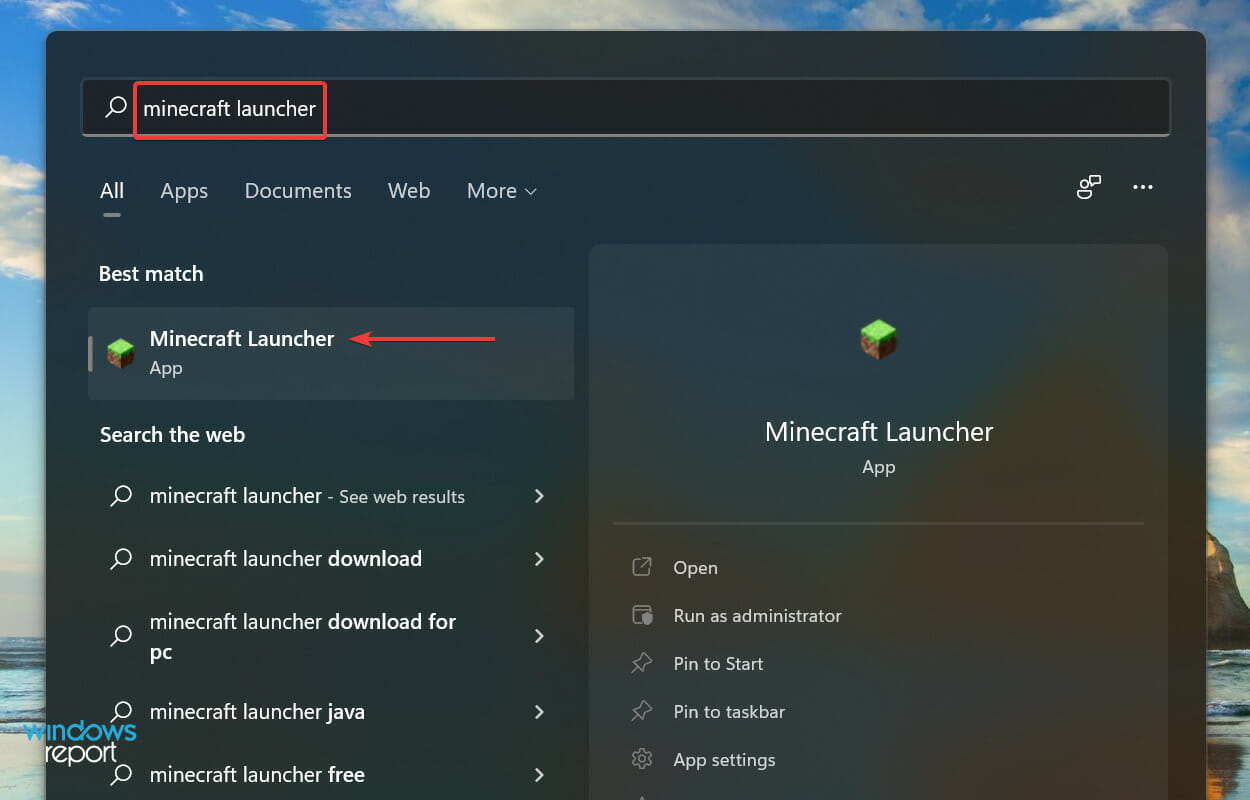
  4. Once you have logged out from both platforms, return to Axie Infinity Marketplace and click on the Login with Ronin Wallet option.Login with Ronin Wallet to fix axie infinity not working
  5. Now, click on Confirm in the box that appears near the right.Confirm Login
  6. Launch the Mavis Hub app, enter your login credentials, click on Click to verify, and once done with the verification, click on the Login button.Login to mavis hub to fix axie infinity not working
  7. After logging in to both platforms, click the Play button.Play to check if axie infinity not working error is fixed

Often, it’s an issue with the login preventing Axie Infinity from working. Simply logging out and re-logging to both platforms should help fix the problem.

3. Reinstall Axie Infinity

  1. Press Windows + S to launch the Search menu, enter Mavis Hub in the text field, and click on the relevant search result that appears.Mavis Hub
  2. Click on the Settings icon for Axie Infinity and select Uninstall from the menu.Uninstall game to fix axie infinity not working
  3. Click on OK in the confirmation prompt that pops up.Confirm Uninstall
  4. After Axie Infinity is uninstalled, click on Install to reinstall it.Reinstall Axie Infinity to fix axie infinity not working
  5. Click the Start Install button to initiate the process.Start Install

If the problem lies with the installation itself, reinstalling the game will fix it. If it was a problematic installation behind the error, you wouldn’t have been able to launch the game after installation the first time or must have encountered the problem in the early days.

But after reinstalling the game, Axie Infinity should now be working fine.

4. Reinstall Mavis Hub

  1. Press Windows + I to launch Settings, and select Apps from the list of tabs in the navigation pane on the left.Apps tab to fix axie infinity not working
  2. Click on Apps & features on the right.Apps & features
  3. Now, locate the Mavis Hub app, click on the ellipsis next to it, and select Uninstall from the menu.Uninstall Mavis Hub to fix axie infinity not working
  4. Click Uninstall in the confirmation prompt that pops up.Confirm Uninstall
  5. Now, download the Mavis Hub app from the official website of Axie Infinity.

If nothing else has worked, you are left with no option but to reinstall the Mavis Hub app. Most users were able to eliminate the issues preventing Axie Infinity from working using this fix.

After reinstalling the Mavis Hub app and signing in, Axie Infinity will work fine.

These are all the ways you can fix problems leading to the Axie Infinity not working issue in Windows. If you plan to create your own NFT, check how to choose the best size and resolution. Also, find out the best apps to monitor the live prices of different cryptocurrencies.

Tell us which fix worked and your experience with Axie Infinity in the comments section below.

How to Create a SCR File Format in Windows 10

To display your photos or designs as a screensaver, you have to create an SCR file. Although screensavers don’t serve the same function of preventing burnt images on the screen as they once did, they’re still fun.

In this guide, we’ll tell you all there is to know about the .SCR file format and walk you through the steps to create your personalized screensaver.

How can I create and set up a .scr screensaver on Windows?

1. Setting up via File Explorer

  1. On the home page, click on the magnifying glass icon to bring up the search bar.
  2. Type in screensaver and click the first entry you see.
  3. The Screen Saver settings window opens. Click the drop-down menu under Screen saver.
  4. Select one of the default screen saver options available.
  5. Once you’ve made your selection, you can change the screensaver’s configuration by clicking Settings. However, not all options will have settings to alter.
  6. The Photos options does, however. The Settings window allows to choose which Pictures to use, the slide show speed, and the ability to shuffle them.
  7. Use the box next to Wait to set the slideshow delay in minutes.
  8. Check the box next to On resume, display login screen to lock the computer when the screensaver ends.
  9. Click Apply, then OK.
  10. The screensaver begin after the time you specified as long as your computer receives no keyboard or mouse input until that time.

You can learn more about using your pictures with the Photos screen saver in our dedicated guide on setting Photos as your Windows screen saver.

2. Create .scr file with Screensaver Wonder 7

  1. Download Screensaver Wonder 7.
  2. After downloading the file, locate it wherever it was downloaded to.
  3. Double-click to begin installation. A window may appear asking if you want to make changes. Select Yes.
  4. Proceed through the installation wizard.
  5. After installing, the wizard asks you to read some important information. Click Next when done.
  6. Select Finish to open Screensaver Wonder.
  7. In Screensaver Wonder, start by clicking on New Project.
  8. Under the Media tab, you can start by click either the Add… or Add Folder… buttons to the right. This guide will select Add Folder…
  9. A small window will appear where you will select the folder of photos you want to make up your screensaver. Once you’ve selected the Folder, click OK.
  10. Now all the photos in the folder will appear under Media.
  11. If you want add music to your screensaver, select the Music tab.
  12. Click the Add… button on the right-hand side.
  13. Locate the music file you want to add. Click it and then hit Open.
  14. You can preview the track with the button on the right hand side.
  15. In Background, you can change the background color of the slideshow and select the gradient fill. Or you can randomize everything by clicking the buttons on the side.
  16. Attributes allows you to give the Screensaver a title, write down your name, and include your website.
  17. The Preview Image tab gives a preview of the slideshow before it starts, which you can switch out.
  18. Options allows the most in depth customization. The General allows you to choose how the image is positioned and in what order the slideshow comes out in.
  19. Image Effects allows you to configure which transition effects you want in the slideshow and how fast you want them.
  20. Image Adjustments optimize the image size to fit the screen.
  21. Behavior configures the exit conditions, how the screensaver ends. You can select which ones work or don’t.
  22. Once you’re done configuring, select Create on the left hand side.
  23. You can preview the screensaver by selecting Preview Screensaver.
  24. The screensaver previews as you intended to. View it and make any changes as you see fit.
  25. Then click Create Screensaver.
  26. Give the screensaver a name.
  27. Immediately after creating the screensaver, the window for the Screen Saver Settings appears.
  28. Click on the Settings button and you can make many of the same changes found in Screensaver Wonder 7.
  29. After making changes, click Apply then OK.
  30. After a brief moment, the screensaver that you created will appear.

Wrapping up

With the steps above you should be able to create a screensaver on your Windows PC. Keep in mind that some savers require Flash Player, or they won’t work.

You can also create a 3D screensaver using dedicated software. Adding the QT TabBar app is also a nice idea, as it enables multiple tabs to be used on the File Explorer.

Feel free to leave a comment below if you have any questions on other Windows 11 apps. Also, leave comments about other guides that you’d like to see or information on other Windows 11 features.

8 Best Blu-ray Players for Windows 11

A Blu-ray Disc is a high storage disc that plays movies in 1080p and 4K resolutions. Dual-layer Blu-ray Disc storage amounts to 50 GB of data compared with a DVD’s 8.7 GB data.

As such, Blu-ray discs provide better quality video and audio playback than DVDs. Furthermore, they can also include more additional bonus content on their menus.

To play Blu-ray Discs on your Windows desktop or laptop, you’ll need a Blu-ray optical drive (unless you’ve ripped content from the disc). You’ll also need Blu-ray media player software that fully supports the disc format.

Why do we need Blu-ray player software?

Blu-ray players are software tools designed to play Blu-ray movies when you insert them into an optical drive.

They directly support the Blu-ray format and include all the playback options you’ll need for watching videos.

Therefore, it’s not enough to have the physical drive on our PC but it’s more important to have the software to play them.

In fact, as we mentioned above, you don’t even need a BD drive to do that if you downloaded or ripped the video from an existing disc beforehand.

With this information in mind, here are some of the best Blu-ray players for Windows 10 to play your movies with.

What are the best Blu-ray players for Windows 10?

PowerDVD 21 – Enhancing lighting and optimizing color

CyberLink’s website boasts that PowerDVD 21 is the world’s No. 1 movie & media player, and the publisher’s marketing hype doesn’t lack substance.

PowerDVD 21 clearly is one of the world’s best Blu-ray players at least as it supports both 4K Ultra HD and Full HD Blu-ray Disc. 

The latest version enables users to play Blu-ray movies at full screen on wide-screen TVs on a 21:9 aspect ratio.

Furthermore, the software’s TrueTheater enhancement tech further boosts Blue-ray and HD playback quality by enhancing lighting and optimizing color.

PowerDVD 21 also supports the latest Dolby and DTS sound formats that provide cinematic audio quality.

Aside from its stellar Blu-ray playback, PowerDVD 21 includes a great feature set. PowerDVD 21 users can cast videos to their TVs with the Roku, Apple TV, Chromecast, and Amazon FireTV digital media players.

The software supports VR and 360-degree content, and it includes a unique VR mode for the HTV Vive and Oculus Rift headsets.

PowerDVD is also one of the best media players for watching online video as its users can play HDR, 360 degrees, Full HD, and 4K YouTube videos and pin them to watch offline.

With a media library thrown in for good measure, PowerDVD 21 pretty much includes everything you’ll require from a media player.

Here are some of the perks of using PowerDVD 21:

  • You can link it to your home network to cast videos on any device
  • The best media center and video player in the world
  • Comes in multiple price plans, base don your needs
  • Can support all video file formats used
PowerDVD 21

PowerDVD 21

Play your Blu-ray discs in an unparalleled manner using an app as a movie player or media center bundled up into one.
Free trial Visit website

GOM Player – Intuitive interface

The second entry on our list is a very popular media player among users, most probably because it also comes in a free variant that pretty much anyone can use without any kind of restriction.

GOM Player is also popular because it has a very intuitive and familiar interface, and anyone that ever used another video player can easily work around this one as well.

It is very versatile in terms of what formats it can support, and it even comes with a built-in subtitle library, so anyone anywhere can enjoy any movie.

As far as resources are concerned, GOM Player is extremely lightweight, even when playing formats, you’d expect to be very taxing, in this case being Blu-ray disks.

In addition, this software provides a 360-degree video experience to catch all the details and upgrade your photos. But there is more, you can benefit from immersive features with 360° VR playback.

If you consider this option, you should also check out the Pro version to enjoy high-end services like no ad playback environment or 4K movies without buffering.

Here are some of the perks of using GOM Player:

  • Has no issue with Blu-ray disk video playback
  • Can handle most video formats
  • Lightweight and very portable
  • Comes in a free form as well
  • Intuitive interface
GOM Player

GOM Player

Enjoy an amazing video playback experience with Blu-ray videos using this amazing video player.

Leawo Blu-ray Player – Great audio and video playlist management

Leawo Blu-ray Player comes with all the media playback solutions for a good movie-watching experience with your friends and family.

It’s as if you’re having a Blu-ray disc player in your living, except it’s completely free and ready for 4K UHD Blu-ray videos.

Of course, you can still watch DVDs or most HD videos you will throw at it, even ISO files if that’s your choice of entertainment.

And when you’re not watching movies, it can still act as a perfectly good audio player to enjoy your music.

We told you that it plays Blu-ray videos but it also supports BDAV movie folders regardless if they are commercial or homemade.

It has impressive file format support: 4K videos in MKV, MP4, and TS, 1080P videos in HD MP4, HD MKV, HD MOV, etc., 720P videos in MP4, AVI, MKV, and other formats.

Camcorder recordings, online videos you downloaded or streamed video, you name it, and this great tool will play them.

Let’s see what are its best features:

  • Impressive support for a wide array of file formats
  • Completely free, without ads
  • Great audio and video playlist management
  • BDAV movie folder and ISO playback
  • Online video download features
Leawo Blu-ray Player

Leawo Blu-ray Player

This free Blu-ray player has all the ingredients for a great movie experience with your dear ones!

Aiseesoft Blu-ray Player – Region-free player

The Aiseesoft Blu-ray Player is a good value media player that you can utilize to play a range of video and audio formats.

Aiseesoft Blu-ray Player is compatible with Windows platforms from XP up and macOS Mojave and High Sierra. Plus, it is a straightforward and easy-to-utilize video player with a sleek and stylish UI design.

The best thing about this software is that it supports 4K playback for MP4, MKI, MOV, FLV, H.265, TS, and FLV formats so you can play videos in one of the highest resolutions.

Note, however, that it is restricted to 1080p Blu-ray playback. Aiseesoft Blue-ray also boasts top-notch audio quality as it supports Dolby TrueHD lossless audio and DTS-HD surround sound.

This software doesn’t include a huge number of configuration options, but its users can still adjust some playing effect settings for videos.

Additionally, this versatile tool helps the user to watch favorite movies regardless of the source, from Blu-ray discs, folders, or ISO files. Also, it can play any disc released in other regions.

Hence don’t hesitate to try this full-featured tool that is capable of satisfying any Blu-ray movie requirements, assuring an amazing quality of your video.

Let’s review some of its best features:

  • 4K playback support
  • Dolby TrueHD lossless audio and DTS-HD surround sound
  • Region-free player
  • Compatible with Windows and macOS
  • Simple configuration and playback
Aiseesoft Blu-ray Player

Aiseesoft Blu-ray Player

Assure your needs in terms of Blu-ray movies and classic media players with this complex software.
Check price Visit website

AnyMP4 Blu-ray Player – Friendly and modern UI

If you really want to enjoy your 4K and Blu-ray content, AnyMP4 Blu-ray Player is one of the best you can get right now.

That’s because thanks to its advanced technology this player will get you the best image quality from your videos.

The GPU hardware acceleration helps the app load and play any video quickly and smoothly every time.

You are able to customize video effects such as hue, holiness, contrast, saturation, and gamma for fantastic home theater entertainment when playing Blu-ray movies.

It supports surround sound 5.1 (Dolby Digital, DTS) so with the right audio system, you can enjoy sound quality just like in the cinema.
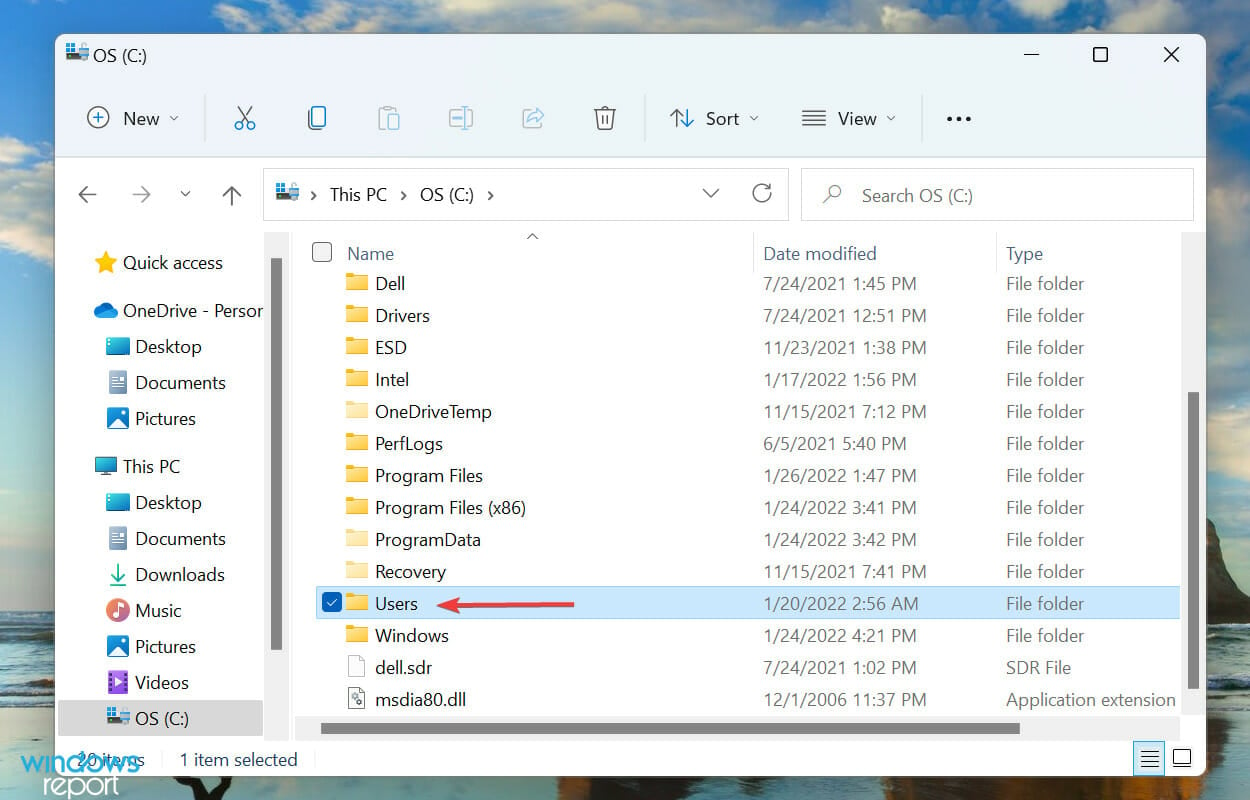
AnyMP4 Blu-ray Player has a modern user interface, easy to manage, with a great playlist for any media, including DVDs, music, and video files.

Before playing a video, you can easily select subtitles and audio tracks. During playback, if you find a memorable scene, the player allows you to take screen captions with one click.

Let’s see some of its best features below:

  • Blu-ray, 4K, DVD and digital video support
  • Friendly and modern UI
  • Dolby Digital and DTS 5.1 surround sound
  • Customize video effects for complete home entertainment experience
  • Insert subtitles and audio tracks easily
AnyMP4 Blu-ray Player

AnyMP4 Blu-ray Player

Get the best home cinema experience with one of the best Blu-ray and 4K players with customizable video effects.
Free trial Visit website

DVDFab Player 6 Ultra – Top-notch lossless audio output

The DVDFab Player 6 is a media player that has had some rave reviews. This is a Blu-ray player that supports 4K Ultra HD Blu-ray Disc playback as well as DVD, BDAV, and AVCHD.

Note that the freeware version doesn’t support Blu-ray Disc, and you’ll need the Ultra version for 4K Blu-ray playback.

You can add the freeware DVDFab Player 6 to Windows 10, 8.1, 8, and 7 by clicking the Free Download button for the software on the link below.

DVDFab Player 6 might not be the most economical media player, but it enables you to watch Blu-ray Disc and DVD on both PCs and TVs at top-notch 4K picture quality and includes an HDR10 playback mode.

Furthermore, DVDFab Player 6 is one of few media players that supports 3D Blu-ray Disc for 3D films with four 3D output modes included.

The media player also supports Dolby TrueHD, DTS-HD, or Atmos for top-notch lossless audio output.

Aside from supporting the latest video and audio tech, DVDFab Player 6 includes some handy features. Users can select a TV Mode or PC Mode to optimize playback for TVs or VDUs.

The media player supports Blu-ray menus, and users can select a Menu Mode to play the disc with menus or a Simple Mode just to play the film.

Let’s see what are its most important features:

  • Set up movie playlists with ease
  • Dolby TrueHD, DTS-HD and Atmos lossless audio output
  • 4 video 3D output modes
  • Free version available but without 4K Blu-ray support
  • New, modern UI design
DVDFab Player 6

DVDFab Player 6

Watch your favorite blockbusters in 4K and HDR playback mode with this premium player.
Check price Visit website

Aurora Blu-ray Media Player – Custom video subtitle text

Aurora Blu-ray Media Player is a straightforward and convenient video player that supports a wide range of media formats. The software is compatible with Windows 10 to Windows XP and Mac platforms.

You can try out the software with its unregistered version, which adds a watermark to Blu-ray playback, by clicking Download on the link provided below.

Few video players can match Aurora Blu-ray Media Player’s diverse media playback support. Aside from Blu-ray Disc, it plays VCD, DVD, CD, and a multitude of video and audio file formats.

The software includes contrast, saturation, gamma, hue, and other adjustment options with which users can enhance the picture.

Aurora Blu-ray Media also provides handy track synchronization controls with which users can keep images, audio, and subtitles in sync.

In addition, users can customize video subtitle text via the software’s Preferences window.

So, Aurora Blu-ray Media Player is a no-nonsense Blu-ray player with which you can play almost any media format and optimize video, pictures, and audio.

Take a look at this player’s best features:

  • Diverse media playback support
  • Track synchronization controls
  • Subtitle customization options
  • Compatible with DTS HD 7.1, DTS/AC3 5.1 and TrueHD 2.1 outputs
  • Plays Blu-ray ISO files

⇒ Get Aurora Blu-ray Media Player

DAPlayer – Minimal CPU utilization

DAPlayer is a free media player for 1080p video playback that’s freely available. It supports commercial Blu-ray Disc playback and can play both AACS-protected and BD+ discs.

5KPlayer is a revamped version of DAPlayer mentioned on the software’s website, but that’s limited to playing Blu-ray content ripped from the disc.

To play Blu-ray straight from the disc, DAPlayer is a better bet. Note that it plays most media file formats as it incorporates 320 video and 120 audio codecs.

The software has an intuitive UI, which includes a customizable playlist, within which users can import video and music either with its browser tree or by dragging and dropping the files.

DAPlayer is among the more system resource-efficient Blu-ray players with minimal CPU utilization.

In addition, the media player includes numerous video, audio, and subtitle settings with which users can adjust hue, contrast, aspect ratio, saturation, deinterlacing mode, stereo mode, equalizer, zoom and angle, audio device, subtitle text, and more besides.

As it’s freeware software, DAPlayer is definitely worth a look before you check out some of the other alternatives.

It’s time to review a few of the best features of this app:

  • Doesn’t use too many of your system resources
  • 320 video and 120 audio codecs included
  • Compatible with AACS-protected and BD+ discs
  • Plenty of video audio and subtiles settings to choose from
  • Friendly interface with easy controls

⇒ Get DAPlayer

Does Windows Media Player play Blu-ray?

Apart from the fact that Windows Media Player is not part of the OS anymore, the app doesn’t play Blu-ray files or discs.

Otherwise, you can still enable and use it on your Windows PC. We have an excellent guide on how to get and use Media Player in Windows 10 that will definitely help you do that.

Although it doesn’t play Blu-ray, it can still do a great job with a lot of video files, CDs, and DVDs if you’re not set on watching 4K content.

So, take your pick from any of those Blu-ray players for Windows 10. They provide some of the best Blu-ray Disc playbacks at 4K or 1080p resolutions.

Even if you don’t need to play Blu-ray content, they’re still great media players that you can utilize for DVD, video, and music files.

The entries mentioned above are also useful if you were interested oh how to play Blu-ray on Windows 10. All of the apps listed here work perfectly well on Windows 10 and have no issues playing back Blu-ray videos.

Have you tested any of the software solutions on our list? Leave us your feedback in the comments section below.

How to disable DVR in Windows 11 and turn off the Game Bar

Windows 11 includes a few gaming features. The Game Bar app provides access to many of that platform’s game tools. When Game Bar is enabled, players can press a Win + G hotkey to open it and access performance, widget, and capturing features.

The Xbox Game Bar is a most welcome addition to Windows 11 on gaming PCs. However, users who don’t play any Windows games on lower-spec productivity PCs don’t need the Game Bar and its recording features. If you don’t need it, the Game Bar is a waste of system resources.

Therefore, productivity users who don’t need Game Bar’s features will no doubt prefer to disable it entirely. Although some Game Bar controls from Windows 10 are missing in 11, you can still turn it off in Microsoft’s latest desktop platform.

What is Game DVR?

Game DVR is the Game Bar’s recording feature. That option enables the background recording of gameplay to help players capture more spectacular gaming moments. It’s a popular feature for players who share gaming clips with friends or on YouTube.

You can improve your captured gameplay moments by following the steps in How to Edit Xbox Clips on PC, which shows you how to adjust and save your recordings with clear instructions.

However, not all users appreciate Game DVR. It can have a notable impact on gaming performance on some Windows 11 PCs. So, users who don’t need to record anything might prefer to disable that feature. This is how you can both disable DVR and turn off the Game Bar in Windows 11.

How do you disable DVR in Windows 11?

1. Disable DVR via the Game Bar

  1. Open the Game Bar by pressing the Windows + G hotkey.
  2. Then click the Settings button on the right side of the Game Bar.
    Game Bar's Settings button disable dvr windows 11
  3. Click the Capturing tab.
    The capturing tab disable dvr windows 11
  4. Then deselect the Record in background while I’m playing game checkbox.
    Record in the background option disable dvr windows 11

2. Disable Xbox Game DVR by editing the registry

  1. Click the search tool’s taskbar button shown in the screenshot directly below.
    The search taskbar button disable dvr windows 11
  2. Enter regedit to find the Registry Editor.
  3. Select the Run as administrator option for the Registry Editor search result.
    Run as administrator option disable dvr windows 11
  4. Open this key path within Registry Editor: HKEY_CURRENT_USER\SOFTWARE\Microsoft\Windows\CurrentVersion\GameDVR
    GameDVR key disable dvr windows 11
  5. Double-click the AppCaptureEnabled DWORD to open its Edit DWORD window.
    Appcaptured enabled DWORD disable dvr windows 11
  6. Delete 1 in the Value data box, and enter 0 to replace it.
  7. Then click OK to exit the Edit DWORD window.
    Edit DWORD window for appcapturedenabled disable dvr windows 11
  8. Open this key path: HKEY_CURRENT_USER\System\GameConfigStore
    Gameconfigstore registry key disable dvr windows 11
  9. Double-click the GameDVR_Enabled DWORD in the snapshot directly below.
    gamedvr enabled dword disable dvr windows 11
  10. Erase the current value, and then input 0 in the Value data box.
  11. Select the OK option to confirm.
    Edit DWORD window for gamedvrenabled disable dvr windows 11
  12. Thereafter, click the Power and Restart Start menu buttons.
    Restart option disable dvr windows 11

How do I disable the Game Bar in Windows 11?

1. Disable the Game Bar and DVR in Windows 11 via Settings

  1. Open the Start menu by pressing the Windows taskbar icon.
  2. Click Settings within the Start menu’s pinned app section.
    Pinned Settings app disable dvr windows 11
  3. Select the Gaming tab.
  4. Click the Xbox Game Bar navigation option.
    The Xbox Game Bar option disable dvr windows 11
  5. Then click the toggle button off for the Open Xbox Game Bar using this button on a controller option.
    The Open Xbox Game Bar setting disable dvr windows 11
  6. Next, select the Apps tab.
  7. Select the App & features option shown directly below.
    The Apps & features option disable dvr windows 11
  8. Click the three-dot button for the Xbox Game Bar app.
    The three-dot button disable dvr windows 11
  9. Select Advanced options on the menu.
    Advanced options disable dvr windows 11
  10. Next, choose the Never option on the Background apps permissions menu.
    Never option disable dvr windows 11
  11. Press the Terminate button.
    Terminate button disable dvr windows 11
Note icon NOTE
You can disable Game DVR auto-capture by clicking Captures on the Gaming tab in Settings. Then you can select to turn off a Record what happened option from there.

2. Remove the Game Bar from Windows 11

  1. Right-click Start and select the Windows Terminal (Admin) option that’s on the Win+X menu.
    The Win+X menu disable dvr windows 11
  2. Input this command within the Windows PowerShell tab: Get-AppxPackage Microsoft.XboxGamingOverlay | Remove-AppxPackage
  3. Press the Return key to remove the Game Bar.
    Remove Xbox Game Bar command disable dvr windows 11
  4. Wait for the uninstall process to finish before closing Windows Terminal.

Should I turn Windows Game Mode off as well?

Windows Game Mode is a different feature that optimizes games. That can be a beneficial gaming feature for playing games on low-spec PCs. However, many players have also reported that disabling that feature can fix stuttering, FPS loss, and freezing gaming issues.

So, maybe you should turn it off if Windows 11 games frequently stutter or freeze when you play them. You can turn it off in Settings. Our How to disable Game Mode guide provides the full low-down for how you can turn off that feature in Windows 11/10.

The Game Bar is great for gaming, but it wastes system resources. If you don’t need Game Bar at all, you might as well remove that app from Windows 11 altogether. You can always reinstall it later by downloading that app from MS Store.

If you only want to disable background Game DVR recording, deselect the Game Bar’s Record in the background setting or edit the registry. Note that you’ll still be able to manually record with that feature disabled.

So, choose whatever method you prefer for disabling Game Bar or its DVR feature in Windows 11. You can also discuss the Game Bar and its DVR feature in the comments section below. Feel free to add any questions about disabling Game Bar/DVR.

TrackingTime adds support for Microsoft’s To Do task management tool

The productivity tool, TrackingTime, added support for Microsoft’s To Do service this week. This new integration, which just works with the web version of Microsoft To Do for now, allows users to track the time spent on individual tasks by selecting a new timer icon that gets automatically added to the To Do web interface once the appropriate account connections are made.

The time tracking feature for Microsoft To Do is made possible via a new browser extension which is available for Google Chrome, Mozilla Firefox, and Microsoft’s own Edge browser. Best of all, this functionality is available to all TrackingTime users including those on the free plan.

TrackingTime is a workload and time reporting tool that supports integration with a massive number of popular productivity apps and services. It supports several Microsoft tools such as Azure DevOps, GitHub, Microsoft Planner, Outlook.com, and Microsoft Teams. TrackingTime can be used for free though those wanting to collaborate with more than three users will need to upgrade to the $5 monthly plan.

Want more Microsoft app news? Follow us on Twitter, Pinterest, and Facebook.

Disney Magic Kingdoms’ Mulan event begins today on Windows devices

A special Mulan-themed Lunar New Year event is set to begin in just a few hours in the Disney Magic Kingdoms video game on Windows 10 and Windows 11 devices and all other supported platforms.

The Mulan event will be a Tower Challenge type of mission that will give players the chance to unlock Khan (the villain of Mulan) by completing regular tasks from today until February 11th.

Mulan’s horse, Shan Yu, will also unlock in the game and be available to purchase for 500 gems, Disney Magic Kingdoms’ in-game currency that can be earned in-game or bought with real-world money.

“Celebrate the year of the tiger with Mickey, Minnie, and more as they once again dawn their beautifully festive Lunar New Year and Lunar New Year – Hong Kong costumes,” the event’s official description reads. “Discover our new tapper event and enjoy the fireworks!”

An update for Disney Magic Kingdoms rolled out to all platforms earlier this week. This update is needed to play the Mulan event. It also makes some important changes to the parade feature and Merlin’s shop.

The full release notes for the app update and the event can be read here.

Disney Magic Kingdoms is a free-to-play app that comes pre-installed on many Windows devices, such as Microsoft’s Surface products, in several major regions. The main purpose of the game is to unlock characters from Disney, Pixar, and Star Wars films and TV series, design a Disney theme park, and defeat Maleficent who has cursed the play area.

Want more Windows app update news? Follow us on Twitter, Pinterest, and Facebook.

Disney Magic Kingdoms
Developer:
Gameloft SE
Price:
Free

New optional Windows 11 KB5008353 update released

Microsoft has released new optional updates for a variety of Windows versions, including Windows 11 and Windows 10 version 20H2 and newer.

As you may be aware, the previous patch Tuesday updates released have been problematic forcing Microsoft to recall and reinstate them

The problematic updates were first removed from the server and then later restored once the Redmond giant was able to work out the issues.

What’s new?

  • The update addresses an issue that caused the audio service to stop responding on some devices that support hardware-accelerated Bluetooth audio.
  • The update fixes an issue that might cause icons for apps when the apps are not running to display as active. The icons are displayed on the taskbar as if they’re running.
  • A new Your Microsoft Account page has been added in the Accounts category under Windows Settings for both Home and Professional editions.
  • The issue where the volume icon displayed on the taskbar as muted has now been fixed.
  • The issue where a device stopped working after connecting to multiple devices has been addressed.
  • The auto-hide feature was affected and would not be consistent when you hovered around the mouse. This issue has since been addressed.
  • The issue where icons were not appearing on the taskbar of a secondary display has been addressed.
  • Auto-brightness has been enhanced for better light quality under low light conditions.
  • Daylight savings time has been updated to start in February 2022 instead of March.
  • The issue where outdated battery percentages were displayed for connected Bluetooth devices in settings has been resolved.
  • Some image editing programs had issues rendering the correct colors on HDR displays and significantly affected white colors. This issue has now been addressed.
  • The HelpWith feature that uses Microsoft Bing technologies to suggest relevant topics has been added to the settings page.

Known issues

  • Microsoft has confirmed that there is an issue with the Outlook desktop app that may prevent it from displaying recent emails. As a temporary workaround, users are advised to disable Windows Desktop Search.

It’s important to note that this is an optional update, meaning it is not mandatory at all and you can let it be if you don’t need it. But if you do need it, you’ll get notified with a pop-up dialogue box in the system tray. If you agree to install it, the system will download and install the update automatically.

However, these fixes will still be part of the February Patch Tuesday release.

Will you be updating the optional fixes or will you be waiting to see how they perform? Let us know in the comment section below.

AMD fTPM Stuttering: How to Easily Stop it

It’s time to discuss the dreaded system requirement that rendered many users unable to upgrade to the latest Microsoft operating system.

On AMD systems, TPM is also referred to as fTPM, which is a type of security module implemented in system firmware instead of a dedicated chip.

Furthermore, fTPM can be easily enabled on AMD systems, but for some configurations, enabling this feature seems to be causing performance issues.

However, a recent bug is making AMD users want to throw their setups out the window while they wait for AMD to fix yet another Windows 11-related issue.

Windows 11 AMD users have to deal with a new bug

Needless to say, the TPM implementation is generally straightforward and a ton of Intel folks are using it.

But, there are some issues with AMD’s implementation, most notably a problem with audio glitches and stuttering frame rates.

We can all understand how that can drive even the calmest user insane, and something clearly needs to be done as soon as possible.

Users were quick to flag this issue and share it with the rest of the community, in hopes of warning others and also getting the attention of the manufacturer.

Many of the respondents actually confirmed that they are struggling with the same issues, on AMD setups.

However, it’s important to note that this bug doesn’t affect all PCs and it seems to have been noticed on certain devices when upgrading to Windows 11 from Windows 10.

Judging from the reports, it looks like the issue won’t make your machine unusable as these stutters last a few seconds only, and happen randomly.

How can I stop this from happening?

Although there is no official fix for the problem, tech-savvy users have come up with a way to stop it from happening until it is fixed by either AMD, Microsoft, or both.

If you too are dealing with this annoying issue, the recommendation is to uninstall Windows 11 and turn off fTPM on Windows 10, and it’s certainly worth trying this to see if it addresses the stuttering.

And even though you can turn off fTPM on Windows 11 too, it can have adverse effects as some games, such as Valorant, won’t run on the new OS without TPM.

There is also the possibility that a bug in Windows 11 could potentially be a cause, so if you’re getting stuttering while playing games, you should consider reinstalling Windows 10 or wait for a fix from Microsoft and AMD.

Remember that you can always report issues directly to Microsoft via Feedback Hub, and Microsoft might come up with a fix if you best describe the problem you are having.

Have you also been struggling with this issue on your AMD setup after upgrading to Windows 11? Share your experience with us in the comments section below.

What is the best resolution and size for NFT

You may have heard of NFT from friends or read about it on social media and wanted to create one. But, do you know what is the ideal resolution or size for an NFT and the limitations set by various platforms.

Most people don’t, and they just go around aimlessly trying to make a fortune only to realize these important aspects later. Apart from that, it’s also necessary that you choose the right platform.

In the following sections, we will tell you how to create an NFT, the resolution and size for it, along the other relevant information. By the time you reach the end of this article, you should have a fair understanding of the whole process and the intricacies involved.

Why are NFTs so popular?

NFTs have become a rage in recent years with more and more people joining the wagon. Both the number of creators and buyers have swelled in recent years.

Some purchase NFTs to support budding artists, many for investment, and others as a hobby. The increase in demand led to a surge in prices. As an example, an NFT GucciGhost was initially listed at $200 about a year ago, the current owner is demanding $16,300 for it.

GucciGhost NFT (Source: NiftyGateway)

But, one of the reasons why people are actually buying NFTs is the craze around it. It’s new, something we have never seen before, it’s an art, which attracts a lot of buyers. Besides, you must remember the hype around cryptocurrency during its initial years.

Whether NFTs will be a success, only time will tell! But one thing that can be said for certain is that it’s already a rage worldwide.

What resolution and size should I choose for the NFT?

Generally speaking, there’s no fixed size or resolution but it all depends on the platform that you are using for creating NFTs. Each of these have a separate maximum file size, a list of compatible formats, and in some cases, resolution as well.

Though after going through several forums and blogs, we were able to identify what users, both creators and buyers, generally prefer.

A creator typically aims to keep the file size well under the maximum limit and to facilitate faster upload. On the other hand, buyers tend to purchase NFTs with high picture quality.

We have listed some of the common platforms, along with the compatible formats and maximum supported size for NFT:

PlatformSupported FormatsMaximum File Size
OpenSeaJPG, PNG, GIF, MP3, MP4, SVT, WebM, GLTF, WAV, GLB, OGG100 MB (50MB recommended)
MintableAll image and video formats are supported3 GB
RaribleJPEG, PNG, WebP, GIF, MP3, MP4, 10 MB
KnownOriginJPG, PNG, GIF, SVG, WebP, MP 4, WebM, GLB75 MB

The above table lists out the maximum file size and supported formats, however, how do you choose the best resolution and size for NFT?

While some of the popular ones have kept the resolution to as low as 336 px square (for CryptoPunks), or at 631 px square (for Bored Ape Yacht Club), one of the costliest NFT to be ever sold by Beeple had a resolution of 21,069 px square.

Everydays: The First 5000 Days by Beeple sold for a whopping $69.3 million (Source: Twitter)

But, keeping the NFT resolution at 1080 px square and lower should do the trick for most without affecting the picture quality. Even if you go for higher resolutions, do make sure that it meets the maximum size criteria.

When it comes to size, try to maintain a proper balance between it and the picture quality. Also, do keep in mind that the lower is the size, the quicker will be the upload process.

Though, a common misconception amongst many is that larger size NFTs require the user to pay a higher gas fee. The gas fee depends on the traffic and the size of the contract. The file size only affects the gas fee when its metadata is stored on-chain.

What do I do if the file size of NFT is large?

Many users have faced this dilemma where the size of the file is large and compressing it affects the quality. This happens especially with the videos.

To combat this problem, several platforms allow users to add unlockable content to their NFT which can be accessed once a user makes the purchase. The hidden unlockable content is only available to the buyer and not the others.

This way, though the clarity is not exceptional for the displayed one, the buyer will get the downloadable link to the high-quality NFT file. This strategy will help users who create NFT files in video formats, or in some cases images and GIFs as well.

But, not all platforms offer this feature. So make sure to check that the platform you are using has an unlockable content option available.

Can I create an NFT for free?

One of the most common questions asked by users is whether or not they can create an NFT for free? And, the answer is Yes.

There are various platforms that allow users to create and list NFTs for free, though you will be charged a fee when it’s sold. One such is the lazy minting process by OpenSea, one of the oldest and most popular platforms for minting, listing, and selling NFTs.

Bored App Yacht Club sold at $1.3 million (Source: NFT’S STREET)

Earlier, users had to pay a gas fee due to the involvement of high-energy consuming computers at work. These systems verify every transaction happening on the blockchain.

This posed a major challenge to those creating NFTs for the first time since it also charged them for failed transactions. But, with the option to create NFTs for free, many more are expected to follow suit.

In the above sections, you found out the best size and resolution for NFTs along with some popular platforms. The process may seem intricate at the moment, but once you start creating NFTs, you are expected to learn a lot of things along the way.

In case you invest or trade in cryptocurrency, check out the best apps to monitor their live prices.

Tell us what size and resolution you choose for your NFT in the comments section below. Also, do drop in a comment if you have any recommendations.

Windows 11 Pro for Workstations: Differences & Requirements

Microsoft announced Windows 11 on June 24, 2021, and it was available for download and upgrade in late 2021.

It is available in three different editions: Home, Pro, and Enterprise. The Home version is built for consumer users as it possesses all the features and comfort one can expect from this new OS. This includes Windows Hello, Windows Security, Secure Boot, device encryption, parental controls, and more.

On the other hand, the Professional version of this OS has all the features that the Home one has with additional features that are mostly specific for professional environments.

The Enterprise version of the OS is for organizations with advanced security and management needs. At the same time, the 11 Pro has different variants and one of these variants is the 11 Pro for Workstations. By using it, you can speed through chunky workloads and be more efficient.

Windows 11 Pro vs. Windows 11 Pro for Workstations

There are a couple of similarities between these two. In fact, there are features that you can find across all Windows 11 versions. Snap Layouts, Snap groups, Custom desktops, and many others are all cool features you get to enjoy.

According to Microsoft, Windows 11 Pro was designed for a hybrid workplace and possesses business and management features that let your teamwork more efficient.

The Pro version for Workstations, on the other hand, was specifically designed for individuals with advanced workloads and data needs such as data scientists, CAD professionals, animators, graphics designers, researchers, and media production teams.

This goes to show that the 11 Pro for Workstations is like an upgrade of the standard 11 Pro. Where this might mean nothing for the average Windows user – for a data scientist, for instance, it means a great deal for them and their work.

FeaturesDescriptionWindows 11 ProWindows 11 Pro for Workstations
BiometricsWindows 11 powers the advanced biometric features of modern devices. This includes fingerprints, scanners, and special IR cameras for face recognition.
Device EncryptionDevice encryption has been made available for an extensive range of Windows devices. This aids in data protection by encrypting it. Turning on your device’s encryption will allow only authorized individuals to be able to access your device and data.
Persistent MemoryThe most demanding apps and data get to be supplied with the performance that they need. This is done with non-volatile memory modules (NVDIMM-N) hardware.
SMB DirectProvides support for the use of network adapters with RDMA to perform at full speed, with really little latency, while using minimum CPU for faster file sharing.
Resilient File SystemRecognizes when there’s corrupt data on one of the mirrored drives and then uses an uncorrupted copy of your data on other drives to rectify and protect data.
Windows 11 Pro vs. Windows 11 Pro for Workstations

What are some of the benefits of Windows 11 Pro for Workstations?

Microsoft has crowned this version as the most powerful Windows yet. The 11 Pro version for Workstations is particularly built to be able to perform heavy loads of work faster, giving users the best experience.

Easy, flexible management

Enjoying Windows Autopilot – Source: Microsoft

You can save yourself a whole lot of time and effort by using your familiar Windows management tools. These tools include the zero-touch deployment with Windows Autopilot.

Deploying new devices can be quite time-consuming and challenging. But this can be changed. Windows Autopilot simplifies the entire deployment process and this benefits both users and partners. Do not hesitate to read more about Windows Autopilot.  

Data protection

You get to enjoy a robust and all-rounded built-in protection for your devices and personal data. With this version, you have the option of replacing passwords with face or fingerprint sign-in and protecting sensitive information even on your lost or stolen devices.

This is thanks to the BitLocker and BitLocker To Go that will put everything on lockdown so that nobody else will have access to your data.

Powered performance

You can greatly improve your productivity with the advanced configurations and processing capability that come with this version. Note that it supports up to 4 CPUs and 6TB of memory to speed through demanding workloads.

This particular quality is what makes the workstation ideal for certain professions like Graphic designing, and game building. This is thanks to its ability to provide non-volatile memory modules to the most demanding apps

Undisturbed workflow

Furthermore, due to its high-performance rate, this particular OS allows you and your colleagues to enjoy a seamless workflow.

You get to comfortably use the most demanding applications with no fear of lags.

Minimum hardware requirements for Windows 11 Pro for Workstations

There are a few checks you should make before you go on ahead to order this version. One of the most important things for you to do is to understand the system requirements needed to run this OS.

To install or upgrade to the new OS, your system must meet the following minimum hardware requirements:

  • Processor: Your computer’s processor should be 1 gigahertz (GHz) or faster with two or more cores on a compatible 64-bit processor or system on a chip (SoC)
  • RAM: The computer’s ram size should be 4 gigabytes (GB) or greater
  • Storage: The requirement to install is a 64GB storage or greater
  • Users might require additional storage space to download updates and enable specific features
  • The Graphics card should be compatible with DirectX 12 or later, with a WDDM 2.0 driver
  • System firmware: UEFI, Secure Boot capable
  • TPM: Trusted Platform Module (TPM) version 2.0
  • Display: High definition (720p) display, 9″ or greater monitor, 8 bits per color channel

Also, it is important to note that for the best upgrade experience, eligible devices should be running Windows 10, version 2004 or later.

Why does Microsoft have such strict requirements for Windows 11?

Well, the answer to this lies in the fact that there’s enhanced security for the operating system. The software company has stated that the latest operating system was designed to keep security as the main focus.

They have crowned this version of Windows as the most secure version of Windows ever. This helps you understand why this recent OS has such strict system requirements.

In other news, if you’re PC does not meet some of the minimum requirements, there’s still a way around it. Microsoft has approved methods to install the recent Windows on an unsupported laptop.

You can read our articles on how to install Windows 11 on an unsupported CPU and how you can install Windows 11 without TPM.

Feel free to leave us a comment to let us know if our solution was helpful, or if you have other tips that you feel should be added to the list.


Windows 11 security feature causing performance issues on some devices

With the launch of Windows 11, Microsoft released an operating system that no longer supports many processors and has limited support for hardware with TPM 2.0 capability.

Contrary to the controversy over its processor requirements, the TPM 2.0 specification is actually not a big deal for most users because most modern devices have this security feature.

The fTPM or Unified Extensible Firmware Interface (UEFI) is a relatively new standard that can be found on some computer systems that are based on AMD processors. It works alongside the BIOS and can be enabled by simply following a series of instructions provided by the manufacturer, but this feature may cause performance issues for some configurations.

Though it is straightforward to implement, the Trusted Platform Module has some problems with AMD’s technology that include audio glitches and stuttering frame rates. It is worth noting that, this issue occurs because of compatibility problems between AMD’s fTPM and Windows 11.

Major setbacks

Based on information gathered, it indicated that enabling the firmware Trusted Platform Module (fTPM) could reduce performance and cause stuttering when you’re playing games on either Windows 10 or Windows 11.

The bug does not affect all devices, rather the issue has been reported to affect users with specific machines. It looks like the problem will not render your device unusable, but users have noticed stutters on certain models when upgrading to Windows 11 from Windows 10.

Recommended workaround

Windows Latest reported on the problem, and suggests uninstalling the latest version of its operating system, Windows 11, and turning off the company’s new fTPM security feature on Windows 10, both of which might help address the stuttering issues.

If you are experiencing stuttering while playing games with your AMD graphics card on Windows 11, you should consider reinstalling Windows 10 or waiting for a patch from Microsoft and AMD.

Have you experienced any stuttering issues with your device while gaming? Share your experience with us in the comment section below.


What is Steam Common Redistributables [Complete guide]

Steam is a cloud-based game distribution service, also known as a gaming library, that was built by Valve Corporation. It enables customers to download and play their purchased games on any device they choose, as well as on several PCs simultaneously.

Have you ever noticed the phrase Steamworks Common Redistributables in your Steam library and wondered what it was or where it came from? If so, you’re not alone.

Follow along as we will show you how you can use and why you shouldn’t delete them, right after we see what they do for you more specifically. Keep up with us!

What do Steam Common Redistributables do?

Games require specific components to be installed on your computer in order to function properly, such as DirectX, Microsoft Visual C++,.NET Framework, and so on. Furthermore, these components are required by a number of games in order for them to work properly on your computer.

It wasn’t long ago that, when installing games, users were required to run installers for these components (known as redistributables) on each and every new one that they downloaded and installed.

As you might guess, this resulted in duplication of effort and increased workloads for both the developers and the end-users alike.

steamworks common red steam common redistributables

During the development of their software, every game developer was required to include installers for all of these components, and when installing several of them, users were required to execute these installers at each stage of the installation process.

However, with the addition of Steamworks Common Redistributables, all of the necessary and shared features will be installed whenever a game that requires them is installed for the first time on a computer.

As a result, the redistributables are nothing more than a collection of one-time-install applications that are required by apps in order for them to function correctly. The install scripts for them are generated and managed by Valve, which ensures that they are up to date.

This set of Steamworks Common Redistributables includes the following programs, which are available for both 32- and 64-bit versions of the operating system: DirectX 9, Microsoft Visual C++, .NET Framework, XNA, OpenAL and PhysX.

How can I use Steam Common Redistributables?

1. Use the Steamworks App Admin panel

  1. If you’re a developer and want to opt in to the common redistributables, you will need to open your Steamworks App Admin panel.
  2. Now go to the Installation tab, followed by Redistributables.
  3. Then check the checkboxes for the redistributables that your game or app requires, and publish your changes.

It is important to note that you do not need to be concerned with changing or otherwise interfering with the Steamworks Common Redistributables files. Steam optimizes and updates them automatically, allowing you to save storage space in the process.

It is not recommended to delete the common redistributables folder. It contains files that are required for the proper operation of games; if you do not have them, your games may fail to launch or may crash completely.

2. Hide the Steam Common Redistributables

  1. Open your Steam Library and right-click on the Steamworks Common Redistributables folder followed by Manage.steam-manage steam common redistributables
  2. Now you will see the option to hide the game which you will have to select in order to do so.steam-hide steam common redistributables

Should I get rid of Steam Common Redistributables?

No, do not remove the Steamworks Common Redistributables from your computer. Unless you have those files, any game you download will crash during its initialization phase. They, on the other hand, allow you to save space and time when you download a new one.

As soon as you download a new game, it will search through the available common redistributables files for the components it needs to integrate with its files in order for it to function properly. It is possible that removing these files can cause you trouble in the future.

Although you may have deleted the common redistributables files, it will still attempt to download them from Steam in the background so that it may continue to function. So, in essence, you won’t be able to completely remove the files from your computer.

 settings steam common redistributables

Steam has made it a priority to optimize their files, as well as any subsequent upgrades, for all games running on Windows-based computer systems.

You won’t have to worry about running out of space or manually updating them. The presence of this ubiquitous redistributables folder can be a little inconvenient, to say the least. Initially, Steam would conceal the folder, and everything would continue to function normally.

But, after a recent upgrade, they began displaying this folder, which was met with displeasure by many. There is, however, a solution that allows you to conceal the folder so that it does not appear in your Steam library.

You should now understand what Steam Common Redistributables are and how vital they are for any games that you purchase through the platform.

Remember that the folder is there to assist you in saving space and time, so there is no need to delete it completely. You have the option of hiding it and allowing it to continue working in the background.

You will be pleasantly surprised to find out that you can run old games on Windows 11. Make sure to take a look at the article linked to learn how you can do it as well.

Users have benefited from reading our post on how to install a Windows 11 skin on your Steam app, so you might want to check it out too.

Alternatively, if you encounter some bugs in Steam, we have prepared a guide on what to do if Steam is not signing in to Friends on Windows 11.

We hope that our guide helped you out in the end. Let us know in the comments section below what you think of it. Thanks for reading!

Microsoft was busy last quarter, here’s everything new in Windows, Microsoft 365, and Xbox

In releasing their FY 22 Q2 earnings, Microsoft also pushed out a new document detailing some of the product changes between quarters. We’ve given the document a look, and have a look at everything new in Windows, Office, and Xbox these past few months. It covers Windows 11, the launch of games like Forza Horizon 5, the launch of Office 2021, and so much more.

Windows

Of course, we start first with Windows. The biggest story? Between Microsoft’s financial quarters, Windows 11 launched with a new look for the Start Menu, and new tools, ways to connect. In addition, Microsoft also launched Windows 11 SE, a special edition of Windows purpose-built for education and grades K-8 users.

Other Windows highlights include the launch of Windows 365, the new Microsoft Store, and changes to store policies to welcome other storefronts like Epic Games and Amazon. Oh, and let’s not forget the launch of the Windows 10 November 2021 update, which is focused on adding some enterprise features.

Office, Microsoft 365, Edge

As far as Office goes, Microsoft announced Office 2021, which comes with new co-authoring inking tools, data types, functions, and more. With Microsoft 365, meanwhile, Microsoft launched Viva Connections, Insights, Learning, to help ensure employees can stay connected to their organization’s culture. We’ll also include Edge here, too, which picked up features like Efficiency mode, new shopping, and security features, and inking features for PDFs.

Teams

Teams is always big for Microsoft, and in between financial quarters, there were a ton of announcements. Microsoft launched Teams Essentials, updates for Whiteboard in Teams, a Standout presenter mode, and tons of capabilities for Teams Phones. Also included is the ability to purchase third-party Teams app subscriptions through the Teams store, and end-to-end encryption in 1:1 calls on Teams.

Xbox

On the Xbox side, things were very busy. Between quarters, Microsoft launched titles like Age of Empires IV, Forza Horizon 5, Halo Infinite Campaign, and even Microsoft Flight Simulator: Game of the Year Edition. Other moments include the celebration of 20 years of Xbox with special controllers, a docu-series. And let’s not forget Minecraft becoming the first property on YouTube to pass one trillion views. And while not mentioned in the document as the deal won’t close until next year, we have to mention too the blockbuster acquisition announcement that Microsoft is buying Activision / Blizzard.

Other highlights

We’ve just hit the major products most people care about, but Microsoft also launched new Surface devices between its quarters. That includes Surface Duo 2, Surface Laptop Studio, Pro 8, Slim Pen 2, Laptop SE. There were a ton of Azure announcements, too, centered around data centers, IoT, AI, and more. It definitely was a big quarter for Microsoft, and with the news that Windows 11 is gaining momentum, things can only get better from here on out.