How to disable the AutoRun feature in Windows 10

Autorun could be annoying sometimes. A lot of us don’t want movies or music files to play automatically when we insert CDs or USB flash drives.

So, if the AutoRun feature annoys you as well, we have a solution for you. In this article, you’ll find out how to disable the autorun feature with just a couple of tweaks in your Registry.

How do I turn off AutoRun in Windows 10?

  1. Use the Registry Editor
  2. Use a Group Policy
  3. Use the Windows 10 Settings menu

1. Use the Registry Editor

Whether you want to stop Autorun USB in Windows 10 or just turn off AutoRun CD, then this guide is for you.

Anyway, to disable AutoRun feature in your Windows 10 Registry Editor, follow these steps:

  1. In Search type Regedit and open the Registry Editor.
  2. Go to the following key: HKEY_CURRENT_USER\Software\Microsoft\Windows\CurrentVersion\Policies\Explorer
  3. In the right pane of the window create a new DWORD value NoDriveTypeAutorun and set its value to some of the following, based on what you want:
    • FF – To disable AutoRun on all drives
    • 20 – To disable AutoRun on CD-ROM drives
    • 4 – To disable AutoRun on removable drives
    • 8 – To disable AutoRun on fixed drives
    • 10 – To disable AutoRun on network drives
    • 40 – To disable AutoRun on RAM disks
    • 1 – To disable AutoRun on unknown drives

2. Use a Group Policy

There is also a second method that you can use to configure AutoRun — that is by using the Group Policy Editor. Here are the steps to follow:

  1. Go to Start > type gpedit.msc > double click on the first result to launch Group Policy.
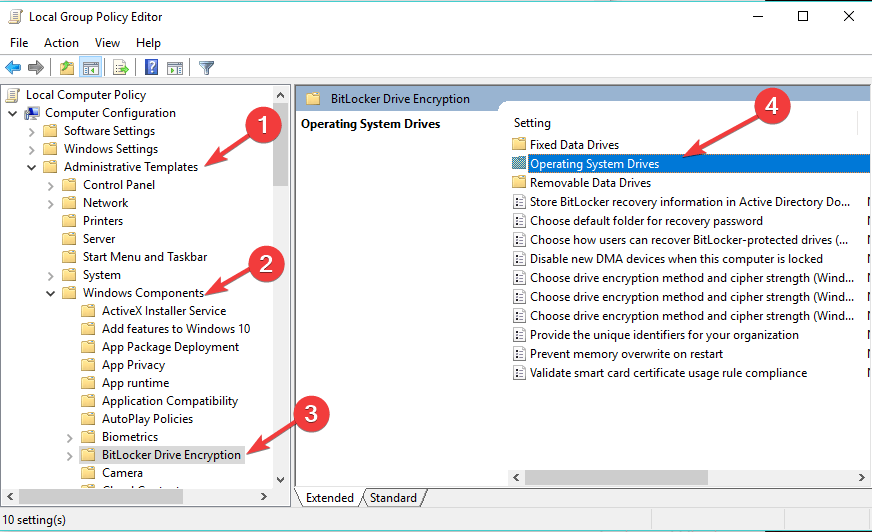
  2. Go to Computer Configuration > select Administrative Templates > go to Windows Components.
  3. Now, you need to select Autoplay Policies > navigate to the Details pane.
  4. Double-click Turn off Autoplay to disable the feature.

3. Use the Windows 10 Settings menu

  1. Press the Windows key.
  2. Type in autoplay and select AutoPlay Settings.
  3. Under Use AutoPlay for all media and devices, move the slider to Off.
  4. Under the AutoPlay Defaults, for both Removable drive and Memory card select Do nothing.

That would be all, the annoying AutoRun feature won’t bother you anymore, but if you want to return it, you know what to do.

If you have any additional questions or suggestions, write to us in the comments below, we would love to hear your opinion.

Lenovo ThinkPad missing drivers [Complete Fix]

When it comes to Lenovo ThinkPad, we can strongly mention that it is one of the greatest laptops, being on top of the bestselling models for anyone who is looking for performance during digital work.

Drivers are an essential part of each computer, essentially creating a bridge between your hardware components and day-to-day use.

Most users reported that when navigating through Device Manager noticed the Lenovo ThinkPad missing drivers problem.

During this article, we will show you a series of options that will support you in order to fix this issue. Make sure you consider all the recommended solutions, so you’ll never worry again.

How can I fix Lenovo ThinkPad missing driver issues?

1. Install the latest Windows updates

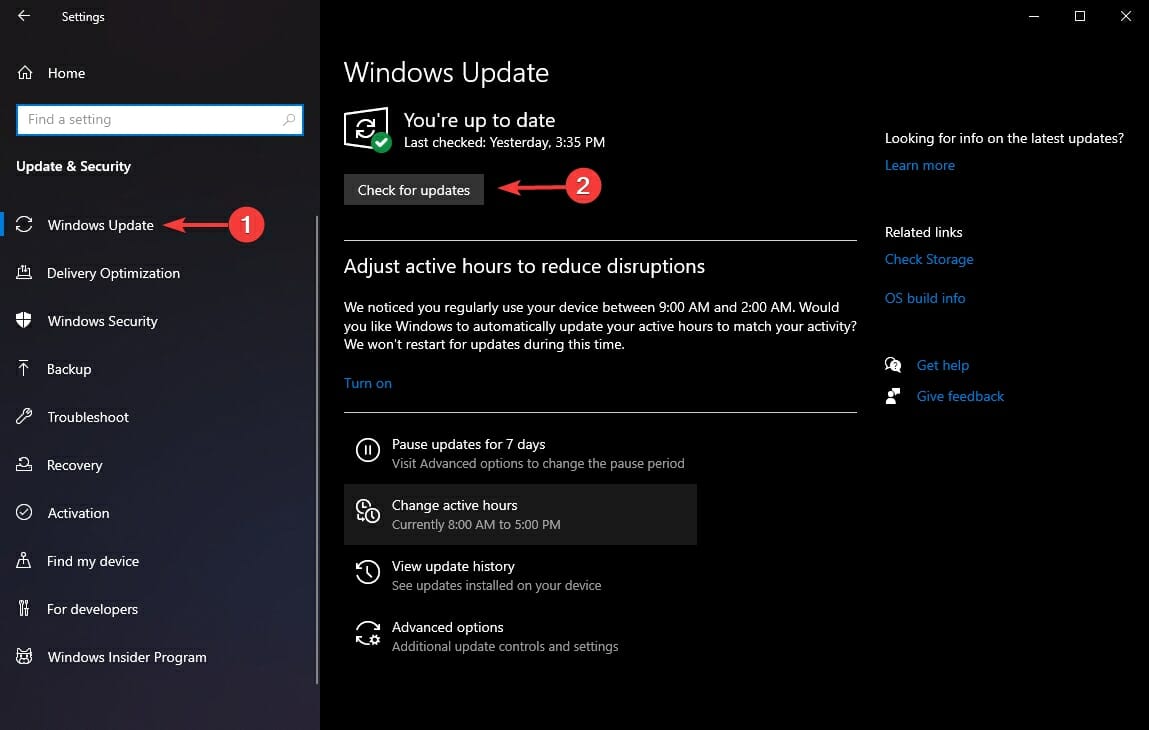
  1. Go to Settings.
  2. Select Update & Security.
  3. On the left side, click on Windows Update, then select Check for updates.

2. Update your drivers

2.1 Use Device Manager options

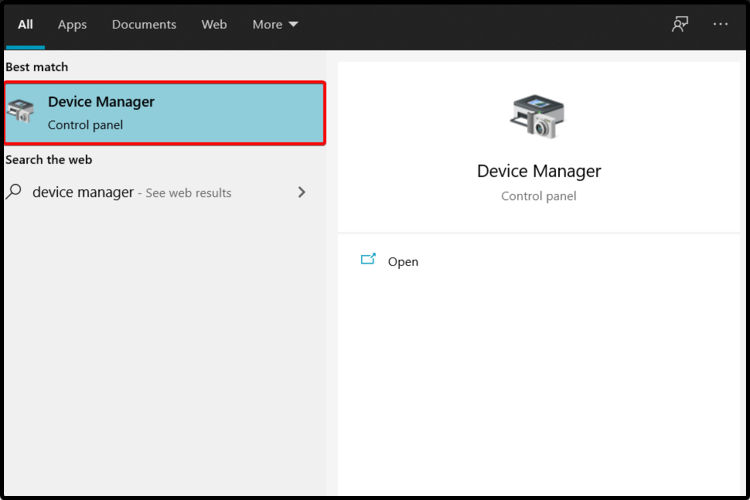
  1. Open Device Manager.
  2. Expand the System devices list.
  3. Right-click on Intel(R) Smart Sound Technology (Intel(R) SST) Audio Controller and select Update driver.
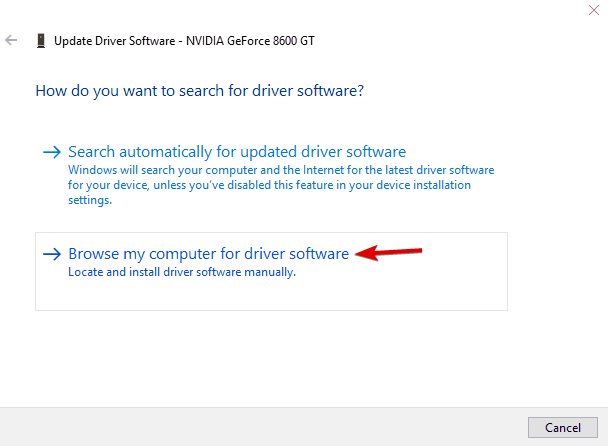
  4. Select Browse my computer for driver software.
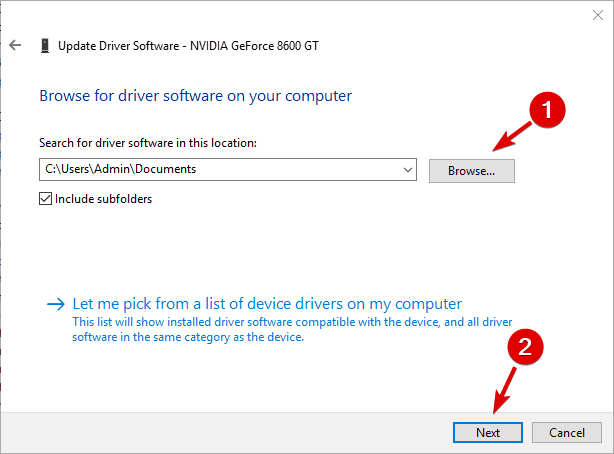
  5. Click on Let me pick from a list of available drivers on my computer.
  6. Select High Definition Audio Controller and then click on Next.
  7. Reboot the system when the driver is installed.

2.2 Use a third-party updater

Taking into consideration that constantly checking for updates can consume time, do not hesitate to try using a high-quality and efficient third-party software tool.

With a specialized program like Outbyte Driver Updater, you’re able to manage your laptop drivers with ease and install or update them with official manufacturers’ versions.

The user interface is pretty simple so you can easily interact with the platform, and just select the drivers you need to update or repair. Afterward, the software will run automatically.

3. Use Lenovo System update

You should also consider accessing the Lenovo System update official driver download link, in order to solve this annoying issue once and for all.

Several users confirm that checking for updates was the key to this annoying issue. Since you’re looking for an efficient solution, we recommend you try it too.

These were just a few options regarding how you can fix the Lenovo ThinkPad missing drivers error. Of course, the list can continue, but be sure that the recommended solutions are the best.

In addition, you should check a full guide about how to update drivers in Windows 10, so you’ll always keep your PC reconditioned.

Also, keep in mind that your feedback is extremely important for us, so please comment in the section below. Let us know which one of these alternatives worked for you.

How to Fix Microsoft Teams Error Login Hint is Duplicated [EASY]

When it comes to corporate work, collaborative tools are held in high regard since they help everyone stay in touch.

One very good example is Microsoft Teams, a neat and completely free collaborative tool that is also part of the Microsoft Office Suite but can also be downloaded separately.

Users log into it, and from then on, they can start communicating with colleagues, send files, and more.

Unfortunately, Microsoft Teams has the occasional glitch in the system, especially when it comes to login issues.

For example, users have been reporting that they are receiving an error message when trying to enter Teams:

I am struggling to connect to Teams today. The error switches between a 500 error or this: AADSTS9000411: The request is not properly formatted.

The parameter login hint is duplicated. I have tried clearing my Credentials in the cred manager and restarted both my PC and the Teams app. Any suggestions?

This issue is quite common, and that is why we decided to approach it with this step-by-step guide on how to fix it.

How do I fix the duplicated login hint error?

1. Clean your Windows PC of all Teams login credentials and cache files

  1. Exit Microsoft Team.
  2. Press Windows + R.
  3. In the search box, search the folder location and click OK to navigate to that location: %appdata%MicrosoftTeams
  4. Delete the items under: C:\UsersUserNameAppDataRoamingMicrosoftTeamsCache
  5. Delete all the items under the folder: C:\UsersUserNameAppDataRoamingMicrosoftTeamsApplication CacheCache
  6. Restart Teams.

Clearing all the cache from Teams will refresh the program and will hopefully solve this login problem for you.

2. Perform a clean reinstall

  1. Press Start and select Settings.
  2. Click on Apps.
  3. Search for Microsoft Teams in the list of installed programs.
  4. Uninstall the following two programs:
    • Microsoft Teams
    • Teams Machine-Wide Installeruninstall microsoft teams
  5. Once the uninstall is finished, delete all files from the following locations:
    • %LocalAppData%MicrosoftTeams
      %LocalAppData%MicrosoftTeamsMeetingsAddin
      %AppData%MicrosoftTeams
      %LocalAppData%SquirrelTemp
  6. Go to Microsoft’s Team’s website, download the client, and install it again.
  7. Reboot your PC.

Reinstalling Microsoft Teams should solve this problem completely so perform the steps above to do it.

You could also opt for an automatic tool to perform the uninstalling process faster and thoroughly. We recommend using this type of program because it removes all the files left in the Windows registry and system.

Over time, these files will clog your device and lead to overclocking or similar performance issues. Plus, dedicated uninstallers are able to completely remove stubborn and malicious apps in just a few clicks, without having any negative impact on your PC.

3. Enlarge Microsoft Teams and try again

  1. Launch Microsoft Teams.
  2. Close the window with the error message.
  3. Enlarge the Teams window and click on the Signing out link.
  4. Login to Teams.

This method is more of a bizarre workaround, but it has proven itself useful to quite a number of users so it’s worth trying it out.

4. Use the web app

This issue is very common when you’re using the Microsoft Teams desktop app. As such, if you encounter the duplicated login hint error, try using the Microsoft Teams web client instead.

By following any of these methods, you should be able to log into Microsoft Teams without encountering the login hint is duplicated error.

However, if you can’t manage to make Teams work or it still gives you headaches, you should take a look at our selection with the best telework software to get right now.

Which one of these methods worked best for you? Leave us a message in the comments section below.

How to migrate Windows 10 to SSD [Easy Guide]

How do I move Windows 10, 8.1 on SSD?

  1. Necessary hardware and software
  2. The steps to follow
  3. Windows 10, 8.1 on SSD: what you need to know?

Transfering OS to SSD

Have you been wondering if you can migrate your Windows 10, 8.1 operating system from a regular hard drive to an SSD? Well, the answer is yes, you can switch very easily to an SSD drive but you have to keep some things in mind like if your SSD drive has enough space on it to support your Windows 10,  8.1 operating system and the whole programs you have stacked in the Program Files of your Windows 8.1 system.

You can easily check how much space your Windows 10, 8.1 system takes by right-clicking the partition where you have the Windows and selecting properties. After that, you will know the space you need to have on your SSD drive in order to properly migrate your Windows 10, 8.1 over and the programs you have installed in the system. You can follow the tutorial below for a quick understanding of how to migrate your Windows 10, 8.1 to SSD.

Tutorial for migrating Windows 10, 8.1 to SSD

Well the SSD has a lot more advantages than the regular hard drive, the most important advantage is the speed at which it operates. The only disadvantage so far is the price seeing that these SSD’s cost a bit more than the regular drives.

Necessary hardware and software:

  1. First, you will need a USB to SATA adapter.
  2. Second, a thing you will need is a software capable of cloning your operating system. You can download this software by accessing the link below (this software supports Windows 10, 8.1 and 8).

Update: We recommend using Paragon Software to transfer your Windows OS to SSD. Please note that Migrate OS is now available as part of Drive Copy Advanced, which is a component of Hard Disk Manager for Windows.

The steps to follow:

  1. First backup your whole Windows 10, 8.1 system or the programs you have installed on it by copying them to an external hard drive. If any system error occurs during the migration it would be very good to have a copy of the original Windows 10, 8.1 somewhere.
    Note: For a system backup you can use either “Ghost” program or “Acronis”. Both programs work fine for Windows 10, 8.1.
    *Check now Acronis Backup program
  2. Connect the SSD drive via the USB to SATA adapter to your laptop or to the PC.
    Note: If you have a Windows 10, 8.1 laptop or PC, you have to plug it in the power socket to prevent any power downs during the migration.
  3. Now if you have installed Paragon program from the link above double click on the executable of the app.
  4. Left click on “Clone” feature in the Paragon program.
  5. After you left clicked on “Clone” you will have to select the HDD you would like to clone
    Note: The HDD should be the one you have the Windows 8.1 installed.
  6. Now the next thing is to select the “Destination disk:” which will be the SSD drive you have connected.
  7. In the lower left corner of the “Disk/Partition clone” window, you need to check the box next to “Optimize for SSD”.
  8. Left click on “Proceed” button in the lower right side of the “Disk/Partition clone” window to start the cloning process.
  9. When the cloning is finished you can close the program and shut down the Windows 8.1 PC or laptop.
  10. After the shutdown is completed you can unplug to old HDD you were using and plug in the new SSD drive.
  11. Now after your Windows 8.1 starts you will need to type in the start screen “Command”.
  12. A search should pop up for command prompt. Left click on it to open the feature.
  13. After the command prompt window is opened type In there “fsutil behavior query disabledeletenotify” without the quotes and press “Enter”.
  14. If you get a “0” as a return value then your SSD drive should work good, if you do not get a “0” value then do the steps below.
  15. Write in the Command Prompt window the following command:
    “fsutil behavior set disabledeletenotify 0” without the quotes and press “Enter” on the keyboard.
  16. Now write the following command: “fsutil behavior query disabledeletenotify” and press ‘Enter”.
  17. You should now get a “0” value.
    Note: The commands we have put in the “Command Prompt” window allows you to verify if TRIM feature is set to enable.
  18. Also, we will need to check if Windows 8.1 recognizes the SSD Media by typing in the start screen of Windows 10, 8.1 the word “Optimize”.
  19. Left click on the icon “Defragment and optimize your drives”.
  20. Now in the window that opened you will need to check if your SSD drive is recognized as a “Solid State Drive”.
  21. If it isn’t recognized as a “Solid State Drive” then do another reboot of the system and check again the status.

Windows 10, 8.1 on SSD: what you need to know?

Having an SSD might be a blessing, especially when it comes to operating data very quick and segmenting the sectors of your disks. Windows 10 can be installed on Intel SSD PCs without any issues and it works well after installing. If you cannot perform this action, you can check our guide that helps you when Windows 10 is not installing on SSD. If it is installed and starts, but is doing it slowly, check our article on how to fix Windows 10 slow boot on SSD.

So here it is, you now know how to migrate your Windows 8.1 operating system to a brand new SSD. For any questions on this article write us below in the comments sections and we will reply as soon as possible.

Fans still mourn Hotmail’s interface three years after Microsoft killed it

Microsoft launched Hotmail twenty years ago, and it proved to be one of the most successful products the company has ever rolled out. Despite that, three years ago Microsoft decided to replace Hotmail with Outlook.

When it comes to change, people’s first reaction is often to reject it — exactly what happened with Microsoft Outlook when it was launched. Hotmail users perceived the new email tool to be more difficult to use, and many switched platform, choosing Yahoo Mail or Gmail instead.

With time and more information, most Hotmail users learned to use Outlook and in a way got used to the idea that Hotmail is gone forever.

However, what it surprising is that even in 2016 — three years after Microsoft killed Hotmail — nostalgic users are still mourning Hotmail’s interface and wish Microsoft had never replaced it.

hate the new outlook format.

How do I get the old hotmail layout back ? I hate the new one. If your not a computer geek the new one is very hard and confusing. Not everyone can navigate computers

Another user backs up this opinion, sharing his own experience:

I am a 60 y.o. .non tech head.  2 weeks ago while overseas my hotmail account suddenly became outlook.   I HATE IT!!!!  It’s slow and clunky, I cannot do things that were easy, eg empty junk, it’s not user friendly where the old hotmail worked a treat. Why oh why do you force this change onto us ???

Thanks for the downgrade. …Do you have a10 y.o.  writing code?

We’ve scoured the mighty internet hoping to find a workaround allowing users to restore the old Hotmail interface but unfortunately, couldn’t find any.

Die-hard Hotmail fans have two options:

  • Accept that Hotmail is gone and learn to use Outlook.
  • If Outlook isn’t good enough, choose another email platform.

One thing is sure: you’ve got to move on. Microsoft’s decision is done and the company isn’t planning to miraculously revive Hotmail any time soon.

However, there is always an alternative to everything : there are so many other mail clients and apps that can replace you Hotmail. We would recommend you a wonderful mail client, which is Mailbird. It’s one of the leaders on the market and it’s very instinctive to use.

Stare into the future with the 21H1 update for HoloLens 2

With the main objective being the making of day-to-day usage of your HoloLens 2 more intuitive and customizable, Microsoft doesn’t stop tinkering.

So, without further ado, we can announce that Windows Holographic, version 21H1 is now available, judging from the official release notes.

What does Windows Holographic, version 21H1 bring new?

Designed for both end-users and IT admins, this update will greatly improve the experience that users report having while using HoloLens 2.

Through the plethora of updates that were brought to the table, it is useful to mention that the new, Chromium-based Microsoft Edge will now be available for HoloLens.

The good news is that it will now be the default browser for this device, fact that will offer users a better degree of compatibility and, also, will create less fragmentation for web developers.

The Settings app will also receive great enhancements and extra settings and features through the above-mentioned update.

Feel free to explore more options for Sound, Power & sleep, Network & Internet, Apps, Accounts, Ease of Access, as well as others.

Changing the color profile for your HoloLens 2 display with the display color calibration tool is just the start. Think about how resetting default apps using the default app picker would feel.

Also, enabling the Battery Saver feature, or Airplane Mode for your HoloLens 2 can also be done through the new and improved version of the Settings app.

You will surely be happy to hear that another one of the new additions that Microsoft is bringing to HoloLens 2 via the update is a Swype to Type feature, similar to the one you have on your mobile device.

The power menu will also be updated, allowing you to sign out, shut down and restart your device by simply tapping the user profile icon. If you have an update available, this is where you where you will see the notification.

For those of you who want to jump right into it, getting this update is easy. All you have to do is:

  1. Press Windows key + I to open Settings and select Update & Security
  2. From the Windows Update tab, click on Check for Updates

Multiple users now supported by HoloLens 2

There are, of course, people that use HoloLens and don’t mind sharing it. Now, there is absolutely no need to constantly retype usernames and passwords to change users

After installing this update, when selecting Other user which is located to the right of the PIN entry field, the Sign in screen will display multiple users with have previously signed into the device.

We continue to look towards the future and can’t help but wonder how will all this technology evolve in the next 10 years. We have to admit that what we’ve achieved so fat is pretty impressive.

Have you used the Microsoft HoloLens 2 holographic device? If so, tell us about your experience in the comments section below.

Celebrations for Xbox 20th Anniversary have started

Put your party hats on and let’s all rejoice in the fact that two decades have passed since Microsoft first introduced consoles to our lives.

This special event will be marked through many activities spread over a span of five months.

Xbox 20th Anniversary to be celebrated until November

Festivities have been kicked off with a special live video streamed on the Xbox Twitch channel, where the hosts discussed, with nostalgia, about two decades of console gaming and best off games.

How do you celebrate 20 years of Xbox in November? You get started in May.

Through the celebratory post on the Xbox news page, Major Nelson announced that May 13 is just the beginning of the anniversary celebrations, which will last until November 15th, and that there are many surprises in store for the fans.

This milestone was also marked by another important turning point in the history of Xbox gaming.

Since the achievements scoring system was first introduced, back in 2005, Xbox gamers have collectively unlocked almost a trillion Gamerscore points.

Lots of surprises for the fans

What kind of celebrations would these even be without festive apparel and chances to win amazing prizes? Well, Microsoft thought about that and they made sure that everything is on point.

The Xbox Gear Shop has been stocked with the latest and most awesome anniversary gear, available for anyone that wants to mark this special event by acquiring a souvenir.

Also, fans can sign up for the Xbox Fanfest bonanza! If you are asking yourself what that is, Fanfest is a combination of exclusive physical and digital events, content, sweepstakes, merch, and more.

By registering to this online event, you can unlock exclusives throughout Xbox hosted events, promotions, and curated online experiences hosted just for you.

20 years of Halo

You guessed it! There’s no secret in the fact that 2021 also marks the 20th anniversary for one of the oldest and most loved Xbox games of all time, Halo.

To celebrate this significant milestone, Microsoft offers fans worldwide a selection of free HD Xbox Anniversary and Halo Anniversary wallpapers.

All these wallpapers are compatible with Microsoft Teams and other video conferencing software and you can get them here.

The Halo series, a franchise deeply embedded into the Xbox DNA, will release a new game this fall, called Halo Infinite. This news has players thrilled and eagerly awaiting there next adventure.

If Microsoft managed to achieve all this in just 20 years, through the Xbox consoles, lets imagine where this journey will take us after another two decades.

Are you also celebrating 20 years of Xbox? Tell us you decided to mark this event in the comments section below.

The best 3 Internet of Things scanners to use

To start with a quick short definition, the Internet of Things is the inter-networking of physical devices embedded with electronics and software, that allows these devices to collect and exchange data. Basically, any device that can connect to the Internet, can be part of the IoT.

Since not all the devices that create the IoT network offer the same security level against cyber threats, the question of how safe the IoT network is rightfully arises.

Fortunately, there are various IoT scanners that you can use to enhance your network’s security. In this article, we’re going to list the best Internet of Things scanners currently available on the market.

Best Internet of Things scanners

Mirai Scanner for IoT

Kaspersky recently detectly the first Windows-based Mirai botnet. Keeping your IoT devices secured is now more important than ever, as Mirai is particularly fond of IP cameras, routers and DVRs.

Mirai threats also have a predatory-like behavior. They scans IP addresses, trying to guess the login credentials, and they even replace malware previously installed on devices.

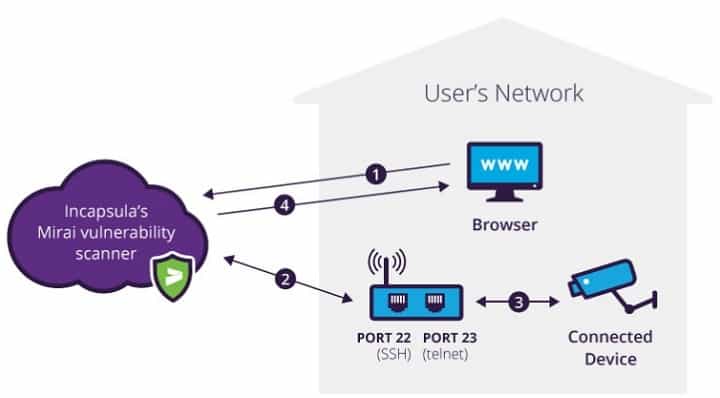
Incapsula’s Mirai Scanner checks your gateway from outside your network in order to detect any access ports vulnerable Mirai attack. The scanner can only scan your public IP address.

⇒ Get Incapsula

Bullguard IoT scanner

Bullguard‘s solution checks if your internet-connected devices at home are public on Shodan, the world’s first search engine for Internet-connected devices. If the result is positive, this means that the public, including hackers, can access them.

Knowing if your devices are public on Shodan represents a warning sign, allowing you to take further measures to improve your devices’ security level. Moreover, details about the specific security issues are also provided.

BullGuard’s IoT Scanner scans your security cameras, baby monitors, Smart TVs and any wearables that may be visible to hackers. The tool can also provide you with an email report of the scan results that can help to further diagnose problems. Also, if you want to convince your friends to scan their IoT devices, you can share notification of successful scans with them.

⇒ Get IoT Security

Retina IoT Vulnerability Scanner

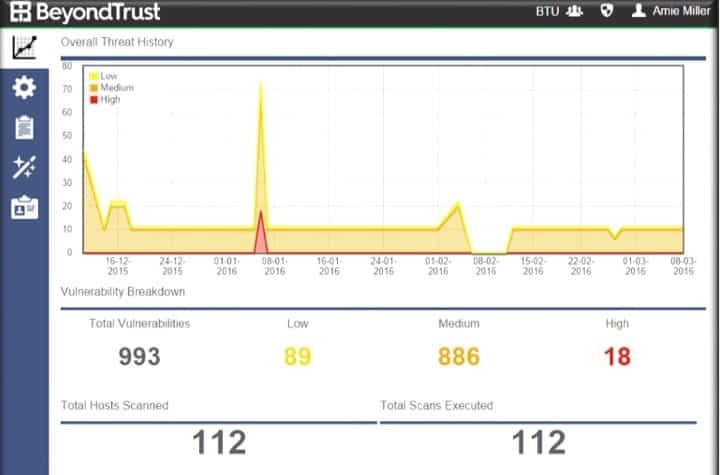
The Retina IoT Vulnerability Scanner offers you a clear picture of your IoT devices, revealing which ones are using default or weak passwords. Surprisingly, many users don’t even change their devices’ default passwords, which makes them extremely vulnerable to threats.

RIoT is available as a free tool for corporate/business use only. The tool identifies high-risk IoT devices and generate IoT vulnerability reports and remediation guidance. It can perform external scans of up to 256 IPs on an unlimited number user accounts. There is no software or hardware to install.

⇒ Get RIoT

Have you used other reliable IoT scanners that you think should be included on this list? Use the comment section below to tell us more about your experience.

Windows 10 mail app is now pinned to your taskbar by default

The latest Windows 10 build brings a bevy of new features and improvements, as Microsoft is preparing for the release of the Creators Update OS. Build 15002 marks the beginning of a wave of changes, and this trend will likely continue until April, when the Redmond giant is expected to release the Creators Update.

One of the recent changes involves the Windows 10 Mail app. Email is a fast and reliable communication tool, allowing you to stay connected with your friends and colleague.

Microsoft knows that Windows 10 users need to launch their email app very quickly so as to access the information they need as soon as possible.

For this reason, the Windows 10 Mail app is now pinned to your Taskbar by default. However, if you have another email tool already pinned to your Taskbar, the Mail app won’t get pinned.

Windows 10 Mail app is pinned to Taskbar by default

You may see the Mail app pinned to your Taskbar after updating to Build 15014. The Mail app is now pinned by default to the Taskbar starting with the Windows 10 Creators Update. If you unpin the Mail app after this change, it will not return. ADDED: If you have Outlook 2016 (or previous Outlook releases), Yahoo! Mail, or TouchMail pinned to your taskbar – the Mail app won’t get pinned.

For many users, pinning Windows 10 Mail to Taskbar can prove to be quite a challenge. There are many users who have experienced various issues when trying to pin Windows 10 Mail to Taskbar: the icon wouldn’t pin, there was no “Pin to taskbar” option, Pin to Taskbar was greyed out and more.

If you’re not a principled old-school mail user, you can always try another solution. We suggest you to check our list of mail clients and apps who can easily replace your Windows Mail app experience with another one.

Thanks to the latest Windows 10 build, you can now strike this task off your list.

Microsoft sneaks in a Friday Windows 10 Insider build with HDR improvements for creative apps

This was quite unexpected, but Microsoft has just released a new Windows 10 preview build for Insiders in the Dev Channel. The main change in the build 21382 is the new HDR support for creative apps that use International Color Consortium (ICC) display color profiles.

This new build also brings some minor changes for Device Manager, the Start Menu, and File Explorer. The new Segoe UI Variable font which made its debut in the build 21376 last week has also been applied to the Windows 10 touch keyboard in the build 21382.

You can learn more about what’s new, fixed, and still broken in the build 21282 below:

What’s new in Build 21382

Bringing HDR support to color managed apps

HDR mode changes the behavior of some creative and artistic apps that use International Color Consortium (ICC) display color profiles, such as Adobe Photoshop, Adobe Lightroom Classic, and CorelDraw (amongst others). In the past, these apps were limited to targeting the sRGB color gamut.

We have added a new feature that lets these apps get accurate color and access the full gamut of your HDR display. To turn this feature on, close your application, right-click the app’s icon and click in Properties > Compatibility tab and then under Settings select “Use legacy display ICC color management”. This flag only has an effect in HDR mode.

Application Properties window. HDR ICC compatibility tool can be enabled on the Compatibility tab, under Settings, by checking the “Use legacy display ICC color management” checkbox.

Changes and Improvements

  • As some Insiders have noticed, Device Manager now has the ability to view drivers alongside of devices. The new driver focused “Devices by drivers”, “Drivers by type”, and “Drivers by devices” views enable users to view, install, and remove drivers, while the new “Add drivers” action enables users to add and install new drivers across all applicable devices. Managing drivers directly is more intuitive in many situations than working with them by way of the devices they are installed on, so we hope that developers and power users alike will enjoy the added flexibility. This change was added in Build 21343.
  • The Start menu will launch to help people get to the apps they want quickly after a clean install or upgrade is finished.
  • We’ve updated the new generic folder icon in File Explorer so it will now show an indication when the folder has contents.
  • We’ve updated the touch keyboard to use the Segoe UI Variable font and made some small adjustments to the icons.

Fixes

  • We fixed an issue in the previous flight where after updating some devices unexpectedly showed a warning in the taskbar indicating the version of Windows 10 had reached end of service.
  • We fixed an issue impacting explorer.exe reliability.
  • We fixed an issue that could result in multiple hung SearchProtocolHost.exe processes.
  • We fixed a memory leak that could result in DWM unexpectedly using a lot of memory over time.
  • We fixed an issue resulting in certain notification toasts unexpected not firing.
  • We fixed an issue resulting in delayed audio playback on ARM64 devices.
  • We fixed an issue where the new unified audio endpoint work wasn’t displaying on ARM64 devices.
  • We fixed an issue that could result in certain games launching to a black screen in recent builds.
  • We fixed an issue where if you select the System option after pressing WIN + X it would just open Settings and not navigating to the About page.
  • We fixed an issue resulting in certain devices unexpectedly being listed twice on the Printers and Scanners page in Settings.
  • We fixed an issue that could result in Windows Update failing with error 0x80070003.
  • We fixed an issue that could cause pixilation when a colored mouse pointer was set to be a large size.
  • We fixed an issue where the cursive style for closed captions wasn’t displaying in the list on the Captions page in Settings.
  • We fixed an issue where Japanese touch keyboard in 50-on or 12-key layout could show a non-functional and broken text candidate.
  • We fixed an issue where incorrect spacing was applied when using the voice typing to type a parenthesis.
  • We fixed an issue where when using the handwriting panel to write Chinese, pressing the return key wasn’t committing the text.

Known issues

  • The Windows Camera App currently does not respect the default brightness setting set via the new Camera Settings page.
  • We’re investigating an issue where elements of Search (including the search box in File Explorer) are no longer displaying correctly in dark theme.
  • [News and interests] We’re investigating an issue where the flyout may occasionally flash in the top left corner of your screen after clicking the button on your taskbar.
  • During the upgrade and in the initial welcome screens when after first signing in after upgrading, you may unexpectedly see the text that appears to be displayed in Times New Roman font.

As a reminder, the Windows Insider team is also running a new Bug Bash until May 17, and Insiders can now participate by checking the different Quests in the Windows 10 Feedback Hub. New Quests will be released every day through May 17, and the most active participants will be able to earn some cool badges.

12 Best Software for Windows in 2026 (Improve PC Performance)

Being already in the middle of 2021, this might be a good time to add some new software to your Windows laptop or desktop. Of course, you could just persist with older software that you’ve already installed.

Still, you’ll miss out on the new tools and features in the latest releases.

Many publishers have already launched 2021 additions to established software series that include plenty of enhancements. These are some of the hottest Windows software to check out this year.

Must-have Windows software this year

Bitdefender Total Security – Low-resource

Update anti-virus software is essential to combat malware, and Bitdefender is one of the most efficient anti-virus utilities for Windows. Check for regular discounts at Amazon.

However, you can also add a freeware version to the Windows 10/8/7 and Mac platforms by downloading it from the official website page.

The latest Bitdefender has a revamped UI design and enhanced security modules.

The software utilizes a variety of scanning and detection techniques to stamp out malware, phishing schemes, fraudulent websites, ransomware, and more besides.

Bitdefender users can manually select quick and system scans, but the software’s Autopilot mode can take care of most things with minimal user input.

The software will scan your emails and USB drives and detect outdated software.

Also, Bitdefender will protect your privacy by preventing any intrusion into the cameras on all your devices.

Every Bitdefender product will be updated automatically, keeping up with the cyber threats.

Another good thing about Bitdefender is that it isn’t system resource-heavy, and with its gamer mode, you can temporarily suspend the software to reduce game lag.

Bitdefender Total Security

Ensure your PC security with high-end malware detection and removal.
Check price Visit Website

Private Internet Access – Fastest VPN source

A security software you should certainly save on your PC nowadays is a reliable VPN like PIA.

With this open-source VPN, you’re covered against many dangers online by choosing from numerous server addresses around the world.

You would need this fastest VPN of all for different online activities that require privacy filters to protect sensitive information.

To get a better idea, it’s possible to use the VPN to increase your connection speed while browsing. You have 10Gbps speeds and thousands of servers in 84 different regions.

There is no bandwidth limit so you can stream or access restricted content from other places without having data limitations.

You don’t need to worry about throttling and avoid connection issues with your Internet provider using strong VPN encryption.

Other worth mentioning tools can help you strengthen privacy with split tunneling or high-end encryption protocols.

Private Internet Access

Utilize this VPN software for speedy connection and the best privacy.
Check price Visit Website

PaintShop Pro

Adobe PhotoShop might be the industry standard image editor, but Corel’s latest PaintShop Pro is a slightly better all-around editor and design package that matches PhotoShop pound for pound.

PaintShop Pro is retailing sometimes at a discount on Amazon and (for the Ultimate version), it has better value than PhotoShop CC’s annual subscription.

The image editor has two versions, and PaintShop Pro Ultimate includes Painter Essentials 6, Perfectly Clear 3.5, and AfterShot 3. Also, as of 2019, it includes PhotoMirage Express.

You can run the image editor on 32 and 64-bit Windows 10, 8, and 7 platforms.

PaintShop is an image editor, graphic design, and photo organizer wrapped into one package.

The software includes 86 creative filters, which is a number few other image editors match.

You can utilize the software’s photo-editing tools to create panoramas, correct lighting, remove backgrounds, fix colors in photos, combine pictures with layers, fix lens distortion, and more besides.

Furthermore, you can set up High Dynamic Range images with PaintShop, which is an advanced tool Photoshop Elements lacks.

Aside from its image-editing toolkit, this is also decent graphics design software as it provides a plethora of paint, draw, and text tools.

PaintShop users can add transitioning color effects to pictures with gradients. You can use its vector graphics tools to set up smoother vector images.

So along with editing photographs, you can utilize PaintShop to design cards, collages, logos, social media images, posters, and lots more besides.

PaintShop

Have an improved photo editing software on your PC and benefit from the latest features.
Check price Visit website

Cyberlink PowerDirector 19 (suggested)

power director 17 software

Cyberlink PowerDirector 19 is cutting-edge video editing and DVD authoring software that’s usually one step ahead of the rest when it comes to incorporating tools for the latest video technologies.

It has multi-key sampling chroma key editing, which will help you to perform green screen editing like in Hollywood movies.

Also, it has frame-by-frame motion tracking, which ensures 100% accurate object tracking.

The products are sometimes discounted on Amazon,  and the full versions of the software are useful for professionals.

However, our readers can try the free version of this software directly from the links down below.

The Ultimate version includes more effects and templates than PowerDirector 18 Ultra. Both versions are compatible with 64-bit Windows 10, 8, and 7 platforms.

PowerDirector 19 is the best video editor for many as it packs in all the basic and more advanced editing tools but still remains an easy and straightforward editor to utilize.

The software provides a video stabilizer, chroma-key, audio mixer, masking, slideshow, motion tracking, multi-cam, automatic video creator, action camera, blending, audio ducking, and color match video-editing tools.

The latest version is embracing 360-degree video editing with its new 360-degree video stabilizer. PowerDirector 19 users can also add titles and images to their 360-degree footage for the first time.

PowerDirector 16 is also great DVD authoring software. You can utilize this software to set up both DVDs or Blu-ray discs that include your videos.

PowerDirector 16 includes a menu designer so that you can add unique menu layouts to the video discs. The software supports both 2K and 4K export, and you can export clips with 15 alternative video formats.

Furthermore, this editor also provides 25 optimization profiles with which you can optimize the videos for various devices. So PowerDirector is an ideal video content creation package for 2019.

Cyber Link PowerDirector

Take advantage of this AI photo editor for professional edits.
Check price Visit website

PowerDVD 21 Ultra (suggested)

Although you can play discs with Kodi, PowerDVD 21 Ultra is a dedicated DVD and video media player for Windows 10/8/7 that includes more extensive playback options and settings.

PowerDVD 21 is a top-notch DVD player that supports all the latest video technologies, such as 4K and 3D 360-degree video.

The software has Ultra, Pro, and Standard editions; and PowerDVD Ultra supports the most disc, video file, and audio formats.

Now, PowerDVD Ultra supports 8K videos, bringing the next wave in ultra-high definition entertainment.

The product may sometimes come with a discount on Amazon or on the publisher’s website.

PowerDVD 21 is a media player with massive format compatibility.

You can utilize the software to watch DVD, Blu-ray, DVD-R/RW, Ultra HD Blu-ray, Blu-ray 3D, 3D DVD movies, and AVCHD discs along with numerous digital file formats.

The software has a VR Mode so that you can watch 360-degree videos with VR headsets.

Its TV Mode and casting enable you to watch 4K video on 4K TV and cast video, music, and photos to Chromecast, Apple TV, and Roku.

The media player includes digital zooming, HD upscaling, hue, saturation, AB repeat, region changing, and subtitle playback settings.

PowerDVD 21 isn’t just a movie player either. You can utilize it to view 3D and high-resolution photo slideshows.

The media player supports a broad range of lossless audio formats, and PowerDVD 21 users can also rip songs from DVDs and extract soundtracks from movies.

PowerDVD 21 Ultra

Watch all your movies on Blu-ray using this ultimate media player.
Check price Visit website

Kodi

The main interface of Kodi

The Kodi media center was one of the software sensations of 2017, albeit also a little controversially.

The media center is controversial as you can stream so much media content with it, and that included exclusive Premier League matches until the FA clamped down on Kodi boxes.

However, this open-source media center is entirely legal so long as you don’t utilize it with Kodi boxes to watch exclusive subscription channels.

The software has established a huge user base since it became a mainstream media center, and you can run it on Windows, Mac OS X, Android, iOS, Raspberry, and Linux platforms.

Press the Windows button on this website page to add it to Windows.

Kodi is among the best software for 2019 because you can utilize it in so many ways. You can play video and music directly from DVDs, Blu-ray discs, and CDs or from media sources saved to your hard drive.

Alternatively, you can view TV and films with the media center’s streaming add-ons.

Some Kodi users add a TV tuner card to their desktops so that they can view and record live TV with the media center.

The software’s radio plug-ins can bring you thousands of radio shows.

You can also utilize the media center to import pictures and set up slideshows. So the versatility of Kodi is amazing.

⇒ Get Kodi

Glary Utilities 5 (suggested)

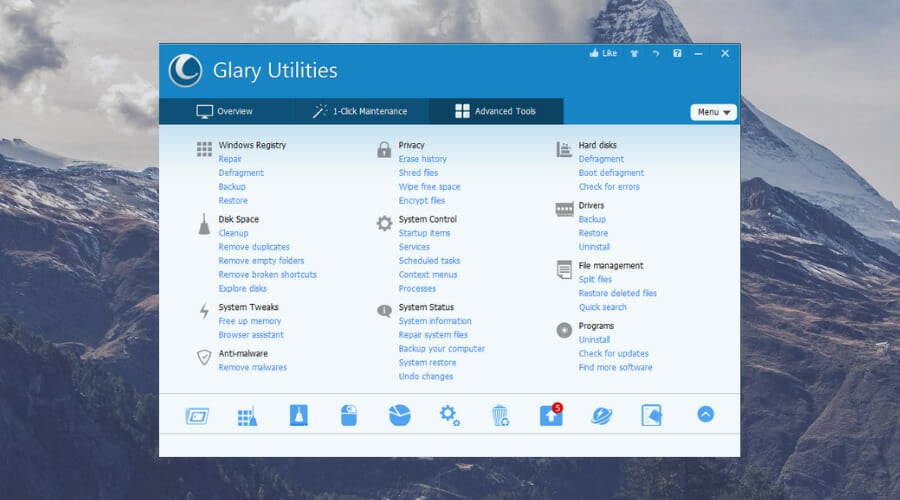
Glary Utilities 5 is an all-in-one system optimizer that’s ideal for Windows system maintenance.

This is one of the most efficient system maintenance tools with which to speed up Windows and fix software issues.

Even though there are paid versions and freeware versions, the freeware package is almost entirely the same as the Pro alternative.

The main difference is that the freeware version is not for commercial usage and lacks automatic updates.

You can add Glary Utilities 5 to Windows platforms from XP up by pressing the Download Now button on this webpage.

Glary Utilities 5 is among the most comprehensive system optimizers for Windows that includes more than 20 tools.

You can utilize this system optimizer to free up hard drive space, remove startup software, clean the registry, defrag the HDD, uninstall software, optimize RAM and uninstall drivers.

It also includes more advanced tools that enable you to recover deleted files, repair system files, purge malware and even split and join files.

So this is a very handy system optimizer that includes all the utilities you’ll need for Windows system maintenance during 2021.

⇒ Get Glary Utilities free 

LibreOffice 6.2.3

Office suites are among the most essential additions to any software library. MS Office 2016 might be the dominant office suite, but the open-source LibreOffice is a great alternative that doesn’t have any annual subscription fee.

As LibreOffice is a fork of OpenOffice, it’s much the same as that office suite; but LibreOffice is getting more regular updates.

The office suite is compatible with 32 and 64-bit Windows, Mac OS X, and Linux platforms; and you can download its setup wizard from this webpage. LibreOffice 6.2.3 is also compatible with more Windows platforms than MS Office 2016.

The LibreOffice suite includes a word processor (Writer), database (Base), spreadsheet (Calc), presentation (Impress), and drawing (Draw) applications.

That’s almost a full suite of office software, but it lacks an email client.

Those applications share many of the same options and tools included within the MS Office suite, and they are fully compatible with Office’s file formats.

The suite’s applications are also customizable as you can modify their menus, toolbars, hotkeys, color schemes, fonts,, and icon styles.

In addition, you can further enhance LibreOffice by adding extensions to it from the suite’s vast extension repository.

So unless you need to utilize an email client application or online web apps, LibreOffice is certainly a great value alternative to MS Office 2016.

⇒ Get LibreOffice

Firefox 57

Firefox 57 has played second fiddle to Google Chrome for a while now, but the November 2017 Quantum update has revitalized Mozilla’s flagship browser.

Fox is now an altogether snappier and more responsive browser with an entirely new rendering engine. So the new Firefox is the browser to check out it 2019.

You can add the browser to Windows 10, 8 and 7 by pressing the Download now button on this website page.

Firefox is now a significantly faster browser since the Quantum update, and that speed boost alone might convince many Chrome users to switch to Fox 57. However, there’s more to the Quantum update than just a new engine.

Firefox 57 has a revamped UI design with rectangular tabs, light and dark themes and a redesigned New Tab page.

A new Page actions menu includes Copy Link and Take a Screenshot options.

The browser is also more customizable than Chrome as you can add and remove buttons from its URL toolbar, select three alternative Density settings, add or remove a separate search box and even configure the title bar with built-in options.

Firefox 57 no longer supports legacy extensions, which reduces the number of add-ons for the browser.

However, you can also add Google Chrome and Opera extensions to Fox 57 with the Chrome Store Foxified extension.

As such, with Chrome Store Foxified and its WebExtension API, Firefox also has the widest selection of extensions.

⇒ Get Firefox 57

Microsoft Word

Word, Excel,PowerPoint Viewers

Word processors are probably the most essential applications for most folks, myself included.

MS Word 2016 is the industry standard word processor for Windows 10/8/7 that’s a benchmark for all other alternatives.

Although the MS Office suite includes this word processor, Word 2016 is also available as a separate $109.99 package.

UPDATE: MS Word 2016 is currently not available, but you can buy Office Home&Business 2019 for $249.99.

With Microsoft launching MS Office 2019 in 2019, a new MS Word 2019 will also be included with that suite.

MS Word is chock-a-block with options and tools for designing a wide variety of document types.

The software has an intuitive tabbed UI design that ensures the application’s primary tools and options are easy to access, which many users will probably prefer over the more conventional menu navigation.

Word’s Home tab includes most of its formatting options, such as bold, italic, underline, strikethrough, subscript and superscript, font drop-down menu, and bullet points.

From the Insert tab, you can select to add tables, images, online pictures, shapes, charts, screenshots, headers, footers, online video, symbols, equations, and more besides to documents.

Word users can add automatically generated tables of contents, bibliographies, citations, indexes, tables of figures, and captions to documents from the References tab.

You also get one TB of OneDrive cloud storage with the software, which is a great bonus.

⇒ Get Microsoft Word

Winaero Tweaker

Winaero Tweaker is among the best freeware programs for customizing Windows in 2019. For a lightweight 2.2 MB package, Winaero Tweaker packs in remarkably extensive customization tools.

It is essentially front end software for editing the registry, as many of its tweaks would otherwise require you to manually modify the registry.

You can run this software on Windows 10, 8 and 7 by clicking Download Winaero Tweaker on this page and then extracting its ZIP file.

Winaero Tweaker includes customization tools listed under File Explorer, Settings and Control Panel, Windows Apps, Window 8 Metro UI, Appearance, Desktop and Taskbar, Boot & Login, Get Classic Apps and Context Menu categories.

You can utilize this software to customize the Alt + Tab dialog, dialog window fonts, scrollbars, status bar fonts, window borders, add more transparency to the taskbar, modify taskbar thumbnails, and add new options to context menus, and much more besides.

So Winaero Tweaker is packed with loads of handy tools, and it’s a really straightforward to utilize as the software has an intuitive UI design and tells you what each tool does.

Winaero Tweaker also includes a Restore to defaults option so that you can quickly undo customizations. So it’s a great customization package for quickly tweaking Windows.

⇒ Get Winaero Tweaker

Object Desktop

Although you can apply many customizations with Winaero Tweaker, to really transform the Windows desktop check out Object Desktop 2019.

Object Desktop is the ultimate Windows customization suite that includes more than 12 apps to customize and enhance the desktop. The latest Object Desktop suite is fully compatible with Windows 10, 8, and 7; and the software suite is currently retailing at a discounted $29.99.

This YouTube video provides a brief overview of the customization suite.

The primary software of the Object Desktop suite are WindowBlinds, Deskscapes, Fences 3, Start 10, and Groupy; but the suite also includes IconPackager, WindowFX, Multiplicity, SpaceMonger and Tiles.

You can add entirely new custom skins to the desktop with WindowsBlinds.

Deskscapes enables you to add videos and animated backgrounds to the desktop. Fences automatically organize your shortcuts into groups.

Groupy is handy software with which you can merge open programs into single tabbed windows.

To add an alternative Start menu to Windows, which includes a search box, you can utilize Start 10.

You can also customize desktop icons, add animations and effects to program windows, free up storage space and add a new launch dock to Windows with other Object Desktop software.

Those are some of the best software for 2022 that you can now snap up during Amazon’s January sales.

Thus, the proprietary packages are currently available with discounts on Amazon and some of the publishers’ sites.

Firefox 57, Kodi, LibreOffice, and Winaero Tweaker are always great bargains as they’re freeware and open-source software.

Here’s How to Fix Something Went Wrong QuickBooks Online Error

When working in QuickBooks, you may get the Something went wrong error. This can happen, for instance, when you’re trying to drill down your customized profit and loss or when you’re trying to log in to QuickBooks online.

It can also occur when you are attempting to export data, for example, from your QuickBooks desktop version to the cloud.

What causes Something Went Wrong QuickBooks error? Well, there are several possible workarounds. And we will be looking at them shortly. But let’s first look at the causes of the frustrating Something went wrong QuickBooks error:

  • Browser Issues: Temporary internet files, cookies, browsing history, passwords, and data saved in your PC’s browser can sometimes interfere with QuickBooks.
  • Your Antivirus: Anti-virus settings may be blocking a connection to the Intuit website, making it impossible for you to log in causing the error to appear.
  • Computer problems: In some instances, the source of some of these issues is something in your computer and not QuickBooks itself.

How can I solve Something went wrong Quickbooks error?

1. Add Intuit.com to Your List of Trusted Sites

Making intuit.com a trusted site does sometimes help with this issue. You will need to change your current browser security setup like this:

Internet Explorer

  1. Open Internet Explorer.
  2. Click the Tools (gear) icon on the menu.
  3. Now select Internet options.quickbooks something went wrong internet options
  4. Click on the Security tab then on Trusted sites. something went wrong quickbooks trusted sites
  5. Now click on the Sites as shown.
  6. Type https://*.intuit.com under option Add this website to the zone. Click Add.quickbooks oops something went wrong add trusted site
  7. Click Close and Apply.
  8. Click OK now to exit the Internet Options.

Google Chrome

  1. In Chrome, click on the More icon (three horizontal lines) at the far right.quickbooks something went wrong chrome settings
  2. Select Settings and scroll down until you find the  Advanced. Click it.it looks like something went wrong quickbooks advanced chrome
  3. Click Open proxy settings.open proxy settings oops something went wrong quickbooks
  4. Repeat Steps 4 through 7 from the previous section.

Firefox

  1. In Firefox, click the 3 lines (Upper right) to open the Menu.Something went wrong quickbooks online firefox options
  2. Click on Options.
  3. Select the Privacy & Security tab.quickbooks error privacy and security
  4. Scroll until you view the Permissions tab and select Exceptions (near Warn you when websites try to install add-ons).quickbooks error exceptions
  5. Type https://*.intuit.com then click Allow.
    quickbooks desktop something went wrong
  6. Click save changes.

2. Use a private browsing window

Open a private browser window and use it to log into your QuickBooks Online. This helps overcome irregular browser’s settings as they might be the reason behind this unexpected behavior.

Edge

  1. Open Microsoft Edge.
    quickbooks error code inprivate window
  2. Click the Settings and More icon(three dots on the edge) and choose New InPrivate window.

Chrome, Firefox, and Internet Explorer

The following keyboard shortcuts should take you to an InPrivate/Incognito window (Start the relevant browser first).

  • Google Chrome: Press the keys Ctrl+Shift+N 
  • Firefox /Microsoft Internet Explorer: Press Ctrl + Shift + P 

Now visit https://camps.intuit.com/ from the private window. That may sort your Something went wrong error in QuickBooks.

You might also be interested in reading our guide on how to fix the QuickBooks payroll service connection error.

3. Clear Your Browser’s Cache

If the above doesn’t work, reopen your browser program and clear the cache. This removes all temporary internet files stored on your computer and potentially the irritating error.

Edge

  1. Start Edge.
  2. Go to More then Settings.quickbooks something went wrong settings
  3. Tap on Choose what to clear (Just under Clear browsing data).choose what to clear quickbooks something went wrong
  4. Select each checkbox next to every data type you desire to clear then click Clear.

Google Chrome

  1. Open Chrome.
  2. Click the More button (three dots at the top right).
  3. Click on More tools then Clear browsing data.quickbooks something went wrong clear browsing data
  4. Choose an applicable time range or All time.
  5. Select the data you want to erase.
  6. Now click Clear Data.clear data it looks like something went wrong please restart quickbooks

Firefox

  1. Click the Menu and choose Options.
  2. Click on Privacy & Security.
    clear data Something Went Wrong Quickbooks
  3. Under Cookies and Site Data area, click Clear Data.
    clear data Oops, Something Went Wrong
  4. Ensure you have marked the checkboxes in front of the Cookies and Site Data as well as cached web content then press the Clear button.

4. Swap Browsers

If you haven’t achieved any success yet, try using a different browser to access the QuickBooks online website.

This helps you avoid any browser-specific issues preventing you from reaching the website. For example, change to Chrome from Edge/Firefox and vice versa.

5. Disable your antivirus temporarily

The easiest way to counter restrictions placed by your antivirus software on QuickBooks processes is to switch off your installed antivirus temporarily. If necessary, check the procedure of disabling or at least tweaking your antivirus from your security software’s support website.

If that doesn’t help, consider switching to different antivirus software. Many great antivirus applications are on the market, so you should consider the best reliable antivirus.

6. Use a different computer or device

To rule out the probability that it’s your device/PC with issues, can you try to execute your required QuickBooks task from another machine?

There you go, these solutions can help you with Something went wrong QuickBooks error, so be sure to try them all.

5+ best license control software to manage software licenses

License control or license management is basically controlling and documenting where and how software run so as to check and enforce compliance with different End-User license agreements or software licenses.

It therefore means that license control software or license management software are tools or processes that companies and/or organizations use for this purpose.

Sometimes remembering all the compliance and agreements you signed up for is not easy to do individually, so this is where license control software does its magic, letting you save time, costs that may arise out of non-compliance consequences, and stress.

License control software also help the software vendors themselves to monitor compliance and ensure the company or organization is compliant with the developer’s software license.

These software also prevent copying, sharing, and/or illegal use or pirating of the developer’s software by non-licensed users.

For vendors, license control or management involves creating trials, license keys, product activation or deactivation, and much more.

In order to implement license control in your company or organization, there are some prerequisites that come in handy, including:

  • A software asset management (SAM) tool that record, store deployment details, and license details
  • A software license auditor tool that identifies the licenses deployed across your system network and reports the information to the central management engine
  • An asset inventory tool to account for the systems in your organization
  • Dedicated license controllers or managers, and compliance maintenance processes for 360-degree control over licenses

The process of implementation of license control involves obtaining details of all the procured licenses, identifying where the licenses are deployed, comparing purchase and deployment of licenses, and uninstallation or procurement of licenses.

Best license control software

  1. Snow
  2. Reprise
  3. Intelex
  4. Samanage
  5. Flexera
  6. License Dashboard

1. Snow

license control software

Snow is a license control software designed to reduce the risks, costs and complexities usually associated with software assets, and licensing.

This tool helps your company or organization avoid overspending on software entitlements and cloud resources, while ensuring fully compliance with the licensing rules. Its license manager provides a unified view of all software, cloud and hardware assets, license entitlements, and application usage metrics.

This means that multiple stakeholders in your organization can gain access to tailored reports so they can create ELPs (Effective License Positions) for software vendors, track software usage and expenditure, track cloud usage and expenditure, identify and monitor the use of deployed assets and cloud subscriptions, as well as identify opportunities for reduction of costs that come with licensing and support.

The benefits of using Snow license control software include digital transformation such that you get a detailed understanding of all your technology usage so you can align to your company’s business goals, a unified view of multiple assets across the network and cloud, datacenter optimization for simplified management of datacenter licensing, financial management, software recognition guarantee, built-in automation for automatic import of audit data from multiple inventory tools, and support for all key licensing types such as Microsoft, IBM, Oracle and many more.

You can also give tailored access for multiple users in different key departments such as IT, Procurement, Finance and Governance. Another feature of benefit is the automatic detection of unused software assets so you can see the potential opportunities for license optimization, deletion, or overspend and take action to reduce costs on the latter. It is available as a hosted cloud service and an on-premise solution.

Get Snow


2. Reprise License Manager (RLM)

license control software

This is an affordable, and easy to use enterprise-class license control software. It is flexible, and has the power to serve enterprise users ensuring your software is used within your specified terms and conditions.

Enjoy flexibility, simplicity, power and value for money as RLM provides all features needed and expected from an enterprise-class license control software. It is easy to administer whether on-premise or cloud, and lets you capture new customers and increase revenues by giving you the peace of doing your work knowing licensing is taken care of.

Features include a simple API that handles complex licensing models, mobility of licenses so you can move them easily, straightforward diagnostics from all licensed clients and servers, convenient trial modes convertible to permanent licenses later on, painless change of licensing even after software releases, multi-platform and operating system support, and automatic discovery of license service over a LAN network.

RLM can be used whether you’ve never used license control software before, or you use an in-house developed license control software, or a commercial one – RLM will help with the transition strategy.

Other features and benefits include efficiency, convenience and flexibility with added value to you and your customers. You can also access the RLMCloud feature, which is a hosted solution for managing licenses in the Cloud. With this tool, your customers need not install license servers on-site, as it is already enabled to use with no code changes, and you can deploy servers in Cloud or on-premise, as preferred.


3. Intelex

license control software

Intelex is a simple yet so easy to use license control software that lets you track critical dates and actions with so much ease, and ensures your employees are fully licensed at all times.

With this tool, you can centralize licensing data and tracking activities and associated renewal and expiry dates in one centralized system, which is accessible across work groups, departments and different locations. You can also ensure your licenses are always updated by automating email notifications and sending these to employees and supervisors for upcoming or overdue renewals to ensure 100% compliance.

Other features include viewing license statuses and related requirements, ensuring all-round annual audit preparedness by maintaining a historical record of all licenses possessed at any given time for reporting, avoid penalties and fines, eliminate time wasting and inefficient loss of money and resources, and also ensuring regulatory compliance by checking that all employees are in possession of the latest license requirements for their roles, and avoid associated costs from unlicensed workers.

Get Intelex


4. Samanage

license control software

This license control software lets you simplify, organize and automate the software license compliance processes in your company or organization. You can govern license compliance across your company with license tracking capabilities for maintaining long-term compliance, and enforcement of software usage policies for guaranteed security.

It also ensures you meet the IT audit requirements and lowers licensing costs, and non-compliance risks.

Features include a one repository control base where you can maintain proof of license ownership such as receipts, packing slips, reseller invoices and/or copies of all agreements, with easy reference in seconds to ensure compliance and create opportunities for cost improvement and negotiation leverage.

Get alerts on risks or gaps in your compliance status before they become huge problems, because this tool ensures you meet regulatory requirements, and minimize risk and exposure for your business from using unauthorized software. It supports Windows and other operating systems, plus you get a reports and dashboard so you can analyze your inventory and generate reports that can be exported to PDF or CSV formats.

Samanage tracks and monitors your contracts, software licenses and their requirements and/or restrictions automatically. It also tracks software titles installed across the entire company network and identifies changes over time, automatically stores and retrieves licenses, tracks changes in inventory and prepares your team for replacements or exchanges, gives reminders to ensure you don’t miss any expiration dates giving you time to renew contracts before they end.

You also get risk detection as Samanage scans your inventory to detect risky compliance gaps in your system network.

Get Samanage


5. Flexera

license control software

License control can be difficult due to the increasing complexity of software licensing agreements, and/or the lack of best practices for software license management.

Most companies and/or organizations don’t know they’re compliant until a software audit is undertaken, which has potentials for penalties, true-up expenses, and corporate embarrassments, and this is why you need a license control software that is thorough enough to check mistakes that can significantly impact the company’s profitability.

Flexera is a centralized software license management and license control software that reduces license compliance risk in your business. Managing such risk is a challenge owing to the complexities of the agreements these days and lack of best practices, plus issues like mergers and acquisitions, or cloud and virtual deployments exacerbate the problem.

The solution is a centralized license control or management process, and Flexera offers just that. Its benefits include leveraging the right information by integrating with existing business systems to aggregate and reconcile your inventory and data for continuous compliance and audit readiness. Centralized licensing and software operations, control over licensing operations, and constant improvement through monitoring and tracking of key performance metrics are other benefits Flexera offers.

Its license control solutions are automated, and support software asset governance to reduce risk by ensuring continuous compliance is maintained across the software estate.

Features include an app portal that enforces continual software license control and compliance while increasing employee satisfaction and service delivery efficiency, the FlexNet Manager Suite which delivers the information needed through reconciling accurate inventory of applications against actual usage and product use rights.

It also has the Workflow Manager which helps businesses manage the application readiness and software license optimization processes for streamlined procurement, preparation, deployment, and ongoing application management.

Flexera’s entire enterprise product portfolio work together to deliver unique value in managing application usage across the software lifecycle, through years of experience, industry best practice expertise, and deep knowledge designed to help you create and implement solutions for your business needs.

Get Flexera


6. License Dashboard

license control software

This is a simplified license control software that comes with automation and built-in licensing intelligence for the most accurate software and license management experience.

Build a license repository painlessly, import and validate license entitlements automatically, gather and cleanse audit data sets automatically, and schedule reporting of installs and licensing positions all in one tool. License Dashboard offers more than 60 inventory tools designed to integrate your audit solution to its license manager and manage all your software licenses faster and easily.

Features include seamless and automatic management of licenses, automatic collation and comprehension of licensing entitlements (which takes months if done by human hands), a market leading datacenter, virtual environment visualization, creation and exporting of reports at the click or touch of a button, and an intelligent dashboard and notifications for tips and advice on areas where investigation is warranted.

With this tool, you can also understand and assign user based licensing schemes and know who is assigned what, plus their entitlement to deploy across endpoints, thus resolves multi-user subscription aliases to one primary user account.

Also included is the ability to manage complicated vendors such as Oracle, SAP, and/or IBM, with their own workspaces that align their licensing rules with consumption data easily.

You can also get clear definitions of each license type and make strong recommendations for budget spend predictions, plus share the relevant metrics through the License Dashboard Portal, which is accessible to any and all your business stakeholders.

Get License Dashboard


Why license control software is important for your business

Being compliant in as far as licensing and software in your company or organisation is concerned involves more than just knowing the software installed and license agreements you have signed for. It also involves the licenses purchased, the limit of your license purchases, the details of the license usage rights and restrictions, as well as maintaining compliance while reducing related costs significantly.

As mentioned in most of the license control software tools above, the lack of best practice may lead to your organization incurring related and/or associated costs.

Best practice includes five basic steps you need to incorporate into your company or organisation:

  • Centralization of licensing operations so that multi-users gain one console view so as to manage and maintain licenses across the business enterprise
  • Leverage accurate usage data
  • Analyze reports of usage data by segmenting and analyzing by project or user group so as to gain insights on actual usage
  • Automation of licensing operations
  • Selecting the right license control software tools for easier management and increase of end-user satisfaction.

Have you found the best license control software for your company or organisation? Let us know what you use, or your favorite pick among the ones we’ve listed, by leaving a comment in the section below.

Healthcare Staffing Software: 5 Best to Use in 2026

Healthcare is the improvement or maintenance of health by using prevention, diagnosis, treatment of illnesses and injuries and other physical impairments.

Physicians and physician associates are part of the health professions – dentistry, nursing, medicine, optometry, etc. are also part of healthcare.

Many years ago, the only way to deal with your medical employees was to keep stacks of paper in folders. Apart from the fact that this option is wasting time and space, it is not sustainable from an ecological point of view either.

For this reason, different software providers have created automated software that simplify the management of your medical staff and clinic management while also reducing the impact of paper use on our planet.

In this article, we will explore the best software options on the market that allow you to manage your medical staff and offer other management tools for your business.

5 medical staffing software to better run your healthcare business

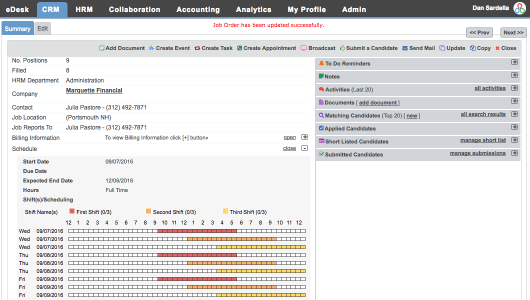
Akken Cloud

AkkenCloud -Medical staffing

Akken Cloud is one of the fastest growing staffing and recruiting solution providers for the healthcare industry in the world. Akken Cloud is continually improving by the constant addition of new features.

This application is a cloud-based human resource management (HRM) solution that helps you organize your staff and get a grip of your recruiting campaigns with ease.

One of the best features found in Akken Cloud is the employee self-service (ESS) feature. This allows your staff to log in and update information on the portal. The admins receive a notification when any requests or changes are made.

Another great feature is the employee onboard (EOB). This option allows you to easily manage employee records including assignment history, compensation and tax information. Once the information is recorded in EOB, it automatically gets reflected in the CRM record so you can easily keep track.

Akken Cloud also has a reporting and analytics feature that helps you create a variety of statistical reports in order to help your business grow fast. This solution also integrates third-party accounting and payroll options such as Quickbooks, Paychex, and more.

Key features include:

  • You can find qualified candidates faster.
  • You can engage your doctors and nurses with ease to use schedules and availability options.

Download Akken Cloud

Bullhorn

Bullhorn Staffing software

Bullhorn is another great staffing software option as it allows you to easily streamline your business’s operations.

This application can increase recruiter productivity by offering powerful automation regarding items like credentialing and working VMS jobs. With its features, Bullhorn improves the candidate and client experience giving you time to make better business decisions by using its great report features.

Bullhorn is a true cloud recruiting software built for healthcare that is always up to date with the latest features and also doesn’t require any sort of plug-ins or upgrades to work.

With Bullhorn’s easy-to-use interface it’s never been easier to interface, find, manage and place candidates into the required positions. It also has redeployment features that ensures that your roles will always be filled.

Bullhorn with Fyre Sync has been created to ensure you secure quality providers ahead of your competition. It automatically imports jobs directly into Bullhorn ATS, it has an automated and self-service facility mapping feature that can increase your productivity by eliminating the time needed to wait when releasing a report, facility request, etc.

Buy Bullhorn

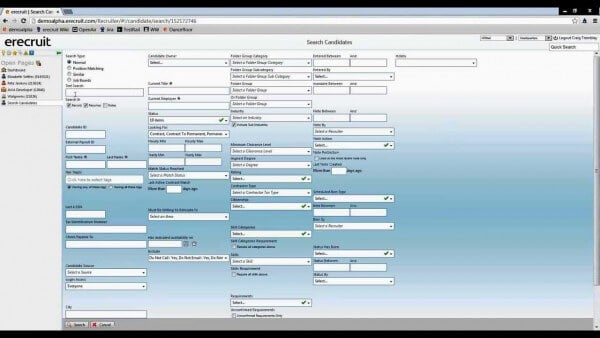
Erecruit

erecruit - medical staffing software

Erecruit gives you a complete enterprise staffing software designed by staffing experts. The suit from Erecruit is suitable for front-office, middle-office, management system (VMS) and onboarding modules.

Erecruit Staffing Software was created to meet the needs of large, multi-region and multi-division staffing firms.

You can use Erecruit to create schedules, credentialing, facility management, etc. This program makes it easier that ever to keep up with your company’s priority listings, facilities, scheduling and credentialing in the most intuitive way possible.

Let’s explore Erecruit modules :

  • Front Office – Can be used for consolidating sales, CRM , recruitment capabilities.
  • Middle Office – This module is designed to increase operation efficiency and speed data entry and also combines front and middle office reporting that includes real-time commission calculations and margin analysis.
  • Vendor Management System (VMS) – You can easily manage client requirements and large pools of vendors allowing you to exceed service levels and even outperform client expectations.

Download Erecruit

Momentum

Momentum Medical Staffing

Momentum is another great medical staffing software option and can help you manage your business at a wide range of levels.

Momentum can be used anywhere with it’s web-based 24/7 access and can also sync schedules to iCal, Outlook and Google Calendar.

This application can give you advanced reports like :

  • Tracking assignments by staff, role, group
  • Easily compare schedules between staff members
  • Quickly track variation hours and allowances

Some other features of Momentum include:

  • Simplified scheduling
  • Appointment manager
  • Drag and drop features
  • Facility scheduling
  • On call scheduling
  • Physician scheduling
  • Self service portal
  • Staff scheduling

Download Momentum

Meditab Practice Management

meditab practice management -medical staffing

This application allows you to boost your efficiency with fully-integrated EHR, practice management and billing solution.

This Meditab app was designed by physicians and is an award winner because of it’s technology that adapts to your practice. Every aspect of this software is fully customizable.

Meditab Practice Management is easy to use and very powerful, offering you a great quality customizable software that is able to optimize your practice’s wrokflows, financial performance and coordinate quality care.

It can be used in the cloud or on the eeb but also as an installed application for Windows 10.

Key features include:

  • Appointment Management
  • Billing and Invoicing
  • Facility Scheduling
  • Multi-Location
  • No-Show Tracking
  • On Call Scheduling
  • Patient Records
  • Patient Scheduling
  • Physician Scheduling
  • Recurring Appointments
  • Self Service Portal
  • Staff Scheduling
  • Physician Management

Download Meditab Practice Management

Conclusion

In this article, we explored the best options for medical staffing management. The options presented in this list offer you specific services regarding medical staffing.

They also pack other very useful features to help you run your business no matter if it’s a small business or at an enterprise level.

Let us know which tool you chose from this list.

Windows Web Filtering Software: 6 Best to Use in 2026

The internet can be a magical place where you learn new amazing things and come in contact with new people from different cultures, everyone having something to gain from each interaction. Unfortunately, that’s just not the case most of the time. While the internet can be all those things, it is also a pretty dangerous place, especially for children.

Young minds should definitely not be able to see everything that’s happening on the internet, as they are very easy to influence.

Parents that are aware of this are very concerned about the well-being of their children and want to know how they can take precautions. Of course, banning your kids from using the internet might sound like a solution to all internet-related problems, but the internet is such a major part of today’s society that it will be pretty much impossible to do that.

Even some school assignments might have children go online to research stuff or use services. Fear not, concerned parent or person distraught with the vulgarity and obscenity that can pop up on the internet out of nowhere, for there is a solution: Online filters or internet browsing filters.

What are they?

Internet filters are services provided by various companies that restrict the level of access a computer has to online features. It’s the best way to make sure that your kids don’t see what you don’t want them to see and that content you don’t want popping up won’t pop up on-screen. In this article, we are looking at the top internet filter programs available for Windows right now.Net Nanny

McAfee

McAfee is a well-known company with many different branches. They also dabble in online filtering as evidenced by their presence in this list. That being said, there are definitely good qualities about this app, but there are also a lot of lackluster or inexistent features that prevent it from being a rounded and comprehensive security tool.

What you would expect

The app does come with the standard online filter app features that are the core of such a service. Parents can use it to put restrictions on their children’s internet activity and prevent them from accessing pornographic websites or even get into situations where they might get cyberbullied.

Keeping it in the family

As mentioned previously, McAfee has multiple branching which means that some users might already be using the company’s assets in some form. For instance, McAfee also provides more than competent antivirus protection so someone that is already using that service might benefit more from sticking with the same service provider in terms of extending to internet filtering as well.

Generally having all services on one platform could be very useful for keeping things organized but also ensuring integrations and connectivity between the different services. That doesn’t mean it’s a must-have scenario as you might benefit more from using a completely different provider.

Targeted blocking

A cool thing about McAfee is that it allows users not just to block websites based on their content and theme but also based on their URL. That means that there are fewer chances for a website to sneak through some loopholes and pop up right in front of your kids since you can specifically tell the software to not allow access regardless of your motives for doing so.

Good support

Some services offer great features but lack severely on the support side. With McAfee, users are privy to a well-rounded support service that includes all the necessary resources you might need. You can either look for an answer yourself in the FAQ or use live chat and phone support to get in touch with someone from McAfee. There is also a number of articles available which can be of great help in different situations.

⇒ Get McAfee

Net Nanny

Net Nanny is regarded as one of the best (for some, the very best) internet filter software.  There are many attributes that put Net Nanny on top, one of them being the fact that it’s very easy to use. When it comes to actual features, it comes with a lot of options that help parents filter pornography but also prevent cyber-bullying. It is truly a cyber-nanny and the many users that have tried it vouch for its efficiency.

Keeping track and reporting

Net Nanny comes with multiple options regarding how parents can track their children and more specifically their online activity. You can choose multiple ways in which data is sent to you and how you receive reports of what they’ve been up to online. There is even a social media feature that lets you track social media activity and also monitor messages they might receive. The service definitely does a good job of keeping a close eye on the kids’ activities.

Filtering

As mentioned before, Net Nanny is able to filter and block content, which is pretty much the bread and butter of any online filter. The ability to dictate what children are able to see and what not is invaluable for a parent these days and Net Nanny provides that very service. Content can be blocked completely so you don’t have to worry about your children accidentally (or not) getting exposed to pornography or other things online they should stay clear of.

⇒ Get NetNanny

Witigo

Witigo is another great solution for providing children with security and filters while they browse the internet. It has pretty much all the features you would expect from an online filter and definitely have seen with other similar services. However, it also has some features that set it aside from the crowd. Let’s take a closer look at what makes Witigo a solid pick for parents that want to protect their children.

Cloud service

Witigo can be downloaded and installed on a computer, after which it will begin providing security for that particular computer. However, there is also a cloud-based version of Witigo that users are privy to. The cloud version comes with some perks of its own, specifically the fact that you can manage multiple devices as once, not just one computer.

Through cloud technology, parents can keep an eye not just on their kids’ computer history and activity but also on their smartphones and other smart devices they might be using. It’s also compatible with Mac computers, which makes it even better from a Mac owner’s perspective.

2-step setup

Setting up Witigo isn’t necessarily hard but it’s definitely more challenging and tedious than other similar software. The main difference between Witigo and other software is that the former cannot be immediately used after installation. After downloading and installing the PC version, users must first install the mobile version on their phones.

After downloading and installing the PC version, users must first install the mobile version on their phones. Only then will they be able to use the PC version to track and scan. Once the installation is complete, however, users can safely and efficiently manage settings for all platforms.

27 different filters

There are many websites and themes that shouldn’t be available for children. The included 27 different filters help users restrict internet access to desired platforms, ranging from the obvious ones like pornographic websites to online games or gambling sites and even news sites. Some parents might want to prevent their children from being exposed to the harsh realities in the news, and having that option at the ready is a great feature.

⇒ Get Witigo

Surfie

Surfie is a pretty neat pick, but it has one big flaw that prevents it from being a higher priority when it comes to selecting an online filter service. Despite being a competent pick as far as features as efficiency go, the problem with Surfie is that it doesn’t really offer any support. The software was developed by Pure Site and the

The software was developed by Pure Site, and the developer doesn’t seem to be all that interested in maintaining a constant support line for users that might have problems or inquiries.  In fact, any Surfie user that runs into problems has to learn to make do with just the online user guide. There is also the option of sending the developer an email but that isn’t the most effective or quick method for getting results.

Super easy installation

Surfie is truly user-friendly from the practical perspective, and even though its user support infrastructure is severely lacking, it kind of makes up for it a little bit through how easy it actually is to set Surfie up.

Users are greeted by a setup wizard that takes over all installation duties and guides users through the step-by-step process. This way, no user can get confused or lost within the installation process. The wizard also sets up an admin ID for the user, which will be used to call the shots.

Chat monitoring

Surfie is a really good pick if your kids spend a lot of time on different chatting services. Skype, Facebook Messenger, Yahoo Messenger, and others are frequently visited by children, and the easiest way for them to get in contact with strangers that they shouldn’t have any contact with, to begin with. The software takes extra precautions to make sure that users are able to block all these services or restrict their kids from them as they see fit.

The bulk of the features

When it comes to Surfie as a package, it’s just as compelling as any other service with a wide variety of features and options that allow parents to monitor their children thoroughly but also to take action at any moment and in many different forms from completely blocking something to set time limits.

⇒ Get Surfie

CYBERsitter

CYBERsitter could have been better but it can definitely be a useful pick/ It depends strongly on how far you want to go in terms of internet filtering and restrictions. If you are looking to block websites or apply pornography filters, CYBERsitter is more than capable to help you do that. However, if you want the full package that also includes activity tracking and that sort of thing, you might need to look for it somewhere else.

CYBERsitter focuses real hard on providing one type of protection and that means that outside its comfort zone where it does very well, it’s quite a bit lackluster and feels incomplete. That being said, the software does not include cyberbullying detection, which should be a must-have feature in all internet filtering software. The ability to block out all potential negative content is very useful and CYBERsitter definitely loses a couple of valuable points thanks to that one.

Different filters

Since it’s an internet filtering app, you can depend on it to provide useful filters for online content. Users are free to choose what kind of content will and will not be allowed on screen. The program offers a pretty reasonable list of filters that can be used to block content, which is always a good thing.

Time management

A great feature that helps CYBERsitter raise the bar is its time management feature. This feature allows the user to set just how much time their children spend in front of the computer. It’s very important that kids learn to take all things in moderation, even the internet, and going outside to play and explore is crucial in their development.

Computers and the internet usually stand in the way of that, especially with newer generations so the fact that CYBERsitter provides that kind of support for parents is pretty awesome.

⇒ Get CYBERsitter

Norton Family

Norton Family is just as good as any of the other services highlighted in this article. That being said, it provides a solid list of features that many people find enticing. Norton, just like McAfee, is known for its contributions to the antivirus scene as well, being an elite antivirus service provider. The Norton services in regards to internet filtering are thus recommended by the company’s impressive record in keeping computers safe and protected.

In preparation of children browsing sessions

Norton Family allows users to prepare the computer and the inline environment for a child’s browsing session. This means that certain settings can be prepared so that kids can safely browse the internet without parents fearing what they might find.

Activity tracking and child protection

It has been long established that parents need to know what their kids are doing online. That being said, Norton helps parents learn more about their kids’ online habits and occupations. Staying informed is the best weapon a parent can ask for against alienation from their kids because when a parent knows what’s going on, they can engage in conversation a lot easier.

Additionally, kids are prone to revealing their real-life information way too easily online. Norton Family provides features that help parents protect their children’s information from people they interact with online but also from websites and platforms they might access.

Multi-platform

Norton Family can be used to protect and monitor all the platforms on which a child spends their time online, and at the same time too. That means that whether your kid is on the computer or on their tablet, you can keep track of what they’re doing at any moment.

⇒ Get Norton Family

FIX: DirectX 11 issues in FIFA 21 [Quick Solutions]

Many users are thrilled about FIFA 21. However, nothing is perfect, and this game is no exception.

Quite a few people encountered a major problem with DirectX 11 in FIFA 21. Usually, FIFA 21 starts in DirectX 12, but it makes the gameplay laggy.

Someone reported the following on the official EA forum.

Been waiting since release day, paying monthly for a service I can’t use…

Redownloading drivers (clean) doesn’t work.

Changing directx select doesn’t work.


Other users reported the DirectX function GetDeviceRemovedReason – DXGI_ERROR_DEVICE_HUNG error when playing the game on Origin.

Apparently, this issue appears when opening a FUT pack or when users receive penalties and the game freezes.

Fortunately, we have simple solutions to solve this issue, and today we will show you what to do if you encounter DirectX 11 or DirectX 12 problems in FIFA 21.

Quick Tip:

Year after year EA manages to polish this fantastic game series more and more, and FIFA 21 is the culmination of gaming technology.

Get it now and feel what it is like to be a world champion! We hope that you master its secrets and may the best win!

⇒ Get FIFA 21

How do I fix DirectX issues in FIFA 21?

1. Tweak a FIFA 21 file

  1. Go to the FIFA 21 folder.
  2. Open fifasetup.ini
  3. Change DIRECTX_SELECT = 0 to DIRECTX_SELECT = 1.FIFA 20 Crash change line
  4. Save the change and launch the game to see if FIFA 21 works properly.

2. Update or reinstall your video drivers

2.1. Update your drivers manually

  1. Press Windows + X
  2. Select and open the Device Manager
  3. Select Display AdaptersDeus Ex Mankind Divided a problem has occurred with your display driver
  4. Right-click on your PC’s display adapter and select Update driver
  5. Choose whether to let the troubleshooter browse the Internet for drivers by itself or if you want to browse your PC

2.2. Update the drivers automatically

A much faster and more efficient way to update your drivers is to simply use a third-party driver updater and fixer, and we recommend you give a shot to the recommended tool below.

This tool will not only download and install all of the latest drivers available for your hardware, but it will also do so in time, and without overloading your PC.

3. Repair the game files

  1. Navigate to the FIFA 21 app on your PC.
  2. Right click on the game and select App settings.
  3. Click the Repair button.

Repairing the game files also fixed this problem for some of the users so make sure you try it.

4. Reinstall DirectX and the game

If none of the solutions above worked for you, it’s time to think about reinstalling DirectX and the game itself.

It’s easy to do that from the Apps option in Settings. Just find DirectX and FIFA 21, select them and click the Uninstall button.

After that, install them again, one by one and hopefully, you won’t experience the freezing issues in FIFA 21.

As you can see, the solution for fixing the DirectX 11 error in FIFA 21 is very simple. However, some users reported that changing DIRECTX_SELECT from 0 to 1 helped only a bit.

We hope that our solutions helped you overcome the FIFA 21 Directx 11 problem and enjoy the game.

If the game crashes at launch, we have an excellent guide that will help you fix that problem too. The gameplay is not perfectly smooth even in the ultra-quality mode at 60 FPS.

Did you encounter this issue in FIFA 21? Do let us know in the comments section below!

Animal Shelter Software: 6 Best to Use in 2026

Running an organization is not an easy task and when it comes to organizing things in the proper way electronic software is the best. Although certain time ago they were unreliable as the machine can fail anytime but with the cloud integration everything happens to be safe, and we can trust these machines as we do with the properly documented copies in hand.

With proper animal shelter software, one can definitely increase the efficiency at which the organization works and streamline the various processes.

Although we need proper software to manage the whole animal shelter and take the control hence today we are going to let you know about the best Animal Shelter software available in the market.

Let us first enlist the best Animal Shelter software then we will talk about each of them in brief:

  1. Animal Shelter Manager
  2. Rescue Connection
  3. PetPoint
  4. Shelter Buddy
  5. iShelters

Animal Shelter software to install on Windows PCs

1. Animal Shelter Manager

 animal shelter software

The shelter manager for most of the part is one of the best software to manage any Animal Shelter. The application comes pre-loaded with some features such as generating adoption and other paperwork without actually typing, and also creates custom reports and graphs and also keeps a track on the medical, waiting list and all other things of the Animals.

2. Rescue Connection

Rescue Connection

This application comes in some variants, wherein we get Enterprise edition as the fully loaded one which has all the bells and whistles.

Other versions of the app have these feature in any of their version but not all the features, hence if you just need a couple of features from the list, then you can get the cheaper one which will be an excellent bet for the features and amount of control the application offers.

3. Pet Point

petpoint animal shelter software

This is a free application which comes with two in one solution. The application’s database is over the cloud but still, the application offers its software which happens to be the main working place, but you can monitor the graphs and the incoming and outgoing and health of animals from your home via just an internet browsing device. So it doesn’t matter whether the volunteer is at the office or off-site they can always access the database over the cloud.

4. Shelter Buddy

shelter buddy animal shelter software

This app also does the same which the above two app does; the functionality happens to be more or less the same, the app does its job well. The application is even well optimized to be working on Windows 10 which makes the application a great choice if you are looking for at-par safety. Here also we get more than one version of the application which is termed as enterprise and pro edition. The best part is that the application also offers a feature to schedule and manage a fundraising event which is very thoughtful indeed.

5. iShelter

This version doesn’t come with any software to be installed but will work with your existing web browser, which means the application has an online web-based solution which is also great, as you can log in from wherever you want.

The website is quite well optimized for Windows 10. This application is also a paid one, and you have to subscribe to a monthly fee of 2.5$ per month which is excellent for some features it offers.

These are some of the applications which happen to be the best in class Animal Shelter Manager application for Windows 10. You can try any of the application if you need to manage your Animal Shelter in a more organized way.

Microsoft starts testing Dolby Vision Gaming on Xbox Series X|S consoles

Microsoft’s Xbox Series X|S will soon be the first video game consoles to support Dolby Vision for Gaming. Xbox Insiders in the Alpha Ring will get early access to this new feature in an upcoming build to be released later this week, but testing will require a TV that supports Dolby Vision.

For those unfamiliar with it, Dolby Vision is Dolby’s proprietary HDR technology that delivers a better visual experience than the HDR10 standard that Microsoft contributed to democratise with the Xbox One S back in 2016. Xbox One and Xbox Series X|S consoles already support Dolby Vision for media content, but Dolby Vision for Gaming will be exclusive to Microsoft’s next gen consoles. All Xbox consoles also support the Dolby Atmos spatial audio technology.

“When you play in Dolby Vision, you unlock the most realistic and lifelike visuals the game has to offer, with brightness, contrast, color, and depth that goes beyond even traditional HDR games,” Dolby explains on its official website. With Dolby Vision Gaming, the company promises 40x brighter highlights and 10x deeper black levels compared to traditional HDR games.

Dolby Vision Gaming

The majority of high-end new 4K TVs now support both HDR10 and Dolby Vision, though Samsung is one of the rare manufacturers to ignore Dolby Vision in favor of the alternative and royalty-free HDR10+ format. We’re still waiting for Microsoft to share more details about which TVs will support Dolby Vision Gaming, and some models may require a firmware update to support Dolby Vision at 4K/60Hz and 4K/120Hz.

It’s also not exactly clear if support for Dolby Vision Gaming will require some work from game developers, or if it’s a system-level feature Microsoft can apply to all games running on Xbox Series X|S consoles. Anyway, the Xbox team deserves credit for its forward-thinking approach and Dolby Vision Gaming is another next-gen feature that Sony’s PlayStation 5 consoles won’t have.

Steel Division: Normandy 44 bugs on Windows 10/11 [Full Fix]

Steel Division: Normandy 44 is a tactical real-time strategy game that puts your military tactics skills to the test. You can play against AI enemies in a single-player campaign, or against several opponents in 10-on-10 multiplayer epic battles.

Many gamers report that Steel Division: Normandy 44 is affected by a series of technical issues. The good news is that the game’s devs already published a list of quick fixes to help you solve some of these bugs.

How do I fix the Steel Division: Normandy 44 issues?

Steel Division: Normandy 44 is a great real-time strategy, but it suffers from various issues. Speaking of issues, here are some problems that users reported:

  • Steel Division Normandy 44 keeps crashing, crash on startup – Crashing is one of the common problems that you can encounter with this game. This is usually caused by trying to run the game in fullscreen mode. To fix the problem, start the game in borderless window mode.
  • Steel Division Normandy 44 no sound – This problem can occur if there’s an issue with your audio drivers. In addition, check the integrity of game files and see if that solves the problem.
  • Steel Division Normandy 44 game did not terminate properly – This is a peculiar issue, but it can occur from time to time. However, you should be able to solve this problem by using one of our solutions.
  • Steel Division Normandy 44 low fps – Many gamers reported low FPS while playing the game. This can be a big issue, and to fix it, check your graphics card drivers and graphics settings.
  • Steel Division Normandy 44 lag – This problem can occur due to your antivirus or firewall. To fix the issue, be sure to add the game to the list of exceptions in your antivirus and firewall.
  • Steel Division Normandy 44 not loading, starting – If the game won’t start at all, the issue might be Visual C++ components. Simply install the necessary components and check if that solves your problem.

Solution 1 – Change your graphics settings

If Steel Division: Normandy 44 crashes after you change the graphics options, use these two solutions:

  1. When you see the prompt suggesting to use the last working configuration, select No. The game should automatically use the right options now.
  2. Change the graphics options one by one, but don’t modify the Shader Quality and Terrain Resolution settings.

Solution 2 – Check your antivirus

The most common cause for Steel Division: Normandy 44 issues can be your antivirus software, and in order to fix this issue, you need to add the game to the exclusions list in your antivirus and firewall.

If that doesn’t work, your next step would be to disable certain protection features and check if that helps. In addition, you can also try disabling your antivirus entirely.

In case that doesn’t work, you might have to remove your antivirus. If removing that solves the problem, you should consider switching to different antivirus software.

There are many great antivirus applications on the market, but if you’re a gamer, we recommend you try a suitable antivirus solution that works great in gaming mode.

These security utilities have a Gaming Mode feature, so it offers great protection without interfering with your favorite games.

Many users reported that Avast caused this problem to appear, but other applications can also cause it, so be sure to try this solution regardless of the antivirus you’re using.

Solution 3 – Run the game in borderless window mode

Many users reported various Steel Division: Normandy 44 issues, and according to them, they can’t even run the game in fullscreen mode. This is a strange bug, however, you can fix it by forcing the game to run in borderless window mode.

To do that, just follow these simple steps:

  1. Go to C:UsersUSERNAMESaved GamesEugenSystemsSteelDivision directory.
  2. Now locate the option.ini file and open it with Notepad.
  3. Now locate WindowFormStyle = 1 value and change it to WindowFormStyle = 2.
  4. After doing that, save changes and try to run the game.

By changing this one value, you’ll force the game to run in borderless window mode and the issue with the game should be resolved.

Solution 4 – Install the latest Windows updates

Sometimes Steel Division: Normandy 44 issues can occur due to missing updates. Windows 10 has certain bugs, and in order to fix those issues, it’s recommended to install the latest updates. Installing updates is pretty straightforward on Windows 10, and for the most part, the updates are installed automatically in the background.

However, you can check for updates at any time by doing the following:

  1. Press Windows Key + I to open the Settings app.
  2. Navigate to Update & Security section.
    Steel Division Normandy 44 lag
  3. Now click Check for updates button.
    Steel Division Normandy 44 keeps crashing

Windows 10 will now check for updates and download the available updates in the background. Once the updates are downloaded, they will be installed as soon as you restart your PC. After updating your system to the latest version, check if the problem is resolved.

Solution 5 – Reinstall Microsoft Visual C++ 2015 Redistributable

According to users, Steel Division: Normandy 44 issues can occur due to Visual C++ components. Sometimes your Visual C++ installation might be corrupted, and that can lead to various issues with the game. However, you can fix the issue simply by reinstalling Visual C++ components.

To do that, just go to the game’s installation directory and look for the vcredist folder. Inside the folder, you’ll find some setup files. Run the setup files and choose the Repair option. If available, you can choose the Uninstall option as well and then install Visual C++ 2015 Redistributable again.

Once you reinstall Visual C++ components, the issue should be completely resolved.

Solution 6 – Change your graphics card settings

Many users reported that Steel Division: Normandy 44 has some issues working with two graphics cards in SLI mode. However, you can easily fix that issue simply by going to the Nvidia Control Panel > 3D settings and selecting Do not use SLI technology.

Solution 7 – Remove problematic software

Sometimes Steel Division: Normandy 44 issues can occur due to certain third-party applications. Those applications can interfere with your game and prevent you from running it. However, you can fix the problem simply by removing the problematic application.

The common cause for this problem is Raptr Gaming Evolved software, and in order to fix the problem, you need to remove it. Once the software is removed the issue should be completely resolved.

There are several ways to remove this application from your PC, but the most effective one is to use uninstaller software, that works perfectly for this task. In case you’re not familiar, uninstaller software will remove the selected application, but it will also remove all files and registry entries associated with it.

By using uninstaller software, you’ll ensure that the application is completely removed, and prevent any leftover files from interfering with your PC. Once the problematic application is removed, try to start the game again.

Solution 8 – Remove option.ini file

Sometimes, Steel Division: Normandy 44 won’t run on your PC due to the option.ini file. If your configuration isn’t correct, you might encounter various problems, and the best way to fix those problems is to remove the option.ini file.

This is quite simple to do, and you can do it by following these steps:

  1. Navigate to C:usersSaved GamesEugenSystemsSteelDivision directory.
  2. Locate the option.ini file and remove it. Alternatively, you can move the file to your Desktop for same results.

After doing that, start the game and check if the problem is resolved.

Solution 9 – Verify integrity of game files

Steel Division: Normandy 44 issues can occur if your installation is corrupted. If that’s the case, the game won’t be able to load at all, or you might experience some different issues. However, you can fix the problem simply by verifying the integrity of game files. To do that, follow these steps:

  1. Open Steam and go to your Library.
  2. Now locate Division: Normandy 44 on the list, right-click it and choose Properties from the menu.
    Steel Division Normandy 44 game did not terminate properly
  3. Go to the Local files tab and click Verify integrity of game files button.
    Steel Division Normandy 44 low fps
  4. The verification process will now start. Keep in mind that the process can take up to 10 minutes, sometimes more.

Once the process is finished, the corrupted files will be repaired and the issue should be permanently resolved.

If you’ve come across other workarounds to fix various Steel Division: Normandy 44, feel free to list the troubleshooting steps in the comment section below.

Posted in Fix

Microsoft Teams to add a Restart option for Live Events

Microsoft is planning to add support for restarting Live Events in Teams. The feature was recently added to Microsoft 365 roadmap and will be available for both desktop and web clients.

Currently, producers can’t stop and restart the Live Event later, and they need to schedule a new event for attendees. With the new feature, producers or presenters will see an option to restart their Live Event after encountering a problem or accidentally ending it. As noted on the Microsoft 365 roadmap, the capability is expected to roll out in June this year.

Along with it, Microsoft is also adding the ability to opt-out of the multi-window producer experience for Live Events. The software giant announced multi-window support for managing Teams Live Events last month. However, it does not provide access to the Call Health Panel for now, and this issue could prove particularly frustrating for some users.

The company is recommending Office 365 admins to revert their tenants to the single view experience until the Call Health Panel is available in the end of June. “If you wish to continue with the current Multi-Window Producer experience there is nothing you need to do. If you would like to opt-out, please send mail to [email protected] with your tenant ID,” the company announced in a message on the Microsoft 365 Admin Center.

Microsoft Teams continues to thrive in this new hybrid workplace era. The firm has recently rolled out many new features, including a new Calling experience and support for interactive webinars for up to 1,000 attendees. The app has also introduced an option to share content directly from a mobile screen to Teams Rooms devices.

Browser Based Animation Software for Windows 10 & 11: Best 5

Animation software is becoming more and more popular these days. Such tools are not used just for fun, but they’re also gaining popularity in more directions as well.

For instance, we can use animation for other purposes such as running effective marketing campaigns or congratulating a friend of ours with the most creative animated video message.

There are plenty of software that can be downloaded to meet your expectations, and we gathered the best ones that you can currently find that you can use in your browser.

So, make sure to take a look at their best features and then make an informed decision that will make you happy and suit all of your needs. Good luck and have fun!

Quick Tip:

If you’re interested in working with animation and were wondering what browser would serve it justice, Opera One is something we can stand behind.

Opera One is based on the Chromium project, with a privacy and security focus. As for it’s features, this browser comes with a lot of built-in, amongst them we can find a VPN, an Ad blocker and a native AI.

Opera One

Use a browser with enhanced security features, built-in virus scanner and fast loading pages.
Free Download Visit website

What are the best browser-based animation tools to use?

Marionette Studio

Marionette is one of the smartest ways to animate characters and environments as well.

Using this fantastic browser-based tool, you will be able to unleash your full creativity and produce professional-looking animations even if you’re not the most advanced animation expert.

You will get a great chance of benefiting from an automated animation pipeline this way, you can create a great animation in no time.

You can check out even more amazing and exciting functionalities that are packed in this tool by heading over to Marionette Studio’s official website and taking a look around.

Take a look at the best features that are included in this software below:

  • You can experience the look and feel of an installed app straight from your browser with the enhanced GPU performance of Marionette
  • Using this tool, you will be able to drag and drop images in the editor and rename them in your own scene
  • You will also be able to define the frames that you find the most important for your animation
  • Marionette allows you to play and refine motions in the animations curve tool
  • You can follow the shape of your scene objects and define a sort of skeleton for them
  • You can save the animation as a video, GIF, image pack, or game engine
  • Marionette will allow you to export the animations in all kinds of formats and use them as you wish

Marionette

Check out one of the best tools to create amazing animations and export them in all kinds of formats.
Free trial Visit website

BrashMonkey’s Spriter

BrashMonkey’s Sprinter is another fantastic animation app that is packed with lots of interesting and exciting features. Animation creation will become a breeze using this efficient tool.

The character’s body parts can be easily rotated and moved. You will see that it’s much easier to make some tweaks that would otherwise be unnecessary during the gameplay testing.

Here are a few of the best features that you’ll be able to enjoy if you decide to try this tool:

  • To successfully use this software, you don’t have to be the most experienced game design artist
  • You will be able to spend less time polishing your game if you’re using this tool because it allows users to reuse various modular images.
  • If for instance, you will have to change the game’s character’s head configuration during the final design stage, you will see that this tool becomes your best friend
  • You only have to change a small bit of the image because the models are set to be used across various frames
  • Professional game designers will also find it really easy to deal with various tweaks
  • This tool allows fast creation of characters based on data from other characters

⇒ Get BrashMonkey’s Sprinter

Creature

Creature is another amazing animation software that is designed to add some amazingly fluid animation to all kinds of digital content that you may have.

If you decide to try this tool out, you will also get the chance of taking advantage of its Directable Automated Animation Engine and its robust workflow to produce exquisite animation effortlessly.

Learning this tool will eventually become a pleasant journey into the fantastic and fascinating world of 2D animation.

On the official website of this software, you will find lots of in-depth documentation on how this robust tool is used for the best results. You can also find there a few video tutorials.

Take a look at the fey features and main functionalities that are in included in this software:

  • Creature is the perfect tool for digital artists, game developers, and also web designers who want to add some magic to their content via animation
  • After trying out this tool, you will definitely reconsider everything you thought you knew about making 2D animation
  • The Directable Automated Animation Engine that we mentioned above is the tool’s core technology that lets users produce motion that you never thought was possible with traditional skeletal animation software
  • Using this software, you will be able to export your art in various formats that will be ready to enter your content
  • You can export your animation into image sequences. Movie files, sprite sheets, and more
  • Creature provides enhanced flexibility and power

⇒ Get Creature

Moho Pro 12

Moho Pro 12 is another goodie for digital artists and professionals. It’s interesting to note that it was used in the Oscar-nominated movie, The Breadwinner for the Best Animated Feature Film.

We believe that this says a lot about this tool’s amazing quality. The program is packed with a bunch of brand-new features that you will be able to analyze on its official website.

The best features include: Bezier handles, smart warp, enhanced freehand drawing tools, pin bones, realistic motion blur, the ability to animate more layers at the same time, and many, many more.

Check out the most exciting features that you will be able to enjoy while using this animation software:

  • This tool is ideal for professionals who desire a more efficient alternative to regular animation tools
  • It comes with an intuitive and effortless to use interface and a robust set of features
  • It’s optimized for animations, and it includes a professional Timeline, physics tools, motion graphics, 64-bit architecture, and more amazing features
  • The advanced tools that are provided by Moho Pro 12 will speed up your workflow significantly
  • The cutting-edge set of features packed in this software together with the powerful technology that it uses will offer users one of the unique pieces of software available

⇒ Moho Pro 12

Fusion Character Animator

Fusion Character Animator is a small but handy animation tool for Clickteam Fusion 2.5 that will facilitate the animation of 2D characters for developers.

This small software is excellent for generating animations frame by frame. It offers modules for managing the colors, pixels, creating motion, and for importing animations.

Even if this is a small tool compared to the more powerful ones that we presented above it’s still an excellent solution for creating animations.

Check out more key features included in this software:

  • You can use paint and draw tools and scaling functions as well.
  • Another amazing thing is that Fusion Character Animator comes with a collection of pre-built animations and the user will require only to supply images for each of the body parts because this small but intelligent tool will take care of the rest.
  • Fusion Character Animator is easy to manage, and the file manager can deal with easily generated pictures.
  • You will also get an additional control power the color palette.

⇒ Get Fusion Character Animator

These are the best five tools that we’re currently recommending for browser-based animation, and they’re all packed with lots of great and useful features.

It’s best to visit their official websites as well in order to be able to take a more in-depth look at their advantages before making the final decision that will best suit your needs and your skills as well.

5 best free game brightness software for better balance

While working on a computer system, brightness of the screen plays a major role. For the game fanatics, the right amount of brightness adds to the excitement and so, a game brightness software is what they need.

The better the brightness level of the screen, the better the gaming experience. On the contrary, too much brightness can also put that added strain to the eyes that can be harmful to the vision.

Therefore, for an enhanced experience, the screen needs a balanced configuration and extra relaxed settings. While brightness can be adjusted manually or automatically on a computer, it may not always offer the right balance.

Moreover, there are some desktop models that do not come with external controls for brightness or contrast. In such cases, all you can do is to adjust the brightness using the slider in the Windows power settings.

So, how to get that perfect brightness that’s easy to the eyes? We have handpicked some of the best game brightness software for Windows that come with advanced features.

Which are the best game brightness tools for Windows 10?

DimScreen

Best screen brightness apps for windows

DimScreen is a compact program that that helps change the screen brightness easily. The same can be achieved on laptops using two shortcuts such as Fn and two dedicated function keys.

But in desktops, such keys either don’t exist or they don’t work. Here’s where the app comes to the rescue.

One of its major advantages is that it does not need to be installed. The executable file for the software can dwell in any folder, for example, in the Home folder.

When the user right-clicks on the notification option, it opens up the selection menu for brightness. It features 10 different levels.

What’s more? Users can identify the option as the app lights up the menu automatically. This is especially eye-friendly during the nights.

The keyboard shortcuts come really handy, and these can be adjusted in the Settings option. These shortcuts work as a perfect alternative for the function keys in laptops.

Best of all, this game brightness software allows users to select the brightness level that gets enabled as it’s launched.

⇒ Get DimScreen

VibranceGUI

Best screen brightness apps for windows

There could be no better addiction than playing games on a bright Windows system and VibranceGUI enhances the overall experience.

This lightweight and easy to use software automates the NVIDIAs digital vibrance option and AMDs saturation for any game. Best of all, it’s VAC safe.

It can modify the digital vibrance level to the expected level during the game. Moreover, when users close the window or the game is not on, the vibrancy level is turned back to the original level.

What’s interesting is, that the software keeps running and monitors till users shut it down.

The app can be minimized to the tray, and can even autostart when the system starts. It allows users to configure in-game and the vibrancy levels in the Windows GUI. In addition, it allows users to save the adjusted data.

⇒ Get VibranceGUI

Gamma Panel

Best screen brightness apps for windows

Gamma Panel is a small and convenient program that allows users to configure the brightness and other settings (contrast, gamma) in real-time.

This game brightness software comes with a hot-key feature that lets users adjust the settings without leaving the game.

The software works a lot like the Color profiles in that of the PowerStrip. However, the program is absolutely free of cost and is more compact when it’s about the system load and the use of memory.

The best part about the software is that it’s straightforward, that is, it simply rests on the taskbar and carries out its functions.

The profiles can be applied in two methods – either by clicking the allotted combination of the hot keys or by choosing the entry from the popup menu.

The color profile that was last selected gets applied automatically when the next program starts running.

⇒ Get Gamma Panel

F.lux

Best screen brightness apps for windows

Whether a game fanatic or someone using the system on a regular basis for work, no one wants to be blinded by the computer screen. Computers screens are designed in a way that they are easy to the eyes during the day.

As it gets dark, the brightness needs to be adjusted based on the intensity of the light in the room.

What f.lux does here is that it helps the color of the system screen to adjust based on the time of the day. Further, it helps the screen color to get warm at night and match the sunlight during the day.

The program helps relax your eyes while working and even adds to the overall look of the screen.

F.lux helps the computer screen to match the room appearance at all times during the night. Interestingly, it matches the color of the screen match the indoor lights when the sun sets.

Best of all, back again in the morning, the color of the screen matches the sunlight.

⇒ Get F.lux

Desktop Lighter

Best screen brightness apps for windows

Desktop Lighter is software that allows users to easily adjust the brightness of their computer screens. This game brightness software for Windows can be especially useful in low-light environments.

It can also be handy when an increasingly bright screen strains the eyes of the users. Moreover, it is also helpful while reading large blocks of text, otherwise, it can be stressful for the eyes.

The best part about this software is that it does not need to access the control panel anymore. This helps to adjust the screen brightness manually. Users can identify an icon on the toolbar placed at the bottom of the page.

Users can click on this icon to open up a window that shows a sidebar. All the users need to do is to slide the bar to the left or the right side. This helps in adjusting screen brightness.

In addition, it allows users to preset the program to work in accordance with the hotkeys. Alternatively, users can also enlarge the entire window making it easier to read.

⇒ Get Desktop Lighter

A game brightness software is not just designed for games, but for the overall appearance of the computer screen.

So, whether you play games, or simply want to adjust the screen brightness for daily use, these 5 programs are perfect for all situations.

Play NBA 2K21 and Ride on the Edge 2 on Xbox Series X and Xbox One for free this weekend

NBA 2K21 and TT Isle of Man: Ride on the Edge 2 are both free to play on Microsoft’s Xbox Series X and Xbox One consoles this weekend for all gamers with an active Xbox Live Gold subscription.

Both video games will be playable in full doing the promotional campaign which is set to end on Sunday at 11:59 p.m. PDT.

Here’s the game description, trailer, and store link for each title:

NBA 2K21

NBA 2K21 is the latest title in the world-renowned, best-selling NBA 2K series, delivering an industry-leading sports video game experience on Xbox One. With extensive improvements upon its best-in-class graphics and gameplay, competitive and community online features, and deep, varied game modes, NBA 2K21 offers one-of-a-kind immersion into all facets of NBA basketball and culture – where Everything is Game.

TT Isle of Man: Ride on the Edge 2

Without a shadow of a doubt it is one of the most dangerous motorbike races in the world. In TT Isle of Man – Ride On the Edge 2, you prove your worth in different championships before setting out to conquer the Snaefell Mountain Course, a 60 km-long track with both winding and straight sections that will push your riding skills to the limit. TT 2 features 17 additional tracks, 18 different motorbikes including classic models, and the official riders. And now it’s more realistic than ever, thanks to entirely revamped physics and faithfully reproduced rider movements. Fine-tune your motorbike, upgrade its performance and monitor its data in real time so you can stay competitive. TT2 also offers a brand-new open world, a biker’s paradise where you can test your bike settings and gain the experience you’ll need to win the TT Isle of Man title!

Which game are you going to play this weekend? Let us know in the comments below.

NBA 2K21
NBA 2K21
Developer:
2K
Price:
Free


Best ISO Software for Windows 10 [2026 Guide]

In order to backup your CDs, DVDs collection or your operatin system, the best way to do it is to use specialized software that allows you to create virtual CDs with your data.

This type of software works by creating a virtual CD/DVD drive that you can use to mount virtual images to it and restore data from an image file.

In this article, we will explore some of the best options on the market that allow you to store and extract data from ISO files.

Which are the best tools to mount ISO images in Windows 10?

PowerISO

Topping off our list of best ISO mounting tools is none other than PowerISO, a tool that can open, extract, burn, create, edit, compress, encrypt, split and convert ISO files, and mount ISO files with internal virtual drive.

Despite the name, PowerISO doesn’t just handle ISO files, it can manage all kinds of virtual disk image formats, including BIN, NRG, CDI, DAA and so on.

Basically, it doesn’t matter if you want to make a copy of an audio disk, burn data on a DVD, or create a mountable copy of your favorite games since PowerISO can do them all.

The interface is intuitive and familiar, and the program can be used not only to create new ISO images but also to edit existing ones, such as adding or deleting info from them.

Here’s a brief overview of what PowerISO can do:

  • Create ISO files
  • Edit ISO files
  • Extract ISO files
  • Burn ISO files
  • Mount ISO files
  • Burn audio disks
  • Audio CD ripper
  • ISo & BIN converter
  • Create bootable USB drives, and so on…

⇒ Get PowerISO

Daemon Tools

Daemon Tools in an incredibly versatile and easy to use tool that, among other features, can create a virtual hard drive on your Windows PC to which you can mount as many ISO image files as you want.

Daemon Tools comes in a wide range of versions, each designed specifically to suit different needs of customers.

With Daemon Tools Lite, you can mount disc images,VHDs and TrueCrypt files, can grab images from physical discs, organize your images library, and can also emulate 4 DT/SCSI devices.

Daemon Tools Pro is an advanced imaging software with a classical-looking interface that contains all the features of the Lite version, and adds:

  • Ability to emulate up to 256 DT and 32 SCSI devices
  • Lifetime updates
  • Can create, convert and edit images from files
  • Burn images, data, and audio CDs
  • Can create VHDs
  • Emulate up to 4 IDE devices
  • Create virtual writable devices

Daemon Tools Lite Personal — this version has all the capabilities of the Lite version, and adds lifetime updates and other features:

  • Create Live USB devices
  • Protect USB sticks with password
  • Create bootable USB sticks for Windows and Linux
  • Create bootable devices for BIOS with MBR partition
  • Create bootable devices for UEFI with GPT or MBR partition

Daemon Tools Ultra contains the entire range of features offered by the company. It includes the features of all the previous versions presented, and also adds:

  • Browse mobile devices via local Wi-Fi network
  • Run several wizards simultaneously
  • Back up any files to disk, VHD or TrueCrypt container

⇒ Download Daemon Tools

WinCDEmu

WinCDEmu is an open-source CD/DVD emulator that allows you to easily mount ISO image files by simply double-clicking on them in Windows. Even though WinCDEmu is almost 2MB in size, it packs a good range of useful features.

Some of the best features include:

  • Can easily mount ISO, CUE, NRG, images
  • Create an unlimited amount of virtual drives
  • Compatible both with 32-bit and 64-bit Windows versions
  • Can create ISO images by using the context menu in Windows Explorer
  • Can install virtual drives without the need to restart the PC
  • Can be used in multiple languages through LNG files created by the community
  • Does not occupy drive letters when not used
  • Supports data, DVD-video and BD-video images

If you feel like you need a bit of guidance regarding how to use WinCDEmu, click here , to visit the official tutorial webpage or check out our detailed review.

⇒ Download WinCDEmu

Gizmo Drive

Gizmo Drive is another light-weight software option that has the power to access data stored into ISO, IMG, BIN, CUE, NRG, etc. You can use this software to mount hard drive files like VHD.

Some of the features that make Gizmo stand out, are the fact that you can easily create encrypted hard drive images and mount password protected files, and that you can mount multiple types of virtual drives at once.

Key features include:

  • Mount VHD files – used with Microsoft Virtual PC
  • Mount password protected images to a virtual hard drive
  • Encrypt HD images using a passphrase
  • Protect vital files from hackers using encrypted HD images
  • Mount and unmount files from the Windows Shell
  • Mount and unmount files from the command line
  • Support for compression and sparse HD images

⇒ Download Gizmo Drive

UltraISO

UltraISO is another great software option that allows you to acces data from ISO files. Beyond that, this software offers you the ability to create and edit ISO image files,  includes a CD/DVD maker, and can also be set up to extract files and folder from any physical external, or virtual source.

UltraISO also stores all the changes applied to any of your ISO files. This allows you to check when changes have been made, by whom, and to what extent. You can easily create bootable ISO files, and then burn them to a CD or a DVD.

Key features of UltraISO include:

  • Create ISO file from hard disk document
  • Create CD/DVD image from CD/DVD-ROM while keeping bootable information
  • Process the compact disc boot information
  • Supports all known CD/DVD image file formats – ISO, BIN, IMG, CIF, NRG, MDS, CCD, BWI, ISZ, DMG, DAA, UIF, HFS, etc.
  • Supports ISO 9660 Level1/2/3 and Joliet extension
  • Automatically optimizes the ISO image file structure – saving disc space.

⇒ Download UltraISO

In this guide, we explored some of the best software options found on the market that allow you to easily create, manage and extract data with ease from ISO files.

In this list, we covered both light-weight apps that also get the job done, but don’t have many extra features, or, you can use Daemon Tools paid version for a wider range of features and options.

Let us know which software option you chose from this list and why in the comment section below.

Microsoft releases limited edition merch for Xbox and Halo’s 20th anniversary

As part of the company’s 20th anniversary celebration for both their Xbox consoles and Halo video game franchise, Microsoft has released a number of special limited edition items for sale on their official Xbox Gear Shop website.

Products range from T-shirts and mugs to a cushion and tote bag with each either sporting a green Xbox 20 logo or a gold or silver Halo 20 design.

Of particular note is the 20th anniversary Xbox mug which can be customized with a person’s Xbox Gamertag on the back.

20th anniversary Xbox mug

Microsoft first launched their original Xbox console in North America in November 2001. The first Halo video game, Halo: Combat Evolved, was one of its launch titles.

Are you going to buy any of this special merch? Let us know which items have caught your eye in the comments below and then follow us on Pinterest and Twitter for more Xbox news.

3 Ways to Update Graphics Driver in Windows 10

Graphics cards are essential nowadays since they hold some beefy computing power that can render high-quality images.

Why would you need higher quality images and resolution, you ask? Because anything visual that happens on your computer requires a GPU to run.

Without a graphics card, there would be no video signal coming to your monitor. Nobody wants to stare at a blank screen, do we?

Obviously, some processors come with integrated GPUs, but those don’t compare to the dedicated ones that are capable of running the newest games and playing videos in 8k resolutions.

However, just having a capable grapchis card doesn’t suffice. You need to keep it updated, because the firmware needs to be optimized in order for it to run properly.

Therefore, keeping your drivers updated is crucial if you want to achieve maximum performance in games and watch movies at higher resolutions.

Additionally, frequent driver patches come with fixes for issues and errors that might do or break games. If you’re a gamer, you have to keep up with these updates for the best experience.

New drivers usually bring various improvements, such as new features and improved stability, so you can see why it’s important to keep your drivers up to date.

This is especially important for graphic card drivers because newer versions can offer better performance in the latest games.

Updating drivers is relatively simple, and today we’re going to show you how to update graphics drivers in Windows 10.

How can I update graphics drivers on Windows 10?

1. Use Device Manager

  1. Press Windows Key + X to open Win + X menu.
  2. Choose Device Manager from the list.
  3. Go to the Display adapters section, right-click your graphics driver.
  4. Choose Update Driver Software from the menu.
  5. Select Search automatically for updated driver software.
  6. Wait for a few moments while Windows 10 tries to find and install the latest driver for your PC.

Using the Device Manager to update your drivers requires a bit of background knowledge, but once you get your head around it, it’s going to be smooth sailing.

Note icon NOTE
The Windows Device Manager is not the best way to update your drivers since there might be driver versions that the software doesn’t know about yet.

Install the drivers from your local computer.

  1. Follow Steps 1 and 2 from above.
  2. Click the Browse my computer for driver software option.
  3. Next, click on the Browse button.
  4. After finding the appropriate folder, click Next and wait for Windows 10 to scan the folder.
  5. If compatible drivers are found, Windows 10 will automatically install them.

If you already have the necessary driver files on your computer, you can easily guide the Device Manager to them, the the program will do the rest of the job for you.

2. Update drivers automatically

Updating drivers automatically is a time-saver. A dedicated driver updater tool will keep your system safe from permanent damage caused by the installation of the wrong driver version.

Once a professional tool is installed, the program will start scanning your PC for outdated drivers automatically and check your installed driver versions against its cloud database of the latest versions.

3. Download the drivers manually

This method is a bit more advanced since it requires you to know what type of graphic card you’re using, the manufacturer’s website, and the correct driver version.

To find out the model of your graphic card, you can use Device Manager and navigate to Display adapters section like in the previous solution.

After finding the model of your graphic card, you need to visit the manufacturer’s website. From there you need to navigate to the Download or Drivers section.

Now you need to choose Product Type, Product Series and Product. All this information is available from Device Manager or any other system information tool.

After selecting your graphic card model, you need to select the version of the operating system that you’re using. This implies the 32-bit version or the 64-bit one.

Keep in mind that you need to select 64-bit version of the driver if you’re using 64-bit operating system in order to get the maximum performance.

After the new graphics driver is installed, restart your computer to complete the installation. Now you can enjoy the latest firmware features and tools.

As you can see, updating the graphics driver on Windows 10 is quite simple, and we hope one of our methods will help you.

We highly recommend checking out this comprehensive guide on updating your GPU drivers on Windows 10 for more information.

If you have other suggestions or recommendations, or you want to share your experience with the subject, let us know in the comments section below.

Accreditation Management Software: Best Picks in 2026

By going through the accreditation process, you can spot your organizations strength and weaknesses. The board members can decide which areas of the organization needs improvement and create an achievable goal.

This is also an excellent way to know if your business is following the industry standard and best practices and is on par with other recognized firms in the field.

That being said, going through the accreditation process can be a tedious task. Organizing required documents can be a major hassle. You may even have to hire professionals to help through the paper sorting process.

And if any records go missing, that will create a new set of problems.

Accreditation software can solve this headache. Accreditation management software allows you to manage workflow, track progress, check compliance against standards, add comments, find issues and send automated alerts.

Today, in this article, we will be looking at the best accreditation software that enables you to get faculty buy-in, increase transparency, document collection, improve workflow, create dynamic reports and manage self-studies.

Accreditation management software to increase efficiency

Zengine by Wizehive

WizeHive

Wizehive is a complete grant management software that allows you to streamline accreditation process for grants, scholarship, and high-education.

The user interface is easy to learn and use with exceptional support from the company. You can use the software to build your own applications form and follow-up forms, create a report, add a new workspace and overall simplify the process.

Wizehive is a fully customizable solution with management features for grants, scholarship, award, internship and fellowship, accreditation and customer management.

Being a flexible solution you can only include solutions that you will use in the package, instead of buying it all.

The Zengine platform used by WizeHive offers organizations a seamless grant management solution for the entire grant cycle.

The robust yet user-friendly scholarship management solution streamlines your process of scholarship collection using personalized applications.

It can also be used to collect all the required documents for the review process and manage every stage of the review process to manage your accreditation or certification process.

⇒ Get WizeHive

OpenWater

OpenWater Accreditation software

OpenWater is an accreditation software that makes it easy to manage entire accreditation process from scratch to hatch.

OpenWater allows your candidates to process their accreditation process using its user-friendly yet straightforward workflow making even the most complicated process easier.

Your candidates can submit all the documents related to the accreditation process using the online application portal and upload documents.

It includes features such as high-resolution file upload for pictures, video, and documents, drag-and-drop form builder, integrated payment services, letters of reference, and create a dependent field along with multi-categories.

The administrator can process the application real quick from the dashboard. After checking the documents and verification, the application can be approved for the next stage of the vetting process.

With the new Collaborator feature, multiple staff members can work on a single application. You can also sort through new and renewal applications, add or subtract point through autoscoring option and check the submission eligibility.

The integration features offer compatibility with popular CRMs like SalesForce, Aptify, Microsoft Dynamics CRM and Yourmemebership CRM.

Apart from accreditation, OpenWater also has Award management feature to maintain a view of the entire award process and Fellowship management feature to streamline behind the scene operation for a smooth workflow.

It also has a Grant management option to manage applicants and applications and Application management option to sort through hundreds of applications and compare them for accuracy and report results.

⇒ Get OpenWater Accreditation Software

Creatrix Campus

Creatrix Campus

Creatrix Campus is a cloud-based modern and a comprehensive higher education software with CRM, SIS and LMS capabilities.

From Outcomes mapping, online assessment to OBE analytics and accreditation support, Creatix Campus allows you to meet all the educational objectives with a single solution.

Creatix Campus offers Student Lifecycle Solution and Academic Solution. as well

The Student lifecycle solution offers requirement management, admission and enrollment management, attendance and assessments management, placement solution, alumni and fundraising features, and course evaluation.

The Academic Solutions offers outcome-based education and competency-based education solutions, curriculum management, task scheduling, exam preparation, accreditation, student information, and faculty management system.

Creatrix Campus is a highly customizable solution with a modern user interface.

Most of the time-consuming yet straightforward tasks like attendance maintenance, timetables scheduling, assignments, and student can be managed from the cloud. Your team will be more productive and spend more time on things that matter.

You can quickly generate reports, sort through applications and manage data with ease. All the desired results can be generated in no time.

Creatrix Campus is an all-in-one cloud-based software solution for higher education to manage everything from students’ related data to the academic system.

⇒ Get Creatrix Campus

JetPack

JetPack Accreditation system for higher education

If you want to sail through the accreditation process for your school, college and other firms in the most streamlined point-of-view, JetPack is the answer.

JetPack automates the accreditation process for document generation, management and report submission.

User management allows you to configure and manage all types of users offering features such as Web Access for user login and create, modify, activate and deactivate users. You can also create and modify self-study templates on an ongoing basis.

The Data Management features offer data archive, data port, data import and export old and new data, port and modify existing data, documentation to provide the team members with procedural manual, best practices, and other reference materials.

All the reports can be generated and sent to a printer directly from the dashboard.

For Assessment Management, JetPack offers a self-study tracking to view the status of a self-study by each school and Strategic Assessment that allows the users to enter critical issues with a subsection of strategic directions and map against the issues.

Then there is a Document Management option for generating custom data-driven documents for visit reports and accreditation letters.

JetPack is a solid and robust accreditation system for higher education offering an incredible amount of features, flexible pricing, and advanced security option.

⇒ Get JetPack

Weave

Weave Accreditation management software

Weave is a cloud-based accreditation and assessment software that allows you to learn better about your students by conducting authentic assessments.

The software is developed by former educators which makes it an ideal accreditation solution for grants, scholarship and higher education management.

Weave allows simplifying the process of accreditations while offering assessments, faculty credential management, strategic planning, and program review.

The unlimited data repository allows you to store standard-related documents and access them at will. It also offers increased transparency with a robust dashboard to view and modify reports and statistics.

Weave offers accreditation management solution to manage an entire group of institutions and programs from one place. It can help the accreditors and accredited programs move smoothly through the accreditation process.

Notables features offered by Weave include assessment for the institution, course and program level, accreditation for program and institution, faculty credential management, program review, strategy plan tracking, and unlimited customizable templates.

In addition, it can also streamline processes and reduce redundancy. After the implementation of the solution, Weave offers training and support to all the users.

⇒ Get Weave

Armature

Armature Accreditation software
  • Price – Custom pricing

Armature Accreditation and Certification software allow you to manage the complex accreditation process the easy way. The solution can be configured to tailor fit your process and workflow.

The software allows you to set up audits to test compliance against industry standards. You can collect all the necessary data including rating, documents, comments, issues, and findings and add your own instructions.

The education institutions can fill data and let the assessors see it on site showing self-study by the institution. You can also build your own instruments by collecting accreditation data from programs and departments.

Armature software is highly configurable as a result you can create new questions and forms, set user roles and assign permissions, build report templates, update and manage standards and more.

Armature Accreditation software offers all the necessary feature including organization & people management, process configuration, process management and assessment setup in one package.

You can buy Perpetual license or opt for a subscription-based model.

⇒ Get Armature Accreditation Software 

Accreditation management software can help an institution in many ways. It can help your whole team to be part of the process instead of just being an observer and also update them about the changes with updates.

If you want to make changes to your procedure manual to meet the new standards of accreditation, you can make immediate changes and provides access to the required documents using a centralized online repository with a click of a button.

Accreditation software frees you from the clutches of papers and keeps everything online organized and safe.

We hope that our accreditation software recommendation made it easy for you to find a perfect solution for your institution to be accreditation-ready.

Karyotyping Software: 5 Best to map your Chromosomes

Karyotyping is the process of ordering and pairing of all the chromosomes found in an organism in order to obtain an all-encompassing view of the entire chromosome map of an individual.

But let’s first make sure we understand what chromosomes are in the first place. Chromosomes are structures that look similar to threads that are contained within the nucleus of each of your body’s cells.

Each chromosome structure contains the entire genetic information plan of your body. This dictates the way your body is structured, reacts to stimuli, predisposition to illnesses,etc.

Women have 2 X chromosomes, and men have one X and one Y-chromosome. Each cell of your body contains 23 pairs of chromosomes, 46 chromosomes in total.

In order for researchers to be able to understand the sequences of chromosomes of each patient, they use karyotyping software.

This type of software is designed to perform chromosome analysis, and it evaluates the structure and the number of a person’s chromosomes. By doing this, researchers and scientists can detect abnormalities.

In this article, we will explore some great software options that allow you to perform karyotyping analysis.

Which is the best automated karyotyping tool?

ArgusSoft

ArgusSoft - karyotyping software

ArgusSoft is a great software option that allows you to automatically karyotype human chromosomes by band position, and can also be used for karyotyping of animals and plant’s chromosomes online.

Key features:

  • G, Q, R staining
  • Automated karyotyping of human chromosomes with recognition of bends
  • Automated karyotyping of pig chromosomes
  • 3 built-in bases of standard ideograms of human chromosomes with various clearence levels – 400, 550 and 850 levels
  • Can add bases of standard cromosome ideograms for other animal and plant species
  • Sample preparation methods
  • Input of metaphase plate images using a camera and a scanner
  • Accompanying an image with graphics
  • Automated division of applied and contacting chromosomes
  • Comparison of chromosomes and ideograms

You can also use ArgusSoft to train the system of chromosomes recognition using pre-set preparations, can transfer metaphase plate images and karyograms in built-in database, can produce patterns of reports, correct karyograms and also store and print images and analysis results.

You can get training and support for using ArgusSoft from their official website . The support center includes training, maintenance and consulting services.

⇒ Try ArgusSoft

HiBand by Applied Spectral Imaging

HiBand - karyotyping software

HiBand is a software created by Applied Spectral Imaging, that can perform advanced chromosome analysis by using digital karyotyping features.

This software uses automated scanning features for an in-depth analysis of the chromosome structure.

You can use the wide range of features found in HiBand for indexing, counting, storing, and managing results data. You can also use this powerful software to scan the chromosome sequence automatically.

The results obtained by using the karyotyping features found HiBand can be stored in a secure location with password protected and encrypted layers.

This allows you peace of mind regarding losing any important sequencing data, and because of this, also improves your lab’s efficiency.

Sorting through the results is done in a very easy way, you just need to search for the specific sequence of chromosomes, and all results are shown in a well-contained screen that offers easy access to modify, review, and also add tags to any of the files.

Key features:

  • Brightfield Karyotyping-G-Band and R-Band
  • Fluorescence Karyotyping-Q-Band, R-Band and FISH
  • Spectral Karyotyping
  • Automatic chromosome counting
  • Chromosome indexing and classification
  • Advanced separation of chromosomes and advanced image enhancement
  • Image gallery – can present all case metaphases and karyotypes on one screen
  • Can compare chromosomes – see them side by side
  • Abberant Ideogram – you can add chromosomes, cells, ideograms and annotations in an image generator

HiBand uses fully automated workflows for an increase in lab efficiency, has start-and-walk-away scanning features, finds metaphases, automatically read bar codes, uploads images real-time during slide scanning and also exports to lab LIS Central Portal and Database.

⇒ Try HiBand

Ikaros by MetaSystems

Ikaros - karyotyping software

This karyotyping system has a greatly intuitive user interface that offer all the features on one screen. This allows easy and quick access to all the information obtained.

Ikaros can be used with Neon, which is a platform designed to help with image data and case organization.

Neon collects data from all imaging jobs, external sources and allows you to present them in a easy-to-understand way using a case management dashboard.

This tool allows you to always have important information close at hand and stored in a secure way, but uses very strong data management algorithms, has a nice range of ways to observe data and can provide specific searches based on keywords and data characteristics.

Check out more information about Neon and it’s features here.

Ikaros supports many different banding techniques – Brightfield G-Band and R-Band, Fluorescence Q-Band, R-Band and FISH – , offers a great number of pre-defines karyogram forms for humans, plants, and animals.

You can easily edit these forms to add any data required for the type of research you’re doing.

The fact that you can compare chromosomes by classess or by karyograms, offers you greately useful information that allows you to easily identify differences.

⇒ Try Ikaros

MetaClass by Microptic

MetaClass - karyotyping software

MetaClass is a great karyotyoping software that is designed in a modular fashion. This software helps you perform karyotyping and FISH studies of chromosomes.

MetaClass is formed out of the following modules :

  • MetaClass Database

Database that can be installed with any of the modules of MetaClass. Allows you to store patient details and gives you easy access to results. You can create customized reports in any language with this module.

  • MetaClass Karyotyping

Allows you to study a karyotype after the images of the metaphase preparation stage have been digitaly captured, and arrange them into pairs based on size, position, etc.

This module gives you excellent quality results when it comes to chromosome bands, and it can also provide you with professional-looking reports.

Key features include:

  • The study of karyotype is analyzed under brightfield 100X magnification
  • Can capture several Metaphase images
  • Image quality is modifiable for crisper results
  • Automatic classification of chromosomes
  • 4 screen views – Metaphase, Karyotype, and Unclassified chromosomes window
  • Can display chromosome prototypes
  • Chromosomes that aren’t classified can be automatically or manually corrected – superimpositions, separation, crossings, rotations, etc.
  • MTC session files or BMP images can be saved and reloaded at any time
  • Can export individual chromosomes to the Metaclass Database with the possibility to add comments and notes

MetaClass FISH

This is an analysis module that allows you to obtain Fluorescent IN SITU Hybridization (FISH) image.

This module captures images using fluorescent DNA probes and allows you to confirm genetic abnormalities – trisomies, microdeletions, chromosome rearrangements, etc.

FISH images are analyzed under 100X magnification and, for a wider range of image clarity, can also capture images with different filters.

If you are interested to find out more information about the modules presented above, and other features, you can have a look through the MetaClass catalog.

⇒ Try MetaClass

GenASis Bandview

BandView by DSS - karyotyping software

GenASis Bandview is another great karyotyping software that is built out of modules with different capabitilites. You can use this app to perform karyotyping diagnostics, and obtain accurate test results.

This software allows you to fully customize the workflow and the process of diagnosis, depending on the needs of your company and the goals you are trying to achieve.

The wide range of tools provided in BandView are easily accessible with just one click of the mouse, and offers powerful G/R/C/Q-Band karyotyping experience. You can choose between an automated or manual workflow when it comes to locating metaphases and capture images.

Chromosome abnormalities, if found, can be observed through addition, deletion, or the rearrangement of the patient’s genetic material. With BandView, you can use band of FISH molecular technique .

FISH uses flourescent probes to attach to different parts of the chromosome, enabling the software to detect and localize the abnormalitites found in specific DNA sequences.

⇒ Try GenASis Bandview

In this article, we explored some of the best automated karyotyping software that exists on the market at the end of 2021.

The karyotyping software options covered in this article offer you a variety of features that will help you reach your company’s goals.

By using this type of software, you can count thousands of chromosomes structures fast, analyze with different professional techniques, and produce high-grade reports that will allow you to identify any abnormalities with ease.

We would love to find out what your opinion is regarding the software we presented in this top 5 list. Please feel free to let us know by using the comment section below.

Your data may not be safe anymore due to RAT malware attacks

As we said countless times, staying protected while online nowadays should be the number one priority for every user or organization that is connected to the internet.

Hackers and the ones that deliver malware are almost always one step ahead of security and, therefore, an attack will never come in the way or form you expected it.

RAT can steal passwords, webcam and browser data

The warning that Microsoft made public refers to remote access tools (RAT). Also known as RevengeRAT or AsyncRAT, this dangerous malware is being distributed through carefully crafted email messages.

When the unsuspecting person opens the file, usually masquerading as an Adobe PDF file attachment, it triggers the download of a malicious visual basic (VB) file.

This is what Microsoft had to say about this on Twitter:

In the past few months, Microsoft has been tracking a dynamic campaign targeting the aerospace and travel sectors with spear-phishing emails that distribute an actively developed loader, which then delivers RevengeRAT or AsyncRAT.

Needless to say that we should steer clear of these malicious software and simply don’t click on any links or download any files that we feel aren’t safe.

On the off chance that we do, and RATs are deployed, they are known to steal credentials, video, and images from a webcam.

Also, remember that anything that’s been copied to the system clipboard for pasting elsewhere is also going to be intercepted by the RAT.

Security organization Morphisec recently conducted activities meant to locate and flag such dangerous software. The remote access tools were disguised as advanced Crypter-as-a-Service.

Its important that we read and research about the potential threats we face while accessing some dark corners or downloading certain files.

Keeping up with how malware/ransomware changes and its being dealt with can save us in some situations.

Have you ever been a victim of malicious software? Tell us about it in the comments section below.

What to Do if BitLocker Fails to Encrypt the Drive

BitLocker is a Windows 10 built-in tool that you can activate on your OS to protect your hard drives or removable drives from offline attacks.

While this is a welcome software offered by Microsoft for privacy purposes, the tool has glitches.

For instance, users complained about unusable protected drives when migrating from an older OS version to a newer one.

Other common BitLocker-reported error messages are:

  • This device can’t use a Trust Platform Module
  • Illegal operation attempted on a registry key that has been marked for deletion
  • BitLocker Drive Encryption cannot be used because critical BitLocker files are missing or corrupted; use Windows Startup Repair to restore the file to your computer (0x8031004A)
  • The BitLocker encryption key could not be obtained from the Trusted Platform Module (TPM) and enhanced PIN; try using a PIN containing only numerals. C: was not encrypted
  • BitLocker could not be enabled; the data drive is not set to automatically unlock on the current computer and cannot be unlocked automatically. C: was not encrypted
  • The drive cannot be encrypted because it contains system boot information

You’ll find a solution for each of these errors in this article. Hopefully, by the end of this material, you’ll be able to use BitLocker to the best of your needs.

How can I fix BitLocker drive encryption issues?

1. Clean the disk and re-create the partition

1.1 Clear the partition with third-party software

Before continuing, remember that this method will erase all the information stored on your disk.

Creating a backup on a different drive is advisable to ensure you won’t lose all your files and folders.

For less hassle, you could assign this task to a third-party dedicated tool that will do the right thing. On this note, we recommend the excellent tool below.

It is a multifunctional assistant that will manage, partition, and optimize your hard drive according to your needs.

If you have a backup, run this software to split, move, resize, and manage your partitions without data loss to make the most of your disk space.

In this case, you’ll want to use the Format Partition feature to fresh-clean the disk so that you can move the saved data back into the blank space.

⇒ Get AOMEI Partition Assistant

1.2 Clear the partition manually

  1. Type cmd in the Windows search tab and click on Run as administrator to launch Command Prompt as an administrator.
  2. Type diskpart, and hit Enter.diskpart
  3. Enter list disk to show a list of all drives.list disk
  4. Enter select disk #  (where # is the problematic drive) and hit Enter.
  5. Type clean and hit Enter.
  6. Wait until the drive is cleaned. Now, it’s time to create a new partition.
  7. Type create partition primary and hit Enter
  8. Type assign letter = # (Once again, # is the letter you want to use).
  9. Format your partition by typing format fs=ntfs quick and hit Enter.

The manual process can be tricky so proceed with extreme care and follow it to the letter. If you’re not experienced, you should go with the software recommended above.

2. Change the Security Chip settings

  1. Start your machine and open the BIOS setup.
  2. Go to the Security tab and select Security Chip settings.
  3. Select the Discrete TPM option.
  4. Go to Clear Security Chip and save your changes.
  5. Restart your machine, log in, and enter your PIN. Check if the issue persists.

According to reports, it seems this issue affects machines equipped with Intel PTT Security Chips using particular settings.

Namely, when the issue occurred, the BitLocker Drive Encryption used TPM and PIN, and the Allow BitLocker without a compatible TPM option was turned off.

Also, the machines were running the OS in BIOS, not UEFI. We listed the general steps to follow above. Keep in mind that they may vary on your machine.

If you want to reverse the action, you need to replace the firmware’s boot capability with UEFI boot. Sometimes, you may also need to reinstall the OS.

In case you cannot arrive at a fix, we strongly recommend you switch to using the software below, which is a powerful encryption tool.

Its wide range of security features includes copying encrypted lockers to the USB drive, CDs, DVDs, and even email attachments and the possibility to upload your encrypted files to a cloud server.

⇒ Get Folder Lock

3. Enable BitLocker without a compatible TPM

  1. Open Run from Start button, write gpedit.msc, and hit OK.
  2. It will open the Local Group Policy Editor.
  3. Click on Administrative Templates from Computer Configuration and then on Windows Components.
  4. Select BitLocker Drive.
  5. Go to Encryption and then to Operating System Drives.bitlocker operating system drives
  6. Double-click on Require additional authentication at startup.bitlocker Require additional authentication startup
  7. In the new window, select Enabled and Allow BitLocker without a compatible TPM (requires a password or a startup key on a USB flash drive).bitlocker Require additional authentication startup
  8. Save the changes by hitting Apply.
  9. Now try to encrypt your drive by using BitLocker.

Enabling BitLocker from the Group Policy Editor without TPE can solve this problem quickly so make sure you try it by using the steps above.

4. Clear the TPM (Trusted Platform Module)

  1. Open Run from Start button, write tpm.msc, and press Enter.load management console windows 10
  2. A new management console will open.
  3. Under the Action tab, on the right, press Clear TPM.TPM trusted Platform Module
  4. In the Clear TPM Security Hardware box, the simplest solution is to check I don’t have the owner password and click OK.
  5. You will be asked to reboot. It will indicate that you should press a key (usually F10) in order to clear the TPM.
  6. Once the system reboots, you will be prompted to press a key (usually F10) to enable TPM. Press that key.
  7. The TPM Setup wizard will start for you to enter a TPM owner password.enter TPM owner password

Note: Before starting to clear TPM settings, please make sure that you backed up your computer, as mentioned in the first solution. This method may result in data loss.

5. Change the settings of USB devices in BIOS

  1. Enter the BIOS setup utility (Consult the manual from the manufacturer to learn how to do that for your specific model).
  2. Go to Advanced, then Peripheral Configuration.
  3. Access USB Host Controller and USB Devices.
  4. The setting of the USB Devices should be All.USB Host controller BIOS

This solution applies when BitLocker fails to encrypt the operating system drive using a USB startup key. The cause of it can be related to some settings in BIOS mode.

And if all this seems too complicated, Device Encryption is available, but do check out our Device Encrytion vs BitLocker review to see which one is more suitable for you.

BitLocker usually does a great job encrypting your data, but after that, don’t forget to safeguard them with one of the best automatic backup software for Windows 10. You may also want to disable the Recall feature if BitLocker encryption is unreliable since it keeps a snapshot of your activity.

We hope that these solutions helped you to fix your BitLocker encryption problems. If you have additional tips and suggestions, please list them in the comments section below.

12 Best Disk Space Analyzer Software to Use in 2026

Any person using a computer is well aware of the problem of low disk space. To resolve this issue, disk space analyzers are used for Windows 10. What is a disk space analyzer you ask?

It is a software utility for Windows used by many people around the world to kick out the problem of low disk space.

Disk Space Analyzer software visualizes the hard disk space usage on your personal computer by getting the size for each folder this also includes the subfolders and files or folders in a drive.

This software allows the user to understand the distribution of his hard disk usage between different folders or any other criteria specified by generating a graphical presentation.

Some of these software also offer the analysis of the history of size and count for each folder which helps in finding the growing folders.

There are numerous software offered on the Internet for disk space analysis for Windows. Some of them are mentioned below with their specifications.

What are the best Windows 10 disk space analyzer software?

CCleaner – One-click software updater

The ultimate goal of disk analyzer software is to find and remove the space-hogging files and free some disk space.

CCleaner not only that it scans your system but also optimizes it so that it runs at its optimum speed at all times.

Apart from the constant health checks for your PC, it helps you keep all your apps updated and secure with only one click.

And if you’re still keen on clearing some space on your drive, this tool automatically detects old and unused files so you can eliminate them quickly.

CCleaner also clears your browser search history and cookies so that all that data doesn’t fall into the wrong hands without compromising your identity.

Take a look at its most essential features:

  • One-click software updates for your apps
  • Tune-up features for quicker startup times
  • Old and unused file detection
  • Automatic browser cache cleaner for advanced privacy
  • Easy to use and maintain

CCleaner

CCleaner is not just a space analyzer but a whole suite of useful tools to boost your PC.

Glary Utilities – Clean interface

Glary Utilities is a software that performs the essential functions of a disk space analyzer and presents the disk space used by the user of the computer.

It shows all the information used by the files and folders using most of the space on your computer.

Then the information gathered is presented in a graphical form. This software also performs the task of system optimizer software.

This software scans and analyses your computer issues faster and more thoroughly than ever before.

Glary Utilities is a very popular and one of the most frequently recommended system utilities.

Let’s see some of its top features:

  • Automated options
  • Over 20 tools to maximize your PC performance
  • Simple and clean interface
  • Software update features
  • Duplicate files detection and cleaning

Glary Utilities

Analyze your disk space with a free tool that can also easily optimize your system.

Wise Disk Cleaner – Quick scan

Just like the tool above, Wise Disk Cleaner is not just a disk analyzer but it’s also more like a tune-up software with multiple functionalities.

For instance, it can clean the Internet history, cache files, and cookies from any of your browsers.

It also detects and cleans all other useless files generated by Windows System, components, and other applications that take up unnecessary space.

And because we’re talking about clearing some space, this program can be programmed to clean up the disk on a schedule.

But you can also set some filters to clean certain junk files and place a 1-click shortcut on your desktop so you can hit it whenever you feel like doing a little dusting up.

It’s free software so you definitely need to check it out. It also has free regular updates to keep it in good shape.

Check out this software’s best features below:

  • Disk defragging feature
  • Scheduled automatic disk cleaning
  • One-click shortcut for customized cleaning
  • Quick scan and removal of unused files
  • Completely free

Wise Disk Cleaner

Tune up your PC and remove junk files from your drive with this excellent tool.

TreeSize – Available in 16 languages

It is a freeware program for analyzing the disk space of your personal computer. And it even works on ancient configurations and Windows Vista.

This app rapidly scans the hard drive and exhibits the directories and files which occupy the most space on the drive. This app enables integration with the contextual menu of File Explorer.

Tree Size presents the data in detailed form as the name of files and folders, size, allocated size, number of directories, number of files, and total disk space used as a percentage.

Another great feature of TreeSize is that it can run from USB sticks without a hitch. That means it’s completely portable so you can use it on remote PCs.

Take a look at some of its best features below:

  • Available in 16 languages
  • Completely portable, without the need for installation
  • Works on low configurations and outdated Windows systems
  • Quick scanning and drive analyzing
  • Detailed report with graphical representations

TreeSize

TreeSize is a fast and fuss-free tool to get the real picture of your computer disk space.

SpaceMonger – Comprehensive graphics

This app is not freeware but it comes at a decent price that is justified by its advanced features compared to other basic apps.

The developer of this app also offers a 30-day free trial. This app shows the data in the tree view and graphical view and these views can be configured by the user.

It is not easy as other apps and is mainly designed for advanced users. It is also available as a portable app.

One of its greatest features is the graphical interface. Each file or folder on a given drive is displayed in a box in the main window which makes it easy to compare to others.

Let’s see what are its most important features:

  • Multiple language support
  • Pop-up information about the file and folders
  • Comprehensive graphical interface
  • Advanced drive analyzing features
  • Free 30-day trial period

SpaceMonger

Leave the drive analyzing to a professional tool with advanced features for your PC.
Free Trial Visit Website

Fortect – Windows Restoration

Fortect is the perfect tool if you want to analyze your disk’s space as it is able to free up space by removing junk files and other build-up files not only from your disk but from your folders and hard drive as well.

Thanks to its OS advanced repair technology, this app helps you scan your entire PC and offer a comparison between your system and a healthy one to detect with unerring precision its deficiencies.

Fortect can repair your damaged or missing operating system files, such as DLLs and registry keys, and locate the healthiest replacements from its massive vault.

Besides its junk file removal feature, you can also use the browser cleanup one to delete all your web browser tracking cookies and clear any trace of your activity to boost your privacy.

Take a look at other key features of Fortect:

  • Software and malware monitoring
  • Detect and repair stability issues
  • Optimize Windows Registry
  • In-depth scan report

Fortect

Free up space and boost your computer’s health by using Fortect’s advanced features.
Free Trial Download now

SpaceSniffer

spacesniffer

This software is also freeware and provides the function of disk analyzer software for windows.

It presents the data relating to the size of the files and folders graphically, making it stress-free for the user to comprehend. Space Sniffer displays the complete structure of the directory in a tree form, displaying the files and folders according to their sizes.

It is also easy to find the folders or files in software by just typing the first letter of the name of the folder or file you are trying to find. this characteristic helps in filtering the specific extensions and filenames.

⇒ Get Spaceniffer

Folder Size – Multiple tools scanner

foldersize

This software is developed by Mind Gems Software. It is freely distributed to the users and it displays the scanned data as a chart display making it visual but needs a flash player to show the data.

It also has the ability to scan a folder and show size, percent of space used, number of files, number of sub-folders, date, attributes, and owner. It shows the data in different units as bytes, KB, MB, or GB.

⇒ Get Folder Size

Disktective – Multi-compatibility

Disktective

It is a portal utility software that offers the function of detecting the size of the hard disk used by the directories and the space inside them.

This software is freeware and is compatible with all versions of Windows and Linux.

⇒ Get Disktective

DiskSavvy – Customizable scans

disksavvy

This is one the most popular free disk analyzer software which is designed to provide information about the disk space used by different directories.

In this software, the user can customize the scans and or delete filters while scanning for the files.

It then represents the information in the form of a chart which can easily be understood by the user.

⇒ Get DiskSavy

WizTree – Quick deep scan

Its developer praises WizTree as the fastest disk space analyzer and it promises to find files and folders that are taking up the most space in record time.

The truth is that most analyzer software needs to perform a deep scan that will take a lot of time and this software promises to do that in a few seconds.

That’s because WizTree reads the hard drive’s Master File Table (MFT) directly from the disk.

With this tool, you will also view the dimensions of the files visually so that you have the correct measurement of their size.

And the results can also be imported on a CVS file to analyze the data or keep a record of your files in time.

⇒ Get WizTree

TweakNow – Graphic report

This tool is great if you have an older PC. Although it hasn’t been updated in a while, it’s still great at what it does.

Its greatest feature is the clean and simple interface. If you want to find the biggest files, select the drive and click on the Scan Drive button.

You can also scan a certain folder or the common folders like Documents, Music, Pictures, and Video instead.

The scanning process will take between 5 and 15 minutes depending on the size of the drive and the number of files and folders on it.

In the end, you will get a graphic report with the biggest size files and you have a button to bring you exactly to the file’s location using File Explorer.

⇒ Get TweakNow

Hard Disk Drive sizes are increasing as technology is upgrading day by day, decreasing the need of deleting files and other personal stuff to save disk space on computers.

But whatsoever is said, it is always a good idea to be aware of the game, music, images, or documents that eat up most of the disk space.

And after you find them, delete all the unnecessary files and other stuff to make up space for whenever you need it in the future.

It is hard to determine which of these is the best but users can rely on any of these to get what they want i.e to save disk space.

It will also be useful to take a look at our selection of the best disk management tools for Windows 10 to get your system in top shape.

What product did you choose and why? If you also have other product suggestions, leave them in a comment below.

Can’t upgrade to the latest Windows 10 version [Full Fix]

This problem though is not even in Windows 10 – it is in the Upgrade Tool, something that Microsoft built to let users easily upgrade to the latest and greatest operating system with ease and a few clicks. There are various reasons why you might be unable to upgrade to Windows 10, and we are going to cover some of them with a solution but know that there is no way to know the exact issue unless you have an exact error code.

Can’t update Windows 10 to the latest version, what to do?

Keeping Windows 10 up to date is important, but sometimes you might not be able to do that. Various update issues can occur, and as for issues, here are some common problems that users reported:

  • Windows 10 not updating – If Windows 10 isn’t updating, the problem might be your antivirus. Simply disable it or remove it and the issue should be resolved.
  • Upgrade Windows 10 restart, reboot loop – If your PC is stuck in a reboot loop, it’s possible that a driver or software is causing this issue. However, you should be able to fix the problem with one of our solutions.
  • Upgrade Windows 10 not enough space – Sometimes you might not have enough space to perform an upgrade, however, you can fix that simply by using Disk Cleanup or any other tool to free up some space.

Solution 1 – Check your antivirus

Having a good antivirus is important if you want to protect your PC from online threats, however, sometimes a third-party antivirus can interfere with your system and it can cause various issues. If you can’t upgrade Windows 10 to the latest version, the issue might be your antivirus.

There are several ways to fix this problem, and the first thing that you should do is to disable certain antivirus features. If that doesn’t work, you might have to disable your antivirus altogether. In the worst-case scenario, you’ll have to completely uninstall your antivirus software.

Once you remove the antivirus check if the problem is still there. If the issue doesn’t appear, it means that your antivirus was the cause behind this issue. To avoid this and similar problems in the future, perhaps you should consider switching to a different antivirus.

There are many great antivirus tools on the market, but if you looking for a reliable antivirus that won’t interfere with Windows Update, an ideal way to acquire it is by checking the best antivirus programs that exist right now.

That being said, when you choose the software it’s best to pay attention to the high detection of malware or the power and resource usage.

Solution 2 – Turning on DEP

Turning on Data Execution Policy is something you need to do from your BIOS – you will have to follow your motherboard’s guide for this, or simply google the instructions for it. However, there is an option for it in Windows as well – and you might need to enable it there along with BIOS, and this is how you do it.

  1. Open the Start Menu and search for “performance” the top result should be “Adjust the appearance and performance of Windows”, click on that.Upgrade Windows 10 not enough space
  2. Now open the Data Execution Prevention tab and click on “Turn DEP on for all programs and services except those I select”.Windows 10 not updating
  3. Click OK and restart your PC, and make an attempt at upgrading your Windows once more.

Solution 3 – Clean your install partition

According to users, sometimes you can’t upgrade to the latest version of Windows 10 due to lack of space on your PC. In order to upgrade successfully, you need to have at least 20GB available on your system drive.

To ensure that you have enough space, it’s advised to manually remove large files. However, old and temporary files can also take a lot of storage space, so you might want to remove them first in order to free up some space. To do that, just follow these steps:

  1. Open the “This PC” or “My Computer” window – you should be able to find this in the Start Menu or even your Desktop.Upgrade Windows 10 restart loop
  2. Right click on your C: Drive and click on “Properties”, under the General tab you will see the option for Disk Cleanup – click on it and wait for it to do its work.Upgrade Windows 10 not enough space
  3. Once opened, you should see an option that says “Clean up system files” with a shield icon next to it. Click on that and give it administrative privileges.Windows 10 not updating
  4. After waiting a minute for the rescan, simply go through the list of files it is going to clean up just to make sure you are not deleting anything necessary and finally clean up the disk.Upgrade Windows 10 reboot loop

This process should clean up at least a few GB’s off your Windows installation drive and might give you just what you need for the upgrade process.

Alternatively, you can also use Advanced System Care 11 to scan your system drive and find and remove old and temporary files. Many users prefer using Advanced System Care over the Disk Cleanup tool or other third-party tools since it provides more options for advanced users, so you might want to try it out.

This tool is not just lightweight and has an intuitive interface, but also has a wide range of optimization tools that a PC need. This is one of the most used Cleanup tools and it is available for free download.

Solution 4 – Use Windows Update Troubleshooter

If you can’t upgrade Windows 10 to the new version, perhaps the issue is related to your system or your settings. However, you might be able to fix this problem simply by using a built-in troubleshooter. Windows comes with various troubleshooters, and you can use them to fix common problems automatically. To run Windows Update Troubleshooter, do the following:

  1. Open the Settings app. To do that, you can just use Windows Key + I shortcut.
  2. When the Settings app opens, navigate to the Update & Security section.
    Upgrade Windows 10 reboot loop
  3. Select Troubleshoot from the left pane. Choose Windows Update from the list and click the Run the troubleshooter button.
    Windows 10 not updating
  4. Follow the instructions on the screen to complete the troubleshooter.

Once the troubleshooter is finished, the problem should be resolved and you’ll be able to install upgrades without any problems.

Solution 5 – Reset Windows Update components

Another cause for Windows Update issues can be Windows Update components. Sometimes certain services aren’t running or certain files might be corrupted, and that will prevent you from updating Windows 10.

However, you can fix that simply by resetting Windows Update components. To do so, just follow these steps:

  1. Open Command Prompt as administrator. To do that, just press Windows Key + X and choose Command Prompt (Admin). You can also use PowerShell (Admin).
    Windows 10 not updating
  2. When Command Prompt starts, run the following commands:
  • net stop wuauserv
  • net stop cryptSvc
  • net stop bits
  • net stop msiserver
  • Ren C:WindowsSoftwareDistribution SoftwareDistribution.old
  • Ren C:WindowsSystem32catroot2 Catroot2.old
  • net start wuauserv
  • net start cryptSvc
  • net start bits
  • net start msiserver

After running these commands, check if the problem with Windows Update is resolved. If you don’t want to type all these commands manually and run them one by one, you can always create a Windows Update Reset script and run the commands automatically.

Solution 6 – Download the update from Windows Update Catalog

If you can’t upgrade Windows 10 to the latest version, you might be able to circumvent this issue simply by downloading and installing the latest updates manually. All Windows updates are available for download from Microsoft’s Update Catalog, so you can easily install them on your own.

Before you can download the update, you need to find out the update code. This is quite simple to do, and you just have to go to the Update & Security section on your PC and should see the update code there. The update code starts with KB followed by an array of numbers. Once you find the updated code, do the following:

  1. Visit Microsoft Update Catalog website and enter the update code in the search bar.
    Upgrade Windows 10 not enough space
  2. You’ll now see the matching updates. Find the update that has the same architecture as your operating system and download it.
  3. After the update is downloaded, double-click it and follow the instructions on the screen.

Once the update is installed, the problem should be completely resolved.

Solution 7 – Perform an in-place upgrade

If you still can’t upgrade Windows 10 to the latest version, you might want to try performing an in-place upgrade. This process will reinstall Windows 10 and upgrade it to the latest version while keeping all your files intact. To perform an in-place upgrade, do the following:

  1. Download and start Media Creation Tool.
  2. Select Upgrade this PC now and click Next.
  3. Pick Download and install updates (recommended) and click the Next button. Now you’ll need to wait while the updates are downloaded. This can take a while, so you’ll need to be patient.
  4. Follow the instructions on the screen. After you get to the Ready to install screen click Change what to keep.
  5. Select Keep personal files and apps and click the Next button.
  6. Follow the instructions on the screen to complete the setup.

After the upgrade process is finished, the issue should be resolved and everything will start working again.

There are various reasons why the upgrade process could fail – and usually, there is no way to find out the exact reason for it, all we can do is give some solutions a shot and hope for the best.

A new Calling layout for Microsoft Teams is now available

Microsoft has been busy with MS Teams in recent months. In early May 2021, the big M introduced a new casting feature for Teams. Now Microsoft is rolling out a new calling layout for Teams.

Users discover Teams’ new Calls layout

The Twitter user Mr. Bolem was among the first Teams users to notice a new calling layout within the app. He tweeted about the changes on his Twitter page as follows:

The long-anticipated #MicrosoftTeams calling layout is here! So much simpler, everything you need without jumping to different tabs. Call forwarding options set from the same pane, no more multiple clicking to expose the Calls option buried in settings. Well worth the wait!

Other Teams users have been somewhat confused about the layout changes. One user posted on Microsoft’s forum about a strange Calls layout.

That user wondered how to restore the original layout. An Independent Advisor on the forum replied:

Microsoft has released new calling capabilities for Microsoft Teams in May 2021 updates. This feature will be completely rolled out by the end of May 2021 to all regions and tenant users– as long as Microsoft hits its deadline.

The Calls layout changes

So, do not be alarmed if you are among those Teams users a little confused by Calls layout changes. Calls layout change designed to streamline and simplify calling has been on Microsoft’s roadmap.

However, the big M has yet to make any official announcement about the new layout update.

The new Calls layout seemingly delivers what Teams users have been crying out for. It streamlines calling by showing call history, contacts, and voicemail together.

No longer do users need to switch between alternative tabs to find certain options.

The new Calls layout in Teams

However, a new Calls layout is not the only thing Microsoft is introducing to the app. The big M is also rolling out PowerPoint Live and webinar support to Teams in May.

Such features will enable users to host webinars with up to 1,000 attendees and utilize PowerPoint slides within Teams.

So, Microsoft Teams keeps on getting better and better! Teams’ user base surge over the last year, partly due to the global pandemic, has no doubt prompted Microsoft to give that app a bit more attention than usual.

Users report error 0x800f0922 when installing KB5003173

It seems like the latest Patch Tuesday, brought by Microsoft in May, did not only fix some known issues and bugs but also brought forward new challenges for users worldwide.

While in the process of installing the new updates, some users were star-struck when they realized that the installation process failed.

The only alert Windows gave them would be error message 0x800f0922, followed by an immediate automatic rollback.

Installing KB KB5003173 results in 0x800f0922 error

According to posts on Reddit, quite a number of users managed to actually install it, but after restarting their devices, the issue would occur.

It installs but after a restart, its prompting to Undo changes, and then error 0x800f0922

This issue is related to KB5003173, which, as we know, is the cumulative update for the most recent version of Windows 10 – version 20H2 (released in October 2020), as well as version 2004 (released in May 2020).

Initial reports indicate that this error is caused by the fact that Microsoft Edge was manually removed, in order to restore the legacy Microsoft Edge.

Thus, installing KB5003173 means that the process will also add Chromium Edge.

This update installation is, of course, going to fail because the destination Edge folder is empty. This triggers the notion that users who had problems did not remove the Microsoft Edge folder properly.

How do I fix error 0x800f0922?

The two workarounds that can be used to bypass this issue are pretty simple and require just a few minutes of your time.

The first option you have would be to manually reinstall Microsoft Edge from the official website. After you completed this, retry installing the update.

Another, simpler method, is to just remove the Edge folder entirely and let the cumulative update install it when it starts making changes on your PC.

If you are not sure where to find this directory, follow this path:

C:\Program Files (x86)\Microsoft\Edge\

There are, sadly, some users that haven’t managed to move past this system hiccup, even after trying these workarounds.

If you are still having trouble with this month’s updates, after trying what we mentioned above, don’t despair.

The next pack of optional cumulative updates will be available shortly, so you can pause your update for now and resume then.

One more trick that you can try and get this fixed would be to repair your operating system using the Media Creation Tool.

We eagerly await the new updates and fixes from Microsoft. However much you have struggled with KB5003173, rest assured that it will definitely get fixed until next Patch Tuesday.

For more information or direct download links for these updates, you can click here.

Tell us how you managed to get past this nuisance in the comments section below.

7 Best Decision Tree Software to Use in 2026

Taking an important decision requires careful analysis of a lot of aspects. In personal life or in office situations, taking a decision involves many steps.

People may need to talk with the colleague involved, list all the important points, and weigh the pros and cons.

Moreover, people also tend to find out the previous management decisions and other aspects. This is called the decision analysis and decision trees are used to perform the analysis.

For this, people would need the best software to create decision trees.

The applications of these programs are in data mining where they streamline the entire complex tactical challenges. Besides, these programs also analyze the profitability of the decisions related to business and research.

The aim is to accurately explain, classify, and evaluate to arrive at relevant conclusions using the best decision tree makers.

Risk analysis in insurance companies, or checking optimal staffing levels in call centers, are some of its applications.

Here’s a list of some of the best software to create a decision tree that helps users with a quick start.

What is a decision tree?

A decision tree is a mechanism that uses a tree-lookalike diagram of decisions and their possible consequences, such as event outcomes, resources, prices, utility, and many others.

Decision maker trees software help you create diagrams using various templates and layouts to evaluate your options and choose between numerous courses of action.

What is the best software to create a decision tree?

Edraw Max – Dynamic file compatibility

Edraw Max is a complete package that offers assistance in creating some really awesome diagrams. One of the best software to create a decision tree, this software comes equipped with free templates that quicken the entire process.

Users have the freedom to choose from the wide range of professionally designed templates that are ready to use.

One of its other major features is its dynamic compatibility with files which helps users to export their drawings and even share them in different types of file formats such as Word, PPT, PDF, JPEG, Html, and more.

What’s more? The program also features icons, shapes, and symbols that fulfill any requirements from more than 50000 vector-integrated graphics. Users can also easily edit the symbols according to their requirements.

Editing is a breeze with this software as it comes loaded with quick and responsive toolkits. The powerful set of tools enables the users to configure each detail with flexible options rapidly.

Edraw Max

Simply create a decision tree with Edraw Max and increase your overall performance at work.
Free Trial Visit Website

LucidChart – Additional security

Those looking for the best decision tree maker have a lot to rejoice with Lucid Chart. The software helps the users create their diagrams in just the right manner.

It’s a perfect tool for team collaboration at any time, at any location. It makes creating diagrams a breeze with straightforward flowcharts, intricate technical diagrams, and all that’s required for clear communication.

It helps teams collaborate smoothly at any given time, on any device across all major platforms. Moreover, it offers a live data connection facility to the diagrams and even offers the option to import data to create org charts, ERDs, and other graphics, automatically.

The advanced version of the software offers additional security and an effortless way to manage user accounts. Best of all, it syncs smoothly with different programs like MS Office, G Suite, and other well-known apps.

LucidChart

The perfect tool that helps you create diagrams thanks to its straightforward usage.
Free Trial Visit Website

Canva Decision Tree – Professional types of graphs

Canva Decision Tree is an exceptional software that helps users determine possible results for all kinds of situations by creating diagrams with various templates.

It is designed to simplify the procedure of a visual sketch of numerous alternatives to make a decision easier while also looking complex.

Canva Decision Tree has over 20 professional types of graphs and pleasantly looking templates that you can use to accelerate your workflow.

Moreover, this program offers simple drag-and-drop tools to create your decision tree for projects and presentations without any effort.

Canva Decision Tree

Evaluate choices with your team and create decision trees by using professional-looking templates.

Creately – Customizable color palettes

Creately is an intuitive application created to help you calculate the risks of a specific situation to make a better decision.

It has a library of customizable templates and color palettes to organize your information for greater discernment.

You can use simple drag-and-drop tools and enable a smooth creation procedure to design your decision tree projects.

Creately offers the possibility to comment and have debates on the same canvas and video conferencing with your colleagues for improved teamwork.

⇒ Get Creately

SmartDraw – Professional-level outcome

SmartDraw is one of the leading software that helps users with easy and robust creation programming. It makes the entire process easier with its intelligent formatting that helps create and edit diagrams, effortlessly.

It produces professional-level outcomes with automatic spacing, right order, color patterns, or sizing.

Moreover, it works seamlessly with the tools used such as Google apps, Outlook, MS Office, G Suite, and more.

It comes with 4500 plus templates for various types of programs (over 70), and 34000 plus icons for all major disciplines. These include fields like healthcare, engineering, software designing, and other commonly used shapes like flowcharts, etc.

That’s not all, as the software also enables users to draw diagrams related to engineering and architectural fields for scaling, and even get a print.

Additionally, it also comes with an annotation that’s similar to AutoCAD and helps resize according to the diagram.

You have the option to import and export diagrams in Visio format, a platform to create diagrams without the need of drawing, and the option for team collaboration anywhere, which are some of its other major features.

⇒ Get SmartDraw

Gambit – Responsive UI

Gambit is a free and open-source software that helps do the computation part in the game decision trees. This software empowers users to create, evaluate, and experiment with game models.

It features a responsive user interface that offers inspiration for simple games.

Alternatively, it also makes use of command line tools and Python Scripting API that provides support for some excellent research and real-world applications.

Basically, it provides a unified setup for development that offers game theory models and trees perceivably, while analyzing their primary critical features.

The program works seamlessly on all major platforms such as Mac OS X, Windows, and Linux.

⇒ Get Gambit

Powerpoint – Basic usage

PowerPoint is a Microsoft product used for multiple purposes, including decision trees to ease decision-making for its users.

It has a template that contains a tree diagram layout to help you edit with ease and create your decision tree slide.

Moreover, the template also has various slide designs with a few diagram options, which makes this procedure facile and suitable for beginners.

Besides creating decision tree slides, Powerpoint offers the option to insert 3D objects and embedded animations into its decks.

⇒ Get PowerPoint

Can I create a decision tree in Microsoft?

You can definitely generate and edit decision trees in Microsoft by using applications like PowerPoint, Excel, and Word.

These tools offer flowchart and diagrams templates to help you connect information and establish various outcomes.

It is pretty easy to use the Microsoft apps, but you need to keep in mind that their templates and options are very basic and simple.

In closing, a decision tree helps you visualize the individual ways you might adopt to come to a conclusion, therefore offering much-needed flexibility.

It can basically help you find a path that you might have never explored. This can further help to combine the routes to get the best results.

To achieve the maximized results, make sure that you use the best software to create a decision tree thereby, reducing the chances of any errors.

If you’ve found this article helpful, please let us know in the comment section below and tell us if you’ve tried any product from our list.

Flooring Takeoff Software: 5 Best to Use in 2026

Construction take-off software is a suite of processes, programs and information used in order for contractors to be able to estimate the costs of their construction project.

Estimators perform this process by using construction blueprints, either electronic or on paper. When it comes to using physical printed blueprints and paper, it is very hard for an estimator to process the entire range of information. Using pen and paper makes the possibility of making a small mistake possible, which would affect the final result of the estimation.

The takeoff process can happen in different ways. Some estimators perform manual takeoffs based on field sketches, some use electronic measuring devices called digitizers , and others get great results by the use of construction estimation software.

Once the data is on screen, contractors and estimators can get detailed information regarding costs automatically. This increases the efficiency and speed in which your company can finish different projects.

Beyond this, using specialized software allows you to estimate the costs of your project/projects exactly, and then you can choose to store the data in protected data centers that allow easy access.

Takeoff software can include all details and aspects of your project – from number of light bulbs needed, to the number of vents, wiring length, flooring, etc. Because of the fact that flooring takeoffs require a lot of time when using paper drawings, using professional takeoff software becomes a necessity.

In this article, we will explore some of the best software options on the market that allows you to get exact measurements regarding the flooring plan of your project.

5 best takeoff software for accurate flooring cost estimations

eTakeOff

eTakeoff - flooring takeoff

eTakeOff is an incredibly powerful takeoff software that allows you to easily calculate all your material needs for your project. You can get exact flooring measurements and cost estimations with ease, and can also be used for estimations in other areas – electrical wiring, light bulbs, etc.

You can also use this tool to set multiple scales on the same project, access the set of specialty tools like – riser, joist, roll, hip/valley, grid, etc. , and can also add features to a favorites list, allowing you to save time when doing repetitive tasks.

Besides making electronic measurements, eTakeOff has a wide range of other useful features such as:

  • Full Microsoft Office compatibility
  • Instant help on each button – pausing the cursor over any button gets you access to help features
  • True Database structure – the engine is small and fast, and also stores data in one place for easy access
  • Database security – protect your scales, bid codes, layers, WBS codes, etc.
  • Read PDF files – no need to transform PDF files to TIFF file format
  • License management – allows you to manage your licenses from anywhere in the world
  • Assembly capabilities – can generate additional extensions with your own variables and formulas
  • Work breakdown – allows you to add different attributes to your measurement- part numbers, location, and other data

eTakeOff is divided in 3 different versions, with different capabilities.

Dimension Basic

  • Can create lineal, count, area, cutouts, arcs, etc.
  • Multiple monitor support
  • Optimized for native PDF drawings – no Tiff conversion
  • Download plans directly from Plan Rooms
  • Import/restore project with takeoff data
  • High-performance database technology

Dimension Advanced contains all the features found in the Basic version, and also adds:

  • Ability to store your measurements and access them easily
  • Quick takeoff –  can remove great numbers of materials on each project 
  • 30 predefined templates that allow you to easily choose the most useful one
  • Disconnected points options 
  • 4 different quantity reports
  • Flip/rotate individual and group measurements
  • Manage typical group measurements, scales and annotations
  • Multiple scales on same page

Dimension Premier contains all the features found in the Advanced version, and adds:

  • Can measure items off the scale
  • Uncounted points
  • Automatically accounts for pattern changes and adapts
  • Can search on multiple pages for a specific pattern
  • Unlimited number of reports with multiple quantities
  • Customizable quantity worksheet
  • Advanced point editing
  • Annotate in extra drawing windows
  • Default project variables

eTakeOff also offers you the possibility to use their Bridge software, that allows you to integrate Dimension with cost estimation systems. Bridge is integrated with Sage Estimating 300.

This is a separate program that bridges the gap between eTakeOff and the estimation software, for seamless workflow and easy to access features.

You can find a good range of tutorial videos that will show you how to get started using eTakeOff, by clicking here.

Try eTakeOff

PlanSwift

PlanSwift - takeoff flooring

PlanSwift is another great software option that offers you a comprehensive and easy to use way to deal with every aspect of your takeoff project. This app allows you to save time, reduce costs, and also offers exact measuring results.

You can use this software to drag and drop material and labor aggregation onto your takeoff, can takeoff and create estimates with just a few clicks, and then you can export your project into Excel file formats.

This software can be used for concrete, drywall, electrical, plumbing, etc. , but for the sake of this article we will focus on PlanSwift’s capabilities to manage takeoff of flooring.

Using this software is easy because of its One Click option. This feature allows you to easily select tile, carpet, hardwood or laminate floor areas, and measure the confines for baseboard and nail bands. You can also count, calculate, print and export your projects into takeoff files stored on your PC, and get very accurate estimates.

With PlanSwift, you can choose and add different plug-ins from their store, allowing you to customize your software pack to fit your needs exactly. If you wanna check out the plug-in offer, click here to visit the official page.

Try PlanSwift

PreBuilt ML

PreBuiltML - takeoff flooring

PreBuilt ML is another incredibly useful software options that allows you to easily deal with the takeoff of your flooring plan.

This application is very easy to use, and as soon as you start your project, you can create a custom database that contains all the information regarding the items to be used for carpets, tiles, laminates, and wood flooring.

The database, once saved, allows you not to repeat the information adding step again. It stores all the information provided into a secure folder, allowing you an easy and fast access to your project’s data.

PreBuilt ML also allows you to import data from files like PDF, Jpeg, BMP, PNG, Jif, Tiff. Once the measurement process is completed and you have all the required costs and quantity estimations, you can easily export the files to all popular file formats.

Some other notable features of PreBuilt include:

  • Accurate material list – minimizes waste and reduces expenses
  • Can create custom layouts 
  • Note tool – allows you to add any notes to clarify confusions
  • Can choose the specific items and applications and create custom databases
  • Great customer support

PreBuilt ML was realeased in two different versions, each covering the needs of different customers.

PreBuilt ML PROtrade

  • Digitizer that works by hitting the button once
  • Can set custom page levels and scales
  • Includes a wide range of automatic updates
  • Great range of digitizers
  • Custom database
  • Can generate up to 6 material reports
  • Allows layouts and notes

PreBuilt ML X – contains all the features of PROtrade version, with some changes and additions:

  • 3D viewer
  • Preference management
  • More than 50 million built-in product database
  • Standard or custom wall assemblies
  • Can generate more than 12 material reports
  • Cut logic reports

You can find a good range of training videos and tutorials on the PreBuilt ML Official Website.

Try PreBuiltML

FloorRight

FloorRight - takeoff flooring

FloorRight is another great software option that was specifically designed for dealing with flooring takeoff. This software can reduce the times of your takeoff process, can handle a high amount of work, and allows you to adapt to any changes regarding the design and cost of your project.

Key features include:

  • Can analyze materials needed in reach room, floor or in the entire construction plan
  • Tools that allow you to easily draw on-screen
  • Can import blueprints that allows you to easily trace over the project
  • Can automate estimations for patterned carpet or vinyl, tile patterns and strip flooring
  • Mathematical based suggestions for optimum coverage of floor
  • Can move  and insert seams, reverse direction, change starting points, etc.
  • 3D modelling
  • Can adds tags to walls, corners, or any other item in the construction plan
  • Automatically calculates room perimeter

FloorRight was released in 2 different versions, with different features.

FR Professional

  • Input rooms of any shape or size and calculates steps
  • Produces cutting diagrams for installers
  • Ability to grow, divide, join, and curve rooms
  • Edit, move, and flip seams or entire room
  • 3D renderings of wall tile (showers, tubs, and backslashes
  • Reads Bitmap, JPEG, and PDF files
  • Attach voice annotations to any room

FR Commercial – contains all the features found in the Professional version, and adds :

  • Import AutoCAD, DWG, DXF, and Dodge Plans
  • Works with large digitizer boards for a rapid and efficient way to import blueprints
  • Calculates carpet base
  • Manages multiple job situations and offers great template options
  • Integrated report designer
  • Multi-roll allocation

Try FloorRight

Oasis Takeoff by OnCenter Software

OnCenter Software - takeoff flooring

Oasis Takeoff  is a great software option created by OnCenter Software, that allows you to take measurements, calculate, and also estimate the required quantity and also the cost of all the products you will need for your project’s flooring.

Using this software, allows you  to calculate every aspect of your estimates directly from your computer screen. In order to get professional results, you just need to use a few clicks and drag of your mouse.

You also have the power to edit all the data collected through measuring, and manage it simply through this all encompassing software.

Other features of Oasis Takeoff that are worth mentioning include:

  • Optical Character Recognition (OCR) – automatically counts objects in your project based on specific characteristics
  • Can select takeoff objects and paste them by distance, space and directions
  • Can create style sheets and templates  – allows you not to repeat tasks
  • Great overlay features – when comparing , deleted items are found in red, and added items are in blue.

Try Oasis Takeoff

Conclusion

In this article, we explored some of the best software options on the market in 2019 that allow you to simplify every aspect of the takeoff process for flooring.

This software can help you easily obtain exact measurments and material estimations, store the data into an easy accessible and protected location.  You can also use this type of software to customize and save presets based on the amount of materials needed, size of the project, type of project, etc.

We would love to know what software option you chose from this list. Please feel free to let us know in the comment section below.