[Full Fix] Data_Bus_Error code in Windows 10/11

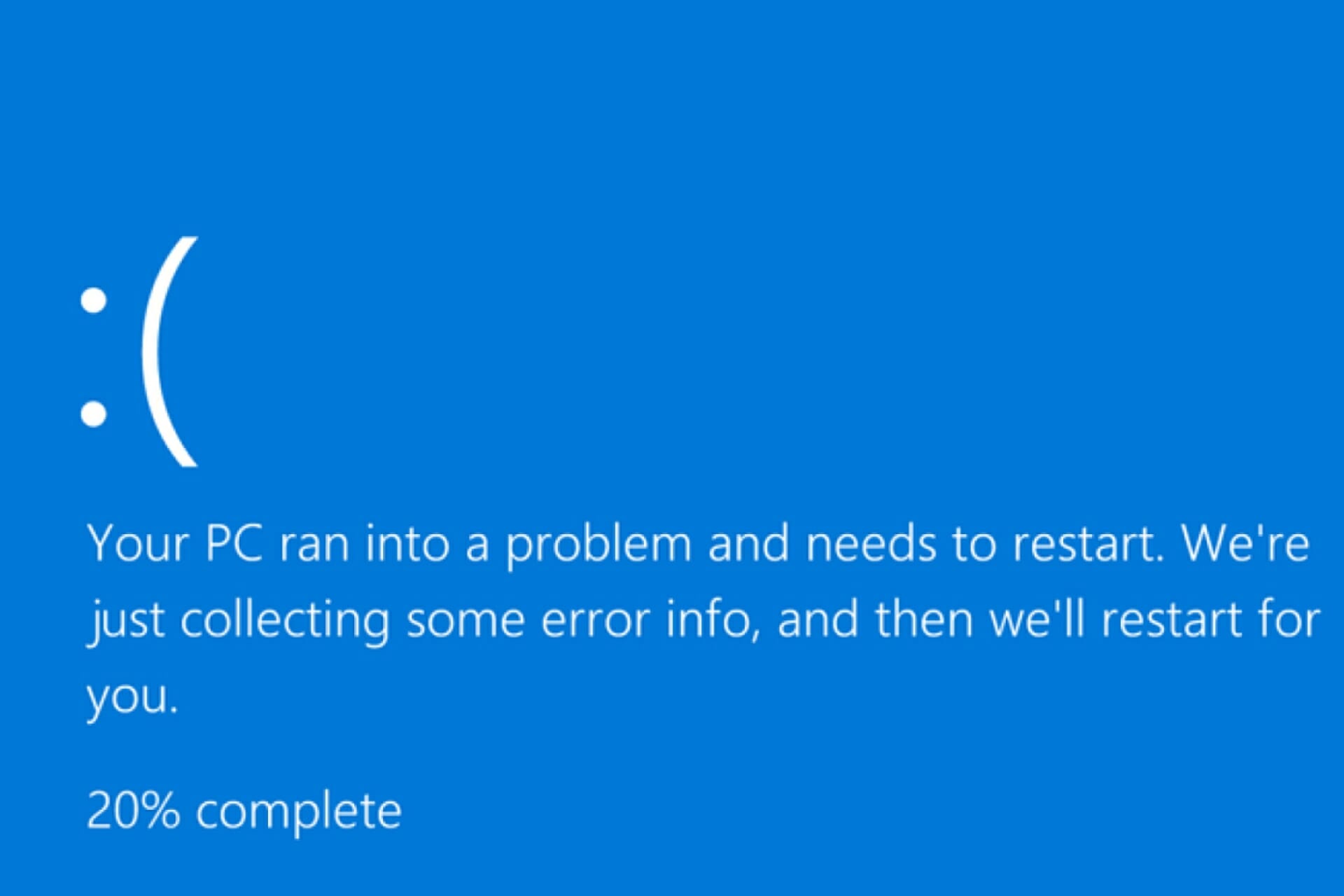
The Data_Bus_Error is a BSOD issue, with a 0x0000002E error code, that can arise on Windows 10 and other platforms.

This blue screen of death error is more of a hardware issue, but it can also be caused by faulty or wrong versions of drivers being used.

In today’s guide, we present you with the best of the resolutions to fix recurring Data_Bus_Error BSOD errors.

How do I get rid of the Data_Bus_Error code?

1. Update or fix video card drivers with Outbyte Driver Updater

Driver updater and troubleshooting software, such as Outbyte Driver Updater, can often resolve BSOD issues.

Outbyte Driver Updater’s scanning enables you to quickly download and install new drivers for devices with outdated or corrupted ones. That software provides a detailed report of devices on your PC that need new drivers.

Outbyte Driver Updater Pro users can select to download and automatically install all the latest drivers for listed devices.

The Data_Bus_Error error can be more specifically due to antiquated or corrupted video card drivers. However, you can download new drivers for all listed devices by clicking Outbyte Driver Updater’s Update All button.

Other useful Outbyte Driver Updater features

  • Users can view download progress with Outbyte Driver Updater’s Download Manager
  • Outbyte Driver Updater can automatically back up drivers for users
  • This software provides notifications for new driver updates
  • Includes a schedule manager for scheduling scanning, notifiers, and back ups

As opposed to manually updating or fixing your drivers, a dedicated tool is completely safe and error-free. Many users face even more severe errors if they install the wrong driver version on your PC, so we advise you to be cautious.

Outbyte Driver Updater can always detect the exact version of your video card hardware (or any other hardware) and find the perfect and most updated version for it.

⇒ Get Outbyte Driver Updater

2. Check RAM with the Windows Memory Diagnostic

  1. Open Windows 10’s Type here to search box by pressing the Windows + S hotkey.
  2. Type the keyword memory in the search box.
  3. Next, click Windows Memory Diagnostic to open the window in the shot directly below.
    Windows Memory Diagnostic Data Bus Error
  4. Select the Restart now option in the Windows Memory Diagnostic window.
  5. Restart Windows when prompted to do so after the scan.

3. Run a disk scan

  1. Open the Windows 10 search tool.
  2. Input cmd in the search box to find Command Prompt.
  3. Right-click the Command Prompt app in the search tool to select the Run as administrator option.
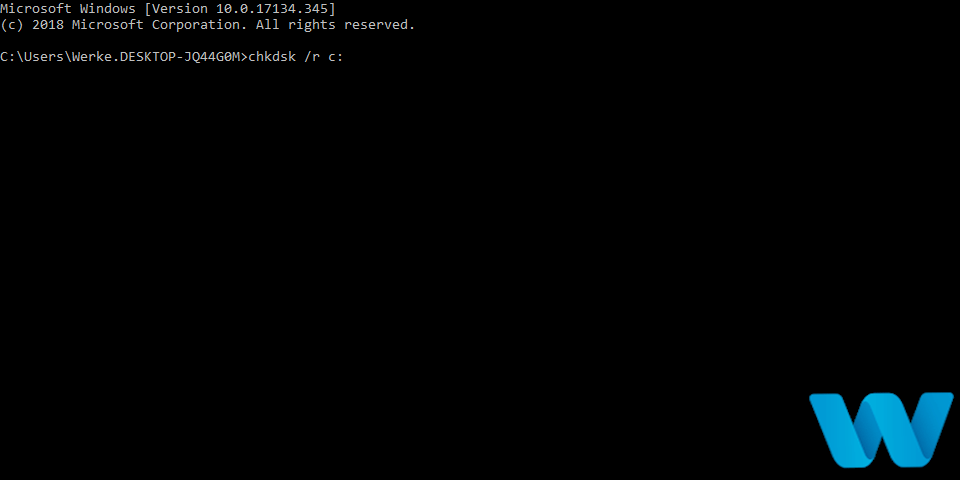
  4. Next, input this command into the Command Prompt: chkdsk C: /f /r /x
    Chkdsk command Data Bus Error

  5. Press the Enter key to initiate the chkdsk scan.
  6. Restart Windows after the chkdsk utility has finished scanning and repaired disk sectors.

4. Run a System File Checker scan

  1. Open an elevated Command Prompt as outlined for the first three steps of resolution three.
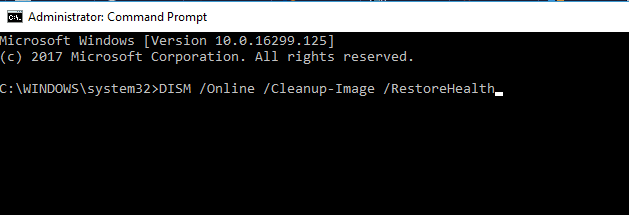
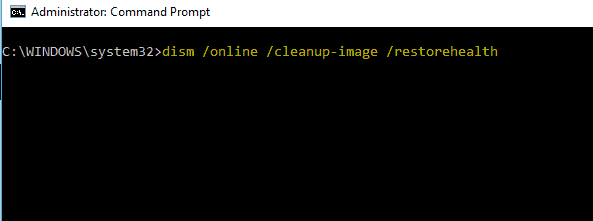
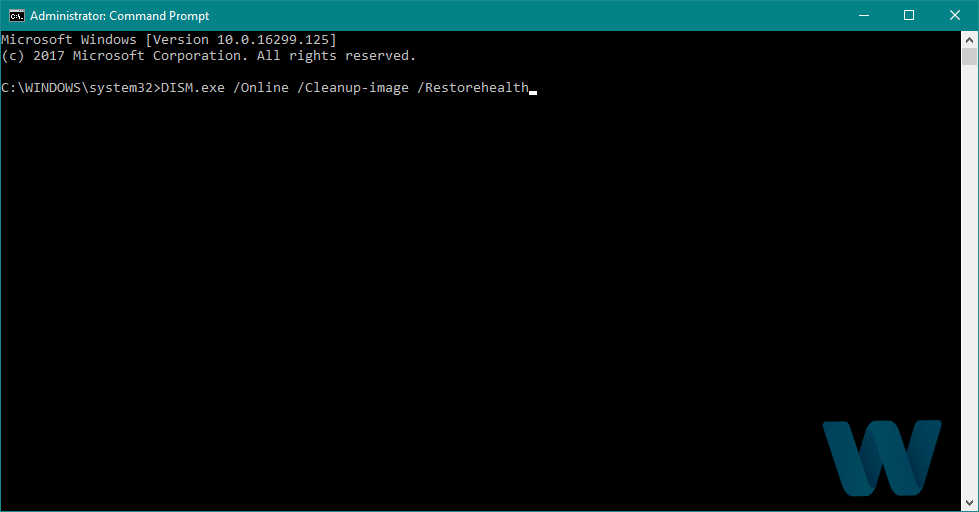
  2. Before running a system file scan, enter this Command Prompt command: DISM.exe /Online /Cleanup-image /Restorehealth
  3. Press the Enter key to initiate the Deployment Image Servicing scan.
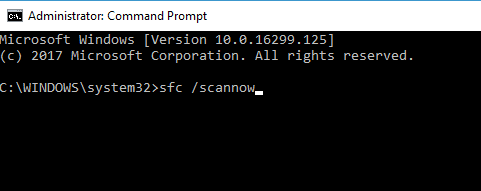
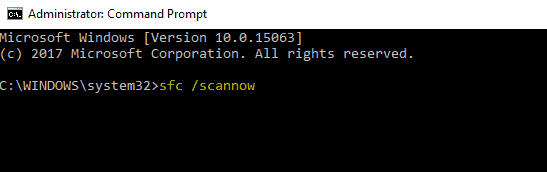
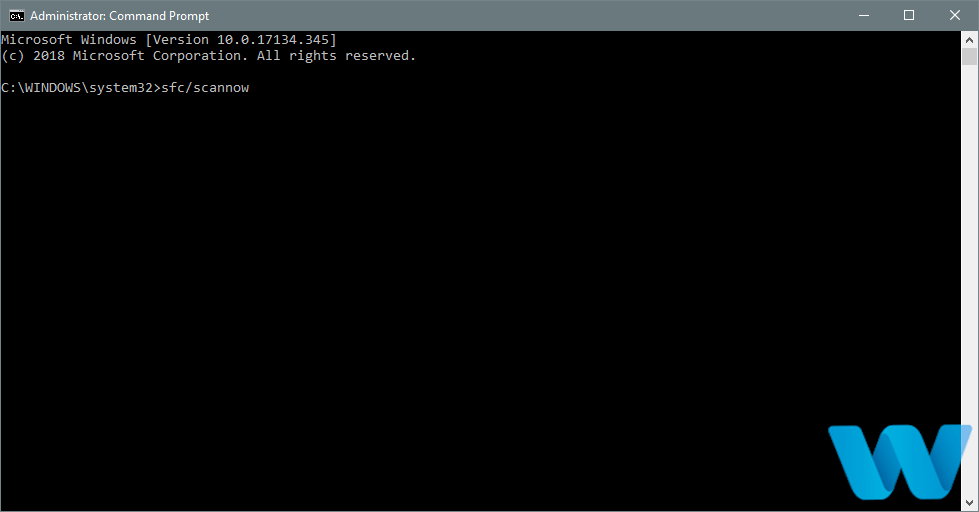
  4. Thereafter, input this System File Checker command: sfc /scannow
    System File Checker command Data Bus Error

  5. Press Return to start the system file scan.
  6. Wait for the system file scan to finish.
  7. Restart your desktop or laptop if the SFC scan reports that Windows Resource Protection has repaired files.

5. Update Windows 10

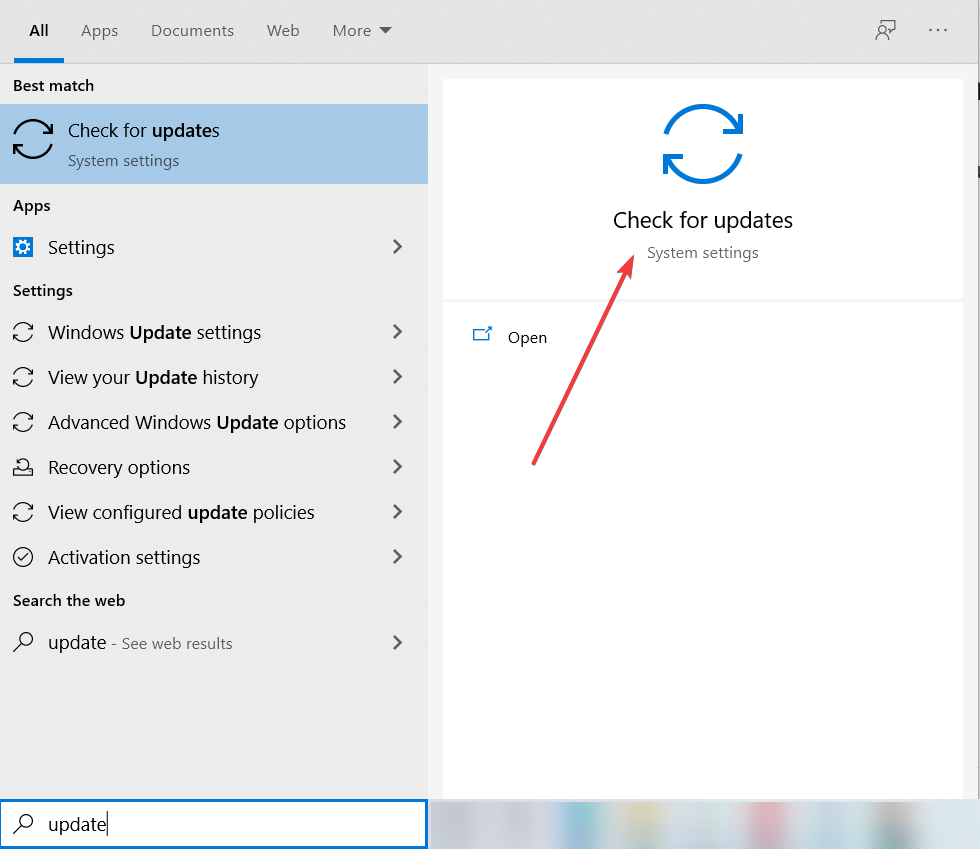
  1. Click the magnifying glass taskbar button to open Windows 10’s search box.
  2. Type update in the search box that opens.
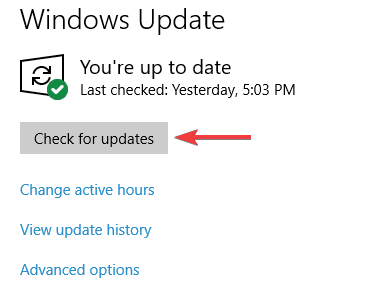
  3. Then click Check for updates to open the window shown directly below.
    The Check for updates button Data Bus Error
  4. Press the Check for updates button to download and install patch updates.
  5. If a Windows 10 feature update is available, click the Download and Install option for it.

6. Remove recently installed hardware

If you’ve recently installed new hardware for your PC, try uninstalling and removing that hardware from the desktop.

The new hardware you added might be incompatible with your PC, faulty, or not correctly installed.

After removing the hardware, double-check it’s fully compatible with your system.

7. Restore Windows 10 to an earlier date

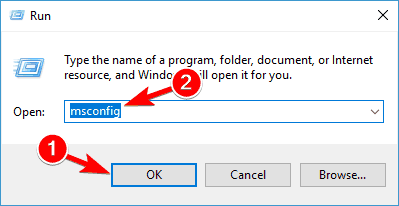
  1. Press the Windows and R keys simultaneously to open the Run accessory.
  2. Type this command in Run’s Open text box: rstrui.exe
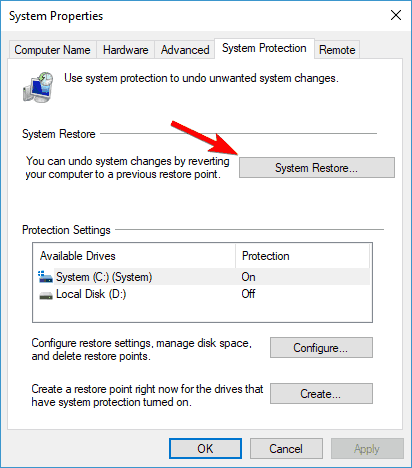
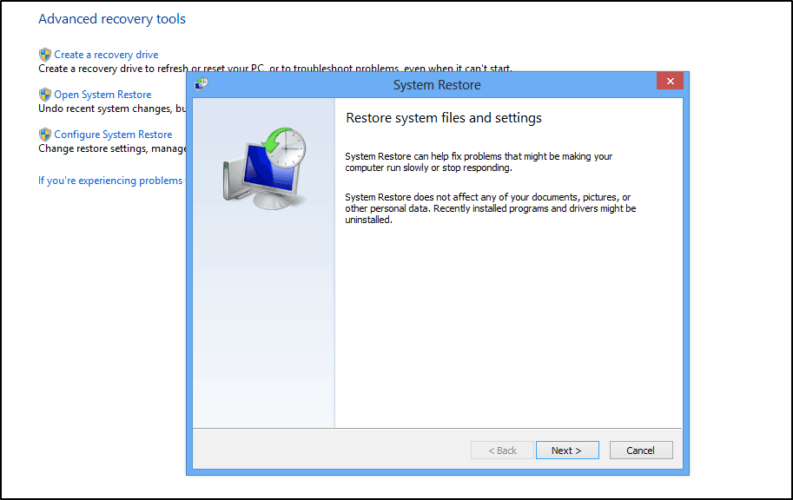
  3. Click OK to open the System Restore window.
  4. Select the Choose a different restore point radio button, and click Next to continue.
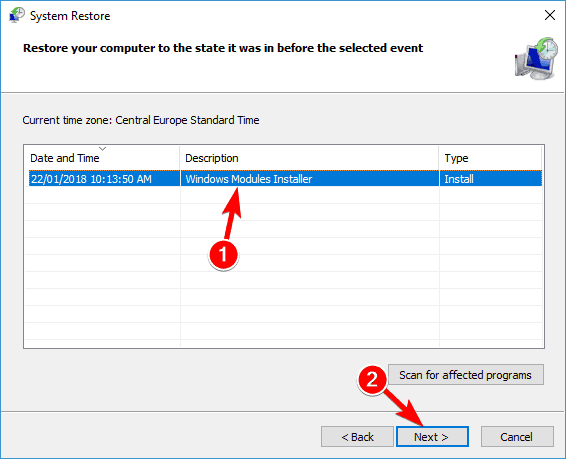
  5. Select the Show more system restore points option if you can (System Restore doesn’t always display that checkbox).
    System Restore window Data Bus Error
  6. Then choose a restore point that will roll Windows 10 back to a time that predates the Data_Bus_Error BSOD issue on your PC.
  7. Press the Next button to proceed.
  8. Click Finish to initiate the system restoration process.

Note: Rolling back Windows 10 will remove software installed after selected restore point dates. You can click Scan for affected programs on the System Restore window to see what programs a selected restore point deletes.

One, or more, of the above resolutions, might fix the Data_Bus_Error BSOD issue on your PC.

Microsoft’s Troubleshoot blue screen errors troubleshooter, on the big M’s website, might also provide some resolutions for that BSOD error.


Mass Effect Legendary Edition goes up for pre-order ahead of its May 14 release

Mass Effect Legendary Edition, the much-anticipated anthology of Bioware’s critically-acclaimed Mass Effect trilogy, will be released on May 14 on Xbox, PlayStation, and PC. The Xbox One version of the game is already available for pre-order on the Microsoft Store, and it will be forward-compatible with Xbox Series X|S consoles.

Mass Effect has a special history with Xbox consoles, as the original game launched first on the Xbox 360 back in November 2007 and was published by Microsoft Game Studios. The action-RPG franchise grew even more popular as it went multi-platform, with Mass Effect 2 and 3 also allowing players to import their saves and all the choices they made in the previous episodes.

If the Mass Effect trilogy on Xbox 360 is already backwards compatible on Xbox One and Xbox Series X|S consoles, these cult-classic games were not playable on PS4 or PS5, and developer Bioware had a good opportunity to give the beloved franchise a fresh coat of paint ahead of the release of Mass Effect 4, which is currently in early stages of development.

Mass Effect Legendary Edition will include the 40+ DLCs story, weapons and armor packs from Mass Effect, Mass Effect 2, and Mass Effect 3. According to Bioware, fans shouldn’t expect a lazy remaster with updated graphics: In addition to remastered character models, up-dressed textures, updated lighting and dynamic shadows, the developer also introduced some gameplay changes to the original Mass Effect game including improved aiming, squad controls and behaviour, and more. This news is very welcome as the first game in the trilogy didn’t age very well compared to Mass Effect 2 and 3.

“The Mass Effect Legendary Edition features unified character creation options that persists across all three titles and is complete with an improved and expanded selection of hair, makeup and skin tone options. The iconic Female Shepard default appearance from Mass Effect 3 is now available as the default female Shepard appearance in character creation in all three games, further adding to the unified experience across the trilogy,” Bioware said in a press release today.

Mass Effect Legendary Edition Screenshot

In a interview with Eurogamer, BioWare also confirmed that loading times in the remastered trilogy have been significantly reduced, and that the game will support 4K, HDR, and 60FPS gameplay on Xbox One X and Xbox Series X. Interestingly, Bioware considered moving from the Unreal Engine 3 to the Unreal Engine 4 for these remasters, but dropped the idea due to various technical challenges.

Mass Effect: Andromeda, BioWare latest’s Mass Effect game released back in 2017 disappointed fans and was plagued by technical issues at launch. The EA-owned studio has been in trouble ever since, with 2019’s Anthem being an even bigger failure than Andromeda. The Canadian studio has a good opportunity to go back to basics with Mass Effect Legendary Edition, and you can already pre-order the ultimate package for $59.99 on the Microsoft Store.


FIX: XPSSVCS.DLL is Missing Error on Windows 10

The XPSSVCS.DLL is a missing error is one that some users have encountered when attempting to install Google Cloud Print in Windows 10 and other platforms.

The full message reads:

[1103/184546:WARNING:setup.cc(263)] File is missing: XPSSVCS.DLL… [1103/184546:ERROR:setup.cc(402)] Unable to install driver.

This is yet another DLL error that can be caused by a missing or corrupted DLL file.

Microsoft has also admitted that the cumulative KB3176493 and KB3177725 Windows updates have print bugs, which is another factor behind this error.

So here are a few potential solutions that will resolve the XPSSVCS.DLL is missing error in Windows 10.

How to fix XPSSVCS.DLL issues on Windows 10?

1. Use a third-party DLL troubleshooter

You can resolve this kind of error with DLL files effortlessly, and the most practical way is by using dedicated repairing software.

Hence, using these tools will offer you a complete scan report of your computer to show the comparison between your files and new ones.

Then, the next step is to replace damaged DLL files and other corrupt or missing files with functional ones and resolve this installing error.

2. Scan files with the System File Checker

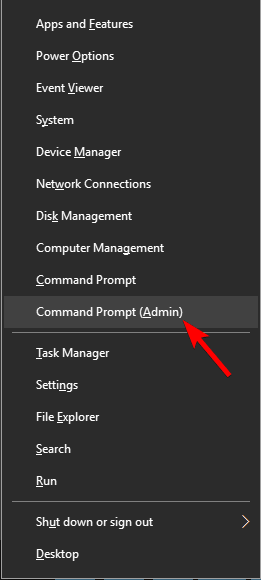
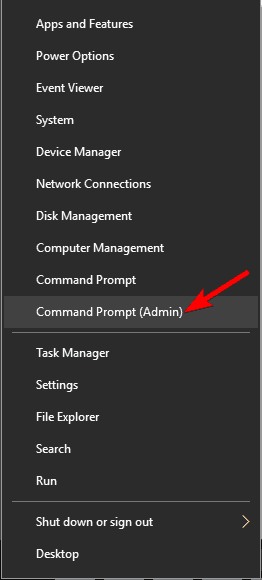
  1. Open Win + X menu and choose Command Prompt (Admin) or PowerShell (Admin) from the list.
    Xpssvcs.dll is lost
  2. Enter sfc /scannow command and press Enter to run it.
    Xpssvcs.dll is gone
  3. The scanning process can take about 10 minutes, sometimes more, so don’t interfere with it.

After the SFC scan is finished, check if the issue is still there. If you can’t run or complete the SFC scan, you should try using the DISM scan.

  1. Start Command Prompt as administrator.
  2. Enter the following command and press Enter: DISM /Online /Cleanup-Image /RestoreHealth
    Xpssvcs.dll not found
  3. DISM scan will now start. This process can take about 20 minutes, so be sure not to interrupt it.

Once the DISM scan is finished, check if the problem is still there. If you want, you can also repeat the SFC scan after a successful DISM scan just to be on the safe side.

3. Reinstall the application that causes this error

If XPSSVCS.DLL is missing message appears only when trying to run a certain application, perhaps you should uninstall that application completely.

There are several ways to do that, but the best method is to use uninstaller software.

You’ll completely remove all files and registry entries that are related to the faulty application. As a result, there won’t be any leftover files that can interfere with your system.

To completely remove this application from your PC, you should look for exemplary uninstaller software. It will help you remove all residual files left behind after deleting any program.

Once you remove the problematic application using such tools, the issue should be completely resolved.

4. Perform a System Restore

  1. Press Windows Key + S and enter system restore. Choose Create a restore point.
    Xpssvcs.dll is lost
  2. Now click the System Restore button.
    Xpssvcs.dll not found
  3. When the System Restore window opens, click Next.
    Xpssvcs.dll is gone
  4. Check Show more restore points option. Select the restore point you want to return to and click Next.
    Xpssvcs.dll not found
  5. Follow the instructions on the screen to complete the restoration process.

Once you successfully perform a System Restore, check if the problem is still there.

5. Update Windows

  1. Open the Settings app. (You can do that by using Windows Key + I shortcut.)
  2. Now navigate to the Update & Security section.
    Xpssvcs.dll is gone
  3. In the right pane, click on Check for updates button.
    Xpssvcs.dll not found

Windows will now check for available updates. If any updates are available, they will be downloaded automatically in the background. Once you download the updates, restart your PC to install them.

After updating your system to the latest version, check if the problem is still there.

Microsoft is constantly working on Windows 10, and it usually fixes these bugs using Windows Update. If you want to avoid this problem, be sure to keep your system up to date at all times.

By default, Windows 10 automatically installs the missing updates, but sometimes it might miss an update due to certain issues. However, you can always check for updates manually as shown here.

6. Perform a Clean boot

  1. Press Windows Key + R to open the Run dialog. Enter msconfig and click OK.
    Xpssvcs.dll not found
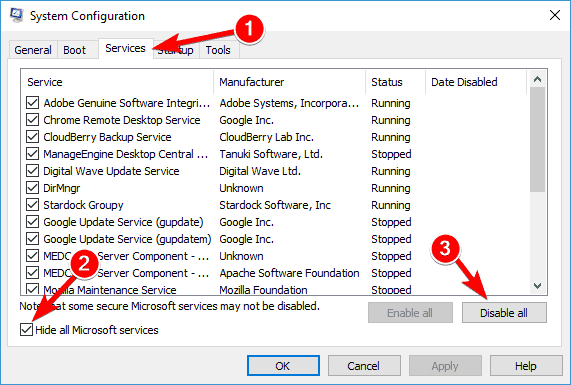
  2. The System Configuration window will now appear. Navigate to the Services tab and check Hide all Microsoft services.
  3. Click the Disable all button.
    Xpssvcs.dll is gone
  4. Now go to the Startup tab and click Open Task Manager.
    Xpssvcs.dll not found
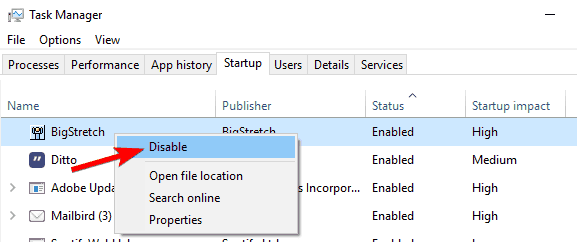
  5. You’ll now see a list of startup applications. Right-click the first entry on the list and choose Disable. Repeat this step for all applications on the list.
    Xpssvcs.dll is gone
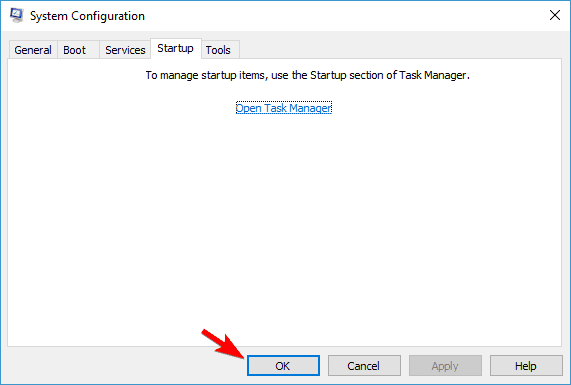
  6. Go back to the System Configuration window.
  7. Now click Apply and OK to save changes and restart your PC.
    Xpssvcs.dll not found

Once your PC restarts, check if the issue is still there. If the problem doesn’t appear, it’s rather likely that one of the disabled applications or services was causing it.

To find out which application was the problem, enable applications and services in groups until you manage to recreate the issue.

Once you find the problematic application, remove it and check if that solves the problem.

7. Create a new user account

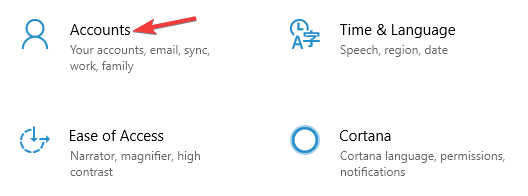
  1. Open the Settings app and navigate to the Accounts section.
    Xpssvcs.dll is gone
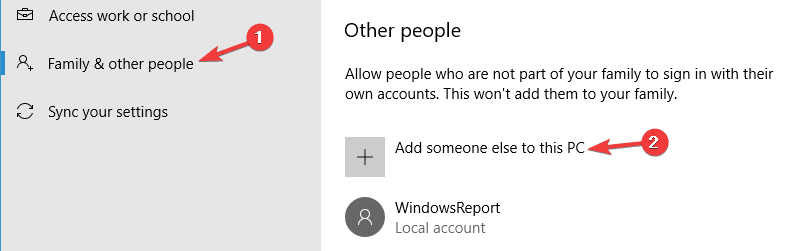
  2. Pick Family & other people from the left pane.
  3. Choose Add someone else to this PC from the right pane.
    Xpssvcs.dll not found
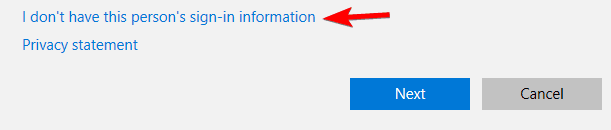
  4. Select I don’t have this person’s sign-in information.
    Xpssvcs.dll is lost
  5. Click on Add a user without a Microsoft account.
    Xpssvcs.dll not found
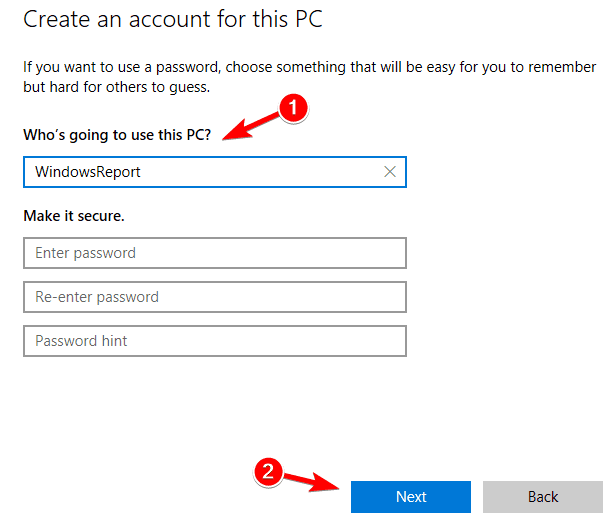
  6. Enter the desired username for the new account and click Next.
    Xpssvcs.dll is gone

After creating a new user account, check if the problem is still there. If the issue doesn’t reappear, move all your personal files to the new account and check if that solves your problem.

These fixes are likely to resolve the missing XPSSVCS.DLL issue so you can install Google Cloud Print on Windows 10.

Handling this app is quite easy, but if you need any guidance, this tutorial will help with the setup process.

Pfn_share_count error in Windows [Full Fix]

Users encountering the dramatically-called blue screen of death aka BSOD Windows 10 devices report their PC restarting suddenly.

This happens immediately after displaying the error message Pfn_share_count without any further indications on what to do next.

This is a rather frustrating error and it can also be time-consuming to diagnose it and find the best ways to try and solve it.

As it seems, there are many reasons that can cause the error, such as not enough free disk space on your device, an incompatible version of BIOS, incompatible device drivers, or the antivirus blocking system files.

Thankfully we have looked thoroughly into this issue and we will explore in this article the best ways to proceed in order to solve the blue screen pfn share count error, so make sure to keep on reading.

How can I fix the pfn_share_count error message?

1. Update your drivers with Outbyte Driver Updater

If there are any outdated drivers installed on your device, this can be another reason that is causing the BIOS blue screen error.

The easiest way to check this and also solve it is to use dedicated software such as Outbyte Driver Updater. It will scan the drivers in no time and update the faulty ones.

Outbyte Driver Updater is the ideal tool to use for drivers update since it will compare your existing drivers with the ones from the built-in library and install the exact ones that you need on your device.

With the Automatically Install option, you will simply click on it and the drivers will be updated in just moments.

Let’s have a look at other Outbyte Driver Updater features

  • You can schedule scans for when is convenient for you in the Outbyte Driver Updater schedule manager.
  • Back up drivers with ZIP files.
  • Progress download manager.
  • Built-in drivers library.
  • Live chat support.

Outbyte Driver Updater can assist you in automatically updating drivers and preventing PC harm caused by installing the incorrect driver version. It keeps up with the latest modifications, preventing the system from experiencing latency, system failures, and BSoD issues.

⇒ Get Outbyte Driver Updater

2. Check for Windows updates

  1. Go to Windows Settings and here select the Update & Security option.
  2. Click on Windows Update from the menu on the left side of your screen.
  3. Select the Check for updates from the menu appearing on your right.
  4. If there are updated available, make sure to download them on your device. Once you install them restart your PC.

2. Scan your device

  1. Open Windows Defender and click Device performance and health.
  2. Check for any listed issues with your updates, storage, and drivers.
  3. Select the Repair/Reinstall options if there are any issues found.
  4. Click on Additional info under Fresh Start in Windows Defender.
  5. Next, make sure to follow the prompt steps that appear.
  6. Once done, restart your device and check if the issue persists.

3. Unplug external hardware

It seems as though this specific error can happen due to external hardware being connected to your device.

There are hardware that can be connected, such as printers, scanners, or other activities. Unless they are crucial to the functionality of your device, we would recommend that you remove them for the moment.

Make sure to restart your device and see if the error is still there. In case it’s not, that is an indication that one of the external hardware may have caused it and we’d recommend that you contact the manufacturer.

Although the reasons to why pfn share count error appear are multiple, the steps to fix them are not difficult to take with the right guidance.

We have explored in this article the easiest ways to solve this error and we hope that by following the indications we provided you will restore the full functionality of your device.

We would love to hear about which solution from the ones presented above, worked best for you. Leave us a comment in the section below.

MSVCR100.dll/ MSVCP100.dll missing in Windows 10

Installing a new operating system can cause a lot of problems, especially with the missing .dll files. This is exactly what occurred to some users who recently upgraded their systems to Windows 10.

Reportedly, people are complaining that MSVCR100.dll and MSVCP100.dl are missing from their computers after the upgrade.

So we’re going to show you a few solutions to restore these files so that you are able to run all Windows programs smoothly.

The resulting issues are more complex and users mentioned the following error messages:

  • Msvcr100.dll not found – This is a standard variation of this problem, but you should be able to fix it with one of our solutions.
  • Msvcr100.dll Event ID 1000 – This message usually comes with the name of the missing file, so you should be able to fix it easily.
  • Msvcr100.dll Entry point not found – This is a minor error, and you should be able to fix it with one of our solutions.
  • Msvcr100.dll Either not designed – Keep in mind that this is a minor error so you should be able to fix it with ease.
  • Msvcr100.dll Unhandled exception – Just like other errors caused by missing files, this one can be easily resolved.
  • Msvcr100.dll Unable to launch – According to users, sometimes certain applications will be unable to launch due to this error.
  • Msvcr100.dll Outlook crash – Missing DLL files can affect various applications, and many users reported that Outlook keeps crashing due to missing files.
  • Msvcr100.dll Application extension – Another minor problem, and you should be able to fix it with one of our solutions.
  • Msvcr100.dll Access violation, Access denied – In some cases, missing DLL files can prevent you from accessing certain files or locations.
  • Msvcr100.dll Faulting module – To fix it, you just have to reinstall the problematic application or install the necessary components.
  • Msvcr100.dll keeps crashing – This problem is caused by file corruption, but it can be easily resolved.
  • Msvcr100.dll corrupt – If this occurs, you’ll need to reinstall the necessary components in order to fix this problem.

How do I fix a missing MSVCR100.dll file?

1. Run a third-party DLL fixer

For the less tech-savvy, tackling the missing DLL file issue can be a bit difficult. That’s why we recommend a reliable third-party program to do the job instead.

You can automate the repair process and set up maintenance for your computer with powerful third-party repair software.

2. Download Visual C++ Redistributable package

It seems that Visual C++ Redistributables got corrupted during the upgrade process and by reinstalling them you should be able to fix this problem.

Depending on your computer architecture, you can download an x86 version or an x64 version. After installing the package, restart your computer and check if the error occurs again.

Keep in mind that you might have to install multiple versions of the Visual C++ Redistributable package in order to fix this problem.

3. Manually download MSVCR100.dll and MSVCP100.dll

If installing the Visual C++Redistributable package didn’t get the job done, you can manually download these two .dll files from the Internet.

If you don’t feel comfortable downloading these files from third-party sources, you might be able to find them on your PC.

Sometimes these files can be located in Windows.old directory on your PC. It contains the old version of your Windows system and it can also contain the necessary files in the System32 directory.

So go to that directory and look for them. Windows.old is available only for a couple of days after the upgrade, so you might not be able to find it.

Alternatively, you can copy these files from any other working Windows 10 PC.

4. Install the latest iCloud update

If MSVCR100.dll and MSVCP100.dll are missing, you might be able to fix the problem simply by updating iCloud.

It seems that the program’s latest version will also install both MSVCR100.dll and MSVCP100.dll files.

5. Uninstall Sony’s PlayMemories Home

Users reported that the DLL file disappeared because of the PMBVolumeWatcher.exe process.

After a bit of research, users found that this application was related to Sony’s PlayMemories Home application.

To fix the problem, users are recommending removing this application from their PC completely.

For this purpose, we strongly advise using an uninstaller program such as CCleaner to make sure that all related files are diligently deleted.

After you remove the application, the issue should be resolved. If you’re frequently using Sony’s PlayMemories Home and you don’t want to remove it, reinstall it or update it to the latest version and check if that solves the issue.

6. Perform an SFC scan

  1. Press Windows Key + X to open the Win + X menu.
  2. Choose Command Prompt (Admin) from the list of results. (If Command Prompt isn’t available, feel free to use PowerShell (Admin) instead.)
    Msvcr100.dll not found
  3. When Command Prompt opens, enter sfc /scannow and press Enter.
    Msvcr100.dll Event ID 1000
  4. The scanning process will now start. SFC scan can take 15 minutes or more so be sure not to interrupt it.

If SFC scan can’t fix the problem, or if you’re unable to run SFC scan at all, you should perform DISM scan instead. To do that, follow these steps:

  1. Open Command Prompt as administrator.
  2. When Command Prompt opens, enter the following command and press Enter: DISM /Online /Cleanup-Image /RestoreHealth
    Msvcr100.dll Entry point not found
  3. The scan can take 20 minutes or more, so be sure not to interrupt it.

After the DISM scan is complete, check if the problem still persists. If you were unable to run SFC scan before, be sure to run it after DISM scan and check if that solves your problem.

7. Reinstall Adobe Reader

If MSVCR100.dll and MSVCP100.dll are missing, you might be able to fix the problem simply by reinstalling the Adobe Reader.

First, you need to remove it from your PC. Afterward, download the latest version of Adobe Reader and install it, and your problem should be resolved.

⇒ Get Adobe Acrobat Reader

8. Remove / reinstall Skype

According to users, sometimes Skype can cause this problem to appear. Just like in the previous solution, remove your current version of the program, then install the latest one and check if that solves the problem.

That’s it, we hope these solutions helped you to get rid of any error message related to missing MSVCR100.dll and MSVCP100.dll files.

If you managed to fix the problem using another method, share it with us in the comment and we’ll surely check it out to update our list.

Microsoft Teams adds option to disable Meetings chat

Microsoft Teams is gaining the option to disable the chat functionality in Teams meetings. Microsoft’s Mike Tholfsen has recently announced the rollout of the new meeting chat moderation settings on Twitter. The feature is rolling out gradually, and it should be fully available within a few weeks.

In Teams, the meeting chat functionality is turned on by default and it allows the participants to chat before, during, and after a meeting. The new meeting chat moderation settings will now enable the Teams meeting organizer to enable or disable chat in the meeting in real-time.

It is important to note that there are three options available for this setting:

  • On (default): allows chat at any time.
  • Off: will make meeting chat read only and no one can send messages in chat including the organizer.
  • During the meeting only: participants can send message during the meeting only and the organizer can send messages all the time.

This new capability, which is already available to Zoom users, should make it significantly easier for meeting organizers to control the chat functionality in Teams meetings. The ability to disable chat could be useful for large meetings and classrooms and it helps to reduce distractions.

Fix: Former volume not mounted error [Utorrent, Bittorrent]

You may encounter the error former volume not mounted or error files missing from job message on popular torrent clients when trying to move or rename the downloaded files.

As a result, the users are unable to access their downloaded files. The error can occur on all the major torrent clients, including BitTorrent, Utorrent, and Vuse.

Reading through different user experiences with similar error suggests that the error can occur due to several reasons.

Bad external driver letter, incorrect download location, wrong letter in disk management, and corrupted content are some of the reasons.

In this article, we have listed a few easy ways to fix the Former volume not mounted error in Windows 10.

How do I fix former volume not mounted error?

1. Remove and reconnect the external storage device

ormer volume not mounted error
  1. Turn off your computer and disconnect the external hard drive.
  2. Restart your PC and reconnect the drive.
  3. Launch the torrent client and check if the drive is detected by the app.

Reconnecting the storage device will force Windows OS to reassign a letter to the external drive.

This may resolve the issue if triggered due to an incorrect drive letter. If the error persists, proceed with the other steps below.


2. Reconfigure the download location

ormer volume not mounted error
  1. Launch the Torrent client that is causing the error and right-click on the torrent file.
  2. Go to Advanced and select Set Download Location.
  3. Next, navigate to the directory where the torrent files are stored.
  4. Click on Select Folder once you are in the correct directory.
  5. Restart your torrent client and check for any improvements.

Installing a Windows update can trigger the error if the torrents is referencing a download path that does not exist.

It can also occur if you have abruptly removed an external drive that was saving the in-progress downloads.

To fix the problem, simply relocate the original download location of the existing torrent files and set it as the torrent’s download location.

Repeat the steps if the error is triggered on multiple torrent files.


3. Match the download drive letter

ormer volume not mounted error
  1. Launch the uTorrent client on your PC.
  2. Click Options from the menu and select Preferences.
  3. In the Preferences window, click on the Directory tab from the left pane.
  4. On the right pane, check if the drive letter matches your current configuration. If you are using an external drive, make sure the drive letter matches.
  5. If necessary, change the drive letter and click Apply to save the changes. Click OK to close the Preferences window.
  6. Restart uTorrent and check if the error torrent error former volume not mounted is resolved.

Your PC may alter the drive letter allocated to an external hard drive that is used to save the downloads and regularly disconnected from your PC.

Make sure the drive letter is matching by going into the uTorrent Preference settings.


4. Change driver letter using Disk Management

ormer volume not mounted error
  1. Open the torrent client, hover over the error message and check the drive letter mentioned.
  2. Close the torrent client and open the Disk Management tool.
  3. Press the Windows key + R to open Run.
  4. Type diskmgmt.msc and click OK.
  5. In the Disk Management window, right-click on the drive letter that doesn’t match the one mentioned in the error message.
  6. Select Change Drive Letter and Paths.
  7. Click the Change button in the Change Drive Letter and Paths window.
  8. Click the drop-down menu and select the drive letter that was mentioned in the error message.
  9. Next, click OK to save the changes and restart your computer to apply the changes.
  10. After the restart, open your torrent client and check if the uTorrent former volume not mounted.

5. Edit the Resume.dat file

ormer volume not mounted error

Note: Skip these steps if you are not using uTorrent. To edit the resume.dat file, you need a file editor. Download and install Notepad++ if you don’t have it installed already.

  1. Once installed, press the Windows key + R to open Run.
  2. Type the following and click OK:
    %AppData%\uTorrent\
  3. Locate the Resume.dat file, create a copy and save it in a different folder as a backup.
  4. Go back to the AppData\uTorrent folder and right-click on the Resume.dat file.
  5. Select the Edit with Notepad++ option from the context menu, and press Ctrl + F.
  6. Click the Replace tab, and in the Find What field, enter the incorrect path, for example C:\Downloads.
  7. In the Replace With field, enter the correct path for your drive.
  8. Click the Replace All button to replace all the instances of the incorrect path with the correct one.
  9. Click Close, and press the Ctrl + S button to save the changes.
  10. Restart your computer and launch the app to see if the error is resolved.

By modifying the Resume.dat file, many users have reportedly fixed the error. Just make sure to fill the incorrect and correct path and then proceed with the replacement process.

If anything goes wrong, replace the edited Resume.dat file with the backup file saved in step 4 above.

The Former volume not mounted error in torrent clients can occur due to incorrect storage drive letter or if the computer is unable to detect the drive.

Follow the steps in the article to fix the problem and complete the torrent downloads.

FIX: Skype DXVA2.DLL is missing on Windows PCs

If your main operating system is still Windows XP, and you’re using Skype on it, you might receive an error message that says Skype failed to load library dxva2.dll, after the most recent update.

Alternatively, the error might read dxva2.dll is missing from computer file location.

As you can probably imagine, when this error message occurs, Skype doesn’t start and you’re unable to sign in.

It’s important to know that this issue was not reported on newer versions of Windows. But if it would be, the solutions would probably be the same.

In this article, we’re going to show you the steps to troubleshoot this error, while also explaining why it occurs.

How can I restore the Skype dxva2.dll missing file?

1. Run a third-party DLL fixer

With each update that Microsoft brings to Skype, it’s likely that it becomes incompatible with your OS version.

But with the right specialized software, you can make sure that such system errors are quickly fixed by performing this action automatically.

2. Install .NET Framework 4

With the newer Skype version, the app uses DirectX Video Acceleration 2.0, which requires .NET Framework 4.0 installed in order to function normally.

Since a lot of users (especially Windows XP users), don’t have .NET 4.0 installed, they get this error message.

The dxva2.dll file was introduced on Windows Vista, so it’s not installed on older systems by default, and you have to download .NET Framework 4.0 to have this DLL file.

You can download it from the official Microsoft location. Afterward, you should be able to sign in to Skype normally again.

3. Disable your antivirus

Your antivirus and firewall software may block your Skype.exe file, preventing the tool from launching. Disable your security software and test if you can use Skype in this way.

Since we don’t recommend running Windows without adequate protection, especially if the system is no longer supported by Microsoft, you should consider switching to a different antivirus solution.

Many professional tools can automatically repair this type of error and provide your computer with stronger and more secure protection.

4. Reset Skype settings

  1. Close Skype from Task Manager.
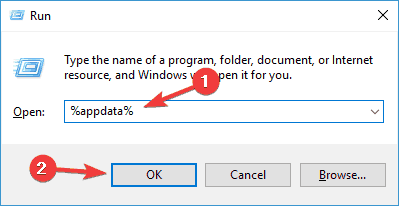
  2. Open a Run window and enter %appdata%. Hit Enter.
    Skype auto login not working
  3. In the new Roaming folder, locate Skype and change its name to Skype.old.
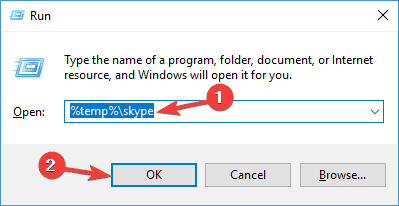
  4. Open Run and enter %temp%skype.
    Skype for Business not automatically signing in
  5. Now simply remove the DbTemp folder.

5. Reinstall Skype

If nothing worked, you should try to reinstall Skype. This solution is usually the last resort and fixes many technical issues.

So these were the steps to restore your Skype app functionality on older Windows operating systems.

We also strongly recommend that you upgrade to Windows 10 as soon as possible to avoid similar events in the future.

If you’re concerned that your device can’t support Windows 10 because of resources, you might also want to consider an affordable new laptop, with just the apps & programs you need.

Microsoft is reportedly planning special events about Windows, Gaming, and more this year

Microsoft announced last week a special digital event on Thursday, February 4, which will feature Microsoft CEO Satya Nadella and CVP of Microsoft 365. The upcoming event will see the execs discuss the future of the employee experience, and introduce “new ways to bring together communications, knowledge, learning, resources, and insights with everyday work.”

According to Tom Warren from The Verge, the company could be planning other digital events focused on Windows, Gaming, and other topics throughout the rest of the year, in addition to the company’s annual conferences like Build or Inspire. The Windows event should focus on Windows 10X and the big design update codenamed “Sun Valley” that is expected to make its debut with the 21H2 update for Windows 10 in the second half of 2021.

In a separate digital event dedicated to gaming, Microsoft could announce an expansion of Xbox Cloud Gaming (Project xCloud), which launched on Android devices back in September. The Cloud gaming service is expected to launch on Windows 10 PCs and iOS devices via the web this year, and Xbox head Phil Spencer previously mentioned his interest to bring Xbox Cloud Gaming Smart TVs, with the possibility of Microsoft releasing its own streaming sticks.

As the COVID-19 outbreak continues to spread across the world, Microsoft quickly announced back in April 2020 that it wouldn’t hold any in-person events through July 2021. In recent months, we’ve seen many other big tech companies including Apple and Google trying to find the right formula for their digital events, and we’re looking forward to seeing if Microsoft will try a new format for its upcoming event on Thursday.

FIX: Synthetic_watchdog_timeout Windows BSoD

The Synthetic Watchdog Timeout BSOD error in Windows 10 frequently occurs when the system is idle or you’re playing games.

This error is triggered when the processor is unable to continue the processing tasks because its resources are occupied, resulting in a deadlock. When the system is in the deadlock state, it will hang or freeze, resulting in a blue screen of death.

Here’s how you can fix it:

How do I fix the Synthetic Watchdog Timeout error?

1. Update outdated drivers with professional software

Missing or outdated system drivers can trigger the blue screen of death error. To fix the problem, try updating the system drivers using a specialized driver updater.

These tools allow you to update all your drivers with one click and enjoy better gaming and overall system performance. With huge databases of drivers, you can fix missing and outdated drivers in no time.

2. Install pending Windows updates 

Synthetic Watchdog Timeout
  1. Click on Start and select Settings.
  2. Go to Update & Security and choose Windows Update.
  3. Click on Check for updates and wait for the Windows to scan for an available update. 
  4. Download all the feature KB update available for your system. Install the updates and reboot the computer.

3. Rollback to the previous version of Windows 

synthetic watchdog timeout windows 10
  1. Press the Windows key + I to open Settings.
  2. Go to Update & Security.
  3. Open the Recovery tab from the left pane.
  4. Scroll down to Go back to the previous version of Windows 10 section.
  5. Click the Get started button. Follow on-screen instructions to install the previous version of Windows 10.

4. Repair Windows 10 image with DISM command 

Synthetic Watchdog Timeout
  1. Press the Windows key, and type cmd in search.
  2. Right-click on Command Prompt and select Run as Administrator.
  3. In the Command Prompt windows, type the following command and hit enter:
    DISM /Online /Cleanup-Image /CheckHealth
  4. Wait for the tool to complete the scan and verify any data corruption that requires fixing. 
  5. Next, run the following command to run an advanced scan and repair problems automatically:
    DISM /Online /Cleanup-Image /RestoreHealth
  6. Wait for the tool to scan the system and apply the required fixes to resolve the issue.

If the tool is stuck at 20 or 40 percent, do not exit or turn off your computer, as it is a normal behavior. After a few minutes, the process will complete successfully.

If the issue persists, run the system file checker tool to scan the system files for corruption and repair them automatically.

Run System File Checker tool 

Synthetic Watchdog Timeout
  1. Open the Command Prompt as Administrator.
  2. In the Command Prompt, enter the following command and hit enter:
    Sfc /scannow
  3. Wait for the system file checker to complete the scan. If any data corruption is found, proceed to apply the recommended fixes by following on-screen instructions.

Once the fix is applied, reboot the computer. After the restart, check if the Synthetic Watchdog Timeout Windows 10 error is resolved.

5. Update BIOS 

Check bios version

synthetic watchdog timeout hyper-v
  1. Press the Windows key + R to open Run.
  2. Type msinfo32 and click OK to open System Information.
  3. Click the System Summary option.
  4. In the right pane, check your BIOS Version and Date field.

Start the update process

If you are using a laptop, you can download the latest BIOS version using the OEM system utility software.

Lenovo offers the Vantage utility to help users keep their systems up to date. You can also download the latest version of BIOS from the laptop’s OEM website. 

For a custom-built PC, visit the motherboard manufacturer website to download the latest BIOS version for your system. You can refer to our detailed guide on how to update BIOS on Windows 10 for more details. 

If updating the system BIOS did not fix the problem, check for hardware issues.

Consider using a third-party BSoD repair software to help you diagnose and fix the problem automatically. 

6. Check for hardware issues 

One of the common reasons for the blue screen of death error is faulty hardware or outdated driver.

If you had recently added a new piece of hardware to your computer, such as upgrading your RAM or adding a USB device, check if the device is triggering the error.

Remove the connected USB device and reboot the computer. After the restart, check if the blue screen of death error occurs. 

If the issue persists, check for internal hardware issues. Faulty RAM slots are also a known cause of BSOD errors. Empty your primary or secondary RAM slot and reboot the computer to diagnose the problem.

The Synthetic Watchdog Timeout error usually occurs due to a buggy Windows update or hardware issues. Follow all the steps in this article one by one to diagnose and fix the problem quickly.

How to draw with a mouse on your PC with astonishing results

Graphic artists use drawing tablets and digital pens to get their art into the digital realm but what if you want to draw just by using your mouse?

Many users will say that doing this is really hard, but nothing is impossible, so with the right software, time and dedication, you will surely get the hang of it.

Even though the mouse was not created for drawing, there are some extremely precise gaming mice, that can be used even for this task.

Drawing complicated shapes, especially curved lines with a mouse, even though uncomfortable, can be done with enough practice and the right software.

In this guide, we compiled some of the best techniques that can help you draw with a mouse by using adaptable software.

Quick Tip:

Creating art by using your mouse on your PC can have its disadvantages, and that is exactly why you need to use powerful and versatile software that will give you a competitive edge: Adobe Photoshop.

This amazing software ensures that even though you might be limited in the exactity with which you can draw your artwork’s lines, you will never be limited in the chapter of editing potential.

Adobe Photoshop

Adobe Photoshop

Adobe Photoshop allows you to create amazing looking artworks by using only your mouse, and the wide plethora of digital tools offered.
Free trialVisit website

How can I draw with a mouse on my PC?

1. Scan or photograph your drawings

The most simple method is by cheating a little bit, because you’re not using the mouse for the whole process.

You can sketch the outlines of the shapes on a blank sheet of white paper and scan your artwork.

Once you scan or photograph your artwork, you can transfer it to your project, and use it as a background layer with low contrast, to follow the specific lines with your pen tool, by using your mouse.

The tools and brushes on this software will get you to an extraordinary and original result with only a steep learning curve of the program.


2. Use the included Pen tool

There is actually a clever way of drawing with your mouse using only Photoshop. It’s not like drawing with a stylus or a smart pen but it will get you almost the same results.

This technique implies using the Pen tool. You can use it to create a set of points on the screen that will be connected by straight lines. Pressing the Ctrl button on your keyboard and dragging the lines will create curvatures.

This way, you can actually create any line or shape you may want. After you finish creating the line or shape, right-click it, select the Stroke Path option, and select the tool that you want to use for the line.

The only think left to do prior to that is to select the thickness and color of the line. In the end, you can get rid of the line you drew with the Pen tool by selecting it and pressing the Enter key.

You can even use the Simulate pressure option from the latest Photoshop versions to immitate the effect produces by different pressure levels from the stroke with a digital pen.

Also, if you are happy with a shape you created, you can just fill it up by right-clicking the space inside it and use the Fill tool.


3. Other useful tips

  1. Holding the Shift key in Adobe Photoshop will help you create a perfectly straight line.
  2. Use the already available shapes available in Photoshop like ovals, circles, and rectangles to create the necessary elements in your drawing.
  3. Use layers for elements that you are not 100% sure you want to keep so you can delete them or add them easily.
  4. Save the artwork as often as you can. That applies to any digital work but it’s still worth mentioning.

We hope that our guide on how to draw with a mouse gave you the courage to unleash your creativity by using a mouse and a keyboard.

How to Fix System.Xml.ni.dll Errors on PC

The system.xml.dll is a DLL system file that is a part of the NET Framework. Thus, it is one of the DLL files installed with NET Framework versions.

There are various system.xml.dll and system.xml.ni.dll profiling error messages that can pop up in Windows if files are corrupted in some way, missing, or not correctly installed.

You can fix most system.xml.dll errors much the same as other DLL file issues. These are a few of the various potential resolutions for any error message that includes system.xml.dll within it.

How do I fix the System.Xml.ni.dll error?

  1. Use a third-party DLL fixer
  2. Run the system file checker tool
  3. Scan the registry
  4. Re-register the System.xml.ni.dll
  5. Run the NET Framework Repair Tool
  6. Scan for malware
  7. Roll Windows back to a restore point

1. Use a third-party DLL fixer

One quick way to fix any DLL file error message is to install and use specialized repair software. Not only it can repair your problematic files, but it also protects your data from future compromise.

These kinds of tools use their Windows system file databases to replace any broken or missing files with new ones, ensuring proper system functionality.

2. Run the system file checker tool

  1. Press the Windows key + X hotkey and select Command Prompt (Admin) on the menu.
  2. First, type the following: DISM.exe/Online/Cleanup-image/Restorehealth
  3. Then press the Enter key to initiate the Deployment Image tool in Windows.
  4. Then initiate an SFC scan by entering: sfc/scannow
  5. Then press Enter.

The SFC scan will usually last between 20-30 minutes. When the scan is complete, the Prompt window will tell you if the files were fixed. Restart Windows if WRP does repair corrupted files.

The System File Checker can come in handy for fixing various DLL errors. This in-built tool fixes most corrupted files it detects. This is how you can utilize the SFC tool in Windows 10.

3. Scan the Registry

  1. First, Download CCleaner from their official website.
  2. Open that installer to add CCleaner to Windows.
  3. Click Registry to open CCleaner’s registry tools.
  4. Select all the registry checkboxes, and press the Scan for issues button.
  5. Press the Fix selected issues button. Then you can select to back up the registry.
  6. Click Fix all selected sssues to repair the registry.

DLL errors can often be due to invalid registry entries. As such, scanning the registry might fix numerous system.xml.dll error message. You can scan the registry with the utilities included in this software guide.

CCleaner is a utility that millions of users scan the registry with, and it comes with a plethora of other useful features.

4. Re-register the System.xml.ni.dll

  1. Open the Command Prompt (Admin) via the Win + X menu.
  2. Type the following: regsvr32/u system.xml.ni.dll
  3. Then press the Return key.
  4. To register system.xml.ni.dll again, input: regsvr32/i System.Xml.ni.dll
  5. Then press Enter.

System.xml.ni.dll error messages might pop up if the DLL is not registered properly. To remedy that, you can re-register the DLL with the Microsoft Register Server tool (Regsvr32).

To re-register the System.xml.ni.dll with Regsvr32, please follow the steps listed above and you’ll be good to go.

5. Scan for malware

Malware targets DLL files. As such, scanning for malware is usually a suggested resolution for fixing DLL issues.

You can scan for malware with Windows Defender, but for better precision, we suggest you use a third-party antivirus with a high detection rate.

There are many good options available, with various features, depending on what you specifically need. Some general requirements to look for when picking your antivirus are a large threat database and multi-layered protection.

Additionally, we suggest you pick an antivirus with a small footprint so it will be able to protect your system in real-time without interrupting or interfering with your activities.

Once you made your choice, run a full PC scan and remove or quarantine any threats. Reboot your PC and see if the error is removed.

6. Roll Windows back to a restore point

  1. Open Run from the Win + X menu.
  2. In the Run text box, type rstrui, then press the Enter key.
  3. Click the Next button to open a list of system restore points as below.
  4. Choose a system restore point to roll Windows back to.
  5. Restoring Windows also removes software installed after a restore point. To check what software gets removed with a restore point, press the Scan for affected programs.
  6. To confirm the selected restore point, press the Next, then the Finish buttons.

System Restore is also a handy tool for fixing DLL errors. That will undo Windows registry changes and recover missing DLL system files.

Thus, System Restore might fix a system.xml.ni.dll error if you select to restore Windows to a date when there weren’t any system.xml.ni.dll error messages popping up on your desktop or laptop.

Those are resolutions that can fix various system.xml.ni.dll errors in Windows 10. Please make sure you share any information regarding the subject with us in the comment section below. You can also learn how to deal with the msstdfmt.dll missing error.

5 Best drawing software for game assets

Whether you are an indie developer or part of a popular game development studio, you need a solid software solution to create game assets. These tools allow you to take your design beyond 3D models.

When scouting for a game assets design software, it is important to check if the software is easy to use, offers drag-and-drop functionality, and the set of editing and drawing tools on offers.

With over hundreds of game developer software available, we have ranked the top best drawing for game assets to help you find the right drawing program to suit your budget and game art needs.

What are the best drawing software for game assets?

Adobe Substance

drawing software for game assets

Adobe Substance allows you to take your designs beyond 2D by hand painting your 3D models.

It comes with smart materials that adjust to any model showing realistic wear and tear. You can also experiment with masks and presents that adapt in any shape. 

Designers can choose from thousands of fully customizable materials created by specialists. Generate infinite texture variations to fit all types of creative applications. All the parametric materials are compatible with popular game engines like Unity and Unreal.

Key features of Adobe Substance:

  • Excellent set of creative suite tools 
  • Professional level tool for material authoring 
  • Great 3D paint tool with powerful features 
  • Massive library with over 1,800 full customizable materials 
Adobe Substance

Adobe Substance

Create astonishingly-vivid gaming assets with this powerful Adobe software today!
Free trialVisit website

Autodesk 3DS Max

drawing software for game assets

A 3D modeling and rendering software for design and visualization, games, and animation, Autodesk 3DS Max is the industry-standard for game development.

With its rich and flexible toolsets, you can create premium designs and full artistic control.

Creative massive worlds in games, visualize-quality architectural rendering, model finely detailed interiors and objects, and bring character and features to life with animation and VFX tools.

Autodesk 3DS Max allows you to apply material finishes, change textures, and use vibrant colors to make your design photorealistic.

Additionally, you can use pre-existing OSL maps, automate complex modeling operations and create parametric and organic objects with a polygon.

Key features of Autodesk 3DS Max:

  • Excellent graph creation controllers 
  • Practical flow effects 
  • Character animation and rigging tools 
  • Excellent users interface and plenty of tutorials 
Autodesk 3DS Max

Autodesk 3DS Max

The features contained in this software ensures that you will be creating professional-level gaming assets in no time.
Free trialVisit website

Autodesk Maya

drawing software for game assets

Autodesk Maya is a popular 3D computer animation, modeling, simulation, and rendering software. The latest update has made it only better with new features and improved performances.

The new version of the program comes with animation bookmarks to mark and navigate specific events and the Native motion library plugin to access high-quality motion capture data.

With Arnold integration now, you can view scene changes in real-time, including lighting, materials, and camera. The New Remesh tool helps you add extra details to a model by redefining any area’s topology on the mesh. 

Key features of Autodesk Maya:

  • New matrix-driver rigging tools 
  • Arnold 6 with GPU rendering support 
  • Remesj and retopology tools to add extra details 
  • Clean user interface with great learning resources
Autodesk Maya

Autodesk Maya

Autodesk Maya lets you unleash your cretivity with a wide range of tools designed for creating gaming assets.
Free trialVisit website

Clip Studio Paint

drawing software for game assets

Dubbed as the artist’s software for drawing and painting, Clip Studio Paint is affordable enough for the budding creative artists and feature-rich for professional painters.

If you have invested in a drawing tablet, Clip Studio Paint works with your device to capture every nuance of your pen, with up to 8192 levels of pen pressure detection.

With 1000 new materials every month on Clip Studio Assets, and customizable brushes, Clip Studio Paint offers a limitless supply of tools to match your personal style.

Key features of Clip Studio Paint:

  • Excellent value for money
  • Great selection of editing tools
  • Accurate and responsive
  • Support for drawing tablets and stylus
Clip Studio Paint

Clip Studio Paint

Creating game assets has never been more accessible than using this versatile and thorough software.
Free trialVisit website

Corel Painter

drawing software for game assets

If you need a tool designed for professional artists without all the 3D modeling and rendering features, check out Corel Painter.

It is a professional blank canvas painting and photo-art tool offering world-class emulation and digital art brushes, unlimited customization of brushes, textures, other media assets, and an easy to use interface.

Using Corel Painter, you can create your signature style photo-art with hundreds of realists, brushes, and media assets. The latest edition of the tool comes with performance updates.

The new update brings the Brush Accelerator feature to use GPU and CPU resources, thick paint compatible brushes, and artificial intelligence to quickly start your art and Clone Tinting to render your clone source with custom color. 

Key features of Corel Painter:

  • Improved performance, and negligible lag with media brushes 
  • Improved user interface with plenty of learning materials. 
  • Useful new color tools 
  • New AI and Brush Accelerator feature 
Corel Painter

Corel Painter

Set your imagination free and create awe-inspiring game assets with the help of this powerful software.
Free trialVisit website

That’s it; Instead of offering too many options, we have included only the best drawing software for game assets designers.

Take advantage of the free trial program to experiment and test a few tools to see what works best for you.

FIX: Missing or Corrupt Hal.dll Root File

Windows 10 DLL errors may happen at times for some users due to several reasons.

One common issue is a message error in the form of <Windows root>system32hal.dll. and it may affect your Windows 10 PC in various ways.

The most common reasons for the missing or corrupted Hal.dll root file in System32 are due to your PC turning off unexpectedly or not saving your files properly.

The Hal.dll file is an essential file in your root System32 folder that can cause your PC to display a Blue Screen at startup or for it to restart constantly. Read on so you can find out how to fix this issue.

How do I fix the missing hal.dll system32 root file?

1. Use third-party tools to repair your DLLs

If you want to get rid of those problems caused by damaged files or threatening programs, then you may use the advanced software dedicated to repairing DLL files.

These tools are backed by powerful technology meant to repair your PC and restore it to its maximum capacity. They are a must if you want to keep your hardware running smoothly for a long time.

Thanks to its rich repository of replaceable DLL files, these tools will help you with any type of corrupted elements, even with those damaged files that generate the system32 hal.dll missing error on your Windows 10.

Third-party tools have everything integrated to optimize your PC and remove broken files. They do a thorough system analysis, then perform rigorous system optimization, and restore the Windows registry. 

2. Try restarting your computer

Restarting your Windows 10 PC can sometimes fix the issue. This is because the file can restore itself to normal when you restart your computer.

For this to work, you would need to click on the physical Restart button on your Windows machine.

If your machine does not have a physical restart button, then press the Turn on / Turn off button on your machine for 5 seconds, then turn your PC on again.

If the hal is missing or contains errors still still appears, then you should follow the next steps below.

3. Check the BIOS boot sequence

  1. Turn off your PC.
  2. Turn your PC back on, then immediately start pressing F2 continuously until you are prompted with your BIOS menu.
  3. Navigate over to the Boot tab or option, then select your main SSD (or HDD) on which Windows 10 is installed as your first choice.gyigabyte boot order bios
  4. Save your settings, exit the BIOS, then start your Windows 10 PC as normal.
  5. The missing or corrupt Hal.dll error should now be fixed.

Note: Your BIOS menu might be different depending on what kind of PC BIOS software you have.

3. Use the Windows 10 Startup Repair feature

  1. If your issue has not been fixed, you will be prompted with a Windows Automatic Repair screen. Click on Advanced Options.
  2. Select the Startup Repair option. windows 10 startup repair option
  3. Windows will then start diagnosing your PC for errors and automatically fixing any issues, including the missing/corrupt Hal.dll file error.

4. Your SDD or HDD might be corrupt

Your storage device on which Windows 10 is installed might be malfunctioning and not working properly.

We also advise you to take a look at this step-by-step guide that shows you how to verify if your SSD or HDD is working properly, as well as fixes for possible issues.

5. Reinstall your Windows 10

The last option to fix the hal.dll is missing error, would be to reinstall your Windows 10. A clean install of Windows 10 will reset all your files to normal and fix the missing/corrupt Hal.dll file error.

You should only approach this method if none of the above solutions work. For this, please follow our guide on how to clean and install Windows 10.

As you can see there are various methods for fixing <Windows root>system32hal.dll. error on your Windows 10 and we can assure you that one of them will suit your situation.

We’d like to hear more from you so feel free to leave a comment in the dedicated section below.

Sdbus_internal_error BSOD stop code [Fixed]

The Blue Screen of Death error is among the most common issues Windows users experience.

While the BSOD error seems to be occurring less frequently now with Windows 10, it is here to stay. One such error is the SDBUS INTERNAL ERROR.

This error, on HP and Lenovo laptops, can usually occur after logging in, and it seems to appear due to several reasons including outdated drivers, third-party app conflict, incompatible security programs, or even buggy Windows 10 updates.

In this article, we have listed a few troubleshooting steps to help you resolve this annoying BSOD error on Windows computers.

How do I fix the SDBUS INTERNAL ERROR?

1. Update outdated drivers with Outbyte Driver Updater 

Outdated system drivers can trigger the dreaded SDBUS INTERNAL ERROR in Windows computers.

Try updating the outdated drivers using Outbyte Driver Updater to see if that resolves the error.

Outbyte Driver Updater is a popular Windows utility for updating outdated and missing Windows drivers with a click.

Upon installation, it scans the system for driver issues and recommends updating outdated drivers or installing missing drivers.

It also comes with a few additional features to help you manage driver downloads. The backup scheduler can automatically run backups and updated drivers as specified by the users.

Key features of Outbyte Driver Updater:

  • Database of over 18 million driver files 
  • Built-in download manager
  • Backup and update scheduler
  • One-click driver updates

All being said, using this practical driver tool you will efficiently resolve any drivers concerns on your Windows 10 PC.

⇒ Get Outbyte Driver Updater

2. Install Windows Updates 

SDBUS INTERNAL ERROR
  1. Press the Windows key + I to open Settings.
  2. Click on Update and Security.
  3. Open the Windows Update tab from the left pane.
  4. Click on Check for update button. Once the scan is complete, proceed to download and install all the pending updates.
  5. If your system crashes, during the update, wait for it to restart, then try to update again. Do this until all the updates are installed. 

If the error was triggered after installing a Windows update, Microsoft might release a hotfix through Windows update.

Apart from the hotfixes, Windows update also includes driver updates and bug fixes to resolve Windows computer issues.

If the update fails to complete or the system crashes during the update, run the Windows update troubleshooter to fix the problem. Here’s how to do it.

Run Windows Update Troubleshooter 

SDBUS INTERNAL ERROR
  1. Press the Windows key + I to open Settings.
  2. Click Update & Security.
  3. Choose the Troubleshoot tab from the left pane.
  4. Scroll down and click on Windows Update.
  5. Click the Run the Troubleshooter button. 
  6. The troubleshooter will scan the system for issues that are preventing Windows update from installing. Apply the recommended fixes and close the troubleshooter.

Restart your computer and try to update your system again. After the update is installed, check for any improvements.

If the issue persists, reboot Windows 10 in Safe Mode to check for the third-party conflict.

3. Restart Windows 10 in Safe Mode 

SDBUS INTERNAL ERROR
  1. Press the Windows key + R to open the Run dialogue box.
  2. Type msconfig and click OK to open System Configuration.
  3. In System Configuration, open the Boot tab.
  4. Check the Safe Boot option under the Boot options section.
  5. Choose the Network option. 
  6. Click Apply and OK to save the changes. 
  7. When prompted, click the Restart Now button and wait for the system to restart.

After the restart, check for the SDBUS INTERNAL ERROR BSOD. If there are no errors, you may have third-party software that is triggering the error. 

Uninstall recently installed apps

sdbus internal error hp laptop
  1. Click on Start and select Settings.
  2. Click on Apps.
  3. In the Apps tab, locate the most recently installed programs.
  4. Select the app and click on Uninstall.
  5. Repeat the steps for all the recently installed apps that you think may have caused the error.

After uninstalling the apps, open System Configuration, select Normal Startup in the General tab and click Apply and OK to save the changes.

Reboot the computer and check if the Acer Aspire 1 SDBUS Internal Error is resolved.

4. Run System File Checker tool

acer aspire 1 sdbus internal error
  1. Close any saved apps and documents before attempting to run the System File Check tool.
  2. Press the Windows key, and type cmd.
  3. Right-click on Command Prompt and select Run as Administrator.
  4. In the Command Prompt window, type the following command and hit enter:
    Sfc /scannow 
  5. Wait for the tool to complete the scan. It will scan the computer for corrupted or missing system files and apply the required fixes automatically. Close the Command Prompt window, once you see the success message.

After the scan is complete, reboot the computer and check if the Lenovo sdbus internal error is resolved.

If the issue persists, run a system repair utility tool to help you diagnose and fix the problem. We have a detailed guide on using BSOD repair software to help you get started.

The SDBUS INTERNAL ERROR BSOD in Windows usually occurs due to outdated system drivers or missing Windows updates.

Try updating your system drivers, installing Windows updates, or running the System File Checker tool to resolve the Blue Screen of Death error quickly.

FIX: Qtcore4.dll is Missing Error on Windows 10/11

The qtcore4.dll is a Dynamic Link Library system file that Windows needs to load system components. It is otherwise a shared system file required by some programs.

If this DLL file is in any way corrupted or missing, you might get an error message stating that the program couldn’t start because qtcore4.dll is missing from the computer.

If that error message is popping up on your Windows 10 laptop or desktop, this is how you can fix it.

How can I fix qtcore4.dll issues on PC?

1. Run a system file scan

  1. First, press the Cortana button on the Windows 10 taskbar.
  2. Enter cmd in Cortana’s search box.
  3. Right-click Command Prompt and select Run as administrator.
  4. Input the following code in the Prompt then press Enter: DISM.exe /Online /Cleanup-image /Restorehealth
  5. In the Command Prompt insert the code below and press Return to initiate the system file scan. The scan might take up to half an hour: sfc/scannow/ 
  6. Restart Windows if Windows Resource Protection does repair corrupted system files.

The System File Checker tool included in Windows 10 repairs system files. So this tool might fix a corrupted qtcore4.dll system file. Follow the guidelines below to initiate a system file checker scan.

If the above solution does not solve your issue, then move to the next one.

2. Use a dedicated tool

Do you think manually repairing Windows bugs and errors is counterproductive? It allows for a lot of human error and oversight. That’s what we also think.

That’s why we recommend using a third-party app that can automatically analyze your device for corrupted or damaged files and then repair them to restore stable functioning.

With a professional repair tool, you can recover damaged files and also restore the registry settings to default values. They offer a wide variety of updated replacement files so that your Windows 10 can function great at any time.

3. Scan the registry

  1. Save CCleaner’s installer to Windows by pressing the Download button on this webpage.
  2. Open CCleaner’s installer to add the system optimizer to Windows.
  3. Then open the CCleaner window in the snapshot directly below.
  4. Click Registry to open the software’s registry cleaner.
  5. Select all the registry checkboxes for a thorough scan. Note that CCleaner’s registry cleaner includes a Missing or Shared DLLs check box, which is one of the more essential check boxes to select.
  6. Press the Scan for Issues button.
  7. Then click the Fix selected issues button to repair the listed entries.
  8. A dialog box opens that asks to back up the registry. Click the Yes button, select a folder to save to, and then press the Save button.
  9. Press Next and Finish to restore Windows to the restore point you selected.

Missing DLL error messages can be due to invalid DLL registry entries. Thus, scanning and repairing the registry might resolve the qtcore4.dll error. You can repair the registry with numerous system optimizers.

The professional version of CCleaner includes a registry cleaner and it might help when the code execution cannot proceed because qtcore4.dll was not found message error.

4. Roll Windows back to a restore point

  1. Open the menu by pressing the Win key + X hotkey.
  2. Select Run on the Win + X menu.
  3. Enter rstrui in Run, and click the OK button.
  4. Press the Next button on the System Restore window.
  5. Select a listed restore point that predates the qtcore4.dll error message.
  6. Restoring Windows 10 will also remove software installed after the selected restore point. To check what software will be uninstalled, press the Scan for affected programs button to open the window directly below.
  7. Press Next and Finish restoring Windows to the restore point you selected.

The System Restore tool included in Windows restores the platform back to a selected date.

As restoring Windows to an earlier time undoes modifications to system files, System Restore can resolve the qtcore4.dll is missing on Windows 10.

That’s especially the case if the program returning the missing qtcore4.dll error message was running fine a few months back. You can roll Windows back to a restore point as follows.

5. Check for Windows Updates

  1. Click the Cortana button and enter the keyword update in the search box.
  2. Select Check for updates to open the window shown directly below.
  3. Click the Check for updates button on that window.
  4. If Windows 10 detects available updates, press the Download button.
  5. The Settings window might state there are available updates as soon as you open it, and then you can press a Restart now button.

When the qtcore4.dll error occurs you should download the latest Windows 10 updates for 64-bit system and you might solve the issue easier than you initially thought.

6. Reinstall the software

  1. Enter appwiz.cpl in Run, and press the OK button.
  2. Select the software that’s returning the missing DLL error message on the window below.
  3. Press the Uninstall/Change button.
  4. Then you’ll need to click Yes at least once to confirm.
  5. Restart Windows after uninstalling the software.
  6. Reinstall the latest version of the software. If it’s a freeware package, download the setup wizard for the software again before reinstalling it.

The qtcore4.dll error message suggests that you reinstall the program. Reinstalling a fresh copy of the software that’s returning the error message will replace the program files.

We’ve detailed all the solutions to fix the qtcore4.dll error, so you can resume your work right away.

Whether you opt for intelligent repairing software or choose other options to fix the issue, we hope that our options helped you to get out of the predicament.

We’d like to hear more from you so drop us a comment in the dedicated section below.

FIX: Api-ms-win-crt-heap-l1-1-0.dll is missing

Attempting to open any Microsoft Office applications such as Word, Excel, PowerPoint, and such might often lead to the generation of an error that shows the message – api-ms-win-crt-heap-l1-1-0.dll missing.

That is rather curt and the least user-friendly, more so for the non-tech types. However, it still can be dealt with effectively and easily with just a little bit of patience and a few changes here and there.

As should be evident from error messages themselves, the issue has to do with a faulty installation.

So, going for an uninstall of your Office suite followed by re-installing the same can be the easiest way to be remedied from the problem.

However, before you get into that, attempting a repair of the current installation is also recommended. Here is how you can do that.

How can I fix the Api-ms-win-crt-heap-l1-1-0.dll missing error?

  1. Use dedicated software to fix the DLL
  2. Repair your MS Office installation
  3. Uninstall it from the Control Panel
  4. Uninstall MS Office manually
  5. Re-install MS Office

1. Use dedicated software to fix the DLL error

DLL problems are common but it’s not so simple to solve. We recommend that you don’t download the file from a random website as it may hide a malware infection.

Fixing the Api-ms-win-crt-heap-l1-1-0.dll error manually can be extremely tedious but using third-party software can fix the issue quickly and automatically.

2. Repair your MS Office installation

  1. Right-click on the Start button at the lower-left corner of the desktop.
  2. From the pop-up menu that appears, select Apps and Features.
  3. From the list of applications currently installed on your computer, select the MS Office product you are having issues with.
  4. Click on Modify.
  5. Now, your MS Office could be either MSI based or a click-to-run install.
  6. For click-to-run, after selecting Online Repair, click on Repair (This way the corrupted files will be identified and replaced automatically).
  7. For MSI-based, click on Repair under Change your installation and then click Continue for the process to begin.
  8. Follow the on-screen instructions thereafter to complete the repair process.

Somehow, the Office suite can suffer from a corrupted installation. However, you can modify and repair the installation as shown in the steps above.

3. Uninstall it from the Control Panel

  1. Type Control Panel in the taskbar search box. From the list of options that you get, select Control Panel.
  2. Select Programs and Features.uninstall program control panel windows 10
  3. Choose the Microsoft Office product that you are having issues with.
  4. Right-click on it and click Uninstall.
  5. Follow the on-screen instructions to complete the un-installation process.

However, while this makes for the most user-friendly method of uninstalling MS Office from your PC, what has to be kept in mind is that this does not delete (all) the files and registry entries pertaining to Office.

Instead, configuration information in files such as Word Normal.DOTM remains intact.

This allows for future installations to use the same configuration details and hence ensures you do not lose on any of your existing work.

The Control Panel uninstaller often leaves behind unwanted files like installation wizards or temporary files. These take up space for no reason and can prevent you from reinstalling the program again.

This is why we recommend you try one of the best uninstaller software because they are built to detect and permanently remove any leftover files.

4. Uninstall MS Office manually

Before you get into this, it is extremely important to understand the process is complex, lengthy, and could be taxing on both your mind and body.

Further, a few wrong steps can require you to go for a complete re-installation of the entire operating system as well.

So make sure you have a clear understanding of what you are up to and plan your steps with caution. At the same time, it isn’t rocket science either, which means it shouldn’t be too tall an ask to pull off the entire thing.

Refer to the Microsoft help page for all the info you need to manually uninstall MS Office from your PC.

5. Re-install MS Office

After you have successfully completed the un-installation process, here is how you can do a re-install of MS Office. You can do it from the Microsoft support page.

The page carried detailed info such as Quick Install of the Office files or a more elaborate step-by-step instruction for both PC and Mac computers.

After you are done with the re-installation process, the ‘api-ms-win-crt-heap-l1-1-0.dll missing’ error message should be gone for good.

FIX: Microsoft Office Access error in loading DLL

MS Office’s Access is among the foremost database applications that millions of users utilize to set up databases, and for a reason. The app is great and filled with a wide variety of features.

However, some Access users have encountered an Error in loading DLL message when they try to run wizards within the software, which makes it hard for them to use the software.

Thus, the error can arise when users try to import text or spreadsheets with the required wizards. The Error in loading DLL error can crash the active Access window.

How do I fix the DLL loading error in Microsoft Access?

1. Use a third-party DLL fixer

Specialized software can help you restore any faulty or compromised files on your PC, including DLL files and crucial system data as well.

Besides restoring your PC and keeping it clean, this kind of program will also improve its performance and keep any malware and adware away while browsing the internet.

2. Register the Dao360 and Msado15 DLL files

  1. The official Microsoft resolution for the Error in loading DLL error is to register the Dao360 and Msado15 DLL files. To do so, open the Win + X menu with the Windows key + X hotkey.
  2. Select Run to open that accessory.
  3. Search for the following in the Run’s text box then select Ok: Regsvr32.exeC:ProgramFilesCommonFilesMicrosoftSharedDAODao360.dll

  4. Then in Run, input the following and select Ok: Regsvr32.exeC:ProgramFilesCommonFilessystemadoMsado15.dll

3. Install the latest MDAC Version

  1. Go to the MDAC page.
  1. Download the MDAC installer from the page.
  2. Run the program on your PC.
  3. Follow the installation process.
  4. That’s it. You’ve successfully updated MDAC.

Some users might need to update MDAC to fix the Error in loading DLL error. Once you’ve updated it, it is advised to restart your device.

Note: The software hasn’t been updated but it still works as intended, so you shouldn’t care much about it being discontinued. The latest version is 2.8.

4. Repair MS Office from the Programs and Features Applet

  1. Launch Run by pressing the Windows key + R keyboard shortcut.
  2. To open Windows’ uninstaller, enter appwiz.cpl in the text box.
  3. Then select the OK.
  4. Select the MS Office suite listed within the Programs and Features Control Panel applet.The Windows uninstaller microsoft office access error in loading dll
  5. Then select the Change option.
  6. Thereafter, an MS Office dialog box window will open that includes a Repair option. Select it, and click the Continue button.
  7. MS Office 2016 users can select an Online Repair option to fix the suite’s applications.Office 2016's repair options microsoft office access error in loading dll
  8. Thereafter, click Close when the repair, or configuration, the process is finished.

Note: Some users have confirmed they’ve fixed the Error in loading DLL error by selecting the Change option for MS Office on the Control Panel’s uninstaller applet.

5. Fix Access Files with the Access Repair Tool

  1. Click the Free Download Access Repair Tool button on the Access Repair Tool page to save the installer for that software.
  2. Open the installer Stellar Repair for Access installer to add the software to Windows.
  3. After opening the software, click the Browse button to select a file to repair.
  4. Then press the Repair button.The Select Database window microsoft office access error in loading dll
  5. Thereafter, the software displays a preview of the displayed file. Click Save Database to select a path to save file at.

If the Error in loading DLL arises for a more specific Access database file, try fixing it with Stellar Repair for Access, which has a demo version that users can try out.

Those are some of the more probable fixes for the error in loading DLL on Microsoft Access. With that error fixed, Access users can then utilize the application’s wizards for their databases.

If you want to know more about access, don’t miss our guide on how to convert ACCDB files to PDF for more useful information.

Windows.devices.smartcards.dll Is Missing [Expert Fix]

A wide number of users have reported that all of the sudden, windows.devices.smartcards.dll went missing from their Windows 10 PC.

The windows.devices.smartcards.dll file is a program that allows your PC to run multiple software with the same functionality.

Because of the capability of DLL files to be shared depending on the services you use on your PC, they are also exposed to errors.

For these reasons, in this article, we will explore some of the best methods to troubleshoot the missing DLL files error on your PC. Read on to find out more.

How do I fix the missing Windows.devices.smartcards.dll file?

1. Use third-party software to repair the DLL

Whatever you do, don’t try to get the DLL file from a random website. It’s a dangerous procedure as the file that you download might be infected with malware.

The DLL file problem can be fixed manually, but it is much easier to employ the help of specialized repair software that can do it automatically in just a few minutes.

2. Restore your PC back to the previous restore point

  1. Click on Start button, type System Restore and press Enter.
  2. Click on System Restore.System restore - windows.devices.smartcards.dll missing
  3. Follow the on-screen instructions and restore your PC to the previous backup.

3. Run a SFC scan

  1. Press Win+X keys on your keyboard and select PowerShell (Admin).
  2. Inside the PowerShell window type sfc /scannow and press Enter.sfc command in PowerShell - windows.devices.smartcards.dll missing
  3. Wait for the process to complete, close the PowerShell window, and check to see if the issue persists.
  4. If it does, then follow the next step.

4. Update Windows with the latest releases

  1. Click on Start button, search for update and select Check for updates.How to check for updates
  2. Wait for Windows to check for any updates, then download and install them all.
  3. After this process is completed, be sure to restart your PC if you are prompted to do so.
  4. After the restart is completed, try to see if the issue persists.

5. Manually register the DLL causing issues with Microsoft Register Server

  1. Press Win+X keys on your keyboard and select PowerShell (Admin).Windows PowerShell - windows.devices.smartcards.dll is missing
  2. Inside the PowerShell window type the following command and press Enter: regsvr32 /u Windows.Devices.SmartCards.dll
  3. Type the following command and press Enter to reregister your file: regsvr32 /i Windows.Devices.SmartCards.dll
  4. Close the PowerShell window and restart all programs associated with Windows.Devices.SmartCards.dll error.
  5. If this doesn’t solve your issue, follow the next method.

6. Perform a clean installation of Windows

If all of the steps above have failed to solve your issue, you will need to perform a clean install of your Windows 10 operating system.

This will re-install and fix all previously experienced issues, but it will take some time to complete.

In this article, we explored some of the best troubleshooting methods to deal with a missing Windows.Services.SmartCards.dll file.

Please make sure to follow the steps provided in this list in the order that they were written.

Please make sure to let us know if this article helped you solve your issue, by using the comment section below.

  • What is Windows.Devices.SmartCards.dll is missing error mean?

There are multiple reasons that may cause windows.devices.smartcards.dll error, including the system being infected with malware. So, try to perform a full scan of your computer.

  • How to fix Windows.Devices.SmartCards.dll missing error?

First, try to restore your PC back to the previous restore point, then run SFC to restore corrupted and missing files. If these solutions don’t work, read our full guide carefully to solve this error.

User_mode_health_monitor BSOD error [Fully Fixed]

If your system suffers from driver issues or missing system resources, you may encounter the User_mode_health_monitor error.

This stop code is a Blue Screen of Death error that is triggered on a system with low storage.

Apart from system resource issues, it can also occur due to corrupted Windows image files, bad sectors in disk or faulty hardware connected to your computer.

Once affected, you may experience screen flashes or crashing issues at frequent intervals.

Since this error can occur due to several reasons, there is no go-to fix that you can apply to resolve the issue.

To make things a bit easier, we have listed a few effective troubleshooting steps to help you resolve the User_mode_health_monitor BSOD error in Windows computers.

How do I fix the User_mode_health_monitor BSOD error?

1. Update drivers with Outbyte Driver Updater 

Outbyte Driver Updater automatically update drivers

In most cases, the Blue Screen of Death errors occurs due to corrupt or outdated device drivers creating incompatible device problems.

To prevent this issue, update all the device drivers with Outbyte Driver Updater.

Outbyte Driver Updater is a popular Windows program to update all your drivers with one click. It offers access to a massive database of drivers that can be managed from the built-in download manager.

After completing the scan, you can manually update individual drivers or all the drivers at once. It also comes with backup and schedule manager features to create automatic backups and manage driver updates.

Key features of Outbyte Driver Updater:

  • One-click Windows drivers updates 
  • Over 18 Million drivers database 
  • Clean and easy to use UI
  • Backup, Schedule and download manager 
Outbyte Driver Updater

Outbyte Driver Updater

Resolve the User_mode_health_monitor BSOD error in no time with this powerful and safe tool.
Free trialDownload

2. Disable automatic restart 

user_mode_health_monitor
  1. Open the File Explorer and right-click on This PC.
  2. Select Properties from the context menu.
  3. Click the Advanced System Settings option located in the left pane.
  4. In the new window, scroll down to the Startup and Recovery section and click Settings.
  5. Navigate to the System Failure section.
  6. In the Startup and Recovery window, uncheck the Automatically restart box.
  7. Click OK to save the changes.

That’s it; You have successfully disabled automatic Windows restart. This is necessary if your PC frequently restarts, thus not giving the required time to try and apply any fixes.


3. Run System File Checker tool 

user_mode_health_monitor
  1. Click Start, and type cmd.
  2. Right-click on the Command Prompt option and select Run as Administrator.
  3. In the Command Prompt window, type the following command and hit enter:
    Sfc /scannow 
  4. The System File Checker tool may take some time to scan the system for issues and apply recommended fixes.
  5. Once the verification is 100% complete, close Command Prompt and reboot the computer.
  6. After the reboot, check if the error user_mode_health_monitor is resolved.

The System File Checker tool can resolve the issues that may be occurring due to a missing DLL file or corrupted system resources.

If the tool is stuck at 20 or 40 percent for a while, this is normal behaviour. The process will complete in a few minutes.


4. Boot Windows in Safe Mode 

user_mode_health_monitor
  1. Press the Windows key + R to open Run.
  2. Type msconfig.msc and click OK. This will open the System Configuration window.
  3. Open the Boot tab.
  4. Under Boot options, check Safe Boot and then choose Minimal.
  5. Click Apply and OK to save the changes.
  6. When prompted to restart, click the Restart Now button and wait for the system to reboot.

In Safe Mode, Windows only loads minimal services and helps you determine if the BSOD error is occurring due to a third-party software conflict.

If the system remains error-free in the Safe Mode, try uninstalling the most recently installed software on your system.

Make sure to restart the system in normal mode once you have resolved the user_mode_health_monitor (9e) error.

To disable the Safe Mode, open System Configuration, and in the Boot tab uncheck Safe Boot, apply the changes and restart.


5. Perform a System Restore to get back to an earlier state of Windows 

user_mode_health_monitor
  1. Press the Windows key and type create system.
  2. Click to open Create a System Restore Point.
  3. In the System Protection window, click the System Restore button.
  4. Click Next.
  5. Select, Show more restore points box. If not available, select the most recent restore point shown.
  6. Click Next. Read the description and click Finish.

Do not turn off your system when the system restore is in process. Your PC will restart once the restore is complete with a success message. After the restart, check if the error bug check 0x9e user_mode_health_monitor is resolved. 


6. Disconnect external peripherals 

USER MODE HEALTH MONITOR

Incompatible USB peripherals and external devices like a mouse, microphone, speaker, or a USB can cause the user mode health monitor BSOD error. 

Disconnect all the devices that you may have added to your system recently. Once removed, restart the computer and check if the Blue Screen of Death error is resolved.

For more stability, download and install the latest drivers for your peripherals from the official sites.

The user mode health monitor BSOD error can occur due to several reasons. We have listed all the effective fixes that can help you resolve the error quickly.

As a last resort, try clean installing Windows 10 to resolve this blue screen of death error.

How to open a WIM file in Windows 10 [Best Tools]

If you’re wondering what a WIM file is and how to open WIM files on Windows 10 computers, this post will show you how to open this file format.

WIM is an acronym for Windows Imaging format file; this is an imaging format that allows for a single disk image to be used on multiple computer platforms.

WIM is usually used to manage files like updates, drivers, and system component files without having to reboot the operating system image. WIM files may consist of multiple disk images that are mounted within windows so as to make them bootable.

How can I open WIM files in Windows 10?

If you want to open .wim files in Windows 10 and you cannot do it, there are always third-party tools that can do it for you.

We recommend File Viewer Plus, a universal file viewer for Windows that can open and display over 400+ different file types. It will let you open .wim files and also some edit options that are not available in many other file viewers.

In some rare cases, if FileViewer cannot display the native view of the file, you can use the Text and Hex views to inspect the file contents.

These views let you see inside the file, providing valuable information, especially for unknown file types. You can even search for content stored in the file.

In addition, this resourceful tool will provide reliable support for browsing, editing, or converting multiple files. Thus you will not only open dozens of file types but also manage them accordingly.

This user-proofed program is also capable of showing multiple thumbnail formats, preview file contents, or browsing the entire PC directory for files or folders.

With all being said, File Viewer Plus makes finding million of files easier and offer genuine help regarding file viewing on your Windows PC.

File Viewer Plus

Open hundreds of file formats with this fantastic tool, including WIM files. Get the best deal now!
Check price Visit website

7Zip is a popular open-source utility program, which is primarily used to open WIM files in Windows 10. The program can be used to modify the size of a file to allow for quick file transfer depending on your preference.

This program has a clean and simple user interface that highlights all the tools in the main menu. Also, it supports over a hundred different file formats and popular formats such as WIM, RAR, GZIP, BZIP2, ISO, CAB, RPM, and NTFS.

In addition, 7 Zip also supports WIM files with the powerful utility allowing users to mount, modify and convert WIM files to other formats.

Meanwhile, 7Zip is free to download and comes as a lightweight application with powerful features which make it a desired utility program to have on your Windows 10 computer.

It’s worth mentioning that such software has a compression ratio of 2-10% higher than WinZip or PKZip for ZIP formats.

Therefore, you have complete control over all your file types and also high encryption for your ZIP file formats.

⇒ Get 7Zip

PeaZip

best file shrinking software

PeaZip is a free utility software that allows you to compress, encrypt and extract utility files archive. This tool offers good features as you can create duplicate files, split and join different files and it comes with a simple file manager.

In addition, PeaZip supports many of the popular file formats available such as ZIP, Tar, WIM, GZIP, RAR, and PEA formats. You can extract WIM files and modify information and compress these files for later use. The program is also known for its strong encryption and provides excellent security measures with a secure password manager.

PeaZip is a good utility tool to open WIM files in Windows 10; hence, it is a must-have tool on your Windows 10 computer.

⇒ Get PeaZip

ExtractNow is a lightweight utility program used to extract, compress and encrypt files. Extract Now allows for multiple file extraction simultaneously and is popular for this feature.

The program supports a wide range of file formats such as ZIP, RAR, WIM, and TAR. WIM format can easily be extracted and modified, with ExtractNow and the program allows for multiple extractions of WIM files.

In addition, ExtractNow has a simple user interface with all tools arranged neatly in the software menu.

Furthermore, ExtractNow is a simple powerful program that can open WIM files and perform other general file extraction functions.

You can as well search through folders recursively for archives and control what happens after extraction of the files. Hence, you get the full perspective over your files.

Plus, it includes much more helpful features like a passwords list for archives, monitoring directories for archives, excluding specific files from being extracted, and so on.

⇒ Get ExtractNow

In conclusion, the programs we mentioned above can open WIM files in Windows 10 without any doubt. Most of them are easy-to-use, user-friendly, and quite intuitive, so you will be able to run a .wim file easily in a few moments.

However, while some of the programs are free, the others are not but they give good value for money.

Not everything comes at a cost. You can seamlessly convert install.wim file to install.esd for free!

Hence, you can use any of the software we mentioned above and if you know others, feel free to comment section below.

FIX: Windows 10 not accepting password [Safe Mode, Update]

If your Windows 10 isn’t recognizing your current password then this is the tutorial you should follow in order to fix this issue.

Seeing that some of the Windows 10 users are having difficulty entering their correct passwords or perhaps the system isn’t accepting the correct password,  you will get a detailed explanation in the lines below as why this is happening and how you can fix this issue.

If you’re Windows 8 or Windows 10 device isn’t recognizing your password even though it is the correct one then it will most likely be because some registries inside the operating system have been modified by one or more applications on perhaps the Microsoft account you created might malfunction.

How can I fix Windows 10 not accepting password?

1. Use Stellar Password Recovery

Before discussing more the steps you can make in order to solve this issue, we would recommend that you use a dedicated tool, such as Stellar Password Recovery.

Stellar Password Recovery is a simple tool, easy to use, and with a straightforward interface that would make the recovery process fairly simple.

All in all, this is the perfect tool to use that will help you recover most lost passwords.

Let’s look at the most important features:

  • Friendly interface
  • Compatible with a wide number of Windows versions
  • Comes with a free trial
  • Windows login password resets through a bootable disc
  • Live Update feature

⇒ Get Stellar Password Recovery

2. Change password from local account

  1. Logging into the local account and try and change the Microsoft account password from there. (Go to the fifth method below for a detailed explanation)
  2. After you changed the password you will need to reboot your Windows 10 device.
  3. After the restart of the operating system is completed try logging into the Microsoft account with the new password you made.

3. Run a security scan

Another way to solve this issue would be to run a security scan using a professional antivirus. This is a reliable and easy-to-use solution that will ensure complete, real-time protection and scan for your system.

Run a virus and a malware scan on your Windows 10 device for the full hard drive. This means the partition where Windows 10 is installed as well as the other ones you might have made when you installed the operating system.

After the virus and malware scan is completed reboot the Windows 10 device. After the reboot of the system try and see if your password is working properly.

At the same time, you can consider other efficient antivirus programs with high detection rates, to benefit from comprehensive security.

4. Create a new Microsoft Account

  1. Move the mouse pointer to the lower right side of the screen.
  2. Left-click on the Settings feature.
  3. Now, left-click on Change PC Settings.
  4. Left-click or tap on the Accounts feature.
  5. Select and left click on Other accounts.
  6. Left-click or tap on Add an account.
  7. You will need to follow the instructions posted on the screen to proceed with the new account.

5. Create a Local Account on your PC

  1. Move the mouse cursor to the lower right side of the screen.
  2. Tap on the Settings feature and tap on the Change PC settings.
  3. Select Accounts and go to the Other accounts option.
  4. Tap on Add an account and select Sign in without a Microsoft account (Not recommended) feature.
  5. Write in a new username for the account and enter a password.
  6. Click on Next and Finish.

This also helps when the Windows command line generates a random password.

6. Change your current password

  1. Access the link posted below to follow the password-changing procedure Click here for changing password
  2. Follow the instructions on the screen in order to reset the Microsoft password.
  3. Reboot your Windows 10 device.
  4. Try logging in to your Microsoft account now..

Another password-related issue is when you try to login into Windows Marketplace to play your favorite games and the system gives you the ‘WIndows live ID incorrect’ or password incorrect.

You have to know that this is a problem that can be fixed before you might want to create a whole new account. We recommend you check our dedicated guide that will help you fix Windows live ID’/’Password is incorrect.

So you have above a couple of methods on how you can handle the password recognition issue you are having. Please write to us below if you have any other suggestions or questions on this issue.

How to fix BUGCODE USB3 DRIVER errors in Windows 10/11

Blue Screen of Death errors are probably one of the most serious errors that you can encounter on Windows 10.

These errors will restart your PC every time they appear, and since they can be such a big problem, today we’ll show you how to fix BUGCODE USB3 DRIVER error.


How do I fix BUGCODE USB3 DRIVER BSoD error

  1. Use a third-party BSoD fixer
  2. Run the BSOD Troubleshooter
  3. Download the latest drivers
  4. Keep your Windows 10 updated
  5. Run the SFC scan
  6. Run DISM
  7. Check the hard drive
  8. Find and remove problematic applications
  9. Update your BIOS
  10. Use USB 2.0 port during the Windows 10 installation
  11. Reset Windows 10

1. Use a third-party BSoD fixer

Repair your system files and get rid of any BSoD error by using a third-party repair tool software to do it for you.

The software keeps you safe and your computer clean, getting rid of useless files, thus improving your system’s health. Moreover, it is easy to use thanks to its comprehensive UI.

2. Run the BSOD Troubleshooter

  1. Open the Settings app.
  2. Go to Update & Security > Troubleshoot.
  3. Select BSOD from the right pane and click Run the troubleshooter.
  4. Follow the instructions on the screen to complete the troubleshooter.

The next thing we’re going to try is Windows 10’s built-in troubleshooting tool. This tool can be used when dealing with various system problems, including the BSOD issues.

So, it’s likely to resolve the MSDN BUGCHECK bugcode_usb3_driver error. Follow the fairly simple steps above to learn how to troubleshoot using your pc.

3. Download the latest drivers

Drivers are an integral part of every operating system, and in case your drivers are corrupted or outdated, Windows 10 won’t be able to recognize or use that specific hardware.

Updating your drivers is fairly simple if you choose to use a third-party app. In fact, the software will download all the necessary drivers for you. All you need to do is click a few times and the process is automated.

Never worry about drivers and driver related problems again and install this useful and awesome software asap.

⇒ Get Outbyte Driver Updater

4. Keep your Windows 10 updated

  1. Press the Windows search bar and type in Settings.
  2. Go to Update & Security.
  3. Then select Windows Update.
  4. On the right, press Check for Updates.
  5. Let windows check for a new version.
  6. If it finds one, follow the steps.

Almost every operating system has certain issues with hardware and software, and Windows 10 is not an exception.

Sometimes these issues can cause BSoD errors, such as BUGCODE USB3 DRIVER, to appear and it order to fix these errors it’s important that you download the latest updates.

Some updates bring security improvements and new features, but many of them offer both hardware and software bug fixes, therefore it’s crucial to update in order to prevent BSoD errors from appearing.

5. Run the SFC scan

  1. Right-click on the Start Menu button, and open Command Prompt (Admin).
  2. Enter the following line and press Enter: sfc/scannow
  3. Wait until the process is done (it may take a while).
  4. If the solution is found, it will automatically be applied.
  5. Now, close the Command Prompt and restart your computer.

The next troubleshooting tool we’re going to try is the System File Checker. This tool scans your computer for potential issues, and resolves them automatically (if possible).

So, if the BUGCODE USB3 DRIVER error is caused by a corrupt system file, the SFC scan will deal with it.

6. Run DISM

  1. Right-click Start and open Command Prompt (Admin).
  2. Paste the following command and press Enter: DISM/Online/Cleanup-Image/RestoreHealth
  3. Wait until the scan is finished.
  4. Restart your computer and try updating again.

And the third troubleshooter we’re going to try here is DISM. This tool re-deploys the system image, and resolves potential issues along the way.

So, it’s possible that running DISM will also resolve the BUGCODE USB3 DRIVER error.

With the Windows installation media

  1. Insert your Windows installation media.
  2. Right-click the Start menu and, from the menu, choose the Command Prompt (Admin).
  3. In the command line, type the following commands and press Enter after each: dism/online/cleanup-image/scanhealth dism/online/cleanup-image/restorehealth
  4. Now, type the following command and press Enter: DISM/Online/Cleanup-Image/RestoreHealth/source:WIM:X:SourcesInstall.wim:1 /LimitAccess
  5. Make sure to change an X value with the letter of the mounted drive with Windows 10 installation.
  6. After the procedure is finished, restart your computer.

7. Check the hard drive

  1. Enter the Advanced Startup (Restart your computer while holding the Shift key).
  2. Choose Troubleshoot > Advanced Options.
  3. Select Command Prompt from the list of options.
  4. When Command Prompt appears, enter the following lines and press
    • Enter after each line in order to run it: bootrec.exe/rebuildbcd bootrec.exe/fixmbr bootrec.exe/fixboot
  5. Some users are also suggesting that you need to run additional chkdsk commands as well.
    • To perform these commands, you need to know drive letters for all your hard drive partitions.
    • In Command Prompt you should enter the following (but remember to use the letters that match your hard drive partitions on your PC): chkdsk/r c: chkdsk/r d:
    • This is just our example, so keep in mind that you have to perform chkdsk command for every hard drive partition that you have.

  6. Restart your computer and check if the issue is resolved.

BUGCODE_USB3_DRIVER BSoD error can be caused by your hard drive, so it’s recommended to perform a chkdsk scan.

8. Find and remove problematic applications

  1. Restart your computer a few times during the boot to start the Automatic Repair.
  2. Alternatively, you can just press and hold Shift on your keyboard and click the Restart button.
    bugcode-usb3-driver-restart
  3. Choose Troubleshoot > Advanced options > Startup Settings and click the Restart button.
  4. When your computer restarts press 5 or F5 to enter Safe Mode with Networking.

Sometimes certain applications just aren’t compatible with your PC, and that can cause BUGCODE_USB3_DRIVER or any other Blue Screen of Death error to appear.

The common cause for these types of errors can be your antivirus software, therefore we advise you to remove all third-party antivirus programs from your PC.

9. Update your BIOS

According to users, you can fix BUGCODE_USB3_DRIVER error by upgrading your BIOS. Updating BIOS unlocks new features of your motherboard thus allowing you to use different hardware.

Note: We have to mention that updating BIOS is a somewhat dangerous procedure, therefore use extra caution and make sure to check your motherboard manual for detailed instructions.

10. Use USB 2.0 port during the Windows 10 installation

Few users reported BUGCODE_USB3_DRIVER BSoD error while installing Windows 10. According to them, Windows 10 installation has certain issues with USB 3.0 ports.

Therefore if you install Windows 10 from a USB flash drive, be sure to connect the flash drive to USB 2.0 port in order to avoid this error.

Alternatively, you can use Windows 10 DVD to install your operating system if your computer has a DVD reader installed.

11. Reset Windows 10

  1. Restart your computer a few times during the boot sequence to start Automatic Repair.
  2. Choose Troubleshoot > Reset this PC.

  3. Then, select Remove everything.
  4. You might get asked to insert Windows 10 installation media during this step, so be ready to do that.
  5. Choose Only the drive where Windows is installed > Just remove my files.
  6. Then click the Reset button to start.
  7. Follow the instructions to complete the reset process.

Windows 10 reset is a similar procedure to clean install, and if this error is caused by software Windows 10 reset should be able to fix it.

Since this process will delete all files from your C drive, we strongly recommend that you create a backup. In addition to creating a backup, you might also need a bootable USB flash drive with Windows 10.

After Windows 10 reset is complete, don’t install any drivers or applications. Test your computer for a while and check if the error appears again.

If the error does appear, it means that your hardware is causing this issue, so be sure to perform a detailed hardware inspection and replace the faulty hardware.

BUGCODE_USB3_DRIVER BSoD error can cause certain problems on your PC, but we hope that you managed to fix this error by using one of our solutions.

In our latest guide we covered Bugcode Mbbadapter Driver error, so you might want to check it out for more information. We also have a guide on BUGCODE_WIFIADAPTER_DRIVER that might interest you.

Xbox Series X|S version of the Control video game goes live

The new version of the Control video game designed for Microsoft’s new Xbox Series X and Xbox Series S consoles, Control – Xbox Series X|S, is now live and playable on both consoles.

This new version of the game is a separate purchase from the original Xbox One version though it is a free unlock for those that bought the Control Ultimate Edition bundle which came out in 2020. The whole thing’s a bit confusing but basically the Xbox One version of Control is a different version than the Xbox Series X|S one while the Ultimate Edition bundle contains both versions and all of the post-launch DLC for the Xbox One release (the Xbox Series X|S version comes with all of the DLC content built-in.) To get even more brain-melting, all three versions of Control (Control, Control Ultimate Edition, and Control X|S) are playable on the Xbox Series X and S consoles due to their support for Xbox One backwards compatibility. Also, the Xbox One version is free to play with an active Xbox Game Pass subscription. ????

Which version of Control are you going to play and don’t you wish this release had been handled differently? Share your thoughts with the community in the comments below and then follow us on Pinterest and Twitter for more Xbox gaming news.

Update: Added clarification on which version (the Xbox One one) was playable via Xbox Game Pass.


Control Ultimate Edition
Developer:
505 Games
Price:
Free

4 best VPNs for UAE & Dubai to bypass & unblock restrictions

The United Arab Emirates is a popular destination for expatriates and generates much buzz due to its being a liberal Islamic country.

However, UAE has one of the strict clampdowns on internet services. Hence, access to dating sites, gambling sites, gaming sites, and even VOIP apps and software like WhatsApp calls and Skype are blocked by the government.

A major way of bypassing this block is to use a VPN (Virtual Private Network). VPNs work by hiding your IP from the government and your Internet Service Provider (ISP) which enables you to access content that is otherwise blocked or inaccessible to your region.

Meanwhile, over the years VPNs have been a good solution for foreigners visiting the UAE to access geo-restricted websites such as Netflix and many more services. The use of a VPN is legal but comes with a lot of rules and regulations.

What is the solution to my VPN not working in the UAE?

A number of VPN tools have been blocked in the Arab Emirates. If you are in a situation where your VPN no longer works in UAE, there is a solution devised by the two major telecommunication giants in the country.

Etisalat and Du offer subscribers special VPN packages that enable users to use either mobile data or Wi-Fi to access geo-restricted websites. These packages also enable Video/Voice calls over the internet with some specific applications.

You may wonder if some VPN still work in UAE? The answer is yes, the Windows Report team has tested four of the best VPN clients that work perfectly. Read below to see our reviews on each of the VPN service.

Best VPN software to use in UAE

Private Internet Access

Private Internet Access

If you plan a trip to the United Arab Emirates, you’d better get Private Internet Access now than later. This world-class Kape Technologies owned VPN service is unmatched when it comes to unblocking geo-restricted content.

By cleverly bypassing ISP throttling, government infringements and basically any type of restriction, you will be pleased to discover that censorship is a thing of the past.

PIA allows you to enjoy a truly liberated web experience whenever and wherever you are. Its massive worldwide network covers 46 countries and you can choose from an impressive 3292 + servers array.

Now that we have established that the UAE is not off-limits for this powerful barriers-shattering VPN, you might find yourself wondering if such privileges come with legal repercussions.

PIA has also taken care of this aspect and protecting your privacy is paramount for the VPN provider.

You are guaranteed complete anonymity while browsing or streaming content online thanks to the IP cloaking feature which prevents your identity from ever being exposed and your location from ever being compromised.

Plus, PIA adheres to a strict no-logs policy which means that nobody – and we do mean nobody (not the government, not your ISP, not even them) – can track or monitor your traffic data, browsing history or online activities.

Let’s quickly look at its key features:

  • Private IP address allocation for anonymous browsing
  • Unblock streaming and geo-restricted content worldwide and bypass censorship
  • Ultra-fast highest speeds and unlimited bandwidth to eliminate buffering or slow loading times
  • Secure protection on public Wi-Fi
  • Compatible with all major operating systems
  • No-logs policy for complete privacy
  • Easy to use UI (1 click or tap connection)
  • Secure VPN Protocols (Wireguard, PPTP, OpenVPN and L2TP/IPSec)
  • Protects up to 10 devices simultaneously
  • 30-day money-back guarantee
Private Internet Access

Private Internet Access

Enjoy the UAE and forget about web infringed clampdowns with barriers-shattering PIA!
Check priceBuy it now!

IPVanish

IPvanish

IPVanish is a popular VPN service used worldwide and an excellent solution for the UAE. Produced by StackPath, LLC, this software uses strong encryption that secures your data from UAE government agencies.

Also, IPVanish upholds a no-logs policy which ensures your information is not recorded on their servers.

The VPN comes with advanced features such as a kill switch and DNS leak protection. These two features guarantee that your online activity is not monitored or tracked by your ISP or government.

In addition, IPVanish secures your data traffic by tunneling your connection through a secure SOCK35 proxy.

Packed with a 30-day money-back guarantee and an affordable price, this VPN service is ideal to use in the UAE.

IPVanish

IPVanish

Take private connections and online freedom with you in the UAE thanks to IPVanish!
Check priceBuy it now

VyprVPN

VyprVPN offers quality services at an affordable price. Developed by Golden Frog GmbH, this VPN owns their servers and reroutes all your connections through them which gives your connection extra performance.

It also uses a strong 256 military-grade encryption which encrypts all incoming and outgoing data from your system. This makes user information unreadable for hackers and security agencies.

The VPN has well-balanced and extensive security features including a kill switch and DNS leak protection to secure your online activity.

The unique stealth mode called Chameleon mode enables completely anonymous surfing of the internet, making Vypr one of the most trusted services in the VPN market.

Servers also offer fast connection speeds. Hence, VyprVPN is ideal to use in the UAE.

VyprVPN

VyprVPN

Powered by the Chameleon technology to hide your IP and liberate your UAE experience!
Check priceBuy it now!

ExpressVPN

ExpressVPN

Having attained trust and support from a large base of VPN users, ExpressVPN is among the best choices available for the UAE.

This Express VPN International Ltd. owned VPN, operates a strong OpenVPN protocol, and a well-defined privacy policy.

ExpressVPN has servers located in over 90 countries and ultra-fast connection speeds are guaranteed since they also own their server pool.

Your connection is secured with military-grade 256-bit encryption which ensures your data is kept safe at all times. The DNS leak protection and kill switch options gives further credence to this VPN’s security capacities.

Also, Express VPN has a stealth mode feature that prevents your ISP from detecting your IP address, which in return helps to bypass bandwidth throttling.

ExpressVPN is quite affordable and comes with a 30-day money-back guarantee. Plus, you can also pay in Bitcoin.

ExpressVPN

ExpressVPN

Need a VPN that works in the UAE? Look no further: try ExpressVPN.
Check priceBuy it now!

Have you tried out any of the above-listed VPNs in the UAE? Share your experience with us by commenting below.

Video_driver_init_failure BSOD error [Full Fix]

Getting the Video_driver_init_failure error indicates most of the time that something unusual has happened to the graphics card. Unfortunately, once this error appears the operating system cannot go into graphics mode as the available drivers stop functioning properly.

Most of the times, when this type of BSOD error appears, the blue desktop screen will also show up and irregular flashings are also present. It can also happen for your Windows 10 device to keep restarting automatically.

As many users already know, fixing this problem can be a time-consuming task but we have gathered in this article a few steps that will help solve the Video_driver_init_failure error, so make sure to keep on reading.

How can I fix the video_driver_init_failure?

1. Stop the automatic restart

  1. Open a Folder window and right-click on This PC option.
  2. Select Properties and go to Advanced system settings.
  3. Next, go to Startup and Recovery from the Settings menu.
  4. Go to System failure option and make sure to uncheck to box next to Automatically restart.
  5. Press OK in order to save the changes.

2. Use the Troubleshooter

  1. Go to Start and select the Settings option.
  2. In the Windows settings app select the Update & Security.
  3. Now, select from the left pane the Troubleshoot option.
  4. Scroll down in the list and select the Blue screen option.
  5. Next, press the Run Troubleshoot option.
  6. Once this is finished make sure to restart your device.

3. Uninstall the third-party antivirus

If you have a third party anti malware installed on your device it can happen that having it installed on your device is what caused the Windows 10 blue screen video_driver_init_failure.

This can happen because Windows 10 already provides Windows Defender in order to protect your device and this can cause a conflict with any other installed program.

In order to solve this problem, we recommend that you uninstall the third party program from the Apps & feature option. Once you completed this operation, make sure to restart your device in order to see if the problem persists.


4. Check for Windows Update

windows updates
  1. Open Windows Settings and select the Update & Security option.
  2. Next, click on Check for updates option.
  3. If there are any available updates make sure to download them on your device by following the instructions.

5. Perform Disk Cleanup

  1. Open the Run dialog and type in cleanmgr and hit the OK button.
  2. In the opened dialog box, select the C: driver and press OK.
  3. In the Disk Cleanup for C: window select all Files.
  4. Finally, click OK and wait for the process to finish.

6. Update Drivers

Another reason for the Video_driver_init_failure BSOD error has a lot to do with the existence of outdated drivers on your device. Faulty or incompatible drivers can easily cause this sort of issues.

In order to fix the issue, we recommend that you access your Device Manager and see which driver is outdated or faulty and update them. Usually, these types of drivers can be found thanks to the yellow mark sign next to them. Simply select them and press on Update driver.

Once the driver has been updated successfully make sure to restart your device and see if the error is still there.


With this one step, we will conclude our list of solutions. As shown in this article, there are multiple reasons that can cause the video_driver_init_failure BSOD error but thankfully the fixes are easy to perform.

Let us know in the comments section below if you have additional recommendations or suggestions. We would love to hear them.

How to Fix a Corrupt Bootres.dll File in Windows 10/11

Bootres.dll is a DLL (Dynamic Link Library) file in Windows 10 that is shared between programs. DLLs are Windows system files that are an essential part of the registry.

If your desktop’s or laptop’s bootres file is corrupted, you might get an error message stating: The program can’t start because bootres.dll is missing from your computer.

That’s a typical DLL error message which can often be due to a corrupted DLL file. So repairing a corrupted bootres.dll will resolve numerous bootres error messages.

How can I fix the bootres.dll corrupt file error?

  1. Use a repair tool
  2. Run the System File Checker
  3. Restore Windows 10 to a specific restore point
  4. Fix the bootres.dll with DLL Suite

1. Use a repair tool

Sometimes, performing this task manually can lead to other system errors, thus we recommend specialized tools to do that automatically.

Repair tools are able to download replacements for your corrupted or missing system files. Plus, many of them will also offer advanced features that will help you with the long-term maintenance of your computer.

2. Run the System File Checker

  1. Right-click the Windows 10 Start button to expand the Windows + X menu.
  2. Select Command Prompt (Admin) to open the Prompt as admin.
  3. Then enter the following command in the Prompt first, and press the Return key: DISM.exe /Online /Cleanup-image /Restorehealth
  4. Restart Windows if the Deployment Image Servicing and Management tool does change something.
  5. Reopen the Command Prompt as administrator as before if required.
  6. Initiate the SFC scan by entering sfc /scannow in the Command Prompt and pressing Return.
  7. The SFC scanning might take up to 30 minutes. If it does repair files, reboot your desktop or laptop. If it does not solve your issue, move to the next solution.

The System File Checker is a utility included in Windows that many users utilize to fix numerous error messages. The SFC checks and repairs corrupted system files.

So the SFC is the command-line tool to utilize for fixing corrupted DLL files such as bootres. Note that even if the SFC does detect corrupted files, it might not always repair them.

Then the Command Prompt window will state, Windows Resource Protection found corrupt files but was unable to fix some of them.

As such, it’s also worth running the Deployment Image Servicing and Management utility beforehand to ensure the SFC scan runs correctly.

3. Restore Windows 10 to a specific restore point

  1. Press the Windows key+ R to launch Run.
  2. Enter the rstrui in the Run text box, and click OK to open the System Restore utility.
  3. The System Restore window might include a Choose a different restore option. If so, select that option and click Next.
  4. Select the Show more restore points check box to see a full list of dates.
  5. Then choose a date to restore Windows 10 to. Note that you’ll need to choose a restore point that will restore Windows to a date when bootress.dll error message wasn’t popping up.
  6. Click the Next button, and then select the Finish option.

The System Restore tool often comes in handy for fixing DLL errors. With System Restore, you can select to roll Windows back to a date when the bootres.dll was not corrupted.

Thus, restoring Windows to an earlier date undoes changes to system files. You can roll back Windows with System Restore as above explained.

4. Fix the bootres.dll with DLL Suite

If you are trying to boot a critical file, and you find that bootres.dll in Windows 10 is corrupted, then you must definitely try a DLL software to repair it.

Check out the DLL Suite that quickly fixes DLL issues. You can try out an unregistered DLL Suite version. The software includes a Start Scan & Repair DLL Errors button you can press to scan for and fix DLL errors.

Users can also download a new bootres.dll file to replace a corrupted or missing one from the DLL Suite database.

So that’s how you can repair a corrupted bootres, or any other DLL, file in Windows 10. As a last resort, resetting Windows 10 might also repair the bootress.dll.

For more details on how you can factory reset Windows 10, check out our complete guide.

Were our solutions helpful to you? If you have any other suggestions, write us in the comment section below.

Microsoft Teams to fix RAM/ CPU/ GPU usage in future updates

With 100+ million users reported in autumn 2020, Microsoft Teams is one of the most widely used collaboration tools presently. And the one that’s been eating the most computer resources, much to the users’ dissatisfaction.

Ever since teleworking started to take momentum about a year ago, more similar tools have been released or have become more visible on the market. Still, Teams stays atop preferences, probably given the integration with the overall Microsoft programs and apps.

And ever since, the platform has been improving user experience, to meet not just audience demands, but also to maintain reliability in terms of functionality and responsiveness.

As such, the Teams’ developers have announced on the UserVoice page their top priorities for future improvements.

These are Microsoft Teams’ priorities. Which one is yours?

According to the forum, the team’s topmost priorities are listed in the following order:

The developers are seemingly prepared to take more heed to their customers’ feedback and pain points, to prioritize the most urgent bugs.

For each of these larger categories of issues, they encourage users to take to the dedicated topic and specify their problem in as much detail as possible.

Clear details about the client’s usage environments, hardware, and the like, will help the developers focus more specifically on delivering results.

Consequently, users should son get answers on why is Microsoft Teams a resource hog, why it fails to connect calls, or sync, and so on.

Failing to solve these pain points will most likely result in migration to the competition – Zoom, being the preferred alternative collaboration platform, with comparable capabilities.

Actually, Zoom’s daily users are more numerous than the numbers reported by Teams, presently. Although – as the forum shows – a lot of people want to keep using Microsoft’s solution.

Teams uses so much local power – we are using Zoom instead which seems a shame!

At this point, Microsoft fails to also mention how this feedback is going to make any difference since the improvement work has been going on for a long time, with the same bugs reappearing.

Or, as a user mentioned:

Pretty cool that a topmost priority has gone on for 4 years.

Similarly, it’s not clear when users should expect consistent fixes for all these problems.

Other important aspects that users have reported with Microsoft Teams that the WindowsReport team has specifically addressed are:

The official roadmap is the only source for product development updates, although it’s more focused on product additions rather than related issues.

Have you listed your issue with Teams on any specific forum yet? Tell us where and if it had any positive outcome.

New Ford and Google Cloud partnership brings into question previous QNX, Azure & AWS deals

Ford announced earlier today that it would be going with Google Cloud in a six-year deal to help provide in-car connectivity and cloud service technology to power the company in the future. The specifics of the deal are vague at this point, but the Google partnership is part of an $11 billion restructuring plan Ford has laid out for the future of the company and isn’t exclusive.

According to CNBC’s reporting of the matter, Ford and Lincoln vehicles will sport Android Auto natively as their preferred infotainment services, and they will include access to Google Assistant, Google Maps, and Google Play as soon as 2023. There is another nebulous portion to the deal which would have Google provide cloud services to help streamline maintenance or trade-in opportunities for customers as well as powering a new group within the company called Team UpShift which will “use Google’s services and data expertise to better streamline Ford’s operations.”

Outwardly facing, it would seem Ford Motors is still a little bent out of shape regarding where its Microsoft infotainment partnership ended up roughly five years ago. Choosing the industry’s third-place cloud service provider appears to be a deliberate move that has more to do with the more immediate need to update its in-car operations and streamline its sales and services funnels than it does revamping its entire cloud-powered manufacturing operations.

While we wait to see how this story fully unfurls, many have marked this as a zero-sum loss for Microsoft because it used to be the go-to infotainment resource for Ford five years ago. However, in 2015 Ford signed a deal to use Microsoft Azure as a platform to deliver updates to vehicles as well as signing a 2019 deal with Amazon for other undisclosed services. Today’s Ford/Google deal isn’t an exclusive and CEO Jim Farley hasn’t revealed what, if any, current cloud services will be replaced, with the new partnership.

If anything, today’s news might have handed Blackberry’s QNX team a quiet but powerful blow, as it had become the replacement for Microsoft’s in-car SYNC service for the past few years as well as the company’s lifeline as it struggles to figure out mobile once again. With Ford going all-in on Google-powered cloud options for its direct in-car services, QNX may be on the shortlist of redundant overlapping services for Ford.

How to Fix The DAQExp.dll Missing Error in Windows 10

Some users have posted about a DAQExp.dll missing error on the Microsoft forum. Those users have said that DAQExp.dll missing error messages keep popping up during their system startup.

The full error message is The program can’t start because DAQExp.dll is missing from your computer. You can also see a related message: The code execution cannot proceed because daqexp.dll was not found.

The DAQExp.dll file is a DLL (Dynamic Link Library) file that gets installed with Wondershare software. So, it’s a DLL file for Wondershare software.

There are various Wondershare products for Windows 10, which include video editing, data recovery, and PDF software.

How do I fix the DAQExp.dll is missing error?

1. Use 3rd party repair tool

A professional repair app is a great tool to have on your computer whenever system errors appear. The software will first scan your computer and then will detect and repair multiple errors. 

They can repair Windows errors, BSoD (Blue Screen of Death) problems, damaged DLL files, computer freezing issues, and more.

In case of DLL issues, a dedicated tool will replace your missing or damaged DLL files with fresh, clean, and up-to-date ones. So, it can help with the DAQExp.dll missing error. 

2. Remove Wondershare from the System Startup

  1. Open the Win X menu with the Windows key + X keyboard shortcut.
  2. Select Task Manager on the menu to open that utility.Task Manager option daqexp.dll missing windows 10
  3. Then select the Start-up tab.The Start-up tab daqexp.dll missing windows 10
  4. Thereafter, select any Wondershare software listed on that tab.
  5. Click the Disable button to remove it from the system startup.
  6. Then restart Windows 10.

Note: Users have confirmed that removing Wondershare software, which calls upon the DAQExp.dll file, from the system startup can fix the DAQExp.dll is missing error. 

3. Disable Wondershare services

  1. Press the Windows key + R keyboard shortcut, which opens Run.
  2. Input msconfig in Run and click OK to open the System Configuration utility.System Configuration window daqexp.dll missing windows 10
  3. Click the Services tab shown directly below.Services tab daqexp.dll missing windows 10
  4. First, select the Hide all Microsoft services check box.
  5. Thereafter, deselect any Wondershare services listed on that tab.
  6. Press the Apply button, and then click the OK option.
  7. Thereafter, select the Restart option to reboot Windows 10.

4. Uninstall Wondershare 

To completely uninstall software and remove any leftovers, we recommend you use a third-party software solution.

Using dedicated tools, you can erase all the unwanted applications automatically including all their leftover files that remain on your PC.

Moreover, you can remove the system files or other persistent programs that also take significant storage from your drive.

If you thus need the most powerful uninstaller software that will eliminate any program completely, you should pick the one that meets your needs.

5. Reinstall Wondershare

Filmora9 download page daqexp.dll missing windows 10

Uninstalling Wondershare programs isn’t an ideal resolution for users who still want to utilize the software.

So, some users might prefer to try reinstalling uninstalled Wondershare software. That should reinstall the program with all its required DLL files.

6. Restore Windows 10 to an earlier date

  1. To roll Windows 10 back to a restore point, open Run’s window.rstrui
  2. Enter rstrui in Run and click OK to open the System Restore utility.
  3. Click the Next button to open the list of System Restore points.System Restore utility daqexp.dll missing windows 10
  4. Select the Show more restore points option to fully expand the list.
  5. Select a restore point that will roll back Windows to a time when the DAQExp.dll missing error message didn’t pop up.
  6. Click the Next button, and then select the Finish option to confirm.

Note: System Restore can also be a handy utility for fixing missing DLL errors as that undoes system changes that might have generated the DLL errors.

Those are some of the resolutions users have fixed for the DAQExp.dll missing error in Windows 10 with.

Removing Wondershare software and its services from the startup will usually be enough to ensure the DAQExp.dll is missing an error message that doesn’t pop up during system startup.

However, users who need to utilize Wondershare software might also need to reinstall the programs or roll Windows 10 back to a restore point.

How to Restore Tabs in Microsoft Edge After Restart or Closing

Need to recover tabs you had open in Edge? If your browser restarted or closed unexpectedly, Microsoft Edge has built-in options to restore lost sessions. This guide shows how to restore tabs in Microsoft Edge, whether you’re recovering from a restart or want to save them when closing.

Restore Closed or Lost Tabs in Microsoft Edge

1. Restore Tabs After Restart

If Edge restarted and your previous tabs are gone:

  • Open Edge.
  • Click the three-dot menu (top right) > History.
  • Under Recently closed, select the group of tabs you want to reopen.

You can also press Ctrl + Shift + T to reopen your last closed tab or session. This shortcut works in most browsers and is also highlighted in this guide on reopening closed browser tabs.

2. Enable Automatic Session Restore

To make Edge reopen all tabs every time you launch it:

  • Go to Settings > Start, home, and new tabs.
  • Under When Edge starts, select Open tabs from the previous session.

This setting is essential if you want to consistently restore your previous session in Microsoft Edge without manual steps.

Also, recent updates now allow Edge to automatically restore tabs after a crash without prompting, making recovery seamless in most cases.

3. Reopen Specific Tabs via History

If you closed Edge but didn’t enable session restore:

  • Go to the three-dot menu > History.
  • Browse the list to find the tabs you had open.
  • Click on individual pages to reopen them.

This is helpful when you need to restore tabs after restart but prefer selective recovery.

You can explore more ways to restore lost tabs by checking this guide on how to restore browser tabs after restart for additional recovery options.

4. Use Favorites as a Manual Backup

If you’re looking to save tabs in Edge when closing, you can create a temporary folder in Favorites:

  • Right-click a tab > Add all tabs to favorites.
  • Name the folder, then reopen them later from your Favorites bar.

In case you mistakenly remove saved pages, check this guide on how to recover deleted favorites in Microsoft Edge.

5. What to Do If Tabs or Features Disappear

Edge sometimes loses tab groups or interface elements after an update or system crash. If you notice missing features, such as site tiles or shortcuts, refer to this fix for Edge Quick Links disappearing.

Browser instability may also be the cause. If Edge freezes often, see how to handle Microsoft Edge freezing on Windows 10, or check for broader system issues if Microsoft Edge crashes frequently.

Conclusion

Edge offers several ways to recover your tabs manually from history or automatically through session restore. Enabling the right settings and using tab-saving workarounds ensures you won’t lose important pages again.

FAQs

How to restore all closed tabs in Microsoft Edge quickly?

Use Ctrl + Shift + T repeatedly or access them from the History panel.

How to save tabs before closing Edge?

Bookmark all tabs into a single Favorites folder to restore them later.

Can Edge remember tabs after a crash?

Yes, it now supports automatic session recovery, even after unexpected shutdowns.

Why does Edge lose tabs or links after updates?

This can happen due to sync issues or profile resets. Reviewing Edge settings and recovery options can help.

Pdc_watchdog_timeout BSOD error [Completely Fixed]

Anytime your Windows 10 device’s screen turns blue, regardless of what activity you were doing, be it professional or not related to work, is definitely unpleasant and causes a lot of frustration.

Many users report having their screen turned to blue along with an error message that says Pdc_watchdog_timeout BSOD without a further indication on what they should do next.

The reason why this error appears is due to the OS encountering a critical issue, in most cases a low-level software running in Windows 10, including a faulty hardware driver.

Take a closer look at this article, we will explore exactly how you can solve this error in just a few easy steps.

How can I fix pdc watchdog timeout error?

1. Update your drivers

  1. In the Search bar type Device manager.
  2. In the opened window click on the IDE ATA/ATAPI controllers.
  3. Select all the options from Standard SATA AHCI Controller.
  4. Press on Update drivers.

2. Update BIOS

  1. Press Win+X together and select Run from the list.
  2. Write msinfo32 and hit the Enter button.
  3. In the System Information window search and select BIOS Version/Date.
  4. Take a note of the displayed information, you will need them later.
  5. Open a new web browser tab.
  6. Go to your manufacturer’s website and search for your BIOS.
  7. Find the latest, compatible version and download the files.
  8. Once finished, make sure to restart your device.

3. Check for malware

  1. Click on the Start button and press on Settings.
  2. Press Win+I to open the Windows Settings app.
  3. Next, click on Update & Security and select Windows Security.
  4. Now select the Virus & threat protection option and press on Scan option on the new page.
  5. Once the process is completed click on the Clean threats option.
  6. Finally, if any malware found click Remove and restart your device once finished.

4. Run the Blue screen troubleshooter

  1. Open a new page in your browser and navigate to Troubleshoot blue screen errors.
  2. Here, go to the When did you get this error section.
  3. Select your case and press on one of the available buttons.
  4. Make sure to follow the indication presented on the next screen.

5. Remove external hardware

It’s not uncommon for the Pdc_watchdog_timeout BSOD error to happen due to external hardware.

Make sure to unplug any external devices or drivers that may be plugged into your device that are not needed for basic functionality.

Once all these external hardware have been removed, please restart your device and if the problem does not persist then this can be a confirmation that the external device may be the cause of the issue.

In this case, make sure to contact the manufacturer for additional support.

As you can see, solving the blue screen error can be fixed by following a few simple steps and the reason why it appears can differ from case to case.

Try our recommended solutions and leave a comment to let us know which one was the best for solving this issue.

Microsoft releases cumulative update for Dev Channel Insiders with no new features

Microsoft has just announced the release of the Cumulative Update Build 21301.1010 (KB5000626) for Windows Insiders in the Dev Channel. This is another update with no new features to test Microsoft’s servicing pipeline, the Windows Insider team said today.

If you have yet to install last week’s build 21301, this latest flight brought minor improvements to the Windows 10 touch keyboard. With today’s cumulative update, the Windows Insider team has also updated the known issues list to add a bug affecting some Insiders attempting to upgrade to Build 21301.

It’s pretty rare for the Windows Insider team to release new builds on Monday, but we hope to see another flight for the Dev Channel on Wednesday, as it has been the case in recent weeks. For Insiders on the Beta channel, Microsoft released last week a new Windows Feature Experience Pack that improves the screen snipping experience.

Microsoft Edge users on Windows can sync Apple iCloud Passwords with new browser extension

Apple has quietly released the iCloud Passwords browser extension on the Google Chrome web store, which allows Chrome users on Windows PCs to access passwords saved on Apple’s iCloud service for iOS and Mac devices (via 9to5Google). The extension can also save any new passwords created in Chrome in iCloud and sync them with Apple devices.

This iCloud Passwords browser extension is compatible with other Chromium-based browsers including Microsoft Edge. When accessing the store listing from Microsoft’s web browser, you can just click on “Add to Chrome” and you’ll see a pop up asking you if you want to install the extension on your browser.

Be aware that the iCloud Passwords browser extension requires to have the latest version of iCloud for Windows on your PC, and the freshly-released version 12 includes a link to install the browser extension. However, if you downloaded iCloud for Windows from the Windows 10 Microsoft Store, this update for iCloud for Windows isn’t live yet, which means that the iCloud Passwords browser extension won’t work in Chrome, Edge, or other web browsers.

Microsoft Edge has its own Edge Adds-on website where you can find plenty of extensions for the web browser, but Apple didn’t bring its new iCloud Passwords extension there yet. That’s not really a problem, as Microsoft Edge can install Chromium-based extensions from other stores, with the Chrome Web Store remaining the most popular source.

MSI launches the first 1000R AI Curved Gaming Monitor

MSI, a brand famous for its gaming hardware, has launched what it is calling the first 1000R AI Gaming Monitor. Part of the new MSI ARTYMIS Series, the monitor is specially built for gamers, with a 1,000 radius curvature, smart brightness features, sound tune, and a lot of other features.

Available now for $900, the 34 inch 2K resolution monitor is able to do what most others in the MSI lineup can’t. According to MSI, it is able to provide a truly immersive experience with less image distortion. This is especially true for gamers who sit about 3 feet from their display.

Rated with a 1,000 radius curve, the monitor also is able to match the natural vision of the human eye. Other notable specs on the new monitor include its 165Hz Refresh rate, 1 ms response time, and support for HDR 400. See below for other features.

  • OptixScope: OptixScope is a built-in and patented aiming magnifier feature that provides eight-stage zooming and has programmable shortcut keys to quickly switch magnification
  • Sound Tune: Eliminating all obstacles to communication, the ARTYMIS series has a built-in noise reduction microphone that eliminates noise through AI calculations,
  • Smart Brightness: The Gaming OSD App allows you to control your monitor display under a software window. You can customize display settings for different software in the app
  • Automatically accepts 4K signals on a QHD monitor and HDR simultaneously.

The monitor sports a super minimalistic design, with narrow bezels, a height-adjustable arm, and RGB gaming LEDs on the back. It is up for sale on Newegg, Amazon, as well as the MSI store.

How to use a Surface Pro or laptop as a second monitor

Working or schooling from home often means you’ll need a second monitor experience. It helps you see more of your open windows and apps and can help improve your productivity. However, a second monitor can be quite expensive, with some ranging from $80, all the way up to $200 and beyond.

That said, did you know that if you have a spare laptop or Surface, you can use its screen as a dedicated monitor via Wi-Fi thanks to Miracast? You even can use its keyboard and mouse to control your main PC, too. In this guide, we’ll look at how you can do that.

Prerequisites

surface

Before getting started, there are a couple of things to note. First off, it’s important to mention that using a laptop or a Surface as a second monitor for your primary PC requires Wi-Fi, as the connections will happen through a network. Make sure both PCs are on the same Wi-Fi network, too, as they’ll need to share data with each other.

Secondly, your PC will also need to be running the Windows 10 Anniversary Update or newer. This is because you need to check to see if your PC supports the Miracast protocol. Most modern PCs support it, so this shouldn’t be an issue.

We also want to note that, on some Windows editions, you might need to install an optional feature to get started. You’ll need to do this on both the host PC, and the guest PC — otherwise known as the one you’re projecting to, and the one you’re projecting from.

To begin, on both PCs, search in the Windows 10 settings for Projection Settings. If the settings are all grayed out, you’ll need to install the Optional Features and add the Wireless Display optional feature.

To do this, click Optional Features and then click Add a feature. Search for Wireless Display and then choose the check box, and click Install.

Configure your Surface or second PC as a monitor

surface

That done, now you can actually configure your PCs for wireless casting. Follow and configure these settings on both the host PC (your main PC) and also the Surface (or second laptop or PC) you’ll be projecting to use as a monitor.

Open Settings, click on System and then choose Projecting to this PC. From there, look at the drop-down menus for Some Windows and Android devices can project to this PC. You can either choose Available everywhere or Available everywhere on secure networks.

We suggest choosing Available everywhere as it is the easiest. However, if you’re conscious about security, you can choose the second option to ensure a safe connection.

In the second drop-down box for Ask to project to this PC, we also suggest you use Every time a connection is required. This is the most secure. You’ll also want to make sure that you have Always selected, which is located underneath Require a PIN for pairing. If you prefer a faster pairing method, though, you can disable this.

Finally, in the last box, be sure to choose the toggle switch to Off. This makes it so that you use the second PC as a portable display on the go (away from power, while on battery.) You can toggle the switch to On if you prefer to use power only and conserve battery life.

Connecting to your Surface or second PC as a monitor

surface

With all the settings configured, you can now connect your main PC to your Surface or your second laptop or PC as a monitor. Hit the Windows Key and the P key on your main PC. This will open up the projection options. Choose Extend from the list

You should see an option for Connect to a Wireless display. Be sure to choose this and then look for the name of your PC or your Surface that you’re using as a second monitor.

Click it, and then on the pop-up prompt on your second PC, laptop, or Surface, choose Always Allow, and then OK to allow your Surface or Second PC to connect to the main one.

You’ll then need to go back to your Surface or second PC, choose Always Allow in the prompt at the bottom of your screen, and then click OK. 

Finally, back on your main PC, and enter the PIN on the screen you see on your Surface, second PC, or laptop. Once you click enter, you’ll then see that your Surface is now mirroring your main PC.

You can then change the settings as you’d like. Simply hit the Windows Key and P on your main PC, and then choose Connect to a Wireless display and then Change Projection Mode. You can switch it so your Surface is an extended display, rather than a mirrored display by choosing Extend.

If you like, you also can choose Allow mouse, keyboard, and input from this device so you can use your Surface’s touch screen to drag around windows, etc. You can then head into Display Settings on your main PC to drag around the displays or change the order of the displays.

Changing settings and disconnecting

Do note that there are some additional settings you can configure for projection. On your main PC, click the settings icon next to the Disconnect button at the top middle of your screen.

You can choose how you are projecting. You can choose Gaming, Working, or Watching Videos. This will change the latency and the stream settings to ensure optional quality.

When you’re done using your Surface or laptop or secondary PC as a display, you can disconnect. Simply hit the Windows Key and P controls on your keyboard. Then, choose Connect to a Wireless display. From there, choose Disconnect. And your session will be disconnected.

Did you find this guide helpful? Has this helped improve your setup at home? Let us know in the comments below.

Updated November 8, 2022.