Fix: Kernel Mode Heap Corruption on Windows 11

If you’ve used any Windows computer for an extended period, you’ve no doubt run into the infamous blue screen of death or green screen of death as it is for Windows 11.

There are many causes of the death screen, but one of them is the KERNAL_MODE_HEAP_CORRUPTION error. You can see this error pop up on the death screen, but the question is what causes this error? And what are the ways to fix this?

What is Kernel Mode and why does it cause the screen of death?

Kernal Mode, also known as the system mode, is one of the CPU’s main operating modes. If you run your computer on Kernal Mode, you’ll pretty much have unrestricted access to every aspect of the hardware.

There are many causes of the error with the most common being problems with the drivers, issues with the hardware, or corrupted files causing havoc. You have to try multiple solutions before you find out what is the cause.
This guide will show you how to diagnose and subsequently fix the Kernal Mode issue plaguing your computer. Fixing this issue is a little complicated but follow these steps and you won’t go wrong.

How can I fix Kernel Mode Heap Corruption on Windows 11?

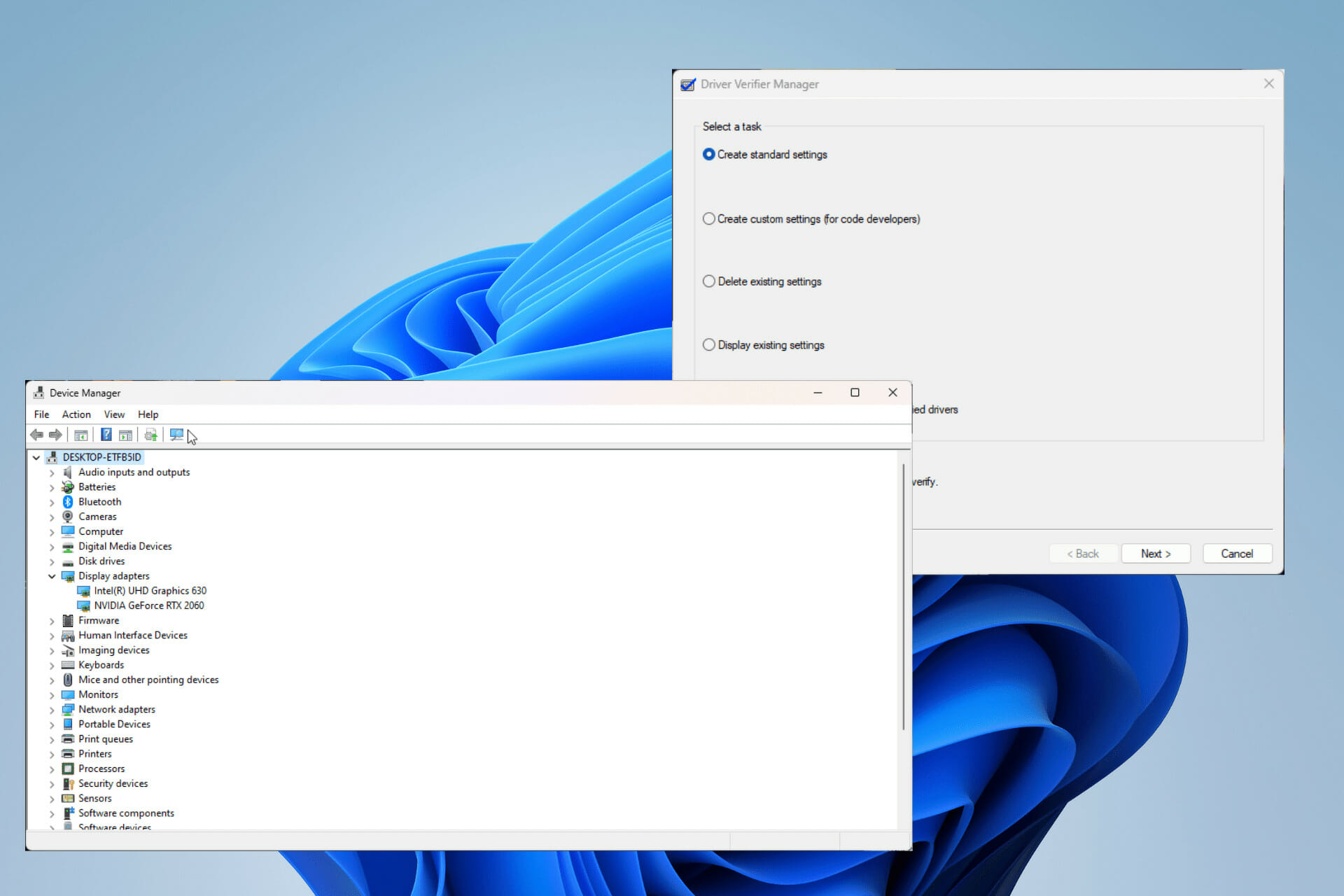
1. Use the built-in Verifier

  1. Bring up the search bar by clicking on the magnifying glass icon in the taskbar.
  2. Type in verifier in the search bar and click on the ‘verifier’ entry that appears.
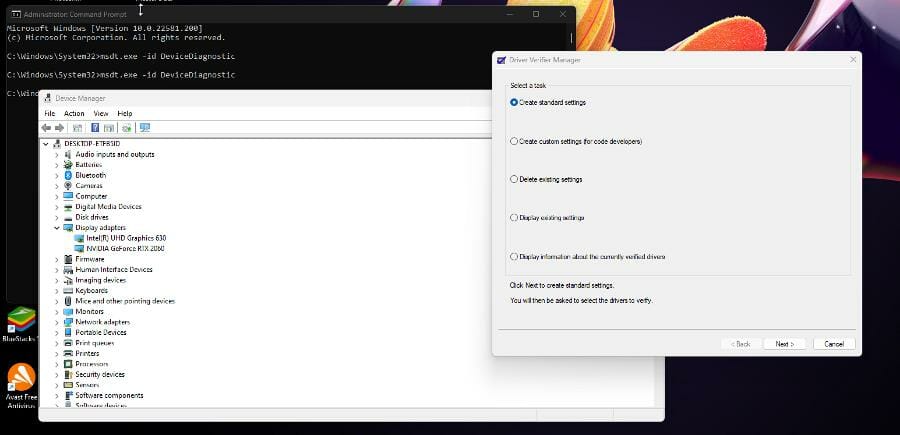
  3. Clicking it will bring up the Device Verifier Manager.
  4. In this window, select Create Standard settings then click Next.
  5. Next, click on Automatically select unsigned drivers then click Next. Doing so will narrow down the problem caused by an unsigned driver.
  6. The Driver Verifier Manager will search for any unsigned drivers. If everything’s okay, a small window will appear telling you nothing has been found.
  7. If there’s an issue, the Verifier Manager will tell you the source where you will then have to fix your drivers.

2. Update graphical drivers

  1. One solution is to update your drivers by first opening the Settings menu.
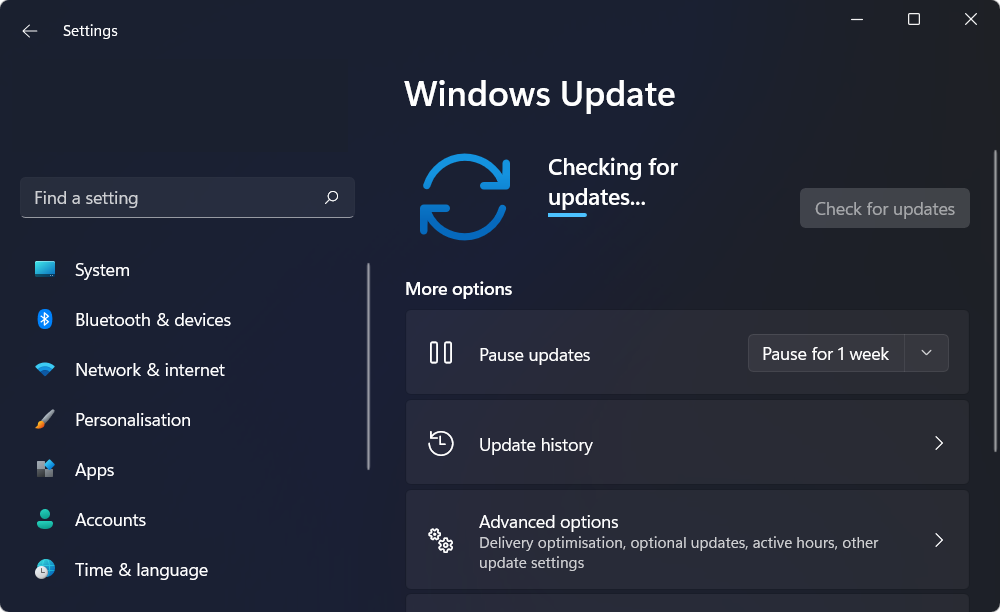
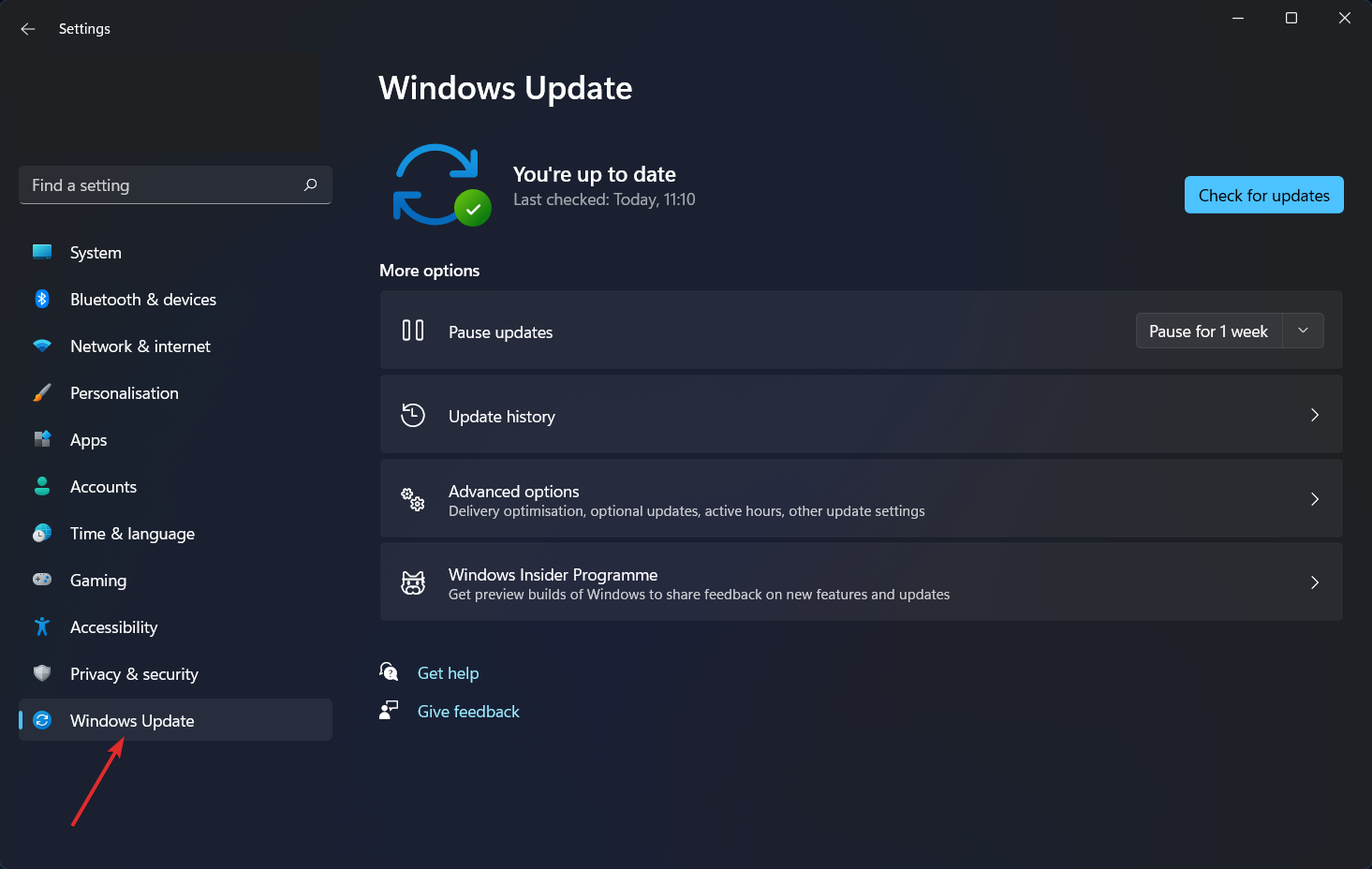
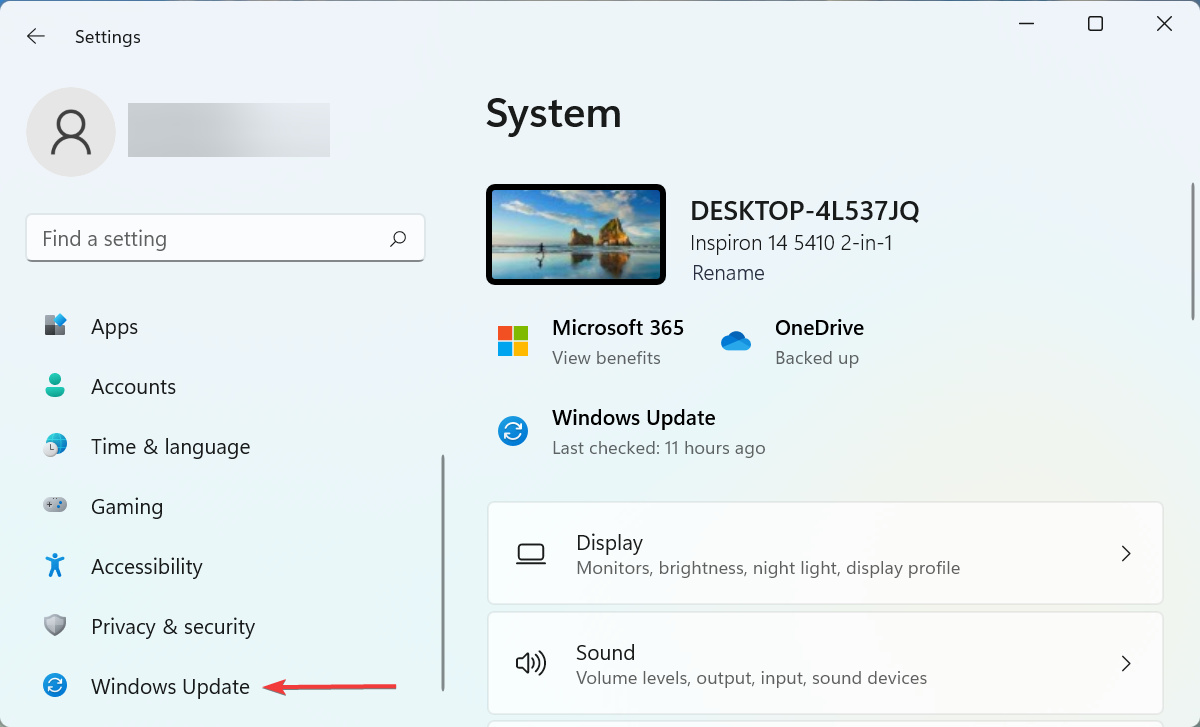
  2. Click on the Windows Update tab.
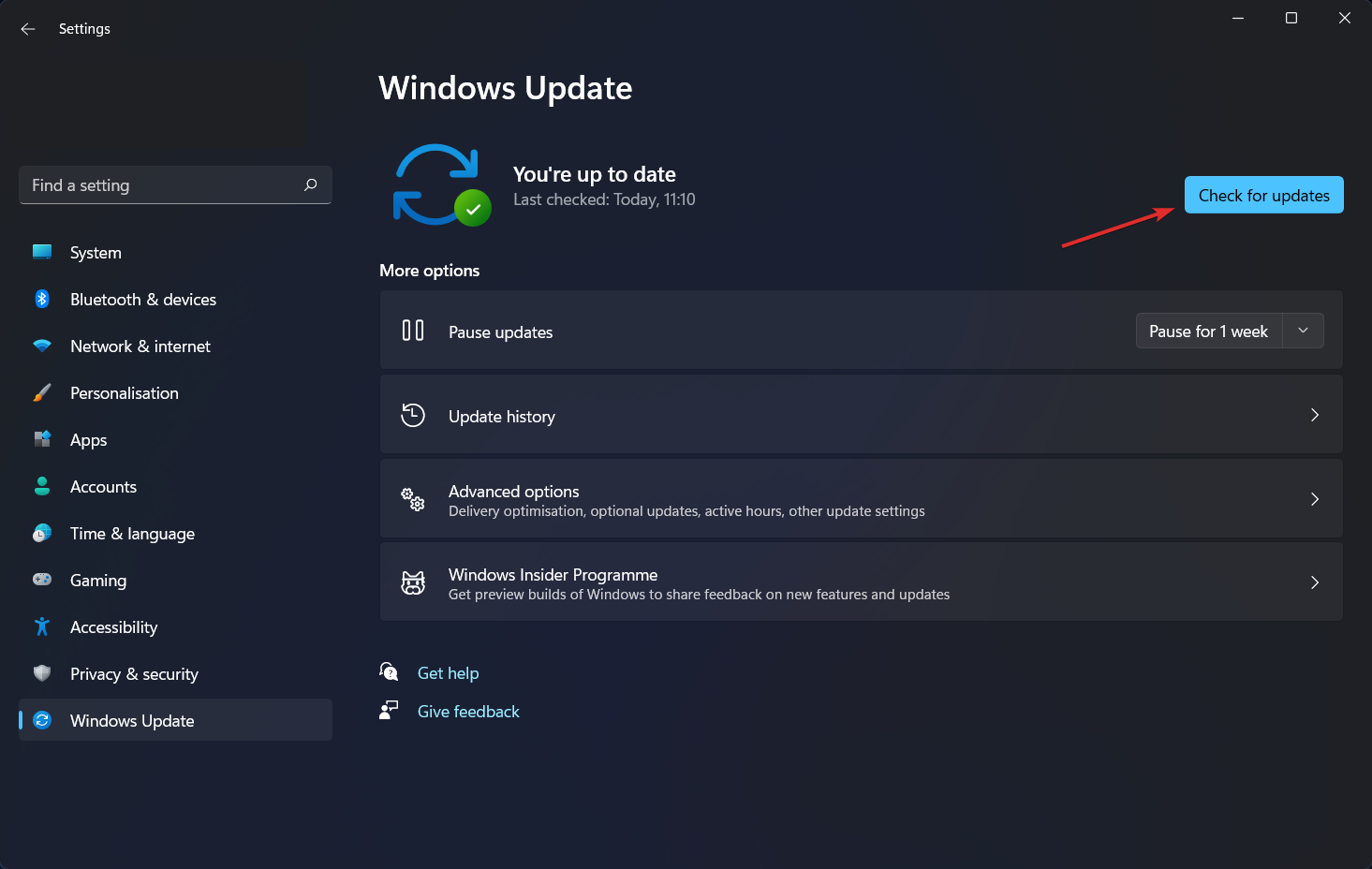
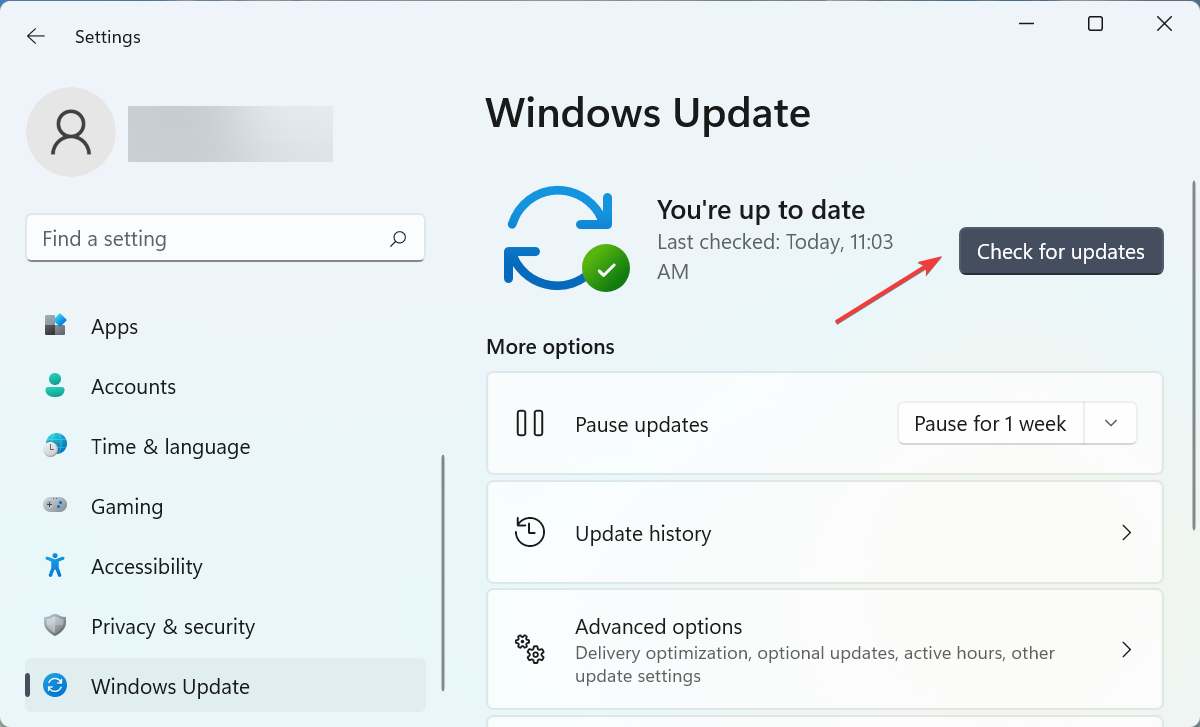
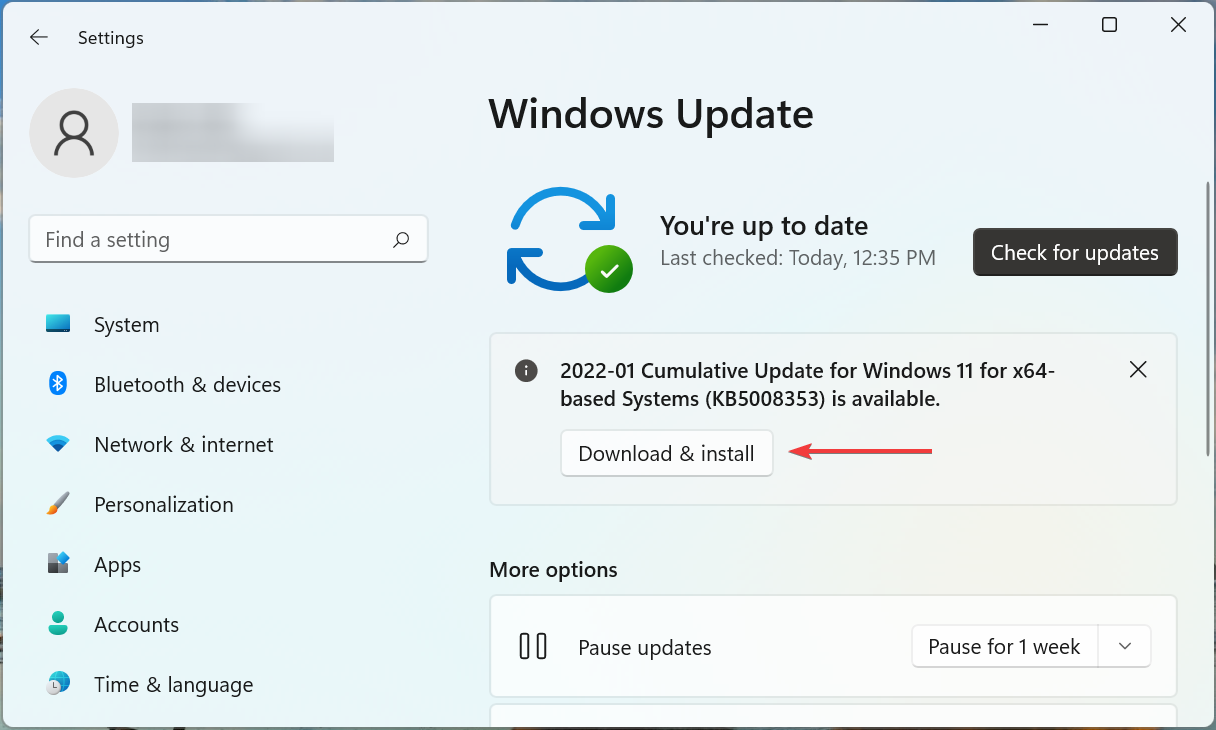
  3. Check if there are any updates available. If there are, they will download automatically.
  4. Click Restart now to finish the installation.
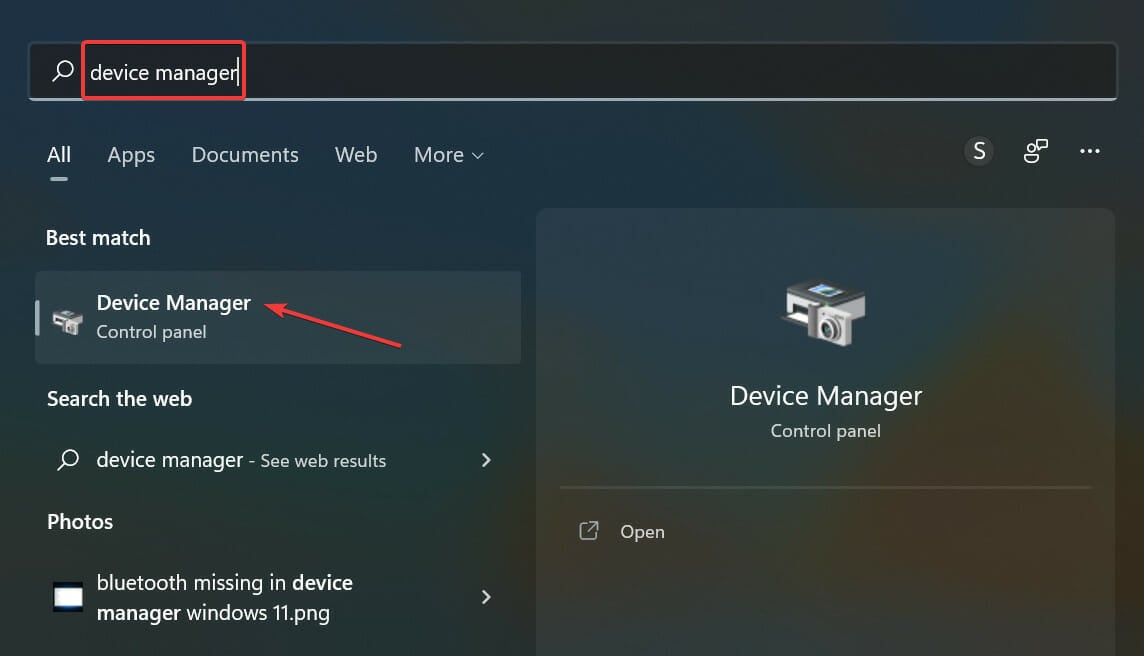
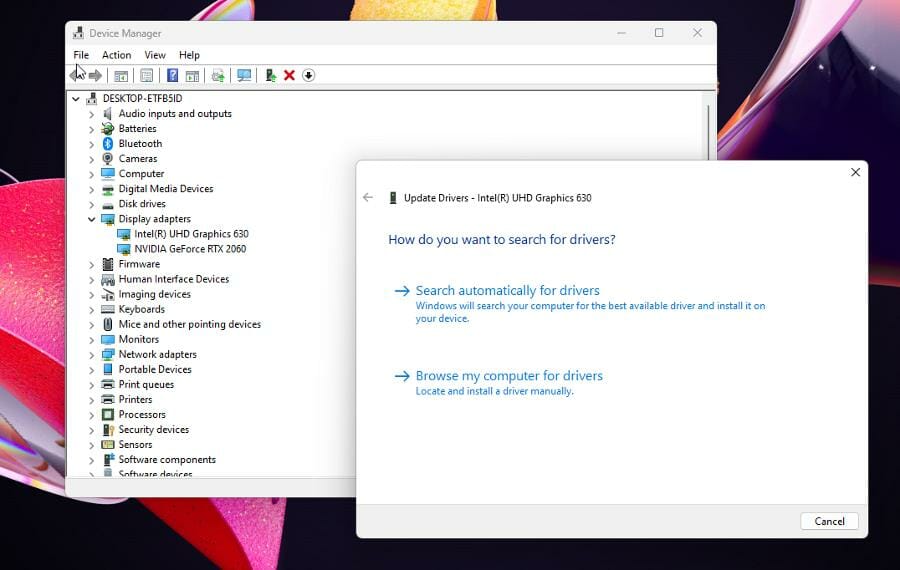
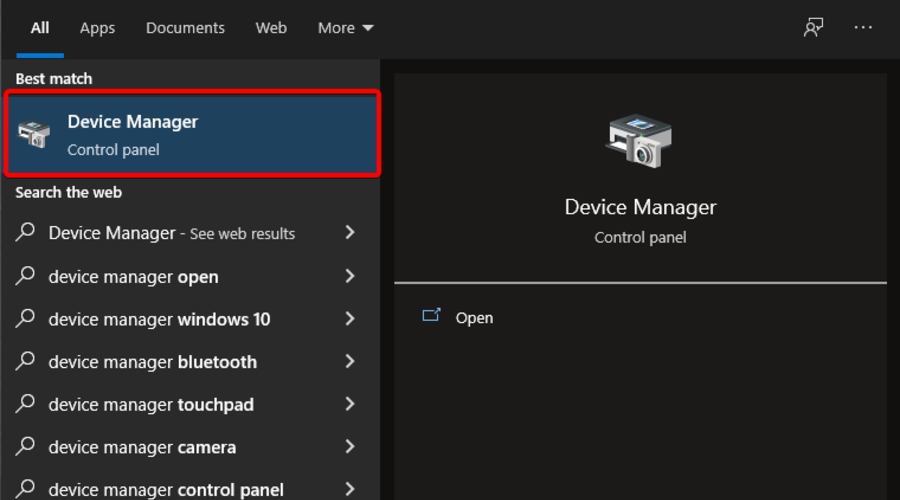
  5. You can also manually update by first opening the search bar and searching for the Device Manager.
  6. Click on Display adapters.
  7. Right-click on your video card and select Properties from the drop-down menu.
  8. Go to the Driver tab and select Update Driver.
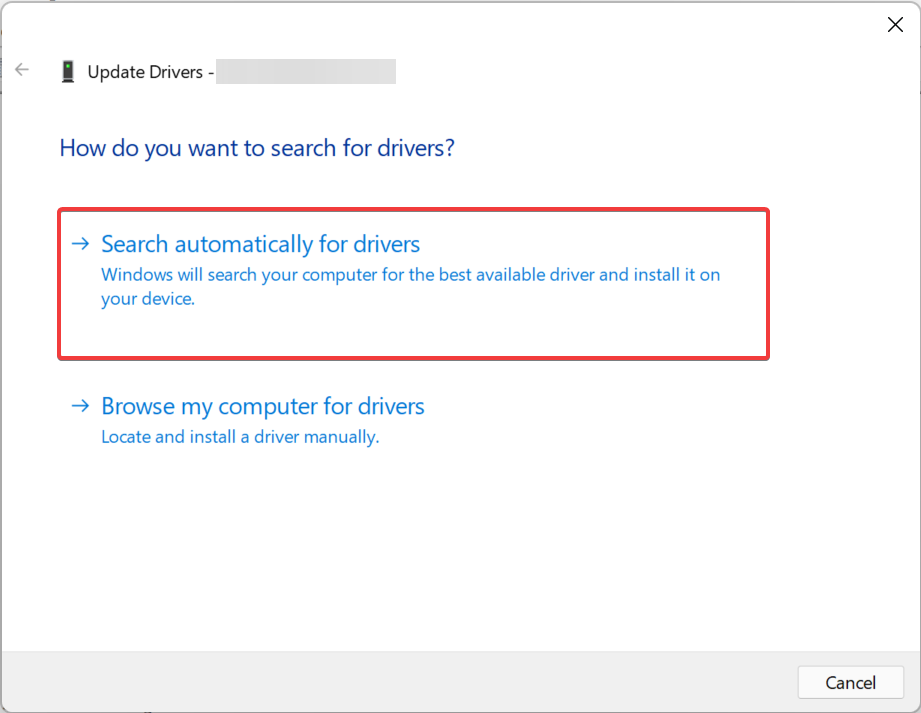
  9. Select Search automatically for drivers. Windows 11 will automatically download and install the driver.

If you’re looking for a more time-efficient way to automatically update your drivers, then you should download and install Outbyte Driver Updater.

3. Rollback on driver update

  1. At times, the cause of the kernel-mode corruption may because of a malfunctioning or poorly designed driver update. So you will have to roll back the update.
  2. Return to the Device Manager and open the Properties menu of the video card.
  3. Select the Driver tab and locate Roll Back Driver.
  4. Click Roll Back Driver.
  5. Windows 11 will automatically install the previous version of the driver.

4. Fix corrupt files on the system using Command Prompt

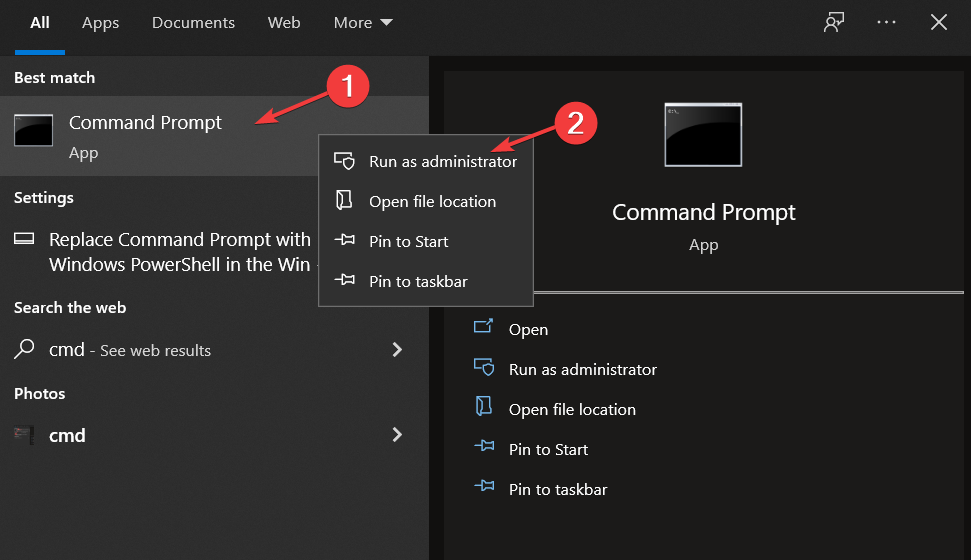
  1. In the search bar, type in Command Prompt to bring up the Command Prompt app.
  2. Click Run as administrator.
  3. Start by typing in sfc /scannow
  4. Give your Windows 11 computer time to scan and verify the system.
  5. Windows Resource Protection should not find any sort of integrity violations.
  6. If it does, you’ll need to fix this.
  7. In the Command Prompt, type in Dism /Online /Cleanup-image /Scanhealth
  8. Press Enter on your keyboard. Wait for Windows 11 to finish its process.
  9. If everything is fine, the Command Prompt will state that no corruption has been detected.
  10. If something wrong was indeed detected, type in Dism /Online /Cleanup-image /Restorehealth
  11. Press Enter on your keyboard.
  12. Wait for your Windows 11 computer to finish its process

5. Run troubleshooter for hardware

  1. Search for the Command Prompt again and click Run as administrator.
  2. Type in msdt.exe -id DeviceDiagnostic
  3. Hardware and Devices window appears.
  4. Click Advanced.
  5. Unclick Apply repairs automatically. Do this so you can know what the problem is before it gets automatically patched.
  6. Then click Next.
  7. The software will run a diagnostic scan of your computer and see if there are any problems.
  8. If there’s an issue with the drivers, the troubleshooter will list them out.
  9. You can select which ones you want to implement and which ones you don’t.
  10. After making your selection, click Next.
  11. You may have to enable the changes Windows 11 is asking for.
  12. A window will appear asking you to attempt the fixes that are being suggested. Perform them and close the window.

6. Run Windows Memory Diagnostics Tool

  1. Right-click the Start icon to bring up a popup menu.
  2. Click Run.
  3. In the Run command menu, type in mdsched.exe.
  4. Click OK which will open up Windows Memory Diagnostic.
  5. Click on Restart now and check for problems.
  6. Check for problems the next time I start my computer is better for checking your computer’s memory later.
  7. The Windows Memory Diagnostic Tool will do multiple runs as it runs its tests. If no errors appear, then your computer’s memory is totally fine.
  8. If there are errors, you may need to replace some hardware components. Contact your hardware manufacturer for help on this end.

What are other methods to fix my Windows computer?

If you have a Windows 10 computer, the same problem arises there and it’s recommended that you learn how to fix that issue if it ever comes up. You still have to update your drivers manually and check your GPU for hardware issues.
Another error you may encounter is the Windows Subsystem for Linux register error that gets in the way of a Linux installation. Although this solution is mainly for developers and other people who dabble in Linux.

More common are when Windows 11 drivers become unavailable. In this instance, you may have to reinstall the driver again or outright manually do it yourself. Fortunately, it’s easy to do; much easier than fixing the kernel-mode error.

We recently covered the Invalid_Kernel_Stack_Address error, so don’t miss it for more information.

Feel free to leave a comment below if you have any questions on other Windows 11 apps. Also, leave comments about reviews that you’d like to see or information on other Windows 11 features.

Dying Light 2 is not launching on Steam? Fix it now

With its initial release date at the end of 2021, Dying Light 2 is one of the most exciting masterpieces this year, as it places you into an adventurous environment built on numerous narrative branches.

The whole scenario relates middle of the civilization where viruses won and people have fallen back to the Dark Ages.

As it can be played on Microsoft Windows, PlayStation 4, PlayStation 5, Xbox One, and Xbox Series X/S. A Nintendo Switch there is no wonder that this game is also extremely versatile.

According to worldwide users, Dying Light 2 usually works great on any device and platform, but it sometimes seems like not launching on Steam.

It can be a pretty annoying issue, especially if you just discovered this game’s amazing capabilities.

Fortunately, there are always useful solutions that will help you get rid of this problem, and today we’re going to show you the best you can find.

What can I do if Dying Light 2 is not launching?

1. Update your graphics drivers

  1. Press on the Windows key, type Device Manager, then click on the first result.
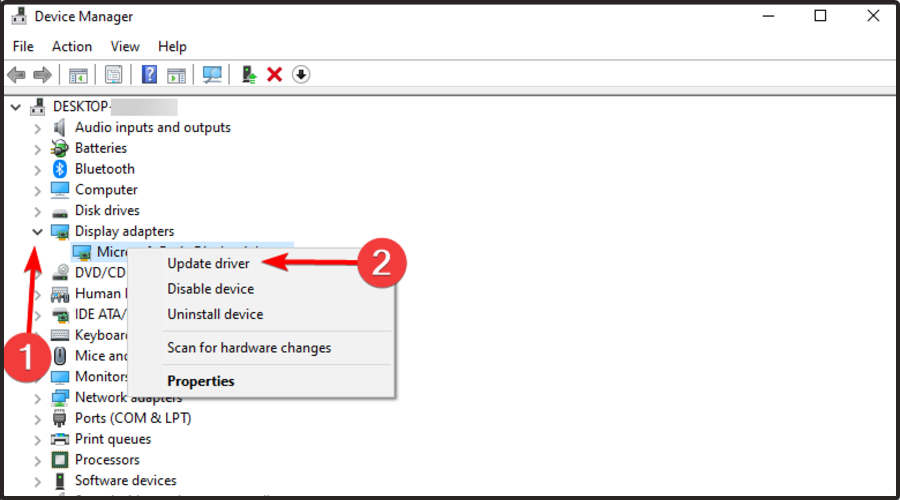
  2. Search for the Display adapters section, expand it, then right-click on the needed driver and click on Update driver.
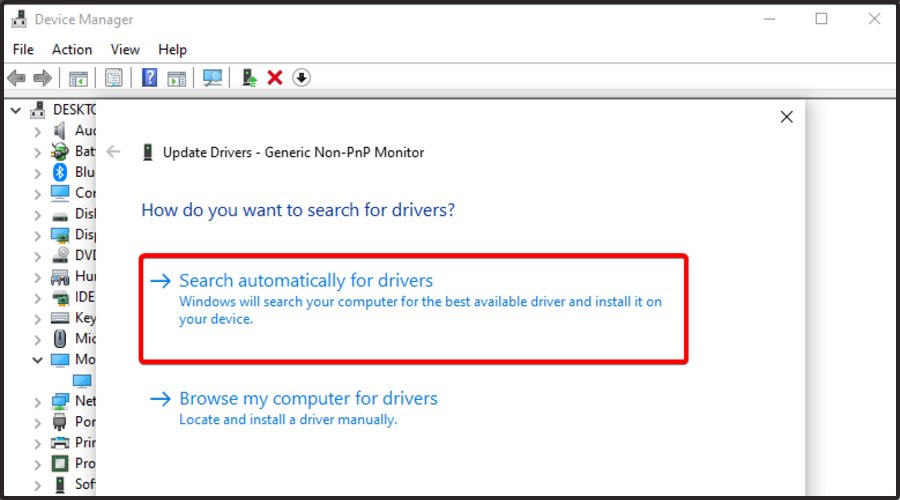
  3. Choose to Search automatically for drivers.
  4. Now, your OS will scan for the newest available options and will notify you accordingly.

If you choose to perform the above steps, you’ll surely update your drivers effortlessly, but there is another solution that will guarantee that you won’t consume time.

Outbyte Driver Updater is software that monitors your PC for missing/outdated drivers and easily lets you fix and update them.

Not to mention that it lets you back up and save your PC drivers into a compressed zip file. This tool is extremely useful because a driver update can sometimes cause malfunctions. 

Plus, it is incredibly fast and easy to use, so you don’t have to worry if you’re a beginner. It would be a piece of cake to use any of its features.

⇒ Get Outbyte Driver Updater

2. Update the gaming platform

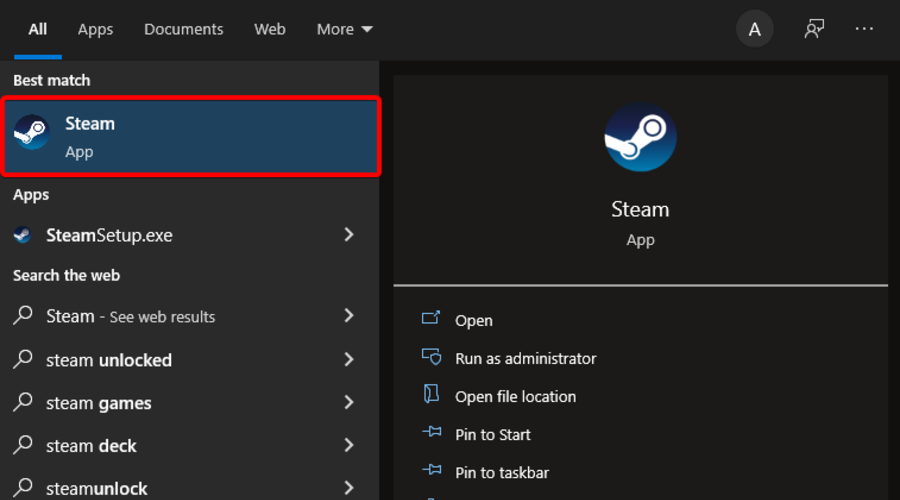
  1. Hit the Windows key, type Steam, then open the first result.
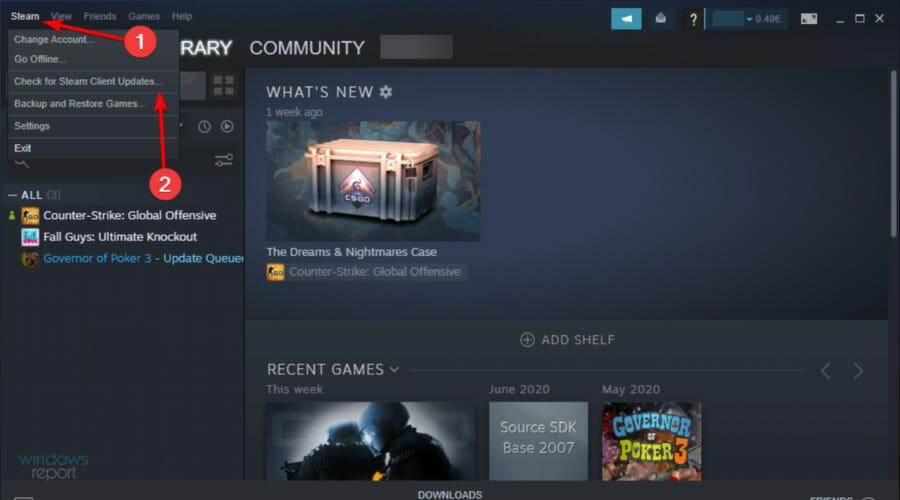
  2. Now, from the top-left corner of the window, click on Steam, then choose to Check for Steam Client Updates.
  3. Wait until the process is finished, then check if the issue persists.

3. Update the game on Steam

  1. Press on the Windows key, type Steam, and open the app.
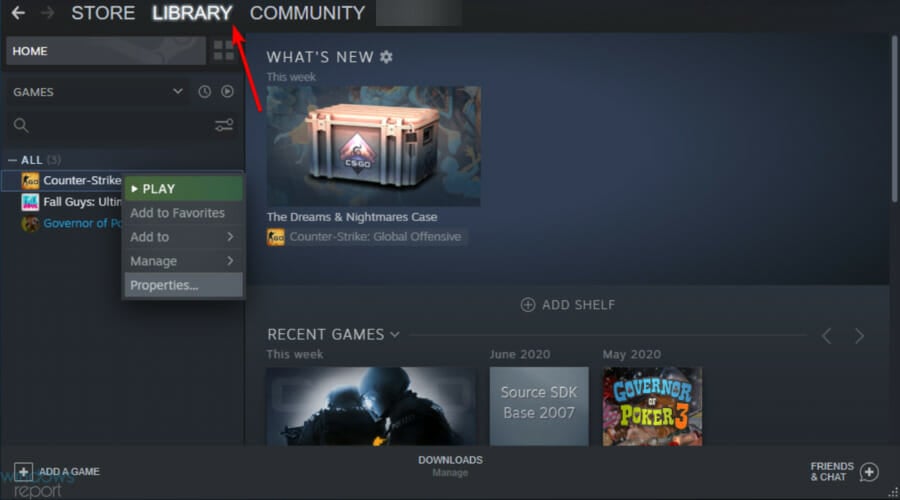
  2. From the main menu, navigate to Library.
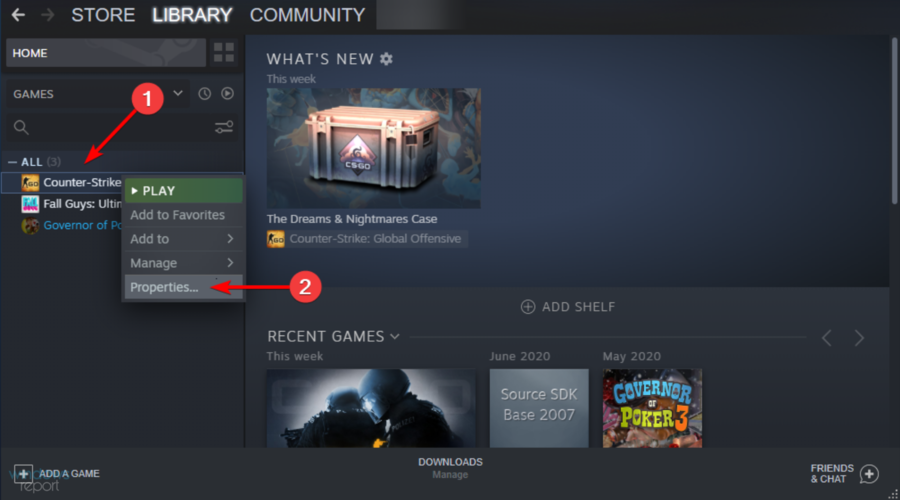
  3. Search for Dying Light 2, then right-click on its Properties (Just like we show you with CS directly below).
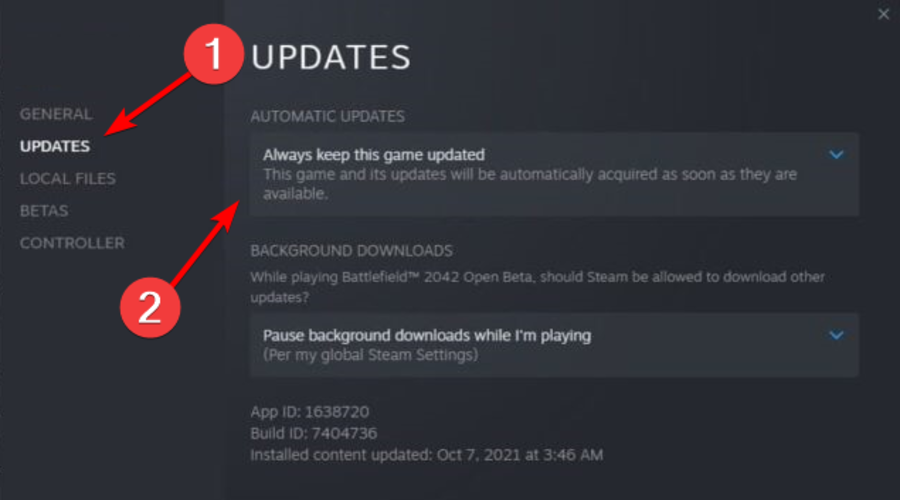
  4. Choose Updates, then, from the right window pane, under Automatic Updates, choose to Always keep the game up to date.

4. Verify the game’s integrity files

  1. In your Steam app, click on Library.
  2. From the left side of the window, right-click on Dying Light 2, then choose Properties (Just like we show you with CS directly below).
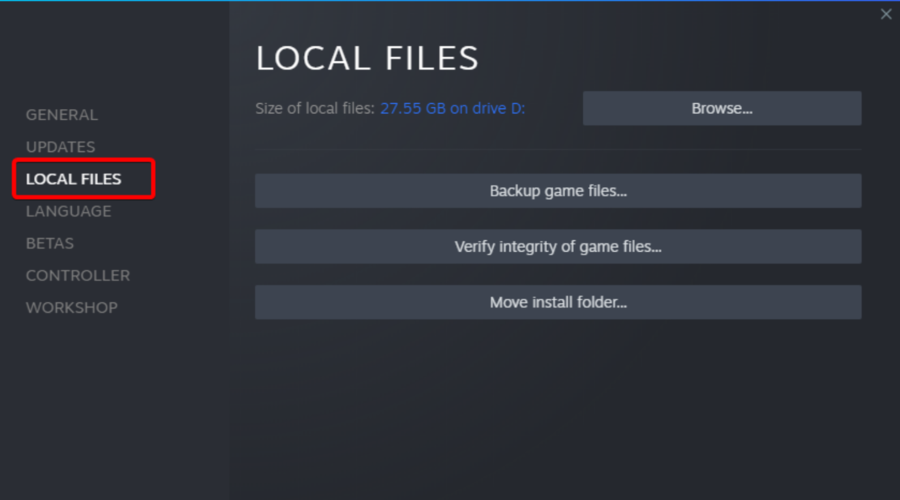
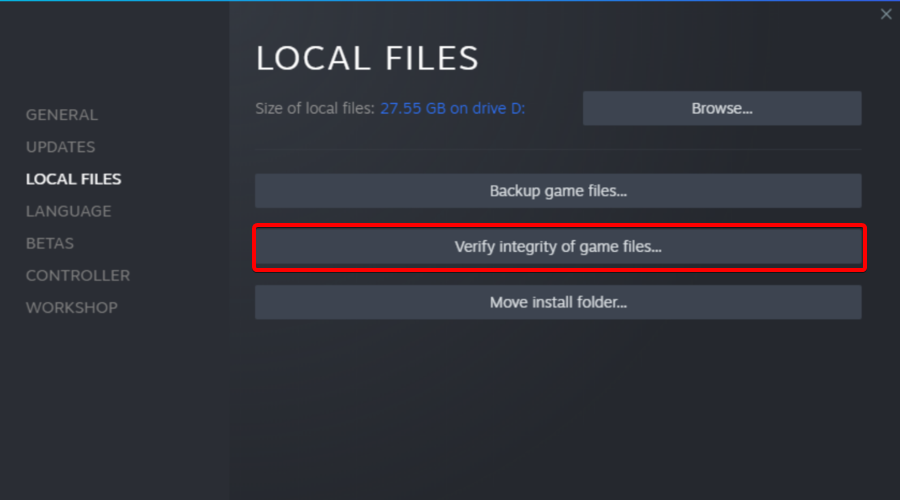
  3. Now, click on Local Files, located in the left window pane.
  4. Choose to Verify the integrity of the game files.

5. Perform a clean boot and run the game

  1. Use the following keyboard shortcut to open the Windows run dialog box: Windows + R.
  2. There, type msconfig, then click on OK.
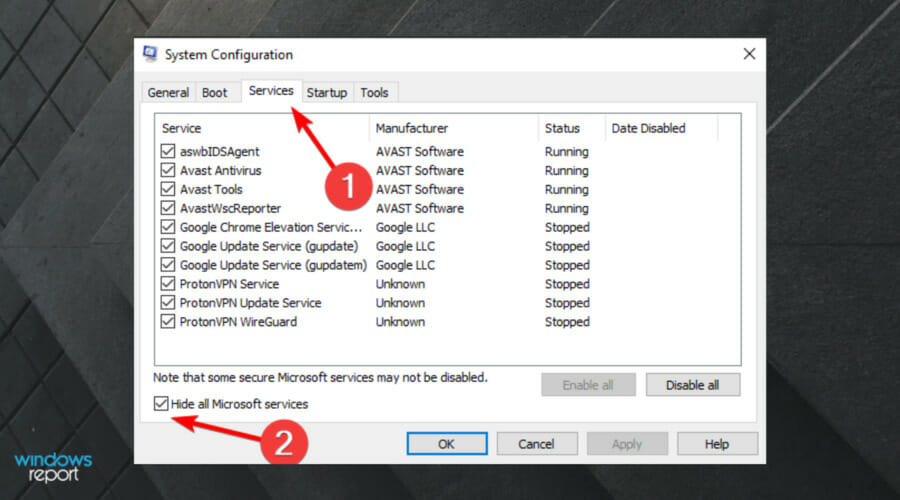
  3. Go to the Services tab, then check the Hide all Microsoft services box.
  4. Now, click on Disable all.
  5. Go to the Startup tab and click on Open Task Manager.
  6. Disable one task at a time and restart the system.

6. Reinstall the game

  1. In your Steam client, click on Library.
  2. Search for Dying Light 2, from the left window pane.
  3. Right-click on it, then choose to Uninstall it (Just like we show you with the CS example directly below).
  4. Steam will confirm with you whether you want to completely uninstall the game. When you are ready, click the Uninstall button.
  5. To reinstall it, double-click the game’s name or right-click and choose Install from the pop-up menu.
  6. Follow the on-screen instructions to complete the process.

So, if you ever notice that Dying Light 2 is not launching on Steam, this guide will surely help you fix this issue in no time.

Plus, if none of our today’s recommendations worked for you, you might also want to try updating/reinstalling DirectX and Visual C++.

The best thing is that the above solutions will work for any launching-related game problem. Thus, do not hesitate to try them anytime you need, not only when running the Steam gaming platform.

In case it’s happening to face any additional related questions, make sure you leave a comment in the dedicated section below.

Kindle Driver for Windows 11: Download & Fix Compatibility

Kindle is an e-reader manufactured by Amazon, that lets users purchase, download, and read from thousands of books. It’s a great device for those who love to read and offers amazing support, but many users found that Windows 11 is not recognizing Kindle.

And this poses a major problem to those who regularly transfer data between their PC and the Kindle. But the problem isn’t as intricate as it appears, and if you follow the right approach, it should be resolved within a few minutes.

So, without further ado, let’s delve into the topic at hand and understand why Windows 11 is not recognizing Kindle.

Why is my Windows 11 PC not recognizing Kindle?

There’s no single issue that leads to this problem which makes troubleshooting a tad more difficult. So here, you will have to identify the underlying cause in your case and execute the relevant fix for it, to get things up and running.

Many users faced the issue due to something as trivial as an improper connection or a malfunctioning USB port. Also, misconfigured power settings are known to cause issues with the connected devices.

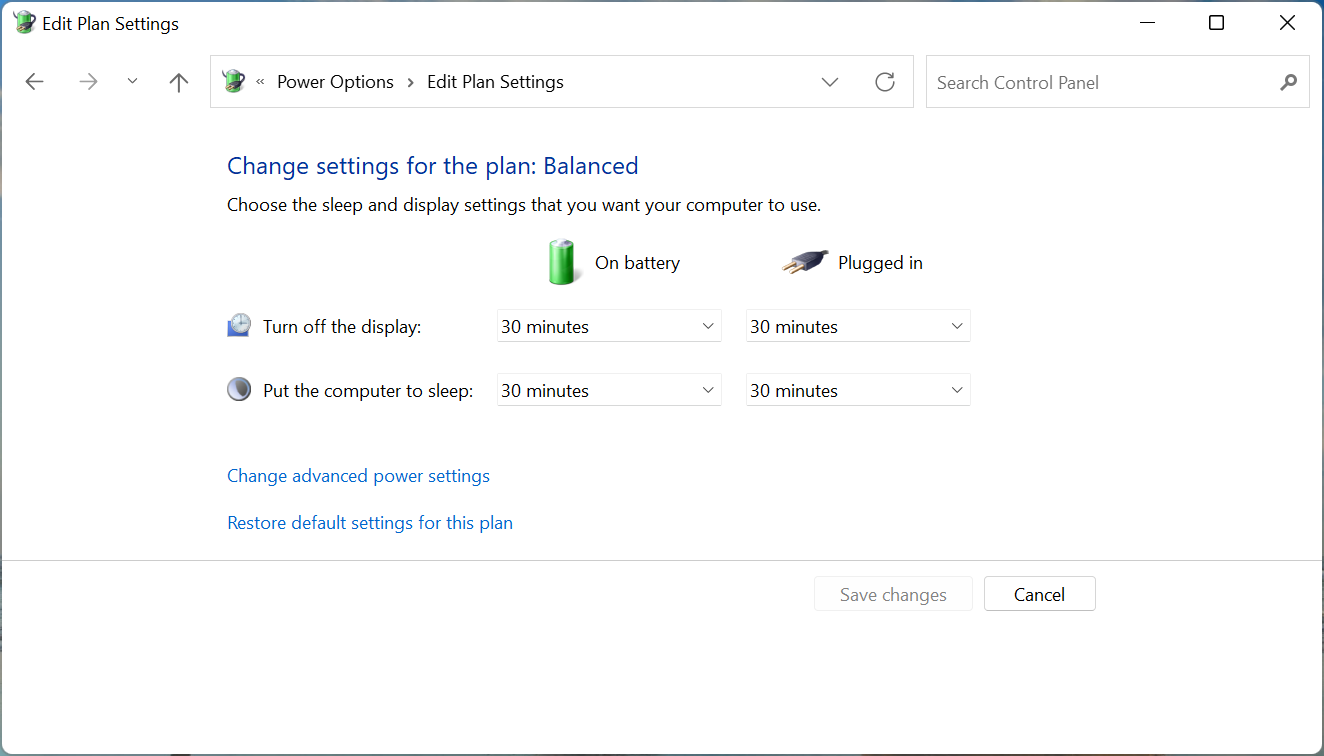
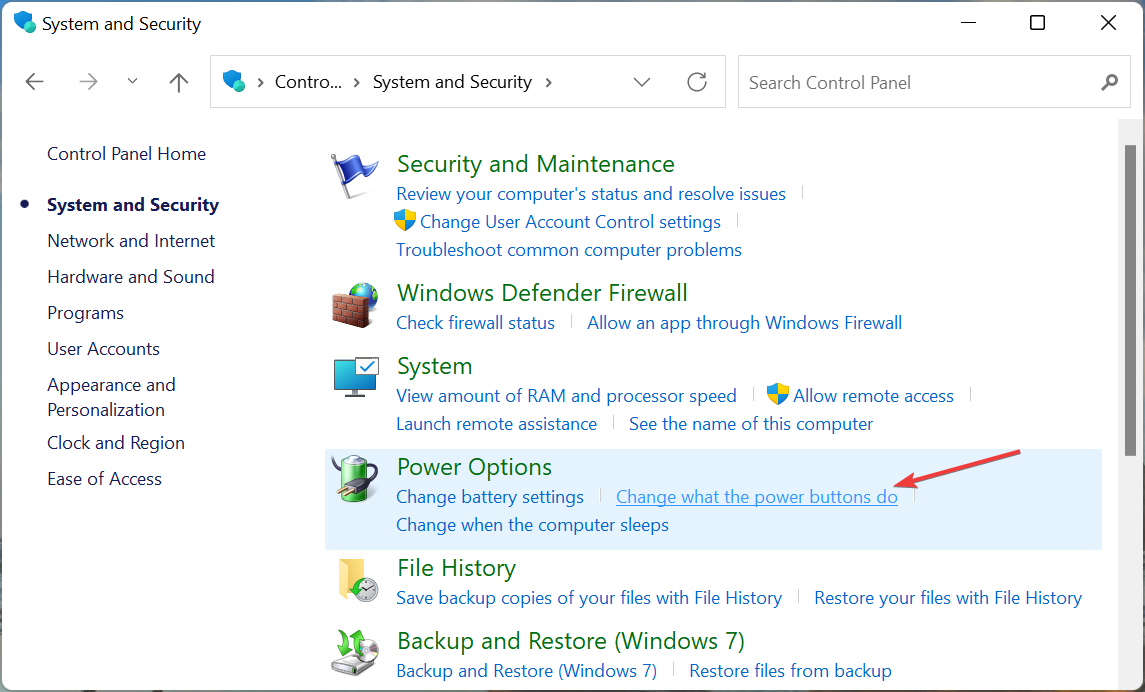
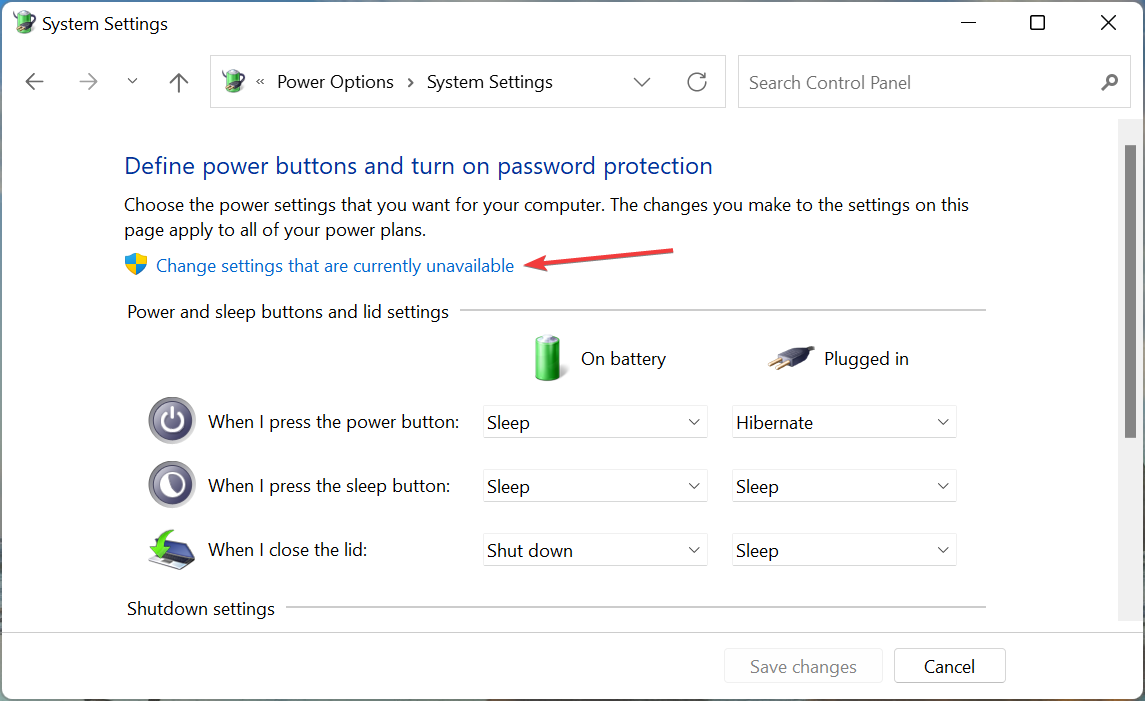
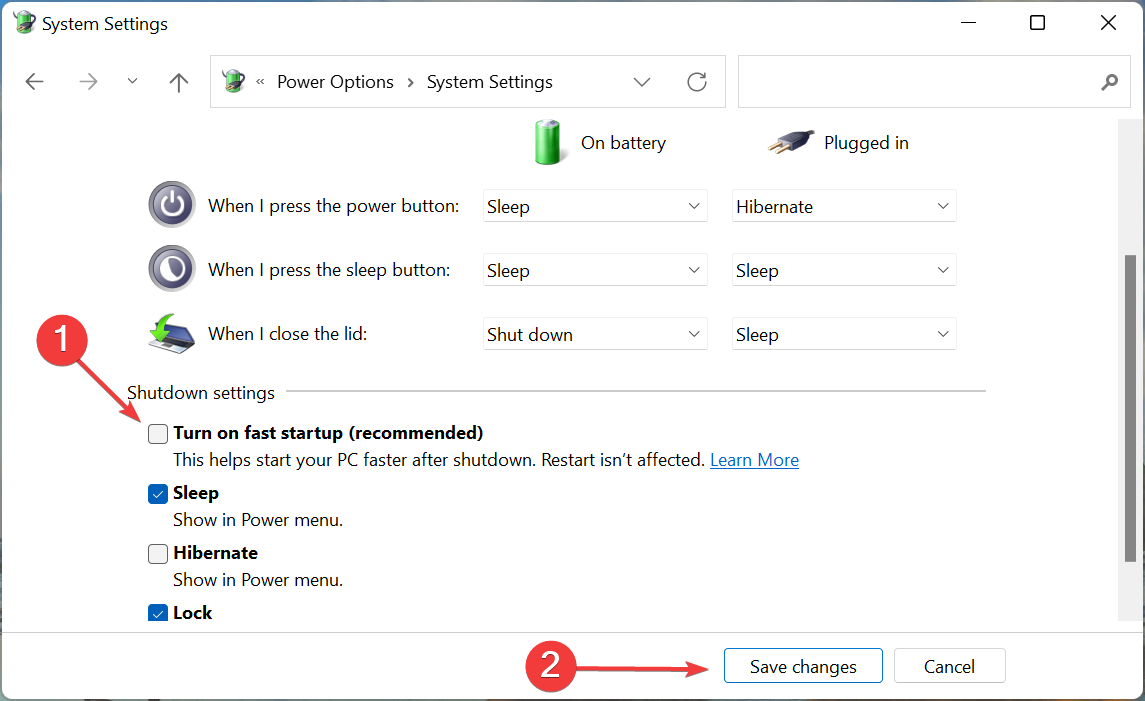
Power plan settings in Windows 11

A problematic driver is another common reason behind Windows 11 not recognizing Kindle. Besides, oftentimes, the OS is unable to read Kindle, so modifying the device type here might help.

Let’s now walk you through the most effective fixes here. Try them in the listed sequence for quick troubleshooting, unless you have identified the underlying cause. In which case, go ahead and directly execute the relevant fix.

What do I do if Windows 11 is not recognizing Kindle?

1. Check the connection and restart Kindle

Your primary approach when Windows 11 is not recognizing Kindle should be to verify that the connections are in order. Make sure that the cable is properly plugged in at both ends and that it’s not damaged.

Then, press and hold the power button for 30-40 seconds to restart the Kindle. In case it restarts earlier, release the power button immediately, and now check if Kindle now appears on the Windows 11 PC.

In case the issue persists, try connecting the Kindle to another computer and check if it works there. If it does, the problem most likely lies with your PC and the methods listed here should fix the Windows 11 not recognizing Kindle issue.

But, if the Kindle is not recognized on the other PC as well, try resetting it and that should resolve the problem.

2. Install Kindle as an MTP device

  1. Press Windows + S to launch the Search menu, enter Device Manager in the text field at the top, and click on the relevant search result that appears.Device Manager
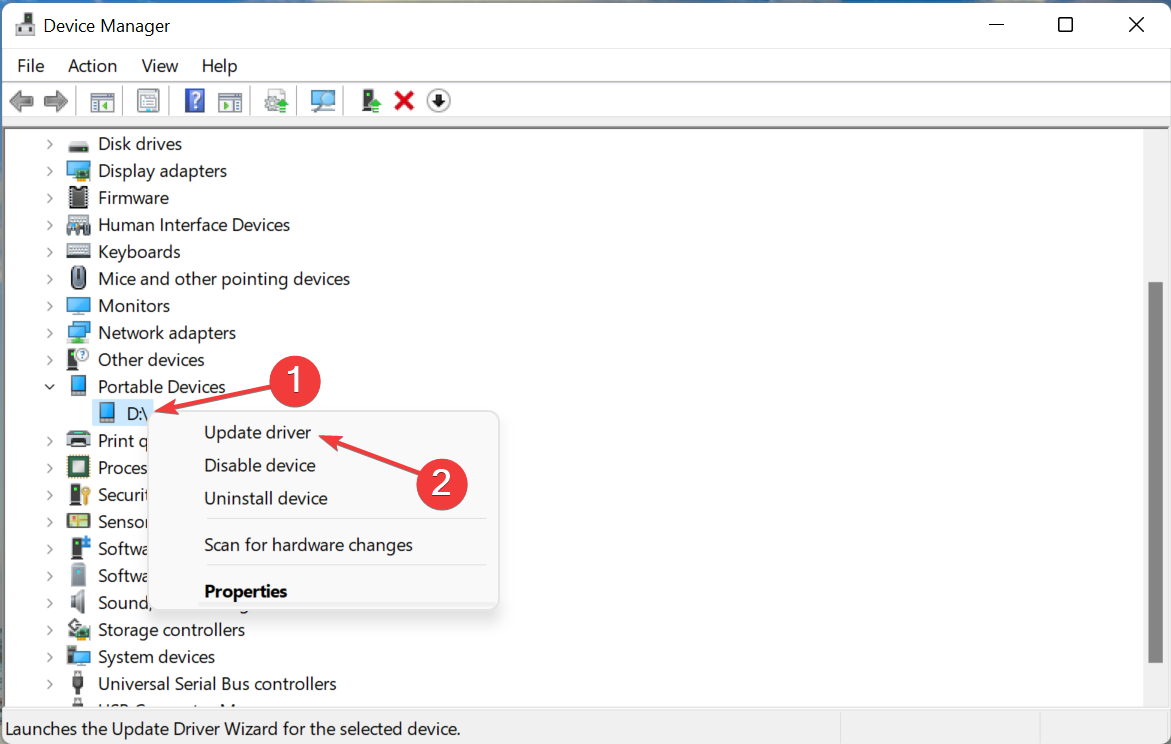
  2. Double-click on the Portable Devices entry here to expand and view Kindle.Portable devices to fix windows 11 not recognizing kindle
  3. Now, right-click on the Kindle (could be here with another name) device, and select Update driver from the context menu.Update driver to fix windows 11 not recognizing kindle
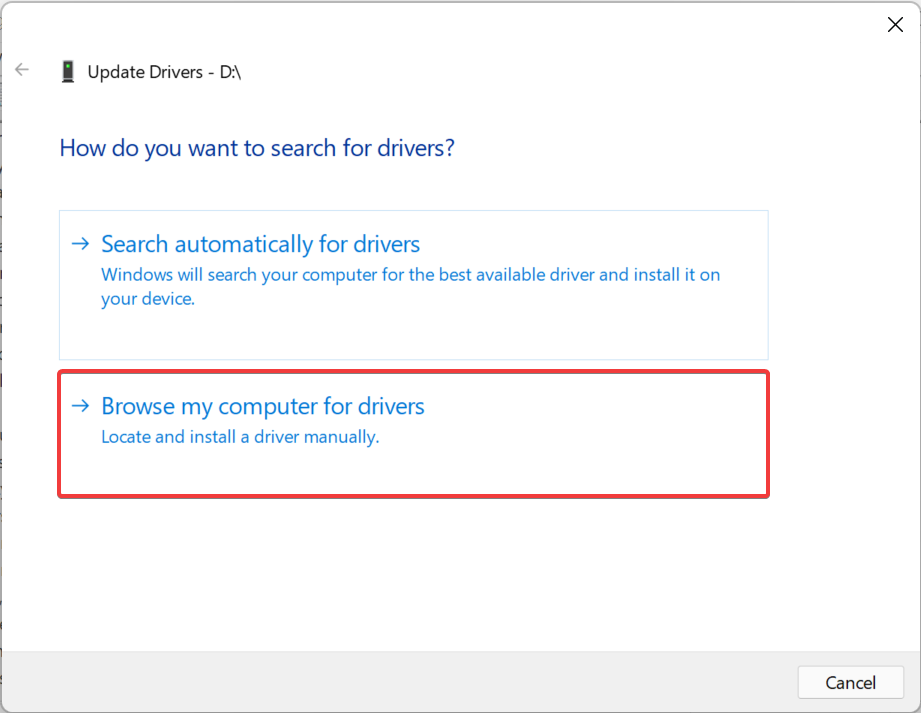
  4. Next, click on Browse my computer for drivers in the Update Drivers window.Browse my computer for drivers
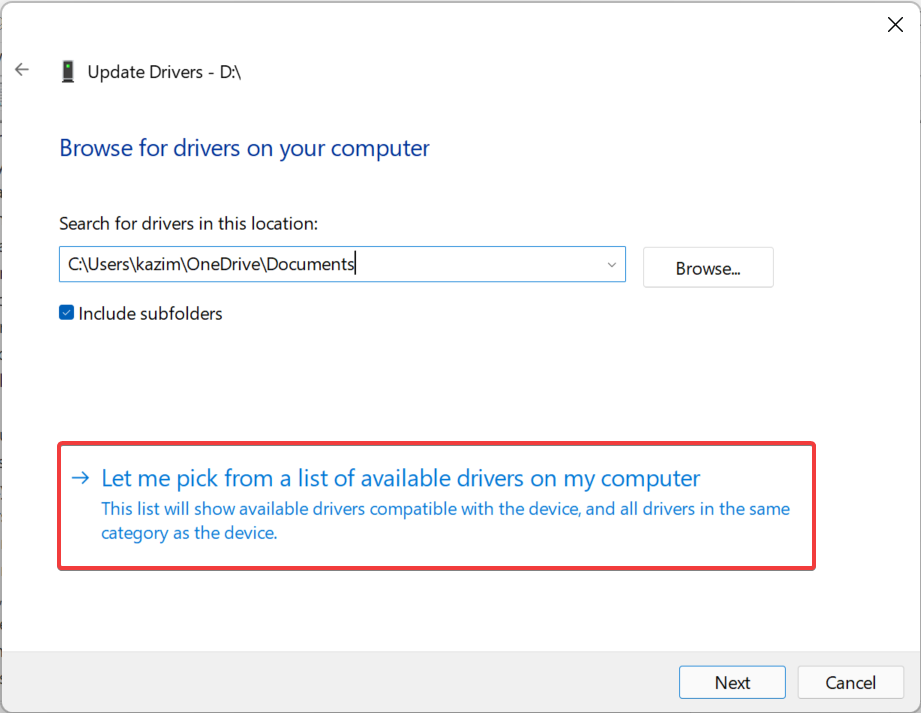
  5. Select Let me pick from a list of available drivers on my computer here.Let me pick from a list of available drivers
  6. Untick the Show compatible hardware checkbox to view all available drivers.Uncheck show compatible hardware to fix windows 11 not recognizing kindle
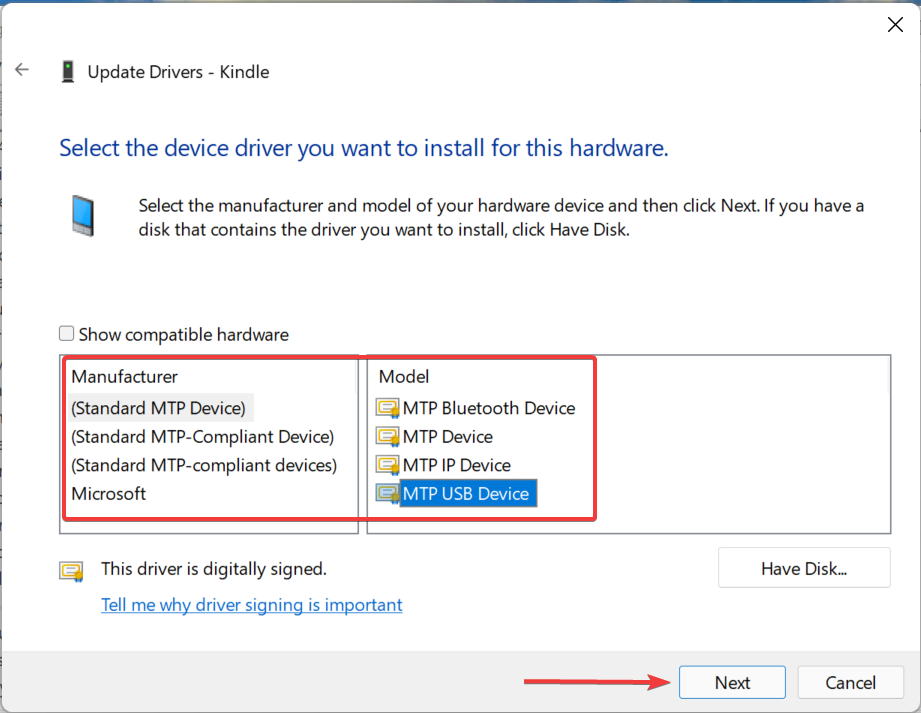
  7. Select the relevant category from the left, the MTP driver from the right, and then click on Next at the bottom.Select MTP driver to fix windows 11 not recognizing kindle
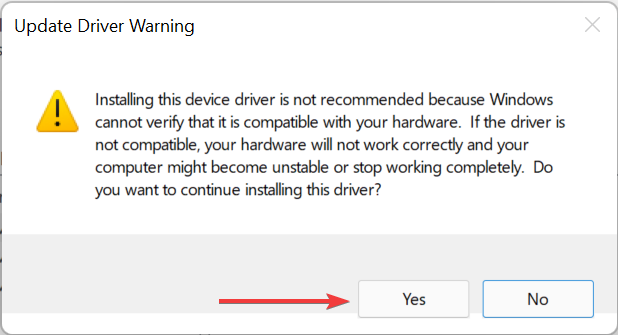
  8. Click Yes in the confirmation prompt that pops up.Click Yes

Having the right driver installed for every device is critical for its effective functioning. There are various drivers that could work for a given device but all these wouldn’t have the same outcome. So, select the MTP driver for Kindle and check if Windows 11 is now recognizing it.

Also, you can use a reliable third-party app that will get you the best available drivers for every device and minimize the chance of encountering such errors.

We recommend using Fortect Driver Updater, a dedicated tool that will automatically install the latest version and keep all the drivers on the system up to date.

⇒ Get Fortect Driver Updater

3. Assign a drive letter to Kindle

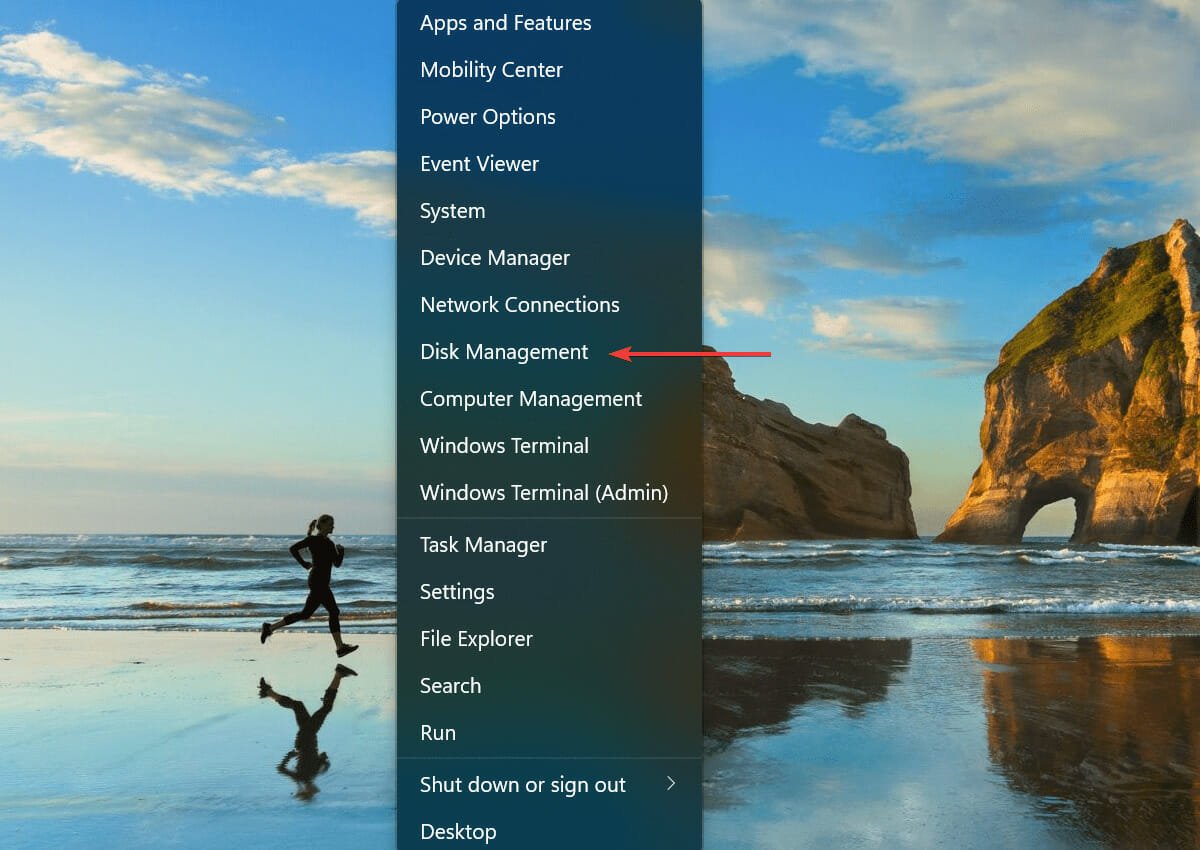
  1. Press Windows + X or right-click on the Start icon to launch the Quick Access/Power User menu, and select Disk Management from the list of options.Dism Management to fix windows 11 not recognizing kindle
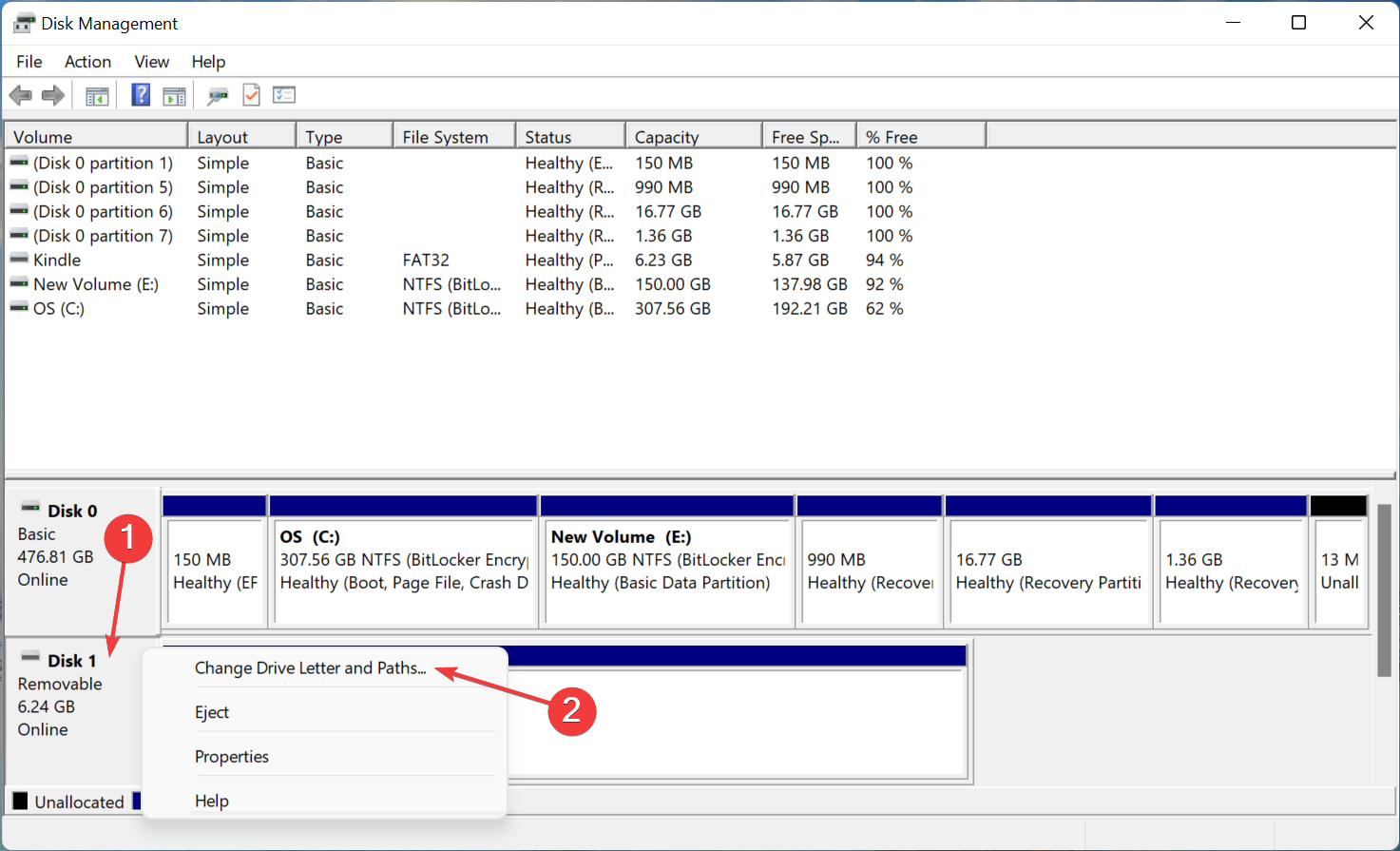
  2. Now, right-click on the Kindle entry near the bottom, and select Change Drive Letter and Paths from the context menu.Change drive letter and paths
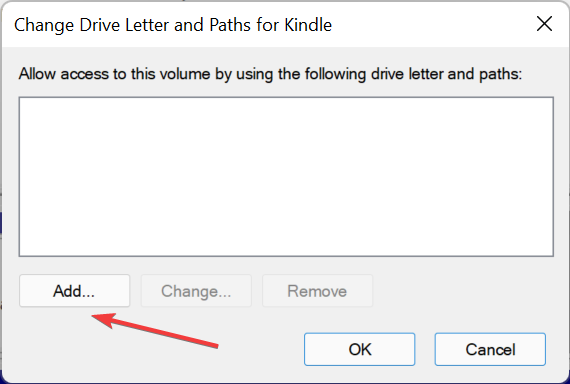
  3. Click on the Add button.Add to fix windows 11 not recognizing kindle
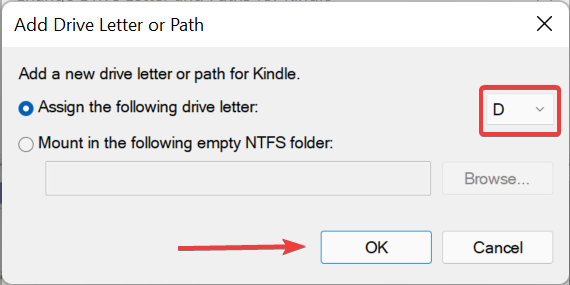
  4. Select a drive letter from the dropdown menu or go with the default selection, and click on OK to assign the drive letter.Assign drive letter to fix windows 11 not recognizing kindle

For a storage device to appear in File Explorer, it should have a drive letter assigned. The same applies to USB drives and hard disks. So, assign a drive letter to Kindle, if one is not given by default, and check if Windows 11 is now recognizing it.

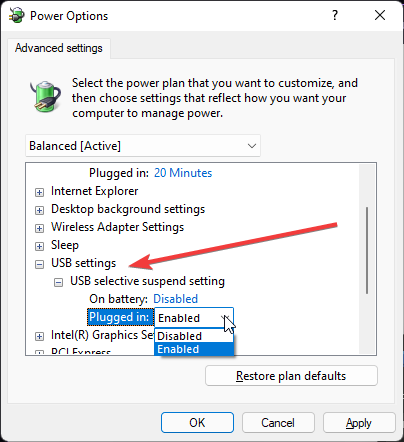
4. Turn off the USB selective suspend setting

  1. Press Windows + R to launch the Run command, type control panel in the text field, and either hit Enter or click on OK to launch the Control Panel app.Control panel to fix windows 11 not recognizing kindle
  2. Now, click on System and Security from the options here.System and Security
  3. Click on Power Options.Power options to fix windows 11 not recognizing kindle
  4. Click on Change plan settings next to the plan that’s currently selected.Change plan settings to fix windows 11 not recognizing kindle
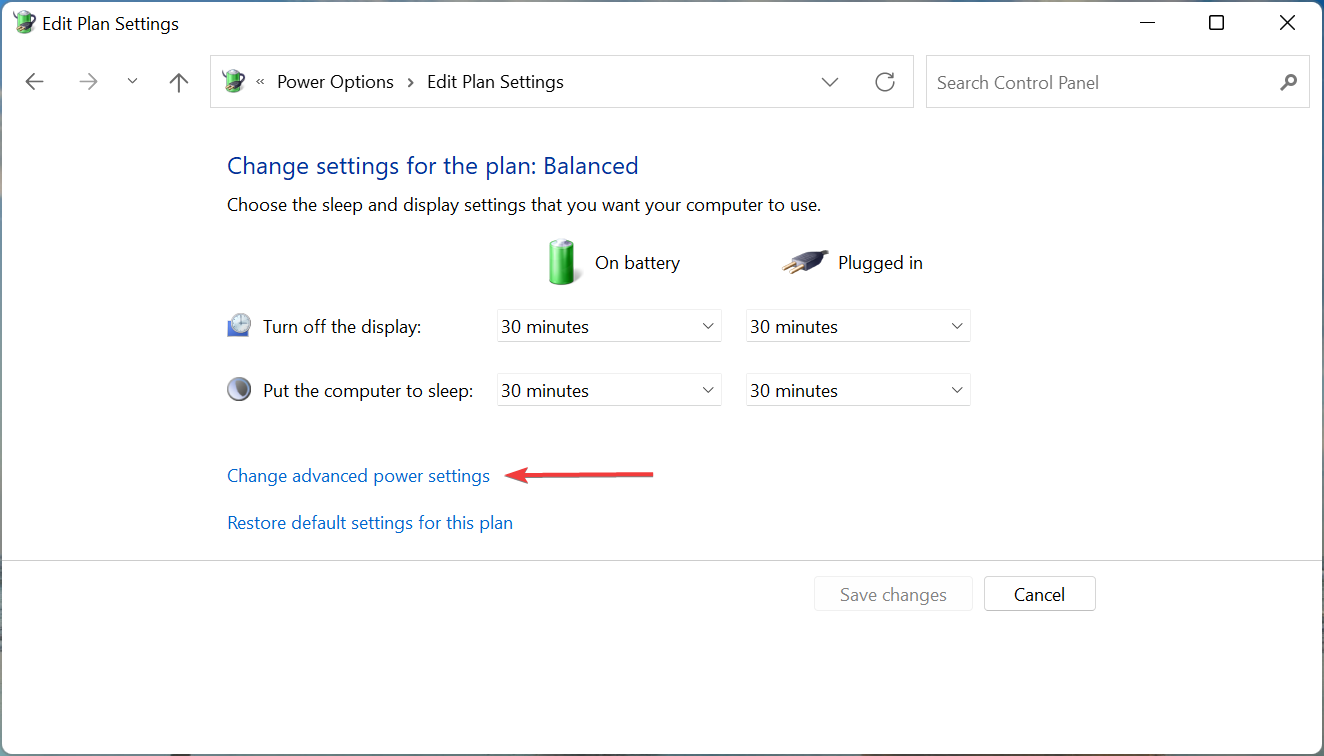
  5. Now, click on the Change advanced power settings option.Change advanced power options
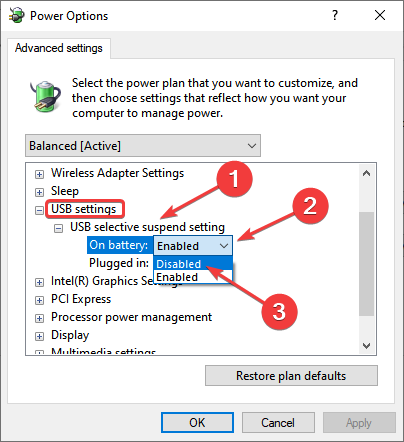
  6. Double-click on the USB settings entry and then on the USB selective suspend setting option under it. Click on the On battery dropdown menu, and select Disabled.Disable USB selective suspend setting to fix windows 11 not recognizing kindle
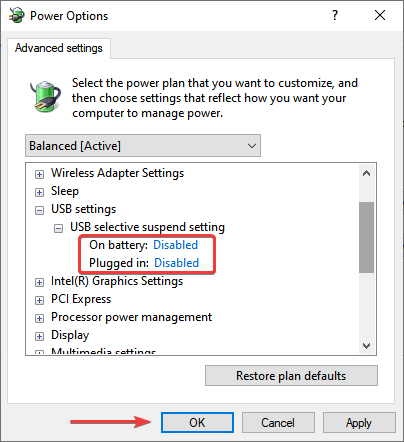
  7. Similarly, select Disabled for Plugged in as well, and click on OK at the bottom to save the changes.Disable for both

Once done, restart the computer for the changes to come into effect and check if the Windows 11 not recognizing Kindle issue is resolved.

5. Reinstall USB controller drivers

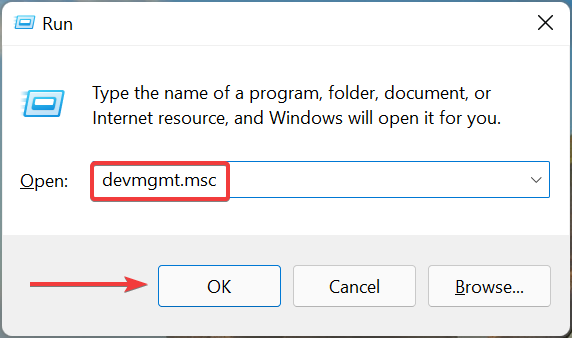
  1. Press Windows + R to launch the Run command, enter devmgmt.msc in the text field, and either click on OK or hit Enter to launch the Device Manager window.Device Manager
  2. Double-click on the Universal Serial Bus controller entry to expand and view the devices under it.Universal Serial Bus controllers
  3. Now, right on the Universal Serial Bus controller device here, and select Uninstall device from the context menu.Uninstall device to fix windows 11 not recognizing kindle
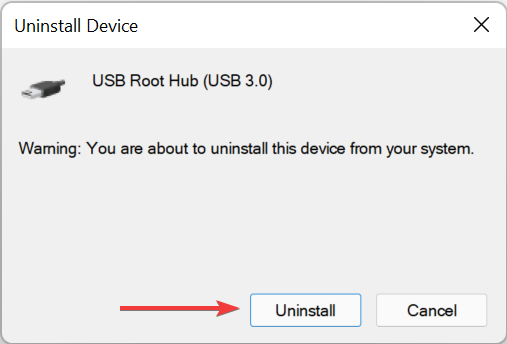
  4. Click Uninstall in the confirmation prompt that pops up.click Uninstall
  5. Similarly, uninstall all such devices and then restart the computer for the drivers to be automatically reinstalled.

If the USB drivers are not functioning effectively, it’s likely that they are corrupt. In this case, reinstalling them is the simplest way to eliminate the problem.

One of the five methods listed above must have fixed the Windows 11 not recognizing Kindle issue for you. In case these haven’t, you are left with no option but to either update its software or reset Kindle since the problem most likely lies with it.

Also, find out what to do if a Kindle book won’t download, since this error negates the whole purpose of purchasing a Kindle.

Tell us which fix worked and your experience of Kindle with Windows 11, in the comments section below.

Fix: Tiny Tina’s Wonderlands is not loading on PC

Developed by Gearbox Software and published by 2K Games, Tiny Tina’s Wonderlands is an action role-playing first-person shooter video game.

Since its release (on 25 March 2022), positive feedback didn’t wait to come to our attention, but there are also some specific issues reported by worldwide users.

In this matter, it seems like Tiny Tina’s Wonderlands is sometimes not loading as needed. Plus, according to players, this problem will occur most of the time on PCs.

Fortunately, there are always solutions you can try to solve this kind of trouble, and this article is going to list the best of them.

Even if this issue seems to usually appear on computers, we consider properly delivering some useful fixes that will help you if Tiny Tina’s Wonderlands is not loading on your console.

Where can I play Tiny Tina’s Wonderlands?

If you’re facing loading troubles with Tiny Tina’s Wonderlands on your computer, keep in mind that this game is extremely versatile, as you can also try running it on various consoles if you have one.

In this matter, developers allow you to play on both PS (PlayStation 4 and 5) and Xbox editions (Xbox One, Xbox Series X, and Xbox Series S).

According to engineers’ declarations, Tiny Tina’s Wonderlands will soon be available on one of the most gaming platforms, Steam, so make sure you keep an eye on the biggest news.

What can I do if Tiny Tina’s Wonderlands is not loading on PC?

1. Check the game’s minimum requirements

  1. Use the following keyboard shortcut to open Windows Settings: Windows + I.
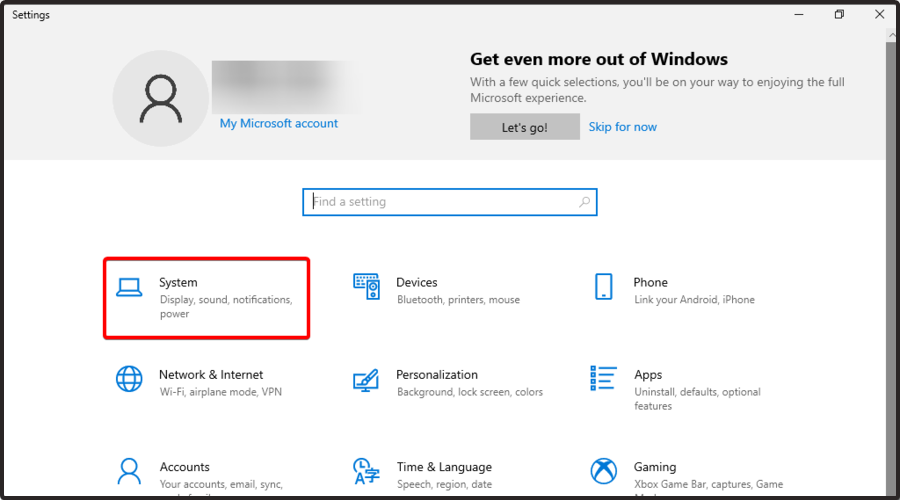
  2. Go to System.
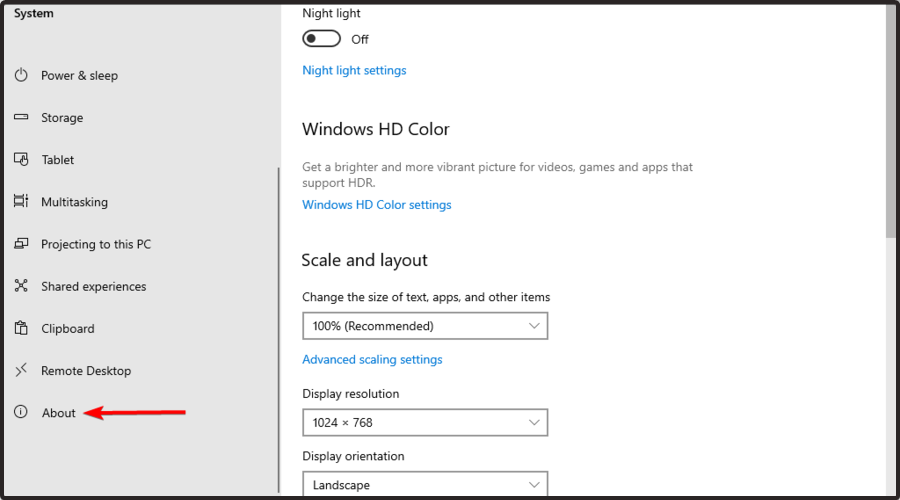
  3. From the left window pane, scroll to About, and click on it.
  4. Now, in the right window pane, you’ll be able to find your OS and hardware specs.

If your game is not loading on your computer, you should first check if your system meets the Tiny Tina’s Wonderlands’ minimum requirements. In case you don’t already know what are those, make sure you verify the list below:

  • CPU: Intel Core i5-3570 or AMD FX-8350
  • RAM: 6GB
  • Graphics: Nvidia GTX 960 4GB, or AMD Radeon RX 470
  • Storage: 75GB
  • Operating System: Windows 10

Meeting the game’s minimum requirements is good, but having better specifications is better. That’s why you should follow the following recommendations:

  • CPU: Intel Core i7-4770 or AMD Ryzen 2600
  • RAM: 16 GB
  • Graphics: Nvidia GTX 1060 6GB, or AMD Radeon RX 590 8GB
  • Storage: 75 GB
  • Operating System: Windows 10

2. Update your OS

  1. Press simultaneously on the Windows and I keys, to open Windows Settings.
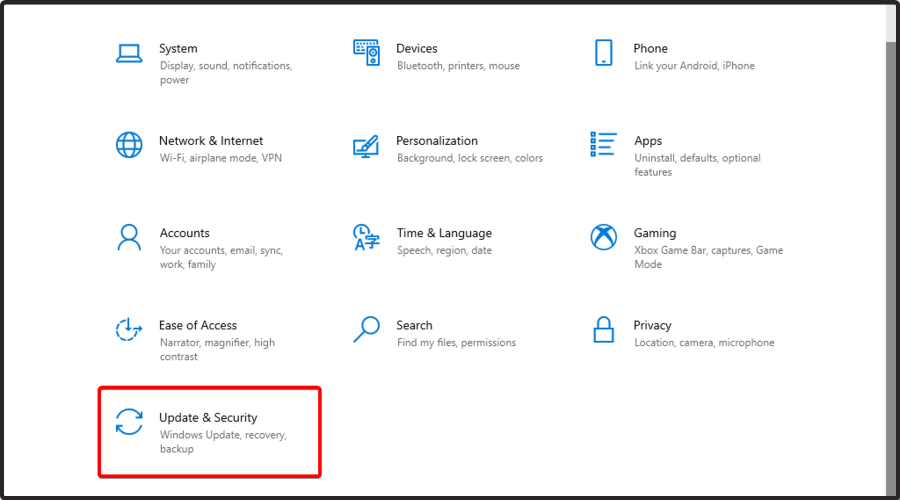
  2. Navigate to Update & Security.
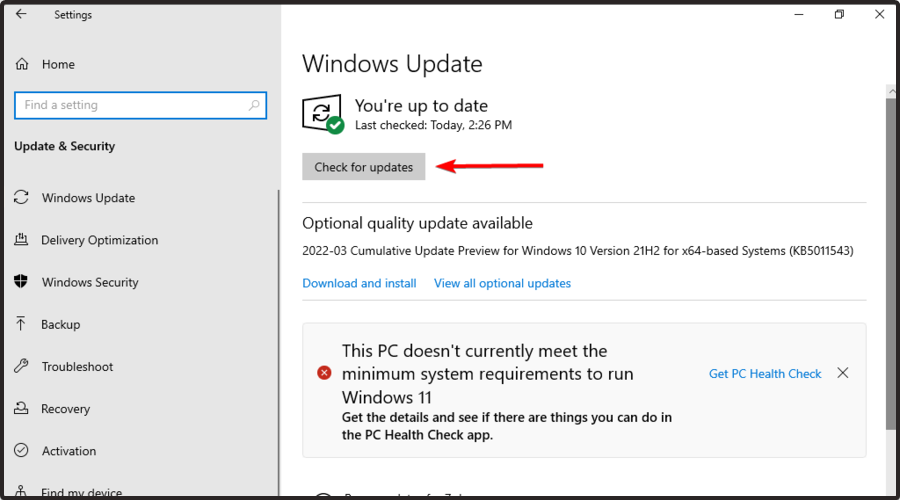
  3. Now, from the right window pane, choose to Check for updates.
  4. Wait until your system scans for new updates. After that, you’ll be notified if there are any available options to download.

3. Set High Priority in Task Manager

  1. Press simultaneously on the Ctrl, Shift, and Esc keys to start Task Manager.
  2. Go to the Details tab, right-click the desired process, and choose to Set priority. Then, select any value that you want.
  3. When the confirmation dialog appears, select Change priority.

4. Update your graphics drivers

  1. Hit the Windows key, type Device Manager, then click on the first shown result.
  2. Look for the Display adapters section and expand it. Then, right-click on the needed element and choose to Update driver.
  3. Now, click on Search automatically for drivers.
  4. Your OS will scan for any available and reliable option and you’ll be notified accordingly.
  5. Repeat the same process with all the listed drivers from the Display adapters section.

The above steps are simple but they can consume your precious time. That’s why we truly believe that trying an automatic solution to update your drivers is a better workaround.

Its name is Outbyte Driver Updater and it is a tool that will effortlessly take care of your updated or corrupted drivers. It will automatically scan for reliable options through its huge database.

Plus, it will provide a detailed report of all of your out-of-date device drivers, in order to know where the issues may come from.

⇒ Get Outbyte Driver Updater

What can I do if Tiny Tina’s Wonderlands is not loading on my console?

2.1 Check for game updates

2.1.1 Xbox editions
  1. Press the Xbox button on your controller.
  2. Next, choose My games & apps, then to See all.
  3. Select Manage and then Updates.
  4. If there is an update available, your console will automatically start downloading & installing the new patch.
2.1.1 PS editions
  1. Go to Library and highlight the game you want to update.
  2. Press the Options button and select Check for Update.
  3. If an update is available, follow the instructions to install the update.

2.2 Check for system updates

2.2.1 Xbox editions
  1. Press the Home button on the Xbox console to open the Dashboard menu.
  2. Now, select Settings from the bottom of the menu.
  3. Choose All Settings.
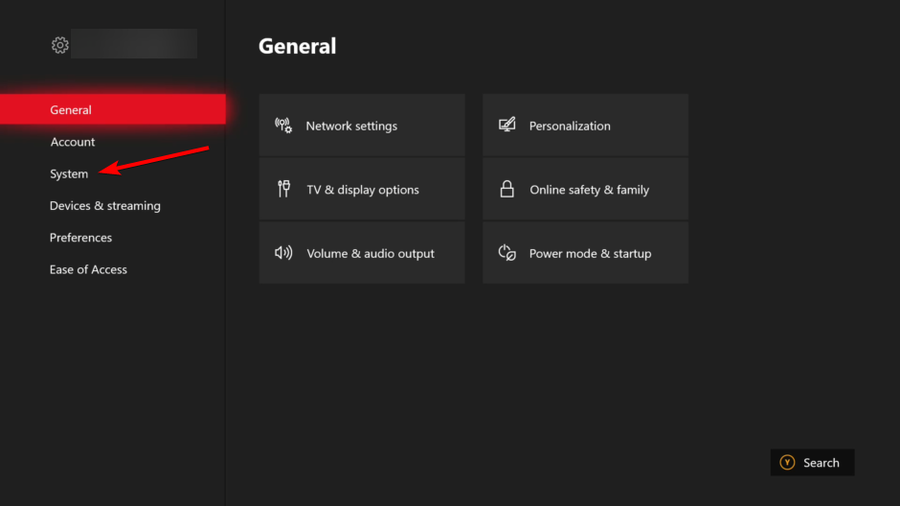
  4. Go to System.
  5. Select Updates.
  6. Choose to Update Console (if available).
  7. Follow the on-screen prompts to complete the update process.
  8. Once done, make sure to restart the console to apply changes.
2.2.2 PS editions

For PS4:

  1. Go to Notifications and delete any existing update files by pressing the (options) button, then choose to Delete them. 
  2. Select Settings.
  3. Choose System Software Update.

For PS5:

  1. Go to Settings.
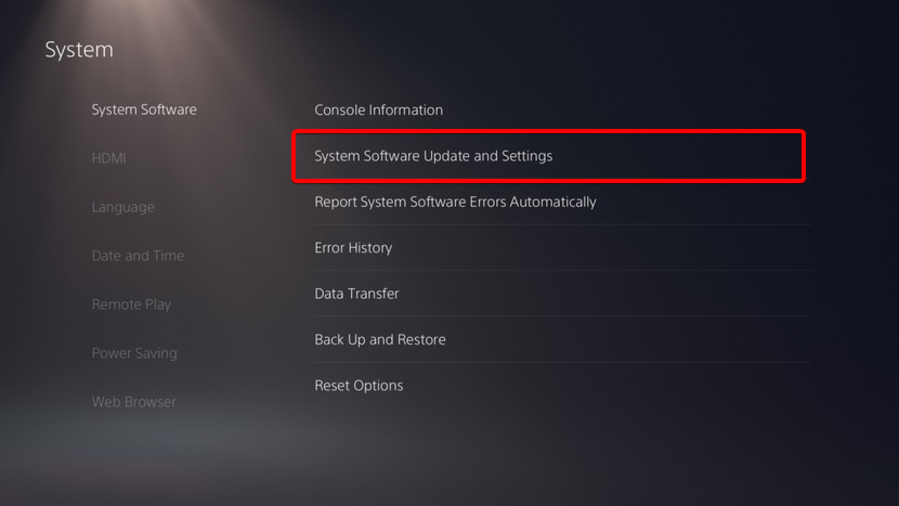
  2. Navigate to System.
  3. From the left window pane, choose System Software.
  4. Select System Software Updates and Settings.

2.3 Reset your console

2.3.1 Xbox editions
  1. Press the Xbox button to open the guide.
  2. Select Profile & system.
  3. Go to Settings.
  4. Choose System.
  5. Navigate to Console info.
  6. Select Reset console.
2.3.2 PS editions

For PS4:

  1. Power off your console completely, then unplug any cables (Keep in mind not to set it to Rest Mode).
  2. Press the power button on your PS4, then hold it down until you hear two beeps (It usually takes like 10 seconds).
  3. You’ll see a black screen when the system boots up in Safe Mode.
  4. There, you can either choose to Restore Default Settings, Initialize PS4, or Initialize PS4 (Reinstall System Software).

For PS5:

  1. Press and hold the power button for approximately 10 seconds, and release it after you hear two beeps.
  2. Connect a DualSense wireless controller via a USB cable.
  3. Then, press the [PS] button on the controller.
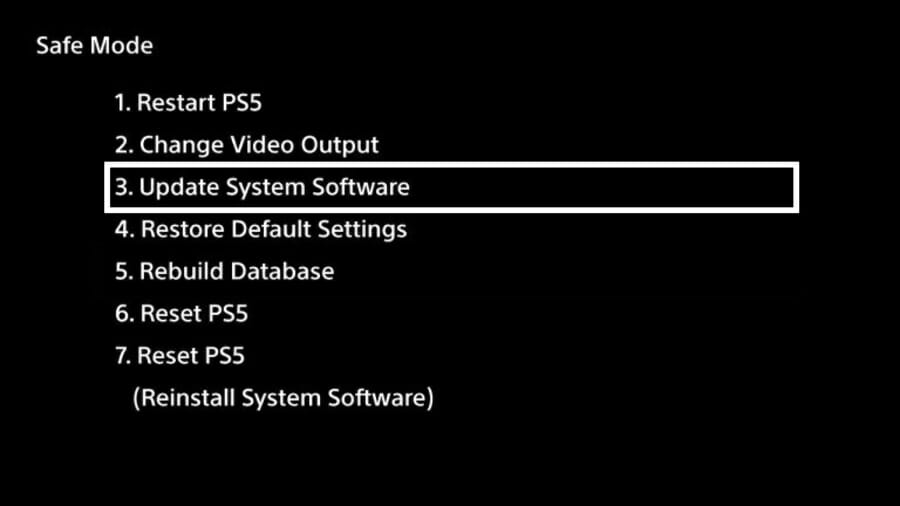
  4. Your system should now be in Safe Mode.
  5.  Now, you can choose to Restore Default Settings or Reset PS5.

So, here you are! With a complete guide to using if Tiny Tina’s Wonderlands is not loading as expected on your computer or console.

Of course, in case you encounter additional questions or curiosities, do not hesitate to leave a comment in the dedicated section below.

Windows 11 Not Updating After Restart? How to Fix it

Windows updates are released on a regular basis by Microsoft, and they are vital for keeping your computer secure. Thus, we will show you how to fix the Windows 11 not updating after restart error.

It is highly advised that you create a backup of your personal data before proceeding with the solutions to make sure you won’t lose anything by mistake.

A variety of factors may contribute to the not updating after restart problem, ranging from a sluggish internet connection, and third-party antivirus software to a lack of available disc space, corrupted update files, or driver problems.

Follow along as we will first see why it is important to update your operating system on a regular basis then jump into the list of solutions to the Windows 11 not updating after restart error. Keep up with us!

Why should I update my OS?

You’re probably used to seeing those small pop-up windows that tell you to update your OS by now. This notice indicates that software updates for your computer, laptop, tablet, or smartphone are available.

Updating your software and OS has numerous advantages. It all boils down to making adjustments. Identifying and removing computer bugs, as well as repairing security issues that have been detected, are examples of such duties.

Security flaws, also known as software vulnerabilities, are appealing to hackers because they allow them to gain access to a system. Hackers can exploit the weakness by writing code that particularly targets the flaw at hand.

When you visit a malicious website, read a compromised email, or play infected media, an exploit may infect your machine without your knowledge or agreement.

What happens after that? Malware can be used to steal data from your device or allow an attacker to take control of your computer and encrypt the data in your files. On your devices, you most likely have a big number of papers and personal information.

Your personally identifiable information, which might range from emails to bank account numbers, is of interest to cybercriminals.

This means they can either use it to commit crimes in your name or sell it on the dark web to allow others to do so in your identity.

It’s conceivable that you’ll have to pay a ransom to have your encryption key back. You might also pay a ransom and then not get your money back.

Cyber security is largely about you, but there are some other individuals to think about as well. You incur the danger of distributing a virus to your friends, family, and business contacts if your device becomes infected with one. As a result, it’s critical that you keep your software and OS up to date.

How can I fix Windows 11 not updating after restart?

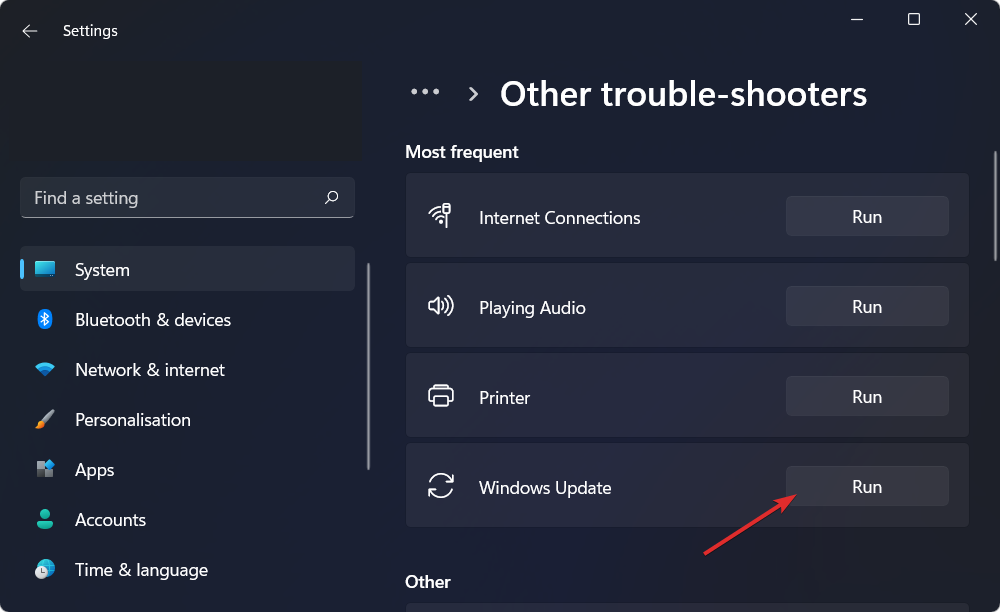
1. Run the Windows Update troubleshooter

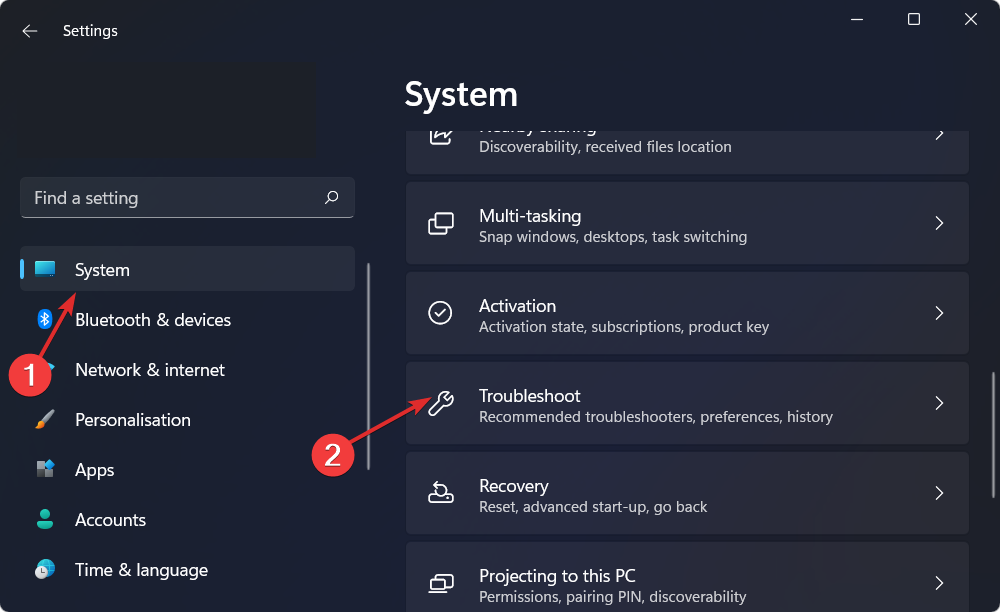
  1. Hold the Windows key + I and navigate to System from the left panel followed by Troubleshoot.system-troubleshoot windows 11 not updating after restart
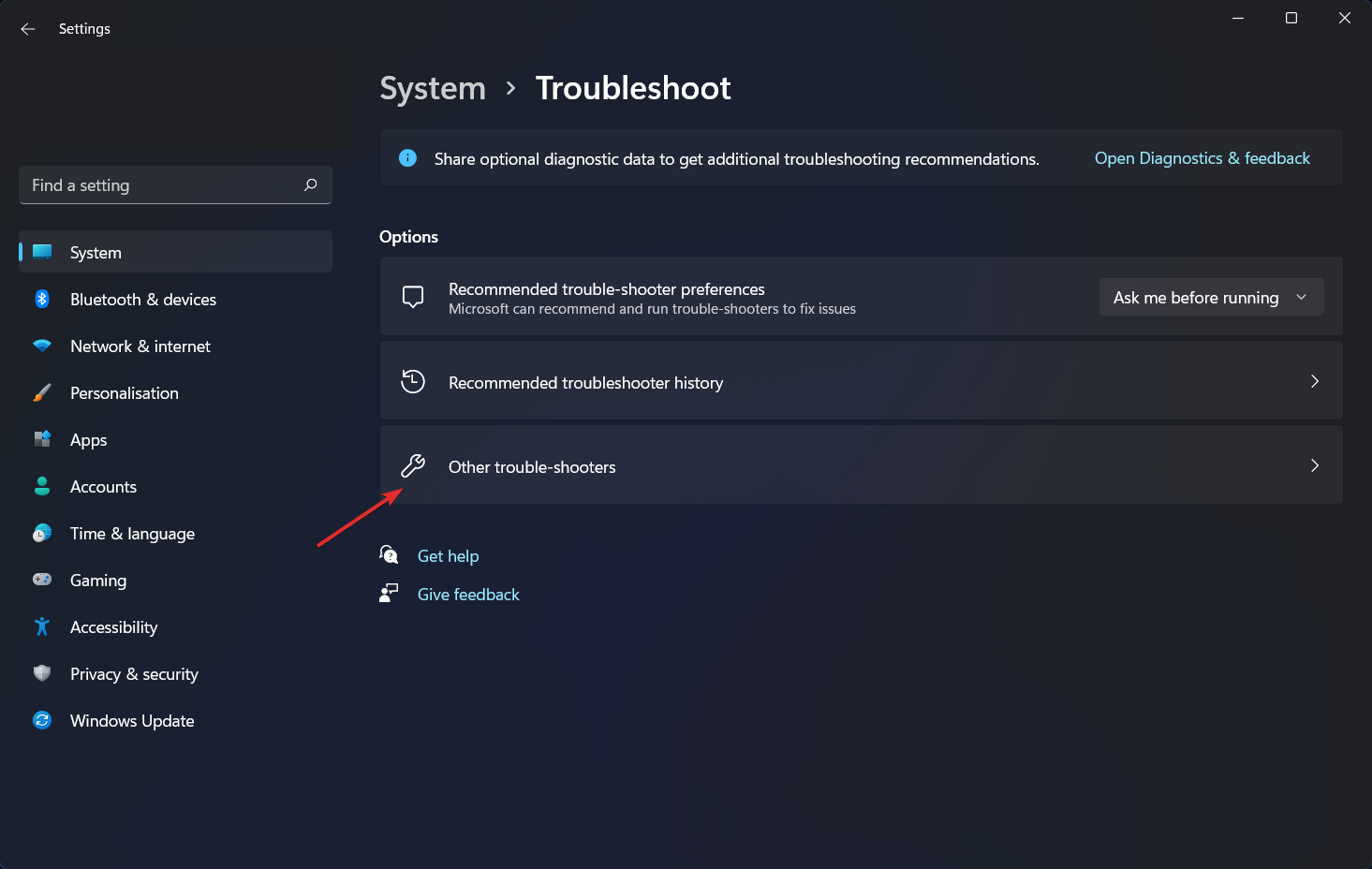
  2. After you are inside the Troubleshoot menu, click on the Other trouble-shooters option in order to find more troubleshooters.othertroubleshoot windows 11 not updating after restart
  3. Scroll down until you find the Windows Update troubleshooter and click Run next to it.windows-update-troubleshooter windows 11 not updating after restart

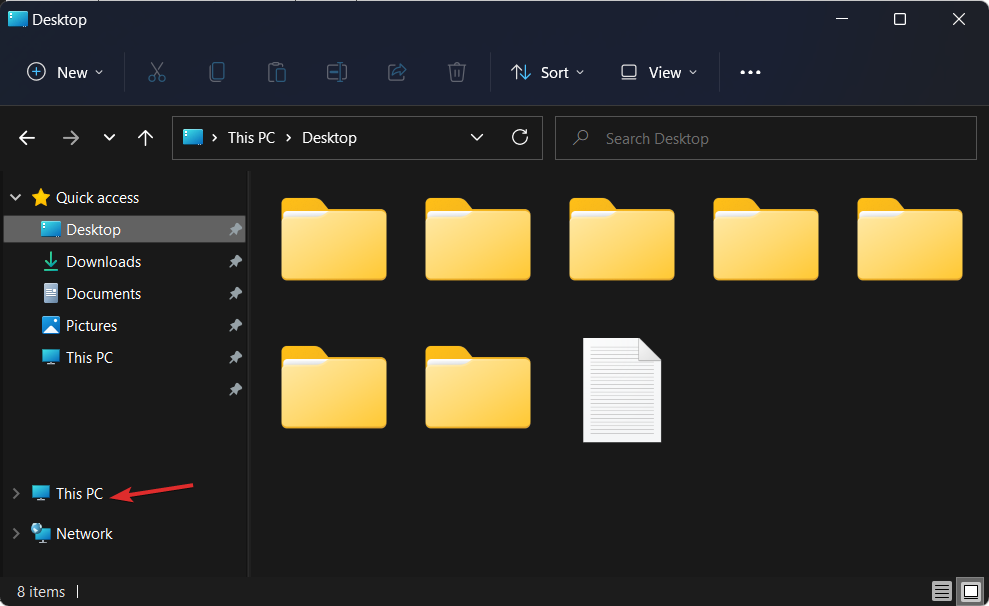
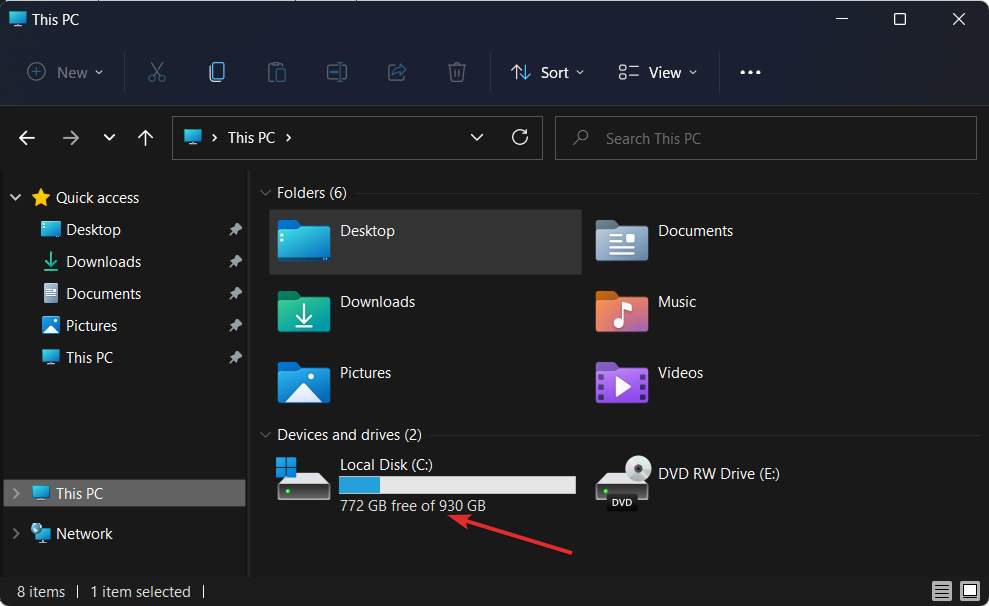
2. Free up drive space

  1. Open File Explorer and click on This PC.this-pc windows 11 not updating after restart
  2. Now check whether the drive you have set to install Windows updates on is full. If it is, try to go through it and delete redundant data.local-c-free windows 11 not updating after restart

3. Update your drivers

Outbyte Driver Updater is a lightweight software that updates, fixes, and replaces all your device drivers that need to be addressed. It is suitable for those who don’t want to spend time going through their drivers or troubleshooting driver-related errors.

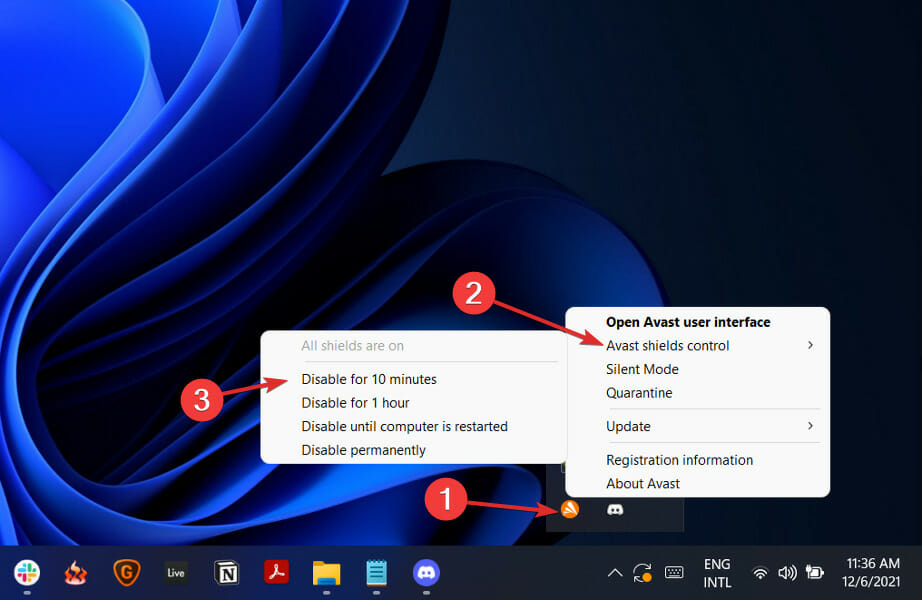
4. Disable your antivirus

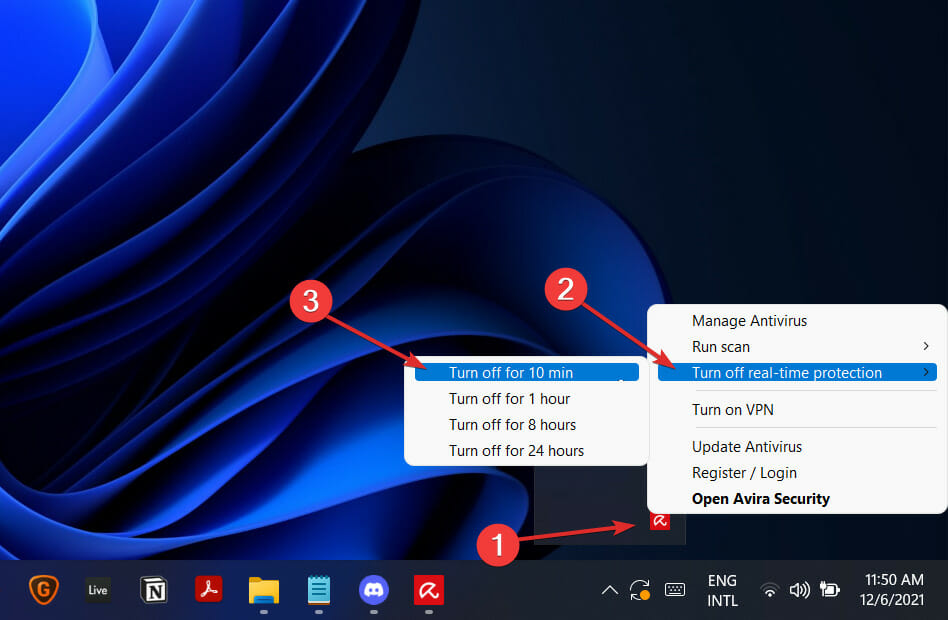
  1. Expand the icons from your taskbar on the right side and right-click on the antivirus one. Choose Avast shields control followed by Disable for 10 minutes.disable-antivirus-icon xbox controller not recognized windows 11
  2. In case you use another antivirus software, the steps are similar in disabling it temporarily.avira-disable-icon xbox controller not recognized windows 11

If the problem has gone away, it’s likely that your antivirus software was the source of the issue. To secure your machine and avoid future antivirus-related errors, you should try using another appropriate antivirus tool for Windows 11.

5. Run the SFC scan

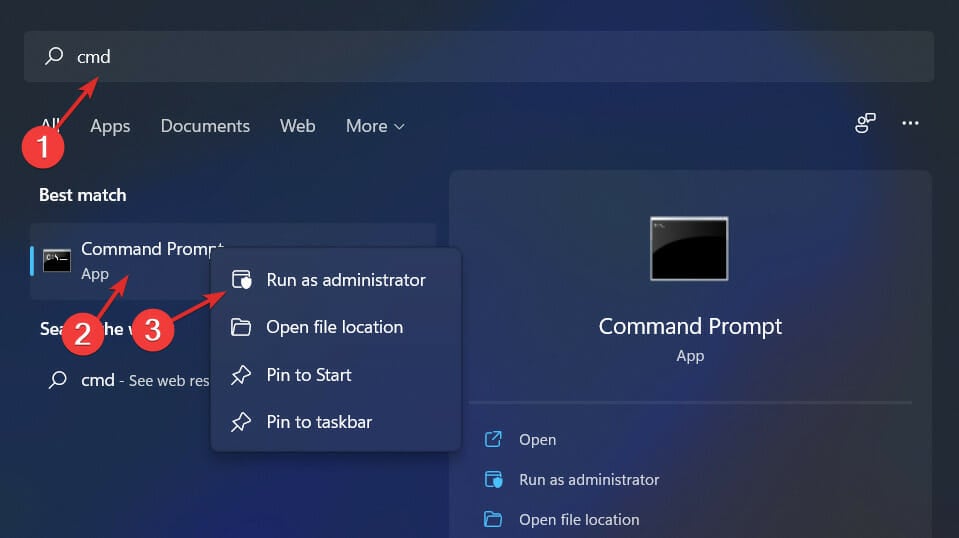
  1. Open Command Prompt as an administrator by typing cmd inside the Windows Search function and right-clicking on it.cmd-search windows 11 error system thread exception not handled
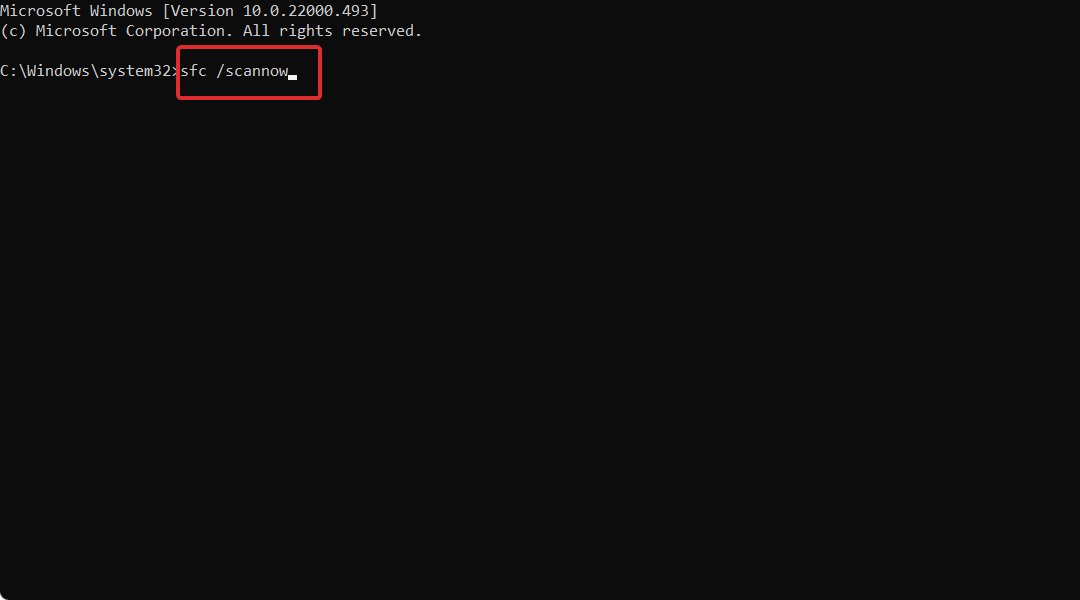
  2. Now type or paste the following command and press Enter: sfc /scannowsfc-scannow windows 11 error system thread exception not handled

These are the five solutions you can apply in order to fix the Windows 11 not updating after restart issue. However, in case you need further aid, check out our post on what to do if Windows Update is not working.

Was this guide useful for you? In order to improve our future posts leave us a comment in the section below and tell us what you think. Thanks for reading!

Best Minecraft Mods for Windows 11 (& Other Popular Games)

Windows 11 has a lot of customization options available from changing your wallpaper to choosing your accent colors and customizing the taskbar.

These customizations should be more than enough for most people who want to personalize their operating system.

Windows 11 is a great-looking OS on its own, but if you’ve been staring at the same old graphics for a while, you might be getting a little bored. Luckily, there are plenty of mods out there to spice things up.

In addition, Microsoft is also open to third-party developers, and this means that the operating system has a thriving modding community.

If you want to customize your desktop even further, then these mods are the best place to start.

Are mods legal?

Windows 11 has been out for a little while now, and we’re starting to see some amazing mods being made for it.

Rather than just adding new features like a lot of the mods out there, these mods are all about bringing something new to the OS.

The best thing about most of these mods is that they don’t require any additional software or hardware. You can download them directly from the website and immediately start using them.

On the legality of mods, it is a grey area. It’s not illegal to mod games, but it is illegal to distribute copyrighted material, such as game codes and certain assets.

As such, you cannot sell mods. It’s also important to note that the software developers you’re modifying can opt out of supporting modding, which means they can shut down mods anytime.

What are some of the best Windows 11 mods?

1. Minecraft

Minecraft’s mod scene has always played a huge part in the game’s longevity and popularity. Whether it’s a visual upgrade or a few mechanical tweaks, there are hundreds of ways to improve your experience to make the game feel new.

However, as you install mods, remember to keep them at a minimum as too many can cause loading issues.

1.0 RLCraft

When you’re looking for an extreme survival adventure, this is the Minecraft mod pack to choose. RLCraft is a modded add-on to Minecraft created by Shivaxi. This means the player must already have Minecraft and download the pack online.

The mod pack introduces a skill tree that can be unlocked throughout the game, providing different benefits that can be learned.

Additional features include:

  • A new tool has been added which allows players to break down specific blocks faster and more efficiently.
  • Weapons, and most tools, are now crafted from the new resource and have enhanced qualities.
  • An enhanced compass is part of the pack and you can find your way around your Minecraft world, and it’s pretty useful for finding where you’re going in dungeons too.

⇒ Get RLCraft

1.1 The Lost Cities Mod

The Lost Cities mod for Minecraft is one of the more popular and stable adventure mods out there.

This mod adds a wide variety of structures to Minecraft. These structures include houses and forts for the people who lived in the cities during their period. 

Some structures also include things you might find in everyday life in these civilizations, such as markets or arenas where gladiators fought.

Additional features include:

  • This mod adds various dungeons, towers, and other structures to explore as well as a variety of ways to earn money early on in the game.
  • The thirst and hunger mechanics have been exacerbated to give players the ultimate adventure.

⇒ Get The Lost Cities Mod

2. Star Wars Battlefront 2

The game is a sequel to 2015’s Star Wars Battlefront includes content from all three trilogies, and has three times as much content as the original had at launch. 

Critics received mixed reviews, praising its gameplay, visuals, and high production values. Critics, on the other hand, did not like its narrative. They claimed the hero characters were being too expensive in credits to unlock, the short campaign mode, and the progression system.

To make the game more interesting, you can download some mods.

2.0 Splitscreen

The Battlefront 2 Splitscreen mod will enable two players to play offline on the same console. 

Additional features include:

  • The split-screen mode supports up to two players in horizontal or vertical layout on PC.
  • You can play by yourself or with friends, as well as join up with other players from around the world in an attempt to defeat your opponents.

⇒ Get Splitscreen mod

2.1 AI Arcade Overhaul

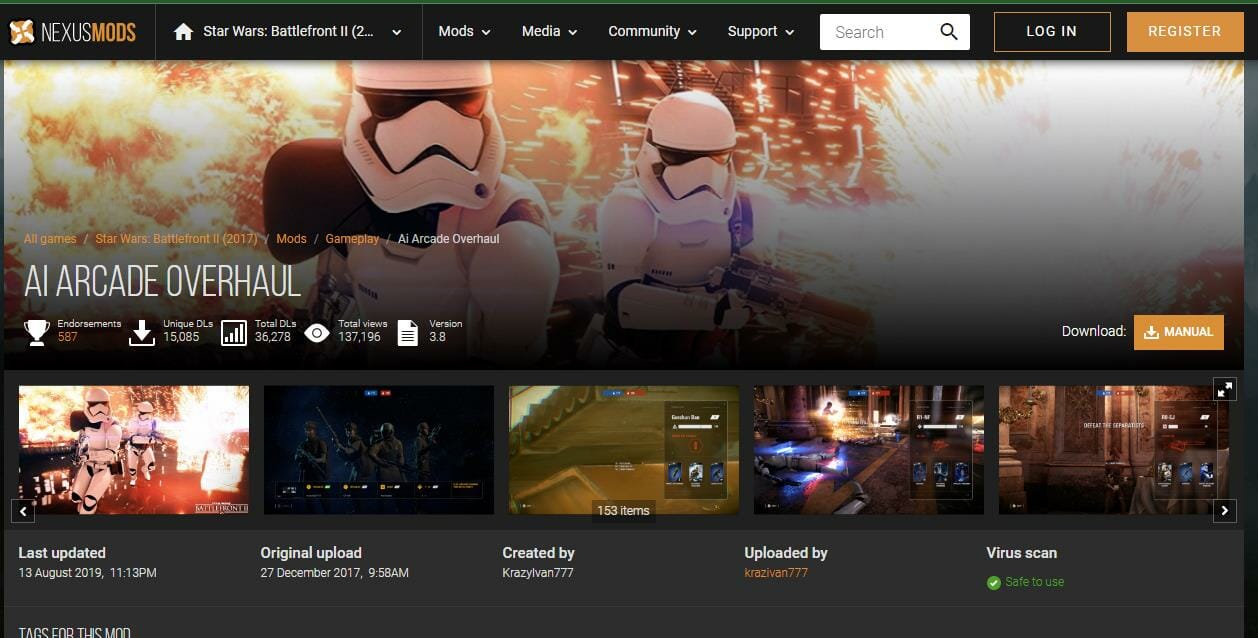
Thanks to krazivan777, users can customize players and AI characters. The AI characters are smarter and more reactive to their environment than ever before. This makes for more gameplay customization as well as smarter opponents on all sides of the battle.

Additional features include:

  • Improved running speed on ground-level combat maps.
  • Enemies take longer to get into battle, they have more health, and they’re much better at using cover when they can.

⇒ Get AI Arcade Overhaul mod

3. The Witcher 3

The gameplay is tight and responsive, giving you a deep sense of control and ownership over your actions. It’s full of exciting moments, breathtaking visual splendor, and deeply satisfying role-playing systems.

3.0 The Witcher 3 HD Reworked Project

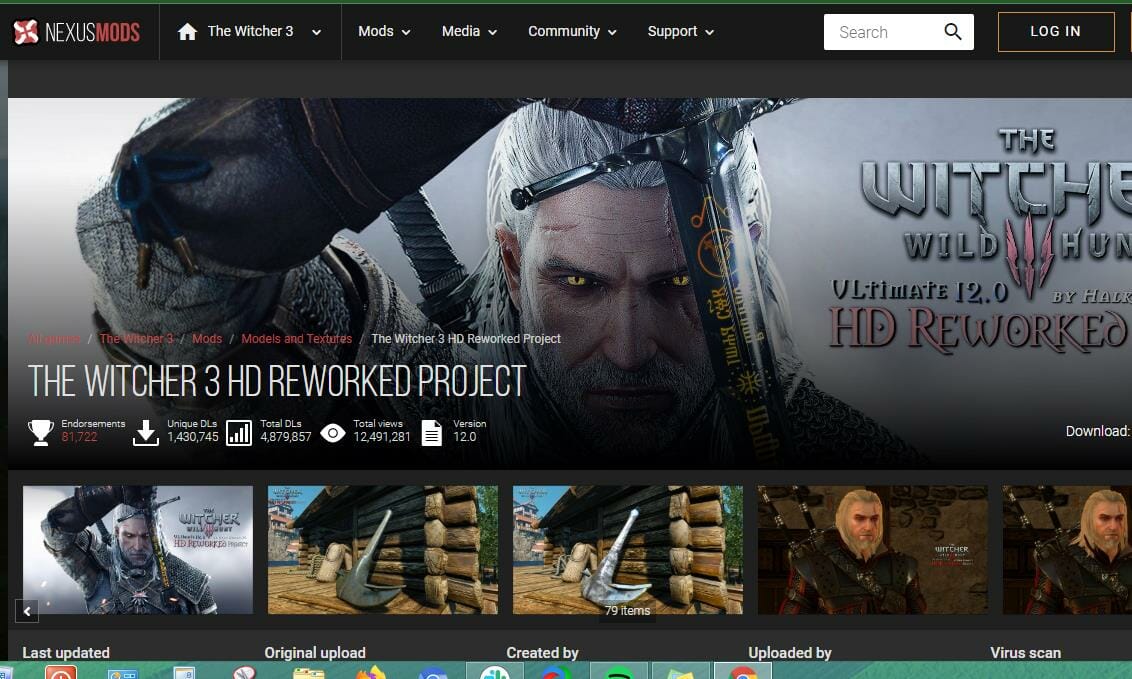
The Witcher 3 HD Reworked Project is a mod that completely revamps the game’s graphics. It’s free, and it’s a boon for players who want to keep playing The Witcher 3 on modern systems.

Additional features include:

  • The mod does an incredible job of improving character models, environments, weapons, armor, and more. 
  • It features some additional improvements such as sharpening, 4K support, or adding missing details not in the original game.

⇒ Get The Witcher 3 HD Reworked Project

3.1 Better Combat Evolved 2.0 

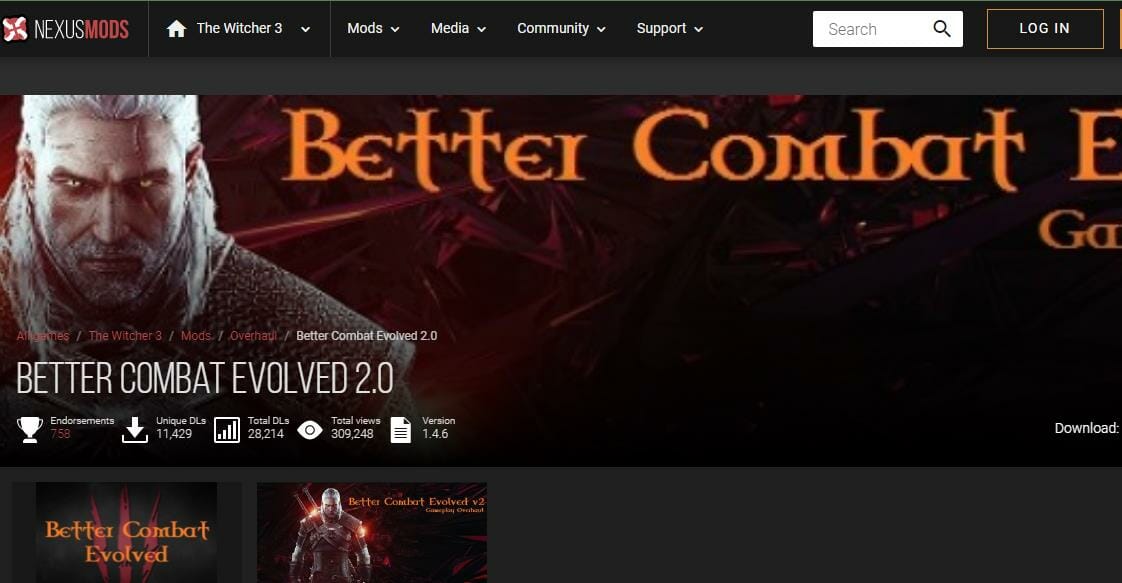
In every game, there is always a set of players who feel that the difficulty levels are just not difficult enough. If you fall under this group and are a fan of The Witcher 3, this is the mod for you.

Additional features include:

  • Heightens the difficulty levels of the game to quench the challenge-hungry players.
  • It adds a slew of different changes, from increasing the damage that Geralt can dish out to lowering the damage that enemies can withstand.

⇒ Get Better Combat Evolved 2.0 

Is Windows 11 great for gaming?

Windows 11 has been getting a lot of attention from gamers who are looking to upgrade their PCs because of what Microsoft claims about it being great for gaming. But does it live up to all that hype?

Compared to previous Windows versions, Windows 11 brings a smoother gaming experience.

Windows 11’s DirectStorage feature is big news for PC gamers, especially those who play games without any form of hard drive optimization. 

That’s because DirectStorage is a new API built to take advantage of the SSDs and NVMe drives that are becoming standard in today’s PCs.

DirectStorage promises to improve load times, reduce in-game stutters, and ultimately benefit game performance.

AutoHDR, currently exclusive to Windows 11 is another feature that makes gaming worth it. The feature automatically lets games run with HDR graphics, even if they don’t have native support for high dynamic range (HDR) visuals.

Aside from these features, you also need to enable Windows 11 gaming settings to get the most out of your game.

In addition, also check out our guide on how to optimize your PC for better gaming performance to get the most fun out of your game.

This is in no way an exhaustive list, as there are hundreds of games available and mods associated with each game. To elevate your Minecraft gameplay visuals, explore our guide featuring a list of shaders you can download and install.

Steam users can also make use of DLCs, but if they do not meet expectations, you can request a DLC refund.

For the sake of other game fanatics, we’d love to hear from you about your favorite games and the accompanying mods that you just can’t live without. Start us off in the comment section below.

Switch Pro Controller Not Detected on Windows 11 [Fix]

While the Switch Pro controller is popular for its long battery life and large buttons, some users have reported that Windows 11 doesn’t recognize it, either in Device Manager or Steam.

This issue may stem from outdated drivers, faulty USB ports, or other technical glitches. Here’s how to fix it.

How can I fix Windows 11 not recognizing the Switch Pro controller?

1. Check your USB port

add device windows 11 not recognizing switch pro controller

While USB ports are generally durable, they can accumulate dust and debris over time, leading to recognition problems with your Switch Pro controller.

To check if the issue is with the USB port, try connecting to another device, like your phone. If your computer recognizes the other device, the port is fine. You can also try holding down the sync button on the controller while plugging it into your computer.

2. Update your drivers

  1. Open Settings with the Windows + I shortcut and navigate to the Windows Update section from the left side, followed by Advanced options from the right side.advanced-options windows 11 not recognizing switch pro controller
  2. Now click on the Optional updates option and select all the driver updates that you have available followed by the Download and install button.optional-updates-button windows 11 not recognizing switch pro controller

If you don’t want to manually update your drivers, we recommend that you give Fortect Driver Updater a try. It is a lightweight software that automatically updates, fixes, and replaces all of your drivers without interfering with your day-to-day activities.

⇒ Get Fortect Driver Updater

3. Disconnect other controllers from Switch

  1.  In order to disconnect all your controllers from your Switch, you will have to go to System Settings followed by Controllers and Sensors.controllers-switch windows 11 not recognizing switch pro controller
  2. Scroll down to the button then select the Disconnect controllers option. In order to ensure your controller doesn’t connect to your Switch wirelessly and cause Windows 11 not to recognize the Switch Pro controller error again, turn your Switch off.

4. Update your OS

  1. Open the Settings app and go to the Windows Update section.windows-update windows 11 dynamic refresh rate not working
  2. Here, press the blue button that either says Install now or Check for new updates, depending on your case.check-for-updates windows 11 dynamic refresh rate not working

What are the advantages of using the Switch Pro controller?

Here are the main benefits of Switch Pro controller:

  • Ergonomic Design: The Switch Pro controller features a smarter button layout and size, offering maximum comfort for hands and fingers during gameplay.
  • High-Quality Build: Made from matte plastic, it resists fingerprints and is assembled with precision for durability.
  • Comfortable Thumb Positioning: Unlike Joy-Cons, the design allows users to keep their thumbs straight when switching between buttons and sticks.
  • Optimized Buttons: The A, B, X, and Y buttons are larger and arranged in a traditional diamond pattern, suitable for all hand sizes.
  • Smooth Sticks: The sticks on the Pro controller provide a very smooth gaming experience.
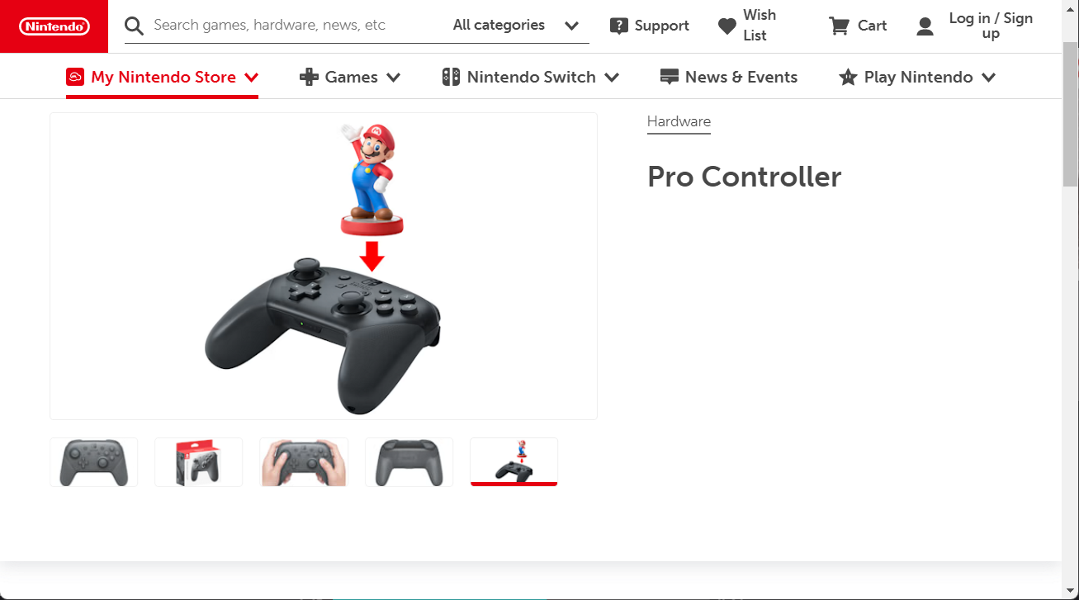
switch windows 11 not recognizing switch pro controller
Switch Pro controller (Source: Nintendo)

Wrapping up

If you’re having this problem, it’s very likely that you’re using an older version of Windows, and that’s what’s causing it. Upgrading to the most recent Windows update may resolve the problem.

These are the ways in which you can fix the Windows 11 not recognizing Switch Pro controller error. If you need further assistance, you might have to call the Nintendo support team to check whether your controller has any problems.

Was this guide useful? Let us know in the comments section below as well as whether you have more solutions in mind. Thanks for reading!

Best Collage Maker Software For PC: 7 Free & Paid Options

With the best photo collage software for PC you can transform your favorite photos into stunning visuals effortlessly. Today we’ll explore the best options for creating eye-catching pieces easily.

Whether you’re a photography enthusiast, graphic designer, or social media user, these top tools offer everything you need (from interfaces to customization options)to bring your creative ideas to life.

What is the best collage maker for PC?

If you’re short on time, take a quick look at the video below. If you want more details, keep reading:

Let’s check out each tool at a time:

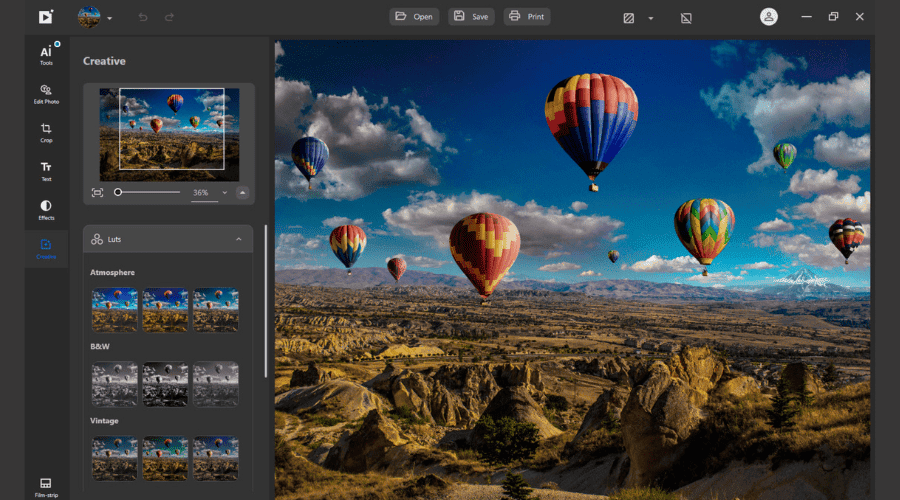
inPixio Photo Studio Pro 12 – Perfect for Detailed Collages and Restorations

Main features:

  • Object erase
  • Fix old photos
  • Easy-to-use and master
  • Create great photo montages
  • Great amazing photo collages
  • Switch the sky for vibrant photos

With InPixio, removing or adding new objects to photos is done seamlessly thanks to a built-in AI, and the final photo will look natural and unaltered.

Bring together the best moments of your life and your favorite people all in a single frame, retouch any imperfections, or even add elements from older photos, since those can be restored as well.

Whatever you need, inPixio Photo Studio delivers, and for a free app, it definitely comes with a lot of excellent features. Furthermore, you can share your project on Facebook and Twitter.

Photo Studio Pro 12

Photo Studio Pro 12

Transform your photos into beautiful, cohesive collages with inPixio!
Check price Visit Website

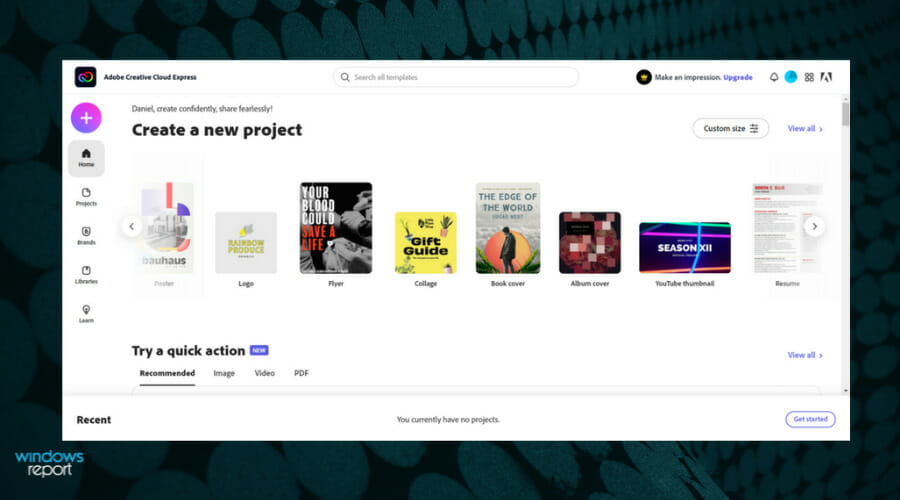
Adobe Creative Cloud Express –  Ideal for Quick and Easy Collage Design

Main features

  • Delivers different layouts, backgrounds, colors, fonts, and much more
  • Pick images from a vast library on Adobe Creative Cloud
  • Layout hint feature (to give you directions while editing so you don’t have to rely on guessing)
  • Create, edit, and publish your project from anywhere using the mobile app
  • Friendly and intuitive interface

Adobe Creative Cloud Express is one great product from the Adobe Creative Suite and it’s extremely versatile. 

Besides having a large usage in the creation of logos, banners, and letterheads, it is perfect for designing photo collages both for beginners and professionals.

It was built with an easy-to-use dashboard and navigation panel in mind so that you can find immediately what you’re looking for.

Adobe Creative Cloud Express

Start designing with ease today and impress your audience with Adobe Creative Cloud Express!
Check price Visit Website

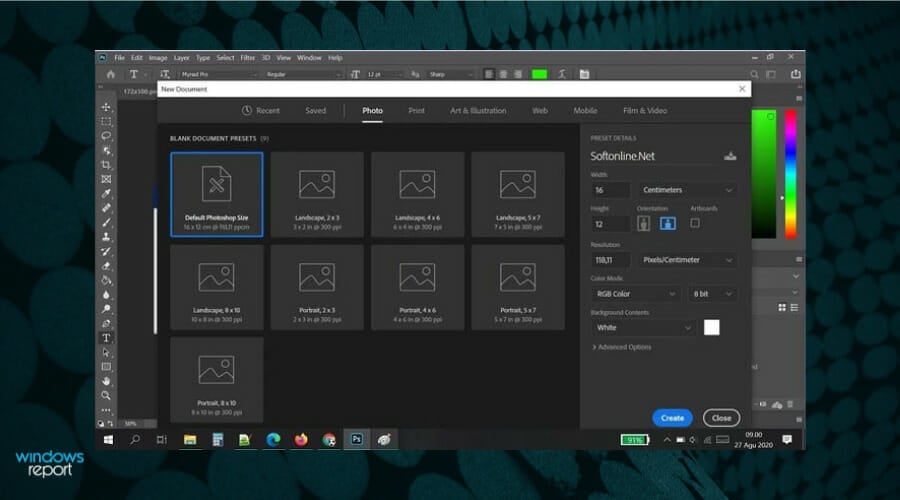
Adobe Photoshop CC – Professional Tools for Custom Collages

Main features:

  • Smart Objects import option for safe resizing and editing of images
  • Integrated Selection tool for accurate and precise selections
  • Ability to work on the images in real-time and make adjustments accordingly
  • Advanced image editing tools for a high-quality montage
  • Complex set of tools and features

The amount of work involved in collage creation will be greater because in Adobe Photoshop CC you will need to design from scratch.

To create a good-looking collage we recommend sticking only to a few images (5-10) and picking different sizes. You can also use Adobe Lightroom which can organize your image library and fasten the process.

The great advantage of Photoshop is that you’ve also got an unparalleled photo editor at your disposal to enhance your images before including them in the montages.

Adobe Photoshop CC

Unleash your creativity and create stunning photo collages with the world’s best graphic design software.
Free trial Visit Website

Fotor –  Freestyle Collage Creation with Versatility

Main features:

  • Set up collages with up to 80 templates that support up to nine photographs
  • Freestyle mode to arrange the photos with a more unique layout (adjust border shadows, corners, width, and add patterns to borders)
  • Rotate photos and adjust their transparency
  • Includes 22 unique backgrounds for collages
  • Export options for social media and photo sites such as Twitter and Flickr

If you’re looking for free photo collage software, look no further! Fotor is an app you can add to Windows desktop and mobile platforms, Android, iOS, and Mac devices.

Furthermore, you can set up photo collages with Fotor’s online collage tool. The web tool has a Fotor Pro pack with a competitive monthly subscription plan that gives you more than 80 collage templates and other exclusive content.

As Fotor is multi-purpose photography software, it also has plenty of image-editing options and more than 60 filter effects to enhance your collage pictures.

Fotor

Create, adjust, and resize any images into a gorgeous photo collage with just a few clicks!

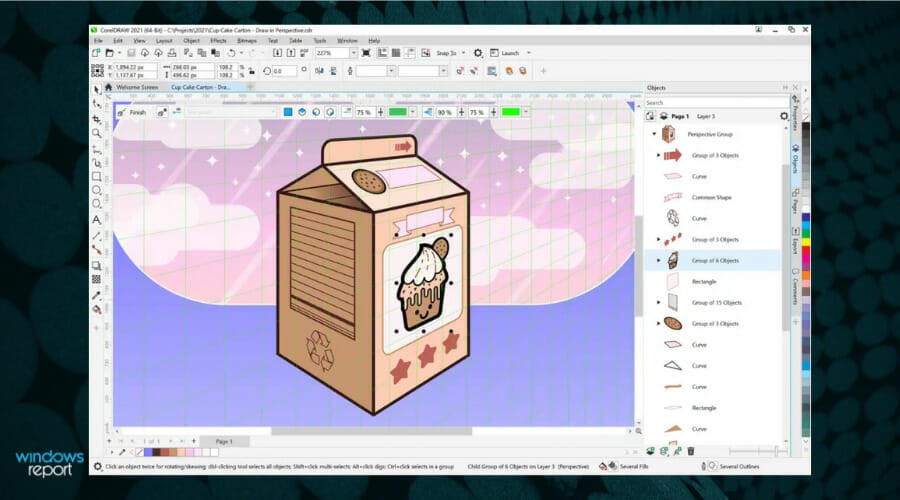
CorelDRAW – Professional Vector-Based Collage Design

Main features:

  • Professional vector illustration, layout, photo editing, and typography tools
  • Productivity and collaboration-focused options to accelerate and streamline your workflow
  • Pre-made collage templates where you can simply add your own photos
  • Cross-platform compatibility to work from anywhere you like
  • Extensive learning materials, tutorials, and guidelines

When it comes to vector-based graphic design, CorelDRAW delivers all the tools you want to craft sleek design projects.

This app covers all your needs from photo editing to layout and typography tools, using bitmap-to-trace vector-based technology for crisp-looking results that you can scale as up or as down as you like without compromising on image quality.

Creating a photo collage with CorelDraw is as easy as it gets. Feel free to make use of its complex toolkit and even rely on pre-built templates to achieve stunning results.

CorelDRAW

Elevate your collage-making with CorelDRAW’s professional design tools.
Free trial Visit Website

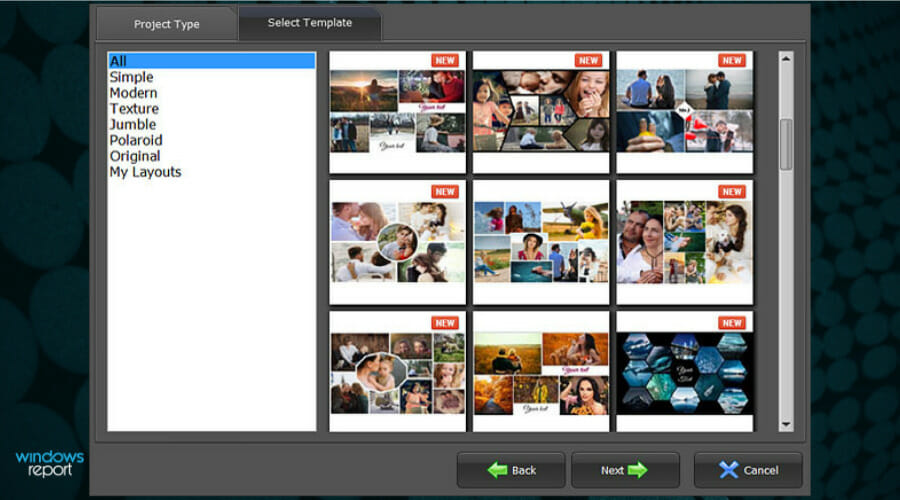
Photo Collage Maker – Fun and Easy for Creative Freedom

Main features:

  • More than 370 professional templates are available
  • Lots of elements like photo frames, clipart, and masks to add
  • Easy-to-use interface
  • Save your work in any popular image format
  • Separate any object from its background 

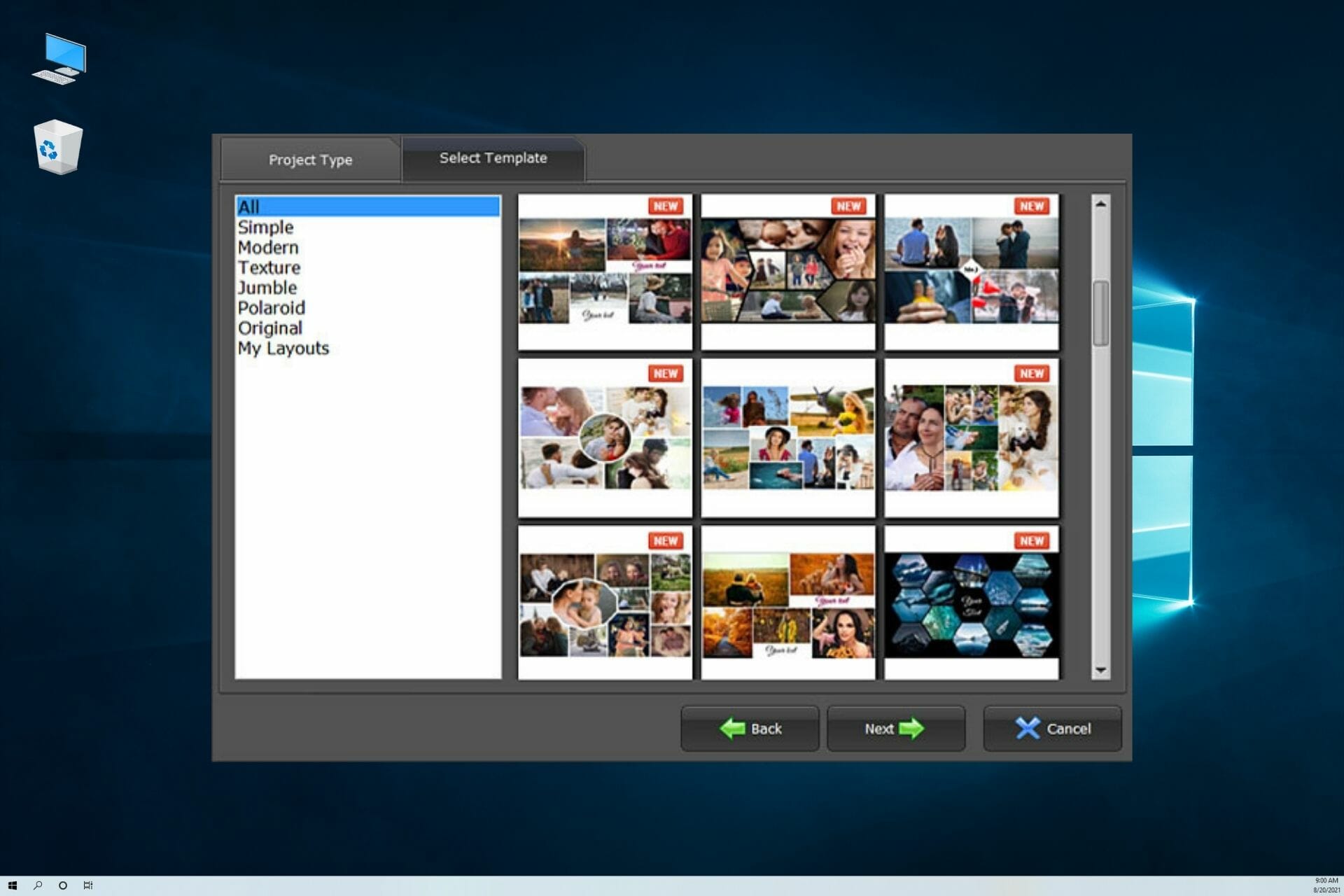
If you have a soft spot for digital scrapbooking and collage creation, Photo Collage Maker might be the right program for you.

There are 370+ professional templates under the hood – you are going to find a template just for your liking and occasion.

You may decorate your photos with a variety of other elements, from photo frames and masks to captions and cliparts – these things will surely draw a smile on anyone’s face.

Photo Collage Maker

Explore endless possibilities and express your creativity today!
Check price Visit Website

Canva – Inspiration and Creativity for Stunning Collages

Main features:

  • Beautiful imagery collection
  • Professional templates and layout options
  • Ideas, inspirational content, guides, and tutorials
  • Extensive image editing toolkit
  • Countless filters and effects
  • Beautiful fonts and typography tools
  • Native support for popular formats such as JPEG, PNG, PDF and many more

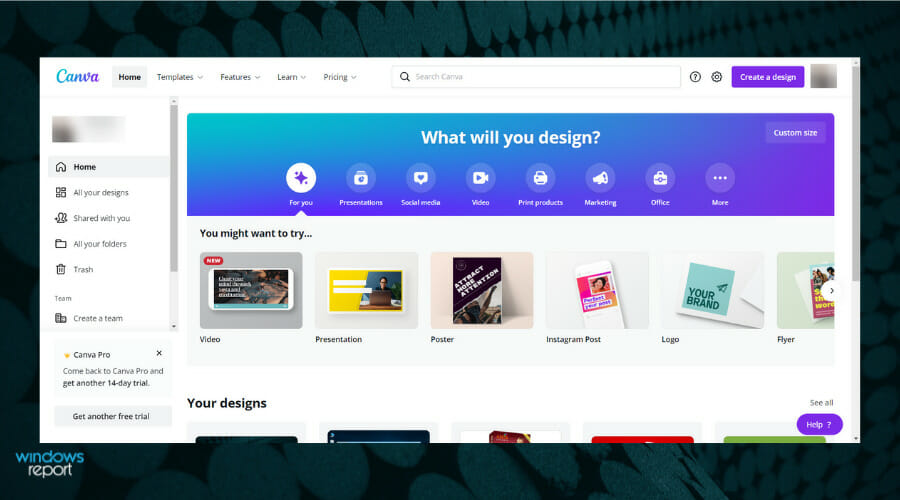
Canva is another great photo editing tool that allows you to create stunning photo collages effortlessly.

Boasting an impressive library of fully customizable templates with more than a hundred photo collage layouts, Canva will take your photo montage to unprecedented peeks.

⇒ Get Canva

Wrapping up

These are the best Windows programs and apps to help you set up photo collages. With these tools, you can create visually stunning collages that include stickers, clip art, unique layouts, text, shapes, and additional multimedia.

And while we’re on this subject, feel free to look at our list including the best slideshow creation software, and add music and effects to your photos.

What’s your favorite photo collage software? Feel free to share your choice by reaching for the comments section below.

Microsoft Money for Windows 11: Download all Versions

Even though Microsoft Money was discontinued, the Microsoft Money Plus Sunset version still lets you access and edit Money files, though without online features or support.

Today, we’ll show you where to download it and how to set it up.

How can I download and install Microsoft Money Plus Sunset Home & Business on Windows 11?

  1. Download the 2010 version of Microsoft Money. 
  2. Double click on the downloaded file for the installation to begin. 
  3. On the next page, read through the whole license terms and when you do that, click on I Accept for the installation to begin.MS Money Sunset install begin
  4. Wait until the installation is over. Here click on Finish, and you should be good to go.MS Money Sunset install complete
  1. The Microsoft Money icon will appear when you click the Start button and type money in the search box. To continue, simply click on Microsoft Money.search MS Money
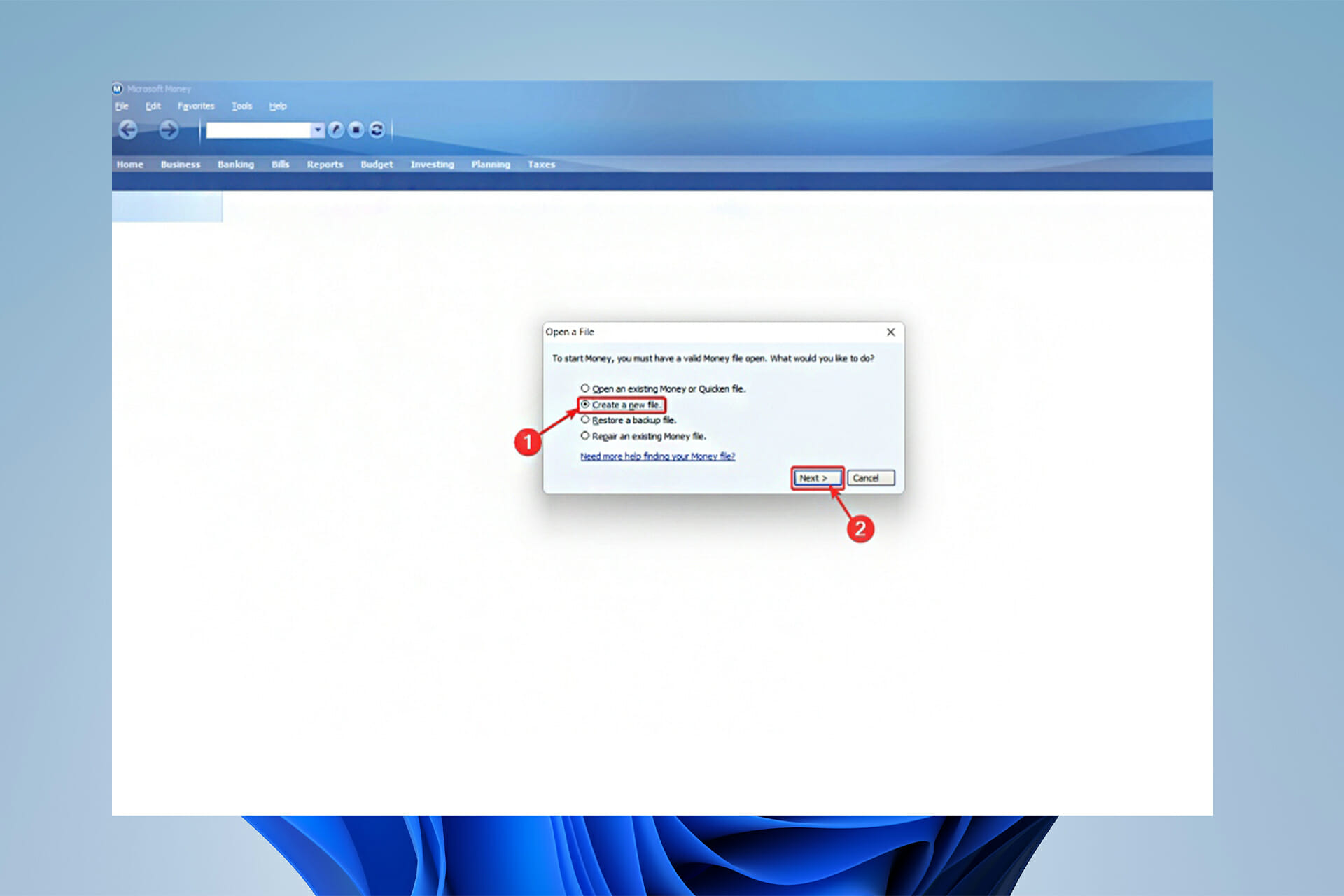
  1. If the page below shows up, select Create a New File and click on Next. Then choose a location for the money file and click OK.Launching MS Money step 1
  1. Microsoft Money will now give you guarantees concerning keeping track of your finances over the internet, but none of them are valid any longer. Continue by pressing the Next button. Launching Microsoft Money step 2
  1. Money promises to make your financial records more secure by adding a password to the data file. Feel free to add one or check the box that says I don’t want to use a password then click Next.Launching MS Money step 3
  1. Next, they ask you to enter your personal information for better customization of your money file. You better just click on Skip and move on.Launching MS Money step 4
  1. Money used to be able to connect straight to bank accounts and work its wonders by taking in transactional data.
    Banking security has advanced, and we are pretty sure that no financial organization allows this anymore.
    However, if your bank still does allow you to export.qif or .ofx files, you can import them into Microsoft Money Sunset. Otherwise, just click on Skip Account Setup.Launching Microsoft Money step 5
  1. Finally, you can see the message You have successfully created your money file. your money file is ready and you can click Finish.Launching Microsoft Money step 6
  1. Here it is. Microsoft Money is on your Windows 11 and you’re good to go. Launching ms money completed

What to do if Microsoft Money Sunset doesn’t launch on Windows 11?

  1. Click on the search button in your Windows 11 taskbar and type Registry Editor and hit Enter.
  1. Follow this path to find the Internet Explorer file: HKEY_LOCAL_MACHINE\SOFTWARE\Wow6432Node\Microsoft\Internet Explorer
  2. When you find the folder, on the right side, click on Version and change the value to 9.11.10240.0 and click OK.Locate internet explorer folder and change version value
  3. Then exit the registry and restart your computer. Now you should be good to go.

MS Money’s version releases

  • Microsoft Money 2007, version 16.0 of the program, was the first version to require product activation for copies installed from downloaded installation files.
  • Microsoft Money Plus, version 17.0.150.1415 of the program was the final retail release. The first and only version to require product activation on those copies installed from a CD.
  • Microsoft later released Money Plus Sunset, version 17.0.150.3817 of the program, an edition of Money Plus that did not require activation.
  • Then came the Windows 8 edition released back in 2012, which is version 18.0 of the program, and it was at this time when they decided to introduce the MSN: Money as the replacement for the main software.
  • And last but not least is the Windows 10 edition, which is basically the aforementioned MSN: Money, only optimized for Windows 10.

What should I know about different versions of Microsoft Money?

Microsoft Money has localized editions for the UK, France, Japan, and Canada, as well as an International English edition for additional English-speaking nations.

Other countries, such as Russia, Brazil, Germany, and Italy, have their own editions. However, these editions were phased out.

Later, Microsoft provided a free, time-limited trial version of Microsoft Money Plus that could be downloaded.

Data files from the Canadian edition of Money could be imported into this trial version but not from other non-US editions.

Users upgrading from non-US editions must manually export and reimport their accounts, and some information may need to be re-entered.

And now, for the main part, you’re here for the solutions. Below you can see a couple of different ways to install Microsoft Money on your Windows 11 and fix any possible issues and errors.

Summary

Microsoft Money is an outdated software that works with other old software, most notably the now-retired Internet Explorer.

Many Money users have noticed that the software occasionally fails to open, necessitating a short registry adjustment. To fix the issues you should follow the steps above.

However, Microsoft Money continues to maintain a large user base, despite the fact that it is over a decade old.

So, in case you don’t mind doing some manual data entry or import, it’s still an excellent way to keep track of your personal finances. 

How to fix the Logitech G305 mouse cursor stuttering

Problems with the mouse can happen from time to time, but a simple restart should suffice in most cases. However, several users encountered the stuttering issue with Logitech G305 and were unable to eliminate it.

Though Logitech manufactures some of the best mouse models available, there is always a chance of one running into an error. And after going through several forums where users shared the issues, we found out that it’s not always the mouse to be blamed.

Sometimes, it was an issue with the system that caused the mouse to stutter. In such cases, even replacing the mouse wouldn’t help. So, let’s now go through the underlying causes and most effective fixes for Logitech G305 stuttering issues.

Why is the Logitech G305 mouse cursor stuttering?

The primary reason behind the issue is problems with the connections. Say, the mouse is kept too far from the receiver or there’s another object between the two that is affecting the signal strength.

Apart from that, issues with the system itself can cause the Logitech G305 stuttering problem. If you have overclocked the system, it could cause the mouse to stutter. Or, even an improper power supply can lead to the issue.

Besides, an outdated driver or misconfigured system settings are just as likely to cause problems with the Logitech G305 mouse. Also, running an older version of the OS is known to cause the Logitech G305 stuttering issue.

Now that you have a basic understanding of the underlying causes, let’s walk you through the most effective fixes for them.

How do I fix Logitech G305 stuttering issue?

1. Some basic checks

In most cases, the issue lies with the USB port. So, if you have the USB receiver connected to a USB 3.0 port, remove and reconnect it to a USB 2.0 port. Besides, plug the receiver directly into the USB port on the computer and not an extender or hub.

Also, make sure that the surface you are using it on is mouse-friendly and that the mouse is fully charged. Low battery levels can also cause stuttering in some cases.

If these don’t get the Logitech G305 stuttering issue fixed, try the next method. Before changing ports or settings, review this quick guide to connect a Logitech mouse to a laptop to confirm pairing, receiver placement, and power are set up correctly.

2. Restart the computer

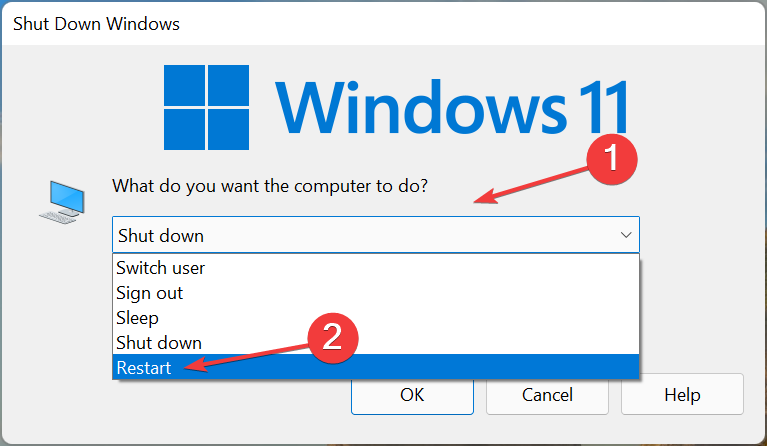
  1. Go to the desktop, press Alt + F4 to launch the Shut Down Windows box, and select Restart from the dropdown menu.
    Restart to fix Logitech G305 stuttering
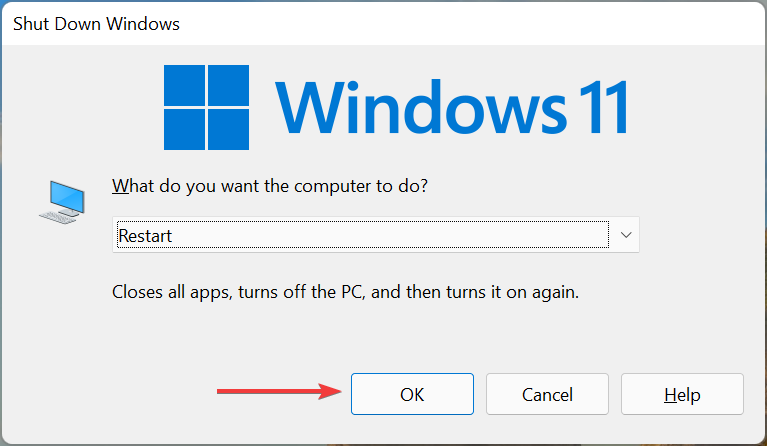
  2. Click on OK at the bottom to restart the computer.
    Ok

Most minor issues with the system can be fixed by a simple restart. When you restart the computer, the OS is rebooted, and any bug that might be causing the error will be eliminated right away. After restarting the computer, verify if the Logitech G305 stuttering issue is fixed.

3. Remove non-critical external devices

Various external pieces of hardware can often conflict with Logitech G305 and lead to the stuttering issue. In this case, it’s best that you remove all non-critical external peripherals and then identify the one behind the problem.

To do that, first, turn off the computer, and remove all the non-critical hardware with just the mouse and keyboard connected. Now, connect the devices that you removed one at a time, restart the computer after each, and check if the stuttering issue is there.

The moment stuttering with the Logitech G305 mouse cursor starts, the device that you connected last is to be blamed. Just keep it removed until you find a solution. You can contact the device manufacturer for help, or go through the FAQ section on their website.

4. Update the mouse driver

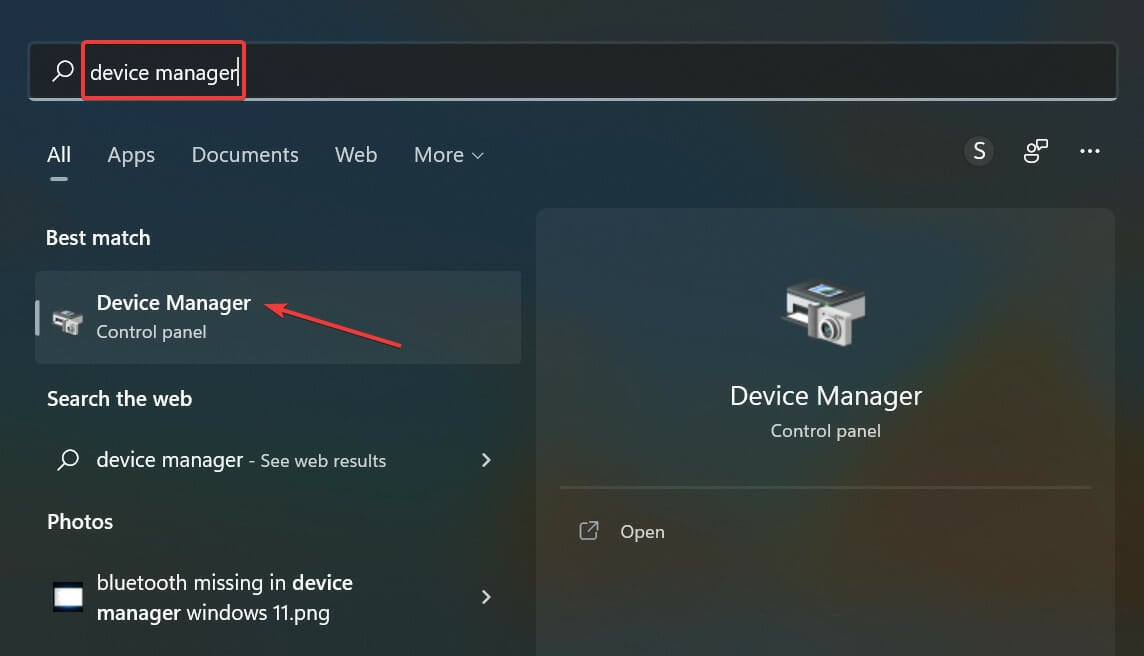
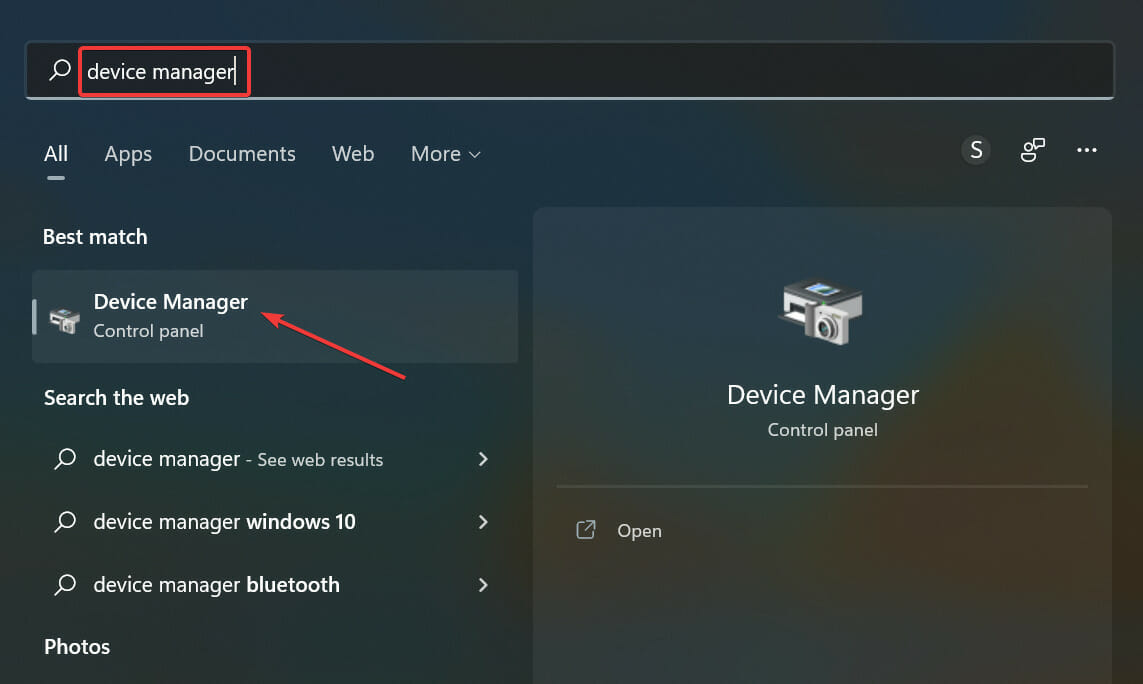
  1. Press Windows + S to launch the Search menu, enter Device Manager in the text field at the top, and click on the relevant search result that appears.
    Device manager to fix logitech g305 stuttering
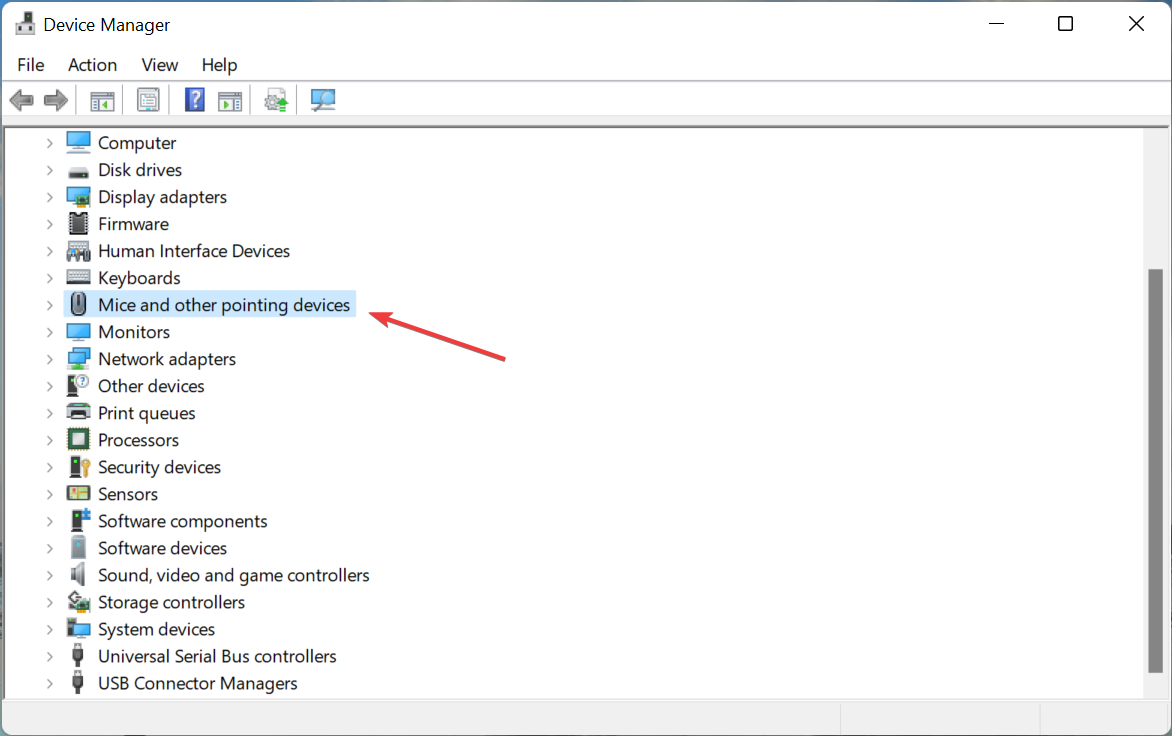
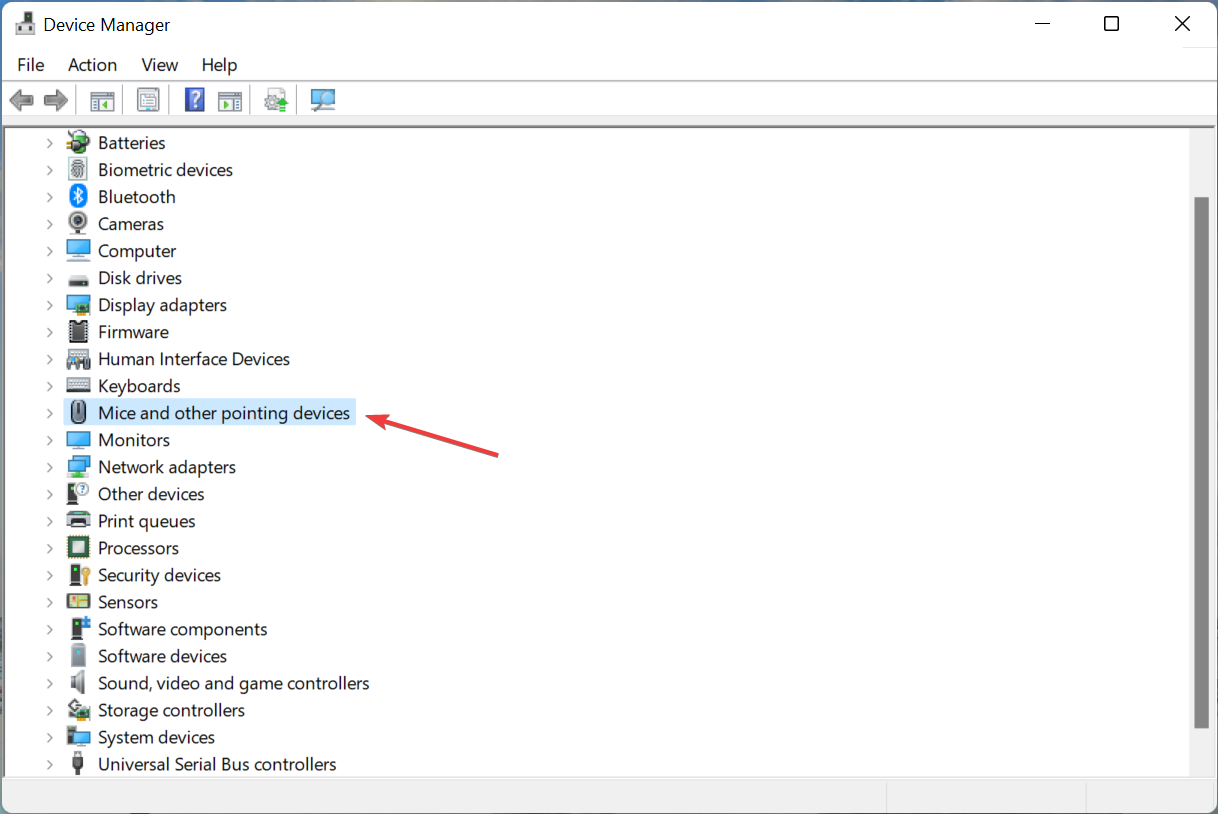
  2. Now, double-click on the Mice and other pointing devices entry.
    Mice and other pointing devices
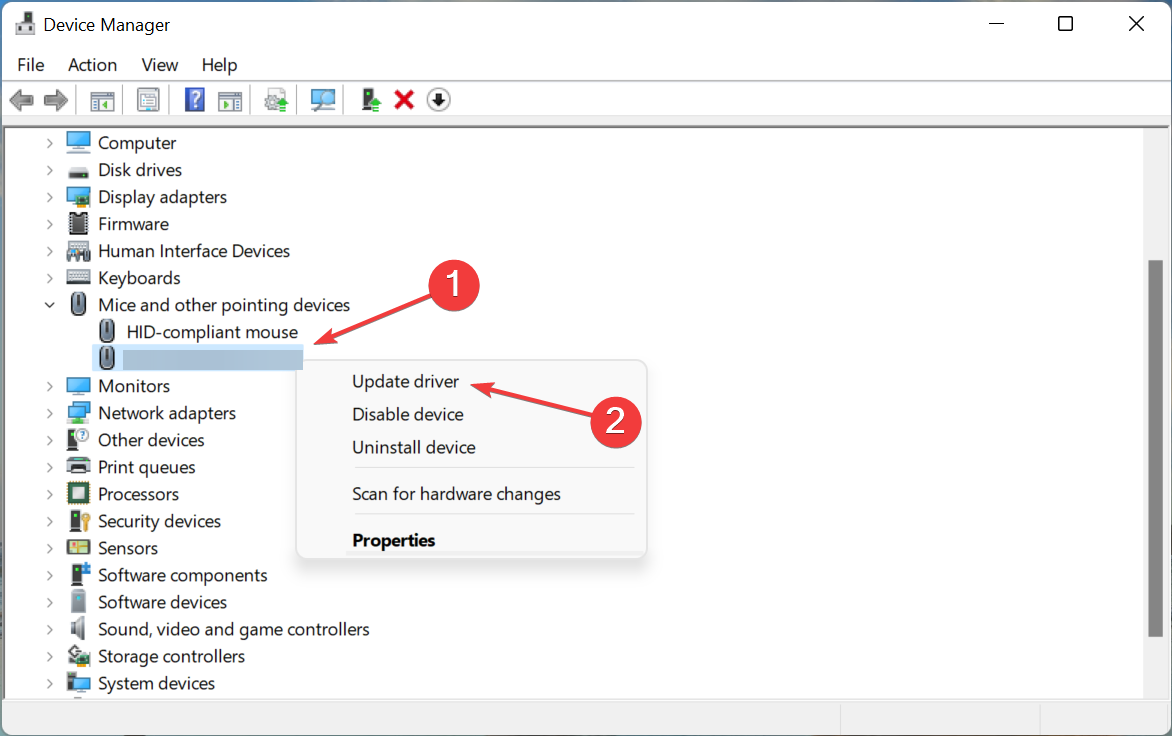
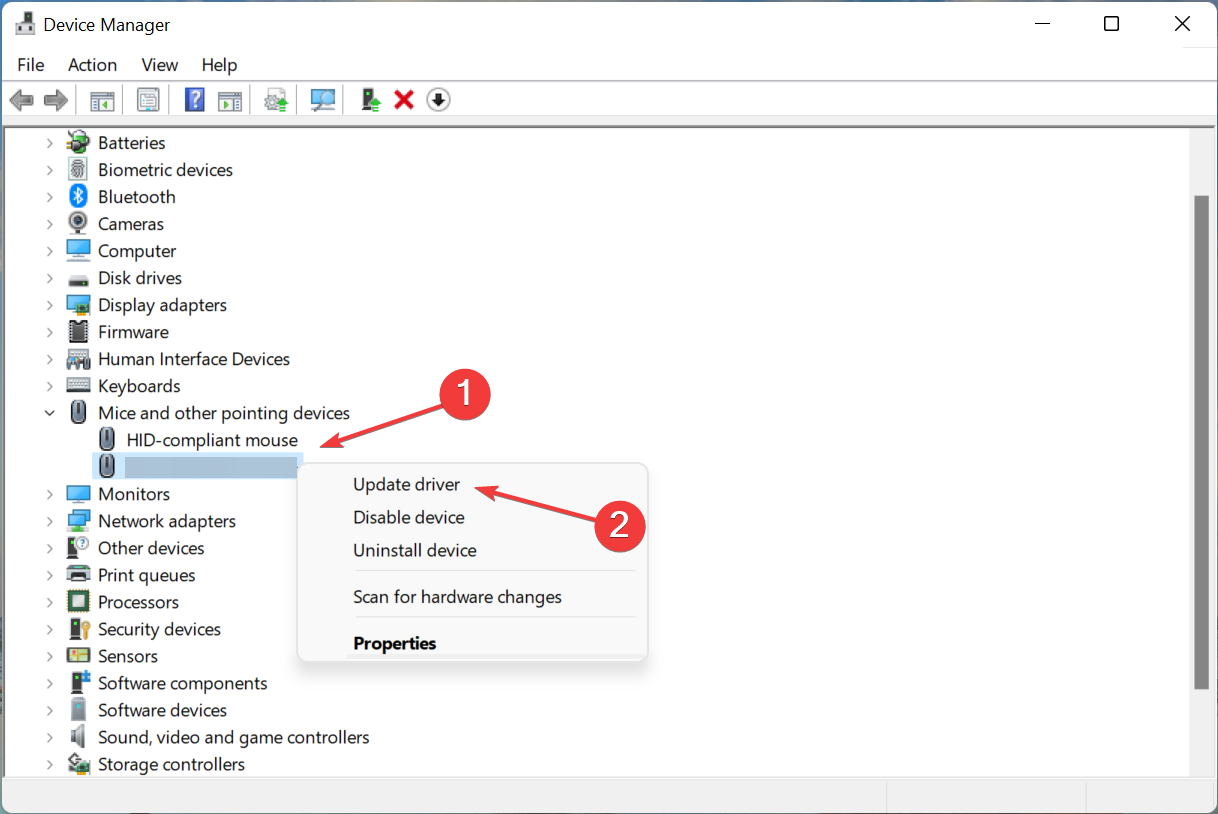
  3. Right-click on the malfunctioning mouse, and select Update driver from the context menu.
    Update driver to fix logitech g305 stuttering
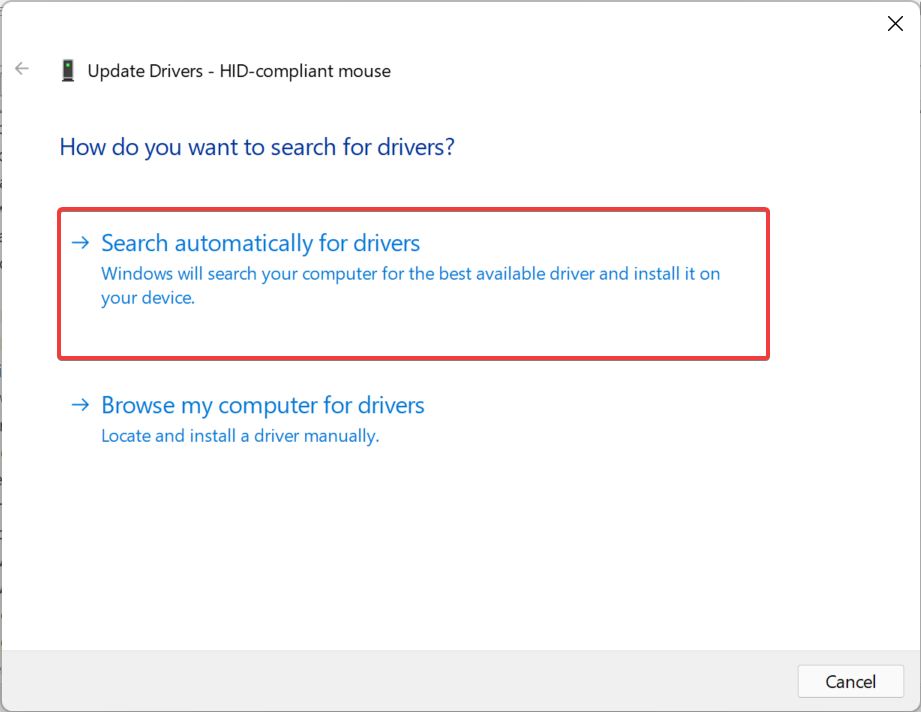
  4. Next, select Search automatically for drivers in the Update Drivers window.
    Search automatically for drivers

Wait for the update process to go through and check if the Logitech G305 stuttering issue is fixed.

A driver is a critical piece of software that relays commands between the OS and the device. And an outdated or corrupt driver is likely to throw errors. So, you must always have the latest driver version installed.

If the Device Manager was unable to find a newer version, try the other ways to update the driver in Windows 11.

Or, you can use a reliable third-party app that will update all the drivers in one go. We recommend Outbyte Driver Updater, a dedicated tool that automatically locates the latest version and installs it for the drivers installed on the PC, thus keeping them all up-to-date.

⇒ Get Outbyte Driver Updater

5. Run Hardware and Devices troubleshooter

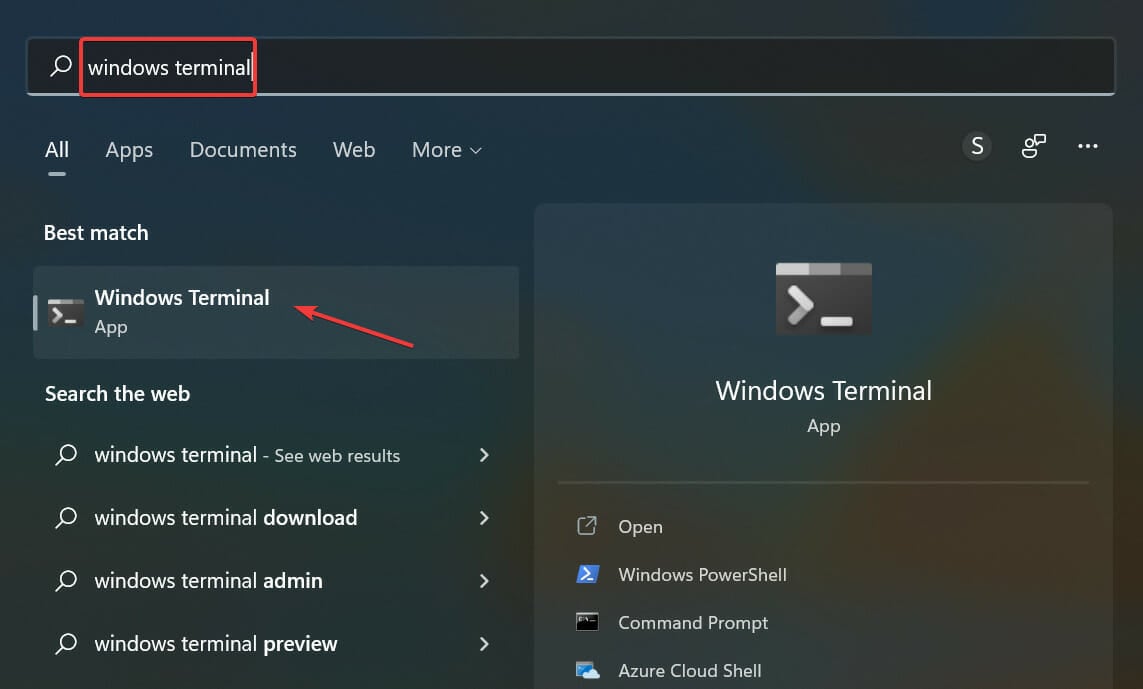
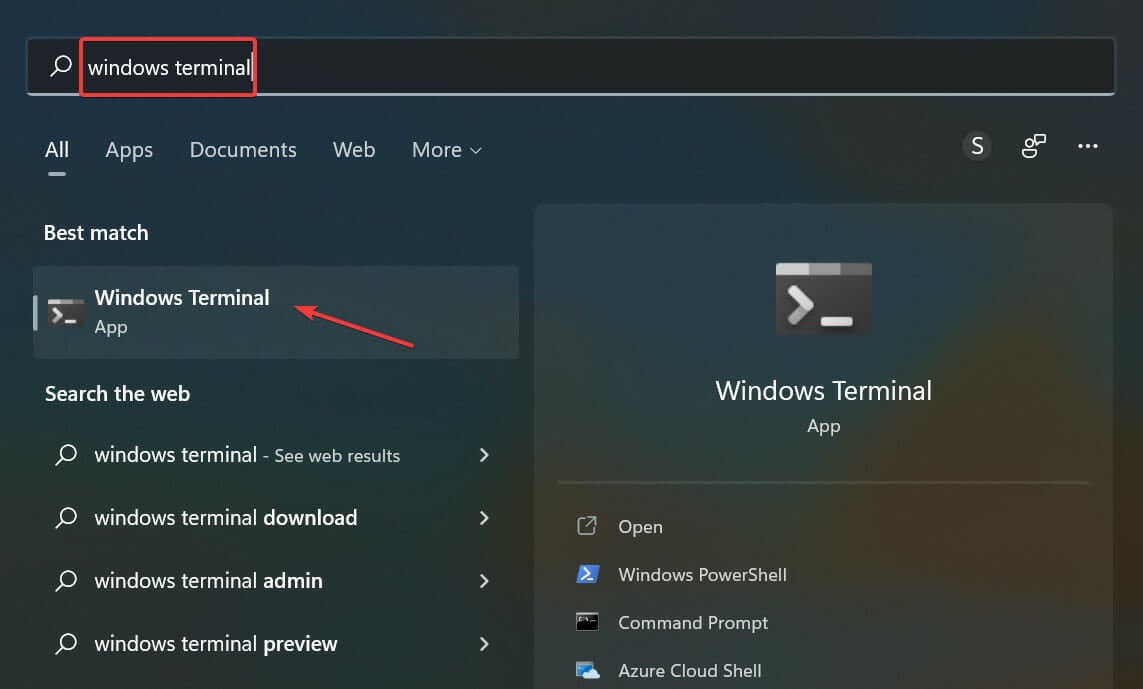
  1. Press Windows + S to launch the Search menu, enter Windows Terminal in the text field at the top, and click on the relevant search result.
    Windows Terminal
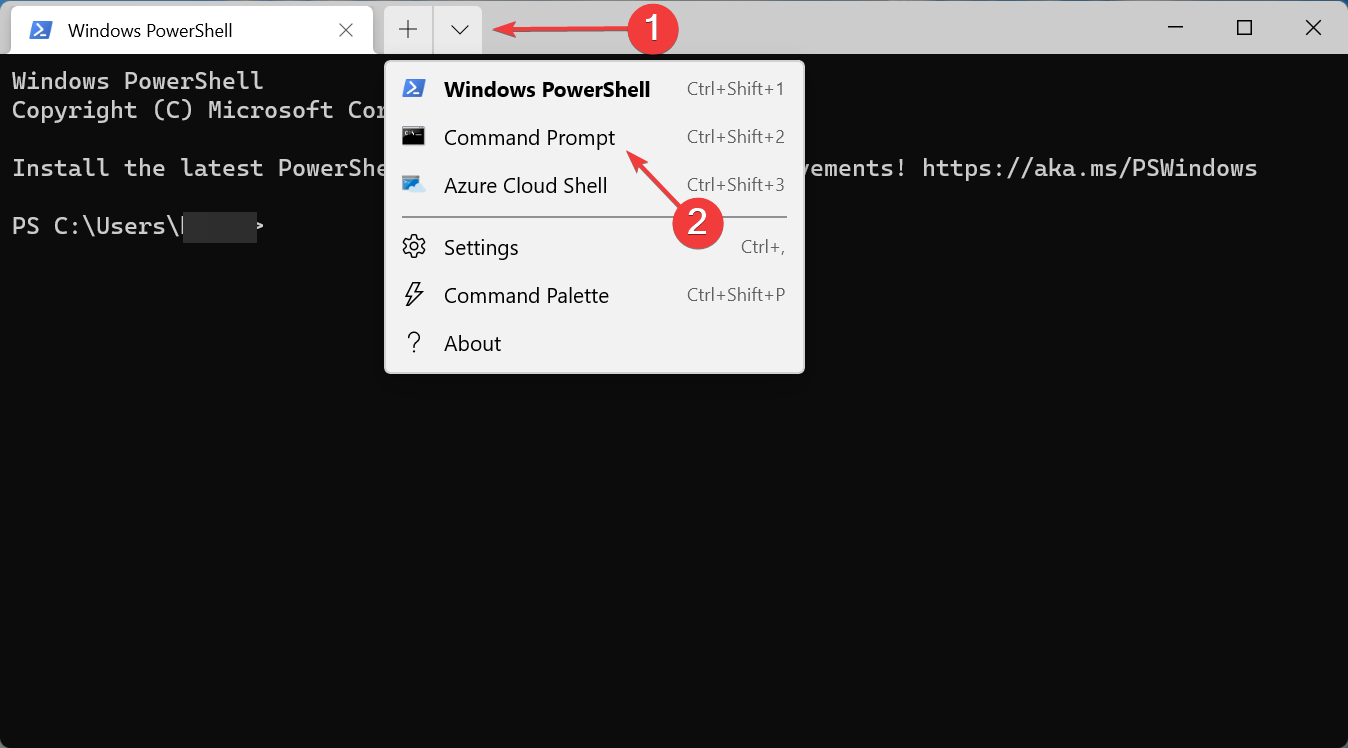
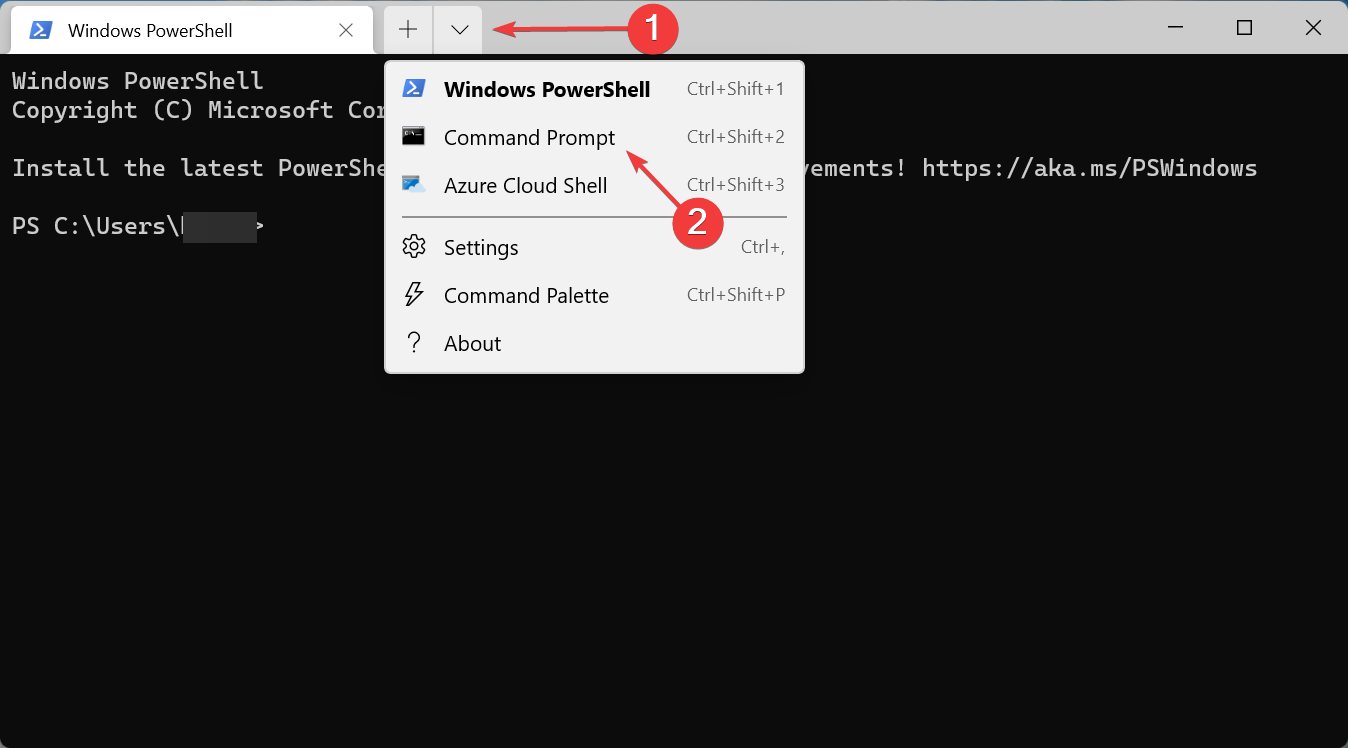
  2. Click on the arrow at the top, and select Command Prompt from the menu. Alternatively, you can press Ctrl + Shift + 2 to launch Command Prompt in a new tab.
    Cmd to fix logitech g305 stuttering
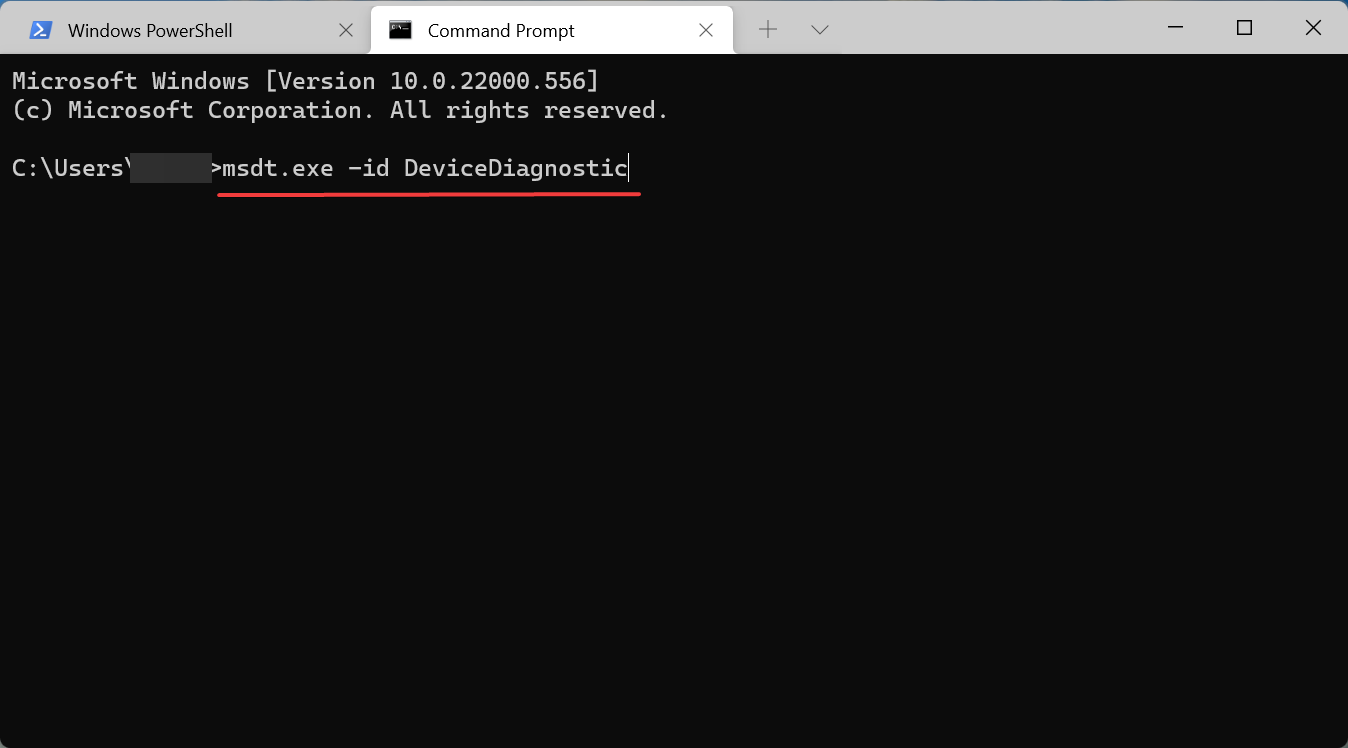
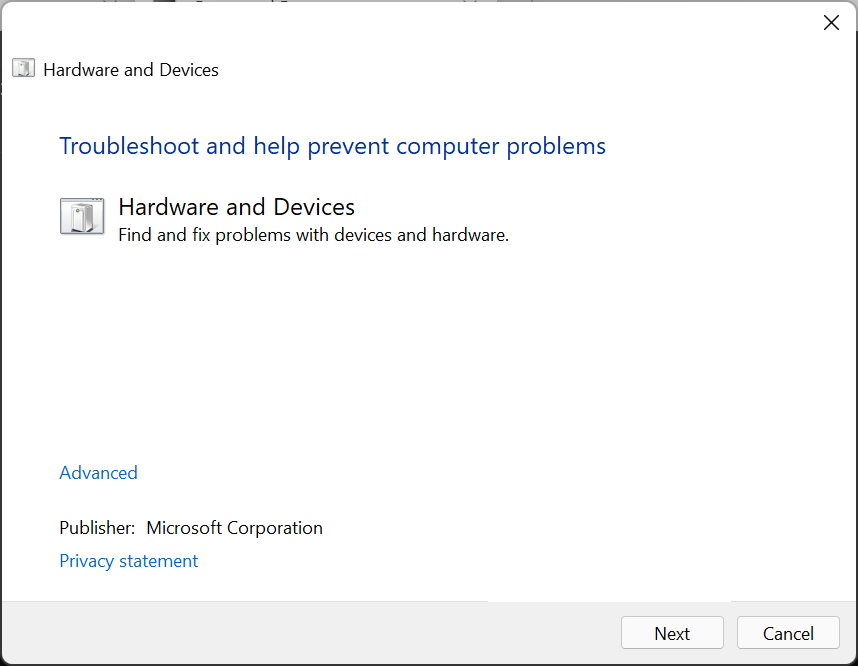
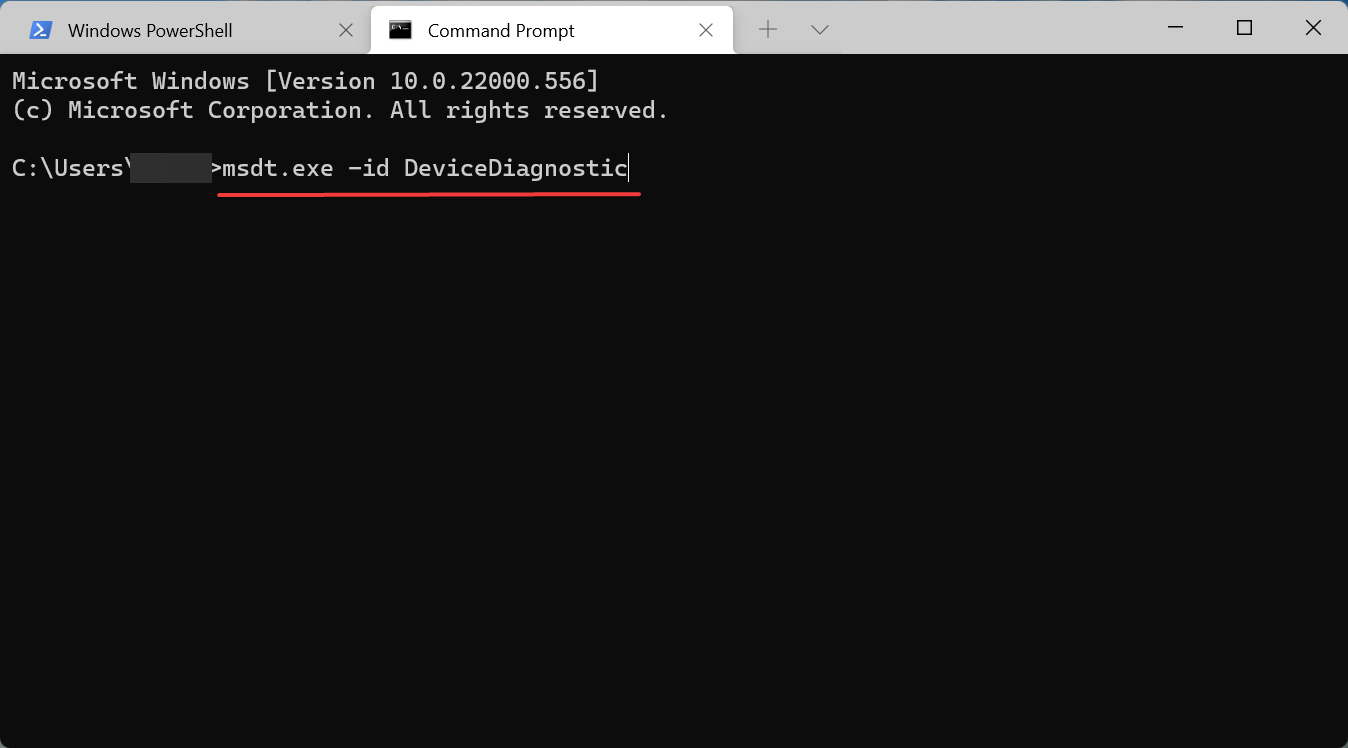
  3. Now, paste the following command and hit Enter to run the Hardware and Devices troubleshooter.msdt.exe -id DeviceDiagnostic
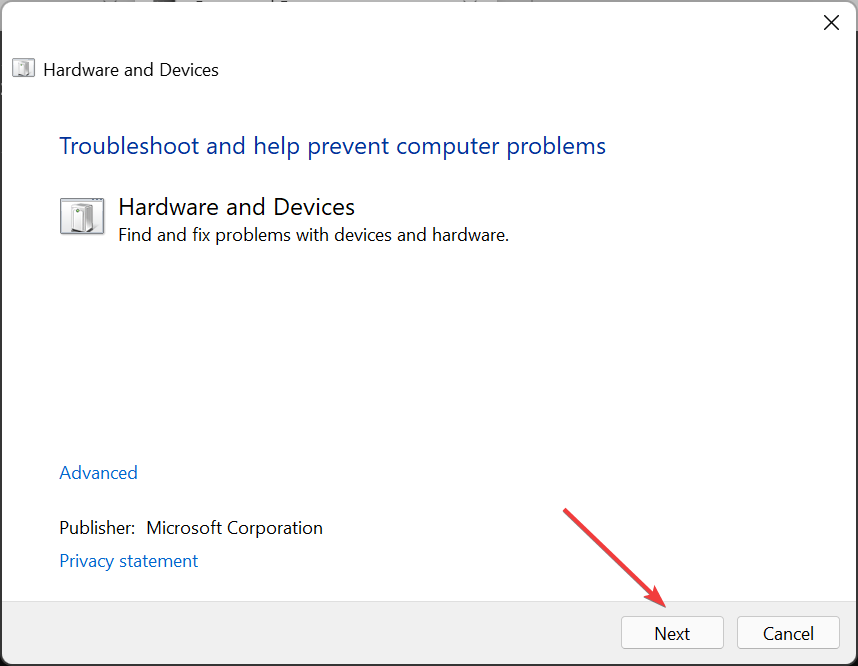
    Hardware and Devices troubleshooter to fix logitech g305 stuttering
  4. Follow the on-screen instructions to complete the troubleshooting process.
    Run

One of the best ways to fix issues with the mouse is to run the Hardware and Devices troubleshooter. It will take care of the misconfigured settings, check the connections, and make the required changes to fix the Logitech G305 stuttering issue.

6. Modify mouse settings

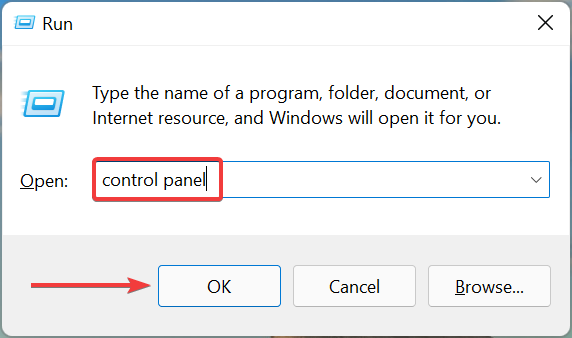
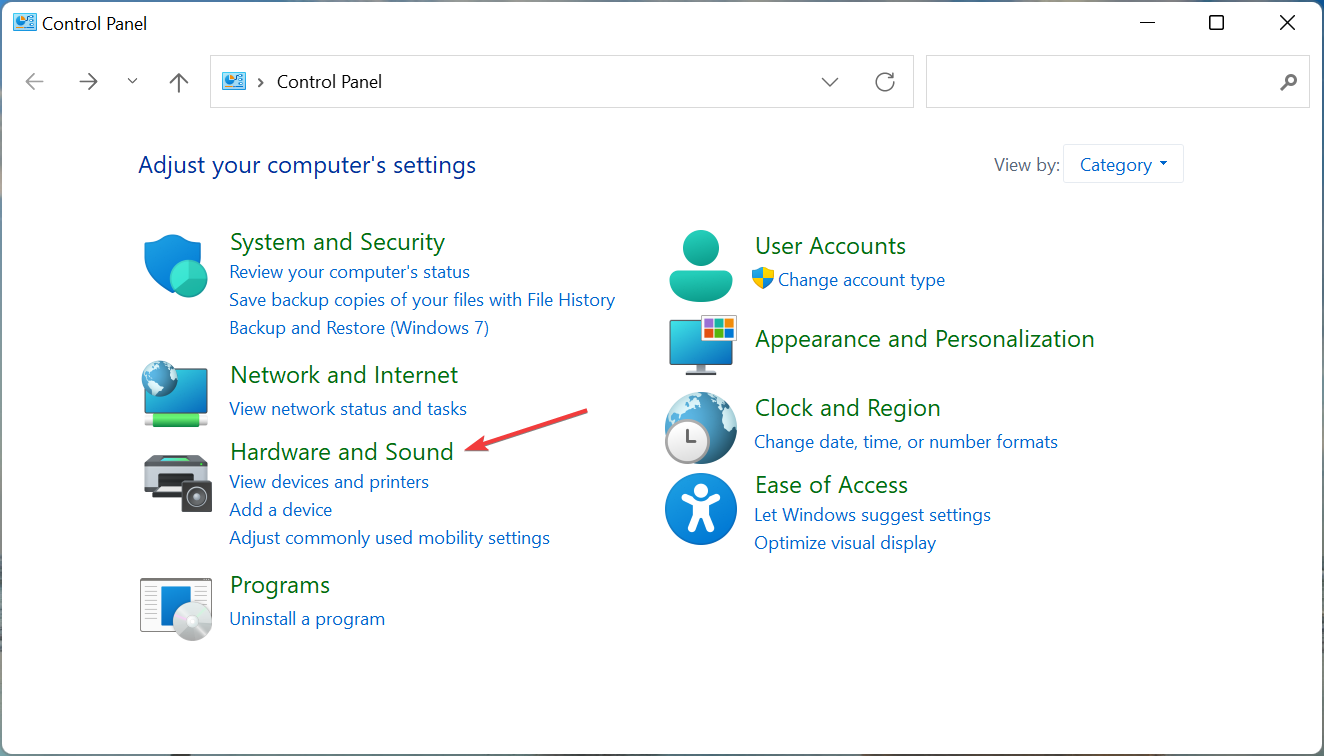
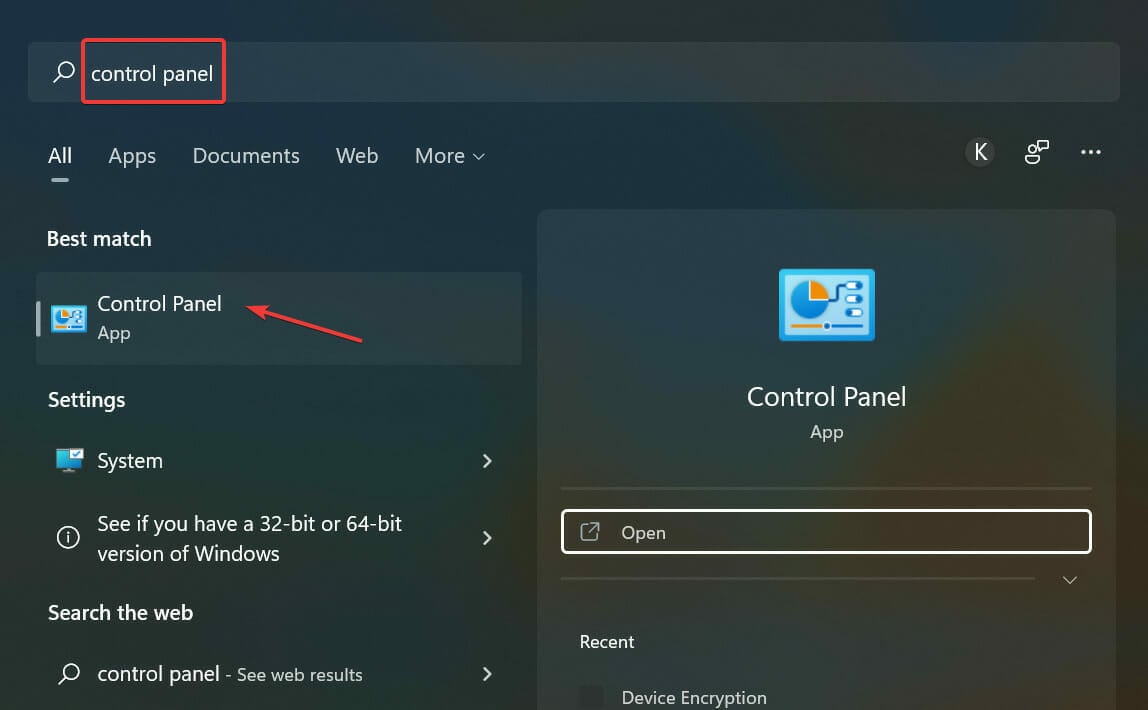
  1. Press Windows + R to launch the Run command, enter control panel in the text field, and either click on OK or hit Enter to launch the Control Panel window.
    Control Panel
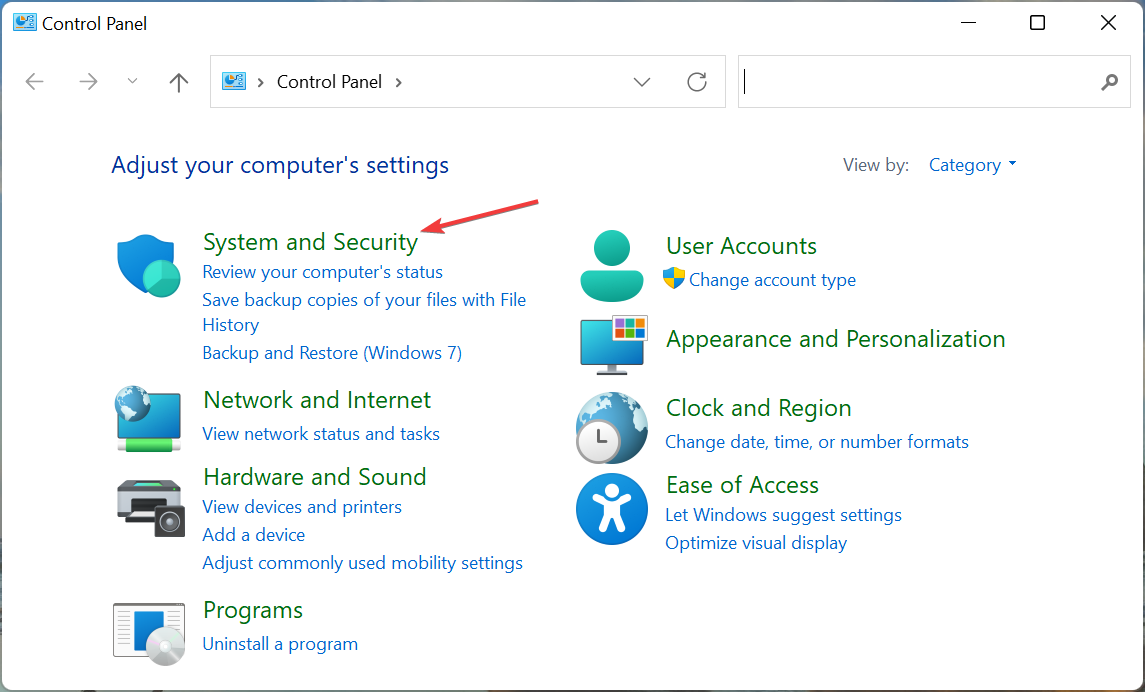
  2. Click on Hardware and Sound here.
    Hardware and Sound
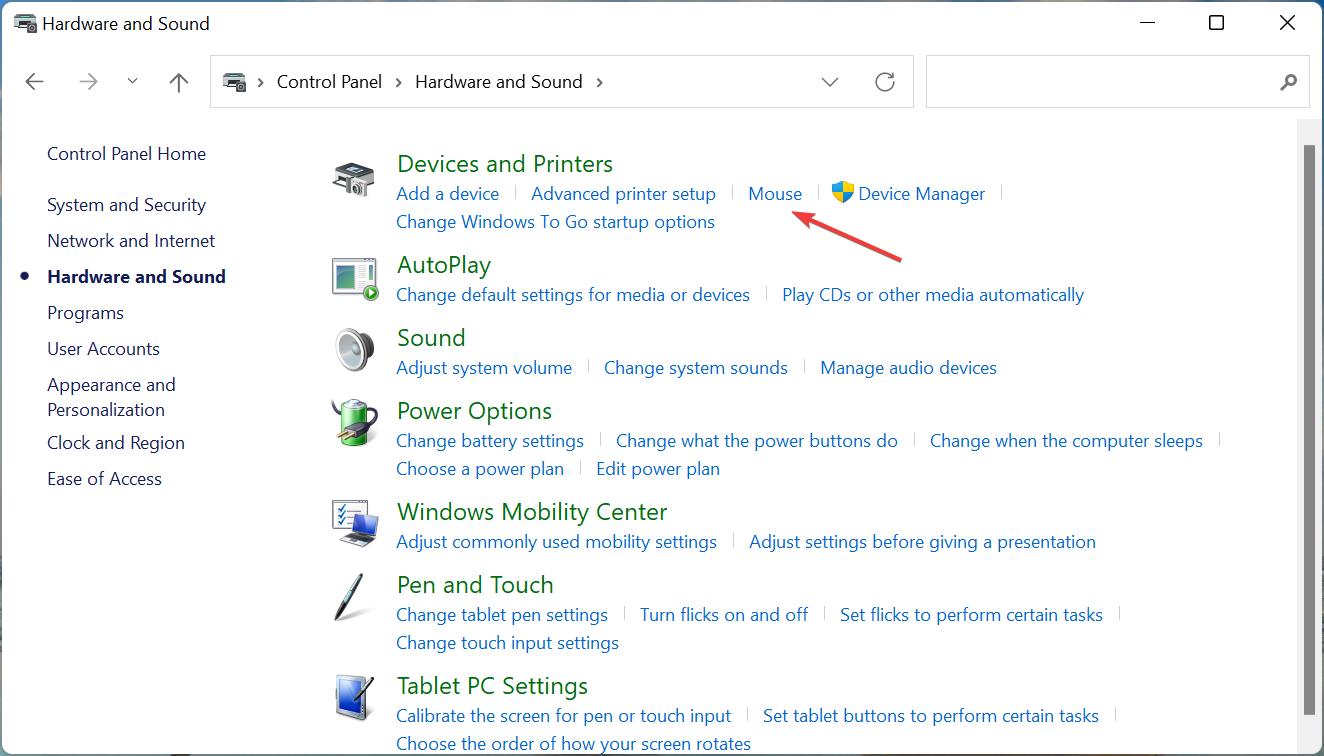
  3. Click on the Mouse option under Devices and Printers.
    Mouse to fix logitech g305 stuttering
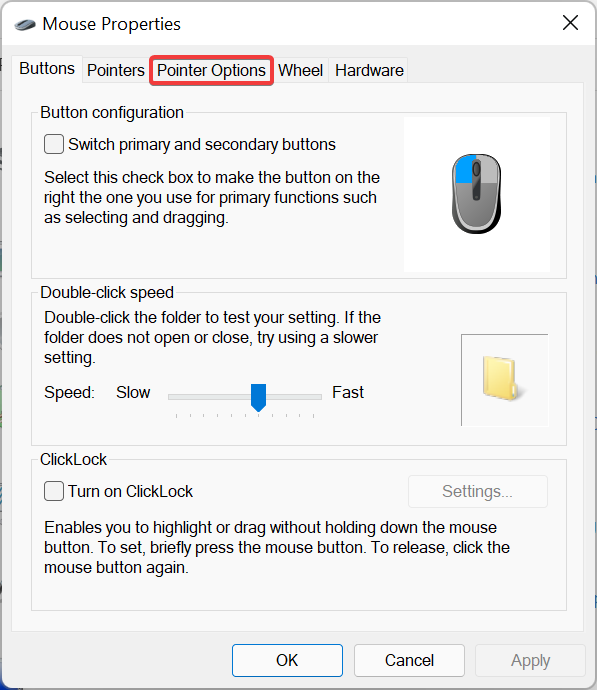
  4. Navigate to the Pointer Options tab from the top.
    Pointer Options
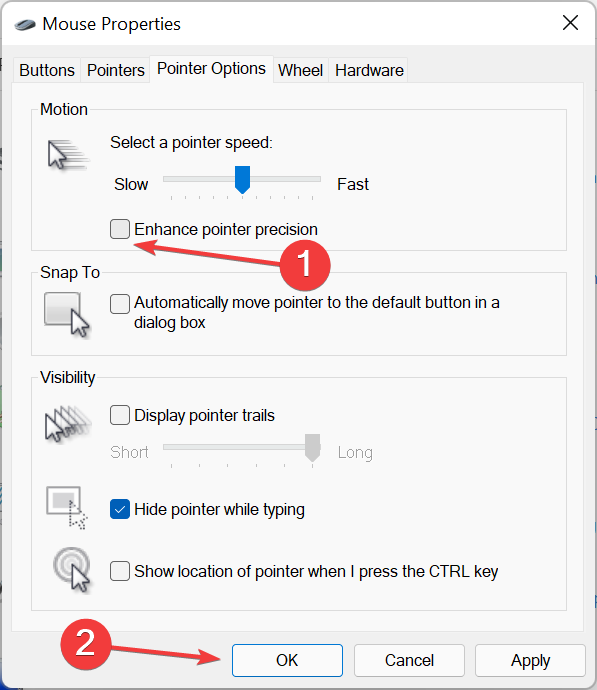
  5. Next, untick the checkbox for Enhance pointer precision and click on OK at the bottom to save the changes.
    Disable enhance pointer precision to fix logitech g305 stuttering

7. Update Windows

  1. Press Windows + I to launch the Settings app, and select Windows Update from the tabs listed in the navigation pane on the left.
    Windows Update
  2. Click on the Check for updates button on the right to scan for any available newer versions of the OS.
    Check for updates to fix logitech g305 stuttering
  3. Now, if an update is listed after the scan, click Download & install.
    Download & install

Oftentimes, running an outdated version of the OS can lead to a bunch of issues including the Logitech G305 stuttering problem. If there is a bug in the OS or it is simply too outdated, updating Windows could help fix the problem.

What are the best mouse options for my Windows PC?

A mouse is a critical piece of hardware, since it ensures quick and easy navigation across the system and allows the user to perform quick functions. But, due to a plethora of options available in the market, buyers often get confused between them.

So, if you are planning to buy a mouse for a Windows 11 PC, check our curated list. Also, here are some of the best mice available at discounted prices. Just, pick the one that meets your requirements and fits into your budget.

These are all the ways you can fix the Logitech G305 mouse cursor stuttering problem. In case it persists, remove overclocking if there’s any, and reset Windows to its factory settings. Overlocking is often found to affect effective functioning, and removing it should help.

Also, find out how to download the Logitech G HUB in Windows 11, since it would help you establish stable and secure connections, and troubleshoot issues as well.

Tell us which fix worked and your experience with Logitech G305, in the comments section below.

Lenovo 5i Gaming Tower Review: NVIDIA GTX GPUs for cheap

Starting at $999.99

While the end of the GPU shortage is on the horizon, there are still plenty of games to be played today, and Lenovo’s 5i Gaming Tower is an affordable pre-built system that offers NVIDIA GPUs for relatively cheap.

Now in its 6th generation, the Lenovo 5i Gaming Tower improves upon a few key elements while oddly skimping on others in an effort to presumably hit that sub $1,000 price tag.

At the end of the day, the question gamers will need to ask themselves is a pre-built system with moderately performative specs, something that will satiate them until the price of GPUs comes down and specs drastically improve?

Legion Tower 5i Gen 6 (Intel)
Processor Up to 11th Generation Intel® Core™ i7-11700F Processor (2.50 GHz, up to 4.90 GHz with Turbo Boost, 8 Cores, 16 Threads, 16 MB Cache)
Operating System Windows 11 Home

Windows 10 Home

Graphics NVIDIA® GeForce® RTX™ 3060 12GB

NVIDIA® GeForce® RTX™ 3070 LHR 8GB

NVIDIA® GeForce® GTX 1660 Super 6GB

Storage 1 TB 7200 RPM HDD

Up to 1 TB PCIe SSD

Optional: Dual Hard drive configuration available

Weight Less than 14kg / 30.9lbs
Display Legion Vantage

McAfee LiveSafe™ (trial)

Office 365 (trial)

XBOX Game Pass

Storage Removable solid-state drive (SSD)6 options: 256 GB, 512 GB, 1TB, 2TB
Preloaded Software Windows Hello face authentication camera (front-facing)
1080p resolution front facing camera.
Dual far-field Studio Mics
Quad Omnisonic™ speakers with Dolby Atmos®
Memory 16GB or 32GB LPDDR4x RAM
Dimensions 205mm x 395.4mm x 420mm / 8.07″ x 15.57″ x 16.54″
Wireless 802.11AX (2 x 2)

Bluetooth® 5.1

Battery 650W: ES Gold

400W: ES Gold

Color Raven Black
Ports/Slots Front:

2 x USB-A 3.2 Gen 1

2 x headphone/mic combo

Rear:

USB-C 3.2 Gen 2

2 x USB-A 3.2 Gen 1

2 x USB-A 2.0

RJ45

3 x audio jack

USB port transfer speeds are approximate and depend on many factors, such as processing capability of host/peripheral devices, file attributes, system configuration and operating environments; actual speeds will vary and may be less than expected.

What’s in the box Legion 5i Gen 6 Tower

USB Keyboard

USB Mouse

Quick Start Guide


Look and Feel

It’s a black box. Not much to report here for folks who will toss the Legion Tower 5i under a desk. However, for the gamers who like to display their towers, the 5i presents a mild showing of flare over its 5th Gen predecessor while also trimming the size down a bit.

The Raven Black aesthetic pairs well with most desktop color schemes and Lenovo continues to opt for more subdued designs for its gaming rigs with a subtle powder coating on parts of the outer box alongside 70 percent of plastic for the remaining parts of the rig.

The side panels are aligned with screws towards the rear of the tower, and a tempered glass cut out allows for a view of the inside of the tower on the right side. Instead of a flush level top there is a “fin” that raises the back of the tower to help hide a handle for transporting the box if necessary.

Lenovo Legion 5i Tower - side

The front of the Intel-powered model has a faux mesh look to it while the AMD model apparently comes with actual plastic mesh for possible additional cooling.

The only other notable design features on the Tower come by way of an RGB controller mounted tucked behind the motherboard for a cool light show that can be programmed via the Lenovo Vantage app on PCs.

As for the more important aspects of the tower’s design, Lenovo opted to put in a 120mm ARGB fan towards the front of the rig for cool air intake that occurs via slot neat the base of the tower as well as an additional one in the rear for hot air exhaust. Rather than placing vents along the bottom and top of the box, Lenovo is pushing air in unilateral vertical pattern through the base of the device.

Lenovo Legion 5i fans

Another issue that will arise over time is that there is very little to no dust filtration applied to any part of the rig. The sections where air flow occurs are open enough to collect dust and without the mesh design found on the AMD models, there is little natural filtration that will occur.

Gamers will need to regularly clean the unit to keep it from breaking down over time.

The port selection on the 5i Tower includes 2 USB-A 3.2 ports, 2 USB-A 2.0 ports, Ethernet and 3.5mm audio jack for 5.1 surround support. Also, on the back of the 5i, there is DisplayPort, HDMI, and DVI ports. Regarding cable management inside the box, it’s a mess. Between some proprietary parts and the odd placing of thermal pads on memory boards, randomly placed foam parts and zip bundling, the 5i could be a bit annoying for gamers who have a standardized process for taking apart their Towers or accessing cables.

Lenovo Legion 5i ports

Lenovo tosses a lot of the cabling behind the left side of the box which is meant to face away from the tempered glass viewing portal but once open owners are privy to some haphazard cable placement.

As for upgradeability, the PSU is manufactured by 80 Plus Gold and consists of 400W of power, the cradles inside house two slots for M.2 SSDs with support for PCIe 4.0 (despite not adding additional RAM).

The mATX motherboard comes with a B560 chipset in a pretty regular mount even though Lenovo adds its own customizations on top that surprisingly omits a VRM heatsink, presumably in the name of cost.

To that end, the first upgrade to the 5i Tower will most likely be a memory one that adds to the 8GB of single-channel performance out of the box. With the custom Lenovo motherboard not supporting XMP, the RAM installed will actually run at a lower 2933MHz than its advertised 3200MHz on the box.

Lenovo Legion 5i side panel

Performance

Without having multiple tower setups to run actual test side by side, I did the most I could with a standard stress test as well as pairing data from benchmarks of other recorded rigs.

Running a combination of HWMonitor, Prime 95, Intel’s Processor Diagnostic Tool, CPU-Z, Cinebench, AIDA64, and other free tools I was able to measure fan noise, CPU throttling, heat output, and clock speeds.

Lenovo Legion 5i Keyboard

When fully stressed the 5i Tower remained relatively quiet even when the fans were running between 1140 and 1550 RPMs and the CPU sat between 80 C and 86 C, using 65W power. GPU wise the heat was around 64 C to 68 C at 1.89GHz.

When using Lenovo’s pre calibrated modes such as “Balanced” and “Performance” thermal throttling was non-existent despite the fan speeds ramping up and down respectively. The only apparent changes in gaming modes occurred when the CPU clock dropped to 3.09GHz under “Balanced Mode”.

As for synthetic benchmark competition:

Gaming

I tried to throw what I could at the machine to choke it up, but even games such as Red Dead Redemption 2 played decently at medium settings for 47 FPS at 1440p resolution and at 65 FPS on Balanced Mode with 1080p.

Another semi-demanding game that performed decently was Cyberpunk 2077 which was played at 1440p resolution and still produced plus 65 FPS and when the resolution was dropped to a crisp 1080p the FPS ramped up to high 90’s low 100’s.

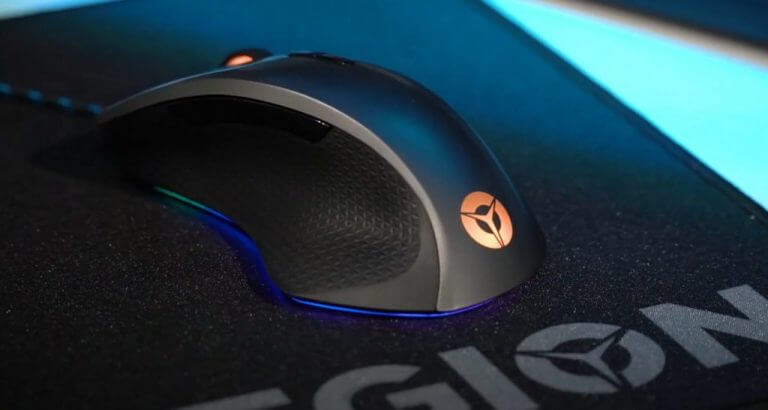
Lenovo Legion 5i -mouse

One of the last games tested was Rainbow Six Siege which got upwards of 200 FPS on settings at its peak but averaged around 80 FPS more consistently.

Summary

All of the moves Lenovo makes to package this pre-built system work for parents looking to appease their kids first foray into PC gaming, content editors looking for a relatively cheap workstation replacement and moderate gamers struggling to decently priced GPUs in the market now.

There are things the company could have done that were of seemingly no cost to the process as well as some that would have inevitably raised the price but overall, the Legion 5i Tower is a solid rig for beginners.

Windows 10 apps close when minimized? Here’s what to do

The ability to minimize and maximize programs allows you to clean your Windows 10 desktop and concentrate on the applications you’re currently using. Sounds important, right? Indeed it is, thus we will show you how to quickly fix the apps close when minimized error.

When maximizing or minimizing a window, there are a variety of options available, some of which are as simple as clicking or touching a button, while others necessitate the use of a keyboard. It’s up to you to pick which one to employ depending on the circumstances.

If you minimize an application, it conceals its window from your desktop without quitting the application. On the taskbar, you’ll see an icon for the application in question.

You may quickly restore the minimized window to its previous state and bring it back into view so that you can continue to use it while it is minimized.

While, if you maximize an application, its window expands to fill the entire screen of your desktop computer. A maximized application takes up the full available screen space, with the exception of the taskbar.

Follow along as we will see how to minimize or maximize an app and then jump into the list of solutions to fix the Windows 10 apps close when minimized issue.

How can I minimize or maximize apps in Windows 10?

Minimizing and increasing applications may appear to be diametrically opposed tasks. However, it’s important to remember that there is a transitional state between them: when the app window is displayed but does not take up the entire screen and you have the ability to move and resize it.

The option to minimize or maximize windows is no longer available while using Windows 10 in Tablet mode because all apps launch and remain completely extended.

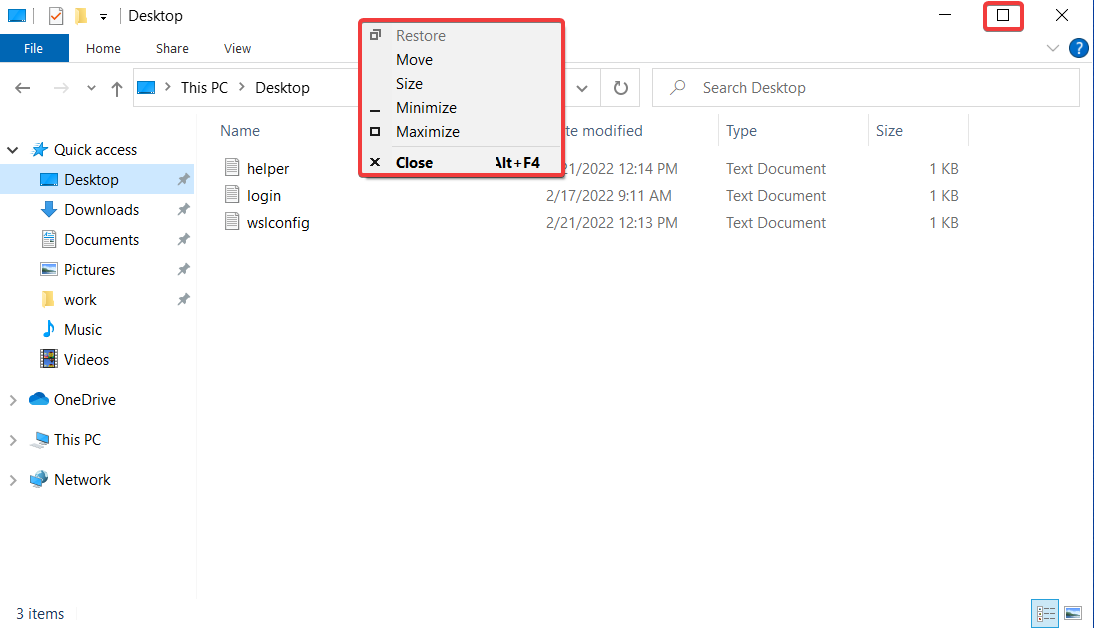
In order to minimize or maximize an app window, the most well-known approach is to click on the Minimize or Maximize button located in the title bar of the program.

 restore windows 10 apps close when minimized


All Windows 10 apps, as well as the vast majority of desktop applications, display those buttons in the top-right corner of the window’s title bar, near the X that is used to close windows.

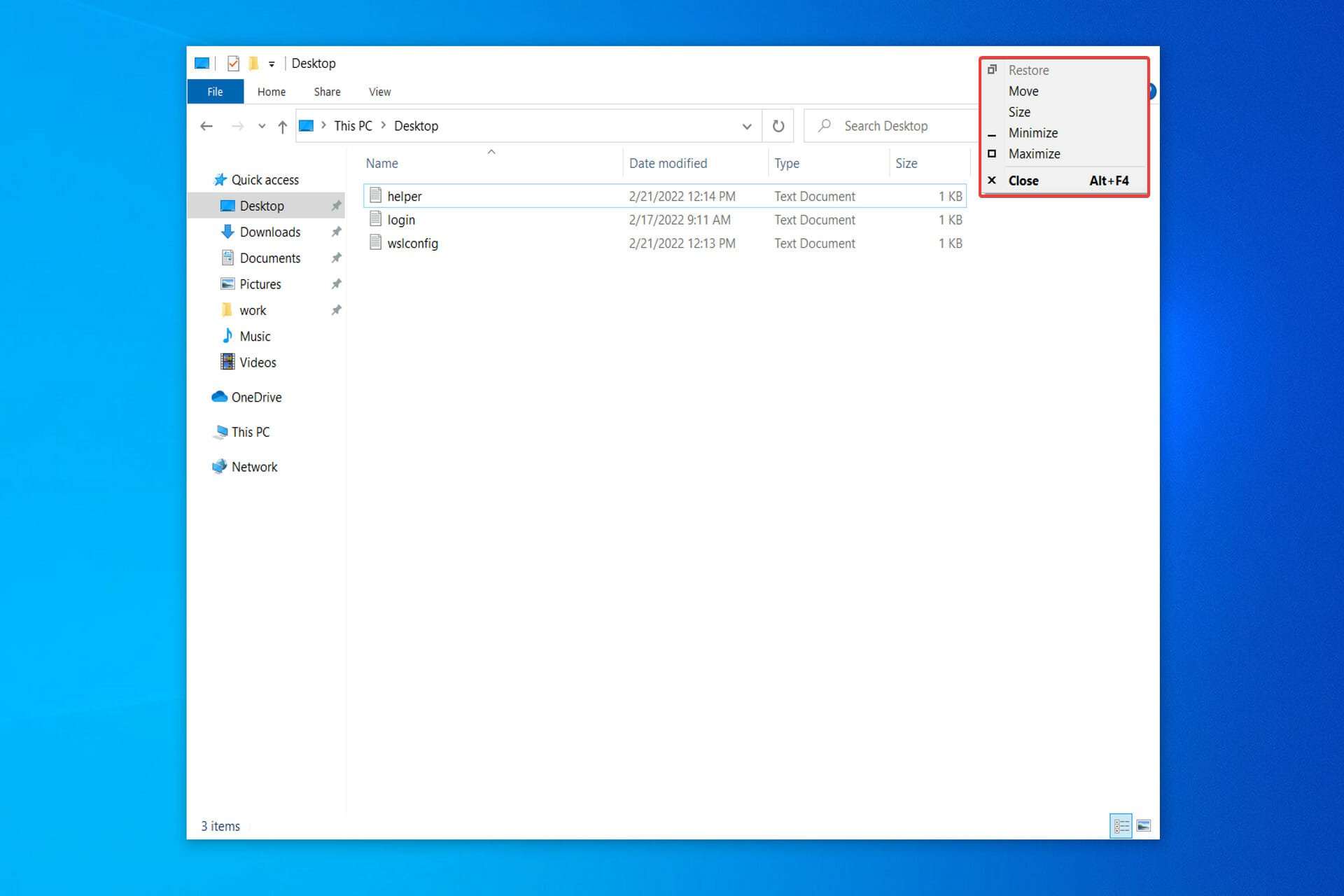
You may also reduce and maximize apps by selecting them from the title bar menu. If you prefer to use the mouse, right-click on the title bar of a window to bring up the menu. Then, depending on what you want to accomplish, select an option from the drop-down menu.

The Restore button in this menu can also be used to bring back a window to its previous size and location on your screen if it has been modified in the previous step.

The Alt + Spacebar keyboard shortcut can also be used to open the title bar menu as an alternative.

If you want to minimize or maximize the window immediately after the title bar menu appears, simply press the N or X keys on your keyboard. If the window has been extended, hit the R key on your keyboard to bring it back to its original size.

How can I fix Windows 10 apps close when minimized?

1. Run the Windows Store App troubleshooter

  1. Open Settings by pressing the Windows + I keys and navigate to Update & Security.update-security windows 10 apps close when minimized
  2. Next, choose Troubleshoot from the left menu and then click on Additional troubleshooters.troubleshoot-others windows 10 apps close when minimized
  3. Scroll down until you meet the Windows Store App troubleshooter, click on it then select Run the troubleshooter.additional-troubleshooters windows 10 apps close when minimized

2. Update your drivers

  1. Open Settings by pressing the Windows + I keys and navigate to Update & Security.update-security windows 10 apps close when minimized
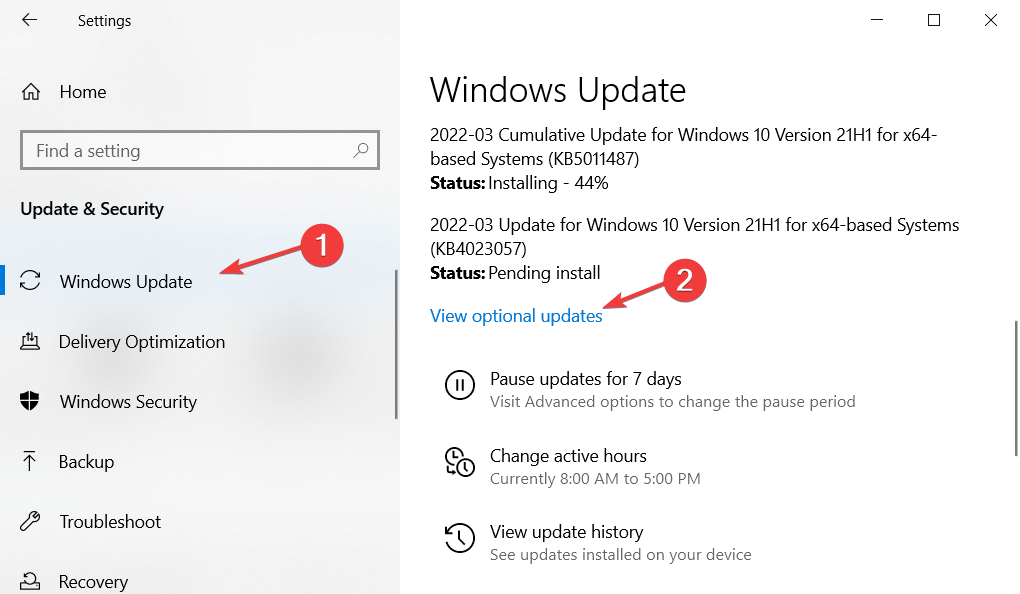
  2. Next, navigate to Windows Update followed by View optional updates.windows-update-optional windows 10 apps close when minimized
  3. Expand the Driver update section and select all the available ones then click Download and install.driver-update windows 10 apps close when minimized

Keeping your drivers up to date is as important as having an antivirus installed on your computer. But if you find yourself reluctant to update them on a regular basis, you can use third-party software that automatically updates and fixes any driver-related issues.

Such is Outbyte Driver Updater, a lightweight software solution developed specifically for you to keep your PC in peak operating condition without wasting any time. It will update, fix and replace your drivers without you even noticing.

⇒ Get Outbyte Driver Updater

3. Update Windows

  1. Open Settings by pressing the Windows + I keys and navigate to Update & Security.update-security windows 10 apps close when minimized
  2. Next, go to Windows Update and check whether you have any available Windows updates to perform. Here I get the option to upgrade to Windows 11, and under it, I have Windows 10 updates that I can install without upgrading to the former OS.windows-update-w11 windows 10 apps close when minimized

If you decide to upgrade to Windows 11, check out our post on the 11 best features in Windows 11 that you need to know.

Alternatively, you should take a look at 10+ best Windows 11 tips and tricks to streamline your OS and get the best out of it.

4. Run DISM

  1. Open the Windows search function and type in cmd. Right-click on the top result and choose Run as administrator.cmd-admin windows 10 apps close when minimized
  2. Now type or paste the following command in order to fix any Windows corruption error, if there are any, and hit Enter: DISM.exe /Online /Cleanup-image /Restorehealthdism windows 10 apps close when minimized

If you need further assistance in resolving the Windows 10 apps close when minimized, check out our guide on how to stop Windows 10 from closing programs without warning.

Was this guide helpful for you? Leave us a comment in the section below and tell us what you think. Thanks for reading!

Pazu Netflix Video Downloader review: grab all your movies and shows quickly

Netflix is definitely one of the top on-demand media platforms with a huge database of shows and movies to choose from.

And as long as you have a subscription, it’s easy to download and view them later but you can only keep the videos for a limited period of time.

Also, it’s impossible to share the media or transfer the files to an external drive to take them with you.

That’s where Pazu Netflix Video Downloader comes into play, a smart app for Windows or Mac that will help you do that with just a few clicks.

We’ve tested the software and in this article, we’ll highlight some of its best features and explain how to use it on your Windows machine.

How can Pazu Netflix Video Downloader help you?

As its name suggests, Pazu Netflix Video Downloader helps you download your favorite Netflix shows and movies in MP4 or MKV format directly on your drive.

And after you save the files in Full HD (1080p) resolution, you can transfer them onto any media or simply share them very easily.

So, as long as you have an active Netflix account, the app will log on to it and with a simple search tool, you will find your favorite videos and download them quickly.

What are the best features of Pazu Netflix Video Downloader?

1. Preserve multilingual audio and subtitle

One of the best features of Pazu Netflix Video Downloader is the fact that you can download the video together with the subtitle and preserve the audio.

Not only that, but you can set it as an embedded subtitle or a separate file so you can disable it if you want at any time.

Also, Netflix shows the 5-7 most relevant languages based on your location and language settings but it only shows the 2 most relevant languages for downloads.

With this clever app, you can download movies and TV shows with any audio and subtitles you want.

Even more, from the Settings menu, you can select more subtitles to download independently if you so desire.

2. High quality and fast download

Another great feature is downloading the videos as high-quality, 1080p resolution files in MP4 or MKV format.

You may also select the video codec as H264 or H265 and the audio codec, depending on the video you’re downloading.

Then, in the download manager, you will see the progress of your download so you don’t need to keep your eyes on the counter.

Depending on your Internet connection and the video length, a movie will be downloaded in just a couple of minutes.

If you just hover your mouse over the download, you will see all the data you’ve set up for the video like resolution, speed, language, and subtitle.

3. Friendly interface

You will probably be amazed, just as we were, by how easy it is to use Pazu Netflix Video Downloader.

After you log into your Netflix account it’s just a matter of setting up how you want to save the video and hitting the Download button.

We were also impressed by the History tab that will show you all your downloads in a very comprehensive list.

You will see the title of all the movies with their duration and if it’s an episode from a show, it will also provide the name of the show to keep things neat and to find the right episode quickly.

How can I use Pazu Netflix Video Downloader?

  1. Go to the Pazu Netflix Video Downloader dedicated website and click on the Free Download button.
  2. Run the executable file, select the location for the program, then hit the Install button.
  3. In just a couple of seconds, the installation will be over so just click the Finish button and the app will start right away.
  4. After it opens, you need to log into your Netflix account with your credentials.
  5. Now, select the Netflix profile you want to use.
  6. That’s it! Now, you can either enter the name of the movie or show you want to download it or enter the Netflix link to find it.
  7. Next, hit the Settings button from the top-right corner of the window to adjust the general options.
  8. Select the Video format menu to choose between MP4 and MKV.
  9. Do the same for the Video codec menu to pick H264 or H265.
  10. Next, click on Audio language if you want to change it and select from the available options and you can do the same for the subtitles.
  11. You also have automation features to choose from. When the video finishes downloading you may trigger the app to open its location or put your PC to sleep.
  12. Now, close the window and click the Download button for the media you want to get.
  13. If you pick a series, as we did, you will see a list with all the available episodes. On the left, you can check the individual episodes you need and on the right, you can set up additional settings.
  14. For each episode, you will be able to select the audio codec and the subtitles. And once you’re done, click OK to close the Settings window.
  15. It’s time to hit the Download button and Pazu will do the rest.
  16. On the main menu, on the right, you will find the download manager with all the episodes and if you hover your mouse over any of them, you will see their settings. If you change your mind about downloading, you can remove all or pause them.
  17. You don’t have to monitor the process and after a video is downloaded, you will see it in the History tab. Just hit the folder icon to go straight to its location on your drive.
  18. When you download many movies and shows, it’s easy to search through them by date, title, or series to find what you’re looking for instantly.

We remind you that Pazu Netflix Video Downloader is also available for Mac but the install and usage processes are identical so it’s very easy to use it on Mac machines as well.

We hope that we convinced you about how simple it is to download your favorite Netflix shows and movies.

Regarding pricing, Pazu Netflix Video Downloader is a very affordable tool, available for only $16.96/ month.

You can cancel your subscription at any time and within 30 days, you will get the money back guaranteed.

⇒ Get Pazu Netflix Video Downloader

Pros
Friendly user interface
Download all your videos quickly in 1080P quality
Preserve multilingual audio and subtitles
Download entire shows in bulk
Available for Windows and Mc
Cons
No 4K support

Final notes

Whether you want to leave on a trip and have some movies to enjoy along the way or want to create your own library to watch on your own terms, Pazu Netflix Video Downloader will do a great job.

Almost any device can play MP4 files so just transferring them to an external flash drive will ensure that you will be able to watch the content almost anywhere.

We were surprised at how quickly it managed to download the movies and not only that there were no errors, but the quality of the video was preserved perfectly.

Also, the fact that we were able to select the audio language and subtitles made it all a lot more convenient.

You should know that Pasu also has a Disney+ Video Downloader app that does the same for the content on your Disney+ on-demand platform.

If you’ve already used Pazu Netflix Video Downloader tell us all about your experience in the comments section below.

How to fix issues with Brave browser not syncing

Brave Sync allows users to synchronize data across all their devices. This feature applies to bookmarks, history, passwords, and more. Many users rely on this feature so it can be frustrating if it’s not working properly. Keep reading to fix issues with the Brave browser not syncing.

Sync is designed to work across all devices including Android and iOS. This feature makes it easy to switch to Brave from another browser. It also automatically changes any added or removed data across all connected devices.

If you’re looking to sync all your PC files and data, try using syncing software for Windows 10/11. Follow the guide below if your information and passwords are not syncing in Brave across your devices.

How do I set up Brave Sync?

  1. In the Brave browser, click on the three lines in the corner and open Settings. In Brave click on settings.
  2. Select Sync and then Start using sync. Select start using sync
  3. Click Add New Device and select the type of device you want to add.
  4. A QR code will be displayed on the screen.
  5. On your mobile device, open Brave and select Settings. Open settings in Brave on mobile.
  6. Tap on Sync then select Scan or enter sync code. Tap on sync in Brave on mobile.
  7. Allow Brave access to your camera and scan the QR from your PC.

Now your device is added to the same sync chain as the Brave browser on your PC. You can add more devices to the same sync chain by repeating the process.

Another great browser that has seamless syncing is Opera One. With this browser, users can securely synchronize their browsing data across all devices. Opera One syncing is customizable and extremely simple to set up and manage.

⇒ Get Opera One

How do I fix Brave Sync?

1. Adjust settings

  1. In Brave, click on Settings found under the three lines in the corner.
  2. Select Sync and then open Manage your synced devices. Under sync select manage synced devices
  3. Under Sync Settings, select Sync everything. customize sync settings
  4. If you don’t want everything synced, select Customize sync and under Sync data choose the features you would like synced.
  5. On your mobile device, open Brave and go to Settings.
  6. Tap on Sync, then select Data Preferences. Data preferences
  7. Enable Sync everything, or customize your syncing preferences.Sync everything mobile Brave

2. Clear Data and Restart

  1. First, backup your data just in case. To backup bookmarks, click on the three lines in the corner and hover over Bookmarks then select Bookmark manager. open bookmark manager
  2. Click on the three dots in the corner and select Export bookmarks then save them to your PC. Export bookmarks
  3. Repeat step three for all of your bookmark folders if you have more.
  4. Open the Settings tab from the option bar then extend Additional settings.Click on settings then additional settings
  5. Click on Autofill then click Passwords.Open password manager
  6. Select the three dots located next to Saved Passwords and then click Export passwords.
  7. Save them to your PC.
  8. After backing up your data, type brave://sync-internals into your URL bar and hit enter.Brave sync internals
  9. Select the Disable Sync (Clear Data) button.Disable sync
  10. Return to Brave Settings and go to Sync where you will have the option to Start a new Sync Chain. Start new sync chain
  11. Re-add your devices to the sync chain.
  12. If any data was cleared you can restore it by importing the data that was saved to your PC.

3. Manually enable Sync v2

  1. Follow the steps from the previous solution to backup your data if you haven’t done so already.
  2. Type brave://flags in your URL bar and hit enter. type brave://flags
  3. In the search type sync and hit enter, and then find Brave Sync v2. Search sync in the search bar
  4. In the dropdown menu select Enable then relaunch Brave. Enable sync then relaunch

It should be mentioned that the feature to manually enable Brave Sync v2 is still in its experimental phase. The user risks losing their browser data with this step so be sure to have any files or data backed up.

We hope one of these solutions helped fix issues with syncing in your Brave browser. Cross-device syncing has revolutionized browsing and productivity. It can be annoying when syncing doesn’t work the way it’s meant to.

Brave is a great browser and many users have made it their default. However, just like with any powerful browser, Brave can have issues with crashing.

Let us know in the comments below if any of these solutions worked for you.

Here’s what you need to know about the newly redesigned Windows 11 File Explorer

One of the big highlights for most Microsoft fans out of Microsoft’s “Windows Powers The Future of Hybrid Work” event was the news about a redesigned File Explorer in Windows 11. Panos Panay mentioned in a blog post that it is intended to help make it easier to find what you’re looking for in Windows. He didn’t get into when this to be available for everyone to try out. Yet, if you missed it, here’s a recap of what you can expect once Microsoft decides to bring out the big redesign in either a featured update or in a monthly Windows 11 feature drop.

File Explorer Tabs

The biggest change in the redesigned File Explorer in Windows 11 is the addition of tabs. This was previously “leaked” and discovered by Windows Insiders, so it’s not exactly a “new” experience, but the April 5 event was the first time that Microsoft acknowledged it. From what we can tell, not much has changed from the leaked version to the final announced version, but there are a couple things you can expect.

First of all, these new tabs live in a new area at the top of the title bar in File Explorer. There, you’ll see a “plus” button that lets you create a new tab. Opening a new tab brings you to a redesigned home page, which we get into next. But you can open any of your core folders from this new tab, like Documents, Pictures, Videos, Downloads. You can even drag the tabs around if you see fit. It’s pretty simple and straight forward, to say the least.

New home page

Another big change in the File Explorer app is a new home page section, as seen at the 1:22 mark in the above video. This is what shows up when you first open the File Explorer. The new Home page has three sections. Up top is the traditional Quick Access area with your key folders, the second is the favorites area, where you can find your favorite files (we get into that next,) and the third is the recent section. Note that these two final sections have new activity areas in three columns, showing you when the file was last modified, where the file is located, and what was the last collaboration activity on the file. These collaborative suggestions are powered by the cloud, and Microsoft’s Context IQ technology, which is based on Dynamics 365.

Contextual suggestions

Also new in File Explorer are contextual suggestions. As the name of the feature suggests, when you click the share button for a specific file or item in the File Explorer, you get a cleaner share menu. There will be better suggestions in the menu to share with a contact, nearby people, or share with an app. All of this with the goal of reducing the number of clicks you have to make to get that important file to the right person.

File Explorer Favorites

The final change in the File Explorer is the “Favorites” option. Favorites lets you right-click a file and mark is as a favorite item. This lets you see it in the “Favorites” section of the new home page section we mentioned above. It can save you a few clicks if you really need to access this specific file often, say a presentation, or an invoice. This builds on the ability to “pin” files in File Explorer sidebar, which was previously tested in the Windows Insider Program.

Other Windows 11 Features

These are all the features coming to the File Explorer in Windows 11, but there are additional features coming to the operating system, too which were previously tested with Windows Insiders. These include Live Captions, the ability to put apps into folders on the Start Menu, as well as Focus and Do Not Disturb options in the Notification Center. Not to forget, the improvements to Snap Layouts so it works better with touch screen devices. We talked about these in our hands-on when the feature first hit the Windows Insider program, so go back and check it out!

Unannounced Windows 11 features

We’ve saved the best for last, and based on some of the breakout sessions from the April 5 event, there were some additional Windows 11 features that Microsoft didn’t announce, but showed up in videos. Spotted by Windows Central, those include App folders on the desktop, as well as an improved Widgets panel.

With app folders on the desktop, we can spot a square gray-colored box in the desktop, with four apps inside, with the box being titled “social media.” This suggests that in addition to creating app folders on the Start Menu, you might also soon be able to create app folders on the desktop, too. Of course, that is if it’s not just a concept.

Finally, there’s a full-screen widgets panel. This has been teased by Microsoft many times, but it never made the final version of Windows 11. A screen grab from the breakout session shows the full-screen Widgets panel in action, beyond the left side of the screen like it currently is. In addition, Microsoft also talked about signing into Widgets with a work account. There’s a chance that these unannounced features can be talked about more at Build, but for now, there’s still plenty to look forward to if you’re a Windows fan!

10 best free in-browser meme-makers to have fun with friends

If you’ve spent more than ten minutes online, then you probably know what a meme is. What started as an obscure way to tell jokes became an internet phenomenon.

While some memes go in and out of style, the concept of memes will probably live on forever. And if you can’t find the meme to perfectly convey your joke, why not just make one?

If you prefer to make memes from your desktop, then have a look at the best meme generators for your PC. Here are some of the best in-browser meme makers.

What is the best browser for making memes?

Opera One is our top pick for a browser to create memes. With data compression features, this browser is one of the fastest browsers on the market. It also has a very customizable interface in addition to being user-friendly.

With My Flow and syncing, the connection between Opera One browser on desktop and Opera One on mobile is encrypted. Also the browser comes with an integrated AI.

Another great feature that makes Opera One the best browser for making memes is the Easy Files function. This allows users to crank out memes easily and quickly.

Opera One

Exchange memes securely between your computer and phone using My Flow.
Free Download Visit website

What are the best in-browser meme-makers?

Adobe Creative Cloud Express

Adobe Creative Cloud Express for generating memes.

Adobe Creative Cloud Express is graphic design software that gives users the creative freedom to make anything. It has a great meme maker that allows users to start from scratch or use one of their templates

Creative Cloud is free to use and offers an array of tools to fully customize a meme. The only downside is that there may be too many tools for those looking for a simple meme-making experience.

There is a learning curve when it comes to using Creative Cloud. However, the array of options allows for full creative freedom.

Key features of Creative Cloud Express:

  • Start with a blank canvas or use a template
  • An array of customization tools
  • Free to use
  • No watermark

Adobe Creative Cloud Express

Explore your creativity and take meme-making to the next level with Adobe Creative Cloud Express.

Filmora

Filmora for making memes

Filmora by Wondershare offers a free meme generator that allows users to create memes without the need to make an account. Users can also download their memes without a watermark.

Filmora accepts image, gif, and video uploads. The font and text position is customizable and easy to use. Memes can be exported in different formats, including png, gif, and mp4.

Key features of Filmora:

  • No need to create an account
  • Download without a watermark
  • Accepts image, gif, and video formats
  • Customizable font and text position

Filmora Meme Maker

Create the best memes with Filmora’s sleek and user-friendly interface.

Canva

Canva perfect for making memes.

Canva is known for its extensive graphic design tools and is the most popular graphic design software. Users can design anything and everything with Canva, including memes.

It’s free to use but users need to make an account first. There is a Pro upgrade for $9.95 / month that offers higher-resolution downloads and more graphic design features.

However, while Canva offers a ton of features and tools for making memes, there is a learning curve. This might not be ideal for those looking to make quick and simple memes and who don’t want to take the time to learn all the tools.

Key features of Canva:

  • Extensive graphic design tools
  • Library of templates and images
  • Fully customizable fonts and text
  • Watermark-free downloads

Canva

Take advantage of Canva’s extensive tools and options to create top-notch memes.

Kapwing

Kapwing meme maker.

Kapwing is another great site for making memes. It’s not only for memes, but users can also make videos, ads, YouTube thumbnails, and more.

Users do have to sign up to create, but it is free and gives creators access to several features. Users can download their projects without a watermark for free. There is a pro version that allows users to export larger projects and download them in higher quality.

Key features of Kapwing:

  • Not just for memes
  • Download without a watermark
  • Wide range of tools
  • Customizable fonts and text position

Kapwing

Explore Kapwing’s extensive meme library or customize your images.

iLoveIMG

iLoveIMG for creating memes in browser.

iLoveIMG is a versatile website with image editing tools. Users can convert to or from JPG, compress images, resize, and more. iLoveIMG also has a great free-to-use meme maker. They offer a library of templates to choose from or creators can upload their images.

Creators do not need to make an account to download their meme and they do not have a watermark. It offers a lot of options without being complicated, making it the perfect site for making quick memes.

Key features of iLoveIMG:

  • Offers other image editing tools
  • Library of memes to choose from
  • Extensive customization
  • No watermark

⇒ Get iLoveIMG

Memes.com

Memes.com

Memes.com is one of the most popular websites for making memes. Creators can customize the meme layout as well as the font and colors. They have a library of images to choose from, but they also have a Redditt tab that allows users to get images from Redditt.

If users want to make a meme from their images, they can upload them directly and customize them.

Users can create memes without an account, but they will be limited in what features they have. With a free account, creators can save memes and edit them later, share them on social media platforms, and post them on Memes.com.

Any memes created on Memes.com will also have a watermark which can only be removed with a Memes pro account for $6.99 / month.

Key features of Memes.com:

  • Customize meme layout
  • Library of images to choose from
  • Redditt tab
  • Change font and text placement

⇒ Get Memes.com

Clideo

Clideo meme generator.

Clideo is a well-known video editing website, but it also has a tool for making memes. Users can upload a photo, gif, or video and choose one of Clideo’s meme templates. Its interface is simple and easy to use for fast meme-making.

With secure encryption, creators can make memes knowing their files are protected. Clideo is also compatible on all devices so users can create memes on the go.

Key features of Clideo:

  • Also a video editing software
  • Accepts photos, gifs, or videos
  • Simple interface
  • Secure encryption

⇒ Get Clideo

Make a Meme

Make a Meme.

Make a Meme is another simple option for making memes. Users upload a photo and can add top text or bottom text. However, without upgrading to a monthly subscription, users are limited to only two font options and fixed text positions.

Users are also required to make an account to make a meme but have access to their template library. Make a Meme features popular images used for memes that creators can choose from.

Key features of Make a Meme:

  • Simple design
  • Options for top text and bottom text
  • Showcase trending images for memes

⇒ Get Make a Meme

Imgflip

Imgflip.

This is another straightforward in-browser meme maker. Imgflip offers a wide range of popular meme templates to choose from or the option to upload your own.

Users can download their memes for free and without needing an account, but it does have a watermark. Creators will need a monthly subscription to be able to download memes without the watermark.

Key features of Imgflip:

  • Straightforward interface
  • Don’t need to make an account
  • Offers a wide range of meme templates

⇒ Get Imgflip

Livememe

LiveMeme.

Livememe is extremely simple to use. While it lacks a lot of customization features, it’s probably the quickest meme maker out there.

Simply pick an image from their catalog, or upload your own, then type in your witty joke and that’s it. Users can save their creations to their PC or share them through the website.

Users don’t need to create an account or pay anything.

Key features of Livememe:

  • Simple and quick to use
  • Offers image catalog of popular memes
  • Share memes through the website
  • Don’t need an account

⇒ Get Livememe

We hope you enjoyed this list of the best in-browser meme makers. Whether you’re looking for a complex meme-making website that offers a ton of tools, or a simple and quick meme design website, we’ve got you covered.

Online meme-makers allow users to create their memes whenever they want. If you’ve got a great idea for a meme or a witty caption, bring your idea to life with one of these websites.

If you’re looking to take your meme-making skills to the next level, then check out our picks for the best software for making memes.

Let us know in the comments what website you use to make memes.

Download Opera on Windows 11 [How to]

Opera is a great browser with unique features, and today we’ll show you how to download and install Opera for Windows 11.

How to download Opera in Windows 11?

Use the official website

  1. Go to Opera’s homepage. Opera browser download page
  2. Click Download Opera. opera browser download screen
  3. Open OperaSetup and follow the prompts to install Opera. Opera setup main screen

Yes, it’s that simple. Users can import their data from another browser to Opera for a seamless transition. Opera is not as heavy on PC resources and RAM as other browsers, but it remains one of the fastest browsers out there.

Opera

Download and install Opera to explore its features for the most seamless browser experience.

Is Opera free to use?

Opera is 100% free to download and use. All of its features are available to everyone without any hidden subscriptions or fees. There is no premium version and users will never need to pay for upgrades or updates.

Is Opera a safe browser?

Opera is one of the most secure browsers out there. In addition to its built-in ad-blocker and VPN, it also has a tracker blocker and Cryptojacking protection.

Privacy Protection using Opera.

Users can adjust their security preferences depending on the website with the site settings control function. This feature is perfect for those who want to block ads on some sites but not on others.

Does Opera have a built-in VPN?

Opera has a built-in Virtual Private Network (VPN) that users can use for free and without any limitations. Users can toggle their location between Europe, the Americas, and Asia, and enabling the VPN doesn’t affect browsing speed.

Built-in VPV enabled Opera.

Is Opera better than Chrome?

This depends on your personal preference, but Opera has more unique features than Chrome, and it’s constantly being improved. For more information, check our Opera vs Chrome guide.

If you’re more of a gamer and looking for a browser to fit your needs, then check out our review of the Opera GX gaming browser.

It’s worth mentioning that the Opera offline installer is also available, so you don’t need an active Internet connection to install it.

We also have to mention that you can install Opera without losing data, so all your saved bookmarks and cookies will remain.

If you’re using other platforms, we also have a guide that answers if it’s possible to run Opera on Raspberry Pi, so don’t miss it for more information.

Speaking of different platforms, we also have a great guide on how to download the Opera News app on PC, so don’t miss it.

These are just some of the best reasons why we prefer Opera over other big-name browsers. Download and install Opera for Windows 11 to find out why so many users have switched and never looked back.

Windows 11 Sandbox Has no Internet: How to Easily Fix it

Windows Sandbox is a desktop environment app that enables users to try out untrusted software without installing anything within the actual Windows OS. It’s a similar feature to virtual machine software that’s more straightforward to set up and consumes less drive space.

However, some users have needed to fix Windows Sandbox not connecting to the internet. When that issue arises, Windows Sandbox starts ok but doesn’t connect to the internet. Consequently, users can’t browse the web and download software in Windows Sandbox.

Windows Sandbox is a rather redundant feature when users can’t browse the web within it. If you need to resolve a similar Windows Sandbox no internet connection issue, one or more of the potential resolutions below might fix it.

How come Windows Sandbox isn’t connecting with the internet?

Windows Sandbox might not be connecting with the internet because of a more general connection issue on your PC. So, checking your internet connection with some of Windows 11’s troubleshooting tools might help resolve the issue.

Some VPN (Virtual Private Network) protocols can cause Windows Sandbox connection issues to arise. If your host PC is connected to VPN, there’s a pretty good chance that’s the reason Windows Sandbox isn’t connecting with the internet.

Firewalls monitor network traffic to and from your PC. Some users have reported that enhanced third-party firewalls can block Windows Sandbox from connecting to the internet. So, a third-party firewall could be causing this issue on your PC if you have firewall/antivirus software installed.

How can I fix the Windows Sandbox no internet connection error?

1. Run the Internet Connections troubleshooter

  1. Open the Start menu to select the pinned Settings app shortcut.
  2. Scroll down the System tab to click Troubleshoot.
    Troubleshoot option windows 11 sandbox no internet
  3. Click Other trouble-shooters to bring up a list of Windows 11’s troubleshooters.
  4. Select Run for the Internet Connections troubleshooter.
    The Run option windows 11 sandbox no internet
  5. Click the Troubleshoot my connection to the internet option.
    Troubleshoot my connection to the Internet
  6. Apply any fixes suggested by that troubleshooter.
  7. The Network Adapter troubleshooter might also help fix this issue. Click the Run button for that troubleshooter to open it.

2. Flush the Domain Name System cache

  1. Launch Windows 11’s search box by pressing the magnifying glass button beside the Start taskbar icon.
  2. Enter cmd in Windows 11’s search utility.
  3. To open Command Prompt with elevated rights, select the Run as administrator option for its search result.
    Run as administrator option windows 11 sandbox no internet
  4. Now input this command: ipconfig /flushdns
  5. Press Enter to execute the flush DNS command.
    ipconfig command windows 11 sandbox no internet

3. Bridge Connections

  1. Bring up Windows 11’s file search tool by clicking the button directly below.
    The search button windows 11 sandbox no internet
  2. Enter the keyword network connections in the Type here to search box.
  3. Then select the View network connections search result.
    View network connections search result windows 11 sandbox no internet
  4. Hold the Ctrl key to select both vEthernet (Default) and your internet connection there.
  5. Click the right mouse button to select the Bridge Connections option.
    Bridge Connections windows 11 sandbox no internet
  6. Wait for the network bridge to be established.

4. Uninstall third-party firewall and antivirus software

  1. Select the Run shortcut on the Power User menu by pressing the Windows + X hotkey.
    Run option windows 11 sandbox no internet
  2. To open Windows 11’s uninstaller utility, input this Run command and press Enter: appwiz.cpl
  3. Select any third-party firewall or antivirus software listed there, and click its Uninstall option.
    Uninstall option windows 11 sandbox no internet
  4. If a confirmation prompt opens, select Yes to confirm.

You can also remove third-party firewalls or antivirus software with a third-party uninstaller. The freeware IObit Uninstaller is an uninstaller utility with which you can eradicate leftover residual files after removing antivirus or firewall software.

Alternatively, you can try disabling third-party firewalls with their software options first. Have a look for a disable firewall option in your firewall or antivirus utility software. You might find an option for disabling the firewall within its settings tab or system tray icon’s context menu.

5. Disconnect VPN connections

  1. Open Settings (the Windows + I hotkey opens it).
  2. Select Network & internet on the left of Settings.
    The Network & internet tab
  3. Click the VPN category. 
    VPN windows 11 sandbox no internet
  4. Then select a listed VPN connection on that tab.
    VPN optionswindows 11 sandbox no internet
  5. Click the Disconnect button for your VPN.
  6. Thereafter, open Windows Sandbox with your VPN disconnected.

6. Reinstall Windows Sandbox

  1. First, open Programs and Features as covered within the first couple of steps of resolution four.
  2. Select the Turn Windows features on or off option in the Programs and Features applet.
    Turn Windows features on or off option windows 11 sandbox no internet
  3. Deselect the Windows Sandbox checkbox in Windows Features.
  4. Click the OK button to disable (uninstall) that feature.
    Windows Features window windows 11 sandbox no internet
  5. Press the Power button on your Start menu. Select the Restart option from there.
    Restart option windows 11 sandbox no internet
  6. Next, open Windows Features again.
  7. Then select the Windows Sandbox checkbox, and click the OK option.The OK button windows 11 sandbox no internet
  8. Thereafter, you’ll need to restart Windows again.
  9. It’s also recommended that users activate some additional virtualized environment Windows 11 features. Select the checkboxes for these features to enable them:
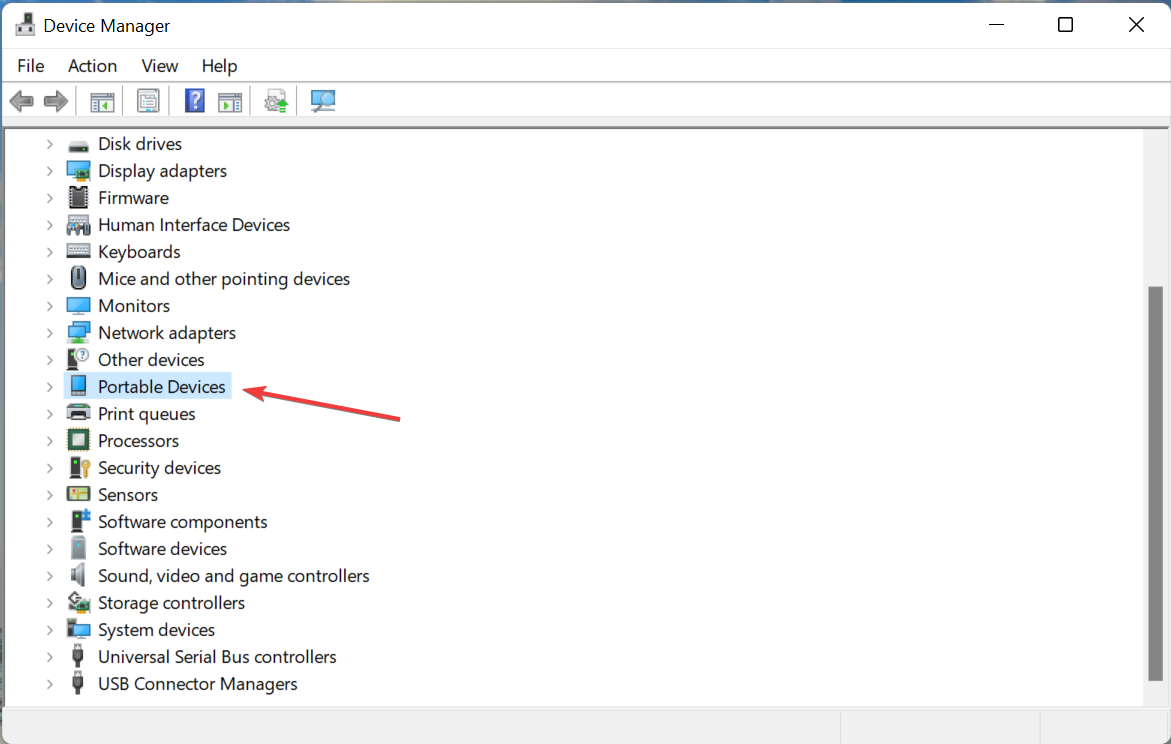
  • Virtual Machine Platform
  • Containers
  • Windows Hypervisor Platform
  • Hyper-V

Those are some of the most likely fixes for Windows Sandbox not connecting to the internet. It can’t be said the above resolutions are 100 percent guaranteed to resolve that issue for everybody, but they’ll probably fix it on your PC.

If the above resolutions don’t fix the Windows Sandbox internet connection, there are other sandbox alternatives you can try. Virtualization software packages like VMWare and Enigma Virtual box have suitable sandbox environments. Check out our 10+ best sandbox software guide for further details.

You can chat about the Windows Sandbox with no internet connection error within the comments box section below. Have you found another way to fix Windows Sandbox not connecting with the internet? If so, you’re most welcome to share it below.

Best way to install a Wi-Fi driver in CentOS 7

You may use a Wi-Fi driver to configure wireless settings or adjust Internet connection settings on a laptop or PC. Wi-Fi drivers are used to set up WLAN devices or routers on a computer.

Computers may connect to wireless signals via wireless Internet adapters and wireless cards. It is paramount for computers running on CentOS 7 or any other network to have your drivers well installed and working to gain access to the internet.

In this article, we will show you how you can install your Wi-Fi driver on a computer running on CentOS 7.

What wireless options does CentOS 7 support?

The kernel that comes with CentOS isn’t the most advanced, but it’s a proven and tested kernel that’s a few years old (depending on your release). As a result, even when Red Hat backports newer wireless drivers to their stable kernel, you may discover that more recent drivers are not available for this kernel.

You can learn more about your specific wireless hardware by visiting Linux’ Wireless page, which includes information about drivers and device support.

How can I install a Wi-Fi driver on my CentOS 7 computer?

1. Install GCC

  1. Log in with the root credential or with an account that has administrative privileges.
  2. Launch your terminal by right-clicking on your desktop and selecting the terminal option.
    install driver wifi centos 7
  3. Type in the following script and hit enter: yum group install "Development Tools"
    install driver wifi centos 7
    This script will install GCC and Development Tools on your CentOS 7 or a RHEL 7 server. Optionally you can use the sudo command: sudo yum group install “Development Tools”
  4. Close the terminal, and move to the next step.

2. Download and launch Wi-Fi driver

  1. Visit the official page of of your linux drivers, and download a driver corresponding to your card from the device lists.
    install driver wifi centos 7
    Bear in mind that the driver for the Framework laptop is Wi-Fi 6 AX210.
  2. Extract the tarball files to your system’s download folder.
  3. Relaunch the terminal (Same process as in step 2).
  4. Use the following command to change directory to your downloads folder: # cd /Home/Downloads
  5. Type in this command and hit enter: sudo cp iwlwifi-ty-a0-gf-a0-XXX.gcode /lib/firmware
    Please replace XXX with your driver version number.
  6. Reboot your computer.

3. Check you connection status

  1. Type in the following command followed by hitting enter: $ nmcli device status
    install driver wifi centos 7

You should see a result similar to the image above displaying your connection status, if your drivers have been properly installed. Note that the Device name may differ depending on the drivers you have downloaded.

This guide is written for the Intel 6E Wireless chip that came with the Framework laptop, but it will also work for other Intel wireless processors. You should identify your wireless chip before going ahead with any installation solutions for CentOS 7.

If you have followed the process and still can not use the installed Wi-Fi drivers, reboot your computer and retry connecting to the internet.

Journal, once a Microsoft Garage inking app, graduates to a full Microsoft app

Roughly a year after it first hit the experimental scene of the Microsoft garage for all Windows users to try, Journal, is now an official Microsoft product, appropriately called Microsoft Journal. Just like always, the newly named app promises to be a more personal freeform note taking experience that puts your personal inking and your stylus first.

The news of the graduation to an official Microsoft product was first announced in a blog post by Renee Malone, who is a lead technical instructional designer at Microsoft. In the post, Malone explains that the new Journal release is coming out between April 5 and 8, and available through the Microsoft Store. This latest release also brings a design based on Windows 11 and new colors and materials. This builds on existing features that lets you scratch phrases out to erase them off the page with a pen, or even circle words to select them in the text.

Interestingly enough, Microsoft shared in today’s announcement some stats behind the app. Since the app first launched, a lot of people have been using the app for inking on PDFs or importing from PDF format. Data shows that 41% of pages in the app were a blank canvas, and 59% were PDFs.

Being a full-on Microsoft product means that Microsoft Journal will now get some bigger updates moving forward. Oz Solomon, the principal engineering manager of the Journal team, mentioned that being a supported app means that the team can address common requests and “a big backlog of new features.”

If you didn’t already try it, check out Microsoft Journal now via the link below. And, check out our hands-on in an older episode of OnPodcast.

Microsoft Journal
Microsoft Journal
Price:
Free

DriverPack for Windows 11: How to Download & Install

In this article, we’ll show you how to download and install the Windows 11 DriverPack to ensure your system has the correct drivers for hardware like printers.

This tool helps find and install the necessary drivers, maintaining compatibility and functionality. Sounds good? Let’s get started:

How can I install DriverPack for Windows 11?

1. Download and install from the browser

  1. To download DriverPack, launch any browser of your choice.
  2. Next, visit the DriverPack official website.
  3. Select Install all required drivers. Certain anti-virus scanners will flag this action as malicious. Select Accept the risk. If the download fails to start automatically, click the hyperlinked Download option.
  4. Open the Installation file. Next, follow the prompts until finish.

2. Download similar solutions from Microsoft Store

Note icon NOTE
At the time of writing, DriverPack Solution is not available on Microsoft Store. In place of it, there are other driver options to download but they are paid versions.
  1. Search Microsoft Store using the search icon. Open Microsoft Store.
  2. Type Driver or DriverPack in the search box at the top of the displayed window. Select your preferred driver and click Get to download. Next, Install the new driver.

3. Direct HP Driver Packs download

  1. Visit Client Management Solutions – HP Driver Packs.
  2. Check for your Notebooks and Tablets Model. Next, select the corresponding Windows 11 installation link.
  3. Download the installation file.
  4. Open File Explorer.
  5. Locate the file.
  6. Open the set-up file and follow the on-screen prompts to install the driver.

Officially, HP recommends the use of HP Image Assistant (HPIA) to build a driver pack. The only drawback is that at the time of writing, the available HPIA is only compatible with Windows 8.1 and 10.

How can I fix driver issues?

Sometimes, a driver file may be present on the PC but either corrupt or needs an update. Below are some steps to fix it:

1. Use Windows Update

  1. Search for Windows Update settings.
  2. Check for updates. Download and install. Next restart to effect the changes.

2. Use Device Manager

  1. Press Windows key + X. Next, select Device Manager.
  2. Locate the device you will like to update its driver. Right-click it. After that, select Update driver.

Is DriverPack safe to use?

We observed it shows in a lot of scanners as malicious:

However, its publisher Artur Kuzyakov said DriverPack officially cooperates with antivirus software manufacturers and protects your computer.

Summary

As you can see, you can easily download driver packs, but keep in mind that your antivirus software may see them as unwanted software.

For more information and detailed instructions, we suggest reading our guide on how to manually install drivers on Windows 11.

In case these methods didn’t work for you, you might want to try using one of the best free Windows 11 driver updater software instead.

What is your experience with driver packs? Let us know in the comments section below.

Windows 11 Screen Not Turning Off: How to Fix it

Windows 11 has the option to turn off the display after a set duration of inactivity. This feature saves power when users are away from their computer and don’t manually put it to sleep.

Users have reported issues with their display not turning off even after the set duration. Luckily, there are some simple solutions to this problem.

If you are having issues with your Windows 11 display not turning off after the set time, it could result from a faulty application or external device. Keep reading this article to find the solution.

How do I adjust sleep and screen settings?

  1. Click on Start and go to Settings (or press Windows + I). In Start menu, open settings.
  2. Under System go to Power & battery. Under system, open power and battery.
  3. Under Screen and sleep, adjust the times you want your display to go to sleep or turn off. Adjust screen and sleep settings.

Users can adjust the time their device goes to sleep when plugged in and on battery power. They can also adjust the duration for their screen to turn off.

There is a difference between turning the screen off and going to sleep. Sleep mode turns off unused programs and applications to save energy after the set duration of inactivity. Turning the screen off does just as it states and only turns off the monitor, but all used programs or applications are still running.

For some of our readers, a background app such as Steam, was running in the background preventing the screen from turning off. Therefore, make sure that you close these apps or adjust their settings to allow this option.

In Steam, go to Desktop mode, and set the Display Properties to turn off the display after a suitable amount of time.

If you’re having issues with sleep mode not working in Windows 11, there are some quick solutions for that problem.

How do I fix Windows 11 not turning off display?

1. Check screen settings

  1. Click on Start and go to Settings (or press Windows + I).
  2. Under System go to Power & battery. Under system, open power and battery.
  3. Under Power, expand Screen and sleep.
  4. Ensure that the screen and sleep settings are not set to Never. Make sure the duration is not set to never.

If the screen and sleep options are set to never, then that will prevent your display from turning off. Check to ensure you have set times selected for your screen and sleep settings.

2. Remove USBs

  1. Unplug any external devices (keyboard, controllers, etc.).
  2. Shut down your PC. Shut down your PC.
  3. If you’re using a PC with a monitor, unplug the display cable.
  4. After five minutes, plug the display cable back in and turn on your PC.

Sometimes, external devices connected to your PC via USB or Bluetooth can keep your monitor from turning off even after set sleep times. Remove any devices and restart your PC to see if that solves the issue.

Many users have reported the issue to be caused by an external controller. Disconnecting the device can fix the problem of your display not turning off.

3. Run hardware and device troubleshooter

  1. Click on Start and search Command Prompt.
  2. Right-click and select Run as administrator. Run as administrator.
  3. Type msdt.exe -id DeviceDiagnostic and hit enter. Type the follow and hit enter.
  4. Select Next to run the troubleshooter. Run the hardware and devices troubleshooter.
  5. Any issues with your devices will be displayed.

If solution 2 didn’t solve the issue, running the troubleshooter can give you a more detailed look at your devices and which might be causing the problem.

4. Check applications that hinder the display

  1. Click on Start and search Command Prompt.
  2. Right-click and select Run as administrator. Right-click and select run as administrator.
  3. Type powercfg -requests and hit enter.
  4. If there is an application listed under Display that means that the app is affecting your display and preventing it from turning off. Check for problematic programs under display.
  5. Uninstall the problematic application from Control Panel. Uninstall program from Control Panel.
  6. If you don’t want to uninstall the program, open Task Manager.
  7. Select the program and click End task. End task.

An application running in the background that affects your display may be the culprit. After identifying the culprit, users can remove the application if it’s not a necessary program.

If it is a necessary application, users can end the task in Task Manager which will allow the PC display to turn off.

5. Run power troubleshooter

  1. Click Start and open Settings (or press Windows + I).
  2. In System, scroll down to Troubleshoot and select it. Run troubleshoot.
  3. Click Other troubleshooters. Click on other troubleshooters.
  4. Find Power and select Run. Run power troubleshooter.
  5. Locate any issues.

Issues with the screen not turning off may be related to issues with your PC’s power. Running the troubleshooter will quickly help you locate any found issues and make the necessary adjustments.

6. Adjust power plan

  1. Right-click on Start and select Run (or press Windows + R). Right-click start menu and select run.
  2. Type control.exe powercfg.cpl,,3 and click OK. Type the following then hit OK.
  3. Expand USB settings, then expand USB selective suspend setting.
  4. In the drop-down menu, next to On battery and Plugged in select disabled for both. Adjust USB settings to fix Windows 11 not turning off display.
  5. Click Apply, then OK.

Hopefully, one of the solutions above helped solve the issue of your screen not turning off after the set duration in Windows 11. Ensure that your sleep and screen duration is not set to never, so you don’t run into the issue again.

If you’re having difficulties connecting a wireless monitor to your PC, then we have solutions for that issue as well.

Let us know which solution worked for you in the comments below.

Miracast for Windows 11: How to Install & Set Up

If your devices are compatible with Miracast, you can easily download and use it on your Windows 11 PC. Today we’ll walk you through the whole process: from checking compatibility to downloading the drivers and projection methods.

How do I add Miracast to Windows 11?

1. Check to see if your PC supports Miracast

  1. First, press Windows + R keys to open the Run dialog box on your computer.
  2. Type dxdiag in the box, and hit Enter to open DirectX Diagnostic Tool.DirectX Diagnostic Tool
  3. Wait for it to finish analyzing your PC.
  4. Then, click on Save All Information.Save All Information
  5. Following that, choose the location you want to save the information. Select Desktop for more comfort, and click on Save to save the file.Saving dxdiag
  6. Open the text file with the text editor of your choice, e.g., Notepad.
  7. Press Ctrl + F and type Miracast to see if it is available.Checking Miracast availablity

Although there are a few ways to check for Miracast’s availability, this method is the most convenient to see if your PC supports this feature.

2. Get the Latest Miracast Drivers

  1. Search for Settings in the Start Menu and open it.Open Settings
  2. After that, click on Windows Update on the left-hand panel, then on Check for Updates, and finally on Download and Install.Installing Windows update
  3. Click on Advanced Options, then head over to Optional Updates, and download and install them as well.Advanced options
  1. Restart your computer afterward.

If using the Device Manager looks like too much trouble, you can alternatively install them using Fortect Driver Updater. This tool automates the task so there’s no effort on your end.

If your display does not support Miracast, you can use USB transmitters such as Actiontec ScreenBeam USB Transmitter to cast your screen on your TV.

3. Wirelessly Project Your Windows 11 to an HDTV

  1. Plug in the Miracast adapter into your TV’s HDMI port.
  2. Select the right HDMI channel on your TV.
  3. Press Windows + I keys to open Settings.
  4. Select Bluetooth & Devices on the left-side panel, then click on Add Device.Add Your TV from Device List
  5. Your Windows 11 PC will now look for new displays within the range.
  1. Choose your TV from the list of devices that appear. If you are using a Miracast adapter, click on it.

What should I know after downloading Miracast for Windows 11?

Another benefit of using Miracast is securing your connection with WPA2 encryption. As a result, you do not need to worry about the privacy of your protected/private content.

If your graphics card does not support Miracast, check our article. You can verify Miracast compatibility with your graphics card.

Also, if you face other issues, you might need to try reinstalling your network drivers.

Why doesn’t my computer support Miracast?

  • You don’t have a Miracast adapter on your PC. Many PCs and TVs don’t have this adapter built-in, so you’ll need to purchase them separately.
  • Miracast isn’t properly installed on your PC.
  • Issues with the network connection.

Furthermore, you may have forgotten to turn on your Wi-Fi, or your adapter may not be connected.

Sometimes, the issue can be resolved by unplugging and replugging the adapter and restarting your devices.

Wrapping up

That’s about it. If you’re having any problems with Miracast, check our guide on how to fix Miracast not working on Windows 11. And if you use the older operating system, learn how to set it up on Windows 10.

Windows 11 All-in-One Computer: 5 Best Picks for 2026

The market for all-in-one computers is booming. Maybe you’ve been on the fence about buying one. If so, you’ll find this resource both informative and helpful.

AIO computers offer features that make them attractive for home and small business use. They are compact, with all components built into one unit, thus saving space on your office desk.

Moreover, these devices have some extra features that traditional desktop computers lack, such as the ability to print from the front of the machine, or built-in security cameras.

They have the same convenient all-in-one design as a desktop, but with the portability of a laptop. It’s a great way to save space without sacrificing power or design.

The best AIO computers are those that have a high-quality processor for fast performance and graphics cards for high-quality media playback. Those with a touchscreen display also tend to be more expensive than their counterparts with regular displays, so keep this in mind when buying your next computer.

If you’re looking for an AIP PC with the highest performance, then you’ve come to the right place. Here we review the 5 best Windows 11 all-in-one computers.

What are the advantages of switching to AIO computers?

With the rise of smartphones, laptops, and tablets, the desktop computer has been relegated to a few specific use cases.

If you are not using a desktop for heavy-duty gaming or video editing, then you should consider switching to an all-in-one computer.

These computers provide all the benefits of a regular laptop with the bonus of being able to plug in any peripheral that you might need. You can even connect it to your TV and use it as a monitor for your home theater system.

All-in-one computers are also beneficial for businesses who want to save money on office space, as they can be used as both a desktop and laptop.

The screen can be detached from the keyboard and be used as a tablet when needed. This means that you don’t need to buy two separate devices which saves you a lot of money.

Things to consider when buying an AIO computer

When looking for an AIO PC, you should look at the following features:

  • Processor: The processor determines how quickly your computer will run when performing tasks such as playing games or editing photos
  • Memory: The memory determines how much data your computer can store at a given time
  • Screen size: The size will determine how much space it will take up, which is a consideration if you have limited space.

What are the best Windows 11 all-in-one computers?

1 HP 24″ All-in-One Desktop

  • Comes with pre-installed Windows 11 Home
  • Dual front-facing speakers
  • HP privacy camera
  • Average webcam quality

Work, play, and more with a sleek all-in-one desktop that fits perfectly in any space. The stylish HP AIO computer delivers value and style with impressive picture quality, premium sound, and smooth performance.

The preinstalled Windows 11 Home ensures effortless compatibility with apps and programs you already use. Its sleek design includes an edge-to-edge display and an easy stand-up hinge for easy access to ports

It features a 24-inch display with a cinematic wide-view panel. The AMD Radeon graphics makes it ideal for viewing your favorite media or multitasking between apps. Plus, you get plenty of ports for connecting to peripherals.

Boasting a clean and fresh design, this stylish PC delivers great performance with an AMD Athlon Silver 3050U processor, 4 GB of memory, and 256 GB of SSD storage.

It also comes with a wireless mouse and keyboard, so you can use it as a desktop without reaching for a separate pair of peripherals.

2 Acer Aspire C27-1655-UA91 AIO Desktop

  • Free upgrade to Windows 11
  • Features the latest 11th Gen Intel Core i5 processor
  • Wi-Fi 6 connectivity
  • Only has 2 USB ports

The Aspire C27 All-in-One PC has all the essential features and packs them into a slim, space-saving design that is easy on the eyes.

It features the latest Intel Core i5 11th Gen processor and Intel Iris Xe graphics. Plus, the Bluetooth 6.0 wireless connectivity offers a seamless computing experience. 

The full HD display and impressively thin bezels are a bonus that makes the Aspire C27 truly stand out. The keyboard and mouse are included for an easy setup.

Its massive 512GB NVMe M.2 SSD provides accelerated speeds to make all of your apps run smoother and respond quicker. Plus, you can install up to 12GB of DDR4 memory using the 2 available slots on this desktop PC. 

3 HP All-in-One 22″ Desktop Computer

  • Ultra stylish
  • 4 USB ports
  • Connects to almost every printer
  • Not ideal for heavy gaming

With the HP All-in-One 22” Desktop Computer, you’re always ready to tackle your everyday tasks. This fully-featured system delivers premium performance and reliability at an affordable price.

Enjoy easy access to all of your files, photos, and other data with the 22″ display. The AMD Athlon Gold 3150U processor with AMD Radeon Graphics powers through everyday tasks and delivers exceptional performance for graphics-intensive programs like photo editing and video editing software.

The 256 GB solid-state drive includes enough storage space for your documents, multimedia files, applications, and more.

With an all-metal chassis, the HP all-in-One has incredibly thin bezels and a gorgeous 1920 x 1080 Full HD touch display.

4 Dell Inspiron 7700 27-inch Desktop Computer

  • Latest 11th Gen Intel Core processors
  • Wi-Fi 6 technology
  • Windows 11 Pro
  • Pricey

The Dell Inspiron all-in-one desktop has a 27-inch full HD anti-glare display that includes a pop-up webcam for instant privacy. Instantly start working and playing with the stunning graphic capabilities offered by the newest Intel Iris Xe graphics card.

Its display has a narrow border of 8mm which makes the screen looks beautiful from any angle. It also includes the latest 11th generation Intel Core processor to ensure lightning-fast speeds no matter what you’re doing.

It has the power to run multiple applications at once with its 12GB DDR4 and 256GB Solid State Drive (Boot) + 1TB 5400 rpm 2.5″ SATA Hard Drive (Storage).

5 Lenovo IdeaCentre AIO 3 AMD Computer

  • A 30-day trial of Microsoft Office is included
  • Stylish and slim design
  • Pre-installed Windows 11
  • May not be compatible with certain games

The Lenovo IdeaCentre AIO 3 desktop computer has a sleek and compact frame, housed in a chassis that’s perfect for both home and office.

With AMD Ryzen™ 5000U Series processors, it has enough horsepower to complete your work or school projects.

The 23.8-inch wide FHD display includes crisp bold colors that are viewable from any angle, plus rich powerful stereo speakers. The SSD offers plenty of storage for all of your media libraries, with quick boot and data transfers.

Not only does it come with 10G USB 3.2 Gen 2 speeds, but it also has a built-in microphone and earphone combo. Plus, one LAN (1000) port, one HDMI-out port, and two USB 2.0 ports.

Are all-one-computers a better alternative?

All-in-one computers can be good or bad, depending on how you look at them. They tend to be good for entertainment, but not as good when it comes to ergonomics and computing power.

These all-in-one computers are easy to use, powerful, and have little to no issues. Please check our guide on the best Windows 11 ready laptops that you can buy right now.

If you found this article helpful, do let us know in the comments section below.

That’s how you can change DPI on Logitech G Pro wireless

Logitech G Pro wireless is one of the best gaming mice that combines the click-to-spec feel of a mechanical switch with the convenience and reliability of optical technology. It is designed for gamers who demand wireless freedom without sacrificing pro-grade performance, durability, and comfort.

Although it’s quite a bit heavier than other mice on the market, its high-quality sensor makes it worth using. It is one of the first wireless gaming mice to have customizable colors, which is a great feature as well.

However, a lot of people are having issues with it being too sensitive and not accurate enough. If you are also struggling with the same problem, then this guide should help.

What is DPI and why should you change it?

The DPI (dots per inch) on a mouse is the number of dots that the mouse can detect when it moves a single inch. A higher DPI setting means there are more dots, which in turn translates to a finer level of control over your cursor on the screen.

Ultra-high DPI settings are generally reserved for gamers and power users who need to make precision movements on their screens.

When you change your DPI setting, you need to calculate how many pixels you need to move on the screen before your cursor moves one inch.

If you want to change DPI on Logitech G Pro wireless, simply follow the instructions below.

How can I change DPI on Logitech G Pro wireless?

  1. Open the G Hub software.
  2. Click on the G symbol on your mouse to run G Hub software. logitech g pro
  3. Go to the Sensitivity tab on the left panel.
  4. In the right pane, you can see all the DPI speeds. The underlined DPI speed is the current DPI speed of your mouse. The Orange DPI is your shift speed.
  5. Change the DPI speed by selecting a different point in the right pane.
  6. You can also double-click on a value and type in a new speed. Hit Enter after changing the settings.
  7. If you want to delete a DPI level, do it by right-clicking on the point and selecting Delete
  8. Close the G Hub software.

What is the ideal DPI for your Logitech G Pro wireless?

Did you know that the mouse pointer movement on your computer screen is not based on a regular grid? A pointer movement is based on dot-by-dot scanning. To achieve smooth movements, you need a high DPI number, which stands for dots per inch and is also referred to as PPI (pixels per inch).

Since the screen resolution is also measured in pixels per inch, the higher the DPI number, the smoother the mouse pointer movement will be.

The best part of the Logitech G Pro Wireless mouse is that it allows users to customize options that wouldn’t be available otherwise. One such case was with the procedure mentioned in this guide. To make things easier, Logitech offers the switch to open the G Hub tool on the mouse itself.

If you are looking for the best Logitech mouse in 2022, please go through our guide on the same.

In case you have any questions, please let us know in the comments section below.

Fix: AirPods microphone is not working [Mac, Windows 10/11]

AirPods earphones are great, but many users are having issues, and according to them, AirPods microphone is not working properly.

This issue can happen only for one AirPod or for both headphones. We also have a solution for the first scenario.

This can be a problem on both Mac and PC, and in today’s article, we’re going to show you how to fix this problem once and for all.

Why is AirPod mic not working on calls?

It’s not uncommon to experience issues with these earbuds, and many have reported that AirPods are not working in Windows 11.

These issues can result in low AirPods volume on Windows 11 and other operating systems, therefore it’s crucial that you fix that.

For more information, be sure to read our can’t connect Bluetooth headphones to PC guide, or check the solutions below.

How can I fix the AirPods microphone issues?

1. Update your Bluetooth drivers

If AirPods microphone isn’t working properly, it’s advised that you update your Bluetooth adapter driver.

Apparently, you need to download Bluetooth Headset Helper from 2013 for Broadcom devices to fix this problem.

If you don’t want to do that manually, you can always use specialized driver updating tools to update your drivers automatically.

2. Use a Bluetooth adapter

Sometimes your built-in Bluetooth adapter can’t handle AirPods, and that can lead to issues such as AirPods microphone not working.

To fix that, you might want to consider buying a new Bluetooth adapter. Many users reported that they fixed this issue on Windows 10 by buying a Bluetooth adapter, so be sure to consider that.

3. Continue using the microphone

  1. Tap your headphones to activate the microphone.
  2. Keep talking and AirPods will pick up your voice after a second or two.

This is a simple workaround, but few Mac users reported that it worked for them, so you might want to try it.

4. Check your firmware

  1. Check your firmware version. Several users claim that the 3A283 version caused the problem.
  2. If you don’t have the latest firmware, try updating it and check if that solves the problem.
  3. In case the issue persists, it would be best to contact the Apple-certified repair center.

Some users managed to clear this problem by updating the firmware for the AirPods so do that right now.

To do that, you only need to start charging your AirPods while still connected to your iPhone. Of course, the smartphone should also be connected to the Internet.

5. Verify the Active Microphone Settings

  1. Go to the Settings menu on your device.
  2. Tap the Bluetooth option.
  3. Tap on the Info icon from your AirPods.
  4. Then tap the Microphone and enable the Automatically Switch AirPods option. That will enable the AirPods to use the most suitable microphone.

This solution is only if the microphone is working on only one AirPod so make sure you perform the steps above.

For single AirPod audio or connection problems, see our step-by-step guide on why one AirPod is not working to quickly restore sound on both earbuds.

6. Restart your smartphone

This issue can be simply caused by a connectivity issue from the iPhone that is not recognizing any inputs so you should restart the device.

To do that, just hold the Side button and Volume Down button pressed together at the same time for a couple of seconds.

If your iPhone has a home button, you only need to keep the Side button pressed to reset the device.

AirPods are great, but if the AirPods microphone isn’t working for you, be sure that your drivers are up to date, or try our other solutions.

If you also have problems connecting your AirPods to your MacBook, we have an excellent guide to fix that problem quickly.

If you have any other suggestions to get rid of this problem, leave us the solution in a comment from the section below.

7 Best Windows Hosting With SQL Server [2026 Guide]

If you want to use Windows hosting for your personal or business website, there are specific technologies that work with Windows such as ASP, .NET, Microsoft Access, and Microsoft SQL Server.

Windows hosting is simple, convenient to use, manage, and update. Moreover, it seamlessly integrates with Microsoft products, is stable and reliable, and ensures full security and safety from hackers.

It can even handle content management systems, and you can use it if you don’t have hosting experience.

How can an SQL server help my website?

The SQL (Structured Query Language) server is a database management system developed by Microsoft.

It is meant for storing and/or retrieving data when it is requested by other software apps that run either on the same or another computer in the network, as well as on the Internet.

In other words, it’s a software product that offers better management of your databases, and it’s exclusively designed for Windows.

Do you need an SQL server? As it’s a database management system, if you have a lot of client or product data stored, then yes, an SQL server will help a lot.

If you have a small website and no complicated databases to host, then you shouldn’t think about this solution.

Which is the best Windows hosting with SQL server?

A2 Hosting

A2 Hosting is known for its blazing-fast features and fine-tuned servers that deliver up to 20 times faster performance as compared to other competing Windows hosting provider options.

It is reliable and can integrate with other web building tools in Windows such as the .NET Framework, or ASP, backed by 24/7 Guru Crew support plus a wide variety of tools to get your Windows hosting up and running.

As one of the top names in the best Windows hosting with SQL servers, A2 Hosting integrates elements you need under one roof such as the ASP, .NET framework, C#, MSSQL, and Visual Basic.

You also get scalability, ease of use and updating, and the Plesk control panel – a complete range of tools to ensure and enable you to succeed.

A2 offers a SiteBuilder that you can take advantage of to start your website from scratch and install your favorite CMS system or migrate your existing website to A2. And that is free.

You even get free SSL certificates and with just one certificate, you will be able to protect an unlimited number of domains.

Let’s see the key features you’ll benefit from:

  • Free SSL Certificates
  • Protect an unlimited number of subdomains with a single SSL certificate
  • Support for ASP, .NET framework, C#, MSSQL, and Visual Basic
  • Ultra-fast speed
  • 24/7 Guru Crew support

A2 Hosting

Fastest hosting, free automatic backups, and 99.9% uptime commitment – A2 Hosting delivers all of these and more!
Check price Get it now

HostGator

HostGator makes Windows hosting simple and easy for you to use which is why it ranks among the best Windows hosting with SQL servers.

Features include MSSQL Server 2008 R2, MySQL, Access Databases, FTP accounts, Plesk control panel, and site-building tools.

This solution has over 4000 free website templates, email addresses, administrative tools, one-click installs, and programming features including ASP and ASP.NET.

HostGator is known for its award-winning tech support and highly extensible Windows Server 2012 R2, and its hosting plans let you draw as much as you can from the hosting accounts at the lowest cost possible.

Enjoy a 99.9% uptime guarantee, unlimited sub-domains, plus extra perks with each hosting plan.

Bonus features include a free website builder from HostGator, free website transfer, domain transfer, MySQL transfer, and script transfer, plus 38 free scripts.

Check out its best features:

  • Over 4000 free website templates
  • Free website and domain transfer
  • Free website builder with advanced creation tools
  • Support for MSSQL Server 2008 R2 and MySQL
  • 99,9% guaranteed uptime

HostGator

This hosting service will provide you with all the tools to create a modern website and offers free transfer.
Check price Get it now

GoDaddy

If you’re looking for great Windows hosting with SQL Server, perhaps you might be interested in GoDaddy. The basic plan allows you to host a single website and use 100GB of storage.

In addition, there’s support for up to 50 FTP users. This plan is for SQL 2012 and 2014 hosting and it offers 1x200MB for MSSQL. As for MySQL, you’re limited to up to 10 1GB databases.

Standard features such as database backup and restore are available, and you can directly access the database if you want.

This package supports an unlimited number of external domains, subdomains, and alias domains. Windows Server 2012 R2 and Plesk 12 are part of the package too, as well as ASP .NET MVC3, Silverlight 5, and 4.

Perl, Python, CGI, Classic ASP, and CMS services such as WordPress, Drupal, and Joomla are part of the list too.

Overall, GoDaddy offers great service, and with support for SQL Server, it will be a perfect choice for you.

You should also consider the best web hosting deals from GoDaddy and you could get a great offer right now.

Take a look at its best features below:

  • Support for Perl, Python, CGI, Classic ASP, and CMS
  • Unlimited number of external domains
  • Improved site speed, security, and support
  • Fast and reliable support team
  • Protection against malware attacks

GoDaddy

Award-winning hosting with easy setup, generous storage, and automatic upgrades – experience the most trusted web host on the planet!
Check price Get it now

TMD Hosting

With this Windows hosting provider, you enjoy exceptionally fast speeds and superior performance, in an environment that supports the latest ASP .NET framework, Windows Server 2012 R2, and SQL server.

TMD Hosting offers a high level of security. It features daily updates plus a web-based firewall to ensure your site is guarded against online threats.

If you’re worried about the data on your website, this solution daily automatic backups of your site database, and if something happens, the restoration is free.

However, that shouldn’t be a concern because the hosting service has a 99.999% uptime record, and it also comes with anti-spam protection.

And if you want your website to be fast, it certainly will because the servers only use SSDs, so the access times are minimal.

Should you have any problems or questions, you will have a dedicated technical support contact so that you can sort things out as fast as saying loading time.

Let’s quickly look at its key features:

  • Dedicated technical support
  • Daily automatic and constant backups of your site’s database and files with free restoration
  • Up to 20 times faster load time owing to the use of Solid State Drives on all servers
  • Unlimited email accounts and free Let’s Encrypt SSL certificate installation
  • Fully cloud-managed servers
  • 99.999% uptime, anti-spam protection, and a dedicated yet isolated VPN

TMD Hosting

Blazing fast speeds, end-to-end protection, and an extensive data center network with global coverage – what more can you ask?
Check price Get it now

Miles Web

Miles Web provides superfast Windows hosting at an affordable price so you can give it a shot.

Ideally, Windows hosting integrates Microsoft apps such as MSSQL, ASP, .NET, Visual Basic, Access, and FrontPage, so this hosting provider gives you just that.

Features include MSSQL server, Plesk Control panel, multiple domain hosting and databases, unlimited emails, 24/7 uninterrupted support, unbeatable reliability, and 99.95% uptime needed to run your website at any point in time.

You also get a free domain name (or transfer yours for free), an SSD drive for faster loading time and performance, and a one-click installer for WordPress, Joomla, shopping carts, and other apps.

Secure email, programming features as mentioned, free website transfers at no added cost, and daily automated backups for optimal security are also included.

You will benefit from these key features:

  • 24/7 uninterrupted support
  • Free domain for a new hosting account
  • SSD drives for fast access time
  • Secure e-mail service
  • Free website transfer

Miles Web

Just focus on your online business and leave the hosting task to the experts from Miles Web.
Check price Get it now

Cloudzy VPS

Cloudzy Windows hosting provides a user-friendly environment that is also geared for performance, supporting the Microsoft .NET Framework, MS-SQL, WFP, and other developer tools for Windows.

With high-performance server hardware, including NVMe storage and DDR4 RAM, creating and deploying SQL databases and servers will be faster than with any other provider.

NVMe is several times faster than even the best SSD storage devices used by almost all other providers and DDR4 RAMs are in a class of their own.

So, when it comes to SQL databases, Cloudzy’s Windows VPS, with full administrator access and minimal latency connections is the way to go.

With a 7-day money-back guarantee, there is no risk involved. You’ll get a full refund if you’re not satisfied for any reason.

Take a look at Cloudzy’s best features:

  • 1 Gbps bandwidth for ultra-fast connection speed
  • Latest generation NVMe storage with DDR4 RAM technology
  • Ultra low latency with 14+ data centers all over the globe
  • Full administrator access to your Windows system
  • Smart DDoS protection
  • 99.95% uptime on all plans
  • 7-day money-back guarantee
  • 24/7 customer support

Cloudzy VPS

Get this great hosting solution that guarantees a top storage solution and excellent uptime.
Check price Get it now

SmarterASP.NET

best Windows hosting with SQL server

For world-class quality hosting services, this is the best Windows hosting with SQL server, which also has a shared hosting package renowned for its speed and reliability.

SmarterASP.NET features a one-click installer, tech support to optimize your experience, and award-winning customer service.

There is also a built-in CloudFlare content delivery network that makes your website 4 times faster, and a 99.9% uptime guarantee.

You also get different features based on the option you pick from either the MSSQL database, Windows 2012 hosting, or MySQL database.

Unlike other providers, this one guarantees the same quality of service and offerings for free trial users and paid users alike.

Let’s review its most important features:

  • 99,9% uptime
  • Support for MSSQL and MySQL databases
  • CloudFlare content delivery network
  • Super-fast access
  • Management and administrative tools

⇒ Get SmarterASP.NET

We hope that you have found the perfect match for your needs for hosting with SQL servers.

When you are looking for such a solution, also consider the volumes of your databases. Then you can decide whether you need a dedicated solution or to share it.

Of course, a dedicated SQL server will only be available to you while a shared one will be also accessed by other websites or domains.

If you decided on an SQL server, you could definitely be interested in our list including the best SQL server backup software.

Now that you know the best Windows hosting with SQL server, let us know your favorite pick, or share with us the one you use in the comments section below.

Issues continue to mount as Microsoft’s Undead Labs hash out State of Decay 3

As stockholders and Activision Blizzard executives await the fallout from several pending lawsuits of discrimination and sexual harassment ahead of a $68B buyout, another Microsoft owned studio may be about to wade through similar waters.

Kotaku is reporting that Microsoft’s Undead Lab Studios, the brainchild behind State of Decay and platform exclusive sequel State of Decay 2, is also facing allegations of “sexism, bullying and burnout.”

In a lengthy expose by Kotaku writer Ethan Gach, Undead Labs transition from small-time studio to Microsoft backed game developer is put under the microscope to reveal a studio plagued with the same industry issues of misogyny, mismanagement and burnout as any other.

Kotaku interviewed 12 current and former employees for this article, all of whom requested anonymity because they feared sharing their concerns publicly would doom their careers in the video game industry. Many felt very positive about certain aspects of the studio. A few said it still has room to improve but has overall been a very good place to work. Most considered the last few years since the acquisition a period of crisis, and are worried management hasn’t learned the right lessons.

At first, some employees were worried the Microsoft acquisition would change the indie studio for the worse. Now they worry the $2 trillion company’s incredibly “hands-off” approach allowed dysfunction to fester, leaving some of the studio’s more vulnerable employees to fend for themselves. As one former developer put it, “We were afraid they would come in and change our culture but our collapse came from within, and we could have used [Microsoft’s] help.”

Gach lays forth a story of a studio dragged into success by Microsoft’s acquisition and as such, drowning from lack of direction, sabotage, poor leadership and excessive turnover.

State of Decay 2 video game on Xbox One and Windows 10

On top of all the managerial mishaps, additional friction arose from discriminatory practices against women, non-binary and “other marginalized employees.”

One former developer recalled men asking women to take notes during meetings, ignoring their expertise, and even making sexist remarks like, “You don’t look as pretty as normal today,” and “I’m surprised a girl like you has this job.”

While Undead Labs sold itself as a studio in transition, welcoming of diversity, equity and inclusion, it may have done so as mostly a facade to keep head of Microsoft Gaming Phil Spencer appeased during acquisition negotiations.

Despite a change at the head of the studio with co-founder Jeff Strain leaving in 2019 and head of development Philip Holt getting promoted, the fissures within the company seemed to only deepen as Holt began favoring nepotism over the needs of the studio.

Holt has been accused of “fast-tracking” his friends and partners from outside studios as a way to help solidify his role within Microsoft’s ambitious play for a larger Xbox studio-network narrative.

In favoring his own buddies to leadership positions Holt ostensibly railroaded “two-director level women at the studio by not giving them the support needed to succeed and hiring men over top of them in the hierarchy to absorb their roles,” according to current and former Labs employees.

Even when staffed with a credited HR professional with Anne Schlosser to help address developer concerns, Labs persisted with its rampant culture of sexism, discrimination and incompetence. Employees claim Schlosser did nothing against blatant sexism or even a Tech Art manager who almost drove the entire Tech Art team to quiet, but instead dismissed complaints as “pandemic driven.”

Of course, Schlosser denies the allegations and offered the following statement:

Before I left Undead Labs in a routine reorganization, I implemented new hiring practices that increased workforce diversity by more than 30 percent. Women, LGBTQ+, and BIPOC colleagues thrived in both leadership and individual contributor roles while I was at Undead Labs. No two people have the same perspective on or insights into events and outcomes in the workplace. However, the company’s decisions and direction on all topics related to its HR functions while I worked at Undead were a daily, even hourly, collaboration among its leaders.

Schlosser goes on to lay any questions about equitable treatment at the doorsteps of Undead Labs and Microsoft, as her parting gift after Microsoft HR got involved and Schlosser departed shortly thereafter.


Beyond the management struggles at Labs lay the issues with the game itself, State of Decay 3 remained underbaked a year after its preview during the Microsoft’s 2020 Xbox exclusive showcase. Aside from a zombie deer, Labs had very little to show for its development other than a botched internal demo in 2021.

The schedule to showcase more demos to the Microsoft teams was upended when developers revolted and forced Holt to subdue his unrealistic ambitions to present half-baked “prototypes” to their parent company.

After a litany of interviews and firsthand accounts from employees in the trenches have surfaced, it begs the question of Microsoft’s role in overseeing studio behavior. While there is an argument for Microsoft being hands-off with a scrappy young studio that produced one of its flagship properties, there is another one for it addressing Labs as a reflection of a larger industry-wide problem.

Microsoft has its own fair share of discriminatory allegations. However, the gaming industry at large seems infected with similar stories, sexism, harassment and bigotry across the board, and as the company embarks on taking ownership of storied Activision Blizzard and its stable of studios, will Microsoft continue to let ambivalence hamper accessible working conditions for enthusiastic developers?

Could Microsoft’s desire to foster similar working conditions that produced hits such as Call of Duty, Guitar Hero, World of Warcraft, or Tony Hawk backfire and leave them with a bunch of wasted potential because of inaction, similar to how the company fumbled away Skype?

11 Best Enterprise Hosting Services for Blazing Speed [2026]

There are lots of companies that are looking out for your business, and they’re packed with enterprise-level features.
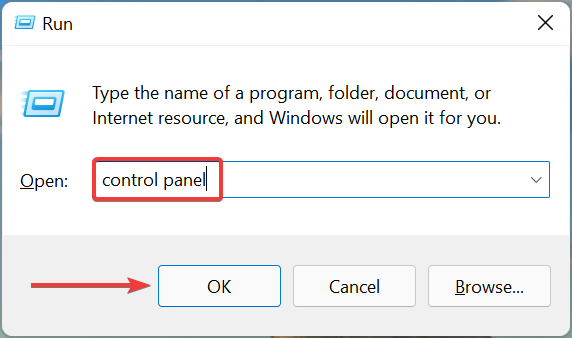
And if you also host the clients’ data and accounts, you can’t be too cautious in providing the best security for your company.

You should carefully plan every step in securing your business and finding the right enterprise hosting service for your needs.

What to look for in an enterprise hosting service?

The best enterprise hosting services will first get to know the specific customer’s needs and only after that, the team will craft a whole infrastructure based on the client’s needs.

So, here’s what are the main aspects you should consider when selecting the best enterprise hosting service:

➡ Server uptime – Uninterrupted service is the most important aspect of hosting so make sure that you make no compromises on downtime.

➡ Fast access – Reliable servers and SSD storage will ensure fast access to your data and services.

➡ Great customer support – If something happens, the first concern is to get back to working conditions so having a fast responsive client support team to communicate is paramount.

It should also offer the best combination of features, bandwidth, storage, and customer support.

In order to make your choice a bit easier, we gathered the top enterprise web hosting out there, and we’ll show you their best features to help you make up your mind.

What is the best enterprise hosting provider?

Bluehost – Highly popular hosting

Bluehost is a great hosting service that is especially focused on WordPress. In fact, this solution includes a robust platform for website building. It’s thus ideal for WordPress hosting services for business.

First of all, you will benefit from great speeds thanks to the VPS platform and the usage of SSDs for storage.

The hosting tools are cloud-based and very easy to use. However, if you need assistance, you can count on 24/7 expert support.

With VPS hosting, you will always have access to the dedicated resources like RAM, CPU, and Disk Space you’ve chosen.

BlueHost also offers storage for automated backups for your sites and dynamic upgrades to add more resources to your account easily.

After you decide on your resources, they are yours to use, and host unlimited domains and websites on your account to manage them from one place.

Bluehost automatically creates daily, weekly, and monthly backups of the entire account so that you will be able to easily restore your complete data with a single click of a mouse.

You can check out the whole set of features that are packed in Bluehost and start using the service from its official website.

Check out the best features of Bluehost:

  • Fast access with SSD storage
  • 99.99% uptime guaranteed
  • Automatic backup of your websites
  • Dedicated resources to your account
  • Dynamic upgrades with a single click
  • Host an unlimited number of websites and domains

Bluehost

Bluehost is the ultimate VPS hosting solution with SQL servers and it’s perfect for WordPress.
Check price Get it now

WP Engine – Great enterprise solutions

wp engine web page


WP Engine is one of the best enterprise hosting providers for WordPress users. It supports plug-ins and all sorts of WordPress installations. It comes pre-installed so you don’t have to install WordPress.

Just type your credentials and log into the service to easily create and manage content like posts, pages, and galleries.

It also has an interesting billing transfer feature. You can create a site for your client in WP Engine without managing the client’s hosting account.

You will have to choose between a personal, professional, business, or premium plan.

While the Personal plan is for beginners, the rest are for advanced professionals who need specific features in order to manage their sites.

If you are looking for secure, fast, and friendly WordPress hosting, WP Engine is the tool you need.

Here are some of WP Engine’s most important features:

  • Easily migrate your WordPress site to the WP engine from any other host
  • Staging sites: create a clone of your site to check the latest changes
  • Copy sites: you can copy a site’s structure in order to create a new one
  • Reach WP experts’ support anytime you want
  • Managed security: keep your site safe starting from the kernel level
  • Immediate disaster recovery: be safe with the latest backup and recovery procedures from WP professionals

WP Engine

Take your enterprise hosting to the next level by using the powerful WP Engine today!
Check price Visit Website

eUKhost – Ideal for European customers

eUKhost is one of the most popular hosting consoles of more than 35,000 businesses worldwide, and the newest hyper-converged technology powers it for fantastic reliability.

You will be able to choose between shared and premium cPanel hosting to activate a website, managed and easy-to-use VPS, but also a reseller and critical enterprise hosting.

There have been 17 years since the service has been helping businesses with reliable and secure hosting and an awardee customer support team and that tells you something about its reliability.

Plus, the company promises a 99.95% uptime, exactly what you need from an enterprise hosting solution.

The service offers email hosting and the latest-generation dedicated servers for ultimate performance. You can get the best plan for your needs on the eUKhost official website.

Check out the service’s most important features below:

  • eUKhost has four ultra-modern Tier 4 data centers in Reading, Maidenhead, Manchester, and Nottingham
  • The service’s web hosting plans are for both Linux and Windows platforms
  • You will get a 99.95% uptime
  • 30-days money-back guarantee
  • The service provides advanced cPanel for account administration and website management
  • Amazing customer support of the company delivered via email, toll-free phone, and online chat as well
  • There is also a lively support forum and a knowledge base resource

eUKhost

Use eUKhost to gain access to a plethora of useful features for easy enterprise hosting services.
Check price Visit Website

A2 Hosting – Greatest WordPress business hosting

A2 Hosting is a natural and best-matching solution for extremely fast web hosting and website uptime no matter your experience.

If you’re fully interested in succeeding with your online business or kind of business, your website needs to have strong and reliable support. For this matter, this hosting service is a reputable choice for your victory.

To give you an idea, there are plenty of security and speed benefits you will use for your business. Thus, you have free site migration and easy-to-use tools to manage your enterprise website.

Not only that, there is 99.9 uptime for your business website so you don’t have to ever worry about server issues. Plus, the Guru Crew Support is everything you need to create and manage it.

It is also important to mention that such acclaimed web hosting will help your business expand and become a recognized brand no matter the sector you’re activating in.

So, even if you’re starting a personal blog project, an online publication, or creating a web application, this hosting company is and will stay the best.

Check out the best features:

  • High-speed managed WP hosting
  • VPS hosting and dedicated resources
  • Customized and flexible dedicated servers
  • Custom email domain for professional communication
  • Turbo hosting plans
  • Unlimited WordPress website plans

A2 Hosting

Make a living from your online business by taking this expert-confirmed hosting.
Check price Visit website

TMD Hosting – Intel and SSD-powered servers

This 100% Intel and SSD-powered service provides blazing-fast Windows hosting at enterprise levels. You will get fantastic speeds and superior performance.

TMD Hosting allows you to choose between three Windows hosting plans including the starter plan, business plan, and enterprise plan.

You will be able to make amazing websites and apps with ASP.NET, MSSQL, and five different versions of PHP, Perl, Python, and SSI.

The company is automatically and continuously snapping five copies of the website’s databases and files just to make sure that you will always have a way back.

Simplify the deployment process with Web Deploy and the Plesk control panel. Try the TMD Hosting enterprise plan from the official website.

Check out the best features that you’ll be able to enjoy with the enterprise plan:

  • Unlimited SSD space, bandwidth, MSQL databases, and websites hosted
  • Unlimited dedicated app pools
  • Free domain, spam experts, and more essential tools
  • 60-days money-back guarantee
  • The technical support team will help you get started free of charge and effortlessly
  • Restoration is free of charges
  • Solid State Drives for fast access to your data
  • Up to 20 times faster load time for your website
  • Unlimited email accounts

TMD Hosting

TMD Hosting is one of the best web hosting providers at an enterprise level, featuring customization and stability.
Check price Get it now

AccuWebHosting – Affordable offers

AccuWebHosting is one of the best web hosting platforms on the market, having more than 18 years of providing Cloud, VPS, and Dedicated servers throughout the world.

The company provides top-notch speeds and stable connections, allowing your Enterprise business to prosper and run smoothly without problems.

Benefit from fast processing speeds thanks to AccuWebHosting’s full SSD storage system, a user-friendly Control Panel, and many more features.
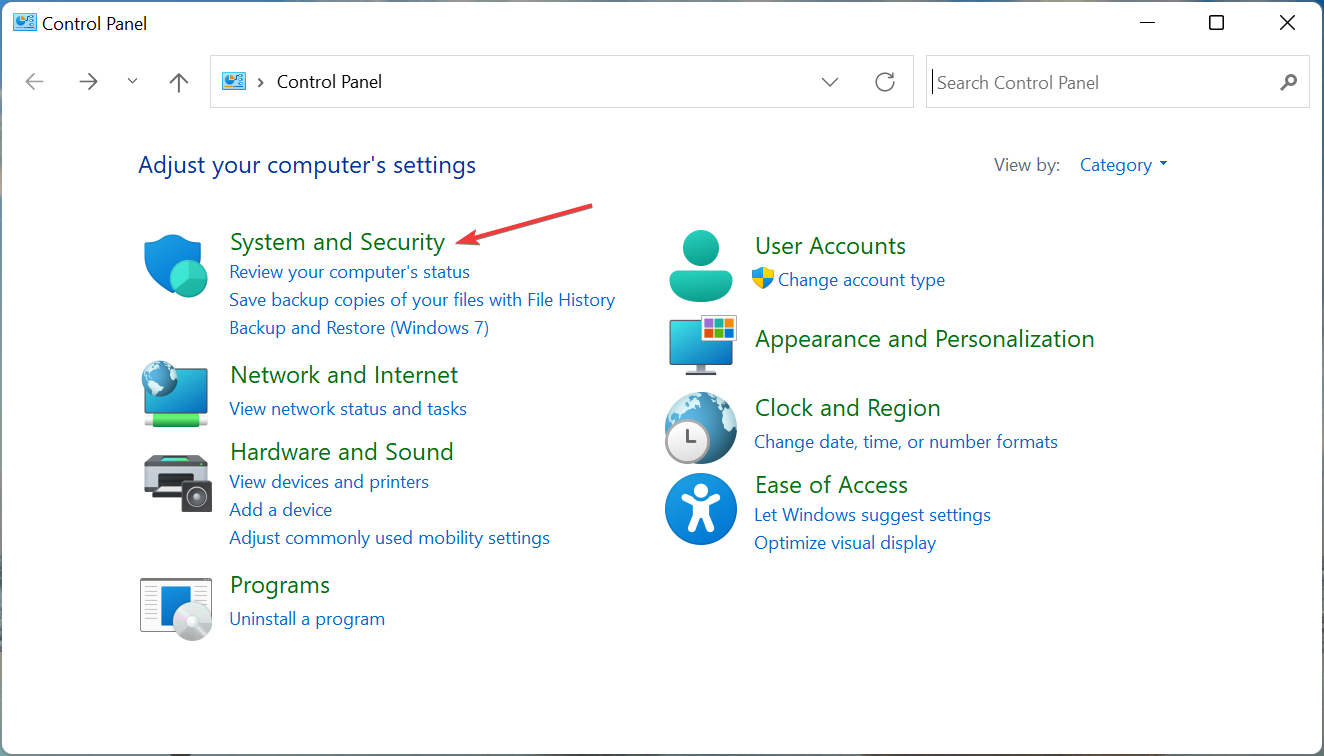
You should know that if you’re looking for Windows Server 2016, 2012, and SQL 2012, this solution supports the implementation.

Note that you can host servers for multiple operating systems, including Windows and Linux, and the price plans are affordable. Additionally, the company provides lots of flash sales and deals.

Let’s take a look at its core features:

  • User-friendly Control Panel
  • Cloud-based plans available
  • 100% Pure SSD storage
  • Fast setup
  • WordPress server hosting
  • Fully manageable and highly secured
  • Low latency
  • Uninterrupted, 24/7 Forex Trading

AccuWebHosting

AccuWebHosting is a fast, reliable, and extremely secure web hosting app. Give it a try now!
Check price Get it now

Hostwinds Enterprise Windows Hosting – High uptime

If you want to benefit from unrivaled support and state-of-the-art hardware, Enterprise Windows Hosting is one of your best choices.

You will be able to get the experience of Windows on your virtual server, and this dedicated Enterprise Windows Hosting service will provide you with it.

Additionally, the service has incredibly fast, secure, and customizable tools for managing all of your business’ data.

Hostwinds deploys nothing but the best hardware for their VPS nodes, and you can try out the service from their official website.

With a managed Windows server, you will be running your own copy of Windows so that you will be in full control at all times.

Plus, the flexible system allows SSD Windows VPS clients to upgrade the servers’ specs at any time efficiently.

Take a look at the essential features of the Enterprise Windows Hosting service:

  • World-class reliability with 99.99% uptime guarantee
  • Your server will meet and exceed security protocol in addition to providing you full control
  • 24/7/365 system monitoring
  • 5 minute guaranteed incident response time
  • One-hour automatic hardware replacement
  • Instant, new VPS setups, upgrades, and nightly backup of all data
  • Restore individual files at any time

Hostwinds Enterprise Windows Hosting

Explore unparalleled features that are sure to improve your enterprise hosting experience with just a few clicks of the mouse.
Check price Get it now

Liquid Web – Flexible configurations

Liquid Web provides professional hosting services with high-performance cluster servers for your Linux and Windows projects.

What makes this service stand out is the fact that you can actually talk to a highly trained person to get a quote for your needs and adapt the plan to your actual needs.

Liquid Web can provide virtual private servers, WordPress server packages, hosting for Windows and SQL databases, and anything else you might think of.

If you’re hosting multiple servers, you can opt for a load balancer between web nodes to minimize latency and prevent downtime even if you’re in a high-traffic situation.

The services include nightly backups to safeguard your data if your site suffers massive damage.

When your business grows, you may scale up with a separate database server, private switch, and a firewall for improved security.

For enterprise solutions, Liquid Web will assign you a direct contact whom they call a Customer Success Manager who will not only monitor the performance but also align internal resources with your growth.

Check out the service’s best features below:

  • Managed, sophisticated solutions to multi-node configurations
  • 24/7 monitoring of managed solutions and customer service
  • Documented, customized configurations
  • The servers are targeted at businesses that want sharp website performance
  • Firewalls, SSL, virtual private networks, malware scanning, and removal for increased security
  • 30-day-money back guarantee

Liquid Web

Trust your services to a professional hosting solution that adapts to your growing business.
Check price Visit website

Cloudzy – Premium VPS solutions

Cloudzy is a trusted VPS provider with almost a decade of experience in offering high-performance, ultrafast hosting at affordable prices.

The VPS solutions come with all the necessary ingredients for creating a fast experience, including NVMe storage, DDR4 RAM tech, and 1 Gbps bandwidth.

There are safe servers available at 15 convenient locations in North America, Europe, Asia, and more so you will get coverage everywhere in the world.

Any problems you might encounter will be dealt with by a professional support team available 24/7 for your questions or requests.

So, go ahead and buy VPS with Bitcoin from Cloudzy, and don’t worry about taking a risk. They provide a 7-day money-back guarantee that gives you a full refund

What’s more, the provider supports different payment methods so you may allocate your budget from any source that may be available.

Whether you buy Cloudzy’s VPS with Bitcoin or PayPal, however, you’ll get the following enterprise features:

  • Latest NVMe storage tech and DDR4 RAMs for ultimate performance speed
  • Ultrafast 1 Gbps bandwidth
  • Secure, private payment with cryptocurrencies, including Bitcoin and Privacy Coins
  • 14+ server locations in North America, Europe, and East Asia
  • Take the reins with full admin access to your Windows
  • Technical customer support
  • Smart DDoS protection
  • Completely reliable performance with 99.95% uptime
  • 7-day money-back guarantee

Cloudzy

Get dedicated resources excellent bandwidth and servers all over the world with this affordable solution.
Check price Get it now

Armor Cloud – High security

Armor Cloud is one of the most secure hosting services out there, and the company managed to attract large corporations, reputable healthcare organizations, and banking institutions.

They have grown to rely on the service’s highly scalable and stable infrastructure. The service is recommended primarily for enterprise business hosting and institutional hosting.

Note that it was able to grow while also maintaining a notably high level of security that will assure consistent performance with virtually no downtime.

The company’s cloud-based solutions provide incredibly high-traffic hosting solutions that rely on extensive networks for load balancing and content delivery.

Armor Cloud comes with an impressive track record, and it’s used by a high number of high-profile clients, so it’s an excellent choice for quality, speed, security, and reliability.

The extra level of security for VPN server access to redundant DoS/DDoS migration is targeted at maintaining a hack-proof business environment.

Check out the most impressive features that are packed in this service below:

  • Its level of security eliminates vulnerabilities during PCI scans
  • Hosting Add-ons
  • Extended features for enterprise security
  • Autoscaling, API access, data encryption, server cloning, and more
  • Customizable control panel

⇒ Get Armor Cloud

RackSpace – Good cloud hosting

RackSpace was founded back in 1998, and it’s currently based in San Antonio. It also has eight data centers in the US and internationally.

The service is known for managed hosting, cloud hosting, and email and apps. RackSpace provides flexibility, focus, and significant expertise.

RackSpace comes with a lot of options for its customers and the plans that these services offer are numerous, offering fanatic customer support dedicated to helping you out.

As a fun fact, their customer support is called Fanatical Support, and it includes more than 4,500 staff members available to assist customers all over the world.

The service ranks high for reliability, security, and customer support. You can try it out now from the RackSpace official website.

Check out more impressive features of the service:

  • Professional and highly trained support staff to assist customers with the most complex issues
  • The service offers great flexibility for customer requirements
  • Extremely reliable, and the servers are not interrupted
  • Cloud Hosting, Managed Hosting, and Hybrid Hosting
  • Three different categories with multiple plans, and the most popular category is the Cloud option
  • Dedicated Hosting option, as well as a hosted email and application service

⇒ Get RackSpace

These are the top enterprise hosting services that you can get today and hopefully, you will settle on the best one for your business needs.

The solutions from our list are top-notch but getting the right one for your requirements will require customization.

Most of the hosting services have flexible plans and solutions so it’s a matter of communicating with them prior to reaching a deal.

We recommend making a list of all your demands and taking the time to check them with the service provider.

If you’re looking for some attractive deals, take a closer look at these website hosting plans at a great discount.

Check out their detailed features and pick the best one according to your needs. Then, let us know your choice in the comments area below.

Logitech G Pro Wireless Not Working: How to Fix It Fast

When the Logitech G Pro Wireless is not working, it generally has to do with connectivity issues. For instance, the USB port to which the receiver has been connected could be malfunctioning or the mouse is simply kept too far from the receiver.

A recent firmware update or issues with outdated or corrupt drivers can also disrupt its functionality. Additionally, the Windows Fast Startup feature can sometimes cause problems with external devices.

Let’s see how you can fix it

What do I do if Logitech G Pro Wireless is not working?

Start by disconnecting and re-connecting the receiver and see if it helps. You can also try using a different USB receiver and make sure the surface underneath the mouse isn’t causing issues with its functionality.

If none of these work, keep reading:

1. Update the mouse driver

  1. Press Windows + S to launch the Search menu, enter Device Manager in the text field, and click on the relevant search result.Device Manager
  2. Now, double-click on the Mice and other pointing devices entry to expand and view the devices under it.Mice and other pointing devices to fix logitech g pro wireless not working
  3. Right-click on the Logitech G Pro Wireless mouse, and select Update driver from the context menu.Update driver to fix logitech g pro wireless not working
  4. Now, select Search automatically for drivers from the two options that appear in the Update Drivers window.Search automatically for drivers
  5. Wait for Windows to automatically locate the best available driver on the system and install it.

Alternatively, you can use a reliable third-party app. We recommend Fortect Driver Updater a dedicated tool that will automatically scan for the latest version, and install it for the drivers on your computer, thus keeping them all up-to-date and eliminating such errors.

⇒ Get Outbyte Driver Updater

2. Logitech G Pro Wireless not working after firmware update

In some cases, the G Pro Wireless not working issue started after a firmware update. If that’s the case, the device manufacturer would have released a patch for it in the subsequent updates. So, download the Logitech G HUP app and update the firmware through it.

Logitech G HUB app

Though firmware updates are critical, you should not install every one of them since these may introduce instability. It’s recommended that you only download firmware updates if there’s an issue with that particular device and that too from the official manufacturer.

3. Run Logitech Unifying Software

  1. Go to the Logitech Support page, and click on the Download Now button to get the Logitech Unifying Software. You wouldn’t be able to find a version for Windows 11, but the one for Windows 10 works fine on the latest iteration.Download to fix logitech g pro wireless not working
  2. Now, double-click on the downloaded file to launch the installer.Installer
  3. Click Yes on the UAC (User Account Control) prompt that pops up.Click Yes
  4. Now, follow the on-screen instructions to complete the installation process.
  5. Once the installation is complete, re-pair the mouse using the instructions on the Logitech Unifying Software window.Use Logitech Unifying Software to fix logitech g pro wireless not working

Once done, check if the Logitech G Pro Wireless not working issue is fixed. If not, head to the next method here.

4. Run the Hardware and Devices troubleshooter

  1. Press Windows + S to launch the Search menu, enter Windows Terminal in the text field at the top, and click on the relevant search result that appears.Windows Terminal
  2. Click on the download facing arrow and select Command Prompt from the list of options. Alternatively, you can hit Ctrl + Shift + 2 to launch Command Prompt in a new tab.Command Prompt to fix logitech g pro wireless not working
  3. Now, paste the following command and hit Enter:msdt.exe -id DeviceDiagnosticHardware and devices troubleshooter to fix logitech g pro wireless not working
  4. Once the Hardware and Devices troubleshooter is launched, follow the on-screen instructions to complete the process and eliminate the issue.run troubleshooter

5. Disable Fast Startup

  1. Press Windows + S to launch the Search menu, enter Control Panel in the text field at the top, and click on the relevant search result.Control panel
  2. Click on System and Security from the options here.System and Security
  3. Now, click on Change what the power buttons do under Power Options.Change what the power buttons do to fix logitech g pro wireless not working
  4. Click Change settings that are currently unavailable at the top.Change settings that are currently unavailable to fix logitech g pro wireless not working
  5. Untick the checkbox for Turn on fast startup (recommended) and then click on Save changes at the bottom.Disable fast startup

Fast startup is a feature that helps quickly boot Windows by keeping certain files active. But, this often leads to issues with the connected devices if their respective drivers don’t receive the command that the system has been turned on.

So, you can try disabling fast startup and check if it fixes the Logitech G Pro Wireless not working issue. In case this doesn’t work, re-enable fast startup and head to the last method.

6. Perform a system restore

Performing a system restore

If none of the methods listed here have worked, you can try performing a system restore. It’s highly effective against most underlying causes, whether it has to do with misconfigured settings, or conflicting apps, among other issues.

When you perform a system restore, the computer is taken back into time to a state when the error didn’t exist. Here, just make sure to choose a restore point created before you first encountered the issue. Otherwise, the whole exercise would prove futile.

These are all the ways you can fix issues with Logitech G Pro Wireless not working on the computer. And once you have it up and running, make sure to not commit the same mistake again that caused the error this time.

Also, find out what to do if Logitech G HUB is not working, since it lets you manage the connected peripherals and can help you troubleshoot a bunch of issues with these.

We also have a guide on how to reset Logitech G Pro Wireless, so don’t miss it for more useful information.

Tell us which fix worked and your experience with Logitech G Pro Wireless, in the comments section below.

Guild Wars 2: End of Dragons graphics update [Gamer Guide]

There is no wonder that Guild Wars 2: End of Dragons is one of the most popular sail masterpieces, as it places you on an incredibly emotional journey, but many worldwide users are interested in discovering more about its graphics update.

Since last year, ArenaNet was preparing for a long future of visual enhancements and performance improvements with upcoming support for DirectX11.

For those of you who don’t already know, keep in mind that, starting with an open beta on September 21, 2021, Guild Wars 2 allows you to test a DX11 build of the MMORPG (which only supported DX9).

This improvement is one of the best the game and you, players, could ever get, as the senior engine programmer also reported:

Client performance is a priority for us, and we want everyone to be able to play with the highest possible framerate – James Fulop

If you’re interested in discovering how to easily perform this process, you can follow just a few steps, just like we show you below.

How can I update Guild Wars 2: End of Dragons graphics?

  1. Open the game.
  2. Go to Options.
  3. There, you’ll find the Enable DX11 Rendering (Beta) box. Check it.
  4. This basically means that the game will now take more efficiency of your whole PC.

Of course, gamers’ feedback didn’t wait to come up and this is how one user described his experience with the new DX11 improvement:

On a 980TI and i7 6700 I noticed a big improvement. Both in fps and overall smoothness (much less stuttering if any)! They should have gotten DirectX 11 much sooner but better late than never

In order to get the best out of your favorite game’s experience, it is always important to keep your graphics drivers up to date and the easiest way is by using a dedicated tool.

Outbyte Driver Updater will automatically scan, recommend and apply the latest updates for all of your drivers (so, not only for the graphics-related ones).

This is only possible through its generous database of 18 million driver files. In this case, you won’t have to worry about not finding what you need.

In case you’re dealing with corrupted or outdated drivers, this tool will allow you to be aware of where the issues may come from. Thus, it will provide a detailed report of all of your out-of-date device drivers.

Plus, it offers an engaging and user-friendly interface. So, do not worry if you’re a beginner at using this kind of software.

⇒ Get Outbyte Driver Updater

So, if you were wondering what it is all about with the Guild Wars 2: End of Dragons graphics update, we hope that this guide helped you get a better perspective.

Because your opinion really matters to us, do not hesitate to share it by leaving a comment in the section below.

What is Windows Hello: Everything you need to get started

Tired of the same boring, old ways of Windows sign-in? Thankfully, we’ve since long had an alternate method to do that. Known as Windows Hello, you can use this method to sign in to your Windows without any hassles. Here’s everything you need to get started.

What is Windows Hello?

Windows Hello is a way to sign in into Windows computer with the help of PIN, facial recognition, or fingerprint. First introduced in 2015, the method has become famous for the ease of login it gives its users using built-in camera and fingerprint sensors.

As Microsoft puts it on their blog:

Windows Hello is a more personal, more secure way to get instant access to your Windows 11 devices using a PIN, facial recognition, or fingerprint. You’ll need to set up a PIN as part of setting up fingerprint or facial recognition sign-in, but you can also sign in with just your PIN.

These options help make it easier and safer to sign into your PC because your PIN is only associated with one device and it’s backed up for recovery with your Microsoft account.  

How to set up Windows Hello on your PC?

To enable or set up Windows Hello on your PC, you first have to apply a PIN on your device, which then makes your PC compatible with Windows Hello. You can then store this PIN either in your Microsoft account or somewhere safe in the physical world, say, a handy notepad.

Here’s how you can set up Windows Hello on your PC:

  1. Go to the Start menu search bar, type in ‘settings,’ and select the Best match.
  2. Head to Accounts > Sign-in options.
  3. Under Ways to sign in, you’ll see different methods to log in to your Windows.

Windows 11 account sign in

Of these, Facial recognition, fingerprint recognition and PIN, are the methods relevant in Windows Hello that we can rely on to sign in to the Windows system.

Setting up a PIN

Let’s first learn how to set up a PIN. Expand the PIN tab by clicking on the downward arrow, and click on Set up. If you’d set up a password for your Windows computer, then a new dialog box asking for a password will pop up. Enter your login password and hit Enter.

Now in the next dialog box, enter and confirm a strong PIN, and hit OK. As soon as you do that, a new dialog box will pop up. You’ll then get asked to verify your Microsoft school or work account. Do this and your account will be successfully set up.

Logging in through a fingerprint

You can also create a Fingerprint login through Windows Hello. For this, you’ll need a solid fingerprint sense reader though. If you’ve that you’re all set. Similar to how you set up the PIN above, head to the Sign-in menu in your Account Settings and from there, follow the steps below. Here’s how:

  1. Click on the Fingerprint recognition tab. When it expands, click on Set up.
  2. In the Windows Hello set up, click on Get started.
  3. In the Windows Security dialog box, enter the PIN you set up earlier for verification.
  4. Now put your finger on the sensor. Do this repeatedly until the setup is complete.
  5. Click on Next to get different angles for your finger.
  6. Your fingerprint will be set up in a few minutes. Finally, click on Close.

Set up facial recognition

Last but not the least, you have the facial recognition feature of Windows Hello. For this to work, you’ll need to have a special camera customized for infrared imaging(IR).

Once again, to set it up, you have to head to the Sign-in options as we did above. Once you’re there, follow the steps below:

  • Expand the Facial recognition option and click on Set up.
  • Click on Get Started to being the facial recognition set up.
  • Look straight in the camera while it begins scanning your face.
  • Finally, click on Close.

That’s it. Your PC will now look for facial recognition the next time you turn on your PC or wake it up from sleep.

Remove the Windows Hello

You can easily remove your Windows Hello log-in. Simply click on the relevant Windows Hello method you’re using, and click on Remove. Do this, and the Windows Hello login settings will be removed from your Windows.

All about Windows Hello

We hope this short guide helped you get familiar with Windows Hello. If you are or know someone who has trouble with remembering or dealing with passwords, then Windows Hello is just what you’re looking for: a handy and secure substitute for the usual password-based sign-ins.

Future of Hybrid Work: Microsoft eats its own dogfood, runs on Windows 11

At today’s Future of Hybrid Work event, Microsoft detailed how it has recently deployed Windows 11 to some 190,000 devices across the company. In a five week deployment, which the company calls “the fastest deployment of and operating system in company history,” Microsoft says the upgrade was “so straightforward and fast is was almost a non event.”

The upgrade was handled by the Microsoft Digital Employee Experience org, using the same processes it supplies to customers, including the Windows Update for Business Deployment Service. Like most companies, all of Microsoft’s computers don’t meet the heightened system requirements for Windows 11, and not all computers were upgraded. Microsoft was able to communicate the system requirements early, and plans to upgrade its older computers on a regular replacement schedule, managing both Windows 11 and Windows 10 devices until the upgrade is complete.

Microsoft used the Feedback Hub internally as well as the company’s support teams to monitor feedback and resolve issues, but even though “employees are very vocal when it comes to giving us feedback about our products and features,” the company didn’t see an uptick in support contacts.

If anyone should deploy Windows 11, it’s Microsoft, of course, but it’s interesting to see that they have made the transition internally for the most part, and done it without significant issues.


The Future of Hybrid Work: Microsoft expands cloud based Windows 365 capabilities

Microsoft introduced Windows 365, its cloud based version of Windows running in the cloud, back in August of last year. Today, in a Future of Hybrid Work presentation, the company introduced a number of improvements to Windows 365. Centered around ways to make it easier to log in to Windows 365 and manage both a local and cloud based version of Windows, these improvements include Windows 365 Boot, Windows 365 Switch, a new Windows 365 app, and Windows 365 offline.

Windows 365 Boot

For temporary front-line worker scenarios, allowing users to be able to seamlessly log in to their cloud PCs, or to be able to have a dedicated machine set to log in to Windows 365, Windows 365 Boot makes it possible to designate a Windows 365 Cloud PC as a primary Windows experience, and be able to log in directly to the cloud version of Windows. Similar, apparently, to being able to dual boot a machine, Windows 365 Boot provides direct access at startup to Windows 365.

Windows 365 Switch

For users who need to use both a local Windows machine and a cloud based Windows 365 instance, Windows 365 Switch will act similar to how Task Switcher does today, allowing users to move between local and Cloud PC desktops using familiar keyboard commands or mouse-click or swipe gestures.

Windows 365 app

A new Windows 365 app will allow users to begin the Cloud PC experience just by opening an app in Windows, and to be able to tailor settings, profile, and work style from within the app.

Windows 365 Offline

For some user scenarios, internet connectivity isn’t always possible, and Windows 365 Offline will allow users to continue to work even when disconnected, and then have their work automatically synced back to Windows 365 once connectivity is re-enabled.

Microsoft is currently offering Business and Enterprise plans for Windows 365, starting from about $31/mo per user. These new entry points for Windows 365 could make it easier to get up and running with a Cloud PC for users in a number of different scenarios.

Future of Hybrid Work: Microsoft promotes Windows 11, more security improvements, endpoint manager

Microsoft is holding a Future of Hybrid Work event today, building on the 2022 Work Trend Index announcements they made a few weeks ago. While the future of work may have been already trending toward a hybrid workplace, where workers not only come in to an office but frequently work from home or on the road, the pandemic has greatly accelerated the pace of that adoption. According to Microsoft some 73% of employees want flexible or remote options, and want them as permanent options. Clearly, a hybrid work environment is here to stay.

At the event, Microsoft is promoting Windows 365, a cloud based version of Windows with new easier ways to log in and use, and Windows 11 itself. Taking time to promote a number of features already announced for Windows 11 Insiders, the company is promoting a number of new and upcoming features, including app folders, live captions, improvements for Focus, and touch snap layouts, along with official recognition of Tabs for File Explorer.

Microsoft is taking steps to double down on the heightened security requirements for Windows 11, pointing out upcoming new security enhancements including the Microsoft Pluton security processor, enabling HVCI by default on a broader set of devices, Smart App Control, Credential Guard on by default for Windows 11 Enterprise, Personal Data Encryption, and Config Lock.

Microsoft is also announcing plans for improvements to Microsoft Endpoint Manager, to make it easier for organizations to manage hybrid work with new cloud based Microsoft 365 plan, which will include remote help (available now), and new ways to optimized the digital endpoint experience.

If you were expecting a number of new announcements on long expected Microsoft offerings like the Microsoft Loop app or One Outlook, this apparently is not the event for that. Microsoft is beginning to take the next steps toward selling Windows 11 to the enterprise, and is doing so with increased security, a new focus on hybrid work where workers are just as likely to work from home as from the office, and promotion of some of the features that make Windows 11 stand out from Windows 10


Opera vs Torch: Here’s Everything You Need to Know

Several major web browsers dominate the market, but many other browsers offer some unique features you don’t know about.

One of these applications is Torch, an interesting web browser with several unique features. If you haven’t heard about it, this is an excellent chance to familiarize yourself.
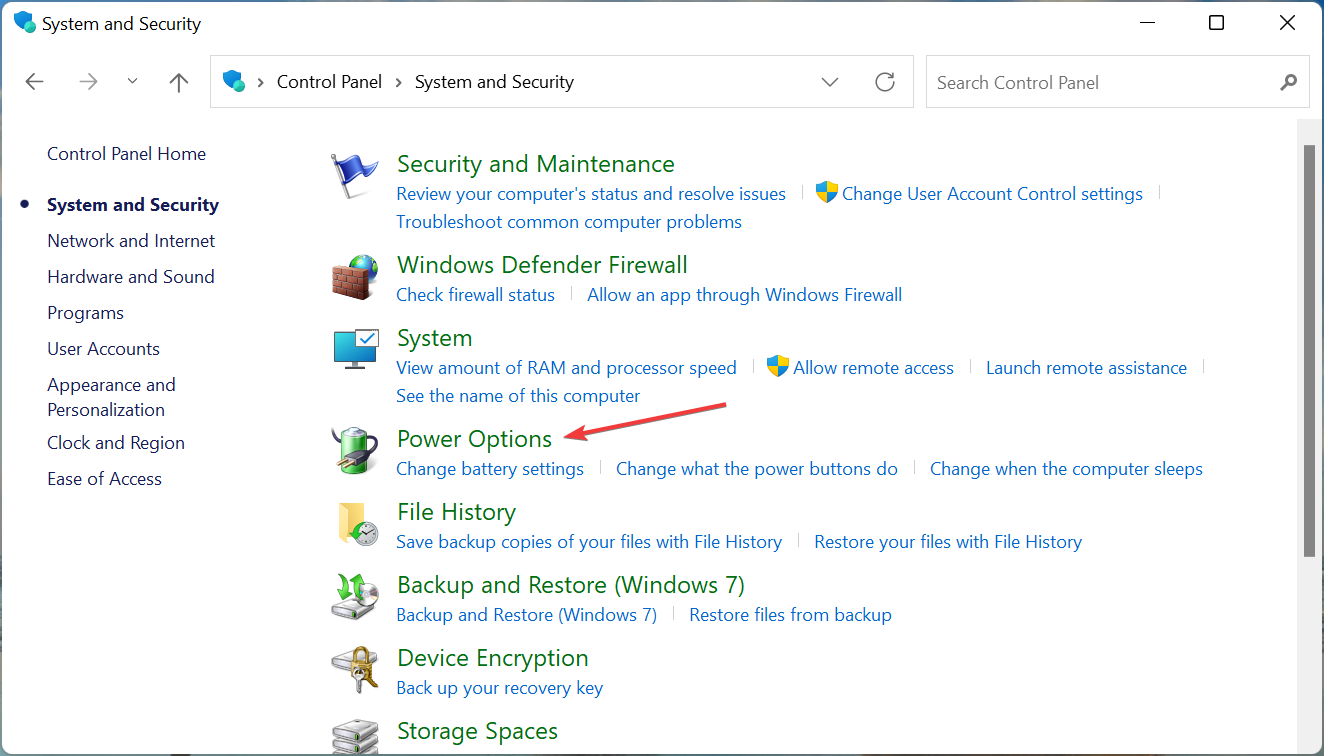
In today’s guide, we will compare Opera and Torch browsers and find out which is better for you.

How do I download Torch on PC?

Note icon NOTE
Torch browser is not available for download from the official source. You may still download old versions of the browser from third-party websites, but it’s not recommended to do so.

Opera vs Torch, which one should you use?

Visual appearance

Opera has a sleek user interface, and all of its features are easily accessible. If needed, you can easily customize the start page and remove news, weather, and suggestion widgets if you don’t want to use them.

The interface also has a sidebar that is used to access certain features quickly, but if you don’t plan to use it, you can easily hide it.

On the other hand, Torch is more similar to Chrome in appearance, so some users might feel more familiar with it.

Both browsers are based on the Chromium engine, and when it comes to the user interface, we think that Opera has a more streamlined and overall better user interface than Torch.

➡ Feature comparison

Opera: Optimized for productivity and security

Opera browser is well-known for its features, and unlike many browsers, Opera comes with a built-in ad blocker, so you can browse the web freely without any annoying ads.

When it comes to tab management, Opera achieves this thanks to the Workspaces feature. By using it, you can easily separate your work and personal tabs and make your tabs neatly organized.

Of course, you can move the tabs between workspaces as you wish. All workspaces are available in the sidebar, so you can access them with a single click.

Another useful productivity feature is the ability to search open tabs. You can easily find any tab simply by typing its name or by searching for its content.

If you like browsing the web and organizing pages, you might be interested in the new Pinboards feature. With it, you can organize your favorite websites for quick access.

This feature works similarly to bookmarks, but one significant difference is the ability to add thumbnails, titles, and descriptions to saved pages. By doing so, you can easily find any page that you have saved.

The Pinboards feature also works with images, and it’s fully compatible with Opera’s built-in Snapshot feature. Using this feature, you can easily screenshot any part of a web page.

Basic editing is supported, so you can turn your screenshot into a meme, blur elements, add arrows, add text or emojis or highlight various segments.

Once you’re done, you can save the page to Pinboards, copy the image to the clipboard, or save it on your PC.

The browser also has integration with various messaging services, such as Facebook Messanger, WhatsApp, VK, and Telegram.

Opera also offers integration with social networks, so you can use Twitter and Instagram in the sidebar if you want to.

If you want to browse the web while listening to music, we’re happy to inform you that a built-in player lets you stream music from Apple Music, Deezer, Spotify, and YouTube Music.

In case you need to quickly share a link, note, or file between your PC and phone, you can do that seamlessly with the Flow feature.

To use it, you must have Opera installed on your PC and phone and scan the QR code to authorize the connection. After doing that, you can seamlessly send data between the devices.

Lastly, we must mention the built-in VPN allowing you to browse the web securely without fearing third parties viewing your data.

Overall, Opera offers some exciting features, and it’s perfect if you’re multitasking and need to organize your tabs or if you want to keep up with your social networks at all times.

VPN and built-in adblocker make the whole experience more secure and streamlined, so Opera might be the right choice if you want a feature-rich browser.

Opera

Browse the web privately without ever dealing with ads with the Opera browser.
Get it now Visit website

Torch: Interesting but unnecessary features

Although not as familiar as Opera, Torch makes it up with extensive functionality. The browser supports the drag-and-drop feature, which you can use to perform web searches and search for images or YouTube videos.

Sharing is also a big part of this application, and thanks to the integrated sharing feature, you can share links on Facebook and Twitter with just a single click.

Speaking of social media, this browser has a Facelift feature that will redesign your Facebook page with a unique and new look.

By using this feature, you can change the background, fonts, and colors of your Facebook profile. You can also pick one of many available themes. Remember that these changes are only visible to other Torch users.

The browser also has built-in games, and all games are sorted into different categories. We felt that this feature was unnecessary and it might be appealing only to a younger audience.

The software also offers a built-in download accelerator to speed up your downloads. This is achieved by splitting the files and downloading them at the same time using multiple connections.

As a result, your download speed should be faster. Speaking of which, the software also has a Media Grabber feature that you can use to download streaming audio and video with a single click.

Besides media downloads, Torch also has built-in torrent support, allowing you to download torrents right from your browser without relying on additional software.

We have to mention that there’s also a built-in Torch Player that can be used to play multimedia files, and it can even play torrent files while they are downloading.

Lastly, the Torch Music feature allows you to create music playlists and play all sorts of audio files right in your browser.

Torch browser offers some unique features, but we can’t shake the feeling that some seem unnecessary, such as Facebook Facelift and games. Overall, it’s a decent browser but filled with unessential features.
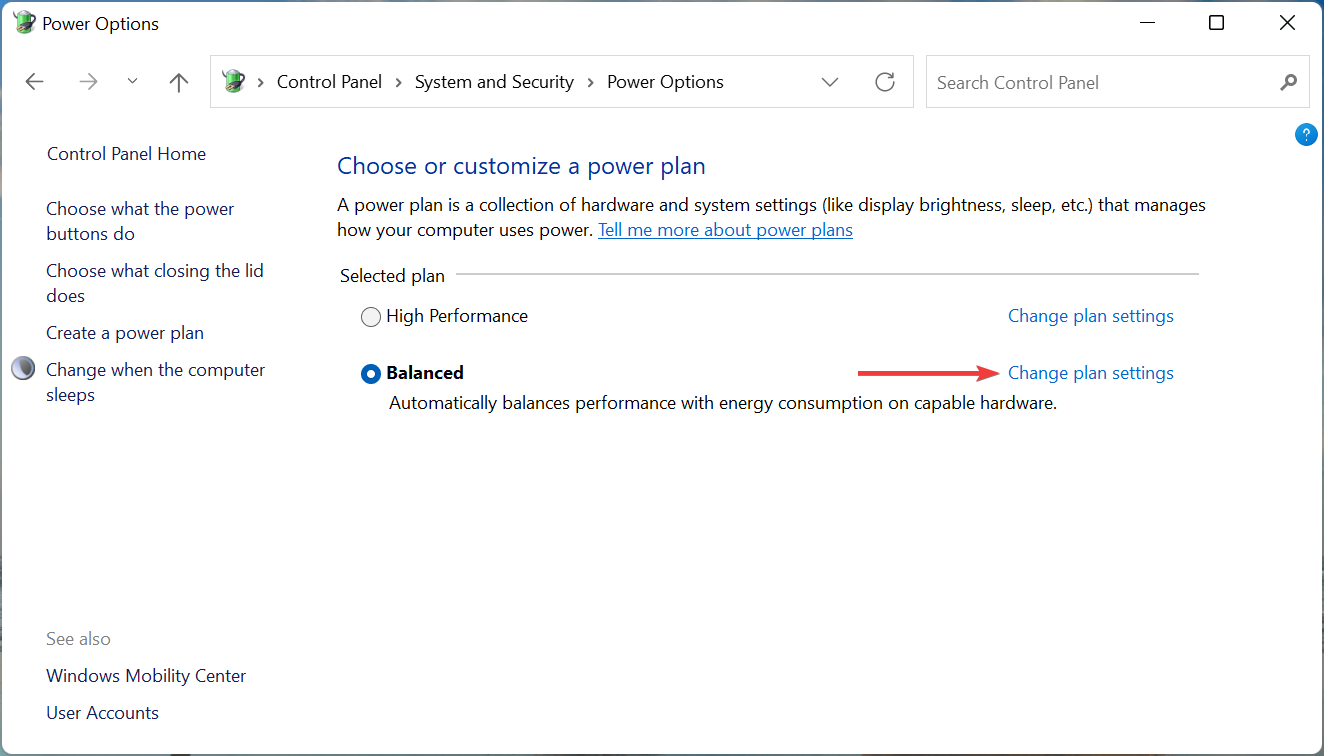
Does the Torch browser still exist?

We have to mention that Torch Browser seems discontinued, and the download link on its website leads to Avast Secure Browser download, so you might not get the chance to try it.

If you want to know more about this software, visit our Avast Secure Browser vs Opera guide to find out which is better.

Conclusion

Opera has been present in the browser market for decades, and it’s known as a trusted and reliable browser. It has excellent productivity features that allow you to organize your tabs with ease.

It’s also a great choice if you’re a social network user and you want to keep up with your friends and followers on social networks.
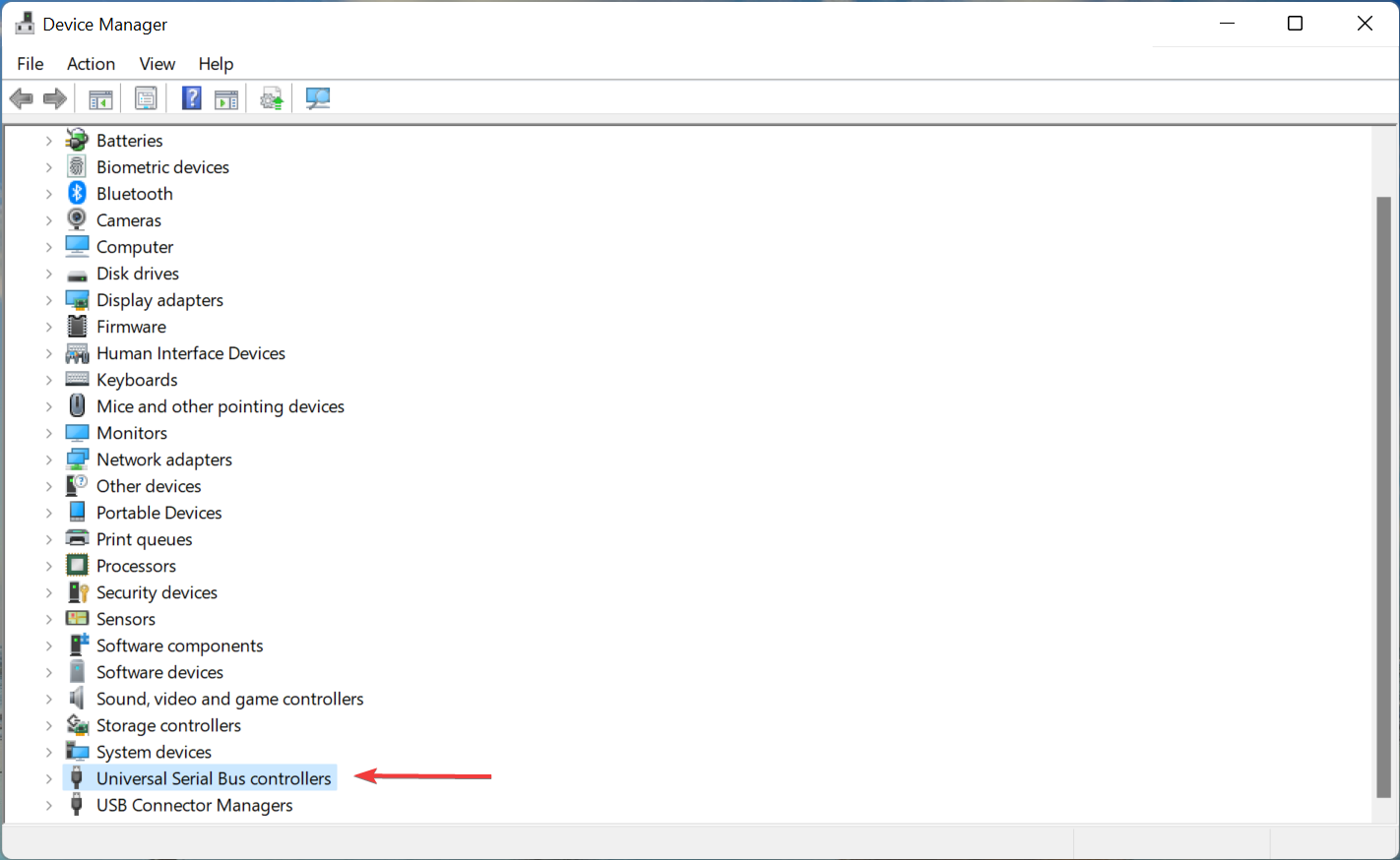
Thanks to the features such as built-in AdBlock you can enjoy an ad-free browsing experience and with a free and unlimited VPN, you can rest assured that your online activity is completely private.
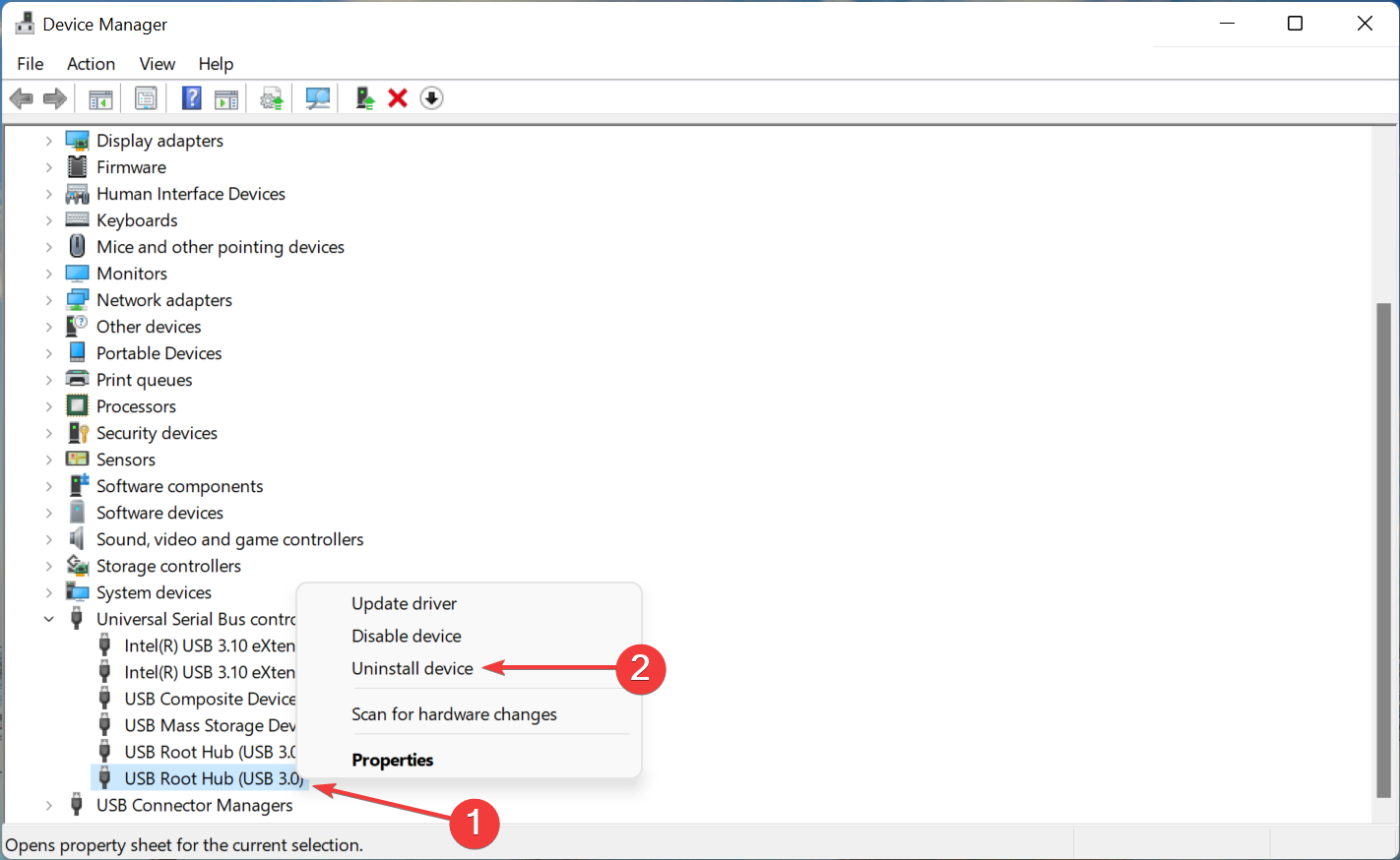
On the other hand, the Torch browser doesn’t have too many features, and the available ones can be useful, but it’s not something that users are going to use on a daily basis.

There were also complaints in the past that the browser comes bundled with unwanted software that can affect your browsing experience, so you should keep that in mind before installing it.

If we had to pick between the two, our choice would be Opera because it offers a better interface and great productivity features, plus there are a built-in VPN and adblocker to top it off.

Do you want to learn more about web browsers? If so, we suggest reading our best browsers for Windows 11 guide for more information.

What is your browser of choice? Let us know in the comments section below.