5 Best Hard Drives for Windows 11 [Price & Capacity]

Finding the best hard drive requires more than just Windows 11 support; it must also suit your needs in terms of storage space, speed, and other factors.

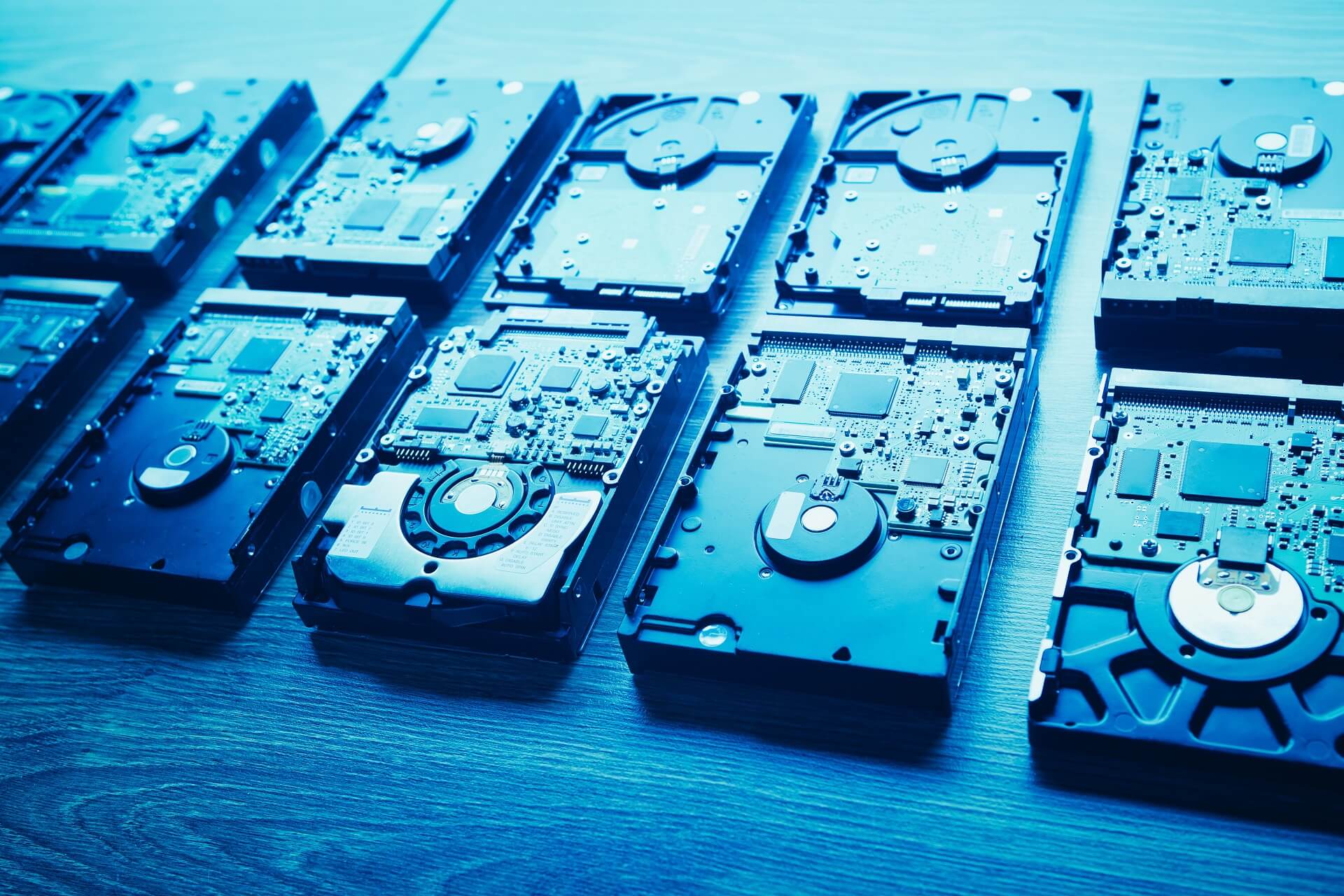
Many users praise HDD (hard disk drive) for its significantly high capacity and low price. Despite being slightly sluggish compared to SSD, HDD comes in handy when you need sizable storage.

You easily keep various files, including video, images, and programs, in a single HDD without worrying about space shortage.

So, if you are looking for a suitable HDD for Windows 11 PC on the market, it is very time-consuming. Therefore, we picked out the best ones for you.

What should you know before buying a hard drive for Windows 11 PC?

Before buying the best hard drive, many factors such as transfer rate speed, capacity, and a reasonable price are essential.

For instance, the hard disk spin speed rate, measured by RPM (Revolutions Per Minute), varies between 1200 to 10000. The lower the disk rotation rate is, the slower the reading/writing process is.

Another critical factor to consider before buying an HDD for a Windows 11 PC is the capacity. HDDs have a higher storage capacity than SSDs.

If you want to buy HDD for gaming or archiving large files, the right choice is to pick up HDDs with higher capacities. However, if you are a regular desktop user, you should consider HDDs with lower capacities.

What are the best hard drives for Windows 11?

Seagate BarraCuda 8TB HDD

  • Proven reliability
  • Multi-tier caching
  • 5400 RPM
  • Limited cache

If you are a keen gamer, you probably won’t ignore Seagate BarraCuda 8TB HDD. This hard drive comes with an astonishing capacity of 8 TB.

In terms of speed, it is enough to say that Seagate BarraCuda 190MB/s has a sustained transfer rate speed, which is above an average HDD speed.

Apart from the above competitive advantages, this HDD has some downsides, as received by buyers’ feedback.

It is not a complete dead silent hard drive and makes some low-pitched whirring noise after working for quite a while. So, from the users’ perspective, it’s a huge shortcoming.

Also, you may face some locks up when HDD writes some files. As a result, overall performance might drop because of this issue.

Western Digital Black 4TB 3.5 inch

  • Using Dynamic Cache technology
  • User-friendly setup
  • 5-year warranty
  • Can get hot

This hard disk, somewhat faster than Seagate BarraCuda 8TB HDD (7200 RPM), is superb turbo-like for many uses such as personal, gaming, and business uses.

Considering the capacity, it is a bit lower than giants like the 20 TB WD Enterprise Class HDD series, though its actual capacity varies depending on the operating environment.

The HDD design looks slightly bulky (measuring 5.79 x 4 x 1.03 inches) compared to the 2.5-inch version. This, however, did not prevent it from being ranked second on the list of best hard drives for Windows 11.

Apart from the above hallmarks, it has some cons. Western Digital Black 4TB can get hot because of rotating at a very rapid rate.

So, if there is not enough ventilation or airflow, it runs hot and becomes noisy. Also, it’s significantly pricier (nearly $180) than WD Blue 4TB series.

Western Digital VelociRaptor 1TB

  • High Average drive ready time (8 seconds)
  • Good power usage
  • 5-year warranty
  • Low storage
  • Expensive

Although it is a low-storage HDD, Western Digital VelociRaptor has 10,000 RPM. This HDD is one of the front runners of the Western Digital production line.

Because of its high writing speed, the VelociRaptor is neck and neck with SSDs in reading-writing performance.

Using a SATA 6Gb/s interface backward, the challenger can also transfer large amounts of data at the 500-550MB/s rate in no time.

However, as reported by a few buyers’ reviews, it has compatibility problems with some laptops, especially Dell. Also, VelociRaptor is quite expensive compared to several WD product families.

The cooling system outperforms Western Black 4TB with its icepack kit. Western company has decided to replace the heatsink with an icepack in this HDD series. The icepack acts as a buffer to absorb the heat, making it cool faster.

Seagate IronWolf 6TB NAS

  • IronWolf Health Management monitoring system
  • Superior one million hours MTBF
  • Pricier than non-NAS drives

If you are looking for a 1 to 8-bay NAS-tech storage, IronWolf 6TB NAS is the right choice. It allows you to keep your files online in a centralized disk accessible to multiple users.

Therefore, you don’t fret about files being lost. It is also suitable for NAS professionals and individuals craving to stockpile big files.

However, based on buyers’ reviews, there have been issues with putting the drive into NAS servers such as Synology DS413j. Also, a few buyers reported that access time was higher than standard.

Contrary to Seagate BarraCuda 8TB, it has no vibration. Additionally, its spindle speed reaches 7200 RPM, making it a fuel-injected hard disk.

Also, a powerful 256MB Cache SATA turns it into a world-class HDD and one of the best hard drives for Windows 11.

WD Blue 2TB

  • 2-Year manufacturer’s limited
  • Free backup with Acronis True Image WD Edition software
  • Low power consumption
  • Less value from smaller drives

WD Blue 2TB is one of the popular hard drives. Like most HDDs, WD Blue 2TB is valuable when you want to archive many files. Also, it is helpful for desktop users because of its remarkable storage capacity.

It enjoys a 5400 RPM speed that helps your PC run programs faster. When you compare WP Blue to its competitors, it is more affordable, costing nearly 60 dollars.

The recording head never comes into contact with the disk media, resulting in much less wear on both the recording head and the media, as well as improved drive protection during transport.

Importantly, a free version of Acronis True Image can be downloaded from the Western Digital Support site to backup all of your important data to your new WD drive.

Are HDDs worth buying?

To answer this question, we have to say it depends on what purposes you want to buy HDDs. If you are into storing multiple large files or gaming, undoubtedly, you opt for HDDs.

The only drawbacks of internal hard disks are their mechanical parts, and the time it takes to read and write data. So, if speed is your top priority, we suggest you go for SSDs.

Although HDDs are outpaced by SSDs today, being budget-friendly is one of the perks of hard disk drives.

As a result, it’s best to install the operating system and software on an SSD and keep your data on HDDs. Check out this article if your SSD isn’t performing as well as it should.

If you’re looking for a high-capacity HDD at a fair price, or in other words, the best hard drive for Windows 11, we recommend the Seagate BarraCuda 8TB HDD.
5 Best Windows 11 Motherboards to Pick From in 2026

Having the best Windows 11 motherboard with superb specifications is a must to build a heavy-duty PC. Motherboards are an integral part of every PC.

So, depending on what purpose you want to make a PC, you should be familiar with motherboard technical information before buying a decent mainboard.

We have picked out the five best Windows 11 motherboards for you.

What to consider when buying a motherboard?

If you seek out the best Windows 11 motherboard, you should consider some factors. The most crucial factor is motherboard size.

Does your mainboard is ATX, ITX, or Mini-ITX? ATX motherboards are larger than ITX and have more PCI slots than the ITX series.

So, choosing a suitable mainboard depends on how many peripherals you want to add.

Another factor to consider before buying a mainboard is its speed. Many parts of a motherboard, such as RAM and CPU, affect its overall performance.

Therefore, if you want to build a heavy-duty PC, you should opt for mainboards supporting 11Gen processors or later.

What are the best motherboards for Windows 11?

GIGABYTE X570 AORUS Master

  • RGB Fusion 2.0
  • Noise detection cable
  • Q-Flash Plus button for updating BIOS
  • USB turbocharger for faster charging
  • Highly-priced
  • Only four SATA ports are available

With its latest Infineon technology (16 phases), the GIGABYTE X570 AORUS Master is the best motherboard for Windows 11.

Armed with a PWM fan header, this Gigabyte giant controls the fans and pumps efficiently, making it an ideal cooling system.

It also has gifted users with Intel Wi-Fi 6 802.11ax solutions bringing faster performance. WIFI 6 802.11ax delivers a better signal (up to 6Ghz) with its powerful AORUS Antenna.

GIGABYTE X570 AORUS is a master of compatibility with the all-new AMD Ryzen™ CPU- 5000 series, providing a more satisfactory game impression. It also supports 3rd gen Ryzen CPUs.

You can’t beat X570 AORUS Master when it comes to interface speed. X570 features PCIe 4.0 M.2 connectors, doubling the bandwidth.

So, you can add high-speed peripherals such as graphic cards, SSDs, or ethernet cards to your system.

ASUS ROG Maximus XIII Hero

  • Thunderbolt 4 USB-C port
  • Pre-mounted I/O shield
  • Four M.2 slots
  • No 5Gbps or 10Gbps Ethernet controller
  • Expensive

The ASUS Maximus XIII Hero, which is the hero of lowering ambient sound thanks to the two-way AI noise cancellation, comes in second on the list of best Windows 11 motherboards.

This technology uses the latest deep-learning database to reduce input and output background noise while recording your voice.

As the company recommends, you should use a 3.5 mm audio y-splitter cable when using a 3.5 mm headset.

AI overclocking is an exclusive ROG Maximus XIII Hero feature. You can alter the default system UEFI setting to run your CPU and graphic cards faster.

This feature applies an AI-powered technology to set CPU and cooling system limits.

The Z590 chipset supports 10th and 11th Gen processors, allowing users to mount Comet Lake and Rocket Lake desktop processors.

ASUS TUF Gaming B550-PLUS

  • Easy configuration with BIOS FlashBack
  • PCIe 4.0 support
  • AMD AM4 socket
  • Slightly audio system
  • Compatibility issues with some CPUs (Ryzen 3000 or 5000 series)

Despite being a slightly low-cost motherboard, it has unmatched competitive advantages compared to Gigabyte giants like X570 AORUS Master and ASUS TUF Gaming B550-PLUS.

The motherboard enjoys an AI-powered noise cancellation, the same as its equivalent- ROG Maximus XIII Hero.

In addition, it offers DrMOS power stage solutions, allowing better current control in motherboard chipsets.

Regarding the cooling system, the Asus company has mounted a VRM heatsink on the mainboard to prevent CPU/GPU overheating.

Also, it has a built-in thermal pad to dissipate heat faster. It adds an extra M.2 heatsink to balance the M.2 SSD temperature for better performance.

As the name says, TUF B550-PLUS is an almighty god for gamers with its game impression features.

In collaboration with Realtek, the company has introduced a 108 dB signal-to-noise ratio for stereo sound, creating better audio quality.

A 2.5G onboard Ethernet slot is enough to enjoy online multiplayer gaming. For all its merits, Asus TUF B550-PLUS is deserving of its position as the third best Windows 11 motherboard.

MSI MPG Z690 Carbon Wi-Fi Gaming

  • Pump fan support and noise control
  • Eight-layer thickened copper PCB
  • PCI-steel armor
  • Too expensive
  • Average quality VRM

MSI MPG Z690 Carbon Wi-Fi Gaming is an upper mid-range mainboard in price. But it is worth buying to a certain degree because of its remarkable DDR5 memory.

It runs at 5600 Mbps speed, reaching better performance than DDR4 with 2800 Mbps speed.

Compatible with Alder Lake, a less-power-hungry processor, MPG Z690 Carbon Wi-Fi Gaming is head and shoulder above its equivalents on the market.

Although it is a bit pricy, this mainboard has an incredible cooling system.

The Asus company has designed an unprecedented built-in thermal pad, namely M.2 shield Frozr, to prevent M.2 SSDs from throttling.

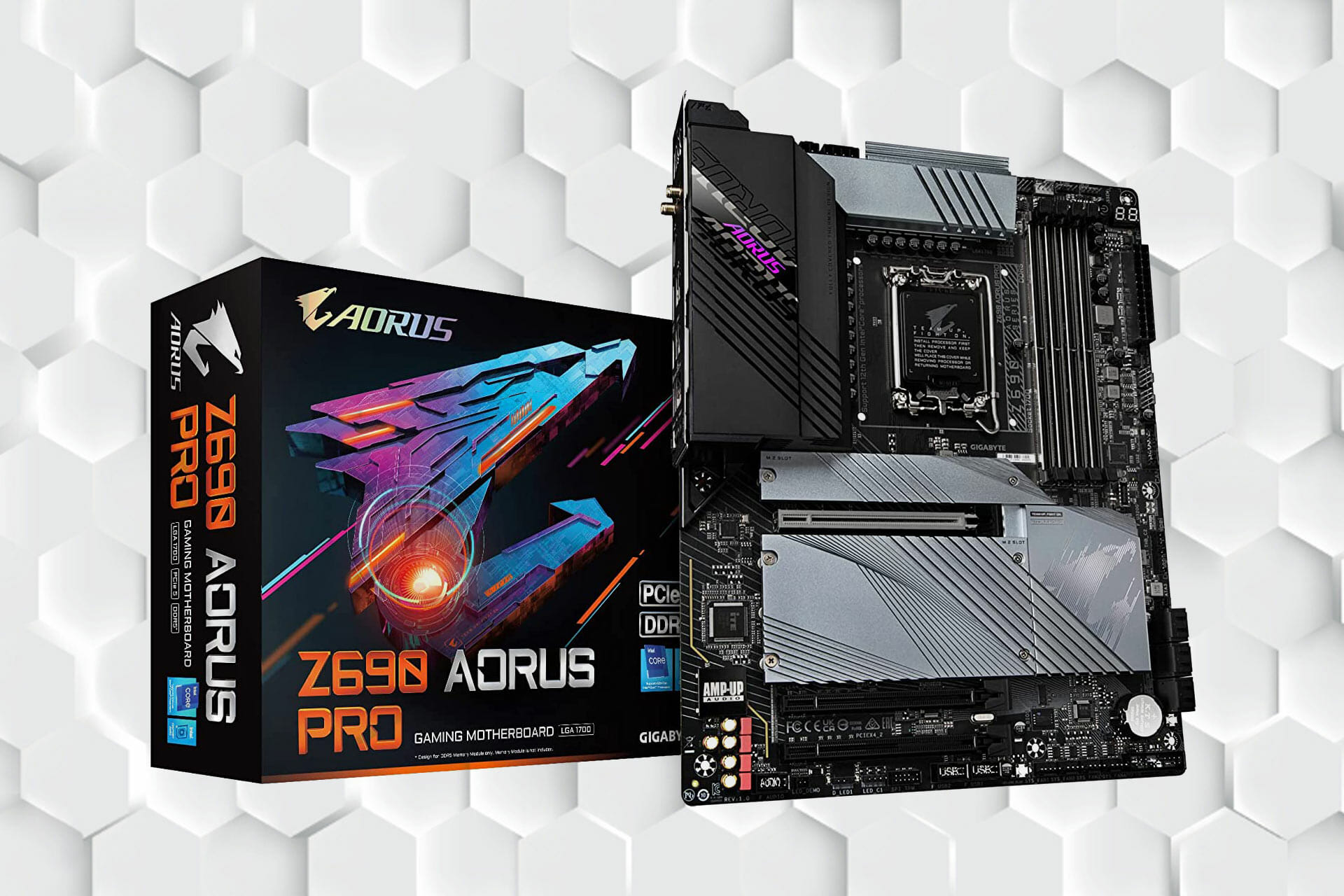
GIGABYTE Z690 AORUS PRO

  • 8 PWM/DC fan headers
  • Extra surface for heat dissipation with MOSFET heatsink
  • Direct digital VRM design
  • No Wi-Fi 6E
  • No LED lights

The GIGABYTE Z690 AORUS PRO is the final contender for the best Windows 11 motherboard. It is the king of gaming with its superior overclocking memory technology, as Gigabyte claims.

Regarding processing speed, it outperforms older chipsets with its 12 Gen CPUs slot, Alder Lake. Also, with 4 PCIe 4.0 M.2 ultra-storage, Z690 AORUS PRO has outpaced its competitors.

For better compatibility with Intel Hybrid Optimization technology, the company has introduced two separate CPU upgrades in Z690 AORUS PRO BIOS: Performance-Cores(P-Cores) and Efficiency-cores.

When you play smoother games, you go for E-Cores setup in BIOS. On the other hand, you should opt for P-Cores for games with higher graphics.

Aside from the above hallmarks, it has shielded the memory with strong PCB copper layers.

Do all motherboards support Windows 11?

The answer to this question is certainly No. Windows 11 has come with a list of compatible motherboards. Thanks to TPM, you can’t install unsupported motherboards in this newly released operating system.

Tech giant companies like Gigabyte, Asus, Biostar, ASRock, and MSI have released their Windows 11 motherboard compatibility list so that you can find which motherboard is supported.

Also, your mainboard should meet the minimum requirements to support Windows 11. Otherwise, you’ll have to install it by circumventing the requirements, which isn’t ideal for a PC purchased in 2022.

When buying a specific mainboard, check its compatibility and complete specifications. Depending on what purposes you want to grab a motherboard, prices may vary.

If you are into a budget-friendly mainboard for gaming, we suggest you go for ASUS TUF Gaming B550-PLUS.

Check out the motherboards we recommend for Windows 10 in this article if you still prefer Windows 10 over Windows 11.

If you’re having trouble figuring out which CPU to get for Windows 11, this guide should come in handy.

Let us know which motherboard you’re interested in and why you choose it in the comments section below.

Fix: HP Support Assistant’s important action needed error

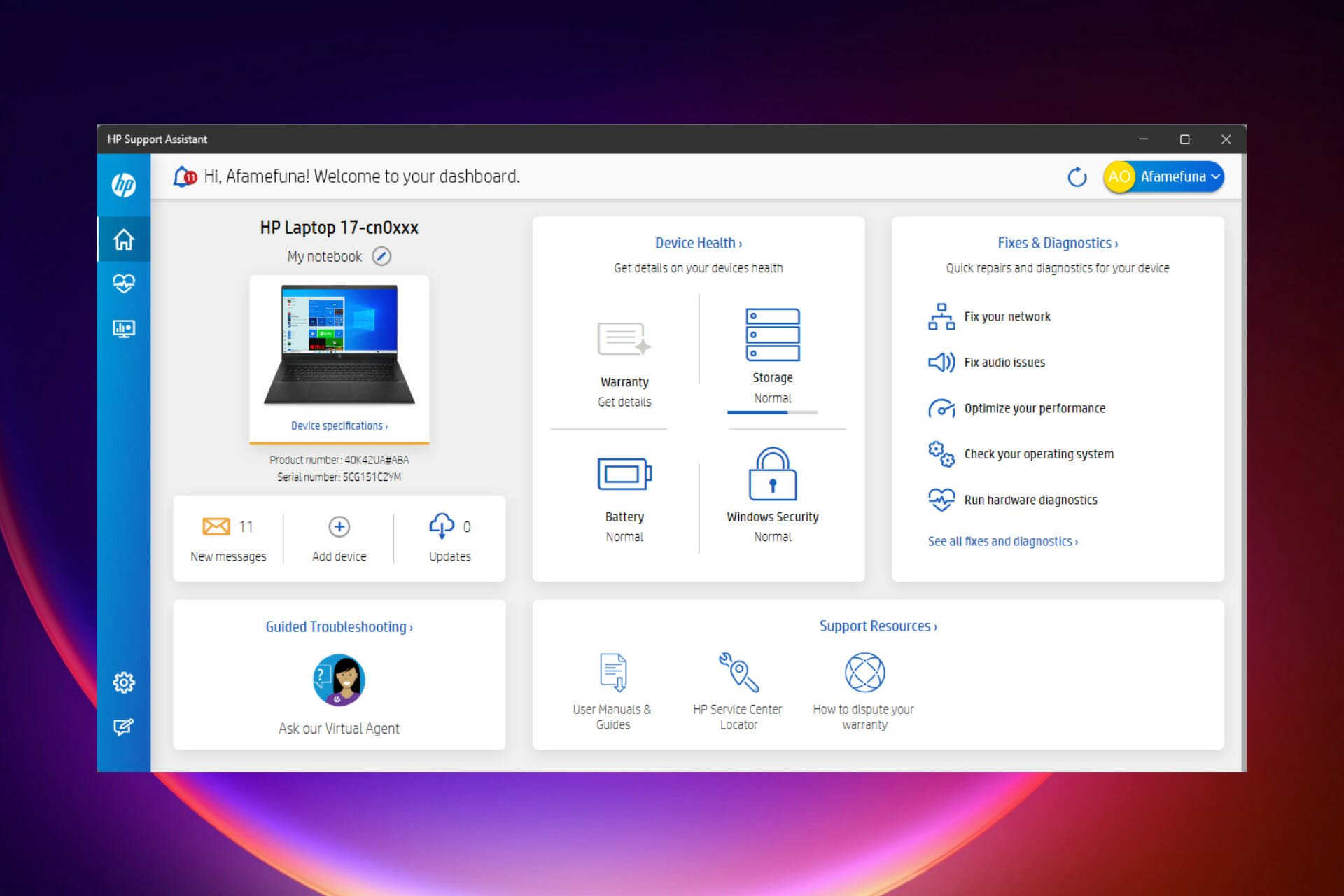
HP is no exception to the trend of PC makers pre-installing many apps on their machines. The  HP Support Assistant is one of the pre-installed apps on HP PCs. It is a free program that helps prevent and repair computer issues utilizing self-help options and updates for HP machines produced after 2012.

The following are some of the things that this program may assist you with:

  • Check the serial number, BIOS, system board, CPU, RAM, GPU, audio devices, hard drive, and other details about your PC.
  • Find the latest drivers for HP devices such as PCs, scanners, and printers.
  • Contact support service for HP issues.
  • Examine your HP computer’s battery, network, hard drive, and optical drive.

This article explores the HP Support Assistant (HPSA) important action needed error and recommends some of the best fixes.

Do you need the HP Support Assistant software?

This program may not be required most of the time, and the built-in Device Manager in Windows can assist you with driver updates. Other programs, such as BIOS, DirectX Diagnostic Tool, Windows system information, and so on, may also provide PC information.

However, the HP hard drive, battery, and optical drive diagnostic tools may be needed at times, and HP Support Assistant (HPSA ) is an excellent one-stop-shop for all these. This program is a wonderful solution if you want to locate PC information more quickly.

How do I fix the important action needed error on HP Support Assistant?

1. Restart your computer

  1. Click the Start icon, click the input/output button, and select restart.
    hp support assistant important action needed

This is the most straightforward solution. Restarting the computer clears RAM and removes any background programs that could be interfering with the HP Support Assistant.

It may improve the performance of your computer in particular situations by freeing memory. This is a fantastic technique to practice before going on to something more complicated.

Skip to the following step if you’ve restarted many times.

2. Edit the help assistant analysis settings

  1. Click on the Start menu, type HP Support Assistant, and then click on the app.
    hp support assistant important action needed
  2. Click on the Settings icon at the lower part of the left pane (the gear icon).
    hp support assistant important action needed
  3. Under Advanced Settings, toggle on the Software Updates Settings switch and on the Select a weekly schedule to check for updates and messages section, make sure a day and a time is selected.
    hp support assistant important action needed
  4. Restart the computer.

3. Uninstall and reinstall the HP Support Assistant software

3.1 Uninstalling older versions of HP Support Assistant

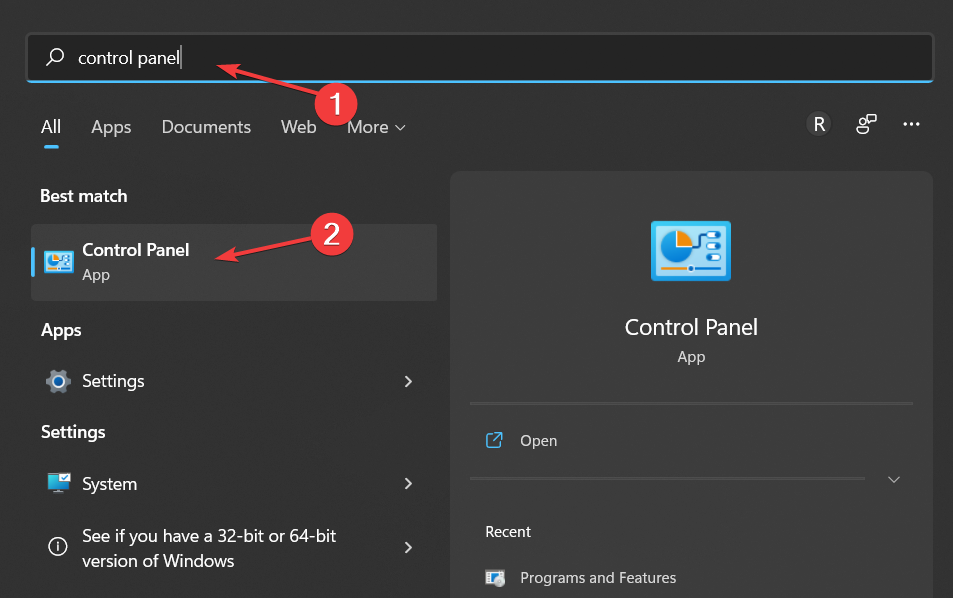
  1. Click on the Start menu and type Control panel, then select the option for uninstall a program.
    hp support assistant important action needed
  2. From the list of programs, click on HP support assistant.
    hp support assistant important action needed
  3. Click on the uninstall button and follow the prompts.
    hp support assistant important action needed
  4. Restart your PC.

3.2 Uninstalling newer versions of HP Support Assistant

  1. Click on the Start menu and select the Settings app (the gear icon).
    hp support assistant important action needed
  2. On the left pane, click on Apps, and select the Apps & Features option on the right pane.
    hp support assistant important action needed
  3. Under the list of apps, scroll down till you get to HP Support Assistant, click on the ellipses (3 vertical dots) to the right of HP Support Assistant and select the uninstall option.
    hp support assistant important action needed
  4. Restart your PC.

3.3 Reinstall HP Support Assistant

  1. Download the latest version of HP Support Assistant.
    hp support assistant important action needed
  2. Double click on the executable file and follow the prompts to install.

4. Complete tasks under fixes and diagnosis

  1. Click on the Start menu, type HP Support Assistant, and then click on the app.
    hp support assistant important action needed
  2. On the left pane, click on the Fixes & Diagnostics icon.
    hp support assistant important action needed
  3. Select the New Messages menu, click on the individual messages displayed to the right and follow the prompts to correct any errors.
    hp support assistant important action needed

5. Complete any pending updates

  1. Click on the Start menu, type HP Support Assistant, and then click on the app.
    hp support assistant important action needed
  2. On the left pane, click on the Fixes & Diagnostics icon.
    hp support assistant important action needed
  3. Click on the updates menu and wait while the support assistant searches for essential updates.
    hp support assistant important action needed
  4. Once the system has suggested updates, select the option to Download and install.
    hp support assistant important action needed
  5. Restart your computer.

6. Update your OS

  1. Click on the Start menu and select the Settings app (the gear icon).
    hp support assistant important action needed
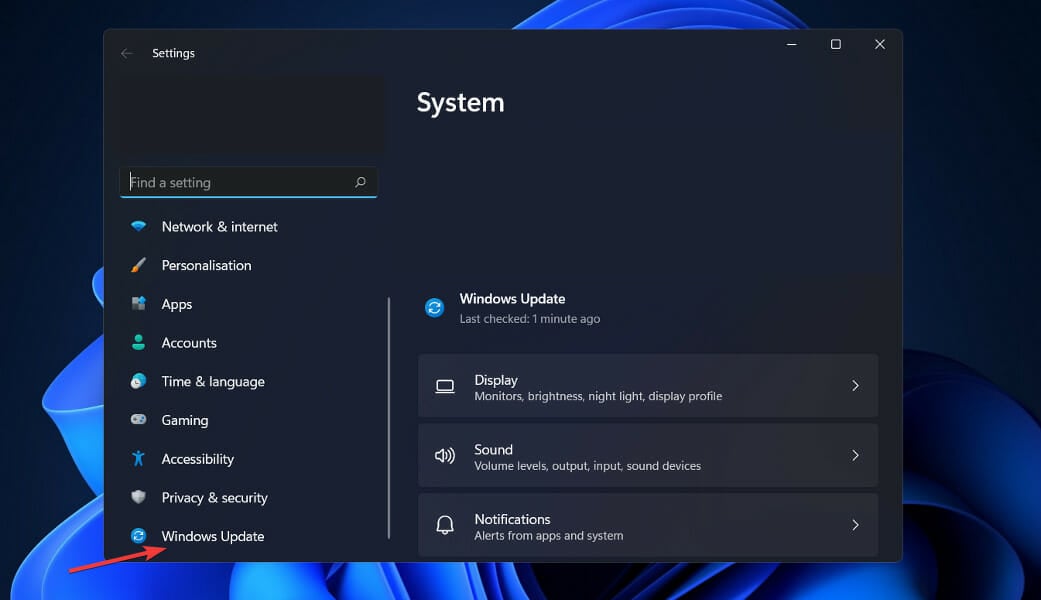
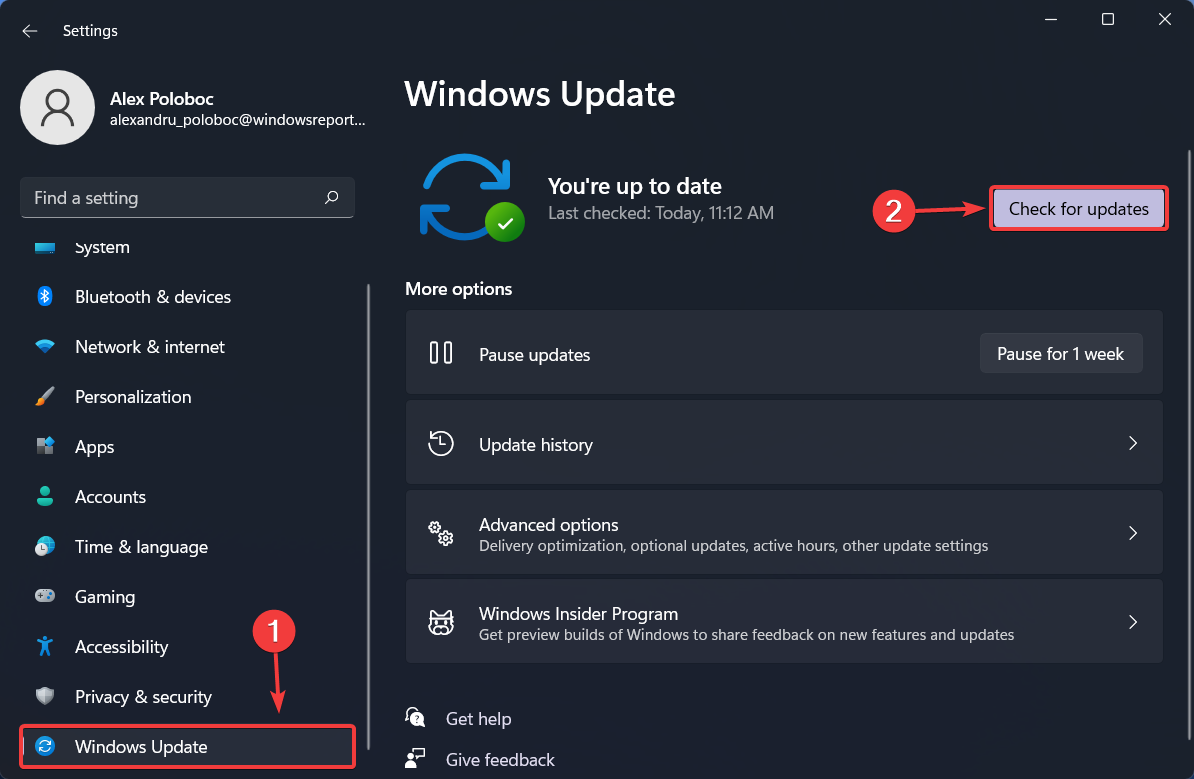
  2. Scroll to the bottom of the left pane and click Windows Update. Then on the right pane, if there are any updates, click Download and Install.
    hp support assistant important action needed

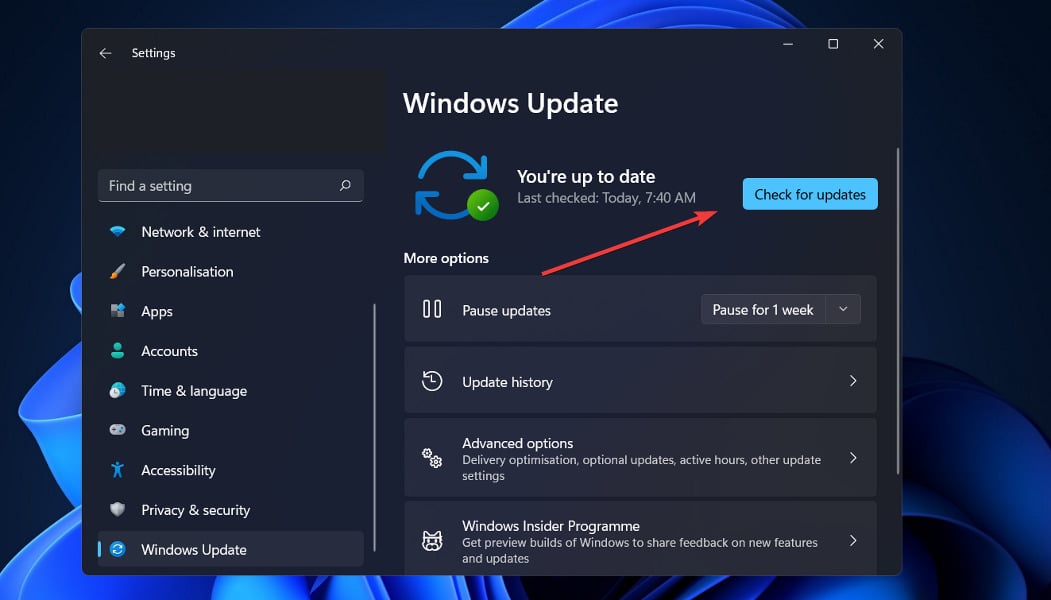
Note that if you do not see the Download and install option, you may need to check for available updates by clicking on the check for updates option.
hp support assistant important action needed

This article has covered steps to take to correct any error of important actions needed on your HP Support Assistant. Note that the UI of your HP Support Assistant may be different from the images used in this guide. Earlier versions used in Windows 10, 8, and 7 will have slight variations.

These solutions are in no particular order, but we always recommend starting with a reboot. Cases where a reboot fixes your computer problems saves you the stress of trying out more complicated solutions.

We look forward to reading your comments and will love to know which fixes worked for you.

Posted in Fix

How to Extend C Drive in Windows 11 & Pro Tips To Preserve Disk Space

Extending the C drive in Windows 11 could be handy. It hosts your operating system’s files, so it’s crucial to keep it neat, tidy & free of junk files.

This is precisely what we are going to discuss in this guide. Here, we will show you the different methods that you can use to extend the C drive in your Windows 11 PC.

How can I extend the C drive in Windows 11?

1. Using Disk Management

  1. Open the Start menu.
  2. Search for Disk Management and open it.
  3. Right-click on C drive and select Extend Volume.haow to extend c drive in windows 11 1
  4. Select the number of disks in the Available section and click on Add.how to extend c drive in windows 11 2
  5. Click on Next.
  6. The wizard will start the process of extending.
  7. Click on Finish to close the Disk Management tool.
Tip icon Tip
If there is no unallocated space in your Windows 11 PC, then you can follow the steps mentioned below.
  1. Open the Start menu.
  2. Search for Disk Management and open it.
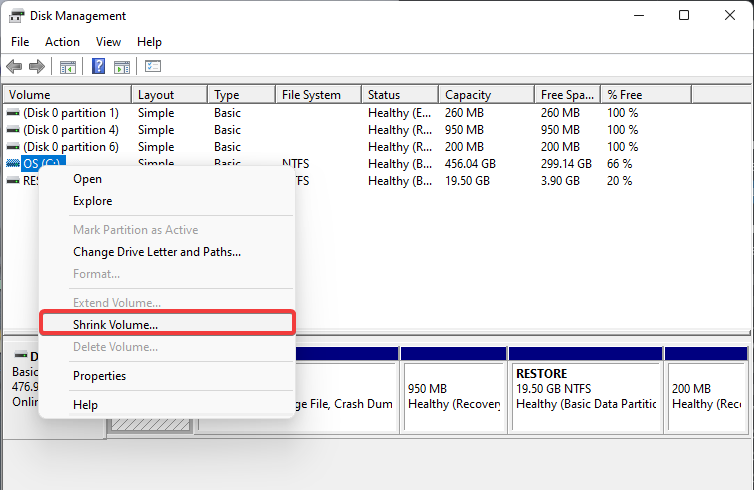
  3. Right-click on the drive which has decent free space available, and select Shrink Volume from the list.shrink volume w11
  4. Enter the shrinking size in MB, which is the amount of space that you wish to add to the C drive, and hit the Shrink button to confirm.how to extend c drive in windows 11 3
  5. Now right-click on the C drive.
  6. Select Extend Volume.haow to extend c drive in windows 11 1
  7. Click on the number of disks in the Available section and click on Add.how to extend c drive in windows 11 2
  8. Select Next.
  9. The wizard will start the process of extending.
  10. Click on Finish to close the Disk Management tool.

Using the Disk Management tool, you can easily add extra space to the C drive on your Windows 11 PC, and it is fairly easy to use and understand. Also, it will help if you want to merge unallocated space in Windows 11.

However, if you still think that the above process is a bit complicated for you, there is a simple tool that you can use, for which you need to check out the next method.

2. Use a specialized software

  1. Download AOMEI Partition Assistant.
  2. Install the software on your PC.
  3. Open AOMEI Partition Assistant.
  4. Right-click on C drive and select Resize/Move Partition.aomei 1
  5. Tick the box next to Assign free space from partition (*) to (C).aomei 2
  6. From the drop-down menu select the drive you wish to assign the free space from.aomei 3
  7. Use the slider to adjust the amount of space you want to add to the C drive.drag-the-green-bar
  8. Click on OK.
  9. Right-click on the C drive and select Merge partitions.merge-partition
  10. Select the unallocated space and hit OK.tick
  11. Hit the Apply and commit the pending operation.apply-proceed
  12. The software will show you a preview of the output.
  13. To complete, press the Apply button.

AOMEI Partition Assistant is one of the most trusted and secure ways of managing certain tasks related to disk management.

You can perform various tasks, such as extending, shrinking, or even merging partitions, in a matter of a few clicks. All this happens without any data loss.

There are other added features, including partition format and partition deletion, as well. So, we suggest that you make use of this tool to resolve your query on how to extend the C drive in Windows 11.

3. Using Command Prompt

  1. Open the Start menu.
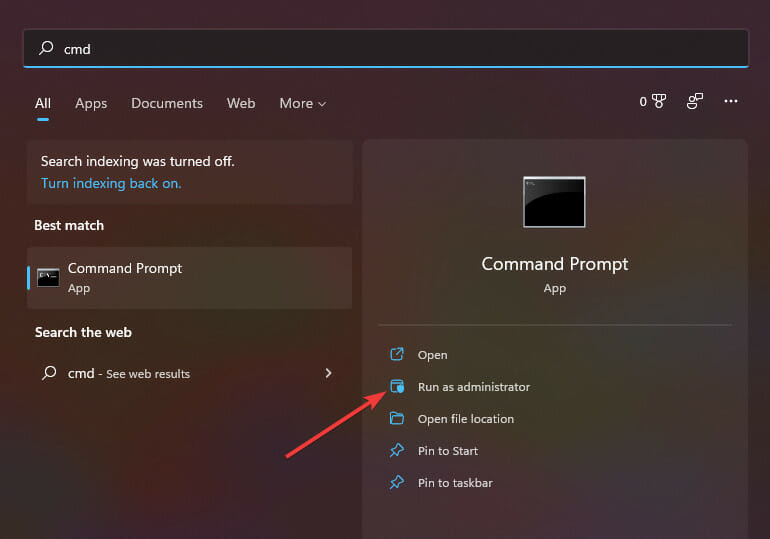
  2. Search for Command Prompt and click on Run as administrator.run command prompt as administrator
  3. Type the below command and hit Enter. diskpart
  4. Execute the below commands one by one. list volumeselect volume 0cmd set volume
    • In place of 0 in the second command, you need to enter the disk drive letter you want to increase. In our case, it is the C drive. So, enter the number corresponding to the C drive as mentioned in the list.
  5. Type the below command and press Enter. extend[size=n]
    • In place of n, you need to enter the amount of storage you wish to extend. For instance, enter 10 to increase 10 GB.

Why is the C drive in my Windows 11 PC filling up?

Windows 11, although new, does bring over all the different computing issues that users of Windows 10 have faced in the past.

Some issues are general and easily fixable, while others are tough to resolve. The problem of the C drive getting full is not new and has been an issue that has several reasons behind it.

We have listed down some of the most common reasons why the C drive in your Windows 11 PC is getting full:

  • You have recently upgraded your PC from Windows 10 to Windows 11, and old system files are still present on your PC.
  • The Windows 11 PC is infected with a virus or malware that generates unnecessary files and fills up the storage.
  • Windows 11 update files also clog up the storage space.
  • If you haven’t cleared the Recycle Bin or the temporary folder in a while, then they can eat up a good chunk of storage space in the drive.
  • You have installed too much software in the C drive.
  • The Documents folder or the Downloads folders, the most common folders where you save all the downloaded files, might be eating up the space.

What else can you do to resolve the C drive getting a full issue on your Windows 11 PC?

The above-mentioned processes help you extend the C drive in your Windows 11 PC. But what if, even after extending the C drive, it still gets filled up?

It could be because of viruses, malware, or corrupted files. You can check out some additional tips that you can follow to resolve the C drive getting full issue.

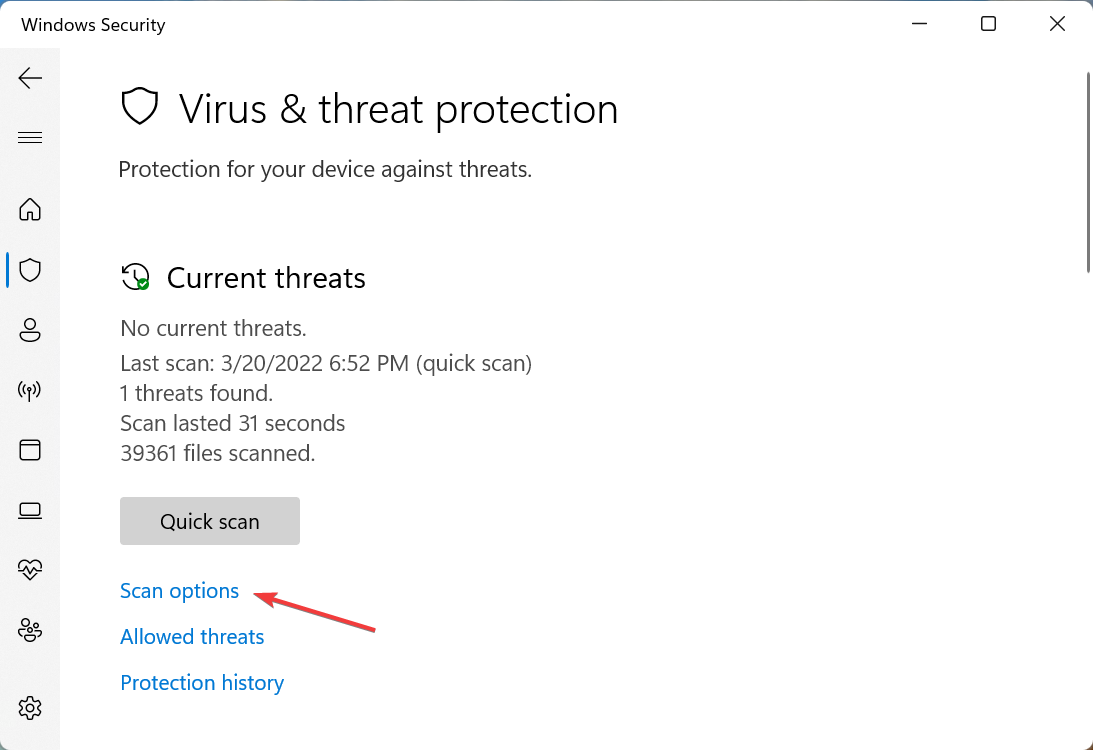
➡ Check for viruses and malware

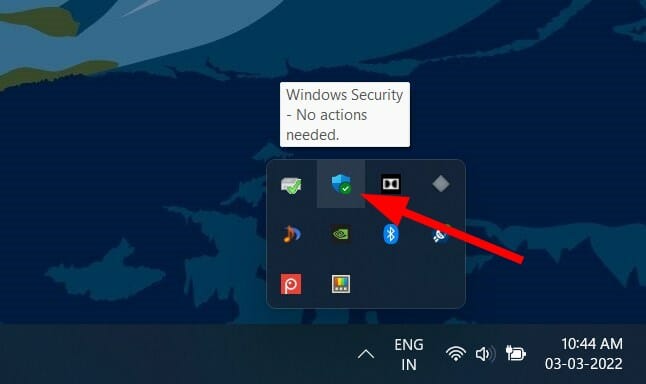
  1. Click on the upward arrow button on the bottom-right taskbar.see all apps
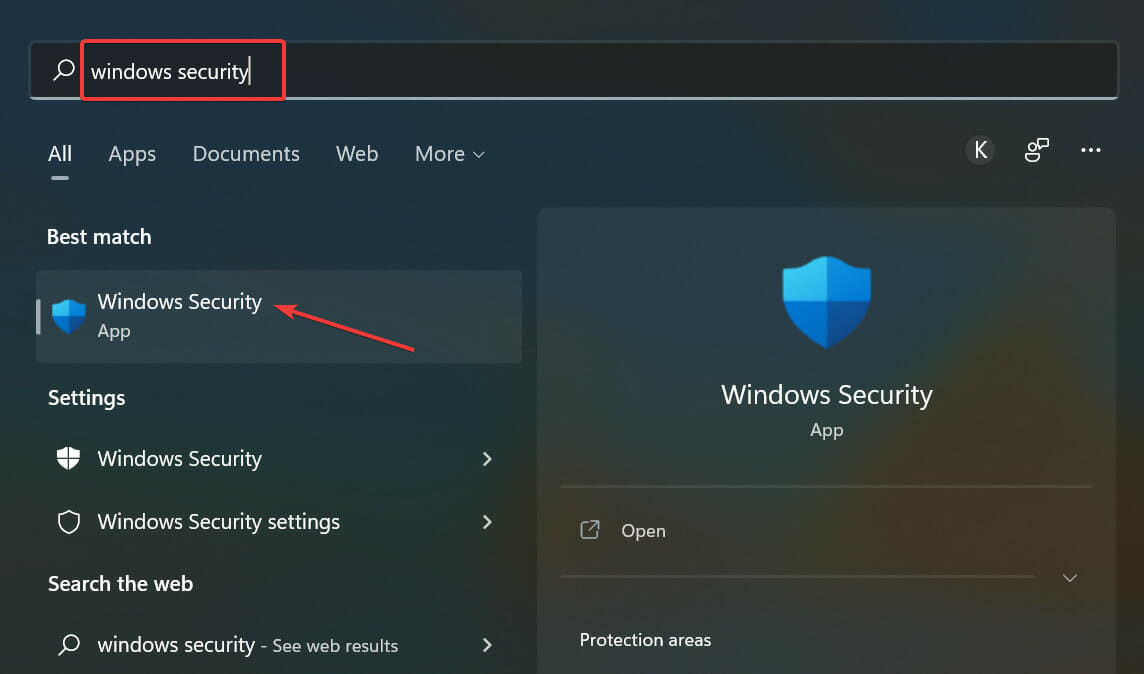
  2. Select Windows Security.windows security
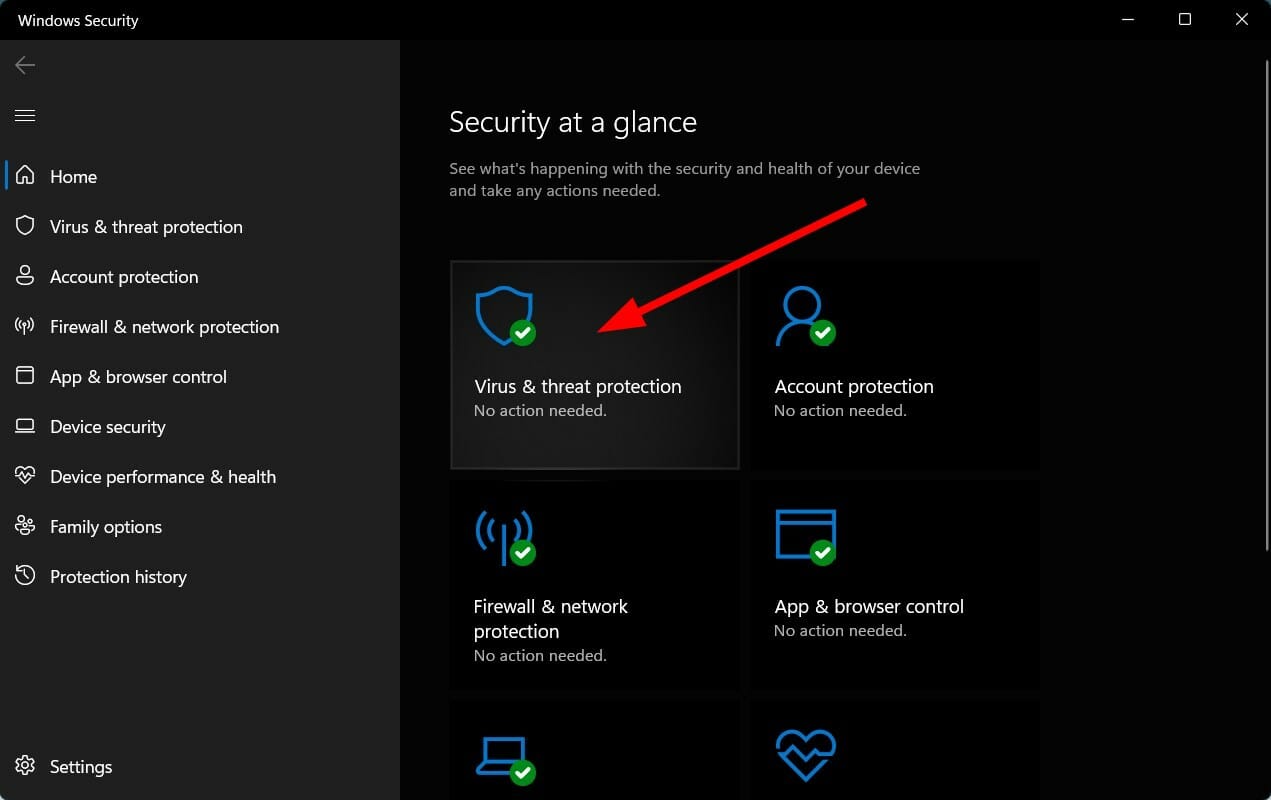
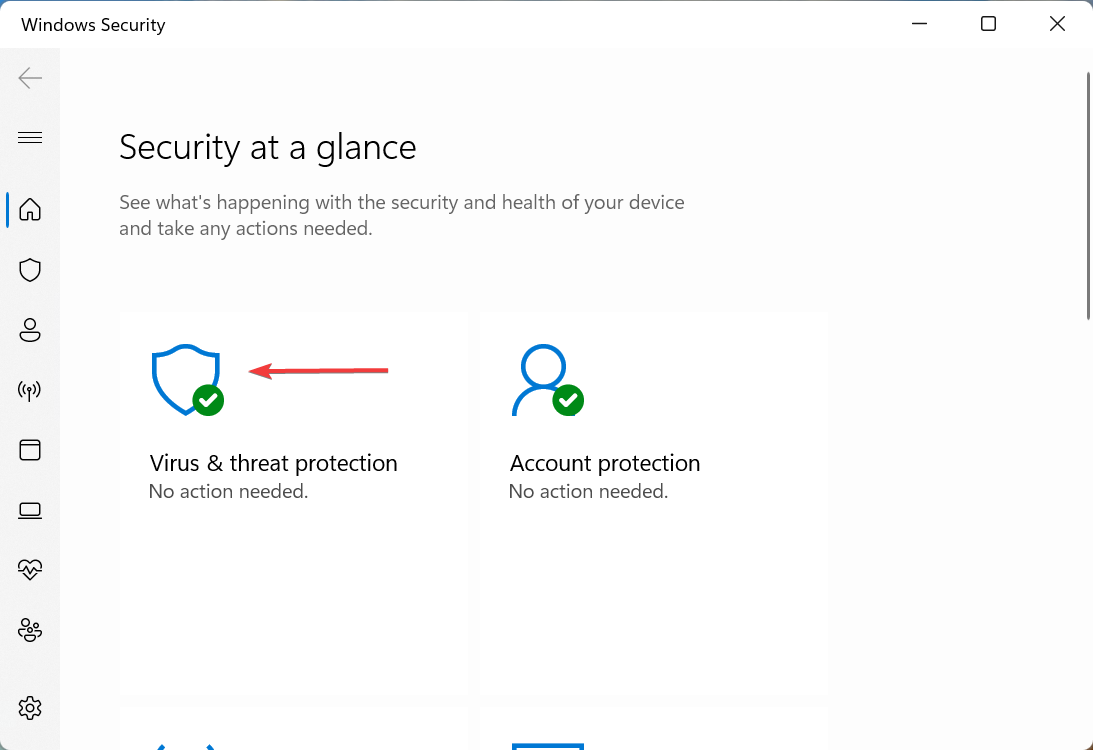
  3. Click on Virus & threat protection.virus and threat protection steam error e502 l3
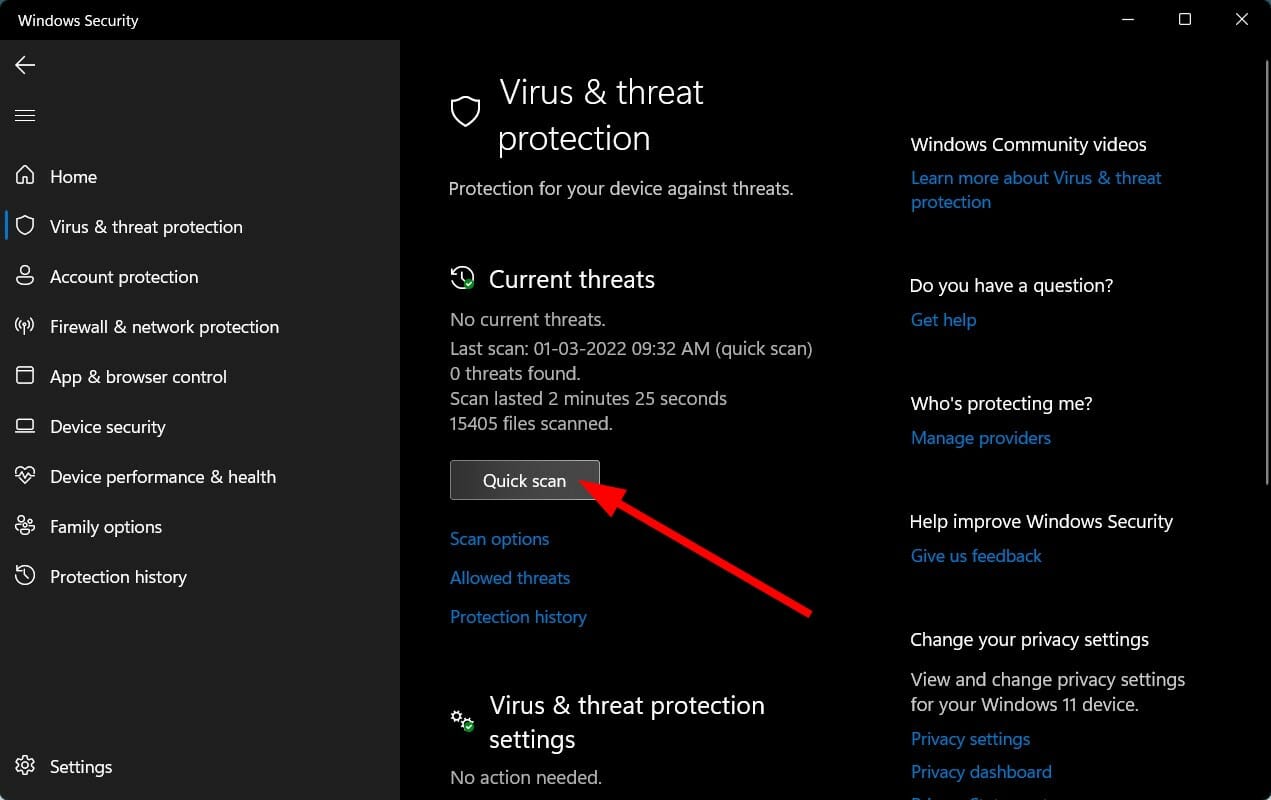
  4. HIt the Quick Scan button and let Windows Security scan your PC for viruses and malware.quick scan
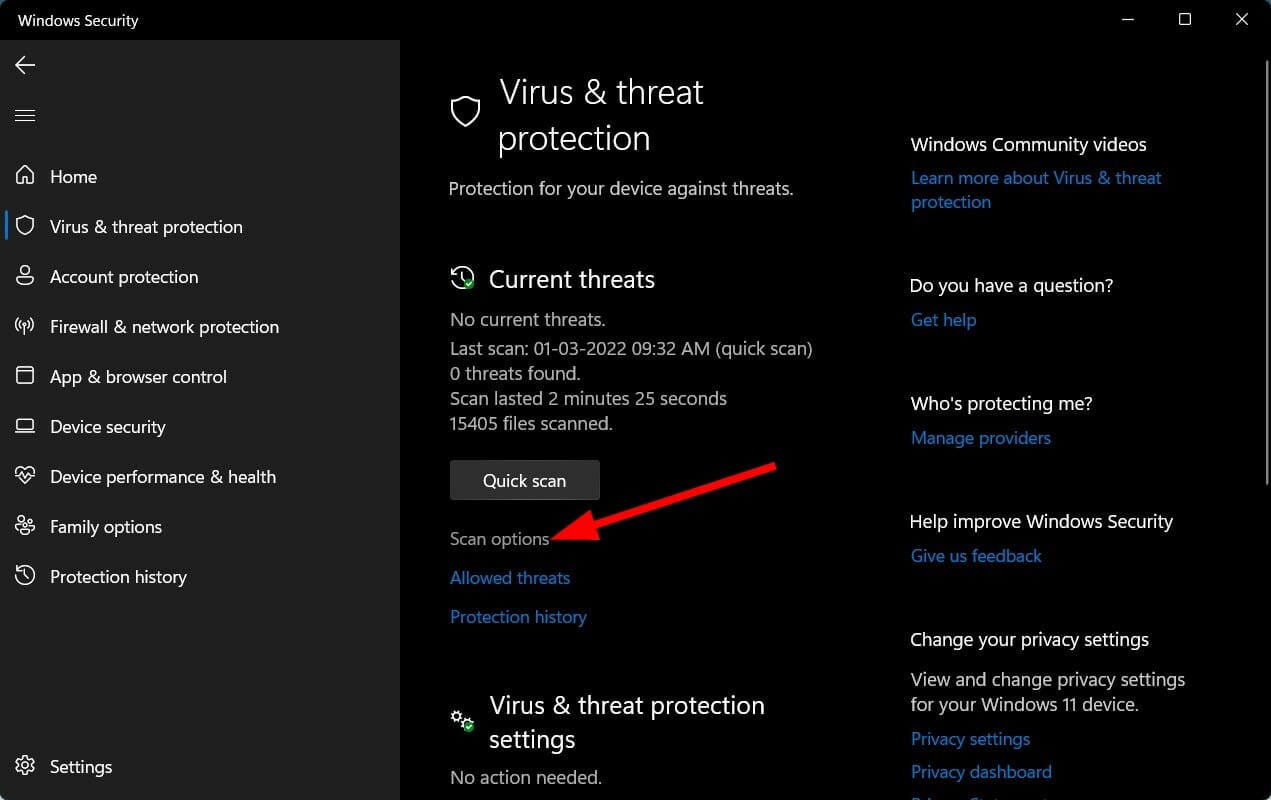
  5. You can also select the Scan options button.scan options
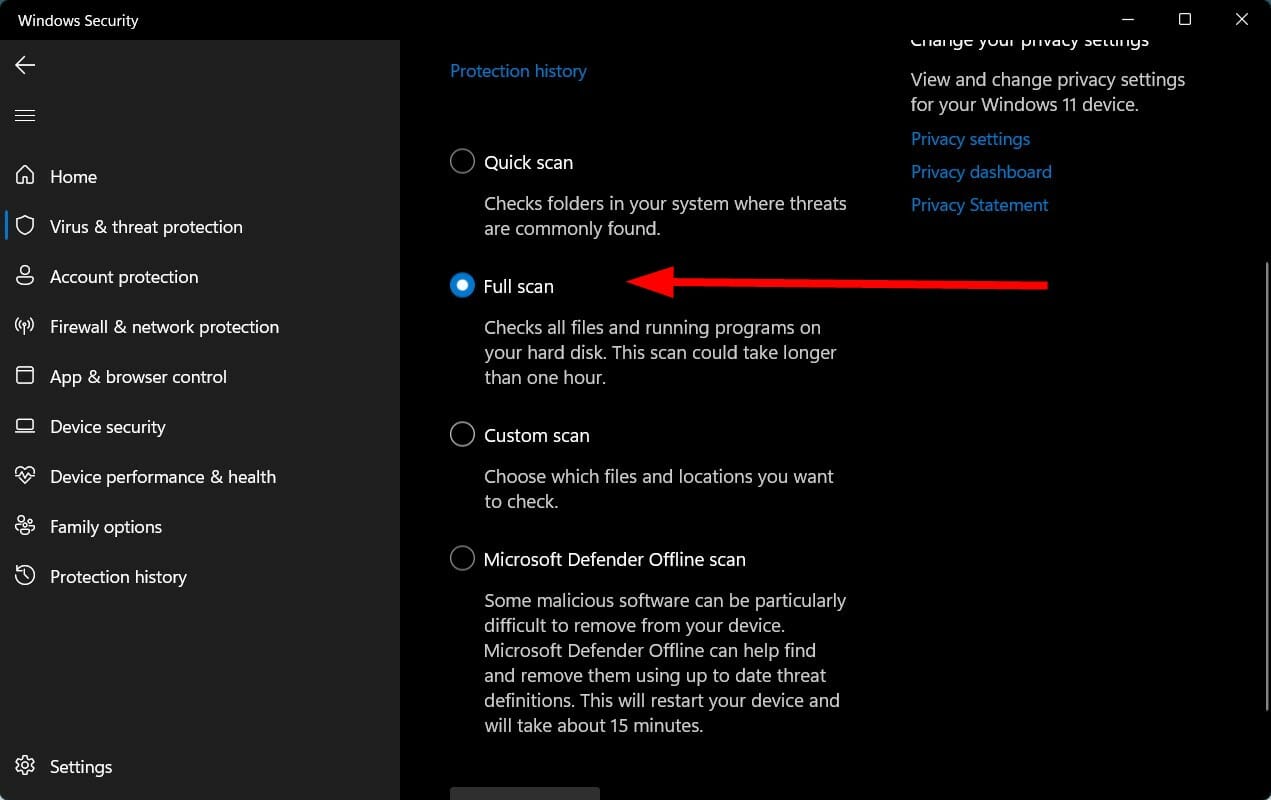
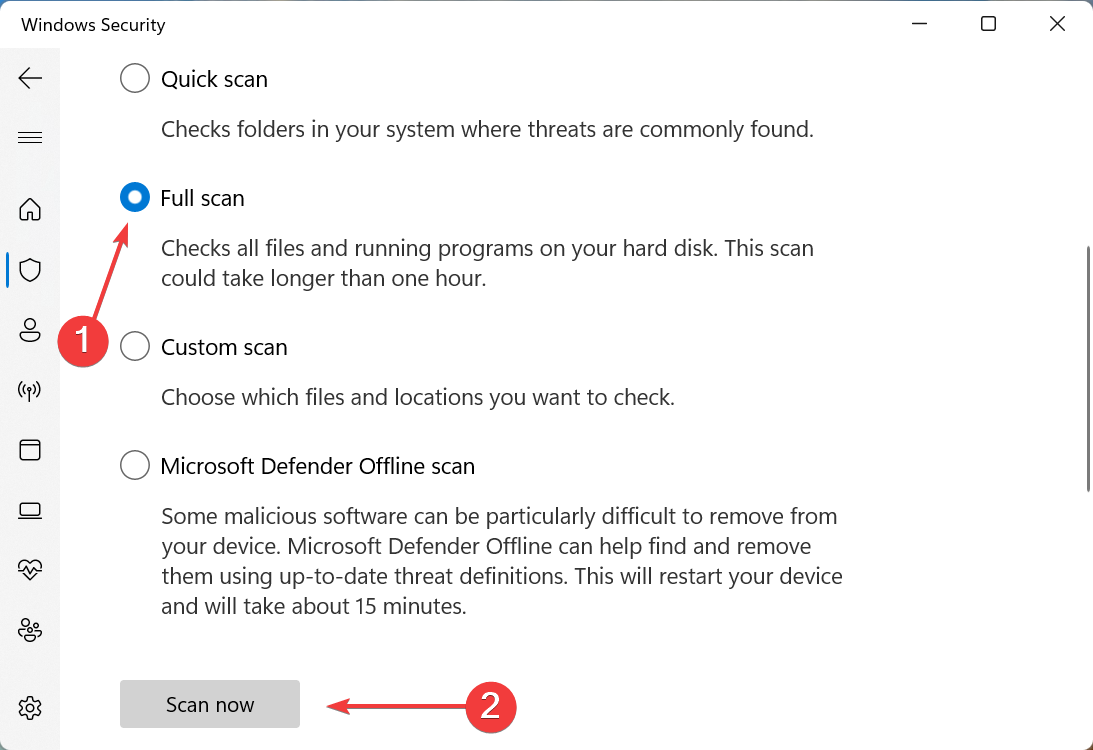
  6. Under Scan Options, choose Full scan to deeply scan your PC for viruses or malware.full scan

We made use of the Windows Security Defender to check our Windows 11 PC for viruses or malware since we don’t have any third-party antivirus applications installed on our PC. 

But the above steps would give you an idea that you need to perform a scan to check for any viruses or malware present on your PC.

➡ Run Disk Cleanup

  1. Open the Start menu.
  2. Search for Disk Cleanup and open it.disk-cleanup windows 11 setup failed to validate product key
  3. Select C drive from the drop-down menu.
  4. Tick all the boxes which you wish to delete.Disk-cleanup
  5. You will be asked to confirm.
  6. Hit the OK button.

Disk Cleanup is a pretty handy Windows 11 inbuilt tool that lets you easily clear out all the junk present in the C drive of your PC.

The above methods are sufficient to resolve your issue of how to extend the C drive in Windows 11.

Let us know in the comments below if you use other methods to extend the C drive in your Windows 11 PC.

Appraiserres.dll: How to Download & Reinstall

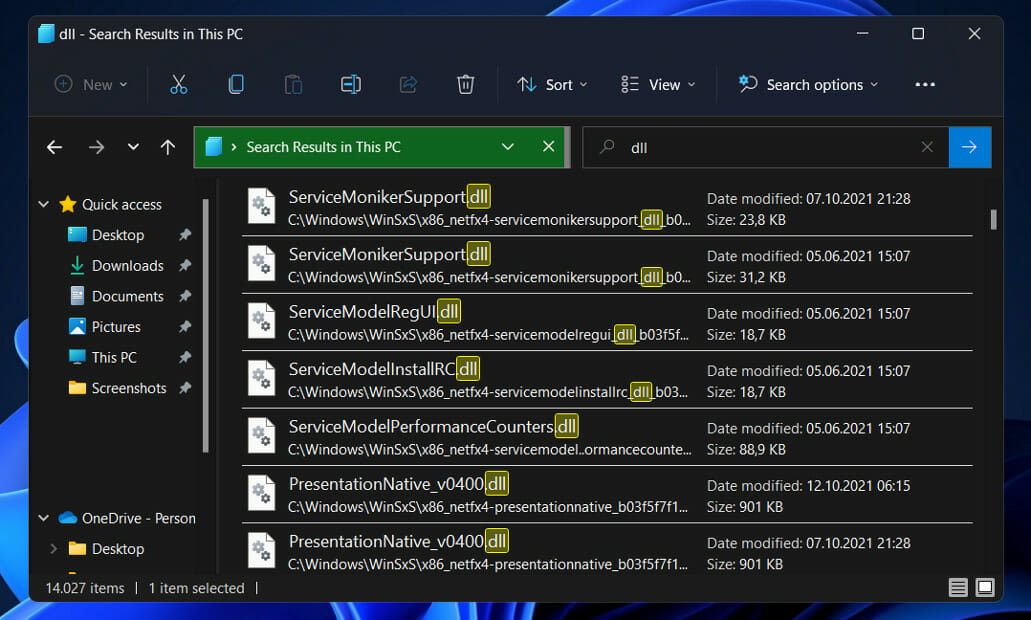
It may be tempting to simply download the missing.dll file from the Internet, but doing so is something you should avoid at all costs. First and foremost, the .dll file you downloaded may include malware that might infect your entire system.

To make matters worse, the downloaded version may not be the same as the one installed in your operating system, which will almost certainly exacerbate your troubles.

Instead, follow the steps we have listed below to fix the file or bypass it. But first, let’s understand better why you shouldn’t download DLL files from the Web.

Is it safe to install DLL files?

When you encounter one of those DLL not found or DLL is missing issues, websites that allow you to download single files appear to be the solution you’ve been seeking for.

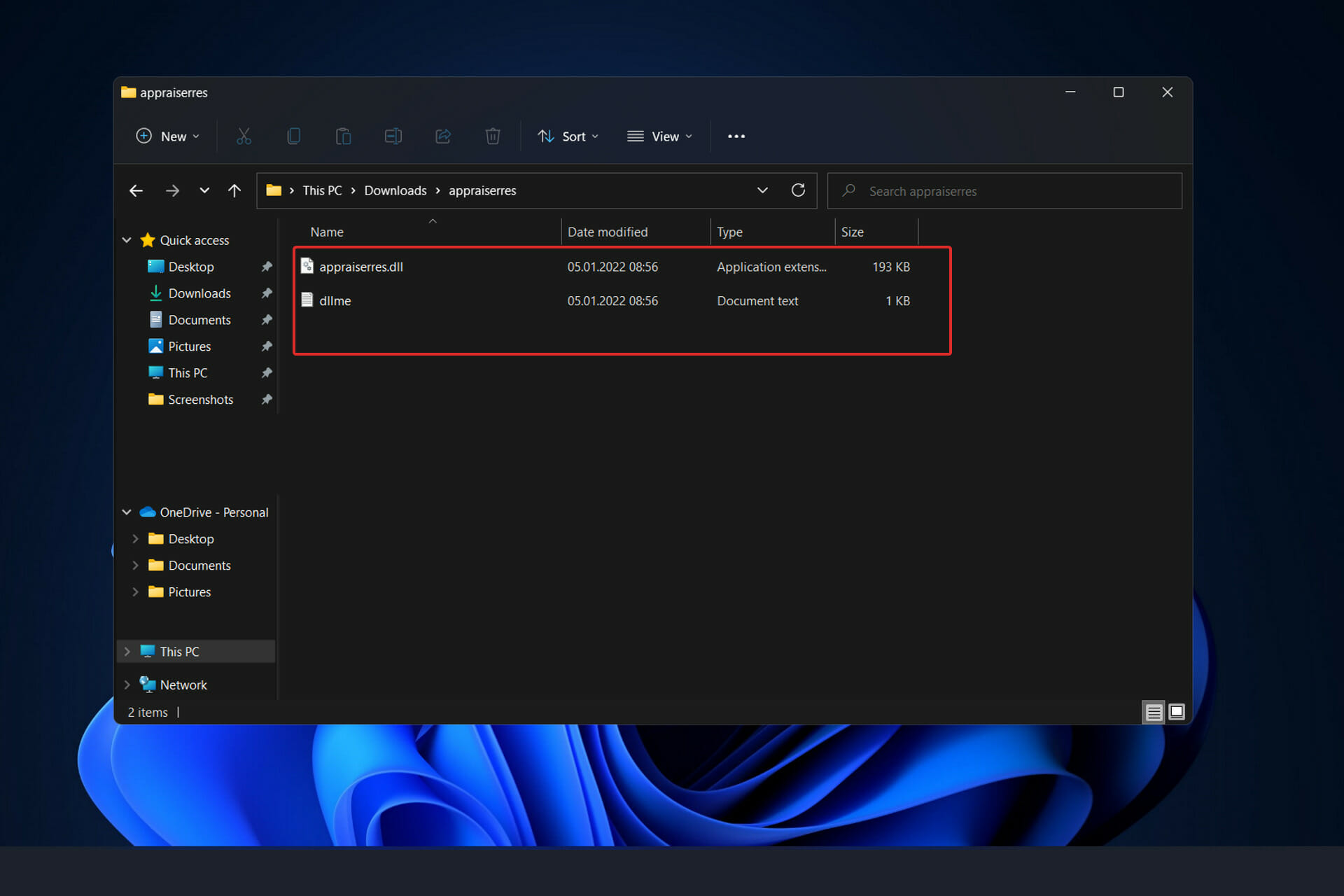
Consider this your fair warning, DLL download sites should nearly always be avoided, despite the fact that they may occasionally give a quick resolution for a computer problem.appraiserres-bin appraiserres.dll for windows 11

There are other, absolutely safe, and appropriate methods of resolving this kind of issue that do not involve downloading specific files from these sites in the first place.

DLL files are generated and delivered by companies that specialize in the development of computer software. In some cases, the software company in question is Microsoft, and in others, it is not. Those files are created by a large number of companies as part of their software packages.

It is only through the developer that a stable, clean, and up-to-date copy of a DLL file can be ensured. Websites that allow for individual file downloads are, save in the most exceptional of circumstances, not allowed locations for DLL downloads.

DLL download sites operate only for the purpose of attracting your attention through search engine results and, presumably, causing you to click on their adverts. As such, they aren’t legitimate software support sites, and they have little if any, motivation to keep their data current.

However, the software business that actually generated the DLL file will always have the most up-to-date and working version of the file available for you to download.

What can I do if appraiserres.dll isn’t working in Windows 11?

1. Perform a forced restart

The quickest and most straightforward solution to the missing .dll file error is to restart your computer. Many times, there are cache issues that can be resolved by simply restarting the computer.

However, if some.dll files are missing, you might be unable to restart your computer. If this is the case, perform a forced restart to check if the problem is resolved.

To force restart your computer, simply hold the Power button on your keyboard for 9 seconds until your PC shuts down. Then press it again to start it again.

2. Retrieve deleted files

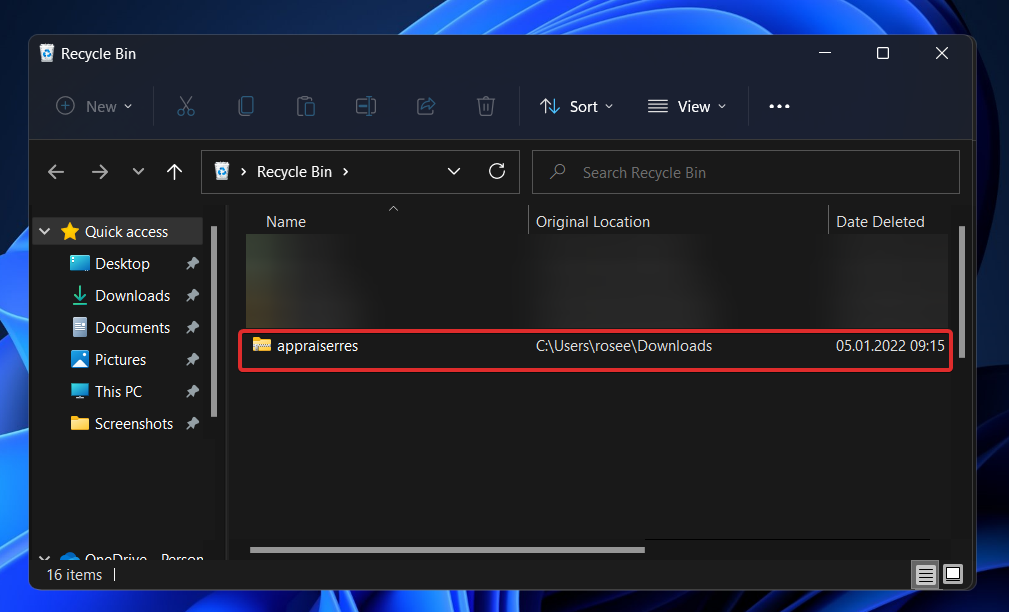
It’s possible that you removed the .dll file by mistake on your own computer. If this is the case, look through your recycle bin for the file and restore it.

Alternatively, a file-recovery software tool can be used to retrieve accidentally deleted files. Keep in mind that if the .dll file was corrupt before it was destroyed, this procedure will not work to resolve the issue. It will only work for files that were sound prior to deletion.

3. Check your PC for viruses

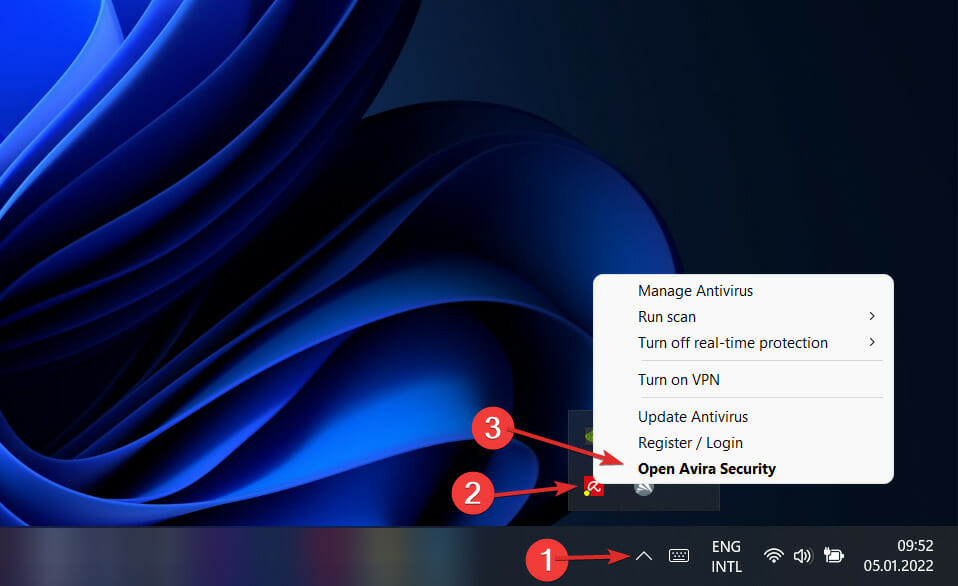
  1. Click the carrot arrow from your taskbar, in the right corner to find the antivirus you have installed, then right-click on it and choose the option that opens the app interface.open-antivirus  appraiserres.dll for windows 11
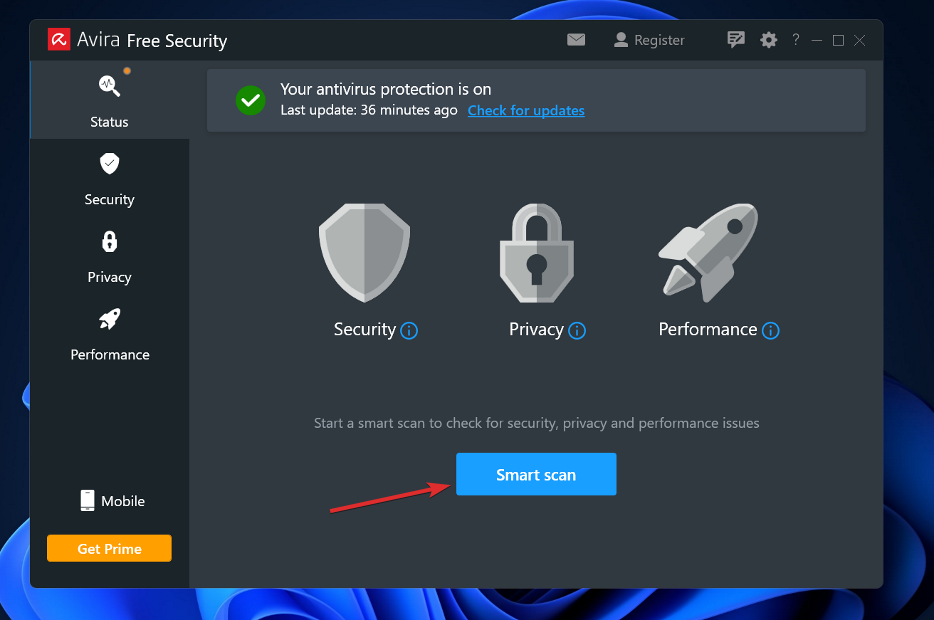
  2. Now click on the button that performs a Smart scan or anything similar to a virus scan.smart-scan appraiserres.dll for windows 11

Additional .dll files are created by virus programs, which may interfere with the operation of existing files. By running a system scan, you will most definitely find out whether this was the cause of your issue or not. For more advanced scanning capabilities, we recommend TotalAV as the tool to go.

4. Use a PC repairing software

In order to bypass the appraiserres.dll not working error message, it is advised to replace the damaged .dll files using suitable repairing support.

Thus, it’s possible to fix this issue on your Windows 11 device with a complete repair system solution.

It’s already known that downloading such files from the web can be harmful and affect your entire system. Consequently, this software will help you handle missing or corrupted DLL files on your PC.

More exactly, it will scan your computer and detect corrupted .dll software files, replacing them with functional ones from its large repository.

5. Update Windows

  1. Press the Windows key + I to open the Settings app, then click on Windows Update in the left panel to find all the updating options.windows-update-settings kernel security check failure windows 11
  2. If you need to download any new updates, click the Install now option and wait for the procedure to complete; otherwise, click the Check for updates button.checl-for-updates kernel security check failure windows 11

It’s possible that an older version of Windows is creating the issue, which can be remedied by upgrading. An upgrade to the software package is likely to fix the error.

6. Run the SFC scan

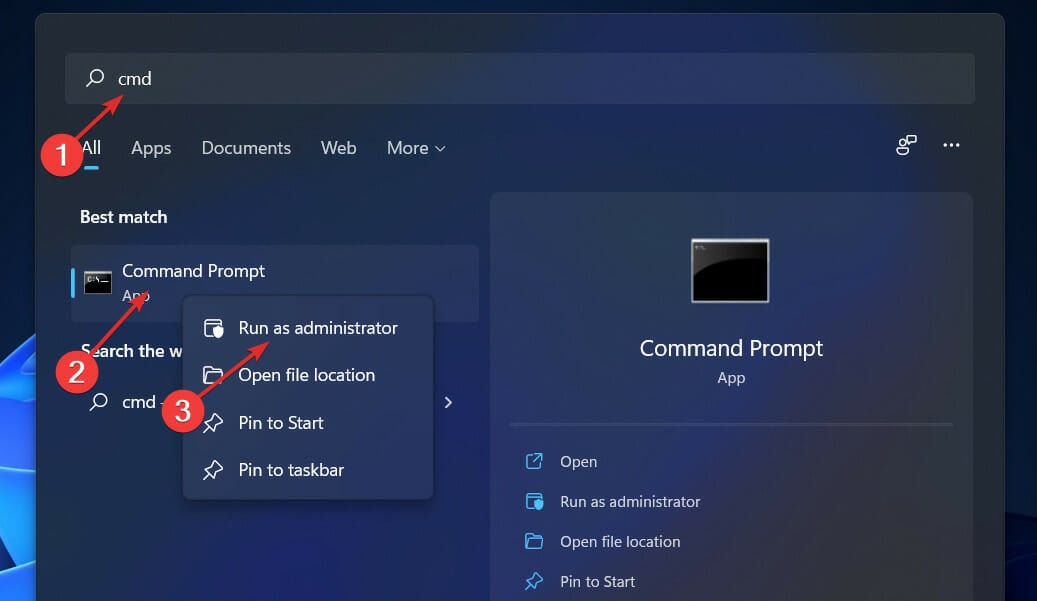
  1. Press the Windows + S key to open the Search bar, then type cmd in the search box, and right-click on the most relevant result to run it as an administrator.cmd-run-as-admin avast high cpu windows 11
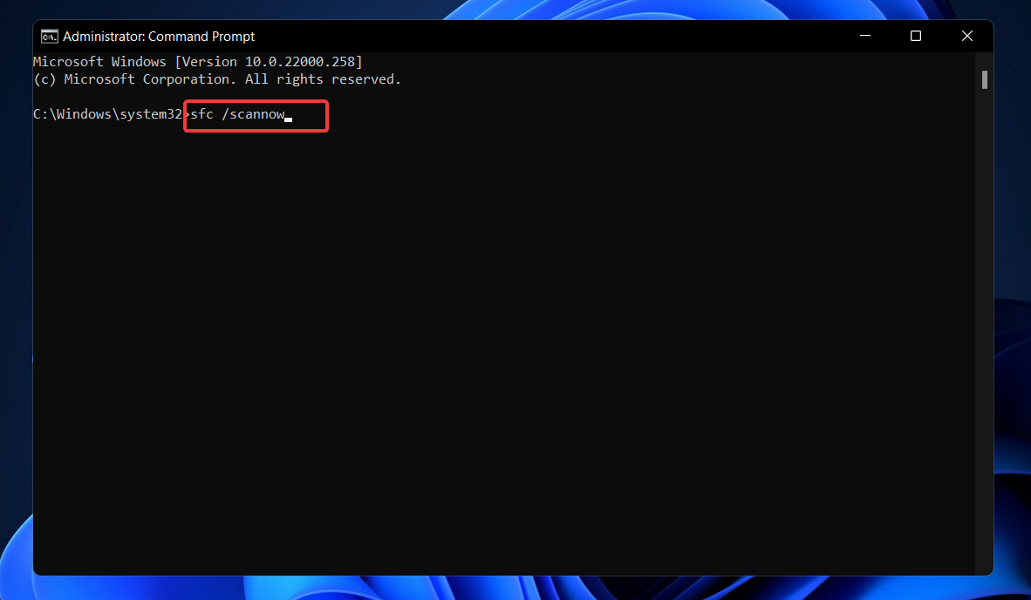
  2. Copy and paste in the following command and press Enter to run the scan:sfc /scannowsfc-scan-windows-11 gdi+windows error message on shutdown

7. Use the Startup Repair

  1. At first, completely switch off your system then switch your system back ON. Once your system is booting up, just press and hold the power button again to force the shutdown of your system.
  2. Simply repeat this action 1-2 more times more and for the 3rd time, let your computer boot up normally. Your system will go to the Automatic Repair mode automatically.
  3. Once the Automatic Repair screen appears, tap on the Advanced options, then click on the Troubleshoot option.troubleshoot-option windows 11 error code 0xc00000e
  4. Now click on Advanced options and choose Startup Repair.startup-repair  windows 11 error code 0xc000000f

When the installation procedure is complete, your system will automatically complete the remaining steps and handle any issues that arose during the installation process.

What does a .dll file do?

Generally speaking, a dynamic link library, or DLL, is a shared library of instructions that can be utilized by two or more programs at the same time. The majority of programs are broken into several modules and sub-modules.

DLL files aid in the modularization of code, the reuse of code, the effective use of memory, and the reduction of disk space. All of this means that programs will operate faster and more efficiently as a result of the changes.dll-files appraiserres.dll for windows 11

Given that it is not a stand-alone file, such as an executable file (.EXE), a running program must explicitly reference this file when it is called.

Because DLLs and EXEs are virtually identical, the choice of which to generate as part of the linking process is purely for the sake of clarity, as it is feasible to export functions and data from either.

In order for the operating system to load and execute a DLL, it must first be loaded into memory by an EXE. This necessitates the development of utilities such as the RUNDLL EXE and the RUNDLL32 EXE, which serve as an entry point and a minimal framework.

Additionally to executing in the same memory area as the calling process and with the same access permissions, DLLs have no protection against bugs in them, which means there is low overhead in their use but also no protection.

If you encounter errors with running Windows 11, check out our guide on how to solve This PC can’t run Windows 11.

Alternatively, if you get the This PC must support Secure Boot error message, take a look at the anchored link to see a comprehensive list of solutions.

And lastly, users have benefited from reading our article on how to install Windows 11 without TPM. Make sure to not miss it if you encounter issues with the TPM requirement.

Which solution worked best for you? Do not hesitate to let us know in the comments section below.

5 Best Game Controllers for Windows 11

Finding the best Windows 11 game controller may be difficult, but it is necessary because the quality of controllers has a direct impact on a player’s performance.

Some first-person shooter games amplify the tension by vibrating the controller in response to a gunshot.

Also, many games such as sports car racing are designed to be played with a controller for a better experience. So, you need game controllers that excel in a specific type of game.

Is a game controller required for PC gaming?

If you are keen on playing fast-paced shooting pc games, you may opt for keyboard-mouse combos due to their accurate aiming.

However, as far as ease of use is concerned, using a gamepad is necessary for every gamer.

You sit relaxed on a couch and play your favorite video games without moving your hand. All you need is to press your fingers on keys.

Also, some games come from the console world with their specific control system. For example, you should press LB + Y keys to do a lobbed-through pass in FIFA 2022.

On the other hand, you need to use a pretty different control system with keyboard-mouse combos in Windows 11 when lobbing a pass.

Now that we’ve cleared things up, let us introduce you to the best Windows 11 game controllers available on the market.

What are the best Windows 11 game controllers?

Xbox Wireless Controller

  • Exclusive screen share button for social media
  • Easily Bluetooth-paired with Windows
  • Well-designed textured triggers
  • Bulky

Perhaps one of the world-renowned gamepads for Windows 11 that the market offers is the Xbox Wireless controller.

It comes in various colors such as blue, black, white, and red, suited for every pc gamer’s taste. Like the Sony DualShock controller, the Xbox Wireless controller uses haptic technology to deliver you a real in-game experience when you fire a gun.

Equipped with a fantastic hybrid D-pad, this Microsoft game controller makes pressing fingers on keys more comfortable.

However, some gamers prefer to move their characters more accurately with well-defined edges, Ryan Whitaker says, a Senior Designer at Xbox company.

The Xbox Wireless controller is a little bulkier (weighing 9.9 oz) than the Sony DualShock 4, but it’s still one of the best Windows 11 game controllers.

But it uses a powerful rechargeable battery to make up for this downside.

PlayStation 5 Dualsense

  • Built-in microphone to chat with friends online
  • Integrated speaker with bursting sound effects
  • Inconvenient for small hands

PlayStation 5 Dualsense gives gamers extra tactile sensation when shooting an enemy with a shotgun with a thundering BAM sound.

However, to play for long hours (up to eight hours), you need to recharge the PlayStation5 Dualsense lithium-ion internal battery.

Compared to its predecessor, DualShock4, it has wider shoulders designed for gamers with bigger hands. This feature has impressed Sony gamepads fans to a great extent.

Additionally, it has smoother triggers with little resistance. Moreover, its touchpad provides gamers with a superb matte surface to play conveniently.

Regarding compatibility with Windows 11, it’s enough to say that it works efficiently. But, if you are a Steam user, make sure to buy the newest version.

This nifty controller is a long-lasting gamepad if you clean it regularly. However, the analog sticks may drift if you leave them dirty with dust.

Logitech F710

  • Comfortable grip
  • Two vibration settings
  • Without battery-life indicator

In comparison to Sony and Microsoft’s designs, this controller has a simple layout. It feels so great in the hand and is extremely comfortable to use for extended periods of time.

This product is ranked third as the best Windows 11 game controller since it incorporates both XInput and DirectInput input technology, allowing you to play Xbox games as well.

It is worth noting that, this controller is multiplatform and it is compatible with Android TV.

Easy setup is one of the main features of this controller. You can easily plug it into your PC without any further configuration.

Once you connect it to your PC, Windows automatically detects the device and installs it.

Having an indicator light on a mode button is a big plus because it allows you to switch between the D-pad and the left analog stick fast and easily.

The Logitech F710 runs on two AA batteries and has long battery life. However, the disadvantage is that there is no warning when they are going to die.

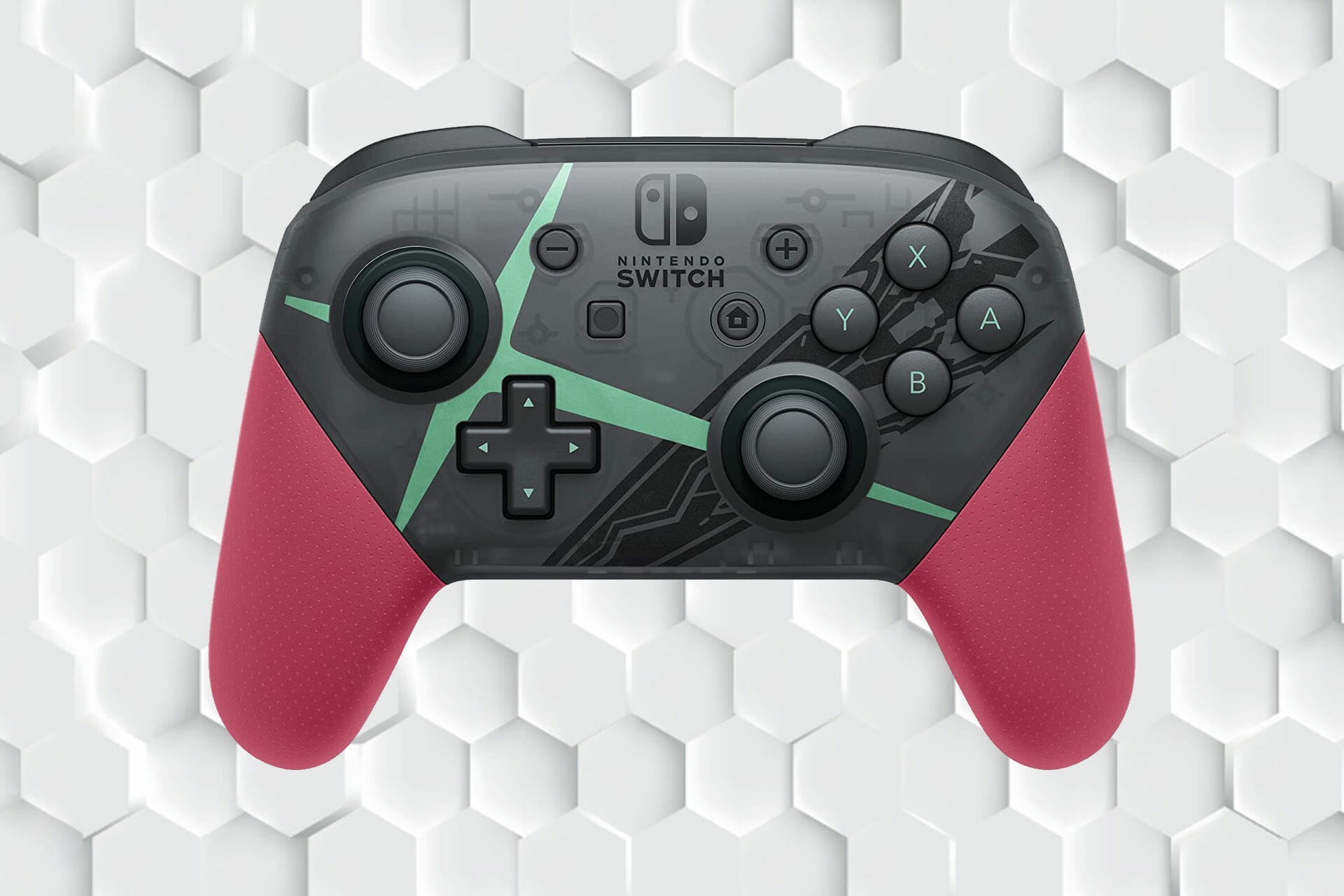
Nintendo Switch Pro Controller – Xenoblade Chronicles 2 Edition

  • Well-distributed buttons
  • Bluetooth and USB-C cable connectivity
  • long-lasting battery
  • Chunky

Designed with a sturdy and comfortable layout, Nintendo Switch Pro is one of the sought-after controllers for gamers playing in TV Mode and Tabletop Mode.

You can connect the controller to your Nintendo Switch dock with a HAC-010 USB cable in TV Mode and enjoy playing games on big screens.

Nintendo Switch Pro controller battery is the most prominent feature it offers. Its battery life is 40-hour, and you can enjoy playing games via Bluetooth for long hours.

The main drawback of this controller is its relatively high price. Additionally, it has no headphone jack or port for headphones.

Because it is comfortable and boasts a long-lasting battery, the Nintendo Switch Pro controller is ranked fourth among the best Windows game controllers.

Razer Wolverine V2 Chroma

  • Hair-trigger mode for spamming faster commands
  • Compatible with Xbox Series and Xbox One
  • High-tech mecha-tactile action buttons.
  • More than double the price of a standard controller

up next is the Razer Wolverine V2 Chroma in our best game controller for Windows 11 list. This controller is a customizability powerhouse with additional remappable buttons.

One of the notable features of Wolverine V2 Chroma is that you can make your customized bottom layout in Windows 11.

It is a mega-controller consisting of four extra triggers and two remappable bumpers. Though a bit big (weighing up to 0.60 Ibs and measuring 6.35 x 4.16 x 2.55 in), it has gifted gamers with comparatively complex buttons.

Despite being a versatile joypad, Razer Wolverine V2 Chroma is way pricy (costing nearly 150 $) compared to its competitors (ranging from 45 to 70 $).

Additionally, missing wireless capability is a huge downside that Razer Wolverine V2 Chroma has. As a result, Razer company has left gamers with USB-C cables to connect to PC.

In fast-paced shooting games like Call of Duty: Warzone, where you are supposed to snipe the enemy far ahead, the Razer Wolverine V2 Chroma controller provides gamers with taller sticks for more accurate headshots.

On the other hand, it has designed unmatched thumbsticks, i.e., shooter sticks for mid-range combats. It all depends on the gamer’s ergonomy and playstyle.

Is PC gaming better with a controller?

We can say it depends on the type of game to answer this question. Sometimes you need to play games with a controller.

For example, when you play racing games like Asphalt or Forza Horizon, the gameplay is a different scenario. For instance, you need to do a U-turn with your racing car in such games.

So, a gamepad is a must-have for any gamer to handle the car better than to play car racing games.

On the other hand, in strategy games where you need to control the game with both mouse and keyboard, PC gaming with a controller is not as impactful as with keyboard-mouse combos.

Imagine you need to deploy your units with a mouse and at the same time move them to the frontline or order them to attack the enemies. Therefore, it all depends on the genre of the game you play.

There are a variety of gamepads available on the market today to choose from when playing games on Windows 11.

If you are into Haptic Experience Design (HaXD) gamepads with a mid-range price, we suggest you opt for the Xbox Wireless controller because of its versatile functionality.

To sum it up, there is no benefit to using the best Windows 11 controller if the game you are playing is not built to work with a controller.

For those who like playing their games on the keyboard, this article is for you.

Fix: Can’t Set Opera as the Default Browser in Windows 11

Opera has become the default browser for millions of people. Its speed, performance, and customizable user-interface appeal to many users.

Based on the Chromium engine, Opera is extremely reliable and secure with tons of features to give users the best browsing experience.

Some users have reported that they can’t set Opera as their default browser in Windows 11. Be sure to check if you have the latest version of the browser installed by visiting the Opera website. Follow the solutions below if you can’t set Opera as your default browser.

How do I change my default browser from another browser to Opera?

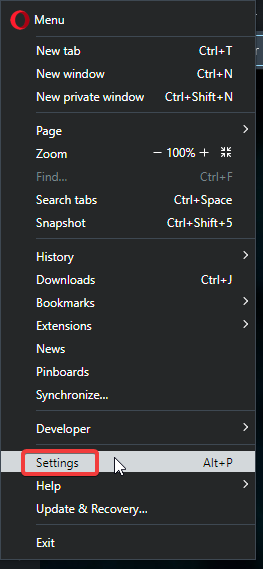
  1. Open Opera and click the O logo in the top right corner, then click Settings. open up Opera settings.
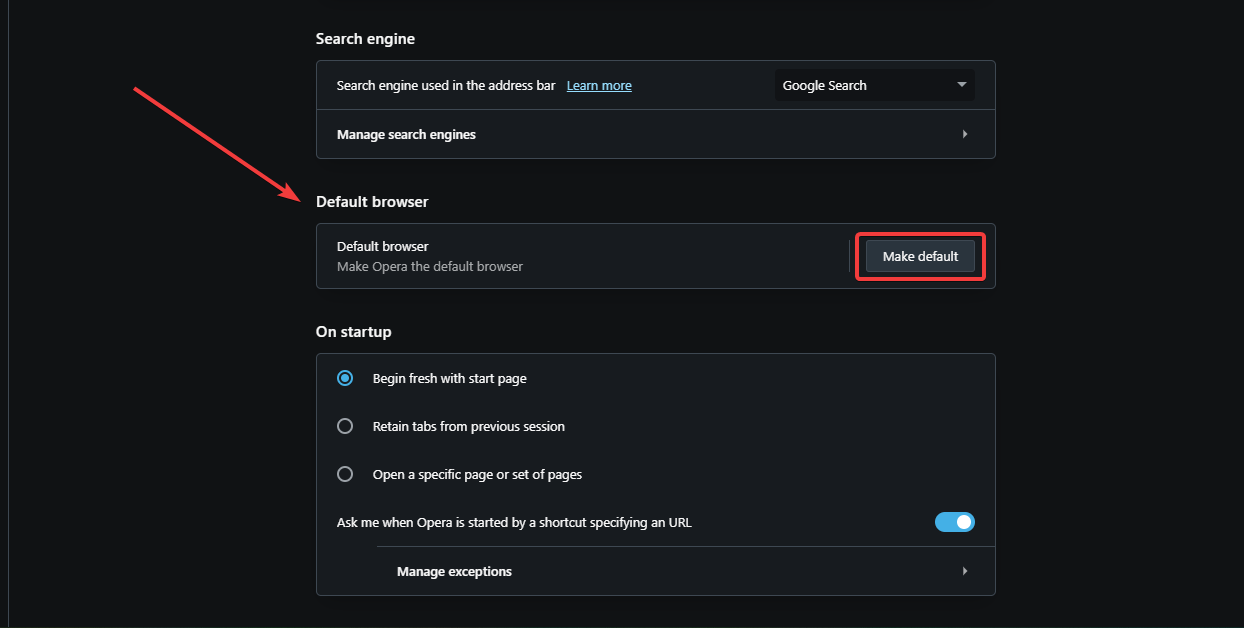
  2. Scroll down to Default browser. Make Opera default browser.
  3. Select Make default.

For many Windows users, Microsoft Edge or Internet Explorer is already set to be the default browser. It’s simple to switch from these browsers to Opera. If you want to import bookmarks and browsing data from another browser, follow the steps below.

  1. Open Opera and click the O logo in the top right corner, then click Settings.
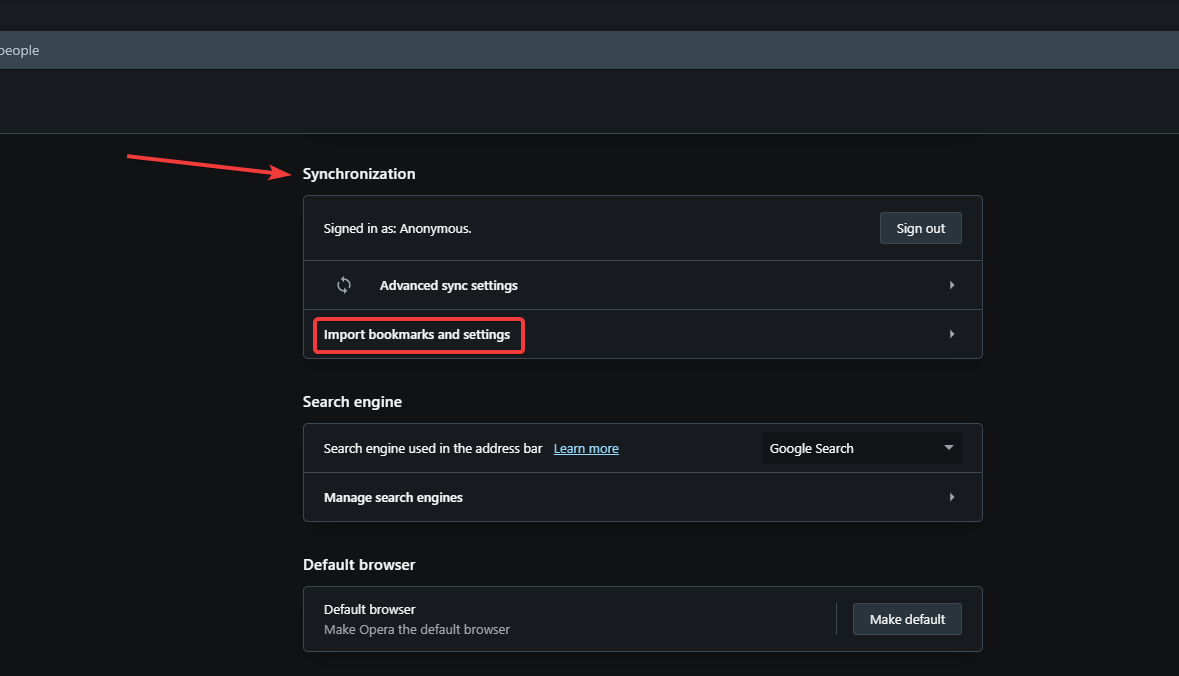
  2. Scroll down to Synchronization and select Import bookmarks and settings. Import bookmarks and browsing data from other browser.
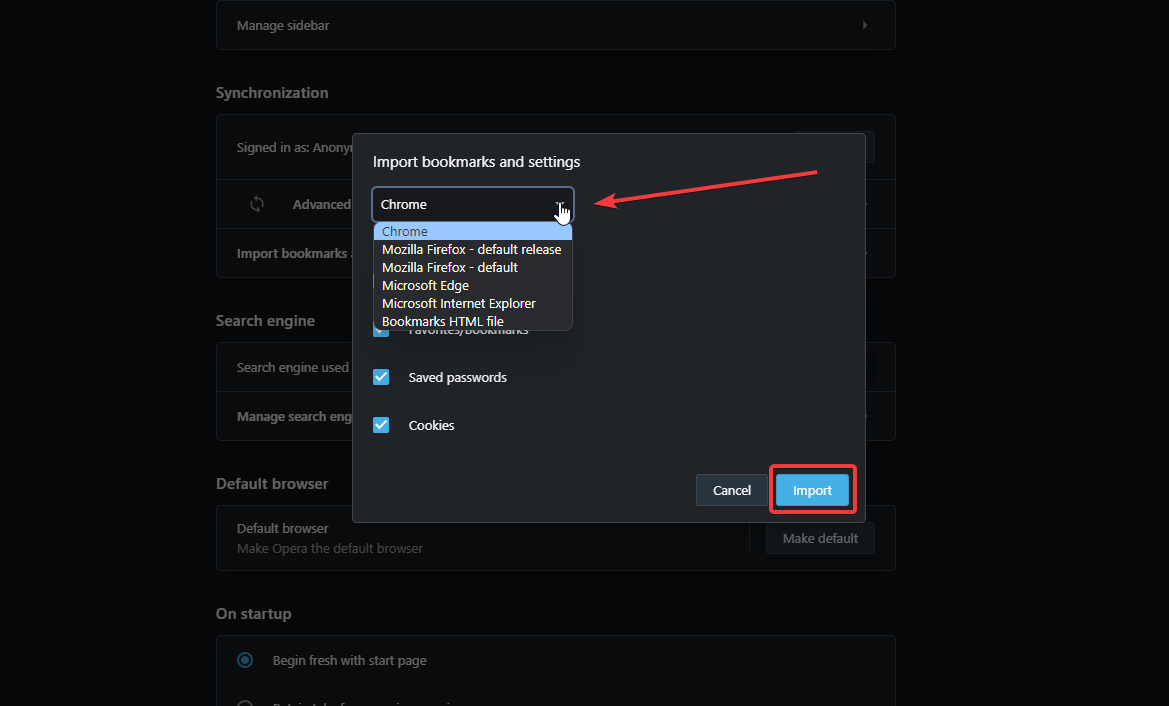
  3. Click the dropdown menu and choose which browser to import data from, then click Import. Select other browser to import from.

What can I do if I can’t set Opera as my default browser?

1. Re-install Opera

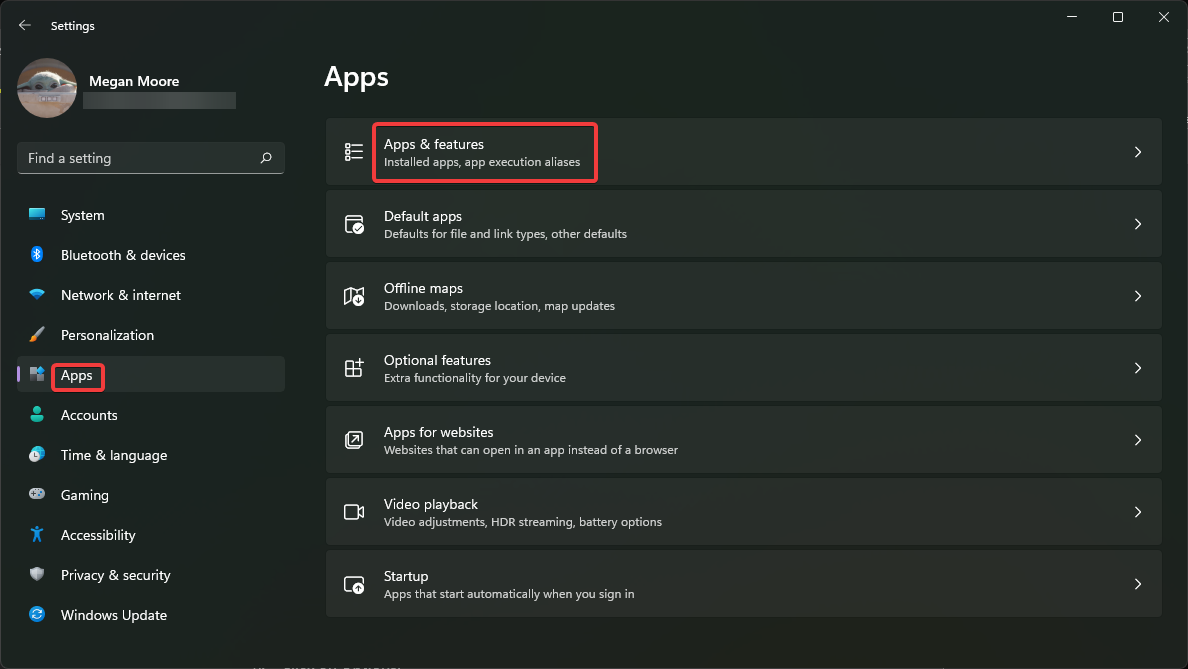
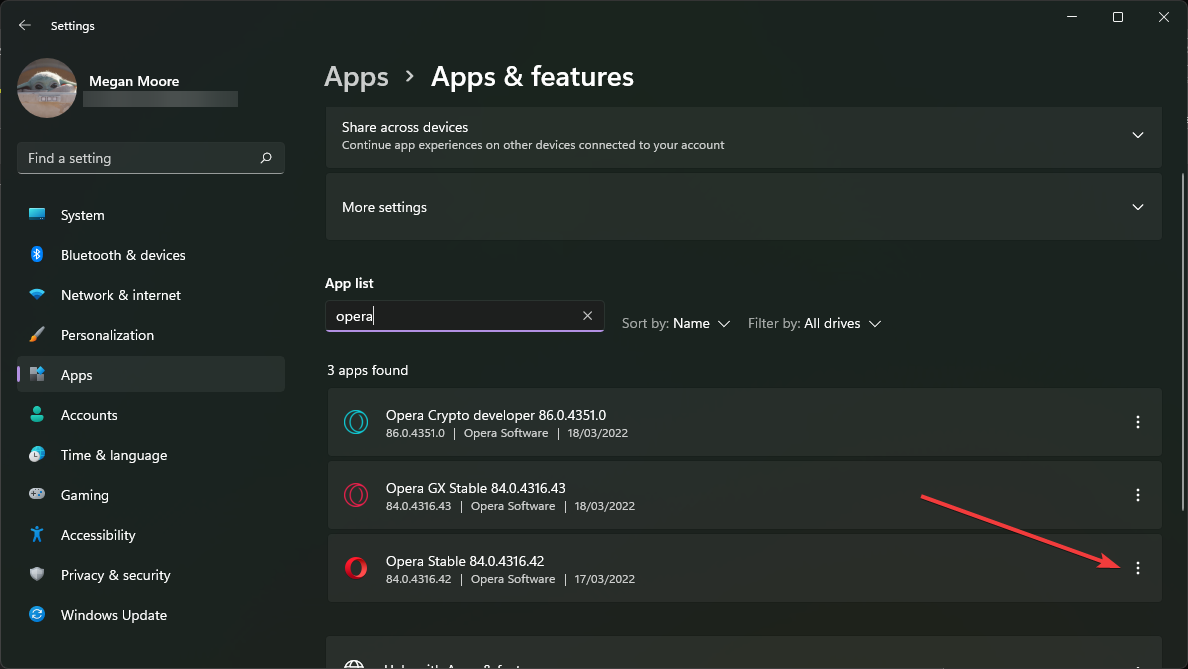
  1. Click on Start menu and open Settings.
  2. Select Apps, the Apps & features. Click apps then apps and features if you can't set Opera as default browser.
  3. Search for Opera in the search bar.
  4. Click the three dots and then select Uninstall. Click the three dots to uninstall Opera.
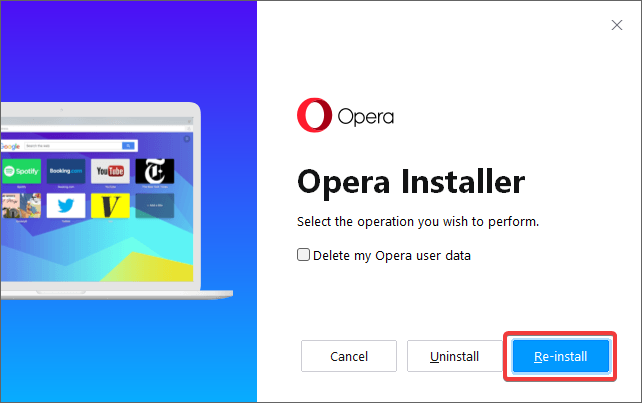
  5. In the pop-up select Re-install. Re-install Opera.
  6. In Opera click on the O logo, then click Settings.
  7. Scroll down to Default browser and select Make default.

Sometimes doing a simple reset of the browser will fix the issue. Luckily, Opera provides a re-install option so users don’t need to do it manually.

2. Uninstall and install in a different location

  1. Click on Start menu and open Settings.
  2. Select Apps, then Apps & features. Click apps then apps and features if you can't set Opera as default browser.
  3. Search for Opera in the search bar.
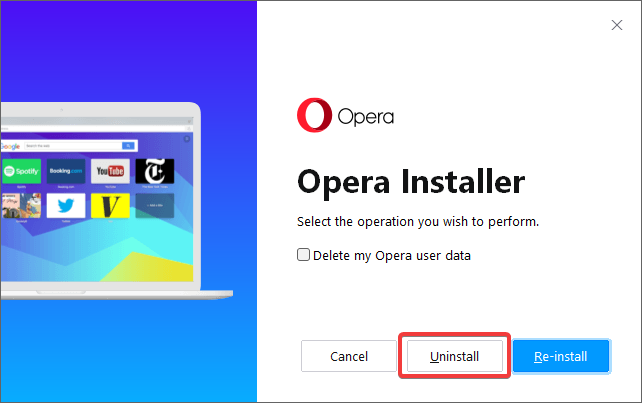
  4. Click the three dots and then select Uninstall.
  5. In the pop-up select Uninstall again. Select uninstall.
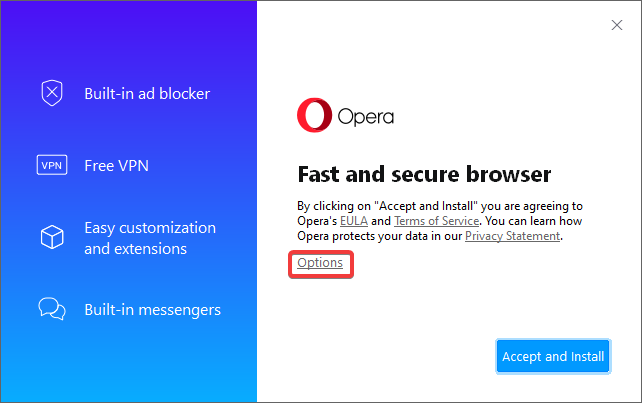
  6. Launch the Opera installer, you can get this from the Opera website.
  7. Click on Options. Select options.
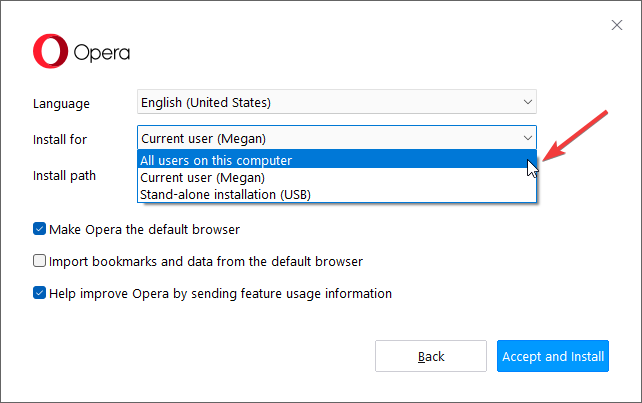
  8. Next to Install for, select All users on this computer from the dropdown menu. Change install for all users on computer.
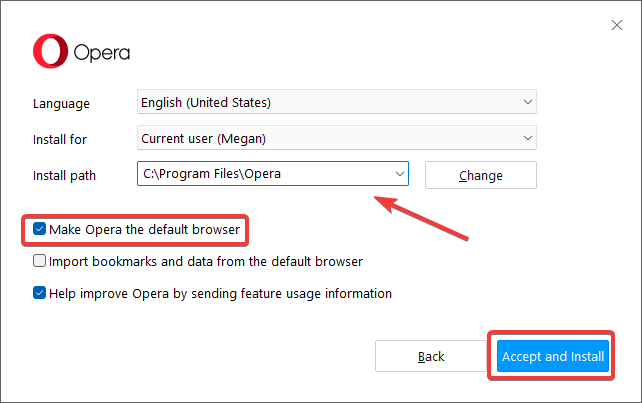
  9. In the Install Path, type C:\Program Files\Opera. Adjust options.
  10. Check Make Opera the default browser and uncheck Import bookmarks and data from the default browser.
  11. Click Accept and Install.

If you check in Opera’s settings, it should list Opera as your default browser. This solution should make Opera available in your default apps and programs on your PC.

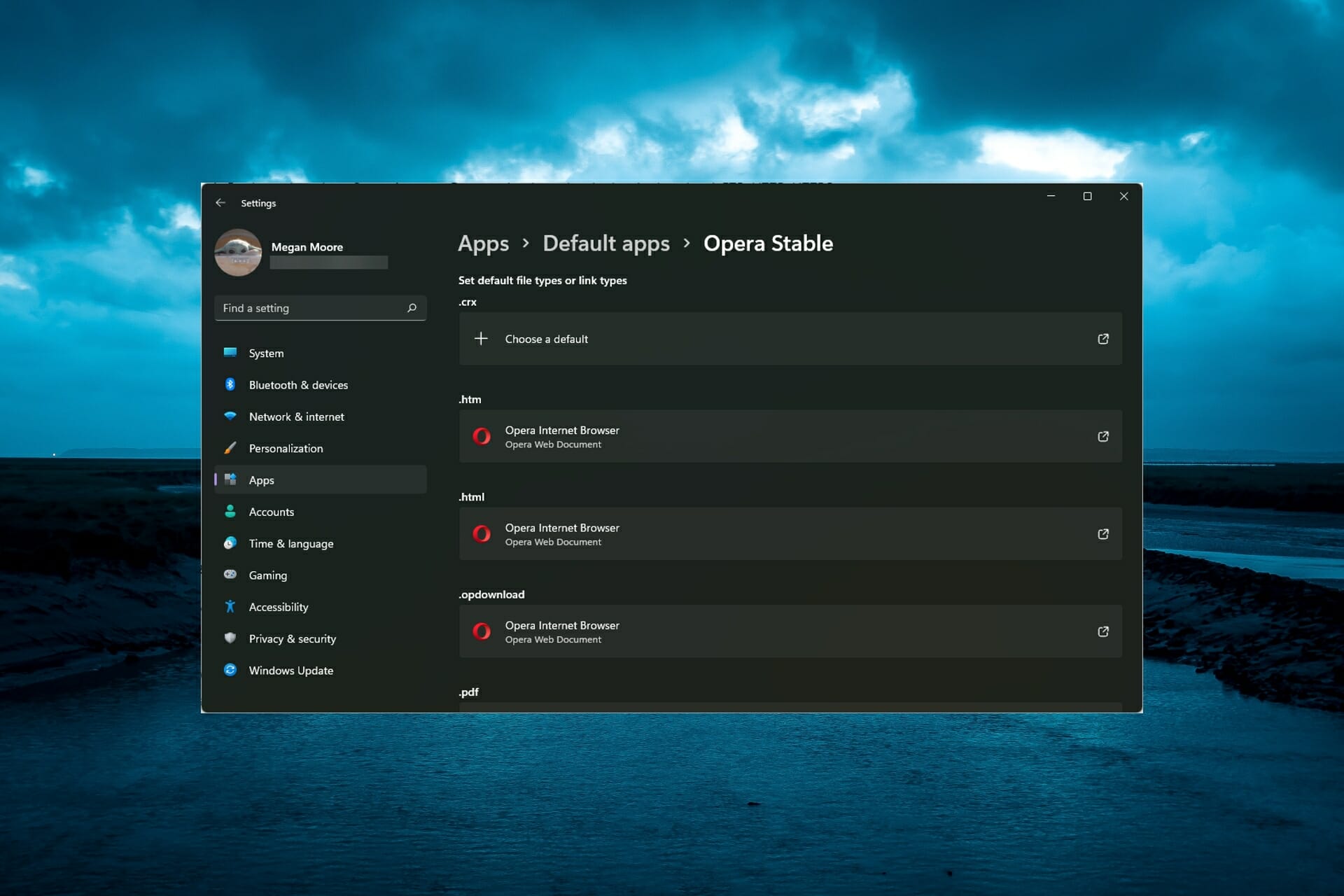
3. Adjust default apps settings

  1. Click on Start menu and open Settings.
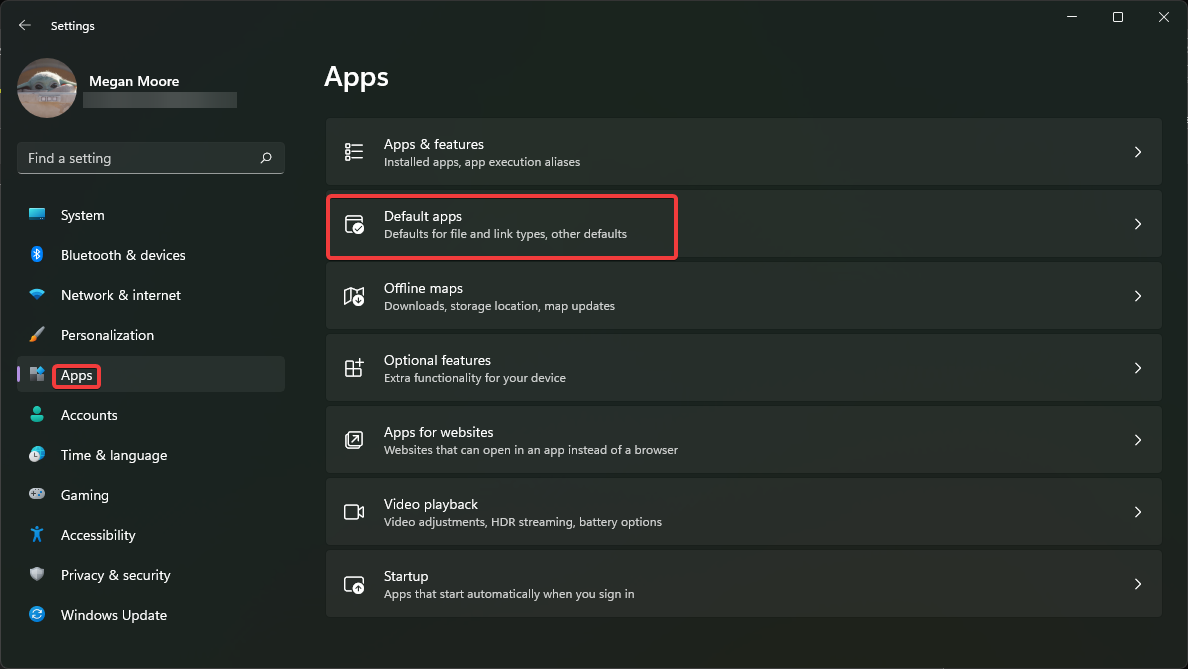
  2. Select Apps, then Default apps. Click on apps then default apps.
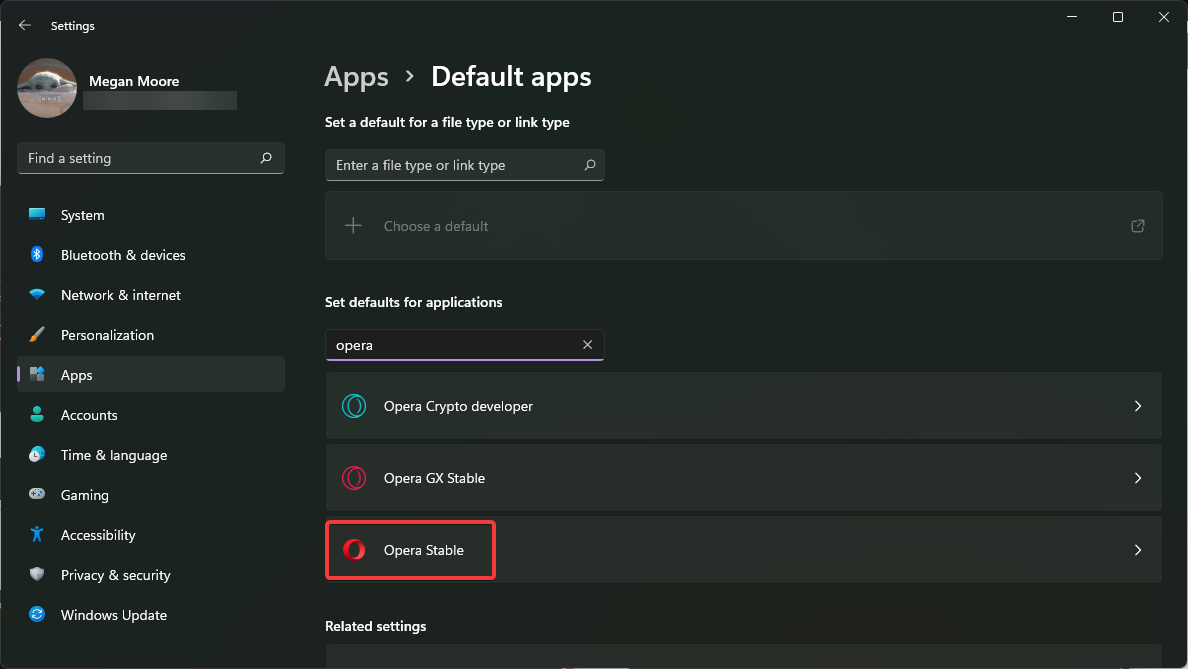
  3. Search Opera in the search bar then click on Opera Stable. Search for Opera in default apps.
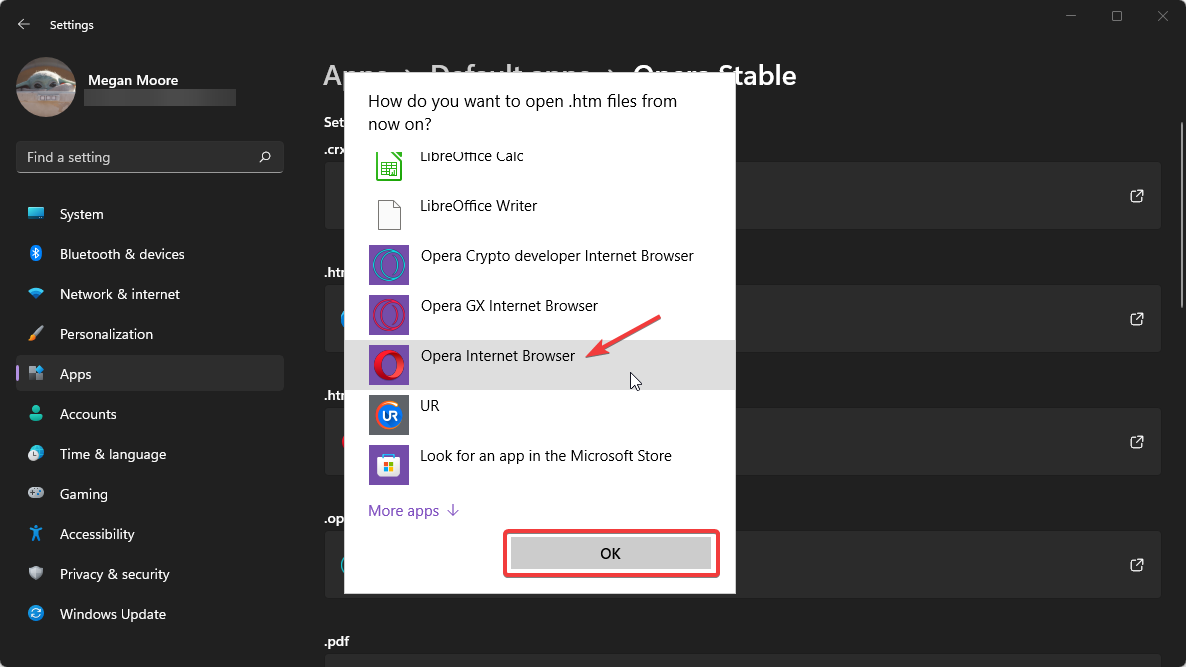
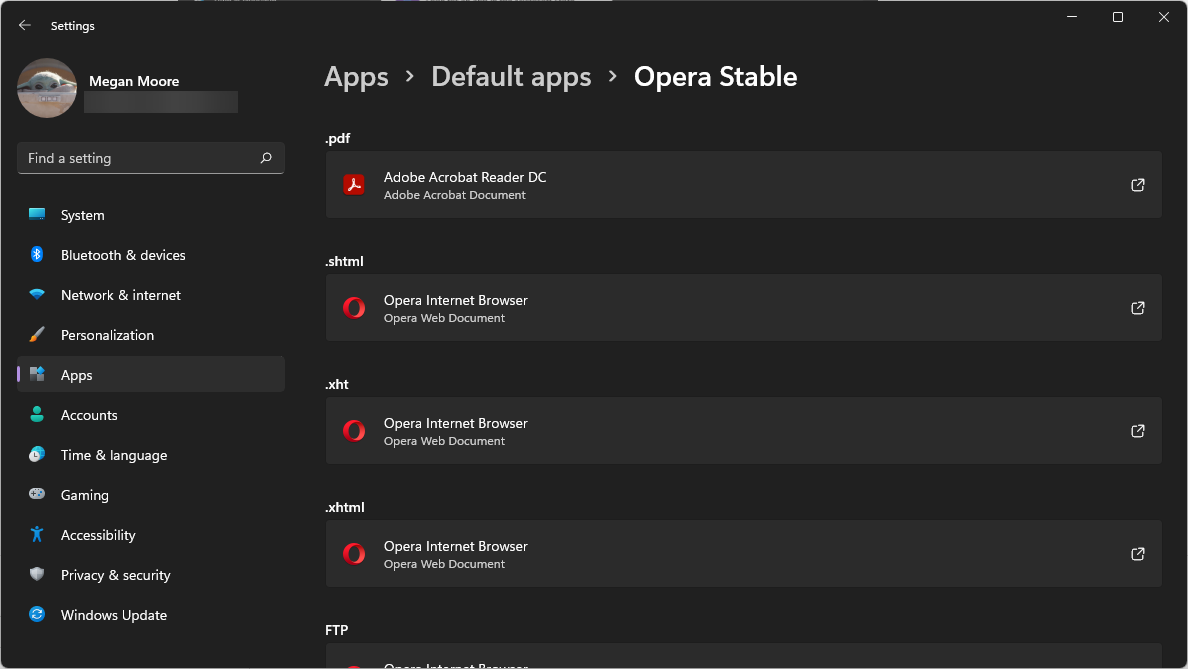
  4. Go through and set Opera Internet Browser for .htm, .html, .shtml, .xht, .xhtml, FTP, HTTP, HTTPS, and any others you want Opera the default for. Set Opera default browser.

Is there an easier way to change the default browser in Windows 11?

Microsoft changed how users can customize default apps in Windows 11. Instead of adjusting default apps based on categories, users are presented with a list of applications.

When users select an app, it will display the different file types and the default app for each, which users can change.

This provides users more control over their default apps, but it is more tedious as users must go through each file type.

Adjust default apps in Windows 11.

Some applications, like Opera browser, make it easy to set it as a default app straight from the settings within the apps.

We hope one of the solutions above helped set Opera as your default browser. Sometimes it’s a matter of simply re-installing the browser, which Opera makes easy for users. If you’re having other issues with the browser, such as Opera not responding, there are easy solutions to fix it.

We also have a guide on how to make Opera GX the default browser, so don’t miss it.

If there is another solution not listed above that worked for you, feel free to let us know in the comment section below.

Windows 11 Extend Volume Greyed Out: 5 Way to Fix it

You will get a low disk space warning on your Windows 11 PC when there is insufficient storage space to save new programs or install a new update on a particular drive.

In such cases, extending the volume can come in handy. You can easily extend the drive and create additional storage space on it in multiple ways.

However, several Windows 11 users have reported that for them, the Extend Volume option is greyed out in the Disk Management console.

This restricts the user from going ahead and extending the volume and getting rid of the low disk space warning on their Windows 11 PC.

If you are also among those users facing the extended volume option greyed out on Windows 11, you are in the right place.

This guide lists all the practical solutions you can follow and possibly resolve the issue. Let us take a look at the solutions, one by one.

Why is the extend volume option greyed out in the Windows 11 Disk Management console?

You open the Disk Management console to fix the low storage space on your disk drive, only to find out that the Extend Volume option is greyed out in Windows 11. This could be frustrating.

Like any other Windows 11 issue, there could be multiple reasons, or one specific reason, why the option is greyed out or unavailable for you.

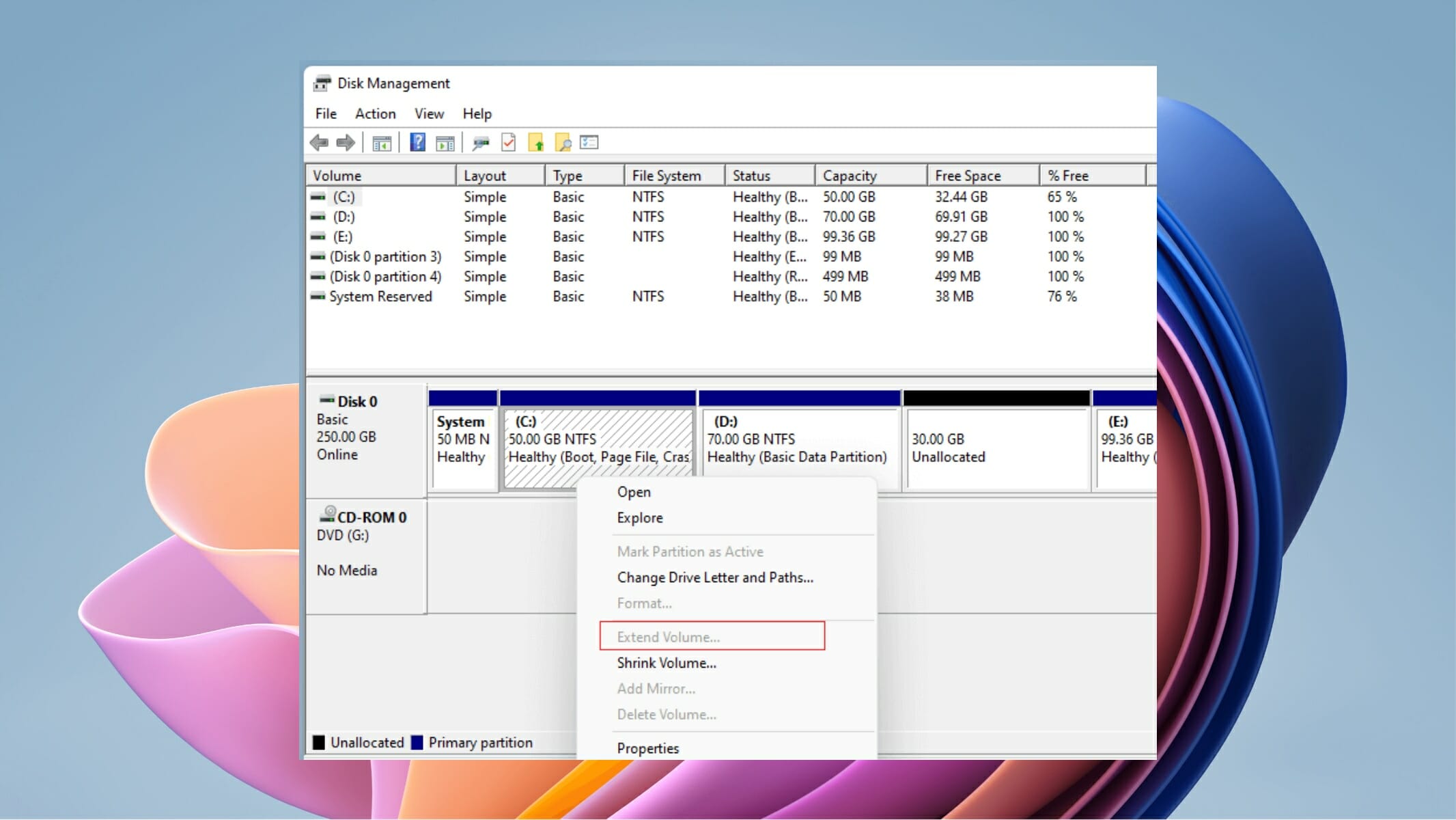
  • It could be because the partition you want to extend is in FAT or FAT32 format. Microsoft only allows the extend volume option in the Disk Management console for the NTFS partition.
  • There is no adjacent unallocated space behind the primary partition you want to extend.
  • Besides, this issue can pop up if no unallocated space is available on any other dynamic disk.
  • The MBR partition may not expand beyond 2 TB.

One of the above-mentioned reasons could be the one triggering the issue and has disabled the extend volume option in your Windows 11 PC.

The good thing is that you can easily fix this problem by following the below-mentioned solutions, and then extend the volume with no difficulties.

How can I fix the extend volume option greyed out in Windows 11?

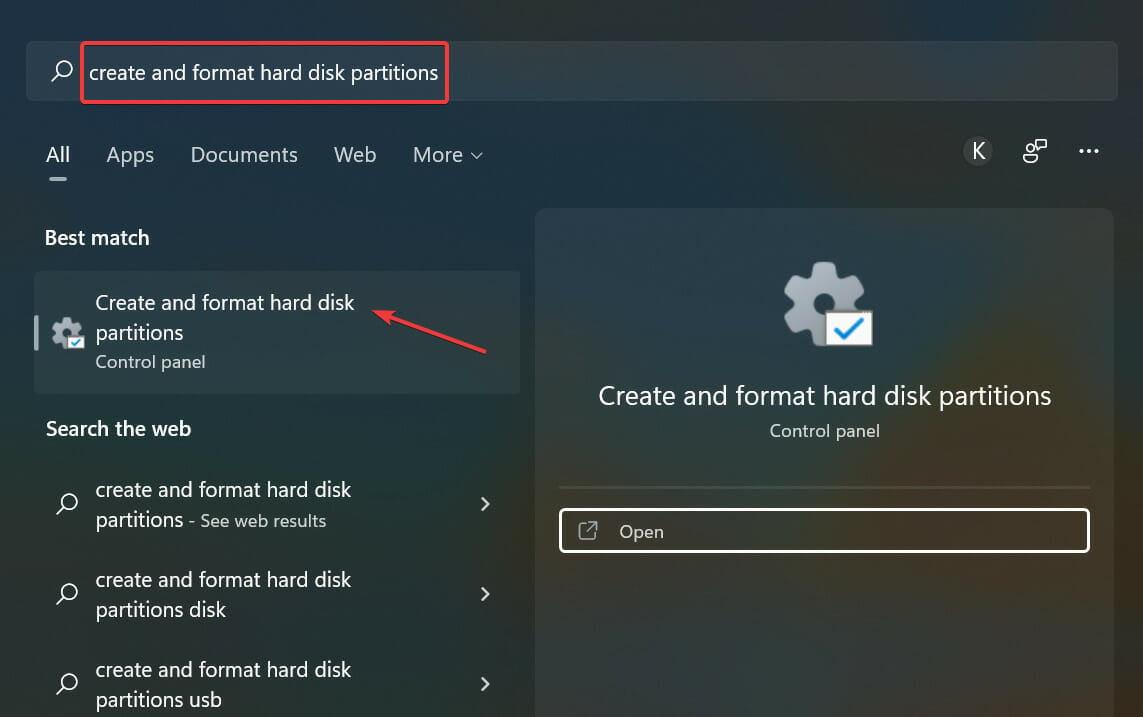
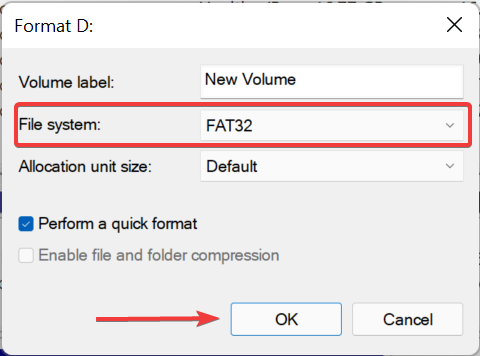
1. Convert FAT to NTFS

  1. Open the Start menu.
  2. Search for Disk Management and open it.
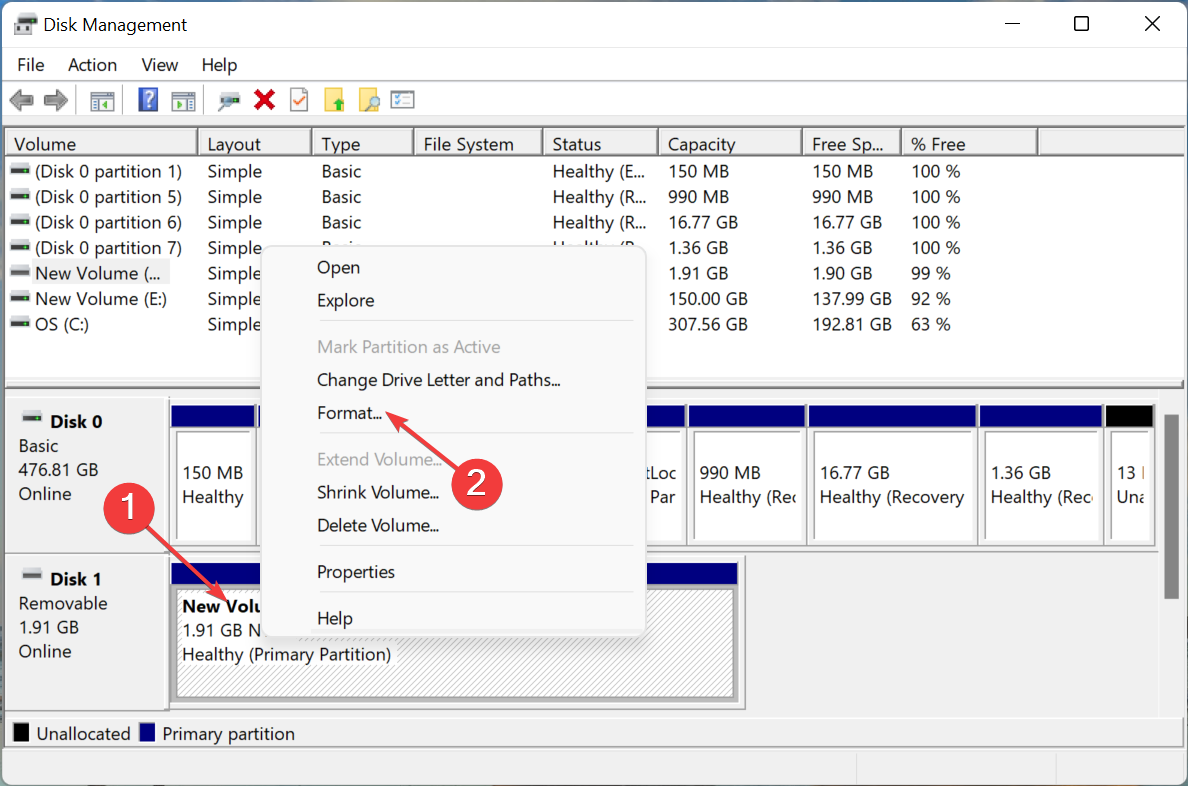
  3. Right-click on the drive and select Format.windows was unable to format micro sd
  4. Under the File system, choose NTFS.format drive samsung t5 ssd not recognized
  5. Click OK. Do not change any other settings.
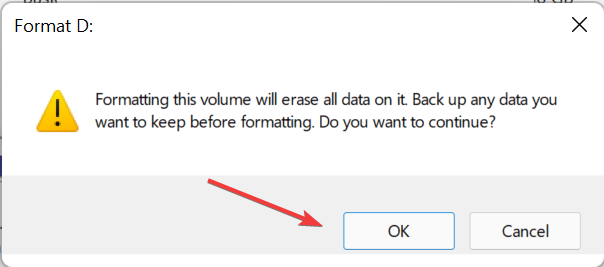
  6. Click OK again to confirm the action.

This will initiate the FAT to NTFS format conversion. Once the format process is complete, you can go ahead and try to see if the extend volume option is now available to you or not.

2. Remove adjacent volume

  1. Open the Start menu.
  2. Search for Disk Management and open it.
  3. Right-click on the disk drive and select Delete Volume from the context menu.Windows cannot be installed to this hard disk space
  4. Click Yes in the confirmation dialogue box.
  5. The volume will be deleted, which now will be available as Unallocated.
  6. Right-click on the volume you want to extend and select Extend Volume.haow to extend c drive in windows 11 1
  7. Select the number of disks in the Available section and click on Add.how to extend c drive in windows 11 2
  8. Click on Next.
  9. The wizard will start the process of extending.
  10. Click on Finish to close the Disk Management tool.

You will now be able to see the extend volume option fully functioning after deleting the volume and merging unallocated space to the volume.

3. Extend to an external disk

Note icon NOTE
Once a disk is converted to dynamic, you cannot revert the option as the disk cannot be converted back to basic. You will need to reformat the disk before you can convert it again completely.
  1. Shut down your PC and connect the external hard disk.
  2. Open the Start menu.
  3. Search for Disk Management and open it.
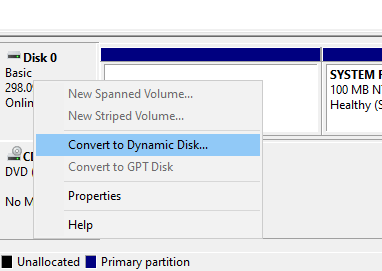
  4. The new hard drive will be attached. Right-click on the disk which has the partition and select Convert to dynamic disk.Convert to Dynamic Disk
  5. Check the boxes next to the correct disks and click OK.
  6. Click on Convert.
  7. Click Yes to confirm the action.
  8. The hard disk will now be converted to dynamic.
  9. Right-click on the volume you want to extend and select Extend Volume.haow to extend c drive in windows 11 1
  10. Select the number of disks in the Available section and click on Add.how to extend c drive in windows 11 2
  11. Click on Next.
  12. On the last screen, click on Finish.

Another important thing to note before following the above steps is that the method is applicable only for non-boot volumes. This means that you cannot extend a system volume using this method.

The best part about this method is that, even though the disk is extended across 2 different disks, under File Explorer, it will appear as one.

4. Use Shrink Volume

  1. Open the Start menu.
  2. Search for Disk Management and open it.
  3. Right-click on the disk drive with sufficient space and select Shrink Volume.shrink volume w11
  4. Type in the amount of space you wish to shrink.
  5. Click Shrink.
  6. Select OK to confirm.
  7. Right-click on the volume you want to extend and select Extend Volume.haow to extend c drive in windows 11 1
  8. Select the number of disks in the Available section and click on Add.how to extend c drive in windows 11 2
  9. Click on Next.
  10. On the last screen, click on Finish.

If you do not wish to delete a volume as mentioned in method 2, then you can use the option to Shrink Volume.

5. Use a third-party tool

  1. Download AOMEI Partition Assistant.
  2. Install the software on your PC.
  3. Open AOMEI Partition Assistant.
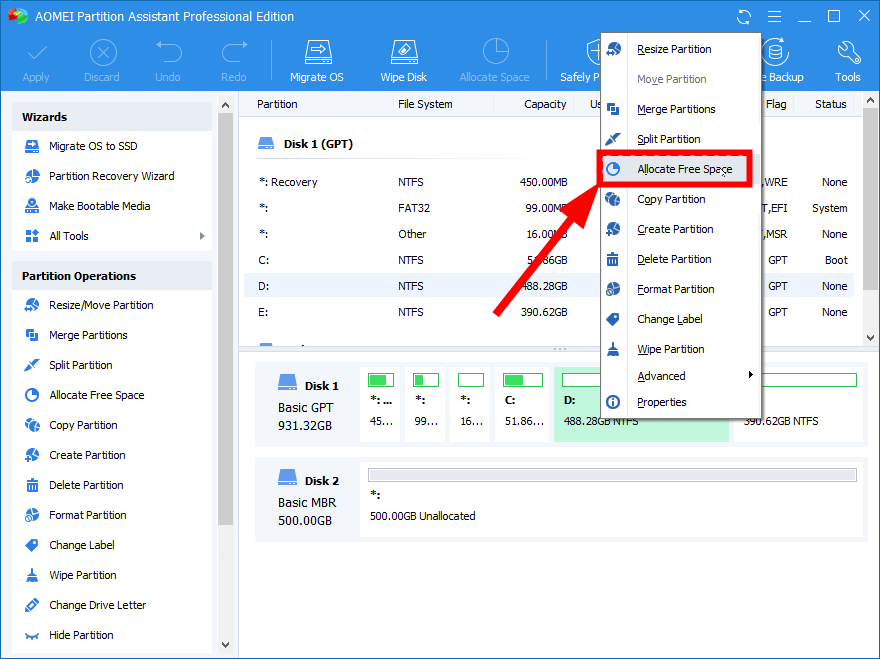
  4. Right-click on the drive with ample free space and select Allocate Free Space.
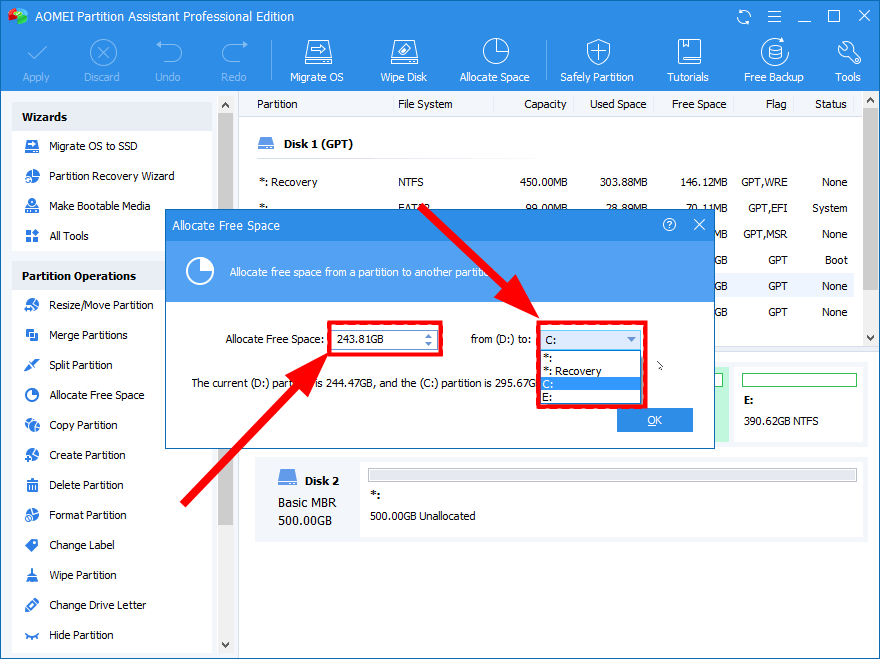
  5. Specify the space size and select the target partition.
  6. Click OK.
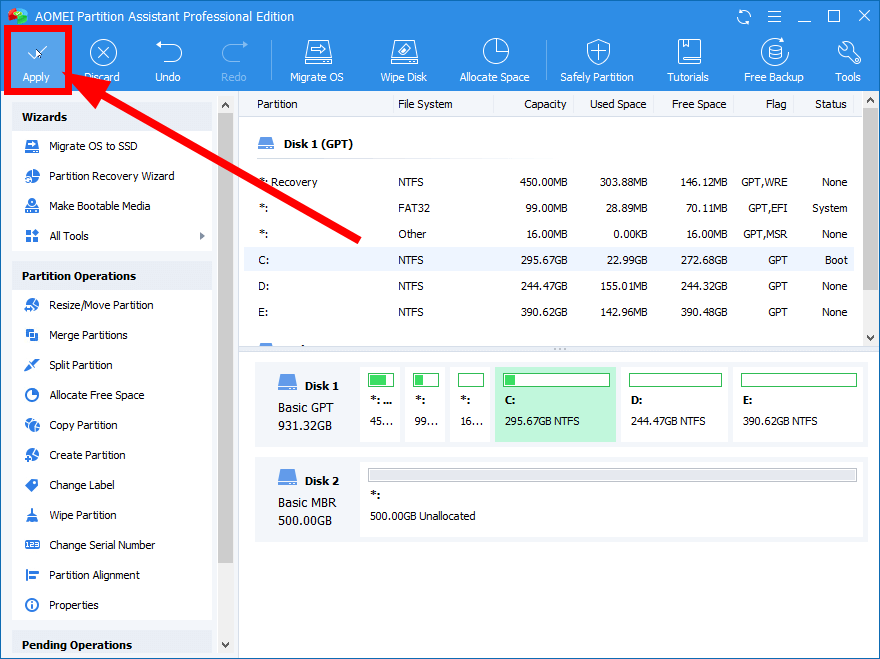
  7. Select Proceed and hit the Apply button at the top.

One of the trusted third-party tools that can help you manage different tasks related to disk management on your Windows 11 PC is AOMEI Partition Assistant.

It includes multiple features, such as extending, shrinking, or merging partitions, in a matter of a few clicks. All this happens without any data loss.

How can I prevent disk drives from getting full on my Windows 11 PC?

It is essential to have sufficient storage space available on your PC for it to function smoothly and also have some room to install new applications.

There are multiple ways to keep the disk drives from getting full.

➡ Check for viruses and malware

If a virus or malware is present on your PC, it will create unnecessary files and clog up the storage space. In such cases, it is very important to check for viruses or malware and remove them from your PC.

  1. Click on the upward arrow button on the bottom-right taskbar.see all apps
  2. Choose Windows Security.windows security
  3. Select Virus & threat protection.virus and threat protection steam error e502 l3
  4. Hit the Quick Scan button.quick scan
  5. Alternatively, you can also select the Scan options button.scan options
  6. Under Scan Options, choose Full scan to deeply scan your PC for viruses or malware.full scan

➡ Run Disk Cleanup

The disk Cleanup tool is a good way of clearing out all the unnecessary files from disk storage.

  1. Open the Start menu.
  2. Search for Disk Cleanup and open it.disk-cleanup windows 11 setup failed to validate product key
  3. Select C drive from the drop-down menu.
  4. Tick all the boxes which you wish to delete.Disk-cleanup
  5. You will be asked to confirm.
  6. Hit the OK button.

➡ Repair disk drives

If the disk drive has errors and a corrupt file system, it will also show you that your hard drive is filled for no reason.

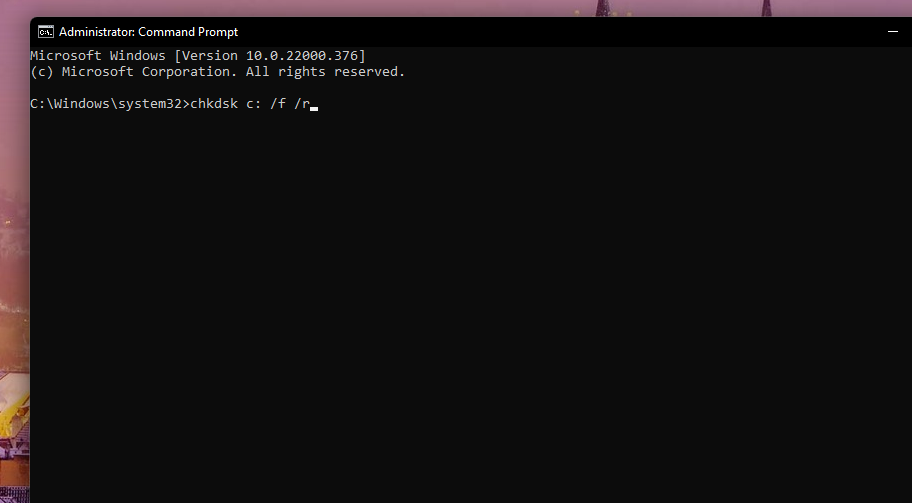
To cure this, you can make use of the Chkdsk command in the Command Prompt.

  1. open command prompt.
  2. Type the below command and hit Enter:chkdsk C: /f /r /x
  3. Once the process completes, enter the below command and press Enter:DISM.exe /Online /Cleanup-image /Restorehealth
  4. You will see “The operation completed successfully” message.
  5. Reboot your PC.

➡ Move huge files to another drive

If multiple huge files are lying on your disk drive, then we would advise you to move them to another drive with ample space.

Furthermore, you can shift all the huge files to an external hard disk and save space on your PC for more important files.

The solutions mentioned above will help you fix the extended volume option greyed out on your Windows 11 PC.

Let us know if some other methods or tips did the job for you and if you would like to share them with others in the comments section below.

Flash settings not saving in Chrome? Here’s how to fix that

Adobe Flash was one of the essential online components in the past, and it was a driving technology behind many online games and video websites, such as YouTube for example.

However, Adobe decided to end support for Flash, and over the years the browser support for this technology was phased out.

Few users reported that Flash settings are not saving in Chrome, and in today’s guide we’re going to take a closer look at this issue and see if there’s a way to fix it.

How do I permanently enable Flash in Chrome?

We wrote a guide on how to unblock Adobe Flash Player on Chrome and other browsers, but in the meantime, Adobe officially discontinued Flash.

Shortly after that, almost all major browsers removed the support for Flash. As a result, it’s not possible to enable this component in Chrome anymore.

What can I do if Flash settings are not saving in Chrome?

1. Change your settings every time you start the browser

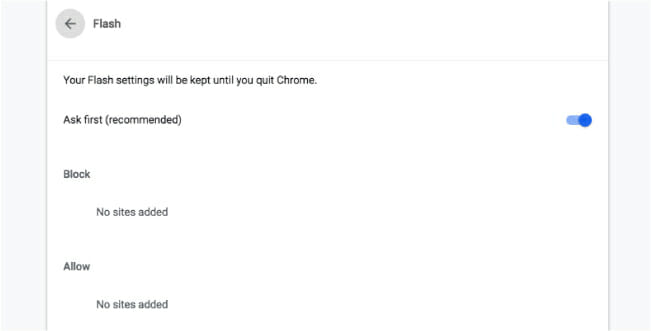
This is intended behavior and it appears because Flash is discontinued, so to preserve your security, Chrome resets Flash settings to the default every time you close your browser.

Developers are determined to make using Flash almost impossible to protect their users, so it’s no surprise to see behavior such as this.

If you’re encountering this issue, your only option is to go back and enable these settings every time you need to use Flash.

2. Try using a different browser

In case you’re having issues with Chrome, you might want to consider using Opera instead. Both browsers are based on Chromium, so they are quite similar.

Opera has a couple of unique features, most notably a built-in ad blocker, tracking protection, and a free VPN. The software also offers built-in integration with various social networks and messaging services.

Since both browsers use the same engine, Opera will work with all your Chrome extensions, so you might want to give it a try.

⇒ Get Opera

3. Change Chrome flags

  1. Open Chrome.
  2. Now navigate to the following address: chrome://flags
  3. Locate Enable Ephemeral Flash Permissions and set it to Disabled.

If you can’t find this option, it’s most likely because you’re using a newer version of Chrome that has Flash and all its settings completely removed.

4. Modify the registry

Note icon NOTE
This solution applies only to older versions of Chrome. Modifying the registry can cause issues with your browser and system if not performed correctly.
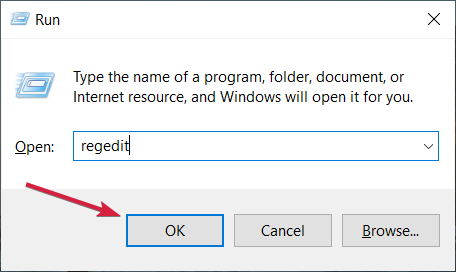
  1. Press Windows key + R and enter regedit.
  2. Navigate to the following path: HKEY_LOCAL_MACHINE\Software\Policies
  3. Right-click Policies and choose New. Select Key from the list. Name the new key Google.
  4. Now right-click the newly created Google key and create a Chrome key.
  5. Lastly, create the PluginsAllowedForUrls key inside the Chrome key.
  6. Navigate to the PluginsAllowedForUrls key and right-click in the right pane. Choose New and select String Value.
  7. Enter 1 for its name and double-click it.
  8. Set Value data to the address of the website that you want to enable Flash for and click on OK.
  9. Create additional string values if you want to enable the plugin for multiple websites.

What are Flash settings in Chrome?

Flash settings aren’t available in Chrome anymore, so there’s no way to access them. This feature was removed since Adobe Flash was discontinued.

Chrome doesn’t support Flash anymore so there’s no need for the Flash settings section to be present.

If Flash settings not saving in Chrome, that’s perfectly normal because the component has been discontinued, therefore it’s not available in modern browsers.

For more information about Adobe Flash, its lifecycle, browser support and decommission, we suggest reading our browsers that support Flash guide.

What are your thoughts on Adobe Flash? Let us know in the comments section below.

Logitech Unifying Software for Windows 11: Download & Tips

With a single receiver, you can connect up to 6 different Logitech-compatible devices without needing USB ports. That’s all possible if you use the Logitech Connection Utility.

However, all these are not possible without the Logitech Unifying software. And with users already comfortable using this software in later OSs, it is no surprise they are now looking for ways to incorporate it into the new Windows 11.

This guide will take you through downloading the software on Windows 11. It also contains a fix to one of the common Logitech receiver problems, among other info.

How to download and install Logitech Connection Utility Windows 11?

➡ Download software from the official website

  1. Go to the Logitech support website and click the Unifying icon.unifying software download on windows 11
  2. Click the Download Now button.
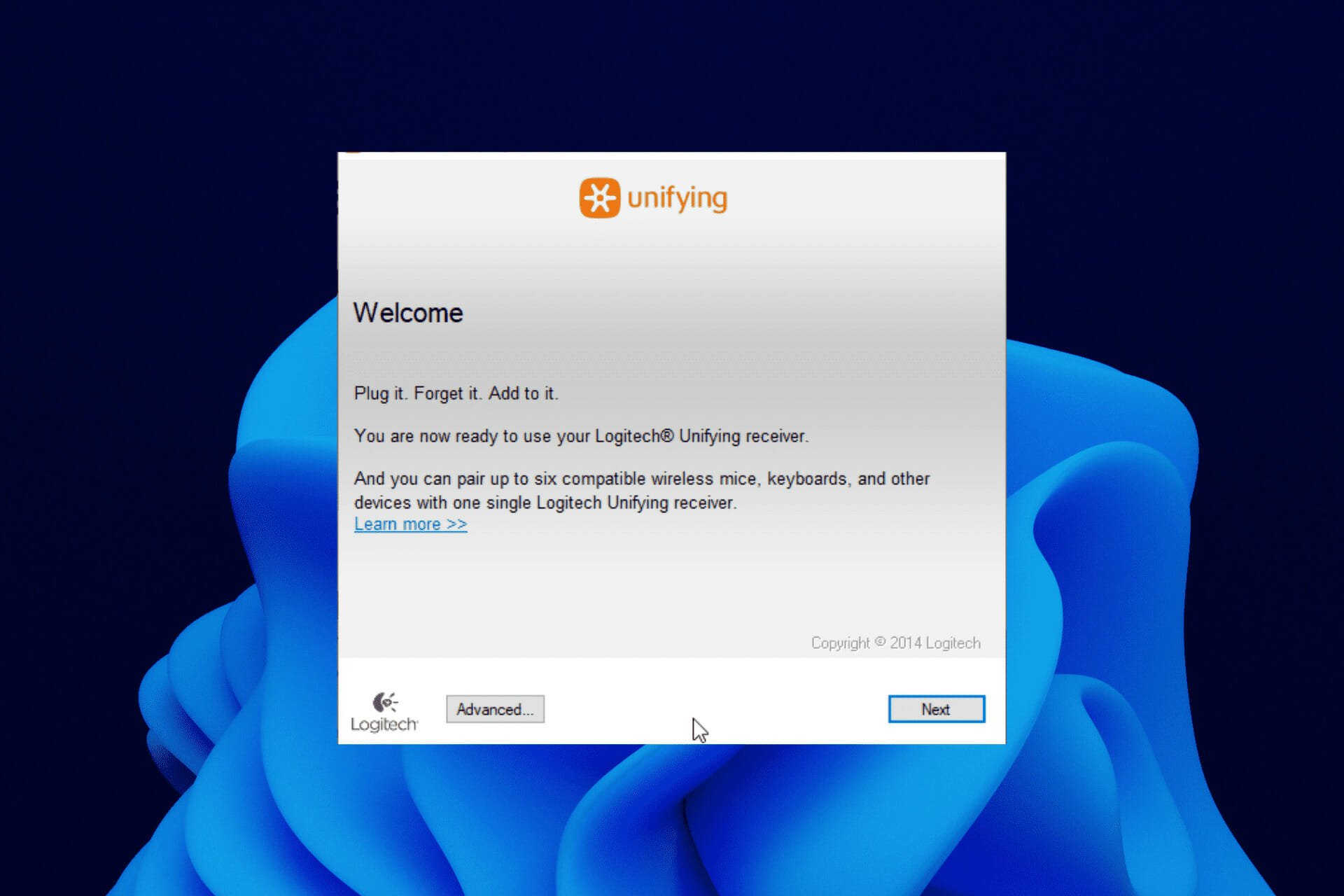
  3. Double-click the downloaded setup file and select the I accept the terms of the License Agreement button in the next window.agreement windows 11 logitech unifying
  4. Now, click the Install button to continue.
  5. Click the Finish button to complete the installation and start adding your Logitech Unifying devices.

➡ How to fix Logitech Unifying receiver not detected?

1. Download Mouse and Keyboard drivers

Sometimes, the reason for an undetected receiver is not down to the receiver itself. It could be due to outdated keyboard and mouse drivers, making it hard for the receiver to establish a connection.

In this case, you only need to update the drivers.

  • Update driver manually: This requires you to go to the manufacturer’s website to search for recent updates. Just make sure you download only drivers compatible with your Windows 11 model.
  • Update drivers automatically: This is the easiest way to update your mouse and keyboard drivers. It requires you to use third-party software with little effort from you.

2. Use the SetPoint Software

Go to Logitech’s support website and download the Setpoint software. Click the downloaded .exe file and follow the onscreen instructions to install the software.

Upon installation, you will hear a sound as if it has detected new hardware.

After that, you will be prompted to turn the mouse off and back on. Do this, and your receiver should be detected afterward.

3. Run the Logitech Unifying software as an Administrator

  1. Press the Windows key + R to open the run window.
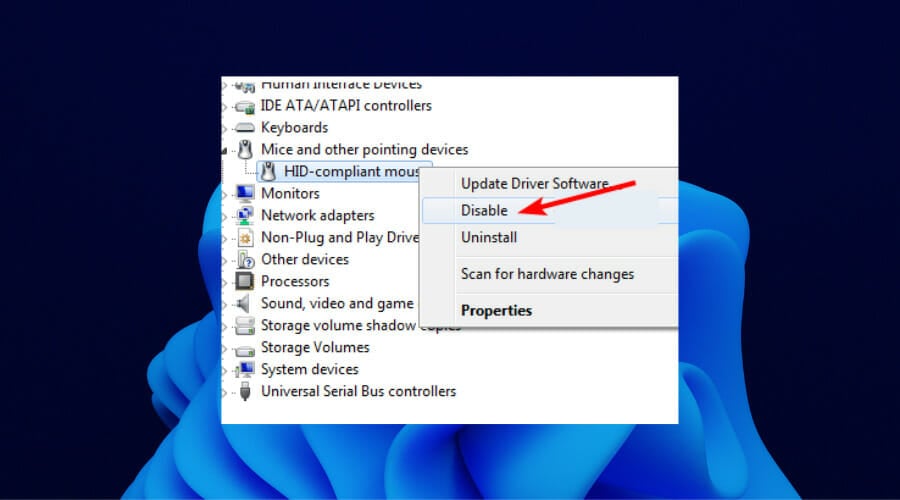
  2. Type devmgmt.msc and click the Ok button.run windows 11 logitech unifying
  3. Click on the Mice and other pointing devices option in the Device Manager window to expand it.disable hid unifying software
  4. From here, right-click the HID-compliant mouse and select the Disable option.
  5. Now, press the Start button and search for the Logitech Unifying Software.run logitech windows 11 software
  6. Select the Run as administrator option.

Your PC should detect the Logitech Unifying receiver when the software starts up.

Can I connect my Logitech Unifying devices to more than one receiver?

No, you cannot connect a single Logitech-compatible device to multiple receivers. Logitech only allows you to connect multiple devices to a single receiver at a time and not the other way around.

Hence, to use a connected device with another Logitech Unifying receiver, you must disconnect it from its present connection on the unifying software.

The Logitech Unifying software is a big part of this, which is the bridge between your receiver and the external devices. Without it, there is no way you can connect devices to your Logitech receiver.

The Logitech Unifying software can be downloaded on Windows 11, as shown above. You only need to follow the steps, and the process will be effortless. After downloading the tool, you can pair Logitech keyboard with your PC.

Drop a comment below for any queries, and we will respond as soon as possible.

6 Best T-Shirt Design Software & Tools in 2026 [Free & Paid]

Do you want to start a T-shirt design business? Or you want to design your next T-shirt and you’re feeling confused? No need to worry, this post is meant for you.

T-shirts are one of the most popular clothing items due to being easy to customize for various purposes ranging from politics to religion.

There are several T-shirt design tools around and without further ado, we give you the very best T-shirt design software.

How to design a digital T-shirt?

What are the best T-shirt design software tools?

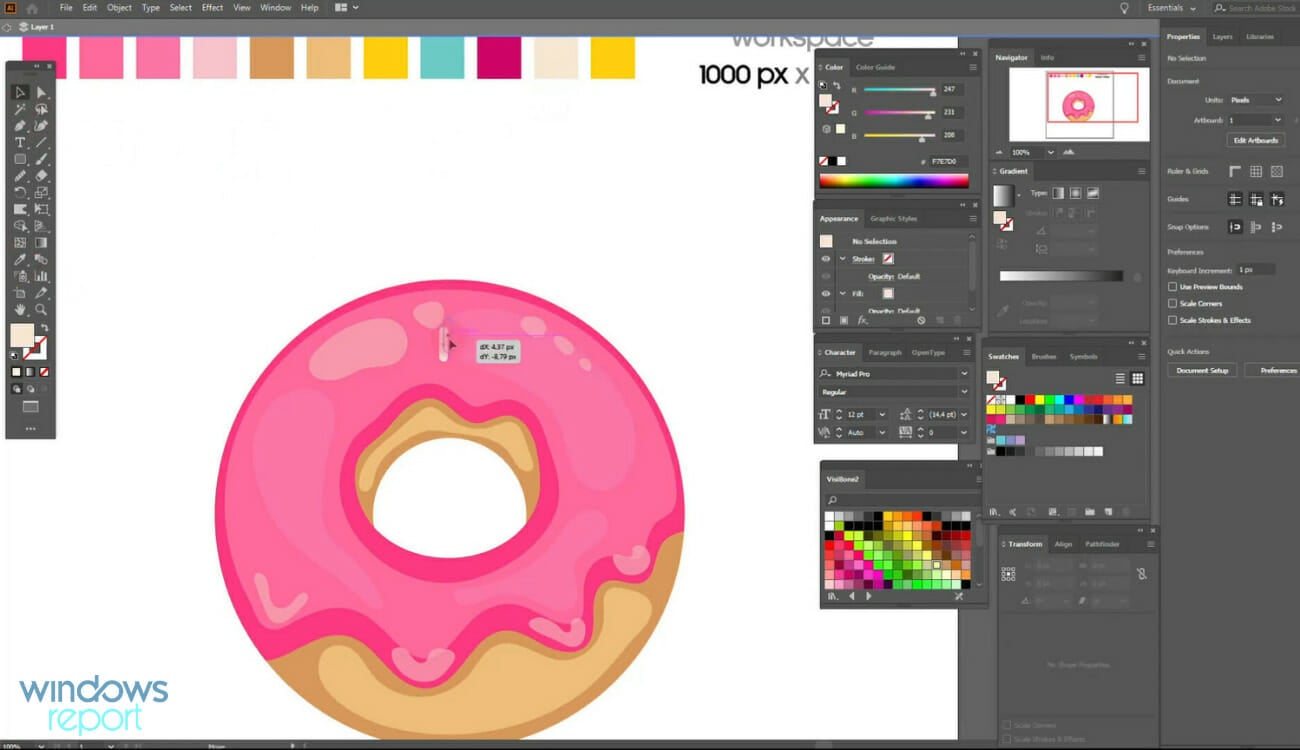
Adobe Illustrator – Professional graphic designs

Adobe Illustrator

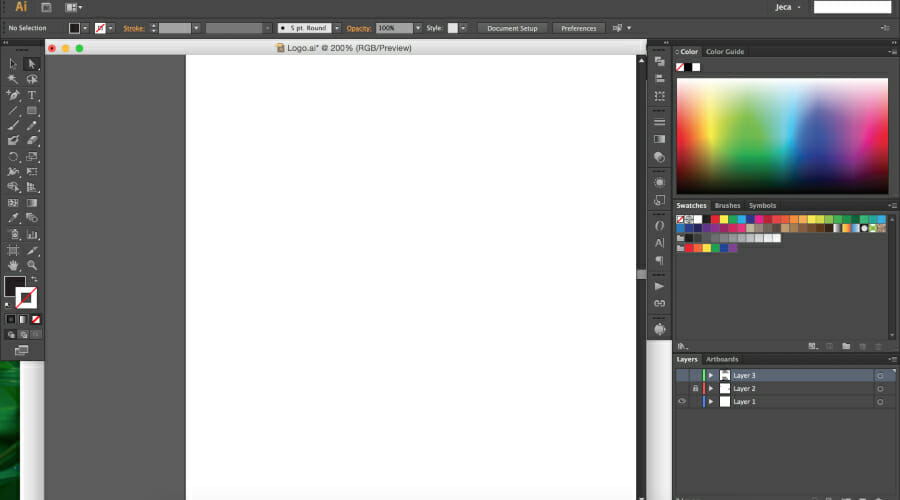
Adobe Illustrator has numerous features with many fonts, sizes, shapes, and effects that can be combined to good effect to create beautiful T-shirt designs.

Illustrator implemented enhanced 3D effects options. Users can edit their vector creations in-depth, with rotating, lightning, and many more 3D effects.

It offers a range of tools such as the Pen Tool for drawing complex shapes, the Pathfinder for combining and editing vector paths, and the Color Guide for creating harmonious color schemes.

The software supports layers and masks, allowing you to work on different elements of your design separately.

Let’s quickly look at its key features:

  • Numerous fonts, effects, and images
  • Diverse tools for creating designs
  • Bonus advantage of it being compatible with making designs for various printing techniques.
  • Seamless integration with other apps and services
  • Compatible with any device and any OS

Adobe Illustrator is a subscription-based software. You can get it as part of the Creative Cloud, or individually. Users also can benefit from a 7-day free trial.

Adobe Illustrator

Design intricate and scalable T-shirt graphics effortlessly with Illustrator’s vector tools.
Free trial Visit website

CorelDraw Graphics Suite – Art drawings

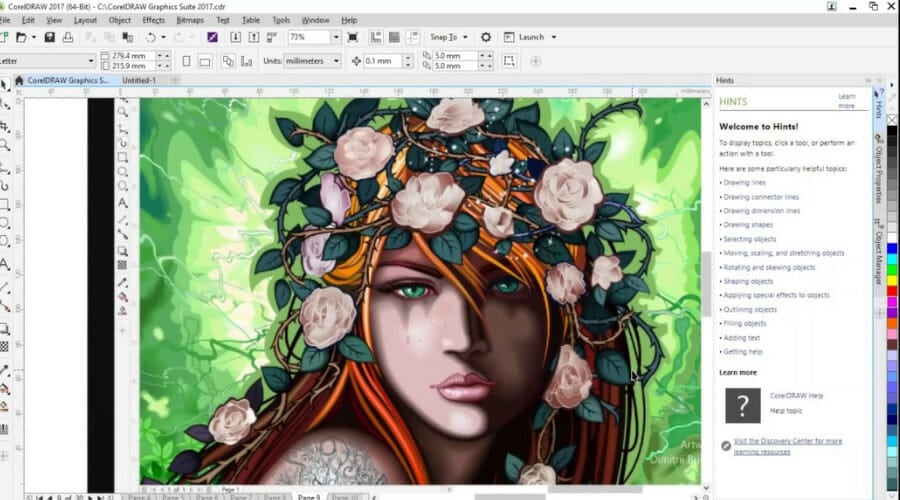
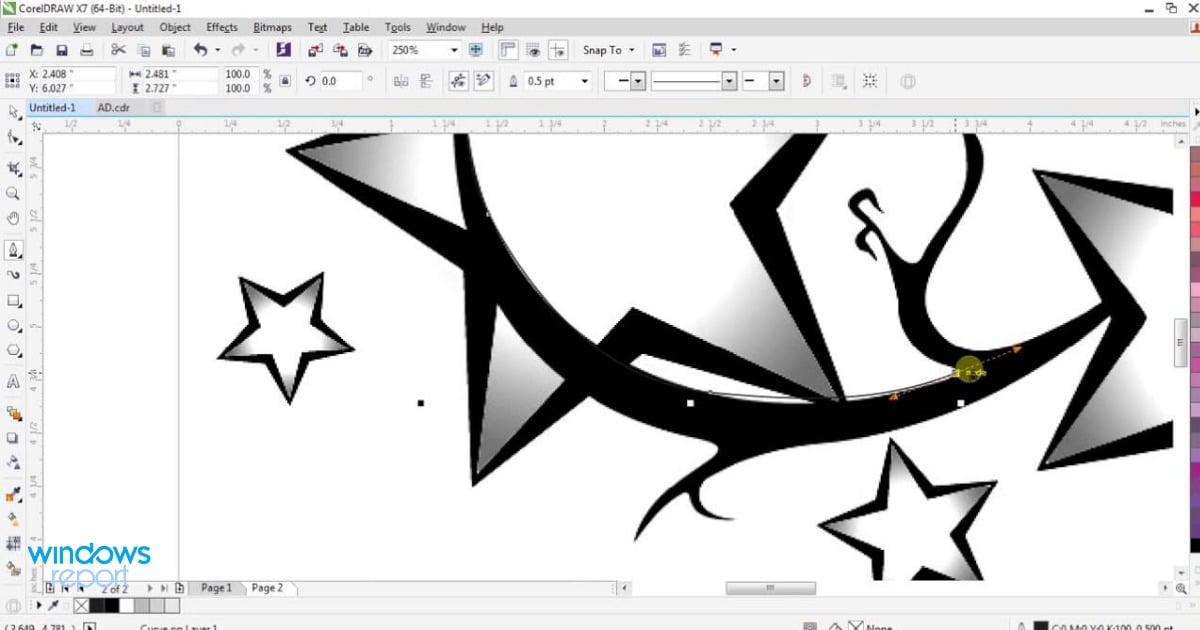
With CorelDRAW, you can create patterns and detailing that can be easily applied to textiles.

The Apparel and textiles features within the Corel Draw Graphics suite let you visualize your design directly on garment templates.

Features like the “LiveSketch” tool allow you to draw with a natural, freehand style that instantly converts your sketches into vector graphics.

The suite also includes powerful typography tools for creating unique text effects and advanced color management options to ensure accurate printing.

Let’s quickly look at its key features:

  • A large number of design features
  • Huge collection of editing tools
  • Create beautiful artistic and mosaic patterns for designers who love comic designs
  • Impact effect extensions that add perspective and give energy or motion effects
  • Fully compatible with Windows (it even supports older versions such as Vista, 7, 8)

CorelDraw can be purchased as a one-time licensed product, and it is also available under a subscription plan. You can try it out for free for 15 days.

CorelDraw

Design stunning T-shirts with professional vector illustration powers to really stand out from the crowd!
Free trial Visit website

Placeit – Free mockup templates

album cover software

The next mockup editor makes the perfect solution for users of all levels who need to design eye-catching apparel or t-shirts.

The platform allows you to upload your design and automatically place it onto various T-shirt styles and colors.

You can customize the mockups by adjusting angles, colors, and even adding text overlays. Placeit’s easy-to-use interface and high-quality mockups make it easy to see how your designs will look in real life, perfect for marketing and presentations.

Plus, personalization is the keyword for Placeit because you can simply use drag-and-drop to import appealing designs and apply them to the template.

Let’s quickly look at its key features:

  • Free gaming and video designs
  • The most extensive mockup library
  • Business logos and banners
  • Video intro & outro designs
  • Streaming avatars and overlay

Placeit

Pick from thousands of mockups and personalized designs for t-shirts and apparel.

Adobe Photoshop – Industry standard designs

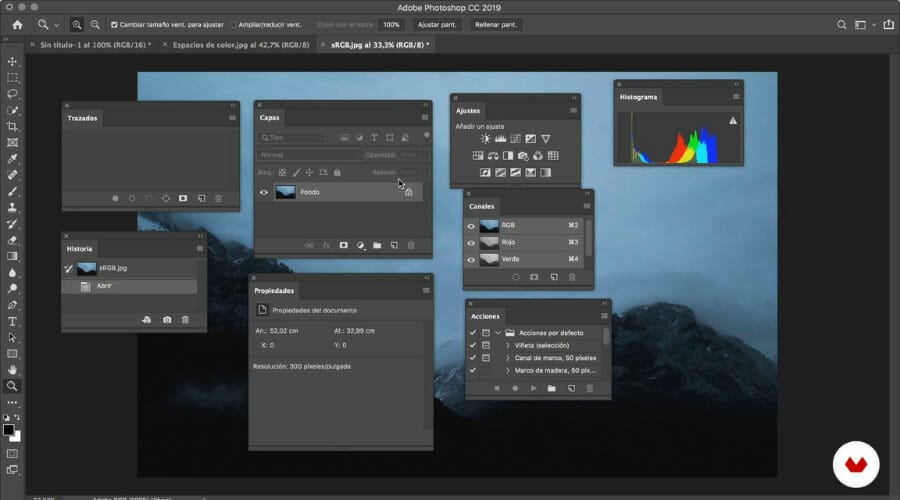
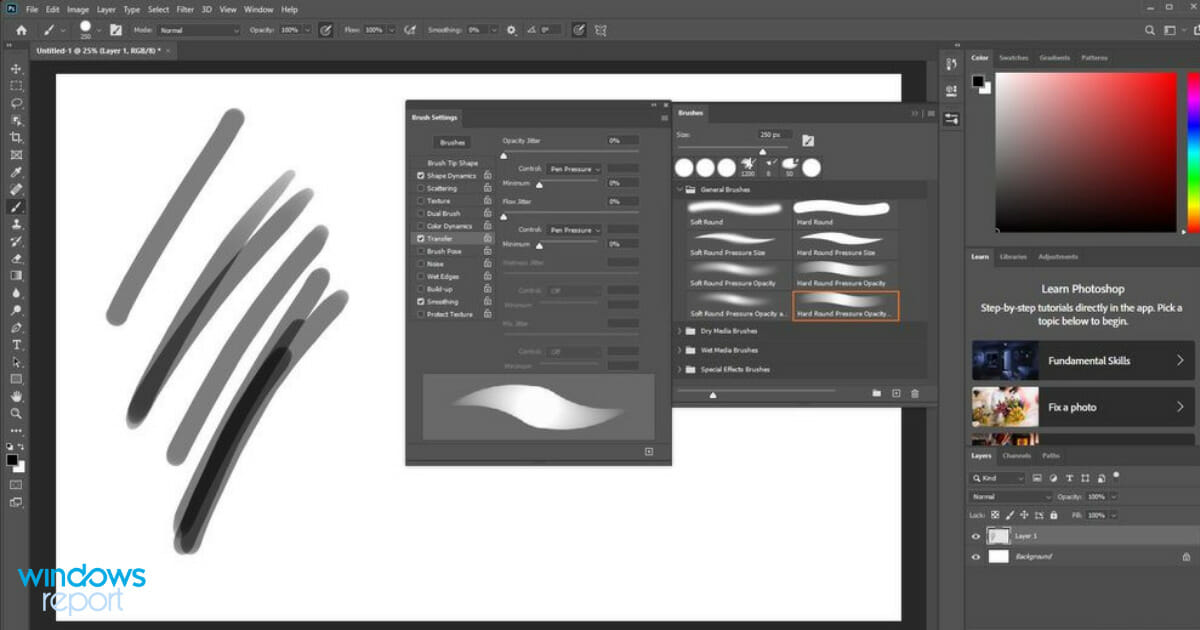
Photoshop has an advanced set of photo manipulation tools that allow designers to add unique spins on pictures and make great artwork.

Designers who use the Adobe Creative Cloud can get inspired by thousands of ready-made templates. These can represent a good foundation for your design and help you get started quickly.

The software has advanced typography options and lets you add different structures and shapes to your text. It gives access to tons of fonts through the Adobe Fonts library.

Lastly, Photoshop’s extensive brush library and texture options enable you to add intricate details and unique effects to your T-shirt designs.

Let’s quickly look at its key features:

  • Fonts auto-activation feature
  • Unlimited colors, effects, layers, and masks
  • Crop, remove objects, retouch, and combine photos
  • Rotatable patterns to easily change the orientation of any pattern
  • Object Selection tool to create fast and precise selections

Adobe Photoshop

Create one of a kind T-shirts without limitations with the ultimate powerhouse tool for design!
Free trial Visit website

Canva – Numerous designs and elements

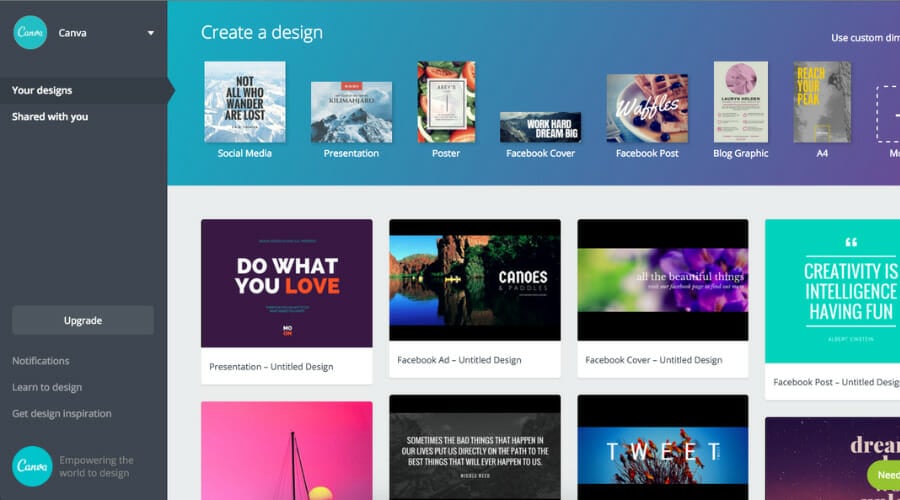
When it comes to design, Canva is your trusted ally and you can confidently use this versatile tool to design anything from web pages with beautiful graphics to unique print materials such as T-shirts.

Canva is very intuitive and is mostly based on drag-and-drop principles. It is very easy to overlay and move around objects in order to create unique designs.

It offers a vast library of customizable templates specifically for T-shirts, as well as millions of free and premium graphics, icons, and fonts.

Features like “Brand Kits” help you maintain consistent branding across all your designs. The “Magic Resize” tool allows you to adapt your design for different products and formats effortlessly.

Let’s quickly look at its key features:

  • Extensive library (60M+ photos illustrations and icons, 1000+ fonts or upload your own)
  • Resize to any format
  • Premium animations and 20.000+ professional templates
  • Organization tools (folders and storage options)

Canva is available for free, but it also has a subscription plan that includes additional options such as a background remover and access to more templates without watermarks.

⇒ Get Canva

Autodesk Sketchbook – Digital artwork tools

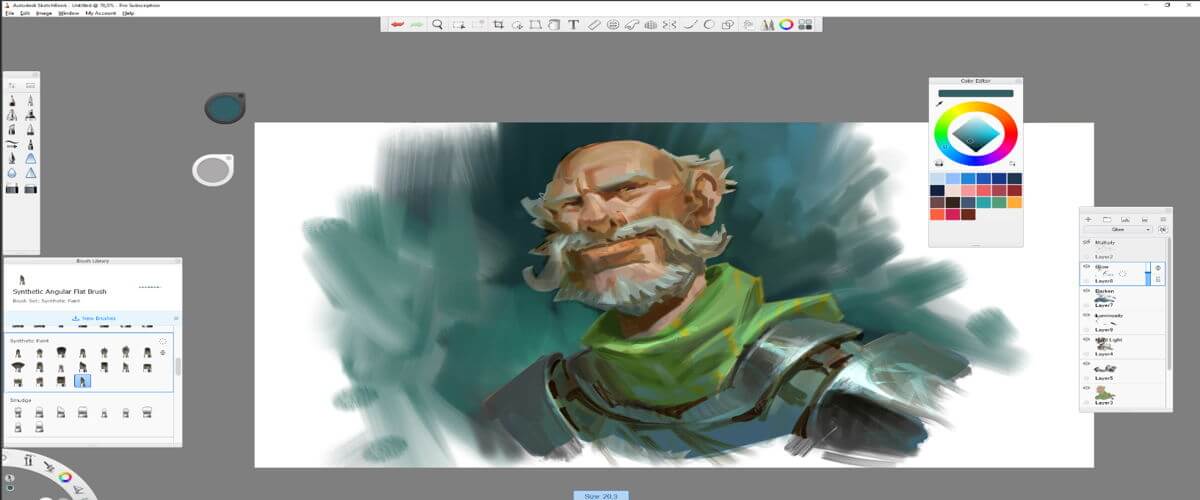
Autodesk SketchBook is a comprehensive digital art software solution that packs a wide range of features to cover all your drawing needs.

With a unique combo consisting of a friendly, intuitive interface and a comprehensive set of tools, you can start using it straight away to design stunning T-shirts that are guaranteed to catch all eyes.

The “Predictive Stroke” tool helps create smooth, clean lines, while the “Layer Management” feature allows you to work on multiple design elements separately.

The app also supports pressure-sensitive styluses for precise control, making it ideal for detailed hand-drawn designs.

Let’s quickly look at its key features:

  • 140+ brushes included plus the possibility to import more
  • Supports layers, layer grouping, and various blending modes
  • Up to 16-sector radial symmetry supported
  • Includes fully adjustable guides, rulers, and French curves
  • Scan sketches made on physical paper with your tablet or phone

⇒ Get Autodesk Sketchbook

6 Best Record TV Software for Windows PC [2026 Guide]

TV-recording software tools, otherwise known as PVRs (personal video recorders), enable you to record television on your Windows desktop if you have a supported tuner card.

A lot of media centers are personal video recorders, but there are also PVR programs designed more specifically for watching and recording live TV with TV tuner cards. They provide live TV-recording options and include channel guides.

Windows Media Center was once the PVR software bundled with Windows that you could utilize for recording TV programs. However, many users now need a replacement PVR as Microsoft removed the WMC from Win 10.

Thus, third-party PVR software is becoming increasingly prevalent on the Windows platform. These are a few of the personal video recorders that can replace the WMC.

What are the best record TV software for Windows 10/11?

PlayOn.TV

best record TV software for Windows

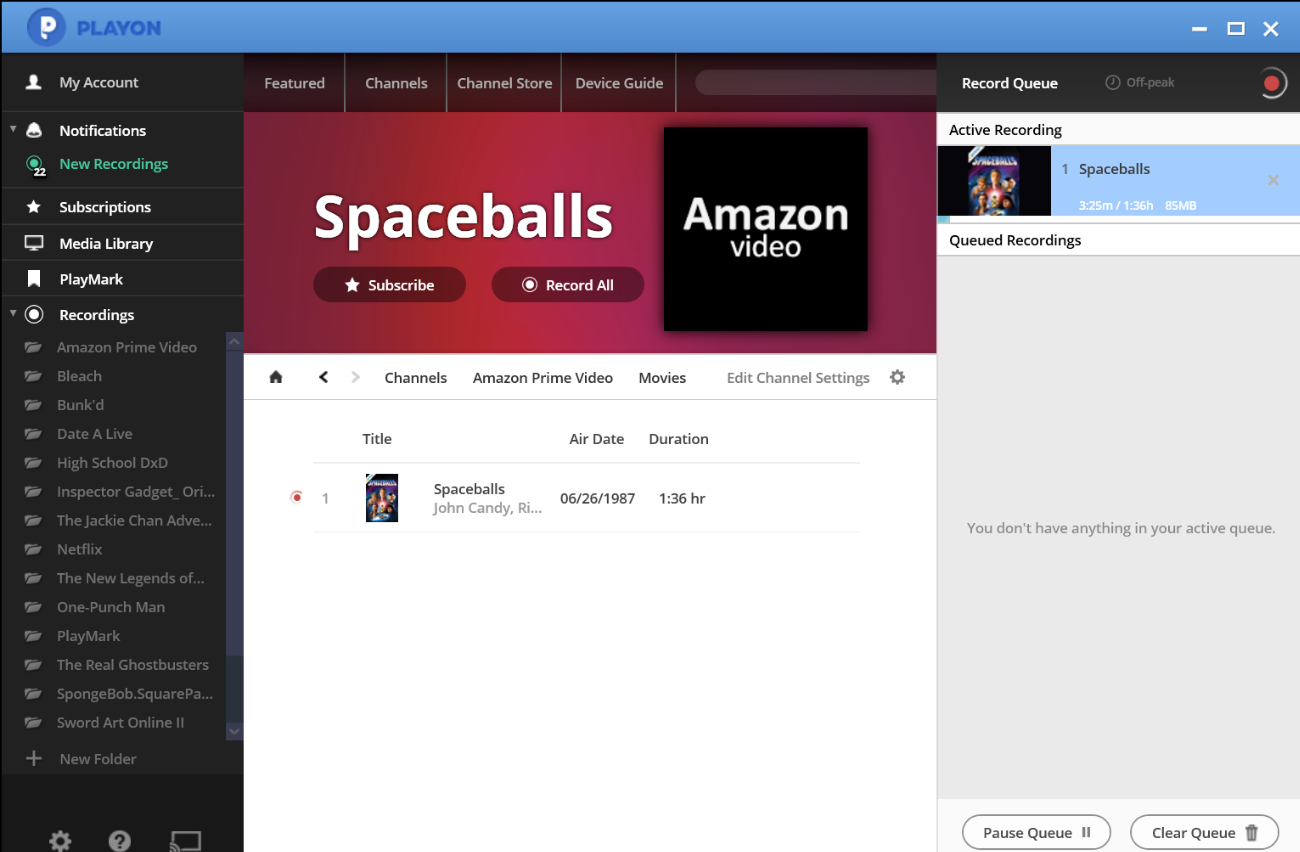
PlayOn Home, originally named PlayOn Desktop, is a powerful TV recording software that lets you record streaming video. You can record from your favorite streaming services such as Netflix, Hulu, Amazon, Disney+, and HBO Max.

Once a TV or movie has been recorded, you can watch it whenever and anywhere you choose, even when you’re not connected to the internet. Cast it to your TV or use your mobile device to take it with you using the PlayOn Cloud.

When you watch, PlayOn will even skip the advertisements for you. PlayOn Home transforms your PC into a full-featured DVR for video streaming.

PlayOn’s recording feature works as a DVR for streaming videos, generating a MPEG-4 file that can be uploaded to supported media devices.

You may then watch these movies without needing to connect to the Internet. The recording feature inserts chapter markings at the positions of ads. This function allows you to instantly skip commercials whether watching through the PlayOn Desktop player on a PC or any other standalone media player.

PlayOn.TV

Manage all of your digital video streaming services from a single, easy-to-use interface. Get now PlayOn TV!
Check price Visit website

NextPVR

NextPVR main menu

NextPVR is a freeware PVR application for Windows, more specifically designed for live TV playback and recording.

This software is one of the best backend servers for recording TV that you can use with media centers. You can also utilize NextPVR without any front-end software as it has an intuitive UI that includes a TV guide.

NextPVR is compatible with a range of DVB, ATSC, QAM, analog, and DMB-T devices. The software includes a web application with which you can manage your recordings.

NextPVR has a variety of recording type options to select from, such as Record Weekly, Record Weekends, Record Season, and Record Once. NextPVR users can also schedule recordings via its TV guide.

⇒ Get NextPVR

Kodi

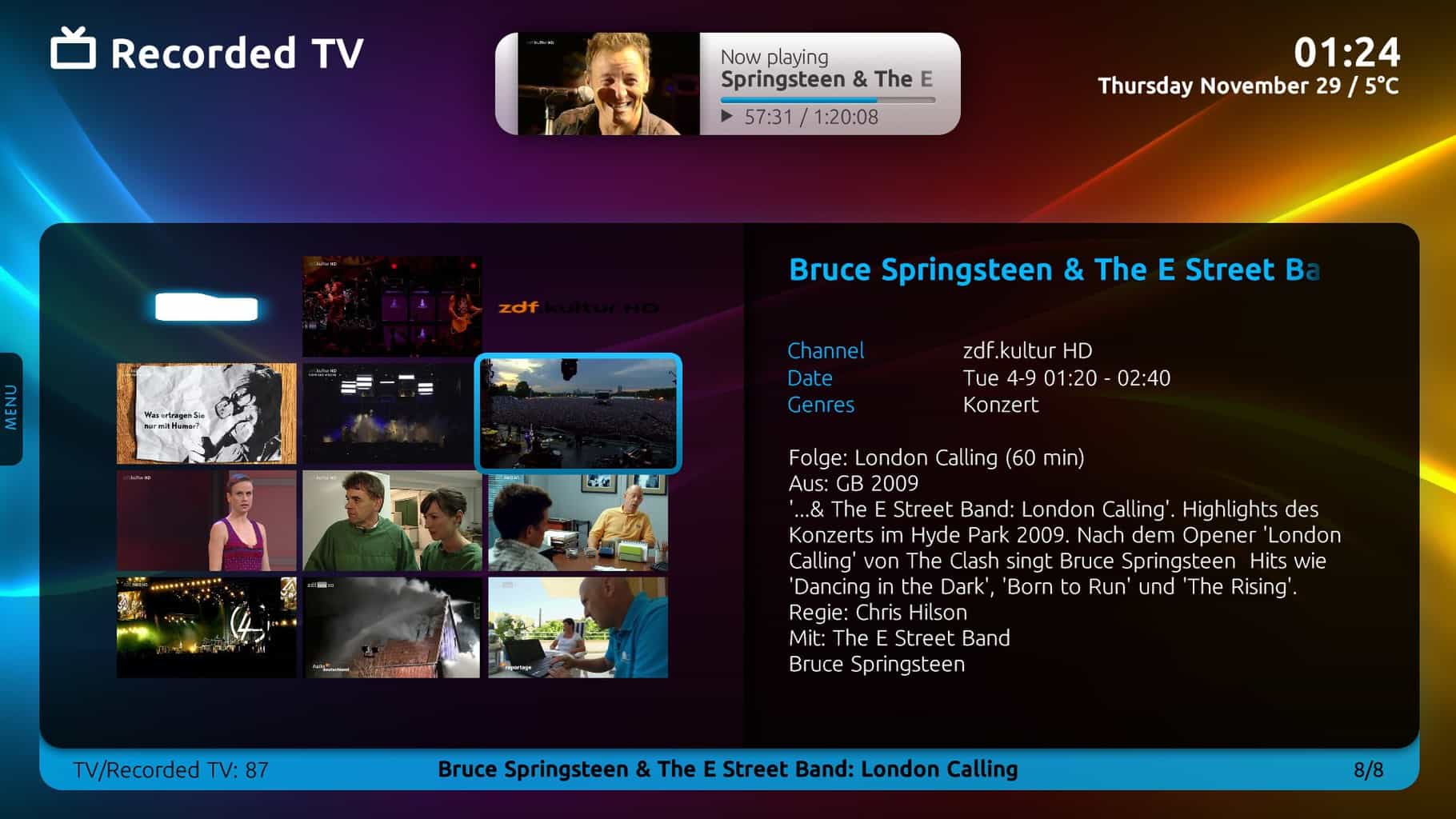
You might have already heard of Kodi, which is a full-blown media center you can use to play music, videos, movie streams, and image slideshows.

You can also watch and record live TV with Kodi, thanks to its extensive repository of plugins. It’s open-source software compatible with Windows, Linux, macOS, Android, and iOS.

Kodi is front-end software that depends upon PVR plug-ins for its live television recording. Thus, you can’t watch or record any live TV with Kodi unless you add a PVR plug-in to it.

Fortunately, Kodi has plenty of those; and NextPVR, MediaPortal, and MythTV are just a few of the PVR plug-ins for the media center. Once you’ve installed one of the required plugins, you can schedule recordings via Kodi’s TV guide.

⇒ Get Kodi

MediaPortal

MediaPortal is another excellent media center with which you can record live TV. This open-source media center has one of the best personal video recorders, offering support for numerous tuner cards. It also comes with its server setup instructions.

With MediaPortal, you can watch more than 10,000 tuned channels. It boasts an extensive TV guide with which you can organize channel groups, search for programs, and check scheduled recordings.

You can select various recording type options, modify the bit rate for recordings, configure settings before and after recordings, and choose for how long to store the recorded files.

Furthermore, the media center has a Dedicated TV server option that enables its users to set up one PC as a TV server for other client desktops that don’t have tuner cards.

⇒ Get MediaPortal

Plex Media Server

Plex Media Server is a client-server media center you can use to stream multimedia to client apps. However, the Plex DVR is only available for Plex Pass subscribers. You can install Plex Media Server onWindows, macOS, and other platforms.

Plex‘s DVR (or PVR) was initially limited to just recording live TV. However, now you can also watch live TV with Plex’s client apps, which provide a front end for the DVR. You can utilize the Plex DVR with ATSC, WinTV, Freeview HD TV for Xbox One, DVB, and SiliconDust HDHR tuners.

The Plex DVR also has an intuitive TV guide and now includes Time Shifting so that its users can pause, rewind and fast forward live playback. And as Plex has loads of client apps, you can also sync your recorded TV shows to mobiles, tablets, and consoles.

⇒ Get Plex Media Server

WinTV

WinTV represents Hauppauge’s PVR solution for Windows users. It’s a recording software program optimized for live television, which works with a limited range of TV tuners. WinTV is compatible with Windows 10 and Windows 8.

You can play recorded shows and watch live HD TV on Windows. Like other PVR software solutions, WinTV has a program guide with which you can find both channels and recorded shows.

This software enables users to record multiple shows and schedule recordings. The PVR boasts multi-tuner support so that you watch up to four TV shows at once in a single window with its picture-in-picture mode.

The WinTV CD also enables you to stream live TV to Windows, macOS, and iOS platforms with the Extend app. You can record live TV with any one of those PVRs and a compatible tuner card. They offer flexible recording options and other TV novelties that you might not get with a standard TV set.

⇒ Get WinTV

We’ve shown you various methods for using your computer to record live television, each of which will appeal to a different type of user.

Some solutions will make an offline version of the show that you can watch from anywhere, but others will not supply you with portable copies of your recordings. As always, the key is to choose an app that suits your usage needs and of course your favorite streaming platforms.

Are you a streamer, or prefer saving movies for later? Let us know in the comment area below.

RAID Software for Windows: 6 Best to Use in 2026

RAID  is a very efficient way to protect your data, improve performance, and balance your input and output operations.

Users can perform RAID operations directly from the hardware or with the help of software.

When it comes to hardware, the process is performed utilizing your computer’s internal motherboard.

The software RAID is configured directly on your computer’s host server CPU, and even though the processing speed is slower than in the case of hardware RAID, it is more cost-efficient.

To manage every aspect of your RAID, you will need to use specialized software that allows dynamic disk management and partition management. Remember that you’ll have to choose the appropriate RAID level for your hardware.

In this article, we will explore some of the best software options that allow you to do that and a built-into-Windows alternative. Read on to find out more.

What’s the best RAID software for Windows 10 and 11?

Paragon Hard Disk Manager – Backup automation

Paragon Partition Manager allows you to create, resize, copy, or delete partitions. The interface is easy to use and very clean. You should have no problem quickly finding your way around it.

The performance of the storage device can be enhanced as well due to its fantastic feature called Automatic partition alignment.

If you have any free space, then you can allocate it to another partition in order to ensure more practical use of the disk space.

Paragon Hard Disk Manager is a good solution if you need a tool to help you both with basic and advanced partitioning tasks.

It supports file system conversion as follows: FAT to NTFS, NTFS to FAT, HFS to NTFS, and NTFS to HFS.

It also lets you allocate extra disk space with the redistribute feature. You can split or merge your partitions, edit sectors, and defragment.

Paragon Hard Disk Manager also supports data migration, allowing users to copy entire partitions and disks and also migrate operating systems.

Other key features of Paragon Hard Disk Manager include:

  • Backup automation
  • Restore partitions and separate files
  • Recovery media builder
  • Boot corrector

The tool is compatible with Windows operating systems, starting with Windows 7.

Paragon Hard Disk Manager

Easy-to-use and reliable software for data recovery and with great partition management features.
Check price Visit website

AOMEI Partition Assistant Professional – Multiple disk operations

There are also various third-party utilities that you can format flash drives with. You can benefit from third-party software if you can’t format a storage drive with File Explorer.

AOMEI Partition Assistant offers support for many types of hardware devices, from traditional HDDs, SSDs, and SSHDs to IDE, SATA, and FireWire.

The tool is able to format and manage RAID devices as well. It is compatible with multiple versions, including RAID 0, RAID 1, RAID 5, and RAID 10.

The software offers easy-to-follow controls that allow users to add drives to RAID arrays quickly.

The tool lets users gain full control over their partitions, supporting multiple actions including partition creation, formatting, deletion, and merging.

AOMEI Partition Assistant can also split and resize partitions and allocate free disk space. These features can help you tweak your available storage in order to make sure your partitions do not run out of free space.

AOMEI Partition Assistant Professional is a great software that allows you to format your hard drive and partitions without losing any data.

Although Windows already comes with a built-in partitioner it can take a lot more time than simply using a dedicated tool.

Let’s have a look at the key features of this software:

  • Performs multiple disk/partition operations.
  • Comes with additional features, such as bootable media creation or Windows PE.
  • Data recovery tool.

Aomei Partition Assistant is a licensed-based program. It comes with a 90-day money-back guarantee, and you can also try it out beforehand as they provide a demo version.

AOMEI Partition Assistant Professional

The best partition software with multiple management functions. Get the best deal now!
Check price Visit website

Stellar RAID Data Recovery – Best at recovering data from RAID

Stellar Data Recovery is a very powerful tool. Although its main function is that of data recovery, it will also allow you to create a raid array.

With this software, you can manually enter the RAID parameter while configuring your raid array. Also, when it comes to recovery, you can do that if the RAID parameters are fully known, partially known, or unknown.

Stellar Data Recovery can work with Raid 0, 5, and 6. Moreover, this tool doesn’t even need the RAID controller card to be attached.

Besides the powerful RAID module, Stellar Data Recovery includes other amazing and useful features, such as video and photo repair.

This tool can help any technician with most of the data storing and recovering processes.

Some more key features of Stellar Data Recovery:

  • Recover Data from an Inaccessible RAID Volume
  • Recovers Data from SSD RAID array
  • Formatted RAID array recovery
  • Deleted RAID partition recovery
  • Recovers Hardware and Software RAID

Stellar RAID Data Recovery

Create RAID array and recover data easily with this truly stellar software.
Check Price Visit Website

MiniTool Partition Wizard – An intuitive toolset

MiniTool Partition Wizard offers an intuitive approach to disk management, allowing users to easily execute advanced operations such as merging or extending their partitions.

The software has multiple versions available, including a free one, which is pretty resourceful when it comes to features.

MiniTool lets you manage RAID partitions with the help of its intuitive toolset. You can directly create a new partition, resize existing partitions, and even extend them.

The software also helps you migrate your operating system to SSD, convert disks without risking the loss of data, and more.

MiniTool Partition Wizard can copy both system and non-system partitions, set labels, change drive letters, and change partition type ID.

It also supports operating system migration to SSD or HDD data storage devices.

Other key features of MiniTool Partition Wizard include:

  • Data recovery
  • Disk clone
  • System diagnosis and optimization

MiniTool is available in various packages which vary in features. If you want to check how the software operates, you can start with the free version.

MiniTool Partition Wizard

Use this intuitive tool to easily manage RAID partitions, clone disks, recover lost data, and more.
Free trial Visit website

SnapRAID – Easily scalable

SnapRaid - Win 10 RAID software

SnapRAID is another very useful RAID tool that allows you to manage every aspect of your disks and store the entire range of information locally.

This software can recover from up to six disk failures without compromising the data.

SnapRAID automatically hashes your data, keeping it safe from silent corruption.

In case the failed disks are not recoverable, it can isolate them so no other disk risks becoming corrupt as well.

The tool can recover accidental deletion and allows you to use different-sized disks with the ability to add new ones at any time.

If you stop using SnapRAID at any point in time, you will not have to reformat or move your data.

Other key features of SnapRAID include:

  • Optimizes the way disks are used
  • Lightweight and small footprint
  • Easily scalable

SnapRAID is free software that is compatible with Windows operating systems as well as other popular platforms such as Linux or Mac.

⇒ Get SnapRAID

Storage Space – Windows Native

This built-in tool found in Windows 10 and Windows 11 protects the entire range of data stored on your hard drive, and it can customize how the storage is used.

You can set custom rules to group more drives in one storage pool and create virtual drives.

These drives store two copies of your data, allowing you not to worry about losing data even when one of the copies becomes corrupted.

The tool offers efficient disk management features and is a convenient solution as it is pre-installed into your system.

The tool lets you create storage spaces. The only condition is to have at least two extra drives in addition to the drive where Windows is installed. 

These include internal and external drives. The tool can handle a variety of drives, including USB, SATA, and SAS drives.

Other key features of Storage Spaces include:

  • Accessible and easy to use
  • Driver usage optimization support
  • Easy-to-follow usage guides provided by Microsoft

Although not as resourceful as other tools in this list, the built-in tool is proven to be very safe, easy to use, and completely free for Windows users.

Does Windows 10 have a built-in RAID?

No, Windows doesn’t have a built-in RAID, but since Windows, the OS comes with a feature that will let you combine multiple HDDs and SDDs into a RAID Array.

This article explored some of the best software options that allow you to manage all your RAID hard disks easily.

And even though you can configure RAID manually, the software presented in this list covers all the tools you need to manage your hard disk creation, usage, and statistical gathering.

Before you choose to set up RAID, we suggest reading our guide on RAID 0 vs RAID 1 to learn about the differences between the two.

We also presented you with a built-in option that is almost as efficient as the software found in this article.

Please let us know what options you chose and how they worked by using the comment section below.

Don’t forget to bookmark our Troubleshooting Hub for more helpful articles and guides.

You can find more related articles in our Software Hub, so make sure to check it out.

How to download Guild Wars 2: End of Dragons

It is no longer a surprise that Guild Wars 2: End of Dragons is a one-of-a-kind adventure game, that’s why tons of worldwide players are wondering how they can download it.

For those of you who don’t already know, this game will place you in Cantha, which has been closed off to the rest of Tyria for more than 250 years.

The main point of Guild Wars 2: End of Dragons is figuring out how to end the dragon cycle that is causing an imbalance of energy in the world.

When it comes to getting this game, manufacturers did a great job and early purchasers took advantage of some interesting opportunities.

In this matter, End of Dragons was available for pre-order with some bonuses for those who buy the game before it launches.

So, early consumers received a Shing Jea Mosaic Cape, Flame Serpent Weapon Chest, and Prodigy of Shing Jea title.

Fortunately, it is never late to download Guild Wars 2: End of Dragons and get the best out of its stories, and in this guide, we’re going to show you how.

How can I download Guild Wars 2: End of Dragons?

1. From the manufacturer’s official website

One of the most efficient ways to get Guild Wars 2: End of Dragons is by accessing the producer’s official website.

Not only that this is one of the safest sources to get the game, but on the manufacturer’s official page will be able to discover more related info about its overall story and features.

2. From other gaming platforms

Of course, there are many other intermediary platforms that allow you to purchase Guild Wars 2: End of Dragons with the best deals on the market.

⇒ Get Guild Wars 2: End of Dragons from G2A

⇒ Get Guild Wars 2: End of Dragons from Kinguin

What are the requirements to download Guild Wars 2: End of Dragons?

As you can see, you can easily download Guild Wars 2: End of Dragons, but keep in mind that in order to properly complete the process, your OS and PC need to meet the game’s minimum requirements, as follows:

  • CPU: Intel® Core i3 3.4 GHz / AMD Athlon x4 3.8 GHz or better
  • RAM: 8 GB
  • OS: Windows® 7 or better (64 bit only)
  • Video Card: NVIDIA® GeForce® GTX 680 / AMD Radeon HD 7970 / Intel Iris 600 series
  • Pixel Shader: 5.0
  • Vertex Shader: 5.0
  • Free Disk Space: 55 GB

Because it is always important to ensure the best environment for running your favorite game, you should make sure your OS and computer meet these recommended specifications:

  • CPU: Intel® Core i5 or better
  • RAM: 8 GB
  • OS: Windows® 10 or better (64 bit only)
  • Video Card: NVIDIA® GeForce® GTX 680 / AMD Radeon HD 7970 / Intel Iris 600 series
  • Pixel Shader: 5.0
  • Vertex Shader: 5.0
  • Free Disk Space: 55 GB or more

In conclusion, we hope that this guide was helpful for those of you who were wondering how to download Guild Wars 2: End of Dragons.

Because your opinion really matters to us, make sure you share it by leaving a comment in the section below.

6 Best Drawing Software Used by XP-Pen [Reviewed]

Visual artists used to create art with real tools like paints, brushes, and canvases. Due to advancements in technology, we can now create completely digital art by using painting tools specifically designed for computer programs.

You can use a graphic tablet and pens like the XP Pen to make the creative process even more realistic.

The XP Pen is an incredible PC drawing tool that allows you to transfer the strokes of your pen to the digital environment.

It’s easier than ever to set up the tablet and start working on designs without feeling a big difference from using pen and paper.

With XP Pen software and an XP-Pen, you have everything you need for your creative process at your fingertips.

As a result, you can use the physical space in your studio to expose your art to the world without worrying about stacking different brushes and inks on your desk.

In this article, we are exploring some of the best drawing software for XP Pen. Their features should cover all your creative needs.

What software does XP Pen use?

Adobe Illustrator – Industry-leading drawing

XP Pen drawing software for Windows

As one of the most popular apps from this software developer, Adobe Illustrator has evolved constantly since its release in 1986.

This app allows you to take your creative ideas to the next level by pairing them with an XP graphic Pen.

Adobe Illustrator is a vector-based software that uses mathematical constructs to create vector graphics.

This tool is used primarily for designing logos and other graphics that can be stretched to infinity without losing image quality.

Adobe Illustrator has an improved panel lets you streamline your workflow by giving you quick access to tools, effects, and options.

The puppet warp tool lets you transform your vector graphics without using anchor or individual paths.

Let’s quickly look at its key features:

Illustrator has several brush styles, including calligraphic, scatter, art, pattern, and bristle. Depending on your needs, you may design and customize calligraphic, scatter, art, pattern, and bristle brushes.

  • Anchor points: set the dimension of anchor points to any values
  • Quick actions panel: recolor, expand or arrange shapes, and other tools
  • OpenType variable fonts: customize the weight, width, and slant of fonts
  • SVG color fonts: add multiple colors and gradients to a single glyph
  • Stylistic sets: apply predefined glyph alternates to blocks of text
  • Artboards: create up to 1000 art boards to make room for all your designs

Each brush has a variety of adjustable possibilities, and Adobe Illustrator maximizes compatibility with XP graphic pens.

Adobe Illustrator

Match your XP-Pen with the best design software to create sophisticated artwork.
Check price Visit website

CorelDraw – Graphic suite for photo editing

XP Pen drawing software for Windows

Touch or a stylus? Whatever you’re using to craft your art, CorelDRAW allows you to work quickly and efficiently thanks to its powerful pen and touch capabilities.

This comprehensive suite of professional graphic design tools gives you everything you need to craft design projects from vector illustration and photo editing to typography tools.

Some of the fascinating tools in CorelDRAW that allow you to use the pressure of your pen or stylus include Artistic Media, Eraser, Smear, Twirl, Attract, Repel, Roughen, and Smudge.

You may even adjust the appearance of your brushstrokes by tilting and bearing your pen while utilizing the Artistic Media, Eraser, Roughen, and Smudge tools.

Remember that pen tilt and pen bearing may only be used if your pen or stylus supports these features.

Let’s quickly look at its key features:

  • AI-powered image solutions (machine-learned effects, Smart Selection tool, and more)
  • Workspace customization options to accelerate workflows
  • Impressive editing toolset (filters, effects, masks, lenses, Replace Color, and more)
  • Adjust color and tone, remove imperfections, correct perspective, and more
  • AfterShot 3 HDR to create stunning High Dynamic Range photos from your RAW images
  • Unparalleled object control

CorelDRAW is compatible with the Real-Time Stylus (RTS) interface. If you have a Wacom-compatible graphics tablet or device, you can still use the WinTab interface.

Compatible with over 100 graphics file formats, you can easily import and export a variety of assets and tweak them to perfection or make quick adjustments using your stylus.

CorelDraw

Enjoy powerful pen and touch capabilities for the best drawing experience!
Check price Visit website

Adobe Photoshop – Plenty of pen options

XP Pen drawing software for Windows

Adobe Photoshop is one of the most popular tools from Adobe for digital creations.

This program is designed to give you all the tools needed in order to modify existing images or graphics and is fully compatible with your XP-Pen.

You can use Photoshop to create raster images, which are made out of individual colored squares (pixels).

The Curvature Pen tool allows you to create both smooth curves and straight line segments with ease. Using this user-friendly tool, you can easily create custom shapes in your designs or specify particular routes to fine-tune your photos.

Create, toggle, modify, add, or delete smooth or corner points without switching tools. When using an XP graphic pen, this is quite useful for precise measurements and drawing edges.

Let’s quickly look at its key features:

  • Stroke smoothing and a wide collection of brushes
  • Color and luminance range masking
  • Variable fonts
  • Curvature pen tool
  • Custom path color and width
  • Digital painting tools: create, use and edit layers
  • Camera shake reduction tool: reduces the blur of your image
  • Cloud storage (access your projects from anywhere while having your files secure)

Compared to the vector images you can create in Illustrator, this type of image will look jagged on the edges and can not be resized without the quality of the image being affected.

Adobe Photoshop

Pen or touch? The best drawing software is your trusted partner in creating stunning artwork.
Check price Visit website

Clip Studio Paint – Top digital drawing asset

Clip Studio Paint is a digital art software that can be used to create various forms of visual art with XP graphic pen and tablets. You can create traditional art, concept art, comics, manga, and many more.

The software is highly sensitive when it comes to pen pressure, and it allows you to create your art exactly as you envisioned. This software allows you to give your art a natural effect and a brush feels while drawing.

It aims to emulate the feel of a real brush, and it provides highly customizable brush settings. You could create whatever pattern you want with its powerful brush technology.

Clip Studio Paint interacts with your device to replicate every nuance of your pen pressure up to the 8192 levels measured by Wacom tablets.

Key features of Clip Studio Paint include:

  • Multiple layer types like Vector layers, Gradient layers, or Tonal Correction layers
  • Comics/manga borders and frames 
  • Speech balloons/text
  • Built-in line stabilization function 
  • Pattern drawing support 
  • 3D Models
  • AI posing from photographs
  • Highly adjustable gradients

Clip Studio Paint assets, which add 1000 new pieces every month, will always have something to meet your own style. You may also customize every aspect of your brushes, giving you an endless amount of tools.

Clip Studio Paint is also very resourceful in brush presets. You can pick from a variety of brush styles and start creating within seconds.

Clip Studio Paint

Use Clip Studio Paint to make your XP Pen feel and function like a traditional, fully equipped art studio.
Free trial Visit website

Corel Painter Pro – Customized brushes and pens

Corel Painter is a great tool for creating digital art using your XP-Pen. This software gives you a wide range of tools that can enable you to express yourself without any limits.

The current interface was redesigned completely for a better user experience. The new interface has a dark theme and more than 650 redesigned icons.

When using a graphic XP pen in pair with Corel Painter, you will experience all of the natural characteristics, textures, and media that you are accustomed to utilizing in conventional art in a flexible digital art environment.

It takes some getting accustomed to using a tablet and a graphic XP Pen with Corel Painter, but once you get the hang of it, painting becomes as natural as using traditional creative media.

Let’s quickly look at its key features:

  • Use thick paints that imitate traditional painting with tools like the scrub, push, scrape, and bristle brushes
  • Better UI and performance
  • 36 new brushes and a new brush category
  • Updated larger slider bar for easier control
  • Circular color grabbers for ease of access
  • Stamp categories: trees, dragons, tribal tattoos, etc.
  • Patterns: fire, moss, hazard, etc.

Corel Painter has 3 gray themes available – the original light gray, middle gray, and dark theme. The darker themes allow better isolation of colors for a clearer workspace.

In addition, the new icons are larger and easier to understand than in previous versions.

Corel Painter Pro

Integrate your XP-pen to Corel Painter Pro to create beautiful realistic paintings.
Free trial Visit website

Affinity – Unique UI and editing tools

Affinity Designer has a plethora of tools for XP pen sketching on Windows 10. It is a strong vector design program that also includes pixel-based texturing and retouching in the same user interface.

This is one of the best drawing software options to use with your XP-Pen for creating stunning digital art. You’ll enjoy lightning-fast speed, maximum flexibility, and elegantly designed professional-level features.

Allow your creativity to go wild and begin generating concept art, print projects, logos, icons, UI designs, mock-ups, and more.

Let’s go through Affinity Designer’s key features:

  • Personas are separate toolsets for different design purposes.
  • Dynamic tools and effects in real-time
  • Professional-level tools and features
  • Support for high-end file formats
  • Built from the bottom up to make maximum use of contemporary technology, for a fast UI
  • Vector and pixel editing in the same document, with vector editing, retained throughout
  • Non-destructive practices

If you want to be a professional artist, web designer, and game developer this is a great choice thanks to its silky-smooth blend of vector and raster design tools.

Furthermore, Affinity Photo and Publisher improve your creations by giving complete editing toolsets. From picture editing to combining your images with graphics and text to produce stunning layouts appropriate for publication, you have it all.

⇒ Get Affinity

These are some of the best drawing software options to use with your XP-Pen for creating stunning digital art. And to ensure they work efficiently, ensure your XP pen driver is updated for optimal performance. This will also help when XP-PEN is not working in Windows 11.

In case you’re having additional problems with the tablet, our XP-PEN no tablet was detected guide should be able to help you.

The features included will surely get you started on your creative journey. Let us know your favorite drawing software tool in the comments section below.

If you still haven’t purchased one, check our comparison of Wacom and XP-PEN and find out which one works best for you.

Best Language Learning Software: We’ve Ranked Top 5 of 2026

Educational software isn’t exactly a novelty, especially language-learning tools. Back in the day, they were expensive, bulky, and monotonous, lacking the multimedia and interactive approach.

Nowadays that’s not the case. There’s a large variety of language-learning tools with immersive speech recognition features.

Speech recognition enables users to interact with the machine and, furthermore, enriches the overall experience. Not to mention your pronunciation and language fluidity improvements.

So, if you’re keen to start learning and you put special emphasis on speech recognition, the list below should help you a lot. Make sure to check it out.

Which are the best language-learning tools?

Rocket Languages

The Rocket Languages language-learning tool lies somewhere in between Duolingo and Rosetta Stone. It has more content than Duolingo and it’s cheaper than Rosetta Stone.

Nonetheless, it’s one of the best-paid tools you can acquire for the price. Rocket covers all standard learning areas, including writing, speaking, reading, and listening.

language learning software with speech recognition

The learning curve for the most popular languages is divided into multiple tiers and price models.

Lessons are divided into modules and every lesson covers all learning areas respectively. You don’t need to follow the lessons in sequential order, even though it’s advised.

Feature-wise, here’s what Rocket Languages offer:

  • Pretty sleek and modern interface.
  • Comprehensive audio content.
  • Explanatory writing lessons.
  • Improved writing tests.
  • On-point voice recognition by utilizing Google Web Speech API.
  • The enormous amount of content in comparison to other similar tools.
  • Focus on both language and cultural traits.
  • Smartphone apps are great and free after you subscribe.

The audio lessons and voice recognition are exquisitely well-produced in Rocket Languages. With their transition to Google Web Speech API, speech recognition became much better.

It’s arguably above both Rosetta Stone and Duolingo in that department. The interactive audio is great, and the dialogs are humorous and optimized to the learner’s level.

Rocket Languages

Learn a new language easily with the help of speech-recognition tools by using Rocket Languages starting today!
Check price Visit website

Rosetta Stone

Duolingo is a rarity in this software niche, as other programs are pretty costly. For example, Rosetta Stone can cost up to $300. And that’s a yearly subscription we’re talking about.

However, the sheer abundance of features and probably the best polished and most intuitive design go in favor of this premium application.

language learning software with speech recognition

Add to it exquisite support, online classes, and the focus on deductive (only menus are in English so you’ll acquire the language better with repetitive, logical steps), which makes it one of the best language-learning tools out there.

Here’s what to expect from Rosetta Stone if you decide to get the license:

  • An immersive learning approach that relies on intuition rather than on a hefty portion of explanations.
  • Advanced grammar learning with special emphasis on plural/singular and gendered nouns.
  • Different learning levels.
  • Multimedia and interactive overhaul. You can chat with other learners and even play language-related games.
  • Online tutoring in the learning language.
  • Well-designed smartphone apps for learning on the move.
  • Speech-recognition is available and often used within the lessons.

Speech recognition-wise, reading, and repeating certain words are frequently used within the Rosetta Stone curriculum. You can choose to opt-out of it, but we don’t see the reason why. It improves your learning and strengthens your pronunciation.

Rosetta Stone

Learn a new language and connect with native speakers using this award-winning software!
Check price Visit website

Ouino

Ouino is a PC and mobile app that uses a unique, non-linear approach to learning a new language. It’s the ideal solution if you fit somewhere between the beginner/ intermediate/ advanced levels and you want to learn at your own pace.

The software has built-in instruments designed to help you track your progress and stay motivated. With the Knowledge Star feature, you can rate your understanding of each lesson using a four-star system.

This will make it possible for you to acknowledge your results and evaluate how well you understood the presented material.

Ouino even rewards you with medals and a fluency award after you complete the multiple-level exercises successfully.

Other key features of this language software include:

  • Pronunciation module with an online speech-to-text engine
  • Exercise timer
  • Customizable settings and platform
  • Conversation module
  • Review and flashcard exercises
  • Tutorials for educators

Ouino has a complete set of modules that aim to help you learn how to conjugate up to 11 verb tenses, improve your vocabulary, and boost your conversation skills.

Ouino

Learn a new language and track your progress with this all-in-one language software!
Free trial Visit website

Duolingo

Let’s start with the obvious, freemium program you might have heard of, called Duolingo.

Now, Duolingo is an amazing multi-platform software solution, present on almost every OS that comes to your mind. It emerged as an iOS, Windows Mobile, and Android language-learning app, but nowadays you can use it within any browser on your PC.

language learning software with speech recognition

The learning curve is great and it covers speaking, writing, and grammar of one of the 27 languages. 

Here are the top features Duolingo offers:

  • It’s free. Competitive solutions cost a lot of money and the only difference a premium account makes is the removal of ads.
  • Multi-platform program. There are negligible differences between the PC version and versions for handheld devices.
  • Bite-sized lessons make learning easier.
  • Placement test. If you’re accustomed to a certain language, it’s easier to know where to start.
  • Speech recognition feature that grades your pronunciation.
  • Well-designed interface and awards for learning streaks.
  • Language learning for 34 hours in Duolingo, is equivalent to one semester of college.

In regards to speech recognition features, Duolingo offers pronunciation practice that’s the built-in part of the learning curve. This comes a bit later on, once you’ve mastered some essential language skills. The recognition is pretty on point and it will ask you to repeat the given word or sentence as precisely as possible.

⇒ Get Duolingo

Speech Ace

In comparison to other language-learning tools we enlisted, Speech Ace focus lies in speech recognition above all. Or rather, it specializes in the correct and fluent pronunciation of the English language.

language learning software with speech recognition

While other programs mainly emphasize learning and strengthening language skills, Speech Ace helps users to assess and improve the pronunciation and fluency of spoken English. You can try it for free in your browser if you’re a standard user. The paid options come for Moodle, the learning platform, and iOS.

Here’s what separates Speech Ace from the reset:

  • Great and simple interface with intuitive design.
  • Detailed explanations on how to improve pronunciation.
  • Focus on communication, rather than on writing and grammar.
  • Real-time scoring and pin-pointed feedback.
  • Feedback about accurate speaking speed.
  • Easily accessible through the browser without the need for the desktop app.

In order to run the Speech Ace, just make sure that you have a properly set microphone and Chrome. Open the Chrome browser and navigate to the official site. From there, just click on ”Try in browser” and voila, you can start your pronunciation exercise.

⇒ Get Speech Ace

That should wrap it up. We hope that you’ll find the tool that suits you the best. If learning tools are what interest you most, then our Educational Tools section is what you need.

Need more handpicked software for a variety of scenarios? Go to our Software section to see an amazing variety of the best software for making your digital life more enjoyable.

Have fun learning a new language (or improving your skills) and make sure to share your experience with us. The comments section is just below.

That’s how you can download FAR: Changing Tides on PC

FAR: Changing Tides was recently released by Frontier Foundry in 2022 and many worldwide users are excited to download it on their PC.

This game follows an emotional journey of a boy, his ship, and the desire of discovering himself and seeking out a replacement home through an exceptional voyage.

If you’re one of those players that need to find how you can download and run FAR: Changing Tides, keep in mind that it is extremely versatile, and you can get it from multiple gaming platforms.

In this matter, we’ve prepared some of the most useful information, so make sure you read this guide completely.

How can I download FAR: Changing Tides on PC?

If you want to enjoy a complete and smooth sail experience, we recommend downloading FAR: Changing Tides from trusted sources, as follows:

1. Popular gaming platforms

Keep in mind that you can get this game directly from the most popular supported gaming platforms (like Steam or Epic Games Launcher).

Before purchasing it, you’ll need to log into your Steam/Epic account, with valid credentials (username and password). However, do not forget that FAR: Changing Tides doesn’t allow crossplay.

2. Manufacturer’s website

Another great and safe option to download FAR: Changing Tides for PC is through the manufacturer’s official website.

There, you’ll also be able to find the game’s story, features, and tons of additional related information you should definitely be aware of if you want to get the best out of the FAR sail experience.

3. Other intermediary platforms

Last, but not least, you can find more advantageous deals on some other intermediary platforms.

In these terms, we’ve compiled the best options you can find on the market, so make sure you check them below:

⇒ Get FAR: Changing Tides from G2A

⇒ Get FAR: Changing Tides from Kinguin

What are the requirements my PC should meet to download FAR: Changing Tides?

In order to be able to properly download FAR: Changing Tides on your PC and to get the smoothest experience, you’ll need to check if your OS meets the game’s minimum requirements.

If you’re not sure what are those, make sure you verify the list below:

  • OS: Windows 7 64-bit or higher
  • Processor: Intel Pentium G4500 or AMD FX-4350
  • Memory: 4 GB RAM
  • Graphics: GeForce GTX 660, 2 GB or Radeon R7 370, 2 GB
  • Storage: 4 GB available space

However, note that the minimum requirements might not always be enough in order to download the game without any problem. Thus, we strongly suggest following the recommendations below:

  • OS: Windows 10 64-bit
  • Processor: Intel Core i3-8350K or AMD Ryzen 3 1300X
  • Memory: 8 GB RAM
  • Graphics: GeForce GTX 1060, 6 GB or Radeon RX 5500 XT, 4 GB
  • Storage: 4 GB available space

In short terms, this is all you have to know about downloading FAR: Changing Tides on your PC. Make sure you compare the offers and get the one that suits you the best.

If you encounter any other questions, feel free to leave a comment in the dedicated section below.

Head of Microsoft’s Digital Transformation Group is leaving the company

According to a report from ZDNet, there is a shakeup inside of Microsoft’s enterprise operations, with the head of Microsoft’s Digital Transformation Group leaving the company. The shakeup involves James Phillips, who has been at Microsoft for ten years.

Apparently announced in an email sent out by Microsoft Executive Vice President Scott Guthrie, Phillips will be leaving his spot at Microsoft for an “external opportunity.” He was in the spot since March of 2021 when the group was first created. Products under the group included Dynamics 365, Power Platform, Azure AI Platform, and others.

Per ZDNet, there’s no indication that Phillips will be replaced, and the groups that he oversaw are instead being divided and “moved around.” The big one is that the Azure IoT and Edge engineering teams have been consolidated, but here’s what Mary Jo Foley is hearing.

Charles Lamanna will continue to lead the Business Applications & Platform (BAP) organization and join his C+AI leadership team, reporting directly to Guthrie. Eric Boyd will continue to lead the AI platform organization and join the C+AI leadership team, reporting directly to Guthrie. Rohan Kumar will continue to lead the Azure Data organization, join the C+AI leadership team and report directly to Guthrie.

In addition to the news about Phillips, since Microsoft’s deal with Nuance closed, there also is some news around this area. Microsoft is moving more of its own people to Nuance, and vice versa, rather than keeping it seperate. The Microsoft Health & Life Sciences engineering team will be moved to the Nuance R&D organization, under Nuance CEO Mark Benjamin. In addition, Nuance Enterprise’s business and product management moves under the control of Charles Lamanna, who heads the Business Applications & Platform (BAP) organization at Microsoft.

FIX: G Pro wireless not showing in Logitech gaming software

Logitech customers can manage mouse settings with one of two programs: G Hub (Logitech Advanced Gaming Software) or Logitech Gaming Software.

To perform activities like personalizing your hotkeys, altering RGB, and changing your DPI, you’ll need one of these programs loaded. It will most likely identify your mouse and allow you to access it and change its settings.

Almost all Logitech mice released in the last ten years are compatible with Logitech Gaming Software. However, a mouse may require a specific version to function correctly.

This article shows solutions to fix any problems associated with g pro wireless not showing up in Logitech gaming software.

How do I know the software that will work for my mouse?

Please read the instructions that come with the mouse to verify what software is compatible with it. 

All the newer Logitech mice are not supported by the Logitech Gaming Software. They are designed for use with the Logitech Advanced Gaming Software (G Hub).

The G Hub has a unique user interface, but it is very similar to Logitech Gaming Software. Both control the same functions for linked devices in a similar way.

The G Hub from Logitech does not support the older Logitech devices, and this will be an issue if you have an older mouse.

What are the best fixes for the Logitech g pro wireless not detected on my gaming software?

1. Restart your computer

  1. Click the Start icon, click the input/output button, and select restart.
    g pro wireless not showing up in logitech gaming software

This initial step is the most straightforward. Restarting the computer frees up RAM and eliminates any background apps interfering with the Logitech G HUB. 

It can help your computer work more smoothly in some circumstances by eradicating some flaws. This is an excellent solution to try before moving on to something more complicated.

If you’ve rebooted multiple times, skip to the next step below.

2. Update the device drivers

  1. Click on the Start menu, type in device manager, and select the option for the Device Manager app.
    g pro wireless not showing up in logitech gaming software
  2. Expand the Mice and other pointing devices section, then right-click on your mouse and select the option to update.
    g pro wireless not showing up in logitech gaming software

Alternatively, you can use third-party tools to update device drivers. Our recommendation is Outbyte Driver Updater, which ensures the update process is safe and keeps the PC away from wrong driver versions.

⇒ Get Outbyte Driver Updater

3. Start the app with admin privileges

  1. Click on the Start menu, type in Logitech, and select the option to Run as administrator.
    g pro wireless not showing up in logitech gaming software

When changing an application’s permissions, ensure it isn’t currently executing. You’ll need to start it afresh to enable admin rights if it is.

4. Uninstall and reinstall the Logitech gaming software

4.1 Uninstalling the software

  1. Click on the Start menu, type the control panel, and select the option to Uninstall a Program.
    g pro wireless not showing up in logitech gaming software
  2. Under the list of programs, select the Logitech software and click on the uninstall tab.
    g pro wireless not showing up in logitech gaming software
  3. Open the Run dialog using Windows + R, type in %AppData%, and hit ok.
    g pro wireless not showing up in logitech gaming software
  4. Delete any folder related to the Logitech app.
    g pro wireless not showing up in logitech gaming software

It’s also imperative that you’re not using both versions of the program on your PC. Installing both on your computer may cause issues with your mouse’s functionality.

4.2 Reinstalling the software

  1. Download the app from the official download page.
  2. Click on the .exe and follow the installation process.

It is advisable to download a fresh copy rather than reinstall the old copy. There are situations where the old copy gets corrupted, and some functionality issues will arise.

5. Update Bluetooth drivers

  1. Click on the Start menu, type device manager, and select the Device Manager app.
    g pro wireless not showing up in logitech gaming software
  2. Expand the Bluetooth option, right-click on your Bluetooth device and click the update option.
    g pro wireless not showing up in logitech gaming software

There are various things to consider while utilizing a Wireless Bluetooth mouse. It is necessary to verify if Bluetooth is updated. Furthermore, the gadget must be close to the PC and should not interfere with other Bluetooth devices nearby.

6. Replace the G pro battery

You should use new batteries and double-check that the wireless connection is being detected by the computer. The Logitech Gaming Software can’t identify your mouse when the PC doesn’t recognize it at all.

Note that mouse feet must be removed to change the battery on a G PRO Wireless mouse. If you want to reuse the mouse feet, heat will weaken the glue, allowing you to remove them with minimum bending. Mouse feet that are bent or damaged may need to be replaced.

7. Install pending Windows updates

  1. Click on the Start menu and open the Settings app.
    g pro wireless not showing up in logitech gaming software
  2. On the right pane scroll to the bottom and select the Windows Update option. Then on the right pane, you should download and install any pending updates.
    g pro wireless not showing up in logitech gaming software

8. Contact Logitech support

  1. Visit the support website.
  2. Scroll to the bottom of the page and select any support type you prefer. Then follow the steps to make your complaint.
    g pro wireless not showing up in logitech gaming software

This should be, in many cases, the last resort to solving issues with your g pro wireless not showing up in the Logitech gaming software.

For further solutions to wireless mouse issues, you should read our guide on Wireless mice not working on PC [Quick Fix]. If the issue is still there, you can reset Logitech G Pro Wireless and check if that helps.

Most of the solutions in this article are straightforward, and with just a few mouse clicks, you should be well on your way. While these solutions are in no particular order, we suggest contacting customer care after no other fix has worked.

Let’s know which of these fixes worked for you in the comments below.

Posted in Fix

Here’s what’s new for Xbox this week – April 4-8

It looks like April will be getting off to a pretty good start for Xbox releases, with a total of nine games coming to Xbox this week. A wide range of genres are represented in this week’s releases too, so there should be something new here to suit most tastes.

Legal Dungeon – April 5

A game about organizing police documents. This text based title will have players sifting through a labyrinth of evidence to find justice and deliver a verdict in eight separate cases ranging from petty theft to the ultimate crime: murder.

LEGO Star Wars: The Skywalker Saga – April 5

This new LEGO Star Wars game allows players to relive all nine of the films, but with a light tone and whimsical humor. A playable Obi-Wan Kenobi is exclusive to the digital edition.

MLB The Show 22 – April 5

The boys of summer are back in a new game for 2022, and this time its coming to Xbox Game Pass when it releases on the 5th. The game features a bevy of gameplay modes, cross platform play and a tweaked Stadium Creator with a more streamlined interface.

Replica – April 5

In this mobile phone hacking simulator, which seems to be set in some kind of dystopian surveillance state, players will have to investigate the contents of a stranger’s phone to find any evidence of terrorist activity, all under the supervision of the state’s national security agency.

Outbreak: Contagious Memories – April 6

An homage to classic survival-horror games like Silent Hill and the early Resident Evil series, Outbreak: Contagious Memories embraces the survival elements of the genre by limiting what the player can carry, and rewarding keen observation of environmental clues.

Z-Warp – April 6

Z-warp is a vertical shmup with a retro-inspired pixel art visual style and intense bullet hell action. In it, players will have to navigate a hellish, alien-infested spacescape to find an experimental, time-warping spaceship that disappeared on its maiden voyage.

Chrono Cross: The Radical Dreamers Edition – April 7

The highly anticipated remaster of the classic PlayStation 1 jrpg Chrono Cross, the Radical Dreamers Edition also includes the text-based adventure game Radical Dreamers – a sort of prologue to Chrono Cross which has never been previously released in the U.S.

Chrono Cross: The Radical Dreamers Edition video game on Xbox consoles

Slipstream – April 7

A racing game with an 80s synthwave aesthetic and cars from the same period. A unique little racer with a drift-tacular driving style reminiscent of classic games like Outrun.

Whiskey and Zombies – April 7

Just as the title implies, players will have to shoot and scavenge their way through the deep south in order to find safety in a world overrun by zombies. The only thing that can kill the zombie virus? Moonshine Whiskey, and players will have to chug large quantities of the stuff in order to survive.

So that’s it for the week in Xbox. It looks like a pretty solid lineup overall, even if there are no AAA titles releasing this week. All these games are playable on both Xbox One and Series X/S.

Fix FAR: Changing Tides ultrawide mode issue [Quick Guide]

FAR: Changing Tides is one of the most interesting sail video games that allow players to enjoy an emotional and exceptional journey.

This game has hand-painted graphics that are kept in the style known from the previous masterpiece from Okomotive studio.

Some users reported encountering problems with the FAR: Changing Tides ultrawide mode and if it’s happening to be in the same boat, make sure you read this guide completely because we’re going to show you how to fix it.

Ultrawide monitors are those that utilize a 21:9 aspect ratio rather than the traditional monitor screen ratio of 16:9.

For those of you who are not familiar with the 21:9 aspect ratio, keep in mind that it is similar to the ratio of traditional movie theater screens.

How can I fix the FAR: Changing Tides ultrawide?

Well, if you were thinking about fixing the FAR: Changing Tides ultrawide, you should know that it is not actually an issue.

Our experiments indicated that the ultrawide mode is not selectable in-game. Thus, FAR: Changing Tides is locked to 16:9 resolutions.

The best thing you can do is set the game to windowed mode and the maximum resolution in-game. Then, you’ll need to use the Special K to set it to full-screen borderless windowed.

Note icon NOTE
In case you don’t already know, Special K is an extensive game modifying framework, allowing for various forms of in-depth tweaking of a game. Its focus is primarily on the graphics pipeline, but it also includes other features (input device blocking/configuring, window and volume management, enhancements for some of the in-game functionality of Steam, and more).

This is how you can set the maximum resolution in FAR: Changing Tides:

  1. Open the game.
  2. Go to its Settings.
  3. Click on the Resolution section.
  4. Now, set the maximum available option.

In conclusion, if you were thinking about fixing the FAR: Changing Tides ultrawide problems, we hope that this guide helped you build a better perspective on this particular subject.

This game can generate several annoying problems, so, that’s why we’ve compiled a list of the most popular ones. In these terms, we recommend checking how to fix FAR: Changing Tides bugs.

If you encounter any other related questions, make sure you share them with us by leaving a comment in the section below.

What’s new in the latest Python Extension releases for Visual Studio Code?

Python is not something you would traditionally associate with Microsoft or Visual Studio, however the Python team at Microsoft has been hard at work making sure the Python developer experience on Visual Studio Code is top notch. Today let’s have a look at some of the latest features available on the platform.

Smart Selection

The team worked on improvements to keyboard code selection via Pylance. Now users can expand their code with “Shift + Alt + Right Arrow” or collapse it with “Shift + Alt + Left Arrow”

python-smart-selection

Folding Support

Also in Pylance, folding support has been greatly improved. Before folding regions was strictly performed based on indentation; this was very rudimentary and error prone. Folding now correctly takes semantic information into account when folding regions of code.

python-folding

Environment Manager Extension

Now its possible to inspect Python environments and their packages with the Python Environment Manager extension. This extension can be used to check which packages are installed as well as their versions.

Pylint extension

Linting support is being broken out from the Python extension into its own. The idea is to facilitate quicker improvements to performance and reliability. This new extension uses the Language Server Protocol to provide linting support. The new extension is available in the marketplace, to avoid seeing duplicates in the Problems panel make sure you disable the built-in linting support.

pylint-extension

We covered some of what I think are the most noteworthy recently released features for Python developers using Visual Studio Code. To learn more check out these awesome resources from Microsoft. You can also give @luumelo14 a follow for awesome Python + Microsoft developments.

How To Download & Install Opera on Your Android TV

While most people prefer to use the browser on their smartphone or PC, it can be convenient to have it on their smart TV. Keep reading to find out why you should get Opera browser for Android TV.

How do I install Opera browser for Android TV?

  1. In your Android TV, go to the Google Play Store and open it. Open Google Play Store in your Android TV
  2. Either use the keyboard to search for Opera in the search bar, or use the voice control feature.
  3. Select Opera browser and install.

Opera browser is now installed on your Android TV and ready to be explored. You can also find Opera in the Aptoide TV app store.

How can I cast Opera browser using Chromecast?

  1. Set up and turn on your Chromecast.
  2. Get Opera browser on your PC.
  3. Go to the webpage you wish to cast. Right-click on the webpage you want to cast.
  4. Right-click anywhere on the page and then select Cast. Select cast to use Chromecast.
  5. Select Chromecast from the list of devices. Select Chromecast from the list of devices.

With Google Chromecast, users can cast Opera browser to their Smart TV. Most smart TV’s have Chromecast or screencasting abilities built-in.

Opera browser will cast on any screencasting device. If Chromecast isn’t showing up on your PC, there are simple solutions to get it working again.

We also have a guide on how to install Opera on Samsung TV, so you might want to visit it.

We hope this article helped answer any questions you might have about Opera browser for Android TV. It’s the perfect browser for quick web surfing on your smart TV.

How to Turn On Network Discovery In Windows 11 [Explained]

Let’s see how to turn on Network Discovery in Windows 11. As a bonus, you will also see how to turn on File Sharing.

We’ll also talk about this feature’s safety and other useful information. But first, let’s see how to enable it:

How can I turn on Network Discovery in Windows 11?

1. Use Settings to enable Network Discovery

  1. Open the Settings app by pressing Windows + I simultaneously.
  2. Then, navigate to Network & Internet followed by Ethernet. Note that if you are connected to WiFi, you will have to click on it instead of Ethernet.network-ethernet how to turn on network discovery windows 11
  3. Now under the WiFi or Ethernet properties, you will have the Network profile type section under which you can choose Private.
  4. This option will automatically enable Network Discovery. private-type how to turn on network discovery windows 11

If Network Discovery keeps turning off after you enable it, see our guide on Network Discovery won’t stay on in Windows 11 for step-by-step fixes.

    2. Turn on Network Discovery in Windows 11 using Control Panel

    If your Network Discovery is not turned on, you can easily enable it through the built-in Control Panel settings.

    The advanced sharing settings for your network allow you to turn Network Discovery on and off in just a click.

  1. 1. Press the Windows key to open the Windows Search function and enter Control Panel.

    control-panel-search Windows 11 lid close action
  2. 2. Click on the topmost result to open Control Panel.

  3. 3. Now click on Network and Internet.

    netwrok-internet how to turn on network discovery windows 11
  4. 4. Next, select the Network and Sharing Centre option.

    network-sharing-centre how to turn on network discovery windows 11
  5. 5. From the left panel choose the Change advanced sharing settings option.

    advanced-sharing how to turn on network discovery windows 11
  6. 6. Here all you have to do is check the radio button next to the Turn on network discovery option. If you want to turn off the feature, you can simply follow the same steps as above but check the radio button next to the Turn off network discovery option.

Is Network Discovery safe?

Network Discovery is essential and safe for all MSPs and IT teams, regardless of organization size. It ensures network visibility, allowing IT teams to understand connected devices and their interactions.

In cybersecurity, Network Discovery helps identify malicious or rogue devices by detecting incorrect IP addresses. By mapping assigned IP addresses, IT teams can distinguish genuine devices from threats.

Tools in Network Discovery allow MSPs to perform frequent scans, ensuring no hidden threats on the network. It also helps improve security by identifying unnecessary open ports that could pose risks.

FAQs

How do I know if Network Discovery is turned on in Windows 11?

Open the Control Panel → Network and Sharing Center → Advanced sharing settings. If “Turn on network discovery” is selected, the feature is active.

Why can’t I see other devices even after enabling Network Discovery?

Make sure the network is set to Private, not Public, and that File and Printer Sharing is also turned on. Some firewalls or antivirus tools can block discovery.

Is it safe to enable Network Discovery on a public network?

No. It’s recommended to enable it only on private or work networks. Public networks expose your device to potential security risks.

Does Network Discovery automatically enable File Sharing?

Not necessarily. While setting the network to Private can turn on discovery, you still need to manually enable File Sharing under Advanced sharing settings if you want to share files or printers.

Summary

To wrap this up, remember that Network Discovery is essential for enhancing IT operations, ensuring network security, and simplifying device management across different environments.

You can check related troubleshooting details by visiting the Network and Sharing Center not opening guide, which helps you resolve access issues before adjusting Network Discovery settings.

Whether for troubleshooting, security scans, or device management, its role in modern networking remains crucial.

Run Commands on a Remote Computer [Quickest Steps]

The wmic tool can be used for a wide range of purposes and, luckily, also executing commands on remote devices is also among its many powers.

Although it might look like it for some, this is far from being rocket science, and it all comes down to knowing and inputting the right commands.

You will see, as we are about to show you in this article, that running commands on a remote computer using the wmic tool is a piece of cake.

We’re going to guide you through the entire process and share the necessary commands with you, so that you will have it for future reference.

How can I run a command on a remote computer with wmic?

Before we start, it is important to know that, to use this feature, you must have administrative permissions.

Furthermore, if you are also talking about sharing between the remote machines, the file/folder that you want to share must already exist on the target computer.

We are going to use an example of a GPU update command on the target remote computer, to make sure you get the gist of the idea.

Thus, here’s what you need to do in order to successfully complete such a task:

  1. Press the Windows key, search for Command Prompt, and select Run as administrator.run cmd as admin
  2. On the Command Prompt, type wmic, and then press Enter.wmic command
  3. Input the following command: WMIC /node:ComputerName process call create “cmd.exe /c GPUpdate.exe”remote wmic command
Note icon NOTE
As we said, this is only an example, and you can run whatever command you want. Just replace the computer name with the name of the remote device you are trying to access, and the update GPU command with the desired command instead.

And, to be safe keep the " around the computer’s name, as without the quotes, some characters seem to cause issues with this command.

It goes without saying that there is, however, a downside to using this method, because you can’t see the command execute or the results of the process if there was an error or unexpected result.

Don’t let that discourage you though, as many Windows users have been running such commands remotely for years and the problems were few and far apart.

Since we’re talking about wmic, other Windows users have reported dealing with access is denied, and alias not found errors, so we prepared some fixes for you.

Also, be sure to check out the list of commands for accessing all system information on your Windows device, just in case you need it.

If you are trying to use the wmic tool on Windows 11 and the system says it is not recognized, we can help you deal with that situation as well.

Was this article of help to you? Share your experience with us in the comments section below.

6 Best Bluetooth Adapters for Windows 11

There are many options if you need a Bluetooth adapter for your Windows 11 PC. Bluetooth adapters have become very convenient and affordable, and we often need to purchase a more capable one than what’s included with most Windows 11 PCs.

Purchasing a 3rd-party Bluetooth adapter is the way to go if your needs include extra bandwidth or connecting to devices more than 30 feet away. 

This article will explore the top options for Bluetooth adapters compatible with the new Windows 11 OS.

What should I look for when buying a Bluetooth adapter?

Bluetooth adapters are not quite as complicated as they appear, but you must look for a few factors and features while purchasing one. If you require higher performance, it’s not only a matter of price. 

Here are some things to consider:

  • Maximum range – This is the distance the Bluetooth adapters stop being effective.
  • Intended use – This refers to the Bluetooth peripheral it is meant to work with.
  • Bluetooth version – Although most devices support Bluetooth 4.0, if you don’t require a lot of bandwidth or battery life, a Bluetooth 3.0 adapter will do.
  • Its other added features – A few more features set some adapters apart from the rest of the pack. NFC for connecting PCs and smartphones, automatic pairing mode for quick Bluetooth access, etc.

You might also be interested in reading our guide on how to pair multiple Bluetooth devices on Windows.

Now that we know how to choose the right one, let’s see which are the best Bluetooth adapters for Windows 11.

What Bluetooth adapters work best with Windows 11?

Asus BT500

  • Plug & Play
  • Wireless Connection, free of limitation
  • Ultra-small Design
  • Bluetooth 5.0 / EDR
  • Up to 7 device pairing
  • No support for Linux and Mac

Asus BT500 Bluetooth 5.0 adapter reaches speeds of 3MBps using EDR. This is two times as fast as Bluetooth 4.0. In open space across a distance of up to 40 meters, this adapter will pair with as many as seven devices at once.

This adapter costs around $20 and works across all Bluetooth-enabled devices, including speakers, headsets, or game peripherals. 

In the Bluetooth market, finding a recognized name is more complicated than you may imagine, so the fact that this adapter is Asus-branded and comes with a two-year guarantee should assuage any doubts regarding its quality.

If you use Windows 11, the Asus BT500 is a solid choice for every wireless need. It’s quick, has a great range, and can handle a lot of devices.

TP-Link UB400

  • Augmented data rate
  • Nano-Sized
  • Supports A2DP
  • Plug & Play
  • Only supports Windows

This Bluetooth 4.0 LE adapter for Windows 11 has a range of 65 feet (20 meters). It also has A2DP and EDR compatibility for as much as 3Mbps data speeds and consistent stereo audio output. 

TP-Link UB400 pairs as many as seven devices, including headsets, gaming controllers, speakers, and phones. It comes with support for Plug & Play for Windows 10 and 11.

The TP-Link UB400 model is available for about $16 on Amazon. With a range of up to 65 feet, you may play music on your headset without having to be near your computer.

If you have a Windows 11 PC and need a dependable Bluetooth adapter for your wireless devices, this TP-Link is a fantastic alternative at a reasonable price.

Avantree DG80

  • No driver installation
  • Phonak hearing aids compatible
  • No lip-sync delay
  • Only audio support

The Avantree DG80 Bluetooth adapter works great on Windows 11, and with significant consoles and Mac PCs. It uses Bluetooth 5.0 and is really fast. 

Nite that the Avantree DG80 is a superb wireless option for your audio demands, with a range of up to 100 feet (30 meters) outside with no obstructions and 65 feet (20 meters) indoors.

This adapter is audio-only, so its use with your Windows 11 is limited to soundbars, headsets, and speakers. 

The DG80’s specialized support for FastStream and AptX Low Latency works excellently to maintain your music beyond CD quality and lag-free, positioning it as a fantastic wireless audio solution for the house.

The Avantree DG80 is available for roughly $30. If you’re looking for anything other than audio, you might want to check out other options.

ZEXMTE Bluetooth 5.0 adapter

  • Frequency range of 2.402-2048GHz
  • Support for AptX LL
  • BLE (Bluetooth Low Energy) protocol support
  • Windows only
  • No plug & play

The ZEXMTE Bluetooth 5.0 adapter is yet another good Windows 11 solution. It is a Class 1 Bluetooth 5.0 adapter and allows for use within distances of up to 328 feet (100 meters) at 3Mbps.

It’s equipped with an anti-interference feature that ensures problems of wireless signals interference don’t occur. This is great and provides a reliable connection.

It supports EDR  and AptX Low Latency and is an excellent option for lag-free music streaming to your devices.

The ZEXMTE adaptor is reasonably priced at $20. Note that getting the best out of this long-distance adapter requires Class 1 Bluetooth devices meant for such distances, especially since most Bluetooth devices are Class 2.

UGREEN Bluetooth Adapter

  • Support for Advanced Audio Distribution Profile (A2D)
  • Support for Audio/ Video Remote Control Profile (ARVCP)
  • Compact design
  • Ordinary build quality

The UGREEN USB Bluetooth Adapter is a wireless adapter that works with Windows 11 and peripherals such as keyboards, headphones, and speakers. 

This 4.0 adapter communicates with other devices using BLE technology, which takes very little energy. CSR Harmony drivers are included in this Bluetooth receiver for seamless audio transmission.

The UGREEN USB Bluetooth adapter comes with a 24-month guarantee. You may enjoy wireless activities over a transmission range of up to 20 meters. It is small enough and very easy to carry around.

For ease of use, this adapter incorporates an LED indicator that indicates the connection status of devices.

You will enjoy great communication on devices thanks to its ISM band of 2.4GHz.

Kinivo BTD-400

  • Low PC power consumption
  • Backward compatibility with Bluetooth 3/2.1/2.0
  • Plug & Play
  • No support for console

Kinivo BTD-400 is a great Bluetooth adapter for systems running on Windows (Vista and later), Linux (Mint, Ubuntu, and Fedora), macOS (10.3.9 or later), and any Raspberry Pi running Raspbian. 

It uses Bluetooth 4.0 LE and supports connection speeds of 1MBps, and is excellent for ranges, not more than 33 feet (10m).

While it is a great option for Windows 11, you may not be satisfied by its lack of support for Xbox, PlayStation, or Switch. 

This Kinivo BTD-400 is available for $14, which is a wonderful deal if you need an adapter that works with so many different OSs. 

What are the different Bluetooth ranges?

According to output power ratings, Bluetooth offers three distinct ranges:

  • The most advanced gadgets are classified as Class 1. With a standard antenna, these will produce up to 100 mW and range around 40 – 100 m (130 – 330 feet).
  • Class 2 devices have a reduced power output reaching 2.5 mW. They’ll have a range of roughly 15 – 30 m (50 – 100 feet) with a standard antenna.
  • Class 3 devices consume far less power, as little as one mW. They’ll have a range of roughly 5 – 10 m (16 – 33 feet) with a conventional antenna.

This list of the best Windows 11 Bluetooth adapters is in no particular order. However, we have only provided you with the best options in the market.

Your choice will likely be driven by the features you find most valuable and, of course, the price. For more options to pick from, also check out these great USB Bluetooth adapters.

Let us know in the comment sections which Bluetooth adapters are your favorite.

Wmic System Info: How to Get Hardware Information

Even though many people think that gathering system information is only possible on Linux. However, this can also be done for the Windows OS, using Command Prompt.

There are some commands that need to be used to achieve your purpose and, to execute all these commands, you need to run the Command Prompt as Administrator to get access to the system information.

We’re going to be using wmic commands, in case you were wondering, so stay tuned and see exactly what you have to do.

The Windows Management Instrumentation Command-line (WMIC) is a command-line and scripting interface that simplifies the use of Windows Management Instrumentation (WMI) and systems managed through WMI.

How can I get system information using wmic?

Before we list the commands you need to use in order to have access to that information, you must first open a Command Prompt with Administrator privileges.

Only that way will your system display the requested information, so keep that in mind when trying this.

  1. Press the Windows key, search for Command Prompt, and select Run as administrator.run cmd as admin
  2. Type the desired command and press the Enter key.cmd admin

After you opened the app with Administrator privileges, it’s time to get the information you need by using one of the following commands, depending on the purpose:

  • Gather all information about a CPU, such as name, device ID, number of cores, max clock speed, and status.
wmic cpu
  • Send attributes to get the particular details of a CPU in a better view.
wmic cpu get caption, name, deviceid, numberofcores, maxclockspeed, status
  • Get the serial number of our BIOS.
wmic bios get serialnumber
  • Gather information about the available memory (RAM).
wmic computersystem get totalphysicalmemory
  • Get information about all the available partitions on the system.
wmic partition get name,size,type
  • Get the list of all processes running on our computer.
wmic process list
  • You can terminate these tasks by using the following command.
wmic process where name="name_of_file" call terminate
  • This command offers the list of all products/software installed on a computer.
wmic product
wmic product get name,version
  • Command that gives details of a particular volume of the disc and the serial number of the volume of that disc.
vol volume_letter:
Note icon NOTE
You have to replace volume_letter with the letter of the volume you wish to use.
  • Get the exact version of your Windows OS.
winver
  • Get a list of all large files and also files that are harmful.
chkdsk
  • Use this command to get elaborate system info.
systeminfo
Note icon NOTE
This will bring back information about Host Name, OS Name, OS Version, OS Manufacturer, OS Configuration, Os Build Type, Registered Owner, Product ID, Original Install Date, Bios Version, Processor, Input Locale, Time Zone & many more.
  • Get details of your hard disk.
diskpart
  • Get Mac Address.
wmic nic get macaddress 
getmac
  • Get information about user accounts.
wmic USERACCOUNT get Caption,Name,PasswordRequired,Status
  • Get information About NICs.
wmic NIC get Description,MACAddress,NetEnabled,Speed
  • Get Memory Device DIMM Numbers
wmic MEMORYCHIP get Capacity,DeviceLocator,PartNumber,Tag

These are the commands you can use in Command Prompt in order to access your system information and get the necessary details.

Remember to run the software with Administrator privileges, otherwise, some information will be inaccessible to you.

For more advanced system management, check out the Vssadmin Commands guide that helps you control Volume Shadow Copies from Command Prompt.

Was this article helpful to you? Let us know in the dedicated comments section below.

How to Fix Windows 11 Network Printer Problems & Errors

Printers are one of the most important components of an organization. An organization has to handle a lot of paperwork, and printers are their best companion.

Big organizations have these network printers installed so that anyone within the organization could easily send a command to the printer and take out a copy of their document.

However, many users have reported that they are facing network printer issues on their Windows 11 PCs.

Since most computers across the globe have already upgraded to Windows 11, this issue is quite widespread.

Reportedly, because of this Windows 11 network printer issue, users aren’t able to send commands to the network printers and ultimately not able to take printouts of documents.

If you are also facing network printer issues too and are looking for solutions then you are at the right place.

Because in this guide, we will give you some effective solutions that you can apply and possibly solve these Windows 11 network printer problems for good. Let us get right into it.

What are the benefits of using a network printer?

While there is no harm in having multiple printers in your organization, that is feasible only if you have the space and money for it.

A good alternative, which could be good for organizations, especially those that are small is to use network printers.

Notably, a network printer is a printer that is connected to a network, via Wi-Fi or ethernet. Wi-Fi is the most convenient option and most modern printers come equipped with it.

Here are some of the benefits of using a network printer:

  • A network printer is connected to Wi-Fi or Ethernet, allowing it to be used by multiple devices connected to the network.
  • It negates the need to invest money in multiple printers, beneficial especially for smaller organizations.
  • Using a network printer also brings down the total IT setup cost, as all computers connected to the same network as the printer can print seamlessly.
  • Staff can print from anywhere using the network printer.
  • A network printer, being connected to Wi-Fi lets you use any device to print from, i.e., smartphone, PC, or tablet.

Now, these benefits can be availed only if your network printer is working properly and you are not experiencing Windows 11 network printer issues.

If you are on the other side of the land, and actually facing the issues, then check out the below-listed solutions that can possibly help you fix the problem at hand.

How can I fix network printer issues in Windows 11?

1. Restart your PC

  1. Open the Start menu.
  2. Click on the Power button.shut down PC
  3. Select Restart.restart-PC windows 11 scanner not detected error

Restarting your PC puts all the unnecessary files or processes are to sleep, and after the system boots up, all the important system files are re-loaded.

There are chances that some important network printer-related files did not load during the previous session. To cure this, you can try restarting your PC and checking if this fixes the issue or not.

2. Update printer drivers

  1. Right-click on the Start menu icon.
  2. Select Device Manager.device-manager
  3. Expand the Imaging devices section.laptop camera
  4. Right-click on the problematic driver and select Update Driver.
  5. Your system will look for the appropriate printer driver.
  6. Install it and see if this fixes the issue or not.

Manually updating the drivers on your PC could be very annoying. In order to nullify the frustration, we recommend you use a dedicated tool to do it automatically.

Outbyte Driver Updater keeps your system up-to-date by upgrading all the drivers. A simple click will scan for all outdated drivers, show you the result, and prompt you to install all the updates, all from within the software itself.

⇒ Get Outbyte Driver Updater

3. Delete the Print Spooler files

  1. Open the Start menu and search for Services.windows services
  2. Locate Print Spooler.
  3. Right-click on Print Spooler and choose Stop.print-spooler-keeps-stopping-services-2
  4. Minimize the Services window and head to the following folder: C:\Windows\System32\spool\Printers
    • You will need administrator privileges in order to access this folder. Also, the folder can be hidden sometimes. In such a case, make sure you have the option to view hidden files turned on.
  5. Open the Printer folder, and delete all files within.
  6. Restart your PC.

Often Print Spooler service can keep stopping due to corrupt Print Spooler files. This could be one of the reasons you are experiencing issues with your network printer. So, one way to fix this problem is to remove those files.

4. Run the troubleshooter

  1. Press the Win + I buttons to open Windows Settings.
  2. Scroll down and select Troubleshoot.system-troubleshoot-option windows 11 airpods microphone
  3. Click on Other troubleshooters.Other troubleshooters
  4. Select Run next to Printer.Run Printer troubleshooter Windows 11

The troubleshooter for the printer will start and will also give you a report on what is wrong with the connected printer.

Apply the fixes the troubleshooter prompts you to do so, and check if this fixes the Windows 11 network printer issues or not.

5. Reselect your default network printer

  1. Open the Start menu.
  2. Search Control Panel.control panel
  3. Click on Devices and printers.devices and printers
  4. Under the Printers section, right-click on your network printer and select Set as default printer.set as default printer

If you have recently connected another printer to your Windows 11 PC, then chances are that your system has changed the default printer.

So, following the above steps will help you check and also set the network printer as the default printer.

6. Run a quick SFC Scan

  1. Open the Start menu.
  2. Search for Command Prompt.command prompt
  3. Click on Run as administrator.
  4. Type the below command and press Enter: sfc /scanowSFC scan to fix Error code 0x80070490 Windows 11
  5. Your system will start scanning and possibly fix the issue as well.
  6. Reboot your PC.

The SFC Scan is a very powerful in-built Windows troubleshooting tool. It scans all the system files and replaces the corrupt ones, automatically.

Simply execute a command in the CMD, and everything else will be taken care of by your PC. You can try using the SFC Scan tool and see if this fixes the Windows 11 network printer issue.

Alternatively, you can also make use of a trusted third-party repair software. Running this tool will help you resolve the issues caused by corrupt system files.

System-related files if corrupt can hamper the smooth functioning of the PC. So, it is pretty important to repair them.

7. Check for viruses

  1. Click on the upward arrow on the bottom-right of the taskbar.see all apps
  2. Choose Windows Security.windows security
  3. Select Virus & threat protection.virus and threat protection steam error e502 l3
  4. Click on Quick Scan and let Windows Security scan your PC for viruses and malware.quick scan
  5. You can also choose the Scan options option.scan options
  6. Under Scan Options, here you can go for a Full scan to deeply scan your PC for viruses or malware.full scan

Here, we have shown the steps by making use of the Windows Security Defender to scan your PC for viruses, as we didn’t have any third-party antivirus applications installed on our Windows 11 PC.

But the above steps will give you an idea that you need to perform a scan to check for any viruses or malware present on your PC.

The presence of a virus or malware not only causes several issues but is also responsible for problems such as the Windows 11 network printer issues. Overall, they affect the smooth functioning of your PC.

Since viruses and malware are of different types, they can trigger different problems. So, it would be a safe bet to check your PC for viruses.

8. Reset printers network settings

  1. Press and hold the Cancel or X button on your printer to print the network page.
  2. Up next, press and hold the Power button on your printer.
  3. Press the Network button two times.
  4. Then, press the Cancel button three times. This will print a network configuration page.
  5. Release the Power button.

Here you need to ensure that the default network name on the network configuration page reads hpsetup. Besides, the default communication mode should read ad hoc.

The above settings and steps apply only if you have an HP printer set up on your network. If you have a different branded network printer, then you can check their support pages.

9. Check for Windows updates

  1. Press the Win + I buttons to open Settings.
  2. Select Windows Update from the left pane.windows update
  3. Click on Check for updates button.check for updates

There are chances that due to a bug present in the version of the Windows update installed on your PC, the network printer isn’t properly functioning.

It is recommended that you keep your PC up-to-date as Microsoft rolls out new updates that not only bring new features but bug fixes for such errors as well.

What else can I do to fix the Windows 11 network printer issue?

If the network printer issue did not fix even after going through all the methods mentioned above, then there are a few other solutions that you can apply and hopefully fix the problem:

➡ Perform a system restore

There are users that have reported that for them, the network printer issue started showing up only after they recently upgraded their Windows 11 PC.

If that is the case with you as well, then we would suggest you perform a system restore. Using this method, Windows will take your PC back to the same state as the selected date, when everything was working perfectly normally.

➡ Check if you are connected to the same Wi-Fi as your printer

The network printer is connected to the network using Wi-Fi or ethernet. There are more chances of your network printer using Wi-Fi.

So, here we would advise you to check if your PC and the printer are connected to the same Wi-Fi network or not.

wi-fi-turn-off

If the printer or your PC is not connected to the same network then the commands that you are sending via your PC won’t go to your network printer.

➡ Disable the Firewall

Windows Defender Firewall is the culprit for many network-related issues. If you have set up the Firewall very strictly, then it will cause such issues.

windows firewall disable

In such a case, we recommend you disable the Firewall by opening the Windows Security and toggling off the Windows Defender Firewall.

Well, the above solutions are probably sufficient enough for you to solve the Windows 11 network printer issues. But for a command error, The credentials supplied are not sufficient to access this printer, the fixes are slightly more complex, though they work in other cases as well.

Let us know in the comments section below which one of the solutions helped you eliminate the problem. You can also share any other tips that helped you fix the solution down in the comments section below.

Microsoft news recap: Xbox Game Pass Family Plan, Microsoft Translator adds 2 new languages, and more

Microsoft news recap is a weekly feature highlighting the top Microsoft news stories of the past week. Sit back, grab some coffee, and enjoy the read!

Microsoft expands cybersecurity skills training to 23 new countries

Based on what Microsoft deems an “elevated cyberthreat risk”, the company is expanding its cybersecurity skills training to an additional 23 countries, which include Australia, Belgium, Brazil, Canada, Colombia, Denmark, France, Germany, India, Ireland, Israel, Italy, Japan, Korea, Mexico, New Zealand, Norway, Poland, Romania, South Africa, Sweden, Switzerland, and the United Kingdom.

Microsoft expands cybersecurity skills training to 23 new countries - OnMSFT.com - March 31, 2022

Microsoft could be working on an Xbox Game Pass Family Plan

According to a new report, Microsoft is working on a Family Plan for its Xbox Game Pass subscription service. This could prove useful for people who require multiple Game Pass subscriptions for people in the same household. The company could release a Family Plan as soon as later this year.

Microsoft could be working on an Xbox Game Pass Family Plan - OnMSFT.com - March 31, 2022

Microsoft to hold virtual Build 2022 conference on May 24-26

The next Build developer conference has been announced, and is scheduled for May 24-26, and will be held virtually. Registration is free and expected to open in late April.

Microsoft to hold virtual Build 2022 conference on May 24-26 - OnMSFT.com - March 30, 2022

Microsoft Translator adds Zulu and Somali translation

Two new languages have been added to Microsoft Translator, Zulu and Somali.

Microsoft Translator adds Zulu and Somali translation - OnMSFT.com - March 29, 2022

That’s it for this week. We will be back next week with more Microsoft news.

How large is the Guild Wars 2: End of Dragons map size

For those of you who don’t already know, Guild Wars 2: End of Dragons is the third expansion pack for Guild Wars 2, that was announced on March 12, 2020.

The great news is that developers are talking about some new changes to the map features and this is how they describe them:

One of the things we’re taking a close look at is map population in Cantha.

We made an adjustment to improve player distribution across map instances, and today we made a change to increase the maximum player capacity in Seitung Province, New Kaineng City, and the Echovald Wilds by about 30%. We’re not making changes to player capacity in the Jade Sea map at this time.

The map is one of the most important visuals of a game, so it seems like a wide range number of worldwide players are interested in discovering more about the Guild Wars 2: End of Dragons map size.

If you’re in the same boat, this guide will surely help you, so make sure you read it completely.

What to know about the Guild Wars 2: End of Dragons map size?

Source: Reddit

The picture above shows a user’s representation of the Guild Wars 2: End of Dragons map size.

According to his description, he calculated the area in pixels for each release as shown on Woodenpotatoes’ map and represented the data in terms of how many Queensdales would fit inside each area.

Even if the above representation is great and can help most of Guild Wars 2: End of Dragons, keep in mind that maps can have different verticality.

For those of you who don’t already know, the map is the full-screen user interface feature that helps players orient and enables travel waypoints.

You can easily open it by pressing the M key on your keyboard. Also, do not forget that you, guys, are able to communicate with party members by drawing on the map or the compass. To do that, you’ll need to hold the Shift key and right-click.

You can communicate with other members also by displaying the red alert marker (Shift + Left-click). If you want to add your own personal markers press on Alt and left-click.

In conclusion, we hope that this guide managed to help you understand better what is this all about with the Guild Wars 2: End of Dragons map size.

Because your opinion really matters to us, do not hesitate to share it by leaving a comment in the section below.

WMIC Login to Remote Object Error: How to Fix it

We’re pretty much all familiar with Wmic, the command-line and scripting interface that simplifies the use of Windows Management Instrumentation (WMI) and systems managed through WMI.

However, remember that Microsoft manufacturers recently reported that they will no longer develop the WMIC command-line feature.

Thus, the functionality will be removed from Windows 10, Windows 11, and Windows Server builds from now on, in case you were wondering.

That being said, you can add the functionality back to your PC as an optional feature or access it through PowerShell.

Many users reported receiving the login to remote object error, which usually pops up when we run the WMI Configuration Wizard.

UNKNOWN – The WMI query had problems. The error text from wmic is: [wmi/wmic.c:196:main()]
ERROR: Login to remote object.
NTSTATUS: NT code 0x800706ba – NT code 0x800706ba

We are going to show you what actions to take when you are faced with this situation so that there won’t be any problems.

How can I fix wmic login to remote object error?

Before we get into how we can solve this problem, we also have to understand its roots. It is possible that the Windows Firewall is not allowing any traffic through, thus the error.

We have to, first of all, make sure that within the Windows Firewall, under Allowed Programs, WMI is actually enabled.

How can I fix the error on Windows Server 2008, 2012, and 2016?

  1. Press the Windows key, search for Command Prompt and click on Open.cmd open
  2. Type wf.msc to opem Windows Firewall with Advanced Security.cmd prompt firewall
  3. Click on Inbound rules on the left side panel.inbound rules
  4. Click on Filter by Group on the right side panel.Filter by groups
  5. Look for WMI and click on it.wmi
  6. Find DCOM-In and WMI-In rules.DCOM-In
  7. Right clicking on both of them and select Enable Rule.Enable rule

However, on the off chance the WMI rule group doesn’t even exist, Microsoft suggests a method that we are about to describe for you right now.

Open a Command Prompt and enter the following command:

netsh advfirewall firewall add rule dir=in name=”DCOM” program=%systemroot
%\system32\svchost.exe service=rpcss action=allow protocol=TCP localport=135

netsh advfirewall firewall add rule dir=in name =”WMI” program=%systemroot
%\system32\svchost.exe service=winmgmt action = allow protocol=TCP localport=any

netsh advfirewall firewall add rule dir=in name =”UnsecApp” program=%systemroot
%\system32\wbem\unsecapp.exe action=allow

netsh advfirewall firewall add rule dir=out name =”WMI_OUT” program=%systemroot
%\system32\svchost.exe service=winmgmt action=allow protocol=TCP localport=any

How can I solve this problem for Windows Server 2003?

  1. Press the Windows key + R and type DCOMCnfg.exe, then click OK.run enter
  2. Click to expand Component Services, then Computers.component services expand
  3. Right-clickMy Computer and select Properties.properties
  4. In the Default Protocols tab, double click on Connection-oriented TCP/IP.connection oriented
  5. Press the Add button.add range
  6. Enter a 5000-5020 port range for COM services and press OK. 5000 range

Now, please allow the port range through the Windows Firewall with the following command, which will open ports from 5000-5020 to match the COM Internet Services Range.

FOR /L %I IN (5000,1,5020) DO netsh firewall add portopening TCP %I “COM”%I

And, finally, open DCOM port 135 and type the following command into Command Prompt:

netsh firewall add portopening TCP 135 “DCOM”

That’s pretty much all you have to do in order to solve your problem. However, this isn’t the only wmic error that’s been giving users sleepless nights.

People have also been reporting wmic access denied, as well as wmic alias not found errors. We can help you with either scenario if you are in need of assistance.

Was this guide helpful to you? let us know in the comments section below.

How to Show More Options in File Explorer on Windows 11

With Windows 11, Microsoft’s main point of focus was security instead of many other things that your day-to-day user finds essential.

Sure, things are starting to turn around for the new operating system, but there are still many areas where it lacks common functionalities specific to its predecessor.

For example, the new right-click context menu in the Windows 11 File Explorer is a notably different user experience than in Windows 10.

That may be exactly what some users want, but for other users, it is only one of the many reasons why they chose not to upgrade to the latest OS.

However, the full right-click context menu can also be restored for Windows 11 with a few Windows 11 Registry File hacks.

Provided you are ready to begin and have a clear goal, which is restoring the Windows 10 context menu for File Explorer, we can show you how to do it.

How can I restore the classic context menu in File Explorer?

As most of you know by now, right-clicking a file in File Explorer under Windows 11’s new user interface will trigger an abbreviated version of the context menu.

Many users won’t have this and would like to explore other possibilities, such as restoring the Windows 10 version of the File Explorer context menu.

For even more control over how File Explorer behaves in Windows 11, you can follow a dedicated guide to enable access to File Explorer Options and fine tune additional folder and view settings.

Let’s get right into it and reveal the entire process without any further ado. It might take a few minutes of your time, so make sure you aren’t in a hurry.

  1. Open the Start menu, search for regedit and open the app.open regedit
  2. Select HKEY_CURRENT_USER, then click on Software, then Classes.hkey local user
  3. Right-click the CLSID folder and select New, then Key.clsid
  4. Name this new key: 86ca1aa0-34aa-4e8b-a509-50c905bae2a2.rename key
  5. Right-click the new key you created and select New, then Key.new key regedit
  6. Name this new key: InprocServer32.new key rename
  7. Double-click the Default settings item in the right-hand window under the new InprocServer32.default settings
  8. Press the OK button without typing anything into the Value Data box.no value data
  9. Close the Registry Editor and restart your PC.

Of course, you can also revert these changes if you grow bored of them or want to switch back to the Windows 11 style. All you have to do is navigate to the correct folder and delete the new keys you created from the registry file.

And if you find the Print action missing in right-click menu on Windows 11, the steps listed above will surely help!

Speaking of Windows 11, if you need assistance, we can also show you how to manually download drivers, or neat tricks such as how to change the boot logo, or how you can play harmless error pranks on your friends.

Was this guide helpful to you? Let us know in the comments section below.

5 Best Cursors to Download on Windows 11

We are all excited about the great features packed into Microsoft windows 11. While the OS has been mindblowing, you may seek ways to make it even more fun.

After long hours of work, you realize that a beautiful cursor could be the difference between giving up, falling asleep, and going the extra mile.

This article will introduce you to some of our favorite windows 11 cursors that are free for download. These cursors will represent a range of themes, including Android, macOS, and popular game themes.

What is the best free cursor to use on Windows 11?

WoW Cursors

windows 11 cursor free download

If you loved playing World of Warcraft, the WoW Cursors might be for you. They are made based on the game.

All the cursors in this set will make you feel like you are constantly in the game, as objects and characters from the game replace your mouse icon.

This set comes in a Zip file, which you will have to download and extract before being able to use the cursors.

⇒ WoW Cursors

Cursor Manager

windows 11 cursor free download

Cursor Manager is a dedicated Windows 11 free cursor manager that allows you to control mouse cursors fast. It’s a graphical user interface (GUI) tool that lets you choose from various cursor themes.

Pink Premium,  Bindweed Cursors, Icy Blue, Aqua Swirls, and Heart Pink Set are some cursor themes available.

This software can be downloaded and then installed on your Windows 11 computer. After installation, launch the program, and you’ll see a variety of cursor themes.

You may see the cursor set and how they appear by hovering the mouse over the themes.

⇒ Cursor Manager

Android Material Cursors

windows 11 cursor free download

You should try Android Material Cursors if you want an Android-like experience on Windows. It’s free and compatible with Windows 11.

This set of mouse cursors is designed based on the Android theme, and you can utilize move, arrows, help, resize, select, unavailable, and many other mouse cursors.

With this pack, you’ll be able to choose from 15 different mouse cursors.

⇒ Android Material Cursors

Chrome Glass

windows 11 cursor free download

Another free mouse cursor set for Windows 11 is Chrome Glass. It’s a set of animated cursors. This cursor set includes arrows in several hues to signify different tasks, including white, yellow, blue, red, and green.

You will need to download its executable file and run it before the cursors become available. Once it is installed, all cursors in this set are added to Windows’ Mouse Properties menu. 

⇒ Chrome Glass

Star Wars Reloaded

windows 11 cursor free download

If you are a fan of Star Wars, this might be the cursor set for you. This set is a collection of animated mouse cursors that feature a glowing lightsabre.

It includes a variety of helpful mouse cursors in various color schemes to suit the Star Wars theme.

⇒ Star Wars Reloaded

Numix

windows 11 cursor free download

Numix is a set of animated mouse cursors that is beautiful, fresh, and clean. This one comes with roughly 30 mouse cursors. You may keep swapping between the mouse cursors to offer your Windows 11 desktop a new feel.

⇒ Numix

Once you have installed these cursors, you will have a more relaxing experience even while working on your Windows 11 PC.

If you have any problems while using the cursors, you should refer to our guide on How to fix corrupted mouse cursors.

Let us know what your favorite mouse cursors are in the comment section.

Cursors are just one way to improve the user experience. You can use tools like WindowBlinds to skin your GUI, giving it a new look and feel.

Fix: SD Card Reader Not Working on Windows 11

Though slightly less common now, many users still use SD cards to store images and other forms of data. To access this, there’s generally a dedicated slot, or you could use an external card reader. However several users have reported that their SD card is not recognized in Windows 11.

When this happens, users are left in a lurch since they are unable to access or retrieve data from the SD card. And the blame is generally put on the SD card itself, though that’s not always the case.

So, it becomes imperative that you understand what’s leading to your SD card not being recognized in Windows 11, and the best ways to fix the problem. Read the following sections to find the answer to both these questions.

Why is my SD card not recognized in Windows 11?

When troubleshooting an error, you should follow a systematic and balanced approach. First, check if the SD card is listed in the File Explorer. If it’s not, head to Disk Management and verify if you can find it there.

In case, the SD is not there in the File Explorer but is listed in the Disk Management, it’s most likely that a drive letter has not been assigned to it. But, if it cannot be found in both locations, the driver (both the card and the card reader) is to be blamed.

Disk Management in Windows 11

Apart from that, the SD card may have write protection enabled, which could be preventing you from accessing it. Also, malware or viruses on the SD card or the computer may lead to this issue.

If you can identify the issue, just head to the relevant method, and execute it to fix the SD card not recognized issue in Windows 11. Otherwise, follow them in the listed sequence for quick troubleshooting.

What do I do if the SD card is not recognized in Windows 11?

1. Some basic checks

Before we head to the complex solutions, there are a few basic checks that could help. First, remove the SD card and wipe it with a clean piece of cloth. Also, blow light air into the port on your computer to remove any dust accumulation or debris.

In case you are using an external SD card reader, unplug it, and then connect it to another USB port. If there was a problem with the previously connected USB port, this should fix it.

You can also try connecting the SD card to another computer and check if it works there. If it does, the problem lies with your computer and the methods listed below should fix it.

And even if it doesn’t, we do recommend trying the methods here to fix the SD card not recognized in Windows 11 issue, just to be sure, since it could have to do with write protection.

2. Disable Write Protection

Many SD cards have a Write Protection feature, that only allows the data on them to be read and you cannot make any changes to it. But, if things go a little wrong here, it could also lead to your SD card not being recognized in Windows 11.

In this case, it’s best to disable Write Protection. To do that, look for a switch near the corner and move it to the off or unlock position, as the case may be with the SD card.

Write Protection switch on SD card

Once done, reconnect the SD card and check if it now works. In case the error persists, head to the next method.

3. Assign drive letter for the SD card

  1. Press Windows + X or right-click on the Start icon to launch the Quick Access/Power User menu, and select Disk Management from the list of options.Disk Management
  2. Now, right-click on the problematic SD card, and select Change Drive Letter and Paths from the context menu.Change drive letter and paths
  3. Click on the Add button.Assign driver letter to fix sd card not recognized windows 11
  4. Next, select a drive letter from the dropdown menu or go with the default selection, and click on OK at the bottom to save the changes.Select drive letter

4. Update the SD card driver

  1. Press Windows + S to launch the Search menu, enter Device Manager in text field, and click on the relevant search result that appears.Device Manager to fix sd card not recognized windows 11
  2. Now, locate the SD card, right-click on it and select Update driver from the context menu.Update driver to fix sd card not recognized windows 11
  3. Select Search automatically for drivers in the Update Drivers window.Search automatically for drivers

An outdated driver is just as likely to cause the SD card not recognized in Windows 11 issue. If that’s the case, updating the driver should fix the problem.

With each driver update, certain enhancements in terms of performance, new features, and patches for previously known bugs are introduced.

But the Device Manager method listed here only scans for the versions already downloaded on the computer. The whole exercise might prove futile if you haven’t downloaded one previously. In this case, you can manually install the latest driver version.

Or, you can take the simpler route and let a reliable third-party app take care of the updates. We recommend using Outbyte Driver Updater because it will automatically install the latest version for all the drivers on the system and keep them up-to-date.

⇒ Get Outbyte Driver Updater

5. Scan for malware and virus

  1. Press Windows + S to launch the Search menu, enter Windows Security in the text field, and click on the relevant search result.Windows Security to fix sd card not recognized windows 11
  2. Click on Virus & threat protection.Virus & threat protection
  3. Next, click on Scan options to view all the available scans.Scan options
  4. Select the Full scan option and click on the Scan now button at the bottom.Full scan to fix sd card not recognized windows 11

A system infected with malware or virus can malfunction and lead to the SD card not being recognized in Windows 11 issue. If that’s the case, running a scan for it should eliminate the error. Also, you can use a reliable third-party antivirus for the scan.

6. Format the SD card

  1. Press Windows + S to launch the Search menu, enter Create and format hard disk partitions, and click on the relevant search result to launch Disk Management.Disk Management
  2. Right-click on the malfunctioning SD card, and select Format from the context menu.Format to fix sd card not recognized windows 11
  3. Next, select FAT32 from the File System dropdown menu, enter a name in the Volume Label text field, if required, and click on OK at the bottom.Select FAT 32
  4. Click OK in the confirmation prompt that pops up.Confirm format to fix sd card not recognized windows 11
  5. Wait for the format process to complete.

Doing a format should fix all issues with the SD card and it will now be recognized in Windows 11.

If this too doesn’t help, it’s likely a problem with the card reader, and you would have to get it either repaired or replaced.

In many instances, users tried connecting a new-gen SD card to an old card reader which wasn’t compatible. Here, all you have to do is purchase a reliable and effective card reader to eliminate the SD card not recognized in Windows 11 error.

To avoid such errors, make it a habit to regularly check your SD card’s health.

Also, check the best tools to recover photos from an SD card, in case one stops working or you accidentally deleted the data on it.

Tell us which fix worked and the SD card you were having issues with, in the comments section below.

Ubuntu Not Working on Windows 11: How to Fix Common Errors

Ubuntu is an open-source Linux distribution that can run on Windows 11, but some users have reported errors.

WSL is not designed for regular Windows users. It is for system administrators and developers who enjoy coding.

However, in some cases, when you want to run Ubuntu on Windows 11, you receive different error messages. These errors occur for many reasons, such as upgrading, installation issues, or some missing components in WSL.

To fix Windows 11’s Ubuntu errors, you first need to know what they are. Therefore, before solving them, we explain the most common ones that you can get when running it on Windows 11.

What are 0x8007003, 0x8007019e, and 0x800701bc WslRegisterDistribution Failed errors?

  • 0x80070032 error: 0x80070032 is an error that appears when you want to upgrade WSL to the next version. This error also shows that your Virtual machine platform is disabled. 
  • 0x8007019e error: 0x8007019e error occurs when you don’t have permission to run the command line in Linux. Just like the first error, it shows that WSL is disabled. Also, many users have reported recieving 0x8007019e when trying to install Ubuntu from Microsoft store. However, you can easily troubleshoot it by enabling components in Windows 11. We will provide you with some instructions to solve this error in the next sections.
  • 0x800701bc error: 0x800701bc is a Linux Kernel issue when you attempt to install Ubuntu. In this case, you should download WSL2 Linux Kernel. Hopefully, Microsoft provides the latest update on WSL that you can download.

How can I fix Windows 11’s WSL Ubuntu errors?

1. Fix the 0x80070032 error

Reset Microsoft Store

  1. First, open the Start menu. Right-click on Microsoft Store and select App settings.Microsoft store app settings
  2. Now scroll down a bit and click on the Reset button.Reset App settings

As we mentioned earlier, 0x80070032 error arises from reinstalling or upgrading WSL. Therefore, we need to reset/reinstall Microsoft Store or clear its cache.

Reinstall Microsoft Store

  1. Click on the Start menu and type PowerShell then right-click on it and select Run as an administrator.Run powershell
  2. Type the following command then hit Enter:
    get-appxpackage -alluser Microsoft.WindowsStore
  3. Now, copy the PackageFullName value. In our example, PackageFullName is as below:
    Microsoft.WindowsStore_2202.1402.2.0_X64__8wekyb3d8bbweMicrosof store package name
  4. Type your PackageFullName after remove-appxpackage command then hit Enter. So, in our case, the command line is as below:
    remove-appxpackage Microsoft.WindowsStore_2202.1402.2.0_X64__8wekyb3d8bbweRemove Microsoft store
  5. To reinstall Microsoft Store, type the following command and press Enter:
    Get-AppXPackage *WindowsStore* -AllUsers | Foreach {Add-AppxPackage -DisableDevelopmentMode -Register "$($_.InstallLocation)\AppXManifest.xml"}
  6. When the command is executed, close PowerShell and restart your system.

Sometimes resetting Microsoft Store doesn’t solve this issue, and you have to reinstall Microsoft Store.

Enable Virtual Machine Platform

  1. Open the Start menu and type Turn Windows features, then select Turn Windows features on or off.Windows Features on or off option
  2. Scroll down and select the Virtual Machine Platform checkbox. Then, click on OK.Enable Virtual Machine Platform

It is necessary to enable Virtual Machine to run WSL. When you install this feature, you can upgrade WSL without any problem.

Clear Microsoft Store cache

  1. Open Run dialogue by holding down Windows + R keys. WSreset
  2. Type wsreset.exe then press Enter.Clearing Microsoft store cache

Now a black window will pop up and close automatically. Finally, when it is completed, it cleans your Microsoft Store cache.

0x8007019e error is one of the common issues. However, you have to enable the WSL feature or use Windows PowerShell to troubleshoot this problem. So, here’s how you do it.

2. Fix the 0x8007019e error

Enable WSL feature

  1. First, open the Start menu and type Optional features then hit Enter.Optional Features
  2. Under the Installed features section, search WSL and select More Windows features.More Windows Features
  3. Now, choose Windows Subsystem for Linux and click on OK in the Windows Features box.Windows subsysetm for linux
  4. After that, Windows will install the required features.
  5. Finally, restart your computer.

Alternatively, you can use Windows PowerShell to enable this feature:

  1. Click the Start menu, type PowerShell, then right-click it and choose Run as administrator.Run powershell
  2. Type the following command and press Enter:
    Enable-WindowsOptionalFeature -Online -FeatureName Microsoft-Windows-Subsystem-LinuxEnable Windows 11 optional features
  3. After that, type the following letter and hit Enter to restart your computer:
    Y

3. Fix the 0x800701bc error

  1. To begin, visit this link to download the Linux kernel update package.Linux kernel package
  2. Once you have downloaded the kernel package, run it as an administrator.
  3. Wait until Windows completes WSL update package installation. Then follow the on-screen instructions.WSL Wizard
  4. After that, open Ubuntu. Now command prompt window opens up and requests you to create a new UNIX user name and password.
  5. Enter your desired password and username. Now let CMD finish the installation.

0x800701bc is a kernel error that you can solve by downloading the latest WSL2 Linux Kernel version. If you no longer need it, this article will show you how to uninstall WSL on Windows 11.

Why should I run Ubuntu on Windows 11?

In case you’re a Linux developer who occasionally needs to access the Windows world, the WSL capability is like a godsend.

Developers, sysadmins, and enthusiasts who work in both the Microsoft operating system and Linux worlds appreciate the convenience that Windows Subsystem for Linux provides. But WSL, as useful as it is, has been constrained by a number of limitations.

If you’ve ever tried to get graphical apps to function on WSL, you’ll know it was not always as simple as it should be, and it required a few third-party software.

However, both of these issues have been resolved in Windows 11. Ubuntu is an open-source operating system that you can run on Windows 11, but when mounting on Windows 11, you encounter Linux kernel or WSL errors.

Also, do not hesitate to read this post if you’re having trouble dual booting Ubuntu on Windows 10. Some tips may be applied by Windows 11 users too.

The most common Ubuntu error is 0x80070032 which you can solve by clearing the Microsoft Store cache.

Let us know what error you encountered and whether or not you were able to fix it in the comments below.

Here are the Windows 11 requirements for VMware and Hyper-V

A virtual machine is computer software that creates a virtual environment on a host computer with its own dedicated memory, hardware, storage, network settings used for different purposes. It gives users the ability to run apps, software, along with cloud testing.

Most virtual machines are free to use, but others have subscription fees for one to access premium features for advanced functionalities and mainly for business users.

Some of the common virtual machines are Hyper-V which comes inbuilt with the Windows operating systems, while VMware is an enterprise virtual machine built by Vmware cloud company.

For example, VMware Workstation is a desktop hypervisor that runs virtual machines on Windows or Linux. 

This guide will look at Windows 11 specifications to run Hyper V and Vmware virtual machines without facing any problems.

What are the uses of Hyper-V and VMware?

Keep in mind the folowing aspects regarding virtual machines:

  • They help in running several operating systems on one machine.
  • It is easier to deploy apps and software, reducing workloads, especially during cloud computing configuration.
  • These VMs help in testing apps and softwares that you are unsure of. You use them to test how the app behaves before the release or installation on your local computer or server.

How can I know my Windows 11 specifications are fit for VMware and Hyper-V?

1. Enable Trusted Platform Module(TPM) Version 2

Alternative 1

  1. Go to the Search box and type Settings, then press Enter.
  2. Open the Settings app and head over to Privacy & Security tab.
  3. Select the Windows Security option.
  4. Choose the Device Security option.
  5. If there are Security Processor details, select it to verify if it’s version 2.0, and if you do not see any processor, you have to enable the TPM. If this step is hard, use the next step.

Alternative 2

  1. Press Windows + R  to open the empty search box.
  2. Type tpm.msc and click OK.
  3. If you see a message confirming TPM is ready, verify the version to make sure it’s 2.0. If you see compatible TPM unavailable, you will have to turn it on.

How to turn TPM on

  1. Restart your machine.
  2. Enter the BIOS setup using your boot key, either Esc, F10, F2, F9, and go to the security settings.
  3. Select the TPM Embedded Security and turn it on.
  4. Click Save to update the changes, and Exit the BIOS by restarting the computer.

TPM 2.0 makes sure Windows 11 provides identity protection, BitLocker data protection, and other features.

It stores passwords, certificates, encryption keys from hackers. Most of the computers have these features but are off, and it’s you to turn them on. 

2. Enable UEFI to Secure Boot

  1. Restart your computer.
  2. Boot your computer by pressing the relevant keys, either F9,  F10,  F2, or F1, to enter into BIOS Setup.
  3. Change the Boot mode from Legacy mode to UEFI.

Having secure boots help in preventing malware attacks or software when the machine starts. Many PCs come with this feature, but you have to do it manually if your PC doesn’t support it.

All the changes in the BIOS(Basic Input Output System) get done. Most of these settings vary with the type of PC manufacturer. If this step doesn’t work for your PC, try visiting the manufacturer’s website and check how to change this setting.

3. Enable Hardware Virtualisation in the hardware

  1. Shut down your computer.
  2. Start the computer and press F10 to enter into the BIOS Setup.Some computers use F9, F2, F12, F2, DEL, or Esc keys.
  3. Select the Configuration tab.
  4. Choose the Virtualization Technology(VTx) option by moving the down arrow key.
  5. Save the changes by pressing Save and Exit the BIOS.
  6. Restart the machine, and you will be able to use Hyper-V and VMware.

4. RAM of 4GB

The computer must have a minimum Random Access Memory(RAM) of 4 GB. Having more memory makes the machine run fast without hanging problems.

5. 1 gigahertz(GHz) processor

You have to make sure that it is compatible with a 64-bit processor and supports AMD, Intel, and Qualcomm processors.

The processor must have two or more cores. It should have second-level address translation that makes sure Hyper-V retrieves data that turns virtual addresses into physical memory, saving memory and CPU usage.

6. Hard disk storage of 60GB and above

It should have minimum storage of 64GB and above. You have to set more storage for future Updates.

7. Graphics card compatible with DirectX 12

It helps improve multimedia usage, i.e., games, audio, graphics, and network graphics.

8. Good Screen Display

The screen display should have 720 Higher Definition that shows 8 bits per color channel. It makes running with the virtual machine’s monitor mode extensions easier.

How can I benefit from running Hyper-V and VMware?

They are more secure by providing extra layers of security to avoid any cybersecurity attacks. It helps in the easier recovery of your servers, data, and apps in case of a malware or cybersecurity attack. They are more secure by providing extra layers of security to avoid any cybersecurity attacks.

It reduces the cost and time since there is no need to set up physical servers, and it’s fast to set up the apps and software on virtual machines.

Due to little or no server downtime, it improves business functioning, especially the apps. They are easier to move the business functionalities from one virtual machine to another in case of any troubles.

It increases productivity in business since all the business products get deployed in one place.

Due to its recent launch, many people struggle to set up virtual machines on Windows 11.

Everyone is embracing virtualization from businesses and individuals. You have to be careful when setting them up to avoid simple mistakes like improper configuration that can lead to cyberattacks, improper running of the apps, e.t.c.

There are several ways to install Hyper-V on your Windows 11 PC. The Hyper-V and VMware give many opportunities to try a lot of stuff from testing, deployment, etc.

You can also look at other virtual machines for Windows 11 that can help you out. For any questions or suggestions about this topic, drop a comment below.