
Play Elden Ring With DX11: Use This Mod to Force it

Many are wondering if is it possible to run Elden Ring using dx11, and in this guide, we’re going to answer this question once and for all.
How can I use dx11 in Elden Ring?
Use the Elden Ring dx11 mod
- Open My Computer and navigate to C:\Windows\System32.

- Copy D3D12.dll and D3D12Core.dll files.

- Paste D3D12.dll and D3D12Core.dll files in the Elden Ring installation folder.

- Rename the D3D12.dll file to D3D12_original.dll.

- Download 01_release_binaries_debug.zip from GitHub.

- Extract files from 01_release_binaries_debug.zip.

- Copy files to Elden Ring installation folder.

- Start the game by double-clicking the EldenRing.exe file from the installation folder.
Does Elden Ring use DirectX 11 or 12?
Elden Ring uses DirectX 12, but you can force Elden Ring to use dx11 using mods.
Since Elden Ring came out, players also reported the game not using the GPU as well as not being present in GeForce Experience.
A few users reported that Elder Ring is stuck in a continuous restart loop on Steam as well EAC Elder Ring errors.
That being said, if you are dealing with a white screen in Elder Ring do not worry, as we have got a fix for this error, one of the quickest ways to solve it is with the help of Outbyte Driver Updater which will get your drivers updated to the latest version, outdated drivers being one of the most common causes of white screen errors.
Was this guide helpful to you? Share your experience with us in the comments section below.
Fix the Elden Ring horizontal lines and screen tearing

It’s true that Elden Ring hasn’t really been out that long, but as new any software, it came with around two years worth of bugs and glitches already.
However, players that are into these hard Souls-like games won’t give up that easily just because Elden Ring won’t work with a controller, multiplayer doesn’t function, or the title simply won’t boot on PC.
It’s going to take a lot more to scare these hardcore gamers away from this new experience. But what can you do when your screen turns black mid-game, or you start seeing some horizontal stripes on the screen? Before following any of the manual steps presented, we recommend using Outbyte Driver Updater which will get your PC drivers to the latest versions, a common cause of the problem being outdated drivers.
Normally, players would go online and check for a new From Entertainment fix patch. That being said, when one is not provided, gamers need to get really inventive in order to find a solution.
Although From and Bandai Namco have yet to patch these annoying bugs, the available temporary workarounds seem to do the trick as well.
How can I get rid of the horizontal lines in Elden Ring?
As most of you know, screen tears, as well as horizontal lines, occur when the game tries to display two frames simultaneously, resulting in an image where one half of the screen is shifted in one direction or another.
Just imagine how frustrating this can get in a title such as Elden Ring, which relies on dodging and timing to stay alive against boss fights.
But all is not lost, and we’re about to show what workarounds brought smiles back to other Elden Ring fans after trying them.
- Update Elden Ring.
- Run Elden Ring in High-Performance Mode.

- Turn on V-Sync.

- Update your GPU.

- Download the Latest Windows Update.

- Turn Off Xbox Game Bar.

- Disable Discord Overlay.

- Verify game integrity files.

- Play Elden Ring in borderless window mode.
Thus, if you are also dealing with such visual glitches in your new Elden Ring game, as countless other players did, be sure to carefully follow the above-listed steps.
Elden Ring is still at its beginning, which means that From Entertainment and Bandai Namco are still working on solutions for most of the problems that came with the official release.
Which one of the above steps did the trick for you? Share your experience with us in the comments section below.
Latest Dev Insider build hints at the return of ‘Tabbed’ windows for Windows 11
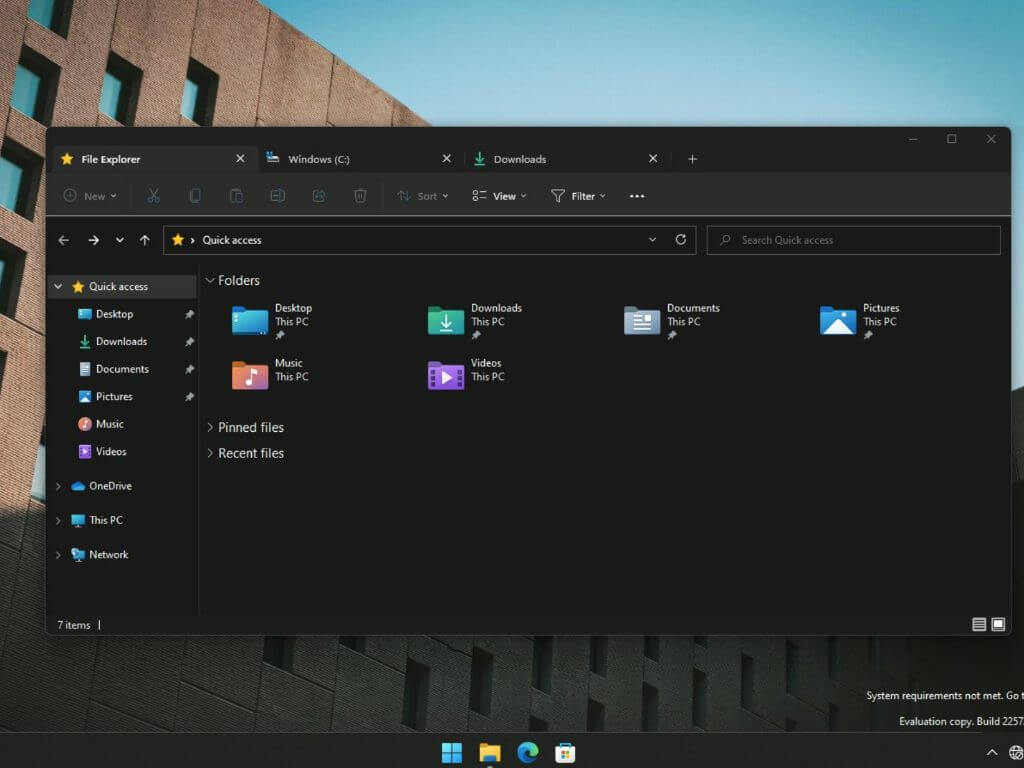
Microsoft’s latest Dev Channel Build for Windows 11 (22572) is chalked full of new features that include new inbox app previews and an improved universal search experience; however, it may be the hidden development that’ll have Insiders jumping for joy.
According to a find by engineer and Le Cordon Blue Alum Rafael Rivera, Microsoft buried some code in the latest Dev Insider build that could bring a tabbed interface to the File Explorer experience.
File Explorer tabs are back! (Windows 11 22572, feature 34370472) pic.twitter.com/U3t10Affdq
— Rafael Rivera (@WithinRafael) March 9, 2022
Other Insiders have since jumped at the opportunity to test run the code and try out the tabbed interface and it appears to be working as expected.
Here's how the overflow looks. pic.twitter.com/7JyNrKvsCJ
— Xeno (@XenoPanther) March 9, 2022
Unlike when Microsoft’s Windows team introduced the idea of ‘Sets’ a few years back, the new implantation doesn’t seem to have a codename, official project name or a marker on any roadmaps.
When Microsoft first introduced the idea of Sets, it was an expansive concept that Windows devs hoped would be included in every instance of Windows apps, including the File Explorer. However, when the concept was briefly tested and then shelved, it seemed Microsoft had moved on and resigned itself to slide-out hamburger menus.
Yet, it seems the Windows team may have just been refining the experience and rethinking where a tabbed interface would be most effective.
Adding tabs to the File Explorer would satiate the pleas from power users as well as bring and added level of Windows management in line with what appears to be the focus of Windows 11.
While the tabbed File Explorer is not an official Insider release at the moment, we can still hope Microsoft sticks to the tabbed File Explorer concept this time around.
Assassin’s Creed Valhalla Not Launching on Windows 11 [Fix]
![Assassin’s Creed Valhalla Not Launching on Windows 11 [Fix]](https://windowsreport.com/wp-content/uploads/2022/03/AC-Valhalla.jpg)
Ever since its November 2020 release, mostly everyone that is even remotely interested in gaming has heard at least once about the latest Assassin’s Creed title.
Needless to say that the fans of this franchise are beyond counting, so you can imagine that every error that gets flagged is also fixed by Ubisoft in record time.
However, there still are some annoying bugs that affect Valhalla players ahead of the launch of the game’s first DLC.
We’re talking about Dawn of Ragnarok, which is scheduled for official release on the 10th of March 2022. But what use is an expansion if you can’t even run the game?
That’s the question that a lot of Windows 11 users have been asking themselves after downloading the game and trying to play it.
Apparently, there are still some issues with Assassin’s Creed Valhalla and Windows 11, but we’ll show you how you can quickly fix them. Before following any of the manual steps, we recommend updating your drivers with the help of a specialized driver updating software.
What can I do to make AC Valhalla run on Windows 11?
Naturally, before you try anything else, make sure that the device you are trying to boot Valhalla on is actually compatible with the title.
Not having nearly enough resources to properly boot and run the game will result in you not being able to launch it at all.
Sure, reports of Assassin’s Creed Valhalla date back to last summer, when Windows 11 was only an Insider preview, so lack of support was understandable back then.
So, let’s take a look at the steps that helped players in a similar predicament actually make the game work on their Windows 11 device.
- Check the minimum specs of Assassin’s Creed Valhalla
- Update your GPU.

- Run the game as an administrator.

- Verify the integrity of your game files.

- Reinstall Assassin’s Creed Valhalla.
- Reinstall Ubisoft Uplay Client
- Update Windows 11.
Also, remember to provide enough disk space for the game to download and install successfully, otherwise you are not going to have a very good time.
Assassin’s Creed Valhalla users that ran into the same problems said that the above-mentioned steps helped them successfully install and run the title on Microsoft’s latest OS.
Similar issues with AC Black Flag can also be easily fixed with trick like these.
Have you also had problems with AC Valhalla and Windows 11? Share your experience with us in the comments section below.
6 Best VPNs for ESO to Reduce High Ping & Latency Spikes

The Elder Scrolls Online (ESO) is an MMORPG that you can play exclusively online. Part of The Elder Scrolls series, ESO is available for Windows, OS X, PlayStation 4, and Xbox One.
In ESO, you can create up to 9 characters, choose from 10 races and 6 classes with distinct traits, freely roam a continent called Tamriel, and immerse yourself in rich lore.
Elder Scrolls Online has mega-servers in North America and Europe. You can play on both, but your characters aren’t shared across the servers. Unfortunately, many ESO players have high ping, especially during special events like free trials for ESO Plus or double experience.
If you’re one of them, you have probably noticed delays and lags, particularly when trying to use the dungeon finder or to enter a Cyrodiil campaign. In the worst-case scenario, ESO logs you out of the game due to high ping.
However, you can get a VPN to improve your ping in ESO and fix connectivity issues without having to switch to the North American or European server. You just need a VPN with a large network of servers, fast connections, and security features to protect you from DDoS attacks.
Why is my ESO ping so high?
There are several things that can lead to higher ping when playing ESO. Most notably, we must mention that ESO uses megaservers in North America and the EU, as opposed to regular gaming servers.
According to user experiences, these do come with higher ping by default. A megaserver is essentially a network that combines multiple servers into a single unit.
This is why you experience ESO high ping in the EU or on the ESO South America server.
It’s also possible that your ISP is limiting your traffic, or your connection is fluctuating. Make sure to contact your ISP and verify if your router is properly configured.
Some players also mentioned having latency issues on specific devices. Many people complain that ESO is laggy on PS4 or that they experience ESO Xbox lag, but get better rates on PC, for example.
What are the best VPNs for ESO?
- Private Internet Access – vast server network
- NordVPN – advanced anonymity tools
- Surfshark – security for all your devices
- CyberGhost – servers to reduce high ping
- ExpressVPN – excellent speeds for gaming
- Vypr VPN – tools to avoid ISP throttling
Private Internet Access – huge network of fast servers for ESO

Private Internet Access (PIA) has numerous servers all around the world, including in North America and Europe.
You just have to connect to a server in the same region as the ESO game server to reduce your ping. It’s also an excellent VPN app for ESO players living in Australia.
The VPN has an auto-connect feature. You just have to click the power button and PIA will pick the best server configuration for your current location and requirements.
This option is great to reduce lag and ping in games, especially if you don’t need a specific server location to overcome geo-blocks.
Nevertheless, you will have access to thousands of servers all across the globe. PIA has good coverage for all its locations, so the risk of stumbling upon a slow server due to overpopulation is very small.
Developed by Kape Technologies, PIA comes bundled with many cool features, including anti-DDoS protection.
For example, you can use private DNS servers to further improve your gaming experience while playing The Elder Scrolls Online.
Here’s what you need to know about PIA:
- +35,000 servers in 46 countries
- Works with Windows, OS X, PlayStation 4, Xbox One
- No identifying logs
- 30-day money-back guarantee (no free trial)

Private Internet Access
Reduce high ping while playing The Elder Scrolls Online using this VPN app.NordVPN – advanced server obfuscation for complete anonymity on gaming servers
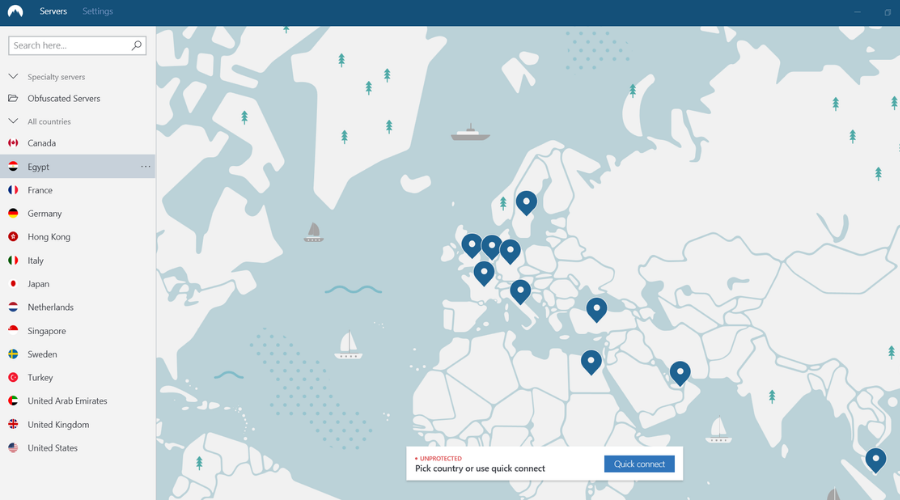
NordVPN has some of the fastest VPN servers in the world and it offers plenty of features designed to fix common problems that most gamers face.
This provider has over 5000 servers that expand across 59 countries, reducing the chances of experiencing bandwidth throttling to the minimum. You can choose the desired server manually or let the software do it through the quick connect function.
NordVPN does not affect your server’s speed when you play, allowing you to enjoy the story and graphics in ESO with no lag or high ping.
Moreover, it offers strong security solutions that protect your IP address and maintain your anonymity while you’re online. Its DDoS protection feature is particularly important, as this type of cyber-attack is common in gaming.
Other key features of NordVPN include:
- CyberSec malware protection
- Double VPN security feature
- Unlimited bandwidth
- No-logs policy
- DNS leak protection
- Next-generation encryption
- Obfuscated servers
- Lightweight browser extensions for Firefox and Google Chrome
- Round-the-clock customer care
The VPN provider has several pricing plans that come with a 30-day money-back guarantee.

NordVPN
Use NordVPN for an immersive gaming experience with no latency spikes!Surfshark – best multi-platform VPN with unlimited connections
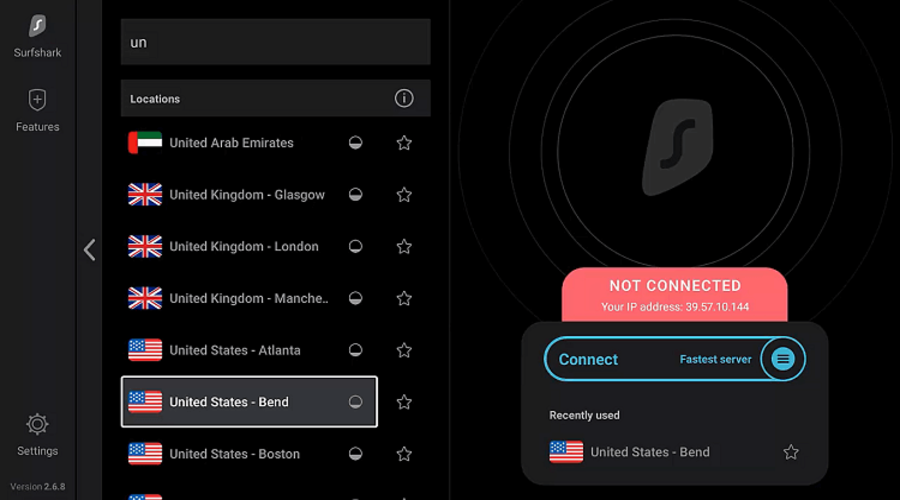
Surfshark VPN is a reliable service with a large worldwide server coverage that will help you connect to the best server possible and let you enjoy Elder Scrolls with reduced ping and other latency issues.
This VPN has a private DNS connection for each server for the IPv4 stack. This means that the servers are very secure and there is no risk of your data being leaked.
Plus, it has a very strict no-logs policy. They do not track any user activity and they prevent any third parties from getting access to it.
When you are connected to a VPN your browsing activity is completely anonymous, so no third party can identify and track you.
Not only does this give you great privacy and security, but it can also help with latency issues as well. Some ISP providers can place limitations on your traffic if you exceed a certain amount, but with a VPN they will not be able to detect how much traffic you use.
Along with that, Surfshark VPN has the Bypasser feature which lets you prioritize your traffic to a certain app. This means that you can connect to Elder Scrolls via VPN and let your other apps connect normally.
This can also increase speed rates and allow you to have a seamless game.
Other key features of Surfshark VPN include:
- Kill switch in case the connection drops
- AES 256 encryption
- Secure protocols and OpenVPN
- Changes your IP address
Surfshark is a subscription-based VPN service. It is compatible with all major platforms and you can try it out as they provide a 7-day free trial.

Surfshark
Latency issues can be a thing of the past if you use this service to connect to the best servers for Elder Scrolls.CyberGhost VPN – fast configuration to connect right away
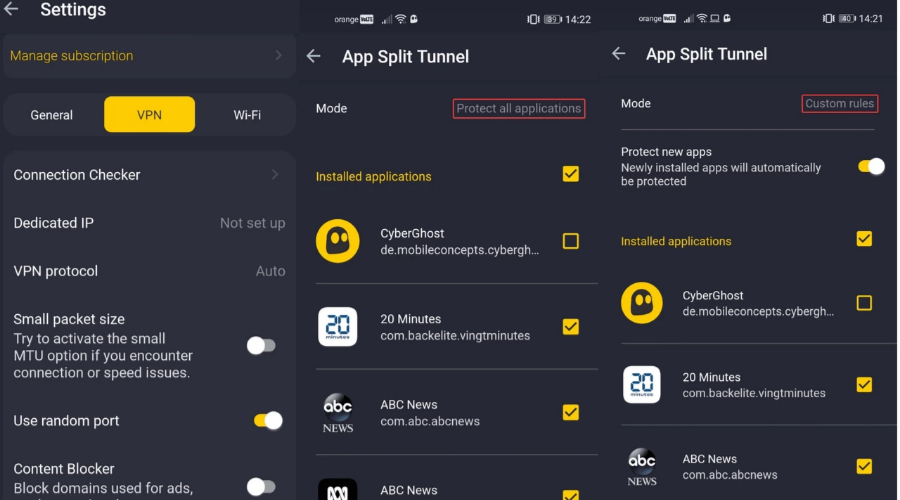
If you’re wondering about how to get better ping in ESO, check out CyberGhost VPN. Also created by Kape Technologies, this VPN tool reduces high ping in ESO by connecting to North American and European servers.
It’s one of the fastest VPN apps for The Elder Scrolls Online, offering amazing speed and many VPN servers. CyberGhost allows up to 7 simultaneous connections, and it’s the only free VPN for ESO from this list.
Here’s what you need to know about CyberGhost VPN:
- +6,400 servers in 89 countries
- Compatible with Windows, OS X, PlayStation 4, Xbox One
- Zero-logging policy
- 45-day money-back guarantee (1-day free trial, no credit card)

CyberGhost
Forget about high ping and delays while playing ESO, thanks to this VPN solution.ExpressVPN – fastest VPN protocol technology
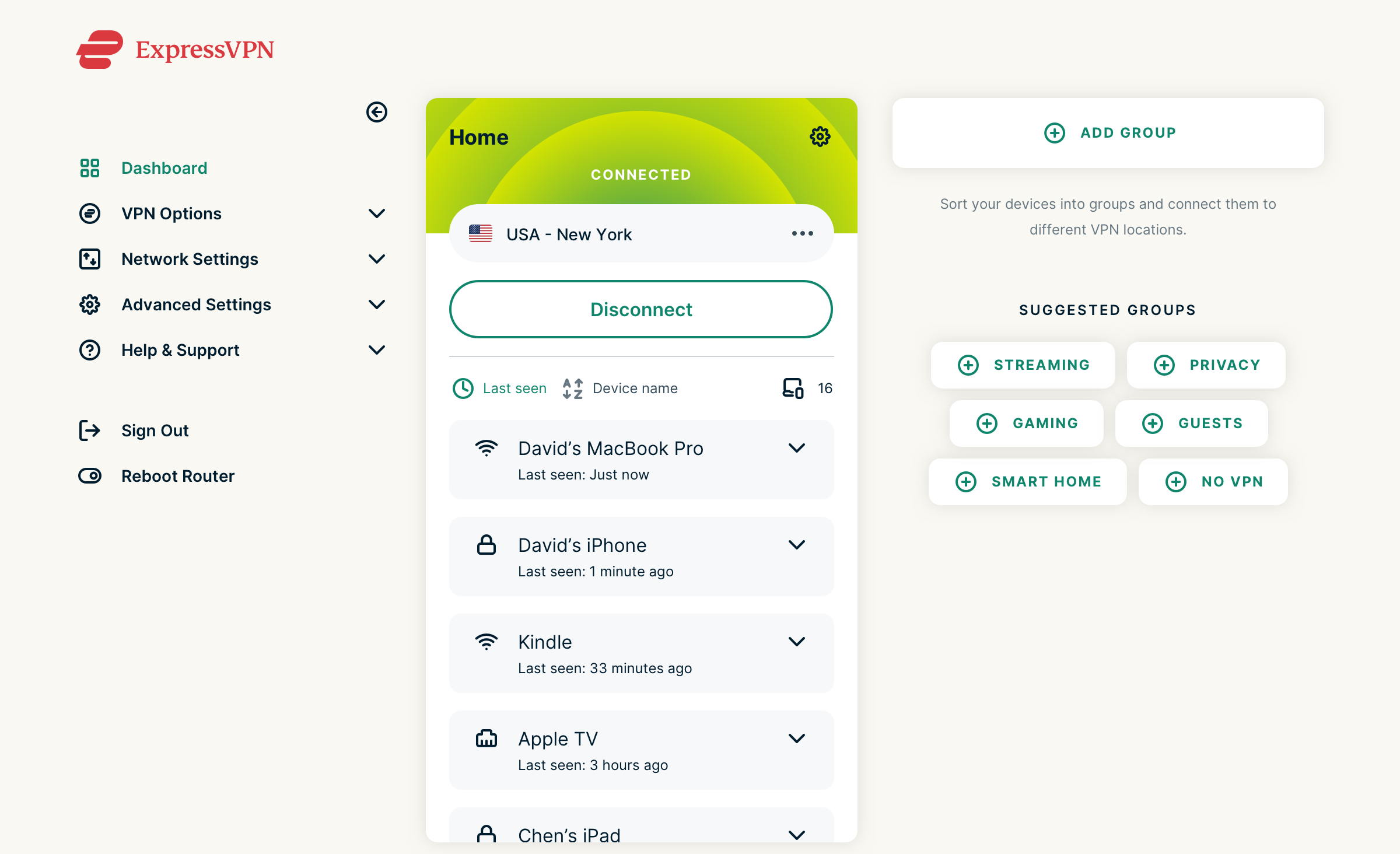
ExpressVPN is an adequate solution when it comes to fixing lag, ping, and overall speed problems. It is reportedly one of the best VPNs, keeping its users satisfied by constantly updating and keeping up with the latest and best security features. Using it can significantly improve your Elder Scrolls playing by removing all speed problems and allowing you to focus all your attention on the game.
The software has over 160 server locations in over 90 countries and what is really impressive and useful about it is that it ensures that you always get the best possible configuration.
How? you might ask. It has an integrated Speed test within the Turbocharge ExpressVPN feature. This undertakes a detailed scan and finds the most optimal server location for your network and it automatically connects you to it.
Here’s what you need to know about ExpressVPN:
- IP address masking
- Compatible with all devices and operating systems
- Great data protection with AES-256 encryption
- Provides tutorials and live customer support 24/7
- Subscription-based service, with a 30-day free trial

ExpressVPN
Enjoy Elder Scrolls to the fullest with no interruption with ExpressVPN.Vypr VPN – anti-throttling technologies
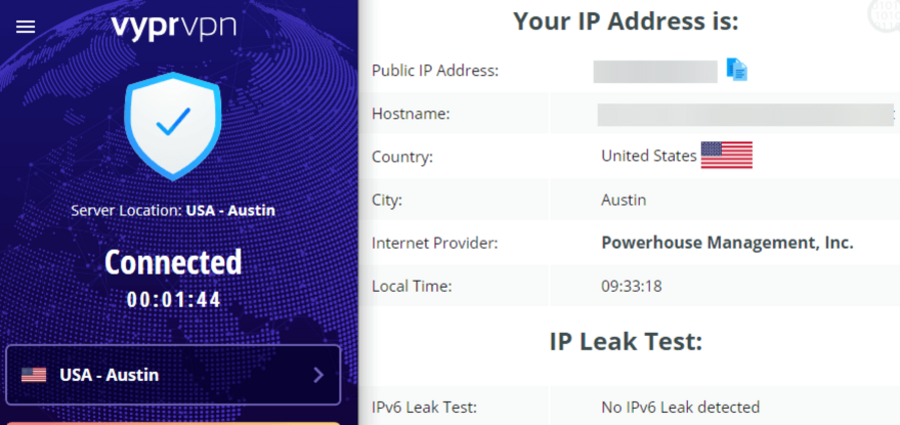
VyprVPN is another reliable VPN provider equipped with performance-oriented features that can improve your connection and fix latency issues in Elder Scrolls.
This VPN gives access to over 70 worldwide server locations. This enables users to connect to fast servers and enjoy unrestricted content.
Vypr protects your IP address, so there is no risk of getting tracked down by malicious third parties or by your ISP.
As you are probably aware, internet service providers may restrict your traffic if you surpass a certain monthly limit and that can cause latency issues.
Fortunately, a VPN with powerful encryption such as Vypyr will make sure your provider will not get any information about how much traffic you use, preventing them from imposing restrictions.
Other key features of Vypr VPN include:
- Chameleon protocols
- DNS protection
- Kill switch
- Public Wi-Fi protection
Vypr VPN is a subscription-based VPN with a 30-day money-back guarantee.

Vypr VPN
Play Elder Scrolls seamlessly, with no limitations.Is ESO geo-locked?
No. Elderscrolls is not region locked. You can play on any server, but it’s possible to get better speeds if you choose one that’s located closer to your actual location.
While you have the possibility to pick any server you want regardless of where you are located, the bigger the distance, the greater the chance of experiencing lag.
Does region matter for Elder Scrolls Online?
Yes, as mentioned, the region of the server you choose to play on can have an impact on overall game speed and connection.
A VPN can help you in this case. For instance, if you want to play on the North American megaserver, but live in France, you can use a VPN and connect to a US server.
This can potentially reduce latency and let you enjoy the game to the fullest.
The Elder Scrolls Online is one of the best MMORPG games you can play with your friends. It has a wholesome community and features tons of content for players who prefer solo mode, too.
The only problem with ESO is that it occasionally gives you a hard time due to high ping. If you’re wondering about how to fix ESO ping spikes, just use one of the VPN solutions we described above.
These VPNs will certainly help reduce ESO high ping and get rid of lagging so that you can enjoy the game.
FAQ
Can you play ESO with a VPN?
Yes, you can use a VPN to improve your experience playing Elder Scrolls Online.
A premium service will provide better speeds and lower your ping by connecting you to a location geographically closer to the game server.
Can I play on a European server from US ESO?
Yes, you can choose an EU or North American server from the login screen of the game. However, keep in mind that characters are server-bound.
A VPN can help you establish a secure and reliable connection by routing your traffic to a location closer to the game server of your choice.
That’s How You Can Repair BCDEdit in Windows 11
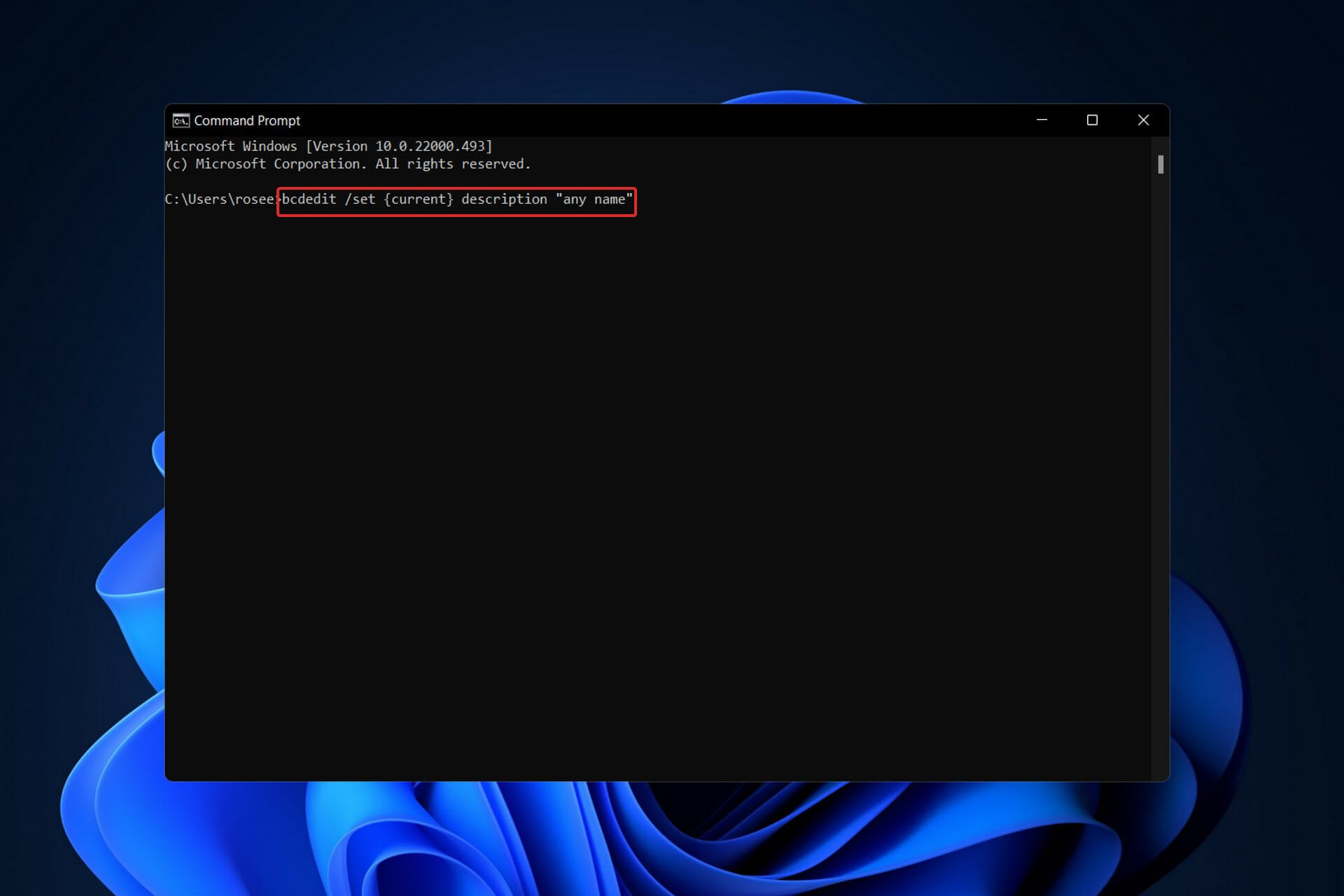
Users have been reporting that when they use the bcdedit /set {current} description “any name” or bcdedit /set testsigning on Windows 11 command lines, they do not get the desired result. Thus we will show you how to use BCDEdit in Windows 11.
BCDEdit is a command-line utility that is used to manage boot configuration information. If you wish to use it to modify the Boot Configuration Data, you will require administrator credentials in order to enable the Command Prompt under Windows Recovery Environment.
Follow along as we will show you how to fix the commands inside BCDEdit in Windows 11, right after we see in more detail what they do and are all about.
What do BCDEdit commands do?
BIOS Boot Configuration Data (BCD) files serve as a data storage area for information about the boot apps and their associated configurations.
To manage it, you’ll need to use BCDEdit, a command-line utility. Among the many things, it may be used for building new stores, changing current stores, and adding boot menu options to your computer.
In the percent WINDIR percent System32 folder, there is a program named BCDEdit. To make changes to this data, you must have administrative rights. In order to ensure that any modified settings are flushed to disk after modifying BCD data, you will need to reboot your PC.
When performing some typical actions, such as recovering a partition or setting up the system partition on a new PC, BCDboot may be a more convenient option than using the Windows command-line prompt.
How can I repair BCDedit in Windows 11?
1. Log in as an administrator
- Press Windows and I simultaneously to open Settings then navigate to Accounts. Here you need to check whether there is Administrator under your account name. If not, click on Family & other users.
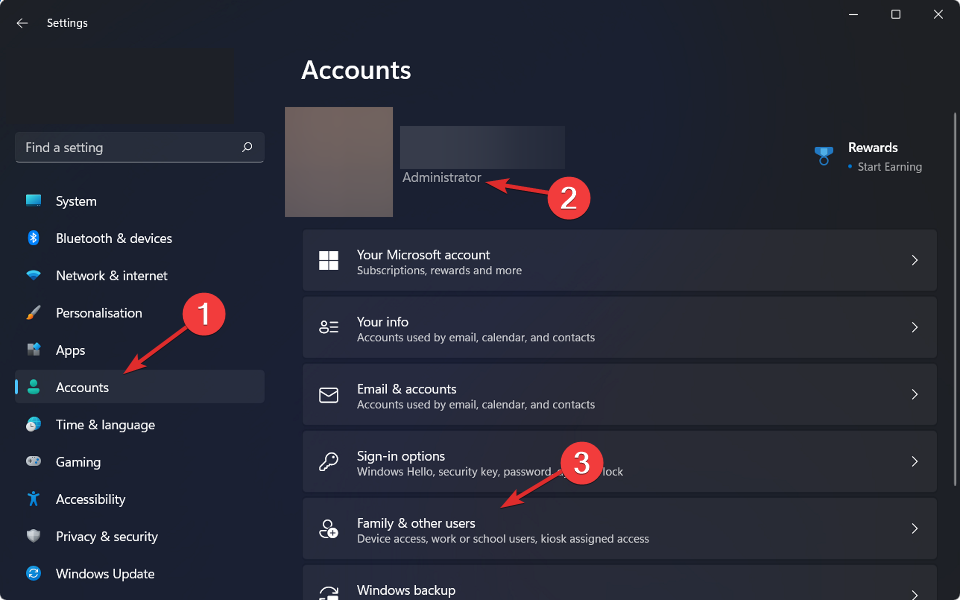
- Now you need to scroll down to the Other users section and click on Add account. After you add the account you will be able to set it as an administrator.

Don’t skip this step as it is necessary in order to use Windows 11 BCDEdit commands.
2. Update Windows
- First you will need to access the Settings app through Windows + S. Then navigate to Windows Update from the left-hand navigation bar.
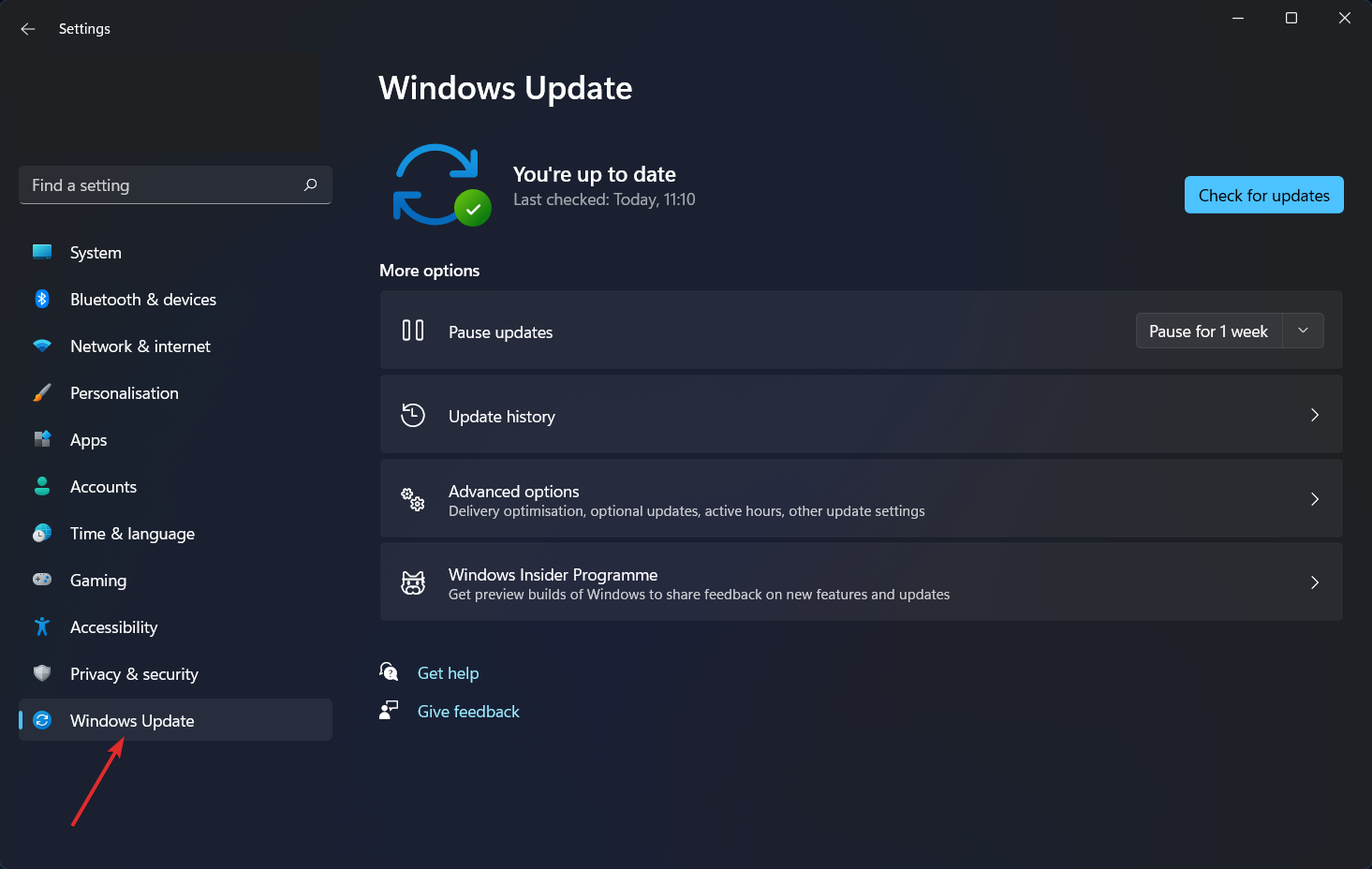
- Now click on the blue button as we have shown below which will either search for new updates or install existing updates.
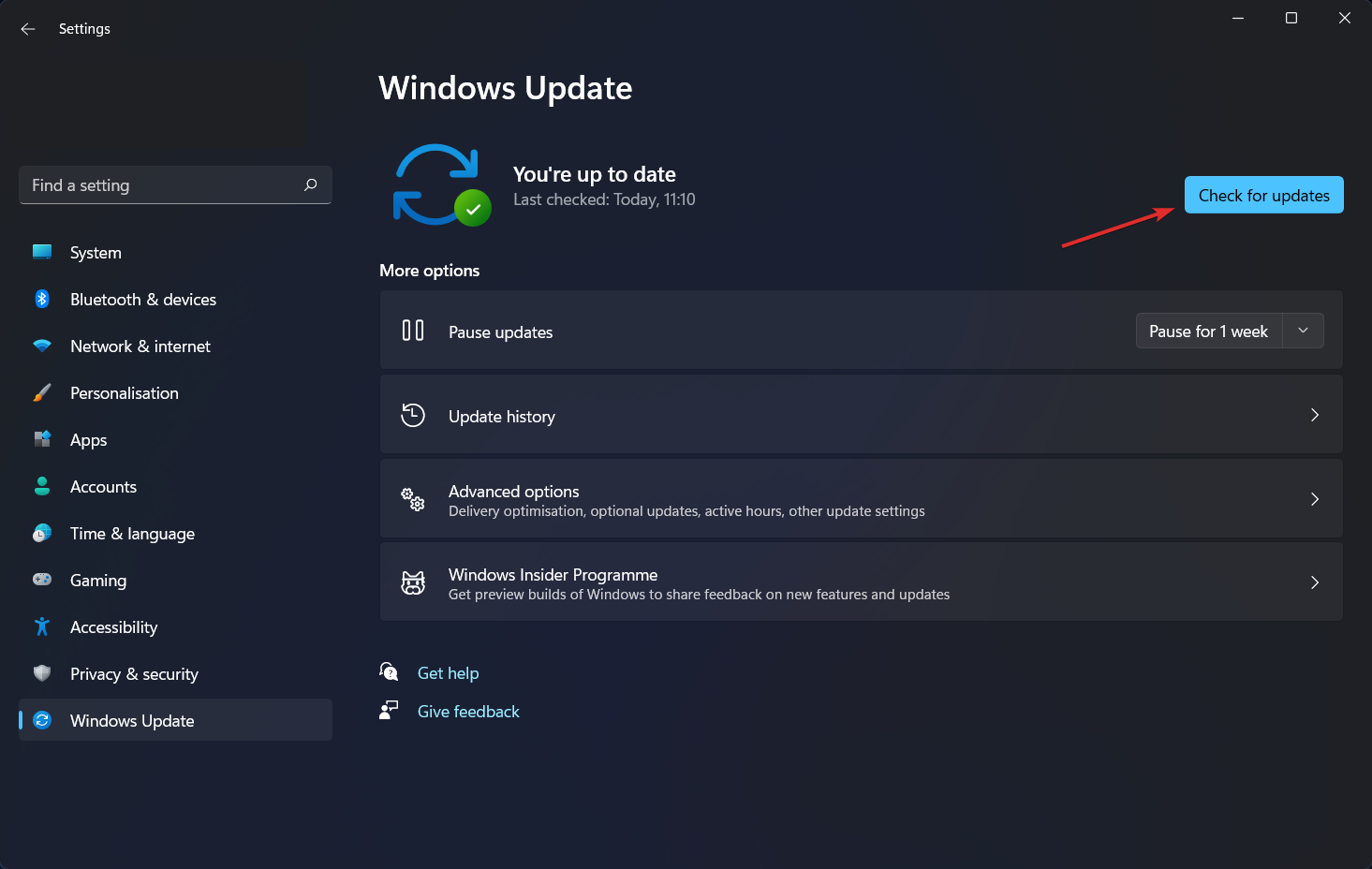
Another important step, besides updating your Operating System, is updating your drivers. Outdated drivers are one of the most common causes of PC issues. We recommend that you use a specialized software tool that can automatically update your drivers, such as Outbyte Driver Updater, to save some time.
3. Start Windows 11 in Safe Mode
- Tap on the Start menu, then select the Power icon.

- Press and hold the Shift key from your keyboard, then choose the Restart option.
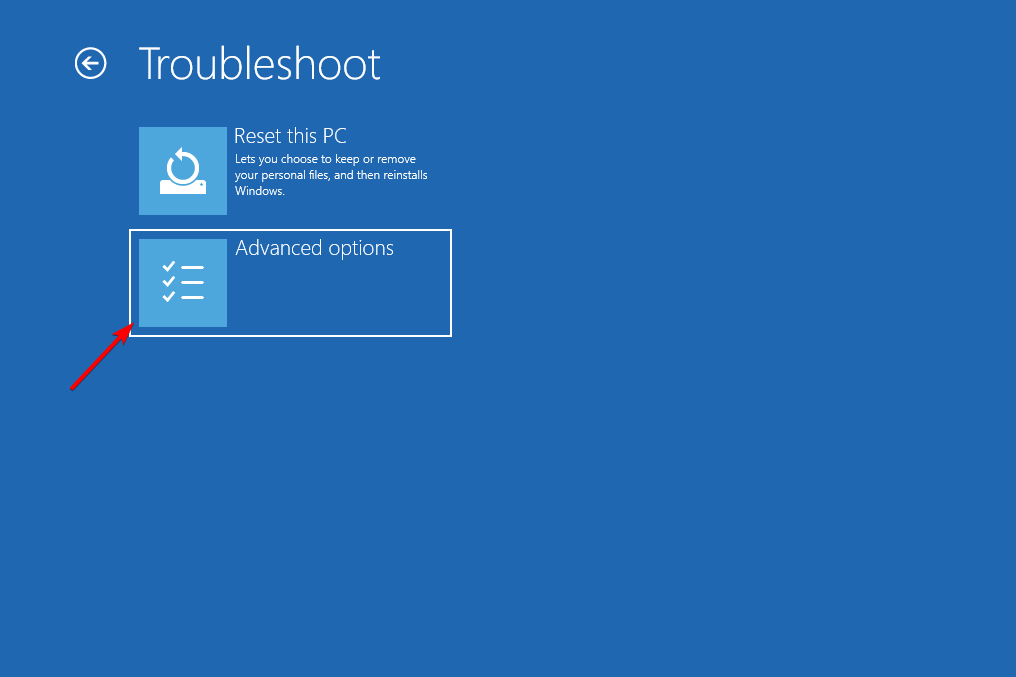
- Once you’re redirected to the below screen, you need to select Troubleshoot and click on Advanced options.
- Lastly, select Startup Settings and click on the Restart button.
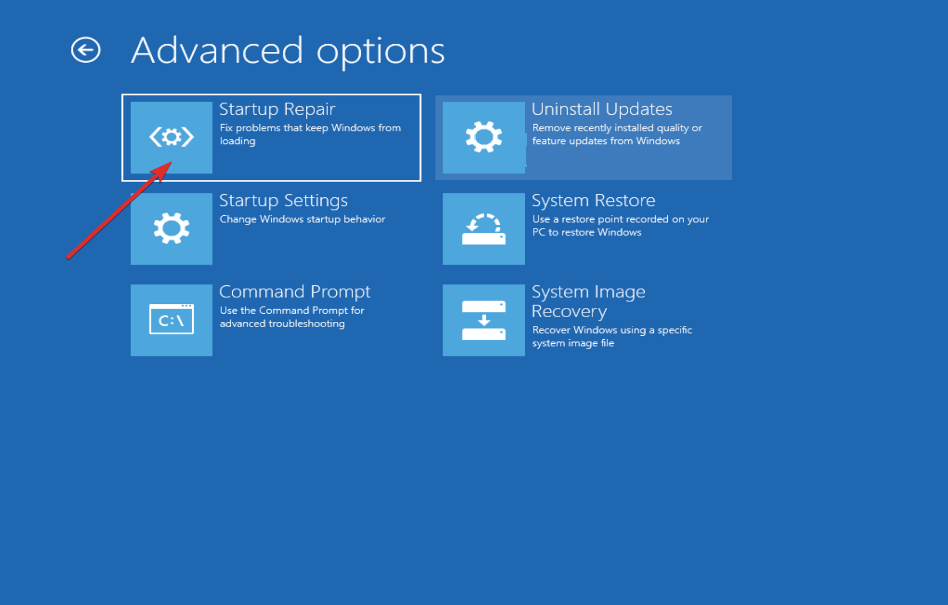
After your computer has restarted, select the appropriate choice from the following screen by pressing the number 4 key on your keyboard. The machine will then enter the Safe Mode environment as the following step.
For further information and potential solutions to your error, check out our post on what to do if you get Windows 11’s BCD error.
Alternatively, we have already prepared an article on how to fix corrupt BCD in Windows 10/11. Take a closer look if you experience the same issues.
And lastly, if you are stuck on automatic repair loop on Windows 11, click on the link anchored to learn how to fix the error.
Let us know in the comments section below which solution worked best for you as well as whether you have additional ones in mind. Thanks for reading!
What are the Causes of BSOD: Everything you Need to Know
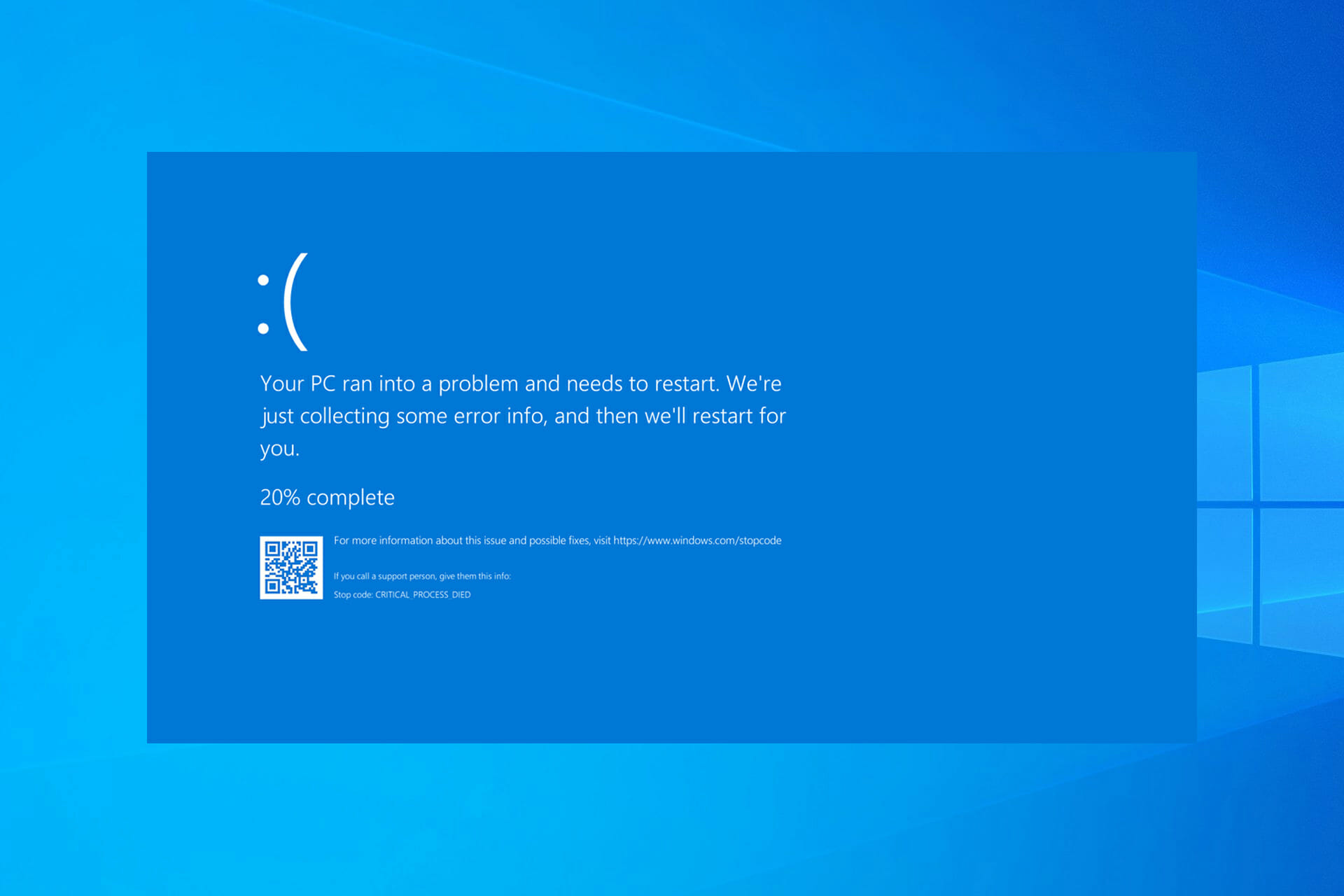
The Blue Screen of Death is one of, if not the most dreaded and well-known, errors that a Windows user can encounter.
However popular the Blue Screen of Death (BSOD) may be, many users don’t know what causes it.
The truth is there are many reasons BSOD errors occur, but it is sufficient to say that critical hardware and software issues cause them.
Is it common to get BSOD?
While the Blue Screen of Death error is pretty dreadful, it does not necessarily mean doom. Sometimes, even a perfectly working PC can show a blue screen due to minor glitches like hardware issues and driver bugs.
So, this can happen occasionally – maybe once a year or two years. Sometimes, you can even induce your own BSoD error. However, if you get a BSOD frequently, it means your PC is in trouble.
What is BSOD, and how do you troubleshoot it?
The Blue Screen of Death is a stop code screen that shows up to prevent further damage to your PC. Driver and hardware failure usually cause this dreaded screen color.
Once this screen shows up, all your unsaved work will be lost and, if not attended to, can cause serious damage to your PC. Below are some of the ways to troubleshoot BSODs:
- Restart PC: In some cases, a simple restart prompts your PC to repair the BSOD error’s potential cause automatically.
- Driver removal and update: Most BSOD errors, like Unexpected Store Exception errors, are caused by faulty drivers. Reinstalling or updating your driver should do in this case.
- Removal of faulty hardware: In some cases, a BSOD error like the System Service Exception issue can be due to an issue with hardware components. Removing the faulty hardware should do the trick.
- System restore: If you started noticing the BSOD error after making changes to your PC, performing a system restore is the quickest way to fix it.
- Malware scan: Viruses can cause some PC components to misbehave, leading to a BSOD. You need to perform a full malware scan with Windows Defender or dedicated antivirus software.
- Clean install: In extreme cases where the cause of the blue has affected essential system files, you need to reinstall your operating system.
You can also view detailed crash information by checking BSOD logs in Event Viewer, and you can follow this guide to find BSOD in Event Viewer on Windows and analyze the stop code more accurately.
What are the causes of BSOD on Windows 10?
1. Outdated Operating System

Sometimes, BSOD errors can be caused by issues with low-level software running in the Windows kernel. This can be solved by updating your Windows with the latest features that Microsoft dishes out from time to time.
If you want to keep your OS updated to the latest version but don’t know how to, check our detailed guide.
2. Outdated drivers

Another common cause for the Blue Screen of Death on Windows 10 is your drivers. While old drivers don’t have an active role in causing BSOD error per se, their interactions with your OS do.
Whenever you update your Windows OS, your old drivers can conflict with the new OS and cause BSOD errors.
3. Bad hard drives
A bad hard drive is also one of the causes of the Blue Screen of Death. This means having your files miswritten on the hard drive and a hard drive visibly damaged.
Suppose you encounter plenty of reading and writing errors when copying or installing new programs or frequently see errors marked as cyclic redundancy checks. In that case, you should know that a BSOD error is imminent.
If you want to avoid BSOD errors caused by faulty hard drives, your best bet is to buy a new one, especially if yours is already old or filled with bad sectors.
For a wide selection of the best hard drives that money can buy, check out this article.
4. Improper connections
The hard drive isn’t the only computer component that can cause BSOD errors. Improper cable management or misfitted slots of several other components can also cause these issues, especially the RAM.
Thus, constantly checking that everything is placed correctly before booting your PC is a good idea. This is especially true when you’ve just changed a few components or built a new PC from scratch.
5. Malware

Regular apps and programs can usually encounter errors, but when they do, they will shut down without taking the entire system.
However, the same thing cannot be said about computer viruses. This malicious code can wreak havoc on your PC’s registries, instantly causing Blue Screen of Death errors on Windows 10.
Fortunately, plenty of antivirus programs are very good at eliminating these threats. One perfect example of this statement is TotalAV, rated the world’s Nr. 1 antivirus program.
6. Overclocking
While this may sound like a severe blow for gamers, overclocking your PC can cause BSOD errors, this is because you constantly push your PC components to function beyond their designed limit.
So unless you are frequently gaming or are doing it for a living, setting your PC back to its factory settings is the better option in the long run.
7. Overheating
The prime consequence of overclocking is the overheating of your PC components. But, of course, other things can cause a rise in temperatures, such as high ambient temperature, a slow fan, insufficient fans, and more.
Not only will cooling down your PC spare you from BSOD errors, but you will also increase the lifespan of your PC by quite a lot. If you’re having issues with your CPU fan, check our detailed guide to fix the problem as soon as possible.
What are the leading causes of BSODs in games?
Below are some of the causes of BSODs in games:
- Faulty hardware
- An outdated or faulty driver
- Overheating
- Overclocking
As you can see, there are quite a lot of things that can cause the dreaded BSOD errors, like Critical_structure_corruption. But, of course, if you know what to do beforehand, you can significantly reduce their chance of appearing.
And even if BSOD errors do occur, all is not lost since there are plenty of solutions you can try to remediate the situation.
Feel free to share your experience with BSOD errors in the comments below.
[Fix] Lost Ark not installing on Steam
![[Fix] Lost Ark not installing on Steam](https://windowsreport.com/wp-content/uploads/2022/03/lost-ark-install.jpg)
Still in love with Lost Ark? Nobody can blame you, as the fan base grew significantly ever since Lost Ark became free for Europe and the US. If you are not from those regions, you can use a VPN such as Private Internet Access that has a lot of servers in its arsenal.
However, this awesome title did not come free of errors and bugs, with players flagging more than enough problems to last a lifetime.
From error codes such as 23, Authentication Error 10010, W0x2-0PELPWN1N2NT, or other EasyAntiCheat caused bugs, Lost Ark users are now waiting for some official fix parches from Smilegate.
A lot of gamers that wanted to try this title found themselves unable to even boot it, as Lost Ark wouldn’t even download or install on their machines.
And yes, you guessed it, we have to rely on some temporary workarounds to fix this annoying problem and allow as many people as possible to enjoy Lost Ark.
What can I do if Lost Ark won’t install on my PC?
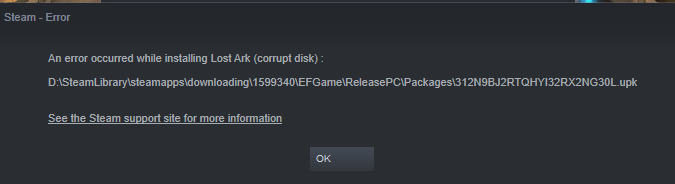
What can be even more frustrating than failing at a game you love so much? The answer is easy: not being able to play it at all.
And since this is the situation for a lot of interested users, we found some workarounds that proved to do the trick for other players.
It won’t take up much of your time and it’s easily done even without being a computer whizz, so don’t be discouraged, and let’s go through these steps together.
Before we start, keep in mind that this game might not be available in certain regions, so if that’s the case, just make sure you use a VPN.
- Check game requirements and available disk space.
- Restart Steam.
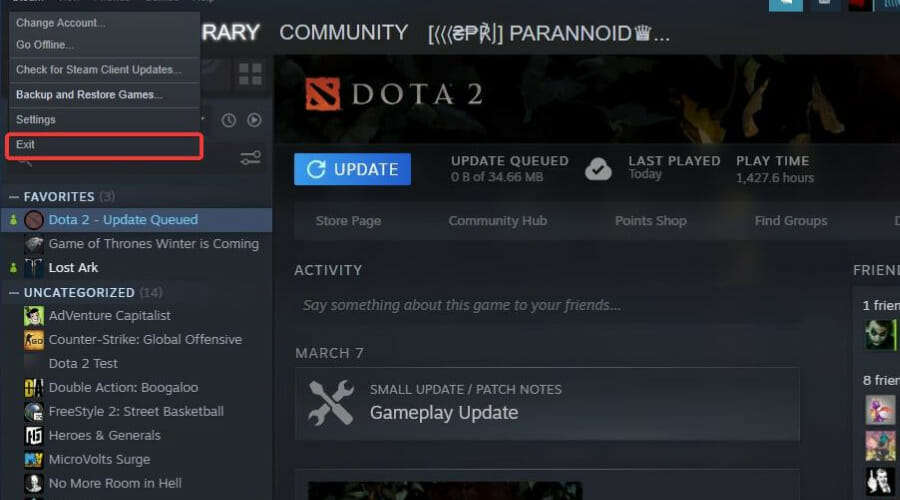
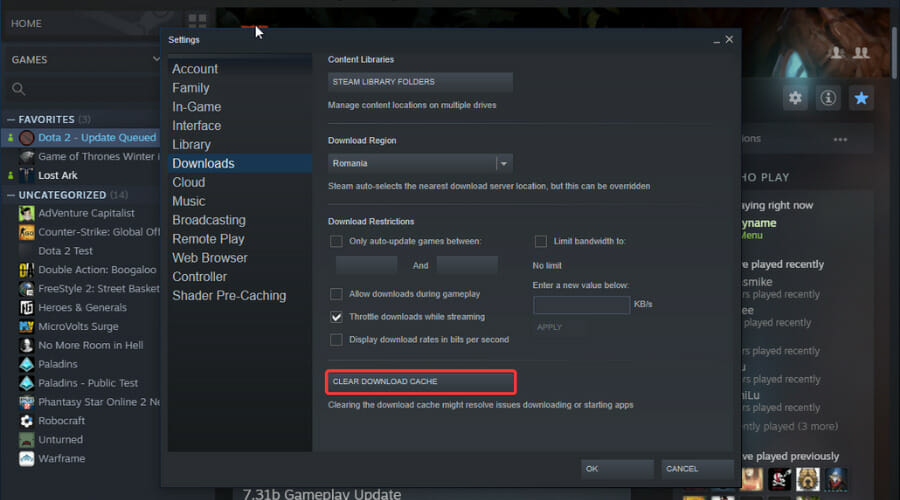
- Clear Steam download cache.
- Repair the Steam Library Folder.
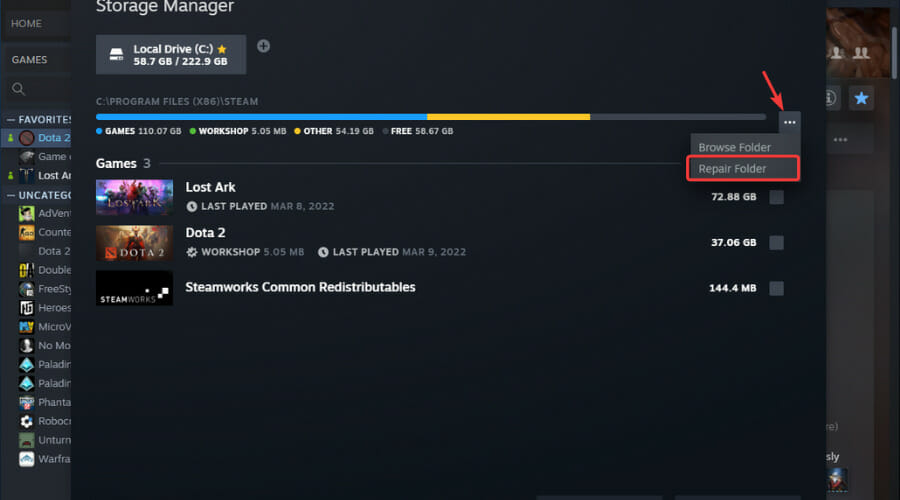
- Change download region.
These are the workarounds that players said worked for them when faced with the same situation, so go ahead and give it a go.
As you can see, what you have to do isn’t at all difficult, but vital if you intend to play Smilegate’s most recent title.
After trying these steps for yourself, tell us if you managed to install and boot Lost Ark, in the comments section below.
3 best VPNs for Witcher 3 to fix lag and reduce ping

The Witcher 3: Wild Hunt is an action RPG that gives you a third-person perspective of an open fantasy world. In the game, you become Geralt of Rivia, a Witcher that searches for his missing adopter daughter, slays monsters, interacts with non-player characters, and completes sidequests along the way.
In fact, Witcher 3 is one of the best offline games for PC. Unfortunately, many players face Witcher 3 lag that prevents them from having a smooth gaming experience. In addition to optimizing game settings, you can use a VPN to improve your ping and gameplay.
A virtual private network solution has many roles, from optimizing your gameplay to protecting you from DDoS attacks. You just need to find the right VPN service that provides you with many servers worldwide and excellent performance results.
What are the best VPNs to fix Witcher 3 lag?
Private Internet Access
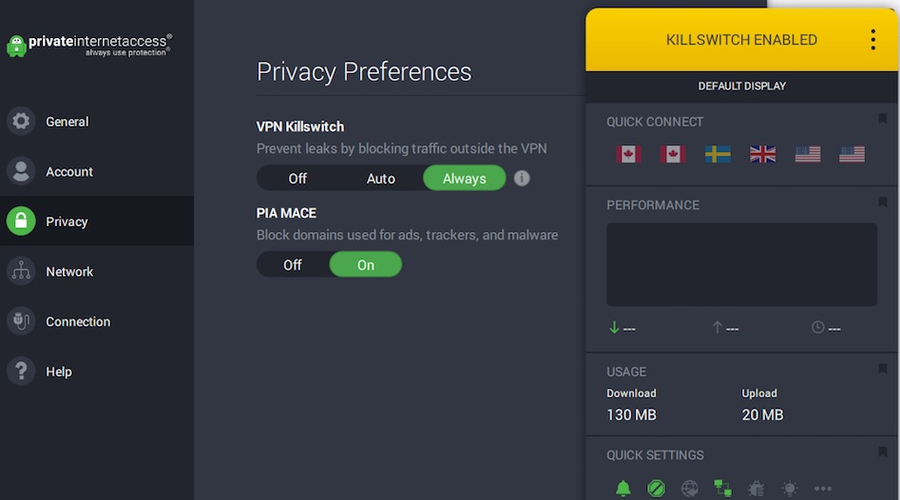
Private Internet Access (PIA) offers a simple way to fix Witcher 3 lag spikes. It has a large network of servers optimized for gaming, streaming, and torrenting. And it’s a great solution when it comes to fixing packet loss.
Made by Kape Technologies, PIA is compatible with many devices and supports split tunneling so that you can create whitelists and blacklists. You can even use this VPN without encryption to further speed up your Internet connection.
How can PIA enhance your gameplay:
- +3,300 servers in 47 countries
- Static and dynamic IP addresses
- 10 connections at once
- Easily fixes Witcher 3 cutscene lag
- 30-day money-back guarantee (no free trial)

Private Internet Access
If Witcher 3 suddenly starts lagging, use this VPN to quickly reduce your ping time.NordVPN
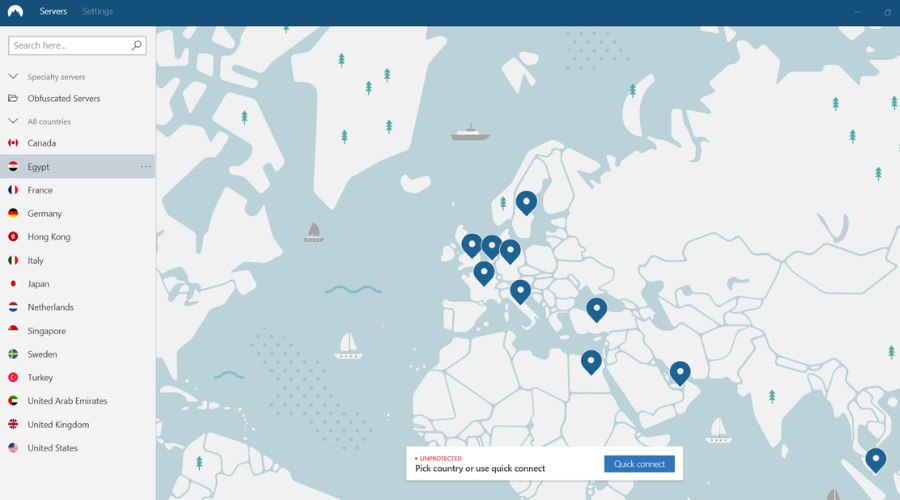
Using NordVPN to protect your digital privacy and reduce gaming latency is certainly one of the most effective solutions.
With this software, you can exponentially improve the gameplay results of Witcher 3 and benefit from lightning-fast servers to change your IP.
You have comprehensive protection from digital threats and even more privacy tools like strict no-log policy, DNS leaking shield, virus and malware protection, etc.
If you are always troubled by lag issues in Witcher 3 story or other captivating games, this VPN will resolve it with its ultra-secure servers and fast connection.
How can NordVPN enhance your gameplay:
- Next generation encryption
- Super-sonic fast internet connection
- 5400+ servers present in 60 countries
- No traffic data leaks
- Support 24/7 from experts

NordVPN
Enjoy uninterrupted gaming sessions and find your way in the fantastic world of Witcher 3.CyberGhost VPN
If you’re looking for a quick Witcher 3 lag fix, CyberGhost VPN can be of assistance. Owned by Kape Technologies, this virtual private network app can eliminate jitter while you play games on your PC or console.
CyberGhost VPN comes with an extensive servers network (the most impressive on this list). You can install it on a number of devices to share VPN traffic with all, as well as use it to repair Wi-Fi packet loss without any hassle and without resorting to professional help.
How can CyberGhost VPN makes your gaming better:
- +6,400 servers in 89 countries
- Exclusive DNS servers and DNS leak protection
- 7 connections at once
- Quickly reduces Witcher 3 stash lag
- 45-day money-back guarantee (1-day free trial)

CyberGhost
If you have latency while playing Witcher 3, use this fast and secure VPN to eliminate it.The Witcher 3: Wild Hunt is an action-packed and exciting adventure game. But it can become difficult to enjoy it if you frequently get high ping during gameplay.
Thankfully, you can eliminate The Witcher 3: Wild Hunt keyboard lag, startup delays, high ping caused by new updates, controller lag, and other latency issues.
You just have to download and install a reliable VPN app with fast servers and top-notch security features, such as Private Internet Access.
3 best VPNs for Unturned to fix lag and reduce ping
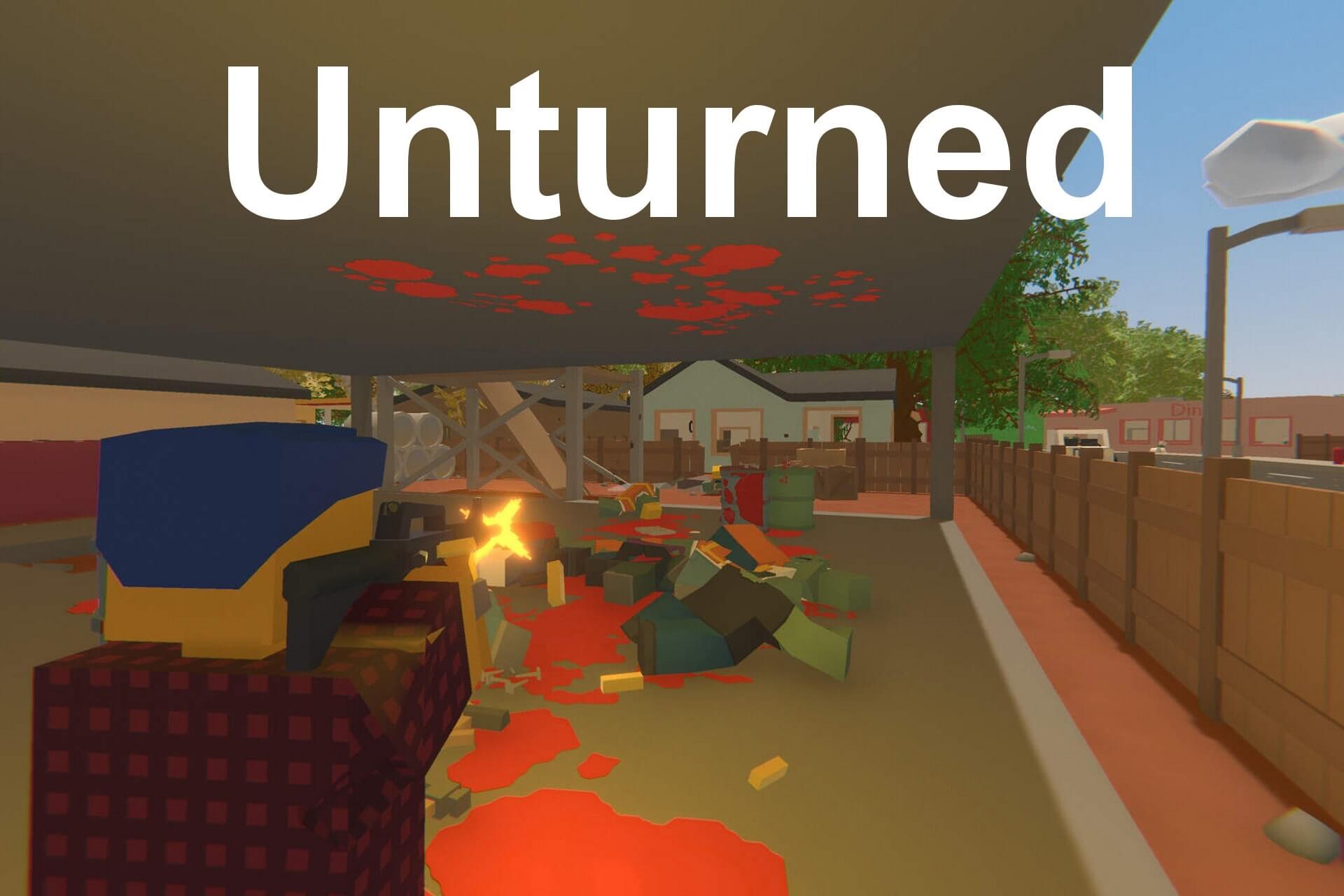
Unturned is a survival game that you can play for free on Steam to fight zombies, make alliances, and fight other players. It’s comparable to Minecraft to a certain degree. The game is available on Windows, Mac, and Linux.
Besides the solo and multiplayer settings, there are a few game modes in Unturned, including survival, creative, roleplay, paintball, and battle royale.
Most users will argue in favor of multiplayer mode since you can team up with others or fight your friends. Unfortunately, some users experience high ping and need an Unturned lag fix.
Similar to Minecraft, where you can make a Minecraft server for your friends, Unturned gives you the possibility to host your own game server so that your friends can remotely connect to your location. Your server could be lagging in that situation, too.
The best way to get less lag on Unturned is by resorting to a virtual private network solution. The fact of the matter is that a VPN can improve your ping and gameplay. You just need to connect to the right VPN server. But first, you need to get equipped with a fast and secure VPN service.
What are the best VPNs to fix Unturned lag?
Private Internet Access
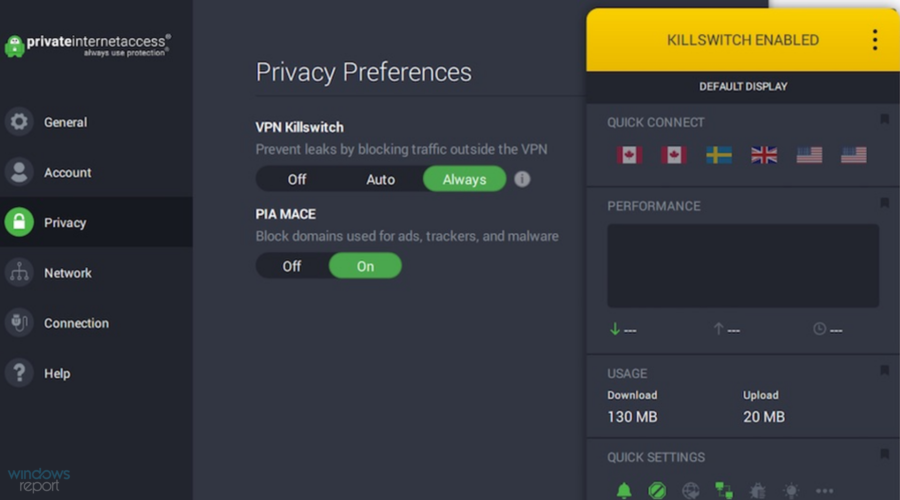
If you’re wondering how to reduce lag on Unturned, look no further than Private Internet Access (PIA). It’s the best VPN for your computer that can speed up your Internet connection, reduce ping, and eliminate jitter.
Made by Kape Technologies, PIA is cross-platform and supports 10 simultaneous device connections. It doesn’t gather information about your activity.
And you can take advantage of the 24/7 live chat support if you have any technical errors.
Private Internet Access can automatically detect the best server for your configuration, but you also have the option to pick it up yourself.
How can PIA lower Unturned ping:
- +3,300 servers in 47 countries
- Optimized for gaming and P2P
- Kill switch, split tunneling, port forwarding
- Great for fixing Unturned random lag spikes
Private Internet Access is a subscription-based VPN service with multiple plans available. Each plan includes a 30-day money-back guarantee.

Private Internet Access
Easily fix Unturned lag using the fast and secure VPN servers of PIA.NordVPN
Up next we have another great VPN option that promises high-speed servers and great security features.
NordVPN fights latency issues by allowing users to connect to over 5 000 high-speed servers all across the world.
The service offers dedicated applications for multiple device platforms and is very easy and quick to configure.
NordVPN can automatically detect the fastest server location for your configuration, but you can also pick it yourself from a list.
NordVPN is one of the fastest VPNs worldwide with excellent upload and download speeds. The service keeps all your data private with a strict no-logs policy.
How to make Unturned not lag with NordVPN:
- Private DNS on every server
- DoubleVPN
- Unlimited bandwidth
- Obfuscated servers
- IP masking
- Split tunneling
- Secure killswitch
NordVPN is a subscription-based VPN service with multiple plans available, each with a money-back guarantee.
NordVPN
Connect to fast and secure servers and enjoy uninterrupted Unturned sessions.CyberGhost VPN
CyberGhost VPN is an excellent tool that can help with Unturned mouse lag and other latency problems during gameplay. You can use it to fix packet loss and significantly improve your gaming experience.
Owned by Kape Technologies, CyberGhost VPN supports multiple platforms and allows up to 7 devices at the same time. It has a strict no-logging policy and does a great job of minimizing network congestion.
CyberGhost VPN offers users unlimited bandwidth, which means that you get to enjoy Unturned at fast speeds all month round, with no restrictions.
Moreover, this VPN service combines multiple features in order to make sure that your data and identity stay private, so your ISP won’t be able to place any restrictions on your traffic either.
The tool implements a secure killswitch that ensures your data stays private even in case the VPN disconnects. It blocks all traffic data until you get another secure connection.
How to make Unturned not lag with CyberGhost VPN:
- +6,400 servers in 89 countries
- Compatible VPN servers for gaming and P2P
- Split tunneling mode to create whitelists or blacklists
- Works great if Unturned is lagging on your own server
- 45-day money-back guarantee (1-day free trial)
Cyberghost VPN is a subscription-based VPN with multiple plans available. Users can benefit from frequent sales and offers.
Cyberghost VPN
Protect your data and remove lag and ping with this resourceful VPN.Unturned is a fun and entertaining game that you can play solo or with friends. However, it can become really annoying to deal with high ping whenever you’re fighting a zombie or another player. Every step counts.
Thankfully, you can easily fix this problem with the right VPN by your side. And we think that the three options above do the job. But if you can’t decide on which one to get, we suggest going with Private Internet Access, thanks to its superior speed. Besides, you can turn off your VPN anytime to use your true IP address.
4 Best VPNs for Payday 2 to Fix Lag and Reduce Ping
Payday 2 is a cooperative FPS game you can play offline and online. It’s available on Windows, Linux, Xbox 360, PlayStation 4 and 3, Xbox One, and Nintendo Switch.
In the online version of this action-packed shooter game, four players team up to accept heist contracts, cooperate on hits, earn money, and become notorious criminals. You can fully customize your characters and build personalized weapons and gear.
However, several Payday 2 users report high ping and lagging when trying to enjoy the multiplayer version. If you’re looking for a Payday 2 lag fix, use a fast VPN to improve ping and eliminate lags during gameplay.
What are the best VPNs to fix Payday 2 lag?
Private Internet Access – Unlimited bandwidth Internet
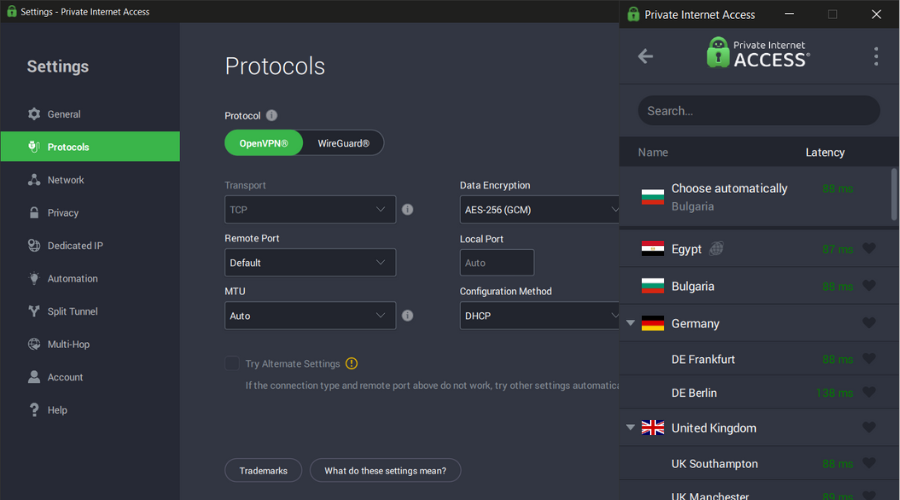
The best way to reduce Payday 2 ping is by using Private Internet Access (PIA). Created by Kape Technologies, PIA provides you with a large network of VPN servers worldwide and speedy Internet connections.
All you have to do is connect to a VPN server in the same area as the game server. Then, you can play Payday 2 as usual.
PIA has private DNS servers to speed up your Internet connection and protect your DNS queries. And, if you stumble upon any issues with the app, you can take advantage of the 24/7 live chat support.
PIA’s key features:
- +3,200 servers in 46 countries
- Static and dynamic IP addresses
- Supports port forwarding
- Allows 10 simultaneous connections
- A great solution to fix Payday 2 Safehouse Raid lag (a secret heist)
- 30-day money-back guarantee (no free trial)

Private Internet Access
Reduce Payday 2 lag to improve your gaming experience with this leading solution, PIA.NordVPN – Fastest server speed

If you’re experiencing heavy input lag on Payday 2, then NordVPN can help you. Operated by Tefincom & Co, it’s a trustworthy VPN app with an impressive server network, high-speed VPN servers, and many security features.
For instance, if your VPN gets blocked on PC, you can use NordVPN’s obfuscated servers to hide that you’re using a VPN. Few virtual private network solutions have this feature.
At the same time, this VPN tool has extensive security features to help users with unbreakable privacy.
For instance, you can hide internet traffic and increase online security using obfuscated servers worldwide. Plus, you can get crystal-clear gaming performance with unlimited streaming and the fastest network connection.
NordVPN’s key features:
- +5,400 VPN servers in 59 countries
- Has private DNS servers and eliminates jitter
- Up to 6 connections at the same time
- Works best with the Payday 2 Diamond Heist lag (a challenging heist)
- 30-day money-back guarantee (no free trial)
NordVPN
Easily fix shutter lag in Payday 2 with the aid of this VPN app.Surfshark – Unlimited devices aid
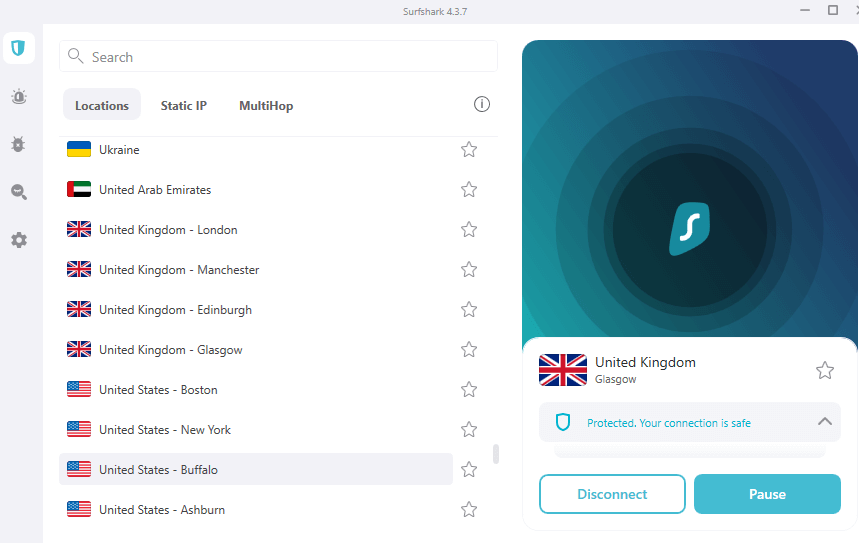
Surfshark is one of the best VPNs to reduce Payday 2 lag on a gaming PC. It has exclusive DNS on each VPN server, a kill switch to cut off your Internet connection in case of VPN disconnections, together with a built-in malware blocker.
Developed by Surfshark LTD, this VPN solution is an excellent choice for gaming, which can fix any Payday 2 lag and crashes. It supports the OpenVPN protocol and also works with an Xbox controller.
Surfshark’s key features:
- +1,700 VPN servers in +63 countries
- Shadowsocks proxy and split tunneling
- Unlimited connections on the same account
- Great for fixing Payday 2 VSync lag
- 30-day money-back guarantee (no free trial)

Surfshark
Eliminate Payday 2 lag spikes with the help of this fast and easy-to-use VPN solution.CyberGhost VPN – Unbeatable web encryption

If you’re interested in even more VPN servers, then look no further than CyberGhost VPN. It’s also a VPN that removes PC bandwidth limitations, which is essential if you’re trying to play Payday 2 on a restricted network, like a college campus.
Owned by Kape Technologies, CyberGhost VPN is optimized for gaming, whether you prefer the desktop or the console. You can change your DNS settings to easily install this VPN software on your console, as well as defend your Wi-Fi network using anti-hacker protection.
CyberGhost VPN’s key features:
- +6,400 servers in 89 countries
- Provides anti-DDoS protection
- Connect up to 7 devices at once
- Ideal for reducing the Payday 2 resolution lag
- 45-day money-back guarantee (1-day free trial)
CyberGhost
Enhance your gameplay with one of the most secure Payday 2 VPN solutions for your PC and console.In conclusion, if you’re looking for a Payday 2 no-lag experience, there’s no better way than getting equipped with a fast and secure VPN solution. After connecting to the right VPN server, you should immediately notice lower ping and improved gameplay.
You can also resolve Payday 2 issues on your PC using practical workarounds that will indeed help you. To find out how else you can enhance your gameplay, you have the Gaming VPN Hub.
In case you’re using the VR version, we have a great guide on what to do if Payday 2 VR is not working, so be sure to check it out.
It can be difficult to make the right choice when there are many VPN options available. Many Payday 2 users turn to Radmin VPN, but we don’t think it matches the speed and security features of the VPNs on this list.
If you want our advice, go with Private Internet Access since it’s fast, safe, intuitive, and boasts numerous VPN servers.
3 best VPNs for Monster Hunter: World to fix lag & ping

Monster Hunter: World (MHW) is an action role-playing game that you can play offline in single-player mode or online in multiplayer. You become a hunter that must trap or kill various monsters.
With the loot you get from the monsters, you can craft better weapons, armor, and other gear. The more challenging the monster, the better the loot. In multiplayer mode, you can join other players to hunt the most difficult monsters as a team.
In the online version, MHW uses servers to connect players but it relies on peer-to-peer (P2P). If you’re experiencing Monster Hunter: World lag in multiplayer mode, you can use a VPN to improve your ping and gameplay.
What are the best VPNs to fix Monster Hunter: World lag?
Private Internet Access
Private Internet Access (PIA) is a VPN that provides you with a quick Monster Hunter: World lag fix for co-op mode.
It has an extensive network of servers so that you can hide your IP address and reroute your gaming traffic. Ideally, you should connect to the location of the other player.
Made by Kape Technologies, PIA offers a simple solution for eliminating jitter and lowering your Monster Hunter: World ping. Furthermore, you can use PIA’s 24/7 live chat support if you have any trouble with the VPN.
Users of Private Internet Access have no restrictions when it comes to the number of servers they can access on a daily or monthly basis.
On top of that, the service promises unlimited bandwidth, so you can enjoy high-speed connections all the time, regardless of how much data you use.
How can PIA help:
- +35,000 servers in over 70 countries
- Static and dynamic IP addresses
- No logs policy
- Quickly fixes Monster Hunter: World lag on death
- 30-day money-back guarantee (no free trial)
Private Internet Access is a subscription-based service with a 30-day money-back guarantee for each plan.
Private Internet Access
Reduce Monster Hunter: World on PC with the aid of this fast and secure VPN.NordVPN
NordVPN is well known for providing some of the greatest speed rates in the VPN industry.
This VPN service has a large server coverage of over 5 400 servers worldwide, ensuring a fast connection for users across the whole world.
NordVPN has easy to configure dedicated apps for multiple devices. The VPN can automatically detect the fastest server for your configuration, but you can also manually pick a server location from a list.
It uses multiple privacy features in order to make sure your browsing data stays private. It fights against ISP bandwidth restrictions with advanced implementations such as double VPN and obfuscated servers.
Regardless of which NordVPN servers you decide to use, you will be able to benefit from unlimited bandwidth.
This means that you will get high-speed traffic all month round and enjoy Monster Hunter: World for as many hours as you like.
How can NordVPN help:
- Anti-tracking features
- Strict no-logs policy
- Private DNS on each server
- Secures up to 6 devices
NordVPn is a subscription-based service, with several plans available. Each plan comes with a 30-day money-back guarantee.
NordVPN
Say goodbye to lag and ping issues and connect to exceptionally fast and secure servers across the globe.CyberGhost VPN
Another great way to fix Monster Hunter: World lag spikes on PC is by using CyberGhost VPN.
It can help you minimize packet loss during gameplay so that you can fully enjoy the co-op mode.
Owned by Kape Technologies, CyberGhost VPN comes with an impressive network of servers, which are optimized for P2P. It’s an excellent Monster Hunter: World VPN.
It is very clear that a fast connection is essential to eliminate ping and lag problems. For this reason, Cyberghost places no limit on bandwidth usage.
Users of this VPN can enjoy unlimited online data without restriction. The VPN also covers your actual IP address so no restrictions can be imposed by your ISP either.
How can CyberGhost VPN help:
- +6,400 servers in 89 countries
- Private DNS
- No logs
- Great for MHW Kushala Daora PC lags during fight
- 45-day money-back guarantee (1-day free trial)
Cyberghost is a subscription-based VPN service with a 45-day money-back guarantee for each plan.
Cyberghost VPN
Quickly eliminate MHW lag on PC by counting on this easy-to-use VPN service.Monster Hunter: World is a fun game that you can play solo. It has jaw-dropping graphics and challenging monsters that adapt to the player’s level. But it’s undeniably better to play it with friends in co-op mode.
The greatest obstacle you might be facing is Monster Hunter: World lag since every action counts in battle. Instead of becoming frustrated because of MHW lagging, use a VPN service and connect to an optimal server to fix all latency problems. It’s the best way to eliminate network congestion.
To fix any errors you might have with your VPN, join our VPN Troubleshooting Hub.
Visit our Gaming VPN section to see what else you can do to enhance your gaming experience.
3 best VPNs for Killing Floor 2 to fix high ping & lag

Killing Floor 2 (KF2) is an action-packed first-person shooter that you can play solo or in co-op mode with your friends. It’s available for Windows (Steam), Xbox One, and PlayStation 4.
You have to kill various monsters (Zeds) with unique abilities to clear the stage and progress throughout the game. The more stages you clear, the more challenging the Zeds become.
In the final wave, you must fight a boss. Between waves, you can buy weapons and ammo from a trader. At some point, a game patch enabled PvP mode so that players can fight amongst themselves.
Unfortunately, many players have Killing Floor 2 high ping in co-cop and PvP mode, which leads to out-of-sync actions and accidental death. If you’re one of them, we don’t have to tell you how frustrating it is.
If you have to deal with KF2 constant lag every time you launch the game, you can use a VPN to improve your ping and gameplay. A virtual private network solution can also help you host game servers to reduce Killing Floor 2 lagging.
What are the best VPNs to lower Killing Floor 2 high ping?
Private Internet Access
Private Internet Access (PIA) offers a simple solution to fix Killing Floor 2 lag spikes. It has a large network of fast VPN servers ready to optimize your Internet traffic for gaming. Plus, it can be used to fix packet loss.
A product of Kape Technologies, PIA can be used on Windows, Xbox One, and PlayStation 4, so you can choose any of these platforms for KF2. The service is backed by 24/7 live chat support.
How can PIA help you:
- +3,300 VPN servers in 47 countries
- Forward ports to host KF2 game servers
- Choose from static and dynamic IP addresses
- Up to 10 connections at once
- Works even when you have Killing Floor 2 lag with low ping
- 30-day money-back guarantee (no free trial)
Private Internet Access
If Killing Floor lags every few minutes, use PIA to quickly resolve this matter.NordVPN
If you need to resolve frustrating gaming issues like laggy FPS, this industry’s best VPN can sure help.
With NordVPN you have reliable privacy and security on your digital presence or downloaded files. Plus, you can protect data stored in your games by using verified servers from other regions.
This popular VPN comes with the fastest servers that allow any user to watch or download restricted content. Hence, you can access favorite streaming content anywhere you are.
Moreover, you can protect yourself against risky malware or viruses using threat protection functionality. This way, you can stay relaxed about updates or new game releases of Killing Floor 2.
How can NordVPN help you:
- 5400+ servers in 60 different regions
- No internet and content censorship
- The fastest internet connection
- One account for up to 6 devices
- Strict no-logs rule
- Private DNS and no data leaks
NordVPN
Enhance your gaming experience and resolve lag spikes in Killing Floor 2 using this leading VPN.CyberGhost VPN
CyberGhost VPN can become a trustworthy ally to help with lagging in Killing Floor 2. It’s a product of Kape Technologies that brings an extensive network of servers for gaming.
Using CyberGhost VPN, you can fix jitter during gameplay, whether you choose Windows, Xbox One, or PS4. It’s also a solid choice for evading geoblocks to access blocked sites.
How can CyberGhost VPN help you:
- +6,400 VPN servers in 89 countries
- Private DNS servers
- Split tunneling for whitelists and blacklists
- Connect up to 7 devices simultaneously
- Fixes Killing Floor 2 PS4 lag and other latency issues
- 45-day money-back guarantee (1-day free trial)
CyberGhost
Quickly reduce Killing Floor 2 high ping with the aid of this dependable VPN service.To conclude, Killing Floor 2 is an action-packed game that you can play solo. But it’s undoubtedly better with friends in co-op mode. You should also try PvP mode at least once.
However, this can be impossible if you frequently experience Killing Floor 2 high ping. Whenever this happens, use one of the VPN solutions above to quickly fix lag and latency issues. If you can’t decide, we suggest picking Private Internet Access.
You can also join our VPN Troubleshooting section to fix any technical issues. If you have high ping in other games you play, bookmark our Gaming VPN Hub.
Fix: Windows Live Photo Gallery Loading photoviewer.dll Error
As part of the release of Windows 7, the standalone Windows Photo Gallery program was renamed to Windows Live Photo Gallery and was included in the Windows Live Essentials family of products.
Microsoft has subsequently abandoned the program, and it is no longer supported on an official level by the company in Windows 10 or Windows 11.
The fact that Windows Live Photo Gallery is one of the most effective Windows programs ever at organizing images, as well as a decent image editor (despite the odd difficulties users encounter), ensures that it will continue to be in high demand.
Installers for offline versions of the Windows Live Essentials suite and its components are still available for download elsewhere, even though the product can no longer be installed or used on Windows 11 through official channels.
After downloading the much loved Microsoft app, users have been getting an error while loading wix photoviewer.dll and seem to be stuck at it. Follow along as we will go through the solutions we listed for you, right after we see what .NET Framework does.
What does the .NET Framework do?
Windows programs are produced and operate on the .Net Framework, which is a software development platform developed by Microsoft for this purpose.
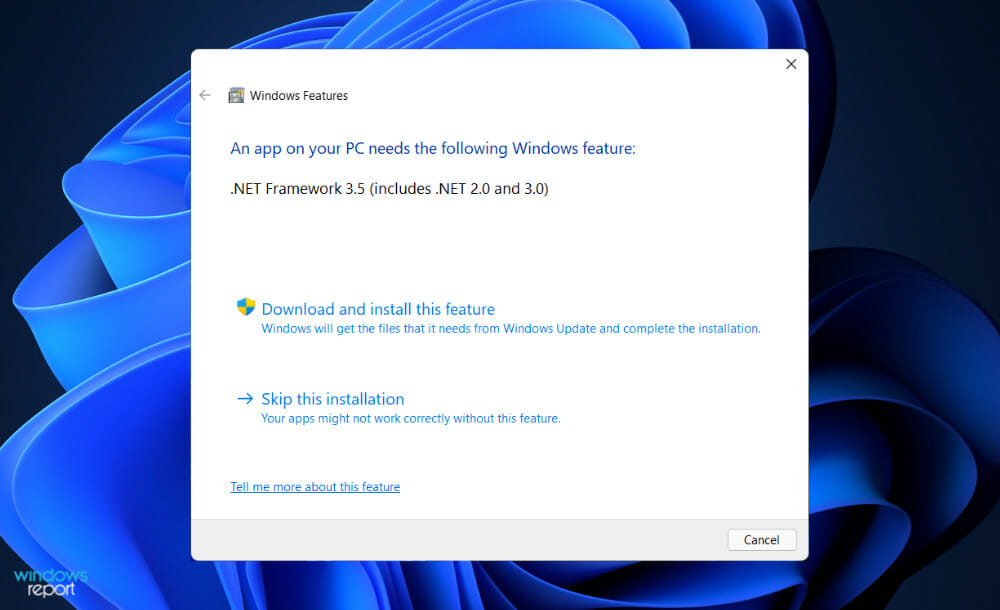
It is composed of developer tools, programming languages, and libraries that may be used to create desktop and web applications for Windows and other platforms. It is also used in the development of websites, web services, and video games.
The purpose of the .Net Framework was to allow developers to construct applications that would operate on the Windows Platform. The very first iteration of the .Net Framework was first made available in the year 2002. The version was referred to as version 1.0.
Since then, it has progressed significantly, and the most recent version is .Net Framework 4.7.2. The feature can be used to develop both form-based and web-based applications.
In addition, the framework supports a number of programming languages, including Visual Basic and C#. As a result, developers can pick and choose the language in which to construct the desired application.
How can I fix the Windows Live Photo Gallery loading photoviewer.dll error in Windows 11?
1. Download Media Feature Pack for Windows 11 N
- Acces Microsoft’s official page to download Media Feature Pack for Windows 11 N versions.

- Follow the steps listed on their page to install all the files that you need for Media Player, and in our case for Windows Live Photo Gallery.
This is the most straightforward and simple solution that you should try first, so don’t skip it. After the installation is complete your Windows Live Photo Gallery should work normally.
The Media Feature Pack for N editions of Windows 11 will install Media Player and related technologies on a computer running one of the N editions (including Enterprise and Professional).
2. Perform a forced restart
In order to resolve the loading .dll file error, restarting your computer is the second quickest and most straightforward option. The majority of the time, cache problems may be handled by simply restarting the computer.
However, sometimes if you are missing some .dll files, you may find yourself unable to restart your computer. Assuming this is the case, a forced restart should be performed to determine whether or not the problem has been resolved.
To force your computer to restart, simply hold down the Power button on your keyboard for 9 seconds, or until your computer shuts down completely. Then hit it one more to restart the process.
3. Update Windows
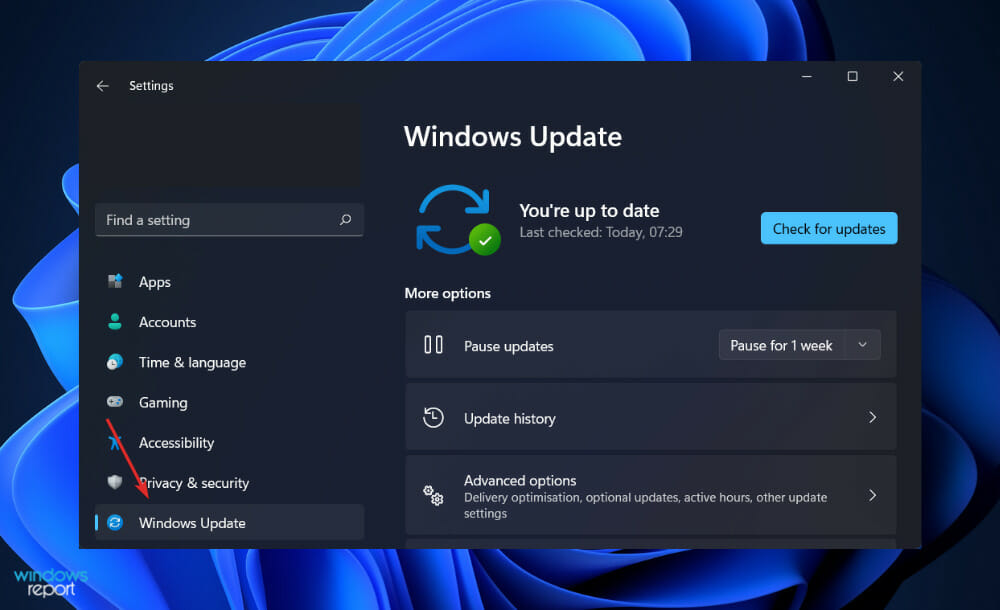
- Press the Windows key + I then tap on Windows Update in the left panel.
- Click on the blue button as we have shown below to either check for new updates or install them already. That’s it! Microsoft made it as easy as possible for us to update our OSs.
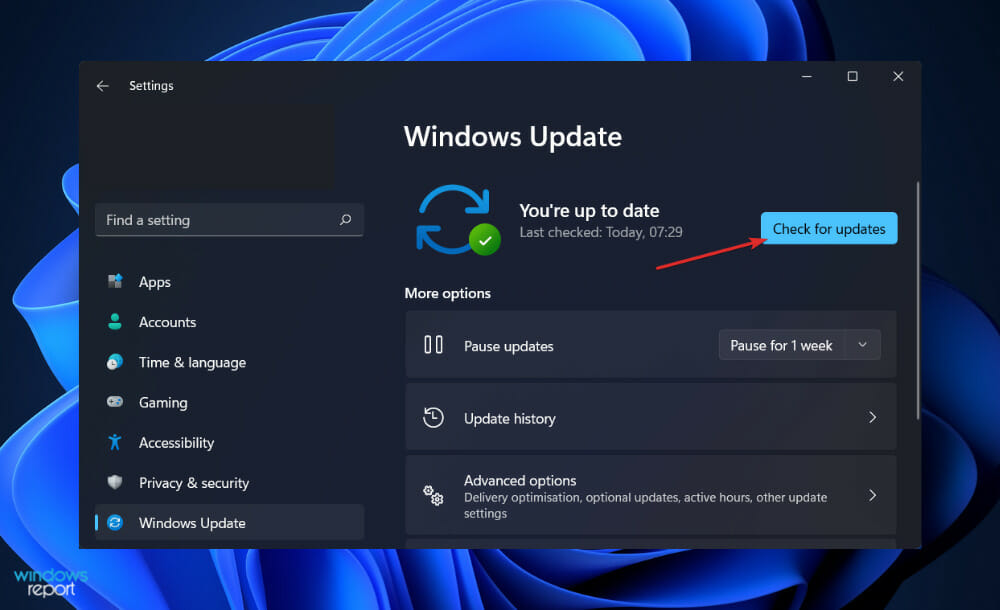
The problem could be caused by using an earlier version of Windows, which can be resolved by updating to the most recent version. The error will very certainly be corrected in a later upgrade to the software package.
4. Use a different photo viewer
There are plenty of other photo viewers suited for Windows 11 that you can use instead of the old Windows Live Photo Gallery app.
To see a comprehensive list of alternative photo viewers, check out our article on the best photo viewer applications for Windows 11.
Simply follow the links to the official website’s download page and proceed with the installation procedure as displayed on your screen.
What did Windows Live Essentials offer?
Windows Live Essentials is a software suite developed by Microsoft that integrates with the operating system to provide enhanced functionality. Windows 7 comes with a small number of Live Essentials pre-installed.
However, from Windows 10 and above, the suite has been discontinued and replaced with other updated Microsoft apps such as the Photos feature.
You still may wonder what Live Essentials used to offer for its users, thus we have listed below a few of its main features:
- The Bing Bar – It is a toolbar for Internet Explorer that allowed you to take advantage of the search capabilities of the company. There were also several graphic effects, themes, and other features available to make searching the Internet more enjoyable.
- Windows Live Family Safety – A parental monitoring system that was available for free to consumers to use in order to keep their children safe on the internet. There included provision for web filtering, lists, child-friendly sites, online communications, and warnings for certain sites.
- Windows Live Mail – In the world of email clients, it was considered to be the successor to Outlook Express and Windows Mail. It was compatible with Windows Vista and Windows 7, and it was a continuation of the hard work that was put into the previous mail apps.
- Windows Live Photo Gallery – It used to be a photo management and sharing program that is similar to other photo management and sharing tools. It had features as facial recognition, geo-tagging, blemish removers, and noise reduction tools, among other things.
If you wish to download the full Live suite in Windows 11, you can take a look at our guide meant for Windows 10 which is still applicable to your OS.
In the case that you encounter issues during the installation process, we have already covered this scenario in our article on Windows Live Essentials won’t install on Windows 10/11. Make sure to check it out!
Alternatively, you should take a peek at our guide on Windows photo gallery not working in Windows 10/11, to find new methods to resolve your issue.
And lastly, we have prepared for you a full overview of the new Photos app in Windows 11. Don’t miss it out as it contains important changes done to the feature.
Which solutions worked best for you? Don’t hesitate and let us know in the comments section below. Thanks for reading!
3 best VPNs for Total War: Warhammer 2 to reduce lag & ping

Total War: Warhammer 2 is a turn-based strategy and tactics game that you can play both offline and online with friends. It’s available on Windows, Mac OS X, and Linux.
As part of the Total War Series, Warhammer 2 set up a fantasy world, where you can choose from several unique races to fight others and decide who will control the Great Vortex.
In multiplayer mode, you can host game servers as well as join online sessions in order to play Total War: Warhammer 2 with others. However, several users report high ping when playing this game.
If you’re among those who encounter this problem, you can reduce Total War: Warhammer 2 lag with the aid of a powerful VPN solution.

You can significantly improve your Internet speed, eliminate connection spikes, and reduce ping with a VPN by connecting to a server closer to the remote game server. It’s also a great way to fix any Total War: Warhammer 2 laggy campaign map issues.
What are the best VPNs to fix Total War: Warhammer 2 lag?
Private Internet Access
Private Internet Access (PIA) is the best VPN for Windows 10 that can help you reduce Total War: Warhammer 2 menu lag and improve gameplay.
You can use it to improve your online privacy and computer security while speeding up the Internet connection for gaming.
Using PIA, you can hide your IP address and encrypt all incoming and outgoing traffic using the OpenVPN or WireGuard protocols, depending on your preferences.
It’s a virtual private network solution provided by Kape Technologies, and one of the few of its kind which comes with 24/7 live chat support.
Private Internet Access has a well-implemented privacy policy. They do not log any browsing data or user information.
In terms of performance, along with the generous number of servers and powerful privacy features, we must also mention that PIA offers unlimited bandwidth.
Players of Total War: Warhammer 2 can enjoy high-speed gaming without any traffic restrictions imposed by the VPN servers or their own ISP.
Here are PIA’s most notable features to lower Total War: Warhammer 2 ping:
- Connect to more than 3,200 servers in 46 countries
- Use static and dynamic IP addresses
- Switch to exclusive DNS servers to boost your privacy
- Connect 10 devices using the same account
- An excellent choice when Total War: Warhammer 2 is very laggy
- 30-day money-back guarantee (no free trial)
Private Internet Access is a subscription-based VPN with multiple plans available. Each plan includes a money-back guarantee.
Private Internet Access
Reduce Total War: Warhammer 2 lag with the help of this VPN app.NordVPN
Next up we have a reliable VPN service that combines multiple technologies to ensure a fast and secure connection.
Nord VPN can help reduce lag and ping issues in Total War: Warhammer 2 by connecting users to one of over 5 400 fast-responding servers located in over 60 countries.
NordVPN offers unlimited bandwidth, allowing you to enjoy the game at high speed for as much time as you like.
It includes plenty of security features to make sure your data and identity stay private. It offers a dedicated virtual IP address which can be of great use for gamers, especially when connecting to multi-player platforms.
No one with malicious intentions will be able to track you down and get any details about your location or online activity.
NordVPN also uses a double VPN which offers an extra layer of protection and privacy. This type of technology ensures that no service that restricts VPNs will be able to tell that you use the service in the first place (and thus they won’t be able to block you).
Here are NordVPN’s most notable features to lower Total War: Warhammer 2 ping:
- Obfuscated servers
- Private DNS on every server
- Top-level AES-256 encryption
- Blocks online malware and trackers
NordVPN is a subscription-based VPN service with multiple plans available. Each plan comes with a 30-day money-back guarantee for users that are not satisfied with the service.
NordVPN
Reduce lag and ping and benefit from top-level encryption, secure servers, and anti-tracking technologies.CyberGhost VPN
If you’re trying to play Total War: Warhammer 2 from a restricted network, shift your attention to CyberGhost VPN, a VPN that lifts bandwidth limitations and reduces high ping during gameplay. It’s also owned by Kape Technologies.
You can connect to the CyberGhost VPN recommended server to get the speediest connection, but you can also explore the wide network of VPN servers. Besides, it’s the only free VPN on this list.
Cyberghost lets you enjoy private browsing anywhere, with built-in public Wi-Fi protection.
This VPN keeps your data secure with 256-bit AES encryption so no third party can get any information about your online activity, identity or location.
Along with the powerful encryption algorithm, Cyberghost also implements split tunneling and a secure kill switch for extra protection.
Here are CyberGhost VPN’s key features to decrease lag in Warhammer:
- Explore over 6,200 servers in 89 countries
- Use private DNS servers instead of public addresses
- Allows 7 simultaneous connections
- Ideal for Total War: Warhammer 2 battle lag
- 45-day money-back guarantee (1-day trial)
Cyberghost VPN is a subscription-based service, with a 45-day money-back guarantee for each plan.
Cyberghost VPN
Fix Total War: Warhammer 2 lag with the help of this fast and secure VPN service.Total War: Warhammer 2 is a great game that you can play in solo mode. It’s actually one of the best offline games for PCs. But it unlocks new possibilities when switching to multiplayer mode so that you can fight others and make alliances.
It’s unfortunate to experience Total War: Warhammer 2 multiplayer lag, but you can put your worries aside by getting equipped with a powerful VPN tool like Private Internet Access.
And, if you want an extra boost in speed, you can disable the VPN encryption. You can even use PIA to fix the Total War: Warhammer 2 laggy menu, among other latency issues.
For any issues with your virtual private network services, see our VPN Troubleshooting Hub.
Find out how else you can make games run better by joining our Gaming VPN section.
PortraitPro 22 review: A photo editor trained in human beauty
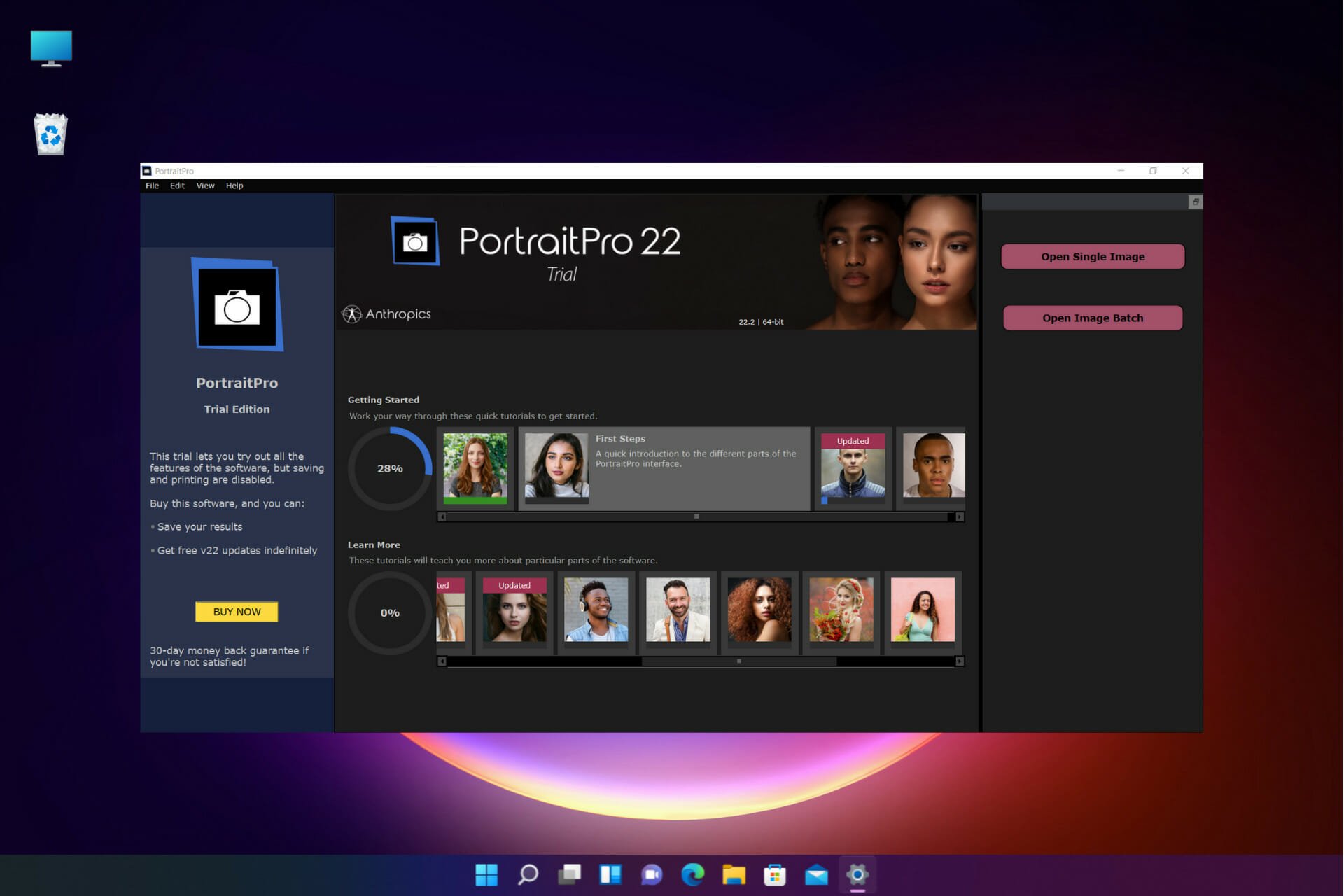
Every photographer and graphics editor knows that portraits are the hardest photos to edit.
Of course, that’s not a problem for a professional but it still takes a lot of skill and time. Even professionals can get overwhelmed if they have to process a lot of photos.
If you want to make your work a lot easier, an excellent tool called PortraitPro 22 from Anthropics will help you go through all that editing in just a few minutes.
We’re going to talk about its best features and how to use it to edit a portrait quickly, without any special skills and training.
How can PortraitPro 22 help you edit portraits quickly?
First of all, Portrait 22 from Anthropics is a dedicated tool for face and hair retouching that comes with extensive AI advancements into human beauty.
The second you import a headshot photo, it detects the subject’s face, gender, and even age but also its features, skin, hair, objects, and backgrounds.
Then, just by using some sliders, it’s easy to modify all the facial features, including their form and dimensions.
As a finishing touch, you will be able to smooth the skin to a natural degree thanks to the exclusive ClearSkin 5 technology and remove blemishes and shadows.
It can be a critical tool for any graphics editor, a magazine, or a business but it can be used by anyone thanks to its friendly UI.
That being said, let’s go through PortraitPro’s best features first, and then we will show you exactly how to use the app.
What are the best features of PortraitPro 22?
1. Simple and intuitive usage
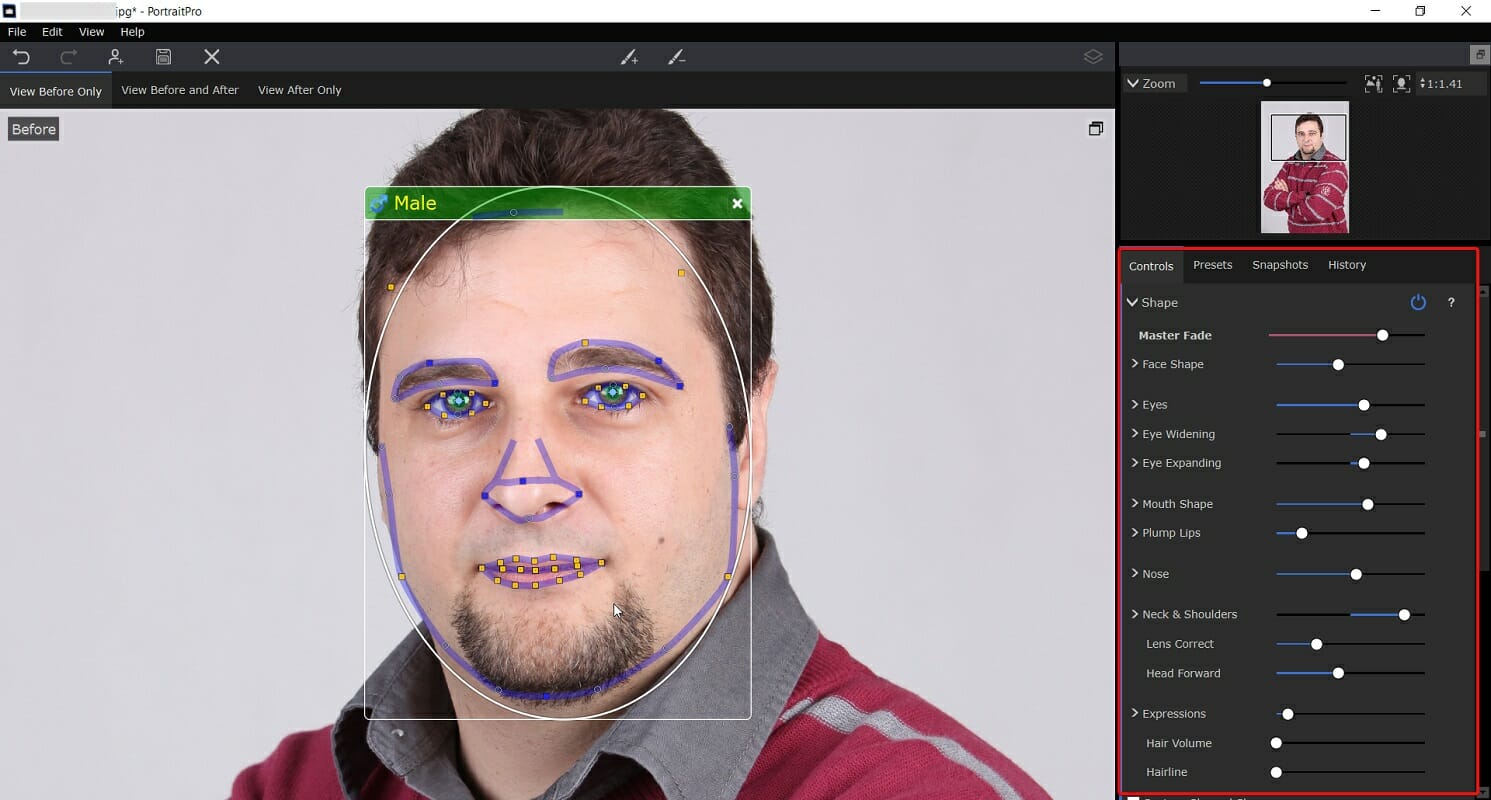
Once the photo is uploaded, the software detects the face and zooms in on it, detecting all the important features in just a few seconds.
Then, you will have no less than ten sections on the right, where you can modify the shape of the different face elements, apply skin smoothing, change lighting and colors, and even apply makeup.
In the end, retouching the photo as a whole is just a breeze because, for everything we’ve mentioned, there is already a preset.
Of course, there is also possible to create your own presets so if you’re processing hundreds of portraits a day, you will be able to apply it with a simple click.
2. Skin Smoothing

The Skin Smoothing feature from PortraitPro will definitely become the best friend of any photographer or art director because it can do miracles with any face in seconds.
The ClearSkin 5 technology will automatically smooth the skin without that plastic Photoshopped finish you’re probably used to.
And if you want to target blemishes and problem areas directly, the Touch-Up brush from the top of the window will help you without needing to apply excessive overall smoothing.
3. Face sculpting
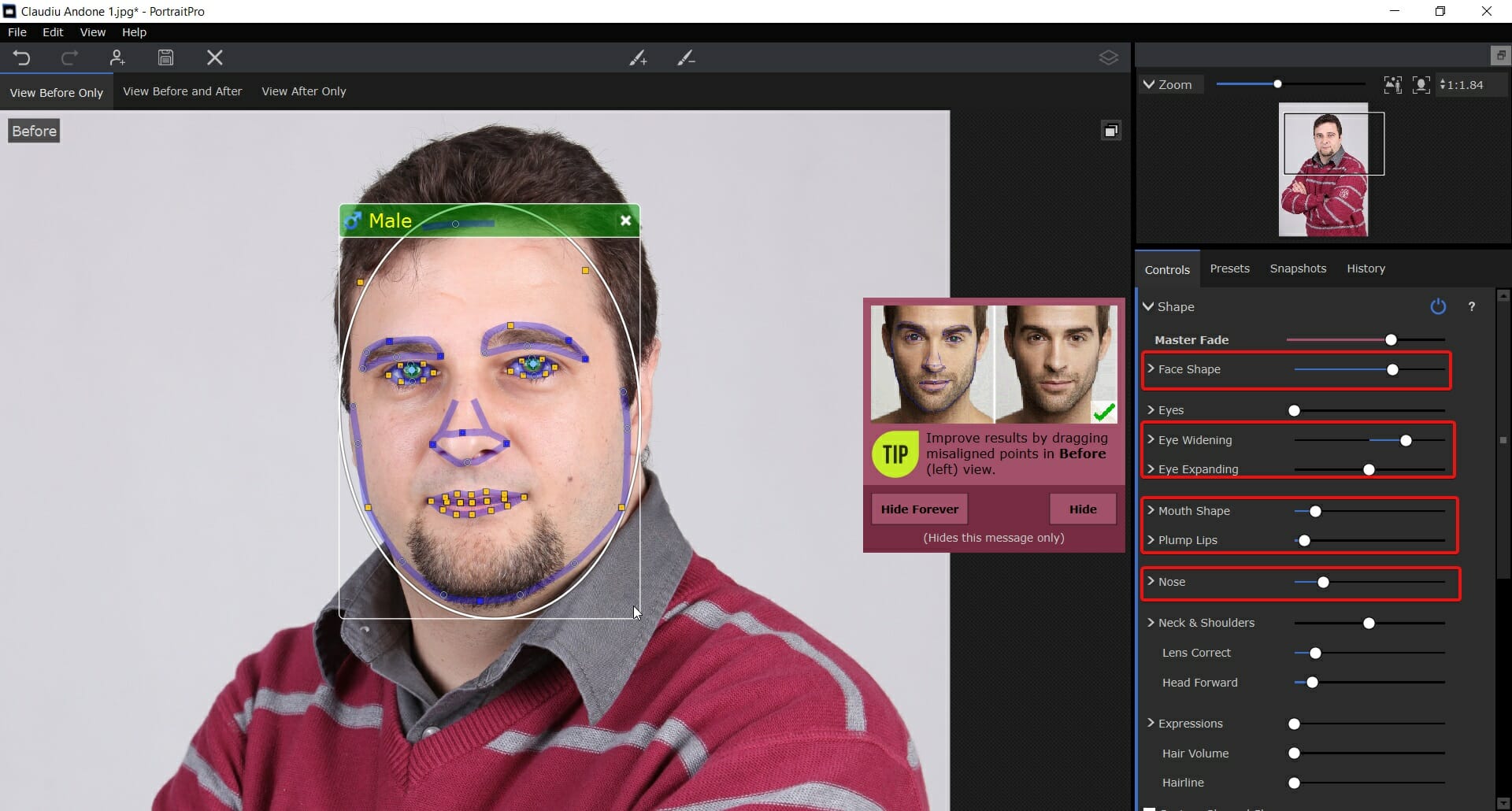
With PortraitPro’s face sculpting technology, changing the shape of the face, nose, eyes, and mouth has never been easier.
The technology is based on hundreds of hours of training in human aesthetics and rather than dragging or warping the face, as it would happen with other software, PortraitPro uses an intuitive slider interface.
With the face sculpting feature, you will be able to widen the eyes, correct wide-angle distortions, enhance the smile, and even simulate tilting the subject’s head forward to sculpt the jaw.
4. Skin lighting and coloring

If you’re mainly dealing with portraits taken in poor lighting conditions and not in a photo studio, with proper lighting PortraitPro can simulate the exact controlled lighting as you want, from any direction and intensity you prefer.
And that will help you remove any unflattering shadows, add volume, and even change the color of the light. It’s simple and easy thanks to this intelligent 3D lighting tool.
How can I edit a portrait quickly using PortraitPro?
- Go to the dedicated PortraitPro website and click the Try it now button.

- In the next window, select the operating system (Windows or Mac) and the version and hit the Get Free Download button. It will automatically detect your OS, but it doesn’t hurt to doublecheck.
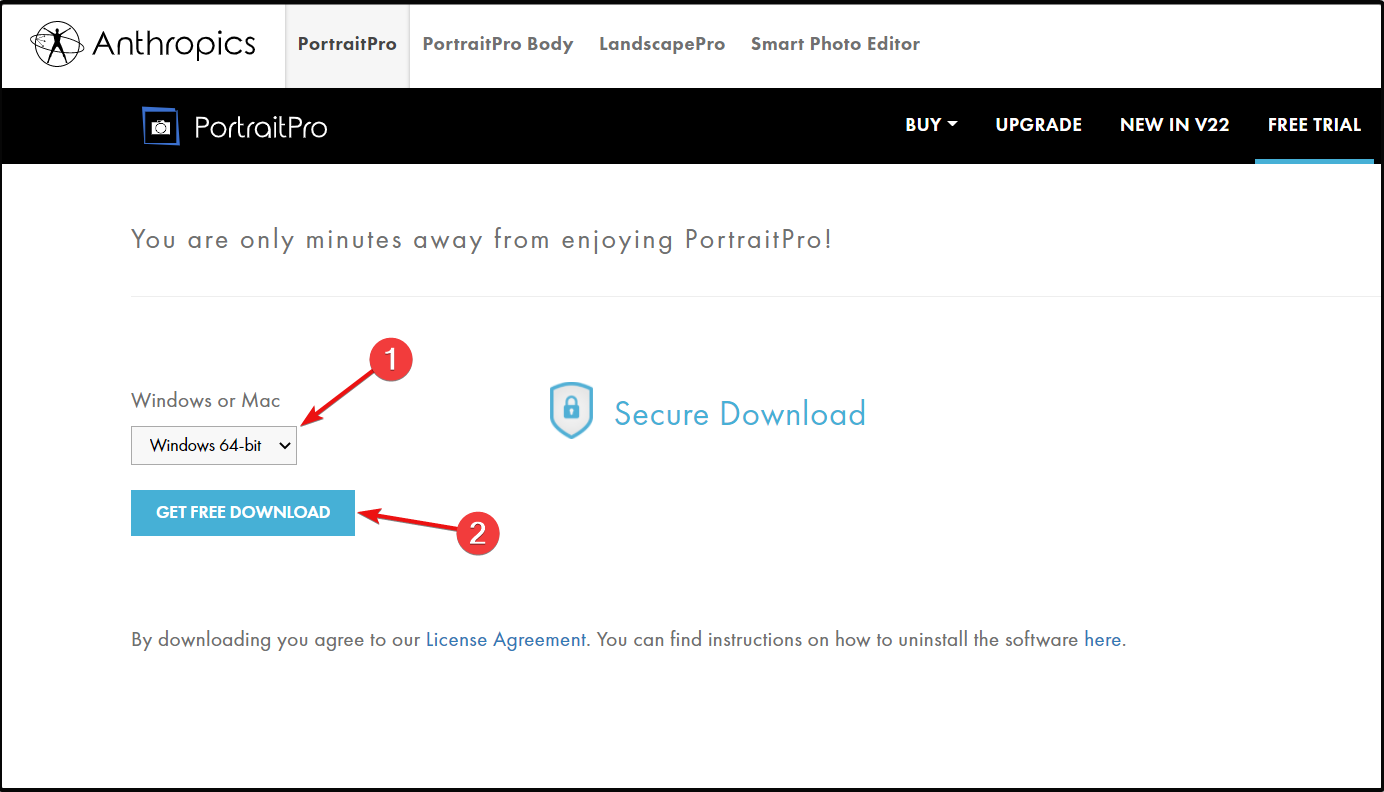
- You will get an executable file and once it downloads, running it will start the installation process. Accept the licence agreement and go through the steps for complete installation.
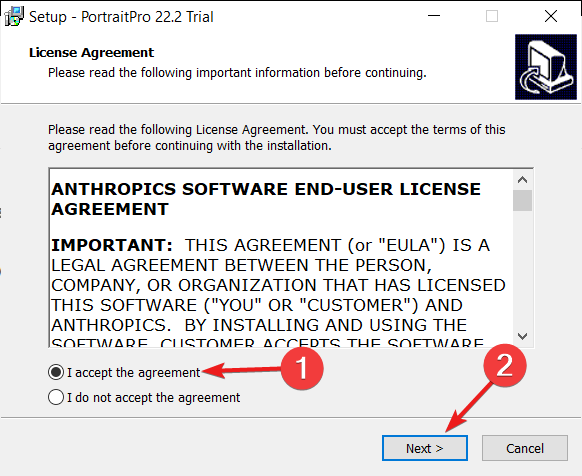
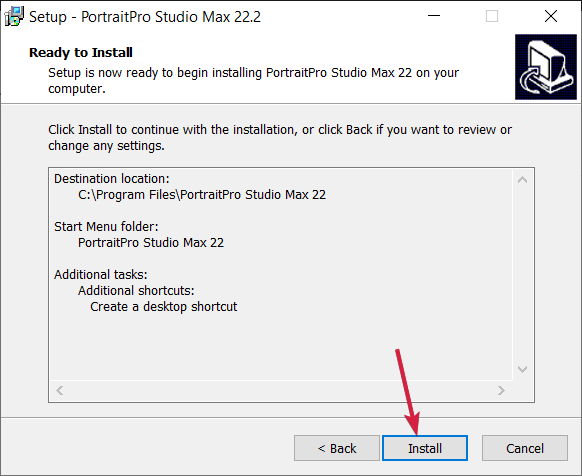
- After you select the installation folder and whether you want to include icons in Start menu and Desktop, hit the Install button.
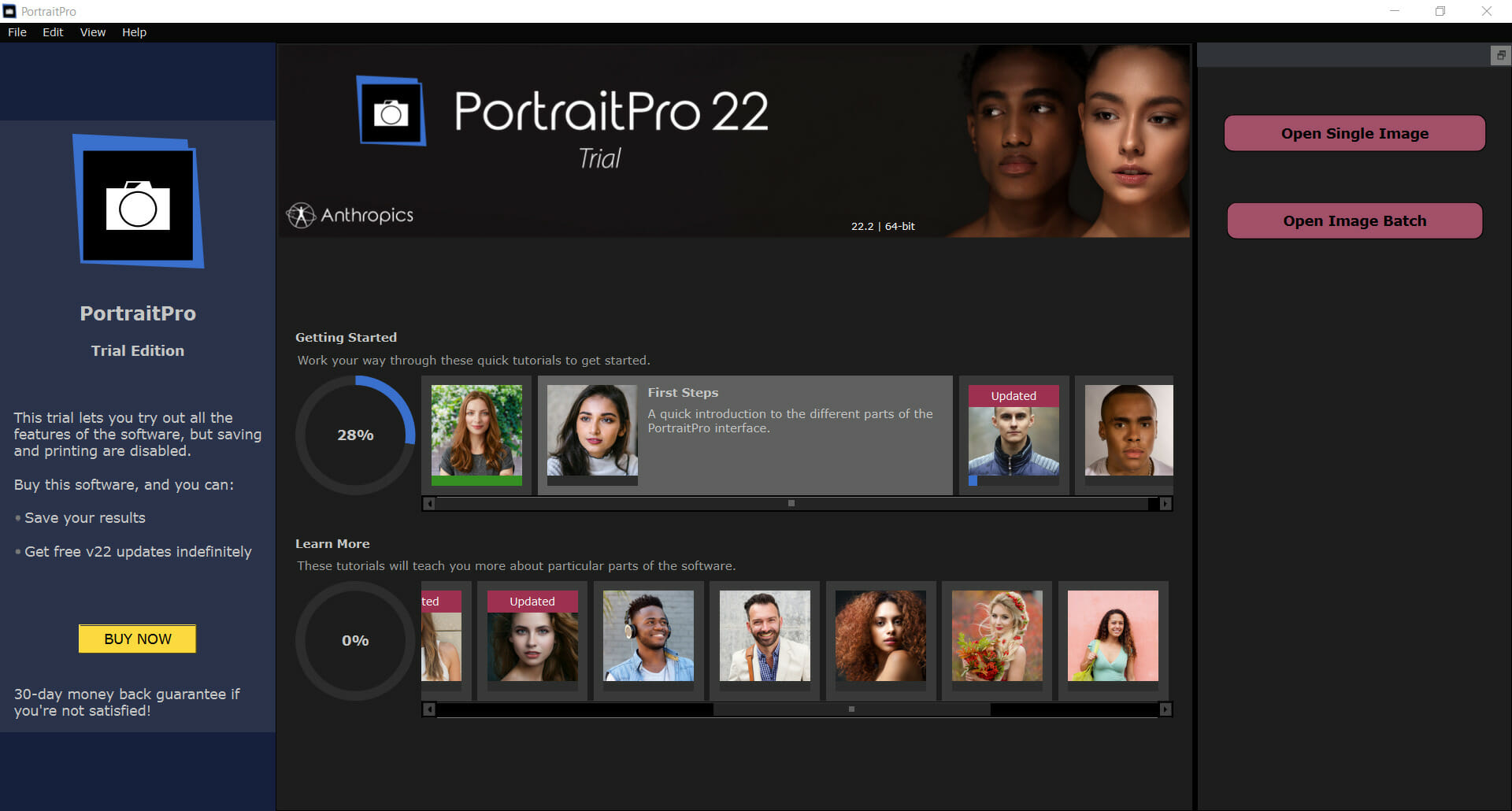
- In the end, the app will start, and you will see a left pane with the message that it’s a free trial version and you can’t save or print so after testing all your features, if you want the full experience, you should click the Buy button below.
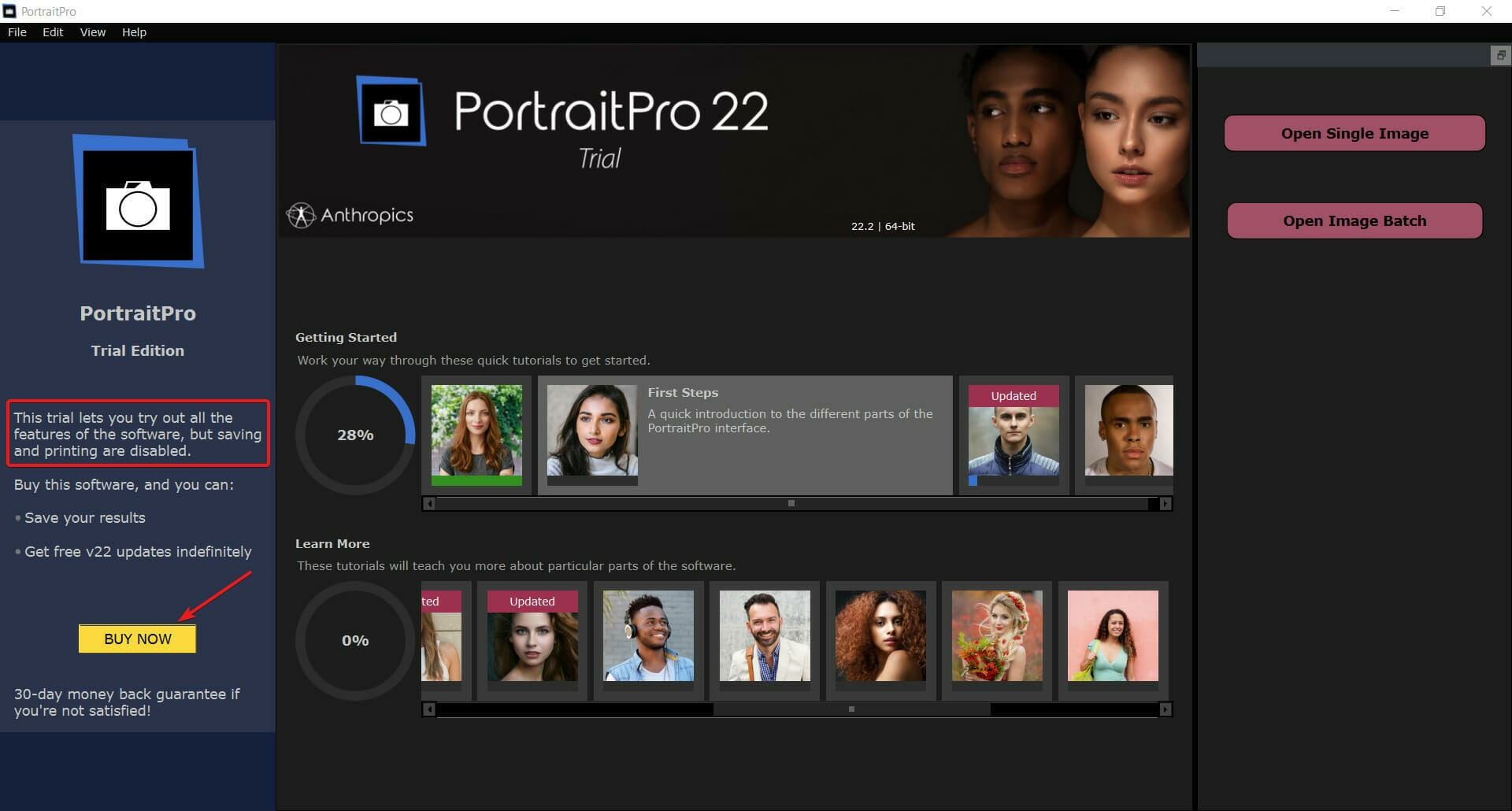
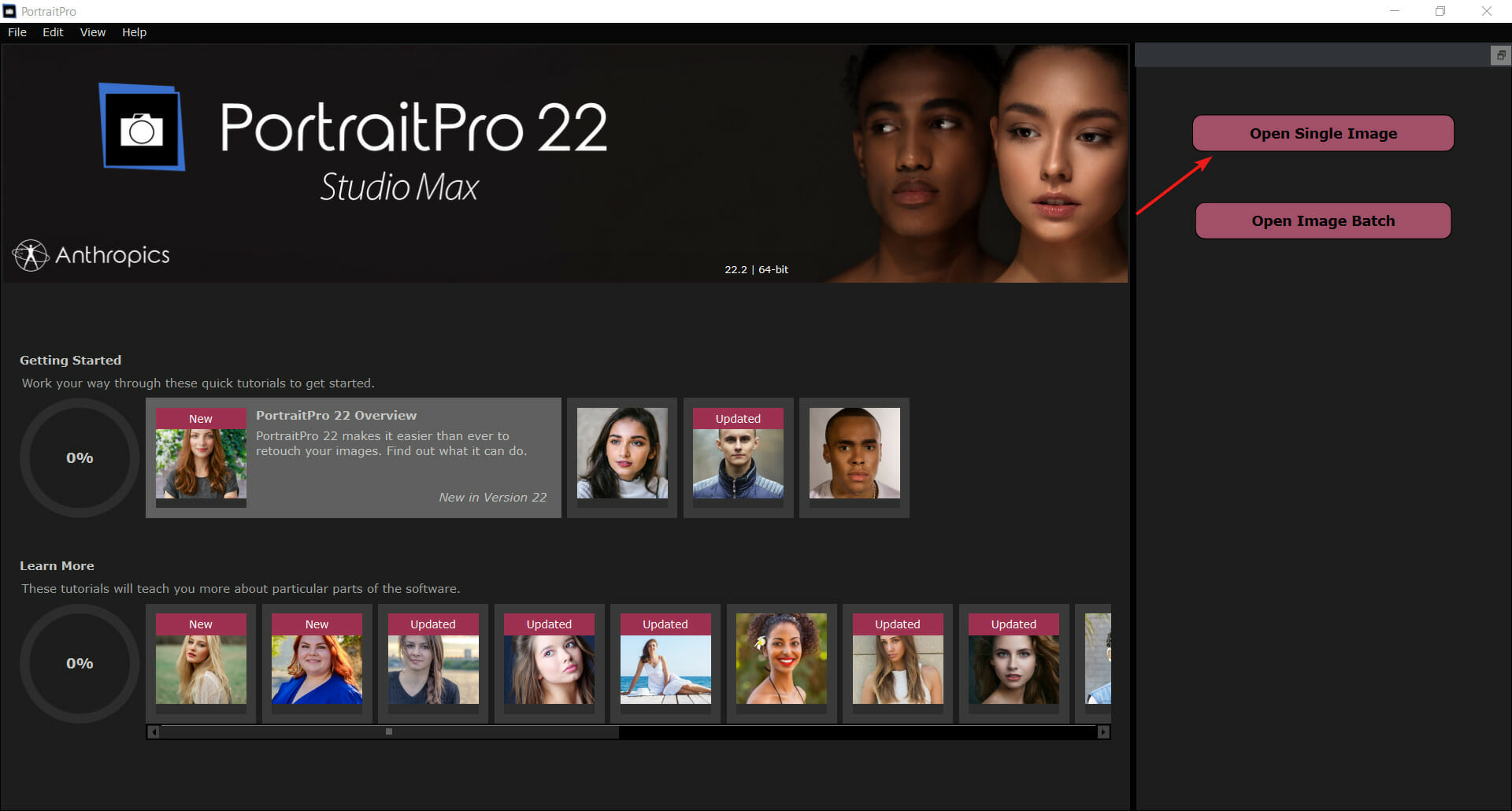
- You can start by selecting the Open Single Image button from the top-right corner but keep in mind that you can also load images in a batch to edit more of them in a single shot by clicking the button below.
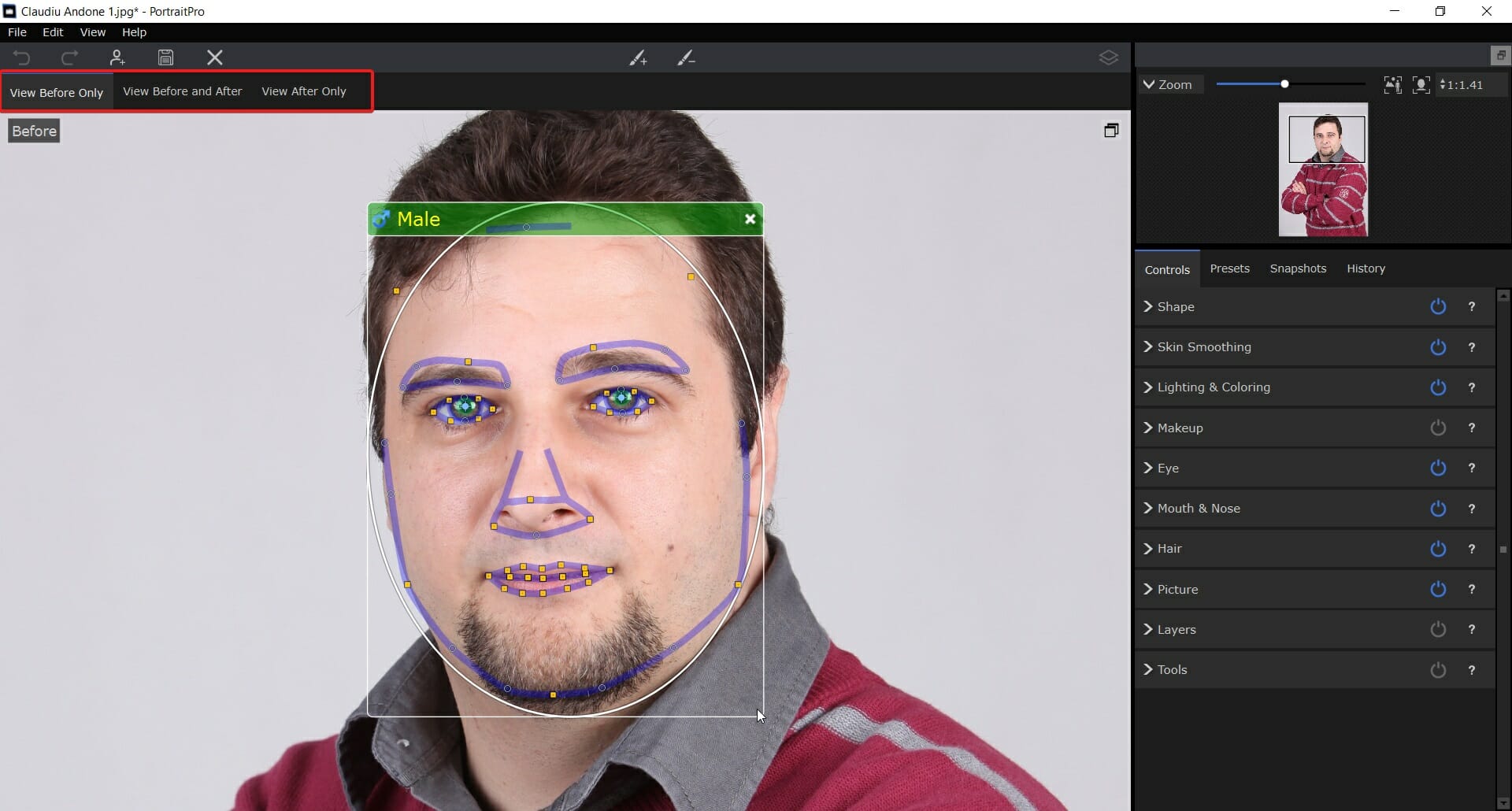
- One you’ve selected a photo from your drive, the software will automatically analyze it, find the face and magically identify all the facial features. In the upper-left corner, you have the option to select the before, before and after or only the after shot.
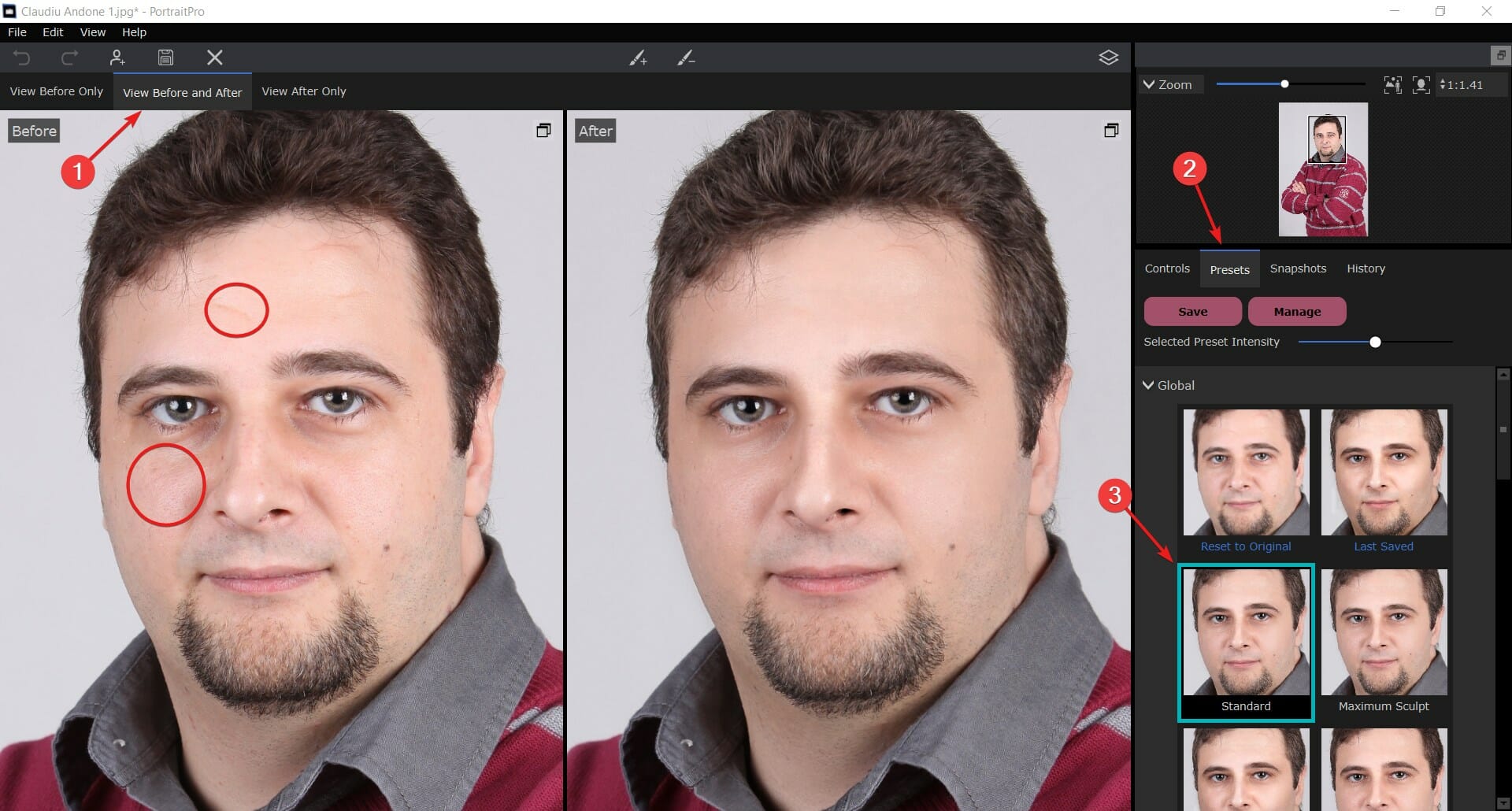
- Next, for a quick makeover, select the Before and after option from the top, then choose the Presets tab and click on one of the predefined ones in the list. You will immediately see a lot of differences, including the disappearance of a scar, blemishes, and grease from the skin and more and that’s only a standard preset.
- A mole is not such a big deal if you ask us, but you can get rid of it, or at least make it less visible by clicking on the Touch-Up brush from the top and applying the effect just on that imperfection.
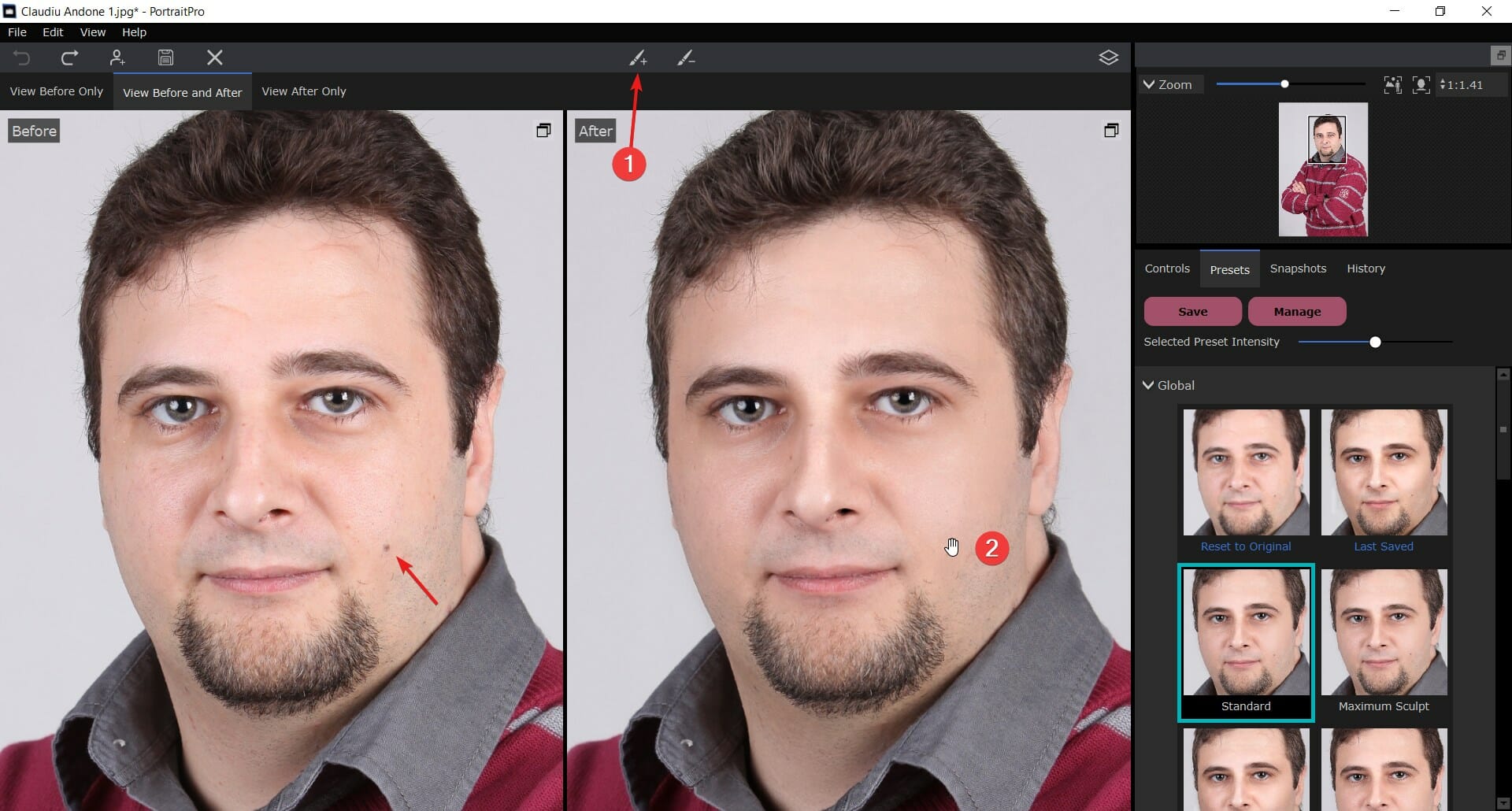
- As you can see from our screenshot, the imperfection is barely visible now.
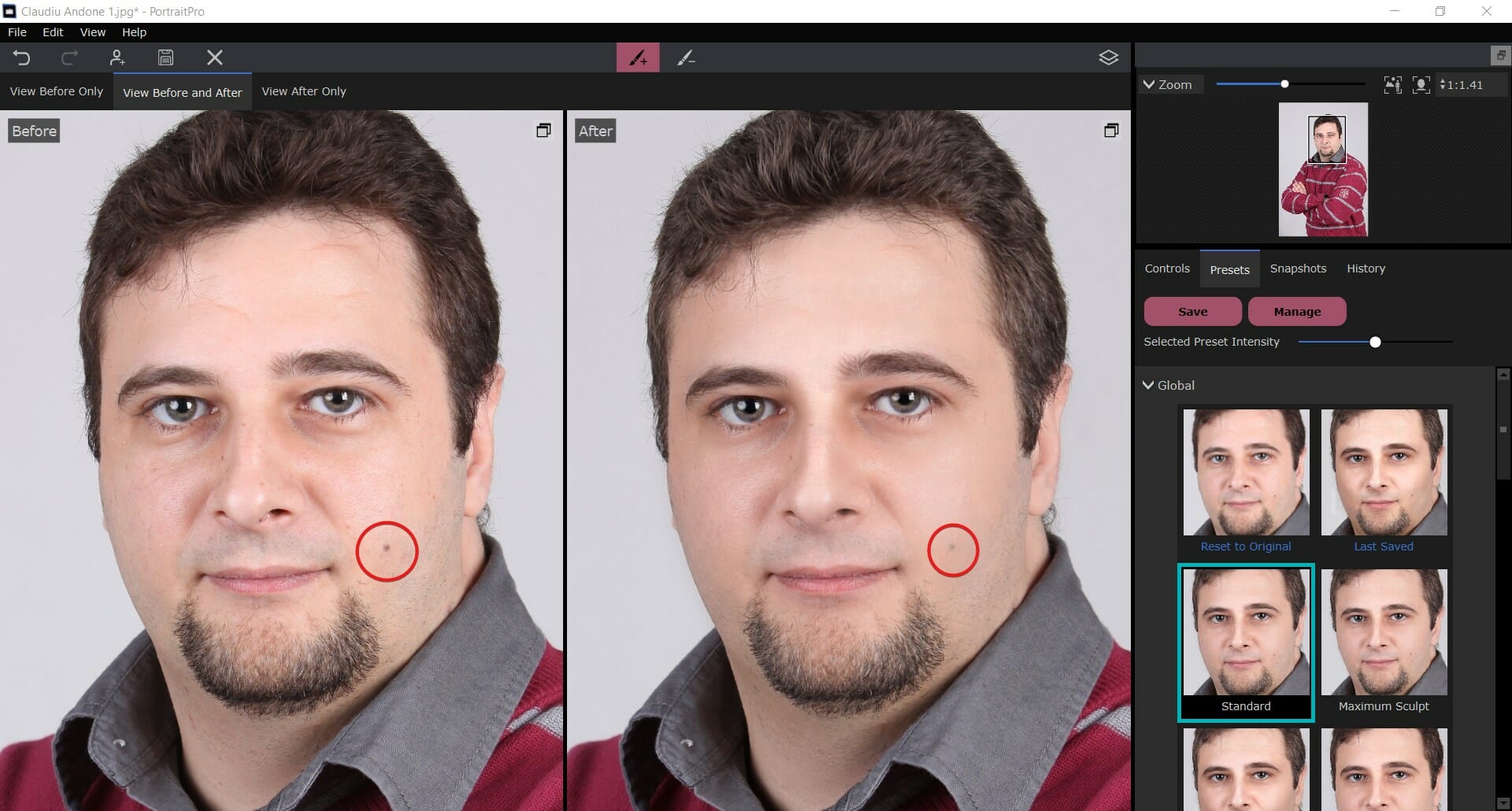
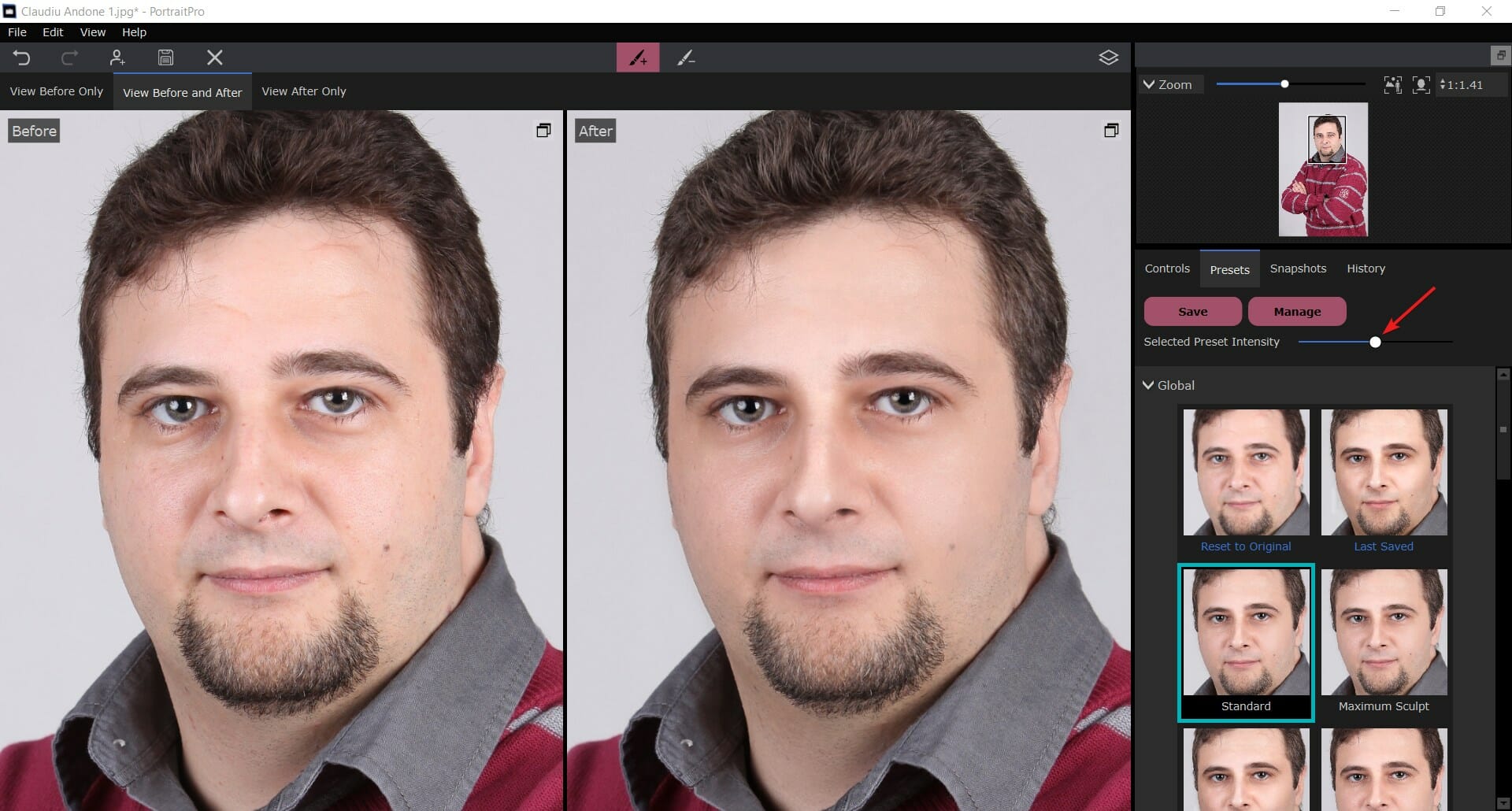
- Of course, there is also the option to increase or decrease the preset intensity by moving the slider to the left or right, but the Touch-Up brush allows you to apply it only to the needed areas, without changing the whole face.
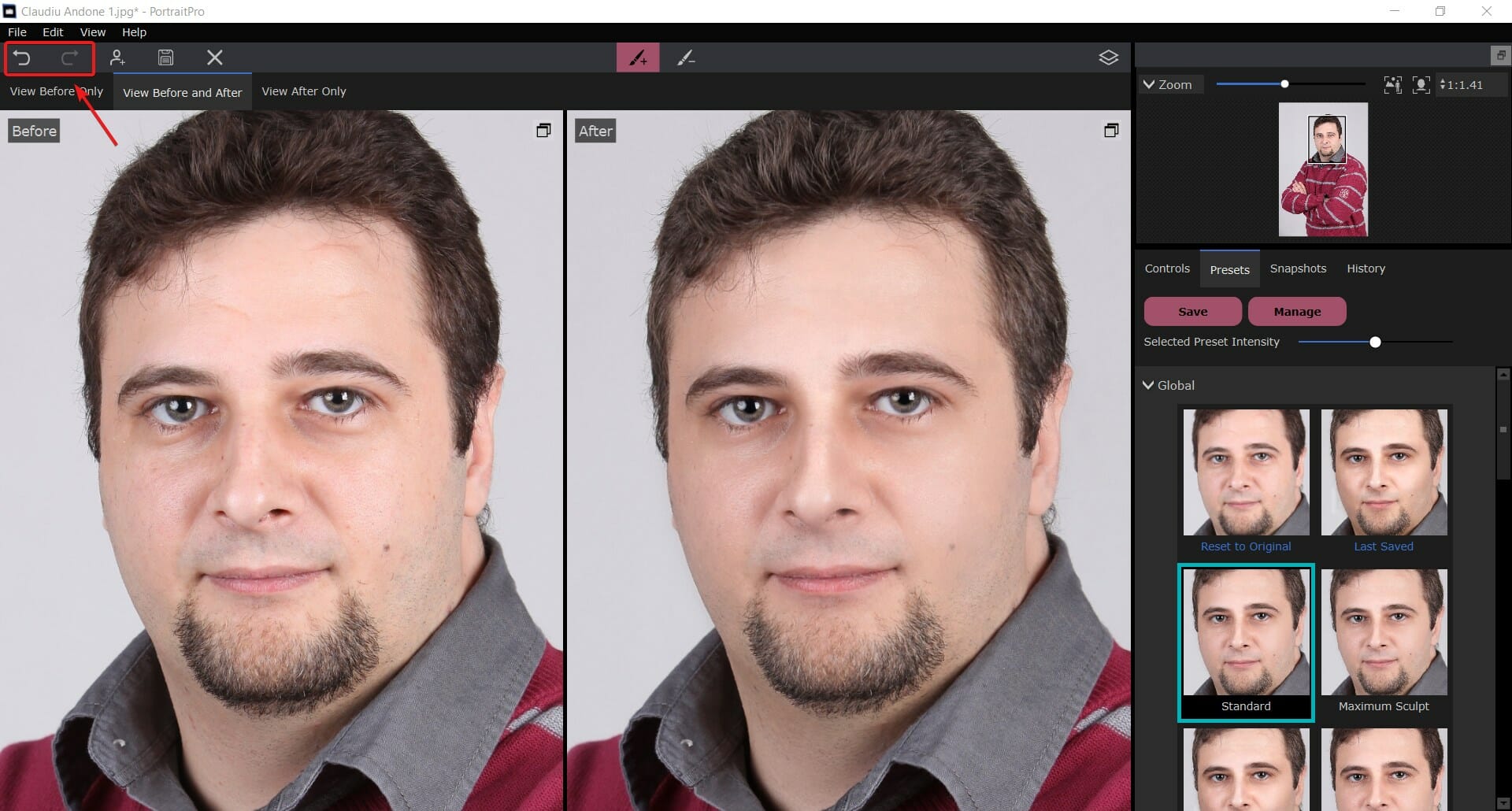
- And if you make any mistakes along the way, the Undo and Redo buttons from the top-left corner will help you correct them in an instant.
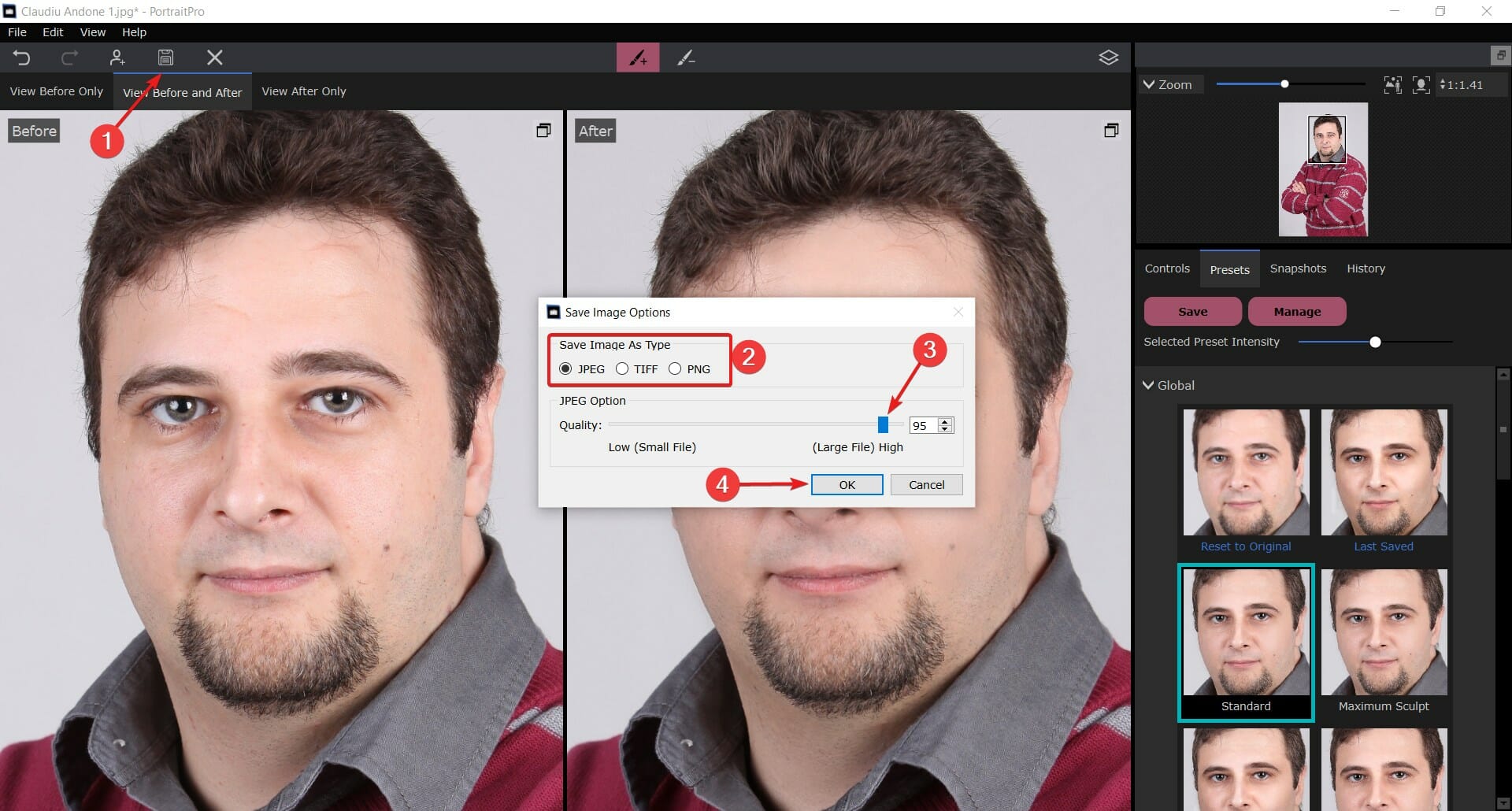
- After you finished the portrait editing, just click on the Save button, select the type and quality of the image, then hit OK. As you can see from our screenshot, there are options for vectorial, professional formats like TIFF and PNG.
- That’s it for a very quick makeover that took us only about two minutes from start to finish.
We can’t stress enough the fact that you can do a lot more with PortraitPro, as we highlighted some of its best features above.
There is no limit to the level of detail you can work on. And if you don’t like the built-in presets, there’s always the option of creating and saving your own.
And it’s not only about face retouching but also the hair, the lighting, make-up, shoulders, and a lot more.
PortraitPro Studio and Studio Max pricing
There are two options of pricing for PortraitPro and there is a huge 50% OFF discount to take advantage of right now.
➡ PortraitPro Studio – Can be purchased now for only $54.95 and includes RAW file processing and free updates
This is a great option for photo artists or photographers who want to edit their studio shots to perfection. We could see it as a great asset for a fashion magazine, for instance.
➡ PortraitPro Studio Max – This complete version includes all the features of Studio but also includes image batch processing for only $169.95
The Studio Max version would increase the efficiency of any business and editor that needs to process hundreds of portraits per day.
Whether it’s about passport and ID photos or studio family shots, the batch processing feature from PortraitPro will certainly save you a lot of time.

PortraitPro
This is the ultimate tool for portrait editing and can be used by anyone without any graphical skills.The best part is that it comes with a free trial version for testing and even if you buy it and change your mind, you can benefit from a 30-day money-back guaranteed policy.
- Pros
- Simple and friendly user interface
- Extensive AI features for face detection and correction presets
- Compatible with Windows and Mac
- Advanced face touch-up features
- Professional built-in presets for quick editing
- Steep learning curve
- Cons
- The free trial version doesn't allow saving and printing the resulted image
Final notes
We really had fun with this hands-on review of PortraitPro because that’s exactly what that was: fun! And that’s because it’s so simple to work with.
Of course, a professional graphics artist will have a better eye on customizing the different aspects, applying the correct lighting, make-up, etc. but the results were amazing even with the existing presets.
That is so great about this app, that it can be used by untrained users like ourselves but it will also be an amazing tool in the hands of a professional.
And the pricing is a fraction of the one for more complex software that also require a lot of training and skills to operate.
You need to know that Anthropics also has a great tool for body editing called PortraitBody and another one called LandscapePro specialized for – you’ve guessed – landscape photo editing.
We hope that our review provided a clear insight on how to use PortraitPro and its best features.
Did you try it yet? Tell us all about your experience in the comments section below and if you have any questions, we will try to answer them as soon as possible.
3 best VPNs for Stellaris to fix lag & reduce ping

Stellaris is a real-time grand strategy game that you can play both offline and online with your friends. It’s available on Windows PC, macOS, Linux, PlayStation 4, and Xbox One.
In the game, you can explore space, build your empire from scratch, handle diplomatic relations with others, and engage in space warfare.
When you play the game online with a friend, you might have high ping in Stellaris if the two of you connect from different parts of the world. Generally, Stellaris handles this scenario quite well.
Nevertheless, it occasionally causes connection issues due to high ping, which results in lag and delays, preventing you and your friends from enjoying the game together.
Luckily, you can quickly resolve this problem and fix Stellaris game issues by getting equipped with a fast and powerful VPN application. Using a VPN can improve your ping and fix Stellaris lag.
You just need a service that comes bundled with numerous VPN servers and top-of-the-line security features to protect your PC from DDoS attacks during gameplay.
What are the best VPNs for Stellaris?
Private Internet Access
Private Internet Access (PIA) is a VPN owned by Kape Technologies and the best way to reduce Stellaris ping.
It knocks other VPNs out of the pack when it comes to optimal performance, which means that you won’t have to worry about delays and lag when playing Stellaris online.
If you opt for PIA, you’ll be able to connect to over 3,200 servers in 46 countries, so there’s no way you won’t find the perfect VPN server that brings you one step closer to your friend.
Private Internet Access is an open-source VPN service that makes it more stable and allows for quick security and feature updates. It is also very transparent.
The VPN has a strict no-logs policy, keeping no record on browsing history, traffic data, or user identity.
Private Internet Access promises a great online experience with its built-in anti-tracking and adblocker features.
How can PIA improve Stellaris:
- Enhances your gameplay with private DNS servers
- Protects your PC from DDoS attacks
- Can disable encryption for an extra boost
- 30-day money-back guarantee (no free trial)
Private Internet Access is a subscription-based VPN with multiple plans available. The three-year plan offers the best deal.

Private Internet Access
Reduce Stellaris ping and get rid of lags with the help of PIA.NordVPN
NordVPN is another great choice if you want to improve speed rates, fix lag and reduce ping.
This VPN provider promises a connection speed of 6730+ Mbps. It has a large worldwide coverage of over 54000 servers, so you will be able to enjoy seamless Stellaris gameplay all over the world.
To fight against latency issues, NordVPN also implements private DNS on each server and secure and fast protocols, and unlimited bandwidth.
Moreover, to make sure that your data is completely private and your ISP will not be able to impose any restrictions, NordVPN uses advanced encryption, double VPN, and obfuscated servers.
Users of NordVPN can benefit from the split tunneling feature which lets you use both VPN traffic and local traffic at the same time.
Other key features of NorVPN include:
- Browser extensios for Chrome, Firefox and Edge
- 24/7 support
- Compatible with multiple devices
- Private IP
NordVPN is a subscription-based service with several plans available. Each plan includes a 30-day money-back guarantee.
NordVPN
Connect to thousands of high-speed servers and enjoy seamless and private gaming.CyberGhost VPN
CyberGhost VPN can help you fix Stellaris lag, thanks to blazing-fast Internet connections. Owned by Kape Technologies, it’s one of the fastest VPN apps and the only free virtual private network solution on this list, which works with all your devices.
This VPN solution provides you with a spectacular network of servers, optimized for gaming: over 6,200 (89 countries). It encrypts your VPN traffic using the OpenVPN protocol and includes a kill switch.
Cyberghost is compatible with all major device platforms, with dedicated applications for mobile, desktop, TV, and other devices.
This VPN encrypts your data using advanced 256-bit encryption. It also includes data leak-proof features such as split tunneling and a secure kill switch.
If you connect to a Cyberghost server you will be able to enjoy exceptional speed rates for as long as you want, as this VPN offers unlimited bandwidth.
How can CyberGhost VPN improve Stellaris:
- Uses exclusive DNS servers to enhance your gameplay
- Keeps your router safe from hackers
- DNS leak protection
- 45-day money-back guarantee (1-day free trial)
Cyberghost VPN is a subscription-based VPN with a 45-day money-back guarantee for all its plans.
Cyberghost VPN
Stop lag in Stellaris with the aid of this powerful VPN solution.Stellaris is an amazing game that you can play offline. But it becomes truly spectacular when you go online and play with friends. High ping shouldn’t be the root of your connection problems, though. Thankfully, you can use a powerful VPN app to eliminate Stellaris lag.
The best thing about VPNs is that they have numerous benefits, like using VPNs for Netflix or torrenting, so their functionality doesn’t stop at gaming. If you’re unsure about which way to go, opt for Private Internet Access.
Visit our VPN Troubleshooting Hub if you have any issues with your VPN app.
To learn more hacks, bookmark our Gaming VPN section.
How to Fix CPU Fan Not Spinning: 4 Ways

IIf your CPU fan is not spinning, your system can overheat quickly, leading to throttling or even permanent damage. This guide focuses on practical fixes you can try at home for both desktops and CPU fan not spinning laptop problems.
Why Your CPU Fan Is Not Spinning
A CPU fan not spinning issue can be caused by:
- Internal damage to the fan controller circuit.
- Loose or disconnected cables.
- Incorrect BIOS settings.
- Outdated chipset or BIOS firmware.
- Fan control software settings.
What can I do if my CPU fan is not spinning?
Table of contents
Sometimes a quick restart is all that it takes to fix this issue, so don’t hesitate to try it.
1. Check the Fan Connection
Turn off and unplug your computer. Open the case or laptop back panel and confirm that the fan cable is securely connected to the CPU_FAN header on your motherboard. If the connector is loose, re-seat it and test again.
2. Test the Fan on Another Header
If the fan doesn’t work on the CPU header, plug it into another fan header, like SYS_FAN. If it spins there, the CPU header might be damaged, and you may need to keep it on the alternate header or get the motherboard repaired.
3. Clean your fan
- Turn off your PC and disconnect it from the power source.
- Open the computer case. You might ned a screwdriver for that.
- Locate your CPU fan and use pressurized air to clean it.
Cleaning your fan is not an easy task if you haven’t done it before. If you don’t know how to do it, or if your PC is under warranty, contact a specialist.
4. Repair or replace your power supply unit
As you might have guessed by now, if your power supply does not work, your fan will not spin. So before replacing your motherboard or CPU, try replacing your power supply first.
This solution usually works if your computer is already making beeping noises or shuts down suddenly because that’s a clear sign of power supply malfunction.
Always keep in mind to ask for a specialist’s help when trying to repair such issues because they are more complex to handle.
5. Reset or flash your BIOS
- Turn off your PC.
2. Press the power button and immediately press F2 to get into the BIOS setup.
3. Look for the Load BIOS defaults on the BIOS screen (it’s usually F9) to reset your BIOS.

4. Press Esc or F10 and select Save and Exit press Enter.

5. Your system will restart. Check if the fan is working again.
The fan is controlled by your BIOS so resetting it may clear any potential problems and get your fan working. The steps below describes this process efficiently.
You can also hard reset the BIOS by removing all the power cables and the CMOS battery. Then you need to press the power button for at least 30 seconds.
6. Replace your fan and motherboard
If nothing works, you should consider replacing your fan. If this does not work, the only thing left to do is to replace the motherboard.
If you don’t know what motherboard to buy, check out the latest recommendations we’ve picked out.
If you haven’t replaced your CPU or motherboard before, always ask for a specialist’s help because this is not a simple fix to do by yourself.
We hope this article has helped you out and you got things back to normal with your CPU fan.
This is an important issue that has to be addressed quickly because the CPU might suffer unrepairable damage if not cool for a while.
You can also check our excellent article on how to change the CPU fan speed in Windows which might help you address this problem.
This isn’t the only fan issue, and we also covered 511 CPU fan not detected error, as well as CPU fan error on boot in our older guides.
If we’ve missed any tested method or you’ve had experience with solving this issue, share it with us in the comments.
3 best VPNs for Don’t Starve Together to fix lag and ping

Don’t Starve Together represents the multiplayer version of Don’t Starve. It’s a survival game that you can play with your friends to gather resources, craft items, fight off strange creatures, and do everything you can to stay alive (preferably together).
You can play it on Steam, Windows, Mac, Linux, PlayStation 4, and Xbox One. Unlike Don’t Starve, the multiplayer edition doesn’t have a story mode, and there’s no endgame. However, it has more content and more characters you can choose based on your playing style.
Unfortunately, some players report Don’t Starve Together lag while trying to enjoy the game. It can become troubling, especially if you’re in the middle of combat.

However, you can easily fix the Don’t Starve Together lag and enhance your gaming experience with the aid of a dependable virtual private network solution since a VPN can improve your ping.
What are the best VPNs to fix Don’t Starve Together lag?
Private Internet Access
The best way to reduce Don’t Starve Together ping is by using Private Internet Access (PIA). Created by Kape Technologies, PIA enables you to connect to +3,200 servers in 83 countries. You just have to find the optimal route to the game server.
PIA is one of the best VPN apps for Windows 10. It supports the OpenVPN and WireGuard protocols to provide top-notch security while creating speedy Internet connections.
Using this VPN solution, you have unlimited content regardless of your region’s geo-restrictions. Thus, you can freely access your favorite entertainment or gaming content anywhere you are.
How can PIA fix Don’t Starve Together lag:
- Refine your gaming experience with private DNS servers
- Select from static and dynamic IP addresses
- Offers DDoS protection during gameplay
- Doesn’t monitor your VPN traffic
- 100% open-source VPN tool
Private Internet Access doesn’t have a free trial but ensures you with a 30-day money-back guarantee.
Private Internet Access
Reduce Don’t Starve Together lag and eliminate ping, all thanks to the PIA security solution.NordVPN
You can use this industry-standard VPN to bypass lag or high ping in Don’t Starve Together. Plus, complete protection from online threats like malware or ads trackers.
NordVPN guarantees effective online privacy support and fastened servers that can exponentially improve your connection, thus gaming performance in Don’t Starve gameplay.
At the same time, the tool provides competitive security features due to strong data encryption while navigating online. There is constant data privacy with a kill switch option, DNS leaks test, private DNS, and so on.
This VPN solution is the right choice for gaming. With a number of 5400 servers present in 60 countries, it’s almost impossible to experience such things as a lag in your game.
Another advantage of using this software is the internet speed. This fastest VPN support gives you a secure connection without reducing the speed, and it protects your network from throttling.
How can NordVPN fix Don’t Starve Together lag:
- Thrwat protection from malware
- Obfuscated servers
- Fastest VPN connection out there
- One account for up to 6 devices
- Split tunneling support
- No buffering for online content
NordVPN
Take your PC gaming power to another level in terms of security and speed with this VPN.CyberGhost VPN
CyberGhost VPN is the next best solution for reducing Don’t Starve Together lag so that you can fully take advantage of the game and stop dying due to high ping.
Owned by Kape Technologies, CyberGhost offers is the only free VPN solution on this list. With more than 6,200 servers in 89 countries, CyberGhost VPN encrypts your traffic using the OpenVPN protocol and connects you to the web in no time.
How can CyberGhost VPN fix Don’t Starve Together lag:
- Use exclusive DNS servers to keep your DNS queries safe
- Built-in DNS leak protection
- Offers anti-hacker protection to defend your router
- Doesn’t capture and log your activities
CyberGhost VPN offers a 1-day free trial. Plus, it comes with a 45-day money-back guarantee.
CyberGhost
Reduce ping and lag in Don’t Starve Together using this robust VPN software.Don’t Starve Together is one of the most entertaining survival games for groups of friends. You can choose from unique characters and immerse yourself in a beautifully crafted world inspired by the work of filmmaker Tim Burton.
However, it can become frustrating to frequently experience the Don’t Starve Together lag. In this case, the easiest solution is to get equipped with a powerful VPN tool.
4 Ways to Install Group Policy Editor on Windows Home
The Group Policy Editor is a convenient tool for Windows operating systems. It can be used for solving a wide variety of problems, but not all versions of Windows have it pre-installed.
Only Windows Pro, Enterprise, and Ultimate editions come with this tool, while it’s not featured in the Home edition. That was the case in previous versions of Windows, and that’s also the case in Windows 10.
Some programmers/Windows enthusiasts found a way to install the Group Policy Editor on every version of Windows.
Windows7forum’s davehc created his installer for Group Policy Editor (and user @jwills876 posted it on DeviantArt).
And thanks to these guys, we can show you how to install the Group Policy Management Console on every version of Windows, including Windows 10 Home.
Does Windows 10 Home have a Local Group Policy Editor?
The Local Group Policy Editor is a valuable feature for accessing and tweaking essential settings on the Windows Enterprise, Professional, and Educational versions.
Unfortunately, this feature is not available on Windows 10 Home by default. However, there are still some ways to use the Local Group Policy Editor on Windows 10, as shown in this guide.
Is it possible to download Group Policy Editor?
There are multiple ways to install Group Policy Management Console; unfortunately, download is not one of those options since this is a core Windows feature.
It’s possible to install this feature on all versions of Windows, and we wrote a guide on how to install Group Policy Management Console on Windows 11, so you might want to check it out.
If you want to enable gpedit.exe in Windows 11, the process is pretty simple, and it’s similar to the one on Windows 10, so you’ll be able to do it in a matter of moments.
How do I install the Group Policy Editor in Windows 10 Home?
1. Download the Group Policy Editor enabler
- Download the installer from jwills876’s DeviantArt page.
- Before you run a downloader, you’ll need to go to the following location and copy the GroupPolicy and GroupPolicyUsers folders and the gpedit.msc file:
C:\Windows\SysWOW64
- Paste them into the following folder:
C:\Windows\System32 - Now, run the installer, follow the instructions, but close it at the last step (don’t hit the Finish button).
- Now, go to the following folder:
C:\Windows\Temp\gpedit - Right-click on x86.bat (or x32.bat, if you’re running a 32-bit version of Windows Home), choose Open With, and select Notepad (If you don’t like Notepad and want some more alternatives, you can check out this list with the best note taking apps).

- In the document, you’ll find a total of 6 code lines that contain the following string: %username%:f
- Replace every %username%:f with “%username%:”f (for example, replace icals %WinDir%SysWOW64gpedit.dll /grant:r %username%:f with icacls %WinDir%SysWOW64gpedit.dll /grant:r “%username%”:f)

- Now, save the file, and Run it as administrator.
The first still to install the Group Policy Editor on Windows 10 home is to download the enabler shown above. If nothing happens when you click on Run as an administrator in step 9, check out this helpful guide to fix the issue.
Also, if copy-paste isn’t working and you can’t move the folders mentioned above, follow this guide to fix the problem quickly.
After performing this, you should be able to run Group Policy Editor on your Windows 10 Home. We also should mention that this method was originally for Windows 7 but works well on Windows 10.
We also need to mention that this is not an official fix from Microsoft, so you should use it carefully.
2. Use DISM to install the Group Policy Editor
- The packages for the Group Policy Editor can be found under %SystemRoot%servicingPackages.
- There are two files matching the Group Policy Editor:
- Microsoft-Windows-GroupPolicy-ClientExtensions-Package*.mum, and
- Microsoft-Windows-GroupPolicy-ClientTools-Package*.mum.
- Type cmd in the Search box and click on Run as administrator to start Command Prompt.
- Paste the following command and press Enter to run it :
dism /online /norestart /add-package:"%SystemRoot%servicingPackages{{PackageFileName}}
If you can’t find the Group Policy Editor in Windows 10, it also might be disabled, so follow the steps above to enable it.
3. How can I open the Group Policy Editor?
- Press the Windows key + R to start the Run console.
- Type gpedit.msc and click OK.
- Now, the Group Policy editor should start and allow you to change the policies.

However, we have to specify that the policy editing only works locally because Windows 10 Home cannot join a domain in Active Directory, which is probably the leading cause why the editor wasn’t included.
4. Use third-party software for group policy editing
- Download Policy Plus from Github.
- You don’t need to install anything because it is a portable app.
- Policy Plus will start immediately.

As you can see, another way of editing the group policy on any Windows system, including the Home version, is the Policy Plus app.
It’s almost the same as the Group Policy editor but also has a search feature that helps you find specific policies.
What is the difference between Local Security Policy and Group Policy?
The Group Policy (gpedit.msc) is used to modify registries scattered across your Windows PC. It generally makes administering registry keys easier, saving you the stress of doing it manually.
On the other hand, the Local Security Policy (secpol.msc) is like a component of the Group Policy and is limited to local machines only. Basically, it is used to modify a subgroup of the registries you can administer with the Group Policy.
The Local Security Policy (secpol.msc) is a subset of Group Policy, focusing on local machine settings. To learn how to open it, check out this guide on how to open Local Security Policy.
With the information in this guide, you should be able to download the Group Policy Editor (gpedit.msc) if it is missing or not found on your PC.
If you find this article too tricky to understand, we also have another excellent guide on how to enable gpedit.msc on Windows 10 Home.
If you encountered other Group Policy bugs we didn’t cover, feel free to use the comments below. Give us more details about these issues, and we’ll try to find a solution as soon as possible.
Windows 7 and 8.1 also receive Patch Tuesday updates

We know, lots of years passed since most of us left both Windows 7 and Windows 8.1 behind and moved on to newer, safer, more performant versions of the operating system.
And, seeing how we’re already using Windows 11 now, you can understand just how much time has actually passed ever since.
But Microsoft hasn’t forgotten about these two obsolete operating systems, even though they have reached the end of mainstream support and are now in extended security update (ESU) support.
Thus, during this month’s Patch Tuesday rollout, the Redmond tech company also provided a cumulative update for users will on these versions.
What’s new for Windows 7?
KB5011552 doesn’t bring that many changes for Windows 7 SP1 and Windows Server 2008 R2 SP1, just some small administrator management tweaks.
- Addresses SHA1 deprecation in Windows Embedded platforms by removing specific SHA1-signed security and non-security fixes and resigned the fixes with SHA2 in this release.
- Addresses an issue in which after the January 2022 Windows update is installed on the Primary Domain Controller emulator (PDCe), listing or modifying name suffixes routing by using Netdom.exe or “Active Directory Domains and Trusts” snap-in may fail with the following error message: “Insufficient system resources exist to complete the requested service.”
Known issues
- After installing this update and restarting your device, you might receive the error, “Failure to configure Windows updates. Reverting Changes. Do not turn off your computer”, and the update might show as Failed in Update History.
- Certain operations, such as rename, that you perform on files or folders that are on a Cluster Shared Volume (CSV) may fail with the error, “STATUS_BAD_IMPERSONATION_LEVEL (0xC00000A5)”. This occurs when you perform the operation on a CSV owner node from a process that doesn’t have administrator privilege.
[DIRECT DOWNLOAD LINK]
What about Windows 8.1?
The release for this OS is a bit larger than the one for its predecessor, but the difference is barely noticeable. KB5011564 actually addresses an issue in which some low integrity level process apps might print unexpectedly.
- Addresses an issue that occurs when you try to write a service principal name (SPN) alias (such as www/contoso) and HOST/NAME already exists on another object. If the user has the RIGHT_DS_WRITE_PROPERTY on the SPN attribute of the colliding object, you receive an “Access Denied” error.
- Addresses an issue in which after the January 2022 Windows update is installed on the Primary Domain Controller emulator (PDCe), listing or modifying name suffixes routing by using Netdom.exe or “Active Directory Domains and Trusts” snap-in may fail with the following error message: “Insufficient system resources exist to complete the requested service.
Known issues
- Certain operations, such as rename, that you perform on files or folders that are on a Cluster Shared Volume (CSV) may fail with the error, “STATUS_BAD_IMPERSONATION_LEVEL (0xC00000A5)”. This occurs when you perform the operation on a CSV owner node from a process that doesn’t have administrator privilege.
- After installing updates released January 11, 2022 or later updates, apps using Microsoft .NET Framework to acquire or set Active Directory Forest Trust Information might fail, close, or you might receive an error from the app or Windows. You might also receive an access violation (0xc0000005) error.
 NOTE
NOTE
For developers: Affected apps use the System.DirectoryServices API.
[DIRECT DOWNLOAD LINK]
As usual, these updates should be delivered automatically but if you’d like to hurry Windows along head to Windows Update and try to get your system to update manually.
It’s worth noting too that this update on Windows 7 is only for customers paying to keep their system up to date.
Are you still using one of these obsolete versions of the Windows OS? Share your experience with us in the comments section below.
Is Google building a Windows emulator for its Stadia platform?

Google is planning to unveil a Windows emulator next week at the upcoming Google for Games Developer Summit on the 15th, apparently. Marcin Undak, of Stadia porting platform team, will host a session at the summit providing a “detailed overview of the technology behind Google’s solution for running unmodified Windows games on Stadia,” according to the summit’s website.
The move seems like a bid to revitalize the Stadia gaming platform, possibly in addition to licensing “Google Stream” technology, by allowing Windows games to run unmodified on Stadia. At present, game developers have to port their Windows-based games to Google’s service since it is Linux-based. This ultimately means more legwork for developers, some of whom may not find it worth the effort. If Google could work around this hurdle it would inevitably mean that more games would find their way to Stadia, which of course would lead to it becoming a much more viable gaming platform than it is today.
Featured image courtesy of Techradar.com.
How to Run Biomutant on Windows 11 Without Issues
Released in 2021, Biomutantis an action RPG video game that was developed by Experiment 101, a Swedish gaming developer, and published by THQ Nordic.
It’s set in a post-apocalyptic world where players can explore vast underground areas and miniature galaxies. Players can customize their characters by adding bionic body parts and you can even mutate your body for new abilities; hence the name Biomutant.
The game is available on console and Steam, and it has seen a moderate level of success. However, not long after the release of the game, players started to complain that the game crashes while playing, especially on Windows 11.
For whatever reason, the problems increased when players upgraded their computers to Windows 11.
What issues does Biomutant have and why?
According to gamers across the internet, some of the more common issues include the game randomly crashing, freezing, the audio disappearing, or blurry visuals.
And these are issues that plague both PC players and console gamers equally. By and large, the problems seem minimal on Windows 10 and exasperated on Windows 11.
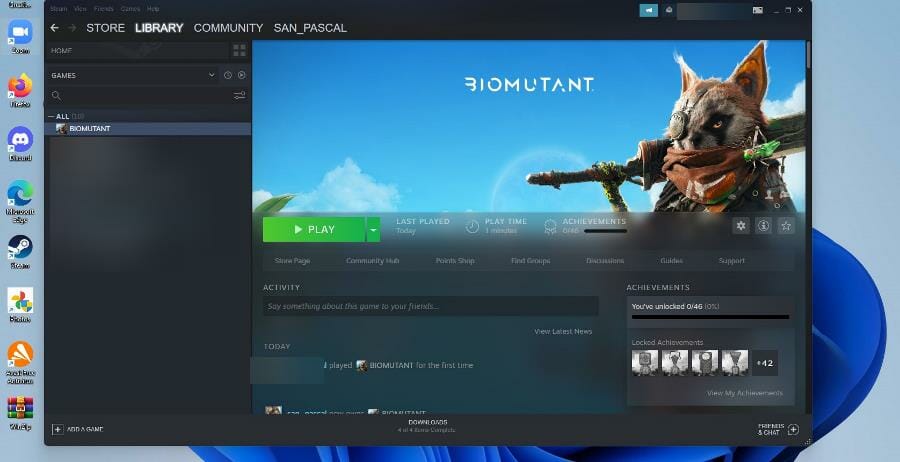
It’s still unknown whether or not Biomutant can even properly run on Windows 11. It probably could just be how intense the game is on CPUs.
It’s a well-optimized title, but the game still requires a lot of resources from your computer. It must be mentioned that if any of these solutions ultimately do not work, then you’ll have to downgrade back to Windows 10.
This guide will show you how to run Biomutant on Windows 11. Unfortunately for console gamers, they’re out of luck.
They’ll have to wait until the developer rolls out a patch to fix the crashing problems affecting Biomutant. Windows 11 solutions are luckily straightforward to understand.
How do I solve my Biomutant problem on Windows 11?
1. Check the game file integrity
- Open the Steam app.
- Click on Library in the top bar.
- Right-click Biomutant and select Properties.
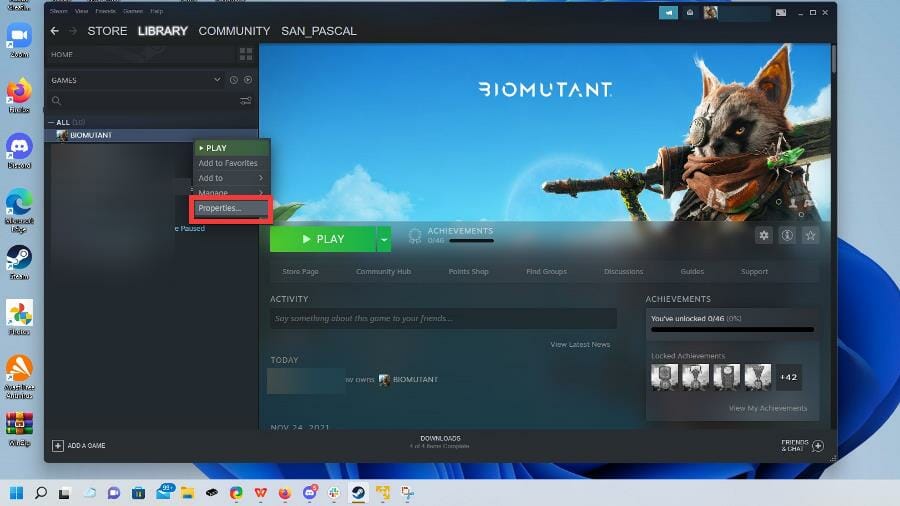
- Click Local File.
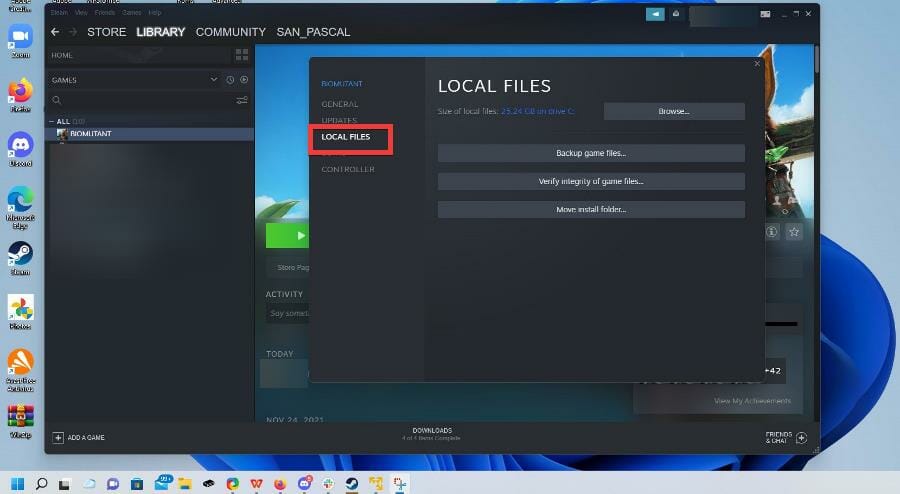
- Select Verify integrity of game files…
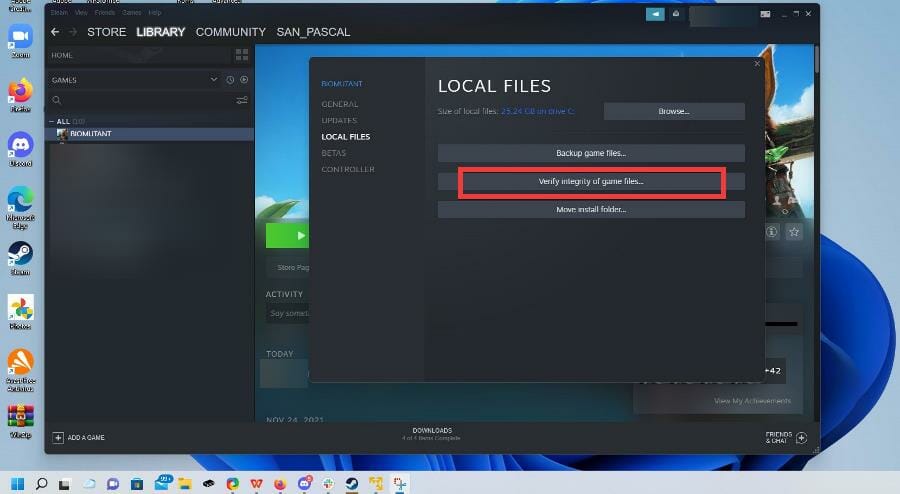
- Give Steam some time to verify the files.
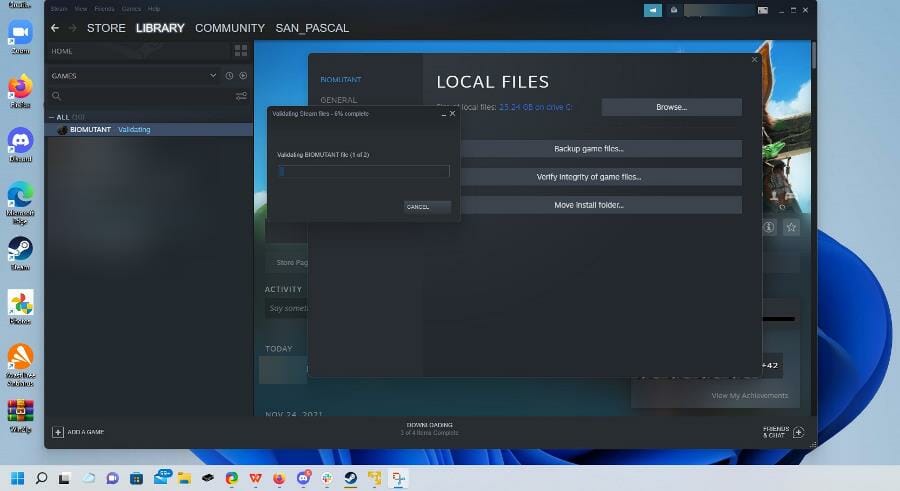
- If the Biomutant files show no problems, then the Steam will state all files are successfully validated. If not, follow one of the solutions below.
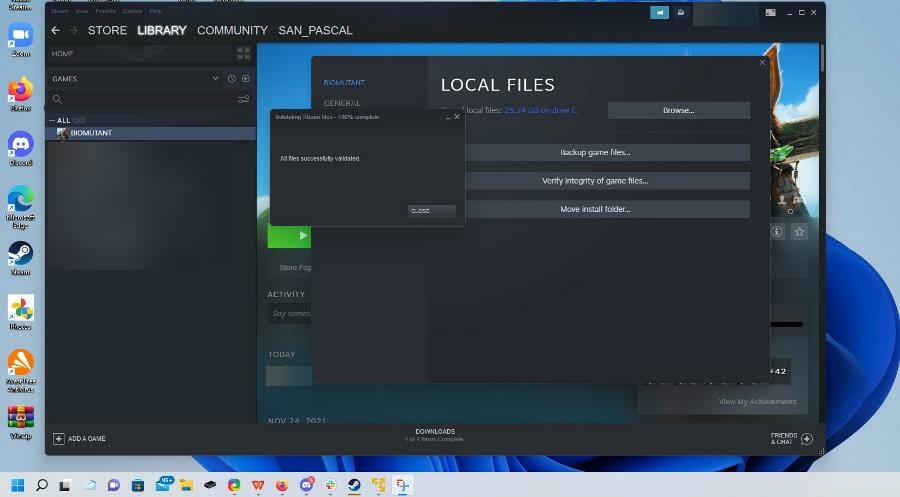
2. Change overlay settings
- Like before, right-click on Biomutant in your Steam Library.
- Select Properties.
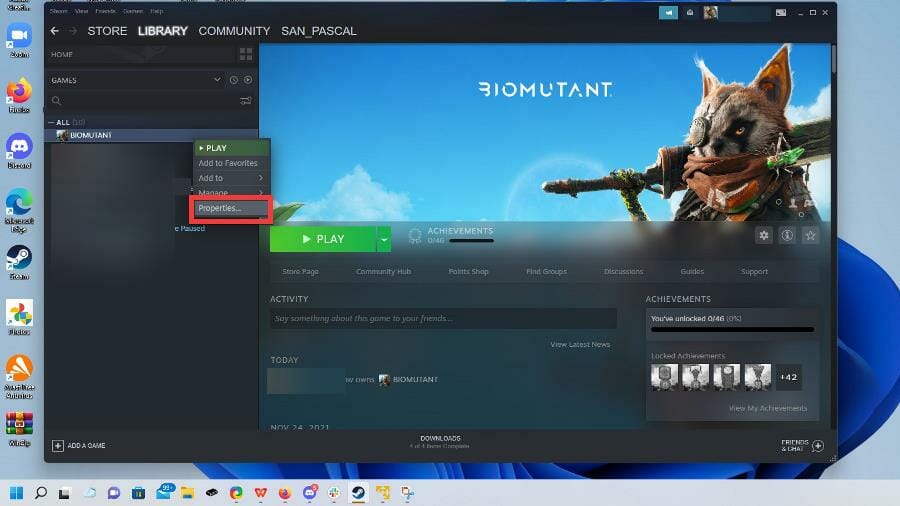
- Click the General tab on the left.
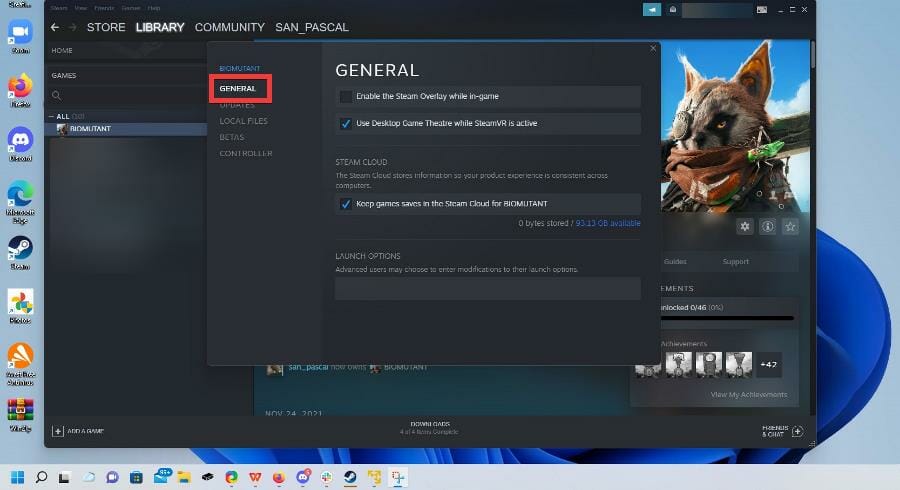
- Untick the box next to Enable Steam overlay while-in game.
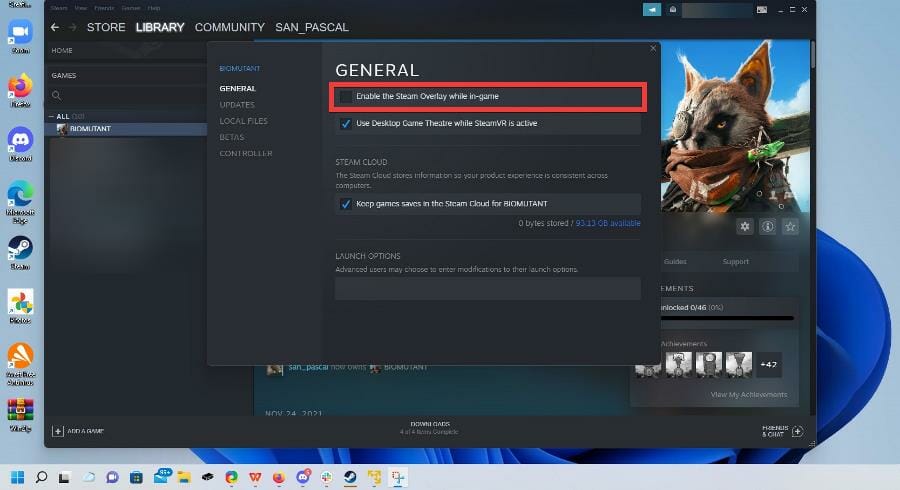
- Launch the game and see if the problem persists.
3. Install the latest graphics drivers
- Click on the magnifying glass icon in the taskbar to bring up the Windows 11 search bar.
- Search for the Device Manager and click the first entry you see.
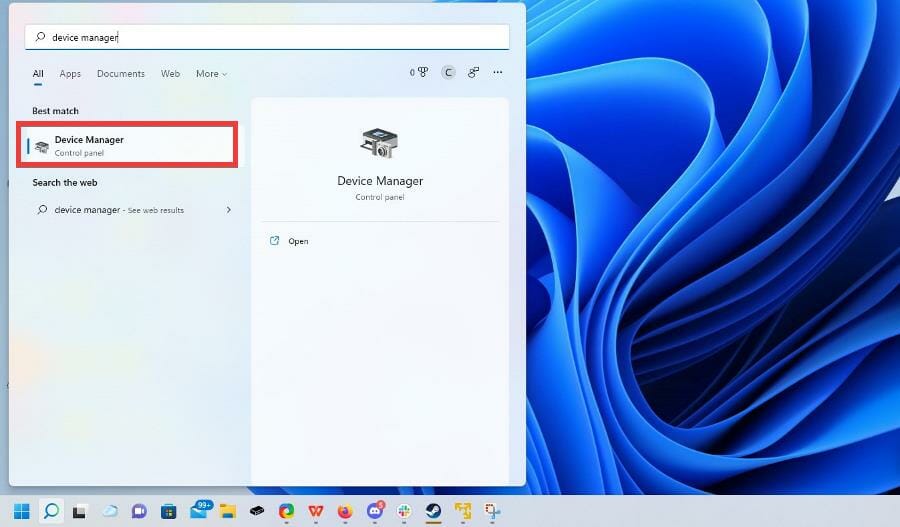
- Click on Display adapters.
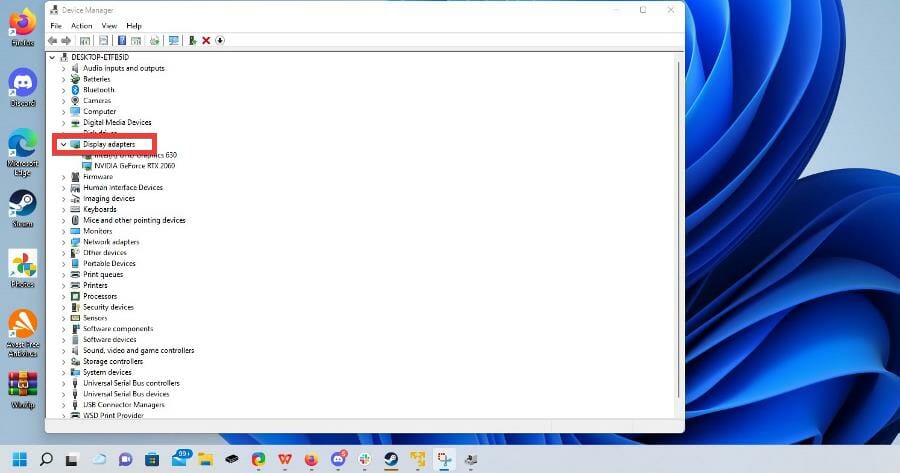
- Right-click on a graphics card and select Update driver.
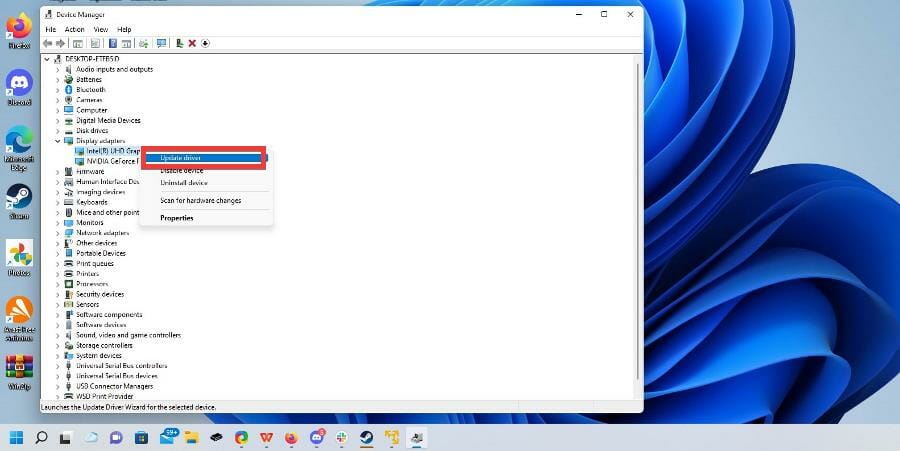
- Select Search automatically for drivers.
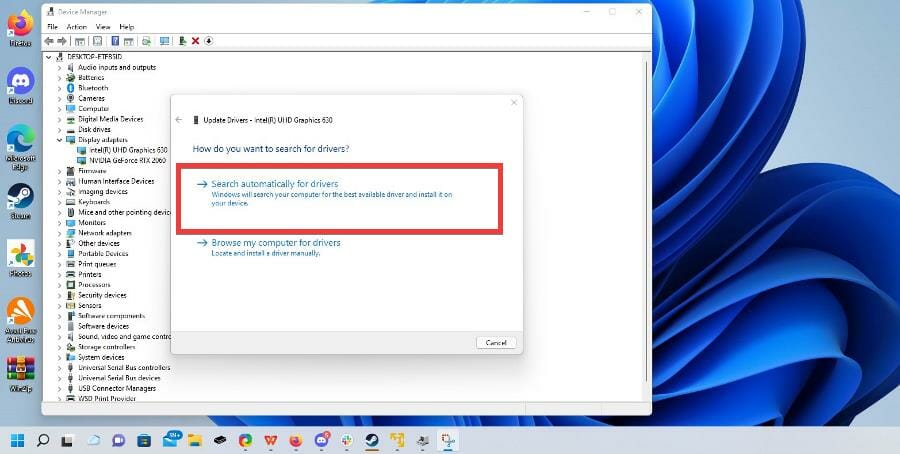
- Windows 11 will automatically download and install any drivers available.
Another option is to set up an automated driver updater such as Outbyte Driver Updater. This tool is light, easy to use, and requires little to no effort on your part.
You can either pick specific drivers you want it to check, or let it take care of all of them, in bulk. It will automatically install new versions whenever they become available.
4. Run Biomutant as high priority
- Press the ALT+CTRL+DEL keys on your keyboard.
- Select Task Manager.
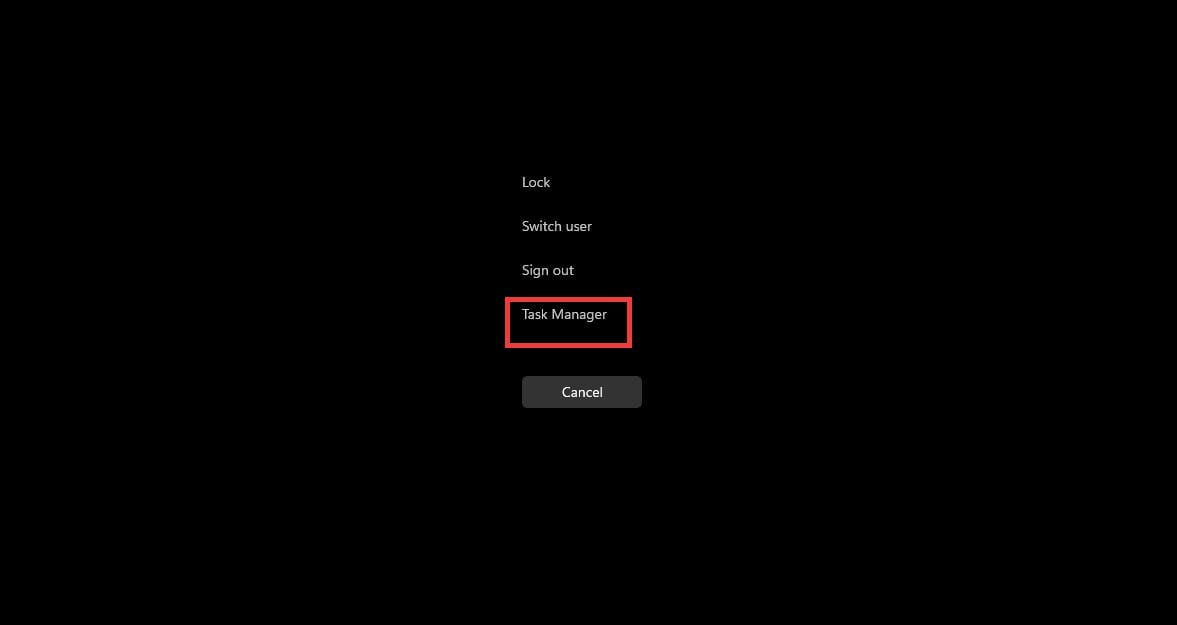
- In the Task Manager, go to the Detail tab.
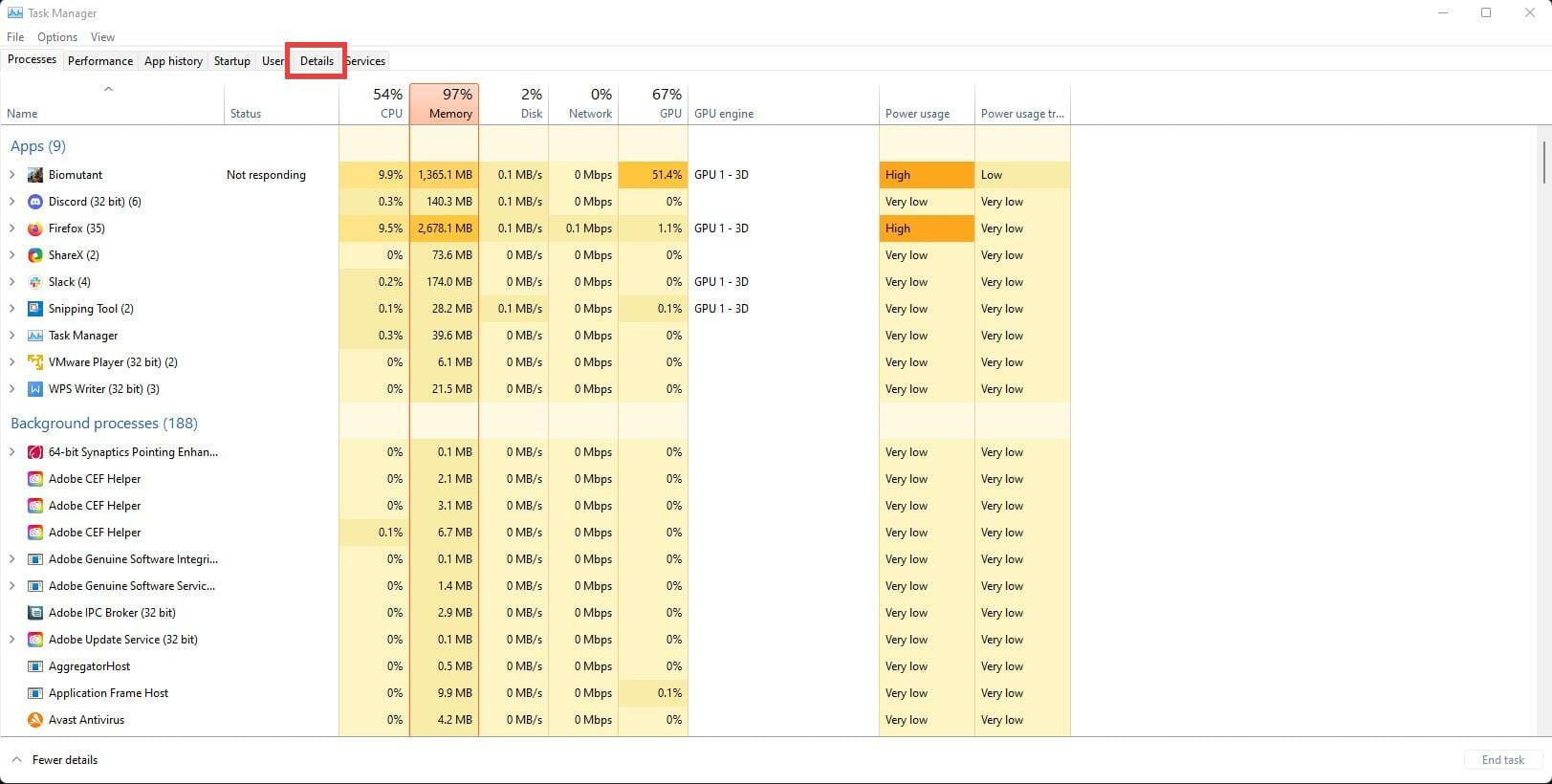
- Locate Biomutant in the app list and right click the entry.
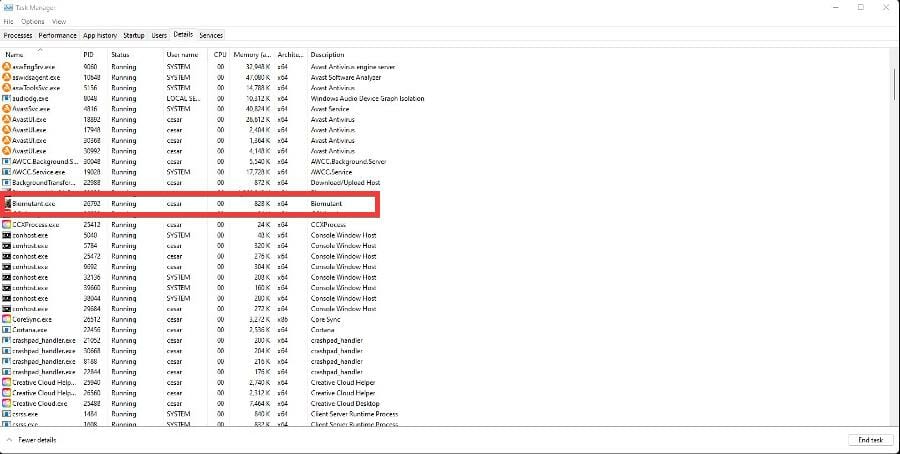
- Select Set priority.
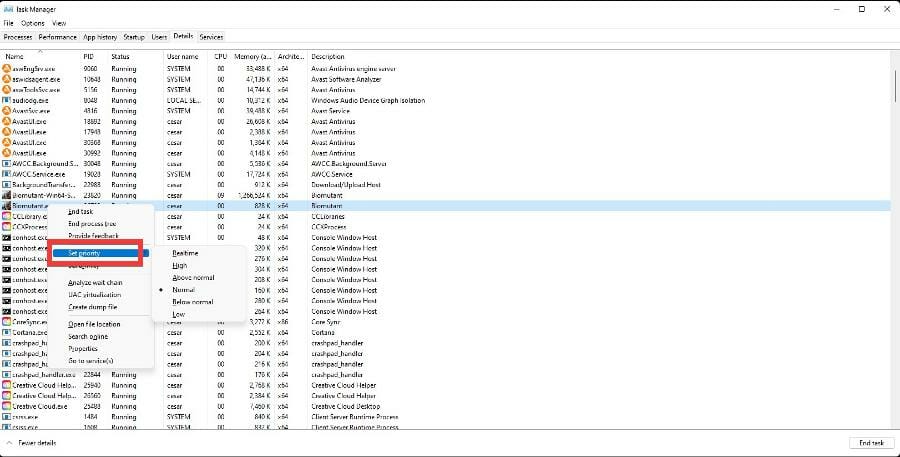
- Select High in the drop down menu.
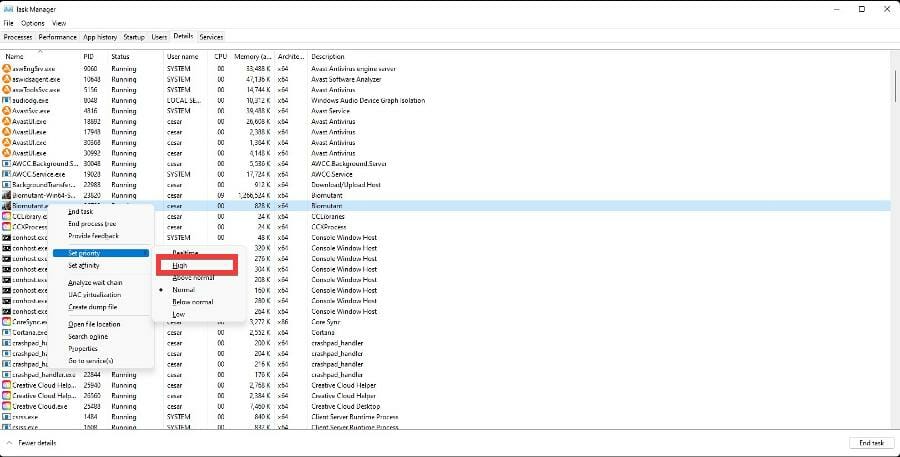
- A window will appear asking if you want to change the priority of Biomutant. Select Change priority.
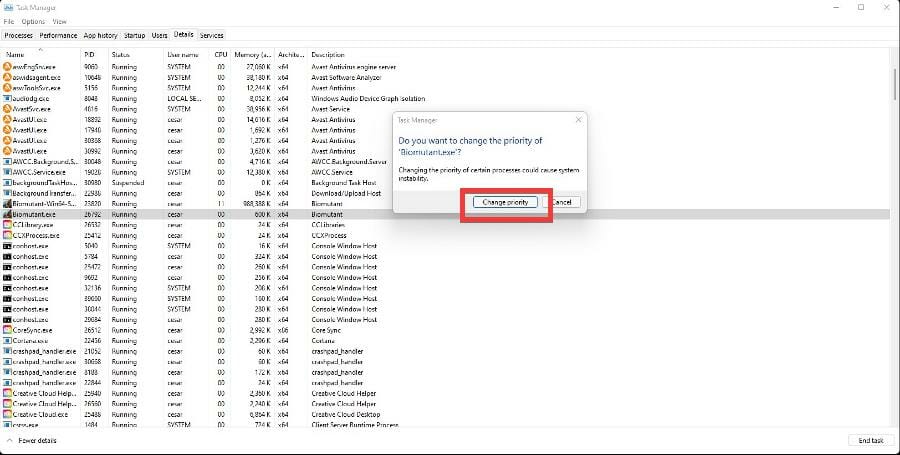
5. Limiting down to 30 Frames-per-second
- Open the search bar and look for NVIDIA Control Panel. This only works if you have a NVIDIA graphics card.
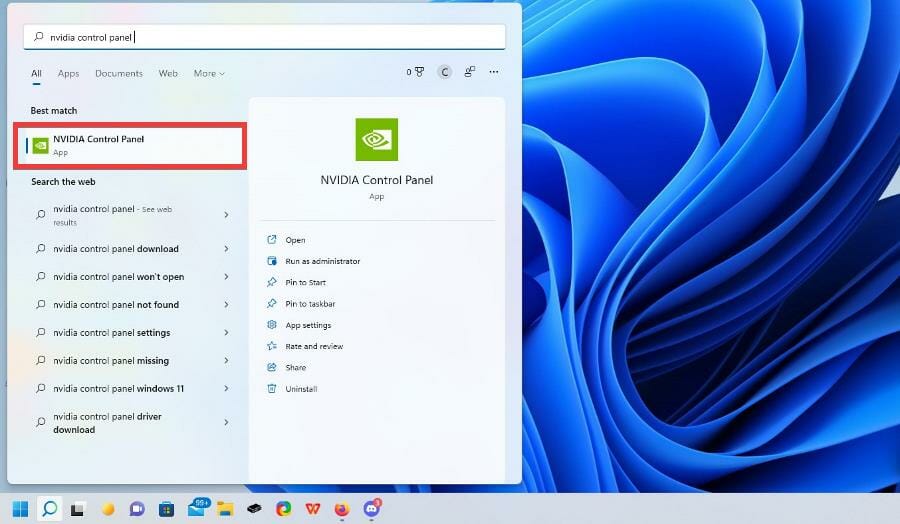
- Click 3D Settings.
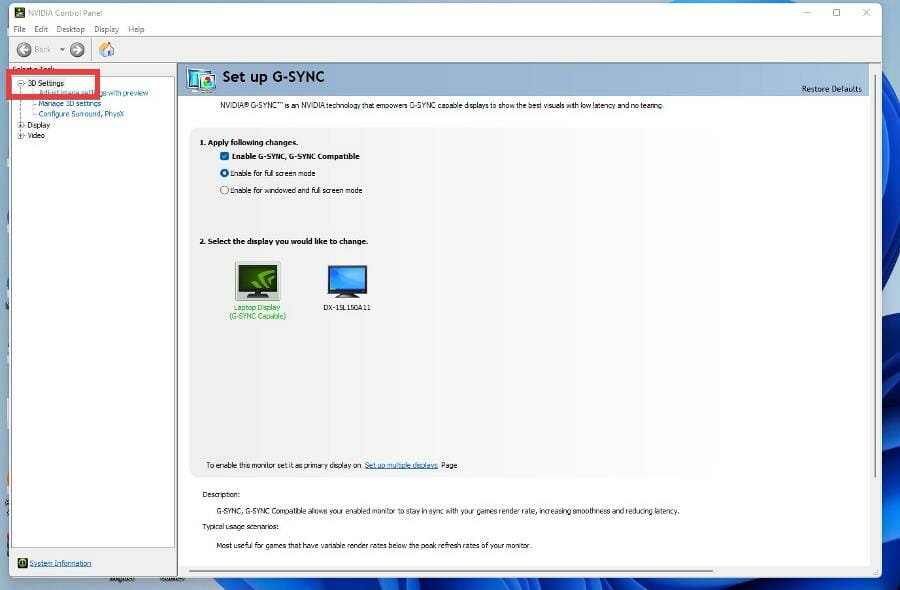
- Click Manage 3D settings.
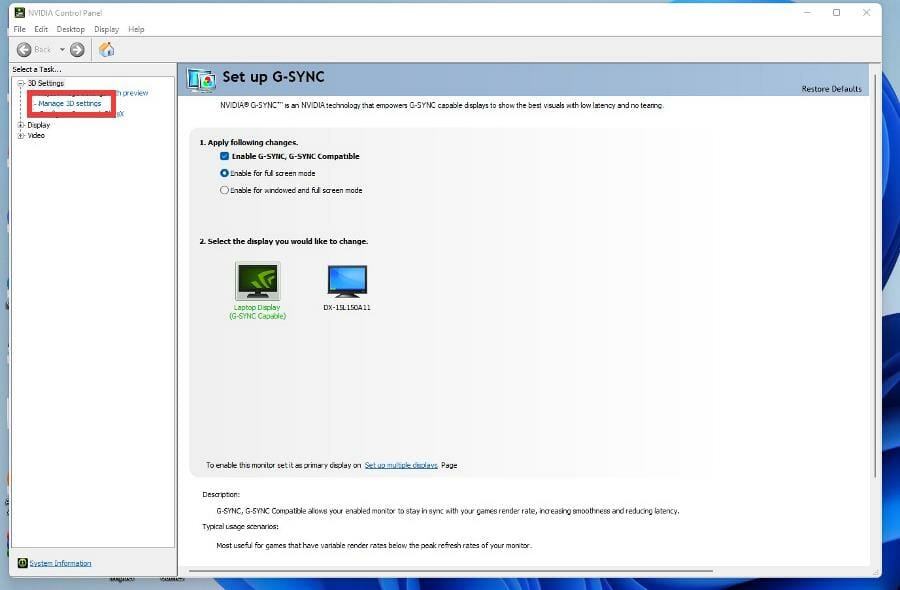
- Click on the Program Settings tab.
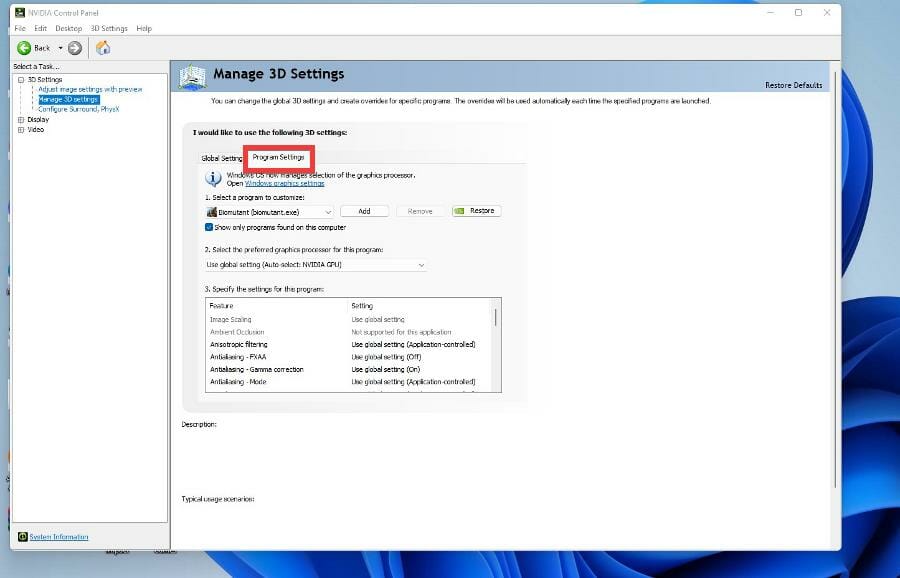
- Under Select a program to customize, locate and select Biomutant (biomutant.exe).
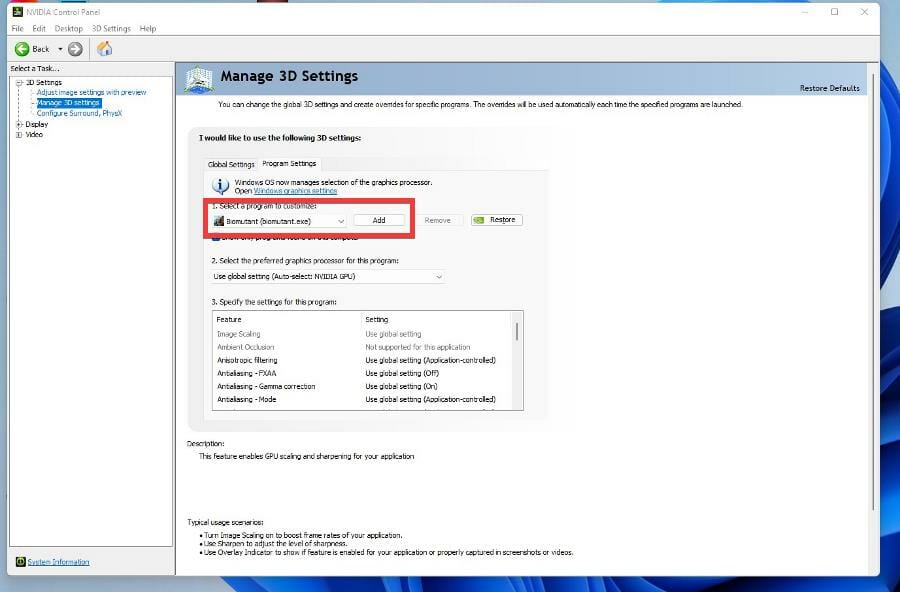
- Under Specify the settings for this program, locate and select Max Frame Rate.
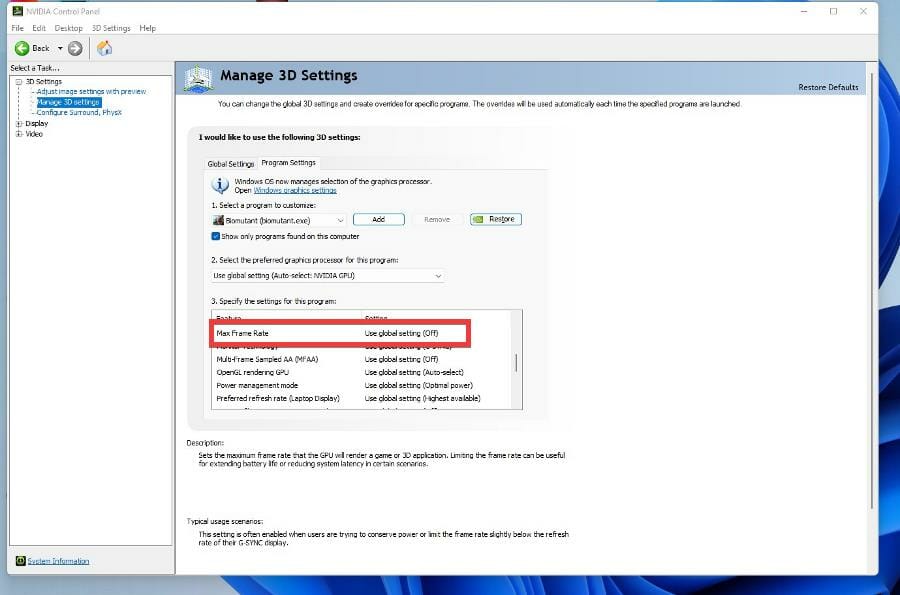
- Click the drop-down menu next to Max Frame Rate.
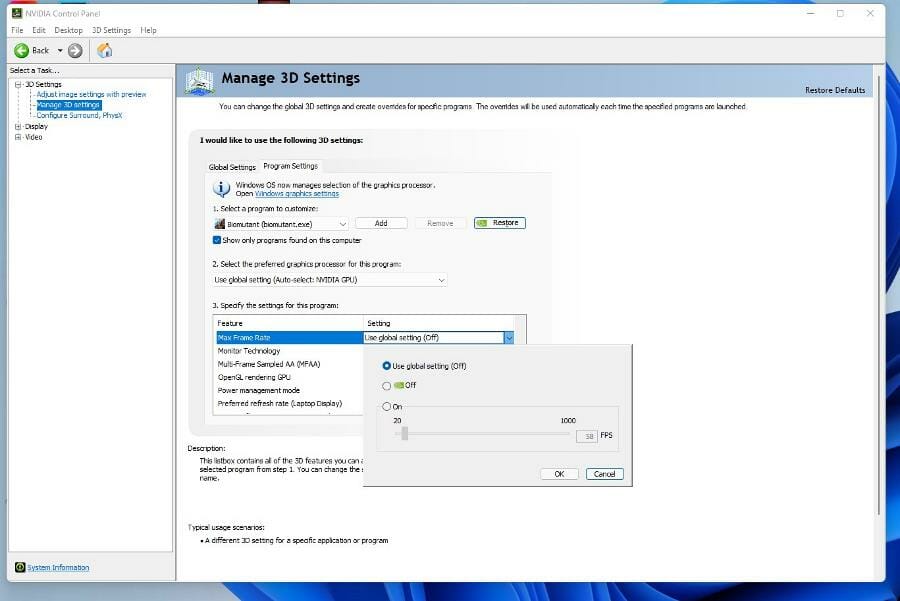
- Click On and adjust the frame rate to 30 FPS.
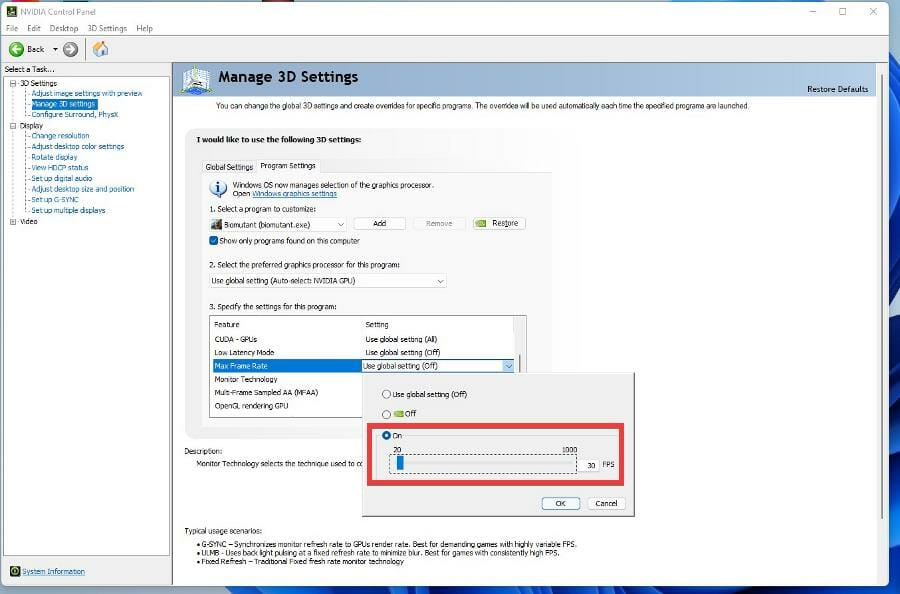
- Then click on OK.
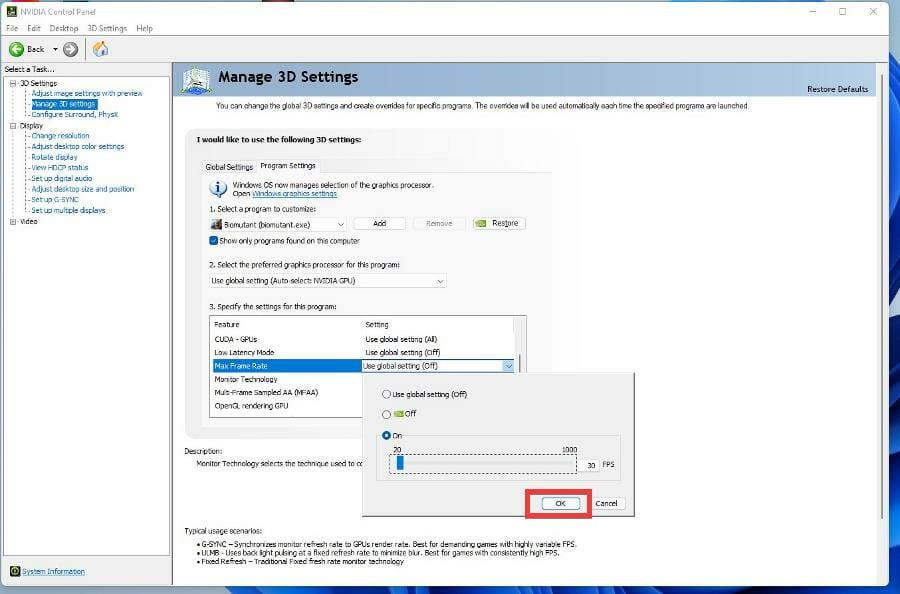
6. Installing Visual C++ Redistributable
- In a web browser, search for visual studio redistributable and click the entry that states Latest supported Visual C++ Redistributable downloads.
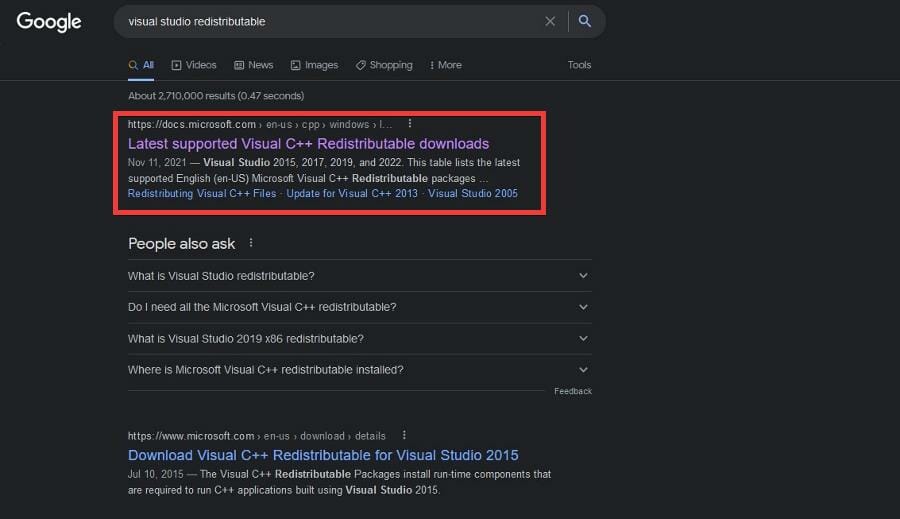
- Under Visual Studio 2015, 2017, 2019, and 2022, select the file that is applicable for your version of Windows. In this example, this guide will select x64.
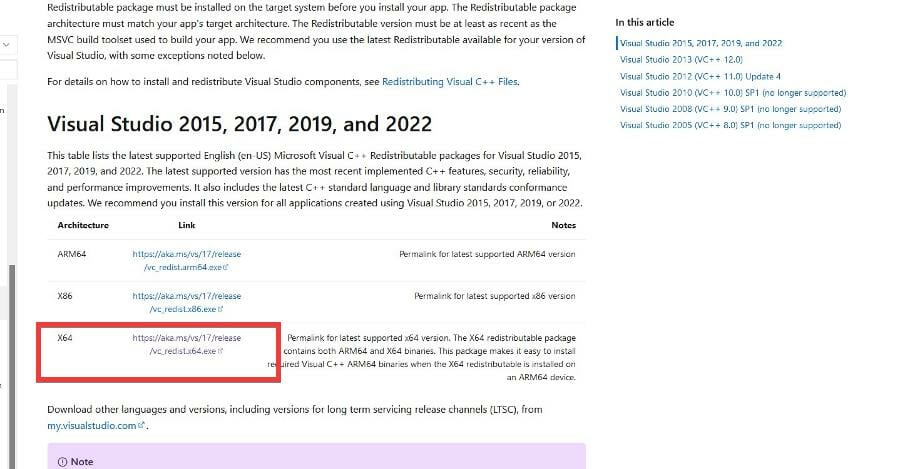
- Click Save File in the small window that appears.
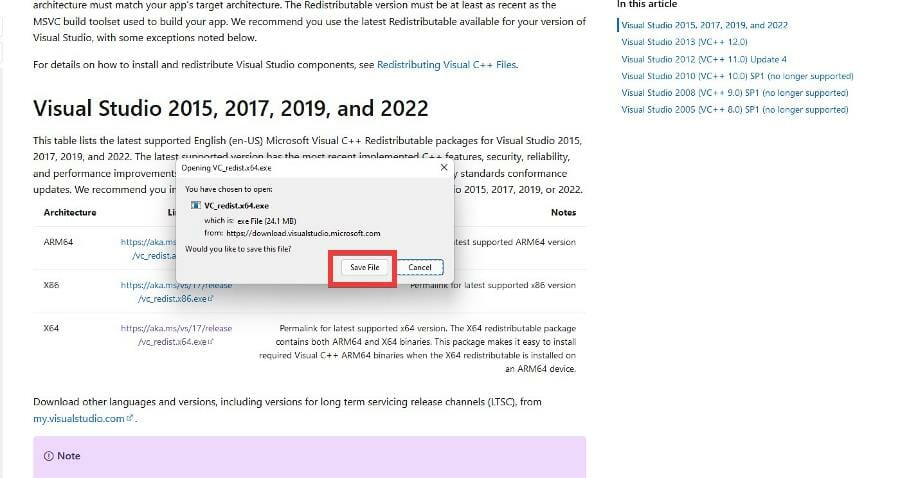
- Locate the file and double click it.
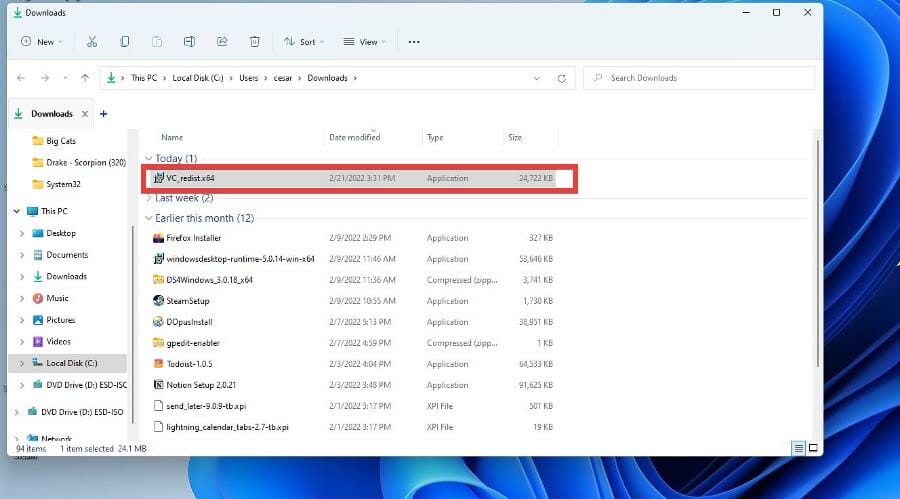
- This will be begin the installation process. Click the box next to I agree to the license terms and conditions.
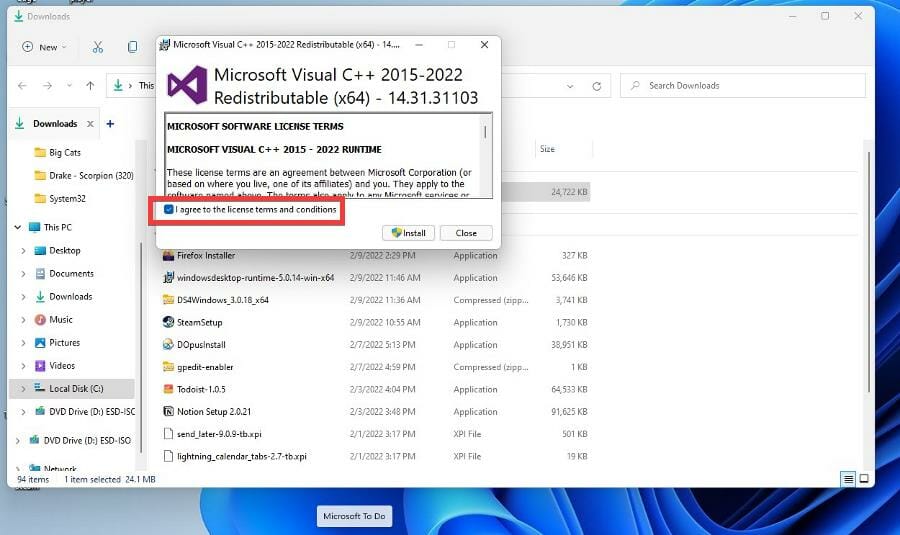
- Click Install.
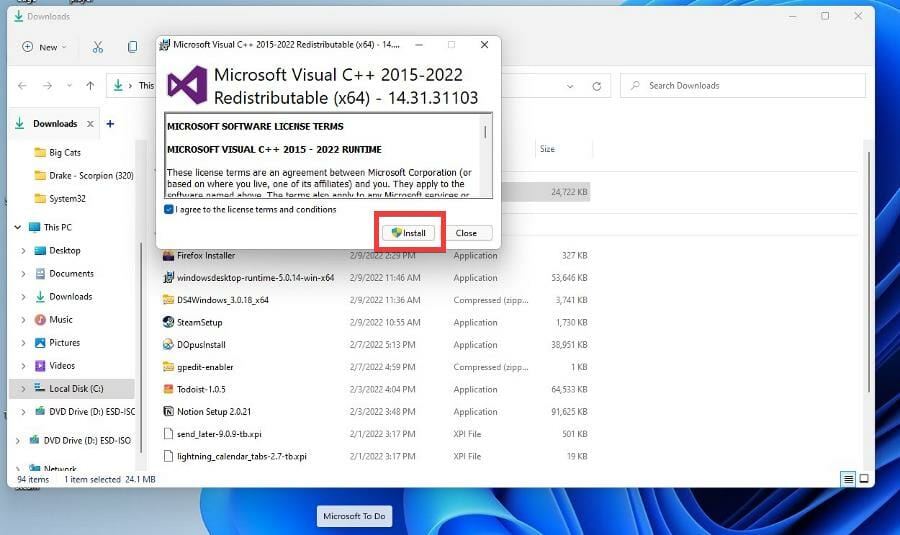
- After installation, click Restart to restart your computer.
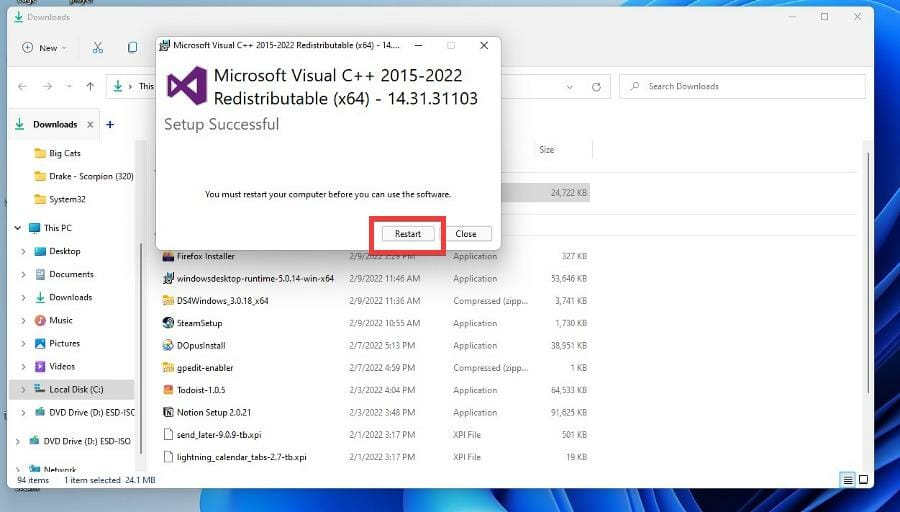
7. Reverting back to Windows 10
- You can start this last ditch effort by clicking on the Start menu and selecting the Settings icon.
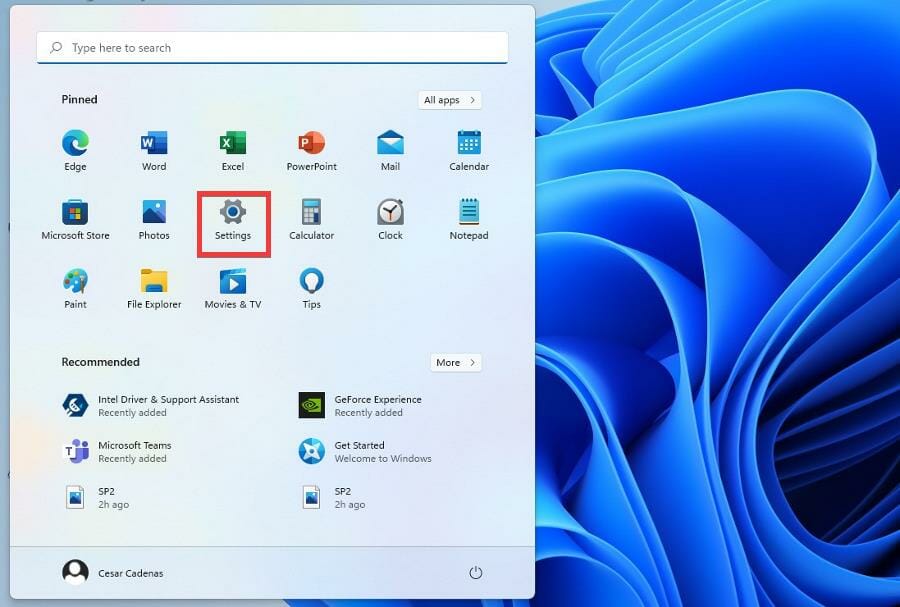
- Click on the System tab.
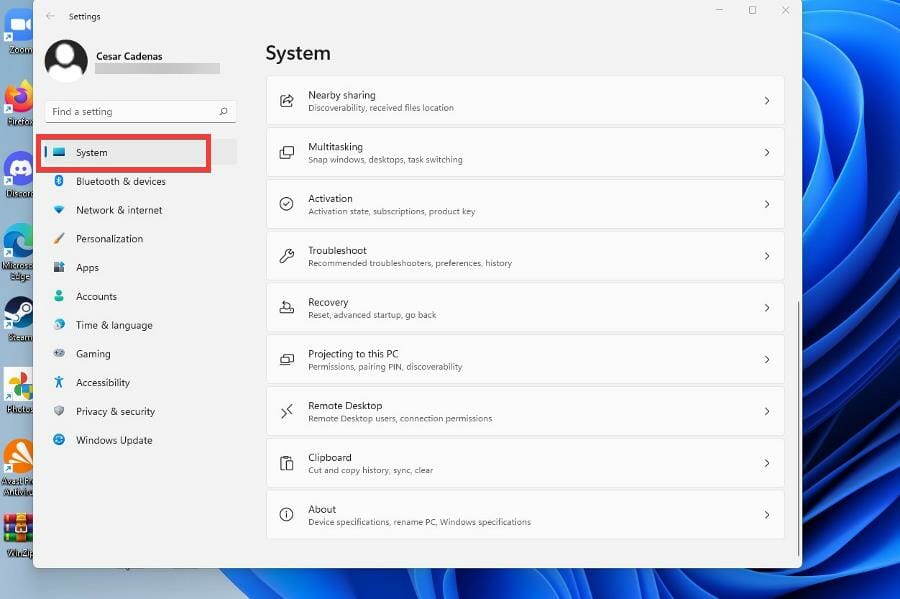
- Scroll down and locate the Recovery tab.
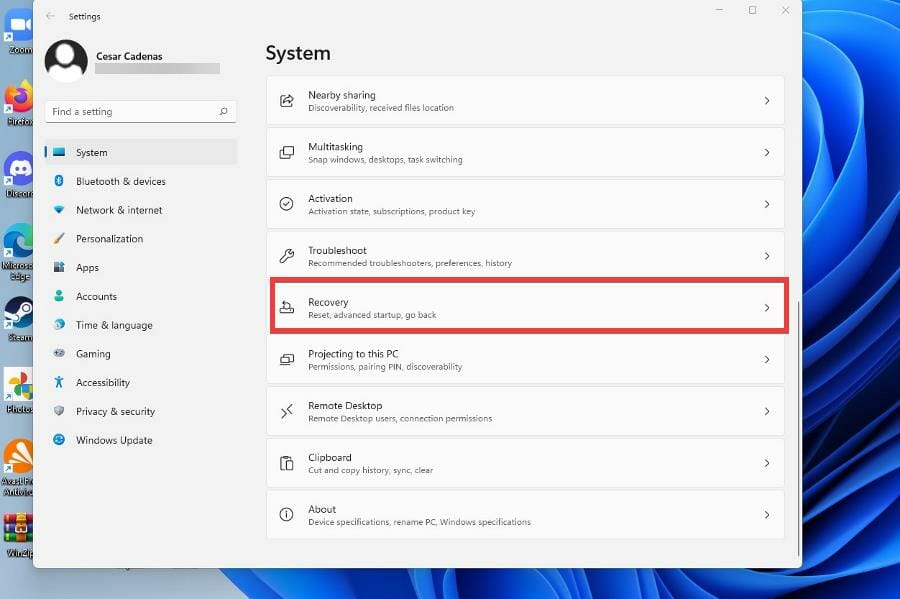
- Under Recovery options, click on the Go back button to revert your Windows 11 computer back to Windows 10.
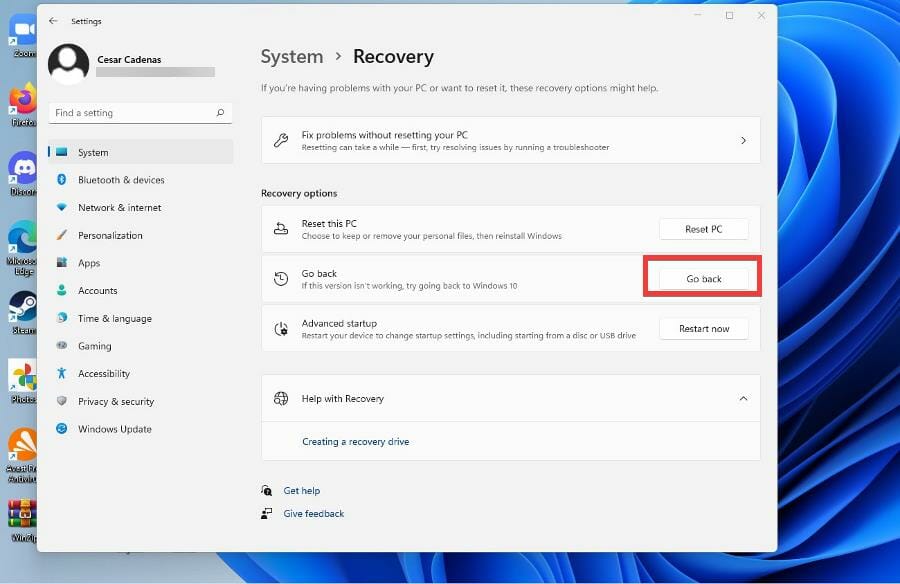
- A blue window will appear asking you why you want to go back. Select an answer and click Next.
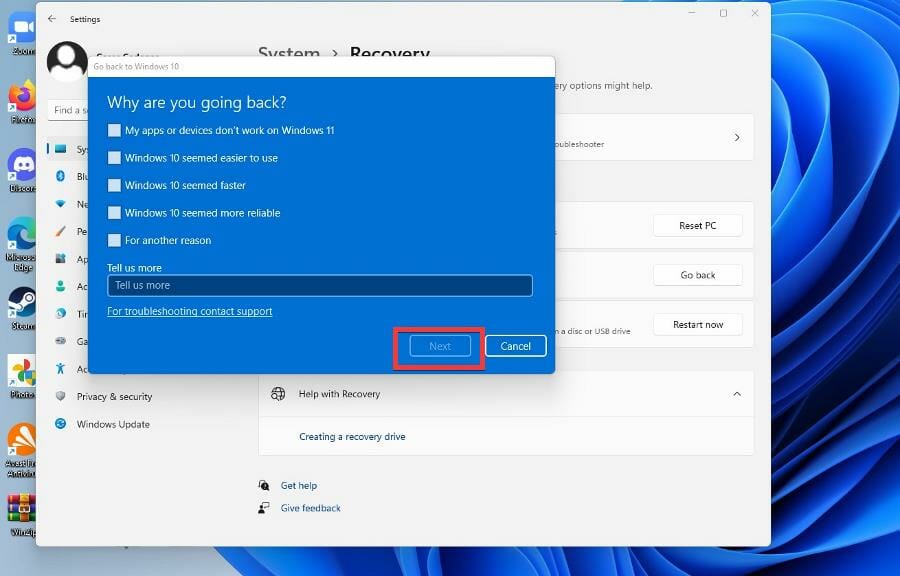
- Afterwards, the blue window will let you know that it will take some time before you can use your PC as it reverts back to Windows 11. Click Next to start the process.
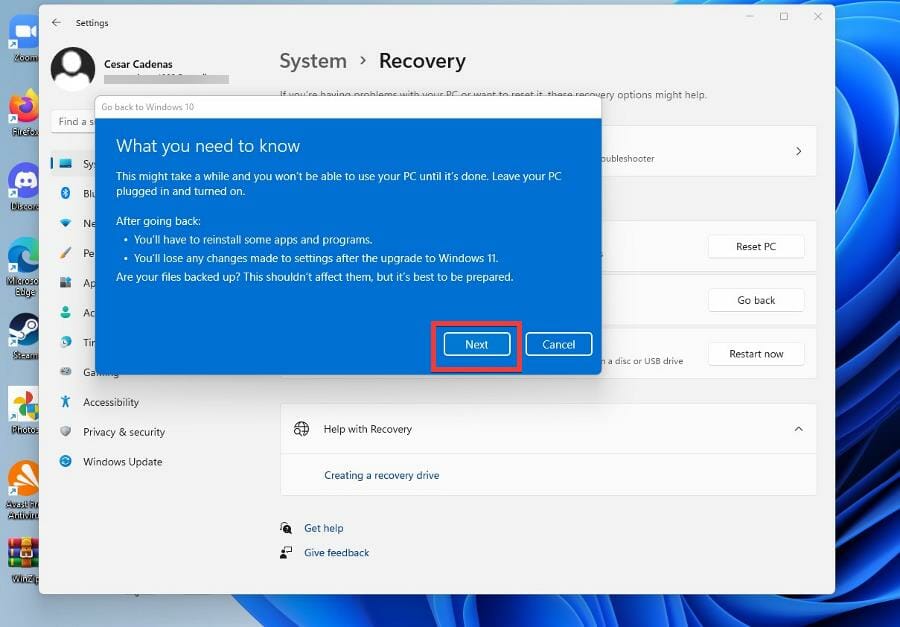
Are there other things I should know about Steam?
Earlier, it was stated that one of the solutions to solving Biomutant problems was to downgrade back to Windows 10. If you decide to do this, it’s recommended that you learn how to fix FPS issues that plague the game on Windows 10.
The solutions for fixing this issue are similar to those in the earlier guide, however, the menus are different and it would be helpful to see how it differs.
There have also been issues with certain titles not launching in Steam. The problems include error code 80, executables missing, launching loops, or simply the game not appearing. To fix games not launching, you may have to move your games to a different location on your computer, delete certain files, or adjust your antivirus (a common problem).
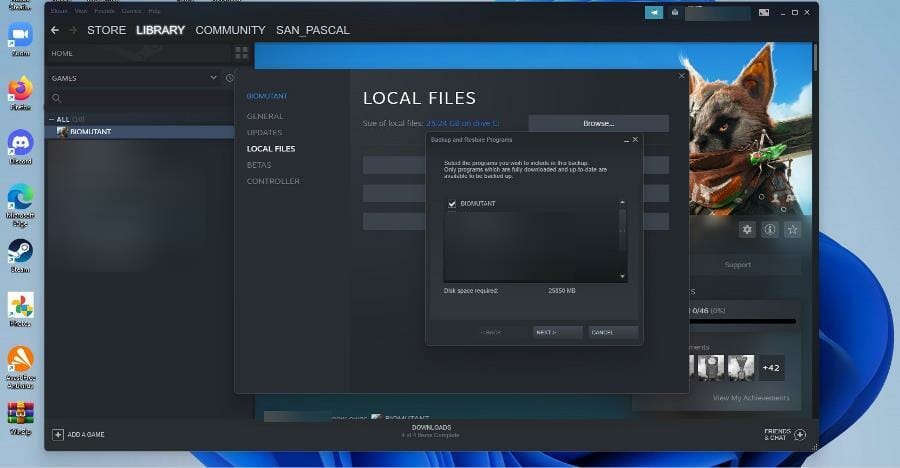
It’s also recommended that you learn how to use Steam Common Redistributables, which are a way to include necessary features a game may require.
You see, certain require features like DirectX to function properly, and for the most part, developers include these missing parts. But if you feel the need to changes things yourself, then it’s a good idea to learn about Steam Common Redistributables.
Feel free to leave a comment below if you have any questions on other Windows 11 apps. Also, leave comments about guides that you’d like to see or information on other Windows 11 features or guides like this.
Alienware 34 Curved QD-OLED Gaming Monitor Review: Making your games look life-like
Alienware is a brand that’s synonymous with trying out all kinds of cool things for gamers to enjoy. 2019’s Alienware AW3420DW monitor was the perfect example of how. Back in 2019, it was one of the best monitors to buy. Now, three years later, a proper sequel is finally here.
Enter the Alienware 34 Curved QD-OLED Gaming Monitor, which was sent to us by Dell for review. This product once again tries to set a new standard as the world’s first quantum-dot OLED gaming monitor. After trying out for a week ahead of release, it’s safe to say that this is a gaming monitor that’ll make your games look life-like, & feel truly immersive.
Key specs
The Alienware 34 QD-OLED Gaming Display is now up for sale and is priced at $1,300. You might think that the price is high, but for the specs, there’s a lot of bang in it for the money, especially when compared to a $3,000 competing OLED monitor from LG, or a $1,500 Quantum Dot monitor from Samsung. It’s really the best of both worlds with this one.
As the name suggests, this is a 34-inch curved display (1800R curvature.) It has an aspect ratio of 21:9, a viewable display size of 34.18 inches, and sports Quantum Dot OLED technology. Note that the panel also has an anti-reflective coating and OLED backlight. The display refresh rates depend on which cable you use. Opting for DisplayPort (as we tested,) you’ll get 3440 x 1440 at 175Hz but with HDMI you’ll get 3440 x 1440 at 100Hz. Nvidia G-Sync Ultimate is also supported.
In testing with our colorimeter, brightness is rated at 250 cd/m2 typical, and 1000 cd/m2 peak. As far as gamut, it covers 99.3% of the DCI-P3 color gamut and 149% of the sRGB gamut for a total of 1.07 billion colors and a 1 million to 1 contrast ratio. Response time is rated at 0.1 ms gray to gray and the display supports VESA DisplayHDR True Black 400.
Design
If you’ve ever used an Alienware product, then you know the deal here. The new Legend 2.0 design brings together geometric beauty and a clean simplistic look. You’ll notice that as soon as you take the monitor out of the box for setup. The middle rear portion of the display is colored in Lunar White, and so is the base up in the front. The left and right sides of the rear of the monitor are pure black, where the display panel extends its reach out. This is a new design over 2019’s Alienware AW33420DW which was pure white.
This is a welcome color choice, not overly distracting so it fits well with any setup. In particular, I especially liked how sleek the stand looks, as even though this is a massive 34-inch display, the stand is quite slim, leaving plenty of room below it on the desk. This fits well with the overall profile of the actual display panel itself, which sports super slim bezels. When I measured, is just as thick as what you get when you stack two quarters stacked on top of each other.
As far as actually fitting to your setup, Alienware has you covered. There’s a height-adjustable stand, with height markers so you can tilt, swivel, and slant the monitor. The tilt goes from -5 to 21 degrees, and the height can go up to 110 mm. But that’s not all. If you look closer to the rear, you’ll see that Alienware has a pop-out cover, to help you hide your cables and ports. It keeps things sleek and slim.
Also on the rear are black-colored 360-degree vents. The vents run along the middle in a paperclip-like shape where the stand connects, allowing for heat dissipation. Of course, it also has seamless integration with AlienFX lighting. In my week with the monitor, I did hear a lot of fan noise coming from these vents, but it’s expected as a lot is going on under the hood to pump out all those pixels and colors.
Display Performance & Accuracy
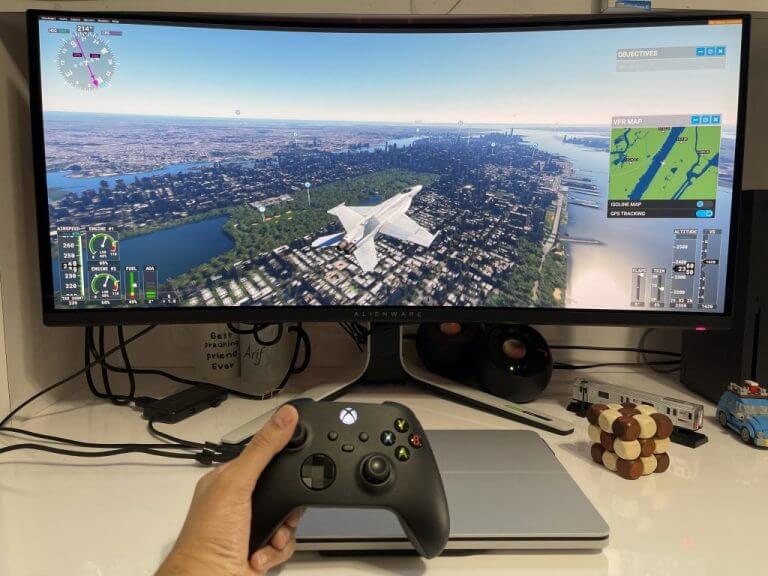
The Alienware 34 Curved QD-OLED Gaming Monitor is the world’s first quantum-dot OLED gaming monitor. But you might be wondering, what does that mean? Well, after using it for a week, and coming from using LCD monitors, I’ll tell you this. It means for highly accurate colors, life-like gaming, and really immersive multimedia experiences.
Quantum Dot Display Technology works like this. It takes the qualities of OLED, like true black and a deeper contrast ratio, and enhances the color performance by converting blue light into the primary colors of red and green through a Quantum Dot pixel layer. The result is high color uniformity and wider colors and increased brightness. You can see this in the factory reports below, taken straight out of the box.




That’s what it is on paper, but in my tests, I did a couple of different things to test it out. First up with flying the skies in Microsoft Flight Simulator 2020. In this simulator which is known to push hardware to its limits, I could see how the Nvidia G-Sync kicked in, as well as the 175Hz refresh rates, as well as the ultra-wide 3440 x 1440 resolution.
The quantum dot OLED panel meant that noticed every single instrument movement on the dashboard of a fighter jet when flying the skies over Manhattan. And, when switching to an external view, the reflection of the sun over the Hudson River when flying just north of Manhattan bounced off the side of the airplane in beautiful fashion. The ultra-wide resolution also means that I could have seen more of the world under my plane in the sky. It doesn’t get any better, as the tech on the monitor makes everything in Flight Simulator more lifelike, compared to the duller colors when playing on an LCD monitor.
In other games like Fortnite and Project Cars 2, which are more fast-paced than Flight Simulator, things performed just as well. I was never good at Fortnite, but the color accuracy of the monitor brought out extra attention to detail in the game. Even picking up a sniper rifle, staring down the scope, and shooting at a player from a distance was enjoyable in Fortnite. There wasn’t the usual lag or screen tear coming from using my standard LCD Dell monitor.
My second test is the usual multimedia and productivity test. For multimedia, I pulled up a YouTube video showcasing the world in HDR. In looking at beaches, scenes with water, and sand, I could not help but notice fine details, like ripples in the puddles, or the tiny pebbles in the sand. Even the aqua-colored waters looked vibrant.
As for productivity, I was able to stack three Microsoft Edge windows side by side and get a fuller view of the web. Windows 11 also came to life, with animations looking smooth and fast. Even scrolling through Twitter and Teams chats was butter smooth. Trust me when I say it, once you go past 120Hz refresh rates, it’s hard to go back, and this monitor was perfect for work, too.
If you’re worried about the performance of the monitor, and possible OLED burn-in issues, then don’t panic. Dell is backing the Alienware 34 Curved QD-OLED with a 3-year service coverage so that if a replacement becomes necessary, it’ll be shipped to you the next business day. Dell’s Comfort View Plus also means you can game longer, thanks to always-on built-in low-blue light screen technology that reduces blue light emissions without impacting color accuracy.
Ports
Looking at the ports on this monitor, there’s plenty. Going from left to right, on the front, there’s a SuperSpeed USB 3.2 Gen 1 Type-A downstream port with power charging, a headphone port, another SuperSpeed USB 3.2 Gen 1 Type-A downstream port. To use these, you need to connect the upstream cable to your PC.
Elsewhere, left from right, you’ll find a SuperSpeed USB 3.2 Gen 1 Type-A upstream port, two SuperSpeed USB 3.2 Gen 1 Type-A downstream ports. There are then two HDMI ports, a DisplayPort 1.4, and a Line-out port. Note that these HDMI ports are HDMI 2.0 ports. Alienware suggests Display Port for the best performance of the monitor since it supports for 175Hz at the WQHD resolution. Alienware also says the panel is Nvidia G-Sync Ultimate certified, so this means Nvidia scalers won’t support HDMI 2.1.
If you opt to use this monitor with Xbox Series X, Xbox Series S, or a PlayStation, you’ll run into restrictions. You can use the HDMI 2.0 port on this monitor with the consoles, but there’s a catch. The consoles only support the 16:9 aspect ratio and 120Hz. This means QHD (2650 x 1440) is the only resolution that can be supported on Xbox on PlayStation. I found it slightly annoying, as I got black boxes at the side of the display when I connected my gaming consoles. See the image below as an example.
Again, it’s a limit by the console and not the monitor, so you’ll want to keep it in mind. There won’t be HDR on Xbox, either, as this is only supported on 4K on the console. Alienware suggests choosing the 24 bits per pixel video fidelity option with the Xbox Series X. This is more of a monitor for gaming PCs than it is for consoles which is why you don’t see the 4K resolution or features like built-in speakers.
Buttons & functions & modes
2019’s Alienware AW3420DW sported buttons and a joystick at the rear of the monitor, but this year’s AW3423DW ditches all buttons for a joystick instead. The joystick is in the center of the display on the bottom, right within reach. A single touch brings up the OSD menu, which is simple, as always. Moving left and right from that one touch gets you to brightness, contrast, volume, preset modes, dark stabilizer, options. Moving up gives you deeper options for game setting, brightness, input sources, AlienFX, personalization, and more.
There’s a total of six different OSD modes. These include creator, FPS, MOBA/RTS, RPG, Sports. You also can customize three other modes, if you see fit. Alienware promises that the Creator Mode is best for content creators and game developers who need the best color accuracy. The OSD menu also lets you switch between native DCI-P3, or sRGB, and even change the gamma settings. For productivity, I spent most of my time with the monitor in the standard mode, tweaked to HDR Peak 1000 for better brightness.
AlienFX lighting
With AlienFX Lighting, you have some fun controls over it to control how your monitor looks at night. This is thanks to the OSD menus. Five clicks of the joystick in the middle of the monitor gets you to the lighting menus, and you can tweak the RGB lighting as you see fit. There’s a total of four zones of lights, including the Alienware logo, the power button, the ring on the vents, and the downlights. Each zone has 17 colors you can choose from, or three effects. The pre-set effects include Spectrum, Comet, or Rainbow Cycle. When I used the lighting effects at night, my desk was lit up in an amazing glow of colors. It’s really cool to see, and I’m sure serious gamers will enjoy this.
A monitor that’ll make your games look lifelike & feel truly immersive
If you’re considering the Alienware 34 Curved QD-OLED Gaming Monitor, then it is a must-buy. QD-OLED technology is unlike any other in the market right now, and, in this case, will be much cheaper than a $3,000 competing OLED monitor from LG, or a $1,500 Quantum Dot monitor from Samsung. Buying this monitor means your games will look and feel different, and it’s hard to not pass it up.
5 Best VPNs for Netflix UK that Really Work

Netflix UK has amazing movies and TV series worth watching, but you might not be able to access them outside of the United Kingdom. Even if you’re a UK citizen who is living or traveling abroad, Netflix UK is off-limits.
But you can get around this problem by using a VPN to connect to a UK server. By hiding your IP address and gaining a new UK online identity, you can reach the English library of Netflix.
However, few VPNs work with Netflix UK, especially since they typically focus on unblocking Netflix US. But we did some digging around, thoroughly tested the following VPNs, and found out that they can unlock Netflix UK.
What are the best VPNs to unblock Netflix UK?
ExpressVPN – Best VPN to unblock Netflix UK
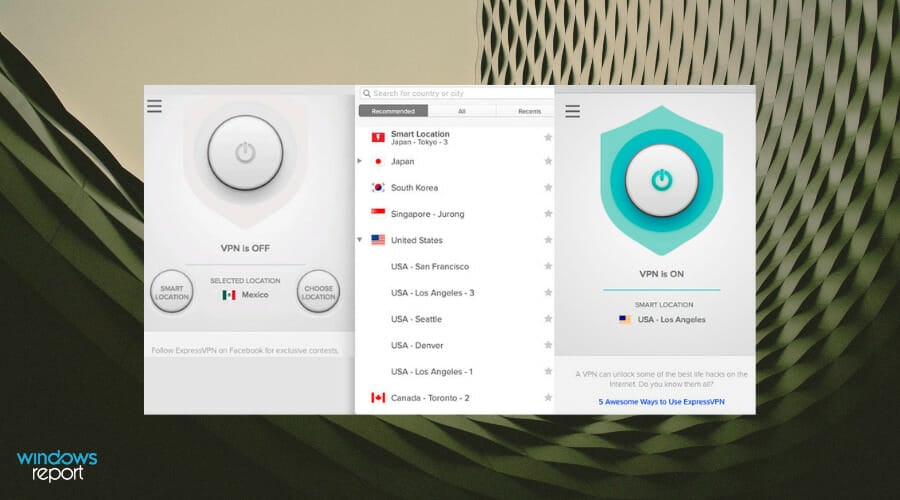
ExpressVPN needs no introduction since it’s one of the most popular virtual private network solutions on the web.
Owned by Express VPN International, it can be used to unblock Netflix UK, US, and other libraries.
The app uses 256-bit AES military-grade encryption to secure your data traffic so no third party can access any information about your activity or identity.
It runs a zero-knowledge DNS and doesn’t write any VPN-related data on a hard drive, thanks to its TrustedServer technology that keeps you anonymous.
What else you should know about ExpressVPN:
- +3,000 VPN servers in over 94 countries, including the UK
- Compatible with all major devices
- 6 simultaneous connections
- No leaks or logs
- 30-day money-back guarantee (no free trial)
Moreover, ExpressVPN has an integrated kill switch and a speed tester. You can use this VPN to not only unblock Netflix UK but also bypass ISP throttling and defeat censorship.

ExpressVPN
Start watching exclusive movies and TV shows on Netflix UK, no matter where you are, thanks to this VPN.NordVPN – No IP leaks
Developed by Tefincom & Co., NordVPN is truly one of the best VPNs to watch UK Netflix abroad.
It’s one of the most popular VPNs on the web for streaming, torrenting, gaming, and secure browsing. It can redirect your entire network traffic through a VPN.
NordVPN gives you the possibility to configure custom DNS servers. It uses CyberSec to protect all your web browsers from malware and block ads. And it has an emergency kill switch, as well.
Additionally, NordVPN has obfuscated VPN servers to anonymize your VPN connection in case it gets rejected by the remote server.
What else you should know about NordVPN:
- +5,100 VPN servers in 59 countries, including the UK
- Can be installed on all major platforms
- Up to 6 connections at once
- No IP leaks and a no-logs policy
NordVPN is a subscription-based VPN service. All plans include a 30-day money-back guarantee.
NordVPN
Watch Netflix UK movies and TV shows from any part of the world using this trustworthy VPN.Surfshark – Top-notch security features
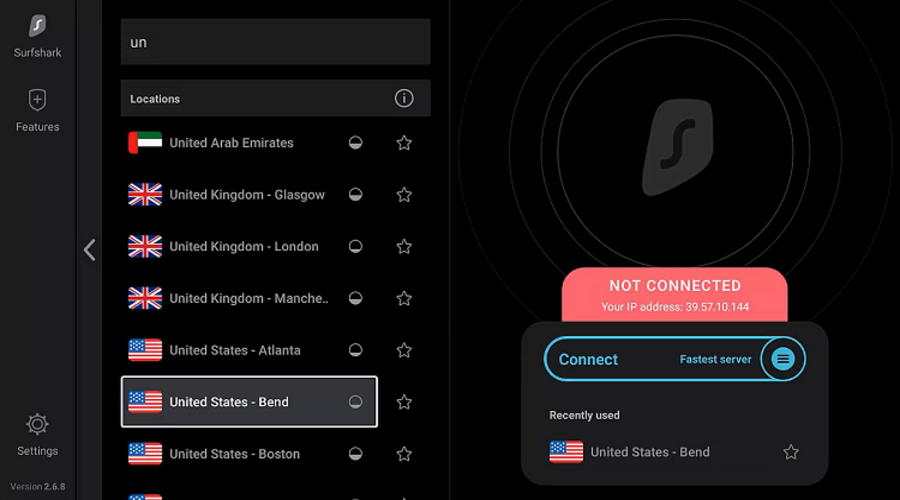
Surfshark is one of the best VPNs for watching UK Netflix, thanks to its low costs and top-notch security features.
It’s a virtual private network service operated by Surfshark LTD that can unblock multiple Netflix libraries, including the UK and the US.
Surfshark runs private DNS on each VPN server. It supports the OpenVPN, IKEv2, WireGuard, and L2TP protocols, Shadowsocks proxy server, along with an ad and malware blocker.
Besides unblocking websites, you can set up split-tunneling mode to reroute browser traffic through a VPN to watch Netflix UK while the remaining applications can stay directly connected to the Internet.
What else you should know about Surfshark:
- +1,700 VPN servers in over 63 countries, including the UK
- Works with all major operating systems
- An unlimited number of simultaneous connections
- No leaks or logs
- 30-day money-back guarantee (no free trial)
Surfshark
Easily gain access to Netflix UK using this low-cost VPN with unlimited connections.CyberGhost VPN – Encrypt your streaming traffic
Designed by Kape Technologies, CyberGhost VPN is a premium VPN solution optimized for streaming. It can quickly evade geoblocks and unlock Netflix UK so that you can start watching exclusive movies and TV shows.
CyberGhost VPN supports private DNS servers to preserve your online anonymity, together with DNS leak protection. It uses the OpenVPN protocol to encrypt your streaming traffic, making sure that it doesn’t sacrifice connection speed.
Furthermore, the tool has a built-in ad and malware blocker to secure your browsing sessions from phishing and other Internet dangers. Plus, it has one of the best VPN extensions for Chrome.
What else you should know about CyberGhost VPN:
- +6,500 VPNs in 89 countries, including the UK
- Compatible with all major devices
- 7 simultaneous connections
- No leaks, no logs
- 45-day money-back guarantee (1-day free trial)
CyberGhost
Unlock Netflix UK with minimum effort by turning to this reliable VPN.ProtonVPN – Strict no-logs policy

ProtonVPN is one of the most high-performing VPNs that come with a free version.
The service promises a strict no-logs policy regardless of the plan you decide to get (free or paid).
ProtonVPN is suitable for Netflix because it has large server coverage with over 1,600 servers in 63 countries.
Not only that, but it implements technologies meant to let you surpass even the most advanced VPN-blocking technologies.
With ProtonVPN you can enjoy hours’ worth of Netflix content without the risk of being detected and blocked.
Users of this VPN can also enjoy high-quality, buffer-free content as the VPN is very fast. It offers 1-Gbps server networks combined with its own VPN accelerator technology that has the potential to improve speed by over 400%.
As mentioned, this service does have a free version. It does of course come with certain limitations (access to a limited number of servers and lower speed rates).
What else you should know about ProtonVPN:
- Native applications for all major device platforms
- Unlimited bandwidth
- P2P support
- Adblocker
ProtonVPN offers three paid plans, each with a different package and feature set. The above-mentioned benefits are included in all three plans.

ProtonVPN
Enjoy Netflix shows all around the globe at exceptional speeds.In conclusion, you can use a reliable VPN to unblock Netflix UK from any part of the world. You just need a virtual private network solution that works.
As mentioned at the beginning of this article, we tested the 5 VPNs above to make sure that: they unlock Netflix UK + aren’t blocked by Netflix UK.
If you’re having any problems with the VPN and Virgin, you might be interested in the best VPNs to bypass Virgin Media blocking.
If you have trouble deciding what VPN to purchase between these options, we suggest going with NordVPN since it can be used for a wide range of activities, not only Netflix streaming.
Microsoft quickly addresses Exchange Server RCE vulnerability

Since everyone is talking about the latest Patch Tuesday rollout, which happened today, March 8th, 2022, we’re going to show you another vulnerability that you can scratch off your list.
As you probably know by now, out of the 71 vulnerabilities that got addressed this month, one in particular sticks out if you are a Windows Exchange Server user.
Microsoft Exchange Server is a mail and calendaring server developed by the Redmond tech company, and it runs exclusively on Windows Server operating systems, in case you were wondering.
And if you ever dealt with this issue, or simply heard about it and prayed you would never get affected, the Microsoft Exchange Server Remote Code Execution Vulnerability is gone forever.
Another Critical RCE vulnerability safely removed
Needless to say, no software is 100% safe, no matter how many guarantees developers are willing to make. Attacks can happen at any minute and nobody is safe in this everchanging online environment.
Now, we know that Microsoft’s operating systems are full of traps and dangerous bugs, but many of you might not have been aware of this problem.
Experts state that the vulnerability would actually allow an authenticated third party to execute their code with elevated privileges through a network call.
It goes without saying that this could have quickly turned into a perilous situation for the victim of such vicious cyber-attacks.
As you saw, this vulnerability (CVE-2022-23277) is also listed as low complexity with exploitation more likely, meaning that we could totally see this bug exploited in the wild soon.
And yes, this can be done by attackers, despite the authentication requirement, so keep that in mind if you were thinking about postponing adding this software to your device.
Security experts advise users to immediately test and deploy this to their Exchange servers quickly, lowering the risk of an actual attack.
Adobe also released a brand new batch of Patch Tuesday updates today, but only for three of its products, which is a much smaller rollout than last month’s.
Are you aware of other vulnerabilities that Microsoft might have missed? Share your thoughts with us in the comments section below.
The Xbox Live Auth Manager for Windows vulnerability just got fixed

Everything that everyone can talk about nowadays is Microsoft’s new Patch Tuesday release which, as you know, happens every second Tuesday of each month.
Today, Mach 8 2022, the Redmond-based tech giant rolled out a total of 71 CVEs, with three marked as Critical, and we have the download links ready for you.
And among those 71 CVEs released this month, is one that targetted Xbox players on the Windows operating system, but thankfully Microsoft already got that covered (CVE-2022-21967).
Another vulnerability scratched off the list by Microsoft
Indeed, this appears to be the first security patch impacting Xbox specifically, so we can understand all the raised eyebrows and confused coughing.
But this isn’t a joke, as Microsoft acknowledged the potential harm this vulnerability could do if it would be exploited by malicious third parties.
Obviously, there was an advisory for an inadvertently disclosed Xbox Live certificate that was released way back in 2015, but this seems to be the first security-specific update for the device itself.
Microsoft is aware of an SSL/TLS digital certificate for *.xboxlive.com for which the private keys were inadvertently disclosed. The certificate could be used in attempts to perform man-in-the-middle attacks. It cannot be used to issue other certificates, impersonate other domains, or sign code. This issue affects all supported releases of Microsoft Windows. Microsoft is not currently aware of attacks related to this issue.

The tech giant even notes that other Windows operating systems are not even affected by this bug.
It still remains a bit unclear how cybercriminals could escalate privileges using this vulnerability, but the Auth Manager component is listed as affected.
This service handles interacting with the Xbox Live service, so if you know that you are reliant on Xbox or Xbox Live, make sure this patch doesn’t go unnoticed.
So, that’s that, we can add another annoying bug to the list of problems will hopefully never have to deal with again in the future.
Did you know about the existence of this vulnerability? Share your thoughts with us in the comments section below.
Microsoft fixes 71 CVEs this month, with three rated as Critical

It’s that time of the month again, and everyone is looking towards Microsoft, in hopes that some of the flaws they’ve been struggling with will finally get fixed.
We’ve already provided the direct download links for the cumulative updates released today for Windows 10 and 11, but now it’s time to talk about Critical Vulnerabilities and Exposures again.
In terms of heft, this month’s release coincides with Merch releases from previous years, which are usually around 60-70 CVEs.
Let’s dive right into it and see what vulnerabilities are completely gone from our lives, now that these patches are live.
Three critical bugs dealt with this month
For the third month of 2022, Microsoft released 71 new patches. This is in addition to the 21 CVEs patched by Microsoft Edge (Chromium-based) earlier this month, which brings the March total to 92 CVEs.
So, the 71 new patches that became available today address CVEs in:
- .NET and Visual Studio
- Azure Site Recovery
- Microsoft Defender for Endpoint
- Microsoft Defender for IoT
- Microsoft Edge (Chromium-based)
- Microsoft Exchange Server
- Microsoft Intune
- Microsoft Office Visio
- Microsoft Office Word
- Microsoft Windows ALPC
- Microsoft Windows Codecs Library
- Paint 3D
- Role: Windows Hyper-V
- Skype Extension for Chrome
- Tablet Windows User Interface
- Visual Studio Code
- Windows Ancillary Function Driver for WinSock
- Windows CD-ROM Driver
- Windows Cloud Files Mini Filter Driver
- Windows COM
- Windows Common Log File System Driver
- Windows DWM Core Library
- Windows Event Tracing
- Windows Fastfat Driver
- Windows Fax and Scan Service
- Windows HTML Platform
- Windows Installer
- Windows Kernel
- Windows Media
- Windows PDEV
- Windows Point-to-Point Tunneling Protocol
- Windows Print Spooler Components
- Windows Remote Desktop
- Windows Security Support Provider Interface
- Windows SMB Server
- Windows Update Stack
- XBox
What’s also important to mention is that, out of the 71 CVEs released today, three are rated Critical and 68 are rated Important in severity.
The number of Critical-rated patches is again strangely low for this number of bugs, according to experts and some of the more tech-savvy users.
Furthermore, it is still uncertain if this low percentage of bugs is just a coincidence or if Microsoft might be evaluating the severity using different calculus than in the past.
| CVE | Title | Severity | CVSS | Public | Exploited | Type |
| CVE-2022-24512 | .NET and Visual Studio Remote Code Execution Vulnerability | Important | 6.3 | Yes | No | RCE |
| CVE-2022-21990 | Remote Desktop Client Remote Code Execution Vulnerability | Important | 8.8 | Yes | No | RCE |
| CVE-2022-24459 | Windows Fax and Scan Service Elevation of Privilege Vulnerability | Important | 7.8 | Yes | No | EoP |
| CVE-2022-22006 | HEVC Video Extensions Remote Code Execution Vulnerability | Critical | 7.8 | No | No | RCE |
| CVE-2022-23277 | Microsoft Exchange Server Remote Code Execution Vulnerability | Critical | 8.8 | No | No | RCE |
| CVE-2022-24501 | VP9 Video Extensions Remote Code Execution Vulnerability | Critical | 7.8 | No | No | RCE |
| CVE-2022-24508 | Windows SMBv3 Client/Server Remote Code Execution Vulnerability | Important | 8.8 | No | No | RCE |
| CVE-2022-21967 | Xbox Live Auth Manager for Windows Elevation of Privilege Vulnerability | Important | 7 | No | No | EoP |
| CVE-2022-24464 | .NET and Visual Studio Denial of Service Vulnerability | Important | 7.5 | No | No | DoS |
| CVE-2022-24469 | Azure Site Recovery Elevation of Privilege Vulnerability | Important | 8.1 | No | No | EoP |
| CVE-2022-24506 | Azure Site Recovery Elevation of Privilege Vulnerability | Important | 6.5 | No | No | EoP |
| CVE-2022-24515 | Azure Site Recovery Elevation of Privilege Vulnerability | Important | 6.5 | No | No | EoP |
| CVE-2022-24518 | Azure Site Recovery Elevation of Privilege Vulnerability | Important | 6.5 | No | No | EoP |
| CVE-2022-24519 | Azure Site Recovery Elevation of Privilege Vulnerability | Important | 6.5 | No | No | EoP |
| CVE-2022-24467 | Azure Site Recovery Remote Code Execution Vulnerability | Important | 7.2 | No | No | RCE |
| CVE-2022-24468 | Azure Site Recovery Remote Code Execution Vulnerability | Important | 7.2 | No | No | RCE |
| CVE-2022-24470 | Azure Site Recovery Remote Code Execution Vulnerability | Important | 7.2 | No | No | RCE |
| CVE-2022-24471 | Azure Site Recovery Remote Code Execution Vulnerability | Important | 7.2 | No | No | RCE |
| CVE-2022-24517 | Azure Site Recovery Remote Code Execution Vulnerability | Important | 7.2 | No | No | RCE |
| CVE-2022-24520 | Azure Site Recovery Remote Code Execution Vulnerability | Important | 7.2 | No | No | RCE |
| CVE-2020-8927 * | Brotli Library Buffer Overflow Vulnerability | Important | 6.5 | No | No | N/A |
| CVE-2022-24457 | HEIF Image Extensions Remote Code Execution Vulnerability | Important | 7.8 | No | No | RCE |
| CVE-2022-22007 | HEVC Video Extensions Remote Code Execution Vulnerability | Important | 7.8 | No | No | RCE |
| CVE-2022-23301 | HEVC Video Extensions Remote Code Execution Vulnerability | Important | 7.8 | No | No | RCE |
| CVE-2022-24452 | HEVC Video Extensions Remote Code Execution Vulnerability | Important | 7.8 | No | No | RCE |
| CVE-2022-24453 | HEVC Video Extensions Remote Code Execution Vulnerability | Important | 7.8 | No | No | RCE |
| CVE-2022-24456 | HEVC Video Extensions Remote Code Execution Vulnerability | Important | 7.8 | No | No | RCE |
| CVE-2022-21977 | Media Foundation Information Disclosure Vulnerability | Important | 3.3 | No | No | Info |
| CVE-2022-22010 | Media Foundation Information Disclosure Vulnerability | Important | 4.4 | No | No | Info |
| CVE-2022-23278 | Microsoft Defender for Endpoint Spoofing Vulnerability | Important | 5.9 | No | No | Spoofing |
| CVE-2022-23266 | Microsoft Defender for IoT Elevation of Privilege Vulnerability | Important | 7.8 | No | No | EoP |
| CVE-2022-23265 | Microsoft Defender for IoT Remote Code Execution Vulnerability | Important | 7.2 | No | No | RCE |
| CVE-2022-24463 | Microsoft Exchange Server Spoofing Vulnerability | Important | 6.5 | No | No | Spoofing |
| CVE-2022-24465 | Microsoft Intune Portal for iOS Security Feature Bypass Vulnerability | Important | 3.3 | No | No | SFB |
| CVE-2022-24461 | Microsoft Office Visio Remote Code Execution Vulnerability | Important | 7.8 | No | No | RCE |
| CVE-2022-24509 | Microsoft Office Visio Remote Code Execution Vulnerability | Important | 7.8 | No | No | RCE |
| CVE-2022-24510 | Microsoft Office Visio Remote Code Execution Vulnerability | Important | 7.8 | No | No | RCE |
| CVE-2022-24511 | Microsoft Office Word Tampering Vulnerability | Important | 5.5 | No | No | Tampering |
| CVE-2022-24462 | Microsoft Word Security Feature Bypass Vulnerability | Important | 5.5 | No | No | SFB |
| CVE-2022-23282 | Paint 3D Remote Code Execution Vulnerability | Important | 7.8 | No | No | RCE |
| CVE-2022-23253 | Point-to-Point Tunneling Protocol Denial of Service Vulnerability | Important | 6.5 | No | No | DoS |
| CVE-2022-23295 | Raw Image Extension Remote Code Execution Vulnerability | Important | 7.8 | No | No | RCE |
| CVE-2022-23300 | Raw Image Extension Remote Code Execution Vulnerability | Important | 7.8 | No | No | RCE |
| CVE-2022-23285 | Remote Desktop Client Remote Code Execution Vulnerability | Important | 8.8 | No | No | RCE |
| CVE-2022-24503 | Remote Desktop Protocol Client Information Disclosure Vulnerability | Important | 5.4 | No | No | Info |
| CVE-2022-24522 | Skype Extension for Chrome Information Disclosure Vulnerability | Important | 7.5 | No | No | Info |
| CVE-2022-24460 | Tablet Windows User Interface Application Elevation of Privilege Vulnerability | Important | 7 | No | No | EoP |
| CVE-2022-24526 | Visual Studio Code Spoofing Vulnerability | Important | 6.1 | No | No | Spoofing |
| CVE-2022-24451 | VP9 Video Extensions Remote Code Execution Vulnerability | Important | 7.8 | No | No | RCE |
| CVE-2022-23283 | Windows ALPC Elevation of Privilege Vulnerability | Important | 7 | No | No | EoP |
| CVE-2022-23287 | Windows ALPC Elevation of Privilege Vulnerability | Important | 7 | No | No | EoP |
| CVE-2022-24505 | Windows ALPC Elevation of Privilege Vulnerability | Important | 7 | No | No | EoP |
| CVE-2022-24507 | Windows Ancillary Function Driver for WinSock Elevation of Privilege Vulnerability | Important | 7.8 | No | No | EoP |
| CVE-2022-24455 | Windows CD-ROM Driver Elevation of Privilege Vulnerability | Important | 7.8 | No | No | EoP |
| CVE-2022-23286 | Windows Cloud Files Mini Filter Driver Elevation of Privilege Vulnerability | Important | 7 | No | No | EoP |
| CVE-2022-23281 | Windows Common Log File System Driver Information Disclosure Vulnerability | Important | 5.5 | No | No | Info |
| CVE-2022-23288 | Windows DWM Core Library Elevation of Privilege Vulnerability | Important | 7 | No | No | EoP |
| CVE-2022-23291 | Windows DWM Core Library Elevation of Privilege Vulnerability | Important | 7.8 | No | No | EoP |
| CVE-2022-23294 | Windows Event Tracing Remote Code Execution Vulnerability | Important | 8.8 | No | No | RCE |
| CVE-2022-23293 | Windows Fast FAT File System Driver Elevation of Privilege Vulnerability | Important | 7.8 | No | No | EoP |
| CVE-2022-24502 | Windows HTML Platforms Security Feature Bypass Vulnerability | Important | 4.3 | No | No | SFB |
| CVE-2022-21975 | Windows Hyper-V Denial of Service Vulnerability | Important | 4.7 | No | No | DoS |
| CVE-2022-23290 | Windows Inking COM Elevation of Privilege Vulnerability | Important | 7.8 | No | No | EoP |
| CVE-2022-23296 | Windows Installer Elevation of Privilege Vulnerability | Important | 7.8 | No | No | EoP |
| CVE-2022-21973 | Windows Media Center Update Denial of Service Vulnerability | Important | 5.5 | No | No | DoS |
| CVE-2022-23297 | Windows NT Lan Manager Datagram Receiver Driver Information Disclosure Vulnerability | Important | 5.5 | No | No | Info |
| CVE-2022-23298 | Windows NT OS Kernel Elevation of Privilege Vulnerability | Important | 7 | No | No | EoP |
| CVE-2022-23299 | Windows PDEV Elevation of Privilege Vulnerability | Important | 7.8 | No | No | EoP |
| CVE-2022-23284 | Windows Print Spooler Elevation of Privilege Vulnerability | Important | 7.2 | No | No | EoP |
| CVE-2022-24454 | Windows Security Support Provider Interface Elevation of Privilege Vulnerability | Important | 7.8 | No | No | EoP |
| CVE-2022-24525 | Windows Update Stack Elevation of Privilege Vulnerability | Important | 7 | No | No | EoP |
| CVE-2022-0789 | Chromium: Heap buffer overflow in ANGLE | High | N/A | No | No | RCE |
| CVE-2022-0797 | Chromium: Out of bounds memory access in Mojo | High | N/A | No | No | RCE |
| CVE-2022-0792 | Chromium: Out of bounds read in ANGLE | High | N/A | No | No | RCE |
| CVE-2022-0795 | Chromium: Type Confusion in Blink Layout | High | N/A | No | No | RCE |
| CVE-2022-0790 | Chromium: Use after free in Cast UI | High | N/A | No | No | RCE |
| CVE-2022-0796 | Chromium: Use after free in Media | High | N/A | No | No | RCE |
| CVE-2022-0791 | Chromium: Use after free in Omnibox | High | N/A | No | No | RCE |
| CVE-2022-0793 | Chromium: Use after free in Views | High | N/A | No | No | RCE |
| CVE-2022-0794 | Chromium: Use after free in WebShare | High | N/A | No | No | RCE |
| CVE-2022-0800 | Chromium: Heap buffer overflow in Cast UI | Medium | N/A | No | No | RCE |
| CVE-2022-0807 | Chromium: Inappropriate implementation in Autofill | Medium | N/A | No | No | Info |
| CVE-2022-0802 | Chromium: Inappropriate implementation in Full screen mode | Medium | N/A | No | No | Info |
| CVE-2022-0804 | Chromium: Inappropriate implementation in Full screen mode | Medium | N/A | No | No | Info |
| CVE-2022-0801 | Chromium: Inappropriate implementation in HTML parser | Medium | N/A | No | No | Tampering |
| CVE-2022-0803 | Chromium: Inappropriate implementation in Permissions | Medium | N/A | No | No | SFB |
| CVE-2022-0799 | Chromium: Insufficient policy enforcement in Installer | Medium | N/A | No | No | SFB |
| CVE-2022-0809 | Chromium: Out of bounds memory access in WebXR | Medium | N/A | No | No | RCE |
| CVE-2022-0805 | Chromium: Use after free in Browser Switcher | Medium | N/A | No | No | RCE |
| CVE-2022-0808 | Chromium: Use after free in Chrome OS Shell | Medium | N/A | No | No | RCE |
| CVE-2022-0798 | Chromium: Use after free in MediaStream | Medium | N/A | No | No | RCE |
Keep in mind that none of the bugs is listed as under active exploit this month, while three are listed as publicly known at the time of release.
These are all the CVEs addressed with this month’s Patch Tuesday release. Overall, this was a pretty hefty but secure month, compared to previous situations.
The next Patch Tuesday batch of software will come on April 12 and we’re all curious to see what Microsoft comes up with until then.
Let’s all hope that we won’t have to deal with critical problems, and that’s it will only be smooth sailing from now on.
Was this article helpful to you? Share your opinion in the comments section below.
Get the Adobe March 2022 Patch Tuesday updates

We know that many of you are eagerly waiting for the Patch Tuesday monthly batch of updates and we’re here to make it easier for you to find them
And, as you surely know, Microsoft isn’t the only company that releases software during this day. So, in this article, we’re going to talk about Adobe and some of the patches for their products.
As always, we will include links to the download source, so you don’t have to scout the internet to find them.
Adobe addresses only two critical-rated bugs this month
This month, Adobe only released three patches addressing six CVEs in Adobe Photoshop, Illustrator, and After Effects.
We’ll start with the update for Illustrator, which is rated Critical, and it addresses a single buffer overflow that could lead to arbitrary code execution.
As far as the updates for Photoshop go, this month we only get one that fixes a single Important-rated memory leak.

And, since we were on the topic of critical-rated code execution bugs, let’s continue the list with the fix for Adobe’s After Effects.
The patch for After Effects is the largest of the three. It fixes four Critical-rated, stacked-based buffer overflows that could result in arbitrary code execution.
As we said, a pretty slow month for Adobe, which is not necessarily bad. Remember that updates released during Patch Tuesday are security ones, which means that the software is getting safer to use.
Also worth noting is that none of the bugs fixed by Adobe this month are listed as publicly known or under active attack at the time of release.
If you are wondering what other helpful security updates were also released today, check out Microsoft’s Patch Tuesday release for March.
What is your opinion on the March 2022 Patch Tuesday rollout for Adobe? Let us know in the comments section below.
Fix Spotify Error Code 18 For Good [2026 Guide]
![Fix Spotify Error Code 18 For Good [2026 Guide]](https://windowsreport.com/wp-content/uploads/2019/04/Fix-Spotify-error-code-18-for-good.jpg)
Spotify is one of the most popular music streaming applications, but several users reported Spotify error code 18 while using it.
This error can freeze or slow down your PC, which can be a major problem, so today we’re going to show you how to fix it once and for all.
These are the two error messages that you may see:
- The installer is unable to install Spotify error code 18
- The installer is unable to install Spotify because the files to write are in use by another process. Please make sure Spotify is not running and retry.
These two are the main errors that users claimed they usually receive when trying to install Spotify or running the program. If you are also facing this problem before or right now, this article is perfect for you.
The causes behind this error are not too many. However, they need to be exposed as they include corrupted or failed installation files, faulty drivers, or antivirus programs.
The list further extends to malware that also can harm Spotify from running properly and corrupt the Windows registry when you’re trying to install or uninstall the application Spotify.
We’ll explain to you why this happens and also, we’ll help you to fix this Spotify Error Code 18.
How can I fix Spotify error code 18?
- Delete the Spotify folder from the AppData directory
- Delete every file related to Spotify
- Uninstall any programs that can interfere with Spotify
- Scan your computer for malware with an antivirus
1. Delete the Spotify folder from the AppData directory
- First, to open a Run dialog, use the Windows Key + R shortcut.
- Write the text %appdata% and hit Enter.

- Find the Spotify folder in the App Data folder, right-click on it and choose Delete.
- A pop-up will appear. Press on Yes to confirm and wait for Spotify to delete.
- You’ll have to Restart your computer for the process to be complete.
- After this, try to install Spotify again. That’s how you’ll see if you receive the error message again.
The deletion of the AppData folder will refresh Spotify and will clear this problem so make sure you perform the steps above.
2. Scan your computer for malware with an antivirus
- Open Windows Security by clicking the shield from the notification area.
- Click on Virus & threat protection.

- Select Scan options.

- Click on the Full scan option and then hit the Scan now button.

- Wait for the scan to complete.
The Spotify error code 18 is also suspected to be caused by malware, so it’s better to take precautions and perform a full scan on your system to eliminate that possibility.
You can use any antivirus that you have installed on your computer, launch it, and then select the Full Scan option.
If you’re looking for a reliable antivirus software tool that can detect almost any threat, be sure to try out the tool recommended below.
This powerful antivirus can easily eliminate spyware, and malware, along with other types of cyber-threats, while it also includes features designed specifically for unlimited encrypted traffic.
That’s your chance to secure your Wi-Fi hotspots and avoid risking the safety of your system or facing repeated Spotify issues.
3. Delete every file related to Spotify
- Enter Windows Key + E to open File Explorer.
- Enter CTRL + F to open the Search box. Enter Spotify and press Enter.

- Enter CTRL + A to select all the files from the folder, right-click on it, and choose Delete.
- A pop-up will appear asking you to confirm the action, so press on Yes.
- Now Restart your computer to complete the deleting process.
- After this, try to install Spotify again and see if the error message will appear.
You can also remove all Spotify files and registry by using an uninstaller software utility because you have some great options to chose from to make sure you remove also remnants of Spotify.
Do note that it automatically performs a deep cleaning procedure to remove not only these files but also all changes Spotify has ever made during its installation.
If you’re not convinced yet, keep in mind that it can even uninstall apps under a non-administrative account. Once you remove all files with this tool, install Spotify again and confirm that the issue is fixed.
4. Uninstall any programs that can interfere with Spotify
- Open Start Menu, and click on Settings.
- Now click on Apps.

- Look for iTunes, Comodo, or any other program that you know that can interfere with Spotify, right-click on it and select Uninstall.
- After the programs selected have been uninstalled, restart your computer.
- Now you’ll have to install Spotify again to see if the error code 18 will appear again or not.
- After this, if the Spotify app is installed with no problem, you can reinstall the other programs that you have just uninstalled.
There are some applications that are known to interfere with Spotify. They also may lead to error code 18. Usually, iTunes and Comodo are the most common programs that interfere with Spotify.
So, if you know that you have these two programs installed on your computer, you can uninstall them. If you suspect that other programs can also interfere with Spotify, you’ll have to uninstall them too.
We hope these solutions helped you fix the Spotify error code 18 on your PC. If these solutions worked, let us know in the comments section below.
Spotify Blocked By Google Smart Lock [2026 Fix]
![Spotify Blocked By Google Smart Lock [2026 Fix]](https://windowsreport.com/wp-content/uploads/2020/08/google-smart-lock-spotify.jpg)
Google Smart Lock is Google’s password manager that will automatically log you into a website or an app that you want to use.
Although this feature sounds great, few users reported issues while using Google Smart Lock and Spotify. Apparently, Smart Lock can’t log users into Spotify, but there’s a way to fix that.
How do I turn off Google Smart Lock on Spotify?
1. Remove your Spotify password from Google Smart Lock
- Visit Google’s Smart Lock page.
- Enter spotify in the search field and click on Spotify from the search results.
- Click the Delete button.
- Now open Spotify again, and enter your password.
2. Turn off Smart Lock and change your Spotify password
- Go to Google’s Smart Lock page.
- Click the cogwheel icon in the top-right corner.
- Now disable Auto sign-in feature.
- After doing that, log in to Spotify in your browser.
- Go to the Account section and change the password.
- After changing the password, enable Auto sign-in in Google Smart Lock.
Several users reported that this method worked for them, so be sure to try it out.
3. Change your location
- Log in to your Spotify account in a web browser.
- Click the Edit profile button.

- Now scroll down to the Country section and change it so it matches your current country. Click on Save profile.
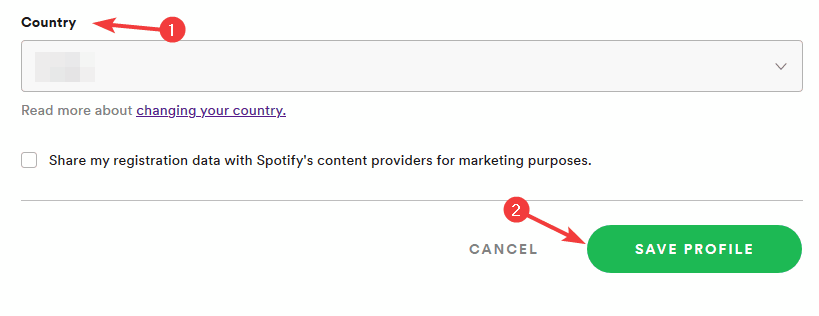
Keep in mind that this applies only if you’re using a free Spotify account. With a free Spotify account, you can use the service 14 days in a different country.
4. Check your email

- Check your email for any Spotify security messages.
- If you got a message asking you to reset your password, be sure to open it and follow the instructions.
Sometimes there might be unrecognized attempts to access your account, and your account would then be temporarily locked, so it’s advised to check your emails and reset your password.
Google Smart Lock is a solid password manager, but users reported issues with it and Spotify.
To fix these issues, try removing Spotify from the Google Smart Lock, or disable Smart Lock temporarily and change your Spotify password.
[wl_navigator]
[Fix] Lost Ark Easy Anti Cheat error code 23
![[Fix] Lost Ark Easy Anti Cheat error code 23](https://windowsreport.com/wp-content/uploads/2022/03/lost-ark-error-14.jpg)
No doubt playing Lost Ark is an experience worth exploring at least once in our lifetimes if gaming is one of those things that make us happy.
And, from what we can tell so far, people really do enjoy this title a lot, proven by the growing fan base. We remind you that Lost Ark was released back in December 2019.
Ever since its official launch, gamers have flagged a lot of problems that affected gameplay, whether by in-game bugs or errors that prevented booting.
One of the issues that drive layers insane are the ones generated by the Easy Anti Cheat software, which interferes with a large number of games, not only Lost Ark.
Elden Ring players are also dealing with a similar error, one that didn’t yet receive an official fix patch, so everyone had to get inventive and figure out some workarounds.
The same goes for Lost Ark we’re afraid, as the community is also pointing out that Easy Anti Cheat is causing a lot of trouble.
But, thankfully, there are temporary solutions that can fix the problem and restore game functionality.
How can I fix the Lost Ark Easi Anti Cheat error codes 14, 23, 25
So what can we do when everything around us shouts critical bugs and errors? The first thing we’re definitely not going to do is give up.
Even though we mentioned that an official solution isn’t yet available, we’re about to provide some steps that have proved to work for the great majority of the players.
Everything is pretty easy and we will guide you through the process so, buckle up and let’s fix the Easy Andi Cheat error codes 14, 23, and 25 in Lost Ark.
- Restart Lost Ark and PC.
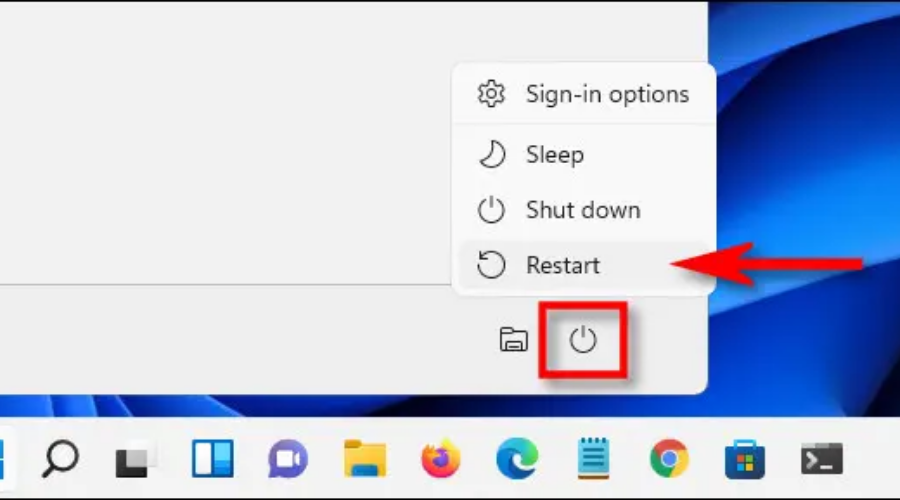
- Verify Steam game file integrity.
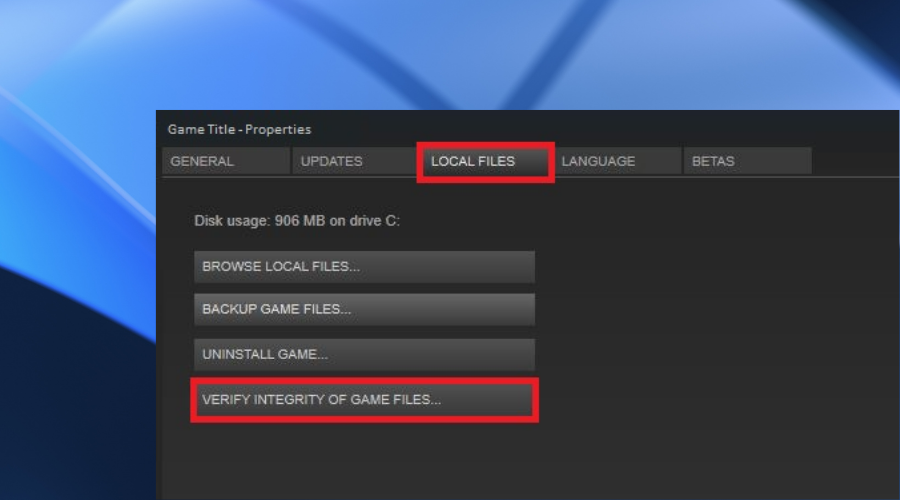
- Disable Easy Anti Cheat and run game in offline mode.
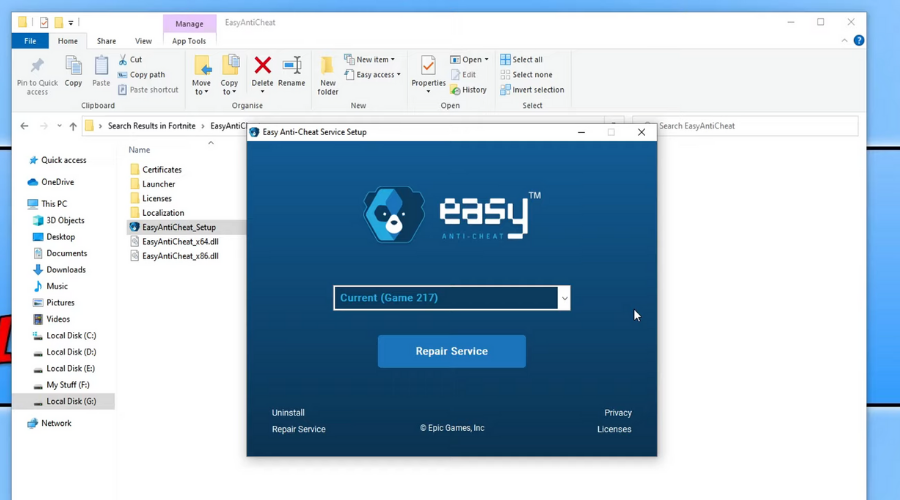
- Update GPU Drivers
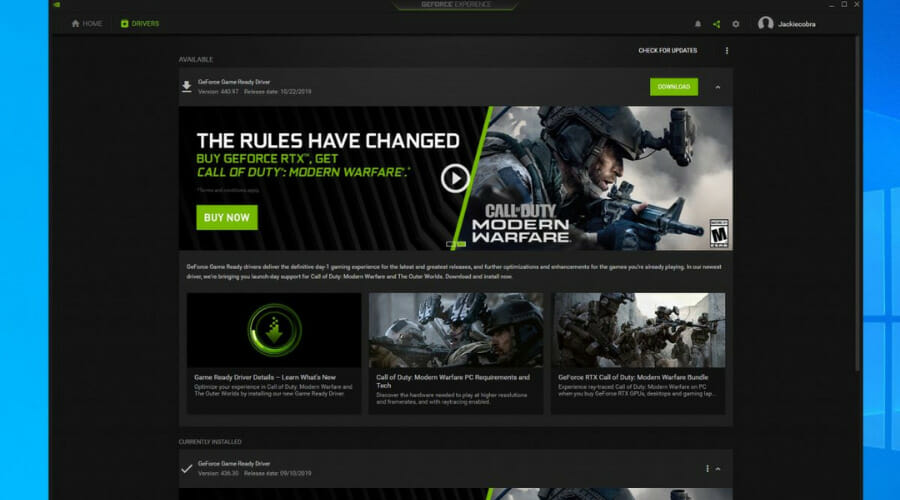 Using a 3rd party driver updater to get the latest PC drivers, for GPU as well as other components, is necessary for the overall functioning of your system, our recommendation is to try Outbyte Driver Updater which has a big database of drivers and is safe to use.
It seems that the Easy Anti Cheat software is causing problems for more games than we initially thought so take that into consideration next time you install a game and can’t run it because of errors.
Lost Ark is a masterpiece and it’s a pity for players to not be able to enjoy their favorite title because of third-party software that gets in the way.
Was this guide useful to you? Share your experience with us in the comments section below.
How to fix Lost Ark Authentication Error 10010

Lost Ark is by far one of the biggest games out there at the moment, with a huge chunk of players opting to play this game instead of Elden Ring or Horizon Forbidden West.
Even if the title did not get off to a great start, failing to download for the entire Steam community on the early access day, it has become a go-to for a lot of gamers lately.
Now, Lost Ark players reported the Server Authentication Failed 10010 error, which can prove to be quite a nuisance and ruin your entire experience.
Thankfully, there are ways in which you can actually fix this annoying error and carry on leveling your favorite character.
How can I fix Authentication Error 10010?
As of this moment, Smilegate did not provide an official fix for this error, but there are certain solutions that have proven to work for the large majority of players.
These temporary workarounds include verifying the integrity of the game’s files on Steam and refreshing your game credentials, among others.
- Verify game file integrity on Steam.

- Disable Internet Protocol Version 6 (TCP/IPv6).

- Refresh game credentials (relog).
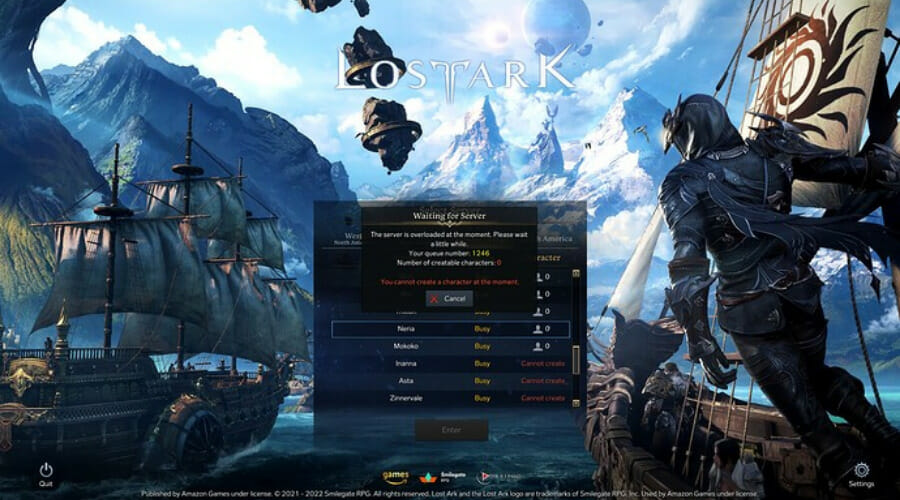
- Try to play Lost Ark over mobile internet.

- Use a VPN.

We recommend giving a try to Private Internet Access that has a lot of servers around the world and is highly likely to have your needed one.
- Set Google DNS Servers.
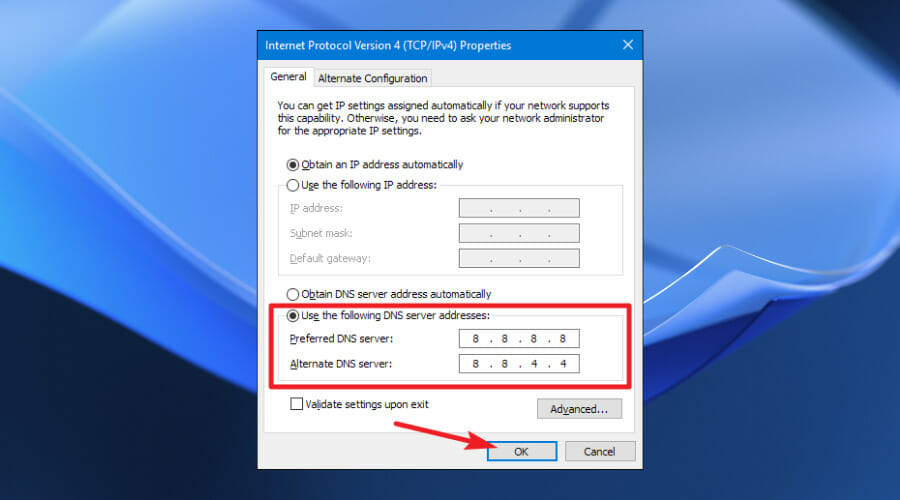
- Relink Amazon and Twitch from Steam.

These are pretty much the temporary solutions that worked for most of the Lost Ark players that reported dealing with a server authentication failure.
If you also find yourself in a similar situation, follow the above-mentioned steps and keep on playing your favorite game.
Remember that the server you choose is extremely important, as friends must select the same server to play together, or you can all transfer to another server.
Which of these guide’s steps has worked for you? Share your experience with us in the comments section below.
0xc004f213 on Windows 11: How to Fix This Activation Error

The process of activating the Windows 11 operating system has become very simple. There’s also the case when the key is pre-programmed into the BIOS and you do not need to enter any information. However, users reported getting the Windows 11 activation error 0xc004f213 message.
License keys help to confirm that your copy of the operating system is genuine and that it has not been installed on more devices than the Microsoft Software License Terms allow.
Follow along as we will show you how to fix the Windows 11 activation error 0xc004f213, right after we see why it is important to activate your copy of Windows as soon as you get a new laptop/computer. Keep up with us!
Why is it important to activate Windows?
Activate Windows will continue to appear in the bottom-right corner of your screen as long as you have a Windows PC running on it. Despite the fact that there are several methods for removing the watermark, it is possible that it will reappear if there are any problems with the Registry files.
Alternatively, if you do not wish to make changes to files in the Registry Editor, you will have to accept this watermark as a part of your computing experience.
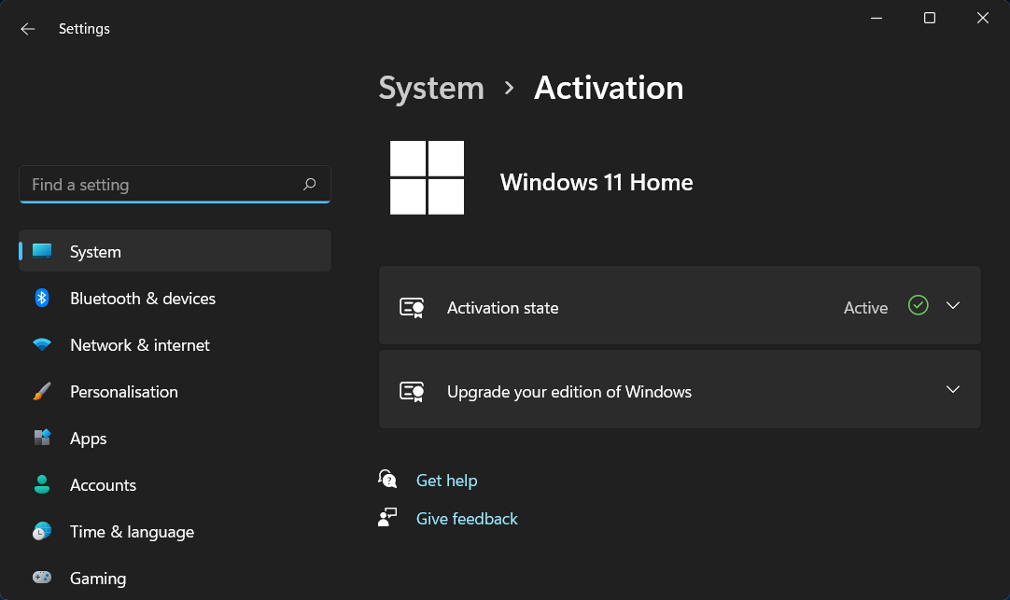
If your copy of Windows is not activated, a message similar to Activate Windows appears in the Windows Settings window all of the time.
You will see the same message regardless of whether you are using Windows 11 or Windows 10. When you click on the appropriate link, you will be taken to the Windows activation panel in the Windows Settings.
However, if you do not activate Windows 11, you will be unable to make any changes to your Personalization options. In other words, you will be unable to change your wallpaper, theme, title color, Start Menu color, transparency, or any other aspect of your computer.
Numerous notifications, delivered at regular intervals, may prompt you to activate your Windows installation with a product key that is not in use by anyone else. This popup message may appear while you are watching a movie or reading an article on the internet, depending on your location.
If you intend to use Windows 11 indefinitely, it is highly advised that you obtain a product key to activate the operating system. Otherwise, you may encounter difficulties in the future due to the fact that the official license agreement does not correspond to your Windows usage.
How can I fix the Windows 11 activation error 0xc004f213?
1. Verify the license key
Unofficial licensing keys, as we will cover in further detail later in this post, are not permitted and should not be used. For years, Microsoft has been removing and banning all unrecognized keys from the market.
However, it is possible that you will use a hacked key that will work for a short period of time before being taken down.
Only purchase Microsoft-certified license keys, and double-check the code before activating it to ensure that you haven’t misspelled it.
2. Check if the computer key is activated
- Press Windows + S to open the search bar and enter cmd, then right-click on it and tap on Run as administrator.

- Type or copy-paste the following command inside the Command Prompt window and let it run. You will be shown a new window that either says The machine is permanently activated or the opposite:
slmgr /xpr
- If it is activated, you can stop here and ignore the 0xc004f213 error as it is a bug. Otherwise continue with the 4th step.
- Right-click on the Start icon and choose Windows Terminal (Admin).

- Enter the following command and let it run:
wmic path softwarelicensingservice get OA3xOriginalProductKey
- Copy the key, then head to the Activation section inside the Settings app and paste it in there.

3. Check the Internet connection
Another possibility for why you are receiving the Windows 11 activation error 0xc004f213 message is that your internet connection has been interrupted for various reasons.
To discover if you are linked to any networks, click on the Wi-Fi icon in your Taskbar and verify whether or not you are connected to any networks.
Choose one of them if you are not already using one, and then proceed with the Windows activation process. And note that you can also your hotspot connections if you don’t have any available Wi-Fi near you.
Are free license keys safe?
It is possible to find various websites on the internet that offer to sell genuine Windows product keys for a low cost. How do they acquire such low-cost Windows 11 product keys and is it legal and safe to use such grey market keys?
Although these Windows keys appear to be legitimate, they are not. Microsoft has priced Windows OS at varying rates in different nations.
There are a variety of factors at play in why Microsoft charges various prices in different countries. These explanations are based on the relative strength of the currencies of the countries in question, as well as other considerations.
The law of digital purchasing is also varying from one country to the next in different countries. Such websites are not legitimate sources for purchasing a low-cost Windows 11 key.
Microsoft does not support it and will launch a lawsuit against the individuals responsible for such websites if it discovers the websites that sell such keys. Additionally, it will deactivate all of the leaked keys in bulk.
It is possible that a cheap key will not work right away, or that it will function for a short period of time and then quit, or that it could operate for an extended period of time if you are lucky!
However, you should be aware that the key you are using may not be legitimate. We recommend that you always purchase genuine Windows product keys from the Microsoft Store or one of their authorized Partners for these reasons.
Don’t be taken in by such ruses. The low-cost Windows key you got from a third-party website is almost certainly not legal. These grey market keys come with the risk of being discovered, and if discovered, it’s game over for them. If luck favors you, you may get some time to use it.
You may go undiscovered for a week, a month, or a year, or you may go undetected for a lifetime – and you will have to make a decision about that.
If you still can’t activate your copy of Windows 11, take a look at the article linked and try the methods in there that should fix the error at hand.
Alternatively, in the case that you meet other activation errors, check out our post on how to fix a Windows 10/11 activation key that doesn’t work.
And lastly, for those who encountered the 0xc004c003 activation error, don’t miss out on the guide linked in order to find out how to solve it.
Don’t hesitate to tell us in the comments section below what you think and whether you have other solutions in mind as well.
Get the Windows 10 March Patch Tuesday updates today

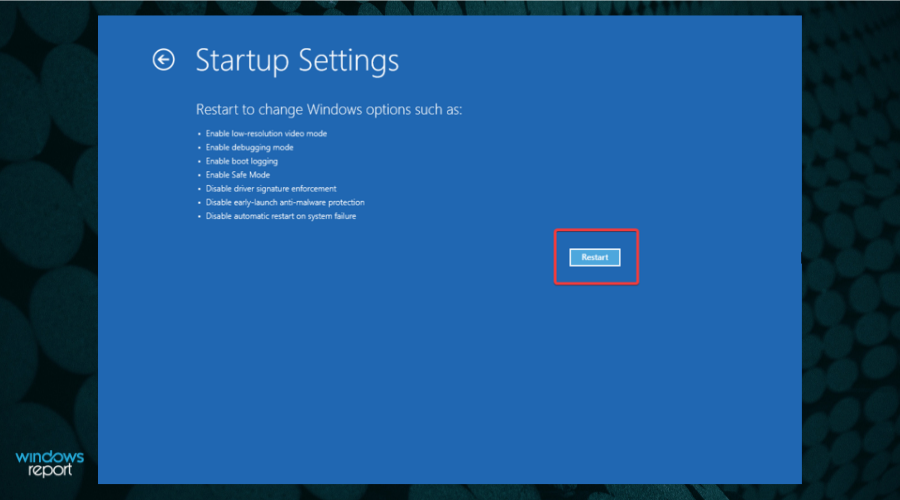
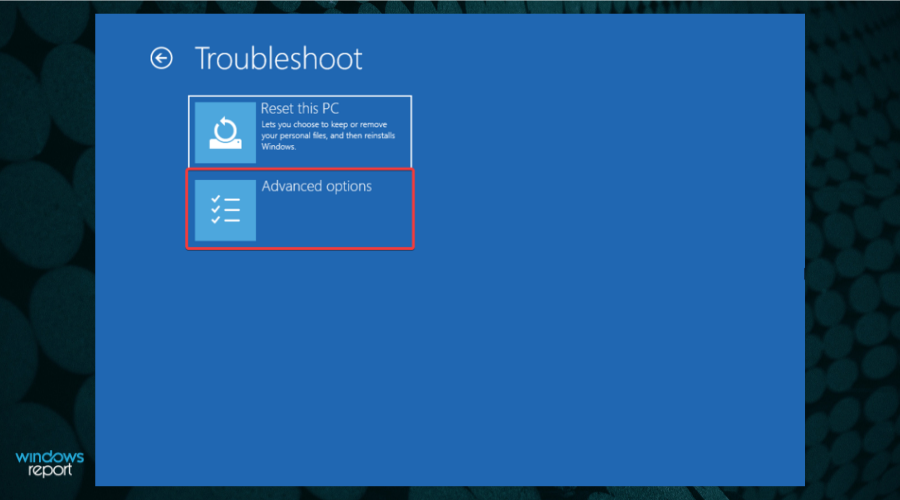
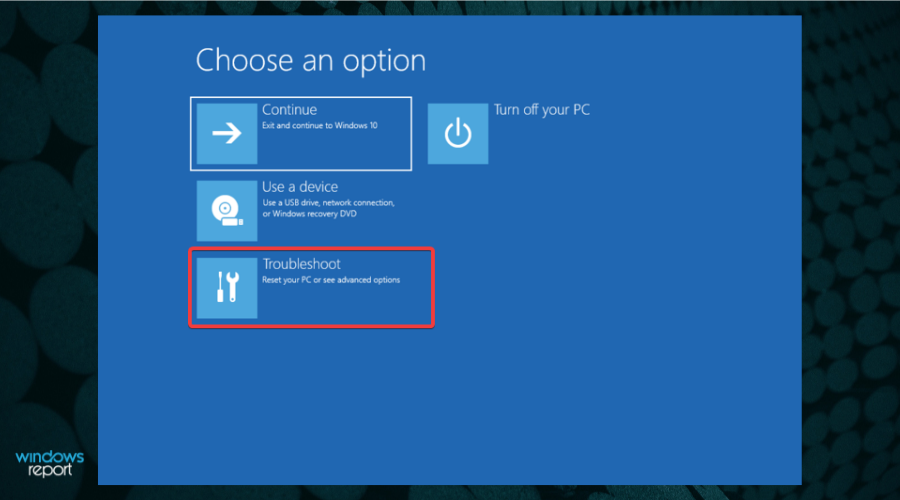
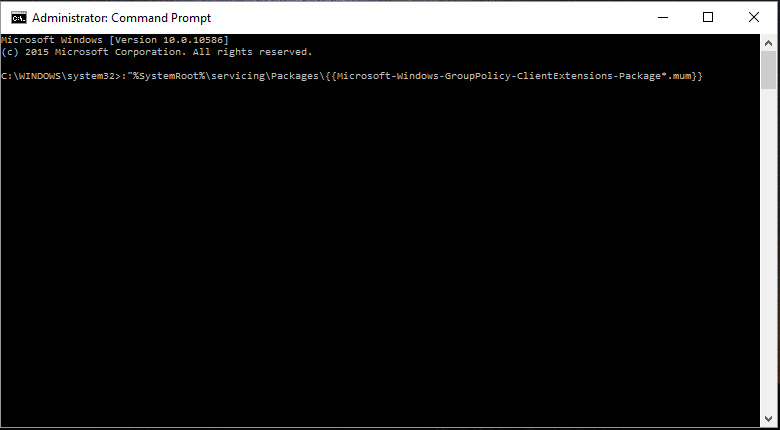
The 9th of March is finally here, and for those of you that like keeping your PC updated with the latest and greatest changes this means only one thing: Patch Tuesday is here!
Like all other Patch Tuesday updates since the beginning of the Windows OS, they are aimed at improving your PC’s performance by tweaking the system, fixing any errors, adding new features, and providing better security against digital threats.
That’s what everyone is expecting this month as well, and we will be looking over what might arrive this week.
What the March Patch Tuesday updates might bring
Besides the security improvements, one focus of the Patch Tuesday updates is to fix whatever might have been broken in the past updates.
For example, the February Patch Tuesday updates were riddled with vulnerabilities that rapidly needed to be dealt with.
So, the 51 new patches that became available last month, addressed CVEs in:
- Microsoft Windows and Windows Components
- Azure Data Explorer
- Kestrel Web Server
- Microsoft Edge (Chromium-based)
- Windows Codecs Library
- Microsoft Dynamics
- Microsoft Dynamics GP
- Microsoft Office and Office Components
- Windows Hyper-V Server
- SQL Server
- Visual Studio Code
- Microsoft Teams
Through the February 2022 Path Tuesday event, the Redmond-based tech company has managed to finally fix CVE-2022-23280, which is related to an Outlook for MAC vulnerability.
Not only did we see record low numbers of vulnerabilities addressed across all of Microsoft’s operating systems last month, but we also saw for the first time in my experience that all the updates were only rated Important.
After the reissuing of updates in January, we expected fewer CVEs would be addressed as Microsoft focused on stable updates in February, but this was unprecedented.
It’s safe to say we can expect a much larger set of CVEs addressed this month as Microsoft digs into the backlog after a small February release.
A lot of these CVEs may be rated Critical as they focus on vulnerabilities more open to attack. The usual set of updates will be available for all operating systems, Office, and probably Exchange Server.
What are your expectations for this month’s Patch Tuesday updates?
Let us know what you hope to see by leaving your feedback in the comments section below.