ByteFence vs Malwarebytes: Which is more secure?

Malwarebytes is one of the most popular virus removal software available on both Windows and macOS platforms. You can even get it for Android and iOS running devices. However, there are quite a few security features launched with tall claims and we are convinced that you want to know more. 

ByteFence is a relatively new antivirus solution available for the Windows platform only. However, there are times when some Mac users may find the tool installed as a bundle with other freeware. 

So, is ByteFence good enough as a security solution, or should you consider Malwarebytes instead? We answer all the questions in this detailed ByteFence vs Malwarebytes comparison.

ByteFence vs Malwarebytes: Which is a better antivirus?

ByteFence
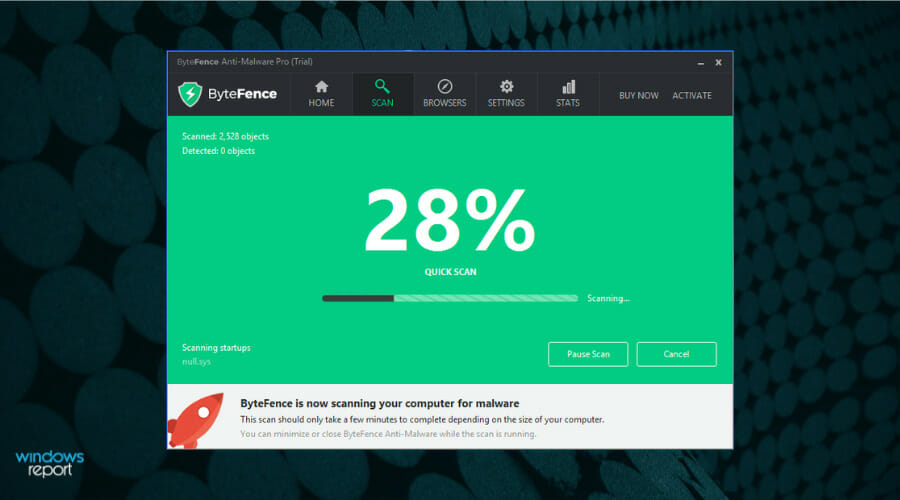
ByteFence is a security program that offers scanning and removal of Trojans, worms, spyware, crapware, and other potential threats to your computer. 

It is developed by Byte Technologies and comes in a free basic and pro version. Unfortunately, ByteFence is only available on Windows PCs. 

Features of ByteFence 

ByteFence is available in free trial and Pro version. The free version only offers scanning features. So, you can scan for crapware, malware, and more in real-time. However, to remove the malware, a subscription to the Pro version is required. 

ByteFence offers a straightforward user interface. You may access the Scan, Browsers, Settings, and Status tab from the home screen. There are three scan options – Full Scan, Quick Scan, and manual Folder and Files scan. 

Moving on, in the Browsers tab, you can check and clean Internet Explorer, Google Chrome, Mozilla Firefox browser. All the security-related features are tucked in the Settings. 

Do not hesitate to enable real-time protection, create scanning schedules, add and remove URLs from the whitelist, and check the files moved to the Quarantine tab. 

Furthermore, there is a Gamer Mode. Enabling it will automatically disable various features to free up system resources and allocate them to your game. 

The tuneup tab features some system cleaning tool that is supposed to fix system issues by cleaning junk files and other leftover data.

Malwarebytes

Malwarebytes probably needs no introduction. It’s one of the most popular and highly reliable security solutions known for deep scanning and removing malicious programs without impacting your system performance.

Malwarebytes is available on all the major desktop and mobile platforms. You can run the same tool on your desktop as well as handheld devices. It comes in multiple versions, including a basic free version. 

Features of Malwarebytes 
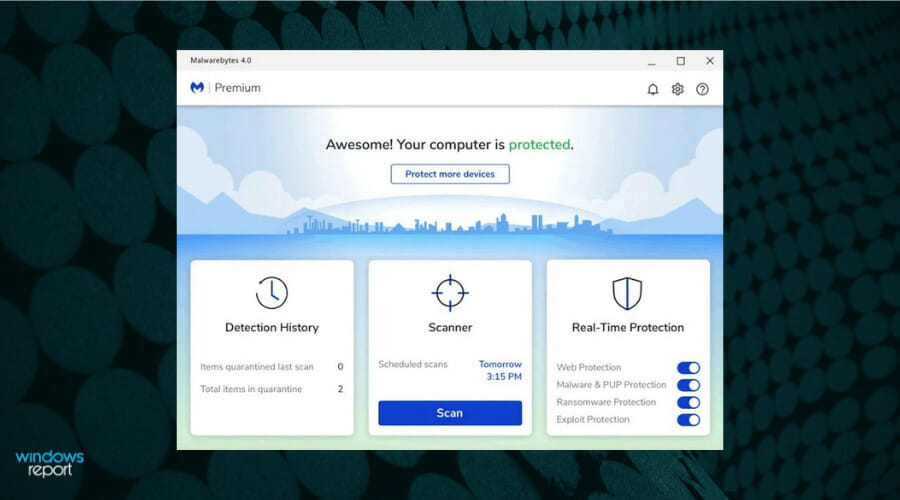
During installation, Malwarebytes offers to install its Browser Guard, an extension for the browser. You can skip or install it along with the virus removal tool. 

It features real-time protection that helps you find and remove malware, viruses, and other threats from your computer and smartphone.

Furthermore, it can also protect you from online scams and suspicious websites with its Web Protection feature. It looks for malicious links and blocks phishing scams to protect your personal and financial details.

Real-time protection also consists of ransomware protection and exploit protection features. Ransomware protection blocks malware that locks you out of your device or files.

Exploit Protection blocks malware that takes advantage of bugs and vulnerabilities in a system.
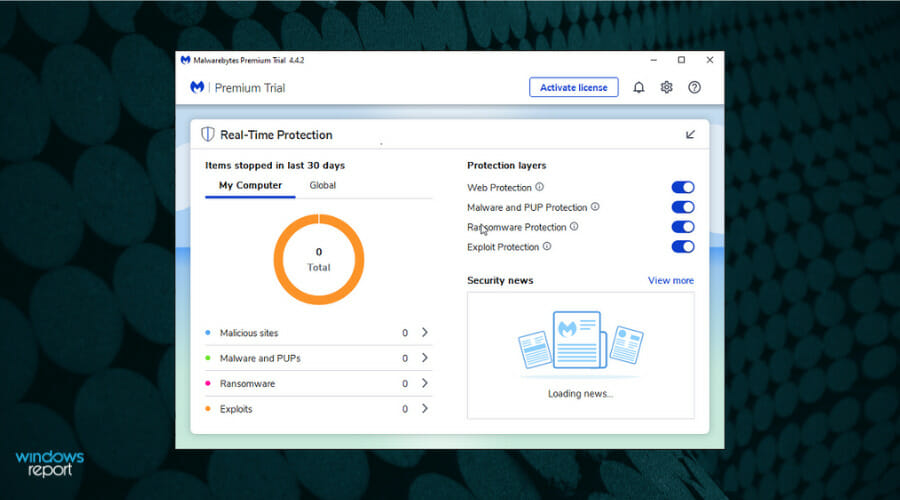
All the protection layers are enabled by default. However, you can disable them individually if you want. The real-time dashboard shows malware stats of your computer.

Malwarebytes VPN is a built-in feature available for premium users that protects your privacy, secures your Wi-Fi connection, and offers better speed than other VPNs.

It is also extremely gentle on your system hardware. It works in the background without hogging your system resources or spams you with offers and notifications. 

If you are bored with the default theme, it comes with a Light and Dark theme. You can access it from the Display tab in Settings.

The service is known to sometimes cause high memory problems that affect your computer. However, if that’s your case too, learn how to solve Malwarebytes memory issues in no time.

ByteDefence vs Malwarebytes update definition 
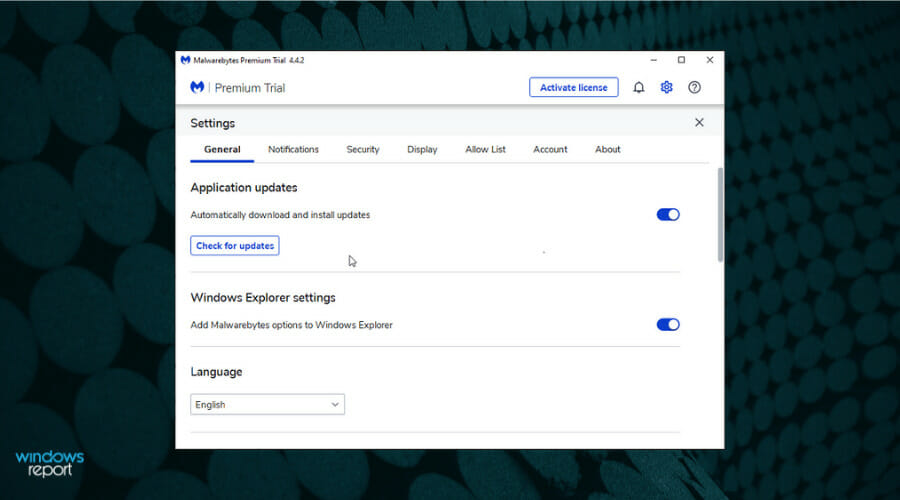
ByteDefence, by default, downloads and installs the latest virus definition. This helps in keeping your PC safe with up-to-date threat monitoring. 

Application update for Malwarebytes is also enabled by default. If you don’t want to install automatic updates, you can disable them from the Settings tab. Of course, if you want, you can check for updates manually.

Feel free to customize how often Malwarebytes checks for threat intelligence updates. With both tools, you don’t have to worry about the latest updates, as the software will download and install the latest updates. 

Compatibility with antivirus programs

ByteFence claims to work with third-party programs without any issues. Microsoft Windows 10 automatically disables some Windows Defender features when a third-party antivirus program is installed.

Malwarebytes’ free version works with third-party antivirus programs. However, the premium version with additional features may require some tweaks to make it work without conflict.

Different between free and premium versions

Malwarebytes offers a free version with a functional trial useful for checking out the premium features. ByteFence, on the other hand, has a very basic free version but a functional trial of 14 days.

Malwarebytes free vs premium version 

FeaturesMalwarebytes FreeMalwarebytes Premium
On-demand scan and malware removalYesYes
Real-time malware detectionNoYes
Ransomware protectionNoYes
Web protectionNoYes
Exploit protectionNoYes
Game modeNoYes
Scan schedulingNoYes

ByteFence Free vs Pro version

FeaturesByteFence FreeByteFence Pro
Scans for MalwareYesYes
Real-time scans for MalwareNoYes
Removes MalwareNoYes
TuneupNoYes
WhitelistNoYes

Conclusion 

Malwarebytes 

Malwarebytes is an exceptional antivirus solution available on all the major consumer platforms. The free version is pretty basic but works well.

The Premium version comes with advanced features such as web protection, real-time malware detection, ransomware protection, and more. 

Pros
Intuitive user interface
Effective on all types of malware and viruses
Cross platform support
Cons
Free version limited by features

ByteFence 

ByteFence is not a household name when it comes to virus removal utility. With the free version, you can scan for potential threats.

However, to remove malware and viruses, a Pro version subscription is required, defeating the purpose of using an antivirus.

Pros
Game Mode
Tuneup utility to improve system performance
Advanced settings
Cons
Pretty unusable free version
Premium version has limited features
Tip icon Tip
To summarize, if you have to choose between Malwarebytes and ByteFence, Malwarebytes should be your choice by default. It offers a free version that can scan for potential threats and remove them from your computer.

ByteFence not only has an ineffectual free version, but the paid version is also nothing exciting. Even more, the marketing practices of the company are not the best.

Reportedly, it gets installed as bundled software with other freeware and changes system settings such as browser default search engine and more. 

Since your want increased protection for your PC, also check out this Microsoft Security Essentials vs. third-party antivirus tools guide. You’ll see the most important differences between these top antivirus programs and the default platform in order to make an informed choice.

And if any of the antivirus tools you chose is blocking the camera, don’t worry as there are a few solutions that can correct this inconvenience in no time.

Do you have any experience with these tools? Share your thoughts with us in the comments section.


Xbox’s Phil Spencer expresses his support for game preservation via emulation

In recent years, we’ve seen Microsoft make several initiatives to make the video games industry a better place, pushing developers to make their games more accessible and other platforms to embrace cross-play multiplayer. In a recent interview with Axios, Spencer said that the industry as a whole needs to do more to support game preservation so that games from previous generations will remain playable on future hardware.

In recent years, Microsoft’s Xbox team has made some big efforts to support games from previous console generations, with the company’s latest Xbox Series X|S being capable of improving OG Xbox and Xbox 360 games in various new ways. Earlier this week, Microsoft announced a final list of over 70 new backwards compatible games on Xbox consoles, adding that it had now “reached the limit of our ability to bring new games to the catalog from the past due to licensing, legal and technical constraints.”

Microsoft has built its own emulator on Xbox One and Xbox Series X|S consoles to play select backwards compatible games with the authorization from game publishers, but what about other games? While it’s possible to install third-party emulators on Xbox consoles, this isn’t exactly easy to do and it’s actually illegal to emulate games you didn’t purchase.

“My hope (and I think I have to present it that way as of now) is as an industry we’d work on legal emulation that allowed modern hardware to run any (within reason) older executable allowing someone to play any game,” Spencer wrote in a direct message sent to Axios. It might be wishful thinking to imagine platforms holders ever agreeing on supporting game emulation on competing devices, but Spencer remains an optimist.

“I think in the end, if we said, ‘Hey, anybody should be able to buy any game, or own any game and continue to play,’ that seems like a great North Star for us as an industry,” the exec said. Do you think the video games industry will ever take the necessary steps to ensure that games from the past remain easily playable on newer platforms? Let us know what you think in the comments below.

Internet Association lobbying efforts take a hit as Microsoft and Uber leave group

As the political climate surrounding the tech industry and legislative infinitives to curb harmful or privacy violating actions continue to heat up, Microsoft and Uber have decided to leave the Internet Association.

According to a report from Axios, Microsoft and Uber are “leaving the Internet Association (IA)” which represents a lobbying consortium that operates on behalf of internet companies and tech firms within Washington DC.

The move comes after a number of large tech firms initially paused campaign donations following the January 6th attack on the US Captial. Lobbying efforts were slow to return and tech firms have since re-evaluated their broad donation policies often opting for more concerted and self-interested ones that can be at odds with members of the IA.

A trade association can only do what its members tell it to do, one person familiar with IA’s work told Axios. Facebook begging to be regulated puts the smaller companies in a bad position. It makes it hard for any organization that contains those two constituencies to be effective.

In addition to tech firms in-fighting, the IA also faces organizational issues that include with top lobbyists and VPs leaving the firm as well as less money to throw around in Washington.

As more IA members leave the group, members fees revenue has sunk, only generating a 1/7 the amount of money ($9M in 2019) that related firms such as NCTA which raked in $63 million during the same year.

As the heat gets turned up on legislation talks in Congress regarding tech firms and regulation, IA has been relegated to a relatively toothless intermediary as most CEO’s and VPs speak directly with state and local officials in an attempt to assuage concerns.

In the ten years since its inception, the tech industry’s relationship with consumers, users, governments and international bodies has drastically shifted and it seems firms are leveraging more direct relationships with law makers instead of calling upon IA.

IA still has roughly 40 members and small to mid-sized tech firms such as Discord, NewsBreak and others remain committed to the group.

Microsoft’s latest re-org focuses on Azure and new cloud businesses

Word began filtering out yesterday of yet another Microsoft re-org, and as usual Mary Jo Foley at All About Microsoft has the details. The big news is that the company is creating a new team, called Strategic Missions and Technologies (SMT), led by the current Executive Vice President of Azure, Jason Zander. In the new role, Zander will report directly to CEO Satya Nadella, and SMT will group together four major businesses: The US Federal (government cloud) business, Azure Space & Mission Engineering, Azure for Operators (tele-communications), and Azure Quantum.

According to an internal email from Zander, reported by Foley, the “common bond shared by the teams in this new division is next generation opportunity — opportunity that is so profound in potential impact that each area deserves dedicated focus to grow.”

Zander won’t be replaced as EVP of Azure, instead, Scott Guthrie will lead up a newly shuffled Azure org. The Azure Core Team will grow to include Azure Dedicated and Azure Global Infrastructure. A new Cloud for Industry and Global Expansion, let by Corey Sanders, will oversee Microsoft’s vertical cloud platforms, and report to Guthrie.

Still more moves will move more deck chairs within Azure, according to Foley:

Guthrie will get some other new direct reports, as well, as part of the moves announced today. Rani Borkar, the head of Azure Hardware Systems & Infrastructure, will move to Guthrie’s leadership team. Billy Anders, who heads the Azure CXP team, will also join Guthrie’s leadership team. The Azure Edge + Platform Team will be headed by Doug Phillips. Phillips will join Guthrie’s leadership team and report directly to him.

Technical Fellow Mark Russinovich will continue to lead the Azure Office of the CTO team and will join Guthrie’s leadership team and report to him directly. And Technical Fellow Henry Sanders will continue as CTO of the Azure Edge + Platform team, reporting to Guthrie and joining Guthrie’s leadership team.

The changes take effect immediately and signal Microsoft’s plans to further expand its industry verticals, its government, space, and telecommunications businesses, and Azure Quantum.

How to repair corrupted files after recovery [Best Tools]

Although, a computer file is designed in a way that enables programs to open, read, and modify it. However, the aftermath of a strong virus infection renders computer files invisible, disorganized, and unreadable. On the other hand, this means that the file is damaged or corrupted.

After recovery, the corrupted file may be damaged and unreadable; therefore, it is necessary to fix the corrupt files after recovery. In order to do this, you need to use automated tools to streamline the process.

Files got corrupted after recovery? Here are some solutions

Stellar Toolkit for File Repair

This is a very good repair tool designed with MS Office in mind and utilized in repairing different file types that you can use to fix corrupt files after recovery.

Meanwhile, the Stellar File Repair Toolkit is a combination of four tools in resolving MS Office file corruption problems. This toolkit helps you to repair corrupted MS Word, MS PowerPoint, MS Excel, and ZIP files.

In addition, this tool is compatible with MS Word 2013, 2010, 2007, 2003, 2002, and 2000 on several Windows OS such as Windows 10, 8, 7, Vista, 2003, XP, 2000, and NT.

With Stellar File Repair Toolkit, you can effectively fix corrupt MS Excel spreadsheets and restore them to a new Excel file. Also, it has a standard explorer-style user interface that can fix corrupt files after recovery.

Furthermore, Stellar File Repair Toolkit can fix several corrupt files such as PowerPoint presentations, Excel spreadsheets, ZIP archives, and Word documents.

Stellar Toolkit for File Repair

If you need a tool that will recover any type of file without loss, then Stellar Toolkit for File Repair is here for you.
Check price Visit website

Wondershare Video Repair

If your video files are the ones that got affected by corruption, then you will need a dedicated video recovery tool, and few are as good as Wondershare Video Repair.

The tool is incredibly easy-to-use, as all you need to do is scan the media for any video files, and then choose the ones to repair.

More so, it can handle files of any size, from short 5 MB AVI files to Bluray videos that take up 60+ GB.

Wondershare Video Repair

With Wondershare Video Repair, your videos will be back the way they were the day you first shot them with your camera!
Free trial Visit website

Hetman File Repair

Hetman File Repair can fix corrupt files after recovery most especially broken image files.

It is compatible with the Windows OS and can completely repair JPEG, TIFF, BMP, and PNG files without losing the image quality or decompressing image data.

In addition, Hetman File Repair is a very unique tool for fixing corrupt files after recovery.

Besides, it offers a comprehensive analysis of information still available in a corrupted file. This tool can be used in the office and also for personal use at home.

Although, Hetman File Repair does not have any specific requirements; however, it is very compatible with major Windows OS versions such as Windows Vista, Windows XP, Windows 7, and Windows 8 in 32-bit and 64-bit editions.

Also, it uses read-only access in the process of repairing files in order to ensure the safety of the files.

Nevertheless, this efficient tool requires a license to fix corrupt files after recovery. Hetman File Repair is not completely free, there are restrictions attached to the demo version of each utility.

Hetman File Repair

This universal file repair tool can finish the job that typical file recovery tools cannot, bringing your files back to their original state!
Check price Visit website

Repair Toolbox

The Repair Toolbox is very good for fixing corrupted files. It is not a single application, it contains 22 single-purpose utilities. Each of these single-purpose utilities can repair different files.

Meanwhile, the bundled utility applications work in the same way. Therefore, this tool can fix corrupt files after recovery. Besides, the process of file repair is very easy.

Users can indicate the corrupt file within the applicable utility’s environment and then name the resulting repaired file before proceeding with the repair process.

In addition, Repair Toolbox is compatible with Windows Operating System and also supports several file formats such as Excel, Word, PowerPoint, OneNote, PDF, Outlook, ZIP, PDF, RAR, Photoshop, Illustrator, etc.

⇒ Get Repair Toolbox

In conclusion, we recommend that whenever you notice your file has been corrupted after recovery from a virus infection, you should try any of the repair tools listed above.

These tools are Windows compatible and effective for users to fix corrupt files after recovery.

If you do have any questions regarding any of the tools we mentioned above or you know f any tool which did not make our list, feel free to comment below.

How to open .cue files in Windows 10

A cue file is a disc image format that stores all the information and contents of a CD or DVD as a file image. It is a metadata file that describes how the tracks of a CD or DVD are organized. Since most modern-day laptops lack CD and DVD drives, disc images have become very useful.

If your computer doesn’t have a disc drive, you don’t have to cut yourself from performing certain functions or listening to your old Audio CDS.

Just create ISO files or other types of disc images and mounting then will let you access the virtual discs just as you would access the physical discs inserted in your computer.

These disc files contain a complete representation of a disc. But how do you open these files? Before we get to that, let us first touch on the most common file formats for disk images.

Common file formats for disk images

  • ISO – The term ISO is an abbreviation for “ISO-9660 file system image”, and is currently the most common disc image file format. It is good for data files and video content. However, it is not the best for Audio CDs.
  • BIN & CUE – These are disk images split into different files. The formats were developed to fix the Audio CDs archiving problem with ISO. BIN is a binary file that contains the actual data burned to discs while .cue is a metadata file that describes how CD tracks are set up.
  • IMG file – The .img file is a sector-by-sector binary copy of the source optical disk or hard drive. It relates to binary files that contain raw information. These files store all the track information as well as error correction information and control headers.
  • MDS – MDS is commonly used for storing copy-protected DVDs. BIN/CUE and ISOs do not have the feature to store copy-protected information within the image file.

The modern versions of Windows, i.e. Windows 10, Windows 8.1, and Windows 8 have the built-in ability to mount both ISO and .IMG image files without the need for third-party software. However, Windows doesn’t have inbuilt support for other file formats such as BIN/CUE, MDS, CCD, and others. You will need third-party applications such as Roxio Toast to open BIN/CUE files.

How to mount an ISO image file in Windows 10

If the disk image is in the ISO file format, you won’t need to install a third-party application. Simply follow the steps below to mount it.

Step 1: Double-click the ISO file to mount it. Ensure that the ISO file is not associated with any program in your system.

NB: If the ISO file is associated with any program in your system, mounting will not work.

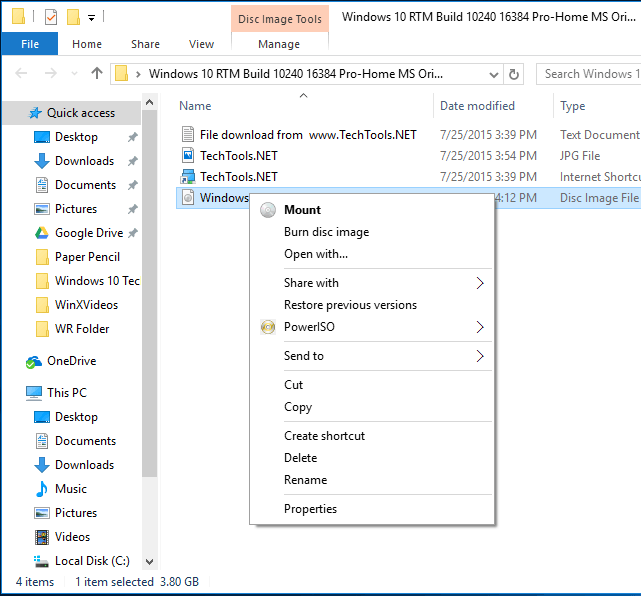
Step 2: Right-click the ISO file and select the ‘mount’ option. Once you have mounted the disk file, it will appear as a new drive under ‘this PC’

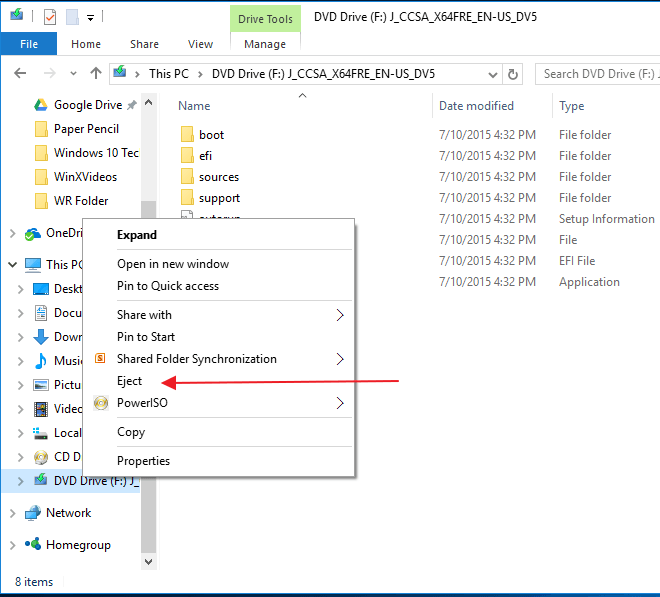
Step 3: To unmount the disk file, right-click the drive and select ‘Eject’.

If you are using Windows 7, Vista, or any other older version of Windows, then you will need to install a third-party application to mount.

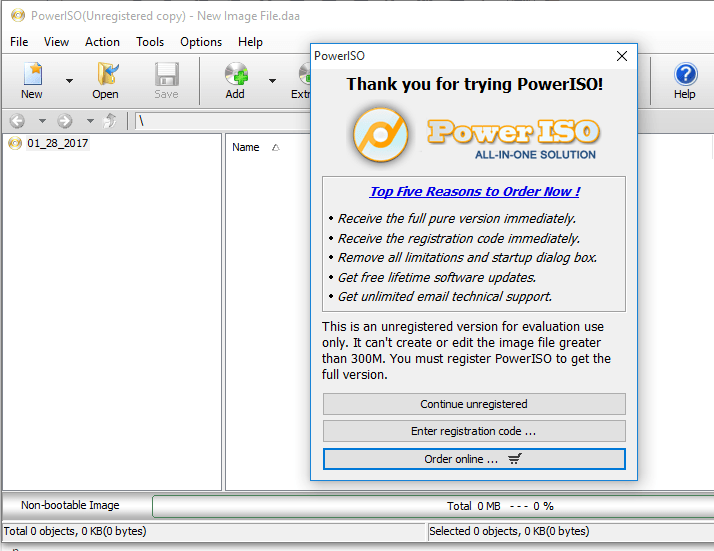
If you require a specialized program but you don’t know where to find it, we recommend the most popular file image mounting software namely PowerISO

How to open BIN / CUE files with PowerISO

Step 1: Download and install the PowerISO application. Once installed, click to launch the application.

Step 2: Click the File button in the tools bar and choose open. Select the BIN or CUE file you want to open. The program will automatically list the CUE files for you.

Step 3: Click open. PowerISO will automatically list all the files within them.

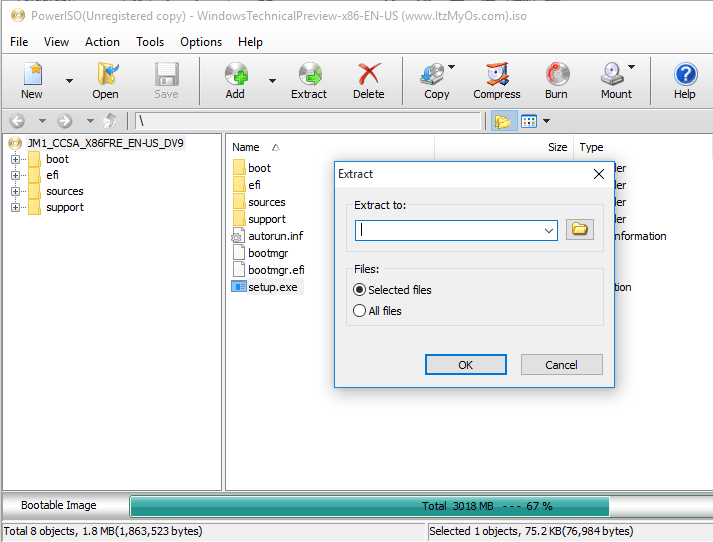
Step 4: To extract the BIN file, locate and click on the ‘Extract’ button on the tools bar. This will open an extract dialogue box.

Step 5: Choose the destination directory for extraction.

Step 6: Select ‘All files’ if you want to extract them all and click okay to start the extraction process.

⇒ Get Roxio

Was the information helpful? Feel free to comment and share.

[wl_navigator]

Netflix in Not Working on the Projector: 5 Tested Fixes

Some users have reported that Netflix is not working on their projector from the computer and other devices. Usually, Netflix won’t play on the projector due to incorrect settings configuration and audio/video format incompatibility. This issue may also be caused by trying to display DRM protected content. In this case, using a browser to view Netflix will fix the problem instantly.

What can I do if Netflix is not working on the projector?

1. Setup the projector to work with Netflix

  1. Make sure you have followed the steps given below correctly to connect your Projector to PC and to play Netflix.
  2. Plug the projector’s video connection into the video port of the computer and turn on the Projector.
  3. Click on Start and select Settings.
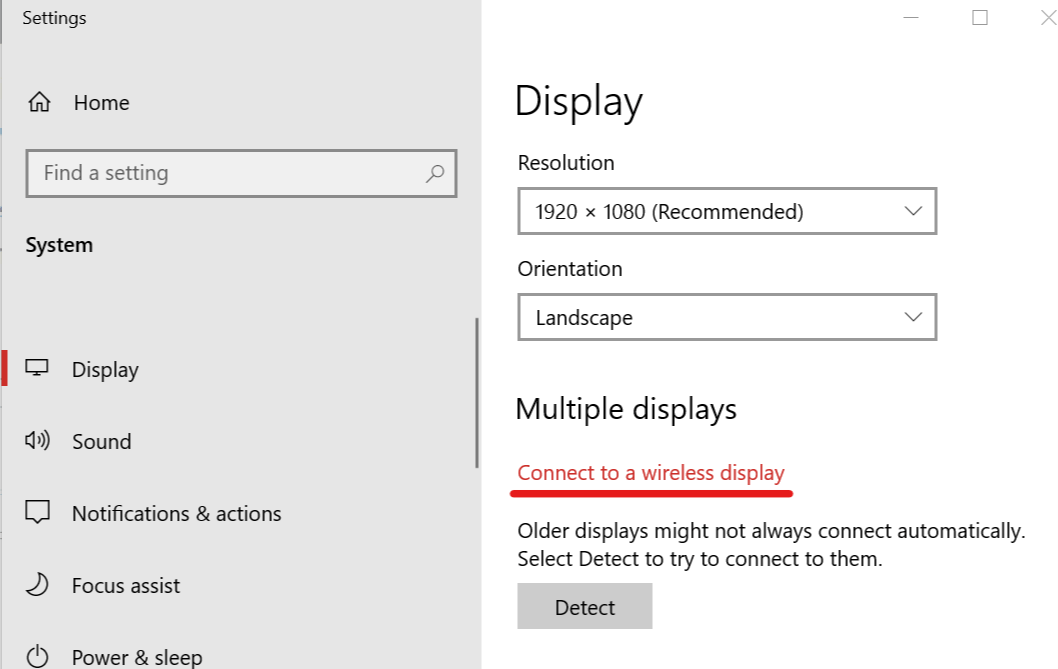
  4. Select System and then click on Display.
  5. Click on Connect to a Wireless Display.
    connect to wireless display projector won't play netflix
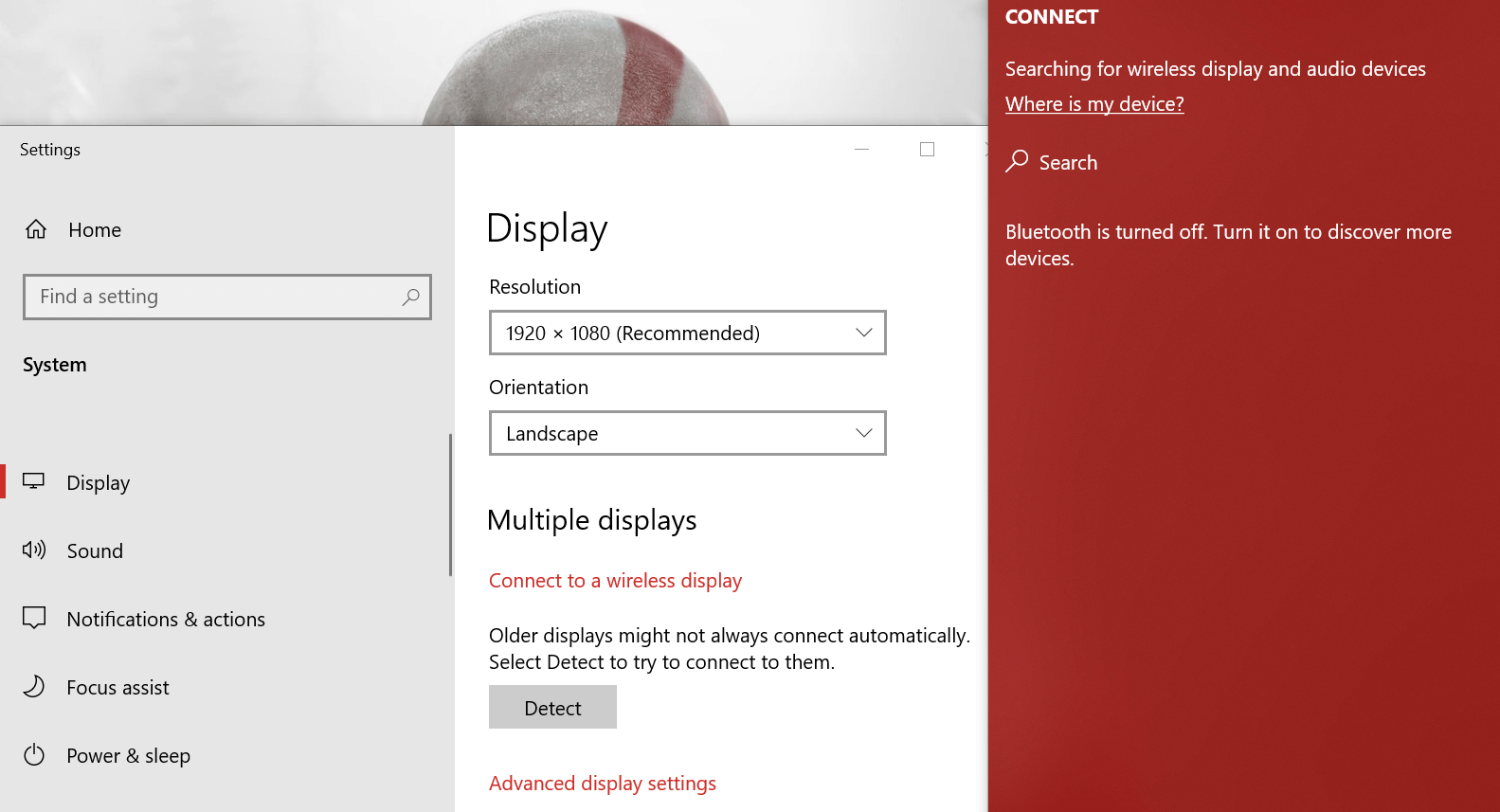
  6. From the right pane, select your Projector.
    select the projector projector won't play netflix
  7. That’s it. Make any changes to the display size as per your requirement and play Netflix on Chrome / Edge browser.
  8. This should allow you to play Netflix on a projector without any issues.

If you are using the Windows 10 Netflix app, you may not project some content due to protected content settings. It is advised that you use an open-source web browser like Chrome / Edge to play Netflix content from the web.

You might also be interested in our complete guide on how to connect your projector to Windows 11.

2. Check the Source Device and Projector are connected correctly

  1. If the issue persists, check that the cables and adapters are firmly plugged in.
  2. Also, check that you are using the proper cable or adapter to connect your source device to the projector.
  3. In case your projector comes with USB-C port to display content, make sure it is connected to a USB-C video port and not USB-C charge port.
  4. If you are connecting to the projector via VGA port, check that you are using a VGA to HDMI converter and it is working correctly.

3. Update the browser

  1. If you are using the Google Chrome web browser to play Netflix on the computer, check if it is up to date.
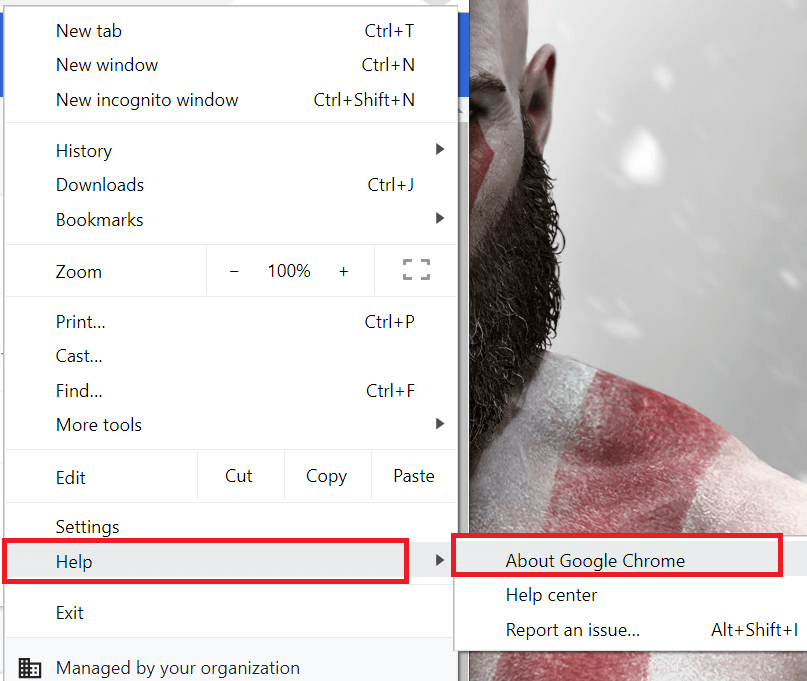
  2. Launch Google Chrome and click on the Menu button.
    about google chrome projector won't play netflix
  3. Go to Help and select About Google Chrome.
    update page google chrome projector won't play netflix
  4. Check if any update is pending for the browser and install it.
  5. Relaunch the browser and launch Netflix. Try to play any content and check if the Projector is playing it.

4. Try a different browser

If the previous solution didn’t help, you might want to try using a different browser. There are many great browsers on the market, but you may need to choose one based on your online activities.

Netflix does not work the same way in all browsers since they all work differently.

If you choose one of its free rivals, you will almost certainly get considerably superior image quality. An interesting fact about Chrome is that it only supports Netflix in 720p quality, but other browsers can stream Netflix in 4K resolution.

If you’re looking for a better browser to stream Netflix, we recommend checking out our alternatives for browsers other than Chrome.

5. Update Display Driver

  1. Press Windows key + R to open Run.
  2. Type devmgmt.msc and press OK to open the Device Manager.
  3. In the device manager, expand Display Adapter.
  4. Right-click on your display Adapter and select Update Driver.
  5. Select Search automatically for drivers.
  6. Wait for the Windows to download any pending update and install it.
  7. Restart the system and check for any improvements.

We also have a dedicated guide on how to install the projector driver on Windows.

Make sure you’re using the latest versions of your drivers. There are third-party apps that can automatically do that for you, to save time and avoid any failed driver updates or installation.

With Outbyte Driver Updater all you need is a few clicks and the software will scan your PC’s display drivers for possible driver updates. It’s compatible with all versions of Windows and makes updating drivers really easy.

This handy tool can be scheduled to automatically find outdated drivers.

⇒ Get Outbyte Driver Updater

There you go! Quite simple and efficient, let us know in the comment section below if these steps helped.

FIX: Not enough storage available to complete this operation

The error message Not enough storage is available to complete this operation usually occurs when users try to install the latest updates on their computers.

This error is often accompanied by the 0x8007000e error code. In other words, the complete error code often looks like this: ERROR_OUTOFMEMORY (0x8007000e).

This error also occurs when users run a client app or a script by using WMI in the .NET Framework 2.0.

Although the ERROR_OUTOFMEMORY is prevalent for Windows 7, where it mainly occurs when users try to install a new Service Pack or a Language Pack, there are situations when it occurs in Windows 10 also.

Windows 10 systems are also affected by this error, particularly when users try to open Windows-specific features, such as services.msc, disk management, event viewer, the group policy, etc.

In this article, we’re going to show you how to fix ERROR_OUTOFMEMORY (0x8007000e) in these three situations.

How can I fix the error message ERROR_OUTOFMEMORY?

1. Fix ERROR_OUTOFMEMORY on NET Framework 2.0

Driver error Code 32 fix

Error 0x8007000E occurs when an app or a script running in Windows Management Instrumentation (WMI) in the .NET Framework 2.0. stops working.

Microsoft explains that this error occurs because the Mscoree.dll module does not free the heaps that it creates.

The good news is that Microsoft already rolled out a hotfix for this problem. All you need to do is go to this Microsoft Support page and check if the hotfix is available for download.

There should be a “Hotfix download available” section at the top of support page. The hotfix is available only for particular languages.

If you do not see your language, this means that the hotfix is not available for that language. In this case, you need to contact Microsoft’s Customer Service and Support.


2. Fix ERROR_OUTOFMEMORY on Windows 7

1.Repair your registry

You can use the Windows System File Checker to scan for broken or out-of-date registry entries.

This is a simple and safe Windows utility that can restore or reinstall any broken system files and registry entries it detects.

To run the System File checker:
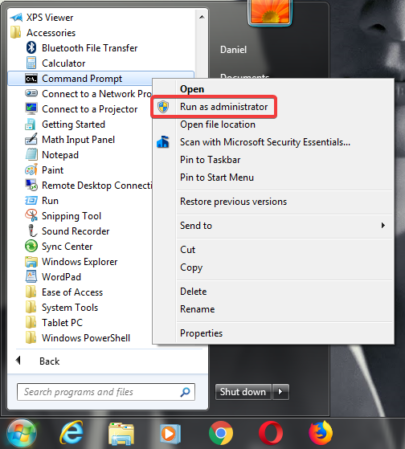
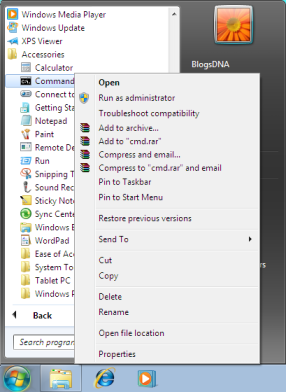
1. Go to Start and type cmd;
2. Right-click on Command Prompt and select Run as Administrator;
3. Type the sfc /scannow command and press enter;
4. Once the process is finished, you will get the results of the scan in the command prompt.
5. Restart your computer and see if the problem is fixed.

2.  Run a full system scan

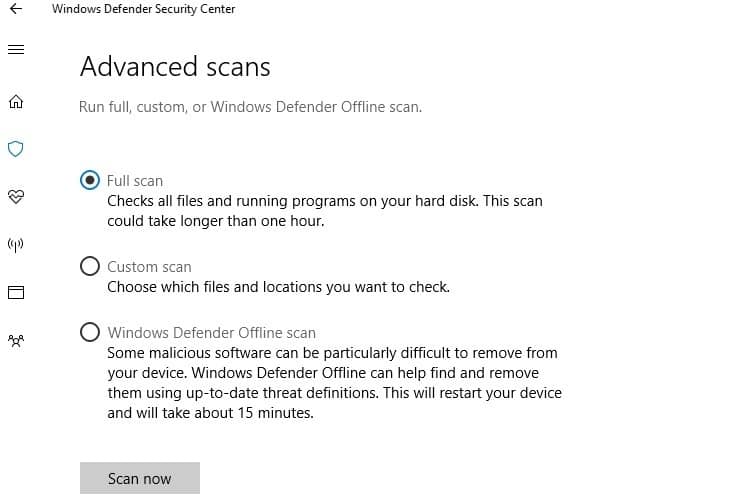
Malware may cause various issues on your computer, including errors. Perform a full system scan in order to detect any malware running on your computer.

We suggest you use a third-party antivirus solution compatible with Windows that is fast and reliable antivirus. There are many options available that can help you keep your system fully protected without slowing down your PC.

Some of the best antivirus software of 2021 include extensive free trials so you can try them out before buying a license and see if you are satisfied.

A good antivirus should come with multiple shields of protection against all threats and a good privacy policy that will let you browse securely and anonymously.

3. Run the Windows Update troubleshooter

Download the troubleshooter from Microsoft, launch it, and follow the on-screen indications.

Once the process is completed, restart your computer and then try to install the latest updates again.


4.Uninstall unused language packs

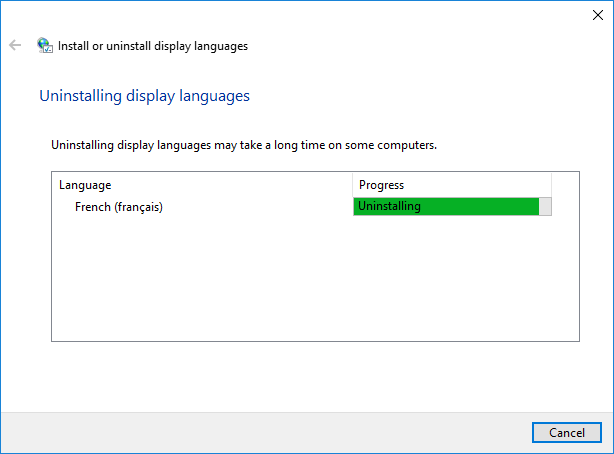
  1. Go to Start and type Uninstall display language in the search box.
  2. Click Install or uninstall display languages and select Uninstall display languages.
  3. Select the language that you want to uninstall and click Next.
  4. Follow the on-screen instructions to complete the process.

5. Check for programs causing memory leaks

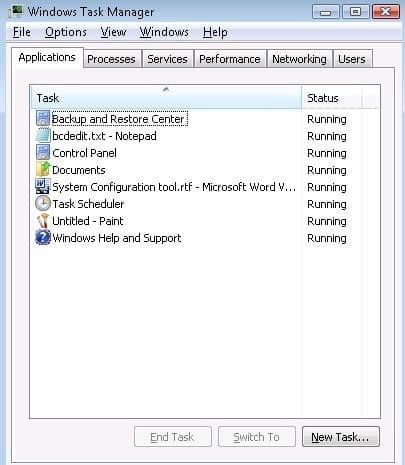
  1. launch Task Manager and select the Processes column.
  2. Select the respective process, click the End task button to disable it, .

6. Repair your disk

  1. Launch Command Prompt as an administrator.
  2. Type the following command and hit enter: chkdsk c: /r
  3. Wait for the scan process to complete.
  4. Restart your computer and install the updates again.

7. Go to Microsoft’s Update Catalog

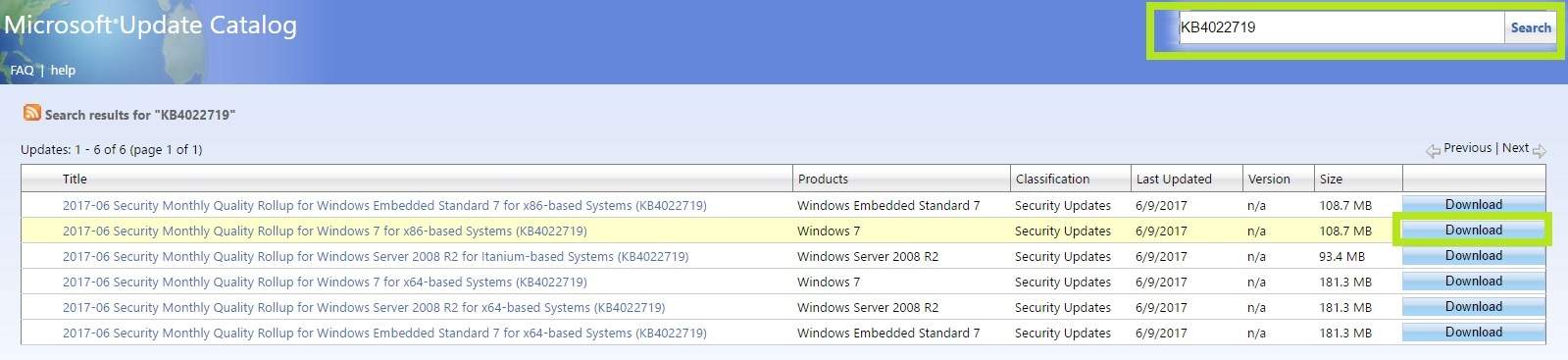
If you’re trying to download a particular update, you can also use Microsoft’s Update Catalog website.

Simply write the number of the KB that you’re trying to install in the search box, select the update version, and hit the download button.


8. Reset the content of the Catroot2 folder

  1. Launch Command Prompt.
  2. Type the following commands and hit Enter:
    net stop cryptsvc
    md %systemroot%system32catroot2.old
    xcopy %systemroot%system32catroot2 %systemroot%system32catroot2.old /s
  3. Delete the content of the catroot2 folder, but keep the folder itself. You should find it here: C:Windowssystem32CatRoot2.
  4. Type the following command and hit Enter:net start cryptsvc
  5. Exit the Command Prompt window.

  1.  

9. Run the System Update Readiness tool (CheckSur.exe)

  1. Download the System Update Readiness tool from Microsoft for the 32-bit Windows 7 version, or for the 64-bit Windows 7 OS.
  2. Install and run the tool.
  3. In the Windows Update Standalone Installer dialog box, click Yes.System Update Readiness tool windows 74. Wait for about 15 minutes for the tool to install. When the installation is complete, click Close.
    5. Try to install the latest Windows 7 updates again.

10. Temporarily disable your antivirus/ firewall

If you still can’t install the latest updates on your computer, try disabling your antivirus and firewall.

Turn off these tools temporarily, while downloading and install the updates. As soon as the updates have been installed, enable your security solutions again.


3. Fix ERROR_OUTOFMEMORY on Windows 10

1. Repair your registry

Ashampoo Win Optimizer is the best tool you can use in order to repair your device registry. It’s easy to use and the interface is extremely intuitive.

This tool will scan your device and eliminate all junk files that make your device run slower.

From the Dashboard, you will get an analysis of the current state of the device so that you’ll always be up to date. Here you’ll also see all the available features.

With this tool, you will fix useless Registry entries in no time and your system resources will be used in the right places.

You can also fix registry issues manually from Windows settings, as shown in the first step of the second solution above.

⇒ Get Ashampoo Win Optimizer

2. Run a full system scan

Malware may cause various issues on your computer, including errors. Perform a full system scan in order to detect any malware running on your computer.

You can use Windows’ built-in antivirus, Windows Defender, or third-party antivirus solutions.


3. Remove the language packs that you don’t use

Keeping extra language packs on your computer may cause out of memory errors.

As a result, uninstall all the language packs that you no longer use and then try to install the updates/ access the Windows-specific feature again.


4. Run the chkdsk command

  1. Launch Command Prompt as Administrator.
  2. Enter the following command and hit Enter: chkdsk /f X:
  3. Replace X with the appropriate letter of your partition and hit Enter.

5. Clean your temporary files and folders

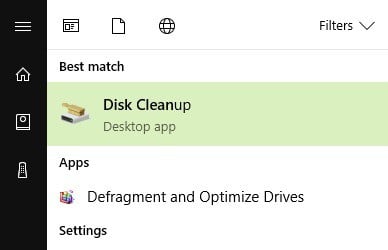
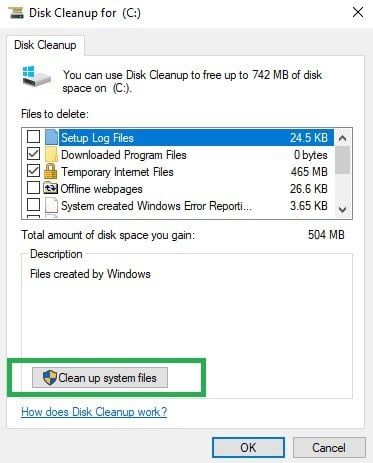
  1. Go to Start and type Disk Cleanup.
  2. Select the disk that you want to clean.
  3. Select Clean up system files.

6. Remove recently installed software

If this error occurs after you installed new software on your computer, try uninstalling it.

Then restart your computer, and try running that executable file again. Sometimes, various apps may cause incompatibility issues and prevent you from completing particular operations.

This error also prevents users from installing the latest updates on their PCs. The troubleshooting methods listed in that article may also help you to fix the ERROR_OUTOFMEMORY error message.

As always, if you’ve come across other solutions to fix this problem, you can help the Windows community by listing the troubleshooting steps in the comments below.

[wl_navigator]

Windows Media Player doesn’t show video? Try these solutions

Windows Media Player is the default media player on Windows, however, many users reported that Windows Media Player doesn’t show video only audio. According to users, they can only hear audio, and today we’re going to show you how to fix this problem.

What do I do if Windows Media Player doesn’t show video?

  1. Use a third-party media player
  2. Enable Now Playing window
  3. Reinstall Windows Media Player

1. Use a third-party media player

Sometimes the best and fastest way to fix a faulty program that is giving you headaches is to simply replace it with a better alternative, and that is the main reasoning behind this solution.

If you’re still having problems with Windows Media Player, perhaps it would be a good idea to switch to a different media player. Third-party media players usually come with more features than built-in ones.

The best media player software out there come with great library management features that include advanced search tools, good filtering and tagging options, and more.

On top of that, they are specially configured to support multiple formats of media files, so chances are that you will be able to open pretty much any video material if you use good software.

2. Enable Now Playing window

Sometimes Windows Media Player doesn’t show video only audio if the Now Playing window is hidden. However, you can easily fix that.

There is an option located at the lower right of the Media Player named Switch to now playing. By playing a video and clicking on this option you will reveal the Now Playing window.

Windows Media Player doesn't show video only audio now playing

If after doing this, the problem still persists you will need to run the Windows Media Player troubleshooter in order to fix this problem.


3. Reinstall Windows Media Player

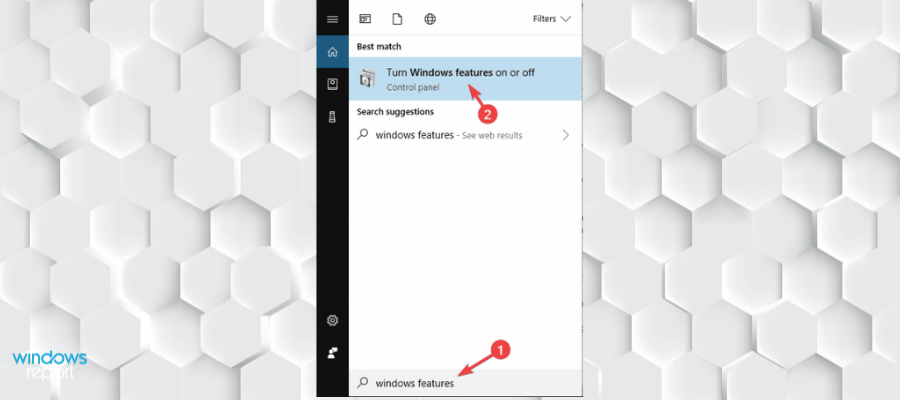
  1. To uninstall the Windows Media Player type in the search field Windows features. Select Turn Windows features on or off.
    turn windows features on or off Windows Media Player no video
  2. Scroll to the Media Features and remove the check mark next to Windows Media Player.
    windows features Windows Media Player doesn't show video only audio
  3. Click OK and reboot the computer.

After your PC restarts, you need to install Windows Media Player once again.

  1. Open Windows Features window as we showed you above.
  2. Scroll to the Media Features and check Windows Media Player.
  3. Click OK to save changes and restart your PC.

If Windows Media Player doesn’t show video only audio, perhaps there’s a glitch with the application. Several users reported that they fixed the issue simply by reinstalling the Windows Media Player.

After doing that, you should have Windows Media Player reinstalled and ready to use.


If Windows Media Player doesn’t show video only audio on your PC, be sure to try all of our solutions and let us know if any of our solutions helped you fix this problem.


[wl_navigator]

FIX: QuickTime install error in Windows 10/11 [Quick Guide]

There are a lot of redundant applications that, over the years, found their end on the software scrap yard. One of those is QuickTime.

That’s Apple’s multimedia framework and player for once scarce and nowadays common video formats.

If you’re not using old Adobe’s applications, there’s a chance that you don’t need it at all, especially since it’s discontinued and doesn’t support Windows 10.

On the other hand, the fact that there are still interested users and the installation on Windows 10 ends with an error, we decided to find alternative ways to obtain and utilize QuickTime on your Windows 10 PC.

If you are really keen to use it, we advise you to follow the steps below.

How can I install Apple’s QuickTime in Windows 10?

  1. Run the installer in the compatibility mode
  2. Try installing an older version
  3. Use a reliable QuickTime alternative

1. Run the installer in the compatibility mode

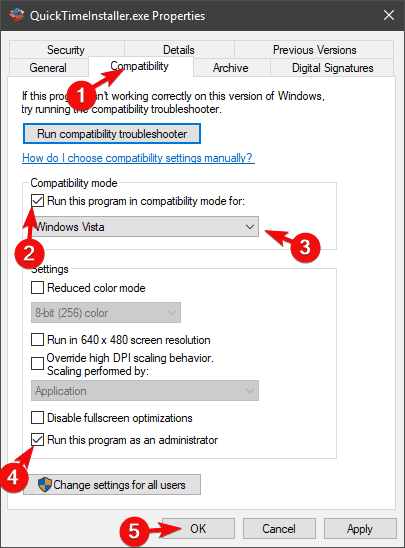
  1. Download the QuickTime installer and save it.
  2. Navigate to the download location.
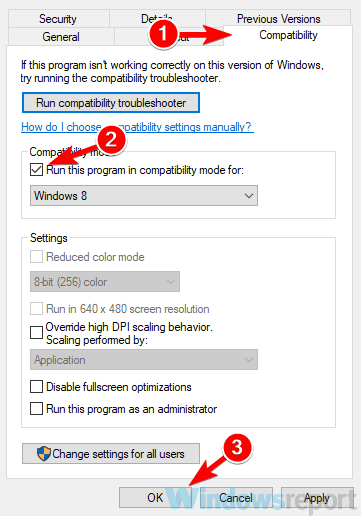
  3. Right-click on the QuickTime installer and open Properties.
  4. Select the Compatibility tab.
  5. Check the Run this program in compatibility mode for box.
  6. Select Windows Vista from the drop-down menu.
  7. Check the Run this program as an administrator box.windows 10 quicktime install error
  8. Confirm changes and close Properties.
  9. Run the QuickTime installer.

As we already have said, QuickTime for Windows support is discontinued and it’s not advised to stick with this application furthermore.

However, if you’re eternally bound to this nifty player, we’ll help you use it in the safest possible way.

There are various ways to approach the incompatibility of QuickTime with the latest Windows iteration.

The first one is to try and run the installer in the compatibility mode for Windows Vista and move from there.

If you’re not certain how to run the QuickTime installer in the compatibility mode, make sure to follow the above instructions.

2. Try installing an older version

older version
  1. Navigate to Apple’s support website and choose an older version of QuickTime.
  2. Download the QuickTime installer and run it in the compatibility mode for Vista and with the administrative permission.
  3. Wait until the installation is finished and check if the issue is solved.

Even though this is quite uncommon, some of the latest versions could be the ones with issues on Windows 10.

However, for some peculiar reason, users were able to install an older iteration of QuickTime and update it later on. This, of course, requires, some effort and meddling with untrusted sources.

It’s strange for the once widely acknowledged application to completely vanish from the official sites. Even though there are still formats that are related to Apple’s legacy player.

Also, due to improvements in applications once dependent on QuickTime, you won’t need it to play videos in a browser or to use Adobe’s suits.

Finally, we sometimes just need to let go, as there are probably good reasons why QuickTime for Windows is primarily neglected and then discontinued.

[wl_navigator]

3. Use a reliable QuickTime alternative

If you’re in need of QuickTime but can’t get it to work, the next thing you should do is to turn to an alternative.

Long story short, Cyberlink PowerDVD should be able to replace it just fine. It’s small and well-designed and, proverbially, there’s no current video format that can’t be played with Cyberlink PowerDVD.

Besides getting the highest quality media playback available these days, this tool is about to turn into your personal media collection that gathers all your photos, music, and video files.

They are all organized and literally one click away from being enjoyed at any hour!

⇒ Get Cyberlink PowerDVD

In case you have a better or more reliable way to install QuickTime in Windows 10, make sure to share it with us and our readers in the comments section below.

FIX: Your account settings are out of date in Windows 10/11

Email is the key to communication in this age, and when it comes to sending emails some users prefer to use the Universal Mail App that comes with Windows 10.

Sadly, it seems that there are some issues with the Mail App and some users are getting the error message Your account settings are out of date.

Before trying to fix this error make sure that your Windows 10 is up to date.

When it comes to these types of issues, Microsoft usually fixes them with a Windows update, so if you’re experiencing this problem, check for updates, update your Windows 10 and see if the issue still persists.

If the issue persists, try one of the following solutions.


How can I fix the out of date account in Windows 10 Mail?

  1. Use another email client
  2. Reinstall the app and rename its folder
  3. Temporarily disable your antivirus and firewall
  4. Switch to a local account
  5. Uncheck the option Sync with an Internet time
  6. Run SFC
  7. Run the Windows 10 Troubleshooter

1. Use another email client

Before trying any of the mentioned solutions, maybe you should consider switching to a third-party email client.

Windows mail is an overall good app, but if you experience frequent errors, you can try to switch to a third-party email client.

There are several good alternatives that support multiple email accounts from all major email providers.

On top of that, third-party email clients usually include more advanced features that help you stay organized and easily keep up with your inbox.

You can find productivity email clients that include advanced filtering options and a full set of sorting features that help you easily navigate from one inbox to another, all in just one window.

2. Reinstall the app and rename its folder

  1. Type PowerShell into the search bar.
  2. Right-click the PowerShell icon and choose Run as administrator.
  3. Enter the following command:
    • Get-AppxPackage | Where-Object -Property Name -eq 'microsoft.windowscommunicationsapps' | Remove-AppxPackageYour Account Settings Are Out of Date in Windows 10 Universal Mail App
  4. Restart your computer.
  5. Next, find %LOCALAPPDATA%Comms and rename it.
  6. Now visit the Microsoft Store.
  7. Next, reinstall the Mail application.

3. Temporarily disable your antivirus and firewall

Sometimes, your security solutions may block some of your programs. Most antivirus or firewalls can interfere with your email app and turning them off could solve the problem. Don’t forget to re-enable your security tools once you’ve solved the problem.

Thankfully, there are several antivirus alternatives that don’t cause this issue. Good antivirus software shouldn’t interfere with other functionalities of your PC.

The best antivirus software for your PC should include a good threat database, real-time protection solutions, and also additional privacy features such as built-in VPNs.

4. Switch to a local account

  1. Go to Settings and choose Accounts.
  2. Next, select sign in with a Local Account instead.Account Settings Are Out of Date in Windows 10 Universal Mail App
  3. Log in with your local account and start the Mail App.
  4. In Mail App go to Settings and choose Accounts.
  5. Find your email account and click Delete Account.Settings Are Out of Date in Windows 10 Universal Mail App
  6. Switch back to the Microsoft account.
  7. Go to Settings and select Accounts.
  8. Next, log in with your Microsoft Account.

Note: After you’ve logged in with your Microsoft account your email account should be added to Mail app automatically and work without any problems.


5. Uncheck the option Sync with an Internet time server

  1. Go to Start and type control panel.
  2. Next, double click on the first result to open Control Panel.
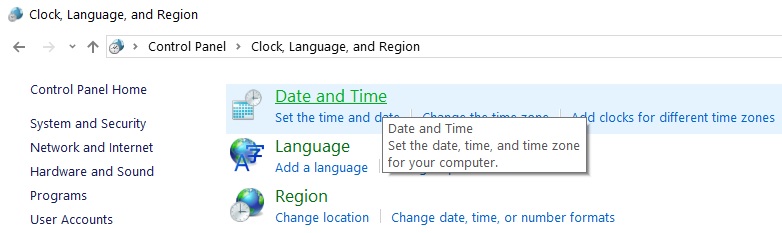
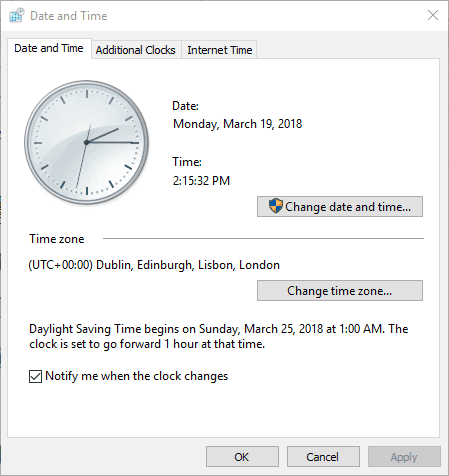
  3. Go to Clock, Language & Region and select Data & Time.set date time computer
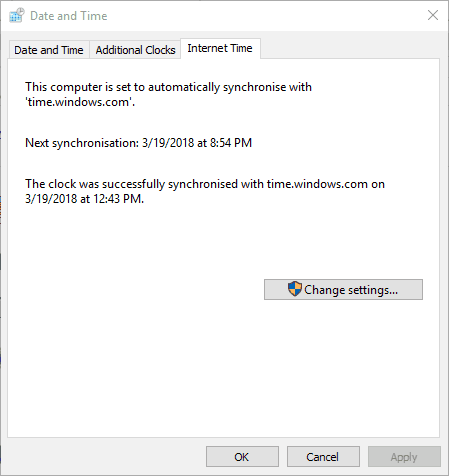
  4. On the Internet time tab select Change settings.set date time computer
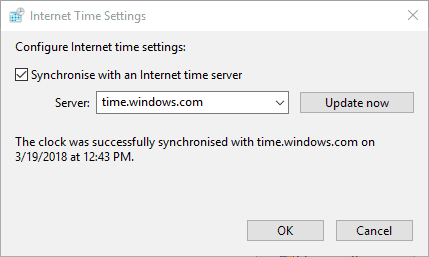
  5. Uncheck the option Sync with an Internet time server.
  6. Click OK.
disable internet time server

6. Run SFC scan

  1. Go to Start and type cmd.
  2. Next, right-click on Command Prompt.
  3. Select Run as administrator.
  4. Now type the sfc /scannow command.
  5. Restart your computer. All corrupted files will be replaced on reboot.

Note: Don’t forget to first backup your Registry in case anything goes wrong. In this manner, you’ll be able to restore a working version of Windows.


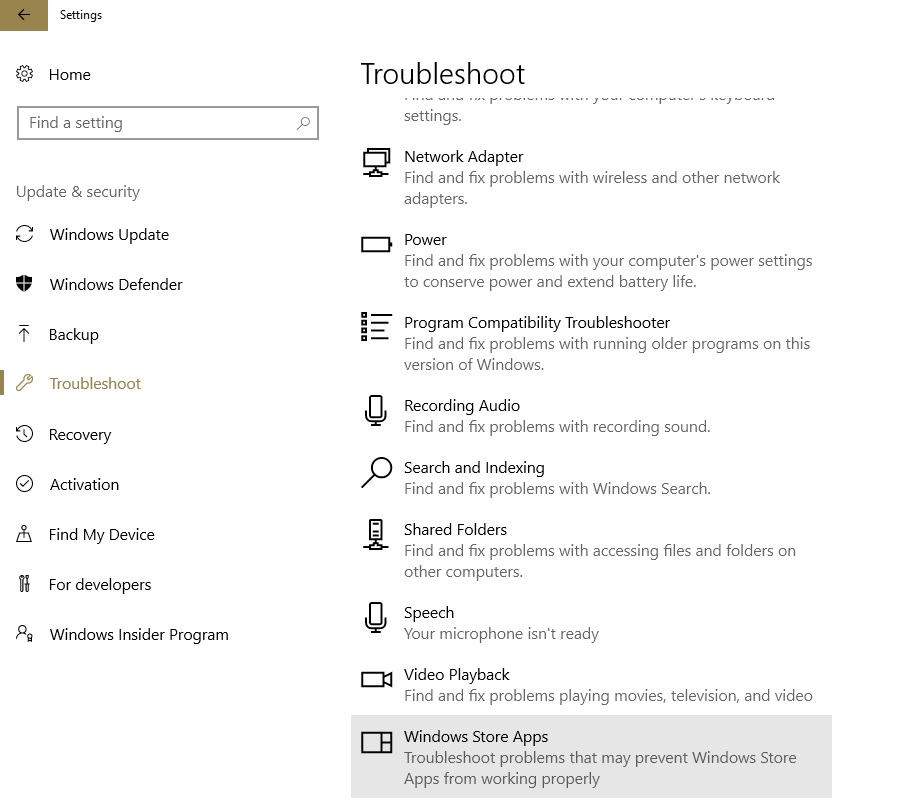
7. Run the Windows 10 Troubleshooter

  1. Go to Settings and select Update & Security.
  2. Next, on Troubleshoot select the Windows Store Apps option.
fix windows 10 mail app out-of-date sync

We hope that the solutions listed above helped you fix this problem. If you’ve got additional suggestions on how to fix this error message in Windows 10, let us know in the comments below.


[wl_navigator]

Windows 10 Zero-Day vulnerability to be fixed by third-party micropatch

Microsoft has yet to fully fix a zero-day vulnerability in Windows 10 that gives escalated privileges to successful attackers. However, 0Patch developed an unofficial micropatch that aims to solve the problem.

This bug is known by the tech giant under its alias CVE-2021-34484. Microsoft already issued a fix during August Patch Tuesday earlier this year. According to the company, the flaw is an arbitrary directory-deletion problem.

0Patch is going to fix this Windows vulnerability

Redmond officials deemed this a low priority because a threat actor would need to have local access to exploit a system. Even so, with that access, the attacker would only be able to delete folders.

However, security researcher Abdelhamid Naceri later found that the flaw could also be a gateway to privilege escalation.

This would actually give the threat actor access to system resources, servers, and other parts of a network, although, they would still need local access to start the chain.

He also found that Microsoft’s fix didn’t really work because attackers can bypass it, and 0Patch confirmed this in one of their blog posts.

The vulnerability lies in the User Profile Service, specifically in the code responsible for creating a temporary user profile folder in case the user’s original profile folder is damaged or locked for some reason.

Abdelhamid discovered that the process (executed as Local System) of copying folders and files from the user’s original profile folder to the temporary one can be attacked with symbolic links.

By doing so, malicious third parties would create attacker-writable folders in a system location from which a subsequently launched system process would load and execute the attacker’s DLL.

0Patch wrote its own micropatch to cover Microsoft’s tracks and close the vulnerability. The company says the patch protects all affected Windows versions, including 20H2, 2004,1909, and Windows Server 2019.

The Redmond tech giant has not said when it will roll out an official patch, considering it still sees this as a low priority issue because of the local access.

This means that a plausible ETA could be the December Patch Tuesday software rollout.

What’s your take on the entire situation? Share your opinion with us in the comments section below.

FIX: Outlook error 0x80042108 in Windows 10

The Outlook error 0x80042108 is one that occurs when checking or sending emails in MS Outlook. When Outlook users try to open emails, the software occasionally returns an error message stating:

Receiving reported error (0x80042108) : Outlook cannot connect to your incoming (POP3) e-mail server. if you continue to receive this message, contact your server administrator or internet service provider (isp).

Consequently, they can’t send or receive SMTP emails. The error message highlights that the (POP3) mail server isn’t working correctly.

Error 0x80042108 can be due to corrupted PST files, third-party anti-virus or firewall software, Outlook‘s configuration settings, or incomplete installation of MS Office. Here are a few potential fixes for the 0x80042108 error in Outlook.

How do I fix Outlook error 0x80042108 in Windows 10?

1. Switch off your antivirus software

Many third-party anti-virus utilities, such as Norton, have integrated email scanners and firewalls that can undermine Outlook‘s server connection. Thus, error 0x80042108 could be due to your antivirus software.

You can temporarily disable most anti-virus software by right-clicking their system tray icons and selecting a disable context menu setting. Select to temporarily deactivate the antivirus utility before opening Outlook.

Additionally, you can switch to a better antivirus tool that will not interfere with your email apps or any other programs for that matter.

2. Reinstall Outlook

Reinstalling Outlook will give it a fresh configuration. It might also fix issues with the original Outlook installation. Uninstall the application with a third-party utility that will also erase leftover registry entries.

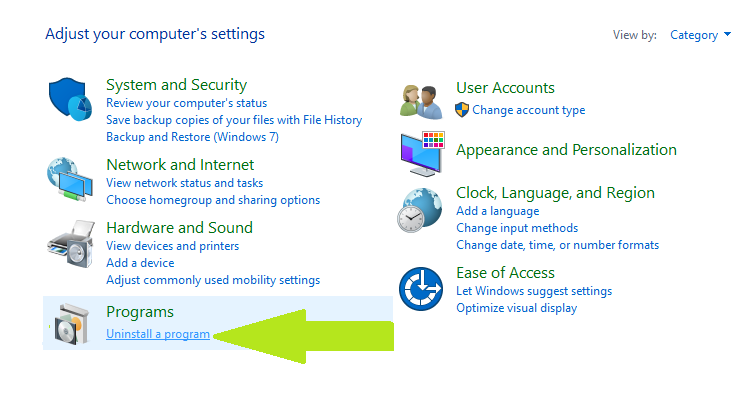
You can uninstall it manually from Windows settings. Just type remove into your taskbar, open Add or remove programs, find Outlook in the list and select Uninstall.

Alternatively, we recommend you use third-party uninstaller software.

This type of utility is able to completely remove stubborn programs that can’t be uninstalled from Windows settings.

They can help remove residual files like installers and other unwanted files that just take up space for no reason.

On top of that, if an app is not completely removed from your system, reinstalling it may be difficult or impossible.

3. Check the Internet connection

First, check your internet connection is working. Of course, you can’t send or receive emails when the net connection is down. If your internet connection is down, try resetting the router.

Alternatively, the Internet Connections troubleshooter in Windows might also help fix the web connection. You can open that by entering ‘troubleshoot’ in Cortana’s search box, clicking Troubleshoot, and then selecting the Internet Connections troubleshooter.

For more information on what to do if your Internet connection is down, follow the troubleshooting steps listed in this article.

4. Run Outlook in Safe Mode

Outlook has its own Safe Mode that starts the software without add-ins and additional customization files. Open Outlook in Safe Mode when there’s something up with the application.

To open Outlook in Safe Mode, press the Win key + R hotkey and enter Outlook /safe in Run’s text box. Outlook will open in Safe Mode when you press OK.

If you’re having trouble opening Outlook, this troubleshooting guide will help you fix the problem.

5. Switch off Windows Firewall

    This solution it’s extremely convenient as you can fix the 0x80042108 Outlook issue by changing the Windows Firewall.

  1. 1. Click Windows Firewall to open the Control Panel tab shown directly below.

    fix-outlook-error-0x80042108
  2. 2. Click Turn Windows Firewall on or off to open further settings.


    fix-outlook-error-0x80042108
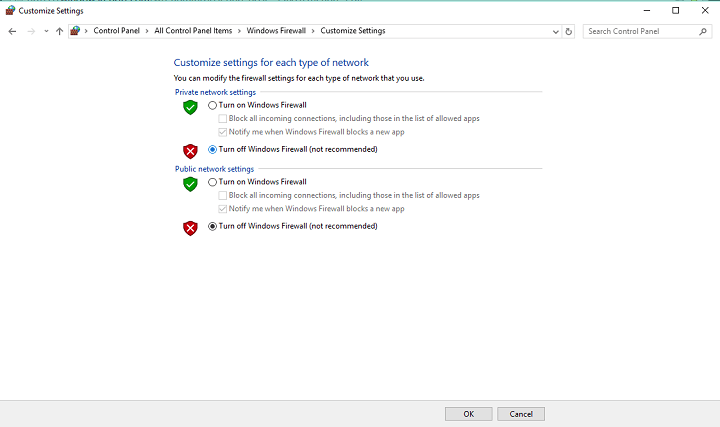
  3. 3. Select both the Turn off Windows Firewall options and click OK to switch the firewall off.

    fix-outlook-error-0x80042108
  4. 4. If that fixes error 0x80042108, click Allow an app or feature through on the Windows Firewall tab to open the window shown directly below.

  5. 5. Press the Change settings button.

  6. 6. Scroll through the list of apps until you get to Outlook. Select both Outlook‘s check boxes if they’re not selected, and press OK to apply the new settings.

  7. 7. Switch the Windows Firewall back on.

The Windows Firewall can also interfere with Outlook‘s server connection. You can switch the firewall off by pressing the Cortana button and entering the firewall in the search box.

6. Check the Windows Update service is on

  1. Another thing to check is that Windows Update is on.
  2. To check Windows Update’s configuration, enter service in the Cortana search box.
  3. Select Services to open the window shown below. fix Outlook error 0x80042108
  4. Scroll down to the Windows Update service.
  5. Double-click Windows Update to open the window in the shot directly below.
  6. Select Automatic from the Startup type drop-down menu.
  7. Press the Apply > OK buttons to close the window.
  8. Restart Windows and then open the Outlook application.

7. Fix the PST file with the Inbox Repair tool

  1. First, close Outlook before opening the Inbox Repair Tool.
  2. Next, enter scanpst.exe in the Cortana search box; and press the Enter key.
  3. The Inbox Repair Tool might start a repair process automatically. If it doesn’t, press the Browse button and select a PST file to scan.
  4. Press the Start button to initiate a scan.
  5. If a PST file repair is required, a new window opens stating as such. Press the Repair button on that window.

Error 0x80042108 is often due to a corrupted PST (Personal Storage Table) file. Consequently, Outlook has an Inbox Repair Tool that fixes corrupted PST files.

Those resolutions will probably fix the 0x80042108 error so that you can open and send emails with Outlook. Deleting temporary files, anti-virus scans and the System Restore tool in Windows might also help resolve the issue.

If you encounter Outlook cannot synchronize subscribed folders 0x800ccc0e error, make sure to check out our dedicated guide on it.

You can also fix Outlook issues with the Microsoft Support and Recovery Assistant software.

Was this guide useful to you? Let us know in the comments section below. Thanks for reading!

Microsoft will only release annual updates for Windows 10

Microsoft just made a subtle yet significant shift in its Windows configuration that’s meant to minimize the frustration that customers sometimes experience with updates.

The company said it will release just one annual update for Windows 10 instead of forcing consumers to update twice a year as has been the practice until now.

Windows 11 is also on an annual schedule as well, which means both operating systems will receive new software around the same time.

Windows 10 and Windows 11 will only receive annual updates

Microsoft is releasing the Windows 10 November 2021 update, and the next major update after that will be available later in 2022.

This update cadence matches the same used by Windows 11, which will also introduce new features on an annual basis.

We could see two or maybe three feature updates to Windows 10 until its end of support date in 2025, but they’re not likely to be significant ones anymore.

For example, Microsoft has already started rolling out the new Microsoft Store to Windows 10 devices earlier this month.

The November update we mentioned above is a minor one, with the only standout feature for users being GPU compute support in the Windows Subsystem for Linux.

By halving the number of updates, the Redmond-based tech company is falling in line with what’s become the industry standard.

Their main competitor, Apple, issues a new version of macOS once a year, and its Apple’s iOS received just one annual update, as does Google’s Android operating system.

And since we also mentioned Windows 11, know that Microsoft is also accelerating its rollout of Windows 11 today.

Based on the positive rollout update experience and user feedback we have seen to date, we are advancing the pace of the rollout faster than we previously anticipated, and now making the Windows 11 upgrade more broadly available to eligible Windows 10 devices.

We are sure that this is good news for all of us, as constantly updating your system could sometimes become tedious.

How do you feel about these changes? Share your thoughts with us in the comments section below.

CCleaner taking forever to scan? Here’s how to fix this

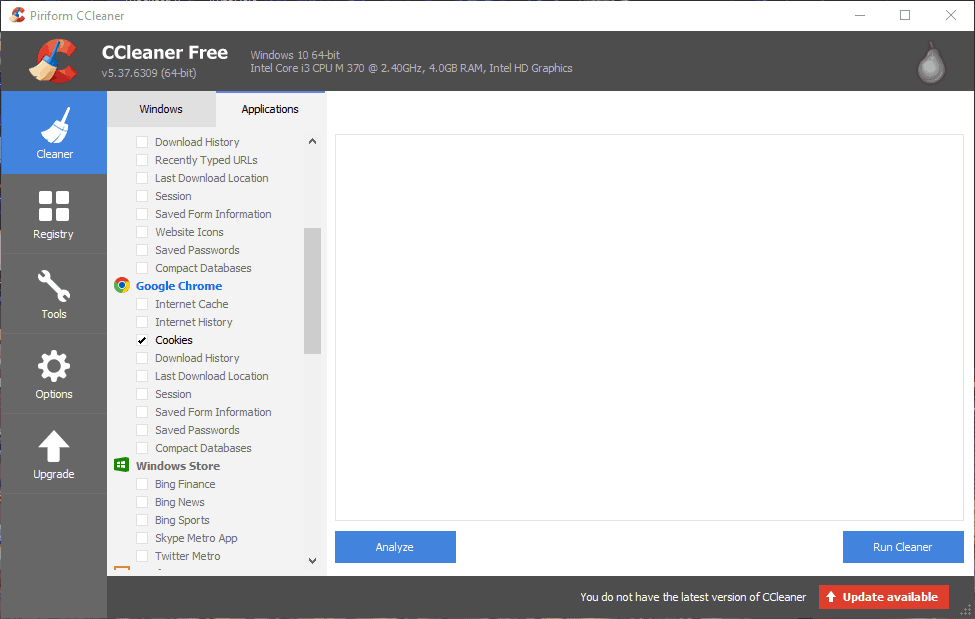
Keeping your PC at optimal performance is important, and you can do that manually or with specialized tools.

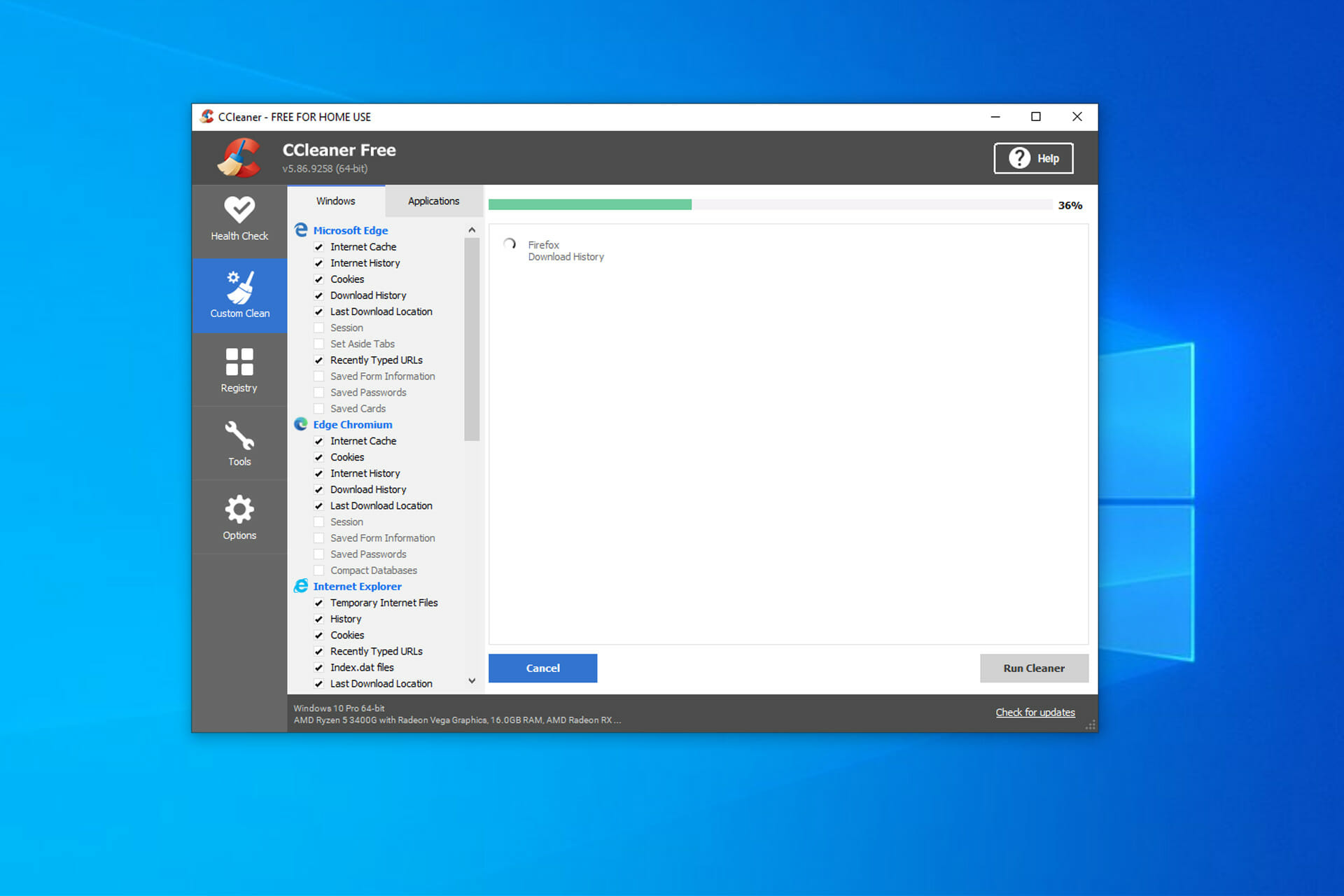
One of these applications is CCleaner, and this software will scan the computer and remove any unnecessary files in order to speed it up.

However, many users reported that the tool is taking forever to scan, and this can be a major problem if you want to speed up your PC.

Luckily, this isn’t a serious issue, and in today’s guide, we’re going to show you the best ways to fix it once and for all.

How does CCleaner work?

CCleaner is a reliable optimization software tool that will scan your system for junk, temporary files and remove them. Keep in mind that it finds files associated with both Windows and third-party apps.

You can also use it to clean your registry, hard drive, startup items, browser plugins, and all sorts of other content.

Why is CCleaner so slow?

The most common causes are your settings, and if you scan your PC for every type of temporary file, the scan will last longer, especially if you have a larger storage drive.

If you don’t clean the computer frequently, this could lead to more work for the software, thus making it slower.

What do I do if CCleaner is taking forever to scan?

1. Select fewer file categories

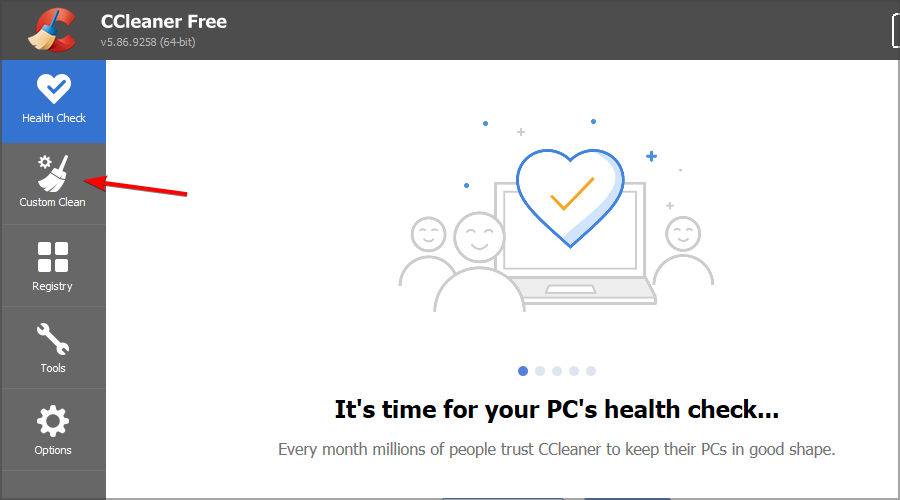
  1. Open CCleaner and go to Custom Clean.
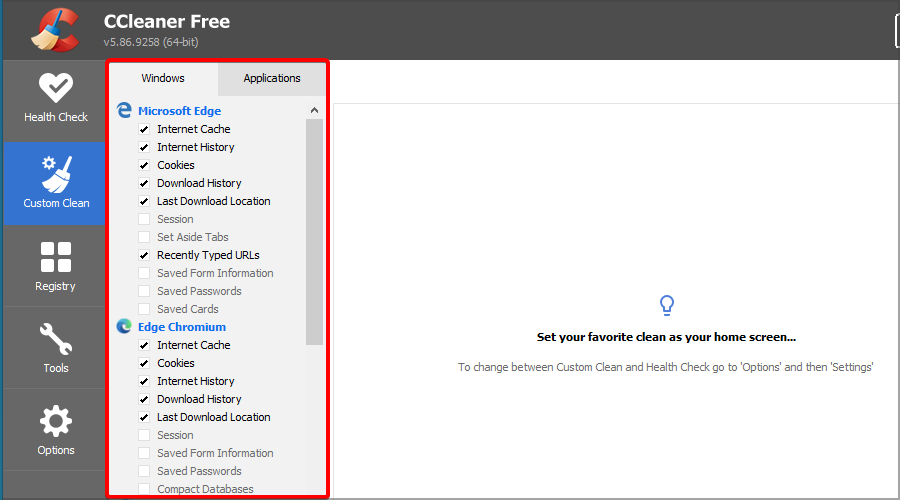
  2. Now look in both Windows and Applications tabs and uncheck the items that you don’t want to scan for.
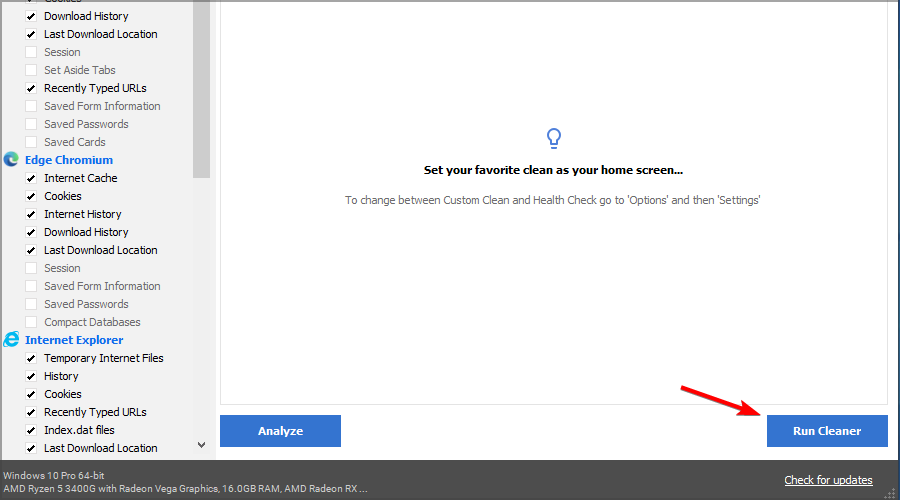
  3. When you’re ready to start, click on Run Cleaner button.
Note icon NOTE
Keep in mind that Temporary Internet Files can slow down CCleaner scans considerably, so deselect that check box with no hesitation.

2. Configure the Secure Deletion

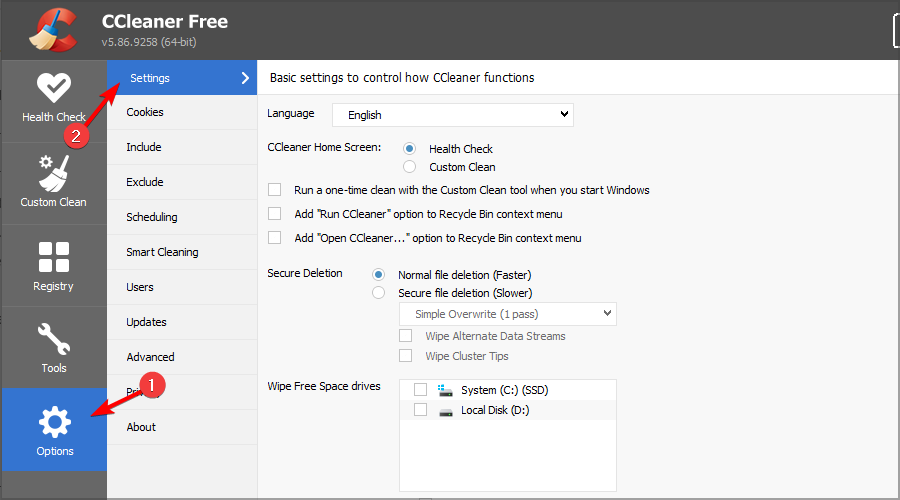
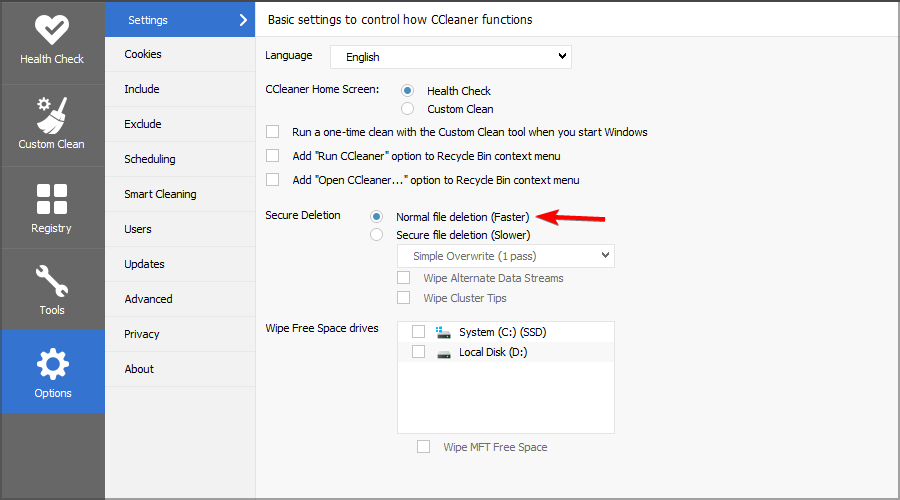
  1. Navigate to Options and select Settings.
  2. Locate Secure Deletion section.
  3. Ser it to Normal file deletion (Faster) and save changes.

3. Keep more cookies

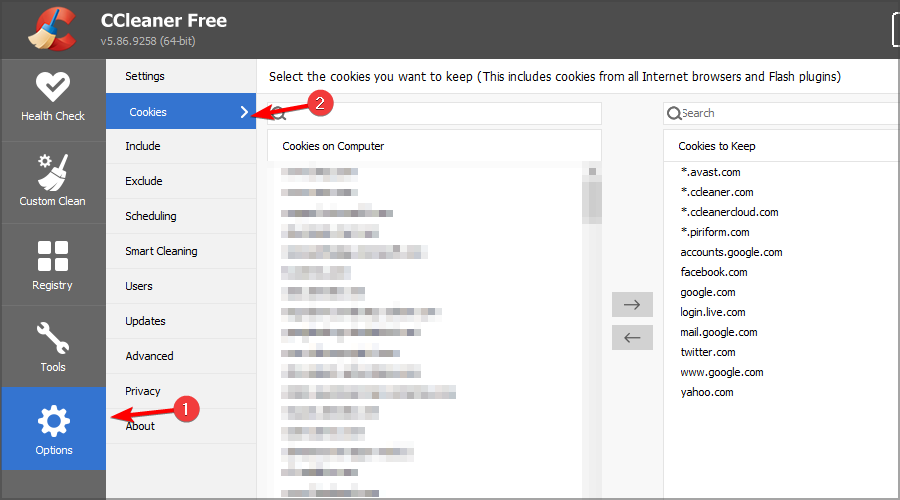
  1. Select Options and navigate to Cookies.
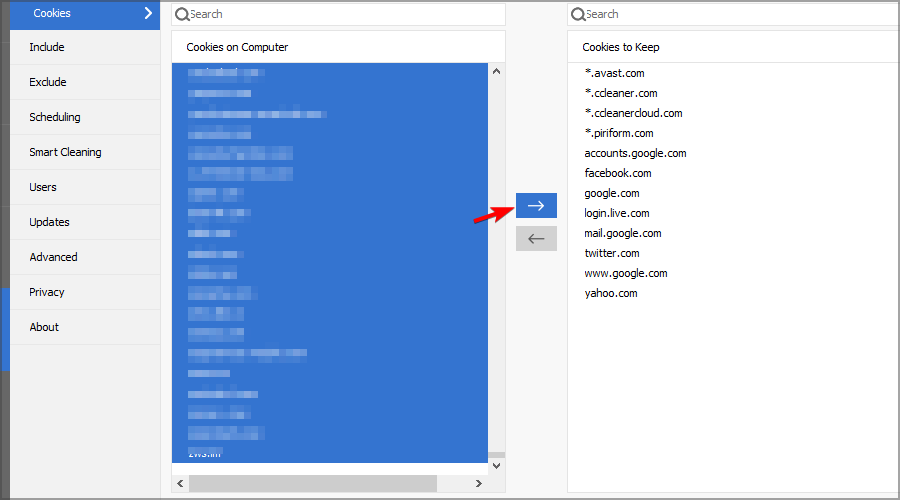
  2. Hold the Ctrl key and select all cookies on the left column.
  3. Then press the blue right arrow button to move the cookies to the Cookies to Keep column.

4. Reduce temporary web file space

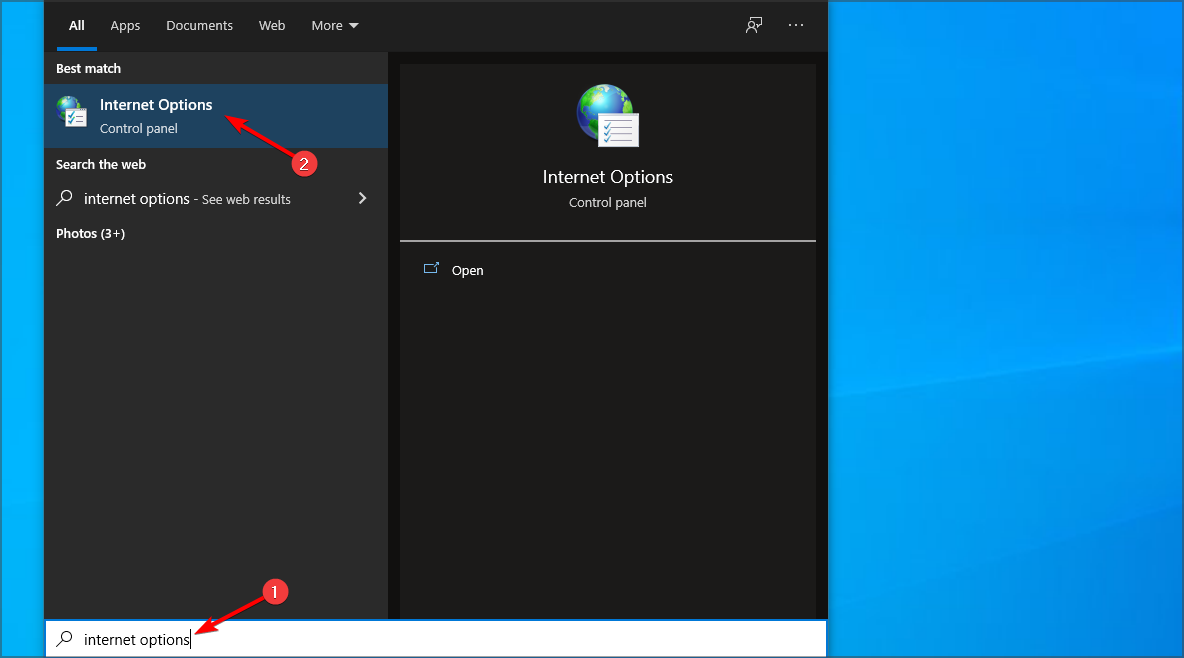
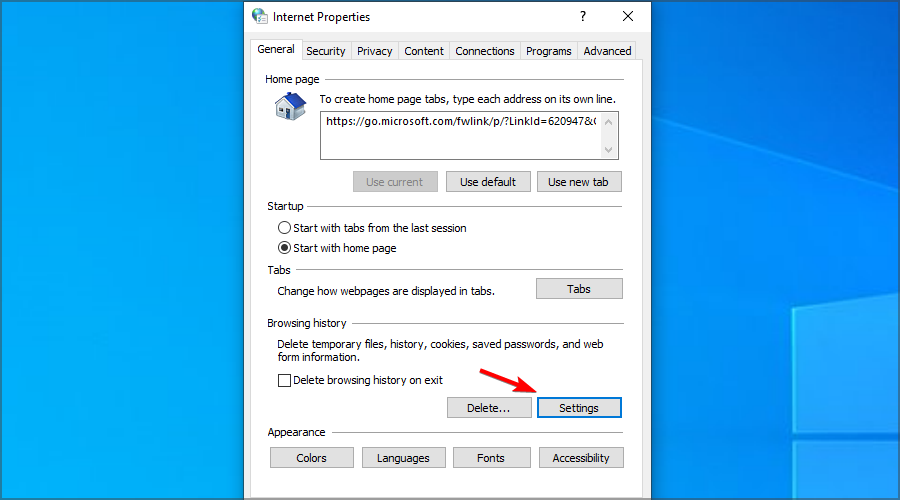
  1. Press Windows key + S and enter internet options. Select Internet Options from the list of results.
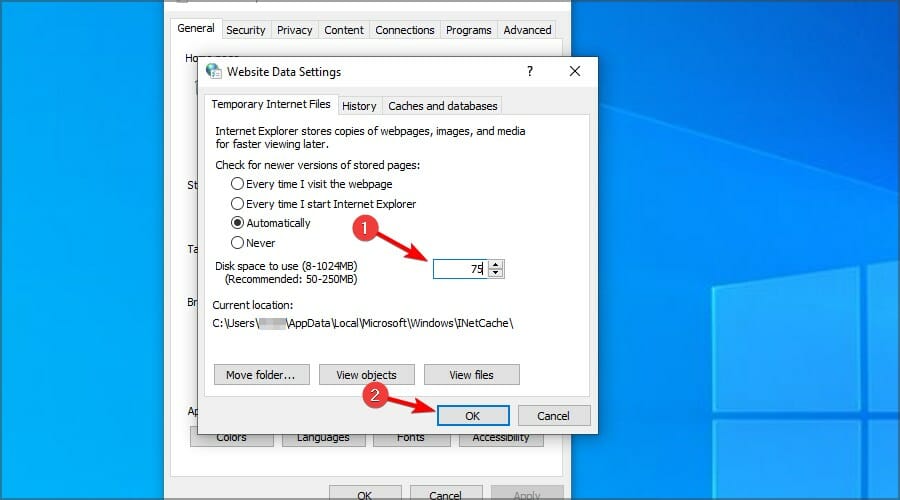
  2. Then press the Settings button.
  3. Set Disk space to use to any value between 50 and 250. Press OK to save the changes.

5. Reduce restore point storage space

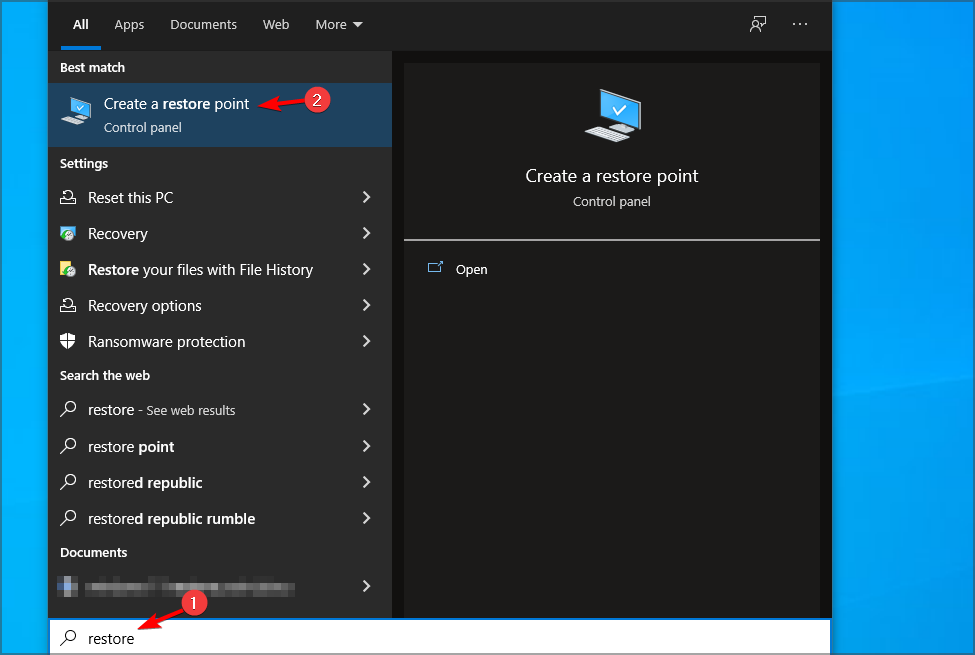
  1. Enter restore in the Search field, and select Create a restore point.
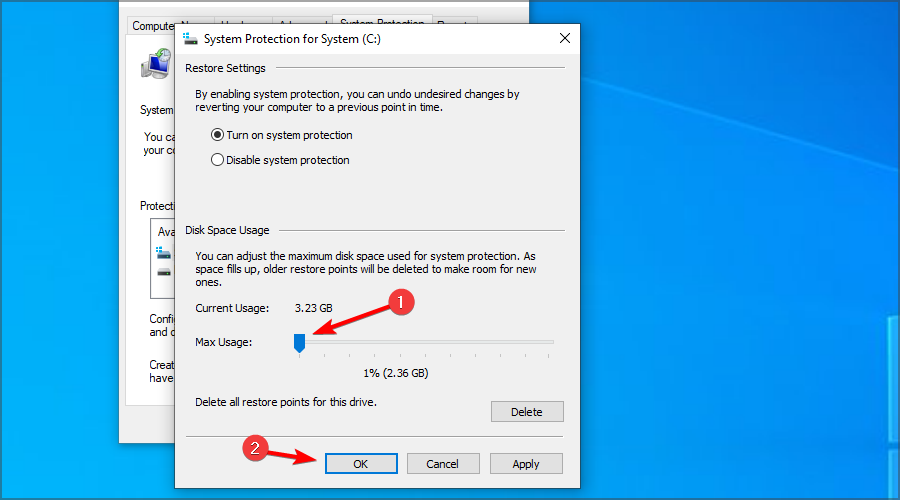
  2. Press the Configure button.
  3. Now drag the Max Usage all the way to the left. Click on Apply and OK to save changes.

6. Run CCleaner in Safe Mode

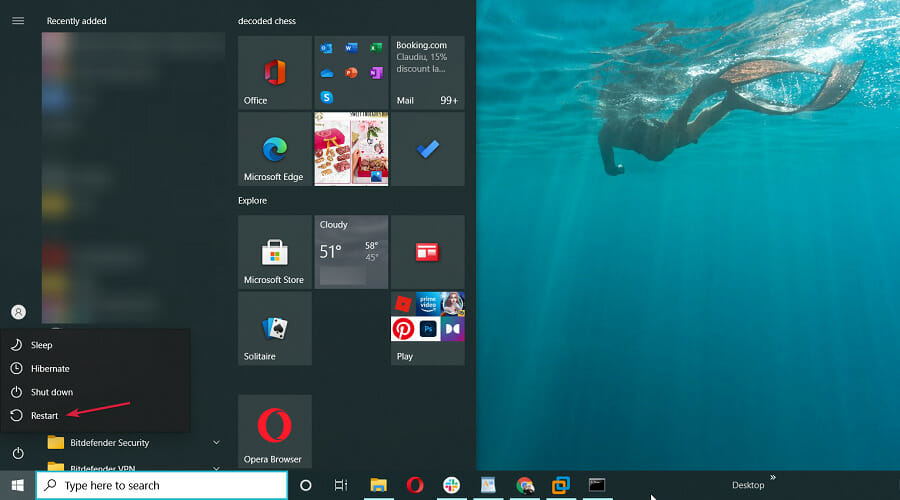
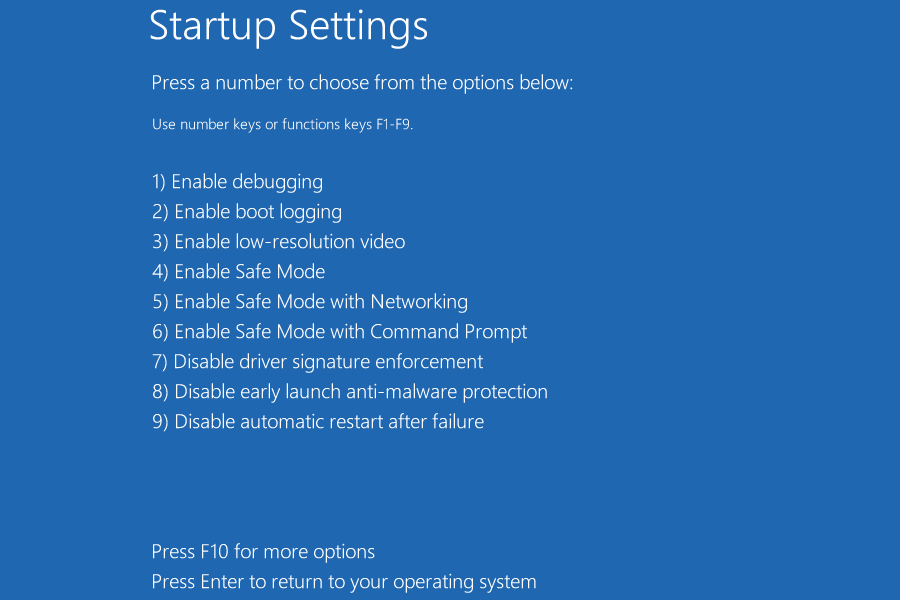
  1. Press and hold the Shift key and click Restart to open the troubleshooting options.
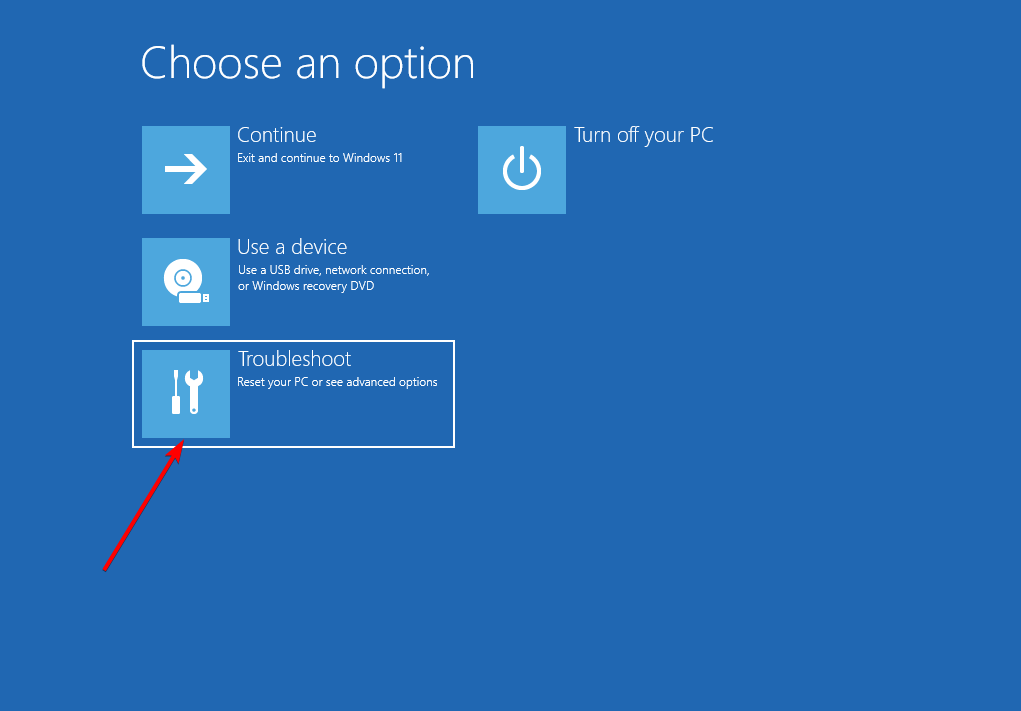
  2. Then select Troubleshoot from the menu.
    troubleshoot exception on invalid file windows 11
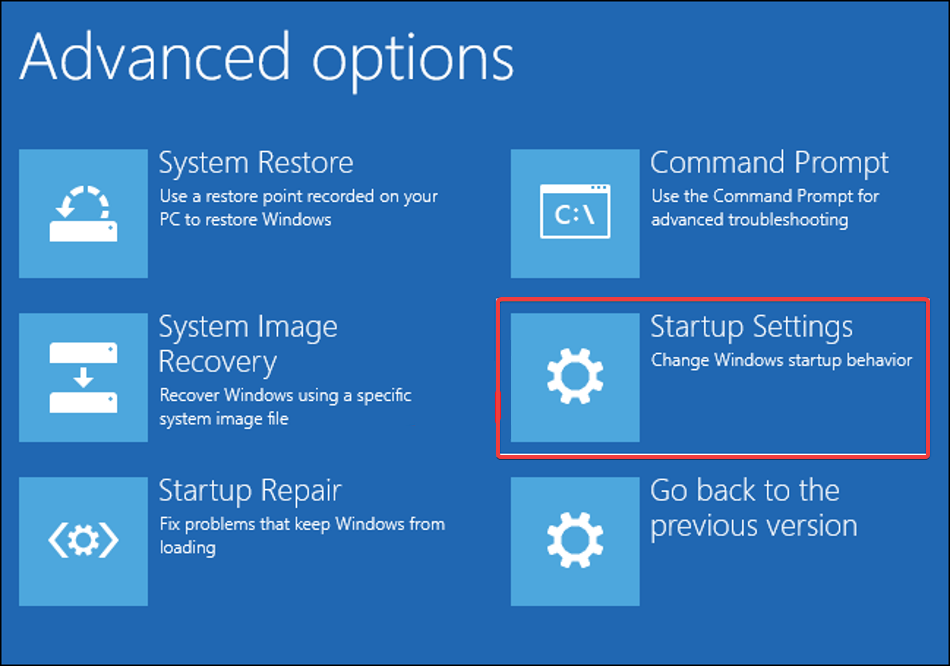
  3. Select Advanced options and Windows Startup Settings.
    startup settings whea_uncorrectable_error windows 11
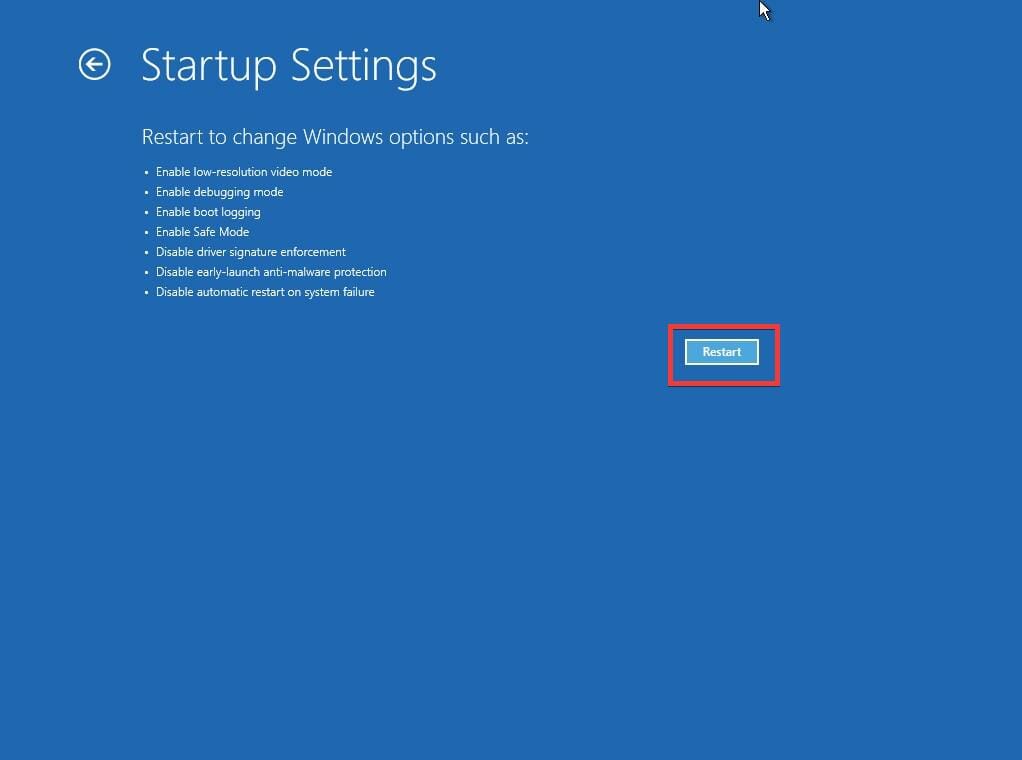
  4. Next, press the Restart button.
  5. Now select Safe Mode from Advanced Boot Options.
    Enable Safe Mode with Networking
  6. Then you can open CCleaner in Safe Mode as you would usually.

Is CCleaner free?

Yes, the software is free to use for personal use, and you can enjoy it on as many PCs as you like. There is a paid version, which offers similar features when it comes to file cleaning.

This version also has a couple of unique features such as driver update, health check, privacy protection, real-time monitoring of junk files, and several more.

Is CCleaner safe?

Yes, the software is perfectly safe to use. Note that it was indeed hacked a few years ago, and a malicious 32-bit version of the software was distributed to the users.

The vulnerability has been patched, and the affected version was removed, and the software has been free from any viruses for years now.

So those are a few ways you can turbocharge CCleaner. Now the software will scan and delete at least a little faster than before.

As an alternative, there are other efficient memory cleaner tools that will deliver great PC advancements using automated scanning features.

If you have any additional issues, we have a special CCleaner common issues guide that you might find useful, so be sure to visit it.

Do you have any tips on how to speed up CCleaner? Feel free to share them with us in the comments section below.

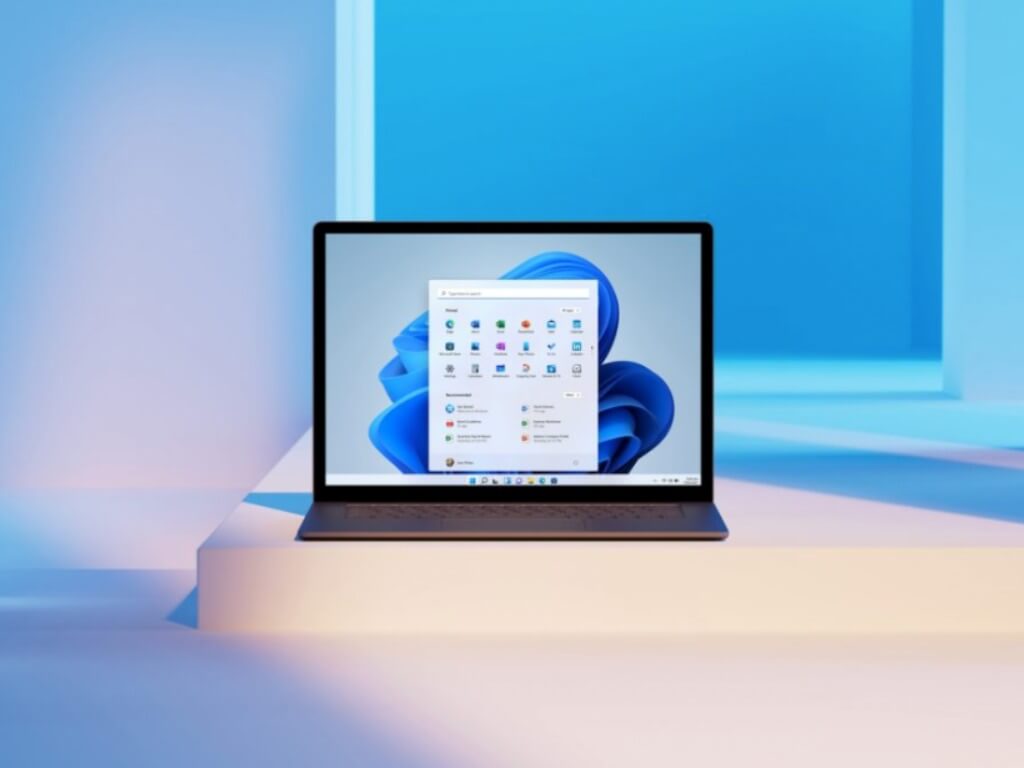
Windows 11 Insider build 22504 is out on the Dev Channel with UI and emoji improvements

Microsoft has just announced the release of the Windows 11 preview build 22504, which will likely be the last flight of the month for the Dev Channel due to the US Thanksgiving holiday coming next week. Starting with this build, select Insiders will be able to apply the 13 themes for the touch keyboard to other input experiences, including IMEs, the emoji panel, and voice typing.

The new theme engine also lets Insiders create their own theme with a custom background image, in addition to the existing 13 themes. These new customization options are available under the new “Text Input” section under Settings > Personalization.

We have expanded the 13 themes for the touch keyboard to more input methods, including the IME, emoji panel, and voice input.

Microsoft is also testing with select Insiders the ability for personalized combinations of emoji based on face and skin tones of family members, couples with heart, kissing, and people holding hands. These different combinations are available in the emoji panel (WIN + . ), and the Windows Insider team will be listening to feedback before rolling out these emoji improvements to more testers.

We have added the ability for personalized combinations of emoji based on face and skin tones of family members, couples with heart, kissing, and people holding hands.

Today’s Windows 11 build 22504 also brings other minor changes, bug fixes, and known issues, and you can check out the full list below:

Changes and improvements

  • You can now use the WIN + Alt + K keyboard shortcut to toggle the new mute icon in the Taskbar when it’s showing.
  • Based on feedback, we’re making emoji search in Portuguese and Polish a little more flexible with keywords containing diacritics.
  • Introducing .NET Framework 4.8.1 our latest .NET Framework that will bring native ARM64 support for the .NET Framework runtime.
  • As Settings > System > Sound in Windows 11 shows a warning when microphone access has been restricted in your privacy settings, we’re removing the notification to alert you about this.
  • Added support for the cancellation of daylight savings time for the Republic of Fiji for 2021.
  • We’re making a change so that going forward on new installs the touch indicator option will now be turned off by default under Settings > Accessibility > Mouse pointer and touch. As part of this change, we’ve added a link to this Settings page from Settings > Bluetooth & Devices > Touch and made it so that the press and hold visual is now always displayed regardless of the setting state.
  • Apps will now launch maximized by default when in the tablet posture on small devices (11-inch screens diagonal and under).

Fixes

[Start]

  • Fixed an issue believed to be the root cause of icons not displaying correctly in the Recommended section of Start (showing the wrong or a generic icon) sometimes.
  • If you open Start and immediate press Shift + F10 or the context menu key, the context menu should be aligned with the search box now.

[Taskbar]

  • Fixed an issue leading to an explorer.exe crash in recent builds if there were issues loading the battery icon in the Taskbar.
  • Made some changes to help the clock in the Taskbar update more reliably, including addressing a recent issue where it wasn’t updating at all over Remote Desktop.
  • Mitigated a positioning issue that could cause the date and time to get clipped off the end of the Taskbar.
  • If you’ve updated the critical and low battery level notification definitions, the battery icon in the Taskbar will now align with that, rather than using the default values to show a warning.
  • Right clicking the date and time in the Taskbar will now dismiss the Notification Center if it’s open, so that you can see the context menu options.

[Input]

  • Keyboard lights (for example, for caps lock) should work properly again now with this build.
  • We’ve made a few more tweaks to our emoji search keywords based on feedback, including improving results for day, night, and face with raised eyebrow. Please continue sharing feedback with us about this under Input and Language > Emoji Panel in the Feedback Hub.
  • Fixed an issue that was causing the kaomoji list in WIN + . to be blank when accessed while using a Chinese IME.
  • Fixed an issue with the emoji panel search results that could lead to a single gif being displayed repeatedly with certain queries.
  • Mitigated an issue resulting in IMEs not working with certain games.
  • Addressed an issue where the options under Settings > Personalization > Typing to change the settings “Show text suggestions & add a spacebar after I choose a text suggestions” for the touch keyboard might unexpectedly not display.
  • If you make a long pause while using voice typing (WIN + H), it should be able to resume listening more reliability now.
  • Fixed some inconsistencies between actual listening status and the microphone visual in voice typing.
  • Text should no longer be unexpectedly duplicated if the caret is moved while using voice typing.

[Windowing]

  • Selecting snap layout options should no longer randomly put windows on your other monitor sometimes.

[Settings]

  • The brightness and volume sliders in Quick Settings should no longer randomly become invisible.
  • Fixed an issue preventing Adjusting active hours from being set to manually.
  • Addressed an issue which could result in the touch keyboard occluding the password entry field when connecting to a network in Quick Settings.

[Other]

  • Fixed a scaling issue that was causing the update prompt dialog (and other dialogs of that style) to get cut off and not draw correctly after the DPI changed.
  • Improved the positioning of the context menu when right clicking the bottom corner of the desktop.
  • Mitigated an issue related to TCPIP which could result in bug checks when waking a device.
  • Fixed an issue where high priority notifications (such as an alarm) would sometimes unexpectedly dismiss without you engaging with it, leading to it randomly reappearing the next time a normal priority notification came in.

NOTE: Some fixes noted here in Insider Preview builds from the active development branch may make their way into the servicing updates for the released version of Windows 11 that became generally available on October 5th.

Known issues

[General]

  • Users updating from Builds 22000.xxx, or earlier, to newer Dev Channel builds using the latest Dev Channel ISO, may receive the following warning message: The build you are trying to install is Flight Signed. To continue installing, enable flight signing. If you receive this message, press the Enable button, reboot the PC, and retry the update.
  • We’re investigating an issue where some PCs are unable to install new builds, or other updates. The PC may report an error code 0x80070002. If you are experiencing this issue, please reboot your PC and try again.
  • Some devices may bugcheck with error code 0xc1900101-0x4001c when installing this build. If you hit this, after the device rolls back to the previous build, you may want to pause updates until we release a fix.

[Start]

  • In some cases, you might be unable to enter text when using Search from Start or the Taskbar. If you experience the issue, press WIN + R on the keyboard to launch the Run dialog box, then close it.

[Taskbar]

  • The Taskbar will sometimes flicker when switching input methods.

[Windowing]

  • Hovering your mouse back and forth between different desktops in Task View will result in the displayed thumbnails and content area unexpectedly shrinking.

[Search]

  • After clicking the Search icon on the Taskbar, the Search panel may not open. If this occurs, restart the “Windows Explorer” process, and open the search panel again.

For developers

You can download the latest Windows Insider SDK at aka.ms/windowsinsidersdk.

SDK NuGet packages are now also flighting at NuGet Gallery | WindowsSDK which include:

These NuGet packages provide more granular access to the SDK and better integrate in CI/CD pipelines.

Starting today, the Windows Insider team is also starting to roll out a redesigned Your Phone app to all Windows 11 Insiders on the Dev Channel. The new app has adopted the Windows 11 design language with rounded corners, and it also brings a new feed with real-time notifications from your most-used Android apps. You can learn more about this new Your Phone app in our separate post.

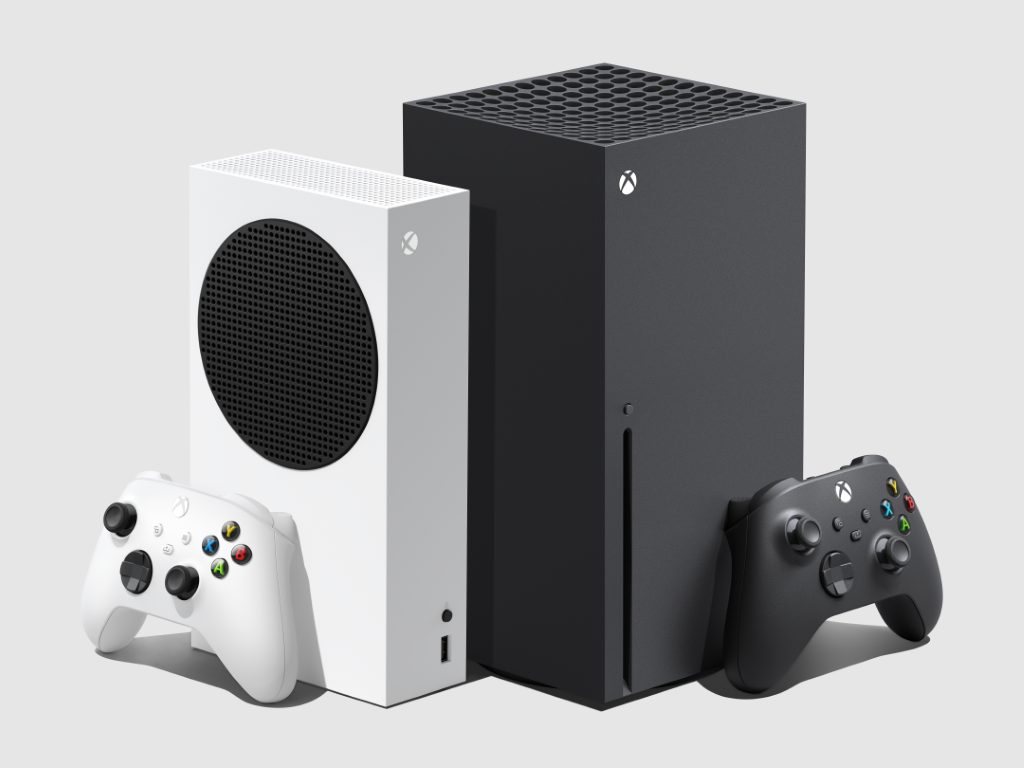
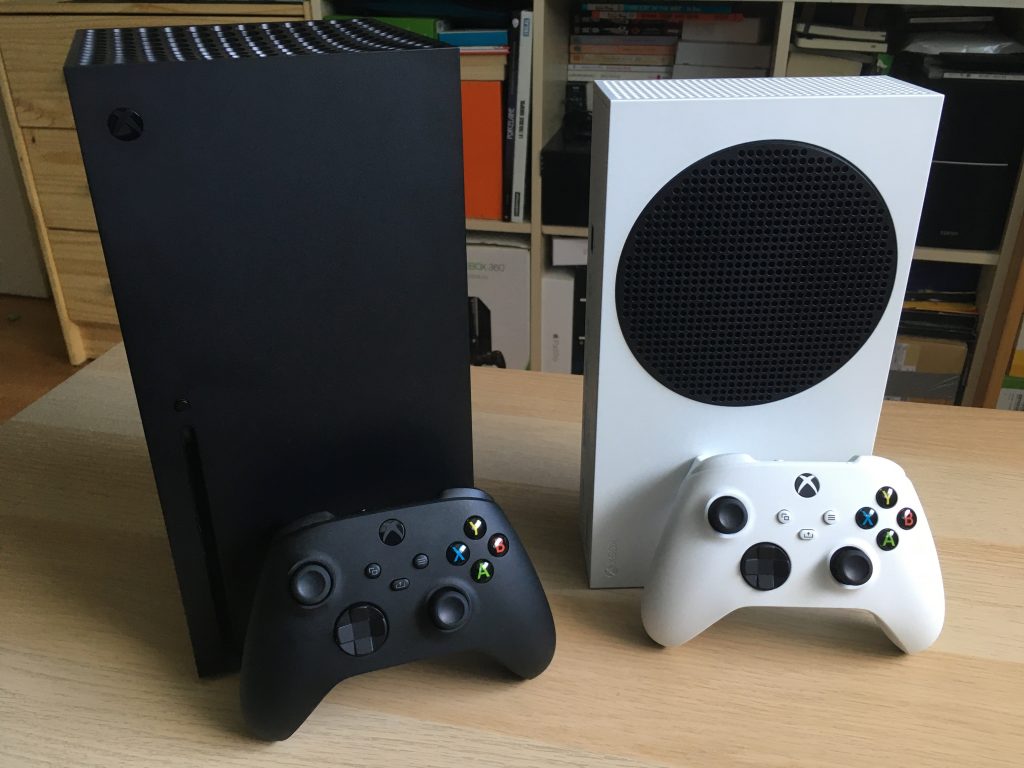
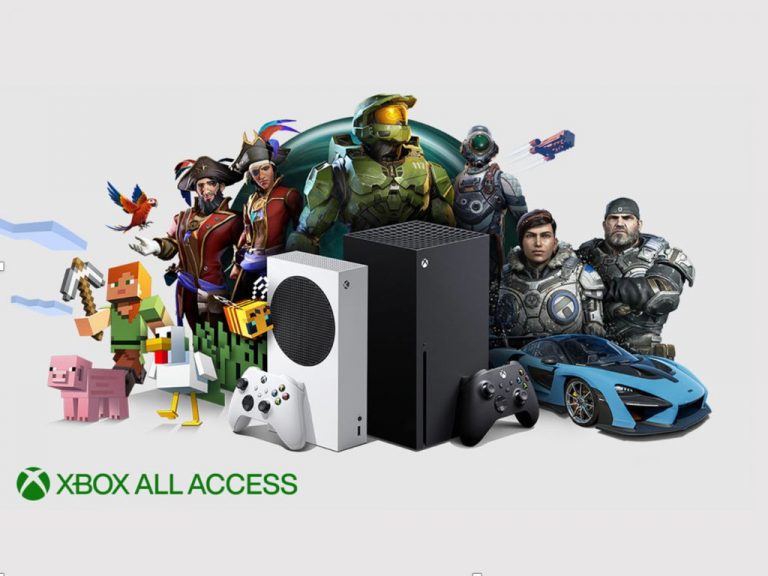
Microsoft’s Xbox Series S has reportedly outsold the Series X in “several key markets”

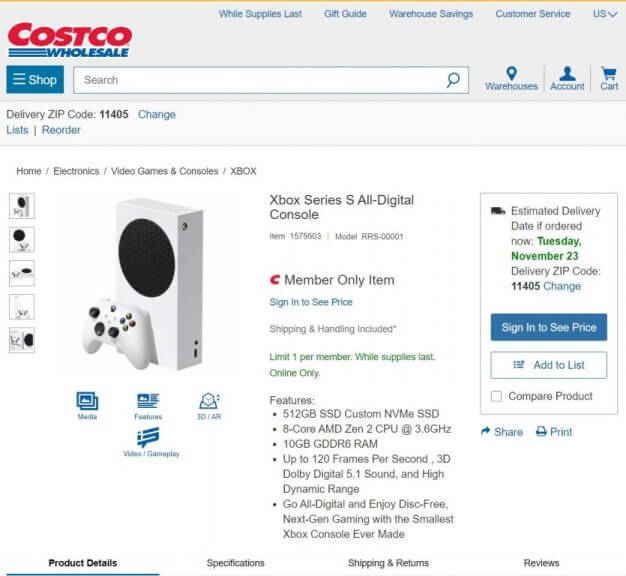
Microsoft’s entry-level Xbox Series S has reportedly sold better than the flagship Series X in “several key markets,” according to new data from Ampere Analytics. According to the market research company, the ongoing chips shortage has made the Series X harder to find, and the fact that Microsoft has an alternative with the Series S has been benefiting the company in some way.

“Microsoft’s two-tier product strategy was a bold move at launch of the Series generation and the lesser-powered Series S has come into its own against a backdrop of component shortages and Xbox Series X supply constraints,” explained Ampere Analytics analyst Piers Harding-Rolls. In a separate report, GamesIndutry.biz claims to have “seen figures that show S and X are at least 50/50 in terms of install base in major territories.”

Even though Microsoft’s Xbox Series S is doing well in several key markets, the Xbox Series family continues to remain smaller than the PlayStation 5 install base. According to Ampere Analysis, that’s 6.7 million Xbox Series X|S consoles sold at the end of September 2021 versus 12.8 million PlayStation 5 units.

As a digital-only product, the strong adoption of Series S is having an outweighed impact on digital games sales to Xbox Series consoles when compared to PlayStation 5. Sony continues to take a more conservative approach to its digital-only PS5 console mix, with the disc-based version of the console taking a dominant position in the market.

A year ago, Xbox head Phil Spencer predicted that the Xbox Series S may eventually sell better than the Series X over the course of this new console generation. “Over the long run, in most cases, price wins out. If you just go back and look at previous generations and when console generations hit the real sweet spot of sales, which is one of the reasons we like having that, that’s the Series S at its price point,” Spencer said.

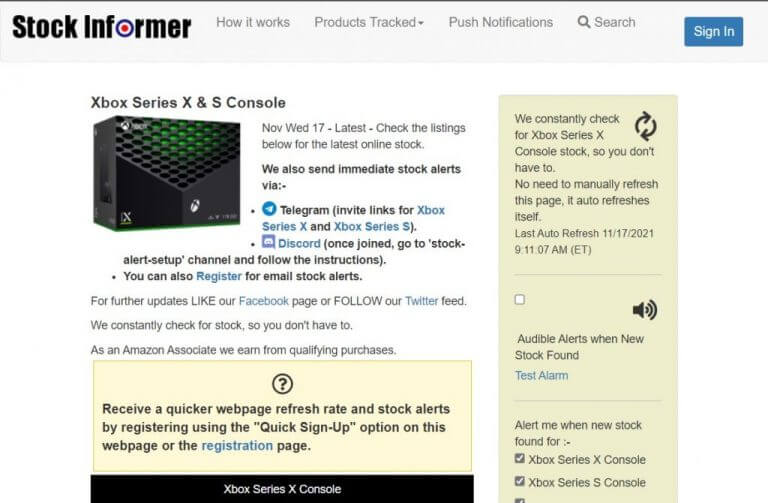
Are you looking for an Xbox Series S or Series X? Check out How to buy an Xbox Series X or Series S this holiday season!

Elden Ring classes breakdown: which one is right for you?

The Elden Ring Closed Network Test offered us a glimpse into the game’s future and as you can read in our first-impressions article, we are pretty optimistic about its chances as a serious contender for Game of the Year 2022. While there most people were focussing on beating all of the bosses and discovering all of the hidden secrets, we spent most of our time trying out the different classes.

Most of the FromSoftware soulslikes have around ten classes to choose from at the start of the game, each with its own strengths and weaknesses. While the beta only had five of them available, we’ll do a deep dive into what makes them tick and hopefully help you make the correct choice when the game launches on February 25th.

Warrior

VIGOR12MIND10
ENDURANCE13STRENGTH11
DEXTERITY15INTELLIGENCE9
FAITH7ARCANE10

The Warrior is the class with the most Dexterity of them all. You’re starting equipment is two scimitars, making it the only dual-wielding starting class, capable of quick hits in rapid succession. In melee fights, the Warrior prefers multiple quick attacks for low damage over slow but powerful blows.

Because of your light armor and lack of a shield, you’re going to want to dodge roll as often as possible or keep enough distance between yourself and the enemies. Your DPS is high, but you’re also more vulnerable.

Despite the melee loadout, you’re going to want to find a bow as quickly as possible because Dexterity builds like this one are ideal for it. More Dexterity means bigger damage from your ranged weaponry so that will also be the main attribute to invest your points in.

Recommended for: Veteran soulslike players who can easily master the timing on dodges


Enchanted Knight

VIGOR10MIND13
ENDURANCE11STRENGTH15
DEXTERITY12INTELLIGENCE16
FAITH5ARCANE5

The Enchanted Knight is the class with the highest Intelligence and despite the appearance, it is the closest thing to a mage you can pick. It comes equipped with a staff and the default magic attack is homing spells that can hit enemies from a large distance.

Because of its high strength, you can also equip rather heavy armor and it even had the best shield in the network test, making it a great build for tanking some damage.

It seems similar to my first ever Dark Souls character build in that it could deal a lot of magic damage from afar but if needed could also use that magic to enchant physical weapons in case you come across a boss with high magic resistance.

This is the perfect build for players who don’t have the fastest reflexes and love to cheese enemies with long-distance spells as they get stuck in the scenery. Out on the open, it’s also one of the easiest classes to use on horseback as the spells zoom in on their targets while you stay far away from any danger yourself.

If you level up, be sure to spend points on Strength and Intelligence first and foremost.

Recommended for: Starting players who like to keep a distance from enemies. But this class can still take some damage as well thanks to the shield.

Image Credit: Fextralife

Prophet

VIGOR9MIND16
ENDURANCE10STRENGTH12
DEXTERITY9INTELLIGENCE8
FAITH16ARCANE7

The Prophet is kind of the monk character class you may know from other games. Instead of Sorcery & Intelligence, this build has most of its skill points distributed among Faith & Mind and uses a different kind of spell: incantations. Instead of using straight-up damaging spells, you can expect things like buffs and debuffs.

That’s not to say it can’t deal a lot of magical damage as the Beast Claw attack it has available will do medium-range damage to multiple enemies and is perfect for taking on groups of them. Because of its high Mind stat, you also have a larger FP bar which means you get to cast more spells, in fact, you’ll pretty much be relying on them constantly, so make sure you have enough Cerulean Flasks on you to refill that bar.

When you level up, you’ll probably end up investing most of the slots into Faith, but I’d also recommend upgrading the vigor a bit so you offput the lower defense by having more HP.

Now, this doesn’t impact the gameplay all that much, but I personally wasn’t a big fan of how their gear looks, so if you care about aesthetics at all, that may also be a consideration to keep into account. FromSoftware titles typically don’t have any transmog options so whatever your equipment looks like: it will keep looking like that.

Recommended for: Players that like to buff themselves or other players and who also like to do a lot of damage to large groups of enemies.

Image credit: Fextralife

Champion

VIGOR13MIND9
ENDURANCE12STRENGTH14
DEXTERITY8INTELLIGENCE5
FAITH15ARCANE11

The Champion is similar to the Prophet in a few ways: it also uses incantations and even has one of the most effective ones from the beta in the Dragon Breath attack. It’s similar to Beast Claws, but trades damage output for additional spread and rage. (it also looks really impressive)

It takes a bit longer to charge though, but if you wanted you could keep on casting it by holding down the attack button and it will just empty your FP bar and trade it for damage. This is also the main reason I would recommend investing points into Mind when leveling up.

Where I had a remark on the Prophet’s look, I have one on the sound here. Repeatedly using the Dragon Breath attack is going to be your main offensive option, and while it looks and sounds cool, the sound effect will get annoying FAST.

Visually, you look more like a barbarian as well and you come equipped with an axe that has significant damage output, so when you do empty your FP bar, you can still go on the physical offensive.

Recommended for: Players who want to look like a badass who breathes fire. It’s perfect for dealing with groups of enemies and because of its range, you can also cheese a fair amount of bosses with it.

Image credit: Fextralife

Bloody Wolf

VIGOR14MIND11
ENDURANCE12STRENGTH16
DEXTERITY12INTELLIGENCE7
FAITH9ARCANE6

The Bloody Wolf is about the most all-around physical character you can pick in Elden Ring and feels like a classic Dark Souls knight, despite its cool new name. This is the class with the highest Strength and Vigor stats, making it perfect for surviving enemy attacks, blocking them with your shield, and countering with heavy damage output.

Because of how many groups of enemies you’re facing in Elden Ring, the progression with this class will feel significantly slower than if you’re using any of the classes with AoE attacks. You’ll need to take it slow but steady, but at the same time, combat also feels more rewarding.

You can somewhat counteract the lack of magic spells by enchanting your sword with Ashes of War, particularly the Thunderbolt one to give you a medium-ranged spell against smaller enemies or the Glint one to grow your weapon to even larger proportions and thwack even bosses for large chunks of their health bar.

When leveling up, keep spending most of your points into Strength to increase your damage output, but it also comes with the added bonus of letting you equip heavy armor without sacrificing mobility.

Lastly, and this is very much a personal opinion, it also looks really awesome.

Recommended for: Players who are seeking the classic Dark Souls experience with blocking, dodge rolling and up-close sword-wielding. Best for somewhat experienced players.


We hope this character class overlook has given you some extra insights into Elden Ring and will make the choice easier when the game launches in February or when FromSoftware and Bandai Namco decided to do an open beta before then.

Elden Ring is truly a game worth looking out for and will keep players entertained for many, many hours as the different character classes offer a lot of replayability to the game.

Want to read more? Be sure to check our hands-on preview article as well! Whether you’re new to co-op or a returning Tarnished, our in-depth Nightreign multiplayer troubleshooting article walks you through everything from basic to advanced fixes.

How to buy an Xbox Series X or Series S this holiday season

This holiday season there’s a chance you or someone you know wants to know how to buy an Xbox Series X or Xbox Series S. Unfortunately, these game consoles are hard to find, and even Microsoft expects next-gen consoles to remain supply-constrained until next year. That doesn’t mean you can’t find one for yourself, though. With a little patience, you can end up coming home with a new Xbox.

(We do hope our guide helps, but OnMSFT can’t 100% guarantee you end up with a new console and we can’t be held liable for your frustrations.)

Option 1: Check Stock Informer 

how to buy xbox

Most people might bookmark retail listings for the Xbox Series X and Series S and hope to catch a restock at the right time. This isn’t always guaranteed to work, though. That’s why we suggest using a website like Stock Informer to help. Stock Informer constantly checks for console stock across the major retailers and lets you know when there’s some available. You also can input your email for email alerts when console online stock is found.

If Stock Informer isn’t working for you, then there’s also an alternative. You can also use nowinstock.net. Just click the Microsoft Xbox Series X and Microsoft Xbox Series S console logos and check through the stock history. You can see when and at what times the retailer restocked, so you’ll know when to visit that website, log in and check out.

Other places worth checking out for Xbox stock updates include PopFindr, which checks physical retail stores like Walmart for in-person stock. There’s also CheapAssGamer and Reddit which are forums where people talk about console availability.

Based on what we’re seeing, it seems as though retailers release console stock at midnight ET on certain days. Sometimes, it’s also 7 AM ET or 12PM midday around lunchtime. Times vary by retailers, but it’s worth mentioning, nonetheless.

Option 2: Use Social Media

Twitter is quite a powerful platform if you’re looking to buy an Xbox Series X or Series S. There are accounts dedicated to console availability. These accounts work just like Stock Informer and Nowinstock.net and the folks behind the accounts have sources who know when there’s stock available or if there’s a deal. You can enable tweet notifications for these accounts by first following the account, and then clicking the bell icon next to the following button. This ensures you don’t miss a tweet about availability!

We do have a warning though. DO NOT reply to ANYONE on Twitter who offers you an Xbox Series X or Series S. These are more than likely scammers, who will never send you a console and leave you without anything in your hands after you send them money. Stick to the accounts we’re mentioning below.

We suggest following Wario64. The account has over 1 million followers and is known to tweet out console availability. Another good account to follow is GYXdeals. This account is similar to Wario64 and constantly tweets out stock updates on consoles. Finally, we suggest following Matt Swider on Twitter. He is the founder and editor in chief of TheShortcut.com, and usually sends out availability tweets about consoles and other hard-to-find tech items. There have been many success stories from Matt’s Twitter, so be sure to check it out!

Option 3: Consider buying console bundles or use Xbox All Access

Xbox All Access

The standalone versions of Xbox Series X and S consoles might be hard to find, but it’s also worth checking out retailers that might be offering bundles with games and controllers included. One of these is the Halo Infinite bundle.

Other than bundles, you might want to consider buying an Xbox Series X or S through Microsoft’s Xbox All Access Program. This lets you pay for an Xbox from Microsoft or select retailers starting at $24.99/mo. for 24 months. It even includes 24 months of Xbox Game Pass Ultimate. The Xbox Series S version is $25 a month for 24 months, and the Xbox Series X version is $35 a month for 24 months.

Option 4: Check wholesale retailers

To end, we’ll mention that you probably might have a high chance of buying an Xbox Series X or S through wholesale retailers like Costco, Sam’s Club, or BJ’s. We say this because these retailers mandate you to pay a subscription fee to enter the stores or shop online. This can increase the chances of finding a console as not everyone is a member. Of course, be sure to follow social distancing guidelines in physical stores, and wear a mask at all times to keep yourself and everyone else safe.

Other tips

The Xbox Series S and Series X are Microsoft’s latest consoles, but if you’re having trouble finding these systems, don’t fret. The last generation Xbox, the Xbox One X, or the Xbox One S are still powerful consoles. You might not be getting the best possible and latest features, but it’s still a great system.

Not to forget, Microsoft is testing project native xCloud game streaming on Xbox One. You can currently stream next-gen games through the internet via the Edge web browser with Game Pass Ultimate. And, native integration is on the way soon, without the need for Edge.

We also want to mention that you should NEVER pay scalpers for a console. These are the reasons that the systems are hard to find. Scalpers buy up the Xbox Series X and Series S in bulk and try to profit by selling it for up to $200-$300 more than retail. You’ll find these all over eBay, so be careful when you buy!

Microsoft acknowledges new compatibility issue with Intel SST drivers on Windows 11

Microsoft has acknowledged a new compatibility issue with Intel Smart Sound Technology drivers and Windows 11, which causes some devices to receive an error with a blue screen. As a result, Microsoft has applied an upgrade block on Windows 10 PCs with incompatible Intel SSD drivers, which won’t be offered Windows 11 for now.

According to Microsoft, the issue is caused by certain versions of Intel SST drivers. “The affected driver will be named Intel® Smart Sound Technology (Intel® SST) Audio Controller under System Devices in Device Manager and have the file name IntcAudioBus.sys and a file version of 10.29.0.5152 and earlier or 10.30.0.5152 and earlier”, the company explained on the Windows Health Dashboard (via Neowin).

If you have a Windows 10 PC that you want to upgrade to Windows 11 PC despite this safeguard hold, Microsoft recommends checking with your device manufacturer is an updated driver is available. The compatibility issue is actually resolved by installing Intel Smart Sound Technology drivers version 10.30.00.5714 and later or 10.29.00.5714 and later.

Despite these new compatibility issues with Intel SST drivers, Microsoft announced yesterday that it was accelerating the rollout of Windows 11 on eligible PCs “based on the positive rollout update experience and user feedback we have seen to date.”

TPM Could Not be Initialized: 3 Easy Ways to Fix it

Starting with Windows 10 and Windows 11, the operating system immediately initializes and assumes control of the TPM device.

This is a departure from prior operating systems, in which you would initialize the TPM and set an owner password before using the device.

It is possible that the startup of the TPM will fail in Windows 11 if your machine is experiencing network connectivity problems, throwing the TPM could not be initialized error.

If you discover that Windows is unable to automatically launch it, take a look at the following solutions to resolve the problem.

Why TPM 2.0 for Windows 11?

At its most basic level, the TPM is a little chip on the motherboard of your computer, which is sometimes located apart from the main CPU and memory.
tpm 2 tpm could not be initialized
The chip is analogous to the keypad you use to disarm your home security alarm every time you step in the door, or to the authenticator software you use on your phone to enter into the bank account when you log into your account online.

When using the Legacy or CSM modes of the BIOS, TPM 2.0 is not supported. Devices using TPM 2.0 must have their BIOS mode set to Native UEFI exclusively in order to function properly.

It is necessary to disable the Legacy and Compatibility Support Module (CSM) settings in order to proceed. Enable the Secure Boot function to provide an extra layer of protection.

When the BIOS mode is changed from legacy to UEFI, an installed operating system on hardware configured in legacy mode will prevent the OS from booting.

Before changing the BIOS mode, run the MBR2GPT program, which will prepare the operating system and the disk to support UEFI.

TPM 2.0 products and systems provide significant security benefits over TPM 1.2 products and systems, including the following:

  • The TPM 1.2 specification only permits the use of the RSA and the SHA-1 hashing algorithms as hashing algorithms.
  • Some organizations are abandoning the use of the SHA-1 hash algorithm for security reasons. Notably, the National Institute of Standards and Industry (NIST) has mandated that several government organizations transition to SHA-256 as of 2014.
  • Technology leaders such as Microsoft and Google have declared that they would phase out support for SHA-1-based signing or certifications in 2017.
  • TPM 2.0 improves cryptographic agility by being more adaptable to a wider range of cryptographic methods than previous versions.
  • In comparison to previous versions, TPM 2.0 provides more consistency in the user experience across different implementations.
  • Whereas TPM 1.2 parts are discrete silicon components soldered on the motherboard, TPM 2.0 parts are available as discrete (dTPM) silicon components, integrated components in one or more semiconductor packages, and firmware (fTPM) based components running in a trusted execution environment (TEE).

What can I do if TPM could not be initialized in Windows 11?

1. Turn the TPM off

  1. Boot your computer and press the F2 key to enter the BIOS setup mode.
  2. Locate the Security option on the left side and expand it.
    secuirty bios clear tpm windows 11
  3. Click on the TPM option nested under the Security setting and ensure the Disabled radio button is checked in order to deactivate it.
    tpm-bios-disabled tpm could not initialize
  4. Reboot your PC.

2. Disable your firewall

  1. Press Windows + S , type Control Panel and choose the most relevant result.
    control panel tpm could not be initialized
  2. Click on System and Security.
    system security tpm could not be initialized
  3. Select Windows Defender Firewall.
    firewall tpm could not be initialized
  4. From the list of links on the left side of the window, choose Turn Windows Firewall On or Off.
    turn on off tpm could not be initialized
  5. Click on the Turn Off Windows Firewall (Not Recommended) option.
    turn off tpm could not be initialized
  6. Click the OK button and close the Windows Firewall window.
    firewall off ok tpm could not be initialized

In Windows 11, the initialization of the TPM cannot be completed when your computer has network connection issues.

This can occur on a PC that is currently disconnected from the network, separated from the domain by a firewall, or experiencing a network component failure

In the case of the latter, we recommend that you check your cable and network adapter connections first.

3. Clear the TPM from the BIOS menu

  1. Boot your computer and press the F2 key to enter the BIOS setup mode.
  2. Locate the Security option on the left side and expand it.
    secuirty bios clear tpm windows 11
  3. Click on the TPM option nested under the Security setting, and check the Clear box.
    tpm meu tpm not initializing windows 11
  4. Reboot your computer and re-enter into the BIOS menu, again by pressing the F2 key.
  5. Ensure the Enabled radio button is checked in order to activate the TPM.
    enabled bios button clear tpm windows 11
  6. Restart your PC.

Should I clear my TPM?

Note icon NOTE
It is possible that data will be lost if the TPM is cleared. Make sure you have a backup or recovery solution in place for any data that is secured or encrypted by it.

As part of a total computer reset, you may wish to clear the TPM. For example, you could erase all data from the computer and entirely restart it in preparation for a clean installation.
clear and restart tpm could not be initialized

It is possible to clear the TPM using the Windows Defender Security Center software, which may be seen as a troubleshooting step or as final preparation before a complete installation of a new operating system.

Preparing for a clean installation in this manner helps to guarantee that the new OS can fully deploy any TPM-based functionality that it provides, such as attestation, by ensuring that it has the necessary resources.

However, even if the TPM is not deleted prior to the installation of a new operating system, the vast majority of TPM functionality will most likely continue to function correctly.

Unless you are selling your laptop to someone else, or if you are encountering difficulties with it, such as the TPM could not be setup error, you don’t necessarily need to clear it.


If you determine that you are ready to completely reset your TPM, please see our post on how to clear it in Windows 11 for more information. Remember to double-check any precautions before proceeding with the emptying procedure.

We already prepared for you an article with further information which contains everything you need to know about Windows 11 and TPM.

In addition, our users profited from reading our article, which included alternative remedies to the TPM had malfunctioned error.

We hope that these methods were of assistance in resolving the TPM could not be initialized issue. If you found our answers to be useful, please let us know by leaving a message in the comments section below.

Windows 11 Quick Settings Not Working: How to Fix it

A lot of people are really excited to finally jump on the bandwagon and start using Windows 11. It brings a new user interface and an array of other amazing features.

However, it also comes with its fair share of challenges. Some of the bugs are quite minor and are easy to fix, whereas, others completely lock you out from accessing certain features completely. 

As such, there have been complaints from several users regarding the Settings app. This is a major problem since one may not able to configure the system to their liking. 

The application plays a crucial role in Microsoft Windows. It is part of the operating system, first introduced in Windows 8 and included in Windows 11.

It is the central location that allows users to configure, customize, and update the operating system. There are plans underway to completely phase out the Control Panel. 

Is Microsoft scrapping the Control Panel?

Over time, Microsoft has been gradually transitioning some of the options available on the Control Panel to the Settings application. However, it is still available and used by Windows 11 users.

There have been several complaints in the recent past about the same issue. There are numerous plausible options available that one can implement to remedy the situation.

One of the easiest fixes to the Quick Settings app not working problem is reinstalling it once more from scratch. Therefore, you can use our guide on how to reinstall Windows 11 to remedy the situation.

Why is the Quick Settings app not responding? 

If you encountered any challenges while installing Windows 11, then this is probably the reason why the Settings app is not responding. 

Corrupted system files contribute to this issue, causing a ripple effect on the rest of the applications. 

In some cases, you might actually find that the version your operating system is running on has bugs. The bugs might be the reason why your Settings app is not functioning.

On the bright side, these are just random bugs meaning that they can be easily solved. You do not need to seek an expert opinion to solve this problem. 

There are a couple of plausible options available that you can use to fix the Settings app when it stops working on Windows 11.

However, we recommend running Windows 11 on VM and testing it there before getting it to your main machine.

What can I do if Windows 11’s Quick Setting is not working?

1. Use an alternative method to open it

  1. Type Settings in the Search bar, then click on the result.open
  2. Press the Windows key + I key to launch the Settings App.open
  3. Locate the Action Center, then click on All Settings.
  4. Press Windows key + R key.run
  5. Key in the following command in the Run window: ms-settings. open app
  6. The Settings app will open.

2. Enable the Settings app

  1. Key in the following command in the search box: regedit.exe.open
  2. Then, open the Registry Editor. open
  3. Go to the following code:HKEY_CURRENT_USER\Software\Microsoft\ Windows\CurrentVersion\Policies\Explorer.follow
  4. In case the Explorer does not exist, right-click on Policies and select the New key to create it. create
  5. Right-click on the space, select New, then DWORD (32-BIT) Value.CREATE
  6. Rename it to NoControlPanel.select
  7. Double-click on DWORD, then set the new value to 0 (enable Settings). SET NEW VALUE

You can also use Local Group Policy Editor to enable the Settings application. Here are the steps to follow:

  1. Key in the following command on the search bar: gpedit.msc.Insert
  2. Then, click on the result to open the Local Group Policy Editor.open
  3. Go to User Configuration, then Administrative Templates, followed by Control Panel.click
  4. Double-click on Prohibit access to Control Panel and PC Settings from the right panel. click
  5. Change its setting to Disabled. Select Apply then click on OK.apply

3. Use the SFC or DISM commands

Note icon NOTE
If your device is affected by malware, your Windows 11 Settings app might fail to open. Running the System File Checker might come in handy. The SFC helps scan your operating system and restore corruptions in Windows system files. 
  1. Press Windows key + R to open up a Run dialog box. run
  2. Type cmd inside the Run window text box.run
  3. Then, press Ctrl + Shift + Enter to open the Command Prompt. open
  4. Key in the following command and press Enter to open up an SFC scan:sfc/scannow.scan
  5. Restart your computer and see if the issue is resolved. After the boot sequence is complete, repeat the first step. 
  6. Type the following command again and press Enter to initiate a DISM scan:DISM /Online /Cleanup-Image /RestoreHealth.Initiate
  7. Restart your computer once again after the scan is over and see if the issue is resolved at the next system startup.
Tip icon Tip
For the DISM scan to clear up the corruption issues, it heavily relies on Windows Update. Therefore, ensure that you have established a stable Internet connection before initiating the scan.

4. Reinstall your Settings app

  1. Search cmd, to open the Command Prompt.open
  2. Right-click on the Command Prompt, then Run as Administrator. run
  3. Key in the following command to open the CMD window , then press Enter: Get-AppXPackage | Foreach {Add-AppxPackage -DisableDevelopmentMode -Register “$($_.InstallLocation)AppXManifest.xml”}.key

5. Reinstall and re-register UWP apps 

  1. Press Windows key + R key to open up a Run dialog box. open dialog
  2. Then, type PowerShell.run 
  3. Press Ctrl + Shift + Enter to open up an elevated PowerShell window. When you’re prompted by the User Account Control prompt, click Yes to grant administrative privileges.
  4. Key in the following command and press Enter to reinstall and re-register all Windows built-in apps for this account: Get-AppXPackage | Foreach {Add-AppxPackage -DisableDevelopmentMode -Register"$($_.InstallLocation)\AppXManifest.xml"}.WindowsPowershell
  5. If  you have multiple accounts and they are all facing this challenge, you have to repeat this process for all of them.

The Settings app may not be working because of a corrupted file or because the app was not properly registered.

Reinstalling and re-registering all built-in Windows apps under the Windows account that were encountering the issue resolves the problem.

6. Perform a clean install

If the issue is persistent despite using the above methods, it is quite evident that your operating system is affected by corrupt files. The problem cannot be solved using the above conventional methods. 

No alternative is left, other than refreshing every Windows component. You can do this by either performing a repair install or a clean install. 

A clean install is simpler. However, it is worth noting that you will end up losing your important files and data.

Alternatively, you can try to repair your Windows components to see whether you can remedy the situation. However, the process is time-consuming. But on the bright-side you will be able to save your files, information, and applications.performing

7. Set up a new password

  1. Open up a Run dialog box by pressing Windows key + R key. open dialog
  2. Then, type cmd on the Search bar.run
  3. Press Ctrl + Shift + Enter to open the Command Prompt. open
  4. Key in the following command and press Enter to add a password to your user account: net user username password /addrun
  5. Next, press Windows key + R key to open up another Run dialog box. open dialog
  6. Then, type the following command and click on OK to open up the User Accounts menu: control.exe /name Microsoft.UserAccounts.run command
  7. Click on Manage another account from the right-hand menu.click
  8. Then, click on the account that you previously added a new password.select
  9. Click on Change the account type.change account
  10. Then, change the account type to Administrator and click on Change Account type to save the change.change
  11. Log into  the account that you previously modified, then repeat the action that was previously causing the problem and see if the issue is resolved.
Tip icon Tip
Replace newusername and newuserpassword with the actual user name and password that you want to use.

8. Perform a system restore

  1. Open up a Run dialog box by pressing Windows key + R key. open dialog
  2. Key in the following command and press Enter to open up the System Restore menu:rstrui.key in command
  3. Click on OK to move to the next menu.move to next menu
  4. Check the box with Choose a different restore point. Then, click on Next. restore points
  5. Check the box with Show more restore points.show restore points
  6. Compare the dates of each saved snapshot, select the one you used before the issue occurred. select
  7. Then, click on Next to advance to the next menu.next
  8. Start the restoration process by clicking on Finish. Then, your machine will restart with the previous version running.

After trying out all the above methods and the issue is still present, you can now use the Feedback Hub App to lodge your complaints. You will be able to get further assistance on the same.

It is important that you install Windows 11 correctly onto your device to avoid such problems. Also, ensure that the software you download is compatible with your PC.

How can I use the Quick Settings app on Windows 11?

The application plays a crucial role in Windows 11. Users can adjust the brightness and volume on their devices using Quick Settings.

This also allows them to switch from one Wi-Fi network to another in order to establish a stable network connection with a lot of ease.

Moreover, feel free to access Airplane Mode, Night light among other key features. And if Windows 11’s Action Center is not opening, adjusting certain Group Policy settings can fix this issue.

Which of the above methods worked best for you? Share your thoughts with us in the comments section below.

New in: Original Xbox and Xbox 360 Games added to Xbox Series X Backward Compatibility

A few days ago, Xbox announced that it will be celebrating its 20th anniversary, and it would have in store a lot of goodies for its fans.

Well, if you have been waiting for the good news, Xbox has over-delivered. There are now 76 new titles added to the backward compatible series.

This news opens up more potential for many gamers to engage in the fun. What’s even better, the games will be playable on the current and last-gen consoles, so you don’t have to worry about being locked out.

Last of the games

Whereas this may be good news, Microsoft has made it clear that it has no plans whatsoever to make any more games backward compatible.

There may be enhancements such as Auto HDR, higher resolutions, and more in the near future, but that’s just about it.

This is a move in the right direction as it shows that Xbox is indeed listening to its fans and are working towards meeting their demands. 

Games included in the backward compatibility update

The list has variety in genre and playstayle making it advantageous to every gamer out there. 

  • 50 Cent: Blood on the Sand
  • Aces of the Galaxy
  • Advent Rising
  • Adventure Time: The Secret of the Nameless Kingdom
  • Are You Smarter Than a 5th Grader? Make the Grade
  • Avatar: The Last Airbender – The Burning Earth
  • Bankshot Billiards 2
  • Beautiful Katamari
  • Binary Domain
  • Black College Football Xperience: Doug Williams Edition
  • Cloning Clyde
  • Conan
  • Darwinia+
  • Dead or Alive Ultimate
  • Dead or Alive 3
  • Dead or Alive 4
  • Death by Cube
  • Disney Universe
  • Disney’s Chicken Little
  • Elements of Destruction
  • Fear
  • Fear 2: Project Origin
  • Fear 3
  • Fear Files
  • The First Templar
  • Gladius
  • Gunvalkyrie
  • Islands of Wakfu
  • Lego The Lord of the Rings
  • Manhunt
  • Max Payne
  • Max Payne 2: The Fall of Max Payne
  • Max Payne 3
  • Mini Ninjas
  • Mortal Kombat
  • Mortal Kombat vs. DC Universe
  • MX vs. ATV Alive
  • MX vs. ATV Untamed
  • Nier
  • Novadrome
  • Oddworld: Munch’s Oddysee
  • Onechanbara: Bikini Samurai Squad
  • Otogi: Myth of Demons
  • Otogi 2: Immortal Warriors
  • The Outfit
  • Outpost Kaloki X
  • Quake Arena Arcade
  • R.A.W. – Realms of Ancient War
  • Red Dead Revolver
  • Resident Evil: Operation Raccoon City
  • Ridge Racer 6
  • Rio
  • Risen
  • Risen 2: Dark Waters
  • Rock of Ages
  • Sacred 2: Fallen Angel
  • Scramble
  • Screwjumper!
  • Secret Weapons Over Normandy
  • Skate 2
  • SpongeBob SquarePants Underpants Slam!
  • SpongeBob’s Truth or Square
  • Star Wars Starfighter: Special Edition
  • Star Wars: Episode III Revenge of the Sith
  • Star Wars: The Clone Wars
  • Star Wars Jedi Knight II: Jedi Outcast
  • Switchball
  • Thrillville
  • Thrillville: Off the Rails
  • Time Pilot
  • TimeSplitters 2
  • TimeSplitters: Future Perfect
  • Toy Story Mania!
  • Vandal Hearts: Flames of Judgment
  • Viva Piñata: Party Animals
  • Warlords

If you were wallowing in the recent GTA Trilogy Definitive Edition news that it would only be available on Rockstar Games Launcher, you will be elated to know the list will have some of your favorites.

Omissions 

If you look closely, you will notice some games are conspicuously missing from the list. Spider-Man and Marvel properties. This is due to licensing issues that prevented them from being on the list.

Since Xbox has no plans of availing more games to be backward compatible, the chances are that they will not be joining the list anytime soon.

On the omissions, Microsoft had this to say;

“This latest and final addition of 70+ titles to the backward compatibility program was only possible through the passion and feedback from the community. Your constant requests for specific titles and enhancements encouraged the Backwards Compatibility team to partner with the original creators to preserve thousands of games from over four generations of Xbox. While we continue to stay focused on preserving and enhancing the art form of games, we have reached the limit of our ability to bring new games to the catalog from the past due to licensing, legal and technical constraints. Thank you for being part of this journey with us.”

With this move, more gaming giants will likely follow suit in listening and responding to their customers’ needs. 

What added games are you anticipating to play now that they have been made backward compatible? Let us know in the comment section below.

Intel Alder Lake CPUs are a lot more efficient on Windows 11 than on Linux

Recent tech performance reports suggest that Intel’s Alder Lake CPUs perform much better Windows 11 than with Linux-based operating systems.

This difference is related to issues with Linux’s cluster scheduler, which isn’t optimized for Alder Lake’s hybrid architecture.

What this actually means is that Alder Lake, which is now the new Best CPU for gaming, is better suited for Windows 11 than Linux, which is somewhat surprising given that Linux typically outperforms all flavors of Windows. 

Windows 11 outperforming Linux in all scenarios

Tests were made using a Core i9-12900K and Windows 11 Pro, Ubuntu 21.10 plus Linux 5.16 git, Ubuntu 21.10, Ubuntu 21.1.0 plus Linux 5.15, Clear Linux 35250, and Fedora Workstation 35.

Also, the operating systems were tested with a range of different benchmarks, including browser benchmarks, video encoding, image encoding, blender, and more.

To be a bit more specific, Windows 11 Pro won 45% of the tests out of the six operating systems, making it the most optimal operating system for Alder Lake systems. 

Source: Phoronix

The victory of Microsoft’s latest operating system is due to problems with the Linux scheduler and its interaction with Alder Lake CPUs.

Remember that the Alder Lake chips consist of two different types of cores, just in case you weren’t aware of this aspect.

The big and fast Performance cores (P-cores) are paired with a smattering of small and powerful Efficiency cores (E-cores) that chew through background processes with surprising speed. 

Linux’s scheduler is designed to control multiple core clusters, but it wasn’t designed to differentiate between different types of cores, like Alder Lake’s P-cores and E-cores.

This unfortunately means the scheduler is unaware of the performance differences between the cores, much like we see with Windows 10.

And, as a result, the scheduler will send workloads to the E-cores that should be sent to the faster P-cores, and vice versa.

Linux and Windows 10 will have to adopt a means to interact with Intel’s Thread Director, which feeds the operating system with real-time telemetry so it can better schedule threads to the correct types of cores, to extract the best performance.

There’s no current workaround to this problem (except for disabling the E cores entirely) for Linux. Hopefully, Linux 5.16 will introduce better compatibility with Alder Lake, but there’s no guarantee when or if those changes will arrive.

What’s your opinion on this whole matter? Be sure to share your thoughts with us in the comments section below.

Vissles LP85 Ultra-Thin Mechanical Keyboard Review: A less gaudy experience

Starting at $99.99 

Vissles has gone back to the Kickstarter drawing board to crowdfund its latest hardware effort, a low-profile mechanical keyboard that’s attempts to blend style with function.

The LP85 feels like a new breed of mechanical keyboard that blends the design of Apple’s Magic Keyboard while eschewing the old quarter thick keys of more traditional keyboards.

The end result is a keyboard that slices out a small section of niche pie to ideally broaden the audience for mechanical keyboards in the future.

For some time now, mechanical keyboards have appealed to gamers and retro computer users for all of the same traits OEM’s have whittled away with countless keyboard refinements. Most mechanical keyboards are large and ostentatious affairs with think keys, loud key presses and some, and foam party levels of lights.

Fortunately, Vissles is making a mechanical keyboard for the rest of us who don’t game everyone with an interest in either a better typing experience or a more design conscious workspace.

Look and Feel

The LP85 comes in two flavors, one that supports Windows and the other that supports macOS. As Windows oriented users, I was sent the corresponding review unit. As far as design of the two go, they’re practically identical while only varying in key naming.

As for the overall design of the LP85, is 85 black keys resting a top a slate grey slab that measures 307.6 x 15.1mm, weighing 0.547KG with a board height of 0.31 – 0.34-inches which results in a nice tight package with a footprint no larger than 13-inch laptop keyboard deck.

Vissles-P85-Keys

The actuation force of the key press has been measured at:

  • Actuation Force: 50±10gf
  • Pre-travel: 1.2±0.30mm
  • Total Travel: 2.5±0.30mm

The LP85 also makes use of anodized aluminum for the chassis that makes it a durable chunk of metal and plastic without feeling like a brick when transporting it from desk to coffee shop table.

As with most mechanical keyboards, the LP85 also produces an RGB backlit supported experience and light is placed under each individual key for a more consistent light show. Users can custom their own RGB light show on the LP85 by making use of the pre-programmed styles that consist of 19 dynamic color switches and 8 monochrome modes.

Aside from its compact profile and almost chicklet-like keys is the method of pressure measurement. To compensate for its low-profile keys, the LP85 makes use of “premium X-optical switches that deliver a light beam of 0.2ms, with an incredibly short actuation distance of 1.2mm pre-travel and 2.5mm total travel.” The end result is a simulated experience similar to more traditional mechanical keyboards but an ultra-slim and more ergonomic feel when typing or playing games. 

Performance

The LP85 supports Bluetooth 5.0 pairing with three different devices (presumably ones that support typing functions) outside of a direct USB-C connection option. While I would have loved to have had a clearly identifiable device toggle for switching between PCs, smartphones and tablets, I had to settle with memorizing key combinations to jump between devices.

By default, you main Bluetooth device pairing is mapped to the Q ley while the two are mapped to W, E. For non-PC gamers (I know, very small subset group) memorizing this Bluetooth key layout can take a while to get comfortable with.

As a second order of effect, connecting via Bluetooth also means the LP85 can be managed wirelessly, which is becoming more common in recent mechanical keyboard releases.

Vissles - P85 - front

The battery on the LP85 houses a 2000mAh battery that lasted me about a week on charge and with regular computer use. When gaming it may be a day shorter.

Never the less, wireless functionality is another win for portability of the LP85.

As far as the typing experience, it kept pace with my typing speed display no signs of lag and the sound was muted compared to other mechanical keyboards.

Typing on the LP85 felt like typing on Microsoft’s Designer keyboard a Surface keyboard deck ripped from the laptop and placed closer to my wrist.

For anyone hesitant about Doritos stains on their Alcantara Surface Keyboard decks, using the LP85, we have found a happy middle ground. Because of its dense plastic and aluminum designed coupled with Optical switches enables a quick and easy cleanup for people who tend to type and eat simultaneously.

A few annoying things about the LP85 involve the RGB keyboard timer which will drop out after five minutes or so of inactive use. So, make sure your YouTube videos are sub-4-minutes long unless you willing to go through the rigmarole to restart the whole L985 each time it puts itself to sleep.

Another issue with the LP85 is the Bluetooth connection not remaining as stable as I believe it should be. While you can load up the keyboard and travel with it all day and it keeps connected to your main device, there are times when the keyboard can get fooled by devices within proximity.


There have been times where I thought the keyboard die because it would no longer register clicks, but according to Vissels, it’s because it picking and transferring Bluetooth signals from other very close devices. Just bear in mind that smartwatches and some phones can the LP85 out of connectivity.

Otherwise, a very solid mechanical keyboard for most use cases.

Summary

While nostalgic gamers might find Vissles concentration on design over keeping more traditional features and looks, perhaps ill-fated, I’d argue more people will appreciate the utility of the LP85.

As a portable Bluetooth keyboard, it excels and as a stylish slab of aluminum that can produce an accurate and engaging typing experience, the LP85 also notches wins.

I’ve been testing a lot of mechanical keyboards lately, some that look and feel very traditional, some that are just mini typewriters, and others that offer small tweaks on a tried-and-true mechanical ethos. The LP85 is the only mechanical keyboard I keep returning to. It’s simple black and grey aesthetic is welcoming as well as its compact footprint, and I think it’s a win for the genre as it should attract a larger casual audience looking for alternative typing experiences.

5 Best USB-C Desktop Charging Stations [High Wattage]

The average tech user has several devices he/she uses on a daily basis: a laptop, one or two smartphones, a tablet, maybe a fitness band, and the list could go on.

At a given moment, all these devices will run out of battery. If all these devices need to be plugged in at the same time, choosing which one gets charged first can be a tough call.

In order to avoid such annoying situations that could even trigger conflicts, we recommend you purchase a desktop charging hub.

Also known as charging stations, these items allow you to charge several devices at the same time, and here are our top picks.

How we chose the best USB Type-C desktop chargers

Our team of expert testers, with a combined experience of 15 years, has tackled a variety of testing tasks for any device you could imagine.

Their experience comes into play as a very important element when choosing the products we described in this guide, and a large variety of factors have been taken into consideration.

The options that have been chosen offer great quality and cover the entire spectrum of price ranges, thus enabling everybody to find something that fits their needs both financially and otherwise.

If you own a USB Type C computer, smartphone, or tablet, check out the list below to see what the best USB-C desktop chargers are.

UGREEN 300W USB C Charger

  • Maximum output of 300W
  • Has 4 USB-C ports and a single USB-A port
  • A single port can deliver the maximum power of 140W
  • Compatible with a wide array of devices, including MacBooks
  • Comes with USB-C charging cable
  • Might be a bit pricey for some users

If you’re looking for a reliable and powerful charger, this model provides the best performance according to our tests. This charger has a maximum power output of 300W and it delivers 140W power on the C1 port while C2 and C3 ports can use up to 100W each, while C4 is limited to 45W.

As for the number of supported devices, you can charge up to 5 devices with this device simultaneously. In case you’re using laptops, you’ll be pleased to hear that you can charge up to 3 laptops.

Regarding compatibility, the UGREEN 300W USB C Charger is compatible with a wide array of laptops, including Macs, and other devices, and with great performance, it’s rightfully our no.1 pick.


Anker 525 Charging Station

  • Can work with up to 7 devices simultaneously
  • It has 3 AC outlets and two USB-A and USB-C ports
  • USB-C ports don’t have fixed output, so they can provide as much power as necessary
  • ActiveShield 2.0 technology that prevents overheating
  • Short-circuit, over-voltage, over-current, and surge protection
  • AC plugs on the back can be stiff

This charger can work with 7 devices simultaneously since it comes with 3 AC outlets, 2 USB-A ports, and two USB-C ports. Regarding the power, USB-A ports can deliver up to 12W max while USB-C ports don’t have fixed output and they allocate the power based on the device.

Thanks to the ActiveShield 2.0 technology, the temperature is measured 3 million times per day, and the power is adjusted accordingly to prevent any overheating or damage.

If that’s not all, there’s additional protection in terms of over-voltage, over-current, and short-circuit protection, as well as fire resistance. After extensive testing, we determined that this is the most versatile charger, so it’s a great choice if you’re using other types of devices, besides USB-C.


WirelessFinest desktop hub wall charger

  • Large LCD Display
  • Charge up to 8 devices simultaneously
  • 18 months replacement warranty
  • Built-in smart protection system
  • Sensitive to physical damage

This powerful charging station combines the features of several other entries, having both an LCD that shows you the various parameters of each port.

Additionally, this can prove useful at the end given that the device has 8 ports, so knowing how each is behaving is crucial.

This compact USB charger includes a QC3.0 fast charging port, 1 Type-C charging port, and 6 common USB ports with Smart IC technology, ensuring that you will never encounter issues no matter how many devices you want to charge simultaneously.

Besides, it can host a variety of devices thanks to the Fast-Charge port, the Type-C port, and the regular USB ports.

To ensure overall safety even in heavy use, this device comes with a built-in smart protection system that includes over-voltage protection, overheating and over-current protection, and also a circuit safety system.


Nekteck USB-C Charger

  • USB Type-C PD port with 60W
  • 3 Smart Charging USB-A ports
  • Great for international travel
  • Fully-certified safety
  • Number of ports might be too low for some users

Even though this device doesn’t have a big display to show you the usage of the ports, it still makes a very good option for your USB-C-enabled devices and other normal USB items.

This 60W PD charger ensures that all your USB-C devices like Macbook Pro/Air, Dell XPS, Chromebook, Nintendo XPS, iPhone, and others will be easily charged.

The 3 Smart Charging USB-A ports allow you to charge up to 3 devices at once, making it a very versatile buying option.

This device has USB-IF, TID: 12000067, UL, CE, FCC certifications, thus ensuring the best quality charging while also keeping your home safe.

To cover this section entirely, it also has a set of built-in safeguards that keeps your devices safe from over-charging, over-currents, and over-heating.


Anker power strip

  • Compact square design with a slim plug
  • Includes a fire-retardant casing and child-friendly safety shutters
  • Delivers an 18W high-speed charge
  • Can charge up to 5 devices simultaneously
  • Features a 7-point safety system
  • Not rated above 125V

Charging your devices can be a hassle, especially when there are plenty of them, and just a few sockets available.

That’s precisely where a power strip like the Anker power strip can come in handy since it is perfectly capable of charging up to 5 devices at once.

This device comes equipped with 1 USB-C port, 2 PowerIQ-enabled USB ports, and 2 AC outlets, which makes it very versatile.

The 18W high-speed charge can be extremely useful when charging up phones, tablets, considerably reducing the time that this task takes.

The 7-point safety system includes a fire-retardant casing, and a child-friendly shutter, which combined with the 5 ft. cable ensures the safety of your family and environment.

To ensure that you have no chance of regretting your investment in this device, you get an 18-month warranty and a great customer service experience.


The USB-C charging stations listed above offer a series of common features such as USB and USB-C support, protection against power surges, and fast charging speeds.

When deciding which device to buy, take also into consideration the number of devices you usually charge simultaneously.

FIX: Windows 10/11 too many redirects browser error

Are you getting too many redirects error in your Windows 10 browser? That’s not an especially unusual error that occasionally pops up in tabs when you open website pages.

Instead of a page opening, the Google Chrome error message states: This webpage has a redirect loop…(ERR_TOO_MANY_REDIRECTS): There were too many redirects.

The error code: inet_e_redirect_failed varies slightly from browser to browser, but a website page doesn’t open when it pops up. This is how you can fix this problem.

How do I fix too many redirects on all browsers?

  1. Open the page in another browser
  2. Is the page down?
  3. Adjust the Internet Time settings
  4. Reset your Google Chrome and Firefox browsers
  5. Fixing the too many redirects error for WordPress sites
  6. Delete your browser’s cookies

1. Open the page in another browser

If the website is down just for you, try opening the page that’s returning the too many redirects error in another browser. This won’t really fix the issue for the original browser that the page isn’t opening in.

However, you can still browse the page if it opens in another browser. If you don’t know what browser to use, we recommend installing Opera.

This is an excellent browser both security and feature-wise. Opera blocks all trackers and ads which leads to a really smooth and fast browsing experience.

This browser allows you to actually take control of your personal data. And if we’re talking about privacy, there’s nothing better at protecting your identity than the native VPN included.

You can activate it with one click, it’s free and you can use it without any time limit. Opera also has a very intuitive and user-friendly UI that’s fully customizable.

⇒ Get Opera Browser

2. Check if the website is down

  1. Go to Down for everyone or just me website.
  2. Enter the URL of the website in the text box on the page.
  3. Click on or just me.
  4. The website will tell you if the URL is down or not.

The website page might be down. The full redirect error message states that there might be a server configuration issue, which you can’t resolve yourself.

3. Adjust the Internet Time settings

  1. First, press the Windows key + X keyboard shortcut to open the Win + X menu.
  2. Select Run to open the Run accessory below.
  3. Enter Control Panel in the text box, and press the OK button.
  4. Click Date and Time to open the window in the snapshot directly below.
  5. Select the Internet Time tab shown in the shot directly below.
  6. Press the Change settings to open the Internet Time window below.
  7. Select the Synchronize with an Internet time server option, and choose a server from the Server drop-down menu.
  8. Press the Update now button to sync the time and date.
  9. Press the OK button to close the window.

4. Reset your Google Chrome and Firefox browsers

  1. Click the Customize Google Chrome button to open that browser’s menu.
  2. Select Settings to open the tab in the snapshot directly below.
  3. Click Advanced to expand the Settings page.
  4. Scroll down to the bottom of that page and click Reset.
  5. Then press the Reset button to confirm.
  6. To reset Firefox, press the Open menu button at the top right of that browser.
  7. Click Help > Troubleshooting Information to open the tab directly below.
  8. Press the Refresh Firefox button.
  9. Then press the Refresh Firefox button on the dialog box window that opens to provide further confirmation.

5. Fixing the too many redirects error for WordPress sites

  1. Open your site’s WordPress dashboard in a browser.
  2. Click Settings on the left of the dashboard to open General Settings.
  3. The General Settings includes the WordPress Address (URL) and Site Address (URL) text boxes.
  4. If the URLs don’t match, edit the WordPress Address (URL) so that it exactly matches the Site Address.
  5. Delete slashes (/) included at the end of the URLs.

Also, note that some web hosts require webmasters to set up either a www or non-www URL for WordPress sites.

Both the URLs need to include www if you selected to add a www prefix to the domain when you set up the site (https://www.example.com).

If you opted for a non-www URL, then both the WordPress and site URL should be https://example.com. If you can’t recall what the domain setting for your site is, check with the web host provider.

6. Delete your browser’s cookies

The full error message states that clearing browser cookies might resolve the issue, which is a big clue to cope with the situation. Most browsers include options to erase cookies and caches.

However, the freeware CCleaner is the safest way to erase cookies from Google Chrome, Firefox, Internet Explorer, Opera, and Edge. You can erase cookies with CCleaner by following the steps below.

  1. Download the CCleaner setup wizard.
  2. Open CCleaner’s setup wizard to add the software to Windows.
  3. Run CCleaner and click the Cleaner button on the left of the software’s window.
  4. If you’re browsing with Chrome, Firefox, or other third-party browsers, select the Applications tab.
  5. You can select to clean the Internet Explorer and Edge browsers on the Windows tab.
  6. Then click the Cookies checkbox for Google Chrome, and press the Analyze button.
  7. Press the Run cleaner button to erase your browser’s cookies.
  8. If erasing the cookies doesn’t fix the issue, clear all your browser’s data by selecting the rest of its checkboxes in the CCleaner Cleaner utility.
  9. Press the Analyze and Run Cleaner buttons to erase all the data.

Make sure to tell us if these solutions helped you solve the problem in the comment section below.

Outlook Folders in your Mailbox have Name Conflicts

Quite a significant number of Outlook users have recently reported they can’t use their Outlook account properly due to an error message informing them that their mailbox folders have conflicting names.

Outlook users rushed to the Microsoft Forum searching for a solution, only to get disappointed. Microsoft’s Support engineers suggested using a different web browser, but haven’t been able to offer a permanent solution.

How can I fix Outlook mailbox name conflicts?

Outlook folders in your mailbox have name conflicts error can prevent you from sending and receiving emails on your PC. This can be a big problem, and speaking of Outlook problems, here are some similar issues that users reported:

  • Two folders in your mailbox have the same name (Hotmail)
    • This is just a variation of this problem, and if you ever encounter this issue, simply remove your Outlook account and add it once again.
    • Some users suggest that you might be able to fix the problem by using a POP account, so be sure to consider that option as well.
  • One or more folders have the same name as the following default Outlook folders
    • Outlook has a list of default folders, and if you or your email client creates new folders that have the same name as the default folders, you’ll encounter this problem.
    • To fix it, remove or rename the duplicated directories and the issue should be resolved.
  • Outlook one or more of the folders in your mailbox is named incorrectly
    • This is just a variation of the main error, and it’s usually caused if one of your folders is using the reserved names.
    • Simply delete or rename those folders and the issue should be fixed.
  • Outlook folders won’t delete, sync, update
    • Not being able to sync your folders can be a problem for most Outlook users.
    • If you’re having this issue, be sure to try some of our solutions from this article.

You should also try to rename the email in Outlook but for now, let’s fix the current problem with the solutions below.

1. Reinstall Outlook

If you’re having this problem on your Windows 10 PC, you might be able to solve it simply by reinstalling Outlook. Sometimes, your Outlook installation might be corrupted, which can lead to this and many other problems.

There are many ways to reinstall an application, but the best one is to use dedicated software. If you’re not familiar, PC cleaner software is a special application designed to remove unwanted and unnecessary data from your PC.

These applications are able to detect leftover files and old registry entries and remove them from your PC. Many of them also have built-in uninstaller utilities, which is very handy.

All these applications are quite similar in terms of functionality, and each of them will be able to remove any application from your PC.

Once you uninstall Outlook using one of these applications, install it again and check if the problem is resolved.

If you want to remove any software leftovers from your Windows 10 PC, follow the simple steps from this handy guide.

2. Remove and add your Outlook account

According to users, if you’re getting Outlook folders in your mailbox have name conflicts error message, the problem might be your Outlook account.

Sometimes, your Outlook account can get corrupted, and to fix this issue, it’s advised to remove your Outlook account.

Keep in mind that removing your Outlook account won’t remove your emails from Microsoft servers, so you should be still able to access them. Once you remove your Outlook account, add it once again and check if that solves the issue.

This is a simple solution, but many users reported that it worked for them, so feel free to try it out.

If you want to add multiple accounts in Outlook, follow this guide and do it with ease.

3. Use a third-party email client

If you’re getting Outlook folders in your mailbox have name conflicts in your current email client, you might be able to fix the problem by switching to a client.

Although Outlook is great, sometimes certain issues can appear, and if reinstalling the application doesn’t help, maybe you should consider switching to a different email client.

A good email client is Mailbird, which is essential if you want to organize your emails and access all your accounts from one place. You can find many alternatives that will cause you less trouble.

This email client comes with additional built-in features like premade email templates, automated signatures, and great encryption.

If email is one of your main means of communication, Mailbird will provide you with integrated productivity features.

Mailbird

Schedule your emails, set reminders, integrate your favorite plug-ins, and more with Mailbird.

4. Remove or rename the problematic folders

Here’s how the exact error message appears:

One or more folders in your mailbox have name conflicts with others or system reserved names.

Folders with these names can’t be downloaded by your IMAP e-mail program.

    Junk

Please connect to your mailbox using your Web browser and rename those folders. Once renamed, those folders will be displayed in your IMAP e-mail application correctly.

Outlook folders in your mailbox have name conflicts error can appear if you have folders that have the same name in your inbox. Many users reported that they have two Junk folders in Outlook, and this is most likely the cause of the problem.

Most users have only one Junk folder on their account, but if you have two Junk folders, you might be able to fix this problem simply by renaming or deleting one Junk folder.

According to users, only one of these folders can be deleted, so delete one Junk folder and check if that solves the problem.

If you don’t want to delete this folder, you can also rename it, and that will solve the problem as well. Several users suggested that you log in to the web version of Outlook and rename or delete the problematic directory from there.

Many users reported that this solution worked for them, so we strongly suggest you try it out. Although the Junk folder is the usual problem, sometimes you might see other duplicated folders.

If so, remove or rename them, and the problem should be resolved.

5. Use POP instead of IMAP account

If you’re having problems with Outlook folders in your mailbox have name conflicts error message, you might be able to fix the problem by using POP protocol when adding your Outlook account.

In case you’re not familiar, the POP protocol is older and has certain disadvantages over the newer IMAP protocol.

The POP protocol will download the email from the server so you can always read emails on your device, even if you’re not online.

However, this means that POP protocol doesn’t support email synchronization, so if you delete an email from one device, it will be still available on your other device since it’s downloaded to your hard drive.

As you can see, the POP protocol has flaws, but several users reported fixing the problem by using a POP account as a workaround.

If you don’t plan to sync your emails on multiple devices, you might want to try using the POP protocol as a temporary solution.

Outlook folders in your mailbox have name conflicts can be a problematic error, but we hope that you managed to solve it using one of our solutions.

You might also be interested in reading our guide on how to quickly delete email duplicates in Outlook.

If you have any other suggestions or questions, don’t hesitate to leave them in the comments section below.

We have many more troubleshooting guides like this one on our Outlook Fix page too.

If you like using this product, then you’ll like reading the articles from our Outlook Hub.

Leaked photos offer first view of WhatsApp UWP for Windows 10 and 11

You haven’t heard a lot about this application lately, so here’s something that will definitely spark your interest.

No, WhatsApp hasn’t given up at all on Microsoft’s app store, and Meta, previously known as Facebook, is working on a new project for Windows 11 and Windows 10 behind closed doors.

Apparently, the company is working on a new UWP or modern native app for Windows 11 and Windows 10, social media platforms are now full of screenshots.

WhatsApp UWP coming wo Windows 10 and Windows 11

WhatsApp was one of the few apps that was frequently updated on Windows 10 Mobile even when Microsoft announced the end of support for the operating system.

Unfortunately, old WhatsApp was based on Silverlight, which means it wasn’t a Universal Windows Platform app (UWP,) and it couldn’t run across all the different Windows 10 platforms.

However, three years later, WhatsApp is actually working on a UWP app for the desktop operating system. Pretty neat, right?

For the time being, WhatsApp’s desktop app in the Microsoft Store is largely based on the web version of the app, and it uses the Electron framework.

The current app connects to WhatsApp and provides users access to the WhatsApp web interface, and users need to authenticate the connection by scanning a QR code.

The UWP-based WhatsApp would technically mean that Windows desktop users will be provided with access to WhatsApp chats without connecting to the web version.

Also, this is a full-fledged UWP client, written from scratch and it’s not based on web components. In other words, this new WhatsApp desktop client won’t be a web wrapper.

As we previously mentioned, the WhatsApp desktop app offers a choppy experience and it is slower than the native app available on Android or IOS.

This new WhatsApp client is based on UWP and Meta/Facebook is apparently using the XAML UI language to match the look and feel of Windows 11 or 10 apps.

It is also going to be faster and it would show chats in the chat list, similar to the WhatsApp web.

People using the WhatsApp desktop app have been limited to text-based messages and voice calls with some limitations.

However, the UWP client is expected to introduce better support for both voice and video calls that can be placed using a microphone.

It also seems that WhatsApp is working closely with Microsoft to enable Windows Ink integration.

The highly popular communications app is going to include a new drawing feature, which is set to help users annotate images and then upload them directly to the chat.

WhatsApp UWP will support backup, native notifications, options to customize chat, and more, and you will be able to find it on the Store.

Happy that developers are now making it easier to use WhatsApp on your PC? Share your thoughts with us in the comments section below.

Error while preparing to send sharing message in MS Office

Most Microsoft users are experiencing the Error while preparing to send sharing messages in MS Office when they try to share the Calendar.

This error is also common with Microsoft Outlook 2007, Outlook 2010, and Outlook 2016. Today we’ll try to fix this error once and for all.

Causes of Error while preparing to send sharing message

  • Office file corruption – Some Office files create a link between Outlook and your Calendar app. These files can get corrupted leading to this error message.
  • Add-ins meddling with the sharing option – Installing an outdated or an experimental add-in for Outlook can lead to this issue.
  • When permission of the Calendar folder is destroyed – this factor is common on Windows 10. This occurs when an entry known as PR_MEMBER_NAME is displayed as duplicated.

How can I fix Error while preparing to send sharing message?

  1. Try to Repair Office
  2. Uninstall and reinstall the Office suite
  3. Use the Calendar permission button
  4. Remove interfering add-ins
  5. Delete all Outlook login details

1. Try to repair Office

You could try to repair Outlook using a  third-party repair tool that specializes in the Microsoft Office Suite – Stellar Toolkit for File Repair.

The software includes a combination of apps that resolve all types of file corruption issues in MS Office application documents. No matter the Office component you have trouble with, this tool will immediately and efficiently fix the issues.

It is compatible with the latest Office suite, but also with older versions, starting with Office 2000.

⇒ Get Stellar Toolkit for File Repair

2. Uninstall and reinstall the Office suite

  1. Open the Run window, type appwiz.cpl and press OK for Program and Features to open up.
appwiz Error while preparing to send sharing message
  1. Locate Microsoft Office on the list.
    uninstall or change a program error while preparing
  2. Right-click on the Microsoft Office and click on Uninstall. Then, follow the prompts to uninstall the application from your computer.
  3. Once the application is removed, install it again and check if the issue is still there.

Alternatively, you can use uninstaller software to completely remove Microsoft Office from your PC.

A dedicated uninstaller tool is extremely efficient in removing leftover files, folders, and/or Registry entries from unwanted programs.

Besides uninstalling the program, those professional tools also scan for whatever trances of the respective app are left in the system to leave it clean before a re-install.

So with the help of any tool of your choice compatible with your computer, you clean your PC from whatever old Outlook-related file, to make sure that these won’t interfere with the fresh Outlook version or with the installation process.

3. Use the Calendar permission buttonchange calendar permissions office

  1. Click on the Calendar Permission and make use of the option to allow access to other users.
  2. After that, you can click on Add on the menu and allow Calendar Permission to other users. They would be able to get an invitation through email.

This particular solution is just a workaround and not a permanent fix to the Error while preparing to send sharing messages in MS Office.

4. Delete all Outlook login details

  1. Press Windows Key + R, a dialogue box will pop up. Now, paste or type control/name Microsoft.CredentialManager. This command will open up the Credential Manager.run credential manager Error while preparing to send sharing message in MS office
  2. In the Manage your credentials, select Windows Credentials.
    windows credentials Error while preparing to send sharing message in MS office
  3. Browse through to Generic Credentials and erase every record that mentions Outlook, Exchange or Office.
  4. Once every entry has been deleted, exit the Credential Manager and reboot your system.
  5. Now launch Outlook and you should be able to log in without any difficulty or error message displayed.

5. Remove interfering add-ins

  1. Press Windows key + R. Type outlook.exe/safe, press Enter so as to launch Microsoft Outlook in Safe Mode. At this point, the program will start running with only the necessary modules. Add-ins and other components will not be allowed to start.
Error while preparing to send sharing message run outlook
  1. Try to send a calendar invite from the program. If it is successful, then it indicates that one of your add-ins is causing the error message.
  2. Close Outlook and start it normally this time.
  3. In Microsoft Outlook, select Options.
  4. In the Options menu, select the Add-in in the right window. Scroll to the bottom of the screen and from the drop-down select the COM Add-ins and press the Go button.
  5. Remove checkmarks for all add-ins. Then add them back one after the other while trying to send the Calendar invites till you are able to detect the add-in that is the cause of the error message.
  6. After detecting the add-in, select it and remove it from the COM Add-ins window.
  7. Now, restart Outlook and check if the issue is still there. However, if this does not work for you, move on to the next solution.

So these are some of the solutions that might help you fix Error while preparing to send sharing messages in MS Office, so be sure to try them all.

We’d like to hear from you, so you can tell us which solution worked. Feel free to use the comments section below.

How to get rid of search bar at top of screen [Chrome]

When someone mentions malware, the first thing which crosses one’s mind is the Trojan virus and similar scathing and malicious viruses.

However, the most common issues are most of the time not as dangerous. They’re, to put it plainly, just annoying. Let’s take adware or browser hijackers as an example.

In the last couple of years, a lot of users bumped into an always-on-top toolbar which is stuck at the top of the desktop background.

This is a rather irritating occurrence and it can, in the worst-case scenario, lead to more threatening issues. Therefore, we suggest removing it right away. For the means to remove the toolbar, check the steps we provided below.

How can I get rid of the search bar on top of the Windows 10 screen?

  1. Uninstall the program
  2. Scan for malware
  3. Clean browsers

1. Uninstall the program

There are two things we must stress before we move to the resolving steps. How do you get this annoyance upon you and what’s its purpose?

You probably got it from the third-party installer. It comes with a variety of applications and it’s malicious in the sense that it hijacks your system.

The main purpose is to alter your default search engine and bombard you with ads in the process. Thus, these toolbars and search bars are mainly adware. On the other hand, there’s a ton of possibilities on what they can achieve if left alone.

For that reason, let’s take the first step and remove it from your system. Even though it comes with other applications, most of the hijacking search bars are separate programs. The mischievous developer prevents installing process to be seen in the GUI, that’s it.

This means that you should be able to locate and uninstall this toolbar from the Control Panel. Just like any other application.

You can uninstall the faulty software from Windows settings. Just type remove in the taskbar, open the Add or Remove Programs panel and identify the program in the list. Click on it and press the Uninstall button.

See if the problem persists once the process is complete.

Another safe and hassle-free method to remove unwanted software is using dedicated uninstaller software.

We strongly recommend using a third-party uninstaller in order to clean all remaining files left behind after the removal.

Some software, especially malicious ones can not be uninstalled from Windows settings. Some errors in the process prevent the uninstallation to complete.

Fortunately, the best uninstaller software are equipped with advanced forced uninstall features that can remove any stubborn app from your computer.

Moreover, they can scan and remove old files and installers that just take up space in your PC.

Uninstaller software are completely safe, they do not interfere with any other apps on your PC.

2. Scan for malware

Once you remove the malicious toolbar, you should scan for malware presence. No one can be certain what else comes with the toolbar upon the installation.

And there are various ways these toolbars and other hijacker malware can affect the performance. Even if they’re uninstalled. One which is the most common is the integration with your browsers.

It usually tackles only the default browser, but there were cases where it plagued every available browser.

These PUPs (Potentially Unwanted Programs) are quite common nowadays and frequently avoided by antivirus. For that reason, we recommend using the specialized antivirus tool.

Windows Defender is a good security utility, but it may not be enough to protect you against all threats, especially PUPs because they disguise as regular software and may not act maliciously right away.

Third-party antivirus software is your best bet. There are plenty of really good options for Windows 10 compatible antivirus software that offer extensive free trials, so you can try out a few if you are not sure.

3. Clean browsers

Finally, if the toolbar is present within the browser UI and it wasn’t removed by antivirus, we suggest clearing the browser. You can cover every option individually (check extensions, reset home page, etc.) but we would rather recommend resetting the browser to factory values.

Every browser has this option and it’s rather simple to utilize it. Also, you don’t need to worry about the bookmarks or saved files as they’ll stay intact.

Here’s how to reset your browser settings on the 3 most prominent browser’s out there:

Google Chrome

  1. Click on the 3-dot menu and open Settings.
  2. Expand the Advanced settings.
  3. Scroll to the bottom and click Reset settings.
  4. Click Reset.search bar on top of screen windows 10

Mozilla Firefox

  1. Open the hamburger menu and click Help.
  2. Choose Troubleshooting Information.
  3. Click on the Refresh Firefox button.
  4. Click Refresh.search bar on top of screen windows 10

Microsoft Edge

  1. Press Ctrl + Shift + Delete.
  2. Check all the boxes and click Clear.search bar on top of screen windows 10
  3. Restart Edge.

That should do it. If you followed the aforementioned steps (in the order they are presented), the toolbar from the top of the screen should be gone for good.

Don’t forget to share your questions or suggestions in the comments section below. We’d be glad to hear from you.

Fix: Corrupt Header is Found in RAR File

A RAR file is a popular file format for storing data, supporting looseness data compression. It is generally used to compress the files to occupy less space in your system.

After compressing the file, users can easily transfer the files over the Internet. Are you constantly encountering the error message WinRAR header file is corrupt?

Is this error preventing you from opening RAR files on your Windows 10 computer? Here are some solutions that may help you fix the problem for good.

How can I repair corrupt RAR files?

1. Try out a different universal archive opener

Plenty of tools can open RAR files on your Windows 10 computer, some of which can cost a little fortune.

There’s no need to empty your pockets, even if you’re thinking that it’s the ideal time for a change as well.

We recommend one of those compression software tools that give you quite a lot when managing, sharing, and even protecting your files.

Therefore, don’t see it as a typical archiver. It can actually unzip all major file formats, protect your data with banking-level encryption, while the free download is a bonus impossible to refuse.

Winzip

Winzip

If a corrupt header is found in your RAR file, it’s time to use the best-in-class archive opener utility. WinZip is clearly up for the task!
Free trialGet it now

2. Use the inbuilt WinRAR tool

  1. Download and install WinRar.
  2. Open the WinRAR tool on your computer.
  3. Press CTRL + O keys in order to Open archive.
  4. Select the corrupted archive from the system directory.
  5. Click on the Tools tab, and select the Repair archive.repair winrar
  6. Click on the Browse button in order to select a location for the new repaired archive.
  7. Select any location from the system directory.
  8. Select Treat the corrupt archive as RAR checkbox, and click OK.
  9. Within a few seconds, the selected archive will be repaired and recreated in the location you have selected earlier. The repaired file will be saved under a new file with rebuilt appended to the front of the file name.

WinRAR tool supports a built-in repair feature that can fix corruption from RAR and ZIP archives. In order to use this tool, follow the above procedure.

3. Use the option Open with File Explorer

  1. Click on the corrupted ZIP file.
  2. Select Properties, on the Home tab and Open it.
  3. Set Open with File Explorer, on the General tab, and at the bottom unblock the Security option. Then click OK.
  4. Go to Extract in the View tab on the selected file and click Extract All.

Another suggestion for you is to follow the very simple steps described above and see if it helps you solve your problem.

4. Use the shortcut menu

  1. Select your RAR archive and right-click it. Choose Extract files in the appearing shortcut menu.
  2. In the Extraction path and options window, choose a folder to save the decompressed archive, and check to Keep broken files in Miscellaneous.
  3. Click OK to begin extraction. When there are error messages prompting you, ignore them and go on to extract the archive.

If your compressed RAR archive is not a large software, but an archive with several files, such as images, etc., you can try the steps described above.

Useful tip for users

If corruption is severe and the archive cannot be repaired by using the methods described above, you can try some reliable third-party recovery software.

Many software companies on the market provide third-party recovery software for corrupted RAR archives.

However, before using any third-party software, we suggest you read about it and also, read some reviews online.

Most of the third-party software is available with a free trial or demo version. Demo versions work similarly to the licensed versions and help users examine the software.

In order to overcome this RAR archive header file corruption scenario, we suggest you avoid improperly closing the RAR file. Also, make sure that you stop downloading the RAR file when you have a low-speed Internet connection.

Lastly, while extracting many came across Error 0x8096002a while extracting RAR files with File Manager, and it’s easy to fix!

However, we hope that this guide helped you extract your RAR files and if you have any other suggestions, feel free to use the comments section below.

FIX: List index out of bounds error on Windows 10/11

List index out of bounds error will prevent you from running your favorite applications, so today we’re going to show you how to fix this error on Windows 10.

Well, it can appear in almost any application, and speaking of this error, here are some common problems that users reported:

  • List index out of bounds (0), (-1), 1, (2), (3) – This issue can appear due to your antivirus, and if you encounter it, disable or uninstall your antivirus and check if that helps.
  • Game maker, GTA V, Resident Evil 6 error list index out of bounds – Sometimes this problem can appear with certain applications or games. If this happens, reinstall the application that is giving you this error and check if that helps.
  • Runtime error list index out of bounds – This problem can sometimes appear because the application you’re trying to run isn’t fully compatible with Windows 10. To fix that, just run the application in Compatibility mode and check if that helps.
  • List index out of bounds 1 Realtek HD Audio Manager – As we already mentioned, this issue can affect almost any application, and if you’re having this issue, update the affected application to the latest version and check if that helps.

How can I fix the List index out of bounds error?

  1. Remove System Mechanic files
  2. Delete the temporary files
  3. Check your antivirus
  4. Try running the application in Compatibility mode
  5. Update the application to the latest version
  6. Rename the Skype directory
  7. Reinstall the problematic application
  8. Perform a clean boot

1. Remove System Mechanic files

  1. Open File Explorer and go to C:ProgramDataiolo This directory is by default hidden, so you’ll need to reveal it. Simply go to the C: drive and then choose View and check Hidden items.
    List index out of bounds 1
  2. Once you enter this directory, look for Smgthints.xml and Status.xml files and remove them.

According to users, List index out of bounds error can appear when trying to run System Mechanic.

It seems that this error is caused by certain System Mechanic files that can become corrupted, so to fix this problem you need to find and remove those files from your PC.

After removing these files, check if the problem is still there.

Keep in mind that this solution only works for System Mechanic software, so if another application is giving you this problem, you’ll have to use a different solution.

2. Delete the temporary files

  1. Press Windows Key + R keyboard shortcut and enter %temp%. Press Enter or click OK.
    Resident Evil 6 error list index out of bounds
  2. Select all files and delete them.
  3. Now press Windows Key + R again and type TEMP. Press Enter or click OK.
    Runtime error list index out of bounds
  4. Select all files and delete them.

According to users, List index out of bounds error can appear due to your temporary files. Many applications create temporary files, and these files can sometimes cause various problems.

To fix this and many other problems, it’s highly advised to remove all temporary files. To do that, just follow the above steps.

After doing that, check if the problem is resolved. If you want, you can also use Disk Cleanup to clean the temporary files and fix this problem.

If you want an advanced tool that will clean temporary files along with old and unnecessary files, we suggest that you try dedicated registry cleaner tools.

3. Check your antivirus

If you’re getting List index out of bounds error on your PC, the problem might be your antivirus software. Sometimes your antivirus can block certain files and that will prevent applications from running properly.

To check if your antivirus is the problem, you need to disable certain antivirus features or even disable your antivirus altogether. If that doesn’t help, you might even have to remove your third-party antivirus.

This is perfectly safe to do on Windows 10 since Windows Defender will still protect your system, even if you remove your antivirus.

Once you remove your antivirus, check if the problem is still there. If removing the antivirus solves the problem, you should consider switching to a different antivirus solution.

At the same time, if you need a strong alternative you should choose from the best antivirus solutions for Windows 10 to remove the error once for all.

4. Try running the application in Compatibility mode

  1. Right-click the application that is giving you this message and choose Properties from the menu.
    Game maker error list index out of bounds
  2. Go to the Compatibility tab and check Run this program in compatibility mode for option. Now select an older version of Windows. Click Apply and OK to save changes.
    List index out of bounds (0)

List index out of bounds error can sometimes appear if the application you’re trying to run isn’t fully compatible with Windows 10.

This can happen with older applications, but you might be able to fix the problem simply by running it in Compatibility mode.

In case you don’t know, Compatibility mode is a special feature that allows you to run old applications on Windows 10, and you can activate Compatibility Mode by doing as described above.

According to users, using the Compatibility mode might fix this problem for you, but you might have to experiment with different settings until you find the one that works for you.

5. Update the application to the latest version

If you’re getting List index out of bounds error perhaps the application you’re trying to run is the problem. Certain applications can give you this error if they encounter any bugs or glitches.

The best way to avoid glitches is to keep the application up to date. If you encounter this problem, try to download the latest version of the application and install the latest updates.

After the updates are installed, check if the problem is still there.

6. Rename the Skype directory

  1. Close Skype completely on your PC.
  2. Press Windows Key + R. Now enter %appdata% and press Enter or click OK.
    List index out of bounds 1 Realtek HD Audio Manager
  3. Locate the Skype directory and change its name to skype.old.
    List index out of bounds (2)
  4. After doing that, start Skype again and check if the issue is still there.

Many users reported List index out of bounds error while trying to run Skype.

This error can occur if your files are corrupted, but you might be able to fix the problem by renaming your Skype directory.

This is a simple solution, but keep in mind that it only works with Skype. If you have this problem with any other application, you might want to try using a different solution.

7. Reinstall the problematic application

According to users, sometimes the only way to fix this problem is to reinstall the problematic application. List index out of bounds error can appear in almost any application, and sometimes the only way to fix this problem is to uninstall it.

In case you don’t know, a desirable method is to find a dedicated program like an efficient uninstaller software for your Windows 10 PC. That way, you can safely reinstall the affected application and thus resolve this kind of error.

You should know that such programs can also remove any file and registry entries associated with it from your PC.

Once you remove the application, install the latest version again and the problem should be permanently resolved.

8. Perform a clean boot

  1. Press Windows Key + R. Type msconfig and click OK or press Enter.
    Runtime error list index out of bounds
  2. The System Configuration window will now appear. Navigate to the Services tab and check Hide all Microsoft services option. Now click the Disable all button.
    GTA V error list index out of bounds
  3. Now head over to the Startup tab and click Open Task Manager.
    List index out of bounds (-1)
  4. When Task Manager opens, you’ll see a list of startup applications. Right-click the first application on the list and choose Disable from the menu. Repeat this for all startup applications.
    List index out of bounds 1 Realtek HD Audio Manager
  5. Once you disable all startup applications, you need to go back to the System Configuration window. Click Apply and OK to save changes and restart your PC.
    Runtime error list index out of bounds

If you keep getting List index out of bounds error, the problem might be a third-party application on your PC.

To find the problematic application, it’s advised that you perform a clean boot and disable all startup applications and services.

You can do that by following the above steps.

Once your PC restarts, check if the problem is still there. If the issue doesn’t appear, it means that one of the startup applications or services was causing it.

To pinpoint the cause, it’s advised to enable applications and services one by one or in groups until you find the cause of the problem.

Once you find it, remove the problematic application and the issue should be permanently resolved.

As you can see List index out-of-bounds error can be quite problematic and prevent you from running your favorite application.

However, you should be able to fix this problem simply by reinstalling the problematic application or by updating it.

If that doesn’t work, feel free to try any other solution from this article.

Can’t pin apps to Start Menu in Windows 10/11 [Full Fix]

Windows 10 is a user-friendly OS, allowing you to pin to the Start page all the apps you use regularly. Unfortunately, sometimes when users try to pin certain items, they encounter various errors: nothing happens, some of the icon apps are missing, or the apps appear only after reboot.

They just can’t pin tiles to the Start menu.

What are the most common errors with the Start Menu?

  • Can’t pin apps to Start Menu (general) – This problem can occur on all versions of Windows, and even if you’re not using Windows 10, you should be able to apply most of our solutions to your version of Windows.
  • Pin to Start Menu not working Windows 10 – Many users reported that this feature isn’t working for them. If that’s the case, try adjusting your antivirus firewall settings and check if that solves the problem.
  • Pin apps Start Menu disappeared/ doesn’t work/ doesn’t show up – Several users reported that this feature doesn’t appear on their PC at all. If you’re having this problem, you might be able to fix the issue by changing your group policy.

What can I do if apps won’t pin to Start Menu?

1. Use Group Policy Editor

  1. Press Windows Key + R and enter gpedit.msc. Now press Enter or click OK.
  2. In the left pane, choose User Configuration, then Administrative Templates. Go to Start Menu and Taskbar. In the right pane, double click on Prevent users from customizing their Start Screen.
  3. Select Not Configured and click on Apply and OK to save changes.

After changing these settings, your problem should be resolved.

Learn how to edit the Group Policy like an expert with the help of this useful guide.

2. Run Windows PowerShell

  1. Press Windows Key + S and enter powershell. Right-click PowerShell from the list of results and choose Run as administrator.
  2. Paste this command in the Windows PowerShell window: Get-AppXPackage -AllUsers | Foreach {Add-AppxPackage -DisableDevelopmentMode -Register "$($_.InstallLocation)AppXManifest.xml"}
  3. Wait for PowerShell to execute and complete the command. Ignore the errors that may appear.
  4. Restart your computer.

According to users, if you can’t pin tiles to Start Menu, the problem might be your antivirus. It can sometimes interfere with Windows 10 and that can cause certain features to stop working.

However, you easily fix that simply by checking your antivirus settings and disabling the problematic setting. If you can’t find the setting that is responsible for this error, you might have to disable your antivirus altogether to fix the problem.

In some cases, you might even have to uninstall your antivirus. Users reported problems with Kaspersky Antivirus, however, they managed to fix the issue simply by removing it.

For the Norton users, we’ve got a dedicated guide on how to completely remove it from your PC. There’s a similar guide for McAffe users, as well.

If you’re using any antivirus solution and you want to completely remove it from your PC, be sure to try dedicated uninstaller software that gets rid of all leftovers that may interfere with your system.

On the other hand, we recommend using an antivirus with little to no impact upon the system configuration or processes. There are antivirus programs that offer high protection against malware.

3. Run the System File Checker

  1. Press Windows Key + X and choose Command Prompt (Admin) from the menu. You can also use PowerShell (Admin).
  2. Type sfc /scannow and hit Enter. Wait for the scan to finish.
  3. Try to pin apps to the Start page now.

If you can’t pin apps to Start Menu in Windows 10, the issue might be file corruption. This is why we recommend repairing your files using the SFC scan.

4. Drag and drop the apps to the Start Page

A temporary solution found by a user was simply to drag and drop the application from all apps menu to the Start menu.

It’s only a workaround when right-clicking and choosing Pin to Start doesn’t work.

5. Restart Explorer within the Task Manager

  1. Press Ctrl + Shift + Esc to start Task Manager.
  2. Type Task Manager > stay on the Processes tab.
  3. Go to Windows Explorer (at the end of the list). Click the Restart button (bottom right of the task manager window).

Sometimes this issue can be caused by a temporary glitch. Restarting the Explorer process is a quick and easy way to fix this problem.

6. Use Regedit to change the Start page layout

  1. Press the Windows key + R to open Run and type regedit.
  2. Open HKEY_LOCAL_MACHINESoftwarePoliciesMicrosoftWindowsExplorer (for some users Explorer may not be listed).
  3. Change LockedStartLayout from 1 to 0.
  4. Restart your computer.

If you can’t edit your registry, follow the steps in this dedicated guide and learn how you can do it like a pro.

7. Create a new user account

  1. Press Windows Key + I to open the Settings app.
  2. Now go to the Accounts section.
  3. From the menu on the left choose Family & other people. In the right pane, select Add someone else to this PC.
  4. Select I don’t have this person’s sign-in information.
  5. Now choose to Add a user without a Microsoft account.
  6. Enter the desired user name and click on Next.

After doing that, switch to the newly created account and check if the issue is still present. If not, it means that your old account is corrupted, so you’ll have to move your files to a new account and use it as your main one.

8. Turn off PowerShell

  1. Press Windows Key + S and enter windows features. Now select Turn Windows features on or off.
  2. Windows Features window will now appear. Uncheck Windows PowerShell 2.0 and click on OK to save changes.
  3. Restart your PC to apply changes.

Once your PC restarts, the issue with Start Menu should be resolved and you should be able to pin apps without any problems.

PowerShell is a powerful command-line tool and a core component of Windows 10. However, few users reported that they can’t pin tiles to Start Menu due to PowerShell.

It’s quite unusual to see that PowerShell is interfering with Start Menu, but you can fix this problem simply by disabling it, as mentioned above.

9. Delete the TileDataLayer directory

  1. Press Windows Key + R and enter services.msc. Press Enter or click OK.
  2. When the Services window opens, locate the Tile Data model server, right-click it, and choose Stop.
  3. Now go to C:UsersYour_usernameAppDataLocal directory and locate TileDataLayer directory. Create a copy of this directory and save it on your Desktop, just in case.
  4. Delete the TileDataLayer directory and restart your PC.

Once your PC restarts, check if the problem still appears. By deleting this directory you’ll force Windows to recreate your tiles, and the issue should be resolved.

10. Copy the applications to the Programs directory

According to users, you might be able to circumvent this issue by copying your shortcuts to the Programs directory.

In case you’re not familiar, this directory holds all your Start Menu applications, and if you want to add items to Start Menu, you just need to move them to this directory. To do that, just follow these steps:

  1. Make sure that you’re logged in with the administrator account.
  2. Locate the shortcut that you want to add to Start Menu, right-click it, and choose Copy.
  3. Now go to C:ProgramDataMicrosoftWindowsStart MenuPrograms directory and paste your shortcut there (The Program Data file is usually hidden, so you’ll have to unhide these folders by clicking on the View tab and checking the Hidden items box).
    how to add shortcut to program data
  4. Now open your Start Menu and you should see the new shortcut in the Recently Added section. Simply right-click the shortcut and choose Pin to Start and that’s it.

Some users are also suggesting copying the shortcut to C:UsersYour_usernameAppDataRoamingMicrosoftWindowsStart MenuPrograms directory, so you might want to try that as well.

Which workaround worked for you? Tell us in the comment section below. Also, leave there any other questions you may have.

The Start Menu is a basic Windows feature that sometimes behaves unexpectedly. Take a look at our Start Menu Guides and be prepared for any situation.

For the same reason, bookmark our Windows 10 Troubleshooting Hub as well.

Outlook error: too many messages sent [FULL FIX]

Outlook is a great email client, but many users reported a particular error: Cannot send. Too many messages sent. This problem can prevent you from sending new emails, and in this article, we’ll show you how to fix this problem.

How do I fix too many messages sent error in Outlook?

  1. Start Outlook in Safe Mode
  2. Check your antivirus
  3. Check your DHCP settings
  4. Reinstall Outlook
  5. Try an alternative email client
  6. Use webmail
  7. Delete and add your email account again
  8. Disable Outgoing server requires authentication
  9. Contact your ISP

1. Start Outlook in Safe Mode

If the issue still appears, even after switching to a new email client, it’s rather likely that the problem lies somewhere else.

Sometimes your Outlook configuration might not be correct, and that can lead to Too many messages sent Outlook error. To fix this problem, users are suggesting starting Outlook in safe mode.

Just like Safe Mode in Windows, Outlook has its own safe mode that allows you to start it with default settings. To start Outlook in Safe Mode, you just need to do the following:

  1. Press Windows Key + R and enter Outlook /safe. Now press Enter or click OK.
    outlook error too many messages sent
  2. When a new window appears, click OK to continue.

Outlook will now start in safe mode with default settings and add-ins.

If you want a more straightforward way to start Outlook in safe mode, you just need to do the following:

  1. Locate Outlook shortcut on your PC.
  2. Press and hold the Ctrl key and double-click the shortcut. After doing that, the Outlook will start in safe mode.

After Outlook starts, check if the problem is still there. If the issue doesn’t appear anymore, you might have to disable certain settings or add-ins in order to fix the problem permanently.

2. Check your antivirus

In some cases, Too many messages sent Outlook error can appear due to your antivirus. Having a good antivirus is important, but many antivirus tools can interfere with your system and cause this and many other errors to occur.

To fix this problem, it’s advised that you disable certain antivirus features or even your antivirus altogether. If that doesn’t work, the next step would be to uninstall your antivirus.

Bear in mind that removing a third-party antivirus won’t leave your computer vulnerable thanks to Windows Defender.

If removing the antivirus software solves the issue, you should consider switching to a different antivirus solution. There are numerous excellent antivirus solutions available on the market that provide excellent malware protection and peace of mind, we have reviewed the most popular options and selected the best AV for Windows.

3. Check your DHCP settings

In case you don’t know, DHCP feature is in charge of assigning an IP address to your device. Sometimes your IP address might be blocked, and that will cause Too many messages sent Outlook error to appear.

To fix this problem, you need to change your DHCP settings and force the router to assign a new IP address to you. This is a slightly advanced procedure, and in order to perform it properly, be sure to check your router’s instruction manual for detailed information.

4. Reinstall Outlook

In some cases, a corrupted Outlook installation can cause this issue to occur. To fix it, it’s advised that you reinstall Outlook. There are several ways to that, but the most effective method is to use uninstaller software.

In case you’re not familiar, uninstaller software is a special application that can remove any application from your PC. In addition to removing the application, the uninstaller software will also remove all files and registry entries associated with the problematic application.

By using uninstaller software you’ll completely remove Outlook and all its files. After doing that, reinstall Outlook and check if the issue is still there.

5. Try an alternative email client

Sometimes Too many messages sent Outlook error can only appear in Outlook and not in other email clients.

You can thus change to other email platforms and get rid of such problems instantly. Even though a lot of people use Outlook as their inbox especially in business, you can surely find other choices that offer extra value.

Moreover, it is very likely to discover another email client that delivers similar features and increases your speed and efficiency at work.

Hence, you don’t need to hesitate and choose another excellent Windows 10 email clients to eliminate issues once for all. That way, you have uninterrupted email tasks while increasing productivity as well.

6. Use webmail

If you keep getting Too many messages sent error in Outlook, you might want to try using webmail instead of a dedicated client. Webmail has its advantages over an email client, and one of the biggest benefits is the lack of errors.

While using a web client, you can only experience issues if there’s a problem with your ISP or mail provider. Since there’s no client, you won’t see Too many messages sent or any other client-related error.

This is a decent workaround until you manage to fix the core problem, so if you’re having issues with Outlook, be sure to try this solution.

7. Delete and add your email account again

According to users, sometimes Too many messages sent error can appear due to issues with your email account. To fix this problem, it’s advised that you delete your email account and add it again.

We don’t know if this solution works, but many BT users reported that this method solved the issue for them, so you might want to try it out.

8. Disable Outgoing server requires authentication

Sometimes certain Outlook settings can cause Too many messages sent error to appear. To fix this problem, you just need to disable a single option in Outlook. This is quite simple to do, and you can do it by following these steps:

  1. Open Outlook and go to File > Info > Account Settings.disable outgoing server requires authentication
  2. Select your email account from the list and click the Change button.
  3. Now click the More Settings button in the bottom-right corner.
  4. Go to the Outgoing server tab and uncheck Outgoing server requires authentication option.

After doing that, save changes and check if that solves your problem. Many users reported that this solution fixed the issue for them, so we strongly suggest that you try it out.

9. Contact your ISP

In some rare cases, the cause for Too many messages sent might be your ISP. Your provider monitors your Internet activity, and sometimes your account might be flagged due to suspicious behavior.

Several users reported that issues with their ISP caused this problem to occur, but after contacting the ISP, the issue was quickly resolved.

Too many messages sent error can prevent you from sending emails from your PC, but we hope that you managed to solve this issue by using one of our solutions.

FIX: Something went wrong, Backup and Sync needs to quit

The Google Drive client (now Backup and Sync from Google) if a useful tool, but many users reported Something went wrong, Backup and Sync needs to quit error message.

This can be a big problem, and today we’re going to show you how to tackle this issue once and for all.

How can I fix Sorry Backup and Sync needs to quit error?

  1. Quit Backup and Sync
  2. Update Google Drive client
  3. Disconnect and reconnect your Google Account
  4. Try out an error-free cloud storage provider
  5. Reinstall Backup and Sync from Google
  6. Check OneDrive Settings
  7. Rename Google Drive Folder

1. Quit Backup and Sync

  1. Click on the Drive icon.
  2. Click on Settings (three dots).
    Quit Backup and Sync
  3. Select Quit Backup and Sync option.
  4. Reboot your system.
  5. Click on Start and launch Backup and Sync from Google.

The error message Something went wrong, Backup and Sync needs to quit indicates that by closing the Backup and Sync software, you might be able to fix this problem.

Check for any improvements.

2. Update Google Drive client

  1. Click on Backup and Sync from the Taskbar.
  2. Click on Settings (three dots) and select About.
  3. You can see the current version of Google Drive on the About page.
  4. Open any web browser and go to Google Drive Download page.
  5. Check for the recent release and download the latest version if available.

When Something went wrong, Backup and Sync needs to quit error was first reported, Google acknowledged the existence and said to have released a working solution through an OTA update for the Google Drive.

So, if you are facing a similar error, try to update the Google Drive client with a newer version.

Backup and Sync from Google notifies the user whenever a new version of the software is available for download, and it will download and install the updates automatically.

However, at times it may fail to update automatically. You can check if you have the latest version of the software installed from the About section.

3. Disconnect and reconnect your Google Account

  1. Open Backup and Sync.
  2. Click on Settings (three dots) and select Preferences.
  3. Go to the Settings tab.
    Backup and Sync crashes Backup and sync Google Drive Settings Disconnect Account
  4. Click on Disconnect Account and select Disconnect to confirm.
  5. Close and Re-open Backup and Sync window.
    Backup and Sync Google Drive Sign in backup and sync crash
  6. Click on Sign in and enter Google account details.

Something went wrong, Backup and Sync needs to quit error can appear if you have issues with your Google account.

To resolve this, you can try to disconnect and reconnect the Google account in the Google Drive client.

4. Try out an error-free cloud storage provider

Whether you decide to use a different cloud storage solution right away or in a few days it doesn’t make much difference.

You’re going to reach this point if you lack the time and patience to deal with these Backup and Sync Google Drive errors.

Plus, we all need a considerable amount of storage for being able to store every single file we use for work. Needless to say, in today’s society a lot of services run online and you will most probably migrate further for cloud-based apps.

Therefore, if you need to back up your files safely and get rid of this disturbing error, it’s feasible to find a great personal cloud storage service that will help you out.

5. Reinstall Backup and Sync from Google

  1. Go to Control Panel > Programs and Features > Uninstall.
    programs and features Something went wrong Backup and Sync
  2. Select Backup and Sync from Google and select Uninstall.
  3. Go to Google Drive Download page and download the installer.
  4. It is an online installer, so you’ll need an active Internet connection to complete the installation.
  5. Reboot your system and check for any improvements.

Another effective but not ideal solution to fix Something went wrong, Backup and Sync needs to quit error is to reinstall Backup and Sync from Google.

If you want to ensure that Backup and Sync is completely removed from your PC, including all of its files and registry entries, we advise you to use professional uninstaller software.

6. Check OneDrive Settings

  1. Open OneDrive.
  2. Click on More (three dots) and select Settings.
    Files on Demand OneDrive Something went wrong, Backup and Sync needs to quit
  3. Under Files On-Demand section uncheck Save space and download files as you use them.
  4. Close OneDrive.
  5. Open Backup and Sync from Google.
  6. Click Settings > Preferences and Account Settings.
  7. Disconnect your Google Account and then sign in.

If you have both Microsoft OneDrive and Google Drive clients installed on your PC, check OneDrive settings as it may create conflict with other cloud storage clients.

7. Rename Google Drive Folder

  1. Open File Explorer and go to %UserProfile%AppDataLocalGoogle .
    Drive. old Google Backup and Sync Backup and Sync crashes
  2. Under the Google folder, you should see a Drive folder.  If there are multiple Drive folder, simply rename one of the Drive folders as Drive.OLD.

Renaming the Google Drive folder in the AppData folder has helped many users get rid of Something went wrong, Backup and Sync needs to quit error.

You can do the same, then reboot the system, and check for any improvements.

Something went wrong, Backup and Sync needs to quit can be a major inconvenience, but it can be fixed by following the solutions listed in this article.

Do let us know which solution worked for you in the comments below. Also, do note that the above tips are handy when facing the following issues as well:

  • Sorry Backup and Sync needs to quit 03f186d9 – Backup and Sync keep crashing with the 03f186d9 error. If that’s your problem too, the above lines show you a reliable alternative to Google Drive itself, as well as how to fix this issue.
  • Google Backup and Sync needs to quit error 640343df – This is another error that occurs for Google Drive users. Reinstalling Backup and Sync from Google may help, although it isn’t an ideal solution when you’re short on time.