Some users have posted on forums about an issue in which the AMD GPU driver installation gets stuck. For some users, the AMD installer gets stuck at verifying drivers.
Other users have said their PCs freeze while trying to install an AMD driver. Users can’t install AMD drivers because of that issue.
If you happen to be one of them as well, rest assured that we can help you out. Just check out the tips and tricks mentioned below.
How can I fix an AMD driver installation stuck issue?
1. Update your AMD driver with driver updater software
Instead of manually trying to install an AMD GPU driver, try utilizing driver updater software instead. A driver updater utility will scan your PC and highlight its devices with outdated drivers.
You can download and automatically install graphics card drivers among others with driver updater software.
2. Check you’ve downloaded the right driver package for your PC
Make sure you’ve downloaded the right AMD driver for your PC before installing it. You need to download the right driver package for your GPU, Windows platform, and 64/32-bit system architecture.
So, double-check you’ve got the right AMD driver package before attempting to install it again.
3. Install the driver in Safe Mode
Click the Start button in Windows 10, and select the Power option.
Next, click Restart while pressing and holding the Shift key.
Select Troubleshoot on the blue menu screen the PC restarts at.
Then select Advanced options to open that menu.
Select the Start-up Settings button.
Press the Restart button.
Thereafter, your desktop or laptop will restart at a Startup settings menu.
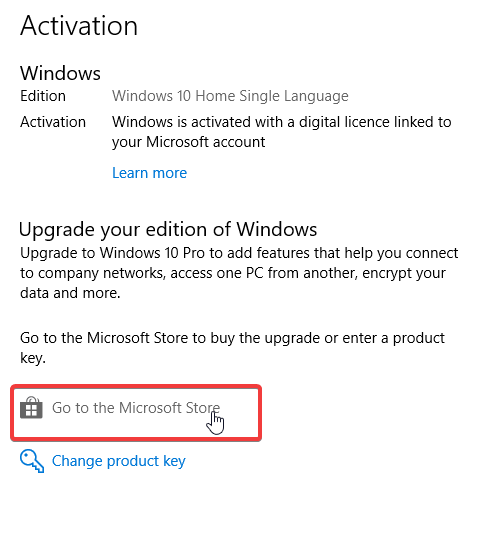
Press the 5 key for the Enable Safe Mode with Networking option.
Then try installing your AMD graphics driver in Safe Mode.
4. Completely uninstall a current GPU driver before installing a new one
You can thoroughly uninstall an AMD GPU driver with the proper utility. The tool recommended below will also eradicate all files and registry entries associated with an uninstalled graphics driver.
Our Display Driver Uninstaller guide provides details about how to utilize it properly, so don’t hesitate to take a closer look right away.
Click the system tray icon for Windows Security to open that antivirus utility.
Then select the Virus & threat protection button to open the tab in the snapshot directly below.
Click Manage settings to open the option shown directly below.
Now click Real-time protection setting off to disable Windows Security.
Also, turn off the Cloud-delivered protection option.
If you’ve got a third-party antivirus utility installed, you’ll need to disable that. Right-click the system tray icon for your antivirus software to open its context menu.
Then look for and select a disable/turn off option of some description, which most antivirus utilities include on their context menus.
6. Turn off the Windows firewall
First, press the Windows key along with the S key at the same time to open a search box.
Type Windows Defender Firewall in the search text box.
Click Windows Defender Firewall to open that Control Panel applet’s window.
Next, click Windows Defender Firewall on or off on the left side of the Control Panel to open a Customize Settings window.
Finally, select both the radio buttons for the Turn off Windows Defender Firewall (recommended) options.
Select the OK option to save the new firewall options.
NOTE
It’s recommended that users both temporarily disable their antivirus software and turn off the Windows firewall. Then try installing your AMD graphics driver with the antivirus software and firewall disabled.
Those are some of the more probable fixes for AMD driver install freeze issues. You can also get in touch with AMD support if further troubleshooting suggestions are still required.
If Microsoft Solitaire is not connecting to the Internet, you won’t be able to play the game at all. Luckily, this is a minor problem that can be easily resolved, so let’s see how we can fix this issue.
What can I do if Microsoft Solitaire is not connecting to Internet?
1. Open and use the troubleshooter
Click the Start button and Settings on its menu.
Next, select Update & Security and go to Troubleshoot in Settings to open the tab directly below.
Then select Additional troubleshooters to open the list troubleshooters in Settings.
Select Windows Store Apps to click its Run the troubleshooter button.
Thereafter, go through the troubleshooter that opens and select to fix any detected issues.
2. Re-register the Solitaire app
Click the magnifying glass button that’s on the far left side of the taskbar in Windows 10.
Enter the keyword PowerShell within the search box to find that utility.
Next, right-click Windows PowerShell to select a Run as administrator context menu option.
Input this command for re-registering the Solitaire app: Get-AppxPackage -allusers *MicrosoftSolitaireCollection* | Foreach {Add-AppxPackage -DisableDevelopmentMode -Register “$($_.InstallLocation)\AppXManifest.xml”}
Best Windows games under 1 GB deliver immersive fun with minimal storage. Ideal for older PCs, low-spec laptops, or users with limited bandwidth, each of these titles offers quality gameplay in a compact install.
Explore diverse genres: open-world, shooters, strategy, and indie hits, all running smoothly without hogging your drive. For more choices, check out the related list of low-spec laptop games,.
It also lets you keep multiple favorites installed without worrying about storage limitations.
These compact titles span nostalgic blockbusters and modern indie gems. Many belong in the world of Windows games under 1 GB in size, yet still offer deep, fulfilling experiences.
GTA Vice City, developed by Rockstar North and released in 2002, became an instant classic thanks to its vibrant 1980s Miami-inspired aesthetic, infectious soundtrack, and smooth open-world gameplay. Critics praised its atmosphere and storytelling, cementing its status as one of the most iconic entries in the Grand Theft Auto series. Despite its age, it remains widely popular thanks to nostalgia and frequent re-releases and remasters.
The game still holds up today on low-end systems, requiring under 1 GB to install. Fans continue to revisit Vice City’s neon-lit streets for its engaging missions, celebrated voice acting, and dynamic radio channels, proving that high production value can thrive in a compact package.
Released in 2001 by Rockstar North, GTA III was the trailblazer for 3D open-world gaming. It revolutionized the industry with its stunning Liberty City, cinematic story, and sandbox freedom. Critics lauded its groundbreaking design, and it quickly became a benchmark for narrative-driven, expressive gameplay.
Despite being nearly two decades old, GTA III’s appeal endures thanks to its compact install (around 900 MB) and its importance as a cultural touchstone. It remains a favorite among gamers for its impactful mission structure, sandbox experimentation, and the novelty of exploring an immersive cityscape at a time when such worlds were rare.
Developed by Blizzard Entertainment and released in 1998, StarCraft redefined real-time strategy games with its asymmetric factions (Terran, Zerg, Protoss), competitive balance, and engaging storyline. It garnered widespread critical acclaim and quickly became a staple of esports, especially in South Korea. Its influence persists in competitive programming and strategic game design.
With a minimal install size of around 400 MB, StarCraft continues to thrive through remastered editions, active modding, and fan communities. Its streamlined gameplay, smart AI, and fast-paced multiplayer ensure it remains a beloved classic among strategists and FPS-focused esports fans alike.
Counter‑Strike: Condition Zero expanded on the original CS formula with new single-player content, improved AI bots, and refined gameplay that debuted in 2004. Developed by Turtle Rock Studios and Gearbox, it received praise for its tactical depth and cooperative modes. Critics recognized it as a polished spin-off of a genre-defining game.
Clocking in under 1 GB, Condition Zero stays accessible for gamers seeking classic FPS action on older PCs. Its bot-driven missions and retained multiplayer servers maintain an active player base, keeping this tactical classic alive among nostalgic communities.
Released in 2001 by Remedy Entertainment, Max Payne introduced the world to bullet-time gameplay and a dark, graphic-novel narrative style. Its cinematic storytelling and intense gunplay earned it critical acclaim and multiple awards, setting a new bar for narrative-driven action games.
Even with a modest file size of around 850 MB, the game’s gritty storyline and immersive shooting mechanics continue to attract players. Its strong noir atmosphere and the innovations it introduced ensure Max Payne remains a landmark sequel target for action enthusiasts and retro gamers.
Developed by Treyarch and published by Activision in 2004, Spider-Man 2 was groundbreaking for delivering open-world mechanics with seamless web-swinging. It gained critical acclaim for capturing the essence of Spider-Man with intuitive traversal and engaging missions.
Despite an install size under 1 GB, it remains one of the most beloved superhero games ever made. Its combination of free-roam exploration, memorable encounters with villains, and accurate character portrayal continues to make it a fan favorite years after release.
Minit, released in 2018 by Minit Studio, is a minimalist action-adventure that resets every 60 seconds. It’s praised for its clever design, charming visuals, and rewarding progression. Critics applauded the game for its unique loop structure and rich world-building within a constrained time frame.
At only ~60 MB, Minit’s concise gameplay loop and clever mechanics create a compelling experience. Its minimalist approach and inventive pacing have secured its status as a standout indie hit that often surprises and delights new players.
The Battle for Wesnoth, first released in 2003 as an open-source project, combines deep turn-based strategy with fantasy storytelling. Developed by a community of volunteers, it has earned critical respect for its rich campaigns, unit variety, and tactical complexity.
Under 400 MB, Wesnoth continues to win fans with its vast user-generated content and scenario editor. Its strategic depth and thriving modding community keep it continually updated and deeply replayable decades after launch.
RoboBlitz, by Naked Sky Entertainment and released in 2006, became a showcase for Unreal Engine 3’s power with its physics-based puzzles and colorful aesthetic. It received praise for integrating dynamic environments into its gameplay effectively.
Despite an install size under 500 MB, RoboBlitz impressed players with its polish and technical innovation. The creative puzzle action and charming visuals ensure it remains a cult favorite among fans of physics-driven indie titles.
Cave Story+, originally an indie freeware from Japanese developer Daisuke “Pixel” Amaya in 2004, evolved into a critically acclaimed metroidvania with a robust narrative. Reviews highlighted its depth, multiple endings, and tight design, noting it as a landmark for indie development.
The enhanced version still takes just ~90 MB while delivering hours of exploration, platforming, and character-driven storytelling. Its blend of challenging levels, upgrade systems, and emotional beats keeps players coming back time and again.
Originally released in 1997 for the N64 and ported to PC later as part of the remastered edition, Doom 64 retained the brutal Doom formula while adding new visuals and weapons. It was praised for its haunting atmosphere and tightly packed corridors.
In its PC version, it installs in ~280 MB, offering quick-paced combat, refined level design, and modern controller support. Its ability to deliver classic Doom action in a minimal package has earned it continued popularity among fans of retro shooters.
To ensure smooth performance, install these games on an SSD, close unnecessary programs, and set graphics to low or medium. Even decade-old laptops can handle these titles with ease.
❓ Frequently Asked Questions
Are these compatible with Windows 10/11?
Yes, these classic games often run flawlessly with compatibility mode tweaks. They remain top picks in the classic Windows games category.
Can I play offline?
Absolutely yes. Every game on this list supports offline play.
Will they work on integrated graphics?
Yes. Designed for older systems, they run well on Intel HD or equivalent setups.
🧾 Final Take
These 11 best Windows games under 1 GB prove that compact downloads can still deliver unforgettable gameplay. From GTA’s open-world charm to StarCraft’s strategic depth, each one is small in size but massive in fun.
Ideal for low-spec machines, travel rigs, or nostalgic enjoyment, grab these titles today for big experiences with minimal storage required.
Rust is a pretty popular survival game, but many users reported issues while trying to save their settings. According to users, Rust settings are not saving for some reason.
This issue usually occurs if the cfg file is missing or if you close the game improperly, so your settings aren’t saved properly.
This can be a problem, especially if you need to change a certain setting to make the game run better. However, there are ways to fix this problem, and in this guide, we’ll show you how to do it.
What do I do if Rust settings are not saving?
1. Create the config file manually
Navigate to the Rust installation directory. The location should be the following: /steam/steamapps/rust
Right-click the space inside the folder and choose New and select Folder. Name the folder CFG.
Navigate to the CFG folder and go to the View pane and check the File name extensions checkbox.
Right-click the space in the directory, expand the New menu and select Text Document.
Name the file Client.cfg.
A confirmation dialog will now appear. Click on Yes.
Now start the game, change your settings and join a server.
Quit the game and start it again.
After doing that, your settings should be saved properly. This is a simple little trick, so be sure to try it if Rust settings keep resetting.
2. Make sure that you’re closing the game properly
If Rust settings are not saving, it’s rather likely that you’re not closing your game properly. The correct way to close the game is to use the Exit button in the game.
If you use any other method of closing the game, it’s likely that your settings won’t save, so make sure that you’re exiting the game properly every time.
Many users reported that their settings were saved after they started closing the game properly, so we encourage you to use this method instead.
While this method might be slower, you’ll ensure that your settings will be properly saved every time, so there’s no reason not to use it.
3. Use a dedicated driver updater software
Finding the drivers manually can be a time-consuming task and it does require some technical knowledge just to make sure that you are not doing any damage. Things can be different if you use a specialized tool.
4. Use the writecfg command
Start Rust.
Press F1.
When the console appears, enter writecfg and press Enter.
This is a simple console command that should force the game to save your settings to the cfg file. Keep in mind that this is just a workaround, but it should help you if Rust settings keep resetting.
Despite being a workaround, many users reported that this method worked for them, so it’s a viable option, especially if you don’t want to close the game using the conventional method.
Fixing this problem is easier than you think, and if your Rust settings are not saving, be sure to try the solutions from this guide.
Moroever, we’ve got some quick tips to apply each time the game audio stops working in Windows 10. They will certainly make this issue a thing of the past.
Did you find a different solution to this problem? If so, feel free to share it with us in the comments section below.
You can never go wrong with a Brother scanner considering its reputation for being reliable, functional, error-free, and with the possibility to print, copy, scan, and fax.
But, as with many other scanners, installing and ensuring that the correct driver is running on your app is essential for the best outcome.
In this article, we will show you the exact steps you need to make in order to install the Brother scanner driver, so make sure to keep on reading.
How can I install the Brother scanner driver?
1. Use the installation DVD
Insert the DVD into your device and choose Install Scanner Driver.
On the following window click on Next.
Make sure to read the agreement and check the I accept box.
Now, click on Next and Complete.
Finally, click on the Install button to start the process.
Allow for the process to complete and restart your device if needed.
Click on the search result to download the driver.
On the next page select your operating system.
Click on Agree to the EULA button to download the found driver.
Run the downloaded file and proceed with the installation.
3. Use a third-party tool
Installing any driver manually can be a sensitive thing considering that downloading the wrong one can impact the overall work of the associated app.
Using a third-party tool that not only will download the correct driver but will also ensure that it will stay updated is therefore recommended.
More so, using specialized driver tools can give you professional support for any issues, whether you need to install or repair specific drivers on your PC.
It’s possible as well to install or update all your drivers at once, or individually according to your circumstance. Thus, using such a reliable method will resolve any situation with problematic drivers.
Welcome back to our Windows news recap, where we go over the top stories of the past week in the world of Microsoft’s flagship operating system.
Microsoft claims its “PrintNightmare” fix is working but acknowledges issues with select printers
After releasing an emergency fix for the “PrintNightmare” exploit which affects the Windows Print Spooling service, claims of it being ineffective began to surface. Microsoft’s Security Response Center has responded via a blog post, saying that its fix is effective when default registry settings are in place. Despite this, the company has acknowledged that the fix does cause issues with some printers, such as the Zebra brand of printers.
Microsoft is holding a Windows 11 Bug Bash — complete quests and earn a special badge
As testing of Windows 11 by Windows Insiders gets underway, Microsoft is holding a Windows 11 Bug Bash until July 14, allowing Insiders to complete quests and earn a special badge for their participation. There are a variety of quests, from the new Start Menu, Snapping Windows, using external monitors, and even the new calendar flyout and Quick Settings.
Windows 10’s popular free Sketchbook drawing app goes paid after ownership change
Autodesk Sketchbook, now known as Sketchbook, has become a paid app on the Microsoft Store after its ownership changed, despite it being one of the most popular free drawing apps on Windows 10. As a bit of history, the app used to be paid-for around three years ago, but switched to being free.
Acrobat Reader DC first Adobe Win32 app to appear in the new Microsoft Store
Keeping your PC safe from malware should be your priority; many tools can help you with that. SpyHunter and Malwarebytes are currently the best tools for this task, but how do they compare to one another?
Both tools offer similar features, and both should be able to remove all types of malware from your PC. So, which one should you choose?
In this guide, we will compare SpyHunter and Malwarebytes and help you find the best malware removal tool for your PC.
SpyHunter vs Malwarebytes, which one should you use?
A quick introduction
What is SpyHunter?
SpyHunter is a malware removal software for both Windows and Mac. The software can detect all types of malware, including ransomware, keyloggers, trojans, viruses, spyware, rootkits, and others.
The software comes with a simple and user-friendly interface, so even first-time users won’t have any problems while using this software.
What is Malwarebytes?
Malwarebytes is a well-known malware removal software that was first released way back in 2006. The software can detect almost any type of malware and remove it securely from your PC.
Malwarebytes evolved over the years, and now it has a real-time scanning feature, so it works like antivirus software and is not just a malware removal tool.
Regarding availability, the software is available on both Windows and Mac platforms.
Interface and ease of use
SpyHunter: Simple but clunky at times
SpyHunter offers a simple and friendly user interface, and you can access all the essential features from the toolbar.
Although the interface itself is simple, we can’t shake the feeling that it looks outdated, but that’s just a personal preference and not a dealbreaker for us.
We did have a few issues with the interface, and we didn’t like how to reports are organized. All reports are available in a form of a tree, which makes them harder to read, and we hope that would be changed in near future.
The Scheduling feature interface also leaves a bit to desired, and we wish that there was an option to choose what type of scan you wish to perform.
These are some minor issues with the interface, and we hope that those issues will be fixed in near future.
Malwarebytes: Simple and friendly interface with a couple of minor flaws
Malwarebytes interface is simple, clean, and with large icons, so you can easily access any feature that you want.
All your notifications are available in the right pane, so you can easily see any recent detections, warnings, and blocked threats.
While the interface is simple, the application had a couple of elements that we didn’t like. Most notably, there’s a reminder during the scan that will suggest upgrading to a Premium version.
This isn’t a dealbreaker for us, but some users might not like this. Overall, the interface is simple and friendly, and you won’t have any problems using it.
SpyHunter: Simple but capable malware removal tool
SpyHunter comes with a simple and friendly interface, and you can perform a system scan with just a single click.
According to the developers, the software can detect malware, viruses, spyware, ransomware, keyloggers, trojans, rootkits, adware, unwanted programs, and security vulnerabilities.
In addition to the quick scan feature, the software also has a custom scan, allowing you to choose which drives you wish to scan.
Using the custom scan you can choose to scan for privacy issues, vulnerabilities, and rootkits. You can also choose if you want to scan your memory and registry.
The software can also protect hosts file and protect system files as well. As for network protection, there’s DNS and proxy protection available.
SpyHunter also has a scheduling feature, allowing you to schedule your scans, and thanks to the reporting feature, you can see all your previous scans and results with ease.
We also have to mention that SpyHunter has a System Guard feature that provides real-time protection, but sadly, this feature is available only in the Full version of the software.
The Free version also has an unusual limitation, allowing you to remove detected threats only once per 48 hours. This is a questionable decision indeed.
Malwarebytes: An advanced malware removal software
The main highlight of Malwarebytes is its malware removal feature, and the software will be able to detect and remove any malware type with ease.
The software is incredibly simple to use, and you can perform a quick scan with just a few clicks. The custom scan feature is available, allowing you to choose which drives you want to scan.
You can also choose if you want to scan memory objects, startup items, rootkits, and archives. This feature also allows you to choose how to treat detected threats.
This allows you to automatically quarantine all threats, ignore them, or choose the desired action for each threat.
Extensive reports are also available, allowing you to view a detailed list of all detected items. Of course, there’s a whitelist feature, and you can add files, folders, applications, and websites to it with ease.
The software also offers Real-Time Protection in Web Protection, Malware and PUP Protection, Ransomware Protection, and Exploit Protection.
Each of these components can be turned off, so you don’t have to use them if you don’t want to. Unfortunately, all the options from the Real-Time Protection are only available in the Premium version of Malwarebytes.
Another feature that is exclusive to the Premium version is scheduled scanning, which means that you have to manually start each scan on your PC.
Even though the Premium version offers full real-time protection, the Free version is more than capable to deal with all malware threats.
Want to know more about Malwarebytes Premium? Be sure to check our Malwarebytes Free vs Premium article for in-depth analysis.
Final thoughts
SpyHunter: Simple with a few flaws
SpyHunter is incredibly simple but powerful malware removal software, and it should help you deal with any malware easily.
The software also offers some unique features such as hosts, proxy, and DNS protection that will be useful.
Real-time protection isn’t available in the Free version, but during our testing, SpyHunter didn’t interfere with Windows Defender, so that you can use the two without any interference.
The user interface was our biggest complaint, and while we didn’t mind the slightly outdated interface, we didn’t like how the report feature worked.
This section looked crammed with information, which can be a problem, especially if you have tens of threats detected on your PC.
This isn’t a dealbreaker, but it is still something that might need a bit of improvement. The software also had a bit of a questionable past, and the SpyHunter was often labeled as a potentially unwanted application.
We also had to mention that the Free version had a 48-hour wait period for malware removal, which can be a problem if you need to remove malware urgently from your PC.
Although SpyHunter did a decent job, you should take its questionable past and unusual limitations in the Free version into consideration before using it.
Pros
Simple to use
Can remove all types of malware
Hosts file protection
DNS protection
Proxy protection
Cons
Questionable past
Can remove malware once per 48h in Free version
Malwarebytes: One of the best malware remover tools
Malwarebytes offers easy to use interface, so you should be able to scan for malware in a matter of seconds.
The Free version is more than capable to deal with all types of malware, but unfortunately, the real-time scanning and scheduling remain available only in the Premium version.
This isn’t a major issue since you can easily use Malwarebytes with Windows Defender side by side. Some users might not like the message that keeps asking you to upgrade to the Premium version, but we didn’t find it too distracting.
Pros
Simple user interface
Ability to remove all types of malware
Can work alongside Windows Defender
Unlimited manual scans in the Free version
Free Premium trial
Cons
Some features are only available in the Premium version
Both applications are more than capable of dealing with malware, but with SpyHunter’s past and the limitations of the Free version, Malwarebytes seems like a far superior choice, in our opinion.
What is your malware removal software of choice? Let us know in the comments below.
What are the hardware requirements for Malwarebytes and SpyHunter?
Here are the requirements for Malwarebytes:
Operating System: Windows 7 SP1 or newer
CPU: 800MHz CPU with SSE2 technology
RAM: 2GB for 64-bit and 1GB for a 32-bit operating system
Storage: About 250MB
The hardware requirements for SpyHunter are the following:
Operating System: Windows XP SP3 or newer
CPU: 1GHZ CPU
RAM: 1GB RAM
Storage: 200MB
Is SpyHunter a legitimate antivirus software?
Many users have criticized SpyHunter for its practices, such as the ability to remove detected malware once every 48 hours in the Free version.
The software also had its share of controversies and was labeled as a potentially unwanted program for detecting fake threats on users’ PCs.
This led to many being skeptical about SpyHunter’s legitimacy as antivirus software.
What are the trial version limitations for SpyHunter and Malwarebytes?
In the Free version, SpyHunter doesn’t have real-time protection or 24/7 support. The software also has a questionable limitation that lets you remove malware once every 48 hours.
On the other hand, Malwarebytes doesn’t have any scanning limitations, and you can manually scan your system as often as you want.
Real-time scanning and scan scheduling are available only in the Premium version. However, Malwarebytes comes with a 14-day free trial, so you can fully try it out.
Can Malwarebytes and SpyHunter work alongside Windows Defender?
SpyHunter works without any problems with Windows Defender, at least in the Free version. The Full version with real-time protection might interfere with Windows Defender in some way.
Malwarebytes works with Windows Defender, but to enable that, you need to open the Settings section and navigate to the Security tab.
From there, you can find an option to register Malwarebytes in the Windows Security Center. Disable this feature, and Malwarebytes will work alongside Windows Defender without any issues.
Can SpyHunter detect malicious/fraudulent websites?
No, SpyHunter can’t detect fraudulent websites, instead, the software is focused on detecting malware on your PC.
On the other hand, the Premium version of Malwarebytes can easily detect and block malicious or fraudulent websites.
Display issues are not entirely uncommon on Windows 10 PCs. For example, PC freezes are one display issue most users will resolve by rebooting their desktop and laptops.
Most users become alarmed when their PC screen goes black or suddenly freezes and doesn’t respond to anything.
Is there a problem with the graphics card?
Most Windows 10 users have encountered the situation where the PC screen doesn’t work normally or as it should, and this leads to frustration.
Usually this situation involves a frozen or black screen, and keyboard or mouse inputs not responding to commands, so, for a good reason, that’s no joke, and you need to treat the problem seriously.
All these things lead to one safe conclusion: the display or graphics driver has a problem that you need to fix as quickly as possible.
Rebooting the PC also restarts (or resets) the video driver, which usually fixes display issues. However, you don’t need to reboot a Windows 10 PC to reset its video driver.
There are a couple of different ways you can manually reset video drivers, which restarts graphics subsystems, to fix display issues without restarting a desktop or laptop.
How do I reset my graphics card without restarting my PC?
1. Press the reset video driver hotkey
Whenever a display issue arises, simply press the Windows + Ctrl + Shift + B keyboard shortcut. When you press those keys simultaneously, the screen will very briefly go blank.
You’ll also hear a beep before everything reappears. So, don’t be alarmed when that happens. This video driver reset hotkey reputedly works in Windows 10 and prior versions.
It will reset Intel, Nvidia, and AMD video drivers among others. Users with older Windows platforms can also manually reset video drivers with the alternative methods below.
2. Disable and enable your PC’s display adapter
Press the Windows key + R to launch Run.
Type this Run command within the Open box:devmgmt.msc
Then click OK to open Device Manager.
Double-click the Display adapters category in Device Manager.
Right-click your display adapter to select an Uninstall device option.
Wait a minute, and then right-click your display adapter again to select Enable device.
3. Use a third-party app to fix your video drivers
If you want to fix display problems in the future, you no longer need to reboot your PC to reset video drivers, you can instead rely on a dedicated third-party app.
Thus, by using a tool that constantly makes sure your drivers are up-to-date, you get rid of many other errors or bugs that may occur along the way.
Tips for users
Although the Windows 10 operating system has a mechanism for automatically restarting a driver, which is very useful for all users, you need to make sure you don’t get to that point though.
That’s why our major recommendation is to use software that automatically handles your drivers, quietly and in the background.
In this way, you can run your desired apps without the panic or inconvenience of a black or frozen screen right in the middle of an important task.
Of course, it’s good to know that you always have the saving shortcut: Win+Ctrl+Shift+B at hand to get you out of this unpleasant situation, which you can call on very quickly.
So, you can quickly reset your video driver without rebooting with any of the above methods. Resetting your video card can be an invaluable troubleshooting option for resolving various PC display issues.
Epson is one of the most known and used printers out there but as with many other popular tools, it does come with its share of problems in Windows 10.
Some users report they have been having trouble with the initial driver installation although they have followed the indicated steps in the installation process.
We will explore in this article what steps you need to make in order to install the Epson scanner driver, so make sure to keep on reading.
What to do if I can’t install the Epson scanner driver?
1. Uninstall the printer
Open the printer and make sure it’s connected to your device.
Double click on the Devices and Printers folder to open it.
Check if there are any canceled and queued documents.
Next, power off the printer and disconnect the data cable.
Type Programs and Features in the Search bar and press Enter.
Select your printer from the list and click on Uninstall/Change.
Next, click OK and then press on Yes in the following window.
Finally, you will see confirmation that the uninstall is complete. Click OK.
Restart your device for the process to complete.
2. Disable your antivirus
Your antivirus software or firewall can often interfere with your Internet connection and cause your printer to not function properly.
In order to solve this issue, and see if this is actually the problem, you might want to temporarily remove your antivirus or firewall.
Since almost any antivirus software can cause this kind of problem, be sure to temporarily remove all third-party antivirus tools.
3. Perform a clean boot
Sign in to your device as an administrator.
Go to the Search bar and type in msconfig.
Next, select System Configuration from the list.
Go to the Services tab of System Configuration.
Here, select Hide all Microsoft services, and then select Disable all.
On the Startup tab make sure to select Open Task Manager.
Next, in Task Manager, for each startup item, select the item and then select Disable.
Close Task Manager and System Configuration as well and restart your device.
4. Do a system restore
Press down the power button until the Automatic Repair message appears.
Go to Troubleshoot, select Advanced options, and choose System Restore.
Next, select your username and enter your password and click Next.
Select the desired restore point, and follow the on-screen instructions to restore your PC.
After your PC is restored, check if the problem still appears.
5. Use a dedicated software
Updating the drivers manually can be a time-consuming process and there may be a situation where you install the wrong driver, which could have a negative effect.
Consider using a dedicated third-party tool that will not only install the correct driver for your Epson printer but will ensure that the driver stays updated.
Outbyte Driver Updater removes the risk that comes with installing faulty drivers and helps you batch update and repair all drivers on your PC.
It uses its own driver database to download and install the best version available for any hardware you may use. It is easy to use, completely safe, and lightweight.
With this last recommendation, we will conclude our article. We hope that by performing the steps indicated here you managed to fix not being able to install the Epson scanner driver.
As you probably know by now, Windows 11 has been announced, and it should be released someday soon.
While we wait for the full release, Microsoft is being busy and it has released the first build of Windows 11 to Windows Insiders, so we got a first chance to experience Windows 11 on our own.
A new build, called Windows 11 22000.65 was released recently, and today we’re going to take a closer look at it and see new features and improvements it offers.
Why is it called 22000.65?
Many users were surprised by this naming convention, which leads to certain speculations. Some expect this to be a pipeline update that doesn’t change much, which is unlikely.
On the other hand, Microsoft may be changing the naming convention, so they won’t be changing the major build number on weekly basis.
We’re still not sure about the naming convention, but we’re positive that more information will be revealed in the future.
Windows 11 build 22000.65 released, what does it offer and how to install it?
What’s new in Windows 11 22000.65?
Search in Start Menu
In this build, the Start Menu got a search box, and while this feature can come in handy, Windows 11 already has a separate search feature that does the same job.
The addition of the search bar felt a bit unnecessary since it will just open the regular search feature that you can already open from the Taskbar.
Many users aren’t too happy because there are two search bars in Windows 11 build 22000.65 and we’re still waiting to see what will Microsoft do with it, and whether will it remain as a permanent component of the Start Menu.
We weren’t too thrilled about this change either, and hopefully, the search bar won’t be here to stay in the final version.
If you’re one of the users that weren’t too thrilled about the new Start Menu, there was a way to Change Windows 11 to classic view and get the old Windows 10 Start Menu back.
Start Menu isn’t the only element that got changed in this build. The Taskbar got a slight improvement, and now it shows properly across multiple monitors, which is great for dual monitor setups.
You can enable this feature from the Taskbar behaviors menu in the Settings app.
Context menu changes
We also noticed that a Refresh option is now available from the context menu when you click your desktop. In the previous build, it was hidden behind the Show more options, so this is a welcome change.
While we’re talking about the context menu, you’ll now get an option to run .ps1 files with PowerShell when you right-click the file instead of going to go to the Show more options menu.
Sound troubleshooting
As for other quality of life improvements, there’s now an option available to troubleshoot the sound problems when you right-click the sound icon in the Taskbar.
Unfortunately, the troubleshooting window comes right from Windows 10, and it doesn’t have the rounded corners that Windows 11 windows have, so it looks really out of place.
Change the power plan from the Settings app
Microsoft also made some changes to the Power settings and now you can select your power mode right from the Power settings section in the Settings app.
That’s right, no more will you have to access the Control Panel to change this setting since now it’s available right from the Settings app.
Unfortunately, you can’t customize the advanced power settings from here, and for that, you’ll need to use the Control Panel.
Snap layout improvements
There are also improvements with snap layouts, and now portrait layouts have three apps instead of four, which leaves users with more space to work with.
This change is aimed mostly towards tablet users or users that are using their monitor in portrait mode. If you don’t fall into these two categories, you most likely won’t even notice this change.
GIFs in emoji panel
Microsoft is collaborating with weshineapp to bring GIFs to the emoji panel, and while GIFs are available now available, this feature is available only to users from China.
We don’t know if this feature will be available globally someday, but we don’t see any reasons why not.
Windows 11 build 22000.65 bugs
User interface inconsistency
Windows 11 brought a new user interface with rounded corners, but unfortunately, not all elements follow it. This change brought some fresh air, but certain applets don’t seem to use the same design.
Moreover, some applets don’t follow the theme settings and they will always use the light theme. This all results in a visual inconsistency, but we hope that this will be sorted out soon.
Graphics stuttering
If you’re were looking to enjoy some gaming or multimedia with build 22000.65, guess again. This build has a weird bug that causes graphics to stutter when moving the mouse.
The issue seems related to Nvidia graphics drivers, but removing the drivers doesn’t fix the issue.
Taskbar icon problems
The biggest issue with Taskbar is that moving the icons around the Taskbar or simply moving an icon to the Taskbar will open the moved application automatically.
This isn’t a major problem, but it can get annoying pretty fast if you want to rearrange apps. However, it seems that this issue affects only the applications that aren’t currently running.
For some reason, on the new build, the space between pinned apps seems bigger. This usually isn’t a problem, but if you have multiple applications pinned to your Taskbar, you might run out of space.
This is a minor problem, and unless you’re doing heavy multitasking or have dozens of icons pinned in your Taskbar, you probably won’t encounter this issue.
It also seems that the Taskbar icons are slightly off-center, but this is easily fixed by hiding the Taskbar temporarily, or by changing your theme.
Issues with Fn keys
Another problem that you may encounter with this build is with the Fn keys and shortcuts that use the Fn key.
It seems that shortcuts that use the Fn key will stop working after your PC goes to sleep. Once the PC wakes up, those shortcuts will no longer work. However, this is easily fixed with a PC restart.
Widget issues
Widgets are the newest feature to be added in Windows 11, but it seems that widgets aren’t working properly in build 20000.65.
When you open the widgets panel, instead of your widgets, you’ll get a login window asking you to enter your login credentials or your PIN.
Logging in doesn’t work, and instead, it gives you the dreaded Something went wrong error, so you’re stuck with the login screen whenever you try to use widgets in this build.
The widgets panel also might appear empty or it might use the wrong window size in this build.
Activation problems
On our test machine, we noticed Error code 0xC004F213 followed by a message saying that no product key was found on your device, despite Windows being activated.
This error will mark your Windows as inactivated and you won’t be able to customize it until you resolve this issue.
Can’t see recent searches
The new Search feature in Windows 11 works great, but it seems that it fails to work properly. While hovering the search icon, you should be able to see the recent searches, but that’s not the case.
This feature works if you have just one search, but if there are two or more, the recent searches will be missing when you hover the search icon in the Taskbar.
Issues with context menu
As mentioned previously, build 22000.65 brings the Refresh option to the context menu, so you won’t have to use Show more options to reveal it.
However, using the Refresh option will cause your context menu to stop working completely. We wrote in detail about this issue in our Windows 11 context menu bug article, so be sure to check it out.
Speaking of issues, we have a whole article dedicated to Windows 11 build 22000.65 bugs, so visit it for more information about bugs.
How do I install build 22000.65?
Open the Start Menu and click on Settings.
When the Settings app opens, navigate to the Windows Update in the left pane.
Check for available updates. If Windows says that version 22000.65 is available for download, click on Download now button.
Wait for the download process to finish.
Once the update is downloaded, click the Restart now button.
Wait while the update is being installed and don’t turn off your PC.
During the update, your PC will automatically restart and then continue the upgrade process.
Once the process is finished, your system will be updated to build 22000.65.
As you can see, updating to the new build is pretty simple, and the entire process is performed right from the Settings app and it shouldn’t take more than a couple of minutes.
Is the new W11 build better than the previous one?
The first build of Windows 11 gained a lot of attention from the users, but what about Windows 11 build 22000.65?
This build brings some changes and improvements, especially if you’re working with devices in portrait mode or if you’re using multiple monitors.
Some quality of life improvements, such as the ability to refresh the desktop quickly or to change the power mode right from the Settings app is more than welcome.
We didn’t like the introduction of the Search bar in the Start Menu since it feels redundant and it just opens the Search feature when you click on it.
There are some new bugs as well, but that’s to be expected from Insider Builds. Overall, this build is nothing to write home about, but it does fix a fair share of bugs.
If you’re looking for new and exciting features, then this build might not be what you’re looking for. What are your thoughts on Windows 11 build 22000.65? Have you tried it yet? Let us know in the comments section below.
Computer chips are an essential part of modern electronics, and we can find them in almost every device, ranging from our TVs to smartphones.
Currently, there’s a worldwide computer chip shortage going around, and this can be a major problem for the whole electronics industry.
Today we’re going to take a closer look at the chip shortage and give you all the necessary information that you need to know about it.
What should I know about computer chip shortage?
How did the chip shortage start?
Chip shortage started in 2020 after the start of the pandemic, since the demand for consumer electronics grew, especially with the increasing number of people working from home.
With the increased demand for consumer electronics, the demand for computer chips grew thus causing the shortage.
It all comes down to the supply and demand, and when the demand grew due to the pandemic, the suppliers weren’t ready for it.
Now that we know how the chip shortage started, let’s see what’s causing it.
What is causing the chip shortage?
The car production had to shut down temporarily due to the pandemic, but the demand for cars grew and the car industry started to recover.
By doing so, the demand for chips to be used in car electronics rose. However, the chip manufactures are overwhelmed by making chips to meet the increasing demand for consumer electronics.
Other factors such as a drought in Taiwan, a Renesas Electronic Corporation fire in Japan, and the failure of the Texas power grid are all factors that have contributed to the global chip shortage.
These are some of the main reasons why there’s a chip shortage in 2021. So, we know what is causing the chip shortage, but who is affected by this shortage? Keep on reading to find out.
Who is affected by chip shortage?
Some might think that the chip shortage is affecting only the major companies, but that’s not the case. The companies are experiencing shortages because the demand for electronics skyrocketed.
If the companies can’t produce enough electronics, the customers are going to be affected by this as well. This includes almost every person on the planet, but the effects of the shortage might not be as drastic as some think.
In the worst-case scenario, users won’t be able to get a specific product because the demand exceeds the current supply of consumer electronics.
This is similar to the graphics card shortage that was caused by crypto miners and the PS5 shortage due to scalpers. This means that certain electronics might not be available due to the high demand.
In other cases, the prices of electronics might rise due to the scarcity of electronics. According to market researchers, the prices of large screen TV has increased by around 30% compared to last year.
But it’s not just TVs, the computer chips are in almost every digital device that we use, so the shortage will affect smartphones, consoles, laptops, and other similar markets.
How will this shortage play out in the real-life, and how much will the prices go up we can’t predict, so we’ll just have to wait and see how the situation plays out.
Regarding the companies, the car industry has been affected the most by the chip shortage. According to the experts, it’s expected for the auto industry to make between 1.5 million and 5 million fewer vehicles this year alone.
Many manufacturers such as General Motors, Ford, Volkswagen AG, Subaru Corp, Toyota Motor Corp and Nissan will scale down their production due to the chip shortage.
According to Ford, they are expecting a loss as has as $2.5 billion this year, and the same applies to other car manufactures.
A regular car uses around 50 to 150 computer chips, and with the shortage of chips, it’s no wonder to see that many car manufactures are scaling down their production.
This is a massive hit for the car industry, and we still can’t predict what will be the global consequences. But it’s not only the car industry that’s affected, the consumer electronics manufactures are affected as well.
Chip shortage affected Qualcomm, and the company is struggling to keep up with the demand. Since Qualcomm is closely connected with Samsung we expect Samsung sales to be affected by this.
Apple has also been affected by the lack of chips, and Apple’s financial officers expect to see up to a $4 billion drop in revenue in this quarter alone.
As you can see, this is a global problem, and it will affect consumers and every manufacturer of consumer electronics.
We can’t tell what the future holds for the electronics market, and we are still waiting to see what will be the global consequences of the chip shortage of 2021.
Who is the largest chip manufacturer?
The chip manufacturers and companies that are partnered with them are affected the most by computer chip shortages. There are several major chip manufacturers, and in this section, we’re going to list them.
Coming from Silicon Valley, Intel is the largest chip manufacturer in the world. The company has over 100, 000 employees in 46 different countries around the world.
Intel is closely associated with the development of CPUs, so we might see an Intel processor chip shortage in the future.
We have to mention that Intel processors are used by other hardware manufacturers such as Lenovo, HP, and Dell, so you expect devices from these companies to be affected by the shortage.
Samsung is also a major producer of chips, and the company hires around 290,000 people and operates in 74 countries around the world.
All Samsung’s electronics will be affected by the chip shortage, but Samsung’s partners including Apple, Sony, HTC, and Nokia are also affected.
Taiwan Semiconductor Manufacturing Co. (TSMC) is the world’s largest independent chip factory, thus making it one of the largest companies in Taiwan.
The company has over 50,000 employees and it makes over 10 million chips per year. Regarding its partners, TSMC is closely associated with Apple.
SK Hynix was known as Hyundai Electronics in the past, and the company has multiple locations in the US, China, and Taiwan.
The company is associated with Apple, Asus, Dell, and HP, but it also manufactures DVD players and cell phones.
Broadcom comes from California and specializes in producing chips for computers and smartphones. Some of its major partners include Apple, IBM, Dell, Asus, Lenovo, Nintendo, Nokia, and Logitech.
Qualcomm is another company affected by chip shortage. The company specializes in wireless technology, and its chips are used on the majority of wireless devices.
We still don’t know what kind of consequences will the Qualcomm chip shortage have on the economy, but we’ll keep you informed.
Micron Technology is one of the largest manufacturers of memory and data storage for computers, so we might see a NAND chip shortage in the future.
NVIDIA and AMD are also on the list of the largest semiconductor companies. While NVIDIA focuses mostly on GPU processors, AMD is developing both graphics cards and Ryzen processors.
If these companies are affected, we’ll see a graphics card chip shortage and maybe an even bigger shortage of graphics cards in the future.
These are some of the largest chip manufacturers in the world and the shortage of chips will surely affect the partners of these companies as well as consumers that purchase their products.
How will chip shortage affect PCs?
With shortages, prices are bound to go up soon. Experts from Dell expect the price of displays, DRAMs, and NAND to go up.
NAND chip shortage will also be fueled by a new cryptocurrency called Chia. This new cryptocurrency uses storage space for mining, and to mine Chia, you need a lot of storage space.
The currency works with large hard drives and NVMe drives, and according to experts, mining Chia will cause your SSD to wear out faster.
Seagate has confirmed a surge in demand for SSDs, and many resellers are stockpiling on SSDs thus causing a shortage.
Regarding the price of SSDs, the researchers believe that the price will increase from 3 to 8% non-enterprise users.
Samsung was also affected by this, the main cause being the power shortages that occurred in February in Texas. Regarding the shortage, here’s what the Samsung representative had to say:
“We still have an inventory of controllers in possession, allowing us to continue to produce SSDs. Some overseas media outlets have somewhat exaggerated the issue.”
NVIDIA and AMD are also affected by the chip shortage, so we might see a GPU chip shortage or a price increase in the future. The situation with graphics cards is already bad with cryptomining, and the chip shortages aren’t helping.
AMD and Intel and the largest CPU manufacturers, so it’s possible that the CPU prices will go up as the demand for chips increases.
It seems that AMD will prioritize the high-end CPUs in the future, due to the shortage. Here’s what AMD CEO Lisa Su recently said regarding the shortage:
“So I would say particularly, if you look at some of the segments in the PC market, sort of the lower end of the PC market. We have prioritized some of the higher-end commercial SKUs [Stock Keeping Units] and gaming SKUs and those kinds of things.”
It seems that the PC industry will be affected by a chip shortage, but we can’t estimate how big the impact will be on the prices and the consumers.
How will chip shortage affect laptops?
The laptop market might be affected even more than the desktop PC markets because laptops are a computer of choice for many students and employees that work from home.
Recently Acer stated that computer chip shortage will have a severe impact on their production capabilities and this impact is expected to last until the first or second quarter of 2022.
Acer isn’t the only company affected by this, and Dell’s shares fell 1% while the HP shares dropped by 6%.
Realtek seems to be affected by this issue as well, and all laptop manufacturers that are relying on Realtek devices will be affected by this.
Since all major manufacturers are affected, we might expect a price increase for laptops across the board. In fact, ASUS and HP increased the prices for their consumer PCs, and Dell is likely to follow suit.
Despite the price increase, the PC market is expected to increase by 18 percent this year, according to analysts from IDC.
Since all major manufacturers are affected, we might expect a price increase for laptops across the board.
How does chip shortage affect Xbox?
Xbox Series X sales have slowed down due to the global chip shortage, and in the last year, Microsoft sold 3.3 million Xbox One Series X consoles.
Although the chip shortages have affected the whole electronics industry, TSMC, a chip manufacturer for Xbox, reported that its earnings have risen by 25.2% this year.
However, this doesn’t mean that the shortage is over, and it will most likely last until the second quarter of the next year, so expect Xbox shortages and price increase.
The PS5 scalping was a big factor in the overall PS5 shortage, and the computer chip shortage won’t do any favors for the PlayStation fans.
Sony’s chief financial officer stated that the company was unable to meet the high demand from the customers, but that they will do everything in their power to ship as many units as possible.
Sadly, the global chip shortage isn’t doing any favors to consumers that want to get a PS5, so it might take them a couple of months or more to get their hands on a PlayStation 5.
Despite the chip shortage, Sony sold 4.5 million consoles in 2020, and 3.3 million up to April in 2021.
When will the computer chip shortage end?
Computer chip shortage has affected the whole electronics industry, and we still haven’t felt all of its consequences, so it’s going to get worse before it gets better in our estimation.
So how long with the shortage last? Some experts claim that it may last until 2023. According to them, the demand is already high, and the production rate is slowed down, so it will take some time for the manufactures to catch up with the market demands.
Some experts speculate that the situation might improve in the next six months for certain sectors, but the chip shortage will most likely remain an issue in 2022 as well.
One of the world’s largest chip manufacturers, TSMC, claims that the company will be able to catch up with the demands of the auto industry in the current month but the experts remain skeptical.
Sadly, it seems that chip shortage is here to stay, and it will likely follow us into the next year, if not longer. So, what should we as consumers do and how can we avoid the chip crisis? We’ll explain that in the next section.
Tips on how to avoid the chip crisis
Customers will surely experience a chip crisis sooner or later, and many are seeing some of its first results especially when it comes to the shortage of graphics cards and gaming consoles.
All industries are affected by this, so we will most likely see a prince increase for hardware and all digital consumer electronics.
This situation affects car manufacturers and other industries as well. So, what can we the consumers do? We need to be prepared for a price increase that will surely come in near future.
We can also try to adjust our consumer habits, and keep using older hardware and devices until the shortage of chips has passed.
If you’re looking to get Xbox Series X or PlayStation 5, you’ll have to be patient and wait for the consoles to become available in stock.
On the other hand, companies are already trying to speed up the production process and to open new facilities for chip production to meet the demands.
Sadly, this is a lengthy process and it can take months, or even more because to open new facilities, you need machines that can make chips, and those machines require their chips to work.
The White House has issued an executive order to improve the domestic production of chips. Intel is also planning to invest billions in domestic factories to combat the computer chip shortage.
TSMC plans to open new facilities in the next three years, and SK Hynix has announced that they are planning to increase the spending on chip production this year.
The EU plans to increase its chip production, and its goal is to produce 20% of the global supply of semiconductors by 2030.
It seems that chip shortage is here to stay, and in the future, we hope that companies will stockpile chips to avoid a situation like this.
We hope that you find this article informative and that you now understand better how the chip shortage is affecting the electronics industry.
Remember the rickety old typewriter? Yes, the one wherein you had no autocorrect or backspace buttons.
Typewriter software tools are those that simulate the old machine, and it employs a barebones UI matching with the typewriters of yesteryear.
The market is flooded with word processors, but not many mimic the process of writing on a typewriter. Many users find the minimal word processors to be inspiring in nature and also distraction-free.
Let’s take a look at some of the best typewriter software solutions that can be downloaded right away.
What’s the best typewriter software to use on your PC?
You must have heard of Typing Tutor since it is one of those premium typewriter software applications available for quickly learning speed typing, 10-key, and touch typing.
As one of the most feature-rich typing software tools on the current market, get ready for an initial skills test, multiple typing lessons, and intuitive exercises that include poems or prose.
The greatest advantage is that all these are offered in such a manner that Typing Tutor is suited for experienced users who don’t need to learn the basics and newbies alike.
After all, schools and institutions have been using it for years to improve students’ typing skills in a fun and intuitive way.
These are some key features that Typing Tutor brings to the table:
Quick and easy operation
Fun and engaging interface
Adaptive learning for all skill levels
Various exercises to develop and further boost typing speed and precision
Dictation audio exercises
Printable course completion certificates
Typing Tutor
Eager to try out Typing Tutor? Enjoy unlimited ongoing use of all professional features!
Kaz is a versatile and modern typing platform that features unique methodologies, including an award-winning multi-sensory touch typing course.
The program aims to teach users how to type fast in just 90 minutes, by using the Accelerated Learning method that encompasses brain balance and muscle memory techniques.
Kaz offers courses for individuals of all ages and its Neurodiverse edition was created for people with special needs, such as dyslexia, ADHD, or Tourette’s.
Make sure you have a tool designed to be a real support when you need it, when your environment distracts you, or you simply have a condition that makes your life a writing ordeal.
KAZ typing
Improve your typing skills with this amazing tool!
What if you require an advanced word processor that offers all the modern features while still sticking to its essentials?
Well,Write!is your safest bet since the text editor not only aims at boosting your productivity but it also supports Markdown syntax, spell-checker, cloud integration, and productivity counters.
Don’t miss the chance to write smoothly with this amazing tool, which has been designed exactly for you and your needs.
Numerous users turn to this solution when they’re at a creative standstill or when they need support for faster, distraction-free writing.
LibreOffice is a word processor that heavily focusses on keeping the writing environment distraction-free.
It comes with an autosave option and lets you save unlimited documents on the cloud. Despite being an online first-word processor, it works in both online and offline mode.
The writer also offers Dropbox, Google cloud integration. The best part, however, is that the program offers cross-platform compatibility and is also available for smartphones as well.
LibreOffice is often referred to as the most powerful open-source word processor.
Typorais your best bet if you are looking out for an app that’s equally suited for both reading and writing.
It helps to focus by removing all the distractions including preview window, mode switcher, syntax symbols associated with markdown source code along with the other tools.
Typora offers cross-platform compatibility, the interface is pretty sleeck, and it supports Custom CSS theme natively. Also, the export options offered by Typora are decent enough.
You can try this tool if you’re sure you need some reliable help, because it certainly won’t let you down.
Typing.com is a professional typing program equipped with several educational tools, including keyboarding lessons, tech literacy, and basic coding tutorials.
It offers engaging and interactive content in three languages (English, Spanish, and Portuguese), allowing students of every skill level to participate.
All you have to do is decide on your needs, because this software certainly provides you with a wide range of features to rely on.
In addition, a good thing to mention and loved by users is that this freeware has a modern interface and many instruments are fully customizable.
10FastFingers is a program that allows you to practice and test your typing skills through competitive games and advanced tests.
The interface is quite basic, but it makes it easier to find the tools you’re looking for and focus on the fun. You can improve your typing skills on the go, with the 10FastFingers app compatible with Android and iOS devices.
Moreover, the platform enables you to create custom typing tests in over 40 languages and play against users located all over the world.
Give this software a chance, and you’ll find that all the stress of writing disappears, because it will help you focus exactly on your needs and the distractions of the environment will disappear.
How to choose the best typewriter software for your PC
If you’re in the midst of a creative process and simply run out of inspiration or find everything around you distracting, then typewriter software sounds like just the solution for you.
There are certain software that provide you with certain useful features to create an environment free of other distractions.
Determine your needs from the software
First, you have to find out what needs you have from a machine that mimics the process of writing on a typewriter.
Whether you need an application to help you improve your typing speed and accuracy, or perhaps you need real support because you struggle with dyslexia or ADHD.
Whatever the situation, there’s no problem, because the market means there’s plenty of software that’s designed exactly for your needs, you just have to look.
Analyse the features that the software implies
There’s no mystery, every information is now free or at most one click away. You can check or request more details about a software that appeals to your needs.
For example, you may be looking for a tool that offers Dropbox, Google cloud integration, but you need cross-platform compatibility and to be available for smartphones as well.
Or maybe you’re a school manager and want to improve students’ typing skills in a fun and intuitive way.
Our tip
Whether it’s a recreational activity or a school that’s geared towards improving the skills of its students, it’s worth investing in a reliable software typewriter to use on your PC.
The environment is quite wicked anyway and distracts you from writing, so be sure to opt for a solution that suits your needs, but be picky about the features that are most important to you.
If you struggle with dyslexia or simply want to increase your typing speed to become more productive, then the list above is exactly the decalogue you can keep in mind when making your choice.
Have you used some of these digital typewriter tools? Tell us more about your experience in the comments below. Also, if you have any other suggestions or questions, don’t hesitate to contact us.
The Redmond-based tech company has released a critical emergency patch to fix a problem with the Windows Print Spooler service.
This vulnerability in question is known as PrintNightmare and it was under constant exploit from malicious entities.
When exploited, it allowed attackers to install software; view, alter, delete data; or even create new accounts with full user rights. However, user reports are indicating that the patch doesn’t really fix the entire issue.
KB5004945 is a new security update that has been released for any Windows version newer than v2004.
Users who have Windows 10 version 1909 will first get the KB5004946 patch, and then the PrintNightmare patch will also be installed.
The patch is available for multiple Windows versions
The above-mentioned security patch is now available for quite a few versions of Windows 10, Windows 8.1, Windows Server 2019, Windows Server 2021 R2, Windows Server 2008, and Windows RT 8.1.
If you are a Windows 7 user, this patch is also available for you, even though the operating system is out of support.
The only OS versions for which this patch is currently unavailable are Windows 10 version 1607, Windows Server 2016, and Windows Server 2012, but Microsoft stated that they are working on it.
This whole situation seems to be pretty serious, considering that the software is also addressed to Windows 7, this fact being an indicator of the severity of the problem.
Even more, knowing the Windows 7 OS has been out of support ever since January 14, 2020.
Information about this also circulated on social media, where security researchers said that Microsoft’s patch only addresses one element of the vulnerability.
The Microsoft fix released for recent #PrintNightmare vulnerability addresses the remote vector – however the LPE variations still function. These work out of the box on Windows 7, 8, 8.1, 2008 and 2012 but require Point&Print configured for Windows 2016,2019,10 & 11(?). ?♂️ https://t.co/PRO3p99CFo
— hackerfantastic.x (@hackerfantastic) July 6, 2021
What’s disconcerting is that malicious third parties can still target these vulnerabilities. Word on the internet is that there are ways for people to completely bypass Microsoft’s patch and target vulnerable systems.
This is achieved via remote code execution in addition to the previous local privilege execution.
Dealing with strings & filenames is hard? New function in #mimikatz ?to normalize filenames (bypassing checks by using UNC instead of \servershare format)
So a RCE (and LPE) with #printnightmare on a fully patched server, with Point & Print enabled
As you can see, Microsoft is taking this threat very seriously, so we think that you should too.
Update to Windows 10 Version 20H2 &21H1
1. Open Windows Update
Press the Win + X key combination by using your keyboard.
Choose Settings from the pop-up menu.
Navigate to Updates & Security.
Choose Windows Update.
2. Perform the update
Open the Windows Update window and click Check for Updates.
Press the Install now button to update to version 20H2 of Windows 10, thus getting the KB5004945 patch.
Wait for the installation process to complete.
Click Restart now.
NOTE
How can I fix the Print Spooler PrintNightmare without updating?
Even though it is not recommended that you follow this path, it might be useful in the case of some users, so here are the required steps to successfully stop the Print Spooler service:
Press Win+X keys to open the sub-menu.
Choose Windows PowerShell (Admin).
In the command prompt, type the following command and run it by pressing Enter: Stop-Service -Name Spooler -Force
Disable it entirely by using the following command: Set-Service -Name Spooler -StartupType Disabled
Press Enter to run the command.
Performing these steps will ensure that Windows will firstly disable the corrupted service, and the second command will stop it from running at the startup of your system.
If for any reason, you will want to revert these changes at some point, you can run the following commands:
To start the service again: Start-Service -Name Spooler
To allow it to run at Windows startup:-Name Spooler -StartupType Automatic
Microsoft now urges users to install this security update and make the best efforts to keep their private content inaccessible to external sources.
Online safety should be one of the first things on our minds, seeing how these threats can greatly impact individuals and companies alike.
What extra security measures are you taking, to protect your data? Let us know in the comments section below.
Many people enjoy in multimedia on their computers, and if you want the best multimedia experience, you usually want to go for a sound card that supports 5.1 audio.
However, if you’re a Windows 10 user, you might experience some issues with Sound Blaster Recon3D PCIe sound cards.
According to some users, Sound Blaster Recon3D PCIe card is broken in Windows 10, and it doesn’t perform on it as well as on other operating systems.
Users claim that after switching to Windows 10 they have lost the support for 5.0 audio, and now they are limited only to 2.0 audio.
After switching to 5.0 sound, the sound gets lost on Sound Blaster Recon3D PCIe cards. If you’re experiencing these issues, we have a solution that might help you.
What to do if Sound Blaster is not working in Windows 10?
1. Use Compatibility mode
Download the latest driver for your sound card.
Right-click on the downloaded driver file.
Click on Properties and then go to the Compatibility tab.
Find and check the Run this program in Compatibility mode for option.
Select Windows 8.1 or any other older version of Windows operating system.
Click OK, and install the driver.
This is a workaround given by Microsoft software engineers. However, we don’t know whether this workaround will fix your problem with 5.0 sound.
If this doesn’t help, worry not. Microsoft has acknowledged that they have broken multi-channel audio on some Creative audio cards, and they already released some hot fixes for this issue.
You should then update your computer to install them.
If your Sound Blaster Recon3D PCIe sound card is broken With Windows 10 it’s probably just a compatibility issue.
Windows 10 is still a new operating system, as Microsoft rolls out to new OS versions every year. Some issues with certain hardware manufacturers are a common thing for a new operating system.
2. Run the Audio/ Hardware and devices troubleshooters
To launch thees tools, go to the Settings app.
Choose the Update and Security section, and select Troubleshoot.
Since this is an audio issue, there are two Windows 10 built-in troubleshooters that you can use: The audio troubleshooter and the Hardware and devices troubleshooter.
As for the permanent and best solution, we’ll just have to wait for hardware manufacturers to release the latest drivers that will support Windows 10.
3. Use third-party software for drivers
Sound card issues are often caused by faulty drivers in need of an update. Without the latest updates, your PC and Windows OS can’t function properly.
We recommend using reliable third-party software that aims to keep your system stable and healthy by downloading and installing the latest drivers for your device.
The driver updater tool is useful in updating windows drivers automatically. Otherwise, if you do it manually, it takes time and also requires comprehensive knowledge of the drivers you are looking for.
A computer cannot manage video cards, computer programs, sound cards, or other hardware; they must be managed by a driver.
You can manually update drivers if you have a thorough understanding of the drivers your PC requires. The driver updater utility is the best alternative.
You may rely on Outbyte Driver Updater to make such changes to ensure a proper update with the most recent sound card drivers.
Even though the new build for Microsoft’s upcoming OS has just been released, users were quick to track down and flag some of the issues that cast a shadow over the software.
In this article we are going to tell you all about the bugs that are present in this current version of Windows 11, so you will know what does and doesn’t work as it should, still.
Official issues for the 22000.65 build of Windows 11
As with every new software release, nothing is going to be perfect. In fact, the whole point is to get the community involved in this all-out bug hunt, to better improve the system.
And Windows users are known for their relentlessness when it comes to this kind of call-to-arms actions initiated by Microsoft.
We will do our best to keep you informed about all the things that go on with this new build, and all the others to come before Windows 11 will be finally complete.
If you are also interested in the list of bugs that were reported for the first preview build of Windows 11, you can go ahead and check our extensive article.
So, without further ado, here are some of the bugs that have been reported so far for the 22000.65 build of the upcoming OS.
Clicking on Refresh will disable the context menus
As signaled by a Reddit user, apparently, when you click on the Refresh feature, Windows 11 goes completely haywire.
After performing a simple refresh, which is by far the most common and used action that was ever performed on a Windows operating system, the right-click dropdown menus will no longer function.
This is also reportedly happening when you right-click a folder, in order to get to the same menu.
Yep broken here too. Also my right click work now only on desktop, if I go any other folder right click is completely gone.
This problem isn’t affecting everyone, as many users are claiming that things are working as they should, at their end.
NVIDIA display drivers trigger visual stuttering
As reported by another Windows 11 user, all across social media, the new Windows 11 build goes through a bit of a visual ordeal, when other third-party software is introduced into the mix.
More exactly, while Nvidia GPU drivers are installed, the system will have a hard time adjusting and delivering a clean visual experience.
Even uninstalling and then reinstalling these drivers did not solve this problem, only an update rollback, which brought the user back to Windows 10 seemed to actually work.
Another issue that users were quick to spot, on this new Windows 11 build, involves the taskbar itself. As opposed to the previous build, it seems that this time around, icons are taking up much more space.
The person that reported this problem also checked if the TaskbarSi file in did not get reset, by any chance, but it wasn’t the case.
This visual glitch came with the package, apparently. Although it’s not something that anyone would instantly spot, to the trained eye of a tech-savvy Windows user, it’s a red flag.
We know that a lot of people were actually waiting on Microsoft to deliver better spacing and a tighter, more fluent fit for everything that goes on the taskbar, so they weren’t expecting this.
Even though it’s not one of the system-threatening flaws, user standards still stand and esthetics are still a big part of everyone’s private Windows 11 experience.
Hi Sergey! Love that you found a way to give us small Taskbar icons. But with the 22000.65 update the spacing between icons has increased a lot! I had to unpin about 6 items to get things to fit again. Any chance for a tweak enabling us to change the space between icons?
This is one of the weirder problems that users reported, when it comes to Microsoft’s upcoming operating system, one that wasn’t present on the previous build.
Reddit user xrandallx says that, after installing build 22000.65, his Windows OS was no longer active, due to the activation key getting erased from the system.
This seems like a serious issue, considering that, without the activation key, your Windows operating system will no longer benefit from a long list of features.
Can’t use Fn key after the device goes to sleep
Where you thinking that the issues we listed above weren’t strange enough for you? Well, here’s one that is also a strong contender for the weirdest Windows 11 bug prize.
Apparently, as flagged by another Reddit user, after the device on which this new build of the OS runs is put to sleep, or automatically times out and goes to sleep, when you use it again, the Fn key is actually unresponsive.
Only a system reboot will solve this annoying problem, so you can understand how people won’t see this as an actual workaround.
All drivers are fully up to date, and I’m running the latest build of Windows 11 (22000.65 at time of writing).
If the machine either falls asleep (timeout) or is put to sleep (Lid Closure, Fn+4, etc) then on wake all Fn combinations fail to register until the machine is rebooted. It’s definitely a driver issue or a Windows issue of some kind and is more of an irritant than a serious problem, but I was wondering if anyone here had experienced similar on their ThinkPads?
Missing/transparent taskbar
This is one that users stumbled upon even on the previous build version for Windows 11. Nobody knows exactly what system problem is causing this visual bug yet, but the effects seem to be the same.
Some of the triggers are changing the desktop wallpaper, the theme, or simply enabling the power save feature on your device.
After performing some of these actions, the taskbar goes completely invisible, as it if it wasn’t even there in the first place.
Some of the users that also found themselves facing this same issue actually found some workarounds for it. Changing the theme a few times, or hiding the taskbar and enabling it again seems to fix it.
However, people are still waiting on an official and more permanent solution from Microsoft, regarding this matter.
Language input change spawns a new button on the taskbar
We came across this issue report on the popular social media platform Reddit. One of the users that frequents this website was kind enough to share this problem with the rest of the Windows 11 speaking world.
Many don’t even know how to react to this, as the unicity and pointlessness of the entire situation got some wondering what Microsoft was even attempting here.
Apparently, immediately after changing the input method, from the taskbar, a new button would appear. The icon only displays an X and the button itself has absolutely no function.
Weird mouse cursor behavior
A number of users are describing some erratic mouse cursor behavior when they hover with it over open folders, on the taskbar.
It seems that the cursor becomes slowly responsive when dragged across the above-mentioned files, located, as we said, on the Windows 11 taskbar.
The amount of people that are dealing with this problem is not quite certain yet, as reports are still coming in.
This uncommon issue was flagged by a Windows 11 build 22000.65 user, over Reddit.
Cropped or incomplete text in the Start menu
Since we are on the topic of visual glitches, here is another example, from the 22000.65 preview build for Windows 11.
While browsing through the operating system, some users found areas in which the planned text did not find accordingly, and it shows as if it was cropped.
The first instance where this visual bug was noticed, was on the Start menu.
Start menu won’t open on Windows 11 Bussines 21H2 22000.65
It would be a real nuisance to try opening the Start menu, in order to access a pinned app, or a recently used file, only to find out that you can’t. and for no apparent reason.
Some Windows 11 build 22000.65 users, that run the Bussines edition, have experienced such issues. Clicking on the Start button, on the taskbar, will trigger absolutely no response.
The OS intrerupts cooling system on Surface 2 laptops
Based on some new information that became available on of the most popular social media platforms, Reddit, users that upgrade to Windows 11 preview build on Surface 2 devices, will be surprised.
Allegedly, after the new OS is installed, the cooling fans are no longer working. You can understand how this can cause the device in question to quickly overheat.
However, the Redmond company has to come with a quick response for this issue, because surely the cancelation of core hardware features was not in the plan.
NVME drives constantly disconnecting
It seems that Microsoft’s new idea of an OS is affecting user software and hardware in more ways than initially expected. People using NVMEs will also be in for a little surprise, and not the pleasant kind.
As a reminder, when dealing with such an early version of an unreleased operating system, which is still in testing, these troubles are somewhat expected.
This is what Reddit user PacuFTW had to say about his experience with Windows 11 so far, just in case you found yourself in the same situation:
It started with Windows 11, I’m making this post, because it affected the BIOS too somehow, and now I can’t even install Windows 10, without it disconnecting.
I built this PC in October last year. And until today everything was fine, but now when I opened Event Scheduler in Windows, it shut off. I didnt think much of it so I tried to turn it on, but it didnt post. Researed the ram, and now its working. Except for when I was in Windows, and randomly everything comes to a halt. After restarting (via the power button, because my windows is frozen) then I am thrown into the BIOS because my SSD is not detected. After unplugging the power cable and plugging back in it works for a random time, until the same thing happens.
What exactly causes this problem, and is there any fix?
Not all widgets are showing
After installing the Windows 11 build 22000.65, a user reported on the Microsoft Community page that he cannot see all the widgets and he cannot add new ones:
I wanted to know one thing that I see only limited widgets in the Windows 11 widgets panel, that are weather and Market only. After that it’s news only. Also, there is no button to add widgets. Please help with the solution/confirmation I desperately need calendar and sports too, how do I get them? I am currently using build: 22000.65
This looks like a trivial problem but it’s not quite so because many users not only got used to the new Interests (in Windows 10) and Widgets (in Windows 11) but they really connect with that information.
As you will see from the user’s screenshot below, the Add widgets button is missing completely, preventing the user from setting up his widgets as intended.
We don’t have yet any feedback from Microsoft but we will keep an eye on any developments and provide a solution when we will find one.
What other bugs have you run into while testing Windows 11 build 22000.65? Share your experience with us in the comments section below.
However, with this new build, these commands have become obsolete and will no longer help you perform the alterations you had in mind.
The Start menu registry tweak won’t work in build 22000.65
Microsoft is continuously working on its upcoming operating system, making sure that it will be user-ready by the end of the year.
Users have constantly submitted bugs and suggestions for Windows 11, so the tech company’s job is considerably easy, with such a test army at its side.
And now that they’ve brought back the Bug Bash event, users will be even more inclined to squeeze every last bit of information out of the OS.
After a series of tweaks and modifications, Microsoft has released the new OS build, which is 22000.65. With this new version, some of the registry hacks that we’ve mentioned above, simply won’t work anymore.
@JenMsft I've noticed that with 22000.65 the option to bring back the old start menu (Start_ShowClassicMode) doesn't work anymore. Is there any minor chance at all that you guys revert that change so people who REALLY want it back, can use it?
For example, the one hack that people are still having a hard time getting over, helped them revert the Windows 11 Start menu back to how it looks on Windows 10.
If you remember, the hack they used was:
setting HKEY_CURRENT_USER\Software\Microsoft\Windows\CurrentVersion\Explorer\Advanced\Start_ShowClassicMode to 01
Some users are not really happy with this decision, as they miss the old UI elements and, for some reason, can’t get accustomed to the new way of things.
Social media has been buzzing with news of these changes, and many disagree with Microsoft’s choice.
Surely this won’t be the last time that the Redmond-based tech company hears of users’ exploits that target their new OS and quickly work out a fix to it.
Because, as you can imagine, no matter how user-friendly they want to make Windows 11, and how much creative freedom everyone has, there are still some standards that the company must adhere to.
So, all we can do is just wait for the final version of the operating system, and only then make the final judgment.
Do you have any other examples of registry hacks that won’t work anymore on the new build? Share them with us in the comments section below.
The Windows 10 systems, like any other Windows OS, are usually used with a permanent network connection enabled.
In this way, you can have access to Windows Store from where you can download and install various apps, and you can also stay in touch with everything that’s new.
Anyway, since you are using an Internet connection, you might be prompted with the following message or alert:
Your Location has Recently Been Accessed.
What does this warning message mean?
Should you worry about something? Well, first of all, you should know that you have no reason for getting worried.
If you’re wondering how Windows knows your exact location, you should already know that, starting with Windows 8, Microsoft introduced location services and personalized content.
This is a normal message that is often displayed on Windows 10 platforms and is caused by the apps that are installed on your device.
So, basically, after installing a tool like the weather gadget or any other app that is accessing your location through a network connection, you might get the Your location has recently been accessed alert.
Now, even though you shouldn’t worry about the same, the message might become quite annoying at some point. So, you will want to remove the same or resolve this issue.
In that matter, you can anytime check the guidelines below, which will easily take you through the troubleshooting process.
How to fix the Your location has recently been accessed alert?
From there, press the Start button, and click on Settings.
Go to the Privacy section.
Also pick Location.
And now just turn off the location access service, and you are done.
If you turn off location, then this frightening alert message will disappear, because your PC will no longer track your current location for any app until you turn it back on.
2. Clear location information
Open the Settings app.
Double-click the Privacy icon and go to the App permissions section.
Select Location, and scroll down to Location History.
Click on the Clear button.
Once it has cleared your location history, this alert should stop appearing when you use certain apps in Windows.
3. Control which apps can access your location
Open the Settings app.
Double-click the Privacy icon, and go to the App permissions section.
Select Location. If location is enabled, go to Choose apps that can use your precise location.
Simply toggle off the apps that you want to limit from accessing location information.
That’s how you can turn off location service on Windows 10 computers.
If you want to stop receiving system messages related to your location, installing a third-party VPN provider for Windows is also a viable solution.
Private Internet Access software has customizable privacy features, so you can set it to work according to your needs and activities.
So, from now on you won’t get the Your location has recently been accessed alert, though there might be some apps that will no longer run properly on your device – the tools that are requiring info related to your location.
How does Windows Location Services affect my virtual experience?
Through Location Services, Windows 10 determines your location around the world for advertising purposes, as well as to personalize the content it delivers to you.
You should also make sure you can’t access regionally locked content, so you don’t run into legal issues in certain countries around the world.
This is a serious problem globally, which is why it’s especially recommended that you use this service when you’re travelling and want to access web pages you would otherwise access at home.
➡ Why should you let Windows know your exact location?
For automatic time zone setting if you often travel to different parts of the world for work.
In the unfortunate event that your laptop is lost or stolen, this feature helps you keep track of it in real time
Take advantage of location-aware city browsing
➡ What can I do to improve my online privacy?
It’s not exactly the end of the world if you’re restricted from opening certain pages because using a reliable VPN service can help you get rid of this problem just a click away.
Also, if you want to ensure your online security as well as your PC and data, then you should consider using one of the best antivirus programs on the market that suits your needs.
You can always use this location service, but you can also turn it off when you decide you don’t need to use it or when it affects your experience on other apps.
Once you’ve established your Internet connection, the apps come into their own and the location service is of course also on duty.
If you still get the Your location has recently been accessed alert, try not to panic and use one of the methods above to get rid of the message.
Microsoft has started testing a visual refresh for its Edge browser, which is designed to match the upcoming Windows 11 OS launching later this year. As spotted by Reddit user Leopeva64-2, a recent update to the Microsoft Edge Canary channel has brought an experimental flag that lets users enable “Windows 11 visual updates” on their PCs.
The subtle changes introduced in this visual refresh include rounded corners, new font, size, & color for the menu items, and a new design for the hover effect. In addition, the company has aligned the context menus with the design of Windows 11 to provide seamless experiences on PCs. The description for the experimental flag indicates that it “enables in-progress visuals appropriate for your currently installed version of Windows.”
Microsoft Edge Canary before applying the Windows 11 Flag
Microsoft Edge Canary after applying the Windows 11 flag
If you’re an Edge Insider, you can enable this new UI design on your PCs by following these steps:
Open Microsoft Edge and then head to the “edge://flags” page.
Search for the “Enable Windows 11 Visual Updates” flag and enable it.
Finally, relaunch the browser to apply these changes.
Once the browser is relaunched, Insiders will see some new design elements that look consistent with Windows 11. More specifically, the browser will add slightly redesigned menus, updated fonts, and other minor UI changes.
These visual changes can be enabled in Edge Canary build 93.0.945.0 or newer on both Windows 10 and Windows 11. However, it is important to note that these changes are still a work in progress, and more improvements will be available in future builds. This new design update will need to go through Edge’s different Insider channels before it becomes generally available in the Stable channel.
We print various documents all the time, but some users reported that their printer is slow to start printing or that the printing process takes forever.
While sometimes the problem could be caused by your network (especially if you’re using a network printer), the print spooler or printer drivers might also be responsible for the issue.
Whatever the cause, the situation is not only annoying but will also slow down your workflow. So, let’s see how to solve this problem.
How can I improve printing time on Windows 10?
1. Update your printer driver
1.1 Update the driver manually
Right-click the Start button and select Device Manager from the list.
Expand the Printers section.
Locate your printer, right-click on it, and select Update driver.
If the system will find a more suitable driver it will download and install it.
Restart your PC if the system installed a new driver.
If your printer is slow to start printing, the problem might be your driver. If it’s corrupted or out of date, not just this error but many other problems can arise.
However, you can easily fix the problem by updating your printer driver.
You can also visit your printer manufacturer’s website and download the latest drivers for your model. In order to do so, you’ll need to know the model of your printer and where exactly to look for the driver.
1.2 Update the driver automatically
If this process seems a bit complicated, you can always use third-party tools such as the one recommended below to automatically update all outdated drivers with just a couple of clicks.
Download the tool using the button below, allow it to scan your device, and check the recommended actions. You can update drivers either all at once or take them one by one.
2. Reinstall the printer driver
Right-click the Start button and choose Device Manager from the menu.
Locate your printer, right-click it, and choose Uninstall device from the menu.
When the confirmation dialog appears, check Remove driver software for this device, if available, and click the Uninstall button.
After you successfully remove the driver, click Scan for hardware changes icon.
Windows will now try to install the default driver for your printer.
If Windows manages to find a suitable driver for your printer, check if the problem is still there.
If the driver isn’t found, you’ll have to manually install it. To see how to do that, check the following solution.
3. Assign a new IP address to your printer
If you’re using a network printer, sometimes your printer is slow to start printing due to its IP address.
Apparently, there can be an issue with your IP address that can lead to this problem. What you need to do, is to assign a new IP address to your network printer and the problem should be resolved.
This can be a slightly advanced procedure, so if you don’t know how to do it properly, we suggest that you look for an online guide.
Once you change the IP address of your printer, the problem will be permanently resolved.
Keep in mind that this solution works only for network printers, so if you’re not using your printer as a network device, then this solution doesn’t apply to you.
4. Set the printer pointing to the port
This solution is intended for network printers, so if you’re not sharing your printer with a local network, this solution won’t apply to you.
Basically, if your printer is slow to start printing, the issue might be because your printer is mapped across the server.
To fix that, you just need to add a printer as a local printer and point it to the port and the issue should be resolved.
This might be a bit advanced solution, and if you don’t know how to perform it, contact your network administrator.
5. Stop the Print Spooler service and clear the printers directory
Press Windows Key + R and enter services.msc. Now press Enter or click OK.
Locate Print Spooler service, right-click it, and choose Stop from the menu.
Minimize the Services window. Open File Explorer and go to the following location: C:\Windows\System32\spool\PRINTERS
Delete all files from the Printers directory.
Go back to the Services window, locate Print Spooler service, right-click it, and choose Start from the menu.
After doing that, check if the printing problem is still there. If not, proceed to the next solution.
6. Remove the WSD port and switch to the TCP/IP
Sometimes your printer is slow to start printing because it’s using a WSD port. Bear in mind that this issue only affects network printers, so if your printer isn’t shared with the network, then this solution won’t work for you.
If you’re using a network printer, remove the WSD port and switch to the TCP/IP and the problem should be resolved.
Go to Options, select Advanced,and click on Printing.
Now locate the Background print checkbox and disable it.
After doing that, save changes and check if the problem is resolved. The solution applies only if printing time takes longer than it should when trying to print in Word.
8. Disconnect your printer
If the printer is slow to start printing, it’s likely that the issue is also related to certain printer glitches.
For a start, disconnect your printer entirely. Also, disconnect the USB cable and wait for a few minutes.
Then, press and hold the power button for about 30 seconds or more to remove any additional charge. Connect the printer to your PC once again, and power it on.
Once your printer powers up, check if the problem is still there. This is a generic solution, but if you have any glitches with your printer, it might help you out, so feel free to try it.
As mentioned, printer problems can seriously impact your work. So, if your printer is slow to start printing, be sure to try any of the solutions listed in this article.
NOTE
If you’re one of the users who faced the PrintNightmare vulnerability, your problems are over. Read our guide on how to download the KB5004945 patch and fix the problem in no time.
If you’ve already tried another solution, we’d be glad to hear about it so use the comments section below.
Both Dead by Daylight and R.B.I. Baseball 21 are now free to play on Xbox consoles as part of this weekend’s Free Play Days campaign for Xbox Live Gold subscribers.
As is usual with such promotions, both video games are now playable in full as if they had been purchased outright and will lock again at the end of Sunday at 11:59 p.m. PDT. The free period is available to all Xbox Live Gold members with an active subscription playing on a console in either the Xbox One or Xbox Series X console families.
Storage capacity, supported video formats, streaming quality, unlimited media library, and of course a fair price are some of the main aspects that fans are looking for when deciding to buy a Kodi box.
Let’s not forget the (many) pre-installed add-ons, which are one of the top details that sellers use to lure their clients.
But you have to be careful about that since a lot of content is pirated and can lead to even more problems with your device.
And perhaps some of you are also looking for a reliable support service, that offers prompt solutions, no beating around the bush, and preferably in no time.
Having said this, we’ve done some research and we’ve come up with a list of the top Kodi boxes available on the market. The raking is done depending mainly on the ease of installation, video quality, and price.
Indeed, the price tag of $280 might be a little drawback for this one, but you can’t easily beat the fast performance given by the Tegra X1 CPU processor and the fully customizable features.
It also comes with a built-in Chromecast 4K streamer and a Google Assistant, it’s perfect for gaming and streaming any content you want, even look at your photos.
Kodi needs to be installed from the Play Store, but you can simply tell the device what to install and it will do it for you.
This one is a big price difference compared to the previous option: $99 on Amazon. The display quality is exceptional with saturated colors and detailed contrast in 4K Ultra HD and HDR.
One of the best features of the Amazon Cube is the far-field voice support with the Alexa built-in speaker. The Kodi app needs to be installed via the Play Store, but that’s almost no trouble at all.
What’ more, you can use the Cube as a central hub for controlling all your smart home devices.
This one in one of the top streamers for Kodi users, with a new, faster processor and 4K Ultra HD streaming.
The main reason why we’ve chosen to include it in the top three is the portability aspect since this is easy to carry around if you’re traveling, just to make sure you have all your music and TV shows with you.
Once again, the Kodi app needs to be installed but the set-up is pretty easy.
We’re back to a gaming console, that supports 4K content and 4K Blu-Ray discs, and comes with Spatial Audio.
The device offers access to hundreds of media streaming apps and comes with native Kodi support, which means that you can quickly install the app. Once again, the price can be a bit of a blocker, but you can try and find special deals.
This is a great budget Kodi box, that supports up to 4K video resolution and up to 60 frames per second. It is small and portable, also perfect for traveling.
It runs on Android 6.0.1, while the latest Kodi app runs on Android 5 or higher – which will likely change in the future, so pay attention to this detail.
Working as a central hub for all your smart devices, the Asus Chromebox 3 features an Intel Celeron 3865U CPU with 4GB of RAM and 32GB SSD drive. It has 2 USB ports to connect external hard drives and peripherals.
It comes with native Kodi support, so the app can be easily installed.
With a speed of 18Gbps, this minimal Kodi box can be just the perfect streaming and gaming device. The picture and sound quality are admirable. Easy to get started with, it comes with a native Kodi support and plenty of apps and games.
Software updates are rare and this is one of the minuses, but otherwise the device offers just what it advertises.
Last but not least, if you’re familiar with the Raspberry Pi boards, you can build your own Kodi media center with the Raspberry Pi 3.
The CanaKit Model B+ board comes with a 32GB memory card, premium Raspberry Pi case, USB power supply, 1.2GHz quad-core ARM Cortex-A53 which can easily support 1080p videos.
You have plenty of options to install and configure Kodi as you please. Actually, this would be the only downside of this board, that you have to assemble everything yourself.
So these would be our choices for the best Kodi boxes. For any feedback related to this list or any other suggestions, drop us a line in the comments section below.
Earlier today, we spotted some chatter on the Reddit forums, with some fellow Insiders suggesting that a new build could be released soon by Microsoft. However, for most of us that was a glitch, as this does occur from time to time.
But as it turns out, we actually have a new build on our hands, the 2nd one – Windows 11, Build 22000.65. We have extensively reviewed the very first build and now let’s have a look at what’s changed in this one.
NOTE
We will be releasing soon a review of this new build, as well, so stay tuned.
Windows 11 Build 22000.65 comes to Insiders in the Dev Channel
The newly released build comes with a few minor tweaks as well as a bunch of fixes, pretty much acting as a build that fixes the 1st release, which was obviously huge. So let’s have a look at everything that’s changed in this new minor release:
Changes and Improvements
Start now has a search box to make it easier to find what you’re looking for.
Taskbar will now show across multiple monitors which can be enabled via Settings > Personalization > Taskbar.
We have updated several system alert dialog boxes such as the alert for when the battery is running low on your laptop or when you change your display settings with the new Windows 11 visual design.
The Power mode settings are now available on the Power & battery page in Settings.
Right clicking the desktop now directly has a Refresh option without needing to click Show more options.
Right clicking a .ps1 file in File Explorer now directly has a Run with PowerShell options without needing to click Show more options.
Available snap layouts when using smaller PCs in portrait orientation have been optimized for that posture. You can now choose to snap three apps on top of each other, instead of four quadrants.
Based on the collaboration with the most popular GIF provider in China, weshineapp.com, GIF selections are now available for Windows Insiders in China via the emoji panel (WIN + .). If the location is set as China, then GIF data will appear from weshineapp.com.
Right-clicking on the volume icon in the taskbar now includes an option to troubleshoot sound problems.
Fixes
We fixed a remote code execution exploit in the Windows Print Spooler service, known as PrintNightmare, as documented in CVE-2021-34527. For more information, see KB5004945.
We fixed an issue where it wasn’t possible to click the Show Desktop button with your mouse at the very edge of the Taskbar.
We fixed an issue where the date and time in the Taskbar weren’t reflecting your preferred format.
We fixed an issue where the preview window might not display the entire window when hovering over Task View on the Taskbar.
We fixed an issue pressing ESC or clicking the desktop wouldn’t dismiss the window of open app preview thumbnails if you set focus to it after pressing WIN + T.
We fixed an issue where if you rotate a PC to portrait orientation and back to landscape, it could result in app icons not displaying in the Taskbar despite there being room.
Settings:
We fixed an issue resulting in Settings failing to launch. If you were impacted in the previous flight, please see here.
We fixed a noticeable stutter in the animation when closing Quick Settings and Notification Center by clicking on their respective icons in the taskbar.
We fixed an issue where the Quick Settings and Notification Center windows were missing shadows.
We fixed an issue where it wasn’t possible to launch Quick Settings by setting keyboard focus to it in the taskbar and pressing the Enter key.
We fixed an issue where Quick Settings wouldn’t render correctly if you removed all settings except volume.
We fixed an issue that mitigates Focus Assist enabling unexpectedly.
We fixed an issue with the animation in the touch keyboard when resizing it in Settings.
We fixed an issue where Sign-in Options in Settings had an unexpected checkbox under Facial Recognition with no text.
We fixed an issue where the button to disconnect a work or school account in Account Settings wasn’t working.
We fixed an issue where Lock screen Settings had a toggle with no text.
We fixed an issue where the title of the Advanced Options page under Windows Update in Settings could be missing.
We fixed an issue where the Windows privacy options at the bottom of Privacy & Security > Search Permissions in Settings wasn’t working.
We fixed an issue where the Open Navigation button could become overlapped with other text.
We fixed an issue causing Settings to crash when applying a theme under Contrasts.
We fixed an issue where parts of Settings were unexpectedly in English for some non-English languages.
File Explorer:
We fixed an issue resulting in pinning and unpinning apps from Start not working, the command bar in File Explorer disappearing, and the snap layouts unexpectedly not appearing until rebooting your PC.
We fixed an issue that could result in the elements of File Explorer’s title bar being unreadable due to low contrast.
We fixed an issue where some of the icons in File Explorer’s context menu could be blurry.
We fixed an issue where the see more menu in File Explorer’s command bar wouldn’t dismiss when you clicked on Options.
We fixed an issue that could result in not being able to create a new folder on the desktop.
Search:
We fixed an issue resulting in Search having grey boxes sometimes instead of app icons.
We fixed an issue that could result in Search dropping the first keystroke when pressing the Windows key and starting to type.
We fixed an issue where when hovering your mouse over the Search icon on the taskbar, the third recent search would not load and remained blank.
We fixed an issue where if you searched for Windows Update, it would open Settings but not navigate to the Windows Update settings page.
Widgets:
We fixed an issue where system text scaling was scaling all widgets proportionally and could result in cropped widgets.
We fixed an issue where when using screen reader/Narrator in widgets it wasn’t properly announcing content sometimes.
We fixed an issue where resizing the Money widget could result in the bottom half of it not displaying anything.
Other:
We fixed a memory leak that was noticeable when using one of the C# printing samples.
We fixed an issue causing an error in safe mode saying 0xc0000005 – Unexpected parameters.
We fixed two issues that could cause explorer.exe to start crashing in a loop, when the display language was set to Russian or when multiple input methods enabled.
We fixed an issue where if you minimize a full screen window and later restore it, there was a chance it could result in a bug check with win32kfull.
We fixed an issue resulting in some WSL users seeing The parameter is incorrect when opening Windows Terminal.
We fixed an issue causing blurry windows in ALT + Tab.
We fixed an issue resulting in a flicker in the taskbar when Korean IME users used ALT + Tab.
We fixed an issue impacting reliability of displaying the UI when using WIN + Space to switch input methods.
We fixed an issue impacting voice typing reliability.
We fixed an issue resulting in the New snip in X seconds options in Snip & Sketch not working.
How to download and install Windows 11 Build 22000.65
You might get stuck here for a little while, but just wait it out
If you’re new to the Insider program, he’s a sweet and short article on how to set you up and become the geek among your friends that knows what Windows 11 is all about. You simply need to do the following:
From the looks of it, it seems that this update is the first one that gets delivered on a way faster route (which is one of the new features that we loved in Windows), being delivered via a normal cumulative update (installed in just several minutes), as opposed to a full build download and install (close to an hour).
However, this wasn’t the case on all of our test machines, and we did have the usual failed installed problems that you would get.
Moving forward, what we particularly enjoyed was the taskbar that finally works properly on multiple monitors. Of course, the issue at hand remains that you can’t yet move the taskbar to the sides or top of the screen.
We’re going to have a quick look at the new refresh button, as there’s been some buzz around it, as well. And we will keep digging, as always.
As are most likely aware by now, Windows 11 will be a free upgrade for Microsoft’s users, starting sometime towards the end of 2021.
However, from what they’ve seen or, in some cases, tested themselves, many are finding it hard to get accustomed to some of the new UI changes that come with this future OS.
Luckily, for some of them, there are ways to revert the look to a Windows 10 appearance version.
How do I restore the classic File Explorer spacing?
If you just can’t get used to the updated UI that Microsoft has envisioned for their new operating system, note that there are some actions you can perform, in order to restore some of them to their previous appearance.
Let’s take, for example, File Explorer for Windows 11. If you desire to quickly revert the spacing back to the way it was in Windows 10, you are in luck, as there are two quick ways in which you can do so.
The first method to achieve this is, after opening the File Explorer, to click on the three dots, located towards the top of the window, action that will spawn a drop-down menu, from which you need to select Options.
The next step is to check the box that says Decrease space between items (compact view), as a Reddit user exemplified in the picture below.
The second, much easier way, which leads to the same result but with fewer clicks, is to open the File Explorer and click on the icon situated to the immediate left of the three dots shown in the screenshot above.
This icon looks like a few horizontal lines stacked on top of each other and, after clicking it, will also spawn a drop-down menu.
After doing so, simply click on the Compact View option, as in the screenshot below, provided by the same Reddit user, and you are good to go.
That’s pretty much the entire process, shown in two quick and simple ways. Pretty easy right?
Windows 11 took the entire world by storm and all early adopters are extremely eager to install it and test it to the limit.
However, the new OS can be riddled with lots of bugs and compatibility issues that can turn things to worst in just a few days.
That’s why we recommend installing it on a secondary system or on a virtual machine to avoid any problems.
In this article, we will help you install Windows 11 on VMware. The process is extremely similar to any other virtual machine so you can use your preferred tool for the job.
Of course, you will need to pick the correct version for the system you are installing it on.
Once it is downloaded, double-click the installer to start the installation. It will request administrative privileges so agree to that.
Don’t forget to check the box (if it is not already checked) with Add VMware Workstation console tools into system PATH.
After the installation, restart your PC.
We’re using this tool because we tested it with a lot of software and it’s the most reliable in our opinion but you can also try some of the tools in our best virtual machine software list.
2. Create a Windows 10 ISO
If you don’t have a Windows 10 ISO file already, you can create one by using the Windows Media Creation Tool.
You will need the Windows 10 ISO so you can run it on the virtual machine so this is one of the most important steps in the process.
We have an excellent guide on how to create a Windows 10 ISO so if you’re having trouble, this will help you speed up the process.
3. Setup the virtual machine
Start VMware.
You will see a window with three options. Click on Create a New virtual machine.
It will be asked if you want to set up a typical or custom configuration. Select Typical and hit Next.
You will now be prompted to locate the iso file or install an OS later. Select the Installer disc image file iso option, then browse and select a Windows 10 ISO file.
Select the type of operating system. Select Microsoft Windows and choose Windows 10 x64 as the version, then click on Next.
You can now name your machine so you would probably type Windows 11 and click Next.
The next step is to allocate storage space to be used by the virtual machine. For Windows 11 you can leave at least 60 GB for storage and click on Next.
Now, click on Customize Hardware and set the RAM amount, processors, and all other components. You will need at least 4GB to run the system that will use the memory from your physical PC.
Click on Close, then select Finish.
You will be able to see your virtual machine’s specs on the left pane and the Power On option at the top.
To start your virtual machine simply click on the Power onthis virtual machine button.
NOTE
Note: You will need to allocate at least 4GB for the virtual machine but you actually need to have at least 6GB of physical RAM on your PC. You can’t actually allocate all the RAM from your computer. So, if you only have 4GB on your PC, you will not be able to run Windows 11 on the virtual machine.
4. Check if the virtualization is on your PC and enable it
4.1 Check if the virtualization is on
Type command and click on Run as administrator to start Command Prompt with full privileges.
Type systeminfo.exe and press Enter.
On the bottom, look at the line saying Virtualization Enabled In Firmware. If the value is No, then you need to proceed with the rest of this solution to enable it. If it’s Yes, you can go on to the next solution.
4.1 Enable virtualization on your PC
Click the Start button and select Settings.
Now click on Update & Security.
Click on Recovery from the left pane and hit the Restart button on the right.
In the next screen, select the Troubleshoot option.
Now select the Advanced options button.
Next, click on the UEFI firmware settings.
In the next window, press Restart.
Next, you will see a Startup menu. You need to open the BIOS setup so press the corresponding key on your keyboard to open it. For us it was F10 but it might be different on your PC.
You will get into BIOS now. Click on System Configuration.
Find the Virtualization Technology option and change its value from Disabled to Enabled.
Press the F10 key to save the changes and exit, then confirm.
Now the computer should boot up normally and you will be ready for the next step, to install Windows 10 on your virtual machine.
5. Install Windows 10 on your virtual machine
Open VMware and click on Power on this virtual machine to start the Windows 10 machine you just created.
After a few seconds, you will see the Windows 10 logo, and then you will set up the keyboard, language, date.
Now, click on the Install now button.
Click on the I don’t have a product key option.
Next, select the operating system you want to install. Windows 10 Pro will do just fine.
Choose the partition you want to install it on, and you will see the one created at the previous step.
Now, the installation will go through normally and it will take a little bit more time than it would do on a regular PC because you’re running it on a virtual machine, of course.
Now you will have Windows 10 installed on your virtual machine.
In the end, you will need to enter your Microsoft account. If you will use your Windows Insider account, you will be able to access your Dev channel content.
Even if it looks like a complicated endeavor, the steps are pretty self-explanatory and easy to follow. Once as you have the Windows 10 ISO and the virtual machine installed, setting it up is pretty easy.
On your newly installed Windows 10 on the virtual machine go to Settings and click on the Update & Security.
Click on the Windows Insider Program option from the left pane and then click on the Get started button from the right.
Use the Insider Account email address to log into the Microsoft account on the Windows 10 virtual machine.
Open Settings in VM and navigate to the Windows Insider Program – found at the bottom of your Windows Update section.
Click Get Started and then click Link an account.
Select the insider account that you used to log into your Windows 10 VM.
Choose the DevChannel option.
Click Confirm.
Click Restart Now.
Wait for Windows to load.
Open Windows Update again and check for updates.
It should start downloading Windows 11.
Of course, you will also need to reboot your virtual system when prompted.
So, the whole trick about installing Windows 11 on your VM is to first emulate a Windows 10 OS and then use your Dev Channel-abled Microsoft account to check for updates and install the new OS.
If don’t have a Windows Insider account already, you can register for one on the Microsoft dedicated webpage.
Extra tips on how to run Windows 11 on VM
Once you get it running, install VM tools within the Windows 11 copy because it will adjust the size of your machine to your PC
Try to give the virtual machine as many resources as you can, especially memory
Use the settings from your virtual machine to improve the resolution and the way you see the VM windows
This is how you can simply install Windows 11 on VMware and any other virtual machine for that matter.
Have you ever enjoyed navigating through Windows 8, 10 and the mouse pointer suddenly disappeared?
Well, you don’t need to get alarmed because this issue happened to a lot of Windows users, and it can be easily fixed.
You can lose your mouse pointer directly when the operating system starts, or it just freezes when you are trying to surf the internet or do something for work.
One of the main causes as to why this is happening is because your OS has encountered some errors related to the mouse drivers, and is unable to repair them after a reboot.
There are three possible options to try in order to fix the mouse pointer, but keep in mind that some laptops have a function key on the keyboard specifically to enable or disable the mouse cursor.
The tutorials below will explain exactly what to do in order to never have the mouse pointer disappearing in the middle of your work.
So before following the options below, check the function key and see if it is activated or not.
What to do if the mouse cursor disappears in Windows 8, 10?
Go to the Windows search box, and type Control Panel.
Type Troubleshoot in the top-right box.
Click the Troubleshooting icon you find after you finish the search.
In the next window, click on the Hardware and sound icon.
Check for Hardware and devices, and click on it.
Select Next, and follow the on-screen instructions.
Close the troubleshooter by clicking on OK after the troubleshooter is finished.
Reboot your device and see if you have the same issues with the freezing mouse pointer.
Sometimes the most convenient and intuitive solution is also the most useful. Windows even provides a Troubleshooter that deals specifically with such problems.
Don’t hesitate to use this tool with confidence if you experience the problem of a disappearing mouse pointer to get rid of it quickly.
If you experience the problem of a corrupted mouse, then follow our step-by-step guide and fix this issue for good.
Also, if the Windows Troubleshooter stopped working, there is no need to get worried, you can fix it in no time by using our detailed guide on this matter.
2. Reconfigure the mouse
Move the mouse cursor to the right of the screen.
After the Charms bar is opened, click on the Search icon.
This error might be caused by outdated drivers. Once you use one of the above solutions and the mouse pointer appears, we recommend installing the latest drivers to prevent similar issues.
To save time and ensure your device will benefit from the right mouse drivers, you can use an automatic tool that downloads and installs the latest drivers that are suitable for your PC.
Bluestacks is one of the most popular applications for Android emulation, but many users reported An error has occurred message in Bluestacks.
This error message can prevent you from running Bluestacks, and in today’s article, we’re going to show you how to fix this issue.
Bluestacks issues can sometimes appear, and speaking of issues with Bluestacks, here are some common problems that users reported:
Error logging in please try again Bluestacks – Sometimes this issue can occur due to your antivirus. To prevent this issue from appearing, try disabling your antivirus.
Bluestacks 4 error – In order to run Bluestacks, certain services need to be running. If one of the Bluestacks services isn’t running properly, you might encounter this and similar errors.
Bluestacks couldn’t sign in – This is another common problem that you may encounter. If this issue appears, try restarting Bluestacks and check if that helps.
Bluestacks an unknown network error has occurred – Various errors can appear in Bluestacks, and if you’re having this issue, try reinstalling Bluestacks and check if that solves your problem.
Bluestacks stuck on one time setup, welcome screen, checking info – These are some of the common problems that you might encounter in Bluestacks, but you should be able to fix some of them using one of our solutions.
Bluestacks app player error system.nullreferenceexception – This is usually cause by interferences from other third-party solution.
How do I fix the error has occurred message in Bluestacks?
1. Completely uninstall Bluestacks and install the latest version
Go to the search bar, type Control Panel and hit Enter.
Click on Uninstall a program under Programs.
Locate BlueStacks App Player, right-click it and select Uninstall. Click to confirm the action in the resulting pop-up and go through the uninstallation process until all the way to the end.
To further delete Bluestacks from your PC, navigate to C:ProgramData. If Windows is installed on another partition of your computer hard drive, replace C with the correct drive letter.
Here, locate and delete the BlueStacksSetup folder. Confirm the action in the resulting pop-up as well.
Now press the Windows + R keys to open a Run dialog box.
Type %temp% and hit Enter.
Select and delete everything in the folder.
After you’ve followed all these steps, download and reinstall Bluestacks from their official website.
If you’re getting An error has occurred message in Bluestacks, it’s possible that your installation is corrupted, and that’s what’s causing the problem.
To fix the issue, users are suggesting removing Bluestacks completely from your PC and reinstalling it.
Because some stubborn programs might be difficult to uninstall, if not downright impossible, as they always seem to leave residual files behind, you can also check out the 5 best uninstaller software for Windows 10 PCs.
2. Update drivers
Go toSearch, typedevicemng, and open Device Manager.
Go to theDisplay adapters section and right-click your graphics driver.
ChooseUpdate Driver from the menu.
Click on Browse my computer for driver software and install the previously downloaded software on your PC.
If you’re having problems with Bluestacks and you’re getting An error has occurred message, perhaps you can fix the problem simply by updating your drivers.
Usually, the issue is caused by outdated graphics card drivers, and in order to fix the problem, you just need to update them.
To do that, you need to visit your graphics card manufacturer’s website and download the latest drivers for your model. Once you download the latest drivers, follow the steps above to install them and the issue should be resolved.
There is also an easier and faster way to install your missing drivers with a dedicated driver updater to handle the job.
With a dedicated driver updater tool, not only do you know you’ll always have the latest available drivers, but you will also fix the ones you already had or the ones that were missing.
This is thanks to the libraries that the application has at its disposal that are updated themselves every time a driver manufacturer has a new release.
Look for the Bluestacks icon in the bottom right corner.
If it’s not there, click the arrow icon to show more applications.
Right-click the Bluestacks icon and choose Quit from the menu.
After doing that, start Bluestacks again and check if the problem is still there.
Sometimes certain glitches with Bluestacks can appear, and these glitches can lead to An error has occurred message in Bluestacks. To fix this problem, users are suggesting simply restart Bluestacks.
This is a pretty basic solution, but few users reported that it worked for them, so you might want to try it out.
4. Make sure that the necessary services are running
Press Windows Key + R and enter services.msc.
Press Enter or click OK.
When Services window opens, locate BstHdAndroidSvc, BstHdLogRotatorSvc,and BstHdPlusAndroidSvc
Right-click each service and choose Start from the menu.
After making these changes, check if the problem is still there. If starting these services fixes the problem, we advise you to change their startup type to automatic. To do that, follow these steps:
Open the Services window and double-click on BstHdAndroidSvc, BstHdLogRotatorSvc,or BstHdPlusAndroidSvc service to open its properties.
When the Properties window opens, set the Startup type to Automatic and click the Start button to start the service.
Now click Apply and OK to save the changes.
Do the same for the other services.
Bluestacks relies on certain services in order to run properly, and if those services aren’t running, you might encounter An error has occurred error.
To fix this problem, you just need to ensure that the two services are running properly.
After changing the startup type for BstHdAndroidSvc, BstHdLogRotatorSvc,and BstHdPlusAndroidSvc service, they should always be running and the problem with Bluestacks will be permanently resolved.
5. Install the latest version .NET Framework
If Bluestacks isn’t running properly, the issue might be the lack of .NET Framework, an important software component.
Certain applications require this framework in order to work properly, and if you don’t have it installed, you might encounter An error has occurred message in Bluestacks.
To fix this issue, it’s advised to download .NET Framework and install it. Once the .NET Framework is installed, try running Bluestacks again and check if the problem is still there.
6. Perform a Clean boot
Press Windows Key + R to start the Run dialog.
Now type msconfig, and click OK or press Enter.
The System Configuration window will appear. Navigate to the Services tab and check to Hide all Microsoft services checkbox.
Disable all services except several Bluestacks services on the list.
Go to the Startup tab and click on Open Task Manager.
Task Manager should now start, and you’ll see a list of all startup applications.
Right-click the first entry on the list and choose Disable.
Repeat this for all startup applications.
Once you disable all applications in Task Manager, go back to System Configuration window and click Apply and OK to save changes. Restart your PC.
As previously mentioned, sometimes third-party applications can interfere with Bluestacks and cause this problem to occur.
To fix the issue, users are suggesting performing a Clean boot and disable all third-party applications and services.
Once your PC restarts, only Bluestacks services should be running. Now try to run Bluestacks and check if the problem appears again. If not, you need to enable applications and services one by one or in groups.
Bear in mind that you’ll need to restart your PC after enabling a group of applications or services in order to save changes.
Once you find the problematic services or applications, remove them or keep them disabled and you won’t encounter this issue anymore.
Press Windows Key + S and type create a restore point.
Now choose Create a restore point from the list of results.
You should now see System Properties window on your screen.
Click the System Restore button.
System Restore window will now start.
Click the Next button.
Now you need to check the Show more restore points option if it’s available.
Now you just need to pick the desired restore point and click Next.
Follow the instructions on the screen to complete the process.
If this problem started occurring recently, it’s possible to fix it using System Restore.
In case you don’t know, System Restore is a built-in feature of Windows that allows you to restore your system to a previous state and fix many issues along the way.
After your system restores, check if the problem is still there.
8. Switch to a different emulator
If the previous solutions didn’t fix the problem with An error occurred message in Bluestacks, maybe you should consider switching to a different emulator.
Bluestacks isn’t the only Android emulator on the market, and we already covered the best Android emulators for Windows 10, but if you’re looking for a reliable Bluestacks alternative, we suggest that you try out LDPlayer.
Bluestacks is a great application, but sometimes you might encounter An error has occurred message. This issue can prevent you from using Bluestacks, but we hope that you managed to solve it using one of our solutions.
Communication is the key to success, so you should know that Microsoft Teams is very visible on Windows 11, which can only make fans happy.
This communication platform, which allows online meetings and offers chat functionality, is integrated directly into this system instead of Skype, which will only become accessible in the Microsoft Store.
If you’re wondering how you’ll be able to access Teams, things are more accessible than you thought.
How can I use Microsoft Teams on my Windows 11 PC?
With Windows 11, the last remnants of the live icons in the Start menu that we’re all so used to will disappear.
Users are now offered to place the icons of the apps they use most frequently or want to access most quickly in the new Start menu.
The significant change, both visually and functionally, will revolutionize the routine of decades past. The Start menu will move to the center of the screen, and the programs and documents used frequently will be displayed.
But what we’re interested in today is the Microsoft Teams button that comes integrated directly into the Taskbar, which is a big change for users.
From here, you can start chatting or calling just one click away and share documents, texts, or images as before.
Here, users can turn off the microphone or launch presentations. The new interface has a Meet button in the top left to create a video call or invite other users.
It’s also worth mentioning that the new Teams platform also supports sending SMS messages to Android or iOS.
Thus, the Meet Now feature of the former Windows 10 has been replaced by the Chat app, which is easily pinned to the taskbar by default.
This cross-platform also comes with another benefit: it consumes half as much memory as the current form that users are successfully using anyway, which is just another big plus.
Another feature worth mentioning for wishers is that the app allows for multiple accounts and the ability to scale quickly for customers who need it. Businesses can use this, sign up for Teams Exploratory, and try out the premium features for free. You can also check out Teams Essentials.
You can also expand the functionality of Microsoft Teams, and to learn more, don’t miss our article on Flipgrid for Microsoft Teams.
Please access the comments section below if you have more suggestions or other questions about Microsoft Teams as an integrated part of the new Windows 11 OS.
Diagnosing if your device is ready to actually run Microsoft’s new operating system is the first step that we, as users, must take before making any plans involving the software.
But how can you know for sure if your PC or laptop is compatible with Windows 11?
Instead of reading the requirements list and going through your system, checking items off your list, which can be a slow and boring process, you can just use an app, designed to do it for you.
WhyNotWin11 will quickly diagnose your system
To begin, once you get past your computer’s security concerns regarding this foreign software, the application itself is blunt and straight to the point.
It’s safe to say that WhyNotWin11 delivers a very detailed look at where your PC may be lacking when it comes to Windows 11 requirements.
In total, there are 11 categories that the app checks, among which are boot type, CPU architecture, generation, DirectX support, RAM, Secure Boot, and TPM Minimum.
You can get this awesome tool by heading over to the GitHub dedicated page and download it from there.
The details that this app offers, in regards to the CPU information, architecture, generation, core count, and frequency, are much more comprehensive than Microsoft’s PC Health Check app.
Another very important feature of the app is the ability to automatically check for the latest updates.
Know that the current version of this app, which is version 2.1, reflects all the changes that Microsoft keeps making to the requirements list for Windows 11.
So, all-in-all, it seems like it’s a pretty reliable tool for users that want to find out if their systems are Windows 11 worthy.
After the app finishes downloading, simply install it and click on the Check button, which will perform the system diagnosis, automatically.
Have you already diagnosed your system for Windows 11 compatibility? Share your experience with us in the comments section below.
Across various social media platforms and forums, current Windows OS users keep inquiring about their choices, when comes to upgrading to a Windows 11 supported laptop.
As you most likely remember, when Microsoft announced the new operating system, the company also published a list of mandatory requirements for the devices on which users plan to run Windows 11.
So, if you are still wondering what criteria you should keep in mind while choosing your new laptop, we got some tips for you.
How do I choose a Windows 11 compatible laptop?
Let’s get one thing straight from the very beginning, which is that most of the newer models of laptops are surely compatible with Microsoft’s new OS.
The model you choose is more of a personal preference, as long as the device itself meets the required parameters for running Windows 11, some of which are:
Processor: 1 GHz or faster with 2 or more cores
System memory: 4 GB minimum
Storage: 64 GB minimum
System firmware: UEFI
Security: TPM 2.0 required, UEFI Secure Boot
Display: 9-inch minimum in diagonal, High definition (720p), 8 bits per color channel
Graphics: DirectX 12 API, WDDM 2.0
Connectivity: Bluetooth (excluding desktop PC), Wi-Fi or Ethernet connection
Digitizer: Precision Touchpad (if touchpad is present)
Hardware buttons: Power button and volume up and down buttons required
Ports: USB ports (at least one), video output required
Microsoft is strict towards the devices the users will decide to install the upcoming operating system on and made a few blunt statements about some deciding factors.
Another factor you should keep in mind while browsing for your new laptop, and this one is quite important, is 5G support.
To put your mind at ease, most of the new models of laptops already have the TPM 2.0 security chips installed, so you won’t have to worry about this either. Also, you can check our list the best Windows 11-ready laptops.
A lot of brands and models to choose from
The most time-consuming aspect of purchasing a new laptop is the fact that there are, literally, hundreds of models, from different brands, to choose from.
And while some look awesome, some have better specs, while others have both, plus a certain feature that separates them from the rest.
It all comes down to budget, mostly. We are each going make our choice depending on needs, and the amount of money we are willing to spend on this new gadget.
As far as HP laptops go, an official list hasn’t yet been released, but the company states that the devices that fall under the HP Spectre, HP ENVY, and HP Pavilion categories, will support Windows 11.
Dell hasn’t revealed a list of devices that are compatible with Windows 11 yet either but said that most of their laptops will run the new OS without any issues.
Motherboards and graphic cards manufacturer Gygabite announced that Windows 11 compatible motherboards include Intel’s X299, C621, C232, C236, C246, 200, 300, 400, 500 lineups, as well as AMD’s TRX40, 300, 400, 500 motherboards.
If you simply can’t make up your mind or don’t really know much about all the technology that powers these devices, you can turn to Microsoft for a helping hand.
They will provide quite a number of choices, which include both desktops and laptops, which you can browse based on your preferences and desired specs.
The silver lining here is that, by choosing a device that Microsoft recommends, you have the absolute guarantee that Windows 11 will run on it.
However, you shouldn’t let the tech giant totally influence your pick, just rely on their basic guidelines, while still choosing the model of laptop you want.
Whether it will be a Lenovo, an Asus, or a Razer laptop, the multiple choices listed on Microsoft’s help page are, as we said, guaranteed to support the upcoming OS.
All that remains is for you to set your sights on the desired model and start enjoying everything that Windows 11 has to offer.
Which laptop model did you choose for running Windows 11 on? Let us know in the comments section below.
We’ve been constantly talking about Windows 11 and everything it brings to the table so far, including all the bugs that have been flagged ever since the OS became available for public testing.
However, even though this is not a bug, here’s something else you need to keep in mind while testing Microsoft’s new operating system.
The Windows driver update will downgrade your GPU driver
Users have indicated that they are having some issues with the Windows 11 dev preview. 22000.51. It seems that, after updating the system to this version of the OS, Windows is actually performing a GPU driver downgrade.
I am facing this issue in the windows 11 official dev preview. 22000.51
I already installed the latest version. 21.6.2 (27.20.22001.16006).
I tried to fix using DDU, + Regedit but always got this. I must install the windows driver version. otherwise, I can’t install any windows update. when install windows update automatically install GPU drivers also.
After installing the windows version of the GPU driver can’t open the AMD settings it says ” AMD Radeon Software and Driver Versions do not match” doesn’t matter trying to fix using Regedit. also can’t install the windows store AMD app because the store says no Hardware matching for install the app.
basically, Windows Tring to downgrade GPU Driver Version.
Windows Update GPU Driver Version 27.20.11035.3002
AMD Latest GPU Driver Version 27.20.22001.16006
Does anyone face this issue?
The Windows driver update tool seems to have a mind of its own and it is now messing with hardware drivers that were already updated to the latest version.
As the Reddit post says after the built-in Windows update tool is done with its job, the GPU settings panel can no longer be accessed.
All users get when trying to open the GPU settings is an error that reads: AMD Radeon Software and Driver Versions do not match.
So, as a piece of advice, in order to avoid facing the same situation, it may be wise to actually deactivate the Windows automatic driver update tool.
How can I fix this?
Besides flagging this annoying issue, the author of the Reddit post also offers his fellow users a solution for fixing it.
There is, apparently, a third-party tool that will solve the problem. This particular application is called Wumgr and can be found by simply searching for it on Google.
After installing this software on your PC, all you have to do is:
Click the Update icon.
Select updates you don’t want to install.
Select the eye icon for the hide.
You can install other Windows updates without GPU Drivers.
Remember to always keep an eye out for every change that these Windows 11 preview builds perform on your devices, to make sure you don’t run into surprises next time you plan on using certain software or features.
Have you experienced cases in which the new OS changed or disabled features on your device? Share your experience with us in the comments section below.
If you or your company are still running Windows 7 on your devices, upgrading to Windows 11 will not quite go as you imagined.
For this big leap, you will most likely need to perform a clean installation, a process that will result in the loss of all your settings and preferences.
You will need to clean install Windows 11
So, if you decided that you want to make the big jump from Windows 7 to Windows 11, it turns out that Microsoft will not make it that easy for you.
It seems that this ordeal will actually involve starting from scratch on your new operating system. Thus, many users are reluctant to perform the upgrade, specifically because of this reason.
For example, in a support document from Lenovo, the tech company confirmed that apps and settings will not be migrated if you install Windows 11 on a Windows 7 PC.
What is the upgrade path from Windows 10 to Windows 11? My company still has some Windows 7 devices. If they meet the hardware floor, can these devices be upgraded directly to Windows 11?
Most devices available for purchase now will be upgradeable to Windows 11. You will have the option to upgrade, clean install, or reimage Windows 10 devices to move to Windows 11. For Windows 7 devices that meet hardware requirements, you will need to clean install or reimage to go directly to Windows 11.
We know that, for some, the preservation of all settings and preferences is essential and the only advice, in this case, would be to make sequential upgrades.
What this means is, there still is a way you can go from the old Windows 7 to Windows 11 and keep all your settings.
So, it would be smarter to first upgrade to Windows 10, and only after doing so, upgrading your device to Windows 11.
If anything will change in the near future, meaning if other ways of making the big jump from Windows 7 to Windows 11 without losing any preferences become possible, we will keep you posted.
What Windows OS will you be upgrading from? Let us know in the comments section below.
There’s no shortage of Windows 2-in-1s these days, but just as I said when I reviewed the XPS 13 2-in-1, all are not created equal. Microsoft’s Surface Pro devices, in particular, are known to sport thick bezels around the edges of the screen. The Surface Pro X’s slim bezel design attempts to address that concern but ends up lagging behind the rest of the Pro lineup because of its Qualcomm-based processor.
So what happens if you blend the Intel power of the main Surface Pro with the design of the Surface Pro X, but also cater the device for the needs of businesses? You get the Latitude 7320 Detachable.
Dell provided me a Latitude 7320 Detachable for review, and after using one for two weeks, it’s shaped up to be quite the device. As someone who is used to sporting a Surface, the Latitude has proven to be an intelligent and powerful machine that seeks to outdo the Surface Pro in more ways than one.
Specs & Price
The unit we were provided for review is up for sale on Dell.com for $3,209. We were also provided the optional Dell Detachable Travel Keyboard ($200) as well as the Latitude 7320 Detachable Active Pen ($70.) Note that the keyboard and pen aren’t included in the main price and will be extras, just like the Surface lineup from Microsoft. Pricing on Dell.com is also subject to change, so you can sometimes see it on sale for less.
As far as specs go, our unit comes configured with the Intel 11th generation Core i7-1180G7-vPro Processor. That is paired with 16 GB of RAM, and a 256 GB SSD. Dell added some extras to our unit, including a fingerprint reader, and the ultra-small form factor 60W power adapter. If you’re interested in LTE, you also can opt for the LTE model via either AT&T, Verizon, or Sprint.
Other configurations on this Latitude are available for sale at Dell.com range from an Intel Core i3-1110G5 processor, or an Intel Core i5-1140G7 and Intel Core i5-1130G7 processor. Picking the Core i3 model and the smaller 128GB storage would kick the price down closer to the $1,587 range when on sale and $2,000 when not.
Oh, and this 2-in-1 is certified for Windows 11. Dell has updated its product listing to mention that you’ll be getting a free upgrade to Windows 11 when available.
Design
If you’ve ever seen a Surface Pro X, then the Dell Latitude 7320 Detachable should feel pretty familiar. It sports a brushed aluminum back. Then, there’s a flexible kickstand that almost goes all the way flat. Weight comes in at about 3 pounds if you count the tablet and the keyboard.
Visually, this Dell 2-in-1 is nearly identical to the Surface Pro X, with the exceptions being that the kickstand is a little thinner, and aluminum being used over magnesium. Dell also leaves a notch at the side of the kickstand so it’s easier to pull out. Even the display is quite the same, with slim bezels along the top and the sides (we get more into that later.) Dell says the display is 10% thinner over previous generations, thanks to an 84% screen-to-body ratio.
All around, the Latitude is plenty premium and it isn’t a device that will creek, bend, or warp as you put it through your daily workflows. It is cool to the touch and feels absolutely great in the hands. A note though for those who don’t like branding. That kickstand sports the Latitude logo, and the Dell logo is in the middle of the chassis.
Of course, the world-facing camera is tucked inside the back chassis, too. right next to the neighboring fingerprint reader. And to keep the Latitude cool, you’ll find ventilation holes to the left side and right top of the chassis. It’s similar to what Microsoft has done on the Surface Pro lineup.
At the bottom side of the Latitude, you’ll find the POGO connectors for the keyboard. We’ll get into that in a later section, but it’s able to grab onto the extra keyboard just fine and hold it in pretty solid. We never had issues with the keyboard becoming loose, even when used on a lap, or on a slippery surface like a glass table.
Ports & Security
Now we come down to the ports and the security aspect. All models of the Latitude 7320 Detachable come with 2 USB Type-C Thunderbolt 4 ports (one on each side.) The ports support power delivery 3.0 as well as DisplayPort. Other than that, unlike the Surface Pro X, you’ll find a 3.5mm headphone hack onboard.
Optional ports onboard the device include the fingerprint reader, a contact or contactless smart card reader. All units have a wedge-shaped lock slot, and on LTE units, there will be an external uSIM card tray option. Just like the Surface Pro X, there’s no microSD card slot here. It’s also not easy to swap out the SSD, as you’ll need to remove screws, and the display to do so.
As far as security goes, the Latitude sports a Windows Hello webcam. That fingerprint reader can also be added to double up on security, too. The fingerprint reader was super accurate in all of my tests, and it never once failed when used as the primary way of login over Windows Hello facial recognition.
Display & Webcam
The real star of this 2-in-1 is the display. Measuring in at 13 inches, the display is larger than what you get on the Surface Pro 7, but almost exactly the same as the Surface Pro X. The display is flanked by some tiny bezels along the left and right sides. The top has a bit of a chin for the webcam and sensors, but the bottom has a small lip, just to grab the keyboard.
Coming from using a Surface Pro 5, and Surface Go 2, it’s refreshing to see how much Dell has managed to slim down the display on its business tablet. It feels modern, almost like an iPad Pro – making other competitors like the ThinkPad X12 feel very dated.
In terms of display quality, you won’t be disappointed. The display is set in the 3:2 aspect ratio, which is taller and a bit narrow. This made opening windows side by side quite easy and scrolling through the web a breeze. It is no change from the ratio on the Surface Pro 7, but that extra 1 inch of screen real estate also means you can fit more on the display.
This is important considering that this is for enterprise and business use. The Pro X is an exception with its similar screen, but it is a shame that Microsoft’s main Surface Pro lineup still uses cramped 12-inch panels. The Latitude now leads in this area.
We ran some tests with our colorimeter, and the display put up some good numbers. It’s about 418 nits bright and hits 90% of the DCI-P3 color gamut. We couldn’t compare it to the Surface Pro X directly because the Pro X doesn’t support the software we use, but visually, the two were on par.
When I watched episodes of Bob’s Burgers, the colors on the restaurant floor and the pink in Louise’s hat were clear and bright. Even in dark shows like NBC’s Debris, the bright lights of strange space debris falling from the sky in the intro sequence lit up the panel and stuck out against the darkness of my room.
With the webcam, you’re getting something that’s rare. Included onboard is a 1080p 5MP FHD webcam and not the 720p webcam you find on a typical 2-in-1. When I called my colleagues in Portland on the Latitude, they instantly noticed how clear I looked. It’s great to see that Dell put some thought into this in an era where almost everyone works from home. The back webcam, though, is decent. I wouldn’t use it in place of a DSLR, but for taking photos of whiteboards and documents, it really can be useful.
Performance
Coming configured with an 11th Generation Intel Core i7-1180G7 processor and 16GB of RAM, this 2-in-1 is a machine that just keeps on chugging along. It has no issues handling my workflow of 20+ tabs in Microsoft Edge, along with Spotify and YouTube running in the background. There will be no real performance issues with this device unless you stress it too far by trying to edit 4K videos or crunch a lot of layers in Photoshop. For office work, the Latitude is plenty powerful. The fans also never really kick in unless the screen gets hot, or if you’re pushing the tablet too far with gaming or video encoding.
The Geekbench 5 multi-core score of around 4,200 can test to that, as well as the fact that I was able to encode a 1 hour and 30-minute 1080p podcast in Filmora in under 12 minutes. I even enjoyed some light gaming in Fornite, too, with frames hitting close to a playable 20 FPS, though it was choppy at times. Intel’s Iris Xe graphics can only go so far.
But this is a really powerful machine and shows what Microsoft could have done with the Surface Pro X, if it had opted for an Intel chip, rather than Qualcomm. Business folks who want a fancy tablet to power their way through multitasking with the convenience of LTE don’t want to worry about app compatibility issues. Since this Latitude is powered by an Intel chip that supports all types of Windows apps, it’s setting the bar as a reference design and device, with the bonus being that LTE option via that Qualcomm Snapdragon X20 LTE-A modem.
Keyboard & Pen
As far as the keyboard and pen, it’s very similar to what you get with the Type Cover Surface Pro lineup. Dell, though adds some unique touches to the overall design that end up making the device feel premium. The keyboard is made out of a metal and faux suede material that makes it tougher than the Type Cover. That’s a change from the Type Cover, which is all fabric or Alcantara.
The keyboard can also sit flat on the desk, or raised up at an angle against the screen for typing. The raised angle is what I recommend, as it makes the keyboard comfier, feeling like a traditional laptop. At some angles, though, the keyboard might hide the screen, so best to be careful how you lap the tablet.
In my time with the Latitude, I punched through posts with speed thanks to the keyboard. I didn’t have any issues with bottoming out, or missed keystrokes. Things feel very responsive, and I got to about 80 words per minute in my typing tests. My fingers slid across the chicklet keys with ease. The trackpad is just as responsive and supports Microsoft’s precision gestures. No issues there, though I wish it was slightly wider to adjust for moving my hands.
The pen has some special sauce that’s similar to what Microsoft did with the Surface Pro X. It houses in a spot on the keyboard via POGO connectors and it can accept 100% within 30 seconds. Overall, the pen feels very comfy in the hands as it holds just like a carpenter’s pencil.
Dell is using Wacom Active ES technology (AES) 1.0 technology on the pen, and it’s very responsive for drawing as well as inking in OneNote. I just wish the tip was a bit bigger, like the Surface Slim Pen. There’s also no eraser tip, so I had to depend on the side buttons for those controls.
Battery life
When it comes to battery life, the Latitude is on par with the rest of the industry. It easily got me through my day, lasting about 8 hours on a single charge for web browsing, media consumption with the brightness at around 25%. When I looped a video for the prolonged battery tests, it also lasted for about 11 hours, which isn’t too bad. I would not worry too much about the battery either, as since the Latitude supports charging via USB-C, any PD-compatible power bank will work with it. Note that for these tests, Dell’s Optimizer settings were turned off.
Unique Intelligent Features
For all that I’ve mentioned so far, the Latitude does have some special features you don’t get on any other 2-in-1. A lot of those features leverage the sensors onboard the device via the Dell Optimizer software.
The first of those include Express Connect, which joins the strongest Wi-Fi network in the office or at home. Express Response also prioritizes the most important apps, so they can open faster. And, ExpressSign-in uses proximity sensors so that when you step away from the PC, it automatically locks, and logs you back in as you approach. Finally, Intelligent Audio enhances audio quality and reduces background noises during conference calls.
Of all the features, I loved ExpressSign-in. When I stepped away from my desk, the Latitude knew I wasn’t there and automatically locked my session, so that peeking eyes won’t see what I was working on.
Channeling and challenging the Surface
Though priced well over $2,000 and mainly focused on business, the Dell Latitude 7320 is an excellent Surface Pro killer. It takes the design principles set forth by Microsoft and adds in Intel processors under the hood to make a huge difference in terms of usability. The intelligent features, as well as the 1080p webcam and slim-bezel display, are only the cherry on the top and the Latitude 7320 Detachable is a serious contender for best 2-in-1 of the year.
That great news, of course, moreover that Teams stepped out from the business area and is turning towards all the users, to families and friends.
However, when you receive an important call, before answering, you should be muting your microphone in all other apps you’re using it and that can be pretty daunting.
That’s why Microsoft included a Universal Mute button in Windows 11 that can be used to mute the mic from all the apps.
How can I enable the Universal Mute button in Windows 11?
Well, that’s the whole trick. You won’t need to do anything. The button will be placed right in the notification area along with the Wi-Fi, battery, and sound indicators.
That means that with one click, you will be able to spare yourself the possible awkward situation to be heard by third-party listeners that you forgot to mute when taking another call.
The beauty of it is that you won’t even need to open any apps. However, after that, you will need to unmute yourself from the app that you really want to use at that moment.
We don’t have an instance with the alleged button but once Windows 11 rolls out officially, we will surely get a glimpse of it.
Windows 11 is going to roll out soon enough to Windows Insiders and it will be available as a free upgrade.
If you want to know whether or not you can go with the upgrade, you can take a look at the Windows 11 system requirements.
How do you feel about this new feature? Tell us your opinion in the comments section below.
BitLocker is a free built-in encryption program that comes pre-installed on Windows Pro and above versions. It helps the users to encrypt their hard drives with a password to protect any information in it.
However, some users have reported that they are unable to decrypt their hard drives using BitLocker.
BitLocker is not working is one of the common issues among Windows users, as we have seen in the Microsoft Community Forums.
I bit locked my external hard drive by accident and unlocked it but when it started to decript it it paused and has not resumed the decription. so as it stands i cant remove it or use my drive or change settings. what can i do to get my hard drive back working again?
Follow these steps to fix the BitLocker decryption issues in Windows 10.
What can I do if BitLocker will not decrypt?
1. Wait for the decryption to complete
Most of the BitLocker decryption-related errors are about the decryption being stuck at 60%, 70% or even 99%.
If this is the case, then you may want to wait a little more before trying any other solutions to resolve the issue.
The encryption and decryption process is very complex and can take more time than you anticipate, so you only need to be patient.
It is recommended that you wait for a few hours or more before taking any step to resolve it on your own, or you can download and install a reliable BitLocker alternative on your PC.
Right-click on Command Prompt, and select Run as Administrator.
In the command prompt, enter the following command, and press Enter: repair-bde F:E: -pw -f In the above command, change F: with your Sources Drive Letter (that is the encrypted drive letter), and E: with your output drive letter.
Now you will be asked to enter the password for your BitLocker Encrypted drive. Enter the password and press Enter.
If you see the Action Required: Run Chkdsk E: /f message, then run the Chkdsk tool on the suggested drive.
Close the command prompt after the disk checking utility is finished.
This should create a complete backup of your encrypted drive in the output drive. You can format and move the data back to your source drive and encrypt it again.
If the recovery was not successful with the password, you can use the Recovery Key to do the same.
Just make sure that when the recovery process is in progress you keep your computer plugged in to prevent any power outage issues which may, in turn, cause damage to the hard drive.
3. Upgrade your Windows OS
On your taskbar, and right-click on the Action Center.
Choose All Settings, and click on Update & Security.
Now, select Activation, and click on Go to Microsoft Store.
You can buy the Windows 10 Pro/Enterprise/Education package.
Restart your PC.
Windows 10 versions (editions) that have the built-in BitLocker are Windows 10 Pro, Windows 10 Enterprise, and Windows 10 Education.
And if you’re unsure how to find which edition you run on your PC, navigate to Settings > System > About and scroll down. You should be able to see the exact edition and iteration of Windows 10 there.
Keeping your drivers up to date is an essential step in order to run your PC in proper conditions. Thus, for optimal work, you need to constantly get the latest versions of your computer components.
Rest assured that the universal touch screen driver is no exception to the rule, for Windows 10, 7, or even Mac devices. Quite the opposite, you might feel a huge difference if you choose to do so.
Therefore, in this article, we’ll discuss some options you should surely consider to update your universal touch screendriver.
How can I quickly update the generic touch screen driver?
1. Use Windows Update
Open Settings.
Select Update & Security.
From the left side, select Windows Update and then click on Check for updates, from the right side.
2. Use Device Manager
Open Device Manager.
Expand Display adapters.
Locate the needed touchscreen device on the list, right-click on it, then choose the Update driver option.
Click on Search automatically for updated driver software.
Windows will automatically find a suitable driver and will try to update it.
3. Try third-party software
To quickly update the universal touch screen driver, you should definitely consider the support of dedicated software.
It is easy to use and will also provide automatic support. Thus, your components are going to be secured, without any trouble.
4. Use the manufacturer’s website
You can also access your device manufacturer’s support website and check the listed drivers. Note that you should look for the ones compatible with the exact model of your device.
If you can’t figure out which one is good, do not hesitate to submit a ticket to the dedicated support team.
We created the above list considering a variety of forums. So, these are the best helpers to update your universal touch screen driver.
Internet Explorer has been the default browser of various versions of Windows for almost two decades. This browser also includes a web compatibility viewer function.
With this setting, Internet Explorer allows users to view older web pages designed for previous versions of the browser, making it compatible with older web pages.
The major change that Microsoft is making with the new Windows 11, however, is dropping Internet Explorer altogether, with the new default browser becoming Microsoft Edge.
It’s true that not necessarily many users expected to find IE on the new OS, but they hoped at least to find the 32-bit version. This will not be the case, because Windows 11 is planned to run only on 64-bit.
Although it was already announced that IE would be removed as of June 15, 2022, Microsoft has however made it public that Windows 10’s Long-Term Servicing Channel (LTSC) will include IE for certain OS versions.
But what will happen to users who, for various reasons as well as for enabling Compatibility View settings, will need to access IE on the new Windows 11? Discover below our ways to get the online experience you need.
How do I enable Compatibility View in Windows 11?
Change the default browser
Go to the Start menu, and click on the Settings button.
Select the Apps section.
Choose the Default apps tab, and scroll down until you find the Web browser section.
Click on the Web browser button, select your desired browser, and set it to the default status.
As we already know from the preview provided by Microsoft, Windows 11 comes with the default Edge browser.
If you are used to working with a different browser or need to access older sites, then you can choose the browser that suits your needs.
By performing this action, you will not disable other installed browsers, but you will only make the selected browser the default one.
IE features supported by Microsoft Edge
IE settings and Group policies that affect the Security zone settings and Protected mode
Microsoft Edge Extensions
Controls for ActiveX (Silverlight/Java)
All Enterprise modes and Document modes
The F12 developer tools for Internet Explorer
Browser helper objects
IE features not supported by Microsoft Edge
IE11 or Microsoft Edge F12 developer tools
IE toolbars
IE settings and Group policies that affect the Navigation menu
On the new Windows 11 operating system, organizations can use the Local Group Policy Editor to update or remove a website from IE compatibility for all devices on the intranet at the same time.

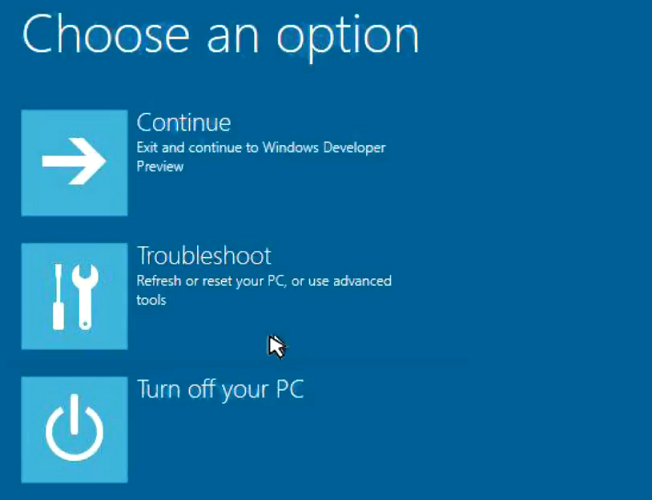
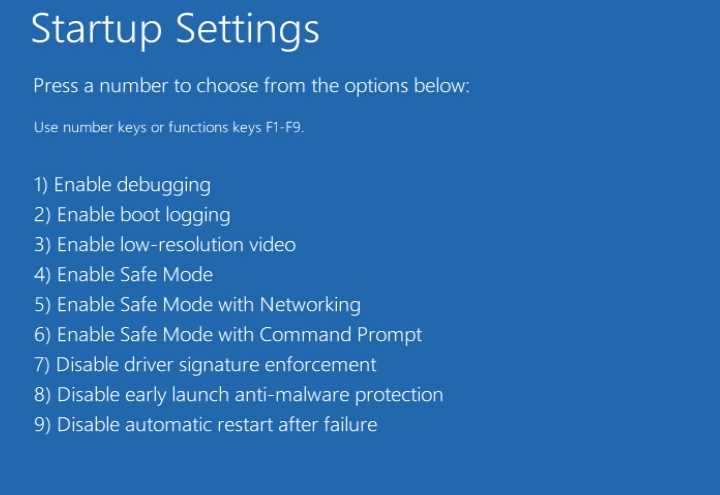
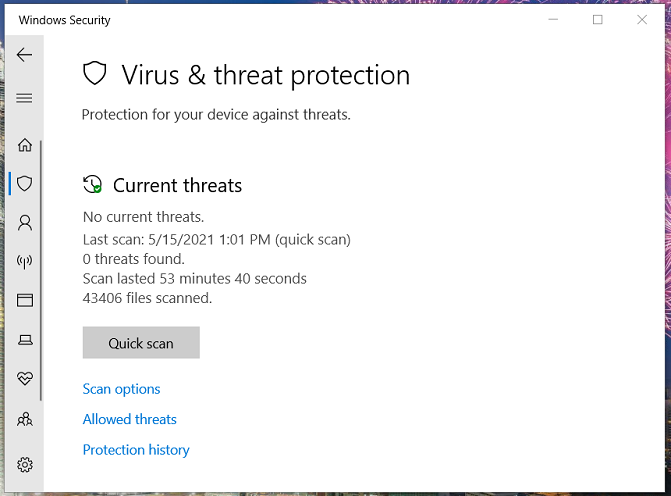

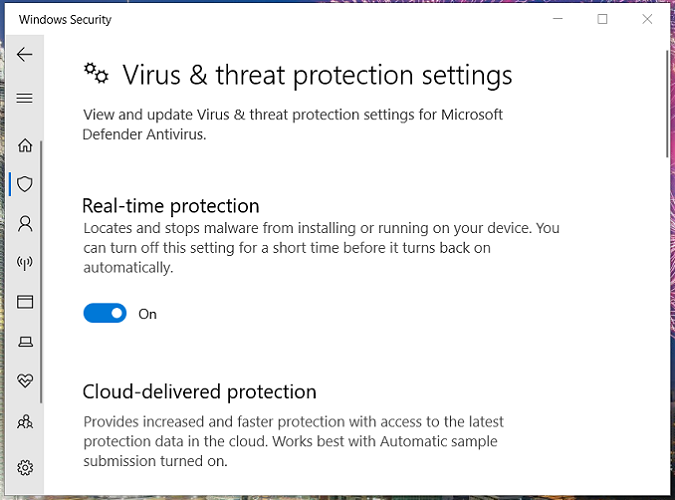
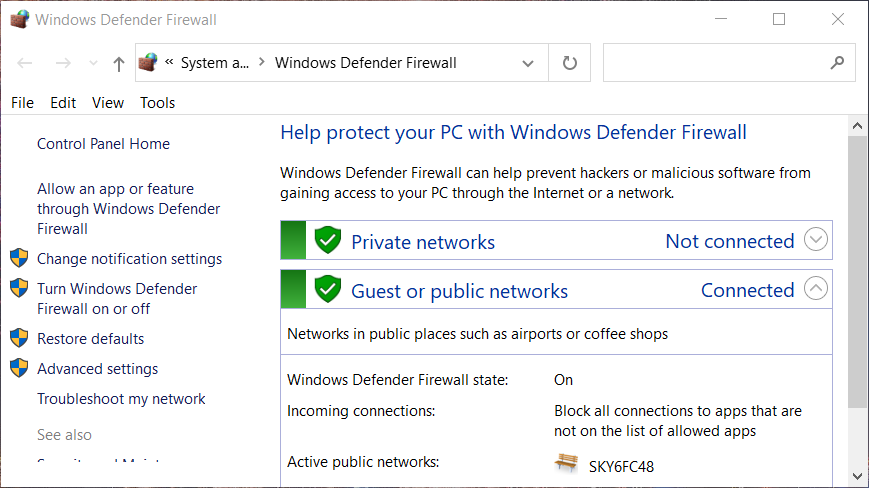
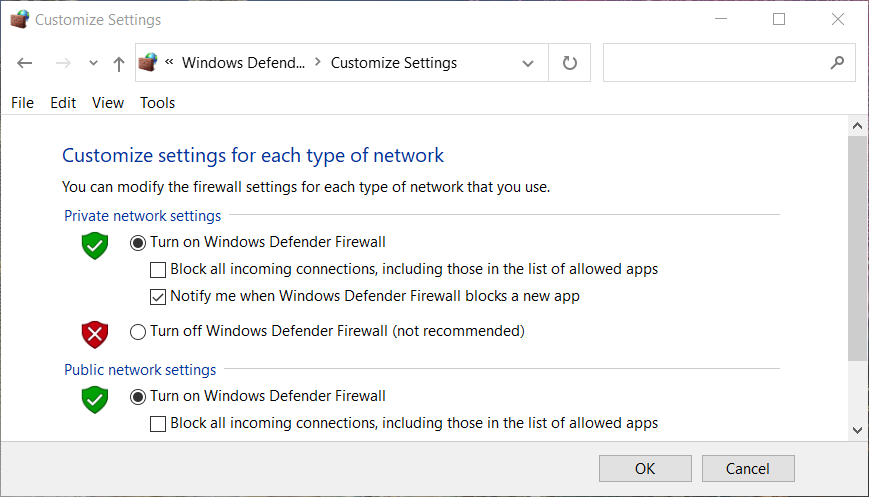
 NOTE
NOTE
![Microsoft Solitaire is Not Connecting to Internet [Fix]](https://windowsreport.com/wp-content/uploads/2021/07/microsoft-solitaire-not-connecting-to-internet.jpg)
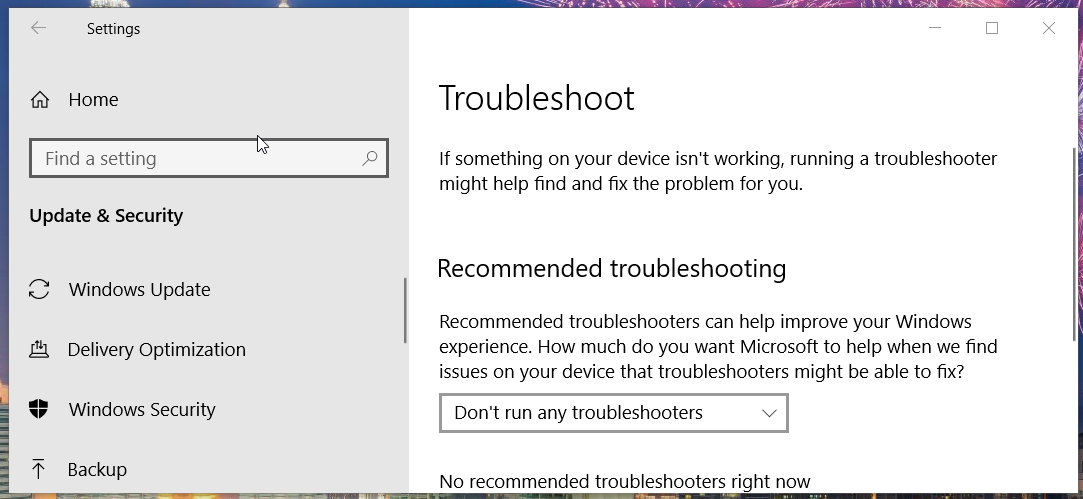
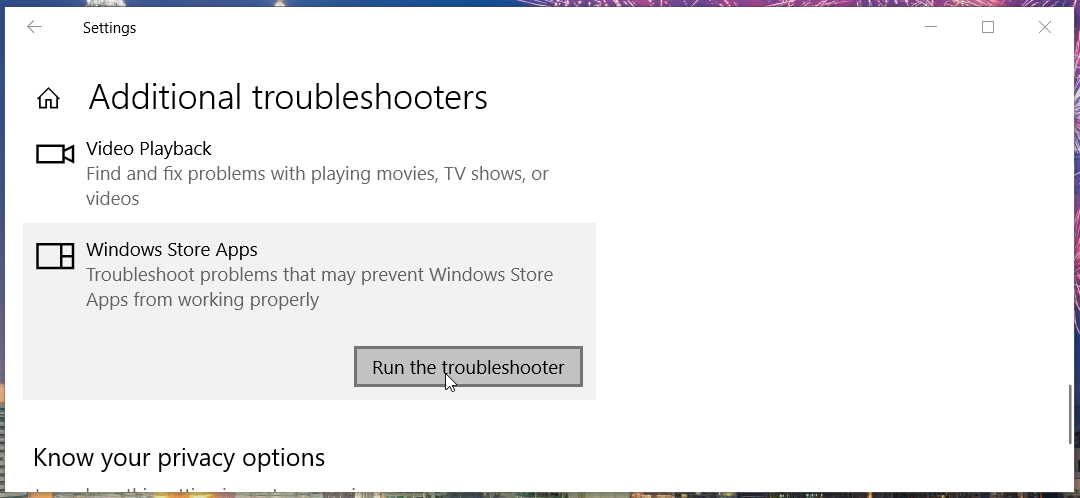
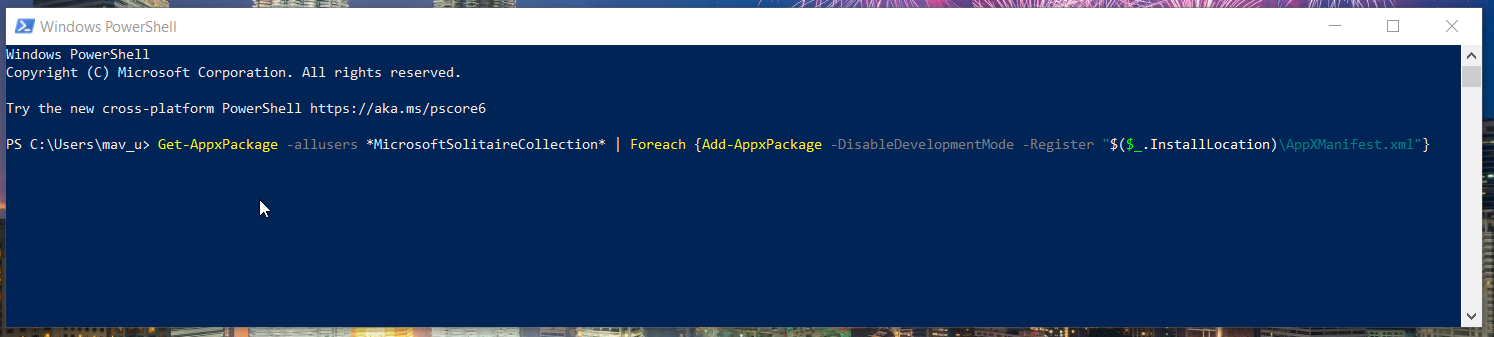
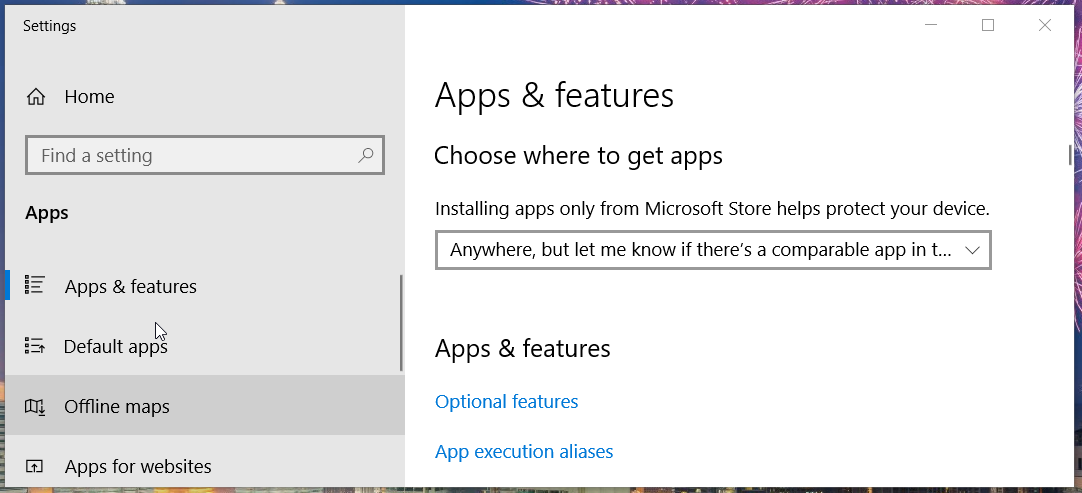
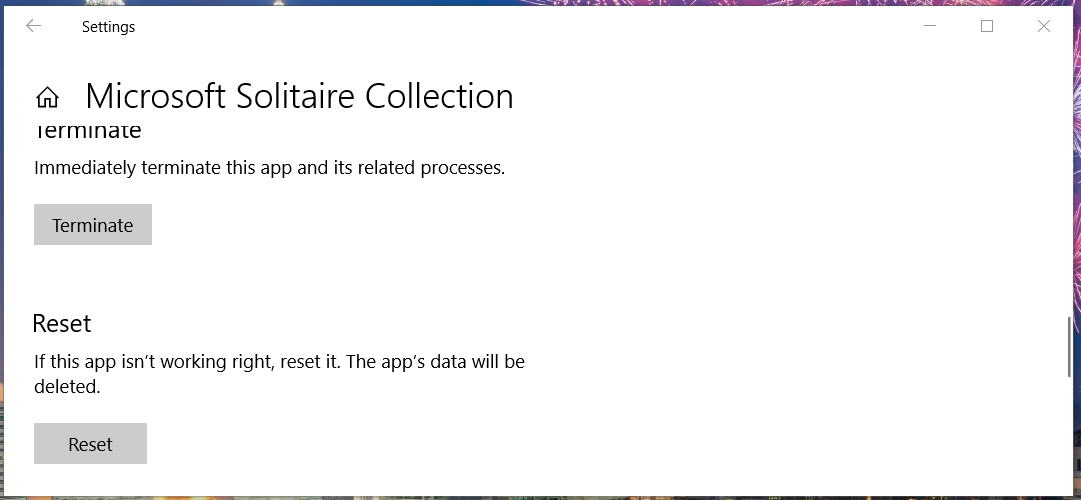
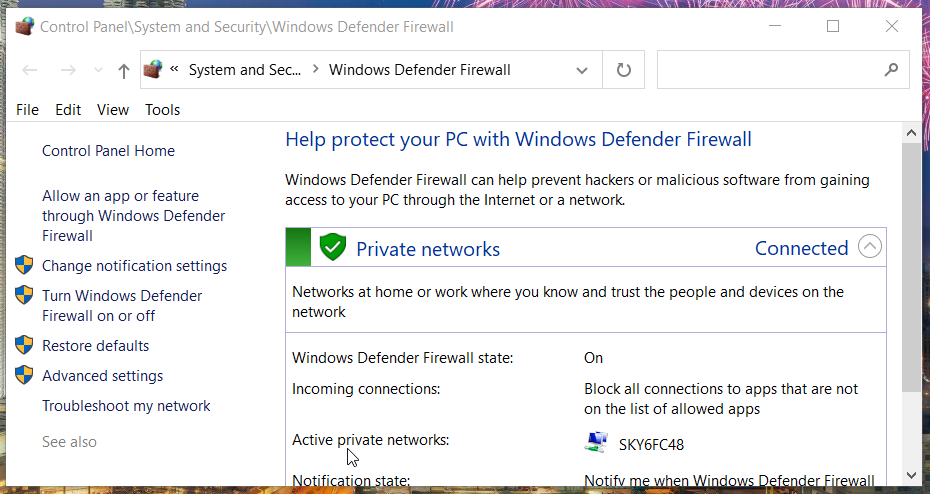
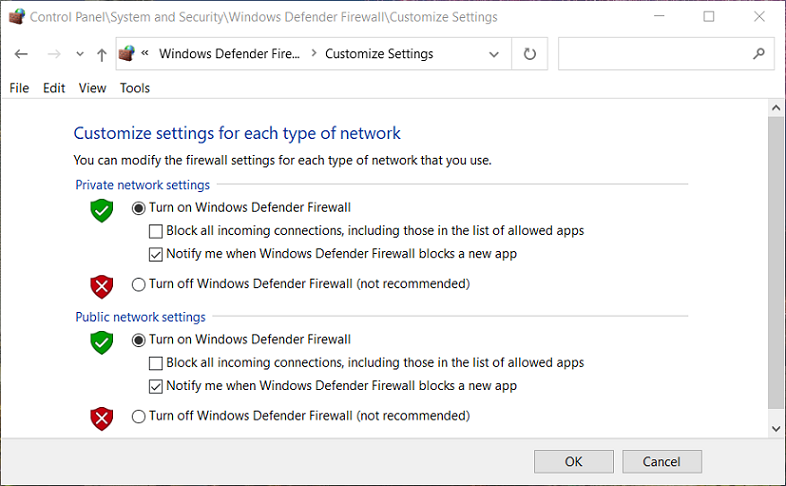

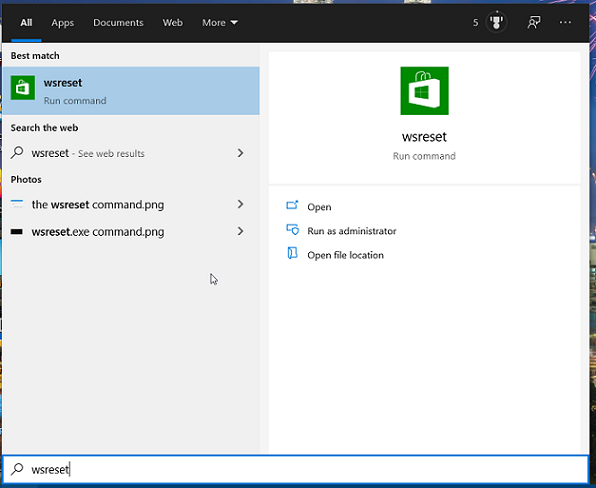


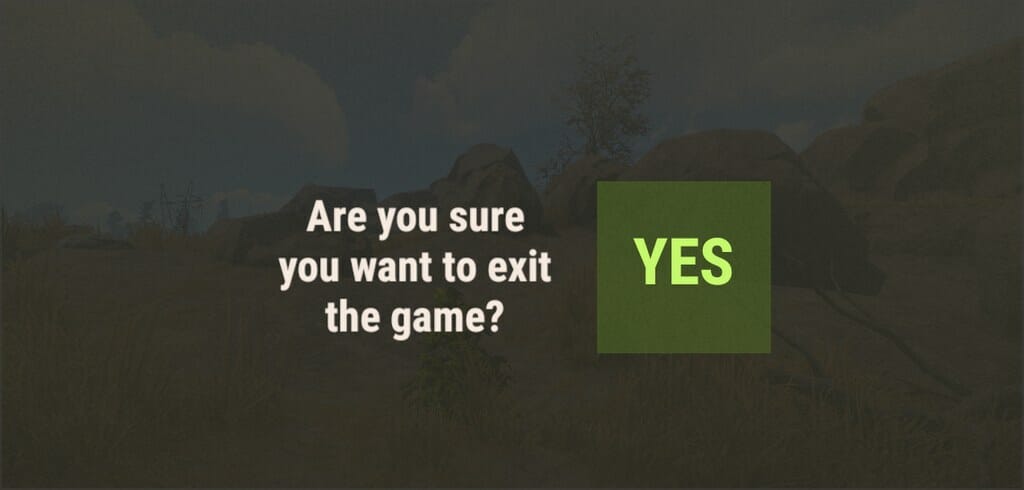

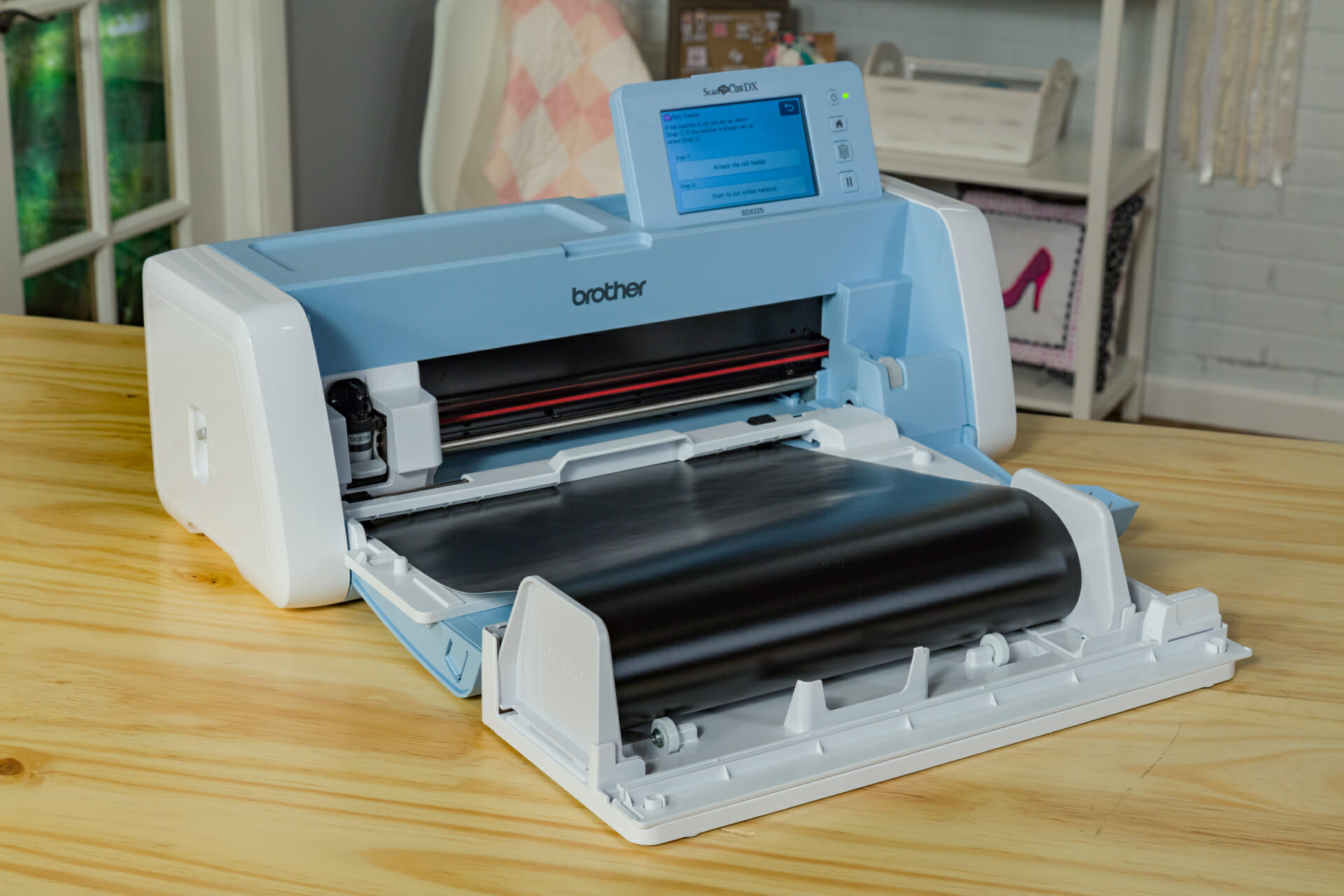


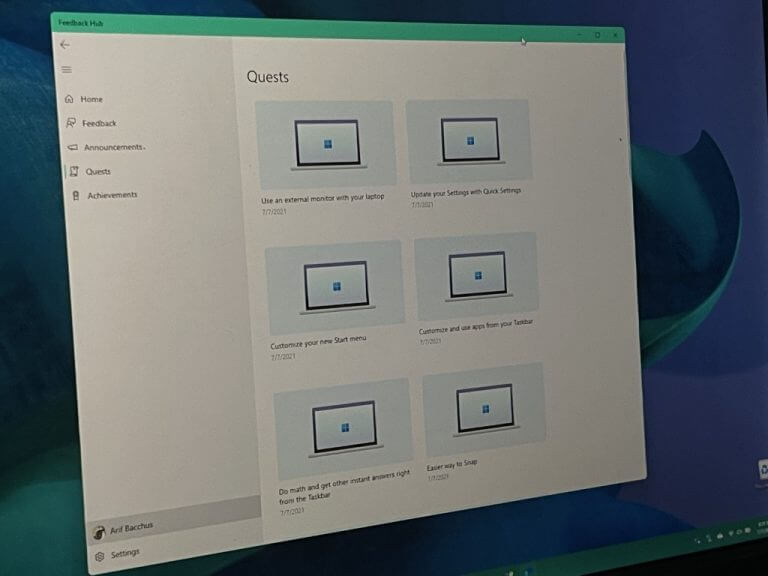
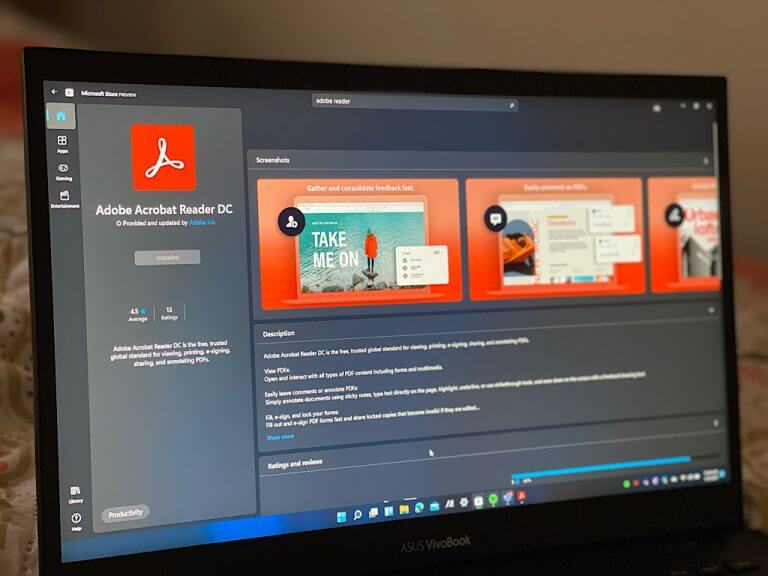

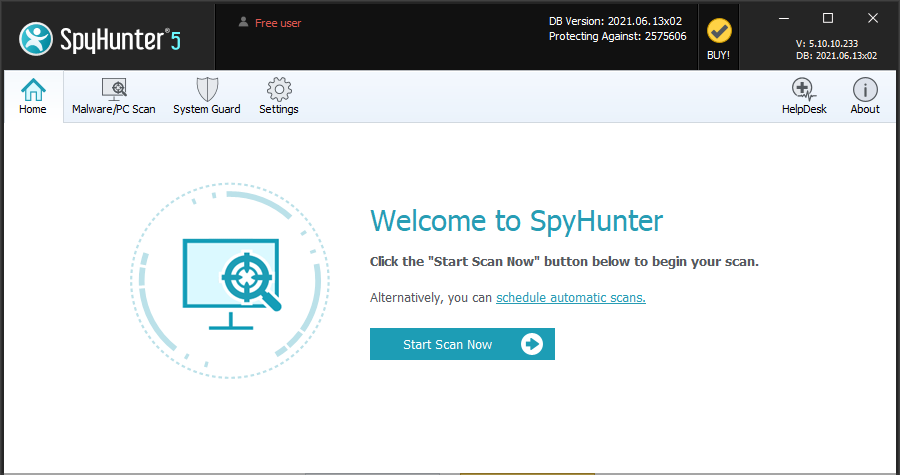
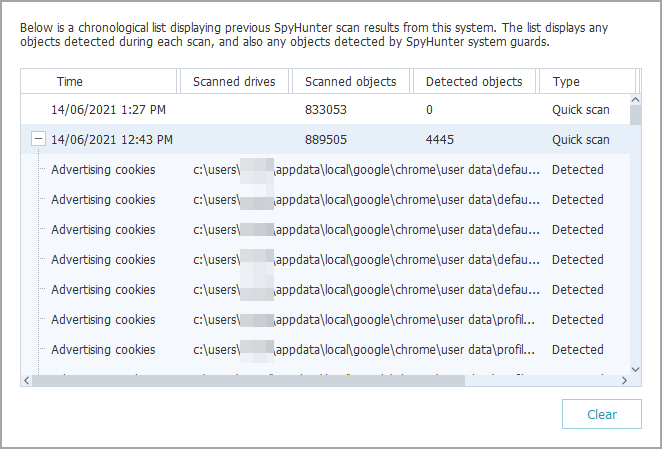
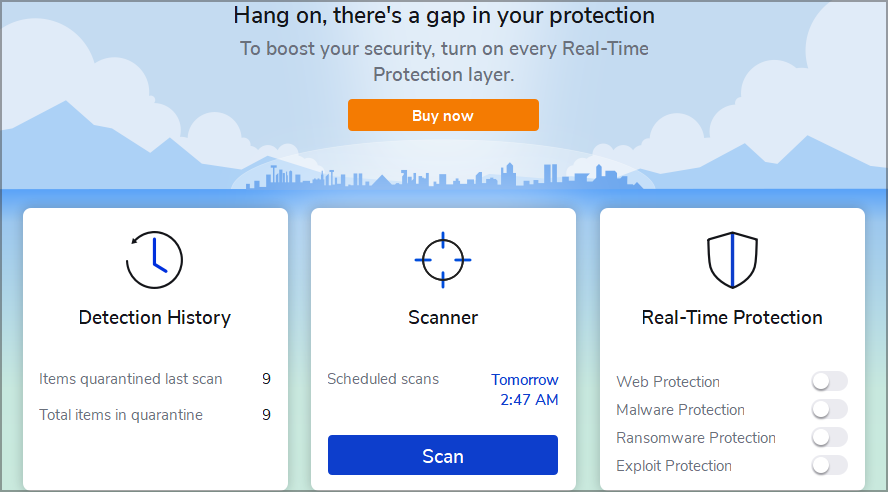
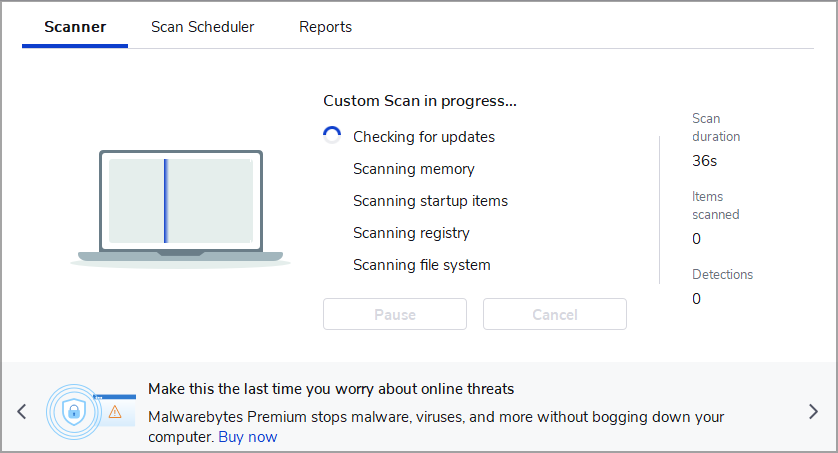
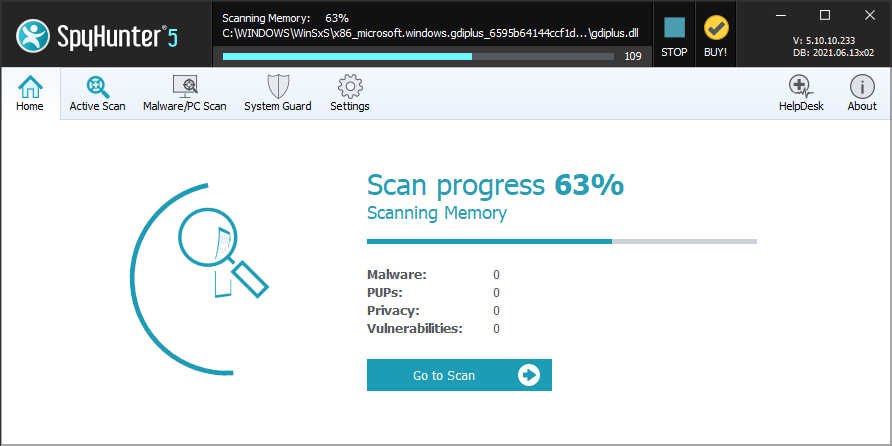
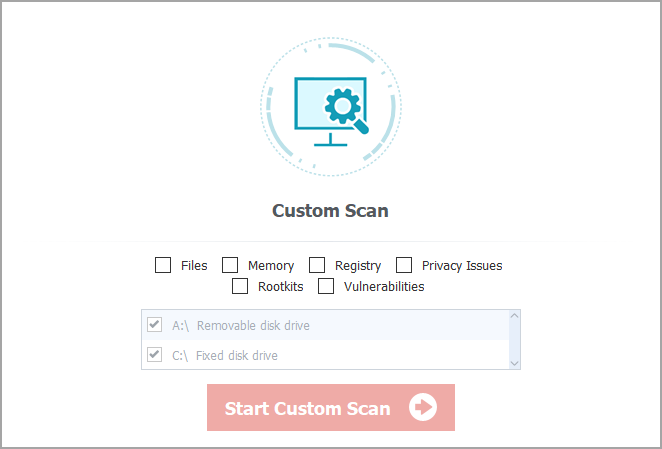
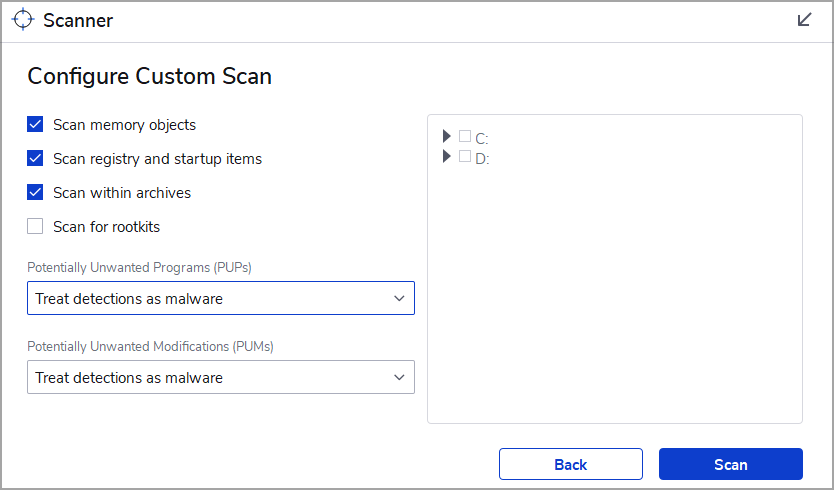
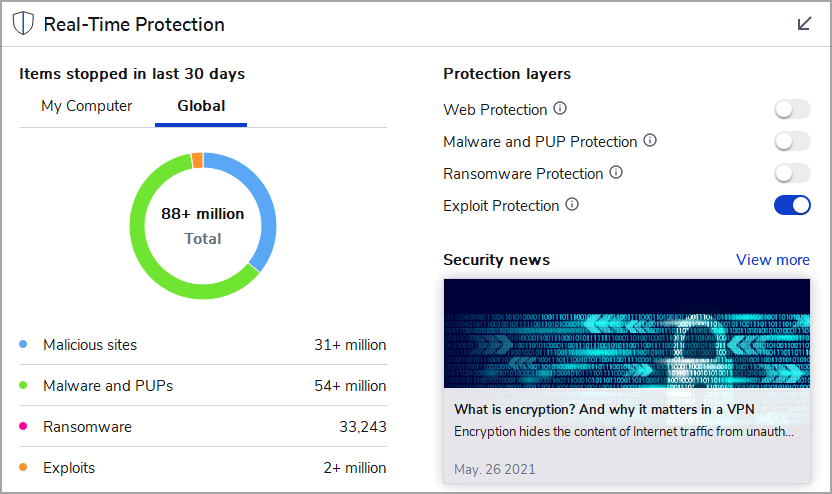


![How to reset video drivers without rebooting [Quick Guide]](https://windowsreport.com/wp-content/uploads/2021/06/video-driver-cover-image-min.jpg)


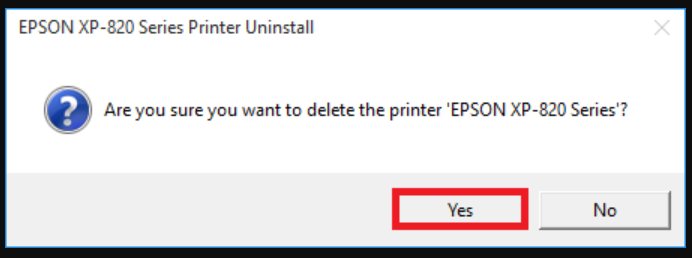
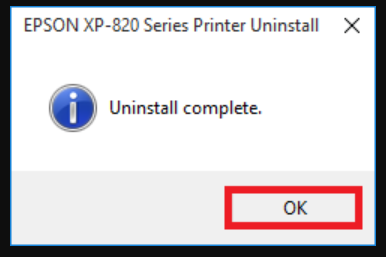
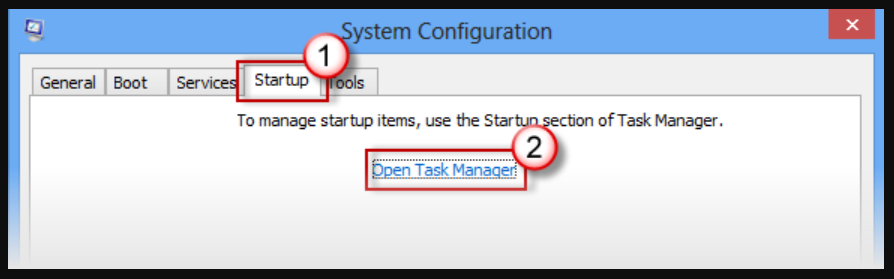


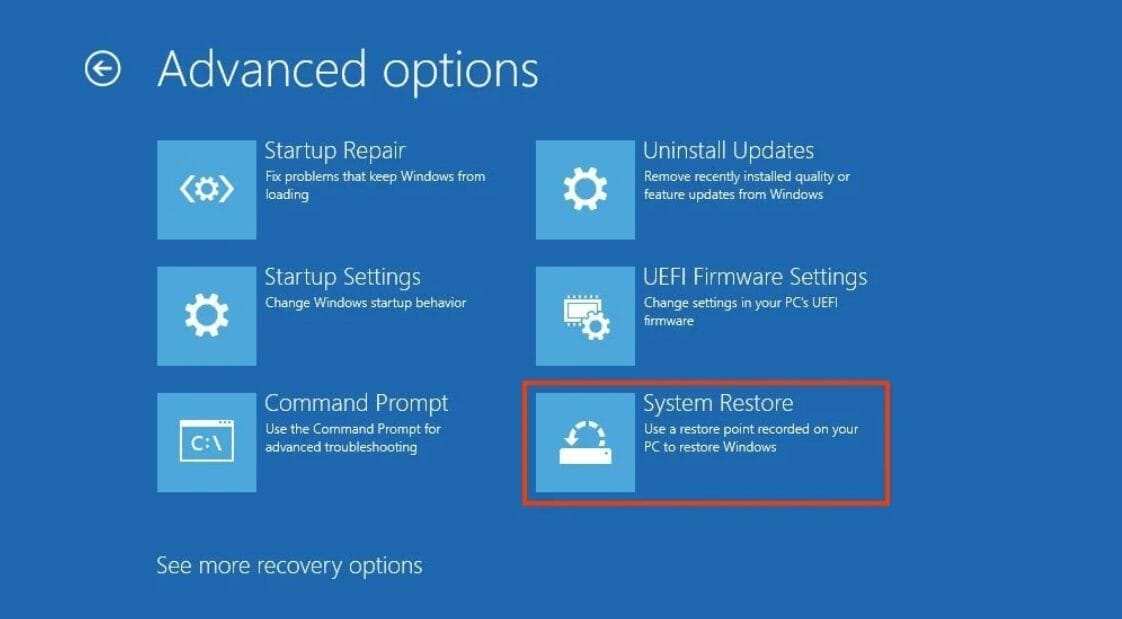
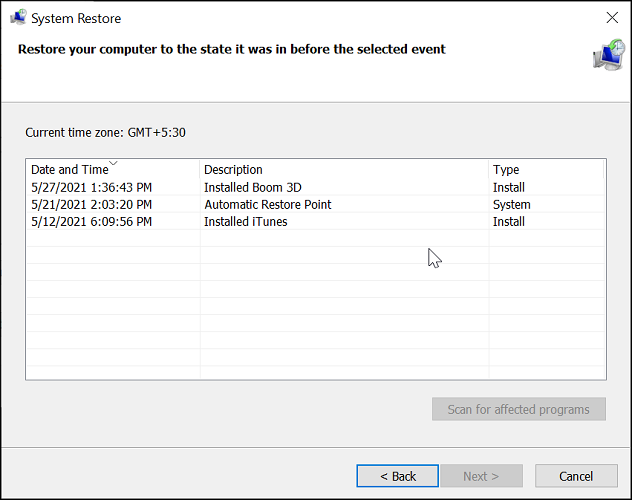
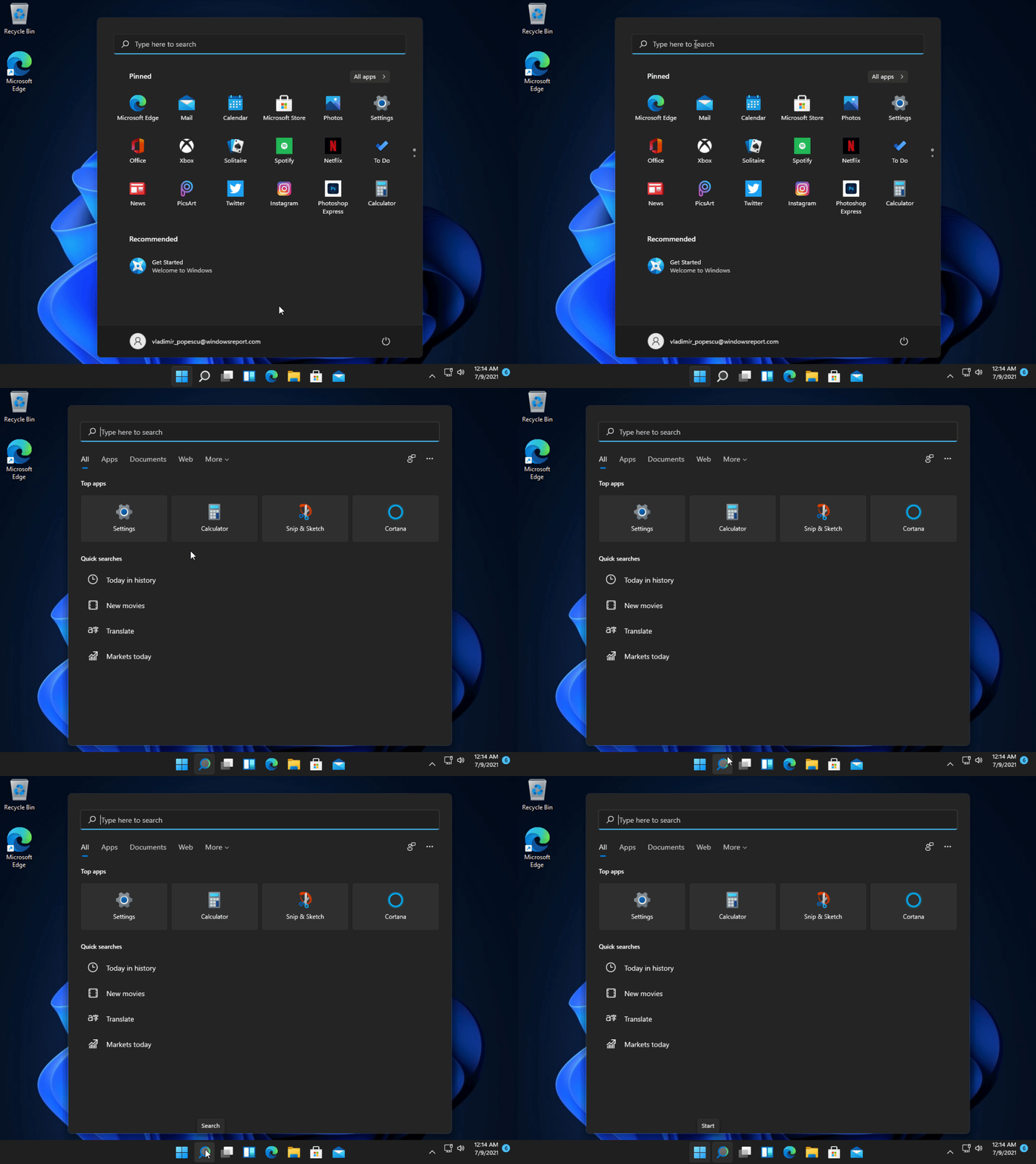
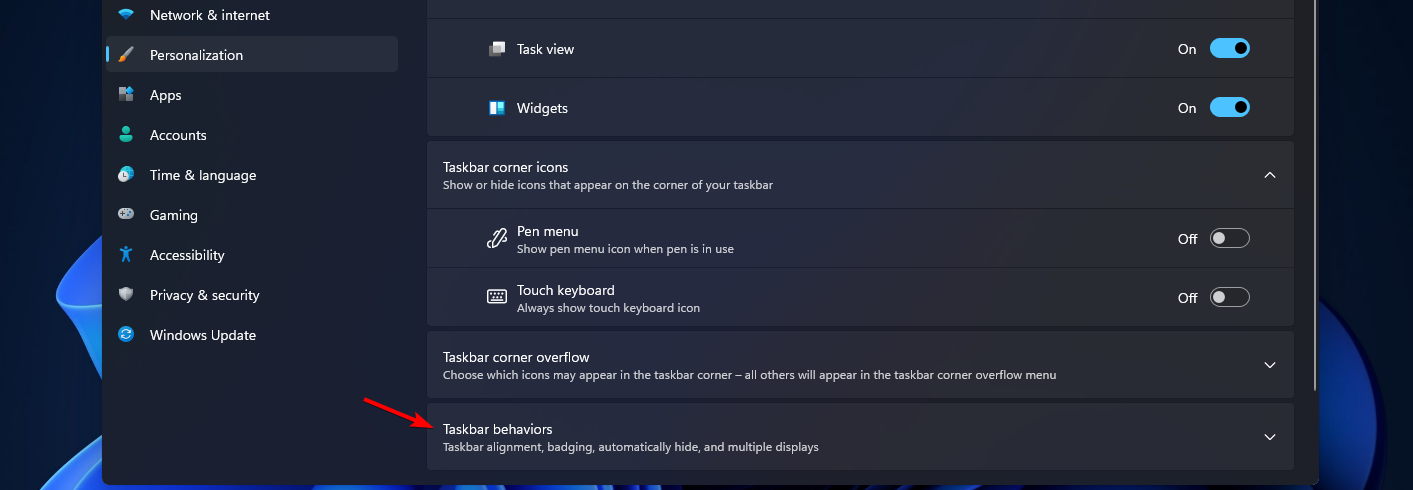
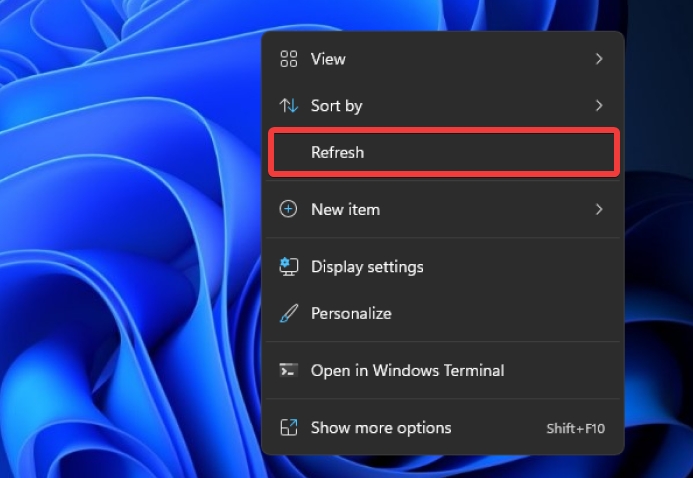
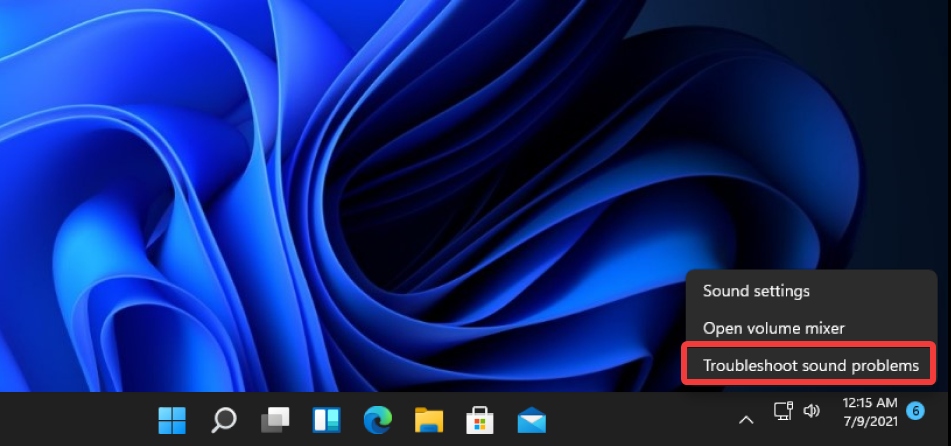
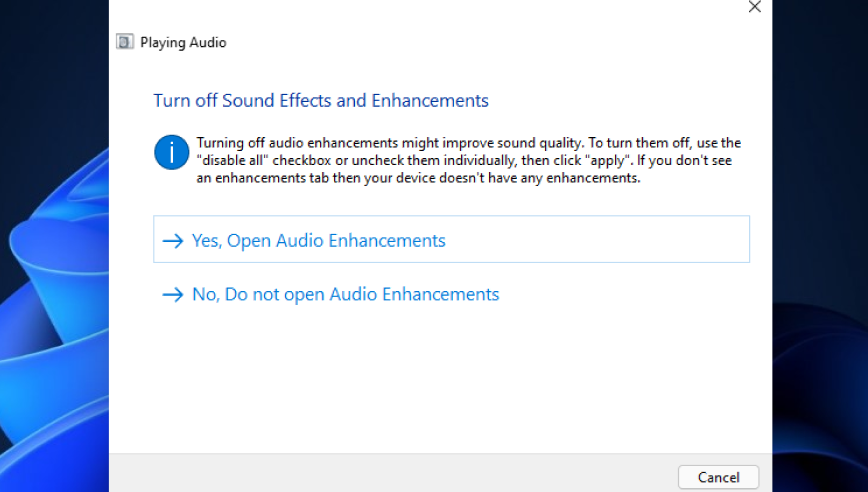
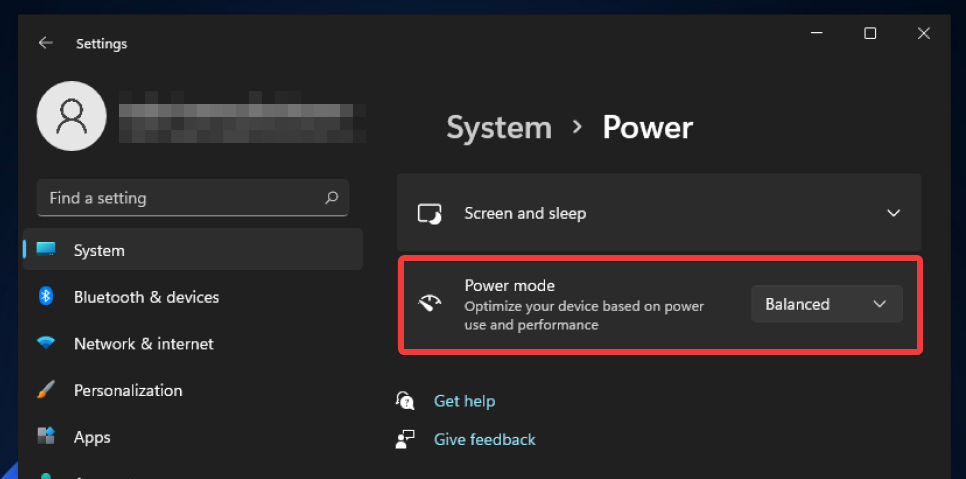
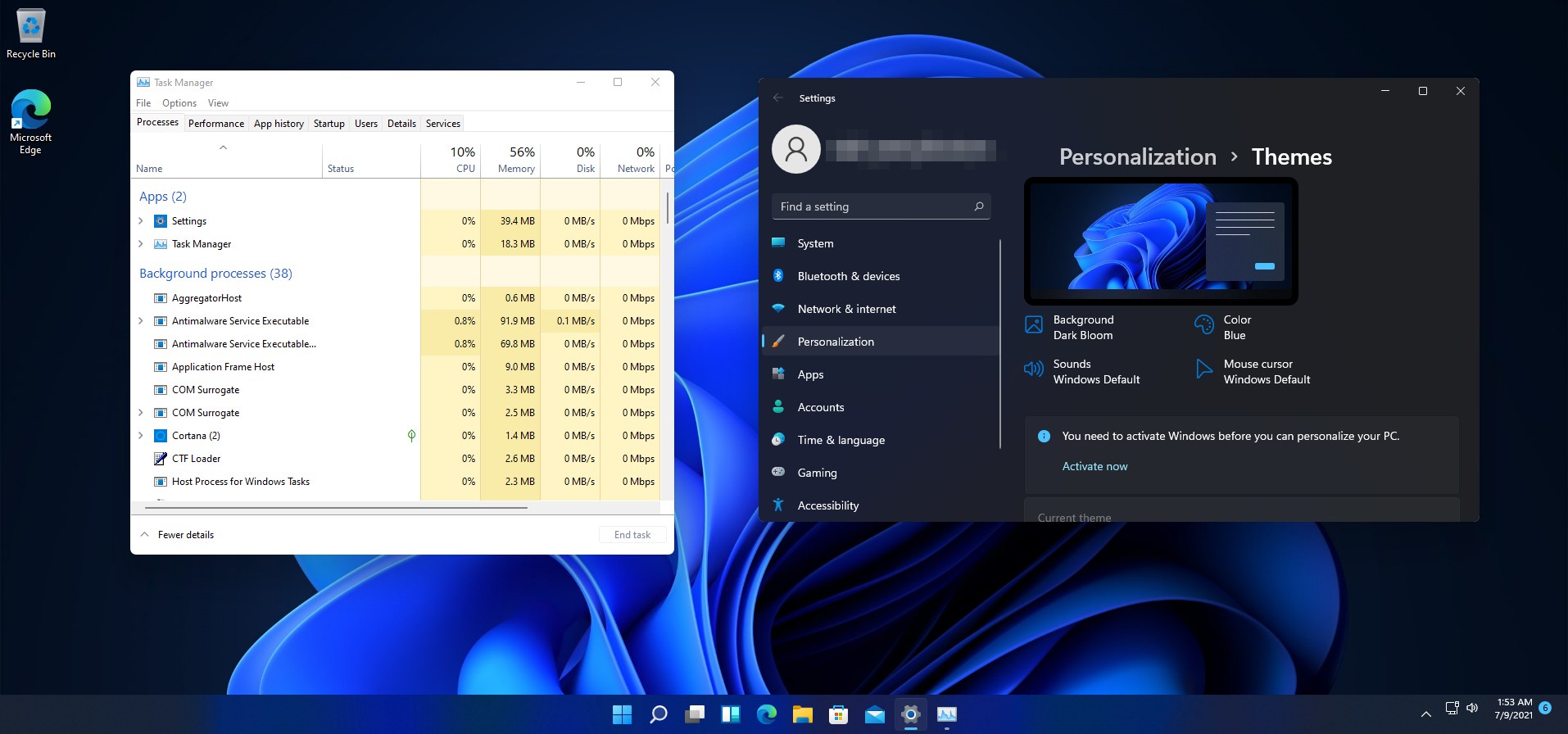
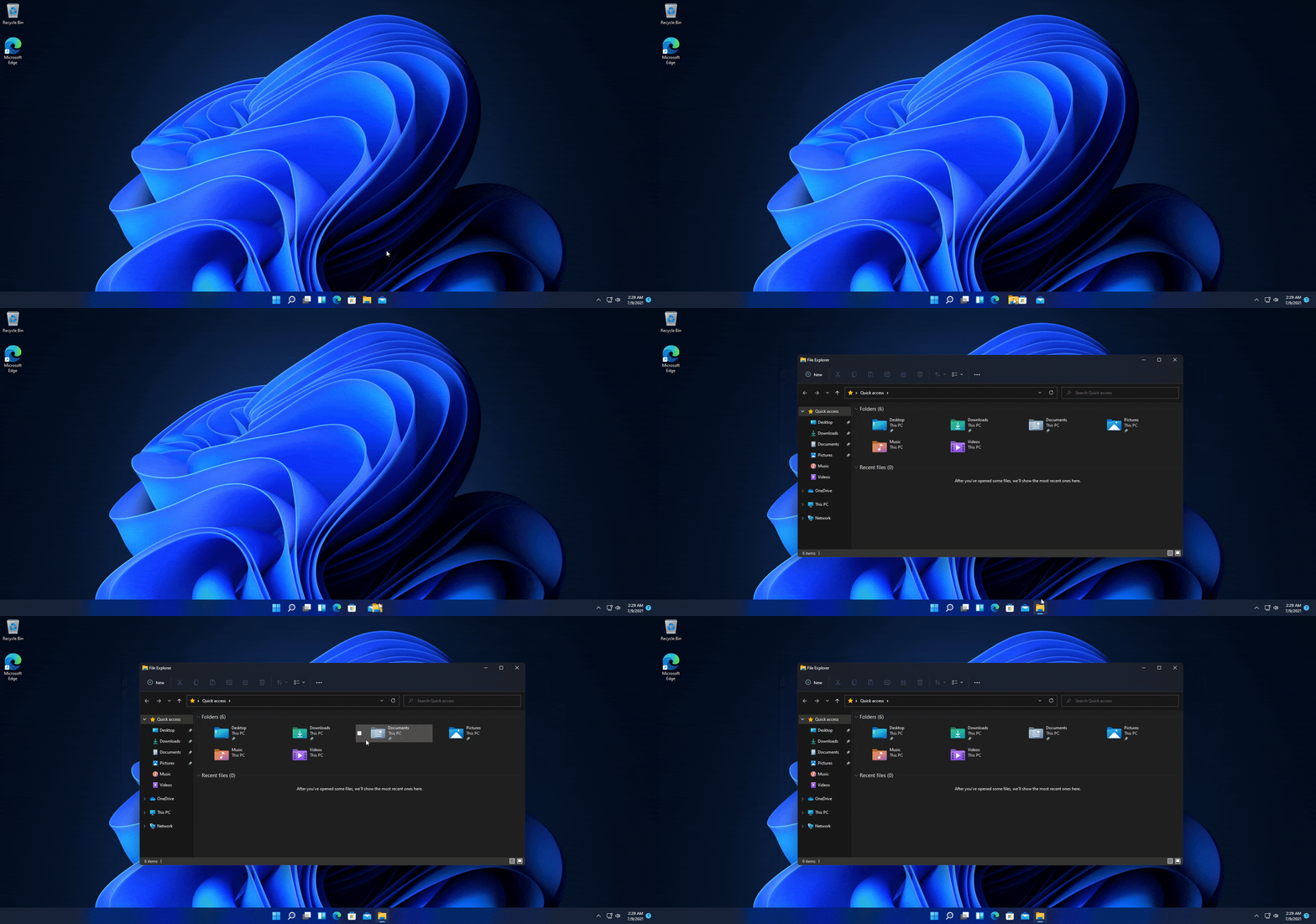
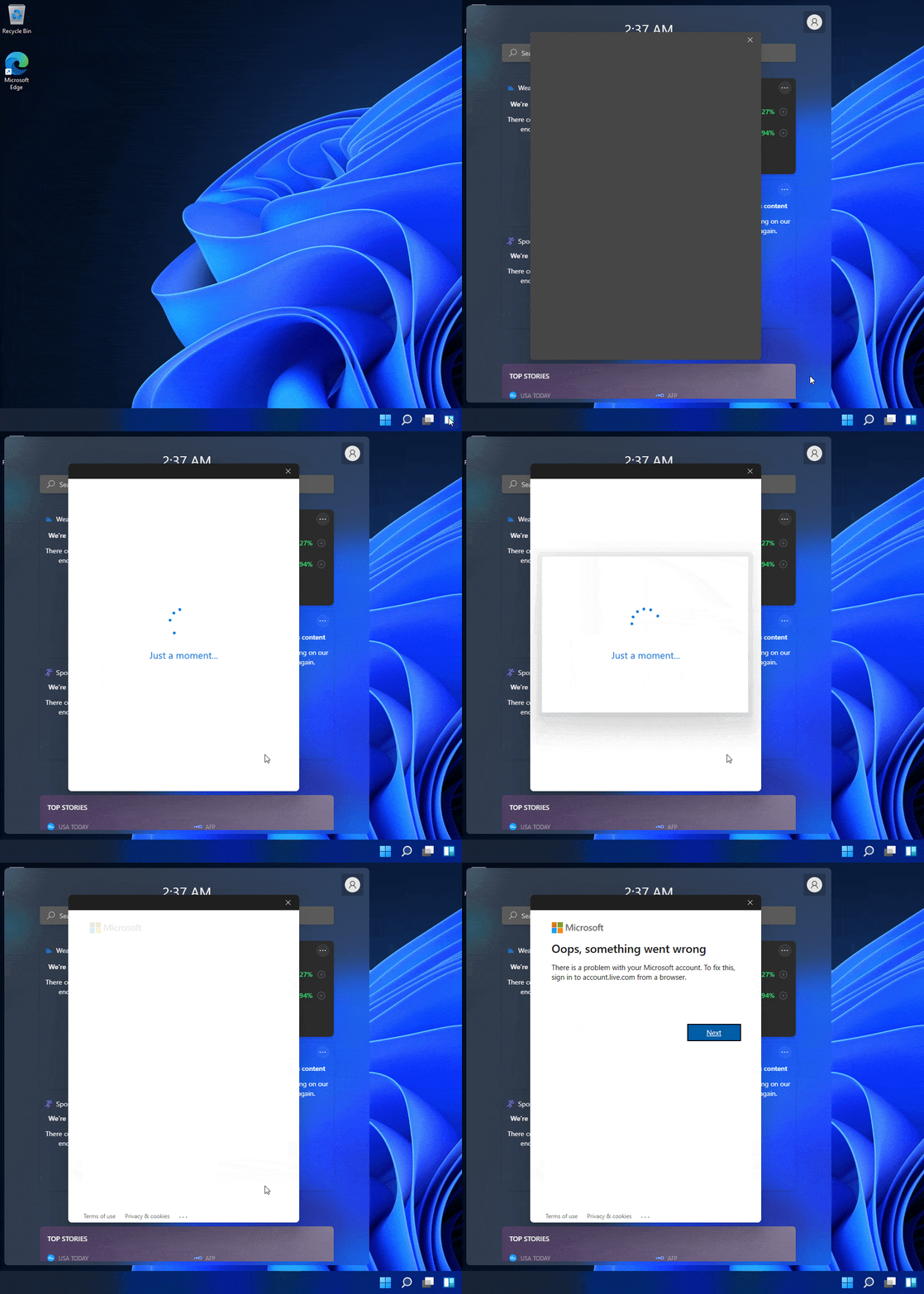
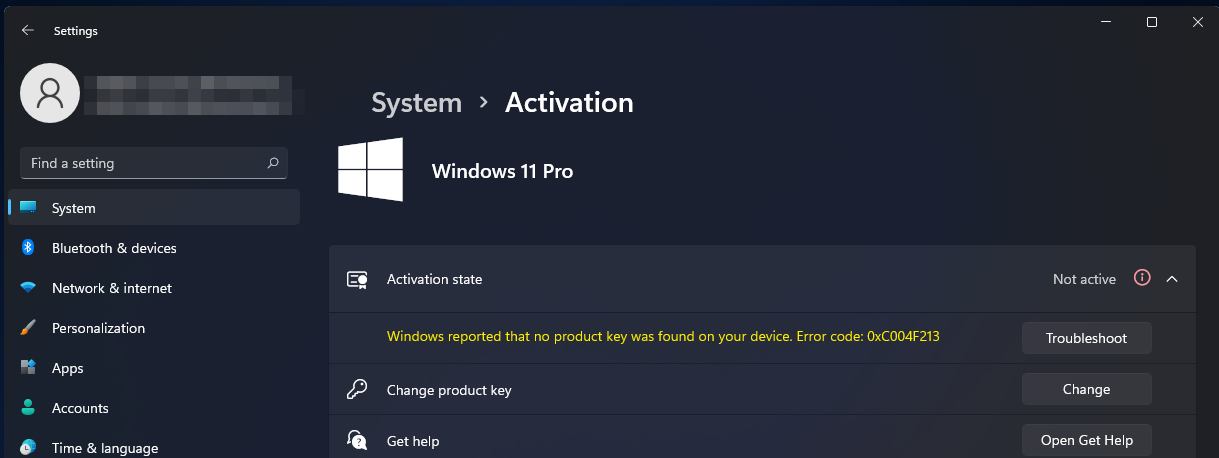
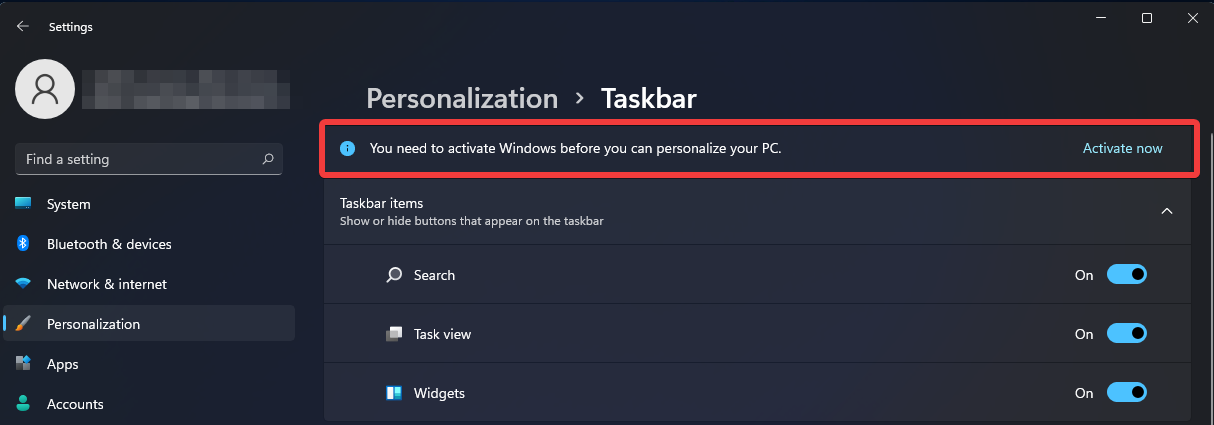
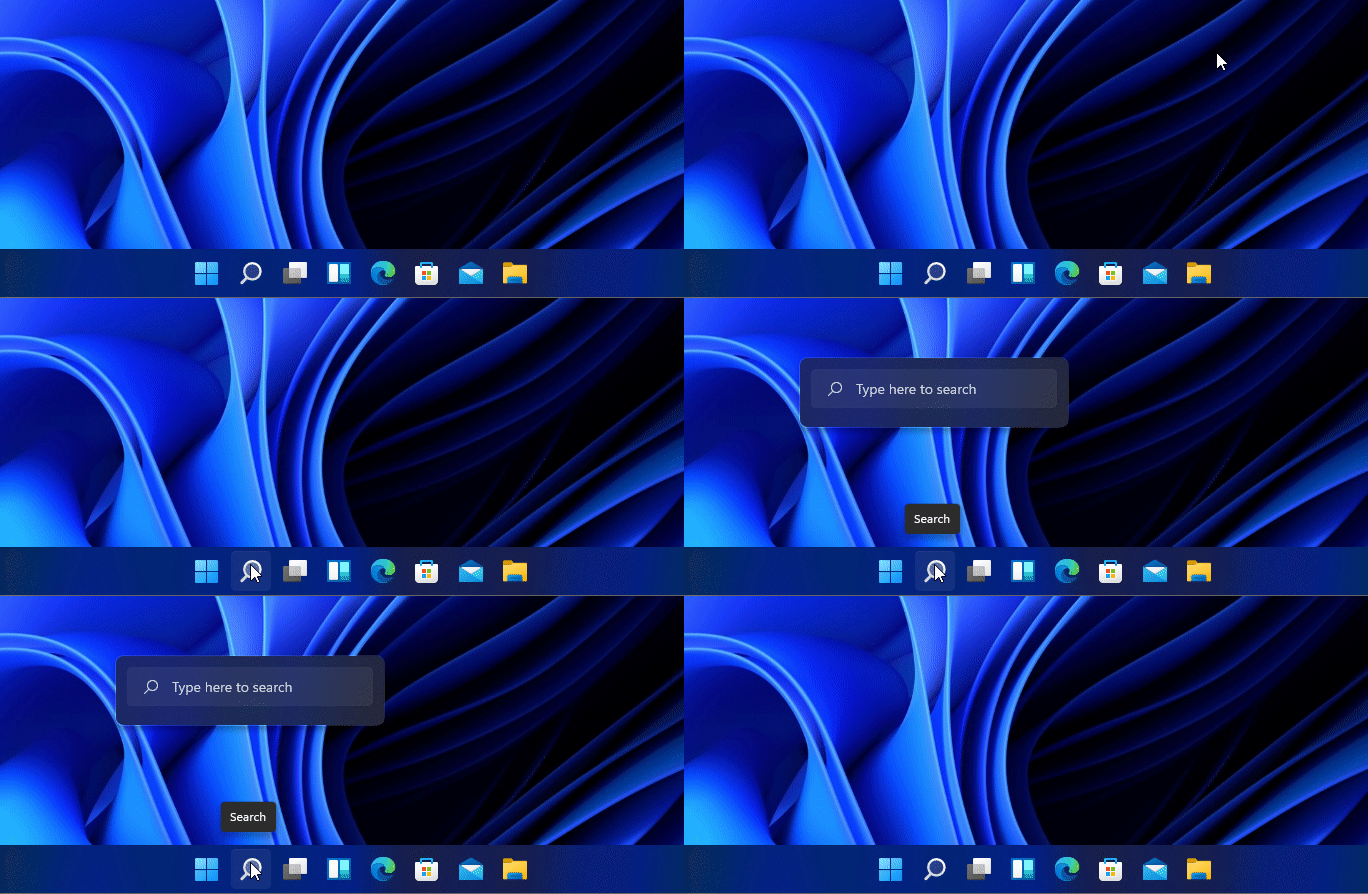
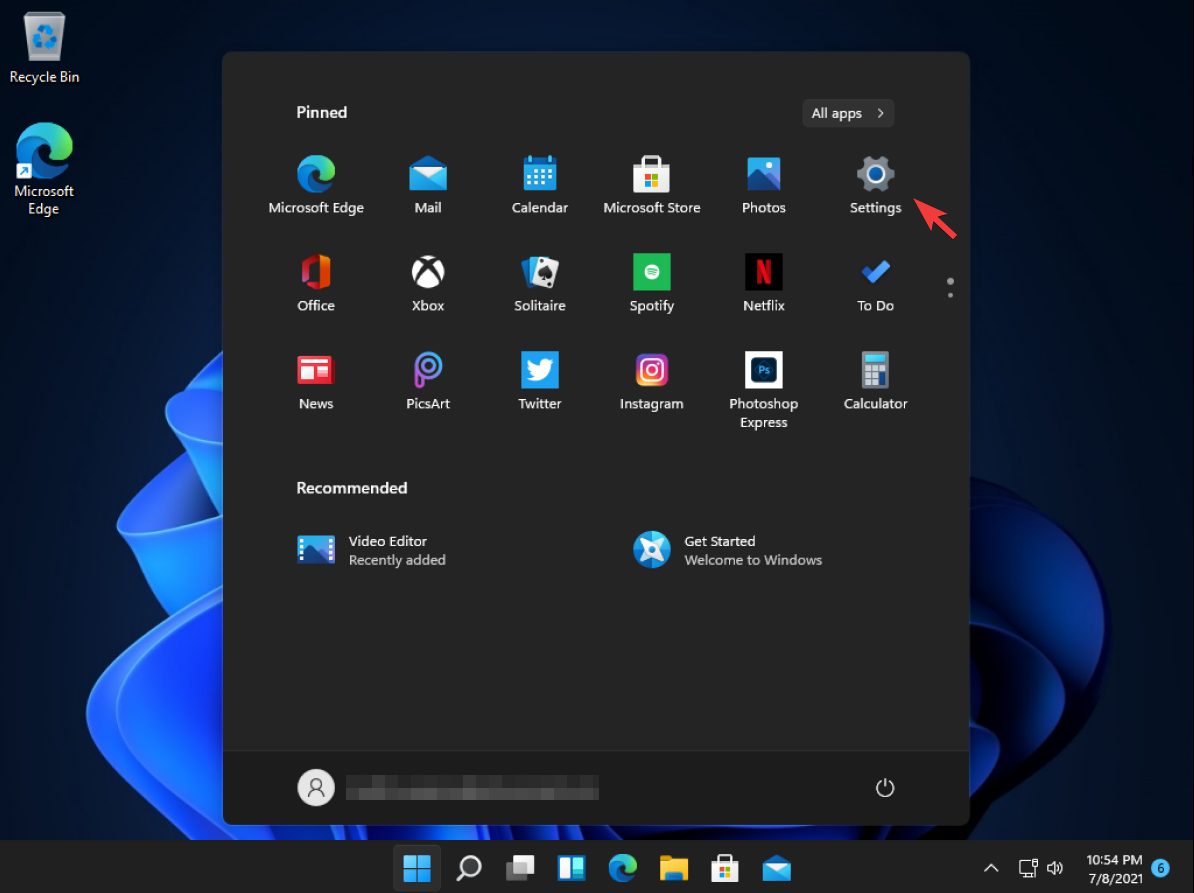
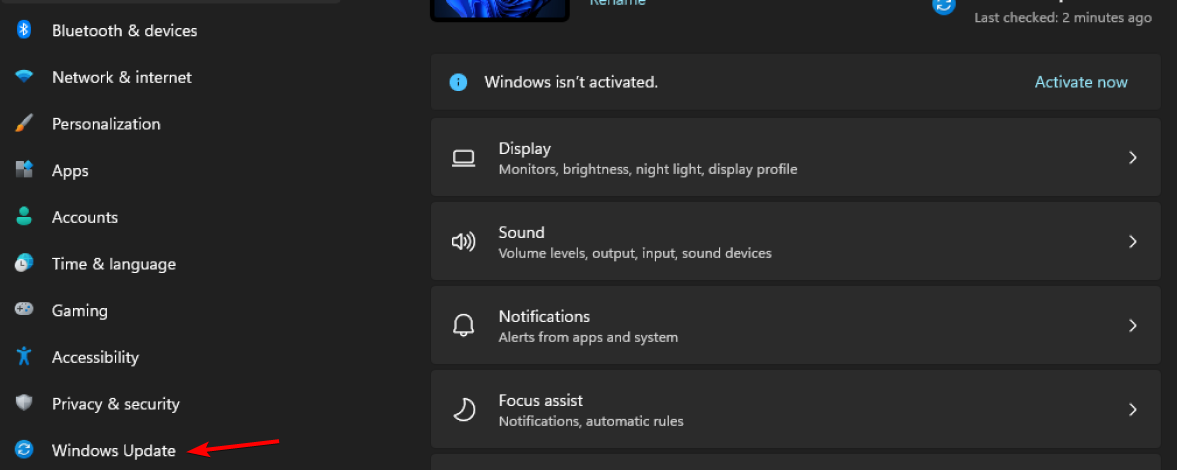
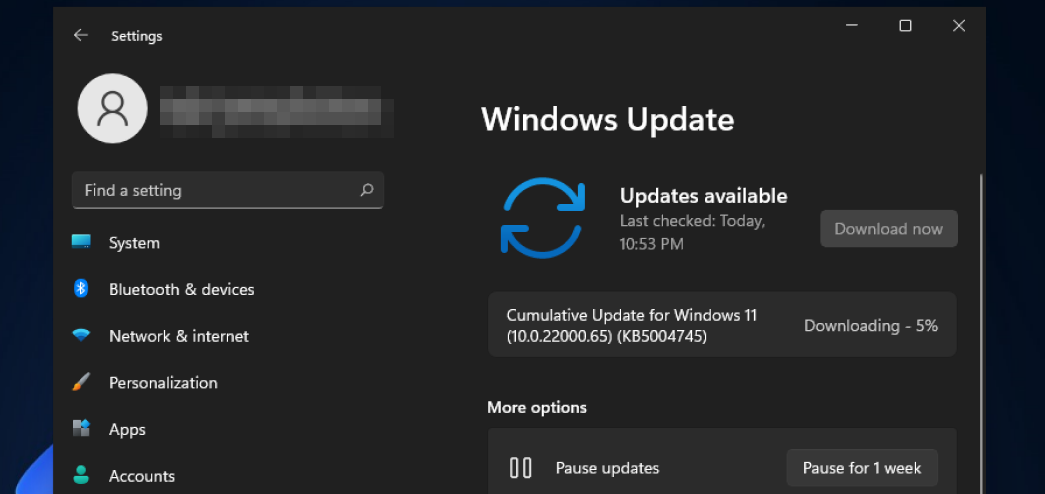
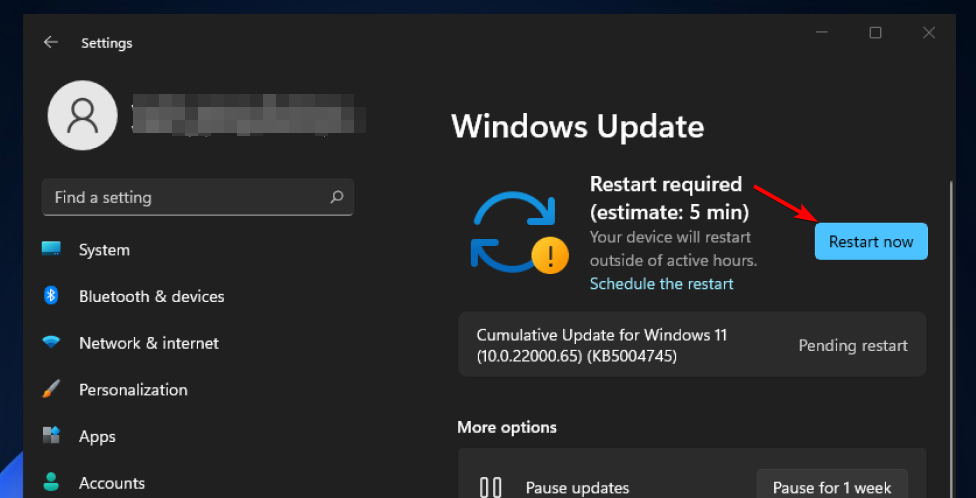
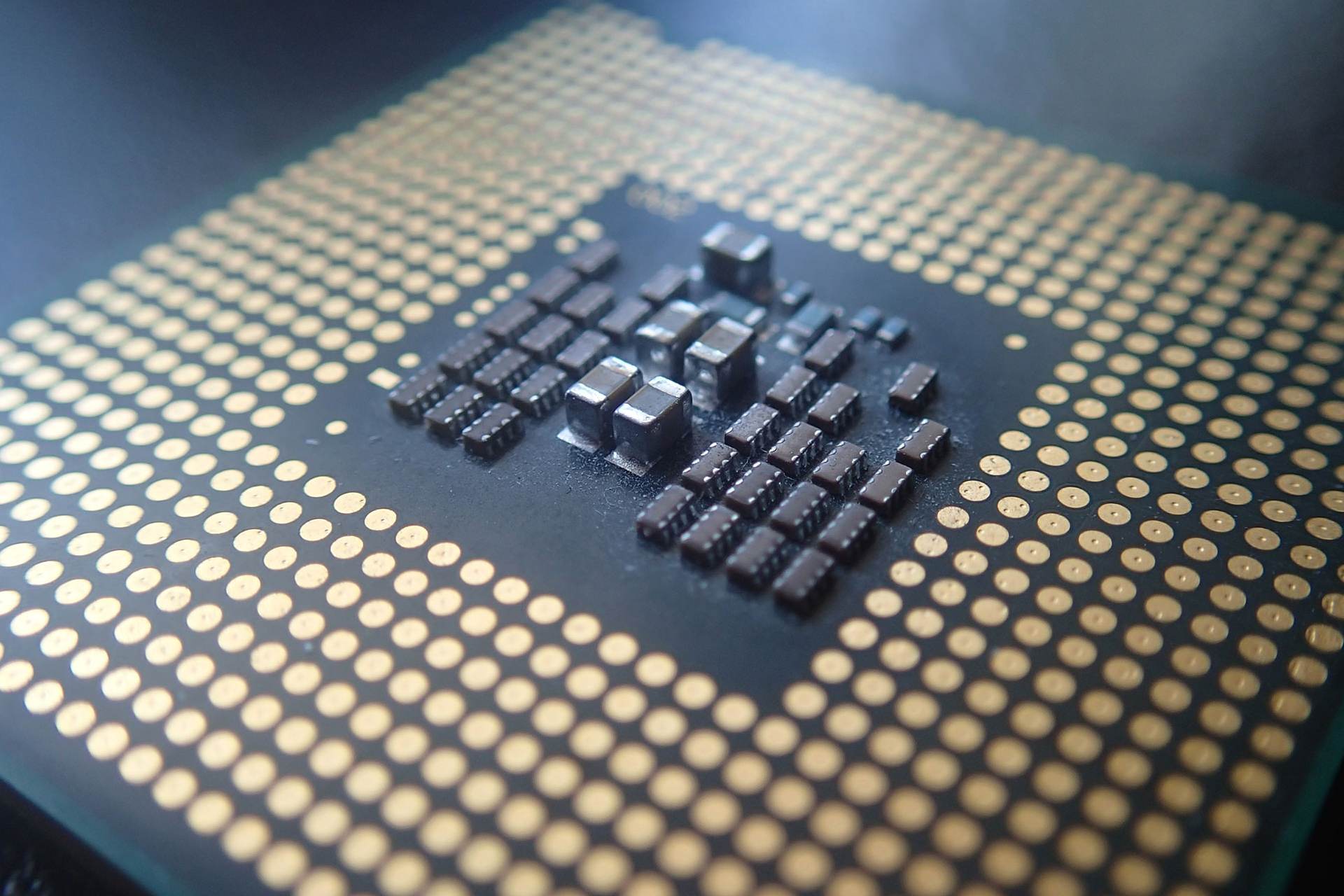
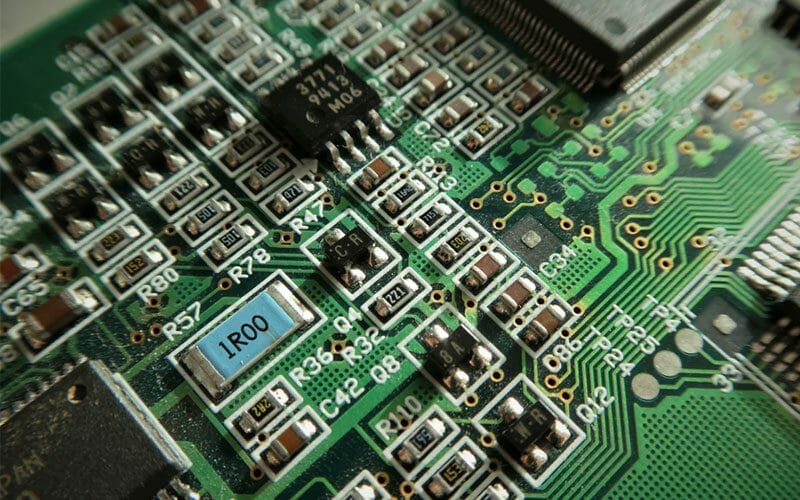


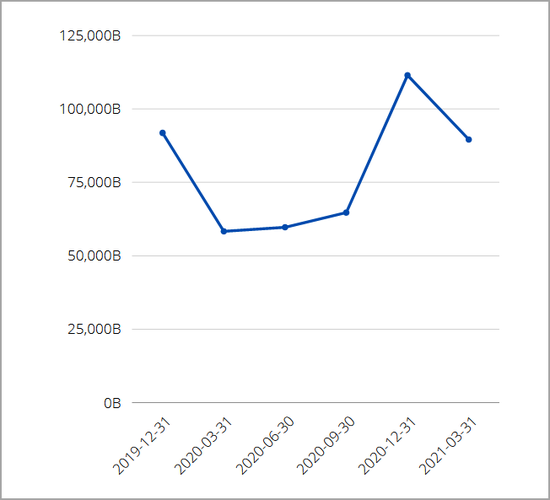
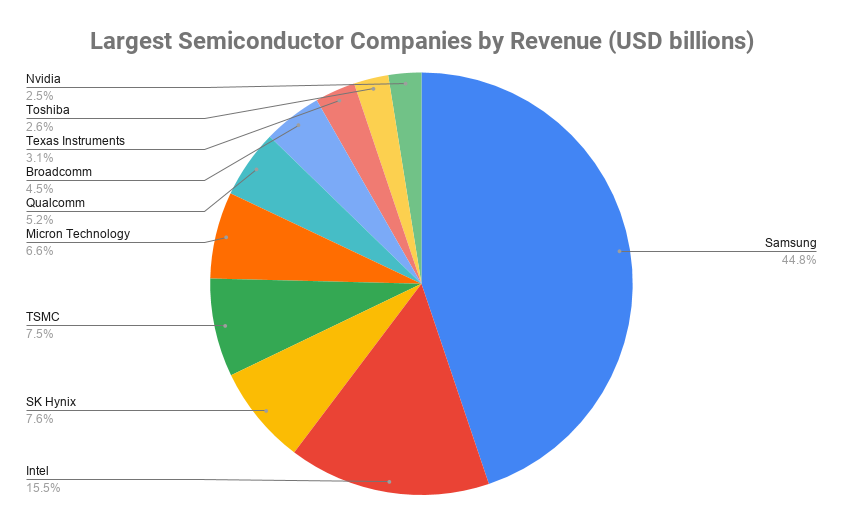
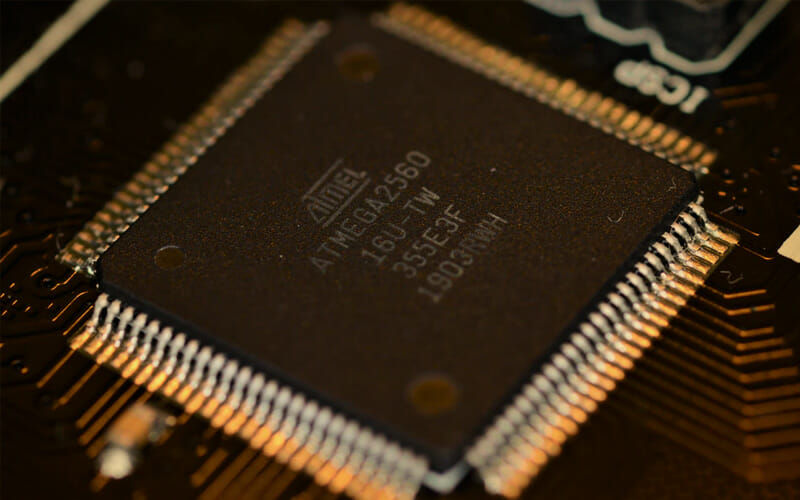
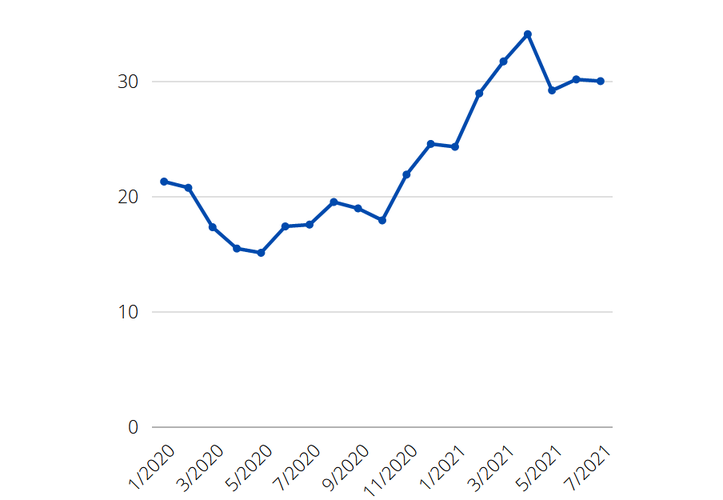

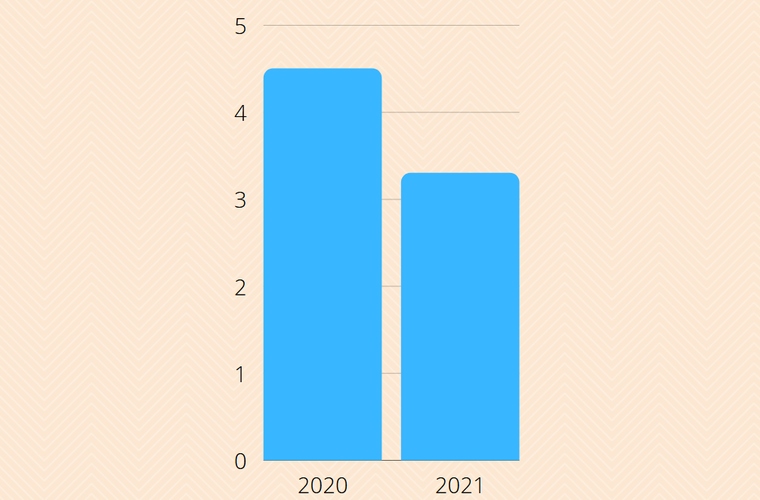










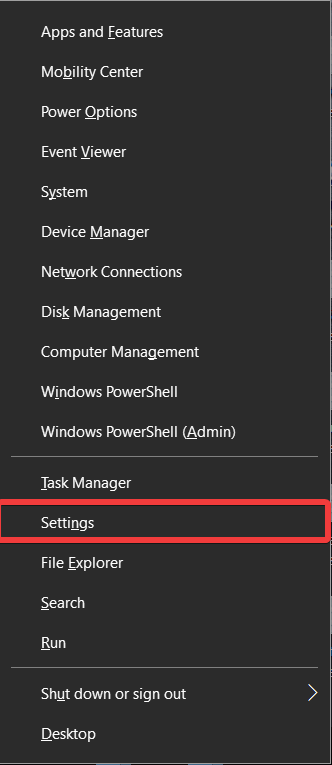
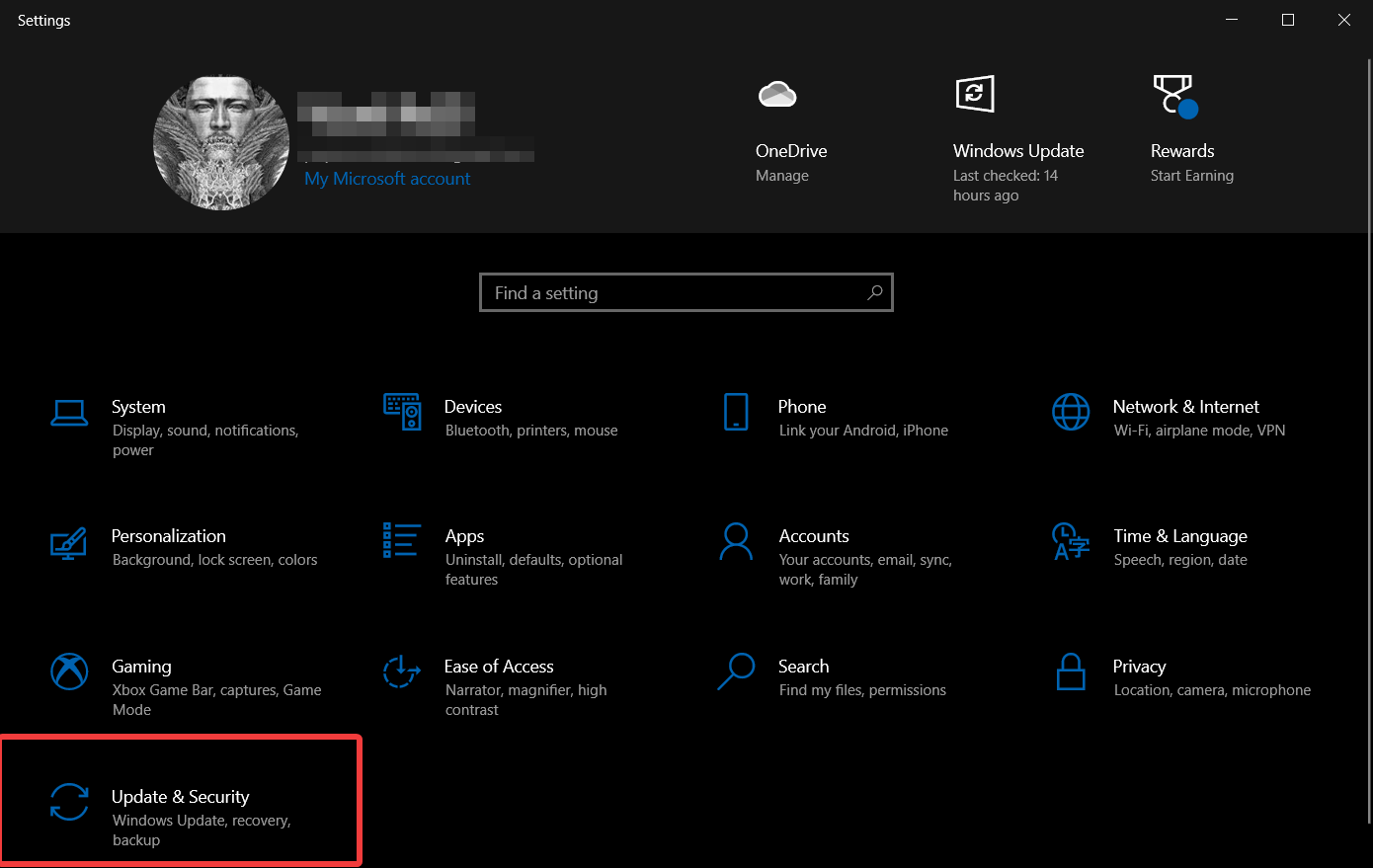
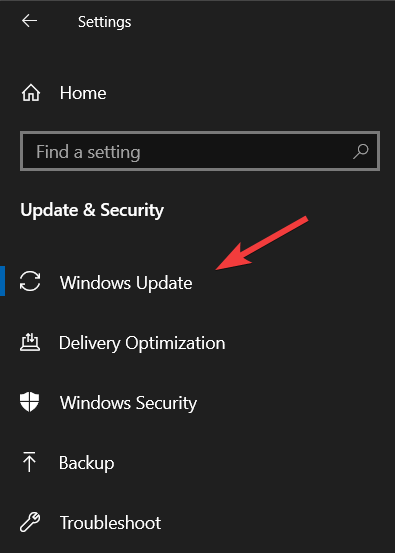
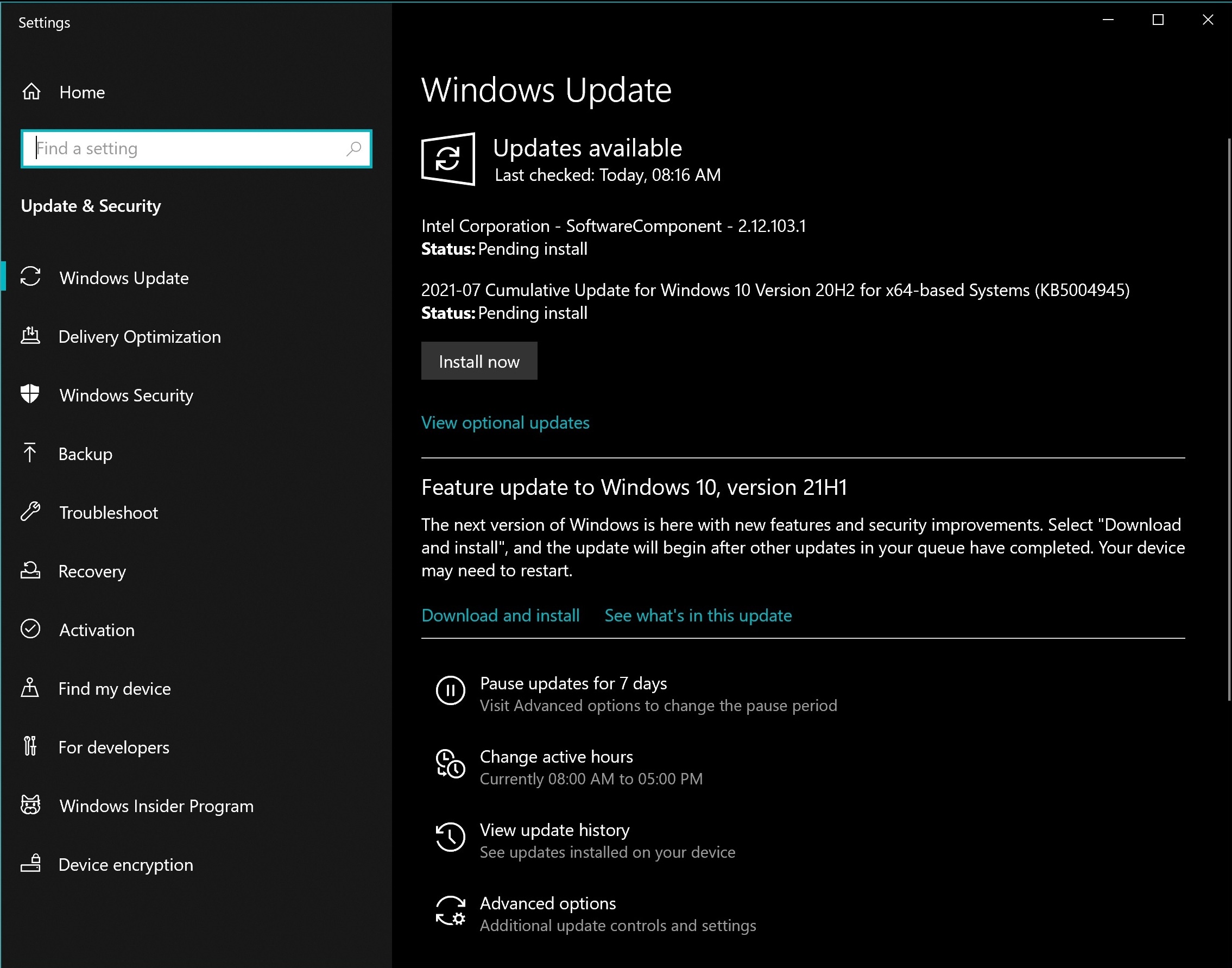
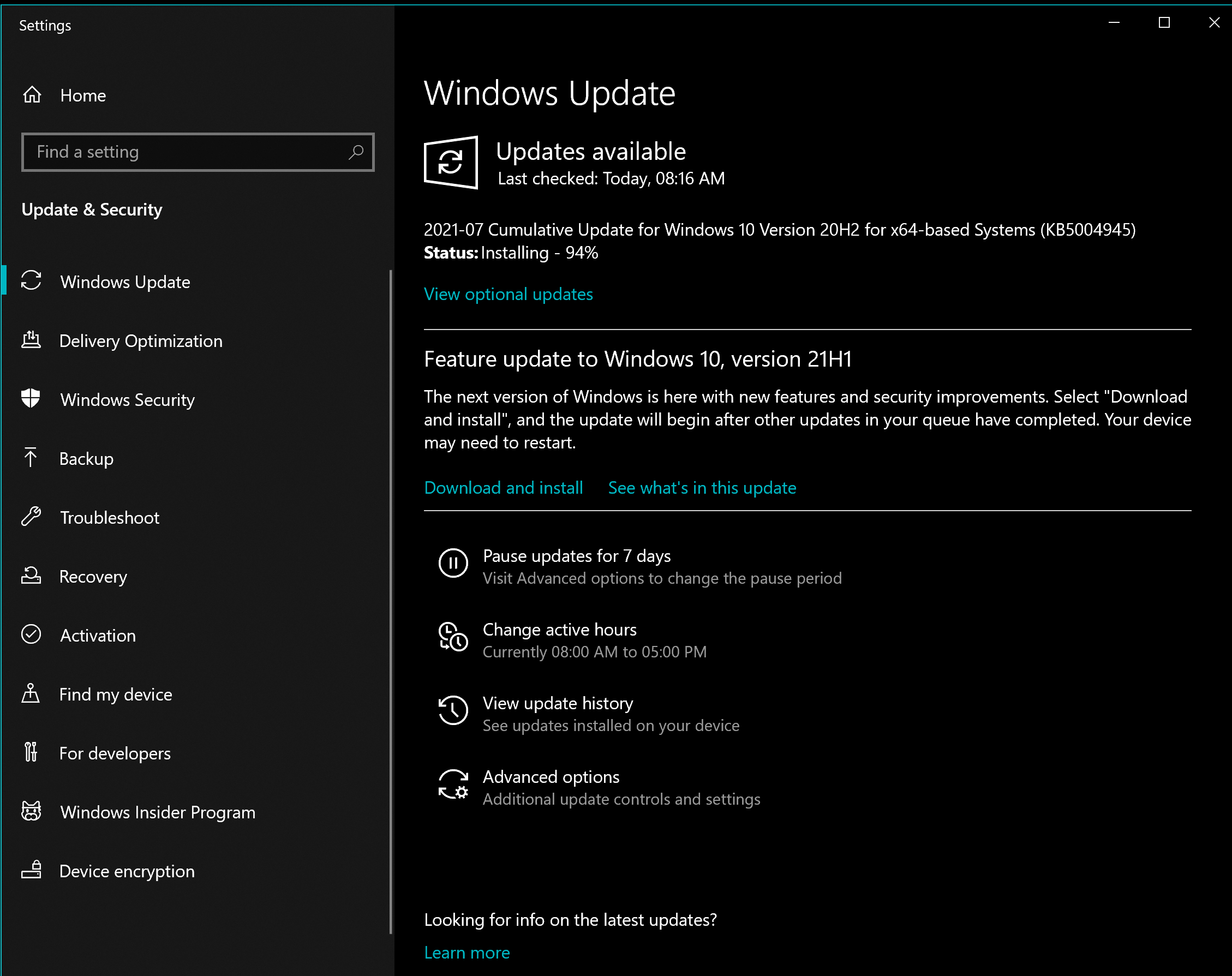
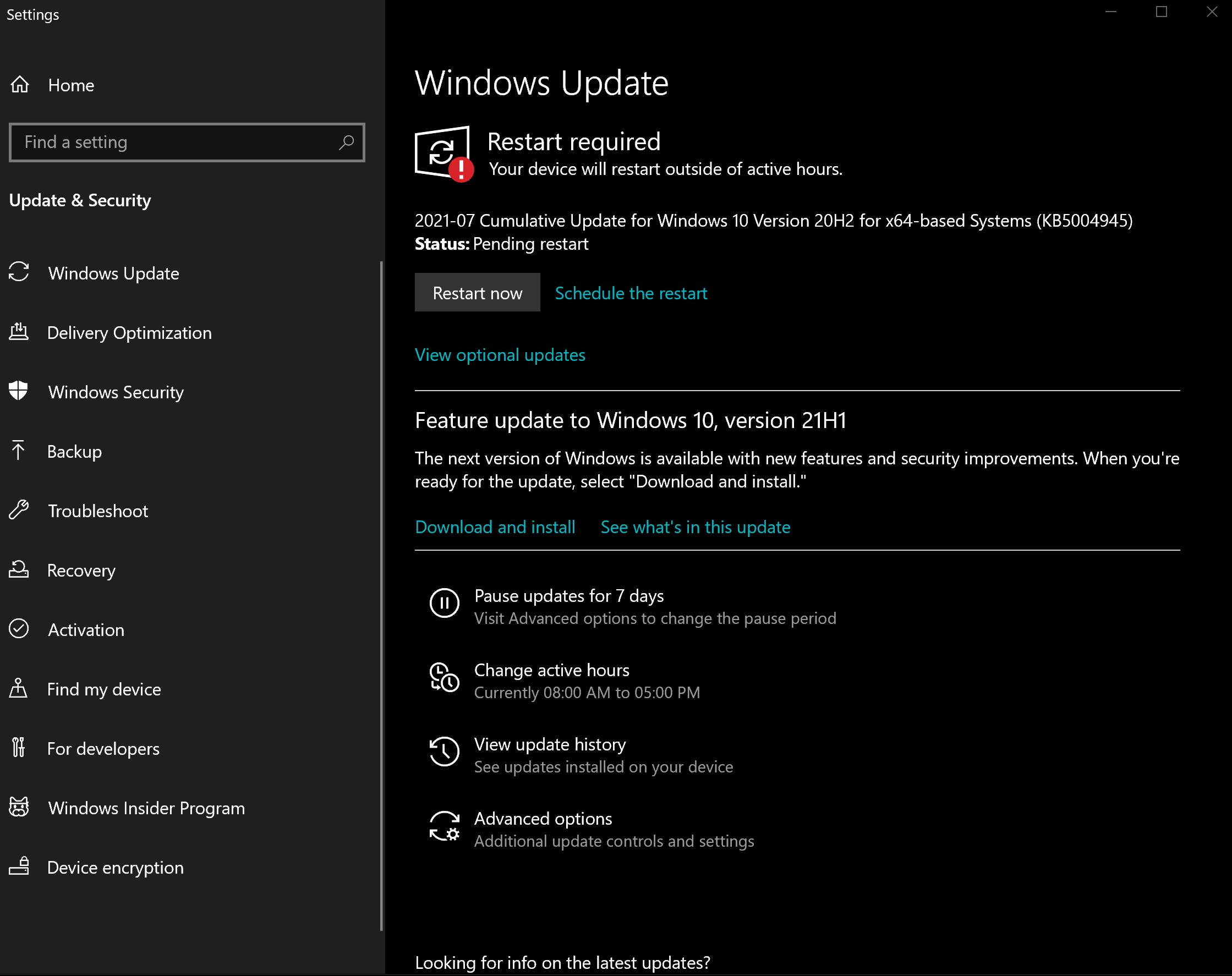
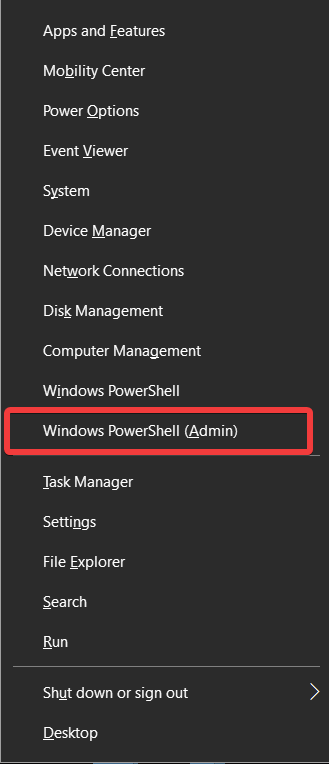
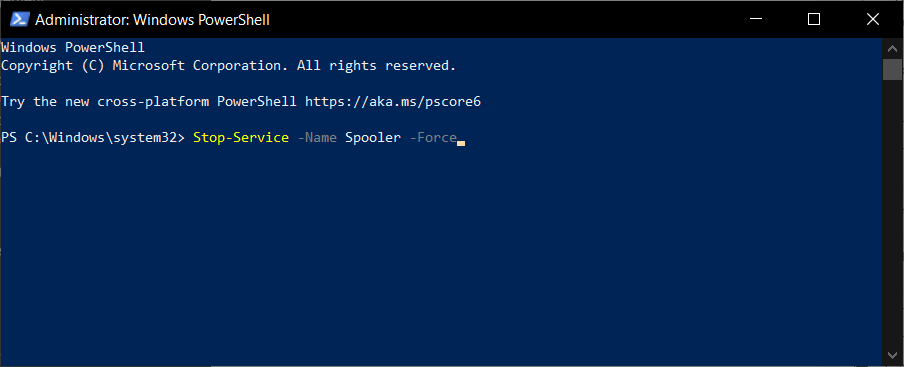
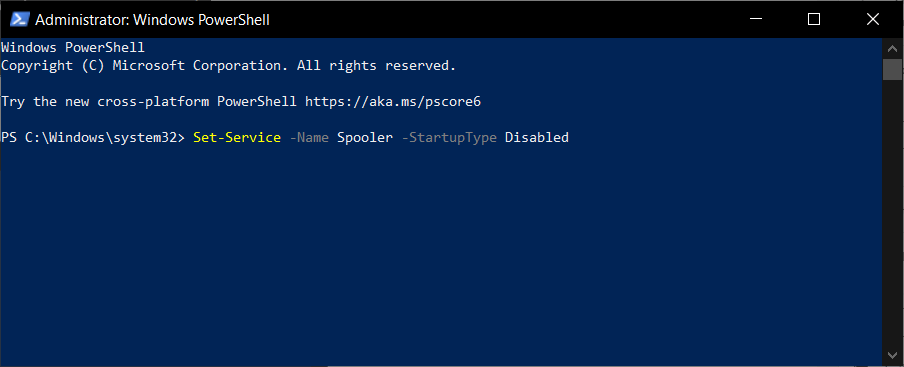

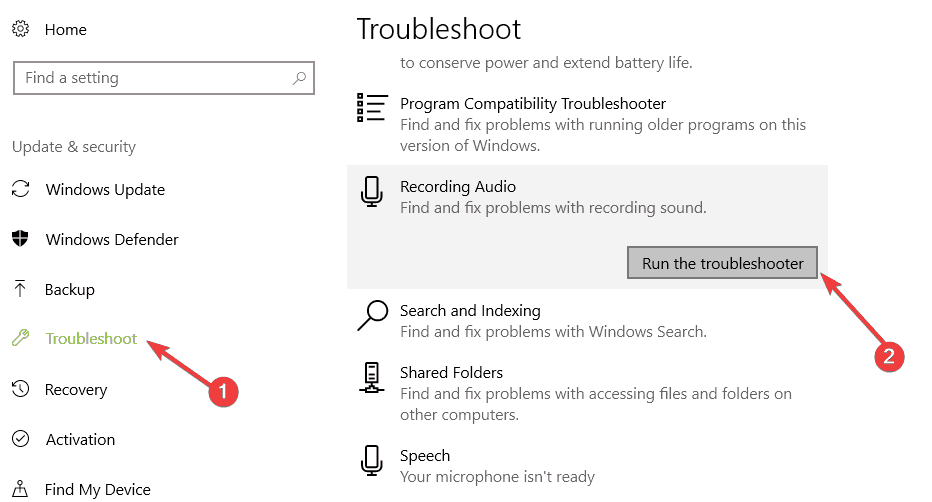
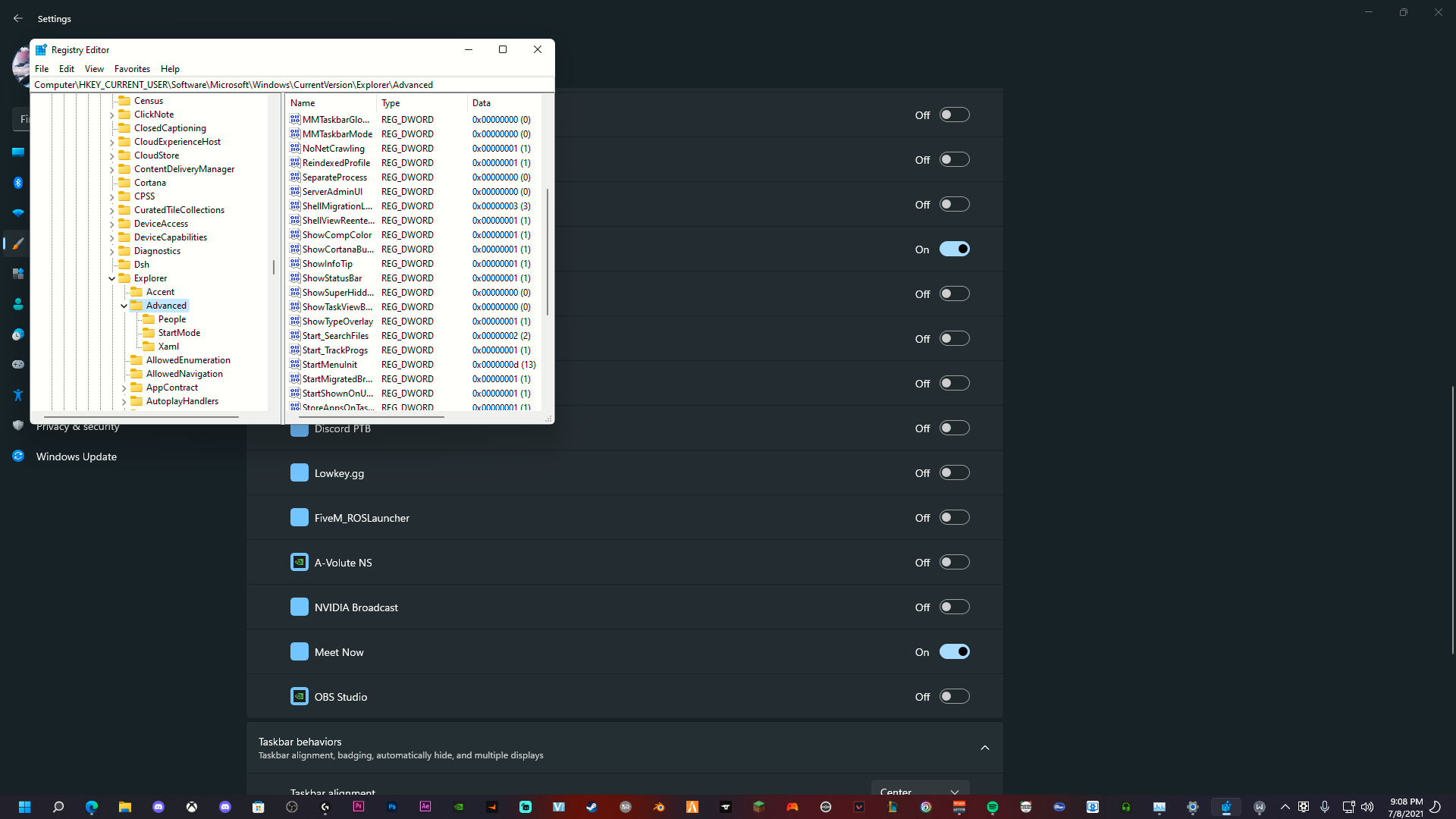
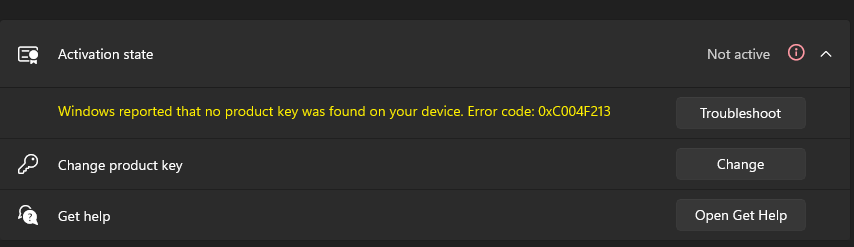

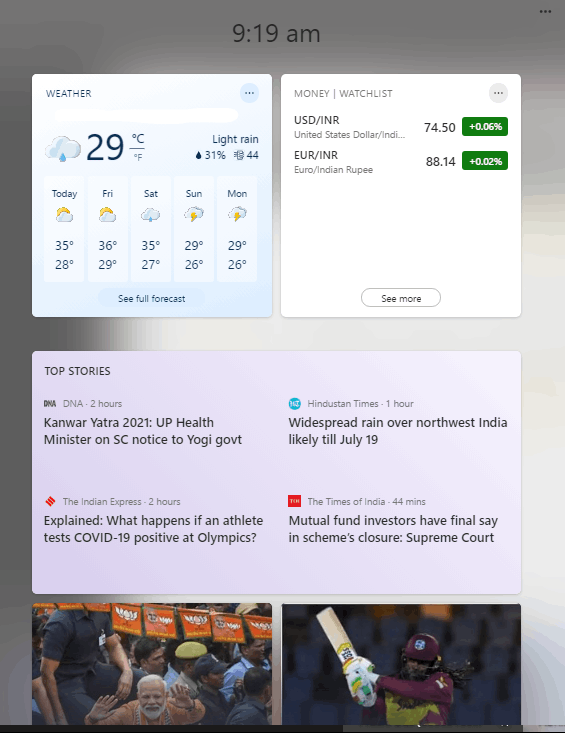
![FIX: Your location has recently been accessed [Easy Guide]](https://windowsreport.com/wp-content/uploads/2021/08/FIX-Your-location-has-recently-been-accessed-Easy-Guide.jpg)


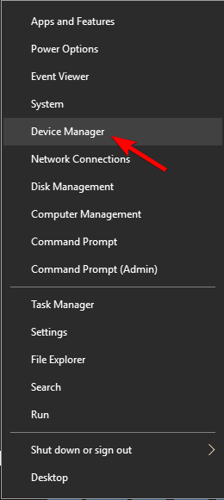


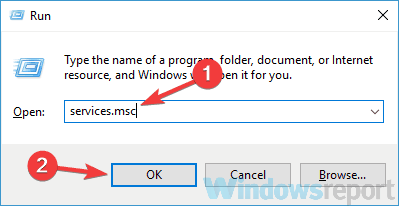





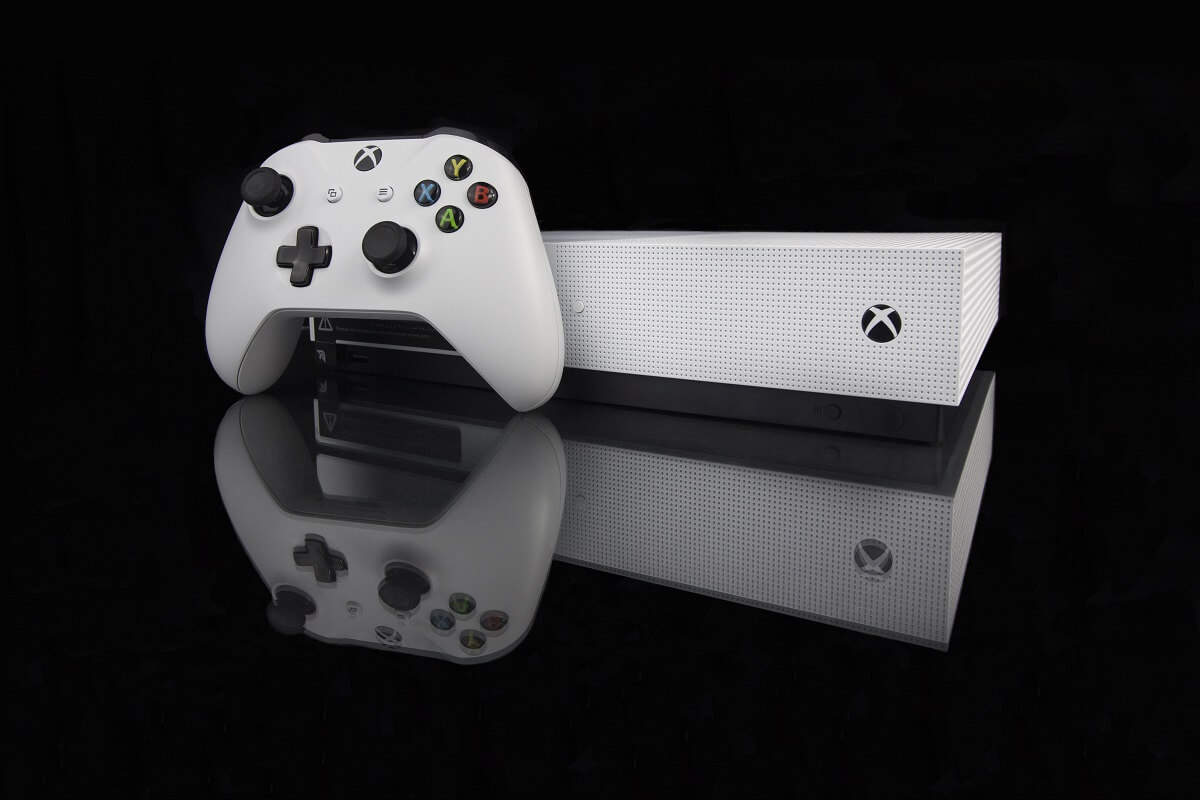
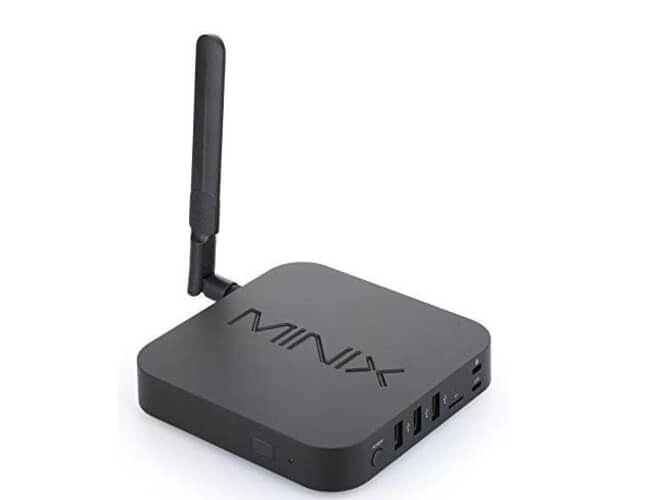
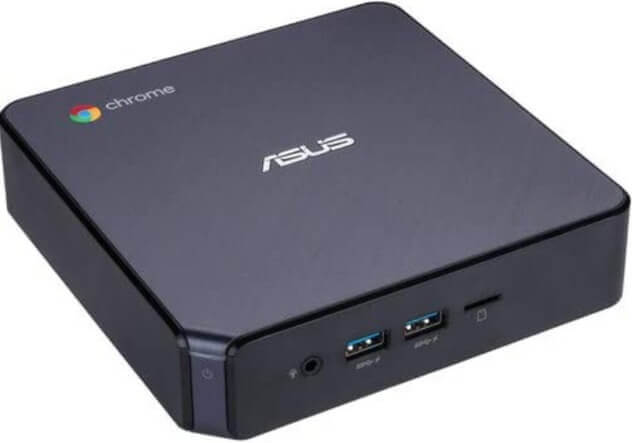
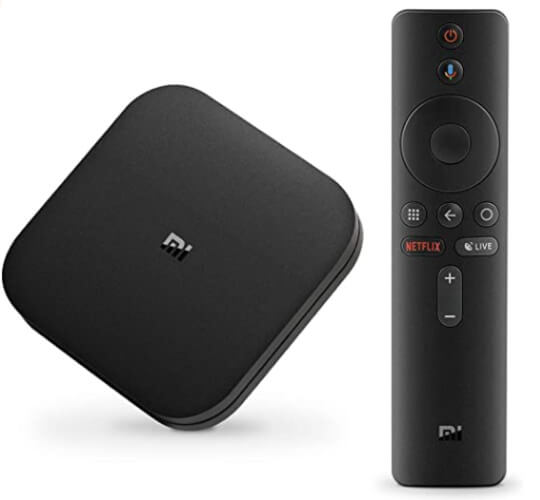
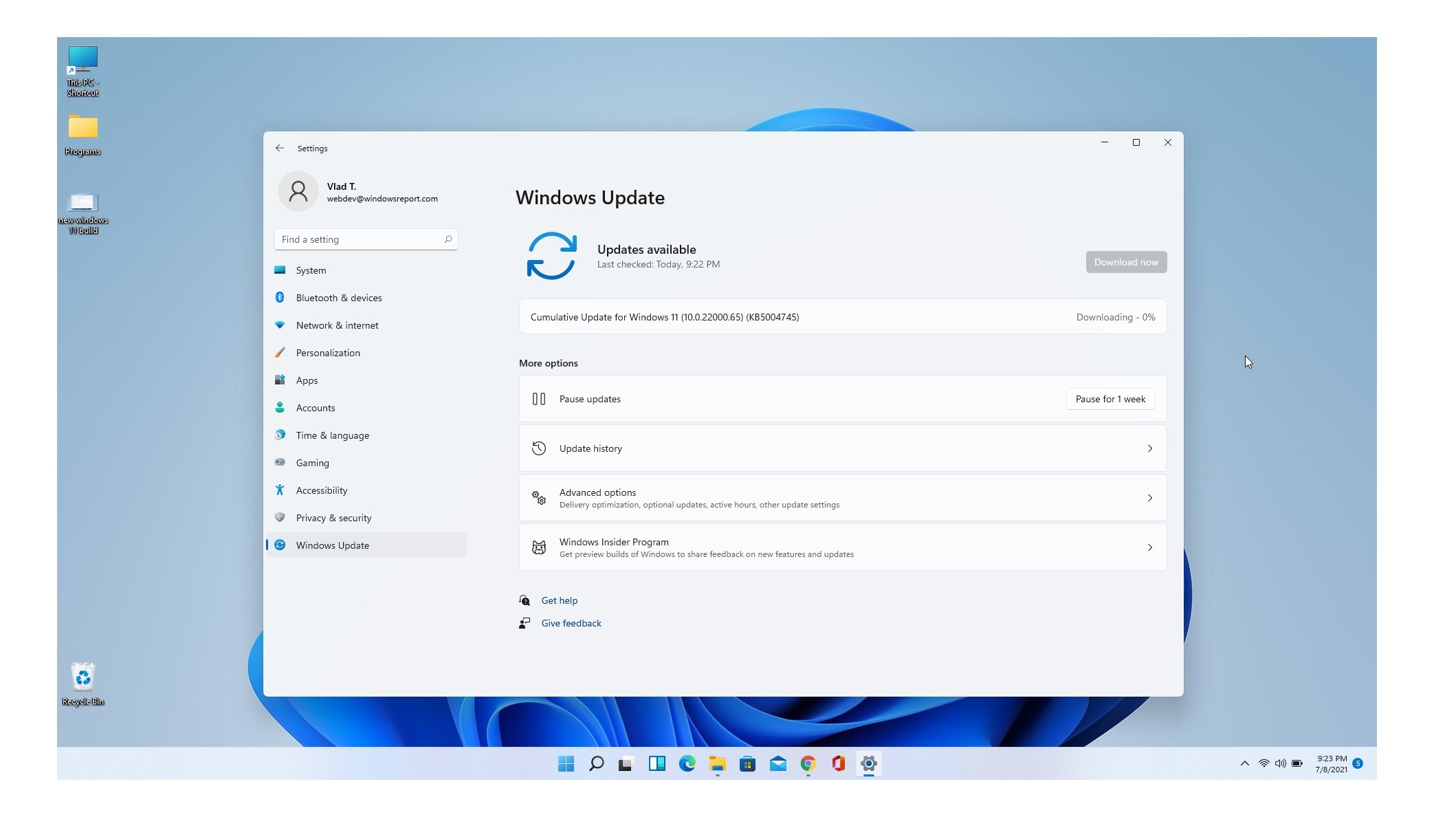
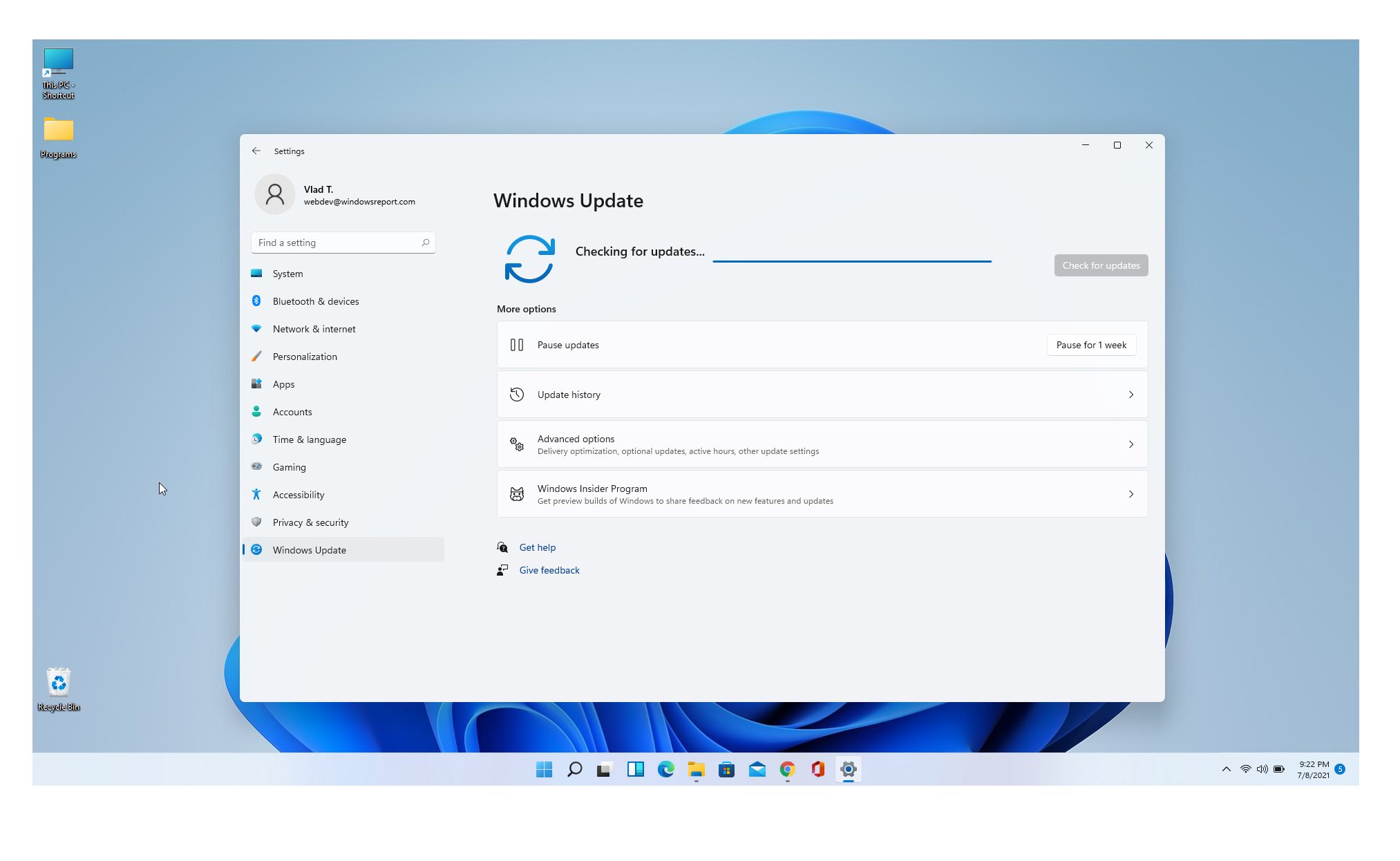

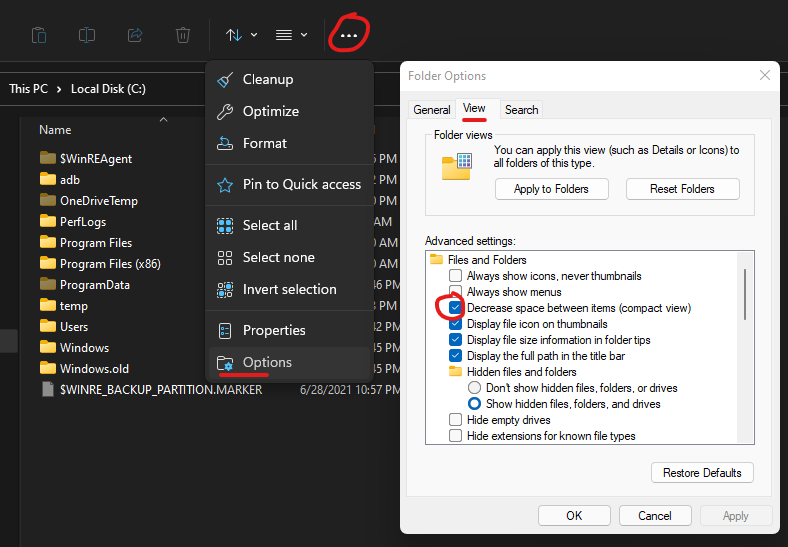



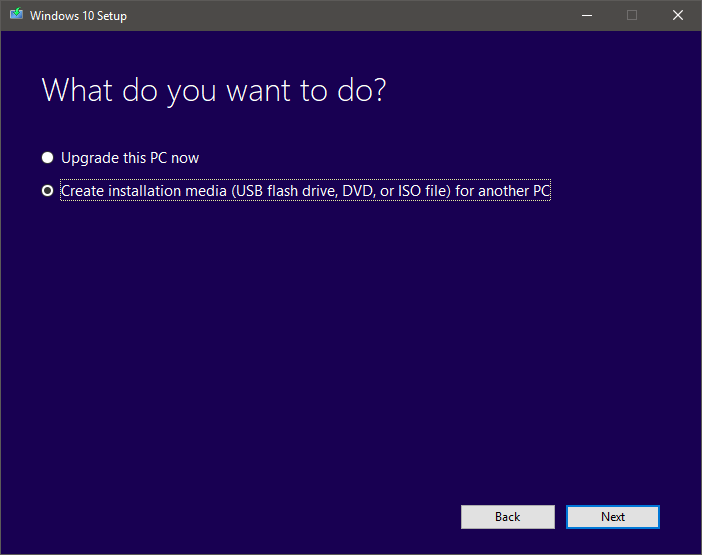


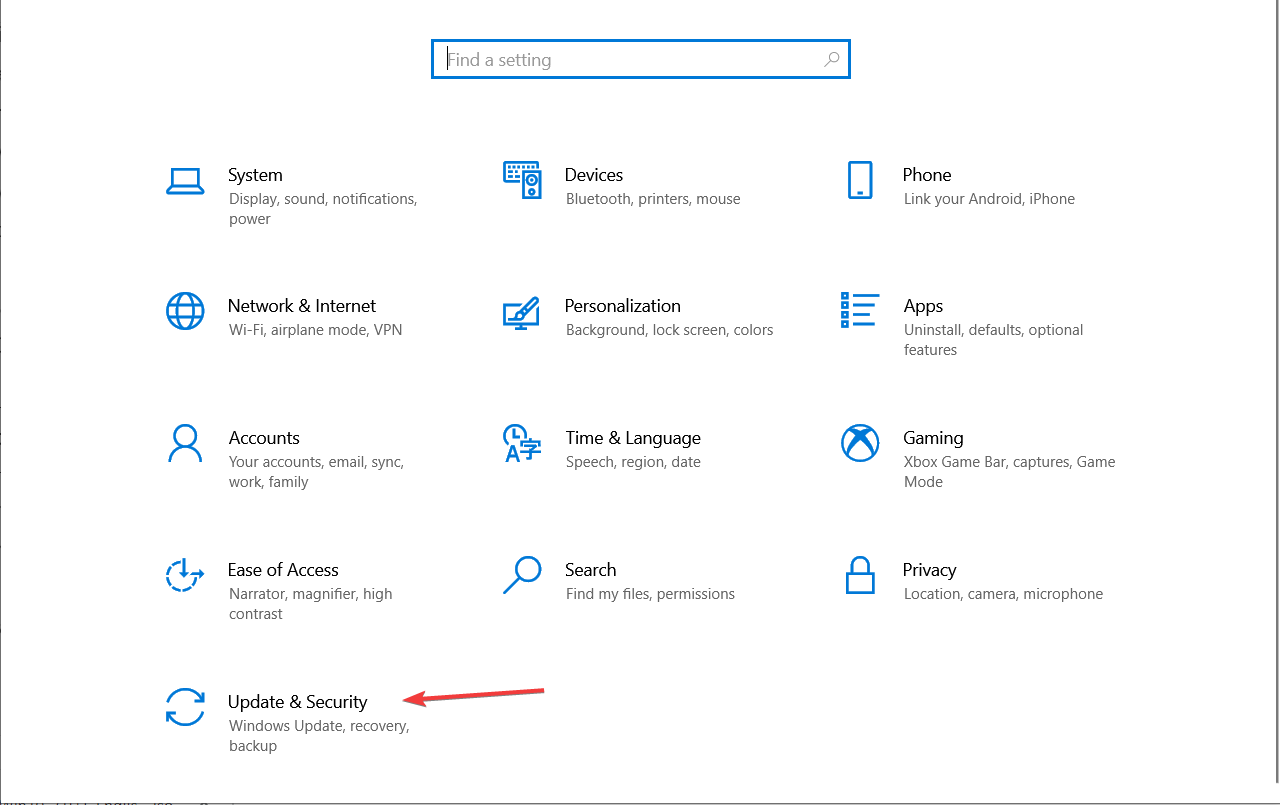

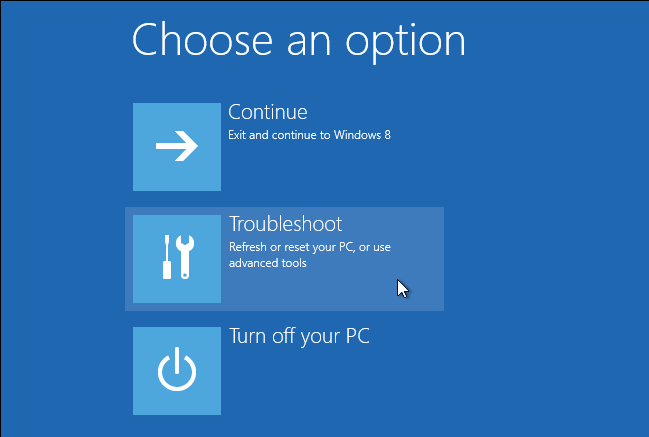


![FIX: Mouse pointer disappears in Windows 8, 10 [Easy Guide]](https://windowsreport.com/wp-content/uploads/2018/07/FIX-Mouse-pointer-disappears-in-Windows-10-Easy-Guide.jpg)
![FIX: An error has occurred message in Bluestacks [Log in]](https://windowsreport.com/wp-content/uploads/2019/02/Bluestacks.jpeg)
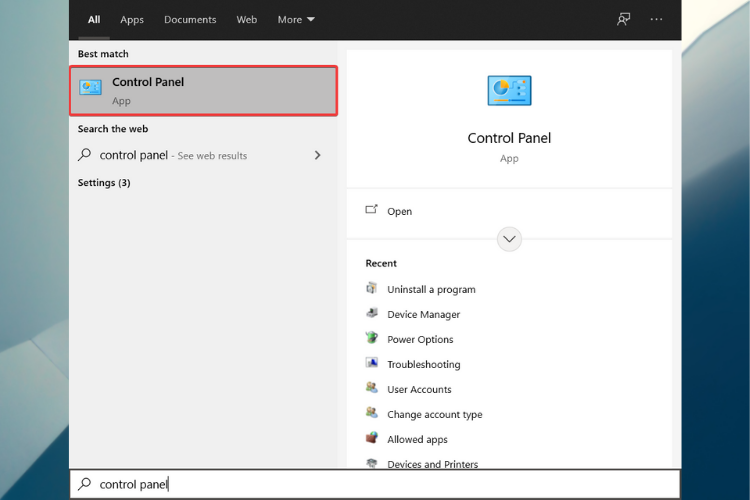
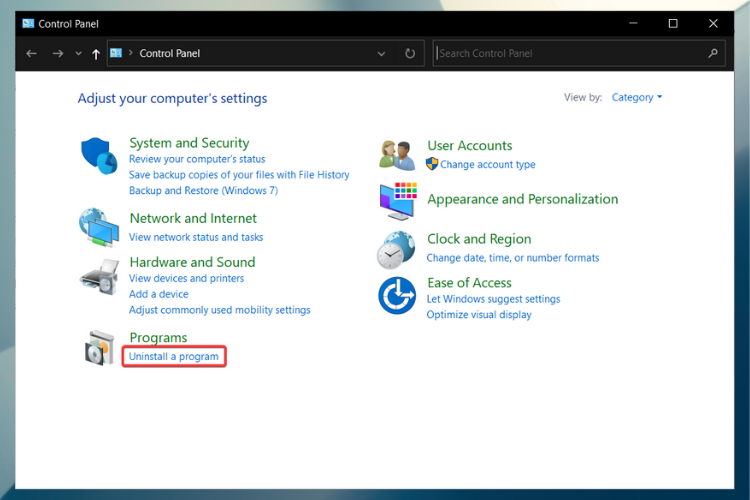




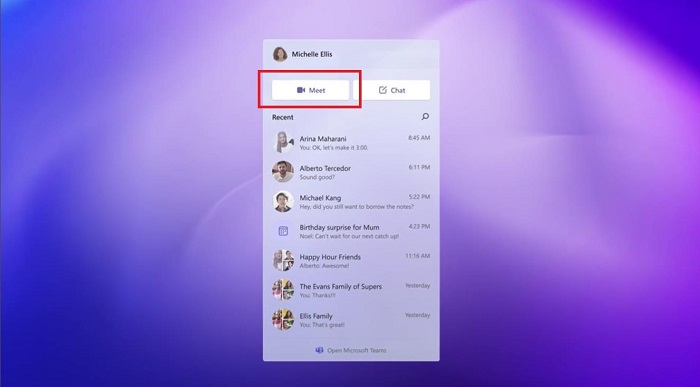
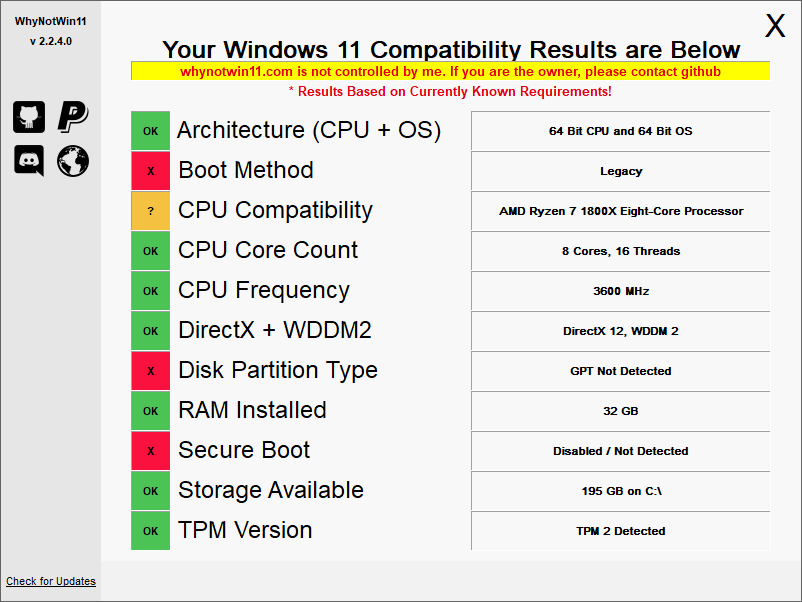


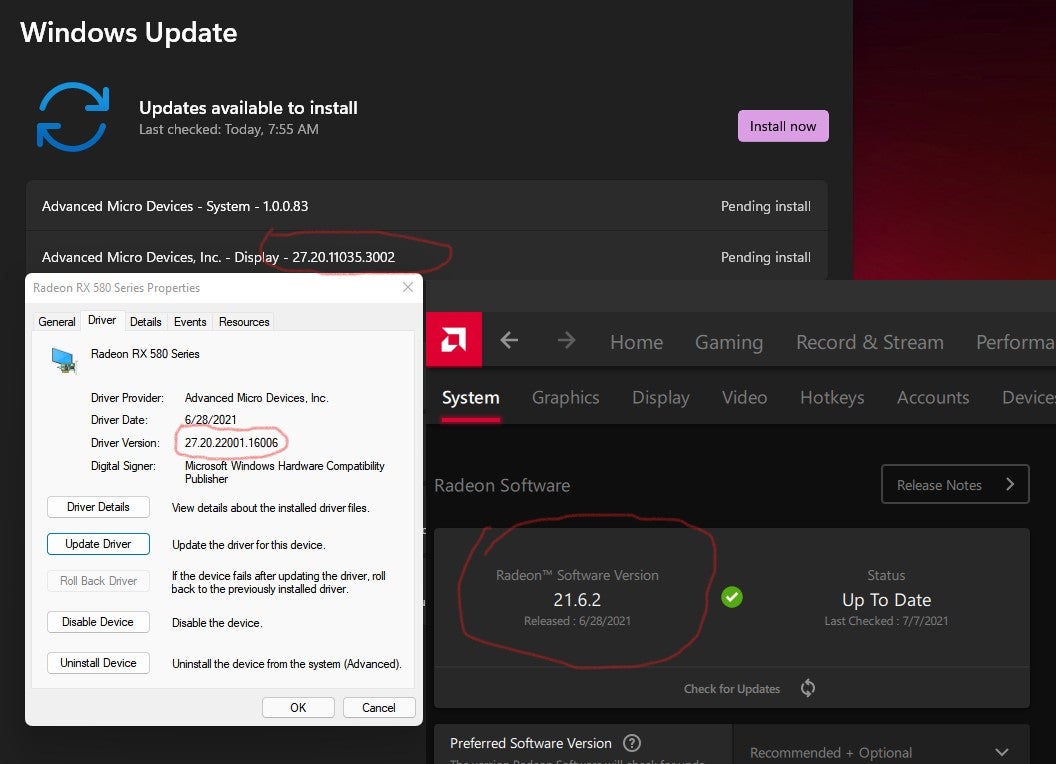
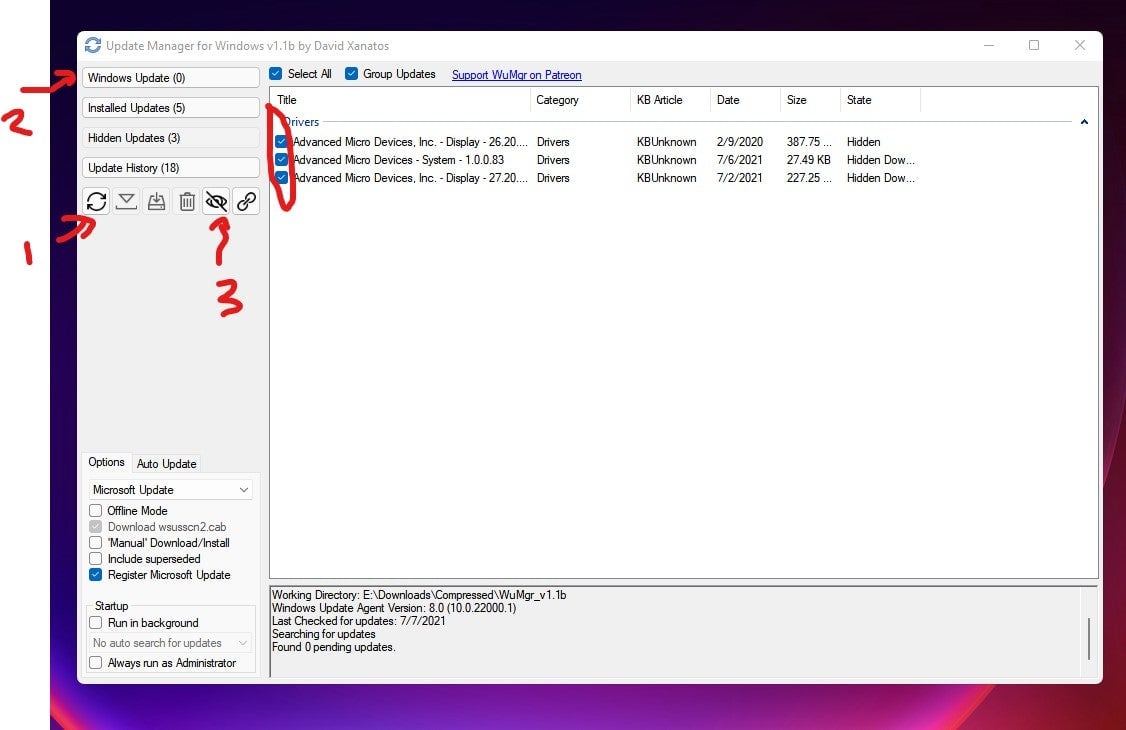
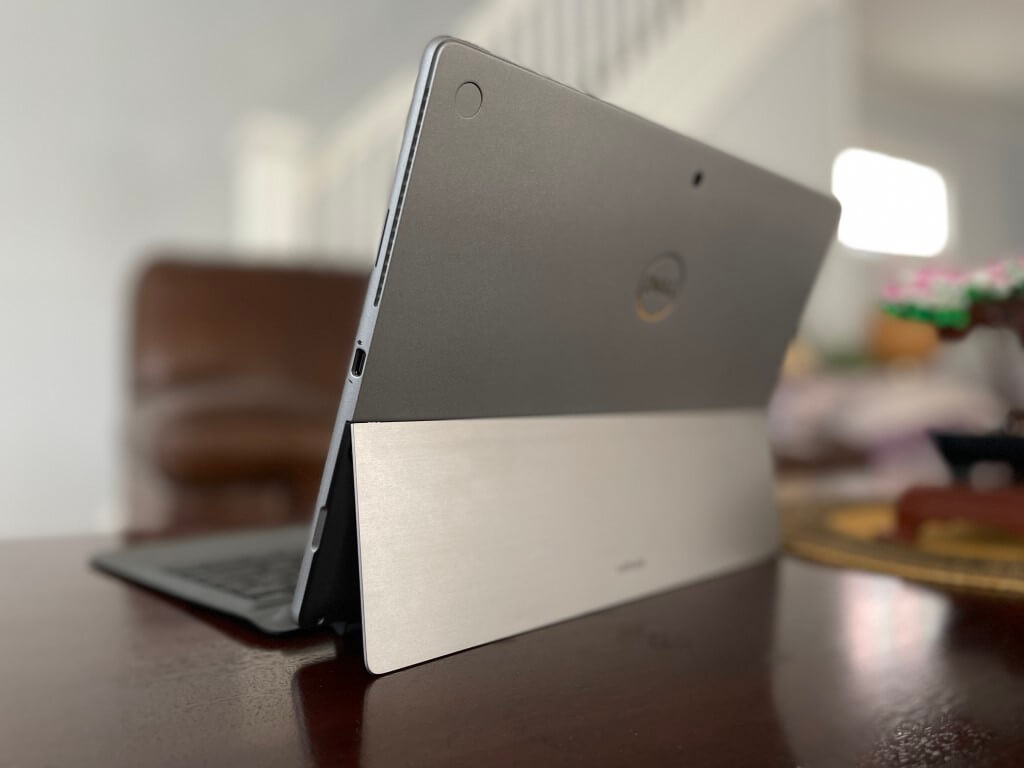
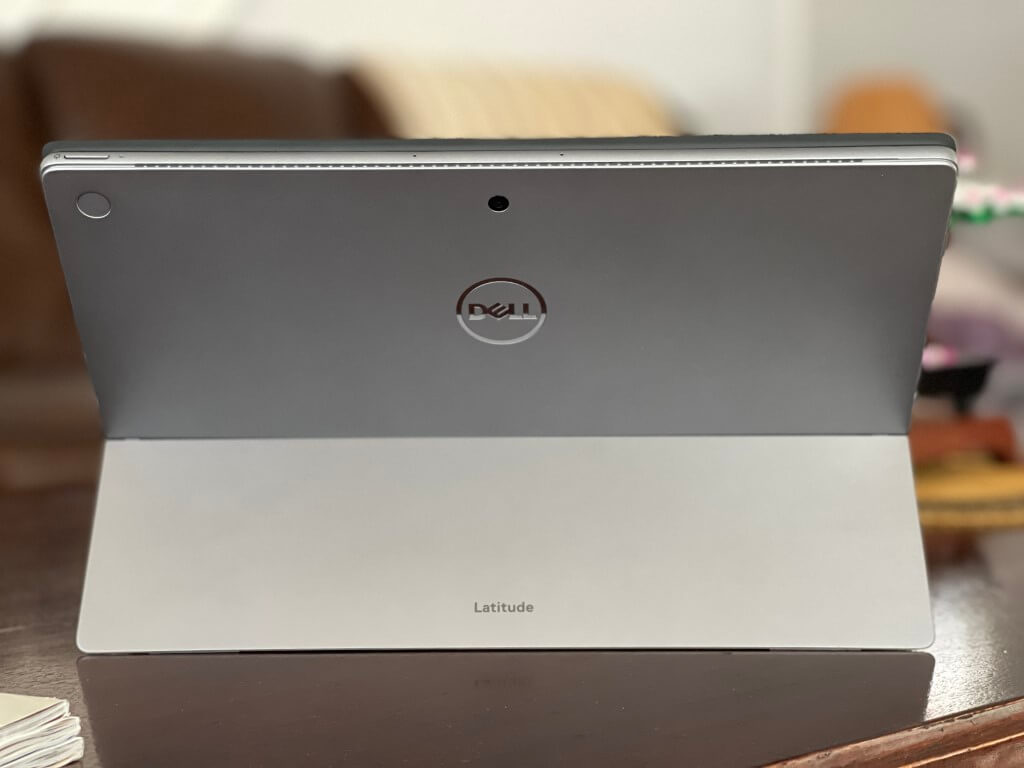
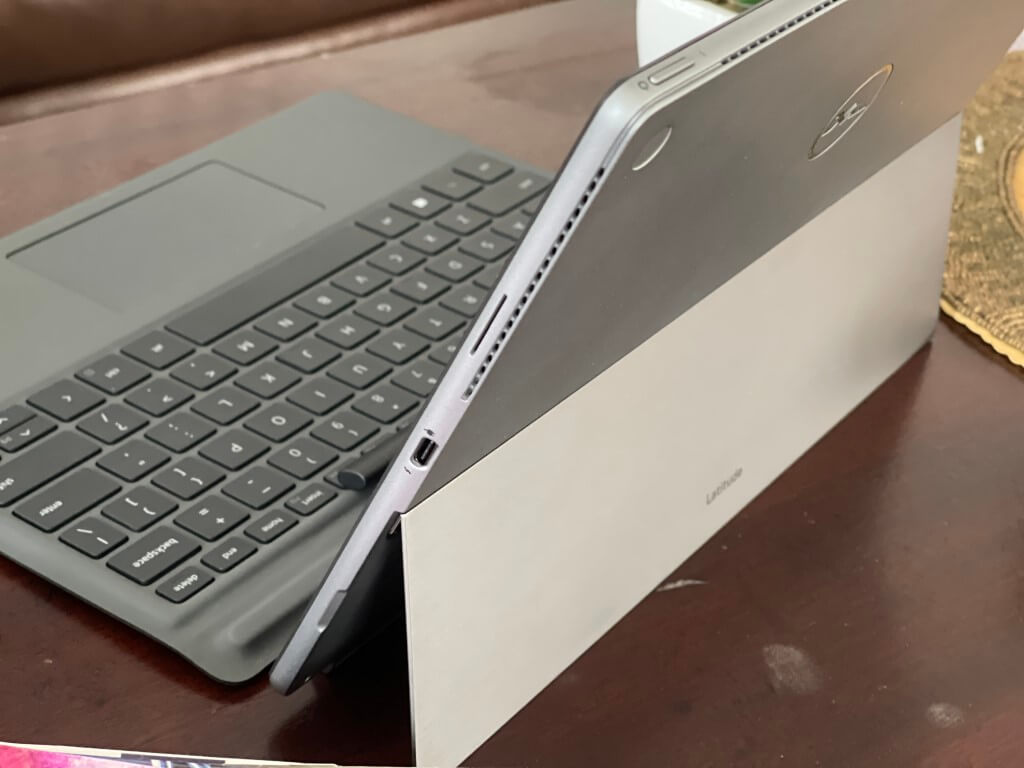
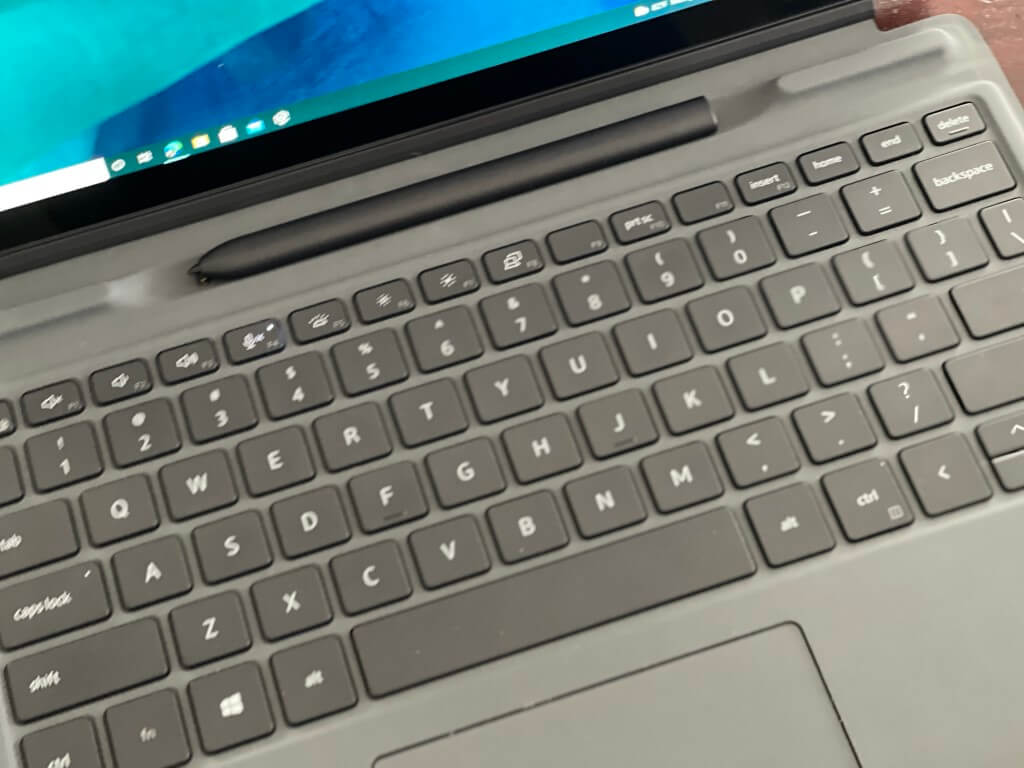
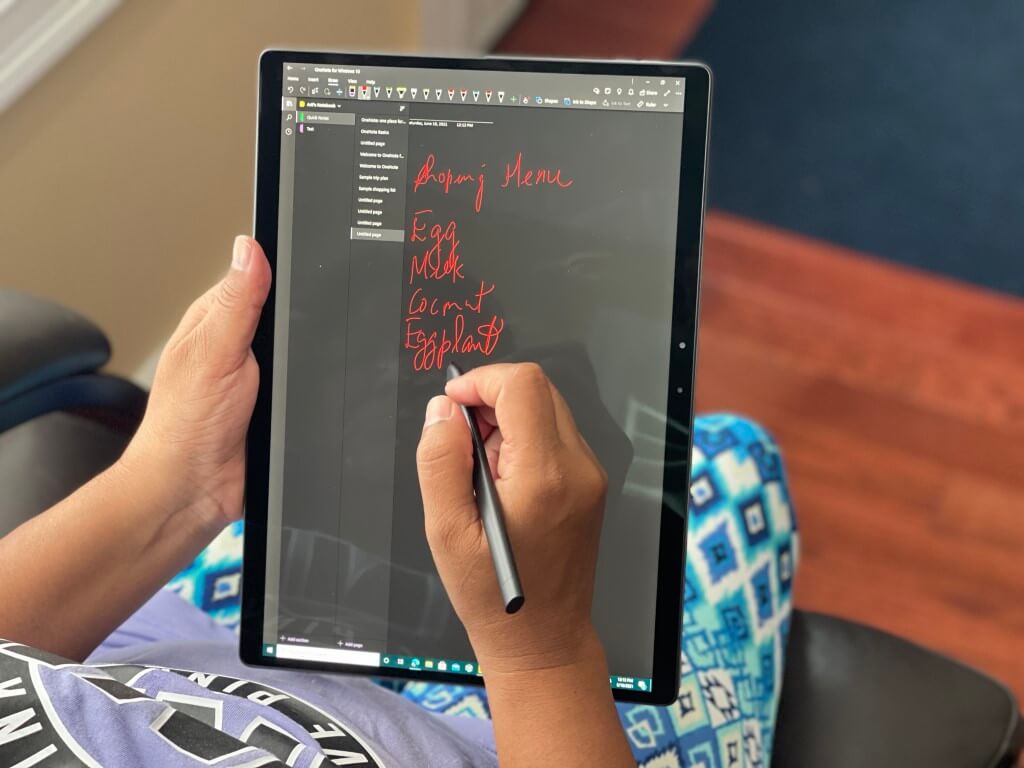
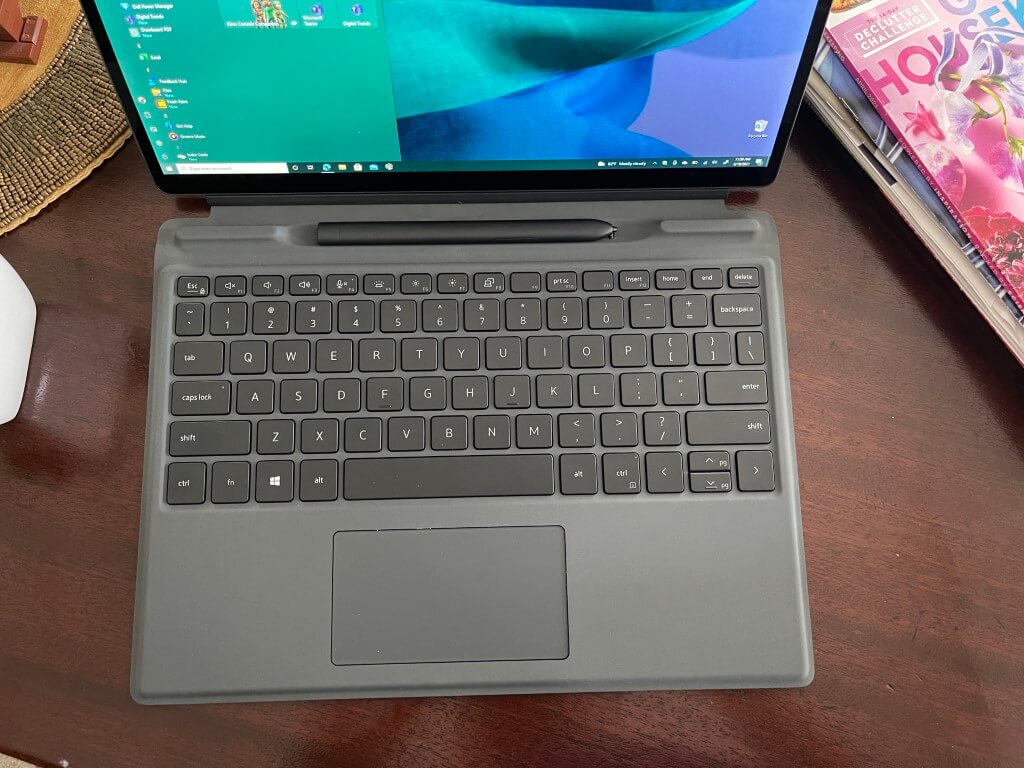
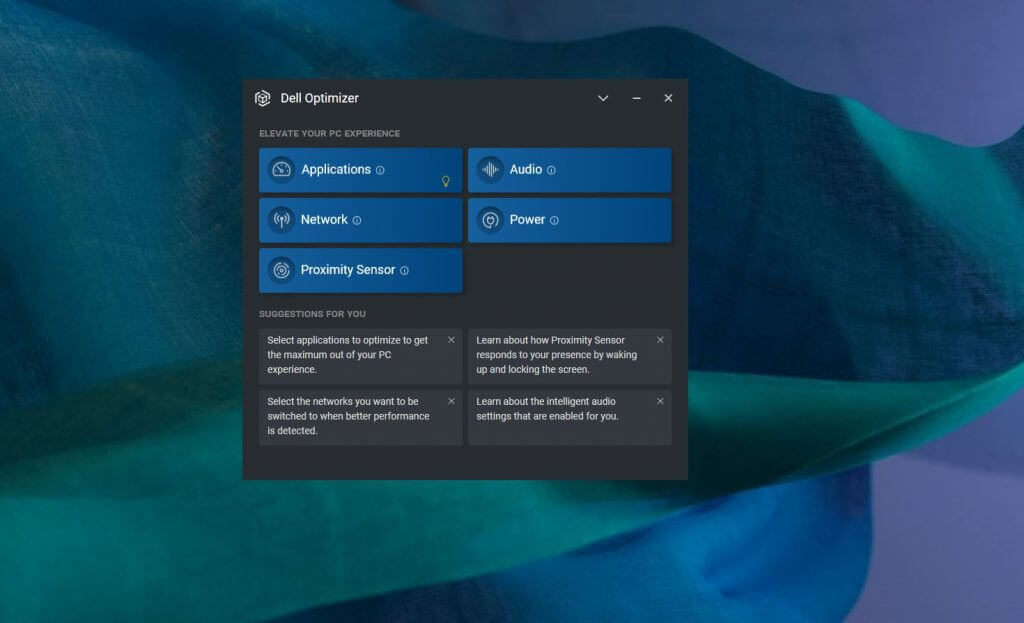
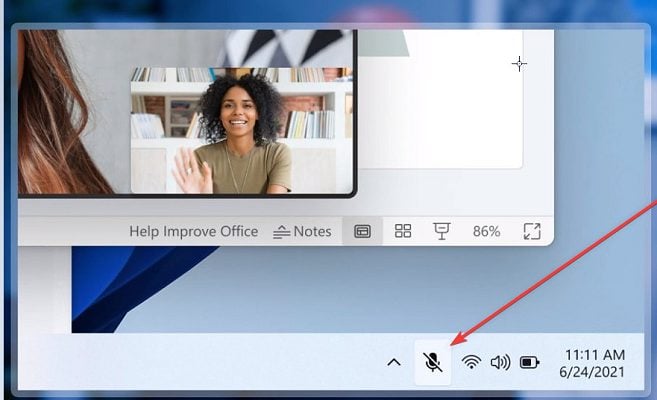
![BitLocker’s Decryption Not Working [Expert Fix]](https://windowsreport.com/wp-content/uploads/2019/07/BitLockers-decryption-not-working-EXPERT-FIX.jpg)





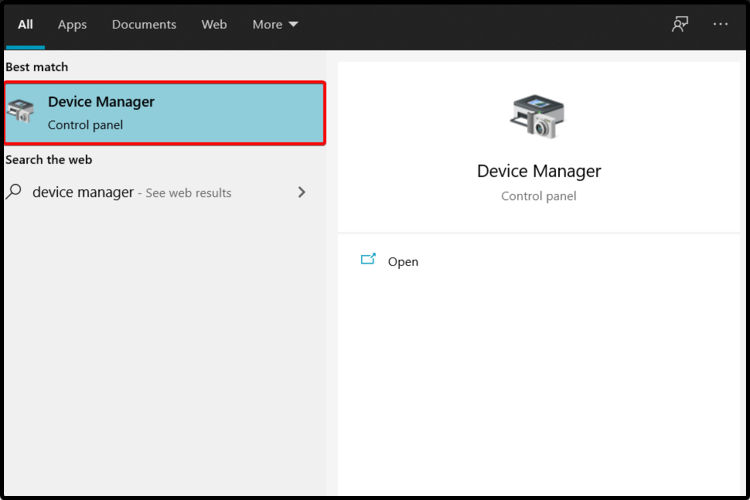
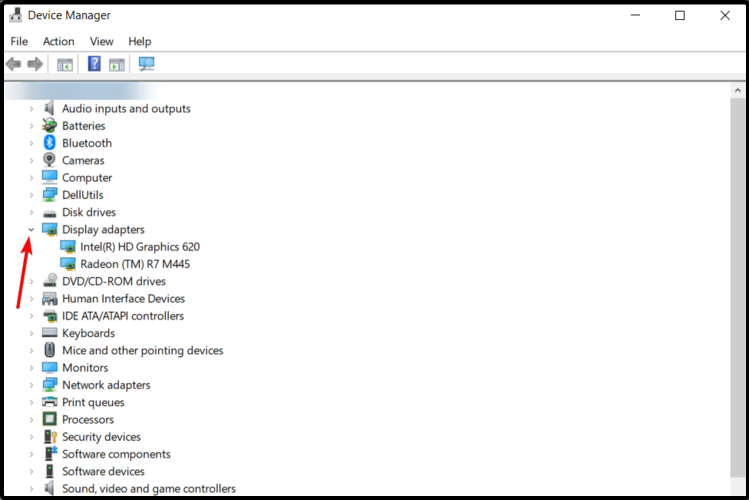

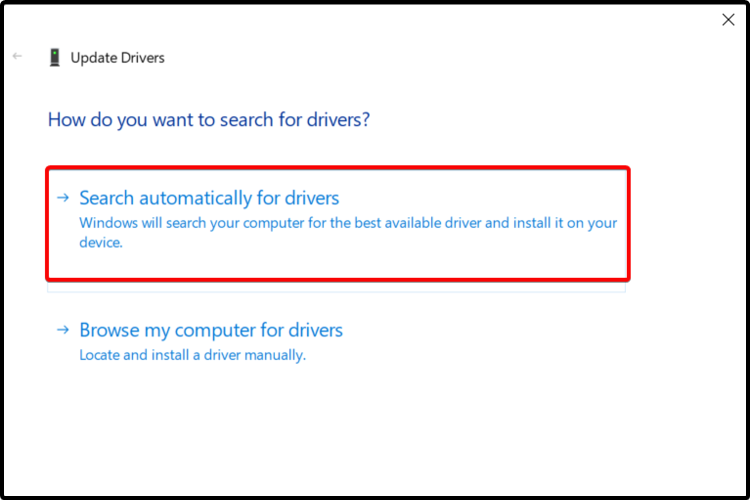
![Compatibility View Settings on Windows 11 [Enable/Change]](https://windowsreport.com/wp-content/uploads/2021/06/Enable-Compatibility-View-settings-in-Windows-11.jpg)