7 gaming forum software to create the next-gen online community

Before the invent of social media like Facebook and Twitter, the online community was on forums sharing their favorite bits like a new found software or helping other community members with their problems. Back in the days maintaining an online forum was a challenging task; however, things have changed for better in the last decade.

Today, setting up an online forum be it a gaming forum or a football enthusiast forum only requires a forum software, a hosting plan, and a domain. If you are an avid gamer looking for a gaming forum software, we have got you covered.

We have compared some of the best forum software based on their features and created this list of best gaming forum software so that you can spend most of your time creating an ultimate gaming community.

What features do I need in a gaming forum software?

The gaming forum software is like any other forum software, but some additional features may be required. If you want the users to upload short gameplay, then the ability to upload videos or embedded YouTube videos is needed.

Modern looking themes (templates), intuitive user interface, chat area, and personal message and semi-moderated debate session options are a few things that make the visitors stay for long and time and visit the forum regularly.

Here are a few things that you should consider in the best gaming forum software:

  • Admin / Moderate Control Panel 

Forums usually have a few admins but several moderators. Administrator control the whole operation while the moderators help admin keep the forum clean and running. Having separate control panel for moderators and admin is an essential feature to consider.

  • Rich Text Editor

Online forums are mostly about the text, but gaming forums thrive on the text as well as visual contents. Having a rich text editor with the option to add images and HTML support is one good way to promote the forum among new users.

  • Mobile Optimization

Most of the users on the internet prefer to use their mobile over PC. So, having a mobile-optimized responsive forum is recommended both in SEO and user experience perspective.

  • Spam Filter

Online forums are the most preferred target of spammers, so having a robust spam filter system integration is a must for hassle-free forum management.

  • User Ranking System

One of the best ways to increase user engagement in the forum is to have a ranking system for users. Users should be able to unlock new levels based on their interaction in the forum.

  • Profile Customization

Allowing the users to customize their profile with avatar and signature is an excellent way to create a unique fun-loving community.

Gaming forum software come in both free and paid versions. We have listed the price (where possible) along with features to help you find the best forum software that meets your requirement.

However, you do need to purchase web hosting to install forum scrip on the server.

What are the best gaming forum software to use in 2019?

phpBB
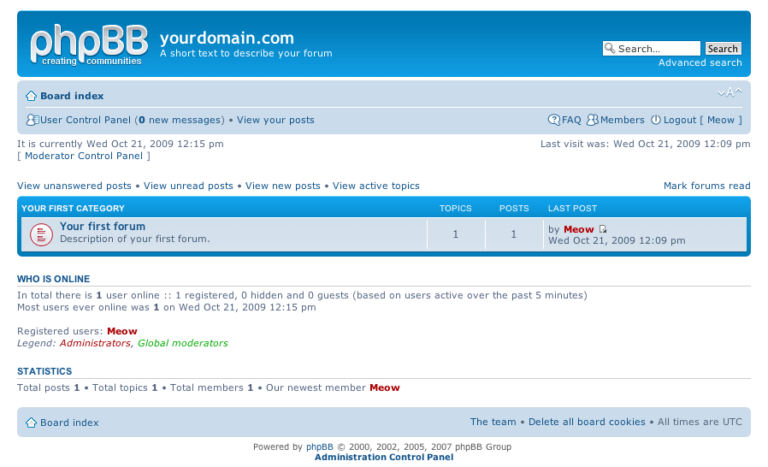
phpBB open source forum softtware

Pros

  • Free forum software
  • Plenty customization options for users and administrators
  • Anti-spam measures
  • private messaging
  • excellent collection of extensions (plugins)

Cons

  • Outdated looking themes
  • Poor SEO features

phpBB is the oldest and one of the most popular PHP based forum software. It is an open source project which means it is free to install and use. It enables the users to create and manage gaming forums with access to extensive administration panel with tons of customization options.

The basic functionalities offered pbpBB includes the ability to allow user registration, board creation, private message and profile customization to a new a few.

The phpBB community has detailed user documentation along with video tutorials to help the new user to get started with the software. There is a demo section on the official website which lets you try the forum and its functions in real time.

It offers two control panels for administrators and moderators. The admin can control all the aspects of the forum while the moderators can be limited to certain rights and access within the forum.

The availability of the vast selection of extensions enhances the usability of the forum by offering an extended set of functionalities.

What we didn’t like?

Themes/templates offered by phpBB seem a little outdated by today’s standard when compared to other bulletin boards like Discourse that has better-looking themes on offer. Other than that, phpBB is the best open-sources forum software that you can use to create a gaming forum with tons of customization options.

Get phpBB

Discourse

discourse forum software

Pros

  • Moder free open-source forum software
  • Built-in translator
  • Good SEO features
  • drag and drop multimedia support
  • Automatic Backups and CDN support
  • Excellent spam management
  • Well-designed admin panel

Cons

  • Poor tag management
  • Mailing List Mode UI needs improvement

Discourse is one of the latest entrants into the community forum software market but has amazed the users with its modern looks and sleek user interface.

Discourse is a free open-source project. So, for self-hosted sites, Discourse is completely free. Discourse does offer monthly plans for managed discourse community sites. And for those who are not good with unmanaged servers, discourse team can install the forum script on a self-hosted Digital Ocean droplet for a one-time fee of $99.

Being a modern community software, discourse does support third-party web-apps integration including Slack, WordPress, Zendesk, Patreon, and Matomo, etc.

Discourse does not break conversation into pages but offers in-time loading feature that expands discussion as the user scroll-dow. It also has dynamic notifications and is optimized for mobiles users.

The administrator panel offers quick insights into current developments in the community along with user statistics and user management options like bulk moderation, sitewide alters, ability to add private spaces and self-managing user groups, etc.

Simple Machine Forum
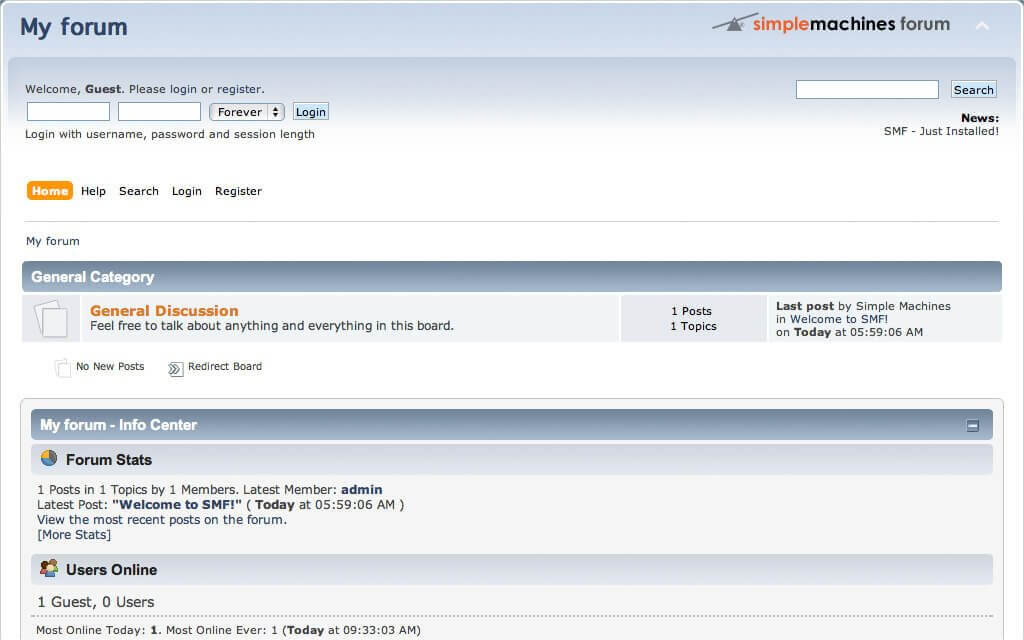
Simple Machine Forums best forum software

Pros

  • Excellent plugin system
  • Good template selection
  • Functional ACL
  • Security features include Anti-spam, IP address lock, and the CAPTCHA system
  • User statistics
  • Excellent community support

Cons

  • Average SEO features

Simple Machine Forum is php-based forum software with lost of hits and some misses. SMF has a long history, and the developers have been consistently releasing new updates with new features and bug fixes.

The user documentation has improved a lot over the years making it easier for new users to get hold of the program but the community support is where it excels.

SMF is known for its extensive collection of plugins which is second to none and also the package manager that makes it a breeze to update to new modules.

The administrators can manage boards, assign moderators and limit user access to boards or sub-boards. It also comes with built-in support for multiple languages.

What we didn’t like?

SMF does take some time getting used. The user interface is pretty basic, and the themes despite its huge collection are not on par with the modern templates on offer by modern bulletin board software.

MyBB
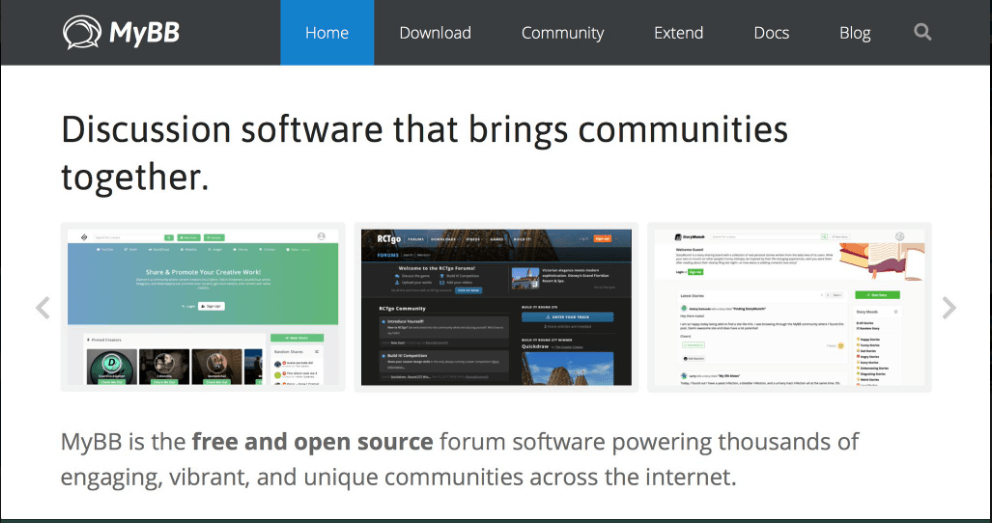
myBB Forum software

Pros

  • Well-designed administrator interface
  • Excellent collection for themes
  • Huge selection of plugins
  • MyBB Merge System help in easier migration from another forum software
  • Built-in translator
  • Compatible with Nginx and Apache servers

Cons

  • Spam-filtering system needs improvement

MyBB is an open-source community forum script that offers all the essential features you would need in a gaming forum software. MyBB Merge System is a migration feature for the users already running a forum on a different script and helps in easier migration to MyBB.

MyBB has maintained a standard discussion board structure for easy navigation. The users can customize their profile and along with the discussion board based on their personal liking.

In addition, MyBB makes it easy for the admins to allow their users to embed video from YouTube and other streaming sites. Users can also add polls, quote other users in reply and offers administrators a detailed control panel to control all the actions of the forum users.

The administrator panel offers full control over user management, access to user statistics, forum customization and also easy access to new plugins and themes. If you know CSS, you can use the theme editor to change the look and feel of the site as per your need.

vBulletin
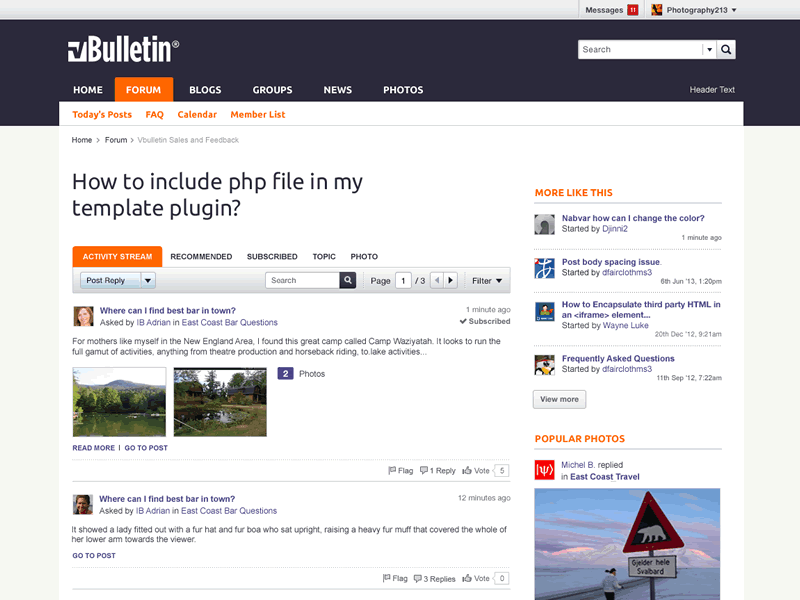
vBulletin best paid forum software

Pros

  • Intuitive user interface
  • Built-in vB Messenger chat app
  • Good SEO features
  • Excellent spam prevention with Global mute feature
  • Mobile optimized and responsive design
  • Excellent administrative panel
  • Good collection of add-ons and themes

Cons

  • Expensive
  • Future upgrades are not free
  • expensive add-ons

vBulleting is the most popular paid community forum software. It comes in two version, vBulleting 5.0 Connect – costs $249 and is self-hosted and vBulletin Cloud – is a fully managed service and is charged on a monthly or yearly basis.

Forum features include an unlimited hierarchy of forums, the ability to create forums, admin tools, thread and forum subscription.

For the users, the vBulleting forum offers BB code and HTML support in posts, use emojis, add an avatar, rich text editor, multimedia attachment, poll option and post reporting.

On the editorial front, you have user management options, task scheduler, control panel, moderation option, customisation of the forum using the template with conditional support.

vBulletin is expensive and the fact that the future upgrades on self-hosted vBulletin forum are not free makes it a little difficult choice. But, apart from that, vBulletin is a fully featured community forum software with an excellent set of tools on offer.

Vanilla Forum

vanilla Forums best forum software

Pros

  • Open source free forum script
  • Basic plugin and themes on offer
  • Intuitive user interface
  • A functional administrator control panel
  • Social media integration

Cons

  • Limited themes and plugins
  • No way to know the premium plan pricing without contacting the CC

Vanilla Forum comes in two version, open source and premium fully managed plans. The basics of Vanilla Forums open source forum script is similar to other community board scripts where the users need to install and maintain the software on their own server manually.

The administrators can customize the look and feel of the site by editing the theme or simply installing one provided by Vanilla Forums. The user interface is modern and looks more appealing compared to the UI of phpBB or MyBB.

Vanilla Forums allows you to create a stunning forum using the limited number of themes and plugins. The forum members do get access to rich text editor along with auto-save draft option. There is an option to create private groups for users as well.

Vanilla Forums is a good choice for beginners but the company itself is not very active in promoting the Vanilla Forums open source project, or so as it seems from the official website. As the community grows, you can opt for premium plans if needed.

The company offers three premium plans, Business, Corporate and Enterprise. But the pricing will be decided based on user requirement. Do give it a shot to see if it is something you can work with.

WordPress Based Forum Software (Plugins)

All the forum software listed above are standalone forum scripts, but if you don’t want to manage a standalone forum software or want a forum alongside your already existing website, WordPress can help you.

WordPress is a popular content management system (CMS), and a lot of developers have created community forum plugins for WordPress that lets you create a fully functional forum in few clicks.

Some of the most popular WordPress based community forum plugins are, bbPress, wpForo Forum, and Asgaros Forum to name a few. These plugins act like add-ons and work with your existing WordPress installation.

wpForo Forums

wpForo Forum plugin

wpForo Forum is a WordPress plugin that lets you create a fully functional community forum right on top of your WordPress installation. It has all the features you need and is free to use.

Installation of wpForo Forum is like any other WordPress plugin. It has three types of Forum layouts, to begin with, but the layouts can be changed at any point of time without breaking the forum.

Administrators can customize the look of the forum by changing color, adding menu items along with sidebar widget for proper website look. wpForo also offers excellent user management that lets you set custom login and registration URL, user rating system and profile management.

The premium add-ons to wpForo allow you to embed media content, create polls, user customization, private message features and manage ads.

Asgaros Forum
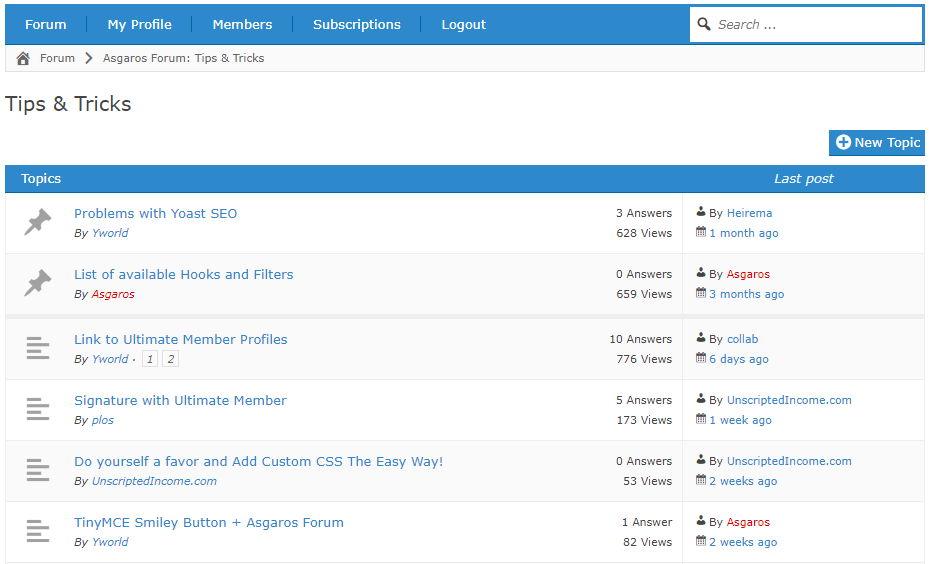
Asgaros wordpress forum plugin

Asgaros Forum is a simple yet functional WordPress forum plugin for those wanting to extend their website with a lightweight discussion board without compromising on features.

Users can create profiles by registering on the forum, get notifications,  create new threads and reply to other users threads.

Asagros Forum offers a basic structure and content management system for administrators. In addition, it also provides basic user management features including access to the member’s list, permission management, and statistics. You can also add your own theme via FTP client.

Discussion Board

Discussion Board wordpress plugin

Discussion Board is another WordPress plugin that can add community forum functionality to your WordPress website. It comes with a host of features and delivers on its claims.

Users can register on the forum, post new topics and create a new page for separate topics.

On the user management front, the admins can control user action, assign roles to new users, limit spam registration, choose from three layouts and work with shortcodes.

There is a Pro version of Discussion Board as well that allows the users to add categories and tags, set topics as solved or open, customize user profiles, upload images, manual approval by admin and WYSIWYG editor.

bbPress
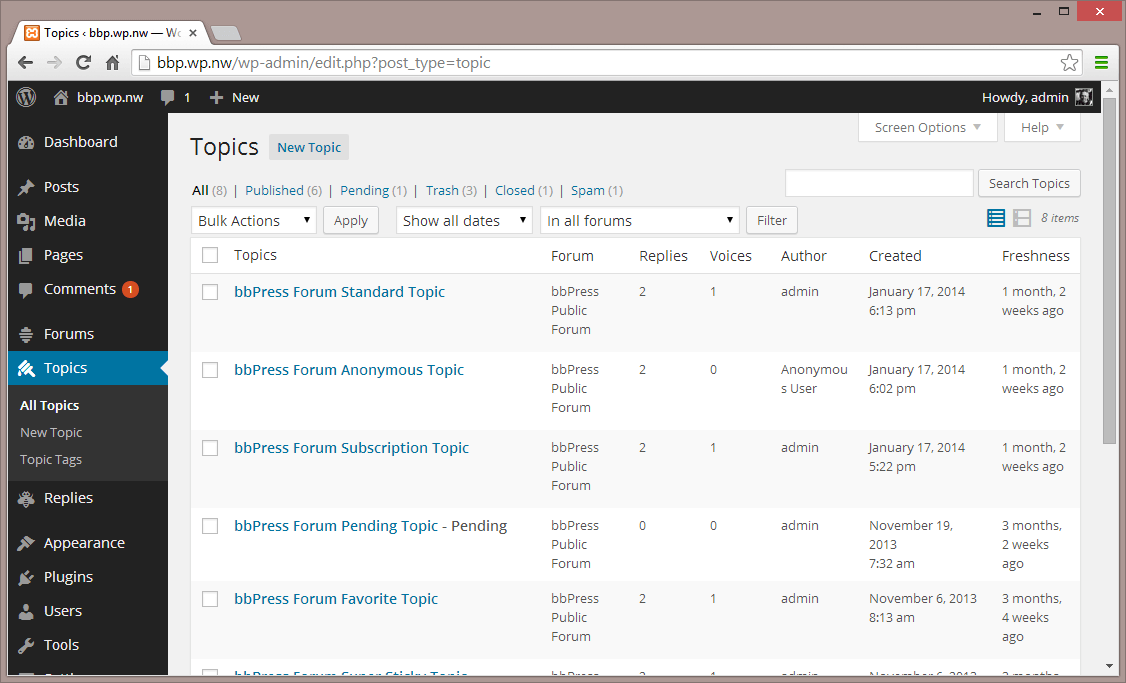
bbPress plugin

bbPress is an open-source community forum plugin developed by Automatic, the same company that runs WordPress.org and .com. The plugin allows you to create bulletin boards while focusing on ease of integration, latest web standard, and speed.

bbPress is an easy going WordPress extension that lets you create community forums with few clicks, but not a very ideal plugin to manage large communities.

Wrapping Up!

If you want a sophisticated gaming forum software or just a community forum software in general then phpBB, Discourse, and MyBB are some of the best choices.

However, if you simply want to extend your website with community forum functionality, try Discussion Board, wpForo Forums and Asgaros Forum plugin for WordPress as it is less resource hungry and also easier to maintain.

For those using Joomla can try Kunena  or EasyDiscuss while the Drupal users can check out Advanced Forum.

That’s about it. Hope we were able to help you find the best forum software with this guide. Do let us know your pick in the comments.


10 best text-to-speech apps for your Windows 10/11 device

There are many people interested in taking eLearning courses, to help them develop speech and literacy skills which will increase their chances to get a well-paid job. It’s very hard to overcome learning difficulties on your own, because you don’t know where to start, so you need guidance and direction to convert words into speech. Luckily, there are some text to speech software for eLearning you can use to improve and expand your vocabulary.

Why hiring an expensive narration professional to train you to communicate effectively with all levels of people, when you can use eLearning text and narration software to get the same results? The advantage of taking an eLearning course is that you will no longer feel inferior and defied, plus you’ll hear a warmer human voice over that will give you comfort.

It’s important to choose the right Text To Speech software, because if you’re dealing with learning disabilities and you have problems when reading, you’ll need to look for the best eLearning course guide. Today, we will talk about the most popular text to speech software that you can use at home, in your room, when no one’s around.

What are the best text-to-speech apps for Windows 10?

Dragon speech recognition software

Dragon speech recognition software was created by Nuance, and it is capable of accurately translating your voice into text without having to use your keyboard at all.

The tool is perfect for those who want to do stuff quickly, on the go. With over two decades of continuous development and thanks to the advanced AI, Dragon delivers over-the-top speech recognition.

When we talk about advanced AI, we mean really advanced, like Machine Learning. The software will adapt to your words and learn how to better distinguish between them.

This results in a crisp and clear translation, which in turn means that you will speak fluently, casually, and effortlessly.

Let’s have a look at Dragon’s main features:

  • Up to 99% speech recognition out of the box
  • Create, edit, and format documents with your voice
  • Use voice commands to navigate the Web or create Emails
  • Deep learning engine continuously adjusts to your voice
  • Dictate text and listen back to it
  • Touchscreen device optimization
Dragon speech recognition software

Dragon speech recognition software

Increase your productivity and make things faster thanks to this awesome speech recognition software from Nuance.
Check priceVisit website

PistonSoft Text-to-Speech Converter

pistonsoft text-to-speech converter interface

PistonSoft Text-to-Speech Converter is one of the simplest of the market. However, it is equipped with a bunch of useful features. You can covert your favorite books, your courses or other literature. It also ‘teaches’ your computer how to make natural speaking pauses so you won’t be disturbed by the never-ending word flow.


Ivona

Text To Speech Ivona

This multi-lingual speech synthesis system was released 11 years ago and it offers a full text to speech system with various APIs. Its voice portfolio contains 23 languages, with 3 voices and when it comes to compatibility, Ivona supports Windows, Unix, Android, Tizen, iOS based systems. Users are also able to upload to cloud whatever they record.

NaturalReader

Text To Speech NaturalReader

The free version for Windows includes the following features: text to speech; free conversion of PDF, Docx, Richtext & ePub documents into spoken words; Listen to Webpages; Change speaker and speed; Floating Bar; In-software Help and OCR Function (30 images). If you’ll opt for the Personal version ($69.5), Professional version ($129.5) or Ultimate ($199.5), you’ll get extra options such as Pronunciation Editor; Typing echo; Word Prediction; Spelling Check etc.

Zabaware Text To Speech Reader

Zabaware Text To Speech Reader

Its free version provides generic voices, while the paid option offers high quality CereProc and AT&T Natural Voices. After converting text into wav audio files, you can transfer them to portable devices.

iSpeech

iSpeech

You can use its API to create high quality speech audio in the following formats: mp3, wav, wma, mp4 and flac, while the iSpeech Translator feature will translate the speaking text in seven languages, but it also translates text in 18 languages.

Acapela Group Virtual Speaker

Acapela Group Virtual Speaker

It supports 30 languages, it offers voices in different sampling frequencies and qualities and the sound files are very easy to access, no matter what authoring tool you are using.

TextSpeechPro

TextSpeechPro

It will read Microsoft Word, PDF, emails and other types of documents, using AT&T Natural Voices. Also, if you don’t understand what’s written on a web page, TextSpeechPro will read its text straight from the interface. You’ll have the option to adjust the speed, volume and voice quality.

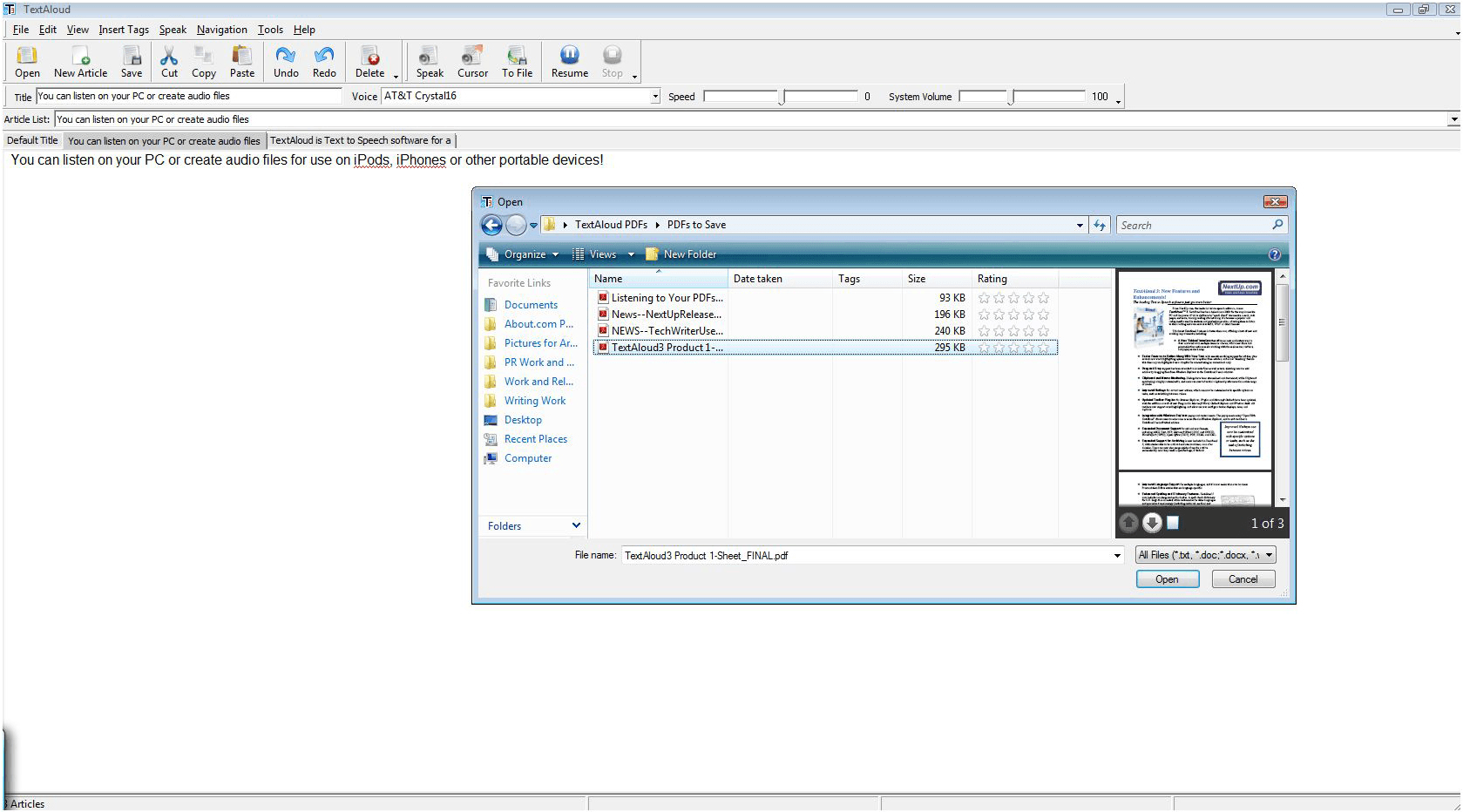
TextAloud 3

TextAloud 3

Its creator is NextUp and this Text to Speech Tool will allow you to create messages for your answering machine, listen to information while you work on something else, listen to an eBook during your commute, create audio files for computer games etc. It supports 29 languages and offers AT&T Natural Voices.

Read The Words

Read The Words

The free version includes three languages, several voice characters and it allows you to create audio files with a length of up to 30 seconds, while the gold upgrade offers unlimited podcasting and the possibility to create unlimited audio files up to 8 hours in length.

Voice Reader

Voice Reader

It was created by Linguatec and it can be used to convert text (PDF, Doc, Docx, HTML, RTF) to voice in different languages. The software offers even individual pronunciation adjustments.

If you’re an educator, there are 14 free text to speech tools that you can use to relax your students’ tired eyes: Announcify, Balabolka, DSpeech, NaturalReaders, PediaPhon, PowerTalk, QR voice, Select and Speak, SpeakIt!, SpokenText, Text2Speech, Voki, VozMe and WordTalk. We hope that you find these recommendations perfect for your needs.

Here’s how to fix error 0x800f080d on Windows 10/11

0x800f080d error usually appears when trying to install Windows Updates. Since this error prevents the installation of updates, it can be problematic, and in today’s article, we’re going to show you how to fix it.

Error 0x800f080d can be quite problematic, and it can prevent you from updating Windows to the latest version. Speaking of this error, here are some similar problems that users reported:

  • DISM error 0x800f080d – Sometimes this error can appear while trying to run DISM scan. To fix it, create a new user account and check if that helps.
  • 0x800f080d Windows 10 – There are many reasons why this error can appear in Windows 10, but if you encounter it, check your antivirus and make sure that it’s not interfering with Windows Update.
  • 0x800f080d Windows Update –Sometimes Windows Update components aren’t working properly, and that can lead to this problem. To fix the problem, you just need to reset them using the Command Prompt.

0x800f080d error, how to fix it?

  1. Check your antivirus
  2. Try performing a Clean Boot
  3. Remove problematic applications
  4. Create a new user account
  5. Reset Windows Update components
  6. Perform a System Restore

Solution 1 – Check your antivirus

If you’re getting error 0x800f080d while trying to install the latest updates, the issue might be your antivirus. Having a good antivirus is important, but third-party antivirus can sometimes interfere with your system and it can cause this problem to appear.

To fix the issue, it’s advised to open your antivirus settings and try disabling certain antivirus features. In case that doesn’t work, it’s suggested to disable your entire antivirus altogether. If the issue is still present, try removing your antivirus completely and check if that helps.

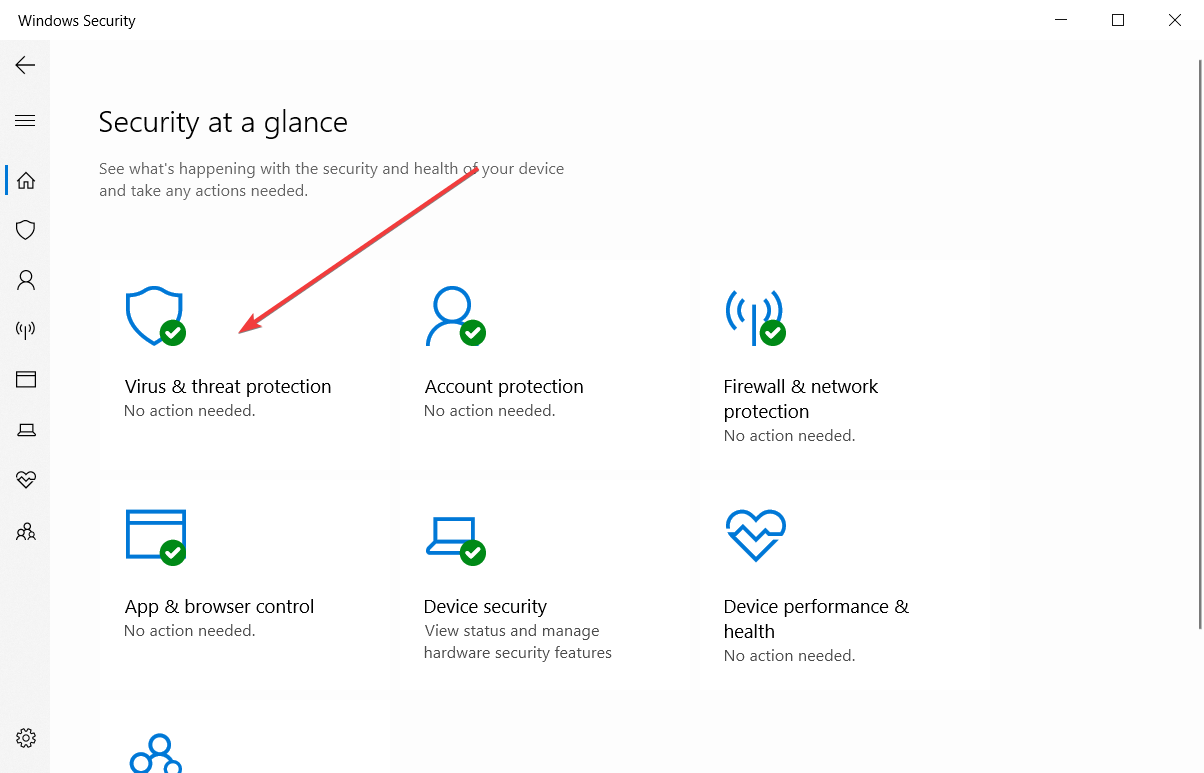
Bear in mind that Windows 10 has its own antivirus, Windows Defender, so even if you choose to remove your antivirus, you will remain protected. If removing the antivirus solves the problem, we suggest that you consider switching to a different antivirus solution.

There are many good options available with plenty of up-to-date security features that protect your system on all fronts. We recommend you get an antivirus with a high detection rate so threats have no time to damage your system.

Solution 2 – Try performing a Clean Boot

Sometimes error 0x800f080d can occur due to third-party applications on your PC. Certain applications can interfere with your system, and that can lead to this and many other problems. Many applications will start automatically with Windows, so the issue will appear as soon as your system starts.

To find out which application is causing the problem, it’s advised to perform a Clean boot. This will basically disable all startup applications and services and allow you to pinpoint the cause. To perform a Clean boot, do the following:

  1. Press Windows Key + R to open the Run dialog. Now enter msconfig, and click OK or press Enter.
    run dialog 0x800f080d
  2. When System Configuration window opens, go to the Services tab and check Hide all Microsoft services check box. After doing that, click Disable all button to disable all services on the list.
    disable services 0x800f080d
  3. Navigate to the Startup tab. Select Open Task Manager.
    open task manager 0x800f080d
  4. Task Manager will appear, and you’ll see a list of startup applications. Right-click the first entry on the list and select Disable from the menu. Repeat this step for all startup applications.
    disable startup applications 0x800f080d
  5. Once you disable all startup applications, head back to the System Configuration window. Click Apply and OK to save changes and restart your PC.
    system configuration window 0x800f080d

Once your PC restarts, check if the issue is still there. If the problem doesn’t appear, it’s rather likely that one of the startup applications was causing it. To pinpoint the cause, you need to enable applications and services one by one or in groups until you manage to recreate the issue and pinpoint the cause of the problem.

Once you find the problematic application, keep it disabled or remove it.

Solution 3 – Remove problematic applications

As we mentioned in the previous solution, sometimes third-party applications can cause error 0x800f080d to appear. If this problem started occurring recently, it’s possible that a third-party application is causing it.

To fix the problem, you need to check the list of all installed applications and look for any application that you don’t remember installing. Once you find such an application, uninstall it and check if that solves the problem.

Almost any application can cause this problem, but usually, the issue is caused by security or system optimization applications, so keep an eye out for those.

As for removing of applications, the best method to remove an application is to use dedicated uninstaller software.

In case you don’t know how uninstallers work, they remove all files and registry entries related to the application you want to uninstall.

By doing so, there won’t be any leftover files that can interfere with your system, and it will be as if the application was never installed.

Solution 4 – Create a new user account

Sometimes 0x800f080d error can appear if your user account is corrupted. This can happen for various reasons, and since there’s no straightforward way to repair a corrupted account, the best solution is to create a new user account. This is quite simple, and you can do it by following these steps:

  1. Open the Settings app and head over to the Accounts section. To open the Settings app quickly, you can use Windows Key + I shortcut.
    account settings app 0x800f080d
  2. Select Family & other people in the left pane. In the right pane, select Add someone else to this PC.
    add new user 0x800f080d
  3. Now choose I don’t have this person’s sign-in information > Add a user without a Microsoft account.
    no sign in information 0x800f080d
  4. Enter the desired username for the new account and click Next.
    account details 0x800f080d

Once you create a new account, you’ll need to upgrade it to the administrative account. To do that, follow these steps:

  1. Open the Settings app and navigate to Accounts > Family & other people.
  2. Select the new user account and choose Change account type.
    change account type 0x800f080d
  3. Now change the Account type to Administrator and click OK.
    change account type administrator 0x800f080d

After creating a new administrative account, switch to it and check if the problem is still there. If the issue doesn’t appear on the new account, move your personal files to it and start using it instead of your old account.

Solution 5 – Reset Windows Update components

If you’re having issues with Windows Update and you’re getting error 0x800f080d, perhaps you can fix the problem by resetting Windows Update components. In order for Windows Update to work properly, certain services need to be running, and if one of these services is having issues, you won’t be able to use Windows Update properly. However, you can fix this issue simply by resetting Windows Update components by doing the following:

  1. Start Command Prompt as administrator. To do that, right-click the Start button and choose Command Prompt (Admin) or Powershell (Admin) from the menu.
    command prompt 0x800f080d
  2. Once you start Command Prompt, run the following commands:
    • net stop wuauserv
    • net stop cryptSvc
    • net stop bits
    • net stop msiserver
    • ren C:WindowsSoftwareDistribution SoftwareDistribution.old
    • ren C:WindowsSystem32catroot2 catroot2.old
    • net start wuauserv
    • net start cryptSvc
    • net start bits
    • net start msiserver
    • pause

Once the commands have been executed, check if the problem is still there. If you don’t want to run all these commands one by one, you can also create a Windows Update reset script and use it to automatically perform all these commands.

If the previous method didn’t work for you, you can also try running these commands in Command Prompt:

  • REGSVR32 WUPS2.DLL /S
  • REGSVR32 WUPS.DLL /S
  • REGSVR32 WUAUENG.DLL /S
  • REGSVR32 WUAPI.DLL /S
  • REGSVR32 WUCLTUX.DLL /S
  • REGSVR32 WUWEBV.DLL /S
  • REGSVR32 JSCRIPT.DLL /S
  • REGSVR32 MSXML3.DLL /S

By running these commands you’ll reregister Windows Update DLLs and that should hopefully fix the problem.

Solution 6 – Perform a System Restore

If you’re still having 0x800f080d error, perhaps the best course of action would be a System Restore. In case you’re not familiar, System Restore is a built-in feature of Windows that will restore Windows to an earlier state and fix many problems along the way. To perform a System Restore, do the following:

  1. Press Windows Key + S and enter system restore. Select Create a restore point from the list of results.
    create a restore point 0x800f080d
  2. Once the System Properties window appears, click the System Restore button.
    system restore button 0x800f080d
  3. System Restore window will appear. Click the Next button to proceed.
    system restore main window 0x800f080d
  4. Check the Show more restore points option, if it’s available. Select the restore point you want to revert back to and click Next.
    choose a restore point 0x800f080d
  5. Follow the instructions on the screen to complete the restoration process.

Once the process is finished, your system will be restored to an earlier state and the problem should be resolved.

Error 0x800f080d can prevent you from updating Windows to the latest version, but we hope that our solutions helped you solve this problem.

Posted in Fix

FIX: Waiting For Game to Exit Message in Battlefield 3

Battlefield is a popular first-person shooter franchise, however, many users reported Waiting for game to exit message in Battlefield. This message will prevent you from joining a game, and in today’s article, we’re going to show you a couple of methods that might help you fix this problem.

Battlefield 3 is probably one of the best installments in the Battlefield series, however, many users reported Waiting for game to exit message while trying to join a server. This isn’t the only problem with Battlefield 3, and speaking of problems, here are some similar issues that users reported:

  • Battlefield 3 waiting for game to exit stuck – This issue can appear due to the Battlefield process that is running in the background. To fix the issue, end all Battlefield 3 processes and try to join the server again.
  • Battlefield 3 coop waiting for game to exit – Sometimes browser glitches can be the cause for this problem. To fix the issue, try switching your browser or clear the browser cache.
  • Battlefield 3 not launching – The most common cause for this problem is your antivirus, so in order to fix the problem, temporarily disable or uninstall your antivirus and check if that solves the issue.

Waiting for game to exit message in Battlefield 3, how to fix it?

  1. End Battlefield 3 process
  2. Check your antivirus
  3. Try using a different browser
  4. Temporarily log out of your Origin account
  5. Close PunkBuster
  6. Launch the game as administrator
  7. Close the browser and try to join the server again
  8. Click the X button next to the waiting bar
  9. Clear cookies and cache in your browser

1. End Battlefield 3 process

As we already mentioned, Waiting for game to exit message usually appears in your browser when you try to pick a game to join in Battlefield 3. According to users, you can fix this problem simply by ending the Battlefield 3 process in Task Manager.

This is actually quite simple, and you can do it by following these steps:

  1. Wait for the Waiting for game to exit message to appear. Don’t close your browser.
  2. Start Task Manager. You can do it by using the Ctrl + Shift + Esc shortcut.
  3. Locate Battlefield process on the list, right-click it and choose End Task from the menu.
    end task battlefield 3 waiting for game to exit
  4. Close Task Manager, go back to your browser and you should be able to pick a server without any problems.

This is just a workaround, but it works according to users, so feel free to try it. Bear in mind that you’ll need to repeat this solution whenever you get Waiting for game to exit message.

2. Check your antivirus

If you’re getting Waiting for game to exit message while trying to start Battlefield 3, the issue might be your antivirus. Sometimes antivirus software can interfere with certain games, and that can lead to this and many other errors. To fix the problem, be sure that Battlefield 3 and its installation directory are added to the list of exclusions in your antivirus. Also, make sure that Battlefield 3 is allowed through your firewall.

If those settings are in order, you can try disabling certain antivirus features and check if that helps. Alternatively, you can completely disable your antivirus and check if that solves the problem. In the worst-case scenario, you might have to remove your antivirus completely. Even if you choose to remove your antivirus, you’ll still be protected by Windows Defender, so there’s no need to worry about your safety.

If removing the antivirus solves the issue, perhaps this is a perfect time to consider switching to a different antivirus. Many antivirus applications have a Gaming Mode feature that will optimize your antivirus settings for gaming and prevent any antivirus interference.

3. Try using a different browser

Battlefield 3 uses a web browser in order to help you find the server to join. This method isn’t perfect, and sometimes you can encounter Waiting for the game to exit a message while trying to start your game. To fix this problem, users are suggesting switching to a different browser.

Many reported this problem in Google Chrome, but after switching to a different browser the issue was resolved.

You can switch to a different browser to avoid downloading and installing a new browser just so you could run Battlefield 3.

Therefore, in case you need the fittest browser for gaming, the Opera GX browser is the gamer’s choice due to its relevant gaming functionalities.

⇒ Get Opera GX

4. Temporarily log out of your Origin account

If you’re getting Waiting for game to exit while trying to find a Battlefield 3 game, the issue might be related to your Origin account. Sometimes there might be some glitches or syncing issues that can lead to this problem.

The fastest way to fix those issues is to temporarily log out of Origin. Once you log out, wait for a few moments and log back in. After doing that, try to start Battlefield 3 again and check if the issue is still there.

5. Close PunkBuster

If you’re having issues with Waiting for game to exit message, the problem might be related to PunkBuster. Battlefield 3 uses PunkBuster anti-cheating service, and sometimes this service can stop you from joining a server.

To fix this problem, users are suggesting to open Task Manager and close PunkBuster.  Simply look for PnkBstrA.exe process and end it. After doing that, you should be able to join any server with ease. Bear in mind that you need to have PunkBuster running in order to play Battlefield 3, so be sure to start it again before you join a server.

This is a simple workaround, and you’ll have to repeat it whenever this issue appears.

6. Launch the game as administrator

Not having administrative privileges can sometimes be an issue, and it can lead to various problems. If you’re getting Waiting for game to exit message, it’s possible that the lack of administrative privileges is causing this issue.

To check if administrative privileges are the problem, you can try running the application as an administrator. This is quite simple, and you can do it by following these steps:

  1. Locate Battlefield 3 shortcut and right-click it.
  2. Choose Run as administrator from the menu.
    waiting for game to exit run as administrator

If this method works, you’ll have to repeat it every time you want to start Battlefield. You can also set Battlefield 3 to always run with administrative privileges. To do that, follow these steps:

  1. Right-click Battlefield 3 shortcut and choose Properties from the menu.
    waiting for game to exit properties
  2. Once the Properties window opens, navigate to the Compatibility tab and check Run this program as an administrator. Now click Apply and OK to save changes.
    run as administrator battlefield 3

After doing that, you can use this shortcut to start Battlefield 3, and the game will always start with administrative privileges.

7. Close the browser and try to join the server again

As we previously mentioned, you use your browser in order to pick a server in Battlefield 3, and sometimes certain glitches can occur that can lead to Waiting for game to exit message. To fix this problem, you need to do the following:

  1. Start the game and try to pick a server.
  2. You should now see Waiting for game to exit Click the server icon a few times as well the Join Server button.
  3. Now close your browser.
  4. Start Battlefield 3 from Origin and select the server.
  5. Click the Join Server button and that’s it.

Several users reported that this method works, but bear in mind that this is just a workaround, so you’ll need to perform it every time you want to start the game.

8. Click the X button next to the waiting bar

According to users, you might be able to fix this problem simply by clicking the X icon next to the waiting bar. When you try to join a server, you might see a waiting bar. As soon as the bar appears, click X next to it. Now click the Rejoin the server button and that’s it.

This is a strange workaround, but several users reported that it works, so feel free to try it out.

9. Clear cookies and cache in your browser

As we previously mentioned, Battlefield 3 relies on your browser to select a server. However, if there are any issues with your browser, such as a problem with cache or cookies, you might experience Waiting for game to exit message.

To fix this problem, users are suggesting to clear your browser cache. This is quite simple to do, and you can do it by following these steps:

  1. Click the Menu icon in the top-right corner and select Settings from the menu.
    waiting for game to exit settings
  2. Settings tab will now open. Scroll to the bottom of the page and click Advanced.
    waiting for game to exit advanced section
  3. Now select Clear browsing data.
    clear cache chrome battlefield 3
  4. Set the Time range to All time. Click the Clear data button to remove the cache.
    clear cache confirm battlefield 3

After a couple of moments, the cache will be cleared. Once the process is finished, try to start the game and check if the problem is still there.

If you don’t want to clear the cache manually, you can always use third-party tools such as CCleaner to clean the cache in all your browsers simultaneously. In addition to clearing the cache, this tool can also remove old and junk files to speed up your PC, so you might want to try it out.

Waiting for the game to exit the message in Battlefield 3 can be a big problem, but we hope that you’ve managed to fix this problem using one of our solutions.

Posted in Fix

Windows 10 v2004 & v20H2 are now available for all users

Many users waited for the Windows 10’s upgrade to versions 2004 and 20H2 to be available for everyone. Due to unexpected errors this was not possible for everyone.

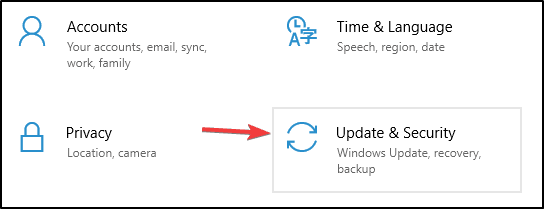
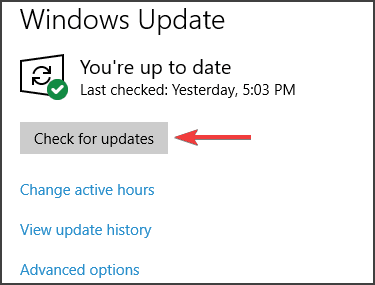
Many users could upgrade to these versions easily and all they had to do is to manually seek to Check for updates via Windows Update.

Thankfully, the issue has been solved for the ones that were getting error messages and everyone can now benefit from these features.

Update 2004 & 20H2 now available

In February Microsoft stated that they have started a new roll out aiming for more devices to be automatically updated to Windows 10, version 20H2:

We have started a new phase in our rollout. Using the machine learning-based (ML-based) training we have done so far, we are increasing the number of devices that are approaching end of service to update automatically to Windows 10, version 20H2. We will continue to train our machine learning through all phases to intelligently rollout new versions of Windows 10 and deliver a smooth update experience.

Unfortunately, not all users were able to upgrade to these versions due to different errors that happened during or after the update.

In the latest Microsoft post regarding the blocks that were holding up users to update to the latest versions, we can see that they were solved on May 7.

Right now, everyone with an eligible Windows 10 PC can upgrade to Windows 10 versions 2004 and 20H2, as Microsoft removed all existing blocks that were standing in the way of doing so.

Don’t hesitate to share your comments with us in the dedicated section below, we would love to read them.

Pet Food Formulation Software: 3 Best in 2026

There is nothing better than the unconditional love we get from our pets. They are there to comfort us in our bad times, and there to experience happy moments in life with us, as well.

When it comes to the pet food industry, the prime materials from which the food is normally created is not up to par for a healthy diet.

As in the case of human beings, what our pets consume in the form of food influences their overall health, quality of life, and also life expectancy.

No matter if you’re a dog or a cat person, choosing the best foods for them is essential for their health.

In the past, the only way to deal with this issue was to feed them home-cooked meals, but even in this case, some elements can prove to be damaging to their health.

For these reasons, in this article, we will explore some of the best software options on the market that allow you to formulate a custom diet plan for your beloved pet, or even start a business in this domain. Read on to find out more.

What’s the best pet food formulation software?

Animal Diet Formulator

Animal Diet Formulator - pet food formulator software

Animal Diet Formulator allows you to create custom meal plans for your pets that covers all their nutritional needs according to the breed and type of pets you own.

This software is designed to give you all the tools you need in order to create healthy diets based on whole foods, with a balanced nutritional plan, customized even for the cases in which your pet needs specific health diets.

Here are some of the best features found in this software:

  • Can create personalized meal plans for your pets by using the data from your veterinarian
  • Always be up to the date with the latest research and guidelines for healthy pet food
  • Offers you access to the best ingredients on the market
  • Can create recipes from scratch or edit already existing ones to fit your pets needs
  • You get up to date food recommendations based on different factors – activity levels, breed, reproductive status, etc.
  • Gives you a comprehensive list of minimum mineral amounts that you can customize

Pros:

  • A great database of customizable recipes
  • Allows you to keep up to date with the latest studies and research in the field

Cons:

  • Quite pricey
  • The subscription is only available for a year after purchase

Try Animal Diet Formulator


These animal shelter software for Windows 10 will help you better manage daily activities.

Animal Feed Formulation Software

Animal Feed Formulation Software - pet food software

Animal Feed Formulation Software, also known as AFOS, is a very useful software option that is structured as a hybrid software with cloud compatibility.

This tool allows you to easily create customized food recipes for your pets, gather important information about each ingredient and its best use, estimate the costs of production, and can even create labels.

Here are some of the best features found in this software:

  • Can be used both as a fully-featured cloud platform for advanced users with teamwork capabilities or as a browser app with the option to save data locally
  • Allows you to choose from multi-plant and multi-animal groups with the corresponding data
  • Can customize every aspect of all recipes and share them with people in the community
  • Great engine that calculates nutrients and gives you a baseline recommendation
  • Advanced search options with smart filters
  • Can test out different formulations to see how efficient they are for a specific breed

Pros:

  • Wide range of formation capabilities
  • Customizable recipes
  • Easily accessible from anywhere in the world

Cons:

  • Using Linear Programming to obtain cost-efficient recipes doesn’t support plant-based feed plans
  • Need to manually change the values of formulas for accurate results in plant feeds

Download Animal Feed Formulation Software


These are the best free recipe apps for Windows 10 to cook like a gourmet chef

Bestmix Feed Formulation

Bestmix Feed Formulations - pet food software

This software is another great option that can help you create custom meal plans for all your pets. You can create recipes and mixes for livestock feed, aqua feed, and also pet food, manage the production costs, and choose the best ingredients for your animals.

Some of the best features found in this software:

  • Saves you time by streamlining the process of researching information
  • Advanced optimization techniques that assure you get the best value for your money
  • Your entire team can collaborate in order to achieve the best results
  • Always stay up to date with the latest advancements and research in the field
  • Helps you comply with the law requirements for pet foods

Pros:

  • Wide range of features that cover all the areas of custom pet food production
  • Can easily create product labels and update them as needed

Cons:

  • User interface can take some getting used to

Try Bestmix Feed Formulation

In this article, we explored some of the best software options that allows you to customize the foods you feed to your furry friends.

Please feel free to let us know your opinion by using the comment section below.

Latex Software for Windows: 4 Best in 2026

LaTeX is a high-quality typesetting system that includes various features that allow you to create both technical and scientific documents and is the standard for the publication of scientific documents.

Even though this type of software was designed to be used in medium to large documents, LaTeX can be used for documents of any size.

This typesetting system allows users to focus on the creation of great content, and not having to worry about the way that information is presented in the text file.

If you would want to create scientific documents by using word processor software, it would mean that the content writer would have to waste time setting up the document to look as it is required. This takes a lot of time and is not an efficient way of dealing with this issue.

LaTeX is not a typesetting program in itself, being considered more of a document preparation software that uses the TeX typesetting system to work more efficiently.

Let’s explore some of the best software options that allow you to create amazing scientific and technical documents by using the TeX typesetting system.

What’s the best LaTeX style editor for Windows 10?

Overleaf

Overleaf - LatEx software

Overleaf is another great typesetting environment which offers you a simple solution to help with the creation of scientific and technical papers.

One of the best features of this software is the fact that it offers you access to a wide range of templates that can shorten the time spent preparing for your project, considerably.

You can see what templates Overleaf has to offer by visiting this webpage.

You can insert images, bibliographies, equations, etc. , and if you want to know more about this software option’s capabilities, you can visit the official OverLeaf guides page.

If you want to see a full list of features, you can also visit the official Overleaf features page.

Try Overleaf

LyX

LyX - LatEx software

Lyx is a very useful document processor that allows you to write content that is automatically projected based on the configuration of your document.

This software offers you all the features found in Tex/LaTeX and offers you access to them by using a good looking interface.

You can create top of the range mathematical documents, academic articles, theses, and also for books and studies in different domains. You can also use Lyx to write letters, novels, theater plays, or even film scripts.

The entire creation process becomes a lot easier than in the case of the other software options we mentioned in this article, by giving you access to a well-rounded built-in document layout options.

Download Lyx 


Want to manage your documents like a pro? Try one of these applications!

MiKTeX

MiKTeX - LaTeX software

This software is an up to date edition of the Tex/LaTeX and other related programs and allows you to create comprehensive and extensive scientific documentation, mathematics books, and others.

This software is extremely easy to install with the help of the built-in Setup Wizard. This wizard takes you through the entire process by taking it one step at a time.

Once you install this software, it automatically installs missing components by downloading them from the Internet, depending on what tools you will need for your projects.

Choosing which modules will be downloaded based on the tools you need allows this software to reduce the size of the installation to the level you require.

Included in this software you will find another tiny addon called TeXworks. This element allows you to edit and preview all the LaTeX documents you need to work on.

Download MiKTeX

Vim Editor

Vim Editor - LaTeX software

This software is a very customizable text editor that was designed to help you in the process of text editing, and can also be used by programmers as an IDE (Integrated Development Environment) software.

In order to access the files you’re created in VIM Editor you will need to use a Cygwin terminal emulator called Mintty, which comes bundled with Cygwin.

Conclusion

In this article, we explored some of the best software options that can help you create incredible scientific, and also technical papers that include a wide range of topics and areas of activity.

Feel free to share your opinion about this software with us by using the comment section below.

Convert files to ISO with these great tools

ISO files are great because they allow you to emulate an optical disc on your PC. In fact, you can download and install Windows 10 and Linux by using and converting to ISO files.

Since ISO files are incredibly useful, it’s no wonder that many companies are using them for software distribution.

If you want to start and convert files to ISO, today we’re going to show you some of the best tools to convert files to ISO.

Editor’s note – initially we wanted to list as many tools as possible. However, Google gave us a warning that some were rogue programs, that’s why we kept the list but are recommending only the first for you to really use. 

What are the best tools to convert files to ISO?

PowerISO (recommended)

PowerISO main screen

If you want to create ISOs from files or CDs, you might be interested in PowerISO. This is a simple application, and it will allow you to create ISO files from files stored on your hard drive.

In addition, this tool also allows you to create ISO files from any optical media. If needed, the application can also create bootable ISO image files.

PowerISO supports ISO editing, and you can add or delete files from ISO images. You can rename files or add boot information to the ISO file. You can also view and run files from ISO files.

We have to mention that this application supports a wide range of image files, and it should work with the most popular file formats without issues.

PowerISO also supports burning, and you can burn ISO files to optical drives with ease. Just like with any other burning software, you can create audio, video, and data discs.

The application also works with rewriteable discs. Speaking of which, PowerISO offers Full Erase and Quick Erase modes for rewritable discs.

The application also allows you to mount ISO and other image files as virtual drives. In fact, the application supports up to 23 virtual drives. It supports CD ripping, and it can rip audio CDs to mp3, WMA, wav, and other popular formats. In addition, you can also convert audio CDs to image files.

Since this application works with such a wide range of formats, it also allows conversion. This means that you can easily convert popular image file formats to ISO or BIN files.

PowerISO also works with virtual disk image files, so it’s compatible with VMWare Virtual Disc Images and VirtualBox Virtual Disc Images. Speaking of which, the application supports disk image files with FAT12, FAT, FAT32, NTFS, and ext2, ext3 partitions.

This is a great tool if you want to create ISO images. Thanks to the simple user interface you’ll be able to create ISO files with ease.

We have to mention that PowerISO isn’t a free application, so it comes with certain limitations.

The free version offers all features, but you can’t make ISO files larger than 300MB. If you want to remove this limitation, you need to purchase the full version of PowerISO.

PowerISO

You can best use this file processing tool for any ISO file tasks, including extracting, burning and converting files in no time.
Check price Visit website

AnyToISO

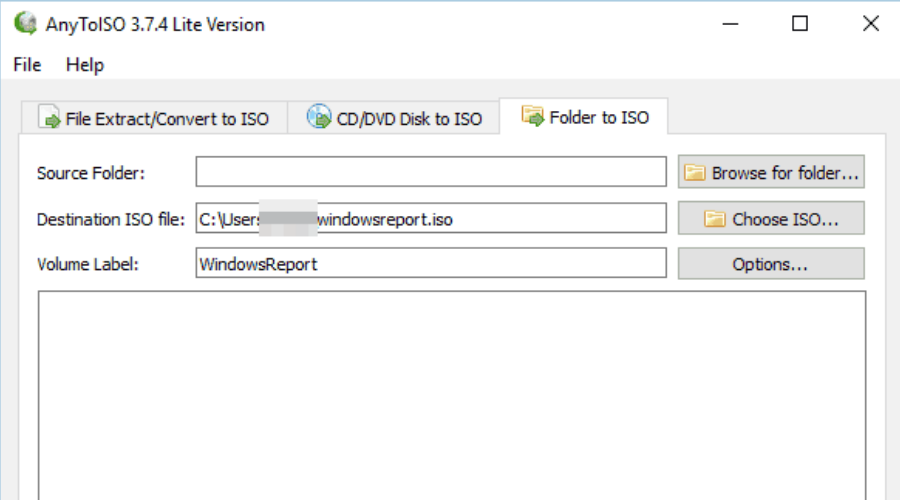
Another great tool that can work with ISO images is AnyToISO. The application has a simple interface, so it will be perfect for first-time users.

AnyToISO works with more than 20 different file types, so it should work with almost any image file. In fact, you can easily convert any other image file to ISO with a single click. The application also allows you to create an ISO file from an optical disc, which is a welcome feature for file backup.

With AnyToISO you can easily create an ISO file from your files. This application doesn’t work as regular burning software, so you’ll have to store your files in a single folder to create an ISO.

After doing that, select the desired folder, set the name for the ISO file and you’re ready to start.

This application is fully integrated with File Explorer, and you can create and convert an ISO file from the context menu with a single click. Since AnyToISO works on other platforms, it offers full integration with Finder on Mac.

It’s also worth mentioning that this application can work in a portable mode so that you can run it on any PC without installation.

If you’re an advanced user and you want to create batch operations, you can do so thanks to the command line support. The application allows you to perform all actions right from the command line, which is quite useful for all advanced users.

AnyToISO is a great tool, and it offers a simple and user-friendly interface. Although this application doesn’t support disc burning, it’s still great when it comes to making ISO files.

Regarding the flaws, our only complaint is the inability to add individual files when creating ISO from files. Instead, you have to make a folder and add all your files to it before making an ISO.

The Lite version supports all features, however, you can only work with ISO files that are less than 870MB in size. If you want to remove this limitation, you need to purchase the full version.

⇒ Get AnyToISO

Magic ISO Maker

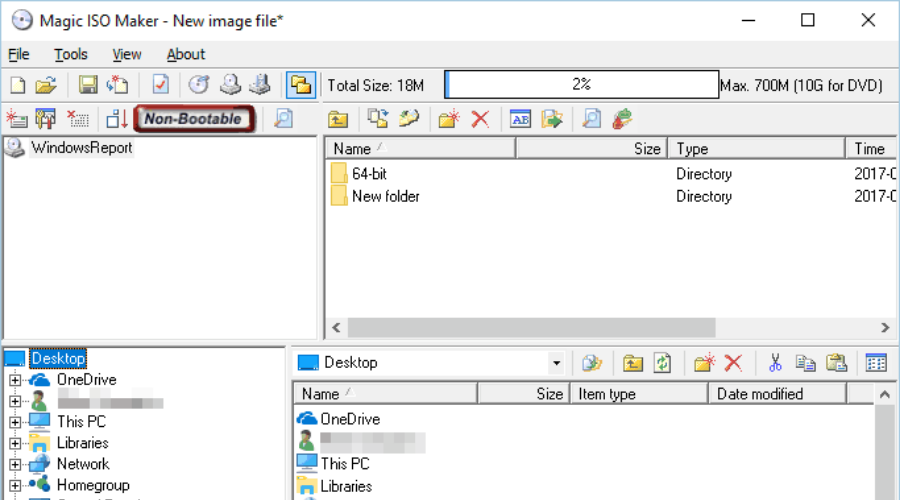
Another tool that can convert files to ISO is Magic ISO Maker. This application allows you to create ISO files from optical media or from your local files. In addition, the tool allows you to open and edit image files.

Another great feature is the ability to convert image files, so you can convert BIN files to ISO and vice versa.

We have to mention that this tool supports wide range of formats, and you can easily convert them all to ISO. The application also supports bootable media, so you can easily create bootable ISO files as well.

As we already mentioned, this application allows you to edit your ISO files. By doing so, you can add, delete or rename the contents of ISO files. Regarding the file size, this application can work with ISO images up to 10GB in size.

Just like many other similar tools, the application allows you to create ISO files from optical discs. Magic ISO Maker also allows you to create bootable ISO files. According to the developer, you can use this tool to combine multiple bootable image files. By doing so, you can install multiple operating systems from a single disc.

Magic ISO Maker is decent software, and it will allow you to create ISO files with ease. We have to admit that this application looks a bit outdated, but that’s because it hasn’t been updated in a while.

Despite this flaw, Magic ISO Maker is still a great tool that can convert files to ISO. The tool is available for download, but if you want to continue using it, you’ll need to purchase a license.

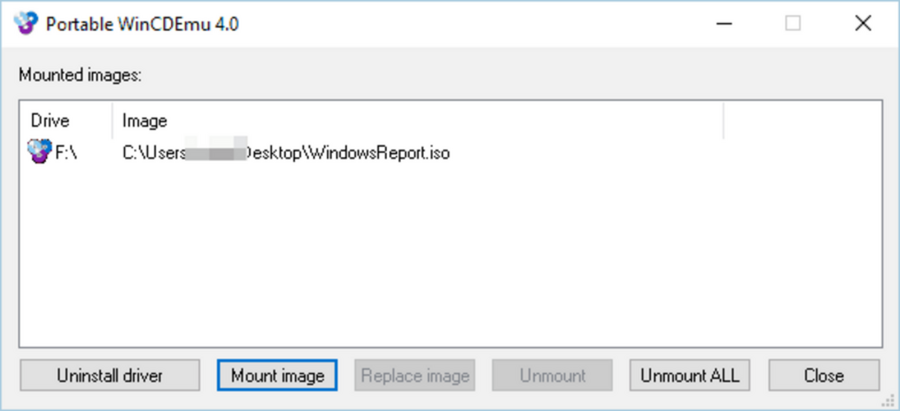
WinCDEmu

If you’re looking for a free application to convert files to ISO, WinCDEmu is just what you need. The application allows you to create virtual drives and mount disc images.

Regarding the supported formats, this application supports ISO, CUE, NRG, MDS/MDF, CCD, and IMG files. It’s worth mentioning that you can create an unlimited number of virtual drives, which can be useful to advanced users.

This is a small application, and it will run on any version of Windows without issues. We also have to mention that there’s a portable version available. As a result, you can run this application on any PC without installation. You can also perform most actions from the context menu.

For example, if you want to create an ISO file from an optical drive, you need to right-click the drive and choose the appropriate option. If you want to convert files to ISO, you need to move all your files to a single folder, right-click the folder and choose the desired option.

WinCDEmu is a simple application, and it will be perfect for basic and first-time users. We have to mention that the portable version doesn’t have a context menu available, so you won’t be able to use it to convert files to ISO.

Overall, this is a great application, and since it’s free it will be perfect for basic users.+ Our only complaint is that you need to use context menu to create ISO files, but this isn’t a major flaw in our opinion.

⇒ Get WinCDEmu

AnyBurn

Another free application that can convert files to ISO is AnyBurn. This application has a simple user interface, so it’s perfect for first-time users. Once you start the application, you can choose between several available tasks.

Using this tool you can burn CD, DVD, and Blu-ray disc image files to optical discs. In addition, this tool allows you to create audio CDs from your music files.

We also have to mention that this application supports audio ripping. Thanks to this feature, you can easily rip any audio CD to MP3, FLAC, APE, or WMA format.

The tool also allows you to browse image files or extract files from ISOs. If you want, you can also edit any compatible image file with ease. The application supports disc copying, and you can also convert any optical media to an image file.

Of course, rewritable discs are also supported. In addition, you can convert image files to ISO or CUE/BIN format right from this application.

The application also allows you to convert files to ISO with ease. Unlike some other tools, AnyBurn doesn’t use the context menu to create ISO files.

This means that you can simply drag and drop the desired files to AnyBurn to create an ISO file. Another feature that we have to mention is the ability to create bootable USB drives.

AnyBurn allows you to convert files to ISO, but it also supports many advanced features. This application offers a user-friendly interface and it’s available for free, so we recommend that you try it out.

It’s also worth mentioning that you can download and use the portable version. By doing so, you can run this tool without installation on any PC.

⇒ Get AnyBurn

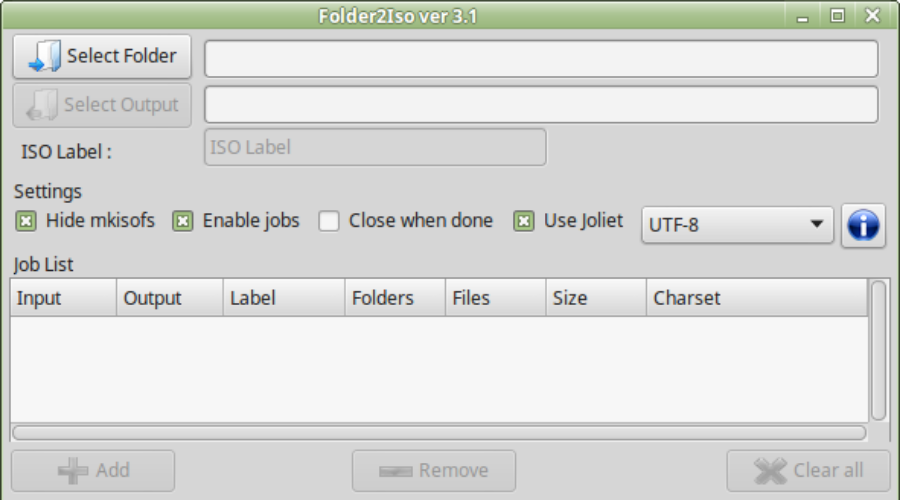
Folder2ISO

Another application that can convert files to ISO is Folder2ISO. This is a simple application, so first-time users won’t have any issues with it.

The application is fully compatible with older versions of Windows, and there’s even a Linux version available. According to the developer, this application can create multiple ISO files at once.

In addition, the application has command line support, which is useful if you’re an advanced user.

Regarding the application, it has a simple user interface. To create an ISO from your files you need to move the desired files to a single folder. After that, select that folder from Folder2ISO and enter the disc label and output location.

As you can see, this is a rather simple application, but it gets the job done. Unfortunately, this application doesn’t support any advanced features, so you can’t make ISO files from optical discs or convert ISO files.

Our biggest issue with this application is that you have to move all your files to a single folder in order to create an ISO file. Despite this flaw, Folder2ISO is still a great application.

We also have to mention that this application is free and portable, so you can use it on any PC without installation. If you’re looking for a basic tool to convert files to ISO, be sure to try Folder2ISO.

⇒ Get Folder2ISO

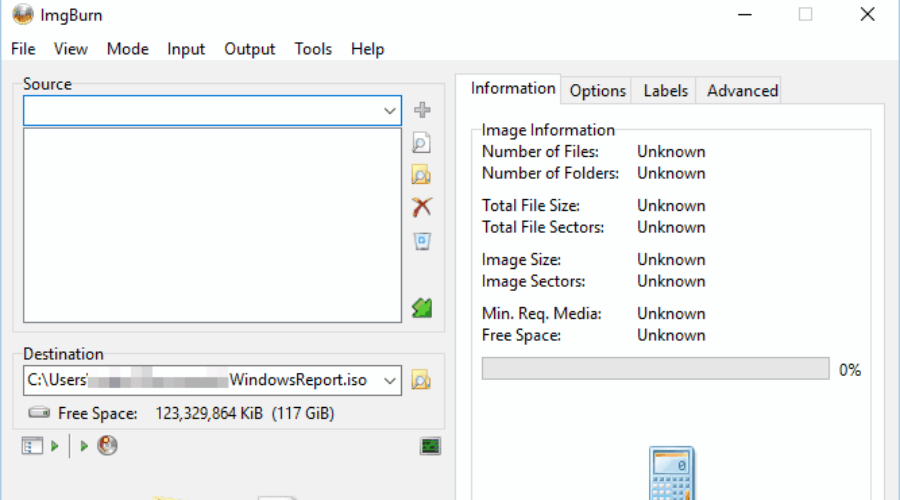
ImgBurn

If you’re looking for free software to convert files to ISO, ImgBurn might be just what you need. This application supports a wide range of formats, so it should be able to work with any image file.

The application supports file burning, but it also allows you to create audio and video discs.

ImgBurn is compatible with all previous versions of Windows, so it should work without issues on any version of Windows. The application also has an image queue system that allows you to burn several images automatically.

The application allows you to burn image files to discs, but it also allows you to create image files from discs. If needed, you can use this tool to verify if the disc is readable.

In order to do so, the application will compare the burned disc and its image file and check if they are identical. There’s also a Discovery feature that allows you to test your optical drive.

The last feature that we need to mention is the ability to convert files to ISO. The application has a simple interface that will allow you to find files and folders and add them to the ISO.

It’s worth mentioning that the application also has Disc Layout Editor that offers a more advanced interface.

ImgBurn is a great tool, and it can burn files and create ISO files from both optical discs and files. The tool has a simple user interface, so it’s perfect for first-time users. We also have to mention that this application is completely free, so there’s no reason not to try it.

⇒ Get ImgBurn

WinISO

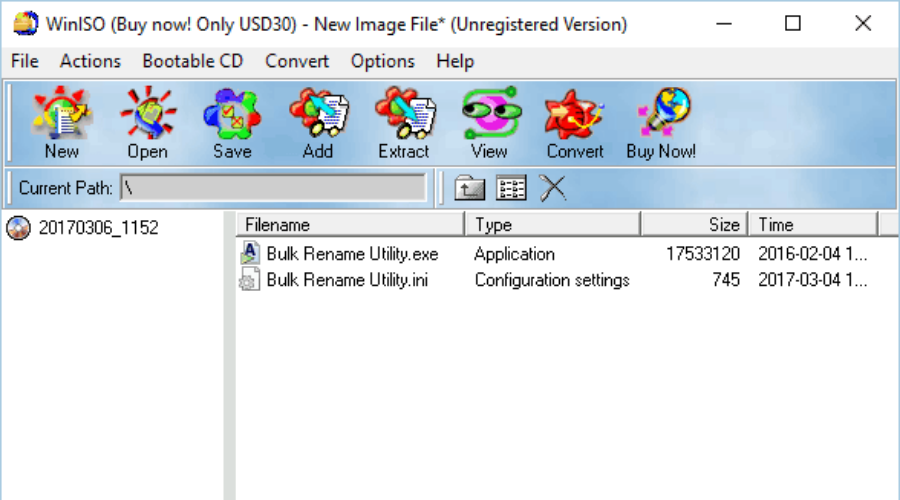
Another free software that can convert files to ISO is WinISO. The application allows you to make ISO files from any optical media, which is great for backup. Of course, the application supports file conversion, so you can convert other image files to ISO or BIN easily.

The tool also allows you to open, view, and edit any image file on your PC. You can also run files from an ISO image or extract them to your PC.

It’s worth mentioning that this tool is fully compatible with bootable CDs and it can even make bootable ISOs. Of course, WinISO allows you to convert files to ISO with ease. It’s worth mentioning that there are two versions of the tool available.

The free version doesn’t work with DVD or Blu-ray discs, and it doesn’t support ISO burning. In addition, you can’t mount ISO files using the free version.

Regarding the flaws, we have to say that the user interface looks a bit outdated. If you’re looking for a free tool to make ISO files, you might want to check WinISO.

The application is relatively simple to use, but if you want to get access to all features, you’ll need to purchase a full version.

⇒ Get WinISO

Jihosoft ISO Maker

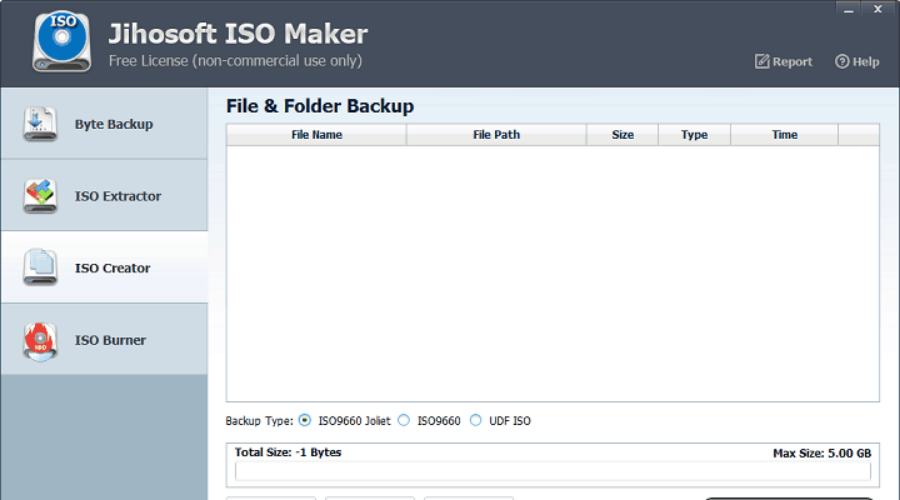
If you need a free tool to create ISO files, you might want to consider ISO Maker. This tool allows you to convert files to ISO with ease.

To do that, you just need to select the desired files and follow the simple wizard. We also have to mention that this tool can create ISO files from disks and partitions, which is great for backup.

The tool also allows you to view other ISOs and extract files from them. Of course, this software supports burning thus allowing you to easily burn your ISO files to DVD or CD.

It’s worth mentioning that this application has a friendly user interface, so first-time users won’t have any issues with it.

ISO Maker is a solid tool that will convert files to ISO. The tool lacks some advanced features, but that isn’t a major flaw in our opinion.

It’s worth mentioning that this application is free for personal use, so there’s no reason not to try it out.

⇒ Get ISO Maker

Free ISO Create Wizard

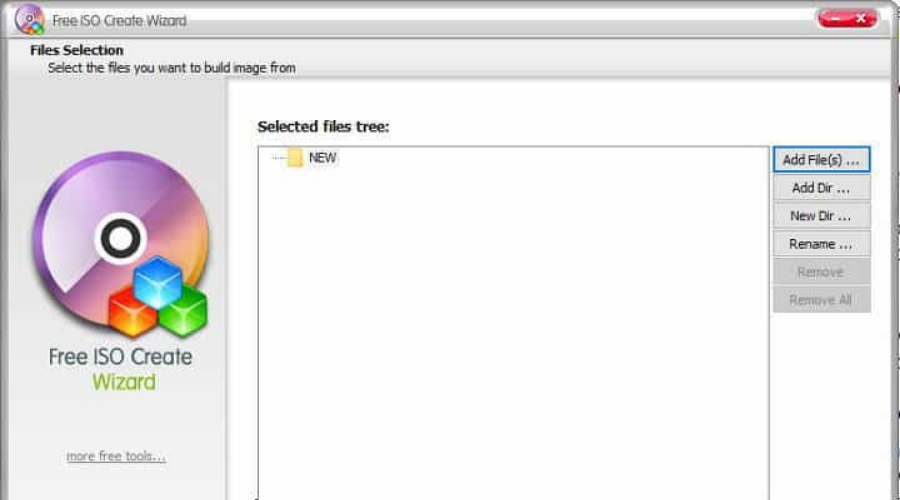
This is another simple and free application that will convert files to ISO. The application has a simple interface and it will guide you through the image creation process.

Simply add the desired files and follow the wizard in order to convert them to ISO.

It’s also worth mentioning that you can use this tool to create bootable images, which is perfect for operating systems or recovery discs. This is a simple tool, and it should work without any issues on any version of Windows.

Free ISO Create Wizard is a simple tool, and it doesn’t offer any advanced features. You can’t use this tool to extract files from ISOs or modify them, and there’s no support for burning.

Fortunately, the tool can create bootable ISOs, which is a feature that advanced users will like. Due to its simplicity, this application is perfect for basic users. The application is completely free, so feel free to try it out.

Free ISO Creator

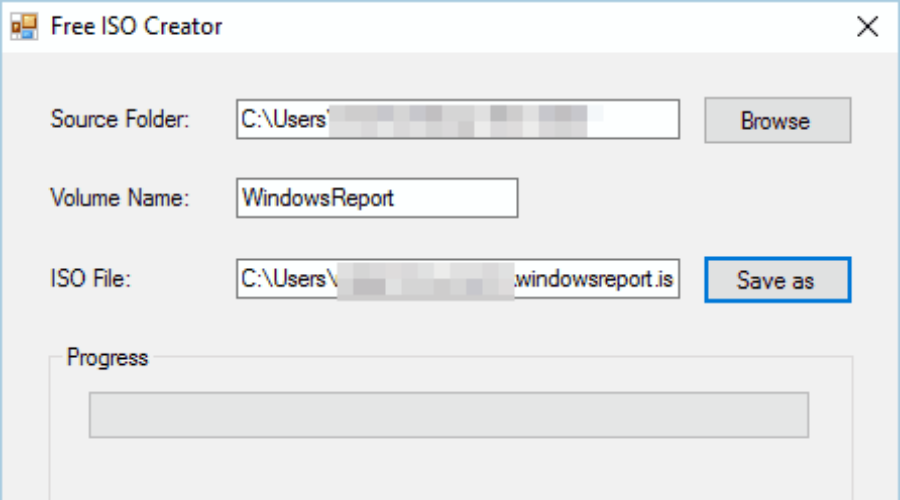
Probably one of the simplest tools on our list is Free ISO Creator. This lightweight application allows you to create ISO files from any DVD or CD easily. In addition, the application can also convert files to ISO.

Free ISO Creator is extremely simple to use. To create an ISO, simply move all files that you want on your ISO to a single folder. After that, select the folder from the application, enter the volume name and choose the output directory.

As you can see, the ISO creation process is rather simple, so this application will be perfect for first-time users.

Free ISO Creator will work on almost any version of Windows without any issues. The application doesn’t offer any advanced features, and our only complaint is the lack of ability to add files and folders individually.

Despite this flaw, Free ISO Creator is still a solid application, and since it’s completely free, we recommend that you give it a try.

⇒ Get Free ISO Creator

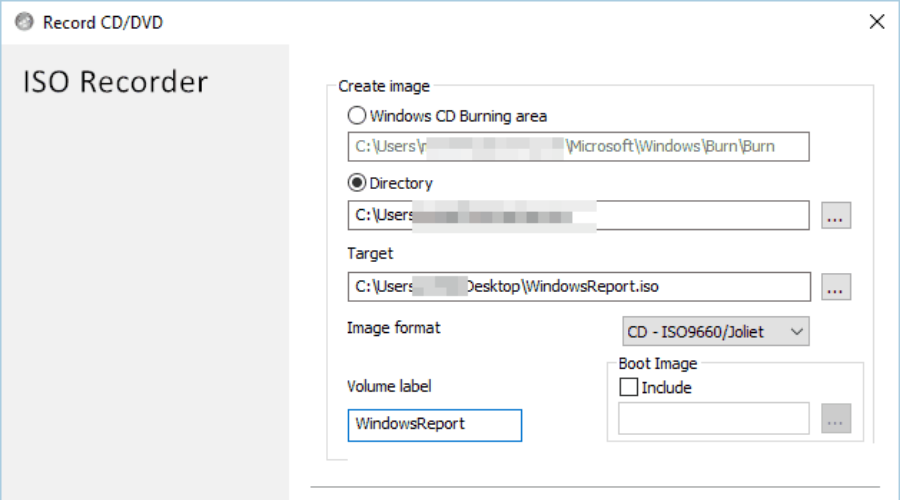
ISO Recorder

Another simple and free tool that can convert files to ISO is ISO Recorder. The application can burn CD and DVD images and make copies of existing discs.

The tool is simple to use, and you just need to select the desired directory, destination directory, and enter the volume label and you’re good to go.

The application doesn’t offer any advanced options, and you need to move all files to one specific folder in order to make an ISO file.

ISO Recorder offers integration with Explorer which means that you can create ISO files with a single click.

ISO Recorder is a simple and lightweight tool, so it’s perfect for first-time users. Our only complaint is the lack of ability to add files individually.

This isn’t a major flaw, but it can turn away some users. ISO Recorder is completely free to use, so if you’re looking for the most basic tool to convert files to ISO, you might want to check out this tool.

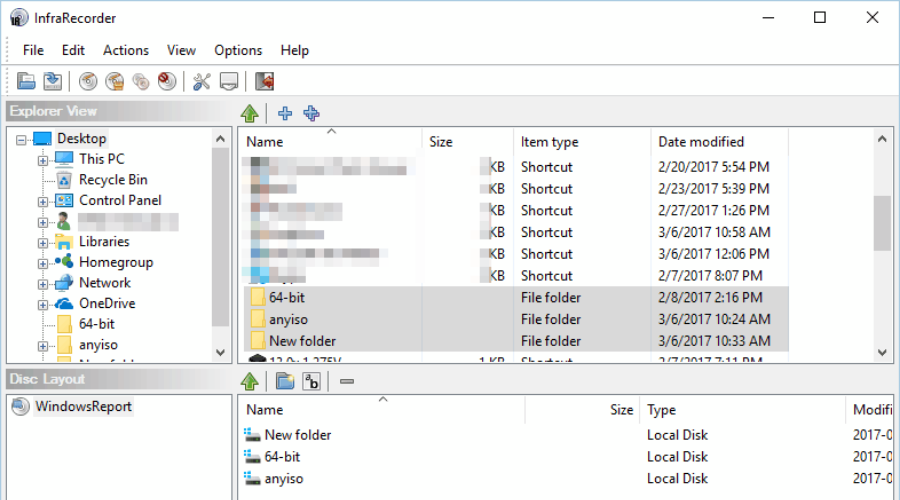
InfraRecorder

InfraRecorder is a burning software, but at the same time, it can also convert files to ISO. The application allows you to burn data, video, and audio discs.

In addition, InfraRecorder supports disc images, so you can easily create an ISO file from any CD or DVD. It’s worth mentioning that this application also allows you to burn ISO files to discs.

InfraRecorder works with rewritable discs, and it allows you to erase rewritable discs by using one of four methods. In addition, the application can save audio tracks to mp3 and other popular audio formats.

The application has a simple interface, and you can simply drag and drop the desired files into the ISO image. InfraRecorder is a burning software, but it also allows you to convert files to ISO which is a major plus.

InfraRecorder offers a user-friendly interface, which is a major plus for all first-time users. It’s worth mentioning that this application is completely free, so you can use it without limitations.

Lastly, there’s a portable version available, so you can run this application on any PC without installation.

⇒ Get InfraRecorder

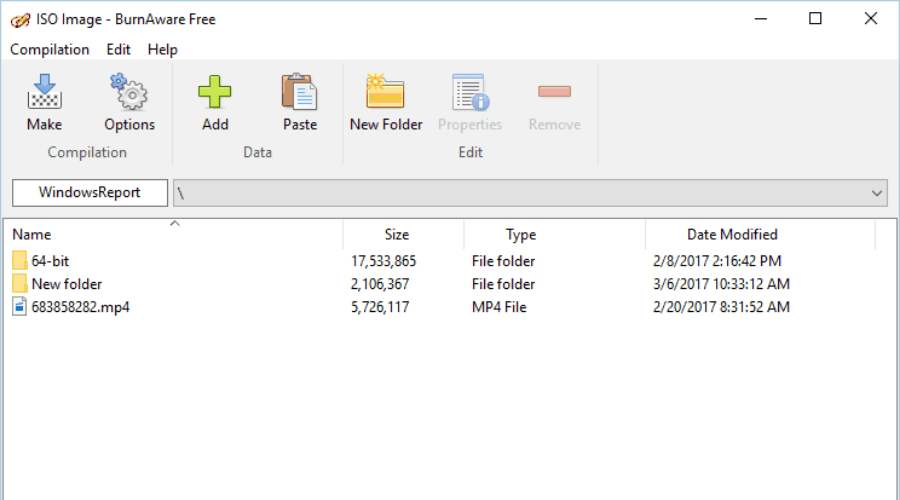
BurnAware

If you’re looking for an application with a simple interface that can convert files to ISO, you might want to check out BurnAware.

One of the highlights of this tool is its simple interface, so even first-time users won’t have any issues with it. It’s also worth mentioning that this application is fully compatible with all previous versions of Windows.

Despite its simple interface, the tool offers some advanced options such as BOOT settings, UDF partition, and version, along with ISO levels and restrictions. In addition, there’s session selection, CD-Text for tracks and disc, byte by byte verification, direct copying, etc.

BurnAware is a burning tool, and it allows you to burn your files to any optical media. The tool also allows you to update multisession discs and create bootable CDs and DVDs. If you want, you can also create audio and mp3 discs using this tool.

This tool also allows you to easily create ISO images from any optical media. In addition, BurnAware lets you convert files to ISO. Of course, the application supports disc copying, thus allowing you to quickly copy any optical disc.

There’s support for rewritable discs, and you can easily erase them by using this tool. The application also allows you to burn data to multiple discs simultaneously.

If you have any corrupted or multisession disc, you can extract files from it by using this tool. Lastly, the application also allows you to burn ISO files to multiple recorders simultaneously.

BurnAware offers a visually appealing and friendly user interface, so it’s perfect for all new users. Besides a great user interface, this application offers a wide range of features, so it has a lot to offer to advanced users as well.

We have to mention that there are three different versions available. The free version offers most features, including the ability to create ISOs from files, so it’s perfect for home users.

If you want to use advanced features or use this tool for commercial purposes, you might want to consider purchasing the Premium or Pro version.

⇒ Get BurnAware

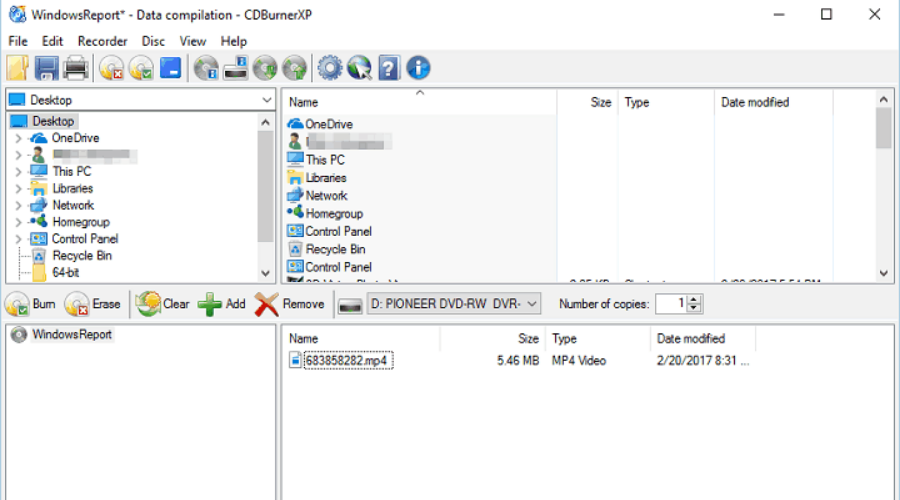
CDBurnerXP

This is another free-burning software, but like many other tools on our list, it also allows you to convert files to ISO. This application allows you to burn your data to any type of optical media, and it also supports the creation of bootable discs.

You can also burn data to multiple discs using this tool. The application works with rewritable discs, and it allows you to perform quick or full erase. In addition, there’s support for copying data discs.

It also allows you to create audio discs from a range of audio formats. The tool also lets you add tracks from audio CDs to a new compilation without ripping. In addition, you can play audio CDs right from the application, without using a third-party player.

Regarding ISO files, the application allows you to create ISO files from any optical media. Of course, you can burn ISO files directly to any CD or DVD.

CDBurnerXP also supports file conversion, and you can easily convert BIN and NRG image files to ISO. Just like many other similar tools, this one also allows you to convert files to ISO.

The application has a simple user interface, and you can add individual files or folders to your compilations easily. There’s also a Drop-Box mode that allows you to drag and drop files from your PC in order to add them to your compilation.

We also have to mention that this application has a command-line interface that can be useful to advanced users.

CDBurnerXP is a free application that offers a wide range of features. Thanks to its simple interface, you can convert files to ISO with just a couple of clicks.

It’s also worth mentioning that there’s a portable version available, so you can run CDBurnerXP on any PC without installation.

⇒ Get CDBurnerXP

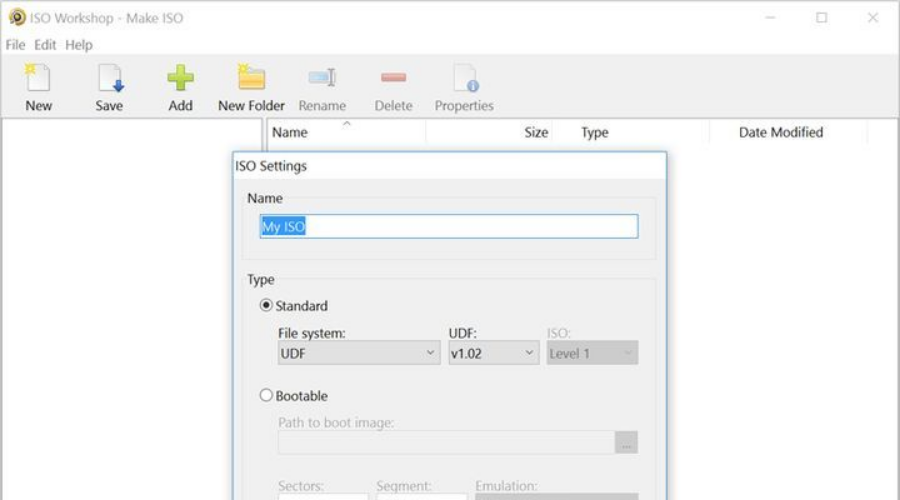
ISO Workshop

If you’re looking for a free tool to create ISO files, you might want to check out ISO Workshop. This application allows you to convert files to ISO with ease. In addition, you can use this application to make bootable ISO files, which is a useful feature for advanced users.

The application also supports burning, and you can burn ISO files to any optical media. You can also browse ISO files and extract the desired files from them.

If needed, you can easily convert any optical disc to ISO. The application also supports file conversion, and you can convert different image files to ISO or BIN.

ISO Workshop offers a simple and clean user interface, so it’s perfect for first-time users. The application has low resource usage, so it should work on older PCs without issues.

It’s also worth mentioning that this application supports rewritable discs, and you can easily erase them using this application.

ISO Workshop is a simple application with a visually appealing user interface. The application allows you to convert files to ISO, and you can download and use this application for free. If you want to use ISO Workshop for commercial purposes, you’ll need to obtain a license.

⇒ Get ISO Workshop

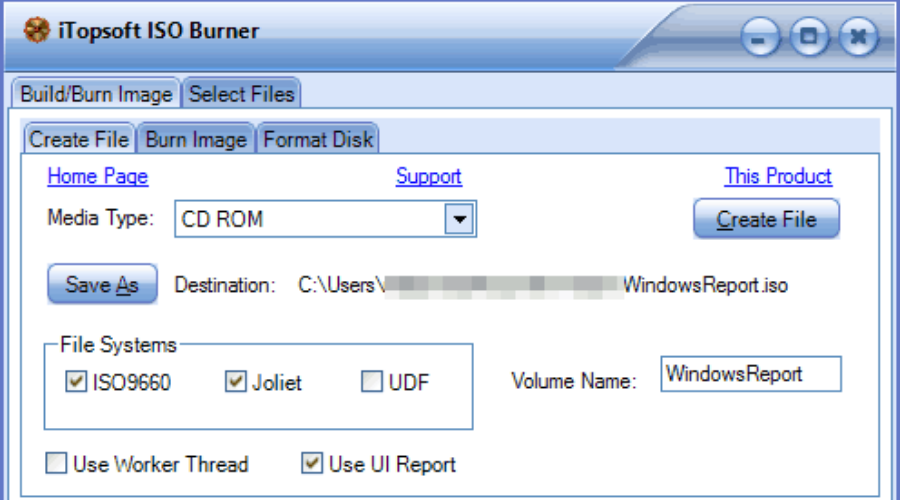
iTopsoft ISO Burner

Another free application that can convert files to ISO is ISO Burner. This application comes with a simple interface, and it allows you to create ISO images from optical discs and files.

The application also supports image burning as well as the creation of bootable ISOs and discs. There’s support for rewritable discs, and you can perform quick format or full format right from this application.

To create an ISO from your local files, you just need to add them to the application and set the destination file.

We have to admit that we had some issues while adding files, but we were able to circumvent the problem by using the drag and drop method.

iTopsoft ISO Burner is a free application, and it offers decent features. We have to mention that this application has a slightly outdated user interface that might turn away some users.

Despite some flaws, ISO Burner is a decent application, and you can download it and use it for free.

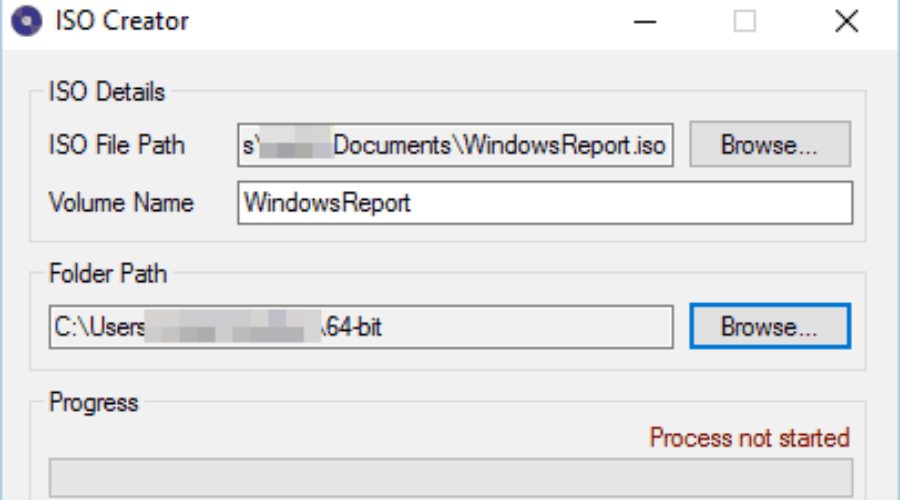
ISO Creator

If you’re looking for a simple application to convert files to ISO, you might want to consider ISO Creator. This is a small and simple application, and it comes with a single feature.

By using this application you can’t make bootable ISOs or burn CDs, but you can easily create ISO files.

The creation process is rather simple, and you just need to move all files that you want in ISO to a single folder. After doing that, select the folder, and enter the save location and volume label.

As you can see, the ISO creation process is rather simple, thus making this application perfect for first-time users.

ISO Creator doesn’t have any advanced features, and our biggest complaint is the lack of ability to add files and folders individually. Despite some minor issues, ISO Creator is a decent application, so be sure to try it out.

AVS Disc Creator

This is a simple but powerful tool that can easily create image files. The application allows you to burn files to any type of optical media including Blu-ray discs.

We also have to mention that this application supports boot discs, which is great for all advanced users.

Regarding ISO files, this tool supports a wide range of disc image formats. This means that you can easily work with any image file created by almost any third-party application. The application supports ISO burning, but it also allows you to create ISO files from optical discs.

Of course, there’s also an ability to convert files to ISO. We also have to mention that you can edit ISO files with this tool.

The application is simple to use, and thanks to the friendly user interface it will be perfect for both basic and advanced users. AVS Disc Creator isn’t a free tool, but you can download and try the evaluation version for free.

⇒ Get AVS Disc Creator

Daemon Tools

Daemon Tools is another application that can help you convert files to ISO. There are three versions available, and the Lite version offers the most basic features such as image mounting.

The Lite version doesn’t allow you to create ISOs from files, therefore we’ll focus on Pro and Ultra versions.

The Pro version is fully compatible with the most popular disc image formats. The application is simple to use, and it allows you to easily mount an ISO file right from the File Explorer. In addition, you can make disc images from almost any optical disc.

The application also supports the creation of dynamic and fixed virtual hard drives. If you’re working with sensitive information, you can easily store them in TrueCrypt containers.

The application also allows you to create new ISO images from files, but it also supports image editing. In addition, you can also protect your images with a password.

Daemon Tools also supports disc copying and the creation of audio discs. The application also has an image file catalog that allows you to easily find the desired image files.

If you’re looking for even more advanced features, the Ultra version might be just what you need. This version supports multitasking thus allowing you to run multiple wizards simultaneously.

Ultra version offers file backup, and you can back up your files to disks, VHD, and TrueCrypt containers. In addition, you can set a backup schedule and set backups to run automatically.

The Ultra version also allows you to write bootable images to USB devices. This feature is great if you want to create bootable drives that you can use to recover your system. In addition, the application supports UEFI and BIOS boot, and it works with GPT and MBR partitions.

Another feature that we didn’t expect to see is the ability to create virtual RAM disks using this tool. The Ultra version also allows you to mount and use virtual hard drives on your PC.

Deamon Tools offers a wide range of features, and if you’re a basic user you probably won’t need any of the advanced features. As we previously mentioned, the free Lite version doesn’t allow you to create ISOs from files, and if you want to use this feature, you’ll need to use the Pro or Ultra version.

⇒ Get Deamon Tools

Image Master

This is another free application that lets you convert files to ISO. Image Master allows you to browse and extract files from ISO images, but it doesn’t support any ISO editing.

In addition, the application can also burn ISO files to optical discs. The application also supports basic file burning, and it even works with rewritable discs.

Just like all other tools on our list, Image Master allows you to convert files to ISO. ISO creation process is simple and you just need to select the desired files and choose the output directory.

Image Master is a simple application, and one flaw of this app might be its user interface.

Although the interface is simple, the file-adding process can require a few extra clicks. This isn’t a major flaw, but we wish that the file adding process was more streamlined. Despite the minor flaws, this is still a solid application, so be sure to try it out.

As you can see, there are many great tools that can convert files to ISO. We mentioned an extensive list of the best tools to create ISO files.

In case you don’t find any of these tools suitable, you can also try to create an ISO file by using your burning software.

Google Drive Can’t Scan this File for Viruses: How to Fix

Today we’ll show you how to make sure the files you download from Google Drive are safe. The cloud service usually scans files on its own, but it only does it for drivers smaller than 100 MB.

However, there are a few ways to still verify files before downloading them on your computer. We listed and explained all of them below.

How to fix Google Drive “Can’t Scan This File for Viruses”

1. Scan for viruses on your computer

1.1 Using Windows Defender

  1. Click on the shield in the notification area to start Windows Security.
  2. Select Virus & threat protection.
  3. Up next, select Scan options under the Quick scan button.
  4. Check the Full scan option and hit the Scan now button below.
  5. Wait for the scan to complete and restart your PC.

If you already have an antivirus software installed on your computer, you can use it to scan Google Drive files. This method only applies if you have the Google Drive client installed on your computer.

As you probably know, all files from your Google Drive storage will also appear in the local folder on your computer.

So, all you need to do is to make your current antivirus program scan the content of your local Google Drive folder. If any security threats are found, you’ll be instantly notified.

1.2. Using a third-party antivirus program

Windows Defender is pretty good, but if you want to make sure that your Google Drive files or all the other files are perfectly protected, you will need a third-party antivirus. We recommend TotalAV for this.

To get the most out of TotalAV for your Google Drive files, make sure real-time protection is turned on—this way, any files you download will be automatically scanned.

TotalAV

Keep your Google Drive files and all your other data clean at all times with this great antivirus.
Free Trial Visit Website

2. Preview files & check extensions

  1. Open Google Drive.
  2. Find the file you want to download.
  3. Right click on it and select Open with > Preview.preview my drive file
  4. Verify that the file extensions are what you expect. For example:
    • A document should end in .pdf, .docx, or .txt, not .exe or .bat.
    • An image should be .jpg or .png, not .scr or .vbs.

Malicious files often use deceptive extensions like .exe (executables), .bat (batch files), .scr (screensaver files), or .vbs (VBScript files). Always ensure the file type matches its intended use to avoid potential threats.

Summary

Those are our methods of scanning Google Drive for viruses. Unfortunately, there’s still no major antivirus service that offers full Google Drive integration.

However, installing a powerful antivirus on your PC will ensure that the uploaded files will always be clean.

Adding full security integration for Google Drive will surely benefit both users and antivirus makers. Do you know about some methods we didn’t list here? Let us know in the comments below.

FIX: Skype virus sending messages automatically

Imagine you open Skype in the morning to check up on your friends or relatives and, suddenly, you see a plethora of strange messages sent left and right from your account.

This isn’t something anyone wants to see. But some users did as they were affected by this Skype virus which is sending messages automatically.

Is Skype a virus? Not even close but it can be affected by this annoying virsu. If you also have this problem, don’t stress out. Just follow the steps we listed below.

What do I do if Skype virus sends messages automatically?

  1. Reset your account password and set up a 2-step verification
  2. Scan PC for malware
  3. Reinstall Skype

1. Reset your account password and set up a 2-step verification

  1. Open your browser and navigate to the Microsoft account for Web.
  2. Sign in with the Microsoft account you’re using for Skype.
  3. Choose Security from the Menu bar.Skype virus sending messages automatically
  4. Click on Change password.Skype virus sending messages automatically
  5. Change your password. We suggest combining uppercase and lowercase letters, signs, and numbers to create a stronger password.
  6. Now, get back and click on Update your security info and add an additional layer of security. You can go for the phone number, but you can choose an alternative email address if that’s your cup of tea. These are the 2-step verification options, and we strongly suggest them.
  7. Confirm the changes but don’t sign in to Skype just yet.

The 2-step verification method will add an extra layer of security to your account, making it virtually impenetrable.

If you get the Specified account already exists error in skype, we have a great guide that will help you fix the problem.

2. Scan PC for malware

  1. Open Windows Security from the taskbar notification area.
  2. Choose Virus & threat protection.Skype virus sending messages automatically
  3. Choose Scan options.Skype virus sending messages automatically
  4. Select Windows Defender Offline Scan.
  5. Click Scan now.
  6. Your PC will restart and the scanning process will commence.

Another option is to get a dedicated antivirus. We strongly recommend the security solution below.

This tool offers excellent protection for all your devices, even your router, and webcam. It also provides perfect protection for any banking or online transactions.

TotalAV

TotalAV will make sure that no such Skype virus ever gets into your system.
Check Price Visit Website

3. Reinstall Skype

  1. Open Start, right-click on Skype and uninstall it.
  2. Press Windows key + R to open the Run elevated prompt.
  3. In the command line, copy-paste %appdata% and press Enter.
  4. Open the Skype folder.
  5. Delete the shared.xml and delete it.
  6. Restart your PC.
  7. Install Skype again.
  8. Sign in with your account and a fresh password and you should be safe.

Finally, we’ve come to the last step which is reinstallation. This applies to both UWP and desktop versions of Skype, and both require a clean installation.

This means that you’ll need to delete a certain XML file that contains malicious files spammers used to get control over your PC.

Also, if you’re using Skype for Android or iOS, make sure to delete the app and all cached data and install it again.

And remember not to click on stranger’s messages. The new version of Skype allows people who’re not on your contact list to send you messages. So please act with caution.

And if you get often into this kind of situations, you should really consider getting one of the best antiviruses with unlimited validity license so that you also forget about rearming it.

With that said, we can conclude this article. Hopefully, after these steps, you won’t have any more issues with the ui.skype.com virus and automatic message-sending gimmicks it brings.

Don’t forget to tell us whether this helped you or not in the comments section below.

What is Iusb3mon.exe? How Can I Remove It From My PC?

The iusb3mon.exe has kept a lot of users wondering whether it’s genuine or a malicious process. A suspicion was triggered after it was noticed that the process was not signed by any publisher.

Also, it was discovered that the resource impact is not shown in the Task Manager.

What exactly is iusb3mon.exe?

The acronym IUSB3MON stands for Intel USB 3.0 Monitor, and the genuine iusb3mon.exe is a software component belonging to Intel USB version 3.0 Host Controller.

The iusb3mon.exe has a feature that can monitor the current status of every USB port. The iusb3mon.exe automatically generates a pop-up event notification when a device is connected or disconnected to a USB 3.0 port.

However, iusb3mon.exe is an optional component that isn’t fundamental to your operating system. So you can choose to uninstall it through Programs and Features or just leave it.

No potential threat has been diagnosed regarding the iusb3mon.exe. Also, it has not been identified as malware.

How to check for the iusb3mon.exe executable?

You can confirm to see if you have an iusb3mon.exe executable at the right location. This is method can be useful if you want to be sure that iusb3mon.exe is genuine and not malware in disguise.

Open File Explorer and navigate to C:> Program Files > Intel > Intel(R) USB 3.0 eXtensible Host Controller Driver > Application. If you can find the iusb3mon.exe executable here, you should know that the file is genuine and not malware in disguise.

Furthermore, if you suspect that the process is malicious for some reason, you can perform a full security scan on your computer. To do this, you would need reliable antivirus software that will detect malicious activities on your PC.

How to uninstall iusb3mon.exe?

It is possible to uninstall the iusb3mon.exe process, which will not affect your system’s functionality. However, removing only the executable is not advisable because it can lead to problems with the USB 3.0 extensible Host Controller software. So, you have to uninstall the lntel(R) USB 3.0 eXtensible Host Controller.

Follow these steps to uninstall the iusb3mon.exe software

These short steps will direct you on how to uninstall the USB 3.0 extensible Host Controller software.

  1. Open up a Run window by pressing the Windows key and R on your keyboard. Type appwiz.cpl in the run window and hit Enter for the Programs and Features to open up.
  2. Right in the Programs and Features, browse through the application list and find Intel(R) USB 3.0 3.1 eXtensible Host or Intel(R) USB 3.0 eXtensible Host Controller. Right-click and select Uninstall.
  3. Follow the on-screen instructions to complete the uninstallation. After that, reboot your computer.

Alternatively, you can remove this application by using uninstaller software. The software will remove all files and registry entries associated with Intel(R) USB 3.0 eXtensible Host Controller.

The most ideal way to thoroughly uninstall any applications or files from the system is to employ efficient uninstaller software.

Many users are concerned whenever they see an unknown exe file and wonder if icmon.exe is a virus. We have answered this question in a separate guide, so don’t miss it.

Here’s everything you need to know about iusb3mon.exe. The file itself isn’t malicious and will not harm your PC, so you can leave it alone.

Microsoft Teams will let you create group chats with external users this month

Microsoft is launching a new feature that will enable users to have a group chat in Teams with external partners. The Microsoft 365 Roadmap listing indicates that the feature is expected to be rolled out to all users later this month.

Microsoft Teams already supports calling or chatting with people in other organizations and inviting them to meetings. With support for group chats, users will be able to create a group chat with up to 250 participants across different organizations. However, this update will require IT Admins to enable the external access policy in their tenant. It’s a long-awaited feature that should eliminate the need to constantly set up formal meetings for collaborating with external users on projects.

The news comes shortly after Microsoft delayed the rollout of Shared Channels in Teams to November this year. The software gaint recently revealed that Microsoft Teams will add support for apps in external meetings and chats in July. It will allow host users to install, update and delete apps while interacting with external partners via chats or meetings.

Mailbird: A Powerful Email Client for Windows PCs [Review]

No matter who you are, if you use the online environment, you must have a working personal email address. In fact, they are mandatory when creating accounts of all kinds.

Besides needing an email account in order to use social media, people around the work use them for work and school-related projects.

They are versatile, which makes them great and useful. Therefore, many companies, such as Yahoo, Google, and Microsoft, created their mail platforms and domains.

One of the most well-known and used email apps is Outlook. We all know about it since it is included in the Microsoft Office suite.

Despite being the most popular email client on the Windows platform, and rightfully so. Despite its popularity, many users have turned to alternatives that bring more features.

This resulted in people using multiple email platforms for different needs, such as gaming, work, casual things, etc. This brought another problem. How can they manage all these accounts easily?

That’s where the following tool comes into play. If you want to connect multiple apps for ease of access, and you’re a business person who manages multiple email addresses, you need Mailbird

What exactly is Mailbird?

Mailbird is a Windows email client that can integrate social media apps, emails, and other productivity apps into one single, compact, and intuitive tool.

Think about having Google Chrome, WhatsApp, Facebook, and many other programs you use daily at your fingertips, in the same place.

More so, you can manage your work emails, communicate with teams, and share projects without switching between programs, removing stress and increasing productivity.

Communicate with other users, customers, employees, friends, family, all in one place. Expressing yourself has never been easier.

The software is great for small and medium-sized businesses since it includes plans that include offers for bulk purchases.

We should also emphasize the fact that Mailbird is a simple, user-friendly software that has the most intuitive user interface, fully customizable to your liking.

It doesn’t require background knowledge or a degree in thermodynamics in order to use it. The software is accessible, made for the everyday person, and it is filled with details and short descriptions for more clarity.

How do I use Mailbird?

  1. Download and install Mailbird.
  2. Start it, and, upon being prompted by the Add account window, insert your credentials, and click Continue.
  3. Next, the software will find the best server settings for your account. After it’s done, click Continue.
  4. After, you will need to allow your Mail to be used by Mailbird.
  5. Once you’ve granted permission to the program, choose your layout and theme color and press Continue.
  6. Next, choose which apps to integrate into the tool and press Continue.
  7. Lastly, press Start using Mailbird if you don’t need to add more accounts.
  8. If you wish to add more accounts, select Add more accounts.
  9. Enter the credentials for the other account you wish to add in the special window that opens.

The app setup is pretty straightforward. You’ll need to enter the account credentials, then you can customize your layout and choose which apps to integrate.

How to access the settings

  1. Click on the icon on the top-left side.
  2. Next, click on Settings.
  3. You will find different helpful tabs there.
  4. Click on the tab you need to access, and do the changes.

The settings tab is where you’ll find changes and customization options for most of the features, as well as details about Mailbird itself.

If you wish to activate your Mailbird license or update the software, you can go to the About Mailbird tab. You will find all the information about the license agreement, version, and licensing, there.

Features and tools

Unified inbox

This awesome tool allows you to manage all of your mail addresses and contacts from one single inbox at will, without having to switch between them.

Add how many accounts you need, give them names, and manage them easily. You can also compose emails and choose whichever mail you wish to send it from.

Enjoy lots of key shortcuts for faster navigation, find even year-old mail attachments, and fly through your emails with the help of special features.

Additionally, snooze messages that you don’t consider important and create scheduled alerts to prioritize messages that are of the utmost importance.

Moreover, you will find all the default categories and tabs you would normally see when you’re using Gmail, Yahoo Mail, and other similar clients.

This includes a favorite tab where you can mark important emails, drafts, where you can see work-in-progress messages that you haven’t sent yet, and a special Folders tab available only to Mailbird.

This special tab contains important and snoozed emails, as well as spam and trash folders. You can also manage, customize, and search for specific items inside it.

Customizable Layout

When it comes to customizable UI, Mailbird does pack a punch. The software has multiple themes and colors, different page layouts, and more.

As for customization, you can choose between many available backgrounds and create your unique layout with ease.

And that’s not all. If you’re one of the people who use dark themes with their Facebook, Windows, and the many other apps with this feature, know that Mailbird also has it.

You can freely enable or disable them at will, using the interface. Additionally, since the list is so large, there is a search box that will help you find them easier.

App integration

Forget constantly switching between your devices to use social media like WhatsApp, Facebook, and other apps such as Calendars, Linkedin, etc.

Mailbird has them all! Its list includes a huge, and we literally mean huge, amount of software that you can integrate into it.

This means that, while you can use the software to communicate with others, you can also send files, store them through cloud apps like DropBox, or search for something online using Google.

Multi-language compatibility

Mailbird was created for people all around the world, therefore it is to be expected that the app supports multiple languages. Currently, it is fully compatible with many languages.

If you cannot find your language in the list below, don’t worry because the developer team is constantly working to include more and more languages. Time is all you need.

Note icon NOTE
The compatible language list includes: English, Spanish, French, German, French (Canada), Italian, Hungarian, Dutch, Dutch (Belgium), Norwegian, Danish, Swedish, Polish, Portuguese, Portuguese (Brazil), Romanian, Turkish, Russian, Chinese (Mandarin), Catalan, Indonesian, Bulgarian, Czech, Greek

24/7 Customer Care

If you encounter a problem at any time of the day, you can freely send a ticket mail to Customer Support and you will be contacted by an expert that will help you and provide answers to your questions.

There are many great email clients, but if you’re looking for a simple and user-friendly application, you should consider Mailbird. As soon as you start the application, you’ll be asked to choose the desired layout.

Technical support is a must while using software and computer-related stuff. Many users do not have the background knowledge to deal with problems, and they can potentially get stuck.

Therefore, having someone to help you constantly is god’s given and should be appreciated, and Mailbird doesn’t hesitate to offer help whenever possible.

Price plan

As you can see, Mailbird has different price plans, depending on your needs. You can opt for a monthly fee or a one-time purchase.

Moreover, if you’re the owner of a business company, you can also there’s a special plan just for you. No matter what you choose, you will benefit from all the features and tools.

We want to mention that you can get Mailbird Business entirely for free if you invite your acquaintances to use the program.

All you need to do is invite people with your primary email address. When 4 or more of your friends install Mailbird through your referral link, you will get a free reward.

That’s not all, though. Each one of them will also receive one free month of Mailbird Business. Remember that these bonuses can only be earned once by both the referral and referred.

Final verdict

Pros
Insane amount apps that can be integrated
Great all-in-one mail
Clean design and appearance
Easy to use
Cons
Cannot sort by subject
Some keyboard shortcuts don't work

We finally reached the point where we give our final thoughts (and prayers, if it’s the case). Thankfully, we were pleased by the software overall.

Mailbird has lots of special features, and it basically serves you quality-of-life changes on a platter, for a really acceptable price. You can also get the software for free through referrals.

The software does everything that it claims it can do. You’ll have many tools that will help you sort and manage your emails and other content for work and outside it.

However, we think that the developers were so enthusiastic about the innovations they forgot to make sure some basic functionality features were completely functional.

These small bugs, glitches, and omissions can be easily fixed with small patches in the future, so we don’t worry about them too much, but they do exist.

Mailbird

Manage your work accounts and use social media on the same app thanks to Mailbird.
Free trial Visit website

The software has a 7-day free trial if you wish to test it out. Keep in mind that has no limitations so that you can enjoy the full experience.

Do we recommend Mailbird? We definitely do, especially if you’re a person who uses multiple accounts and likes to keep everything organized.

How to fix Windows 10/11 upgrade stuck on getting updates

Once upon a time, Microsoft offered users the opportunity to upgrade to Windows 10 for free.

Years have passed since the free upgrade offer expired, but the good news is that you can still install Windows 10 on your computer completely for free.

All you need to do is download the Windows 10 update assistant on your machine, and follow the on-screen instructions – it’s that simple.

Even tough the process is quite straightforward and easy to implement, at least in theory, many of us came across an unpleasant situation.

The upgrade itself froze for hours on end, checking for updates. We figured there might be plenty of users out there facing the same issue, which is why we came up with these simple steps to help you with your stubborn update for Windows 10.

How can I fix a Windows 10 that is stuck on getting updates?

  1. Press Windows + R
  2. This command will automatically launch the dialogue box.
  3. Type services.msc, and look for the Windows Update Service
  4. Double-click it > Go to the General tab
  5. At Startup type, select Disabled
  6. Go to the following file path: C:\Windows\SoftwareDistribution
  7. Delete all the files stored in that location.
  8. Restart your PC
  9. Go back to the Windows Update Service and restart the service.
  10. Go back to the Windows 10 Setup window
  11. The upgrade process will resume and successfully complete

Nobody knows for sure why this upgrade loophole still exists. Microsoft has yet to issue any comments on this situation. Some rumors suggest that Microsoft wants to reward curious users who visit the upgrade page even today.

After all, the company wants to see as many computers as possible on Windows 10, so why remove this opportunity? Either way, it’s highly unlikely that Microsoft simply forgot to shut down the Windows 10 upgrade channel.

Do not hesitate to share your thoughts and experience on this topic by hitting the comments’ box below – we would love to keep in touch.

Fix: Corsair Mouse Side Buttons Not Working [Scimitar]

Corsair makes some of the best gaming peripherals, including gaming mice. Corsair mouse consists of multiple side buttons that allow the gamer to customize the action based on their requirements.

However, recently several users have reported the Corsair mouse side buttons not working issue.

Your Corsair mouse side buttons may stop working due to several reasons. Incorrect button assignment, malfunctioning Corsair software, and hardware failure are some of the reasons.

Today, we take a look at a few working solutions to help you fix the Corsair mouse side buttons not working problem in games and other applications such as GeForce Now.

How do I fix the Corsair mouse side buttons not working?

1. Update device drivers 

Outdated and missing device drivers can cause Corsair mice to malfunction. If you have recently installed a Windows update, some mouse functionalities may stop working due to pending updates.

While you can manually update your mouse driver from the Device Manager, it can be cumbersome to update multiple device drivers manually.

Third-party software updater utilities can automate this process and make installing driver updates easy.

2. Check if iCUE is running

iCUE is a proprietary tool for Corsair that manages the customization of its peripheral devices, including the mouse. If the side button on your Corsair mouse is not working, make sure iCUE runs in the background.

Right-click on the taskbar and open Task Manager. Check if the iCUE process is running. If not, relaunch the tool and let it run in the background. Check if the side buttons work now with iCUE running.

If the issue persists, repair iCUE from the Control Panel. It comes with a built-in repair tool to find and fix issues preventing the software from working.

3. Clear onboard storage 

  1. Launch the iCUE app.
  2. Open the Settings tab.
    Corsair mouse side buttons not working
  3. Under Device Settings, select your Corsair mouse.
  4. Click the Clear onboard storage button for Device Memory.
  5. Click Yes to confirm the action.

Clearing the onboard storage will delete all profiles from the device’s memory. Once cleared, Leave your custom profile as the only option and reboot the computer. Make sure to delete all the default profiles available to resolve the issue.

4. Remap the side button 

  1. Launch iCUE.
  2. Under Device, choose your Mouse.
  3. Click the + icon in Actions to add action.
  4. Click the Macro drop-down menu and choose Remap Mouse Button. 
    Corsair mouse side buttons not working
  5. In the Mouse Button settings, choose the action that you want the side buttons to perform.
  6. Choose the same action from the predefined actions tab.
    Corsair mouse side buttons not working
  7. Open the Advanced tab and check the Retain original key output.
  8. Do this for all the actions that you want to assign to your side buttons. Close iCUE and check if the Corsair mouse side button not working issue is resolved.

5. Repair iCUE

Delete Corsair composite virtual input device 

  1. Open Device Manager. 
  2. In Device Manager, expand the Human Interface Devices.
  3. Right-click on Corsair composite virtual input device and Uninstall device.
  4. Check the Delete the driver software for this device box and click Uninstall.

Once the driver is deleted, you can proceed with the repair process. However, before repairing iCUE, it is important to Corsair composite virtual input device driver.

Repair iCUE

  1. Press the Windows key + R to open Run.
  2. Type control and click OK to open the Control Panel.
  3. Click on Uninstall a Program under the Programs section.
  4. Locate and select the iCUE software from the list of installed apps.
  5. Click the Uninstall button and then click Yes to confirm the action.
  6. In the iCUE software setup screen, click on the Repair option.
  7. Click Next and wait for the tool to scan and repair any issues with the software.

If the Repair option is not available, rerun the installation file for iCUE and choose Repair from the setup screen. Once the repair is complete, reboot your PC and check if the macros and remaps are working.

6. Uninstall your Corsair mouse driver 

  1. Press the Windows key + R to open Run.
  2. Type devmgmt.msc and click OK to open Device Manager.
  3. In the Device Manager, expand the Mice and other pointing devices section.
  4. Right-click on your Corsair mouse device in the list (if you have more than one pointing device connected) and choose Uninstall Device.
  5. When the Uninstall Device prompt appears, click the Uninstall button to confirm the action. This will uninstall the Corsair mouse installed on your PC.
  6. Once uninstalled, restart your computer. Make sure the mouse is connected to your PC during the restart. After the restart, Windows will detect and reinstall the device. 

Reinstalling the Corsair mouse seems to have fixed the Corsair mouse side buttons not working issues for many users. On PCs with new Windows updates, a quick uninstall has resolved the issue for many.

The Corsair mouse side buttons not working issue in Windows can occur due to onboard profile conflict or incorrect button mapping.

Additionally, reinstall the mouse device, and repairing the iCUE software can help you fix the issue quickly. Follow the steps and let us know which method helped you resolve the issue in the comments.

Dymo Printing Blank Labels after Windows Update [Full Fix]

It seems that after installing the Windows 10 March update, the Dymo printers are having some troubles in the form of printing blank labels.

The issue has also been posted on their website:

We are sorry to inform you that at the moment we are experiencing some issues with printing from our latest versions of DYMO Software on Windows 10 computers. We would like to confirm that the team is working on fixing it and as a temporary solution, please download DYMO Label Software v.8.5.4.

The problems caused by the latest update have also been acknowledged by Microsoft on their website, informing them that they are working on a permanent resolution as soon as possible.

It is also possible that after this update when you try to print now using Dymo, you will see a blue screen that will also generate the error APC_INDEX_MISMATCH.

In this article, we will explore the exact steps you need to make to solve the Dymo printing blank labels, so make sure to keep on reading.

What can I do if Dymo is printing blank labels?

1. Remove the update

  1. Open Settings and click on Update & Security.
  2. Go to Windows Update and click the View update history button.
  3. Now click the Uninstall updates option.
  4. Next, select the Security Update for Microsoft Windows (KB5000802) update.
  5. Next, click the Uninstall button.
  6. Click the Yes button and Restart afterward.

Many users reported that update KB5000802 was the main cause behind Dymo printing blank labels after Windows Update, but the issue was resolved after removing the update.

2. Suspend Windows Update

  1. Go to Start and click on Settings. 
  2. Now click on Update & Security and select Windows Update.
  3. In the Pause updates, you can select the 7 days period
  4. You can also go to Advanced options and in the Pause updates section, select the drop-down menu and specify a date for updates to resume.

Keep in mind that this solution should be used after removing the KB5000802 in order to prevent Windows from installing it again.

3. Install the new updates

  1. Open Windows Update and click on Check for updates.
  2. Click on View optional updates.
  3. Pick the following one from the list:
    • KB5000802 for Windows 10 2004/20H2 & Windows Server 2004/20H2 
    • KB5000808 for Windows 10 1909 & Windows Server 1909
    • KB5000822 for Windows 10 1809 & Windows Server 2019
    • KB5000809 for Windows 10 1803 & Windows Server 1803
  4. After installing this update, restart your device and try again the printer.

After installing the required updates, check if the Dymo is still printing blank labels.

Unfortunately, these kinds of problems can happen with some Windows updates, but with the proper guidance, you can find a workaround to help you fix the issue. Also, reinstall the Dymo printer drivers in case a newer version is available.

Please let us know in the comments section below if you have additional recommendations and suggestions and which of the presented solutions worked best for you.

Windows 10 news recap: Adobe Flash to be completely removed, outdated icons to get a refresh, and more

Welcome back to our Windows 10 news recap, where we go over the top stories of the past week in the world of Microsoft’s flagship operating system.

Windows 10X is not coming this year as resources shift to Windows 10

A new report claims that Microsoft is shifting resources away from Windows 10X to focus on Windows 10. Windows 10X was supposed to be Microsoft’s lightweight alternative, able to compete with Chromebooks.

Windows 10x Start Menu

Microsoft is updating more outdated Windows 10 icons with upcoming “Sun Valley” update

The upcoming “Sun Valley” update for Windows 10 is likely to bring some new icons, as Microsoft seeks to refresh icons that haven’t been updated in decades.

Windows Shell32 Icons

Microsoft will completely remove Adobe Flash from Windows 10 this summer

Adobe Flash is set to be completely removed from Windows 10 in the summer. A mandatory update will be released in July that, once installed, will remove the Flash component on all versions of Windows 10, Windows 8.1, and Windows Server 2012. The update is expected in July.

Adobe Flash

Twitter update brings search, threads, and promoted tweet changes to Windows 10 and web

A new update for Twitter has been released that brings a number of changes. The new threaded conversations style that came to Twitter’s mobile apps recently, is now available on Windows 10 and the web. Search and promoted tweets are also getting new experiences, which are currently rolling out.

Twitter
Copyright Marisa Allegra Williams (@marisa) for Twitter, Inc.

That’s it for this week. We’ll be back next week with more Windows 10 news.

Microsoft news recap: Xbox consoles sold at a loss, further investment to store and protect EU data, and more

Microsoft news recap is a weekly feature highlighting the top Microsoft news stories of the past week. Sit back, grab some coffee, and enjoy the read!

Magzter teams up with Microsoft Rewards to offer digital magazines and newspapers

Magzter and Microsoft Rewards have teamed up to enable Microsoft Rewards members to redeem their points for digital magazines, by making the Magzter GOLD subscription service a redemption option. It’s only available in the United States.

Microsoft Rewards Surface Go 2

Xbox exec confirms Microsoft isn’t making money from console sales

As the Epic vs. Apple court battle continues, an Xbox exec acting as a third-party witness has said that Microsoft is not making money from its Xbox console sales, confirming suspicions that each console is sold at a loss.

Xbox Series X S 2

Epic’s court battle with Apple reveals Microsoft “hasn’t given up” on Game Pass on other platforms

Communications between Epic Games and Microsoft have revealed that Phil Spencer, Head of Xbox, “hasn’t given up” on trying to get Xbox Cloud Gaming onto other platforms.

Epic Games - Xbox Live - Game Pass

Microsoft makes further investments to store and protect EU data

Microsoft is doubling-down on its EU data practices. This week the company announced further investments to store and protect EU data, announcing plans that have started immediately and will continue until the end of next year, that will make it so that EU data is only stored and processed in the EU.

Eu Data 06 05 21

This week in Microsoft Teams

Microsoft Teams Meetings to get an automatic recording option

A new feature will allow users to enable automatic recordings of their meetings. The recording would start as soon as the meeting starts, and participants would see a pop-up notifying them.

Microsoft Teams to add support for apps in external meetings and chats next month

External meetings and chats will gain support for apps next month, allowing the host organisation to install, update, and remove apps.

Microsoft Teams for iOS and Android can now cast content to Teams Rooms devices

iOS and Android users can now cast content to Teams Rooms devices. Users will be able to wirelessly cast their device’s screen to a Teams Rooms device.

Microsoft announces new Teams for Education features including Reading Progress and Group assignments

To help students practice their reading, Microsoft Teams for Education is gaining a new Reading Progress feature, allowing students to practice independent reading, have the results recorded for assessment by the teacher. The feature is expected to release in late August. Another new feature is Group Assignments, which will allow students to collaborate on an assignment and submit just one assignment. You can read more about the new features here.

Microsoft Teams is getting Live Transcription support for unscheduled and channel meetings

Unscheduled and channel meetings will get support for Live Transcription. The feature captures what is being said in almost real-time, and then transcribes it.

That’s it for this week. We will be back next week with more Microsoft news.

7 Best Driver Updater Software for Windows 7

While Windows allows you to manually download and install new driver updates for connected devices, updating individual drivers is a time consuming task. Driver updater software for Windows 7, as the name suggests, automates this task.

Outdated or missing driver updates cause several issues with the Windows 7 computer, including the blue screen of death and device incompatibility problems. These driver updater programs make it easy to keep your drivers up to date.

If you are looking for the best driver updater software for Windows 7, we’ve got you covered. This article explores the best software to update your system drivers to reduce dependency on Device Manager.

What are the best driver updater software for Windows 7

Fortect Driver Updater – Powerful and very easy to use

Fortect Driver Updater is a professional software dedicated to updating any drivers it will encounter during its scan.

This tool has a simple interface and is very easy to use. Right after installation, the software will perform an initial scan in which it will identify your computer’s components in order to find the best drivers for them.

Being very powerful and with access to a large drivers database it will have no problem finding the right drivers for any system configuration.

Fortect Driver Updater also comes with advanced features that allow you to create and deploy driver backups in case of an emergency.

With this software, you can also set up automatic scans so that you will always be informed when one of your drivers is going out of date.

All in all, this tool is a fantastic helper that will not only correct issues but will also help you prevent them.

Main features of Fortect Driver Updater:

  • Large driver database
  • Very easy to use
  • Create and deploy driver backups
  • Automatic and scheduled driver scans

Fortect Driver Updater

Make sure all your drivers are up to date with this powerful software.
Check Price Visit Website

Fortect Driver Updater – Comprehensive and User-Friendly

Fortect Driver Updater is a robust tool designed to streamline the process of updating drivers on your PC.

Once installed, it immediately scans your system for outdated or missing drivers and provides an easy, one-click solution to update them all.

Fortect’s vast driver database ensures compatibility with a wide range of devices, and its automatic backup feature adds a layer of safety by creating restore points before applying updates.

In addition to driver updates, Fortect Driver Updater helps diagnose and resolve issues caused by faulty drivers, improving overall system stability.

The tool’s intuitive interface makes it accessible even for less tech-savvy users, while advanced features like scheduling allow you to automate the update process.

Key features of Fortect Driver Updater:

  • Scans and updates drivers with a single click.
  • Extensive driver database for wide compatibility.
  • Automatic backup and restore points.
  • Intuitive interface with advanced scheduling options
Fortect

Fortect

Easily update all your driver and handle PC maintenance with this powerful tool.
Free Trial Visit Website

Outbyte Driver Updater – Built-in download manager

A simple, fast, and secure driver updater software for Windows 7, Outbyte Driver Updater offers lightning-fast scan and one-click updates for all the outdated and missing drivers.

Outbyte Driver Updater scans your system after the initial launch and provides a detailed report of all your up-to-date and out-of-date device drivers. You can choose to update a single driver or all the drivers at once.

The built-in download manager also comes with a driver backup feature that saves all of your drivers to a compressed zip file. The schedule manager scans updates notifications and backups automatically.

Key features of Outbyte Driver Updater:

  • Lightning-fast scans 
  • Built-in download manager 
  • Access to over 18 million driver files 
  • Driver backup and schedule manager 

Outbyte Driver Updater

Update all your drivers automatically with just a couple of click using Outbyte Driver Updater software.
Free trial Visit website

Driver Booster – Very fast scans

driver updater software for Windows 7

Driver Booster is a freemium driver update utility available for all versions of Windows. It comes with a new offline driver update feature that downloads the driver updates in advance. You can install these drivers in offline mode if you have network connectivity issues.

Driver Booster’s large database that can fix everything from outdated display drivers causing blue screens of death to no sound issues due to corrupted sound card drivers.

While you can choose to update drivers manually from the Driver Booster dashboard, enabling the auto driver update can help you get the latest updates in real-time.

Key features of Driver Booster:

  • Built-in driver download manager 
  • Auto driver update to install driver updates automatically 
  • Create a restore point before installing drivers
  • Fast scans and lightweight utility 

Driver Booster

If you need driver software that support both offline and online driver updates, Driver Booster is the way to go.
Free trial Visit website

Driver Fusion – Creates system backups

Another great driver updater software for Windows 7 that you might want to consider is Driver Fusion. The software will scan your system and notify you about any issues that it detects.

Driver Fusion is fully automated, and it will scan your PC every two weeks, but you can change the schedule if you want.

Regarding automatization, the software will update, restore and install the drivers from the database that consists of 10 million drivers. Of course, support for local driver backups is available as well.

Key features of Driver Fusion:

  • Fully automated
  • Driver updating and restoring
  • Database of 10 million drivers
  • System backup

Driver Fusion

Keep your drivers updated and ensure that your PC is running without any issues with Driver Fusion software.
Free trial Visit website

DriverMax – Updates software packages

DriverMax is another driver updater software that works with all versions of Windows, including Windows 7.

Regarding the driver updates, the software offers drivers for over 2.3 million different devices. In addition to drivers, DriverMax will also update the software packages such as C++ Runtime, Java, etc.

To ensure that the downloaded drivers are authentic and safe, DriverMax will test each driver before installing it, and it will create a backup of your system, so you can restore it if anything goes wrong.

Other great features of DriverMax:

  • Completely automated
  • Database of over 2.3 million drivers
  • Can update software packages
  • Validates drivers before installing

Driver Max

DriverMax is the simplest and fastest to automatically update your drivers on Windows 7.
Free trial Visit website

Driver Easy – Works as driver backup

driver updater software for Windows 7

As the name suggests, Driver Easy is a lightweight driver updater software. It can automatically download and update missing and outdated device drivers. This tool is easy to use and offers tons of automated driver customization options.

Apart from its ability to find and install new drivers, Driver Easy also works as a driver backup and driver uninstallation utility. Furthermore, it offers good information on installed and available drivers, including version details and sources.

Key features of Driver Easy:

  • Schedule manager to check for driver updates automatically 
  • Built-in driver uninstallation and backup features 
  • Quick driver scan and fast download 
  • Downloads drivers updates directly from within the software

Driver Easy

Need to update all your drivers quickly? Use Driver Easy for fully automatic driver updates.
Free trial Visit website

Driver updater software for Windows 7 helps you fix system performance issues resulting in abrupt shutdown and blue screen of death errors. 

For more options across different systems, see our guides to the best free driver updaters for Windows 11, top driver updater software for Windows 10, and open-source driver updaters.

All the driver updater software listed in this article can update outdated and missing drivers with a single click. Explore the driver updater tools and let us know your pick in the comments below.

Microsoft joined the ByteCode Alliance last week – here’s why it’s important

A quick introduction to Web Assembly

Web Assembly or Wasm as it is also known is an open standard for running binary code across multiple platforms serving both client and server scenarios. Most people know it as the vehicle for being able to run languages like C++,C# and Rust in the browser with near native performance. However it can also be run on servers, for example as part of a Node.js solution.

Wasm gives developers almost endless possibilities; the edge between desktop and web computing is increasingly blurred as of late. It  allows developers to reuse mature and powerful libraries and solutions which were originally built for servers and desktops with very little modifications to the code.

The Alliance

The Bytecode Alliance was formed by Mozilla, Intel, Red Hat and Fastly with the intention of improving and promoting the technology. In addition to the founding members just a few weeks ago Microsoft, Google, Shopify, ARM, DFINITY Foundation, Embark Studios and University of San Diego joined the effort. Their aim is to make sure software remains fast, modular and most importantly secure.

Security is important

Microsoft is going all in with WebAssembly, their flagship SPA web framework Blazor literally depends on the continued success of Wasm. They understand that large modern applications consist dozens if not hundreds of libraries, after all why should developers try to re-invent the wheel. Leveraging third party libraries is nothing new, modern modular applications sometimes contain over 80% of code which originates from package registries like npn, PyPi and crate.io. However this means vulnerabilities in those libraries or packages are unfortunately inherited by your application.

This is one of the problems the Bytecode Alliance is aiming to solve. The idea is to design and build secure software by default. This is not an easy task, it requires massive coordination as the Wasm ecosystem grows, the more players which are aligned with this goal the better.

What are you thoughts on organizations like The Bytecode Alliance? Do you think they are effective in keeping technology and open source projects moving in the right direction? Check out the official announcement here and the organizations official page if you are interested in learning more information on their initiatives and goals.


Fix: Your Version of Windows 10 Will Reach end of Service

Getting the message your version of windows 10 will reached the end of service on Windows 10 can be confusing as it does not offer additional information on why this message has suddenly appeared.

Most users seeing this message on their device would panic, but there is no need to since it can be easily solved.

We will explore in this article the exact steps you need to make to solve the end-of-service message, so keep reading.

What does Your version of Windows 10 will reach end of service soon mean?

An end-of-service soon means that the version of Windows 10 you are currently using is approaching its end-of-life date, after which Microsoft will stop providing security updates or support for that version of the operating system.

Microsoft releases new Windows 10 regularly, providing support and updates for each version for a certain period.

This period of care is the support lifecycle or end-of-life for that version. When a version reaches its end-of-life, security updates, bug fixes, or technical support for that version will cease.

Continue to use a version of Windows 10 that has reached its end of life. Your computer will be more vulnerable to security threats and may encounter compatibility issues with newer software and hardware.

How do I fix Your version of Windows 10 will reach end of service soon message?

Before proceeding with any actions to fix the end-of-service error message, ensure your device is listed in the list of devices tested for Windows 10 version 2004 (May 2020).

You can check whether this is the case, depending on what device you are using by accessing this list of tested devices.

1. Update your drivers

Many error messages are caused by faulty or outdated drivers, so ensuring they are updated is essential.

Users reported issues with Conexant SmartHD Audio, but there’s a quick and easy way to update them and fix this issue.

If you want to manage the drivers for your PC properly, the most reliable way is to use automated assistance for drivers.

With dedicated tools, you will update all drivers automatically and quickly without causing further system problems. By choosing this software, it’s most likely to fix and update any old drivers you have.

⇒ Get Outbyte Driver Updater

2. Update Windows 10

  1. Press Windows + I to open Settings.
  2. Locate and click on the Update & Security option.
  3. Next, click on Windows update and go to the Download and install option.
  4. If this option is unavailable, click the Check for updates option.
  5. Wait for the process to complete and restart your device.

We recommend using a specialized tool for Updating Windows 10 since it will work faster and is more reliable.

⇒ Use Media Creation Tool

A couple of users suggested that you disable certain drivers to update successfully. To do that, follow these steps:

  1. Press Windows Key + X and choose Device Manager from the list.
    device manager
  2. Locate your audio driver.
  3. Right-click it and select Uninstall device.
  4. If available, check Remove driver software for this device. Now click on Uninstall.
  5. Right-click the audio device, and choose Disable device.
  6. After uninstalling and disabling the audio device, try to update Windows 10 again.

It costs nothing to update to the new feature release of Windows 10, and doing so will eliminate the end-of-service message.

It’s also important to know that once you update your Windows 10 device you will not lose any of the files stored on your device so it is completely safe.

Nonetheless, having a backup is always a good idea in case any issues appear after the upgrade.

We hope that one of the solutions presented in this article helped you solve the problem with Windows 10 will reach the end of service soon message.

FIX: Windows Defender needs to scan computer notifications

Windows Defender is Windows 10’s built-in antivirus software. That utility scans as a part of the OS’s automatic maintenance.

However, Windows Defender needs to scan your computer Action Center notifications can still pop up with regularity for some users.

So, some users might wonder what they can do to ensure Windows Defender notifications don’t keep on popping up.

How can I eliminate Windows Defender scan notifications?

1. Install a better, third-party antivirus

The Windows Defender notifications problem leads us to one of the most obvious solutions, and that is installing a third-party antivirus that will automatically disable the default antivirus.

The solution recommended below not only that will help you get rid of the annoying notifications but will provide a superior level of protection for your PC and your other devices.

Exactly, with the same licence you will secure all your devices, including your webcam or your router.

Moreover, this multi-layered security tool will secure all your online payments and banking transactions so it’s the perfect solution for the modern person.

TotalAV

This TotalAV solution will make you forget about scan notifications and possible threats to your PC.
Check Price Visit Website

2. Turn off the Action Center notifications

  1. Open the search box with the Windows key + S hotkey.
  2. Enter notifications in the search box and click on Notifications & actions settings.
  3. Then turn off the Get notifications from apps and other senders option. That will turn off all the Action Center notifications.

Users can turn off Action Center notifications, which will also turn off Windows Defender’s scan notifiers. You can do that by following the steps above.

3. Turn off Windows Defender notifications with the Group Policy Editor

  1. Right-click the Start button and select Run on the menu.
  2. Enter gpedit.msc in Run’s text box, and select the OK option.The Run accessory windows defender needs to scan your computer
  3. Thereafter, click Computer Configuration, Administrative Templates, Windows Components, Windows Defender, and Client Interface on the left of the Group Policy Editor window.
  4. Next, double-click the Suppress all notifications option on the right.
  5. Select the Enable option.
  6. Click the OK button.

Users can turn off Windows Defender scan notifications with the Group Policy Editor in Windows 10 Pro and Enterprise.

If you have a Windows 10 Home version installed, you can still use this expert guide to install the Group Policy Editor.

4. Don’t erase Windows Defender log files with your utility program

Some CCleaner users have said that Windows Defender notifications keep appearing within the Action Center because CCleaner deletes Windows Defender’s log files.

Thus, CCleaner can erase Windows Defender’s scan record. Consequently, the Action Center still displays Windows Defender scan notifications even though there have been recent scans.

Therefore, some CCleaner users might need to uncheck the Windows Defender check box within the Cleaner tab shown directly below.

CCleaner window windows defender needs to scan your computer

Other disk cleaner utilities can also erase Windows Defender’s log files. That’s especially the case if users have configured them for scheduled disk cleaning.

Users should check that Windows Defender check boxes aren’t selected in whatever disk cleaners they utilize.

5. Set up a new Scheduled Task for daily Windows Defender scans

  1. Open the Run accessory by pressing the Windows key + R.
  2. Input taskschd.msc in Run and click OK to open the window shown directly below.Task Scheduler windows defender needs to scan your computer
  3. Select Task Scheduler (Local) on the left of the window.
  4. Right-click Task Scheduler (Local) to select Create a Basic Task.The task wizard windows defender needs to scan your computer

  5. Enter Windows Defender daily scan in the Name box and click the Next button.
  6. Select the Daily option and select the Next option.
  7. Users can leave the time settings at their default values if they wish.
  8. Press Next to go to the Action tab.The Start a program option windows defender needs to scan your computer
  9. Select the Start a program option and click the Next button.
  10. Click Browse to select the following path: C:\\Program Files\Windows Defender\MpCmdRun.exe
  11. Press the Next button, and then click Finish to exit the wizard.

The new scheduled task will ensure there are daily Windows Defender scans so that the Action Center doesn’t blurt out scan notifications.

So, that’s how you can fix recurring Windows Defender needs to scan your computer notifications in Windows 10. You can also turn off Windows Defender’s scans with the Real-time protection option.

However, that isn’t recommended unless users have replacement third-party antivirus utilities for WD.

We hope that our solutions worked out just great and you managed to get rid of the notifications and you also learned how to turn off automatic scan for Windows Defender in Windows 10.

This whole problem with the scan notifications can be avoided completely with a third-party antivirus so check out one of the best antiviruses with unlimited validity to get the right one for your PC.

Tell us which one you chose. Also, if you have any other questions or suggestions, you can use the comments section below and leave us a message.

5 best desktops for machine learning & deep learning

Deep & machine learning are tools that try to replicate the brain’s neural network in machines. They introduce self-learning techniques that teach AI to behave under certain conditions. Usually, the AI has to do a certain task and learn from its own mistakes in order to fulfill it.

If you want to get into machine learning and deep learning you might need to take a look at your current computer. In other words, even if your desktop can perform everyday tasks with ease, that doesn’t mean it will have the computing power to run machine learning & deep learning programs.

GPU and CPU are crucial. You need a graphics card with high memory and your processor must have many cores. In addition, your RAM memory needs to be high as well, somewhere around 8 gigs or more.

Because these processes run for long periods of time, the computer you’re looking for needs to be able to run them as long as possible without problems. In conclusion, a powerful cooler is required to stop your components from overheating and causing thermal throttling.

What are the best desktops for machine & deep learning?

HP Obelisk Omen

  • RTX 2080 Super has over 8GB of dedicated memory
  • The Intel Core i9-9900K has an ideal 8 cores and can be turbo boosted
  • Over 32GB of HyperX DDR4 3000mhz RAM memory
  • Liquid cooling keeps your temps as low as possible even during intensive use
  • The product is expensive, its price starting from 2000$

HP Obelisk Omen is the most powerful item on our list. Geared with the latest hardware such as the 9th generation Intel Core i9-9900K Processor and the hyper-realistic NVIDIA GeForce RTX 2080 Super,

It is perfect for machine learning and deep learning.

If you want speed, power, customization, and the best quality products out there, this is the choice for you.


HP Pavilion

  • The GTX 1660 TI offers 6GB of dedicated memory
  • The i5-9400f has 6 cores
  • 16Gb of DDR4 memory
  • The processor does not support overclocking

Our last item on this list is another midrange choice, the Hp Pavilion. It is close in performance to the Skytech Shiva while also being a bit cheaper.

The GeForce GTX 1660 TI is just about 10% weaker than the aforementioned RTX 2060, but it is less expensive. In addition, the i5-9400f is still capable of deep learning & machine learning processes.


SkyTech Blaze II

  • The Ryzen 5 2600 offers 6 cores
  • The Video Card has 6GB of DDR6 memory
  • 3x RGB RING Fans for Maximum Air Flow, powered by 80 Plus Certified
  • 500 Watt Power Supply
  • It only has 8GB of RAM

The SkyTech Blaze II Gaming Desktop is the best budget choice on this list. If you’re just starting out with machine & deep learning and you don’t want to spend that much money on the computer, this one is perfect for you.

Equipped with a Ryzen 5 2600 processor and a GTX 1660 TI graphics card, it is capable enough of running parsing data algorithms. Furthermore, both the GPU and the CPU can be overclocked.


CyberpowerPC Gamer Supreme

  • Intel Core i7-9700k offers has an ideal 8 cores
  • The NVIDIA RTX 2070 Super comes with 8GB of dedicated memory
  • Liquid cooling keeps the temperatures low
  • 16GB of DDR4 RAM is enough for deep learning & machine learning
  • You need to update your firmware if you want to get the proper CPU speed boosts working

CyberpowerPC Gamer Supreme is our next recommendation on the list. Coming close to the HP Omen mentioned above, this desktop trades a bit of power for a lower price.

The Intel Core i7-9700k and GeForce RTX 2070 Super still offer cutting-edge performance for more affordable prices. Moreover, this desktop can also be overclocked with no problem.


Skytech Shiva

  • The Ryzen 5 2600 processor has 6 cores
  • It has 16GB of DDR4 RAM
  • The Graphics Card has 6GB of dedicated memory
  • Equipped with 3x RGB Ring Fans ensuring good airflow
  • Lacks a USB Type-C port

Skytech Shiva is our first budget-oriented choice. Significantly cheaper than the other two desktops from above, yet still holding strong in terms of performance, this computer is perfect for those who want some balance between price and power.

This product is geared with an AMD processor, precisely the Ryzen 5 2600, and an RTX 2060 non-Super version. The CPU is about 20% slower than an i7-9900k, but it is so much cheaper. Moreover, both the CPU and GPU can be easily overclocked.


This list covers all you need to buy a brand new desktop for deep learning & machine learning.

We hope that you found this guide helpful. Don’t hesitate to share your experience or recommendations with us by using the comment section below.

This is Microsoft Azure’s cool new “A” icon, inspired by Fluent Design

Microsoft’s Azure cloud service is getting a bit of a new look, but not in the way you might think. This afternoon on May 7, Microsoft revealed a new Fluent-design-inspired icon for Azure, now bringing it up to speed with the rest of Microsoft’s product lineup.

This new icon will be rolling out across Microsoft’s Azure product experiences and websites in the coming weeks, according to Microsoft. Microsoft also says the icon has been carefully crafted so that it’s familiar to what Azure customers already know and love.

Azure Icon

We’re a fan of the new icon, as it is pretty sleek and modern. It is a lot like what we’ve already seen across Word, Excel, PowerPoint, and the rest of Microsoft 365. Microsoft is obviously going for some consistency now across its entire product lineup, and it’s great to see Azure getting a new look, too.

You can expect to see more of this icon at Build 2021, and beyond that across all of Microsoft this year, Let us know what you think by dropping us a comment in the section below.

How to easily improve your math skills with Microsoft Edge

Math Solver is the newest, exciting feature that is now available in the Microsoft Edge stable channel.

The feature will help solve problems ranging from mathematical concepts to calculus and statistics. Thanks to this feature you can take pictures on the problem, and it also comes with a mathematical keyboard.

This is not all though after you solved the problem with Math Solver you also have the option to view more learning resources that will deepen your understanding of the math concept.

How do I enable Math Solver in Microsoft Edge?

  1. Open your Edge browser and type in edge://flags/.
  2. Search in the displayed list the Math solver option.
  3. From the options provided, enable this option.
  4. Next, go to Settings and click on Appearance.
  5. Go to the Customize toolbar and toggle the Show Math Solver button.
  6. This will ensure that the Math Solver button is visible in the toolbar as well.

Once you enable this option, using it is fairly simple. Using the selection tool, make sure you are capturing the math equation you want to solve. Afterwards simply click on Solve and the equation will be completed by Math Solver.

You will receive an instant solution to the equation and also step-by-step guidance on other available methods that can help solve the same problem.

And if you want to see the graphs for the equation you can simply scroll the math pane and view them.

Additionally, the Math Solver feature also provides learning resources, such as videos and worksheets, which is a great way for helping the student to better understand the topic.

In order to see this content, you will simply need to click on the Show more learning content option.

What are your thoughts about this feature? Have you tried it already?

As always, don’t hesitate to leave us a comment in the dedicated section below, we would love to hear it.

How to register your Xbox One X warranty for free repairs

The launch of the Xbox One X has created a lot of buzz among gamers. Everybody wanted to test the new console and share their results with the world.

Indeed, judging by gamers’ reports, Microsoft was right to call the Xbox One X the most powerful gaming console in the world.

Players confirmed that Final Fantasy XV looks stunning on the Xbox One X compared to the PS4, while GTA 5 fans reported that the console loaded the game in just 24 seconds.

If you purchased an Xbox One X console, don’t forget to registry its warranty on Microsoft’s official website.

It’s easy to forget to do that when you’re eager to try out the new console, but it’s better to stay safe than sorry. In case you need to repair or replace your console, that warranty will come in handy.

Also, registering a console for a warranty will save you from dealing with third-party services which can’t replace the console. This free warranty registration should save you trouble and bring you the ease of mind in case something goes awry.

How do I register my Xbox One X’s warranty?

Here are the steps to follow to register your product:

  1. Create a free Microsoft account. In order to register your new Xbox One X console, you need a free Microsoft account.
  2. Register your device at Device Support
    • You cannot request a service for your Xbox One X console if you haven’t first registered the product. 
  3. Sign in to your Microsoft account, and go to All devices.
  4. Select Add device
  5. You can find the controller serial number under the bar code inside the battery compartment.

Once you’ve registered your console,  you’ll also see its warranty status, and as long as the console is within warranty, repairs are free.

Xbox One X issues

Many Xbox One X owners already reported various issues, ranging from black screen issues to random shutdowns. In most cases, the solution offered by Microsoft’s support teams was a console replacement.

Due to a sheer number of initially released consoles, things like this are not as uncommon as one would expect.

Albeit, these cases still can be isolated, considering the fact that the sales doubled in late 2017 and we’re talking about thousands of platforms distributed to customers.

As you can see, it’s better to be safe and be able to have your console repaired or replaced, than sorry.

FIX: Error 0xa00f4246 on Windows 10/11 for good

Some Camera app users have discussed a Windows 10 error 0xa00f4246 on forums. That’s an error that arises when users try to utilize their integrated or external webcams with Camera and other apps.

The error message states: “Can’t start your camera… If you need it, here’s the error code: 0xa00f4246 (0x887A0004).” Consequently, users can’t record anything with their webcams. Some of the resolutions below might fix Windows 10 error 0xa00f4246.

Can’t start your camera on Windows 10? Try these solutions

  1. Open the Hardware and Devices Troubleshooter
  2. Check the Camera Settings
  3. Edit the Registry
  4. Update the Webcam’s Driver

1. Open the Hardware and Devices Troubleshooter

First, try fixing the issue with some of Windows 10’s troubleshooters. They don’t always provide a fix, but those troubleshooters are worth noting nonetheless.

The Windows Store Apps troubleshooter might provide some resolutions for users who try to utilize the webcam with Camera and other UWP apps. This is how users can open that troubleshooter.

  1. Press the Windows key + Q keyboard shortcut to open Cortana.
  2. Enter troubleshoot as the keyword in Cortana’s search box.
  3. Select Troubleshoot settings to open the window in the shot directly below.error 0xa00f4246 troubleshoot
  4. Select the Windows Store App and click Run the troubleshooter to open the window shown below.windows store apps troubleshooter windows 10 error 0xa00f4246
  5. Thereafter, go through the troubleshooter’s suggested fixes.

2. Update the Webcam’s Driver

Error 0xa00f4246 might be due to an antiquated, missing, or corrupted driver. The 0xa00f4246 error message states, “If you’re sure your camera is connected, and installed properly, try checking for updated drivers.” That’s one potential resolution mentioned within the error message.

To check if the webcam driver needs updating, add Driver Booster 6 to Windows. Click Free Download on the Driver Booster 6 webpage to save the setup wizard for that software. Then add DB 6 to Windows with its installer.

Downloading and installing the wrong drivers might put your system at risk. This may lead to serious malfunctions. We recommend updating your drivers automatically using a dedicated tool.

Automated driver updater tools will scan your PC and detect any out-of-date, damaged, or missing drivers and automatically install the best versions available.

Outbyte Driver Updater is our top recommendation when it comes to this type of software because it is easy to use and lightweight. It has a small footprint, and you can set it up to update your drivers on a regular basis. It can run in the background without affecting your system’s performance.

⇒ Get Outbyte Driver Updater

3. Check the Camera Settings

Settings include options with which users can configure apps to access the webcam. Some users might need to adjust those settings to ensure that the required apps can utilize the camera. This is how users can check the camera settings.

  1. Press the Type here to search button to open Cortana.
  2. Input camera in the search box.
  3. Click Camera privacy settings to open the window in the shot directly below.0xa00f4246 camera settings
  4. First, check that the Allow apps to access your camera setting is on. If not, toggle that option on.
  5. Make sure that the app you’re trying to utilize the webcam with is toggled on under Choose which apps can access your camera.
  6. In addition, users can try toggling off webcam apps that they don’t need to utilize. That will ensure there aren’t any webcam app conflicts.

4. Edit the Registry

Users have confirmed that editing the registry fixes Windows 10 error 0xa00f4246. So, editing the registry is probably one of the best resolutions. Just edit the registry exactly like this.

  1. Right-click the Start menu and select Run.
  2. Input regedit in Run and click OK to open the Registry Editor.
  3. Browse to this registry path: HKEY_LOCAL_MACHINE\SOFTWARE\
    Microsoft\Windows Media Foundation
    .
  4. Then select Platform on the left the Registry Editor’s window.0xa00f4246 registry editor
  5. Right-click an empty space on the right side of the Registry Editor window to open a context menu.
  6. Then select New > DWORD (32-bit) Value on the context menu.new DWORD error 0xa00f4246
  7. Next, enter EnableFrameServerMode as the title for the new DWORD.enableframeservermode
  8. Double-click EnableFrameServerMode to open an Edit DWORD window.
  9. Enter ‘0’ in the Value data box as shown below.value data 0xa00f4246
  10. Select the OK option to close the Edit DWORD window.
  11. Then close the Registry Editor’s window.
  12. Restart Windows after editing the registry.

So, that’s how users can fix Windows 10 error 0xa00f4246. Editing the registry usually does the trick for most users. If error 0xa00f4246 arises after a Windows update, rolling back recent updates with System Restore might also resolve the issue.

FIX: Malwarebytes real-time protection won’t turn on

For some years now, Malwarebytes has been listed among the top 10 best antivirus software on the market. What’s more, according to PC Mag, it tops the market for speedy scanning.

On the other hand, it seems that Malwarebytes has been having setbacks with real-time protection that won’t work properly.

Users have repeatedly complained about the fact that the real-time protection option won’t turn on and the developer acknowledged the problem. Several program updates should have fixed this issue.

We’ll be looking at a few solutions suggested on support forums, with more or less success, and also at one solution that surely fixes the problem.

How do I turn on Malwarebytes real-time protection?

1. Enable self-protection module early start

  1. Open Malwarebytes.
  2. In the Protection tab go to Setting then Startup Options.
  3. Switch on the Enable self-protection module early start option.
  4. Reboot your device.

This should enable real-time protection early in the computer’s boot process. However, if the program keeps notifying you that the device is not protected, move on to the next solution.

2. Turn off Malwarebytes completely

This means that you have to close the app like you normally do, but you also have to right-click on the Malwarebytes system tray icon and select Quit Malwarebytes to shut down the process.

Then reopen the program and see if there is any change when you try to turn on the real-time protection feature.

Users reported that this didn’t necessarily help, but it’s worth trying anyway. Sometimes, restarting the programs resolve a series of issues.

3. Reinstall a clean copy of Malwarebytes

  1. First, uninstall the program using their recommended tool.
  2. Reboot your computer as prompted.
  3. Install the latest version of Malwarebytes, which you and in on their website.
  4. Turn on real-time protection and see if it works.

The clean copy should inherit your license key details, so don’t worry about losing your subscription. Many subscribers were successful with this clean re-install.

If however, you still can’t use the real-time protection feature, it is recommended that you contact Malwarebytes support, and send diagnostic logs.

⇒ Get MB-Clean

4. Use another third-party tool

Malwarebytes is a great antivirus that protects you from online attacks that threaten your identity, your files, your system, and your financial well-being.

However, sometimes it just runs into multiple kinds of errors. Thus, your computer might not be fully protected. 

We recommend you to use another great AI-based antivirus, which is completely compatible with your Windows 10 computer, so you won’t see functionality issues.

It is one of the most trusted antiviruses by millions of users, that uses machine learning, and multiple new technologies to offer you better protection each day.

TotalAV

Use a great antivirus with real-time protection that work efficiently on any Windows 10 computer.
Check Price Visit Website

We hope that the issue didn’t get that serious for you to have to contact the developer’s support, though.

However, there are other great options you can use to keep your computer safe. You can consider any of these best lifetime license antivirus tools.

If you’ve been through the same experience with the real-time protection feature, you can tell us how you solved it in the comments section below.

5 best speed reading software for PC

Speed reading software can significantly help increase your reading speed, recall, and comprehension. It is speculated that this type of software can help an individual read and comprehend 1000 to 2000 words per minute as opposed to the normal 200 – 400 words per minute reading speed of the average reader.

Utilizing reading techniques such as meta guiding, skimming, Rapid Serial Visual Presentations (RSVP) can help one reach this level of expertise in reading. Fortunately, speed reading software is a highly effective catalyst for users who wish to become expert readers.

Speed reading software can be useful not only for professionals who are required to be efficient readers in their line of work, but also for students who need advanced reading skills in order to excel in their tests and school work. Even reading enthusiasts who wish to read a large amount of content on a daily basis for entertainment, can certainly make use of speed reading software. Below we will list several of the best speed reading software that are compatible with the Windows OS.

What’s the best speed reading software to get?

7 Speed Reading

speed reading software

This highly popular software offers users a wide variety of exercises and testing programs that are specifically tailored to boost your reading prowess. Regardless of how old the user is, 7 Speed Reading can significantly boost his/her reading skills.

The software is easy to use and even entertaining. Users will enjoy themselves while they learn a new, essential skill.

Furthermore, they have a stunning database of over 20,000 eBooks (here are some really useful eBook readers for your Windows PC). Users will be able to access a wide variety of genres, including self-help books, classics, business guides, religious books, biographies, and more. You also have to option to import your own documents to be used as practice material.

The software can used by multiple users. In other words, educational institutions can use 7 Speed Reading as a teaching software for students of all levels.

7 Speed Reading is compatible with Windows 7, 8, 10 and Vista. Perhaps, the only drawback of this software is its not so cheap price. It will cost users roughly $80.00 USD to buy and download the software. However, once you buy it, you will not have to pay a regular fee.


Spreeder

spreeder speed reading software

Spreeder is a top-notch software that offers a large amount of content for its users. The program is designed to help you read three times faster. You’ll be able to run through written content at a much faster pace than before after you have utilized the features and training this software offers.

Some of its features include, a cloud library, numerous e-book formats compatibility, access to press websites, social profiles, tracking, multi-users, and more. Probably what sets this software apart from other speed reading software in this list is its social profile feature. Users can create social profiles to track their own as well as their friend’s reading improvement progress.

The software is constructed to help users eliminate their bad reading habits. Typically, readers will have habits such as single word fixation, subvocalization, losing their reading place, etc. The easy to access and use training programs on Spreeder will help users get rid of these bad habits and help their reading skills improve dramatically.

You can download and buy Spreeder for around $40 USD.


The Reader’s Edge

speed reading software

The Reader’s Edge software is created by The Literacy Company. This company is one of the leading creators of reading improvement software. The Reader’s Edge not only focus on helping individuals read faster and more efficiently, but they also help users comprehend more and get the most out of a reading experience. Using this software will give you an edge in your career or school life.

Users have the option to either download this software on your Windows computer or use it online. It is advised to get the downloadable version as you will be able to access the software even if you do not have an internet connection.

Furthermore, there are two versions of the Reader’s Edge: basic and professional. The professional version has far more features than the basic one, but it will cost you almost twice as much. The basic version is $79.95 USD, while the professional edition will set you back $149.95 USD.

Nevertheless, if you are simply looking for a speed reading software to use for yourself, then you may want to just purchase the basic version. On the hand, since the professional version features unlimited accounts, it is ideal for businesses, schools, etc.

You can get The Reader’s Edge from Read Faster.

RELATED ARTICLE: Top 5 Windows Apps for Reading eBooks


EyeQ

speed reading software

EyeQ is a software created by Infinite Mind, which is a company dedicated to improving human performance. A neat thing about eyeQ, besides having a clever name, is that they have training courses that are specifically designed for different categories. In other words, you can choose a course based on your unique wants and needs. There is a business training course for professionals, a school category for students, a home section for families, and more.

In order to access the courses from eyeQ, users will have to pay a monthly fee. You can either choose to sign a contract or not. Not signing a contract will give you the option of bailing out at any time. However, it will cost you less money in the long run to sign a contract. A normal plan without a contract will cost you $19 USD per person.


Iris Speed Reading

Iris Speed Reading focuses primarily on teaching speed reading by using video courses. While all of the programs above can be used by individuals five years and older, this software is designed more for professionals, college students, and advanced readers.

Other features include free ebooks, amazing support, webinars, and other bonus training content. Iris Speed Reading software is unique as they only provide courses. They have three different courses, each costing $75.00 USD. You can also choose to purchase all three courses for $149.00 USD.

Furthermore, Iris Speed Reading claim that their courses are used by titans such as CNN, Google, amazon, IBM, Microsoft, and more.


Speed reading software has been proven scientifically to help strengthen a person’s comprehension skills as well as his/her reading speed. There are numerous ways increased comprehension and reading speed can benefit an individual. Thankfully, these programs in this list are here to help us improve our reading.

Setup Creator Software to Organize Your Apps Efficiently

Are you a software developer? Are you in need of a reliable setup creator? If so, then this article is just for you. In this piece, we’ll be looking at some of the best setup creator software, specifically those supported on Windows PC.

A setup creator is a computer program that facilitates the creation of setup installers for applications. It is best suited for software developers and programmers, who run (develop) multiple software programs on a daily basis. Essentially, a setup creator software enables you to easily organize all your applications/software in a single, unified, setup, to make it easily retrievable, deployable and distributable, as and when due.

However, as an advanced computer program, there are numerous substandard setup creator software out there, which, if adopted, could cause irreparable damage to your entire system setup. To avoide this, simply follow this article.

Here, we bring you four of the most durable/reliable setup creator software in the market.

What are the best setup creator software to use on PC?

DRPU Setup Creator (recommended)

setup creator software

DRPU Setup Creator is one of the leading programs for creating installation setups on Windows. It is exclusively designed for creating installation files for Windows apps/programs.

Setting up an installation package, using this software, is as simple as “logging details” and “saving products” on Setup files. There is also a compression tool for reducing file size on compiled setups.

This software is optimized to combine relevant programs into a single installation setup, to facilitate deployment and distribution of apps among multiple users. It is very easy to use, as the whole setup process is planned and executed on the platform’s UI.

DRPU Setup Creator software hosts a powerful set of features, which make it stand out as one of the best setup creator software in the market. One noteworthy example is the customizable interface, which allows you to take complete control over your setup homepage and display.

As such, you can easily add and remove dialogs, modify notifications, add/remove images and run as many modifications as you see fit.

Beow is an outline of some of the key features of Setup Creator Software (DRPU):

  • Compact Installation
  • Creator Wizard (for setup installation)
  • Desktop Icons
  • In-depth Install/Uninstall Utility
  • Modifiable interface
  • Expandable platform
  • Save Log & Registry Support
  • And more

DRPU Setup Creator software is available at a starting price of $69.

Setup Factory

setup creator software

Setup Factory is one of the oldest and most powerful setup creator software in the market, having been around for over 26 years (since 1992). It is the ultimate choice (of thousands of developers) for creating package installers (setups) for Windows applications. The program is compatible with all Windows OS between Windows XP and most recent Windows 10 version.

Setup Factory hosts a powerful, yet easy-to-navigate, interface, which, on one hand, is simple enough for rookie programmers, and on the other hand, highly advanced (complex) for professional developers.

This makes it ideal for all levels of usage. And regardless of how powerful or simple your software is, Setup Factory is well equipped to support it.

Notable features of Setup Factory include advanced OS commands, basic on-screen control, compact installation, cross-platform Windows support, intuitive user interface, flexible coding environment, flexible licensing, reliable tech & maintenance support and many more.

Essentially, in terms of reliability and durability, Setup Factory is arguably the best setup creator software.

However, there is one obvious blemish — the software is a bit expensive. Although the pricing appears justified (considering how powerful the software is), it is not ideal for low-end/average earning developers.

As such, it is better suited for organizations, with monthly/yearly budgetary plan. Notwithstanding, it is still one of the best, and if you can afford it, kindly go for it.

Setup Factory is available in three licensed variants. The basic (lowest) variant is the Single User License edition, which goes for $395. Its advanced variants, Team Pack and Deployment Suite, are available at $995 (per 5 users) and $995 (per user) respectively.

There is, however, a free trial version for new users, which is designed to enable them test the suitability of the software, before making full purchase.

Buy Setup Factory

InstallForge

setup creator software

InstallForge is one of the most popular setup creator software for Windows PC. It is compatible with all modern Windows OS, including the latest version of Windows 10.

As emphasized by most of its users, InstallForge stands head above shoulders among its peers, in terms of speed, stability and ease of usage.

Creating setups with InstallForge requires no script writing; hence, it can be used by rookie developers, with little or no scripting knowledge. In plain words, creating a setup with InstallForge is as easy as “filling forms” and “attaching documents”. Nevertheless, someone with no coding background might find the interface a bit tricky.

InstallForge stores setup files in ZIP format, and any file can easily be extracted from a compiled setup, with the use of any ZIP-supported (data compression) application.

Also, the setup creator software hosts a multilingual support for up to 10 different languages, including English, French, Chinese (Mandarin), German and more. With this, you can create installation setups in your preferred language (with respect to your target audience).

Other notable features of InstallForge include customizable interface, reliable client support, support for Visual Update Express (a third-party update program) and more.

InstallForge is a freeware, which means it is offered at absolutely no cost. Its development is being financed by donations from across the globe.

Download InstallForge

DCP Setup Maker

setup creator software

DCP Setup Maker is another top-rated setup creator software. Unlike most setup creators, DCP Setup Maker is compatible across platforms – with Windows, MacOS, Linux and even mobile devices (iOS and Android). It is formidably built to withstand huge volume and sizes of installation packages.

DCP Setup Maker uses a relatively simple UI to create much complex setup installers. The interface operates a wizard, which makes the whole process completely hassle free. With this, anyone with basic coding knowledge can easily adopt DCP Setup Maker to create setup packages.

The creation of installation files, using DCP Setup Maker, is in three rounded steps. These steps include; scanning file directory, setting package parameters (on what actions to perform) and tweaking (to finalize) your settings as appropriate. Each step is an assemblage of multiple operations.

Key features of DCP Setup Maker include: Formidable cross-platform installers (for Windows, Mac and so on), Wizard-enhanced UI, Web-based (centralized) installers, Quick-time setup creation, Customizable (and expandable) platform, Change Log support, Powerful IzPack integration and many more.

This setup creator software is an open source application; hence, it is available for free.

Download DCP Setup Maker

Conclusion

An average software developer spends quality time and resources daily to organize, deploy and distribute his/her programs. Most times, this could be cost ineffective. And to address this issue, setup creators were invented, to ease up software storage, deployment and distribution processes.

While there are many setup creator software out there (standard and substandard), we have listed, in this article, four of the most durable ones, to better inform your decision on which one to employ.

Thunderbird vs OE Classic: Which is best for Windows 10/11?

Outlook Express was without a doubt one of the most popular email clients on Windows platform. Unfortunately, Outlook Express was scrapped by Microsoft despite being one of the the best email clients on Windows.

Over the years many Outlook Express alternatives appeared with OE Classic and Thunderbird being the most popular ones.

Since both Thunderbird and OE Classic are such popular emails clients, we decided to make a comparison between the two.

Thunderbird or OE Classic

Thunderbird was originally created by Mozilla in 2004, and ever since its release, Thunderbird has been rather popular among the users. However, Mozilla decided to stop the development of Thunderbird in order to focus on more important tasks, and the development of Thunderbird was given to the community.

On the other hand, OE Classic takes after Outlook Express and it does its best to use the same simple visual style that many Windows users are familiar with. If you’re looking for an email client that is a proper Outlook Express replacement, OE Classic might be just what you need. Unlike OE Classic, Thunderbird‘s user interface relies heavily on tabs, and many Outlook Express users might not like the tabbed interface. Another advantage of OE Classic are its big and colorful icons that allow you to easily check for mail or create a new email message.

oeclassic-0

The first thing you’ll notice when you open Thunderbird is its offer to create a new email account by using one of their partners. If you already have an email address, you can choose the option to use an already existing email account.

We have to give credit to Thunderbird for making the account setup process fast and straightforward. You just have to enter your username and password and Thunderbird will automatically configure your account. Of course, you can manually change all the necessary data if necessary.

thunderbird-1

OE Classic on the other hand doesn’t offer you to create a new email address as soon as you open it, instead it requires you to to select that option manually. The process of account creation is simple and straightforward just like in Thunderbird.

oeclassic-1

Even though Thunderbird uses modern-looking user interface, we can’t shake the feeling that its interface is a bit packed with features. Unlike OE Classic, Thunderbird comes with Event Scheduler and Calendar, and even though Event Scheduler is a welcome feature, you won’t use it if you already use any other to-do list app. Same goes for Calendar, it works great with Event Scheduler by showing all scheduled events in the calendar, however such feature isn’t necessary for an email client.

thunderbird-3

OE Classic doesn’t have Calendar or Event Scheduler, and instead of adding somewhat unnecessary features creators of OE Classic focused on developing an email client that resembles Outlook Express as much as possible. This means that there are no tabs, or any unnecessary features that you probably won’t ever use in an email client.

Thunderbird also comes with a chat option that allows you chat over Google Talk, IRC, Twitter, XMPP, and Yahoo. We were surprised to see chat a option available in an email client, but we assume that this option might be useful for some users.

Although OE Classic offers more simplistic and easier to use interface, we have to admit that we miss the Thunderbird’s Quick Filter option that allows us to quickly search for email messages. OE Classic has the option to search emails, but in order to use it, you need to click the find button and search for emails in a new window. In our opinion, Thunderbird’s Quick Filter option feels more natural because it allows you to easily search for emails right from your inbox, without opening any additional windows.

oeclassic-2

In terms of developer support, Thunderbird is being developed by community and not by Mozilla, therefore updates might not be as frequent as they used to be. As for OE Classic, the developers of OE Classic are constantly working on it, and in fact, they are closely listening to user feedback and suggestions regarding new features. If you have a feature you’ll like to see in OE Classic, feel free to share your ideas with the developer and they will certainly consider it.

Thunderbird offers a modern tabbed user interface that looks great, but the interface might feel a bit crammed with features. Features such as Chat and Calendar are useful, but we can’t shake the feeling these features aren’t really necessary for an email client.

OE Classic doesn’t have modern user interface, but it does its job perfectly. As we mentioned, OE Classic is inspired by Outlook Express, one of the most used email clients on Windows, therefore it resembles Outlook Express in terms of simplicity and user interface. If you want a simple client to send and receive emails, without any unnecessary features, we suggest that you try OE Classic.

WiFi Advertising Software: 8 Best to Use in 2026

Consumers today want to engage with your brand, or their favorite brands online, mostly on their mobile devices, so there is need to find a common ground where your brand and target customers meet and share an amazing experience.

Wi-Fi has brought both brands and customers together, which means that clever brands will find a brilliant way of leveraging on this intersection to monetize and grow brand loyalty.

Most companies or stores have free Wi-Fi which they offer to their customers. This is a good place to meet your customer where they’re at by using the best Wi-Fi advertising software that helps you keep them engaged, as they stay updated on your latest offerings.

Let’s delve into the best Wi-Fi advertising software you can get for your brand, and some of the benefits you get from making this investment.

What’s the best Wi-Fi advertising software?

1. Socifi

Wi-Fi advertising software

With its headquarters in Silicon Valley, this Wi-Fi advertising software is a marketing and monetization solution for sponsored mobile data, 3G/4G networks, Wi-Fi and beacons.

Features include the following:

  • Guest and social Wi-Fi, provided as a service with an easy to use cloud-based management with lead generation, paid internet plans, vouchers, marketing, data mining, brand awareness, billing, and authentication.
  • Beacons that provide nearby notifications, data mining, proximity marketing and heat maps, plus smart technology that lets you update beacon ads without internet connectivity, all in one cloud-based management, free of hassles and maintenance.
  • Sponsored data. With this, you get the worth that comes from mobile data. Solutions include user engagement, data mining, targeting, sponsors management, ad campaign management, data gifting, plus an easy onboarding process for carriers and sponsors.

Wi-Fi, sponsored data and beacons are changing how connected brands function, and this can transform your business if used correctly.

Get Socifi

2. Purple Wi-Fi

Wi-Fi advertising software

Purple’s promise is turning insight into action. How? By delighting your customers and delivering ROI for your business.

This Wi-Fi advertising software is the global leader in guest Wi-Fi analytics.

Some of the benefits you get from choosing Purple Wi-Fi advertising software include:

  • Guest Wi-Fi, which delivers valuable insights from physical spaces so you can promote your business through a beautiful, branded and seamless interface. Customers simply login once across all your venues, or turn on social login that you can leverage to drive social engagement to the top.
  • Social login, a free and frustration-proof way for guests and customers to access your Wi-Fi network because people want a quick and simple login process without the sign up forms and many pages. You can also understand your customers using this feature.
  • Bespoke campaigns. You can build targeted marketing campaigns relevant to your users, such that when they use social login, you can send creative e-shots or SMS that are targeted and relevant to them.
  • Wi-Fi analytics lets you measure and monitor your guest behavior in real time plus access a wealth of rich analytics with bounce rates, conversions, dwell times, return visits, which help you understand your customers even more.
  • Reports through visual graphs based on the analytics with user demographics information so you can even wish your regular customer a happy birthday or offer free services to them.
  • Engagement tools that reach your guests at the right place and time with geo-fencing technology and cloud software for your venue(s) for triggered messaging.
  • Messaging and emails, from which you can send relevant SMS in real time, or use the drag and drop email editor to send e-shots in different templates, colors and fonts without coding.

Get Purple Wi-Fi

3. Parbou

Wi-Fi advertising software

This Wi-Fi advertising software offers smart targeting with high impact.

Some of the benefits of using Parbou include targeting of specific segments such as location, age and gender, so you can reach your guests in venues close to point of sale.

Features include:

  • Advertising, through which you can create maximum impact on your campaigns by leveraging the power of mobile, local and Wi-Fi
  • Easy reach through smart devices once people connect to your Wi-Fi
  • Real time reporting so you can view status and reports of your ad campaigns in real time, and optimize or adjust accordingly
  • Smart targeting based on location, gender and age to suit your needs
  • Wi-Fi marketing to promote physical offline venues and reach customers on the go once they’re connected to your Wi-Fi
  • Hyper Local so you can advertise to those in local establishments and the ad is relevant to the area you promote to
  • Budgeting to help you control your ad spend by setting your own lifetime budget
  • High CTR based on highly targeted, responsive ads served in full page to your audience, plus a bidding system to get the most revenue per click
  • Wi-Fi monetization through the ad network
  • Integrations with any social Wi-Fi or hotspot systems you currently use
  • Multiple ad formats to choose from including website visits, app downloads, coupons, and video plays for the highest click through rates per ad served.

Get Parbou

4. WiFiAdz

Wi-Fi advertising software

If you want to know more about your customers, or promote your brand and earn money, WiFiAdz is your friend.

This Wi-Fi advertising software lets your customers be more engaged, loyal and satisfied, whether you’re running a small diner or huge company with many visitors.

Some benefits of using WiFiAdz include:

  • Free Wi-Fi connection, while delivering valuable content relevant to your business and customers’ needs through own brand promotion, increase of user engagement, advanced user analysis, and social media integration.
  • Earn revenues through Wi-Fi by joining WiFiAdz media network as a member, open your Wi-Fi to advertisers, and make money from it.
  • Free ad-sponsored Wi-Fi for your customers, while advertisers deliver content tailored to customers’ interests.
  • New media space for advertisers, revenue streams, visitor data analysis, plus you can set up and promote your brand.
  • Ease of use, plus you can customize your hotspot splash page with your logo, background and brand name, and they automatically prepare a responsive version for all devices and resolutions.
  • Social media integration for Facebook and Twitter increases fans and followers on your pages, while they read and share your feed content.
  • Valuable insights through responsive banners, surveys and offers sent to your customers for feedback.
  • Cloud-based platform, with a WiFiAdz dashboard so you can control and manage your brand, campaigns and hotspots, while watching your cash flow and getting user analysis.

Get WiFiAdz

5. WiFiGarden

Wi-Fi advertising software

As its name implies, this Wi-Fi advertising software offers a wide range of benefits for your brand and customers.

It is designed specifically for Wi-Fi advertising and offers features such as:

  • Cloud-based technology that doesn’t block apps or interrupt browsing to show ads, making the user experience perfect
  • Simple, fast installation with no need for tech knowledge to set up
  • Affordable pricing that’s clear and transparent regardless of the size of your network
  • You can create and/or choose banners from templates with options for either full-screen, in-page, pop-up or other types of banners
  • Social login feature that also lets you promote your social pages and reach your audience, earn likes and followers
  • Managing campaigns from any location
  • Statistics tool so you’re always aware of how your campaigns are progressing
  • Ad management tool that is easy and intuitive so the system helps you publish perfect campaigns even if you’ve never tried it before

Get WiFiGarden

6. HotspotRx

Wi-Fi advertising software

This Wi-Fi advertising software touts itself as the prescribed solution for using Wi-Fi hotspots as a marketing medium.

With this software, you can build your own free Wi-Fi advertising network, or take advantage of HotspotRx network to capture your audiences with targeted marketing, so as to get direct feedback and contacts.

The features that make this the best Wi-Fi advertising software include:

  • A custom micro-site support system using templates or customize to your liking with easy upload and instant publication
  • Cloud-based management of advertising programs
  • Unlimited users and locations
  • Bring your own bandwidth (BYOB)
  • Advanced custom even tracking
  • Integration with Google Analytics
  • Wired LAN and cellular support

HotspotRx is an AaaS (app as a service) hotspot management system that deploys Wi-Fi hotspots across your locations using a range of physical hardware devices.

Each hotspot acts as a custom captive portal to serve targeted ads to your users, while tracking their activity and you get direct feedback in return.

Get HotspotRx

7. GoZone WiFi

Wi-Fi advertising software

With GoZone WiFi, your guests will easily connect with the long process or time taken by your staff giving out passwords, some of which are generated daily.

Some of the features this Wi-Fi advertising software provides include:

  • Safe and secure connection to smart Wi-Fi, without passwords
  • Branded login screen where you can promote your brand and customize messages
  • Social login that redirects customers to like your social media pages
  • Tool for sending surveys, promos, coupons, newsletters and more
  • Automated marketing with automatic list building to capture emails and social followers, then sync to MailChimp or other automated smart emailing systems for consistent messaging and marketing
  • Powerful dashboard with insights to client demographics and ad campaign performance
  • Promote guest loyalty through the intelligent tracking with each guest revisit, or scheduling of messaging with special offers
  • Smart Wi-Fi security for your network that separates your guest Wi-Fi from your venue’s point of sale

Get GoZone WiFi

8. CaptiveXS

Wi-Fi advertising software

This Wi-Fi advertising software was built to provide a secure and engaging Wi-Fi experience, by combining all essential Wi-Fi services into a unified platform managed in the cloud with the CaptiveXS solution.

Key features of this software include:

  • Cloud-based management dashboard with all features and configuration done through this tool, plus you get to view analytics reports and download logs per venue with one click
  • User management to control bandwidth speeds for all connected users with a custom landing page and session validity per user
  • Rich analytics with user data and demographics, user IP, device and browser type. You get information as detailed as logins and sessions per day or week, top accessed sites, clicks, CTR, among others.
  • Content filtering for web security, including categories, domains and URLs you can use to block unsuitable content for your locations like porn or heavy bandwidth sites
  • In-browser content insertion that lets venues insert venue-specific promoted content or ads on all webpages users visit using your Wi-Fi
  • Captive portal with social login options that capture user information, which you can use to target end users in real time. You also get monetization options via video and banner ads.

Get CaptiveXS

What you can achieve with the best Wi-Fi advertising software

A forecast by Gartner Inc. reveals that by the year 2020, the number of connected things that will be in use will stand at 25 billion. In fact, by 2015, this number was at 4.9 billion.

This just rubber stamps the fact that mobile technology is with us for a very long time, and connectivity is getting more personal and diverse as time goes by.

Some of the amazing things you can do with Wi-Fi advertising software include:

  • Capturing your target customers’ demographics, shopping patterns, habits, and purchases then use the data for more targeted and effective marketing
  • Converting browsers into buyers and loyal customers
  • Enhance in-store experience while offering extra platforms to engage with your brand – Wi-Fi is an added reason for them to stay on and shop at your store
  • Leverage beacons to alert customers about sales through detection of in-store locations
  • Offer loyalty rewards for return customers via mobile devices
  • Create a consistent, multi-channel experience to customers
  • Personalizing the retail experience to keep customers coming back for more
  • Help customers navigate the store for stuff they’re looking for based on shopping history
  • Improve management and tracking of your inventory
  • Enhancing your customer relationship management database

Have you decided on one of these Wi-Fi advertising software for your brand? Let us know your favorite in the comments section below.

NordPass: A secure password manager available for free

As we all know, the security of your private information has always been of the utmost importance, especially in an age where we tend to make everything public over the Internet.

Unfortunately, putting a password on everything, although effective, can be mind-numbing, especially when it comes to remembering them all.

That’s precisely when a password manager can really come in handy, and we’ll be looking over one today, namely NordPass.

You can highly rely on this password vault for your company, as well. There is a brand-new plan for businesses for anybody who needs comprehensive data security company-wide.

Plus, you can set password policies for the entire firm and use the authenticator feature to log in everywhere in seconds.

What is NordPass?

For all intents and purposes, NordPass is a password manager that anyone can download, since it is available completely free of charge.

This tool can help anyone better organize their complex passwords and keep them securely in a single place, thus making credential security something that you no longer have to worry about.

Not only that, this all-around password manager launched a business plan with incredibly practical features. For instance, you have encrypted access between multiple teams, an invalid password detector, or data breach security.

➡️ Note: You can activate this intuitive password manager dedicated to companies starting from $3.59 per user/ per month.

What are NordPass’s features?

Only you can see your passwords

Through the use of complex mathematical formulas called encryption algorithms, NordPass ensures the protection of your passwords in a safe and secure place.

Create stronger and more secure passwords

A staple in most password managers nowadays is the ability to create passwords, not just store them, and this is a feature that is present in NordPass as well.

This way you no longer have to remember them or write them down anywhere else. Just remember that one Master Password that unlocks the encrypted vault, and that’s it.

Let NordPass do the form-filling for you

NordPass comes with an Autofill feature that writes down the credentials for you, so there will be times when you won’t even need to know your own passwords since NordPass will write it down and complete the forms for you.

Besides, any login credentials you do create yourself can be added to the NordPass vault with just one click, so basically they are saved as soon as you create them.

Log in from anywhere, fast and easy

NordPass has apps that are available on Windows, macOS, Linux, Android, and iOS, so no matter where you are, you can log into any website with your account easily.

This tool doesn’t just remember your credentials, it also remembers the websites that you frequently visit, so as you open a web page, your credentials will already be there in the login form.

What’s more, NordPass also keeps your credit card credentials safe and secure, so shopping will go smoother as you won’t have to look for your wallet and read the numbers off of your card anymore.

A truly free service without any limitations

NordPass comes with a free version, and unlike a lot of other password managers that offer such subscription plans (there are few of them anyway), there are no limitations associated with functionality.

As such, you don’t have to worry about any limit on the number of passwords or personal information you can keep, and you can also sync it across multiple devices.

You can even set up automated backups or import data from other password managers through the NordPass app.

NordPass

Keep your passwords in a safe and secure place and fill out forms faster starting now.
Free download Visit Website

NordPass: Closing thoughts

Our tests proved that NordPass is exactly what it claims to be: a safe and secure password manager that takes a lot of the headaches from remembering login details, credit card numbers, and other personal information.

Besides, the Secure Notes feature is another handy touch, especially when you need to keep your private thoughts private.

All in all, we recommend that you give this password manager a try, especially since it is completely free, so there’s nothing to lose.

Keystroke Encryption Software: 5 Best to Use in 2026

There’s new malware being created and set loose every single day, and it’s already a known fact that your antivirus software doesn’t protect you 100% from it.

Sometimes it can take up to a few days until the virus analysts get a hold of a particular sample to be added to the latest virus definition.

During this time, it’s possible that all of your sensitive data and passwords are stolen via a keylogger which is a standard feature that is found in most Remote Access Trojans.

When the offline/online keylogger mode is activated, anything that you type on your keyboard will be recorded and logged to a file or even instantly transferred to the controller.

This is where keystroke encryption software comes in the picture, and it works in a really deep level of Windows to prevent keyloggers from logging the real keystrokes or blocking them. We’ve gathered five keystroke encryption tools that you can currently find to protect your system.

Top 5 keystroke encryption tools for Windows

  • SpyShelter Anti-Keylogger
  • Zemana AntiLogger
  • GuardedID
  • KeyScrambler
  • NextGen AntiKeylogger

1. SpyShelter Anti-Keylogger (suggested)

SpyShelter is an excellent anti-keylogger software, and it’s fair to say that it’s one of the best free keystroke encryption security tools out there. It is able to protect you from keyloggers.

Check out the most important features of this software below:

  • The software continually monitors the computer for malicious software.
  • It is able to detect and remove any keylogger hacking tool that you might have installed on your system.
  • It can encrypt all of your keystrokes to protect your vital data.
  • Malware will not have access to your passwords.
  • SpyShelter provides financial malware protection.
  • The program also offers powerful HIPS System Protection.
  • The software is fast and lightweight, and it’s able to provide real-time keystroke encryption.
  • SpyShelter works without a signature database.
  • It provides extremely solid protection against known and unknown zero-day spy.
  • It protects your system against monitoring software such as keyloggers, screen loggers, webcam loggers, and even advanced financial malware.
  • It protects your webcam and microphone as well against hijacking.
  • The program can stop all suspicious screenshot capturing activities immediately.

It allows you to define rules for each one of your apps because you are in charge of your computer. The AntiNetworkSpy proactive module prevents dangerous Trojans from stealing your private data while conducting essential Internet transactions. You can get SpyShelter from the official website.

    –  Download now SpyShelter Anty-Keylogger free version

2. Zemana AntiLogger

Zemana AntiLogger is a powerful and efficient app with a user-friendly interface that keeps track of who is doing what on your system. The software can monitor your PC against hackers, and it prevents any kind of attempts to record or steal your private data, blocking any kind of suspicious activities.

Here are the most important features of this software:

  • It makes it possible that your credit card numbers, login credentials, and social security numbers are securely transmitted while blocking attackers.
  • It allows you to camouflage your daily activities online including shopping. Texting, calling, online backing and more.
  • It provides reliable ransomware protection.
  • It detects and cleans the browser’s add-ons, unwanted apps or toolbars, and adware infections.
  • This is a lightweight and efficient online malware scanner.
  • Each unknown file is analyzed carefully in the cloud via Pandora technology before it has time to execute on your system.

Zemana provides real-time protection and you also get 24/7 technical support if you are experiencing any problems, check out more details on Zemana and get it now from free.

Download now Zemana Antilogger free version


3. GuardedID

GuardedID is able to eliminate your vulnerability to data theft caused by keylogging attacks which is one of the leading causes of cyber-crime. Unlike anti-malware and antivirus software, GuardedID protects your data from both known and unknown keylogger threats.

Take a look at the most impressive features packed in this program below:

  • It is easy to install, and it will not slow down your Windows computer.
  • It is patented, built and supported in the US.
  • The program protects against kernel and desktop based keyloggers.
  • The patented anti-keylogging technology secures your personal data and financial information as well by proactively encrypting every one of your keystrokes.
  • The program also provides advanced anti-clickjacking and anti-screen capture technology.
  • It offers multiple layers of protection against cyber-attacks.
  • It outsmarts cybercriminals because they’ll only be able to see a meaningless sequence of numbers.

It stops malicious keylogging programs by encrypting keystroke data and then routing it straight to the Internet browser or desktop via a secure pathway that is invisible to keyloggers. The software protects this pathway with military-grade 256-bit encryption code.

You can get it from the official Strike Force site.


4. KeyScrambler

KeyScrambler is another excellent security software that offers adequate protection with little user effort. After you type on the keyboard, the keystrokes enter Windows, and the encryption module starts working in real time.

The encrypted keystrokes go through your OS, and the snooping keylogger will see only junk. Your keystrokes will return to normal at the destination.

Check out the best features of KeyScrambler:

  • The program encrypts typed info in more than 60 browsers.
  • It can encrypt typed info in more than 170 standalone apps.
  • It is able to encrypt typed info in more than 140 business programs and other advanced security features.
  • The program automatically updates to the latest version.
  • The online support helps you locate relevant info quickly, and the FAQ will help you get answers and troubleshooting tips about the program.

You have the opportunity to choose the KeyScrambler edition that best works for you: the personal edition, professional edition, and premium edition. The latter comes with the most features.

Check them all out and choose your favorite on the official website of KeyScrambler.


5. NextGen AntiKeylogger

NextGen AntiKeylogger protects your data from all sorts of keylogging programs both unknown and known and also the ones that are being currently developed.

Check out the essential features of this software below:

  • It uses a unique method of protection by intercepting keystrokes at the lowest level possible.
  • It encrypts the keystrokes and sends them via its own protected path straight into the protected app.
  • The software is able to defeat all types of software keyloggers.
  • The program has no false positives, unlike the programs that are based on proactive protection.
  • This software works out-of-the-box, and it doesn’t require any additional configuration.
  • Even inexperienced users can work with it really easy.
  • NextGen AntiKeylogger is able to protect web browsers, IM clients, editors, password managers and more.
  • The program helps you to protect your overall privacy.
  • The software only supports 32-bit computing.
  • It comes with a clear and straightforward interface.

This is a handy package for users to protect their systems from keyloggers that are not picked up and removed by their virus or malware scanner. The program helps ensure any logging software logs incorrect keystrokes while at the same time Windows will still receive the correct keystrokes.

You can download NextGen AntiKeylogger now and give it a shot.


These are the best five keystroke encryption tools for Windows, and they’re all guaranteed to work flawlessly to protect your system from unwanted cyber-attacks.

Check out more details about them on their official websites and download the one that seems to fit your security needs the most. Good luck!

DVD Player App: 14 Best to Use in 2026

Windows 10 adds a lot of great features to an already feature rich Windows platform, but it also removes some of them while in the process of discarding some features that have stagnated.

One of such features was the WIndows Media Center – a great piece of software designed for running Windows on your TV’s, that couldn’t take off because of the stubborn cable companies in U.S.

You might think, that’s not such a big of a deal – but it was also the software of choice to play DVD’s on computers, as it naturally provided the best interface and feature set for it. This list goes through your 10 best options for playing DVD’s on Windows 10.

What’s the best DVD player app for desktop?

PowerDVD 21 (recommended)

windows dvd player-powerdvd

PowerDVD 17 is more of a media hub than a media player. It can neatly organize your movies and photos in a library, it can download videos from YouTube and Vimeo for later viewing; it can even enhance the video while playing it with the TrueTheater filter. All this comes for a price though – it starts at 49.99$.

GOM Player

windows dvd player-gom

GOM Player can play DVD’s in various formats and even supports subtitles in multiple formats – but the best feature of GOM Player is that it supports 360 VR videos, so you are futureproofed. It also supports various advanced features such as playback speed control and an in-built Codec finder that will download and install codecs for your media files.

VLC

windows dvd players-vlc

VLC by VideoLAN is quite possibly the most popular video player out there – mostly because it can play whatever you throw at it.

It supports every video format known to man, and on top of that comes with extremely fleshed out features that help it make more than just a DVD player.

It can even live stream videos from the internet via various protocols – of which it supports an uncountable numbers of.

MPC-HC

windows dvd player-mpchc

MPC-HC might not support every video and audio format known to man, and it might not have an insane amount of features – but it will run any video it can run smoothly, even on a computer that’s 2 decades old.

MPC-HC is extremely light, and is able to accomplish the art of video playback with the least amount of resources possible, and that’s its strength.

PotPlayer

windows dvd player-potplayer

PotPlayer is not only a player with tonnes of features but also a player that is pleasant to look at and features an elegant UI that is not hard to understand or complicated to browse through.

One of the best things about it is it’s ability to run in portable mode – though not simple enough to set that up, just the fact that it is possible makes this a great player. The instructions to get the portable version are here.

KMPlayer

windows dvd player-kmplayer

KMPlayer features a clean and simple UI but at the same time supports various video and audio formats, while staying light on usage and maintaining a huge set of features.

It might not be the best player out there and it might not have all the features of others but it might be just the right balance you are looking for.

SMPlayer

windows dvd player-smplayer

SMPlayer tries to differentiate itself from the rest by adding features not commonly found in other softwares – namely, the ability to watch YouTube videos in the player itself and the ability to download subtitles for what you are watching from within the player. It might not be the best looking player or the easiest to understand, but it might have features you are looking for.

BSPlayer

BSPlayer comes in two versions – free and pro – the pro version is the one that lets you play DVD’s. BSPlayer has a unique feature though – it lets you load your complete DVD movie into the computer’s RAM.

This may sound too geeky, but this will directly benefit you by giving you longer battery life since the computer does not have to access the DVD or the Hard Disk for it anymore.

ArcSoft’s TotalMedia Theater

windows dvd players-totalmedia theater

ArcSoft’s TotalMedia Theater not only support DVD’s but also BluRay’s and has full support for 4K videos. It also has seamless integration with all of your Miracast enabled devices so you can cast your movies wirelessly to your projector. It also has full touch screen support and is able to enhance your older DVD’s and try to make them look HD.

MPlayer

dvd player-mplayer

MPlayer is a free and open source player and it is highly customizable – from the way it works, to the way it looks, everything can be changed. It supports a wide variety of video, audio and subtitle formats so it will play whatever you throw at it. It also supports subtitles in multiple languages.

DVD players from App Store

Windows DVD Player

windows dvd player-windows dvd player

The Windows DVD Player is what Microsoft proposed as a solution to the problem. An app you can get from the App Store that fills the gap that Media Center left – however, this app costs you a whopping 15$.

If you want to pay that for the official way to do it, go ahead. The official app is not better than the alternatives, arguably it has less features.

Parma Video Player

windows dvd player-parma

Parma Video Player supports multiple file formats, and subtitle formats. Besides being able to play DVD’s, it will also scan your PC for other movies it can play. It also has support for custom subtitles, so if your DVD did not come with subtitles in your language, you can add custom subtitles.

(READ ALSO: Manage Music, Video Collections in Windows 8, Windows 10 with MediaMonkey [App])

VLC for Windows Store

windows dvd player-vlc for store

VLC not only has an an application for Desktop, but also for the App Store. The App Store version is not very different from the desktop application, except that it supports touch screens; rest assured, it can play every video format you throw at it and it can do it very well, with support for various advanced features.

MXPlayer

windows dvd players-mxplayer

MXPlayer is more popular on Android, but it has a prototype version for Windows 10 – and it can play whatever you throw at it. It lacks certain advanced and some essential features just because of how new it is but you can be sure the team is hard at work for it. Looking at how good their Android client is, the Windows 10 app will be as good if not better.

These were some of the best windows 10 DVD players. There are a lot of options for you to pick from, at the end you have to pick the one you like the most – this depends on what features you want and whether or not you like the way the player works and looks. At the end, you can make a decision for yourself and pick the best suited to you.

Fix: Do You Want to Allow Webpage to Access Your Clipboard

While using Internet Explorer, or any other associated software, you may receive the Do you want to allow this webpage to access your clipboard alert. This message is displayed by default each time a website or a web page tries to access the clipboard’s memory. 

This is a security sort of a security alert, and you have the option to either allow or deny access to the clipboard. But why does the alert appear in the first place, and is there a way to get rid of it? Read ahead to find out!

Why does Do you want to allow this webpage to access your clipboard message appear?

Here are a few reasons users reported the Internet Explorer Do you want to allow this webpage to access your clipboard error:

  • Problems identifying actions: Your browser often has trouble identifying actions performed via the mouse or through the GUI, which is why we recommend using the keyboard shortcut instead.
  • IE Mode enabled in Edge: Several users also reported seeing the alert on multiple websites when IE mode was enabled in Edge.
  • Corrupt browsing data: If everything else seems in order, it could be the corrupt browsing data triggering the error.

How can I fix Do you want to allow this webpage to access your clipboard?

Before we start making slightly complex changes, here are a few quick ones to try:

  • Restart the computer.
  • Use the keyboard shortcut for the copy-and-paste operations instead of selecting the option from the context menu. To copy, use Ctrl + C and to paste text or image, use Ctrl + V.

If none work, move to the fixes listed next.

1. Reconfigure Internet Options

  1. Press Windows + R to open Run, type inetcpl.cpl in the text field, and hit Enter.inetcpl.cpl
  2. Head to the Security tab, choose Internet, make sure the slider is set to Medium, and then click on the Custom level button.custom level to fix do you want to allow this webpage to access your clipboard
  3. Now, scroll down to Scripting, then select Enable under Allow Programmatic clipboard access, and click OK to save the changes.allow programmatic clipboard access to fix do you want to allow this webpage to access your clipboard
  4. Click Yes in the confirmation prompt that appears.confirm

Your primary approach when trying to get rid of the Do you want to allow this webpage to access your clipboard error should be to enable Allow Programmatic clipboard access in Internet Options.

2. Clear browsing data

  1. Open the browser that’s throwing the error, and press Ctrl + Shift + Del.
  2. Now, select All time from the Time range dropdown menu, and tick the checkboxes for Browsing history, Cookies and other site data, and Cached images and files.browsing data
  3. Scroll down, then select Site permissions, and finally click on Clear now.clear site permissions to fix do you want to allow this webpage to access your clipboard
  4. Once done, head back to the webpage that was earlier throwing the prompt and check whether the problem is resolved.

3. Disable IE mode in Edge

Note icon NOTE
The solution only works for those getting the Do you want to allow this webpage to access your clipboard prompt in Microsoft Edge, but it reads Internet Explorer.
  1. Launch Edge, paste the following path in the address bar, and hit Enter:edge://settings/defaultBrowserpath
  2. Click on the dropdown menu next to Allow sites to be reloaded in Internet Explorer mode (IE mode), and select Don’t allow.disable IE mode to fix do you want to allow this webpage to access your clipboard
  3. Finally, click Restart for the changes to come into effect.restart to fix do you want to allow this webpage to access your clipboard

If you encountered the Do you want to allow this webpage to access your clipboard error in Microsoft Edge, it’s the IE mode to blame, and disabling it should do.

4. Use a third-party clipboard manager

To get rid of this issue, which could be triggered because of some system errors, you could use Comfort Clipboard Pro.

comfort clipboard manager screenshot

This tool will allow you to do multiple operations with your clipped content in order to optimize your work with copied data. Here are some of the most important features of this amazing clipboard manager:

  • Available information about the copied/cut content
  • Editing text fragments
  • Choosing hotkeys for the selected content
  • Color code
  • Drag and drop directly from the clipboard

You can purchase this tool from the official website, but it also has a free version that you can try. The tool supports any format, allowing you to easily copy text, links, images, files, and more.

You also have the option to password-protect the content on your clipboard so that no one can access it without your permission.

⇒ Get Comfort Clipboard Pro

That’s it! One of the solutions here should have helped fix the Do you want to allow this webpage to access your clipboard error in Internet Explorer or Microsoft Edge.

In case it persists, you can also switch browsers. Here’s our created list of the best browsers for Windows.

Tell us which fix worked for you in the comments section below.