FIX: Internet browser working but not apps

Sometimes you may notice that your Internet works with one of your web browsers, but not with other Internet-enabled apps.

More often than not, this issue is likely caused by an incorrect proxy configuration on your PC.

According to users who have experienced this problem, their Internet connection worked great in Firefox.

However, it didn’t work at all while using Chrome, Edge, and other apps installed on their PCs, such as Microsoft Store.

If you’ve been also affected by this issue, check out our suggestions below and learn how to fix it with ease.

What can I do if my Windows 10 apps can’t connect to the Internet?

Run Windows Store troubleshooter

where are my windows 10 games stored

Windows’ built-in apps troubleshooter can help you fix issues with Microsoft Store and any of its apps.

Check out how you can use it in this situation:

  1. Open the Start Menu
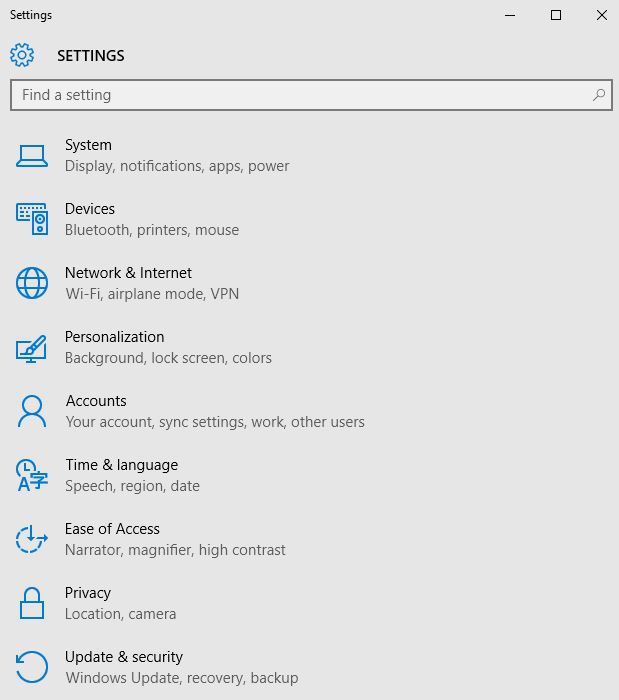
  2. Select Settings
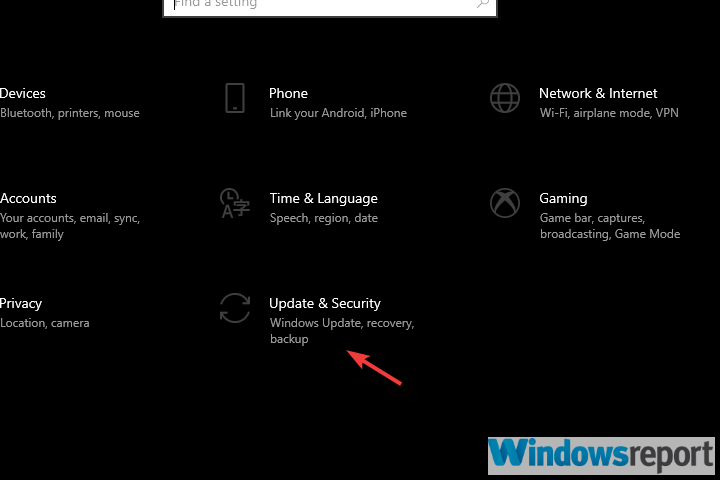
  3. Go to Updates and Security
  4. Navigate to the Troubleshoot tab
  5. Scroll down and select Windows Store Apps
    browser working but not apps
  6. Click the Run the Troubleshooter button
  7. Wait for the troubleshooter to scan your system for issues that
  8. Apply any fixes recommended by the troubleshooter
  9. Check if the apps are able to connect to the Internet

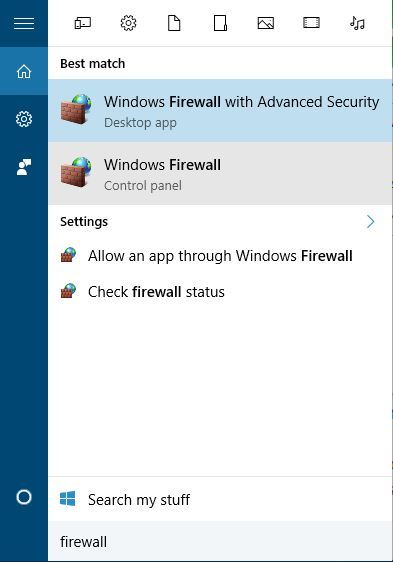
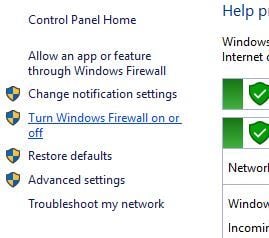
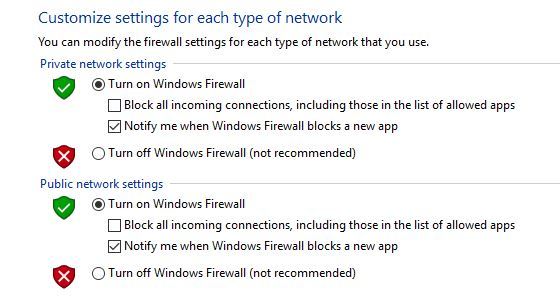
Disable VPN and Firewall

  1. Open your VPN client
  2. Disconnect from the VPN server you’re connected to
  3. Check if your apps have Internet access
  4. If not, continue following these steps
  5. Open the Start Menu
  6. Select Settings
  7. Go to Update and Security
  8. Head to Windows Security
    browser working but not apps
  9. Click the Firewall and network protection button
  10. Select your currently active network
    browser working but not apps
  11. Toggle the little switch under Windows Defender Firewall off
  12. Launch the Microsoft Store app
  13. Check for any improvements.

Disable proxy for LAN

Disable proxy for LAN

  1. Press the Win Key + R combination on your keyboard
  2. Type control and click OK to open the Control Panel
  3. Go to Network and Internet
    Fix proxy server error
  4. Select Internet Options
  5. Go to the Connections tab
    Fix proxy server error
  6. Click the LAN Settings button in the Local Area Network (LAN) settings section
  7. Make sure the Automatically detect settings box is checked.
    Fix proxy server error
  8. Uncheck the Use a proxy server for your LAN (These settings will not apply to dial-up or VPN connections) box
  9. Click OK to save the changes
  10. Click Apply and OK again
  11. Disconnect and reconnect to your network
  12. Check if the issue is resolved

Improper proxy configurations can mess with your PC’s ability to use an Internet connection outside of your browser.


Can’t disable proxy on your Windows 10 PC? Check out our guide and learn how you can fix this issue quickly.


So it makes sense that disabling proxy on your network for a while can help turn things back to normal.

Conclusion

All things considered, if you notice that your Internet connection works on a certain web browser, but not with other apps on your PC, you’re in the right place.

The issue is most likely caused by an incorrect proxy configuration on your computer and our guide can help you fix it in no time.

FIX: Failed to initialize connection subsystem – Cisco

Cisco AnyConnect is more than just a VPN, as it empowers your workforce to be able to work from any location, on any device, and at any time.

However, this doesn’t mean that it’s free of errors. In fact, it has quite a few issues, but thankfully none of them is without a solution.

One of the most common problems is the failed to initialize the connection subsystem in Cisco AnyConnect error.

Apparently, it mostly occurs for Windows users, but it also happens in the following scenarios:

  • Establishing VPN connections with Cisco AnyConnect Secure Mobility Client app on Windows 8.1, RT 8.1, or Windows Server 2012 R2
  • After installing Windows update 3023607 on your computer

Microsoft has confirmed that the failed to initialize connection subsystem in Cisco AnyConnect error is related to Microsoft products.

Namely:

Windows Server 2012 R2 Datacenter, Standard, Essentials and Foundation, Windows 8.1 Enterprise and Pro, Windows 8.1, and Windows RT 8.1.

Check out some solutions that can help you work around this error and fix it on your computer.

Failed to initialize connection subsystem in Cisco AnyConnect error fix

Go to Microsoft Update

You can install the most recent cumulative security update for Internet Explorer directly from Windows’ built-in update tool.

Alternatively, you could download and apply the update manually.

However, if you choose the latter, you should check the Affected Software table in Microsoft’s Security Bulletin MS15-018 for download links.

If this didn’t do the trick, move on to our next suggested fix.

Run compatibility troubleshooter on Cisco AnyConnect

The failed to initialize connection subsystem in Cisco AnyConnect error usually has to do with a recent Windows Update.


Having issues while installing Cisco AnyConnect? Check out our guide and learn how to bypass them easily.


However, you can also use Cisco AnyConnect’s proprietary troubleshooter tool to try and solve it.

All you have to do is follow these steps:

  1. Close Cisco AnyConnect
  2. Go to the Cisco AnyConnect Secure Mobility Client folder:
    • C:\Program Files (x86)\Cisco\Cisco AnyConnect Secure Mobility Client
  3. Right-click vpnui.exe
  4. Click Run compatibility troubleshooter
  5. Select Try recommended settings
  6. Go with the wizard’s suggestion (Windows 8 compatibility)
  7. Click Test Program to open the program
  8. Close

Note: For vpnagent.exe – the local service that supports the client user interface – you may need to repeat these steps.

Disable Internet Connection Sharing

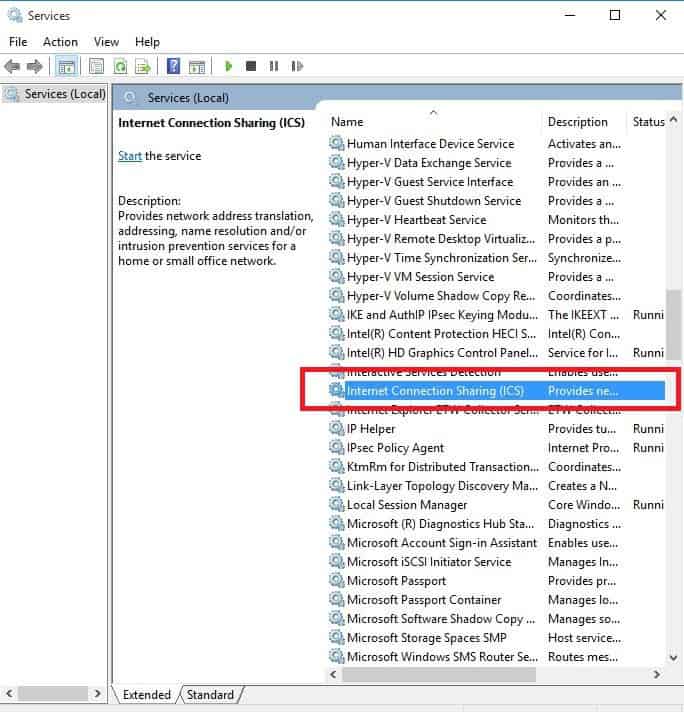
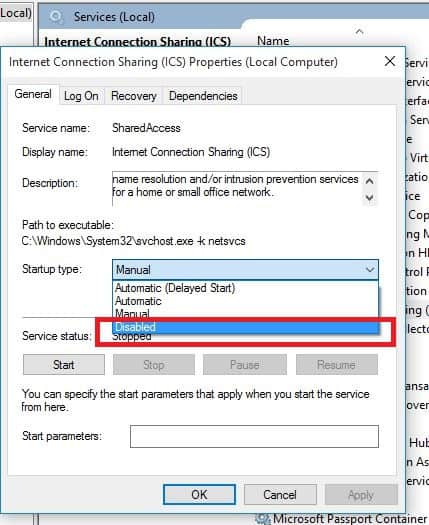
Sometimes the failed to initialize the connection subsystem in Cisco AnyConnect error could happen because the Internet Connection Sharing (ICS) is enabled on your LAN.

Here’s how to resolve this:

  1. Click on Start
  2. Go to Settings
    failed to initialize connection subsystem in Cisco AnyConnect
  3. Click the Network and Internet button
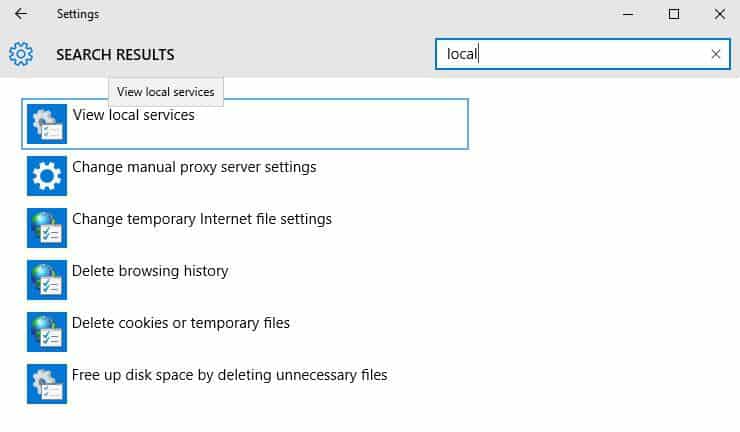
  4. In the search box, type Local
    failed to initialize connection subsystem in Cisco AnyConnect
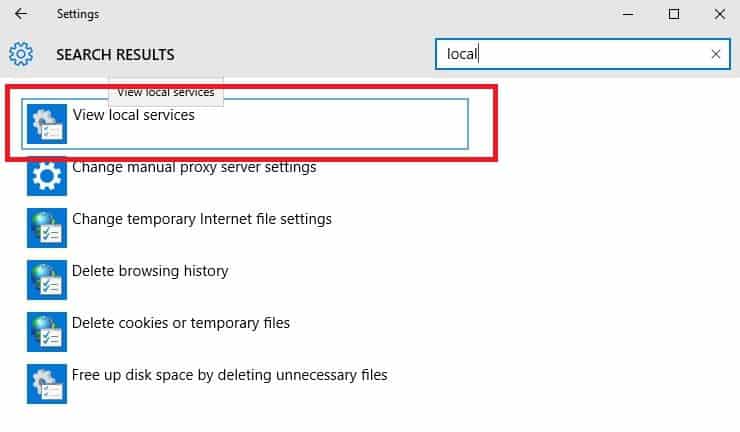
  5. Select View Local Services
    failed to initialize connection subsystem in Cisco AnyConnect
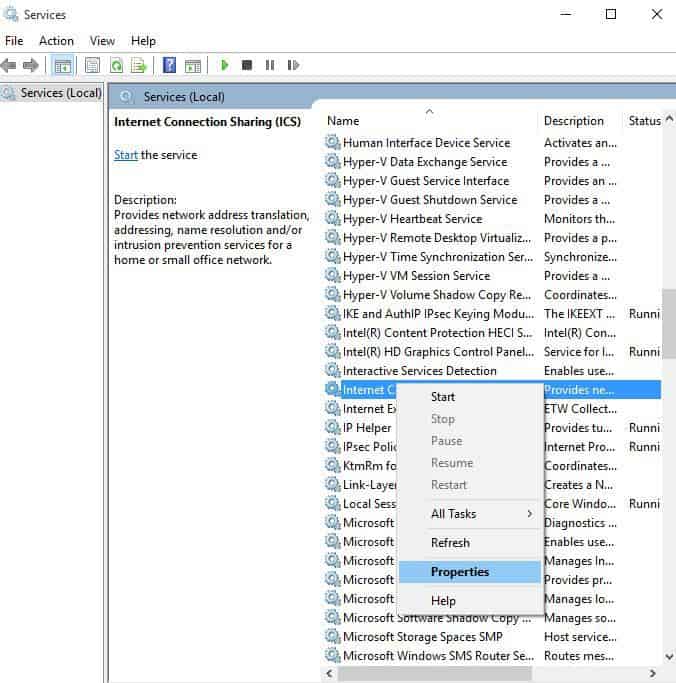
  6. Right click on Internet Connection Sharing
    failed to initialize connection subsystem in Cisco AnyConnect
  7. Select Properties
    failed to initialize connection subsystem in Cisco AnyConnect
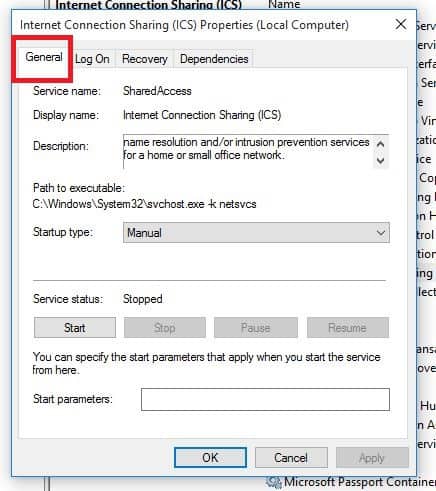
  8. Go to the General tab
    failed to initialize connection subsystem in Cisco AnyConnect
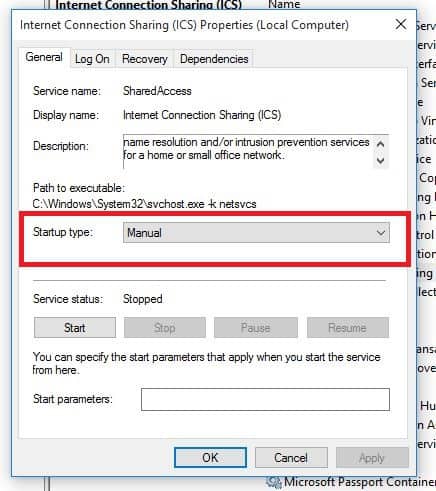
  9. Go to Startup Type
    failed to initialize connection subsystem in Cisco AnyConnect
  10. Click the drop-down menu and select Disabled
    failed to initialize connection subsystem in Cisco AnyConnect
  11. Click OK

Use the registry editor

If you have the failed to initialize connection subsystem in Cisco AnyConnect error, you can fix it by making a small edit to the registry using the steps below:

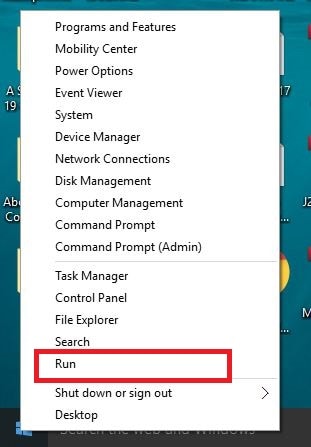
  1. Right-click Start
  2. Select Run
    failed to initialize connection subsystem in Cisco AnyConnect
  3. Type regedit
  4. Press Enter
  5. Go to HKEY_CURRENT_USER\Software\Microsoft\Win
  6. Create a new key called GlobalOfflineUser
  7. Give it 1 as the value
  8. Restart your computer and load the VPN

Check whether you are able to connect.

Conclusion

All things considered, if you encounter the failed to initialize the connection subsystem in Cisco AnyConnect error, there are ways to fix it.

We recommend you try our suggested methods one by one. We’re confident you’ll find one that eventually does the trick.

Which one of our suggested fixes worked best for you? Let us know by dropping a comment in the section below.

Sent Items not Showing in Outlook? 4 Fixes to See Them Again

Outlook usually saves sent emails within a Sent Items folder. That folder can come in handy as it shows you what emails you’ve sent with the application.

However, some users can’t always view recently sent emails in Outlook when the application has stopped saving the emails in the Sent Items folder.

If you can’t view sent items in Outlook anymore, check out the resolutions below.

How can I fix sent items are not showing in Outlook?

1. Select the Save Copies of Messages in the Sent Items Folder Option

The Save copies of messages in the Sent Items folder setting in Outlook does exactly what it says on the tin!

Thus, you can’t view sent emails in Outlook when that option isn’t selected. It is selected by default in Outlook, but somebody might have adjusted the setting.

This is how you can check if that option is selected in Outlook 2016 and 2013.

  • First, open your Outlook mailbox.
  • Click File > Options to open an Outlook Options dialog.
  • Click Mail on the left of the Outlook Options window.
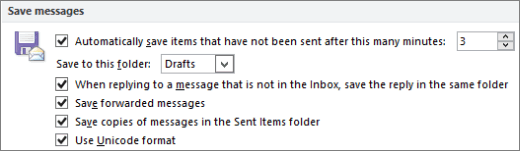
  • Then select the Save copies of messages in the Sent Items folder option under Save messages.
  • In addition, select the Save forwarded messages checkbox if that’s not selected.
  • Click the OK button to save the changes.

2. Check the Outlook Group Policy Setting

Group Policy Editor also includes a Save copies of messages in Sent Items folder option in the Outlook Group Policy setting.

You can check that option is selected in Windows 10 Pro and Enterprise. This is how you can check the GPO’s Save copies option for Outlook 2016.

  • Press the Windows key + R keyboard shortcut to open Run.
  • Enter ‘gpedit.msc’ in Run’s Open text box, and press the OK button.
  • Then click Configuration > Administrative Templates > Microsoft Outlook 2016 > Outlook Options > Preferences and E-mail Options on the left of the Group Policy Editor window.
  • Double-click Message handling on the right of the window.
  • Select Enabled on the Message handling window if that isn’t currently selected.
  • Then select the Save copies of messages in Sent Items folder check box on the Message handling window.
  • Press the Apply button to save the chances, and click OK to close the window.

3. Select an Alternative Folder for Sent Emails

You can select an alternative folder to include a sent email when you send it. If emails aren’t in Sent Items, you might at least be able to view sent items in an alternative folder.

This is how you can select an alternative folder for a sent email.

  • Click the New Email button to open Outlook’s email text editor.
  • Select the Options tab.
  • Click the small arrow on the Save Sent Item button to open a small drop-down menu.
  • Select the Other folder option on the menu.
  • Click the New button on the Select Folder window to set up a new folder to save the sent email in.
  • Then press the OK button. Note that you’ll need to set up an Outlook rule to automatically save all sent emails to an alternative folder.

4. Delete Older Emails From the Sent Items Folder

The Sent Items folder has a maximum of two GB storage for emails. So recently sent emails don’t get saved when your Sent Items folder is full.

As such, try deleting some older emails in Sent Items to free up space. You can do that by selecting the Archive this folder using these settings option as follows.

  • Right-click the Sent Items folder in Outlook and select Properties. Note that you can also select a Delete All option on the context menu to quickly clear out the Sent Items folder.
  • Select the AutoArchive tab.
  • Then select the Archive this folder using these settings radio button.
  • Configure the Clean out items older than setting as required.
  • Then select the Permanently delete old items radio button.
  • Press the Apply and OK buttons.

So that’s how you can configure Outlook to save sent emails, save sent emails in alternative folders, and free up some storage space in Sent Items.

Any of those resolutions might ensure that you can view your most recently sent emails in Outlook again.

MS Teams supports live events with 20k users until mid-2021

If you’re running a large organization and use Microsoft Teams on a daily basis for meetings and working sessions, you’ll be pleased to find out that the app can now be used with extended usage limits until end-June 2021.

This is the third time Microsoft increases temporary usage limits for Teams, the previous ones being announced back in April and June 2020.

Temporary usage limits for live events still available

teams to support 20,000 attendees until mid-2021

In an attempt to respond to the current teleworking demands, and also to resist competition against Zoom, Microsoft has been continuously improving their collaboration app.

Ever since the epidemic breakout, Teams has seen a steady increase in its daily user base, with a notable boom in the first week of the stay-at-home rules. According to recent figures, Teams is being used by over 100 million people on a daily basis, while Zoom – by over 300 million. So it’s only natural that Microsoft is trying to stay attractive and ease communication and collaboration across all its services.

As a result, live events hosted in Teams, Yammer or Stream will continue within the following limits:

  • Up to 250 participants in Teams Meetings
  • Up to 20,000 attendees in live events through Teams, Stream, and Yammer
  • Up to 100,000 attendees in Stream when planned through live events assistance program
  • On-demand recordings for unlimited numbers of viewers for those who cannot attend
  • 50 simultaneous events hosted across a tenant
  • 16 hours event broadcast time

It must be mentioned that interactive meetings are available for up to 1,000 participants, while the rest of the participants (up to 20,000) will enjoy just a view-only experience.

Also, event hosts must have the Advanced Communications option added to their Microsoft 365 or Office 365 plan.

With such great news for large companies, one surely has to be on the lookout for app improvements. The latest one allows users to transfer calls from PC to mobile.

Does this announcement work for your company? Tell us in the comments.

Outlook on the web will soon support suggested replies in more languages

Microsoft introduced a new suggested replies feature for Outlook on the web back in 2018. This feature launched first in the US for English-speaking users, but it will be coming to customers worldwide in January 2021.

According to the Microsoft 365 roadmap, the company is adding support for new languages, including Spanish, Portuguese, French, Italian, and German. Microsoft says that Outlook on the web will provide suggested replies to international users if they have a conversation in any of those languages.

Outlook’s suggested replies is a nifty feature that makes it easier for users to respond to emails based on their context. When users receive an email that can be answered with a short response, they can quickly choose pre-set replies to send a response without typing it out. The feature uses machine learning and natural language processing techniques to help users compose emails.

As a reminder, Suggested replies are already available for Outlook for Android and iOS in various languages such as English, Spanish, Portuguese, Italian, and French. While the feature should begin rolling out worldwide in January, it will not be available to all users straight away. The company will gradually roll out the new capability to all tenants.


Best desktop 4k wallpapers to customize your device

Your desktop background doesn’t have to look boring. It’s possible to make it come alive. Lots of wallpapers are frequently created to enhance the appearance of your Windows machine.

Some of the best Windows 10 wallpapers 4kmay require supporting apps to run them.

Although live wallpapers are a total charm, they are resource-intensive, and some PCs might suffer. An option is using a PC with sufficient power to run them smoothly.

Another choice is to go with the best Windows 10 4K wallpapers.

Install DesktopHut, a supporting app, which will help you download and enjoy the listing of some of the best Windows 10 wallpaper 4k.


Quick tip:

If you own a dual-monitor setup, and most of us do especially if you’re looking for 4K wallpapers, then you’ll definitely like what DisplayFusion has to provide.

Not only will it make multi-monitor management easier, but it also comes with access to 25+ online wallpaper website included directly into the app!

DisplayFusion

DisplayFusion

Gain access to over 25 different websites and customize your 4K wallpaper the way you want it with DIsplayFusion!
Check priceVisit website

Where can I download 4k wallpapers?

DesktopHut

DesktopHut is a very cool wallpaper website that enables you to find a variety of high quality and different resolution wallpapers that will surely make your device look incredible.

This website offers you quick access to any category of wallpapers you might be interested in, by using some very intuitive and good-looking buttons to enable it.

No matter if you’re into cyberpunk, science-fiction, heroes, or simple and crisp one-color wallpapers, this website offers you a great selection.

⇒ Visit DesktopHut


DeviantArt Wallpapers

Even though DeviantArt allows you to share and sell your artwork or digital creations, the website also has a specific wallpaper section in which you can get lost for days.

The variety of high-quality wallpapers is unmatched by any other website because of the constant stream of new creations from users both experienced, and beginners.

If you want to find a one-of-a-kind wallpaper in 4K quality for your Windows 10 device, you will surely find it here!

⇒ Visit DeviantArt Wallpapers


HDwallpapers.net

HDwallpapers.net is another amazing source for HD and 4K-quality wallpapers for your Windows 10 device.

Covering an incredible amount of categories that include anything from cartoon characters to amazing real-life nature scenery, you are sure to find the perfect match for your PC on this great website.

You can choose to search for a specific keyword, or simply use the Latest, Featured, or Popular buttons to pick a perfect wallpaper.

What makes it stand out from the other options presented in this guide, is the fact that once you have chosen an image, you get the option to choose from a wide range of formats that are custom-designed for a device.

For example, you can choose to download 4K wallpapers for your Windows 10 device or choose from Apple, Google, Samsung, Lenovo, LG, HTC, etc.

⇒ Visit HDwallpapers.net


WallHaven

WallHaven is a must in a list of the best sources for 4K wallpapers, offering you an incredibly vast array of options that include numerous categories and sub-categories.

Featuring some great buttons on the main page, this website enables you to quickly find the latest wallpaper released, browse through the best-ranked options, and even to see a random image.

Beyond this, each of the images has tags attached to them, so if you find one that fits your needs, you can simply get some more suggestions that look similar.

This makes it easier than ever to browse through thousands of wallpaper images for your Windows 10 PC with ease.

⇒ Visit WallHaven


Wallpino

Even though not as complex as the other mentions found in this guide, Wallpino does a pretty good job when it comes to the wallpapers offer.

Featuring over 10.000 wallpapers on a variety of subjects, this website will surely help you choose one that fits your taste.

After searching for a specific type of wallpaper, you can simply use the tags included in the pages to narrow your search down to whatever type of images you’re interested in.

Even though the website build is not as complex as others, Wallpino doesn’t fail to produce good results when searching for a good 4K wallpaper for your Windows 10 device.

⇒ Visit Wallpino


Wallpapers help you personalize your desktop screen, so feel free to download choose from any of the broad listings of wallpapers on DesktopHut.

Let’s know your thoughts on our list of the best Windows 10 wallpapers 4k.


[wl_navigator]

Wallpaper Engine brings your Windows desktop to life

Spice up your desktop with this cheap Wallpaper Engine app from Steam.

Steam Workshop, the distribution tool for the Wallpaper Engine app

Not everybody likes Steam, but there is a good reason why Wallpaper Engine is distributed through Steam: the Steam Workshop.

In it, users can add their own contributions to Wallpaper Engine app. For small developers, this is a pretty cool way to get new content into the application.


Wallpaper Engine breathes life into your desktop

The app’s effects are quite impressive. Start by clicking a wallpaper from the collection to select it. You will also get some options for altering playback speed, volume and the theme colors of the desired wallpaper.

You can have the Wallpaper Engine change your Windows accent color with the wallpaper automatically. You’re also able to modify the frame rate and you’ll notice that it can go up to 60FPS.

To reach 60FPS, you really have to own a great set of graphics hardware if you want that things will go as smoothly as possible.


System requirements

  • OS: Windows 10
  • Processor: 2.0 GHz Intel i7 or equivalent
  • Memory: 2048 MB RAM
  • Graphics: NVIDIA GeForce GTX 660, AMD HD7870, 2 GB VRAM or above
  • DirectX: Version 11
  • Storage: 1024 MB available space

Wallpaper Engine

Wallpaper Engine

Your desktop is your landing page, and your wallpaper defines it. Bring it to life with Wallpaper Engine!
Check priceVisit website

Wallpaper for Windows 10: Best of 2026

Windows 10 S brings enhanced security, preventing users from downloading apps and programs from outside the Microsoft Store. In this manner, Microsoft hopes to reduce the risk of getting malware infections from third-party app installs.

At the same time, this new strategy also limits user access to apps and programs.

One such example is downloading wallpapers. There are many websites out there that allow Windows 10 users to download high-quality images on their computers.

However, Windows 10 S users won’t be able to do that as the OS is built in such a manner so as to prevent non-Microsoft Store app installs.

If you’re looking for the best wallpapers to install on Windows 10 S, you’re in the right place. We scoured all the wallpaper apps available in the Microsoft Store and we’ll list the best of them below.


Quick tip:

Many users have dual-monitor setups, and finding wallpapers for them can be hard.

However, if you use a service such as DisplayFusion, you will also gain access to 25+ different online image providers, some of which are usually hidden behind paywalls!

DisplayFusion

DisplayFusion

Gain access to a multitude of wallpaper providers and enhance your desktop with DisplayFusion!
Check priceVisit website

Which are the best wallpapers for Windows 10 S?

3Planesoft 3D screensavers

3planesoft 3D screensavers

3Planesoft 3D screensavers offer a really great collection of screensavers and wallpapers for your Windows 10.

There are 8 main categories from which you can choose: nature, adventure, holidays, fish, fantasy, space, clock, and fireplace.

Just when you thought things couldn’t get any better, if you want to feel close to nature, the screensavers from this category comes with sounds of swings, chases, bicycle, basketball hoop, and even the beloved dog of any family. Makes you feel you are there. 

Every time you want to download a screensaver there you’ll have information regarding the size of it, so there won’t be a situation when you don’t have enough space on your device.

Let us just say that these screensavers are not only extremely beautiful but also informative. You actually get to find a fascinating amount of information about the wonders of the world, depending on which category you choose. Definitely worth giving them a try!

3Planesoft 3D screensavers

3Planesoft 3D screensavers

Get 3Planesoft 3D screensavers and personalize your device by choosing from an amazing collection of wallpapers and customizable wallpapers.
Check price Get it now

Wallpaper Studio 10

windows 10 S wallpaper

Wallpaper Studio 10 offers a huge collection of wallpapers for your Windows 10 PC. This app also allows you to synchronize your favorite wallpapers on all your Windows 10 and Android devices.

You can also share your own collection of wallpapers with other users. They can upvote your collection and you can become one of the top wallpaper publishers.

This app is extremely versatile, allowing you to create individual folders and slide shows. Various search criteria and tags let your categorize your wallpapers so that you can quickly find the ones that you need.

If you really like a particular wallpaper you can rate it to let others know they should check it out too. You can also add comments to wallpapers.

As it happens with every free app and program, there is a price that you must pay to access all these wallpapers and this constitutes a source of frustration for many users.

According to users, the app does offer a great collection of wallpapers and good functionalities, but the auto-play video ads block them from exploring different wallpapers.

Sometimes, the pop-up ads may appear when players are in the middle of a game — which is, of course, very annoying.

⇒ Get Wallpaper Studio 10


Backgrounds Wallpapers HD

background wallpapers HD windows 10 S

Backgrounds Wallpapers HD is an app that offers a rich collection of wallpapers and background images for Windows 10 S. There are more than 30 wallpaper categories available, so you’re definitely going to find the right wallpaper for you.

You can use these images as lock screen wallpapers, account pictures, and more. You can also create your own slide show and enjoy your favorite wallpapers in rotation.

If you’ve run out of ideas, use the “Wallpaper of the Day” section to find a nice image that you can set on your screen that day. The app also supports a Random Wallpaper feature.

⇒ Get Backgrounds Wallpapers HD


Best HD Wallpapers and Backgrounds

best-hd-wallpapers-and-backgrounds-windows-10-S

As its title suggests, this app brings one of the best wallpaper collection for PC our there.

You no longer need to spend hours browsing the Internet in order to find the perfect wallpapers. Actually, you’ll have a hard time deciding which wallpapers to use.

The app features a huge collection of wallpapers filtered into many categories, such as cars and auto, cities, landscapes, abandoned buildings, sky, space, nature, and many more.

⇒ Get Best HD Wallpapers and Backgrounds


WW Wallpapers

WW Wallpapers windows 10 S

If you’re looking for a simple and straightforward wallpaper app for your Windows 10 S computer, then WW Wallpapers is the right choice for you.

You can select your favorite wallpaper from a collection of thousands of HD wallpapers.

You can check what are the top downloads and top votes, as well as browse wallpapers through categories. If you’re looking for one particular type of wallpaper, you can search photos by keyword.

If you really like one particular wallpaper, you can download it to your Photos Library.

⇒ Get WWW Wallpapers

That brings us to the end of our list. If you’re looking for an app that features a huge collection of wallpapers, install Wallpaper Studio 10. On the other hand, if you want a simple app, WW Wallpapers is the right choice for you.


5 best custom wallpaper makers [Desktop & Online]

Generic backgrounds are no fun for your desktop. However, getting the right wallpaper design software will bring you closer to the formal look that you’re after or the fun, bright one, with dramatic patterns.

Many of you probably used similar software in the past. You had some folders containing wallpaper files, then you’ve selected the wallpaper change frequency for the desktop.

How about creating your own wallpapers instead? We’ll be focusing on software tools that are friendly towards beginners as well, so don’t get scared if you’re not intuitively technical.

Follow along and you will be sure to find the perfect wallpaper maker software for you.

What’s the best wallpaper maker software to get?

Adobe Photoshop

Photoshop-CC-2020

The top pick on this list is the very best imaging and graphic design software you can get your hands on today.

Adobe Photoshop won’t empty your pocket yet you will get richer in terms of enthusiasm and even entertainment when taking a look at your currently boring desktop.

As far as your freedom of creation is concerned, the huge canvas size is a clear sign that there’s nothing standing in your way.

To make your own desktop wallpaper, all you need to do is to create a new document in the size of the target desktop wallpaper, then open all the images that will become desktop wallpapers.

Drag them into the original sized document, resize the layers if required, and go to File > Export > Layers to Files. This will make each layer its own file in a matter of seconds.

Here are what key features you will get with Adobe Photoshop:

  • Integrated Image Library to avoid spending countless hours looking for interesting pictures on the Internet
  • Various plug-ins to add special effects and features
  • Unlimited layers and masks
  • OpenType SVG fonts support
  • Convenient video and animation editing

Adobe Photoshop

Wallpapers can be easily created using Photoshop’s wide library of tools and plugins. Make your desktop your own today!
Check price Visit website

Fotor

Fotor is all-in-one software with functions for editing photos, image retouching, and graphic design. However, it can also help you create unique wallpapers.

Actually, you could make beautiful desktop wallpapers in just a few minutes. The process requires no more than an easy drag and drop operation of your photos on the template and a quick change of the script.

When you make any changes, just keep in mind that it’s essential to manage your overlays to maximize your wallpaper’s visual impact.

Here’s what key features you will get with Fotor:

  • Multiple pre-installed filters and onefold photo editing tools
  • Advanced HDR technology
  • Fast RAW file converter
  • Growing Fotor social network
  • Both desktop and mobile versions of Fotor photo editor are available for users

Fotor

If you’re not satisfied with the wallpapers found on the Internet, easily make your own with Fotor!
Check price Visit website

Canva

grab Canva

Canva is a versatile software tool for creating wallpapers. It’s all up to you – start creating amazing wallpapers from scratch or browse through hundreds of wallpaper templates if you’re running out of ideas.

There’s nothing stopping you from adding a truly unique message by choosing from hundreds of free fonts. Then, download or even share your custom wallpaper so that others can see how creative you are!

Here’s what key features you will get with Canva:

  • User-friendly interface
  • Impressive library of over 2 million images
  • Intuitive GIFs creation, series of Instagram stories, and more
  • Team sharing options, with built-in social sharing and presentation mode

⇒ Get Canva

Visme

grab Visme

A great desktop wallpaper design experience is also offered by this fully customizable wallpaper maker software.

Click Create right away, navigate to the Web Graphics tab and hit Wallpapers to wander around some amazing template options.

Moreover, Visme has a seemingly endless array of photos, graphics, icons, and more to rely on when you want to create interesting wallpapers.

After all, the included templates are infinitely customizable.

Here’s what key features you will get with Visme:

  • Thousands of high-resolution stock photos to create amazing backgrounds
  • Easy drag-and-drop design tools
  • Hundreds of popular fonts to choose from, serif and sans serif included
  • Built-in brand kit for uploading your own fonts

⇒ Get Visme

Wallpaper Engine

try out Wallpaper Engine

Do you want to use animated wallpapers? Then, Wallpaper Engine is our recommendation since it makes your desktop dynamic in no time thanks to its impressive 2D and 3D wallpapers.

The program not only gives you access to a large collection of animated wallpapers but also provides a huge range of features to add special effects to cut, paste or move different elements of the wallpaper.

Here’s what key features you will get with Wallpaper Engine:

  • Thousands of wallpapers to get you started
  • Multi-monitor support
  • Full Steam community integration
  • Browse and filter with lots of options if you know precisely what you’re looking for

⇒ Get Wallpaper Engine

There are plenty of options if you’re looking to find the best wallpaper maker software. Which one is your choice today?

Don’t hesitate to let us know by using the comments area below.

FIX: VPN domain’s tap device is down on Hamachi VPN

Hamachi by LogMeIn is one of the most popular VPN services for teams, commonly used by the gaming community.

It allows users to create LAN-like private networks for work or gaming purposes.

However, the service has had some hard time transitioning to Windows 10, as the VPN domain’s tap device is down error affected a lot of users.

If you’ve been (ore currently are) in the situation depicted above, don’t fret. We have a few easy methods to fix it in no time.

What to do if VPN domain’s tap device is down?

Run Diagnostic Tool

From the get-go, make sure to run Hamachi‘s Diagnostic Tool. This built-in utility should point to the exact cause of the problem.

When it comes to the VPN domain’s tap device is down error, the Adapters section should show the yellow exclamation mark.

Here’s how you can access and run the Diagnostic Tool from the LogMeIn Hamachi client:

  1. Start the LogMeIn Hamachi client
  2. Click the Help button
  3. Select Diagnostic ToolLogMeIn Hamachi Diagnostic Tool
  4. Click the Start button

Reinstall Hamachi

Let’s move to the reinstall procedure of the Hamachi service client on your PC.

Reinstalling a piece of software or restarting your computer is more often than not overlooked. Not on our watch.

It’s advised to remove all traces of Hamachi from your PC, including drivers.


Does Hamachi not work on your Windows 10 PC? Check out our guide and learn how you can fix it.


This helps us make sure that the reinstallation process won’t use some of the old, potentially corrupted files or settings.

After removing everything Hamachi-related from your PC, you can safely download and install the latest version of the client and move from there.

Here’s the entire process, step-by-step:

  1. Right-click your Start Menu
  2. Select Apps and Features from the menu
  3. Uninstall the Hamachi client
  4. Right-click your Start Menu once more
  5. Select Device Manager
  6. Remove all associated virtual Network adapters
  7. Restart your PC
  8. Download the latest version of the Hamachi client
  9. Install the client on your PC

If you’re still experiencing issues, try running the Setup again but this time without uninstalling Hamachi.

After the reinstallation process is complete, make sure to restart your PC and check if you’re still getting the error.

Uninstall recent Windows 10 updates

Some users noticed that the error occurred after certain Windows cumulative updates were deployed.

Reportedly, their Hamachi client was working flawlessly until installing the latest system updates.

The obvious step you’ll need to take in this situation is to uninstall them manually and, hopefully, the issue will go away.

Here’s what you need to do:

  1. Press the Win key + I key combination on your keyboard
  2. Select Update & Securitysettings win 10 update & security
  3. Navigate to the Windows Update section
  4. Click the View update history buttonwindows update settings view update history
  5. Select Uninstall updateswindows update settings uninstall updates
  6. Remove any recent updates
  7. Restart your PC

We recommend to uninstall recent updates one by one, and not in bulk.

That way, you can keep track of the update that was rendering Hamachi unusable.

Furthermore, once you discover the culprit, you could go ahead and reinstall updates that were not causing the VPN error.

Reinstall drivers while Hamachi is running

Last, but not least, we have a solution that might appear strange at first sight, but it may just be the most reliable fix to date.

Apparently, after some meddling with the installation and associated network drivers tinkering, users managed to find the resolution.

First of all, you need to start Hamachi and make sure it’s running.

After that, head over to your Device Manager and uninstall all LogMeIn virtual ethernet drivers (in the Network adapters section).

Once you’ve dealt with drivers, just reinstall Hamachi again (method 2) and everything should get back to normal.

This fix is quite peculiar indeed, but hey, at least it gets the job done.

Conclusion

All things considered, if your Hamachi client prompts you with the VPN domain’s tap device is down error, there are a few ways you can fix it.

We recommend you to try each of our methods, one at a time. We’re quite confident you’ll restore Hamachi‘s functionality in no time.

If this guide helped you fix the VPN domain’s tap device is down error, tell us what worked for you in the comments section below.

FIX: Windows needs the TAP-Win32 adapter name

The Windows needs the TAP-Win32 adapter name error appears in OpenVPN files (ovpn format). It’s generated by Windows when attempting to connect to the secure tunnel.

Here’s the complete error message:

. # Windows needs the TAP-Win32 adapter name

. # from the Network Connections panel

. # if you have more than one

If you’re not familiar with how VPNs and OpenVPN work, this error message could prevent you from successfully using a virtual private network solution.

How can I fix the Windows needs the TAP-Win32 adapter name error?

Rename the OpenVPN TAP adapters

Rename the network connection in Windows 10

Skip this step if you have only one TAP-Win32 adapter for OpenVPN installed.

However, if there are two or more interfaces, you need to tell Windows which one to use when creating a secure tunnel.

Keep in mind that you need admin rights for the following steps:

  1. On Windows 10, right-click the Start button and select Network Connections
  2. Click Change adapter options
  3. Right-click the TAP-Win32 adapter interface associated with OpenVPN
  4. Give it a unique name (keep in mind that it’s case sensitive)
  5. Do this for every TAP-Win32 adapter interface associated with OpenVPN
  6. Open the OVPN file
  7. Locate the dev-node line and set the new TAP-Win32 adapter name
  8. Save changes and try to reconnect

It indicates that you have two or more TAP-Win32 adapters installed for OpenVPN, so you need to specify the adapter that should be used.

This solution should help fix OpenVPN connection issues on your PC.

Reinstall the OpenVPN network adapter

uninstall TAP drivers from Device Manager

If you have only one TAP-Win32 adapter for OpenVPN installed, it’s a good idea to reinstall it.

Here’s what you need to do:

  1. Right-click the Start button and select Device Manager
  2. Expand the Network adapters section
  3. Locate and right-click the OpenVPN adapter
  4. Select Uninstall device
  5. Open the Action menu and select Scan for hardware changes
  6. Try to reconnect through OpenVPN

Use a commercial VPN with OpenVPN support

PIA

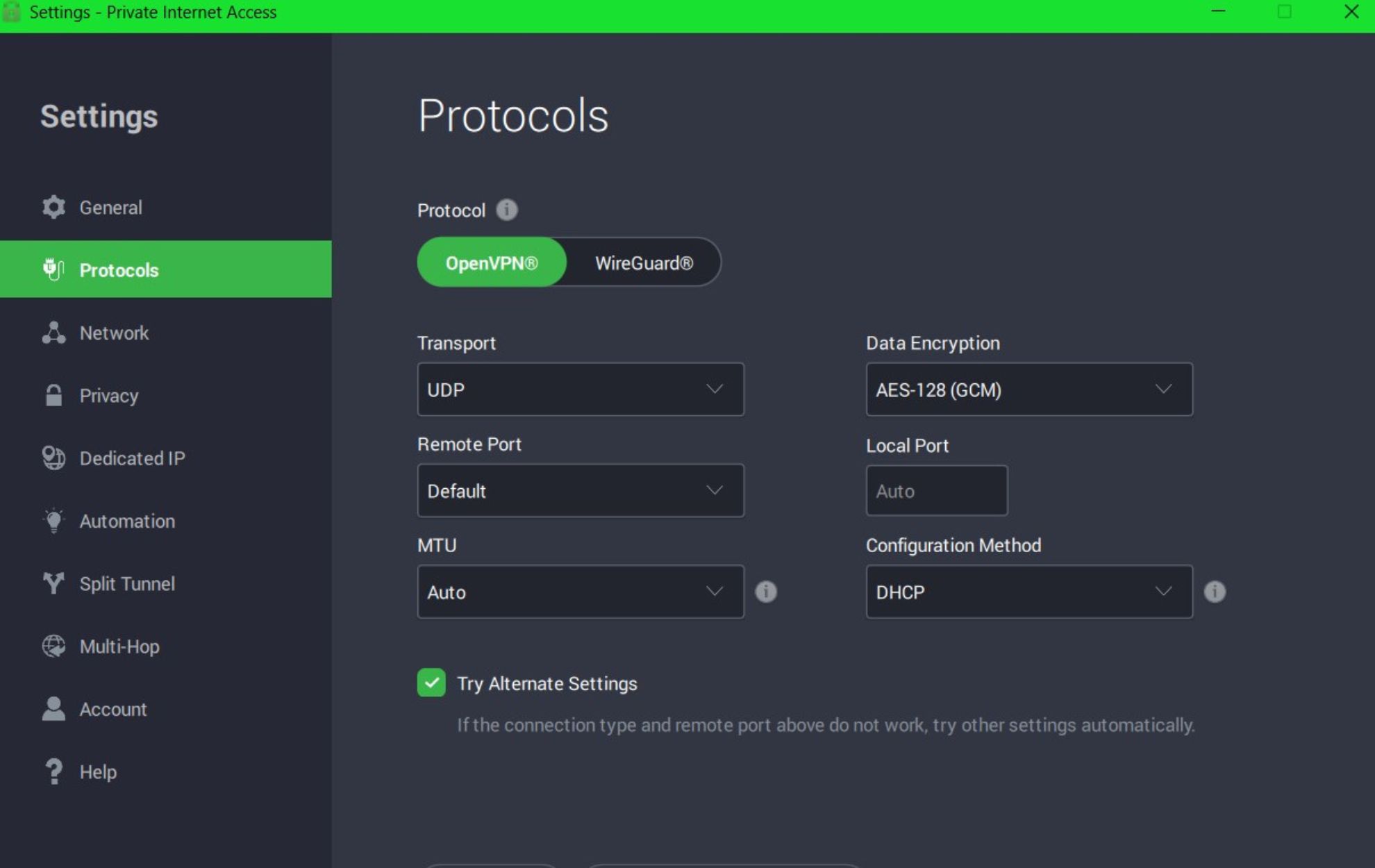
Instead of using the OpenVPN client, consider using a commercial VPN like Private Internet Access because it fixes any OpenVPN configuration issues on its own.

Plus, you can effortlessly switch VPN servers and reinstall the OpenVPN adapter from the Help menu if you encounter any issues.

PIA comes with some extra cool features, such as private DNS servers, static and dynamic IP addresses, split tunneling mode, kill switch, and native port forwarding.

More about PIA:

  • Made for Windows, Mac, iOS, Android, Linux, and routers
  • Protect up to 10 devices at once
  • A zero-logging privacy policy
  • 24/7 live chat support
  • 30-day money-back guarantee (no free trial)
Private Internet Access

Private Internet Access

Use this reliable VPN service to avoid TAP driver issues caused by improper OpenVPN configuration settings.
Check priceBuy it now

Conclusion

To recap, you can fix the Windows needs the TAP-Win32 adapter name error by renaming or reinstalling the OpenVPN network adapters.

But we suggest using a commercial VPN service like Private Internet Access since it simplifies the way you connect to a secure tunnel using OpenVPN.

Did you manage to fix the error using the solutions above? Let us know in the comment section below.

How to group shortcuts on the taskbar by using TaskbarGroups

TaskbarGroups is a great Windows 10 utility that can easily bundle multiple shortcuts on the taskbar for better organization and extra space.

That’s essential, especially if you tend to pin your most used applications, the folders, or even the recycle bin.

Given your actions, the taskbar could become crowded in no time. However, you can now avoid that by simply grouping the shortcuts on the taskbar.

TaskbarGroups was developed by Jack Schierbeck. He just released the source code on Github and revealed the following about the actual tool:

Lightweight application that lets user create and pin groups to the Windows taskbar och desktop

How can I group shortcuts on the taskbar?

  1. At first, download the TaskbarGroups app.
  2. Extract the TaskbarGroups archive and run the executable file that it contains from the folder the contents got extracted to.
  3. To create a group for the taskbar, just select the Add taskbar group option.Add taskbar group option
  4. Give it an appropriate title and set a group icon for it.
  5. You may now add program shortcuts to the group.
  6. With the group pinned to the taskbar, feel free to click on the pinned group and open the overlay including all grouped programs.
  7. Finally, just click on the desired program in order to launch it.

There is no secret that the Windows 10 taskbar is customizable in terms of design, location, included items, and more.

Being able to group shortcuts on the taskbar is helpful, especially given the fact that you can create additional groups and associate different shortcuts.

Even better, do note that TaskbarGroups currently supports all taskbar layouts you may think of using, including on the side and even multi-monitor setups.

If that’s your wish as well and you like the idea of showing the taskbar on both monitors in Windows 10, check out this detailed guide right away.

Let us know in the comments area if you want to give a try to TaskbarGroups as well.

How to remove Anatova ransomware from Windows 10 PCs

Nowadays, cyber-attacks are becoming more and more common and there’s no sign of stopping them any time soon. Not without a proper strategy, that is.

Anatova ransomware, for instance, is a popular (in the infamous kind of way) attack that affected several machines in 2019.

This ransomware was first discovered on a private peer to peer network by  McAfee’s security researchers.

The researchers studied the prepared modular extension of the ransomware and warned its users about its potential to become a serious threat.

Now here’s why it’s hazardous for any device it reaches: Anatova compels PC users to infect their machines by replicating the icon of an application or a game.

Once your device is infected, two things happen: your local files will get encrypted and all the files on network shares will share the same fate.

In the worst-case scenario, where the attacker wins, the victims have to pay a ransom of 10 Dash coins (valued at roughly $700) to get their files decrypted. 

How to get rid of Anatova ransomware?

Enable Safe mode with Networking

It’s possible to stop Anatova ransomware dead in its tracks by using Windows’ Safe mode.

Follow the steps explained below to access Safe Mode and get rid of this piece of malware:

  1. Open the Start Menu
  2. Click the Power button
  3. Hold Shift on your keyboard and select Restart
  4. Go to Troubleshoot
  5. Select Advanced options
  6. Click the Startup Settings button
  7. Press RestartComputer Stuck On Ctrl Alt Delete Screen
  8. Enable the Safe Mode with Command Prompt mode in Startup Settings

Restore system files and settings

  1. Launch a CMD instance with Administrator rights
  2. Type cd restore and hit the Enter button
  3. In the same CMD window type rstrui.exe and hit the Enter button
  4. Locate the newly-opened System Restore window
  5. Click the Next button
  6. Select the restore point that was created before the Aanatova attack
  7. Click the Next button
  8. Hit the Yes button to initiate the restoration process

How can I prevent Anatova ransomware?

Now that you got rid of the Anatova ransomware, you’ll need to make sure it won’t come back.

As usual, prevention is better than cure. Therefore, it’s wise to follow a few safety measures whenever you use your PC, especially while online.

  • Always use official, confirmed sources whenever you download games, apps, or any other document
  • Avoid shady websites, especially ones that are full of ads and pop-ups, or those that ask for notification permissions
  • Don’t open emails that look particularly suspicious
  • Avoid clicking attachments in email messages, especially if your email client flagged them as spam and blocked their content
  • Use trustworthy antivirus, antimalware, and firewall solutions on your PC
  • Don’t ignore any security warning you may see while navigating to a suspicious website

Ransomware is usually dangerous because it can lock you out of important documents on your computer.

With that in mind, it’s easy to see why making backup copies of everything important on your machine can be a good way to fight Anatova ransomware.

Even in the worst-case scenario where your files get locked beyond recovery you won’t have to pay a dime to the attacker, knowing well that you have backup copies.

It goes without saying that the backup copies should never ever reside on the same machine or in the same location as the original files.

Otherwise, you’ll face the risk of losing them to ransomware, as well.

Just use a memory stick or an external HDD and disconnect it once the backup is complete.

Conclusion

All things considered, if you’ve been affected by Anatova ransomware, you can easily get rid of it, granted that you have enabled the system restore option on your PC.

If you manage to get rid of Anatova ransomware, don’t forget to backup your files and take all necessary steps to prevent it (or any other similar malware) from ever returning to your PC.

How to Fix Common Disney Plus Error Codes

You don’t need to wait for another episode of The Simpsons or Star Wars. Disney Play owns an extensive portfolio of amazing content that you can enjoy over and over again. That’s why we’re here – to help you fix the most common Disney Plus error codes.

Both monthly and annual fees are reasonable, and Disney seems promising, but the service is still in its early stages. Until the updates address the growing glitches, sometimes you can tackle the issues you’re experiencing.

Let’s examine how some issues manifest themselves and what solutions may be applied.

How can I fix common Disney Plus error codes?

1. Create a new account

A lot of error codes and other generic issues with your Disney+ viewing experience can be caused by faulty account settings.

Sometimes, there is an issue with your email address, or maybe it is because you have a profile on someone else’s account, or it can even be caused by the location from which you first created your account.

It can even be caused by issues with the credit card you are paying from.

2. Error Code 4: Issues trying to complete your transaction

Well, when getting this error it means that Disney has some issues trying to complete your transaction. First, check your billing details and ZIP code to ensure the transaction succeeds.

Besides this, make sure you own a US-based card. If all card details are correct, try again after a few minutes.

3. Error Code 5: Account information issue

Account information issue

This error is a sign that Disney Plus could not update your account information since there is something wrong with your entered data. Please check that you have entered the correct information and try to update your account details once more.

4. Error Code 8: Invalid email or password

This shows up when you’ve used an incorrect email or password while trying to log in to your Disney Plus profile. This also applies to a password that doesn’t meet Disney’s requirements.

To fix this error code, ensure you have the correct details. Use the email and password you entered while creating your Disney Plus profile, and consider using a password manager.

If you want one of the latest Windows 10 password managers, check out our best picks!

5. Error Code 9: Login or payment issue

Just like error 4, in this error, your transaction is being canceled due to some wrong info about ZIP or postal code, security code, card expiration date, or non-US-based card.

Double-check your details for good measure. Making sure you haven’t been logged out by accident is also recommended.

6. Error Code 11: Content availability restrictions

TV shows and movies in a certain region may not be available in yours. If you attempt to watch one of those titles, you will face error 11. First, try resetting your Internet connection.

If this makes no difference, remember that a premium streaming VPN can provide you with instant access to any content despite your current location.

7. Error Code 13: Device limit issue

Are you trying to download videos on more devices with the same account? Disney is clear about the number of devices you can use at one time to watch content with a premium account.

The service allows up to four devices simultaneously logged in at a time, so you may need to sign out of a few before you can resume streaming past the error code 13. Further, try to remove all downloads from a previously loaded device.

8. Error Code 22: Restricted content

Error Code 22

Disney Plus is available in a limited number of countries for now. If you already have a Disney Plus account, but you are in a country where the service is not available, you may end up running into Error Code 22.

The easiest way to resolve this issue is by connecting to a Disney Plus-compatible VPN. Change your location to the US to evade all these limitations.

9. Error Code 30: Device registration issue

This indicates that your device couldn’t be added to your Disney Plus account. Make sure that you haven’t reached the 10-device limit account and double-check that your device is compatible with Disney Plus.

If the device happens to be already linked, simply try to log in again.

10. Error Code 32: Login or password issue

If you are using an incorrect password, you will most likely face this error. It is essential to keep your password safe and to have the correct login details for your account.

Then, sign out and back in. If you don’t remember your password, feel free to reset it.

11. Error Code 38: Time settings error

When the time and date settings are incorrect on your streaming device, this will lead to issues when you try to access content on Disney Plus. That’s an easy one, though – check the time settings on your clock or set it to Automatic and try again.

12. Error Code 42: Issues connecting to the service

This error message appears when there are connectivity issues like the no valid bitrates error. The quickest fix is restarting your streaming device and ensuring the Internet works fine.

Perhaps it gets disconnected due to the VPN you’re using, or Disney Plus is having issues. For these cases, we’ve got a dedicated guide on what to do when the Internet is disconnected when a VPN connects.

13. Error Code 83: App-related issue

If your device does not pass the compatibility test or is running on unsupported configurations, you may encounter the error code 83 on Disney Plus. this can be resolved by updating the app from official sources.

14. Error Code 86: The account has been blocked

Disney Plus can block your account due to inappropriate usage or if you are somehow violating their policies. Also, make sure the main account holder’s email isn’t associated with someone under the age of 18. You may have to follow up with Disney Support to resolve your issue.

15. Error Code 1026: Authentication issue

Disney Plus may fail to log you into your account if the server is busy, you’ve not updated your subscription, or you’re trying to access content from a restricted location. You’ll see the error code 1026 when you launch the app, and to resolve it, you can enable your VPN.

Before you leave, find out about Disney Plus Error code 14, a simple sign-in issue.

Reinstalling the Disney Plus app is a standard solution to many other issues related to the app, including error code 73.

For additional help, do not hesitate to learn how to fix Disney Plus keeps crashing. Rest assured that our guide offers effective troubleshooting steps.

Feel free to ask any questions and let us know how it goes.

How to get Disney Plus with Verizon [Free / Limited Deal]

Disney launched the Disney+ streaming service toward the end of 2019. This is a streaming channel exclusively for Disney content.

If you’re a big Disney fan, then Disney+ is the channel for you. In the U.S., it has a $69.99 membership fee that provides access to all the channel’s content.

However, Verizon is offering free one-year Disney+ membership to those subscribed to one of its Unlimited plans. So, Go Unlimited, Above Unlimited, Get More Unlimited, Do More Unlimited, Play More Unlimited, and Start Unlimited subscribers can add Disney+ to their accounts.

If you’re subscribed to an alternative Verizon plan, you can switch to Unlimited to activate Verizon’s subscription offer. Verizon also offers free one-year Disney+ membership to new 5G and Fios subscribers.

Quick tip:
Regardless of streaming service, watching directly through the original provider is always the better option, since it eliminates the possibility of logion issues, account syncing, and more.

Disney+

View Disney+ straight from their app to have the best viewing experience. Create an account and subscribe today!
Check price Visit website

How can I get a one-year Disney Plus membership with Verizon?

1. For current Verizon Unlimited subscribers

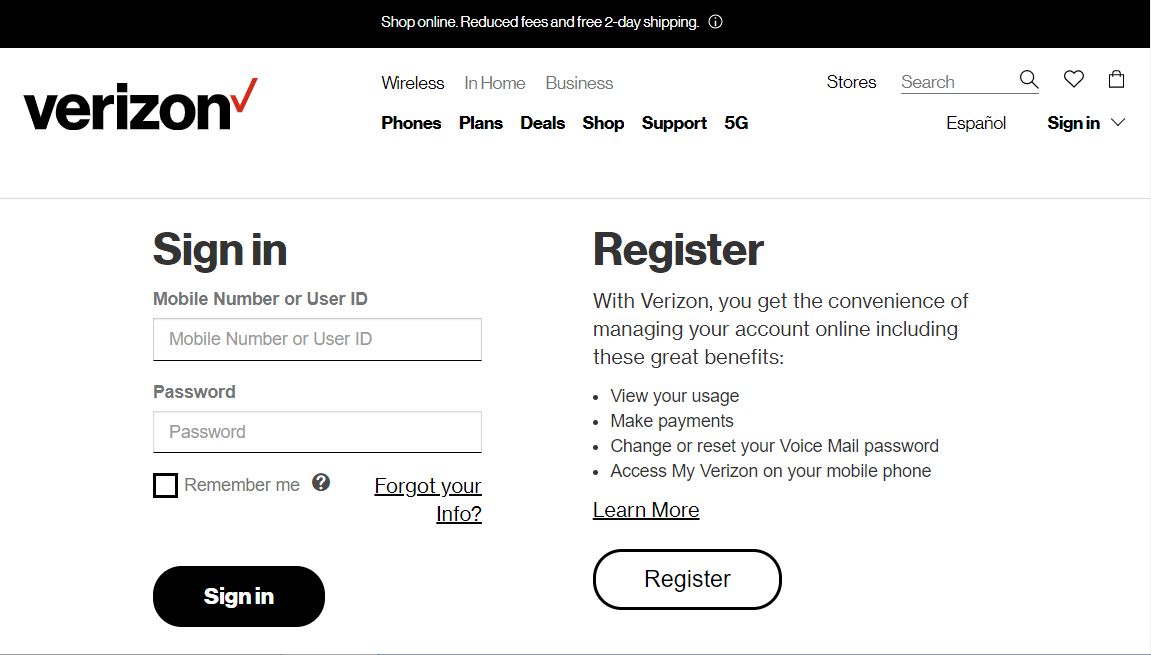
  1. If you’re currently subscribed to a Verizon Unlimited plan, click Get Disney+ under the Already have unlimited heading? on the Disney+ offer page.
  2. Next, enter your login details.
    Verizon signin page disney plus verizon
  3. Click the Sign-in button.
  4. Click the Get Disney+ button under the 1st year on the $6.99/month heading.
  5. Select the accept Terms and Conditions option.
  6. Press the Enroll in Disney+ button to get your one-year channel subscription.

2. For Verizon users who need to switch to an Unlimited plan

  1. If you need to switch to an Unlimited plan, click Change your plan on Verizon’s Disney+ offer page.
    Change your plan link disney plus verizon
  2. Next, input your login details in the text boxes.
  3. Click Sign in to log in.
  4. Then you’ll need to switch to one of the Unlimited plans, such as Go Unlimited.
  5. Thereafter, return to Verizon’s Disney+ offer page.
  6. Click Get Disney+ on that page to add the channel to your Unlimited account.

3. With the Verizon app

  1. You can also claim your one-year Disney+ subscription with the Verizon app. To do so, add the Verizon app to your mobile device from its Google Play page.
    My Verizon page disney plus verizon
  2. Open the Verizon app.
  3. Tap Menu to select Account.
  4. Then enter your login details.
  5. Select the Entertainment tab.
  6. Tap the Learn more option for the Disney+ offering.
  7. Tap Confirm to accept terms and conditions.
  8. Tap Continue to proceed with Disney+ enrollment.

Once you’ve added Disney+ to your Verizon account, you can watch a great collection of CGI animated films and TV series for one year! This is an amazing offer from Verizon, so don’t hesitate to take advantage of it.

Disney Plus is not downloading on Xbox One? Try this

Disney Plus had a bumpy launch with logging-in errors and overloaded servers, but most of these seem to be a part of the past. Sadly, this doesn’t apply to those trying to get to the amazing Disney Plus content on their Xbox One.

Disney Plus isn’t the only streaming service where you can watch Disney content but it’s the most popular one these days.

If you’re an Xbox One owner impatient to start watching your favorite Disney, Pixar, Marvel, Disney Channel, National Geographic, or Star Wars movies no downloading errors should stop you.

When you are troubled by this issue, here are a couple of troubleshooting tips to help you download the app on your Xbox One in no time.

What can I do if Disney Plus is not downloading on Xbox One?

1. Create a new account

Sometimes issues with your login credentials can cause difficulties downloading the app. It can be because of your registered email address, or because of the servers in your area.

As such, create a new Disney+ account using a different email address, while also using a VPN.

Disney+

Starting off with a clean slate is usually the go-to solution for any problem. Create a new account, download the app and start enjoying Disney+!
Check price Visit website

2. Ensure you signed up for the streaming service

First of all, as eager to take a peek at The Mandalorian you might be, note that you need to sign up for this streaming service before downloading it to your console.

There are two plans to choose between: you can either pay $6.99 per month or go for the annual plan that will save you a few bucks.

3. Double-check your download steps

  1. Once you’re signed up, turn on your Xbox and sign in to your profile.
  2. Open search by hitting the Y button.
  3. Type in Disney Plus.
  4. Then, hitting A will direct you to the Microsoft Store where you can find Disney Plus.
  5. In the Apps section, select Disney Plus.
  6. You might need to search it if you don’t see Disney Plus from the start.
  7. Select Install to add the app to your Xbox One.
  8. You’ll be notified as soon as the download is finished.
  9. Open the Disney Plus app by holding the middle button on your Xbox controller.
  10. Next, log-in using your Disney Plus credentials to get access to access to endless movies and TV series.
  11. When you find the video you want to watch, just hit A to start playing.

4. Check Internet download speed

Are you still unable to download Disney Plus on your Xbox One? Check your Internet download speed as soon a possible. If it’s slower than 5 Mbps, that could be your issue.

We don’t want to break you the bad news but after a successful download, there’s a catch with playing the videos in 4K resolution. Unlike Amazon Video, you won’t be able to enjoy this feature on Xbox One as only Xbox One X and Xbox One S support Disney’s 4K for now.

What’s also essential in this case is a good connection speed: it needs to be 35Mbps or more to stream Disney Plus.

5. Disconnect and reconnect from the Internet

Disconnecting the Xbox One from the Wi-Fi Internet connection has often helped users in a similar situation to fix the issue. Wait 30 to 60 seconds, and then reconnect.

Sometimes all you need is to refresh your connection and the download will complete or act fast when your Xbox One doesn’t see Wi-Fi at all. Most users don’t know what to do in a situation like this. Don’t be one of them and read this quick guide to learn how to solve the problem in no time.

6. Switch to a different device

As frustrating as it sounds, you might be getting a device compatibility issue like Error 83. This means the Disney Plus app is having an issue with the specific Xbox One you’re using. To clear out any doubts, you should be able to watch Disney Plus on your Xbox One, Xbox One S, or Xbox One X.

These are the models that support the channel itself, while other models, such as Xbox 360, cannot stream Disney Plus for now. Switching to a smart TV, a PC, or even a different Xbox model should yield a different result.

Follow the steps in this guide and see which one helps you resolve the error. Finally, don’t leave aside the fact that you may watch Disney Plus on other devices at the same time. There’s no need to get involved in a quarrel about your tonight’s movie choice with other family members!

For any other questions and suggestions, reach to the comments area below.

Fix Disney Plus Login Issues [Fool Proof Solutions]

Connecting with people all over the world has never been a challenge for Disney. In spite of that, plenty of social media users said they had trouble logging in to Disney Plus the first day when it went live.

Disney failed to anticipate the high level of demand for their service on launch day, yet Disney Plus users are still not able to log in properly. Running into login issues when you’re trying to access Disney’s amazing content can be annoying. One user stated:

I’ve been having issues with logging in, upon login I was given an error code 83 and told to contact support. I don’t know if it’s completely fixed yet or not but my service is back up and running after not working at all.

Whether you are that lucky or not, Error 83 is by far one of the most common errors you come across. Let’s see how you can fix these login issues.

What can I do when I can’t login to Disney Plus account?

1. Delete the app and reinstall

delete Disney Plus and reinstall
  1. Delete your Disney Plus app by following the standard protocol for the device you’re using.
  2. Then, power off your device and turn it back on.
  3. Navigate to your device’s digital app storefront and search for Disney Plus.
  4. Download the app to your device.
  5. Log in with your account email and password.

When all else fails, delete the Disney Plus app, download it from your device’s app store and try to log in again. Fortunately, it’s incredibly easy to do that, so just follow the above steps.

Disney+

A bad app install can cause a myriad of problems, including login issues with your Disney+ app
Check price Visit Website

2. General login fixes

login to Disney Plus
  • Make sure you use the very same email address you used to subscribe and select the option that matches the one you used when you first signed up to Disney Plus.
  • If you’ve previously logged in using Facebook or Google, and haven’t yet switched your login over to your email address, do that as soon as possible.
  • You could be trying to log in without previously proving your payment details. You cannot do that as these details are needed to complete your subscription.

3 Perform a power cycle

turn off the device
  1. Turn off the device you’re using to watch Disney Plus.
  2. Turn off your modem and router at the power button and disconnect it from the power source.
  3. Restart both your modem and router.
  4. Then, restart your streaming device.
  5. Finally, launch Disney Plus back and try to look for your Disney Plus account again.

Note that many users state that the error code appears while being on their university or office Wi-Fi. If they’re on cellular data, then it’s completely fine. Oddly, others report having issues only when they’re on a cellular connection. Switching to Wi-Fi does the trick for them.

This inconsistency leads to one conclusion only. A power cycle is needed. So, shut down your streaming device completely and then, restart it. As often we’re recommending this, you don’t even imagine how a basic power cycle refreshes your connection and solves most of your tech woes.

With so much content to choose from, you cannot stop troubleshooting this. There has also been some limited success in turning off Wi-Fi and streaming over LTE instead at times, but that’s useful only when having an Unlimited plan.

Moreover, Disney Plus doesn’t play so nicely with VPNs. It might be the safest solution for getting access to that enormous content library when Disney Plus isn’t yet available in your country, but don’t hesitate to keep track of the next releases. Also, take a look at the best VPN routers you may use to ease the process.

After resolving login problems, if you encounter inconveniences with the app crashing, our article including simple ways to resolve Disney Plus crashing issues offers additional solutions to enhance your streaming experience.

Did our solutions help you? If you’ve found a solution we haven’t discovered yet, let us know in the comments below. We’ll most likely appreciate it!

Windows 10 news recap: Google acquisition raises hopes of turning Windows 10 PCs into Chromebooks, no more Insider builds for 2020, and more

Welcome back to our Windows 10 news recap, where we go over the top stories of the past week in the world of Microsoft’s flagship operating system.

Microsoft reportedly designing its own chips for servers, Surface devices

According to a new report, Microsoft is working on creating some independence from Intel, with claims it is working on its own chips, mainly designed for servers, but potential for other devices, such as its Surface lineup.

Surface Device Cropped

No more Windows 10 Insider builds for the rest of 2020 as the team “recharges for what’s in store for 2021”

As 2020 nears its end, it has been announced that there will be no further Windows 10 Insider builds this year, as the team takes a break until 2021.

Windows Insider Program sign

Google may look to turn Windows 10 PCs and Macs into Chromebooks with CloudReady acquisition

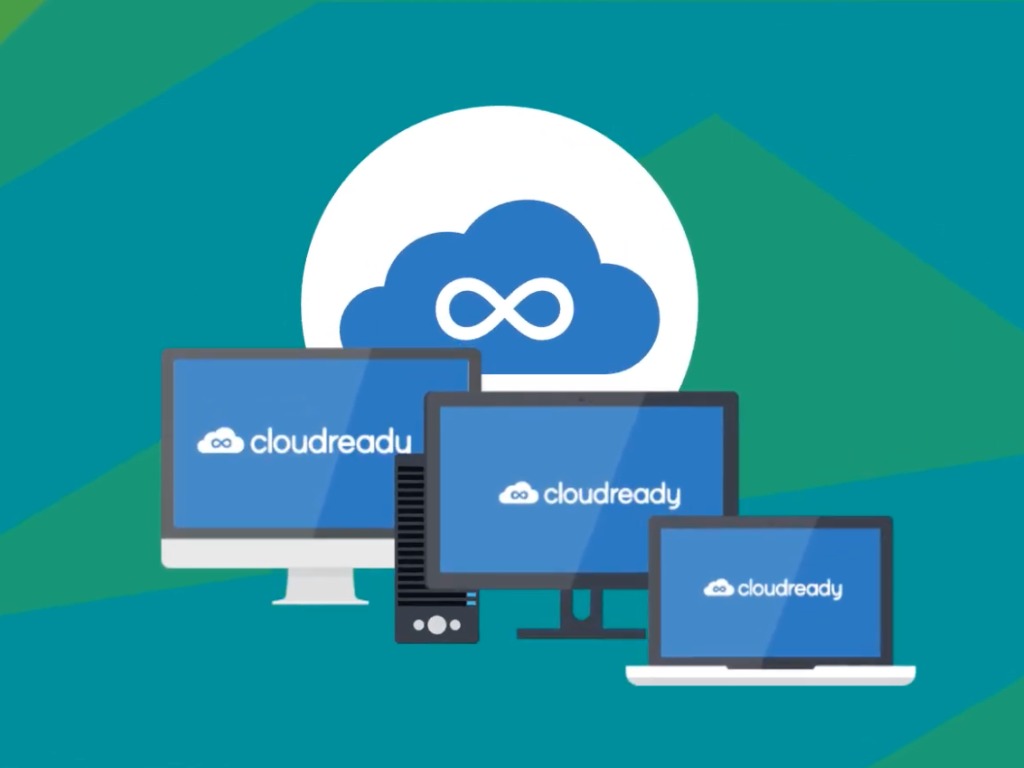
Google has quietly acquired a company called CloudReady, a variant of Chrome OS that can be installed on Chromebooks, Windows PCs, and Macs.

That’s it for this week. We’ll be back next week with more Windows 10 news.

Igfxtray.exe: what is it and should you disable it?

Your computer has hundreds of system files, and sometimes you might encounter one of these unknown files and mistake it for malware.

One of these files is Igfxtray, and in this guide, we’re going to take a closer look at this file and explain to you what it actually is and can it damage your PC.

How do I fix Igfxtray exe error?

What is Igfxtray?

what is igfxtray

Igfxtray module is a component of Intel Common User Interface, and it’s developed by Intel. The file is a part of Graphics Media Accelerator Driver.

Igfxtray.exe will display the Intel icon in the system tray that you can use to quickly access the Intel Graphics configuration.


Igfxtray has stopped working

igfxtray has stopped working

If you’re getting a message saying that Igfxtray has stopped working, you might want to try uninstalling and updating your Intel Graphics drivers. This can be a tedious process, but you can speed it up with Outbyte Driver Updater.

The software will scan your system and give you a list of all outdated drivers. Now you just need to select the drivers that you want to update, and they will be downloaded automatically.

The software has over 18 million drivers available, so it should be able to update any driver without issues. With its simplicity, Outbyte Driver Updater is the best choice for your driver-related issues, so be sure to try it out.

Other great features:

  • Fast scanning
  • Download manager for drivers
  • Driver backup
  • Database of 18 million driver files
  • Scheduled updates and scans
Outbyte Driver Updater

Outbyte Driver Updater

To update your drivers quickly and fix problems with Igfxtray, be sure to use Outbyte Driver Updater.
Check priceVisit website

Is Igfxtray necessary at startup?

igfxtray startup

No, Igfxtray.exe isn’t necessary to run at startup. The software allows you to quickly access the Intel Graphics configuration utility, and unless you need to frequently change your settings, there’s no need for Igfxtray to run at startup.


Should I disable Igfxtray?

If you’re low on memory or if your system is slow to start, you can then disable Igfxtray. This isn’t essential software, and it basically works as a shortcut for Intel Graphics configuration software.

To disable this software, do the following:

  1. Press Ctrl + Shift + Esc to open Task Manager.
  2. Go to the Startup tab and locate Igfxtray. Right-click it and choose Disable.
    igfxtray disable startup

After doing this, the Igfxtray won’t start with your PC anymore.


Is Igfxtray EXE safe?

igfxtray remove

Yes, igfxtray.exe file is 100% legitimate and safe. The application is made by Intel, and it’s used to launch Intel Graphics utility software, so it’s perfectly safe to use.

Igfxtray file is associated with Intel Graphics, and as such, it’s completely safe, but unless you’re configuring Intel graphics frequently, you don’t need to have Igfxtray in the startup.

Cisco AnyConnect Failed to Load Preferences: How to Fix

Using a VPN client like Cisco AnyConnect should allow for unprecedented end-point access for both your employees and you.

The benefits of using a service like this are more than obvious, as you can access the company network remotely from any PC or mobile device.

Nonetheless, even though a rare issue might cast some shade upon the overall functionality, they’re usually simple to sort out.

The one we’re addressing today is the VPN failed to load preferences error. It prevents users from connecting to the VPN.

How can I fix Cisco AnyConnect if the VPN failed to load preferences?

Reinstall Cisco AnyConnect

The first rather obvious step is to try and reinstall Cisco AnyConnect. Some users suggest that a certain version of AnyConnect won’t work, so you might get it working after acquiring a more recent release.

You won’t start from scratch as the ProgramData configuration and profile files will stay untouched.

If reinstalling Cisco AnyConnect won’t fix the VPN failed to load preferences error, proceed to the following step.

Delete the Cisco folder

Possible corruption in the configuration files can lead to issues like this. As the “VPN failed to load preferences” error states, the client is unable to get the preferences by which the client is configured.

In order to resolve this, you can try and delete all involved preference files from a few locations.

Here are the files you should delete:

%ProgramData%CiscoCisco AnyConnect Secure MobilityClientProfile
%AppData%LocalCiscoCisco AnyConnect Secure Mobility Client

Deleting this folder will remove all settings. Some users suggest reinstalling the client afterward, but you can try it out first and then act accordingly if the issue persists.

If Cisco VPN failed to enable the virtual adapter, find out how to fix this problem.

Change the AnyConnect security settings

There seems to be another possible reason for the “VPN failed to load preferences” error.

Namely, it seems that it plagues only users who don’t have the necessary access permissions enabled. You can correct this and, hopefully, this will resolve the problem.

Here’s what you need to do:

  1. Navigate to the Cisco AnyConnect Secure Mobility Client folder
  2. Right-click on the Profile folder and open Properties
  3. Choose the Security tab
  4. Click Edit (you need admin rights)
  5. Check the Full control box and confirm changes

Remove XML Profile

Finally, if none of the previous solutions proved fruitful in resolving the error at hand, we have another thing you can try.

Of course, there’s always an option to contact the support and send them all the necessary logs in order for them to help you.

Just, before doing that, give these steps a try:

  1. Enable Group-alias or Group-URL for tunnel-groups
  2. Back up the XML Profile and remove it from Adaptive Security Appliance
  3. Now, remove the following files from the affected machine:
    • Preferences.xml
    • preferences_global.xml
    • XML Profile in the Profiles folder
  4. Finally, reconnect the client

Switch to an alternative VPN service

use Perimeter 81

It’s not exactly a solution, but we think it deserves your attention. If you get recurring errors on Cisco AnyConnect, such as the VPN failed to load preferences error, look into alternative VPN solutions.

When it comes to enterprises, we can’t think of a better option than Perimeter 81. It has an intuitive cloud management platform that facilitates access between the server and remote clients.

More about Perimeter 81:

  • Made for 5 or more team members
  • Impressive security features
  • Integrates with AWS, Azure, Google Cloud, Salesforce, and others
  • 24/7 chat support
  • 30-day money-back guarantee (no free trial)

Perimeter 81

Check out one of the best alternatives to Cisco AnyConnect.
Check price Buy it now

Conclusion

To sum up, you can fix Cisco AnyConnect if the VPN failed to load preferences by reinstalling the application, deleting its folder, or changing the security settings.

If the problem is still there, go ahead and download Cisco AnyConnect on Windows 11 again.

However, if you’re interested in a great alternative to Cisco AnyConnect, consider using Perimeter 81.

8 best encryption software tools for using free Wi-Fi

It’s dangerous to connect to free Wi-Fi, even when using your personal laptop, smartphone, or tablet. Hackers are always looking for their next target.

If the public wireless network you’re trying to use isn’t protected with a password, then it will expose your to security vulnerabilities, such as man-in-the-middle attacks.

That’s where encryption comes into play. You can take the necessary precautions to defend your computer from account hijackers and identity thieves using security solutions.

What are the best Wi-Fi encryption tools to protect your data?

A premium VPN service

PIA

A VPN service creates a secure tunnel between your unprotected wireless network and the Internet to encrypt all data that passes through. It’s one of the best and easiest ways to protect your online privacy and computer security.

But you shouldn’t use a free VPN service because it has limited functionality and a low server count. Besides, most free VPNs are ad-supported, exposing yourself to malware risks. Some even monitor and sell your data.

Instead, turn to a reliable, paid VPN service like Private Internet Access. It offers 256-bit military-grade encryption through the OpenVPN protocol. Or you can switch to WireGuard to experience a faster Internet connection.

Here’s what you get with PIA:

  • Kill switch
  • Private DNS servers
  • PIA MACE (malware blocker)
  • No logs or leaks
  • 24/7 live chat support
  • 30-day money-back guarantee (no free trial)
Private Internet Access

Private Internet Access

Use this reliable VPN service to encrypt your entire data traffic when connecting to free Wi-Fi.
Check priceBuy it now

Out of all the virtual private network solutions we tested, we think that Private Internet Access is the safest VPN for hotel Wi-Fi.

A secure web browser

use Tor Browser

The next best thing to using a VPN is Tor. It’s a completely free and super-secure anonymity network maintained by a huge community of privacy-concerned individuals.

Tor was specially built as an anti-censorship tool for people living in countries with severe government policies that restrict Internet access.

But Tor is also one of the best ways to protect yourself on free Wi-Fi using multiple layers of encryption.

All you have to do is download the Tor Browser and use it instead of your regular browser when connecting to public hotspots.

An HTTPS enforcer

HTTP websites don’t have SSL certificates, so they create security loopholes.

A cyber-criminal could intercept your connection, set itself in the middle of your PC and the remote server, and steal your email credentials or credit card info.

It’s essential to visit only HTTPS websites because they provide end-to-end encryption. It’s one of the best ways to protect your PC over public Wi-Fi.

Some web browsers have an HTTPS only mode, such as Firefox, so make sure to explore browser settings and turn on that feature.

Otherwise, you can set up extensions that force your web browsers to always load HTTPS pages. We suggest using HTTPS Everywhere.

A secure email service

email privacy software

We’re not saying that Gmail, iCloud Mail or Yandex Mail aren’t secure. But you can do better when it comes to using encryption tools over free Wi-Fi.

ProtonMail is an excellent example. It’s a highly secure email service based in Switzerland, which uses end-to-end encryption to make your emails anonymous.

Here’s what you get from ProtonMail:

  • No logs: zero access to your data
  • Open-source cryptography: AES, RSA, OpenPGP
  • Full disk encryption for storing your data
  • Self-destructing emails
ProtonMail

ProtonMail

Make your emails anonymous when connecting to free Wi-Fi to protect your data from hacker interceptions.

We think that ProtonMail is the best email service with encryption.

A secure messaging tool

use Signal

Facebook Messenger and WhatsApp provide end-to-end encryption. But privacy-concerned users aren’t too comfortable about sharing their private messages with the world’s biggest social media network.

If you’re one of them, check out Signal. It’s a free instant messenger that uses military-grade encryption to secure your data, even over free, unprotected Wi-Fi.

We believe that Signal is the top messaging tool that uses encryption. And, if you need more convincing, you should know that the service is backed by Edward Snowden.

An antivirus with Wi-Fi protection

tweak antivirus settings to allow emails

You probably don’t need to hear again how important it is to secure your device with a powerful anti-malware service. So we’re going to skip that part.

What you may not know is that a few antivirus solutions feature Wi-Fi protection to keep you safe when connecting to public wireless networks.

Bitdefender stands out in the crowd. It has a special feature called Wi-Fi Security Advisor, which exposes network vulnerabilities and tells you if it’s safe to connect.

Bitdefender has numerous benefits against hackers, including anti-ransomware, an integrated password manager, webcam protection, and an Internet filter.

Bitdefender

Bitdefender

Use the powerful antimalware solutions provided by Bitdefender to stay safe when connecting to public Wi-Fi networks.
Check offersBuy it now

Feel free to check out more antivirus tools with Wi-Fi protection.

A password manager

52% of people reuse the same password across multiple accounts, and only 24% use a password manager, according to an online security survey conducted by Google.

Using a password manager to keep track of all your passwords is essential. Especially if you must often connect to free Wi-Fi.

It stores all those long and elaborate keys in a single place so that you just have to remember a single password to access the manager.

LastPass is arguably the best in the business. It has a free version with plenty of features for most casual users.

Here’s what you can expect from LastPass:

  • Keep track of passwords, credit card data, and other info
  • Multi-factor authentication
  • Random password generator
  • Free, Family, and Premium versions
LastPass

LastPass

Keep track of all your passwords to avoid hacker attempts, especially when using free Wi-Fi networks.
Free versionDownload now

If you prefer alternatives to LastPass, check out the best password managers for Windows 10 PC that we picked out.

A file encryption tool

Assuming that hackers breach your computer’s security defenses, it’s important to prepare yourself by encrypting all important files on your PC: photos, work documents, videos, and so on.

You might be surprised by what we recommend using in this case: WinZip. In addition to compressing files and extracting data from archives, the tool supports bank-level encryption.

Furthermore, WinZip integrates with cloud services like Dropbox, Google Drive and OneDrive, making it an excellent ally for encrypted file sharing.

WinZip

WinZip

Compress and encrypt your files when connecting to free, unprotected Wi-Fi, thanks to this reliable tool.
Free trialDownload now

Conclusion

To summarize, you can ensure your computer’s security when connecting to public Wi-Fi and seeing the Other people might see info you send over this network message using dedicated tools.

We recommend arming your device with a premium VPN service, a secure web browser, an HTTPS enforcer, as well as an encrypted email service and messaging tool.

But you should also get a powerful antivirus with Wi-Fi protection, a password manager, and a file encryption progam.

What tools do you personally use to protect your data from hackers over public Wi-Fi? Let us know in the comment section below.

Flight Simulator’s 2020 growth: 2M players in 4 months

Microsoft’s most recent Flight Simulator version has managed to reach an important benchmark of 2 million players up to date; this also marks an all-time record as the fastest growing entry title in the Xbox games portfolio.

Despite the rough start, with many functionality bugs, the developers managed a good interaction with their community.

This quickly led to stability and final patches meant to bring the game to a steady evolution.

Along with announcing the news, Xbox also gave thanks to all those who have contributed to the achievement:

This was possible thanks to the incredible community of fans, real-world pilots, flight enthusiasts, and virtual travelers who have embraced the new simulation since its arrival on August 18 and made it the biggest game launch in Xbox Game Pass for PC history. 

[wr_responsive_video_embed url=”https://www.youtube.com/watch?v=GdGB0cv6i8I&feature=emb_logo&ab_channel=Xbox”]

What lies ahead for Flight Simulator?

Big plans, surely, for the biggest winner in the Xbox Game Pass history; but first, let’s see some encouraging numbers:

  • Best Sim / Strategy 2020 Award
  • 2 million pilots
  • 50 million total flights
  • Round-the-world tour completed 400 thousand times
  • JFK Airport (New York City) named the favorite destination
  • Airbus A320NEO – most popular aircraft

Plans for 2021

flight simulator plans 2021

First and foremost, on December 22nd, 2020, the developers are planning a VR update launch. So all those looking forward to taking it to the skies during the winter holidays from the comfort of their homes will have the chance to do so even more realistically than before.

Then, Xbox announced that Flight Simulator will be launched on Xbox Series X|S in the summer of 2021. Add to this 3 major game updates, plus 4-5 world updates, and you’ve got a busy upcoming year for Flight Simulator.

What do you think the developer should improve in the simulator? Tell us in the comments.

[Solved] Can’t create Recovery drive on Windows 10/11

Fixing computer problems is always easier if you have the proper tools available. One of the common tools that users like to use is Recovery drive, but it seems that users can’t create Recovery drive on Windows 10.

How do I fix the Recovery drive feature on Windows 10?

Recovery drive can be useful if you need to restore your Windows, however, certain issues with this feature can appear. Speaking of issues, these are the common problems that users reported:

  • Can’t create Recovery drive some files are missing – If this problem occurs, you might be able to fix it simply by performing both SFC and DISM scans on your PC.
  • A problem occurred while creating the Recovery drive Windows 8 – This issue can occur on older versions of Windows as well, but even if you don’t use Windows 10, you should be able to apply some of our solutions.
  • Create Recovery drive stuck – Sometimes the creation process can become stuck. If that happens, be sure to disable your antivirus and check if that solves the problem.
  • Recovery drive not working – According to users, sometimes your Recovery drive might not work at all. If this happens, you might have to fix this problem by using Command Prompt and diskpart tool.
  • Recovery drive a problem occurred – Sometimes this error message can appear if Windows.old directory is still present on your PC. To fix the problem, be sure to remove Windows.old and try to create the recovery drive again.

1. Remove the problematic software

According to users, certain backup software can create issues with the Recovery drive. Users reported that after uninstalling Symantec Ghost 15 or Comodo backup the issue was completely fixed.

It seems that Symantec Ghost 15 uses its own version of VSS that interferes with Recovery drive creation, but after the software was removed, there were no problems with the Recovery drive.

Although these two applications are the common cause of this problem, it’s worth mentioning that almost any backup software can interfere with Recovery drive creation, therefore if you have any problems try removing all third-party backup software from your PC.

If you want to completely remove a certain application from your PC, it’s advised to use uninstaller software. In case you’re not familiar, uninstaller software is special software that can completely remove any program from your PC.

If you’re looking for uninstaller software, we recommend you try CCleaner, a comprehensive and easy-to-use tool to remove leftover files.

CCleaner

Eliminates registry items and junk from the hard disk that are left over after deleting stubborn programs.

2. Disable your antivirus

Your antivirus tool is important for your security, but sometimes antivirus tools can interfere with Windows and cause various problems to appear. If you can’t create Recovery drive on Windows 10, the issue might be caused by your antivirus software.

If removing the antivirus solves the problem, it’s advised to switch to a new antivirus solution. There are many great antivirus tools available, and when choosing the right fit for your need, make sure it not only does it protect your PC, but also if it is easy to manage, especially when it comes to enabling and disabling it.

3. Disable Secure boot

  1. While your computer boots keep pressing F2 or Del to enter BIOS.
  2. Once you enter BIOS, look for the Secure boot option and disable it.
  3. After disabling this option save the changes and restart your system.

Bear in mind that you can also access BIOS by doing the following:

  1. Open the Settings app and go to Update & Security section.
    Recovery drive a problem occurred
  2. Go to Recovery tab and click the Restart now button.
    Can't create Recovery drive some files are missing
  3. When your computer restarts choose Troubleshoot > Advanced options > UEFI Firmware Settings and click the Restart button.

Secure boot is a useful feature designed to protect your PC from malicious users, but sometimes this feature can interfere with Recovery drive creation, and the only solution is to disable Secure boot.

Alternatively, you can just hold the Shift key and click the Restart button and follow the instructions above.

For more details on how to access BIOS and how to disable Secure boot, we advise you to check your motherboard manual.

4. Disable certain services from running

  1. Press Windows Key + S and enter services. Select Services from the menu.
    A problem occurred while creating the Recovery drive Windows 8
  2. Once the Services window opens you need to locate and disable Application Virtualization Client, Client Virtualization Handler and Application Virtualization Service Agent. To stop a service simply right click it and choose Stop from the menu.
    Create Recovery drive stuck

Apparently, certain services related to Microsoft Word and Excel can cause problems with Recovery drive on Windows 10, therefore you need to find and disable those services.

5. Use third-party solutions

If you can’t create Recovery drive on Windows 10, you might want to consider using a third-party solution. There are many great third-party applications that allow you to back up and restore your Windows in case anything goes wrong.

If you’re looking for tools that can easily clone your Windows installation, you might want to consider using Acronis Cyber Protection Home. All these applications offer similar features, so feel free to use any of them if you can’t get Recovery drive to work.

6. Try using a larger USB flash drive

Users reported that they are unable to create a Recovery drive in Windows 10 due to size of their USB flash drive.

According to users, after using a 32GB or larger flash drive the issue was resolved. Users reported mixed results after using a larger USB flash drive, but that doesn’t mean that you can’t try this solution out.

7. Use Command Prompt

  1. Press Windows Key + X to open Win + X menu. Now select Command Prompt (Admin).
  2. Enter diskpart and press Enter to run it. Now enter list volume and press Enter.
  3. You should see a drive that has the Recovery label assigned to it. Enter select volume X to select that volume.
  4. Once you select the volume, enter detail volume command to see the disk on which the volume is located. In our example, that’s Disk 0, but it might be different on your PC.
  5. Select the disk from Step 4. To do that, enter select disk X command and replace X with the correct number.
  6. You should see the list of all available partitions. Enter select partition X and be sure to select the recovery partition.
  7. Once you confirm that this is your recovery partition, enter exit to exit diskpart.
  8. Now enter the following command:
    • reagentc /setreimage /path ?GLOBALROOTdeviceharddisk Xpartition YRecoveryWindowsRE 
  9. Now run reagentc /enable command.
  10. Lastly, check if everything is in order by using reagentc /info command.

Many users reported that they can’t create Recovery drive on their Windows 10 PC. This can be a big problem for some users, however, you should be able to fix the problem using Command Prompt and diskpart.

This is an advanced solution, and we advise you to be extra cautious while using it. If you find it confusing, be sure to read it once again carefully. If you don’t understand how to use this solution, maybe you should try a different one.

8. Remove Windows.old

If you recently installed or updated Windows 10, it’s possible that you have Windows.old directory on your PC. If you’re not familiar, this directory holds all your files from the previous Windows installation allowing you to return to the older version of Windows if need be.

This is a great feature to have, but sometimes Windows.old directory can prevent you from creating a Recovery drive. If you can’t create Recovery drive on your PC, be sure to remove Windows.old directory from your PC.

9. Convert your drive to FAT32

  1. Open This PC, locate your USB flash drive, right click it and choose Format.
    Create Recovery drive stuck
  2. Select FAT32 or exFAT as File system. Now click on Start to format your drive.
    Recovery drive not working

According to users, sometimes this problem can occur if your flash drive isn’t formatted as a FAT32 device. As you know, there are several file systems, and while NTFS offers better features that FAT32, sometimes recovery drive might need a FAT32 flash drive in order to work.

According to users, if you can’t create Recovery drive on your Windows 10 PC, you might want to format your USB flash drive as a FAT32 device.

Once the formatting process is finished, try to create the Recovery drive again.

Having a Recovery drive is useful if you want to fix problems on Windows 10, but if you can’t create a Recovery drive on Windows 10 be sure to check some of our solutions to see how to fix this problem.

5 Best Agenda Management Software for PC in 2026

Meetings are a part of working culture and whether you like it or not when the boss calls you don’t want to see a Missed Call notification. All the meetings have some agenda to discuss and also a great way to make sure that you and your team are on the same page.

One effective way of conducting a meeting is to make sure that the host comes well prepared with the meeting agenda. However, creating an effective meeting agenda requires the host to organize, communicate and follow up with other members of the team.

This way you can make sure that the conversations are limited to the agenda and everyone knows their part in the meeting room.

In this article, we have tested and listed the best agenda automation software that can help you to plan, organize, and conduct a productive meeting in less time to achieve intended outcomes.

What are the best agenda automation tools for Windows 10?

Efficient Calendar

efficient calendar efficient software

Efficient Calendar is a task scheduler, planner, and reminder that is available for Windows as well as smartphones. It is a cross-platform application which means you can access the task created on PC on your smartphone and vice versa.

Calendar events are easy to create. It also comes with tasks and event modules to help you manage time efficiently. The multiple calendar views allow you to better arrange and track events by Days, Week, Month and Year view. The task reminder can be configured and scheduled to be reminded at the exact time and day.

The mobile application is free to download and it enables you to schedule and manage events from anywhere. The synchronization works in real-time keeping everything synced wherever you need it.

Efficient Calendar uses the First Thing First principle that allows you to prioritize tasks and events based on importance. The built-in document editor can be used to write comments for events and tasks.

In case any of the events are deleted by accident, Efficient Calendar keeps the events in its Recycle Bin that can be restored with a single click. To share the calendar with other team members, the software has a server solution but requires access to Efficient Calendar Network plan.

Efficient Calendar is a simple but solid calendar tool that is best for calendar and task management.

Efficient Calendar

Efficient Calendar

Handy scheduler, planner and reminder that you can use on all your devices.
Free downloadVisit website

OrgScheduler

OrgScheduler

OrgScheduler is a universal task scheduling and agenda meeting software for individuals, offices, business events with flexible features. It is premium software, but you can use the free trial to test the software.

The user interface of OrgScheduler resembles the UI of Microsoft Outlook which gives it a familiar look.

You can import events and reminders from Outlook and export it to Outlook, Text, HTML, XML, and  Excel formats. Unlike Efficient Calendar, OrgScheduler allows you to exchange data with other applications including Apple iCal, Microsoft Exchange Server and Android apps, etc.

Other features in the app include over 149 events coloring to prioritize events based on importance, event start and end time reminder, multiple themes and event recurrence tool.

OrgScheduler allows you to send appointments, reminders, and invitations over e-mail and SMS to colleagues and friends. You can protect the data through an encrypted password and print reports using the Print Designer with elegant designs.

⇒ Get OrgScheduler


MeetingBooster

MeetingBooster

MeetingBooster is a meeting management software used by mid-large size businesses to handle scheduling, agenda editing, time tracking and to streamline meeting procedures.

MeetingBooster offers a free trial; however, there is no clear-cut pricing on the official website. The interested users can begin with a free trial or book a webinar to get pricing details.

It is a cloud-based meeting management system that simplifies pre-meeting, in-meeting, and post-meeting tasks.

For meeting preparation, it offers scheduling features, integration with Outlook and Google Calendar, a professional agenda editor to make last-minute changes as well as the ability to assign preparation tasks to team members.

The software can be used in your office boardroom or remotely for a virtual meeting. You can capture notes quickly, allocate action items that include Outlook task list integration, project tags, task status dashboard, and automated action item reminders.

MeetingBooster is an enterprise solution designed to streamline meeting procedures and drive accountability for your staff without having to follow up consistently.

⇒ Get MeetingBooster


nTask

nTask

If you have used Trello and Asana for task management, try nTask. It is a free cloud-based task and meeting management software that allows you to create checklists and also collaborate with project teams, sharing files and more.

The free plan offers five workspaces, up to 10 members access to per workspace, up to 5MB file attachment, 200 MB of storage, unlimited task and meetings, team timesheets, up to 5 project creation, and more.

If you upgrade to the pro plan, all the features are upgraded to the unlimited plan while the file attachment size is increased to 200 MB.

nTask offers a simple taskboard that allows you to create Calendar events, assign tasks to team members, generate easy reports, set task priority, create once and repeat recurring tasks and color code task for easier classification.

You can share the task list with other people with a public link. The handy to-do checklist allows you to list items that need to be completed with the due date.

You can check the task status, add comments for feedback, create task issues and assign risk and add task reminders to complete the project before the deadline.

nTask is a simple yet powerful task and meeting management software, and the fact it offers a free account with all the features of the premium plan (even though limited to an extent) makes it an ideal choice for small teams and startups. You can always upgrade to the pro plan as your team starts growing in the future.

⇒ Get nTask


Meeting.gs

meeting software

From scheduling and organizing meets to managing meeting materials, agenda and action points, Meeting.gs is probably the user favorite for agenda meeting features and third-party app integration.

The taskboard allows your team members to schedule meeting with you. The personal scheduling page can be shared over email or on a website. With the calendar integration, all the new task and meeting schedules are synchronized with your calendar app.

Being a web-based solution Meeting.gs can be accessed from your computer as well as smartphones, tablet and another device with a modern web browser and Internet connectivity. The team members can receive notifications on meeting updates and respond to meeting requests on the go.

Meeting.gs supports third-party integration including Google Docs apps such as Google Calendar, Google Contacts, and Google Drive, and Microsoft Office 365 that includes Outlook, Live People, and Microsoft OneDrive.

For remote communication, Meeting.gs can be used with live communication tools such as Skype for conference calls, Microsoft Lync calls, Google Hangouts, and other online meeting tools with public links.

All the meeting are organized and divided between Upcoming and Past tabs. You can keep track of meetings and manage them on timeline, view task related to the meeting as well as preview and respond to meeting requests.

The meeting agendas can be edited to add comments and upload attachments by the members. Managers can also view the currently active users and previously visited members profile on the page.

Meeting.gs is said to be the best meeting scheduler solution. However, it offers more than just meeting scheduling and task management features. Take the software for a spin using the free trial to see if this can end your hunt for a meeting agenda software.

⇒ Get Meeting.gs

We have tried to keep the list short and not to confuse you with too many choices but made sure to include enterprise level as well as startup level meeting management software based on their use.

What problem are you trying to solve with task and meeting management software? Do let us know in the comments below.

How to get a full refund for Cyberpunk 2077 on any platform

Cyberpunk 2077 is a game that offers a lot when it comes to premise and design, with the only real problem being the hasted execution.

The game already made CD Projekt Red’s revenues soar way past the $1-billion mark, and this is all due to the company’s history of making outstanding games.

Well, this time player anticipation got the better of them, and the continuous pressure of releasing the game sooner and sooner ended with them releasing a half-baked title that is complete from a feature and story standpoint, but faulty from a stability point of view.

That being said, more and more players are going towards getting a refund, with the intend of buying back the game only when it is deemed as being playable.


How do I refund Cyberpunk 2077?

Cyberpunk 2077 on PC

As you may know, Cyberpunk 2077 for PC can be played on 3 different platforms: GOG, Steam and Epic Games.

Well, refunding the game on each of these platforms is possible as long as you fall under certain conditions:

GOG refund policy states that any game can be refunded within 30 days of purchase, even if it was downloaded and played.

This is probably the most flexible of all refund policies, and getting your money back is guaranteed in the case of Cyberpunk 2077, especially since GOG is owned by CD Projekt Red after all.

To apply for a refund, visit this website.


Steam refund policy states that you can get a refund within 14 days of purchase, and only if you played less than 2 hours.

However, Steam noted that in the case of Cyberpunk 2077, they will be more flexible with the terms, especially since many of the bugs are encountered way into the game.


Epic Games refund policy is exactly the same as with Steam, although they noted that:

Products that include virtual currency, skins, or other consumables and products or games that are marked as non-refundable are not eligible for refund


Cyberpunk 2077 on Xbox

If you bought Cyberpunk 2077 for the Xbox One, or the Xbox Series X|S, you can refund it within 14 days of purchase.

However, Microsoft does not guarantee a refund just because you made the request.

Nonetheless, the refund request can be made from here.


Cyberpunk 2077 on PS4

In general, Sony has never been great with refunds, and this can be seen from the sheer number of users that tried getting refunds on Cyberpunk 2077 and failed.

Fortunately, this all changed as Sony made an exception for this particular title, and they are offering complete refunds for anyone that bought the game.

Get your Cyberpunk 2077 for the PS4 refund here.


Physical copies of Cyberpunk 2077 (PC, Xbox & PlayStation)

Amazon refund policy states that any game can be returned within 30 days.

However, game boxes that have been opened or user will incur a restoking fee.


Gamestop refund policy dictates that buyers can return any game within 30 days, and they will also get a full refund as long as the game is within its original packaging.

Take note that, if you opened the game, this refund window is shortened to only 7 days.


That pretty much covers up our list of al major game platforms and retailers that you may have bought Cyberpunk 2077 from, and their respective return policy.

If you yourself bought the game, take note that this is merely the current state, and that other previous CD Projekt Red titles had a similar history.

That being the case, if you did see the true potential of this game, try to hold on to it a little longer, since things can only get better.


Let us know where you got your copy of the game from, and how did the refund process go for you by leaving us your feedback in the comments section below.

[wl_navigator]

Best internal hard drives for Toshiba laptop [SSD & HDD]

Laptops with internal SSDs offer better performance compared to the traditional HDD and SSHD laptops. If you need a storage solution, that is fast, reliable, and durable, then an SSD is an ideal storage drive.

To ensure you can easily carry your data across the globe without issues a 1TB external hard drive will surely come in handy.

HDDs, on the other hands, are cheaper, 7200 RPM drives can be relatively fast (compared to 5400 RPM HDD) and offer multiple storage options, that SSDs usually don’t offer.

Toshiba laptops come with HDDs as the standard storage drive. However, you can use the SATA SSDs to replace the HDDs to gain access to plenty of performance without compromising on the storage space.

In this article, we have listed the best internal hard drives – SSDs and HDDs – for Toshiba laptops to improve app loading time and booting time.

If you’re interested in devices with NAS support, check out our external hard drives with a NAS support guide.

What are the best Best internal hard drives for Toshiba laptop?

WD Blue 3D NAND

  • Good value for money
  • Excellent storage options
  • Good performance
  • Free cloning and backup software
  • TBW varies on storage options

The WD Blue 3D NAND is one of the best SATA SSDs with multiple storages capacity available today. This variant offers 500GB of storage space for an excellent price.

WD Blue 3D NAND is available in multiple storage options from 250GB to 4TB. This 2.5″ drive can replace your SATA HDD and offers 560 MB/s read speed. For enhanced reliability, it claims an industry-leading 1.75M hrs of MTTF and up to 500 TBW.

Western Digital also offers five years of manufacturer warranty along with free downloadable software to monitor the status of your drive that can also clone your HDD and create a backup.


Samsung 860 EVO 500GB

  • Increased performance
  • Multiple storage options
  • Good value for money
  • Reliable
  • SATA III protocol limits its potential

Dubbed as the exceptional evolution of Samsung’s budget SSD line, the Samsung 860 EVO improves on its predecessors with faster speeds and greater reliability all while retaining its affordable price tag.

Samsung 860 EVO feature the innovating V-Nand technology, offering optimized performance for everyday computing as well as storage-intensive tasks such as rendering.

The newer version comes with an enhanced read-write speed that goes up to 550MB/s and 520MB/s respectively. Additionally, most of the encryption protocols, including AES 256-bit encryption to protect your data.


Samsung 860 QVO

  • Affordable 1TB SSD drive
  • Comes in multiple capacity options
  • Supports hardware encryption
  • Durable and reliable
  • SATA only

If you want a bigger storage space, the Samsung 860 QVO offers a lot of fast storage capacity for nominal money. It is an excellent internal solid-state drive for budget upgraders.

Samsung 860 QVO claims the read speed of 550 MB/s and writes speed of 520 MB/s offering exceptional boot time and boost rendering tasks. 

Intelligent Turbowrite accelerates write speeds and maintains long-term high performance with a large variable buffer.

It also supports hardware encryption include AES 256-bit and compliant with TCG Opal and IEEE 1667 protocol.


WD Blue Mobile WD10SPZX 1TB

  • Plenty of storage space for the affordable price tag
  • Multiple storage options
  • Reliable
  • SATA 6.0 Gb/s HI support
  • Slow 5400 RPM speed

WD Blue Mobile WD10SPZX 1TB internal HDD allows you to store more, compute faster on a gaming computer or work desktop setup. From music to video to photo editing, this internal hard drive offers enough storage for all the applications.

WD Blue Mobile WD10SPZX comes in multiple storage options from 250GB to 2TB and uses the SATA 6.0 Gb/s hardware interface. It also comes included with the Free Acronic True Image WD Editing cloning software.


Seagate BarraCuda 1TB

  • Affordable 1TB HDD
  • Strong performance
  • Quality build
  • SATA 6.0 Gb/s HI support
  • Slow 5400 RPM speed

Coming in a 2.5″ form factor, the Seagate BarraCuda 1TB drive offers plenty of space to store your music, videos, and large files from video editing or gaming without spending a fortune.

Seagate BarraCuda comes in multiple capacities ranging from 500GB to 2TB. It also features specialized caching technology for optimized data flow and fast loading of applications and games.


All the SSDs and HDDs listed in this article are compatible with Toshiba laptops.

Feel free to share your suggestions and opinions with us by using the comment section found below this guide.

How does Windows know my location accurately?

Starting with Windows 8, Microsoft introduces location services and personalized content, which made a lot of privacy-users angry.

Still, many people wonder how Windows knows their accurate location. It shouldn’t be possible without GPS tools, right?

Wrong. Microsoft is smarter than that.

So, how can Windows track my location?

According to Microsoft, your current location is tracked by taking into account all available services: GPS, nearby Wi-Fi hotspots, cell towers, and your IP address.

To determine its accuracy, just take a look at how modern your computer is.

Basically, if it’s new enough to run Windows 10, then it’s good enough to track you down using all supported services.

Is it dangerous?

Not according to Microsoft.

It says that it removes all personal information that can be used to identify you. It does this before receiving your location details.

But a lot of users don’t buy it, not even after disabling location services.

Why should I let Windows know my accurate location?

  • Setting your time zone automatically
  • Track your stolen laptop
  • Get personalized content based on your browsing history
  • Take advantage of location-aware services, like city navigation
  • Use Cortana with more accurate results

How do I disable Windows location services?

disable Windows location services
  1. On Windows 10, go to Settings
  2. At App permissions, select Location
  3. At Allow access to location on this device, click Change
  4. Set the slider to Off

Using the steps above, you can get rid of the Your location is currently in use message.

Alternatively, you can manage permissions for every app you want to use Windows location services.

What else can I do to improve my online privacy?

We recommend using a reliable VPN service to change your IP address and prevent Microsoft from tracking your true location.

It encrypts your data traffic and helps you bypass firewalls. And we can’t think of a better solution than Private Internet Access.

It’s wrapped in a super-intuitive interface for Windows, Mac, Linux, Android, and iOS. You can even set it up on your router.

PIA allows 10 simultaneous connections. It supports the WireGuard and OpenVPN protocols with up to 256-bit military-grade encryption, private DNS servers, and Shadowsocks proxy.

You can use PIA change your location with a VPN, unblock Netflix US anywhere in the world and stay safe from tracking services like Microsoft when browsing the web.

By the way, you can also use a VPN to change your GPS location, but not on Windows PC.

Conclusion

To sum up, Windows knows your accurate location by taking into account multiple aspects, including your GPS, nearby Wi-Fi towers, and your IP address.

If you’re worried about your privacy, you can turn off the Windows location services but there are no guarantees.

However, you can amp up your security and privacy level by turning to a trustworthy VPN like Private Internet Access. It’s one of the best tools for stopping online tracking.

How to Protect Your Windows 10 Device on Public Wi-Fi

Public Wi-Fi networks are usually great, as they provide just about everyone with free access to the Internet.

However, public Wi-Fi networks also have a dark side. Even though free Wi-Fi is great, it’s not always safe.

For instance, you may encounter malicious users on the same public Wi-Fi network you use.

These agents can be hazardous to your safety and privacy since most are out to get your personal data.

But enough chit-chat, you’re here to discover how to keep safe on public Wi-Fi networks, and that’s exactly what we’re going to teach you.

How to keep your PC safe on a public Wi-Fi Network?

1. Use a VPN

  1. Download and install Private Internet Access.
  2. Launch it and log in to your account.
  1. Connect to any server you want.
  2. Enjoy private, secure browsing on public Wi-Fi.

A VPN does wonders when it comes to protecting your traffic from various agents who would just love snooping around and through it.

Not only does a VPN such as PIA re-route your traffic through its private servers (secure tunnel), but it also encrypts it.

Thus, even if someone intercepts your traffic from inside the public Wi-Fi network, it would all look like gibberish, thanks to encryption.

Private Internet Access

Looking for a reliable VPN to use on public Wi-Fi networks? Private Internet Access is a great choice.
Free Trial Visit Website

2. Turn off sharing and network discovery

Turning on file sharing and network discovery is not unheard of, especially if you’re on a trusted network.

However, note that this feature should be only used at home/work or wherever you can trust all the users on the network.

With that in mind, we recommend you only use this feature in safe environments and if it’s absolutely necessary.

It goes without saying that you should never ever use it on public Wi-Fi networks. Therefore, we’re going to teach you how to disable it.

  1. Press the Win Key on your keyboard
  2. Type network
  3. Select Network and Sharing Center
    network-and-sharing-center
  4. Click on Change advanced sharing settings.
    advanced-sharing
  5. Locate your current network profile
  6. While using a public network, you should always select the Guest or Public profiles
  7. In the Network discovery section select Turn off network discovery
  8. Select Turn off file and printer sharing in the File and printer sharing section
    file-sharing-off
  9. Click Save changes

It goes without saying that turning off network discovery will make other devices unable to see you on the current network.

3. Enable your firewall

Windows 10 has a built-in firewall, so if you’re not using a third-party solution, you can at least make sure that your Windows one is active.

A firewall’s purpose is to regulate the incoming and outcoming network traffic, thus keeping your computer safe from attackers.

This is how you can check if your Windows Firewall is running:

  1. Press the Win key on your keyboard
  2. Type firewall
  3. Choose Windows Defender Firewall from the list
    firewall
  4. Click the Turn Windows Firewall on or off button
    turn-firewall-on-or-off
  5. Make sure Turn on Windows Firewall is selected in both Private and Public network settings sections
    turn-on-windows-firewall
  6. Click OK to save changes

If you have a third-party firewall installed, Windows Firewall will turn itself off automatically, and there’s no need to enable it.

4. Always use HTTPS

Whenever you interact with your web browser, you’re sending data that malicious users on the same network could intercept.

If you’re not using a VPN to encrypt your whole traffic, you should at least make sure you’re using an encrypted connection in your browser.

It’s really easy to spot an encrypted connection since HTTPS marks it. HTTPS is an extension of HTTP, and it’s used for security purposes.

Of course, this doesn’t apply to apps or any other services where you can’t see what’s going on or whether or not your traffic is encrypted.

However, checking the protocol in your browser is a simple and quite effective thing to do to ensure you’re alright.

Remember, HTTPS – good, HTTP – bad.

5. Turn off your Wi-Fi if you’re not using it

Various apps and services maintain connections and make requests in the background, even if you’re not actively using them.

So, to avoid any accidental data leaks, turning off your Wi-Fi when you’re not actively using it turns out to be a wise decision.

6. Disable automatic Wi-Fi connections

Here’s the thing: over the years, your device got more intelligent and smarter, and all of a sudden it thinks it could decide everything for you.

One example is connecting to any public, unsecured Wi-Fi if the signal is strong enough.

Yeah, that saves you just about 2 precious seconds, but it may also connect to a trick hotspot created by a malicious hotspot.

Those are called Hotspot Honeypots. Do you want to know why? Because they make monitoring traffic of unsuspecting victims look like child’s play.

7. Protect your accounts

There are a lot of reasons why a seasoned hacker or a script kiddie would want to grab your private browsing data.

However, one of the most common reasons is stealing accounts. All of them, if possible: your social media, bank accounts, cloud storage, you name it.

It’s wise to take a step back and consider that these accounts are not fair game. No, they have passwords to protect them.

So, what’s the first step you need to take to protect them? That’s right, choose a strong password that’s generated automatically if possible.

Can’t remember all the mixed characters and symbols? You could use a password manager. But wait, there’s more!

In addition to using strong, uncrackable passwords for your accounts, you could also activate multi-factor authentication.

That way, if the attacker manages to get your password, it will also need an additional confirmation to access your account.

We advise against using your email address as a 2FA for obvious reasons. If the attacker grabs hold of your email address, it has access to everything you linked.

8. Update your security software

You need to keep security software in top shape, whether it’s an antivirus, firewall, anti-malware, anti-ransomware, or all of the above.

They’re responsible for your device’s well-being, after all, especially when you’re connected to a public Wi-Fi network.

Just make sure everything is running smoothly by checking for updates every now and then.

Well, you should do that a lot more often than occasionally, but you get the picture.

Conclusion

All things considered, there are several ways to stay protected while using public Wi-Fi networks.

Without a doubt, using a VPN is just about the best way you can go about it. A VPN will re-route your connection and encrypt your traffic, keeping potential traffic monitoring enthusiasts at bay. The only downside is that you may not be able to bypass captive portals on some networks.

Additionally, you can learn how to deal with rogue Shenzhen devices connected to your network.

However, if you’re not ready to commit to purchasing a VPN plan, there are plenty of other ways you can tackle public Wi-Fi security.

Download Cyberpunk 2077 today [PC]

Cyberpunk 2077 has been on the market for only a brief period of time and it already became the talk of the entire gaming community.

Despite being launched with a number of glitches, especially aimed at last-gen consoles such as the Xbox One and PS4, it is still regarded as a very successful game from a financial standpoint.

Brought by the developers of another beloved RPG series, The Witcher, this fantastic Sci-Fi adventure promises you the time of your life in a alternative 2077 timeline, where crime is abundant, and cyber-augmentations are more common than tattoos.

Basically, think of it as GTA meets The Witcher with atmosphere from Blade Runner.

⇒ Amazon

⇒ Kinguin

⇒ G2A


Why should I download Cyberpunk 2077?

In-depth character customization

One of the biggest selling points of Cyberpunk 2077, besides the fact that it was developed by CD Projekt Red, is the sheet number of things you can change about your avatar during the initial character creation.

These features range from the avatar’s voice, face, hairstyles, body type and modifications to things such as his background, and clothing.

Then you have the generic RPG elements that also come into play such as the character stats, although entire Strength/ Agility / Intellect routine was abandoned for much more updated once such as Body, Intelligence, Reflexes, Technical, and Cool.


Familiar gameplay mechanics

Those familiar with RPG games will notice that a lot of the mechanics are present in this game as well, although with a more modern twist.

Gear is partially replaced with cybernetic implants, while weapons are found all over the place, and can even be bought from the black market for the right price.

Consumables are also present, with soft drinks serving as healing potions, player housing is an integral part of the game and vehicle theft is something you’ll be doing daily.


A fantastic story set in the distant future

The core of any RPG is to be the most fantastic version of yourself in a story that makes you feel alive, and that is precisely what Cyberpunk 2077 offers.

You’ll experience love, betrayal, adventure, adrenaline-filled fuel rides, you’ll be able to connect to NPCs at a level that you’ve never thought possible, and more.

Most importantly, your choices do matter, and they have dire consequences in the long run, such as how the story unfolds, who lives and who dies, who you end un befriending and who ends up hating you.

The story is amazing, and offers great replay value, so even if the game is indeed massive to go through that first time, you’ll want to do it again for sure.

Cyberpunk 2077 is currently available on Windows 10 PC, Xbox One, PS4, and Google Stadia. The game has tons of potential, and amazing replay value, so go ahead and give it a try today!


Have you considered giving Cyberpunk 2077 a try? Let us know what your expectations are by leaving us your feedback in the comments section below.

Lenovo Yoga 9i Intel EVO 14 & 15″: Better batteries, better performance

Starting at $1,179.99

Intel introduced its Evo laptop specs back in ate 2019 as Project Athena when the company publicly laid out the roadmap for its upcoming chipsets. However, it wasn’t until September 2020, that PC manufacturers began shipping devices with Intel’s famed new Ultrabook base KEI features that include:

  • Consistent responsiveness on battery.
  • Wake from sleep in less than 1 second.
  • 9 or more hours of real-world battery life on laptops with a Full HD display.
  • 4 or more hours of battery life in a 30-minute charge on laptops with a Full-HD display.

With that being said, OnMSFT has gotten its hands on not one, but two Intel Evo powered laptops in the Lenovo Yoga 9i 14 & 15-inch PCs. In addition to upgrading the processors in the lineup, Lenovo has also adjusted its naming convention, changing its former title of Yoga C940 to 9i. Whether or not the naming change results in a more streamlined business presentation for customers remains to be proven.

For anyone, who had been acquainted with Lenovo’s Yoga 900 series, both the 14 & 15-inch 9i’s follow a similar industrial design as their predecessors, with the infamous rotating soundbar hinge, slim bezels, built-in Wacom supported pen and tapered chassis for a slim metal notebook feel in the hand.
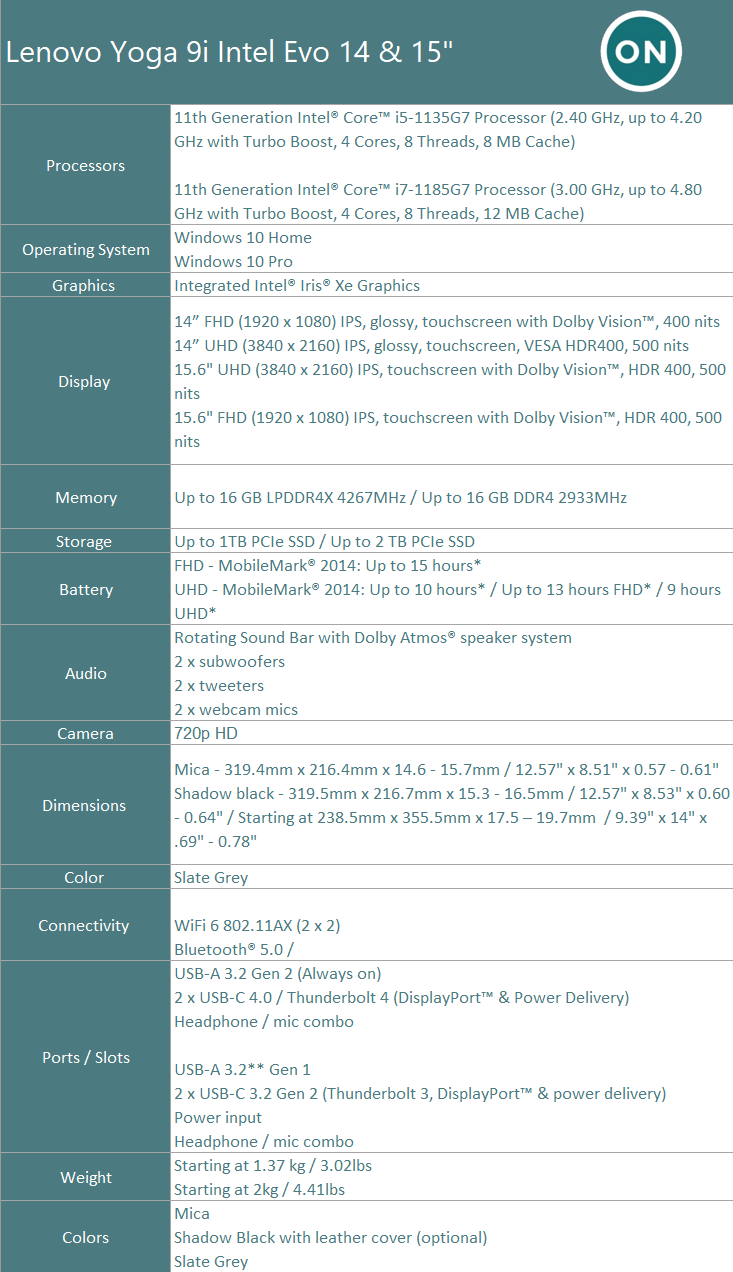
9i Specs Sheet

Look & Feel (Design)

The Lenovo Yoga 9i remains relatively unchanged from the previous Yoga 900 series. The Slate Grey that OnMSFT was issued, keeps the sleek tapered design and the iconic high polish rotating soundbar. While I would have preferred to try out the black leather top 14-inch version of the laptop, unfortunately, we were sent the very familiar Slate Grey that’s become a customary Ultrabook look these days.

Pxl 20201217 135911242

With an aluminum chassis build the 9i in both models boast a premium feeling weight them. The 14-inch version doesn’t feel too much heavier than the comparable HP Spectre, Dell XPS, or MacBook, but it is noticeable upon the first unboxing.

With this familiar design comes familiar port placements as well for the Yoga 9i, in both variants. Lenovo did not deviate from where it placed its Thunderbolt 3 ports and USB-C connections this go around. On the right-hand side, customers will find a single USB-A 3.2 Gen 2 port, the power button, and the pen garage in two places along that side depending on the model. In the 14-inch, the pen garage is tucked away in the back on the righthand side while on the 15-inch is place 2/3 of the way down from the USB-A and power button sitting flush along the chamfered edge. In addition to being conveniently housed in the body of the laptop, Lenovo also makes use of a charging interior setup that keeps the pen recharged when docked. Gone are the days of fiddling with AAA batteries to take notes, sign documents, or draw. With that being said, the downside to its convenient recharging solutions is that when the pen does lose its charge there is a refractory period a user will need to wait as it recharges.

Pxl 20201217 140852346.portrait

On the more exciting left-hand side, there are two Thunderbolt 3 ports supporting display and power. Interestingly enough, the 14-inch model uses USB-C power out while the 15-inch makes do with a proprietary USB-A looking connection as well as the 3.5mm headphone jack and mic combo. With the 15-inch model being a beefier rig, the 153W proprietary power adapter connector makes a bit more sense but still a bit annoying as USB-C use becomes more prevalent.

As is customary of recent Lenovo offerings, its Thunderbolt 3 ports support DisplayPort 1.4 which should enable 8K display connections and/or multiple 4K monitors for those burgeoning home offices.

The Sound

I only highlight this in this review because it’s more than worth mentioning. Usually, my review of laptop sounds includes the word tiny or bass-less, but since Lenovo put so much engineering into its soundbar hinge for the Yoga 9i models, customers will receive a pretty robust soundscape. I’ve written about the soundbar in previous Yoga reviews and I will try not to rehash too many of the same points as the soundbar remains mostly unchanged from previous models, for good reason. Lenovo crammed four 2W speakers, 2 subwoofers, 2 tweeters into and support for Dolby Atmos Audio into a relatively small package.

Pxl 20201217 140938042.portrait

Bottom line, the Yoga 9i’s sound is the best of any laptop of any size. Come at me.

The Display

The display design, like the rest of the laptop, remains relatively unchanged with the reverse notch top, slim bezels, and manual shutter over the 720p webcam. Depending on the model, customers can get either an FHD or UHD resolution display which outputs a crisp visual. With that said, I kind of wish that Lenovo bumped up the display offering just a bit more because I personally like filling my screen with as much content as possible and I would love to shrink down the elements a bit more.

Pxl 20201217 140818806.portrait

Again, that’s a personal preference, most people should find the Yoga 9i’s display with Dolby Vision support more than adequate, boarding on impressive on either model. The 4K resolution paired with flexible viewing modes and unobstructed soundbar makes the 9i a media consumption dream. I personally don’t make use of the ‘tent’ and ‘yoga’ positions but for anyone who does, they are readily available and probably perfect for longer stay-at-home binge sessions.

On the Deck

Lenovo is bringing its legendary U-shaped chicklet keys to both models which seemingly contour around the fingers. Spacing between the keys is nice and on the 15-inch model, users are greeted with a full-size number pad. Both the 14 and 15-inch models make use of dual-stage backlighting that gets pretty bright in very dark settings. However, Lenovo offsets its Precision trackpad on the 15-inch Yoga 9i to the left side, which took some getting used to for me. On the 14-inch model, the deck is designed like most other laptops with the relatively large trackpad front and center of the experience. The speed and responsiveness of both the keys and mouse are nice. Scrolling and flying around the scene were intuitive and enjoyable.

Pxl 20201217 141128635.portrait

Lenovo loves to load its deck with all manner of partnership stickers, and on the Yoga 9i both 14 and 15-inch models don the traditional smattering of stickers to the left of the trackpad, while the right remains bare except for a single fingerprint reader. The fingerprint reader is pretty quick, but is still, no match for IR enabled Windows hello experience on a Microsoft Surface device.

Performance

OnMSFT was given the 16GB DDR4 memory options for both devices which weighs heavy on the particular performance I’m writing about. On the 15-inch model, customers get 2933MHz while the 14-inch pushes 4267MHz. Paired with 11th generation i7 Intel Core chips, things just flew on both machines. The 15-inch model stands out a bit more because of its additional NVIDIA GeForce GTX 1650 GPU with its own 4GB GDDR6 memory. Where I was able to do some medium weight video and graphics editing on the 14-inch model, I was able to crunch encoding and exporting of videos, multi-channel DAW setups, virtualize and test Windows 10X as well as my normal day to day marketing workflow with ease. I did not do a lot of 4K video editing, so I can attest to the performance of the laptops when handling multiple edits on 4K video streams of any length, but for the 1080p recordings I managed, there were few hiccups or stutters when applying layers or multiple transitions or visual elements.

Pxl 20201217 141118974.portrait

When it comes to drawbacks, there is fan noise associated with this level of performance, and both the 14 and 15-inch can whirl when pushed. However, the engineering of the 14-inch model differs from its larger brother in battery performance. The 15-inch model, for whatever reason, tops out at a modest six hours of mixed-worked use while the 14-inch pushes well beyond eight hours routinely. Presumably, the additional NVIDIA horsepower is putting a bit of strain on the 135W battery.

Not everything done on the Yoga 9i was work. I managed to get some gaming done on both devices, but as expected with only Intel Iris X graphics, the 14-inch 9i was limited in what it could push out. Games such as State of Decay 2 hit 38fps with medium to high settings while Rainbow Six Siege struggled at 24-30fps when multiple enemies were on screen.

On the flip side, the 15-inch with its GeForce GPU handled most games on medium settings with decent outcomes. CoD Warzone was playable but did present some stutters during congested onscreen elements. Neither of the 9i models are gaming PCs and as such, shouldn’t be bought with those ambitions. For the occasional game, the 15-inch does an excellent job of handling most graphics requirements, the 14-inch can provide some respite from work but only for select titles.

Summary

Intel’s EVO spec push has made an already nice laptop from Lenovo, that much nicer. There weren’t huge leaps in performance and Lenovo seemingly played it safe with a design framework that’s a proven commodity in the latest of its Yoga 900 series.

For anyone in the market for a new laptop, there aren’t many other choices that top this year’s offering from Lenovo. I would also recommend getting the black leather option of the 14-inch if available because it just looks amazingly different in a sea of slate grey laptops.


 

The Witcher 3 patch history: Clues to Cyberpunk 2077’s future

Cyberpunk 2077 has managed to solidify a legacy of not only being one of the most anticipated games in recent years, but also being one of the biggest let-downs in recent years as well, as proven by the rocky start that its been through since the December 10 launch.

The games was still a financial success due to the initial expectations, and it managed to become profitable since day 1, but that was soon to change after players got a taste of the final product.

Cyberpunk 2077 had already been delayed twice so that developers can polish out the bugs, which only begs the question as to what exactly would the state of the game have been if it were launched when it was first promised.


The Witcher 3’s patch history may give clues as to what to expect

For those of you that are familiar with CR Projekt Red’s past title, The Witcher 3: Wild Hunt, you may remember that it didn’t start out too well either, being just as a bug riddled mess as Cyberpunk 2077, only with a fantasy theme.

Users haven’t forgotten that either, and  are considering that CD Projekt Red use the same scheme they did in the past in order to fix Cyberpunk 2077.

  • 05/18/2015 – Witcher 3 released with day 1 patch

  • 05/21/2015 – 1.03 – performance/bugs

  • 05/25/2015 – 1.04 – performance/bugs

  • 06/05/2015 – 1.05 – performance/bugs, but now also many gameplay rebalances, QoL, and easy to develop content

  • 07/18/2015 -1.07 – performance/bugs, QoL , content (player stash)

  • 08/07/2015 – 1.08 – performance/bugs

The list goes on and on, but the main idea is that patches where being rolled out on a monthly basis for well over a year, and they all focused on fixing bugs, with the occasional DLC or new features thrown in here and there.


Players want to know CD Projekt Red’s plans with the game

Comparing Cyberpunk 2077 to Witcher 3 came in light of yet another player request, as many users are asking for CD Projekt Red to release a roadmap of the upcoming patches and fixes.

This would be a great incentive for players, especially those that haven’t yet considered the possibility of refunding the game:

A roadmap needs to be given to the public, Not talking about another 3 release dates or whatever. I want to know what CDPR priorities are for the future of this game.

  • Which patches are coming first?
  • What content is getting revamped?
    • (AI / multitude of other unpolished game features)
  • What bugs are getting addressed?

All in all, this is merely what the public wants, but CD Projekt Red has shown in the past that customer satisfaction is a pillar of their work etiquette, so hopefully they will take this into consideration.

However, if you do want your money back with the intent of purchasing the game later when it is finally done (again), know that you may encounter some difficulties getting your money back, especially if you’re playing on certain platforms.

What do you think the future holds for Cyberpunk 2077? Let us know by leaving us your feedback in the comments section below.

[wl_navigator]


Microsoft Flight Simulator crosses over 2 million PC players since launch

The new Microsoft Flight Simulator game released on PC in August is officially the fastest growing entry in the series, Microsoft announced today. Over 2 million PC gamers have played Microsoft Flight Simulator since launch, and that also represents the biggest game launch in Xbox Game Pass for PC history.

“The community have piloted more than 50 million flights and have logged more than 3.5 billion miles flown to date – the equivalent of flying 19 times roundtrip from the Earth to the Sun, or around the world over 400 thousand times. It’s been humbling to see the positive reactions to Microsoft Flight Simulator and we feel incredibly fortunate and blessed to have such a highly engaged community that continually helps us improve the simulation with their ongoing and insightful feedback,” wrote Jorg Neumann, Head of Microsoft Flight Simulator.

Microsoft Flight Simulator Numbers December 2020

Along with Halo: The Master Chief Collection, Microsoft Flight Simulator is one of Microsoft’s biggest PC games in recent years, as well as one of the most impressive from a technical standpoint. The game combines a custom engine from Developer Asobo Studio, Bing data, and the power of Microsoft’s Azure Cloud to deliver some truly amazing graphics on high-end PCs with a solid Internet connection.

For Xbox gamers, Microsoft Flight Simulator will make its debut on Xbox Series X and Series S consoles in Summer 2021, and we hope the game will be able to truly demonstrate what Microsoft’s next-gen consoles are really capable of. Unlike 343 Industries’ Halo Infinite which will ship in Fall 2021, Microsoft Flight Simulator apparently isn’t coming to Xbox One consoles, and that’s probably for the best.

If you have yet to try Microsoft’s Xbox Game Pass Ultimate subscription service, you can get your first 3 months for just $1 for a limited time and get access to Microsoft Flight Simulator for free on PC. Over 100 other games will also be available for you on Xbox, PC, and Android devices thanks to Microsoft’s new Xbox Cloud Gaming technology.


Xbox Game Pass Ultimate

You can uninstall Chrome PWAs from the Windows 10 Settings app with a flag in Edge

Microsoft’s Edge team continues to make transitioning from Google’s Chrome browser over to their new Chromium-based browser easier. A tip from Redditor u/Leopeva64-2 shows that further customizations and functionality for the new Edge have been baked into the native Settings app in Windows 10, even for Chrome PWA apps.

Chrome Edge Settings App

In Chromium Edge, the installed PWAs appear in the control panel and in the Settings app and therefore you can uninstall them like any other program or app, this is an option that has been available in Edge for more than a year and since then, the Chromium developers have been working to implement that same option in Chrome (as I explained in this post), well, this new feature is now available in the Dev and Canary versions:

Even as Chrome Dev and Canary testers, enabling this new functionality isn’t as straightforward as updating to the latest version.

Edge Settings App Command Line

Unlocking this new accessibility should be left to people who are comfortable navigating a command line. Information about the merging of this new Settings App integration and a walkthrough on how to apply it can be read on the Chromium Gerrit documentation page.

However, once set up properly, the functionality of uninstalling PWAs from Chrome in the Settings page should be as easy as uninstalling any other UWP app from Windows 10.

Thank you, u/Leopeva64-2 for the tip!

How to add Zoom to Microsoft Teams, and why you might want to

Zoom and Microsoft Teams are two of the most popular video conferencing solutions right now. However, despite their differences, did you know that the two play nicely together?

It recently became possible to integrate Zoom right into Teams, allowing you to manage all your Zoom Meetings, start, schedule, join meetings, or screen share from the persistent Zoom Meetings tab in Teams. That’s why, in our latest Microsoft 365 guide, we’ll show you how you can add Zoom to Teams.

Step 1: Check the Prerequisites

Before even thinking about adding Zoom to Teams, you’ll need a couple of things. Of course, you’ll need an active Zoom account so you can add the Teams plugin to configure things in your actual Zoom account to begin. You’ll also need to add Zoom to your Teams account too. Just be aware, that Zoom for Teams is not supported for Microsoft Teams in Microsoft 365 Government GCC.

Finally, you’ll also need a zoom email account such as a work email, or a Google login. In some cases, you’ll also need pre-approval of the Microsoft Teams integration in the Zoom Marketplace.

Please be aware, though, that a lot of this is up to your IT Admin. It’s not generally something you can do yourself, unless you have the right permissions, of course. Zoom also notes that you’ll need a paid Pro, Business, Education, or API plan to use the Zoom bot in a Team channel. Any other account, including free plans, will work with the  Zoom bot in a one-on-one.

In our testing, though, we managed to add a free-tier Zoom to our Teams account and into a Team channel. It works for us, but it’s best to check with your IT Admin to see if your accounts are truly compatible.

Step 2: Configuring Zoom for Teams

Zoom Pre Req

Next up in this process, you’ll need to configure Zoom for Microsoft Teams. To do this, log in with your Zoom account and navigate to the Zoom Marketplace. Search for Microsoft Teams, and then click the app. In some cases, the Teams app will need to be pre-approved. If it’s not, please contact your IT admin. Anyway, you’ll then want to click the Install button to confirm the permissions for the app and then choose Authorize. You’ll then be taken to your Teams account.

Step 3: Configuring Teams for Zoom

Teams Zoom Pre Req

With Zoom configured for Teams, you can now move on to configuring Teams for Zoom. Head into Microsoft Teams, and click the Apps button in the sidebar. Where it says Search all apps you can type in Zoom. If you’re not finding it, then you can click this link here to visit the Microsoft App Source, followed by Get it now. This should open the listing in Teams.

Anyway, once you have the Zoom listing open in Teams, click the Add button. Or, you can click the down arrow and choose to Add to team or Add to chat so you can add it to a specific channel or chat in Teams. If you want to do this, then search and select the channel or team you would like to use with the Zoom Meeting integration. Then, choose Set up a bot and this will install both the Zoom Tab and the Zoom Bot for Microsoft teams.

Be sure to follow the Bot’s instructions, and once finished, you’ll be able to use the integration. You might be prompted to log in again with both your Office 365 and Zoom accounts.

Using the integration

Zoom In Teams

To use the Zoom integration in Teams, you can do a couple of things. First off, you’ll want to click the Zoom Meetings icon in the left toolbar. If you don’t see it, click the . . . and then choose Zoom. Then, click My Meetings. From there, you can sign in with your credentials.

With My Meetings, you’ll be able to schedule or start a meeting with anyone in your Teams organization that also has the Zoom app installed. Just click the My Meetings and then click Start a Meeting to set it up. Your Zoom meeting will then be started from your web browser. Your participants will then receive a notification that you have started a meeting and will give them the option to join.

In addition to starting meetings, you also can schedule meetings, too. Just choose to Schedule a Meeting. Once scheduled, you’ll be able to see the meeting on the upcoming meetings page in the Zoom tab, and the meeting will also be added to your Exchange calendar, too.

Zoom Meeting

Some other functions of the Zoom integration with Teams will let you share your screen. Again, you’ll input the meeting ID to share, and then the meeting will start via the web browser. Any meetings that you have scheduled or been invited to will show on the My Meetings page in the Zoom Tab.

We also want to touch on the Zoom Messaging Extension. The messaging extension is the Zoom button in the textbox toolbar next to any 1:1 chat, group chat, and channel chat. This button allows you to start or schedule a Zoom Meeting with participants in the chat.

Finally, there’s the Zoom Meetings Bot. Navigate to a channel with the bot installed, and you can type various commands. @zoom logout will log you out of your Zoom Account. @Zoom will show all commands. You can start an Instant meeting with @Zoom, and then Start. A full list of commands is available here, at Zoom.

Why you might want to zoom the Zoom meeting extension

If your company is using both Zoom and Teams, or you use Zoom for certain clients, and Teams internally, then this integration is great. Your Microsoft Zoom Meetings tab in Teams will be your personal notification hub, without having to go directly to the Zoom app or the web. It’s a nice integration that’s quite convenient.

6 Heavy-Duty Laptop Stands that are Adjustable & Ergonomic

Laptops are great portable computers offering excellent power and performance in small portable chassis. However, most of us end up using our laptops on the desk or bed for better comfort.

Keeping your laptops on the desk does come with its own issues. One of them is overheating. Due to the lack of breathing space, laptops on desks and beds get hot in no time.

The best way to fix this issue is to invest in heavy-duty laptop stands that are adjustable and ergonomic.

In this article, we have listed the best heavy-duty laptop stands that are adjustable and ergonomically excellent to reduce neck and shoulder pain.

What is the best laptop stand with keyboard support?

Roost Laptop Stand

  • Fully collapsable laptop stand
  • Durable and sturdy construction
  • Supports all sizes of laptops
  • 6-12 inch lift reducing neck and shoulder pain
  • Expensive

Roost Laptop Stand can hold nearly all weights of laptops. Unlike our first feature, this stand is all rubber and polycarbonate material making it lightweight without compromising the build quality.

It comes with rubber insets to secure your computer, and you can fully collapse it and carry it around when traveling in your backpack.

The universal fit on this laptop stands to support laptops of all sizes. It also offers from 6-12 inches of lit, elevating the laptop to your eye level.

UGREEN Laptop Stand

  • Smart and elegant design
  • Can accommodate laptops of up to 17.3 inch
  • Adjustable 360-degrees rotating base
  • Made of premium aluminum alloy
  • May be harder to carry with you on a trip

With a great design and build, the UGREEN Laptop Stand will make the perfect support base even for 17.3-inch screen laptops.

We tested the product and it felt sturdy, without wobbling motions. The grip strips hold the laptop in place while the swiveling movement of the base is smooth, allowing you to share the screen with anyone in the room.

You may tilt and raise the laptop so it can meet any possible viewing need and the venting holes allow the laptop to cool down perfectly.

The high-grade aluminum alloy makes the UGREEN stand very durable, yet light enough to be carried around when needed.

Soundance Laptop Stand

  • Fits laptops of all sizes
  • Detachable stand requires no tools for installation
  • Aluminum alloy construction
  • Durable and lightweight
  • May not support thin-base device

With its aluminum alloy construction, the Soundance Laptop Stand is a heavy-duty laptop stand suitable for laptops from 10″ to 15.6″. The solid metal construction means the stand is sturdier and has less wobble.

The rubber on the holder’s hands sticks tightly and ensures your laptop is stable on the stand. The rubber feet prevent the stand from slipping on your desk.

Moreover, the stand is detachable, making it easier to install and carry around without any tools. The ergonomic design elevates your laptop by 6 inches to your eye level and reduces neck and shoulder pain.

Rain Design mStand360

  • Suitable for laptops and MacBook
  • Can hold up to 8 pounds
  • Keyboard stash underneath
  • Anti-skid rubber protection offers good grip
  • Can be wobbly

Rain Design mStand360 is an ergonomically designed laptop stand that offers high screen height. It also brings the tilt design to improve airflow around laptops.

A super-slim 360 degrees rotating comes in handy if you want to quickly share your screen with your colleague or client without having to turn the laptop around.

Rain Design mStand360 features a single-piece aluminum design providing solid stability. Included cable outlet keeps your desk neat and organized.

AIRUIHE Tripod Stand

  • Sturdy metal frame
  • Multiple adjustable angles
  • Easy to organize cables
  • Sturdy tray with enough protection
  • Inconvenience placed keepers

AIRUIHE Tripod Stand is a laptop tripod stand that is perfect for studio and stage use. This metal stand can handle 11″ to 15.6″ laptops with its 9.5 x 7.5 platform.

The ergonomic design features a heavy-duty tray with support lips, sponge gasket, and elastic bands to protect electronics. You can adjust the height in multiple positions up to 42 inches as needed.
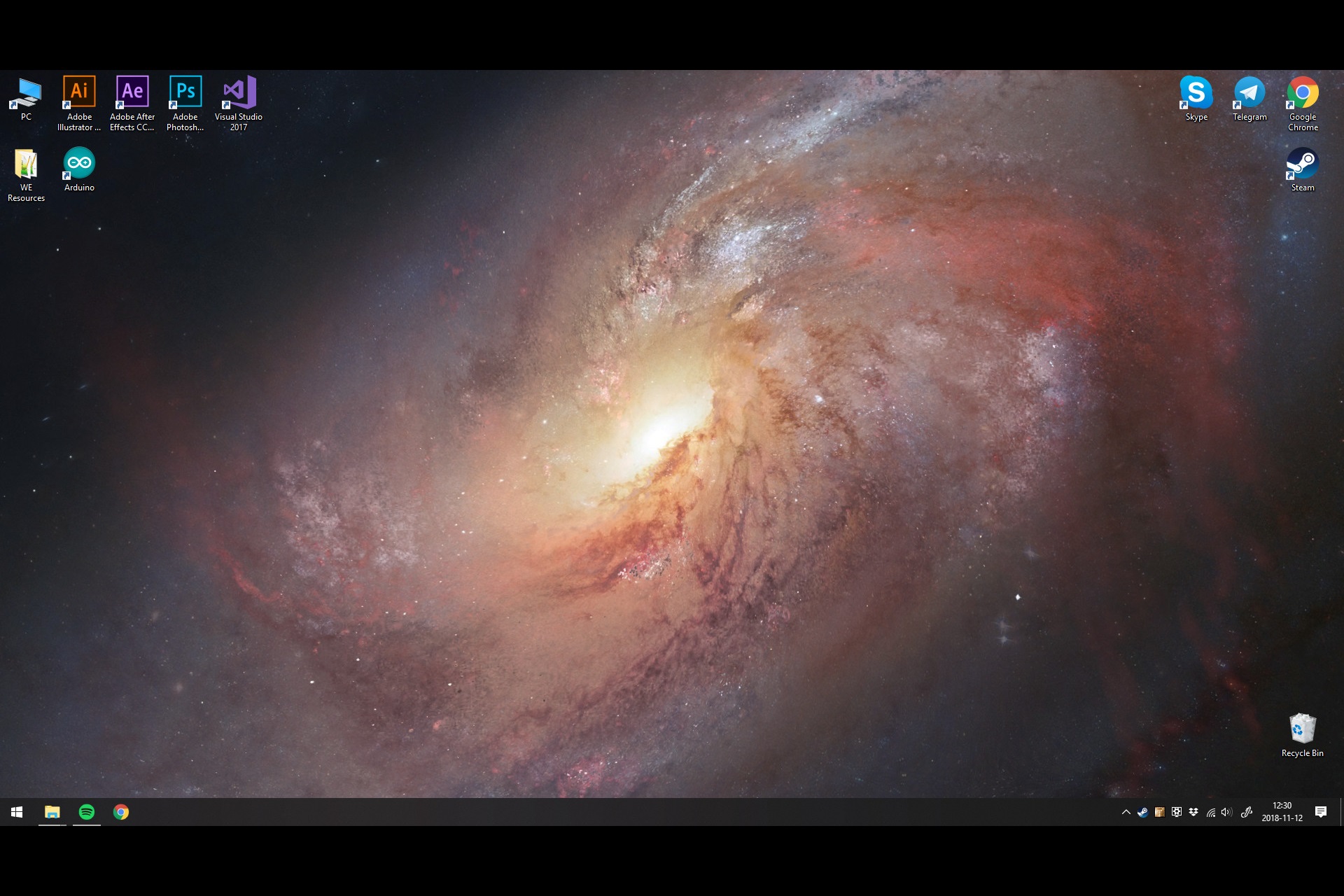
This rugged laptop desk works well as a portable laptop or notebook computer, projector, or audio equipment holder and can be used for various tasks.

Starument Laptop DJ Tripod Stand

  • Small desk footprint
  • Excellent air circulation
  • Minimal and good looking design
  • Easy to assemble and disassemble
  • A little wobbly at times

The Starument Laptop Stand is a laptop and mixer stand. It can elevate the laptop screen up to 52″, providing valuable real estate for the keyboard and mouse.

This all-in-one tripod stand can be used for laptops as well as projectors. It offers a sturdy, practical, and space-saving stand mixer for the equipment.

Working on a laptop by keeping it on your lap or desk can cause discomfort after a few hours. To get the best ergonomics, it is important to set-up the laptop at the right angle and height level.

All the heavy-duty laptops standard listed in this article are height adjustable, comes with good ergonomics and portability. Explore the list and let us know your pick in the comments.

Google may look to turn Windows 10 PCs and Macs into Chromebooks with CloudReady acquisition

Google has quietly acquired Neverware, a company developing CloudReady, a variant of Google’s Chrome OS to install on Chromebooks, Windows PCs and Macs. The acquisition was announced on Neverware’s website earlier this week (via ComputerWorld), and the company says that it has now joined Google’s Chrome OS team.

CloudReady is currently free to install for consumers on select devices certified by Neverware, but the Chromium-based OS is also available as a subscription with management capabilities for Education and Enterprise customers. Prices start at $20 per device annually for education customers and $49 per device per year for Enterprise customers.

“CloudReady will continue to be available as-is, and we’re committed to supporting and maintaining existing customers. Over the long term CloudReady will become an official Chrome OS offering, and existing customers will be upgraded seamlessly as that happens,” the company explained in an FAQ.

Since it’s based on Chromium OS, the open-source version of Google’s Chrome OS running on Chromebooks, CloudReady provides a familiar Chrome OS-like experience free of all the Google software you usually find on Chromebooks, including the Google Play Store. However, the “CloudReady will become an official Chrome OS offering” part of the announcement suggests that things could change in a pretty big way.

What if Google is planning to eventually turn CloudReady into a feature-complete version of Chrome OS that can be installed on Windows PCs and Macs? As of today, the only way to use Chrome OS is to purchase a Chromebook from Google or its hardware partners, but CloudReady could soon evolve into Chrome OS for everyone, complete with millions of Android apps to install from the PlayStore and the same management capabilities already provided by ChromeOS and CloudReady.

Chromebook Running Chrome Os
Chrome OS is no longer a glorified web browser.

In recent years, Chrome OS has been enjoying some real momentum in the US Education market, giving a real challenge to Windows PCs, Macs, and iOS devices. Microsoft is still working on its own alternative to Chrome OS with Windows 10X, a lightweight version of Windows 10 that will only ship on new devices starting next year. Windows 10X won’t support legacy Win32 apps at launch to focus on web and UWP apps, though Microsoft is still working on making Win32 apps run in containers on Windows 10X.

According to Windows Central, the first Windows 10X devices may launch in Spring 2021 for commercial markets, with consumer devices to follow in 2022. The new OS was expected to make its debut on Microsoft’s dual-screen Surface Neo this year, but this device has now been delayed and still has no release date. Windows 10X is reportedly being built for Chromebook-like devices, but again, it’s not something that consumers will be able to install on existing Windows 10 PCs, according to Windows Central.


windows 10x
Windows 10X will introduce a new Start menu and desktop experience.

It’s too early to tell if Google is planning to take over the PC world with Chrome OS and CloudReady, but there’s certainly a demand for a lightweight OS that includes Google Chrome and Android apps, is secure by design and easy to manage for IT admins. This Neverware acquisition by Google could be a pretty big deal in the long run, and it suggests that Google is getting really serious about Chrome OS and the PC market.

Microsoft has been trying for years to compete with Chromebooks with initiatives like Windows 10 in S Mode, and it remains to be seen if Windows 10X can really appeal to commercial customers and the Education market. We’ll see what happens, but it took literally years for Chromebooks to really take off, and Google could finally speed up Chrome OS adoption with the help of CloudReady. With Windows 10X only shipping on new devices coming next year, Microsoft may have a difficult time convincing customers to adopt this new version of Windows 10 that will lack the huge ecosystem of apps that made Windows a real juggernaut in the PC market.