Squad packet loss: What is it and how to fix it?

Squad is a teamwork-based tactical FPS that aims to provide players with an accurate combat experience. The game is set in a present-day warfare setting, so you won’t catch a glimpse of plasma guns or Gatling laser weapons.

What Squad manages to pull off is embossing a sense of virtual camaraderie between same-team players. If you’re expecting something along the lines of Call of Duty, Battlefield, Counter-Strike, or other FPS titles, you’re in for a disappointment.

The bottom line is that you won’t be able to achieve victory on your own. Using a broad range of communication-centered mechanics including planning, coordination, building, tactics, and neatly-integrated VoIP, on the other hand, might give you a fighting chance.

But, here’s the thing. Squad is a multiplayer game, so it requires an Internet connection. And like any other online game, it may be subject to a series of connectivity issues, such as high latency and packet loss.

What is packet loss in Squad

Packet loss behaves almost the same regardless of where you may spot it. It’s described by the inability of data packets to reach their intended destination, which is why packet loss is different than high ping.

  • High ping/latency – data packets need more time to reach their destination (they’re delayed)
  • Packet loss – data packets never make it to their destination (they’re usually dropped)

Therefore, it’s somewhat obvious that packet loss is also more severe than high latency. Here is a list of potential symptoms of high packet loss in Squad:

  • Rubberbanding (freezing and suddenly teleporting someplace else on the map)
  • Unresponsive menus
  • Sluggish character movement (often accompanied by rubberbanding)
  • Delayed text chat (or messages that never make it in the text chat)
  • Sudden game crashes or server disconnections (by far the most severe symptom)

What causes Squad packet loss

Packet loss small

Many are curious as to why packet loss happens, especially in video games. If you were to leak packets while reading a news article, for instance, a simple refresh in your web browser would fix the issue and make you forget it even existed.

However, in certain computer programs and processes, things are somewhat different. And for good reason, too.

Let’s take video games, such as Squad, for example. During a gaming session, your PC establishes a connection to the game server, which also hosts the other players.

Considering that a Squad match supports up to 100 players, it’s safe to assume that playing Squad can put a lot of strain on your connection.

In order for you to enjoy Squad, the connection must be kept alive, so it’s inevitable to encounter certain hiccups such as jitter, high latency, and packet loss (you should notice a packet loss symbol).

Here’s what causes Squad packet loss:

  • Network congestion (by far the most common cause)
  • ISP bandwidth throttling
  • Poor ISP traffic management (routing)
  • Outdated drivers on your system
  • Using Wi-Fi instead of wired connections
  • Having an outdated firmware version on your router
  • Insufficient bandwidth due to Internet subscription plan
  • Using high quality settings that the connection can’t accommodate
  • Server-side issues

And that’s barely scratching the surface. There are a lot of reasons why you might encounter packet loss in Squad. Furthermore, the issue can be on your side, on your ISP’s side, or on the game server host’s side.

Knowing the cause of experiencing packet loss can greatly help you in finding an efficient fix for it.

How to detect packet loss in Squad

  1. Locate the IP address or host address of the Squad server where you suspect leaking packets
  2. Note it down someplace (unless you have an incredible memory)
  3. On your Windows 10 PC, launch a CMD instance
  4. Type pathping x.x.x.x in the CMD (replace x.x.x.x with the IP you previously noted down)
  5. Wait for the test results
  6. Check each hop’s packet loss values

If you drew the short straw and are leaking packets, you might want to run some tests just to make sure you’re not confusing it with something else.

Each node you see belongs to a part of your connection (i.e. the connection between your PC and the game server).
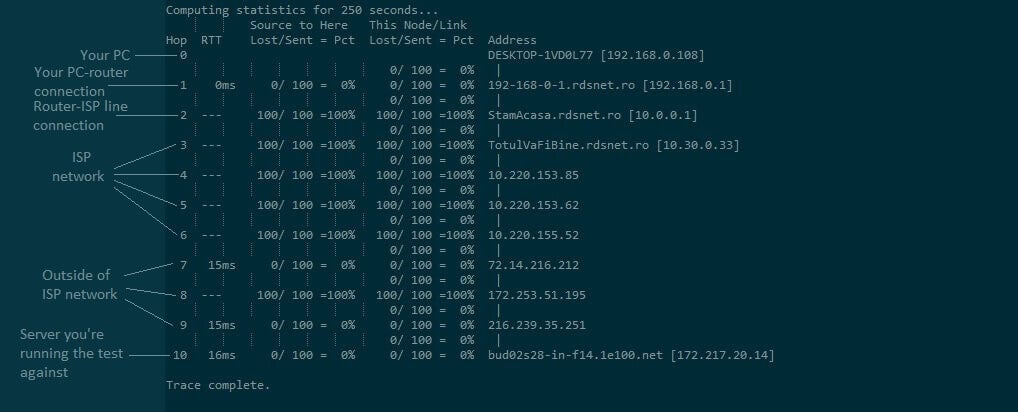
Results of pathping

Rule of thumb: the first hop (zero) always belongs to your PC, and the last one corresponds to the server you run the text against (i.e. x.x.x.x, the IP you used earlier). If you’re confused, just use the screenshot above for clarification.

That’s it. If you see a high packet loss percentage on any node, it means your connection is experiencing this issue.

How to fix Squad packet loss?

1. Use a VPN

  1. Buy a premium VPN subscription (we recommend Private Internet Access)
  2. Download and install the VPN on your PC
  3. Launch the VPN client and log into your account
  4. Choose an appropriate server and connect to it
  5. Launch Squad
  6. Check if there’s any improvement
  7. Optionally: run the pathping test once more to make sure

Private Internet Access (PIA) is an excellent VPN service from Kape Technologies and one of the few providers who offer 24/7 live chat support to its customers.

Aside from its privacy and security features, PIA can also fix certain connectivity issues and bypass geoblocking.

Private Internet Access

Private Internet Access

Getting packet loss in Squad? Private Internet Access could be of help.
$2.69/mo. Buy it now

Using a VPN can improve packet loss by routing your traffic away from your ISP’s limited connection. However, as you may have figured out, it will only work if your ISP is to blame for your packet loss situations.

Therefore, using a VPN won’t improve packet loss if the issue is on your side, or the game server’s side. Therefore, make sure to rule out your PC/the server host as causes for your packet leak situation before investing in a VPN.

2. Flush your DNS

  • On your Windows 10 PC, launch an elevated CMD instance
  • In the CMD window, run the following commands, one by one:

ipconfig /flushdns
ipconfig /registerdns
ipconfig /release
ipconfig /renew
netsh winsock reset
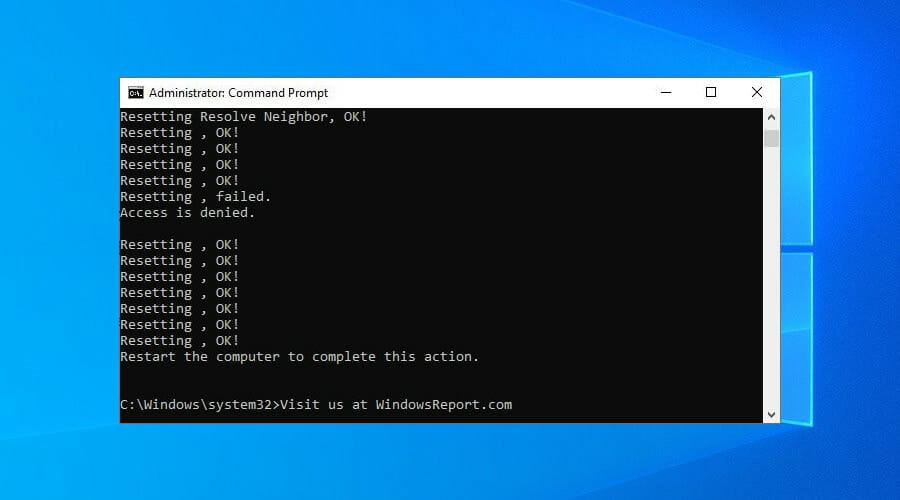
flush DNS servers in Windows 10

Restart your PC immediately after running the last command. Once the boot sequence is finished, try launching Squad once more and check if you’re still experiencing packet loss.

More often than not, clearing up cached data build-ups can have a great effect on your connection’s well-being. As it turns out, flushing your DNS can help you achieve just that.

3. Troubleshoot your connection manually

  • Restart your PC, router, and/or modem, as necessary
  • Make sure your system drivers, especially network ones, are up-to-date
  • Restart the game and check if there’s any improvement
  • Use a wired connection instead of Wi-Fi (Wi-Fi packet loss happens more often)
  • Upgrade your Internet subscription plan, if possible
  • Inspect your home network thoroughly for any malfunctioning component
  • Fix, replace, or upgrade worn-out Ethernet cables
  • Close any bandwidth-heavy apps or services running on your PC (torrenting, VoIP clients)
  • Lower Squad’s video/audio quality settings
  • Call your ISP and ask them if they can take a look and/or fix your issue
  • Avoid peak hours to eliminate network congestion issues (or use a VPN)
  • Switch the channel your wireless router broadcasts on

Note that these suggestions won’t necessarily eliminate (or even reduce, for that matter) packet loss, especially if the issue is not on your side.

However, performing maintenance on your connection every once in a while can keep many connectivity issues at bay.

Final thoughts on Squad packet loss

To sum it up, Squad is an awesome game, there’s no way around it. However, occasional packet loss issues might turn Squad into an unpleasant experience for you, especially if you notice a pattern starting to form.

If you want to patch it up quickly, a VPN can come in really handy. On the other hand, this quick fix only works if the packet loss is caused by your ISP (i.e. occurs somewhere between you and the game server, excluding the endpoints).

Last, but not least, you may want to perform a bit of manual troubleshooting. It may not eliminate packet loss like a charm, but at least you’ll have a healthier connection, and you can rule your system out as a potential cause for packet loss.

[wl_navigator]

How to get rid of WinRAR expired notification

WinRAR is a great file archiver software, but many users reported WinRAR expired notification while using it. This notification is there to remind you that your trial period has expired and that you need to purchase a license.

Many users find this notification annoying since it will appear every time you start the software, but there’s a way to get rid of this notification, and today we’re going to show you how to do it.

How do I get rid of WinRAR expired notification?

1. Use the context menu to extract the files

  1. Locate the archive that you want to extract.
  2. Right-click it and choose Extract files.
     extract here winRAR How to get rid of winrar expired notification
  3. Enter the destination path or select it from the folder tree. After doing that, click on OK to extract the files.
    extraction path How to get rid of winrar expired notification

Alternatively, you can use one of the following options instead:

  • Extract Here – to extract the files in the current folder
  • Extract to Archive_name – to create a new folder inside of the current directory and extract the files there

To compress files, you just need to do the following:

  1. Select the files that you want to add to the archive and right-click them.
  2. Choose Add to archive.
     add to archive How to get rid of winrar expired notification
  3. Enter the archive name and change the settings if needed. Click OK once you’re finished.
    archive name and parameters How to get rid of winrar expired notification

Alternatively, you can use the Add to Folder name.rar option to instantly create an archive without adjusting the settings.

This method is just a workaround, but as long as you don’t start the application, you won’t even have to see the WinRAR expired notification.

2. Use an alternative file archive software

If you’re fed up with constant WinRAR expired notification, perhaps you should consider switching to WinZip. The software is well-known, and it’s one of the best file archiver applications on the market.

Regarding compatibility, the software supports more than 24 most popular formats, including ZIP, RAR, ISO, GZ, 7Z, TAR GZ, TAR, and many others.

WinZip can compress any file type including folders, images, PDFs, and videos. It’s worth mentioning that the application can extract multiple archives simultaneously, which is a major plus.

Archive repair is also available, allowing you to repair damaged archives with ease. Of course, file encryption is available, allowing you to password-protect your files.

WinZip is a great alternative to WinRAR, and if you’re having any issues with it, we suggest trying WinZip out.

Other great features:

  • File manager feature
  • File splitting
  • PDF to Word convertor
  • File backup and file-sharing support
  • Cloud storage support

⇒ Get WinZip

3. Ignore the message/purchase the license

  1. Open WinRAR.
  2. When the message appears, just close it.
    winrar purchase window How to get rid of winrar expired notification

The message won’t appear until you start WinRAR again. While this method won’t permanently remove this notification, it’s a method that most WinRAR users are currently using.

There are other highly functional archive software you can use instead of WinRAR, thus you should benefit from the best file compression tools out there.

WinRAR expired notification is a part of the application, and if you don’t want to deal with it anymore, you should switch to WinZip or use our other solutions.

7 Powerful Mini Laptops For Ultimate Portability & Performance

Mini laptops are great for staying connected while on the go. These small devices pack a tremendous processing power allowing you to browse the Internet, check your emails, watch movies, and more.

But what are the best Windows 10 mini laptops to buy?

Well, you’ve come to the right place. In this article, we’re going to list the best smallest laptops currently available on the market. We’ve selected them using clear criteria, such as user reviews, reliability, or battery life.


What are the top small Windows 10 laptops?

Best for daily use

  • Includes 1 year of Microsoft Office 365
  • Compatible with Google Classroom
  • Up to 10 hours of battery life
  • Slow processor

ASUS L203MA-DS04 VivoBook tops our list since this is an extremely light, thin, and convenient device for just anybody these days.

What we really appreciate, apart from the pros mentioned above is also the fast Wi-Fi speed, facilitated by the compatibility with the Wi-Fi 5 (802.11ac) standard.

The device runs on Windows 10 S – a 100% app-based version of Windows. Other perks are the SD card slot, that conveniently allows you to expand the storage space, and the handy keyboard design.


Best for working on the go use

  • 1 year Microsoft Office 365 subscription
  • 12 hours of battery life
  • Perfect for homeschooling
  • Might be slower than expected

Our second option is HP Stream 11, yet another slim device, measuring only 0.70 inches in height and weighing merely 3.17 pounds (battery included).

The reviews recommend it as the perfect device for your kids’ distance schooling, being compact and reliable.

The HP Stream 11 boasts an 11.6-inch diagonal HD AntiGlare WLED-backlit display with a 73% screen to body ratio.

The 4GB of memory, plus 32 GB eMMC storage should be enough for all the apps one uses on a daily basis.


Best for watching movies

  • Amazing display quality
  • 1 year of warranty and service assistance
  • Supports an extra HDD of up to 1TB
  • Occasional freeze

Next in line is the Fusion5 A90B+ PRO equipped with a 5 GHz WIFI increasing the download and upload speeds by 2 times compared to traditional laptops.

It runs on Windows 10 Pro ensuring access to the top-notch features Microsoft’s operating system has to offer.

Not to mention that the 14.1-inch 1920 x 1080 Full HD IPS display will render the best image quality you can expect of a portable notebook.

Similar to the previous laptop options, Fursion5 also comes with 4GB of RAM and 64GB of on-board eMMC storage. However, it also offers the option to expand the memory up to 256GB with a micro SD card or up to 1TB with an external HDD.


Best for sketching and photo editing

  • Customizable usage modes
  • 7.0-inch IPS display
  • 8 GB of RAM
  • Stylus Pen included
  • Keyboard design might be confusing

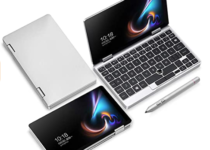
This mini-laptop is perfect if you need to use the device as a laptop or a tablet during the day. It is also foldable as perfectly fits your jacket or bag pocket for easy carrying.

The HDMI technology integrates your other devices as well, so you can easily switch from your Tablet PC to your smart TV or smartphone while working and playing.

The device is equipped with an Intel HD Graphics 200GHz GPU processor, with shared video memory that provides high image quality for Internet use, basic photo editing and casual gaming.

All in all, the One Netbook One Mix 1S Yoga mini-laptop will perfectly serve multitasking purposes.


Best for travelling

  • Cell-phone like size
  • 0.48kg
  • Supports 2×USB Type A and 1×USB Type C
  • Might seem too thick

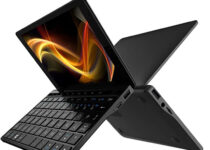
Goodlife623’s 7-inch GPD Pocket 2 mini-laptop is a portable device that just about any business professional can use.

If you’re worried about the fragility of such a small device, the metal casing should be reassuring. It will fit your pocket and you can also carry it around with you anywhere you’d go.

Battery life lasts 6 to 8 hours, depending on usage, however, users have been extremely pleased with the amount of work they can accomplish.

The all-fit FHD screen makes this device a pretty decent choice for Netflix or YouTube streaming.


Best for children

  • Perfect for online classes
  • 2GB RAM and 32GB storage
  • Full-size island-style keyboard
  • Audio volume is low

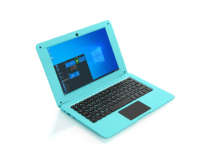
With this mini-laptop, Goldengulf promises to offer access to the latest technologies for your business and personal needs in a much compact way than classic devices do.

On this note, the device is 285 x 190 x 18.5mm in size, weighing 1.1kg, which makes it a good option for traveling purposes.

The USB 3.0, 2.0 and micro HDMI integrations ensure you can expand your experience on external monitors, or smart TVs, as well as to add more storage capacity.

The devices also comes in vivid colors such as blue or pink, which makes it a delight for kids that use it at school.


Best for office work

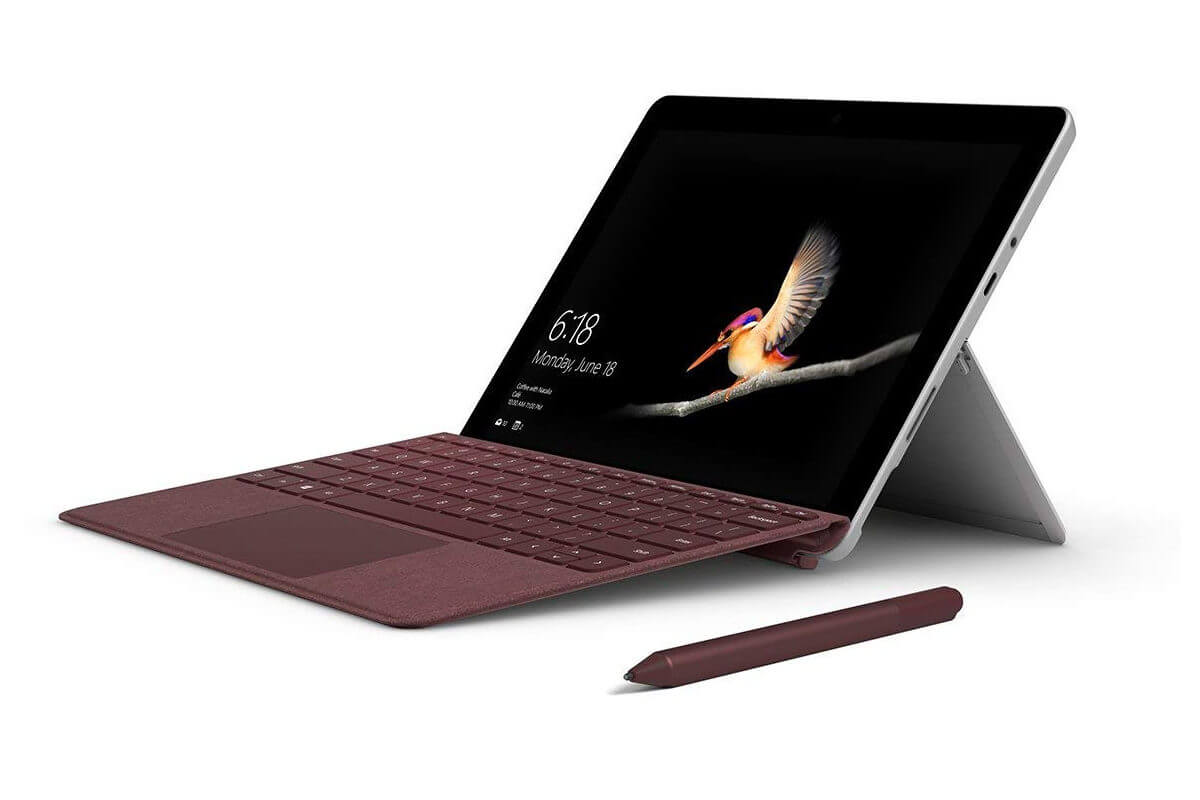
surface go mini laptop

If you’re looking for a new mini laptop, you should consider Surface Go as well. This tiny 10-inch laptop weighs only 1.15lbs, and it can easily fit in any bag.

As for the hardware specifications, this device has a 10-inch PixelSense display that supports 1800×1200 (217 PPI) resolution.

Just like other members of the Surface family, this model also supports 10-point multi-touch, so you can use it as a tablet.

The Wi-Fi model can provide you with up to 9 hours of video playback. The device runs on Intel Pentium Gold 4415Y processor.

In terms of storage, this device has 128GB SSD and 8GB of RAM which should be enough for most of your needs.

Regarding the graphics, this device uses Intel HD Graphics 615. Additional features include one USB-C port, 3.5mm headphone jack, microSDXC card reader, 5MP 1080p front and 8.0 1080p rear camera.

It’s worth mentioning that this device has various sensors including a light sensor, accelerometer, gyroscope, and magnetometer.

Overall, Surface Go is an incredibly small and light laptop, and it’s a perfect work or travel companion, so if you’re looking for a new laptop, you might want to consider this model.

Overview:

  • Screen: 10-inch Pixel sense 1800×1200 (217 PPI)
  • Battery: 9h battery
  • CPU: Intel Pentium Gold 4415Y
  • GPU: Intel HD Graphics 615
  • RAM: 8GB
  • Storage: 128GB SSD

  ⇒  Check price

Mini-laptops are extremely useful when you’re always on the go. They are small and ultraportable, and you can take them with you everywhere.

If you haven’t decided which laptop to buy yet, write down your requirements and go through this list once again. Then buy the mini laptop that best suits your needs.

If you have additional questions, feel free to reach for the comments section below.

This specific deal is part of our bigger selection of the best laptop deals you can find.

[wl_navigator]

Microsoft released a patch for slow CPUs in Windows 10 20H2

At the end of last week, Microsoft released the 20H2 Build 19042.608 (KB4580364) to the Insiders and the Beta channel. Among others, it fixes a bug in the CPU values reported by many users on dedicated forums.

More specifically, users noted that with certain processors, the CPU frequency remained stuck at .79 GHZ or lower, although it was designed to go above that.

[…] My CPU is designed to go up to 4ghz with turbo and 2.4 GHz base. For some reason when I do a forced shutdown it seems to fix the problem of the CPU not being able to reach its designed speeds. However, when I put the computer to sleep, shut it down normally, or restart the computer all via the start menu (the values are OK, e.n.). It brings up the problem of the CPU not being able to go to designed speeds.

The above-quoted user mentioned that he is using an FX505GT-US52 Asus laptop; another user with the same device model confirmed the issue.

A known bug that Windows 10 20H2 ignored

While most Windows updates cause high CPU usage, over the past months, incorrect CPU frequencies have been oftentimes reported and the much-awaited October 2020 update hasn’t brought a solution.

With this new build, Microsoft acknowledged that certain processors display the incorrect CPU frequency and that this release should fix them.

It’s unclear how widespread the issue is. And nevertheless, the fix is not yet available for the general public.

Unfortunately, there are no workarounds to this issue. One thing you might try, in case your CPU gets stuck or runs slow, is to do the following:

  1. Open Control Panel.
  2. Go to Edit power plan under Power options.
  3. Select Change advanced power settings.
  4. Make sure that both values under Maximum processor state are set at 100%.fix slow cpu
  5. Make sure that both options under System cooling policy are set as Active.

One thing you should keep in mind, though: the slow CPU issue isn’t caused by the recent update. On the other hand, if you’ve already installed it, here’s the most common problems you might encounter and possible solutions.

If you already installed the mentioned build version on your computer, tell us more about your experience in the comments below.

[wl_navigator]

FIX: Android emulator Internet not working [Connection Loss]

The Android Emulator is a vital part of the Android Studio suite. The mass of final testing is done here, and for the majority of projects, it requires an Internet connection.

If you want to test your app fully, at least. However, there seems to be a problem where users have had a hard time connecting to the internet from within the emulator.

How can I fix Android Emulator Internet issues on Windows 10?

  1. Use a reliable Android emulator
  2. Check for general connection issues
  3. Reinstall Android Studio
  4. Disable the unused Network adapter
  5. Check the Internet permission

1. Use a reliable Android emulator

LDPlayer

Let’s start with the obvious: Android Emulator Internet issues are often determined by the emulator that you use.

Therefore, take it as a sign that your initial choice may no longer be the most inspired one, or at least take a look at what LDPlayer has to offer.

Unlike similar simulators, this one isn’t too skinned and works extremely smoothly. Moreover, there are high chances of never facing an LDPlayer Internet problem unless your Internet connection itself is really slow.

On top of all these, do note that the default shortcuts are customizable. Feel free to make your own shortcuts for different commands and choose to play with keyboard and mouse.

”LDPlayer”

”LDPlayer”

”Android
”Download”
&aff_sub2=Native” current_url=”true” button_text=”Visit website” image=”https://windowsreport.com/wp-content/uploads/2020/10/LDPlayer_logo-210×160.png”]

2. Check for general connection issues

general connection issues

Let’s start with some general troubleshooting steps. Before we start dealing with the internal issues in Android Studio, you should check whether the connection is working all-around on your PC.

If the problem is solely existent in Android Emulator, we suggest moving to the third tip below.

On the other hand, if you’re experiencing general network issues, we suggest following the enlisted steps:

  • Restart your router and modem
  • Switch between LAN and Wi-Fi if possible
  • Flush DNS
  • Disable third-party antivirus temporary
  • Disable proxy or VPN

3. Check the firewall

firewall

  1. In the Search bar, type Allow app and open Allow an app through Windows Firewall.
  2. Click Change settings.
  3. Allow Android Studio for Private network and confirm the changes.

Another viable solution is to check the configuration file and confirm that the internet permission is granted to Android Emulator.

In addition, you should check the Windows Firewall and confirm that the Android Emulator is able to communicate freely. After that, you should be able to resolve the issue at hand.

Use the above steps in order to allow Android Studio to freely communicate through the Firewall.

4. Disable the unused Network adapter

unused Network adapter

  1. Open Network settings.
  2. Choose right-click on the Adapter you want to disable and disable it.
  3. Check whether the problem is resolved.

The most prominent solution we were able to find concerns disabling a Network adapter. Namely, it seems that Android Emulator tries to connect via a not-established, inactive adapter.

This, of course, leads to an internal network error and users are unable to access the online content. Use the above steps in order to avoid this.


Need more tips on how to fix Windows 10 Network Adapter problems? Check this useful guide and set things right again.


5. Reinstall Android Studio

try to reinstall Android Studio

And, finally, if none of the previous steps proved resolutive, the only thing we can suggest is a complete reinstallation of the Android Studio. This might help, but we can’t claim that with certainty.

This is the last resort, so if there’s a way to find an alternate solution without resorting to reinstallation, go with that. You can also try an alternative emulator.

Countless users complain about:

  • Android emulator Wi-Fi connected no Internet – If that’s the issue that bothers you, don’t postpone the inevitable. You need to check the firewall and make sure it has nothing to do with this problem.
  • Emulator not connecting to the Internet – When your good old emulator cannot connect to the Internet, it’s time to think of an alternative. Find all about LDPlayer by taking a look at our above tips.

This should do it. In case you have any additional questions or suggestions, make sure to post them in the comments section below. We look forward to hearing from you.

This should do it. In case you have any additional questions or suggestions, make sure to post them in the comments section below. We look forward to hearing from you.

[wl_navigator]

Microsoft is now pushing Edge to Internet Explorer users

The new Chromium-based Microsoft Edge browser is more and more prepared to take Internet Explorer’s place.

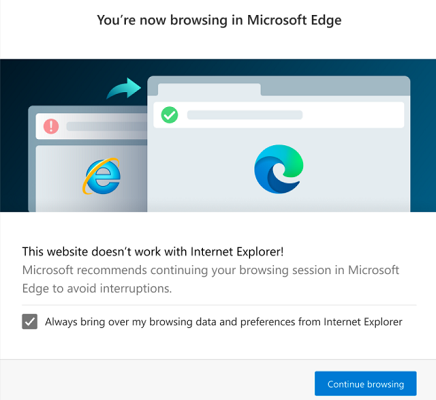
Starting from the latest Microsoft Edge versions, whenever you use Explorer to visit an incompatible site, the browsing session will automatically be launched in Microsoft Edge.

The list of incompatible sites currently includes 1,156 sites and it’s growing. For example, this happens when using Yahoo Mail, Google Drive, Facebook, Instagram, Microsoft Teams, Twitter, and more.

On redirection to Microsoft Edge, you’ll see a one-time dialog. There will also be a few prompts for consent to copy your browsing data and preferences to Edge.

That’s what Microsoft reveals:

The following browsing data will be imported: Favorites, Passwords, Search engines, open tabs, history, settings, cookies, and the Home Page.

How can I disable Internet Explorer redirection to Edge?

Internet Explorer redirection to Edge
  1. Firstly, set the RedirectSitesFromInternetExplorerRedirectMode policy to Disabled to stop redirecting as soon as the policy takes effect.
  2. Then, also set the RedirectSitesFromInternetExplorerPreventBHOInstall policy to Enabled to uninstall the BHO after the next Edge update.

If you want to disable the redirection after updating to Microsoft Edge Stable version 87, take a closer look and apply the above steps.

As you can see, the actual redirection from Internet Explorer to Microsoft Edge requires an Internet Explorer Browser Helper Object (BHO) known as IEtoEdge BHO.

The RedirectSitesFromInternetExplorerPreventBHOInstall policy is the one that establishes if this BHO is installed or not.

In order to disable the redirection procedure before updating to Microsoft Edge Stable version 87, you simply need to set the RedirectSitesFromInternetExplorerRedirectMode policy to Enabled.

Wait for the policy to take effect and you’ll be good to go. What do you think of these latest changes regarding the browser that you’ve used for years? Let us know in the comments area below.

[wl_navigator]

New video reveals what to expect when you boot up Microsoft’s Xbox Series X & S consoles

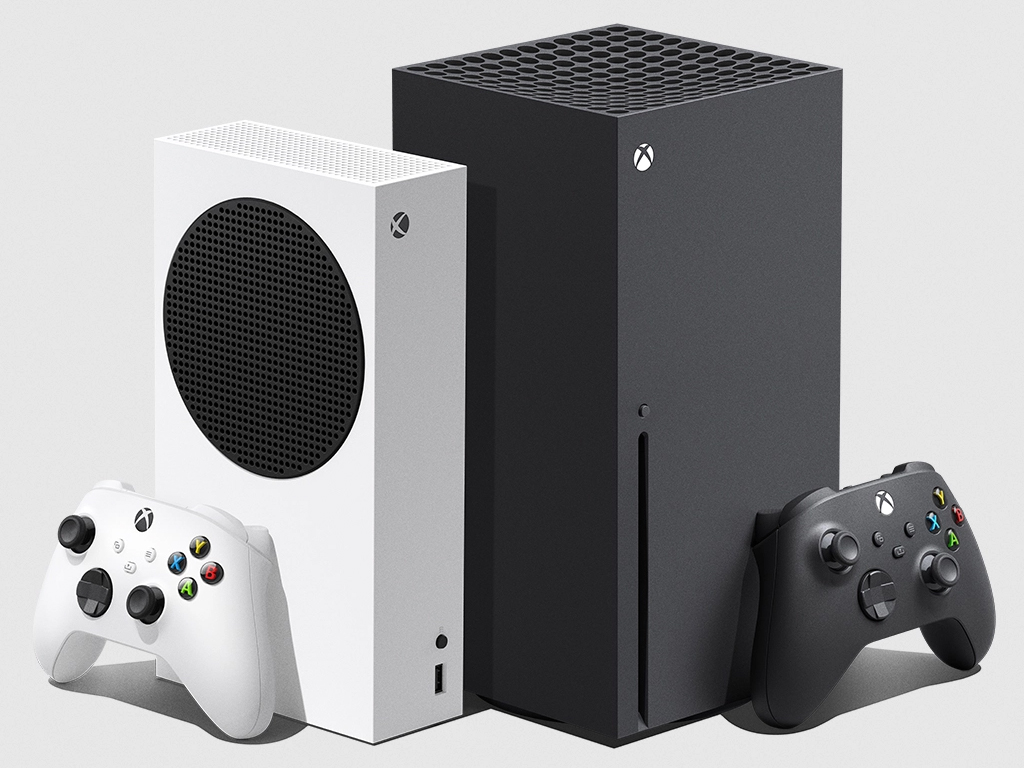
We’re now just two weeks away from the launch of Microsoft’s Xbox Series X and Series S consoles, and today the company published a new video showing what to expect when you’re going to boot up the new consoles on November 10. For people who already own an Xbox One console, the experience should be very familiar as the Xbox Series X & S consoles will run the same OS, with a couple of differences.

First of all, Microsoft is introducing dynamic background on the Xbox Series X & S, which look pretty cool and help the home dashboard look a bit more alive. The other big new feature on the next-gen Xbox consoles is Quick Resume, which will allow gamers to quickly switch between recently launched titles and pick up right where they left off. Even though Quick Resume will only be able to keep a limited number of games in a suspended state, we’re really approaching a Netflix-like experience where you can move between different titles really fast.

The 15 minutes video also goes over the redesigned Xbox Store, the new Xbox Controller with its redesigned D-pad and Share button, the Seagate 1TB expansion cards, the new Xbox mobile app, and more. There’s really a lot of useful information for gamers interested in Microsoft’s next-gen Xbox consoles

Microsoft has shown its new Xbox Series X quite extensively in the past couple of weeks, but the cheaper Xbox Series S has yet to receive the same level of attention. At just $299, the Series S will be the most affordable next-gen console on the market next month, and the main differences with the Series X are the absence of a disc drive, a smaller 512GB SSD, and a less powerful GPU targeting 1440p at 60FPS instead of 4K. Still, all games optimized for the Series X should also be optimized for the Series S, and we hope Microsoft will soon share more about the Series S and explain what’s it’s still a good upgrade for gamers tempted to keep their Xbox One S or Xbox One X.

5 Best Pokemon GO Emulators for PC [2026 List]

The best Pokémon Go emulator lets you play Pokémon Go on your PC without carrying your phone everywhere. In this guide, you’ll find the top emulators to download, how to download Pokémon Go to a computer, and what you need to know about Pokémon Go emulator spoofing.

What are the best emulators to play Pokemon on PC?

LDPlayer (recommended)

LDPlayer

LDPlayer is an amazing Android emulator that is explicitly developed to offer an unforgettable Android gaming experience to PC users.

From Pokemon to PUBG Mobile, LDPlayer is capable of handling most of the Android games you could think of and run them on your computer.

To install games on PC, LDPlayer has three options. You can either use the built-in Google Play Store to search for apps or download the app for the app and install it manually.

LD Player also offers its own LD Store which includes a good number of apps and games in an app format that you can download and install on PC.

Moreover, it supports both the keyboard + mouse combo and GamePad controls for game progress. You can customize the keyboard controls in the keyboard mapping panel.

As for the multi-instance mode, it allows you to play multiple games using different accounts simultaneously on your computer.

Key features you’re about to enjoy from LDPlayer:

  • Lightweight emulator to run the latest Android games
  • Great keyboard mapping controls
  • Multi-instance sync
  • New updates are pushed regularly to fix potential issues
  • No hidden fees to fear of

”LDPlayer”

”LDPlayer”

”Looking
”Download”
&aff_sub2=Native” current_url=”true” button_text=”Visit website” image=”https://windowsreport.com/wp-content/uploads/2020/10/LDPlayer_logo-210×160.png”]

BlueStacks

BlueStacks

BlueStacks is the oldest Android emulator that is still actively in development and has considerably improved in the last few years.

BlueStacks is compatible with Intel and AMD processors. It comes with Hyper-G graphics and promises low-latency gaming.

The intuitive keymapping feature makes it easy for gamers to adjust the keyboard controls as per their preferences. You can also use the gamepad to control the game movements.

Then there is Multi-Windows and Multi-Accounts support with Multi-instance feature.

Which as we already discussed enables the users to play multiple games or use multiple accounts to run multiple instances of a single game simultaneously on the PC.

Installing Android apps on your BlueStacks is a straight forward affair. The emulators come with Google Play Store installed out of the box, but you can also install apps using APKs.

For customization, you can tweak the game as well as the emulator settings for frame rate, display resolution, gaming engine, and of course the UI skin.

On the flip side, you may have to deal with the annoying sponsored ads thing. Which although doesn’t interfere with your gaming session, but it can still be annoying at times.

BlueStacks is a known memory hog despite the company’s claims to have optimized it for lesser memory usage. Make sure you keep a tab on the resource management to better under the performance.

Bluestacks

Bluestacks

That’s a great Pokemon PC emulator. It is fully compatible with Windows OS, so do give it a try right away!
Download Visit website

NoxPlayer

Nox Player

From fast-paced racing games to the slow-paced Pokemon game, NoxPlayer can run any Android game and app on Windows PC with ease.

It is a free Android emulator that is explicitly developed keeping Android gamers in mind for PC users.

To install Pokemon games from the Play Store on Nox Player, you can use the built-in Google Play Store app. NoxPlayer is compatible with AMD and Intel processors.

While you don’t need a dedicated graphics processor to play games on PC, having a dedicated GPU can make all the difference if you want to heavy games like PUBG Mobile on PC.

The Multi-instance feature enables users to run multiple games simultaneously on a single computer. You can use multiple accounts to run multiple instances of the same game simultaneously as well.

To control the game, you can use the keyboard and mouse combo or gamepad/controller. You can customize the game as well as emulator settings to better suit your needs.

⇒ Get NoxPlayer

Memu Play

Memu Play

Memu Play is a relatively new emulator, but it offers enough to make your mobile gaming experience on PC a pleasant one.

Just like Nox Player, Memu Play is also an Android emulator focused on Android gamers. 

Memu Play is made to play Android games on PC, but that won’t stop you from using it to run Android exclusive apps that are not available for Windows, such as a sports streaming app that is not available in the Google Play Store, etc.

The Multiple Instances feature is again the same. It allows you to run multiple games (up to 4) depending on your PC’s hardware capabilities simultaneously.

Google Play Store and services come pre-installed. To install a game, search the Play Store, and install the app. If not, download the app for the app and move it to Memu Play to proceed with the installation.

To control the game, Memu Play supports both keyboard and mouse combo as well as Gamepad controls.

The Keymapping feature allows you to customize the controls as per your preference. Memu Play is free, fast, stable, and comes with a simple and intuitive user interface.

⇒ Download Memu Play 

AMIDuOS

AMIDuOS

AMIDuOS is a free Android emulator that can run nearly any android app and game on your Windows running computer.

Unlike the earlier mentioned emulators, AMIDuOS is Windows exclusive. It started as a premium emulator; however, the company has now made it free for all kinds of use.

It is compatible with Intel and AMD processors. the AMIDuOS package installer allows you to add your favorite Android app markets to your PC.

On the performance front, games and apps run in the native x86-mode allowing you to make the most out of your PC’s hardware. That said, it can also perform ARM emulation, to run apps in compatibility mode.

AMIDuOS is a decent free alternative to emulators like Genymotion to run and test apps for Android developers.

It is also mouse and keyboard compatible and offers SD card emulation to configure the SD card using a configuration tool.

The installation of AMIDuOS is something we find a little time-consuming task and not as straight forward as other emulators in this list.

Apart from that, it is a decent emulator to run Android games and apps on your Windows PC.

⇒ Download AMIDuOS

How to Download Pokémon Go to a Computer

  1. Install an emulator
    Pick one from the list above (like BlueStacks or LDPlayer) and install it on your PC.
  2. Open the emulator and sign in
    Use your Google account to access the Play Store.
  3. Download Pokémon Go
    Search for it in the Play Store and click Install.
  4. Launch the game
    Open Pokémon Go from within the emulator and start playing.

List of Pokemon games you can play on PC using emulators

Now that you know some interesting facts about Pokemon, let’s have a look at the best Pokemon games you can play using an Android emulator on PC:

  • Pokémon GO
  • Pokémon Duel
  • Camp Pokémon
  • Magikarp Jump
  • Pokémon Playhouse
  • Pokémon Quest
  • Pokémon Shuffle Mobile

So these are some of the best emulators to play Pokemon on PC. We have also shared some new and popular Pokemon games to give you a head start along with some interesting Pokemon facts that you probably didn’t know.

So, what’s your favorite Pokemon game? Given a choice which Pokemon character will you have your side all the time? Do let us know in the comments area below.

FIX: Android Emulator error installing APK on Windows

When trying to run mobile apps on your PC, the Android emulator error installing APK on Windows can be frustrating. This issue often occurs due to mismatched APK versions, corrupted files, or improper emulator configurations. The good news is that you can quickly resolve it by following the steps below.

Why the Android Emulator Fails to Install APK Files

The error typically appears when there’s a compatibility conflict between your APK and the emulator. Other common reasons include:

  • Using an APK built for a different CPU architecture than the emulator.
  • Outdated or unstable Android emulator version.
  • Corrupted APK file or incomplete download.
  • Insufficient storage or system resources.
  • ADB (Android Debug Bridge) misconfigurations.

How can I fix APK installation error for Android Emulator?

1. Use a better alternative: LDPlayer

Getting an Android Emulator error while installing APK on Windows is unpleasant. Instead of feeling sorry for yourself and wasting valuable time, you should better think of an alternative from the start.

We are talking about LDPlayer. There are quite a few Android emulators that are too heavy or require extra tweaking.

That’s not the case with LDPlayer – installing it is an error-free process and it works great out of the box. Some of the included gamer-oriented features are multi-instance sync and high FPS/graphics.

You can even download the app or game you have min by using individual APK files. Even if an app isn’t available on LD Store, you can easily download and install its APK file into the emulator.

Just drag-drop the APK files on the LDPlayer window and it will start installing the app automatically. That’s how easy it really is.

LDPlayer

Tired of getting Android Emulator errors while installing the APK? Transform your PC into an Android gaming platform with LDPlayer!

2. Disable Instant Run

  1. Open the File option.
  2. Select Settings.
  3. Choose Build, Execution, Deployment.
  4. Select Instant Run.
  5. Uncheck the Enable Instant Run to hot-swap code/resource changes. on deploy (default enabled) box.

One of the most-suggested and, apparently, the most appraised troubleshooting tip is this one. We suggest disabling the Instant Run option.

After that, an APK installation was working as intended. Follow the above steps to disable the Instant run feature in Android Emulator.

3. Enable USB debugging

  1. On your phone, open Settings > About.
  2. Tap 7 times on the Build number to enable Developer options.
  3. Get back and open Developer options.
  4. Enable USB debugging.

Enabling this option is done on your handset and found in the Developer Options section. If it’s off, you won’t be able to install any APK project on your device.

Afterward, once you connect your handset with the PC, you should see the prompt. Make sure to allow USB debugging for that individual PC.

All you need to do is to follow the above steps to enable USB debugging on an Android device.

4. Update drivers

Verifying that your drivers are properly installed and up to date is an important step when trying to complete the APK installation procedure.

Therefore, make sure to install ADB and handset drivers. They’re, like all other drivers, found in Device Manager. After that, the problem should be gone.

Doing this manually, however, can become quite time-consuming. Let’s automate this job and use a specialized driver updater tool.

You simply need to download this tool, install it, and perform a scan, then update all the drivers in just one click.

⇒ Get Fortect Driver Updater

5. Rebuild the project

  1. Open Android Studio.
  2. Click on Build.
  3. Click Clean project/Build.
  4. Finally, click the Rebuild project option.

Rebuilding the project might help, as well. Some users suggested that the Clean and then Rebuild commands provided them with the resolution.

When the project was successfully rebuilt, users were able to install the APK to their handsets without any issues.

Use the above procedure in order to clean and rebuild a project in Android Emulator.

6. Sync with Gradle

  1. Open the File option.
  2. Choose Sync project with Gradle files.
  3. Wait it out and try installing the APK again.

If you use the Gradle automation system when developing (and chances are you do), the problem might lie in a sync failure.

In order to address this possible culprit, we suggest syncing it with the project. That should allow you to install APK without the error. Therefore, don’t hesitate to refer to the above procedure.

7. Run Invalidate caches/restart

run Invalidate caches
  1. Choose the File option.
  2. Select Invalidate caches/restart.
  3. Click Invalidate and restart.

As with any other application, Android Studio stores all kinds of cached data. This speeds up the in-app processes but tends to create issues when creating new inputs and projects.

Therefore, there’s the command which resets cache completely and it’s found under the File option in the Main bar.

8. Reinstall Android Studio

reinstall Android Studio

Finally, if none of the previous solutions worked this out, we suggest reinstalling the Android Studio client. This is the last resort, judging on the reports of affected developers.

We hope it’ll help you too. You can download the Android Studio suite right away.

With that said, we can conclude this article. In case you have any alternative questions or suggestions, feel free to post them in the comments section below.

How to fix Google Chrome update failed error 12 quick & easy

Google updates Chrome with some regularity. However, some users have encountered a Google Chrome update failed error 12 issue when they try to update that browser. The error message for error 12 states, An error occurred while checking for updates: Download failed.

As a consequence, users can’t update Chrome to its latest version (with the About Google Chrome option) when error 12 arises. If you need to fix that error, check out these potential resolutions for it.

How can I fix the update failed (error: 12) in Google Chrome?

1. Run the Internet Connections and Network Adapter troubleshooters

  1. Click the Type here to search taskbar button to open Windows 10’s search utility.
  2. Enter troubleshoot in the search text box.
  3. Select Troubleshoot settings to open the Settings window as in the screenshot below.
    The Troubleshoot tab chrome update error 12 / chrome update failed error 12 / google chrome update failed error 12
  4. Click Additional troubleshooters to open a list of troubleshooters.
  5. Select Internet Connections and click Run the troubleshooter to launch it.
    Internet Connections troubleshooter chrome update error 12 / chrome update failed error 12 / google chrome update failed error 12
  6. Select the Troubleshoot my connection to the Internet option.
  7. If the Internet Connections troubleshooter doesn’t fix the issue, click the Run the troubleshooter option for Network Adapter.
    Run the troubleshooter button chrome update error 12 / chrome update failed error 12 / google chrome update failed error 12
  8. Then select the All network adapters option and click Next to go through that troubleshooter.

2. Temporarily turn off firewalls

  1. Open Windows 10’s search box.
  2. Input the keyword firewall into the Type here to search box.
  3. Click Windows Defender Firewall to open that Control Panel applet.
    Windows Defender Firewall applet chrome update error 12 / chrome update failed error 12 / google chrome update failed error 12
  4. Click Turn Windows Defender Firewall on or off on the left side of the WDF applet.
    Turn off Windows Defender Firewall settings chrome update error 12 / chrome update failed error 12 / google chrome update failed error 12
  5. Select the Turn off Windows Defender Firewall radio buttons, and click OK to confirm.
  6. If you’ve installed third-party antivirus software that incorporates a firewall, right-click the system tray icon for it. Then select a disable option on the antivirus utility’s context menu to temporarily deactivate it.

3. Reset the DNS and Winsock

  1. Press the Windows and the R keys at the same time to launch Run.
  2. Input cmd in Run’s Open box.
  3. Press the Ctrl + Shift + Enter hotkey to open the Command Prompt as an administrator.
  4. Type in this flush DNS command and press Return: ipconfig /flushdns
    ipconfig /flushdns command chrome update command error 12 / chrome update failed error 12 / google chrome update failed error 12
  5. To reset Winsock, input this command and press Enter: netsh winsock reset

  • Type appwiz.cpl in the Open box, and click the OK option.

    Windows 10's uninstaller chrome update error 12 / chrome update failed error 12 / google chrome update failed error 12

  • Select the listed Google Chrome browser.
  • Click the Uninstall option for Google Chrome.
  • Click Yes on confirmation prompts.
  • Restart Windows when you’ve uninstalled Chrome.
  • Click Download Chrome on the browser’s webpage to save the setup for the latest version.
  • Then open Chrome’s installer to reinstall the software.

  • 8. Enable Google update services

    1. Press the Windows key + X hotkey, and select Run on the menu.
    2. Type services.msc in the Open box and click the OK option.Services window chrome update error 12 / chrome update failed error 12 / google chrome update failed error 12

    3. Double-click Google Update Service (gupdate) in the Services window.
    4. If the service is disabled, select Automatic on the Startup type drop-down menu.Google Update Service window chrome update error 12 / chrome update failed error 12 / google chrome update failed error 12

    5. Click the Start option.
    6. Select the Apply option, and click OK to close the properties window.
    7. Double-click Google Update Service (gupdate) to open its properties window, and repeat steps three to six for that service.

    Those are the various potential fixes that can feasibly resolve Chrome’s error 12. That error is often a connection issue, but it can also be due to corrupted Chrome installations or extensions, which reinstalling or resetting the browser will resolve.

    [wl_navigator]


    7. Reinstall Google Chrome

    1. To open Run, press the Windows key + R keyboard shortcut.
    2. Type appwiz.cpl in the Open box, and click the OK option.

      Windows 10's uninstaller chrome update error 12 / chrome update failed error 12 / google chrome update failed error 12

    3. Select the listed Google Chrome browser.
    4. Click the Uninstall option for Google Chrome.
    5. Click Yes on confirmation prompts.
    6. Restart Windows when you’ve uninstalled Chrome.
    7. Click Download Chrome on the browser’s webpage to save the setup for the latest version.
    8. Then open Chrome’s installer to reinstall the software.


    8. Enable Google update services

    1. Press the Windows key + X hotkey, and select Run on the menu.
    2. Type services.msc in the Open box and click the OK option.Services window chrome update error 12 / chrome update failed error 12 / google chrome update failed error 12

    3. Double-click Google Update Service (gupdate) in the Services window.
    4. If the service is disabled, select Automatic on the Startup type drop-down menu.Google Update Service window chrome update error 12 / chrome update failed error 12 / google chrome update failed error 12

    5. Click the Start option.
    6. Select the Apply option, and click OK to close the properties window.
    7. Double-click Google Update Service (gupdate) to open its properties window, and repeat steps three to six for that service.

    Those are the various potential fixes that can feasibly resolve Chrome’s error 12. That error is often a connection issue, but it can also be due to corrupted Chrome installations or extensions, which reinstalling or resetting the browser will resolve.

    [wl_navigator]


    6. Reset Chrome to disable browser extensions

    1. Type chrome://settings/ in Chrome’s URL bar, and press the Enter key.
    2. Click Restore settings to their original defaults at the bottom of the Settings tab.
      The Reset settings button chrome update error 12 / chrome update failed error 12 / google chrome update failed error 12
    3. Then select the Reset settings option to confirm.


    7. Reinstall Google Chrome

    1. To open Run, press the Windows key + R keyboard shortcut.
    2. Type appwiz.cpl in the Open box, and click the OK option.

      Windows 10's uninstaller chrome update error 12 / chrome update failed error 12 / google chrome update failed error 12

    3. Select the listed Google Chrome browser.
    4. Click the Uninstall option for Google Chrome.
    5. Click Yes on confirmation prompts.
    6. Restart Windows when you’ve uninstalled Chrome.
    7. Click Download Chrome on the browser’s webpage to save the setup for the latest version.
    8. Then open Chrome’s installer to reinstall the software.


    8. Enable Google update services

    1. Press the Windows key + X hotkey, and select Run on the menu.
    2. Type services.msc in the Open box and click the OK option.Services window chrome update error 12 / chrome update failed error 12 / google chrome update failed error 12

    3. Double-click Google Update Service (gupdate) in the Services window.
    4. If the service is disabled, select Automatic on the Startup type drop-down menu.Google Update Service window chrome update error 12 / chrome update failed error 12 / google chrome update failed error 12

    5. Click the Start option.
    6. Select the Apply option, and click OK to close the properties window.
    7. Double-click Google Update Service (gupdate) to open its properties window, and repeat steps three to six for that service.

    Those are the various potential fixes that can feasibly resolve Chrome’s error 12. That error is often a connection issue, but it can also be due to corrupted Chrome installations or extensions, which reinstalling or resetting the browser will resolve.

    [wl_navigator]

    4. Disable the Proxy Server

    1. Press the Windows and X keys simultaneously to open a Win + X menu.
    2. Select Run to launch that accessory.
    3. Input inetcpl.cpl into Run and click OK to open Internet Properties.
      Internet Properties window chrome update error 12 / chrome update failed error 12 / google chrome update failed error 12
    4. Select the Connections tab shown in the screenshot directly below.
      Connections tab chrome update error 12 / chrome update failed error 12 / google chrome update failed error 12
    5. Press the LAN settings button to open the Local Area Network (LAN) Settings window.

      Local Area Network (LAN) Settings window chrome update error 12 / chrome update failed error 12 / google chrome update failed error 12

    6. Deselect the Use a proxy server for your LAN checkbox.
    7. Select the Automatically detect settings option.
    8. Click OK to exit the Local Area Network Settings window.


    5. Run Chrome’s clean-up tool

    1. Click the Customize Google Chrome button on the far right of the browser’s URL toolbar.
    2. Select Settings to open that tab.
    3. Click the Advanced button at the bottom of the Settings tab.
    4. Then scroll down to and click the Clean up computer option shown directly below.

      Clean up computer option chrome update error 12 / chrome update failed error 12 / google chrome update failed error 12

    5. Press the Find button.
    6. Select the Remove option if that tool detected unwanted programs.


    6. Reset Chrome to disable browser extensions

    1. Type chrome://settings/ in Chrome’s URL bar, and press the Enter key.
    2. Click Restore settings to their original defaults at the bottom of the Settings tab.
      The Reset settings button chrome update error 12 / chrome update failed error 12 / google chrome update failed error 12
    3. Then select the Reset settings option to confirm.


    7. Reinstall Google Chrome

    1. To open Run, press the Windows key + R keyboard shortcut.
    2. Type appwiz.cpl in the Open box, and click the OK option.

      Windows 10's uninstaller chrome update error 12 / chrome update failed error 12 / google chrome update failed error 12

    3. Select the listed Google Chrome browser.
    4. Click the Uninstall option for Google Chrome.
    5. Click Yes on confirmation prompts.
    6. Restart Windows when you’ve uninstalled Chrome.
    7. Click Download Chrome on the browser’s webpage to save the setup for the latest version.
    8. Then open Chrome’s installer to reinstall the software.


    8. Enable Google update services

    1. Press the Windows key + X hotkey, and select Run on the menu.
    2. Type services.msc in the Open box and click the OK option.Services window chrome update error 12 / chrome update failed error 12 / google chrome update failed error 12

    3. Double-click Google Update Service (gupdate) in the Services window.
    4. If the service is disabled, select Automatic on the Startup type drop-down menu.Google Update Service window chrome update error 12 / chrome update failed error 12 / google chrome update failed error 12

    5. Click the Start option.
    6. Select the Apply option, and click OK to close the properties window.
    7. Double-click Google Update Service (gupdate) to open its properties window, and repeat steps three to six for that service.

    Those are the various potential fixes that can feasibly resolve Chrome’s error 12. That error is often a connection issue, but it can also be due to corrupted Chrome installations or extensions, which reinstalling or resetting the browser will resolve.

    [wl_navigator]

    11 Best Backlit Keyboards To Buy [2026 Guide]

    Most modern-day laptop computers come with backlit keyboards. Apart from their stunning looks, backlit keyboards play an important role as well.

    They make it easier for you to work uninterruptedly regardless of the level of light in the room.

    The lights are unobtrusive in well-lit rooms, but at night or in a dim setting, they illuminate the keys making it possible for you to work well.

    Due to their overriding role at illuminating the keys, backlit keyboards have become an important part of desktop computers too.

    Today, backlit keyboards serve as peripherals for desktops and their preeminent role has caused them to acquire a significant market share.

    So if you are planning on burning the midnight oil to complete a project, one of these backlit keyboards might be your lifebuoy. Check out our list of top-rated backlit keyboards in the market today.

    What are the best backlit keyboards?

    Razer Cynosa Chroma Gaming Keyboard

    • End-to-end synchronization with top games
    • Built to resist most accidental spills
    • Native RGB support for 16.8 million colors on individually backlit keys
    • Easy to set up macros on all keys and keys combinations
    • No USB port

    Designed by Razer, the top-selling gaming peripherals manufacturer, the Chroma keyboard is an excellent keyboard all by itself.

    Cleverly crafted to anticipate all your gaming needs, this amazing tool will compliment your gaming experience and really boost your gameplay and overall gaming performance.

    With native support for 16.8 million colors on individually backlit keys, a spill-proof design, and a 2-year warranty (courtesy of the manufacturer), you can immerse in another dimension with just a few clicks.


    Redragon K530 Draconic 60% Mechanical Keyboard

    • Precise and professional gaming performance
    • Wireless keyboard with multiple function keys
    • Minimalistic TKL design
    • Support for 16.8 million RGB lighting
    • Macros setup can be a bit challenging

    The Redragon wireless keyboard delivers nothing less than expert-grade gaming and typing performance with endless backlighting and multiple function keys.

    Speaking about performance, you will get to enjoy it at its finest thanks to features such as portable layout, minimalistic TKL design, 5.0 Bluetooth connection, and a generous battery capacity.

    What’s more, the customization options the Redragon brings are practically endless and it all starts with the native RGB support that relies on 13 dynamic presets allowing you to combine millions of colors and effects.

    There is also a dual-mode switch that makes it easy for you to switch between connection types as you seem fit for an ever faster and more optimized gaming experience.


    PICTEK RGB Gaming Keyboard USB Wired Keyboard

    • Ergonomic and sleek design
    • Laser injection carved characters to prevent fading
    • Macros and shortcuts setup for recurrent operations
    • 7 different RGB lighting modes and effects with adjustable breathing speed
    • Spill-proof membrane to prevent accidental splashes from damaging your keyboard
    • Quick and easy Plug-and-Play installation
    • Random keys might prevent PC from entering sleep mode

    This PICTEK-powered keyboard is designed for gaming from one end to another.

    With native RGB support, you can choose from 7 backlighting modes including single color, gradient, and more. And this is merely the tip of the iceberg as far as customization options go.

    The keyboard is meant to last for a long time which is why you benefit from a protective water-proof membrane, detachable keycaps for easy cleaning, and laser carved characters that will never fade.

    The plug-and-play feature is also worth mentioning since it will allow you to start enjoying your brand new keyboard right away without any complicated installation steps.


    Rii RK100+ Color Rainbow LED Backlit Gaming Keyboard

    • Multiple color rainbow LED-backlit
    • Wireless USB connection
    • Suitable for multimedia gaming or office use
    • You cannot set the backlighting to one specific color

    Rii RK100 is a good option if you’re looking for a backlit keyboard.

    Suitable for both gaming and office, this tool incorporated rainbow backlighting and even has breathing light functions.

    The keyboard features standard size, but its design is far from average thanks to its 11 multimedia keys combinations, automatic sleep mode activation after 10 minutes of inactivity, and much more.


    Perixx PERIBOARD-317 Wired Backlit USB Keyboard

    • Sleek chiclet key design and slim structure
    • Plug & play (effortless installation)
    • White LED Backlit to enhance visibility in low light environments
    • High-quality ABS membrane for silent typing
    • Can interfere with sleep or hibernate mode

    If you’re looking for a reliable keyboard to improve your typing experience without dealing with excessively elaborated technology, then PERIBOARD-317 is the backlit partner you were searching for all this time.

    Understanding the growing demand for easy to install and easy to use tools, Perixx introduces a simplistic white LED backlight keyboard that can easily improve typing in lower-light environments.

    It’s all about simplicity and easiness of use thanks to features such as plug-and-play, sleek chiclet design, large printed letters, and a larger key surface for accurate and responsive typing.

    FIODIO Wired Gaming Keyboard

    • Wired gaming keyboard and mouse combo at a special price
    • Rainbow Backlit
    • Ergonomic design with multimedia keys Wrist Rest
    • 1600 DPI Gamer Mouse
    • Slightly challenging to set up colors and patterns

    This gaming set made of keyboard and mouse is the perfect toolkit to meet all your gaming needs and more.

    The multimedia and anti-ghosting keyboard has 104 keys in total designed for precise and responsive typing and a corrosion-free USB connector to streamline your connection.

    The Rainbow backlit feature adds a nice touch and helps with the overall gameplay atmosphere. What’s more, you can adjust the brightness and breathing speed.

    The set is also meant to help you enjoy a comfortable gaming experience through its ergonomic design that helps to prevent fatigue.

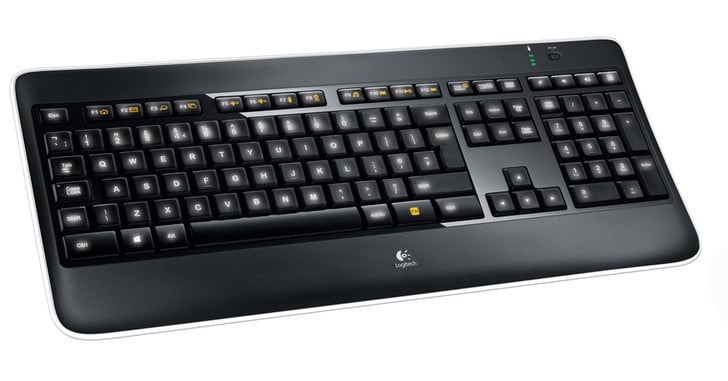
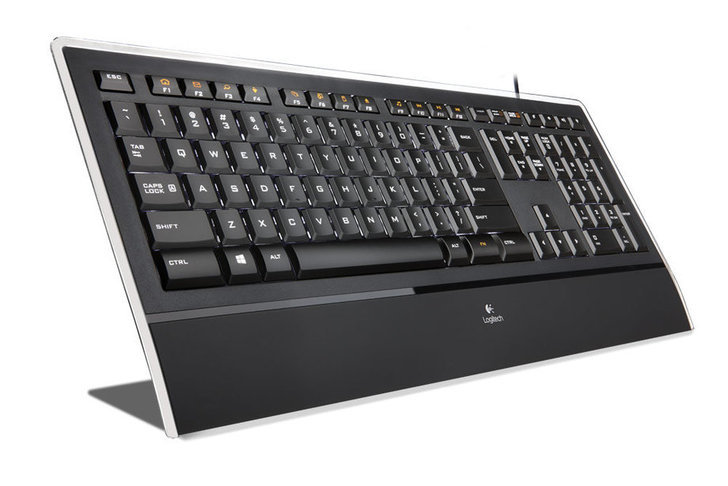
    Logitech K800

    Designed to provide fluid, quiet, and flawless typing, the Logitech K800 wireless illuminated keyboard delivers a brilliant typing experience irrespective of the room lightings.

    The K800 doesn’t have distracting light around the keys. Instead, the characters are laser-etched and only the letters are backlit to provide precise illumination in dark and dimly lit rooms.

    The K800 features a powerful 2.4 GHz wireless connection, eliminating the need for wires.

    It also pairs easily with other Logitech devices via a single Unifying USB receiver.

    No disposable batteries are needed to power the keyboard. The included micro-USB delivers quick charging and a single charge can keep it running for up to 10 days.

    ⇒ Check price

    Azio KB506 Tri-Color Backlit wired keyboard

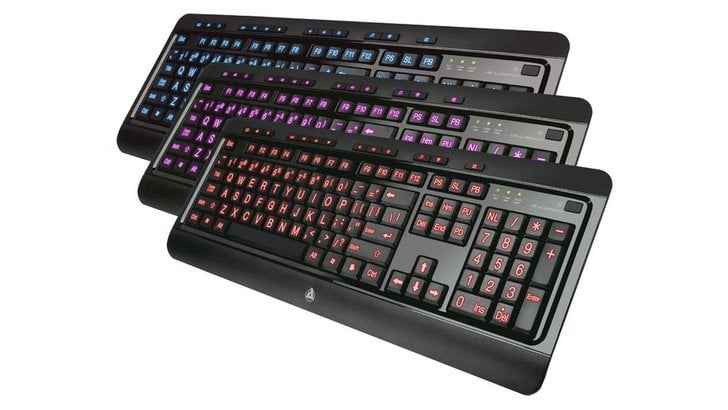
    Azio backlit keyboards

    The Azio KB505U backlit keyboard provides an easy solution for those who seek extra help seeing keyboard keys in low light.

    Unlike in other backlit keyboards, the KB505U comes with large print keys that help to reduce eyestrain and promote productivity.

    It gives the user full control over the lightings and the backlight can be cycled through three different colors (Red, Blue, or Purple) to suit your style or preference.

    It also has an inbuilt multimedia and quick-access hotkeys. The Azio KB505U has garnered more than 3000 positive customer reviews on Amazon, making it one of the top-rated backlit keyboards.

    ⇒ Check price

    Azio Levetron L70 LED backlit gaming keyboard (KB501)

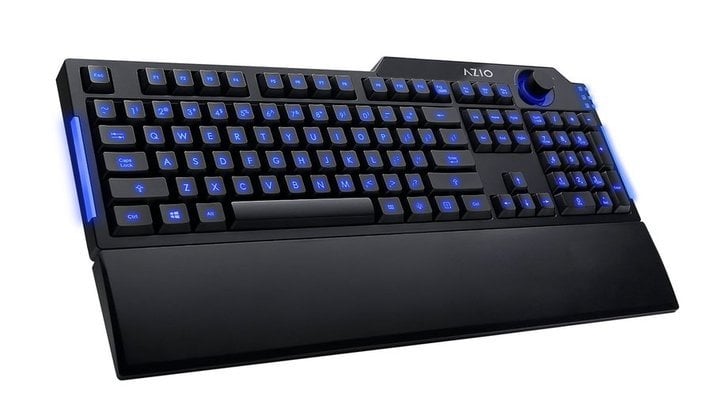
    The Azio L70 gaming keyboard comes with all the features you would want to transform your gaming experience.

    The Blue LED illumination increases visibility in dark rooms and the Multi-key Roll-Over feature ensures that al keys register correctly when gaming.

    It’s one of the few backlit keyboards that come with a volume adjustment knob for quick volume adjustment.

    The knob is strategically placed so you can adjust the volume even without pausing the game.

    Each key has a life cycle of 10 million clicks which is more than you’d need. Other features include Windows start key lock and a detachable palm rest.

    ⇒ Check price

    Logitech K740

    The Logitech K740 comes with bright, laser-etched, backlit keys that provide character illumination needed to give you flawless typing.

    You can manually adjust the brightness with three illumination levels to match your lighting needs.

    Only the characters are illuminated so there won’t be any lighting around the keys that might disrupt you.

    Its sleek design gives it a sense of appeal and the transparent frame makes it look futuristic.

    The keyboard also features Logitech’s exclusive PerfectStroke Key System and a soft-touch palm rest which together makes typing comfortable, fluid, and quiet.

    ⇒ Check price

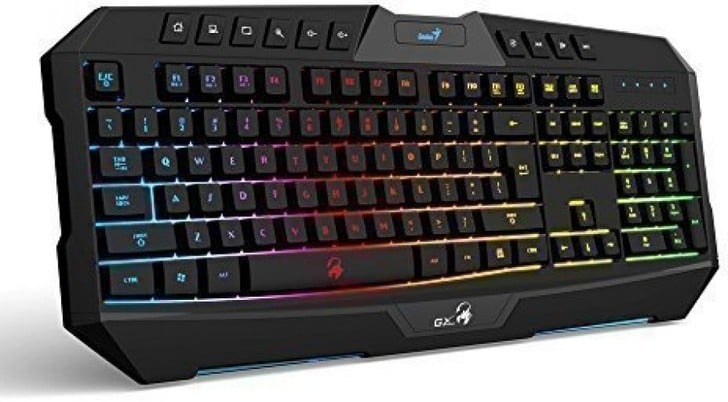
    Genius E-sport LED backlit keyboard

    Also designed for gaming, the Genius E-sport keyboard combines an ergonomic design with spectacular features for gaming enthusiasts.

    It comes with 10 multimedia keys, up to 12 shortcuts key setting, 113 standard keys, and key lock for a seamless gaming experience.

    You can press up to 26 keys without causing the game to crash. The illumination is highly adjustable with 7 colors to choose from and you can also turn the backlit off to look like a normal keyboard.

    Each key has a lifespan of 10 million clicks so it’s designed to serve you for a lifetime.

    ⇒ Check price

    There are two varieties of backlit keyboards that you should know before buying: those that are designed to help you easily see the keys and those designed to have an aesthetic appeal.

    The former category feature keys that illuminate in white light and often the keycaps grow when illumination is activated.

    These are the kinds that are suited for office productivity and you can find them on Amazon.

    The later group of backlit keyboards illuminates with multiple colors and the entire keyboard tends to glow rather than the characters.

    This is a feature you will find in most, if not in all gaming keyboards. Therefore, it is important to define the purpose of the keyboard before buying so that you don’t compromise productivity at the expense of great looks.

    What is your favorite on this list? Do share your choice with us via the comments section below.

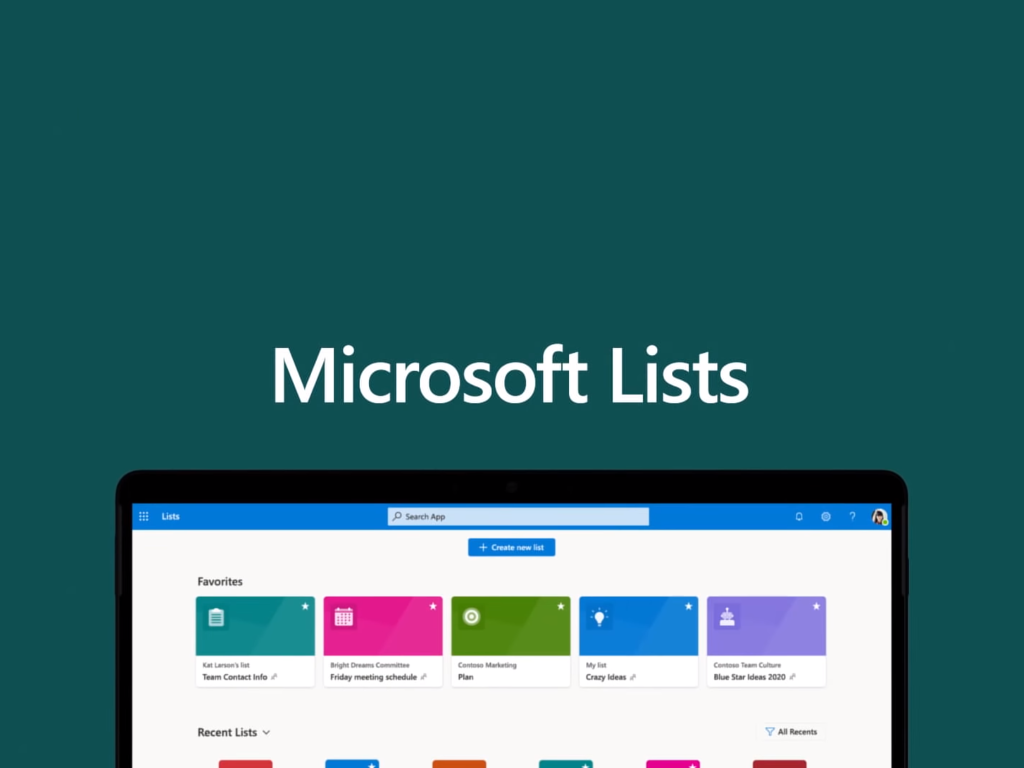
    Microsoft starts rolling out commenting capabilities in Microsoft Lists

    Microsoft is improving the Microsoft Lists experience on the web by introducing new commenting capabilities. The new commenting functionality is now rolling out in Office 365 tenants using targeted release, according to the Microsoft 365 Admin Center.

    Microsoft Lists is one of the newest apps for the Microsoft 365 subscription service that allows users to create, track, and share lists. Now, the company wants to improve its collaboration capabilities by adding the option to add and delete comments on list items. Microsoft says that users will be able to view all comments on a list item or filter between comments or item activity views.

    Screen cap of list home

    When users access a custom list, they should see a new comments pane alongside the list item form by default. More specifically, they will be able to access the new comments pane by clicking the comments icon, as shown above. However, the pane will not be available for Power Apps enabled lists.

    List with comment pane

    It is important to note that users with list edit permission can only add/delete comments, and editing isn’t supported yet with this release. Furthermore, if the new experience gradually rolling out first on the web, the company has promised to bring this option to Microsoft Teams soon.

    7 Largest SSDs To Buy Now

    Are you looking for the largest SSDs to boost your computer’s storage space? These would be a great addition to the PC.

    An SSD performs significantly faster when compared to an HDD, and with storage being the only limitation, getting one of the bigger SSD will help eliminate that! Keep reading to find out the best options!

    What is an SSD?

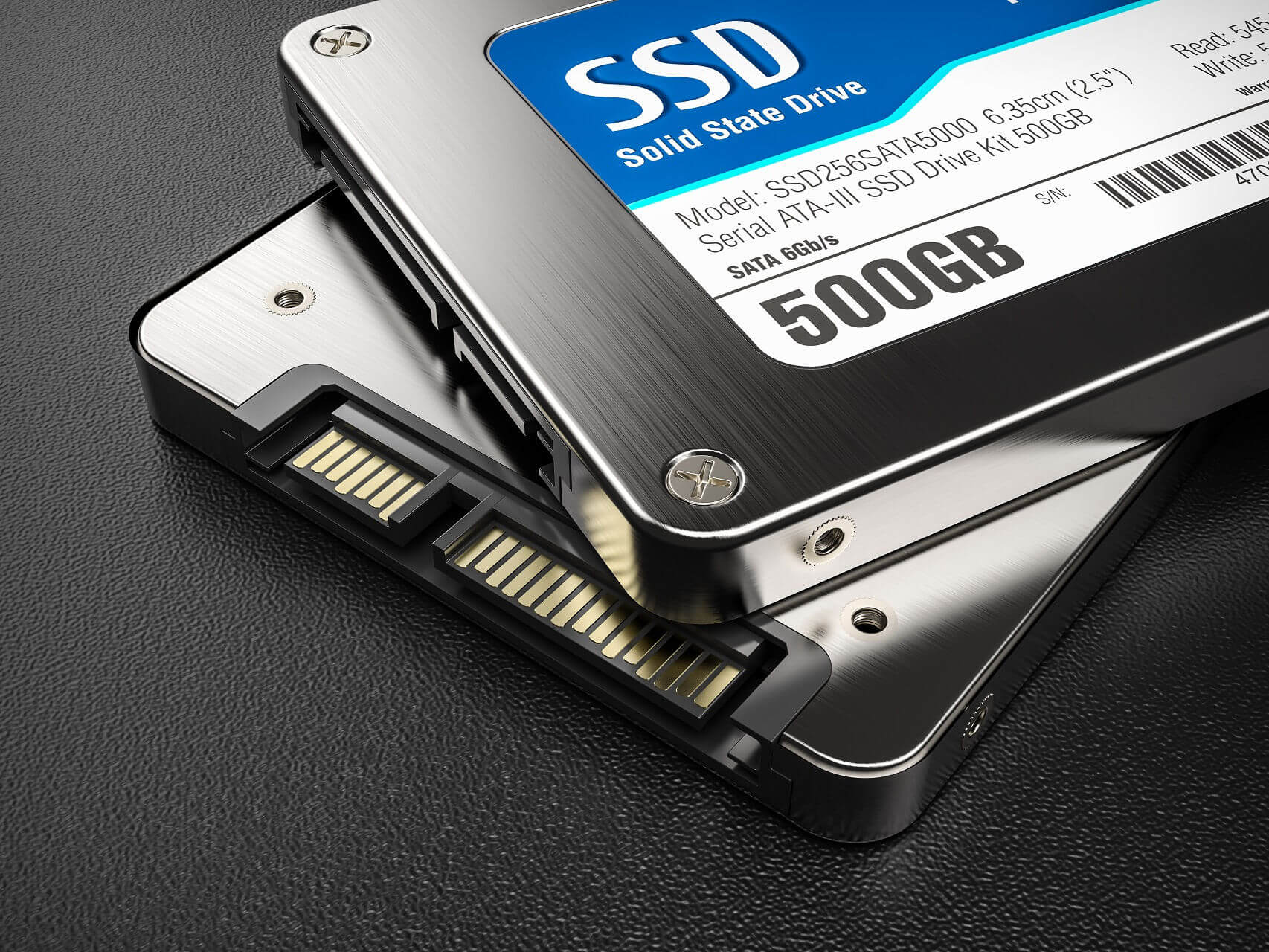
    Solid State Drives, commonly known as SSDs, are a form of computer storage used today as an alternative to traditional and hybrid hard drives.

    An SSD uses semiconductors in its construction, instead of magnetic media like other hard drives, and has memory chips that enable it to retain volumes of information, with or without power.

    What is the difference between SSD and HDD?

    What differentiates SSD from traditional hard drives (HDD) and USB flash drives, however, is their form and capacity.

    USB flash drives are designed for external use, while SSDs are designed to sit internally within the computer instead of using an external hard drive.

    Today, PC users prefer to use SSDs owing to the immense benefits they derive from them. Some of the benefits of SSDs include:

    • High-performance storage.
    • Higher data transfer rates because the SSD reads data instantly without spinning up the drive platter or moving drive heads.
    • Consume less energy/power.
    • A computer with an SSD is much snappier in launching apps and programs, and it also ensures faster boot times.
    • High levels of reliability, because it has no moving parts and most of the storage is in memory chips.

    The downside with SSDsis that they have a limited life span due to the limited number of write cycles available before its cells become redundant, and they’re also costly.

    Users, however, believe this still gives the SSDs a longer span than the normal PC systems.

    What SSD capacity should I get?

    Before we let you in on the largest SSDs you can buy, it’s important to understand the capacity issue to make an informed decision over which one to buy, vis-à-vis your PC or laptop.

    A typical SSD capacity ranges between 64 GB and 4 TB, which, in turn, impacts the drive’s performance, such that two different drives with different capacities will not have the same performance levels.

    As you look through our top picks for the largest SSDs, be sure to check the speed specifications and capacity level so that you can gauge the impact on overall performance.

    What are the best SSDs with high storage capacity?

    Crucial BX500 1TB 3D NAND – Fast and compact

    • SATA 6.0 Gb/s Hardware Interface
    • Micron 3D NAND
    • Compatible with desktops and laptops
    • Great for entry-level gaming devices
    • Not all storage capacity is available for data storage

    This internal SSD has a digital storage capacity of 1 TB with a sequential read speed of up to 2000MB/s. It is shock and vibration resistant and comes with a 3-year manufacturer warranty for peace of mind, making it one of the top-rated largest SSDs.

    There are six versions of this SDD, each with a different storage capacity, from 500GB to 2TB.

    Crucial’s BX500 is a budget option if you wish to incorporate a 1TB SSD without going much higher over your budget.

    Samsung SSD 860 EVO 2TB – Great for encryption

    • High read and write speeds
    • Large storage capacity
    • A 5-year warranty time period
    • AES 256-bit hardware-based encryption
    • More expensive than other SSDs with the same storage capacity

    It can hold 4 TB of data and uses the innovative V-Nand Technology. The device boasts a sequential read speed of up to 550 MB/s and a 520 MB/s write speed performance.

    This makes it ideal for gaming passionates and even for professional computing. The SSD 860 EVO will securely store all your large-sized 4K videos and 3D data used by the latest applications

    SanDisk 2TB Extreme PRO – Best for portable usage

    • Storage capacities between 500GB and 2TB
    • Transfer speed up to 1050 MB/s
    • Pocket size design, easy to transport
    • Lower performance than some other SSDs within the same price range

    The SanDisk 2TB Extreme PRO Portable offers an amazing reading speed of up to 1050MB/s with NVMe technology.

    It comes with up to 2 TB capacity, allowing you to make enough space for all the essential files on your device.

    The high transfer speed will allow you to edit from the drive with few interruptions.

    VectoTech SSD – Ideal for USB-C connection

    • Compatible with gaming consoles and smartphones
    • 3D NAND technology
    • USB 3.1 Gen 2 interface (Type-C connection)
    • High-speed SSD performance
    • Tends to overheat when used for longer periods of time

    This portable external SSD supports lightning-fast data transfer speeds of up to 450Mb/s. If you need a strong SSD, VectoTech SSD is one of the best products on the market.

    It is shock and vibration resistant and comes with a 3-year manufacturer warranty for peace of mind.

    There are six versions of this SDD, each with a different storage capacity, from 128GB to 4TB.

    Crucial MX500 2TB – Great for security purposes

    • 3D NAND technology
    • Integrated power loss immunity
    • AES 256-bit hardware-based encryption
    • The cable is not included in the package

    This SATA Internal SSD supports reading and writing speeds of up to 560/510 MB/s.

    As far as the random reads and writes are concerned, the specs support up to 95k/90k on all file types.

    Another useful feature is that this SSD packs the Integrated Power Loss Immunity, which successfully preserves your files and folders’ work should the power get cut off. AES 256-bit encryption is also supported.

    Sabrent Rocket Q 1TB – Great for laptops

    This NVME 4.0 option, offering 1TB of fast switching data, is among the best on the market.

    It comes with an M.2 PCIe Gen3 x 4 Interface, fully compliant with the standard Next Generation Form Factor (NGFF).

    Its performance speed can reach up to 3200 MB/s (read) and 2000 MB/s (write) with a power consumption lower than the traditional hard drives.

    ⇒ Get Sabrent Rocket Q 1TB

    Samsung 870 QVO-Series – Up to 8TB of storage

    This device has a SATA interface limit of 560/530 MB/s sequential speed, which improves performance.

    Four versions of this SDD are available, each with a different storage capacity, from 1 TB of storage to 8 TB.

    It enhances drive performance by bringing various tools to help you keep up with the latest updates.

    ⇒ Get Samsung 870 QVO-Series

    These are the largest SSD devices we recommend you use to boost the computer’s storage space.

    You might also be interested in consulting our selection of the best external hard drives with cloud access.

    Have you already tested out one of these SSDs? You can let us know about this in the comments section below.

    5 best USB-C mice to buy today

    With the coming if the USB type C connector, most users are really struggling these days to find wireless mice with this USB type and unfortunately this can turn into a challenging task.

    There aren’t so many wireless USB Type-C mice on the market, but we gathered the available ones, and we’re presenting you their key features in order to make your choice much easier.


    What are the best USB-C mice for your computer?

    Best for silence and precision

    • Silent clicks
    • Receivers for regular and USB-C ports
    • Sleep mode
    • Up to 2400 DPI
    • Just one AA battery

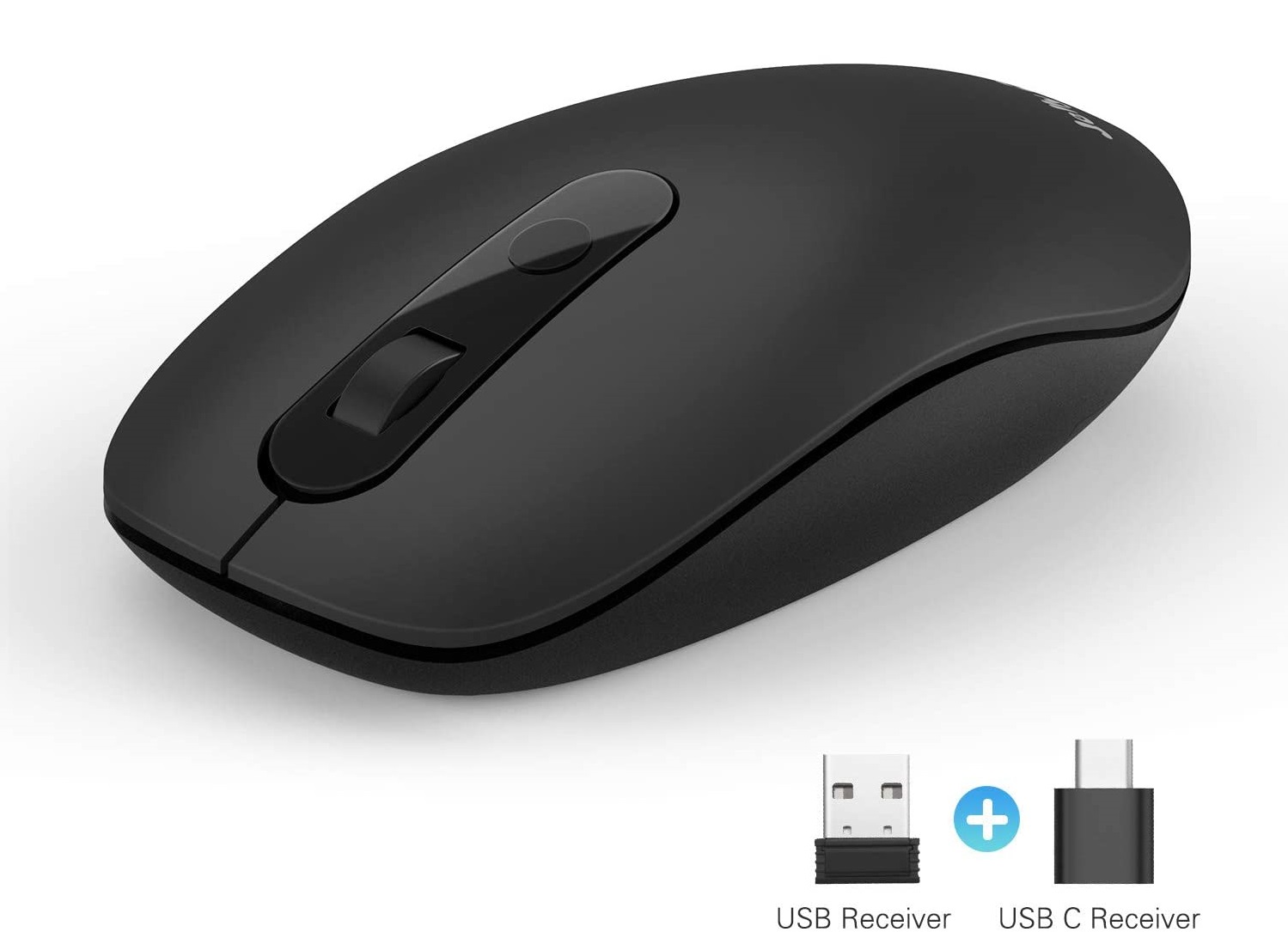
    This wireless mouse can be used on all USB devices but also with USB-C devices because it has both receivers ready so you won’t need any converters.

    The only things you need to do is to power the mouse with an AA battery, then get the wireless receiver from inside the mouse and plug it into the device you want to use it with.

    After that, turn on the mouse, and you’ll find the switch at its bottom. You will have to wait just a few seconds for installing, and you’re ready to use your mouse.

    Check out the best functionalities and features that are included in Jelly Comb Type C and 2.4G Wireless Mouse:

    • This 2.4 wireless mouse offers a powerful and reliable connection of up to 15 m.
    • The USB-C receiver is stored just underneath the mouse.
    • This is not a rechargeable mouse so you will only need a 1 AA battery for the mouse to work.
    • This is a silent mouse, and it has precision clicks.
    • It comes in an ergonomic shape, and it’s comfortable to use wherever you want to.
    • This is a 4 DPI adjustable device with 1000/1500/2000/2400 DPI settings.
    • The use of a battery is not a very eco-friendly approach but it will spare you the hassle to recharge it when it goes dead.

    Best design

    • Dual USB A and USB C receivers
    • Noiseless clicks
    • Ergonomic design
    • Easy DPI switch
    • The low battery led is on the back of the mouse

    This mouse has a really interesting design and it’s very versatile. You can connect both to a standard USB port, as well as a Type-C port.

    This peripheral comes with a useful USB-C adapter that allows you to connect it all all USB-C compatible devices. It is compatible with all the Windows OS versions, including Windows XP.

    The built-in 450mAh rechargeable battery can last up to 500of usage. You can recharge the battery through the USB cable that comes with the mouse. This means that you don’t need to buy a new battery to change the depleted one.

    Check out some of the mouse’s features:

    • The ergonomic design has an anti-fingerprint finish and offers excellent hand support and comfort.
    • Completely silent, there is no sound when pressing the buttons or when using the wheel.
    • Dual-mode with USB-A and USB-C supplied wireless receivers.
    • This mouse weighs only 2.1 ounces (60 g).

    Best for responsive clicks and scrolling

    • Simple, plug & play connection
    • Easy adjustable DPI
    • Adapters included
    • 90% reduced noise
    • Dull design

    The Jelly Comb Type C 2.4G Wireless Computer Mouse is just a regular wireless mouse but it still has a dedicated button for switching between the three possible DPI levels: 1000/ 1600/ 2400 DPI.

    In addition to the regular left and right buttons on the front of the mouse, there are also left and right buttons on the side for easy foreword and backward page navigation for instance.

    Check out the key features that are included in this wireless mouse from Jelly Comb:

    • It comes with five buttons and a scroll button as well.
    • This mouse is made from silky soft material, and this will make it really easy and comfortable to maneuver.
    • This mouse is ergonomically shaped to provide users excellent comfort no matter how long they are using the device.
    • Most users find it effortless to use, and it’s a really appreciated wireless device.

    Best for working from afar

    • 2.4GHz FSK Auto Link technology
    • 1 AA battery included in the package
    • 10 meters range
    • 3 power modes to conserve energy
    • Just 1200 DPI

    The LogiLink ID0160 Wireless USB C Wireless Mouse is another excellent option that you have available these days if you want to purchase a wireless mouse that comes with a USB type C port.

    The LogiLink ID0160 Wireless USB C Wireless Mouse comes with three buttons and a three-position Selector for power saving.

    A possible downside of this mouse is the fact that you can’t select other resolutions than the preset 1200 DPI.

    Check out its best features and functionalities:

    • The range that you’ll be able to use it is about 10 meters.
    • There’s also a USB receiver and an automatic power save.
    • The mouse supports systems running Windows and more.
    • It comes with 2.4GHz FSK Auto Link technology implemented and it has 34 RF channels.
    • LogiLink ID0160 Wireless USB C Wireless Mouse weighs 150 g, and the product’s dimensions are 10.5 x 6 x 3.8 cm.
    • It also comes with 1 AA battery included in the package, and it’s black.

    Best for easy install

    • Up to 1600 DPI optical sensor
    • 2 AAA batteries for high autonomy
    • Only 2.3 ounces (65 g)
    • 33 feet wireless range
    • Big USB-C receiver

    This USB-C wireless mouse is fully compatible with all the devices equipped with a USB Type-C port. There are three DPI values that you can choose from 800/1200/1600.

    The high precision optical sensor supports almost surgical-like movements.

    You can use this mouse from a distance of up to 33ft. This means that you can comfortably sit on the couch and still be able to control your computer from quite a distance.

    This AURTEC mouse doesn’t require any additional drivers, all you need to do is simply plug the receiver in your computer’s USB-C port and that’s it.

    Let’s look at some of its characteristics:

    • Quiet click sounds so you can use it at night without bothering anyone in the house.
    • Comfortable and ergonomic design for extended usage.
    • Extremely light – only 2.3 ounces.
    • Very strong signal; can be used from 33 feet away from the device.
    • Compatible with any PC via the USB-C port receiver.

    These are the three available options for wireless mice that come with USB-C, and after checking out their sets of features and prices, you can make an informed decision that’s best for your needs.

    This specific deal is part of our bigger selection of the best mouse deals you can find. You might also want to check out our dedicated Black Friday hub for tech deals.


    7 best external hard drives with cloud access [Bonus Storage]

    External hard drives are portable alternatives to hard disks that you can connect via a USB port or wirelessly (as is the case with network-attached storage devices).

    Cloud (otherwise web) storage has become a notable alternative to external hard drives as it’s more flexible. However, now there are some external HDDs that provide extra cloud storage and backup options.

    These are some of the external hard drives that will give you cloud access and storage.


    What are the best external hard drives with free cloud storage?

    My Cloud (NAS)

    • Backs up PC and Mac computers
    • Centralized, whole-home storage
    • Mobile and remote web access
    • Can keep content up-to-date across all your computers
    • Centralizes file-sharing hub
    • Tranfer speeds are a bit slow

    The My Cloud is a hybrid NAS drive with five models that provide 2 TB, 3 TB, 4 TB, 6 TB and 8 TB of hard drive storage. As a NAS drive My Cloud provides DLNA support and incorporates a browser dashboard.

    It’s compatible with both the Windows and Mac OS platforms and has a Gigabyte Ethernet interface.

    What sets the My Cloud apart from many alternative external hard drives is its cloud storage apps. My Cloud provides remote file access across a range of devices with its iOS, Android, PC, and Mac apps.

    These mobile apps support established web storage services such as Dropbox, Google Drive, and OneDrive, so that you can transfer content between them.

    The My Cloud app also automatically backs up photos and videos to personal cloud storage.


    Seagate Backup Plus

    • Backs up PC and Mac computers
    • Centralized, whole-home storage
    • Mobile and remote web access
    • Can keep content up-to-date across all your computers
    • Centralizes file-sharing hub
    • Tranfer speeds are a bit slow

    Seagate Backup Plus is a series of external hard drives that have 200 GB of extra OneDrive cloud storage. The Backup Plus Portable has the most storage with its 4 GB and 5 GB models.

    The 4 TB Portable model for Windows and Mac OS X is currently available online.

    All the Seagate Backup Plus HDDs have the free 200 GB OneDrive storage for a couple of years, but that needs to be activated by June 2017.

    You can back up data to cloud storage providers with the Dashboard software for the Backup Plus. With the Mobile Backup app users can also back up content from Android and iOS devices to both the storage drive and cloud service.


    BUFFALO LinkStation 220

    • Compatible with both PC and Mac users
    • Comes with 2 Drive Bays
    • Personal cloud support
    • Built-in BitTorrent client
    • Budget-friendly
    • Not as much storage space as the other entries

    If you’re on a tighter budget but don’t want to miss out on the opportunities presented by technology, then you should go for the BUFFALO LinkStation 220 as your main external hard drive.

    It comes in a small size, and it does a great job at backing up data and syncing it between devices in your house, even if some are Mac and some are PCs.

    Additionally, you no longer have to connect your phones to your PCs to transfer data, since the device also supports both Android and iOS.


    Toshiba Canvio Connect II

    • Comes with password-protected encryption features
    • Comes with a Cloud-enabled backup option
    • USB 3.0 compatibility for ultra-fast transfers
    • Great for file backup and recovery
    • Pocket-sized and easy to carry
    • Should be used as a backup drive and not something more demanding

    The Toshiba Canvio Connect II is a series of external hard drives that enable you to turn a Windows or Mac OX desktop into a cloud server.

    The Connect II HDD storage ranges from 500 GB up to 3TB. You can choose from blue, black, white, satin gold or red Connect II hard drive models.

    The PogoPlus software bundled with the Canvio Connect II enables users to set up a cloud server with the desktop or laptop in standby mode.

    With that program, you can access your files on the hard drive via the web. As a bonus, the hard drive also gives you a free 10 GB of backup cloud storage.


    QNAP N3060

    • Supports encrypted transmissions for extra security
    • Works great with older PCs
    • 2 Drive Bays of 3 TB each
    • Easy to install and control
    • Quite affordable
    • Using it requires an account

    If your only current limitation is not your budget but your present hardware, then the QNAP N3060 is precisely what you need for your older PC.

    This storage device packs a total of 6 TB of storage but does provide lightning-fast transfer speeds that allow backups and syncs to be performed in no time.

    Lastly, the product is also quite affordable, so if you don’t have the budget for an entirely new PC, you can still use the little you have for this great backup solution!


    My Book Duo

    • Comes with 2x 3 TB HDD for extra storage space
    • Protecting your data with multiple backup options
    • High capacity external storage and backup
    • Ultra-fast, optimized data transfer speeds
    • User-selectable RAID 0/1 or JBOD
    • File backup is only limited by the speed of your own PC's HDD

    WD’s My Book Duo external hard drives for Windows 10, 8 and 7 provide substantial 4 TB, 6TB, 8 TB, 12 TB, and 16 TB storages. These are drives that incorporate RAID data management.

    For example, with RAID 1 mirror mode configuration one drive automatically duplicates (backs up) all the data on the other. These hard drives are retailing from $260 up to $600 depending on the size model.

    Jim Welsh, a Content Solutions executive vice president, stated, “My Book Duo offers super-fast transfer speeds, massive capacity, and integrated WD Red drives to provide the ultimate desktop storage solution for all your digital libraries.”

    One of the best things about the My Book Duo HDDs is that they have Dropbox cloud integration. As such, users can back up their Dropbox storage to the Duo hard disk.

    With the hard drive’s WD SmartWare Pro software you can also back up files to Dropbox.


    My Cloud Mirror (NAS)

    • SUpports photo and video backup for smartphones and tablets
    • With an Internet connection, you can access it from anywhere
    • Automatically backs up files from both Mac and PCs
    • Mirror-Mode allows files to be saved twice
    • Allows seamless content syncing
    • Install instructions may not be beginner-friendly

    My Cloud Mirror is another of WD’s personal cloud external hard drives compatible with Windows 10, 8, 7, and Mac OS X. So its cloud options are fairly similar to My Cloud.

    The big difference is that MC Mirror is a duel drive with a RAID 1 configuration. It has 4 TB, 6 TB, 8 TB, and 16 TB models, but remember that the HDD‘s mirroring effectively cuts those storage figures by half with one of the disks backing up content on the other.

    My Cloud Mirror provides remote access to files, and you can access the hard drive content with your phone or tablet. You can use the same My Cloud app as with other WD NAS drives to open files on MC Mirror with a tablet or phone.

    Then users can also transfer files between other cloud services such as Google Drive, Dropbox, and OneDrive. In addition, the HDD also includes Amazon s3 and ElephantDrive cloud backup options.


    Those are a few of the external hard drives that include extra cloud features and storage. The hard drives give you remote file access, extra cloud storage and have handy web backup options.

    So they offer the convenience and flexibility of cloud storage.


    External hard drive potential problems

    More external hard drives appearing, more issues are reported by users.

    In case you have some important data that has been affected by infected files, viruses or malware, you surely will need a good protection. We suggest you check our guide with best antiviruses for external hard drives.

    Also, many users reported that their external hard drive keeps disconnecting in Windows 10. Some specific models also have issues, especially Seagate.

    If you have any permission issues with external hard drives, check out this useful guide.


    Cloud-related useful content

    For all of you, interested in cloud storage and cloud services, here’s a list of the most visited topics on our site:


    That’s it, folks, now you have all the information you might need about external hard drives with cloud storage, their protection, and potential fixes in case you will encounter some issues while using them.

    Lets us know in the comment section which one you have chosen.


    [wl_navigator]

    10 Best Mini PCs of 2026: Most Popular on the Market

    Mini-PCs are small, capable devices that can deliver enough computing power for on-the-go jobs.

    Most users do not need the latest i7 processor teamed-up with 16 GB of RAM, they only need a computer capable of performing basic to medium tasks.

    Compared to regular desktop PCs, mini-PCs are cheaper, they run on less power, have eye-catching design, and don’t take as much space on your desk.

    Mini-PCs can also be customized for specific performance.

    The main downside is represented by the task limitation they impose, with very few exceptions. You cannot use a mini-PC to edit videos of photos because the results will not be satisfying.

    Also, don’t buy a mini-PC to use it to play games, it simply does not have the computing and the graphics power to run games smoothly.

    If you do want a small, portable gaming device, check out this mini-tower gaming PC from MSI.

    What are the best mini-PCs deals?

    HP EliteDesk 800 G6(suggested)

    • Very thin caseu003cbru003ePowerful specificationsu003cbru003eEasy accessibility to output portsu003cbru003eGreat for business apps and more
    • Slightly higher price than other mini PC

    This is definitely not your standard definition of a mini-PC. It is small but is very powerful.

    Powered by an Intel Quad-Core i5-6500T (up to 3.1GHz) processor with 16 GB of DDR4 RAM, HP EliteDesk 800 is a perfect business mini-PC but it can also tackle more demanding apps.

    It doesn’t have a discrete graphics card but it compensates with high storage from a 512 GB SSD.

    Beelink U57 (recommended)

    • Supports two drives (mSATA)
    • 2 USB 3.0 ports available
    • WiFi/Bluetooth combo card included
    • 265 GB SSD included
    • Can be considered a bit thick

    This device is powered by an Intel Core i5-5257U Processor (up to 3.1 GHz). You can also rely on 8 GB of RAM and a 256 GB SSD for storage. And if that’s not enough, you can easily extend it with another 2.5 inch HDD or SSD.  

    For fast data transfer capabilities, it supports dual Wi-Fi and Bluetooth 4.0. It doesn’t have a discrete graphics card but the Intel Graphics 6100 does a pretty good job with most casual purposes.

    Beelink 157 has average dimensions for a mini-PC (8.54 x 5.35 x 2.44 inches) and it weighs only 1.81 pounds / 821 g. 

    CHUWI CoreBox

    • Competitive price
    • Interesting design
    • Good heat dissipation and excellent cooling fan
    • Can be used as DVR
    • Slightly bigger than most mini PCs

    Chuwi CoreBox looks like a fancy desktop PC that was shrunk by some kind of spell. Even so, its dimensions (6.81 x 6.22 x 2.87 inches) can be considered a little too big for a mini PC. 

    This pretend-desktop PC is powered by an Intel Core i5 processor and 8GB of DDR3 RAM. Its included 256GB SSD can be expanded with a 2TB 2.5 Inch HDD.

    As for the connections, you’ve got a 2.4GHz/5GHz dual WiFi/Gigabit Ethernet and Bluetooth 4.2.

    Lenovo Thinkcenter M700

    • Very competitive price
    • Powerful specifications
    • Easy accessibilty to output ports
    • Can be used as DVR
    • Slightly higher price than other mini PC

    Thinkcenter M700 is one of the few mini-PCs equipped with 6th Gen Intel processors for blazing-fast responsiveness.

    Unlike other devices, it has been tested to military specifications against high temperatures, vibrations and shocks.

    This mini-PC will be just fine even if your three-year old drops it to the ground. Lenovo’s dust shield reduces dust intake by nearly 40%.

    M700 is packed with plenty of ports: 6 USB 3.0 ports, DP + DP, LAN, audio ports, and an optional VGA, HDMI. With all these features, you may be wondering how big it is: 1.36″ x 7.20″ x 7.05″ / 34.5 x 182.9 x 179 cm, weighing only 1.3 lbs /0.6 kg.

    Guzila Mini PC

    • Ultra-compact and light
    • 2 HDMI ports
    • Perfect for both office and home
    • 4K video output
    • Small price
    • Not fanless

    This mini-PC is indeed a monster. It is powered by a Quad-Core Intel Celeron J3455 processor (up to 2.3 GHz) with 6 GB of RAM.  

    This tiny box supports 4K resolution output from 2 HDMI ports, has a 120 GB SSD, and supports Gigabit Ethernet and dual-band Wi-Fi. 

    The Guzila Mini PC has average dimensions measuring 8.86 x 6.06 x 2.68 inches and it weighs only 1.72 pounds (780 g) which makes this mini-PC extremely portable. 

    Intel NUC5i5RYK

    • USB 3.0 charging port
    • Crystal clear images
    • Core i5 processor
    • Easy to build into
    • Not recommendable for gaming

    This mini-PC comes with audacious specs for its size.  It is powered by an Intel 1.6 Ghz dual-core i5-5250U processor with Intel Turbo Boost Technology 2.0 which gives you extra GHz on demand and packs 16 GB of RAM – sold separately.

    Images are stunningly clear thanks to its HD Graphics 6000 card. It weighs only 2.2 lbs/1 kilo. The high-speed USB 3.0 charging port allows you to connect and charge your tablet or smartphone.

    AWOW Mini Desktop Computer

    • Perfect for Home Theatre or office use
    • Crystal clear images
    • Micros SD card slot
    • Small price
    • Not recommendable for gaming

    This mini-PC can become an excellent Hoe Theatre PC because it can support 4K output at 30 Hz, more than sufficient for a nice movie experience. 

    However, with its Intel Celeron N3450 processor and 8GB of RAM it can also go on any desk for office jobs. It connects seamlessly to any wireless or wired network with its dual-band Wi-Fi and Gigabit Ethernet port.

    You can also connect lots of peripherals using the 4 USB ports but also the Bluetooth 4.2 connection.

    GUZILA Fanless

    If we were to choose three words to describe this mini-PC, they would be: small, inexpensive, fast.

    The device is powered by an Intel x5-Z8350 processor, and it has 2GB of RAM and only 32 GB. The storage can be upgraded with a Micro SD card up to 128GB, a USB stick, or a USB external drive.

    It’s not the highest configuration in this top but still, this small gadget can throw a 4K image through its HDMI connector. The 3 USB 3.0 ports are also ready to connect your peripherals. 

    Azulle Access3

    Azulle Access3 Mini PC Stick Fanless Windows 10 Pro 4GB RAM + 64GB eMMC Apollo Lake N3450

    If you’re looking for an extra small and fanless mini PC, look no further than Azulle Access3. It’s actually a PC stick and connecting it to the HDMI port of any screen will transform it into a Windows 10 ready PC.

    This small gadget is powered by a quad-core Intel Apollo Lake N34 Series processor that combined with 4 GB of RAM (up to 64 GB!) can get you a great computer in seconds.

    Its eMMC 64 GB included storage is not much but you can add a Micro SDXC card anytime. The fact that you can carry this PC in a pocket can be a great advantage.

    Intel BOXNUC8i7HNK1 Hades

    Kaby Lake-G Core i7, Radeon RX Vega Graphics (8GB RAM + 256GB SSD, No OS)

    The only reason we left this awesome mini PC is because it’s pretty expensive and big for a mini PC. This little monster comes with an Intel Core i7-8705G processor and Radeon RX Vega Graphics. 

    As for the memory and storage, the mini PC is pretty flexible. You can settle for 8GB of RAM and a 256 GB SSD or you can go up to 32 GB of RAM an a 2 TB SSD.

    This rig doesn’t come with a Windows 10 OS but you can install it and it will run just great. The mini PC’s weight is no less than 7 pounds (3.1 kg).

    HP 5DU71UT#ABA Z2 Mini

    This image has an empty alt attribute; its file name is HP-5DU71UTABA.jpg

    This mini PC was designed by HP, especially for CAD users so they packed the performance of a business-class desktop PC in a size that’s 90% smaller. To be more precise, it has an Intel Core i5 8th generation processor (i5-8500) that is helped by 8 GB of RAM (up to 32 GB).

    For storage, the HP mini PC has prepared a 265 GB but the nice surprise comes from the dedicated NVIDIA Quadro P600 graphics. It’s not gaming-grade, but it can do charms for CAD.

    Other great additions are the Intel Wireless-AC 9560 (2×2) Gigabit Wi-Fi and the Bluetooth 5 connectivities.

    Acer Revo Base Mini PC

    This mini-PC was announced at IFA 2016 and has a 14 x 14cm/ 5.1 x 5.1 inch footprint and 5cm/ 2 inches in height.

    Revo Base Mini has a flexible configuration, and can also be powered by Intel Core i7 processors, becoming a genuine powerhouse.

    If you need a powerful PC for home entertainment, this is the right choice for you.

    The Intel HD graphics on board deliver crystal-clear images for the best movie experience in the comfort of your home.

    Windows 10 is pre-installed on the Revo Base Mini, and the 2TB HDD offers you enough storage capacity for you to download as many movies as you wish. A 256GB SSD version is also available.

    In terms of connectivity, this mini-PC has a display port, an HDMI port that can support two screens at once, four USB 3.1 ports, and a LAN cable.

    While all these mini-PCs that we mentioned above are indeed the best, at least in our opinion, there are many others that are being released.

    Have you already tested out one of these mini-PCs? Do share with us your experience.

    7 Best Windows 10/11 LTE Laptops To Buy [2026 Guide]

    A fresh trend is building up among Windows 10 users. More and more users are looking for LTE laptops to use with a data plan. LTE laptops allow users to get a faster connection without necessarily using a tethering route.

    The only problem is that finding the right Windows 10 LTE laptop is not an easy task — such laptop models are rather few and far between.

    For this reason, in this article, we’re going to list the best Windows 10 LTE laptops currently available on the market.


    What are the best Windows 10 LTE laptops?

    Acer Swift 7

    • 14-inch Full HD IPS touchscreen display
    • Thinnest laptop on the market today
    • Ultra-fast and ultra-powerful
    • Sturdy metallic design
    • One-touch login
    • Speakers are not very loud

    Topping off our list is an ultra-slim laptop from Acer called the Acer Swift 7.

    Acer advertises this laptop as being the thinnest and most ultra-portable laptop on the planet, and by the looks of the design, we couldn’t agree more.

    However, looks can be deceiving since this laptop isn’t all among looking sharp, but it’s about acting sharp as well, and that is what you will get thanks to the 7th generation Intel Core i7 processor.

    The build of the laptop is also focused on durability thanks to the metallic frame, so you know this technological wonder was made to last.


    Microsoft Surface Go

    • One of the smallest Surface models
    • Great for daily work activities
    • High-resolution touchscreen
    • Incredibly lightweight
    • Long battery life
    • May have some software issues

    The Microsoft Surface has become a staple in the world of LTE laptops, to the point where the model is almost synonymous with it.

    However, what makes this particular model special is that it is one of the smallest ones in the family yet, and somehow it manages to maintain the same processing power and capabilities.

    With such a petite design, this laptop is excellent for day-to-day activities and even work, especially if it involves simple tasks like browsing or running Office programs.

    Lastly, for all its small frame, this laptop has an incredibly long battery life, of up to 8 and a half hours, allowing you to take it anywhere, and even work on the go.


    HP Envy x2

    • Easy conversion between laptop and tablet mode
    • Sleek design and screen adjustments
    • Magnetic hinge for better positioning
    • Incredible 22-hour battery life
    • Incredibly sleek design
    • The processor could be a bit more powerful

    The HP Envy x2 is a staple of technological advance and what it means to be productive, and in many ways, it seems more like a tablet rather than an actual laptop.

    It comes with built-in 4G LTE, so you always stay connected to the Internet, with or without Wi-Fi.

    More so, the battery life on this device is off the charts, reaching a staggering 19 hours with video playback, so binge-watching your favorite TV show will not be a problem, even on the go.

    Elegance is not ignored either, thanks to the magnetic hinge design that allows better control and a sleeker design of your viewing experience, while the laptop mode makes it worthy of a work laptop as well.


    ASUS VivoBook 15

    • Feels like it was made for long writing sessions
    • 10th Gen Intel Core i5-1035G1 CPU
    • Quite affordable given the specs
    • 15.6 inch Full HD display
    • Weighs only 3.5 pounds
    • Has no optical drive

    When it comes to elegance and design, few manage to create models as beautiful and yet powerful and useful as ASES, and the VivoBook series is a testament to that.

    The screen is a 4-way NanoEdge bezel display with a stunning 88% screen-to-body ratio, allowing stunning video and photo viewing experiences.

    It moves and works fast thanks to the 10th Gen Intel Core i5-1035G1 CPU, and gamers might find its backlit keyboard particularly appealing.

    Connecting devices to this sleek PC will not be a problem, since it also features USB 3.2 Type-C, USB 3.2 Type-A, USB 2.0, and HDMI; Gigabit Wi-Fi 5 (802.11ac) ports and support.


    Lenovo Chromebook Flex 5

    • Great connectivity via Intel Wi-Fi 6 and Bluetooth 5.0
    • Easy access to content thanks to Google account
    • Narrow bezels minimize distractions
    • Lightweight design
    • Flexible design
    • Not as powerful as the other entries

    If you want to know what flexibility really is when it comes to technology, then the Lenovo Chromebook Flex 5 is the right LTE laptop for you, since converting and positioning this model has never been easier.

    This allows you to benefit from both the high-sensitivity touchscreen, as well as the keyboard, depending on what you need most for any given situation.

    Of course, this sleek device isn’t just about looks, it is a combination of performance, connectivity, and entertainment enabled by 10th generation InteI Core processors.

    Lastly, being a Chromebook has its perks, since you can use your Google account to easily access personal files stored on the cloud from any location on the planet.


    Surface Pro LTE

    Microsoft also launched a new Surface Pro model that supports LTE. This device is the perfect mobile computer — you can take it anywhere and benefit from the full capabilities of a regular computer.

    Thanks to its integrated cellular connectivity, you can connect to the Internet even when there is no Wi-Fi network or hotspot available.

    Ultra-portability is one of the words that best describe the Surface Pro LTE. Its 12.3-inch touchscreen display has a 3:2 aspect ratio and the device weighs only two pounds.

    The Surface Pro LTE is powered by a 7th-Gen Intel Core CPU for maximum performance and comes equipped with a built-in modem that supports 20 bands of LTE service.

    It is worth mentioning that LTE functionality is available only on Surface Pro i5/256GB SSD/8GB with LTE Advanced. LTE availability varies by market, so the best approach is to check with your service provider for more details.

    ⇒ Get it now


    Lenovo Thinkpad X1 Carbon

    According to Lenovo, the ThinkPad X1 Carbon is the world’s lightest 14″ business laptop, weighing just 2.6 lbs (1.18 kg).

    At only 0.65 inches (16.5 mm) thin, the ThinkPad X1 Carbon is the right choice if you’re looking for a highly portable device.

    This laptop is also extremely reliable and strong. It’s constructed with satellite-grade carbon fiber and passed nearly a dozen separate military-grade tests—all under extreme conditions.

    It can literally deal with everything you throw at it.

    The ThinkPad X1 Carbon is equipped with 4G LTE-A. Moreover, you can go unplugged for a whole day, as the battery lasts up to 10 hours.

    The device comes equipped with Windows 10 Pro and up to 6th generation Intel i7-6600U with vPro. Also, conference calls and video chats are a snap thanks to the integrated speakers with Dolby Audio, and an HD webcam.

    ⇒ Get it now


    There you go, we hope this list helped you to decide what LTE-ready laptop to buy.

    If you’ve used other LTE laptops that you think should be included on this list, use the comment section below to tell us more about your experience.

    This specific deal is part of our bigger selection of the best laptop deals you can find. You might also want to check out our dedicated Black Friday hub for tech deals.


    Windows 10 news recap: October 2020 Update starts rolling out, Meet Now button available in optional patch, and more

    Welcome back to our Windows 10 news recap, where we go over the top stories of the past week in the world of Microsoft’s flagship operating system.

    Developers can now release Chromium-based PWAs on the Windows 10 Microsoft Store

    Chromium-based Progressive Web Apps (PWAs) can now be listed on the Microsoft Store on Windows 10.

    Microsoft starts rolling out the Windows 10 October 2020 Update

    This week saw the Windows 10 October 2020 Update begin rolling out. The update is rolling out gradually, but some PCs with Conexant audio drivers will not be able to upgrade at this time.

    Windows 10 versions 1909 and 1903 get Meet Now button in the Taskbar with new optional patch

    A new optional patch is available for Windows 10 versions 1909 and 1903, which adds a Meet Now button to the Taskbar, as part of bringing the button to older Windows 10 versions. This button makes it easier to start Skype meetings.

    Skype Meet Now Button In Windows 10 Build 20221

    That’s it for this week. We’ll be back next week with more Windows 10 news.

    5 Best Android Emulators for Low-End PCs [2026]

    Let’s explore the best Android emulator for low-end PCs that have the least requirements but peak performance. The truth is, emulators can be resource hogging, but we find a few options that are viable for older PCs.

    Check them out.

    Which Android emulator is best for low-end PCs?

    • Minimum System Requirements:
      • OS: Windows XP SP3 / Win7 / Win8 / Win8.1 / Win10 / Win11
      • Processor: Intel or AMD Dual Core CPU
      • RAM: 2GB
      • HDD: 36GB of free disk space
      • Graphics: DirectX 11 / Graphics driver with OpenGL 2.0

    Even if your computer or laptop does not hold a lot of hard disk space and impressive processing power LDPLayer will work seamlessly. It offers key mapping controls and a UI that’s the same as your mobile’s.

    Great LDPlayer key features you’re about to enjoy:

    • Custom Control to play with keyboard and mouse
    • High compatibility with the latest games
    • Multiple Instances to play more than one game at a time
    • Macros/Scripts to manage games automatically
    • No fees to worry about
    LDPlayer

    LDPlayer

    Transform your low-end PC into an Android gaming platform with LDPlayer. Countless hours of fun are waiting for you!
    Check price Visit website

    BlueStacks – easy to use and resourceful emulator for Android

    bluestacks interface

    • Minimum System Requirements:
      • OS: Microsoft Windows 7 and above
      • Processor: Intel or AMD Processor
      • RAM: At least 4GB
      • HDD: 5GB Free Disk Space
      • Graphics: Up-to-date graphics drivers from Microsoft or the chipset vendor

    Beyond its very user-friendly interface, BlueStacks has an incredibly wide range of features.

    You can customize how you control your games by using the key mapping feature to assign specific controls to your keyboard and it even works on gamepads.

    Transfering files from your virtual device to your PC is also really easy. Plus, it supports screen recording.

    BlueStacks

    BlueStacks

    Access Android apps and games quickly and hitch free, right from your Windows PC!
    Check price Visit website

    NoxPlayer – wide range of features and minimal resource usage

    nox player interface
    • Minimum System Requirements:
      • OS: Windows XP (32/64bit) / Vista / 7 / 8 / 10
      • Processor: Dual-Core Processor
      • RAM: 1.5GB
      • HDD: 1.5GB Free Disk Space
      • Graphics: Supports Open GL 2.0 and above

    NoxPlayer is one of the best software options for emulating Android games on your Windows PC because of its incredibly wide range of features and fast loading times.

    It was designed for gaming, but you can also explore a wide range of Android apps using it.

    Just like BlueStacks, you can set custom controls in Nox for both keyboards, touchscreen, and game controllers.

    ⇒ Get NoxPlayer

    Droid4X – free Android emulator for older PCs

    droid4x interface
    • Minimum System Requirements:
      • OS: Windows 7/8/10 (32-bit/64-bit)
      • Processor: Dual-Core AMD or Intel CPU
      • RAM: 1GB
      • HDD: 4GB Free Disk Space
      • Graphics: DirectX 9.0c compatible graphics

    Droid4X is another lightweight and lag-free emulator software that can easily run on your low-end Windows PC.

    You can play all Android games on a bigger screen, test and explore apps, watch movies, or listen to music.

    Let’s explore some of its best features:

    • Touchscreen compatibility
    • It allows you to customize your controller or keyboard
    • Record video files or take snapshots of the virtual device screen
    • Download apps directly from the emulator and install them with one click
    • Custom controls of graphic settings
    • Free

    ⇒ Get Droid4x

    Ko Player -lightweight Android emulator for legacy computers

    koplayer interface

    Minimum System Requirements:

    • OS: Windows 7/8/10
    • Processor: Dual-core AMD or Intel CPU
    • RAM: 2GB
    • HDD: 10GB Free Disk Space

    Ko Player is another easy to use Android emulator software that allows you to easily play your favorite games on PC.

    You can explore Ko Player’s great range of apps and games from their official store, or you can download apps and games directly from GooglePlay.

    Let’s explore some of its best features:

    • OpenGL and hardware acceleration support
    • Can be used with multiple accounts
    • Can record your virtual Android device screen and share the gameplay footage
    • Gamepad and keyboard control customization
    • Great quality display on big screens
    • App Center – contains a wide range of apps and games

    ⇒ Get Ko Player

    It is worth noting that the level of efficiency of each of the software presented above will vary according to your system’s configuration.

    If you also run the new operating system on a newer PC, check out our rundown of the best Android emulators for Windows 11 and Windows 10. And if you want a non-intrusive experience, consider checking out the best Android emulators without ads.

    We would love to know what is your favorite Android emulator for PC is that runs on low-spec systems. Feel free to let us know in the comments section below.

    How to delete Win download files in Windows 10 [Full Guide]

    Downloaded files can take up quite a bit of hard drive space. Users typically download software setup files, which accumulate in their Downloads folders. Windows Update also downloads superfluous files to a SoftwareDistribution folder, which wastes even more hard drive space.

    Downloaded Windows Update files and software installers can waste many megabytes, and even gigabytes, of hard drive space. So, it’s worth deleting those download files every few months to free up HDD storage space.

    How do I delete Windows download files?

    1. Manually delete Windows Update download files

    1. Press the Windows and S keys at the same time.
    2. Input services in the search utility.
    3. Click Services to open that window.
      Services window how to delete win download files in windows 10
    4. Right-click the Windows Update service and select Stop.
    5. Open File Explorer by clicking its Windows 10 taskbar button.
    6. Next, enter this folder in File Explorer’s path bar: C:WindowsSoftwareDistributionDownload
    7. Then press the Enter key to open the Download folder shown directly below.
      SoftwareDistribution Download folder how to delete win download files in windows 10
    8. Press the Ctrl + A hotkey to select everything in that folder.
    9. Select the Home tab.
    10. Click the Delete button.
    11. If a File Access Denied window opens, select the Do this for all current items checkbox and click Continue.
    12. Restart the Windows Update service by right-clicking it on the Services window and selecting Start.

    2. Enable Storage Sense to automatically delete files in the user Downloads folder

    1. Enter storage in Windows 10’s search box.
    2. Click Storage settings to open that tab in Settings.
      Storage tab how to delete win download files in windows 10
    3. Click Configure Storage Sense to open more options.
    4. Toggle Storage Sense On.
    5. Then select a suitable option on the Delete files in my Downloads folder if they haven’t been opened for more than drop-down menu.
      Configure Storage Sense how to delete win download files in windows 10
    6. Storage sense will automatically erase downloaded files as configured when HDD space is low. However, you can click Clean Now to do so immediately.

    3. Delete files with a file eraser

    BitRaser File Eraser is a disk clean-up utility for Windows 10 that thoroughly erases files. You can quickly delete Windows download files with Bitraser’s Erase List feature.

    BitRaser supports 17 global data erasure algorithms. You can utilize it to fully erase general files, folders, partitions, software traces, system traces, and browser data beyond recovery.

    This tool can save you a lot of time with its scheduling feature that you can use to set up regular wiping processes. On top of that, the software is able to erase files in bulk at high speed.

    Other useful features of BitRaser

    • Enables users to schedule data erasure tasks
    • Provides certified data erasure reports
    • Wipes unused disk space
    • Generates log reports
    1. To erase Windows download files with that software, click the Home tab on the BitRaser File Eraser window.
    2. Click Add Erasure list on the left of the Home tab.
    3. Select the Add New List option.
    4. Then press the Add Folder button, and click the Browse option.
    5. Select the SoftwareDistribution Download subfolder at this path: C:WindowsSoftwareDistributionDownload
    6. Then click OK after selecting a folder.
    7. Select the Erase Subfolder option, but DO NOT select the Delete folder after erasing contents checkbox.
    8. Click OK to return to the Add Erasure list tab.
    9. Next, click the Save List option, enter a title in the list name box, and press the Save button.
    10. Select the erase list you just saved, and press the Erase Now button.

    Note: Disable the Windows Update service before erasing Windows Update download files with BitRaser.

    ⇒ Get BitRaser

    So, that’s how you can erase Windows download files in the SoftwareDistribution and Users download folders. By doing so, you’ll free up HDD space for software and user files.

    What to do if your PUBG emulator is not working

    PlayerUnknown’s Battlegrounds is the smash-hit battle royale blast ’em up that has taken multiplayer gaming by storm on Windows, Android, iOS, and consoles.

    Tencent even launched an official Tencent Gaming Buddy PUBG emulator for Windows.

    That emulator enables players to play the freely available PlayerUnknown’s Battlegrounds mobile on Windows with keyboard and mouse.

    However, Tencent Gaming Buddy doesn’t always work. Some users have stated that PUBG gets stuck at 98 percent when loading in TGB.

    Consequently, they can’t play PlayerUnknown’s Battlegrounds mobile with the emulator. These are a few resolutions that might fix Tencent Gaming Buddy stuck at 98 percent.

    How to fix PUBG Tencent Gaming Buddy if it’s not working or installing?

    1. Play PUBG mobile with another Android emulator
    2. Turn off antivirus software
    3. Select Integrated Graphics for TGB
    4. Clear the TEMP folder
    5. Select an alternative rendering option

    1. Play PUBG mobile with another Android emulator

    Remember that the Tencent Gaming Buddy emulator isn’t the most stable option when it comes to gaming.

    However, you can still play PUBG mobile with an alternative Android emulator until TGB comes out of beta. LDPlayer simply is one of the best emulators for PUBG and other similar Android games.

    Well, you need to know from the start that it includes plenty of controller customization options. You can even connect a mouse and a keyboard for better control of the game you are playing.

    Moreover, it can be downloaded for free and it is fully compatible with Windows 10, so you simply need to enable the hardware virtualization technology in the BIOS to run the software. 

    LD Player

    Isn’t your PUBG emulator working? Transform your computer into a gaming platform with LDPlayer!

    2. Select Integrated Graphics for TGB

    1. Select the Change default graphics processor option to open the NVIDIA Control Panel.
    2. Click Manage 3D Settings on the left of the NVIDIA Control Panel window.
    3. Click the Program Settings tab.
    4. Select Tencent Gaming Buddy on the Select a program to customize the drop-down menu.
    5. Then select the Integrated graphics option on the preferred graphics processor drop-down menu.
    6. Press the Apply button.

    Some Tencent Gaming Buddy users with NVIDIA graphics cards have confirmed that selecting the Integrated graphics option fixes the emulator so that it loads PUBG.

    Users can select that option on the NVIDIA Control Panel by right-clicking the desktop and selecting Run with the graphics processor.

    3. Clear the TEMP Folder

    1. Open the Win + X menu by pressing the Windows key + X keyboard shortcut.
    2. Click Run to open the window shown directly below.
    3. Then enter %Temp% in Run, and click the OK button.
    4. Thereafter, press the Ctrl + A button on everything in the Temp folder.
    5. Press the Delete button to erase the selected files.

    Clearing the TEMP folder is another resolution that some users have fixed TGB with.

    Erasing files in the TEMP folder will also delete a TxGameDownload subfolder. This is how users can erase the TEMP folder in Windows 10.

    4. Turn off antivirus software

    1. Right-click the taskbar to select Task Manager.
    2. Select the Start-up tab on the Task Manager window.
    3. Select the antivirus utility on the Start-up tab, and then press the Disable button.
    4. Restart Windows after removing the antivirus utility from the startup. Then launch Tencent Gaming Buddy to play PUBG.

    The Tencent Gaming Buddy PUGB emulator not working can be due to antivirus software. Some antivirus software might identify the TGB emulator as malware, which is otherwise a false positive.

    As such, turning an antivirus utility off by right-clicking its system tray icon and selecting a disable or turn-off option might fix the PUBG emulator.

    Sometimes, however, it isn’t always entirely enough just to turn off the antivirus shield.

    If so, try removing the antivirus software from the system startup so that it isn’t running when you launch Tencent Gaming Buddy. Simply use the above steps in that regard.

    Another option is to use a different antivirus solution. Usually, antiviruses don’t interfere with your system and offer complete protection against all emerging threats.

    5. Select an alternative rendering option

    PUBG might not load in Tencent Gaming Buddy when users utilize the emulator with an incompatible game engine setting selected.

    As such, selecting an alternative rendering option in TGB might fix the emulator. To do that, click the menu button at the top right of TGB’s window to select Settings > Engine.

    Then users can select four alternative OpenGL and DirectX options. If you’re not sure what to select, try selecting all the options.

    Users will need to select one of the three alternative options and relaunch the emulator three times.

    As you’ve seen above, there are a few simple things to do when Tencent Gaming Buddy is not installed. You can also consider applying them when facing the following issues:

    • PUBG emulator not working – If that’s your issue as well, make sure to turn off the antivirus software. It could be too intrusive and it interferes with the emulator itself.
    • Tencent Gaming Buddy install is not responding – When bothered by this issue, don’t hesitate to consider another Android emulator.
    • Tencent Gaming Buddy not working – Have you heard of LDPlayer? Give it a go and you’ll see that playing an Android game on your PC can be really engaging and error-free.
    • Tencent Gaming Buddy error report – In case of receiving an error report, the quickest tip involves resetting it.
    • PUBG emulator not working after update – If you want to solve this issue, consider clearing the TEMP folder as soon as possible.

    WhatFontIs Review: What is it And is it Safe to Use

    When it comes to finding fonts, WhatFontIs is one of the most popular choices. However, many are wondering if WhatFontIs is safe to use.

    Today, we’re going to take a closer look at this service, see what it does, and check how safe it actually is.

    What can WhatFontIs do for you?

    • It can identify fonts from an uploaded image using AI.
    • Using the database of over 900K+ fonts, it will find your font.
    • In case your font isn’t found, you’ll get a choice of 60 other similar fonts.

    How do I use WhatFontIs?

    Upload the image using your browser

    1. Firstly, register on WhatFontIs with Facebook or Google.
    2. You may now drag and drop the desired image here, upload a file containing a sample of the font, upload a simple screenshot, or upload the URL of the site using the font.drag and drop
    3. Highlight or draw a new crop box to select only the part of the image with the font you want to identify.
    4. You may now adapt the Contrast and Brightness to make the text more visible, use rotation to align it horizontally and draw lines to split the letters, if necessary. Optimize
    5. Check every image on the right side in order to input the characters accordingly.
    6. Up next, you’ll get a generous list of the closest matching fonts to the one in your image in less than 10 seconds. Just pick out the best match in the results.font options

    As you can see, WhatFontIs includes an intuitive website to search for typefaces. However, there’s also a Google Chrome browser extension that you can install in order to easily right-click on any image and send it to the identifying process.

    This tool knows all about how time-consuming it can be to find high-quality fonts manually, so it literally does the searching in your place.

    Is WhatFontIs safe?

    Yes, WhatFontIs is a safe service, and it’s often recommended in the design community as a reliable source, so feel free to use it without any fear.

    Should I become a Premium WhatFontIs member?

    The premium membership offers the following:

    • Custom text preview that lets you find fonts more easily.
    • Advanced font search with improved accuracy.
    • Suggestions from Google Fonts as a free alternative.
    • No ads.
    • Font filtering by price and foundry.

    If you’re planning to use this service on a regular basis, then you might want to consider investing in a premium subscription.

    ⇒ Get WhatFontIs

    Bottom line, with WhatFontIs, you’ll be able to identify typefaces you’ve seen elsewhere and need to use in your projects.

    In case you’re working with PDF files, we have a great guide on how to identify font in PDF, so be sure to check it out.

    Let us know in the comments area below if WhatFontIs helped you efficiently create stunning designs where fonts work together to create the desired visual impact.

    Phishing attack hits thousands of Microsoft Teams users

    The researchers at Abnormal Security released a report about a recent phishing attempt targeting up to 50,000 Microsoft Teams clients.

    This adds to the statistics that showed increased numbers in this type of cyber-attacks that affected companies in online payment businesses, social media, or productivity services in today’s context of teleworking or homeschooling.

    Considering that Microsoft Teams is the most popular business communication service presently, with over 75 million users reported in spring 2020, it becoming a target for such attacks comes as no surprise.

    How does the phishing scam work on Microsft Teams accounts?

    phishing attack in ms teams

    According to the report, the attackers impersonated an acquaintance of the recipient sending out an email with a subject line resembling an instant messaging notification, announcing new activity on the platform.

    This way, the attackers emailed between 15,000 and 50,000 Teams members, trying to catch their attention and make them hit the Reply in Teams button.

    The body of the email included what appeared to be an instant messenger box linked to a particular workgroup, a request, and the Reply in Teams button.

    Clicking on any of these led to a fake Microsoft login page. The phishing page asked the recipient to enter their email and password.

    In case the recipient went along with the request, the attackers could get their credentials or any personal information stored on the respective account.

    How can I avoid falling for phishing scams?

    Such phishing scams include all the ingredients that make users vulnerable: branded URL, personalized salutation message, convincing design.

    If one doesn’t pay too much attention to the source of such messages, the second most reliable way to prevent scams is using powerful software such as Bitdefender that protects against phishing attempts.

    Bitdefender efficiently filters all incoming email messages, as well as all websites that pose as trustworthy asking for personal information, by blocking them before they can reach the user.

    Bitdefender Antivirus Plus

    Bitdefender Antivirus Plus

    Protect your online activity from any type of cyber-attacks with this top-rated threat-detection software.
    Free trial Visit website

    We truly hope that now you are now better informed on how such attacks work and that you’ll be prepared in case of a phishing attempt on your own device.

    Your feedback on this topic is welcome; use the comments section below.

    [wl_navigator]

    Microsoft releases Windows 10 cumulative update for Dev Channel Insiders to test servicing pipeline

    Microsoft has just released the cumulative update build 20241.1005 (KB4589464) for Dev channel Insiders, which follows the release of the build 20241 on Wednesday. Today’s cumulative update includes no new features as the Windows Insider team is only flighting it to test its servicing pipeline.

    The main new feature in this week’s build 20241 is theme-aware splash screen for UWP apps. This only rolling out to a subset of Dev Channels Insiders for now, and only 14 apps currently support theme-aware splash screens including Settings, the Microsoft Store, and Snip & Sketch. The build 20241 also brought minor changes for the Optimize Drives page in the Settings app, plus a long list of quality fixes.

    We’re now getting used to seeing new Insider builds ship to Dev Channel Insiders on Wednesdays, and we hope next week will be no exception. Microsoft keeps dropping minor new features every week for now, but things may change soon as the next Windows 10 update (21H1) is expected to be more significant than the freshly-released October 2020 Update.

    Emulator for PUBG: 6 Best to Use in 2026

    PUBG (PlayerUnknown’s Battleground) is a popular online shooter game played by millions of gamers every day. The game has evolved over the years with a streamlined mobile version.

    Hence, the mobile version is highly rated by many as it gives almost similar features to the PC version.

    Since the controls are fitted into a small screen, some unintended actions such as firing your weapon while adjusting the player’s position may occur.

    Another disadvantage is the game massively drains your phone battery. It would definitely be better if you could simulate the mobile gameplay on a better device such as your Windows PC.

    This is possible if you use an emulator, there are several emulators available for Android.

    Word of warning before using a PUBG Mobile emulator

    Many of these emulators come with limitations and may not be compatible with some games and apps. This means that you may experience some technical issues after installing them.

    In most cases, we’re talking about emulator launch issues, black screen issues, game freezes, and so on. Proceed at your own risk.

    Also, don’t forget to update your Windows computer, disable GPU  and CPU hogging apps and program, and clean boot your computer. These quick tips will help you to reduce the chances of encountering game bugs.

    Which are the best Android emulators for PUBG mobile?

    LDPlayer

    Identifying the very best emulators for PUBG mobile that you can use on PC isn’t an easy task. However, LDPlayer clearly is a top choice.

    This Android emulator for Windows 11 easily recreates the Android OS that you love and lets you enjoy it on top of Windows. Even if you’re a PUBG fan, do note that you can open several games simultaneously.

    Since LDPlayer supports a variety of high-performance mobile games that you can play on a computer, it might come a day when you’ll like to try something different as well.

    Moreover, it offers several built-in tools that are extremely beneficial to game players, including APK support, keymapping, and custom control to connect keyboard and mouse as per your choosing.

    Key features that LDPlayer brings to the table:

    • Intuitive UI for all users
    • Multi-functional design
    • Excellent keyboard mapping controls
    • Multi-instance sync
    • Updates on a monthly basis
    • No fees are required to install this emulator

    ”LDPlayer”

    ”LDPlayer”

    ”Transform
    ”Download”
    &aff_sub2=Native” current_url=”true” button_text=”Visit website” image=”https://windowsreport.com/wp-content/uploads/2020/10/LDPlayer_logo-210×160.png”]

    BlueStacks

    Bluestacks

    BlueStacks is a popular Android emulator with millions of users. However, there have been a lot of complaints about recent releases despite this it gives quality and reliable service.

    The emulator is developed for easy access mimicking the interface of an Android tablet.

    Meanwhile, this emulator for PUGB Mobile comes in both free and paid versions. Although, the free version is ridden with ads you get an ad-free experience with the premium version.

    Bluestacks would run your PUBG Mobile game smoothly. You can also use the option of the gamepad as it enables the integration of different gamepad features.

    In addition, you can also download apps and games or install standalone APK files. The emulator has one of the largest compatibility with games and applications.

    Lastly, BlueStacks is an excellent emulator that gives you an edge to run a large number of games most especially PUGB.

    BlueStacks

    BlueStacks

    That’s a great emulator for PUBG mobile. It is compatible with Windows OS, so do give it a try!
    Download Visit website

    NoxPlayer

    NoxPlayer

    This is one of the best emulators for PUGB Mobile available right now. This software enables you to load apps downloaded outside the Play Store on your PC.

    You can enjoy PUBG gameplay using your PC gamepad. The emulator also enables you to map out keys or buttons to perform Android functions.

    In addition, this software utilizes the stock version of Android which is developed mainly for gaming. This is to be expected as many people use emulators for gaming.

    You can also install various apps as well. The emulator is free to use which is cool.

    There are also many extra features such as screenshot and video recording options. These features can be found from the toolbar at the right end of the window.

    Hence, NoxPlayer6 is a recommended emulator to use for PUBG Mobile as you get fast gameplay and gamepad features.

    Runner Up
    nox player logo
    • Windows compatible
    • Supports gamepad/keyboard
    • x86 and AMD compatible

    Memu

    Memu emulatorMemu Emulator is one of the few new emulators that have managed to become popular. The emulator is popular for its wide features that make gameplay easy on PC.

    The emulator can enable virtualization for your PC and it also gives great performance for integrated and dedicated graphics.

    In addition, Memu has a great deal of keyboard mapping features that can be customized for your PUBG Mobile gaming needs.

    The emulator enables the installation of APK files from the Play Store or copying the APK app or games on the emulator window.

    Also, there are other extended features on the Memu emulator making it a good choice for PUGB gamers.

    ⇒ Download Memu now

    Tencent Gaming Buddy

    Tencent BuddyThis is one of the best emulators for PUBG Mobile on Windows PCs. This emulator is specially developed for PUBG Mobile.

    According to Tencent-PUGB game publisher, the emulator was developed as a result of complaints by gamers concerning touchscreen controls on mobile devices.

    Meanwhile, Tencent Buddy enables you to play PUBG on your PC with controls fully optimized to improve gameplay.

    The main benefit of this emulator is that PUBG controls are properly mapped on to your keypad and mouse.

    You can pick from among various layout which is best for you. Also, you can switch from keyboard control to mouse control easily.

    In addition, this software utilizes great system resources; however, you get quality gameplay framerate with excellent graphics.

    Hence, you may need to lower your graphics settings when using the emulator on low-end computers.

    Tencent Gaming Buddy is an excellent emulator as it gives specific attention to PUBG mobile with excellent features.

    ⇒ Download Tencent Gaming Buddy now

    Apowersoft Android Recorder

    Apowersoft Android RecorderApowersoft Android Recorder is a software that cast/stream your Android screen to your PC. Hence, you can stream your screen activities on your PC in real-time.

    This is good for PUBG as you would have a better gaming experience unlike other emulators, where there are issues running PUGB smoothly.

    Also, there are features like screenshot and screen recorder; this enables you to take screenshots and also record your gameplay on your Windows PC.

    ⇒ Download Apowersoft Android Recorder now

    Conclusively, the emulators we mentioned above are applicable for PUGB Mobile gameplay. As you can see, answering the question What is the best PUBG Mobile emulator? is not an easy task.

    All the emulators listed above come with their specific strong points. For example, if you own a low-end computer, you should install Tencent.

    However, keep in mind that won’t be the fastest possible emulation experience.

    On the other hand, if you want to enjoy a lag-free PUBG Mobile experience, you should install LDPlayer.

    We would love to get feedback from you on which emulator you use for your PUBG needs. Feel free to comment below.

    [wl_navigator]

    Xbox head Phil Spencer discusses TV streaming sticks and new Xbox Game Pass tiers

    After a year of beta testing, Microsoft officially launched its cloud gaming service (Project xCloud) on Android devices last month, making it free for all Xbox Game Pass Ultimate members. Xbox cloud gaming remains in beta in its 22 launch markets, but Microsoft is already planning to bring it more platforms beyond Android.

    In the near future, Windows 10 PCs, iOS devices, and Samsung Smart TVs should support Xbox cloud gaming, but Xbox head Phil Spencer recently discussed the opportunity for Microsoft to launch its own Xbox streaming sticks as well. Spencer’s complete interview with Stratechery is behind a paywall, but The Verge shared the most interesting bits earlier today.

    “I think you’re going to see lower priced hardware as part of our ecosystem when you think about streaming sticks and other things that somebody might want to just go plug into their TV and go play via xCloud,” Spencer said in the interview. “You could imagine us even having something that we just included in the Game Pass subscription that gave you an ability to stream xCloud games to your television and buying the controller.”

    The idea of an Xbox streaming stick isn’t exactly new, and we first heard about it four years ago ahead of the launch of the Xbox One S. We later learned that Microsoft ultimately decided to cancel the streaming stick codenamed “Project Hobart,” though this was two years before Microsoft announced its “Project xCloud” game streaming service.

    Spencer hinted that Microsoft could include an Xbox streaming stick with Xbox Game Pass subscriptions, and Google did something quite similar with its Stadia Founder’s Edition bundles that coupled a Stadia Pro subscription with Chromecast streaming sticks. In the same interview, the head of Xbox actually mentioned the possibility of a new “Xbox Game Pass Platinum” tier that would include access to new Xbox hardware.

    If Microsoft is really launching its own streaming sticks, it would be interesting to see what kind of software the new devices would run. However, it may just be easier to continue working with partners to bring Xbox cloud gaming to more platforms including smart TVs, as well the Android-based Amazon Fire TV sticks and Google’s different Chromecast devices.

    Microsoft did something quite singular by launching Xbox cloud gaming first on Android devices, while both Google Stadia and Amazon Luna are also available on TVs and PCs via a web browser. However, the company opted for the right business model by making cloud gaming a free Xbox Game Ultimate perk, with new games supporting cloud gaming every month. Over 100 Xbox Game Pass games are currently playable on Android devices, and 11 of them are now playable with touch controls.

    There’s a new media remote for the Xbox Series X console though your old one will work fine

    PDP is releasing a new media remote (via WC) for Microsoft’s upcoming Xbox Series X and Xbox Series S video game consoles and it’s now available to pre-order from Amazon and other retailers.

    The new PDP Media Remote for Xbox is set for release on November 5th and will work with both the current Xbox One generation of consoles and the next gen Xbox Series X and S. It can be used to power on or off an Xbox, control volume, navigate media apps such as Netflix and Disney+, and control media playback.

    The remote is also officially licenced by Microsoft and features motion-activated backlit buttons.

    While this new remote’s design is pretty cool, it’s worth mentioning that current Xbox One media remotes will also work with the Xbox Series X and S so there’s no need to upgrade if you already have one.

    Microsoft’s Larry Hyrb today confirmed via Twitter that both the Series X and S have IR receivers so the current accessories should work fine. “Xbox One Media Remotes will continue to work with Xbox Series X|S as part of our commitment that you can bring your existing accessories forward with you,” Hyrb said in his tweet.

    This news should please quite a few Xbox One console owners who enjoy using the remote though it may frustrate Kinect fans once they find out that Microsoft added an IR receiver to the next gen consoles to support the media remote though wouldn’t add support for the Xbox One Kinect sensor which just needs a USB port (with the adapter), something the Xbox Series X and S each have two of.

    Do you use the Xbox media remote? Will you buy this new one? Are you frustrated with the lack of Kinect support? Share your thoughts with the community in the comments below and then follow us on Pinterest and Twitter for more Xbox gaming news.

    Microsoft Forms survey and quiz tool is now free to use for all users

    Microsoft’s relatively new survey and quiz-creation tool, Microsoft Forms, officially launched today and is now available to use either on the web or via an Office mobile app.

    Anyone can use Microsoft Forms though a Microsoft account is required for the creation of quizzes and surveys. The tool is free to use though Microsoft 365 Personal and Microsoft 365 Family subscribers are provided with more design templates and can increase the number of respondents that can complete their creations.

    Interested in creating a quiz or survey with Microsoft Forms? You can do so via the Microsoft Forms website here. Here’s one I threw together in less than a minute.

    Have you created a Microsoft Forms survey or quiz? Let us know what you thought of the service in the comments below and then follow us on Twitter and Pinterest for more Microsoft news.

    Microsoft Flight Simulator game code hints at possible Xbox Series X VR support

    References to a possible upcoming Xbox VR service have been spotted in the code for the Windows PC version of Microsoft Flight Simulator.

    The code was first spotted by a Flight Simulator forum user by the name of Cygnifick and was subsequentially confirmed by WC. The code in question contains references to PC_VR and Scarlett_VR, the former obviously referring to the confirmed upcoming support for VR on the Windows version and the latter strongly suggesting potential VR support for an Xbox console, likely the Xbox Series X.

    The Scarlett codename had previously been used to refer to both the Xbox Series X and Xbox Series S consoles while they were in development so the connection is very strong. What’s unknown is whether Scarlett VR could be an Xbox-branded virtual reality accessory or service along the lines of Sony’s PlayStation VR or maybe just added support for a Windows Mixed Reality headset.

    It’s also possible that this is just something that Microsoft is experimenting with and has no plans to take any further. If Microsoft was planning to bring VR to Xbox consoles, Microsoft Flight Simulator really would be the killer app to launch alongside it.

    Microsoft’s Phil Spencer spoke about VR on the Xbox Series X as recently as February this year. He confirmed that there were currently no plans for VR on Xbox at the time though said that that could change if more gamers began demanding it.

    Would you like to see virtual reality support come to the Xbox Series X or other future Xbox consoles? Let us know why or why not in the comments below and then follow us on Pinterest and Twitter for more Xbox gaming news.

    Bluetooth L2CAP interface has a driver problem [Solved]

    Users are getting the error message Reinstall device driver:  There is a problem with the driver for Bluetooth L2CAP Interface. Reinstalling the driver might fix this problem.

    Unfortunately, if the L2CAP driver has become faulty then certainly the entire system trustworthiness is also jeopardized which makes fixing the issue a priority.

    In this article, we will take a closer look at how you can solve this error and we recommend that you follow our recommendation in the same order as we have listed them.

    How can I fix the L2CAP interface driver problem?

    1. Use a third party software

    If you get a Bluetooth L2CAP Interface driver error, then checking and installing the correct drivers is essential.

    Using a dedicated software that will do this automatically would be recommended, as it will avoid installing the wrong ones.

    There are many versions of Bluetooth Interface drivers out there, and it’s important to make sure the appropriate one is being downloaded.

    With a professional driver updater, you will download the correct driver which will avoid any permanent damage to your device by downloading and installing the wrong driver version.

    2. Update the driver manually

    1. Go to Device Manager and select the Bluetooth driver.
    2. Right-click on the Bluetooth driver and select Uninstall.
    3. Next, go to View and select Check for hardware changes to install the latest Bluetooth driver.

    3. Run the Bluetooth troubleshooter

    1. Go to Start and select Settings.
    2. Next, select the Troubleshoot option.
    3. In the Fix and find other problems section select Bluetooth.
    4. Click on Bluetooth and select the Run the troubleshooter option.

    4. Run the Windows Update Troubleshooter

    1. Go to Start and select Settings.
    2. Next, select the Troubleshoot option.
    3. In the Get up and running section select Windows Update.
    4. Click on Windows Update and select the Run the troubleshooter option.

    Note: If everything is working with your Bluetooth device and you have updated it, you can run an Update Troubleshooter.

    Microsoft delivers new drivers through Update almost every day, and if your Update service doesn’t work properly, you’ll be unable to receive a driver update for your Bluetooth device.

    There you have it. We hope that one of the solutions listed above helped you solve the Bluetooth L2CAP Interface problem.

    As you could see, the issue can be solved very easily by updating either the Bluetooth driver or updating your Windows.

    If you have additional suggestions or recommendations, please let us know in the comments section below.

    [wl_navigator]

    VDI vs VPN: Which one is better & main differences

    If you’re not exactly new with using PCs and, most importantly, networking techniques, you might’ve heard about VPN and VDI. Granted, VDI is not as popular as a VPN, but it’s still pretty well-known, especially for teleworkers.

    In our guide, we’ll help you understand the main differences between these remote access technologies, as well as decide which one is better for your current needs.

    What is a VPN?

    A VPN, short for Virtual Private Network, is a technology that helps you connect to a specific network remotely if you have Internet access. Most VPNs enforce security measures, so as to prevent unauthorized connections to the network.

    Once you’ve established a connection, you’re basically inside the physical network without actually being there.

    You can access various network resources, such as files, and even devices by using a VPN connection.

    VPN could also refer to the popular anonymization tool, which is used to keep your connection secure and identity private while you’re online.

    You just run the VPN client, connect to a server, and that’s it. The VPN encrypts your traffic and routes it through its secure network of servers.

    There’s a common confusion between corporate VPNs and consumer-grade VPNs (such as Private Internet Access), but in this article, we’re only going to focus on the former.

    What is VDI?

    Virtual Desktop Infrastructure (VDI) is a technology that can grant you access to a virtual desktop through a centralized server. VDI users are granted access to identical applications, managed by a system administrator.

    Therefore, using a VDI is like having a dedicated server that hosts several virtual machines. Each hosted machine can be configurated separately by its owner (who reserved the machine).

    VDI Virtual Desktop Infrastructure

    It’s widely different than a VPN, which only grants you access to the network it’s configured on. A VDI also allocates resources to you, aside from the fact that you can access the corporate network through the virtual desktop you’ve been assigned.

    How are VPNs and VDIs different?

    While using a VPN, you establish a secure connection through a pre-configured server. Depending on the system you’re using, you may or may not need additional software to establish the secure VPN tunnel. Windows 10 has built-in VPN support, for instance.

    VDI, on the other hand, provides you with a customizable virtual station that runs independently from other virtual machines on the same server. Having dedicated resources for each machine can greatly boost security and performance, but it also costs more.

    Is VDI better than VPN?

    Depending on your needs, you may consider one service or the other. However, you can’t really compare the two on a fair basis, since they’re different types of service (apples and oranges).

    While VDI excels, a VPN might not do so good, and the other way around. For instance, setting up a VDI may take a long time, whereas deploying and configuring a corporate VPN server can be done in less than a day.

    Furthermore, setting up and maintaining a VDI is significantly more expensive than a VPN.

    As far as security goes, a VDI can be more secure than a VPN if configured properly. You can restrict VDIs from allowing data leaks outside the corporate network, whereas VPNs can only protect tunneled data.

    Employees can copy company data (depending on permissions and privileges) on their local PC. Thus, it’s easy to see how a careless (or rogue) employee, can easily leak this sensitive information (with or without will) long after disconnecting from the VPN.

    Performance-wise, VPNs are somewhat limited, since they highly depend on the client device and connection quality. If you’re using an old device and your connection is not exactly fast, your VPN connection might be awful to work with.

    VDIs, on the other hand, are allocated separate resources, and only depend on bandwidth usage. As far as processing power goes, VDIs clearly have the upper hand.

    To put it shortly:

    • VDI is significantly more expensive to deploy than a VPN
    • VPNs can facilitate data leaks if clients are not careful enough
    • VDIs are generally faster than VPNs
    • It would be easier to deploy security patches to VDIs than to VPN devices on the network
    • VPNs highly depend on client hardware, whereas VDIs use dedicated resources on the server
    • A VPN can be slower than a VDI since it depends on both client hardware and connection quality
    • It is easier and less expensive to maintain a VPN server
    • With VDIs, applications and data remain on the virtual machines
    • Using a VDI requires no complicated configuration, as it can be accessed even through your web browser
    • VDI runs on a broad variety of devices, whereas VPNs may have certain compatibility issues

    Final thoughts on VDI vs VPN

    All things considered, VDIs and VPNs are both great technologies that can come in handy especially if you’re a remote worker, or if you have remote-working employees.

    Each service type has its strength and weaknesses, so it’s crucial to understand what sets them apart before making your choice.

    However, VDIs are generally more fit for big companies that can afford the investment, whereas VPNs cater more to the needs of small enterprises.

    [wl_navigator]

    New Windows 10 20H2 build for Insiders brings Meet Now button to the Taskbar

    Windows Insiders on the Release Preview ring can download a new patch for the Windows 10 October 2020 Update. This is the 20H2 Build 19042.608 (KB4580364), which will also roll out to Windows Insiders on the Beta ring later today.

    The only feature in this new build is the new Meet Now button in the Taskbar, which will let users quickly set up a video meeting on Skype. This Meet Now button should roll out to all users with next month’s Patch Tuesday, and Microsoft is also bringing it to Windows 10 versions 1909 and 1903.

    The 20H2 build 19042.608 also brings various bug fixes, and you can find the full list of changes and quality updates below:

    • Earlier this year we introduced Meet Now in Skype. Meet Now makes it easy to connect with anyone in as little as two clicks for free and each call can last up to 24 hours. Today, we’re excited to share that we will be extending this capability in Windows 10 by bringing Meet Now right to the taskbar. In the coming weeks, you will be able to easily set up a video call and reach friends and family in an instant by clicking the Meet Now icon in the taskbar notification area. No sign ups or downloads needed.
    • We fixed an issue with using Group Policy Preferences to configure the homepage in Internet Explorer.
    • We gave administrators the ability to use a Group Policy to enable Save Target As for users in Microsoft Edge IE Mode.
    • We fixed an issue with untrusted URL navigations from Internet Explorer 11 by opening them in Microsoft Defender Application Guard using Microsoft Edge.
    • We fixed an issue that occurs when using the full suite of developer tools in Microsoft Edge for remote debugging on a Windows 10 device.
    • We fixed an issue that displays nothing on the screen for five minutes or more during the Remote Desktop Protocol (RDP) session.
    • We fixed an issue that prevents certain Windows Virtual Desktop (WVD) users from searching for files using File Explorer.
    • We fixed an issue that causes a device to stop responding after you have been using a pen for several hours.
    • We fixed an issue that causes an application to stop responding temporarily, which causes extra z-order operations that affect the Topmost property of a window.
    • We fixed an issue that might cause DDE apps to stop working.
    • We fixed an issue that causes the ImmGetCompositionString() function to return the full-width Hiragana when using the Microsoft Input Method Editor (IME) for Japanese instead of returning the half-width Katakana.
    • We fixed an issue that occurs when you first sign in to an account or unlock an existing user session using Remote Desktop Services (RDS). If you enter an incorrect password, the current keyboard layout changes unexpectedly to the system default keyboard layout. This keyboard layout change might cause additional attempts to sign in to fail or lead to account lockouts in domains with low account lockout thresholds.
    • We fixed an issue that displays the incorrect CPU frequency for certain processors.
    • We fixed a performance issue that occurs when PowerShell reads the registry to check if the ScriptBlockLogging registry key is in the registry.
    • We fixed an issue that randomly changes the time offset of the time format returned by the command exe OS Get localdatetime/ value.
    • We fixed an issue that prevents Microsoft User Experience Virtualization (UE-V) from assigning the Microsoft Outlook Signatures.
    • We fixed an issue that prevents Hybrid Azure Active Directory joined devices from updating portal information when a device name or Windows version changes.
    • We fixed an issue that might prevent the Smart Cards for Windows service from starting.
    • We added a new Microsoft Event Tracing for Windows (ETW) provider named “Microsoft-Antimalware-UacScan”. This ETW provider reports the details of the context for each User Account Control (UAC) request in the ETW provider manifest.
    • We fixed an issue with virtual private network (VPN) connections that use Secured Password (EAP-MSCHAP v2) for authentication and have enabled the “Automatically use my Windows logon user name and password” property. When you connect to this type of VPN, an authentication dialog box incorrectly prompts for your credentials.
    • We now display Recovery Partitions in the diskpart utility.
    • We fixed an issue that causes stop error 0xd1 in sys. This issue occurs when moving certain arrays from one cluster node to another.
    • We fixed an issue that causes the IAutomaticUpdatesResults::get_LastInstallationSuccessDate method to return 1601/01/01 when there are no active updates.
    • We added support for the Transport Layer Security (TLS) 1.1 and 1.2 protocols when connecting to SQL Server using the data providers in Windows Defender Application Control (WDAC).
    • We fixed an issue with SQL Server that might cause performance issues if you configure a Linked Server provider to load out-of-process.
    • We fixed an issue that might degrade Windows performance and prevent the LanmanServer service from starting when third-party software uses LanmanServer custom file system controls (FSCTL).
    • We fixed an issue with deduplication that causes long wait times on Resilient File System (ReFS) Cluster Shared Volumes (CSV).
    • We fixed an issue that might prevent some applications from behaving correctly. This occurs when you publish them as Remote Application Integrated Locally (RAIL) applications using Remote Desktop Services (RDS) and change the docking for an AppBar
    • We fixed an issue with a deadlock in the Transmission Control Protocol/Internet Protocol (TCPIP) driver that causes the operating system to stop working or stop responding.
    • We fixed an issue that causes the Routing and Remote Access Service (RRAS) to stop responding for new connections. However, RRAS continues working for existing connections.
    • We fixed an issue that causes the RRAS administrator Microsoft Management Console (MMC) to stop responding randomly when you are performing administrative tasks or at startup.
    • We fixed an issue with starting Windows Subsystem for Linux 2 (WSL2) on ARM64 devices that occurs after installing KB4579311.

    Microsoft started rolling out the Windows 10 October 2020 Update on Tuesday, but not all Windows 10 users will be able to immediately download it from Windows Update. It’s still possible to install the Windows Update manually, and joining the Release Preview ring is one of them. You can learn more about the other methods on our dedicated post.

    How to change region code on DVD [Windows 10 & Mac]

    Movie DVDs have regional codes assigned to them. Those region codes block users from playing film discs with DVD players that don’t have matching codes. A wrong region error message will pop up on your PC when you try playing a DVD with a disc drive that doesn’t match its region code.

    There are six geographical region codes for continents and more specific countries. For example, region code 6 is for China. So, your DVD player will need to be configured for region 6 to play discs with China’s regional code.

    You can change the region codes for DVD drive players on both Windows and Mac PCs. However, you can only change disc drive regional codes on five occasions.

    How do I change the DVD region in Windows 10 and Mac?

    1. Use WinX DVD Ripper

    WinX DVD Ripper is software that effectively enables users to change protected DVDs to a region 0 for region-free playback by ripping their content to various video file formats. Thus, this is software that can decrypt regional encryption blocks on DVDs.

    WinX DVD Ripper is highly-rated software for ripping DVD content as it incorporates level-3 hardware acceleration for faster disc ripping to a wide variety of output formats. You can utilize it to rip videos from DVDs for PC, mobile phone, tablet, Xbox, PSP, and HDTV output formats.

    In addition, it includes video-editing options for trimming and cropping clips. In this way, you have more control of your DVD content and specific regions of your disc.

    With this helpful tool, users can as well add subtitles to videos. That means every time you need to translate or just add a subtitle in your movies, you’re a click away.

    Lastly, it’s worth mentioning that it supports all types of DVDs (MP4, HEVC, MKV) and enables 1:1 disc to ISO image cloning.

    Follow these steps to change the DVD region settings

    1. To remove a regional DVD code with WinX DVD Ripper, insert a regionally coded disc into your DVD drive.
    2. Open the WinX DVD Ripper software.
    3. Click Disc at the top left of the WinX DVD Ripper window.
    4. Select your source DVD, and click the OK option.
      Select source window How to change region code on dvd
    5. Click General Profiles on the left of the Output Profile window.
      Output Profile window How to change region code on dvd
    6. Select the MP4 Video or an alternative format option (depending on your OS).
    7. Next, click OK to continue.
    8. Press the Browse button to choose an output folder for the ripped video.
    9. Press the Run button to rip the video from its disc. Then you can watch the ripped region-free output video in a media player.

    2. Use the OS built-in tools

    Windows

    1. Right-click Windows 10’s Start menu button and select the Device Manager option.
    2. Double-click DVD/CD-Rom drives to open that category.
    3. Double-click your DVD drive to open the window in the snapshot directly below.
      General tab How to change region code on dvd
    4. Select the DVD Region tab shown directly below.
      DVD Region tab How to change region code on dvd
    5. Select a country on the DVD Region tab. The New Region box will display the regional code for your selection.
    6. Click OK to confirm your selection.

    Mac

    1. Insert a DVD with regional code into your Mac’s disc drive. The Drive Region window below will open if the inserted DVD has a different code to your disc drive.
      Drive Region window How to change region code on dvd
    2. Then select the matching region for your DVD code with the Change drive region option.
    3. Press the Set Drive region button.

    Note: When you’ve changed the disc drive’s region a maximum number of five times, DVDs with incompatible regional codes will be automatically ejected after inserting.

    So, that’s how you can change your DVD drive’s region code to play discs from five alternative regions. When you’ve changed your disc drive’s region code five times, you’ll need software like WinX DVD Ripper to bypass regional codes for DVDs.

    How to remove MindSpark adware from Chrome [Windows 10]

    MindSpark is an annoying adware that interferes with your regular user experience.

    This software often hijacks your browser, directing you to various websites in order to fuel their advertising revenue.

    Usually, MindSpark installs on your computer alongside free software. Actually, many popular download websites use this method, bundling MindSpark within the custom installer. In this manner, MindSpark is installed during the software setup process.

    MindSpark modifies the default browser settings, altering the search settings. It can also change your browser’s loading time and behavior so as to block competing software.

    Other unwanted effects may include: your homepage changes,  new tab settings are added, untrustworthy websites keep popping up, pop-up, pop-under, and in-text ads invade your browser, etc.

    To regain control over your browser, follow the steps listed below.

    How do I remove Mindspark in Chrome?

    1.Use Bitdefender

    remove Mindspark

    Bitdefender detects and removes not just adware that’s interfering with your user experience, but any kind of unwanted malicious attack.

    The tool identifies annoying adware installed on your PC, removing any unwanted apps, hijacker programs, toolbars, or browser add-ons.

    Bitdefender first scans your computer for adware and then marks suspicious apps for removal.

    The tool conveniently includes an optimization feature, as well, that you can use to boost your device’s performance by freeing up space and decluttering your system.

    If you don’t want to go with the full device protection solution, Bitdefender also has a dedicated Adware Removal Tool that you can purchase from Bitdefender’s website. 

    Bitdefender Antivirus Plus

    Bitdefender Antivirus Plus

    Adware can affect your browsing experience, but with Bitdefender you're safe from any type of online attacks.
    Free trial Visit website

    2. Use Malwarebytes 

    how do i remove Mindspark


    Malwarebytes is a handy free tool that removes adware, potentially unwanted programs, browser hijackers, and other similar invaders.

    The tool also removes obnoxious programs, improving PC performance.

    Malwarebytes has a really light footprint, it doesn’t require much space to install and is very silent, running in the background.

    Most importantly, Malwarebytes is compatible with Windows versions, starting  Windows 7 SP1 and higher.

    The basic version of Malwarebytes is free and offers unparalleled malware detection rates. Nevertheless, for real-time protection, you have to go for the premium product version.

    Similar to the previous solution, Malwarebytes also has a dedicated anti-adware tool  – AdwCleaner – that you can download for free from the official website, in case you only want a one-time solution.

    Malwarebytes

    Malwarebytes

    Choose Malwarebytes to benefit from real-time efficient protection against the most deceiving adware.
    Free trial Visit website

    3. Use SpyHunter

    spyhunter adware removal


    SpyHunter is a useful malware detection software that isolates spyware, trojans, rootkits, ransomware, keyloggers, and other similar malicious codes.

    SpyHunter offers an additional scanning option, allowing you to custom-tailor the tool to fit your needs. The software scans all the apps, programs, and files stored on your computer and then lists the malware and adware detected.

    The exclusions feature allows you to block SpyHunter from scanning certain programs.

    There is one important downside when using SpyHunter: the free version of the tool only detects malware.

    In order to remove malware and adware, you need to buy the software. There is no doubt that SpyHunter does a wonderful job of removing untrustworthy software from your computer, but you can do that using free tools.

    ⇒ Download SpyHunter


    4. Use Microsoft’s Malicious Software Removal Tool

    malicious software removal tool

    Microsoft offers Windows users a dedicated Malicious Software Removal Tool (MSRT) to keep computers free from malware.

    Microsoft’s malware removal tool detects and removes malware, including adware, reversing the changes made by untrustworthy software.

    After the tool has scanned your computer and removed threats, it displays a report that lists the threats.

    Microsoft rolls out the MSRT on a monthly basis through Windows Update. You can also download the standalone tool from Microsoft’s website.

    We also have a guide on how to deal with Waisheph Chrome malware, so don’t miss it if you’re having additional problems.

    Have you used other adware removal tools that you think we should add to this list? Let us know in the comments below.

    How to zip multiple folders into separate files [Full guide]

    Sending large files over email has gotten a saving boat with all the zipping and compressing tools out there.

    Now it’s easier than ever to ensure that your message will reach the recipient without loosing hours on end trying to send each file separately.

    Sometimes, due to organizational requests or any other reasons, you may need to zip multiple folders into separate ones.

    It does sound like a tedious process and a bit time consuming but it does not have to be.

    In this article, we will show you some really easy ways to do this, so keep on reading.

    How can I zip multiple folders into separate files?

    1. Give WinZip a try

    There are several tools out there that will allow you to zip multiple folders into separate files and using the best one for your needs is key.

    We have tested them all and based on the results and the features it comes with, we would like to recommend you give WinZip a try.

    Splitting large files should not take a lot of time and with this tool, it will be easier than ever.

    WinZip allows you to split zip files in just a few seconds without having to do complex steps.

    Steps to zip folders into multiple files:

    1. Open Winzip.
    2. From the WinZip file pane select the file you want to split.
    3. Next, click Add to Zip and make sure to select the Split option.
    4. Indicate where you want your zip files to be saved.

    As you can see above, there are four easy steps to follow in order to split zip folders into multiple ones.

    WinZip though, does do more than just split files. It comes with other great file management features such as zipping and unzipping or repairing Zip files.

    If you are concerned about privacy, know that with WinZip you can easily password protect all your files and folders without having to worry about data leaks.

    In case you need to compress images or videos without loosing quality, then again, this is your best tool to choose.

    All in all this amazing tool comes with features that will help you manage your files easily.

    WinZip

    WinZip

    Split, archive, unzip, store and share all your major files format with this amazing software. Get the best deal now!
    Free trial Visit website

    2. Use Command Prompt

    1. Make sure that all the files or folders you want to be zipped are moved into a single location.
    2. Create a new text file named zipall.cmd.
    3. Copy inside the cmd file the following information and run it: for /d %%X in (*) do "%ProgramFiles%7-Zip7z.exe" a "%%X.zip" "%%X"

    With this command your files should be zipped into separate files.

    There you have it, these are the steps you need to make in order to zip multiple files into different folders.

    As you can see, you can do it manually, which could be a bit more time consuming or you can anytime choose to use a dedicated tool and have the job done within seconds

    You can also package files into a standalone executable for easier sharing, and you can learn how to do that in this guide on creating a self extracting archive.

    In the comments section below you can tell us which one you found the easiest.

    [wl_navigator]

    How to use the Alt+Tab shortcut after Windows 20H2 update

    One of the novelties that Microsoft introduced along with the Windows 10 October 2020 update is a new functionality for the Alt+Tab shortcut.

    Namely, if until now the Alt+Tab hotkey allowed you to switch between multiple running apps or tasks, starting version 20H2 the multitasking panel will also include your open Edge tabs.

    According to Microsoft, much of what has been implemented in this update was as per users’ feedback. However, the users are now confused about the mentioned multitasking feature.

    Or, as one user puts it on the official Microsoft Edge forum:

    My problem is Edge appear so many tabs when I press Alt+Tab.

    Luckily, there’s also a little trick that you can use to customize the Alt+Tab hotkey behavior after this update.

    How can I see only a few tabs when using the Alt+Tab shortcut?

    switch tabs desktop
    1. Open the Windows settings.
    2. Choose System.
    3. In the left pane, go to Multitasking.
    4. Look for the option that says Pressing Alt+Tab shows… and open the drop-down menu.user alt tab after windows update
    5. Here, choose from one of the options:
    • Open windows and all tabs in Edge
    • Open windows and 5 most recent tabs in Edge
    • Open windows and 3 most recent tabs in Edge
    • Open windows only.

    And this should do the trick and limit the number of tabs you see when using the Alt+Tab shortcut.


    Alt+Tab shortcut not working at all in Windows? Here are 7 handy solutions.


    Mind that apart from this kind of confusion after installing the latest Windows 10 update, a lot of users reported various issues.

    On this note, you might find useful our exhaustive article that tackles some of the blockers reported on the forums so far as well as useful fixes.

    What’s your take on the updates that Microsoft has implemented in version 20h2? Tell us in the comments section.

    [wl_navigator]