Have you recently noticed that the password sign-in icon has suddenly disappeared from your Windows 11 lock screen?
If yes, Microsoft has confirmed that it’s a bug triggered after installing the August 2025 non-security preview update (KB5064081) or later updates on Windows 11 24H2 and 25H2.
While you can’t see the password icon, you can still sign in — surprising, right? Apparently, the icon is invisible, but it’s still clickable. Microsoft notes that when you hover your cursor over the blank space where the icon should be, it will reveal the hidden password icon.
After you select the placeholder, you will see the password text field as usual, allowing you to sign in normally. Under normal behavior, Windows only shows the password option when more than one sign-in method is available, such as a PIN, fingerprint, security key, or password.
For now, that’s the only workaround available. Microsoft says it’s actively working on a fix but hasn’t provided a release timeline. Until then, users dealing with the missing icon will have to rely on the “invisible button” trick to log in with a password.
Were you able to sign in using the suggested trick? Do let us know in the comments below. Also, we’ll update this article when Microsoft releases a patch to fix this weird bug.
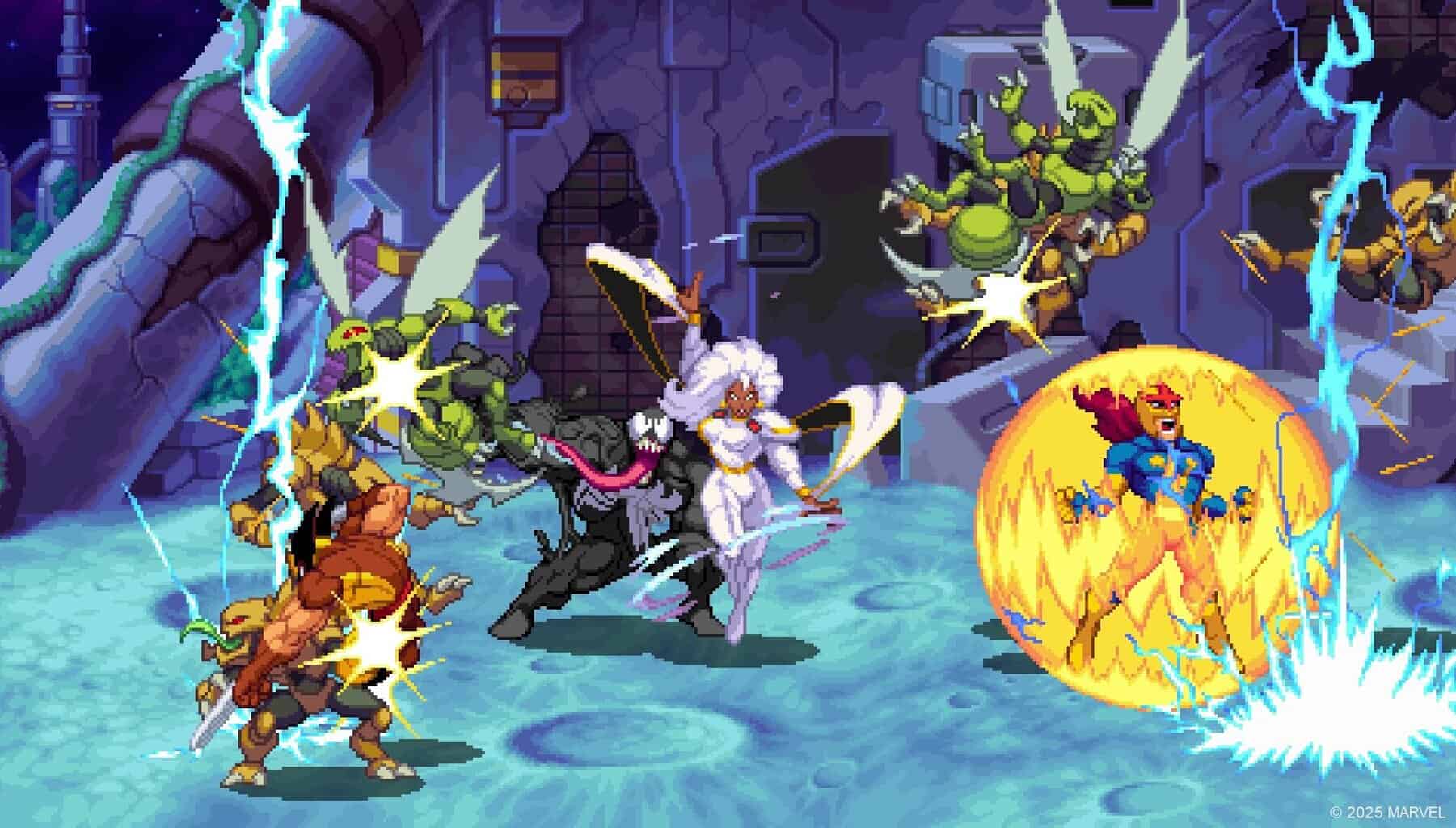
Microsoft has announced its full lineup of games launching on Xbox Series X|S, Xbox One, and PC between December 1 and 5. The upcoming week brings a mix of major releases, retro remasters, horror titles, roguelites, platformers, and family-friendly picks. Some if the botable titles coming next week on Xbox include Marvel Cosmic Invasion, Octopath Traveler 0, Routine, and Blood: Refreshed Supply.
You can check the complete day-by-day release schedule of every game confirmed for next week:
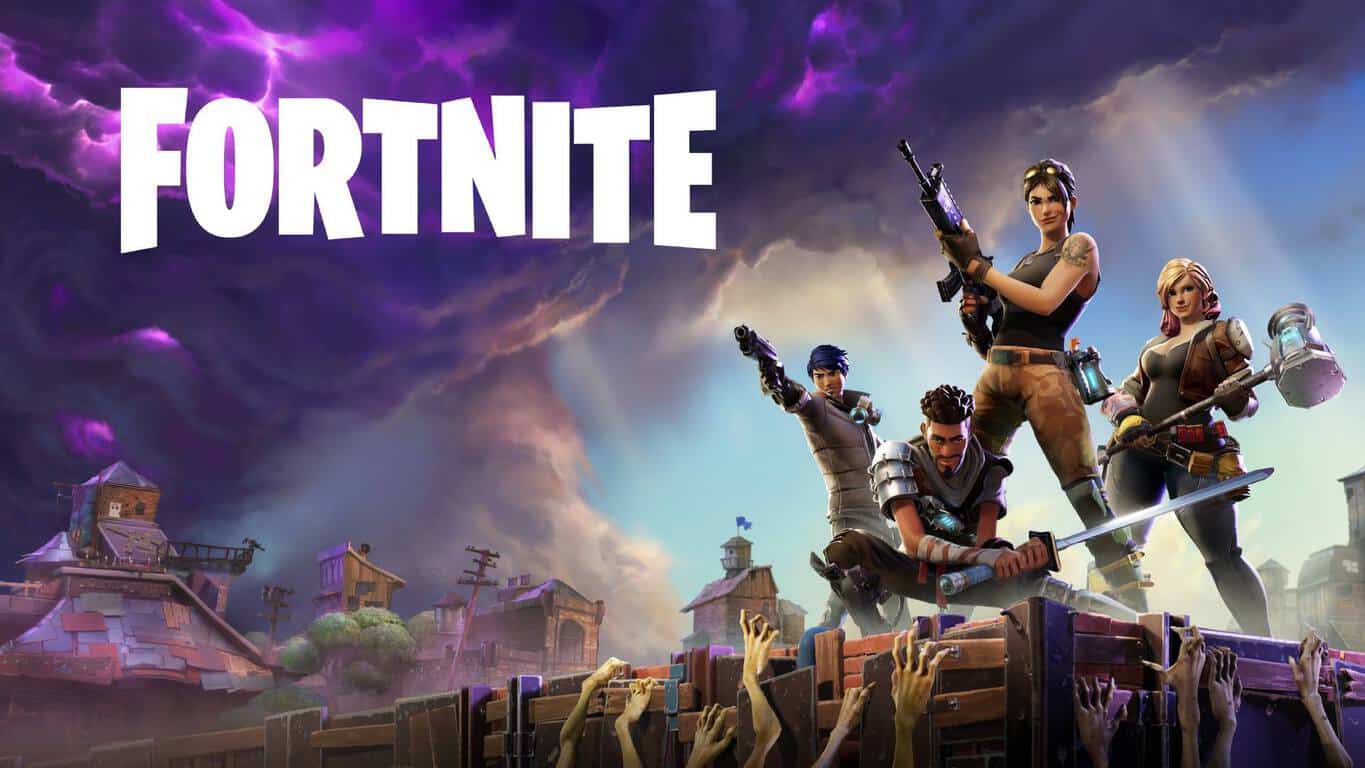
Fortnite is gearing up for a finale you won’t forget. The Zero Hour live event will kick off within hours, marking the end of the Simpsons mini-season and Chapter 6, and stage for the launch of Chapter 7 after a brief downtime.
As announced by Fortnite, you’ll come across gigantic Homer Simpson, a colossal donut flying through the sky, Godzilla and King Kong duking it out, and The Bride from Kill Bill tearing across the battlefield. It’s Fortnite at its wildest.
Image: Fortnite
When does Fortnite’s Zero Hour even start?
Well, here’s the schedule so you don’t miss a second. The fight begins in Fortnite Zero Hour on November 29 at 2 PM ET. Check the converted time zones below:
11 AM PST – West Coast, United States
2 PM EST – East Coast, United States
7 PM GMT – United Kingdom
8 PM CET – Western Europe (Germany, France, Spain)
4 AM JST (Nov 30) – Japan
6 AM AEDT (Nov 30) – Australia (East Coast)
9 PM IST – India
1 PM SAST – South Africa
4 PM BRT – Brazil
How to join the Fortnite Zero Hour event
Launch Fortnite and go to the Discover section in the main menu. Look for the Zero Hour banner at the top, select it, and get ready. Server delays are common for live events, so it’s best to enter a little early. Once the event wraps, Fortnite will enter a short downtime before Chapter 7 officially begins, promising new maps, fresh mechanics, and another round of chaos for players worldwide. This finale is your last chance to see the Simpsons in action before they disappear from the island.
If you keep up with Big Tech news, you may know that Google had lodged a complaint against Microsoft in the EU, alleging antitrust practices. Well, that complaint has now been dropped by Google. The news comes a week after the EU initiated a probe into Microsoft’s cloud computing practices to see if it was at fault.
To catch you up, Google, last year, officially filed a complaint with the European Commission that Microsoft’s anticompetitive practice has restricted customers to the Microsoft Azure cloud platform. In a new update to Google’s September 2024 statement, Giorgia Abeltino, Head of Government Affairs & Public Policy for Google Cloud Europe, noted:
We filed our antitrust complaint with the European Commission (EC) to give voice to our customers and partners about the issue of anticompetitive cloud licensing practices. Today, we are withdrawing it in light of the recent announcement that the EC will assess problematic practices affecting the cloud sector under a separate process. We stand behind the arguments outlined in the blog below, and we continue to work with policymakers, customers, and regulators across the EU, the UK, and elsewhere to advocate for choice and openness in the cloud market.
The probe is reportedly due to end in a year, afterwhich the regultor will decide whether Microsoft can be considered as gatekeeper under the DMA act. If found guilty, the company may have to follow multiple orders. Speaking of complaints, Microsoft also recently got away with an antirust complaint filed by French search engine Qwant.
France’s antitrust regulator has dismissed the case saying Qwant failed to provide “elements sufficiently convincing” to support its allegations. However, Qwant has said that it will appeal in courts and with other regulators.
Google Authenticator for Windows helps you secure logins with time based codes on your PC. This guide shows simple ways to set it up with safe and reliable tools.
Google does not offer a native Google Authenticator app for Windows. You can still use compatible code generators that support the same standard.
1. Use the Google Chrome Extension
This option adds a secure code generator inside your browser.
Open Chrome and visit the Chrome Web Store.
Search for Google Authenticator or a trusted TOTP extension.
Select one that supports local code generation.
Click Add to Chrome.
Open the extension.
Scan the QR code with your webcam or paste the setup key.
Save your configuration and test a login.
You might see sign in errors if a service rejects your time based codes. When that happens, issues often resemble the problems described in the Microsoft Authenticator wrong code troubleshooting guide, since both tools rely on the same TOTP standard.
2. Use Windows Authenticator Apps That Support TOTP
Several Windows apps follow the same open standard as Google Authenticator.
Download a trusted Windows TOTP app like WinAuth.
Install and launch the app.
Add a new authenticator entry.
Scan the QR code or type the secret key.
Save the entry.
Test a login with the generated code.
Windows based authentication tools can also experience connection or sync failures. If your app refuses to load or refresh codes, you can compare symptoms with the Microsoft Authenticator app not working analysis, since many underlying causes apply to all TOTP apps.
3. Sync Google Authenticator Codes With Your PC
You can sync existing Google Authenticator codes using multi device support.
Open Google Authenticator on your phone.
Sign in with your Google account.
Enable cloud sync in the settings.
Log into the same Google account in Chrome on your PC.
Use a TOTP extension to manually add synced keys.
Test a login to confirm correct setup.
If you prefer an alternative to Google Authenticator while setting up your PC environment, you can review the Microsoft Authenticator app download guide for a quick comparison of available options.
Use Google Authenticator Codes on Windows
1. Add Codes From Your Services
Most services let you add the same QR code to more than one device.
Visit the 2FA settings page of your account.
Enable an authenticator app.
Scan the QR code with both your phone and Windows app.
Enter the displayed code to verify.
2. Keep Codes Safe
Local Windows apps store secrets on your machine, so you should secure them properly.
Set a strong Windows password.
Turn on Windows Hello or biometric login.
Store recovery codes offline.
Avoid syncing TOTP apps with untrusted cloud services.
FAQs
Can I install Google Authenticator directly on Windows
No. Google does not publish a desktop version, but you can use compatible TOTP apps and extensions.
Can I use Google Authenticator without my phone
Yes. Windows based TOTP apps generate the same codes.
Are Windows authenticator apps safe
Yes when you choose reputable apps and protect your PC with strong security.
Do I need internet for Google Authenticator codes
No. TOTP codes work offline because they use a shared secret and the current time.
Google Authenticator for Windows works through secure TOTP extensions and desktop apps instead of a native Windows client. You can add codes through your browser, use a dedicated Windows authenticator or sync your Google Authenticator entries from your phone. These methods help you protect every login with reliable two factor authentication and give you flexible access across all your devices.
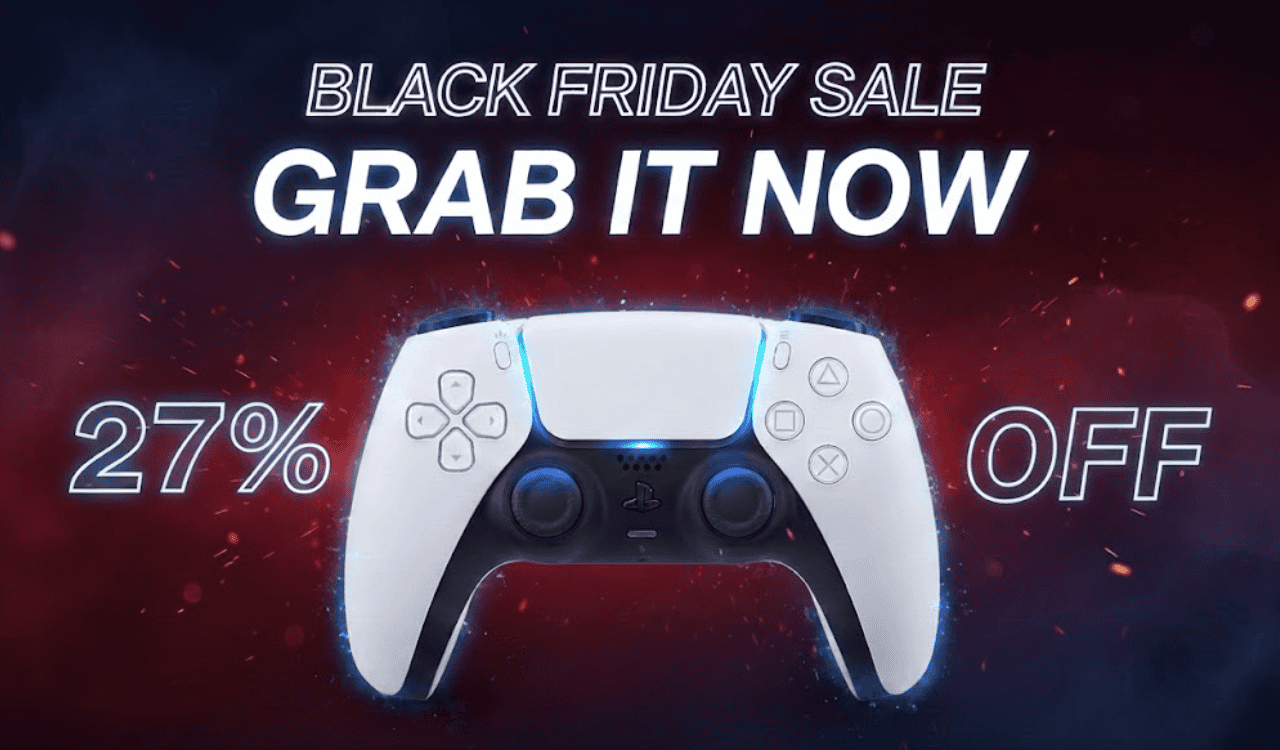
Sony’s popular PlayStation DualSense Wireless Controller is down to $54.99 on Amazon for Black Friday. That’s a 27% discount from its $74.99 list price. It’s one of the hottest Black Friday deals this season, and it’s already trending thanks to its strong comfort, performance, and wide compatibility, especially with PC gamers.
The DualSense Controller is known for its immersive haptic feedback and adaptive triggers. In addition, the vibration effects elevate the overall feel of any supported titles, making gameplay more immersive. The controller’s grips and layout are made for longer gaming sessions, so it doesn’t stress your hand.
To top them all, you’ve responsive buttons, a smooth touchpad, and a built-in microphone so that you’re never behind your squad when playing your favorite shooters. Battery life also holds up well, and USB-C charging keeps downtime to a minimum.
Ubisoft has shared how Assassin’s Creed Shadows achieved a stable 30 FPS on the Nintendo Switch 2. For those unaware, Assassin’s Creed Shadows will be launched on December 2. The update from the studio comes after reports that Ubisoft cancelled a planned Shadows DLC that was expected to match the scale of the recent Claws of Awaji expansion.
In a recent blog post, Ubisoft detailed the work behind porting Shadows for the Switch 2. One of the developers who worked on the project described the effort as one of the most challenging tasks of his career. According to Bruno (one of the developers), the team had to rethink several core systems to ensure that the Switch 2 version preserved the original visual quality while offering the expected performance.
Ubisoft stated that many of the simulation systems used on PC and consoles are also present on the Switch 2 build, but significant adjustments were required to account for the ARM architecture and limited resources. The studio apparently achieved the frame rate on Nintendo Switch 2 by downscaling simulation data to ease GPU load.
The company further mentioned that it “opted to use our solid baked Global Illumination system (which we also use for low-spec PC setups and Xbox Series S versions), mainly for RAM memory reasons. This approach lets us preserve the overall experience as much as possible.”
The team also reworked LOD (Level Of Detail) rules, draw distance, texture behavior, and asset streaming to maintain visual consistency across both handheld and docked modes. Ubisoft released preview footage showing the expected image quality, but notes that it doesn’t match high-end PC settings. Notably, the port maintains the visual identity of Shadows on the more restricted platform.
Some details, such as native rendering resolution and specific DLSS modes, aren’t revealed as of now. We expect Ubisoft to detail those technical specifications only once the game becomes available. Not to forget, the Switch 2 version will include full cross-progression and all major features of Assassin’s Creed Shadows. The only content not available at launch is the Claws of Awaji expansion.
With recent Insider Preview Build 26220.7271 (KB507030), Microsoft started testing a background preloading feature for Windows 11’s File Explorer. By the name, you can guess that it’s meant to speed up launch times when you open it. Microsoft’s idea behind this feature was to load key components in advance so the app feels snappier when you open it.
Microsoft’s effort to preload File Explorer in the background doesn’t seem to be as effective
But it seems that the promise of faster launch times still falls short, at least according to the tests performed by folks at Windows Latest. The preloaded File Explorer does start somewhat faster than without preloading. And that’s noticeable in slow-motion comparisons or under low load, the difference is reportedly very marginal. That being said, many issues are still not fixed.
Per a news outlet, File Explorer used roughly 32.4 MB of RAM at idle when preloading was disabled. Surprisingly, with preloading enabled, idle RAM usage bumped up to about 67.4 MB (that’s an extra ~35 MB reserved for the preloaded instance). The preloaded version did launch faster than the non-preloaded one when the PC was idle and under heavy load (at times when browser tabs were open).
Image credit: Windows Latest
That’s not all; the context menu, which is one of the frequent pain points for many while using File Explorer, still loads slowly. Overall UI responsiveness, folder navigation, and actions remained sluggish compared to what many expected the new feature would deliver.
According to the report, the root cause lies in how Windows 11’s File Explorer is built. It overlays modern UI frameworks (WinUI/XAML) on top of the legacy core engine originally designed for Windows 10. This layering adds rendering overhead, so while preloading helps with launch delay, it does nothing to speed up overall responsiveness, folder loading, or context-menu actions.
What to keep in mind?
Preloading can make File Explorer feel a bit quicker, but not as significantly as you may have thought. The performance still feels off across context menus and UI responsiveness when File Explorer works under heavy load or in daily use. If you don’t notice any improvement and prefer not to keep extra RAM reserved, you can disable preloading via File Explorer > View > Folder Options > uncheck “Enable window preloading for faster launch times.”
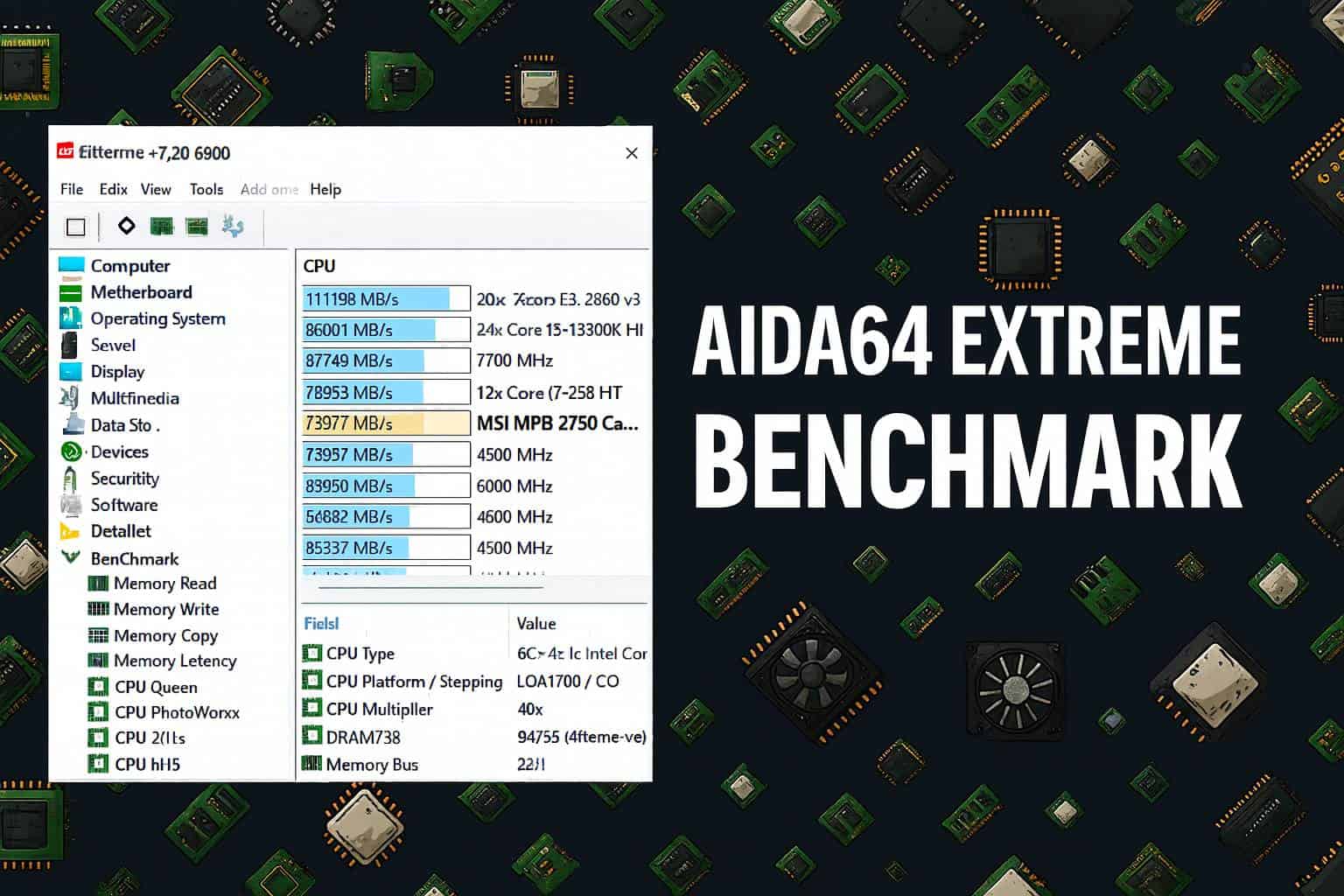
AIDA64 Extreme benchmark gives you a complete view of your PC hardware and performance. Users rely on it to check stability, identify bottlenecks, and analyze sensors in real time. This guide highlights its key features and explains what each tool helps you achieve.
AIDA64 Extreme includes diagnostic tools that help you understand system health, performance, and component limits. It targets enthusiasts who want detailed insight without relying on multiple apps. You can compare this with other ways to run a computer performance test offered in Windows.
1. Hardware detection and identification
AIDA64 scans your components and shows precise details about your CPU, GPU, RAM, drives, and motherboard.
Identify exact component models and firmware.
Review supported features such as instruction sets and RAM timings.
Compare specs to known hardware databases.
2. Synthetic benchmark suites
Synthetic tests help you evaluate how each part performs in controlled conditions. The suite focuses on accuracy and repeatability.
Measure CPU integer, floating point, and cryptographic performance.
Evaluate memory bandwidth and latency.
Compare results with online databases or previous system states.
3. System stability testing
AIDA64 includes a powerful stress test that pushes components to their limits. The goal is to reveal issues under heavy load.
Load CPU, memory, cache, and GPU to check thermal behavior.
Detect overheating, power throttling, and voltage fluctuations.
Use long duration tests to confirm system reliability.
Real time sensor tracking provides insight into performance and thermals while you use the PC.
Track CPU and GPU temperatures, voltages, and fan speeds.
Monitor power consumption during gaming or heavy workloads.
Log data for troubleshooting or tuning.
If you need built in alternatives, Windows also provides ways to monitor system resources directly.
5. System information reports
AIDA64 creates detailed system reports for documentation, support, or upgrades.
Export full hardware and software summaries.
Create comparative reports after upgrades.
Share diagnostics with technicians or support teams.
6. External display and OSD support
AIDA64 can show live data across many external screens.
Use an on screen display for FPS, clocks, and thermals.
Stream metrics to tablets or small USB displays.
Customize layouts for different workloads.
7. GPU details and diagnostics
Graphics card data helps gamers and creators verify performance and cooling.
Review GPU clocks, memory load, and real time temperatures.
Track VRAM usage during demanding apps.
Detect thermal throttling or cooling issues.
8. Storage performance insights
AIDA64 collects information about SSD and HDD health.
Check SMART values for warning signs.
Review interface speeds and active modes.
Track drive temperatures and workload patterns.
Tips
Keep AIDA64 updated to ensure new hardware is recognized.
Save benchmark logs before making hardware changes.
Use sensor logging to diagnose intermittent issues.
Compare results with similar systems for context.
FAQs
Why use AIDA64 Extreme benchmark
It gives you detailed hardware information, stability tools, and accurate synthetic scores in one interface.
Does AIDA64 work with new processors and GPUs
Updates frequently add support for the latest CPUs and graphics cards.
Can AIDA64 replace a stress testing tool
It includes a strong stability test that can evaluate CPU, RAM, cache, and GPU together.
Is AIDA64 safe for beginners
Yes. You can use informative features without running stress tests.
AIDA64 Extreme benchmark delivers a complete set of tools that help you understand system behavior, track performance, and confirm long term stability. Its blend of diagnostics, monitoring, and synthetic testing makes it valuable for enthusiasts who want reliable insight into their hardware.
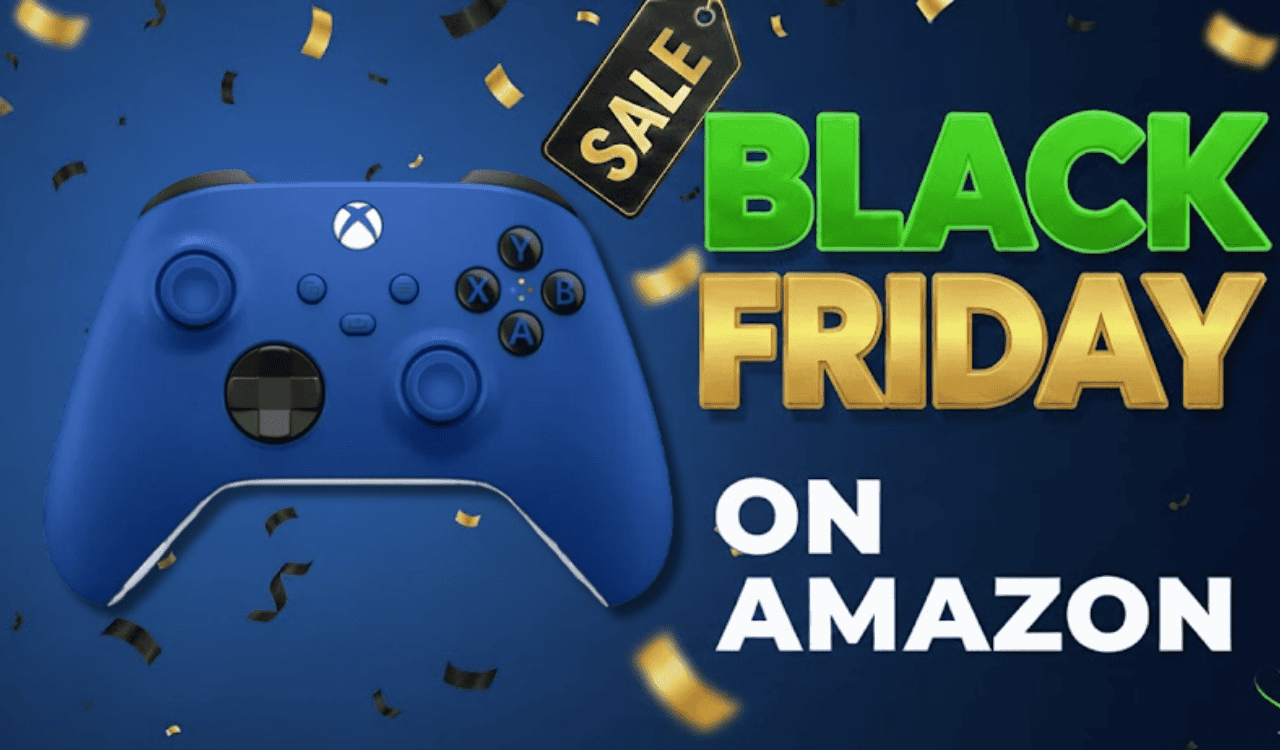
The Xbox Wireless Gaming Controller (2025) is one of the best Black Friday deals from this year. It’s now available on Amazon for $47.99. That’s a 31% discount from its original $69.99 list price. So, what’s good about it, you may ask, right?
Well, it’s considered one of the most dependable controllers in its class. Users praise it for its excellent ergonomics, with the textured grips and sculpted shape making long sessions feel noticeably more comfortable than older Xbox models.
The hybrid D-pad, smoother thumbsticks, and responsive triggers offer a level of precision that you want while playing your favorite shooters, RPGs, and fast-paced online titles. Connectivity is another major advantage here, as the controller pairs instantly with Xbox Series X|S, Xbox One, Windows PCs, Android phones, iPhones, Fire TV sticks, smart TVs, and VR headsets, eliminating the pairing issues often experienced with third-party controllers.
We also love its sturdy build quality, while the Shock Blue colorway holds up well even in households with kids who play daily. Moreover, the Bluetooth range is strong, the latency is low, and the option to use AA batteries or a rechargeable pack adds much-needed flexibility. At under $50, it’s one of the best Xbox Wireless Controllers you’d find in the market right now. Hurry up, grab it now on Amazon for $47.99 before the stock dries up.
Disclaimer: Prices and availability may change by the time you read this.
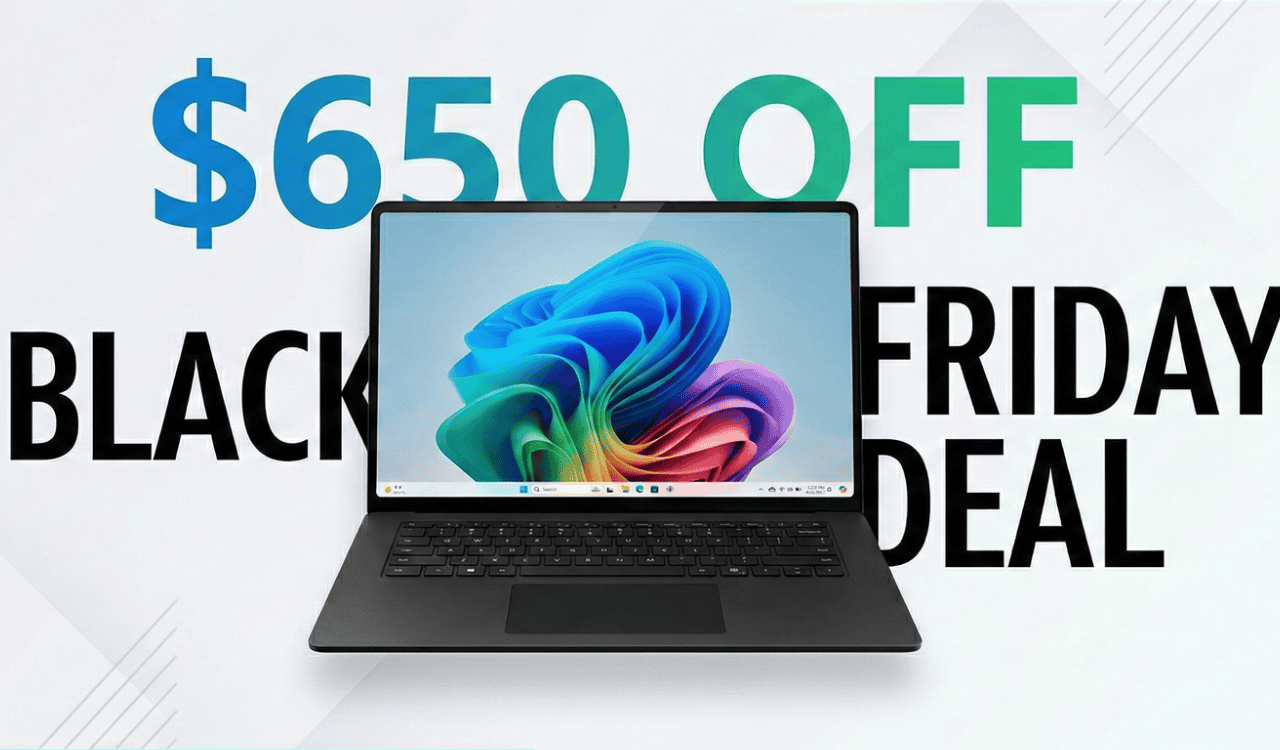
Amazon currently has a solid Black Friday deal on Microsoft’s Surface Laptop (2024) Copilot+ PC that you shouldn’t miss. It has been discounted $650 from its orginial price of $1699, and is available just for $1049.99. If you have been eyeing to grabe a powerhouse PC, this might be your time. It has got some amazing specs as well.
The laptop is powered by Snapdragon X Elite 12-core chipset, and promises to offer blazing-fast performance, long battery life, and suite of AI-powered features through Windows 11. Thanks to 16GB of RAM, and a fast 1TB of SSD, it’s built for creators, professionals, students, or anyone who wants a future-ready premium laptop.
Not to mention, the 15-inch touchscreen is bright, sharp, and razor-thin—perfect for multitasking or media. Microsoft claims up to 20 hours of battery life. Additionally, the PC has been praised for staying cool and quiet during longer working. The PC can run whole bunch of apps, so you don’t need to worry if your favorite app runs on this performance beast.
Windows activation confirms that your copy of the operating system is genuine and fully licensed. This short guide explains what Windows activation is, why it matters, and the different activation types you may encounter.
Windows activation verifies that your copy of the operating system is genuine and properly licensed. Activation unlocks personalization options, removes the desktop watermark, and confirms that your license follows Microsoft’s usage rules.
Microsoft uses activation to confirm that each license matches a legitimate purchase or entitlement. This process helps prevent misuse of product keys, protects users from modified system images, and keeps devices eligible for security and feature updates.
Activation also prepares the device for smooth reinstalls because the license attaches to the hardware signature or user account.
What activation does on your device
During activation, Windows links your license to a unique hardware profile or to a Microsoft account. The operating system then contacts Microsoft’s servers and validates the license.
After validation, Windows unlocks full functionality and allows you to customize backgrounds, themes, and other visual elements. If activation fails, alerts appear in the Settings app and cosmetic options remain limited.
Types of Windows activation
Different activation methods handle licensing for home users, device manufacturers, and organizations. Understanding these activation types helps you troubleshoot issues and choose the right license for your setup.
Retail product key activation
A retail product key uses a 25 character code that activates one PC at a time. You typically buy this key directly from Microsoft or from an authorized retailer. When you retire or wipe the old device, you can move the key to a new PC, which makes this license flexible for enthusiasts and custom builds.
OEM activation
OEM activation comes preconfigured on devices from manufacturers such as Dell, Lenovo, HP, or ASUS. The license information stores in the firmware, so Windows reads it during setup and completes activation in the background. When you reinstall Windows on the same hardware, activation usually returns automatically without the need to enter a product key.
Digital license activation
A digital license links your Windows entitlement to your Microsoft account instead of a printed key. Many upgrades from earlier versions of Windows to Windows 10 or Windows 11 use this model. If automatic activation does not complete, you can review this guide on how to complete Windows 11 activation with a digital license to understand common behaviors and fixes.
Volume licensing activation
Organizations often activate many devices through volume licensing. Two popular options handle this at scale. Multiple Activation Key (MAK) contacts Microsoft’s servers for each device and records a limited number of activations. Key Management Service (KMS) uses an internal server instead, and client devices periodically reconnect to keep their activation status current.
Subscription based activation
Some business editions of Windows activate through an eligible Microsoft 365 subscription. When a user signs in with the correct work account on a supported edition, Windows unlocks the licensed features automatically. This model simplifies license management for organizations that already rely on cloud subscriptions.
Virtual machine activation
Virtual machines run on virtualized hardware, so they often need special handling for activation. Each virtual machine can require its own license or digital entitlement, depending on the edition and host environment. For more detail, you can consult a detailed walkthrough that explains how activation behaves inside a Windows 11 virtual machine.
Signs your device is not activated
Windows clearly signals activation problems so you can identify and resolve them quickly.
A permanent watermark appears in the lower right corner of the desktop.
Personalization options such as wallpaper and theme controls remain disabled.
Notifications and warnings appear in the Activation area of the Settings app.
Certain optional features may stay unavailable until activation succeeds.
What happens after activation
Once Windows completes activation, the system unlocks all personalization features and continues to receive security and feature updates without interruption. Apps and Microsoft services recognize the device as properly licensed, which reduces compatibility issues. The license stays tied to your hardware or Microsoft account, which simplifies future reinstalls and hardware maintenance.
FAQs
Why does Windows show an activation watermark?
The activation watermark appears when Windows detects an incomplete or invalid license. It serves as a persistent reminder so you can address the issue. The watermark disappears after the system validates the license successfully.
Can hardware changes break activation?
Major hardware changes can disrupt activation because they alter the device’s hardware signature. Replacing the motherboard or several key components at once often triggers this problem, and you may need to reactivate Windows afterward.
Do I need a new license after reinstalling Windows?
You do not always need a new license when you reinstall Windows on the same device. OEM and digital licenses usually reactivate automatically, and retail keys can be reused if they no longer remain active on another PC.
Can I use Windows without activation?
You can still run applications and perform everyday tasks without activation. However, Windows restricts personalization options and shows regular notifications until you resolve the license status and complete activation.
Windows activation confirms that your copy of the operating system comes from a legitimate source and follows license rules. Home users, manufacturers, and organizations all rely on different activation types, including retail keys, OEM licenses, digital licenses, volume activation, subscriptions, and virtual machine licensing. When activation works correctly, your device gains full access to features, receives ongoing updates, and avoids persistent warnings about license status.
Windows 11 Enterprise usually stays behind licensing portals, but you can still download the Enterprise ISO without a subscription by following these simple steps.
How to Download the Windows 11 Enterprise ISO With the Media Creation Tool
1. Understand how the Media Creation Tool handles Enterprise
The Media Creation Tool normally downloads only Home and Pro because Enterprise builds are locked behind business licensing, but hidden switches let the tool fetch the Enterprise ISO directly.
To understand how this differs from the usual consumer process, you can compare it with the instructions in the Windows 11 download guide, which explains how the tool behaves without command-line overrides.
2. Download the latest Media Creation Tool
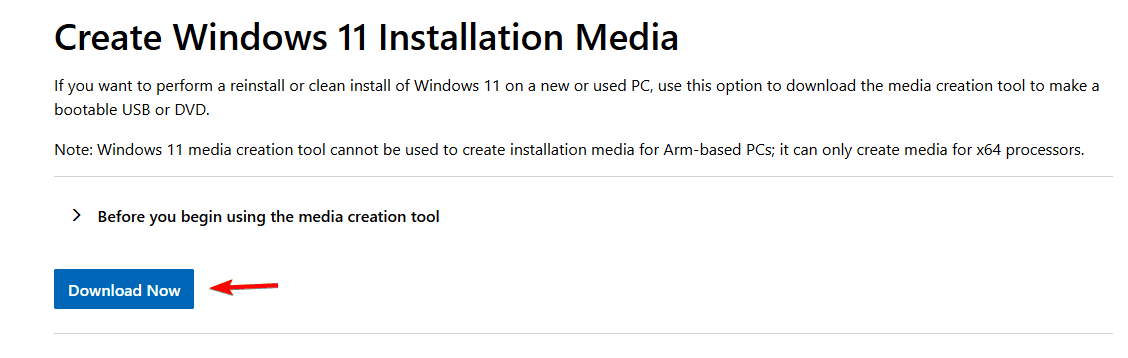
First, download the Media Creation Tool:
Go to the official Windows 11 download page.
Scroll to Create Windows 11 installation media.
Click Download now.
Save MediaCreationToolW11.exe to your Downloads folder.
After saving it, remember that updated ISOs and new major release builds behave differently across Windows 11 versions, which is covered in the Windows 11 25H2 ISO installation overview.
3. Launch PowerShell or Command Prompt inside the MCT folder
Next, open PowerShell:
Open File Explorer.
Open the folder containing MediaCreationToolW11.exe.
Press ALT+D to highlight the full path.
Type PowerShell and press Enter.
A PowerShell window opens in that exact directory.
4. Trigger the Enterprise ISO download
After that, need to use a special command to download Enterprise version:
This forces the Media Creation Tool to download the 64 bit Enterprise ISO. When the tool encounters connection issues, verification failures, or sudden cancellations, refer to the solutions in the Windows 11 ISO download failure guide, which outlines the most common MCT errors.
5. Change the language when needed
Adjust the language if needed:
Replace /MediaLangCode en-US with a supported language.
Use tags such as ru-RU, fr-FR, or de-DE.
Check Microsoft’s documentation for the correct region values.
6. What the ISO includes
ISO includes the following:
Windows 11 Enterprise
Windows 11 Education
Windows 11 Professional
KN and N variations when available
FAQs
Why does Windows 11 Enterprise not appear in the Media Creation Tool?
The tool hides Enterprise editions unless you explicitly request them with command-line switches.
Can I use this method without a subscription?
Yes. These switches trigger an Enterprise download even when the account lacks Enterprise privileges.
Does this method work on any Windows 11 PC?
Yes. You only need the latest version of the Media Creation Tool.
Do I still need a valid key after installing Enterprise?
Yes. Activation requires a proper Enterprise license, a KMS server, or an evaluation key.
This method gives you a fast and reliable way to download the Windows 11 Enterprise ISO without navigating licensing portals. By using the correct command-line switches, the Media Creation Tool retrieves the full Enterprise image and optional bundled editions in one file, making it a practical solution for testing, deployment, and IT environments.
Google is adding a dedicated setting inside Chrome’s Appearance page for the Vertical Tabs feature that is still in development. This option aims to make it easier for users to switch between the standard top tab layout and the side tab layout.
We recently reported a hands-on look at Chrome’s upcoming Vertical Tabs feature, which is still being tested. At that time, Chrome allowed layout changes from the tab strip using “Show tabs to the side”, and return to the default layout using “Show tabs at the top” from the context menu.
Chrome now includes a setting called “Tab strip position” inside Appearance settings, which lets users choose whether the tab strip appears at the top or on the side.
The Tab Strip Position setting appears inside Settings > Appearance, under the “Show bookmarks bar” option. Users can choose “Top” or “Side” from the dropdown. Chrome switches to the selected layout instantly, as shown in the video.
Chrome Canary displays the Tab Strip Position setting inside Appearance, with options to place the tab strip at the top or on the side. Image Credit: Venkat | WindowsReport.
This setting also lets users set a preferred layout as the default. For example, users who want to use Vertical Tabs for all browsing sessions can enable it here and return to the classic horizontal layout at any time. The active tab in vertical layout displays a red close icon, which does not appear in the standard horizontal view.
The video below shows how Chrome switches layouts after selection.
Vertical Tabs is still in progress. This setting follows the same path and does not appear by default in Canary.
Microsoft officially ended support for Windows 10 on October 14, 2025. However, a staggering number of users are reportedly still on the decade-old OS. That’s according to Dell’s latest earnings call, giving us an idea that Microsoft has a much tougher road ahead than expected.
During the company’s Q3 call, Dell COO Jeffrey Clarke said that “about 500 million” Windows PCs are capable of running Windows 11 but haven’t migrated yet. Whereas, another “500 million” are over four years have failed to meet Windows 11’s strict hardware requirements.
Clarke also added that these systems represent “rich opportunities to upgrade towards Windows 11 and modern technology.” Just to be clear, Clarke’s estimates encompass all Windows devices, not just Dell’s own lineup. But they do offer one of the clearest pictures of how slowly the transition is going.
A few months back, around half of all PCs were still on Windows 10. It was very recently, in June, that Windows 11 finally surpassed Windows 10 in global desktop share. That being said, Microsoft’s move to offer extended Windows 10 security updates for one year at no cost is also delaying the migration in a way.
As pointed out by Clarke, hardware limitations are another major hurdle that has caused millions of PCs to fail to meet Windows 11’s TPM and CPU requirements. Many still love Windows 10 and aren’t moving because of Microsoft’s vision to make Windows an agentic OS.
At this point, you’d find AI in every corner of Windows 11, and many people are unhappy about it. Even so that Microsoft AI CEO has to intervene lately and took a jab at critics, saying, “It cracks me up when I hear people call AI underwhelming…The fact that people are unimpressed that we can have a fluent conversation with a super smart AI that can generate any image/video is mindblowing to me.”
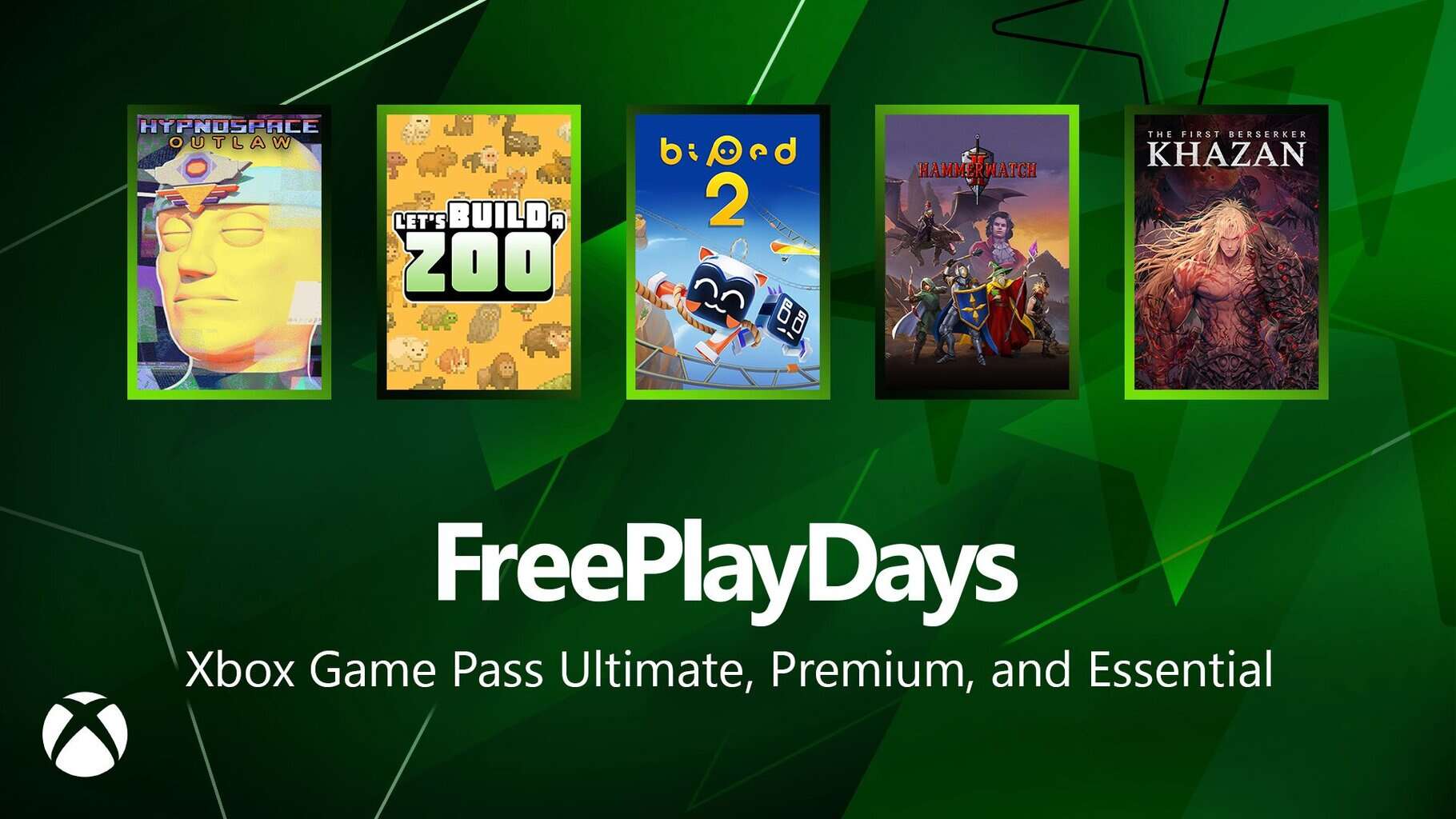
Xbox Free Play Days is back with another loaded weekend lineup. From November 27 through November 30, The First Berserker: Khazan and Hammerwatch II are free to play for Xbox Game Pass Ultimate, Premium, and Essential members. Meanwhile, Hypnospace Outlaw, Let’s Build a Zoo, and Biped 2 are free for all Xbox members to try during this Free Play Days
The First Berserker: Khazan is “The First Berserker: Khazan is a hardcore action role-playing game where the player becomes Khazan, the great general of the Pell Los Empire. Journey to the continent of Arad and discover the untold story.” It’s up for grabs for $41.99 (originally $59.99). Next up, you’ve got Hammerwatch II, which allows players to “Gather your heroes and journey beyond the dungeons of Castle Hammerwatch to explore a pixelated world like never before.” It is available for $5.99 during Free Play Days.
Meanwhile, Let’s Build A Zoo is up for grabs at just $6.99. As the name suggests, you can “let out your wild side, and create your own animal empire with this cute, expansive management sim. Import and breed rare creatures, hire the right staff, keep your visitors happy, and deal with plenty of weird and wonderful events.”
You can also try Biped 2, which is available for $19.99. The game revolves around “two charming bipedal robots, Aku and Sila, who have each other’s backs and embark on incredible adventures side by side.” Last but not least, you’ve Hypnospace Outlaw, which is priced at $5.99 just for Free Play Days, and lets you experience Hypnospace’s “wide variety of weird and wonderful websites to hunt down wrongdoers.”
You can install any game directly from its store page on Xbox.com or head to the Free Play Days collection under the Subscriptions tab on your Xbox Series X|S or Xbox One. If you enjoy what you’re playing, you can purchase each title at a limited-time discount and keep all your progress, Gamerscore, and achievements.
As always, don’t forget that discounts and availability may vary by region, so it’s worth checking the store early.
France’s antitrust regulator has dismissed an antitrust case filed by Qwant, ending a long-running dispute between the French search engine and Microsoft. The ruling was announced today in Paris, which puts an end to Qwant’s initial case but triggers another legal round.
The French watchdog, Autorité de la Concurrence, has said that Qwant failed to provide “elements sufficiently convincing” to support its allegations. The regulator also declined to grant the interim measures Qwant had requested. Qwant had accused Microsoft of abusing a dominant position in search, alleging the Redmond giant imposed exclusivity restrictions on search results and search advertising.
According to Qwant, those conditions prevented it from developing its own search engine and AI models. Qwant, which uses Microsoft’s Bing for search and news results, had already said last month that it expected the complaint to be dismissed. The company has confirmed it will now challenge the ruling in court or escalate it to other authorities.
Meanwhile, Microsoft welcomed the outcome. In a statement to Reuters, a spokesperson said:
We agree with the decision and remain committed to providing high-quality search services and fostering innovation for consumers and partners in France and across Europe.
Microsoft is one of the biggest players in search syndication across Europe. Besides Qwant, it provides search results for smaller rivals such as Ecosia, DuckDuckGo, and Lilo. The ruling may influence ongoing debates around competition, AI development, and the dominance of large U.S. platforms in European search.
If you’ve been eyeing Sony’s refreshed PlayStation 5 Disc Edition (Slim), Amazon has a worthy deal for you to grab this Black Friday. Since the launch, the PS5 Slim has been lauded for being smaller, quieter during long gaming sessions, and more power-efficient without hampering performance. The 1TB SSD has also been a standout upgrade, giving players more room for large titles right away.
Disclaimer: Prices and availability may change by the time you read this.
What you get with this PS5 (Slim) Black Friday deal
This deal covers everything included in the standard retail package:
PlayStation 5 Disc Edition Console (Slim, Model CFI-2000)
DualSense Wireless Controller
1TB SSD storage
Built-in Disc Drive
Two horizontal stand feet
HDMI cable
AC power cord
USB cable
Printed materials
ASTRO’s Playroom (pre-installed)
One important note: the Vertical Stand is sold separately, as Sony no longer bundles it with the slim models.
If you’ve waited for the right time to jump into Sony’s ecosystem, this Black Friday deal on PS5 Slim Disc Edition is the best opportunity you’ll find this holiday season. It delivers the full power of the PS5 experience, without paying the premium price. Grab it now. Happy Thanksgiving!!!
Other Black Friday deals worth checking out right now
NOTE: There’s no update from Mojang at the time of publishing this article.
From what it looks like, the volume of user reports surged around 8:18 AM Eastern Time. We have also come across some posts on X confirming issues with Minecraft. Check out some of the tweets:
We understand that you’re not able to connect to Minecraft right now. From the looks of it, the issue is related to authentication servers. We’d like you to keep checking these accounts on X: @MojangStatus, @Mojang, and @MojangSupport.
Even if the servers come back online for most players, your device or account may still run into cached errors or network issues. To fix those, make sure to try the following:
Restart your game and router to clear temporary network glitches.
If you use a VPN, disable it for a moment, as some servers reject VPN traffic during outages.
You should also sign out of your Microsoft account and sign back in. This often resolves authentication-related errors when login queues spike.
On PC, make sure the Xbox Services are running in the background. Open the Xbox app, run the network check, and let it repair any service issues.
If you play on console, verify that Xbox Live, PlayStation Network, or Nintendo Online services are operational, since outages on those platforms can prevent Minecraft from connecting even when Mojang’s servers are fine. Meanwhile, you can also check our guide to fix the Minecraft launcher throwing no internet connection error.
While you’re waiting, avoid repeated login attempts, as they can extend queue times. From the looks of it, the Minecraft servers looked to be down globally, so the only real option is to sit tight until Mojang restores normal service. Keep tracking!
Are you also facing issues with Minecraft servers? Please comment below.
You can get BIOS key by checking manufacturer documentation, startup splash messages, system info tools, or motherboard manuals. These methods help you identify the correct key for any Windows PC.
Most PCs display the BIOS key during the first seconds after you reboot. Watch for a short line like Press F2 for Setup or Press Delete to enter BIOS, because this text reveals the exact key.
Restart your computer.
Focus on the lower area of the screen during boot.
Manufacturers publish BIOS key shortcuts in their online model documentation. You only need your model number to find the correct shortcut.
Visit your PC manufacturer’s support page.
Enter your desktop or laptop model in the search field.
Open the user manual or startup guide and look for BIOS or setup key details.
This method gives you the most accurate key because it matches your exact model.
Look up common BIOS keys by brand
Brands use predictable shortcuts, so you can find the BIOS key quickly by matching it to your device brand. This works well when you cannot find the manual.
Identify your brand from the logo or system info.
Check the usual BIOS key for the brand:
Dell: F2
HP: Esc or F10
Acer: F2
ASUS: F2 or Delete
Lenovo: F1 or F2
MSI: Delete
Use the matching key on the next boot and confirm that it works for your specific model.
Check your motherboard manual
Custom built PCs rely on motherboard BIOS shortcuts, not generic PC brand defaults. Every motherboard manual lists the required key for firmware access.
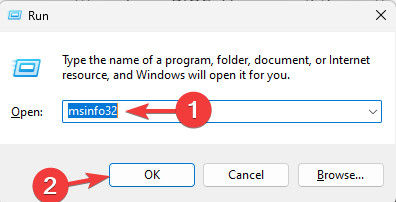
Press Windows key + R, type msinfo32, then press Enter.
Note your BaseBoard Manufacturer and BaseBoard Product.
Search online for your motherboard model manual.
Open the BIOS or firmware section and note the listed BIOS key.
Windows shows the BIOS vendor and motherboard details, and this information helps you determine the correct key for your system. Vendor names often share the same default shortcuts across many models.
Press Windows key + R.
Type msinfo32 and press Enter.
Check the fields for BIOS Version, BIOS Vendor, and BaseBoard Manufacturer.
Search online for the common BIOS key associated with that vendor.
The BIOS key is the specific keyboard shortcut your PC uses to open the BIOS or UEFI firmware menu during startup.
Where can I see the BIOS key on my screen?
You usually see the BIOS key on the first boot screen, in a small message such as “Press F2 for Setup” or “Press Delete to enter Setup” near the bottom.
Can different models from the same brand use different BIOS keys?
Yes, different series and generations can use different BIOS keys, so you should always confirm the shortcut using the model manual or support page.
What should I do if none of the common BIOS keys work?
You should check the motherboard or PC manual, search the model support page, and review System Information in Windows to identify the exact firmware vendor and matching key.
You can get BIOS key quickly by watching the startup splash screen, checking the manufacturer support page, looking up common shortcuts by brand, reviewing your motherboard manual, and using Windows System Information. These methods give you clear answers that match your hardware, so you avoid guesswork when you need to open firmware settings.
After you identify the correct key, you can handle tasks such as changing boot order, enabling virtualization, or updating firmware with much more confidence.
If you haven’t thought of getting home internet plans from Verizon yet, this Black Friday Deal from the company might want you to do that. In a surprising deal, Verizon is offering a free Samsung Galaxy Tab S10 FFE, a 43-inch Samsung QLED TV, and more to new customers who sign up for select Verizon Fios, 5G Home Ultimate, or LTE Home Plus plans.
Disclaimer: Prices and availability of the offer can change by the time you read this. The following offers are valid until 1 December 2025. Eligible customers can redeem 14 days after service installation and must redeem within 60 days.
Here’s how you can claim a free gift by buying Verizon’s home internet plans this Black Friday
Well, there are plenty of offers to choose from. In addition to the products we mentioned above, you will also be eligible to get a free 32-inch Samsung Monitor, StreamTV Soundbar, $200 Target Gift Card, and Marshall Kilburn III, without paying a dime.
To remind you, Verizon Fio plans start as low as $20 per month, depending on availability across different regions, and come with a 3-year price guarantee for new and existing myHome customers. You can check more about the plan here.
Tech-savvy bargain hunters have another reason to consider Verizon for home internet this holiday season.
HD Tune software helps you inspect the health and performance of your hard drive or SSD. It offers quick benchmarks, surface scans, and SMART diagnostics that help you understand the real condition of your storage. This guide shows you how to install it, test your drive, and interpret the results.
You need to download the tool from the developer’s site.
Visit the HD Tune download page.
Choose Standard or Pro.
Save the installer file.
2. Install the app
Setup completes quickly.
Open the installer.
Agree to the terms.
Finish the installation.
How to run a health check
1. Open the Health tab
This displays the drive’s SMART attributes.
Launch HD Tune.
Pick your drive from the menu.
Select the Health tab.
2. Read the SMART values
Look for attributes that indicate risk.
Check for caution or bad status on key metrics.
Watch for reallocated or pending sectors.
Compare values with normal ranges shown in the app.
How to scan for drive errors
A surface scan checks the drive for bad sectors that may cause failures. If Windows recently reported a disk issue, you can review the our guide on Windows 11 disk error messages for additional context.
1. Start a full surface scan
A full scan checks every block.
Go to the Error Scan tab.
Turn off Quick Scan for deeper results.
Click Start.
2. Review the results
Red blocks signal sector problems.
Wait for the scan to finish.
Look at the grid for red squares.
Replace the drive if many blocks fail.
How to run a benchmark test
Benchmark tests measure drive speed and performance across the disk. For more detailed comparison tools, you can check the list of hard drive benchmark software.
1. Choose the Benchmark tab
The app runs read and access speed tests.
Select Benchmark.
Keep the default settings.
Click Start.
2. Interpret the graph
You can spot performance dips easily.
Note the minimum and maximum speeds.
Check the average transfer rate.
Watch for unexpected drops on the graph.
What is HD Tune software
HD Tune software checks the status of your HDD or SSD using health reports, error scans, and speed benchmarks. It offers easy access to SMART data that highlights issues early. You can use it alongside drive speed tests, as explained in the tutorial on how to test hard drive speed.
FAQs
Is HD Tune safe to use on SSDs?
Yes, HD Tune works with SSDs and reads their SMART attributes, though some SSD-specific wear indicators may appear differently than on HDDs.
How long does an HD Tune error scan take?
A full surface scan can take several minutes to over an hour depending on drive size and speed, especially if the drive has bad sectors.
What should I do if HD Tune shows red blocks?
Red blocks indicate bad sectors, so you should back up your data immediately and consider replacing the drive to prevent data loss.
What does HD Tune software check?
It checks SMART data, drive temperature, transfer speeds, and surface errors to help you understand the overall health of your HDD or SSD.
HD Tune software gives you a simple way to check your drive’s health, scan for bad sectors, and measure performance. You can use its SMART readings to detect early problems, rely on surface scans to find failing blocks, and run benchmarks that highlight slow sections of the disk. When combined with the internal guides linked above, the tool provides a complete workflow for understanding the condition of your HDD or SSD and deciding when it is time to replace it.
Dolby Atmos on Windows 11 gives you richer, more immersive spatial audio for games and movies. This guide shows you how to enable Dolby Atmos with simple steps that anyone can follow.
Route audio through your HDMI soundbar or receiver and select the Dolby Atmos mode.
Connect your soundbar or AV receiver to the PC with an HDMI cable.
Open Settings and go to System.
Select Sound and click your HDMI output.
Find the Spatial audio section.
Choose Dolby Atmos for home theater from the dropdown.
Confirm the change and then restart your media app or game.
Why These Steps Work
Windows 11 switches to the Dolby spatial audio format when you choose a Dolby Atmos profile in sound settings. The Dolby Access app installs the required audio extension, so supported games and movies can send height based surround sound to your headphones or home theater gear.
FAQs
Why is Dolby Atmos not showing on my PC?
Update Windows 11, reinstall Dolby Access, and select the correct audio output device in sound settings. If the device does not support spatial audio, it will not show the Dolby Atmos option.
Is Dolby Atmos free on Windows 11?
You can use Dolby Atmos for home theater for free with a compatible HDMI receiver or soundbar. Dolby Atmos for Headphones requires a one time license purchase inside the Dolby Access app.
Do all apps support Dolby Atmos?
Only games and video apps that include Dolby Atmos mixes output full spatial audio. Other apps still work, but they use standard surround or stereo sound instead of height based effects.
Does Dolby Atmos work over Bluetooth?
Most Bluetooth headphones do not fully support Dolby Atmos because of codec and bandwidth limits. You get the best results with wired headphones or dedicated wireless gaming headsets that support spatial audio.
Windows 11 makes it easy to enable Dolby Atmos once you install Dolby Access and pick the right spatial audio mode in sound settings. After you set up headphones or a home theater device, restart your games and streaming apps so they use the new profile and deliver a more immersive, theater style audio experience on your PC.
FXNOW lets you link your TV provider so you can stream FX shows on any supported device. This guide explains how to activate FXNOW on smart TVs, streaming devices, consoles, and mobile devices.
Start the FXNOW app to reach the sign in and activation screen.
Launch FXNOW from your TV’s app list.
Navigate to Sign In.
Note the activation code on your screen.
If FXNOW fails to load while using a VPN, you can fix the issue by checking this guide on FXNOW not working with VPN.
2. Enter Your Activation Code
Submit your activation code online to continue with the setup.
Open a browser on your phone or laptop.
Visit fxnetworks.com/activate.
Enter your activation code.
3. Sign In With Your TV Provider
Your provider login confirms your subscription and unlocks FXNOW content.
Select your TV provider on the activation website.
Enter your username and password.
Approve the connection request if prompted.
4. Refresh Your TV App
Refreshing the app completes activation.
Return to your TV.
Close FXNOW.
Reopen the app so your account loads correctly.
How To Activate FXNOW On Streaming Devices
Supported platforms include Roku, Fire TV, Apple TV, and Chromecast.
Roku
Follow these steps to connect FXNOW to your Roku device.
Open FXNOW from your Roku channel list.
Select Sign In to display the activation code.
Visit fxnetworks.com/activate.
Enter the code and sign in with your provider.
If your Apple TV experiences buffering while watching FXNOW, this guide on Apple TV keeps buffering may help.
Fire TV
Fire TV uses the same activation process as Roku.
Install FXNOW from the Amazon Appstore.
Open the app and select Sign In.
Enter your code online.
Log in with your TV provider.
Apple TV
You can activate FXNOW easily through the Apple TV interface.
Install FXNOW from the App Store.
Launch the app and open Sign In.
Submit the code on the activation page.
Sign in with your TV provider.
How To Activate FXNOW On Gaming Consoles
PlayStation
PlayStation supports FXNOW through the PlayStation Store.
Install FXNOW from the PlayStation Store.
Launch the app and open Sign In.
Go to fxnetworks.com/activate and enter your code.
Log in with your provider.
Xbox
The Xbox activation flow is similar to PlayStation.
Install FXNOW from the Microsoft Store.
Open the app and select Sign In.
Enter your code online.
Sign in with your TV provider.
How To Activate FXNOW On Mobile Devices
Mobile users only need to sign in because codes do not appear on phones or tablets.
iOS And Android
Sign in to unlock full access to FXNOW streaming.
Install FXNOW from the App Store or Google Play.
Open the app.
Tap Sign In.
Pick your TV provider.
Enter your login credentials.
How To Fix FXNOW Activation Problems
1. Refresh The Activation Code
Generate a fresh activation code when the previous one expires.
Close FXNOW.
Reopen it.
Copy the new code.
2. Restart Your Device
Restarting helps clear temporary loading issues.
Turn off your device.
Turn it back on.
Retry activation.
3. Check Your TV Provider Login
Incorrect credentials often cause activation failures.
Visit your TV provider’s website.
Test your login.
Use the verified credentials for FXNOW.
4. Turn Off Your VPN
A VPN may block content or interrupt the activation process.
Disable your VPN or proxy service.
Reopen FXNOW.
Try activation again.
5. Clear App Cache
Clearing the cache can fix blank screens or loading errors.
Open your device settings.
Clear the FXNOW cache.
Restart the app.
If other streaming platforms stop loading, this ESPN not working troubleshooting guide may help.
FAQs
How do I activate FXNOW without a cable provider?
You cannot activate FXNOW without a supported TV provider.
Why does FXNOW show an expired activation code?
Codes expire after a short time. Refresh the app to generate a new one.
Can I use FXNOW outside the United States?
FXNOW restricts content to US viewers.
Why is FXNOW not loading on my device?
Network issues, VPN interference, or outdated app versions can cause the app to fail.
You can activate FXNOW on smart TVs, streaming boxes, consoles, and mobile devices by opening the app, collecting your activation code, and signing in with your provider online. The included links provide solutions for common streaming issues involving FXNOW, Apple TV, and ESPN so you can complete activation without interruptions.
You can also follow this MTV activation guide to set up MTV on your smart TV or streaming device using a similar code based process. You can also compare the activation steps to other smart TV sign in methods, such as linking your YouTube account with the help of this TV YouTube verify guide
You can compare FXNOW activation to other streaming services that use code based sign in systems, and you can also follow this guide to activate AMC on your device using a similar process.
Microsoft has updated the way FIDO2 security keys work on Windows 11 following the September 29, 2025, preview update (KB5065789) and subsequent updates. You may now be prompted to create a PIN when signing in with a security key. This is applicable even if no PIN was required or previously set.
Microsoft says that this can happen when a Relying Party (RP) or Identity Provider (IDP) requests User Verification = Preferred during authentication. Putting it simply, Windows will now prompt for a PIN if the security key doesn’t already have one, ensuring compliance with WebAuthn specifications.
The company has confirmed that the rollout has kicked off with the September preview update and was completed after the November 11, 2025, security update (KB5068861). The updates standardize the process, letting you set a PIN during authentication if one was not created during registration.
Not to forget, Microsoft has also shed some light on User Verification (UV), which confirms that the person using the security key is authorized. Do note that verification can be set to Discouraged, Preferred, or Required. Microsoft notes:
User Verification = Preferred means the RP wants user verification if the authenticator is capable of doing so. That means that if a PIN needs to be setup, the platform should do so.
User Verification = Discouraged means the RP does not want user verification. If a PIN has not been set up, there is no need to do so (unless required by the authenticator configuration).
Support for PIN setup in the authentication flow was added to be consistent across both registration and authentication flows.
Moreover, organizations that don’t want users to create or enter a PIN should ensure userVerification is set to Discouraged in PublicKeyCredentialRequestOptions.
OpenAI has confirmed a new data breach involving Mixpanel, a third-party analytics provider previously used to monitor activity on platform.openai.com, the frontend for its API product. In an update, the company claims that its own systems weren’t compromised, and that the content, API usage, passwords, payment details, and government IDs are safe.
As reported, on November 9, 2025, Mixpanel detected unauthorized access to part of its systems. The attacker exported an analytics dataset containing identifiable information of some OpenAI API users. Mixpanel then apparently notified OpenAI, which launched an investigation.
By November 25, 2025, the affected dataset was confirmed. Only API platform users are said to be impacted by this security breach. In other words, ChatGPT and other OpenAI products were not affected.
The exposed data included:
Names associated with OpenAI API accounts
Email addresses
Approximate location (city, state, country)
Operating system and browser used
Referring websites
Organization or user IDs linked to accounts
OpenAI has since removed Mixpanel from its production environment and reviewed the affected datasets. Users and organizations potentially impacted by the security breach are being directly notified. The company has also ended its engagement with Mixpanel and is conducting security reviews across all vendor partners to strengthen protections.
As a safety guard, you must remain vigilant against phishing and social engineering attempts. OpenAI will never request passwords, API keys, or verification codes via email or chat. More importantly, we recommend enabling multi-factor authentication (MFA). In case you’ve any queries related to the security breach, you can reach OpenAI’s support team at [email protected].
You can use Alexa on PC to control apps, create reminders, play music, and manage smart home devices using voice commands. This guide shows you how to install the app, set it up, and start using Alexa on Windows.
Check your microphone permissions if Alexa does not hear you.
Restart the app if it stops responding.
Reinstall Alexa if it will not open.
Reconnect smart devices if they fail to respond.
FAQs
Can any Windows PC run Alexa?
Yes. Any Windows 10 or Windows 11 device that supports Microsoft Store apps can install Alexa.
Do I need an Echo device for Alexa to work on PC?
No. Alexa works on PC without Echo hardware.
Can Alexa open programs on Windows?
Yes. Alexa can open supported programs such as Calculator, Spotify, or File Explorer.
Does Alexa work offline?
No. Alexa requires an internet connection.
Alexa on PC gives you hands free control of apps, reminders, smart devices, and everyday tasks. After installing the app, signing in, and enabling the wake word, you can manage your computer with simple voice commands.
The Microsoft Support and Recovery Assistant command line tool helps fix issues with Microsoft 365 apps like Outlook, Teams, and OneDrive. This guide shows you how to install SaRA, open it through Command Prompt, run scenarios, and collect logs.
It repairs issues with Outlook, Office activation, OneDrive sync, Teams sign in, and other Microsoft 365 services.
Do I need admin rights
Yes, most fixes require elevated permissions.
Can I run scenarios automatically
Yes, Quiet mode lets you automate troubleshooting.
Where are logs stored
Logs appear in the SaRALogs folder inside your LocalAppData directory.
The Microsoft Support and Recovery Assistant command line tool offers a fast way to diagnose and fix Microsoft 365 issues. With command line scenarios and Quiet mode, it works well for both routine troubleshooting and automated enterprise workflows.
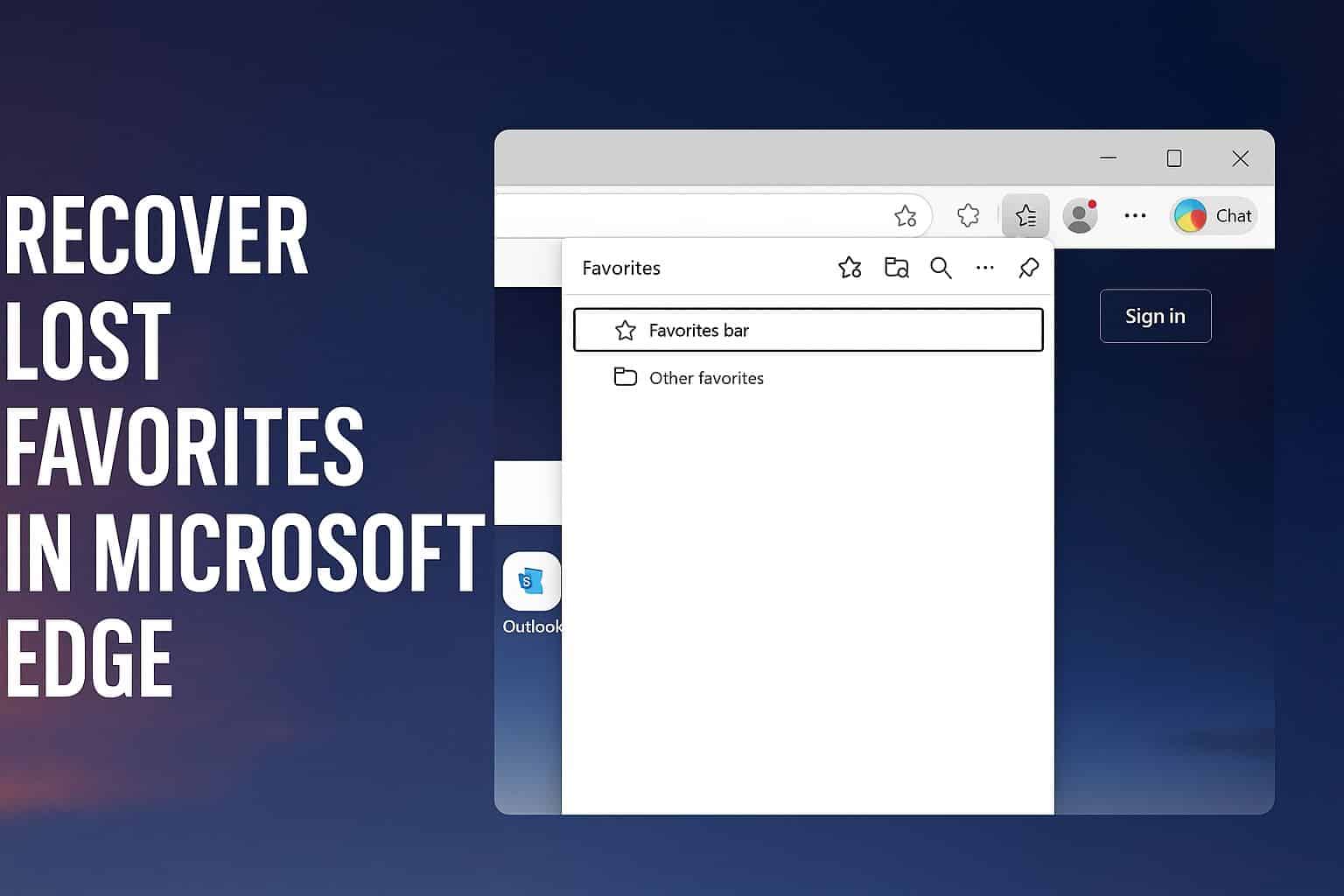
Recover lost favorites in Microsoft Edge using built-in recovery folders, sync tools, and backup files. If your bookmarks disappeared after an update or profile issue, this guide helps you bring them back quickly.
How Do I Recover Lost Favorites In Microsoft Edge?
Check The Deleted Favorites Folder
Edge keeps deleted bookmarks inside a built-in recycle folder.
Open Microsoft Edge.
Select the Favorites icon.
Click More options in the panel.
Choose Manage Favorites.
Open the Deleted folder and restore the items you want.
Reenable Edge Sync
If sync stopped working, your bookmarks may look missing even if they still exist in the cloud.
Click your profile in Edge.
Select the Cog icon.
Choose Sync.
Enable Favorites.
Wait a few minutes for your bookmarks to return.
For customization tips afterward, see how to manage your toolbar using this guide on the Edge favorites toolbar.
Restore Favorites From The Local Backup Folder
Edge automatically saves a backup file called Bookmarks.bak.
Press Windows + R to open Run.
Enter %localappdata%\Microsoft\Edge\User Data\Default
Locate Bookmarks.bak.
Rename Bookmarks to Bookmarks.old.
Rename Bookmarks.bak to Bookmarks.
Restart Edge.
Use Previous Versions In Windows
Windows can store older versions of your bookmark files.
Go to: C:\Users<username>\AppData\Local\Microsoft\Edge\User Data\Default.
Right click Bookmarks.
Choose Properties.
Open Previous Versions.
Restore an earlier file version.
Restart Microsoft Edge.
Recover Favorites With A Microsoft Account
If sync was on, you may be able to restore your bookmarks from another device.
Sign in to a PC where your favorites still exist.
Open Edge and enable Sync.
Let the sync finish.
Return to your main device.
Enable Sync to download your cloud favorites.
Import Favorites From Another Browser
If your bookmarks still exist in Chrome or Firefox, import them back into Edge. You can also back them up afterward using this guide on exporting favorites in Microsoft Edge.
Open Edge.
Click Settings.
Select Import browser data.
Choose the browser containing your bookmarks.
Select Favorites or Bookmarks.
Click Import.
Why Favorites Go Missing In Edge
Favorites usually disappear due to sync conflicts, corrupted profile files, or accidental deletion. A sudden reset or update can also hide your bookmarks. If you want to understand where favorites are stored, check this guide on the location of Edge bookmark files for deeper insight.
FAQs
Why did my Edge favorites disappear
Profile corruption or sync interruptions usually hide favorites instead of deleting them.
Can I restore favorites after reinstalling Edge
Yes. Use the Bookmarks.bak backup or reenable cloud sync.
Where are favorites stored
They are stored in the Default profile folder as the Bookmarks file.
Can I recover favorites without a backup
If Edge sync was enabled, cloud recovery usually works.
Recovering your lost favorites in Microsoft Edge usually takes only a few minutes. Whether you use the Deleted folder, a local backup, or cloud sync, your bookmarks often return without data loss. Keep a backup or export file to avoid losing them again.
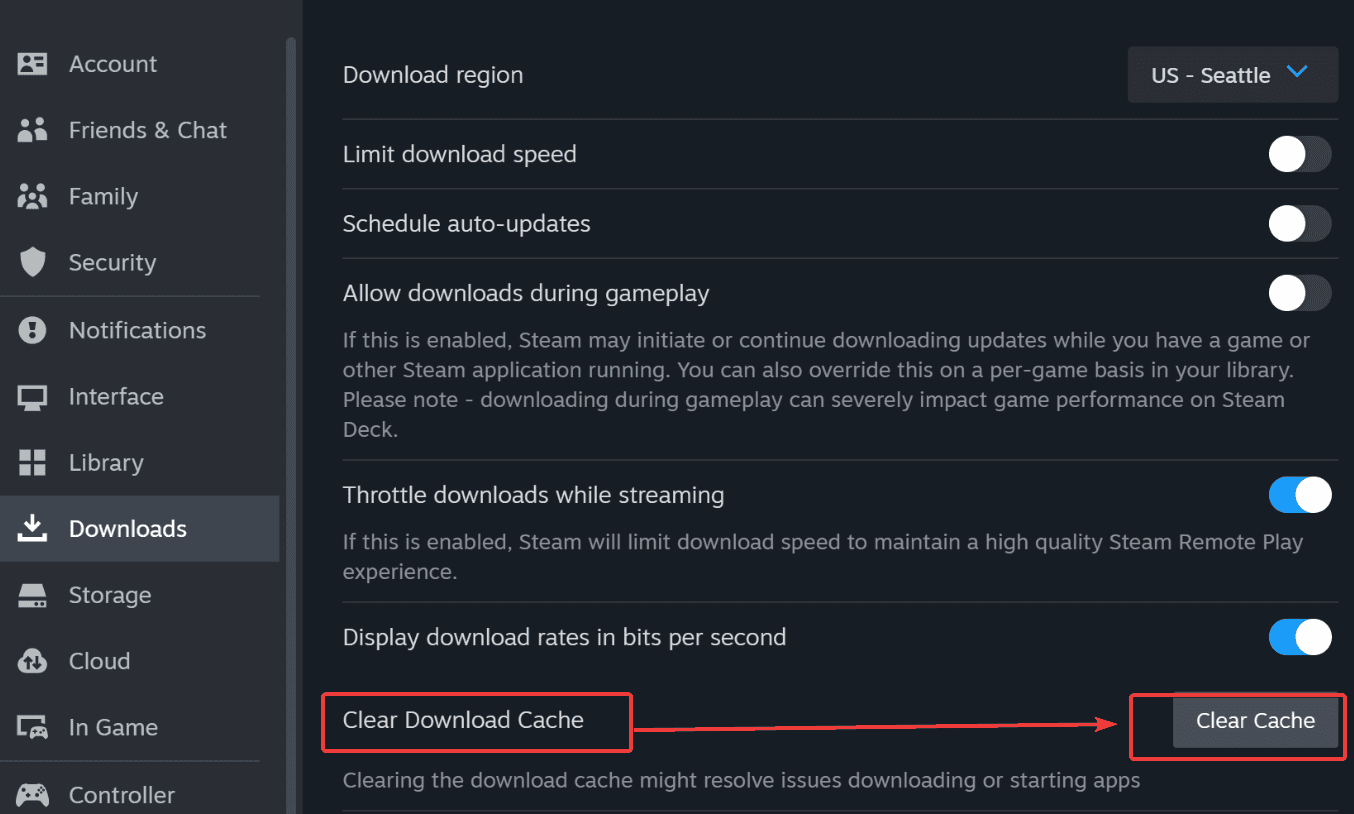
If Steam will not let you reset your password, you can usually fix the issue by checking your email, switching browsers, clearing cache, or using Steam’s account recovery form. This guide lists the fastest ways to regain access.
Filters or outdated account details may block delivery. Check your spam folder and confirm your email.
How long does a Steam reset email take
Most emails arrive within two minutes. Some providers delay messages for up to ten minutes.
Can Steam limit password resets
Yes. Steam may slow reset attempts after many failed logins.
Can I recover my account without email access
Yes. Use the I no longer have access to my email option and provide proof of ownership.
Password reset problems usually come from email issues, browser conflicts, or blocked network routes. After completing the steps above, most users regain access quickly. If problems continue, Steam Support can restore the account through manual verification.
Adjusting audio levels in Windows 11 is easy, and you can control both system output and individual apps. Use the methods below to manage your sound quickly and accurately.
Most laptops and many keyboards include dedicated audio keys.
Press the Volume Up key to increase sound.
Press the Volume Down key to decrease sound.
Press the Mute key to silence audio.
FAQ
How do I change the main volume in Windows 11
Click the sound icon on the taskbar and drag the slider to increase or reduce system volume.
How do I adjust volume for individual apps
Open Settings, select System, choose Sound, then open Volume mixer to control each app separately.
Why is my Windows 11 volume so low
Check the correct output device, increase app specific volume, and enable enhancements like Loudness Equalization in sound settings.
Where is the classic Volume Mixer in Windows 11
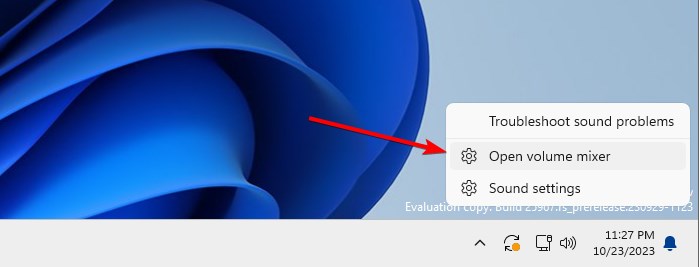
Right click the taskbar sound icon and select Open volume mixer to access the classic control panel style mixer.
Changing sound volume in Windows 11 is simple whether you use the taskbar slider, Settings, the classic Volume Mixer, or keyboard keys. Each method lets you quickly control system audio and customize your listening experience. For deeper configuration and troubleshooting, explore the dedicated sound guides linked in this article.
“Efficiency mode for PC gaming” now appears as “PC gaming boost”
Both features work the same as before. Energy saver lowers resource use during normal browsing. PC gaming boost reduces Edge’s impact when a PC game runs.
Edge’s current Performance settings show Efficiency mode and PC gaming options before the redesign.
Energy saver is not enabled by default. Here is how you can enable it.
Enable Energy Saver (formerly Efficiency mode) in Microsoft Edge
Click Menu and select “Settings”
Open “System and performance”
Select “Performance”
Scroll down to “Power”
Turn on “Energy saver”
Microsoft describes Energy saver in Edge as follows:
“Reduces background tab activity and some foreground activity. Puts background tabs to sleep after 30 minutes or less of inactivity, if Sleeping tabs is on. Savings may depend on your device, applications and browser use.”
Edge displays a pop-up description explaining how Energy saver works inside the new Performance settings. Image Credit: Venkat | WindowsReport.
Microsoft Overhauls Edge Performance Settings
The Edge Performance settings page now appears in four sections instead of a single list.
General: This section covers basic performance tools such as Performance detector and Fade inactive tabs.
Power: This section contains the Energy saver toggle.
The updated Performance section displays new categories and the Energy saver option under Power. Image Credit: Venkat | WindowsReport.
Memory: This section holds the Sleeping tabs settings. It controls when inactive tabs go to sleep to free up RAM.
Gaming: This section is for gamers. It contains the PC gaming boost toggle and the Resource controls slider. The slider lets you manually limit how much RAM Edge uses.
Under the new Gaming category, Edge now lists PC gaming boost along with memory control options.
Microsoft mentioned these changes in a roadmap note. It said the new names appear in the Performance settings “after the update”, which is set for rollout from January 2026.
“Efficiency mode feature name will change to energy saver and efficiency mode for PC gaming name will be renamed PC gaming boost to better describe the feature benefits” notes Microsoft.
The iGaming industry has evolved rapidly over the last decade, driven by innovations in software, regulation and player expectations. Operators now compete not only on game libraries and bonuses but on user interface quality, fairness, and mobile-first delivery. A sophisticated approach to product design and customer care is essential for any brand that wants to retain players and expand into new markets.
Partnerships and platform choices influence every stage of the player journey, from deposit to withdrawal. Forward-thinking companies integrate cloud services, APIs and analytics to deliver smooth sessions and responsible play tools. Many leading vendors and enterprise providers offer comprehensive ecosystems that reduce latency, support multi-currency wallets and enable fast scalability, which can be complemented by services from large tech firms like microsoft to manage infrastructure and compliance reporting.
Player Experience and Interface Design
Design matters. A streamlined onboarding process, clear navigation and quick load times increase retention. Modern casinos emphasize accessibility, offering adjustable fonts, color contrast options and straightforward account recovery flows. Mobile UX is especially critical; touch targets, responsive layouts and intuitive controls make sessions enjoyable on smaller screens. A strong visual hierarchy and consistent microinteractions also reinforce trust and encourage exploration of new titles.
Security, Compliance and Fair Play
Trust is the currency of iGaming. Encryption standards, secure payment gateways and transparent RNG certifications reassure players and regulators alike. Operators must implement KYC processes, anti-fraud monitoring and geolocation checks to comply with jurisdictional rules. Audits and certification by independent labs provide credibility, while continuous monitoring of suspicious behavior supports safer ecosystems.
Key Compliance Components
Identity verification and age checks
Secure payment processing and AML controls
Random number generator audits
Data protection aligned with regional law
Game Variety and Supplier Strategy
Players expect variety: slots, table games, live dealers, and novelty products like skill-based or social games. A balanced supplier mix helps operators cater to diverse tastes and manage risk. Exclusive content and localised themes drive loyalty in specific markets, while global hits maintain broad appeal. Integration frameworks and content aggregation platforms permit rapid expansion of libraries without sacrificing quality control.
Responsible Gaming and Player Protection
Responsible gaming tools are central to a sustainable business model. Time and stake limits, self-exclusion options and reality checks reduce harm and improve long-term retention. Data analytics spot at-risk behaviors early, allowing tailored interventions that protect both players and brand reputation. Transparent communication about odds and payout rates further strengthens the relationship between operator and player.
Performance Optimization and Analytics
Analytics transform raw telemetry into actionable insights: session length, churn triggers, funnel drop-offs and lifetime value projections. A/B testing frameworks help iterate lobby layouts, bonus structures and onboarding flows. Low-latency streaming for live dealer games and CDN strategies for asset delivery ensure consistent quality across regions. Strategic monitoring of KPIs guides investments in UX, marketing and content procurement.
Essential Metrics to Track
Metric
Why It Matters
Conversion Rate
Measures onboarding effectiveness and first-deposit success
Retention Rate
Indicates long-term engagement and product stickiness
ARPU / LTV
Helps assess monetization and marketing ROI
Load Time
Impacts bounce rates, particularly on mobile
Tactical Tips for Operators
Small changes can yield big lifts. Implement progressive onboarding, personalise offers based on behavior, and localise content and payment methods for each market. Prioritise server uptime and invest in customer support channels that include live chat and social messaging. Finally, maintain a strict approach to compliance while experimenting with gamification that enhances rather than exploits player engagement.
As technology advances, operators that combine user-centric design, robust security and data-driven decision making will lead the market. The most successful brands treat responsible gaming as a core value and leverage partnerships, platform automation and analytics to create compelling, safe experiences that stand the test of time.
[UPDATE | 26 Nov 11:16 PM EEST ] Some players are starting to get into the game after waiting in long queues. No queues as of now (via PC Gamer)
Arc Raiders players are once again dealing with server downtime today. Reports from Downdetector suggest that players started having trouble at around 08:30 PM EEST, and hours later, things aren’t looking good.
Time shown in this screenshot is IST
Trying to log in right now feels a bit like déjà vu from launch day, long queues, failed attempts, and plenty of frustrated reloads.
It’s likely many players were kicked mid-match and rushed back in at the same time, overwhelming the servers. For now, Embark Studios hasn’t said a word about what’s going on.
And honestly, that silence is starting to feel familiar. Fortunately, though, previous outages were usually short-lived, which gives players some hope that this downtime won’t stretch too long.
Meanwhile, Fortnite players ran into widespread login issues on Wednesday afternoon, with thousands reporting that they couldn’t access the game across PC, PlayStation, Xbox, and Nintendo Switch.
Are you still encountering issues when trying to log in to Arc Raiders? If yes, do let us know in the comments below.
If you’ve ever wondered whether Xbox’s cloud gaming bet is paying off, Microsoft may have just answered that. In a post from earlier today, Microsoft says Xbox Cloud Gaming hours from Game Pass subscribers have increased by 45% compared to last year. It’s a clear reminder of how quickly players are embracing streaming across devices.
Microsoft notes that console players are the ones driving that jump. As reported, time spent on cloud streaming on Xbox consoles is up 45%, while usage on PCs, handhelds, and mobile devices has increased to 24%. It’s a strong signal that players now expect their games to follow them, not the other way around.
A major part of that growth comes from global expansion. Earlier this month, Xbox Cloud Gaming launched in India, one of the fastest-growing gaming markets with more than 500 million players. With India now added, the service is live in 29 countries. Microsoft says Latin America is showing rapid growth too, with Argentina and Brazil reporting double-digit growth in both playtime and monthly active players.
Players in those regions can now stream directly through the Xbox app on LG Smart TVs and Amazon Fire TV devices. To keep up with demand, Microsoft has also increased local server capacity to reduce wait times. The company says that it wants to make every cloud session “instant and seamless.”
One of the reasons attributed to cloud gaming’s growth is the device flexibility. With cloud gaming, players can stream on consoles, PCs, smartphones, tablets, smart TVs, Fire TV sticks, handhelds, VR headsets like Meta Quest, and soon, even cars. In other words, players aren’t restricted from playing their favorite titles due to hardware limits.
That’s not all, Microsoft has been expanding Xbox Cloud Gaming so much that some Game Pass plans now include cloud access by default, giving players more choice in how they play. Microsoft calls this expansion “just the beginning,” and hints that you are in for “more great experiences and games to come across devices.”
[UPDATE Nov 26, 20:38 UTC] The issue has been resolved.
[ORIGINAL ARTICLE] Fortnite is facing widespread login and matchmaking problems today, leaving thousands of players unable to get into the game. If you’re seeing errors or getting stuck on the login screen, here’s a quick guide to understand what’s happening and what you can do.
What Should You Do While Fortnite Is Down?
Epic Games’ status page is the most reliable place to track real-time updates. While Epic works on a fix, you can try a few basic checks.
You can simply do the following:
Restarting the game launcher
Checking your home internet connection
Avoiding repeated login attempts that may slow access
Monitoring the Fortnite Status account on X for updates
Outages of this scale typically resolve within 1–3 hours, depending on the root cause.
When Will Fortnite Servers Be Back Up?
Epic Games has not provided an ETA yet. Engineers are still investigating and rolling out incremental fixes. Based on previous incidents, Fortnite usually restores services in phases. Login access returns first, followed by matchmaking and in-game systems.
Players are advised to wait for official communication and avoid spamming login attempts, which may trigger temporary blocks.
How Long Do Fortnite Outages Usually Last?
Historical data shows that major Fortnite outages last between one and three hours. However, severe backend issues or infrastructure-level incidents can extend that window. Notably, Epic typically posts restoration updates every 15–30 minutes during active investigations.
What Players Should Avoid During Outages
DO NOT reinstall the game
DO NOT reset your Epic Games password repeatedly
DO NOT switch platforms to bypass errors
DO NOT log in through VPNs, which often worsen delays
These actions won’t speed up access and may create new issues.
FAQs
Why can’t I log in to my Epic Games account?
Epic’s authentication servers may be overloaded or temporarily offline. This prevents accounts from verifying login requests, even if your internet is working normally.
Is Epic having problems right now?
Yes, Epic Games has confirmed today’s outage and is actively investigating. The issue affects login, matchmaking, and game services across all platforms.
Why are Epic Games not working?
The current disruption appears to be caused by backend server issues. These issues can occur during maintenance, high-traffic spikes, or unexpected technical failures.
How do I fix Fortnite stuck on “Logging In”?
You can try the following steps:
1. Restart Fortnite or the Epic Games Launcher 2. Check your internet connection or restart your router 3. Ensure your system clock is set to automatic 4. Log out of your Epic account on other devices 5. Wait for Epic’s status page to confirm service restoration
If the outage is on Epic’s side, your login will only work once servers are restored.