6 Best Wireless Keyboard And Mouse Deals

There’s no better time to upgrade your computer gear than when great deals and sales are available. So, we compiled a list of the best wireless mouse and keyboard combos that you can get this season.

There are various options for everyone’s taste, from robust setups to slim designs. So, you can pick a deal that suits you the best.

If you’re looking for small keyboards, we also have a selection of mini wireless keyboards for PC that are portable.

How can I pick the best wireless keyboard and mouse?

Our team of expert testers, with a combined experience of 15 years, has tackled a variety of testing tasks for any device you could imagine.

Their experience comes into play as a very important element when choosing the products we described in this guide, and a large variety of factors have been taken into consideration.

The options that have been chosen offer great quality and cover the entire spectrum of price ranges, thus enabling everybody to find something that fits their needs both financially and otherwise.

For gamers, we prepared a mechanical keyboard list with incredible offers in that peripherals category.

Note: All the prices and offers in this article are subject to change, so be sure to check the official product page to get the latest deal. If the product or offer you’re looking for is no longer available, you can try to find it on its official manufacturer page or get another one from our list.

Which wireless keyboard mouse is best?

Logitech MK270 wireless keyboard and mouse combo

  • Includes a full-size keyboard and a precision mouse so you can work comfortably
  • The 2.4 Gigahertz signal ensures you have a strong and reliable connection
  • The MK270 includes a plug and forget receiver
  • Programmable hotkeys to boost productivity
  • Basic AA and AAA batteries are included
  • May have issues with the Mac OS

When it comes to prime-quality peripherals, Logitech has always been on top of any list, and this includes keyboard and mouse combos.

In that sense, the Logitech MK270 is an incredibly reliable tool that provides a boost in productivity, all from a safe distance away from your PC.

Additionally, the battery capacity allows you to work for long after your work schedule is actually done.

Logitech MK750 Wireless Solar Keyboard and Marathon Mouse Combo

  • Solar-powered keyboard
  • High-performance laser mouse
  • Unifying wireless receiver
  • Concave keycaps, quiet keys, and sculpted mouse for feel-good typing
  • Windows 10 and 11 compatible
  • Non-replaceable battery

Wouldn’t it be great if you had a keyboard that doesn’t need cables or recharging needs? You can totally have that with this Logitech keyboard and mouse combo.

The keyboard is solar-powered so it can go on and on without bugging you to replace its batteries or plug it anywhere.

Plus, both mouse and keyboard can be connected wirelessly to any Windows PC through the Unifying receiver that is so small you will forget it’s somewhere in a USB port.

You will have to change the batteries for the laser mouse but even those can give you about three years of autonomy so it’s no rush.

If you’re a Razer fan instead, take a look at our best deals on Razer gaming mice and take your pick.

Microsoft Sculpt ergonomic wireless desktop keyboard and mouse

  • A separate number pad provides greater flexibility for workspace setup
  • Comfortable wrist support that is also cushioned
  • Ergonomic and unique design
  • Domed keyboard design
  • Dongle shuts off by itself after too much inactivity

We all know how painful it is to sit at a desk all day, especially when you have to type constantly thousands of words.

However, if you go for a keyboard that focuses on comfort above all else, your entire work experience will change.

Microsoft really outdid itself when it made de MS Sculpt, with its dome-shaped keyboard, cushioned armrest, and separate Numpad.

The Microsoft keyboard is great for the office, but if you need a play-worthy product, Razer is having a sale on gaming keyboards right now.

Dell KM5221W Pro Wireless Keyboard and Mouse Combo

  • Mouse DPIs of up to 4000
  • Silent keyboard
  • The wireless mouse is great for both left and right-handed users
  • RF 2.4GHz wireless connection
  • Power-hungry mouse

The Dell KM5221W Pro combo blends perfectly on any office desk but the slim design of the keyboard and the wireless connection also recommend it as a travel kit for your laptop.

You will benefit from one of the most silent keyboards thanks to its concave keys and short actuation point.

And the mouse has a symmetrical design that makes it ideal for ambidextrous usage needs. Plus, it offers DPIs of up to 4000 that you can tweak by using the Dell Peripheral Manager app.

Microsoft Wireless Comfort Desktop 5050

  • Customizable shortcut keys to easily access your favorite programs
  • Works on virtually any surface with BlueTrack Technology
  • Advanced Encryption Standard (AES) 128-Bit Encryption
  • Ambidextrous design is suitable for use with either hand
  • Ergonomist-Approved Comfort Curve Design
  • Built-in palm rest
  • Function keys may seem too small for some

Yet another mouse and keyboard combo provided by Microsoft, the Microsoft Wireless Comfort Desktop 5050 features several design improvements that make it great for long tying sessions.

The battery is also long-lasting, and the signal range is also strong, so you can work longer without sacrificing any freedom of movement.

The BlueTrack Technology also allows you to use it on any surface, regardless of how grounded or slippery, it may be.

Logitech MK735 wireless keyboard and wireless mouse M510

  • The keyboard Display gives you the at-a-glance icon status of your battery
  • Unifying receiver connects both the mouse and keyboard to your computer
  • Full-size mouse with 5 programmable buttons
  • Concave keys with softly-rounded edges
  • A bit too bulky for traveling

If you’re more for the vanilla feel of a keyboard, but still need comfort for your wrists and arms, then you can’t go wrong with the Logitech MK735 Wireless Keyboard + Wireless Mouse M510.

The keyboard has a display that shows you exactly how much battery you have left. This allows you to always have the right amount, and never end up with no power when you would need it most.

Additionally, the mouse that comes with the combo is great as well, with 5 different programmable buttons.

That’s about it, we end here our wireless keyboard and mouse combo option list and we hope you picked the one that suits your wireless needs.

If you’re just looking for a keyboard deal, we have a whole category just for them and you will be able to select any type from there.

Have you had any experience with the products from our list? Then share your thoughts with us in the comments below.

6 best Cyber Monday deals for 4K monitors

There are usually plenty of monitors to pick from these days. However, those that are truly special include 4K VDUs (Visual Display Units), as you most likely know already.

The 4K monitors are those that boast the 3,840 x 2,160 resolution for the best picture quality. If you like the idea of having such a monitor as well, these are six interesting 4K monitors that are worth noting.

? How we chose the best 4K monitors of the year

Our team of expert testers, with a combined experience of 15 years, has tackled a variety of testing tasks for any device you could imagine.

Their experience comes into play as a very important element when choosing the products we described in this guide, and a large variety of factors have been taken into consideration.

The options that have been chosen offer great quality and cover the entire spectrum of price ranges, thus enabling everybody to find something that fits their needs both financially and otherwise.

Note: All the prices and offers in this article are subject to change, so be sure to check the official product page to get the latest deal. If the product or offer you’re looking for is no longer available, you can try to find it on its official manufacturer page or get another one from our list.

What are the best Black Friday 4K monitor deals?

Dell UltraSharp U2720Q

  • 27 Inches
  • 4K UHD LED
  • 3840 x 2160 resolution
  • USB-C
  • Thin profile
  • Tilt, swivel, Vesa mount compatible
  • 99% sRGB color gamut
  • Only one DisplayPort

The Dell UltraSharp U2720Q model is our top pick for the best 4K monitors on the market at this point in time, as it offers incredible image quality and some great connectivity features as well.

Measuring 27 inches in size, the 4K UHD LED display ensures that every pixel from the 3830 x 2160 resolution shows crisp colors and deep blacks, offering you a great experience no matter if you’re gaming or simply watching 4K videos with your family and friends.

The 99% sRGB color gamut is able to create an immersive and life-like image that is sure to satisfy even the most demanding users.

The fact that it features a USB-C connection ensures that your desk will not be cluttered with too many cables, while also providing fast data transfer without any sort of glitch in the process.

To make the monitor as comfortable to use as possible, you can customize its position by tilting and swiveling it to the desired position, while also being fully compatible with Vesa mounts.

ASUS ROG Swift PG32UQ

  • 32 inches
  • 4K HDR IPS 144Hz display
  • HDMI 2.1
  • 3840 x 2160 resolution
  • G-Sync compatible
  • Eye care technology
  • 1ms response time
  • Few users reported random restarts

The ASUS ROG Swift is the perfect 4K monitor for gaming, offering you an amazing 1ms response time, which can make a difference between life and in-game death, especially if you’re a competitive player.

This G-Sync compatible gaming monitor has a 32-inch 4K HDR IPS display that runs at a frequency of 144Hz and offers a 3840 x 2160 resolution which is more than enough for any game and will also drain every last ounce of power from your computer’s GPU.

The HDMI 2.1 connection ensures fast data transfer from your PC and offers amazing clarity without compromises at any level.

The Eye-care technology customizes the brightness and depth of color to protect your eyes, making this monitor perfect for long gaming sessions, or for binge-watching your favorite shows online.

BenQ PD3220U

  • 32 inches
  • 4K IPS HDR
  • 3840×2160 resolution
  • AQ COLOR
  • ICC sync
  • Eye-Care
  • Thunderbolt 3
  • Some users reported flicker issues

The PD3220U model from BenQ is another amazing option when it comes to 4K monitors, offering you a 32-inch display surface that will surely captivate you no matter if you’re playing games, browsing the internet, or watching movies.

This 4K IPS HDR monitor offers a great 3840 x 2160 resolution with AQ color, and ICC sync, thus making this device a great choice for any sort of computer-related activity.

The Thunderbolt 3 connection makes it easily compatible with Mac devices, while also providing great connection speeds without any lag.

Using the Eye-Care technology, this monitor protects your eyes from strain, thus improving your efficiency while working, reducing eye fatigue over long periods of usage, and overall improving your capability to use it around the clock.

ASUS TUF Gaming

  • 28 inches
  • 4K 144Hz DSC monitor
  • 3840 x 2160 resolution
  • 1ms response
  • G-Sync compatible
  • Eye-care
  • Free 1-month Adobe Creative Cloud subscription
  • Can not change brightness or contrast when using HDR

The ASUS TUF Gaming monitor, as the name suggests, was designed to fit any gaming rig, and has some great features that could give you an advantage while gaming online with your friends.

This 28 inches 4K DSC monitor runs at 144Hz, and offers you a resolution of 3840 x 2160, with an incredible 1ms response time. If you’re a gamer, any ms lag between the PC and the monitor can make a huge difference, so this is a very important aspect to consider.

The fact that it is fully compatible with G-Sync will surely improve your gaming experience, and the built-in Eye-Care tech will protect your eyes from strain, making you more efficient and more capable to use the device for prolonged periods of time.

As an added bonus, this monitor comes bundled with a 1-month free Adobe Creative Cloud subscription, so it can be a very good choice for creatives as well.

LG 27UN850

  • 27 inches
  • UHD IPS display
  • 3840 x 2160 resolution
  • Vesa DisplayHDR 400
  • sRGB 99% color
  • USB-C
  • 3-side borderless design
  • Height, pivot, and tilt are adjustable
  • Image brightness can be a bit too intense

The LG 27UN850 model is another monitor which is worth mentioning in this list, as it covers a wide range of useful features which will prove extremely useful no matter what you plan on using it for.

The 27 inches UHD IPS display has a resolution of 3840 x 2160 and uses the world-renowned Vesa Display HDR 400 tech to ensure a smooth experience while gaming, using it casually, or watching some of your favorite shows online.

With an sRGB 99% color, you can rest assured that the image will be crystal-clear, and thus your experience will be immersive and engaging.

The USB-C connection ensures fast data transfer speeds and removes any wired clutter from the top of your desk.

To ensure optimal comfort, you will be able to adjust this monitor’s height, pivot it to any position, and also customize its tilt.

Samsung UH750

  • 1 billion color support
  • Picture-in-Picture feature
  • Response time of 1ms
  • Slim structure
  • Narrow bezel
  • Random signal issues

This Samsung UH750 QLED 4K UHD monitor is a 28-inch 4K one with a TN display that boasts a super quick 1 m/s response time and a more standard 60 Hz frame rate.

This beautifully designed Samsung 4K monitor also makes the list on our Black Friday deals guide, offering a curved 1800R display that provides a greater sense of immersion. It comes with two HDMI inputs, a headphone port, and an EA display port.

The monitor also enables you to view content from two alternative sources at the same time with its Picture-in-Picture and Picture-by-Picture display modes.

ASUS VP28UQG

  • 3840 x 2160 resolution visuals
  • ASUS Eye Care
  • ASUS Game Plus
  • TUV Low Blue Light
  • 5-Way OSD joystick
  • Random flickering issues

Why settle for a 4K 27-inch monitor (or smaller) on Black Friday when you can buy the ASUS VP28UQG that is 28 inches?

Since you want the very best, do not hesitate to take a closer look at this  4K/UHD monitor made by the giant ASUS.  

You’ll literally enjoy a 28” 4K/UHD (3840 x 2160) with 1ms response time and Adaptive-Sync/AMD FreeSync for immersive visuals.

As for the included ASUS Eye Care technology, it lowers blue light and eliminates flickering to reduce eye fatigue, even when working for hours.

HP ENVY 32

  • Integrated 4K UHD monitor
  • Super-fast 9th generation processor
  • 1 TB Intel(R) solid-state drive
  • HP privacy 5MP IR web camera
  • Bang & Olufsen speakers
  • The Nightfall Black keyboard is small

If you want a vivid monitor, you can’t go wrong with this HP ENVY 32 All-in-One PC. It comes with a 31.5″ diagonal wide-color-gamut with HDR-600, a 6000:1 contrast ratio, and 600 nits peak brightness.

Moreover, you’re about to get a 1 TB Intel(R) solid-state drive, 32 GB DDR4-2666 SDRAM, as well as 32 GB Intel(R) Optane(TM) memory, so saving your files and photos cannot turn into an issue.

When it comes to protecting your privacy, do note that this HP monitor is equipped with a 5MP pop-up privacy camera featuring an 88° wide-angle field of view.

Those are six monitors with top-notch 4K picture quality that you can currently buy. Do note that this article is part of a generous selection of great monitors.

You can check it out right away, then let us know which 4K monitor for multimedia is your final pick. The comments area is waiting for you.

Best Cyber Monday deals on Xbox controllers [Updated list]

We all know that Black Friday just passed, and not everyone was able to take advantage of the bargains and finally obtain that device we’ve been wanting for months at a much lower price.

It isn’t just about Black Friday and holiday sales, though. That is to say, you don’t have to wait for the big event to obtain some great prices on the items you desire, because those deals might sometimes last longer.

With all of this in mind, if you’re looking for a new Xbox controller, you might want to take a look at some of the actual deals.

Quick Tip:

While you’re in the market for a new gaming controller, you might also be interested to know that Microsoft may have a discount on their Game Pass subscription service.

Xbox Game Pass

Enjoy the largest catalog of Xbox games and get monthly freebies at an incredibly low price!
Check price Visit website

Note: All the prices and offers in this article are subject to change, so be sure to check the official product page to get the latest deal. If the product or offer you’re looking for is no longer available, you can try to find it on its official manufacturer page or get another one from our list.

What are the best deals for Xbox Elite controllers?

Xbox Elite Series 2 Controller

  • Play like a pro with the all new Xbox elite wireless controller series 2
  • Stay in the game longer with up to 40 hours of battery life
  • Tailor the controller with new interchangeable thumbstick and paddle shapes
  • Limitless customization and exclusive configuration options with the Xbox Accessories app
  • Compatible with Xbox Series X, Xbox One, PC
  • Sensitive to rough handling

Designed to meet the needs of today’s competitive gamers, the new Xbox Elite Wireless Controller Series 2 features over 30 new ways to play like a pro.

Enhance you’re aiming with new adjustable-tension thumbsticks, shorter hair trigger locks, and a wrap-around rubberized grip.

The Xbox Elite Wireless Controller Series 2, Carrying case, Set of 6 thumbsticks: Standard (2), Classic (2), Tall (1), Wide Dome (1), Set of 4 paddles: Medium (2), Mini (2), Set of 2 D-pads: Standard, Faceted, Thumbstick-adjustment tool, Charging dock, USB-C cable.

Xbox Wireless Controller – 20th Anniversary Special Edition

  • Textured triggers and bumpers
  • Advanced Bluetooth technology
  • Hybrid D-pad and button mapping
  • Long battery life and great sensitivity
  • Sensitive to rough handling

Celebrate 20 Years of Xbox with the Xbox Wireless Controller 20th Anniversary Special Edition in classic black with green touches that go back to the beginning, and so much more.

Travel through time with the green and translucent black controller colors to the moment the original, translucent green Xbox console launched.

Look through the translucent blacktop to see interior silver details representing 20 years of Xbox technology carried forward.

Easily pair and switch between devices including Xbox Series X, Xbox Series S, Xbox One, Windows 10 PC, Android, and iOS.

Xbox One|Series X/S Controller Wireless

  • More comfortable to hold for a long time
  • Stay in the game longer with 10 hours of battery life
  • Stay on target with the hybrid D-pad
  • 360° joysticks without dead zones for better positioning
  • Compatible with Xbox Series X, Xbox One, PC
  • Sensitive to rough handling

This Xbox wireless controller is one of the latest products to be added to this relatively new series of Xbox-specific gaming controllers.

It takes your game to a whole new level, and the integrated accelerometer and gyroscope have high sensitivity, which is more comfortable to hold for a long time.

Enhance your aiming with the new 360° joysticks without dead zones allowing you to position each frame more accurately, bringing you a more realistic gaming experience

PDP Gaming Wired Controller

  • Customize your gaming experience further with the PDP Control Hub app
  • Quickly adjust your game/chat ballance and volume withh onboard controls
  • Instantly share your in-game videos and screenshots with the dedicated button
  • Compatible with Windows 10/11 via USB
  • long-lasting silicone membrane behind the buttons
  • Compatible with Xbox One, Xbox Series X/S.
  • Sensitive to rough handling

In order to be an officially licensed product, the PDP Gaming Wired Controller had to go through rigorous quality and safety testing performed by Xbox.

With the free PDP Control Hub app, you can customize your controller to easily re-map buttons, re-configure triggers, adjust dead zones, run diagnostics, and even stay up to date with the latest firmware.

The PDP Gaming Wired Controller features a new, long-lasting silicone membrane behind the buttons- meaning faster reaction times and less wear and tear, even for the most intense button smashers!

PowerA Spectra Infinity Enhanced Wired Controller

  • Thousands of Color combinations with hundreds of vivid colors
  • Three distinct awesome Spectra zones plus two LED modes
  • Achieve greater performance with the advanced gaming buttons
  • Immersive dual rumble motors plus New share button and volume dial
  • Precision-tuned analog thumb sticks with smooth anti-friction rings
  • Doesn't have a dedicated application

If you have a soft spot for limited edition or out-of-the-ordinary items, then this is the controller you’ve been searching for all this time.

It literally has thousands of Color combinations with hundreds of vivid colors and three distinct Spectra zones plus two LED modes, so you can select between the breathing or solid modes.

Show your love for the Xbox console by letting everyone know that your controller is not only functional but looks cool as well.

Hand Airbrushed Fade Custom Controller

  • This controller shell is fully hand made and truly unique
  • Comes in a vast array of patterns and collors for all tastes
  • Compatible with Xbox Series X, Xbox One, PC
  • Sensitive to rough handling

This is a regular Xbox wireless controller, but it looks like nothing you already have or had in the past.

These customized gamepads come in so many colors, and so many models are available for them that it’s really just a matter of preference.

From flags to abstract patterns, or even animal print, all you have to do is imagine what you want and order it.

Razer Wolverine Ultimate Xbox Controller

  • Always be one step ahead with interchangeable thumbsticks and two interchangeable D Pads
  • This Razer controller comes loaded with a slew of extra buttons for advanced gaming
  • Master next level techniques with the remapping function on the fly or with Razer Synapse for Xbox
  • Show off your personal style with Razer Chroma's wide selection of lighting effects
  • Optimized ergonomics that stays comfortable after hours of practice and interchangeable parts
  • Sensitive to rough handling

The Razer Wolverine Ultimate is the most customizable controller for competitive play both on Xbox One & PC.

From interchangeable thumbsticks & D-Pads to a total of 6 remappable Multi-Function Buttons, the Razer Wolverine Ultimate can be adapted to suit your individual needs.

Show off your personal style with Razer Chroma’s wide selection of lighting effects and stunning profiles, completely customizable through Razer Synapse for Xbox.

Experience deeper immersion with integrated games and watch the lighting effects react to your gameplay.

Turtle Beach Recon Controller

  • Easy access audio controls only available from Turtle Beach
  • EQ presets, game & chat volume mix, Mic Monitoring and more
  • Equipped with dual rumble motors in the handles and triggers
  • It has micro-cooling channels and a comfortable shape
  • Comes with two mappable Quick-Action buttons
  • Sensitive to rough handling

This state-of-the-art controller is unlike any you’ve ever seen or handheld before, and it has a lot more controls and functions than others on the market.

Did you know that you can configure both rear buttons to your preferred function and save up to selectable four profiles? Yes, that is true.

It’s got easy access to audio controls only available from Turtle Beach including EQ presets, game & chat volume mix, Mic Monitoring, and more.

Micro-cooling channels and a comfortable shape keep your hands cool and dry while reducing fatigue, so you can dominate everyone.

Let us know what other list of top products are you interested in reading about, and if we don’t already have it, we’ll add it.

Which of the controllers we’ve listed is your favorite? Let us know in the comments section below.

5 Cyber Monday Deals for External Hard Drives [4TB & 8TB]

External hard drives offer a simple but reliable way to protect your entire digital information and have proven to be one of the must-have companions for your PC.

High-capacity drives bring more storage, faster data transfer speeds, and are more convenient for bigger files, music, video, and software.

Whether you’re upgrading or buying your first external hard drive, you can take advantage of some 4TB and 8TB external hard drive deals and grab some sleek hard drives on the cheap.

What are the best deals on external hard drives?

Seagate 8TB Desktop Backup Plus Hard Drive

  • Plug-and-play functionality thanks to the high-speed USB 3.0/2.0 connectivity.
  • Straightforward automatic backup scheduling.
  • Seagate Dashboard software downloadable
  • Cloud storage service bonus
  • Activity light pulse too soft to discern ongoing transfer operations

This delivers 8TB of smooth backup storage for your hi-res movies, photos, and videos. You can even back up what you’ve been sharing on social media via the Seagate dashboard software

Initializing backup takes one click as well as scheduling automatic backups.

And it has just about everything: exceptional reliability, extreme speed, and a handy cloud storage service for your digital favorites. This Seagate 8TB deal is simply too good to pass out on.

WD 8TB Elements External Hard Drive Desktop

  • Auto Backup Software: You will never fail to backup.
  • Dropbox Cloud Service: Online backups for more peace of mind.
  • Plug-and-play: Comes ready for use on Windows PCs.
  • High-quality drive, inside and out
  • Swift social and cloud files import
  • It can be very loud when running

Riding on Western Digital’s trusted quality, WD elements 8TB external hard drive is another reputable high-capacity storage.

It also provides universal connectivity via USB 3.0/2.0 and yes, it’s quite swift.

The hard drive is one of the most protective with both the password protection and built-in hardware encryption proving impregnable.

This drive is NTFS formatted meaning support for larger files and easier data recovery.

Seagate Expansion 8TB External Hard Drive

  • SuperSpeed USB 3.0 port (backward compatible with all USB 2.0 devices).
  • Drag and drop: transfer and file saving is a breeze.
  • Instant recognition by Windows operating system.
  • The cable is not very long

Billed as the ultimate backup storage solution for laptops and desktops overflowing with files, Seagate’s expansion desktop hard drive has a number of advantages.

You will first enjoy quick and easy drag-and-drop transfers and backups for your songs, photos, games, and everything else.

Then, set up is not an issue: This hard drive is usually automatically recognized by your Windows installation so there’s absolutely nothing to configure.

And it’s durable so your files are safe in one incorruptible place.

WD 4TB Elements External Hard Drive

  • Simply plug and play
  • Fast data transfers
  • 4TB storage capacity
  • Proven WD quality inside and out
  • Seems to suddenly crash

This is a sibling of the popular WD 8TB Elements external hard drive so you can expect the same top-notch performance.

I am referring to better load times and instant file transfers between devices and to/from your personal cloud service.

It’s additionally very responsive and insanely easy to set up for windows despite not incorporating auto-backup software.

If you have been looking for the best solution for your Xbox, PS4, and the likes, trust us, you have a champion in this drive.

Seagate Backup Plus 4TB Portable Hard Drive

  • USB 3.0 For PC Laptop And Mac
  • 2-Year Rescue Service
  • Store and access up to 4GB of photos and files.
  • Not as durable as other alike devices

The winners here are the unbelievable pricing, slim design, and zero lags.

The durable (protective metal finish) design, flexibility, one-click backups, and fast transfers mean your photography will never be the same.

And neither will you ever worry again about losing your music, favorite movies, and Office files.

Plus, it’s thoughtfully designed so it’s more colorful and a pleasant presence on your desk. Users also praise the useful Seagate auto backup software.

What should I consider before buying an external hard drive?

Before you go out and get a new hard disk, there are a few things you should think about. So, congrats on taking the first step toward backing up your data on a regular basis! But before you go out and start shopping for an external hard drive, here’s what to look for:

First, you need to assess your storage requirements. The capacity of new hard drives ranges from 250 gigabytes to several terabytes (1TB = 1000GB). You don’t want to buy a 500GB hard drive just to find out later that you need 1TB of storage.

Computers nowadays come in a wide range of hardware and operating system configurations. That implies you should consider hard drive compatibility when purchasing a new external hard disk.

The most crucial element to consider when purchasing a new hard drive is your operating system. Keep in mind, though, that just because you have an Acer laptop doesn’t imply an Acer external hard drive will function with it.

If you want to use your new hard drive in a desktop application, the size, weight, and overall design of the drive are probably unimportant to you.

The hard drive’s sole purpose is to keep your computer company while backing up your data. But that’s not true.

Those aspects are just as important before buying an external hard drive as you will be carrying it around everywhere.

Finally, there’s the matter of speed. The average hard drive has a rotational speed of 5,400 rpm, however, there are several faster types available.

Most people will be OK at 5,400 rpm, but if your lifestyle necessitates quick downloads, go for a faster model. They are normally more expensive, but they are well worth the extra money.

Is an external hard drive faster than the internal one?

The answer is most likely going to be no. As we all know, an external hard drive is connected to a computer by means of a USB data cable.

Well, the fact that some USB interfaces are quicker than others does not negate the fact that external hard drives require an interface change. For example, going from SATA to USB results in some latency.

The internal hard drives are connected directly to the motherboard interface, which allows for quicker data transfer rates than external hard drives that are attached via USB cables.

Aside from the interface component, the form factor also contributes to the faster performance of internal hard drives compared to external hard drives.

In general, hard disk drives (HDDs) use conventional spin speeds between 5,400 RPM and 7,200 RPM. Both 2.5-inch and 3.5-inch hard drives are capable of supporting the two RPMs.

However, the latter is significantly more capable of supporting higher spin rates due to its higher power consumption and physical dimensions.

External hard drives are typically 2.5-inch drives that are housed in SATA to USB enclosures, although internal hard drives are available in both 2.5-inch and 3.5-inch sizes.

Your photos, movies, music, games, work files, and everything else is in safe hands with external hard drives. You can also find some great external hard drives for video editing if that’s one of your passions too.

Let us know your pick in the comments area below. We’d be eager to see your choice.

Windows 7 Sleep Mode Not Working: 5 Ways to Fix It

Some of our readers complain about Windows 7 Sleep Mode not working whenever they enable it. This problem can occur for many reasons, and it’s also common in other Windows versions. Also, some reports about Windows 11 Sleep Mode not working on their PC.

Why is the Sleep Mode not working in Windows 7?

The most common factor responsible for Windows 7 Sleep Mode not working is outdated drivers on your PC. When the devices connected to your computer run on outdated drivers, they may interfere with the Sleep Mode functionality.

Other factors that can cause the Sleep mode on Windows 7 not to work are:

  • Issues with the Power Options settings – If the Power Options settings in your PC are not well configured, you may have difficulties using the Sleep Mode option.
  • Virus and Malware – Many issues may occur with your computer if it becomes infected with malware or viruses. It can prevent it from performing tasks such as sleeping. Look at our recommended list of the best anti-malware software to combat this issue.
  • Devices connected to the PC – Your PC may not be able to use the Sleep Mode option if a device connected to it is using it, causing it not to go to sleep. Also, the device can malfunction and affect how your computer works,

These causes may vary on different Windows 7 computers. Hence, we’ll walk you through some general fixes for the problem.

What can I do if Sleep Mode does not work on Windows 7?

Do not hesitate to go through the following preliminary checks:

  • Disconnect any external devices from your PC.
  • Turn off background apps running on your computer.
  • Temporarily disable antivirus software.

If you’re still not able to put your PC to sleep, try the following solutions.

1. Check the Power Option settings

  1. Left-click the Start button, type power sleep in the text box, and click on Change when the computer sleeps.
  2. Go to Put the computer to sleep and select a new value, such as 15 minutes.
  3. Click Change advanced power settings, expand the Sleep tab, expand Allow wake timers, then select Disable.
  4. Click on Multimedia settings, expand When sharing media, and Allow the computer to sleep.

Read what to do if the sleep option is missing from the Power Options on your computer.

2. Update drivers to the latest version

  1. Go to the hardware maker’s website and download the latest hardware driver.
  2. Open File Explorer from the taskbar and find the downloaded zip folder.
  3. Right-click on the zip folder, select Extract All from the drop-down, and then follow the prompts.
  4. Right-click on Start and select Control Panel.
  5. Click on Device Manager to start it.
  6. Double-click on the device you want to update its driver and select Update Driver Software.
  7. On the next prompt, select Browse my Computer for driver software, then click Browse to find the extracted driver file.
  8. Select the driver file and click Open, then click Next on the Update window.

Follow the onscreen instructions to complete the update. Repeat these steps for all your device drivers. Updating your drivers will help their devices perform better and fix Windows 7 Sleep Mode not working.

As another possibility, you can let a third-party software help you update your drivers automatically. Outbyte Driver Updater is an excellent pick because it has a vast database where it can locate the latest updates in just a few minutes.

Outbyte Driver Updater

Worry less about searching for the right drivers and let Outbyte Driver Updater get the latest versions for you.
Free Trial Download now

3. Disable devices from waking the computer

  1. Left-click Start, type command in the text box, and select Run as administrator from the drop-down.
  2. Run the following command to show the devices that can wake the computer: Powercfg -devicequery wake_armed
  3. Find the app to disable from waking the computer, then run the following command: Powercfg -devicedisablewake devicename

Check if the issue persists. If it’s not resolved, run the following command to enable the disabled device: Powercfg -deviceenablewake devicename

Disabling devices from waking the PC will fix any interference from the device, preventing the Sleep Mode from working.

4. Perform a Clean boot

  1. Left-click Start, type msconfig in the text box, and go to the Services tab.
  2. Check the box for Hide all Microsoft services and click the Disable all button.
  3. Go to the Startup tab, click the Disable all button, then click OK to save the changes.
  4. Restart your PC.

A clean boot will disable startup services that can cause Sleep Mode issues on your PC.

5. Run an SFC scan

  1. Left-click Start, type command in the text box, and select Run as Administrator from the drop-down.
  2. Click Yes on the User Account Control (UAC) prompt.
  3. Type the following and press Enter to open the System file checker: SFC /scannow

After the process is complete, restart your PC. Performing an SFC scan will check and repair corrupt system files.

Alternatively, you can read about Windows 11 shutting down instead of sleeping and some fixes. Likewise, we have a detailed article about how to fix hibernation and sleep issues on Windows11.

If you have further questions, kindly drop them in the comments section below.

DuckDuckGo App Tracking Protection is now in public beta

Your privacy should be your priority when browsing the web or while using your phone. DuckDuckGo is a well-known privacy-oriented search engine, and as such, it’s a search engine of choice for many.

There’s already a DuckDuckGo browser, but the current change is related to the Android version of the app.

With the recent changes to its Android app, DuckDuckGo introduced a new feature that will make app usage more private on your phone.

What is DuckDuckGo App Tracking Protection and how can I use it?

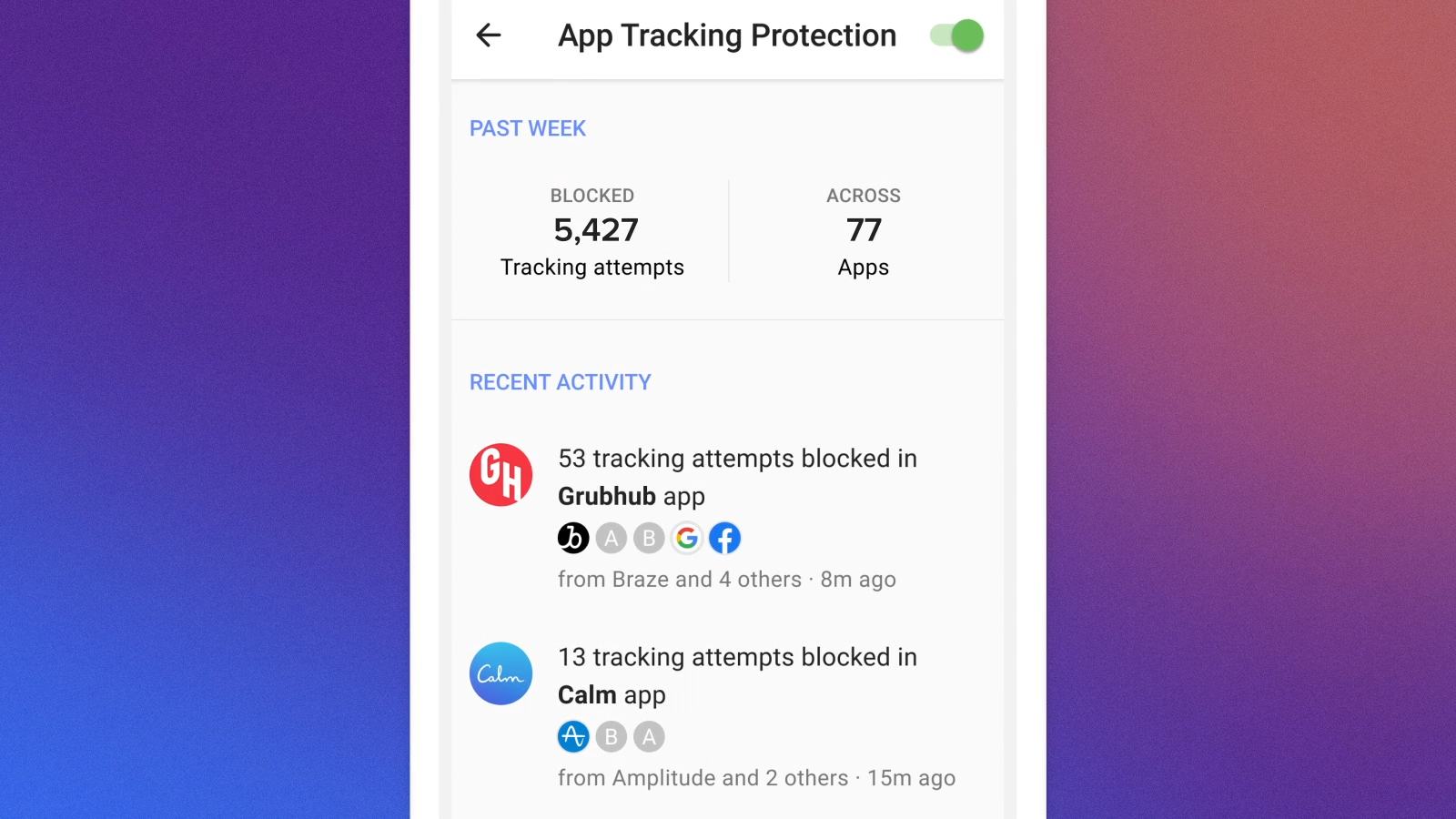
App Tracking Protection for Android is a beta feature in the DuckDuckGo Android app. With this feature enabled, you’ll block third-party trackers in apps, even if you’re not actively using them.

As you probably know, a similar feature called Apple’s App Tracking Transparency is available for iOS, and now finally DuckDuckGo is bringing something similar to Android users.

Once you enable this feature, it will detect the apps that are trying to send the data to third-party tracking companies and block most of these requests. You can read more about it on DuckDuckGo’s App Tracker Blocklist GitHub page.

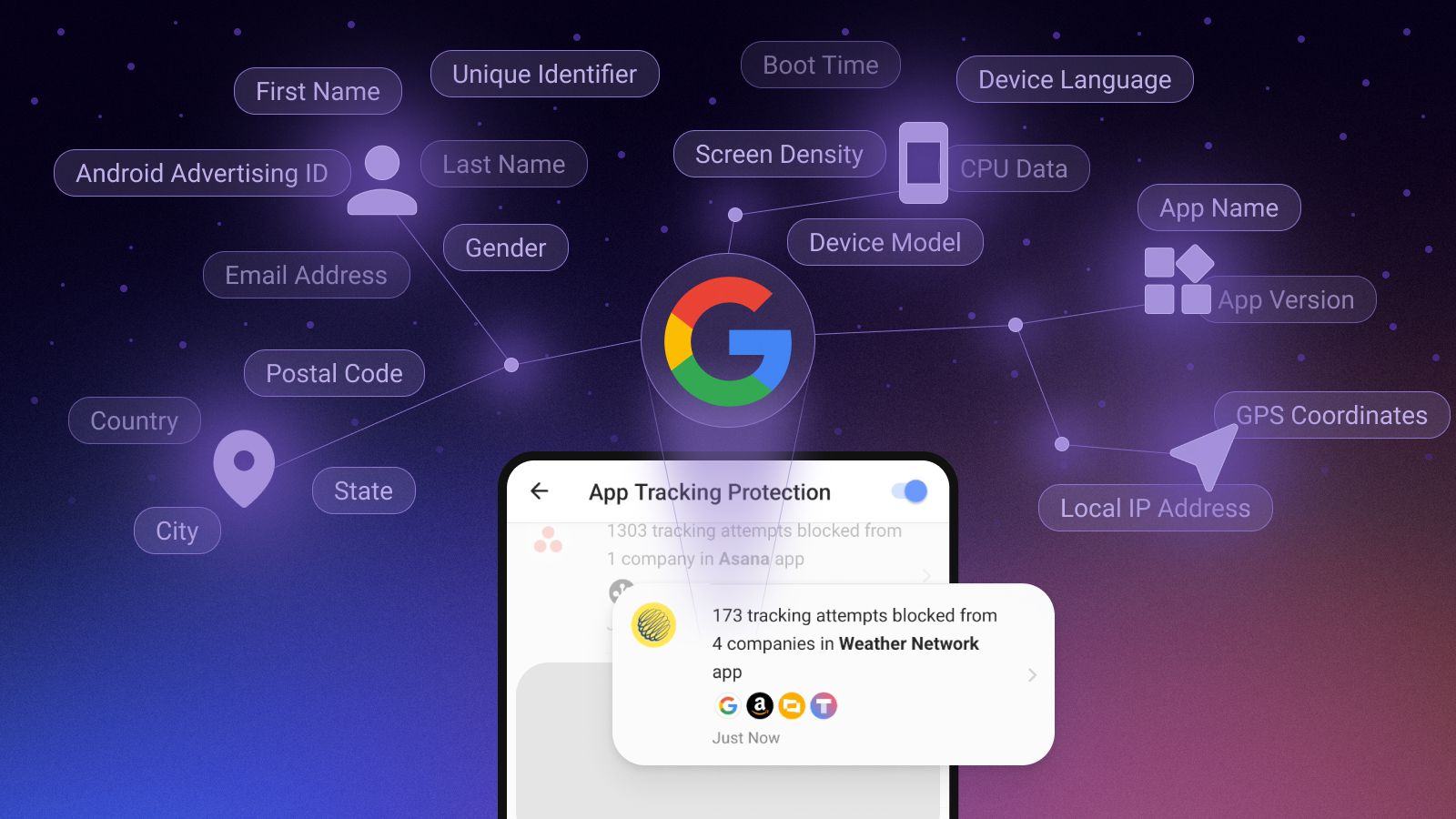
Once you start App Tracking Protection, you’ll be able to see which tracking company is trying to collect your data, the data that is being collected, and the app that is sending the data to the tracker.

The feature uses a local “VPN connection” meaning that all processing happens on your phone, without sending any data to DuckDuckGo or any other servers.

You can use this feature today and you just need to do the following:

  1. Download the latest version of DuckDuckGo for Android.
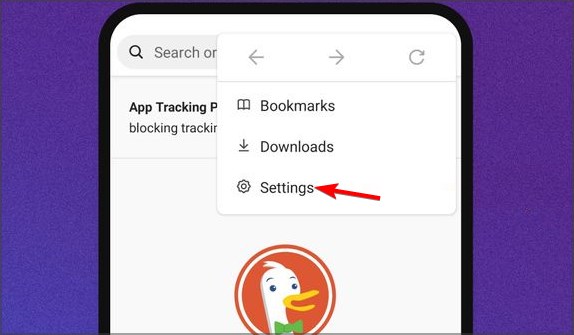
  2. Navigate to Settings.
     
  3. Now enable App Tracking Protection.
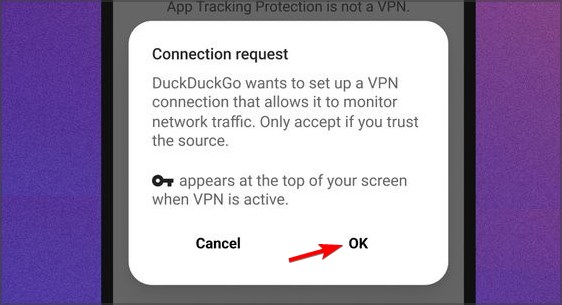
  4. Follow the instructions on the screen to allow the VPN connection.

After that, you’re good to go. The App Tracking Protection is an incredibly useful feature and it’s something that all Android phones should have enabled by default.

If you liked this feature, you can also get @Duck email address for extra security. Have you tried App Tracking Protection? Let us know in the comments below.

13 Best USB-C Hubs On Sales Now

USB hubs are useful especially if you need to connect additional devices to your PC. And this is the perfect time to show you the best USB-C hubs that you can get for this shopping season.

Before doing so, don’t hesitate to understand more about how USB hubs work and if they may affect the performance/PC in any way.

Note: All the prices and offers in this article are subject to change, so be sure to check the official product page to get the latest deal. If the product or offer you’re looking for is no longer available, you can try to find it on its official manufacturer page or get another one from our list.

What’s the best USB-C hub?

AUKEY USB 3.0 Hub Ultra Slim

  • Thin, lightweight design
  • Aluminum body
  • Compatible with Windows 10, 8, 7, Vista, XP, Mac OS x 10.6-10.12 or later, Linux 2.6.14 or later
  • Wi-Fi might disconnect when the hub is plugged in

AUKEY’s  4-port USB 3.1 Gen hub is an elegant gadget that you can use to extend the number of ports to have more devices connected to your laptop.

It comes equipped with a chipset that is protected against electrostatic discharge and electromagnetic interference, thus offering a safer and more reliable connection.

The device can offer a maximum data transfer speed of 5Gbps, so that, according to tests, a 30GB file would transfer in about 5.5 minutes.

QGeeM USB C Hub 7-in-1

  • 7 in 1 Type C Hub
  • 100W power delivery
  • Compatible with 2018 Mac Air and Chromebook
  • You might experience connection issues on various ports

Our second option will conveniently offer the ports you need to have your monitor, TV, keyboard/mouse, headset, and speakers connected to your laptop. Plus work as an SD/TF card reader, as well.

It supports a transmission bandwidth of 18Gbps and a data transfer speed up to UHS-I (95MB/s).

The hub is widely compatible with various MacBook Pro and Chromebook models, as well as with several Huawei and Samsung smartphone models, among others. On the other hand, it won’t work with iPad Pro 2018, Nintendo Switch, or Apple USB SuperDrive.

Hiearcool 11-in-1 USB C Hub

  • Compatible with VGA, USB, Ethernet, HDMI, USB 3.0, USB 2.0
  • Supports display resolutions up to 1920 x 1080 60Hz
  • Up to100W power delivery
  • Issues with the HDMI ports

If 7 ports aren’t enough, maybe 11 will do and this hub will cover them all.

It comes with 1 x PD charging port, 1 x Gigabit RJ45 Port, 2 x 4K HDMI ports, 1x VGA port, 1 x SD/TF Card Slot, 2 x super speed USB 3.0 Ports, 2 x USB 2.0 ports with backward compatibility.

The Ethernet port supports 10/100/1000Mbps speeds, while the USB ports can handle data transfer rates of 5GBPS.

AUKEY USB C Hub 8-in-1

  • Supports resolutions up to 4K 30Hz
  • Comes with carrying pouch
  • Elegant and clean design
  • Interference issues when the Ethernet port is in use

As you can imagine, unlike our first recommendation, this AUKEY USB C hub comes with 8 available ports.

Apart from the special pouch that you can use to carry the device around when traveling or switching places, the hub offers up to 5GB data transfer speeds and an Internet connection of 10/100/1000Mbps via the Ethernet port.

Anker PowerExpand+ 7-in-1 USB C Hub

  • 60W power delivery
  • 18-month warranty
  • 1Gbps Ethernet port
  • Issues with the Ethernet connection

This compact USB C hub measures 4.6 × 2.1 inches, it’s lightweight, and will fit easily into your bag or pocket. It comes with a travel pouch, as well.

Note that out of the 60W power delivery, 12W is necessary for the hub itself, which leaves a maximum passthrough of 48W. As a result, this hub is not suitable for charging tablets or phones

HooToo 6-in-1 USB C Hub

Best USB C Hubs

HooToo’s USB C hub comes with a 4K HDMI port, 3 x 5Gbps USB 3.0 ports, one 100W PD charging port, and SD and TF card reader.

The control chip it contains ensures intelligent temperature control, for optimal working conditions.

Even more. note that the hub can be used with iPad Pro, MacBook/Pro, MacBook Air, or C port Chromebooks.

⇒ Check it on Amazon

AUKEY USB Hub

best USB C hubs for multiple devices

This AUKEY USB hub is a classic hub, with 4 ports perfect for all your peripherals.

The 3.0 four ports can be used for super-fast data transfers and they are also backward compatible with previous USB versions.

The hub comes with a USB 3.1 Gen 1 A to A cable that is only 1.5ft long, so you might find that one too short.

You have a 24-month warranty in case something happens with the hub; besides, customer services have been highly praised by users.

⇒ Check it on Amazon

UtechSmart 6-in-1 USB C to HDMI Adapter

Black Friday usb c hub

UtechSmart 6 in-1 USB C to HDMI Adapter specifications:

  • USB ports: 3x USB 3.0, USB-C port
  • Ethernet: Gigabit Ethernet port
  • HDMI port: HDMI capable of 4K video
  • Power delivery: 60W with support for the fast charge

UtechSmart 6-in-1 USB C to HDMI Adapter offers an amazingly sleek design, and thanks to the heat dissipation technology, this hub will remain cool and provide maximum performance at all times.

Thanks to the USB 3.0 standard, this hub supports transfer speeds up to 5Gbps and it also has an HDMI and Ethernet port, so it’s a perfect choice for almost all users.

⇒ Check it on Amazon

Andobil USB C Hub

Black Friday usb c hub

The essential specifications for Andobil USB C Hub:

  • USB ports: 4x USB 3.0 ports, USB-C port
  • HDMI port: HDMI 4K port
  • Ethernet: Gigabit Ethernet
  • Card reader: SD and TF reader
  • Power delivery: 87W

This USB-C hub is made from high-quality aluminum and with 4 VR chips it has over-current, over-voltage, short circuit, and high-temperature quadruple protection.

The hub has a sleek design that will perfectly complement your laptop, and with 4 USB 3.0 ports available, you should be able to connect any device without issues.

⇒ Check it on Amazon

Hcman USB C Hub

Hcman USB C Hub specifications:

  • USB ports: 1x USB 3.0 5V/2.1 for fast charging, two USB 3.0 5/900mA, USB-C PD fast charge port (20V/5A)
  • Video ports: HDMI 4K/30Hz, VGA 1080p/60Hz
  • Ethernet: RJ45 1Gbps port

Hcman USB C Hub comes with 3 USB 3.0 ports, which should be more than enough for most users. We have to mention that this device also has both HDMI and VGA ports, but they can’t be used simultaneously.

In addition, Ethernet and USB-C charging ports are also available, but there’s no SD card reader available.

⇒ Check it on Amazon

HP USB-C Travel HUB

Black Friday usb c hub

HP USB-C Travel HUB specifications:

  • Size: 4.38 x 1.74 x 0.67in
  • Weight: 0.176lbs
  • USB ports: 2x USB 2.0 ports, USB-C power in port
  • Video ports: HDMI, VGA 2048×1152 @ 60Hz

HP USB-C Travel HUB offers a compact and light design, so it’s a perfect laptop accessory that you can carry with you at all times. The device has 2x USB 2.0 ports, so you might not get the best file transfer speed.

We also have to mention that HDMI and VGA don’t support 4K, so you’re limited to 2K resolution at 60Hz.

Overall, HP USB-C Travel HUB is a decent device, but it lacks certain advanced features that other USB-C hubs have.

⇒ Check it on Amazon

SMK-Link USB C Hub

Black Friday usb c hub

SMK-Link USB C Hub specifications:

  • USB ports: 3x USB 3.0 ports, USB-C charging port
  • HDMI port: HDMI 4K
  • Ethernet: RJ45 1Gbps port
  • Card Reader: SD and microSD card slot

SMK-Link USB-C Hub is a compact USB-C hub, and it comes with three USB 3.0 ports that support transfer speeds of up to 5Gbps. In addition, this hub has an HDMI port and RJ45 port, so you’ll be able to enjoy multimedia or connect to the Internet with it.

Of course, the charging port is also available, so you can easily recharge your laptop while using this USB-C hub.

⇒ Check it on Amazon

INNOMAX 7-in-1 USB Hub

INNOMAX 7-in-1 USB Hub specifications:

  • USB ports: 3x USB 3.0 ports
  • Material: Durable aluminum
  • Size: 4.29 x 1.57 x 0.48 inches
  • Weight: 0.09 pounds
  • Card Reader: SD card/Micro SD card slot

INNOMAX’s USB Hub has three USB 3.0 ports, but it’s also fully compatible with older USB devices. The device also has a built-in card reader, and it can read various types of memory cards.

This USB-C hub also has an HDMI port, plus, it is compatible with the 2019-2016 MacBook Pro and other devices with USB Type C ports.

⇒ Check it on Amazon

Does a USB hub affect performance?

Yes. All devices connected to a USB hub share the bandwidth that is made available by the hub itself. However, it is not explicitly at 50 percent each.

At the PC, you have a total of 480 Mbit/s available over a USB 2.0 hub. This is also true for laptops that have two ports next to each other.

So don’t expect to be able to just put two hubs into two USB ports that are next to each other and have a plethora of USB ports to plug high-speed data transfer devices into.

Rather than assuming anything, you should look into the predicted data transmission speeds of the devices to which you wish to link.

Can a USB hub damage the computer?

A USB hub will not cause any damage to a computer. Power is only delivered from the computer’s USB port to the USB hub, and not the other way around like with other devices.

There are no issues with the USB port on the computer being subjected to voltage or current from the USB Hub.

You may, on the other hand, experience problems with the quantity of power given to several devices connected to the hub from a single computer’s port.

A better understanding of the USB Hub and how it is formed will assist in shedding some light on the question at hand.

These are some of the best USB-C hubs that you can get for this shopping season, so be sure to get one while they are at discount.

Also, check out these great USB-C adapter hubs for Windows 10 PCs. After all, in order to use a USB Type-C connector with standard USB devices, you need a special adapter and this shouldn’t turn into an issue.

Have you decided which is your choice? Leave us a comment below with any suggestions or your final pick.

5 best mechanical keyboard deals to grab on Cyber Monday

For someone who’s sensitive about their keypad, a mechanical keyboard sets the bar high in just about every way.

Mechanical keyboards are a lot more sturdy and reliable and the keypresses are precise. The clicking sounds are not everybody’s game but the quality of the switches surpasses any such downside.

Usually, mechanical keyboards are designed for gaming just because of the attributes mentioned above but you will also find them excellent for typing and any other job.

What are the advantages of a mechanical keyboard?

As we’ve already mentioned, the clicking sound of a mechanical keyboard is a clear disadvantage and for a long period, the old switches disappeared in favor of their silent, digital counterparts.

However, the new mechanical switches are a lot better in any aspect but mostly because of their firm and precise contact.

Another downside of the old keys was the long actuation distance and resistance but now, the presses can be smooth, with only a 1.2 – 1.5 mm push distance.

And if the click sound is a bit annoying for most of us when typing, this can turn into an advantage in gaming where the sound translates as a clear action.

That being said, we’ve compiled the best mechanical keyboard deals, so you have an easy time selecting an accessory that fits your liking.

If you’ve changed your mind about the type, you can always visit our keyboards buying guide category and select the best deals from there.

Note: All the prices and offers in this article are subject to change, so be sure to check the official product page to get the latest deal. If the product or offer you’re looking for is no longer available, you can try to find it on its official manufacturer page or get another one from our list.

What is the best mechanical keyboard in 2022?

SteelSeries Apex 7

  • OLED Smart Display
  • USB passthrough and media controls
  • Tactile and clicky
  • RGB Backlit
  • The backlit brightness can be considered low

Mechanical keyboards are great for gaming and SteelSeries Apex 7 checks all the boxes for durability and play and the OLED Smart Display can provide all the information you need.

The frame is produced from aircraft-grade aluminum alloy and that makes it sturdy enough to last years from now without a dent.

Note that the backlight RGB illumination can be customized with 16.8 million colors per key which provide an amazing level of personalization for any game or mood.

In the box, you will also find a magnetic wrist rest with full palm support and a comfortable, ergonomic feel for long gaming sessions.

And if we’re talking about the keys, they are guaranteed 50 million keypresses and they can be exchanged depending on your needs.

The red switches provide a smooth motion, the blue switches offer clicky snap-action keypresses, and the brown switches come with a soft tactile feel.

Redragon K552 Mechanical Gaming Keyboard

  • Rainbow LED RGB backlit (multiple lighting effects, colors, modes, adjustable brightness levels, and breathing speed)
  • Anti-ghosting TKL keys
  • Ergonomic, splash-proof design with durable metal-abs mechanical keys
  • 12 multimedia keyboard keys
  • Keys could be a bit larger

The Redragon K552 model brings you everything you could want from a mechanical keyboard and more.

TKL-compatible, with dust-proof mechanical switches that guarantee silent and speedy typing without the bump feel, this compact keyboard really has it all.

Optimized for gaming, Redragon K552 has an ergonomic design to keep your gameplay comfortable.

It’s splash-proof, Rainbow LED RGB backlit with 19 different lighting effects and multiple brightness levels for accurate typing even during the most intense gaming sessions.

All 87 keys feature anti-ghosting and there are even 12 multimedia keyboard keys included with a corrosion-free USB port for endless entertainment.

Corsair K70 RGB MK.2

  • Rapidfire mechanical keys
  • USB passthrough & media controls
  • Aircraft-grade anodized brushed aluminum frame
  • Multi-color RGB backlighting
  • MX Cherry switches
  • The keys can come out too easy

If you’re looking for a long-run gaming keyboard, Corsair K70 RGB MK.2 can be the ideal choice because the aircraft-grade anodized brushed aluminum frame was built to last.

Besides its obvious design appeal, this keyboard comes with Cherry MX Speed mechanical key switches that provide great accuracy with a fast 1.2-millimeter actuation.

And if you’re lacking any ports, the USB pass-through port has got you covered with an additional USB port for your mouse or headset.

About the backlighting, you will benefit from the Corsair iCUE software that enables dynamic control, macro programming, and synchronization with other peripherals from the same producer.

A detachable soft-touch wrist rest will help you enjoy your games without interruptions for long online sessions.

Das Keyboard 4 Ultimate

  • In-built N-Key rollover
  • Performant switches with audible feedback
  • 2 X USB 3.0 and 10 X USB 2.0 ports
  • Oversized volume knob
  • Issues with the magnetic ruler

The brilliance employed in its smallest details makes one marvel at the incredible craftsmanship used in manufacturing the Das Keyboard.

It is an advanced typing tool and one of the best PC keyboards this year, featuring high-performance Cherry MX Blue switches with audible feedback.

You will love the dedicated media controls with a volume knob to adjust the volume while in Google hangouts, online music streaming, or on Skype.

The enhanced USB with a 5GB/s speed allows for faster HD pictures and video transfers and the instant Sleep button will save energy when needed.

Even more, the cable extends up to 6.5 ft so you won’t have any strains, and the magnetic footbar lets you set the keyboard to a 4-degree angle.

Logitech G PRO

  • Durable GX Blue Click switches
  • Ultra-portable compact ten-keyless design
  • Detachable Micro USB cable
  • 3-step angle adjustment
  • No palm rest

If you’re looking for a portable keyboard to get with you on any gaming sessions or contests, Logitech G PRO can be just the right tool.

Although it’s small and portable, G PRO comes with durable GX Blue Click switches that deliver an audible and tactile click for a precise and reliable keypress.

There are tournaments that don’t allow G HUB installation so you will find the Lightsync feature extremely useful to highlight keys and program static lighting patterns to onboard memory.

As for connectivity, the detachable micro USB cables offer a secure connection and safe transport in your travel bag.

Small keyboards tend to move a lot, but G PRO comes with rubber feet for a great grip. The keyboard also features a 3-step angle adjustment for your comfort.

What are the best mechanical switches?

There are three types of mechanical switches that can be installed in keyboards: linear switches, tactile switches, and clicky switches.

➡ Linear switches – They are the most simple and when you press them, you will get the same sensation until they reach the bottom. The actuation point is somewhere in the middle and you get no tactile feedback or noise.

➡ Tactile switches – You will get tactile feedback when you reach the actuation point so that you know when it performs the action.

➡ Clicky switches – They are the ones that make that clicking noise when you hit the actuation point. They are a lot better because you can release the button when you hear the click, you don’t need to press it all the way down.

The most popular switches were patented by a German manufacturer called Cherry and they are still used today in their improved versions.

Other frequently bought-together items (such as a mouse) accompany each of the above mechanical keyboard deals in a separate bargain. This mostly works for the convenience of the buyer.

Most of the keyboards from our list are for gaming so you might also be interested in the best gaming mice that will enhance your skills.

What is your favorite product from this list? Don’t be shy to share your choice with us via the comments section below.

Nikon Camera not Connecting to Computer: 4 Methods to use

One of the best features of the Nikon camera is connecting it to your computer via USB cables to move pictures and videos. However, users complain that the Nikon camera is not connecting to their computers.

If you also have connectivity issues with your camera, this guide will show you how to fix it.

Why is my Nikon camera not connecting to the computer?

The primary reasons for the Nikon D3400 or D3500 not connecting to the computer issue are within a pretty close circle. The popular ones are listed below:

  • Connectivity issue: If your Nikon D3000, D5000, or any other version fails to connect to your computer, you must scrutinize your connectivity. Ensure that the USB cable is well-connected at both ends and you are using the cable that came with the camera.
  • Faulty driver: Another cause of this problem is an outdated or faulty driver. The solution here is to reinstall or update the driver.

What do I do if my Nikon camera not connecting to the computer?

Before proceeding to the fixes in this section, perform the preliminary check below:

  • First, use the original cable that came with the camera.
  • Next, check that the USB is connected to your computer and the camera.
  • Third, try another port. Finally, use a Nikon-approved memory card.

1. Update the driver

  1. Press the Windows key + X and select the Device Manager option.
    device manager nikon camera not connecting to computer
  2. Check if your camera driver has an exclamation under Other devices.
  3. Now, right-click it and select the Update driver option.
    update driver
  4. Choose the Search automatically for drivers option and install any available update.
    search auto

The driver is the connecting medium between your camera and computer. If the driver has an exclamation mark, it shows there is a problem with it. Even if the driver usually indicates, you should update it to solve the issue of the Nikon camera not connecting to the computer.

Alternatively, you can use a third-party specialized tool to ensure you have installed the latest compatible driver.

With it, you won’t need to worry about installing outdated drivers or incompatible versions. Instead, a few clicks are all you need, then your hardware and firmware will be scanned automatically.

2. Uninstall and reinstall the driver

  1. Disconnect your camera and launch Device Manager.
  2. Right-click on the camera drive and select Uninstall device.
    uninstall device nikon camera not connecting to computer
  3. Click the Uninstall button to confirm the action.
    uninstall button
  4. Finally, connect the camera again, and the driver will be downloaded automatically.

If updating your driver does not solve the Nikon camera not connecting to the computer issue, you might need to uninstall and reinstall it. A new driver should allow you to connect the camera quickly.

3. Run the Hardware and Devices troubleshooter

  1. Press the Windows key, type cmd, and select Run as administrator under Command Prompt.
    cmd admin
  2. Type the command below and hit Enter: msdt.exe -id DeviceDiagnosticmsdt nikon camera not connecting to computer
  3. Now, wait for the command to finish running and apply any recommendations.

Sometimes, the Nikon camera not connecting to the computer issue might be due to glitches with your PC. The solution here is to run the Hardware and Devices troubleshooter.

4. Reinstall camera firmware

  1. Press the Windows key + S, type control, and click Control Panel.
    control
  2. Select the Programs option.
    programs nikon camera not connecting to computer
  3. Choose the Programs and Features.
    programs and features
  4. Right-click on your camera software and select Uninstall.
  5. Next, insert the CD ROM for the firmware and install the software.
  6. If you don’t have the CD, you can download the software from the official Nikon website.
  7. Restart the computer and check for any improvements.

If all other fixes fail, you must install the camera firmware. Note that all Nikon camera packs come with a firmware CD.

The Nikon camera not connecting issue can be frustrating. Also, it can prove costly, as you might lose an important file. Thankfully, it is not an impossible issue to fix, as shown in this guide.

If you face other issues, like the Nikon camera taking black pictures, check our detailed guide to rectify it quickly.

If you are also having trouble with instant cameras, here is how to fix Instax Mini 9 not working with simple solutions.

Feel free to let us know the solution that helped you resolve the issue in the comments below.

5 best Wi-Fi extender deals on Cyber Monday [WiFi Boosters]

If you’re looking for a Wi-Fi extender to boost your Wi-Fi signal strength, you can check out our guide on the 20 best wireless extenders to get for your Windows 10 device.

But we’ve got an even better solution for you. You can purchase one of the Wi-Fi extenders that have a nice price tag.

We did the research work for you and we’ll list the most interesting Wi-Fi extender deals below.

?How we chose the best Wi-Fi boosters

Our team of expert testers, with a combined experience of 15 years, has tackled a variety of testing tasks for any device you could imagine.

Their experience comes into play as a very important element when choosing the products we described in this guide, and a large variety of factors have been taken into consideration.

The options that have been chosen offer great quality and cover the entire spectrum of price ranges, thus enabling everybody to find something that fits their needs both financially and otherwise.

Note: All the prices and offers in this article are subject to change, so be sure to check the official product page to get the latest deal. If the product or offer you’re looking for is no longer available, you can try to find it on its official manufacturer page or get another one from our list.

What is the best WiFi extender on the market today?

TP-Link AC1200

  • 1500 square feet coverage
  • 25 devices
  • Speeds up to 1200Mbps
  • Supports OneMesh
  • DualBand repeater
  • Range booster
  • Complicated to set up

The TP-Link AC1200 WI-Fi booster is our top pick when it comes to this type of device, as it offers a 1500 sq. feet coverage with true extension, making it a very good option for almost any user.

Even more, you can connect up to 25 devices to it, and it ensures speeds of up to 1200Mbps, which is more than enough no matter if you’re using your Wi-Fi for streaming content online or downloading files.

As it supports OneMesh technology, this booster can work in combination with other boosters like this, increasing the coverage area to any size you need.

The DualBand repeater ensures that the speed is not affected, and the range booster technology makes the entire process simple and intuitive.

Soft Foot Wi-Fi Extender

  • 1200 Mbps
  • 20 devices
  • Up to 3000 square feet coverage
  • Wireless Internet repeater
  • Ethernet port
  • Access point
  • Some users reported low-level Wi-Fi extensions

The Soft Foot Wi-Fi extender promises speeds of up to 1200 Mbps and can connect up to 20 devices, with a range of up to 3000 sq. feet.

This makes it our second pick in this list and ensures that your Wi-Fi will be able to be extended even through a series of walls, by using the Internet repeat tech build into it.

This extender also allows you to connect your Ethernet cable directly to it, and provides a secure access point, thus eliminating any possibility of third parties using your extender without your knowledge.

NETGEAR Nighthawk

  • Extended wireless coverage
  • Seamless smart roaming
  • AC2200 Wi-Fi speed
  • Universal compatibility
  • 5G speed is not fast

This extender combines speeds of up to 2.2GBPS and connects your mobile devices to the strongest Wi-Fi line available.

It’s compatible with all the routers available on the market but comes with some technical requirements: 2.4 and/or 5GHz 802.11 a/b/g/n/ac wireless router or gateway coupled with the latest browser versions.

Linksys AC1200 Dual Band

  • Eliminates Wi-Fi dead zone
  • Easy setup with push button connect
  • Slim design and compact footprint
  • Expands coverage for optimal HD streaming
  • Confusing online set up

Say goodbye to Wi-Fi dead zones with this Wi-Fi extender from Linksys. Boost your strength and expand Wi-Fi coverage up to 7,500 square feet.

It works with all Wi-Fi routers, to enable seamless movie and music streaming, responsive gaming, and rapid content and file sharing.

NETGEAR AC1200

  • Extended wireless coverage
  • Seamless smart roaming
  • Ac1200 Wi-Fi speed
  • Universal compatibility
  • Problematic USB adapter

With this device, you can extend your dual-band Wi-Fi up to 1200Mbps. The Ethernet port allows you to connect a wired device to your Wi-Fi network. Access Point support is also available.

This extender is an excellent choice for streaming videos and playing games.

We would love to know what Wi-Fi extender to boost the Wi-Fi signal strength you chose from the list presented here. You can easily let us know by using the comments section below.

App Has Been Turned Off And Isn’t Monitoring Your PC [Fix]

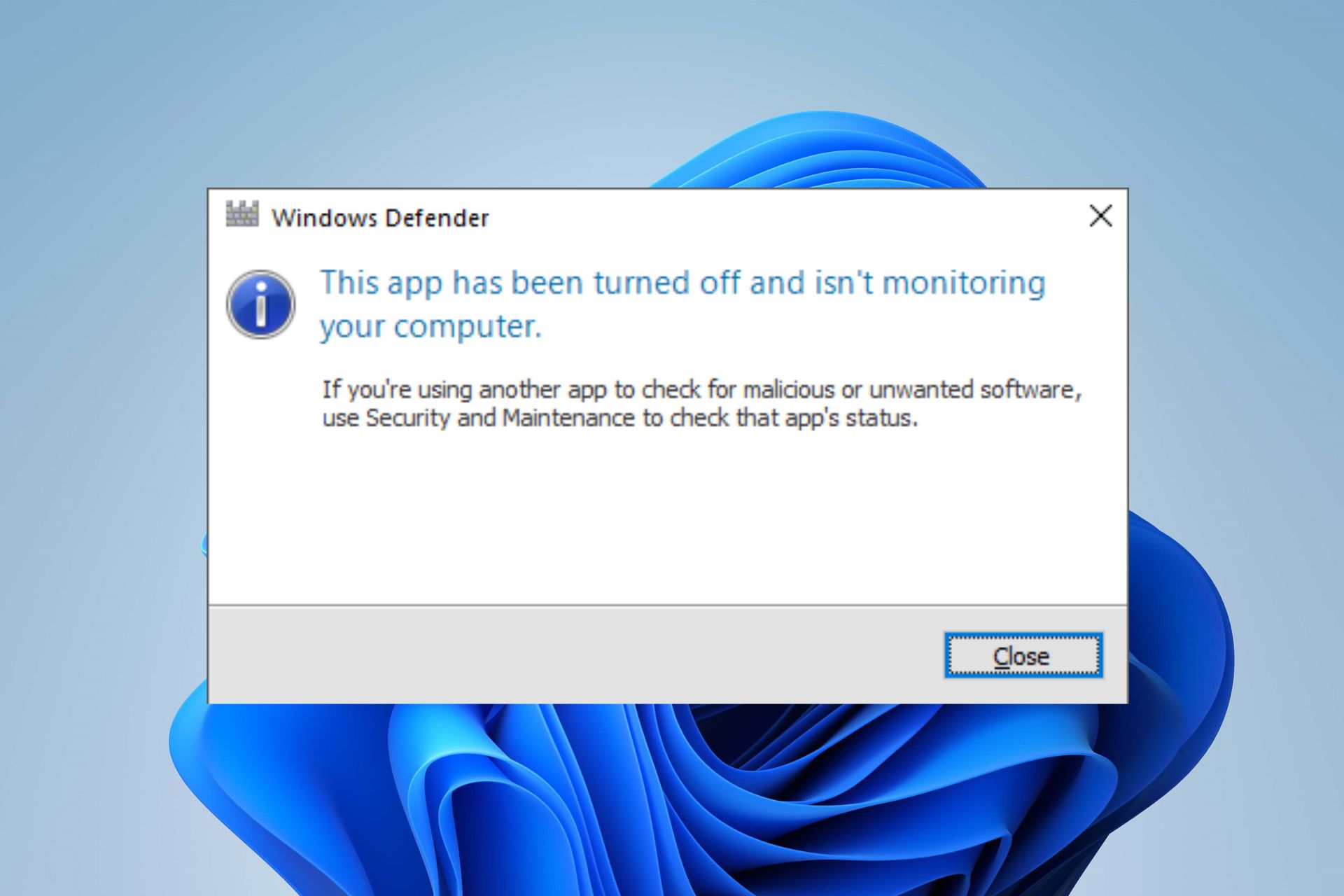
The Windows defender error: This app has been turned off and isn’t monitoring your computer is a common issue Windows users encounter with the program. The error indicates that Windows Defender is not active on your PC, leaving it vulnerable with no protection.

Also, Windows Defender missing on Windows 11 is another problem you’re likely to encounter.

What causes the PC to say the app has been turned off?

Many factors can be responsible for the Windows defender error: This app has been turned off and isn’t monitoring your computer.

Most times, installing third-party antivirus software on your computer can cause the Windows Defender to be disabled, hence resulting in an error when accessing it. The installed antivirus can’t work while Windows Defender is active; the latter is disabled.

Other causes that can prompt the error are:

  • Outdated Windows OS – Many issues may arise from having an outdated Windows operating system on your PC. It means that your PC lacks updates and patches often released for fixing bugs affecting Windows. So, it can cause Windows Defender errors on your computer.
  • Malware or virus infection – It is common for users to run into errors when there is a malware attack on the system. It affects the computer’s functionality and prevents its programs from running as they should.

These causes may vary on different devices, but you can fix them by troubleshooting some settings on your computer.

What can I do if the app is turned off and isn’t monitoring my computer?

We recommend you go through the following steps before attempting any advanced troubleshooting on your PC:

After going through the above checks, and you’re unable to fix the error, proceed with the solutions below.

1. Update Windows OS

  1. Press Windows + I key to open the Windows Settings app.
  2. Select Windows Update from the menu and click Check for updates.

If there are any updates available, Windows will automatically search and install them.

Windows updates will resolve bugs affecting your PC that may cause the Windows Defender app to be off. Read about how to fix Windows not connecting to update services on your PC.

2. Uninstall the antivirus software

  1. Press Windows + R key to open the Run window, type control in the search box, and press Enter to launch the Control Panel.
  2. Click on the View by option and select Category.
  3. Go to Programs and click on the Uninstall a Program link.
  4. Find your antivirus and click the Uninstall button.
  5. Click Finish and restart your PC.

McAfee is a common culprit for this error. Hence, disabling McAfee services on your PC will allow Windows Defender to work.

3. Check the Registry settings

  1. Press Windows + R key to open the Run dialog box, type Regedit in the text box, then press Enter.
  2. Click Yes on the UAC prompt.
  3. Navigate to the following location: HKEY_LOCAL_MACHINE\SOFTWARE\Microsoft\Windows Defender
  4. Go to DWORDS and set its value to 1 to initiate the DisableAntiSpyware and DisableAntiVirus options.

These settings will help correct any issues that may occur due to Registry settings.

4. Re-register the DLL files

  1. Press Windows + R key to open the Run dialog box, type regsvr32 in the text box, then press Enter to open the DLL files.
  2. Run the following commands one after the other and press Enter: regsvr32 wuaueng.dll regsvr32 wucltui.dll regsvr32 softpub.dll regsvr32 wintrust.dll regsvr32 initpki.dll regsvr32 wups.dll regsvr32 wuweb.dll regsvr32 atl.dll regsvr32 mssip32.dll

Re-registering the DLL files for Windows Defender will fix any issues with the files that may cause the program.

Our readers can check what to do if Windows Defender Firewall can’t change some settings on their PCs.

You may also be interested in how to fix Windows Defender not working on Windows 11.

If you have more suggestions and questions, kindly leave them in the comments section below.

Stripo Review: Easy to Use, Online Email Template Builder

Email is one of the most used forms of communication and if you send a large number of emails on weekly basis, typing each individual can be time-consuming and tedious.

Luckily, there are specialized services that allow you to easily create an email template. One of these services is Stripo, and in today’s guide, we’re going to take a closer look at this service and find out what it offers.

What is Stripo?

Stripo is an email design service that allows you to design emails without any coding knowledge. The service offers more than 1150 free HTML templates, so you’ll easily find the perfect template for you.

Regarding the supported services, Stripo works with over 70 services including Gmail, Outlook, AWeber, and many others. By using it, you will see how your emails will look in different clients. You can even share templates with coworkers and clients for feedback.

What features does Stripo offer?

Thousands of templates

As previously mentioned, the service comes with more than a thousand templates. Sorting is available and you can go through them based on the type, season, features, or industry.

Once you select the desired template, you can get to editing.

Drag and drop visual editor

The editing process is simple and intuitive and you can easily adjust the message settings, including padding, the width of the message, line spacing, and other settings.

Each template is divided into several sections, such as header, content, and footer. With Stripo you can customize text size, color, and background for each section individually.

The same applies to headings, and you can set standard size, font, style, and color for all headings to achieve a consistent design.

Lastly, we have to mention that the service is optimized for mobile devices. This allows you to adjust the font and heading sizes for your mobile templates as well

If you wish to add additional content, you can drag and drop one of the content structure layouts to your design.

After that, just drag and drop one of the available blocks and arrange them as you want. This includes images, text, buttons, videos, menus, HTML code, and other elements.

Of course, each added block is customizable, allowing you to fine-tune it and ensure that it matches your design perfectly.

As for elements that are available in your template, each of them can be moved and edited as you please, allowing you to fine-tune everything.

Modules for rapid designing

Speaking of design, we have to mention modules. These work as a group of elements that you can add to your projects. Each template has modules that you can add or customize.

Of course, you can pick between one of many pre-built modules, or you can combine elements from your projects into modules and reuse them later.

If you’re a coder and you want to fine-tune your design, you can view the HTML and CSS of your email template and adjust it accordingly.

As you can see, the service is rather simple to use, since you can just drag and drop the elements as you please, so no coding is involved.

Email preview and testing

Once you’re done designing, you can test your template and see how it looks. The service has a preview feature that allows you to view it on your browser and mobile device and ensure that it looks perfect on both platforms.

You can also share the preview link with others which is useful if you need to get a second opinion on your design. Do keep in mind that the preview might not look always accurate, but there’s a testing feature to help you with that.

With it, you can send yourself a test email and see how your template looks. If you want, you can even send a preview email to different clients and devices to ensure maximum compatibility across all platforms.

Compatibility with various services

Once all the tests are done, all that is left is to export your template. The service allows you to export the design to a file or application.

The list of supported applications and files includes:

  • Gmail, Outlook Web, Outlook App
  • HTML, AMPHTML, image, PDF
  • Webhook, Zapier

Regarding email service providers, there are 72 available and the list includes the following:

  • Amazon Pinpoint, Amazon SES
  • dotdigital
  • Mailgun
  • Zoho Mail, Zoho MarketingHub
  • Postmark
  • and many more

Collaboration features

Stripo allows you to collaborate with your coworkers on templates. The service supports different roles and permissions that you can assign to users.

Speaking of collaboration, there’s a brand guidelines generator that will ensure that all your emails will have the the same email design styles for all users that are working on them.

New and upcoming features

Stripo will be releasing a new version soon, and probably one of the biggest improvements is the redesigned user interface.

All blocks and markups will be available on the left sidebar while the settings for the selected element are placed on the sidebar on the right.

By doing so, the interface is less cluttered and more intuitive to use. In addition, you’ll finally get a WYSIWYG editor. Using it, you’ll be able to preview the template for both desktop and mobile and edit it at the same time.

The new version won’t require any code development, thus making this service more accessible to non-developers.

The collaboration feature will also see an improvement and you’ll get real-time co-editing, commenting, and demo options. Of course, with improved collaboration, there is also a more streamlined role management.

Lastly, the accessibility features will let you know if your emails have low contrast, missing alt text, inappropriate alignment, or any other accessibility issues.

Stripo pricing

The service has four pricing plans available, and the Free version will allow you to have one user, 4 exports per month, and 5 test emails per day.

If you want to increase the number of exports, and tests and gain access to premium templates, preview link sharing, custom fonts, and other features, you should consider using one of several premium plans.

Stripo

Create beautiful email templates easily without any coding knowledge in your browser.
Check price Visit website

Conclusion

Stripo as a service is straightforward to use, and it allows you to create unique templates simply by dragging and dropping the desired elements into your project.

The only complaint that we have is the sidebar which can be sometimes convoluted and hard to navigate. However, the company is already working on a redesign, and the redesigned version addresses this issue.

Overall, Stripo is an amazing service regardless if you’re an individual or a company, and if you want to create visually stunning emails, then we highly recommend you give this service a try.

Unable to Access JarFile: 3 Ways to Run JAR Files

Java browser plug-ins might have gone out of fashion, but many programs run off Java. For example, you can open Java programs with JarFiles, among other software for opening JAR files.

However, some Java software users can’t always open JAR programs with the Unable to access JarFile error message popping up. This guide will show you some practical ways to get past this error message.

Why does it say unable to access jar?

The inability to access JarFile on Minecraft or Forge can be caused by mistakes on your path or issues with the software. Below are some of the prevalent causes:

  • Outdated Java version: If your Java version is obsolete, you cannot access JarFile using the docker container. You need to update Java to the latest version.
  • Wrong default program: Sometimes, this issue might be because you have not set the default program to open the JarFiles. Choosing Java as the default app for opening JAR files should fix this.
  • Issues with the JAR file path: If the path to your jar file is incorrect, you can get this error. The solution here is to ensure the path is correct.

How can I fix the unable to access JarFile error?

Before proceeding to the fixes in this guide, try the preliminary troubleshooting steps below:

  • Add .jar extension to the JAR file name
  • Beware of spaces in the JAR file path
  • Add quotes to the JAR file path if it contains space
  • Move the JAR file to another folder
  • Use a file opener software

If the fixes above fail to solve the issue, you can now move to the fixes below:

1. Update your Java version

  1. Press the Windows key + R, type appwiz.cpl, and click OK.
    appwiz unable to access jarfile
  2. Right-click the Java app and select the Uninstall option.
    uninstall
  3. Now, go to the official website to download the latest version of the Java app.

A broken or outdated app can cause the unable to access the JarFile issue. Downloading the latest version of the app should fix the problem.

2. Select Java as the default program for JarFiles

  1. Open File Explorer and the folder that includes your JAR file.
  2. Right-click the file and select Open with, and then Choose another app.
    choose another
  3. Select Java if it’s listed among the default programs.
  4. If Java isn’t listed among the programs, select the Look for another app on this PC option.
    look for unable to access jarfile
  5. Then browse to the Java bin folder, select  Java and press the Open button.

JAR file error messages usually pop up when Java isn’t configured as the default software for a JAR file. This can be the cause of the unable to access JarFile.

Setting Java as the default program should fix the issue here.

3. Open the Jarfix Software

  1. Click jarfix.exe on this webpage to save the software to a folder.
    jarfix download
  2. Now, open the folder and double-click the jarfix.exe option.
    open jarfix unable to access jarfile
  3. The tool will start and fix issues with your jar file extension.
    jarfix success

In some cases, the unable to access JarFile issue on IntelliJ can be because of problems with the file type associations. This Jarfix.exe software will help you fix this issue and restore normalcy on your PC.

Those are a few resolutions that might fix the unable to access JarFile error and kick-start your Java software. After that, you only need to follow the instructions carefully, and the issue should be resolved.

For further details on installing a JAR file in Windows 10, check our guide to make the process easy.

If you have any other questions, please leave them in the comments section below.

5+ Cyber Monday deals on laptop cooling pads with a USB hub

The primary purpose of a laptop cooling pad is to keep the laptop cool while it’s running resource intensive-programs such as editing software or games.

By maintaining your laptop’s temperature low, it will perform at its highest peak, and this will also result in lengthening its life.

Investing in a powerful laptop cooling pad becomes even more important if you have a powerful gaming laptop.

Not only the most important peripherals like having a good keyboard and also gaming mousepads are important, especially when considering your device’s health over time.

There are lots of laptop cooling pads on the market, and the best are designed to do more than just keep your laptop cool.

They all come with their particular features, so it’s best to take a look at them before deciding which one is best for your needs.

When you’re looking at various cooling pads, it’s not only important to check out how well they control the temperature, but it’s also recommended to consider the features set, build quality, and all potential unique aspects of the models.

Note: All the prices and offers in this article are subject to change, so be sure to check the official product page to get the latest deal. If the product or offer you’re looking for is no longer available, you can try to find it on its official manufacturer page or get another one from our list.

Which laptop cooling pad is best?

Klim Mistral

  • 2 x 4500 RPM fans
  • RGB lighting with 5 colors and completely Off setting
  • Accesible control panel at the front
  • Rubber rings around coolers acting like a sealant
  • 3 fan speed settings
  • Quite loud, especially working at full power

The Klim Mistral laptop cooler is our top pick in this list, as it offers a very good set of features and amazing cooling capability, while also having a reduction in price at this point.

This device features two 4500 RPM fans which ensure that absolutely any laptop will be able to get the maximum cooling needed, no matter how intense the processing tasks are, and thus improving not only the overall performance but also the long-term health of your system.

To create a proper seal between the fan area and your laptop, the fan cases are equipped with rubber rings that act as a sealing agent, allowing air to circulate optimally without any loss of power.

Even though the fans ensure that your laptop will be cooled without any problems, the noise produced by the fans is an important element that needs to be considered. To help with this, the device comes with 3 fan speed settings, which allow you to optimize the amount of noise/cooling your system needs.

The RGB lighting looks amazing, and the three frontal buttons allow you quick and efficient access to controlling the cooler, and even to customize the lights, choosing from one of the 5 different color options, or deactivating them completely.

This laptop is fully compatible with any laptop between 14 and 17 inches, and also comes with a 5-year warranty and a team of experts ready to help you with any troubles you might encounter.


Klim Wind

  • 4 x 1200 RPM fans
  • Low amount of noise
  • Fits both 11 to 16 inches laptops and bigger
  • Great stability
  • Comfortable angle adjustment
  • 5 year warranty
  • Fan lights can not be stopped without turning off the fans

Another very good option when it comes to laptop cooling equipment is the Klim Wind, named so because of the set of 4 powerful fans which ensure an optimal temperature, thus improving the capabilities of your laptop and also having an impact on life expectancy.

Even though this device is built for devices between the range of 11 and 16 inches in size, it is also compatible with laptops of 17 to 19 inches. Even though in the latter case the laptop edges will surpass the edge of the cooling pad, the laptop remains perfectly stable.

To ensure that the entire setup doesn’t move at all, and also provides you with a comfortable working position, this cooling pad features 2 legs in the back which ensure the proper inclination, and a set of frontal pegs which keep the device in place.

The heat is kept under control by the use of 4 fans with 1200 RPM each, ensuring a good cooling of your system, while also not producing a large amount of noise.

Being built with quality materials, this cooling pad also comes with 5 years warranty, ensuring that you won’t regret your purchase even if something doesn’t seem right.

Even though powered by a USB port, the device offers another free USB port for your other devices, thus not affecting the connectivity of your laptop in any way.


Havit HV-F2056

  • 3 fans
  • Optimized for laptop carrying
  • Ultra-portable design
  • Extra USB ports
  • Ultra-quiet fans
  • For USB-C enabled laptops you will need an adapter
  • Intense light could be a problem for some users

The Havit HV-F2056 is another great option for 15.6-17 inches laptops, offering a more portable and lightweight cooling solution to your device.

Proper cooling will ensure optimal performance levels and a long-lasting device.

The slim design doesn’t take away from its efficiency but proves to be extremely useful if you need to carry the pad in your laptop bag.

To ensure that you’re comfortable while using it, this pad allows you to customize its height to fit your needs, thus reducing neck strain considerably.

The multi-directional metal mesh which covers its surface provides great durability and stability for your laptop while also improving air circulation.

The ultra-quiet fans ensure that your laptop will keep a constant temperature, while not bothering you with any extra noise.

To ensure that your laptop’s connectivity is not affected in any way, it also features extra USB ports, allowing you to connect to other devices as well.


TECKNET N5

  • Metal mesh surface
  • 2 USB powered
  • 110 mm fans with power switch design
  • 1 extra USB port for an additional USB device
  • The power of the fans is lacking

If you’ve got a 12-inch laptop and a small desk, maybe it’s not such a good idea to get a big cooling pad for up to 16-inch laptops.

That’s why you might be a lot happier with the TECKNET N5 laptop cooling pad which is designed for smaller, up to 16-inch laptops.

The great advantage is that you won’t need to carry around extra cords or a bulky battery pack, because it’s USB-powered.

The device features two 110mm fans and the metal mesh at the top ensures an efficient airflow.

As in the case of the previously-presented model, this device is optimal for carrying it in your laptop bag, as it doesn’t occupy much space.

The 2 USB ports available on the side of this cooling pad ensure that the connectivity of your PC is not affected in any way, and the 15dB fans offer a quiet and comforting experience.


Liangstar 6-fan LED

  • 6 fans (3 big and 3 smaller)
  • Separate set control for the fans
  • 2 USB ports
  • LED lights
  • Non-slip bottom
  • The 3 height levels might not be suitable for taller people

The Liangstar 6-fan LED cooling pad is another very good option that offers 2 USB ports at the back of the device for great connectivity.

Featuring 6 fans that provide your laptop with much-needed cool air, the LED gives it a futuristic and interesting look as well.

To ensure that no extra strain is put on your neck while using this device for a long time, this cooling pad offers 3 different height settings.

That being said, the fans are running separately, allowing you to customize the way they run by choosing to close either the small or the large fans.

The non-slip bottom side ensures that your laptop or any other device placed on the cooling pad will not move in any direction, even when placed on a slanted surface.

It is worth noting that this device fits laptops between the sizes of 12 and 17 inches without any problems.


Bottom runners

Even though our top 5 list includes some of the best options on the market, during our tests we found some other useful options that could prove helpful for some users.

➡ Kootek Laptop Cooling Pad

➡ KEROLFFU Laptop Cooling Pad

➡ TeckNet Laptop Cooling Pad

How we chose the best laptop cooling pads which feature a USB hub

Our team of expert testers, with a combined experience of 15 years, has tackled a variety of testing tasks for any device you could imagine.

Their experience comes into play as a very important element when choosing the products we described in this guide, and a large variety of factors have been taken into consideration.

The options that have been chosen offer great quality and cover the entire spectrum of price ranges, thus enabling everybody to find something that fits their needs both financially and otherwise.

These are the five best cooling pads for your laptop, and we guarantee that regardless of the model you’ll decide to get, you’ll be more than satisfied.

All these cooling pads do wonders for maintaining your laptop’s optimal temperature and thus ensure that the life expectancy of your device is extended considerably.

Besides, having your CPU running at optimal temperatures also ensures that all processing power is being used optimally.

Feel free to share your choice with us by using the comment section found below this article.

MP3 Skype Recorder: How to Download, Install & Use

Skype has a built-in functionality that allows users to record calls, but it saves the recording as a video; you can’t extract only the MP3.

Luckily, there are a couple of third-party software you can use as an MP3 Skype recorder for android, Mac, or Windows. You can also access Skype through web browsers or download it as an application. 

What is MP3 Skype Recorder?

A Skype MP3 recorder is pretty different from the Skype voicemail feature that allows you to leave pre-recorded messages. This type of recorder allows you to record audio conversations held via Skype. 

There are several MP3 Skype recorders for Mac that you can use to record your meeting’s audio. Here are some of the best alternatives:

The MP3 Skype Recorder is the best, but the others are also excellent alternatives.

How do I save a Skype recording as an MP3?

Before you can save your calls, here are a few things you should do:

  • Make sure Skype is installed, if possible, in the latest version.
  • Ensure you have enough disk space to store the recording.
  • Ensure you have a stable and strong internet connection to avoid a Skype network settings error. 

After making all the above checks, follow the steps below to save a Skype recording as an MP3.

1. Download and Install the MP3 Skype Recorder

  1. Navigate to the MP3 Skype Recorder download website and click on the Free Downloads button.
  2. Click Free download for PC and wait till the process is finished.
  3. Open File Explorer by pressing the Windows + E keys. By default, the file should be in the Downloads folder.
  4. Double-click the MP3SkypeRecorder setup file.
  5. Check the box for I allow the terms in the License Agreement, then click the Install button.
  6. Wait for the installation to complete and click Finish to close the installation wizard. By default, the app will be launched.
  7. Configure the recording destination folder, Recording settings, and notification settings.
  8. Also, Click ON to set the tool to auto-detect calls. Or hit click to turn off for manual control.

2. Save as an MP3

  1. Press the Start button, search Skype, and click Open.
  2. Login by inputting your credentials or sign-up for a new Skype account.
  3. Place a Skype call and the tool will auto-detect and start recording it.
  4. Once done, the call recording will be saved as an MP3 file, accessible on the app.
  5. Open the Recorder, then click the Open recordings folder to access your files.

The recording will be saved to the iFree recorder folder. 

Now you can record your Skype calls; all you have to do is follow the steps we’ve listed above to save the MP3 recording. 

You must have Skype installed to allow you to record your calls and save them using your MP3 Skype recorder application.

It’s also necessary to set up Skype end-to-end encryption to ensure the security of your conversations.

Do not hesitate to use the comments section if you have further questions or suggestions.

5 best Cyber Monday UPS deals [Battery Backup]

A UPS unit acts as a reliable power backup and ensures that your data is safe and devices are protected against power surges or unannounced power loss.

Users can thus use their desktop computers, IoT devices, home networks, and personal entertainment devices with confidence and peace of mind.

Now, companies dealing with these units haven’t been left behind and are offering some sizzling deals on UPS on sale.

And, as we always do each year, we went the extra mile and checked each of them out for you. Here are the very best UPS offers.

How can I find the best UPS for my needs?

UPS, or Uninterruptible Power Supply, basically provides power long enough to safely turn off the device in case of an electrical outage.

Many users prefer buying a UPS that can provide enough juice to power the device through the outage. So whichever category you fall into, buy a UPS that meets your run time requirement.

The next factor is size. If you are looking for a UPS for your desktop, we recommend choosing a compact one. It’s small and can be kept hidden behind other equipment.

Also, identify what equipment you would want to run during the outage and pick a UPS that delivers enough power. This is critical, given you wouldn’t want the devices to fail and be stuck with just the desktop running.

Note: All the prices and offers in this article are subject to change, so be sure to check the official product page to get the latest deal. If the product or offer you’re looking for is no longer available, you can try to find it on its official manufacturer page or get another one from our list.

What is the best UPS to buy?

1500VA CyberPower Intelligent LCD UPS System

  • Automatic Voltage Regulation
  • 12 NEMA 5-15R outlets
  • Multifunction LCD panel
  • 3-year warranty
  • Power output may be lower than displayed

An all-powerful 1500VA mini-tower UPS unit, this offers a well-rounded performance and protects your equipment from sags, blackouts, spikes, and overvoltages.

It comes with excellent abilities such as line interactive topology, Automatic Voltage Regulation (AVR), and intelligent power fluctuations control system.

The multifunction LCD panel helps you manage everything by displaying precise information on the prevailing power and battery conditions immediately. This Cyberpower UPS Black Friday deal is too good to be missed.

800VA AmazonBasics Standby UPS

  • Comes with Free AmazonBasics power management software (Downloadable) for easier configuration.
  • Capacity: 800VA / 450W
  • A total of 12 outlets (NEMA 5-15R): 6 surge-protected & 6 battery-backup/ surge-protected combo outlets
  • 5-feet cord (NEMA 5-15P) and a 45-degree offset plug
  • Very small
  • Doesn't automatically restart

This is one of the most dependable UPS units and combines robust surge protection and assured battery backup.Black Friday UPS deals

The unit thus keeps both power surges at bay while guarding against costly data loss in case of a blackout.

Plus, it’s compact thereby seamlessly integrating into your home or office but delivers more than enough power to compensate.

550VA APC Back-UPS & Surge Protector

This delivers up to 550VA worth of battery backup so you can safely close your documents in case of an outage.

There are a total of 8 outlets with 4 providing surge protection and the remaining 4 offering both surge protection & backup.

The free included PowerChute power management software helps you to easily set up the unit. This APC UPS Black Friday deal is perfect for any budget.

APC Pro Back-UPS Backup & Surge Protection

  • Capacity:1000VA / 600W
  • A total of 8 Total Outlets: 4 for power backup & surge protection and 4 surge protection only.
  • Intelligent Battery Management: Will maximize battery life and performance.
  • Supports high-performance business systems.
  • Dataline surge guard
  • Not much better compared to the other models

Rated at 1000VA, this guarantees enough power for your computers, wireless routers, external hard drives, and home electronics so you are not unexpectedly disconnected in the middle of a transaction.

There is also the Automatic Voltage Regulation (AVR) feature which sustains safe voltage conditions when on backup battery power.

Additionally, the attached cable/satellite box continues to record your DVR even when the power goes off!

It’s universal and works perfectly even with game consoles.

1500VA Tripp Lite Smart Back Up UPS Battery

  • Capacity: 1500VA / 900W
  • 8 outlets: All backup & surge protection
  • Multipurpose: Protects small servers, desktops, monitors, LCDs, and more
  • Automatic voltage regulation
  • Free power management software
  • 6-foot cord with right-angle plug(5-15P)
  • Surge-protector needs improvements

This beefy line-interactive UPS also has a nice Black Friday UPS deal and impresses with its LCD display which lets you monitor power conditions easily and the solid telephone, Ethernet, and coaxial protection.

The UPS is compact, thus making it one of the favorites amongst users. Its 2U firm rack/tower cabinet allows you to fix it anywhere and at various angles according to your application.

Rated 1500VA, this can give you up to an impressive 11.8 minutes to save your files.

These are the best Black Friday UPS battery backup deals for those planning to purchase a new one.

UPS units offer an easy and reliable way to safeguard valuable information from accidental loss or damage caused by power fluctuations and/or surges. You can also purchase a surge protector to keep the device safe from sudden spikes.

So, take advantage of our exclusively selected Uninterruptible Power Supply Black Friday deals and get a reasonably priced one for your device.

Also, check out the best backup batteries, portable chargers, and external HDDs with SD card readers to buy for your computer.

Blue Snowball Mic Not Working: 4 Thorough Solutions

Even though the Blue Snowball mic is one of the best mics in the market, many users reported that it’s not working on their computers.

While the problem seems intermittent in some cases, the Blue Snowball mic was not showing up altogether for others. So, let’s find out how to fix things.

Why is my Blue Snowball mic not working?

Here are some of the reasons why the Blue Snowball mic is not working on your PC:

  • Connection problems – This is the most common underlying cause when your Blue Snowball mic is not turning on and should be the first thing you check for.
  • Issues with the driver – Corrupt or outdated drivers are just as likely to cause the problem, and updating the microphone drive should do the trick.
  • Misconfigured settings – If the settings don’t permit apps to access the mic, you may find that the microphone is not working.

How do I fix my Blue Snowball mic if it’s not working?

Before we try the slightly complex solutions, here are a few quick ones that might fix things:

  • Make sure the connections are in order. Plug the microphone into another USB port, and if you use a USB hub, remove it and connect the Blue Snowball mic directly to the port.
  • Gently wiggle (move) the end of the cable connected to the microphone. Though it may sound foolish, the method has helped many users fix things.
  • Install the latest available version of Windows.
  • Use a different cable to connect the mic and computer.
  • Check whether the Blue Snowball mic is working on other computers. If it’s not, chances are that there’s a hardware fault to blame, but if it does, you will need to look at the software aspect.

If none of the above tricks worked, head to the ones below.

1. Reinstall the device

Note icon NOTE
If you can’t find the Blue Snowball mic, go to the View menu and then select Show hidden devices.
  1. Press Windows + R to open Run, type devmgmt.msc in the text field, and hit Enter.device manager
  2. Expand the Sound, video, and game controllers entry, right-click on the Blue Snowball mic, and select Uninstall device.uninstall device to fix blue snowball mic not working
  3. Now, tick the checkbox for Attempt to remove the driver for this device if it appears, and click on Uninstall.attempt to remove the driver to fix blue snowball mic not working
  4. Once done, restart the computer.

In most cases, it’s the Blue Snowball mic driver error to blame when the device is not working; it should be there now. However, if the problem persists, head to the following method.

2. Update drivers

  1. Press Windows + X to open the Power User menu, and select Device Manager.device manager
  2. Expand Sound, video, and game controllers, right-click on the mic, and select Update driver.update driver to fix blue snowball mic not working
  3. Next, select Search automatically for drivers.search automatically for drivers

Updating it should do the trick if it’s an outdated driver. Moreover, if Windows couldn’t find a better version, you could always manually update the driver.

On the other hand, you could try updating your drivers or uninstalling them completely and reinstalling them using dedicated third-party driver updaters and fixers.

These work automatically by scanning your PC and cross-referencing their online database to find the right driver for your particular hardware model and ensure you get the latest available.

3. Modify the power settings

  1. Press Windows + S to open Search, type Edit power plan in the text field, and click on the relevant search result.edit power plan
  2. Click on Change advanced power settings.change advanced power settings
  3. Now, expand USB settings, click on the USB selective suspend setting, and ensure it’s set to Disabled for both On battery and Plugged in.disable USB selective suspend setting to fix blue snowball mic not working
  4. Click on OK to save the changes.save changes

Often, the OS stops powering USB devices, and the Blue Snowball mic might stop working. Simply disabling the USB selective suspend setting should do the job.

4. Check permissions

  1. Press Windows + I to open Settings, navigate to Privacy & security, and then click on Microphone under App permissions.privacy settings
  2. Now, ensure the toggle for Microphone access, and Let apps access your microphone is enabled.enable microphone access to fix blue snowball mic not working

Also, if the Blue Snowball mic is not working in Discord, make sure that you have enabled the permissions for the app individually.

Before you leave, find out what to do if the microphone volume is low and fix the problem efficiently.

Please let us know if these solutions helped you by using the comment section below.

BlueStacks Not Opening: 7 Fixes if it’s Stuck on Loading

BlueStacks is a popular Android emulator that allows users to run Android apps on the computer. But, many who used BlueStacks reported that it’s not opening.

The error is encountered by users who downloaded the app for the first time or have used it for a while. In addition, BlueStacks was not starting in Windows 10 for some users after the computer powered off abruptly. So, let’s find out the solutions to it.

Why is BlueStacks not opening?

Here are some of the reasons BlueStacks is not opening or working:

  • Issues with the app files – If you started encountering the problem after an abrupt shutdown, chances are that the app files are corrupt, and it’s responsible for the issue.
  • Corrupt system files – Corrupt system files are a likely reason behind BlueStacks 5 being stuck on the loading screen, and the underlying cause should be evident in most cases.
  • Virtualization is disabled – BlueStacks requires virtualization support to run apps, in the absence of which, it wouldn’t run effectively and may throw errors.
  • Third-party conflicts – In some cases, an antivirus or security software may conflict with the functioning of BlueStacks and trigger errors.

How can I fix BlueStacks if it won’t open?

Before we head to the slightly tricky solutions, here are a few simple ones to try:

  • Restart the computer
  • Install the available updates for Windows

If the two updates don’t work, head to the ones listed next.

1. Update BlueStacks

  1. Launch BlueStacks, and click on the Settings icon.settings
  2. Head to the About tab, and click on Check for updates.update to fix bluestacks not opening

BlueStacks, in response to a query, reported that updating the app would fix things when it’s not opening. So, make sure you do that.

Updating can help you fix other issues like error code 2004 on BlueStacks. Read this guide to learn more about the error and what causes it.

2. Update the graphics driver

  1. Press Windows + R to open the Run command, type devmgmt.msc, and click OK.device manager
  2. Expand the Display adapters entry, right-click on the graphics adapter in use, and select Update driver.update driver to fix bluestacks not opening
  3. Select Search automatically for users.search automatically for drivers

Running an outdated version of the graphics driver is also known to affect the app’s functionality, and in some cases, BlueStacks X was not working. In case it still doesn’t work, you can also try manually updating the driver.

If manually updating the driver seems too complicated, we recommend using a specialized tool, Outbyte Driver Updater, which excels in speed and safety for finding and installing the right driver updates.

Outbyte Driver Updater

Update your graphics driver along with all other outdated drivers in no time.
Free Trial Download Now

3. Disable optional Windows features

  1. Press Windows + S to open the Search menu; type Turn Windows features on or off, and click on the relevant search result.turn windows features on or off
  2. Now, uncheck the following entries, and click OK to save the changes:
    • Virtual Machine Platform
    • Windows Hypervisor Platform
    • Windows Subsystem for Linuxdisable to fix bluestacks not opening
  3. Click on Restart now for the changes to come into effect.

4. Try an alternative Android emulator

Before going into more detail with our solutions for fixing the Bluestacks not loading, we recommend you try another Android emulator.

Plenty of great emulators are out there; some are better than others, but that’s a forever-going debate. The best emulator is the one that is right for you.

Trying a different Android emulator can be a great choice since you can compare the ones you used and see if it’s worth going through the steps below.

With a great emulator, your system won’t have any significant lag or incompatibility issues. All Google Play Store will be available to you with no exceptions.

If you want to try a great reviewed Android emulator, we recommend LDPlayer for its gamer-oriented features. They offer custom controls, meaning you can play with a keyboard and mouse, open several instances simultaneously, enroll in Gacha games faster, and many more.

5. Make sure the relevant services are running

  1. Press Windows + R to open Run, type msconfig, and hit Enter.system configuration
  2. Navigate to the Services tab, make sure the following two services are running, and click on OK to save the changes:
    • BlueStacks Android Service
    • BlueStacks Log Rotator Serviceenable services to fix bluestacks not opening
  3. Now, press Ctrl + Shift + Esc to open the Task Manager, head to the Startup tab, select BlueStacks and click Enable.bluestacks

In case see Starting BlueStacks, please wait for an extended period and make sure the related services are running. And once done, the BlueStacks should work if it was not opening earlier.

6. Run BlueStacks in compatibility mode

  1. Locate the BlueStacks launcher, right-click on it, and select Properties.bluestacks properties
  2. Navigate to the Compatibility tab, tick the checkbox for Run this program in compatibility mode, select a previous iteration from the dropdown menu, and click OK to save the changes.run in compatibility mode to fix bluestacks not opening

Once done, relaunch the app, and verify whether the problem is fixed. If not, try another iteration of Windows from the dropdown menu.

7. Reinstall BlueStacks

Note icon NOTE
When removing the app, make sure to uninstall every BlueStacks entry that’s listed in the Programs and Features window.
  1. Press Windows + R to open Run, type appwiz.cpl in the text field, and hit Enter.appwiz.cpl
  2. Locate BlueStacks from the list of apps, select it, and click on Uninstall.uninstall to fix bluestacks not opening
  3. Now, follow the on-screen instructions to complete the process.uninstall
  4. Once done, head to BlueStack’s official website and download the app.download
  5. Launch the setup and follow the instructions to complete the installation.install to fix bluestacks not opening

That’s it! If BlueStacks had not opened until now, things should be up and running, and the emulator would work perfectly.

Also, find out how to speed up games on BlueStacks and get the best performance.

If you have any other queries or know of a solution not listed here, drop them in the comments section below.

Wedding Design Invitation Software: 5 Best in 2026

The big day is almost here, and you’re feeling awesome that so far the preparations, now in top gear have sailed smoothly. But there’s one more detail: you haven’t yet invited the guests.

And this time, you are bubbling with creativity and want to pull off an irresistible wedding invitation.

Here’s the thing: For the DIY champion in you to crack this, you’ll need the best software for DIY  wedding invitations. Anything short of this and your efforts will be kaput.

Here is the top Windows 10 compatible wedding invitation software that can help you design an invitation that makes your occasion a must-attend.

What software do I need to make invitations?

There are plenty of software you can choose to create your wedding invitations. If you want professional invitation design software, Illustrator or InDesign are the most proficient tools out there.

You have market-standard features that assure you of multiple layouts, web graphics elements, customization panels, hand lettering designs, and realistic color palettes.

If you still need more knowledge on how to make invitations, rest assured because the software includes multiple tutorials to teach you how to use it accurately.

How can I send digital wedding invitations?

It’s possible to send your wedding invitations digitally simply by using email. The e-vites approach will do the job much easier and it saves you from additional costs.

Plus, you can send RVSP (please reply) email invitations and your guests will be able to answer way faster and without other complications.

What is the best software for wedding card design?

Adobe Illustrator – Ideal graphic creator

For over 3 decades, Adobe Illustrator has retained a stranglehold on the vector graphics design industry and is considered one of the best DIY wedding invitation software to ever grace the industry.

It has amazing aesthetics, exhilarating font choices, wonderful compositions, and a perfect layout.

And if you’re not happy with what you get the first time, this software allows you endless tweaks and is certainly the perfect playfield to exploit your creativity.

Best of all? Adobe Illustrator has been enhanced with loveable features such as a vastly improved properties panel which gives you plenty of exclusive design customizing options.

Thereby this evergreen software is capable to support you in creating unbelievable wedding cards for your guests. With the most impressive graphics and templates, it is the precise choice for your moment of glory.

Plus, the content-aware Crop gives you an easy and innovative experience. Illustrator uses this machine-learning-based tool to suggest the perfect spots for your crops to make them look sleek

So release your restraints with this superior software and let the imagination flow as you prepare the final outcome.

Key features:

  • Freeform Gradients: These color blending capabilities allow you to craft richer, wedding photorealistic gradients that appear so natural
  • Adobe Fonts: You have access to thousands of smart Adobe fonts to help polish the invitational text to its finest
  • Customizable toolbar: You’ll be able to add your favorite tools for easier access when working
  • Adobe Stock templates: To help you finish your beautiful design quickly, Adobe Illustrator comes with a superb collection of easy-to-access wedding-themed templates

Adobe Illustrator

Adobe Illustrator features amazing tools and lets you create charming invitations in no time, so try it now!
Free trial Visit website

Adobe InDesign CC – Greatest layout designs

Part of the fabled Adobe creative suite, Adobe InDesign comes with a plethora of outstanding layout choices and delivers a rare immersive experience to users.

You will find brilliant enhancements plus a healthy mix of features that enables you to create a handsome wedding invitation with minimal fuss.

And like in their other Creative Cloud apps, Adobe has upgraded the current InDesign version to allow you easier access to the handy built-in learning tips.

You will also enjoy stylish colors, dazzling text, abundant graphics, and one of the best intuitive interfaces.

In short, Adobe InDesign makes a compelling case to be your go-to application if you want a wedding invitation that will have people responding to your wedding bells in numbers.

Using this comprehensive tool, you will definitely create your best wedding cards. Therefore hesitate no more and benefit from superior quality of layout and digital design service.

Key features include:

  • Layout adjustment: This reconfigures your graphics and text automatically anytime you resize the wedding card.
  • Expansive Properties panel: This makes it pretty easy to access the appropriate controls, when and as you need them.
  • Font filtering: You can quickly search for a lovable font from the large font collection by filtering the fonts using classifications such as Sans Serif, Handwritten, and Serif saving you precious time.
  • SVG color fonts: This allows you to design your invitation with SVG color fonts to give it a smashing outlook.
  • Arrowhead scale control: This gives you the freedom to manipulate arrowheads with a
    single touch.

Adobe InDesign CC

Create your astonishing wedding invitations with Adobe InDesign for a leading and professional outcome! 
Check price Visit website

Canva – Best free graphic tool

Aside from being a very popular solution for DIY designs, Canva can offer countless creative ideas for a special moment in your life.  

Creating a vibrant wedding invitation also requires a personal touch and lots of creativity. So, through the services offered by this free graphic design tool, your invitations will pleasantly surprise you with no exception.

Due to the ease of using this software, your wedding invitation can be ready with just a few clicks. You only have to choose your template and then be creative.

The features included will help you create the ideal invitation, through thousands of templates, images, graphic elements, and dreamy layouts that will convince even the most critical guests. 

You can take off the edge of the big event by creating the most beautiful invitations from all. The team of professionals strives to offer you the best wedding designs, created to surprise guests with a wonderful experience. 

Hence using this free designing tool you’re able to create wedding invitations that look expensive, all in just a few moves to finish your eye-catching design.

Here are the key features of Canva: 

  • Themed graphic elements: You can choose from infinite wedding graphic stickers
  • Customizable templates: Personalize layout, fonts, or colors exactly how you want
  • Dynamic text and graphics: Add moving text or elements for a dynamic online invitation
  • Audio and video integration: You can add videos or music to your template.  
  • Integrated apps: You can integrate apps like Pexels and Giphy, or social media apps 
  • Premium elements: 1$ elements to improve your final creation.  

Canva

Canva is a fit for anyone who needs a simple yet comprehensive option. Get it now to create your magic!

Edraw – Graph visualization tool

If you’re not into the steep learning curve that Adobe Illustrator can be, you can trust Edraw vector graphics software to save your wedding.

It has been hailed as one of the easiest to use, and it’s true that not many graphic design applications are such easy not to mention the dozens of templates that help you get going soonest.

And there is more: It packs lots of cool features all geared towards making your wedding invitation card design efforts as effortless as possible.

From a powerful formatting function and an editable full-screen display mode to an intuitive interface, this tool has it all.

More exactly, you can benefit from collaboration functions like sharing visual products, or high security for transferring data.

Therefore, you are one step closer to versatile software that is capable of more than you can imagine, providing any tools you need for stunning invitation ideas.

Key features:

  • Templates: It has one of the largest offerings for design templates in the industry. Even better, it comes with tons of useful examples.
  • Drag-and-drop interface: You don’t have to be a computer guru. You can have a professional-grade invitation card by simply dragging, dropping, and arranging the elements beautifully.
  • Powerful Customization: Just like Illustrator, you can tailor almost everything in this program- colors, images, shapes…you name it.
  • Various Wedding Invitations Elements: The myriad built-in elements give you interesting alternatives when fine-tuning your design.
  • Pen-drawing functions: This gives you an opportunity to draw that out-of-the-world decorative pattern using your free hand.

Edraw

Check out Edraw to simply craft the invitations for your wedding ceremony without any stress!
Check price Visit website

Inkscape – Perfect drawing and editing tool

best software for calligraphy


Inkscape is a leading open-source vector graphics software with fine object creation talents and backed up by spectacular manipulation, text support, rendering, fill, and stroke functions.

It’s yet another excellent option and is especially good at making engaging cards thanks to the amassed design features.

Whether you want to capture a certain color scheme or trending wedding invitation designs, Inkscape gives you a reliable platform to set the tone for a celebratory mood for your upcoming nuptials.

Additionally, the type elements, drawing tools, balance, and background layouts are very impressive.

The software also provides guidance for your in-progress projects, helping with anything from object manipulation to color editing.

Thus you should use this artistic tool to release your drawing talents and craft the prettiest invitations for such a significant event.

Key features include:

  • Image Editor: You can import your own images and revise them to perfection.
  • Intuitive User Interface: It has a super interactive interface and nears the best vector graphic applications in terms of flexibility and ease of use.
  • Conversion tool: This allows you to transform your vector images from black/white and vice versa to enhance their quality.
  • Countless filters: You optimize your design by playing around with the many filters including textures, bevels, and overlays.
  • Smart Stroking: The application identifies different strokes as you make them and helps improve the appearance of the vector graphic.

⇒ Get Inkscape

How do I make a digital wedding invitation?

The easiest and most creative way to make a wedding invitation is by using dedicated tools like the Canva designing platform.

Hence, this is how to make the wedding invitation:

  1. Access the graphics design tool (We used Canva).
  2. Search for wedding card templates to pick one.
  3. Personalize the invitation template.
  4. Add any graphic elements like photos, icons, or illustrations.
  5. Download your digital invitation once it’s complete (PNG, JPG, or PDF formats).

What is the cheapest way to do wedding invitations?

To give you a short answer, with a free graphic design software. You can find free or affordable marriage card software that offers creative designs and wedding elements for the special occasion.

As shown above, you have free wedding card maker app that is incredibly easy to use and cost you no money.

The best software for DIY wedding invitations will help you design very personalized wedding invitations and can help make the wedding look more romantic to guests.

Our list has covered both free software like Inkscape and sophisticated choices such as Adobe InDesign.

The bottom line is that all are outstanding in their own way and will save you time and make the whole process a breeze.

So, what’s your choice? Let us know in the comments below.

5 Best Bose SoundLink Speakers [Cyber Monday Deals]

Bose speakers are known for their powerful performances and versatile designs. And for many enthusiasts, few brands beat Bose as far as getting the perfect sound for non-stop music, rousing movies, and absorbing TV is concerned.

And yes, the music shouldn’t stop considering this year’s massive discounts. Check them out.

What are the best deals on Bose SoundLink speakers?

Bose SoundLink Revolve (Series II)

  • 360° Sound
  • 13 hours autonomy
  • Dust and water-resistant
  • Built-in microphone for calls
  • Bluetooth connectivity
  • Not very good volume control

The SoundLink Revolve is one of the most mobile and social speakers around. And it’s engineered to play deeper, loud, immersive sound in all directions.

Their intuitive app lets you switch the sound from one Bluetooth device to another. Still, you can play in Party Mode playback or stereo once you pair two revolve speakers.

And if you need more control of your music, connect the speaker to an Amazon Alexa-enabled device, like the Echo Dot.

The Bose SoundLink Revolve Portable Bluetooth 360 speaker deal is one of a kind so check it out now.

Bose SoundLink Flex

  • Great, ergonomic design
  • PositionIQtechnology
  • IP67 waterproof
  • Up to 12 hours of life per charge
  • Built-in microphone
  • None

The 12-hour playback on a single charge qualifies Bose SoundLink Flex as a great tool for any instant party on the go.

Note that the proprietary PositionIQtechnology detects the position of your speaker automatically for ideal sound quality in any orientation or environment.

With a built-in mic, you can use the speaker to make and receive calls through Bluetooth. You have a dedicated button to access your phone’s Siri or Google Assistant voice input.

For any software update and to customize the settings, the Bose Connect app on your smartphone will provide all the options you need.

Bose SoundLink Color II

  • Full-range sound and very compact speaker
  • Pairing your devices takes a few voices prompts
  • Up to 8 non-stop music hours
  • Choose from a huge spectrum of colors
  • The recharger could be better

You have been missing a lot if you haven’t experienced the Bose SoundLink Color II Bluetooth color speaker.

It plays all your favorite tunes in resounding quality: out loud, full audio, and in clear – on the go or at home. And it’s small and super simple to use.

Pair two SoundLink speakers together for party mode or stereo mode and get a lot more power that will shake even a medium-sized room.

It’s small, versatile, and pretty sturdy so this Bose SoundLink Color II Christmas offer is definitely worth checking.

Bose S1 Pro

  • Inputs for a microphone or musical instrument
  • Simple Bluetooth pairing
  • Built-in sensors and multiple aiming positions for optimal sound
  • Up to 11 hours of playback
  • The price

Bose S1 Pro is not your average pocket soundbox but it’s a full-fledged PA with lots of options to play with.

This portable speaker can be used as a karaoke machine or even as an amplifier for your mic, guitar, or keyboard and used as a real party tool.

Even it’s not too small, with the built-in lithium-ion rechargeable battery, you will get up to 11 hours of playtime, enough for a long party or concert.

Bose SoundLink Micro

  • Crisp, balanced sound, and unmatched bass
  • Built-in mic for speakerphone
  • Waterproof speaker from the inside out (IPX7 rating)
  • Up to 6 hours of playtime
  • Wireless Bluetooth pairing with voice prompts
  • Low volume

As its name suggests, Bose SoundLink Micro is a small Bluetooth speaker that can magically supply a rich sound with great bass for its size.

You get a 6-hour playback time from the rechargeable battery, and you may surely bring it to the beach or to your trip to the mountains because it’s protected from water and dust.

It’s easy to pair it with your Bluetooth smartphone from up to 30 m and if you link two speakers together, you’ll have yourself a real instant party.

Talking about water resistance, we have a great list including the best waterproof wireless speakers to buy right now.

This is our Bose SoundLink speakers list ready to follow you on your trip and help you enjoy your favorite music.

They are mostly small and portable but sturdy and powerful so they are the perfect tools for an instant party wherever you are.

For home audiophiles, we also have a great selection of the best receivers for Bose speakers that really make a difference in sound quality.

How to choose the best Bose SoundLink speaker?

Our team of expert testers, with a combined experience of 15 years, has tackled a variety of testing tasks for any device you could imagine.

Their experience comes into play as a very important element when choosing the products we described in this guide, and a large variety of factors have been taken into consideration.

The options that have been chosen offer great quality and cover the entire spectrum of price ranges, thus enabling everybody to find something that fits their needs both financially and otherwise.

If you’re not necessarily a Bose fan, we have whole speakers buying guide hub that you can study and pick the perfect deals for your needs.

If you have any suggestions or if you’ve experienced any of the products, leave us a note in the comments section below.

6 best motherboards for Windows [Cyber Monday deals]

A motherboard is your computer’s main circuit board connecting all the other hardware components of your machine, and it’s essential if you plan to upgrade your PC parts.

Since every bit of information is processed, analyzed, and transmitted through the motherboard, it’s crucial to equip your machine with a reliable motherboard and CPU combo.

If you don’t know what motherboard to buy, look no further. In this quick buying guide, we’ll list the hottest motherboard options for Windows 10. Therefore, feel free to take a closer look below.

Note: All the prices and offers in this article are subject to change, so be sure to check the official product page to get the latest deal. If the product or offer you’re looking for is no longer available, you can try to find it on its official manufacturer page or get another one from our list.

What are the best motherboard Black Friday deals?

ASUS ROG Strix X570-E

  • AM4 socket
  • 4 DIMM slots
  • Two PCIe 4.0 x16 with multi-GPU support
  • Two M.2 slots
  • 7 USB 3.2 Gen 2 ports
  • The software could be better

ASUS is well-known for its amazing products and this model comes with an AM4 socket so it works perfectly with Ryzen 5000 and 3000 series.

There are two PCIe 4.0 x16 slots with multi-GPU support, so it’s a great gaming motherboard with SLI and CrossFire support.

Of course, a single PCIe 4.0 x16 slot and 2 PCIe 4.0 x1 slots for expansions are available. The maximum amount of RAM that this board can support is 128GB across 4 slots.

For storage, there are 2 M.2 slots with PCIe 4.0 and SATA modes and 8 SATA 6Gb/s ports. Regarding the USB, this model uses USB 3.2 Gen 2 standards and there are 7 Type-A slots and a single Type-C slot.

ASUS ROG Strix X570-E offers superb performance, and if you need a new gaming mainboard for Black Friday, you can’t go wrong with this model.

ASUS AM4 TUF Gaming X570-Plus

  • Support for Ryzen 2nd and 3rd generation
  • 4 DIMM slots with 5100MHz support
  • Two PCIe 4.0×16 slots
  • 8 SATA 3 ports, two M.2 ports
  • USB 3.2 Gen 2
  • Minor problems with the initial setup
  • Needs firmware update for Ryzen 5000

If you’re looking for an ASUS mainboard for Black Friday you can’t go wrong with this model. The board supports 2nd and 3rd-generation Ryzen processors thanks to the AMD x570 chipset.

There are 4 DIMM slots available, and they can support DDR4 memory up to 5100MHz. As for expansion, there are two PCIe 4.0×16 slots with CrossFireX support as well as three PCIe 4.0 x1 slots.

Regarding the storage, you can find 8 SATA 3 ports, and two M.2 x4 PCIe Gen 4 slots. USB 3.2 Gen 2 port is available in both Type-A and Type-C format, so you’ll achieve maximum transfer speeds.

Overall, ASUS AM4 TUF Gaming X570-Plus is an amazing motherboard, so be sure to consider it.

GIGABYTE Z590 AORUS ELITE AX

  • LGA 1200 socket, compatible with11th, and 10th Intel CPUs
  • 4 DIMM slots, maximum supported memory of 128GB
  • Max memory frequency 5400MHz
  • Three M.2 slots
  • 6 SATA ports
  • PCIe 4.0 only works with Gen11 CPU
  • Minor issues when using 4 memory slots for a few users

If you own an Intel CPU, then this motherboard might be the right choice for you since it comes with LGA 1200 socket and it fully supports the 11th and 10th generation of Intel processors.

Regarding the memory, the motherboard is fully compatible with DDR4, it offers 4 slots, and it can hold up to 128GB of memory at 5400MHz.

As for expansion, there’s one PCIe x16 running at x16, one PCI x16, running at x4, and a single PCIe x1 slot.

There are three M.2 slots available, 1x PCI 4.0 x4, and two PCIe 3.0 x4 slots with thermal guards. If you prefer regular drives, there are 6 SATA 6Gb/s connectors.

GIGABYTE Z590 AORUS ELITE AX is a great motherboard, especially if you use Intel CPUs, so be sure to consider it.

ROG Strix Z590-E Gaming WiFi 6E LGA 1200

  • LGA 1200 socket
  • Two PCIe 4.0 x16(x16, x8/x8) slots
  • 1x PCIe 3.0 x16 (x4)
  • 2x M.2 PCIe 4.0 x4, 2x M.2 PCIe 3.0 x4
  • 4x DIMM slots, max frequency 5333MHz
  • Just one USB 3.1 header
  • Issues with built-in graphics

This motherboard from ASUS supports 11th-generation intel processors thanks to the LGA 1200 socket. Multi-GPU SLI support is possible thanks to the two PCIe x16 (x16) slots.

There’s also a PCIe 3.0 x16 slot at x4 that you can use for expansion if needed. As for the memory, four slots are available, and they can handle 5333MHz frequency.

For storage, you can find M.2 PCIe 4.0 x4 slots, and two M.2 PCIe3.0x4 slots. If you prefer regular drives, there are 6 SATA 6Gb/s ports.

ASUS ROG Crosshair VIII Dark Hero

  • AM4 socket, support for 2nd and 3rd generation of Ryzen
  • Two PCIe 4.0 x16 slots
  • Support for up to 128GB of DDR4 at 5100MHz
  • Two M.2 slots
  • 8 SATA ports
  • Doesn’t come with screws
  • A-RGB software could be better

If you’re looking for an ASUS mainboard for Black Friday, then this model might be just what you need with its AM4 socket and support for the second and third generation of Ryzen CPUs.

For expansion, there are two PCIe 4.0 x16 slots (x16, x8/x8), one PCIe 4.0 x16 slot (x4), and a single PCIe 4.0 x1 slot. Of course, Nvidia SLI and AMD CrossFireX are fully supported.

The motherboard can handle up to 128GB of DDR4 memory at 5100MHz thanks to the four memory slots.

Two M.2 slots are present and they utilize PCIe 4.0 x4 plus SATA. If you don’t use this type of storage, there are 8 SATA 6Gb/s that you can use.

ASUS ROG Crosshair VIII Dark Hero AMD AM4 X570S is an outstanding motherboard, so be sure to consider it.

How we chose the best deals on motherboards

Our team of expert testers, with a combined experience of 15 years, has tackled a variety of testing tasks for any device you could imagine.

Their experience comes into play as a very important element when choosing the products we described in this guide, and a large variety of factors have been taken into consideration.

The options that have been chosen offer great quality and cover the entire spectrum of price ranges, thus enabling everybody to find something that fits their needs both financially and otherwise.

These are some of the best mainboards that you can get, so be sure to consider all the models mentioned in this guide.

So, what do you think about these motherboard picks? Don’t hesitate to let us know your choice in the comments area below.

5 Best gaming accessories for your setup [Cyber Monday]

When it comes to gaming setups, it’s not all about hardware power, and sometimes small accessories can make all the difference and improve your quality of life.

There’s a wide array of great accessories for your gaming setup, and in today’s article, we’re going to show you the best gaming setup accessories that you can get.

Note: All the prices and offers in this article are subject to change, so be sure to check the official product page to get the latest deal. If the product or offer you’re looking for is no longer available, you can try to find it on its official manufacturer page or get another one from our list.

What accessories do you need for a gaming setup?

Everlasting Comfort Office Foot Rest

  • 100% memory foam
  • Heat responsive
  • Non-slip bottom
  • Provides support for hips, legs, knees, and feet
  • Ergonomic teardrop design
  • Might be too soft for some users

Having prolonged gaming sessions can put a lot of strain on your feet and your back, and this is why Everlasting Comfort Office Foot Rest might come in handy.

This is a memory foam that you place under your desk and rest your feet on it. Thanks to the soft surface, you’ll reduce the pressure on your feet and improve circulation.

Everlasting Comfort Office Foot Rest is ergonomic and it comes with a non-slip bottom, and if you spend multiple hours a day gaming, then this memory foam might come in handy to you.

Vansky Bias Lighting Strip

  • 27 LEDs, 16 colors to choose from
  • 35.4-inches long, 3m adhesive
  • Wireless remote
  • Can last up to 100,000 hours
  • Easy to install
  • Adhesive could be better

LED strips are nothing new, but they can drastically improve the look and feel of your gaming setup. The LED strip has 27 LEDs and it supports 16 different colors.

Besides aesthetics, this LED strip can alleviate eye strain by adding a backlight to your monitor. The strip is 35.4-inches long and it comes with 3m adhesive, so you can attach it to any surface.

Overall, Vansky Bias Lighting Strip will light up your gaming setup, and if you’re a fan of LED lights, then be sure to consider it.

J+S Vision Blue Light Shield Glasses

  • Blocks up to 90% of blue light
  • Preventing dry eyes, headaches, and other issues
  • Low color distortion
  • Non-magnifying
  • Classic design
  • Can be hard to clean

Gaming for multiple hours can put a strain on your eyes, and this is why J+S Vision Blue Light Shield Glasses are one of the must-have accessories.

The glasses are designed to reduce your exposure to blue light rays, and according to the manufacturer, these glasses can block up to 90% of harmful blue light.

J+S Vision Blue Light Shield Glasses won’t distort your colors, and if you want to prevent eye strain, headaches, and other problems with blue light, be sure to consider getting these glasses.

Large RGB Gaming Mouse Pad

  • 31.5x11.8 inches
  • LED lighting, 10 static, and 4 dynamic lighting modes
  • Powered by USB, no drivers required
  • Made from natural rubber
  • Anti-slip base
  • Color selection could be better

The mouse pad is an essential part of your gaming setup, and if you’re looking for a new one, you might want to consider this model. Regarding the size, this model is 31.5×11.8 inches.

This mouse pad comes with LED lighting, and it has 10 static modes and 4 dynamic ones. The pad is made from highly elastic natural rubber, it has an anti-slip base, and it’s powered via USB.

Large RGB Gaming Mouse Pad isn’t a must-have accessory, but if you love RGB lights and you need a large pad for your mouse and keyboard, then this is a must-have pad.

COZOO Headphone stand

  • Mounts under the desk
  • 3 USB charging ports
  • Total USB output 5V DC 4A
  • Holders on both sides
  • Can hold 500gr without screws
  • Doesn’t support data transfer

If you need a headphone stand that is mounted under the desk, then the COZOO Headphone stand might be what you need. The stand has holders on both sides, so you can easily hang your headphones when not using them.

Unlike other headphone stands, this one has 3 USB charging ports that deliver 4A/20W. The stand is adhesive, and it can hold headphones up to 500gr, but there are also slots for screws if needed.

COZOO Headphone stand is a unique stand, and if you need an under-the-desk headphone stand that doubles as a charger, be sure to consider this model.

These are just a few of the gaming setup accessories that you might find useful. What accessories do you use? Let us know in the comments below.

It Looks Like You Started an Upgrade: How to Fix This Error

Facing a boot loop issue can be pretty frustrating as it prevents you from accessing your PC. Windows PC is known to throw up multiple errors from time to time, one of which is the It looks like you started an upgrade and booted from installation media error.

If you are also experiencing this boot loop issue on your Windows PC, then this guide is here to help you out. Here we will give you a bunch of solutions that will help you resolve the error. Let us get right into it.

What causes the It looks like you started an upgrade and booted from installation media error?

This error could pop up because of multiple reasons. Some of the reasons are listed below.

  • Windows update failed: If you were updating your PC and in case the Windows update failed, then you could face this error.
  • Corrupt system files: If there are corrupt or missing system files, then this could result in multiple issues, including the one at hand.
  • Interrupted upgrade: Users should ensure that when they are upgrading their PCs from an older OS to a new one, it shouldn’t be interrupted by any means otherwise they will be stuck in such a boot loop.
  • There is a pending update: You should keep your PC up to date, and if there is a pending update that you haven’t installed, then also you can face this error.

How can I fix It looks like you started an upgrade and booted from installation media error?

Here are a few solutions that you can apply before you go ahead with the advanced ones:

  • Try hitting the Escape key once the prompt appears, as it will give you some other options that might help you come out of the boot loop.
  • Let your PC restart a couple of times and check if this resolves the error.
  • Run disk cleanup in case you are able to access your PC. Using the Disk Cleanup tool, you can clean up system files and check if this resolves the error or not.

Now let us move on to the advanced troubleshooting methods.

1. Perform a System Restore

  1. Force shutdown your PC.
  2. You can press the F8 key to enter the Advanced Troubleshooting mode or restart your PC 3-4 times to let it automatically enter the mode.
  3. Choose Troubleshoot.
  4. Select Advanced options.
  5. Choose System Restore.
  6. Select your Windows account.
  7. Enter the account password.
  8. Hit the Continue button.
  9. Select the restore point.
  10. Click Next.
  11. Hit the Finish button.
  12. After the system has completed the system restore process, your PC will restart.

Since you are stuck in a boot loop and aren’t able to access your PC, you can perform the system restore by entering the advanced troubleshooting mode.

The process is quick and easy if you follow the steps mentioned above. We have a guide that explains how you can create a system restore point on your PC.

2. Cancel the pending Windows update

  1. Force shutdown your PC.
  2. You can press the F8 key to enter the Advanced Troubleshooting mode or restart your PC 3-4 times to let it automatically enter the mode.
  3. Select Troubleshoot.
  4. Choose Advanced options.
  5. Select Command Prompt.
  6. Type the below command and hit Enter. wmic logicaldisk get name
  7. Then type the below and press Enter. dir DriveLetter: (In place of DriveLetter: type C: if Windows is installed in the C drive. So the command becomes dir C:)
  8. Execute the below command. mkdir C:\Scratch
  9. Run the below command. DISM /Image:C:\ /ScratchDir:C:\Scratch /Cleanup-Image /RevertPendingActions
  10. Exit command prompt.
  11. Remove the installation media.
  12. Restart your PC and check if this resolves the error.

3. Perform a clean install

  1. Restart your PC.
  2. Boot from USB or installation media and press any key.
  3. Click the Next button on the Windows Setup page.
  4. Hit the Install now button.
  5. Click the I don’t have a product key option.
  6. Click Next.
  7. Select the Windows 11 edition you wish to install.
  8. Select Next.
  9. Accept the license terms.
  10. Click Next.
  11. Choose the Custom: Install Windows only (Advanced) option.
  12. Select the partition where you have installed the Windows PC.
  13. Click on the Delete button.
  14. Select the empty drive.
  15. Hit the Next button.
  16. The setup will install a fresh copy of Windows 11 on your PC.

Installing a fresh copy of Windows 11 on your PC will definitely resolve all the problems including the It looks like you started an upgrade and booted from installation media error as well.

That is it from us in this guide. We also have a guide that mentions a bunch of solutions to resolve the Windows update not working or loading issue.

Also, if your PC is stuck in a boot loop after performing a reset, then you can refer to our guide which will help you resolve the problem.

Let us know in the comments below, which one of the above solutions helped you resolve the It looks like you started an upgrade and booted from installation media error.

5 Best curved monitors on Cyber Monday deals [4k, MSI, Gaming]

Since their introduction, curved monitors have been controversial with some for and others against it. A significant advantage is the immersive experience they offer, making them perfect gaming monitors.

That’s not possible with flat or even ultra-wide monitors. Curved monitors also support high-resolution displays compared to flat monitors and also reduce glare in not-so-ideal lighting conditions.

Since they are usually frameless monitors they are perfect for gamers and creative professionals. If you are one of those in favor of curved displays, check out our top picks below.

Note: All the prices and offers in this article are subject to change, so be sure to check the official product page to get the latest deal. If the product or offer you’re looking for is no longer available, you can try to find it on its official manufacturer page or get another one from our list.

What are the Black Friday curved monitor deals?

MSI OPTIX MPG341CQR

  • 34-inch, 3440x1440 resolution
  • 144Hz refresh rate, 1 ms response time
  • 1800R
  • HDR 400, Adaptive Sync
  • Frameless design
  • Colors might seem dull to some users

Picking a 34-inch curved monitor for Black Friday isn’t an easy task, but if you’re looking for one, look no further than this model.

With 3440×1440 resolution, 144Hz refresh, and 1ms response rate this monitor is perfect for high-paced multimedia and gaming.

This is a 1800R device, so you’ll be able to focus on the action without missing a beat. HDR 400 support is there, so you’ll get a picture with more details and a wider color range.

Adaptive brightness is available as well, so it will automatically adjust the brightness based on the ambient light in the room.

The monitor comes with a frameless design, and Adaptive Sync, so you won’t experience any screen tearing.

As for the connectivity, there are two HDMI 2.0b ports, DisplayPort 1.4, three USB 3.2 Gen 1 Type-A, and one Type-B port. Lastly, there is audio out, combo jack and microphone port.

MSI OPTIX MPG341CQR is an amazing monitor, with great features and connectivity, and it’s perfect for gamers and advanced users alike.


AOC C32G2ZE

  • 32-inch
  • 1500R rating
  • 240Hz and 0.5ms response time
  • 6 different gaming modes to choose
  • Frameless design
  • No built-in speakers
  • Uses Full HD resolution

AOC C32G2ZE is a 32-inch device and it uses 1920×1080 resolution. The monitor has a 1500R rating, so it will provide you with extra immersion.

If you’re a gamer, you’ll be pleased to hear that this monitor has a 240Hz refresh and 0.5ms response rate, allowing you to enjoy smooth gameplay at all times.

Speaking of which, FreeSync Premium Pro is fully supported, so you won’t ever lose any frames while gaming or enjoying other types of multimedia.

The monitor has a sleek 3-sided frameless design, allowing you to focus on the action that is on your screen. Since this is a gaming monitor, it allows you to switch between 6 built-in gaming modes.

There are also Shadow Control and Game Color features, so you can adjust the color levels as you please.

As for connectivity, you can find two HDMI 2.0 ports, one DisplayPort 1.2 and a headphone out jack.

AOC C32G2ZE is a great monitor, especially if you don’t mind a full HD resolution, so be sure to consider it.


ASUS ROG Strix XG32VC

  • 31.5-inch, 2560x1440 resolution
  • Up to 170Hz after overclocking
  • HDR support
  • Adaptive-Sync and Freesync Premium support
  • ASUS Eye Care technology
  • No Deep Sleep configuration
  • HDR could be better

If you need a 32-inch curved monitor for Black Friday, this model might be perfect for you. This model comes with 2560×1440 resolution and 1ms response time which makes it perfect for gaming.

Regarding the refresh rate, this monitor supports up to 170Hz after overclocking, allowing you to enjoy fast-paced multimedia without missing a beat.

ASUS Extreme Low Motion Blur Sync technology is also present and it is used to eliminate ghosting and tearing during gaming sessions.

Of course, Adaptive Sync and Freesync Premium are fully supported, and to reduce the eye strain there’s ASUS Eye Care technology and protection against blue light.

HDR support is available as well, and it will deliver contrast and color that meets the DisplayHDR 400 certification. As for connectivity, there is an HDMI 2.0, DisplayPort 1.2, two USB 3.0 and USB Type-C port.

ASUS ROG Strix offers amazing performance, a high refresh rate, and great connectivity options, so if you’re a gamer or if you want to enjoy multimedia, this is the right model for you.


Samsung C27F398

  • Industry-leading 1800R screen curvature
  • AMD FreeSync support
  • Rapid 4ms response time
  • Refresh Rate of 60 Hertz
  • Ultra-slim and sleek profile
  • Only one HDMI-port
  • Stand could be better

This Samsung C27F398 is a 27″ curved monitor with an industry-leading 1800R screen for immersive viewing with a rapid 4 ms response time and 60 Hz refresh rate.

The 27″ panel is a Full HD LED display with a 1.78:1 aspect ratio. It also comes with Eco-saving plus for energy saving, which is a major advantage.

And if you’re still undecided, let us tell you that this Samsung monitor offers excellent color saturation and deep black contrast for the best gaming experience.

Overall, it’s an amazing 27-inch curved monitor that you can get for Black Friday.


Sceptre C248W-1920RN

  • 1800R curved
  • Multi digital and analog ports
  • Anti-flicker
  • 75Hz refresh rate
  • Fast response time
  • Modest sound
  • VESA mount isn't at the center

The Sceptre C248W-1920RN 75Hz LED monitor is one of the cheapest curved gaming monitors in the market.

For the price, it comes with an impressive 75 Hz refresh rate Full HD 24″ LED display. It also has built-in speakers, HDMI, VGA, PC audio in and out ports, along with physical control buttons at the back.

As for the Blue light shift mode, it is created to provide a warm light screen and ensure eye care against light blue wavelength from screen light.


Bottom runners

Although all these models offer great performance, they aren’t affordable, but a good monitor doesn’t always have to be expensive.

Here are some of the best cheap curved monitors for gaming that didn’t make the list:

➡ GIGABYTE G27FC

➡ MSI Optix G24C4

➡ Sceptre Curved 24

How we chose the best curved monitors deals

Our team of expert testers, with a combined experience of 15 years, has tackled a variety of testing tasks for any device you could imagine.

Their experience comes into play as a very important element when choosing the products we described in this guide, and a large variety of factors have been taken into consideration.

The options that have been chosen offer great quality and cover the entire spectrum of price ranges, thus enabling everybody to find something that fits their needs both financially and otherwise.

Curved monitors have advantages over their flat counterparts, so they are perfect for gamers or users that want to have maximum focus.

All devices listed in our guide offer great features and specs, and you can’t go wrong with them.

What is your curved monitor of choice? Let us know in the comments below.

5 Cyber Monday ultrawide monitor deals [4k, 34inch, Curved]

It is a well-known fact that a multi-monitor setup can increase productivity but managing multiple monitors may not be a thing for everyone.

However, we all need a little extra screen for working with multiple windows without having to have a dual-monitor setup. This is where the ultra-wide monitors come in.

Whether you are a creative professional or an avid gamer, ultra-wide monitors can offer that little extra space without having to deal with a dual-monitor setup.

Another alternative would be to invest in a wide frameless monitor, but they wouldn’t offer the same visual space as ultrawide ones.

Using a curved monitor ensures that the optimal place to experience immersive gaming will always be at the center of the monitor setup, as it will cover your entire visual spectrum.

If you’re more inclined towards gaming, then investing in a great gaming monitor will improve your experience considerably.

In this article, we have gathered the best Black Friday Ultrawide monitor deals. That’s how you can make an informed choice right away. 

What are the best Ultrawide monitor Black Friday deals this year?

SAMSUNG Odyssey G9

  • 49-inches
  • QLED at 240Hz
  • Ultra-wide curvature
  • Quantum Dot tech - 125% more color space compared to sRGB
  • Nvidia G-Sync and AMD Freesync enabled
  • Occupies a lot of space

This amazing 240Hz refresh rate 49-inch is an ultrawide gaming monitor for Black Friday that offers an incredibly-immersive experience no matter if you’re playing games or watching your favorite series.

Because of the ultra-wide format, your virtual experienced will be compared to using VR glasses, as the entire visual field is covered once you set yourself in the center of this monitor.

The cutting-edge QLED tech with Infinity Core Lighting customization ensures that the black is extremely vivid, while the other colors are radiant and powerful, balancing out the experience perfectly.

With full Nvidia G-Sync and AMD Freesync supports, this powerful monitor is ready out of the box to offer you a great experience.


SAMSUNG CHG90

  • 144 Hz
  • 3840 x 1080 resolution
  • HDR
  • FreeSync 2
  • Swivel angle customization
  • Quality of image can not be compared with the previous model

This amazing 49-inch monitor operates at 144Hz and offers you an incredible ultrawide curved monitor for this Black Friday will ensure that your experience can improve the level of immersion both in gaming and while watching movies.

Even though it was designed with gaming in mind, this 3840 x 1080 resolution screen offers a 1ms response time and features FreeSync 2 with HDR.

To fir your gaming experience perfectly, it was designed to offer you the capability of swiveling the monitor from 2-degree angles up to 15 degrees, making your gaming experience truly comfortable.


SAMSUNG J791

  • Thunderbolt 3 connection
  • 3000:1 contrast ratio
  • PBP and PIP support
  • AMD FreeSync
  • 7W built-in speakers
  • Difficult to calibrate

The Samsung CJ971 34-inch monitor Black Friday deal is also interesting. It is a curved ultra-wide monitor that supports Thunderbolt 3 for single-source power and charging.

You can hook it up with your Mac or Windows PCs with TB3 support. Do note that this Samsung monitor comes with a 34″ 21:9 ultra-wide UHD QLED display with a 100Hz refresh rate.

When it comes to its connectivity, it offers 2 X USB-C (TBT3), 1XHDMI, 1XDP, as well as 2X USB 3.0 (down) ports at the back.


ViewSonic VX2758-C-MH

  • AMD FreesSync Premium
  • 3-year coverage
  • Fast response times
  • 144 Hz refresh rate
  • No Vesa mount

The ViewSonic VX2758-C-MH is a high-end ultra-wide monitor offering a 27″ 21:9 curved Full HD display with a 144 Hz refresh rate.

The monitor is also available in 24″ and 32″ size respectively. It has HDMI and VGA inputs for Mac OS and Windows PCs.

For gaming, it comes with AMD FreeSync technology enabled along with pre-setting customizable visual modes for any video game.

In addition, it also has 2 built-in speakers at the back along with Audio in/out jacks.


VIOTEK SUW49C

  • 49-inch size
  • Dynamic Color
  • Advanced gaming options
  • Viotek Gold Standard support
  • Modern design
  • Sleep mode issues

If you want to surround yourself with a massive 49-inch monitor, this ultrawide curved monitor Black Friday deal is perfect for you.

VIOTEK SUW49C comes with a 32:9 super-widescreen VA panel. You can easily make use of the extra-large computer monitor screen thanks to the dual-input PIP/PBP functions.

Moreover, two sources can be displayed on a single screen and controlled by a single keyboard or mouse. So, feel free to connect any device with DisplayPort, 3.5 mm audio, and HDMI 2.0 or 1.4 ports.


How we chose the best ultrawide monitors promotions

Our team of expert testers, with a combined experience of 15 years, has tackled a variety of testing tasks for any device you could imagine.

Their experience comes into play as a very important element when choosing the products we described in this guide, and a large variety of factors have been taken into consideration.

The options that have been chosen offer great quality and cover the entire spectrum of price ranges, thus enabling everybody to find something that fits their needs both financially and otherwise.

These are some of the best ultra-wide monitors that are worthy of your attention. Moreover, this article is part of a bigger selection of the best monitors you can find.

So, what are you waiting for? Go grab your favorite ultra-wide monitor before it goes out of stock. Do let us know your pick in the comments below.

Xbox classics revisited vol.7: classic horror

Welcome to Xbox Classics Revisited. In this ongoing series we aim to take a look back at the previous three generations—the original Xbox, the Xbox 360, and the Xbox One—of Xbox games. These mini-retrospectives serve as a tribute to some of the best gaming that Xbox has given us over the last 20+ years.
For those who were lucky enough to have been there for all of it, read on and savor the nostalgia. For those Xbox fans too young to remember Maude Flanders or Pepsi Twist: get ready to meet your Xbox gaming backlog.

Silent Hill 2: Restless Dreams (Xbox)—2002

Silent Hill 2 is very possibly the scariest video game ever made. It also features a pretty deep story with some weighty themes, though it can sometimes be hard to wrap your head around what exactly is going on in the town of Silent Hill on the first playthrough. We’ll not spoil any of it for those who haven’t played it yet—suffice it to say Silent Hill 2 is one of these games that stays with you long after you play it, and it has rightly been called “a master-class in psychological survival horror.”
And with the recently announced remake, a whole new generation of gamers will get the chance to be scared witless by it as well. It will be the first major installment of the series in over a decade. It was also announced that the game would be getting a film adaptation.

Condemned: Criminal Origins (Xbox 360)—2005

Sega’s survival horror thriller for the Xbox 360 was one part of one of the strongest launch lineups ever. With its immersive first-person viewpoint and investigative elements, Condemned managed to bring a fresh take to the horror genre, and it made an indelible mark on those who played it.
The game puts players in the role of agent Ethan Thomas, who is on the trail of a serial killer…of other serial killers. It gets crazy from there.
As far as the gameplay, Condemned makes use of some pretty novel (at the time) crime scene investigation elements whereby the player uses an array of forensic tools to discover evidence. If you missed out on this horror classic, now is the perfect time to check out one the best horror games of the Xbox 360 era.

Dead Space (Xbox 360)—2008

While some called it “Resident Evil 4 in space” when it was first released, Dead Space is so much more than that. In fact, it has gone on to become recognized as one of the best horror games ever, and has spawned several sequels in addition to a comic series and animated film adaptations.
Dead Space is set in the year 2508 onboard the Ishimura—a spaceship that soon becomes overrun with monstrous necromorphs. The player takes on the role of engineer Isaac Clarke (a mashup of sci-fi authors Isaac Azimov and Arthur Clarke) who endeavors to survive while investigating what happened to the crew of the Ishimura.

What made Dead Space such a hit among horror fans is how deftly the game invokes an atmosphere of dread. Like with our first entry, Silent Hill 2, Dead Space is set to get a remake currently scheduled for a January 27th, 2023 release. It will be the first Dead Space game in just under a decade.

We hope you’ve enjoyed these mini-retrospectives. What are some of your favorite classic Xbox, Xbox 360 and Xbox One games? Are any of them on this list? Let us know about your favorite Xbox gaming experiences in the comments below. And thanks for reading.

Featured image via Rockpapershotgun. 


How to view and delete your Edge browser data on a single Windows 11 PC, synced across devices, and stored in the cloud

Did you know you can view and clear your Microsoft Edge browser data any time you want? It’s true, you can choose to clear your browser data in Edge using a single Windows 11 device, across all synced devices, and in the cloud.

Clear Edge browser data stored on a single device or across devices

To clear your browser data in Edge, you need to check where your Edge browser data is stored.

1. Open a new Edge browser window and type the following URL (or copy and paste) into the address bar: edge://settings/profiles/sync.
2a. Click to change the toggles (as seen below) to the “On” position to enable Sync if you want to delete browser data when syncing across devices or in the cloud.

edge browser data
Edge synced across devices

2b. If you just want to delete the Edge browser data from a single Windows 11 device, you will need to make sure Sync is turned off. Toggle all of the switches to the “Off” position.

edge browser data
Sync turned off

Unfortunately, Microsoft does not provide a singular option to turn off all Edge syncing services.

Clear Edge browser data in the cloud (if you turned on sync)

If you are running into any issues with syncing across devices, or you don’t have access to any of the devices, you can always choose the Reset sync button, located at the bottom of the sync page.

edge browser data

Once you click Reset sync you will see a popup warning, click Reset again.

edge browser data

Once your data is deleted from Microsoft servers, you should see a message verifying your data was deleted.
edge browser data

Click Okay when finished. If you are interested to see a rundown of all of the browsing data you can delete in Edge, Microsoft provides a helpful reference with types of info, what will be deleted, and where it’s stored on your device.

If you happen to run into any issues with syncing in the cloud, Microsoft has some troubleshooting steps if you need them. There is an option to Reset Microsoft Edge data in the cloud

Looking for more Microsoft Edge news? Check out our dedicated Microsoft Edge hub with all the latest news and guides. You can check which version of Edge you have or see the latest features Microsoft is testing on Edge Canary.

Microsoft’s One Outlook app reportedly gets support for multiple accounts

Toward the end of September, Microsoft started testing the new Outlook for Windows and released it to Office Insiders on the Current Channel(Preview). When it first launched in preview it was only available for work/school Microsoft accounts, but then added the ability to use personal accounts. However, this was an either/or decision, and multiple accounts of either type weren’t allowed.

But it looks like this is changing, and the ability to add multiple accounts has now started rolling out to users, according to a number of reports and our own testing. At the moment, the application allows users to add their personal Microsoft accounts alongside Microsoft 365 accounts (school or work). Though support for third-party email accounts could be added soon.

To add multiple Microsoft accounts via the Accounts page in settings. Personally, I tried to replicate this but I wasn’t able to achieve the desired end result.

Our Managing Editor, Kip Kniskern also tried it out and was rather lucky. Initially, he had one personal Microsoft account and two Microsoft 365 accounts linked to the old Outlook. Immediately he switched to One Outlook, one Microsoft 365 account was not there. He was only left with the ones associated with Windows 11 settings.

Then, he tried adding the second M365 account back up again but couldn’t make it past the 2FA verification. It was also impossible for him to add a second personal Microsoft account. Finally, he switched back to the old Outlook and added the second M365 account, and then switched back to One Outlook. This time it worked, he has two MSA accounts working, and two M365 accounts listed, but only one logs in.

Let us know in the comment section if you were able to add multiple accounts in One Outlook.

via: Thurott.com

Windows Created a Temporary Paging File? Here’s What to do

A paging file is a reserve of space on your hard drive that Windows uses as memory. This can happen when you’re running programs and your computer doesn’t have enough physical RAM to store the data.

Windows moves parts of the program from RAM to a temporary location on the hard drive called the page file. The next time you run the program, it uses the page file to load what it needs into RAM again.

Why did Windows create a temporary paging file?

If you’re wondering why Windows creates a temporary paging file, below are some reasons:

  • You’re running too many programs – When you have too many programs open at the same time or run a resource-intensive application, your computer slows down. That’s because it doesn’t have enough RAM available. 
  • Unexpected shutdown – If you write a file, but don’t have time to save it before the system crashes, Windows will use the paging file as a temporary place to store that information until you can save it.
  • Insufficient physical memory – If your computer doesn’t have enough RAM, Windows will create a paging file so that applications can continue running without crashing or freezing up.

The paging file doesn’t actually contain anything useful; it’s just a place where Windows can write data temporarily while it’s actively using it. 

Because it’s used for temporary storage only, there’s no need for Windows to tell you about this activity — and there’s no reason for you to ever see the contents of your paging file unless something goes wrong with it.

That’s why the paging file folder is hidden and you have to tweak some settings to reveal it when need be.

How can I fix Windows created a temporary paging file error?

  1. Hit the Windows + E keys to open File Explorer.
  2. Right-click on Computer or This PC, and select Properties.pc-properties (activate Windows 11)
  3. Click on the Advanced tab and select the Settings button under Performance.performance settings
  4. Select the Advanced tab and click on the Change button under Virtual memory.select to change virtual memory
  5. Uncheck the Automatically manage paging file size for all drives checkbox and check No paging file then click on Set and OK.
  6. Go back to File Explorer, and click on Drive C.
  7. Click on three horizontal ellipses and select Options.
  8. Navigate to the View tab, check the box Show all files, folders and drives then click OK.
  9. Go back and delete the pagefile.sys file.
  10. Repeat steps 1 to 4.
  11. Check the Automatically manage paging file size for all drives checkbox and check No paging file then click on Set and OK.
  12. Restart your PC.

Why is Windows using page file when RAM is available?

The page file is a place where Windows can write the information that it does not want to lose. If you run out of physical RAM, the operating system will start using disk space as temporary storage. 

So why would Windows ever use the page file when there is plenty of RAM available?

  • It needs more memory than you have available – When your computer runs out of RAM and the system needs to use more memory than it has available, it stores some information on your hard disk. Once you have enough free RAM, the page file is automatically deleted.
  • Store data temporarily while programs are running – The page file allows programs that are not being used to store data in a separate location on the hard disk instead of in RAM where they would normally be stored.
  • You’ve manually configured it to do so – You can increase performance by setting your page file to use more memory instead of disk space, which means that Windows will use less disk space and run faster. 

Should you continue to experience problems with the paging file, you should consider resetting your virtual memory. This can help with an incorrectly configured page file.

If you would like to increase the virtual memory, we have a comprehensive guide on how to go about it.

We’d love to know whether this method fixed the issue for you so let us know in the comment section below.

6 best mini PCs to save more than space [Cyber Monday deals]

If you prefer desktop PCs, but you want something less bulky, perhaps you should consider getting a mini PC.

Many are on discount, so we made a list of the best mini PCs that you can get for this shopping season.

To ensure that your house will not be noisy because of your PC running, then opting for a fanless mini-PC is the best way to go, but this list provides other great options as well.

If you’re more inclined to use your mini-PC for gaming, choosing one that was built for this exact purpose is a great way to deal with this need.

In some cases, because of the compact size of mini-PCs, you might not have the right power required to deal with your everyday tasks, but a good mini-PC with a graphics card slot will come in handy.

It is also worth noting that we previously also covered the topic of mini-PCs with great deals, so ensure that you check those options out as well.

Note: All the prices and offers in this article are subject to change, so be sure to check the official product page to get the latest deal. If the product or offer you’re looking for is no longer available, you can try to find it on its official manufacturer page or get another one from our list.

Which is the best mini computer I can buy?

Intel NUC 10

  • Intel Core i7-10710U CPU
  • Supports two 4K displays with HDMI 2.0a
  • USB-C for fast transfers
  • 3 USB 3.1 Type-A ports
  • Comes with your favorite OS pre-installed with a license included (Windows 10 or 11)
  • No audio jack but a free adapter can be provided if contacting the seller

The Intel NUC 10 is our top pick when it comes to mini PC deals this Holiday deals, as it offers an incredible set of capabilities, in a very compact and nicely-designed case, which will take up a minimal amount of space on your desk, but doesn’t compromise when it comes to power.

It also comes with 64GB storage space, which is in a single-channel format but can be extended as another slot is present inside the case. If you would prefer that your device has dual-channel memory, you can contact the seller about this, and it will be sorted out.

This effective device uses a powerful Intel Core i7-10710U CPU which is more than enough to run any application, software, and high-quality media, while also supporting two 4K displays by the use of HDMI 2.0a ports.

Added to that, connectivity will never be an issue, as it also has a USB-C for high-speed data transfers, and 3 USB 3.1 Type-A ports, located at the front and back of the device.

As an added bonus, you can contact the seller and ask for your device to come pre-installed either with Windows 10 Pro or Windows 11 Pro, with the license for the OS being included in the price. Even more, any OS you choose comes without any bloatware, ensuring a smooth operation from the start.

Dell OptiPlex 3080 Micro

  • Intel Core i5-10500T CPU
  • 16GB DDR4 RAM
  • 512GB PCIe SSD
  • Great connectivity
  • Includes audio jack I/O
  • Windows 10 Pro-64-bit
  • Storage space could be better

The Dell OptiPlex 3080 Micro is another very good mini-PC option, providing you with more than enough power to run any application without any lag, by using an Intel Core i5-10500T CPU.

To ensure that you can run multiple applications at the same time, including 3D-rendering software, media players, lots of tabs in the browser, and many other apps, this device comes with 16GB DDR RAM.

The 512GB PCIe SSD is capable of incredible data writing and reading speeds, thus ensuring that your system will boot up in no time, while also providing you with a decent amount of storage space, which should be enough for some 4K-quality videos, vacation pics, etc.

When it comes to connectivity, this device offers you access to four USB ports, which include 2 x 3.1 USB, and a set of 2 USB 2.0, which are situated conveniently on the front and the back of the device. You also get an RJ-45 port, 1 DisplayPort 1.2, an HDMI 1.4, 1 UAJ, a 1 line out, and also a headphone/mic input slot.

Acer Aspire TC-1660

  • Intel Core i5-10400 CPU
  • 12GB DDR4 RAM
  • 512GB NVMe M.2 SSD
  • Includes 8X DVD
  • Wi-Fi 6
  • Bluetooth 5.2
  • Windows 10 Home
  • Not as compact as the other devices

The Acer Aspire TC-1660 is also worth considering when shopping for a powerful PC that doesn’t take too much space on your desk. Even though not as compact as the previous models presented in this list, it’s still very small compared to a big tower PC.

This device uses an Intel Core i5-10400 CPU to power up all the elements that make it run, which is enough for everyday operations, and could even tackle some more resource-intensive applications if used correctly.

The 12GB DDR4 RAM ensures that no matter how many applications you open at the same time, this PC will be able to take it and provide you with a smooth operation across the board.

You also get a fast 512GB SSD with NVMe M.2 interface, which should be enough for most users when it comes to storing data and media on it. Of course, you can always extend this feature by using an external SSD.

This device also comes with a built-in DVD with 8X speeds and will prove very useful if you want to rent or buy some DVDs and watch movies with your family and friends.

The Wi-Fi 6 and Bluetooth 5.2 ensure a fast connection, both when it comes to external devices and internet speeds.

Even more, it comes pre-installed with a Windows 10 Home edition OS, making it ready to be used as soon as you get the delivery on your doorstep.

Intel NUC 7 Mainstream Mini PC

  • 1TB SATA-3 hard drive storage capacity
  • Intel Iris Plus graphics with 4K Ultra HD support
  • Intel Optane memory technology (16 GB)
  • 2 X USB 2.0 and 2 X USB 3.0 ports
  • Known issues with 4k video rendering

Intel NUC 7 is a powerful mini PC that allows you to enjoy 4K multimedia. This device comes with built-in Bluetooth allowing you to connect other peripherals wirelessly.

In addition, there’s a built-in wireless 802.11ac Wi-Fi adapter. Overall, This mini PC packs a lot of power in a small form factor, so it might be perfect for you.

ZOTAC ZBOX MI642 Nano Mini (MI642NANO)

  • 10th Gen Intel Core i5-10210U processors
  • Silent CPU fan
  • Supports wired Gigabit Ethernet
  • 6 x USB 3.1 and 1 x USB 3.0 ports
  • There is no M.2 slot

ZOTAC ZBOX supports native 4K output and it can work with up to 4 displays.

Despite its powerful hardware, this device doesn’t have storage or RAM, so you’ll need to purchase that separately.

Despite the lack of a hard drive and RAM, this device offers great features, and it will be perfect for you if you’re looking for a new mini PC.

Gigabyte Ultra Compact Mini PC GB-BLCE-4105

  • Compact and lightweight design
  • Supports dual displays
  • 1 USB Type-C and 4 x USB 3.0 ports
  • Powerful Intel Celeron J4105 processors
  • 4K video may freeze on occasions

This mini PC was built to fit your space and your needs. Thanks to its ultra-compact design you can store this device pretty much anywhere.

But make no mistake as the Gigabyte is as tiny as it is powerful.

Powered by Intel J4105 processors to speed up daily operations and equipped with HDMI and Mini DisplayPort outputs, 4 x USB 3.0, and a headphone jack with a microphone, the mini PC can become the ultimate multimedia hub.

How we chose the best mini-PC options on the market?

Our team of expert testers, with a combined experience of 15 years, has tackled a variety of testing tasks for any device you could imagine.

Their experience comes into play as a very important element when choosing the products we described in this guide, and a large variety of factors have been taken into consideration.

The options that have been chosen offer great quality and cover the entire spectrum of price ranges, thus enabling everybody to find something that fits their needs both financially and otherwise.

There are many great mini PCs that you can purchase this season, and we hope that our list helped you choose the perfect one for you.

Do share your choice with us via the comments section below.

How to Edit Vlogs using VideoProc Vlogger [Beginner’s Guide]

Nowadays, there are plenty of ways to capture and immortalize special moments. Technology allows us to record every second of our lives and keep it as a memory.

However, some took this practice to the next level and turned it into some type of business. Influencers around the world started creating vlogs in which they film themselves during mundane tasks of their day-by-day life.

There are many things you should take into consideration when trying to vlog, and one of them is the software you use to process all the screenshots and recordings you have.

Putting effort into the videos will pay off and provide a significant boost in followers, helping you on your journey of becoming popular.

Doesn’t matter if you’re just starting out, or you’re a renowned content creator. There is video vlogging software that provides everything you need to produce quality videos.

One of them is called VideoProc Vlogger, an intuitive app for all kinds of creators that is free and provides all the necessary features to create impressive edits of all special, fun, and creative moments.

What can VideoProc Vlogger do?

VideoProc Vlogger is a great video editing app for beginners who want to streamline their journey from a newbie to a professional content creator.

The software provides all the necessary tools to create high-quality content, no matter what previous experience you have with other similar programs.

You can modify the speed and the motion of your recordings, as well as audio and the video itself. And that’s not all. The app was recently released, and more awesome additions will come in future updates.

With VideoProc Vlogger, you can master the language of the camera in a matter of minutes. Choose from over 28 types of motion presets, apply basic camera effects, or add keyframes that customize motion paths and directions.

Zoom in/out, Pan, Dolly, Truck, Tilt, Pedestal, are just a few of the many tools offered by the software. Boost your creativity with engaging options and embrace the software’s vision.

What are VideoProc Vlogger’s features?

➡ Creative features

Dynamically crop and reframe clips while keeping the objects/individuals in the frame. You can resize them to be compatible with the different social media platforms. Drag frames free-handedly to modify their dimensions without dealing with numbers and values.

There are also built-in audio filters and effects that let you fully customize the audio, by either editing the entire segment or a part of it. The 10-band audio equalizer has plenty of presets that can be used by beginners.

Choose from 93 built-in Luts and filters to change the color of the image, or import third-party ones. Adjust the temperature, tint, and individual color range in videos.

➡ Highlight features

VideoProc Vlogger works well with low-spec computers, being capable of editing, exporting, and previewing 4K content with no problems.

The hardware acceleration utilizes your PC’s components at their fullest to provide the fastest possible rendering speed.

Wide native format supports including video files from Apple Devices, GoPro, DSLR, Drones, Mobile phones, iFrame cameras, DVDs, recorders, and many more.

Plenty of transition effects and filters, image overlay, green screen/chroma key, advanced speed ramping, and motion effects.

➡ Editing features

The software has basic editing tools for both audio and video, built-in text effects and allows you to add images to the overlay or to the video track.

All the files can be exported to 4K, 2K, and 1080p in a preferred aspect ratio, FPS, Bitrate, and custom resolution presets which can be used on Instagram, TikTok, iPhone, iPad, etc.

How do I set up VideoProc Vlogger?

  1. Download VideoProc Vlogger from their official website.
  2. Run the file, press Install, and agree with the terms.
  3. After the installation is complete, click on Launch.
  4. Press Scan hardware to let the software find your PC’s components.
  5. After it finished scanning, click Next.
  6. Press New project.
  7. Drag and drop the video you wish to format in the highlighted section.
  8. Select the Transitions, Tiles, and Effects from their respective tabs.
  9. Modify the audio, video, and overlay tracks.
  10. After you’re done editing, click VideoProc on the top left corner and choose either Save Project, or Save Project As.

What makes VideoProc Vlogger so special?

The software has all the premium features you would find in other expensive products but at an affordable price. After uploading the content that is going to be edited, you will notice a series of crucial information about the resolution, format, duration, and much more.

If you want, you can also modify the resolution, framerate, and aspect ratio by pressing the small cogwheel on the right side. There, you’ll find plenty of options.

You can either opt-in for 4K, 2K, 1080p, 720p, and even lower resolutions that are meant for mobile phones, tablets, and other different devices.

The window also contains a framerate slider that lets you adjust it to either 30, 60, or 120, the latter being the most fluid experience, but also the most demanding on the system’s hardware.

Keep in mind that there are resolutions that work with iPhone, iPads, and Samsung or Huawei phones as well. Social media formats are also included, respectively, there is a format made for Instagram.

If that wasn’t enough, know that you can also customize the video resolution to your own liking, without having to use one of the presets.

Lastly, there is a background color changer that features either grey to black options, or a custom setting where you can choose your own color from the rich palette.

Besides having plenty of premium features, VideoProc Vlogger’s design is perfect for those who are just starting out in the industry.

Newbie content creators can pick up the software and use it right away since it has a comprehensive and straightforward interface.

Since the program has tools for beginners and professionals alike, the learning curve is pretty mild, and you’ll become a successful vlogger/video editor in no time.

No matter the experience, the end result will always be high-quality and polished content, because VideoProc Vlogger doesn’t play around.

Thanks to the hardware acceleration, the software will process any change instantly, saving you lots of time you’d otherwise spend waiting for the video to finish loading.

We showed you a quick setup guide and gave plenty of information about VideoProc Vlogger. There’s no doubt about it, the app is worth a shot, especially if you’re just starting out.

Don’t hesitate to try it. There’s a free trial that lets you explore everything and make your own impression. If you have anything to add about the subject, do so in the comments section below.

5+ best Cyber Monday deals for all-in-one computers [HP, Dell]

If you are looking for a PC for your home that can be used by your kids and other family members, then an All-in-One computer is an excellent choice.

An all-in-one PC is a compact machine that occupies less space on your desk. A Windows 10 desktop PC will always take more space, be louder, and will not be so portable, but because of the extra space, more powerful components can be added to them.

The same principle applies to Windows 11 desktop PCs, but the newly-designed OS will surely make the experience more engaging.

Most of the hardware components (CPU) are stuffed inside the display panel or a small deck attached to the display to save space.

Even though we had some deals available for AIO computers on CyberMonday, the deals presented here are updated with the latest results available.

As a result, there are no wires to deal with. If you are in the market for the best all-in-one computer, this is the right time to bring home an all-new PC.

Note: All the prices and offers in this article are subject to change, so be sure to check the official product page to get the latest deal. If the product or offer you’re looking for is no longer available, you can try to find it on its official manufacturer page or get another one from our list.

Which computer is best for all-in-one?

Dell Inspiron 7700

  • Intel Core i7-1165G7 CPU
  • Intel Iris Xe GPU
  • 12GB DDR RAM
  • 256GB PCIe NVMe SSD + 1TB SATA HDD
  • GPU is good but could be better

This great 27-inch all-in-one computer has a resolution of 1920 x 1080 and uses a great anti-glare narrow border which allows for wide viewing angles, thus ensuring that your teammates or family can see the display just as clearly as you do, even if not centered in front of the display.

The 11th Gen Intel Core i7-1165G7 CPU ensures that you can run any application on this device without worrying about lagging or losing any time. The 12MB caches ensure that this CPU can reach speeds of 4.7 GHz without any issues.

To ensure that you can run multiple applications at the same time, this system comes with 12GB DDR RAM, which is more than enough for everyday usage and can even deal with some games.

When it comes to storage space, you get a 256GB PCIe NVMe SSD, and an added 1TB SATA HDD, giving you enough space to store all your data, family pictures, software, and apps, without the need to worry about this factor.

The Intel Iris Xe GPU is capable enough to deal with all common tasks and will complement the Windows 11 design perfectly, allowing you to get the full experience.

Acer Aspire C27-962-UA91

  • Intel Core i5-1035G1 CPU
  • Nvidia GeForce MX130 GPU
  • 12GB DDR RAM
  • 512GB NVMe M.2 SSD
  • Storage space could be bigger

The Acer Aspire C27 is another great all-in-one PC available on the market, and it uses a powerful i5-1035G1 CPU to power the entire system and is capable of running any sort of application you want, including 3D-rendering software, image editing apps, etc.

This 27-inch device’s display has a great display area, with Full HD quality, and a resolution of 1920 x 1080, allowing you to take full advantage of the powerful Nvidia GeForce MX130 GPU with 2GB of GDDR5 memory.

When it comes to multitasking capabilities, the Acer Aspire C27 didn’t disappoint at any level, being capable of running a wide range of multiple applications at the same time, using the built-in 12GB DDR RAM.

In the storage department, this device includes a 512GB NVMe M.2 SSD, which should be enough to store most of the data you need on it, and can be extended with an external SSD as well if needed.

The two built-in stereo speakers ensure that you don’t need to connect any other speaker system to your device, and also come with an HD High-Sense webcam, a wireless keyboard, and mouse, and Windows 10 Home pre-installed.

MSI Modern AM241P

  • i5-1135G7 CPU
  • 8GB DDR4 RAM
  • 256GB M.2 NVMe SSD
  • Wi-Fi 6
  • Small storage space

The MSI Modern AM241P all-in-one desktop features a 23.8-inches FHD IPS-Grade LED display, making it perfect for watching your favorite shows, everyday usage, and even color-intensive games and image editing.

Everything is powered by an Intel Core i5-1135G7 CPU, which offers more than enough power to use it all day, and even for some games.

The 8GB RAM ensures that your system will not lag when running multiple applications at the same time, and will be enough to deal with any resource-intensive applications without any hiccups.

Even though it lacks some storage space, with just 256GB SSD installed, you can always extend this capability by using a powerful SSD external storage, or, if you’re interested in a cheaper alternative, a USB 3.0 HDD as well.

To round this device off, you get a 3-year warranty, Windows 10 Pro installed from the start, and can enjoy high internet speeds with the Wi-Fi 6 capability of this device.

Dell Inspiron 5490

  • Windows 10 Home
  • 8GB memory and 1TB SATA HDD
  • 10th generation Intel Core i3 processor
  • 23.8-inch FHD (1920 x 1080) anti-glare display
  • Problems with the headphones jack

Dell Inspiron 5490 is a great 23.8-inch all-in-one PC with plenty of power and a great Full HD touch display. The system runs with an Intel i3 processor but it’s a 10th-generation one that works great in tandem with the 8 GB DDR4 memory.

It looks great and it comes with a keyboard, mouse, and built-in speakers so it’s ready to work straight out of the box. It comes with HDMI, USB-C, and USB 3.0 ports.

Lenovo IdeaCentre AIO 3

  • 90% more screen to eliminate distractions
  • Numerous ports available to attach all your peripherals
  • AMD Ryzen processors with Radeon graphics
  • Tiltable design to fit the right angles
  • Power brick generates clutter

IdeaCentre AIO 3 might just be the best all-in-one PC out there. Powered by AMD Ryzen processors, this machine will bring the much-needed boost in performance you were hoping for by accelerating pretty much everything.

From entertainment to work-related tasks, you are bound to get more out of your computer in terms of viewing as well thanks to the FHD display, 90% screen-to-body ratio, and wide-angled design.

You can even tilt the PC to perfectly suit your everyday needs and attach a wide range of peripherals – numerous USB 3.1 and 2.0, HDMI, and a 3-in-1 card reader will make this easy for you.

HP All-in-One 24-F1040

  • 8 GB of RAM and AMD processor
  • Full HD WLED-backlit micro-edge widescreen
  • Privacy-focused webcam with on/off switch
  • Dual-core AMD RYZEN processor
  • Issues with updating Windows 10 BIOS

The HP 24-f1040 is an all-in-one computer offering all the hardware integrated into a 24 inches full backlight display.

The processing is handled by an Intel Pentium Silver J5005 unit paired with 8GB of RAM and 1TB of a hard drive for storage. It runs on Windows 10 OS out of the box.

The I/O options include a DVD writer, USB 2.0 / 3.1 ports, Ethernet, HDMI ports, and a headphone jack.

How we chose the best AIO computer for this year?

Our team of expert testers, with a combined experience of 15 years, has tackled a variety of testing tasks for any device you could imagine.

Their experience comes into play as a very important element when choosing the products we described in this guide, and a large variety of factors have been taken into consideration.

The options that have been chosen offer great quality and cover the entire spectrum of price ranges, thus enabling everybody to find something that fits their needs both financially and otherwise.

So, these are some of the best all-in-one computers you can buy this season, ensuring that you will have a compact and efficient device that will offer you almost every feature that a full-on bulky desktop computer will.

That being said, if you are aiming for great processing power, then a desktop PC with multiple-monitor capability might be the better choice for you.

Feel free to share your choice with us by using the comment section below.

November Xbox update improves Discord functionality and experience

What’s the one way you can have even more fun playing your favorite game? No, it’s not a trick question and you get no points for it.

The answer is playing with your friends, provided the game you are playing allows multiplayer or co-op. And, as we all know, communication is key during gaming.

There are plenty of means to speak to our teammates while enjoying an awesome gaming session, and Xbox fans can now use Discord.

Discord Voice Chat comes to Xbox

That being said, if you love playing multiplayer games on your Microsoft-powered Xbox console, you are about to receive some good news today.

Not long ago, the Redmond tech giant announced that Discord Voice chat has now become available for the Xbox Insider community.

Now, however, Microsoft officially began the rollout of the November Xbox update, and this one carries some important features.

What exactly is that, you ask? Well, we’re talking about enhanced Discord voice capabilities, sale notifications, upgrades to cloud gaming, and much more.

Even though Discord Voice officially arrived on Xbox consoles back in September, joining a voice channel required the use of a mobile device or a desktop before transferring the call to a linked console.

That being said, know that, with the latest update, joining a Discord voice channel is now possible directly from a linked console.

Xbox users can now access the feature by heading to Parties & chats in the guide and going through the Discord option. 

Keep in mind that Discord’s Krisp noise suppression is also enabled by default on Xbox Series X|S consoles, removing any background noises and only transmitting voice communications.

Furthermore, Xbox Cloud Gaming users on Windows PC and Mac, that use Microsoft Edge or Google Chrome, also have an upgrade coming to them in the form of controller rumble. 

Microsoft The Redmond tech giant mentioned its Xbox Wireless Controller and even Sony’s DualShock 4 as suggestions, but any rumble-supporting controller should work here.

Also included in the November update is the ability to purchase gifts straight from a wishlist of another user, as well as notifications for when games on the personal wishlist go on sale.

There’s also a new Captures app in the November update as well, adding improved viewing, management, and editing capabilities for recorded clips.

The company has also bumped up the bit rate for captures in 720p and 1080p, offering higher playback quality, and clips and screenshots can also be copied to an external drive straight from the app.

Not to mention that live streaming from Xbox consoles has been improved too, since Microsoft has added the ability to begin Twitch, Lightstream, and Streamlabs streams straight from the console.

How can I use Discord on my Xbox?

To get a better understanding of how this works, once your Discord account is linked to Xbox, you can hop into a channel and communicate using Discord, just as you normally would.

When you open the Discord mobile app, you’ll see a new option to Join on Xbox. Note that you’ll need the Xbox app to transfer voice chat from your Discord account to your Xbox.

Thus, if you already have it installed, the Xbox app will launch and let you connect the Discord Voice chat to your Xbox Series X|S or Xbox One console.

Please keep in mind that Discord’s safety standards will apply when chatting on Xbox consoles with Discord Voice, so avoid being toxic.

Don’t be discouraged at the task of linking a Discord account on your Xbox, because its all pretty straightforward.

In reality, all you have to do is press the Xbox button on your controller and navigate to the Parties & chat > Try Discord Voice on Xbox.

After doing so you will see a QR code which you can scan to be directed to the Xbox and Discord apps so that you can link them.

That being said, know that you can find out more about this process by checking out our dedicated article on how to get Discord on Xbox.

Have you got your chance to test this new feature? Share your experience with us in the comments section below.

TAP Windows Adapter V9: What is It & How to Download It

A network driver is a piece of software that allows your computer to communicate with other computers and devices on your local area network. In the case of VPN clients, a network driver is necessary in order for you to connect to a VPN server.

VPNs are handy tools that let you hide your IP address and access geo-blocked content. They’re also used for more serious purposes like keeping your data safe from prying eyes or protecting it against hackers.

Is TAP Windows adapter V9 necessary?

The TAP Windows Adapter V9 is useful for setting up virtual networks and other advanced networking configurations:

  • Speed improvements – Without a network driver installed, your internet connection may slow down when you connect to a VPN server. If you have an older computer or one that doesn’t have good Wi-Fi capabilities, this problem is likely to occur more frequently. 
  • Faster connection times – This can be particularly beneficial if you’re using an older PC that takes longer than usual to boot up and launch programs such as browsers or email clients.
  • Improved performance – When using a VPN service, your computer remains connected at all times so that you can browse safely across different websites without worrying about hackers stealing your personal information.
  • Better connectivity – A network driver allows your computer to connect to different networks without any problems. It also ensures that you can access all your favorite websites and applications without any hiccups.
  • Improved security – A good VPN client will come with advanced encryption technology. This ensures that no one can hack into your data while it is being transferred over the internet.

As you can see, most of these benefits are tied to a VPN client so it’s not an essential part of the system unless you want to use VPNs.

How can I download the TAP Windows adapter?

  1. Navigate to your browser and download TAP Windows adapter V9.
  2. Select a version suitable for your Windows version.
  3. Wait for the file to download then click to run it.
  4. You can now find it in the following location: C:/Program Files/Tap-Windows

If you want TAP Windows adapter V9 to download automatically, you can download OpenVPN.

Is TAP Windows adapter V9 safe?

TAP Windows adapter V9 is installed automatically on Windows computers. You can uninstall it, but it’s not a virus or Trojan horse. The program does not require a lot of system resources and does not display any advertisements or pop-ups.

If you don’t use a VPN client, you can uninstall it. However, if you install a VPN client, the program will reinstall itself as a lot of them depend on it to work efficiently.

The only issue that would arise is if your VPN client is a virus or when the TAP Windows adapter V9 becomes corrupted. A quick workaround would be to uninstall and reinstall it to get rid of the corrupt files.

When you use a VPN service, it’s important to use one that has good security features and strong encryption. The best way to ensure this is by using a trusted VPN client. 

It is a common misconception that VPNs are all-rounded and can protect your system from viruses. If you are wondering: Do VPNs offer you all-inclusive protection? We answer in our in-depth guide.

Should you come across the TAP Windows adapter V9 error, we have an excellent guide on how to bypass this issue.

Feel free to share your experience with the TAP Windows adapter V9 in the comment section below. 

Microsoft Flight Simulator Sale: Where to Get the Best Deals

The Microsoft Flight Simulator: Standard Game is one of the most appreciated flight simulators ever, and for a good reason.

Released as a sequel to the acclaimed Microsoft Flight Simulator X (FSX) released in 2016, this new version offers real-life data-based flight simulation and much less of an arcade-style feel.

Note: All the prices and offers in this article are subject to change, so be sure to check the official product page to get the latest deal. If the product or offer you’re looking for is no longer available, you can try to find it on its official manufacturer page or get another one from our list.

Is MS flight Sim realistic?

Yes, it is the most realistic flight simulator out there. It offers you the chance to feel like a real pilot and fly across the planet in some of the latest real-life airplanes that have been released.

It doesn’t matter if you’re a hardcore aviation enthusiast or just curious to get a feel for this game. You will be transported into another reality as soon as you start this awe-inspiring simulator game.

The graphics engines that power this excellent game offer jaw-dropping visuals, amazingly vast view distances, significant interaction with other players exploring this virtual world, and a seamless transition between online and offline playing modes.

How high can you fly in Flight Sim?

You can easily reach a height of 45,000 feet (13716 meters) and keep cruising. This is also the maximum recommended height for a plane or jet.

Is the Microsoft Flight Simulator free?

No, it isn’t free, however, there are different editions that you can purchase, ranging from cheaper to more expensive prices.

Is Microsoft Flight Simulator worth the money?

It comes down to personal preference and what types of games you are into. However, it is worth checking out if you are curious about Flight Simulator, especially if you are already a Game Pass subscriber.

And, this goes without saying, if you are one of the people that consider themselves a simulator-diehard fan, this game is definitely for you.

Does Microsoft Flight Simulator cost?

There are three different editions of the game to choose from: The Standard Edition of the game costs $59.99 and gives you access to 20 unique aircraft to fly.

Moreover, the Deluxe Edition (which costs $89.99) and the Premium Deluxe Edition (which costs $119.99) has a total of 25 and 35 aircraft, respectively.

Does Microsoft Flight Simulator go on sale?

Yes, the simulator goes on sale multiple times a year, for example, there were and will be Microsoft Flight Simulator summer sales.

Does Microsoft Flight Simulator require a good PC?

Yes, it does. However, because Microsoft Flight Simulator’s airports include 37,000 manually edited locations and a lot more than you can imagine, you will need a solid rig for it.

We’re about to share the minimum and maximum requirements for running this game on your device.

Minimum requirements:

  • CPU: Intel Core i5-4460 or AMD Ryzen 3 1200 or better
  • RAM: 8 GB
  • OS: Windows 10 64-bit
  • VIDEO CARD: Radeon RX 570 or GeForce GTX 770 or better
  • PIXEL SHADER: 5.0
  • VERTEX SHADER: 5.0
  • FREE DISK SPACE: 150 GB
  • DEDICATED VIDEO RAM: 2048 MB

Recommended requirements:

  • CPU: Intel Core i5-8400 or AMD Ryzen 5 1500X or better
  • RAM: 16 GB
  • OS: Windows 10 64-bit
  • VIDEO CARD: Radeon RX 590 or GeForce GTX 970
  • PIXEL SHADER: 5.1
  • VERTEX SHADER: 5.1
  • FREE DISK SPACE: 150 GB
  • DEDICATED VIDEO RAM: 4096 MB

Best deals for Microsoft Flight Simulator

Because we know how important it can be to have access to the best deals for your favorite games, we scoured the online environment so that you can make an informed and efficient decision about buying this game.

Do you want to fly across the planet in the latest and meanest fighting machines created by humankind?

If the answer to this question is a resounding yes, you should know that you can find Microsoft Flight Simulator: Standard Game on Microsoft Store with an incredible deal today!

  • Incredibly-realistic graphics
  • The game world is a full-on replica of reality
  • Wide range of airplanes
  • Immersive open-world
  • Offline and online modes are available
  • It can feel a bit complicated for beginners

Remember that the offer mentioned above is only for the Standard Edition now.

⇒ Get Deluxe from Microsoft

⇒ Get Premium Deluxe from Microsoft

⇒ Get Standard on Kinguin

Can you learn to fly with Flight Simulator?

That is an excellent question, so kudos to you for asking it. Thus, if you were wondering if Flight Simulator can teach you to fly, the answer is definitely yes.

Flight simulators, especially Microsoft’s Flight Simulator, are routinely used worldwide as part of flight training to help pilots hone their skills.

If you want to compare prices from when the game came out and now or how many units of this title have sold, feel free to check out the Microsoft Flight Simulator sale history.

Microsoft Flight Simulator isn’t free, but you can play it as it was if you are an Xbox Game Pass subscriber.

We hope our article cleared everything up as long as Microsoft Flight Simulator prices go, and maybe you will decide to try it.

We hope that the information in this guide has proven helpful in your case and that you managed to get your hands on the fantastic Microsoft Flight Simulator.

Feel free to share your experience with us in the comment section below this guide.

Xbox November Update is now live with wish list gifting, new captures app and more

The Xbox November Update releases on November 16th. The update brings a slew of small tweaks in addition to a couple of noteworthy new features. Check them out below.

Access your Discord voice channels straight from Xbox

By linking your Discord account to Xbox, you can now join Discord voice channels from your Xbox. To do this, open the guide (with the Xbox button) go to Parties & Chats; select Discord. Select a voice channel from your available Discord servers.

Gifting from wish lists and sale notifications

When you share your Xbox wish list with friends and family, they’ll get a notification with the option to Buy as gift and have the item sent to you.

Also, you can now choose what store notifications you want to see in the guide, and so on. Go into Settings. Then, select Preferences. Then, Store notifications.

New integrated Captures app

In the guide’s Capture & share tab you’ll find the new Captures app, with improved playback quality on Xbox Series X|S consoles. The Captures app can also be found in My games & apps.

Other new features

Several other new features are implemented in the Xbox November Update, listed here.

  • More power options: In Settings > General > Power options, you can view your console’s power usage in Shutdown or Sleep modes.
  • Live stream straight from your Xbox: You can now start a live stream with Twitch, Lightstream, and Streamlabs Studio by opening the guide, then Capture & share > Live streaming > More options. Then choose Destination to find your preferred streaming platform.
  • Controller rumble for Xbox Cloud Gaming: On PC and Mac, controller rumble is now available for cloud gaming via Microsoft Edge and Google Chrome web browsers.
  • New Recommendations section in Settings: This will include a summary of how to optimize your settings, based on your individual console and account.
  • Ask to join: This feature will allow you to ask to join a friend’s game from their profile.
  • Xbox Assist becomes Xbox Support: This comes with an updated design, with more user-friendly navigation.

Images via Xbox Wire.