Discord Has No sound in Browser: 3 Quick Ways to Fix It

Discord is the most used chat app by gamers that help them communicate via text and voice.

It’s frustrating being in the middle of a game, trying to communicate something, only to realize that you can’t hear a voice while using the chat on Discord in the browser.

The error can appear in various ways, including Discord notifications not working in the browser, absolutely no sound while streaming Discord in your browser, Valorant sound not working with Discord, or the fact that you can’t hear anyone on Discord in the browser.

If you face one of these issues, know that you are not alone. That’s why we have gathered a list of possible solutions in our guide that will help you solve this problem in no time.

Why is Discord not playing any sounds in my browser?

  • The app is down – Keep in mind that there might be a problem with the Discord servers. Don’t worry; you can always check their status, and you’ll see how a bit later.
  • Your browser doesn’t allow microphone usage – To play sounds in the browser while running Discord, you should ensure that your mic has access to the browser you’re trying to use.
  • Incorrect output device settings – This cause is pretty obvious. Fortunately, you can quickly check and configure it from the Discord settings menu.
  • Problems related to your main browser – Last but not least, keep in mind that your browser might not be compatible with such apps. We strongly recommend using an efficient browser dedicated to Discord.

Quick Tip:

Before moving forward and presenting our solutions, we suggest you another browser designed mainly for gaming and streaming.

Although other browsers are good, Opera GX is one of the most useful because it comes with features like Discord and Twitch integration, fast mobile browsing, and many more. For example, no Discord sound issues in Opera GX aren’t a thing to worry about.

Even more, thanks to the GX Control panel, you will have access to a CPU, RAM, and bandwidth limiter. That means your browser will never interfere with your gaming sessions.

Opera GX

Navigate freely on this particular browser while talking with friends on Discord.

What can I do if Discord is not playing any sound in browser?

1. Check the server status

A quick way to see if the Discord sharing screen with no sound on your browser problem is on your side or not is to check the Discord status.

On their site, you’ll be able to see if there are any outages announced. In case there are, know that this can cause your audio not to be working correctly.
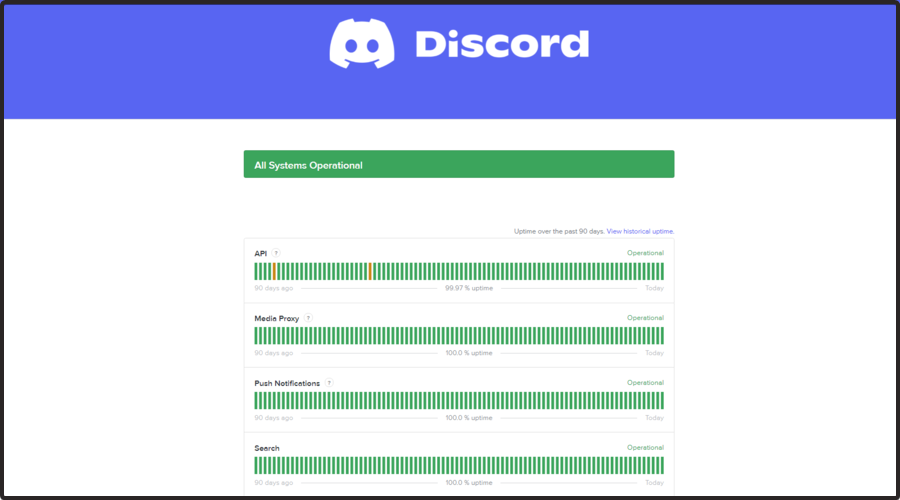
All you can do in this situation is wait for them to fix the issues on their side and resume using Discord. If Discord is still not playing any sounds in your browser, make sure you keep on reading.

2. Check your browser settings

2.1 Chrome

  1. Hit the Windows key, type Chrome, then open the first result.

  2. Click on the three vertical dots from the top-right corner of the window, and navigate to Settings.
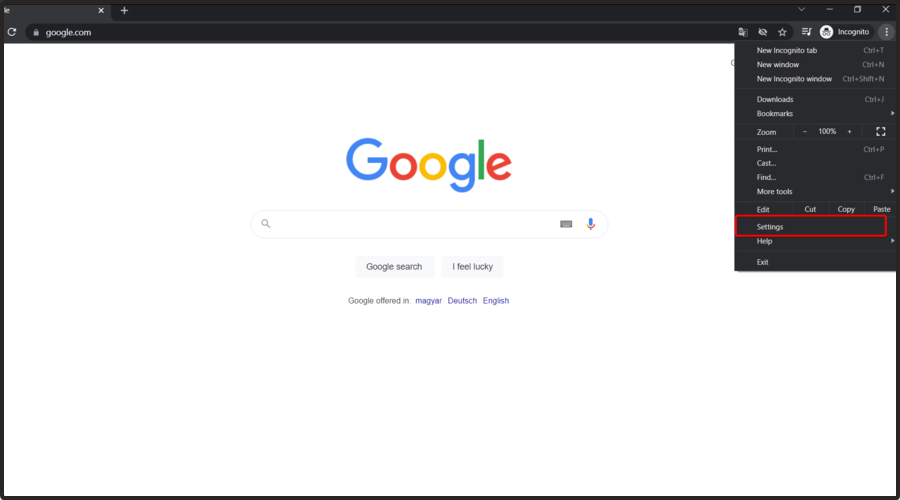
  3. Go to Privacy and security and click on Site settings.
  4. In the Site settings option, select Microphone.
  5. Make sure the Sites can ask to use your microphone option is checkmarked.

2.2 Mozilla Firefox

  1. Hit the Windows key, type Firefox, then open the first result.
  2. In the right-top corner of the window, click on the 3 horizontal lines to open the More menu.
  3. Go to Settings.
  4. From the left window pane, select Privacy and security.
  5. Now, scroll down in the right window pane until you find the Permissions section.
  6. Click on the Settings button next to the Microphone section.
  7. In the Search Website bar, search for Discord, then click on it.
  8. Click on Save Changes.

2.3 Microsoft Edge

  1. Hit the Windows key, type Edge, then open the first result.
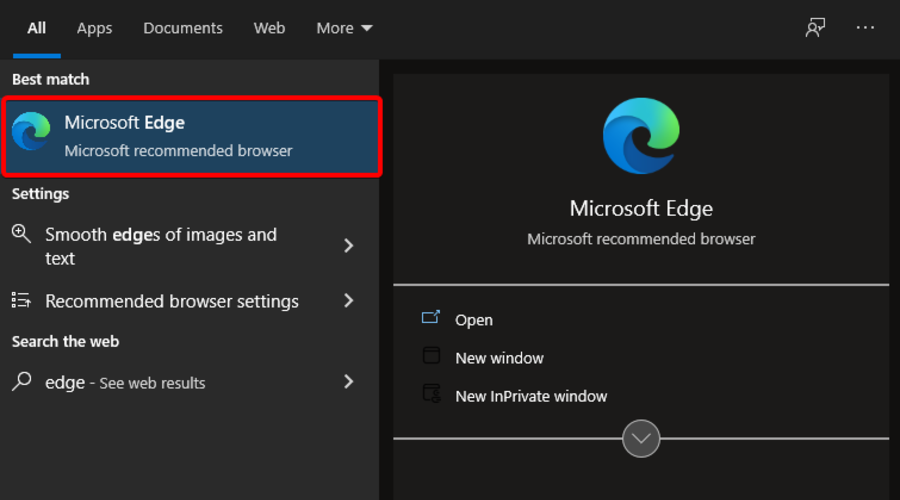
  2. Look at the top-right corner of the window, then click on the 3 horizontal dots.
  3. In the left window pane, navigate to Cookies and site permissions.
  4. Now, scroll down on the right side of the window, then click on Microphone.
  5. In the Allow section, make sure you have Discord.

As you can see, we presented three series of steps, depending on the browser you’re using. We ensured to deliver solutions to the most popular options.

Of course, if you didn’t find your main browser in the methods above, we recommend searching for the support page and checking how to allow mic for usage to forget all about Discord audio not working in your browser.

3. Use the correct Output Device

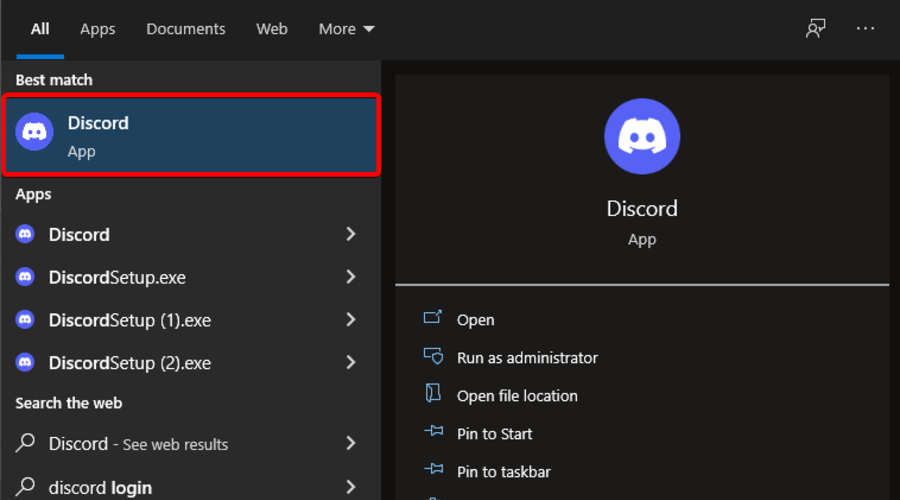
  1. Hit the Windows key, type Discord, then open the first result.
  2. Click on User settings (in the right bottom of the window).
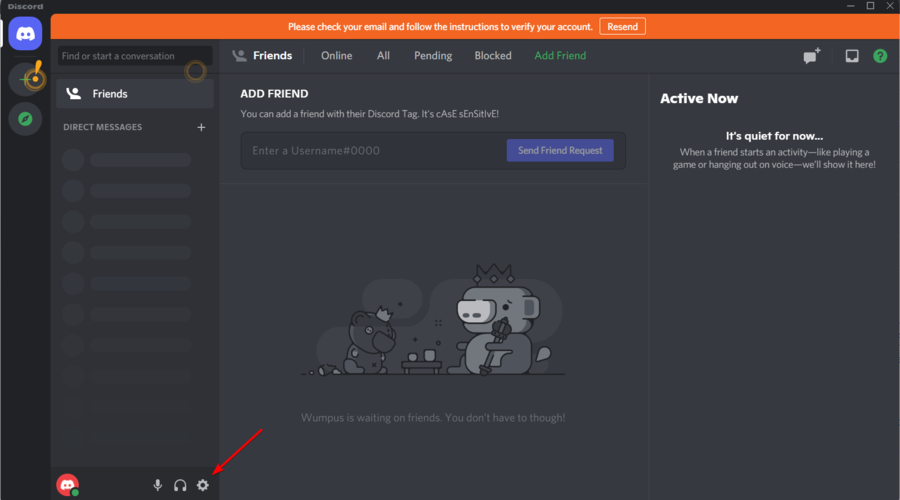
  3. From the left window pane, select Voice & Video.
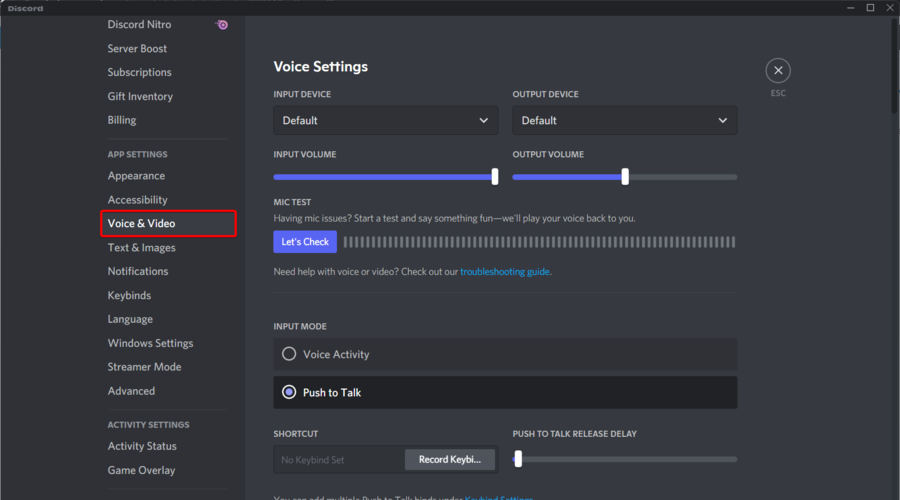
  4. Under Output device, choose your preferred device and ensure the output volume is not 0.
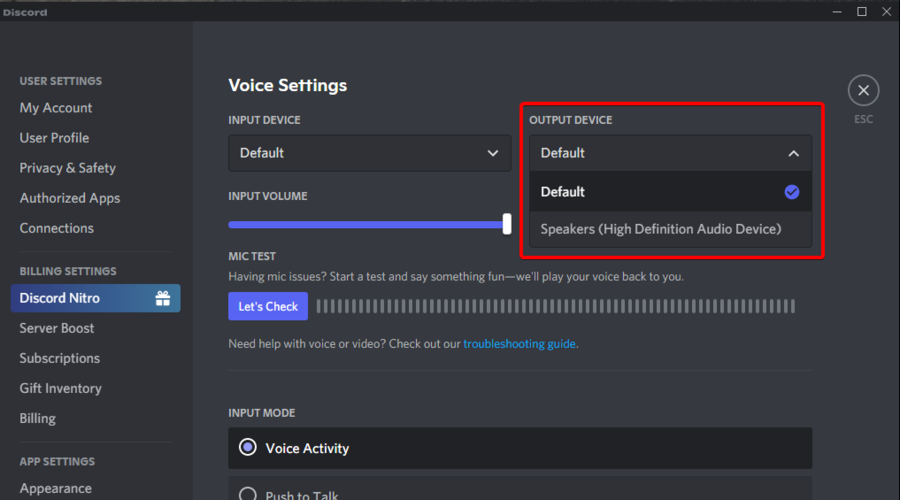
Browsers require user interaction before they will play audio on Discord

Double-check that your browser is compatible with the app if you use Discord on your web browser. As described above, you should also adjust the browser’s permission settings to ensure you have allowed the app to use the microphone.

If you have already applied these steps and made no difference, consider giving your Discord web client and browser a fresh start. A simple restart can rule out any temporary glitches that might have caused the issue.

You may even restart your PC or launch the Windows Remote Shutdown Dialog from CMD and use it to restart a remote computer. Then, open your Discord app to see if everything works as it should.

As a final tip, consider joining other servers and channels and check if the sound problem persists. In such a case, contact the server admin with the requirement to enable these two voice permissions: Connect and Speak.

If Discord is not playing sounds in your browser, these are the easiest ways to fix it. As you can see, the fixes imply only a few simple steps to apply.

Following our recommendation, you will regain audio access on Discord when using your browser in no time. To further enjoy streaming with family or friends, also try out the best Discord extensions.

As for those times when Discord screen share has no audio, fortunately, you can refer to our guide as well and learn how to easily fix it.

Let us know which solutions worked best for you; we would love to hear them.

6 Ways to Fix Memory Leaks in Firefox [Windows 10/11]

Did you experience a Firefox memory leak? Let us show you how to fix it.

Firefox is one of the most popular browsers today, but even this stable, user-friendly browser could cause some problems.

After some time, Firefox could start to take more memory than it should, but we’ll tell you how to solve this problem.

Making sure your browser is up to date and disabling the plugins seems helpful.

This article compiled a list of solutions to help you fix Firefox’s high memory usage in Windows 10.

Why is Firefox taking up so much memory?

Sometimes the issue is with an old or outdated internet browser. You should update your browser immediately if it has not been updated. 

The problem is often brought on by faulty data or excessive caching. However, add-ons and specific browser settings also influence Firefox’s behavior on your system.

Changing the theme might potentially result in Firefox consuming too much RAM, in addition to several other issues we will cover in the following section.

How much RAM should Firefox use?

It is impossible to put a cap on RAM use since it will depend on what activities are carried out on a browser.

Suppose all you do with your browser is read articles on the web. In that case, you will be using minimal RAM as opposed to if you are streaming videos, playing graphic-intensive games, performing online video edits, etc. In fact, many users have complained of a Firefox YouTube memory leak.

You should, however, regularly consult your Task Manager to know when there are abnormal changes or spikes in RAM use.

How do I turn off multiple processes in Firefox?

  1. Switch to another browser
  2. Update Firefox
  3. Disable your plugins
  4. Check Firefox preferences
  5. Use fewer tabs
  6. Use the Minimize memory usage button

1. Switch to another browser

Millions of people worldwide chose Opera One for its speed, privacy, and the new features that allow them to work and browse faster and more efficiently.

With this browser, you do get more time and speed by being able to organize your tabs and workspace in a manner that is not even more time-consuming.

You can switch to Opera One fast; the download takes only a couple of seconds, and you’ll have the browser installed on your device in no time.

Using Opera’s unique functionality, you can automatically import all your browser info, install Chrome extensions and begin browsing immediately.

The more tabs you open in your browser, the less memory is available. With Opera’s Workspaces functionality, you can organize your tabs based on interests or personal/professional searches. It’s only up to you which categories you want to create.

Workspaces will allow you to navigate smoothly through your browsing history, find faster what you are looking for, and save more memory by closing all the other tabs you don’t need.

Opera One

If you want to work faster with a reliable browser that allows you to organize tabs and workspaces, this is it.
Free trial Download

2. Update Firefox

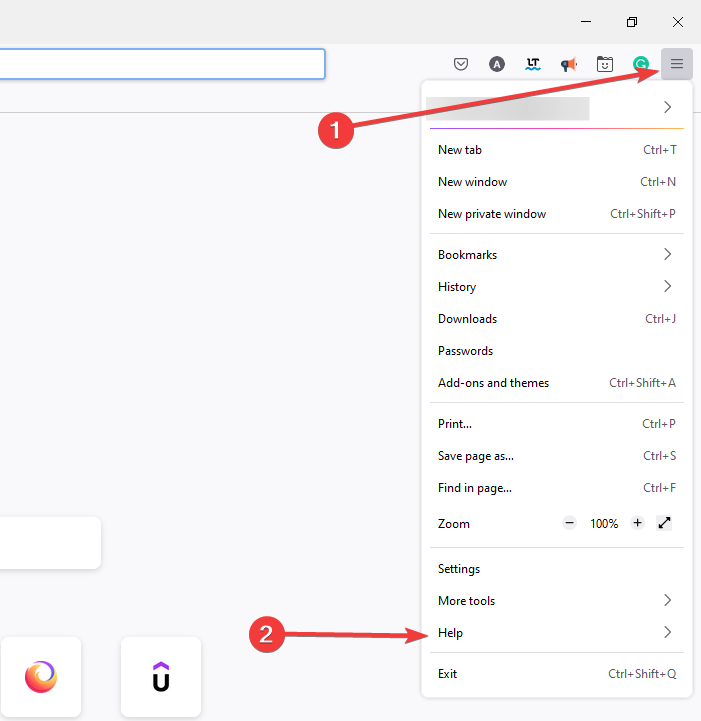
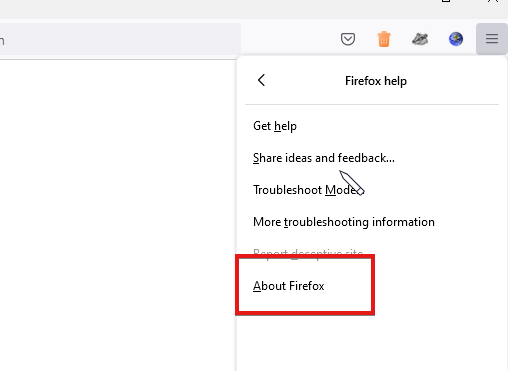
  1. Click the Menu icon in the top right corner and choose Help.
    Firefox memory leak
  2. Choose About Firefox from the menu.
    Firefox can't type in text fields
  3. If any updates are available, they will be installed automatically.
    Firefox memory leak

Once you notice a Firefox memory leak, an update should be your first resolution attempt.

3. Disable your plugins

  1. Launch the browser.
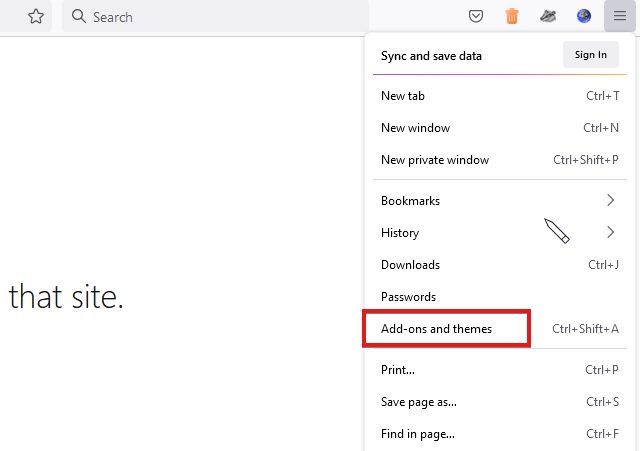
  2. Click on the Menu icon and select the Add-ons and themes option.
  3. Toggle off the individual switches in front of each extension.

You can also disable or delete some unnecessary plugins and add-ones because they also could use a lot of memory.

Disabling unnecessary add-ons and plugins proved to be the best guard against a Firefox memory leak. But, of course, if it turns out that you need some of the disabled add-ons, you can always re-enable them.

4. Check Firefox preferences

  1. Type the link below in the Mozilla Firefox Address bar and hit Enter.
    about:config
  2. The following warning might appear, Proceed with Caution, ignore the message, and click on Accept the Risk and Continue button.
    Firefox memory leak
  3. Click the Show all option at the top of the page.
  4. In the Search preference name search field, search for the elements below and adjust their values to 0 (by double-clicking on them and entering 0).
    • browser.cache.memory.capacity
    • browser.sessionhistory.max_total_viewers
    • browser.sessionstore.max_concurrent_tabs
      firefox memory leak
  5. In the Search preference name search field, search for the elements below and adjust their values to False and Disable respectively, by double-clicking on them and entering the required values.
    • browser.cache.memory.enable
    • browser.tabs.animate
      firefox memory leak
  6. As you did in steps 4 and 5, set the values below to True.
    • javascript.options.jit.chrome
    • javascript.options.jit.content
    • network.dns.disableIPv6
    • network.http.pipelining
    • network.http.proxy.pipelining
    • plugin.expose_full_path 
  7. As you did in steps 4 and 5, set the values below to 5, 8, and 0, respectively.
    • content.notify.backoffcount
    • network.http.pipelining.maxrequests
    • ui.submenuDelay

You can reduce Firefox memory usage by tweaking the about:config settings.

5. Use fewer tabs

Most Firefox users open only a few browsers at the same time. However, having around 100 tabs open at once may trigger a Firefox memory leak. Try to close the tabs that you’re not using actively.

6. Use the Minimize memory usage button

  1. Launch Mozilla Firefox Browser.
  2. In the Address bar, type in the address below and hit Enter.
    about:memory
  3. Under the Free Memory tab, click on Minimize memory usage.

How do I turn off multiple processes in Firefox?

  1. Launch the browser.
  2. Type the address below in the Address bar and hit Enter.
    about:performance
  3. Click on any of the processes you want to end and click the close (X) icon.
    Firefox memory leak

As simple as it looks, these methods work. Don’t forget always to update your version of the browser you are using.

You also should know that the more powerful computer you have, the more memory Firefox will use.

Note that most of these solutions have been done on the Windows OS, but the exact solutions will typically work for a Firefox memory leak on Mac.

So you shouldn’t think that you’ll surely avoid memory leaking problems with Firefox if you have more memory in your computer.

That would be all; if you have any suggestions, comments, or maybe other solutions to a Firefox RAM leak, we would like to read your thoughts in the comments section below.

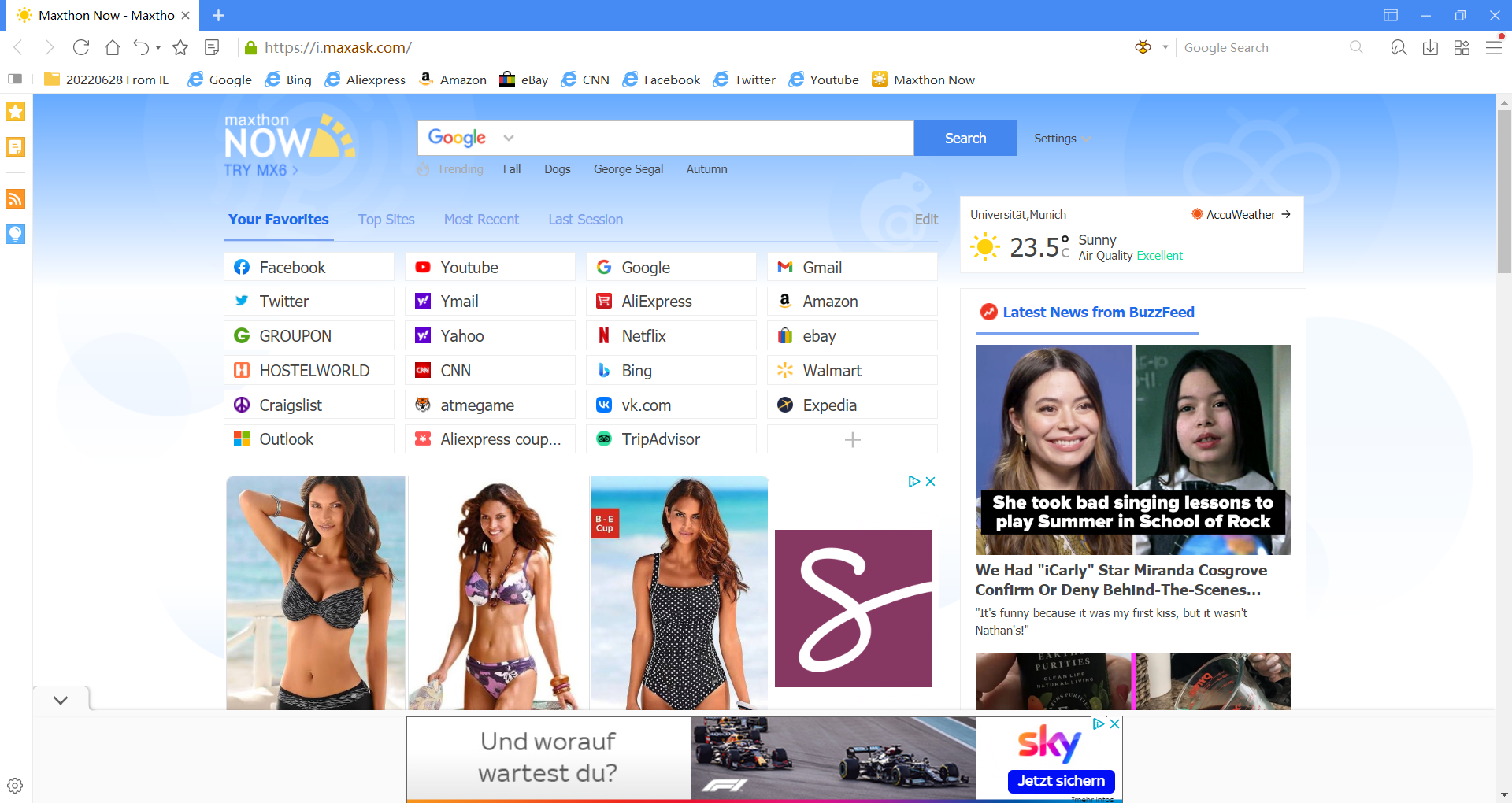
10 Best Browser Start Pages to Customize Your Workspace

Let’s take a look at some of the best browser start pages to kick your productivity up a notch. Your browser is where you spend most of your time, so why not make the most of it?

A custom start page can speed things up and help you access everything you need in a snap. Whether you want quick links, news, or weather updates, there’s a start page for every need. Let’s dive in.

What’s the best browser homepage? 

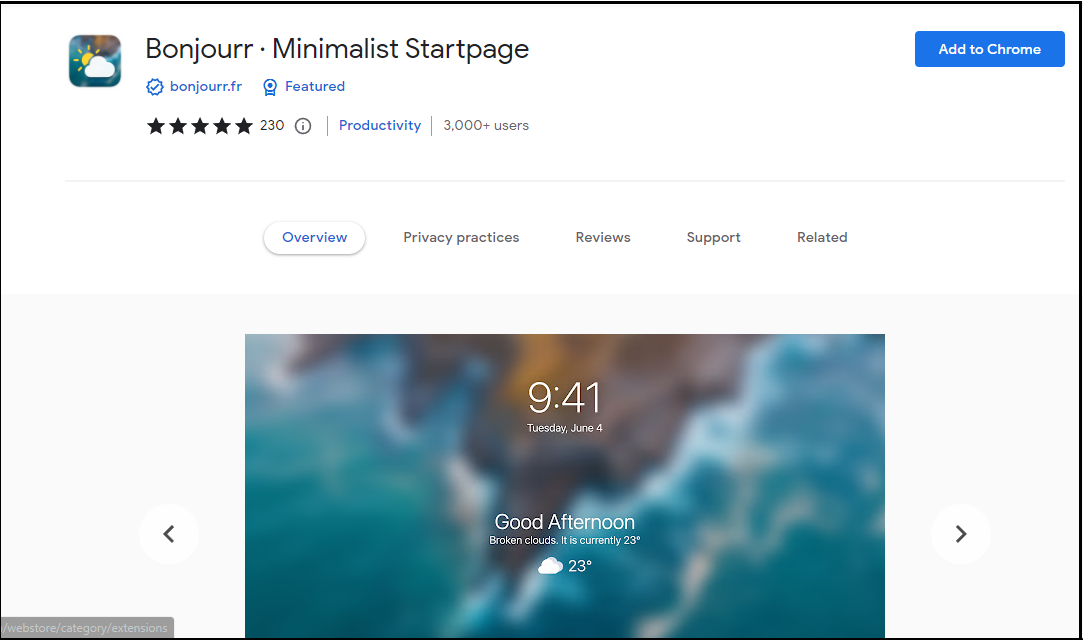
1. Bonjourr – Lightweight start page for Chrome

Bonjourr is a lightweight, customizable, and beautiful homepage for Chrome designed to be both functional and beautiful.

You can choose from thousands of wallpapers and set your custom color. Instead of a monotonous background all through, it has an elegant design, with changing backgrounds.

Additional features:

  • Has a dark mode
  • Supports multiple devices
  • Customized name greeting
  • Supports multiple languages
  • Compatible with most search engines

⇒ Get Bonjourr

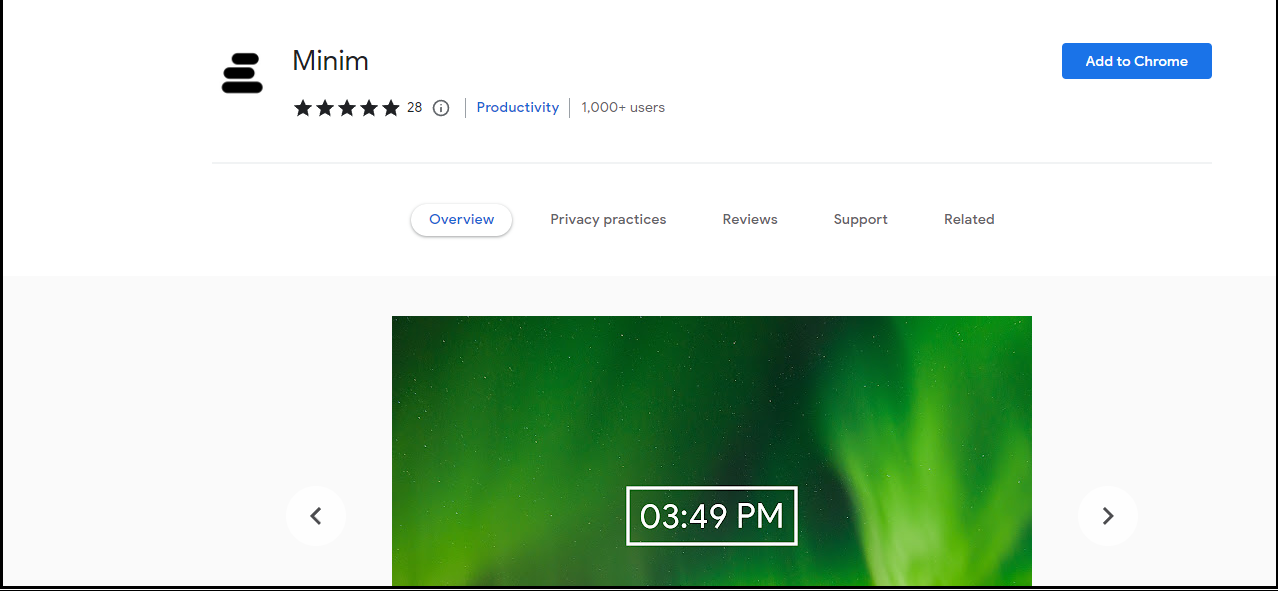
2. Minim – Smart start page for Chrome

Minim is a start page for Chrome that lets you easily open your favorite sites and apps, browse the web, and stay up to date with the latest news and weather.

It’s simple, smart, and beautiful without being intrusive. Users are always looking for start pages that enhance their productivity, so Minim does its job by being simple while still delivering useful features. 

Additional features:

  • Frequent wallpaper refresh
  • Does not collect personal data
  • Huge collection of background images
  • Quick links to your favorite sites

⇒ Get Minim

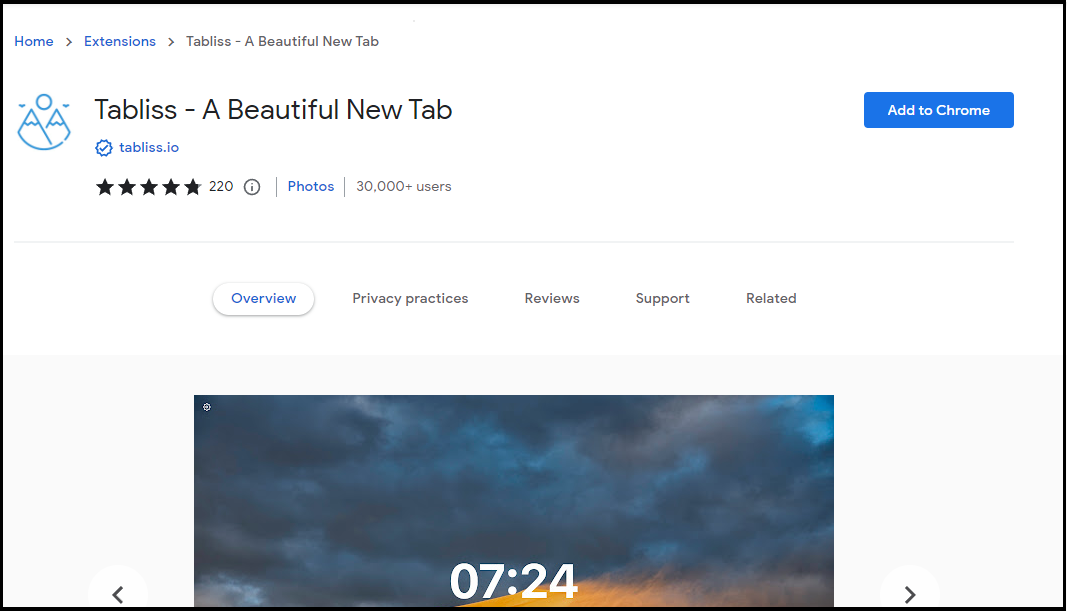
3. Tabliss – Feature-rich start page for Chrome

Tabliss is a feature-rich, minimalist, and elegant browser extension for Google Chrome. It helps you to save time and improve productivity by making your browsing experience easier and more convenient.

The built-in search bar allows you to search the web instantly without leaving the page you’re currently viewing. You can set your background to change as often as you like if you easily get tired of one image.

The Persist settings also allow your browser to set your current settings permanently so that you don’t have to edit them every time you open the browser.

Additional features:

  • Customized greetings that change at different times of the day
  • Different categories of quotes depending on your mood
  • Real-time weather forecasts
  • Customizable backgrounds
  • Count down timer for work hours

⇒ Get Tabliss

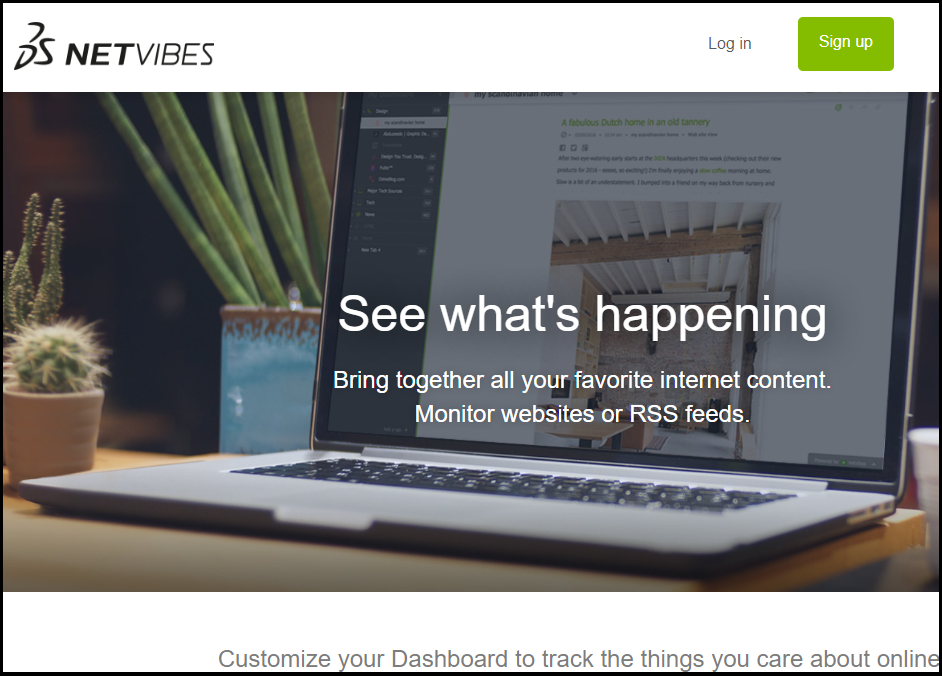
4. Netvibes – Highly customizable start page for Safari

Netvibes has a lot of features that make it one of the best start pages for Safari. It is a free web-based start page that allows you to customize your homepage the way you like it. You can add widgets such as weather, news feeds, calendars, and more.

The start page doesn’t just give you news, weather, and other information; it also lets you customize your home page with widgets that provide quick access to sites like Facebook, Gmail, and Twitter. 

Additional features:

  • Personalized widgets
  • Import your favorite RSS feeds
  • To-do list

⇒ Get Netvibes

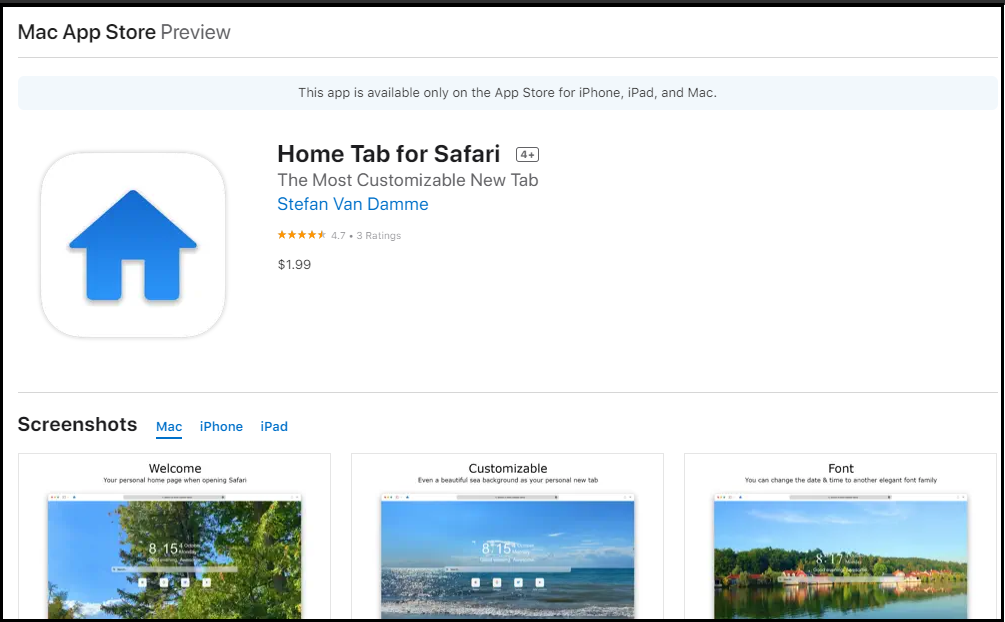
5. Home Tab for Safari – User-friendly start page for Safari

Safari is a great browser, but its homepage can be a little bland. If you’re looking to jazz up your Safari’s home page and make it more useful, then Home tab for Safari start page is a great way to start your day. 

The best part about the Home tab is that it’s customizable. It has a clean, uncluttered look, and you can easily add the websites you visit most often. The Home tab also has other features that make it more useful than other web browsers’ home pages.

Additional features:

  • Accessibility feature
  • Dark mode theme
  • Custom greeting
  • Countdown timer

⇒ Get Home Tab for Safari

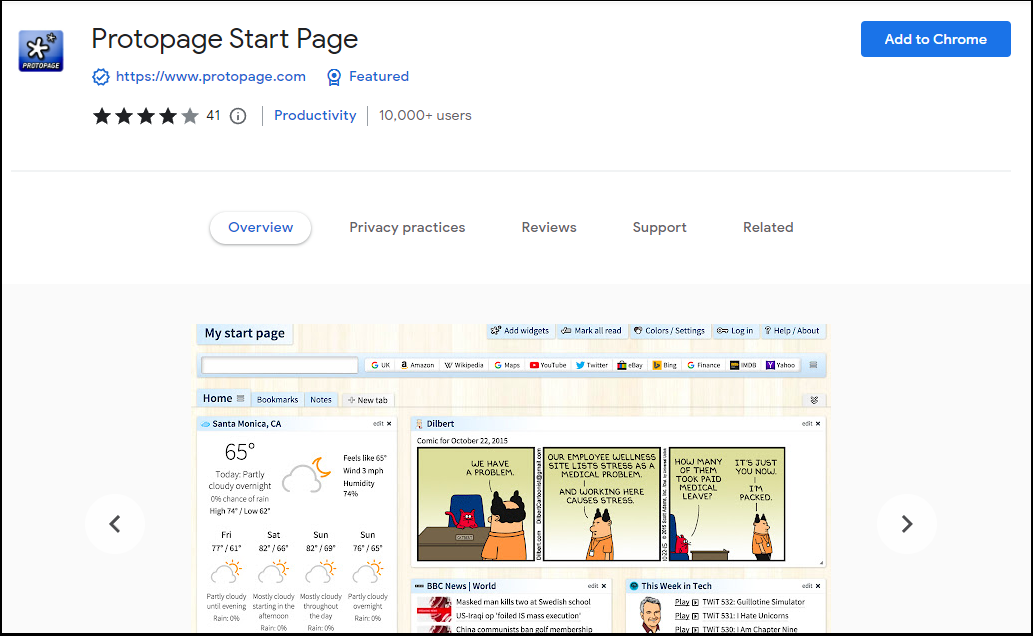
6. Protopage Start Page – Privacy-focused start page

Protopage is the ultimate replacement for your default start page or homepage. It provides you with a customizable start page that looks like your desktop computer’s desktop. You can easily add or remove the links you want to see on your start page.

The extension doesn’t store your data or track your location, so you can enjoy the perks of private browsing with this extension.

Additional features:

  • Import News headlines from almost all websites
  • Create Sticky Notes on any items or web page
  • Read your own selection of news and blogs in one place
  • Keep bookmarks, to-do lists, and much more

⇒ Get Protopage Start Page

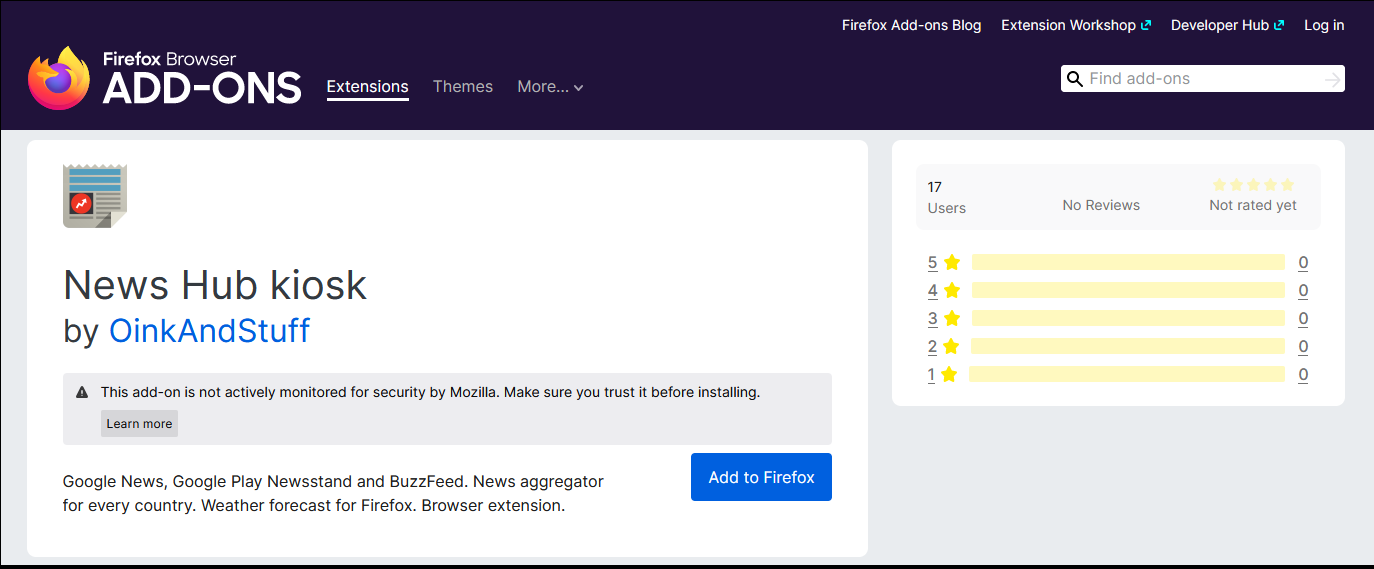
7. News Hub Kiosk – All-in-one news start page

News Hub Kiosk is a news aggregator extension that delivers a curated news feed to your browser. This homepage has been designed to give you a quick overview of how your country’s news is trending and be able to navigate directly to one of the highlighted stories.

It has some great features that make it easy to get the latest updates on any topic you’re interested in. You can read stories in full or just get a quick overview of what’s happening in the world with one tap.

Additional features:

  • Lightweight and low bandwidth consumer
  • Get notifications on topics that matter to you
  • Can be customized to show only the news you want
  • Easily share articles via the social link

⇒ Get News Hub Kiosk

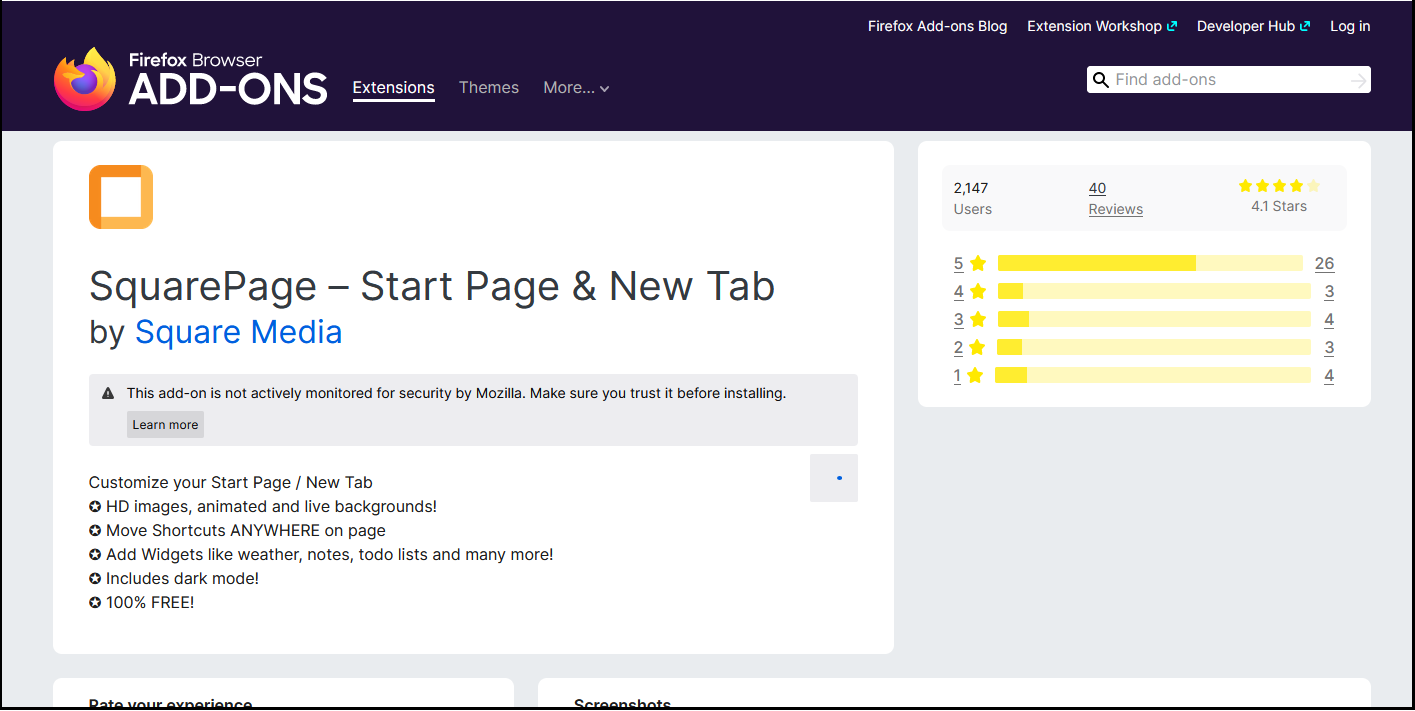
8. SquarePage – Fastest start page

SquarePage is fast and useful as well. It has a minimalist design with just basic information on the left side of the screen, such as weather and maps, and other social platforms.

You can choose what information you want to see on your screen at any time by simply clicking on the edit button at the bottom-left corner of your screen.

The extension supports customizing the new tab by allowing users to change its background color, add an image or video to it, change the page title and even set it to open links in background tabs.

Additional features

  • Customize the new tab page with live images or personal pictures
  • Add folders as part of the homepage
  • Has a dark mode
  • Ability to add custom widgets
  • Huge library of background images

⇒ Get SquarePage

9. Live Start Page – Highly productive start page

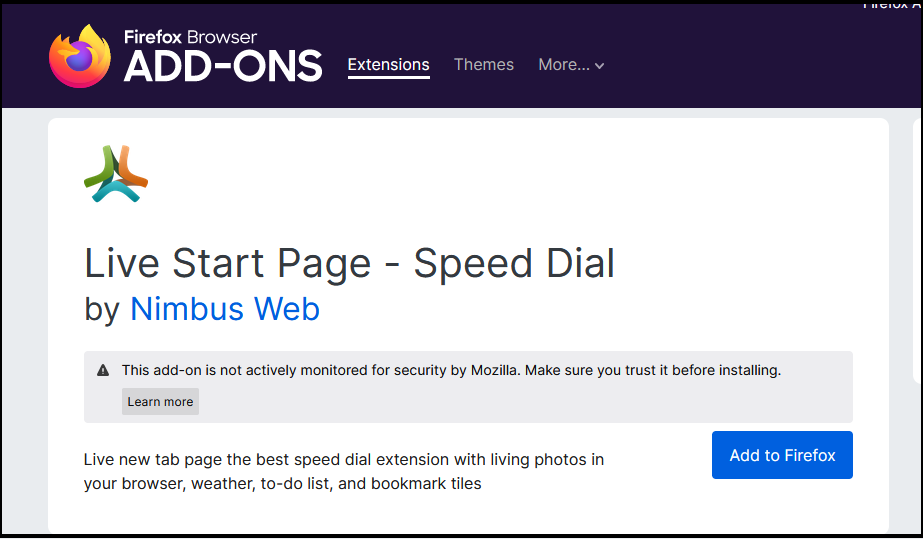
Live Start Page is a free and open-source Firefox extension that allows you to add clocks and to-do lists to your browser.

One notable feature that most users will appreciate is the meditation mode. This is an interesting take on how to help people relax and focus their minds as they browse the internet.

Additional features:

  • Speed dial for quick links access
  • Different clock modes
  • To-do list organizer
  • Weather forecast

⇒ Get Live Start Page

10. Infinity New Tab Pro – Intuitive start page

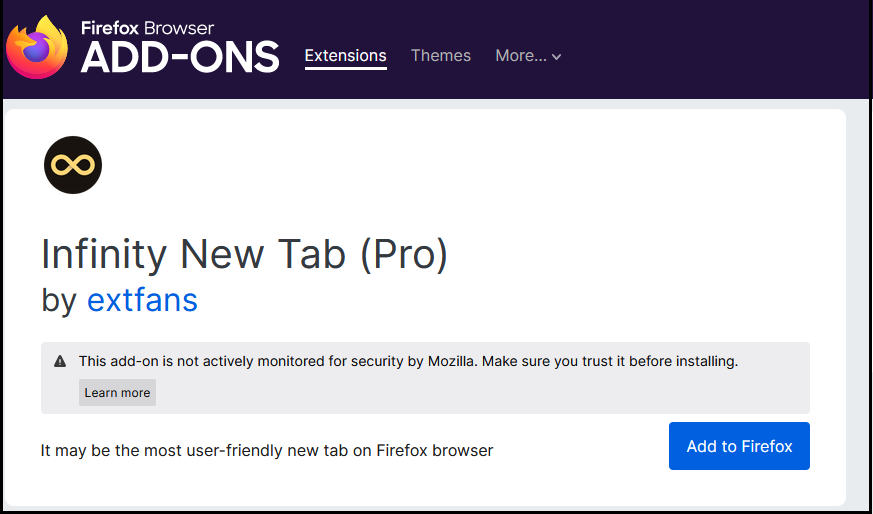
Infinity New Tab Pro is an efficient tool for getting quick results from the web. It is designed to be fast and easy to use.

The main feature of Infinity New Tab Pro is its speed dial, allowing you to access websites you often visit in seconds. You can also add widgets such as weather, news, and email.

If you don’t like the default layout of Infinity New Tab, you can customize it to suit your needs. You can change its color, size, position, and style.

Additional features:

  • Fast access to most visited pages, bookmarks, history, and recent tabs
  • Beautiful themes with cool animations
  • Customization options to fit your style
  • Drag and drop feature

⇒ Get Infinity New Tab Pro

What browser startup page template can I use?

A browser startup page can be as simple or as complex as you like. It can contain just a few links to your most important pages, or it can be a full-fledged start page with news headlines, weather reports, sports scores, and more.

With that being said, there are some items that are a must-have on your browser start page. Below is a template you can use when setting up your start page:

WidgetUse
Quick linksPut your most-visited websites on the same page. This way, you’ll be able to access them quickly and easily, without having to visit each site separately.
Search bar Add a search bar to your browser home page. This makes it easy for users to search the web.
Weather widgetWeather is a common concern for many people. This can be an especially important feature for your homepage if you live in an area with severe weather conditions such as hurricanes or tornadoes.

News feed
A news feed is a great way to keep up with what’s going on in your city or town. If you have a favorite website that gives local news, add it as a widget so you can easily check it out anytime.
CalendarAdding a calendar to your homepage is another way of keeping up with events and appointments. You can also use this feature to help remember important dates, such as birthdays and anniversaries.
Social media widgetsThis is another way to get quick access to your favorite social networks without having to open up their apps every time.
Clock/timerThe timer is a great way to track how long it takes you to complete a task.

What is the default Homepage in most browsers? 

While you are still here, also check out our top recommended productivity apps that will help you remain focused and boost your performance.

We also have a rich list of email clients that ensure you stay on top of your game and stay on track of your to-do list.

Let us know which start page tickles your fancy and why in the comments section below.

How to Use Windows 11: Official Video Tutorials

It is true that changing an operating system is not as easy for some people, especially the ones that are either new to the world of PCs or the ones that have gotten used to the previous one.

Change can sometimes plunge some of us into a world of chaos and having the right tools for learning at your disposal can be crucial.

It’s the same with Windows 11, believe it or not, and people at the Redmond-based tech company have created some much-needed tutorials.

Learn faster about Windows 11 with these tutorials

As we said, Microsoft recently published a new video series called Meet Windows 11, which consists of three introductory videos describing how to do basic things in the latest OS.

The above-mentioned videos highlight personalization, apps, tools, features, and other capabilities that Windows 11 newbies may consider helpful.

Needless to say that experienced Windows users won’t really find anything interesting or special in these new videos.

Redmond developers stated that the series aims at those just starting out with Windows 11 or users looking for refreshers on making the most out of it.

And, as you would have imagined and hoped for, every video has a dedicated support page, making it easy to also read about the features instead of watching the video.

From watching the first video, titled The Basics, you will gain knowledge about simple things such as how to use universal search, essential shortcuts, accessibility features, and much more.

The video above, which is the second one, teaches about personalizing your experience by creating collections in Edge, changing desktop backgrounds, as well as Widgets.

Now, for most of us, these are pretty basic tasks, but you would be surprised how much this would help a Windows operating system newcomer.

And, since dealing with apps and tools can prove a bit tricky at start, especially if you don’t know your way around the OS, the third video shows just that.

Every new experience can prove tricky at first, but perseverance will be the difference between those that learn faster, and those that learn a bit slower.

We also have a ton of Windows 11-related articles that can teach you the operating system’s basics, as well as what to do when something goes wrong with it.

For those of you that didn’t know, Microsoft is now hosting a major Bug Bash event for its latest 22622.436 (KB5015888) Insider Build.

Also, you can check out our Patch Tuesday article for July 2022 if you want to see what the latest security measures taken have been.

Do you feel like Microsoft should create more such videos? Share your thoughts with us in the comments section below.

Microsoft starts Bug Bash for Windows 11 Build 22622.436 (KB5015888)
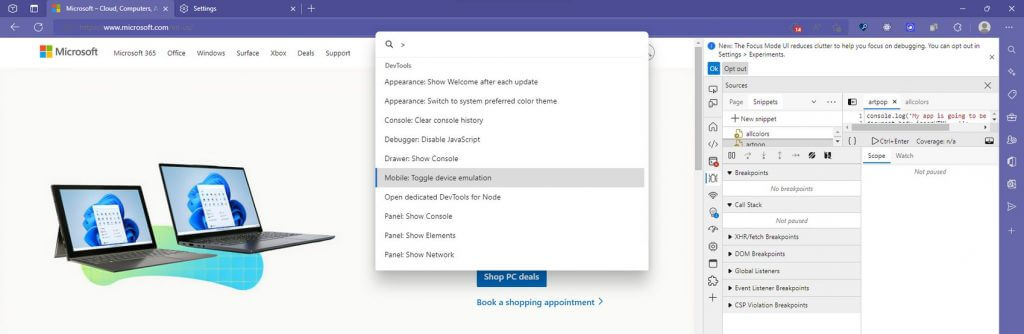
It’s been quite a while since we all participated in a good old-fashioned bug bash, so we’re here to let you in on the latest one.

When we say old-fashioned, we don’t mean dark ages old, so you can leave the torches and pitch forks at home, as we’re actually talking about a Windows 11 virtual bug hunt.

Today, Microsoft released two new beta builds for Windows 11 to the Beta Channel, in the form of Build 22621.436 and 22622.436 (KB5015888).

The latter comes with some interesting new features enabled, and Microsoft needs our help to test these features in order to prepare them for mainstream launch.

Microsoft kicks off KB5015888 Bug Bash

That being said, you’re running the above-mentioned Insider build for the Beta Channel, you can open the Feedback Hub to find a selection of Quests to try out and give feedback on.

We’re pretty sure you will want to join this event, so it’s our duty to tell you that you’ll need to get your machine updated fairly quickly because the Bug Bash will only run between July 20 and July 25 PDT.

The Redmond tech giant did not mention what participants would receive for their efforts, but in previous events, it has awarded Bug Bash stickers that appear in the Feedback Hub.

You are surely curious about what the tasks are, so don’t be discouraged, as we’re they are fairly run-of-the-mill activities.

Seasoned veterans will know that previous quests included things like accessing your Microsoft Account free benefits in Settings and easily finding the Settings you need via the Settings in-app search box.

Now, we know that a novice user could struggle with some tasks but, with a little bit of patience, these tasks will be done in no time.

As you can see, you don’t need to be extra tech-savvy to complete such a list, so go ahead and give it a try if you are running this build.

We all want Windows 11 to be a more complete, stable, and reliable experience, so let’s corner these pesky virtual bugs and give them hell.

Have you completed your July 2022 KB5015888 Bug Bash list? Share your experience with us in the comments section below.

5 Ways to fix Chrome if it’s Blurry [Text, Background, Images]

A good number of Windows 10 users have reported a blurry Google Chrome on their PC. We go through all the complaints and also suggest a few simple fixes.

Yet another Windows 10 problem is affecting users of the Chrome browser – now, a good number of them is reporting that the images and fonts look blurry in the Chrome browser. A while ago we were reporting that the mouse wheel was not working in the Chrome browser for some users and not it seems to be affecting the resolution.

Here are some of the complains from Microsoft TechNet:

I recently installed Windows 8 and i noticed that the screen puts a lot of strain on my eyes compared to Windows 7. It seems like the screen/text is blurry/fuzzy a bit putting strain on my eyes. It is not as crisp as it was in Windows 7. Almost too powerful? Anyone else experiencing this issue?

I updated Windows 8 to the Windows 8.1 Preview last night. I’m using a high-resolution Samsung SMS27A850 display (2560×1440).I noticed immediately that Chrome looks sort of blurry/fuzzy. It looked crisp in the previous version of Windows.

The solutions to these issues will be listed below in a step-by-step manner. Also, note that they can also help if you are experiencing the following problems:

  • Chrome font blurry – Sometimes the fonts seem blurry, and it can be caused by bad scaling. Adjust the settings to fix that.
  • Chrome text blurry – Entire pages can sometimes appear blurry, rendering them unreadable.
  • Chrome resolution blurry – Adjusting the resolution can sometimes lead to blurry UI elements. Fixing this problem is simple, and you just need to adjust your resolution.
  • Chrome looks blurry – At times, the entire Chrome UI can seem blurry.

Why is my Chrome background blurry?

There are multiple reasons for this, the most common being your font settings. In some instances, you can even have issues with your cache that can cause this problem.

Scaling features on your PC can lead to this issue, as well as third-party extensions, so be sure to make changes and adjust your settings accordingly.

Why is Chrome not displaying properly?

If you’re having this problem, it might be that you have issues with your cache, so clear it and try again.

It’s possible that your browser is out of date, so update it and check if that helps. In the worst-case scenario, you might have to reset or reinstall your browser.

Quick Tip:

If you’re going through the trouble of trying to fix blurry Chrome elements, then maybe you are someone that values visuals very much, if that is the case, then we recommend giving it a try to Opera One.

This tool is not only based on the same engine as Chrome but also it can use most of its extensions as well.

As for the visuals, you should know that Opera One boasts one of the most modern and lightweight designs among all browsers, and this can be further customized.

Opera One

Surf the Internet without any visual inconsistencies with one of the most modern web browsers on the market today.

How do I fix blurry Chrome?

1. Disable scaling

  1. Locate Chrome shortcut.
  2. Right-click it and choose Properties.
  3. Navigate to the Compatibility tab and check Disable fullscreen optimizations.
  4. Save changes.

That’s it! After doing that check if the issue with blurry Google Chrome is still there.

2. Clear your browser cache

  1. Open Chrome and then click on the three-dot menu.
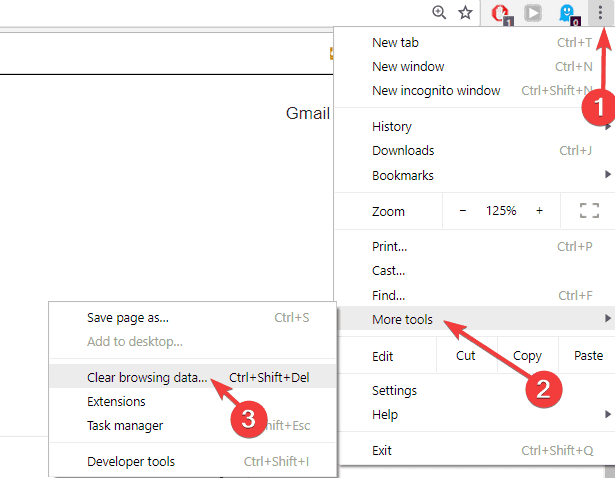
  2. Select More tools and choose Clear browsing dataclear chrome cache cookies
  3. You can either choose a time range or simply select All time to delete everything
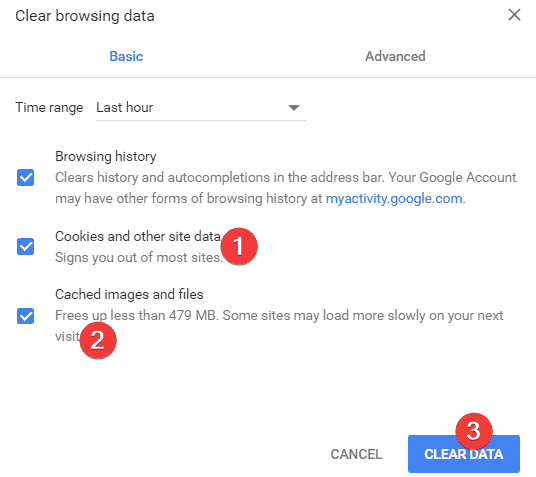
  4. Go to Cookies and other site data and Cached images and files, and check both boxes. Then click on Clear data.
    clear chrome data

If the problem persists, try clearing your cache and cookies. Keep in mind that this action may delete important browsing information so proceed carefully.

This can help you if Chrome is blurry on Wayland, so be sure to try it.

3. Check the font settings

  1. Click the Menu icon in the top left corner and select Settings.
  2. Now navigate to Appearance.
  3. Select Customize fonts.
  4. Now adjust your settings.

If you’re experiencing Chrome blurry text when scrolling, then the issue might be font settings. Adjust them and check if that solves the problem.

4. Uninstall Helvetica

  1. Click the Menu button, then select Settings.
  2. Select Customize your Chrome profile.
  3. Click on Uninstall.

Many users confirmed that uninstalling Helvetica fixed the problem.

So, if you already installed this extension on your browser, try removing it as soon as possible.

5. Reset Chrome

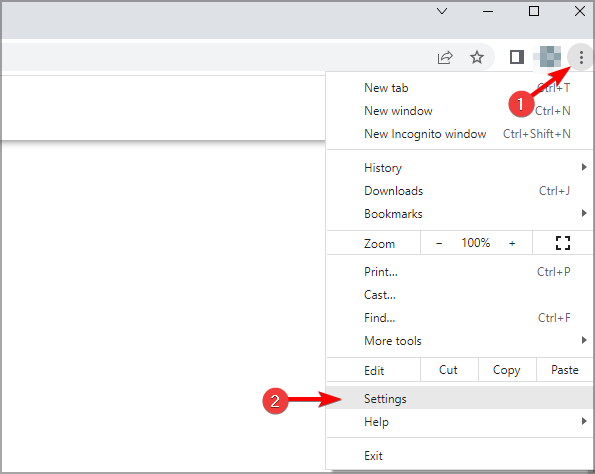
  1. Click on the three-dot menu and select Settings.
    firefox server not found
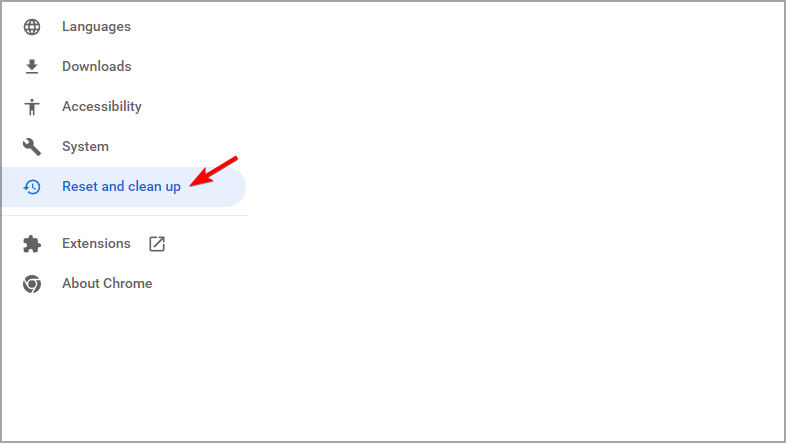
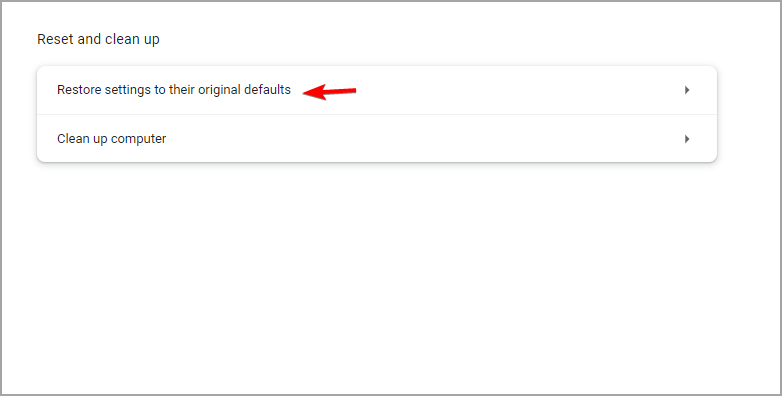
  2. From the menu on the left, select Reset and clean up.
  3. Click on Restore settings to their original defaults.

If nothing worked, you fix blurry Google Chrome with a browser reset. Keep in mind that by hitting the Reset button, you will delete all information stored by the browser.

How to fix blurred images in Google Chrome?

Disable GPU rasterization

  1. In the address bar navigate to chrome://flags
  2. Search for GPU.
  3. Locate GPU rasterization and set it do Disabled.

This is a simple workaround, but it might help you if you’re experiencing blurry downscaled images in Chrome.

If Chrome is blurry on Windows 10/11 then using the these solutions will surely help you fix the issue.

This problem can be caused by Chrome scaling and zoom issues but there are ways to fix those problems. Many also want to know how to unblur image on a website, and we have an entire guide dedicated to this issue.

Let us know which solution worked for you by leaving us a message in the comments section below.

What to play on Game Pass: Superhero Games

Don’t know what to play on Game Pass? With so, so many games across nearly every genre out there (and even a few that defy categorization) it can be tough to know where to start. Thankfully, we’ve got you covered with these Game Pass recommendations for those who have always wanted to play the superhero. Let’s get started.

Batman: Arkham Knight

Watch the trailer on YouTube

The fourth installment of the Batman: Arkham series, which includes some of the best superhero games ever made. Arkham Knight introduces the Batmobile as a gameplay element, allowing Batman to get around the open world of Gotham City.

The Batmobile is much more than a means of getting around though: it has a Pursuit Mode focused on driving challenges and a Battle Mode in which the Batmobile becomes a tank outfitted with its own special armory, including a Vulcan rotary cannon and anti-tank missiles. The Batmobile can also be upgraded for even more awesomeness.

Not only is Arkham Knight one of the best superhero game on Game Pass right now, it is also one of the most underrated games on the service, full stop.


Crackdown 3

Coming almost a decade after the release of its predecessor, the third game in the Crackdown franchise picks up where Crackdown 2 left off and goes further. It offers cooperative play in campaign as well as in the “Keys to the City” free-roam mode.

Time to step up your boom and stop crime as a super-powered Agent in Crackdown 3’s sandbox of mayhem and destruction. Explore the heights of a futuristic city, race through the streets in a transforming vehicle, and use your powerful abilities to stop a ruthless criminal empire.


Injustice 2

Watch the trailer on YouTube

We already discussed Injustice 2 in our “What to play on Game Pass: Fighting Games” post, but we thought it would also be worth a mention here. Injustice 2 gathers all your favorite characters from the DC Comics universe – Batman, Wonder Woman, Harley Quinn, The Flash, and many others – and pits them against each other in this glorious fighter.


Marvel’s Avengers

Developed by Crystal Dynamics and published by Square Enix, this Marvel-themed beatemup supports up to four-player online cooperative play. The game features characters, costumes and abilities from “all corners of the Marvel Universe,” including the comic books.

The plot centers around Kamala Khan (recently of Miss Marvel fame, from the television series). Without giving it away, Kamala is tasked with reassembling the disbanded Avengers team to take down an A.I.M. scientist who wants to eliminate all Inhumans.

Marvel’s Avengers is a solid choice for brawler fans, and practically a must-play for Game Pass members who happen to be Marvel fans.


Marvel’s Guardians of the Galaxy

Watch the trailer on YouTube

In this game players take control of Peter Quill (Star-Lord) and his elemental guns. The other members of the GotG team are present in non-playable form: Gamora, Groot, Rocket Racoon and Drax the Destroyer. Each has their own unique special abilities, and can be issued basic commands when the player enters Guardians mode whilst in combat.

Though not exactly a non-linear experience, Marvel’s Guardians of the Galaxy blends action and exploration to great effect. It is definitely a worthwhile undertaking for fans of the Marvel Universe.


Wrap up

So there you have it: the best superhero offerings on gaming’s best service. What do you think of the games featured here? Are there any personal favorites on this list? Let us know in the comments section below.

If you don’t already have a subscription to Xbox Game Pass, you can sign up here. You can also learn more about Game Pass over on its FAQ page. And don’t forget to check out our other “What to play on Game Pass” posts for other Game Pass recommendations.


What Causes a Page Unresponsive Error in Chrome & How to Fix It

Google Chrome is the most popular browser among Windows users, and even though this browser has changed over the years, some common problems remain the same. The Page Unresponsive error on Chrome in Windows 10 is one of these.

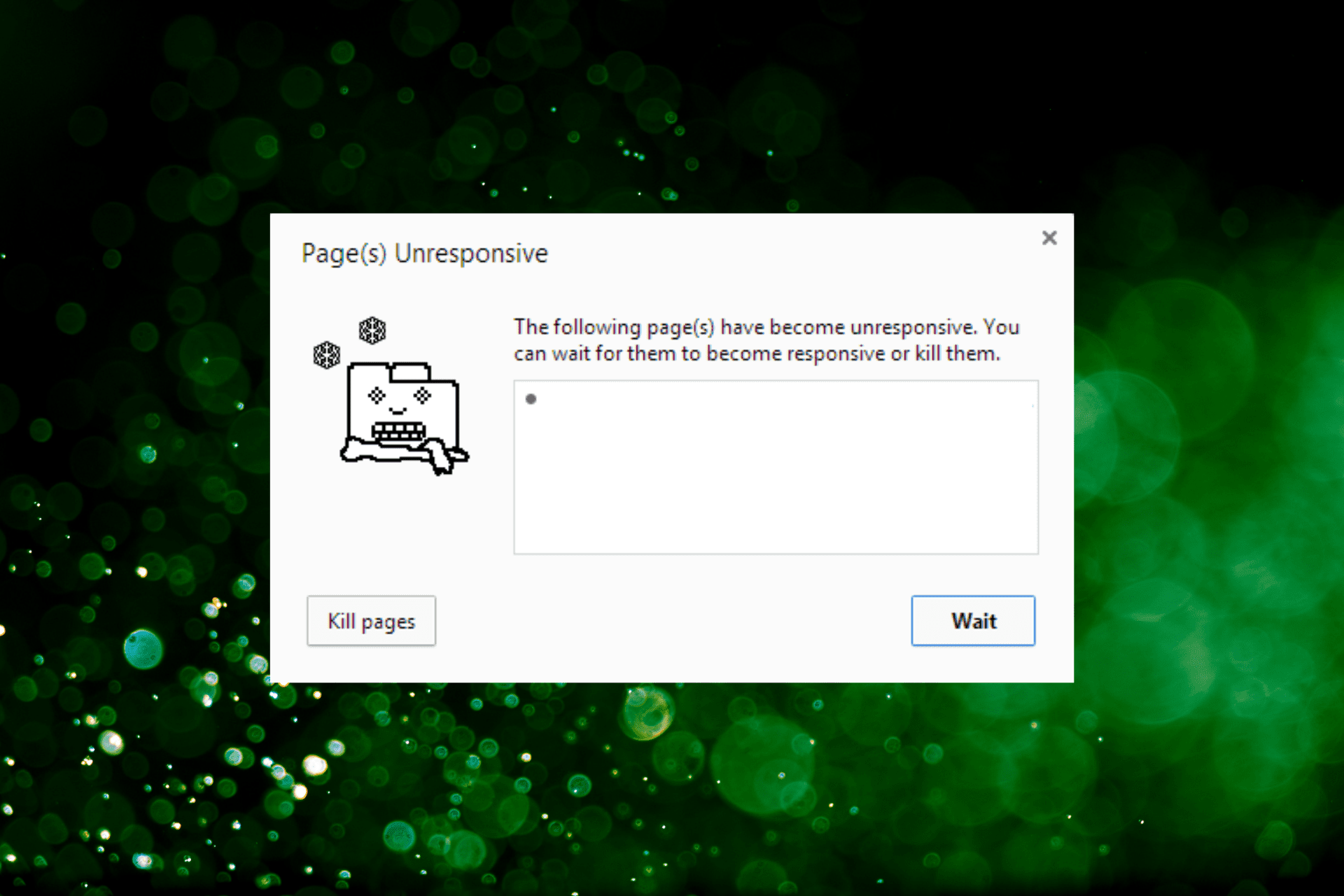
Along with the error message, there will be a Kill pages button near the bottom-left in case you want to close the page.

Other similar issues encountered by the users include:

  • Google Chrome keeps killing my pages – Many users reported that Google Chrome is constantly killing their pages. If you encounter this issue, try to reinstall Chrome.
  • Chrome kill pages unresponsive – If your pages are unresponsive, the issue might be caused by one of your extensions. Therefore, disable unnecessary extensions or remove them and check if that helps.
  • Kill pages Chrome not responding – Many users reported that Chrome stopped responding after this message. Try to disable the Sandbox mode in Chrome.
  • Page Unresponsive. You can wait for it to become responsive or exit the page – Exiting and then reopening the page generally does the trick.

So, let’s find out all about the Page Unresponsive error on Chrome in Windows 10 and its most effective solutions.

Why is my Google Chrome unresponsive?

This problem can occur due to your Internet connection or a certain website script. If your Internet connection is slow, there will be issues loading certain scripts, making pages unresponsive.

In addition, many websites use multiple scripts, and sometimes it’s possible that one of those scripts is unresponsive.

The computer configuration can also cause this problem, especially since Google Chrome is a resource-intensive browser. If you open multiple tabs with several applications running in the background, it might lead to the Page Unresponsive error on Chrome in Windows 10.

The Page Unresponsive error causes data loss in some cases. But fortunately, there are a few solutions that would help get rid of the error in no time.

Quick Tip:

Now would be a great time to make a switch to another browser with all your saved data from Chrome. Opera One has gone through a complete overhaul, with constant updates and improvements.

Opera One is also privacy-oriented and the user experience can be pleasant, thanks to the easy interface and workspace management to avoid clogged pages you visit.

Opera One

Allow different perspectives and try a brand-new browser when Chrome is unresponsive.

How do I fix unresponsive pages in Chrome?

1. Remove Trusteer Rapport

If you’re getting a Page Unresponsive error on Chrome in Windows 10, Trusteer Rapport might be the problem. This security software can sometimes interfere with your browser and cause this issue to appear.

To fix the problem, it’s advised to uninstall the program from your PC completely.

There are several ways to do that, but the best way is to use effective uninstaller software.

In case you’re not familiar, uninstaller software is a special application that can remove any program from your PC. It will remove all files and registry entries associated with the application you want to remove.

It’s better than a regular uninstallation because it performs a deeper scan and finds various leftover files. These files are scattered all over the disk, so they take up useless space.

Once you remove the problematic application, check if the problem still persists.

If Trusteer Rapport was the problem, you should consider switching to a different antivirus solution that still offers the best protection.

There is no shortage on the market so look for the very best you can afford while making sure it has an award-winning virus detection engine.

The newest antivirus tools combine artificial intelligence and machine learning to successfully detect malware without the need to download virus signatures. TotalAV is no exception to the rule.

2. Turn off Sandbox mode

  1. Locate the Google Chrome shortcut, right-click on it, and choose Properties from the menu.
    Google Chrome keeps killing my pages
  2. Go to the Target field and add the following to the end after a space:–no-sandbox
  3. Your Target field should look like this after making the change:C:Program FilesGoogleChromeApplicationchrome.exe" –no-sandboxadd sandbox
  4. Once you’re done, click Apply and OK.OK

If the Page Unresponsive error keeps popping up on Chrome in Windows 10, disabling Sandbox might help. In case the error persists, head to the next method.

3. Disable third-party cookies

  1. Open a new tab in Google Chrome, paste the following path, and hit Enter:chrome://settings/content
  2. Click on Cookies and site data.Cookies and site data to fix page unresponsive chrome windows 10
  3. Select the Block third-party cookies option.block

Disabling third-party cookies isn’t the best solution, especially because some websites rely heavily on cookies.

But if you’re frequently getting Chrome’s Page Unresponsive error in Windows 10, you might want to try this solution as a potential workaround.

4. Delete/rename the Default folder

  1. Press Windows + E to launch File Explorer, paste the following path in the address bar, and hit Enter. Make sure to replace Username with the actual account name in your case.C:\Users\Username\AppData\Local\Google\Chrome\User Data
  2. Inside the User Data folder, you should see a Default folder. Rename it to Default Backup or delete it.
    Kill pages Chrome not responding
  3. Close the File Explorer and relaunch Chrome.

5. Use a High-Performance profile

  1. Press Windows + S and enter power settings. Select Power Options from the menu.
    Kill pages Chrome not responding
  2. Select Additional power settings.
    Chrome kill pages unresponsive
  3. If the High performance plan isn’t available, click the Show additional plans option, and then select High Performance.
    Google Chrome keeps killing my pages

Bear in mind that this profile will use more of your battery power, thus draining it faster, but you should achieve better performance while using it. Once done, check if the Chrome Page Unresponsive Javascript error in Windows 10 is fixed.

6. Disable hardware acceleration

  1. Launch Chrome, paste the following path in the address bar, and hit Enter:chrome://settings/system
  2. Disable the Use hardware acceleration when available option here.Disable hardware acceleration to fix page unresponsive chrome windows 10

7. Reinstall Chrome

  1. Press Windows + R to launch the Run command, enter appwiz.cpl in the text field, and click OK.appwiz.cpl
  2. Next, select Google Chrome from the list of programs, click Uninstall, and follow the on-screen instructions.Uninstall to fix page unresponsive chrome windows 10
  3. Once done, restart the computer for the changes to come into effect.
  4. Now, you can download Google Chrome from the official website, run the setup, and follow the on-screen instructions to complete the installation.

8. Check your extensions

  1. Launch Chrome, click on ellipsis near the top-right corner, hover the cursor over More tools, and then select Extensions.extensions
  2. A list of installed extensions will now appear.
  3. Now locate the disabled extensions you don’t use anymore, and click the Remove button.
    Chrome kill pages unresponsive
  4. When the confirmation dialog appears, click Remove to confirm.
    Kill pages Chrome not responding

Once you uninstall the old extensions, check if the problem persists.

If the issue is still present, some of the available extensions might be causing the problem. To find the problematic extension, you need to do the following:

  1. Repeat the steps from above and open the Extensions tab.
  2. Now disable all extensions by clicking the toggle icon next to them.Disable extension to fix page unresponsive chrome windows 10
  3. Once you disable all the extensions, restart Chrome.

If the issue doesn’t appear after restarting Chrome, it means that one of the disabled extensions was causing the problem.

To find the problematic extension, enable them one by one until you find the problematic one. Once you find it, remove the extension to solve the problem.

9. Consider using Beta or Canary versions

If you’re constantly getting the Page Unresponsive error on Chrome in Windows 10, you might consider switching to the Chrome Beta or Chrome Canary versions of the browser.

In case you’re not familiar, the Beta version is a version of Chrome that offers the upcoming features and patches. Therefore, if you’re having any issues with your version of Chrome, consider trying out the Beta version.

There’s also a Canary version available, which is more experimental and offers some upcoming features. This version is less stable than the Beta version but should offer the latest fixes.

10. Switch to a 32-bit version of Chrome

According to users, you might be able to solve this problem simply by switching to a 32-bit version of Chrome.

Downloading the 32-bit version of Chrome

It’s worth mentioning that the 32-bit version might not offer the same performance as a 64-bit version, so keep that in mind. This is just a workaround, but until a permanent solution is available, you might want to continue using the 32-bit version.

What is the Chrome cleanup tool?

The Chrome Cleanup Tool is a feature in the browser that allows you to check for harmful and malicious software and remove it. It’s effective and can help fix several errors with Chrome or the computer itself.

Chrome Cleanup Tool

The Chrome Cleanup Tool can be found on the following path:chrome://settings/cleanup

Also, there’s an option to send a report to Google regarding the malicious software or processes found on the computer. This helps Google stay up-to-date, but you can disable the feature.

The Page Unresponsive error on Google Chrome in Windows 10 can be a hindrance and cause various problems, but you should be able to fix it using one of our solutions.

Also, find out what to do if Chrome uses too much CPU.

Do let us know how it worked for you by reaching for the comments section below.

Fix: You Don’t Have Permission to Access Minecraft.net

Minecraft.net is the official website for the video game Minecraft where players can sign up and purchase the title. It’s also a one-stop shop for Minecraft-related news, fan creations, merchandise, and a helpful library of resources.

Having access to Minecraft.net is pretty invaluable so you can imagine not having access to the website to be pretty debilitating. There are multiple reasons as to why access denial occurred and this guide will help you overcome this.

Why do I not have permission to access Minecraft?

For starters, the website could just be under maintenance. This happens randomly so if you encounter this, just come back later. Other times, you may have to clear browser data.

We also recommend resetting your browser to solve this problem. Some people have complained that certain extensions and proxy server settings have caused access problems too.

This guide will show you on to fix this problem on Firefox and Chrome which are two of the most popular web browsers out there.

Quick Tip:

Instead of fixing this issue on Minecraft on your own, you have an easier alternative to change your browser to Opera GX.

This way, you have quicker and more flexible navigation for accessing joyful games features like GX Corner or system resources optimization.

Opera GX

Take this opportunity to utilize this flexible and fully secured browser to access Minecraft easily.

How can I fix you don’t have permission to access Minecraft.net?

1. Clearing out browser data

  1. On Firefox, press the CTRL, SHIFT, and DEL keys at the same time. This will open the Clear Recent History menu.
  2. In the new window, make the boxes next to Browsing & download history, Cookies, and Cache are checked.
  3. Click OK to erase everything.
  4. On Chrome, you can also press CTRL, SHIFT, and DELETE to open the Clear browsing data menu.
  5. Make sure the boxes for Browsing history, Cookies and other site data, and Cached images and files are checked off.
  6. Click the Clear button to erase everything.

2. Reset the browser

  1. In Firefox, type in about:support into the address bar and hit Enter on your keyboard.
  2. On the right-hand side, click the Refresh Firefox button.
  3. A window will appear telling you that resetting the browser will remove all your extensions and customizations. Essentially, the browser will return to its default settings.
  4. Click the red Refresh Firefox button.
  5. On Chrome, type in chrome://settings into the address bar and hit Enter on your keyboard.
  6. Click Reset and clean up on the left-hand menu.
  7. Click Restore setting to their original defaults in the middle.
  8. In the new middle, click the Reset settings button.

3. Disable extension

  1. Some people have complained that certain extensions cause the access problem. Dark Reader in particular has been known to cause a lot of problems.
  2. In the address bar, type about:addons into the address bar and hit Enter.
  3. Click the toggle switch next to an extension to disable it.
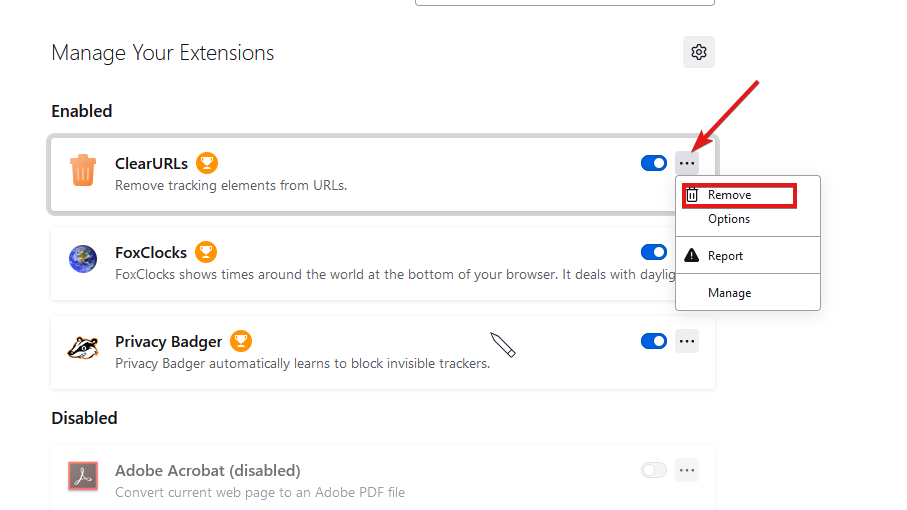
  4. Conversely, you can click the three dots next to the extension to make a context menu appear.
  5. Click Remove to get rid of the extension.
  6. On Chrome, type chrome://extensions into the address bar and hit Enter.
  7. Scroll down to the extension you want remove.
  8. You can either click the toggle switch to turn it off or click Remove.
  9. A small window will appear. Click the Remove button.

4. Disable proxy server

  1. Click the magnifying glass icon and search for Internet Options.
  2. Click the entry that appears.
  3. In the Internet Properties window, select the Connections tab.
  4. Click the LAN settings button located at the bottom of the window.
  5. Make sure the box next to Use a proxy server for your LAN is turned off. If it isn’t, click the box to turn it off.
  6. Click OK to close the window and finish.

How do I allow Minecraft through my firewall?

Sometimes your computer’s firewall will prevent you from playing Minecraft as it won’t recognize the game and see it as malicious. To get past this, you’ll have to give the game permissions in the firewall.

You can do this by opening Windows Defender Firewall and select the option that reads Allow an app or feature through Windows Defender Firewall. Click Change settings then Allow another app.

Find the Minecraft app on your computer and then click Add to give the game Firewall permissions.

Feel free to leave a comment below if you have any questions on Minecraft updates. Feel free to leave comments about guides that you’d like to see or other information.

Windows 11 Insider Builds 22621.436 and 22622.436 (Beta): A closer look

New build alert! Or, in this case, new builds alert, since Microsoft decided to launch two new Insider builds for the Windows 11 Beta Channel.

Yesterday we discussed the latest addition to Windows 10, which is Build 19044.1862, so it’s only right that we now focus on the latest operating system.

So, if you are ready and eager to find out more about what’s in store for your new favorite OS, let’s dive right into it and see what we’re dealing with.

What’s new with builds 22621.436 and 22622.436 (KB5015888)?

As Microsoft specified in the official blog post, today we are receiving Windows 11 Insider Preview Build 22621.436 and Build 22622.436 (KB5015888) to the Beta Channel.

  • Build 22622.436 = New features rolling out.
  • Build 22621.436 = New features off by default.

Keep in mind that Insiders who landed in the group with new features turned off by default (Build 22621.xxxx) can check for updates and choose to install the update that will have features rolling out (Build 22622.xxx).

Not to mention that the Redmond tech giant is also kicking off a Bug Bash for the Beta Channel starting tomorrow, so there’s a lot going on.

We’re about to go more in-depth and check out each individual of the above-mentioned builds, discovering all of the improvements, fixes, and known issues that come packaged.

Windows 11 Build 22622.436

We’re going to start with the fact that the discovery of devices under nearby share when sharing a local file from the desktop, File Explorer, Photos, Snipping Tool, Xbox, and other apps that use the built-in Windows share window has been enhanced by using UDP (Network needs to be set to private).

Bluetooth has also been added, to discover nearby devices, which means you will now be able to discover and share to more devices including desktop PCs.

Also, when sharing a local file from the above-mentioned sources that use the built-in Windows share window, you can choose OneDrive as a target to directly upload the file to OneDrive and share it further along with access control options.

Know that absolutely all this can be done right from sharing local files in File Explorer without any context switches or opening the OneDrive app.

Note icon NOTE
This feature is currently only available for Microsoft accounts. A user will need to switch to their Microsoft account via the top right profile icon in the share window if logged in via AAD. AAD support will be added in a future update.

Changes and improvements

[Windows Terminal]

  • Windows Terminal is now the default terminal in Windows 11. This means, all command line applications will open in Windows Terminal automatically (Command Prompt and PowerShell, for example). The setting for this change can be found via Settings > Privacy & security > For developers. Please note that Windows Terminal version 1.15 or greater is required for this feature.

[Input]

  • You can now report animated gifs that you feel are inappropriate from the emoji panel (WIN + .)

Fixes

[File Explorer]

  • Fixed an issue where the tab order when using CTRL + Tab would be wrong if you’d rearranged the tabs in File Explorer.
  • Fixed an explorer.exe crash when dragging tabs around.
  • If “Show all folders” is enabled, the dividers in File Explorer’s navigation pane should no longer show. With this change, it should also address the issues where dividers were unexpectedly showing in some other folder pickers.
  • Opening a zipped folder in a new tab should no longer have a blank tab name.
  • Removable drives should no longer unexpectedly be displayed in a section by themselves in the navigation pane, which was breaking up the section with This PC and Network.
  • Fixed an issue where the add new tab button wasn’t clearly visible when using Aquatic or Desert contrast themes.
  • A faint line should no longer display between the current tab and the command bar.
  • Updated the tooltip when hovering over a tab to suggest using CTRL + W to close the tab (rather than CTRL + F4, which didn’t work).
  • If focus is on the tab row, CTRL + W will no longer unexpectedly close two tabs instead of just the tab in focus.
  • Fixed an issue where the tab row might unexpectedly expand vertically, covering the command bar contents.

[Start]

  • Fixed a Start crash which was impacting some Insiders on Build 22622.160.

Fixes included for Build 22621.436 & Build 22622.436

  • Fixed an issue that prevents troubleshooters from opening.
  • Fixed an issue that causes the Smart App Control to block catalog-signed files.
  • Fixed an issue that might highly distort photos you take using the Camera app. This issue occurs when using certain cameras under certain low light conditions.
  • Fixed an issue that throws an exception when you debug drivers using Visual Studio 2022 version 17.2 or later.
  • Fixed an issue that causes the Windows profile service to fail sporadically. The failure might occur when signing in. The error message is, “gpsvc service failed to sign in. Access denied”.
  • Fixed an issue that prevents virtualized App-V Office applications from opening or causes them to stop responding.

[General]

  • Fixed an issue resulting in a small number of Insiders in the Beta Channel experiencing cyclical crashes in Explorer.exe and other Windows UI components, making the screen look like it’s flickering. Please note, this fix should stop more Insiders from being newly impacted, however if you are already impacted by this, you will need to run the following command in PowerShell to resolve it: Add-AppxPackage -Register -Path C:\Windows\SystemApps\Microsoft.UI.Xaml.CBS_8wekyb3d8bbwe\AppxManifest.xml -DisableDevelopmentMode -ForceApplicationShutdown
  • Fixed an issue which was causing some Insiders on the previous Beta Channel flight to have their PCs stuck on a black screen after waking from sleep.
  • Fixed an issue which would lead to losing network connectivity after turning on mobile hotspot.
  • Fixed an issue causing Build 22621.290 / 22622.290 to fail to install with error 0x800f081f for some Insiders.

Known issues

[File Explorer]

  • The up arrow is misaligned in File Explorer tabs. This will be fixed in a future update.

These are the changes, improvements, fixes, and known issues that come with the two new Beta Insider Preview Builds 22621.436 and Build 22622.436 (KB5015888) for Windows 11.

Have you noticed any other issues after installing these builds? Share your experience with us in the comments section below.

TurboTax Won’t Let Me E-file Tax Return: 6 Ways to Fix It

TurboTax is a U.S. tax return application and web app widely utilized in the United States, providing excellent accessibility to its users.

However, some clients have said the same thing on the TurboTax support forum. TurboTax is not letting me file return forms – is what they claim – with the software or web app.

If TurboTax e-filing isn’t working for you, check out these proven solutions to resolve it quickly.

Does TurboTax allow you to file electronically?

Rest assured that TurboTax allows you to file your tax return electronically in a few simple steps. The process might sound time-consuming, but this is faster and safer than mailing your tax return since it’s transmitted electronically to the IRS computer systems.

We strongly recommend discovering how the TurboTax app takes care of tax returns and trying it.

Why can’t I e-file my taxes on TurboTax?

Several causes are related to this issue:

  • Browser-related problems – Since common characteristics of the browsers compatible with filing software are privacy and speed, make sure to choose one of the best browsers for Turbotax.
  • Cache and cookies – You may need to clear your cache and cookies, so make sure your return is saved in the account, sign out, then clear the cache and delete the cookies on your PC. Using a cookie cleaner tool will help you to free up space, then you may sign back into your account and try entering your information again.
  • An outage – If the TurboTax server is not found, there could be an outage. Check if the server has outage problems for everyone or just for you.

You should also pay attention to how you’ve filled the form, background software, or outdated TurboTax app (especially with so many users saying: TurboTax won’t let me e-file because of update). Let us guide you step by step and get rid of the issue in no time.

What can I do if TurboTax’s e-filing isn’t working?

1. Try a different browser

Opera turbotax won't let me efile

If you’re trying to e-file a return form with the TurboTax web app, try utilizing a different browser. Opera One is a highly-rated browser that’s compatible with TurboTax. In addition, it is a Chromium-based browser with two extension libraries and one of the most original designs.

When you switch to Opera One, you won’t miss Chrome or Firefox much as it incorporates many unique features. Its battery saver, built-in VPN, customizable Speed Dials, integrated YouTube player, and tab search tool are some of the Opera One features you won’t find in Google Chrome.

Other useful Opera One features:

  • It includes an integrated YouTube player within its sidebar
  • Let’s you create workspaces and tab islands
  • Opera One’s built-in ad blocker removes ads for faster browsing
  • Offers a native AI and modular AI-ready design

Opera One

Never encounter e-filling problems on TurboTax by using this great browser software today.

2. Check your tax form

You should double-check how you’ve filled out your return form. A few non-IT issues can stop users from e-filing their return forms. You can’t e-file a TurboTax return form if it:

  • It doesn’t include any taxable income
  • Includes non-final forms
  • Includes override (you’ll need to undo them)
  • Includes a W-2 in which box 16 has a value greater than box 1 or you leave box 1 blank
  • It contains schedules and IRS forms that aren’t among those accepted on the IRS Forms and Schedules list
  • The form is for amended or prior-year returns

3. Check if TurboTax is down

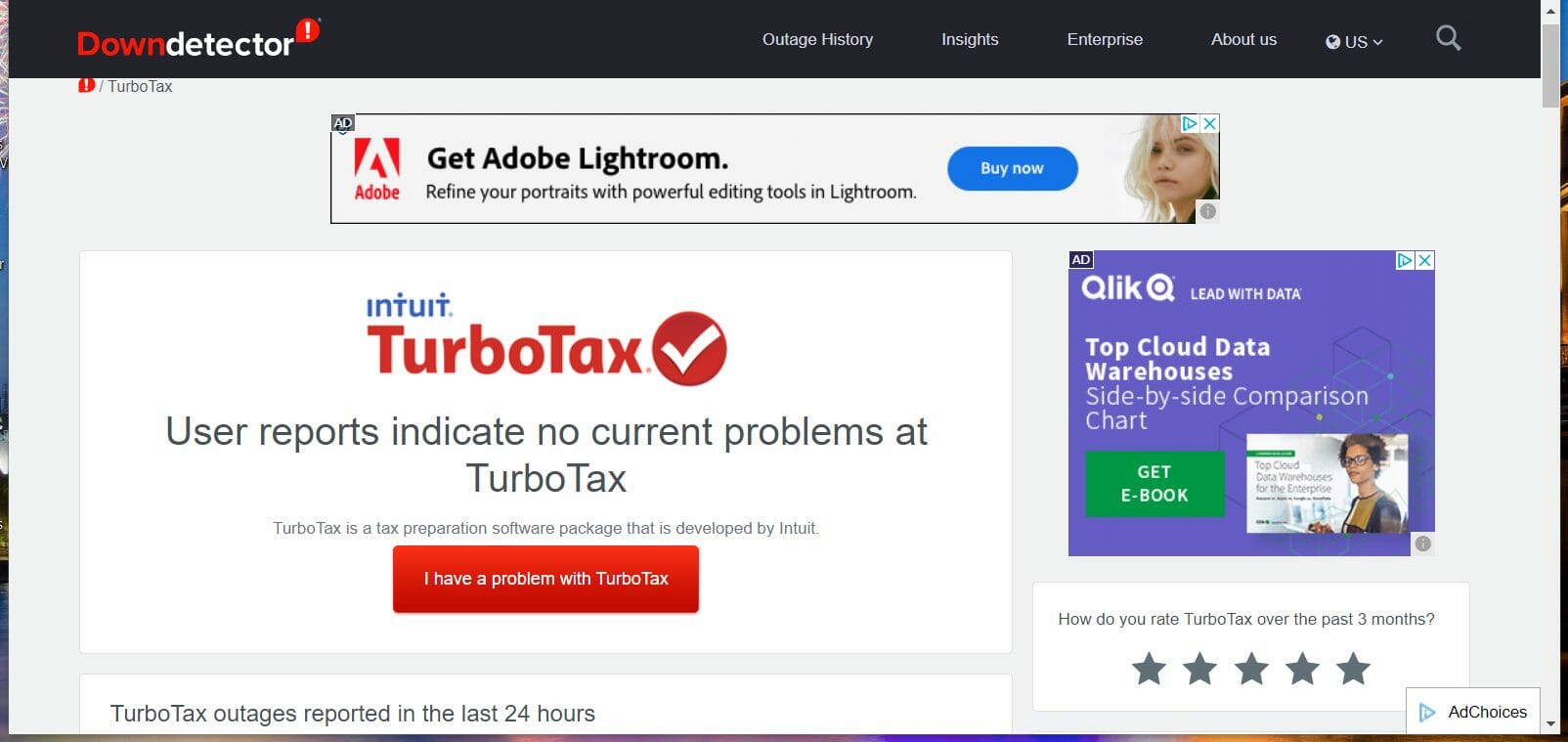
It might just be that TurboTax is down when you’re trying to e-file a return form. To check if there’s a general outage, open Downdetector for TurboTax.

That page tells you if there’s any notable TurboTax outage. If there is, wait a day or two, and then try e-filing your form again.

DownDetector turbotax won't let me efile

4. Update TurboTax

TurboTax won’t let me file without upgrading – that’s what some users claim, but before getting there, make sure your TurboTax software actually is fully updated by clicking its Online menu option. Then you can select the Check for Updates option on that menu.

TurboTax will then check for and install available updates. You can also manually update the Windows software via this TurboTax Help page.

5. Close all background software

  1. Right-click the taskbar to open a menu from which you’ll need to select Task Manager.
  2. Click the Processes Task Manager tab to select it.
  3. Select programs listed under Apps, and click the End task buttons for them.
    The Task Manager turbotax won't let me efile
  4. Some programs might be listed under Background processes. If you see any third-party programs listed, click their End task buttons to close them.
  5. Also, check if background programs are on your system tray (on the right of the taskbar). Right-click system tray programs and select the Exit options on their context menus to close them.

6. Clear your browser’s cache and cookies

Google Chrome

  1. Click the Customize Google Chrome button on the very far right of that browser’s URL toolbar.
  2. Select the More tools submenu.
  3. Then select the Clear browsing data option.
    Chrome's Clear browsing data tool turbotax won't let me efile
  4. Select the Cached images and files checkbox.
  5. Click the Cookies and other site data option to select it.
  6. Press the Clear data button.

Firefox

  1. Click the Open Application Menu button at the top right of Firefox.
  2. Select Settings on the menu that opens.
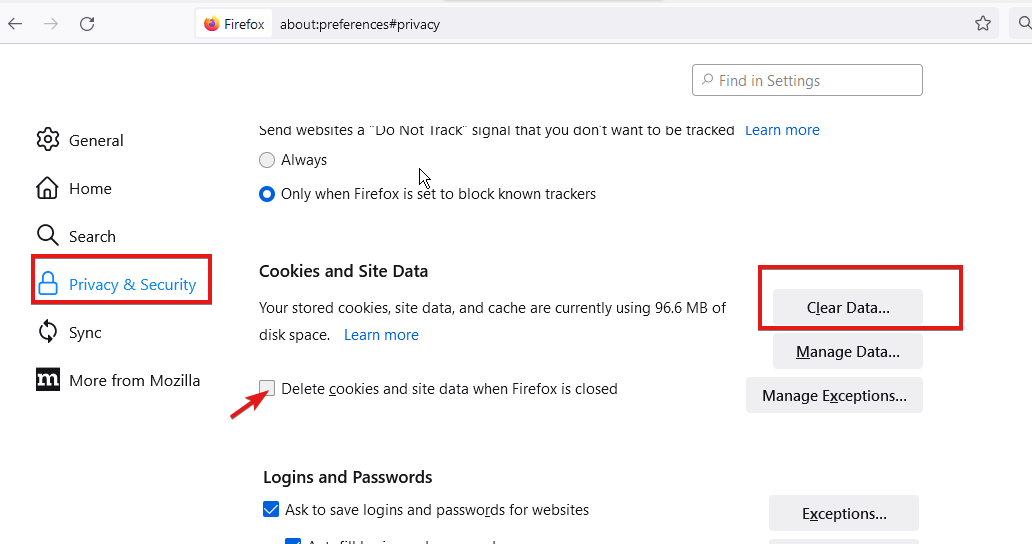
  3. Click Privacy & Security on the left side of Firefox’s Settings tab.
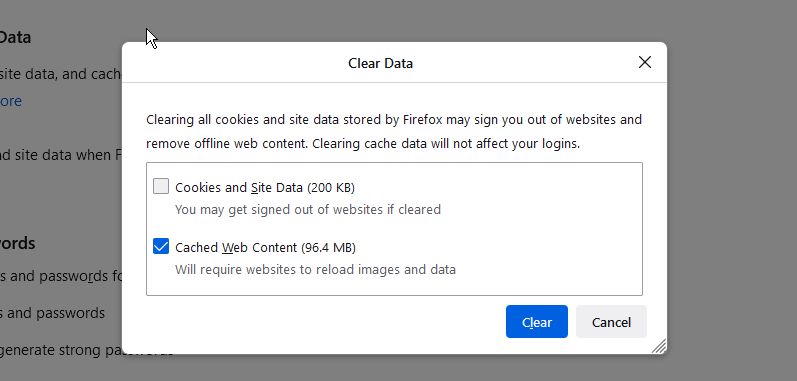
  4. Then press the Clear Data button to open the window in the snapshot below.
    Firefox's Clear Data tool turbotax won't let me efile
  5. Select the Cached and Cookies options on that window.
  6. Click the Clear button.

Edge

  1. Press the Alt and F keys at the same time in Edge.
  2. Click the Settings option on the menu.
  3. Then click Privacy, search, and services on the left side of Settings.
  4. Press the Choose what to clear button to open the tool below.
    Edge's Clear browsing data tool turbotax won't let me efile
  5. Select the checkbox for Cookies and other site data.
  6. Click the Cached images and files checkbox to select it.
  7. Press the Clear now button to erase Edge’s cache and cookie data.
Note icon NOTE
This resolution is specifically for users trying to e-file returns with the TurboTax web app. Also, note that cookies must be enabled in browsers so that the CAPTCHA appears.

Those resolutions for fixing TurboTax e-filing are undoubtedly worth a shot. However, if you still need other potential fixes, contact TurboTax’s support on its Contact Us page.

And since we know how challenging it is for business owners to do all the accounting work, we encourage you to check out the best tax filing software for small businesses.

Please let us know your pick in the comments area below.

How to Fix Server Not Found Connection Error in Mozilla Firefox

Sometimes Server not Found messages can appear in Firefox and prevent you from accessing your favorite websites. This can be a big problem, but today we’ll show you how to tackle this issue properly.

If you are using Mozilla Firefox, it is very likely that you have experienced the following error message:

Problem loading page. Firefox server not found.

As with all the error messages out there, troubleshooting this error is not easy and consists of several steps one must follow. First, we have to zero in on the cause to sort out this error.

However, if you prefer to stick to Firefox, follow the troubleshooting steps listed below to fix the Server not found error.

Why Firefox can’t establish a connection to the server?

This is a common problem that users face, and there are many reasons for it. On the top of the list are the following:

  • Bad internet connection
  • Wrongly configured network settings
  • Compatibility issues with app and antivirus

Note that some users have complained that the server is not found, but they are connected to the internet. Regardless of the situation, we should help you connect to your server in this article.

Quick Tip:

If nothing worked in your case using the Firefox browser, you are left with no choice but to consider the possibility of using a different browser.

We recommend Opera One due to its Chromium-based browser, extensive addon support, and lack of notorious resource use, making it one of the most lightweight browsers on the market today.

Opera One

Use this faster and private web browser, only limited by your Internet connectivity.

How do I fix the Server not found error in Firefox?

  1. Check your browser and Internet connection
  2. Check Firefox proxy settings
  3. Check Firefox proxy settings
  4. Disabling DNS Prefetching
  5. Check your antivirus
  6. Restart your modem/router

1. Check your browser and Internet connection

This is one of the most primitive yet effective methods of checking out why the problem loading page Firefox server was not found.

  • Check if the same website opens on other browsers; if not, check with other websites.
  • Ensure that the Internet security software and the Firewall settings are not hindering your connection. If you are connected but behind a firewall, the server connection may not go through.
  • If you are using a proxy server, make sure that the proxy server can connect to the internet.
  • Please follow the troubleshooting steps mentioned below if the website opens and renders correctly on the other browsers.

2. Check Firefox proxy settings

  1. Click the Menu icon (the three horizontal lines), and select the Settings option.
    firefox server not found
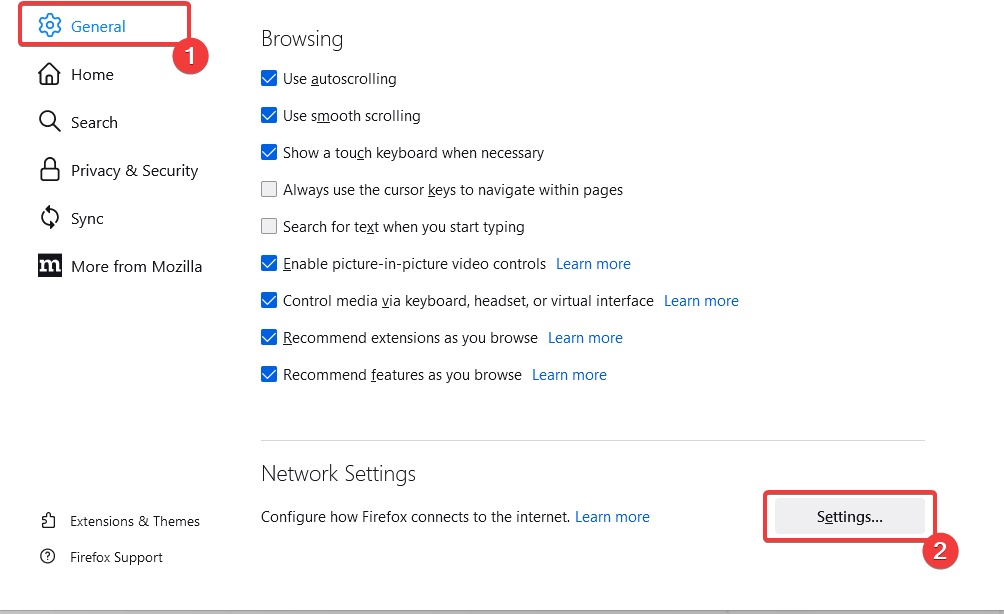
  2. Under the General tab, scroll down and click the Settings button under the Network Settings section.
    firefox server not found
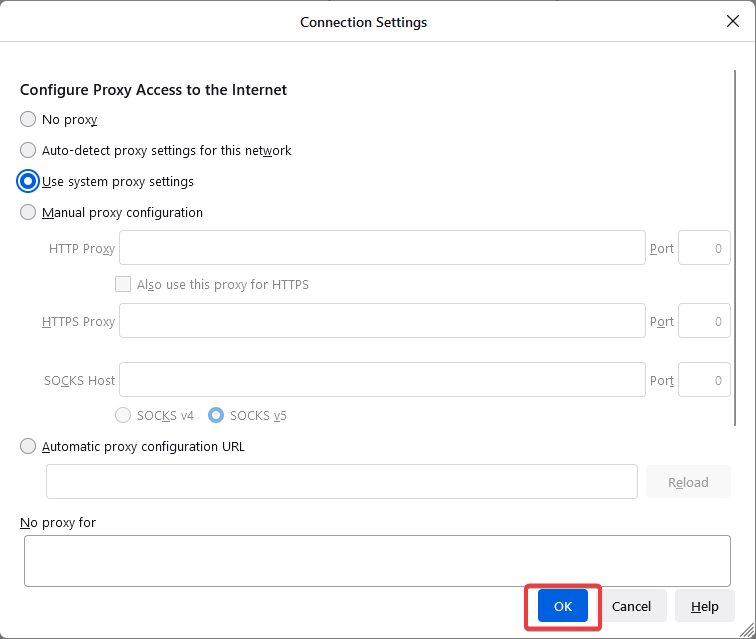
  3. In case you don’t use Proxy Server, select No Proxy.
  4. If you connect via a Proxy Server, check the Proxy Settings with the other browser’s Proxy settings.
  5. Once done, click OK; all the changes made will be automatically saved.
    firefox server not found

Following this step is a proper way to check that Firefox has permission to access the web.

3. DisableDNS Prefetching

  1. Launch the Firefox browser.
  2. On the Address bar, enter the link below and hit Enter.
    about:config
    firefox server not found
  3. The following warning might appear, Proceed with Caution, ignore the message, and click on Accept the Risk and Continue button.
  4. Click the Show all option at the top of the page.
  5. In the search bar at the top of the windows, copy and paste the element below:
    network.dns.disablePrefetch
  6. Double click on the network.dns.disablePrefetch option, so the value becomes True.

Firefox uses DNS prefetching technology to render the web pages much faster; sometimes, this might play the spoilsport.

4. Turn off the IPv6

  1. Launch the Firefox browser.
  2. On the Address bar, enter the link below and hit Enter.
    about:config
    firefox server not found
  3. The following warning might appear, Proceed with Caution, ignore the message, and click on Accept the Risk and Continue button.
  4. Click the Show all option at the top of the page.
  5. In the search bar at the top of the windows, copy and paste the element below:
    network.dns.disableIPv6
  6. Double click on the network.dns.disableIPv6 option, so the value becomes True.

Firefox switches on IPv6 by default, and this tends to cause issues in specific scenarios. You can try disabling the IPv6 and then check if the problem loading page firefox server not found problem is solved.

5. Check your antivirus

This is a very peculiar problem; it usually happens when your Internet security software restricts Firefox from connecting to the internet. Also, remember that some of the internet security suites are capable of blocking access to the Internet despite being in an inactive state.

Also, try to add and remove Firefox from the list of trusted or recognized programs.

If your antivirus is the problem, perhaps this would be a good moment to consider switching to different antivirus software. There are various antivirus tools on the market.

You can indeed find a good Windows 10 and 11 compatible antivirus that will not interfere with your browser. All good antivirus software nowadays includes good Internet protection features.

6. Restart your modem/router

If you’re getting Server not found error in Firefox, you may fix the problem simply by restarting your modem or router. This issue can occur due to various glitches; to fix it, you should restart your modem/router. To do that, follow these steps:

  1. Press the Power button on your modem/router to turn it off.
  2. Wait for 30 seconds.
  3. Now press the Power button to turn the modem/router back on.
  4. Wait while the device boots.

Once your router boots, check if the problem is still there. I would also suggest Firefox users Clear Recent History and select Everything in the Time Range to Clear. Also, consider using cleanup tools like CCleaner and maybe uninstall and reinstall the Firefox browser.

The solutions listed above are equally great if you encounter the following issues:

  • When Firefox starts all of the open tabs say server not found – This happens when Firefox is set to open multiple tabs on startup but lacks connectivity to any of them.
  • Server is not found Firefox Ubuntu – This happens even when running Firefox on Ubuntu.
  • Firefox not connecting to the server – This usually happens due to server timeouts.

If you have read to this point, we believe you must have fixed this connection issue. Use the comments section to let us know which solutions worked for you.

2 Ways to Fix eBay if It’s Not Working Properly in Firefox

Firefox is among the best browsers for Yeezy Supply, eBay, and other online stores. It has numerous security features for keeping your details safe when shopping online.

However, users are complaining that eBay is not working or loading correctly on Firefox recently. This issue has been largely reported to be due to one of its security features.

To help you get back to closing deals on the top-notch online store, we have gathered proven solutions to fix this issue quickly.

Why is eBay not loading properly? The Firefox Enhanced Tracking Protection feature is the popular reason for eBay not loading correctly. This is because the feature blocks some files from eBay that it thinks are being used for tracking.

These files hold some of eBay’s core functionality, making it impossible to load the site properly. Another known cause of this issue is the activity of installed extensions.

These can be counter programs to eBay or simply an extension frustrating the website’s processes.

Which browser is best for eBay? The best browser for eBay is undoubtedly Opera One. While other browsers can claim the title, Opera One beats them to it, thanks to its excellent built-in features.

Also, you can use any of the recommended browsers for eBay on different devices. So, you are not short of options.

Quick Tip:

If you can’t make eBay work on Firefox with any solutions, you might need to try an alternative browser, namely Opera One. The browser comes with a built-in AI and amazing organizational features such as workspaces and tab islands.

It can deliver excellent browsing speed, ensuring a page is not stuck during a transaction. Plus, it has a built-in VPN that allows you to access products that might be unavailable in your country. 

Opera One

Navigate any e-commerce website like eBay using this extremely secure browser.
Free Download Visit website

What can I do if eBay isn’t working in Firefox?

1. Disable Enhanced Tracking Protection

  1. Visit the eBay website.
  2. Click the Shield icon to the left of the address bar.
    shield icon ebay not working firefox
  3. Toggle the switch before Enhanced Tracking is ON Protection backward to disable it.
    disable
  4. Wait for the site to reload automatically.

If eBay is not working correctly or loading on Firefox, it might be due to your browser’s security features. The Enhanced Tracking Protection interrupts the activities of any site with any noticeable tracking files. 

This might prevent eBay from working well. Disabling the feature for eBay alone should instantly fix the issue and might also fix the eBay 403 forbidden error that some of our readers encountered.

2. Restart Firefox in Safe Mode

  1. Launch Firefox and click the menu button.
  2. Select the Help option.
    help
  3. Choose the Troubleshoot mode… option.
    troubleshoot ebay not working firefox
  4. Click the Restart button when prompted.
    restart

Sometimes, it might be extensions or custom settings you have made to your browser that are causing the eBay not working on Firefox issue. Restarting in Safe Mode will automatically disable all extensions and themes and override your custom settings.

How do I remove the eBay search from Firefox?

If you have installed a search engine extension on Firefox, you might need to remove it to eliminate the eBay search. But if you don’t have such an extension, deleting the profile with the eBay search should do the trick.

You can miss many deals and offers when eBay is not working on your Firefox browser. Fortunately, it is not the most difficult issue, as shown in this guide.

Check out our list of secure online shopping tips for getting the best deals without compromising security.

Feel free to let us know if you could fix the issue with eBay on Firefox in the comments below.

5 Best WhatsApp Extensions for Sending Bulk Messages

WhatsApp is the most popular instant messaging platform. The app’s ever-growing popularity meant more and more brands now want to use WhatsApp as a marketing platform.

WhatsApp Web allows you to access your WhatsApp account on a web browser. However, the web app does not have an option to send bulk SMS, which is required for a marketing campaign.

WhatsApp extension for bulk messages allows you to connect with your customer on WhatsApp and send bulk messages. You can send messages daily, add intervals and do more.

In this article, we have put together a list of the best WhatsApp extensions for bulk messages that you can use to reach out to existing and potential clients.

Quick Tip:

Opera One browser comes with integrated messengers, thus preventing the hassle of installing third-party extensions. The WhatsApp in Opera One’s sidebar lets you send text and voice recordings and even make calls.

From sending documents and media to having a regular group chat, the WhatsApp shortcut on Opera One can do it all and more. All the WhatsApp notifications instantly appear on your sidebar, and you can interact without leaving the browser.

Opera One

Get quick and easy access to your Whatsapp messaging app directly from this privacy-inclined browser.

How can I send bulk messages on WhatsApp?

It’s not really as difficult as it may sound! You can use third-party software or install an extension on the browser to send bulk messages on WhatsApp.

The extensions available today are advanced and offer several customizations, including adding attachments, setting a delay between messages, and more. Though some of these features might be a part of the paid version.

Is sending bulk WhatsApp messages legal?

WhatsApp has stated on its FAQ Page that sending bulk messages through its app would attract legal action, though it offers the WhatsApp Business app to help businesses interact with clients.

So, it all comes down to what platform or extension you are using to send bulk messages and whether it can evade being detected by WhatsApp. But in all, sending bulk messages using a third-party platform is in violation of WhatsApp’s policies.

What are the best WhatsApp extensions for bulk messages?

WhatsWeb – Send messages to unlimited numbers

WhatsWeb is a Chrome extension for sending bulk WhatsApp messages from your browser. It allows you to send automated, customized WhatsApp messages in bulk.

As per the developers, the users can send messages to unlimited numbers. You can send images, videos, and documents directly from your browser.

You can further customize the app by setting random delays between messages. All the contacts can be imported through a .CSV file. So, use WhatsWeb to send bulk messages today!

⇒ Get WhatsWeb 

WAPSender – Send curated messages to clients

WAPSender is an effective Chrome extension to send bulk WhatsApp messages seamlessly from your browser.

It allows users to grow their business through WhatsApp marketing by sending curated messages to clients.

⇒ Get WAPSender 

WA Sender Free Bulk Messaging – Advanced solution

WA Sender Free Bulk Messaging is an advanced tool that not only allows users to send bulk messages but also to create groups with a single click.

It allows you to create a ChatBot on WhatsApp Web and seamlessly perform the functions. Also, with the Pro version, you get the option to add a delay between messages and add attachments, amongst other features.

⇒ Get WA Sender Free Bulk Messaging

WA Biz Free Bulk Sender – Add contacts manually or upload CSV files

An easy-to-use extension to send bulk messages on WhatsApp, it can help you send messages, attachments, and set auto-replies, amongst other features.

It offers the option to both add contacts manually or upload a CSV file. And you can send pictures, videos, links, documents, and contacts.

⇒ Get WA Biz Free Bulk Sender

WA Self Sender (Edge) – Option to add a delay

WA Self Sender is a free extension that allows users to send messages to individuals or in bulk through WhatsApp Web.

All you have to do is upload the CVS file with contacts, provide the message, and WA Self Sender will take care of the rest. Also, there’s the option to add a delay.

⇒ WA Self Sender

How to send bulk WhatsApp messages without getting banned?

There are two ways you can do that. If you are using WhatsApp to target a small section of users or engage with your client base, see if manually sending messages works.

In case that’s too hectic, you can always use the official WhatsApp Business App or Platform to send bulk messages without violating WhatsApp’s policies and Terms of Service.

WhatsApp extension for bulk messages can help you reach out to your audience with customized messages.

Also, you would find several Firefox Extensions as well to send bulk WhatsApp messages, like WAToolkit (Port).

However, the number of genuine WhatsApp bulk message extensions is very limited. Explore the list to find the one that works for you.

6 Best RSS Feed Readers For Windows in 2026

We take a look at the RSS reader options for Windows. These days, keeping up to date with news and updates is easier than ever, thanks to the concept of RSS reader.

RSS stands for Rich Site Summary and represents a family of web feed formats that relay frequently updated websites like blogs, news websites, etc.

Thanks to RSS feeds, users don’t have to check the websites regularly or subscribe to newsletters.

And people who have installed Windows 10 and 11 on their machines have the opportunity to use some handy apps that will manage the RSS feeds for all the sites users are interested in following.

Windows OS users may also be interested in reading about the Edge RSS reader.

Does Windows 10 & 11 have RSS?

Natively, Windows 10 and 11 do not have an RSS reader, meaning that it is not built-in with the OS. However, getting a suitable RSS reader on the Windows operating system is not a complex process. In this article, we show some of the best you can use.

How do I get an RSS feed in Windows?

One of the easiest ways is installing a browser with an RSS reader. If you do not want the load of a different browser, there are many applications from the Microsoft Store that you may rather install.

What to look for in an RSS reader?

  • Feed structures: A good tool should be able to organize the curated articles or feeds into well-defined categories.
  • Customizable: It must give enough room for your personalization. You should be able to modify the structure, look, and search requirements.
  • Keeps track of reading materials: An RSS feed should permit you to pick up from where you stopped reading regardless of the article type.
  • Powerful search feature: To find the articles or content you look for in just a few seconds, the RSS feed should have a perfect search structure that reduces your search to the tiniest possible queries.
  • Offers dedicated applications for your device(s): Especially for those that work both on computers and mobile devices, you may want a dedicated app that gives you notifications as soon as something new is curated.

Now let us discuss the best Windows 10 and 11 RSS reader options.

What are the best RSS readers for Windows?

Opera One – Best browser RSS reader

With Opera One, anyone can keep their personalized news and stories in one place, surfing the web securely without problems.

This modern browser is the choice for millions of users who need streamlined navigation and RSS feeds on their homepage.

You can benefit from selective news and customized sources in your preferred format. Plus, you get convenient and free access to your newsfeed integrated into the sidebar.

In this way, you can read every story or article in one glance on your categorized list of personal news.

If you wonder how to use the RSS feed on Opera One, it’s so simple you can do it with a click. You have the Add Sources button that will save your websites in one place.

In addition, you have many more benefits like different workspaces and pinboards to keep the information uncluttered.

Other key features of Opera One include:

  • Integrated apps in the sidebar (Instagram, Whatsapp, Messenger)
  • Built-in free VPN and ad blocker
  • Customizable news feed section on the homepage
  • Flow feature to transfer files between devices
  • Video pop-out functionality
  • Syncing news on different devices

Opera One

Take advantage of this organized browser and navigate through any stories using its practical RSS feed.

Feedly – Best RSS app with AI assistance

This news feeder is so advanced that it has its own AI assistant, Leo, to help you prioritize information. As you already know, getting your feeds from all the websites is no longer enough.

That is because the quantity of information can become overwhelming. That’s where Leo comes in to help.

The AI assistant will prioritize information in your feed based on your keywords, topics, and trends so that you only get the relevant information.

Moreover, Feedly will show you exactly why certain information appears in your feed so you can further refine your criteria.

Did you discover interesting information? You can share it with a click with your friends or with your team on the spot.

Feedly has a simple interface that lets you sort out your favorite sources based on topic.

It also supports sharing and integrates popular social media and collaboration tools.

If you are interested in using this tool, you should know that it offers 3 major subscription plans, each with its own specific features. The significant differences are the number of sources and the included integrations.

Other key features of Feedly include:

  • Dedicated mobile applications for iOS and Android
  • Lets you save your favorite sources
  • Adblocker
  • RSS Builder
  • Twitter feeds

⇒ Get Feedly

Omea Reader – Most lightweight RSS reader

Omea Reader is a free RSS Reader and newsgroup aggregator with lightning-fast speed and excellent organizational features.

Not only can this tool allow you to read even your Atom feeds but it also keeps track of your bookmarks. Additionally, the dedicated desktop search function makes it easy to find specific information.

This is not just an RSS reader; it’s a workspace you can customize to separate and organize your data from different projects.

And if you can’t see an RSS link on a webpage, don’t worry because Omea finds it directly from your browser. You can even create clippings from articles.

Omea offers several options when it comes to sorting out your information. For example, it lets you create files and subfiles, add tags, and more.

It also automates routine filling and associates resources in handy ways.

Other key features of the Omea Reader include:

  • Advanced search option
  • Built-in newsgroup reader
  • Delegate tasks to other users

⇒ Get Omea Reader

NewsFlow – Easiest UI

This app has a straightforward interface, is easy to use, and offers good space between elements for a smooth reading experience.

You can easily set up the categories you are interested in and then add your favorite sources to the feed with the latest news.

When you add an RSS feed, there are enough options to customize it on your preferences.

Among its many features, you can read articles using extended readability without opening them in the web browser and watch YouTube and HTML videos inside the app.

Newsflow sends notifications regarding the newest news and gives quick and easy sharing options.

Users can browse around using keywords. Not only that, but they can also organize their feed thoroughly. Newsflow lets you create categories, reading lists, favorites, and more.

Lastly, Newsflow is a free RSS reader. It is compatible with computers operated by Windows 10 version 15063.0 or higher and Xbox

Other key features of Newsflow include:

  • Manage read and unread news
  • Play GIF animations
  • View article images

⇒ Get NewsFlow

Veen Feed Reader – Best built-in search grouping

The Veen Feed Reader offers a pretty similar interface to Nextgen Reader. The feeds are all aptly organized in different categories ranging from Health and Science to Business and Technology.

However, this app will feature an integrated search charm that allows users to look for the most exciting things. The Import and Export of OPML files are also possible within the app.

Veen Feed Reader also keeps track of your unread materials and lets you create favorite lists and add bookmarks.

Users can also create their own folders to better organize the content in their feed.

You can connect your Feedly account to Veen Reader, but you can also log in locally.

Veen Feed Reader is a reliable and customizable RSS reader solution that you can use to sort out the content smartly and efficiently.

Other key features of Veen Feed Reader include:

  • Compatible with Windows 10 or higher
  • Can be used without an account
  • Works on Xbox

⇒ Get Veen Feed Reader

Inoreader – Best for general information

If you need a general information feed manager, Inoreader is the tool to get.

As you probably guessed, this is not just an RSS reader but can aggregate data from multiple sources like Podcasts, Twitter, Blogs, Facebook, and even Email Newsletters.

The only work you need to do is at first to set up the whole workflow and decide whether you want to get push notifications, email, or to set rules for ignoring certain information.

This is a perfect information-mining tool as you can use its Active Searches feature to create search queries to get all the posts mentioned that are key in a news feed.

And if you use Inoreader at night, you will be happy to know it also has a Dark Mode.

Inoreader lets you make your personalized dashboard based on your preferences.

The tool lets you save your web content to third-party applications such as OneNote, Evernote, or platforms such as Google Drive or Dropbox.

Inoreader has a free version and paid versions that require a subscription. The unpaid version is more limited and includes ads.

Other key features of InoReader include:

  • Remove duplicate content
  • Keyword monitoring
  • Bosted feeds
  • Annotations

⇒ Get Inoreader

Google Reader for Windows 10: what happened?

One of the most well-known RSS readers used to be Google Reader, but the application got shut down. So why did Google decide to pull the plug on everybody’s favorite news provider?

According to official information provided by the company’s CEO, Google is trying to consolidate its services and, in the process, concentrate on what’s really important.

The strategy included bringing together services like Reader and Picasa under the Google+ plus umbrella and several shutdowns, including iGoogle and Reader.

Windows users were left out like everyone else, and in this article, we have provided the best alternatives for RSS readers. As a result, you will be able to get the best out of our RSS reader list for Windows 10 and 11.

Note that while we may have left them out of this article, there are also some good options for open source RSS readers for Windows.

Please share your opinion with us in the comments section below and tell.

Did an Xbox Dashboard ad just suggest that Far Cry 6 could come to GamePass? Or was it just a mistake?

Could the latest installment of Ubisoft’s open-world sandbox FPS be making its way to Game Pass in the near future? A banner image for the game that recently appeared on the Xbox dashboard alongside other newer Game Pass additions seems to suggest this is the case.

This would be a rather curious move given that Far Cry 5 came to Game Pass only a few weeks ago. However, there has been a slew of Ubisoft titles making their way to the service as of late, such as Assassin’s Creed Origins and – just a few days ago – Watch Dogs 2.

Of course, the game’s appearance on the Game Pass section of the Xbox dashboard could have been a simple mistake, with the Far Cry 6 cover image accidentally being used in place of that of Far Cry 5. This seems likely enough, and it would not be the first time such an error has occurred.

Besides, fans would scarcely have time to explore all of Hope County (the setting of Far Cry 5) if Far Cry 6 does in fact come to Game Pass soon. Hopefully, we will get clarification on the matter soon.

3 Quick Ways to Record Browser Actions & Macros in Chrome

Today we’ll show you how you can record macros in Chrome using screen recorder software or browser extensions like DéjàClick and iMacros.

Let’s get started:

How do I record a macro in Chrome?

1. Record macros with DéjàClick

  1. Open Chrome’s web store and click on Add to Chrome next to the DéjàClick extension.add-to-chrome-dejaclick chrome macro recorder
  2. Once you’ve added the extension to Chrome, you should find the extension on the browser’s toolbar. Click that button to open the sidebar in the snapshot directly below.dejaclick chrome macro recorder
  3. Before you start recording a macro, enter chrome://extensions into Chrome’s address bar, and select Details under the DéjàClick extension. details-deja chrome macro recorder
  4. Now turn on the Allow in Incognito option. This activates Simulate New User that ensures macros record without cookies.allow-incognito chrome macro recorder
  5. Now press the Begin recording button on the DéjàClick for Chrome window.begin-recording chrome macro recorder
  6. Next, open Bing and Google in two Chrome page tabs.
  7. Press the Stop record/replay button. You’ve recorded a script that opens Bing and Google in two alternative page tabs, and the DéjàClick window includes the script for that as shown below.stop-recording chrome macro recorder
  8. Close the Google and Bing page tabs, and then press the Begin replay button. That plays the macro which opens Google and Bing in Chrome.
  9. To save the macro, click the Save your recording as script button. Then you can enter a title for it and press the Save button.save-rec chrome macro recorder
  10. You can press the Open a recorded script button to open any saved macro.
  11. To adjust the macro replay speed, click the Properties tab and Replay Timings to open the options below.properties chrome macro recorder
  12. There you can select Faster from the Replay speed drop-down menu. Now you can record browser actions in Chrome.

DéjàClick is one Chrome and Firefox extension that enables point-and-click browser recording to generate web scripts. We regarded it as the best Chrome macro extension due to its features and intuitive interface.

For more extensions like this, check out Scribe for Chrome.

2. Record macros with iMacros

  1. Open Chrome’s web store and click on Add to Chrome next to iMacros.add-imacros chrome macro recorder
  2. Next, click the iMacros button on Chrome’s toolbar to open the extension’s window.imacros chrome macro recorder
  3. You can use the Record Macro button under the Record tab to record new macros, as well as the Stop button in order to stop the recording. Quite easy to record browser actions in Chrome, right?record-stop chrome macro recorder
  4. To play the macro, select it on the Bookmarks tab, then click the Play tab and press the Play Macro button.play-imacros chrome macro recorder
  5. Press the Play Loop button to replay the macro a certain number of times. Enter a value in the Max box to configure how many times the macro playback loops.
  6. Note that iMacros also includes some demo macros for you to try. Click Demo-Chrome on the Bookmarks tab to open a list of recorded macros.demo-imacros chrome macro recorder
  7. You can right-click the macros to open the context menu shown in the shot below. Then you can select some extra options to add new folders, edit and erase macros.

3. Use a screen recorder software

Alternatively, you can use a screen recording tool. Though not specifically built for recording macros, these tools could also work.

If you want editing options and advanced controls over your recording, we recommend looking at third-party software.

But if you want to start right away without installing anything on your PC, you can use the Snipping Tool:

  1. Type Snipping Tool in the search bar and open the app.snipping tool
  2. Click on the video camera icon.snipping tool record option
  3. Hit the New button.snipping tool new recording
  4. Go to Chrome.
  5. Select the screen area you want to record and hit start.record chrome with snipping tool

For more useful tips and tricks, check out our Recording video on Chrome browser: Comprehensive guide.

Don’t hesitate to leave a comment in the section below and tell us what you think about our solutions. Thanks for reading!

Inspire 2022: Windows 365 gets new features for one year anniversary

There’s been a lot of stories out of Inspire 2022, and one of the biggest relates to Windows 365. It’s been almost a year since Microsoft first revealed the service, and to celebrate, the company added some new features.

In total, there are three tweaks. The first is Citrix HDX Plus for Windows 365. This is a new add-on for Windows 365 that should add support for a broader range of endpoint devices and peripherals and security and policy controls. Second up is Windows 365 government expanding to government community cloud and government community cloud high.

Finally, there are tweaks for Windows 365 Business edition. Changes here make it even easier to sign up and seamlessly sign into cloud devices using a Microsoft account and restore a computer to an earlier point in time with point-in-time restore.

You can learn more about Windows 365 on Microsoft’s website. Other stories from Inspire 2022 include Microsoft Cloud for Sovereignty, the new Microsoft Digital Contact Center Platform and Excel Live, Video Clips in Teams, as well as a new Viva Engage module. 

3 Ways to Stop Chrome From Closing Tabs When Clicked

Chrome is one of the best browsers striving to limit resource usage through its tab management features. It automatically freezes inactive tabs to save PC battery and memory.

However, users are starting to face issues that are not part of the tab management of Chrome. This is in the form of tabs closing by just clicking on them.

This causes frustration, as you need to stay on a tab to use it. Thankfully, you can easily fix this issue, as we will show in this guide.

Why does my mouse close tabs when I click on them?

There are several reasons Chrome closes a tab when you click on it. It could be down to hardware failure and problems with your browser, among other causes.

Below are some of the popular ones:

  • Faulty mouse/trackpad
  • Issues with installed extensions
  • Glitches with browser

How do I keep a tab active in Chrome?

  1. Launch Chrome and copy and paste the command below in the address bar. chrome://discards
    discard chrome closes tab when clicked
  2. Press the Enter key.
  3. Locate the tab to keep activity and click the Load option in the last cell.
    load

With the deactivation of the tab discarding and freezing options, your opened tabs will always be active. Note that this will affect your PC resources. This is because Chrome freezes and discards tabs in the background to limit resource usage.

Quick Tip:

Use an up-to-date browser with lower error rates. A good alternative to Chrome is Opera One. Running on a Chromium engine as well, the browser offers a similar experience, whilst being lighter and faster.

You can integrate all your preferences, bookmarks, and passwords in just a few clicks and use them for good. It has performance-oriented features like hardware acceleration, a battery saver, and an adblocker.

Opera One

Upgrade your web browsing experience using this highly responsive and error-free tool!

How do I stop Google Chrome from closing tabs when I click on them?

1. Restart your PC

restart

Sometimes, the reason Chrome closes the tab when clicked might be hard to pinpoint. It might just be due to some issues with Chrome’s processes.

In this case, the easiest and fastest fix is to reboot your PC and relaunch Chrome. This fix has proved effective for other users, and you should try it too before other sophisticated solutions.

2. Check mouse/trackpad

The most well-known cause of the Chrome closes tab when clicked is a faulty mouse or trackpad. This is especially true when the middle mouse button is sticky.

The middle mouse button is a known shortcut for closing tabs on Chrome. So when it is sticky, you might experience this issue.

You can perform basic troubleshooting on your mice, like cleaning and servicing. If this does not work, you should employ the service of a professional.

3. Disable extensions

  1. Launch Chrome and click the menu button.
  2. Choose Settings from the options.
    settings
  3. Select Extensions in the left pane.
    extensions chrome closes tab when clicked
  4. Toggle the switch in front of each extension to disable it.
    disable extensions

Too many extensions sometimes make your browser misbehave. In this case, it might cause Chrome to be closing tabs automatically when clicked.

Disabling the extensions and relaunching your browser should restore normal service. 

Need a clean slate for troubleshooting? Follow this guide to close all open tabs in seconds.

The Chrome closes tab when clicked problem can be frustrating. This is because it keeps you reopening tabs only for them to be closed when you try to access them. With the fixes provided in this guide, you should be able to solve the problem effortlessly.

If you are facing other issues like Chrome not responding, check our guide on how to fix it.

Feel free to let us know the fix that helped you resolve the Chrome tab issue in the comments below.

How to Fix Gmail’s Buttons Not Showing or Working

Some users have posted about Gmail buttons not showing or working on Google and Mozilla forums.

Those users can’t see all the buttons they’re supposed to in Gmail, or some of the buttons don’t work when clicked.

Also, here are some other similar errors that may come across on Gmail:

  • Gmail settings button not working
  • Gmail toolbar missing
  • Refresh button missing in Gmail
  • Gmail gear icon missing
  • Send button not working in Gmail
  • Gmail next page button missing
  • Reply button missing in Gmail
  • Gmail compose button missing
  • Gmail attachment button not working

So, let’s find out what’s causing the issue and the potential resolutions for it.

Why are my buttons missing in Gmail?

In most cases, it was an extension or add-on installed to the browser that caused the problem. If you have changed Gmail’s theme, it too could be responsible for the issue.

Also, make sure to check the antivirus software installed on the computer or any other tool that could modify the network properties. Besides, misconfigured browser settings or corrupt browsing data could be the reason behind the problem.

Quick Tip:

Users might find that an alternative browser displays Gmail’s buttons without any issues. So, try opening Gmail in another browser. That won’t fix the issue for the original browser, but users can at least still utilize Gmail if the buttons are ok in other browsers.

Gmail supports the latest versions of Edge, Google Chrome, Internet Explorer, Safari, and Firefox. Alternatively, you can try using Opera. This browser is quite similar to Chrome, but unlike Chrome, it’s not associated with Google, so it won’t send your data to Google.

Opera

Access and manage your Gmail inbox using this fast and private browser!

How do you get the buttons to appear in Gmail?

1. Reset the network

  1. Press Windows + I to launch Settings, and select Network & internet from the tabs listed on the left.Network & Internet to fix gmail buttons not showing
  2. Click on Advanced network settings on the right.Advanced network settings
  3. Now, click Network reset.Network reset to fix gmail buttons not showing
  4. Click the Reset now button.Reset now
  5. Finally, click Yes to confirm the change.Yes

Some users have confirmed that they fixed the Gmail icons missing problem by resetting the network components to their default setting.

2. Reset the Browser to its default settings

  1. Paste the following path in Chrome’s address bar, and hit Enter:chrome://settings/reset
  2. Click on Restore settings to their original defaults.Reset settings to their original defaults
  3. Next, click on the Reset settings button to confirm.Reset settings to fix gmail buttons not showing

Resetting a browser will clear its cache and turn off or remove extensions, which should fix the Gmail buttons not showing problem. If it doesn’t, head to the next method.

3. Check the Button label setting

  1. Click on the Settings icon in Gmail, and select See all settings.See all settings
  2. In the General tab, scroll down and select Icons next to the Button labels entry.Icons to fix gmail buttons not showing
  3. Scroll down to the bottom and click on the Save Changes button.Save changes to fix gmail buttons not showing

4. Select the default Gmail theme

  1. Click on the Settings icon at the top-right corner in Gmail, and select See all settings.See all settings
  2. Select Themes.Themes
  3. Click on the Set theme button.Set theme
  4. Select the Default theme, and click on Save at the bottom.Choose default to fix gmail buttons not showing

After reverting to the default theme, the problem with Gmail’s buttons should be resolved. If it persists, head to the last method.

5. Open Gmail in basic HTML view

Gmail has a Basic HTML View for browsers that it doesn’t support. Gmail’s buttons might work just fine and start showing in the Basic HTML View.

So, try switching to Basic HTML View and select the I’d like to use HTML Gmail option. And this would fix the Gmail button not showing problem once and for all.

How do you add buttons in Gmail?

  1. Go to Gmail Button by cloudHQ extension in the Chrome Web Store, and click on Add to Chrome.Add to Chrome
  2. Next, click on Add extension.Add extension
  3. Once installed, you will find the Insert button option when composing a new email in Gmail.
  4. Click on the Insert button icon, and select Button from the flyout menu.Button
  5. Now, customize the button using the various available options, and click on the Insert into email button.customize button

These resolutions have fixed the Gmail buttons issue for most users and should have worked for you as well.

Remember that Gmail users can also open their emails within client software, such as Mozilla Thunderbird, which can be better alternatives to the Google web app.

Tell us which fix worked for you in the comments section below.

Latest Skype Insider Release brings new call screen and more

Microsoft Skype is getting a cool new call screen, as it has now been transitioned from the beta channel. The feature is already enabled by default. It will be interesting to see the impact this feature has on the screen sharing experience and how it impacts features such as Zoom-In.

Moreover, Call captions have also been included in this release. Essentially, this means that meeting attendees will be able to follow through the meeting. Users can easily enable this feature directly while the call is on display.

Aside from these two new features, Microsoft has also released a couple of bug fixes designed to enhance and improve the user experience. Here’s what you can expect:

  • Skype not connecting to audio/video devices on Windows 7 and 8.1
  • Skype crashing on iOS
  • Navigation with opening chats in chats and contacts tabs on Android
  • Missing ‘send button’ after recording a video on Android Chromebook

And as usual, these features will be rolling out gradually over the next couple of days. If you’re not already a Skype Insider, you can sign up here to gain access to these features and more.

Xbox Insiders can now beta test Discord voice chat on Xbox consoles

Discord voice chat is coming to Xbox consoles. The feature is currently in beta testing with Xbox Insiders, meaning select gamers will be able to chat with their fellow Discord users via voice channels or group calls directly on Xbox. The feature will also come to everyone else outside of Xbox Insiders soon.

With Discord voice chat on Xbox, you’ll be able to see who is on your call and who is speaking, and even adjust the volume between Discord voice and your Xbox game. However, the process to get started with it in the Xbox Insider Program is a bit complicated as you’ll have to transfer your calls from Discord on mobile to your Xbox console since there’s no Discord app on Xbox.

To begin, you’ll have to go to Parties & chats and click Try Discord Voice on Xbox. You’ll then have to scan a QR code, and set up a two-way link between both your Discord account and Xbox (even if you’ve linked your accounts previously.) From there, you can go into a Discord channel as normal, and in the Discord mobile app, you’ll see a new option to Join on Xbox.  The Xbox app will then launch and let you connect the Discord Voice chat to your Xbox Series X|S or Xbox One console.

Again, this is only for select Xbox Insiders right now, and Microsoft promises that it will be available for everyone else “soon.” No specific date was given, but that usually means a few weeks, or months, as Xbox Insider features usually rollout down to everyone else within those timeframes. More information is available in a support document if you’re still confused.

It is really interesting to see this Discord voice chat and Xbox integration. As you might recall, rumors had that Microsoft was interested in buying Discord, but that was put to rest when Discord said it ended talks to sell itself to potential buyers. Sony has an interest in Discord as a minority investor, and PlayStation gamers can actually link PSN to Discord.

How to Download And Install Roblox On Windows 11 [Step-By-Step Guide]

Want to know how to download and install Roblox on Windows 11? This quick guide shows you how to get started in minutes. Whether you’re setting up Roblox for the first time or reinstalling it, the steps are simple.

Use this guide to get the official Roblox download for PC, install the Roblox Player, and start playing on your Windows 11 computer. Roblox is free, easy to install, and ready to run on most PCs.

How do I download Roblox for free?

1. Download on Modern Windows PC

  1. Go to this download page on Microsoft Store.
  2. Click on the Install button.
    clicking install roblox

After that, it may ask for permission to open Xbox or Microsoft Store app. If yes, click the install button on that app.

2. Download Roblox free for Mac and PCs without a Store

  1. Go to the Roblox website.
  2. Sign up for an account and log in.
  3. Choose a game and click on the play button.
    play button roblox game
  4. It will ask you to download and install the game.
  5. You are done.

3. Download on Android

To download Roblox on Android for free, you can follow the link below or search on the play store.

⇒ Get on Android

Alternatively, you can download Roblox APK for your Android smartphone or Tab and install it easily.

4. Get Roblox on Chromebook

You can download Roblox from the play store and play it free on a Chromebook without any problem. However, not all Chromebook will support this. The devices that support Android have this capability only.

For ChromeOS, the download link is the same as for Android.

5. Download on iOS, Xbox, and other platforms

Roblox is also available on iOS and Xbox too. You can get the game for these platforms by following any of the appropriate links given below:

⇒ Download on iOS

For Xbox, the link is the same as the PC’s one. You can get it from Microsoft Store.

⇒ Get on Xbox

For Xbox and iOS, the official store is the only way to free download as these platforms don’t support sideloading apps like you can install Roblox APK on Android OS.

Roblox is free to download and play. So, you won’t have to worry about anything else.


This is a user-generated game. You can create anything you want and be whoever you want to be. In this game, imagination rules supreme.

Moreover, this title is a cross-platform game. You can immerse yourself in the Roblox world using your computer, tablet, Xbox One console, smartphone; you name it.

How to get into Roblox without installing it?

If you want to play Roblox without installing it on your device, unfortunately, there is no way. You can only browse its website from your web browser and click on the play button to launch the game. But, the game launch will require a download.

This article has explained how you can download Roblox free on any supported platform and play the game. If you have any opinion or have any helpful, relevant information, feel free to let us know in the comment box.

5 Best Browsers For Online & Offline Reading

Because most of the reading we do in the 21st century is performed on a hand-held device, it is essential to choose a suitable device, but the browser you use, also matters.

The online reading tool is vital because it can offer you a wide range of features that can provide a better experience.

Because of the wide range of browsers available on the market today, it is a daunting task to find the perfect one for your needs. Some browser options offer better speeds, and other software options are better at blocking ads.

Other options have a low impact on your system resources; others look good without valuable capabilities.

For these reasons, we will explore some of the best browser software options available on the market that allow you to have a beautiful and calm reading experience.

You may also want to try out any of these 5 best speed reading software.

Which browser has a reading mode?

Many browsers offer a reading mode. In fact, most modern browsers have this feature built-in. A few that should make your go-to are:

  • Opera One
  • Microsoft Edge
  • Google Chrome
  • UR browser
  • Firefox

While these are our top choices, browsers like Brave, Vivaldi, Safari, Epic, and Chromium all have a reader mode.

Note that for a browser software to qualify for this list, it should offer you:

  • A fast and stable experience without getting bugged by ads
  • No pop-ups and other distracting elements
  • Good web-page loading times
  • Possibility to extend features

The browsers on our list are also among the best browser options for use on Windows 10/11. Let’s jump right to it.

What are the best browsers for reading?

Opera One– Best for social integration and sharing

Opera One is a highly versatile browser that you can use for various purposes, including reading text and online books.

If you prefer to read your news online, Opera One has a very nifty personal news feature. This feature supports the RSS feed and lets you personalize your news feed, choose your news sources, highlight particular news categories, and choose the language you want to display news in.

There are two view modes available: Timeline, where you get an estimated reading time, and Magazine.

Have you found something interesting that you want to read later? Bookmark the respective page for later use. Use the Bookmark Manager to organize your bookmarks better.

If you need additional information on the content you’re reading, you don’t need to leave the website you’re on. Thanks to the Instant Search feature, you can look at something on the web within the active tab.

If you find an exciting piece of information, you can use the integrated messengers to share it with your friends.

As you can see, Opera One has all the features you need for a fantastic in-browser reading experience.

Additional features:

  • Workspaces
  • Snapshot tool
  • Search in tabs

Opera One

A constant pioneer, Opera One offers multiple ways of reading text on websites.

UR Browser – Most lightweight

UR Browser is an incredibly powerful and reliable browser software that offers many valuable features, helping you read on your Windows device. Beyond this, you can customize and edit how this software reacts, looks, and works with just a few clicks.

This browser was built with privacy in mind, offering you one of the best privacy packages you could ever find. When using UR Browser, you won’t have to install third-party extensions to protect yourself from ads, malware, trackers, and even sites that collect cookies.

All of these protection elements come built into UR Browser. You also have the option of modifying the level of privacy you need by being able to choose from low, medium, and high privacy settings.

If the latter option is selected, UR Browser will automatically start its powerful VPN (Virtual Private Network) service to ensure your personal information is protected.

UR Browser’s impact on your system resources is barely noticeable, but that doesn’t mean the software developers cut corners to achieve this. Our tests have proven that UR Browser clocks some of the best speeds when it comes to web page loading speeds.

All the above features make choosing the best browser for reading on your Windows device a straightforward decision. UR Browser is one of the best reading options, but it also trumps other browser capabilities in other areas.

Additional features:

  • Viru scanner
  • Third-party cookies blocker
  • No complicated settings

UR Browser

One of the browsers with rising popularity provides Reader Mode.

Mozilla Firefox – Best for privacy

best browser for reading

Mozilla Firefox is another excellent browser, offering strict and efficient online security, privacy, and protection from ads and malware. Even though these features are good in their department, they can’t compare to the privacy and security features in our top pick, UR Browser.

In our malware tests with default security settings for each of the browsers, Opera One and UR Browser performed the best, with a second-place for Firefox and third for Google Chrome.

Even though UR Browser is superior, Firefox can still offer you a good reading experience by eliminating any possible distractions from pop-ups and ads.

One of Firefox’s downsides is that your access to your bookmarks is very complicated, the ‘Home screen’ is usually hard to understand and use, and it also contains a lot of ads and suggested links. However, it is still regarded as one of the best browser options for reading Manga.

Additional features:

  • Unified address bar search
  • Enhanced tracking protection
  • Page Actions menu

⇒ Get Mozilla Firefox

Microsoft Edge – Best browser for reading mode

best browser for reading

We consider this to be the best browser for reading articles.

In Windows, Immersive Reader in Microsoft Edge streamlines web page layouts, clears the clutter, and lets you personalize your reading experience. Edge Immersive Reader has many fantastic study and accessibility features that may aid with reading and learning comprehension.

Its Immersive Reader was first created for dyslexic and dyspraxia readers. However, this program might be helpful for everyone who wishes to make reading on a portable device more convenient!

Additionally, it contains a Read Aloud function, a simple yet effective tool that reads your web page contents out loud.

Apart from this, it is based on the Chromium engine and allows a variety of expansions utilizing extensions from the Chrome library, which is why we adore it.

Additional features:

  • Device syncing
  • Privacy control
  • Data importation

⇒ Get Microsoft Edge

Google Chrome – Most expandable

Google Chrome is one of the best-known browsers on the market, and it shouldn’t come with any surprise, considering the behemoth that runs this software. It should be your pick if you need the best browser for PDF reading.

Because of Google’s databases, Google Chrome has a very powerful engine that runs its processes fast but still can’t match the speeds that UR Browser clocked in our tests.

Regarding privacy level, ad blocking, and malware security, Chrome falls short even when compared to Mozilla Firefox and can’t even be compared with our top pick, UR Browser.

The Chrome architecture is built so that every tab you open counts as another executable file running in your computer’s processes.

The high system impact this browser has, qualifies Google Chrome only for the fifth place in our top best browsers for reading. It can become very frustrating to wait for pages to load, and slowing down your computer further doesn’t help either.

Additional features:

  • Tab screencasting
  • Omnibox web page search
  • Live video captions

⇒ Get Google Chrome

In this article, we explored some of the best browser software options on the market that have the necessary speeds and features to help you read online. UR Browser stands out for its speed and ease of use, but Microsoft Edge has the most advanced Reader Mode.

Please let us know your experience with the browsers on our list in the comment section below.

How to Reduce Input Lag on Steam Link [4 Simple Steps]

If you are having a Steam Link input lag issue, you’re in the right place. The platform is a step in the right direction if you want to enjoy phone games on your PC.

When all goes well, you will get a native gaming-like experience. However, for this to work, you need good internet. Follow the steps below to improve your connection for better Steam Link endeavors.

1. Connect to a wired network using the Ethernet cable

Use an Ethernet cable to connect the Steam Link host PC to your router.

Connect the gaming PC to your router using an Ethernet cable (make sure to use a newer and faster router).

A wired connection will always significantly reduce the Steam Link input lag as it is much faster and more stable than a wireless connection.

2. Connect to a 5 GHz wireless network

Do not hesitate to connect both your gaming PC and Steam Link to a 5 GHz Wi-Fi network. Also, make sure to use a router that supports 5 GHz Wi-Fi.

You can try this solution, too, as the wireless Internet connection is a proper means to decrease the Steam Link input lag. Consider that the 5 GHz Wi-Fi connection is, without a doubt, superior to a 2.4 GHz one.

To fully benefit from its advantages, make sure you are not using a router that doesn’t support 5 GHz Wi-Fi.

3. Modify your PC’s streaming options

  1. Open the Steam app on the host device.
  2. Click on Steam from the top menu and click on Settings.going steam settings
  3. Go to Remote Play.
    going remote play settings steam app
  4. Click on Advanced Host Options.clicking on advanced host option steam settings
  5. Check all Enable hardware encoding boxes.
    enabling hardware encoding steam advanced host settings

The boxes from the Enable hardware encoding are set to default. By checking them, you will ensure maximum performance for your device and make Steam Link display latency issues a thing of the past.

Enabling this setting help to reduce Steam Link input lag as well as remote play lag on Apple TV, Samsung TV, or any other smart TV or device.

If Steam Link is not going full screen, as many users claim these days, just check out this dedicated guide, and you will be able to solve the problem.

  1. Open Steam Link and navigate to the Settings menu.going steam link settings
  2. Select Streaming.going streaming settings steam link remote device
  3. Select Fast for video.setting video streaming fast steam link

Steam Link has a setup composed of three options: Fast, Balanced, and Beautiful. The device has the Balanced option set as default. Choose Fast if you have encountered poor performance.

Select Beautiful if you have good performance and verify if you benefit from an increased picture quality and only a few delay moments.

These simple settings should actually prevent all Steam Link input lag issues on remote devices like smartphones, smart TVs, NVIDIA shield TV, etc.

Another thing is, If you use an outdated version of the Steam Link app, there may be various issues you may face. Whether you are playing the game on a smartphone, TV, or a Rasberry Pi device, updating the app will always help to reduce the Steam Link input lag.

Also, make sure the game you are playing is also up to date. Otherwise, you will experience remote play lag and also poor performance on the host device together.

Before you go, we have another great guide on Streaming error couldn’t connect to relay, so don’t miss it.

The above methods will help you to fix the Steam Link input lag issue. If you want, you can leave us a comment about the efficiency of our solutions in the comments section.

How to Play Who Wants to Be a Millionaire Game in Your Browser

If you were a fan of the Who wants to be a millionaire TV show, then you’ll certainly be excited to know about the online game of the same name.

The online free version is based on the highly popular knowledge gameshow, including similar themes and sound effects.

As expected, the online game is an excellent way to put your knowledge to the test and mix fun with some learning.

Is Who Wants to be a Millionaire game multiplayer?

With several before unheard game options, the game provides a complete multiplayer experience for up to 10 players on LAN and as many as 100 players online.

The Modes consist of:

  • Family mode: This mode was specially made with kid-friendly questions, so players of all ages may play together as a family.
  • Cooperative – Join forces with up to three other players in this mode and collectively produce the correct response.
  • Taking Turns – In this game, you share the controller with about nine players through LAN; one mistake, and you’re out.
  • Battle Royale – In this game, you compete online against 99 other players to see who has the most general knowledge.

For the best Who wants to be a millionaire multiplayer gaming experience, we recommend using Opera GX as the main browser. Apart from the main Opera browser, Opera GX offers gamers a couple of exclusive features.

You will indeed find the free ad blocker very useful and the network limiter that allows you to set up a bandwidth limit and enjoy a smooth gaming session while continuing to run other programs in the background.

Moreover, OperaGX comes with a built-in VPN to secure your online activity.

Opera GX

Experience incredibly fast web browsing with some great added gaming features that you will enjoy to the fullest.

How do you play Who Wants to be a Millionaire online?

1. Using WWBM

  1. Launch you browser.
  2. Navigate to WWBM.
  3. Select a country using the dropdown country selection.
    who wants to be a millionaire online game
  4. Start playing.
    who wants to be a millionaire online

Yes, you have a free online version of the game, and one of the good things about the online game is that you get straight into the hot seat, skipping the preliminary test.

As you might know, the game consists of 15 general knowledge questions, and the difficulty level increases with each question, and so does your (potential) wealth.

While playing, you get three Lifelines to assist you if you get stuck on a question – 50:50, Ask the audience, and Phone a friend.

Since this is an online game, for the last two, the potentially correct answer is offered randomly, with a high chance that it be the wrong choice, the same as in real life.

2. Using Arcadespot

  1. Launch your browser.
  2. Navigate to the Arcadespot website.
  3. Click on Play Game and wait for it to load.

Once its done loading, you can start playing.

Where can I get Who wants to be a millionaire?play who wants to be a millionaire online

As mentioned, there’s a free online version of the game that you can play here. This web version will only work online in a web browser. Unfortunately, it has little interaction, so it’s suitable for solo players. It also comes with localized versions for Russia and Ukraine.

If you want to level up the gaming experience, there are also the Who wants to be a millionaire apps for both iOS and Android.

Apart from the free version, they come with in-app purchases, allowing you to get experts, unlock cities, travel worldwide for new experiences, and play with friends and family. Finally, and most importantly, the app also has an offline mode.

⇒ Get the Who wants to be a millionaire app for iOS.

⇒ Get the Who wants to be a millionaire app for Android.

There you go. Now you can play Who wants to be a millionaire online game for free. In the comments section, let us know which of the two online platforms suits you best.

Note that the Who wants to be a millionaire online game is great for students and will enlarge their knowledge about different subject matter. You can also select the kid-friendly version for younger students or for playing with families with young children.

Lastly, you should use any of these seven best web browsers for online games while playing any browser.

Opera GX vs Brave vs Vivaldi: Here’s our Feature Comparison

Are you looking for an in-depth comparison of Opera GX vs. Brave vs. Vivaldi? If yes, this article can be a perfect source.

The browser market is dominated by major browsers such as Chrome and Firefox, but many lesser-known browsers are just as good, if not better, than them.

Vivaldi and Brave have a long history, but Opera released a new browser recently called Opera GX, which comes with some exciting features.

In this guide, we’re going to compare Opera GX, Brave, and Vivaldi and find out what is the best browser for you.

Does it matter what browser I use?

Yes. It matters what browser you use. A web browser is a medium to explore the web. If the browser is bad, your whole internet experience will be bad. So, It is wise to use the perfect web browsers.

How do I choose a good web browser?

A good web browser has specific features. If you find them on any of the browsers, you can use that. Here are what to pay attention to when choosing a browser:

  • Is the browser using a good engine like Chromium, Gecko, WebKit, etc.?
  • Has the browser anti-tracker and cookie management feature?
  • Does the browser support extension and add-ons?
  • Does it have a security feature that can protect you from online threats?
  • Have the browser have other useful features?
  • Does a reputable company manage the browser?

You can choose the web browser if you find positive answers to these questions. But make sure it has the features you need in your daily web life.

Opera GX vs. Brave vs. Vivaldi – what browser to choose?

Opera GX: Opera browser designed for gamers

Opera GX has a sleek user interface that lets you customize its colors any way you like. The interface is minimalistic with a cyberpunk feel, which is a plus in our book.

opera-gx-browser-1

The browser inherits all the great features from its predecessor, allowing you to organize your tabs with the Workspaces feature easily or to share texts, links, and files between devices with the Flow feature.

For better tab management, there’s a specialized feature that lets you search for open tabs at a glance. Opera GX doesn’t lack privacy features, and it comes with a built-in ad blocker and tracking protection.

Lastly, there’s an unlimited and completely free VPN available that should give you an extra layer of privacy.

Opera GX brings a fair share of unique features, most notably resource allocation, with its GX Control feature. With it, you can limit CPU, RAM, and network usage in your browser.

By doing so, you’ll stop your browser from using valuable resources and allow other applications and games to use them instead, thus ensuring better performance.

Hot Tabs Killer is another great feature that lets you view CPU and RAM usage per tab. If any tab is using more resources than it should, close it instantly with this feature.

GX Center is another unique feature that brings you the latest game news, trailers, and deals at your fingertips.

With it, you can see all the upcoming releases in the calendar and the latest free games on all major digital distribution platforms.

Pros
Sleek and customizable interface
Twitch and Discord integration
Resource allocation
Free and unlimited VPN
Cons
No light theme
Certain features must be enabled manually

With all these features as part of the package, no gamer can refuse to give a try to this unique browser as soon as possible.

Opera GX

Stylish interface, tuning for audio and video, and GX Control for balanced resource usage.

Brave Browser: Secure browser with a focus on privacy

Brave browser has a large focus on user privacy and security, and right of the bat, you’ll start with an ad blocker and tracking protection enabled.

At any time, you can expand the Brave Shield feature and configure which elements you want to block for the currently opened website.

You can also keep a close eye on the number of trackers and ads blocked on your start page. Also, you can see information such as the amount of bandwidth and time you saved.

The brave browser also supports cryptocurrencies, and it works with services such as Binance, Crypto.com, and Gemini.

The browser allows you to view specific ads that don’t violate your privacy to earn a small commission that you can use to tip the websites and creators that you want to support.

Regarding the interface, it’s worth mentioning that the browser can organize your tabs into groups.

You can set a color for a specific tab group, move it like any other tab, or minimize it to save space. If you’re working with multiple tabs, this feature will surely help you organize.

Another feature that we found useful is the built-in task manager for tabs, so you can easily monitor resource usage and close the tabs that you want with a single click.

The brave browser also has an advanced private browsing mode that uses DuckDuckGo as its default search engine, and it comes with Tor enabled by default, so your private browsing sessions will truly be private.

Pros
Privacy-oriented
Comes with ad blocker and tracking protection enabled
Tor integration
Tab grouping
Cons
Has a couple of non-essential features

If security matters the most to you, then don’t hesitate to give a try to this browser as soon as possible.

⇒ Get Brave Browser

Vivaldi: A feature-rich powerhouse

Vivaldi is another Chromium browser that is best known for its customization options. You can customize almost anything in this browser, from the main menu to the status bar.

Vivaldi web browser

The browser allows you to choose between several themes, but you can also create your color themes from scratch if you wish to do so.

Tabs can be customized as well, and you can choose one of four available positions for tabs or choose to show tab previews. If you want, you can even completely hide the tab bar.

The same goes for the address bar, you can choose to show it on top or bottom, or you can completely hide the address bar if you’re going for the minimalistic look.

It’s important to mention that Vivaldi supports a wide array of shortcuts and mouse gestures, and you can customize them any way you like and even create new gestures from scratch.

The browser supports tab stacking, so you can easily separate tabs into groups and switch between groups.

Managing tabs with Vivaldi is simple, and thanks to the Quick Commands feature, you can switch to open tabs or perform various commands simply by entering the name of a tab or the name of the command.

The browser also supports page tilling, so you can view open tabs side by side, which is perfect for multitasking and large-resolution monitors.

Thanks to the built-in sidebar, you can quickly access certain features and take notes, or you can pin a website to the sidebar and view it side by side with other tabs.

Pros
Extremely customizable interface
Tab stacking
Extensive mouse and keyboard gestures
Page tilling
Quick commands for faster navigation
Cons
No built-in VPN

If you happen to find this Chromium browser to be precisely what you’re looking for, don’t hesitate to download it right away.

⇒ Get Vivaldi

Opera GX vs. Brave Browser vs. Vivaldi: Our verdict

Picking the best browser between these three isn’t an easy task because each browser has its advantages.

Opera GX offers great customization, and the resource allocation feature will come in handy for both gamers and regular users alike.

Support for social networks, instant messengers, Discord, and Twitch can also be useful to gamers.

Brave browser is focused on privacy and will block ads and trackers out of the box. For an extra layer of security, there’s Tor support in the private browsing mode, which will come in handy if you want to protect your privacy online.

Vivaldi offers extensive customization features, and even though it has built-in ad blocking and tracking protection, it doesn’t come with a built-in VPN.

To help you make the final decision, we suggest you choose Opera GX. Why? You have strong privacy like Brave Browser or better customization features than Vivaldi, plus much more.

If you compare Opera GX vs. Brave, you will find a lot of similarities, including ad blocker and anti-tracker, as well as a built-in crypto wallet. On the other hand, comparing Vivaldi vs. Opera GX also finds many similarities like theme customization and many more.

But, you will see a lot of differences when you compare Vivaldi vs. Brave. It means Opera has the essential features that the other two browsers have. You will always get something convincing while comparing Opera GX vs. other browsers. That makes it a very appealing web browser.

Overall, the Opera browser takes the winning ticket for experience in the field. With 25+ years of activity and continuous development, this browser covers all privacy or navigation needs for both gaming and standard browsing.

It’s worth knowing that Opera GX offers gaming messenger apps in your sidebar, Fast Action Button (FAB) for the mobile browser, GX Corner with a game-release calendar, or the best games deals.

Opera GX

Choose this fast browser specifically designed for gaming to create the perfect hub directly in your browser.

These were our thoughts on these browsers, but we want to hear from you. What is your browser of choice, and why? Let us know in the comments below.

6 Ways to Fix 9Now If It Keeps Freezing or Buffering

If the 9Now app keeps freezing or buffering every now and then on your computer or TV, you are at the right place. Slow internet, multiple connected devices as well as background tasks can cause this.

Follow the steps below to troubleshoot freezing and buffering in 9Now.

What can I do if 9Now keeps buffering?

1. Clear browser cache

  1. Open Chrome and click on the three-dot menu in the upper-right corner.
  2. Select Settings.Setting Chrome - AO3 error 503
  3. Scroll down and click Privacy and Security and select Clear browsing data.Chrome privacy and security
  4. Click Clear browsing data.
  5. In the pop-up window, select Cookies and other site data and Cached images and files. Choose the time range (select All time for a thorough clean).
  6. Click Clear data to finish.chrome clear data

2. Stop bandwidth consuming apps

  1. Press Ctrl + Shift + Esc to open Task Manager.
  2. Go to the Processes tab.task manager processes
  3. Sort the apps by Network to see which ones are consuming the most bandwidth.network processes task manager
  4. Right-click on unnecessary apps consuming bandwidth.
  5. Click End Task.

3. Reduce video quality

  1. Play a video on the 9Now website.
  2. Click the settings gear icon in the video player.9now adjust video quality
  3. Select a different quality, e.g. HD, SD.

4. Restart your router

  1. Switch off the router and unplug the cable. Leave it for a minimum of 30 seconds.
  2. Plug the router back again after 30 seconds and turn it on.
  3. Once you see its lights are stable, turn on your device and 9now keeps freezing issue should be fixed

5. Switch from Wi-Fi to a cable connection

  1. Shut down your PC/laptop and connect one end of an Ethernet cable to your modem.
  2. Now, connect the other end to your PC/laptop.
  3. Next, disconnect the modem from its power source and let it be on standby for 30 seconds.
  4. Connect the modem back again to the power source after 30 seconds.
  5. Now, turn on the modem and wait till all its lights are stable.

You can now boot your PC and check if the 9Now videos are playing. This also helps with 9Now Error Code P2.

6. Improve your Wi-Fi signal

  1. Try to shift your router to a new location, preferably a centralized location.
  2. Check for any interference like cordless phones, microwaves, or similar other wireless devices, and try to keep them away from your Wi-Fi router.
  3. Try to keep your router in a raised position like on a shelf, and it performs best that way.

This should help you get rid of the 9Now keeps buffering issue and continue to watch your favorite shows.

Alternatively, according to some Reddit users, you can install the Kodi app on the tv and watch 9Now using the Aussie Add-ons.

Alternatively, according to some Reddit users, you can install the Kodi app on the tv and watch 9Now using the Aussie Add-ons.

Moreover, you can also avoid the high-traffic hours or wait for the 9Now servers to be back up and running.

However, if 9Now keeps logging you out, you can refer to the troubleshooting steps in our detailed post.

If you are facing any other issues with the 9Now TV, do let us know in the comments box below.

Microsoft Edge’s spotlight-like launcher is official in Canary Channel as “Command Palette”

Back in June, it was discovered that Microsoft was testing a spotlight-like launcher for quick commands in the Edge browser. It has been a while, but Microsoft has now come out and officially announced the feature as “DevTools Command Palette” (via Neowin.)

This feature is available in Microsoft Edge Canary version 105. Microsoft says that it should make it easier to access browser management and developer tools in Edge. Once enabled, all you need to do to get to it is click Ctrl+Shift+Space. This shortcut will then give you access to tabs, bookmarks, and collection management options. You even can use it to summon developer tools like simulating a mobile device.

Note that this feature is just an experiment at the moment. You’ll need to enable it before use. To enable it, follow these steps below.

  • Go to edge://flags.
  • In the Search flags text field, type DevTools Toaster or Command Palette.
  • In the DevTools Toaster or Command Palette dropdown menu, select Enabled:
  • Click the Restart button which appears in the lower right.
  • In Microsoft Edge, press Ctrl+Shift+Space. Command Palette opens.

After enabled, you can type “tabs” to manage tabs, and type “bookmark” to manage bookmarks. You can also click on the down arrow or up arrows to select a command and then click enter. Developer options can be accessed by clicking the “>” at the bottom of the tool. Additional ways to use the tool can be seen on Microsoft’s website.

3 Ways To Fix Reddit If It’s Not Working In Firefox

Reddit is a platform where people can discuss topics from different areas of knowledge. F, users can access Reddit on their browsers across various operating systems.

However, users encounter some issues while accessing Reddit on Firefox. One error users complain about is Reddit not working on Firefox.

There are several reasons why Reddit might not work on Firefox. If you’re plagued by this issue, don’t panic, as this article will take you through the solutions for it.

How do I access Reddit in Firefox?

  1. Launch your Firefox browser.
  2. Press the Ctrl+Alt+B keys to prompt the Library of the browser.
  3. Go to the Bookmarks Toolbar and select the New Bookmark option.
  4. Fill in the following fields: (Select any name you want under Name. Use https://reddit.com/r/%s as the location. Add a keyword, e.g., re.)
  5. Click Add to complete the process.

Why is Reddit not working in Firefox?

1. Cache and cookies issue

Caches and cookies are data stored by the browser to help it load websites faster and smoothly. However, when they are corrupt, they can cause difficulties with websites working on the browser. Hence, it leads to Reddit not working on Firefox error.

2. Extension interference

For someone with lots of extensions running at the same time on the browser, it is easier to encounter difficulties with some websites like Reddit.

3. Outdated browser

When Firefox is not up-to-date, it can encounter difficulties when loading sites like Reddit. It lacks some features that should have been in the patches and updates.

Quick Tip:

You can also opt-in for a different method that can surely help with Reddit problems. Switching your browser to Opera One can fix it as we speak.

This modern browser comes with multiple app integrations like messaging chats, plus the option to add different social platforms like Reddit. Plus, it comes with built-in AI and a modular AI-ready design.

Opera One

Navigate on your favorite social apps and access them right away from the Opera One homepage.
Free Download Visit website

How do I fix Reddit if it’s not working in Firefox?

1. Clear cache and cookies

  1. Click on the Menu button and select Settings.
  2. Select Privacy & Security.
  3. Click on Cookies and Site settings.
  4. Go to the Data section, then click Clear Data.
  5. Uncheck the Cookies and Site Data option.
  6. Leave the Cached Web Content check marked, then click the Clear button.

Clearing cache and cookies will remove the corrupt data from the browser and fix the Reddit not working on Firefox issue.

2. Remove unnecessary add-ons

  1. Launch Firefox and click the Menu icon.
  2. Select the Add-ons and themes option.
  3. Under the Manage Your Extensions tab, click on the ellipses against extensions to remove the ones you don’t need.

3. Update the Firefox browser

  1. Click on the Menu button.
  2. Go to Help, then click About Firefox.
  3. In the Firefox window, it will automatically search for updates and downloads.

Updating your browser helps it fix the bugs disturbing the previous versions.

Is Firefox safe to use Reddit?

Firefox has reliable security and privacy system which is what you need to use Reddit on your browser. Hence, it is safe to use Reddit on Firefox because it prevents threats from malware and viruses.

Nonetheless, check the easiest ways to fix Reddit Enhancement Suite if It’s not working on your browsers. Also, users can learn about how to track their Reddit feeds on Windows.

If you managed to fix this problem, this might be the right time to try using Reddit Enhancement Suite for Firefox.

Do not hesitate to leave your suggestions in the comments section below.

How to Password Protect Emails in Outlook [Encryption Guide]

Some users might prefer to keep their Outlook emails confidential. You can’t password protect specific emails in Outlook. However, you can set up a password for an Outlook user PST data file. Doing so will effectively apply a password to all emails within your Outlook user profile.

How do I password protect an email in Outlook?

    Set up PST password

    You can easily password protect an email in Outlook if you set up an user PST password for your account. All your files within Outlook will be password protected in this way.

  1. 1. Open Outlook.

  2. 2. Select the File tab.

  3. 3. Click the Account Settings button, and select the Account Settings option.

  4. 4. Click the Data Files tab on the Account Settings window.

  5. 5. Select the PST data file to set up a password for.

  6. 6. Click the Settings button, which opens a window.

  7. 7. Press the Change Password button.

  8. 8. Enter something in the New Password text box.

  9. 9. Then enter the password in the Verify Password box.

  10. 10. Press the OK button.

  11. 11. Close the Outlook application.

Add DataNumen Outlook Password Recovery to Windows

It might also be worth adding DataNumen Outlook Password Recovery to Windows. That’s a freeware program that enables users to retrieve Outlook PST files. So, it will come in handy if ever you forget the original password for the Outlook PST.

Click the Free Download button on the DataNumen Outlook Password Recovery page to get the installer for the software with which you can install it.

DataNumen Outlook Password Recovery outlook how to password protect an email

When you open Outlook, you’ll need to enter a password for your user data PST. That will apply only to your own user account. Thus, those with other user profile PSTs will still be able to open their emails.

Once emails are password-protected and you encounter an issue where you can’t create emails with restricted permissions, we have a tell-all article on the same.

If you have any other questions or suggestions, reach for the comments section below.

How to Download and Play Legend Of Zelda: Breath Of The Wild on PC

In this guide, we’ll show you how to download and play The Legend of Zelda: Breath of the Wild on a Windows PC. Yes, officially it’s only available on Nintendo Switch and Wii U, but you can get it on your computer with an emulator.

Below, we’ll walk you through the best options available, and explain how to use them to install and play Zelda.

Let’s get started.

How to Play Breth Of The Wild On PC Wihth Emulators

1. Yuzu – Nintendo Switch Emulator

Yuzu is a great open-source emulator that will allow you to play many of the games released exclusively on the Nintendo Switch console.

It is available on Windows, Linux, and Android. So you can enjoy games on almost any type of device you want.

To use it, head to Yuzu official website and jus hit download. The software is easy to install and you’ll see it work great with Zelda Breath of the Wild.

As you can see in the screenshot below, Yuzu lists a high compatibility score with Zelda:

That said, you should be aware that emulating a console game to Windows is quite a taxing task for your computer. So the minimum system requirements might be higher than you expect.

Your CPU needs to be Intel Core i5-4430 / AMD Ryzen 3 1200 / Qualcomm Snapdragon 460 or higher.

Then, your graphic card has to be NVIDIA GeForce GT 1050 4GB / AMD Radeon RX 550 4GB or higher.

The minimum RAM should be 8GB if you have a dedicated video card or 12GB with integrated one.

In final words, you should also know that you can also use Yuzu emulator to apply updates to your game or use mods, since Zelda: Breath of the Wild comes with so many mods you could use.

2. Cemu – Wii U Emulator

the legend of zelda windows emulator

The CeMU emulator is a great software that allows you to play Wii U games on your Windows computers.

Depending on the complexity of the game you want to play, CeMu will require that your PC has at least 4GB of RAM., minimum OpenGL 4.1 compatibility, and a powerful processor and video card.

It only supports 64-bit processors. One of the best features it has is the fact that it can run games in 4K quality.

This software is perfectly compatible with NVIDIA and AMD GPUs, but it doesn’t support Intel GPU.

When it comes to controller inputs, CeMu has a wide range of emulated options available. These include DRC, pro and classic controllers, Wiimotes with native support, keyboard, and USB controllers.

Now, running a game on CeMu is as simple as clicking on File, selecting Load, and choosing the .rpx game file of your choice. Breath of the Wild comes with a very good compatibility score for this emulator.

Playing Breath of the Wild on your PC looks great thanks to the big resolution, but you can make it look even better by using the newly released Clarity FX pack from CeMu.

If you want to find out more information about this pack and try it out, click here.

You can find more information regarding CeMu by visiting the official FAQ page. If you want to download CeMu Emulator, head over to their official website for the latest release.

Summary

Zelda Breath of the Wild and Zelda: Tears of the Kingdom are the latest games in the great Legend of Zelda saga. With the help of emulators these can be now enjoyed by an even larger number of players.

Some gamers prefer using a gaming console because they are specifically made to play games at the best graphics quality possible, and because it allows the use of a controller.

Other gamers prefer the versatility and ease of use of a computer. If your PC is powerful enough, you can also play games with the best quality graphics, and use any game controller.

If you have any trouble running The Legend of Zelda: Breath of the Wild on PC, leave us a comment below.

Fix: Application Blocked by Security Settings in Firefox

Firefox is one of the best browsers in the market. It has features that help users get an interesting and productive browsing experience. One major feature of Mozilla Firefox is Security. It protects its users from external and internal browser threats.

However, it can sometimes lead to the Firefox application blocked by security settings issue. It means some features of the protection system are causing difficulties in apps, preventing them from working properly.

Nonetheless, this article will go through what causes the ‘Firefox application blocked by security settings’ issue and some solutions you can use for it.

Why are applications blocked by security settings?

1. Caches and Cookies are corrupt

Cache and Cookies are information that the browser gathers from your activities on the website. It uses the information to help you load websites faster and easier. So, bad cache and cookies can cause the Firefox application to be blocked by security settings.

2. Running an old version of Java on your computer

The Firefox application blocked by security settings issue can occur due to running an old or outdated version of Java on your computer. It prevents applications from running with insecure or old JRE.

3. Java content fails to validate for some reason

It can occur due to different reasons. However, it can be that the Java content is running with an expired certificate or some other Java component corruption. Hence, it prevents the Java contents from running because it doesn’t have online certificate validation.

4. Distorted Java settings and components

Sometimes, users can encounter issues with Java settings, and they can be difficult to fix. So, it can cause issues with apps like Firefox, blocking them from running.

Quick Tip:

An alternative to fix this security issue on Firefox would be to switch your browser to another effective choice.

Hence, Opera One comes with plenty of app integrations and customization possibilities so you can allow secure apps to access your browser or PC. It also comes with integrated AI, VPN and Ad blocker.

Opera One

Browse securely on this modern browser with flexible security tools and complete privacy.
Free Download Visit website

How do I unblock an app that is blocked by Security settings?

1. Enable online certificate validation in Java Settings

  1. Click the Windows button to prompt the Start menu.
  2. Type JAVACPL.CPL in the search space and search.
  3. Go to the Advanced tab and select Security.
  4. Click on General, then uncheck the Enable online certificate validation option.
  5. Tick the Enable list of trusted publishers option.

It will unblock the apps that are blocked due to the security settings.

2. Clear browser cache and cookies

  1. Click the Menu button and select Settings.
  2. Select Privacy & Security, click Cookies and Site settings.
  3. Go to the Data section, then click Clear Data.
  4. Uncheck the Cookies and Site Data option.
  5. Leave the Cached Web Content check marked, then click the Clear button.

Close the Settings interface and the changes will be saved automatically.

3. Update Java

  1. Launch your browser and go to the official website for Java.
  2. Select a version compatible with your computer.
  3. Download and install it.

Restart your computer for the update to sync better with your apps.

How do I stop Java from being blocked?

Install a new certificate

  1. Contact the vendor of the program and report the issues.
  2. Request for a new certificate.
  3. Install the new certificate on your computer.

By doing this, you will be able to stop Java from being blocked. A new certificate will clear the errors in the previous one.

Another solution you can try if the above options don’t work is uninstalling Java and downloading a new one on your computer. Hence, read through our article on how to download Java on your Windows 10/11 PC.

Conclusively, users can also check some solutions for the Windows 10/11 application blocked by Java security issues on our website.

Let us know which solution worked for you in the comments section.

5 Best Lightweight Browsers for Intel Atom Computers

Intel Atom processors are less powerful, but they can handle web browsing especially if you’re using a lightweight browser optimized for Intel Atom.

The standard browsers like Chrome, Mozilla, and Edge, are excellent and have a lot of features, but they aren’t the best choice for Intel Atom computers.

Which browser uses the least RAM and CPU?

As we all know, not all browsers are made the same. Differences range from the number of customization options to the browsing speed, site optimization, stability, privacy, and many others.

The most crucial difference between the browsers available on the market is the number of resources they require to run optimally. So naturally, a browser with low resource requirements is the best option, but a balance between stability is the best choice.

For the test to be correct, each of these browsers was tested on the same system, with the same OS, and with the same general circumstances:

  • no other apps running in the background
  • the same video playing at 720p quality was used

Here are the results we got:

BrowserCPU UsageMemory Usage
Opera One0.7 - 1.0 %400- 620 MB
UR Browser0.8 - 2.0 %657 - 651 MB
Falkon2.3 - 3.1 %387 MB
Slim Browser1.9 - 2.8 %410 - 420 MB
SeaMonkey2.2 - 3.1 %336 - 353 MB
Maxthon2.2 - 3.1 %290 - 336 MB
Firefox1.4 - 2.3 %415 - 478 MB
K-Meleon1.4 - 2.5 %160 - 170 MB
Lunascape Orion2.2 %259 MB
Midori2.4 - 3 %355 MB
Pale Moon1.5 - 2.9 %539 MB
Mypal2.6 - 3.1 %569 MB

As you can see from the benchmark results, Opera One comes out at the top of the list, using only 0.7 to 2.0% of the CPU and around 600MB of RAM.

If you want to see even more details on this topic, don’t hesitate to check out our selection of the 12 best browsers to use on old and slow PCs.

What to consider when choosing a browser for Intel Atom?

When creating our list, our team of expert testers has considered a wide range of elements, but here are the most important ones:

  • RAM usage
  • CPU usage
  • Feature numbers
  • Privacy
  • Security
  • UI design
  • Extensions and addons

Suppose a browser has optimized performance for both RAM and CPU usage, allows you access to loads of useful features, provides privacy and security, and has a good-looking UI. In that case, that is the perfect browser to use on an Intel Atom PC.

Explore the list we created below to see some of the best options available on the market.

What are the best lightweight browsers for Intel Atom computers?

Opera One – Smart and low-system browsing

Opera One is one of the best lightweight browsers available that you can download for free and use on slow computers.

It uses less processing capacity than other browsers and features a built-in ad blocker that helps you load webpages faster. Moreover, the ad-block feature also protects your privacy and speeds up your browsing.

Another great feature is the integrated free VPN integration. It helps you when you don’t want to be tracked while surfing the web.

Other useful features:

  • Highly customizable
  • Light on resources
  • Built-in socials and AI
  • Twitter and Instagram integration
  • Workspaces and tab islands

Opera One

Looking for a secure and lightweight browser? You found the chosen one.
Get it Free Visit website

UR Browser – 3 levels of privacy available

UR Browser is a versatile browser with many modern features but is still perfect for old computers.

It loads web pages very fast and does not load any ads or trackers, which can slow down your browser. It is also very secure thanks to the alerts for dangerous websites and a built-in virus scanner.

UR browser comes with a Privacy Suite that helps you set a certain privacy level for a particular website and save the preferences. This way, your website will always load at the privacy level you chose.

Other useful features:

  • Lightweight
  • Built-in VPN
  • Alerts for harmful websites
  • Blocks tracking cookies
  • Doesn’t send data to Google

UR Browser

UR Browser is a lightweight and secure browser that protects your privacy with a built-in VPN.
Get it free Visit website

Pale Moon – Simple yet versatile enough

Pale Moon is an open-source web browser available for Microsoft Windows and Linux focusing on efficiency and customization. 

It’s based on Firefox but unlike Firefox it does not use much memory, so it’s a perfect lightweight browser for Intel Atom computers. It also features grouped navigation buttons of a decent size and a bookmarks toolbar that is enabled by default.

Pale Moon browser has minimum requirements like at least 1 GB RAMmemory, 300 MB available on the hard drive, and Windows 7 OS or later.

Other useful features:

  • Support NPAPI plugins like Flash and Java
  • Support for many legacies Firefox extensions
  • No ads
  • Lightweight

⇒ Get Pale Moon


Maxthon – Good browser for old computers

Maxthon is another great choice if you need a lightweight browser to use instead of Chrome.

It provides technical support for blockchain apps and makes it easier for you as a user. It supports the NBdomain protocol and helps you access the blockchain content.

Maxthon 6 features extensive cloud synchronization and backup options so that you can seamlessly sync data across devices. It also has advanced encryption to ensure your data security.

Other useful features:

  • Compatible with Chrome data
  • You can import data from other browsers
  • Compatible with Chrome addons library

⇒ Get Maxthon


K-Meleon – Low impact on system resources

K-Meleon is an old web browser that is fast and lightweight, making it one of the best browsers for Intel Atom computers.

It shares a few similarities with Mozilla Firefox because is based on the Gecko layout engine, which was developed by Mozilla, the same software company that developed Firefox.

K-Meleon browser doesn’t require too many resources from your computer. It needs only 256MB RAM and 70MB of storage space. It runs on old Windows OS like Windows 95, XP, and Vista. You can also use it on the newer Windows 10.

Other useful features:

  • Customizable
  • Support for plenty of plug-ins
  • Works on Linux

⇒ Get K-Meleon


Popular browsers tend to consume a lot of your computer resources, for instance, 10 tabs in Chrome can use up to 1.5 GB Ram and 15% of your CPU.

If you’re looking for a lightweight browser for Intel Atom, be sure to try any browser from our list.

Netscape Browser: Is It Still Available In 2026?

In the early days of the Internet, Netscape was the most popular browser on the market, but that has since changed.

Is Netscape still available, and what are some of the features that the Netscape browser had? In this article, we’ll try to answer those questions.

What is Netscape?

Netscape Communications Corporation, formerly known as Mosaic Communications Corporation, was an American independent computer services company

Its creation, the Netscape web browser, was once dominant but lost to Internet Explorer and other competitors in what was called the first browser war. 

An early Netscape employee also created the JavaScript programming language, the most widely used language for client-side scripting of web pages, while another created HTTP cookies.

Is the Netscape browser still available?

To provide a short yet accurate answer, Netscape was discontinued and support for all Netscape browsers and client products was terminated on March 1, 2008.

So, if you were looking for any Netscape browser download links, you better give up now, as this chapter has been closed a long time ago.

Quick Tip:

While it’s possible to download Netscape from third-party sources, the browser is out of date and vulnerable to malware, so it’s better to use a secure browser such as Opera One.

Regarding your safety, the browser has tracking protection that will block tracking scripts and cookies and make your pages load faster. There’s also a free unlimited VPN available.

Opera One

The days of Netscape are already over, why not give Opera One a shot?

What should I know about the Netscape browser?

Netscape browser history

The first version of Netscape Navigator was released at the end of 1995, and it soon became the most popular web browser on the market.

There were nine major versions of Netscape available, and the latest version was released in October 2007.

During its development, Netscape had a code name Mozilla, and some of its source code was eventually used to create a spin-off browser called Firefox.

Netscape lost most of its market share in 2002 to Internet Explorer, and in March 2008 it was officially discontinued.

What were the features of the early Netscape browser?

netscape browser features

Netscape was available free of charge for non-commercial use which was unusual at the time, and it’s one of the main reasons why Netscape gained such popularity.

Unlike other browsers at the time that had to download the entire page before displaying it, Netscape showed graphics and text as the website loaded.

This was a revolutionary feature, especially in the era of low Internet speeds and dial-up Internet.

The early version also had support for cookies, proxies, frames, and JavaScript in version 2. As for availability, Netscape was available on Windows, Macintosh, Linux, and OS/2.

Netscape was the dominant browser in the ’90s, but now it’s almost completely forgotten. Have you ever used Netscape? Let us know in the comments below.

3 Best Browsers to run VMware Web Client With Zero Lag

VMware is an incredibly useful tool that allows you to run multiple operating systems at once, without the need to buy another PC.

You can get the full experience of Windows 10, Windows 7, and other operating systems, just by installing a simple program.

Even though VMware can be installed on a PC as well, the developers at the company made it possible for you to use it from your browser as well.

In order to reach our browser for VMware list, the browser software will need to have the following main features fast speeds for loading web pages and to be internal processes privacy oriented.

These types of browsers should also have the ability to block trackers, cookies, ads, adware, and malware.

How do I access VMware through a browser?

In order to access VMware through a browser, you’ll need to download and install the vSphere Client Integration Plugin for your web browser.

The version required will depend on the version of vCenter Server you’re using:

  • vCenter Server 6.5 or 6.7 – no need to install the Client Integration Plug-In. For more information, you can visit the VMware KB article 2145066.
  • vCenter Server 5.5 or 6.0 – you will be required to install the Client Integration plugin. Follow the steps described in this official guide.

For more in-depth information on this topic, don’t hesitate to check out the official VMware vSphere Documentation.

In this article, we will explore some of the best VMware browsers available on the market. Read on to find out which browser wins.

What are the best browsers to use with VMware Web Client?

Opera One – Lightning-fast speeds and awesome privacy

The Opera Browser is a great tool to install on your PC if you want to use the Web Client from VMware.

The browser gives you a wide range of tools that allow you to launch and use your virtual machines smoothly.

Opera One has a major advantage over other browsers thanks to its built-in VPN service and ad-blocker, making this app the best VMware web browser for Windows 10 and Windows 11.

The efficiency of these features has already been proven in countless tests.

Opera One also comes equipped with built-in tools that block cookies and trackers. You can use the privacy settings to set the level of privacy you wish to use.

This means that websites load faster. It also means that the browser needs less CPU power to render everything putting less pressure on the virtual machine.

Therefore, the experience feels snappier inside VMware than with other browsers.

Opera One

Install this lightweight and fast browser to enjoy privacy and quick browsing.
Free trial Download

UR Browser – 3 privacy levels and built-in VPN

UR Browser is an incredibly fast and reliable software option that gives you all the tools you need in order to successfully run a VMware Web Client.

This software has by far one of the fastest processing power when used with VMware Web Client when compared with other options on the market.

The speeds at which UR Browser loads the pages are astonishing, you can’t blink twice until everything is loaded and ready to use.

One other very important factor when it comes to running VMware on UR Browser is its ability to block any ads from showing on your screen, without installing any third-party extensions.

The ad-blocker features come bundled with the installation package. If you want to feel safe online no matter what you’re doing, UR Browser is the software to help you with that.

This VMware web browser for windows 10 was developed with privacy and security in mind, offering you an incredible array of ‘weapons’ against any online threat.

Opera can blocks malware and adware by identifying key markers before having the chance to appear on your screen. It also doesn’t allow trackers and cookies to be loaded when visiting web pages.

You also have 3 levels of privacy to choose from Low, Medium, and High, in addition, it provides a built-in VPN service.

An awesome characteristic is that all downloads and websites are scanned for viruses automatically, this way it keeps your PC secure from cyber-attacks.

UR Browser

Don’t miss out on this lightweight browser with enhanced privacy features, and high-speed capabilities.

Mozilla Firefox – Versatile and customizable with lots of addons

Mozilla Firefox is another excellent browser option for using the VMware Web Client.

This tool offers you good web-page loading speeds, gives you the power to customize how it works, and even extends its native capabilities with plug-ins.

Even though you can install plug-ins to deal with malware, ads, cookies, and trackers, Mozilla offers those features by third-party installations.

This can be a massive gap in your online privacy desires, as several cyber-attacks can be performed using plug-ins as a gateway.

When it comes to the level of protection against your data being stolen online, UR Browser is more efficient than Firefox.

The wide range of features in this software allows you to use virtual machines quickly, but the speeds at which it does so are under the ones clocked by UR Browser.

Firefox occupies the second place in this list for the reasons mentioned above.

But what makes it look not good compared with UR Browser is Firefox’s capabilities regarding system resources impact; UR Browser is far superior in this department.

⇒ Download Mozilla Firefox

In this article, we explored some of the best VMware browser options available for download that work brilliantly with the VMware Web Client service.

Please let us know what software you choose to download by using the comment section below.