FIX: RDR FILE SYSTEM error in Windows 10

Computer errors are relatively common, and for the most part, these errors aren’t usually serious.

Blue Screen of Death errors, on the other hand, can be caused by faulty hardware, therefore it’s crucial to fix these errors as soon as possible.

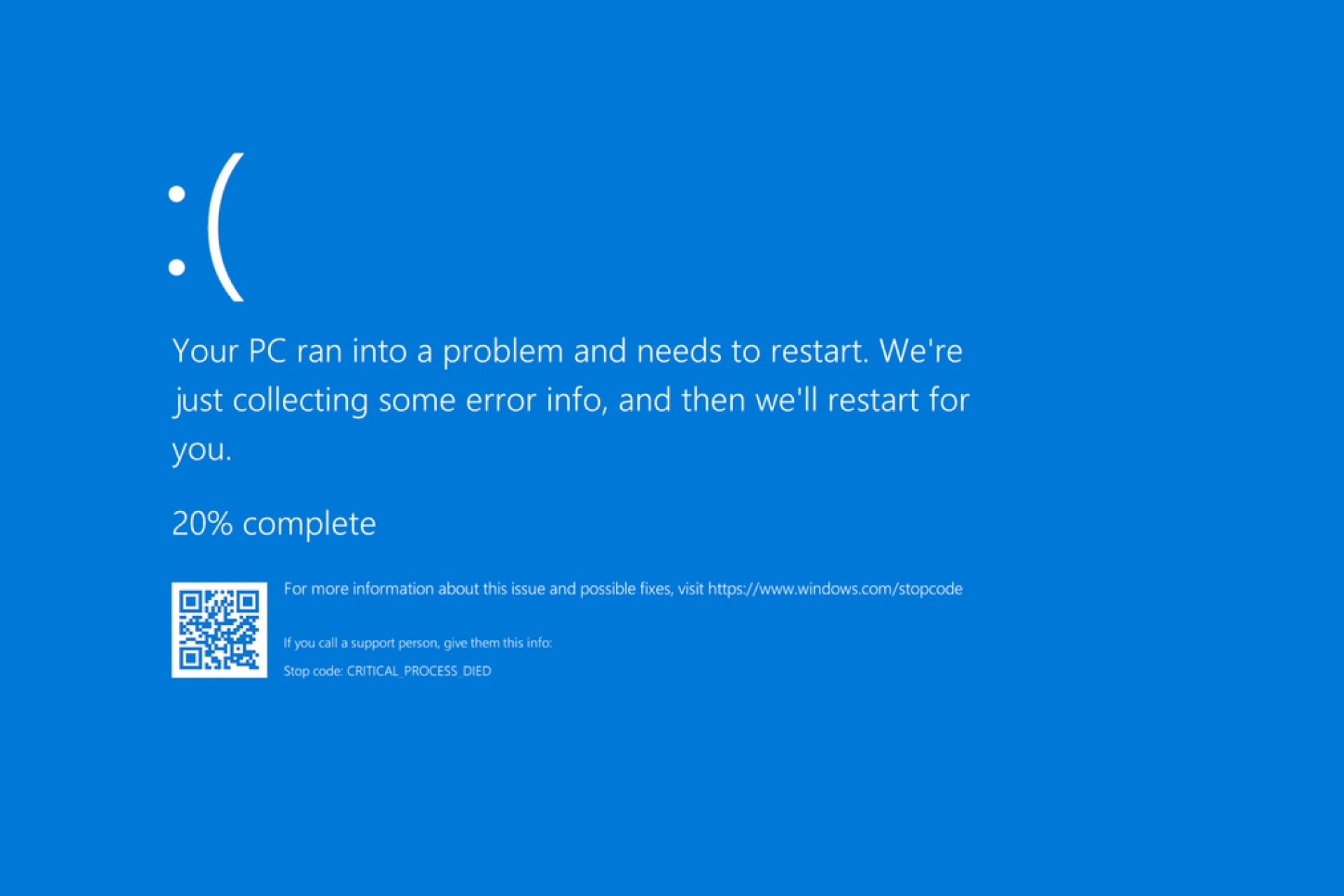
Since BSoD errors are a serious issue, today we’re going to show you how to fix the RDR_FILE_SYSTEM error on Windows 10.

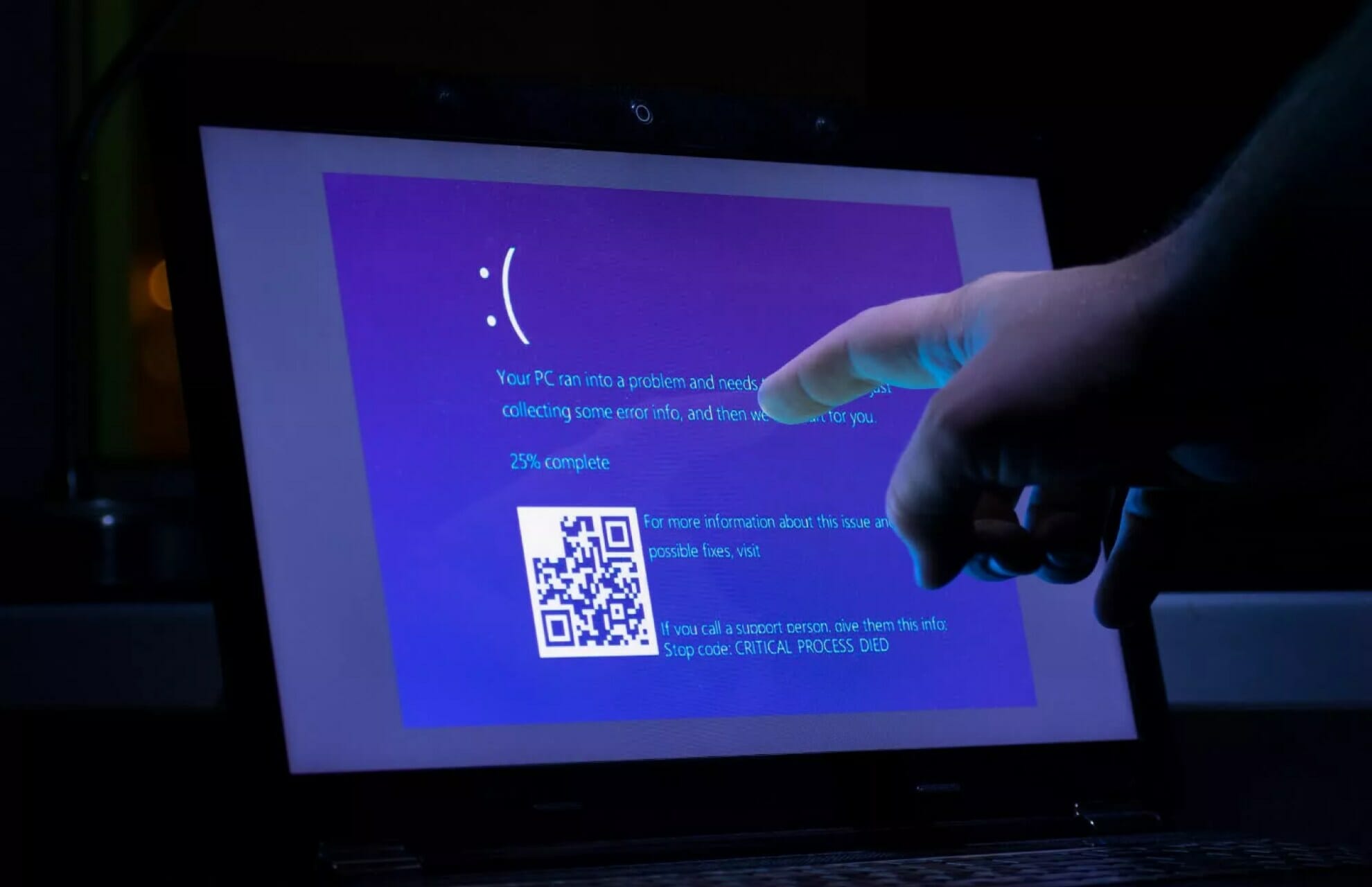
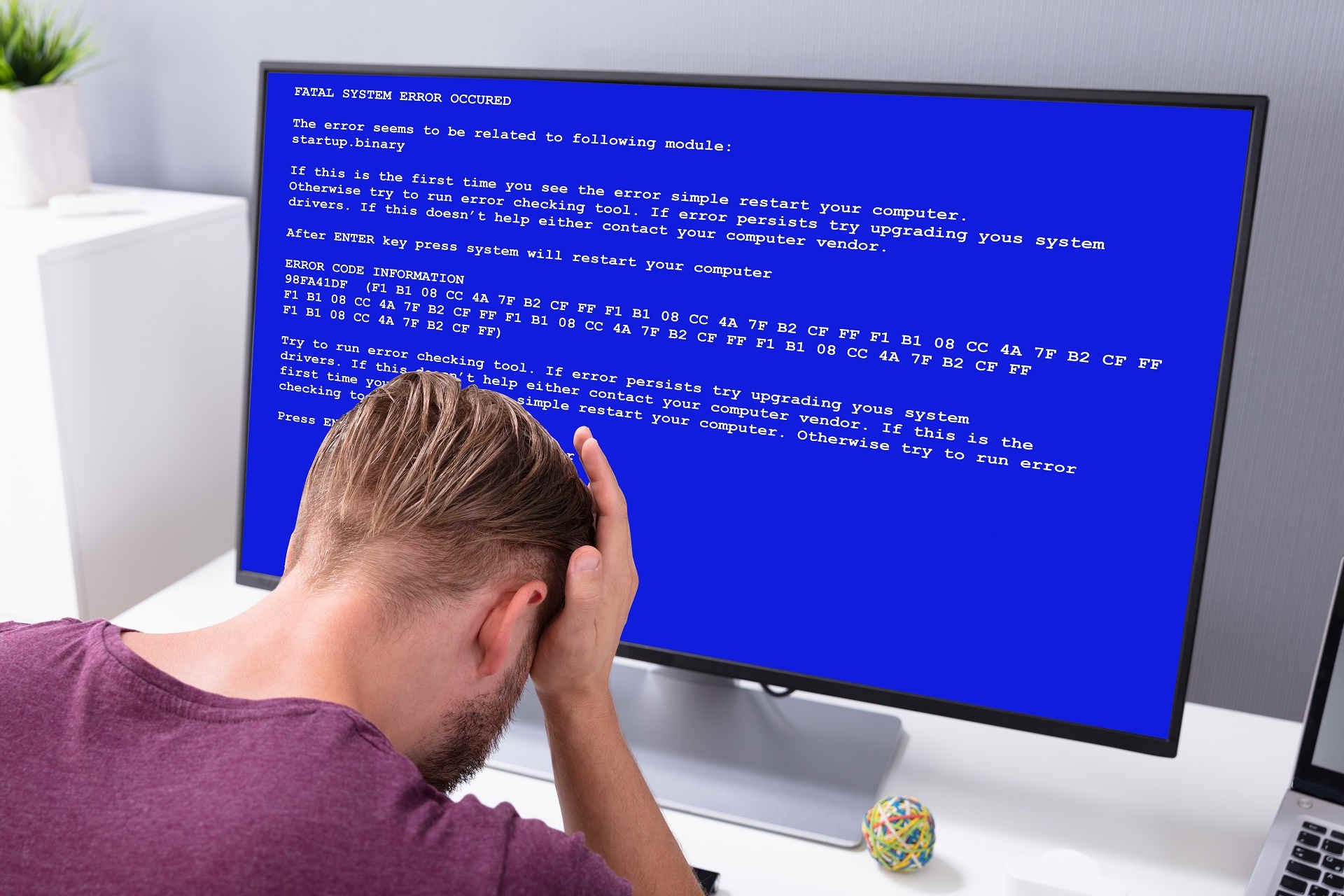
The complete error message you can see before the computer restarts is:  Stop Code RDR_FILE_SYSTEM/ What failed: mrxsmb20.sys.

How can I fix the RDR_FILE_SYSTEM BSoD error?

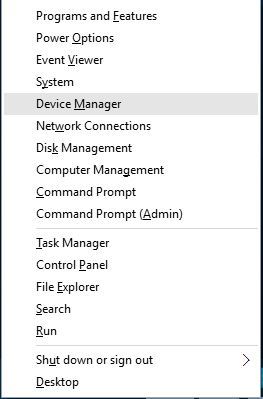
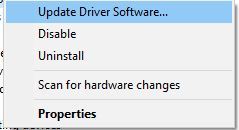
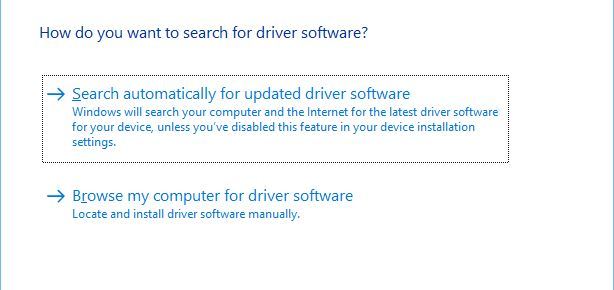
1. Update your Windows 10 and drivers

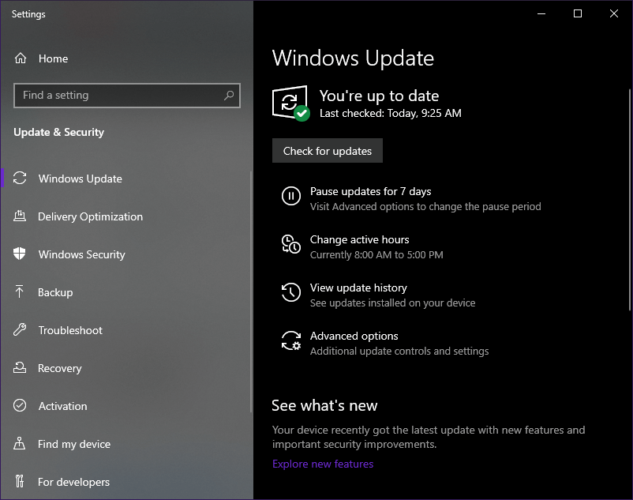
The most common cause for BSoD error is software or hardware incompatibility, and you can avoid most of the compatibility issues by downloading the Windows updates regularly.

Updates often fix compatibility issues and security flaws, so it’s a good practice to download them frequently. In addition to Windows 10 updates, we advise you to update your drivers.

Searching for drivers on your own can be time-consuming. So, we advise you to use a tool that will do this for you automatically.

Using an automatic driver updater will certainly save you from the hassle of searching for drivers manually, and it will always keep your system up to date with the latest drivers.

2. Run the BSoD Troubleshooter 

If you’re still facing the problem after updating your drivers, let’s try a few troubleshooting solutions.

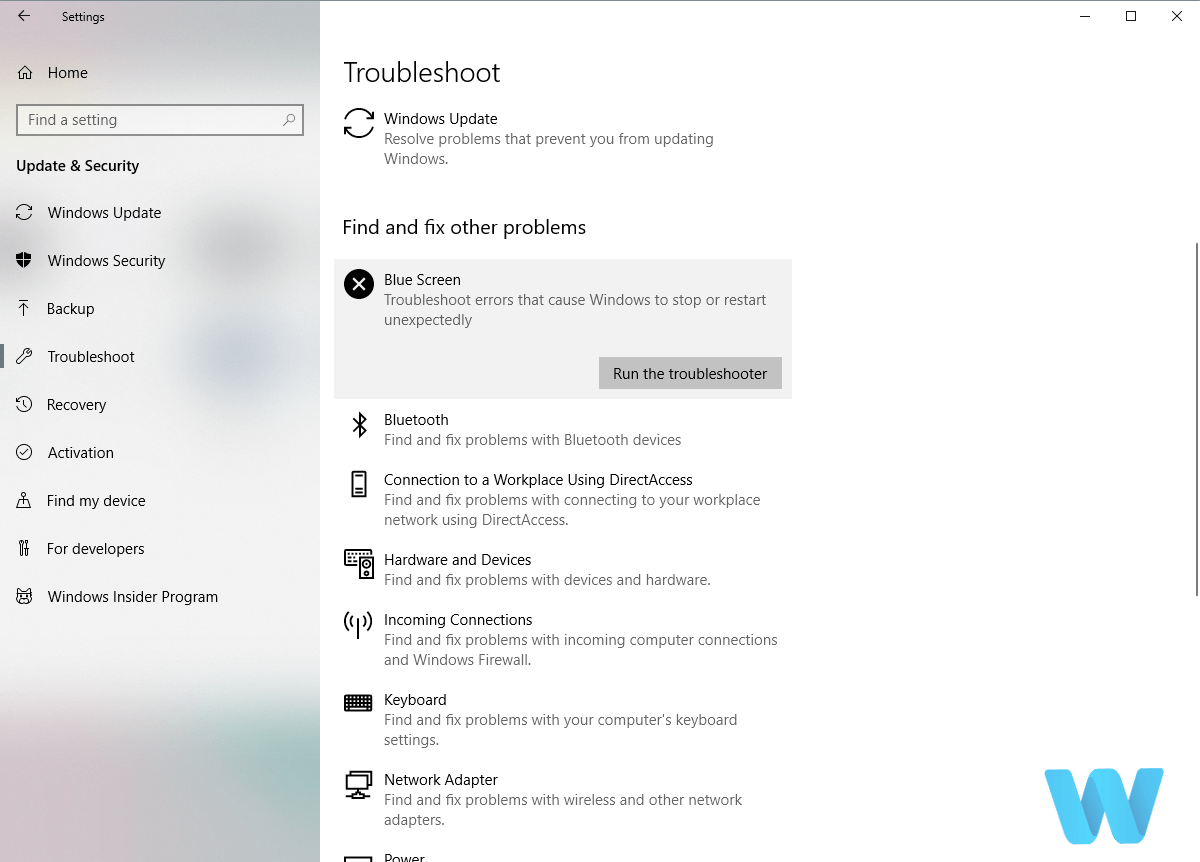
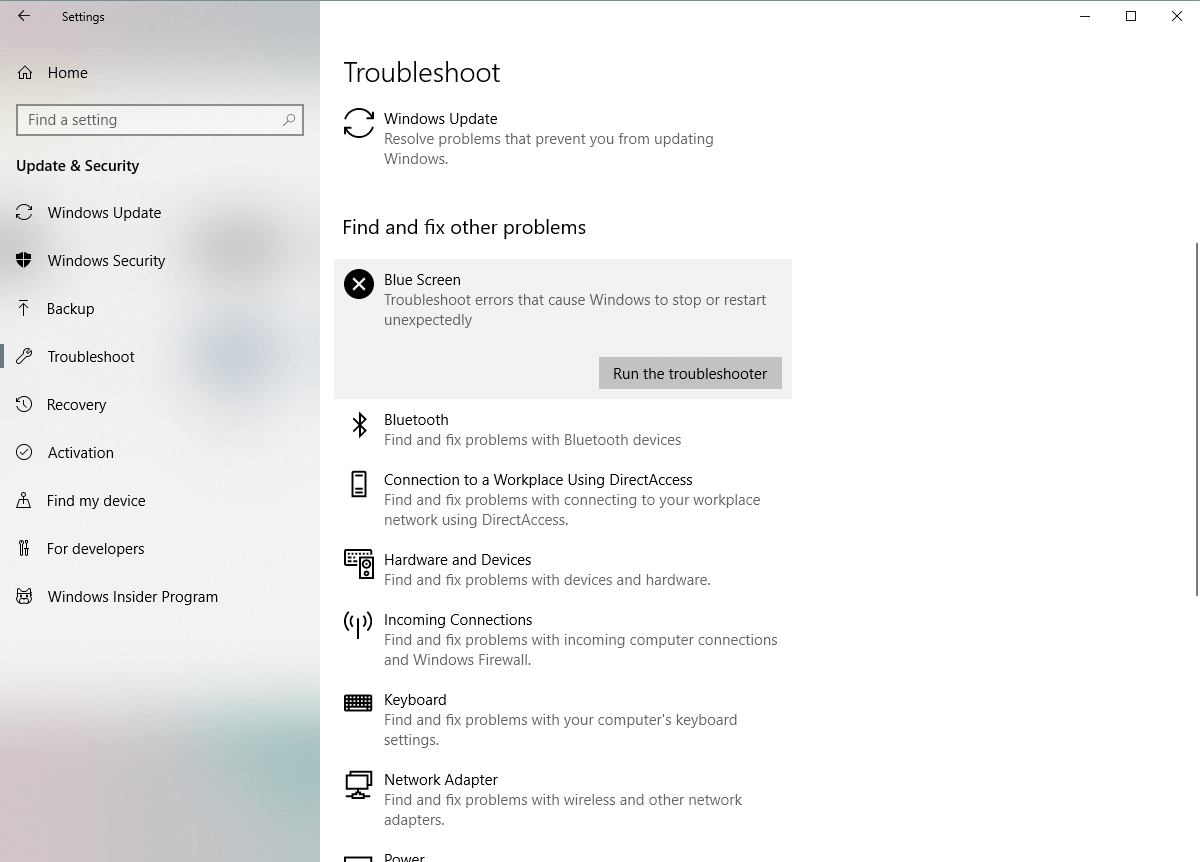
First and foremost, try using the built-in Windows 10 BSOD troubleshooter. The tool is equipped to deal with various BSOD issues, including the RDR_FILE_SYSTEM error.

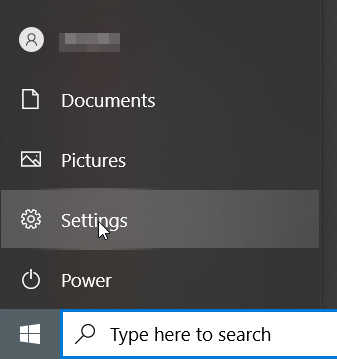
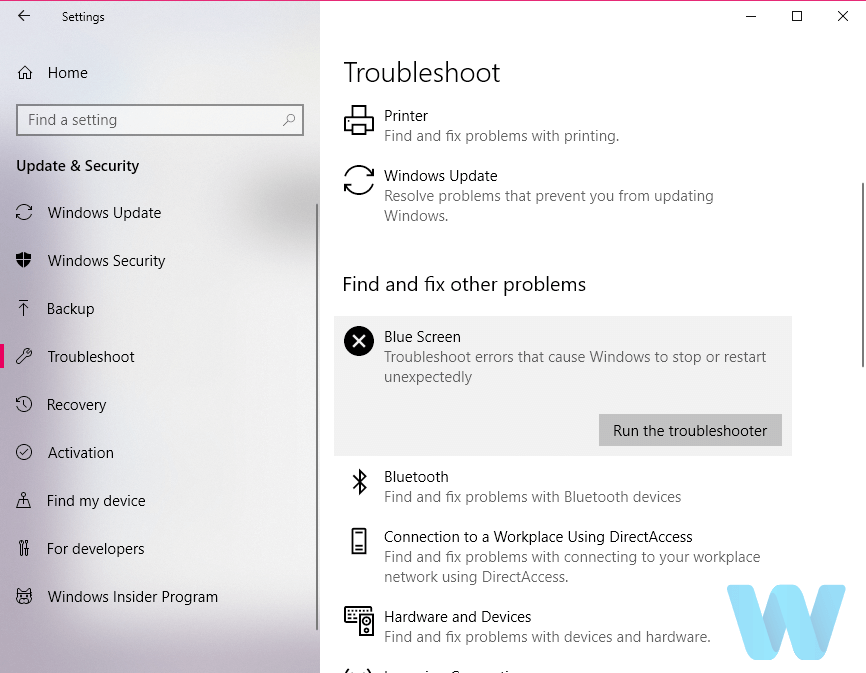
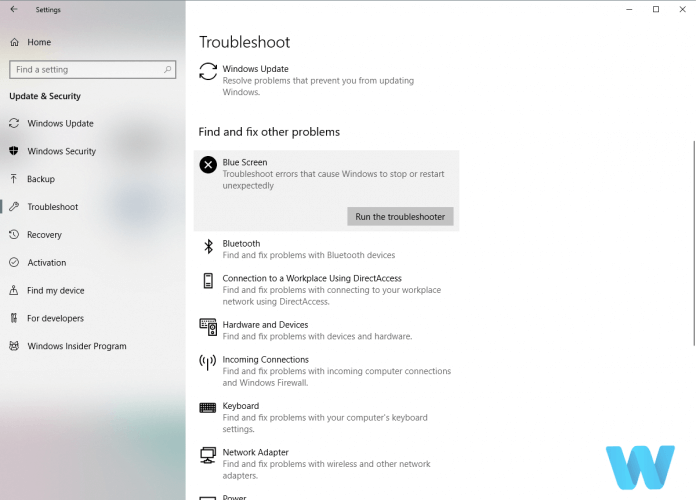
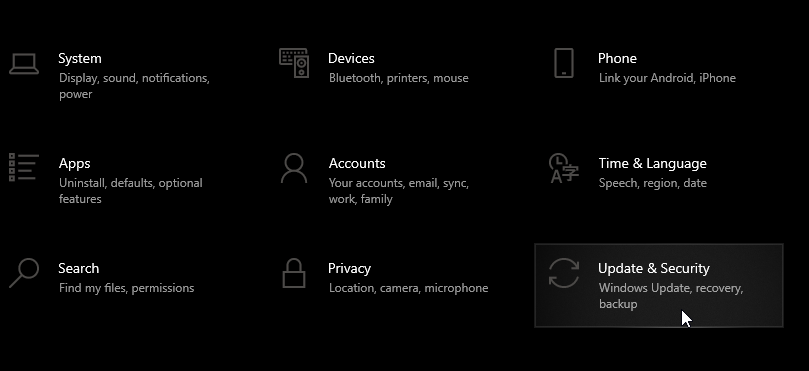
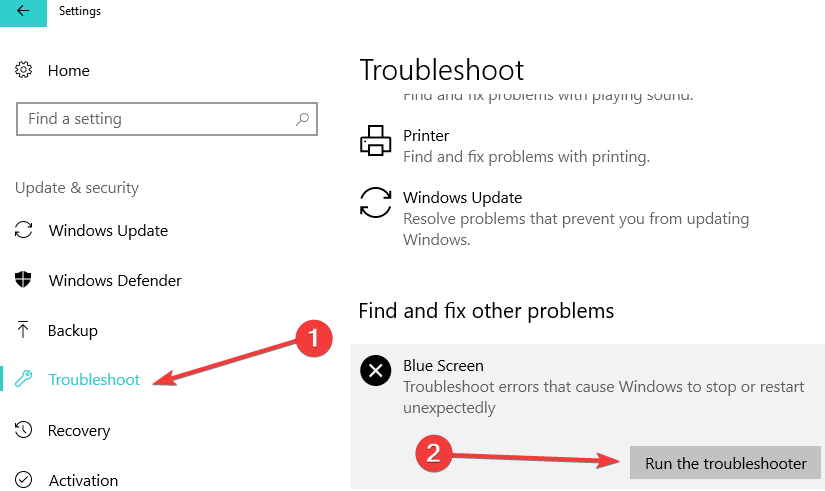
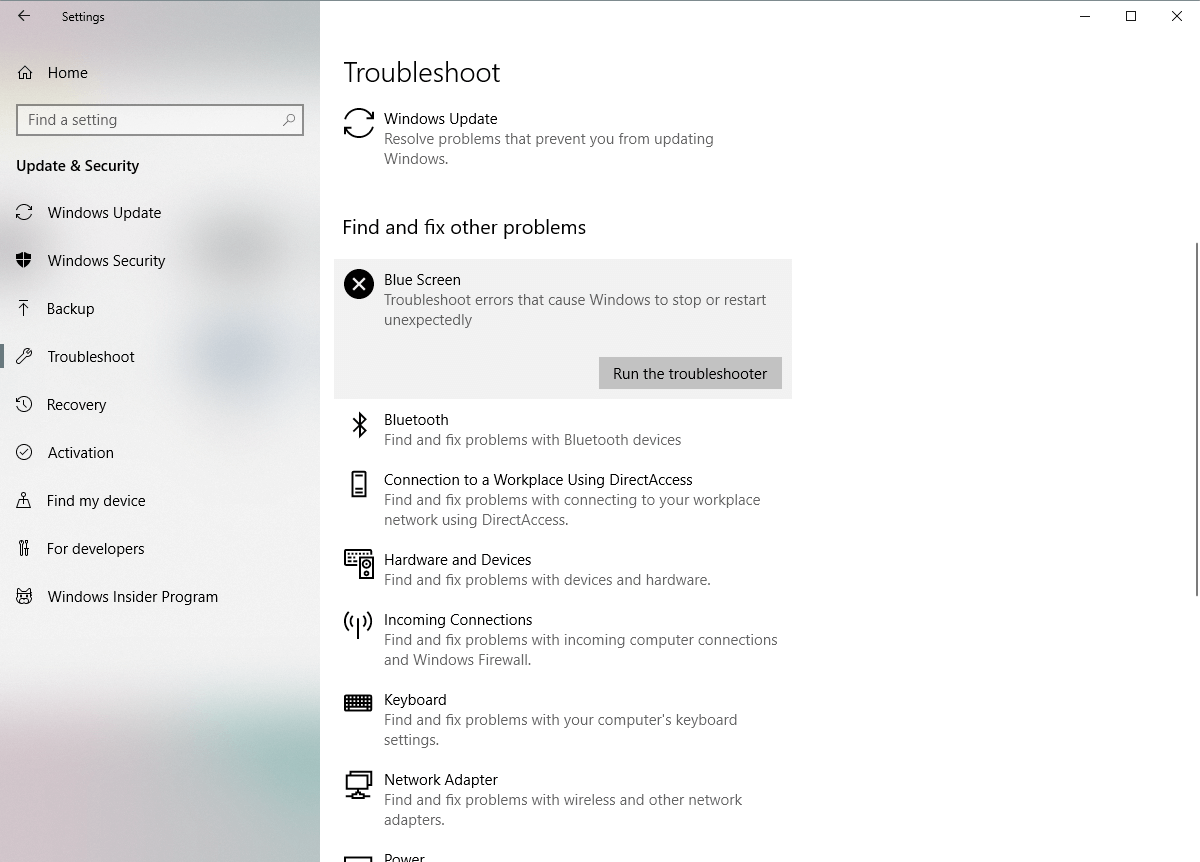
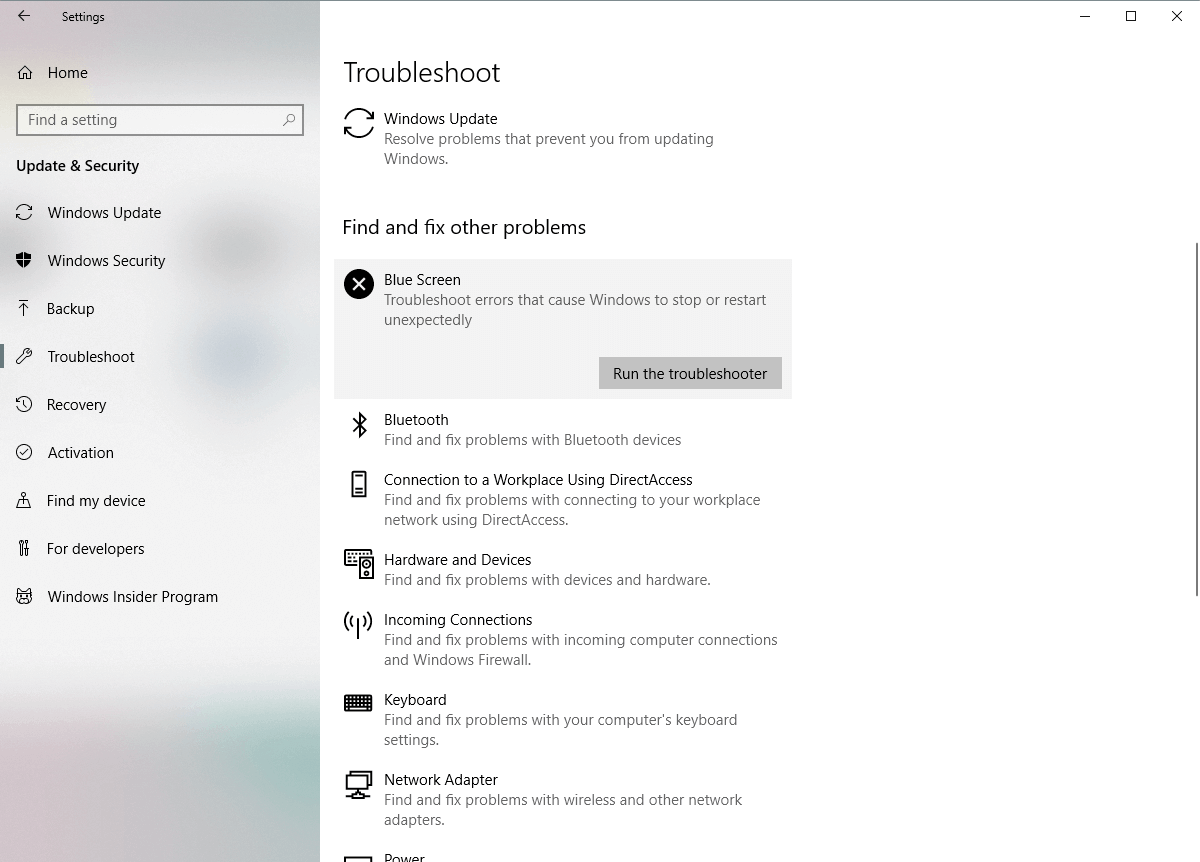
  1. Open the Settings app and go to Update & Security section.

  2. Select Troubleshoot from the menu on the left.
  3. Select BSOD from the right pane and click Run the troubleshooter.Troubleshooting BSOD
  4. Follow the instructions on the screen to complete the troubleshooter.

If you are not satisfied with the results or want to save some time, you also have the alternative to use a third-party BSoD fixer. This type of tool will scan your system and identify all error-causing problems.

They usually repair or replace damaged system files with new, well-functioning ones. Plus, such tools typically use more advanced filtering to detect errors, so they may identify problems with higher accuracy.

3. Run the SFC scan

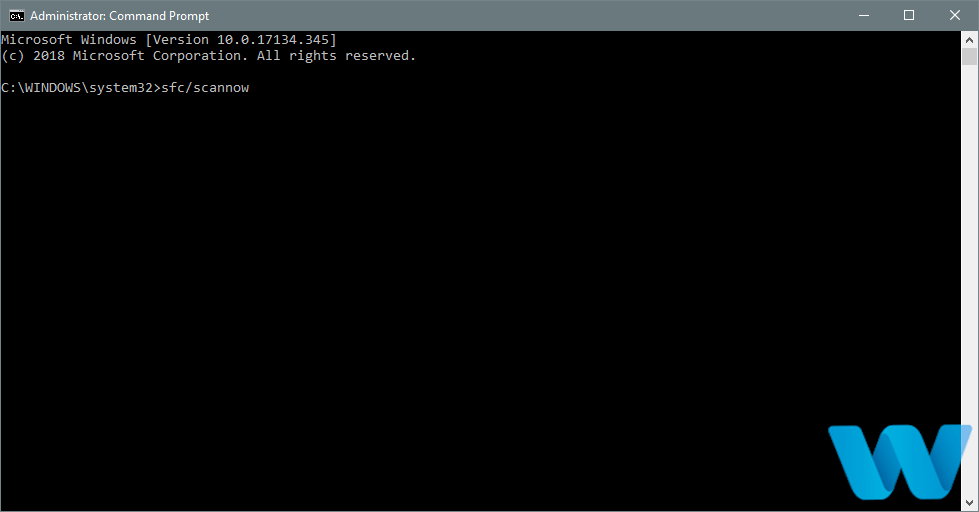
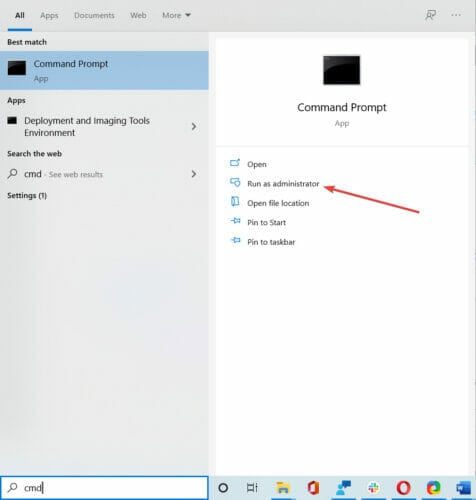
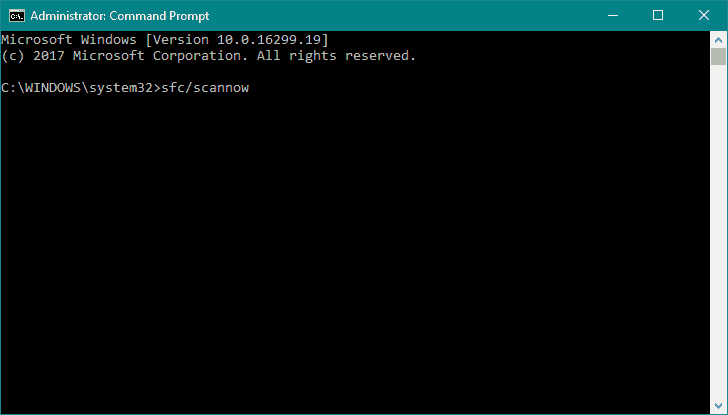
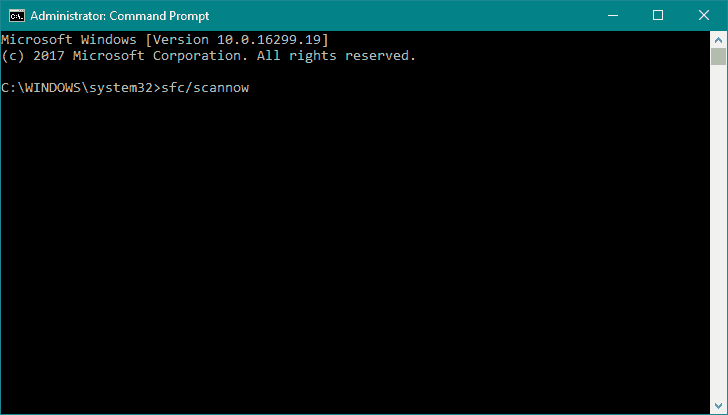
  1. Go to Search, type cmd, and open Command Prompt as Administrator.
  2. Enter the following line and press Enter: sfc/scannow
  3. Wait until the process is done (it may take a while).
  4. If the solution is found, it will automatically be applied.
  5. Now, close the Command Prompt and restart your computer.

This is a command-line tool that goes through your system seeking potential issues. If the solution is possible, the SFC scan will resolve the problem automatically.

If you encounter any problems while running SFC, it stops or does not work at all on Windows 10, you can use our dedicated guide in order to solve the error.

4. Run the DISM tool

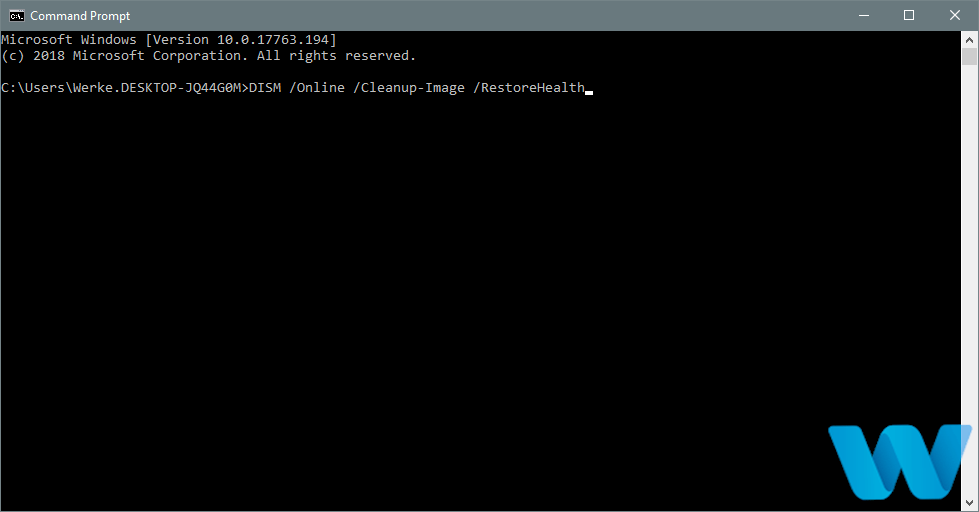
  1. Follow the first two steps from the above solution to open Command Prompt as admin.
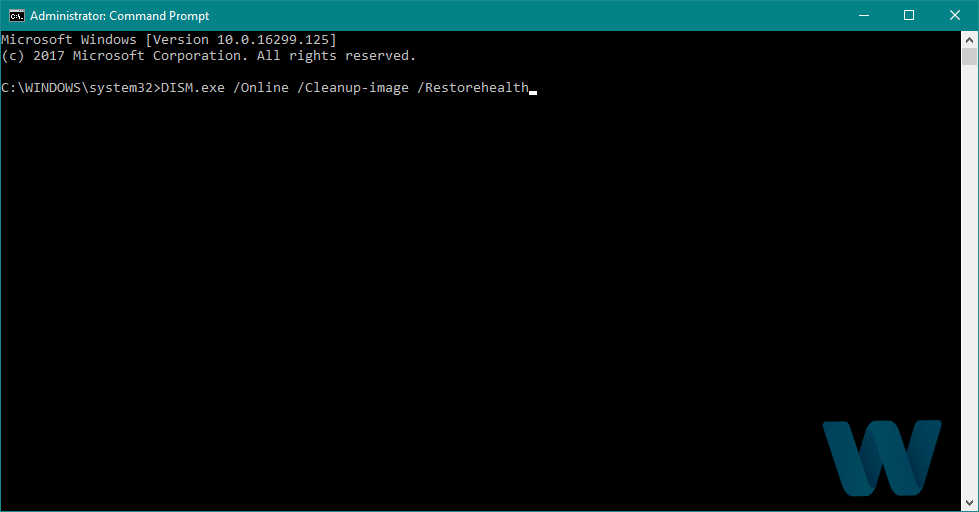
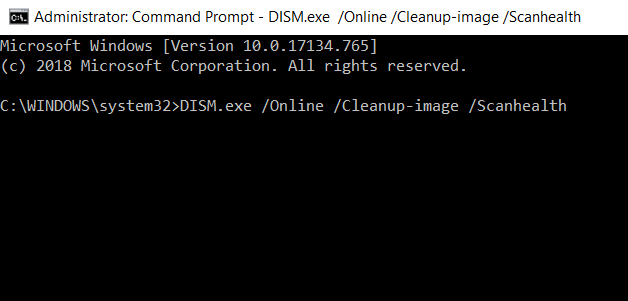
  2. Paste the following command and press Enter:
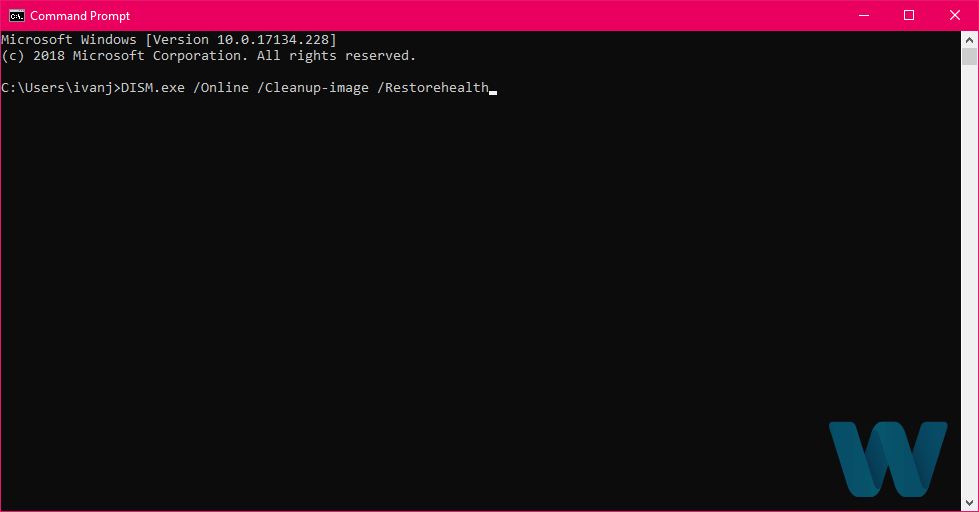
    • DISM /Online /Cleanup-Image /RestoreHealth
  3. Wait until the scan is finished.
  4. Restart your computer and try updating again.

And the final troubleshooter we’re going to use is DISM. Deployment Image Servicing and Management (DISM) deploys the system image all over again, resolving potential issues along the way.

There are times when the DISM tool fails on Windows 10. If this happens to you, we recommend you check our dedicated guide to fix the error.

5. Uninstall/reinstall your antivirus software

It was reported by users that Norton antivirus can often cause RDR_FILE_SYSTEM error to occur. Apparently, Norton has some minor issues with Windows 10.

In order to fix the aforementioned error, you need to completely uninstall Norton antivirus from your PC. In order to remove all remaining Norton files, you should use Norton Removal Tool.

Although Norton is confirmed to cause this issue, another antivirus can also cause RDR_FILE_SYSTEM error. It’s advised that you remove any antivirus software that you currently have installed.

Many antivirus companies offer uninstaller tools for their software, so make sure to download them and use them to completely remove a certain antivirus.

After you’ve uninstalled your antivirus software, you can reinstall it again, but be sure to use the latest version, since the latest version will probably have most of the older bugs fixed.

Alternatively, if the error does not appear after you uninstall it, we recommend you install another antivirus program.

6. Remove any recently installed software

RDR_FILE_SYSTEM BSoD error can be caused by incompatible software, and if you recently installed any third-party software, that software can be the cause of this error.

To fix this issue, we advise you to uninstall any software that you installed a few days before this issue occurred.

Most commonly BSoD errors are caused by antivirus, VPN, or overclocking software, so if you’re using any of those, make sure that you uninstall them.

In some rare cases, even recently installed drivers can cause BSoD errors to appear. If you installed any new drivers in the past, make sure to remove them or roll back to the previous version.

7. Run the chkdsk command

  1. Go to Search, type cmd, and open Command Prompt as Administrator.
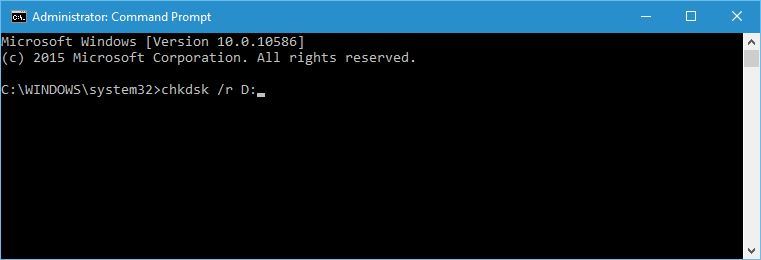
  2. Once the Command Prompt starts, enter the: chkdsk /f /r C:chkdsk-cmd
  3. You can replace C with the letter that matches your hard drive partition. You might have to restart your computer in order to perform chkdsk for the C drive, so keep that in mind.
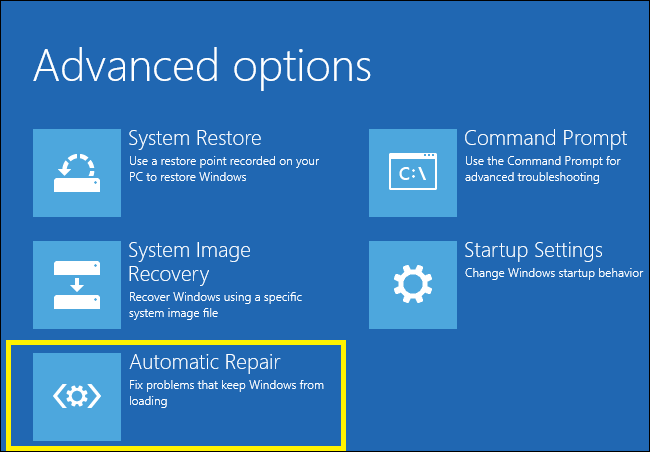
  4. If you cannot access Windows 10 due to RDR_FILE_SYSTEM error, restart your computer a few times while it boots. This should start Automatic Repair process.
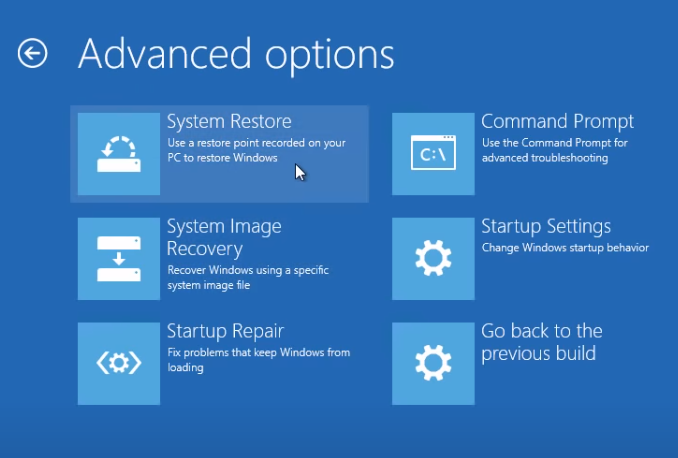
  5. Choose Troubleshoot > Advanced options > Command Prompt.Keyboard works in BIOS and not in Windows
  6. When Command Prompt starts enter the following comand: chkdsk /f /r C: 
  7. Be sure to perform chkdsk for all hard drive partitions that you have.

In certain cases, these errors can be caused by corrupted files and folders on your hard drive, therefore you need to perform a chkdsk command.

If Automatic Repair couldn’t repair your Windows 10 PC, you can take a look at our dedicated guide and easily solve the error.

8. Check your hardware

  1. Download MemTest86+.
  2. Burn the tool to a CD or create a bootable USB flash drive.
  3. Connect the CD or USB flash drive and boot your PC from it.
  4. Let the MemTest86+ run for a couple of hours.
  5. If any errors are found, it means that one or more RAM modules are corrupt and that you need to replace it.

Often the cause for RDR_FILE_SYSTEM is faulty hardware, most commonly RAM. Users reported that after replacing the faulty RAM module, the issue was permanently fixed.

In order to check your RAM, follow the above steps. In addition to RAM, almost any other hardware component can cause this BSoD error to appear.

It’s also worth mentioning that any recently installed hardware can cause an RDR_FILE_SYSTEM BSoD error if that hardware isn’t fully compatible with your motherboard.

To diagnose the problem, you should replace recently added hardware and check if your PC works without it.

RDR_FILE_SYSTEM BSoD error can create certain problems on Windows 10, but you can fix this error easily by following one of our solutions.

If you want to share with us your suggestions or if one of the solutions helped you, please leave us a comment below.

FAT FILE SYSTEM error in Windows 10/11 [Full Fix]

FAT FILE SYSTEM is a Blue Screen of Death error, and just like any other BSoD error, it will restart your PC in order to prevent damage.

These BSoD issues may be very common, but solutions may depend on the error message or the stope code that you can see before the computer restarts.

This error is usually caused by your hard drive, and today we’re going to show you how to fix the Windows 10 FAT FILE SYSTEM error.


How can I fix the FAT_FILE_SYSTEM BSoD error in Windows 10?

1. Update your Windows and drivers

Most commonly BSoD errors are caused by outdated or incompatible drivers. You can download all the necessary files from the manufacturer’s website.

Searching for drivers on your own can be time-consuming. So, we advise you to use a tool that will do this for you automatically.

Using an automatic driver updater will certainly save you from the hassle of searching for drivers manually, and it will always keep your system up to date with the latest drivers.

2.  Run the BSoD Troubleshooter 

  1. Open the Settings app and go to Update & Security section.
  2. Select Troubleshoot from the menu on the left.
  3. Select BSoD from the right pane and click Run the troubleshooter.Troubleshooting BSOD
  4. Follow the instructions on the screen to complete the troubleshooter.

The next tool we’re going to use is Windows 10’s built-in troubleshooter. This tool can help with dealing with all sorts of system issues, including BSoD errors.


Windows Troubleshooter has stopped working? You can use our dedicated guide to fix this problem right away!


3. Run the SFC scan

  1. Go to Search, type cmd, and open Command Prompt as Administrator.
  2. Enter the following line and press Enter: sfc/scannow
  3. Wait until the process is done (it may take a while).
  4. If the solution is found, it will automatically be applied.
  5. Now, close the Command Prompt and restart your computer.

The next troubleshooting tool we’re going to try is the SFC scan. It is a command-line tool that serves as a system scanner, and it is effective for BSoD issues also.

If you encounter any errors while running SFC, it stops or does not work at all on Windows 10, you can use our dedicated guide in order to fix the problem.


4. Run the DISM tool

  1. Follow the first two steps from the above solution to open Command Prompt as admin.
  2. Paste the following command and press Enter:
    • DISM /Online /Cleanup-Image /RestoreHealth
  3. Wait until the scan is finished.
  4. Restart your computer and try updating again.

And finally, the last troubleshooting tool we’re going to use is DISM. This tool deploys the system image all over again.

So it’s quite possible it’ll eliminate potential BSOD errors. Including the FAT FILE SYSTEM error (hopefully).

However,  the DISM tool can fail on Windows 10. If this happens to your computer, you can take a look at our dedicated guide in order to fix the issue.


5. Try starting your computer with only one hard drive

portable hard drive attached samsung t5 ssd not recognized

As we already mentioned FAT FILE SYSTEM is usually caused by your hard drive. You can sometimes fix this problem by disconnecting your second hard drive and starting Windows 10 without it.

If you don’t have two or more hard drives, you can skip this solution and try a different one.

In order to disconnect your hard drive, you’ll have to open your computer case and disconnect the power cable that connects to your hard drive.

Make sure to do this for all hard drives except for the one that has Windows 10 installed on it.

In addition to internal hard drives, users are suggesting removing any additional memory cards and USB drives that you might have connected to your PC.

If the error is fixed after disconnecting additional hard drives, you can try reconnecting them one by one until you find the one that is causing FAT FILE SYSTEM error to appear.


Your external HDD is broken and need a new one? Check our guide including the best USB 3.0 external HDD.


6. Check your hardware is working properly

Blue Screen of Death errors can be often caused by faulty hardware, and if that’s the case, you should find the faulty hardware and replace it.

If your hardware is new and recently installed, it could be that it’s not compatible with your PC.

In case you don’t have any recently installed hardware, this means that your current hardware isn’t working properly.

Few users reported that a faulty motherboard is the cause of this issue, so make sure to check your motherboard.

Bear in mind that almost any other hardware can cause this issue, and if you need help in diagnosing the faulty hardware, it’s best that you take your PC to the repair shop.


7. Uninstall Folder Protect and Folder Lock software

  1. While your computer boots restart it. You’ll have to repeat this step a few times before your PC starts Automatic Repair process.Keyboard works in BIOS and not in Windows
  2. Choose Troubleshoot > Advanced options > Startup settings and click on Restart.
  3. When your computer restarts, press F5 or 5 to access Safe Mode with Networking.

Certain folder protection and encryption software can cause FAT_FILE_SYSTEM to appear. If you use any of these tools, the only solution is to uninstall them from your computer.

According to users, software such as Folder Protect and Folder Lock can cause BSoD error since their encryption method interferes with your hard drive.

Few users reported that they can’t even access Windows 10, so they cannot uninstall this software.

If FAT FILE SYSTEM error prevents you from accessing Windows 10, you can try to uninstall these tools from Safe Mode. To access Safe Mode you need to follow the above steps.


Windows 10 Safe Mode not working? Don’t worry, use our step-by-step guide to easily fix this issue for good.


8. Uninstall your antivirus software

Due to incompatibility issues, certain antivirus can cause FAT FILE SYSTEM error to appear. If you are having this error, we advise you to remove your currently installed antivirus software.

If the issue persists even after the antivirus software is removed, you might have to use a special uninstaller to remove your antivirus software.

Many antivirus companies offer tools that will uninstall their antivirus software completely, so make sure that you download one of these tools and use it to remove your antivirus.

If removing your antivirus software fixes the issue, you should install different antivirus software on your PC.

However, sometimes you can’t completely remove software leftovers on Windows 10. We recommend you touse the solutions from our dedicated guide.


9. Reset your Windows 10

  1. While your computer boots restart your PC couple of times. This should start the Automatic Repair.Yellow Screen of Death in Windows 10
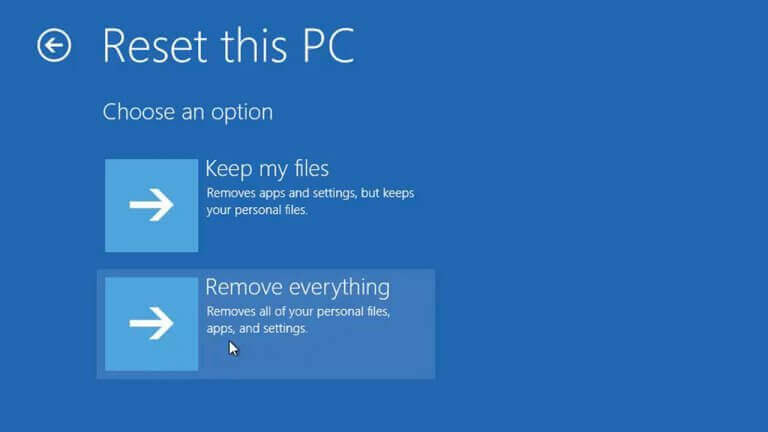
  2. Choose Troubleshoot > Reset this PC.
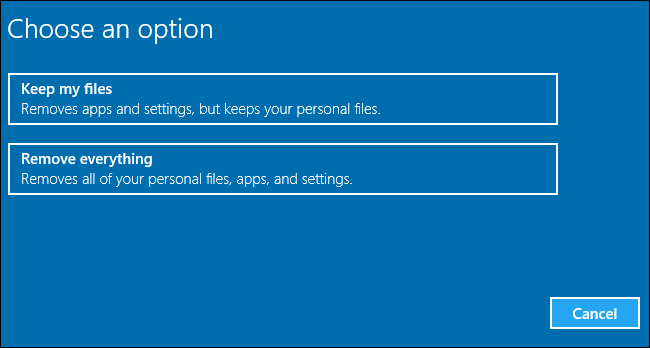
  3. You can choose between Keep my files and Remove everything options. The first option will install Windows 10 again, but it will not remove your personal files and folders.
  4. The second option will delete all files and folders that you have on your C drive. If the first option isn’t working for you, you can always repeat these steps and choose the Remove everything option.
  5. The process of resetting will now start, so make sure that you don’t interrupt it.

If all other solutions fail, you can reset Windows 10. Bear in mind that resetting Windows 10 will remove all your installed applications, so you’ll have to download and install them again.

If the reset option doesn’t help, you can always perform a clean reinstall and format your hard drive partition completely.

Bear in mind these procedures will delete some of your files and folders, so make sure that you have a backup available.


FAT FILE SYSTEM Blue Screen of Death error can be troublesome, but we hope that some of our solutions were helpful to you.

If you have any other suggestions that we should include in this guide or if you are dealing with other issues, please leave us a comment bellow.

Fix 0x00000009 IRQL NOT GREATER OR EQUAL Stop Code

Blue Screen of Death errors can be a big problem on your computer, can cause serious damage to it, but some of them are relatively easy to fix.

However, most BSoD errors are hard to troubleshoot and diagnose. Because your computer is at risk, you have to solve these issues as fast as you can.

Users have reported the IRQL NOT GREATER OR EQUAL error on Windows 10, and today we’re going to show you how to fix it.

How do I fix the IRQL NOT GREATER OR EQUAL BSoD error?

1. Use a dedicated tool

Finding on yourself the causes and then fixing computer errors such as BSoD can be a difficult task. Luckily, many software solutions were developed.

2. Run the BSOD Troubleshooter 

  1. Go to the Settings app.
  2. Navigate to the Update & Security section.
  3. Select Troubleshoot from the menu on the left.
  4. Select BSOD from the right pane and click Run the troubleshooter.Troubleshooting
  5. Follow the instructions on the screen to complete the troubleshooter.

The next thing we’re going to try is running Windows 10’s built-in troubleshooting tool. This tool can help you resolve all sorts of issues, including the BSOD problems.

3. Update your graphics card drivers

In most cases, IRQL NOT GREATER OR_EQUAL is caused by a graphic card driver, and in order to fix this issue, it’s advised that you update the driver with the latest version.

Searching for drivers on your own can be time-consuming. So, we advise you to use a tool that will do this for you automatically.

Using an automatic driver updater will certainly save you from the hassle of searching for drivers manually, and it will always keep your system up to date with the latest drivers.

⇒ Get Outbyte Driver Updater

4. Run the SFC scan

  1. Go to Search, type cmd, and open Command Prompt as Administrator.
  2. Enter the following line and press Enter: sfc/scannow
  3. Wait until the process is done (it may take a while).
  4. If the solution is found, it will automatically be applied.
  5. Now, close the Command Prompt and restart your computer.

The SFC scan is another troubleshooting tool that can help with BSOD issues. If Windows 10’s built-in troubleshooter didn’t resolve the problem, the SFC scan is definitely a tool worth running.

If you have any problems while running SFC, it stops or does not work at all on Windows 10, use our dedicated guide in order to fix the error.

5. Run the DISM tool

  1. Follow the first two steps from the above solution to open Command Prompt as admin.
  2. Paste the following command and press Enter:
    • DISM /Online /Cleanup-Image /RestoreHealth
  3. Wait until the scan is finished.
  4. Restart your computer and try updating again.

The third and final troubleshooting tool we’re going to run is DISM. Deployment Image Servicing and Management is a tool that re-deploys the system image and resolves possible problems on the way.

Unfortunately, sometimes the DISM tool fails on Windows 10. If this happens on your computer, you can use our dedicated guide to fix the problem.

6. Check the hard drive

  1. Enter the Advanced Startup (Restart your computer while holding the Shift key).
  2. Choose Troubleshoot > Advanced Options.Keyboard works in BIOS and not in Windows
  3. Select Command Prompt from the list of options.
  4. When Command Prompt appears, enter the following lines and press Enter after each line in order to run it:
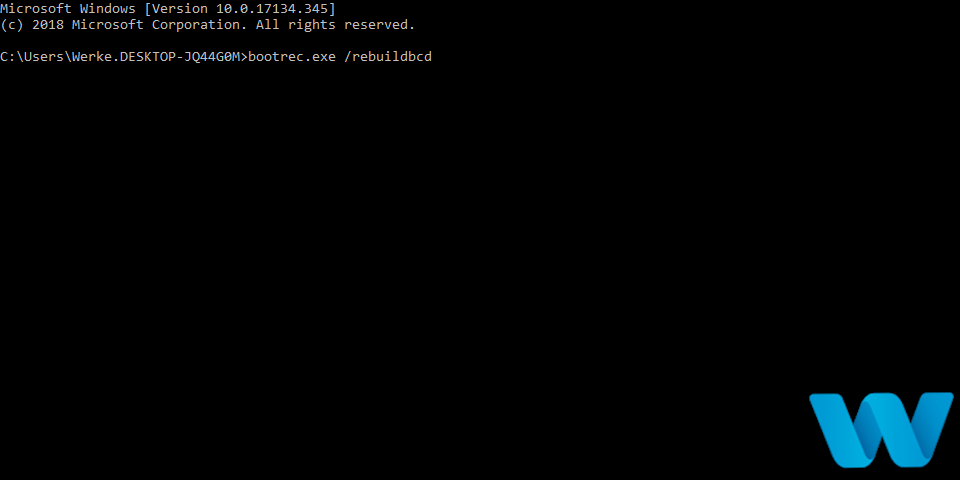
    • bootrec.exe /rebuildbcdMANUALLY INITIATED CRASH1 Windows 10 error
    • bootrec.exe /fixmbr
    • bootrec.exe /fixboot
  5. Some users are also suggesting that you need to run additional chkdsk commands as well.
  6. To perform these commands, you need to know drive letters for all your hard drive partitions. In Command Prompt you should enter the following (but remember to use the letters that match your hard drive partitions on your PC):
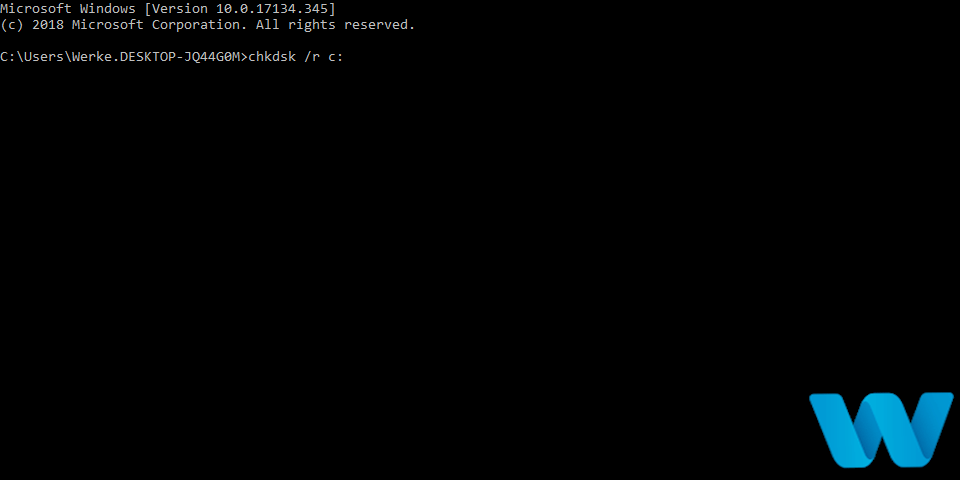
    • chkdsk /r c:MANUALLY INITIATED CRASH1 Windows 10 error
    • chkdsk /r d:
  7. This is just our example, so keep in mind that you have to perform chkdsk command for every hard drive partition that you have.
  8. Restart your computer and check if the issue is resolved.
  9.  

If you have a corrupt partition or there’s something else wrong with your hard drive, BSOD issues are quite possible.

To make sure that’s not the case, we’re going to run the chkdsk command that will thoroughly scan your hard drive, and resolve potential issues.

7. Download the older version of graphics card drivers

As we previously mentioned, it’s always good to keep your drivers updated, but in certain rare cases, older version of the driver software might work better.

Few Intel(R) HD Graphics 3000 owners reported that by using the older version of the drivers, the IRQL NOT GREATER OR EQUAL error was resolved.

Bear in mind that this solution could work for non-Intel owners as well, and if the latest drivers aren’t working for you perhaps you should use the older version.

8. Check your RAM

RAM is often the cause for many BSoD errors, and IRQL NOT GREATER OR EQUAL is no exception. Users reported that MemTest86+ and similar tools showed no memory errors.

A number of users reported that the faulty RAM module caused the issue for them, so if you’re having this issue, you might want to replace your RAM.

For some reason, the RAM module can not be compatible with the motherboard, and this can be the cause for IRQL NOT GREATER OR EQUAL BSoD error.

9. Check the other computer hardware

Most commonly BSOD errors are caused by a faulty RAM, but other hardware components can also cause this error to manifest.

Relatively often your motherboard can cause IRQL NOT GREATER OR EQUAL error, so you might want to check it if it’s working properly.

In addition to the motherboard, there were reports that a faulty hard drive or a graphic card can cause this error, so you might have to perform a thorough inspection of your hardware.

If you don’t know how to do this, we strongly advise you to take your PC to the repair shop and ask them to this for you.

In addition to faulty hardware, your recently added hardware can cause issues as well.

If you installed in any new hardware, such as a new hard drive, RAM, graphic card, or anything similar, it might be incompatible with your motherboard, and that can cause this BSoD error to appear.

To fix this issue, we advise you to replace any recently added hardware and see if your PC works well without it.

9. Remove problematic software

Certain tools can cause IRQL NOT GREATER OR EQUAL error to appear, and to fix this error you need to remove these tools from your PC.

Certain VPN or encryption tools can cause a BSOD error, so if you use any of those make sure that you remove them. Also, antivirus software can often cause IRQL NOT GREATER OR EQUAL error.

Almost any antivirus software can cause a BSoD error, and in order to fix this issue, it’s advised that you remove your currently installed antivirus software.

In order to completely remove antivirus software, we strongly advise that you use one of the dedicated uninstallers.

Most antivirus companies have uninstaller tools available on their websites, and you can download them and use them to completely remove a certain antivirus program from your PC.

After you’ve removed your antivirus software, you can try to reinstall it, or you can install any other antivirus software instead.

11.  Keep your Windows 10 up to date

BSoD errors are often caused by incompatibility issues, and in order to avoid potential issues, we strongly advise you to update Windows 10 frequently.

Most incompatibility issues and security flaws are fixed through Windows Update, so in order to avoid IRQL NOT GREATER OR EQUAL error, make sure that your Windows 10 is up to date.

If Windows update is not working on your computer this can be a serious issue. Take a look at our dedicated guide and fix the problem with ease.

12.  Reset your Windows 10

  1. Restart your computer couple of time while it boots so it can enter Automatic Repair mode. Yellow Screen of Death in Windows 10
  2. Choose Troubleshoot > Reset this PC.
  3. Select Remove Everything > Only the drive where Windows is installed.
  4. Wait for the process to finish.

Resetting Windows 10 will delete most of your files on your C drive, so if you decide to use this step, we advise you to create a backup aforehand.

This process will delete all files from your C drive, and if the problem persists even after you’ve performed a Windows 10 reset, you should check your PC for faulty hardware.

IRQL NOT GREATER OR EQUAL Blue Screen of Death error can cause many problems, but it can be fixed by using one of our solutions.

In the past we also covered irql_not_less_or_equal BSOD error, so you might want to check that article as well. Feel free to leave us a comment below if you have any suggestions for us.

Fix: SNMP error request timed out [Tested solutions]

If you’re a network administrator, you know that certain errors such as SNMP error request timed out can appear from time to time.

Errors such as this one can disrupt your network and cause various issues, so in today’s guide, we’re going to show you how to fix this error once and for all.

How can I fix the SNMP error request timed out error?

1. Use specialized software

monitoring software snmp error request timed out

If you’re having issues in your network, then Paessler PRTG software should be able to help you. The application works as a bandwidth monitor, allowing you easily to find any bottlenecks in your network.

The software also supports database, application, and cloud monitoring. You can also monitor your entire local network, and there’s in-depth support for SNMP monitoring.

Overall, Paessler PRTG offers great features, and it should be able to help you fix SNMP error request timed out and other network errors with ease.

Paessler PRTG

Paessler PRTG

Monitor your network and fix all SNMP issues with Paessler PRTG software.
Free trialVisit website

2. Check the settings

settings snmp error request timed out
  1. Check the community’s name. For SNMP to work properly, the community string in the message must match the community’s name.
  2. Check the listening port on the agent. By default, this port should be UDP 161, but it might be different on your configuration.
  3. Increase the timeout time. By default, the timeout is set to 5 seconds, but you can increase the timeout with SnmpPDU.setTimeout(int time_in_ms) method or setTimeout(int time_in_sec) of SnmpTarget / SnmpRequestServer method.
  4. Make sure that the switch responds to ICMP (ping) requests).

3. Use the tcpdump command

error code 0xc0000034 command line
  1. Open two Control Server CLI windows.
  2. In the first one run the following command. Be sure to replace the IP address with the address of your switch: tcpdump -nni eth0 host <ip address> and port 161
  3. In the second window run the following command: snmpwalk
  4. After the snmpwalk is completed, press CTRL-C to stop tcpdump.

Depending on the results, you need to do the following:

  • If the SNMP traffic isn’t reaching the switch, check the network path.
  • In case the traffic is reaching the switch, but the switch isn’t responding, check the switch.
  • In case the tcpdump doesn’t show any packets, verify that the SNMP traffic is reaching the switch.

Fixing the SNMP error request timed out error isn’t an easy task, but we hope that this guide helped you fix this issue. Did you find a different solution on your own? Let us know in the comments below.

FULL FIX: NDIS INTERNAL ERROR error in Windows 10/11

Blue Screen of Death errors are some of the most troublesome issues on Windows 10. These types of errors will crash Windows and restart your computer in order to prevent damage.

And since they are caused by software, or sometimes a faulty hardware, they can be hard to fix.

Since these types of errors are so serious, today we’re going to show you how to fix NDIS INTERNAL ERROR BSoD.

How do I fix NDIS_INTERNAL_ERROR error in Windows 10?

  1. Check if Windows 10 and your drivers are up to date
  2. Run the BSOD Troubleshooter
  3. Run the SFC scan
  4. Run DISM
  5. Check the hard drive
  6. Uninstall problematic software
  7. Update your SSD firmware
  8. Reset Windows 10
  9. Check your hardware

1. Check if Windows 10 and your drivers are up to date

These types of errors are often caused by hardware or software incompatibility, therefore it’s crucial to download the latest Windows updates.

By using Windows Update you’ll download the latest security improvements as well as bug fixes.

And since many of these fixes are designed to fix hardware and software compatibility issues, it’s possible that downloading the latest Windows update might fix NDIS INTERNAL ERROR error for you.

Windows updates are crucial for system stability and security, but downloading the latest drivers is just as important.

Sometimes your drivers might not be fully compatible with Windows 10, and that can cause these types of errors to appear.

In order to fix BSoD errors, it’s important that you keep your drivers updated.

Updating drivers is rather simple, and all you need to do is to visit your hardware manufacturer’s website and download the latest driver for your device.

Alternatively, you can always use Device Manager to download the latest drivers. To download the latest drivers with Device Manager, do the following:

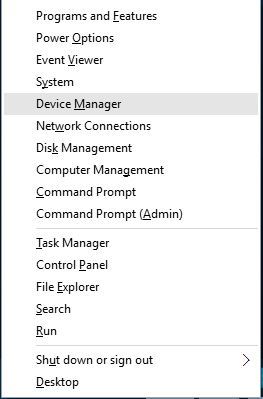
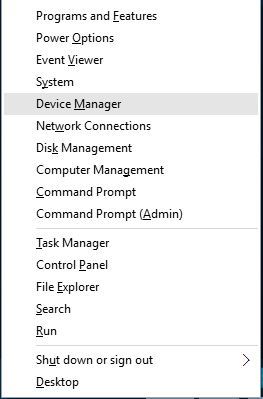
  1. Press Windows Key + X to open Power User Menu and choose Device Manager from the list.
    device-manager
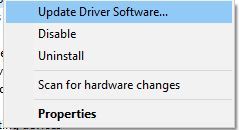
  2. When Device Manager opens, locate the device you wish to update, right-click it and choose Update Driver Software.
    update-driver-software
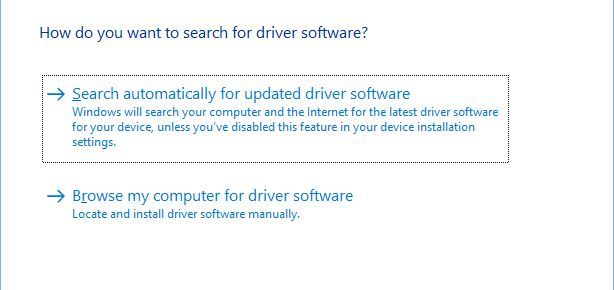
  3. Now select Search automatically for updated driver software. Windows 10 will now automatically search and download the best driver for your device.
    browse-my-for-driver-software
  4. Repeat the previous steps for all devices you want to update.

Update drivers automatically

Searching for drivers on your own can be time-consuming. So, we advise you to use a tool that will do this for you automatically.

Using an automatic driver updater will certainly save you from the hassle of searching for drivers manually, and it will always keep your system up to date with the latest drivers.

2. Run the BSOD troubleshooter 

  1. Go to Settings.
  2. Head over to Update & Security.
  3. Select Troubleshoot from the menu on the left.
  4. Select BSOD from the right pane and click Run the troubleshooter.Troubleshooting BSoD
  5. Follow the instructions on the screen to complete the troubleshooter.

3. Run the SFC scan

  1. Go to Search, type cmd, and open the Command Prompt as Administrator.
  2. Enter the following line and press Enter: sfc/scannow
  3. Wait until the process is done (it may take a while).
  4. If the solution is found, it will automatically be applied.
  5. Now, close the Command Prompt and restart your computer.

4. Run DISM

  • The standard way
  1. Go to Search, type cmd, and open the Command Prompt as Administrator.
  2. Paste the following command and press Enter:
    • DISM /Online /Cleanup-Image /RestoreHealth
  3. Wait until the scan is finished.
  4. Restart your computer and try updating again.
  • With the Windows installation media
  1. Insert your Windows installation media.
  2. Right-click the Start menu and, from the menu, choose the Command Prompt (Admin).
  3. In the command line, type the following commands and press Enter after each:
    • dism /online /cleanup-image /scanhealth
    • dism /online /cleanup-image /restorehealth
  4. Now, type the following command and press Enter:
    • DISM /Online /Cleanup-Image /RestoreHealth /source:WIM:X:SourcesInstall.wim:1 /LimitAccess
  5. Make sure to change an X value with the letter of the mounted drive with Windows 10 installation.
  6. After the procedure is finished, restart your computer.

5. Check the hard drive

  1. Enter the Advanced Startup (Restart your computer while holding the Shift key).
  2. Choose Troubleshoot > Advanced Options.
  3. Select Command Prompt from the list of options.
  4. When Command Prompt appears, enter the following lines and press Enter after each line in order to run it:
    • bootrec.exe /rebuildbcd
    • bootrec.exe /fixmbr
    • bootrec.exe /fixboot
  5. Some users are also suggesting that you need to run additional chkdsk commands as well. To perform these commands, you need to know drive letters for all your hard drive partitions. In Command Prompt you should enter the following (but remember to use the letters that match your hard drive partitions on your PC):
    • chkdsk /r c:
    • chkdsk /r d:

      This is just our example, so keep in mind that you have to perform chkdsk command for every hard drive partition that you have.

  6. Restart your computer and check if the issue is resolved.

6. Uninstall problematic software

NDIS INTERNAL ERROR BSoD

Software is the often cause for NDIS_INTERNAL_ERROR BSoD error, and in order to fix this problem, you need to find the software that is causing this error.

Often the cause for BSoD errors can be your antivirus, so be sure to uninstall it.

Unfortunately, almost any antivirus software can cause this error, so be sure to completely remove any third-party antivirus programs that you have.

To completely remove an antivirus program, you should use dedicated uninstaller tools.

Many antivirus companies offer these tools for their programs, so be sure to download one of these tools for your antivirus software.

After you’ve removed your antivirus software, check if the problem is resolved.

If the NDIS_INTERNAL_ERROR BSoD error doesn’t appear, it means that it was caused by your antivirus software.

Now you can replace your antivirus software with a different one, or you can install the same software again, but be sure to download the latest version in order to avoid the same problem.

Although antivirus can be the common culprit, it’s worth mentioning that almost any software can cause this problem.

So if you installed or updated a certain software or a driver, be sure to remove it and see if that fixes the error.


7. Update your SSD firmware

Update your SSD firmware

Users have reported problems with NDIS_INTERNAL_ERROR while using an M4 SSD, and according to the users, this is a relatively common problem.

Supposedly, M4 SSDs have a certain problem, and after 5.000 hours this problem starts appearing causing this error.

In order to fix this problem, it’s advised to update firmware on M4.

Updating firmware on an SSD is an advanced procedure, and if you don’t perform it properly you can cause irreversible damage to your SSD.

To see how to update the firmware of your SSD, be sure to check your manual or the manufacturer’s website for detailed instructions.


8. Reset Windows 10

NDIS INTERNAL ERROR BSoD error in Windows 10
  1. Restart your computer a few times while it boots. This should start Automatic Repair mode.
  2. Choose Troubleshoot > Reset this PC.
  3. Select Remove everything > Only the drive where Windows is installed > Just remove my files.
  4. Wait for the process to complete.

As previously mentioned, resetting Windows 10 will delete all files and folders from your C drive and reinstall Windows 10, so if the issue was caused by a software problem the reset process should fix it.

If the problem remains, the cause is probably faulty hardware.


9. Check your hardware

check your hardware

If the reset didn’t fix the problem, it means that the NDIS_INTERNAL_ERROR error is caused by hardware.

Make sure to remove any recently installed hardware and check if your PC works without it. If no new hardware was installed, then the issue is probably faulty hardware.

BSoD errors are most commonly caused by your RAM, so be sure that your RAM is working properly. You can do that by removing all but one installed RAM module and testing if your computer works properly. Do this until you find the faulty module.

In addition, you can try tools such as MemTest86+ and check each RAM module for errors.

If your RAM is working properly, the cause might be your motherboard or any other hardware component.

NDIS_INTERNAL_ERROR can cause you inconvenience, but just like most other BSoD errors, this one is fixed by replacing the faulty hardware or by updating or removing the problematic software.

FIX: PHASE1 INITIALIZATION FAILED error in Windows 10

Computer errors are a common occurrence, but without a doubt, Blue Screen of Death errors are one of the most serious errors on Windows 10.

These errors are usually caused by certain software or faulty hardware. However, as you will see in this article there are many other causes that we will explore.

And since they are such a major problem, today we’re going to show you how to fix PHASE 1 INITIALIZATION FAILED errors.

How can I fix PHASE1 INITIALIZATION FAILED BSoD?

1. Make sure your Windows is up to date

Microsoft is constantly working on Windows 10, and if you wish to get the latest Windows 10 features, you’re advised to perform Windows updates regularly.

In addition to the latest features, these updates offer security and bug fixes, and often they fix many hardware and software issues.

So if you’re having problems with the PHASE INITIALIZATION FAILED BSoD error, we advise you to update Windows 10 as soon as you can.

2. Update your drivers

2.1. Perform a manual update

  1. Press Windows Key + X to open Power User Menu and select Device Manager from the list.
    device-manager
  2. When the Device Manager opens, locate the driver you want to update, right-click it, and choose Update Driver Software.
    update-driver-software
  3. Choose Search automatically for updated driver software and wait for the process to finish.
    browse-my-for-driver-software

Drivers are a key component of Windows 10, and if a certain driver isn’t working properly, that can cause the session 1 initialization failed BSoD error to appear.

In order to update a certain driver, you need to visit your hardware manufacturer’s website, find the model of the device you wish to update, and download the latest drivers for it.

Alternatively, you can download all the necessary files by using Device Manager and then follow the steps we mentioned above.

2.2. Update drivers automatically

Searching for drivers on your own can be time-consuming. So, we advise you to use a tool that will do this for you automatically.

Using an automatic driver updater will certainly save you from the hassle of searching for drivers manually, and it will always keep your system up to date with the latest drivers.

This high-quality software will help you update drivers automatically in just a few seconds and prevent PC damage caused by installing the wrong driver versions.

⇒ Get Outbyte Driver Updater

3. Run the BSOD Troubleshooter 

  1. Go to the Settings app.
  2. Navigate to the Update & Security section.
  3. Select Troubleshoot from the menu on the left.
  4. Select BSOD from the right pane and click Run the troubleshooter. Troubleshooting BSOD
  5. Follow the instructions on the screen to complete the troubleshooter.

Now, we’re going to try Windows 10’s built-in troubleshooting tool. This tool can resolve basically any system-related problem you can think of, including the Windows 10 error, PHASE1 INITIALIZATION FAILED.

4. Run the SFC scan

  1. Go to Search, type cmd, and open Command Prompt as Administrator. 
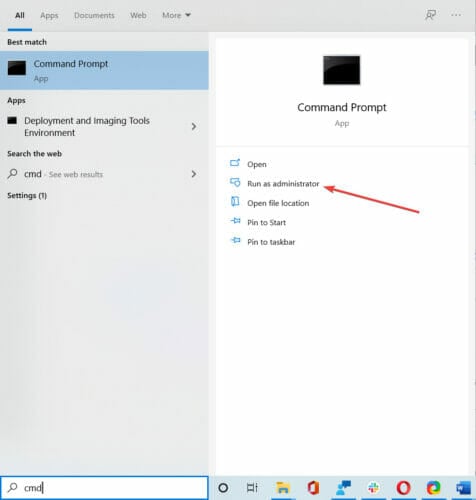
  2. Enter the following line and press Enter: sfc/scannow
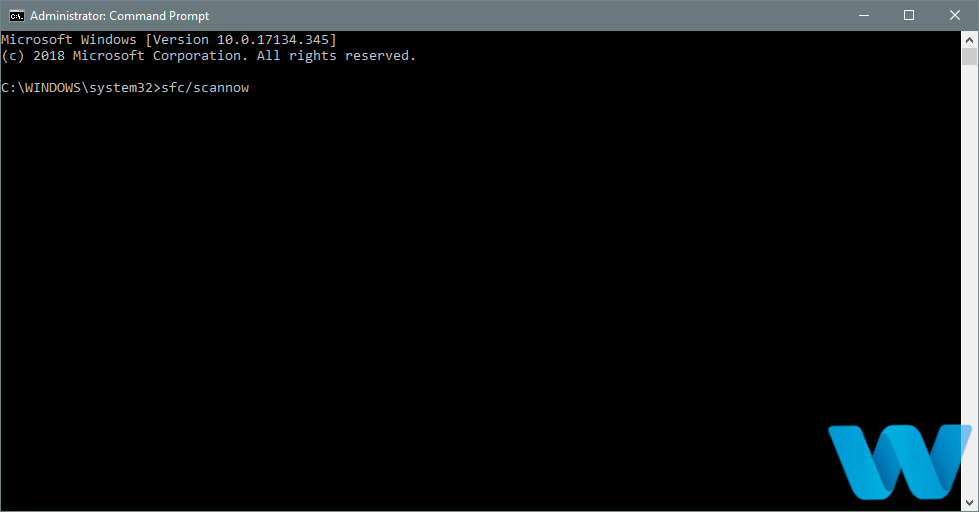
  3. Wait until the process is done (it may take a while).
  4. Now, close the Command Prompt and restart your computer.

The SFC scan is another troubleshooting tool we’re going to try here. You can run the SFC scan from the command line, and it also scans your computer for potential flaws and resolves them (if possible).

5. Run DISM

5.1. Standard way

  1. Right-click Start and open Command Prompt (Admin).
  2. Paste the following command and press Enter:
    • DISM /Online /Cleanup-Image /RestoreHealth
  3. Wait until the scan is finished.
  4. Restart your computer and try updating again.

And the third tool we’re going to run is DISM. Deployment Image Servicing and Management is a tool that reloads the system image, which tends to resolve potential issues.

So, it might be helpful when resolving the PHASE1 INITIALIZATION FAILED error, as well.

5.2. With the Windows installation media

  1. Insert your Windows installation media.
  2. Right-click the Start menu and, from the menu, choose the Command Prompt (Admin).
  3. In the command line, type the following commands and press Enter after each:
    • dism /online /cleanup-image /scanhealth
    • dism /online /cleanup-image /restorehealth
  4. Now, type the following command and press Enter:
    • DISM /Online /Cleanup-Image /RestoreHealth /source:WIM:X:SourcesInstall.wim:1 /LimitAccess
  5. Make sure to change an X value with the letter of the mounted drive with Windows 10 installation.
  6. After the procedure is finished, restart your computer.

6. Check the hard drive

  1. Enter the Advanced Startup (Restart your computer while holding the Shift key).
  2. Choose Troubleshoot, select Advanced Options.
  3. Select Command Prompt from the list of options.
  4. When Command Prompt appears, enter the following lines and press Enter after each line in order to run it:
    • bootrec.exe /rebuildbcd
    • bootrec.exe /fixmbr
    • bootrec.exe /fixboot
  5. Some users are also suggesting that you need to run additional chkdsk commands as well. To perform these commands, you need to know drive letters for all your hard drive partitions. In Command Prompt you should enter the following (but remember to use the letters that match your hard drive partitions on your PC):
    • chkdsk /r c:
    • chkdsk /r d:

      This is just our example, so keep in mind that you have to perform chkdsk command for every hard drive partition that you have.

  6. Restart your computer and check if the issue is resolved.

If there’s a problem with your hard drive or partitions, BSOD errors are quite possible. So, we’re going to run a test to see if everything is in its place.

7. Copy Catroot, Catroot2 and CodeIntegrity folders from a working PC

According to the users, PHASE1 INITIALIZATION FAILED BSoD error sometimes appears due to corrupted Catroot, Catroot2, and CodeIntegrity folders.

In order to fix this issue, users are suggesting copying these folders from a working computer and replace them. Before copying these files, make sure that both versions of Windows 10 are identical.

For example, if you’re using a 32-bit version of Windows 10, make sure to copy these folders from another computer that runs a 32-bit version of Windows 10.

8. Temporarily uninstall your antivirus software

In many cases your antivirus can be responsible for the stop code PHASE1 INITIALIZATION FAILED error and in order to fix it, it’s advised that you remove your antivirus software completely.

Removing your antivirus software is relatively simple, but to remove antivirus software completely including all the remaining files and registry keys it’s advised to use dedicated uninstaller tools.

Many antivirus companies offer these tools, and you can download them for free. If uninstalling your antivirus fixes this problem, you can install the latest version of your current antivirus software.

9. Check for problematic software

In some cases, your software can cause this error to appear, especially if you use VPN tools or any similar programs.

If you recently installed or updated certain software, uninstall that software in order to fix this Blue Screen of Death problem.

One of the most efficient methods that allow you to find out exactly what program is causing the Blue Screen of Death error is to access the BSoD file log location.

10. Perform System Restore or reset your PC

  1. Start the Automatic Repair process by restarting your computer while it boots. (You might have to repeat this step a few times before you access Automatic Repair options.)
  2. Choose Troubleshoot, select Advanced Options, click System Restore.
  3. Choose the restore point and follow the instructions.

If the problem is caused by problematic software or a driver, you can fix the PHASE1 INITIALIZATION FAILED BSoD error by performing a System Restore.

  1. Start Automatic Repair.
  2. Choose Troubleshoot then Reset your PC.
  3. Select Remove everything, choose Only the drive where Windows 10 is installed.
  4. Follow the process and wait for Windows 10 to install again.

If the System Restore didn’t fix the problem, you need to reset your PC. Before we start, we urge you to back up all your important files since this process will remove all files and folders from your C drive.

By performing this process you successfully deleted all files and folders from drive C thus removing any potential software problems.

If the error PHASE1 INITIALIZATION FAILED still appears, it’s most likely that it’s being caused by a hardware problem.

11. Check your hardware

If you recently installed any new hardware, make sure to replace it or remove it since it might not be fully compatible with your PC.

If no new hardware is installed, make sure to check your hard drive and RAM since they are the most likely causes of PHASE1 INITIALIZATION FAILED errors.

To check your RAM you can use tools such as MemTest86+, just make sure to keep the tool running for a couple of hours in order to perform a thorough scan.

If your RAM is working properly, the error is probably caused by another component. Users reported that your hard drive can also cause this error, so make sure to replace it.

You can also check out other solutions that can help you when it comes to the BSoD error, so take a look at these quick fixes for Black Screen of Death on Windows 10.

PHASE1 INITIALIZATION FAILED error can be problematic, especially if it’s caused by faulty hardware. We hope that some of our solutions were helpful to you and that you managed to fix this error.

We also strongly advise you to try a high-quality dedicated tool for fixing this type of error. See what apps we’re recommending, in this article on the best software for fixing BSOD errors.

See what are the most common factors that generate the Blue Screen of Death errors in this excellent article that explores all the causes for the BSoD on your Windows 10.

We’d like to hear more on this subject from you so please drop us a comment in the dedicated section below.

FIX: CONFIG INITIALIZATION FAILED error in Windows 10/11

Blue Screen of Death errors can be caused by faulty hardware or incompatible software, and sometimes it’s difficult to pinpoint the exact problem.

Since these errors will crash Windows 10 and restart your computer frequently, it’s important that you fix them, therefore today we’re going to show you how to fix CONFIG INITIALIZATION FAILED error.

It is important that you follow the steps thoroughly, so make sure you do that since we will be using the Command Prompt and other methods.

How can I fix CONFIG INITIALIZATION FAILED BSoD error?

  1. Use a system restoration tool
  2. Update Windows 10
  3. Update your drivers
  4. Run the BSOD Troubleshooter
  5. Run the SFC scan
  6. Run the DISM scan
  7. Check the hard drive
  8. Disable caching on your motherboard
  9. Update your SSD firmware
  10. Check for problematic software
  11. Check for problematic hardware

1. Use a system restoration tool

Manually finding out the root of the problem and trying to solve it is not the best and most reliable way to fix such problems. Moreover, it can be quite confusing for those who don’t have the necessary knowledge.

Therefore, we suggest installing specialized software that will scan your computer for you and download all the necessary files to repair it and bring it back to perfect condition.

2. Update your Windows

  1. In the Windows search bar, search for Settings.
  2. Go to Update & Security.
  3. Then, click on Windows Update.
  4. Afterward, select Check for updates.
  5. Let Windows download all the necessary updates.

In order to avoid BSoD errors it’s crucial that you download and install Windows updates.

Certain hardware or software might have issues with Windows 10, and since hardware and software issues can create these types of errors, it’s extremely important that you update Windows 10 as often as you can.

In addition to many bug fixes, these updates bring improved stability, security as well as new features.

3. Update your drivers

  1. Press Windows Key + X to open Power User Menu and select Device Manager from the list.
    device-manager
  2. When Device Manager opens, locate the driver you wish to update, right click it and choose Update Driver Software.
    update-driver-software
  3. Select Search automatically for updated driver software.
    • By choosing this option Windows 10 will automatically search and download the best driver for your device.
      browse-my-for-driver-software

Another common cause for BSoD errors can be your drivers. Drivers allow Windows 10 to recognize and use certain hardware.

And if particular driver is outdated or not compatible with Windows 10, you will most likely get CONFIG INITIALIZATION FAILED error.

In order to make sure that your system is stable and free from BSoD errors, be sure to update your drivers frequently.

To update a certain driver you just need to visit your hardware manufacturer’s website and download the latest drivers for your device.

Alternatively, you can download all the necessary drivers by using the Device Manager.

Some users claim that using Device Manager to update your drivers isn’t as effective as downloading them directly from the manufacturer’s website.

Device Manager sometimes won’t be able to download the latest drivers, so if you wish to have the latest drivers, you might have to search and download them manually.

Update drivers automatically

Searching for drivers on your own can be time-consuming. And relying on the Device Manager is not a good idea, so we advise you to use a tool that will do this for you automatically.

Using an automatic driver updater will certainly save you from the hassle of searching for drivers manually, and it will always keep your system up to date with the latest drivers.

⇒ Get Outbyte Driver Updater

4. Run the BSOD Troubleshooter 

  1. Go to the Settings app.
  2. Head over to the Update & Security section, and select Troubleshoot from the menu on the left.
  3. Select BSOD from the right pane and click Run the troubleshooter.Troubleshooting BSoD
  4. Follow further on-screen instructions to complete the process.

Now, let’s turn to troubleshooting tools. The very first troubleshooter we’re going to try is Windows 10’s built-in BSOD troubleshooter.

Hopefully, this tool can deal with the CONFIG INITIALIZATION FAILED error, as well.

5. Run the SFC scan

  1. Go to Search, type cmd, and open Command Prompt as an administrator.
  2. Enter the following line and press Enter: sfc/scannow
  3. Wait until the process finishes (it’s a long one).
  4. If the tool finds a corrupt system file, it will automatically repair it.
  5. Now, close the Command Prompt and restart your computer.

Another troubleshooting tool we’re going to try here is the SFC scan. The system file checker is a command-line tool that basically scans through your system searching for potential issues.

If a corrupted system file is a problem, this tool will automatically repair it, and the problem will be resolved.

6. Run the DISM scan

  1. Right-click Start and open Command Prompt (Admin).
  2. Paste the following command and press Enter: DISM/Online/Cleanup-Image/RestoreHealth
  3. Wait until the scan is finished.
  4. Restart your computer and try updating again.

And the third troubleshooter we’re going to try here is DISM. This tool re-deploys the system image, and resolves potential issues along the way.

So, it’s possible that running DISM will also resolve the CONFIG INITIALIZATION FAILED error.

You can do this the standard way, as we showed you above, or using the procedure that utilizes the installation media below

With the Windows installation media

  1. First, insert your Windows installation media.
  2. Use the Windows search Bar and type in Command Prompt.
  3. Right click on Command Prompt and start it as an admin.
  4. In the command line, type the following commands and press Enter after each: dism/online/cleanup-image/scanhealth dism/online/cleanup-image/restorehealth
  5. Now, type the following command and press Enter: DISM/Online/Cleanup-Image/RestoreHealth/source:WIM:X:SourcesInstall.wim:1/LimitAccess
  6. Make sure to change an X value with the letter of the mounted drive with Windows 10 installation.
  7. After the procedure is finished, restart your computer.

7. Check the hard drive

  1. Enter the Advanced Startup (Restart your computer while holding the Shift key).
  2. Choose Troubleshoot > Advanced Options.
  3. Select Command Prompt from the list of options.
  4. When Command Prompt appears, enter the following lines and press Enter after each line in order to run it: bootrec.exe /rebuildbcd bootrec.exe/fixmbr bootrec.exe /fixbootINVALID SOFTWARE INTERRUPT Windows 10 error
  5. Some users are also suggesting that you need to run additional chkdsk commands as well.
    • To perform these commands, you need to know drive letters for all your hard drive partitions.
    • In Command Prompt you should enter the following (but remember to use the letters that match your hard drive partitions on your PC): chkdsk/r c: chkdsk/r d:INVALID SOFTWARE INTERRUPT Windows 10 error
    • This is just our example, so keep in mind that you have to perform chkdsk command for every hard drive partition that you have.
  6. Restart your computer afterward.

A broken hard drive is alarming. And the first warning messages come in the form of BSOD issues. So, go and check the current state of your hard drive.

To do that, you should run the chkdsk command. This command will scan your partitions, and apply solutions, if possible.

8. Disable caching on your motherboard

A Few users reported that disabling the caching on the motherboard has fixed the REFMON INITIALIZATION FAILED Blue Screen of Death error.

You can disable caching from BIOS, but for detailed instructions on how to do it, be sure to check your motherboard manual.

Since every motherboard is different, so is its interface. Make sure you find out your motherboard’s model and look for your instructions manual that came in its box. There, you’ll most likely find all the information you need.

9. Update your SSD firmware

If you’re using an SSD, be sure to update your firmware. Few users reported that they managed to fix the issue by updating their SSD firmware, so you can try that.

It’s worth mentioning that updating your firmware might delete all files from that SSD, so keep that in mind.

Updating SSD firmware is an advanced procedure, and if you don’t perform it carefully you can cause permanent damage to your SSD, therefore be extra careful while updating firmware.

10. Check for problematic software

Sometimes certain software can cause CONFIG INITIALIZATION FAILED BSoD error to appear.

Almost any installed software can cause this error, and if you installed any new software recently be sure to remove it.

A common cause for BSoD errors can be your antivirus software, therefore you might want to remove it in order to fix this error.

It’s worth mentioning that almost any antivirus program can cause this error, so be sure to remove any antivirus tool that you have installed.

If removing the antivirus fixed the problem, you can now download the latest version of the same tool, or you can switch to a different antivirus software.

If you’re looking for an alternative, we wrote about best antivirus programs for Windows 10, so be sure to check them out.

If you cannot access Windows 10 at all due to CONFIG INITIALIZATION FAILED error, you can try removing the problematic applications from Safe Mode.

To access Safe Mode, do the following:

  1. Restart your computer a few times while it boots to start Automatic Repair.
  2. Choose Troubleshoot > Advanced Options > Startup Settings. Click the Restart button.
  3. When your computer restarts again, you’ll see a list of options. Select Safe Mode with Networking.

When you enter Safe Mode, try finding and removing the problematic application that is causing the BSoD error.

Bear in mind that if your computer is working without any problems in Safe Mode, the BSoD error is probably caused by a certain application or a driver, so you need to find it and remove it.

In order to completely remove certain antivirus, it’s advised to use a dedicated uninstaller. Many security companies offer removal tools for their software, so be sure to download one for your antivirus program.

Uninstaller software is meant to swiftly delete any undesirable program along with its associated files, resulting in a safe, fast, and light PC.

Logged applications, folders, registries, and any other leftovers will be checked and displayed at a glance, allowing you to swiftly wipe up any leftovers. For stubborn software, such as antivirus, you can also use force removal to start over fresh.

11. Check for problematic hardware

BSoD errors such as CONFIG INITIALIZATION FAILED can be caused by new hardware, and if you installed any new hardware recently be sure to remove it or replace it.

Sometimes certain hardware isn’t fully compatible with your PC and that can cause BSoD error.

In addition to new hardware, faulty hardware can also cause these types of errors. RAM is the common cause for these types of errors, so be sure to test your RAM with tools such as MemTest86+.

Remember to keep testing your RAM for couple of hours in order to perform a thorough scan.

If your RAM is working properly, check other hardware such as your motherboard, hard drive, graphics card, and processor.


CONFIG INITIALIZATION FAILED error can be problematic, but hopefully, you managed to fix it by using one of our solutions. Either way, make sure you let us know how things went in the comment section below.

NO MORE SYSTEM PTES error in Windows 10/11 [Safe FIX]

Blue Screen of Death errors are one of the most problematic errors on Windows 10. These types of errors are often caused by a certain software or in the worst-case scenario faulty hardware.

BSOD errors can be a big problem, so today we’re going to show you how to fix the NO_MORE_SYSTEM_PTES BSoD error.

How do I fix NO MORE SYSTEM PTES BSoD error on Windows 10?

  1. Make sure your drivers and Windows 10 are up to date
  2. Run the BSOD Troubleshooter
  3. Run the SFC scan
  4. Run DISM
  5. Use System Restore or reset Windows 10
  6. Check the hard drive
  7. Uninstall problematic software and your antivirus
  8. Uninstall any recently installed software
  9. Check your hardware

1. Make sure your drivers and Windows 10 are up to date

1.1 Update the drivers manually

  1. Open Power User Menu by pressing Windows Key + X and select Device Manager from the list.
    device-manager
  2. Locate the driver you wish to update, right-click it and choose Update Driver Software.
    update-driver-software
  3. Select Search automatically for updated driver software. Windows 10 will download all the necessary drivers for this device.
    browse-my-for-driver-software
  4. Repeat these steps for all the drivers you wish to update.

As previously mentioned, many BSoD errors can be caused by a software issue or incompatible hardware.

In order to eliminate most of the hardware and software issues, we advise you to regularly perform Windows update.

Microsoft is constantly releasing new updates for Windows 10, and many of these updates offer bug fixes for many software and hardware issues.

In order to make sure that Windows 10 is running without any incompatibility issues, be sure to download Windows updates regularly.

Downloading updates is rather important, but it’s crucial to keep your drivers up to date as well.

Certain hardware isn’t fully compatible with Windows 10, and this is why it’s mandatory to update your drivers.

Updating drivers is relatively simple, and in order to update a specific driver, you just need to visit your hardware manufacturer’s website and download the drivers for your device.

Alternatively, you can download the necessary drivers by using Device Manager. To update your drivers with Device Manager follow the steps above.

If you have a CD with drivers that you got along with your hardware, you can also use it if you haven’t installed any recent drivers.

Drivers on your CD might be outdated a bit, but they might work better than the default Windows 10 drivers.

1.2 Update drivers automatically

Searching for drivers on your own can be time-consuming. So, we advise you to use a tool that will do this for you automatically.

Using an automatic driver updater will certainly save you from the hassle of searching for drivers manually, and it will always keep your system up to date with the latest drivers.

The solution recommended below will help you update drivers automatically and prevent PC damage caused by installing the wrong driver versions. 

After several tests, our team concluded that this is the best-automatized solution.

⇒ Get Outbyte Driver Updater

2. Run the BSoD troubleshooter

  1. Open the Settings app and go to Update & Security section.
  2. Select Troubleshoot from the menu on the left.
  3. Select BSoD from the right pane and click Run the troubleshooter.NO MORE SYSTEM PTES Windows 10 error
  4. Follow the instructions on the screen to complete the troubleshooter.

If updating your drivers didn’t resolve the problem, we’re going to use Windows 10’s troubleshooting tools.

The first tool we’re going to use is the built-in troubleshooter that can be found in the Settings app.

You can use this tool to resolve all sorts of issues within the system, including BSoDs.

3. Run the SFC scan

  1. Right-click on the Start Menu button, and open Command Prompt (Admin).
  2. Enter the following line and press Enter: sfc/scannowNO MORE SYSTEM PTES Windows 10 error
  3. Wait until the process is done (it may take a while).
  4. If the solution is found, it will automatically be applied.
  5. Now, close the Command Prompt and restart your computer.

The next troubleshooter we’re going to try is the SFC scan. This tool scans your system for potential issues and resolves them.

If the solution is possible, of course. The SFC scan can be helpful when resolving BSOD problems, as well.

4. Run DISM

4.1 Run DISM the standard way

  1. Type cmd in the search windows and click on Run as administrator to start Command Prompt with full privileges.
  2. Paste the following command and press Enter: DISM /Online /Cleanup-Image /RestoreHealthNO MORE SYSTEM PTES Windows 10 error
  3. Wait until the scan is finished.
  4. Restart your computer and try updating again.

4.2 Run DISM using the Windows installation media

  1. Insert your Windows installation media.
  2. Start Command Prompt as administrator as shown in the previous solution.
  3. In the command line, type the following commands and press Enter after each:
    • dism /online /cleanup-image /scanhealth
    • dism /online /cleanup-image /restorehealth
  4. Now, type the following command and press Enter:
    • DISM /Online /Cleanup-Image /RestoreHealth /source:WIM:X:SourcesInstall.wim:1 /LimitAccess
  5. Make sure to change an X value with the letter of the mounted drive with Windows 10 installation.
  6. After the procedure is finished, restart your computer.

And the third troubleshooter we’re going to use is DISM. Deployment Image Servicing and Management (DISM) is a powerful tool that reloads the system image.

So, it can also resolve potential BSOD errors. We offered you both standard and the procedure that utilizes the installation media above.

5. Use System Restore or reset Windows 10

5.1 Perform a System Restore

  1. Restart your computer a couple times while it boots. This should start Automatic Repair.
  2. Select Troubleshoot, select Advanced options, and click on System Restore.
  3. Select your username and enter your password and choose the restore point.
  4. Follow the steps carefully to complete the process.

If the issue is caused by certain software, you can easily fix it by using System Restore. To use System Restore, perform the steps above.

If the System Restore didn’t fix the NO_MORE_SYSTEM_PTES BSoD error, you might have to reset Windows 10.

Bear in mind that this process will delete all files and folders from your C drive, so be sure to back them up.

5.2 Reset your PC

  1. Start Automatic Repair by restarting your PC while it boots.
  2. Choose Troubleshoot and select Reset this PC.
  3. Select Remove everything and click on Only the drive where Windows is installed.
  4. Wait for the reset process to complete.

If the problem still persists, the NO_MORE_SYSTEM_PTES BSoD is most likely caused by a hardware problem.

5.3 Use a dedicated solution

All these solutions worked for some users so you should definitely try them but you can also fix this BSoD error by using a dedicated, third-party solution.

This tool recommended below is light, and fast and it only needs a couple of clicks to fix any Windows 10 error, including BSoD like the NO MORE SYSTEM PTES error.

More so, an efficient method to resolve corrupted systems is with dedicated tools that are capable of repairing serious screen errors on your PC.

Plus, with repositories of millions of files, these tools will surely fix malfunctioning or missing software files and stop BSOD issues effectively.

6. Check the hard drive

  1. Enter the Advanced Startup (Restart your computer while holding the Shift key).
  2. Choose Troubleshoot and click on Advanced Options.
  3. Select Command Prompt from the list of options.
  4. When Command Prompt appears, enter the following lines and press Enter after each line in order to run it:
    • bootrec.exe /rebuildbcdNO MORE SYSTEM PTES Windows 10 error
    • bootrec.exe /fixmbr
    • bootrec.exe /fixboot
  5. Some users are also suggesting that you need to run additional chkdsk commands as well. To perform these commands, you need to know drive letters for all your hard drive partitions. In Command Prompt you should enter the following (but remember to use the letters that match your hard drive partitions on your PC):
    • chkdsk /r c:NO MORE SYSTEM PTES Windows 10 error
    • chkdsk /r d:

      This is just our example, so keep in mind that you have to perform chkdsk command for every hard drive partition that you have.

  6. Restart your computer and check if the issue is resolved.

Unfortunately, the hard drive can be the main culprit for this error so make sure you check it by using the chkdsk command as shown above.

If the hard drive is malfunctioning, check our list with the best hard drives for Windows 10.

7. Uninstall problematic software and your antivirus

  1. Press Windows + X and choose the Device Manager.
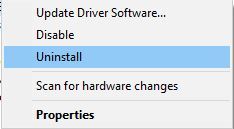
  2. When Device Manager opens, locate your graphic card, right-click it and choose Uninstall.
    uninstall-driver
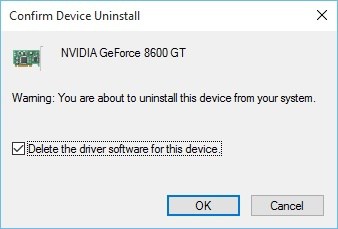
  3. Check Delete the driver software for this device and click OK.
    confirm-uninstall-driver
  4. Restart your PC.

NO_MORE_SYSTEM_PTES error can be caused by problematic software, therefore it’s recommended to locate and uninstall the software.

Common causes for this error are graphics card drivers and backup programs, so if you have any backup programs installed, be sure to uninstall them.

Regarding the graphic card drivers, you can uninstall them by following the steps above.

After you uninstalled the driver, you need to download it again. If you had the latest version of the driver installed, be sure to download and install an older version this time.

In addition to backup software and display drivers, sometimes your antivirus software can cause NO_MORE_SYSTEM_PTES error, so it’s recommended that you uninstall it.

Almost any antivirus program can cause this error to appear, so be sure to uninstall all antivirus software from your computer.

If you’re worried about your computer safety, you should know that Windows 10 comes with Windows Defender antivirus software, so your computer won’t be completely vulnerable.

Bear in mind that uninstalling your antivirus software isn’t always enough since there might be some registry keys or files left after the uninstallation process.

Therefore it’s always recommended to use dedicated uninstaller tools. Many security software companies offer these tools for their software, so be sure to use one of these tools to completely remove antivirus software.

⇒ Get IObit Uninstaller

8. Uninstall any recently installed software

  1. Restart your computer while it boots. Repeat this until the Automatic Repair process starts.
  2. Select Troubleshoot, select Advanced options, click on Startup Settings, and then on Restart.
  3. When your computer restarts, you’ll see a list of options. Select Safe Mode with Networking by pressing 5 or F5.

Sometimes NO_MORE_SYSTEM_PTES BSoD is caused by a recently installed software, so in order to fix it, you need to remove any software you installed in the last couple of days or weeks.

To check if the BSOD error is caused by software, you can always use the Windows 10 Safe Mode.

This mode starts with only the necessary software and drivers, and if the problem is caused by certain software, your computer should work without any problems in Safe Mode.

Once you enter Safe Mode, check if your computer works without any issues. If everything is in order, you might want to uninstall certain software or drivers and check if that fixes the issue.

9. Check your hardware

Recently installed hardware can cause NO_MORE_SYSTEM_PTES error to manifest since the new hardware might not be fully compatible with your PC.

If so, try removing or replacing the newly installed hardware to see if your computer works without it.

If no new hardware is installed, your RAM or motherboard might be faulty, so you might want to replace them.

It’s worth mentioning that almost any hardware can cause this error, so you might need help from an expert to locate the faulty hardware.

NO_MORE_SYSTEM_PTES BSoD error is usually caused by software, and you can fix this problem easily by using one of our solutions.

If you have any other suggestions or solutions in mind, don’t hesitate to leave them in the comments section below.

Fix NO EXCEPTION HANDLING SUPPORT [0x0000000B]

Blue Screens of Death errors are probably one of the most serious errors that you can encounter on Windows 10.

These errors can create many problems, so today we’re going to show you how to fix NO_EXCEPTION_HANDLING_SUPPORT error.

How do I fix NO_EXCEPTION_HANDLING_SUPPORT BSoD error?

  1. >Use a third-party BSoD tool
  2. Install the latest Windows 10 updates
  3. Install the latest drivers
  4. Run the BSOD Troubleshooter
  5. Run the SFC scan
  6. Run DISM
  7. Check the hard drive
  8. Remove the problematic applications
  9. Remove overclock settings
  10. Update your BIOS
  11. Check for faulty hardware

1. Use a third-party BSoD tool

Since you’re unsure of the probable cause for this stop error, you might as well log into Safe Mode and download a BSoD troubleshooter.

It will quickly detect the problem and fix it, saving you a lot of time and trouble.

2. Install the latest Windows 10 updates

Hardware or software issues can cause Blue Screen of Death errors to appear, therefore it’s important to fix these issues as soon as possible.

To fix both hardware and software issues, it’s recommended to use Windows Update and download the latest patches for Windows 10.

Microsoft is constantly improving Windows 10 by releasing new patches frequently.

Many of these patches bring bug fixes related to both hardware and software, but there are also various security improvements.

If you want to keep your PC stable and safe from errors, we strongly suggest that you download the latest patches frequently.

3. Install the latest drivers

  1. Press Windows Key + X on your keyboard to open Power User Menu. Select Device Manager from the list.
    no-exception-handling-support-manager
  2. When Device Manager opens locate the device that you want to update, right-click it and choose Update Driver Software.
    no-exception-handling-support-update-driver-software
  3. Select Search automatically for updated driver software and wait for Windows 10 to download the appropriate driver.
    no-exception-handling-support-driver-software
  4. Repeat the same steps for all drivers that you want to update.

As you can see, updating your drivers with Device Manager is pretty straightforward, but bear in mind that Device Manager doesn’t always download the latest drivers.

If you want to have the latest drivers installed, we strongly suggest that you download the necessary drivers manually.

Downloading drivers manually is relatively simple and all that you need to do is to visit your hardware manufacturer’s website and download the latest drivers for your device.

Bear in mind that you might have to update all your drivers in order to fix this problem.

Update drivers automatically

Searching for drivers on your own can be time-consuming. So, we advise you to use a tool that will do this for you automatically.

Using an automatic driver updater will certainly save you from the hassle of searching for drivers manually, and it will always keep your system up to date with the latest drivers.

On that note, we strongly recommend Outbyte Driver Updater.  This is an easy-to-use software that will not only scan your device for outdated or missing drivers.

It will also help to find the right one, depending on your device’s brand and specifications. All that with just two clicks.

4. Run the BSOD Troubleshooter 

  1. Open the Settings app.
  2. Head over to Update & Security section.
  3. Select Troubleshoot from the menu on the left.
  4. Select BSOD from the right pane and click Run the troubleshooter.NO EXCEPTION HANDLING SUPPORT Windows 10 error
  5. Follow further instructions to complete the troubleshooting process.

5. Run the SFC scan

  1. Go to Search, type cmd, and open the Command Prompt as Administrator.
  2. Enter the following line and press Enter: sfc/scannowNO EXCEPTION HANDLING SUPPORT Windows 10 error
  3. Wait for the scan to complete (it will take a while)
  4. The tool will automatically resolve the problem, if possible.
  5. Now, close the Command Prompt and restart your computer.

6. Run DISM

  • The standard way
  1. Right-click Start and open Command Prompt (Admin).
  2. Paste the following command and press Enter:
    • DISM /Online /Cleanup-Image /RestoreHealthNO EXCEPTION HANDLING SUPPORT Windows 10 error
  3. Wait until the scan is finished.
  4. Restart your computer and try updating again.
  • With the Windows installation media
  1. Insert your Windows installation media.
  2. Right-click the Start menu and, from the menu, choose the Command Prompt (Admin).
  3. In the command line, type the following commands and press Enter after each:
    • dism /online /cleanup-image /scanhealth
    • dism /online /cleanup-image /restorehealth
  4. Now, type the following command and press Enter:
    • DISM /Online /Cleanup-Image /RestoreHealth /source:WIM:X:SourcesInstall.wim:1 /LimitAccess
  5. Make sure to change an X value with the letter of the mounted drive with Windows 10 installation.
  6. After the procedure is finished, restart your computer.

7. Check the hard drive

  1. Enter the Advanced Startup (Restart your computer while holding the Shift key).
  2. Choose Troubleshoot > Advanced Options.
  3. Select Command Prompt from the list of options.
  4. When Command Prompt appears, enter the following lines and press Enter after each line in order to run it:
    • bootrec.exe /rebuildbcdNO EXCEPTION HANDLING SUPPORT Windows 10 error
    • bootrec.exe /fixmbr
    • bootrec.exe /fixboot
  5. Some users are also suggesting that you need to run additional chkdsk commands as well. To perform these commands, you need to know drive letters for all your hard drive partitions. In Command Prompt you should enter the following (but remember to use the letters that match your hard drive partitions on your PC):
    • chkdsk /r c:NO EXCEPTION HANDLING SUPPORT Windows 10 error
    • chkdsk /r d:

      This is just our example, so keep in mind that you have to perform chkdsk command for every hard drive partition that you have.

  6. Restart your computer and check if the issue is resolved.

8. Remove the problematic applications

Third-party applications can cause NO_EXCEPTION_HANDLING_SUPPORT and other BSoD errors to appear, therefore if you installed or updated any applications recently we urge you to remove them.

One common cause of BSoD errors can be your antivirus software or firewall. According to users, almost any antivirus can cause this error to appear, and in order to fix this problem, we strongly suggest that you remove all third-party antivirus programs from your PC.

In addition to uninstalling the antivirus, it’s also recommended that you use a dedicated removal tool to remove all files and registry entries associated with your antivirus.

Most antivirus companies have dedicated removal tools available for download, so be sure to download one for your antivirus program.

9. Remove overclock settings

By overclocking your PC, you’ll get improved performance but bear in mind that overclocking can cause certain issues.

If your overclock isn’t stable, your PC will crash and give you the NO_EXCEPTION_HANDLING_SUPPORT error.

To fix this error, we strongly suggest that you remove all overclock settings and check if your PC works well without them.

10. Update your BIOS

update your bios

Sometimes certain hardware isn’t fully compatible with your motherboard, and that can cause the Blue Screen of Death error to appear.

To fix this issue, and to unlock new features of your motherboard maybe you should update your BIOS.

Updating BIOS is somewhat an advanced procedure, therefore we advise you to be extra cautious if you want to avoid causing permanent damage.

To see how to properly update your BIOS, we suggest that you check your motherboard manual for detailed instructions.

11. Check for faulty hardware

NO_EXCEPTION_HANDLING_SUPPORT and other Blue Screen of Death errors can be caused by faulty hardware, therefore we suggest that you check if your hardware is working properly.

Users reported that issues with RAM and motherboard can cause this error to appear, therefore be sure to check those components first.

Few users reported that they managed to fix this issue on their HP laptop by removing the wireless mouse, so you might want to try that as well.

NO_EXCEPTION_HANDLING_SUPPORT BSoD error is usually caused by your hardware, but before you check your hardware, we advise you to try all other solutions from this article.

FULL FIX: MULTIPLE_IRP_COMPLETE_REQUESTS in Windows 10/11

Windows 10 is a complex operating system – serving millions of PCs all around the world and running on thousands of different hardware combinations.

Unfortunately, this complexity also means there are bound to be errors due to various reasons that can be hard to diagnose.

One of such problems is the MULTIPLE_IRP_COMPLETE_REQUESTS Blue Screen of Death error.

A BSoD happens as the last resort – when the OS does not know what else to do, it decides to simply crash and inform the user of the problem.

This error can be caused due to various reasons, it could be anything from bad drivers to a faulty hard disk, so diagnosing it isn’t simple.

We can, however, give a shot at the most common solutions and see if they work.

The stop code MULTIPLE_IRP_COMPLETE_REQUESTS can be quite problematic. Speaking of these kinds of errors, here are some similar issues that users reported:

  • MULTIPLE_IRP_COMPLETE_REQUESTS Blue Screen of Death – This is a blue screen error, and if you encounter it, you should be able to fix it by using one of our solutions.
  • MULTIPLE_IRP_COMPLETE_REQUESTS ntoskrnl.exe, classpnp.sys, wdf01000.sys, hal.dll, usbport.sys, acpi.sys, ntfs.sys, nvlddmkm.sys – Sometimes a specific file can cause this error to occur. To fix this issue, you need to do a bit of research and find out how is this file related to your hardware or software. Once you find the problematic hardware or software, the issue should be resolved.
  • MULTIPLE_IRP_COMPLETE_REQUESTS Windows 10, Windows Server 2003, Windows Server 2008 r2 – This error can occur on other versions of Windows, but even if you don’t use Windows 10, you should be able to apply some of our solutions to it.

How can I fix MULTIPLE_IRP_COMPLETE_REQUESTS error?

1. Use a dedicated software to fix the BSoD

You need to address any BSoD seriously and immediately as they can also lead to hardware failure. Don’t worry because we offer a lot of good solutions below and we will get to the bottom of this.

However, before trying the solutions below, you should try a quicker and easier one that involves using a third-party specialized solution to fix BSOD issues.

2. Check your antivirus

In some cases, your antivirus can cause MULTIPLE_IRP_COMPLETE_REQUESTS error to appear, and in order to fix it, it’s advised to check your antivirus settings.

Sometimes certain features of your antivirus can cause this problem to appear, and in order to fix the issue, you just need to disable those features.

If disabling these features doesn’t help, you might have to completely disable your antivirus.

In some cases, you might even have to completely remove your antivirus and check if that solves the problem.

If disabling the antivirus didn’t fix your issue, your next step would be to completely remove your antivirus.

Keep in mind that Windows 10 has Windows Defender as its default antivirus, so even if you remove your antivirus, you’ll still have some form of basic protection.

Once you remove your antivirus, check if the problem is still there. If not, you should perhaps consider switching to a different antivirus solution.

3. Update your drivers

Another cause for MULTIPLE_IRP_COMPLETE_REQUESTS can be your drivers. Sometimes this issue can be caused by outdated drivers, and a way to solve the problem is to update the main drivers on your PC.

This usually includes your graphics card, network, and chipset drivers. To do so, just visit your hardware manufacturer’s website and download the latest drivers for your device.

Doing this manually can be a bit tedious since you need to download each driver manually.

However, you can use a dedicated tool to update all your drivers with just a couple of clicks in just a few seconds.

This kind of tool will automatically update your drivers for you, so you won’t have to search for them manually. Once your drivers are up to date, check if the problem is still there.

4. Perform SFC and DISM scans

4.1 Perform a SFC scan

  1. Start Command Prompt as an administrator. To do that, just type cmd in Windows search and click on Run as administrator below the results.
  2. Now run the sfc /scannow command.
    Multiple_irp_complete_requests blue screen of death
  3. The System File Checker scan will start. This scan can take about 15 minutes, so don’t interfere with it.

After the scan is completed, check if the problem is still there. If the problem is still there, or if you weren’t able to run the SFC scan at all, we suggest you try DISM scan.

4.2 Perform a DISM scan

  1. Open Command Prompt as an administrator.
  2. Now enter the following command and press Enter to run it: DISM /Online /Cleanup-Image /RestoreHealth
    Multiple_irp_complete_requests classpnp.sys
  3. DISM scan will now start. Keep in mind that this scan can take about 20 minutes, so don’t interfere with it.

According to users, sometimes corrupted system files can cause this issue to appear. However, you can fix the issue simply by performing an SFC scan. To do that, just follow the steps above.

After both scans are finished, check if the problem is still there.

5. Run CHKDSK to fix this problem

  1. Open Command Prompt as administrator. To see how to do that properly, check our previous solution.
  2. When Command Prompt opens, enter the following command and press Enter (Replace the X with the letter that represents your system drive. In most cases that would be C): chkdsk /f :X
    Multiple_irp_complete_requests Windows 10
  3. You’ll be asked to schedule a scan, so press Y to do so.

Using CHKDSK to fix this error is another way as it can easily fix many types of errors including errors like KERNEL_DATA_INPAGE_ERROR in Windows 10.

After running the command, you have to restart your PC and let it scan your system drive. This process can take about 20-30 minutes, but after it’s finished the problem should be completely resolved.

6. Remove the problematic software

Sometimes third-party applications can interfere with your system and cause MULTIPLE_IRP_COMPLETE_REQUESTS error to appear.

According to users, applications such as LogMeIn Hamachi, AsRock, and EasyTune software can cause this issue to appear.

If you’re using any of these applications, we advise you to remove them and check if that solves the problem.

Although you can remove these applications using the Settings app, we strongly recommend using dedicated uninstaller software to remove them.

Uninstaller software is designed to completely remove all files and registry entries associated with the application you’re trying to remove.

As a result, the application will be removed in its entirety and there won’t be any leftover files available to interfere with your system.

Keep in mind that other applications can also cause this issue, so be sure to perform a detailed inspection of your system.

7. Reset your BIOS to the default

In some cases, your BIOS settings can cause a MULTIPLE_IRP_COMPLETE_REQUESTS error to appear.

This is usually caused by your settings, but you can fix the issue simply by resetting BIOS to the default.

This is quite simple to do, and you just need to enter BIOS and choose the option to load the default settings.

This procedure might differ depending on the version of BIOS you’re using.

So in order to see how to properly enter and reset BIOS to default, we suggest that you check your motherboard manual for detailed instructions.

8. Update your BIOS

Another way to fix the MULTIPLE_IRP_COMPLETE_REQUESTS error is to update your BIOS.

Before we start, we have to mention that BIOS update can be a risky procedure, so if you decide to update it, keep in mind that you’re doing that at your own risk.

We already wrote a short guide on how to flash your BIOS, but since this is just a general guide, we advise you to check your motherboard manual for detailed instructions on how to update your BIOS.

Be sure to carefully follow the instructions in the instruction manual in order to avoid causing permanent damage to your system. Once your BIOS is up to date, check if the problem is resolved.

These solutions should at the least help you figure out what is exactly going wrong with your Windows, and in some cases also be able to fix these issues.

We have solved errors and provided methods to fix NTFS_File_System Error on Windows 10 in the past so you can expect these solutions to work for you.

We hope that our guide helped you fix the MULTIPLE_IRP_COMPLETE_REQUESTS ntoskrnl.exe issue and if you have any suggestions, leave them in a comment below.

INVALID SOFTWARE INTERRUPT BSoD error on Windows 10/11 [Fix]

Computer errors are relatively common, and while certain errors are harmless, some errors, such as INVALID_SOFTWARE_INTERRUPT can cause major problems.

This error will crash Windows 10 and restart your PC, therefore it’s important that you know how to fix it. Thankfully, we included some great solutions in this article.

How do I fix INVALID SOFTWARE INTERRUPT BSoD error?

  1. Use a third-party BSoD fixer
  2. Run the BSOD Troubleshooter
  3. Download the latest Windows updates and update your drivers
  4. Run the SFC scan
  5. Run DISM
  6. Check the hard drive
  7. Remove your antivirus
  8. Perform clean boot and remove the problematic applications
  9. Reset Windows 10 and check your hardware

1. Use a third-party BSoD fixer

If you’re having trouble with your system files, and you keep getting BSoD errors that ruin your workflow, you can easily solve them by downloading a third-party BSoD fixer.

You won’t have to worry about diagnosing your PC and pinpointing the problem yourself. The software will scan your computer for you and make all the necessary changes to your files to restore them.

2. Run the BSOD Troubleshooter 

  1. Open the Settings app and go to the Update & Security section.
  2. Go to Troubleshoot.
  3. Select BSOD from the right pane and click Run the troubleshooter.INVALID SOFTWARE INTERRUPT Windows 10 error
  4. Follow the on-screen instructions to complete the process.

The next thing we’re going to try is running Windows 10‘s built-in troubleshooter.

This tool can be used for addressing all kinds of different problems, including BSOD issues. So, it could also resolve the INVALID_SOFTWARE_INTERRUPT error.

3. Download the latest Windows updates and update your drivers

  1. Press the Windows Key + S.
  2. Select Settings.
  3. Next, click on the Update & Security section.
  4. Choose Windows Update, then Check for updates.
  5. Now windows will automatically install any updates it finds.
  6. Let it run its course and follow any extra instructions.

Windows 10 has a few minor bugs and certain issues with some hardware and software, and sometimes these issues can cause Blue Screen of Death errors to appear.

To prevent errors such as INVALID_SOFTWARE_INTERRUPT from appearing, it’s recommended that you download the latest Windows 10 updates.

Windows updates offer new features, security improvements and various bug fixes, therefore it’s important that you download these updates if you want your PC to be safe, stable, and error-free.

In addition to downloading Windows updates, it’s just as important that you keep your drivers up to date. Outdated or buggy drivers cannot be used properly by your operating system.

In such cases you can encounter a BSoD error. To fix this problem, it’s highly recommended that you update your drivers.

Usually only one driver is causing this error, and with little research, you find the problematic driver and update it.

3.1 Update drivers automatically

Searching for drivers on your own can be time-consuming. So, we advise you to use a tool that will do this for you automatically. Using an automatic driver updater will certainly save you from the hassle of searching for drivers manually.

The software will always keep your system up to date with the latest drivers, so you won’t have to worry about driver-related problems or incompatibility issues.

⇒ Get Outbyte Driver Updater

4. Run the SFC scan

  1. Right-click on the Start Menu button, and open Command Prompt (Admin).
  2. Enter the following line and press Enter: sfc/scannowINVALID SOFTWARE INTERRUPT Windows 10 error
  3. Wait until the process is done (it may take a while).
  4. If the solution is found, it will automatically be applied.
  5. Now, close the Command Prompt and restart your computer.

The next troubleshooting tool we’re going to try is the SFC scan. This tool scans your computer through the Command Prompt for potential problems. If the solution is possible, the SFC scan will automatically resolve it.

5. Run DISM

  1. Right-click Start and open Command Prompt (Admin).
  2. Paste the following command and press Enter: DISM/Online/Cleanup-Image/RestoreHealthINVALID SOFTWARE INTERRUPT Windows 10 error
  3. Wait until the scan is finished.
  4. Restart your computer and try updating again.

Deployment Image Servicing and Management tool is another command-line troubleshooter.

But unlike the previous two, this one completely re-deploys the system image, which can lead to resolving various problems. Including the INVALID_SOFTWARE_INTERRUPT error (hopefully).

We walked you through both standard procedure above, and we’ll walk you though the procedure that utilizes the installation media below.

With the Windows installation media

  1. Insert your Windows installation media.
  2. Right-click the Start menu and, from the menu, choose the Command Prompt (Admin).
  3. In the command line, type the following commands and press Enter after each: dism/online/cleanup-image/scanhealth dism/online/cleanup-image/restorehealth
  4. Now, type the following command and press Enter: DISM/Online/Cleanup-Image/RestoreHealth/source:WIM:X:SourcesInstall.wim:1/LimitAccess
  5. Make sure to change an X value with the letter of the mounted drive with Windows 10 installation.
  6. After the procedure is finished, restart your computer.

6. Check the hard drive

  1. Enter the Advanced Startup (Restart your computer while holding the Shift key).
  2. Choose Troubleshoot > Advanced Options.
  3. Select Command Prompt from the list of options.
  4. When Command Prompt appears, enter the following lines and press Enter after each line in order to run it: bootrec.exe /rebuildbcd bootrec.exe/fixmbr bootrec.exe /fixbootINVALID SOFTWARE INTERRUPT Windows 10 error
  5. Some users are also suggesting that you need to run additional chkdsk commands as well.
    • To perform these commands, you need to know drive letters for all your hard drive partitions.
    • In Command Prompt you should enter the following (but remember to use the letters that match your hard drive partitions on your PC): chkdsk/r c: chkdsk/r d:INVALID SOFTWARE INTERRUPT Windows 10 error
    • This is just our example, so keep in mind that you have to perform chkdsk command for every hard drive partition that you have.
  6. Restart your computer afterward.

BSOD issues are quite common when there’s something wrong with your hard drive. So, we’re going to check your hard drive for potential problems.

To do that, you need to run the chkdsk command, which will scan all your partitions, and resolve potential problems, if possible.

7. Remove your antivirus

Although antivirus and firewall are important for your computer’s safety, sometimes antivirus programs can cause INVALID_SOFTWARE_INTERRUPT and other Blue Screen of Death errors to appear.

To fix this problem, it’s advised that you remove your currently installed antivirus program and check if that fixes the error.

Users reported that Avira antivirus was causing this error, but bear in mind that almost any antivirus program can cause this issue to appear, therefore we advise you to remove all third-party antivirus programs from your PC.

We have to mention that uninstalling your antivirus program might not fix this issue, therefore it’s recommended to use a dedicated removal tool.

Many antivirus programs tend to leave certain files and registry entries after you uninstall them, therefore it’s important to use a dedicated removal tool to remove all those files.

If you’re interesting in upgrading your current antivirus software, we suggest taking a look at our useful article containing the best choices on the market.

⇒ Get IObit Uninstaller

8. Perform a clean boot and remove the problematic applications

  1. Press Windows Key + R on your keyboard.
  2. Enter msconfig and press Enter.
    invalid-software-interrupt-msconfig
    • The System Configuration window will now open.
  3. Choose Selective startup and uncheck Load startup items.
    invalid-software-interrupt-windows-configuration
  4. Now go to the Services tab, check the Hide all Microsoft services and click the Disable all button.
    invalid-software-interrupt-services
  5. Click Apply and OK to save changes.
  6. Now open Task Manager by pressing Ctrl + Shift + Esc.
  7. When Task Manager opens go to Startup tab, right-click each entry on the list and choose Disable from the menu.
    invalid-software-interrupt-Task-manager-disable
  8. After disabling all startup applications restart your PC.

Third-party applications can cause Blue Screen of Death errors to appear, and in order to fix this issue, it’s recommended that you find and remove the problematic applications.

Users reported that Folder Lock was causing this error, and after removing it, the issue was completely fixed.

Bear in mind that almost any third-party application can cause this error, and in order to find the problematic application, we advise that you perform clean boot by following these steps:

After your PC restarts, check if the error appears again. If there are no BSoD errors, it means that one of disabled services or applications was causing this error.

Now you need to repeat the same steps, but this time be sure to enable services and applications one by one until you find the one that is causing this error.

9. Reset Windows 10 and check your hardware

  1. Restart your computer a few times during the boot sequence to start Automatic Repair.
  2. Choose Troubleshoot > Reset this PC > Remove everything.
    • You might get asked to insert Windows 10 installation media, so be prepared to do so.
  3. Select Only the drive where Windows is installed > Just remove my files and click the Reset button.
  4. Follow the instructions to complete the reset.

If you can’t find the software that is causing this issue, you might want to perform Windows 10 reset.

It’s worth mentioning that this procedure will delete all files from your C partition, therefore we strongly suggest that you back up your important files.

In addition to backing up your files, you might also want to create a bootable USB flash drive with Media Creation Tool in order to perform Windows 10 reset.

After the reset process is completed, test your PC for a while. Don’t install any applications or drivers, just wait and see if the error appears without any third-party software installed.

If the error appears again, it means that your hardware is most likely faulty, therefore we suggest that you perform a detailed inspection of your hardware.

The INVALID_SOFTWARE_INTERRUPT error is usually caused by third-party applications, and you can easily fix it by finding and removing the problematic application.

Make sure you try all these solutions out and tell us which one worked for you in the comment section below.

FIX: UNEXPECTED_KERNEL_MODE_TRAP_M error on Windows 10/11

Blue Screen of Death errors is one of the most serious errors that you can encounter on Windows 10.

Since these BSoD errors can be so problematic, it’s important to know how to fix them, and today we’re going to show you how to fix the UNEXPECTED_KERNEL_MODE_TRAP_M error.

Here are some more error codes that you can resolve with the solutions below:

  • UNEXPECTED_KERNEL_MODE_TRAP_M 1000007f – This is the main error that we are addressing in this article so check for the solutions below to fix it
  • Bugcheck code 0x1000007f – This is a variation of the same error in it can be solved with one of our solutions
  • Ntkrpamp exe unexpected_kernel_mode_trap – This error is caused by the ntkrpamp.exe module crashing but you will solve the problem with the solutions below
  • Windows error code 0x7f – It is the same error but it occurs when installing Windows
  • Unexpected_kernel_mode_trap parameters – The error has multiple parameters but you will solve it with our solutions regardless

How do I fix UNEXPECTED_KERNEL_MODE_TRAP_M error?

  1. Update your drivers
  2. Install the latest Windows 10 updates
  3. Use a third-party solution
  4. Remove your antivirus
  5. Remove problematic applications
  6. Reset Windows 10 and check your hardware

1. Update your drivers

  1. Press Windows Key + X on your keyboard to open Power User Menu. update driver. Select Device Manager from the list.
    unexpected-kernel-mode-trap-m-manager
  2. When Device Manager opens locate the driver you wish to update, right-click it and choose Update driver.
  3. Select Search automatically for updated driver software and wait for Windows 10 to download the appropriate driver.
    unexpected-kernel-mode-trap-m-driver-software
  4. Repeat the same steps for all drivers that you want to update.

Blue Screen of Death errors are often caused by outdated drivers, and in order to prevent these errors from appearing, it’s crucial that your drivers are up to date.

If your drivers are outdated or buggy, Windows 10 won’t be able to recognize and use hardware that is associated with them.

To fix this error, it’s advised that you update the problematic driver by following the steps above.

Even though updating your drivers through Device Manager is simple and straightforward, you should know that Device Manager doesn’t always download the latest drivers.

This can sometimes be an issue; therefore we suggest that you download your drivers manually.

Downloading drivers manually is relatively simple, and you can update the necessary drivers by visiting your hardware manufacturer’s website and downloading the latest drivers for your device.

Bear in mind that you might have to update all drivers on your Windows 10 PC in order to fix this error.

Few users reported that the issue was caused by Realtek audio drivers, therefore we strongly suggest that you update these drivers first and then update all other drivers.

Updating your drivers is crucial for your system’s stability but updating all your drivers manually can be a long and tedious process.

To quickly update all your drivers, we suggest that you try this Driver Update software that downloads all the necessary drivers with just a single click.

2. Install the latest Windows 10 updates

Errors such as UNEXPECTED_KERNEL_MODE_TRAP_M can appear due to hardware or software issues.

Windows 10, just like any other operating system, has few issues with certain hardware and software, and sometimes these issues can cause Blue Screen of Death errors to appear.

To prevent BSoD errors from appearing, we strongly suggest that you install the latest Windows 10 updates. Microsoft is frequently releasing new updates, and you can download them by using Windows Update.

Many of these updates address security flaws and bugs related to both hardware and software, therefore if you want your PC to be safe, stable, and free from BSoD errors, we strongly suggest that you download the latest updates.

3. Use a third-party solution

BSoD errors can be serious, and you should address them as soon as possible. We have plenty of solutions for you to try below but they can be time-consuming and require a bit of skill.

However, there is a simpler approach to this problem, to use a third-party solution that is specialized in fixing any Windows 10 errors, including BSoD.

4. Remove your antivirus

Your antivirus or firewall can sometimes cause the UNEXPECTED_KERNEL_MODE_TRAP_M error to appear and crash your PC.

To fix this error, it’s strongly recommended that you remove all third-party antivirus programs from your PC.

Users reported that Avast was causing this error, and after removing the software, the BSoD error was completely fixed. Bear in mind that almost any antivirus program can cause this issue, so be sure to remove them all.

To completely remove certain antivirus programs from your PC, we advise that you use a dedicated removal tool.

Almost all antivirus companies have these tools available, so be sure to download one for your antivirus program.

If removing the antivirus fixes the problem, you can continue using Windows Defender, or you can reinstall your antivirus program again. Alternatively, you can completely switch to a different antivirus solution.

5. Remove problematic applications

  1. Press Windows Key + R and enter msconfig. Press Enter or click OK.
    unexpected-kernel-mode-trap-m-msconfig
  2. The System Configuration window will now open. Select Selective startup and uncheck Load startup items.
    unexpected-kernel-mode-trap-m-windows-configuration
  3. Go to Services tab and check Hide all Microsoft services and then click on Disable all button.
    unexpected-kernel-mode-trap-m-services
  4. Click Apply and OK to save the changes.
  5. Start Task Manager by pressing Ctrl + Shift + Esc.
  6. When Task Manager opens, go to the Startup tab, right-click each entry on the list and choose Disable.
    unexpected-kernel-mode-trap-m-Task-manager-disable
  7. After you disable all startup applications, close Task Manager and restart your PC.

In addition to your antivirus, other third-party applications can cause this error to appear, therefore it’s recommended that you remove them.

According to users, Daemon Tools can cause this error on Windows 10, so we highly recommend that you remove it from your PC.

Another way to find problematic applications is to perform a clean boot, and you can do that by following the steps above.

When your PC boots, check if the UNEXPECTED_KERNEL_MODE_TRAP_M error appears again.

If there’s no error, you need to repeat the same steps and enable disabled services and applications one by one until you find the one that is causing this error to appear.

6. Reset Windows 10 and check your hardware

  1. Restart your computer a few times while it boots to start Automatic Repair.
  2. Choose Troubleshoot, select Reset this PC and click on Remove everything. Be sure to have Windows 10 installation media ready because you might need it for this step.
  3. Select Only the drive where Windows is installed and click on Just remove my files and click the Reset button to start.
  4. Follow the instructions to complete the Windows 10 reset.

If the UNEXPECTED_KERNEL_MODE_TRAP_M error is caused by certain third-party software, you should be able to fix this error by resetting Windows 10.

This procedure will delete all files from your C partition, therefore we strongly advise that you back them up.

Bear in mind that that you might also need a bootable USB flash drive in order to complete the reset, so be sure to create one, just in case. To reset Windows 10, perform the steps above.

When the reset process is finished, you’ll have a clean installation of Windows 10 without any third-party applications.

Test your PC for a while and check if the BSoD error appears again. If the error appears, check if your hardware is working properly.

Users reported that a faulty graphic card can cause this error, so be sure to check your graphics card first and then check all other components.

UNEXPECTED_KERNEL_MODE_TRAP_M error can sometimes be problematic, but since it’s usually caused by outdated drivers or certain software, you can easily fix it by using one of our solutions.

FIX: Driver irql not less or equal (mfewfpk.sys) error

As you know, Windows 10 is available as a free upgrade to all genuine Windows 8 and Windows 7 users.

However, the upgrade process to Windows 10 isn’t always smooth and some users report getting driver_irql_not_less_or_equal (mfewfpk.sys) error.

Driver_irql_not_less_or_equal (mfewfpk.sys) is usually followed by a Blue Screen of Death after which your computer restarts.

This error is caused by a file mfewfpk.sys that is related to McAfee Security Software, and usually, the best solution to this is to remove McAfee security software before upgrading to Windows 10.

If you have already upgraded to Windows 10, don’t worry, there’s still a way to fix this issue.

How do I fix Driver_irql_not_less_or_equal (mfewfpk.sys) error?

1. Start Windows 10 in Safe Mode

  1. While your computer boots keep pressing F8 or F2 or Shift + F8.
    • This will sometimes allow you to access Advanced Boot Options.
    • If it doesn’t work, after your computer resets several times you’ll get the option to Restart or to enter Advanced Startup.
    • When this happens make sure that you choose Advanced Startup.
  2. Then choose Troubleshoot.
  3. Next, you need to go to Advanced Options > Startup Settings.
  4. When you enter the Startup Option you’ll have the option for Safe Mode with Networking.
  5. Choose it, and download the McAfee removal tool from the link below.
  6. Run the McAfee removal tool to remove McAfee software completely.
  7. Restart your computer.
  8. After you’ve removed McAfee Security Software everything should be working as usual.

If the problem is resolved after removing McAfee, you might want to keep using Windows Defender or switch to a different antivirus solution.

Windows Defender offers solid protection, but if you want full system protection, it might be wise to install third-party antivirus software.

2. Move the problematic file to a different directory

  1. Start Windows 10 in Safe Mode.
    • To see how to do that, be sure to check the previous solution for detailed instructions.
  2. When Safe Mode starts, open File Explorer and go to the following directory: C:WindowsSystem32drivers
  3. Now locate mfewfpk.sys file and move it to a different location, outside of the Windows directory.

After doing that, restart your PC and the problem should be completely resolved. Keep in mind that this isn’t a system file, so you can also remove it if you want.

In most cases, this problem is caused by mfewfpk.sys, and in order to fix this issue, you need to find and move the file to a different location.

This file is located in the Windows directory, but it’s not crucial for Windows, so you can easily move it.

3. Perform a System Restore

  1. Restart your PC a few times during the boot sequence to force your PC to boot to start Automatic Repair.
  2. A list of options will appear. Select Troubleshoot > Advanced options > System Restore.
  3. Now select your username and enter your password.
  4. System Restore window should now appear. Click on Next to proceed.
    Driver irql not less or equal mfewfpk sys
  5. If available, check to Show more restore points option. Now you should see several restore points available. Check the date and time for each entry and select the desired restore point. Now click on Next.
    Driver irql not less or equal mfewfpic.sys BSOD
  6. Follow the instructions on the screen to restore your PC.

After performing a System Restore, your PC should be restored to an earlier state, and the problem should be resolved completely.

Keep in mind that this isn’t a perfect solution, and sometimes even the System Restore won’t be able to fix your problem.

Use a third-party system restoration tool

You can also restore your system files using a third-party specialized tool, so you won’t need to use any System Restore and lose your current windows files and settings.

Simply download the tool, run it, and it will automatically scan the system for corrupted, damaged, or missing files, and then it will restore them or replace them accordingly.

4. Use Linux boot drive

  1. Download the Linux ISO.
  2. Create a bootable drive.
  3. Connect the boot drive to your PC and boot from it.
  4. Once you start the PC in the Linux environment, search for the following: C:WindowsSystem32drivers
  5. Remove the mfewfpk.sys inside of it.

If driver_irql_not_less_or_equal (mfewfpk.sys) error is preventing you from starting Windows, you might be able to fix the problem simply by booting from a Linux boot drive.

Keep in mind that in a Linux environment your drive might not be labeled as C, so you’ll have to find the Windows directory on your own.

This is a bit advanced solution, so if you don’t know what is an ISO file or Linux, and if you don’t know how to create a bootable drive, you might want to read a tutorial or two or try a different solution.

5. Remove McAfee

Since McAfee is supposedly a cause of this error, removing the program is the safest solution. You can do it from within the device manager, or you can use a third-party app removal tool.

To do this, you will need to download and run a McAfee removal tool. After you’ve downloaded the tool, you just need to run it and it will remove McAfee Security Software completely from your computer.

If you’re getting Blue Screen of Death with driver_irql_not_less_or_equal (mfewfpk.sys) error then you probably won’t be able to access your system.

To download the necessary McAfee removal tool, you’ll have to start your Windows 10 in Safe Mode.

⇒ Get IObit Uninstaller

6. Use Command Prompt to remove the file

  1. Right-click the Start Menu button or press Windows Key + X.
  2. Now choose Command Prompt (Admin) or PowerShell (Admin).
    Driver irql not less or equal crash
  3. When Command Prompt starts, run the following command: DEL /F /S /Q /A "C: WindowsSystem32driversmfewfpk.sys
    Driver_irql_not_less_or_equal (mfewfpk.sys)

This command will force Windows to remove this file. After doing that, just restart your PC and check if the problem is resolved.

7. Use Windows 10 installation media to perform Automatic Repair

  1. Connect the bootable drive to your PC and boot from it.
  2. In order to boot from the USB drive, you might have to change your boot settings in BIOS.
  3. Once you boot from your boot drive, click on Repair your computer option.
  4. Now choose Troubleshoot > Advanced Options > Automatic Repair.
    these updates help protect you in an online world is stuck
  5. Let the program run its course.
  6. Once the repair process is finished, check if the problem is solved.

If you aren’t sure how to do it, know that you can learn how to boot from a USB drive with our useful article. Just follow the steps and you’ll know how to do it in no time.

Note: Before you start, you need to download Windows 10 ISO using the Media Creation Tool and create a bootable drive. You can do that from Safe Mode or from a working PC.

A variation of this error can appear on any Windows operating system, and we wrote about the Irql Not Less or Equal error in Windows 11 in another guide, so don’t miss it.

We hope these solutions helped you with Driver_irql_not_less_or_equal (mfewfpk.sys) error, if you have any questions, or comments, just reach for the comment section below.

Fix 0x1000007e bugcheck blue screen error

Getting an error message immediately after starting your Windows 10 computer is not an uncommon occurrence.

The 0x1000007e BSoD error is caused by a severely outdated Silverlight version, system file corruption, or interference from a third-party service.

A hardware-related issue may also be the reason why this 0x1000007e error is shown, but you shouldn’t imagine the worst scenario yet.

Because of the multiple factors that cause this error, it’s likely that you may have to attempt more than one potential fix to suitably repair it.

With that said, we may only suggest you try the solutions below in the given order.

How can I fix error 0x1000007e on Windows?

1. Install pending updates

pending updates
  1. Press Windows key + R keyboard hotkey to open up a Run dialog box.
  2. Type wuapp.exe inside the text box and press Enter to open up the Windows Update tab of the Settings app.
  3. Once you’re inside the Windows Update screen, click on Check for updates.
  4. After that, follow the next on-screen instructions to install every pending update.
  5. After each Windows update is installed, restart your computer and you should be good to go.

Windows 10 updates are supposed to be automatically downloaded when available and installed. Make sure you install every pending update that Windows has lined up for you.


Can’t install Windows updates? Just check out this guide to see how easy is to fix that.


2. Use a troubleshooting tool

Since the issue might be deeper than you thought and finding the cause might be difficult, a general troubleshooting BSoD tool can be very useful.


3. Use SFC /Scannow

corrupt files
  1. Click on Start.
  2. Then, you need to search for Command Prompt, right-click the top result, and select Run as administrator.
  3. Type the following command and then press Enter:
    sfc /scannow
  4. System File Checker will now verify the integrity of all protected operating system files on your computer.
  5. It might take quite a while to finish. Once you start this process, you must not interrupt it until the operation is finished.
  6. Restart your computer if sfc /scannow repaired any files.

System file corruption problems could occur as a result of an issue installing a driver, a system update, or application, or even while making any changes to the installation manually.

Windows 10’s System File Checker (SFC) scannow command can’t fix hardware issues.

But it’s a great place to start if you’re still experiencing the 0x1000007e error and suspect corrupted system files as the culprit.

In the unlikely case that the scannow command stops before the process finishes, we’ve also got an easy fix for you.


4. Use the System Restore utility

confirm restore point
  1. Open up a Run dialog box by pressing Windows key + R.
  2. Inside the text box, type rstrui and press Enter to open up the System Restore wizard.
  3. Click Next at the initial prompt.
  4. Select the Restore point you wish to return to and click Next.
  5. Follow the instructions to complete the process.
  6. Lastly, your computer will restart and the new state will be enforced at the next system startup.

Many users reported that the 0x1000007e error was fixed after restoring their PC with the System Restore tool. You may try to do the same.

If System Restore is not working, there is no reason to panic. Just take a look at this useful guide and set things right once again.

Have you attempted to apply one or more of the solutions we have outlined below? Let us know which one worked for you in the comments area below.

How to fix the Invalid game executable error for Halo MCC

Many players have posted on support forums about an Invalid game executable error.

That issue is widely reported for games with Easy Anti-Cheat, such as Halo: The Master Chief Collection.

When some players try to launch the game, a Launch Error Invalid game executable error message pops up.

How can I fix the Invalid game executable error for Halo: MCC?

1. Run the game with administrator privileges

  1. First, open File Explorer’s window by clicking its folder taskbar button.
  2. Then open the game folder that includes the Halo: Master Chief EXE file.
  3. Right-click the Halo: Master Chief Collection EXE and select Properties.
  4. Then select the Compatibility tab shown directly below.
    Compatibility tab halo mcc error invalid game executable
  5. Select the Run this program as an administrator checkbox.
  6. Select the Apply option.
  7. Click OK to exit.

Note: Players who play Halo: Master Chief via Steam should also run Steam as an administrator. Check out our guide to running Steam as an administrator for further details.


2. Disable Easy Anti Cheat

Open the Master Chief Collection page in your Steam or Xbox app game library and select Play.

A small window pop-up will then open that includes two options. Select the Play Halo: MCC Anti-Cheat disabled option in Steam or Halo: MMC Anti-Cheat Disabled setting in the Xbox app.

The MCC Anti-Cheat Disabled option halo mcc error invalid game executable

Note: You might not be able to play Halo: MMC online with Easy Anti-Cheat disabled. However, Halo might at least start for you to play it single player with Easy Anti-Cheat disabled.


3. Repair Easy Anti-Cheat

  1. Open your Halo: Master Chief Collection folder in File Explorer.
  2. Open the easy anti cheat subfolder within the Halo: Master Chief Collection folder.
    The easyanticheat folder halo mcc error invalid game executable
  3. Click easyanticheat_setup to open the Easy Anti-Cheat window.
  4. Select Halo: The Master Chief Collection on the drop-down menu.
    Easy Anti-Cheat Service Setup window halo mcc error invalid game executable
  5. Then click the Repair Service button.
  6. Click Finish when done.

4. Reinstall Halo

  1. Press the Windows and I keyboard keys at the same time to launch Settings.
  2. Click Apps in Settings.
  3. Select Halo: Master Chief Collection within Apps & features.
    The Apps & features tab halo mcc error invalid game executable
  4. Click the Uninstall button.
  5. Thereafter, restart Windows before reinstalling Halo: MCC.
  6. Then reinstall your Halo: MCC game via Steam or MS Store.

You can also uninstall Halo: MCC with third-party uninstaller software, some of which will more thoroughly erase leftover files, folders, and registry entries.

⇒ Get iOBit Uninstaller


5. Verify the integrity of game files (Steam fix)

  1. First, open the Steam client software.
  2. Click Library in Steam.
  3. Right-click Halo: Master Chief Collection to select the Properties option for it.
  4. Then select the Local Files tab shown directly below.
    The Verify Integrity of Game Files option halo mcc error invalid game executable
  5. Select the Verify Integrity of Game Files option.

6. Select the Repair option

  1. Click the Type here to search button on the left side of Windows 10’s taskbar.
  2. Input the keyword Halo in the search tool’s text box.
  3. Select App settings for Halo: The Master Chief on the right side of the search tool.
    A Halo search halo mcc error invalid game executable
  4. Press the Repair button.
    The Repair button halo mcc error invalid game executable
  5. You can also click Reset to clear Halo’s data. However, try the Repair option first.

Note: The above resolution is more specifically for the MS Store Halo: The Master Chief Collection game app.


7. Disable antivirus utilities before launching Halo: MCC

  1. Click the Windows Security system tray icon.
  2. Click the shield button on the Windows Security sidebar.
    shield button halo mcc error invalid game executable
  3. Then click Manage Settings to open the options in the snapshot directly below.
    The Real-time protection setting halo mcc error invalid game executable
  4. Toggle the Real-time protection option off.

To disable third-party antivirus software, you’ll need to right-click the antivirus utility’s system tray icon to open a context menu for it.

Then you can usually select some kind of disable option on most antivirus utilities’ context menus. Select to disable the antivirus shield for about an hour if you can.

Note: If disabling antivirus software fixes the issue, it’s most likely that its shield is incorrectly flagging Easy Anti-Cheat or Halo: The Master Chief Collection. In which case, you can add Easy Anti Cheat or Halo: MCC to your antivirus utility’s white list to stop the false positive flagging.


8. Update Windows 10

  1. Open the Settings app (press the Windows + I hotkey).
  2. Click Update & Security to open the options in the shot directly below.
    The Check for updates option halo mcc error invalid game executable
  3. Press the Check for updates button to download and install available patch updates.
  4. If a feature update is available, click Download and Install to update Windows 10 to its latest build version.

Players have confirmed some of the fixes above can resolve the Invalid game executable error for Halo: The Master Chief Collection and other games.

However, players who still need further potential fixes can submit a support ticket at the Halo Support website.

Disable auto-lock Windows 7 [Quick Guide]

Since data protection is important, Windows 7 comes with an incorporated feature where the operating system is locked automatically.

Preventing the device from going into Sleep mode or locking can be easily done if you are an administrator with the help of specialized tools.

We will explore in this article the exact steps you need to make in order to disable the auto-lock in Windows 7, so make sure to keep on reading.

How can I disable auto-lock on Windows 7?

1. Change the settings

  1. In the Search box type Control panel and click on the option when displayed.
  2. Go to Appearance and Personalization and click on Change Screen Saver.
  3. Uncheck the option On resume, display logon screen.
  4. Click OK to save these changes.

This is one of the simplest ways to disable auto lock on Windows 7, so be sure to try it out.


2. Disable the password

disable vsync
  1. Click on Start and go to Control Panel.
  2. Click Power Options and select Require Password on Wakeup.
  3. Select the option Don’t require a password.
  4. Click OK to save the changes.

There you go, these are the steps you need to make in order to disable the auto-lock on Windows 7.

Keep in mind though, that by performing these actions, anyone can access the data from your device because it is not locked.

We would love to know in the comments section below if you have additional recommendations or suggestions, so don’t hesitate.

FIX: DRIVER PAGE FAULT IN FREED SPECIAL POOL [Windows 10/11]

DRIVER_PAGE_FAULT_IN_FREED_SPECIAL_POOL and other Blue Screen of Death errors can cause many problems on your PC.

These errors are usually caused by certain software or by faulty hardware, and since they can cause so many problems, today we’re going to show you how to fix this error on Windows 10.

How do I fix the DRIVER_PAGE_FAULT_IN_FREED_SPECIAL_POOL BSoD error?

  1. Update Windows 10 and all your drivers
  2. Run the hardware troubleshooter 
  3. Run the SFC scan
  4. Run DISM
  5. Use a repair tool
  6. Remove problematic software
  7. Update your SSD firmware
  8. Reset Windows 10
  9. Check if your hardware is working properly

1. Update Windows 10 and all your drivers

Many BSoD errors are caused by both hardware and software issues, and in order to fix these issues, it’s important that you update Windows 10.

New patches are being released frequently through Windows Update, and many of these patches offer new features, security improvements, and all sorts of bug fixes related to both hardware and software.

By installing the latest patches, you’ll ensure that your Windows 10 is up to date, safe, and free from BSoD errors.

Although Windows updates are important, it’s just as important to install the latest drivers for your devices.

Windows 10 uses drivers to communicate with your hardware, and if your drivers aren’t working with Windows 10, you won’t be able to use your hardware, or you’ll get a BSoD error.

In order to fix these kinds of problems, it’s advised that you update all your drivers.

Updating drivers is fairly simple, and you can do it by visiting your hardware manufacturer’s website and download the latest drivers for your hardware. To fix this issue be sure to download the latest drivers for all your devices.

Several users reported that this error was fixed after updating the Wireless adapter driver, so be sure to update this driver first and then update all other drivers.

Update drivers automatically

Searching for drivers on your own can be time-consuming. So, we advise you to use a tool that will do this for you automatically.

Using an automatic driver updater will certainly save you from the hassle of searching for drivers manually, and it will always keep your system up to date with the latest drivers.

We strongly recommend you use a professional tool that will help you update drivers automatically and prevent PC damage caused by installing the wrong driver versions.

After several tests, our team concluded that this is the best-automated solution, so be sure to try it out now!

⇒ Get Fortect Driver Updater


2. Run the hardware troubleshooter 

  1. Open the Settings app and go to the Update & Security section.
  2. Select Troubleshoot from the menu on the left.
  3. Select BSOD from the right pane and click Run the troubleshooter.
  4. Follow the on-screen instructions to complete the troubleshooter.

If updating your drivers didn’t resolve the DRIVER_PAGE_FAULT_IN_FREED_SPECIAL_POOL error, we’ll try with a troubleshooting tool.

Windows 10 features a handy built-in troubleshooter that can help you with various issues, including BSOD errors. So, we can try it and see if we have any luck.


3. Run the SFC scan

  1. Right-click on the Start Menu button, and open Command Prompt (Admin).
  2. Enter the following line and press Enter:sfc/scannow
  3. Wait until the process is done (it may take a while).
  4. If the solution is found, it will automatically be applied.
  5. Now, close the Command Prompt and restart your computer.

The next troubleshooter we’re going to try is the SFC scan. This is a command-line tool that goes through your system searching for potential issues.

Of course, if resolving these issues is possible, the SFC scan will do it automatically.


4. Run DISM

  • Standard way
  1. Right-click Start and open Command Prompt (Admin).
  2. Paste the following command and press Enter:
    • DISM /Online /Cleanup-Image /RestoreHealth
  3. Wait until the scan is finished.
  4. Restart your computer and try updating again.
  • With the Windows installation media
  1. Insert your Windows installation media.
  2. Right-click the Start menu and, from the menu, choose the Command Prompt (Admin).
  3. In the command line, type the following commands and press Enter after each:
    • dism /online /cleanup-image /scanhealth
    • dism /online /cleanup-image /restorehealth
  4. Now, type the following command and press Enter:
    • DISM /Online /Cleanup-Image /RestoreHealth /source:WIM:X:SourcesInstall.wim:1 /LimitAccess
  5. Make sure to change an X value with the letter of the mounted drive with Windows 10 installation.
  6. After the procedure is finished, restart your PC.

And the third troubleshooter we’re going to use is DISM. Deployment Image Servicing and Management (DISM) is a powerful tool that reloads the system image. So, it can also resolve potential BSOD errors.


5. Use a repair tool

BSoD errors can affect all Windows operating systems and fixing them is quite a difficult task that requires a lot of patience.

A powerful system repair software can help you streamline the repair process and replace the files that caused the BSoD in just a few moments.


6. Remove problematic software

Many applications can cause Blue Screen of Death errors to appear, and in order to fix this problem, it’s recommended to find and remove the problematic application.

In most cases this error is caused by your antivirus or firewall, therefore you’ll have to remove your antivirus or firewall to fix this error.

Users reported issues with Kaspersky Internet Security and GlassWire firewall, and according to them, updating these tools to the latest version fixed the BSoD error.

Bear in mind that sometimes you might have to completely remove all third-party antivirus programs in order to fix this error.

Uninstalling the antivirus software won’t be enough, and you might have to use a dedicated removal tool to remove all files and registry entries related to your antivirus.

Almost all major security companies have these tools available for download, so be sure to download one for your antivirus software.

Bear in mind that uninstalling third-party antivirus won’t leave your PC completely vulnerable because Windows 10 comes with its own antivirus software called Windows Defender.

If removing the antivirus software fixes the problem, you can now switch to a different antivirus tool, or you can install the same antivirus software again.

Few users also reported that Razer Overlay Support can also cause this error, so be sure to remove this tool and all files associated with it.


7. Update your SSD firmware

If you have Windows 10 installed on your SSD, you might be experiencing DRIVER_PAGE_FAULT_IN_FREED_SPECIAL_POOL error due to outdated firmware.

According to users, they managed to fix this error by updating firmware on their SSD, but before you decide to do that we urge you to back up all important files.

Updating SSD firmware is an advanced procedure, and if you’re not careful you can cause irreversible damage to your SSD, therefore be extra cautions and thoroughly check the instruction manual.


8. Reset Windows 10

  1. Restart your PC a few times during the boot sequence to start Automatic Repair.
  2. Choose Troubleshoot > Reset this PC > Remove everything. If you get asked to insert Windows 10 installation media, be sure to do that.
  3. Select Only the drive where Windows is installed > Just remove my files and click the Reset button.
  4. Follow the instructions and wait for the process to finish.

If this error is caused by software, you can fix it by performing Windows 10 reset. To perform Windows 10 reset, follow the above steps.

You should know that Windows 10 reset is quite similar to clean install, so we advise you to back up all important files from your C partition.

To complete Windows 10 reset you might need a bootable USB flash drive with Windows 10 on it, and you can easily create one by using Media Creation Tool.

After the reset process is completed you’ll have a new installation of Windows 10. If the error appears again, it’s most likely that the error is caused by faulty hardware.


9. Check if your hardware is working properly

Hardware issues can also cause Blue Screen of Death errors to appear, therefore we urge you to remove or replace any recently installed hardware and check if that fixes the BSoD error.

If the error isn’t caused by new hardware, be sure to check your RAM. To do that, you need to test RAM modules one by one until you find a faulty module.

Few users reported that after reseating their RAM the issue was resolved, so be sure to try that. If your RAM is working properly, check other hardware components such as your motherboard, graphic card, network adapter, hard drive, etc.


DRIVER_PAGE_FAULT_IN_FREED_SPECIAL_POOL BSoD error can be a problem, but you can easily fix this error by removing the problematic applications or by updating the outdated drivers.

We hope that these recommendations from our list were helpful to fix the BSoD error. For more suggestions, please access the comments section below.

FIX: UNMOUNTABLE BOOT VOLUME error in Windows 10/11

Blue Screen of Death errors can cause all sorts of problems on your PC, and therefore it’s important that you know how to fix them.

Many users reported an UNMOUNTABLE BOOT VOLUME BSoD error, and today we’re going to show you how to fix it on Windows 10.

How do I fix the UNMOUNTABLE_BOOT_VOLUME BSoD error?

  1. Download the latest updates and update your drivers
  2. Run the hardware troubleshooter 
  3. Run the SFC scan
  4. Run DISM
  5. Use chkdsk scan
  6. Change the SATA Mode in BIOS
  7. Check your hardware

1. Download the latest updates and update your drivers

Blue Screen of Death errors are often caused by hardware or software issues, and in order to fix those issues, it’s required that you update Windows 10.

Downloading updates is pretty straightforward, and you can download the necessary updates simply by using Windows Update.

New updates are released frequently, and many of them offer security improvements and new features, but they also fix various bugs related to both hardware and software.

If you want your PC to be safe and free from errors, we strongly suggest that you update Windows 10.

Your hardware requires drivers in order to work with your PC, and if your drivers are out of date or buggy, you’ll encounter a BSoD error such as UNMOUNTABLE BOOT VOLUME.

To fix these types of errors, it’s important that you keep your drivers up to date, and you can do that simply by visiting your hardware manufacturer’s website and downloading the latest drivers for your device.

Update drivers automatically

Searching for drivers on your own can be time-consuming. So, we advise you to use a tool that will do this for you automatically.

Using an automatic driver updater will certainly save you from the hassle of searching for drivers manually, and it will always keep your system up to date with the latest drivers.

Our software recommendations will help you update drivers automatically and prevent PC damage caused by installing the wrong driver versions.

Outbyte Driver Updater will scan your system for faults or missing drivers and generate a report in a matter of seconds. It contains practically all of the drivers and automatically updates them if obsolete or broken ones are found.

You can update drivers manually if you are completely familiar with the drivers your PC requires. The driver updater utility is the best alternative.

Outbyte Driver Updater can assist you in automatically updating drivers and preventing PC harm caused by installing the incorrect driver version. It keeps up with the latest modifications, preventing the system from experiencing latency, system failures, and BSoD issues.

After several tests, our team concluded that this is the best-automatized solution, so be sure to try it out.

⇒ Get Outbyte Driver Updater

2. Run the hardware troubleshooter 

  1. Open the Settings app and go to the Update & Security section.
  2. Select Troubleshoot from the menu on the left.
  3. Select BSOD from the right pane and click Run the troubleshooter.blue screen troubleshooter
  4. Follow the on-screen instructions to complete the troubleshooter.

If updating your drivers didn’t resolve the UNMOUNTABLE BOOT VOLUME error, we’ll try with a troubleshooting tool.

Windows 10 features a handy built-in troubleshooter that can help you with various issues, including the BSOD errors. So, we can try it and see if we have any luck.

3. Run the SFC scan

  1. Right-click on the Start Menu button, and open Command Prompt (Admin).
  2. Enter the following line and press Enter:sfc/scannow
  3. Wait until the process is done (it may take a while).
  4. If the solution is found, it will automatically be applied.
  5. Now, close the Command Prompt and restart your PC.

The SFC scan is a command-line tool that basically scans your computer for potential errors, and resolves them if the solution is available.

Among other errors that the SFC scan can help with are the BSOD issues, so be sure to check it out.

4. Run DISM

  • Standard way
  1. Right-click on Start and open Command Prompt (Admin).
  2. Paste the following command and press Enter:
    • DISM /Online /Cleanup-Image /RestoreHealth
  3. Wait until the scan is finished.
  4. Restart your computer and try updating again.
  • With the Windows installation media
  1. Insert your Windows installation media.
  2. Right-click the Start menu and, from the menu, choose Command Prompt (Admin).
  3. In the command line, type the following commands and press Enter after each:
    • dism /online /cleanup-image /scanhealth
    • dism /online /cleanup-image /restorehealth
  4. Now, type the following command and press Enter:
    • DISM /Online /Cleanup-Image /RestoreHealth /source:WIM:X:SourcesInstall.wim:1 /LimitAccess
  5. Make sure to change an X value with the letter of the mounted drive with Windows 10 installation.
  6. After the procedure is finished, restart your PC.

DISM is yet another command-line troubleshooter that we can use if the previous ones failed to resolve the issue.

In fact, DISM might be the most powerful troubleshooter, because it freshly deploys the system image.

5. Use chkdsk scan

  1. Press the Windows Key + X, and select Command Prompt (Admin).
    unmountable-boot-volume-admin
  2. Type the following command and press Enter: chkdsk /r c:unmountable-boot-volume-chkdsk-cmd
  3. Wait for the chkdsk scan to finish.

Some users are also recommending using the bootrec /fixmbr command before chkdsk, so you might want to try that as well.

If you cannot enter Windows 10 due to a UNMOUNTABLE BOOT VOLUME error, you can perform the chkdsk scan by following these steps:

  1. Start Automatic Repair by restarting your PC a few times during the boot sequence.
  2. Choose Troubleshoot > Advanced options > Command Prompt.
  3. When Command Prompt starts, type the following command and press Enter the chkdsk /r c:

Sometimes corrupted files on your hard drive can cause these types of errors to appear, but you can fix these errors by performing a chkdsk scan.

Alternatively, you can just connect that hard drive to a different PC and run the chkdsk scan. Just remember to replace C with the letter that matches your hard drive.

6. Change the SATA Mode in BIOS

Sometimes UNMOUNTABLE BOOT VOLUME Blue Screen of Death error is caused by the incorrect SATA Mode setting in BIOS, but you can easily change that.

To change the SATA Mode you need to enter BIOS first, and you can do that by pressing F2 or Del while your computer boots.

Certain motherboards use a different key, so you might want to check your motherboard manual and see how to access BIOS.

Once you enter BIOS you need to find SATA Mode setting. There should be several modes available such as IDE, RAID, AHCI, etc. Select any of these modes, save your changes and restart your PC.

If the problem isn’t resolved, enter BIOS again and choose a different mode. If you cannot find SATA Mode setting, check your motherboard manual for detailed instructions.

7. Check your hardware

This error can be sometimes caused by faulty hardware, therefore we advise you to check if your hard drive and motherboard are working properly.

If you made any changes to your PC and added new hardware, we strongly advise you to remove or replace the new hardware since it might not be fully compatible with your PC.

Also, be sure to check for any loose cables connecting to your hard drive. If a certain cable is loose and not properly connected, that might cause this error to appear.

If everything is connected properly, connect your hard drive to a different SATA port on your motherboard and check if that fixes this error.

UNMOUNTABLE BOOT VOLUME Blue Screen of Death error is one of the more serious errors, and it’s usually caused by a hard drive problem.

In order to fix this annoying BSoD error, be sure to try all solutions from our article. For more suggestions, please access the comments section below.

Former 20th Century Fox and Netflix exec joins Xbox as Director of Global Partnership

Perhaps, it isn’t enough that Microsoft’s new Game Pass platform is often made analogous to Netflix by the gaming industry, the company has now gone and hire a former Netflix executive to help solidify that mindshare broadly.

Microsoft’s gaming business welcomes Marcos Waltenberg as its new Director of Xbox Global Partnership this week. Waltenberg, a former Twentieth Century Fox and Netflix alum took to LinkedIn to celebrate his new position with Team Xbox.

After a fantastic 5-year journey with countless stunning colleagues at Netflix, I’m thrilled to share that I am joining Team Xbox to lead the Global Partnerships group. I can’t wait to learn from the teams behind the iconic Xbox brand, products, services and games (so many amazing games!), and I look forward to doing great things together at such an exciting time of change, growth and new opportunities in the world of Gaming.

Waltenberg is bringing his talents to the big green and black for Microsoft where he’ll oversee and build on Xbox’s current stable of high-profile brand partnerships that include Disney (The Mandalorian, Falcon and Winter Soldier), Warner Bros Pictures (Wonder Woman, Space Jam), ZOA Energy, which is co-founded by Dwayne ‘The Rock’ Johnson, plus partnerships with multi-platinum artist Saweetie, and more.

Xbox Partnerships

While Microsoft continues to drum the beat of a gaming-first ethos, at its heart the division is the entertainment wing of the company, regardless of how much Teams wants that title. With that being said, Waltenberg’s hire will be a key one to keep an eye on as Microsoft looks to expand the brand beyond plastic, buttons, silicon, and pixels.

Microsoft releases new build with no changes for Dev Channel Insiders

Microsoft has just released the Cumulative Update Build 21337.1010 (KB5001618) for Windows Insiders in the Dev Channel, which includes no new features or fixes. This is another update to help the Windows Insider team test its servicing pipeline following the release of the build Build 21337 on Wednesday.

If you have yet to install it, the build 21337 is actually packed with new features including Auto HDR Preview for PC, which will bring HDR visuals to over 1,000 DirectX 11 and DirectX 12 games that don’t support HDR natively. This build also introduced new controls for reordering and customizing Virtual Desktops, as well as a new layout for File Explorer.

Today’s cumulative update doesn’t fix any of the known issues in the build 21337 affecting ARM64 devices or users with Realtek network adapters. If you’re on an older build, make sure to check out the full list of known issues on the blog post before installing the new bits.

We hope the team will be back with another flight for the Dev Channel next week. If News and interests in the taskbar has been the main focus in recent Dev Channel builds, things may finally start to change in the coming weeks, and Wednesday’s build 21337 was definitely an exciting change.

5 alternative games like Roblox to play online

Roblox is a sandbox MMO (massively multiplayer online) game, and it’s one of the most played freely available alternatives to Minecraft. It enables players to build their own 3D worlds or play in ones created by other players.

However, there are numerous other free-to-play games like Roblox in which you can build your own 3D worlds to play in. These are some of the more notable alternative games like Roblox online that are freely available.

Quick tip:

Opera is one of the best browsers to play online browser games with. It’s the only browser that has a special game version, in the form of OperaGX. OperaGX is the first dedicated gaming browser that includes numerous game-orientated features.

OperaGX’s sidebar incorporates most of that browser’s gaming features. There users can access GX Control settings for limiting RAM and network bandwidth usage and view RAM and CPU usage for open tabs. Twitch and Discord are also integrated within OperaGX’s sidebar.

Opera GX

Opera GX

Use Opera GX to get the best lag-free gaming experience in your browser.
Get it freeVisit website

What are the best games like Roblox to play online?

Trove

trove games like roblox online

Trove is an online multiplayer game that mixes sandbox with massively multiplayer online arena gameplay. Players can play with mages, knights, pirates, lancers, and other character classes to explore many in-game worlds via the HUB. Or they can engage in PvP combat in Trove Battleverse.

Players can also build lots and lots in Trove. The game includes cornerstone home bases that players can build up to their hearts’ content. Trove players can also create their own special club worlds for other players to join. So, it incorporates similar sandbox building aspects to Roblox.

⇒ Get Trove


Kogama

kogama games like roblox online

Kogama is an open-ended sandbox game that you can play in your web browser. You can play, create, and share your very own 3D multiplayer games at the Kogama online universe without the need to download anything. However, there is a downloadable Android Kogama app available at Google Play.

You can get an idea of the sort of games you can make by playing those on the Kogama website. The website includes a plethora of player-made games you can play without registering on it. However, you’ll need to sign up on Kogama to make and share your own games.

⇒ Get Kogama


Creativerse

creativeverse games like roblox online

Creativerse is a sandbox action-adventure game in which players wield gauntlets to mine materials and build objects. Players must craft items, harvest materials, interact with wildlife, and build their own shelters to survive within a massive 3D world in this survival game.

Creativerse features a Creator Mode to build your own worlds other players can join. This game takes building to a new level as it enables players to fully rotate blocks and provides Blueprint instructions for structures. Creativierse also has a big creative community with regular activities and events.

⇒ Get Creativerse


Minecraft Classic

minecraft classic games like roblox online

Minecraft is the best sandbox game ever, but unlike Roblox it isn’t freely available. However, you can still play the original Minecraft game in your browser with Minecraft Classic. Mojang released Minecraft Classic to celebrate the 10th anniversary of the game.

Minecraft Classic is the original 2009 game restored in your browser. It includes the 32 building blocks from the original and even the same bugs. You can also invite up to nine players to join you at your hosted Minecraft Classic game.

⇒ Get Minecraft Classic


Terasology

terasology games like roblox online

Terasology is an open-source sandbox game that originated from a Minecraft tech demo. It is now a full-featured Java game with an online multiplayer mode you can play on Windows, Mac, and Linux platforms. Terasology players can craft and build landscapes that resemble Minecraft’s blocky worlds.

Terasology is certainly a visually impressive sandbox title. It features a rendering engine that provides some dazzling shadow and lighting effects. Players will also love some of the atmospheric music within Terasology.

⇒ Get Terasology


Those are five great sandbox creation game alternatives to Roblox that players can unleash their creativity with. You can play those games online with their Internet multiplayer modes and some of them will even run in web browsers.

Microsoft Edge Canary now details new features and more on New Tab page

Tracking new features in the Microsoft Edge Insider channels is a bit of a hit-and-miss experience, but the company is making it easier to keep up with what’s new on the docket for Canary users. The Edge Insider team has launched a What’s New page in the Canary channel that details all the new features and more on the New Tab page.

As noted by Missy Quarry, a community manager for Microsoft Edge Insiders, the page includes the build number along with a weekly round-up of all the latest announcements. It also gives an insight into the new features, recent blog posts, top forum posts, and more.

In addition to the new features and blog posts, the page lists a couple of known issues that are reported by Edge Insiders. There is also an Insider Spotlight section that highlights people currently making an impact in the community.

The Microsoft Edge Insider Channels are preview channels for the new Microsoft Edge browser. The Canary and Dev channels get new updates daily and weekly, respectively, and the Beta channel receives major updates every four weeks. This means that the company is constantly adding new features to these channels, and keeping track of new features can be a bit of a hassle for some users.

The What’s new page is a welcome change for Edge users running the Canary branch of Microsoft Edge, and it’s already available in the Dev channel. Going forward, it will likely help to keep users informed about all the latest changes in the browser. Have you spotted the What’s new page on your PCs? Let us know in the comments down below.

5 best online mastering services to unlock your creativity

Music mastering was and is a complicated process that requires a lot of technical knowledge, but also the use of appropriate tools.

However, with the advent of online mastering services, the process has become much simpler for the individual and professional music producers who don’t want to learn the complex plug-ins.

Online mastering services offer an AI-driven mastering process that is all on the cloud. These platforms are capable of effectively making minor changes to your tracks to enhance the overall quality.

In this article, we explore the best mastering services online to help you find the best mastering service that works for you best.

What is the best online mastering service?

LANDR

LANDR is an algorithm-based online mastering service that has been designed with the goal to make the mastering process quick and easy.

Whether you are a pro or getting started with, LANDR makes it easy to master your tracks without compromising on quality. It offers multiple plans, starting from $48/yr with basic functionalities.

All the plans include instant AI mastering tools, and a distribution feature that allows you to partner with LANDR to sell your music on Spotify and other streaming platforms.

Additionally, you also get access to the promotion tool to share your work, collaboration and statistics feature and educational content to make the most out of service.

You can begin by creating a free account that offers 2 free masters per month to see it in action before swiping your credit card.

LANDR

If you need a professional platform where you can create, tweak around with, and then sell your music, then LANDR is for you!
Free trial Visit website

CloudBounce

CloudBounce is another AI-enabled online mastering service that allows you to master your music during or after your creative process.

Using the free version, you can upload your track, master it, and purchase the final master or proceed to make more changes.

Once you have uploaded the file, CloudBounce’s mastering engine analyzes it and applies just the right amount of various audio processing inputs to make it sound clear.

It also provides you with synth and bass instruments for free during the mastering process for free. CloudBounce offers multiple plans beginning with $9.90 per track plan. Or you can choose the monthly/yearly infinity plans.

CloudBounce

Bring out the best in your composition to show off your creativity only with CloudBounce!
Check price Get it now

eMastered

eMastered is a similar online mastering service with its own touches. It is an online mastering engine that is fast, offers an intuitive user interface and excellent output quality.

Unlike CloudBounec and LANDR, eMastered offers a Reference feature. Using the feature, you can upload your original track and a reference track to help the engine determine your expectations.

It uses machine learning to improve with every song it masters. To offer professional sound, it applies the same studio process like EQ, Compression, Saturation, and other bits without human interference.

Using eMastered is easy. Once you have uploaded the file, the mastering engine will analyze the file and apply the necessary changes to make your track loud and clear.

After that you can preview and download the mastered tracks to your computer and enjoy them.

⇒ Get eMastered

Majordecibel

If you are looking for an instant mastering service, Majordecibel is a good company to consider. The powerful algorithms can transform any track into professional-sounding music.

Similar to LANDR, Majordecibel also allows you to master 2 tracks for free every month even if you don’t have an account.

If you choose to upgrade, it starts at $6 a month with the unlimited master for individual music producers. There are more expensive Studio plans if you are a music studio.

⇒ Get Majordecibel

BandLab Mastering

BandLab Mastering is one of the best free online mastering services that offer unlimited free algorithmic mastering to everyone.

It offers the tools to bring out the best in your composition to show off your creativity.

The downside with this service is that the library offered is not as extensive as other mastering programs. However, it is more than just a mastering tool.

BandLab projects it as a complete online DAW tool with over 200+ virtual instruments, advanced features such as guitar and bass amp, and live audio recording.

⇒ Get BandLab Mastering

Mastering is like icing on the cake and is highly recommended even if you are just getting started with your musical journey.

Online mastering tools help you to be consistent with all your tracks in an album. Some services like LANDR even offer free distribution platform to sell your music on streaming platforms like Spotify and iTunes.

All the tools listed in the article will help you to get your tracks mastered with excellent quality without breaking the bank. For more suggestions, please access the comments section below.

BUGCODE ID DRIVER error in Windows 10/11 [Fixed by Experts]

Blue Screen of Death errors can appear on almost any version of Windows, and, unfortunately, Windows 10 is no exception from these types of issues.

These errors can be sometimes hard to diagnose and harder to fix, and they tend to cause a lot of problems since they will restart your PC in order to prevent damage.

Since these BSoD errors tend to cause so much trouble for your computer, today we’re going to show you how to fix BUGCODE ID DRIVER error.

How do I fix the BUGCODE ID DRIVER BSoD error?

1. Update all your computer drivers

If you want to prevent BSoD errors from appearing, we strongly suggest that you keep your Windows 10 up to date with the latest drivers.

Searching for drivers on your own can be time-consuming. So, we advise you to use a tool that will do this for you automatically.

Using an automatic driver updater will certainly save you from the hassle of searching for drivers manually, and it will always keep your system up to date with the latest drivers.

1. Update your Windows 10

Windows 10 has a few minor issues with certain hardware and software, and sometimes these issues can cause Blue Screen of Death errors such as BUGCODE_ID_DRIVER to appear.

Microsoft is aware of these issues, and it’s working hard to fix them, and in fact, many of these issues are fixed by using Windows Update.

New patches are being released frequently and many of these patches offer new features, security improvements, and various bug fixes related to both hardware and software.

If the Windows 10 update is not working on your computer, use our comprehensive guide to troubleshoot and solve the issue. 

3. Run the hardware troubleshooter 

  1. Open the Settings app and go to Update & Security section.
  2. Select Troubleshoot from the menu on the left.
  3. Select BSOD from the right pane and click Run the troubleshooter.
  4. Follow the instructions on the screen to complete the troubleshooter.

Windows 10’s built-in troubleshooter can be used for addressing various issues, including the BSOD errors. So, if updating your drivers didn’t resolve the problem, let’s try this tool.

Windows troubleshooter is a great tool when you want to find the cause of an issue. However, if it has stopped working and does not finish the process, use our dedicated guide to solve the error.

4. Run the SFC scan

  1. Open the Windows search bar and type cmd.
  2. Open Command Prompt (Admin).
  3. Enter the following line and press Enter: sfc/scannow
  4. Wait until the process is done (it may take a while).
  5. If the solution is found, it will automatically be applied.
  6. Now, close the Command Prompt and restart your computer.

If Windows 10’s troubleshooter didn’t get the job done, we’re going to try with the SFC scan. This command-line tool resolves various issues within the system, and it might be helpful.

However, if you encounter issues with Sfc /scannow, it stops before finishing the task, you can use our complete guide to diagnose and fix the issue.

5. Run the DISM tool

  1. Follow the first 2 steps from the above solution.
  2. Paste the following command and press Enter:
    • DISM /Online /Cleanup-Image /RestoreHealth
  3. Wait until the scan is finished.
  4. Restart your computer and try updating again.

Deployment Image Servicing and Management (DISM) is a powerful tool that freshly deploys the system image. And that process can eliminate potential BSOD issues. 

6. Remove / disable problematic applications

  1. Press Windows Key + R to open Run dialog.
  2. Enter msconfig and press Enter or click OK.
    bugcode-id-driver-msconfig
  3. When System Configuration window opens, select Selective startup and uncheck Load startup items.
    bugcode-id-driver-system-configuration
  4. Go to Services tab and check Hide all Microsoft services. Click the Disable all button.
    bugcode-id-driver-system-configuration-services
  5. Click Apply and OK to save changes.
  6. Now start Task Manager by pressing Ctrl + Shift + Esc on your keyboard.
  7. When Task Manager opens go to Startup tab.
  8. Right click each item on the list and select Disable from the menu.
    bugcode-id-driver-Task-manager-disable
  9. After you disable all startup applications close Task Manager and restart your computer.

Many third-party applications can cause BSoD errors to appear, and in order to fix this error, you’ll have to find and remove the problematic applications.

The simplest way to do that is to perform a Clean boot by following the above steps. When your computer restarts, check if the error appears again.

If there’s no BSoD error, it means that one of the disabled applications or services was causing it. Now, all you have to do is to figure out what is the app causing issues.

To find the problematic service or application you’ll have to repeat the same steps, enable services and applications one by one until you find the one that is causing this problem.

7. Reset your Windows 10

  1. Restart your computer few times while it boots to start Automatic Repair.Yellow Screen of Death in Windows 10
  2. . You can also do that by holding the Shift key and clicking the Restart button.
    bugcode-id-driver-restart
  3. Choose Troubleshoot > Reset this PC > Remove everything. During this step you might be asked to insert Windows 10 installation media, so be ready to do that.
  4. Choose Only the drive where Windows is installed > Just remove my files.
  5. Click Reset to start the Windows 10 reset and follow the instructions.

If this error is caused by certain software, you can fix it by performing Windows 10 reset. To complete Windows 10 reset, be sure to create a bootable USB flash drive by using Media Creation Tool.

Since Windows 10 reset is similar to clean install, it’s highly advised that you back up your important files since this procedure will delete all files from your C drive. 

After you’re done, you should have a clean installation of Windows 10, without any third-party software. If the error appears again, it means that it’s caused by your hardware.

8. Check your hardwar

Blue Screen of Death errors such as BUGCODE ID DRIVER are often caused by your hardware, most commonly RAM, so be sure to test your RAM modules one by one until you find the faulty one.

If your RAM is working, be sure to check other hardware components. Few users reported that this issue was caused by overheating, so we advise you to clean your computer case.

Dust can fill your CPU or GPU fan, and that can increase the temperature of your PC and cause your system to crash, so be sure that your computer is clean from dust.

BUGCODE_ID_DRIVER Blue Screen of Death error can be a major problem, but you can usually fix this error by following the above steps provided in this guide.

We also have a new guide on Bugcode Mbbadapter Driver BSOD, so don’t hesitate to check it out.

If you have any other issues with your personal computer or a suggestion that we should include in this guide, please let us know in a comment below.

How to convert .mkv to .mp4 without losing quality

MKV format is rather popular, but it doesn’t work on all devices, so sometimes it’s better to use MP4 instead. Speaking of which, in today’s article we’ll show you how to convert MKV to MP4 with ease.

There are several methods that you can use to do this, so be sure to closely follow instructions from this article and you’ll be converting MKV to MP4 in no time.

How to convert a MKV file to MP4?

1. Use WinX HD Video Converter Deluxe

If you’re looking for an MKV converter to MP4, then you must try WinX HD Video Converter Deluxe. The software supports a wide array of formats, so it can convert almost any file type.

In addition, the software works with videos from various devices, such as camcorders, DSLR cameras, action cameras, drones, etc.

As for file conversion, you can convert videos and optimize it to work on mobile and other devices, or optimize them for uploading to video sharing websites:

Other great features:

  • Level-3 hardware acceleration
  • 47x faster
  • Supports basic video editing
  • Lossless compression
  • Ability to download videos
WinX HD Video Converter Deluxe

WinX HD Video Converter Deluxe

WinX HD Video Converter Deluxe is a powerful file converter that will easily convert MKV files to MP4.
Free trialVisit website

2. Use Wondershare UniConverter

Another software that can work as an MKV converter to MP4 is Wondershare UniConverter. The device supports MP4, AVI, MKV, WMV, MOV, MP3, WMA, ACC, OGG, FLAC, and many other formats.

Speaking of which, the device can optimize your videos for both iOS and Android devices, as well as game consoles.

It’s also worth mentioning that the software supports batch file conversion allowing you to convert multiple videos with ease.

Other great features:

  • Supports more than 1000 video and audio formats
  • 30X faster conversion speed
  • Screen recording
  • Ability to download videos
  • DVD burning
Wondershare UniConverter

Wondershare UniConverter

Wondershare UniConverter is a file converter that supports over 1000 different formats, and it can easily convert MKV to MP4 files.
Free trialVisit website

3. Use VLC

  1. Download VLC and install it. You can also use a portable version instead.
  2. Open VLC.
  3. Go to Media > Convert / Save.
    VLC convert How to convert mkv to mp4

  4. Click the Add button and choose the MKV file that you want to convert.
    VLC add button How to convert mkv to mp4
  5. Now click on the arrow next to Convert / Save and choose Convert.
    VLC convert How to convert mkv to mp4
  6. Set Profile to Video – H.265 + MP3 (MP4), choose the destination directory, and click on Start.
    VLC conversion settings How to convert mkv to mp4
  7. Now, wait for the conversion process to finish.

If needed, you can always click the wrench icon in order to customize the conversion settings.


4. Use Handbrake

  1. Download Handbrake software and install it.
  2. Add the file MKV file that you want to convert.
    HandBrake How to convert mkv to mp4
  3. Now select MP4 as the output format and customize the settings.
  4. Start the conversion and wait for the process to finish.

Keep in mind that Handbrake is an advanced MKV converter to MP4 software, so you might have to experiment with different settings until you get the desired results.


5. Use Cloudconvert

  1. Visit the Cloudconvert website.
  2. Now click on Select File and upload the file, or link a file from cloud storage.
    cloudconvert How to convert mkv to mp4
  3. Optional: Change the conversion settings. Keep in mind that this is intended only for advanced users.
  4. After the conversion process is finished, download your MP4 file.

You can prepare clean MKV files that convert more reliably by using MakeMKV software, which lets you create high quality MKV videos from your DVDs and Blu rays before turning them into MP4 format.

There are many websites that offer file conversion feature, and you’re free to try any of them.

Converting MKV to MP4 isn’t hard, but you’ll need to use tools such as WinX HD Video Converter Deluxe or Wondershare UniConverter to do it.

If these tools don’t work for you, then feel free to try any other solution from this article.

Solarwinds unexpected error occurred. job failed to execute

When applying a SAM template to a node for network monitoring, it can happen that one or more components are failing.

The central cause for this is that the node applied to a template is using a Linux agent that does not support all the components that SAM can monitor.

Users report getting the following error message when using Solarwinds:

Unexpected error occurred. Exception: Unknown or unsupported probe type SolarWinds.APM.Probes.SmtpProbe

In this article we will explore a few easy ways of solving this Solarwinds issue, so make sure to keep on reading.

How can I fix error message unexpected error occurred in Solarwinds?

1. Use specialized software

A software that is reliable and error-free is one of the best choices when it comes to choosing the best option for monitoring your network.

What recommends PRTG Network Monitor are its great capabilities, and the available features for monitoring the availability of the hardware.

Moreover, with this tool you can set customized alerts to ensure that you’ll receive instant notification if anything happens.

PRTG Network Monitor

PRTG Network Monitor

Use a specialized and error free software that will help you stay on top of everything that happens in your network.
Free trialVisit website

2. Modify the settings in Solarwinds

  1. Open Slarwinds application and edit the application with the failing component(s).
  2. Next, click on the Advanced section to expand it.
  3. Set the Preferred Polling Method to Agentless (you may need to click OVERRIDE TEMPLATE to be able to change this).
  4. Save the changes.

Solving the solarwinds unexpected error occurred. job failed to execute is easy by following the solutions presented in this guide.

If you have additional recommendations and suggestions, please share them in the comments section below.

MANUALLY INITIATED CRASH1 error in Windows 10 [Full Fix]

MANUALLY_INITIATED_CRASH1 and many other Blue Screen of Death will cause your system to crash and restart your PC in order to prevent damage.

BSoD issues can appear on every Windows version, and Windows 10 is no exception. However, at times, it can be difficult to investigate the cause of the problem

BSoD error such as this one can be quite problematic, therefore today we’re going to show you how to fix this error on Windows 10.

The error code 0xdeaddead is also known as MANUALLY_INITIATED_CRASH1, thus, if you see this code, you can use the below solutions.


How do I fix MANUALLY INITIATED CRASH1 BSoD error?

1. Use a dedicated tool for BSoD 

Discovering the cause and the solutions to fix computer errors such as BSoD can be a complicated task. Fortunately, there are specialized repair tools to help you out.


2. Download the latest Windows 10 updates

 Certain hardware and software have issues with Windows 10, and sometimes these issues can lead to MANUALLY_INITIATED_CRASH1 and other Blue Screen of Death errors.

 Microsoft is working hard to improve Windows 10, and many of these patches offer both hardware and software related fixes as well as security improvements.

If you want to keep your PC stable, safe and free from errors, we strongly suggest that you download the latest patches through Windows Update.


Windows Update not working in Windows 10? Don’t worry! Check our guide and solve this error with ease.


3. Run the BSOD troubleshooter 

  1. Open the Settings app.
  2. Go to the Update & Security section.
  3. Select Troubleshoot from the left pane.
  4. Select BSOD from the right pane and click Run the troubleshooter.MANUALLY INITIATED CRASH1 Windows 10 error
  5. Follow the instructions on the screen to complete the troubleshooter.

The next thing we’re going to try is running the built-in troubleshooter featured in Windows 10. This troubleshooter can help with all sorts of issues, including the BSOD errors. 

If the Windows Troubleshooter has stopped working on your computer, you can find quick solutions for this problem in our dedicated guide.


4. Update your drivers

If your drivers are outdated or buggy, you won’t be able to properly use any hardware that is associated with them. Also, this can be another cause for BSoD errors.

To fix this error it’s advised that you download the latest drivers for your hardware. Bear in mind that almost any hardware can cause this error to appear, thus, update all your drivers.

Searching for drivers on your own can be time-consuming. So, we advise you to use a tool that will do this for you automatically.

Using an automatic driver updater will certainly save you from the hassle of searching for drivers manually, and it will always keep your system up to date with the latest drivers.

⇒ Get Outbyte Driver Updater


5. Run the SFC scan

  1. Open the Windows search bar and type cmd and open Command Prompt as administrator.
  2. Enter the following line and press Enter: sfc/scannowMANUALLY INITIATED CRASH1 Windows 10 error
  3. Wait until the process is done (it may take a while).
  4. If the solution is found, it will automatically be applied.
  5. Now, close the Command Prompt and restart your computer.

The next troubleshooting tool we can try is the SFC scan. The System File Checker is a command-line tool that scans your system for potential corrupt system files.

However, if you encounter errors while running SFC, it stops or does not work at all on Windows 10, use our dedicated guide in order to fix the issue.


6. Run the DISM tool

  1. Follow the first two steps from the above solution to open Command Prompt as admin.
  2. Paste the following command and press Enter:
    • DISM /Online /Cleanup-Image /RestoreHealth
  3. Wait until the scan is finished.MANUALLY INITIATED CRASH1 Windows 10 error
  4. Restart your computer and try updating again.

And the third troubleshooting option we’re going to try here is DISM. Deployment Image Servicing and Management (DISM) is a tool that re-deploys the system image. 


DISM failed on Windows 10? Take a look at our complete guide and learn how to solve the error.


7. Check the hard drive

  1. Enter the Advanced Startup (Restart your computer while holding the Shift key).
  2. Choose Troubleshoot > Advanced Options.Keyboard works in BIOS and not in Windows
  3. Select Command Prompt from the list of options.
  4. When Command Prompt appears, enter the following lines and press Enter after each line in order to run it:
    • bootrec.exe /rebuildbcdMANUALLY INITIATED CRASH1 Windows 10 error
    • bootrec.exe /fixmbr
    • bootrec.exe /fixboot
  5. Some users are also suggesting that you need to run additional chkdsk commands as well.
  6. To perform these commands, you need to know drive letters for all your hard drive partitions. In Command Prompt you should enter the following (but remember to use the letters that match your hard drive partitions on your PC):
    • chkdsk /r c:MANUALLY INITIATED CRASH1 Windows 10 error
    • chkdsk /r d:
  7. This is just our example, so keep in mind that you have to perform chkdsk command for every hard drive partition that you have.
  8. Restart your computer and check if the issue is resolved.

If there’s a problem with your hard drive, BSOD issues are quite common. So, we’re going to check the current state of your hard drive, by running the chkdsk command. 


8. Remove problematic software

delete files

Third-party applications can also cause MANUALLY_INITIATED_CRASH1 and many other Blue Screen of Death errors to appear. It’s recommended that you find and remove the problematic software.

Most common cause for BSoD errors can be your antivirus software, therefore we suggest that you temporarily remove all third-party antivirus programs from your PC.

To completely remove certain antivirus from your PC, you’ll have to uninstall it and use the dedicated removal tool to remove any remaining files associated with your antivirus program.

If the issue is fixed by removing the antivirus software, you can reinstall it, or you can switch to a different antivirus solution.

According to users, this error can be caused by any application on your PC, therefore it’s recommended that you remove all third-party applications that you don’t recognize or don’t use.

It’s worth mentioning that your drivers can also cause this error, and few users reported that they fixed this issue on Dell laptop by uninstalling and reinstalling the wireless driver. 


You can’t completely remove software leftovers on Windows 10? Use the solution from our quick guide.


9. Reset Windows 10

  1. Restart your PC few times during the boot sequence to start Automatic Repair.Yellow Screen of Death in Windows 10
  2. Select Troubleshoot > Advanced options > Remove everything. During this step you might be asked to insert Windows 10 installation media, so make sure that you have one ready.
  3. Select Only the drive where Windows is installed > Just remove my files and click the Reset button to start the procedure.
  4. Follow the instructions to complete the reset.

If this error is caused by software, you should be able to fix it by performing a Windows 10 reset. To perform the reset you might need a bootable USB flash drive.

We also have to mention that this process will delete all files from your C drive, so we advise you to back up the important files. To perform the reset, do the following:

Once the reset is completed don’t install any third-party applications or drivers. Test your computer for a while and check if the error appears again.

If the BSoD error appears, this means that it’s being caused by your hardware. Commonly, the hard disk driver or the RAM is the main cause.

If Automatic Repair couldn’t repair your Windows 10 PC, we recommend you to follow the steps from our dedicated guide and easily fix the issue.


10. Check for faulty hardware

If the MANUALLY_INITIATED_CRASH1 error still persists, we suggest that you remove or replace any recently installed hardware since it might not be compatible with your PC.

If new hardware is not the problem, be sure to perform a detailed hardware inspection and remove the faulty hardware.


MANUALLY_INITIATED_CRASH1 BSoD error can be a major problem, but we hope that you managed to fix it by using one of our solutions.

If you have any suggestions for us or dealing with other type of error, please let us know in a comment below.

Microsoft Teams will let meeting organizers set a timer for Virtual Breakout rooms

Microsoft Teams introduced a new Virtual Breakout rooms feature on the desktop last year along with other improvements such as Together mode scenes, custom backgrounds, and more. Now, the company is working on a new set of admin options for managing Breakout rooms in the app.

According to the Microsoft 365 roadmap, Microsoft Teams is adding a timer option in the Breakout Room settings. It will allow the meeting organizers to set the time limit for each room. When the timer duration expires, the breakout room will close automatically, and all the participants will return to the main meeting.

In addition to this, the app is adding room assignment retention settings to retain room configuration and assignment over various brainstorming sessions. Microsoft is also bringing the ability for organizers to move participants across rooms & main meeting when Breakout rooms are open.

Lastly, a new bypass lobby option is coming to Teams meetings. This setting will make it mandatory for all attendees to bypass the meeting lobby rather than directly jumping into the ongoing meeting. However, It will be up to the meeting hosts to apply this meeting policy to people in their organization and exclude external guest users.

The Microsoft 365 roadmap indicates that these updates will start gradually rolling out to users later this month. In case you missed it, other improvements being planned for Teams this year include the ability to pause video recordings, an Out of Office message scheduling option, and a Walkie Talkie feature for iOS.

5 best software to fix music tags [Windows 10/11]

If you have a large music collection, then you surely know how important is to have correct music tags. In case your tags aren’t correct, you might have problems organizing or finding certain songs.

However, you can easily fix your tags, and in today’s article, we’re going to show you the best software to fix music tags on your PC.

What is the best software to fix music tags?

Wondershare UniConverter

Wondershare UniConverter is a file converter that works with both video and music files. Speaking of music files, the software also allows you to edit your music tags.

The application supports ID3 tags and you can easily enter all the metadata such as Artist name, Album name, etc, with ease. In addition to ID3 editing, the software can also perform file conversion.

Wondershare UniConverter supports over 1,000 different audio and video formats, so you can convert almost any type of file with ease. Of course, you can also optimize files for certain devices.

The software also offers lossless conversion, and optimization for multi-core processors, which results in 30 times faster video conversion.

Wondershare UniConverter is a great file converter, but it also doubles as a music tags editor, so you might want to try it out.

Wondershare UniConverter features:

  • ID3 tags editing
  • File conversion for over 1000 audio and video formats
  • Batch file conversion
  • Lossless conversion
  • Multi-core processor optimization
Wondershare UniConverter

Wondershare UniConverter

Wondershare UniConverter is a powerful file conversion software that can also be used to fix music tags.
Free trialVisit website

Pistonsoft MP3 Tags Editor

Pistonsoft MP3 Tags Editor is a specialized tool designed for editing your music tags. In addition to editing ID3 tags, the software can also rename files, folders, and export data to various formats.

The software works with ID3v1 and ID3v2 tags, and it even has ID3v1 tags Lyrics3 support. If needed, you can also save pictures inside MP3 and WMA tags.

Pistonsoft MP3 Tags Editor supports both lyrics and picture editing, and it can change multiple tags for multiple files in order to speed up the tag editing process.

Support for FreeDB is also available, allowing you to update your tags from the Internet automatically. The software also supports templates, and you can use them to easily rename files and folders.

Pistonsoft MP3 Tags Editor is a great solution if you’re looking for software to fix music tags, so we strongly encourage you to try it out.

Pistonsoft MP3 Tags Editor features:

  • Ability to rename files and folders
  • Support for ID3v1 and ID3v2 tags
  • Works with WMA, OGG, ASF, and MP3 files
  • Can change multiple tags in multiple files
  • FreeDB integration for automatic tag updating
Pistonsoft MP3 Tags Editor

Pistonsoft MP3 Tags Editor

Pistonsoft MP3 Tags Editor is a software that can fix music tags automatically by using FreeDB service.
Free trialVisit website

MusicBrainz Picard

MusicBrainz Picard software to fix music tags

If you’re looking for free and open-source software to fix music tags, you might want to consider using MusicBrainz Picard. This is a multi-platform software, so it will work on Windows, Mac, as well as Linux.

The software supports all popular audio formats, including MP3, FLAC, OGG, M4A, WMA, WAV, and many others.

The application is easy to use, and it can add tags to your audio files using the data from the MusicBrainz database. In addition, the software can also work with AcoustID fingerprints.

Another great feature is the ability to rename and move files to specific directories using templates. In addition, you can also get album art covers from multiple sources.

MusicBrainz Picard is a great tool that can help you fix music tags, and since it’s completely free and available on multiple platforms, you might want to try it out.

MusicBrainz Picard features:

  • Free and open source
  • Available on Windows, Mac, and Linux
  • Works with MP3, FLAC, OGG, M4A, WMA, WAV, and many other formats
  • Ability to rename and move files to specific directories
  • Can update tags using the MusicBrainz database

⇒ Download MusicBrainz Picard


Mp3tag

Mp3tag software to fix music tags

Mp3tag is another powerful software that you can use to fix music tags on your computer. As for supported formats, there’s support for ID3v1.1, ID3v2.3, ID3v2.4, MP4, WMA, and APEv2 tags.

To make this process faster, there’s support for batch tag editing so you can change tags on multiple songs with ease. In addition, the software can also download and add album covers.

Support for services such as Discogs, freedb, MusicBrainz is also there, so you can update your tags automatically from the Internet.

If you’re an advanced user, you’ll be pleased to know that there’s support for regular expressions, so you can use them to rename files or tags, and you can even rename files according to your tags.

Mp3tag is rather powerful, and it offers a wide array of features, and since it’s available for free, you might want to try it out.

Mp3tag features:

  • Supports ID3v1, ID3v2.3, ID3v2.4, iTunes MP4, WMA, Vorbis comments, and APE tags
  • Batch tag editing
  • Support for Discogs, MusicBrainz, and freedb service
  • Support for regular expressions
  • Free to use

⇒ Download Mp3tag

Metatogger

Metatogger software to fix music tags

Another great software that can fix music tags for you is Metatogger. The software supports tag editing for MP3, Ogg Vorbis, FLAC, M4A, and WMA files.

The software connects to the MusicBrainz database, so it can automatically get audio tags for you. In addition, there’s archive.org integration for album covers and Acoustid technology support.

Metatogger can edit multiple tags, and if you want, you can use C# scripts to automate the tag update process so you don’t have to do it by hand.

Using this software, you can get tags from the file names or paths, rename, copy, or move audio files according to their tags to better organize your library.

Overall, Metatogger is a great tag editor, and if you want to keep your music library organized, this is a software that you must try.

Metatogger features:

  • Supports MP3, Ogg Vorbis, FLAC, M4A, and WMA files
  • Integration with MusicBrainz, Acoustid, and archive.org database
  • Ability to edit multiple tags
  • Automation with C# scripts
  • Free to use

⇒ Download Metatogger

Keeping your music tags up to date is important, and with tools such as Wondershare UniConverter and Pistonsoft MP3 Tags Editor, fixing your music tags will be a breeze.

Fix: MSRPC STATE VIOLATION error in Windows 10/11

Blue Screen of Death errors can be quite serious, therefore it’s important to know how to properly fix them. Since BSoD errors can cause many problems, today we’re going to show you how to fix the MSRPC_STATE_VIOLATION error on Windows 10.

How do I fix MSRPC_STATE_VIOLATION BSoD error

  1. Run a third-party BSoD troubleshooter
  2. Run the Hardware Troubleshooter
  3. Run the SFC scan
  4. Install the latest Windows 10 updates and download the latest drivers
  5. Run a DISM
  6. Remove/reinstall your antivirus software
  7. Perform a clean boot
  8. Reset Windows 10
  9. Check for faulty hardware

1. Run a third-party BSoD troubleshooter

Especially if you don’t know how to tackle blue screen errors, there are a couple of dedicated tools that can do the job for you. You might have to install and run them in Safe Mode.

2. Run the Hardware Troubleshooter 

  1. Open the Settings app and go to the Update & Security section.
  2. Select Troubleshoot from the menu on the left.
  3. Select BSOD from the right pane and click Run the troubleshooter.
  4. Follow the instructions on the screen to complete the troubleshooter.

3. Run a SFC scan

  1. Right-click on the Start Menu button, and open Command Prompt (Admin).
  2. Enter the following line and press Enter: sfc/scannow
  3. Wait until the process is done (it may take a while).
  4. If the solution is found, it will automatically be applied.
  5. Now, close the Command Prompt and restart your computer.

The SFC is a command-line scanning tool that scans your computer for potential issues and resolves them along the way. A lot of users have reported that the SFC scan can be useful when dealing with BSOD issues in Windows 10.

4. Install the latest Windows 10 updates and download the latest drivers

  1. Press Windows Key + X on your keyboard to open the Power User Menu and select Device Manager from the list.
    msrpc-state-violation-windows-manager
  2. When Device Manager opens, locate the driver that you want to update, right-click it and choose Update Driver Software.
    msrpc-state-violation-windows-update-driver-software
  3. Click Search automatically for updated driver software and wait for Windows 10 to install the suitable driver.
    msrpc-state-violation-windows-driver-software
  4. Repeat these steps for all drivers that you want to update.

Although updating drivers by using Device Manager is fairly simple, many users are complaining that Device Manager doesn’t always download the latest drivers.

If you want to download the latest drivers for your hardware, you’ll have to download them manually. To download your drivers manually just visit your hardware manufacturer’s website and download the latest driver for your device.

4.1 Update drivers automatically

Searching for drivers on your own can be time-consuming. So, we advise you to use a tool that will do this for you automatically.

Using an automatic driver updater will certainly save you from the hassle of searching for drivers manually, and it will always keep your system up to date with the latest drivers.

These tools are software that you can use to detect missing or outdated drivers. With just one click, you will get all the necessary details on the main dashboard.

From there, you have several further actions that you can take: either update one driver or several, depending on your needs.

Additionally, it is easy to set up and use and saves you a lot of trouble with guessing the right drivers.

⇒ Get Outbyte Driver Updater

5. Run DISM

  • The standard way
  1. Right-click Start and open Command Prompt (Admin).
  2. Paste the following command and press Enter:
    • DISM /Online /Cleanup-Image /RestoreHealth
  3. Wait until the scan is finished.
  4. Restart your computer and try updating again.
  • With the Windows installation media
  1. Insert your Windows installation media.
  2. Right-click the Start menu and, from the menu, choose the Command Prompt (Admin).
  3. In the command line, type the following commands and press Enter after each:
    • dism /online /cleanup-image /scanhealth
    • dism /online /cleanup-image /restorehealth
  4. Now, type the following command and press Enter:
    • DISM /Online /Cleanup-Image /RestoreHealth /source:WIM:X:SourcesInstall.wim:1 /LimitAccess
  5. Make sure to change an X value with the letter of the mounted drive with Windows 10 installation.
  6. After the procedure is finished, restart your computer.

DISM stands for Deployment Image Servicing and Management, and as its name says, it reloads the system image, which can lead to solving potential BSOD issues.

6. Remove/reinstall your antivirus software

remove antivirus

Antivirus software is important for your online safety, but sometimes antivirus programs can cause the MSRPC_STATE_VIOLATION error to appear.

According to users, AVG is the cause for this error, but bear in mind that almost any other antivirus software can cause these types of errors to appear, so be sure to remove all third-party antivirus software that you have installed.

Uninstalling the antivirus program might not be enough, since many of these programs tend to leave certain files behind even after you remove them, therefore we advise you to use a dedicated removal tool.

Almost all antivirus companies offer dedicated removal tools for their software, so be sure to download one of these tools for your antivirus.

After you remove your antivirus, Windows Defender will automatically turn itself on, thus keeping your computer protected from viruses.

If the problem is fixed by removing your antivirus software, we advise you to install the latest version of the antivirus program that you were using before, or to switch to a different antivirus solution.

7. Perform a clean boot

  1. Press Windows Key + R and enter msconfig. Press Enter or click OK.
    msrpc-state-violation-windows-msconfig
  2. When System Configuration window opens, select Selective startup and uncheck Load startup items.
    msrpc-state-violation-windows-configuration
  3. Go to Services tab and check Hide all Microsoft services. Click the Disable all button.
    msrpc-state-violation-windows-system-configuration-services
  4. Click Apply and OK to save changes.
  5. Now start Task Manager by pressing Ctrl + Shift + Esc.
  6. When Task Manager opens go to Startup tab.
  7. Right-click every item on the list and choose Disable from the menu.
    msrpc-state-violation-windows-Task-manager-disable
  8. After you’ve disabled all startup applications close Task Manager and restart your PC.

When your computer restarts check if the error still persists. If the error doesn’t manifest, it means that one of the disabled applications or services was causing it.

To find the problematic application you need to repeat the same steps and enable services and applications one by one until you find the one that is causing this problem.

8. Reset Windows 10

reset windows 10
  1. Restart your computer a few times during the boot sequence to start Automatic Repair.
  2. Choose Troubleshoot > Reset this PC > Remove everything. During this step you might get asked to insert Windows 10 installation media, so be ready to do that.
  3. Choose Only the drive where Windows is installed > Just remove my files.
  4. Follow the instructions to complete the reset process.

This procedure will delete all files and folders from your C partition, therefore we urge you to back up your important files. To perform Windows 10 reset, you might need a bootable USB flash drive, so be sure to create one. To reset Windows 10, do the following:

After the reset is completed, you should have a clean installation of Windows 10 without any third-party applications. If the error appears again, it means that there’s a hardware problem with your PC.

9. Check for faulty hardware

Check for faulty hardware

Hardware components can often cause BSoD errors, especially if they aren’t compatible with your PC, therefore we advise you to remove any recently installed hardware.

If the problem isn’t new hardware, then you should check for faulty components. Many users reported that a faulty hard drive caused this error, so check your hard drive first and then check all other hardware components.

MSRPC_STATE_VIOLATION Blue Screen of Death error isn’t that serious, and we hope that you managed to fix this error by using one of our solutions.

Full Fix: EVENT TRACING FATAL ERROR error in Windows 10/11

Blue Screen of Death errors can be caused by both hardware and software, therefore it’s important to fix these errors as soon as possible. Errors such as EVENT_TRACING_FATAL_ERROR can cause you many problems, so today we’re going to show you how to fix this error on Windows 10.

How do I fix EVENT TRACING FATAL ERROR BSoD error

  1. Use a dedicated BSoD tool
  2. Run the Window BSoD troubleshooter 
  3. Run the SFC scan
  4. Download the latest Windows 10 updates and install the latest drivers
  5. Run a DISM
  6. Check the hard drive
  7. Disable Secure Boot and driver integrity checks
  8. Set English as your default language
  9. Uninstall the problematic software
  10. Reset Windows 10
  11. Check for faulty hardware

1. Use a third-party BSoD tool

If you don’t know how to handle blue screen errors, there are a couple of dedicated tools that can do the job for you. You might have to install and run them in Safe Mode.

2. Run the Windows BSoD troubleshooter 

  1. Open the Settings app
  2. Go to Update & Security > Troubleshoot.
  3. Select BSOD from the right pane and click Run the troubleshooter.
  4. Follow the instructions on the screen to complete the troubleshooter.

3. Run the SFC scan

  1. Go to Search, type cmd, and open Command Prompt as Administrator.
  2. Enter the following line and press Enter: sfc/scannow
  3. Wait until the process finishes (it’s a longer one).
  4. If the tool finds a corrupt system file, it will automatically repair it.
  5. Now, close the Command Prompt and restart your computer.

The system file checker is a command-line tool that basically scans through your system searching for potential issues.

If a corrupted system file is a problem, this tool will automatically repair it, and the problem will be resolved.

4. Download the latest Windows 10 updates and install the latest drivers

As we previously mentioned, these types of errors can be caused by hardware or software issues, and in order to prevent these errors from appearing, it’s strongly recommended that you download the latest Windows 10 updates.

New updates are released frequently, and while some of them offer new features and security improvements, many of them bring various bug fixes related to both hardware and software. To download the latest updates and keep your PC safe and stable, be sure to use Windows Update.

Downloading drivers is fairly simple, and you can download all the latest drivers right from your hardware manufacturer’s website. We have to mention that you might have to update all your drivers before you find the one that is causing this issue.

Update drivers automatically

Searching for drivers on your own can be time-consuming. So, we advise you to use a tool that will do this for you automatically. Using an automatic driver updater will certainly save you from the hassle of searching for drivers manually, and it will always keep your system up to date with the latest drivers.

⇒ Get Outbyte Driver Updater

5. Run a DISM

  • The standard way
  1. Right-click Start and open Command Prompt (Admin).
  2. Paste the following command and press Enter:
    • DISM /Online /Cleanup-Image /RestoreHealth
  3. Wait until the scan is finished.
  4. Restart your computer and try updating again.
  • With the Windows installation media
  1. Insert your Windows installation media.
  2. Right-click the Start menu and, from the menu, choose the Command Prompt (Admin).
  3. In the command line, type the following commands and press Enter after each:
    • dism /online /cleanup-image /scanhealth
    • dism /online /cleanup-image /restorehealth
  4. Now, type the following command and press Enter:
    • DISM /Online /Cleanup-Image /RestoreHealth /source:WIM:X:SourcesInstall.wim:1 /LimitAccess
  5. Make sure to change an X value with the letter of the mounted drive with Windows 10 installation.
  6. After the procedure is finished, restart your computer.

6. Check the hard drive

  1. Enter the Advanced Startup (Restart your computer while holding the Shift key).
  2. Choose Troubleshoot > Advanced Options.
  3. Select Command Prompt from the list of options.
  4. When Command Prompt appears, enter the following lines and press Enter after each line in order to run it:
    • bootrec.exe /rebuildbcd
    • bootrec.exe /fixmbr
    • bootrec.exe /fixboot
  5. Some users are also suggesting that you need to run additional chkdsk commands as well. To perform these commands, you need to know drive letters for all your hard drive partitions. In Command Prompt you should enter the following (but remember to use the letters that match your hard drive partitions on your PC):
    • chkdsk /r c:
    • chkdsk /r d:

      This is just our example, so keep in mind that you have to perform chkdsk command for every hard drive partition that you have.

  6. Restart your computer and check if the issue is resolved.

7. Disable Secure Boot and driver integrity checks

  1. Press Windows Key + X on your keyboard to open Power User Menu and select Command Prompt (Admin) from the list.
    event-tracing-fatal-error-command-prompt-admin
  2. When Command Prompt opens, enter bcdedit.exe /set nointegritychecks on and press Enter to run it.
    event-tracing-fatal-error-no-integirty-check

After doing this, driver signature checking should be disabled, and hopefully, the BSoD error will be fixed.

Since there are so many different versions of BIOS, we strongly suggest that you check your motherboard manual for detailed instructions on how to enter BIOS and disable Secure Boot.

8. Set English as your default language

  1. Open the Settings app and go to Time & Language > Region & Language.
  2. Click Add a language and select English (United States).
    event-tracing-fatal-error-add-a-language
  3. Select English (United States) and click the Set as default button.

Next time you sign in to Windows 10, English will be set as your default language, and hopefully the BSoD error will be fixed.

9. Uninstall the problematic software

uninstall problematic software

Blue Screen of Death errors are often caused by incompatible software, and in order to fix this error, you need to find and remove the problematic software.

These types of errors are often caused by your antivirus or firewall, therefore we advise you to temporarily remove all third-party antivirus programs.

To completely remove certain antivirus from your PC, we suggest that you use a dedicated removal tool that will remove all files and registry entries associated with your antivirus.

Bear in mind that Windows 10 comes with its default antivirus, Windows Defender, so even if you remove your antivirus program your PC won’t be completely defenseless. If removing the antivirus software fixes the error, we suggest that you reinstall it again, or to switch to a different antivirus solution.

10. Reset Windows 10

reset windows 10
  1. Restart your computer a few times to start Automatic Repair.
  2. Select Troubleshoot > Reset this PC > Remove everything. Be prepared to insert Windows 10 installation media if you’re asked to.
  3. Choose Only the drive where Windows is installed > Just remove my files and click the Reset button.
  4. Follow the instructions on the screen to complete the reset.

A Windows 10 reset will delete all files from your C drive, so we advise you to create a backup. In addition to creating a backup, you might also need to create a bootable USB flash drive with Windows 10 on it in order to complete the reset process.

11. Check for faulty hardware

check for faulty hardware

If the problem still appears, even after Windows 10 reset, it means that it is caused by your hardware. To fix this error it’s important that you remove any recently installed hardware since it might not be fully compatible with your PC.

If new hardware is not the issue, we suggest that you perform a detailed inspection of your computer and replace the faulty hardware.

We also wrote about Efs Fatal Error in our latest guide, so don’t miss it.

EVENT_TRACING_FATAL_ERROR BSoD error can cause certain problems on your PC, but we hope that you managed to fix this error by using one of our solutions.

FIX: DRIVER VIOLATION error in Windows 10 [Full Guide]

Computer errors are relatively common, and while certain errors are harmless, some of them, such as DRIVER VIOLATION BSoD error, can cause many problems on Windows 10.

Blue Screen of Death errors are somewhat rare, but they can be troublesome, therefore it’s important to know how to deal with them. Most of the causes for such errors include hardware and software issues.

Rid yourself of these pesky crashes that can ruin a day’s work or a school project, by following our awesome list of solutions thoroughly.

How do I fix the DRIVER VIOLATION BSOD error?

  1. Run the BSOD Troubleshooter 
  2. Run the SFC scan
  3. Run DISM
  4. Make sure that your drivers are up to date
  5. Check the hard drive
  6. Download the latest Windows 10 updates
  7. Remove problematic software
  8. Update your BIOS
  9. Check your hardware

1. Run the BSOD Troubleshooter 

  1. Open the Settings app and go to Update & Security section.
  2. Select Troubleshoot from the menu on the left.
  3. Select BSOD from the right pane and click Run the troubleshooter.
  4. Follow the instructions on the screen to complete the troubleshooter.

If updating your drivers didn’t get the job done, let’s try with Windows 10’s troubleshooting app. You can use this tool to resolve various system issues, including BSOD issues like the DRIVER VIOLATION error.

2. Run the SFC scan

  1. Right-click the Start Menu button, and open Command Prompt (Admin).
  2. Enter the following line and press Enter: sfc/scannow
  3. Wait until the process is done (it may take a while).
  4. If the solution is found, it will automatically be applied.
  5. Now, close the Command Prompt and restart your computer.

The next troubleshooting tool we’re going to try is the SFC scan. This is a command-line tool that searches for potential problems and corrupt files in your system and resolves them (if possible).

So, it could also resolve the DRIVER VIOLATION. Make sure you type in the command correctly, because typing the wrong command might result in other problems.

3. Run DISM

  1. Right-click Start and open Command Prompt (Admin).
  2. Paste the following command and press Enter: DISM/Online/Cleanup-Image/RestoreHealth
  3. Wait until the scan is finished.
  4. Restart your computer and try updating again.

Deployment Image Servicing and Management (DISM) is a tool that re-deploys the system image. This could lead to resolving some system problems, including the BSOD issues.

We’ll walk you through both the standard way, which we gladly demonstrated above, and the other procedure that utilizes the installation media below:

With the Windows installation media

  1. Insert your Windows installation media.
  2. Right-click the Start menu and, from the menu, choose the Command Prompt (Admin).
  3. In the command line, type the following commands and press Enter after each: dism/online/cleanup-image/scanhealth dism/online/cleanup-image/restorehealth
  4. Now, type the following command and press Enter: DISM/Online/Cleanup-Image/RestoreHealth/source:WIM:X:SourcesInstall.wim:1/LimitAccess
  5. Make sure to change an X value with the letter of the mounted drive with Windows 10 installation.
  6. After the procedure is finished, restart your computer.

4. Make sure that your drivers are up to date

  1. Press Windows Key + X on your keyboard to open Power User Menu.
  2. Select Device Manager from the list of options.
    driver-violation-manager
  3. When Device Manager starts, locate the driver you want to update, right-click it and choose Update Driver Software.
    driver-violation-update-driver-software
  4. Select Search automatically for updated driver software.
  5. Windows 10 will now download and install the appropriate driver.
    driver-violation-driver-software
  6. Repeat these steps for all drivers that you want to update.

Updating drivers is crucial for system stability, and if your drivers are out of date, buggy, or simply not compatible with Windows 10, that can cause instability issues and BSoD errors such as DRIVER VIOLATION.

To fix this and other BSoD errors, it’s important that you keep your drivers up to date. You can easily download the necessary drivers simply by following these steps:

Updating drivers with Device Manager is pretty simple, but bear in mind that Device Manager doesn’t always download the latest drivers.

To ensure that you have the latest drivers installed, we strongly suggest that you download your drivers manually.

Downloading drivers manually isn’t hard, and all that you have to do is to visit your hardware manufacturer’s website and download the latest drivers for your device.

To fix this and many other BSoD errors, you might have to update all drivers on your PC.

4.1 Update drivers automatically

Searching for drivers on your own can be time-consuming. So, we advise you to use a tool that will do this for you automatically.

Using an automatic driver updater will certainly save you from the hassle of searching for drivers manually, and it will always keep your system up to date with the latest drivers.

⇒ Get Outbyte Driver Updater

5. Check the hard drive

  1. Enter the Advanced Startup (Restart your computer while holding the Shift key).
  2. Choose Troubleshoot > Advanced Options.
  3. Select Command Prompt from the list of options.
  4. When Command Prompt appears, enter the following lines and press Enter after each line in order to run it: bootrec.exe /rebuildbcdbootrec.exe /fixmbrbootrec.exe /fixboot
    • Some users are also suggesting that you need to run additional chkdsk commands as well.
    • To perform these commands, you need to know drive letters for all your hard drive partitions.
  5. In Command Prompt you should enter the following (but remember to use the letters that match your hard drive partitions on your PC): chkdsk /r c:chkdsk /r d:
    • This is just our example, so keep in mind that you have to perform chkdsk command for every hard drive partition that you have.
  6. Restart your computer and check if the issue is resolved.

According to users, you might be able to fix DRIVER VIOLATION error on your PC simply by running a chkdsk scan.

This error can occur due to corrupted files on your hard drive, but you should be able to fix it by doing the following:

6. Download the latest Windows 10 updates

  1. Press Windows Key + S and go into Settings.
  2. Next, select Update & Security.
  3. Choose Windows Update.
  4. Then, select Check for updates.
  5. Just let Windows install all the necessary updates now.

Many operating systems have some issues with certain hardware or software, and Windows 10 is no exception.

Fortunately, Microsoft is working hard to fix these issues, and it’s frequently releasing new patches through Windows Update.

These patches contain new features, security improvements, and many bug fixes related to both hardware and software, therefore in order to avoid errors, we strongly suggest that you keep your Windows 10 up to date.

7. Remove problematic software

  1. Press Windows Key + R and enter msconfig.
  2. Press Enter.
    driver-violation-msconfig
  3. When System Configuration window opens select Selective startup and uncheck Load startup items.
    driver-violation-windows-configuration
  4. Go to Services tab and check Hide all Microsoft services and then click the Disable all button.
    driver-violation-system-configuration-services
  5. Click Apply and OK to save changes.
  6. If you’re asked to restart your computer, choose not to.
  7. Press Ctrl + Shift + Esc to open Task Manager.
  8. When Task Manager opens go to Startup tab and right click each item on the list and choose Disable from the menu.
    driver-violation-Task-manager-disable
  9. Once you disable all startup applications restart your computer.

Third-party applications can cause errors such as DRIVER VIOLATION to appear, and if you’re having these errors we suggest that you remove any recently installed or updated applications.

Most common cause for these types of errors can be your antivirus, therefore we advise you to remove all third-party antivirus programs that you have installed.

To completely remove an antivirus program from your PC, we advise you to use a dedicated uninstaller tool. Many antivirus companies offer these tools for their software, therefore we strongly advise that you download them.

It’s worth mentioning that almost any application can cause this error to appear, therefore you might want to perform a clean boot in order to find the problematic application. To perform clean boot, do the following:

When your computer restarts, check if the issue is resolved. If the BSoD error doesn’t appear, you need to repeat the same steps and enable services and applications one by one until you find the one that is causing this error to appear.

We have a detailed guide containing the best antivirus software that you can get if you’re interested in upgrading your current antivirus.

8. Update your BIOS

Updating BIOS unlocks the new features of your motherboard, and it allows it to work with new hardware. Several users reported that updating their BIOS fixed the DRIVER VIOLATION Blue Screen of Death error.

Bear in mind that updating BIOS can sometimes cause damage if you’re not careful, so be extra cautious and be sure to check your motherboard manual for instructions.

A BIOS that isn’t compatible with your current GPU or CPU will constantly crash, or give other types of errors. Updating your BIOS is really important, especially when you’re installing new hardware n your old motherboard.

9. Check your hardware

Blue Screen of Death errors are often caused by your hardware, especially if that hardware isn’t compatible with your PC.

Few users reported that the TV card was causing this error, and after removing the aforementioned card, the issue was completely resolved.

Bear in mind that almost any hardware component can cause these types of errors to appear, so we advise you to perform a detailed hardware inspection.

One last thing that we encourage you to do is clean your computer’s hardware and make sure your ventilators aren’t full of dust. Overheating is one of the other causes of BSOD crashes.

To learn more about these types of errors like the AGP_INVALID_ACCESS, don’t miss our guide on Error Drivers Leaking Locked Pages for more information.

This isn’t the only error you can encounter, and we wrote about Elam_Driver_Detected_Fatal_Error in our latest article, so you might want to check it out.

DRIVER VIOLATION Blue Screen of Death error can cause certain problems on your PC, but you can easily fix this error by using one of your solutions. Make sure to give us any feedback regarding the subject in the comments.

Fix: DRIVER RETURNED HOLDING CANCEL LOCK error in Windows 10/11

DRIVER RETURNED HOLDING CANCEL LOCK and other Blue Screen of Death errors can cause many problems on your PC because they will restart your computer every time they appear in order to prevent damage.

As you can see, these errors can be serious, therefore it’s important to know how to fix them on Windows 10. Fixing such errors will keep your hardware and system in good condition.

How do I fix DRIVER RETURNED HOLDING CANCEL LOCK error?

1. Install the latest Windows 10 updates

  1. Press Windows Key + S and type Settings in the search box.
  2. Go to the Update & Security section.

  3. Select Windows Update, then click Check for updates.
  4. Windows will now scan for any new updates.
    • If it finds any, it will automatically install them.

Blue Screen of Death errors such as DRIVER RETURNED HOLDING CANCEL LOCK Windows 10 hpssvbus.syscan error is caused by hardware or software issues.

Many operating systems have a few bugs with certain hardware or software, and sometimes these bugs can lead to system instability and Blue Screen of Death errors.

To fix these types of errors, it’s important that you download the latest patches for Windows 10. New updates are released frequently, and they offer various bug fixes along with security improvements and new features.

To ensure that your PC is safe and error-free, we strongly suggest you download the latest patches using Windows Update.

2. Make sure that your drivers are up to date

For your hardware to work with Windows 10, you need to have the appropriate drivers. If your system doesn’t have suitable drivers, or if your drivers contain bugs, Windows 10 won’t be able to use your hardware.

Therefore, you’ll most likely encounter a Blue Screen of Death error such as DRIVER RETURNED HOLDING CANCEL LOCK. To fix this and all other Blue Screen of Death errors, you must update your drivers.

These types of errors usually tell you which file caused the crash, and with little research, you can find the culprit. If you can’t find the problematic driver, updating all your drivers’s always a good idea.

Updating your drivers is relatively simple, and you can do it by visiting your hardware manufacturer’s website and downloading the latest drivers for your device.

2.1 Update drivers automatically

Searching for drivers on your own can be time-consuming. So, we advise you to use a tool that will do this for you automatically. This will save you lots of time and stress.

Using an automatic driver updater will certainly save you from the hassle of searching for drivers manually, and it will always keep your system up to date with the latest drivers.

Therefore, the most convenient way to manage all your drivers correctly is with automated support provided by expert software like Outbyte Driver Updater.

3. Run the BSOD Troubleshooter 

  1. Open the Settings app and go to Update & Security section.
  2. Select Troubleshoot from the menu on the left.
  3. Select BSOD from the right pane and click Run the troubleshooter.
  4. Follow the instructions on the screen to complete the troubleshooter.

If updating your drivers didn’t get the job done, let’s try Windows 10’s troubleshooting tool. This is a universal tool that basically deals with all sorts of issues within Windows 10, including BSoD crashes.

4. Run the SFC scan

  1. Right-click on the Start Menu button, and open Command Prompt (Admin).
  2. Enter the following line and press Enter: sfc/scannow
  3. Wait until the process is done (it may take a while).
  4. If the solution is found, it will automatically be applied.
  5. Now, close the Command Prompt and restart your computer.

The SFC scan is a command-line tool that scans your system for potential issues and resolves them on the way (if the solutions are possible, of course).

So, it might be helpful when dealing with the DRIVER RETURNED HOLDING CANCEL LOCK error, as well.

5. Run DISM

  1. Right-click Start and open Command Prompt (Admin).
  2. Paste the following command and press Enter: DISM/Online/Cleanup-Image/RestoreHealth
  3. Wait until the scan is finished.
  4. Restart your computer and try updating again.

And the third tool we’re going to use is DISM. Deployment Image Servicing and Management (DISM) is a tool that, as its name says, deploys the system image all over again. And that process could resolve potential BSOD issues.

We’ll walk you through both standard procedures, which we talking about above, and the procedure that utilizes the installation media below:

With the Windows installation media

  1. Insert your Windows installation media.
  2. Right-click the Start menu and, from the menu, choose the Command Prompt (Admin).
  3. In the command line, type the following commands and press Enter after each: dism/online/cleanup-image/scanhealth dism/online/cleanup-image/restorehealth
  4. Now, type the following command and press Enter: DISM/Online/Cleanup-Image/RestoreHealth/source:WIM:X:SourcesInstall.wim:1/LimitAccess
  5. Make sure to change an X value with the letter of the mounted drive with Windows 10 installation.
  6. After the procedure is finished, restart your computer.

6. Check the hard drive

  1. Enter the Advanced Startup (Restart your computer while holding the Shift key).
  2. Choose Troubleshoot > Advanced Options.
  3. Select Command Prompt from the list of options.
  4. When Command Prompt appears, enter the following lines and press Enter after each line in order to run it: bootrec.exe /rebuildbcd bootrec.exe /fixmbr bootrec.exe /fixboot
  5. Some users are also suggesting that you need to run additional chkdsk commands as well.
    • To perform these commands, you need to know drive letters for all your hard drive partitions.
  6. In Command Prompt you should enter the following (but remember to use the letters that match your hard drive partitions on your PC): chkdsk/r c:chkdsk/r d:
    • This is just our example, so keep in mind that you have to perform chkdsk command for every hard drive partition that you have.
  7. Restart your computer and check if the issue is resolved.

In case your hard disk drive is damaged, BSOD issues will likely occur. To see if that’s indeed the case, go and run the chkdsk command. This command will scan your partition for potential issues and solve them.

7. Temporarily remove your antivirus

Antivirus software is important for your security online, but sometimes antivirus software can cause DRIVER RETURNED HOLDING CANCEL LOCK and other BSoD errors to appear.

To fix this and other errors, it’s important that you temporarily remove your currently installed antivirus. Users reported that McAfee was the potential cause for this error, but bear in mind that almost any third-party antivirus program can cause this error to appear.

Uninstalling your antivirus program might not fix the error since it tends to leave certain files and registry entries once you remove them.

To completely remove certain antivirus software from your PC, we strongly advise using dedicated app removal and PC cleaning tools. Most antivirus companies offer these tools for download.

Be sure to download and use one for your antivirus program. If removing the antivirus software fixes the problem, you can reinstall it, or you can switch to a different antivirus solution entirely.

If you’re looking for a new antivirus, you can check out this useful list with the best ones compatible with Windows 10.

8. Remove the problematic software

Third-party applications can regularly cause DRIVER RETURNED HOLDING CANCEL LOCK and many other BSoD errors to appear, therefore it’s important that you find and remove the problematic application.

According to users, applications such as KeyMaestro, Windows Virtual PC, and Teredo Tunneling Adaptor can cause these types of errors to appear, therefore it’s recommended to remove or update them.

Few users reported issues with AOL software, and some even reported that Google Chrome is causing this error, but you can easily fix this problem by removing that software.

9. Perform a Windows 10 reset

  1. Restart your computer a few times during the boot sequence to start Automatic Repair.
  2. Choose Troubleshoot > Reset this PC > Remove everything.
    • You might get asked to insert Windows 10 installation media, so be prepared to do so.
  3. Select Only the drive where Windows is installed > Just remove my files and click the Reset button.
  4. Follow the instructions to complete the reset.

If the DRIVER RETURNED HOLDING CANCEL LOCK error is caused by certain software, you can try to fix it by performing a Windows 10 reset.

Resetting your Windows 10 will delete all files and folders from your C partition, so we strongly advise you to back them up.

Bear in mind that you might also need a bootable USB flash drive with Windows 10 on it, so be sure to create one. To reset Windows 10, do the following:

After the reset process is completed, you’ll have a clean installation of Windows 10 without any third-party applications. If the BSoD error appears again, it means that your hardware most likely causes the problem.

10. Check for faulty hardware

If the problem isn’t fixed by Windows 10 reset, check your hardware. Sometimes newly installed components aren’t compatible with your PC, so you might have to remove them or replace them.

If the issue isn’t new hardware, we advise you to perform a detailed inspection of your hardware for any faulty components.

You should also check your computer for dust and clogged ventilators because they can also cause a system failure. Make sure your system is clean at all times.

DRIVER RETURNED HOLDING CANCEL LOCK error can be problematic, but since this error is usually caused by certain software, you can easily fix it by using one of our solutions.

If the problem remains unresolved, some of the solutions for Your system has a driver that is locked to manufacturer specifications may work in this case as well.

DRIVER PAGE FAULT BEYOND END OF ALLOCATION error [Full Fix]

Blue Screen of Death errors is always a big problem on Windows 10 since they tend to crash your computer in order to prevent damage. This will affect your productivity and your hardware.

Since these errors can be such a major inconvenience, today we’re going to show you how to fix the DRIVER_PAGE_FAULT_BEYOND_END_OF_ALLOCATION error.

How do I fix DRIVER PAGE FAULT BEYOND END OF ALLOCATION?

  1. Update your drivers
  2. Run the Hardware Troubleshooter
  3. Run the SFC scan
  4. Run DISM
  5. Update Windows 10
  6. Remove problematic applications
  7. Update your BIOS
  8. Perform System Restore or reset Windows 10
  9. Replace faulty hardware

1. Update your drivers

  1. Press Windows Key + X on your keyboard to open the Power User Menu and select Device Manager from the list.
    driver-page-fault-beyond-end-of-allocation-manager
  2. When Device Manager opens, locate the driver you wish to update, right-click it and choose Update Driver Software.
    driver-page-fault-beyond-end-of-allocation-update-driver-software
  3. Select Search automatically for updated driver software and wait for Windows 10 to download and install the best driver for your device.
    driver-page-fault-beyond-end-of-allocation-driver-software
  4. Repeat this step for all drivers that you want to update.

Drivers are a key component of every operating system since they allow Windows 10 to recognize and use certain hardware.

Since drivers are such a big part of every operating system, faulty or outdated drivers can often cause this error to appear.

Most Blue Screen of Death errors will tell you which file caused the system to crash, and with little research, you can find exactly which driver you need to update.

If you cannot find the faulty driver, we urge you to update all your drivers. Updating drivers is simple, and you can do it right from the Device Manager.

Update drivers automatically

Even though Device Manager provides simplicity when it comes to updating drivers, it’s worth mentioning that this tool might not always download the latest drivers.

Searching for drivers on your own can be time-consuming. So, we advise you to use a tool that will do this for you automatically.

Using an automatic driver updater will certainly save you from the hassle of searching for drivers manually, and it will always keep your system up to date with the latest drivers.

You should therefore consider a driver software like Outbyte Driver Updater, and optimize your system with the latest version of your device drivers.

2. Run the Hardware Troubleshooter 

  1. Open the Settings app and go to Update & Security section.
  2. Select Troubleshoot from the menu on the left.
  3. Select BSOD from the right pane and click Run the troubleshooter.
  4. Follow the instructions on the screen to complete the troubleshooter.

If updating your drivers didn’t get the job done, let’s try with the troubleshooting tools. The first tool we’re going to try is Windows 10’s built-in troubleshooter.

3. Run the SFC scan

  1. Right-click on the Start Menu button, and open Command Prompt (Admin).
  2. Enter the following line and press Enter: sfc/scannow
  3. Wait until the process is done (it may take a while).
  4. If the solution is found, it will automatically be applied.
  5. Now, close the Command Prompt and restart your computer.

The next troubleshooter we’re going to seek help from is the SFC scan. This command-line tool scans your system in search of various problems and automatically resolves them. which is useful against BSOD issues.

4. Run DISM

  1. Right-click Start and open Command Prompt (Admin).
  2. Paste the following command and press Enter: DISM/Online/Cleanup-Image/RestoreHealth
  3. Wait until the scan is finished.
  4. Restart your computer and try updating again.

And the final troubleshooting tool we’re going to try is DISM. This is perhaps the most powerful troubleshooter, as it deploys the system image all over again.

We’ll walk you through both standard and the procedure that utilizes the installation media below.

With the Windows installation media

  1. Insert your Windows installation media.
  2. Right-click the Start menu and, from the menu, choose the Command Prompt (Admin).
  3. In the command line, type the following commands and press Enter after each: dism/online/cleanup-image/scanhealth dism/online/cleanup-image/restorehealth
  4. Now, type the following command and press Enter: DISM/Online/Cleanup-Image/RestoreHealth/source:WIM:X:SourcesInstall.wim:1/LimitAccess
  5. Make sure to change an X value with the letter of the mounted drive with Windows 10 installation.
  6. After the procedure is finished, restart your computer.

5. Update Windows 10

  1. Press Windows Key + S and search for Settings.
  2. Go to Update & Security.

  3. Then, select Windows Update.
  4. Next, select Check for updates.
  5. Let Windows scan for newer versions and install all of them.

Installing the latest updates is crucial for the stability and safety of your system.

Many BSoD errors are caused by hardware or software incompatibilities, and in order to fix these issues, it’s important that you keep your Windows 10 up to date.

New patches are being released frequently through Windows Update, so if you want your PC to be safe and error-free, we strongly advise you to update Windows 10 frequently.

6. Remove problematic applications

DRIVER PAGE FAULT BEYOND END OF ALLOCATION and many other Blue Screen of Death errors can be caused by third-party applications, therefore it’s important that you find and remove those applications.

Many users reported that uninstalling applications such as Logitech Webcam Software or Virtual Audio Cable fixed the BSoD error, therefore if you’re using any of these applications be sure that you remove them.

Few users also reported issues with Catalyst Control Center, and according to them, uninstalling and reinstalling will fix the problem. Learn how to do it with this awesome article.

Bear in mind that your antivirus software can also cause this error to appear, therefore it’s crucial that you temporarily uninstall all third-party antivirus programs.

Bear in mind that uninstalling antivirus software might not fix this issue, therefore it’s important that you remove all files and registry entries left by your antivirus software.

The easiest way to do that is to use a dedicated removal tool for your antivirus software. All major security companies have these tools available for download, so be sure to download and use one.

7. Update your BIOS

Updating BIOS often fixes certain hardware compatibility issues, and according to users, a BIOS update can also fix DRIVER PAGE FAULT BEYOND END OF ALLOCATION error.

Before you start updating BIOS, we strongly advise you to check your motherboard manual for detailed instructions.

Updating BIOS is an advanced procedure, and if you don’t perform it correctly you can cause permanent damage to your PC, so be extra cautious if you’re going to update BIOS.

8. Perform a System Restore or reset Windows 10

  1. Restart your computer few times in order to start Automatic Repair.

  2. Select Troubleshoot > Advanced options > System Restore.
  3. Select your username and enter your password.
  4. Select Choose a different restore point and click Next.
  5. Choose a restore point you wish to return to and click Next.
  6. Wait for the process to complete.

If the Blue Screen of Death error is caused by software, you can easily fix it by performing a System Restore. To perform System Restore, do the following:

If System Restore didn’t fix the blue screen stop code DRIVER PAGE FAULT BEYOND END OF ALLOCATION, we advise you to perform a Windows 10 reset.

This process is similar to clean install, so we strongly advise you to back up your important files before performing Windows 10 rest. To reset Windows 10, you need to do the following:

  1. Restart your computer few times during the boot sequence to start Automatic Repair.
  2. Choose Troubleshoot > Reset this PC > Remove everything.
    • You might be asked to insert Windows 10 installation media during this step, so be sure to do that.
  3. Select Only the drive where Windows is installed > Just remove my files.
  4. Click the Reset button and follow the instructions to complete Windows 10 reset.

If the issue isn’t resolved by Windows 10 reset, it’s most likely that you have a certain hardware issue that is causing this error.

9. Replace faulty hardware

Hardware issues can often cause Blue Screen of Death errors to appear, and since RAM is the most often cause for this error, we advise you to check your RAM first.

Many users reported that removing or replacing a faulty RAM module fixed this issue for them, therefore be sure to test all your RAM modules one by one.

If your RAM is working properly, check all other major hardware components. The motherboard and GPU can also cause BSoD problems. Overheating is also a serious issue.

This error can cause you a lot of problems, but you can easily fix it by removing the problematic applications or by finding and replacing the faulty hardware.

Make sure you tell us how things went in the comment section below. Feedback of any kind would be kindly appreciated.

Fix: SESSION_HAS_VALID_VIEWS_ON_EXIT error in Windows 10

Blue Screen of Death errors can be hard to fix since they can be caused by both hardware and software. You just need to follow the solutions below and you’ll be good to go.

These errors are also problematic because they will crash Windows 10 and restart your PC, and since they can cause so many problems, today we’re going to show you how to fix SESSION_HAS_VALID_VIEWS_ON_EXIT error.

How do I fix SESSION_HAS_VALID_VIEWS_ON_EXIT error?

  1. Update Windows 10 and all your drivers
  2. Run the Hardware Troubleshooter
  3. Run the SFC scan
  4. Run DISM
  5. Uninstall your antivirus software
  6. Disable any problematic applications
  7. Perform Windows 10 reset
  8. Check your hardware

1. Update Windows 10 and all your drivers

  1. Press Windows Key + S and search for Settings.
  2. Go to Update & Security.

  3. Go to Windows Update.
  4. Then, select Check for updates.
  5. Let windows run its course and install anything necessary.

As we briefly mentioned, the blue screen error session has valid pool on exit can be caused by both hardware or software issues, and in order to prevent these errors from appearing it’s advised to keep Windows 10 up to date.

Microsoft is frequently releasing new patches through Windows Update, and many of these patches are designed to fix both hardware and software issues.

By installing the latest updates, you’ll make sure that your Windows 10 is stable, safe, and error-free. The updates are important for your system stability, it is important that you install the latest drivers.

Drivers are an integral part of every operating system, and by updating your drivers you’ll ensure that Windows 10 is fully utilizing your hardware.

Updating drivers is quite simple, and in order to do that, you just have to visit your hardware manufacturer’s website and download the latest drivers.

Update drivers automatically

Searching for drivers on your own can be time-consuming. So, we advise you to use a tool that will do this for you automatically. Using an automatic driver updater will save you from the hassle of searching for drivers.

It will always keep your system up to date with the latest drivers as well. So do not hesitate and give this program a try, and never worry about updating your drivers again.

In this regard, we recommend Outbyte Driver Updater because it is light and easy to use. Just install the software and let it scan your drivers. It will give you a quick and easy-to-understand report and update or repair all problematic drivers on your PC.

Automated tools remove the risk of severe system damage that comes with installing a driver that doesn’t match your hardware, so we strongly suggest you look into it.

⇒ Get Outbyte Driver Updater

2. Run the Hardware Troubleshooter 

  1. Open the Settings app and go to Update & Security section.
  2. Select Troubleshoot from the menu on the left.
  3. Select BSOD from the right pane and click Run the troubleshooter.
  4. Follow the instructions on the screen to complete the troubleshooter.

The next thing we’re going to try is Windows 10’s built-in troubleshooter. This is a collection of troubleshooting tools for various issues within the system.

And it also includes a BSOD troubleshooter. So, running this tool is perhaps the easiest way to resolve the SESSION_HAS_VALID_VIEWS_ON_EXIT error.

3. Run the SFC scan

  1. Right-click on the Start Menu button, and open Command Prompt (Admin).
  2. Enter the following line and press Enter: sfc/scannow
  3. Wait until the process is done (it may take a while).
  4. If the solution is found, it will automatically be applied.
  5. Now, close the Command Prompt and restart your computer.

If the unified troubleshooter failed to resolve the problem, we’re going to run the SFC scan.

This tool scans your computer for potential issues, and delivers a solution, if possible. So, it might be helpful with the SESSION_HAS_VALID_VIEWS_ON_EXIT error, as well.

4. Run DISM

  1. Right-click Start and open Command Prompt (Admin).
  2. Paste the following command and press Enter: DISM/Online/Cleanup-Image/RestoreHealth
  3. Wait until the scan is finished.
  4. Restart your computer and try updating again.

And the final troubleshooting tool we’re going to try here is DISM. Deployment Image Servicing and Management is a command-line utility that reloads the system image.

Reloading the system image can eliminate various problems, including (hopefully) the BSOD errors. We’ll walk you through both standard and the procedure that utilizes the installation media below:

With the Windows installation media

  1. Insert your Windows installation media.
  2. Right-click the Start menu and, from the menu, choose the Command Prompt (Admin).
  3. In the command line, type the following commands and press Enter after each: dism/online/cleanup-image/scanhealth dism/online/cleanup-image/restorehealth
  4. Now, type the following command and press Enter: DISM/Online/Cleanup-Image/RestoreHealth/source:WIM:X:sourceInstall.wim:1/LimitAccess
  5. Make sure to change an X value with the letter of the mounted drive with Windows 10 installation.
  6. After the procedure is finished, restart your computer.

5. Uninstall your antivirus software

Even though Windows 10 comes with Windows Defender, it’s also required that you install third-party antivirus software in order to protect your PC.

Unfortunately, many antivirus programs can cause SESSION_HAS_VALID_VIEWS_ON_EXIT and many other Blue Screen of Death errors to appear.

Therefore it’s crucial that you remove any third-party antivirus programs that you have installed. We have to mention that many antivirus programs leave certain files and registry entries behind even after you uninstall them.

Therefore you need to use a dedicated uninstaller tool in order to completely remove a certain antivirus from your PC.

Many security companies have these tools available for their software, so be sure to download and use one of these tools.

6. Disable any problematic applications

  1. Press Windows Key + R and enter msconfig.
  2. Click OK or press Enter. 
  3. Windows Configuration window will open.
    msconfig
  4. Choose Selective Startup and uncheck Load startup items.
    system-configuration
  5. Go to Services tab.
  6. Check Hide all Microsoft services and click Disable all button.
    system-configuration-services
  7. Click Apply and OK to save changes.
    • If you get asked to restart your PC, choose not to.
  8. Start Task Manager by pressing Ctrl + Shift + Esc.
  9. When Task Manager opens, go to the Startup tab, right-click each entry on the list and choose Disable.
    Task-manager-disable
  10. After you disable all applications, close Task Manager and restart your PC.

All sorts of applications can cause SESSION_HAS_VALID_VIEWS_ON_EXIT error, and in order to find an application that is causing this error, you might need to perform a clean boot.

When your PC restarts, check if the problem is resolved. If the BSoD error doesn’t appear anymore, it means that error was caused by one of the disabled services or applications.

In order to find the problematic service or application, you need to repeat the same steps and enable all services and applications one by one until you found the one that is causing this problem.

7. Perform a Windows 10 reset

  1. Restart your computer during the boot sequence to start Automatic Repair mode.
    • Alternatively, you can just press and hold the Shift key and click the Restart button.
      restart
  2. Choose Troubleshoot > Reset this PC > Remove everything.
    • You might get asked to insert Windows 10 installation media, so be ready to do so.
  3. Select Only the drive where Windows is installed > Just remove my files and click the Reset button.
  4. Follow the instructions carefully to complete the reset.

If SESSION_HAS_VALID_VIEWS_ON_EXIT is caused by certain software, you should be able to fix this problem by performing Windows 10 reset.

This procedure is similar to clean install, and it will delete all files from your C partition, so before you start Windows 10 reset be sure to back up your important files.

It’s also recommended to have Windows 10 installation media, and if you want to create one, you’ll just need a USB flash drive and Media Creation Tool.

If the problem persists even after Windows 10 reset, it’s most likely that the issue is caused by certain hardware.

8. Check your hardware

Error SESSION_HAS_VALID_VIEWS_ON_EXIT can be caused by recently installed hardware, especially if that hardware isn’t compatible with your PC.

Therefore if you installed any new hardware recently make sure that you remove it or replace it. If the issue isn’t caused by new hardware, we advise you to check all major hardware components starting with your RAM.

SESSION_HAS_VALID_VIEWS_ON_EXIT error is often caused by certain third-party applications, and you can usually fix this error by finding the problematic application or by performing Windows 10 reset.

Wondershare FamiSafe [Review]

We live in a digital era where everyone has some device that can connect to the Internet. Our children have access to an infinite amount of information through social media, articles, etc, from a very young age.

However, children aren’t the best at taking care of themselves. Using a phone or tablet inappropriately can actually cause them harm. The safest way to protect them is by using parenting software such as FamiSafe.

Among other things, the software allows parents to monitor their children’s activity on their devices, block certain apps they consider harmful and alerts them whenever they get exposed to age-restricted content.

A cross-platform and powerful parental control app and software

With FamiSafe, you won’t have to worry about your children’s well-being anymore. The app lets you monitor their whereabouts, the sites they access, and when they do it, as well as keeping age-restricted content away.

What is even better is the fact that it is all customizable. You are the one who decides what is good and not for your children, therefore the software reflects that, giving you complete customization control over its features.

What features does FamiSafe bring?

Overall, the software includes plenty of parenting control features. We have to mention that, in order to have access to them, you need to download the mobile app. With that being said, let’s dive into them, shall we?

The Windows version of the software includes the following features:

  • Activity Report
  • App Blocker
  • Screen time
  • Browser History
  • Web Filter
  • Smart Schedule

Activity Report

FamiSafe’s Activity Report feature will monitor your child’s online and offline activity on his device. Your mobile app will show you how much they used a certain app, when, and what exactly they watched with it.

You can see which sites your kids have visited, as well as what they searched on google or watched on youtube. Activity Report lets you have their entire phone/PC activity.

Moreover, this feature allows you to monitor the apps that your child installs or updates, which allows you to get a general idea of his interests and warn him of the potential dangers.

How to use Activity Report

  1. On your Parent Device, tap Features.
  2. Then, tap Activity Report.
  3. Scroll down to see all the activity details.
  4. Tap < and > to change to days.
  5. Tap the Calendar icon to check the activity on a specific date.
  6. The calendar contains activity reports for all the previous days.

App Blocker

The App Blocker feature lets you block certain software you deem harmful to your child. You can deny access to apps that usually cause obsessive use, such as games, youtube, or social media.

Besides keeping your child’s obsession at bay, this feature can also block inappropriate apps that contain age-restricted content from your child, keeping his mental state safe.

How to use the App Blcker feature on Windows

  1. On the Parent Device, tap Features.
  2. Tap App Blocker.
  3. Select which app you’d like to block and Toggle the switch beside it.
  4. Tap Advanced Rules to set specific types of rules and limits.
  5. In order to set a Restriction schedule, choose the start and end times.
    • Turn on the Repeat toggle and select on which days to apply the restriction.
  6. Set a Time limit that will decide how much time your children spend using certain apps.
    • Turn on the Repeat toggle and select which days will be affected by this time limit.

Screen Time

Thanks to the Screen Time feature gives you access to a detailed graph containing your child’s screen time. This means you can see how much time he spends on his device, what apps he uses the most, and when he does it.

This helps you set certain schedules and make sure your child follows them. You’ll find out if they spent time playing or watching videos instead of doing their daily chores.

How to use Screen Time

  1. On the Parent Device, tap Features.
  2. Tap on Screen Time.

  3. Tap Block Device to get more options.
  4. To block the device’s screen, tap Block Device.
  5. To set a time limit, tap Screen Time limit, then set your time intervals.
    • Tap Repeat if you want the time limit to be in effect for multiple days.

Browser History

Browser History lets you track the websites your children have visited. You will be able to see the entire history and ensure that your child isn’t accessing illegal or dangerous sites.

In addition, you can also block the sites, so you won’t have to worry about them randomly popping up while your child is browsing the internet.

How to use Browser History

  1. On the Parent Device, tap Features.
  2. Tap Browser History.
  3. You can scroll and see all the visited websites.
  4. If you wish to block a website, tap on the Lock icon on the right.
  5. Tap < or > to switch between the days.
  6. Tap the Calendar icon to select specific dates.

Website filter

Filter inappropriate websites with the Website filter feature. FamiSafe allows you to deny access to whichever sites you wish to keep your children safe from age-restricted content that could mentally scar them.

This feature will also show you what your children are browsing and searching on the internet. You will get a list with the date and time of their searches.

How to use the Website Filter

  1. On the Parent Device, tap Features.
  2. Tap Web Filter.

  3. On Categories, toggle the website categories you would like to be blocked.
  4. Under the Exceptions, tap Add an Exception to add a specific site.
  5. Type the address of the site that you want to allow or block.

Smart Schedule

You can set up a certain schedule to block specific apps at set time intervals so that you can block the apps only during school or nighttime.

This will help your children concentrate during important times and keep their minds off of games or other distractions when they need to sleep. Your children will be rested and fully focused.

How to use the Smart Schedule

  1. On the Parent Device, tap Features.
  2. Tap Smart Schedule.
  3. Tap Add Smart Schedule.
  4. Write a name for your Schedule.
  5. Choose when it starts and when it ends.
    • Toggle Repeat if you want to select certain days when it will be in effect.

Here are some other of FamiSafe’s features

Location Tracking

Location Tracking lets you view your child’s real-time location on a map so you know where they are at all times. Besides, the app also shows you where they have been, giving you a history of their past locations.

You can create special locations and perimeters on the map, called Geo-Fences, such as School or Home. If your child ventures out of their set perimeter, you will get notified so you can take action quickly.

Driving History Report

If your child has a driving license and you’re worried about their safety due to reckless driving, FamiSafe’s Driving History Report will show you a graph with details of their trip.

You can see their average, max, and min speed, route, stops, and how long they drove the car. You can use all this information to prevent accidents and stop them from making a habit out of reckless driving.

Suspicious photo detection

Shelter your children from inappropriate content and possible exposure to child pornography with this very useful feature.

FamiSafe will automatically detect nude selfies and adult content that is inappropriate for underage children, then send instant alerts to you so you can intervene.

Suspicious text detection

The constant exposure to social media can possibly affect your child’s mental state.

Make sure they are safe and prevent such atrocities from happening by setting offensive words and receiving alerts whenever they pop up on your children’s device.

How do you set FamiSafe up?

  1. Create an account on their official website.
  2. Download the app.
  3. When asked Who uses this device?
    • Select Parent on the device you’ll use to control the others.
    • Select Kid on the monitored device.
  4. On the Parent device:
  5. Type in your login credentials.
    • Go to the App’s Features section and start setting it up the way you want to.
  6. On the Kid’s device:
    • Follow the setup instructions.
    • Type a Nickname and your child’s age.
    • Then type in your login credentials.
    • Then the setup should be completed.
    • On the right expandable icon pane, select FamiSafe.
    • Make sure the app is saying the message FamiSafe is Protecting this Computer.
    • You can also pause/unpause the app with a toggle.

The app must be installed on a phone as the main control device. Afterward, install it on other devices you want to be monitored. To connect these devices, you must log in with the same account.

What is the pricing?

FamiSafe comes with a free 3-day trial to try out the app on Google Play and App Store so, to get free trial of FamiSafe, parents should download the Windows version from their websites and the mobile app from either Google Play or the App Store

  • Monthly Plan: $9.99 billed monthly, protecting up to 5 devices with all features included
  • Annual Plan: $59.99 billed yearly (about $4.99/month), protecting up to 30 devices with all features included
  • Quarterly Plan: $19.99 billet quarterly (about $6.66/month), protecting up to 10 devices with all features included

FamiSafe

Protecting, monitoring, and keeping your children safe has never been easier with FamiSafe
Try it now Visit website

Closing thoughts

Pros
All of its features are great for monitoring
Constantly updated
Multiple price plans
Free trial for those who are unsure
GPS tracking is working flawlessly
Interactive and easy-to-use interface
Compatible with multiple platforms
Cons
The website filter could use some improvement because it sometimes blocks safe pictures
The software can be paused from within the monitored device with no safety measure
The text filter needs improvement as well

Overall, FamiSafe is a good parenting software with all the features you need to keep your children safe. However, we found some inconveniences when testing the text and photo filters.

We strongly believe that the developer team is constantly working to improve these features, and in time, they will be even more polished. The pricing plans are pretty diverse and affordable as well.

We’ve reviewed many products from Wondershare in the past, and they always pleased us, therefore, we recommend at least trying out the product and letting us know what you think about it in the comment section below.