Payday 2 Mods Not Working [Complete Fix]

PayDay 2 is a multiplayer co-op action game on Windows and other gaming platforms.

With the popularity came mod support, and the players have used the BLT mode manager to install mods on the game. However, recently, many users have reported the PayDay 2 mods not working issue on relevant forums.

If the mods are not working for PayDay 2 on your computer, check if the mod placement is done correctly.

If the placement is correct, check if the computer has Redist 2017 installed. Finally, check the required DLL files to make the mods work again.

In this article, we look at the best solutions to help you resolve the PayDay 2 mods not working issue on Windows systems.

How do I fix the PayDay 2 mods not working problem?

1. Check for correct mods placement

Payday 2 mods not working
  1. Open File Explorer and navigate to the game installation folder. If you have downloaded the game from Steam, navigate to the following location:
    C:\Program Files (x86)\Steam\steamapps\common\payday2\
  2. Open the mods folder and manually find and copy the mods without mod.txt files in the folder.
  3. Go back to the main mods folder. Open the Assets folder and mod_overrides folder and paste the copied mod files in the mod_overrides folder. If no such folder exists, create a new folder named mod_overrides inside the Assets folder.
  4. Delete the copied mod files from the original location.

Close the File Explorer window and then try executing the mods again to see if it is working. 

PayDay 2 has two types of modes. Modes that require a mods.txt file should be placed inside the Mod_overrides folder. Incorrect placement means the mods cannot be used during gameplay.

2. Repair and Reinstall VC Redist 2017

Repair Microsoft Visual C++ 

Payday 2 mods not working
  1. Press the Windows key + R to open Run.
  2. Type control and click OK to open the Control Panel.
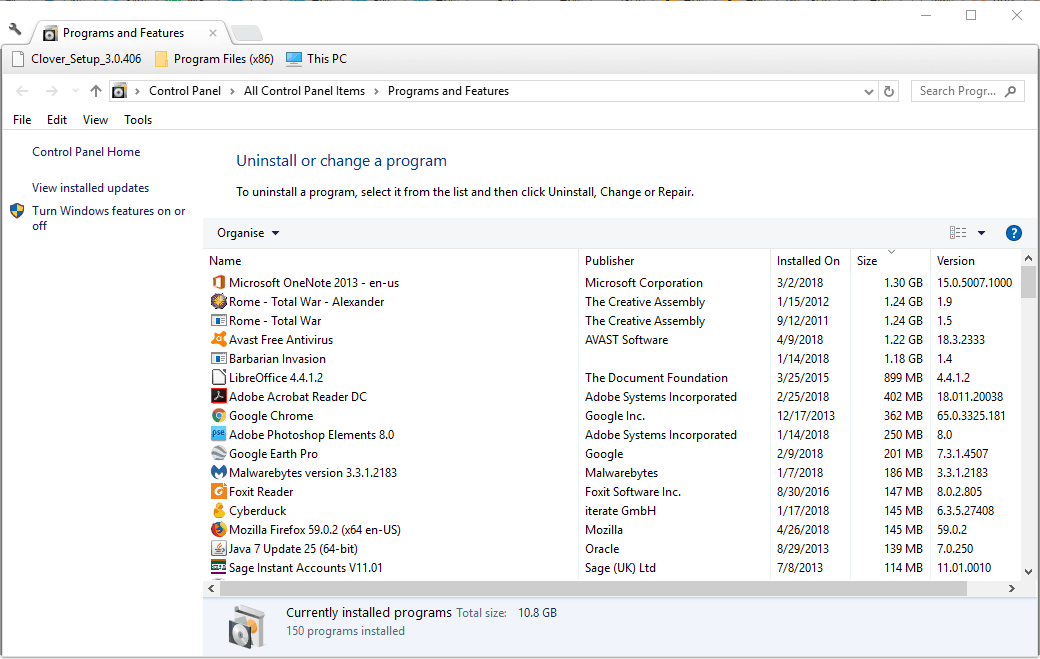
  3. In the Control Panel, go to click on Programs and then choose Programs and Features.
  4. Scroll down and select Microsoft Visual C++ 2017 Redistributable.
  5. Click the Change button on top of the menu.
  6. In the Modify Setup window, click the Repair button. Click Yes when prompted by UAC.
  7. Windows will scan the redistributable package for corruption and missing file issues and apply required fixes automatically. Click Close once the setup is complete.

Restart your computer to save and apply the changes. Try using the PayDay 2 mods again and check if it is working. If the issue persists, reinstall redistributable package 2017 to resolve the PayDay 2 mods not showing up the problem.

Reinstall Microsoft Visual C++

Payday 2 mods not working
  1. Press the Windows key + R.
  2. Type appwiz.cpl and click OK to open the Control Panel.
  3. Select Microsoft Visual C++ 2017 Redistributable package from the list of installed apps and click Uninstall.
  4. Click Yes when prompted by UAC to confirm the action.
  5. Follow on-screen instructions to remove Redist 2017 from your computer completely.
  6. Once uninstalled, download Microsoft Visual C++ 2017 and run the installer once the download finishes.

Restart your computer once the package is installed. After the restart, check if the mods are working again.

3. Replace Vanilla BLT with Super BLT

Payday 2 mods not working
  1. Open File Explorer and navigate to the PayDay 2 installation folders.
  2. Locate and delete the IPHLPAPI.dll file. Click Yes if prompted by UAC.
  3. Next, delete the mods/base folder.
  4. Now download the Super BLT mod manager to your computer.
  5. Once downloaded, extract the zip folder, and copy the wsock32.dll located inside the folder.
  6. Go back to the PayDay 2 installation folder and paste the copied dll file.
  7. Next, run the payday2_win32_release.exe file. Super BLT mod manage will prompt you that it will download the base mode folder.
  8. Click Yes when prompted by the mod manager, and wait for the download to finish.
  9. Next, download the required mods in their appropriate folders.
  10. Launch PayDay 2 and check if the PayDay 2 mods not showing up problem is resolved.

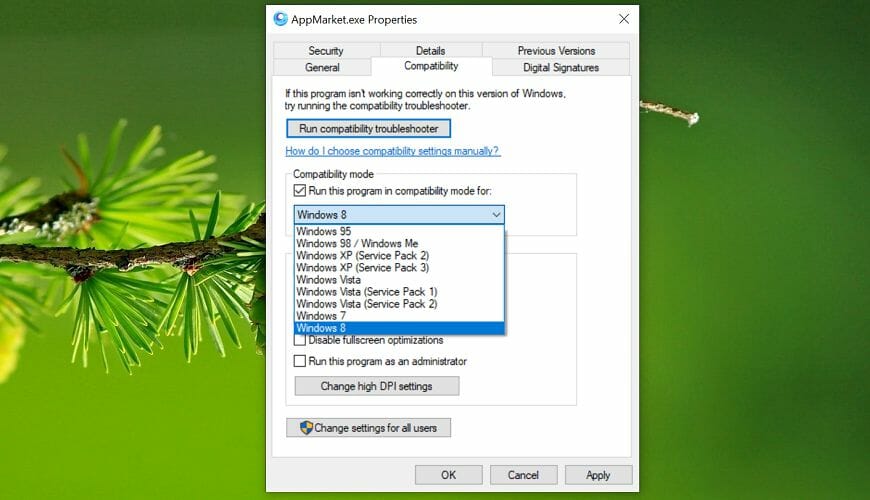
4. Disable the Compatibility Mode 

payday 2 mod override folder not there
  1. Open File Explorer and navigate to the PayDay 2 installation directory.
  2. Right-click on the main PayDay 2 executable file and select Properties.
  3. Open the Compatibility tab in the Properties window.
  4. Uncheck Run this program in compatibility mode for box.
  5. Click Apply and OK to save the changes.

Close the Properties window and launch PayDay 2 to check if the mods are working again.

The PayDay 2 mods not working issue can occur if the mods are not placed in the correct directory.

Additionally, try reinstalling the Redist 2017 package, replacing the dll file, or disabling the compatibility mode to resolve the issue.

If you are facing other issues related to PayDay, like Nebula Data error on PayDay 3: Failed To Fetch Config Data.; read this guide to learn the solutions.

Posted in PC

How to upgrade to Chrome 88 [Windows & Mac]

Google has just released an update for the Stable channel for Windows, Mac, as well as Linux, in order to patch an actively exploited zero-day security vulnerability in Chrome 88.0.4324.150.

This version will gradually roll out to the entire user base during the upcoming days and weeks. As confirmed, Google is aware of reports that an exploit for CVE-2020-16009 exists in the wild.

In spite of that, it did not provide any further details regarding the threat actors behind these attacks. That’s what Google reveals at this point:

Access to bug details and links may be kept restricted until a majority of users are updated with a fix. We will also retain restrictions if the bug exists in a third party library that other projects similarly depend on, but haven’t yet fixed.

How can I upgrade to Chrome 88.0.4324.150?

Chrome 88.0.4324.150
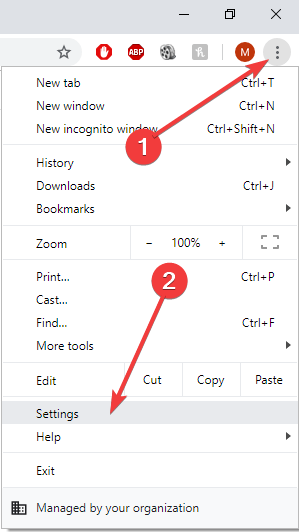
  1. To start the procedure, access Settings.
  2. Then, find your way into Help > About Google Chrome.
  3. At this point, rest assured that the Google Chrome web browser will automatically check for this new update and install it when available.

If waiting isn’t really your thing, then keep in mind that as a Windows, Mac, or Linux desktop user, you can already upgrade to Chrome 88.

Just follow the above steps and note that updates happen in the background, when you close and reopen your computer‘s browser.

As always, keeping Chrome up to date is your chance to take advantage of the latest security updates and features to keep you safe and productive.

Therefore, have you completed the above procedure as well? Let us know your opinion in the comments area below.

Disable Nvidia Capture Server proxy [AutoStart folder]

At this moment, NVIDIA is one of the top hardware manufacturers of graphics processing units. Many users noticed the NVIDIA Capture Server Proxy running in Task Manager.

Some of them became suspicious about this file and wanted to remove it from their computer. What is Nvidia Capture Server proxy? That’s what most likely some of you have in mind.

Well, it is actually a service that becomes available after you have purchased an NVIDIA GPU and installed the GeForce Experience Control Panel.

Some users have complained about this issue on the official NVIDIA forum:

I just reinstalled my operating system, installed the latest NVIDIA driver and noticed NVIDIA Capture Server. I have never seen it before. What is this?

Read the following section and learn how you can disable the NVIDIA Capture Server proxy.


How do I turn off NVIDIA Capture?

1. Turn of Game Stream

  1. Open the NVIDIA GeForce Experience application.
  2. Navigate to Settings and check Features.
  3. Turn off the Game Stream.NVIDIA Game Stream

The NVIDIA Capture Server Proxy is a component of the Game Stream service. For this reason, it will allow you to stream your game to other in-home devices.

This solution requires you to close the Game Stream service. After you have closed this process, that will decrease the number of resources it uses.


2. Disable Nvidia Capture Server proxy from services.msc

  1. Press Windows key + R to open Run.Open Run from Start
  2. Type in taskmgr.TASK MANAGER
  3. Search for NVIDIA related processes.
  4. Find and disable NVIDIA Streamer Service and NVIDIA Streamer User-Agent.
  5. Click the Windows button and type in services.msc in the search bar.Open Services
  6. Find NVIDIA Streamer Service, verify Service Status, and click Stop.
  7. Press OK to confirm the action then click on the Startup Type box.
  8. Choose the Disabled option, click on Apply, and then OK.

After you have disabled NVIDIA Streamer Service, this will prevent this service to start itself in the future.

This solution allows you to verify how many NVIDIA services are running, and to close those that are not necessary. 

Two of them are the Streamer Service and the User-Agent. These services allow you to stream games from your PC to NVIDIA Shield devices. It is not necessary to let them run in your operating system.

When you disable them, that will completely disable the NVIDIA Capture Server Proxy. This solution will free up some computer memory, and your gameplay will also improve. 


3. Disable the NVIDIA Web Helper service

  1. Press Windows + R shortcut to open Run and type in services.msc.
  2. Press Enter and go to Services.
  3. In that section, locate NVIDIA Network Service Container.
  4. Open it, go to Startup and change its status to Disabled.
  5. Click on Apply and then OK.

The NVIDIA Web Helper service has the purpose to download automatically new drivers and then install them. In some situations, it will disrupt other computer processes.

This solution allows you to disable this service. Once performed, you will not find the NVIDIA Capture Server Proxy as an active process in Task Manager.


If you wish to turn off the NVIDIA Capture Server Proxy, then try out our simple and tested solutions from the previous section.

You can disable the Game Stream service, the process from Windows services, and not only.

The first two solutions will also enhance your computing experience and free up computer resources. Test them and leave us a comment about your experience.

FIX: CPU not showing all cores in Task Manager

The Task Manager is an incredibly useful tool that many Windows users tend to ignore, primarily because all it does is show graphs and numbers that everyone may understand.

It can be used to monitor active processes on your PC, the CPU and RAM usage of different programs, as well as some hardware specifics. For more detailed specs, check out the CPU Z tool.

One good example is how you can use the Task Manager to monitor the number of cores and threads on your CPU.

However, some users reported that they are having issues with this aspect of Task Manager, as it shows fewer cores and threads than the CPU actually has:

Its an old cpu and after a long time i went into the task manager and it only shows 1 core and 2 logical processors even though the intel site mentions 2 cores and 4 threads.

This is a problem that especially occurs on lower-end PCs, such as those that are dual-core in nature.

Since not everyone can afford to constantly upgrade, we’ve created this guide that will show you exactly what to do in this kind of situation.

How to show all cores in Task Manager?

1. Use a different monitoring tool

Sometimes this issue can be a simple display bug from Task Manager. Simply restart the PC and check again. If the number of cores and threads is still inconsistent, you should try using a different monitoring tool for your CPU.

There are plenty of software tools out there that can monitor your CPU activity, and many of them are even better than Task Manager. PRTG Network Monitor is a great example.

It can monitor the number of cores and threads, check the temperature, minimum and maximum processing speeds, and more.

⇒ Get PRTG Network Monitor

2. Make sure all of your CPU cores are enabled

  1. Press Windows + R.
    • This will open the Run menu.
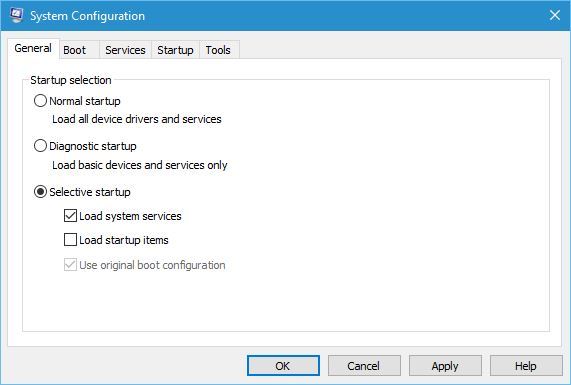
  2. Type in MSConfig.
  3. Go to the Boot tab.boot advanced settings
  4. Select Advanced Options.
  5. Look at where it says Number of processors.
  6. If the checkbox is enabled, uncheck it.
    • Your system should now use all of its processors whenever given the chance.
      set number of cores
  7. Reboot the PC.
  8. Open the Task Manager or any other monitoring program to view the number co cores. You should see the right number now.

Note: By design, this system setting can only be used to reduce the number of cores your CPU uses, since the system’s goal is always to make the most of your processors.

That being said, if you do find this system setting modified to less than the default value, it may be the result of another software’s tampering.

By following these steps, you should be able to see the correct number of processors when using task Manage or any other monitoring program.

To better understand what CPU cores are and how they work together with threads, read our detailed guide on CPU cores explained for Windows users.

3. Replace the CPU

If you are running a much older PC, then maybe the reason you are seeing fewer cores is that the CPU is giving in. If none of the solutions mentioned above yield any results, then your best bet is to simply get a new CPU.

There are plenty of upgrade options for you to choose from. Besides, getting a brand new CPU will greatly affect your PC’s performance, since the processor is the brain of your computer.

That concludes our article. Make sure to follow our solutions thoroughly and, if you’re aware of another way to solve this problem, share it in the comments section below so that other users can try it, as well.

FULL FIX: HAL INITIALIZATION FAILED error in Windows 10/11

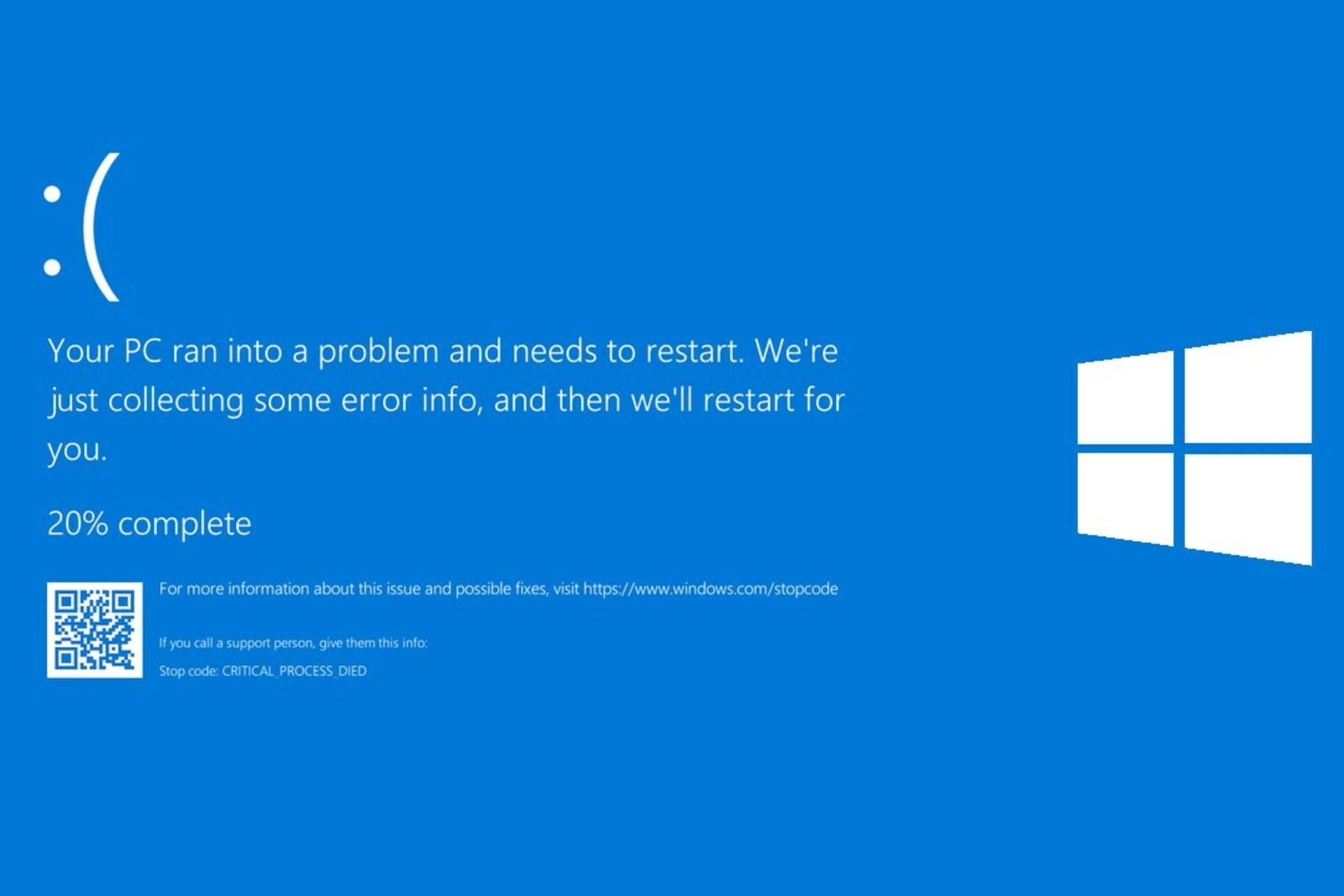
There are all sorts of errors on Windows 10, but Blue Screen of Death errors are probably the most problematic.

These errors will constantly restart your computer in order to prevent damage, and that can be rather tiresome.

Since these errors are so serious, today we’re going to show you how to fix HAL INITIALIZATION FAILED error. We have to mention that our solutions also cover the VMware HAL INITIALIZATION FAILED issue.

How can I fix the HAL INITIALIZATION FAILED BSoD error?

  1. Use third-party repair software
  2. Check if your drivers and Windows 10 are up to date
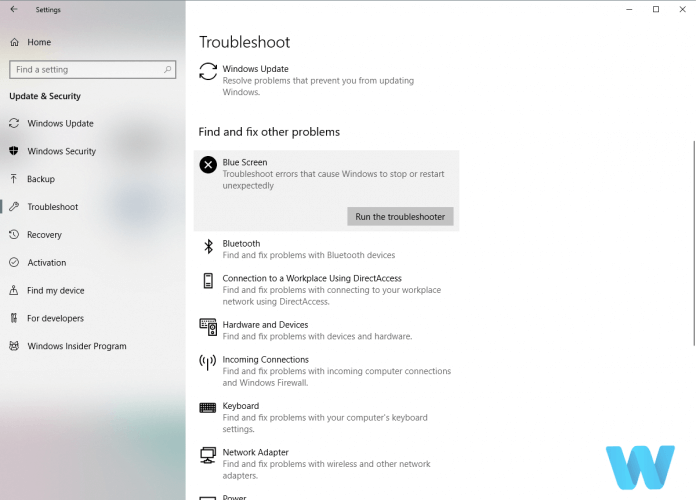
  3. Run the BSOD Troubleshooter
  4. Run the SFC scan
  5. Run DISM
  6. Check the hard drive
  7. Check for problematic software
  8. Set UsePlatformClock to true
  9. Update your BIOS
  10. Reset Windows 10
  11. Check your hardware

1. Use third-party repair software

BSoD errors are not to be treated lightly as they can disturb all your workflow and can consume time and effort to fix.

However, there is an easier way to deal with them and especially with the HAL INITIALIZATION FAILED error. That is by using specialized software that can fix such errors automatically and quickly repair the system.

2. Check if your drivers and Windows 10 are up to date

Many BSoD errors are caused by hardware or software incompatibility, and in order to fix this issue, it’s crucial to update Windows 10 frequently.

Microsoft is bringing new features through Windows Update, but in addition to new features, there are also many fixes designed to fix any hardware and software incompatibilities that you might have.

To avoid any BSoD errors, and to keep your computer safe and stable, make sure to update Windows 10 as frequently as you can.

Downloading Windows 10 updates is important, but it’s also crucial that you update your drivers.

Drivers allow Windows 10 to better utilize your hardware, and if the certain driver is outdated or not compatible with Windows 10, you’ll encounter a HAL INITIALIZATION FAILED BSoD error.

To update your drivers, all you have to do is to visit your hardware manufacturer’s website, locate the device you wish to update, and download the latest drivers for it.

After downloading the latest drivers, the BSoD error should be resolved.

Few users reported that this BSoD error was caused by their graphic card driver, therefore be sure to update your graphic card driver first and then move to other drivers.

To be sure that the error is fixed, try to update as many drivers as you can.

Update drivers automatically

Searching for drivers on your own can be time-consuming. So, we advise you to use a tool that will do this for you automatically.

Using an automatic driver updater will certainly save you from the hassle of searching for drivers manually, and it will always keep your system up to date with the latest drivers.

3. Run the BSoD troubleshooter

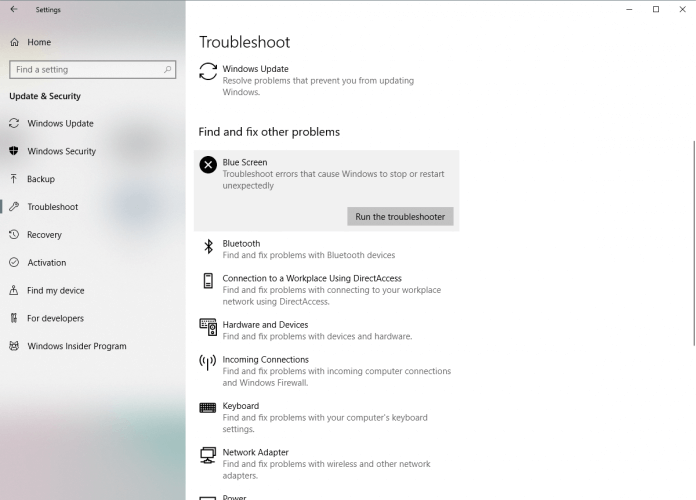
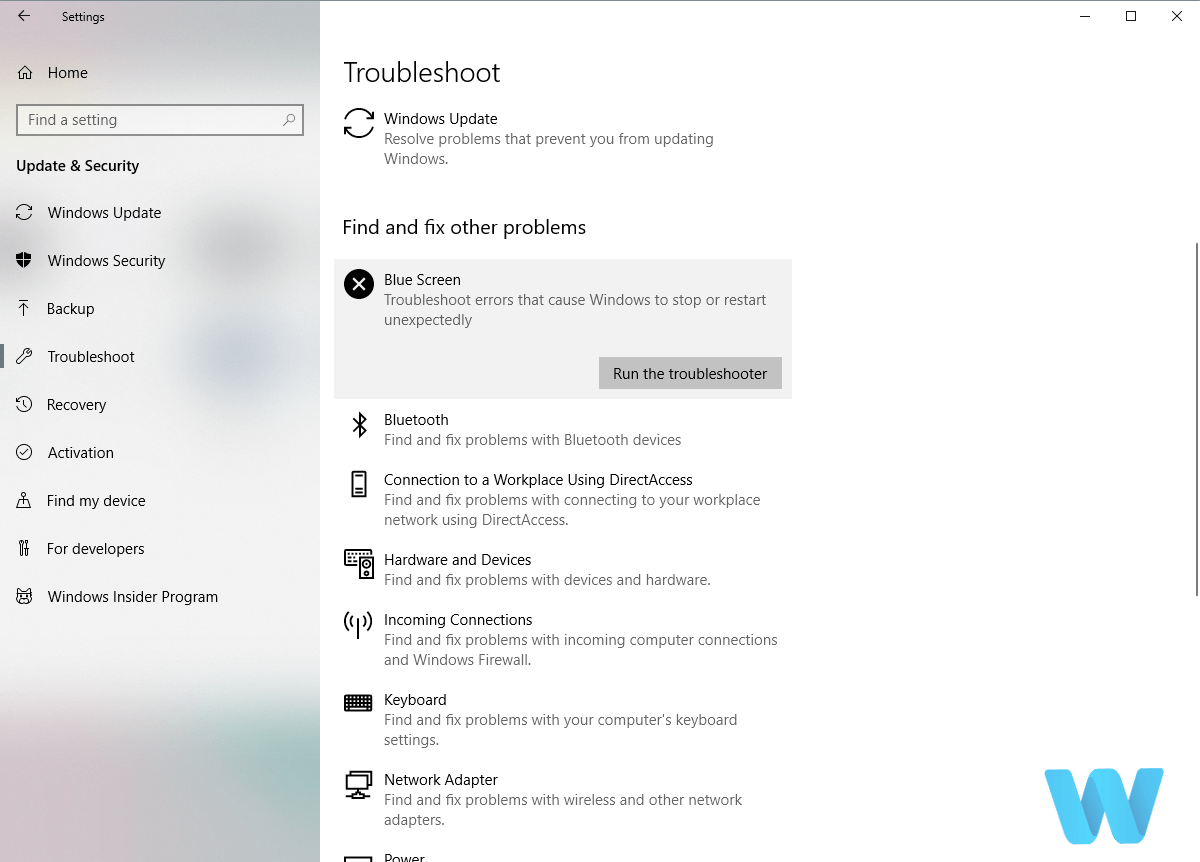
  1. Open the Settings app.
  2. Go to the Update & Security section.
  3. Select Troubleshoot from the left pane.
  4. Select BSoD from the right pane and click on Run the troubleshooter.HAL INITIALIZATION FAILED Windows 10 error
  5. Follow the instructions on the screen to complete the troubleshooter.

The next thing we’re going to try is running the built-in troubleshooter featured in Windows 10. This troubleshooter can help with all sorts of issues, including the BSOD errors.

So naturally, it could be helpful with resolving the HAL INITIALIZATION FAILED error, as well.

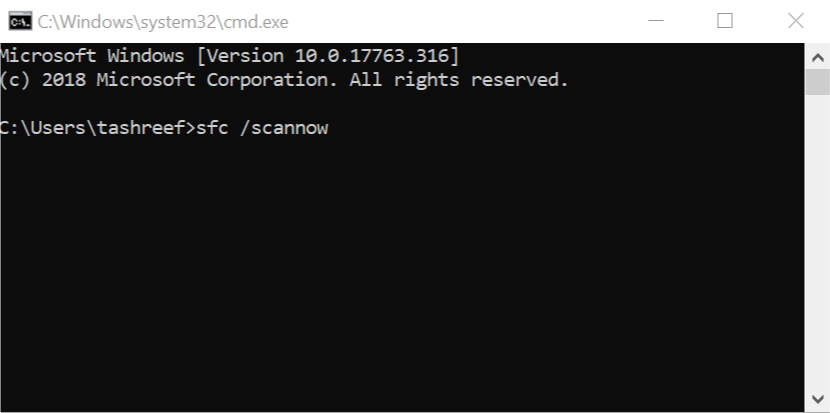
4. Run the SFC scan

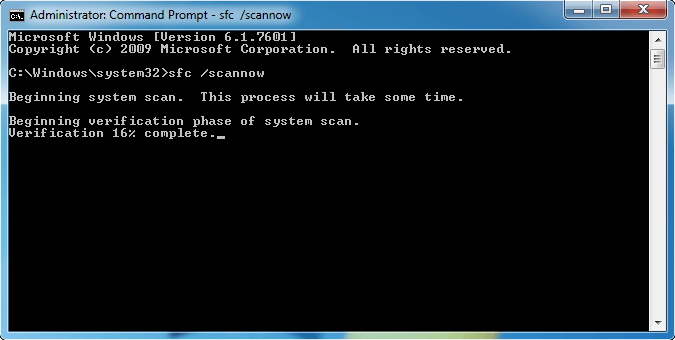
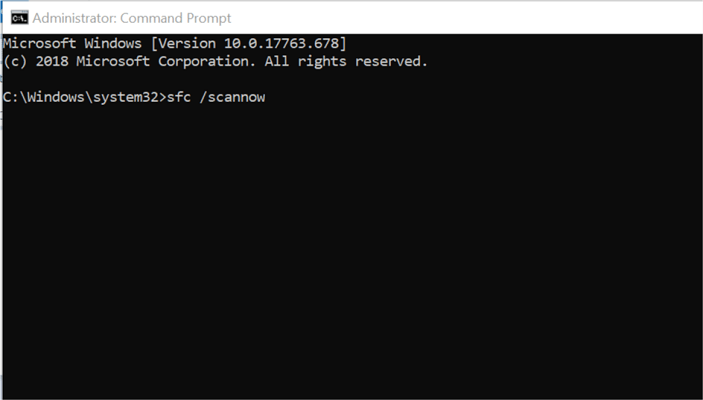
  1. Go to Search, type cmd, and open the Command Prompt as administrator.
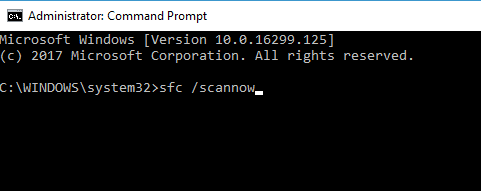
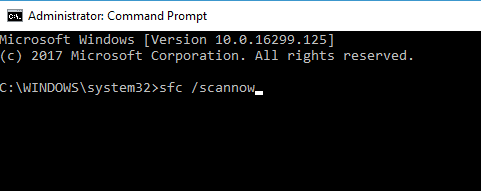
  2. Enter the following line and press Enter: sfc/scannowHAL INITIALIZATION FAILED Windows 10 error
  3. Wait for the scan to complete (it will take a while).
  4. The tool will automatically resolve the problem, if possible.
  5. Close Command Prompt and restart your computer.

Another troubleshooter that could be helpful here is the SFC scan. This is a command-line tool that scans your system for potential flaws, and resolves them, if possible.

So, it could also resolve the HAL INITIALIZATION FAILED error.

5. Run DISM

5.1 Run DISM the standard way

  1. Open the Command Prompt as shown in the previous step.
  2. Paste the following command and press Enter:
    • DISM /Online /Cleanup-Image /RestoreHealthHAL INITIALIZATION FAILED Windows 10 error
  3. Wait until the scan is finished.
  4. Restart your computer and try updating again.

5.2 Run DISN using a Windows installation media

  1. Insert your Windows installation media.
  2. Start Command Prompt as shown in the previous solution.
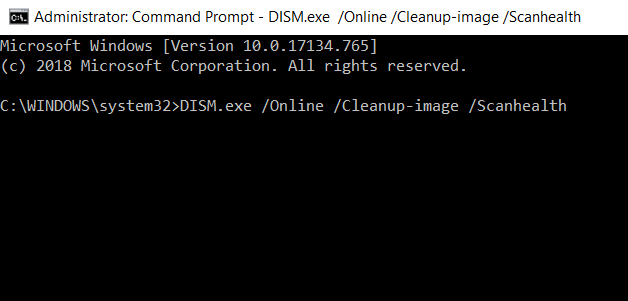
  3. In the command line, type the following commands and press Enter after each:
    • dism /online /cleanup-image /scanhealth
    • dism /online /cleanup-image /restorehealth
  4. Now, type the following command and press Enter:
    • DISM /Online /Cleanup-Image /RestoreHealth /source:WIM:X:SourcesInstall.wim:1 /LimitAccess
  5. Make sure to change an X value with the letter of the mounted drive with Windows 10 installation.
  6. After the procedure is finished, restart your computer.

And the third troubleshooting tool we’re going to use while trying to resolve the HAL INITIALIZATION FAILED error is DISM.

Deployment Image and Servicing (DISM), as its name says, re-deploys the system image, so it’s possible it will also resolve some potential issues along the way.

We’ll walk you through both standard and the procedure that utilizes the installation media above.

6. Check the hard drive

  1. Enter the Advanced Startup (Restart your computer while holding the Shift key).
  2. Go to Troubleshoot > Advanced Options.
  3. Select Command Prompt from the list of options.
  4. When Command Prompt appears, enter the following lines and press Enter after each line:
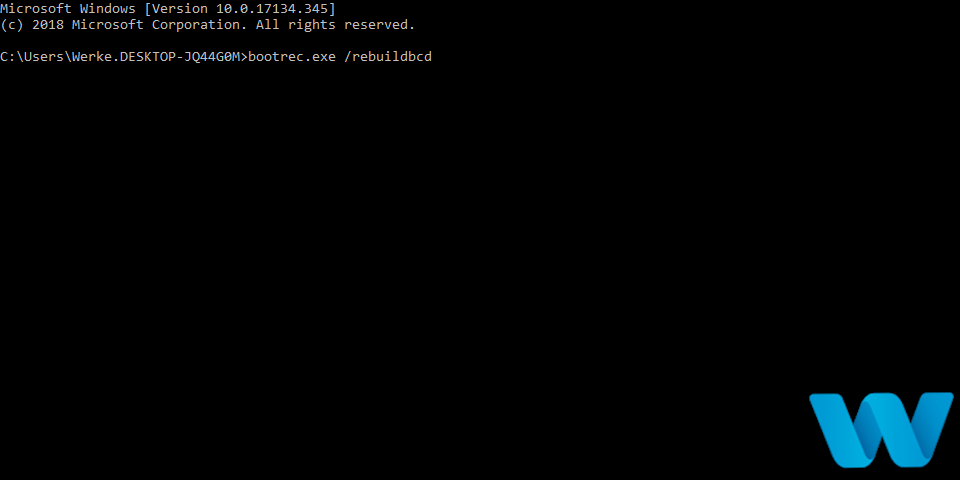
    • bootrec.exe /rebuildbcdHAL INITIALIZATION FAILED Windows 10 error
    • bootrec.exe /fixmbr
    • bootrec.exe /fixboot
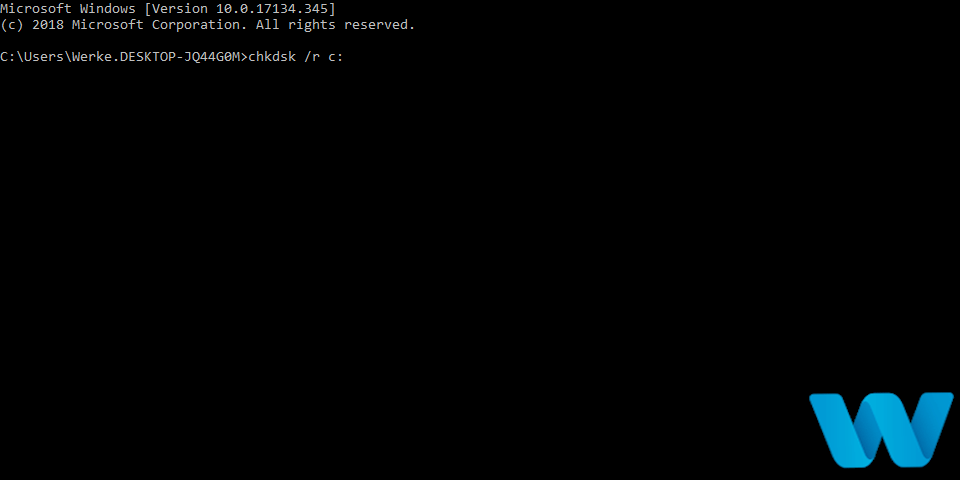
  5. Some users are also suggesting that you need to run additional chkdsk commands as well. To perform these commands, you need to know drive letters for all your hard drive partitions. In Command Prompt you should enter the following (but remember to use the letters that match your hard drive partitions on your PC):
    • chkdsk /r c:HAL INITIALIZATION FAILED Windows 10 error
    • chkdsk /r d:
    • This is just our example, so keep in mind that you have to perform chkdsk command for every hard drive partition that you have.

6. Restart your computer and check if the issue is resolved.

A broken hard drive is alarming. And the first warning messages come in the form of BSoD issues. So, go and check the current state of your hard drive.

To do that, you should run the chkdsk command. This command will scan your partitions, and apply solutions, if possible.

7. Check for problematic software

Often these types of problems can be caused by problematic software. And in order to fix HAL INITIALIZATION FAILED error, you’ll need to find the program that is causing this problem and disable/uninstall it.

Most commonly these types of errors are caused by your antivirus software, so be sure to uninstall your antivirus software.

If you’re concerned about your safety, you should know that Windows Defender will turn on automatically after you uninstall your antivirus program, so your PC won’t be without any protection.

It’s worth mentioning that almost any antivirus program can cause this error, so be sure to remove any third-party antivirus that you have installed.

In addition, in order to completely remove a certain antivirus, including registry entries and all files, it’s recommended to use a dedicated PC cleaning tool to analyze and remove junk files.

Many antivirus companies offer uninstaller tools for their software, so be sure to download them and use them.

However, sometimes there are files that are left behind after the installation and that can lead to other problems with your system and take up precious space.

The best way of wiping up an app is by using specialized software and CCleaner is perfect for this job. Not only that it will uninstall the app but it will delete any records from the registry and any other leftover files.

⇒ Get CCleaner

8. Set UsePlatformClock to true

8.1 Use Command Prompt

  1. Open Command Prompt as shown in step 4.
  2. Once the Command Prompt opens, enter the following and press Enter to run it:
    • bcdedit /set useplatformclock true
      useplatformclock-true
  3. Close Command Prompt.

Users reported that performing the aforementioned steps fixed the BSoD error while waking up from Sleep Mode, so if you’re having a similar problem, be sure to try the steps above.

If you cannot access Windows 10 due to this error, you can try performing these steps from Safe Mode. To enter Safe Mode, follow the next steps.

8.2 Enter Safe Mode

  1. Restart your computer a few times while it boots. This should start Automatic Repair process.
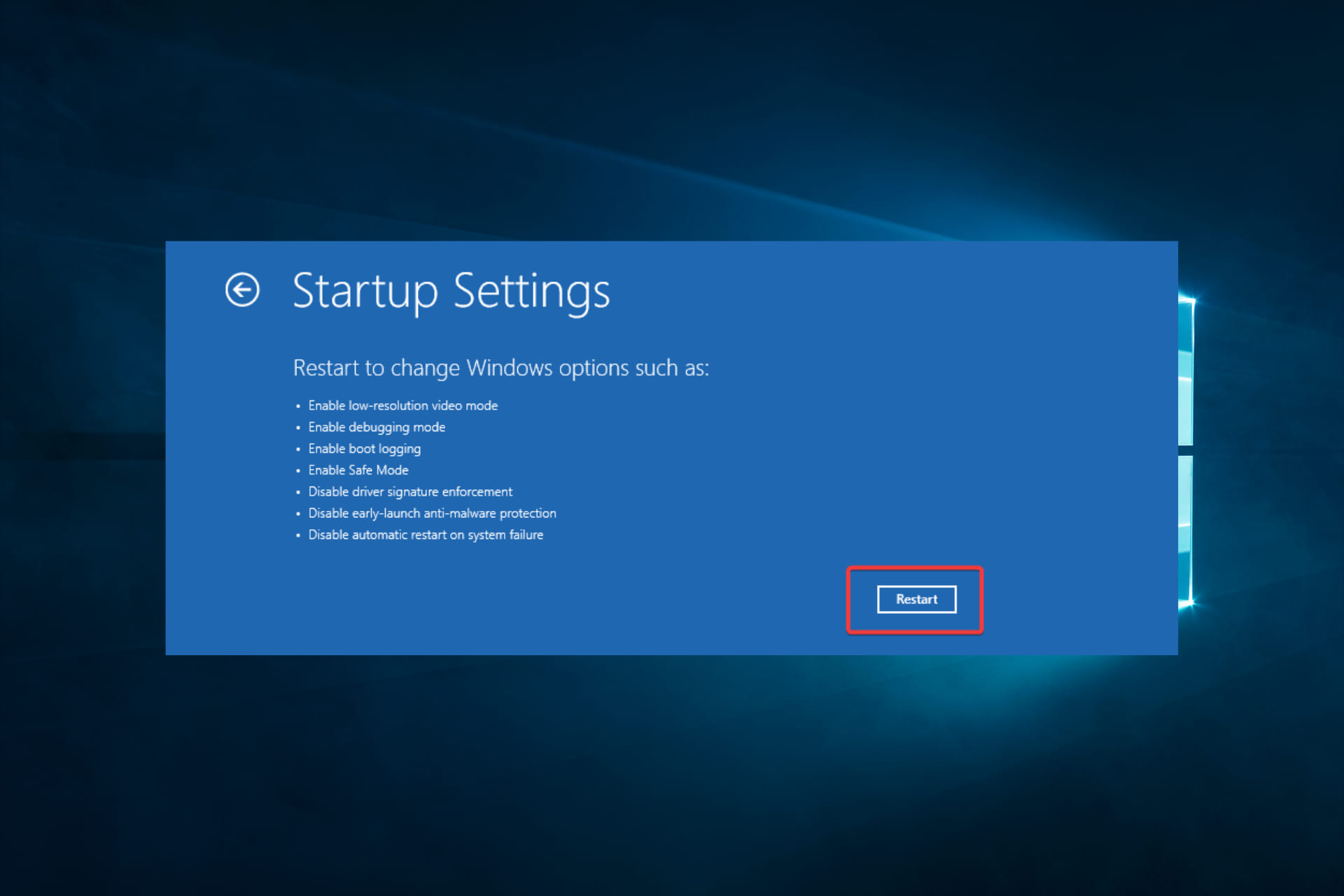
  2. Choose Troubleshoot, select Advanced options, click on Startup Settings and click Restart.
  3. When your computer restarts you should see a list of options. Select Safe Mode with Networking by pressing 5 or F5.
  4. Once the Safe Mode starts, try running Command Prompt and performing the steps from the 8.1 solution.

9. Update your BIOS

Few users reporting that updating BIOS fixed the HAL INITIALIZATION FAILED error.

Updating BIOS is an advanced procedure, and if not performed properly it can permanently damage your motherboard, so be extra careful. To see how to properly update your BIOS check your motherboard manual.

As for the necessary files, you can download the latest BIOS from your motherboard manufacturer’s website.

10. Reset Windows 10

  1. Reset your computer a few times while it boots.
  2. Choose Troubleshoot, select Reset this PC and click on Remove everything.
  3. Now select Only the drive where Windows is installed and click on Just remove my files.
  4. Follow the instructions and wait for the reset process to finish.

If the problem persists even after Windows 10 reset, it means that the issue is most likely caused by a faulty or incompatible hardware.

If the problem is caused by a certain software, you can fix it by performing Windows 10 reset.

Note icon NOTE
Resetting Windows 10 will delete all files from your C drive, so be sure to create a backup.

11. Check your hardware

HAL INITIALIZATION FAILED can be often caused by incompatible hardware, therefore if you installed any new hardware recently, be sure to remove it or replace it and see if your PC works better without it.

If you didn’t install any new hardware, you might want to check if your hardware is working properly.

A most common cause for BSoD errors is your RAM, so be sure to test your RAM modules one by one.

In addition, you can also use tools such as MemTest86+ to check your RAM. If your RAM is not the problem, check your hard drive, graphics card, and motherboard.

Almost any hardware component can cause this error, so you’ll need to perform a thorough inspection.

HAL INITIALIZATION FAILED BSoD error can be problematic, but as you can see, this error can be relatively easy to fix if you use one of our solutions.

If you suceeded in fixing this BSoD error by using one of our solutions let us know in the comments section below.

FIX: PCI BUS DRIVER INTERNAL error in Windows 10

Blue Screen of Death errors are one of the most problematic errors on Windows 10. Errors such as PCI BUS DRIVER INTERNAL can cause you a lot of problems, but fortunately for you, there’s is a way to fix this error.

How do I fix PCI BUS DRIVER INTERNAL errors?

  1. Update your drivers
  2. Update Windows 10
  3. Remove problematic software
  4. Run the Hardware Troubleshooter 
  5. Run the SFC scan
  6. Run DISM
  7. Remove overclock settings
  8. Reset Windows 10
  9. Check your hardware

1. Update your drivers

  1. Right-click the Start button and select Device Manager from the list.
  2. Expand the component that you want to update the driver for (In our case, the display adapter).
  3. Right-click the driver and select Update driver from the drop-down list.
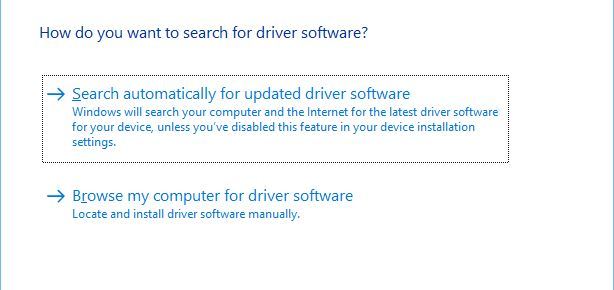
  4. Select Search automatically for drivers.
  5. Device Manager will download and install the compatible drivers for the component.
  6. Perform the same procedure for all the drivers.

Installing Windows updates is crucial for system stability and safety, but your PC drivers are important as well.

Windows 10 relies on these drivers in order to communicate with your hardware, and if a certain driver is outdated, that can cause PCI BUS DRIVER INTERNAL error to appear.

You can easily fix these errors by updating your drivers, and in order to do that, you just need to visit your hardware manufacturer’s website and download all the necessary drivers.

2. Update Windows 10

Before we start fixing this error it’s important that your Windows 10 is up to date. Microsoft is working hard on Windows 10, and new updates are released frequently through Windows Update.

Many of these updates address certain hardware and software issues, and in order to prevent BSoD errors, such as PCI_BUS_DRIVER_INTERNAL error, be sure to update Windows 10 frequently.

3. Remove problematic software

Blue Screen of Death errors can be caused by incompatible software, and if that’s the case, it’s highly advised that you locate and remove that software.

VPN clients are known to cause these types of errors, so if you’re using these programs be sure to remove them.

Another type of software that causes these types of errors is your antivirus. Many antivirus programs can cause Restart required PCI bus error to appear.

And in order to fix this problem, it’s advised that you uninstall all antivirus programs from your computer.

Even if you uninstall all third-party antivirus programs, you will still be protected by Windows Defender, so your PC won’t be completely defenseless.

It’s worth mentioning that antivirus software will often leave certain files and registry entries behind once you uninstall it, and sometimes even those files can cause BSoD errors.

To completely remove certain antivirus it’s advised that you use a dedicated PC removal tool such as CCleaner.

This software has its own uninstaller feature as well as PC cleaning capabilities which combined will ensure your PC will be free of any unwanted applications and their corresponding files.

4. Run the Hardware Troubleshooter 

  1. Open the Settings app and go to Update & Security section.
  2. Select Troubleshoot from the menu on the left.
  3. Select BSOD from the right pane and click Run the troubleshooter.
  4. Follow the instructions on the screen to complete the troubleshooter.

You can sometimes fix PCI bus error on Windows 10 by using Windows 10’s built-in troubleshooter.

This tool can be used to resolve various issues, including the BSOD problems.

5. Run the SFC scan

  1. Right-click on the Start Menu button, and open Command Prompt (Admin).
  2. Enter the following line and press Enter: 
    sfc/scannow
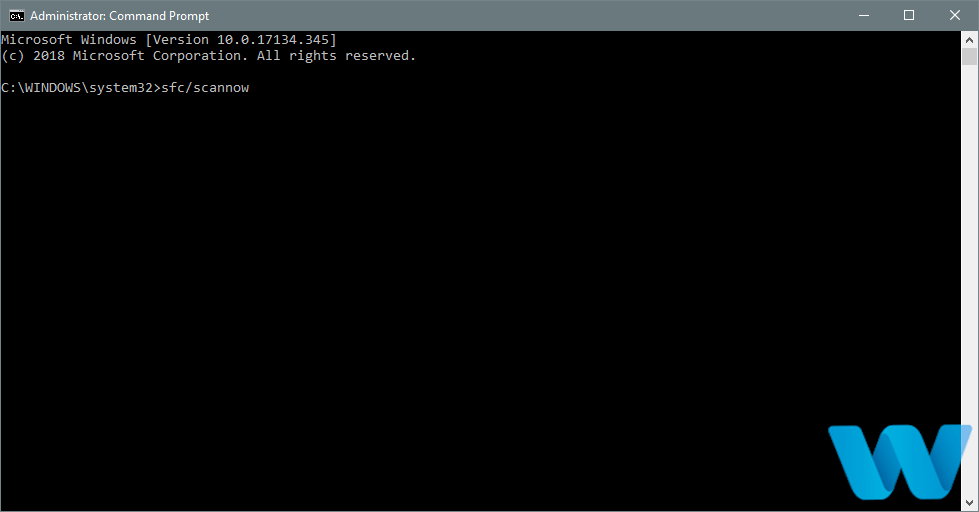
  3. Wait until the process is done (it may take a while).
  4. If the solution is found, it will automatically be applied.
  5. Now, close the Command Prompt and restart your computer.

If the built-in troubleshooter failed to resolve the problem, let’s try the SFC scan. This command-line tool scans your system and searches for potential problems.

The SFC scan will automatically resolve any issue if the solution is possible.

6. Run DISM

  1. Right-click Start and open Command Prompt (Admin).
  2. Paste the following command and press Enter:
    DISM /Online /Cleanup-Image /RestoreHealth
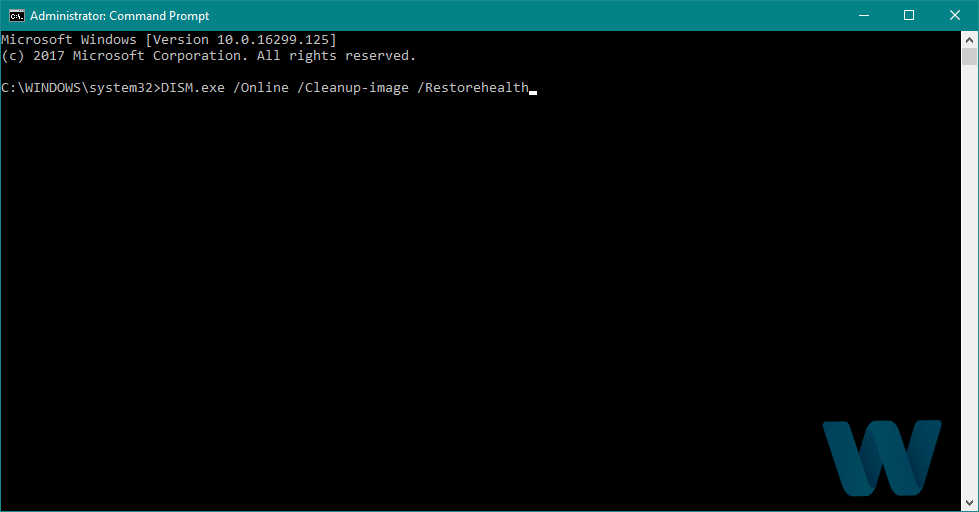
  3. Wait until the scan is finished.
  4. Restart your computer and try updating again.
  • With the Windows installation media
  1. Insert your Windows installation media.
  2. Right-click the Start menu and, from the menu, choose the Command Prompt (Admin).
  3. In the command line, type the following commands and press Enter after each:
    dism /online /cleanup-image /scanhealth
    dism /online /cleanup-image /restorehealth
  4. Now, type the following command and press Enter:
    DISM /Online /Cleanup-Image /RestoreHealth /source:WIM:X:SourcesInstall.wim:1 /LimitAccess
  5. Make sure to change an X value with the letter of the mounted drive with Windows 10 installation.
  6. After the procedure is finished, restart your computer.

If you’re still getting Restart required PCI bus message, you might be able to fix it with DISM.

Deployment Image Servicing and Management (DISM) is a tool that reloads the system image, and possible issues may get resolved along the way.

7. Remove overclock settings

By using overclocking software you can change how certain hardware works and achieve better performance, but overclocking your hardware comes with certain risks.

By overclocking your hardware you can potentially damage your computer, and you can cause system instability and error messages such as Your PC needs to be restarted PCI bus.

Few users reported that they managed to fix this error by setting the memory clock to the default value.

But bear in mind that almost any overclock setting can cause these types of errors, therefore, be sure to remove all overclock settings and check if that fixes the error.

8. Reset Windows 10

  1. Restart your computer during the boot sequence a few times in order to start Automatic Repair. Alternatively, you can press and hold the Shift key and click the Restart button.
    restart
  2. Choose Troubleshoot and go to Reset this PC. Now select Remove everything. You might get asked to insert Windows 10 installation media, so be ready to do that.
  3. Choose Only the drive where Windows is installed and then select Just remove my files and click the Reset button.
  4. Follow the instructions and wait for the reset process to complete.

After the reset process is completed, all files from your C drive will be removed, along with any software cause for the BSoD error.

If PCI bus driver error on Windows 10 is caused by software, you can fix it by performing a Windows 10 reset.

This procedure is similar to clean install, and it will remove all files from your C partition, so before you start Windows 10 reset, we strongly advise that you create backup for your important files.

It’s also worth mentioning that this procedure might require Windows 10 installation media, and you can easily create a bootable USB flash drive by using Media Creation Tool.

9. Check your hardware

Restart required PCI bus error can be caused by incompatible hardware, and if you installed any new hardware recently, be sure to remove it or replace it.

If the new hardware isn’t fully compatible with your PC that can lead to system instability and BSoD errors, so be sure to remove any recently installed hardware.

If the problem isn’t caused by new hardware, be sure to check all major hardware components such as your RAM, motherboard, hard drive, etc.

We also have a guide on how to fix Device PCI requires further installation message, so don’t miss it.

This error is usually caused by problematic drivers or by overclocking, so be sure to update all your drivers and remove all overclocking settings in order to fix this error.

Full Fix: SYSTEM EXIT OWNED MUTEX error in Windows 10/11

Blue Screen of Death errors are often caused by faulty hardware or a software issue.

And since they keep restarting your computer to prevent damage, they are one of the most troublesome errors on Windows 10.

There are all sorts of BSoD errors, and today we will show you how to fix SYSTEM EXIT OWNED MUTEX BSoD error.

How can I fix SYSTEM EXIT OWNED MUTEX BSoD?

1. Use specialized BSOD repair software

BSOD errors are among the hardest to fix, even for experienced users. But you can simplify this process by using specialized tools optimized for dealing with BSOD errors.

2. Disable HDMI device from Device Manager

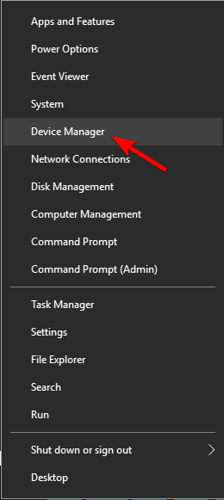
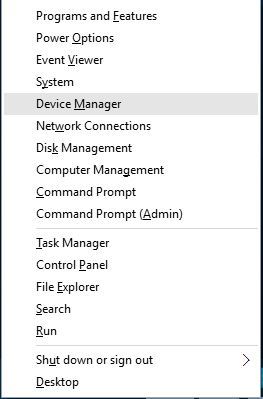
  1. Open Power User Menu by pressing Windows Key + X and choose Device Manager from the menu.
    device-manager
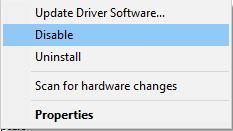
  2. When Device Manager opens, you need to locate your HDMI device, right-click it and choose Disable from the menu.
    device-manager-disable

After disabling your HDMI device the problem with SYSTEM EXIT OWNED MUTEX BSoD error should be resolved.

As we mentioned earlier, BSoD errors are often caused by software problems, and a few users reported that disabling their HDMI device fixed the SYSTEM EXIT OWNED MUTEX error.

Apparently, certain HDMI devices have problems with X-Fi sound cards, so to fix this issue, it’s advised to disable your HDMI device.

3. Update Windows 10

update windows system exit owned mutex

Microsoft is constantly upgrading Windows 10, and many new features are being added.

In addition to new features, Microsoft is fixing security flaws and compatibility issues with specific software and hardware.

Since BSoD errors are caused by incompatible hardware or software, it’s recommended that you perform Windows Update regularly in order to keep Windows 10 running without any errors.

4. Update your drivers

  1. Right-click the Start button and select Device Manager from the list.
  2. Click on the problematic component to expand it (In our example, the display adapter).
  3. Right-click the driver and select Update driver from the drop-down list.
  4. Select Search automatically for drivers.
  5. Device Manager will download and install the compatible drivers for the component.
  6. Perform the same procedure for all the problematic drivers.

As previously mentioned, many BSoD errors can be caused by your software, and if your drivers aren’t fully compatible with Windows 10, you might get SYSTEM EXIT OWNED MUTEX error. This is also often the reason behind MUTEX_LEVEL_NUMBER_VIOLATION BSOD.

To fix this issue, it’s strongly advised to keep your drivers updated.

⇒ Get Outbyte Driver Updater

5. Run the BSOD Troubleshooter 

  1. Open the Settings app and go to Update & Security section.
  2. Select Troubleshoot from the menu on the left.
  3. Select BSOD from the right pane and click Run the troubleshooter.Troubleshooting BSoD
  4. Follow the instructions on the screen to complete the troubleshooter.

The next thing we’re going to try is Windows 10‘s built-in troubleshooting tool. This tool can resolve all sorts of issues, including the BSOD problems.

6. Run the SFC scan

  1. Right-click on the Start Menu button, and open Command Prompt (Admin).
  2. Enter the following line and press Enter: 
    sfc/scannow
  3. Wait until the process is done (it may take a while).
  4. If the solution is found, it will automatically be applied.
  5. Now, close the Command Prompt and restart your computer.

The next troubleshooting tool we’re going to try is the SFC scan. This command line troubleshooter can also resolve System Exit Owned Mutex error.

7. Run DISM

  1. Right-click Start and open Command Prompt (Admin).
  2. Paste the following command and press Enter:
    DISM /Online /Cleanup-Image /RestoreHealth
  3. Wait until the scan is finished.
  4. Restart your computer and try updating again.
  • With the Windows installation media
  1. Insert your Windows installation media.
  2. Right-click the Start menu and, from the menu, choose the Command Prompt (Admin).
  3. In the command line, type the following commands and press Enter after each:
    dism /online /cleanup-image /scanhealth
    dism /online /cleanup-image /restorehealth
  4. Now, type the following command and press Enter:
    DISM /Online /Cleanup-Image /RestoreHealth /source:WIM:X:SourcesInstall.wim:1 /LimitAccess
  5. Make sure to change an X value with the letter of the mounted drive with Windows 10 installation.
  6. After the procedure is finished, restart your computer.

DISM is a command line tool that repeatedly deploys the system image. That process can lead to resolving various problems, including BSOD issues.

8. Check the hard drive

  1. Enter the Advanced Startup (Restart your computer while holding the Shift key).
  2. Choose Troubleshoot > Advanced Options.
  3. Select Command Prompt from the list of options.
  4. When Command Prompt appears, enter the following lines and press Enter after each line in order to run it:
    bootrec.exe /rebuildbcd
    bootrec.exe /fixmbr
    bootrec.exe /fixboot
  5. Some users are also suggesting that you need to run additional chkdsk commands as well. To perform these commands, you need to know drive letters for all your hard drive partitions. In Command Prompt you should enter the following (but remember to use the letters that match your hard drive partitions on your PC):
    chkdsk /r c:chkdsk /r d:
  6. Restart your computer and check if the issue is resolved.

If your hard drive is not in the best shape, BSOD errors such as System Exit Owned Mutex will occur.

In that case, you should run a drive diagnostic tool that will tell you if your hard drive is damaged.

9. Reinstall your Sound Blaster driver

  1. Press Windows Key + X and select Device Manager from the list.
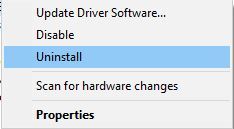
  2. When Device Manager starts, locate your audio driver, right-click it, and choose Uninstall. If available, check Delete the driver software for this device and click OK.
    uninstall-driver
  3. After deleting the driver, restart your PC.
  4. If the error is fixed and sound is working properly, you can continue using the default driver. If there are any sound problems, feel free to update your audio driver.

Although users reported problems with Sound Blaster audio driver, you can try this solution even if you don’t have to use Sound Blaster audio.

Sometimes updating your drivers isn’t going to fix the BSoD error. Therefore, you’ll have to remove the audio driver beforehand.

Few users reported issues with Sound Blaster drivers, and they managed to fix SYSTEM EXIT OWNED MUTEX BSoD error simply by removing the Sound Blaster driver and reinstalling it.

10. Clean your PC and reseat your RAM modules

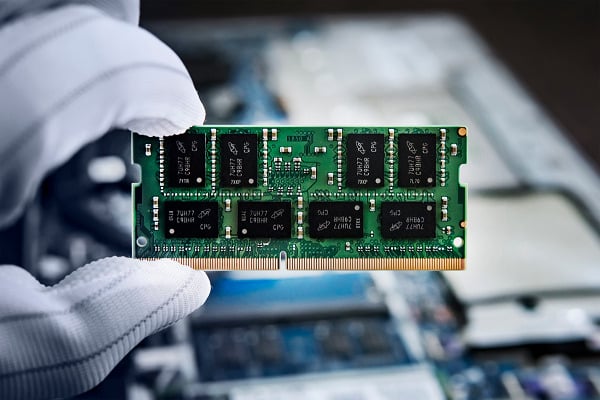
rearrange ram modules

RAM problems cause many BSoD errors, and if you’re getting the SYSTEM EXIT OWNED MUTEX error you might want to check your RAM.

To complete this step, you’ll need to open your PC case, so ensure your computer isn’t under warranty.

Once you open your PC, you must clean it from dust with a pressured air can. When your PC is dust-covered, carefully remove your RAM modules and switch their places.

Several users reported that reseating the RAM modules permanently fixed the SYSTEM EXIT OWNED MUTEX BSoD error, so make sure to try that.

11. Check for hardware problems

check hardware system exit owned mutex

As previously mentioned, BSoD errors are commonly caused by faulty RAM, so it’s always a good idea to test if your RAM is working properly.

To do so, you can remove one or more RAM modules and check if your PC works well without it.

You might have to test all RAM modules one by one before you find the one that is causing this error.

In addition to removing RAM modules, you can also use tools such as MemTest86+ to test your RAM.

Create a bootable USB or CD with MemTest, and boot your PC from that USB flash drive or CD. Start MemTest and let it test your RAM for a couple of hours.

To find the faulty module, you might have to test one memory module at a time before you find the faulty one.

In addition to your RAM, any other hardware component can cause this error, so be sure to check your motherboard and hard drive as well.

Recently we covered a similar error in our ERROR_MUTANT_LIMIT_EXCEEDED guide, so don’t miss it for more information.

It’s also worth mentioning that any recently installed hardware that is not fully compatible with your PC can cause this error, so make sure to remove or replace it and test if your PC runs without it.

DAE error 13001 was encountered in Pro Tools [Fixed]

Pro Tools is a popular digital audio workstation available on Windows platform. However, when accessing the tool, you may encounter the dae error 13001 on Windows 10, 8.1 and 7 running computers.

The dae error 13001 error indicates the issue to be at the permission level. Insufficient permission for the tool to access system resources can result in this error.

While you can resolve the issue by running the tool as an administrator, at times, it may require the app to be reinstalled with administrative privilege to work. 

In this article, we explore a few troubleshooting steps to help you resolve the dae error 13001 error in Windows computers.

How do I fix the DAE error 13001 error in Windows 10?

1. Run Pro Tools with admin access

DAE error 13001
  1. Locate the Pro Tools desktop shortcut.
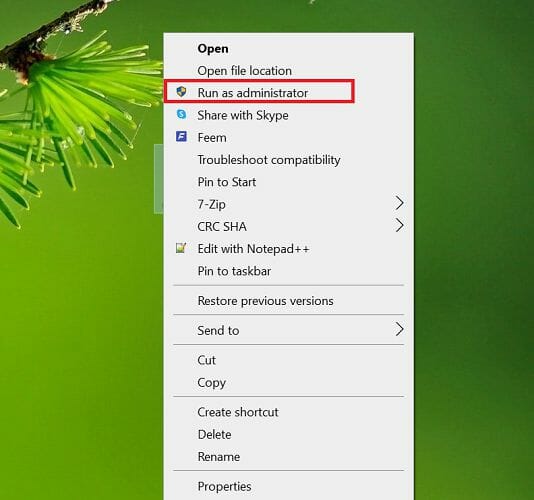
  2. Right-click on the shortcut and select Run as Administrator.
  3. The tool will now launch with administrative privilege. Use the tool and see if the error is resolved. If you confirm the error to be triggered due to a permission issue, modify the app properties and set the tool to run as admin all the time.
  4. Close Pro Tools.
  5. Right-click on the desktop shortcut again and select Open File Location.
  6. Right-click on the main Pro Tools.exe file and select Properties.
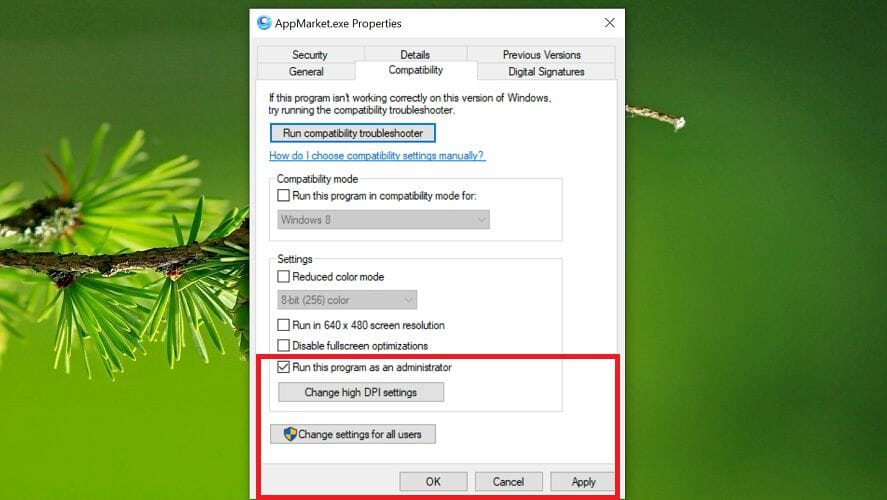
  7. In the Properties window, open the Compatibility tab.
    DAE error 13001
  8. Under the Settings section, check the Run this program as administrator box.
  9. Click Apply and OK to save the changes. Close the Properties window.

Once the changes are saved, launch Pro Tools using the desktop shortcut. The tool will launch with administrative privilege. Check if the dae error 13001 Pro Tools 10 Windows 10 problem is resolved.


2. Run Pro Tools in Compatibility mode 

DAE error 13001
  1. Right-click on the Pro Tools desktop shortcut and select Open File Location.
  2. When the installation folder opens, right-click on the main PoTools.exe file and select Properties.
  3. In the Properties window, open the Compatibility tab.
  4. Under the Compatibility mode section, check Run this program compatibility mode for box.
  5. Click the drop-down menu and select Windows 7 or Windows 8.1.
  6. Click Apply and OK to save the changes.

Launch Pro Tools again and check if the dae error 13001 was encountered is resolved.

If you are running the older version of Pro Tools originally developed for Windows 7 or XP, it may face compatibility issues when run on new-gen Windows 8.1 or Windows 10 computers. 

Windows by default offer a compatibility mode to help users run their older programs on Windows 10 in compatibility settings.

Alternatively, you can also choose to install the latest version to avoid running the program in compatibility mode. If the issue persists, try reinstalling the app with admin access to resolve the issue. 


3. Reinstall Pro Tools as administrator 

dae error 13001 was encountered windows 10
  1. Click on Start and type control.
  2. Click on the Control Panel to open the app.
  3. Select Programs and then click on Programs and features. This will list all the programs installed on your system.
  4. Select Pro Tools from the list and click Uninstall. Click Yes to confirm the action when prompted by UAC.
  5. Wait for Windows to uninstall the app completely. Once uninstalled, reboot the computer to apply the changes.
  6. After the restart, go to the download page of Pro Tools and download the latest version of the app available but don’t run the installer yet.
  7. Open the folder where you have the Pro Tools installer downloaded. Right-click on the installer and select Run as Administrator.
  8. Click Yes/Install when prompted by User Account Control.
  9. Follow on-screen instructions to complete the installation. Once done, reboot the computer.

Launch Pro Tools again and check if the Pro Tools first dae error 13001 is resolved.

The Pro Tools dae error 13001 error in Windows computers usually occurs due to compatibility issues or insufficient permission to run the app.

Try running the app as an administrator to fix the problem. Alternatively, you can also run the app in compatibility mode if you use the older version of the app.

SolarWinds error: unable to connect to server [Fixed]

SolarWinds RMM comes with a complex set of tools that helps to efficiently secure and maintain the IT infrastructure while offering automation and scripting, patch management, reports, and predefined monitoring templates.

Many users report getting a Solarwinds error: unable to connect to the server when accessing the Virtual Appliance Management Interface (VAMI).

This type of error is usually caused by the local device not being able to establish an HTTPS session to the dashboard server.

Although it seems complicated, don’t worry. In this article, we will explore some easy steps that will help you fix this issue.

How can I solve the Solarwinds error: unable to connect to server?

1. Use PRTG Network Monitor

If SolarWinds keeps on failing to work properly then perhaps before moving forward with the solutions for this issue, our recommendation would be to use a tool that is more reliable and error free.

After we have tested several such tools, we would suggest that you try using the PRTG Network monitor.

What makes this tool amazing is that as the title says it’s a network monitor that allows you to have an overview of all your systems, traffic, and additional applications depending on the IT infrastructure.

Most importantly though, as mentioned earlier, PRTG Network Monitor is a reliable, error free tool that will not make you waste time searching for ways to fix errors.

This tool will monitor the performance based on the server threshold, network traffic limits, and temperature.

The software will look at the server, routes, and switches and based on the findings will inform about the CPU and bottlenecks.

If anything is not going as it should, then you will receive an alarm, in a prompt manner so that you can take care of the issue before it becomes a bigger problem.

Moreover, you will have full access to an impressive gathering of resources on their Support page where you’ll find manuals, how-to guides, training, and many more.

Let’s have a look at some of the key features:

  • User-friendly and intuitive interface.
  • Access to a free version.
  • Network analytic results.
  • Monitors all the IT infrastructure.
  • Various license types to choose from.
PRTG Network Monitor

PRTG Network Monitor

A reliable and error free tool that will help you efficiently monitor all your devices and identify any weak spots.

2. Clear DNS cache

  1. Click Start and then right-click to select Run.
  2. Next, type cmd, and then press Enter.
  3. Type in the command: ipconfig /flushdns
  4. The DNS cache is now clear.

3. Restart the Advanced monitoring agent

How to fix laptop screen flickering
  1. Press Windows Key + R to open the run window.
  2. Type in the box: Services.msc
  3. Next, select Ok.
  4. Right-click on the Advanced Monitoring Agent service option.
  5. Select Restart.

4. Check the Firewall

Launch the game from the game folder
  1. Press Windows key + R to open up a Run dialog box.
  2. Next, type appwiz.cpl inside the text box and press Enter.
  3. In the Programs and Features menu locate the security program and choose Uninstall.
  4. Follow the sunscreen indications to complete the process.
  5. Restart your device and check if the issue is still there.

In case that the Solarwinds error: unable to connect to the server will not appear once you performed the above steps, this indicates that the issue was connected to your Firewall blocking the communication to the URL’s.


There are several reasons to why the Solarwind stops working properly and it’s understandable how this can be a sensitive matter that needs fixing as soon as possible.

As we explored in this article, clearing the DNS cache or checking if the Firewall is not by any chance preventing the communications to the URL’s can help solve the issue.

We help that the solutions presented below helped you fix the SolarWinds error: unable to connect to server. Let us know in the comments section below if you have additional recommendations or suggestions.

Fix: Comcast Status Code 225

Comcast is not a new name in the leading communication companies world, and it’s one of the most used in its category.

Users are excited about using Comcast since it grants them access to affordable, affordable internet services.

However, since no technology is perfect, users began experiencing issues and reported getting a status code 225 when using the service.

Sounds complicated, but in this article, we will discuss and explore how to quickly fix this problem to be able to use the service again fully.

How can I fix the Comcast status code 225?

1. Reboot your Comcast Box

Perform a force restart
  1. First, unplug the Comcast box from the power.
  2. Wait for at least 15-20 seconds before plugin it in again.
  3. Once you plug it in, turn it on and check if the issue is still there.

2. Check the cable connectivity

If you are still facing the Comcast status code 225 after rebooting the device, make sure to check the cable connectivity.

Take a look if the cable is in good condition, and also make sure to double-check the cable connection associated with your Comcast.

If you find any cable defects, this indicates buying a new one.

3. Check the power outlet

DisplayPort to HDMI not working

Once all the above steps have been performed, make sure to check if the issue is still there. And if it is, then make sure to also check the power outlet where the Comcast box is plugged in.

One easy way to check that everything works with the power outlet is by plugging in other devices and see if they are working properly or not.

If they are not, then this is an indication that something may be wrong with the power outlet. This can easily be solved by switching the Comcast box to another power outlet.

4. Contact customer support

In case you made the above-described steps, and you are still getting the status code 225, our last recommendation is to contact Comcast customer support.

At this point, there is a strong indication that the issue is not at your end, and they should be able to help you with further verifications in their system.

They may test by sending a signal to your device and check whether it reaches you or not.

With this last step, we will conclude our list of recommendations that will help you fix the Comcast status code 225.

If your issue is not with the status code itself but with email access, check our dedicated guide on Comcast email not working.

As you can see, a few very simple and easy-to-perform steps will help you determine whether the issue is on your end or not. And if it’s not then contacting Comcast customer support is the best way to move forward.

Be sure to check out other similar articles, such as the Xfinity error 500 and how to bypass it.

If you have additional recommendations or suggestions, we would love to hear them in the comments section below.

Comment failed to post on YouTube? Here’s a quick fix

One of the great things about YouTube is that its users can usually leave comments under videos

However, a Comment failed to post error can arise for some users when they try to post a comment for a YouTube video.

Consequently, the comments some users enter don’t appear on YT pages.

How can I fix the comment failed to post on YouTube error?

1. Play the YouTube page’s video for a minute

A YouTube page comment failed to post youtube

To stop spamming, Google blocks comments from users who haven’t played videos on YT pages for at least a few seconds.

So, try playing the video on the YouTube page you can’t comment on for about a minute or two.

If you still can’t comment on YT pages after playing their videos, try the resolutions below.


2. Disable all browser extensions

Google Chrome

  1. Click the Customize and control Google Chrome button to open that browser’s menu.
  2. Select More tools > Extensions to open the tab in the snapshot directly below.
    Extensions tab comment failed to post youtube
  3. Click the blue toggle buttons on all extensions enabled in your browser.

Firefox

  1. Click Firefox’s Open menu button.
  2. Then click Add-ons to open the tab shown directly below.
    Add-on Manager comment failed to post youtube
  3. Click the toggle buttons for all enabled add-ons listed there.

Edge

  1. Press the Settings and more button at the top right of Edge’s window.
  2. Select the Extensions option.
    Edge's extensions page comment failed to post youtube
  3. Click the toggle buttons for installed extensions, and restart the Edge browse.

3. Open YouTube in incognito browsing modes

Incognito mode comment failed to post youtube

Incognito mode browsing also disables extensions. You can activate incognito browsing in Chrome, Firefox, and Edge with these hotkeys:

  • Google Chrome: Ctrl + Shift + N
  • Firefox: Ctrl + Shift + P
  • Edge: Ctrl + Shift + N

4. Clear browser data

Google Chrome

  1. Press the Ctrl + Shift + Delete keyboard keys at the same time.
  2. Select all the checkboxes for cookies, browsing history, and cache data on the Basic tab.
    Clear browsing data utility comment failed to post youtube
  3. Click All time on the Time range drop-down menu.
  4. Press the Clear data option.

Firefox

  1. Click Firefox’s Open menu button, and select Options on the menu.
  2. Click Privacy & Security on the left of the tab, and press the Clear data button.
  3. Select both the Cookies and Site Data and Cached Web Content checkboxes.
    Clear Data utility comment failed to post youtube
  4. Press the Clear button.

Edge

  1. Press the Alt + F hotkey within Edge, and select the Settings option.
  2. Select Privacy on the left of the Settings tab.
  3. Then press the Choose what to clear button.
    Clear browsing data utility comment failed to post youtube
  4. Select All time on the Time range drop-down menu.
  5. Select the cookies, browsing history, and cache data settings.
  6. Click Clear Now to delete browsing data.

5. Sign out and log back into YouTube

  1. Click your user account button at the top right of YouTube.
    Sign out option comment failed to post youtube
  2. Then click the Sign out button.
  3. Next, click the Sign In button at the top right of YouTube.
  4. Enter your account password in the text box.
  5. Click Next to sign in.
  6. Then try adding comments to a YouTube video page.

6. Disable VPN and proxy connections

  1. Click the Type here to search taskbar button to open that search tool.
  2. Then enter proxy in the search box.
  3. Next, click Proxy settings to open the window in the snapshot directly below.
    The Use a proxy server option comment failed to post youtube
  4. Then turn off the Use a proxy server option.

Note: You can also disable VPN connections via the Settings app. Our How to turn off VPN on Windows 10 post provides further details for disabling VPN connections.


7. Change your YouTube name

  1. Click the button for your user account at the top right corner of YouTube’s page tab.
  2. Select the Settings option.
  3. Click the View or change your Google Account settings option.
  4. Click Personal info on the left of your Google Account page.
    Personal Info tab comment failed to post youtube
  5. Enter a new user name in the Name box.

It’s usually relatively straightforward to fix the Comment failed to post error.

The resolutions above should be enough to fix the Comment failed to post YouTube error for most users.

FIX: Adobe Audition freezing/ not responding on slow PCs

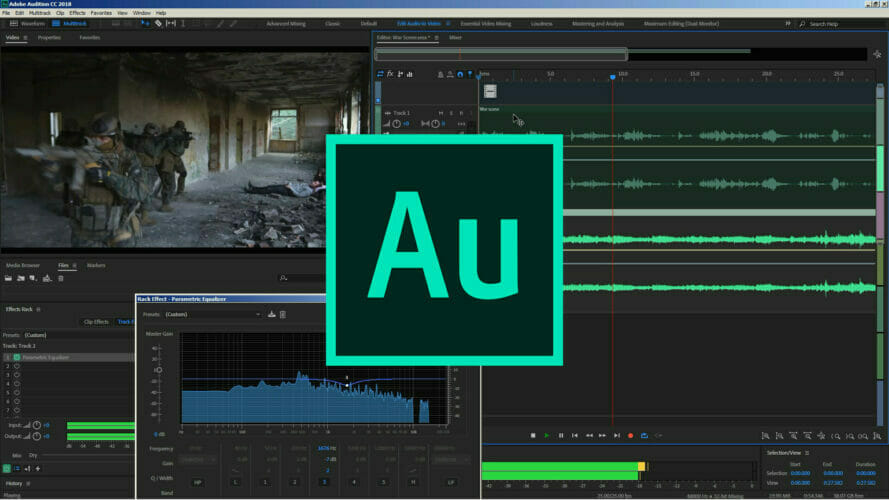
Adobe Audition is a first-class audio editor tool used by millions of professionals and amateur editors worldwide.

As is the case with all Adobe software, Audition offers lots of tutorials to get you started with the editing process and helpful tips to help you progress and join creative communities.

On the other hand, Adobe programs can sometimes be quite demanding in terms of resources and system requirements.

Users oftentimes complain that Audition freezes when running several programs simultaneously, or when running it with Premiere Pro also open.

Sometimes, Audition would stop working while recording or freezes when initializing.

At this point, Audition shows a not responding message. The worst part is that reloading the program results in losing all the work completed up to that point.

Now a Reddit user suggested an extremely helpful fix and sharing it is likely to save some trouble for many Audition fans. Especially since this is an issue that has been going on for quite some time.

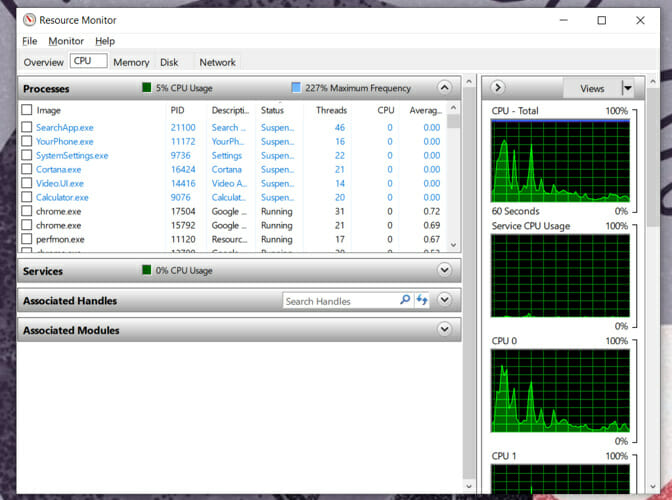
The solution employs the Analyze Wait Chain function in Task Manager’s Resource Monitor.


How do I fix Adobe Audition freezing on my computer?

1. Use Resource Monitor

resource monitor fix adobe audition
  1. Open the Resource Monitor by typing resmon in the search bar.
  2. Under the CPU tab, you should see the non-responding processes marked in red.
  3. Right-click on it and select Analyze Wait Chain...
  4. You should see one or two processes in the popup window (each with a sub-process attached and having svchost.exe in their names)
  5. Select the last sub-process in the list (the svchost.exe sub-process attached to the last process.
  6. Click End process.

Note: Audition might close during the last step. But, according to the comments, in most cases it will unfreeze, and your work should be there.

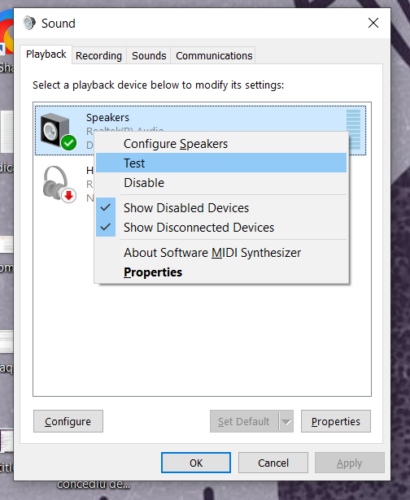
Also, the speakers and microphone will stop working. At this point you have to right-click the sound tray icon, select Sounds > Playback > right-click the speakers > Test.

The sound should now work normally. If it doesn’t, save your progress, close the program, and reboot the computer.

2. Install a fresh copy of Audition

Although it’s less probable that the cause is a corrupted Adobe Audition version, you shouldn’t take this off the list.

Besides, it’s best to make sure at all times that your software has the latest updates and that it is compatible with your OS.

Adobe Audition

Adobe Audition

Adobe Audition keeps freezing on your PC? Make sure that you have the latest version with all the awesome features included.
Free trialVisit website

Although the troubleshooting solution presented here addresses Adobe Audition, it can be actually used for the same purpose for any unresponsive program in the Adobe Creative Cloud Suite.

The only trick is to correctly identify the sub-process that’s causing the issue.

We hope that this is helpful advice and we’d like to hear if you successfully unblocked Audition using it. Feel free to use the comments section for any insights in this topic.

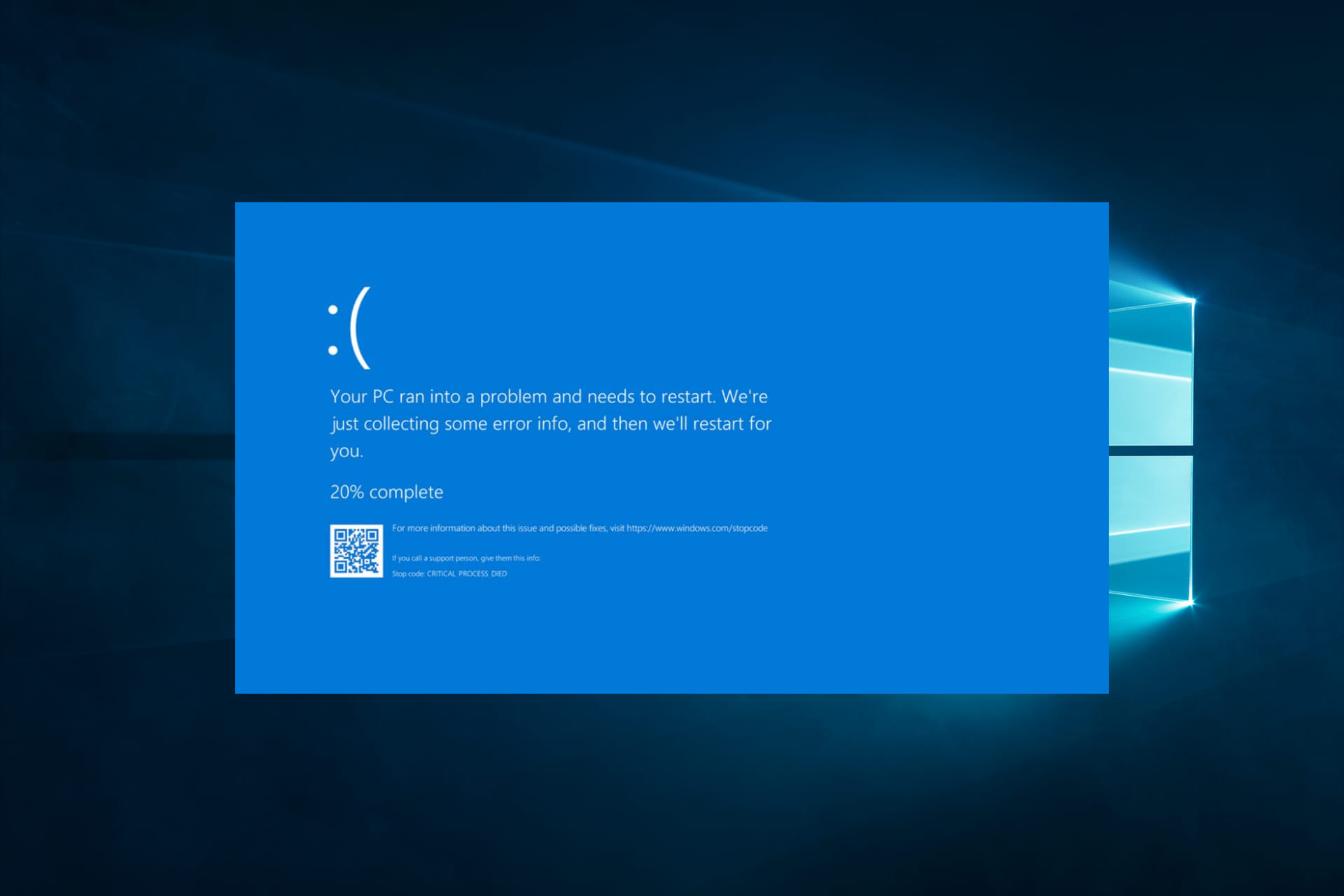
Clfs.sys Blue Screen of Death: 6 Methods to Fix This Error

Getting the clfs.sys error message on a blue screen is a common Windows 10 issue that most users have trouble fixing.

You are in luck because you will see below a quick tutorial about the steps you need to take to solve it. Let us first explore some possible reasons you may have gotten this error.

What is a CLFS SYS error?

This error is related to the CLFS driver for this system on your operating system.

This driver helps provide recovery support and operations of transactional files on the OS. This error will typically occur for any of the following reasons:

  • System conflicts – These may be conflicts between hardware and software.
  • Driver issues – In most cases, this refers to corrupted drivers and outdated system or program drivers.
  • Malware – Virus contributes to almost all kinds of issues on a computer, including clfs.sys blue screen error.
  • Corrupted files – System files are essential in carrying out specific functions on a computer. When they become corrupt, you may expect issues such as this BSoD.

What is clfs.sys?

CLFS stands for Common Log File System. This file system is an essential part of the Windows 10 OS, and its primary function is to log files and record OS events and activity.

We will show you some of the best solutions if you encounter a clfs.sys blue screen problem.

How can I fix clfs.sys blue screen error?

1. Run a security scan

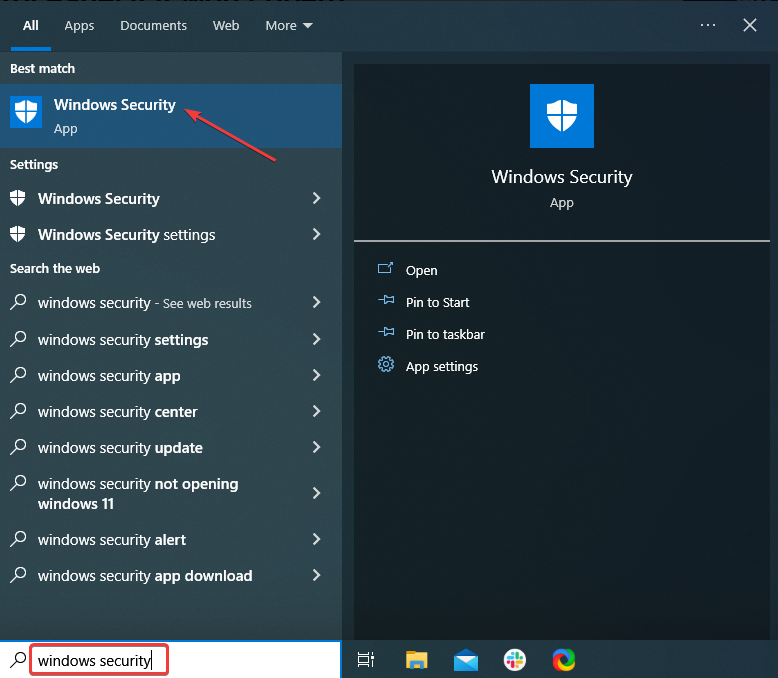
  1. Type Windows Security in the Search bar, and click on the relevant search result.
    clfs.sys blue screen
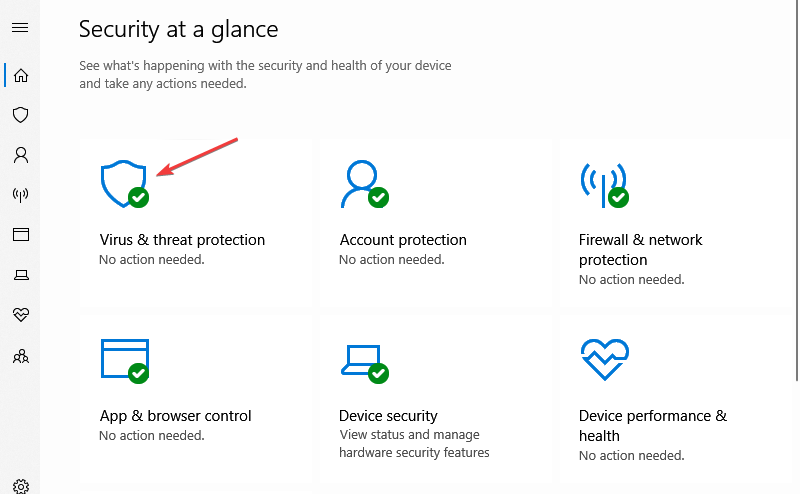
  2. Now, click on Virus & threat protection here.
    clfs.sys blue screen
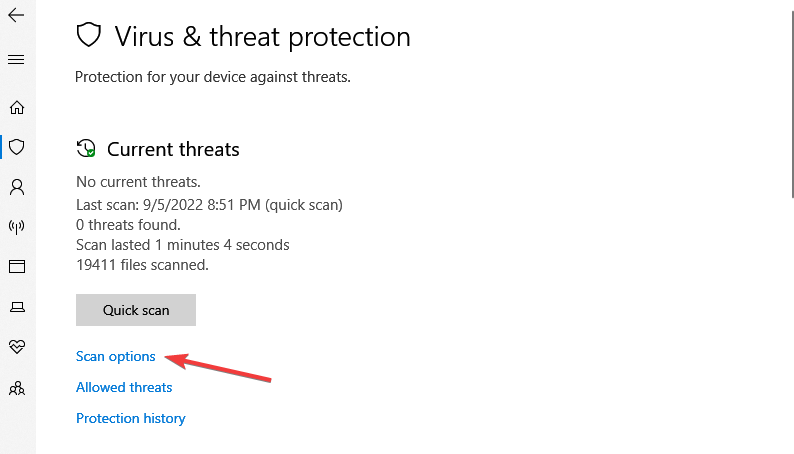
  3. Click on Scan options.
    clfs.sys blue screen
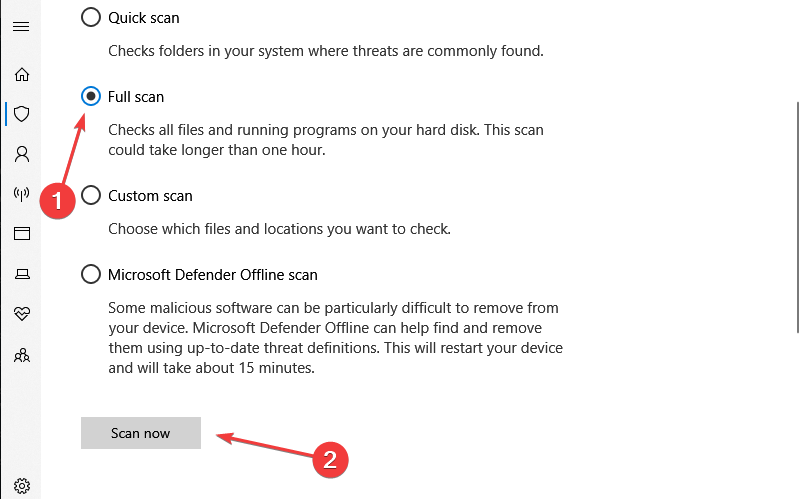
  4. Select Full scan and click the Scan now button at the bottom.
    clfs.sys blue screen

Open your antivirus and do a full system scan for any malware or viruses.

Usually, when your system registries are damaged in any way, thus getting the clfs.sys blue screen, a virus, or a malware infection might cause the error message.

After the scan is completed, reboot the Windows 10 computer. Then, check and see if you still get the same clfs.sys error message.

2. Update clfs.sys related drivers

  1. Press the Windows Key + S.
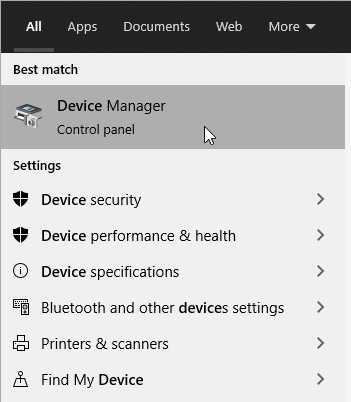
  2. Then, type Device Manager and select the utility.
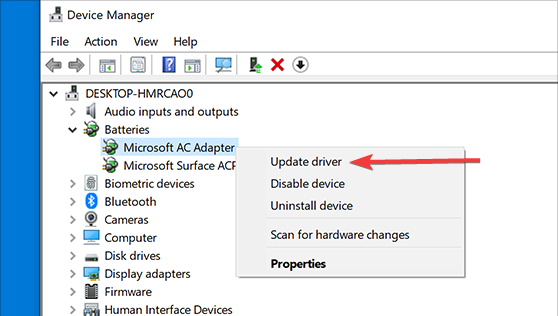
  3. Expand the device category that needs to be updated, then right-click on it, then select Update Driver.
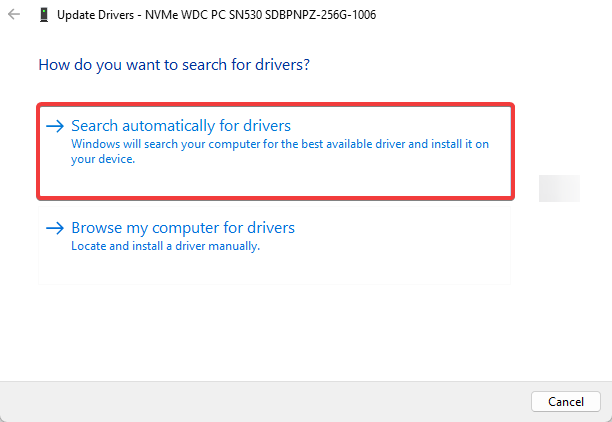
  4. Click Search automatically for drivers.

Updating drivers manually can be time-consuming. Instead, we recommend using a tool that automatically updates your drivers. Using such a tool will eliminate the possibility of downloading the wrong driver version.

You must click a couple of times, and the program will do the rest. This includes scanning your hardware and software for newer versions of compatible drivers and installing them.

More so, using a dedicated driver update tool will enhance your PC performance at maximum due to renewed device drivers.

In conclusion, updating drivers with this lightweight automated solution and resolving hardware issues efficiently is more beneficial.

⇒ Get Outbyte Driver Updater

3. Restore your system to a previous point

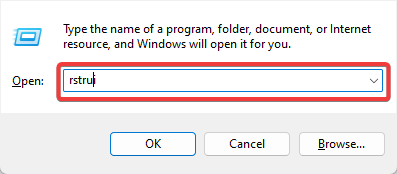
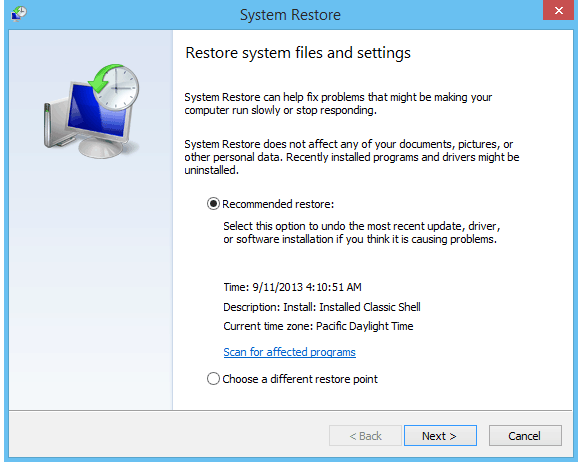
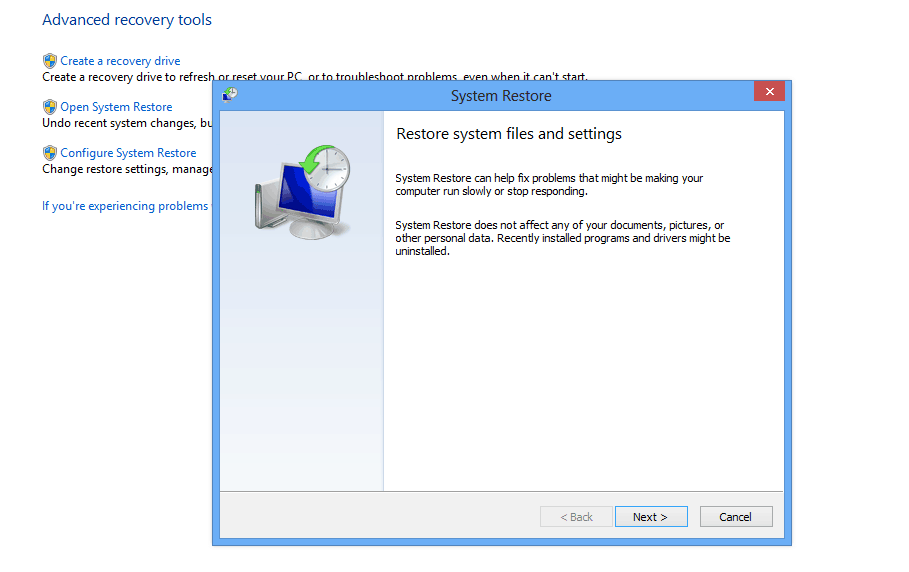
  1. Press Windows + R, trupe rstrui and hit Enter.
    clfs.sys blue screen
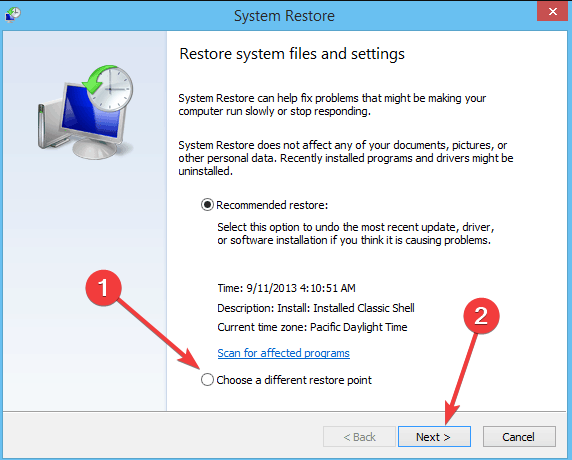
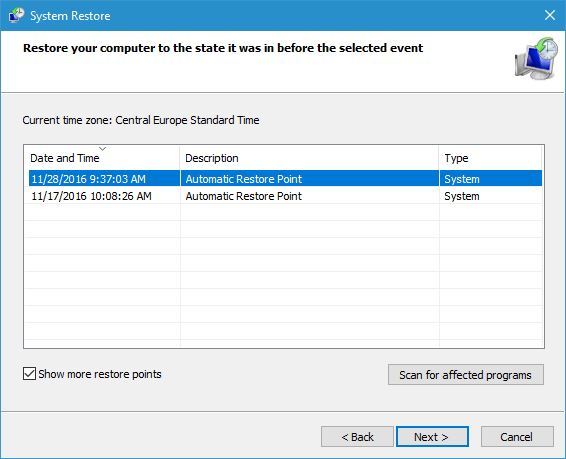
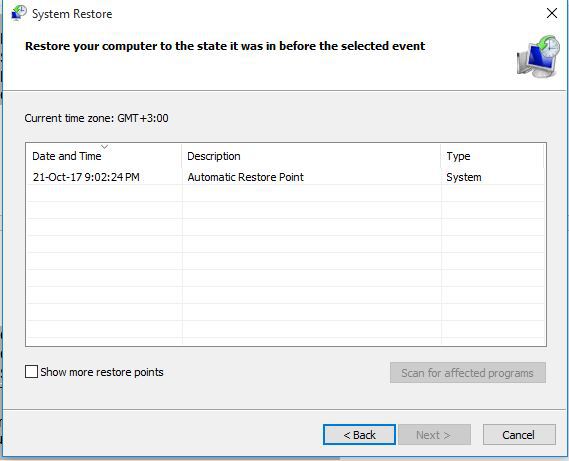
  2. Select Choose a different restore point option and hit Next.
    clfs.sys blue screen
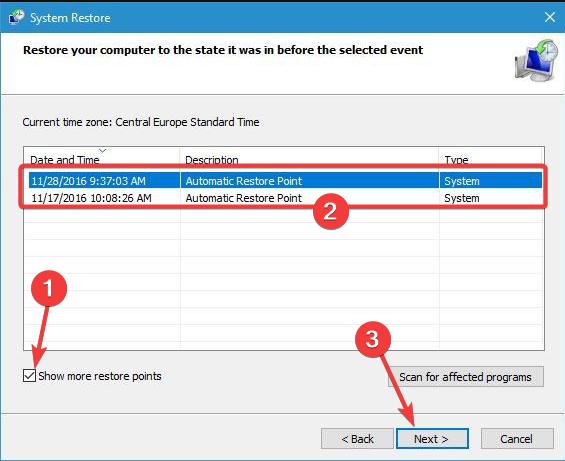
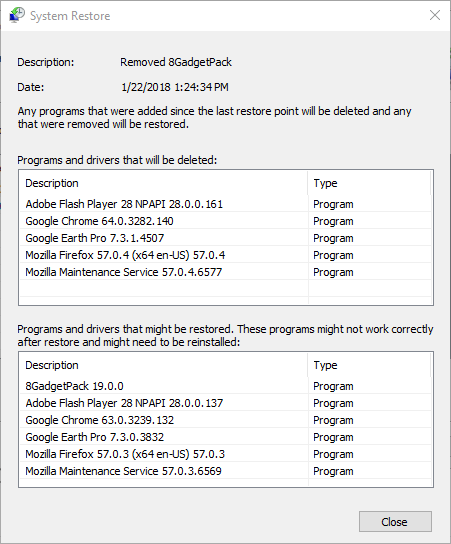
  3. To view the full restore list, click the Show more restore points option, select a restore point, and hit Next.
  4. Click Next and Finish to roll back Windows.

Note: System Restore is a built-in tool to help you fix corrupted system files. With this utility, you can restore Windows 10 before the error occurs.

4. Run an SFC scan

  1. Enter command prompt in the Windows screen search box.
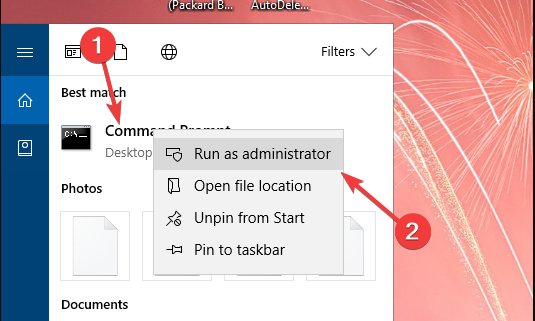
  2. Right-click Command Prompt and select Run as administrator.
    clfs.sys blue screen
  3. In the command prompt window, write the following command and then press Enter: sfc /scannow
  4. It will take a couple of minutes until the system file checker is finished.
  5. After it is finished, you will need to reboot your Windows 10.
  6. See if it fixed your clfs.sys error message after the sfc scan was performed.

Note: If a virus or malware has corrupted your system, the System File Checker can try to repair the affected files. This built-in solution will scan system files and replace any corrupted ones with a cached copy. 

Performing DISM and SFC scans is also recommended when facing Cldft.sys BSoD issues. Rest assured that solving Cldft.sys BSoD issues with simple methods is possible.

5. Run a disk check

  1. Write cmd in the Windows search box, then select Run as administrator.
  2. Click the Yes button if a user account control window pops up.
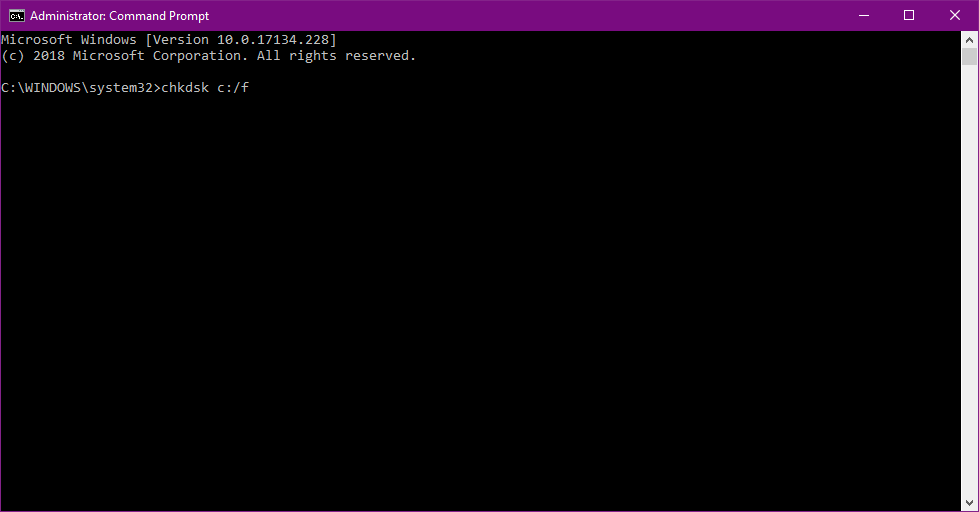
  3. In the command prompt window, write the following and hit Enter: chkdsk /f
  4. After completing the check process, you must close the command prompt window and reboot the Windows 10 PC.

Note: This process will check your disk for any errors it may have on it and try to fix them.

6. Check if your RAM is corrupted

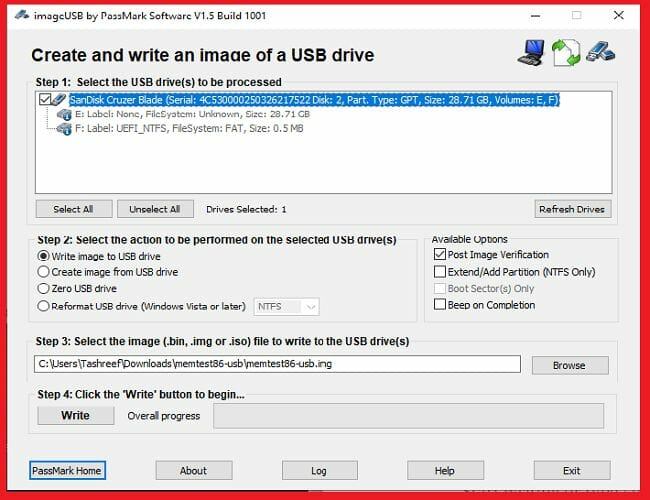
  1. Download the Windows MemTest86 USB image.
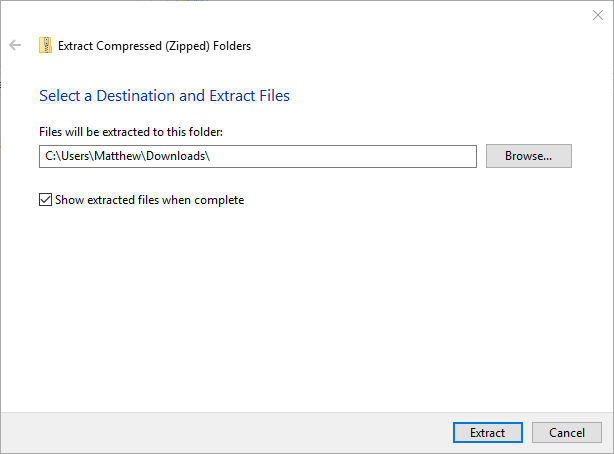
  2. Extract it from the ZIP file on your PC.
  3. Insert an empty USB stick into your computer.
  4. In the extracted folder (MemTest86), run the imageUSB tool and choose your USB stick so it becomes bootable.windows memory diagnostic tool stuck
  5. Restart your PC with the USB drive as the main bootable device.
  6. Follow the commands from the screen while MemTest86 checks for memory issues.

Note: MemTest86 is a free memory testing program; you have to boot this one from a USB flash drive. The software can test your RAM for all kinds of issues.

You have above a couple of options to try to fix your clfs.sys error message in Windows 10.

Also, you can write us below in the comments section of the page any questions you may have on this subject, and we will help you further with this issue as soon as possible.

Microsoft’s Custom Neural Voice technology goes out of preview

Microsoft has announced that its text-to-speech AI “Custom Neural Voice” has hit general availability. The technology enables developers to create personalized voices using their audio data and deep neural networks (DNN).

“The real technology breakthrough is the efficient use of deep learning to process the text to make sure the prosody and pronunciation is accurate. The prosody is what the tone and duration of each phoneme should be. We combine those in a seamless way so they can reproduce the voice that sounds like the original person,” said Xuedong Huang, a Microsoft technical fellow and the chief technology officer of Azure AI Cognitive Services.

According to Microsoft, Custom Neural Voice can offer more natural-sounding voices than similar text-to-speech services. It creates voice fonts with the help of a sound or phonemes bank and ensures the accuracy of the duration as well as the tone of each phoneme with various neural networks. This makes it easier for the machine learning model to use a natural-sounding synthetic voice.

To use this service, customers simply need to record their voice and then upload it to Custom Neural Voice for training the model. It will automatically generate a natural sounding voice for the recording without any developer intervention.

Microsoft detailed various use cases where several companies are already using the technology, including Warner Bros and AT&T. Interestingly, a newly installed experience lets people can interact with Bugs Bunny at the AT&T Experience Store in Dallas. The technology can be particularly useful for people and organizations in different scenarios such as voice assistants, Customer Service Chatbots, reading audiobooks, and online learning.

Microsoft understands that this tool can be used for malicious purposes, and the company has decided to limit its access for now. Customers will need to seek approval from the company before they can use Custom Neural Voice. The company also plans to add a digital watermark within a synthetic voice to inform users that Custom Neural Voice was used to create the digital content.

CANCEL STATE IN COMPLETED IRP error in Windows 10 [FULL FIX]

Computer errors are relatively common, and while certain errors can be annoying, most of them are relatively harmless.

However, one of the more serious errors on Windows 10 are Blue Screen of Death errors.

Most of these errors can be caused by a software issue, but in a worst-case scenario, these types of errors can be caused by faulty hardware.

There is a wide range of BSoD errors available and since these errors can be rather troublesome, today we’re going to show you how to fix CANCEL_STATE_IN_COMPLETED_IRP error.

The solutions in this article also cover the following BSoD errors, so try these solutions if you encounter any of them:

  • cancel_state_in_completed_irp aswnethub.sys
  • cancel state in completed irp

How can I fix CANCEL STATE IN COMPLETED IRP BSoD error?

  1. Use software to fix your BSoD
  2. Update Windows 10 regularly
  3. Update your drivers
  4. Run the BSOD Troubleshooter
  5. Run the SFC scan
  6. Run DISM
  7. Check the hard drive
  8. Uninstall your antivirus
  9. Uninstall problematic applications
  10. Check for hardware errors

1. Use software to fix your BSoD

BSoDs are caused by a variety of issues, and tracking the exact culprit can be hard, so using third-party tools that perform an overall cleanse of your PC becomes the next best solution.

2. Update Windows 10 regularly

Windows 10 is constantly being improved with new features through Windows Update, and it’s important to update Windows 10 regularly because many of these updates bring security and compatibility fixes.

For example, if certain hardware isn’t fully compatible with Windows 10, the latest update might fix that issue.

In addition to hardware, these updates often fix many software related issues.

And since both hardware and software problems can cause CANCEL_STATE_IN_COMPLETED_IRP error, you can see why it’s crucial that you download Windows 10 updates regularly.

3. Update your drivers

Drivers are a crucial component of every Windows, and if a certain driver is outdated or faulty, that can be the cause for CANCEL_STATE_IN_COMPLETED_IRP BSoD error.

According to users, Netgear drivers can often be cause for these types of problems, so if you’re using Netgear devices, be sure to update them as soon as you can.

It’s worth mentioning that almost any driver can cause BSoD error to appear, so be sure to update as many drivers as you can if you want to permanently fix this issue.

Updating your drivers is relatively easy, and you can do that simply by visiting your hardware manufacturer’s website and downloading the appropriate drivers.

Alternatively, you can always use Device Manager to update the necessary drivers. To do that, follow these simple steps:

  1. Press Windows Key + X to open Power User Menu and select Device Manager.
    device-manager
  2. Once Device Manager opens, locate the driver you wish to update.
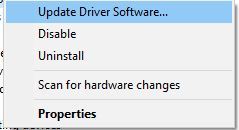
  3. Right click the driver and choose Update Driver Software.
    update-driver-software
  4. Select Search automatically for updated driver software.
    browse-my-for-driver-software
  5. Windows 10 will now automatically download the best driver for your device.
  6. Repeat these steps for all devices you want to update.

Update drivers automatically

Searching for drivers on your own can be time-consuming. So, we advise you to use a tool that will do this for you automatically.

Using an automatic driver updater will certainly save you from the hassle of searching for drivers manually, and it will always keep your system up to date with the latest drivers.

⇒ Get Outbyte Driver Updater

4. Run the BSOD Troubleshooter .

  1. Open the Settings app and go to Update & Security section.
  2. Select Troubleshoot from the menu on the left.
  3. Select BSOD from the right pane and click Run the troubleshooter.CANCEL STATE IN COMPLETED IRP Windows 10 error
  4. Follow the instructions on the screen to complete the troubleshooter.

If updating your drivers didn’t get the job done, let’s try with the troubleshooting tools. The first tool we’re going to try is Windows 10’s built-in troubleshooter.

This tool can be useful for resolving various issues, including BSOD errors

5. Run the SFC scan

  1. Right-click on the Start Menu button, and open Command Prompt (Admin).
  2. Enter the following line and press Enter: sfc/scannowCANCEL STATE IN COMPLETED IRP Windows 10 error
  3. Wait until the process is done (it may take a while).
  4. If the solution is found, it will automatically be applied.
  5. Now, close the Command Prompt and restart your computer.

The SFC scan is a command-line tool that basically scans your computer for potential errors, and resolves them if the solution is available.

Among other errors that the SFC scan can help with are the BSOD issues.

6. Run DISM

6.1. Standard way

  1. Right-click Start and open Command Prompt (Admin).
  2. Paste the following command and press Enter:
    • DISM /Online /Cleanup-Image /RestoreHealthCANCEL STATE IN COMPLETED IRP Windows 10 error
  3. Wait until the scan is finished.
  4. Restart your computer and try updating again

6.2. With the Windows installation media

  1. Insert your Windows installation media.
  2. Right-click the Start menu and, from the menu, choose the Command Prompt (Admin).
  3. In the command line, type the following commands and press Enter after each:
  • dism /online /cleanup-image /scanhealth
  • dism /online /cleanup-image /restorehealth
  • DISM /Online /Cleanup-Image /RestoreHealth /source:WIM:X:SourcesInstall.wim:1 /LimitAccess

Make sure to change an X value with the letter of the mounted drive with Windows 10 installation.

After the procedure is finished, restart your computer.

And the third troubleshooter we’re going to try is DISM. Deployment Image Servicing and Management is a tool that deploys the system image all over again. So, it’s possible that the BSOD error will get resolved along the way.

7. Check the hard drive

  1. Enter the Advanced Startup (Restart your computer while holding the Shift key).
  2. Choose Troubleshoot > Advanced Options.
  3. Select Command Prompt from the list of options.CANCEL STATE IN COMPLETED IRP Windows 10 error
  4. When Command Prompt appears, enter the following lines and press Enter after each line in order to run it:
  • bootrec.exe /rebuildbcd
  • bootrec.exe /fixmbr
  • bootrec.exe /fixboot

Some users are also suggesting that you need to run additional chkdsk commands as well.

To perform these commands, you need to know drive letters for all your hard drive partitions.CANCEL STATE IN COMPLETED IRP Windows 10 error

In Command Prompt you should enter the following (but remember to use the letters that match your hard drive partitions on your PC):

  • chkdsk /r c:
  • chkdsk /r d:

Restart your computer and check if the issue is resolved.

8. Uninstall your antivirus

Antivirus software is one of the essential programs on every computer, but unfortunately, antivirus software is also a common cause for BSoD errors.

Users confirmed that Bitdefender is the cause of CANCEL_STATE_IN_COMPLETED_IRP error, so it’s advised that you remove it.

It’s worth mentioning that uninstalling the antivirus software isn’t always enough since many antivirus tools leave certain files and registry keys behind after they are removed.

Even these files can cause BSoD error to appear, so it’s crucial that you use a dedicated removal tool to completely remove a certain antivirus program.

Many antivirus companies have these tools available on their websites, and you can download them free of charge.

Bear in mind that almost any antivirus software can cause BSoD error to appear, so be sure to remove any antivirus tool that you have installed, except for Windows Defender.

If uninstalling the antivirus fixes the problem, you can install a newer version of the same tool you were using or you can switch to different antivirus software.

Additionally, we recommend you use a dedicated uninstaller to get rid of any leftover data that usually follows a typical uninstall.

9. Uninstall problematic applications

Often cause for CANCEL_STATE_IN_COMPLETED_IRP error can be installed software, and if you installed any software before this error started appearing, you might want to remove it.

Users reported that Firefox can cause this error if you’re using 3D Vision, so you might want to try uninstalling Firefox and using a different browser.

Alternatively, you can delete your Firefox profile and add Firefox to 3DMark Profile or simply add StereoNotSupported Flag to Mozilla Firefox Profile.

It’s worth mentioning that almost any installed application can cause this error to appear.

So you might have to uninstall any applications that you installed or updated in the last few days or weeks in order to fix this problem.

10. Check for hardware errors

CANCEL_STATE_IN_COMPLETED_IRP BSoD errors are often caused by hardware failure, and in order to fix this error, you need to find and replace the faulty hardware.

Users reported that this error can be caused by a faulty USB device, so be sure to unplug all USB devices except for your keyboard and mouse.

Another cause for this issue might be your portable hard drive, so be sure to check if it works properly.

Lastly, make sure to check your memory. RAM is often the cause of many BSoD errors, so make sure that you check it out. To check your RAM, you need to do the following:

  1. Download MemTest86+.
  2. Create a bootable USB flash drive or CD with MemTest86+ on it.
  3. Restart your computer and boot it from that USB drive or CD.
  4. Once MemTest86+ starts, let it test your RAM for a couple of hours.

If no problems are found, your RAM isn’t the cause of this error, so you should check your motherboard and other hardware.

CANCEL_STATE_IN_COMPLETED_IRPB error and many BSoD errors can be rather problematic since they constantly restart your PC in order to prevent damage.

However, most of these errors can be fixed by using one of our solutions.

Fix: PAGE FAULT IN NONPAGED AREA [Bug Check 0x50]

BSoD errors also known as Blue Screen of Death errors usually occur when there’s a major error with your computer.

The PC shuts down giving you BSoD in order to prevent potential damage to your hardware.

There are all sorts of BSoD errors and today we’re going to show you how to fix PAGE FAULT IN NONPAGED AREA BSoD error in Windows 10.

PAGE_FAULT_IN_NONPAGED_AREA is quite a unique error since it can be related to both hardware and software.

So if you have recently changed any hardware, you might want to remove it and to see if the problem persists. If that doesn’t help maybe you should try some of the following solutions:

How can I fix PAGE FAULT IN NONPAGED AREA errors?

1. Use a specialized BSOD repair software

Fixing page_fault_in_nonpaged_area stop code in Windows 10 isn’t an easy task, especially if you’re not familiar with these types of errors.

Therefore, it might be better to use tools specifically designed for these types of problems.

2. Test your RAM

test RAM page_fault_in_nonpaged_area
  1. Download Memtest86+.
  2. After you’ve downloaded it, you can burn it to a CD or put it on a USB flash drive.
  3. You need to make sure that your CD-ROM or USB is set as first boot device in BIOS.
  4. Make sure that your CD or USB is inserted and restart your computer.
  5. Memtest86+ should open and you can start testing your RAM memory. This process can take a while, from 10 to 30 minutes, sometimes even more, so please wait patiently.
  6. If no errors are found this means that your RAM is functional and something else is causing the problem.

As we mentioned before page_fault_in_nonpaged_area BSOD can be caused by faulty RAM, so be sure to check it first.

3. Remove or update problematic software

BSOD page_fault_in_nonpaged_area (cpuz138_x64.sys) error , for example, is caused by a software called Speccy and it’s advised that you update the software that is causing your computer to crash.

If updating the software doesn’t help you might have to uninstall it until the developers fix this issue.

One common software-related error is PAGE_FAULT_IN_NONPAGED_AREA (applecharger.sys).

This error is caused by an application called ON/OFF developed by Gigabyte. Just uninstall this app in order to resolve this problem.

4. Uninstall, rollback or update your audio or display driver

  1. Open Device Manager and find your audio or display driver.
  2. Right-click it and choose Uninstall if you want to use the default driver, or Rollback Driver if you want to use the previous version of drivers. PAGE_FAULT_IN_NONPAGED_AREA
  3. If you choose to uninstall drivers select Delete the driver software for this device and click OK.
  4. Now you should be using default or previous version of drivers depending on your choice.

PAGE_FAULT_IN_NONPAGED_AREA(usbaudio.sys) usually means that your audio driver is causing these problems, so it’s advised to update them.

Doing so manually can be a tedious task, but there are third-party solutions that can automate this process.

⇒ Get Outbyte Driver Updater

5. Update your OS

update windows 10 page_fault_in_nonpaged_area

If you’re not running the latest Windows 10 OS version, you may want to check for updates.

The latest OS versions are fully optimized for making the OS more stable and reliable.

You may also want to disconnect all peripheral devices when booting up your computer since this error is usually triggered by incompatible or faulty hardware.

Windows stop code page_fault_in_nonpaged_area error can be tricky since it can be caused by software, hardware , or a bad driver.

So if you try to fix it make sure that you keep a close eye on the brackets next to an error because it usually points out to a file that is causing these issues.

Corrupt Memory Dump: 3 Ways to Fix This Error on Your PC

It isn’t every day that you come across a corrupted memory dump file, but when you do, it will be a frustrating experience. That is for the simple reason that the condition renders your PC virtually unusable.

Thankfully, it is an issue that can be easily fixed with the correct information, such as the one in this guide.

What does a corrupt memory dump mean?

A corrupt memory dump comes up when your PC generates a faulty memory dump file from your virtual machine. This happens when users try to generate a complete memory dump file from their virtual machine.

The primary cause of this issue is that the option Enable heartbeat monitoring for the virtual machine is selected in the virtual machine.

How do I fix corrupted memory dump file errors?

1. Use a specialized repair software

It would be best to use specialized BSOD repair software to fix a corrupt memory dump. Fixing BSOD errors manually can be a problem, but there are specialized tools that can help you.

2. Change the setting via GUI

  1. For this, open Failover Cluster Manager first and click on Roles.
    roles corrupt memory dump
  2. Search for the virtual machine resource and click on the Resources
  3. Under the Resources tab, right-click on the virtual machine.
  4. Now, click on Properties and select Settings.
  5. Under Heartbeat Setting, clear the Enable automatic recovery for application health monitoring checkbox.
  6. Similarly, clear the Enable heartbeat monitoring for the virtual machine checkbox and click OK for the setting to take effect.

This should help prevent the generation of corrupt memory dump files on Windows.

3. Change the setting via Windows PowerShell

  1. Press the Windows key + X and select Windows PowerShell (Admin).
    powershell
  2. Type the command below and hit Enter to run it: Get-ClusterResourceget cluster
  3. Next, run the following command to check if Enable heartbeat monitoring for the virtual machine and Enable automatic recovery for application health monitoring are enabled:
    Get-ClusterResource <VirtualMachineName> | Get-ClusterParameter CheckHeartbeatcheck corrupt memory dump
  4. Now, type the command below and hit Enter to set the CheckHeartbeat value to 0:
    Get-ClusterResource <VirtualMachineName> | Set-ClusterParameter CheckHeartbeat 0get 0
  5. However, just in case you’d like only the Enable automatic recovery for application health monitoring option to be canceled, run the following command:
    (Get-ClusterResource <Object>).EmbeddedFailureAction = 1get 1
  6. Finally, exit Windows PowerShell and restart your PC.

Note that this solution is pretty technical and requires you to enter the commands carefully.

We can conclude this guide on fixing the corrupt memory dump issue with this. You should be able to solve the problem quickly, provided you follow the instructions carefully.

If you want to know how to delete a system error memory dump file, check our detailed guide to do it quickly.

Let us know which solutions worked best for you by leaving a message in the comments section below.

FIX: Critical structure corruption BSOD error in Windows 10

If you thought that the transition to Windows 10 means saying a final goodbye to Blue Screen of Death errors, you’ll be surprised.

The shift from the former iterations to Windows 10 is, especially if you choose to upgrade rather than perform a clean install, far from perfect and a bunch of errors emerged.

One of them seemingly crashes the system and results in a Blue Screen of Death. Before the system hits the lights, you’ll see the Critical Structure Corruption“prompt.

This is a severe issue and, since it’s hard to determine the exact reason why it occurs, we provided an in-depth curated list of all possible solutions.

Therefore, if you’re stuck with this error and sudden shutdowns come in unpredictable time intervals, make sure to check the solutions we provided below.

Table of contents:

  1. Check the hardware (HDD, RAM, PSU)
  2. Use specialized BSOD repair software
  3. Run Blue Screen troubleshooter
  4. Run SFC
  5. Check all drivers
  6. Try with DISM
  7. Uninstall critical third-party programs
  8. Backup your data and clean install Windows 10

How do I fix the Critical Structure Corruption BSOD error?

1. Check the hardware (HDD, RAM, PSU)

We can’t possibly move to software-related troubleshooting steps until we check out the hardware first.

Concerning the possible causes of the Critical Structure Corruption BSOD, there are 3 physical parts we’ll need to check out. They are all known instigators of various critical issues and causes of many system crashes.

  • HDD
    • Use Chkdsk (Command Prompt > type: chkdsk c: /r and press Enter) to find and fix errors or use a third-party tool.
    • Make sure everything is properly connected.
  • RAM
    • Run Memory check or use MemTest86 to scan for RAM errors.
    • In case you have several RAM sticks, unplug them one by one (keep at least one plugged in all the time) and look for malfunctions.
  • PSU (Power Supply Unit)
    • Make sure all cables are connected properly.
    • Also, if you’ve recently added a new piece of hardware, make sure it doesn’t exceed the power supply’s limits.

Also, you can try and unplug all peripheral devices and boot that way and restore to default values overclocked devices. Clean boot, with only Microsoft’s native services at the startup, can help, too. You can disable all third-party services in Task Manager > Startup.

As the final touch, just to eliminate hardware as the possible culprit for the BSOD, boot your Windows in Safe Mode. If everything works as intended and system crashes don’t occur, continue with the steps below.

2. Use specialized BSOD repair software

If you’re wondering how to fix the Critical Structure Corruption error, the best way may be to use specialized repair software.

Fixing BSOD errors manually can be a daunting task, even for experienced users, but there are tools that can help you with that.

3. Run Blue Screen troubleshooter

  1. Press Windows key + I to open the Settings app.
  2. Select Update & Security.critical structure corruption windows 10
  3. Choose Troubleshoot from the left pane.
  4. Expand Blue Screen troubleshooter and click on the Run this troubleshooter button.critical structure corruption windows 10
  5. Wait until the procedure is finished and look for improvements.

Common errors ask for a unified troubleshooter, and that’s what Microsoft provided to Windows 10 users after the Creators Update.

In there, besides the usual troubleshooting tools, one can find more the troubleshooter which specializes in resolving Blue Screen errors that affect Windows 10.

Now, taking into consideration the overall lackluster success rate, we wouldn’t hold high hopes. However, it’s won’t cost you and it can help.

4. Run SFC

  1. Right-click Start and open Command Prompt (Admin).
  2. In the command line, type:
    critical structure corruption windows 10
    sfc/scannow
  3. Wait until the tool scans for errors and close Command Prompt.

System File Checker is the built-in tool run through the elevated command line.

Its main purpose is to scan for the faults in system files and fix possible corruptions. It’s, of course, of utmost importance for all files integrity to be untouched.

Looking at the minidumps shared by the affected users, the ‘Critical Structure Corruption‘ is frequently invoked by kernel32.dll failure. And something as grave as this plagues most users that upgraded to Windows 10 rather than performing a clean installation.

5. Check all drivers

  1. Right-click Start and open Device Manager.
  2. Click on the View and enable Show hidden devices.
  3. If there’s a faulty driver, search for it online and install it.

Searching for drivers manually can be a tedious task, and this is why it’s recommended to use specialized driver updater software.

Specialized software will update all your drivers and fix BSOD Critical Structure Corruption errors along the way.

⇒ Get Outbyte Driver Updater

6. Try with DISM

  1. Right-click on the Start and open Command Prompt (Admin).
  2. In the command line, type the following lines and press Enter after each:
    critical structure corruption windows 10
    DISM /Online /Cleanup-Image /CheckHealth
    DISM /Online /Cleanup-Image /RestoreHealth
  3. Wait until the scanning ends and close Command Prompt.
  4. Restart the PC.

The recipe for troubleshooting major system flaws is almost the same every time.

You give SFC a try and, if it doesn’t notice anything, move to a more specific tool. That tool is DISM or Deployment Image and Servicing Management tool.

In comparison to SFC, DISM has a much higher reach and it depends on Windows Update (or external medium) to replace the affected system files.

So if you’re getting Windows stop code Critical Structure Corruption error, be sure to try DISM.

7. Uninstall critical third-party programs

Now, this is something you should be especially interested in.

Not all third-party programs you seamlessly run on Windows 7 will work on Windows 10. Essentially, this is a second look at the decision to upgrade to Windows 10 over an older Windows operating system.

This goes for various secondary tools and antivirus solutions mostly, but we can’t be sure what exactly triggers the error at hand.

  • Antivirus solutions
  • Automatic Driver Updaters
  • Virtual Drive software.
  • Intel built-in applications for system management.
  • GPU and CPU overclocking applications.

Vulnerabilities in older software may be rapidly found and shared among cybercriminals. This type of attack may be avoided by uninstalling programs that are no longer compatible with your current operating system.

An uninstaller software removes programs remnants, leaving you with a fresh start to install new suitable software that won’t crash following system upgrades. All unused applications, even resistant and bundled apps, can be totally removed.

Additional cleaning and maintenance modules assist in keeping your PC in a healthy condition.

8. Backup your data and clean install Windows 10

Finally, if none of the above steps fixed the BSOD Critical Structure Corruption error, we recommend clean reinstallation as the last-resort solution.

Namely, as we indicated so many times, even though upgrading is better than the clean install on paper, it doesn’t meet the expectations every time.

The distinction between Windows 7/8.1 and Windows 10 is not minor, and the older configurations will have a hard time with Windows 10. Especially due to the driver’s incompatibility. And that’s where BSOD errors emerge.

You can find out how to reinstall Windows 10 cleanly in this article. Just make sure to backup your data and store the license key.

With that, we can wrap it up. In case you’re still unable to move past the error and sudden shutdowns still occur, we recommend contacting the Microsoft support team and sending them the crash report stored in the minidump file and uploaded to a third-party site.

Furthermore, you can share your alternative solutions or post a question regarding the ones we enlisted. The comments section is just below.

What to do when Userdata.dll is missing in Windows 10

Userdata is a shared DLL (Dynamic Link Library) system file that some software need to run.

Some users have stated that a userdata.dll error message pops up whenever they start Windows or when trying to manually open a specific program.

The userdata.dll error message states: This application failed to start because userdata.dll was not found. Reinstalling the application may fix this problem.

Another related error message you can encounter is: The program can’t start because userdata.dll is missing from your computer. Try reinstalling the program to fix this problem.

This error message usually pops up when the userdata.dll is either missing or corrupted in some way. Consequently, software that needs the user data file can’t access it.

The same error message can pop up for other DLL files, and the fixes for it are pretty similar. Keep reading to learn how to fix the userdata.dll is missing error message in Windows 10.

How do I fix userdata.dll problems in Windows 10?

1. Use a dedicated tool

There are plenty of third-party repair programs out there that promise to fix or replace missing or broken DLLs, and most of them stay true to their word.

These tools are able to replace corrupt or missing DLL files with fresh, updated ones using their own Windows file databases.

2. Run a System File Checker scan

  1. Enter command prompt in the home screen search box.
  2. Right-click Command Prompt and select Run as administrator to open its window.
  3. Next, write the following command and press Enter: DISM.exe/Online/Cleanup-image/Restorehealth
  4. Then input sfc /scannow in the Prompt, and press the Enter key.
  5. Restart Windows if Windows Resource Protection does repair corrupted files.

Note: If a virus or malware has corrupted userdata DLL, the System File Checker can also repair it. This built-in solution will scan system files and replace any corrupted ones with a cached copy. 

3. Update device drivers

Some users have stated that updating hardware drivers fixed the userdata.dll is missing error. So updating outdated or corrupted drivers is a potential resolution for the userdata.dll error.

However, it’s hard to tell what drivers you’ll need to update. Your best bet is to add software to Windows 10 that will scan your drivers.

Outbyte Driver Updater is a tool that you can update AMD, Nvidia, and Intel drivers with, among others. You can download the tool for free to your Windows device by visiting the website indicated below.

Upon launch, the software automatically scans drivers and lists any that need updating. Select each indicated driver in turn and click the Update button to get the latest version compatible with your system.

Outbyte Driver Updater has a small footprint and you can let it run in the background and set it up to update and repair your drivers on a regular basis. This will save you lots of time and hassle and prevent driver-related issues from occurring again.

4. Scan the registry with CCleaner

  1. Download CCleaner for free and wait for the setup to finish.
  2. Open CCleaner and click Registry on the left of CCleaner’s window to open the registry cleaner.Clean registry errors
  3. Select all the registry check boxes, and press the Scan for Issues button.
  4. Click the Fix selected Issues button.
  5. Next, select the Yes option if you prefer to save a backup file (although you probably won’t need it).
  6. Press the Fix All Selected Issues button to repair the registry.

Note: Registry problems are often the source of DLL file errors. It might be the case that there are invalid registry entries for userdata.dll. You can scan and repair the registry with third-party tools like CCleaner. 

5. Remove programs from the Windows Startup

  1. Pree Win + X and select Task Manager from the menu.
  2. Click the Start-up tab.
  3. Then you can remove programs from the Windows startup by selecting them and clicking Disable.

Note: Some users have said that they fixed the issue by removing the Password Manager Pro and Fingerprint Reader programs.

Thus, it might be the case that a startup program generates the error message. So removing software from the system startup is another potential fix for the userdata.dll error.

6. Rollback Windows with System Restore

  1. Right-click the Start menu and select Run.
  2. Enter rstrui in Run’s Open text box and click OK to open the System Restore window.
  3. Click the Choose a different restore point option as an alternative to the recommended restore.
  4. Press the Next button to open the list of restore points.
  5. To view the full restore list, click the Show more restore points option.
  6. Choose a restore point to roll Windows back to.
  7. Restoring Windows removes programs installed after a selected restore point.
  8. You can press the Scan for affected programs button to see what software is deleted for a specific restore point.
  9. Click Next and Finish to roll back Windows.

Note: System Restore can come in handy for fixing corrupted DLL files. With this utility, you can restore Windows 10 to an earlier point in time, which can fix corrupted system files.

in this case, you should select a restore point that will restore Windows to a date when the DLL error message did not pop up on your laptop or desktop.

7. Reinstall the software

  1. Open Run as shown before.
  2. Input appwiz.cpl in the box and click OK.
  3. This will open Control Panel, where you have to select the program that returns the DLL error message, and click the Uninstall button.
  4. Click the Yes button to confirm.
  5. Restart Windows after uninstalling the program.
  6. Then reinstall the latest version of the software. You can usually download the latest version from the software’s website.

Note: The userdata.dll is missing error message stating, Reinstalling the application may fix this problem. So that’s one hint about the specific app which might cause the error. 

8. Get a new userdata.dll file

  1. Open the official DLL files webpage in your browser.
  2. Click Download to save the userdata.dll ZIP.
  3. Open the userdata ZIP in File Explorer.
  4. Press the Extract all button.
  5. Click Browse to select a folder path to extract the ZIP to, and click the Extract button.
  6. Open the extracted userdata.dll folder in File Explorer.
  7. Select the userdata.dll file, and press the Copy to button.
  8. Select to copy it to the System32 folder.
  9. Then select the original userdata.dll file in the folder you exacted it to, and press the Delete button.
  10. Restart your desktop or laptop.
  11. You might also need to register the DLL file. To do so, press the Windows key + X hotkey and select Command Prompt (Admin).
  12. Enter regsvr32 userdata.dll in the Command Prompt’s window, and press Enter.
  13. Click Restart on the Start menu.

9. Add DLL Fixer software to Windows

There are numerous DLL fixer software for Windows that fix DLL errors. DLL Suite, DLL Tool, DLL Files Fixer, and Free DLL Fixer are some of the utilities that scan for and repair corrupted DLL files.

They also include databases that you can get replacement DLL files from. As such, those utilities might come in handy for fixing the userdata.dll is missing error.

You can try out an unregistered version of DLL Suite by clicking the Start Download button on this page.

So these are a few resolutions that should fix the userdata.dll is missing error in Windows 10.

Note that some of the above resolutions might also fix missing DLL error messages for other files.

Posted in Fix

PSA: There won’t be a new build for Windows Insiders in the Dev channel this week

Sorry Windows Insiders, there won’t be a new flight for the Dev Channel this week, the Windows Insider team announced a couple of minutes ago. “This week’s Dev Channel build candidate didn’t pass our quality gates,” the team wrote on Twitter, adding that it’s hard at work on fix with hopefully a new build coming next week.

Two days ago, Microsoft released a cumulative update with no new features for last week’s build 21301, which brought minor improvements to the touch keyboard. The Windows Insider team also updated the list of known issues for the build 21301 to mention a new bug affecting some Dev Channel Insiders to upgrade to this latest build.

In case you missed it, Microsoft also yesterday released a new cumulative update with no new features for Beta and Release Preview Insiders still running Windows 10 version 2004. This same patch is also available as an optional update on the Production ring.

Cancelled Xbox 360 remaster of Goldeneye 007 has leaked online

There’s currently a renewed interest around the cancelled Goldeneye 007 remaster that was being developed for Xbox 360 consoles many years ago. If a 30 minutes video of the game was published on YouTube back in 2016, the cancelled remaster has now leaked and full video playthroughs are now available online for nostalgics of this cult-classic Nintendo 64 game. (via Eurogamer).

For those unfamiliar with Goldeneye 007, it’s a critically-acclaimed game inspired by the 1995 James Bond movie, and it was released back in 1997 on the Nintendo 64. Goldeneye 007 was developed by Rare, the British studio behind Microsoft’s pirate game Sea of Thieves on Xbox consoles and PCs.

Back in the day, Goldeneye 007 was pretty much the Nintendo 64’s Halo, a true system seller that pioneered things like four-player splitcreen before Halo CE perfected this years later on the original Xbox. After Rare was acquired by Microsoft back in 2002, the studio started working on an Xbox Live Arcade remaster of Goldeneye 007 around 2008, though the game never saw the light of day due to licensing issues.

When asked in 2015 to negotiate with Nintendo and Activision (which had then acquired the James Bond game license) to finally release this Goldeneye 007 remaster on Xbox consoles, Xbox head Phil Spencer explained why this is unfortunately never going to happen. “Goldeneye rights are so challenging, looked at this many times. Lot’s of different parties to work with, we’ve always given up,” the exec said on Twitter.

According to Ars Technica, the leaked Goldeneye 007 ROM should pretty easy to find online, and it works well with the Xenia emulator on Windows 10. The game feature remastered graphics and runs at 60FPS, and the 4 players split-screen mode that was so popular on the Nintendo 64 is still there. We won’t tell you where to find this ROM, but it’s nice to imagine how this Goldeneye 007 remaster would have made many fans original game happy during the Xbox 360 era.

Fix Ntdll.dll Error Messages in Windows 10

Seems that a lot of Windows 10 users have encountered at one point or another the Ntdll.dll error messages.

These error messages might occur for a huge number of reasons, but we will explain some of the most common messages that relate to the Ntdll.dll error and also how to fix them in a short tutorial below.

The Ntdll.dll error message can appear either when you start a specific application, while you are running an application, or just when you shut down the application in Windows 10.

Some of the more common Ntdll.dll error messages are STOP: 0xC0000221 unknown hard error C:WinntSystem32Ntdll.dll,

AppName: [PROGRAM NAME] ModName: ntdll.dll and [PROGRAM NAME] caused a fault in module NTDLL.DLL at [ANY ADDRESS].

Below, we will present you some safe solutions that you need to try in order to fix the Ntdll.ll error message on your PC, so keep reading.

How can I fix the Ntdll.dll error messages in Windows 10?

  1. Use a repair tool
  2. Reboot your system
  3. Remove the problematic application
  4. Disable IE add-ons
  5. Disable UAC features
  6. Update hardware drivers
  7. Check RAM and HDD
  8. Run a system refresh
  9. Replace your HDD
  10. Run a clean Windows installation

1. Use a specialized repair tool

There are several ways to fix the Ntdll.dll error, but if you want the fastest and safest method, you can always rely on third-party software specialized in system repairs.

Professional repair tools come with advanced features that will help you repair lost or deleted files from your PC that may cause the annoying Ntdll.dll error.

2. Reboot your system

  1. Save all the work you have done in the Windows 10 operating system.
  2. Move the mouse cursor over to the lower right side of the screen.
  3. From the menu that appears left click or tap on the Settings feature.
  4. Now left click or tap on the Power button, and afterward left-click or tap on the Restart feature.
  5. After the device reboots check again to see if your Ntdll.dll error message still pops up.

3. Remove the problematic applicationntdll.dll windows 10 screenshot

  1. Move the mouse cursor over to the lower left side of the screen.
  2. Right-click or hold tap on the screen.
  3. From the menu that appears left click or tap on the Control Panel feature.
  4. Now, left-click or tap on the Uninstall a Program feature available in Control Panel.
  5. Left-click or tap on the application you are having issues with and then left click or tap on the Uninstall, Change, or Repair button.
  6. Follow the on-screen instructions to finish the uninstall process.
  7. Reboot your device and go on the manufacturer’s website to download the latest version available for the application.
  8. Install the application as you normally do, but keep in mind that if the application is not compatible with the Windows 10 version of the operating system, you might still get the Ntdll.dll error message.

Depending on the application you were using when you got the Ntdll.dll error message you will have to uninstall and install it again.

4. Disable IE add-ons

  1. Open your Internet Explorer application.
  2. Left-click or tap on the Tools tab situated on the upper side of the Internet Explorer window.
  3. Now find and left-click or tap to open the Manage Add-ons feature.
  4. In this window, you will have a Show drop-down menu, left-click or tap on the drop-down menu.
  5. Select the Add-ons that have been used by Internet Explorer option.
  6. Now left-click or tap on each Add-on you have in the list and then left click or tap on the Disable button.
  7. After this left-click or tap on the OK button.
  8. If you get a message saying For changes to take effect, you might need to restart Internet Explorer, left-click or tap on the OK button on this one as well.
  9. Close the Internet Explorer application.
  10. Reboot your Windows device, and see if you still get the Ntdll.dll error message.

5. Disable UAC features

  1. Move the mouse cursor over to the Start button.
  2. Right-click or hold tap on it.
  3. From the menu that appears left click or tap on the Control Panel feature.
  4. From the Control Panel window left click or tap on the System and Security feature.
  5. Now in the next window that appears, left-click or tap on the Administrative Tools feature.
  6. Now from the next list that shows search for Local Security Policy, and left-click or tap on it to select it.
  7. On the left side panel left-click or tap on the Local Policies folder to open it.
  8. Within the Local Policies folder double-click or double tap on the Security Options folder.
  9. On the right side panel, you will have to search for all the user account control features and disable them one by one.
  10. After you disabled them reboot your Windows device.
  11. When the device starts, check again if you still get the Ntdll.dll error message.

6. Update hardware drivers

  1. Check on the manufacturer’s website to see if there are any available driver updates for the hardware you have on your device.
  2. If there are, then download and install the latest ones.
  3. After you successfully installed them reboot your device once more.

Updating drivers manually is a tedious process, so we recommend you use a specialized driver updater that can automatically scan for and update your drivers in just a few minutes.

7. Check RAM and HDD

  1. Check your RAM memory if it is operating with the right parameters.
  2. Check your IDE cable going from the Hard Drive to the Motherboard, if possible replace the cable and see if you still get the Ntdll.dll error messages.

8. Run a system refresh

  1. Move the mouse cursor over to the lower right side of the screen.
  2. From the menu that appears left click or tap on the Settings feature.
  3. Find and left-click or tap on the Change PC Settings feature.
  4. Left-click or tap on the General option.
  5. Under the Refresh Your PC Without Affecting Your Files topic, left-click or tap on the Get started option.
  6. Follow the on-screen instructions to finish the System Refresh.
  7. Check again if you still get the Ntdll.dll error message.

9. Replace your HDD

Make a backup copy of all your important files, folders, and applications and do a complete reinstall of the Windows 10 operating system.

Also, on rare occasions, the Ntdll.dll error message may appear if you have bad sectors on your hard drive, so if you do have a spare Hard drive try replacing the current one and install the Windows 10 operating system on it.

If you’re looking for a new hard drive, check out our best hard drives for Windows 10 PCs list to expand your storage space. 

10. Run a clean Windows installation

This is truly the ultimate solution, so be sure you have checked all other solutions before doing it.

Beware that you have to do a clean install which means that you should erase all the tech data from the drive where you will install Windows.

Thus, you won’t have the same error after.

If you have successfully reinstalled Windows, see if the Ntdll.dll error still appears. Now try to install the programs you had before one by one and see when this error occurs.

When you have spotted which software causes the error to appear, contact the support team of that program.

There you go, a few methods will get your Ntdll.dll error message fixed in Windows 10.

Also, if you do have further questions regarding this subject please write us in the comments section of the page below, and we will help you further as soon as possible.

This Microsoft Teams accessibility bot is helping 30,000 users to stay productive

The COVID-19 has resulted in schools shut worldwide, and billions of students are currently relying on digital platforms for learning. With this sudden shift away from the traditional classroom environment, there are obvious downsides to it, and one of these is related to accessibility.

In a recent blog post, Microsoft has taken the opportunity to share information about a new bot for Teams designed to support remote work/learning. Named Accessibility Bot, this app has been developed by a Microsoft partner Future Worx, which specializes in digital workplace transformation. The free bot has been helping students and staff members at Imperial College London, and around 30,00 Teams users are currently using it.

“We wanted to make a helpful bot that would be used by as many people as possible,” said Steve Giles, Director of Sales at Future Worx. “So one thing we decided early on was that the bot would only collect anonymised data about the questions it is asked, so we can improve the responses. It really exists just to help people collaborate and communicate in a way that suits them.”

According to Microsoft, it allows people with situational or temporary accessibility needs to understand all accessibility features across Office 365, Edge, and Windows 10. The digital helper can benefit users by responding to their requests like reducing background distractions, turning on live captions for Teams meetings, and Focus Assist.

Overall, it’s a great productivity tool that enables users to get the most out of Teams and boost their engagement in online meetings or classrooms. Download the accessibility bot now via this link, and let us know how you’ll be using it, too.

FIX: Res ieframe.dll errors in Internet Explorer

Ieframe.dll is a Dynamic Link Library file for Internet Explorer that converts HTML code to web pages.

The res://ieframe.dll/acr_error.htm#hrbl.net error is one of a few ieframe.dll issues that can arise for Internet Explorer users while browsing.

Here is what one user has to say on the Microsoft support forum about this issue:

When I open Internet Explorer 8 ,the following appears in the address: res://ieframe.dll/acr_error.htm#

I cannot enter any web address in the address bar and the page keeps on refreshing!

It is worth mentioning that this error appears no matter what version of Internet Explorer you’re using.

Check out how to fix this issue by following the methods described below.

How can I fix the Res ieframe.dll errors?

1. Update Internet Explorer

  1. Navigate to the download page of the latest version of Internet Explorer.
  2. Select your operating system from the drop-down menu.
  3. Click Download IE 11 and install it on your PC.

Note: Usually, if you keep your system connected to the internet and install all the Windows updates, you should already have IE version 11 installed.

2. Clear temporary IE files

  1. Open your Internet Explorer browser.
  2. Click Tools.
  3. Select Internet Options.
  4. Click the Delete button from Browsing history.
    Delete Browsing History window res ieframe.dll errors
  5. Select the Temporary Internet files and website files checkboxes.
  6. Click the Delete button.

Note: Temporary files are just copies of webpages kept in IE cache for faster browsing. These can sometimes lead to errors.

3. Turn off IE’s add-ons

  1. Click the Tools button in your browser.
  2. Select the Manage add-ons option to open the window in the snapshot directly below.
    Manage Add-ons window res ieframe.dll errors
  3. Select the All add-ons option on the Show drop-down menu.
  4. Then right-click the listed add-ons and select their Disable options.

Note: Incompatible add-ons can be the cause for this error, thus, disabling them can repair the issue.

4. Reset Internet Explorer

  1. Open Run by pressing the Windows key + R keys.
  2. Next, input inetcpl.cpl in the Open box, and press the OK button.
  3. Select the Advanced tab shown directly below.
    Internet Properties window res ieframe.dll errors
  4. Click the Reset button to open the window in the snapshot directly below.
    Reset Internet Explorer Settings window res ieframe.dll errors
  5. Click Reset again to confirm.

Note: Resetting IE is always a good choice because it can solve various errors from java applets problems to webpage display and freezing.

5. Turn off the Windows firewall

  1. Press the Win + R keys.
  2. Type firewall.cpl in the text box and click OK to open the Windows Defender Firewall applet.
    Windows Defender Firewall window res ieframe.dll errors
  3. Click Turn Windows Defender Firewall on or off to open further options.
    Customize Settings window res ieframe.dll errors
  4. Select the Turn off Windows Defender Firewall options on the Customize Settings window.
  5. Click the OK option to exit the window.

Note: Windows Defender is built-in antivirus protection, but, sometimes it can block apps from running correctly. 

6. Configure IE to check for new webpage versions more often

  1. Enter inetcpl.cpl in the Run dialog box and click OK.
  2. Click Settings on the General tab.
    Website Data Settings window res ieframe.dll errors
  3. Select the Every time I visit the webpage radio button.
  4. Click the OK button.

7. Move IE’s temporary internet files folder to its default path

  1. Open the Website Data Settings window as outlined for the resolution directly below.
  2. Click the Move to folder button on the Website Data Settings window.
    Browse for Folder window res ieframe.dll errors
  3. Expand the C: drive on the Browse for Folder window.
  4. Then open this path: C:/Users/[username]/AppData/Local/Microsoft/Windows/iNetCache
  5. Click the OK buttons on the windows.
  6. Select the Yes option if you’re prompted to log off.

Note: Ieframe.dll errors can also arise when Internet Explorer’s Temporary Internet Files folder isn’t in its default path

We hope this guide has managed to resolve the res://ieframe.dll/acr_error.htm  error easily. These resolutions can also fix other ieframe.dll issues with different error messages.

Leave a comment in the section below to get in contact with us.

FIX: winmm.dll Is Missing

Winmm.dll is a Dynamic Link Library system file for Windows. When that file becomes inaccessible, some software will not run. Then an error message like this will pop up:

This application has failed to start because winmm.dll was not found.

To fix that DLL error, check out some of these potential resolutions for it.

How can I fix the winmm.dll is missing error?

1. Use third-party tools to repair your DLLs

If the problem is not fixed yet, then we recommend you use an all-rounded system repair tool, which can get rid of all the errors from your PC within a few clicks.

2. Scan system files

  1. Press the Windows key + S, and type cmd.
  2. Right-click Command Prompt, and select Run as administrator.
  3. First, run a Deployment Image scan by entering the following command, and pressing Enter: DISM.exe /Online /Cleanup-image /Restorehealth
  4. Then type sfc /scannow in the Command Prompt, and hit Enter.System File Checker command winmm.dll is missing
  5. Thereafter, wait for the System File Scan to complete its scanning. Restart Windows if the SFC scan does repair something.

3. Check the Recycle Bin

Restore the selected items option winmm.dll is missing
  1. Double-click the Recycle Bin icon on the Windows desktop.
  2. Select the winmm.dll file in the Recycle Bin if you find it there.
  3. Then click the Recycle Bin Tools tab.
  4. Press the Restore the selected items button.

4. Reinstall the software the error arises for

  1. To open Run, press the Windows key + R at the same time.
  2. Input appwiz.cpl and press Enter to open the Programs and Features Control Panel applet.
    Windows uninstaller winmm.dll is missing
  3. Select the software the winmm.dll error arises for.
  4. Click the Uninstall option.
  5. Click Yes on any dialog box windows that might open.
  6. Restart your desktop or laptop after uninstalling software.
  7. Then download the installer for the latest version of the uninstalled software.
  8. Open the program’s setup wizard to reinstall it.

If the winmm.dll error occurs for a more specific program, reinstalling that software might just fix the issue.

Installing and uninstalling programs can be a headache for you, and if you don’t do it correctly, you can get serious problems with your PC.

That’s why we recommend you the IObit Uninstaller 10 PRO software. This tool will take care of your PC for you, and you make sure you don’t make mistakes that lead to other mistakes.

IObit Uninstaller Pro

Remove any leftovers of programs uninstalled properly and keep your PC clean of errors.
Check price Visit Website

5. Restore Windows to an earlier date

  1. Open Run, and enter rstrui.
  2. Click OK to open System Restore.
  3. Press the Next button to proceed.
  4. Click the Show more restore points option if you can.
    System Restore window winmm.dll is missing
  5. Select a restore point that will roll Windows back to a time that predates the winmm.dll error on your PC. (If you’re not sure, your best bet is to select the oldest restore point listed.)
  6. Software installed after a restore point gets deleted.
  7. To check what software will be deleted, click the Scan for affected programs button.
  8. Press the Next and Finish buttons.

Restoring Windows to a time that predates the winmm.dll error on your laptop or desktop is another probable fix.

6. Reset Windows 10

  1. To reset Windows 10, click the Type here to search button.
  2. Input reset in the search box, and then click Reset this PC.
  3. Next, click the Get Started button.
    Get started button winmm.dll is missing
  4. Select the Keep my files option, and then click the Next button.
    Keep my files button winmm.dll is missing
  5. Press the Reset button to continue.

Reinstalling Windows 10 by resetting the platform should restore a missing winmm.dll system file.

So, that’s how you can fix the winmm.dll is missing error. Note that the above resolutions can also fix similar errors for other DLL files.

For any questions or other suggestions, please write to us in the comments section below.

Dbghelp.dll Missing or Not Found Error: Causes & How to Fix

Various factors could affect the work of your dbghelp.dll file. Sometimes, dbghelp.dll errors could cause some registry problems, also, there’s a chance that you caught a virus or malware.

And in this article you’ll find the most common solutions to fix this problem with ease, so be sure to check them out.

There are a couple of ways that dbghelp.dll could show up on your computer. Here are some of them:

  • Dbghelp.dll Not Found
  • This application failed to start because dbghelp.dll was not found. Re-installing the application may fix this problem
  • Cannot find [PATH]dbghelp.dll
  • The file dbghelp.dll is missing
  • Cannot start [APPLICATION]. A required component is missing: dbghelp.dll. Please install [APPLICATION] again

What you can do when dbghelp.dll errors occur?

  1. Download the latest DbgHelp.dll version
  2. Restore dbghelp.dll from the Recycle Bin 
  3. Run a virus/malware scan
  4. Use system restore to undo changes
  5. Run System File Checker
  6. Run DISM
  7. Reinstall the software that uses dbghelp.dll
  8. Update your computer
  9. Perform a system recovery

How can I fix the dbghelp.dll errors?

1. Download the latest DbgHelp.dll version

A first solution to fix this problem is to download the newest DbgHelp.dll version directly from Microsoft’s support page.

If you still can’t find the file, we strongly recommend using third-party software that will find and replace the missing DLL file.

2. Restore dbghelp.dll from the Recycle Bin

This may sound ridiculous to you, but there’s a possibility that you accidentally deleted the file. So it would do no harm if you check whether the file is in the Recycle Bin.

If you find that you have accidentally deleted the dbghelp.dll file, then the following is very simple. You just need to restore it from the Recycle Bin and the problem should solve itself.

3. Run a virus/malware scan

Some errors with dbghelp.dll could be related to a virus or other malicious software on your computer.

To remove this possible cause from the list of harmful factors, you need to run a virus scan using your antivirus program in order to determine if your system is virus-free.

4. Use system restore to undo changes

  1. Right-click on This PC, and go to Properties.
  2. On the left side of the window, click on System Protection.
  3. In the System Properties click on System Restore.
  4. Choose your restore point and follow further on-screen instructions from the installation wizard.

If you suspect that dbghelp.dll error was caused by a certain change in your system configuration, you should restore your system using a System Restore feature.

Also, don’t forget to back up your data before you perform a System Restore.

5. Run System File Checker

  1. Go to Search, type cmd in the Search box, and then right-click on Command Prompt.
  2. Click on Run as administrator. (If you are prompted for an administrator password or for a confirmation, type the password, or click Allow).
  3. At the Command Prompt, type the following command, and then press Enter: sfc /scannow

If your DLL file is provided by Microsoft, running the System File Checker will replace the corrupted copy of the dbghelp.dll file with the cached one.

The SFC/scannow command will scan all protected system files, and replace corrupted files with a cached copy that is located in a compressed folder at %WinDir%System32dllcache.

6. Run DISM scan

bdservicehost-dism
  1. Go to Search, type cmd, and launch Command Prompt (Admin).
  2. Type the following command, and hit Enter: DISM /Online /Cleanup-Image /RestoreHealth
  3. Wait for the process to complete, and restart your PC.

DISM is a tool that’s complementary to SFC. Basically, this command scans and restores missing files. Sometimes, when the SFC can’t fix the problem, running DISM could help you.

7. Reinstall the software that uses dbghelp.dll

If this error occurs when you’re launching a particular program, you can easily fix it by removing and reinstalling the respective tool.

Once you’ve done this, restart your computer and check if the error persists.

8. Update your computer

Microsoft regularly releases new updates to improve the OS performance. One of the ways Microsoft achieves that is by updating DLLs.

If Microsoft detected any major DbgHelp.dll issue, it will definitely include the fix in the latest update.

9. Perform a system recovery

  1. Go to the Start menu, and click on PC Settings.
  2. Go to Update and Recovery, and choose Recovery.
  3. Under Refresh your PC without affecting your files click on Get Started and follow further on-screen instructions.

If nothing of the previous pieces of advice helped, then performing a system recovery might return your files to normal.

Don’t worry, performing a system recovery will just refresh your system, without affecting any files. To perform refresh your PC without affecting your files, follow the above steps.

These are our solutions to fix the dbghelp.dll error in Windows 10. Which one did you use? Leave us your answer in the comments section below.

Cng.sys Failed: 6 Solutions for This Blue Screen Error

You probably just encountered cng.sys failed. The blue screen error is a common problem many Windows users face, leading to frustrating crashes and system instability.

Cng.sys is an essential next-generation Windows Operating System file on your computer. It is problematic if it is missing.

So, let us discuss the possible causes of this error and provide some effective solutions to fix and prevent it from occurring.

Why does Cng.sys failed error code occurs?

The error code typically occurs due to a problem with the CNG (Cryptography Next Generation) system file in the Windows operating system. Here are some possible reasons why this error may occur:

  • Corrupted or outdated system files – If the CNG system file or other related system files are corrupted or outdated, it can cause the cng.sys failed error.
  • Malware or virus infections – Malware or viruses on your computer can damage or corrupt system files, including the CNG system file, leading to the error.
  • Driver issues – Outdated or corrupted drivers for your hardware devices are also a leading cause.
  • Hardware issues – Hardware problems, such as a faulty hard drive or memory module, are known to trigger the error. 

How can I fix cng.sys failed blue screen error?

1. Run a BSOD quick fixer

Fixing BSOD used to be quite a complex task in the past but nowadays there are specialized tools that allow you to scan your computer and replace any broken system files in just a few minutes.

More so, usually, the more professional repair tools also come with advanced maintenance features so you can easily monitor the health of your system.

2. Restore an earlier version of Windows

  1. Start and turn off your computer once it starts to boot. Do this a few times, and it will enter the Windows Recovery Environment.
  2. Select Troubleshoot, then click Advanced options.
  3. Go to Startup Settings and click Restart.cng.sys failed
  4. Once your computer restarts, a list of options will come up.
  5. Choose 4 or F4 to start your computer in Safe Mode.
  6. Press Windows + I to open the Settings app.
  7. Click Updates & Security.
    cng.sys failed
  8. Click Recovery.
    cng.sys failed
  9. Select Get started in the Go back to an earlier build tab.
  10. Click Next when asked why you have chosen to revert your software.

This is one of the fastest ways to resolve the cng.sys error, but you must do it within 10 days after upgrading to Windows 10.

And it only applies if you had an earlier version of Windows before the upgrade. Otherwise, you’ll have to make do with the new version.

3. Download and install pending updates

  1. Start and turn off your computer once it starts to boot. Do this a few times, and it will enter the Windows Recovery Environment.
  2. Select Troubleshoot, then click Advanced options.
  3. Go to Startup Settings and click Restart.cng.sys failed
  4. Once your computer restarts, a list of options will come up.
  5. Choose 4 or F4 to start your computer in Safe Mode.
  6. Press Windows + I to open the Settings app.
  7. Click Updates & Security.
    cng.sys failed
  8. Click on Check for updates.
    cng.sys failed

Downloading and installing Windows pending updates may help to resolve the issue.

4. Run a full scan of your computer

  1. Start and turn off your computer once it starts to boot. Do this a few times, and it will enter the Windows Recovery Environment.
  2. Select Troubleshoot, then click Advanced options.
  3. Go to Startup Settings and click Restart.cng.sys failed
  4. Once your computer restarts, a list of options will come up.
  5. Choose 4 or F4 to start your computer in Safe Mode.
  6. Type Windows Security in the Search bar, and click on the relevant search result.
    cng.sys failed
  7. Now, click on Virus & threat protection.
  8. Click on Scan options.
  9. Select Full scan and click the Scan now button at the bottom.

Run a full scan of your computer using the antivirus solution installed on your device, and check if it helps.

Any infected data files may be cleaned only by completely deleting the file, meaning there is a possibility of losing data.

Use a reliable, powerful tool to remove malware for good. Also, allow it to run in real-time, to prevent possible attacks

5. Restart in Safe Mode and Uninstall drivers

5.1 Enter Safe Mode

  1. Press Windows + I to open the Settings app.
  2. Click Updates & Security.
    cng.sys failed
  3. Click Recovery.cng.sys failed
  4. Go to Advanced startup, and click Restart now.
    cng.sys failed
  5. Select Troubleshoot, then click Advanced options.
  6. Go to Startup Settings and click Restart.
    cng.sys failed
  7. Once your computer restarts, a list of options will come up.
  8. Choose 4 or F4 to start your computer in Safe Mode.

5.2 Uninstall drivers

  1. Press Windows + R, type devmgmt.msc, and hit Enter.
    cng.sys failed
  2. Expand Display adapters.
  3. Right-click the listed adapter and select Uninstall device.
  4. Confirm your choice and reboot your computer.

Once your computer reboots, update your computer as you did in solution 3.

You can also try a driver update using a third-party driver updater like Outbyte Driver Updater. With a single click, it will detect outdated or missing drivers.

6. Run disk clean up

  1. Start and turn off your computer once it starts to boot. Do this a few times, and it will enter the Windows Recovery Environment.
  2. Select Troubleshoot, then click Advanced options.
  3. Go to Startup Settings and click Restart.cng.sys failed
  4. Once your computer restarts, a list of options will come up.
  5. Choose 4 or F4 to start your computer in Safe Mode.
  6. In the search bar on the home screen, type disk cleanup and open the utility.
    cng.sys failed
  7. The disk cleanup drive selection box will appear. Select your disk and click OK.
  8. Click on Clean up system files.

Before doing this, ensure you have sufficient disk space on the Windows drive.

These are our solutions if cng.sys failed on a Windows PC. We’d like to hear if any of them helped and which one. Use the comments section.

PUBG dxgi.dll Not Found [Fixed]

PUBG is one of the most popular battle royal games available across platforms. However, at times the game fails to launch and displays the error message cannot find dxgi.dll.

This error can occur due to various reasons including a corrupted dxgi.dll file. It can be pretty annoying, and it will ruin your gaming experience.

One Reddit user has reported a similar error in the community forum.

Hey guys I just had this problem causing the game to fail to launch and displaying the error message cannot find dxgi.dll.

If you are also troubled by this error, here are a couple of troubleshooting tips to help you resolve the PUBG dxgi.dll not found error in Windows.

How do I fix the PUBG dxgi.dll not found error in Windows?

1. Use a third-party DLL fixer

You can always rely on specialized software to restore faulty and problematic Windows files together with data from your other software.

If you encounter any problems with your system startup, or when trying to open software, dedicated repair tools are capable of pinpointing the problem and solving it with just a few clicks.

2. Delete dxgi.dll file from Steam

  1. Close your Steam client if running.
  2. Open File Explorer and navigate to the following location:
    C:Program Files (x86)SteamsteamappscommonPUBGTsIGameBinaries
  3. Open the Windows64 folder.
  4. Locate and delete the dxgi.dll file.
  5. Close File Explorer and try launching PUBG on your PC and check for any improvements.

The dxgi.dll file is associated with the ReShade effect mode. However, this mode is not compatible with the PUBG game anymore.

When the user tries to launch the game with the file it will show an error. We recommend trying a 3rd party software that can fix this issue for good.

3. Verify the integrity of files in Steam

  1. Launch the Steam client.
  2. Open the Game Library.
  3. Right-click on the PUBG title and select Properties.

  4. In the Properties window open the Local Files tab.
  5. Click on Verify Integrity of Game Files.
  6. Steam will validate the game installation files and show a success message.
  7. Click Close and relaunch PUBG. This should help you fix the PUBG dxgi.dll not found error.

4. Reinstall PUBG

  1. Press Windows Key + R to open Run.
  2. Type control and click OK to open Control Panel.
  3. In Control Panel, go to Programs > Programs and Features.

  4. Select PUBG from the list of installed apps.
  5. Click on Uninstall and click Yes to confirm the action.
  6. Wait for the game to uninstall successfully.
  7. Once done, open File Explorer and navigate to the following location:
    • C:UsersusernameAppDataLocal
  8. Delete the TslGame folder.
  9. Next, navigate to the following location:
    • C:Program Files(x86)Steamsteamappscommon 
  10. Delete the PUBG folder.
  11. Once the folders are deleted, reinstall PUBG from the official website or via Steam.

Reinstalling PUBG will fix any issues triggered due to missing or blocking of dxgi.dll file in Windows.

The PUBG dxgi.dll not found error is caused by the dxgi.dll file after a new PUBG update which introduced an updated anti-cheat system.

You can fix the issue in multiple ways, as we’ve listed above. Follow the steps and let us know which method helped you resolve the error in the comments.

Evbda.sys BSOD Errors: 4 Solutions to Easily Apply

Let us explore evbda.sys errors The Blue screen of death (BSOD) error has existed since Windows 95 days, and till today, Windows users are haunted by this error with no real explanation of what might have gone wrong.

BSOD errors can be temporary, and a quick restart may be able to fix them. Other times, these errors can be severe and leave your PC unusable for days.

The evbda.sys error is a critical blue screen of death error that usually leaves your PC unusable, preventing successful Windows boot. Your PC can also go into an endless loop, leaving no option to perform recovery.

What is Evbda sys?

Evbda.sys is a system file related to the Intel Rapid Storage Technology (RST) driver. It manages hard disk drives and Solid State drives on a computer system.

The following are some common causes of errors related to Evbda.sys file:

  • Outdated or corrupted driver – If the Intel RST driver is corrupt or outdated, it can cause the Evbda.sys file to malfunction, leading to error messages and system crashes.
  • Conflicts with other drivers – The Evbda.sys file may conflict with other drivers installed on your system, causing errors and instability.
  • Malware infection – If the Evbda.sys file has been infected by malware, which can cause errors and crashes on your system.
  • Physical damage to the hard drive – If the hard drive is physically damaged, it can cause errors in the Evbda.sys file and other system files, leading to crashes and error messages.
  • Incorrect configuration – If the configuration of the Intel RST driver is incorrect, it can cause errors in the Evbda.sys file and result in system crashes.
  • Operating system issues – If there are issues with the operating system itself, it can cause errors in the Evbda.sys file and lead to system crashes and error messages.

The evbda.sys error behaves differently on different PCs. While some users may be able to boot into Windows before the error crashes the computer, some users find it hard even to boot Windows into Safe Mode.

While it is nearly impossible to pinpoint the exact reason for the BSOD error, you can follow a set of solutions we have collected with our testing and from other users to fix the evbda.sys error in Windows 10.

How can I fix evbda.sys errors?

Before going into the fixes we suggest, we recommend the following:

  • Detach any peripheral devices connected to your PC. At times the evbda.sys error can occur due to a malfunctioning peripheral device like your external keyboard, mouse, external hard drive, USB Hub, etc.
  • Consider replacing some hardware. One of the most common causes of evbda.sys error is a hardware failure or Windows incompatibility with the hardware. The usual culprits are the RAM video/graphics card and the hard drive/SSD.
  • Usually, the SSDs have 3-5 years of limited warranty, but they don’t break as often as HDDs do. If you want to buy a brand-new SSD, check out our guide on the best SSDs on the market.

1. Use a third-party BSoD fixer

Using third-party software specialized in restoring Windows files is a great idea. You can quickly download a third-party repair tool and allow it to scan your computer.

After scanning, it will attempt to correct any problems and remove any troublesome files. In addition, it will also restore the crucial Windows data required for your OS to run correctly.

2. Use System Restore Point

2.1 If you can log in to Windows

  1. In the Cortana/Search bar type, Restore and open Create a Restore Point option.
    evbda.sys
  2. Click on the System Restore button, then click Next.
    evbda.sys
  3. To view more restore points, check the option Show more restore points, select one restore point, and click Next.
  4. At this point, you want to note that during the process, Windows will uninstall any program installed after the restore point was created.
    Confirm your System Restore point
  5. Read the confirmation message and click on the Finish button.
  6. Windows will restart your computer and restore the system to the selected point in time before the evbda.sys error.

2.2 If you are unable to login to Windows

  1. If Windows presents you with a Recovery option, click on the Advanced Options button; if not, insert the bootable USB or installation disc and restart your computer.
  2. Select Repair this computer to access the Recovery screen.
  3. From the Choose an option window, click on Troubleshoot, then Advanced options.
  4. From Advanced Options, click on System Restore.
    evbda.sys

Now the PC will restart and ask you to enter your username and password. Once done, proceed with the on-screen instructions.

If you cannot log in to Windows, you can use the Recovery Mode and Command Prompt to restore the system.

You can use a bootable USB flash drive or installation disc to boot into Recovery Menu or simply wait for Windows to present the recovery screen after multiple boot process failures.

This solution is only applicable if evbda.sys error occurred while using your PC or when you tried to restart the system or upgrade it with the new version of Windows.

If the error occurred while trying to clean install Windows on a new PC build or non-Windows system, you wouldn’t be able to use System Restore Point to fix the issue.

Microsoft Windows has a built-in System Restore feature that allows you to create system restore points on your local hard drive. System Restore Point stores a working copy of your system.

Windows will automatically create Restore Points when allowed before installing a software or system update. If your PC has previously created Restore Points, you can use them to fix any problem with system files.

3. Use Startup Repair

3.1 Access Startup Repair from the Start screen

  1. Restart your computer. Click on the Power button from the login screen or after logging in.
  2. Now press and hold the Shift key and click on Restart.
    evbda.sys
  3. This will take you to the Choose an option screen. Click on Troubleshoot, then Advanced Option.
  4. Click on Startup Repair and follow the on-screen instructions.

3.2 If you are unable to log in

  1. If you can’t boot into Windows, accessing Advanced Option requires a Windows 10 bootable USB drive or Disc. 
  2. From the screen, click on Troubleshoot, then select Advanced options.
  3. Then click on Startup Repair.
  4. Windows will scan for any problems causing startup problems, including evbda.sys errors.

Windows OS has a built-in Startup Repair option to repair corrupted or missing system files. This option can be accessed from the Advanced Options screen.

4. Run System File Checker

  1. Click the Cortana/Search bar and type cmd.
  2. Right-click on the Command Prompt option and select Run as administrator.
  3. In the command prompt, type the following command and hit Enter:
    sfc /scannow
    Sfc scannow
  4. Wait for the System File Checker to find and fix the problem. The process may take some time, so be patient.
Note icon NOTE
Alternatively, if you cannot log in to Windows, you can open the Command Prompt from the Advanced Options screen and follow the instructions in #3 solution – Option 2.

Windows OS has a built-in command line-based System File Checker that scans the installation drive for missing or corrupt system files.

If found, Sfc fixes the issue by replacing the faulty system files with a cached version of the system files from the local drive.

We hope you can fix the evbda.sys error BSOD using one of the solutions listed here. We have not made these solutions in any particular order, so we recommend you try the most appropriate ones.

If you have a new solution that worked for you, leave it in the comments below.

UDFS FILE SYSTEM blue screen error [SOLVED]

Blue Screen of Death errors are one of the most problematic errors to fix on Windows 10 since it’s sometimes hard to find the exact cause of the error.

These types of errors can be rather troublesome, therefore, today we’re going to show you how to fix UDFS_FILE_SYSTEM error.


Table of contents:

  1. Use a dedicated repair software
  2. Update your drivers
  3. Run the BSOD Troubleshooter
  4. Update Windows 10
  5. Run the SFC scan
  6. Run DISM
  7. Check the hard drive
  8. Check for problematic applications
  9. Perform Clean boot
  10. Perform Windows 10 reset

How can I fix UDFS_FILE_SYSTEM BSoD error

1. Use a dedicated repair software

BSOD errors such as UDFS file system error can be problematic, and fixing them can be too complicated for less advanced users.

However, there are specialized tools that can help with this issue quickly and without any hassle by simply replacing the corrupted files with fresh genuine ones.

2. Update your drivers

  1. Press Windows Key + X to open Power User Menu. Select Device Manager from the list.
    device-manager
  2. When Device Manager opens, right click the device you want to update and choose Update Driver Software from the menu.
    update-driver-software
  3. Select Search automatically for updated driver software. Windows 10 will now automatically download and install the best software for your device.
    browse-my-for-driver-software
  4. Repeat the steps for all devices that you wish to update.

Although downloading drivers from Device Manager is fairly simple, some users claim that using Device Manager isn’t the most reliable method for downloading drivers.

According to them, Device Manager doesn’t always download the latest drivers for your devices, and that can sometimes be a problem

If you want to download the latest drivers, you should probably download them manually.

Downloading drivers manually isn’t hard as you think, and all you need to do is to visit your hardware manufacturer’s website and download the latest drivers for your device.

Once your drivers are up to date, check if udfs_file_system blue screen error is still there.

⇒ Get Outbyte Driver Updater


3. Run the BSOD Troubleshooter 

  1. Open the Settings app and go to Update & Security section.
  2. Select Troubleshoot from the menu on the left.
  3. Select BSOD from the right pane and click Run the troubleshooter.
  4. Follow the instructions on the screen to complete the troubleshooter.

If updating your system and drivers didn’t fix the udfs file system error, let’s try with running a few troubleshooting tools.

The first troubleshooter we’re going to try is Windows 10’s built-in troubleshooting tool. This tool can help you resolve various system issues, including BSOD errors, so be sure to try it.


4. Update Windows 10

update windows 10 udfs file system error

Windows 10 is a great operating system, but it has a few issues with certain hardware and software.

Sometimes hardware or software isn’t fully compatible with Windows 10, and that can cause all sorts of problems, one of them being UDFS FILE SYSTEM Blue Screen of Death error.

In order to fix these types of problems, it’s advised that you use Windows Update and download the latest patches for Windows 10.

Installing Windows updates is important if you want to keep your computer safe from malicious users, but at the same time these updates offer many bug fixes related to hardware and software.

If you wish to prevent BSoD errors from appearing, be sure to keep Windows 10 up to date with latest updates.


5. Run the SFC scan

  1. Right-click on the Start Menu button, and open Command Prompt (Admin).
  2. Enter the following line and press Enter: sfc/scannow
  3. Wait until the process is done (it may take a while).
  4. If the solution is found, it will automatically be applied.
  5. Now, close the Command Prompt and restart your computer.

SFC is a command-line tool that basically scans your system for potential issues, and resolves them along the way (if the solution is possible, of course).

It might help you fix udfs_file_system blue screen error, so feel free to try it.


6. Run DISM

  1. Right-click Start and open Command Prompt (Admin).
  2. Paste the following command and press Enter:
    DISM /Online /Cleanup-Image /RestoreHealth
  3. Wait until the scan is finished.
  4. Restart your computer and try updating again.
  • With the Windows installation media
  1. Insert your Windows installation media.
  2. Right-click the Start menu and, from the menu, choose the Command Prompt (Admin).
  3. In the command line, type the following commands and press Enter after each:
    dism /online /cleanup-image /scanhealth
    dism /online /cleanup-image /restorehealth
  4. Now, type the following command and press Enter:
    DISM /Online /Cleanup-Image /RestoreHealth /source:WIM:X:SourcesInstall.wim:1 /LimitAccess
  5. Make sure to change an X value with the letter of the mounted drive with Windows 10 installation.
  6. After the procedure is finished, restart your computer.

Deployment Image Servicing and Management is a tool that, as its name says, reloads the system image. That process might as well resolve various problems, including the UDFS FILE SYSTEM error.


7. Check the hard drive

  1. Enter the Advanced Startup (Restart your computer while holding the Shift key).
  2. Choose Troubleshoot > Advanced Options.
  3. Select Command Prompt from the list of options.
  4. When Command Prompt appears, enter the following lines and press Enter after each line in order to run it:
    bootrec.exe /rebuildbcd
    bootrec.exe /fixmbr
    bootrec.exe /fixboot

Some users are also suggesting that you need to run additional chkdsk commands as well. To perform these commands, you need to know drive letters for all your hard drive partitions.

In Command Prompt you should enter the following (but remember to use the letters that match your hard drive partitions on your PC):

chkdsk /r c:

chkdsk /r d:

This is just our example, so keep in mind that you have to perform chkdsk command for every hard drive partition that you have.

Restart your computer and check if the issue is resolved.

If there’s something wrong with your hard drive, BSOD errors, such as udfs file system error are a common sight.


8. Check for problematic applications

check applications udfs file system error

Certain applications can cause these BSoD errors such as UDFS FILE SYSTEM, and in order to fix these issues it’s required that you locate and remove the problematic applications.

According to users, it seems that uTorrent is the cause for this error, so if you’re using the aforementioned program, be sure to remove it or update it.

Bear in mind that almost any program can cause this error, so you might have to do a bit of research until you find the problematic application.

One of the common causes for BSoD is antivirus software, and to fix this problem you’ll have to remove any third-party antivirus programs that you have installed.

We have to mention that uninstalling antivirus software isn’t always enough since antivirus software tends to leave certain files and registry entries behind even after you remove it.

To completely remove certain antivirus from your PC, it’s required to use dedicated removal tool. Many security companies have these tools available for download, so be sure to download one of these tools for your antivirus software.


9. Perform Clean boot

  1. Press Windows Key + R and enter msconfig. Press Enter or click OK.
    msconfig
  2. When System Configuration window opens, select Selective startup and uncheck Load startup items.
    system-configuration
  3. Go to Services tab and check Hide all Microsoft services. Disable all services one by one, or simply click the Disable all button to quickly disable all of them.
    system-configuration-services
  4. Click Apply and OK. If you get asked to restart your computer choose not to.
  5. Start Task Manager by pressing Ctrl + Shift + Esc.
  6. When Task Manager starts, go to Startup tab.
  7. Right click each entry on the list and choose Disable from the menu.
    Task-manager-disable
  8. After you disable all applications, close Task Manager and restart your PC.

After your PC restarts, test if it’s working properly. If the udfs_file_system blue screen error doesn’t appear, it means that one of the disabled services or applications was causing this error.

In order to find the problematic application you need to enable the applications and services one by one until you find the one that is causing this error.


10. Perform Windows 10 reset

  1. Start Automatic Repair by restarting your computer few times during the boot sequence. Alternatively, you can hold the Shift key and click the Restart button.
    restart
  2. Choose Troubleshoot > Reset this PC > Remove everything. You might get asked to insert Windows 10 installation media, so be sure to have one available.
  3. Choose Only the drive where Windows is installed > Just remove my files and click the Reset button.
  4. Follow the instructions carefully to complete the reset process.

If the UDFS FILE SYSTEM error is caused by a software, you can fix the problem by performing Windows 10 reset. Before performing a reset, be sure to back up all important files from your C partition.

To complete Windows 10 reset, you might need Windows 10 installation media, and in order to create one you just need USB flash drive and Media Creation Tool.

If the UDFS_FILE_SYSTEM error appears again, even after Windows 10 reset, we strongly advise you to check your PC for faulty hardware components.

Blue Screen of Death errors such as UDFS FILE SYSTEM can cause a lot of trouble, but we hope that our solutions have been helpful to you and that you managed to fix this error.

SYSTEM THREAD EXCEPTION NOT HANDLED M error in Windows 10/11

Blue Screen of Death errors such as SYSTEM_THREAD_EXCEPTION_NOT_HANDLED_M can be quite problematic.

This error will restart your PC every time it appears, therefore it’s important to know how to fix this error on Windows 10.

It’s important to note that our solutions also cover the msdn bugcheck system_thread_exception_not_handled_m error.

How do I fix SYSTEM THREAD EXCEPTION NOT HANDLED M error?

  1. Use a third-part repair software
  2. Run the SFC scan
  3. Run the BSOD Troubleshooter
  4. Update Windows 10 and install the latest drivers
  5. Run DISM
  6. Check the hard drive
  7. Remove your antivirus software
  8. Remove problematic applications
  9. Reset your BIOS
  10. Reset Windows 10
  11. Check for faulty hardware

1. Use a third-party repair software

It can be a real pain to fix a BSoD error and the impact of the blue screen can startle many users. However, there’s no need to panic because nowadays we have automated software that can solve the problem for us.

If you’re not a technical person and don’t know much about system errors, this first solution can help you avoid any headaches and losing time.

We recommend utilizing a third-party app that can automatically analyze your device for corrupted or damaged files and then repair them to restore proper function.

2. Run the SFC scan

  1. Type cmd in the Windows search tab and click on Run as administrator under Command Prompt to start the app with elevated privileges.
  2. Enter the following line and press Enter: sfc/scannowSYSTEM THREAD EXCEPTION NOT HANDLED M
  3. Wait until the process is done (it may take a while).
  4. If the solution is found, it will automatically be applied.
  5. Now, close the Command Prompt and restart your computer.

The SFC scan is another troubleshooting tool that you have to try. This is a command-line scanning tool that scans your computer for potential issues and resolves them along the way.

A lot of users have reported that the SFC scan can be useful when dealing with BSOD issues in Windows 10.

3. Run the BSOD Troubleshooter 

  1. Open Settings app.
  2. Go to the Update & Security section, and select Troubleshoot from the menu on the left.
  3. Select BSOD from the right pane and click Run the troubleshooter.SYSTEM THREAD EXCEPTION NOT HANDLED M
  4. Follow the further instructions on the screen to complete the troubleshooter.

4. Update Windows 10 and install the latest drivers

Windows 10 has a few errors with certain hardware and software, and in order to fix these errors, it’s important that you update Windows 10.

Microsoft is aware of these issues, and it’s trying to fix them with the latest Windows 10 updates.

In addition to bug fixes, new updates also bring new features and security improvements, therefore if you want your PC to be stable and free from errors, we strongly advise using Windows Update and downloading the latest patches.

In addition to downloading the latest patches, it’s also important to have the latest drivers installed.

Windows 10 relies heavily on drivers, and if they are outdated or just not fully compatible with the OS, you might get SYSTEM_THREAD_EXCEPTION_NOT_HANDLED_M BSoD error.

To prevent these errors from appearing it’s important that you keep your drivers up to date.

Updating your drivers is fairly simple, and you can do it simply by visiting your hardware manufacturer’s website and downloading the latest drivers for your device.

Users reported that updating Nvidia or AMD graphic card drivers fixed the issue for them, so be sure to update those drivers first.

Few users also reported issues with Qualcomm Atheros wireless adapter drivers, so if you’re using the aforementioned adapter, make sure to install the latest drivers for it.

If updating those drivers doesn’t fix the issue, update all drivers on your system.

Update drivers automatically

Searching for drivers on your own can be time-consuming. So, we advise you to use a tool that will do this for you automatically. Make sure you’re using the latest versions of your drivers otherwise the OS won’t function properly.

Using an automatic driver updater will certainly save you from the hassle of searching for drivers manually, and it will always keep your system up to date with the latest drivers.

All you need to do is to decide whether you update all the drivers in bulk or one by one if you have reasons not to install certain drivers. You can trust a driver updater software to be capable of making such improvements to assure a proper update with the most recent Windows drivers.

5. Run DISM

  1. Right-click Start and open Command Prompt (Admin).
  2. Paste the following command and press Enter:
    • DISM /Online /Cleanup-Image /RestoreHealthSYSTEM THREAD EXCEPTION NOT HANDLED M
  3. Wait until the scan is finished.
  4. Restart your computer and try updating again.

The third troubleshooting tool we’re going to try is DISM. Deployment Image Servicing and Management (DISM), as its name says, re-deploys the system image, and resolves potential issues along the way.

So, it could also resolve the SYSTEM_THREAD_EXCEPTION_NOT_HANDLED_M error. We walked you through the standard procedure above.

6. Check the hard drive

  1. Enter the Advanced Startup (Restart your computer while holding the Shift key).
  2. Choose Troubleshoot and click on Advanced Options.
  3. Select Command Prompt from the list of options.
  4. Enter the following lines and press Enter after each line in order to run it:
    • bootrec.exe /rebuildbcdSYSTEM THREAD EXCEPTION NOT HANDLED M
    • bootrec.exe /fixmbr
    • bootrec.exe /fixboot
  5. Some users are also suggesting that you need to run additional chkdsk commands as well. To perform these commands, you need to know drive letters for all your hard drive partitions. In Command Prompt you should enter the following:
    • chkdsk /r c:
    • chkdsk /r d:

      This is just our example, so keep in mind that you have to perform chkdsk command for every hard drive partition that you have.

  6. Restart your computer and check if the issue is resolved.

7. Remove your antivirus software

Antivirus software is crucial for your system’s safety, but sometimes your antivirus software can cause these types of errors to appear.

To fix SYSTEM_THREAD_EXCEPTION_NOT_HANDLED_M and many other BSoD errors, it’s important that you temporarily remove your antivirus software.

Bear in mind that by removing your antivirus software you won’t be completely defenseless because Windows 10 comes with Windows Defender that works as a default antivirus program.

To completely remove certain antivirus from your PC, it’s recommended that you use a dedicated removal tool.

Almost all antivirus companies have these tools available on their websites, so be sure to download one of these tools for your antivirus software.

Users reported that Norton and McAfee are the cause for this error, but bear in mind that almost any antivirus program can cause this error to appear.

Therefore, be sure to remove all third-party antivirus programs from your PC. If removing your antivirus fixes the problem, you can reinstall it or you can switch to a different antivirus solution.

Sometimes it’s hard to remove an antivirus. Some of the solutions have their own uninstall the software but even so, they might leave files behind that can clog the system or prevent further reinstalling of the same app.

That is why we recommend using third-party uninstaller software to completely remove your antivirus and any remnants that come along with it.

8. Remove problematic applications

Even though your antivirus is the common cause for BSoD errors, almost any third-party application can cause SYSTEM_THREAD_EXCEPTION_NOT_HANDLED_M error to appear.

To fix this problem, be sure to remove any recently installed or updated applications.

According to the users, MSI Afterburner, RealTemp, UltraISO, and SoundTap Streaming Audio Recorder can cause this error to appear.

Therefore if you’re using any of these applications we strongly suggest that you remove them.

9. Reset your BIOS

If your BIOS isn’t properly configured, you might get SYSTEM_THREAD_EXCEPTION_NOT_HANDLED_M or any other Blue Screen of Death error.

To quickly fix this problem you just need to enter BIOS and reset it. By resetting BIOS all your settings will be reverted to default, thus fixing the BSoD error.

To see how to enter BIOS and how to reset it, we strongly advise that you check your motherboard manual for detailed instructions.

10. Reset Windows 10

  1. Restart your PC few times during the boot sequence to start the Automatic Repair.
  2. Select Troubleshoot, select Reset this PC and click on Remove everything.
  3. Insert Windows 10 installation media if you’re asked to.
  4. Choose Only the drive where Windows is installed, then Just remove my files and click the Reset button to start the process.
  5. Follow the instructions on the screen to complete the reset.

After you complete Windows 10 reset, don’t install any software or drivers, instead of test if your PC is working properly. If the error appears again, it means that your hardware is causing it.

If the SYSTEM_THREAD_EXCEPTION_NOT_HANDLED_M error is caused by certain software, you can fix it easily by performing a Windows 10 reset.

We should warn you that this process is similar to clean install, therefore we suggest that you back up your important files.

To complete the Windows 10 reset you might also need a bootable USB flash drive with the OS on it, so be sure to create one.

11. Check for faulty hardware

Hardware can be the common cause of BSoD errors, especially if it’s not compatible with your PC.

If you installed any new hardware recently, we strongly suggest that you remove it or replace it and check if your PC works well without it.

If the problem isn’t caused by new hardware, we strongly advise that you perform a detailed hardware inspection in order to find and replace the faulty hardware.

SYSTEM_THREAD_EXCEPTION_NOT_HANDLED_M error isn’t as serious as other Blue Screen of Death errors, and you can easily fix it in Windows 10 and Windows 11 by updating your drivers or by removing the problematic software.

How To Fix ESENT 642 wuaung.dll Error on Windows 10/11

ESENT 642 wuaung.dll is not a common Windows 10 error, but it affects quite a few users daily. Since you might have a hard time finding the right solutions, we are here to assist you.

The Windows 10 ESENT error 642 might be displayed when you try to run certain programs from your device. For example, some users detected this problem when using the Macrium backup utility.

However, what you need to know is what’s behind this issue. Thus, right from the start, it should be clear to you that the ESENT warning 642 is not related to a certain app but to the Windows system.

In fact, it’s a Windows Update error that most likely appears because there is a corrupted Windows Update Datastore.

How do I fix Esent 642?

1. Run a system scan

  1. On your Windows 10 device open the elevated Command prompt (Admin) windows.
  2. In the cmd window, enter sfc / scannowXbox One controller runtime error
  3. Wait while the scanning process is running – it might take a while depending on the number of files that are stored on your device.
  4. If there are issues, Windows will try to fix everything.
  5. In the end, restart your computer and verify if the ESENT 642 wuaung.dll problem was fixed or not.

2. Restore Windows Update Datastore

  1. Once more, open an elevated cmd window as explained above.
  2. In the cmd window, enter DISM.exe /Online /Cleanup-image /Scanhealth
  3. If this command will return errors, in the same cmd window type and execute: DISM.exe /Online /Cleanup-image /Restorehealth
  4. Restart your Windows 10 system in the end.

Since the ESENT 642 wuaung.dll error is caused by a Windows update error, you should try to restore Windows Update Datastore.

3. Run a third-party DLL fixer

One of the potential culprits for the ESENT 642 wuaung.dll error can be traced back to missing, overwritten, or corrupted DLL files.

That’s why we suggest you start the troubleshooting and repair process by making sure that your DLL files are not compromised in any way by scanning your computer with professional repair tools.

That should be all. If you are still experiencing the ESENT error 642, don’t hesitate and get in touch with us by using the comments field below.

FIX: Gdi32full.Dll Is Missing/ Not Found Error

The gdi32full.dll file is a DLL (Dynamic Link Library) shared between software. This particular DLL file is a part of the Microsoft Graphics Device Interface in Windows.

As such, the gdi32full.dll is important for graphics and formatted text utilization on video displays and printers.

The gdi32full.dll is missing error is one that occurs if that file is in some way corrupted, or as the error message highlights, missing (not found).

The full error message states:

This application failed to start because gdi32.dll was not found. Re-installing the application may fix this problem.

Alternatively, the error message might just state that the code execution cannot proceed because gdi32.dll was not found. Consequently, users can’t run one, or more, programs in Windows.

These are a few resolutions that can fix gdi32full.dll errors in Windows 10.

How can I fix the gdi32full.dll errors?

  1. Update the graphics card driver
  2. Scan the files with the System File Checker
  3. Reinstall the program returning the gdi32full.dll error
  4. Clean Boot Windows 10
  5. Scan the Registry
  6. Use third-party repair software
  7. Roll Windows 10 back to a restore point

1. Update the graphics card driver

The gdi32full DLL might be due to an outdated or corrupted device driver.

As the gdi32full.dll is a part of the Microsoft Graphics Device Interface, the graphics card driver will probably be the most likely driver that needs updating to fix the error.

However, there might also be other drivers that you need to update to fix the gdi32full.dll is missing error.

As such, it might be better to utilize a driver updater program such as Outbyte Driver Updater, since it will highlight what drivers need updating or fixing.

After installing the software using the button below, launch the app. The software will automatically scan your PC and upon finishing, it will list whatever outdated drivers it finds.

Then you can press the Update button next to each item, or you can choose to bulk update the drivers.

⇒ Get Outbyte Driver Updater

2. Scan the files with the System File Checker

  1. Search for cmd in Windows search and click on Run as administrator under Command Prompt to start the app with elevated privileges.
  2. Before initiating an SFC scan, enter the following and press Enter: DISM.exe /Online /Cleanup-image /Restorehealth
  3. Then input the sfc /scannow, and press the Return key.Disk Management takes a long time to load
  4. When the scan is complete, the Prompt might state, Windows Resource Protection found corrupt files and successfully repaired them. 
  5. Restart Windows if the WRP repaired the files.

3. Reinstall the program returning the gdi32full.dll error

  1. Open the Win + X menu and choose Run.
  2. Enter appwiz.cpl in Run’s text box and click OK.
  3. Select the program you need to reinstall and press the Uninstall button.Programs and Features
  4. Click Yes to provide additional confirmation.
  5. Restart Windows after uninstalling the software.
  6. Then reinstall the program with the setup wizard for the latest version. Download the latest version from the software’s website.

4. Clean Boot Windows 10

  1. Press the Windows key + R hotkey to open the Run accessory.
  2. Input msconfig in the text box, and press the OK button.
  3. Click the Services tab.
  4. Select the Hide all Microsoft services check box, and then press the Disable all button.
  5. Then select the General tab.
  6. Click the Selective startup radio button.
  7. Deselect the Load startup items check box.
  8. Select both the Load system services and Use original boot configuration options.
  9. Press the Apply and OK buttons.
  10. Then press the Restart button on the System Configuration dialog box window that opens.

5. Scan the Registry

  1. Download CCleaner, then open its setup wizard to install the software.
  2. Launch CCleaner and click Registry. Clean registry errors
  3. CCleaner’s registry scanner includes a Missing Shared DLL check box. Select it, as well as the other registry checkboxes, and press Scan for Issues button.
  4. Press the Fix selected issues button to repair the registry.
  5. Select Yes when asked to back up the registry, but you probably won’t need to.
  6. Click Fix All Selected Issues to provide further confirmation.

Invalid registry entries are another potential factor for the gdi32full.dll is missing error message. You can fix invalid DLL registry entries with registry scanner utilities.

There are numerous registry utilities to choose from, but the freeware CCleaner is one with a huge user base. You can scan the registry with the freeware CCleaner as shown above.

6. Use third-party repair software

A solution to this problem would be to replace the DLL file, but that’s not as simple as it sounds because you can’t just get the file from a random website and copy it into your program.

DLL files are the most susceptible files to carry malware and simply installing them on your PC will play the wrongdoer’s game.

It is a lot safer and quicker to use specialized repair software for that job. These tools can also clean your PC of junk files and clear your browser cache, thus making it perform better.

Furthermore, the software can scan your PC and find hardware and stability issues. They have the necessary tools to fix the problems.

7. Roll Windows 10 Back to a Restore Point

  1. Open Run with the Windows key + R hotkey.
  2. Input rstrui, and press the OK button.
  3. Click the Next button on the System Restore window.
  4. Select the Show more restore points option, and select a date to roll Windows back to from the listed restore points.laptop won’t detect second monitor
  5. You can press the Scan for affected programs button to see what programs are uninstalled for the restore point.
  6. To confirm the selected restore point, press the Next and Finish buttons.

If the gdi32full.dll system error doesn’t occur when you open software after the clean boot, it must be due to a third-party background program.

If you’re not sure what program that is, your best bet might be to utilize the System Restore tool that will remove all software installed after a selected restore point.

With this utility, you can roll Windows back to a time when there was no gdi32full.dll is missing issue on your desktop or laptop. 

So there are numerous resolutions that can feasibly fix the missing gdi32full.dll is missing error. We also have an exhaustive article on fixing missing DLL files, that you should check out.

As a final resort, you could also factory reset or reinstall Windows 10. See this post for further details on how you can factory reset Windows 10.

If you have other suggestions or if this guide helped you fix the gdi32full.dll is missing error, leave us a comment in the dedicated section below.

Backgroundcontainer.dll not found error in Windows [Solved]

Sometimes, after restarting your PC you may encounter a backgroundcontainer.dll not found error.

This error usually occurs if your security programs have deleted malware-infected files that Windows Task Scheduler is trying to execute.

The error seems to have affected many Windows users as we have seen a couple of users reporting similar errors in the Microsoft Community Forums.

On startup I keep getting message that the following module is not found
C:Users| my nameappdatalocalconduitbackgroundcontainerbackgroundcontainer.dll
I have already gone in and searched for anything to do with conduit and deleted to the best of my knowledge but it still keeps coming up on restart

If you are also troubled by backgroundcontainer.dll not found error, here are a couple of troubleshooting tips to resolve it in your Windows 10 computer.

How can I fix the backgroundcontainer.dll not found error?

1. Use specialized software to fix the DLL

Replacing a DLL that is not working is pretty risky because these files are very important for the system.

If you attempt to replace the file manually, don’t download it from a random website because it can contain all sorts of malware.

The quickest and easiest way of fixing the DLLs is to use specialized software that can do that for you automatically.

2. Use AutoRun to remove the scheduled task

  1. Download AutoRun.
    Backgroundcontainer.dll not found error
  2. Create a new folder on your boot drive like this: C:AutoRun
  3. Extract the AutoRun Zip file to the newly created folder.
  4. Open the extracted folder and double-click on Autorun.exe file to launch it.
  5. AutoRun will scan the system for all the scheduled tasks.
    Backgroundcontainer.dll not found error
  6. When it is done, it will say Ready at the bottom and list all the entries under the Everything tab.
  7. Press Ctrl + F to open the Find window.
    Backgroundcontainer.dll not found error
  8. In the Find window, type backgroundcontainer.dll and click on Find Next.
  9. When found, right-click on backgroundcontainer.dll entry and select Delete.
    Autoruns - Sysinternals
  10. Exit Autoruns and reboot your computer when done.
  11. After the reboot check if the backgroundcontainer.dll not found error is resolved.

3. Delete scheduled tasks manually

  1. If AutoRuns failed to find the scheduled tasks or if the issue persists even after deleting the entry, you can delete the entry manually using the Task scheduler.
  2. Press Windows Key + R to open Run.
  3. Type control and click OK to open Control Panel.
  4. Go to System and Security and select Administrative Tools.
  5. Double-click on Task Scheduler to open it.
    Task Scheduler
  6. Click on Task Scheduler Library.
    Backgroundcontainer.dll not found error
  7. In Task Scheduler, look for an entry related to BackgroundContainer.
  8. If found, right-click on it and select Delete.
  9. Close the Task Scheduler window and close any other program that is open.
  10. Reboot the computer and check for any improvements.

4. Run a malware removal tool

Irrespective of whether the above steps resolved the backgroundcontainer.dll not found error, make sure you download and run an antivirus software with high-detection rates.

Malware and adware are not healthy for your computer or operating system. You must be aware of the methods that can assist you in removing this from your system. Every time you connect to the internet, you put your operating system in danger.

The finest malware removal software makes it simple and straightforward to protect your computer against viruses, trojans, ransomware, and other problems.

Fortunately, there are several security options available to assist you in defending against malware, and many of them provide both free and paid-for versions of their anti-malware software.

5. Reset the browser settings in Chrome

  1. Click on the three dots icon in the top right corner of Chrome and open Settings.
  2. Scroll down and click Advanced.Chrome settings page
  3. Under the Reset and clean up section, click Restore settings to their original defaults.
  4. Click Reset settings and wait for the process to commence.

The Backgroundcontainer.dll not found error may be scary but we hope that you managed to fix it with our detailed solutions. Don’t forget to leave a comment in the dedicated section below with your thoughts.

FIX: Wow64.dll missing in Windows 10/11

Wow64.dll is considered to be an important system file for Windows 10 OS. However, Wow64.dll is missing is a common error that is experienced by Windows 10 users while running a program.

One of the users reported on Microsoft forums.

I noticed that the following files are missing: wow64.dll, wow64cpu.dll, wow64win.dll. From what I read that these DLLs do, I think I probably need them. How can I go about getting them?

The wow64.dll error indicates that the file is either corrupted, incorrectly installed or removed from your system.

In this article, we are going to discuss some quick methods that you can use to fix the Wow64.dll is missing error on your computer.

How can I fix Wow64.dll missing error?

1. Download third-party utilities

Problems with DLL files aren’t uncommon, and many users reported wow64.dll is either not designed message on their Windows PC.

Fixing this manually can be troublesome, but there are specialized tools that can help you with that.

2. Run System File Checker (SFC)

  1. Navigate to the Start menu and type cmd in the search box.
  2. Right-click on Command Prompt from the list of search results and click Run as administrator. click run as administrator wow64.dll is missing
  3. Click Yes in the permission dialog box when prompted.
  4. Command Prompt will open on your screen, type sfc /scannow and press the Enter key.run command wow64.dll is missing
  5. The System File Checker utility will now start scanning your system for wow64.dll issues.
  6. Follow the on-screen instructions and wait until the process is complete and close Command Prompt.

This is a simple method, but it might help you if you encounter wow64.dll error, so be sure to try it out.

3. Update your system

  1. To update your system, navigate to the Start menu, type Settings in the search box and click the first result.
  2. Now click Update & Security settings and then Windows Update.
  3. Click the Check for updates button. Your system will start downloading new updates if they are available.check for updates wow64.dll is missing
  4. Once the update process is complete, Restart your system.
  5. If your system is already up to date, proceed to the next solution.

Updating your system is a great way to deal with system errors such as wow64.dll is either not designed, so be sure to try that out.

4. Restore your system

  1. To start the System Restore process, click the Start menu and type Create a restore point in the search box.
  2. Click Create a restore point from the search results. Click the System Restore button in the System Properties Window and click Next.click system restore wow64.dll is missing
  3. Click the Show more restore points option and select your specific Restore point.
  4. Click Next and then click the Finish button to begin the System Restore process.

If all other methods fail System Restore might come in handy when it comes to fixing the wow64.dll error, so don’t hesitate to try it.

In this article, we have explored some methods that you can use to troubleshoot Wow64.dll is missing error on your system.

Feel free to comment down below if this guide helped you to resolve the issue.

FIX: System Thread exception not handled in Windows 10/11

One of the problems that bothered users of Windows 7 and Windows 8.x is still present in Windows 10. That problem is annoying BSOD caused when the system thread exception is not handled.

So, in this article, I’m going to give you a couple of solutions for fixing this problem. The most common cause of the ‘system thread exception not handled’ problem in Windows operating systems is an outdated graphics card driver.

This is especially the case in Windows 10 because we already know that some manufacturers still don’t have all necessary the drivers for their hardware so as to make them compatible with Windows 10.

So if you faced this issue only after the upgrade to Windows 10, it’s probably driver-related.

Another, less-common thing that could cause the BSOD because system thread exception is not handled is a conflict between two programs (probably an antivirus) or features. So we’re going to cover this case, as well.

This particular BSoD error has many variations, including:

  • system thread exception not handled installing windows 10 system
  • system_thread_exception_not_handled ffffffff`c0000005 stop code
  • system_thread_exception_not_handled msdn bugcheck

How do I fix system thread exception BSoDs?

  1. Install the latest graphics drivers
  2. Use Windows 10 Recovery Media
  3. Disable third-party antivirus
  4. Use SFC Command Line

1. Install the latest graphics drivers

  1. Go to Search, type devicemngr and open Device Manager.
  2. In Device Manager, find your graphic card, under Display Adapters
  3. Right-click on it and go to Uninstall.
  4. Now go to your graphics card or laptop manufacturer’s website and download the latest driver compatible with your graphics card.
  5. Restart your computer and see if the BSOD still appears.

Let’s talk about the most common cause of this problem, first, an outdated graphics driver. There are two possible scenarios for your computer.

  • First: BSOD appears, but you’re able to restart your computer and work for some time.
  • Second: BSOD appears, and even after you restart your computer, it’s still here.
    • If you’re facing the first scenario, things are lot simpler, you just need to uninstall your current driver and then install the latest version.

On the other hand, there’s always the option of using third-party tools that can help you with any driver issue, especially if you want things to be done fast.

2. Use Windows 10 Recovery Media

  1. Restart your computer and insert Windows 10 recovery media.
    • f you upgraded your system through Windows Update, and don’t have a recovery USB or CD, you’ll have to download the ISO file, and create it from another computer .
  2. On Windows Setup window, click Next.
  3. After that, go to Repair your computer.
  4. On Choose an option screen, click Troubleshoot.
  5. On Troubleshoot screen, go to Advanced options.
  6. On Advanced options screen, click Command Prompt.
  7. In the Command Prompt enter the following line and press Enter: BCDEDIT /SET {DEFAULT} BOOTMENUPOLICY LEGACY
  8. After the command is successfully executed, type EXIT to close the Command Prompt.
  9. You’ll get back to the Choose an option screen, click Continue to restart the computer.
  10. On the boot, press F8 continuously to enter the Advanced Boot Options.
  11. Now select Safe Mode with Networking and press Enter.
  12. Log in to your Windows 10 with the account that has admin rights.
  13. When you get to your Desktop, just follow the steps from the case above, and you should be able to reset your graphics driver.

Okay, this should solve your problem in the first scenario, but if you can’t get rid of the blue screen even after you restart your computer, things will be a little more complicated.

If an outdated driver is a cause, one of these solutions will probably solve the problem. On the other hand, if the third-party software causes the problem, disabling it will probably solve the problem.

3. Disable third-party antivirus

As I said, a third-party program, most commonly an antivirus could have some sort of conflict with some other program or system feature.

So, just in case, disable your antivirus first, and replace it with Microsoft’s built-in Windows Defender.

Don’t worry, because Windows Defender is almost as powerful as some expensive, third-party antivirus. In my opinion, it is enough to keep your system safe.

Also, your antivirus may not be compatible with Windows 10, so before you decide to install the new antivirus on your computer, you should check the list of all antivirus programs that are compatible with Windows 10.

4. Use SFC Command Line

  1. Hit Windows Key + X on your keyboard, select RUN and type in the dialog box CMD to open Command Prompt
  2. In the box type in sfc /scannow and hit Enter keysfc
  3. Wait until the scan is complete
  4. Restart your Windows 10 computer.

This command will scan your computer and if there are some errors, Windows 10 will automatically solve them.

By following these methods, you should be able to fix your Windows 10 PC and no longer encounter the Exception Thread BSoD error.

If you have any other Windows 10-related issues you can check for the solution in our Windows 10 Fix section.